Hantel HTP-800 Fixed Wireless Local Loop Phone (CDMA) User Manual HTP v30

Hantel Co., Ltd. Fixed Wireless Local Loop Phone (CDMA) HTP v30

Users Manual

CDMA WLL User’s Manual                                                               HTP-800/1900/810   1 CDMA-2000 Wireless Local Loop Phone HHHTTTPPP---888000000///111999000000///888111000   UUUssseeerrr’’’sss   MMMaaannnuuuaaalll    V3.0     Notice : This manual has been being made before user interface is completed. Therefore it could have the necessary of modification and deletion of some of menu items.        HANTEL
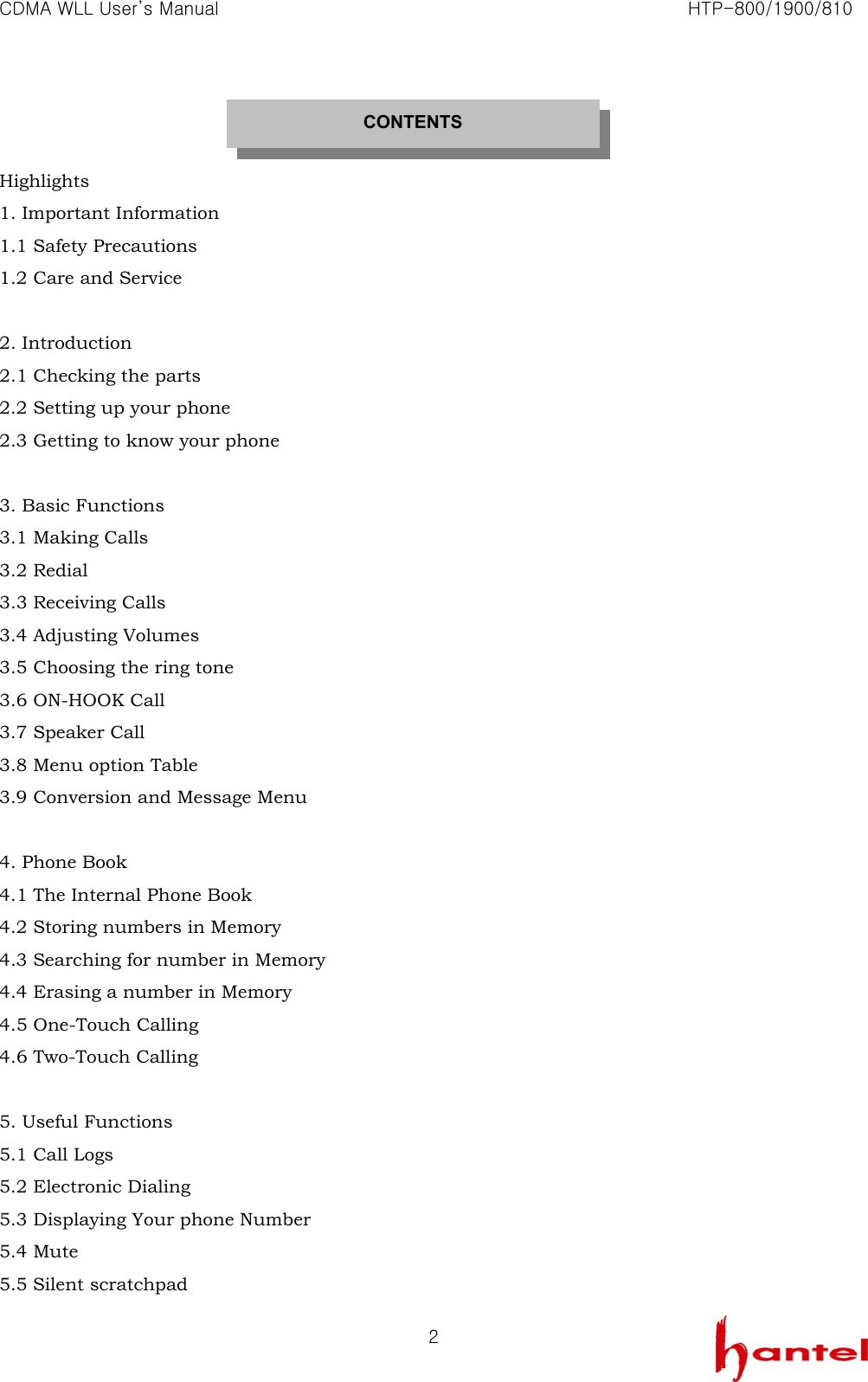
CDMA WLL User’s Manual                                                               HTP-800/1900/810   2  Highlights 1. Important Information 1.1 Safety Precautions 1.2 Care and Service  2. Introduction 2.1 Checking the parts 2.2 Setting up your phone 2.3 Getting to know your phone  3. Basic Functions 3.1 Making Calls 3.2 Redial 3.3 Receiving Calls 3.4 Adjusting Volumes 3.5 Choosing the ring tone 3.6 ON-HOOK Call 3.7 Speaker Call 3.8 Menu option Table 3.9 Conversion and Message Menu  4. Phone Book 4.1 The Internal Phone Book 4.2 Storing numbers in Memory 4.3 Searching for number in Memory 4.4 Erasing a number in Memory 4.5 One-Touch Calling 4.6 Two-Touch Calling  5. Useful Functions 5.1 Call Logs 5.2 Electronic Dialing 5.3 Displaying Your phone Number 5.4 Mute 5.5 Silent scratchpad CONTENTS
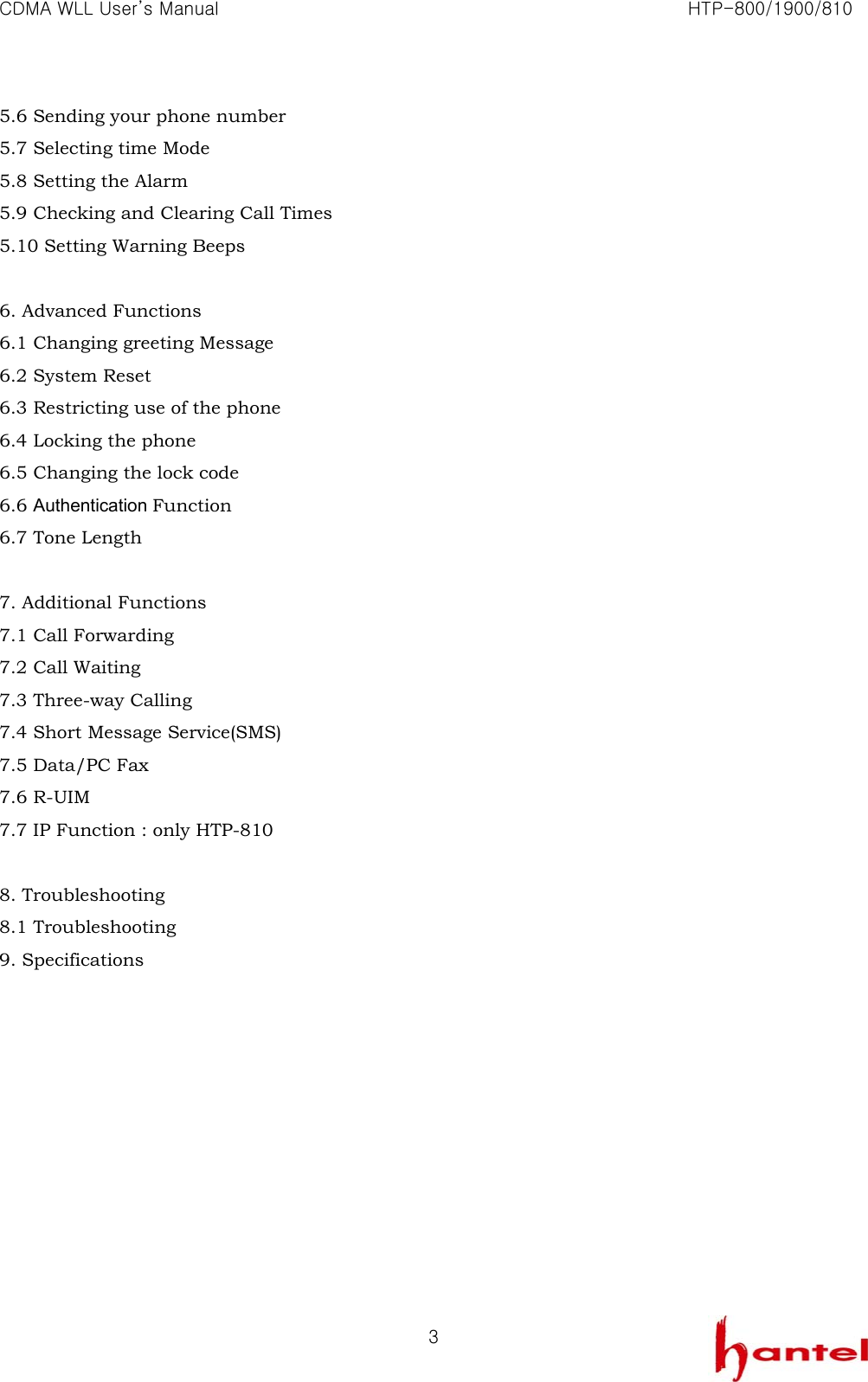
CDMA WLL User’s Manual                                                               HTP-800/1900/810   35.6 Sending your phone number 5.7 Selecting time Mode 5.8 Setting the Alarm 5.9 Checking and Clearing Call Times 5.10 Setting Warning Beeps  6. Advanced Functions 6.1 Changing greeting Message 6.2 System Reset 6.3 Restricting use of the phone 6.4 Locking the phone 6.5 Changing the lock code 6.6 Authentication Function 6.7 Tone Length  7. Additional Functions 7.1 Call Forwarding 7.2 Call Waiting 7.3 Three-way Calling 7.4 Short Message Service(SMS) 7.5 Data/PC Fax 7.6 R-UIM 7.7 IP Function : only HTP-810  8. Troubleshooting 8.1 Troubleshooting 9. Specifications
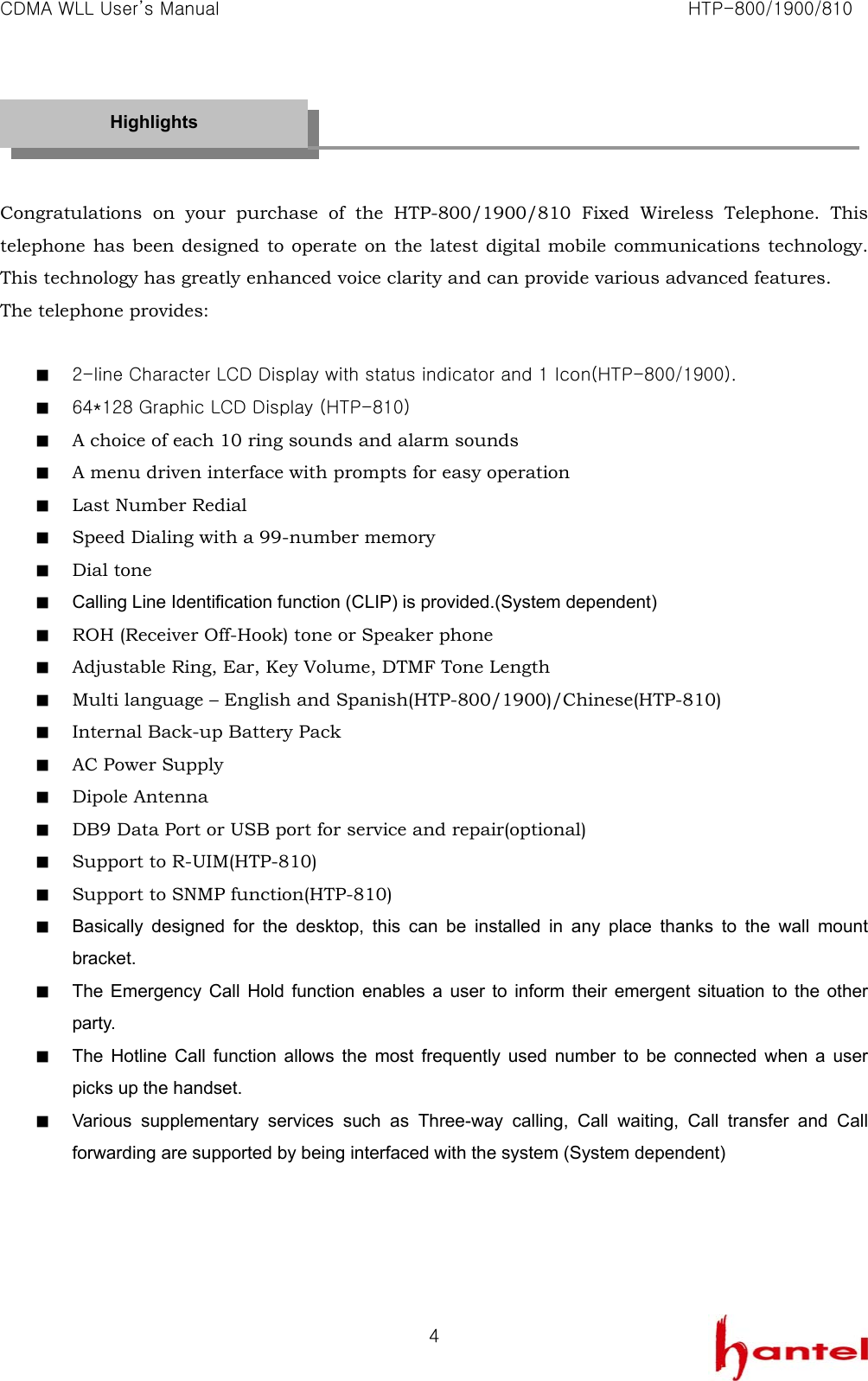
CDMA WLL User’s Manual                                                               HTP-800/1900/810   4   Congratulations on your purchase of the HTP-800/1900/810 Fixed Wireless Telephone. This telephone has been designed to operate on the latest digital mobile communications technology. This technology has greatly enhanced voice clarity and can provide various advanced features. The telephone provides:  ■  2-line Character LCD Display with status indicator and 1 Icon(HTP-800/1900). ■  64*128 Graphic LCD Display (HTP-810) ■  A choice of each 10 ring sounds and alarm sounds ■  A menu driven interface with prompts for easy operation ■  Last Number Redial ■  Speed Dialing with a 99-number memory ■  Dial tone ■  Calling Line Identification function (CLIP) is provided.(System dependent) ■  ROH (Receiver Off-Hook) tone or Speaker phone ■  Adjustable Ring, Ear, Key Volume, DTMF Tone Length ■  Multi language – English and Spanish(HTP-800/1900)/Chinese(HTP-810) ■  Internal Back-up Battery Pack ■  AC Power Supply ■  Dipole Antenna ■  DB9 Data Port or USB port for service and repair(optional) ■  Support to R-UIM(HTP-810) ■  Support to SNMP function(HTP-810) ■  Basically designed for the desktop, this can be installed in any place thanks to the wall mount bracket. ■  The Emergency Call Hold function enables a user to inform their emergent situation to the other party. ■  The Hotline Call function allows the most frequently used number to be connected when a user picks up the handset. ■  Various supplementary services such as Three-way calling, Call waiting, Call transfer and Call forwarding are supported by being interfaced with the system (System dependent)     Highlights
CDMA WLL User’s Manual                                                               HTP-800/1900/810   5      ■  Do not operate your product when holding the antenna, or when someone is within four inches (ten centimeters) of the antenna. Holding the antenna affects call quality and may cause the telephone to operate at a higher power level than needed. ■  For the best call quality, keep the antenna free from obstructions and point the antenna straight up. ■  Do not use the unit with a damaged antenna. Have your antenna replaced by a qualified technician immediately. Use only a manufacturer-approved antenna. Non-approved antennas, modifications, or attachments could impair call quality, damage the phone. ■  RF energy may affect improperly installed or inadequately shielded personal medical devices such as pace markers, hospital monitor. Consult the manufacturer of any personal medical devices to determine if they are adequately shielded from external RF energy. Turn your terminal OFF in health care facilities when any regulations posted in the areas instruct you to do so. Hospitals or health care facilities may be using equipment that could be sensitive to external RF energy. ■  If this equipment does cause harmful interference to radio or television reception, which can be determined by turning the equipment off and on, the user is encouraged to try to correct the interference by one or more of the following measures: -  Reorient or relocate the receiving antenna -  Increase the distance between the radio or television and the telephone. -  Connect the equipment into an outlet on a circuit different from that to which the terminal is connected. -  Consult you Authorized Dealer of an experienced radio technician for help. ■  Use only the battery, antenna and AC power supply provided by Dealer. Using any other type will invalidate the warranty. ■  Only authorized personnel should service the phone and its accessories. Faulty installation or service any be dangerous and may invalidate the warranty. ■  Do not use the unit in designated “no cellular phone use” area. ■  Avoid exposure to high temperature or humidity. ■  Avoid wetting the unit with any liquids. If the unit gets wet, turn the power off immediately and remove the backup battery and AC power supply. If the unit is inoperable, then return to the service agent for service. 1. Important Information 1.1 SAFETY PRECAUTIONS
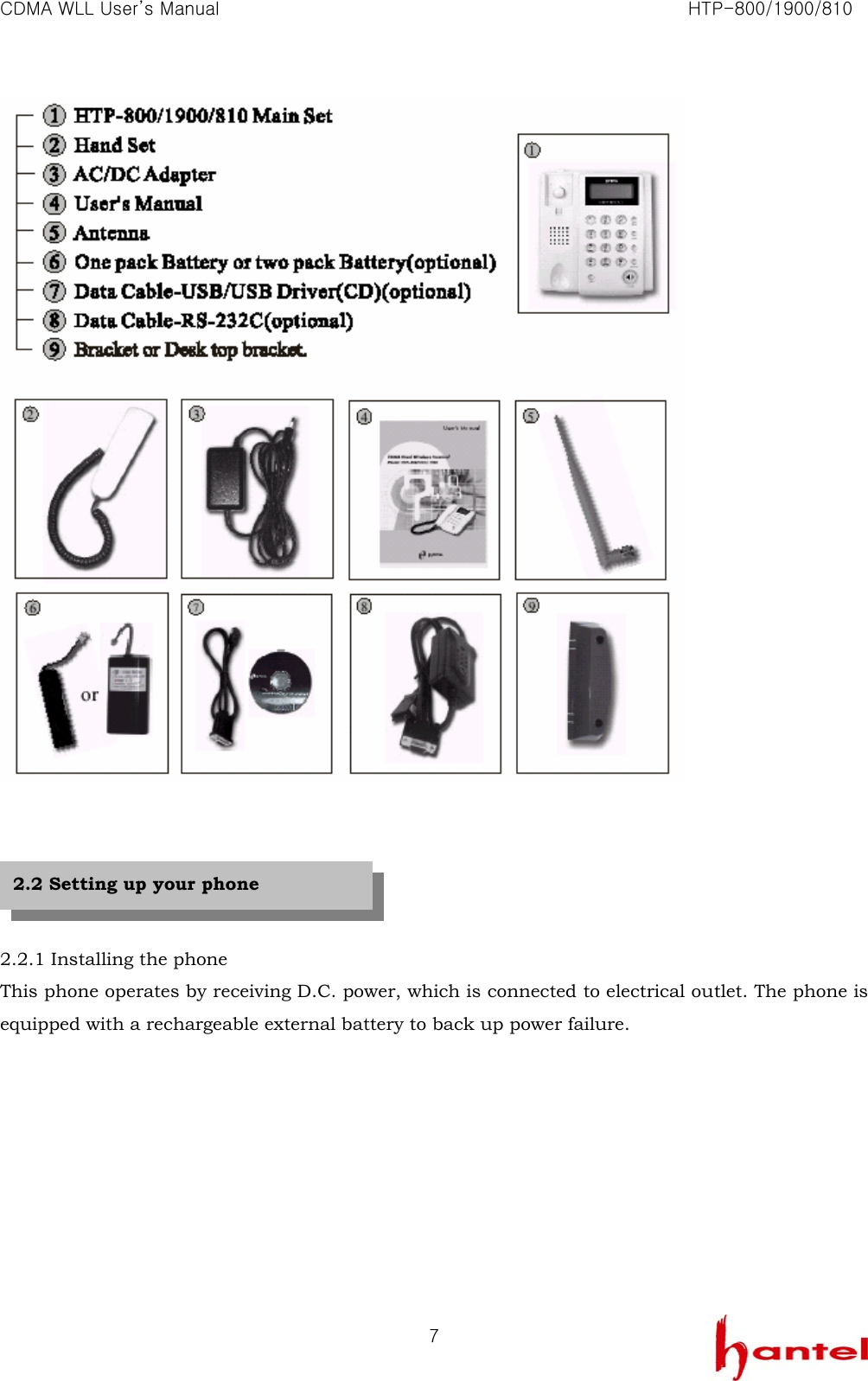
CDMA WLL User’s Manual                                                               HTP-800/1900/810   6■  Avoid shock or impact. ■  We recommend you to charge the backup battery before initial use. Backup battery may be discharged during delivery.     ■  Unplug the telephone from the wall outlet and remove antenna (or disconnect antenna cable) before cleaning. Do not use liquid or aerosol cleaners. Use a damp cloth for cleaning. ■  If the unit fails for any reason, do not attempt to disassemble; contact the telephone service provider for assistance. ■  If any of the following conditions exist; unplug the unit at the wall plug, remove battery, and call the service provider. -  The power supply cord is damaged or frayed. -  Liquid has been spilled into the unit. -  The unit has been exposed to rain or water. -  The unit has been dropped or damaged. -  The unit does not work normally by following the operating instructions.        1.2 Care and Service 2. Introduction 2.1 Checking the parts
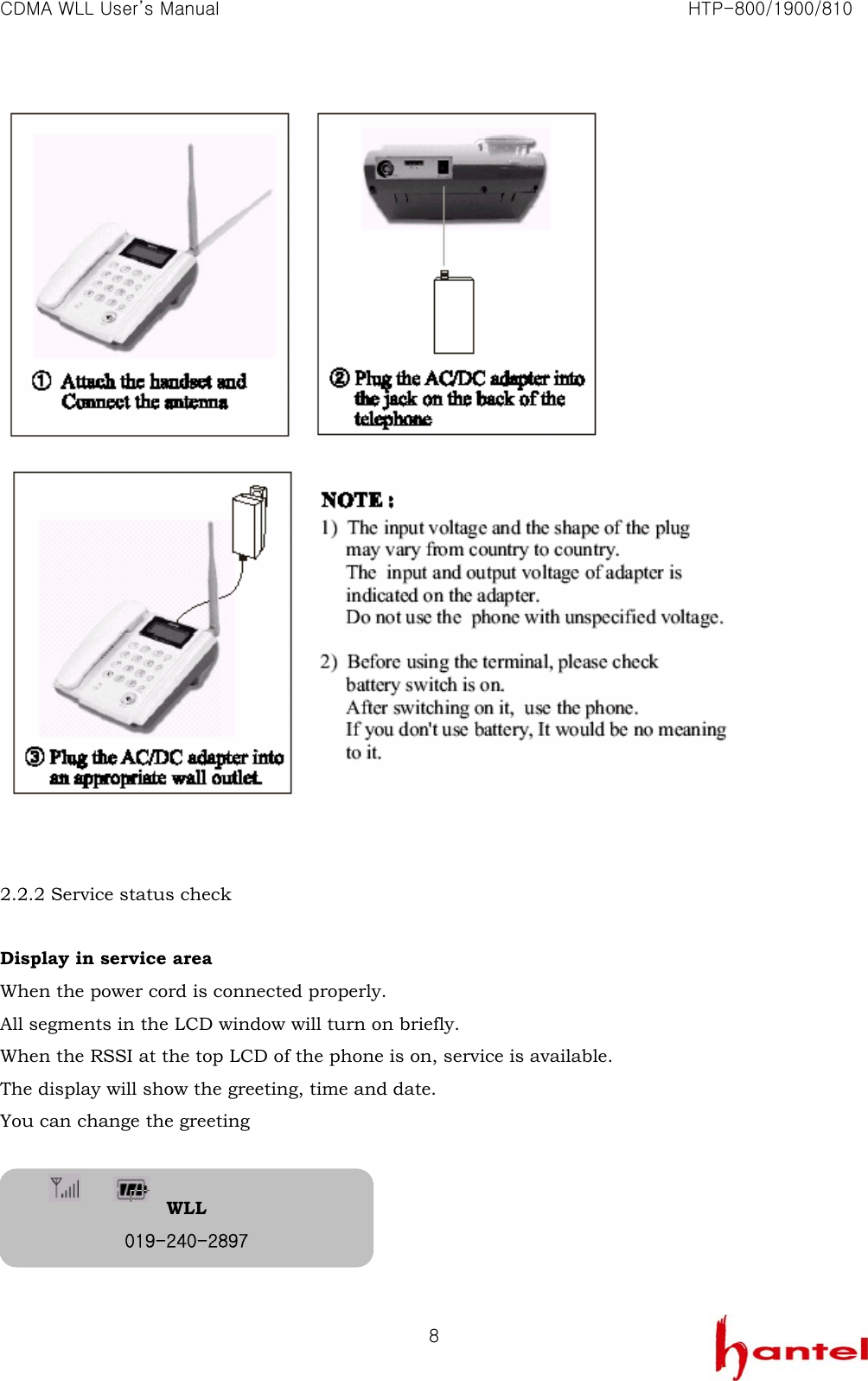
CDMA WLL User’s Manual                                                               HTP-800/1900/810   7      2.2.1 Installing the phone This phone operates by receiving D.C. power, which is connected to electrical outlet. The phone is equipped with a rechargeable external battery to back up power failure.    2.2 Setting up your phone
CDMA WLL User’s Manual                                                               HTP-800/1900/810   8   2.2.2 Service status check  Display in service area When the power cord is connected properly. All segments in the LCD window will turn on briefly. When the RSSI at the top LCD of the phone is on, service is available. The display will show the greeting, time and date.   You can change the greeting                WLL 019-240-2897
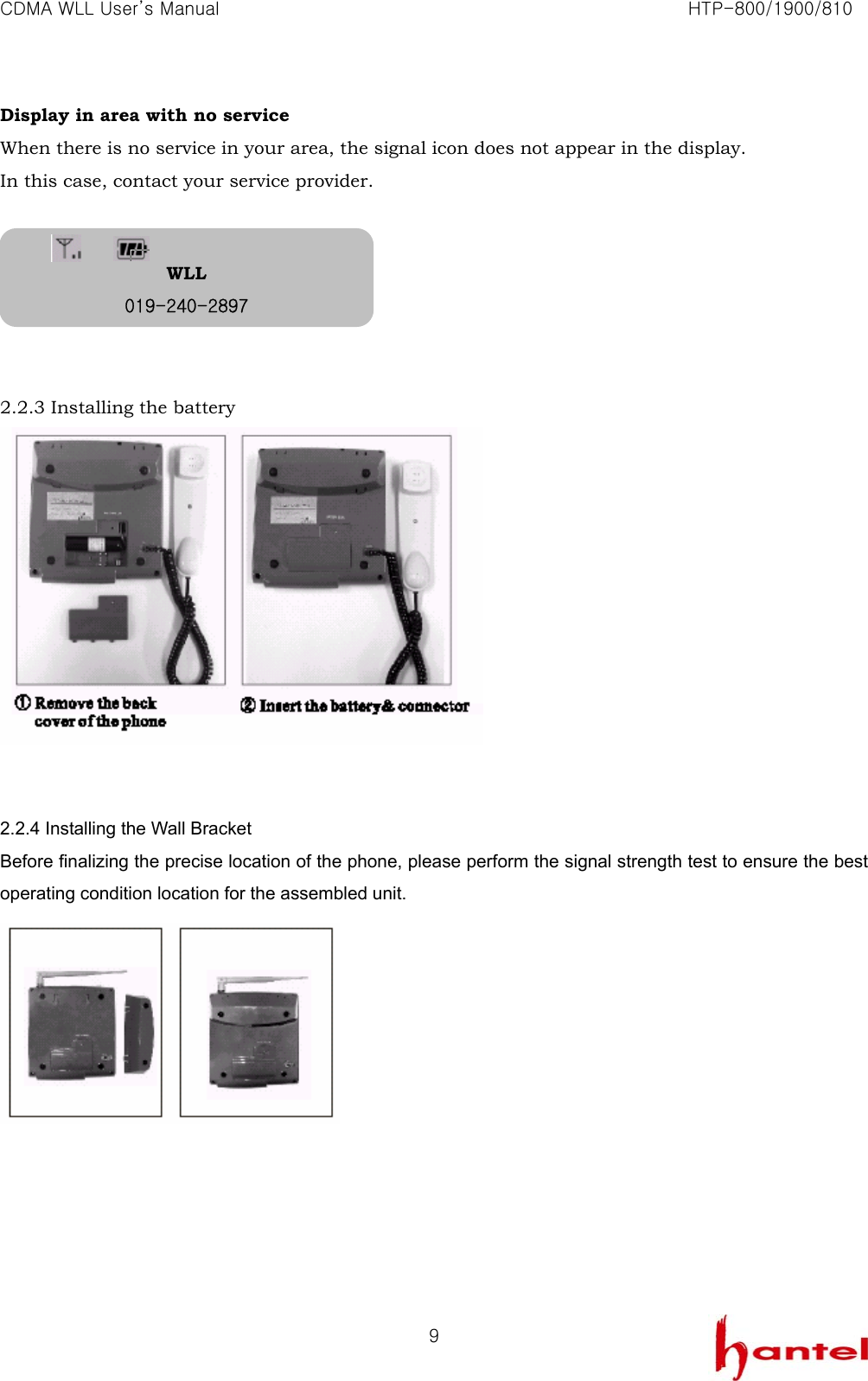
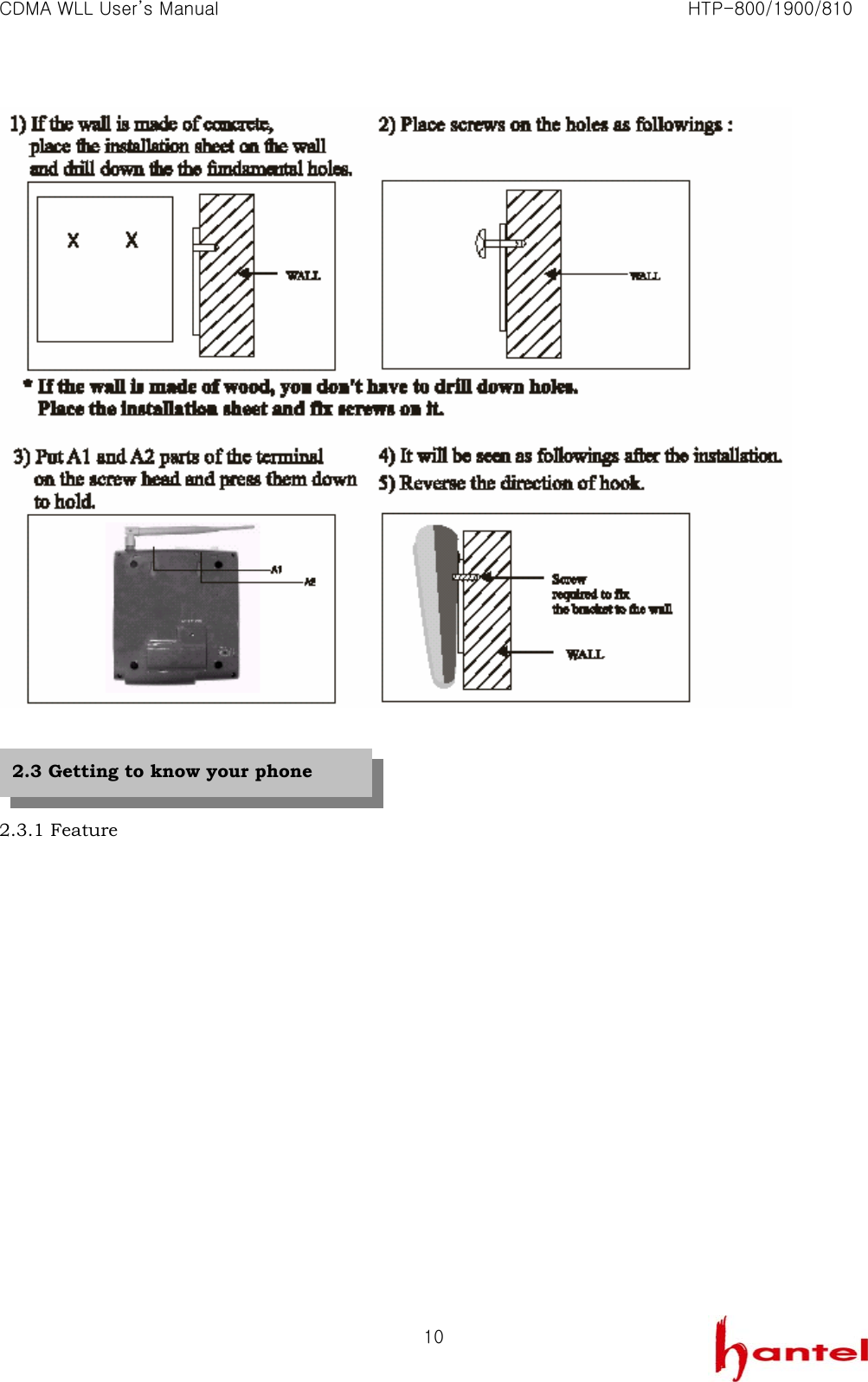
CDMA WLL User’s Manual                                                               HTP-800/1900/810   9Display in area with no service When there is no service in your area, the signal icon does not appear in the display. In this case, contact your service provider.       2.2.3 Installing the battery    2.2.4 Installing the Wall Bracket Before finalizing the precise location of the phone, please perform the signal strength test to ensure the best operating condition location for the assembled unit.   WLL 019-240-2897
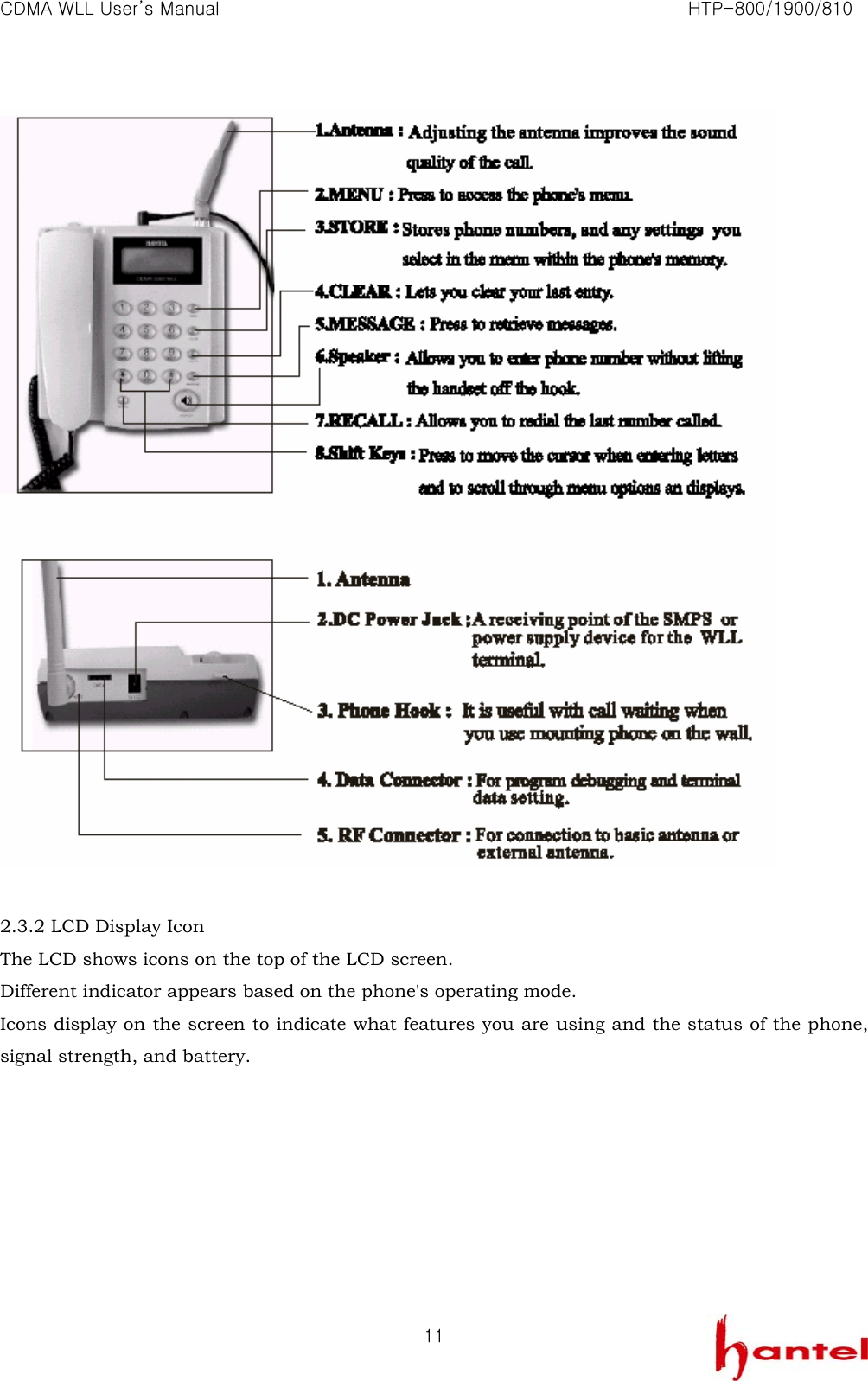
CDMA WLL User’s Manual                                                               HTP-800/1900/810   10    2.3.1 Feature 2.3 Getting to know your phone
CDMA WLL User’s Manual                                                               HTP-800/1900/810   11  2.3.2 LCD Display Icon   The LCD shows icons on the top of the LCD screen. Different indicator appears based on the phone's operating mode. Icons display on the screen to indicate what features you are using and the status of the phone, signal strength, and battery.
CDMA WLL User’s Manual                                                               HTP-800/1900/810   12        1. First, check to see that your WLL Phone is turned on. If the LCD is lit, the power is on.   2. Pick up the handset or press < > to hear a dial tone. If the service is not available, you hear a no service tone (intermittent tone.) 3. Using the keypad, dial the desired telephone number. The LCD window displays the number. 4. Wait for moment or press <RECALL> 5. When the other person answers, begin your conversation. If you pressed < > in step 2, pick up the handset before you begin conversation. 6. To end the call, replace the handset< >.      NOTE : Modifying a phone number. - Modifying the number by one digit : Press <CLEAR> briefly. - Modifying the entire number : Press <CLEAR> and hold. 3. Basic Functions 3.1 Making Calls HANTEL 4/12[WE] 1:58 AM PLEASE DIAL…  Calling… 019-240-2897
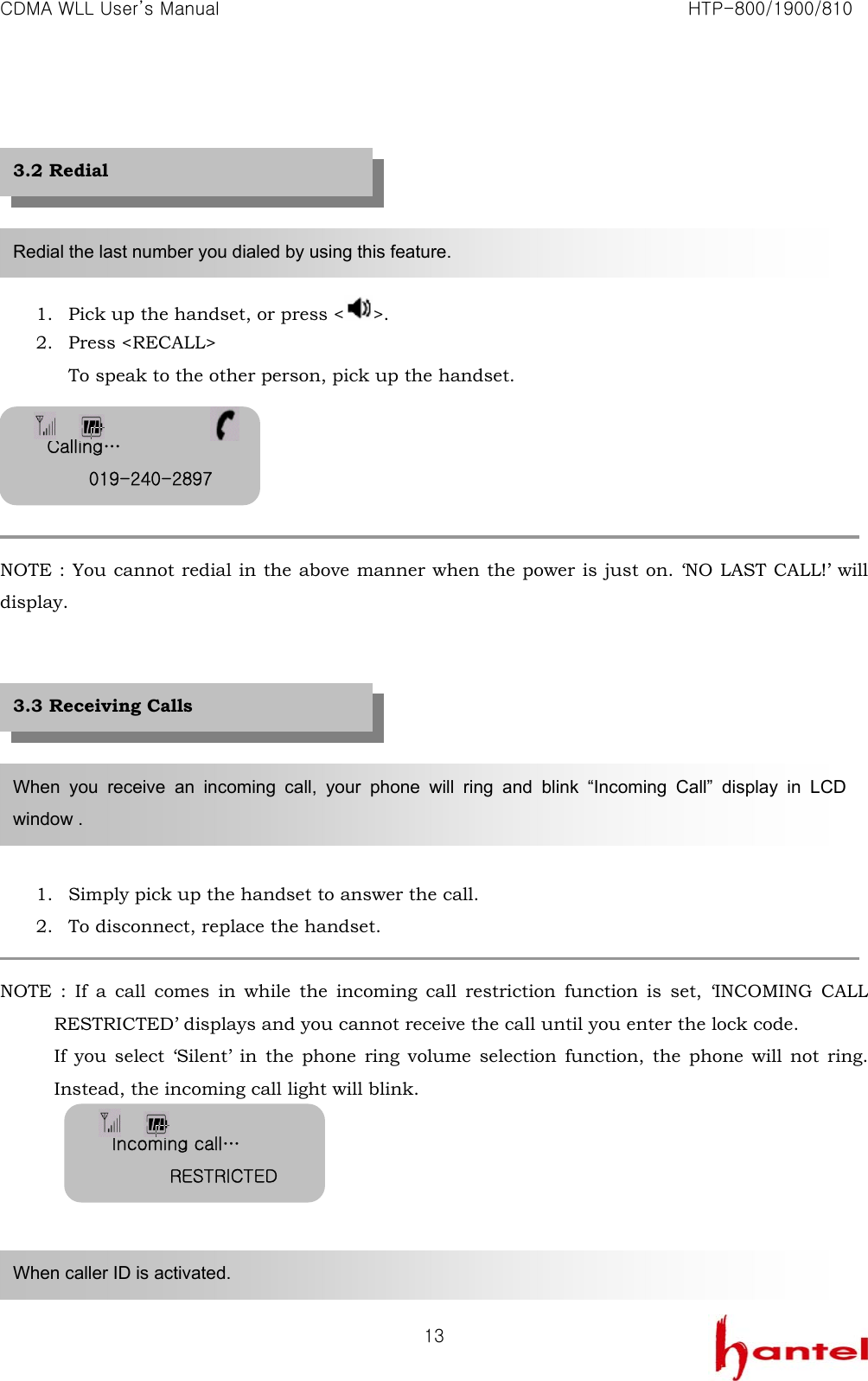
CDMA WLL User’s Manual                                                               HTP-800/1900/810   13      1. Pick up the handset, or press < >. 2. Press <RECALL> To speak to the other person, pick up the handset.      NOTE : You cannot redial in the above manner when the power is just on. ‘NO LAST CALL!’ will display.         1. Simply pick up the handset to answer the call. 2. To disconnect, replace the handset.  NOTE : If a call comes in while the incoming call restriction function is set, ‘INCOMING CALL RESTRICTED’ displays and you cannot receive the call until you enter the lock code.   If you select ‘Silent’ in the phone ring volume selection function, the phone will not ring. Instead, the incoming call light will blink.       Redial the last number you dialed by using this feature. When you receive an incoming call, your phone will ring and blink “Incoming Call” display in LCD window . When caller ID is activated. 3.2 Redial 3.3 Receiving Calls Calling… 019-240-2897Incoming call… RESTRICTED
CDMA WLL User’s Manual                                                               HTP-800/1900/810   14 3.3.1 Caller ID Display The Caller ID feature displays the caller’s number when the phone rings. If the caller’s name and number are stored together in your phone’s memory, the caller’s name will display. Contact your service provider to activate this feature.      NOTE : If there is a missed call (the call not answered), the missed call number will display.        3.4.1 Ear volume Lift the handset and press <Menu>, <1(Volume)>, <1(Ear Volume)> and press <*(▲)> or <#(▼)> and <Store> to adjust voice volume. It’s 4 step.   3.4.2 key volume Lift the handset or press <Menu>, <1(Volume)>, <2(Key Volume)> and press <*(▲)> or <#(▼)> and <Store> to adjust key tone volume. It’s 5 step.    3.4.3 ring volume Lift the handset or press <Menu>, <2(Ring)>, <1(Ring Volume)> and press <*(▲)> or <#(▼)> and <Store> to adjust ring tone volume. It’s 5 step.   You can control the sound volumes on your phone, including the key tone (the sound you hear when you press a key), the conversation volume (the sound of the other party during a phone call) and the ring volume of an incoming call. 3.4 Adjusting Volumes Incoming call… 019-240-2897missed 1 call 2/13[MO]    2:13P EARPIECE ██████ KEY VOLUME ██████ RING VOLUME ██████
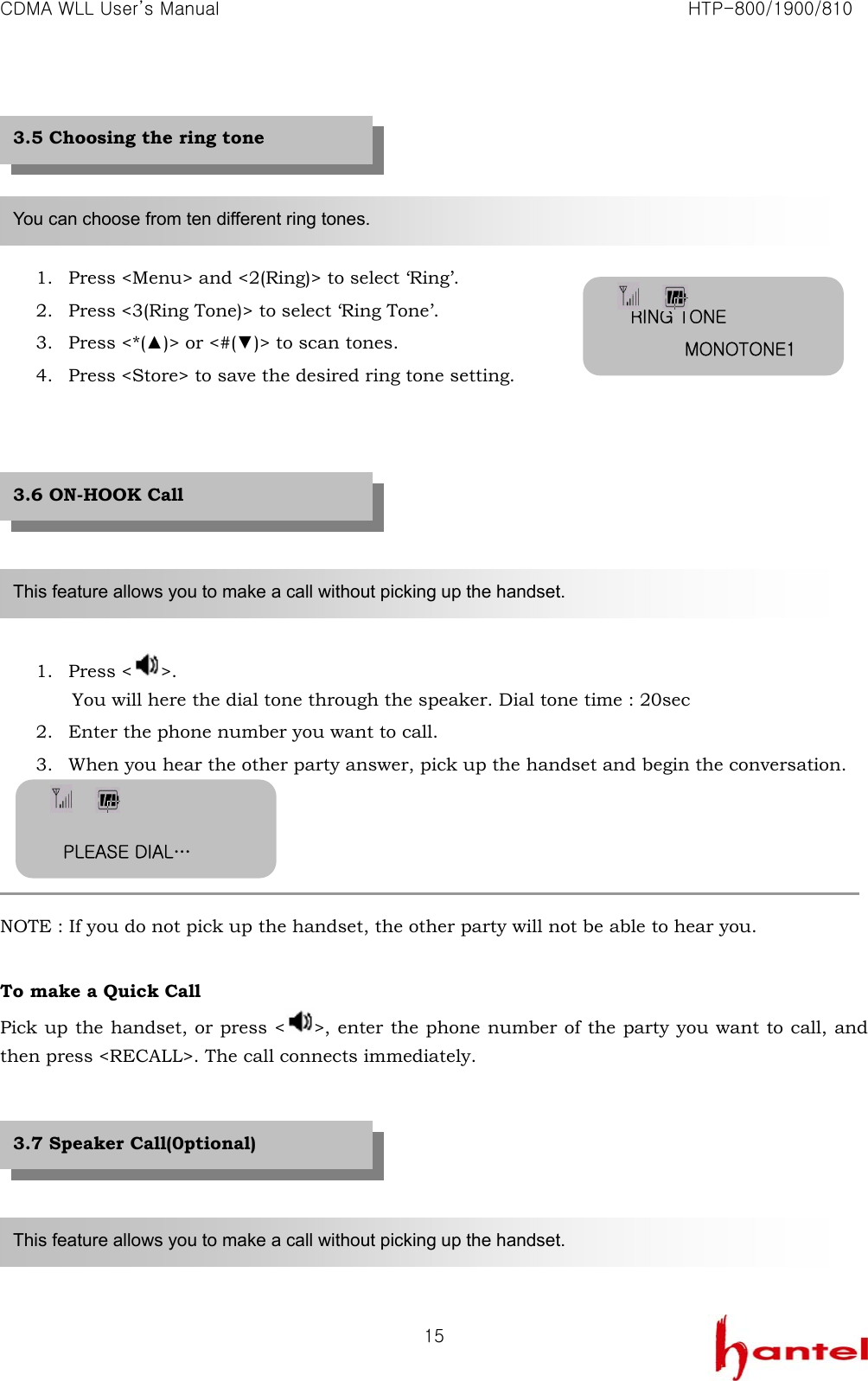
CDMA WLL User’s Manual                                                               HTP-800/1900/810   15     1. Press <Menu> and <2(Ring)> to select ‘Ring’. 2. Press <3(Ring Tone)> to select ‘Ring Tone’. 3. Press <*(▲)> or <#(▼)> to scan tones. 4. Press <Store> to save the desired ring tone setting.         1. Press < >. You will here the dial tone through the speaker. Dial tone time : 20sec 2. Enter the phone number you want to call. 3. When you hear the other party answer, pick up the handset and begin the conversation.     NOTE : If you do not pick up the handset, the other party will not be able to hear you.    To make a Quick Call Pick up the handset, or press < >, enter the phone number of the party you want to call, and then press <RECALL>. The call connects immediately.          You can choose from ten different ring tones. This feature allows you to make a call without picking up the handset. 3.5 Choosing the ring tone 3.6 ON-HOOK Call This feature allows you to make a call without picking up the handset. 3.7 Speaker Call(0ptional) RING TONE MONOTONE1 PLEASE DIAL…
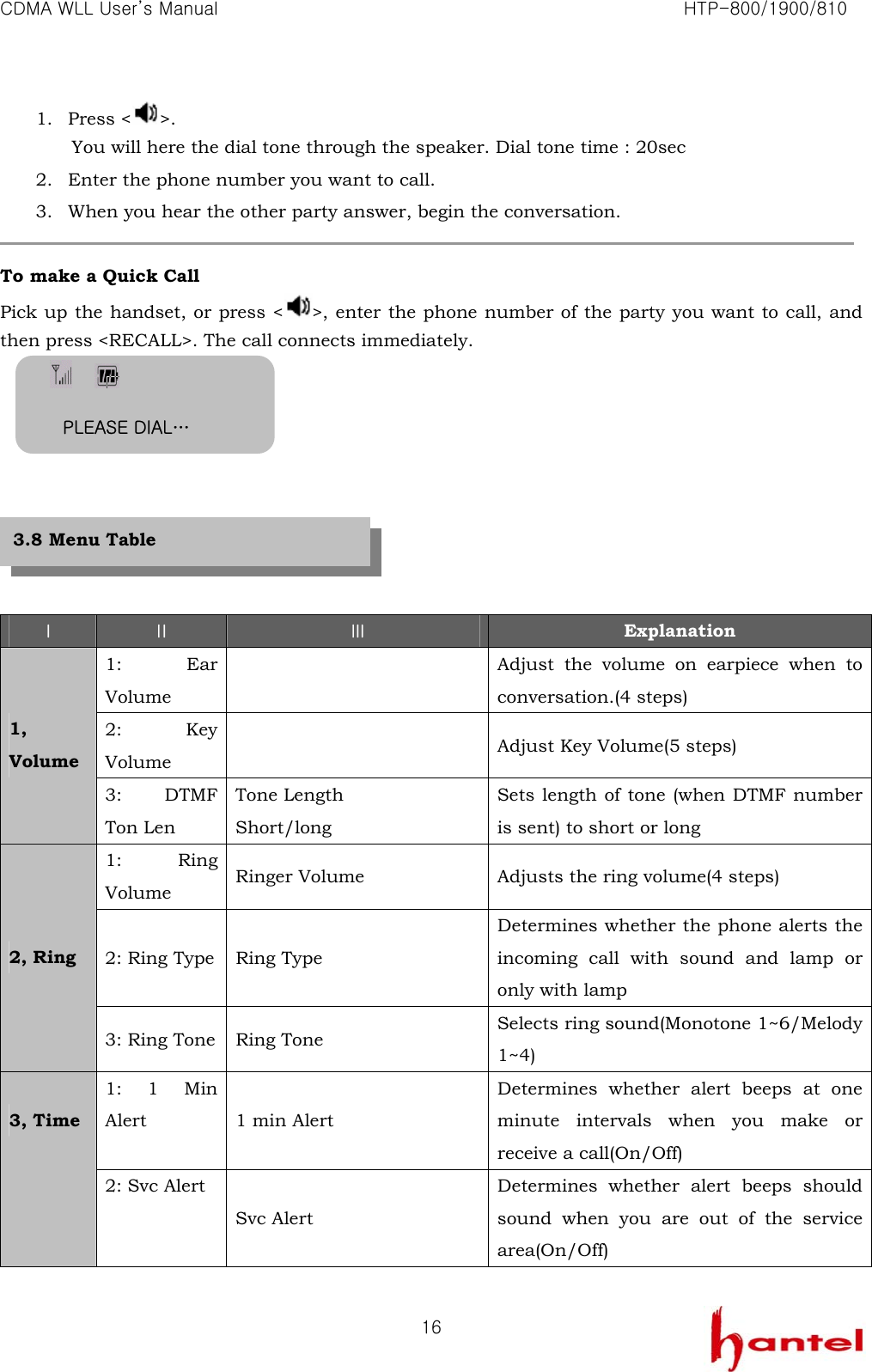
CDMA WLL User’s Manual                                                               HTP-800/1900/810   161. Press < >. You will here the dial tone through the speaker. Dial tone time : 20sec 2. Enter the phone number you want to call. 3. When you hear the other party answer, begin the conversation.  To make a Quick Call Pick up the handset, or press < >, enter the phone number of the party you want to call, and then press <RECALL>. The call connects immediately.           Ⅰ Ⅱ Ⅲ Explanation 1: Ear Volume   Adjust the volume on earpiece when to conversation.(4 steps) 2: Key Volume    Adjust Key Volume(5 steps) 1, Volume 3: DTMF Ton Len Tone Length Short/long Sets length of tone (when DTMF number is sent) to short or long 1: Ring Volume  Ringer Volume  Adjusts the ring volume(4 steps) 2: Ring Type  Ring Type Determines whether the phone alerts the incoming call with sound and lamp or only with lamp 2, Ring 3: Ring Tone  Ring Tone  Selects ring sound(Monotone 1~6/Melody 1~4) 1: 1 Min Alert  1 min Alert Determines whether alert beeps at one minute intervals when you make or receive a call(On/Off) 3, Time 2: Svc Alert Svc Alert   Determines whether alert beeps should sound when you are out of the service area(On/Off)  PLEASE DIAL… 3.8 Menu Table
CDMA WLL User’s Manual                                                               HTP-800/1900/810   173: Alarm Tone  Alarm Tone  Selects alarm sound(Monotone 1~6/Melody 1~4)  4: Alarm  Set/Release Sets/ Release an alarm([One Time | Daily] Î Set time Æ Select Alarm Duration[minu-tes]  Æ Confirm Tone) 1: Last Call    Display the time of last call mad 2: Call Time    Display accumulated call time 3: Clear Call Time    Resets accumulated call time(Yes/No) 4: Outgoing   Stores ten phone numbers called most recently 5: Incoming   Stores ten phone numbers of calls received most recently 4, Logs 6: Erase Logs   Erase outgoing/Incoming log(Erase/Cancel) 1: Banner    Used to change greeting 2: Back Light    Selects Back Light function 5,  Feature 3: Time Select   Selects time expression mode(no Time & Date | AM/PM Type 25 Hours Type) 1: Search  SEARCH OPTION NAME/MEMORY/NUMBER Used when searching for a phone number in the phone book by all/number/stored memory reference number 6, Address Book 2: Erase  SEARCH OPTION NAME/MEMORY/NUMBER Used when searching for a phone number in the phone book by memory and number 1: New code    Used to change lock code 2: Restrict   Used to limit outgoing calls(Outgoing [Cancel|Restrict] Incoming, Long Call, Intl. Call) 3: Auto Lock    Used to lock the phone(never, on power up, now, Always) 7, Security 4: My Phone #    Used to check your phone number
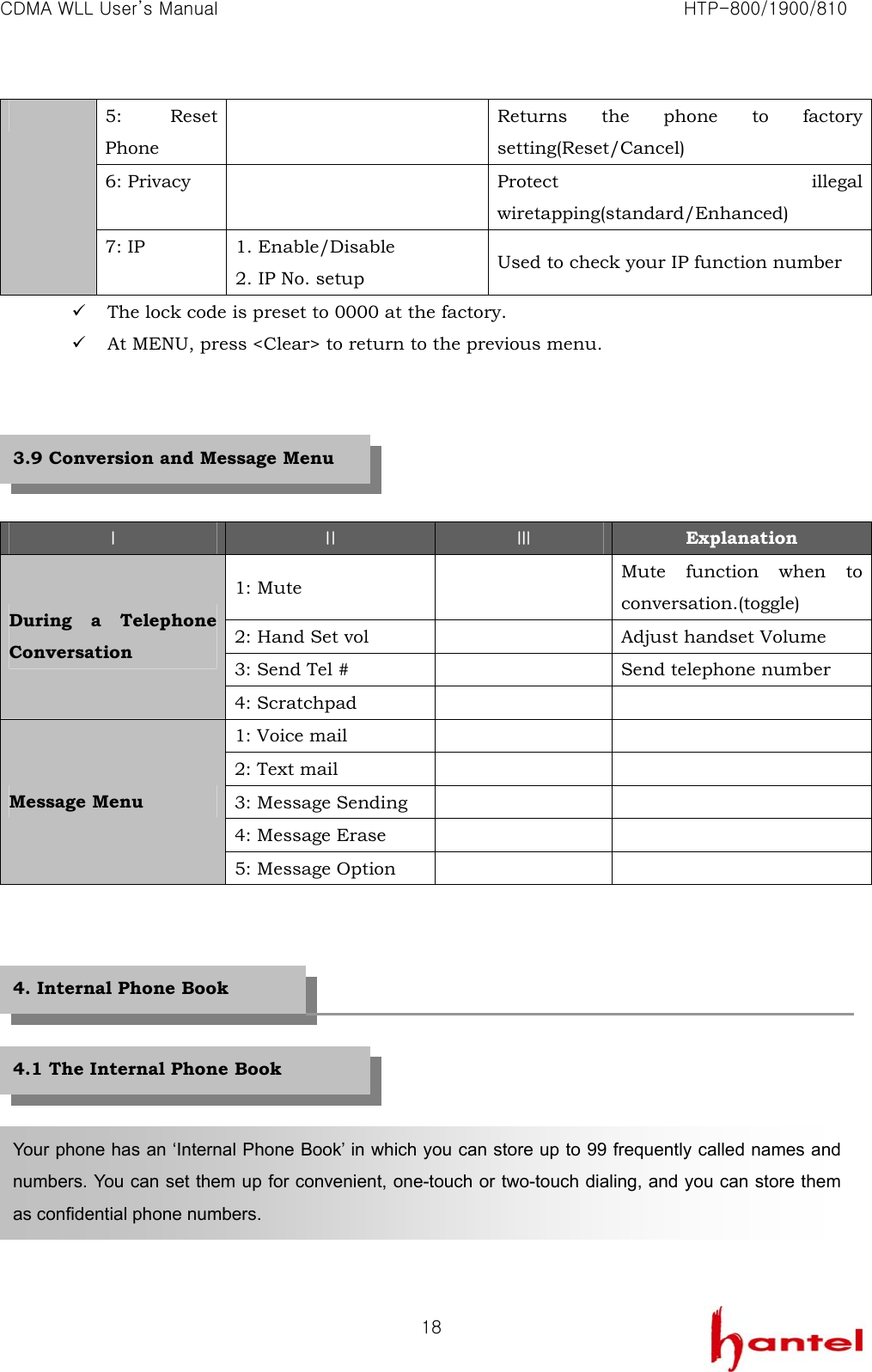
CDMA WLL User’s Manual                                                               HTP-800/1900/810   185: Reset Phone   Returns the phone to factory setting(Reset/Cancel) 6: Privacy   Protect illegal wiretapping(standard/Enhanced)  7: IP  1. Enable/Disable 2. IP No. setup  Used to check your IP function number 9 The lock code is preset to 0000 at the factory. 9 At MENU, press <Clear> to return to the previous menu.      Ⅰ Ⅱ Ⅲ Explanation 1: Mute    Mute function when to conversation.(toggle) 2: Hand Set vol    Adjust handset Volume 3: Send Tel #    Send telephone number During a Telephone Conversation 4: Scratchpad     1: Voice mail     2: Text mail     3: Message Sending     4: Message Erase     Message Menu 5: Message Option                  Your phone has an ‘Internal Phone Book’ in which you can store up to 99 frequently called names and numbers. You can set them up for convenient, one-touch or two-touch dialing, and you can store them as confidential phone numbers. 4. Internal Phone Book 4.1 The Internal Phone Book 3.9 Conversion and Message Menu
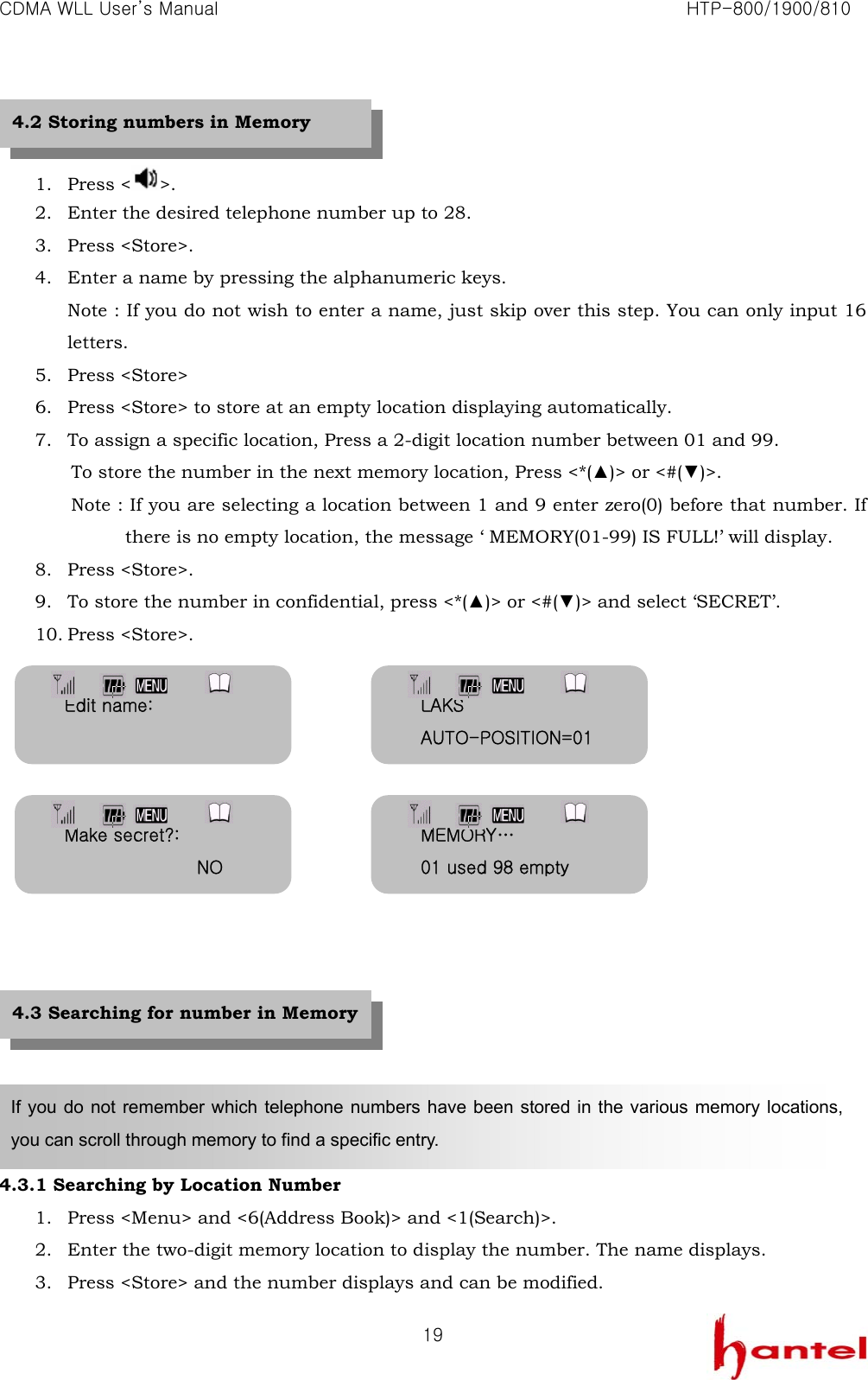
CDMA WLL User’s Manual                                                               HTP-800/1900/810   19  1. Press < >.  2. Enter the desired telephone number up to 28. 3. Press <Store>. 4. Enter a name by pressing the alphanumeric keys. Note : If you do not wish to enter a name, just skip over this step. You can only input 16 letters. 5. Press <Store> 6. Press <Store> to store at an empty location displaying automatically. 7. To assign a specific location, Press a 2-digit location number between 01 and 99. To store the number in the next memory location, Press <*(▲)> or <#(▼)>. Note : If you are selecting a location between 1 and 9 enter zero(0) before that number. If there is no empty location, the message ‘ MEMORY(01-99) IS FULL!’ will display. 8. Press <Store>. 9. To store the number in confidential, press <*(▲)> or <#(▼)> and select ‘SECRET’. 10. Press <Store>.                 4.3.1 Searching by Location Number 1. Press <Menu> and <6(Address Book)> and <1(Search)>. 2. Enter the two-digit memory location to display the number. The name displays. 3. Press <Store> and the number displays and can be modified.   If you do not remember which telephone numbers have been stored in the various memory locations, you can scroll through memory to find a specific entry. 4.2 Storing numbers in Memory 4.3 Searching for number in Memory Edit name:  LAKS AUTO-POSITION=01Make secret?:                NO MEMORY… 01 used 98 empty
CDMA WLL User’s Manual                                                               HTP-800/1900/810   20Note : If the location is empty, ‘Empty Location!’ will displays. 4. When the desired number displays.   To make the call, press <Recall>. To exit the function, press <Clear>.         4.3.2 Searching by Name 1. Press <Menu> and <6(Address Book)> and <1(Search)> in sequence. 2. Press <Store> and you can enter all or part of the name by pressing the alphanumeric keys on the keypad. Example) Enter A to find all names beginning from the letter A. 3. Press <Store>. The phone briefly displays the memory location number along with the name and number of the first match. If the number displayed is not the one you want, press <*(▲)> or <#(▼)> to scroll through the list until the desired number displays. 4. When the desired number displays, press <Recall> to dial the number automatically.        4.3.3 Searching All 1. Press <Menu> and <6(Address Book)> and <1(Search)> in sequence, 2. To browse all stored list, press <*(▲)> or <#(▼)>. 3. Press <Store> to select one among the list and see the details. 4. When the desired number displays, press <Recall> to make the call.     [SEARCH]   ◀▶ : all STO:name, NUM:mem LOOK UP 01  Empty Location  LAKS [STO]:edit [SEARCH]   ◀▶ : all STO:name, NUM:mem SEARCH FOR T_ ▶01 : TAESEOK  Calling… TAESEOK Calling… LAKS 01 : TAESEOK ▶02 : LAKS
CDMA WLL User’s Manual                                                               HTP-800/1900/810   214.4.4 Searching Confidential Number To see the phone number stored in a confidential memory location, follow these steps : 1. Press <Menu> and <6(Address Book)> and <1(Search)> in order. 2. Search the one who you want to look by a searching method said previously and The name (if any) displays. 3. Press <Store>, “INPUT LOCK CODE” displays.   4. Enter the lock code. Note : The lock code is preset to ‘0000’ at the factory. 5. To make the call, press <Recall>. To exit the function, press <Clear>.         4.4.1 To Erase a Specific Number 1. Press <Menu> and <6(Address Book)> and <2(Erase)> in order. 2. Search the one who you want to look by a searching method said previously and The name (if any) displays. 3. Press <Store> on one who you want to erase among the list. 4. Press <Message> to erase it. Confirming message displays. 5. To confirm, press <Store>. To cancel, press <Clear> 6. If you erase a secret one, you have to enter lock code instead of pressing <Store> to confirm.         NOTE : In order to erase everything in the memory, you must reset the phone.  4.4 Erasing a number in Memory ADDRESS : #23 LAKS    02-3497-4580 INPUT LOCK CODE                ----- [SEARCH]     ◀▶ : all STO:name, NUM:mem ▶03 : KIM 03 : PARK KIM [MSG] : del ERASE #07? [STO] : ok [MSG] : no - ERASE -
CDMA WLL User’s Manual                                                               HTP-800/1900/810   22        1. Pick up the handset or press < >. 2. Press and hold the number of the location number and hold it down for at least one second. 3. The number displays and dials automatically.        1. You can easily dial phone numbers stored in memory by pressing the two-digit memory location. 2. Briefly press the first digit of the memory location number, then press the second digit and hold it down for at least on second. Example) To dial location 10, briefly press the <1>, then press <0> and hold for a moment. 3. The number stored displays and dials automatically.             Memory locations 01~09 are special one-touch dialing locations. You can dial the numbers stored in 01~09 by pressing one key. You do not need to precede the numbers with a zero when using one-touch dialing. 5. Useful Functions Your phone stores the last 10 outgoing calls and the last 10 incoming calls(only when Caller ID function is activated). You can display and redial these numbers. 4.6 Two-Touch Calling   4.5 One-Touch Calling 5.1 Call Logs Memory 7 019-240-2897 Calling… LAKS Memory 23 019-241-4653 Calling… CHOI
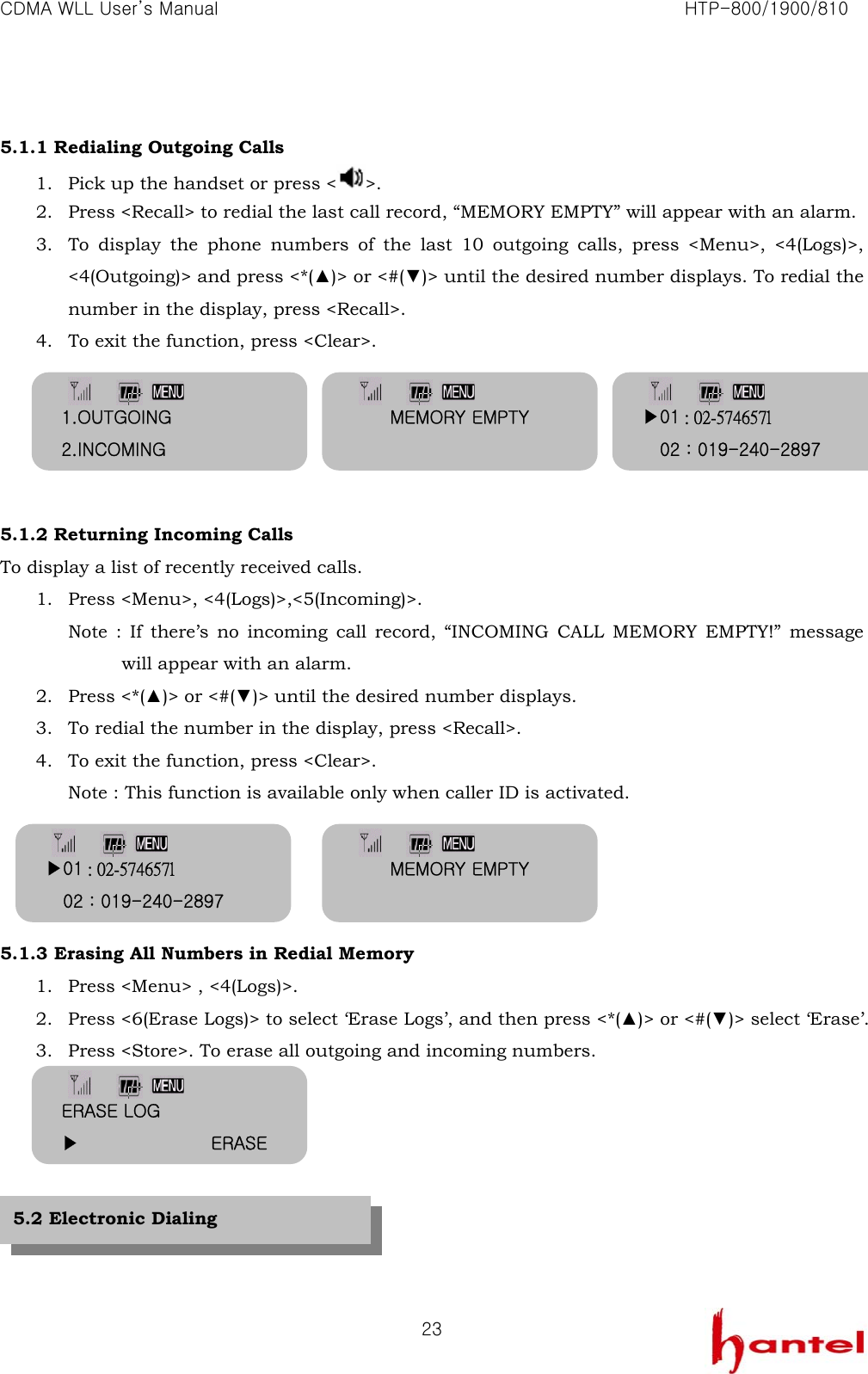
CDMA WLL User’s Manual                                                               HTP-800/1900/810   23 5.1.1 Redialing Outgoing Calls 1. Pick up the handset or press < >. 2. Press <Recall> to redial the last call record, “MEMORY EMPTY” will appear with an alarm. 3. To display the phone numbers of the last 10 outgoing calls, press <Menu>, <4(Logs)>, <4(Outgoing)> and press <*(▲)> or <#(▼)> until the desired number displays. To redial the number in the display, press <Recall>. 4. To exit the function, press <Clear>.      5.1.2 Returning Incoming Calls To display a list of recently received calls. 1. Press <Menu>, <4(Logs)>,<5(Incoming)>. Note : If there’s no incoming call record, “INCOMING CALL MEMORY EMPTY!” message will appear with an alarm. 2. Press <*(▲)> or <#(▼)> until the desired number displays. 3. To redial the number in the display, press <Recall>. 4. To exit the function, press <Clear>. Note : This function is available only when caller ID is activated.     5.1.3 Erasing All Numbers in Redial Memory 1. Press <Menu> , <4(Logs)>. 2. Press <6(Erase Logs)> to select ‘Erase Logs’, and then press <*(▲)> or <#(▼)> select ‘Erase’. 3. Press <Store>. To erase all outgoing and incoming numbers.        5.2 Electronic Dialing MEMORY EMPTY 1.OUTGOING 2.INCOMING ▶01 : 02-574657l     02 : 019-240-2897 ▶01 : 02-574657l     02 : 019-240-2897 MEMORY EMPTY ERASE LOG ▶               ERASE
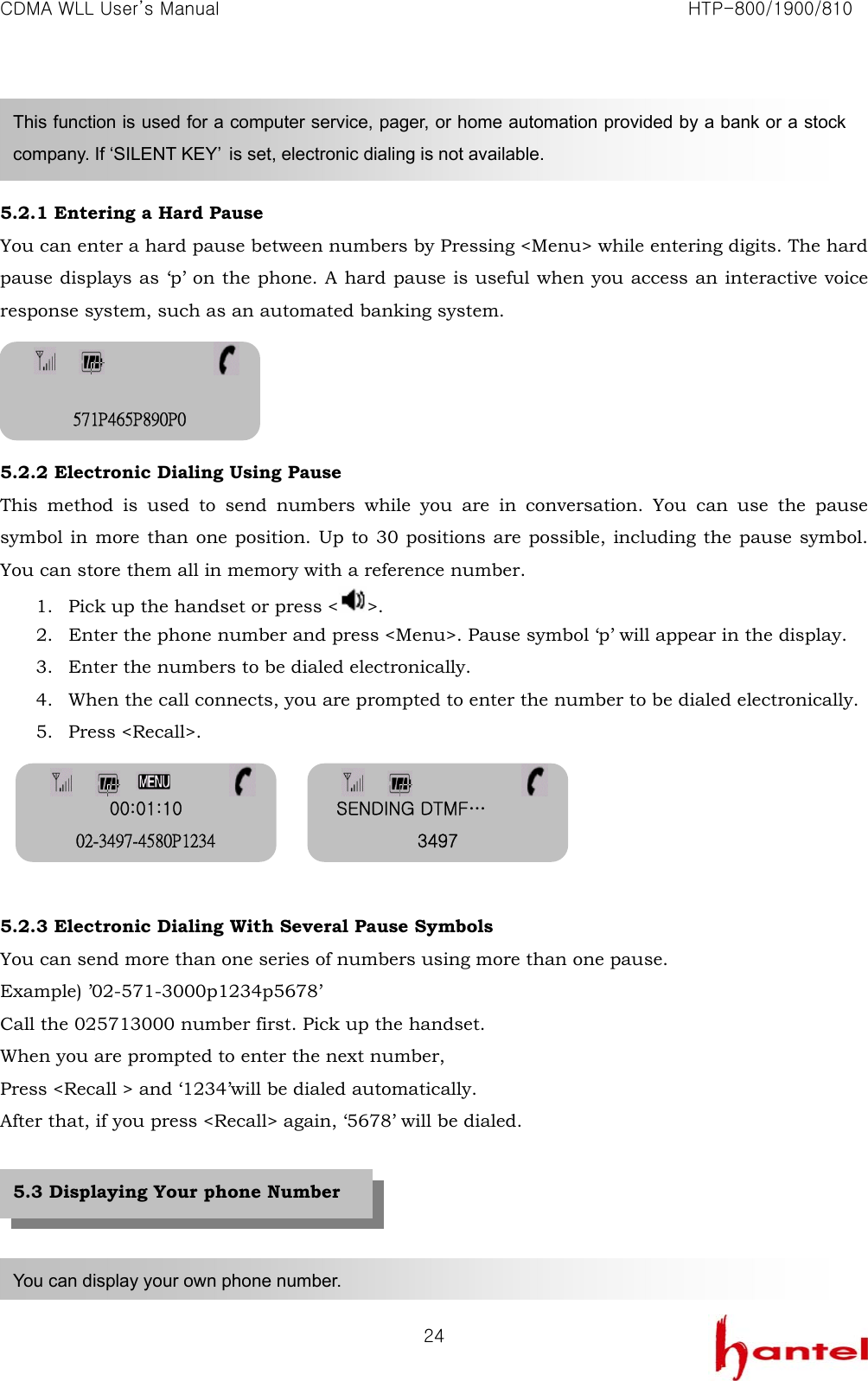
CDMA WLL User’s Manual                                                               HTP-800/1900/810   24   5.2.1 Entering a Hard Pause You can enter a hard pause between numbers by Pressing <Menu> while entering digits. The hard pause displays as ‘p’ on the phone. A hard pause is useful when you access an interactive voice response system, such as an automated banking system.     5.2.2 Electronic Dialing Using Pause This method is used to send numbers while you are in conversation. You can use the pause symbol in more than one position. Up to 30 positions are possible, including the pause symbol. You can store them all in memory with a reference number. 1. Pick up the handset or press < >. 2. Enter the phone number and press <Menu>. Pause symbol ‘p’ will appear in the display. 3. Enter the numbers to be dialed electronically. 4. When the call connects, you are prompted to enter the number to be dialed electronically. 5. Press <Recall>.      5.2.3 Electronic Dialing With Several Pause Symbols You can send more than one series of numbers using more than one pause. Example) ’02-571-3000p1234p5678’ Call the 025713000 number first. Pick up the handset. When you are prompted to enter the next number, Press <Recall > and ‘1234’will be dialed automatically. After that, if you press <Recall> again, ‘5678’ will be dialed.      This function is used for a computer service, pager, or home automation provided by a bank or a stock company. If ‘SILENT KEY’  is set, electronic dialing is not available. You can display your own phone number. 5.3 Displaying Your phone Number  571P465P890P0 SENDING DTMF… 3497 00:01:10 02-3497-4580P1234
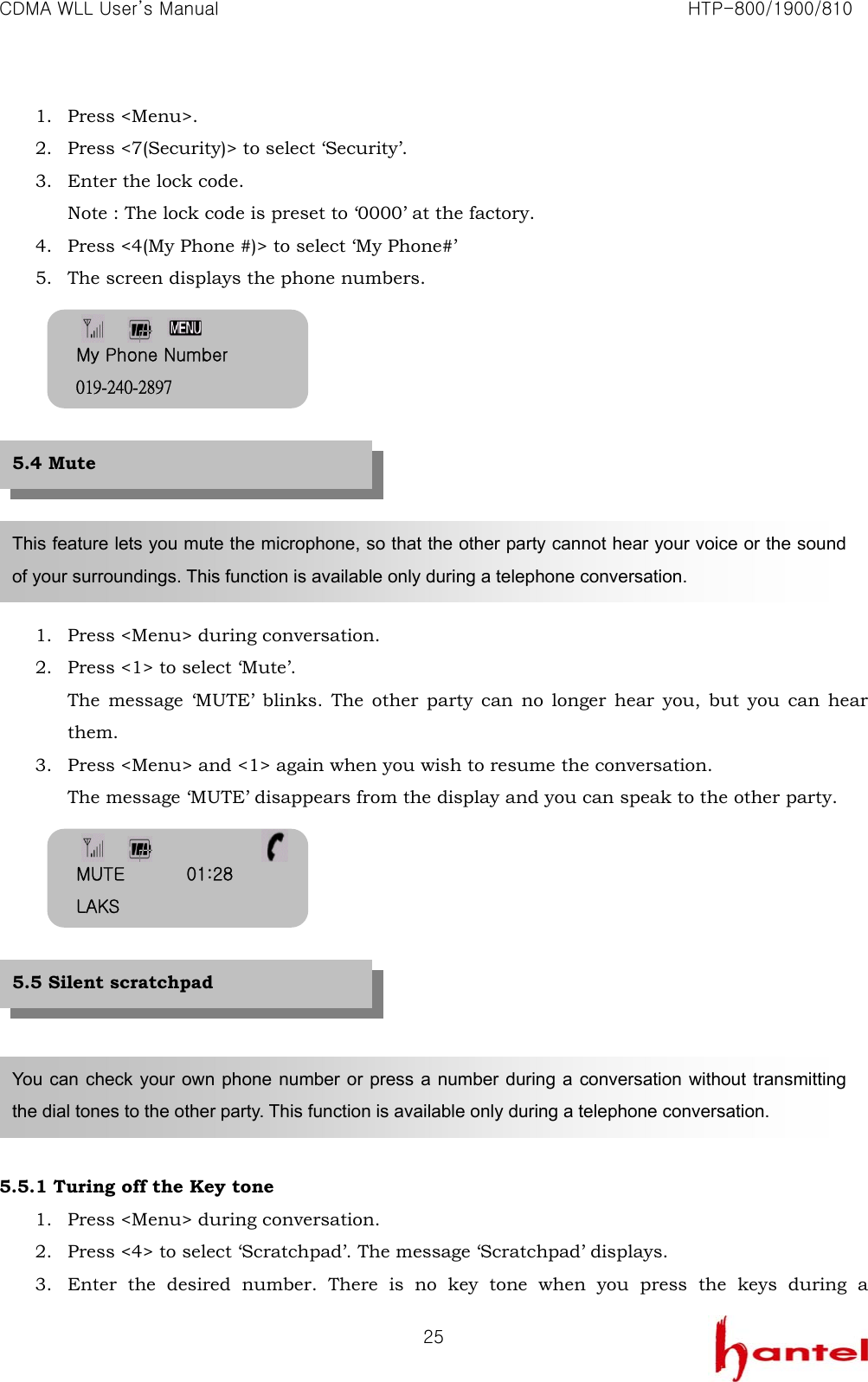
CDMA WLL User’s Manual                                                               HTP-800/1900/810   251. Press <Menu>. 2. Press <7(Security)> to select ‘Security’. 3. Enter the lock code. Note : The lock code is preset to ‘0000’ at the factory. 4. Press <4(My Phone #)> to select ‘My Phone#’ 5. The screen displays the phone numbers.           1. Press <Menu> during conversation. 2. Press <1> to select ‘Mute’. The message ‘MUTE’ blinks. The other party can no longer hear you, but you can hear them. 3. Press <Menu> and <1> again when you wish to resume the conversation. The message ‘MUTE’ disappears from the display and you can speak to the other party.            5.5.1 Turing off the Key tone 1. Press <Menu> during conversation. 2. Press <4> to select ‘Scratchpad’. The message ‘Scratchpad’ displays. 3. Enter the desired number. There is no key tone when you press the keys during a This feature lets you mute the microphone, so that the other party cannot hear your voice or the sound of your surroundings. This function is available only during a telephone conversation. You can check your own phone number or press a number during a conversation without transmitting the dial tones to the other party. This function is available only during a telephone conversation. 5.5 Silent scratchpad 5.4 Mute My Phone Number 019-240-2897 MUTE       01:28 LAKS
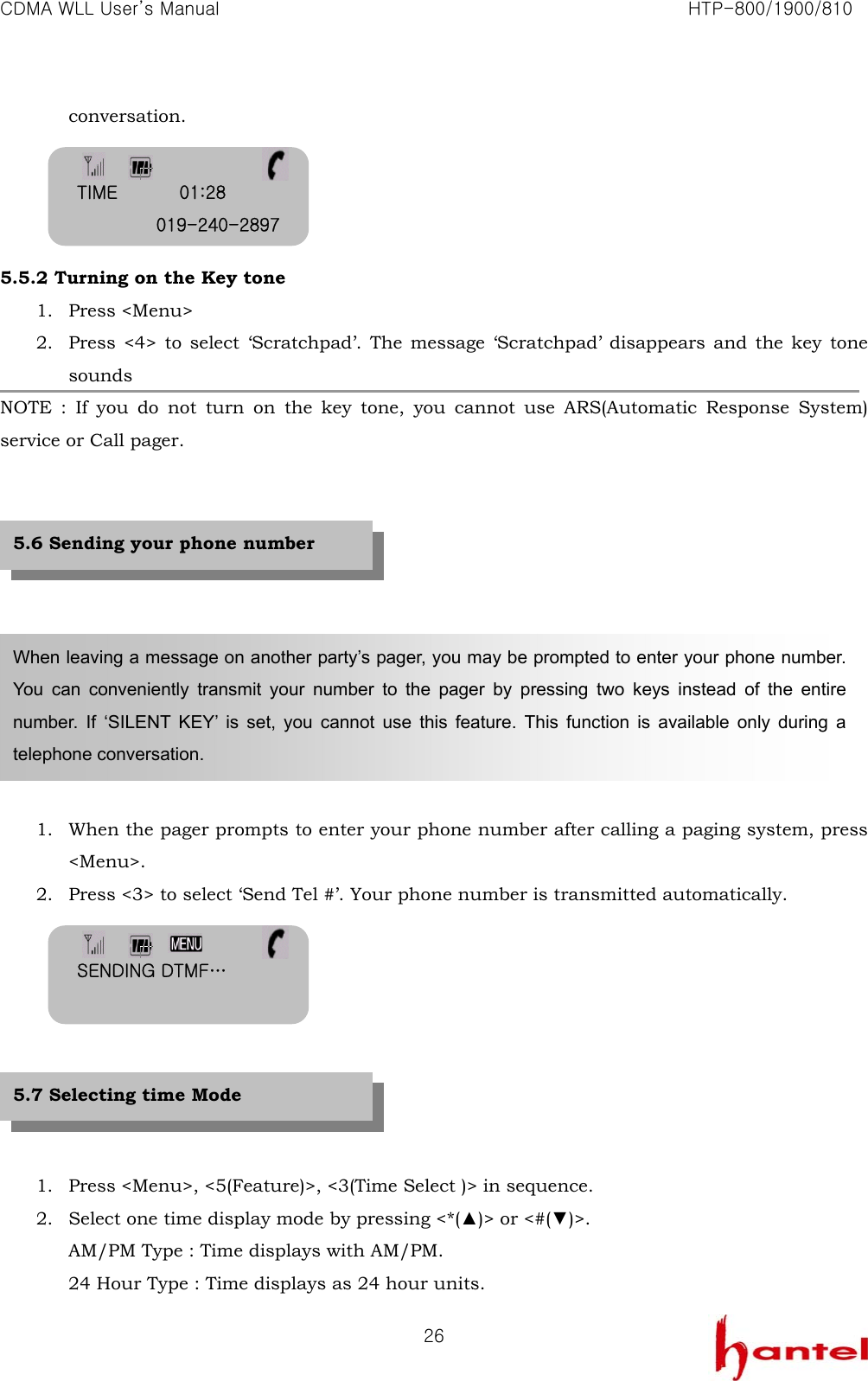
CDMA WLL User’s Manual                                                               HTP-800/1900/810   26conversation.     5.5.2 Turning on the Key tone 1. Press <Menu> 2. Press <4> to select ‘Scratchpad’. The message ‘Scratchpad’ disappears and the key tone sounds NOTE : If you do not turn on the key tone, you cannot use ARS(Automatic Response System) service or Call pager.            1. When the pager prompts to enter your phone number after calling a paging system, press <Menu>. 2. Press <3> to select ‘Send Tel #’. Your phone number is transmitted automatically.         1. Press <Menu>, <5(Feature)>, <3(Time Select )> in sequence. 2. Select one time display mode by pressing <*(▲)> or <#(▼)>. AM/PM Type : Time displays with AM/PM. 24 Hour Type : Time displays as 24 hour units. When leaving a message on another party’s pager, you may be prompted to enter your phone number. You can conveniently transmit your number to the pager by pressing two keys instead of the entire number. If ‘SILENT KEY’ is set, you cannot use this feature. This function is available only during a telephone conversation. 5.6 Sending your phone number 5.7 Selecting time Mode TIME       01:28 019-240-2897 SENDING DTMF…
CDMA WLL User’s Manual                                                               HTP-800/1900/810   27No Time and Date. : Not display time and date. 3. Press <Store>.         1. Press <Menu>, <3(Time >, <2(Alarm)> and in sequence. 2. Select one method of alarm by pressing <*(▲)> or <#(▼)>. Daily : Alarm sounds daily. One time : Alarm sounds only one time. 3. Press <Store> If the alarm function is set, ‘ALARM TIME’, date, present time, and alarm hour displays. 4. Input alarm time. Hours should be input as 24 hour units. To modify the alarm, press <*(▲)> or <#(▼)>. You can enter a specific time for the alert to sound. 5. Press <Store> and enter the number of minutes that you want the alert to sound. 6. Press <Store>. When the alarm time arrives, a melody sounds and ‘<ALARM TIME>’ displays. The sound will stop if you press any button.            1. Press <Menu>, <3(Time >, <2(Alarm)> and in sequence. 2. Select ‘RELEASE’ to off alarm. Bell icon disappears. You can set the alarm sound daily or one time only. 5.8.1 Setting/ Canceling the Alarm Time 5.8 Setting the Alarm DATE TIME ▶       AM/PM Type ALARM REPEAT ▶             DAILY ALARM SETTING ▶                SET 5/23[WE]       10:20                  12:34 ALARM SET ▶       RELEASE Type
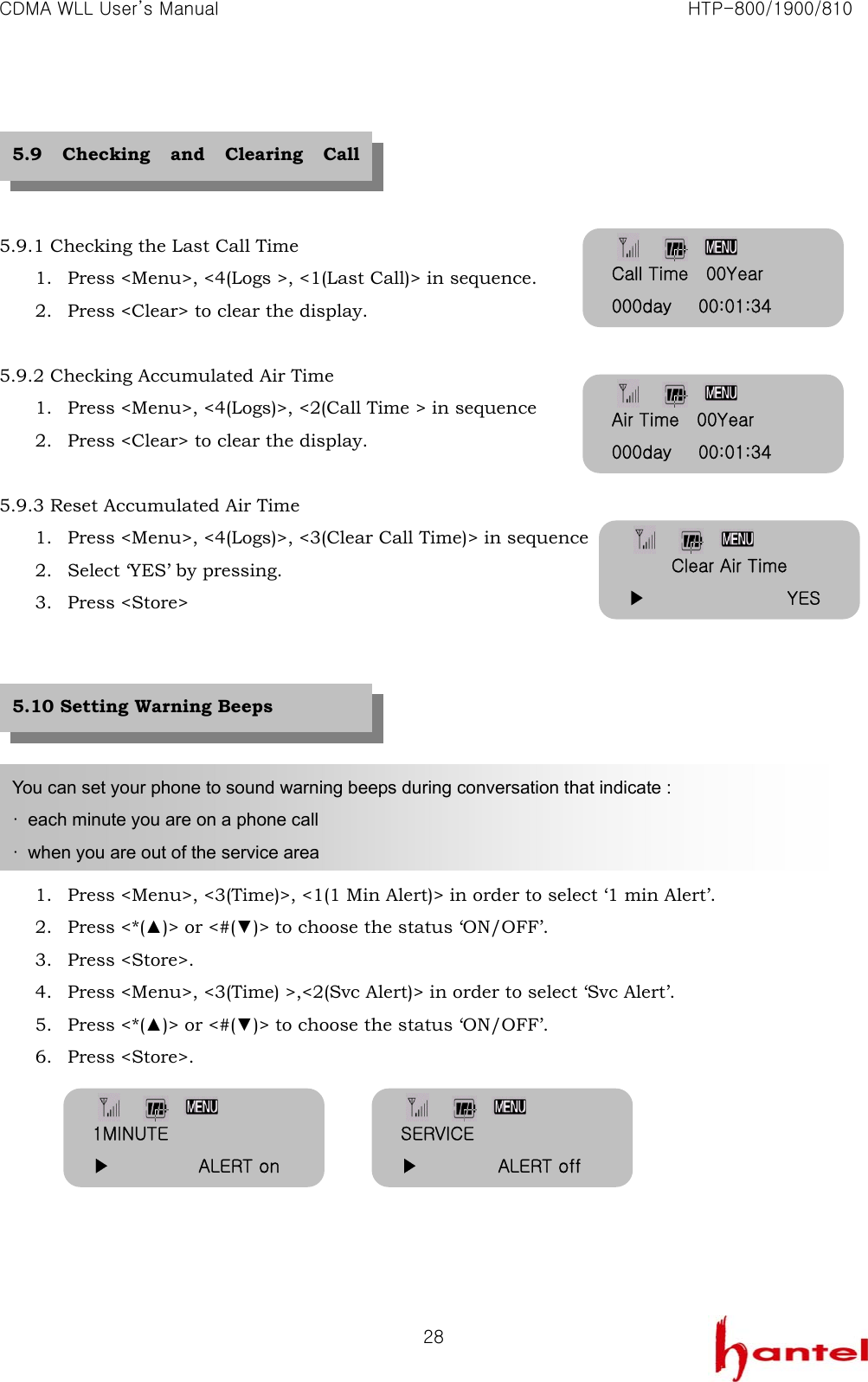
CDMA WLL User’s Manual                                                               HTP-800/1900/810   28    5.9.1 Checking the Last Call Time 1. Press <Menu>, <4(Logs >, <1(Last Call)> in sequence. 2. Press <Clear> to clear the display.  5.9.2 Checking Accumulated Air Time 1. Press <Menu>, <4(Logs)>, <2(Call Time > in sequence 2. Press <Clear> to clear the display.  5.9.3 Reset Accumulated Air Time 1. Press <Menu>, <4(Logs)>, <3(Clear Call Time)> in sequence 2. Select ‘YES’ by pressing. 3. Press <Store>         1. Press <Menu>, <3(Time)>, <1(1 Min Alert)> in order to select ‘1 min Alert’. 2. Press <*(▲)> or <#(▼)> to choose the status ‘ON/OFF’. 3. Press <Store>. 4. Press <Menu>, <3(Time) >,<2(Svc Alert)> in order to select ‘Svc Alert’. 5. Press <*(▲)> or <#(▼)> to choose the status ‘ON/OFF’. 6. Press <Store>.        You can set your phone to sound warning beeps during conversation that indicate : ·  each minute you are on a phone call ·  when you are out of the service area 5.10 Setting Warning Beeps 5.9 Checking and Clearing Call Call Time    00Year 000day      00:01:34 Air Time    00Year 000day      00:01:34 Clear Air Time ▶                YES1MINUTE ▶          ALERT on SERVICE ▶         ALERT off
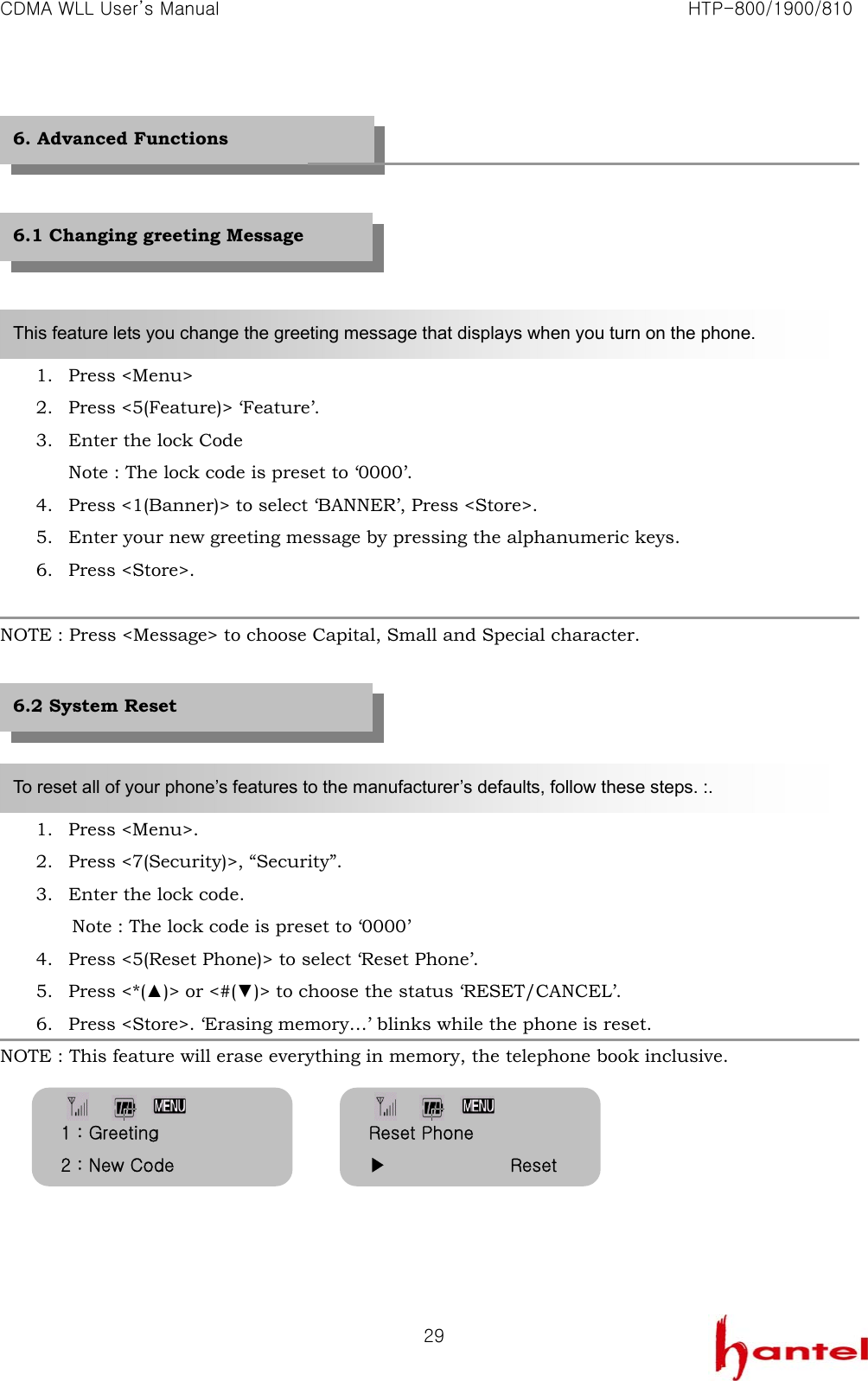
CDMA WLL User’s Manual                                                               HTP-800/1900/810   29        1. Press <Menu> 2. Press <5(Feature)> ‘Feature’. 3. Enter the lock Code Note : The lock code is preset to ‘0000’. 4. Press <1(Banner)> to select ‘BANNER’, Press <Store>. 5. Enter your new greeting message by pressing the alphanumeric keys. 6. Press <Store>.  NOTE : Press <Message> to choose Capital, Small and Special character.      1. Press <Menu>. 2. Press <7(Security)>, “Security”. 3. Enter the lock code.     Note : The lock code is preset to ‘0000’   4. Press <5(Reset Phone)> to select ‘Reset Phone’. 5. Press <*(▲)> or <#(▼)> to choose the status ‘RESET/CANCEL’. 6. Press <Store>. ‘Erasing memory…’ blinks while the phone is reset. NOTE : This feature will erase everything in memory, the telephone book inclusive.        6. Advanced Functions This feature lets you change the greeting message that displays when you turn on the phone. To reset all of your phone’s features to the manufacturer’s defaults, follow these steps. :. 6.1 Changing greeting Message 6.2 System Reset   Reset Phone ▶              Reset 1 : Greeting 2 : New Code
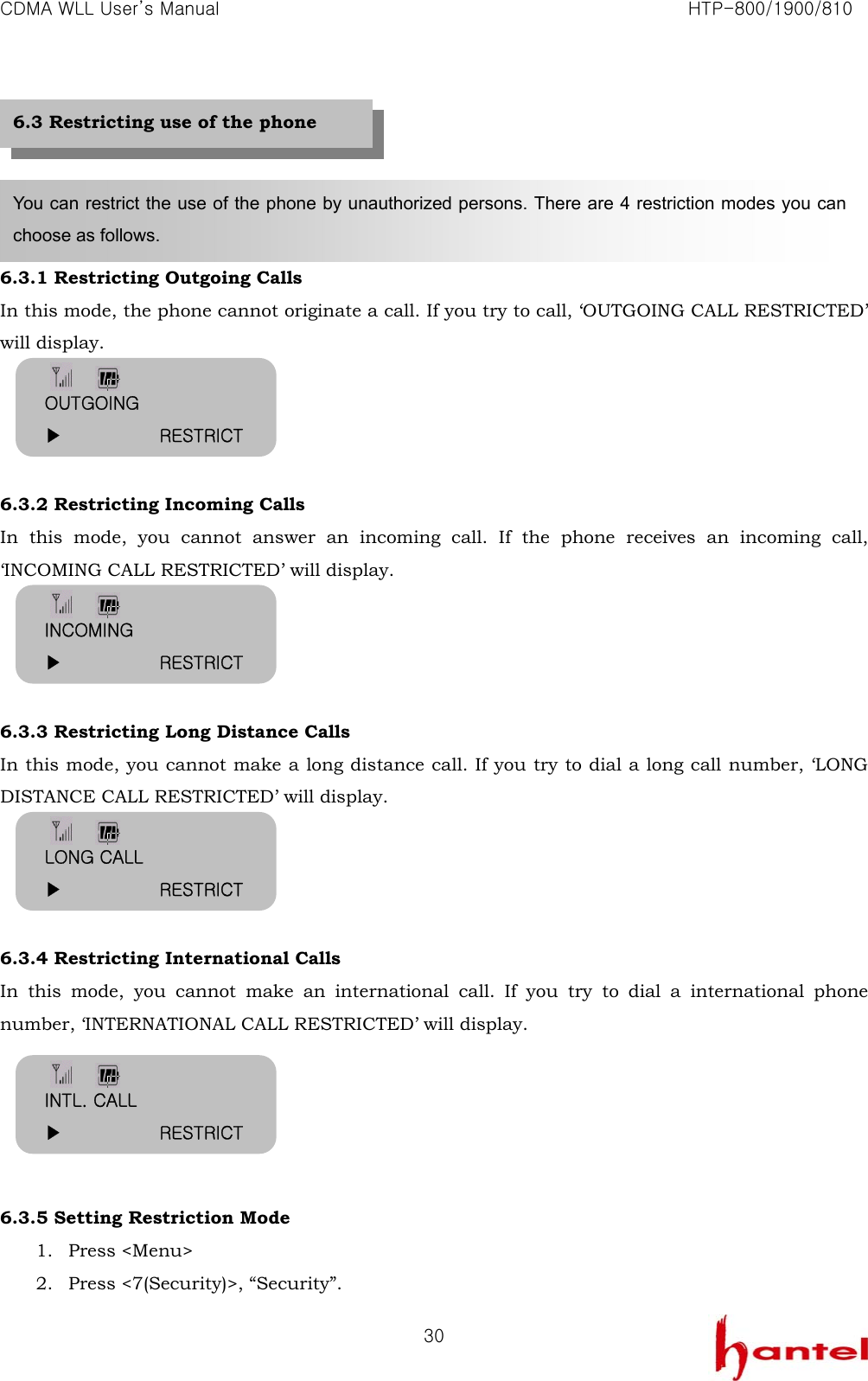
CDMA WLL User’s Manual                                                               HTP-800/1900/810   30     6.3.1 Restricting Outgoing Calls In this mode, the phone cannot originate a call. If you try to call, ‘OUTGOING CALL RESTRICTED’ will display.     6.3.2 Restricting Incoming Calls In this mode, you cannot answer an incoming call. If the phone receives an incoming call, ‘INCOMING CALL RESTRICTED’ will display.     6.3.3 Restricting Long Distance Calls In this mode, you cannot make a long distance call. If you try to dial a long call number, ‘LONG DISTANCE CALL RESTRICTED’ will display.     6.3.4 Restricting International Calls In this mode, you cannot make an international call. If you try to dial a international phone number, ‘INTERNATIONAL CALL RESTRICTED’ will display.      6.3.5 Setting Restriction Mode 1. Press <Menu> 2. Press <7(Security)>, “Security”. You can restrict the use of the phone by unauthorized persons. There are 4 restriction modes you can choose as follows.   6.3 Restricting use of the phone OUTGOING ▶           RESTRICT INCOMING ▶           RESTRICT LONG CALL ▶           RESTRICT INTL. CALL ▶           RESTRICT
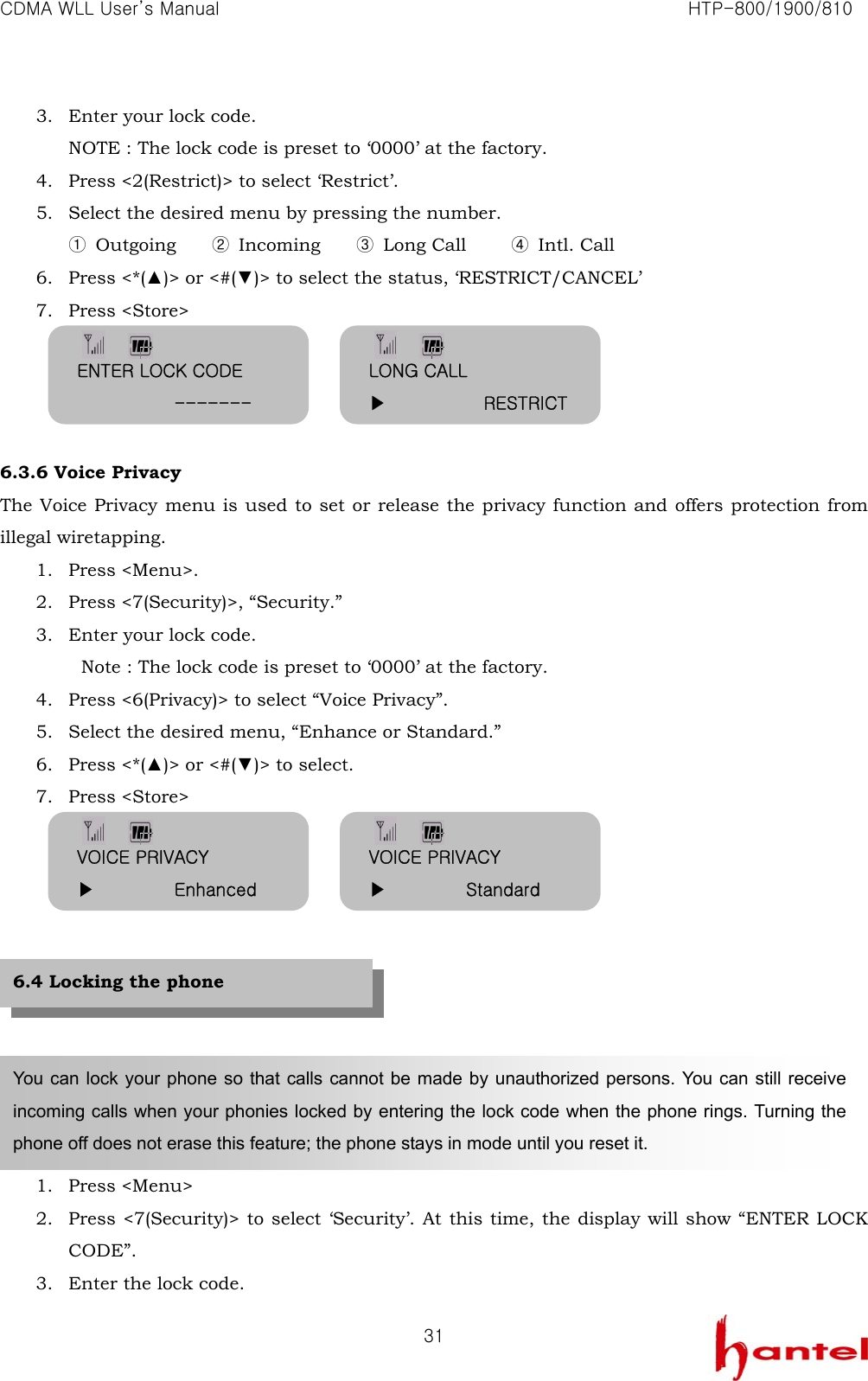
CDMA WLL User’s Manual                                                               HTP-800/1900/810   313. Enter your lock code. NOTE : The lock code is preset to ‘0000’ at the factory. 4. Press <2(Restrict)> to select ‘Restrict’. 5. Select the desired menu by pressing the number. ① Outgoing    ② Incoming    ③ Long Call     ④ Intl. Call 6. Press <*(▲)> or <#(▼)> to select the status, ‘RESTRICT/CANCEL’ 7. Press <Store>     6.3.6 Voice Privacy The Voice Privacy menu is used to set or release the privacy function and offers protection from illegal wiretapping. 1. Press <Menu>. 2. Press <7(Security)>, “Security.” 3. Enter your lock code.   Note : The lock code is preset to ‘0000’ at the factory. 4. Press <6(Privacy)> to select “Voice Privacy”. 5. Select the desired menu, “Enhance or Standard.” 6. Press <*(▲)> or <#(▼)> to select. 7. Press <Store>            1. Press <Menu> 2. Press <7(Security)> to select ‘Security’. At this time, the display will show “ENTER LOCK CODE”. 3. Enter the lock code. You can lock your phone so that calls cannot be made by unauthorized persons. You can still receive incoming calls when your phonies locked by entering the lock code when the phone rings. Turning the phone off does not erase this feature; the phone stays in mode until you reset it. 6.4 Locking the phone ENTER LOCK CODE            ------- LONG CALL ▶           RESTRICTVOICE PRIVACY ▶         Enhanced VOICE PRIVACY ▶         Standard
CDMA WLL User’s Manual                                                               HTP-800/1900/810   32NOTE: The lock code is preset to ‘0000’ at the factory. 4. Press <3(Auto Lock)> to select ‘SET LOCK ‘, and you can set the desired lock state. Choice “Never, On power up, Now Aways.”   The default setting is “Never”. 5. Press <*(▲)> or <#(▼)> to select the status, ‘SET’. 6. Press <Store> to auto lock the phone. –LOCKED – displays.   If you try to dial numbers, it will ask you to key in Lock Code. NOTE: The lock code is preset to ‘0000’ at the factory. 7. If you want to unlock the phone. 8. Follow the same steps above and select ‘never’ on the step 5.               1. Press <Menu>. 2. Press <7(Security )> to select ‘Security’ and then enter the current lock code. NOTE: The lock code is preset to ‘0000’ at the factory. 3. Press <1(New code)> to select ‘New Code’. 4. Enter your new lock code. NOTE : The lock code must be four numeric digits. 5. Press <Store>. 6. Re-enter new lock code for verification. 7. Press <Store> to confirm. NOTE: If the digits for confirmation is not matched with digits you enter first, ‘DO NOT MATCH TRY AGAIN!’  displays. You can repeat from step 4. above.   When you purchase your phone, the lock code is preset to 0000. You can change the lock code to any 4-digit code. 6.5 Changing the lock code SET LOCK ▶             Never 5 : AUTO LOCK 6 : MY PHONE # 2/14[TH]        2:56PM LOCKED Enter Lock Code            ------ 1 : Greeting 2 : New Code ENTER NEW CODE            ------ RE-ENTER CODE            ------
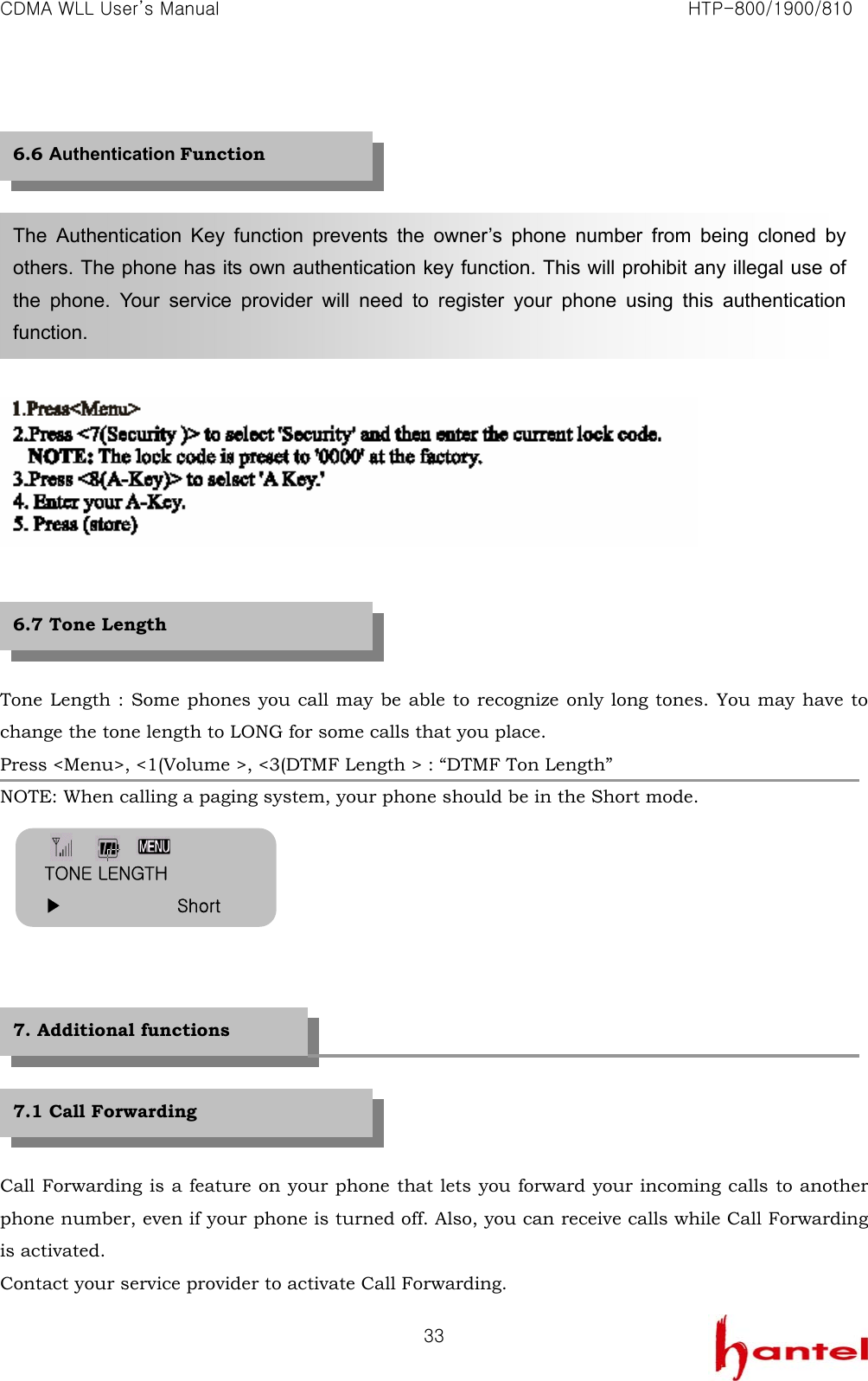
CDMA WLL User’s Manual                                                               HTP-800/1900/810   33              Tone Length : Some phones you call may be able to recognize only long tones. You may have to change the tone length to LONG for some calls that you place. Press <Menu>, <1(Volume >, <3(DTMF Length > : “DTMF Ton Length” NOTE: When calling a paging system, your phone should be in the Short mode.            Call Forwarding is a feature on your phone that lets you forward your incoming calls to another phone number, even if your phone is turned off. Also, you can receive calls while Call Forwarding is activated. Contact your service provider to activate Call Forwarding. The Authentication Key function prevents the owner’s phone number from being cloned by others. The phone has its own authentication key function. This will prohibit any illegal use of the phone. Your service provider will need to register your phone using this authentication function. 6.6 Authentication Function 6.7 Tone Length 7.1 Call Forwarding 7. Additional functions TONE LENGTH ▶             Short
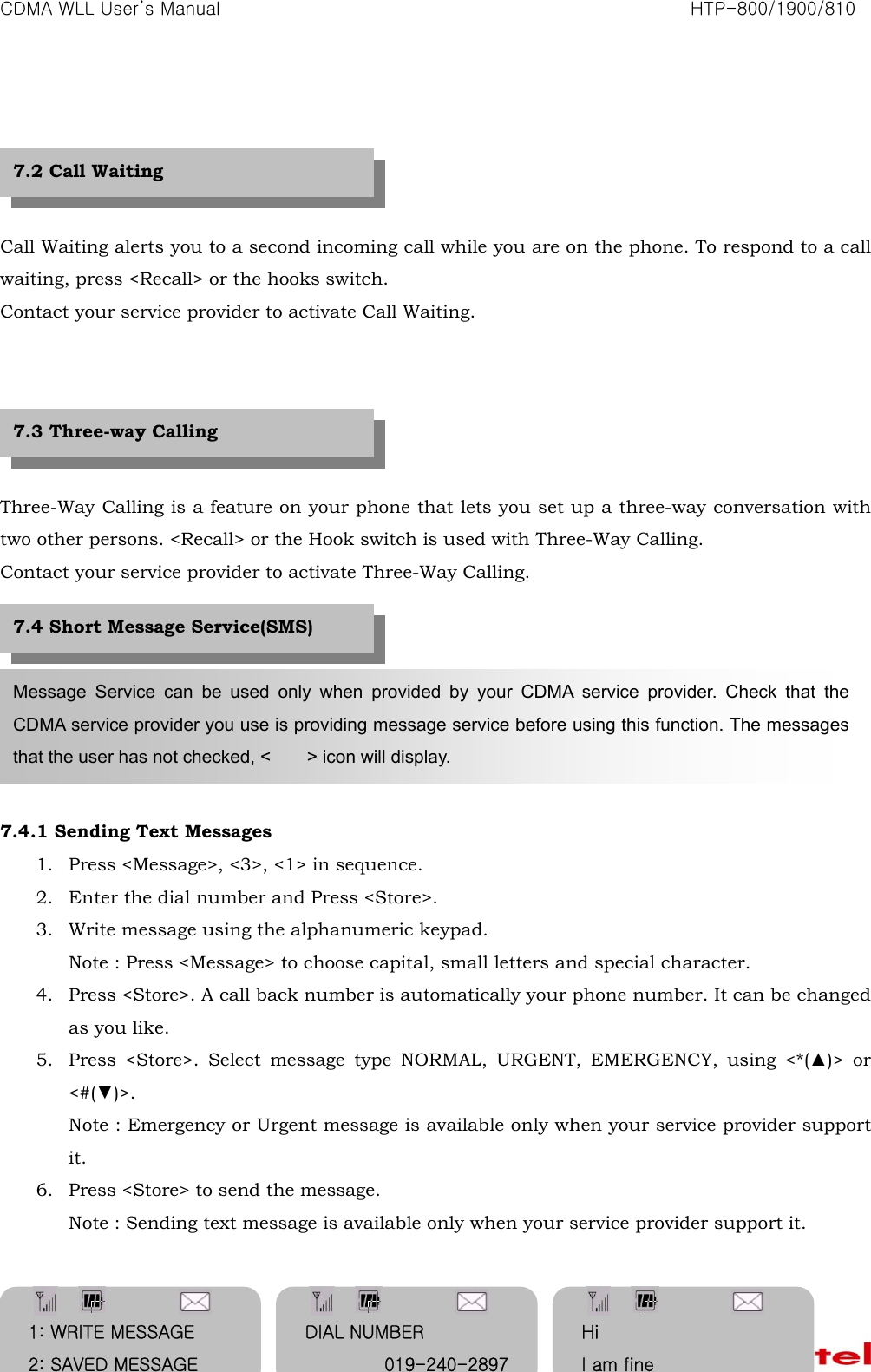
CDMA WLL User’s Manual                                                               HTP-800/1900/810   34    Call Waiting alerts you to a second incoming call while you are on the phone. To respond to a call waiting, press <Recall> or the hooks switch. Contact your service provider to activate Call Waiting.      Three-Way Calling is a feature on your phone that lets you set up a three-way conversation with two other persons. <Recall> or the Hook switch is used with Three-Way Calling. Contact your service provider to activate Three-Way Calling.        7.4.1 Sending Text Messages 1. Press <Message>, <3>, <1> in sequence. 2. Enter the dial number and Press <Store>. 3. Write message using the alphanumeric keypad. Note : Press <Message> to choose capital, small letters and special character. 4. Press <Store>. A call back number is automatically your phone number. It can be changed as you like. 5. Press <Store>. Select message type NORMAL, URGENT, EMERGENCY, using <*(▲)> or <#(▼)>. Note : Emergency or Urgent message is available only when your service provider support it. 6. Press <Store> to send the message. Note : Sending text message is available only when your service provider support it.   Message Service can be used only when provided by your CDMA service provider. Check that the CDMA service provider you use is providing message service before using this function. The messages that the user has not checked, <    > icon will display. 7.2 Call Waiting 7.3 Three-way Calling 7.4 Short Message Service(SMS) 1: WRITE MESSAGE 2: SAVED MESSAGE DIAL NUMBER 019-240-2897Hi I am fine
CDMA WLL User’s Manual                                                               HTP-800/1900/810   35       7.4.2 Receiving Voice Message 1. If a voice message is received, ‘—VOICE MAIL—‘ and < > will display. 2. Press <Recall> to connect voice mail center and hear the message.   3. Press <Recall> again to call back if the caller leaves a phone numbers. Note : If the phone number is stored in the phone book with a name, the name will display instead of the phone number.         7.4.3 Receiving Text Messages   1. If a text message is received, CALL BACK NUMBER and < > display. 2. Press <*(▲)> or <#(▼)> scroll down the message. 3. Press <Recall> and one more <Recall> the number automatically. 4. Press <Store>. The message will erase. Note : If the phone number is stored in the phone book with a name, the name will display instead of the phone number.         7.4.4 Receiving Page Messages CALL BACK NUMBER 019-240-2897 SMS PRIORITY IS ▶           NORMAL MESSAGE SEND SENDING 3/04[SA]        11:58A VOICE MAIL 02-571-4653  THE NUM OF MSG 2 [STO] : ERASE MENU [RECALL] : SEND 3/04[SA]        11:58A [CALL BACK NUM] 02-571-4653  [MESSAGE] Hi [STO] : ERASE MENU [RECALL] : SEND
CDMA WLL User’s Manual                                                               HTP-800/1900/810   361. If a page message is received, PHONE NUMBER and, < > will display. 2. Press <Recall> to call back or <Store> to erase Page message. Note : If the phone number is stored in the phone book with a name, the name will display instead of the phone number.        Note : If the incoming message tone is operating, a beep tone will be sound at internals of two minutes until you check the message. If a new message is the same as the previous message, ‘DUPLICATE’ will display.      7.4.5 Checking Received Voice Messages Press <Message> and <1> in sequence. The message volume which is stored in the voice service center and the last received time will display.      7.4.6 Viewing Received Text Messages 1. Press <Message> and <2> in sequence. The received message you want to see. 2. Press <*(▲)> or <#(▼)> select message you want to see.   3. Press <Store>. Received message and time will display. If there is a phone number, it will display as well. If there is a phone number, it will display as will. If the message is long, it will scroll down in 3 seconds automatically. Press <*(▲)> or <#(▼)> to scroll up and down manually. 4. Press <Recall> twice if you want to call back. 5. Press <MSG> if you want to SMS reply. 6. To view the next message, press <Clear>. The screen will return to step 2 above.      3/04[SA]        11:58A [CALL BACK NUM] [STO] : ERASE MENU [RECALL] : SEND 3/04[SA]        11:58A [DUPLICATE] 1: VOICE MAIL[2] 2: TEXT MAIL[1] 3/04[SA]        11:58A VOICE MAIL 1: VOICE MAIL[2] 2: TEXT MAIL[1] ▶01: Hi 02: 019-240-2897 Calling… 019-240-2897
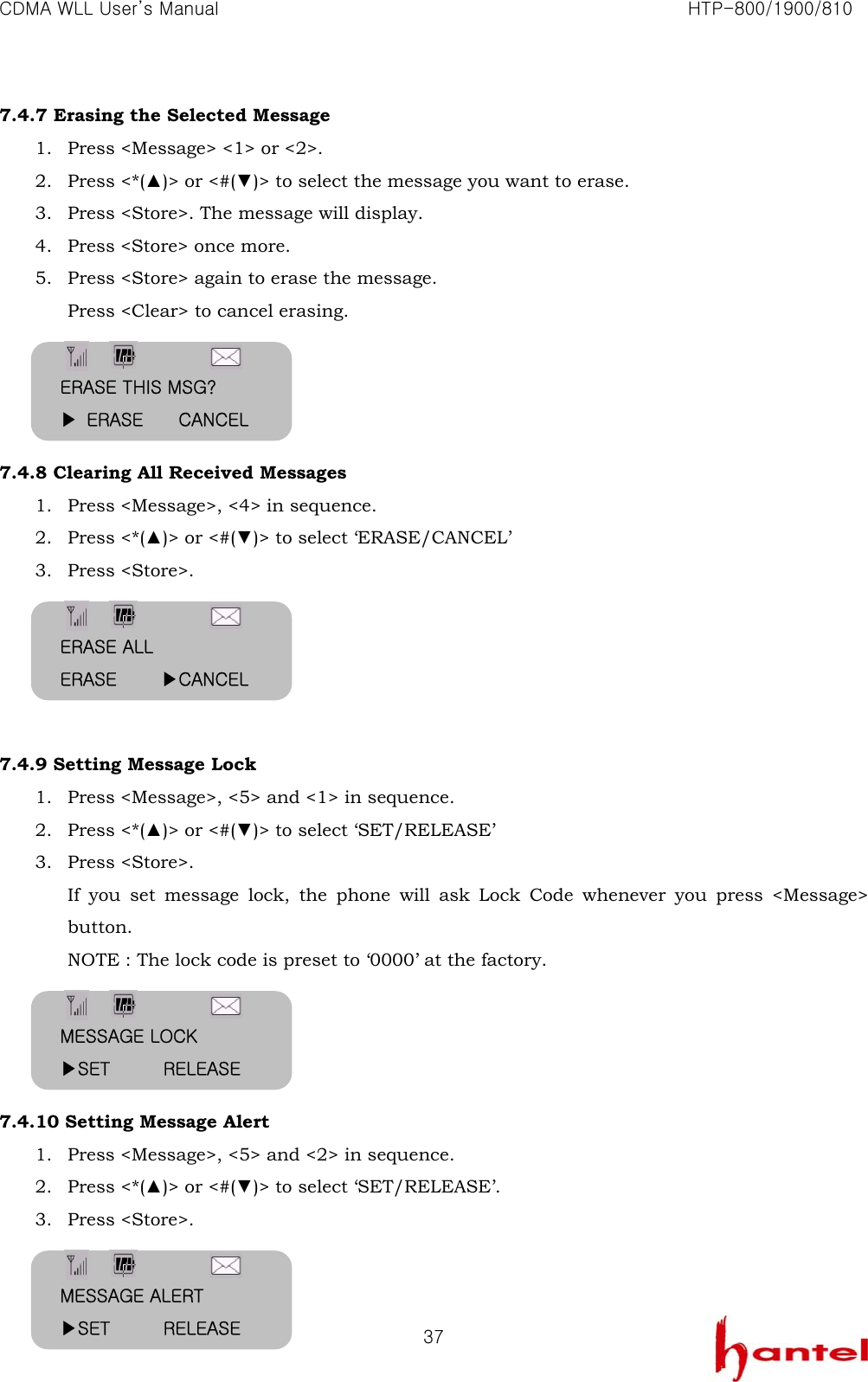
CDMA WLL User’s Manual                                                               HTP-800/1900/810   377.4.7 Erasing the Selected Message 1. Press <Message> <1> or <2>. 2. Press <*(▲)> or <#(▼)> to select the message you want to erase. 3. Press <Store>. The message will display. 4. Press <Store> once more. 5. Press <Store> again to erase the message. Press <Clear> to cancel erasing.     7.4.8 Clearing All Received Messages 1. Press <Message>, <4> in sequence. 2. Press <*(▲)> or <#(▼)> to select ‘ERASE/CANCEL’ 3. Press <Store>.      7.4.9 Setting Message Lock 1. Press <Message>, <5> and <1> in sequence. 2. Press <*(▲)> or <#(▼)> to select ‘SET/RELEASE’ 3. Press <Store>. If you set message lock, the phone will ask Lock Code whenever you press <Message> button. NOTE : The lock code is preset to ‘0000’ at the factory.     7.4.10 Setting Message Alert 1. Press <Message>, <5> and <2> in sequence. 2. Press <*(▲)> or <#(▼)> to select ‘SET/RELEASE’. 3. Press <Store>.   ERASE THIS MSG? ▶ ERASE    CANCEL ERASE ALL ERASE     ▶CANCEL MESSAGE LOCK ▶SET      RELEASE MESSAGE ALERT ▶SET      RELEASE
CDMA WLL User’s Manual                                                               HTP-800/1900/810   38     The PC Fax & Modem menu is used to set the phone to data receive mode when using Data Service to receive a facsimile to PC or when communicating to PC.  7.5.1 Definition HTP-800/1900/810 provides Data and Fax service.  It is capable of transmitting and receiving Data or Facsimile information through a wireless path by being connected to a Notebook (or Desktop PC).   The following services are available.  ① Async Data Service - File transmit and receive - PC communication ② PC Fax Service - Wireless Fax transmit/receive using the Winfax or Hotfax ③ Packet Data Service - FTP, Internet, Intranet, LAN, E-Mail etc.  7.5.2 using the data service To receive data using the Async Data Service and PC Fax Service. [Note] This phone supports both Async Data Service benefiting the large capacity of file transmission at up to 153Kbps as the international standard and Packet Data Service ideal in the business which requires the frequent access. An Internet account (free or charged) must be acquired by a service provider to use the Packet Data Service,      7.6.1 Definition The removable user identity module (R-UIM) is similar to the SIM card concept in the GSM standard. It is 7.5 Data/PC Fax 7.6 R-UIM
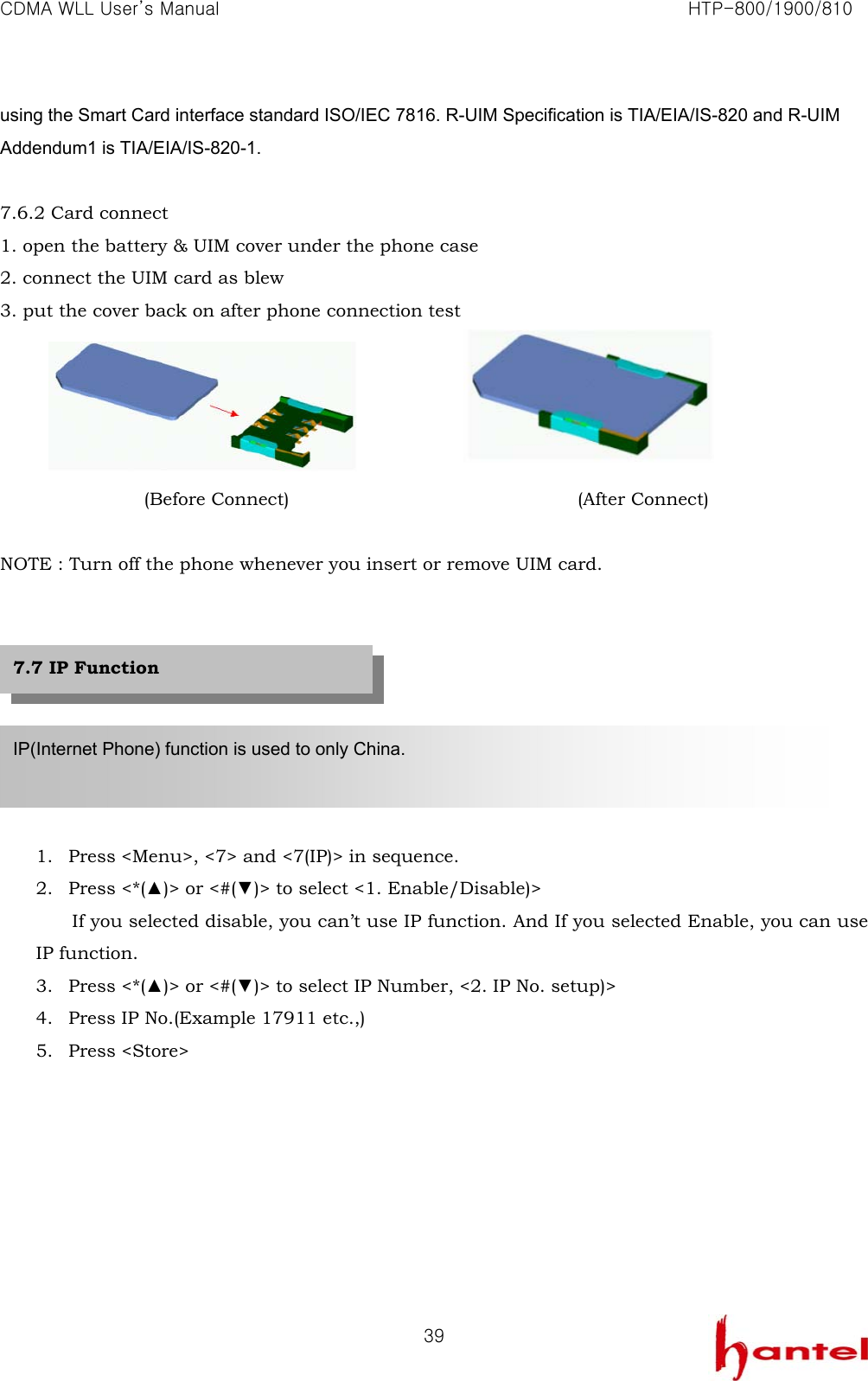
CDMA WLL User’s Manual                                                               HTP-800/1900/810   39using the Smart Card interface standard ISO/IEC 7816. R-UIM Specification is TIA/EIA/IS-820 and R-UIM Addendum1 is TIA/EIA/IS-820-1.  7.6.2 Card connect 1. open the battery & UIM cover under the phone case 2. connect the UIM card as blew 3. put the cover back on after phone connection test     (Before Connect)                                (After Connect)  NOTE : Turn off the phone whenever you insert or remove UIM card.         1. Press <Menu>, <7> and <7(IP)> in sequence. 2. Press <*(▲)> or <#(▼)> to select <1. Enable/Disable)> If you selected disable, you can’t use IP function. And If you selected Enable, you can use IP function. 3. Press <*(▲)> or <#(▼)> to select IP Number, <2. IP No. setup)> 4. Press IP No.(Example 17911 etc.,) 5. Press <Store>        IP(Internet Phone) function is used to only China.    7.7 IP Function
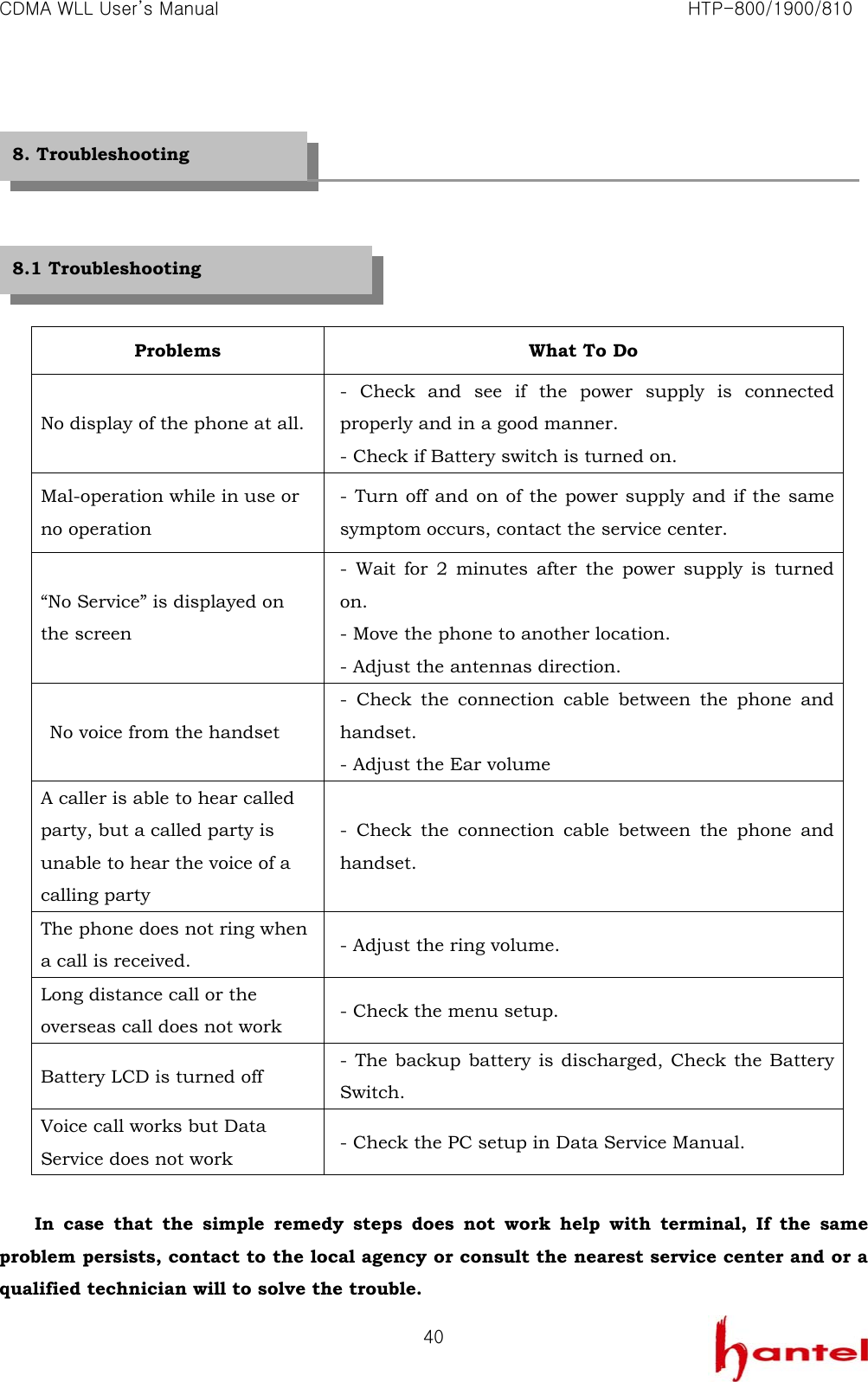
CDMA WLL User’s Manual                                                               HTP-800/1900/810   40       Problems  What To Do No display of the phone at all. - Check and see if the power supply is connected properly and in a good manner. - Check if Battery switch is turned on. Mal-operation while in use or no operation - Turn off and on of the power supply and if the same symptom occurs, contact the service center. “No Service” is displayed on the screen - Wait for 2 minutes after the power supply is turned on. - Move the phone to another location. - Adjust the antennas direction.   No voice from the handset - Check the connection cable between the phone and handset. - Adjust the Ear volume A caller is able to hear called party, but a called party is unable to hear the voice of a calling party - Check the connection cable between the phone and handset. The phone does not ring when a call is received.  - Adjust the ring volume. Long distance call or the overseas call does not work  - Check the menu setup. Battery LCD is turned off  - The backup battery is discharged, Check the Battery Switch. Voice call works but Data Service does not work  - Check the PC setup in Data Service Manual.  In case that the simple remedy steps does not work help with terminal, If the same problem persists, contact to the local agency or consult the nearest service center and or a qualified technician will to solve the trouble. 8. Troubleshooting 8.1 Troubleshooting
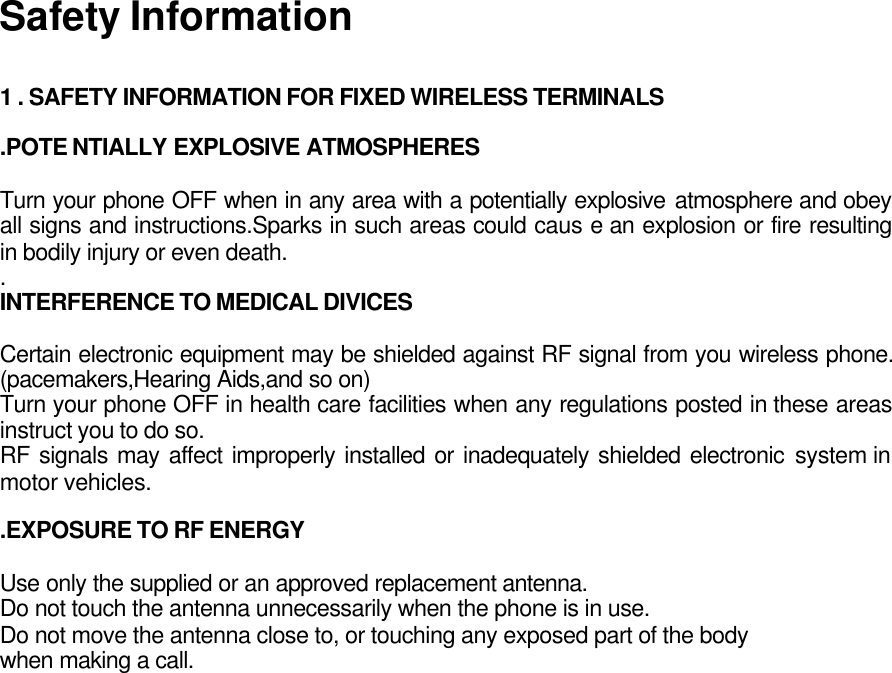
Safety Information  1 . SAFETY INFORMATION FOR FIXED WIRELESS TERMINALS  .POTE NTIALLY EXPLOSIVE ATMOSPHERES  Turn your phone OFF when in any area with a potentially explosive atmosphere and obey all signs and instructions.Sparks in such areas could caus e an explosion or fire resulting in bodily injury or even death. . INTERFERENCE TO MEDICAL DIVICES  Certain electronic equipment may be shielded against RF signal from you wireless phone. (pacemakers,Hearing Aids,and so on) Turn your phone OFF in health care facilities when any regulations posted in these areas instruct you to do so. RF signals may affect improperly installed or inadequately shielded electronic system in motor vehicles.  .EXPOSURE TO RF ENERGY  Use only the supplied or an approved replacement antenna. Do not touch the antenna unnecessarily when the phone is in use. Do not move the antenna close to, or touching any exposed part of the body when making a call.
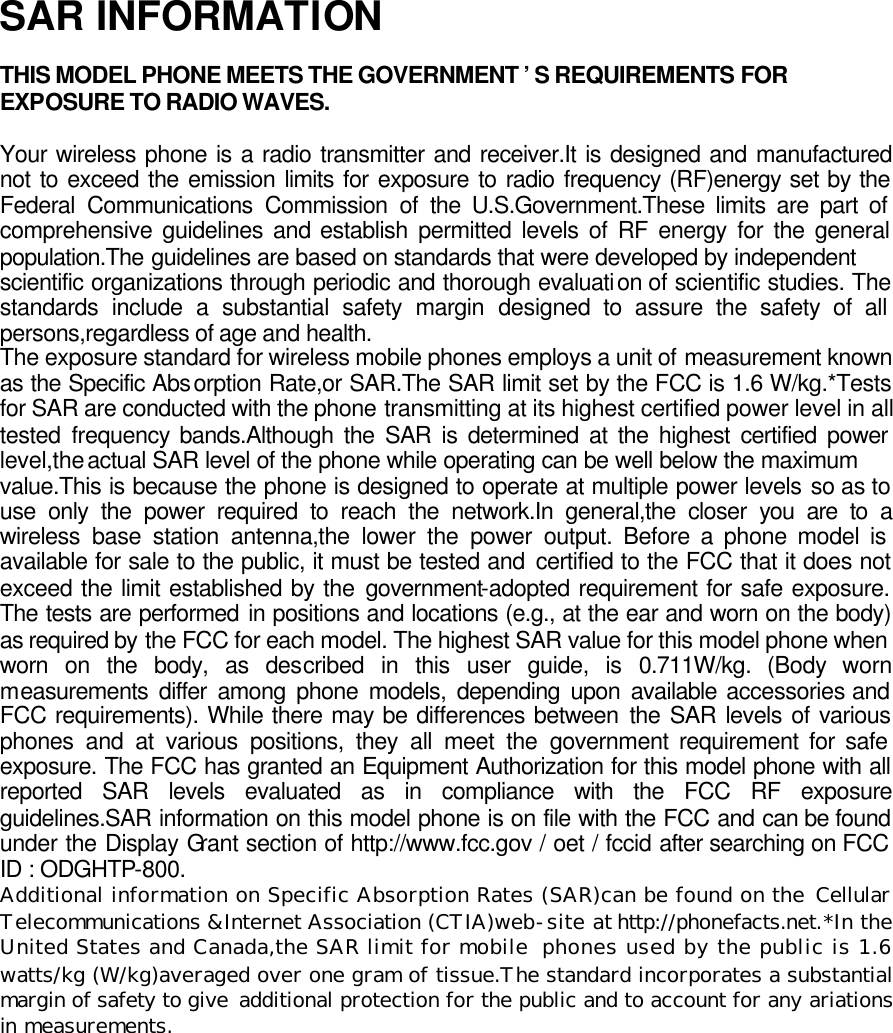
SAR INFORMATION  THIS MODEL PHONE MEETS THE GOVERNMENT ’S REQUIREMENTS FOR EXPOSURE TO RADIO WAVES.  Your wireless phone is a radio transmitter and receiver.It is designed and manufactured not to exceed the emission limits for exposure to radio frequency (RF)energy set by the Federal Communications Commission of the U.S.Government.These limits are part of comprehensive guidelines and establish permitted levels of RF energy for the general population.The guidelines are based on standards that were developed by independent scientific organizations through periodic and thorough evaluation of scientific studies. The standards include a substantial safety margin designed to assure the safety of all persons,regardless of age and health.  The exposure standard for wireless mobile phones employs a unit of measurement known as the Specific Absorption Rate,or SAR.The SAR limit set by the FCC is 1.6 W/kg.*Tests for SAR are conducted with the phone transmitting at its highest certified power level in all tested frequency bands.Although the SAR is determined at the highest certified power level,the actual SAR level of the phone while operating can be well below the maximum value.This is because the phone is designed to operate at multiple power levels so as to use only the power required to reach the network.In general,the closer you are to a wireless base station antenna,the lower the power output. Before a phone model is available for sale to the public, it must be tested and certified to the FCC that it does not exceed the limit established by the government-adopted requirement for safe exposure. The tests are performed in positions and locations (e.g., at the ear and worn on the body) as required by the FCC for each model. The highest SAR value for this model phone when worn on the body, as described in this user guide, is 0.711W/kg. (Body worn measurements differ among phone models, depending upon available accessories and FCC requirements). While there may be differences between the SAR levels of various phones and at various positions, they all meet the government requirement for safe exposure. The FCC has granted an Equipment Authorization for this model phone with all reported SAR levels evaluated as in compliance with the FCC RF exposure guidelines.SAR information on this model phone is on file with the FCC and can be found under the Display Grant section of http://www.fcc.gov / oet / fccid after searching on FCC ID : ODGHTP-800. Additional information on Specific Absorption Rates (SAR)can be found on the Cellular Telecommunications &Internet Association (CTIA)web-site at http://phonefacts.net.*In the United States and Canada,the SAR limit for mobile phones used by the public is 1.6 watts/kg (W/kg)averaged over one gram of tissue.The standard incorporates a substantial margin of safety to give  additional protection for the public and to account for any ariations in measurements.
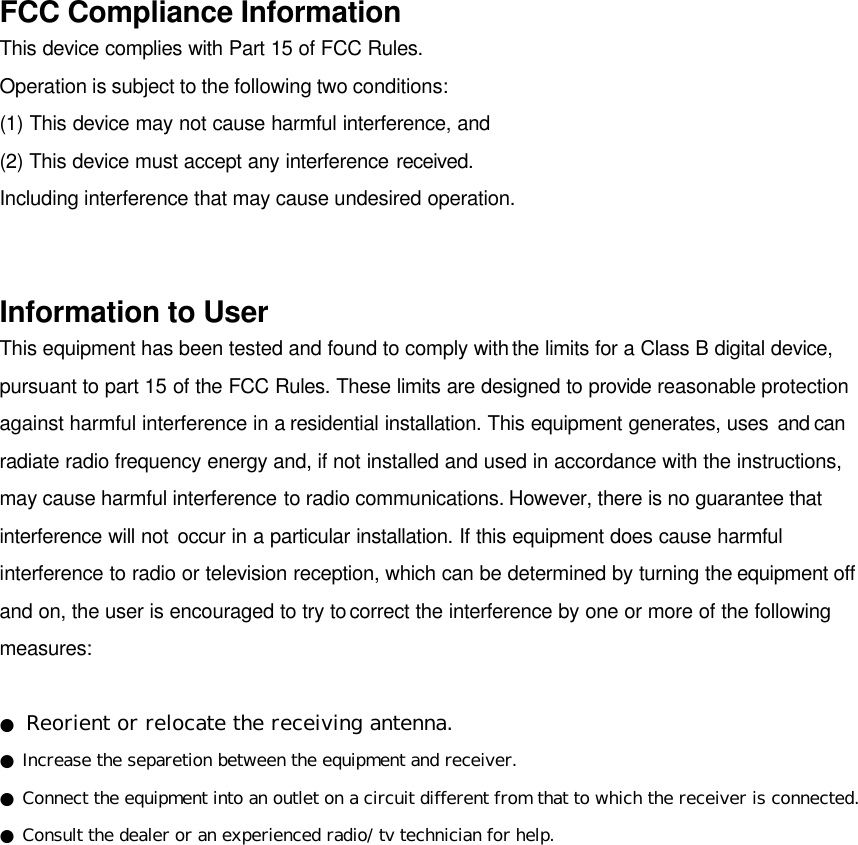
FCC Compliance Information This device complies with Part 15 of FCC Rules. Operation is subject to the following two conditions: (1) This device may not cause harmful interference, and (2) This device must accept any interference received. Including interference that may cause undesired operation.   Information to User This equipment has been tested and found to comply with the limits for a Class B digital device, pursuant to part 15 of the FCC Rules. These limits are designed to provide reasonable protection against harmful interference in a residential installation. This equipment generates, uses and can radiate radio frequency energy and, if not installed and used in accordance with the instructions, may cause harmful interference to radio communications. However, there is no guarantee that interference will not occur in a particular installation. If this equipment does cause harmful interference to radio or television reception, which can be determined by turning the equipment off and on, the user is encouraged to try to correct the interference by one or more of the following measures:  ● Reorient or relocate the receiving antenna. ● Increase the separetion between the equipment and receiver. ● Connect the equipment into an outlet on a circuit different from that to which the receiver is connected. ● Consult the dealer or an experienced radio/ tv technician for help.

Navigation menu