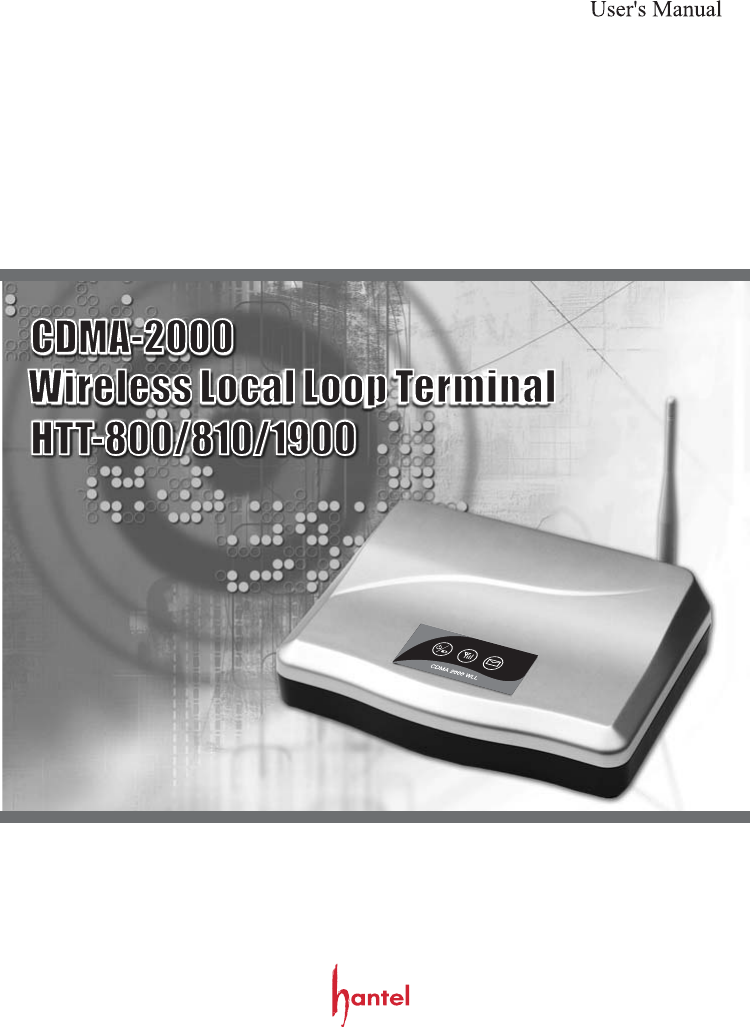
Hantel HTT-1900 Fixed WLL Terminal (PCS CDMA) User Manual ATT M

Hantel Co., Ltd. Fixed WLL Terminal (PCS CDMA) ATT M

Users Manual

FCC RF EXPOSURE INFORMATIONHighlights1. Before You Start1.1 Safety precautions1.2 Optimal Phone Performance1.3 Care and Service2. Getting started & Installation2.1 Checking The Parts2.2 Know your Terminal2.3 Setting up your terminal2.4 Install of Desktop2.5 Install of Wall Mounting2.6 How to install battery2.7 Installation For the Data Service2.8 Indications2.9 Multi-extension Installations3. Basic Functions3.1 Power On/Off3.2 Making Calls3.3 Receiving Calls3.4 Ending a calls4. Advanced Functions & Setting4.1 one Minute. Alert Beep4.2 Alarm4.3 Connecting tone4.4 Ear-piece Voice volume4.5 CID mode4.6 Outgoing Calls Lock4.7 Lock code4.8 Reset4.9 Auto Dial time4.10 Data service4.11 R-UIM4.12 Authentication Function5. Supplementary Functions5.1 Call Functions5.2 Pay Phone Interface5.3 Phone Book(Storing, Deleting)5.4 Voice Privacy5.5 Ringer Frequency & Cadence Control5.6 Dial Tone Frequency Control5.7 Hook flash5.8 ROH5.9 Restrick Call Mode6. System Functions6.1 Call Waiting6.2 Three-way Calling6.3 Call Forwarding6.4 Voice Mail service7. FAX Functions (Optional)7.1 FAX Set-up7.2 Sending FAX message7.3 Receiving FAX message8. Summary Table9. Troubleshooting Guide10. Specifications4456791010111112131314141515151616161717181818212121232424242525252627272727282828293234
Congratulations on your purchase of the Fixed Wireless Terminal that has beendesigned to operate on the latest digital mobile communications technology,Code Division Multiple Access(CDMA). This CDMA digital technology hasgreatly enhanced voice clarity and can provide various advanced features.The terminal enables the normal operation and direct connection of standardtelephone equipment into the cellular network. The standard unit provides:and set the volume at an optimal level.  has a practical and elegant design. It can be used at office or home. also offers many useful features and technological advantages. has Versatile Installation OptionsVarious sounds and LED functions provide audio and visual alerts for Low Battery, Air Link Cut-Off and Incorrect Use.Connect l with your PC for data transmission and PC  communication.Simple and quick transmission of the stored numbers in the phone book with One-Touchand Two-Touch Dial.The Emergency Call Hold function enables a user to contact emergency center personnel.The Hotline Call function allows the most frequently used numbers to be automaticallyconnected when a user picks up the handset.The Voice Privacy function ensures against illegal phone tapping can be prevented.The Authentication Key function prevents the owner's phone numbers from beingcloned by others.CID function lets you know who is calling you. user interface menu driver is easy to use.G3 Fax (Optional) service is supported for analog environment.The Pay Phone Interface allows  to work as a payphone.This ModelThis ModelThis ModelThis Mode FAXThis ModelThis ModelThis Model offers its users superior voice quality through its use of QCELP EVRC Vocoder.The owner can control who can access, and use the terminal with the Outgoing Lock function.This ModelThis Model looks perfect on your desk in the office. It can also be installed on anywall in your office or home thanks to the wall-mount kit that comes with the unit. owners can easily adjust the volume of the handset with the volume control,
This Model provides:AC Power supply with barrel plug connectorSupport Dial toneTouch tone (DTMF) or Pulse DialingA phone jack to plug in the telephone equipmentSupport Caller ID TelephoneRing voltage used to ring the telephone connected to the unit, with a REN(Ringer Equivalence Numbers) of 4A phone jack to plug in the G3 FAX equipmentData Port for service and repair(RS-232 data cable, optional)Voice-Mail Notification ring alerts you to new voice-mail messagesDipole AntennaSome features can not be supported by service provider's system status.For instance, the following features may not be supported ;Emergency CallHot Line CallSpeed DialAlarmOutgoing Call Lock
1. Before You Start1.1 Safety precautionsWarningTo reduce the risk of fire or electric shock, do not expose this product to rain or moisture. Do not use this product near swimming pools or other bodies of water.Telephones with multiple terminating impedance should be set for 600ohms.ImportantBefore installing or operating this product, read this information.1.2 Optimal Phone PerformanceDo not use the unit with a damaged antenna. Have your antenna replaced by a qualifiedtechnician immediately. Use only a manufacturer-approved antenna.Non-approved antennas, modifications, or attachments could impair call quality,damagethe phone.For the best call quality, keep the antenna free from obstructions and point the antennastraight up.Do not operate your product when holding the antenna, or when someone is within fourinches (ten centimeters) of the antenna. Holding the antenna affects call quality and maycause the telephone to operate at a higher power level than needed.that  could be sensitive to external RF energy.If this equipment does cause harmful interference to radio or television reception, whichcan be determined by turning the equipment off and on, the user is encouraged to try tocorrect the interference by one or more of the following measures:   - Reorient or relocate the receiving antenna   - Increase the separation between the radio or television and the telephone.   - Connect the equipment into an outlet on a circuit different from that to which      the terminal is connected.   - Consult you Authorized Dealer of an experienced Radio/TV technician for help.RF energy may affect improperly installed or inadequately shielded personal medicaldevices such as pace markers, hospital monitor. Consult the manufacturer of any personalmedical devices to determine if they are adequately shielded from external RF energy.Turn your terminal OFF in health care facilities when any regulations posted in theareas instruct you to do so. Hospitals or health care facilities may be using equipment
Use only the battery, antenna and AC power supply provided by Authorized Dealer.Using any other type will invalidate the warranty.Only authorized personnel should service the phone and its accessories. Faulty installation or service may be dangerous and  invalidate the warranty.Do not use the unit in designated no cellular phone use area.Avoid exposure to high temperature or humidityAvoid wetting the unit with any liquids. If the unit gets wet, turn the power offimmediately and remove the backup battery and AC power supply. If the unit is inoperable, then return to the service agent for service.Avoid shock or impact.We recommend you charge the backup battery before initial use. Backup battery maybe discharged during delivery.This device complies with part 15 of the FCC Rules. Operation is subject to the following two conditions:   - This device may not cause harmful interference, and   - this device must accept any interference received, including interference that may      cause undesired operation.If the unit fails for any reason, do not attempt to disassemble; contact the telephone service provider for assistance.Unplug the Telephone from the wall outlet and remove antenna (or disconnect antenna cable) before cleaning. Do not use liquid or aerosol cleaners. Use a damp cloth for cleaning.If any of the following conditions exist: Unplug the unit at the wall plug, remove battery, and call the service provider.- The unit has been exposed to rain or water.- Liquid has been spilled into the unit.- The power supply cord is damaged or frayed.- The unit has been dropped or damaged.- The unit does not work normally by following the operating instructions.1.3 Care and ServiceNOTE :Don't disassemble or modify this product deliberately.Use only an approved adapter.Don't touch adapter with wet hands.Don't install this product in dusty area.Avoid areas near sunlight, heating apparatus, vibration
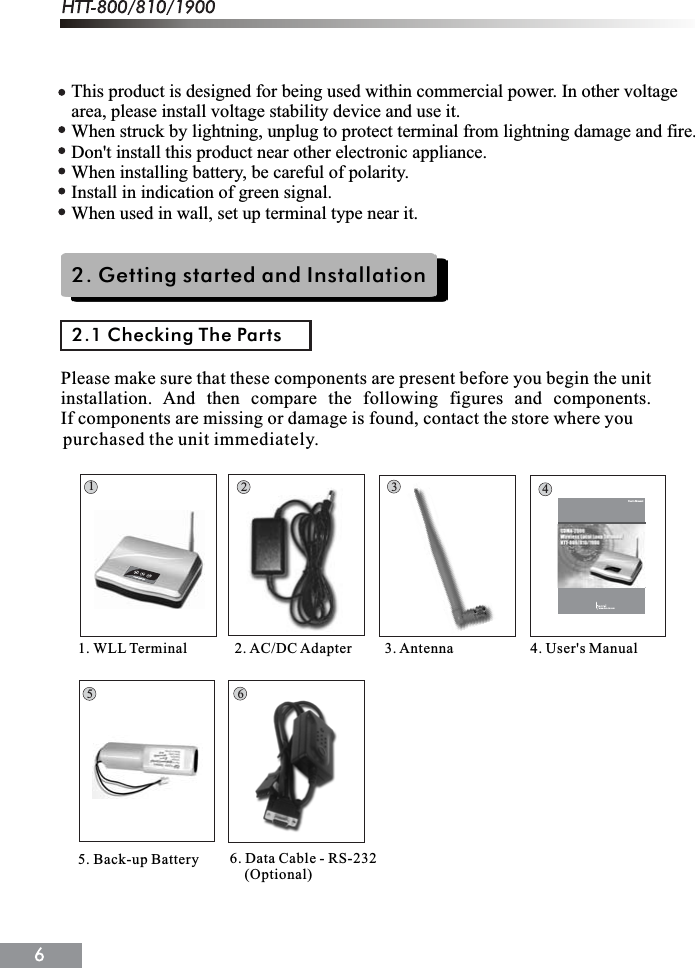
This product is designed for being used within commercial power. In other voltage area, please install voltage stability device and use it.When struck by lightning, unplug to protect terminal from lightning damage and fire.Don't install this product near other electronic appliance.When installing battery, be careful of polarity.Install in indication of green signal.When used in wall, set up terminal type near it.2. Getting started and Installation2.1 Checking The Partspurchased the unit immediately.4253611. WLL Terminal             2. AC/DC Adapter         3. Antenna                     4. User's Manual5. Back-up Battery 6. Data Cable - RS-232    (Optional)User's Manualwww.han-tel.comPlease make sure that these components are present before you begin the unitinstallation. And then compare the following figures and components.If components are missing or damage is found, contact the store where you
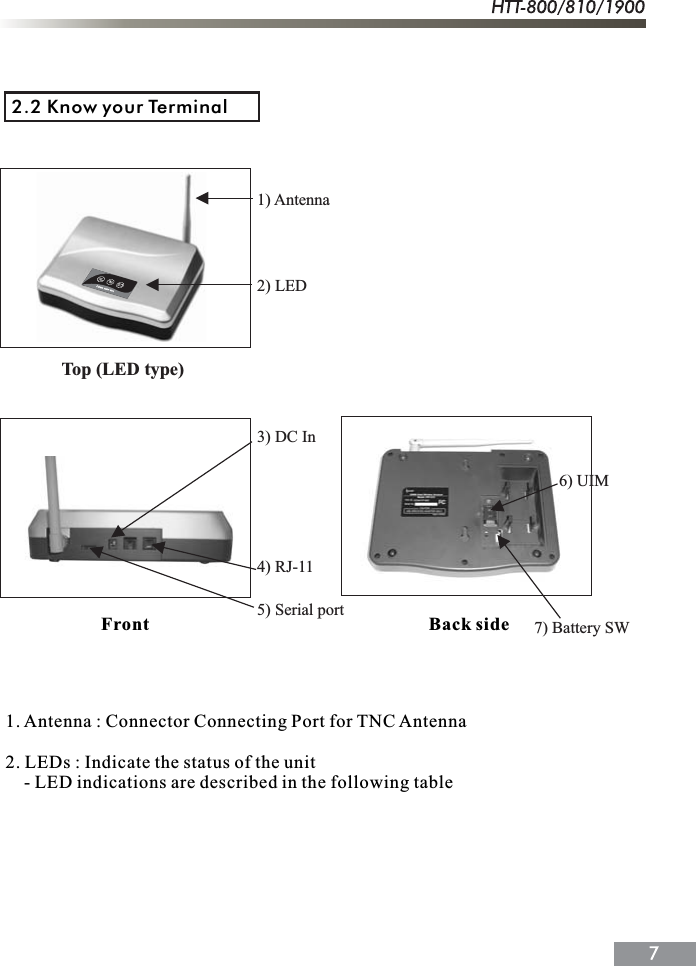
2.2 Know your Terminal       Front                                                             Back side1. Antenna : Connector Connecting Port for TNC Antenna2. LEDs : Indicate the status of the unit    - LED indications are described in the following table1) Antenna2) LED3) DC In4) RJ-115) Serial port       6) UIM7) Battery SWTop (LED type)
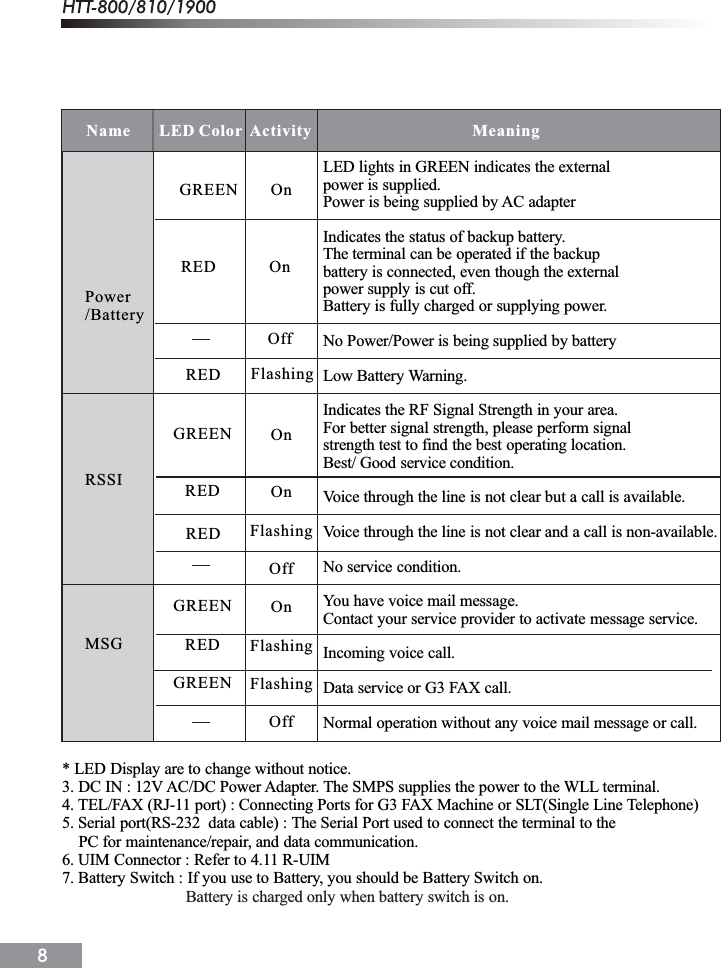
Power/BatteryRSSIMSGGREEN        OnRED             OnOnOnFlashingOffOnFlashingFlashingOffLED lights in GREEN indicates the externalpower is supplied.Power is being supplied by AC adapterIndicates the status of backup battery.The terminal can be operated if the backupbattery is connected, even though the externalpower supply is cut off.Battery is fully charged or supplying power.No Power/Power is being supplied by batteryLow Battery Warning.Indicates the RF Signal Strength in your area.For better signal strength, please perform signalstrength test to find the best operating location.Best/ Good service condition.Voice through the line is not clear but a call is available.Voice through the line is not clear and a call is non-available.No service condition.You have voice mail message.Contact your service provider to activate message service.Incoming voice call.Data service or G3 FAX call.Normal operation without any voice mail message or call.Name       LED Color Activity                                       Meaning RED FlashingOffGREENREDGREENREDGREEN* LED Display are to change without notice.3. DC IN : 12V AC/DC Power Adapter. The SMPS supplies the power to the WLL terminal.4. TEL/FAX (RJ-11 port) : Connecting Ports for G3 FAX Machine or SLT(Single Line Telephone)5. Serial port(RS-232  data cable) : The Serial Port used to connect the terminal to the    PC for maintenance/repair, and data communication.6. UIM Connector : Refer to 4.11 R-UIM7. Battery Switch : If you use to Battery, you should be Battery Switch on.Battery is charged only when battery switch is on. RED
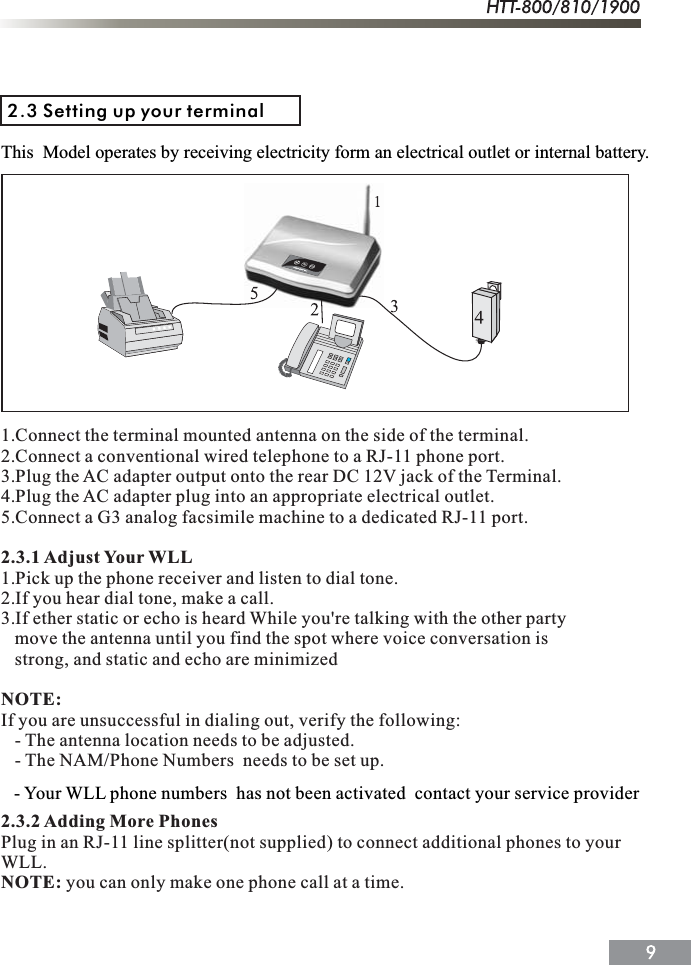
2.3 Setting up your terminalThis  Model operates by receiving electricity form an electrical outlet or internal battery.1.Connect the terminal mounted antenna on the side of the terminal.2.Connect a conventional wired telephone to a RJ-11 phone port.3.Plug the AC adapter output onto the rear DC 12V jack of the Terminal.4.Plug the AC adapter plug into an appropriate electrical outlet.5.Connect a G3 analog facsimile machine to a dedicated RJ-11 port.2.3.1 Adjust Your WLL1.Pick up the phone receiver and listen to dial tone.2.If you hear dial tone, make a call.3.If ether static or echo is heard While you're talking with the other party   move the antenna until you find the spot where voice conversation is   strong, and static and echo are minimizedNOTE:If you are unsuccessful in dialing out, verify the following:   - The antenna location needs to be adjusted.   - The NAM/Phone Numbers  needs to be set up.2.3.2 Adding More PhonesPlug in an RJ-11 line splitter(not supplied) to connect additional phones to yourWLL.NOTE: you can only make one phone call at a time.   - Your WLL phone numbers  has not been activated  contact your service provider
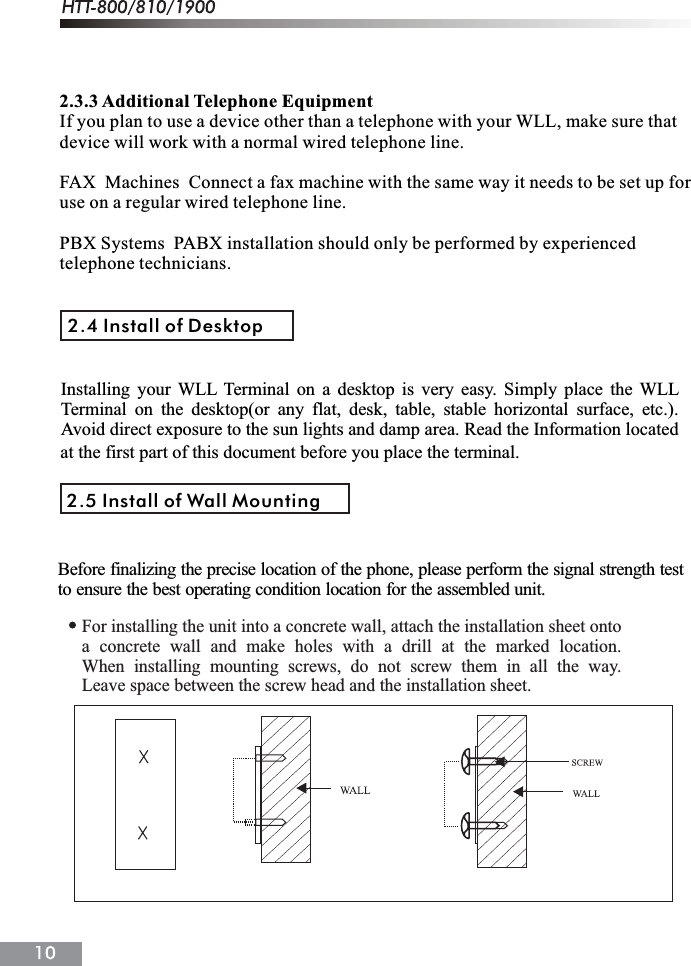
2.3.3 Additional Telephone EquipmentIf you plan to use a device other than a telephone with your WLL, make sure thatdevice will work with a normal wired telephone line.FAX  Machines  Connect a fax machine with the same way it needs to be set up foruse on a regular wired telephone line.PBX Systems  PABX installation should only be performed by experiencedtelephone technicians.2.4 Install of Desktopat the first part of this document before you place the terminal.2.5 Install of Wall MountingBefore finalizing the precise location of the phone, please perform the signal strength testto ensure the best operating condition location for the assembled unit.For installing the unit into a concrete wall, attach the installation sheet ontoa concrete wall and make holes with a drill at the marked location.When installing mounting screws, do not screw them in all the way.Leave space between the screw head and the installation sheet.Installing your WLL Terminal on a desktop is very easy. Simply place the WLLTerminal on the desktop(or any flat, desk, table, stable horizontal surface, etc.).Avoid direct exposure to the sun lights and damp area. Read the Information located
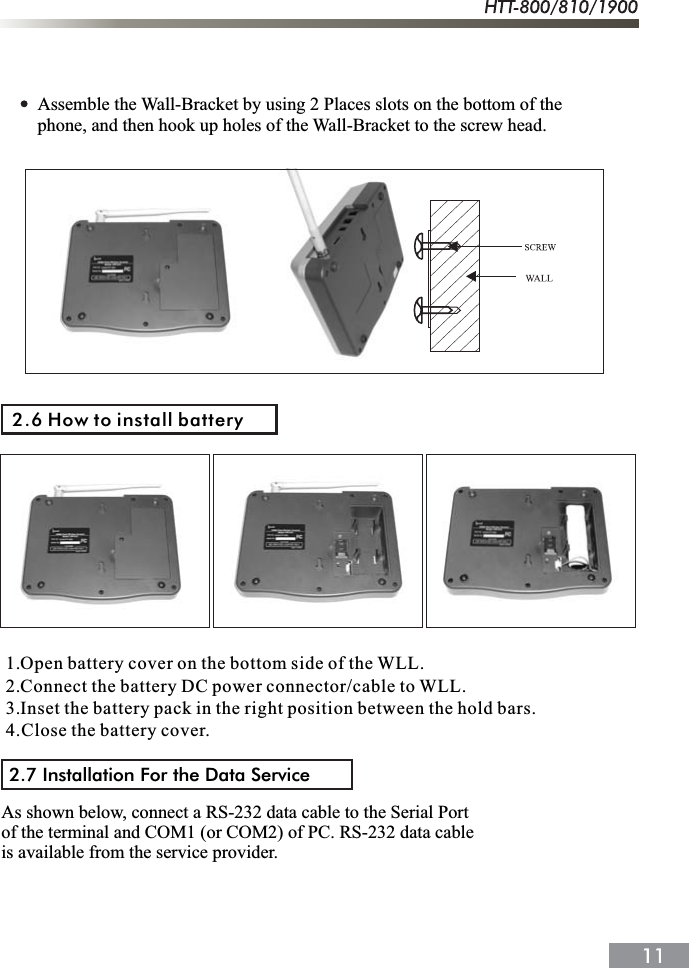
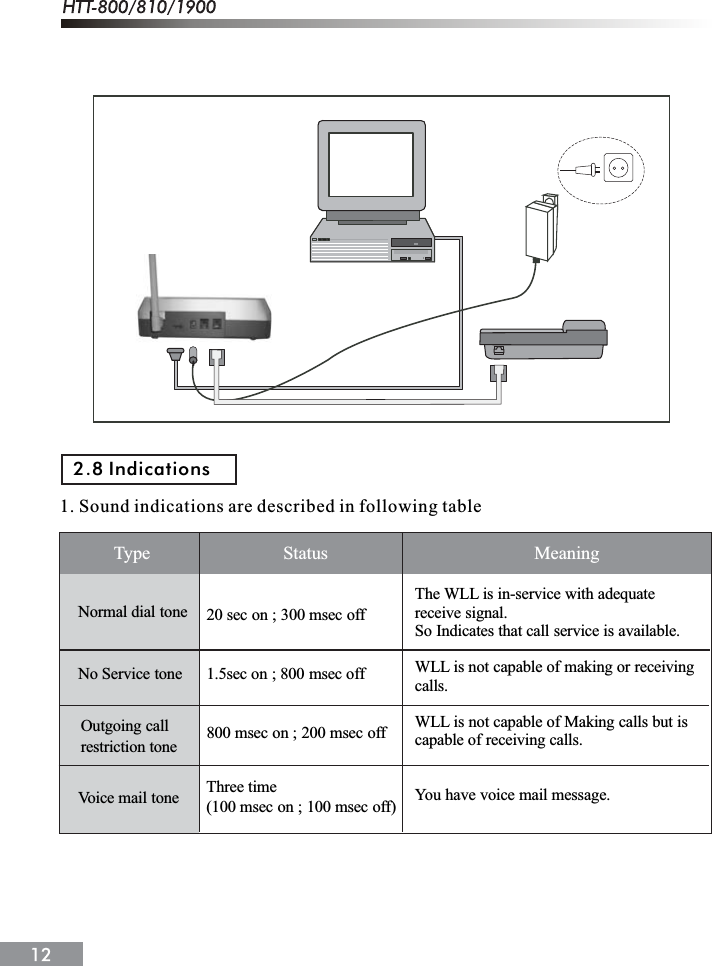
Assemble the Wall-Bracket by using 2 Places slots on the bottom of the phone, and then hook up holes of the Wall-Bracket to the screw head.2.6 How to install battery1.Open battery cover on the bottom side of the WLL.2.Connect the battery DC power connector/cable to WLL.3.Inset the battery pack in the right position between the hold bars.4.Close the battery cover.2.7 Installation For the Data ServiceAs shown below, connect a RS-232 data cable to the Serial Port of the terminal and COM1 (or COM2) of PC. RS-232 data cable is available from the service provider.
1. Sound indications are described in following tableNormal dial toneNo Service toneVoice mail tone20 sec on ; 300 msec off1.5sec on ; 800 msec off800 msec on ; 200 msec offThe WLL is in-service with adequatereceive signal.So Indicates that call service is available.WLL is not capable of making or receiving calls.WLL is not capable of Making calls but iscapable of receiving calls.You have voice mail message.Type                             Status                                             MeaningThree time(100 msec on ; 100 msec off)Outgoing callrestriction tone2.8 Indications
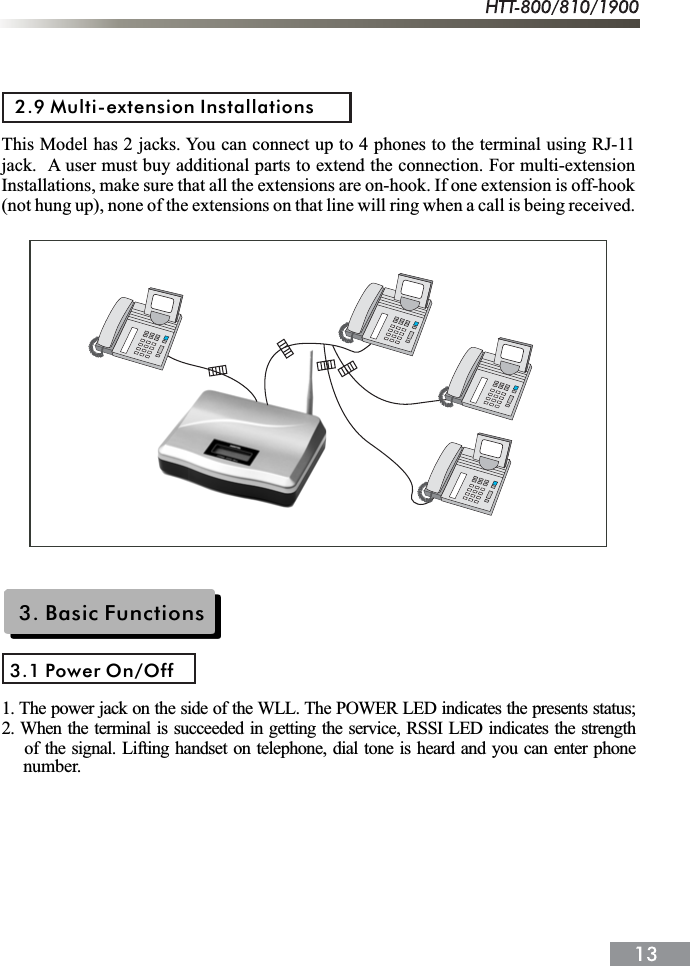
This Model has 2 jacks. You can connect up to 4 phones to the terminal using RJ-11jack. A user must buy additional parts to extend the connection. For multi-extensionInstallations, make sure that all the extensions are on-hook. If one extension is off-hook(not hung up), none of the extensions on that line will ring when a call is being received. 2.9 Multi-extension Installations3. Basic Functions3.1 Power On/Off1. The power jack on the side of the WLL. The POWER LED indicates the presents status;2. When the terminal is succeeded in getting the service, RSSI LED indicates the strength    of the signal. Lifting handset on telephone, dial tone is heard and you can enter phone     number.
NOTE:   - When you turn on the WLL, it will automatically search for service signal.When it successfully acquires service state, it will generate a dial tone on the handset.   - Not entering any key for 15 seconds warning tone will be produced.   - In the overlap dial mode, it may take over 15 seconds.   - If Hot Line function is enabled, busy tone is not produced and hot line number is      automatically connected.3. If the radio service is not available or radio signal is too weak to detect;The RSSI LED is Red. (No Service status)3.2 Making Calls1.First check to see that your WLL Phone is turned on.2.Pick up the handset. You will  hear a dial tone.3.Using the number keypad, dial the desired telephone numbers.NOTE : When you finish entering phone number, the call will be connected immediately after     5 seconds. Please Refer to 4.9 Auto dial time.4.When the other person answers, begin your conversation.5.To end the call, replace the handset.NOTE :   - You can dial by 32 digit including <*(     ) > or <#(     ) >   - You can dial emergency call by pressing and holding <*(     ) > without inputting      any digits. You can't change the emergency call number.NOTE : Dial ToneDial tone will be generated if you lift your handset until your press any key.This Model will not generate any dial tone in NO Service status3.3 Receiving CallsThe terminal signals the telephone(s) to ring when an incoming call is detected.Pick up the telephone handset and begin talking into the microphone on the handset.
3.4 Ending a CallsNOTE :   - Be sure the phone's ringer is enabled.   - If you heard incoming call in picking up the handset, you can receive the call     by pressing any key.When you have completed the call, place the handset back on telephone.Also you can hook flash more than about 1 second to end a call and placea new call without hanging up the handset.4. Advanced Functions4.1 One Minute Alert Beeptime of discrete tone, regardless of when you make or receive a call.1.Pick up the handset.2.Press <*(    ) >, <*(    ) > and <1>.3.Press <*(    ) > to set 1 minute alert beep.   Press <#(    ) > to release  1 minute alert beep.A discrete tone is generated after each minute interval into the call conversation to notify you that a minute has passed since the beginning of the call or after the previous 4.2 Alarm4.2.1 12Hour Mode1.Pick up the handset.2.Press <*(    )>, <*(    )>, <2> and <1(12Hour mode)>, <1(AM mode)> or <2(PM mode)>.3.Press alarm time(00:00~11:59).4.Press <*(     )> to set alarm.4.2.2  24hour Mode1. Pick up the handset.2. Press <*(     )>, <*(     )>, <2> and <2(24Hour mode)>.3. Press alarm time(00:00~23:59).4. Press <*(     )> to set alarm.
4.3 Connecting tone4.4 Ear-piece Voice volumeA discrete tone is generated when a call is connected successfully.1.Pick up the handset.2.Press <*(    ) >, <*(    ) > and <3>.3.Press <*(    ) > to set connection tone.   Press <#(    ) > to release connection tone.You can control the Ear-piece volume on your phone.1.Pick up the handset (Idle status).2.Press <*(    ) >, <*(    ) > and <4>.3.Press <*(    ) > or <#(    ) > for up or down (4 Step).4.Press <0> for save.If your phone connected to the WLL is caller ID enabled, you can set the WLLto display the caller number or name on the phone.The default setting of caller ID is DTMF type.1.Pick up the handset.2.Press <*(    )>, <*(    ) > and <5>.3.Press <*(    )> for DTMF type phone or Press <#(    ) > for Bellcore type phone.4.Press <0> to release caller ID setting.4.5 CID modeCaller ID is a feature, which notifies you who is calling by displaying thecaller's number on the telephone's LCD when an incoming call comes through.This feature is available only with a telephone that has an LCD display on it.NOTE :               Contact your service provider to activate or deactivate Caller ID.4.2.3  Release Alarm Setting1.Pick up the handset.2.Press <*(     )>, <*(     )>, <2> and <#(     )>.NOTE : When you will hear the alarm sound, pick up the handset to turn off alarm.
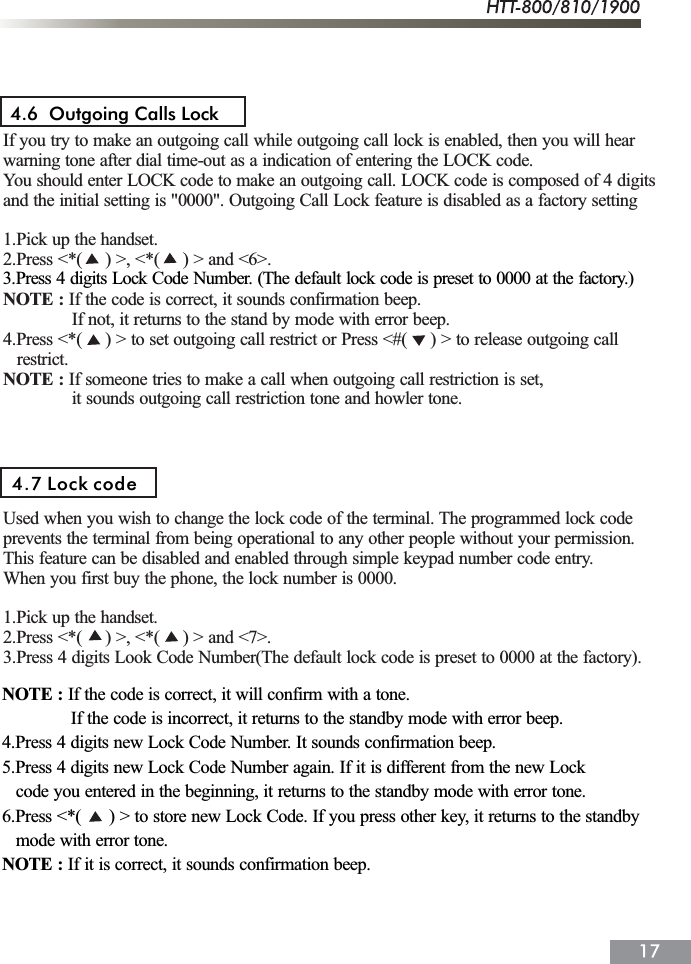
If you try to make an outgoing call while outgoing call lock is enabled, then you will hearwarning tone after dial time-out as a indication of entering the LOCK code.You should enter LOCK code to make an outgoing call. LOCK code is composed of 4 digitsand the initial setting is "0000". Outgoing Call Lock feature is disabled as a factory setting1.Pick up the handset.2.Press <*(     ) >, <*(     ) > and <6>.NOTE : If the code is correct, it sounds confirmation beep.               If not, it returns to the stand by mode with error beep.4.Press <*(     ) > to set outgoing call restrict or Press <#(     ) > to release outgoing call   restrict.NOTE : If someone tries to make a call when outgoing call restriction is set,               it sounds outgoing call restriction tone and howler tone.Used when you wish to change the lock code of the terminal. The programmed lock codeprevents the terminal from being operational to any other people without your permission.This feature can be disabled and enabled through simple keypad number code entry.When you first buy the phone, the lock number is 0000.1.Pick up the handset.2.Press <*(     ) >, <*(     ) > and <7>.3.Press 4 digits Look Code Number(The default lock code is preset to 0000 at the factory).4.6  Outgoing Calls Lock 4.7 Lock codeNOTE : If the code is correct, it will confirm with a tone.               If the code is incorrect, it returns to the standby mode with error beep.4.Press 4 digits new Lock Code Number. It sounds confirmation beep.5.Press 4 digits new Lock Code Number again. If it is different from the new Lock   code you entered in the beginning, it returns to the standby mode with error tone.6.Press <*(      ) > to store new Lock Code. If you press other key, it returns to the standby   mode with error tone.NOTE : If it is correct, it sounds confirmation beep.3.Press 4 digits Lock Code Number. (The default lock code is preset to 0000 at the factory.)
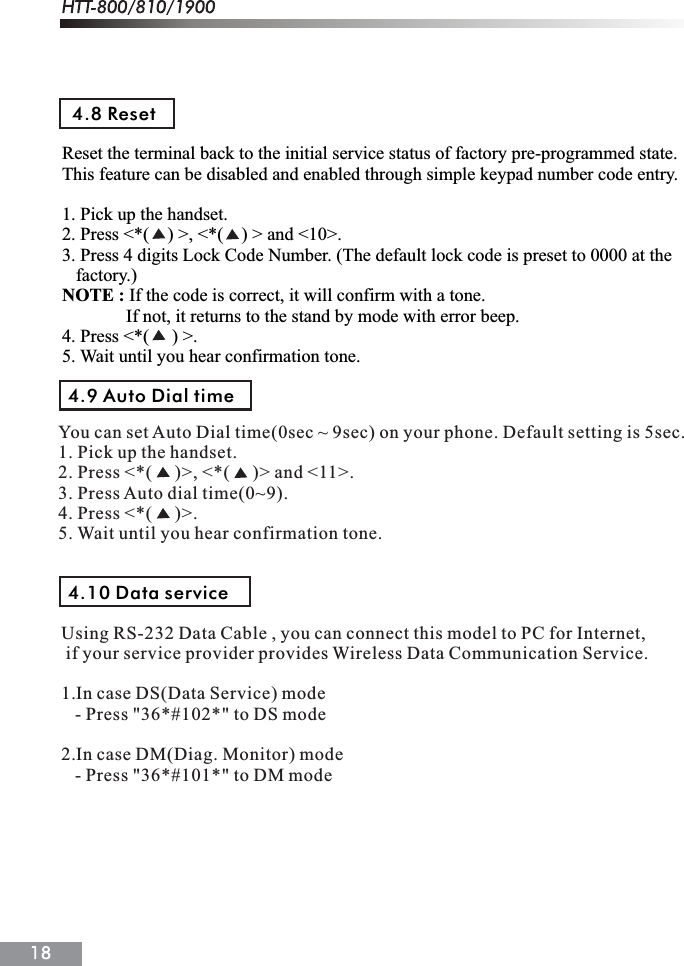
Reset the terminal back to the initial service status of factory pre-programmed state. This feature can be disabled and enabled through simple keypad number code entry.1. Pick up the handset.2. Press <*(    ) >, <*(    ) > and <10>.3. Press 4 digits Lock Code Number. (The default lock code is preset to 0000 at the    factory.)NOTE : If the code is correct, it will confirm with a tone.              If not, it returns to the stand by mode with error beep.4. Press <*(     ) >.5. Wait until you hear confirmation tone.4.8 ResetUsing RS-232 Data Cable , you can connect this model to PC for Internet, if your service provider provides Wireless Data Communication Service.1.In case DS(Data Service) mode   - Press "36*#102*" to DS mode2.In case DM(Diag. Monitor) mode   - Press "36*#101*" to DM mode4.9 Auto Dial time4.10 Data serviceYou can set Auto Dial time(0sec ~ 9sec) on your phone. Default setting is 5sec.1. Pick up the handset.2. Press <*(     )>, <*(     )> and <11>.3. Press Auto dial time(0~9).4. Press <*(     )>.5. Wait until you hear confirmation tone.
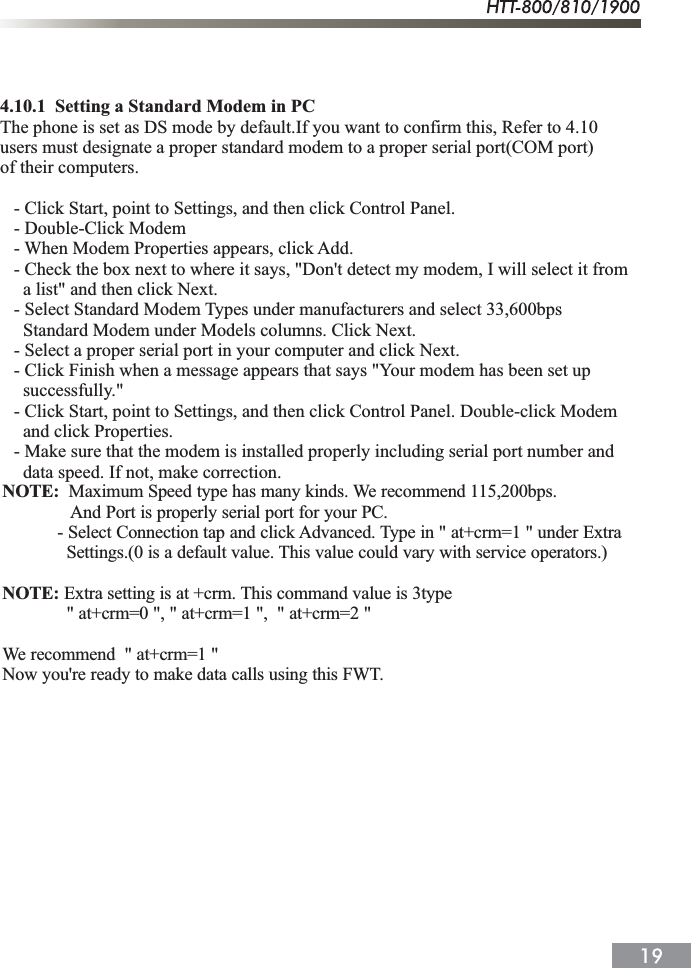
4.10.1  Setting a Standard Modem in PCThe phone is set as DS mode by default.If you want to confirm this, Refer to 4.10users must designate a proper standard modem to a proper serial port(COM port)of their computers.   - Click Start, point to Settings, and then click Control Panel.   - Double-Click Modem   - When Modem Properties appears, click Add.   - Check the box next to where it says, "Don't detect my modem, I will select it from     a list" and then click Next.   - Select Standard Modem Types under manufacturers and select 33,600bps     Standard Modem under Models columns. Click Next.   - Select a proper serial port in your computer and click Next.   - Click Finish when a message appears that says "Your modem has been set up     successfully."   - Click Start, point to Settings, and then click Control Panel. Double-click Modem      and click Properties.   - Make sure that the modem is installed properly including serial port number and      data speed. If not, make correction.NOTE: Maximum Speed type has many kinds. We recommend 115,200bps.And Port is properly serial port for your PC.            - Select Connection tap and click Advanced. Type in " at+crm=1 " under Extra              Settings.(0 is a default value. This value could vary with service operators.)NOTE: Extra setting is at +crm. This command value is 3type              " at+crm=0 ", " at+crm=1 ",  " at+crm=2 "We recommend  " at+crm=1 "Now you're ready to make data calls using this FWT.
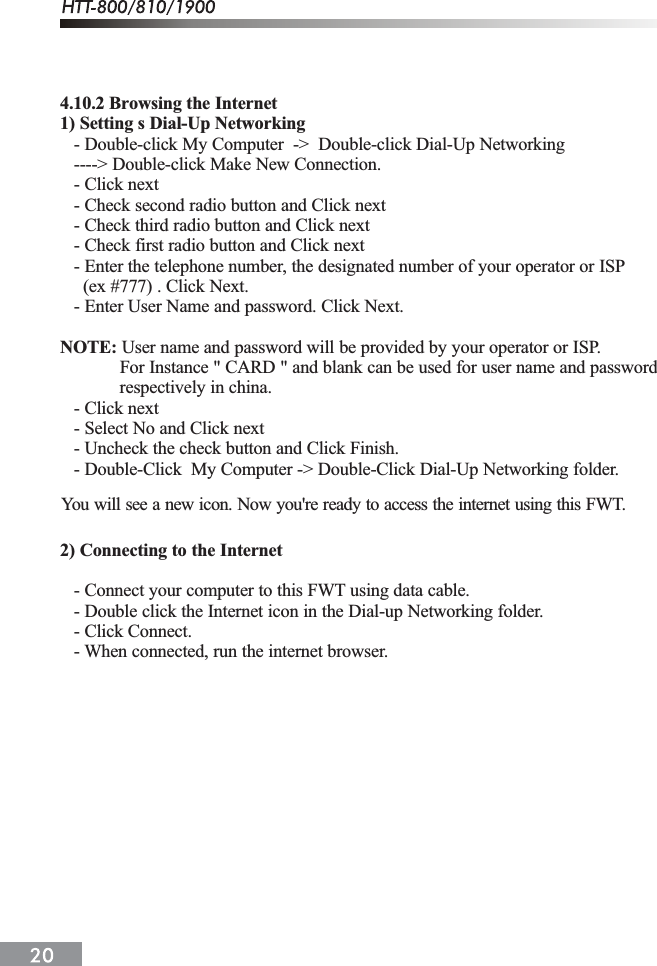
4.10.2 Browsing the Internet1) Setting s Dial-Up Networking   - Double-click My Computer  ->  Double-click Dial-Up Networking   ----> Double-click Make New Connection.   - Click next   - Check second radio button and Click next   - Check third radio button and Click next   - Check first radio button and Click next   - Enter the telephone number, the designated number of your operator or ISP     (ex #777) . Click Next.   - Enter User Name and password. Click Next.NOTE: User name and password will be provided by your operator or ISP.             For Instance " CARD " and blank can be used for user name and password             respectively in china.   - Click next   - Select No and Click next   - Uncheck the check button and Click Finish.   - Double-Click  My Computer -> Double-Click Dial-Up Networking folder.2) Connecting to the Internet   - Connect your computer to this FWT using data cable.   - Double click the Internet icon in the Dial-up Networking folder.   - Click Connect.   - When connected, run the internet browser.You will see a new icon. Now you're ready to access the internet using this FWT.
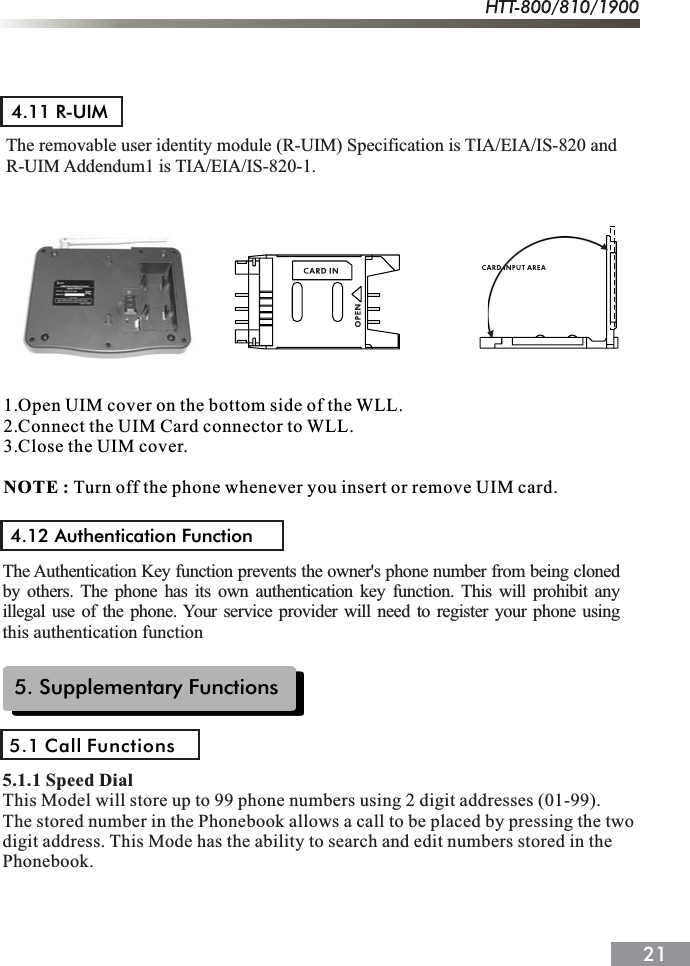
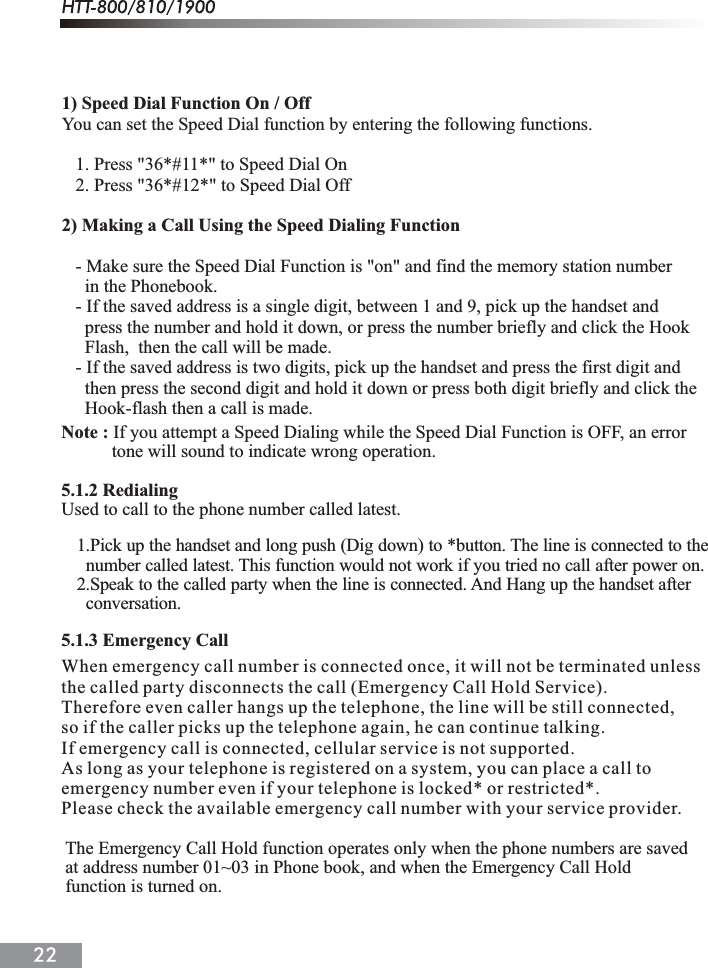
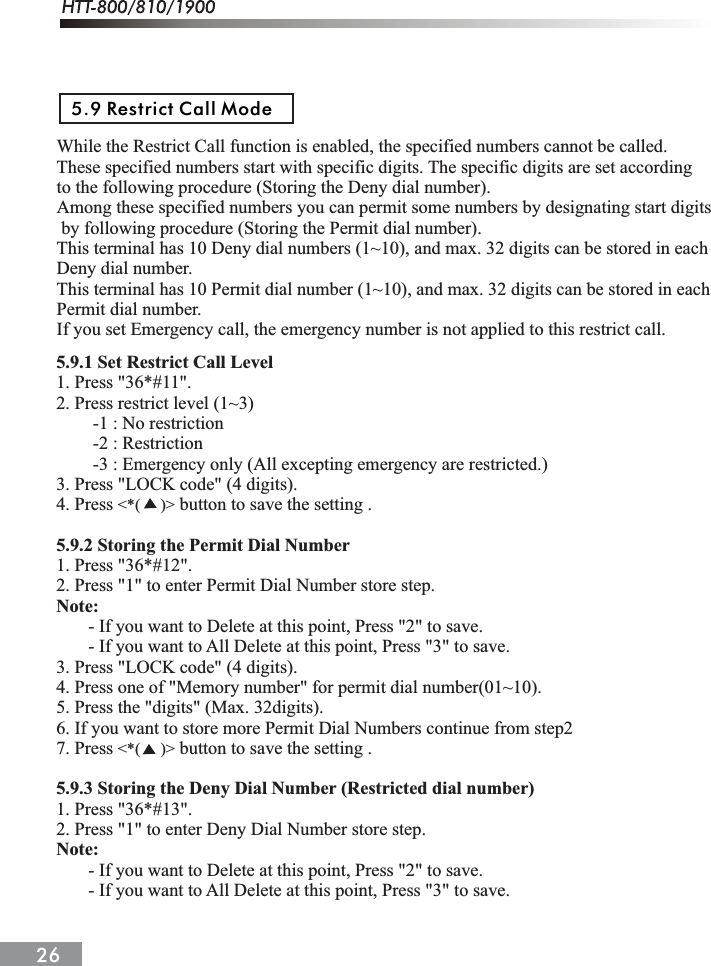
4.11 R-UIMThe removable user identity module (R-UIM) Specification is TIA/EIA/IS-820 and R-UIM Addendum1 is TIA/EIA/IS-820-1.1.Open UIM cover on the bottom side of the WLL.2.Connect the UIM Card connector to WLL.3.Close the UIM cover.NOTE : Turn off the phone whenever you insert or remove UIM card.4.12 Authentication FunctionThe Authentication Key function prevents the owner's phone number from being clonedby others. The phone has its own authentication key function. This will prohibit anyillegal use of the phone. Your service provider will need to register your phone using.this authentication function5. Supplementary Functions5.1 Call Functions5.1.1 Speed DialThis Model will store up to 99 phone numbers using 2 digit addresses (01-99).The stored number in the Phonebook allows a call to be placed by pressing the twodigit address. This Mode has the ability to search and edit numbers stored in thePhonebook.
1) Speed Dial Function On / OffYou can set the Speed Dial function by entering the following functions.   1. Press "36*#11*" to Speed Dial On   2. Press "36*#12*" to Speed Dial Off2) Making a Call Using the Speed Dialing Function   - Make sure the Speed Dial Function is "on" and find the memory station number      in the Phonebook.   - If the saved address is a single digit, between 1 and 9, pick up the handset and      press the number and hold it down, or press the number briefly and click the Hook      Flash,  then the call will be made.   - If the saved address is two digits, pick up the handset and press the first digit and      then press the second digit and hold it down or press both digit briefly and click the      Hook-flash then a call is made. Note : If you attempt a Speed Dialing while the Speed Dial Function is OFF, an error            tone will sound to indicate wrong operation.5.1.2 RedialingUsed to call to the phone number called latest.When emergency call number is connected once, it will not be terminated unlessthe called party disconnects the call (Emergency Call Hold Service).Therefore even caller hangs up the telephone, the line will be still connected,so if the caller picks up the telephone again, he can continue talking.If emergency call is connected, cellular service is not supported.As long as your telephone is registered on a system, you can place a call toemergency number even if your telephone is locked* or restricted*.Please check the available emergency call number with your service provider.5.1.3 Emergency Call1.Pick up the handset and long push (Dig down) to *button. The line is connected to the  number called latest. This function would not work if you tried no call after power on.2.Speak to the called party when the line is connected. And Hang up the handset after  conversation.The Emergency Call Hold function operates only when the phone numbers are saved at address number 01~03 in Phone book, and when the Emergency Call Hold function is turned on.
   1. Press "36*#21*" to Emergency  Call Hold On   2. Press "36*#22*" to Emergency Call Hold Off5.1.4 Hot Line    1. The Hot Line  function is used to make an automatic, quick call to a designated        number without dialing. Just pick up the handset, then a call will be made.   2. The Hot Line number should be registered at address 99 in the Phone book.        Hotline operates in 2 modes;Timed Hot Line; The call will be made in delayed manner between 4-8 seconds      (sending waiting time), depending on your default value, after you pick up the       handset. Original default value is 6 seconds.      Immediate Hot Line; The call will be made as soon as you pick up the handset.   3. The Hotline function overrides any other functions.1) Hot Line function On / Off   1. Press "36*#31*" to Timed Hot Line On   2. Press "36*#32*" to Immediate Hot Line On   3. Press "36*#33*" to Hot Line Off2) Making a Hot Line Call When a phone number is saved in address [99], and the Hot Line function is set to theTimed Hot Line mode, a call is automatically made, and if the send waiting time (4 ~ 8 seconds) elapses, if the handset is lifted. . If the Hot Line function is set to the Immediate Hot Line mode, and you pick up the handset, the call is made automatically to the number saved in the memory address [99].Note :If the Hot Line function is in the Immediate Hot Line mode, a call may not be          made to another number. In this case, to make a call to another number, change           the setup mode.  Pick up the handset and press <#> within 1 second and go to           the setup mode, and deactivate the Hot Line function.This terminal supports the Metering Pulse and the Polarity Reverse for the PCO Interface.If the Metering Pulse is required for the PCO Interface, 2 kinds of frequencies(16KHz, 12KHz) can be supported. (Depend  on system)   1. Press "36*#41*" to pay phone Interface on mode.   2. Press "36*#42*" to pay phone Interface off mode.5.2 Pay Phone Interface
5.3.1 Storing Phone Numbers   1. Pick up the telephone handset and Press "36*#51"   2. Press the 2 digit address you would like to store the phone number.      Suppose the address is <4>, press [04].   3. Press the phone numbers to be saved digit by digit .   4. When you press  button (saving), you will hear a <confirmation beep>       indicating the number has been successfully stored.5.3.2 Deleting Phone Numbers1) Deleting a Number   1. Pick up the telephone handset and Press "36*#52"   2. Press the 2 digit address to be deleted.   3. When you press button (saving), you will  hear a <confirmation beep>       indicating the number has been successfully deleted.2) Deleting All Numbers   1. Pick up the telephone handset and Press "36*#53"   2. When you press  button (saving), you will hear a <confirmation sound>       indicating all stored numbers have been successfully deleted.This terminal is equipped with voice privacy function to prevent illegal tapping.There are two detailed settings available, <Standard> for regular level voice privacymode and <Enhanced> for reinforced voice privacy mode.<*(    )><*(     )><*(    )><*(    )>1. Press "36*#6".   2. Press <1> button for < Enhanced Voice Privacy > mode or <2> button for      < Standard Voice Privacy > mode.   3.  Press  button to save the setting .5.3 Phone Book5.4 Voice PrivacyThis function is used to control the ringer frequency and cadence. Select the frequencyfirst and then select the cadence. Default setting is 20Hz, 1 sec On  2sec Off. 5.5.1 Ringer Frequency Setting5.5 Ringer Frequency & Cadence Control    1. Press "36*#7".    2. Select a desired number from 1(16Hz) , 2(20Hz), 3(25Hz).    3. Press  button to save the setting .        [Example] If you want to 16Hz, Press 36*#71*<*(    )>
 5.5.2 Ringer Cadence Setting     1. After selecting the frequency, select the cadence. Select a desired number from 1~ 6        to terminate ringer frequency and ringer cadence setting.    2. Press 36*#8.    3.  Select a desired number from 1~6.        - 1: 1Sec On  2 Sec Off        - 2: 0.4 Sec On  0.2 Sec Off - 0.4 Sec On  2 Sec Off        - 3: 1 Sec On  4.5 Sec Off        - 4: 1 Sec On  4 Sec Off        - 5: 0.25 Sec On  0.25 Sec Off - 0.25 Sec On  1.25 Sec Off        - 6: 2 Sec On  4 Sec Off  4. Press  button to save the setting .        [Example] If you want to 2 Sec On  4 Sec Off, Press 36*#86*.This function is used to select the dial sent from the handset. Default setting is350 + 440Hz dual tone.     1. Press 36*#9.     2. Select a desired number from 1(350 + 440Hz), 2(400Hz), 3(425Hz), 4(450Hz).     3. Press  button to save the setting .         [Example] If you want to 350 + 440Hz, Press 36*#91*.When the terminal receives a hook-flash from the connected telephone device, it willautomatically allow:<*(     )><*(     )>5.6 Dial Tone Frequency Control5.7 Hook flash1. For producing dial tone again after a phone number has been dialed without connection.2. The use of special cellular services which may be available in your cellular service area.Note: Hook-flash is accomplished in a call through either pressing the dedicated         hook-flash key which is available on some phones or through a rapid single press            of the hang-up mechanism upon which the handset rests when the phone is hung up.If the telephone equipment remains off-hook , meaning that the handset is left offof its cradle as it would be when you hang up, with no dialing activity for about 60 seconds,a ROH tone emits from the receiver for a period of 60 seconds. After ROH tone, Line5.8 ROH (Receiver Off Hook)Lock Out Tone emits from receiver for a period of 60 seconds.
While the Restrict Call function is enabled, the specified numbers cannot be called. These specified numbers start with specific digits. The specific digits are set according to the following procedure (Storing the Deny dial number).Among these specified numbers you can permit some numbers by designating start digits by following procedure (Storing the Permit dial number).This terminal has 10 Deny dial numbers (1~10), and max. 32 digits can be stored in each Deny dial number.This terminal has 10 Permit dial number (1~10), and max. 32 digits can be stored in each Permit dial number.If you set Emergency call, the emergency number is not applied to this restrict call.5.9 Restrict Call Mode5.9.1 Set Restrict Call Level1. Press "36*#11".2. Press restrict level (1~3)        -1 : No restriction        -2 : Restriction        -3 : Emergency only (All excepting emergency are restricted.)3. Press "LOCK code" (4 digits).4. Press   button to save the setting .5.9.2 Storing the Permit Dial Number1. Press "36*#12".2. Press "1" to enter Permit Dial Number store step.Note:       - If you want to Delete at this point, Press "2" to save.       - If you want to All Delete at this point, Press "3" to save.3. Press "LOCK code" (4 digits).4. Press one of "Memory number" for permit dial number(01~10).5. Press the "digits" (Max. 32digits).6. If you want to store more Permit Dial Numbers continue from step27. Press   button to save the setting .5.9.3 Storing the Deny Dial Number (Restricted dial number)1. Press "36*#13".2. Press "1" to enter Deny Dial Number store step.Note:       - If you want to Delete at this point, Press "2" to save.       - If you want to All Delete at this point, Press "3" to save.<*(     )><*(     )>
6.System Functions6.1 Call Waiting6.2 Three-way Calling6.3 Call Forwarding6.4 Voice Mail serviceThree-Way Calling is a feature that enables you to set up a three-way conversation with two other users. Contact your service provider to activate or deactivate Three-Way  Calling.Call Forwarding is a feature that enables you to forward all your incoming calls to another phone number, even if your telephone is turned off. You can still make calls from your telephone even when Call Forwarding is activated. Contact your service provider to activate or deactivate Call Forwarding.Voice Mail Service is a feature that allows the terminal to receive voice mail and forward it to your telephone when you press a certain sequence of keypad number.Contact your service provider to activate or deactivate Voice Mail Service.Call Waiting is a feature, which enables you to be alerted to a second incoming call while you are on the first call of your telephone. You have the option of responding to the second call while putting the first call on hold or you can disable the call waiting option during a particular call. Contact your service provider to activate or deactivate Call Waiting.4. Press one of "Memory number" for deny dial number(01~10).5. Press the "digits" (Max. 32digits).6. If you want to store more Deny Dial Numbers continue from step27. Press   button to save the setting .<*(     )>3. Press "LOCK code" (4 digits).
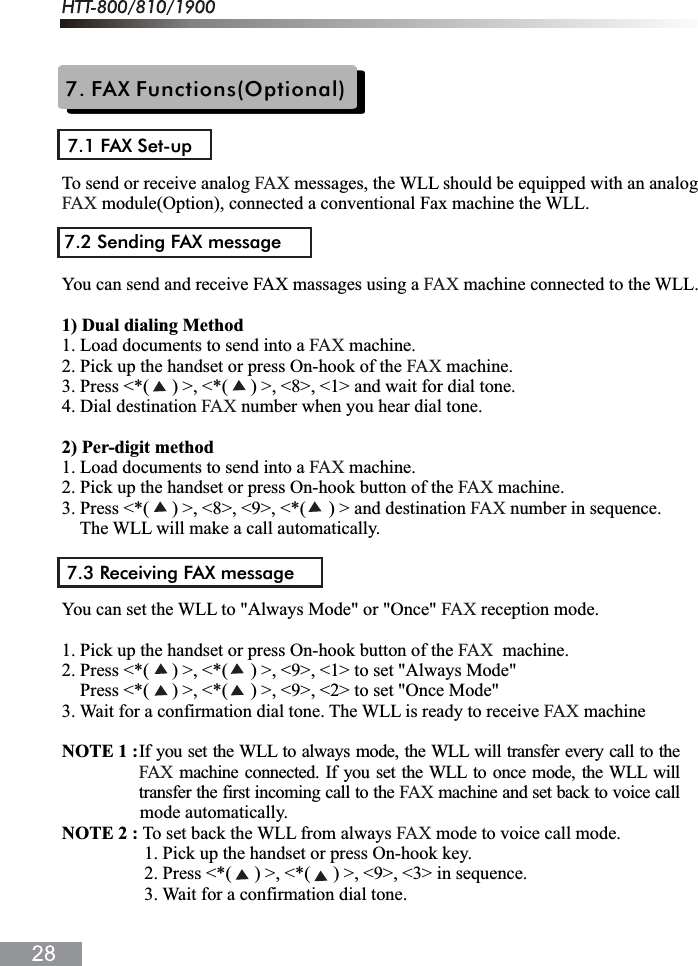
7. FAX Functions(Optional)7.1 FAX Set-upTo send or receive analog   messages, the WLL should be equipped with an analog  module(Option), connected a conventional Fax machine the WLL.You can send and receive FAX massages using a   machine connected to the WLL.1) Dual dialing Method1. Load documents to send into a   machine.2. Pick up the handset or press On-hook of the   machine.3. Press <*(     ) >, <*(     ) >, <8>, <1> and wait for dial tone.4. Dial destination   number when you hear dial tone.2) Per-digit method1. Load documents to send into a   machine.2. Pick up the handset or press On-hook button of the   machine.3. Press <*(     ) >, <8>, <9>, <*(     ) > and destination   number in sequence.The WLL will make a call automatically.You can set the WLL to "Always Mode" or "Once"   reception mode.1. Pick up the handset or press On-hook button of the    machine.2. Press <*(     ) >, <*(     ) >, <9>, <1> to set "Always Mode"    Press <*(     ) >, <*(     ) >, <9>, <2> to set "Once Mode"3. Wait for a confirmation dial tone. The WLL is ready to receive   machineNOTE 1 : mode automatically.NOTE 2 : To set back the WLL from always   mode to voice call mode.                  1. Pick up the handset or press On-hook key.                  2. Press <*(     ) >, <*(     ) >, <9>, <3> in sequence.                  3. Wait for a confirmation dial tone.FAXFAXFAXFAXFAXFAXFAXFAXFAXFAXFAXFAXFAX7.2 Sending FAX message7.3 Receiving FAX messageIf you set the WLL to always mode, the WLL will transfer every call to the machine connected. If you set the WLL to once mode, the WLL willtransfer the first incoming call to the  machine and set back to voice callFAXFAX
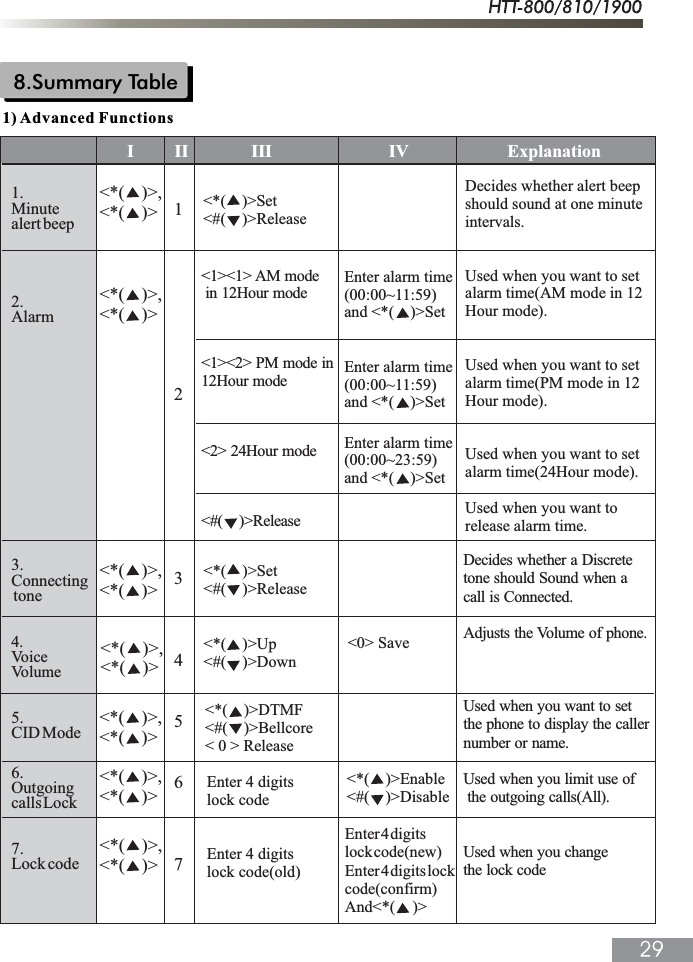
8.Summary TableExplanation1.Minutealert beep2.Alarm3.Connecting tone4.VoiceVolume5.CID Mode<*( )>,<*( )> <*(    )>Set<#(    )>Release1234567I         II              III                          IV6.Outgoingcalls Lock<*( )>,<*( )><*( )>,<*( )><*( )>,<*( )><*( )>,<*( )><*( )>,<*( )><*( )>,<*( )><*(    )>Set<#(    )>ReleaseEnter alarm time(00:00~11:59)and <*(    )>Set <1><1> AM mode in 12Hour mode<1><2> PM mode in12Hour mode<2> 24Hour mode<#(    )>ReleaseEnter alarm time(00:00~11:59)and <*(    )>Set Enter alarm time(00:00~23:59)and <*(    )>Set Decides whether alert beep should sound at one minuteintervals.Used when you want to set alarm time(AM mode in 12Hour mode).Used when you want to setalarm time(PM mode in 12Hour mode).Used when you want to set alarm time(24Hour mode).Used when you want torelease alarm time.<*(    )>Up<#(    )>Down<*(    )>DTMF<#(    )>Bellcore< 0 > Release7.Lock codeEnter 4 digits lock codeEnter 4 digits lock code(old)Enter 4 digitslock code(new)Enter 4 digits lock code(confirm)And<*( )>Decides whether a Discretetone should Sound when acall is Connected.Adjusts the Volume of phone.Used when you want to setthe phone to display the callernumber or name.Used when you limit use of the outgoing calls(All).Used when you changethe lock code<*(    )>Enable<#(    )>Disable<0> Save1) Advanced Functions
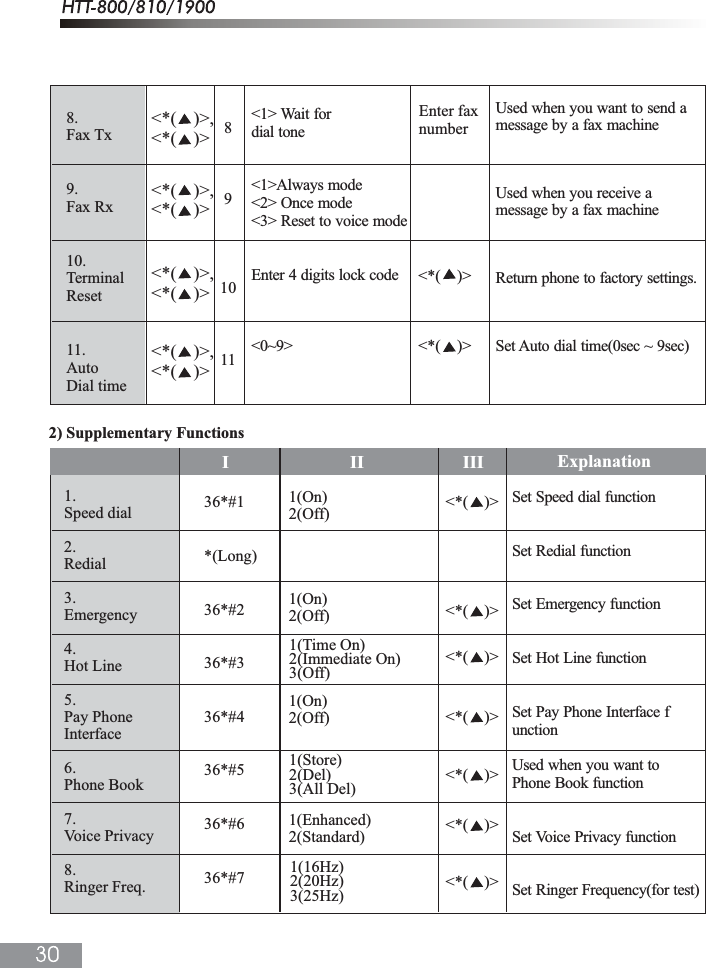
8.Fax Tx9.Fax Rx10.TerminalReset11.AutoDial time891011<1> Wait fordial tone<1>Always mode<2> Once mode<3> Reset to voice modeEnter 4 digits lock code<0~9>Used when you want to send amessage by a fax machineUsed when you receive amessage by a fax machineReturn phone to factory settings.Set Auto dial time(0sec ~ 9sec)Enter fax number<*( )>,<*( )><*( )>,<*( )><*( )>,<*( )><*( )>,<*( )><*(    )><*(    )>ExplanationI                           II                      III2) Supplementary Functions1.Speed dial2.Redial3.Emergency4.Hot Line5.Pay Phone Interface6.Phone Book7.Voice Privacy8.Ringer Freq.36*#1*(Long)36*#236*#336*#436*#536*#636*#71(On)2(Off)1(On)2(Off)1(On)2(Off)1(Enhanced)2(Standard)Set Speed dial functionSet Redial functionSet Emergency functionSet Hot Line functionSet Pay Phone Interface functionUsed when you want toPhone Book functionSet Voice Privacy functionSet Ringer Frequency(for test)1(16Hz)2(20Hz)3(25Hz)1(Time On)2(Immediate On)3(Off)1(Store)2(Del)3(All Del)<*(    )><*(    )><*(    )><*(    )><*(    )><*(    )><*(    )>
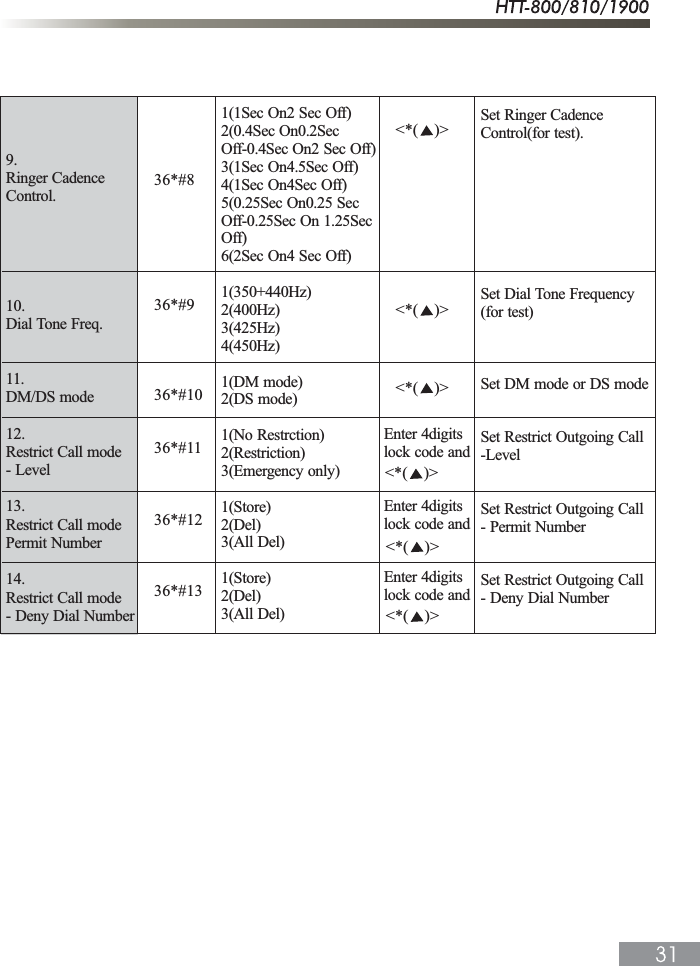
9.Ringer CadenceControl.10.Dial Tone Freq.11.DM/DS mode12.Restrict Call mode- Level13.Restrict Call modePermit Number14.Restrict Call mode- Deny Dial Number36*#836*#936*#1036*#1136*#1236*#131(1Sec On2 Sec Off)2(0.4Sec On0.2SecOff-0.4Sec On2 Sec Off)3(1Sec On4.5Sec Off)4(1Sec On4Sec Off)5(0.25Sec On0.25 SecOff-0.25Sec On 1.25SecOff)6(2Sec On4 Sec Off)1(350+440Hz)2(400Hz)3(425Hz)4(450Hz)1(DM mode)2(DS mode)1(No Restrction)2(Restriction)3(Emergency only)1(Store)2(Del)3(All Del)1(Store)2(Del)3(All Del)Enter 4digitslock code andEnter 4digitslock code andEnter 4digitslock code andSet Ringer CadenceControl(for test).Set Dial Tone Frequency(for test)Set DM mode or DS modeSet Restrict Outgoing Call-LevelSet Restrict Outgoing Call- Permit NumberSet Restrict Outgoing Call- Deny Dial Number<*(    )><*(    )><*(    )><*(    )><*(    )><*(    )>
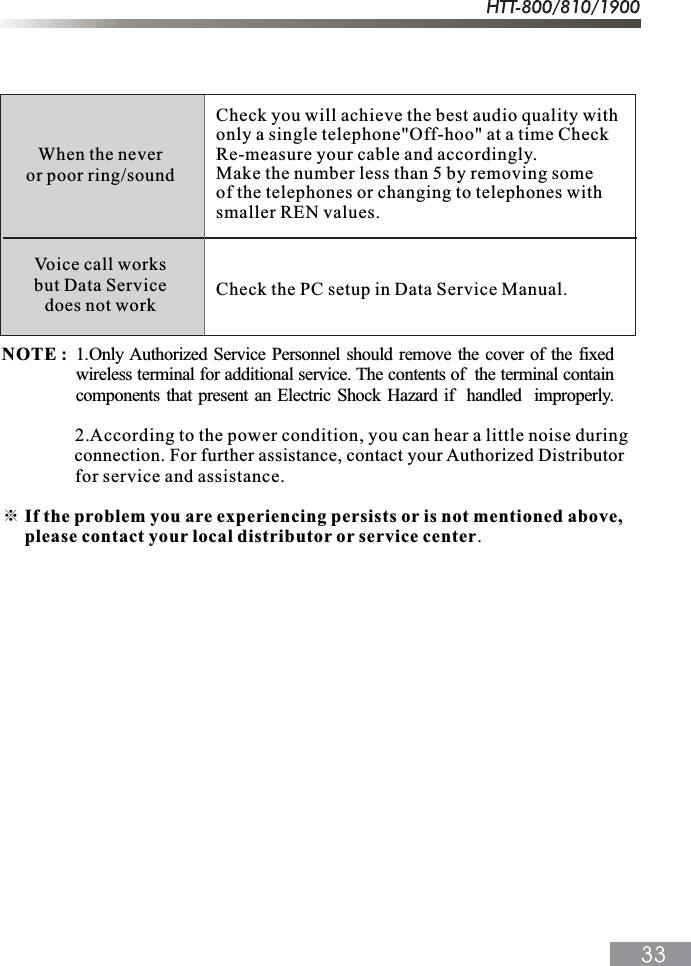
9. Troubleshooting GuideWireless Terminal"Checkif the power LED or battery LED of the terminal is on.If off, check if the SMPS power plug is properly connected to the terminal.Check the RJ-11 jack of the terminal connected to the telephoneCheck if the battery on/off switch at the bottom of the terminal is on.The backup battery is discharged, Check the Battery Switch or freshly charged one.Check if the antenna is connected correctly, or move the location of the terminalTroubleshootthe conventionalwired telephoneWhen you hearno soundafter hook-off?Troubleshootthe Fixed Wireless TerminalWhen the batteryLED is offWhen the RSSILED blinks or offWhat To DoProblemsIn the event you are unable to place or receive telephone calls, first be sure that the connection wire is properly connected to the RJ-11 phone port on the terminal and to the RJ-11 port of the telephone. If unsure whether or not the telephone is operational, connect a telephone, which is known to be operational to the terminal. If service is available with the operational telephone, replace or repairyour telephone equipment. If service is still not available, then follow instructions under "Troubleshoot the Fixed Check for the appropriate power indication on the LED.If no power, check the adapter (or External Power Supply)connection between the electrical outlet and the terminal.Check for the appropriate Received Signal Strength Indication(RSSI), Power, and Message Indication throughthe designated LED, respectively.
Check you will achieve the best audio quality withonly a single telephone"Off-hoo" at a time CheckRe-measure your cable and accordingly.Make the number less than 5 by removing someof the telephones or changing to telephones withsmaller REN values.Check the PC setup in Data Service Manual.When the neveror poor ring/soundVoice call worksbut Data Servicedoes not workNOTE :                2.According to the power condition, you can hear a little noise during                for service and assistance.୔ If the problem you are experiencing persists or is not mentioned above,     please contact your local distributor or service center.1.Only Authorized Service Personnel should remove the cover of the fixedwireless terminal for additional service. The contents of  the terminal containcomponents that present an Electric Shock Hazard if  handled  improperly.connection. For further assistance, contact your Authorized Distributor
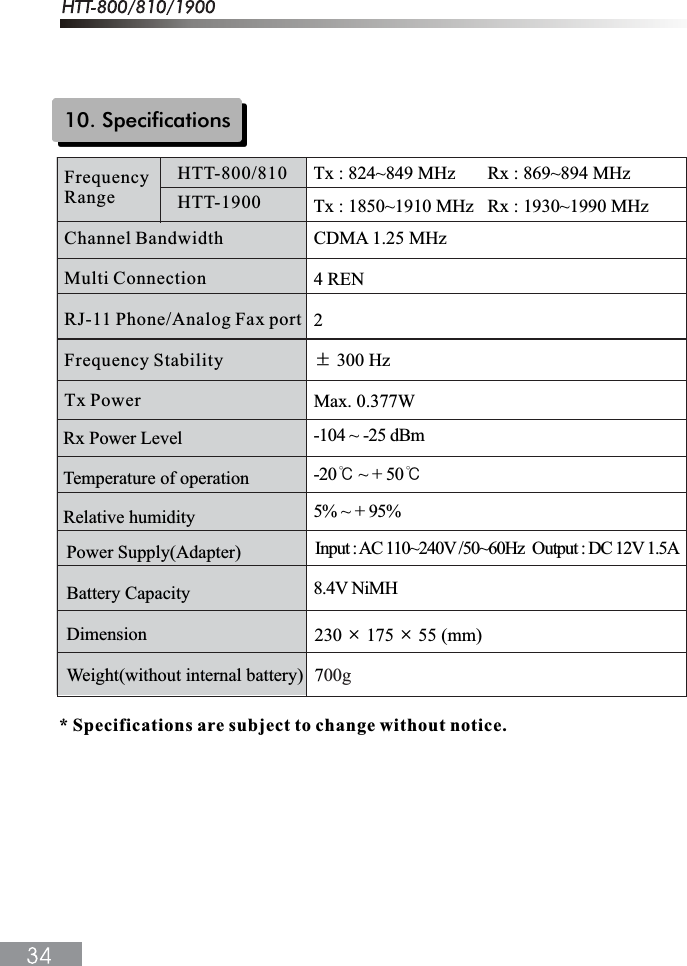
Rx Power LevelTemperature of operationRelative humidity-104 ~ -25 dBm-20୅ ~ + 50୅5% ~ + 95%8.4V NiMH230 Ý 175 Ý 55 (mm)700gPower Supply(Adapter)Battery CapacityDimensionWeight(without internal battery)* Specifications are subject to change without notice.10. SpecificationsFrequencyRangeChannel BandwidthMulti ConnectionRJ-11 Phone/Analog Fax portFrequency StabilityTx PowerCDMA 1.25 MHz4 REN2ധ 300 HzMax. 0.377WHTT-800/810HTT-1900Tx : 824~849 MHz       Rx : 869~894 MHzTx : 1850~1910 MHz   Rx : 1930~1990 MHzInput : AC 110~240V /50~60Hz  Output : DC 12V 1.5A
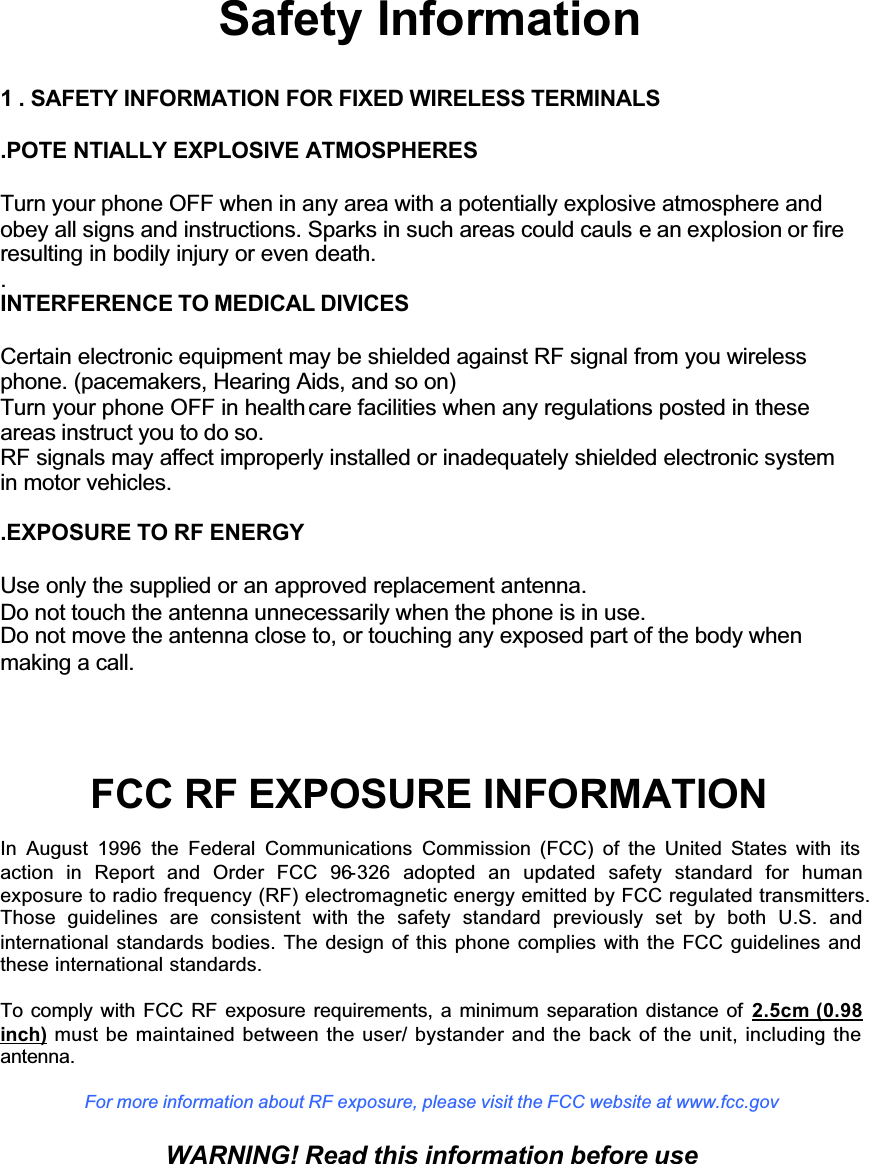
GGGGGGSafety Information1 . SAFETY INFORMATION FOR FIXED WIRELESS TERMINALS.POTE NTIALLY EXPLOSIVE ATMOSPHERESTurn your phone OFF when in any area with a potentially explosive atmosphere andobey all signs and instructions. Sparks in such areas could cauls e an explosion or fireresulting in bodily injury or even death..INTERFERENCE TO MEDICAL DIVICESCertain electronic equipment may be shielded against RF signal from you wirelessphone. (pacemakers, Hearing Aids, and so on)Turn your phone OFF in health care facilities when any regulations posted in theseareas instruct you to do so.RF signals may affect improperly installed or inadequately shielded electronic systemin motor vehicles. .EXPOSURE TO RF ENERGYUse only the supplied or an approved replacement antenna.Do not touch the antenna unnecessarily when the phone is in use.Do not move the antenna close to, or touching any exposed part of the body whenmaking a call.FCC RF EXPOSURE INFORMATIONIn August 1996 the Federal Communications Commission (FCC) of the United States with its action in Report and Order FCC 96-326 adopted an updated safety standard for humanexposure to radio frequency (RF) electromagnetic energy emitted by FCC regulated transmitters. Those guidelines are consistent with the safety standard previously set by both U.S. andinternational standards bodies. The design of this phone complies with the FCC guidelines and these international standards.To comply with FCC RF exposure requirements, a minimum separation distance of 2.5cm (0.98 inch) must be maintained between the user/ bystander and the back of the unit, including the antenna.For more information about RF exposure, please visit the FCC website at www.fcc.govWARNING! Read this information before use
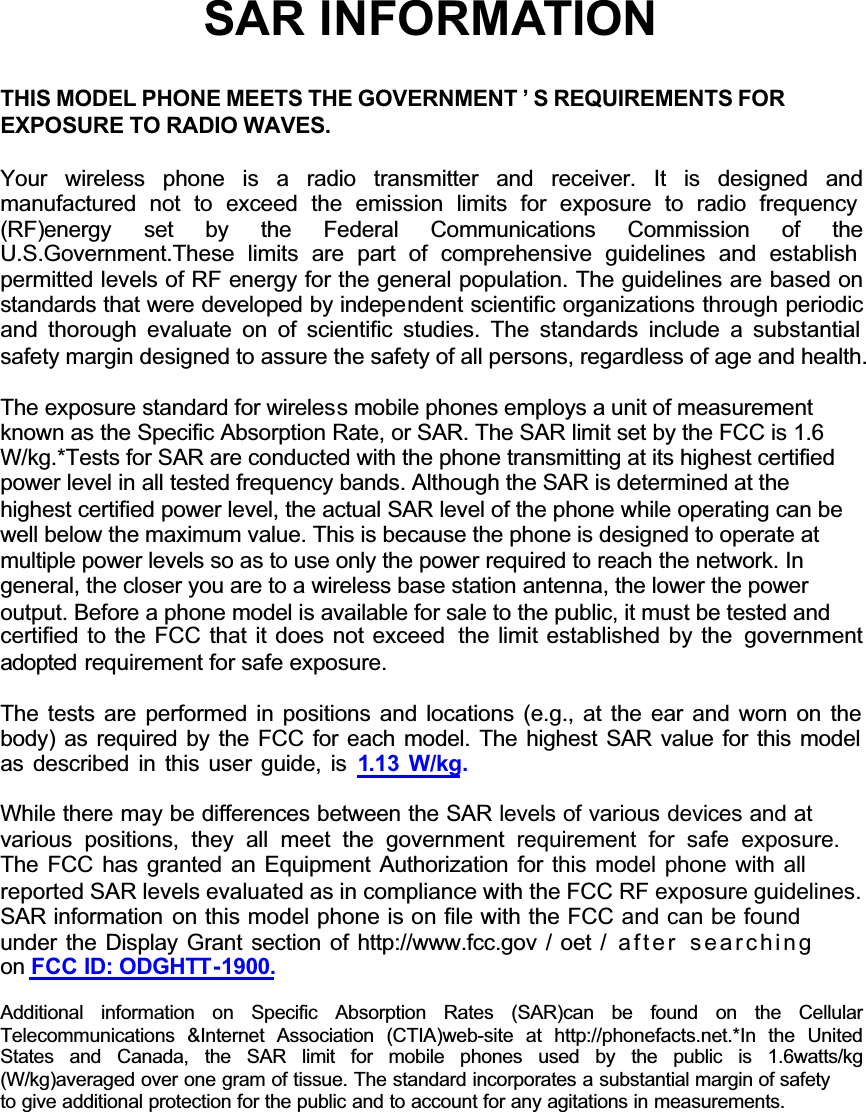
GGGGGGSAR INFORMATIONTHIS MODEL PHONE MEETS THE GOVERNMENT ’ S REQUIREMENTS FOREXPOSURE TO RADIO WAVES.Your wireless phone is a radio transmitter and receiver. It is designed andmanufactured not to exceed the emission limits for exposure to radio frequency (RF)energy set  by the Federal Communications Commission of theU.S.Government.These limits are part of comprehensive guidelines and establish permitted levels of RF energy for the general population. The guidelines are based on standards that were developed by independent scientific organizations through periodic and thorough evaluate on of scientific studies. The standards include a substantial safety margin designed to assure the safety of all persons, regardless of age and health.The exposure standard for wireless mobile phones employs a unit of measurementknown as the Specific Absorption Rate, or SAR. The SAR limit set by the FCC is 1.6W/kg.*Tests for SAR are conducted with the phone transmitting at its highest certifiedpower level in all tested frequency bands. Although the SAR is determined at thehighest certified power level, the actual SAR level of the phone while operating can bewell below the maximum value. This is because the phone is designed to operate atmultiple power levels so as to use only the power required to reach the network. Ingeneral, the closer you are to a wireless base station antenna, the lower the poweroutput. Before a phone model is available for sale to the public, it must be tested andcertified to the FCC that it does not exceed  the limit established by the  governmentadopted requirement for safe exposure.The tests are performed in positions and locations (e.g., at the ear and worn on the body) as required by the FCC for each model. The highest SAR value for this model as described in this user guide, is 1.13 W/kg.While there may be differences between the SAR levels of various devices and at various positions, they all meet the government requirement for safe exposure.The FCC has granted an Equipment Authorization for this model phone with all reported SAR levels evaluated as in compliance with the FCC RF exposure guidelines. SAR information on this model phone is on file with the FCC and can be found under the Display Grant section of http://www.fcc.gov / oet / after searchingon FCC ID: ODGHTT-1900.Additional information on Specific Absorption Rates (SAR)can be found on the CellularTelecommunications &Internet Association (CTIA)web-site at http://phonefacts.net.*In the UnitedStates and Canada, the SAR limit for mobile phones used by the public is 1.6watts/kg(W/kg)averaged over one gram of tissue. The standard incorporates a substantial margin of safetyto give additional protection for the public and to account for any agitations in measurements.
GGGGGGFCC Compliance InformationThis device complies with Part 15 of FCC Rules.Operation is subject to the following two conditions:(1) This device may not cause harmful interference, and(2) This device must accept any interference received.Including interference that may cause undesired operation.Information to UserThis equipment has been tested and found to comply with the limits for a Class B digitaldevice, pursuant to part 15 of the FCC Rules. These limits are designed to provide reasonable protection against harmful interference in a residential installation. Thisequipment generates, uses and can radiate radio frequency energy and, if not installedand used in accordance with the instructions, may cause harmful interference to radio communications. However, there is no guarantee that interference will not occur in a particular installation. If this equipment does cause harmful interference to radio or television reception, which can be determined by turning the equipment off and on, the user is encouraged to try to correct the interference by one or more of the following measures:- Reorient or relocate the receiving antenna.- Increase the separation between the equipment and receiver.- Connect the equipment into an outlet on a circuit different from that to which thereceiver is connected.- Consult the dealer or an experienced radio/ TV technician for help.

Navigation menu