Hantel ST-800 Numeric Pager User Manual

Hantel Co., Ltd. Numeric Pager Users Manual

User Manual

FLEX Numeric PagerUSER'S MANUALSUN TELECOMINTERNATIONALST 800ST 800TMST 800ST 800
ST 800Congratulations on your purchase of  our              pager. By incorporating some of the most advanced electronic paging technologies, the              pager is reliable & easy to use. Best of all, the            is affordable & will keep you in touch with those important to you. Please carefully read this manual before using your pager in order to fully understand the           's functions & capabilities. Once again, congratulations on your purchase.ST 800ST 800ST 800 ST 800
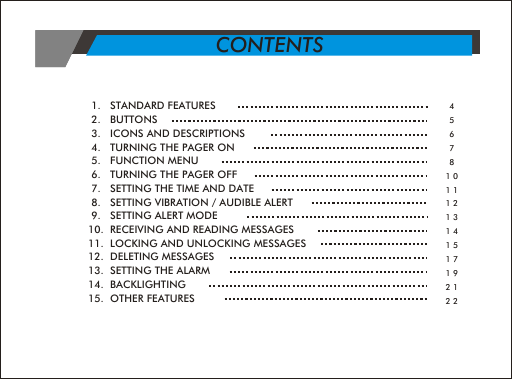
 1.   STANDARD FEATURES                     2.   BUTTONS  3.   ICONS AND DESCRIPTIONS 4.   TURNING THE PAGER ON 5.   FUNCTION MENU 6.   TURNING THE PAGER OFF 7.   SETTING THE TIME AND DATE 8.   SETTING VIBRATION / AUDIBLE ALERT 9.   SETTING ALERT MODE10.  RECEIVING AND READING MESSAGES11.  LOCKING AND UNLOCKING MESSAGES12.  DELETING MESSAGES13.  SETTING THE ALARM14.  BACKLIGHTING15.  OTHER FEATURES4567810111213141517192122CONTENTS
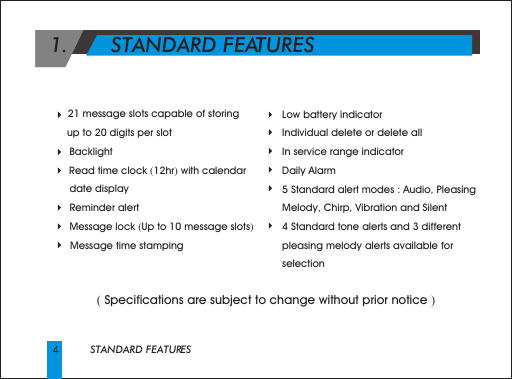
STANDARD FEATURES 1.       STANDARD FEATURES      ( Specifications are subject to change without prior notice )   21 message slots capable of storing      up to 20 digits per slotBacklight    Read time clock (12hr) with calendar date displayReminder alertMessage lock (Up to 10 message slots)      Message time stamping     Low battery indicator     Individual delete or delete all     In service range indicator     Daily Alarm     5 Standard alert modes : Audio, Pleasing         Melody, Chirp, Vibration and Silent     4 Standard tone alerts and 3 different      pleasing melody alerts available for      selection
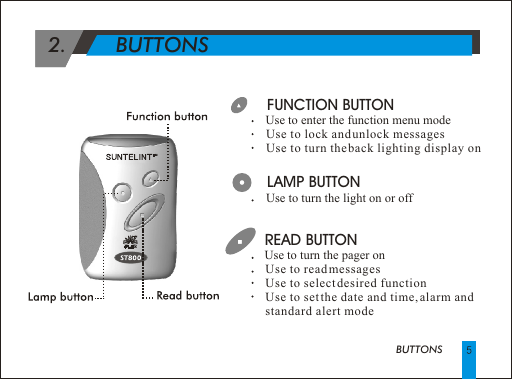
BUTTONS2.        BUTTONS       FUNCTION BUTTONUse to enter the function menu mode                 Use to lock and unlock messages                 Use to turn the back lighting display on READ BUTTONUse to turn the pager on                  Use to read messages                  Use to select desired function                  Use to set the date and time, alarm and                  standard alert mode LAMP BUTTON   Use to turn the light on or off
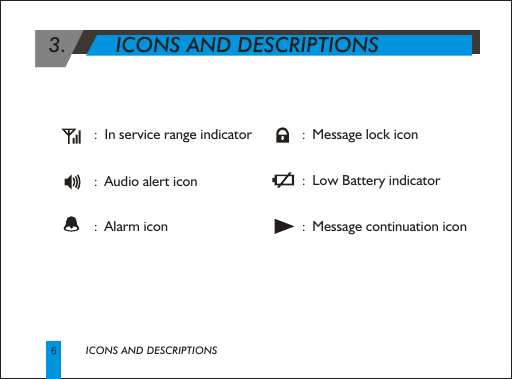
ICONS AND DESCRIPTIONS 3.        ICONS AND DESCRIPTIONS              :  Message lock icon              :  Low Battery indicator              :  Message continuation icon                      :  In service range indicator                                                 :  Audio alert icon                                                :  Alarm icon
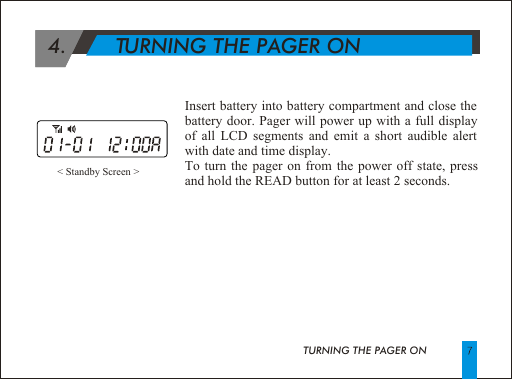
 4.        TURNING THE PAGER ON< Standby Screen >Insert battery into battery compartment and close the battery door. Pager will power up with a full display of all LCD segments and emit a short audible alert with date and time display.To turn the pager on from the power off state, press and hold the READ button for at least 2 seconds.TURNING THE PAGER ON
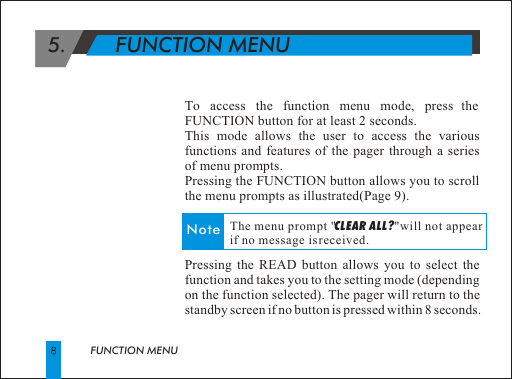
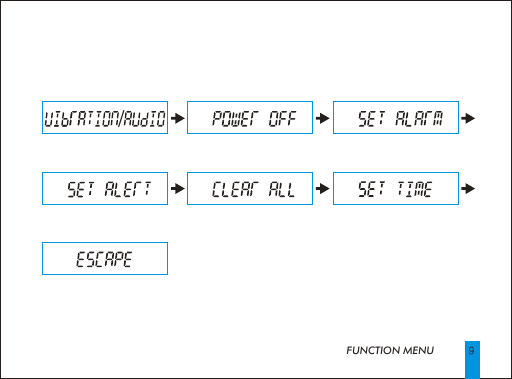
 5.        FUNCTION MENUTo access the function menu mode, press the FUNCTION button for at least 2 seconds. This mode allows the user to access the various functions and features of the pager through a series of menu prompts.Pressing the FUNCTION button allows you to scroll the menu prompts as illustrated(Page 9). Pressing the READ button allows you to select the function and takes you to the setting mode (depending on the function selected). The pager will return to the standby screen if no button is pressed within 8 seconds.FUNCTION MENUNote              The menu prompt "CLEAR ALL?"will not appear              if no message is received.
 FUNCTION MENU/
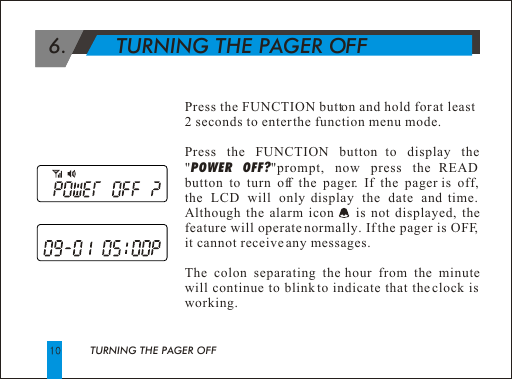
TURNING THE PAGER OFF 6.        TURNING THE PAGER OFFPress the FUNCTION button and hold for at least 2 seconds to enter the function menu mode.Press the FUNCTION button to display the "POWER OFF?"prompt, now press the READ button to turn off the pager. If the pager is off,  the LCD will only display the date and time. Although the alarm icon     is not displayed, the feature will operate normally. If the pager is OFF, it cannot receive any messages.The colon separating the hour from the minute will continue to blink to indicate that the clock is working.
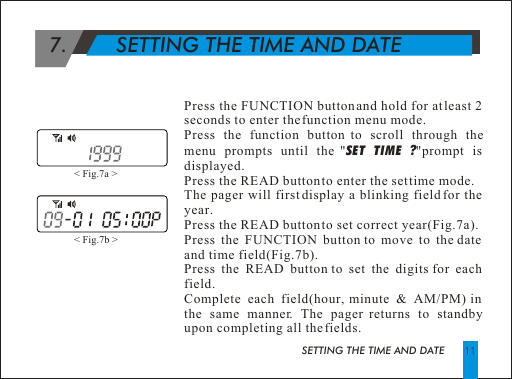
Press the FUNCTION button and hold for at least 2 seconds to enter the function menu mode.Press the function button to scroll through the menu prompts until the "SET TIME ?"prompt is displayed. Press the READ button to enter the set time mode.The pager will first display a blinking field for the year.Press the READ button to set correct year(Fig.7a).Press the FUNCTION button to move to the date and time field(Fig.7b).Press the READ button to set the digits for each field.Complete each field(hour, minute & AM/PM) in the same manner. The pager returns to standby upon completing all the fields.  7.        SETTING THE TIME AND DATESETTING THE TIME AND DATE< Fig.7a > < Fig.7b >
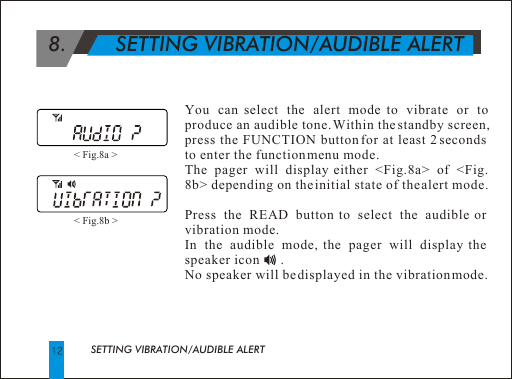
  8.        SETTING VIBRATION/AUDIBLE ALERTSETTING VIBRATION/AUDIBLE ALERTYou can select the alert mode to vibrate or to produce an audible tone. Within the standby screen, press the FUNCTION button for at least 2 seconds to enter the function menu mode. The pager will display either <Fig.8a> of <Fig. 8b> depending on the initial state of the alert mode.Press the READ button to select the audible or vibration mode. In the audible mode, the pager will display the speaker icon      . No speaker will be displayed in the vibration mode.  < Fig.8a > < Fig.8b >
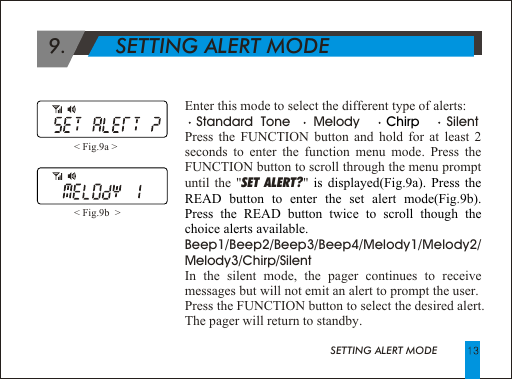
                                           SETTING ALERT MODEEnter this mode to select the different type of alerts:   Standard  Tone      Melody               SilentPress the FUNCTION button and hold for at least 2 seconds to enter the function menu mode. Press the FUNCTION button to scroll through the menu prompt until the "SET ALERT?" .Beep1/Beep2/Beep3/Beep4/Melody1/Melody2/ Melody3/Chirp/SilentIn the silent mode, the pager continues to receive messages but will not emit an alert to prompt the user.Press the FUNCTION button to select the desired alert. The pager will return to standby.Chirp is displayed(Fig.9a). Press the READ button to enter the set alert mode(Fig 9b).  Press the READ button twice to scroll though the choice alerts available.< Fig.9a > < Fig.9b  >   9.        SETTING ALERT MODE
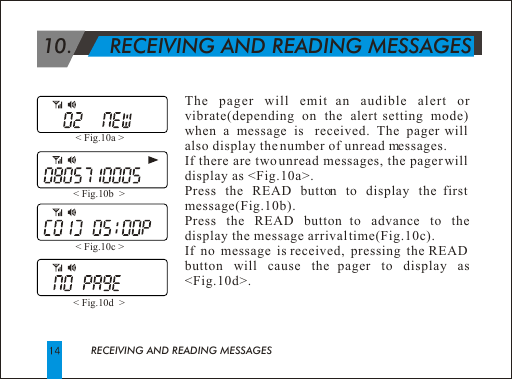
 10.      RECEIVING AND READING MESSAGESRECEIVING AND READING MESSAGESThe pager will emit an audible alert or vibrate(depending on the alert setting mode) when a message is  received. The pager will also display the number of unread messages.If there are two unread messages, the pager will display as <Fig.10a>.Press the READ button to display the first message(Fig.10b).Press the READ button to advance to the display the message arrival time(Fig.10c).If no message is received, pressing the READ button will cause the pager to display as <Fig.10d>.< Fig.10a > < Fig.10b  > < Fig.10c > < Fig.10d  >
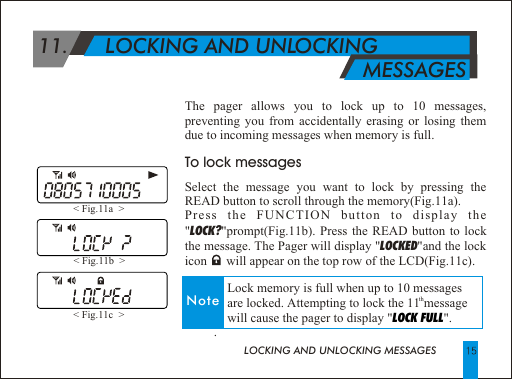
LOCKING AND UNLOCKING MESSAGESThe pager allows you to lock up to 10 messages, preventing you from accidentally erasing or losing them due to incoming messages when memory is full.To lock messagesSelect the message you want to lock by pressing the READ button to scroll through the memory(Fig.11a).Press the FUNCTION button to display the "LOCK?"prompt(Fig.11b). Press the READ button to lock the message. The Pager will display "LOCKED"and the lock icon      will appear on the top row of the LCD(Fig.11c).         .< Fig.11a  > < Fig.11b  > < Fig.11c  >  11.      LOCKING AND UNLOCKING                                                          MESSAGESNote              Lock memory is full when up to 10 messages th             are locked. Attempting to lock the 11 message              will cause the pager to display " ". LOCK FULL
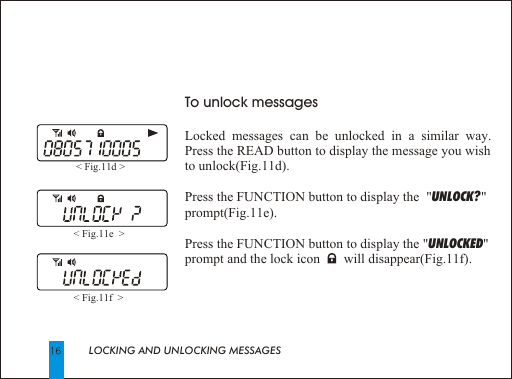
LOCKING AND UNLOCKING MESSAGESTo unlock messagesLocked messages can be unlocked in a similar way.  Press the READ button to display the message you wish to unlock(Fig.11d).Press the FUNCTION button to display the  "UNLOCK? " prompt(Fig.11e). Press the FUNCTION button to display the "UNLOCKED" prompt and the lock icon       will disappear(Fig.11f).< Fig.11d > < Fig.11e  > < Fig.11f  >
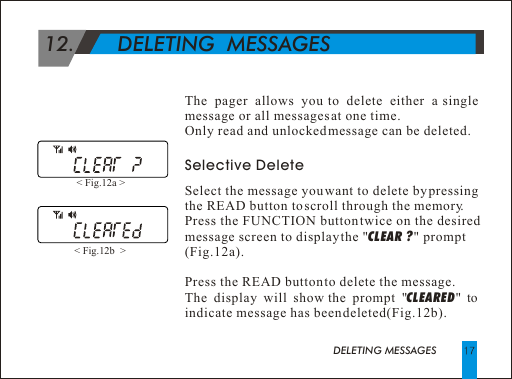
 12.       DELETING  MESSAGES DELETING MESSAGESThe pager allows you to delete either a single message or all messages at one time. Only read and unlocked message can be deleted.Selective DeleteSelect the message you want to delete by pressing the READ button to scroll through the memory.Press the FUNCTION button twice on the desired message screen to display the "CLEAR ? " prompt(Fig.12a).Press the READ button to delete the message. The display will show the prompt "CLEARED" to indicate message has been deleted(Fig.12b).< Fig.12a > < Fig.12b  >
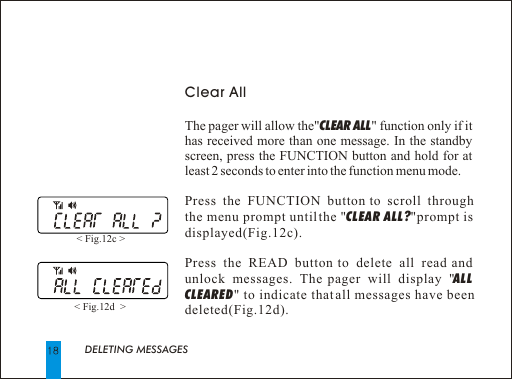
DELETING MESSAGESClear AllThe pager will allow the"CLEAR ALL" function only if it has received more than one message. In the standby screen, press the FUNCTION button and hold for at least 2 seconds to enter into the function menu mode.Press the FUNCTION button to scroll through the menu prompt until the "CLEAR ALL? "prompt is displayed(Fig.12c).Press the READ button to delete all read and unlock messages. The pager will display "ALL CLEARED" to indicate that all messages have been deleted(Fig.12d).< Fig.12c > < Fig.12d  >
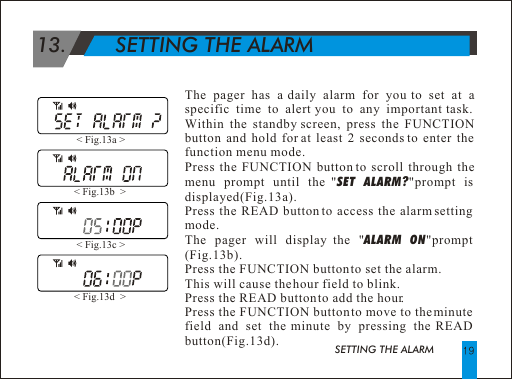
SETTING THE ALARM  13.        SETTING THE ALARMThe pager has a daily alarm for you to set at a specific time to alert you to any important task. Within the standby screen, press the FUNCTION button and hold for at least 2 seconds to enter the function menu mode.Press the FUNCTION button to scroll through the menu prompt until the "SET ALARM?"prompt is  displayed(Fig.13a).Press the READ button to access the alarm setting mode. The pager will display the "ALARM ON"prompt (Fig.13b).Press the FUNCTION button to set the alarm. This will cause the hour field to blink.Press the READ button to add the hour.Press the FUNCTION button to move to the minute field and set the minute by pressing the READ button(Fig.13d).< Fig.13a > < Fig.13b  > < Fig.13c > < Fig.13d  >
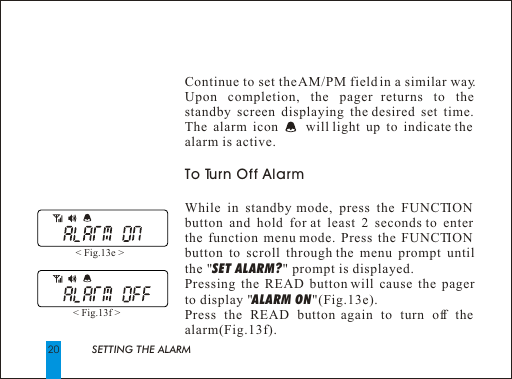
20Continue to set the AM/PM field in a similar way. Upon completion, the pager returns to the  standby screen displaying the desired set time. The alarm icon     will light up to indicate the alarm is active.To Turn Off AlarmWhile in standby mode, press the FUNCTION button and hold for at least 2 seconds to enter  the function menu mode. Press the FUNCTION button to scroll through the menu prompt until the "SET ALARM?" prompt is displayed.Pressing the READ button will cause the pager to display "ALARM ON"(Fig.13e).Press the READ button again to turn off the alarm(Fig.13f).< Fig.13e > < Fig.13f > SETTING THE ALARM
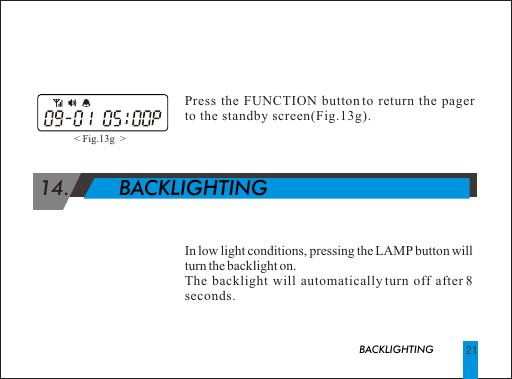
                           BACKLIGHTING 14.        BACKLIGHTINGPress the FUNCTION button to return the pager to the standby screen(Fig.13g).In low light conditions, pressing the LAMP button will turn the backlight on.The backlight will automatically turn off after 8 seconds.< Fig.13g  >
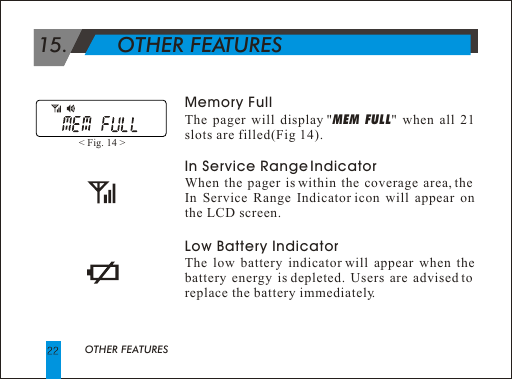
 15.        OTHER FEATURESOTHER FEATURESMemory FullThe pager will display "MEM FULL" when all 21 slots are filled(Fig 14). In Service Range Indicator When the pager is within the coverage area, the In Service Range Indicator icon will appear on the LCD screen.Low Battery Indicator The low battery indicator will appear when the battery energy is depleted. Users are advised to replace the battery immediately.< Fig. 14 >
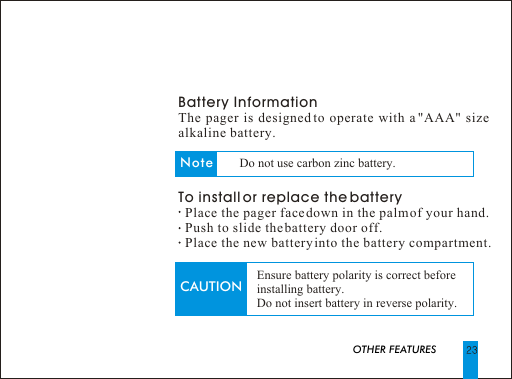
Battery InformationThe pager is designed to operate with a "AAA" size alkaline battery. To install or replace the battery  Place the pager face down in the palm of your hand.  Push to slide the battery door off.  Place the new battery into the battery compartment.                           OTHER FEATURESCAUTION Ensure battery polarity is correct beforeinstalling battery. Do not insert battery in reverse polarity.Note Do not use carbon zinc battery.
Caution :    Changes or modifications not expressly approved by the  manufacturer responsible for compliance could void the user's authority to operate this equipment.This device complies with part 15 of the FCC Rules. Operation is subject to the following two conditions: (1)this device may not cause harmful interference, and (2)this device must accept any interference received, including interference that may cause undesired operation.FCC COMPLIANCE STATEMENT:

Navigation menu