Harbor Freight 67139 Users Manual
67139 67139
67139 to the manual a8c791c5-78b6-404a-977c-25ac8327182b
2015-01-25
: Harbor-Freight Harbor-Freight-67139-Users-Manual-210111 harbor-freight-67139-users-manual-210111 harbor-freight pdf
Open the PDF directly: View PDF  .
.
Page Count: 38
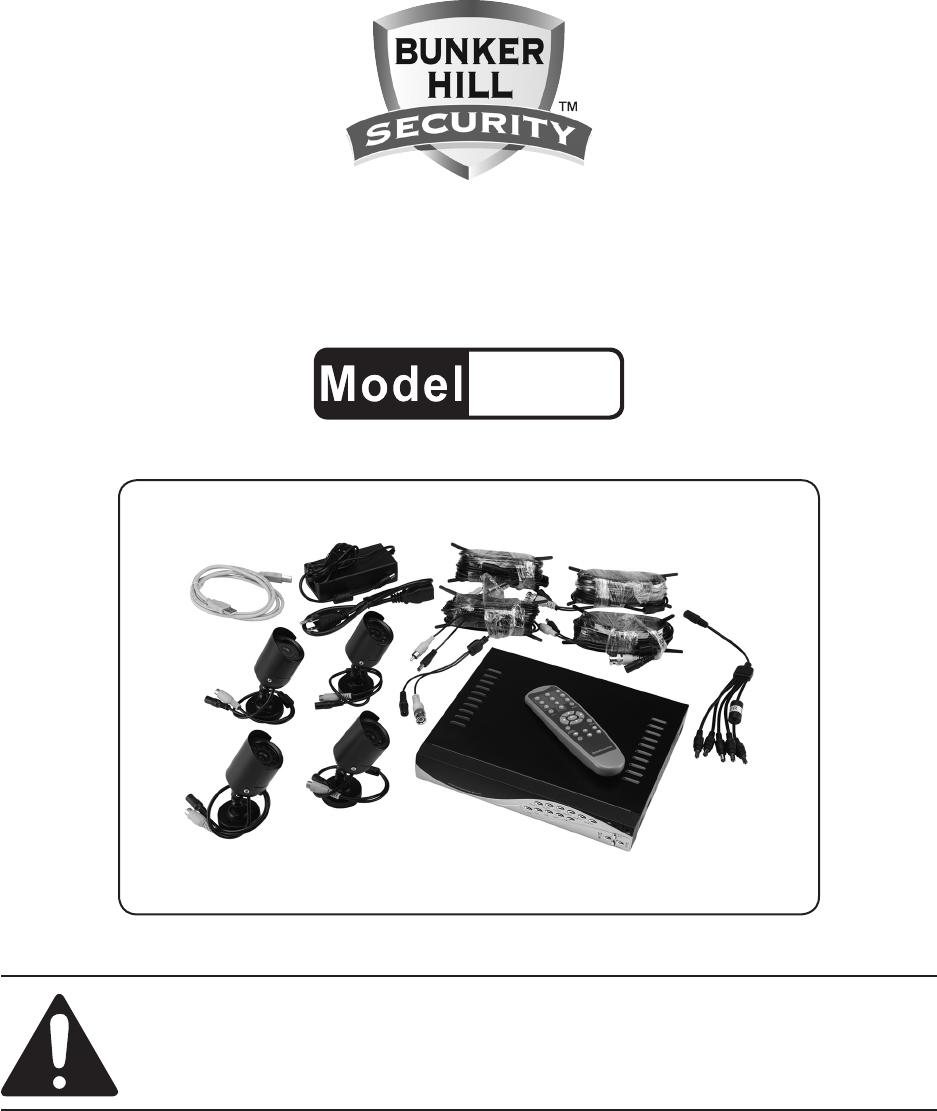
4 CHANNEL SURVEILLANCE
DVR KIT WITH 4-IR CAMERAS
67139
SET UP AND OPERATING INSTRUCTIONS
Visit our website at: http://www.harborfreight.com
Read this material before using this product.
Failure to do so can result in serious injury.
SAVE THIS MANUAL.
Copyright© 2009 by Harbor Freight Tools®. All rights reserved. No portion of this manual or any artwork
contained herein may be reproduced in any shape or form without the express written consent of
Harbor Freight Tools. Diagrams within this manual may not be drawn proportionally. Due to continuing
improvements, actual product may differ slightly from the product described herein. Tools required for
assembly and service may not be included.
For technical questions or replacement parts, please call 1-800-444-3353.
Manual Revised 10h

SKU 67139 For technical questions, please call 1-800-444-3353. Page 2
CONTENTS
IMPORTANT SAFETY
INFORMATION ............................ 3
GENERAL SAFETY WARNINGS .......3
DVR-CAMERA KIT SAFETY
WARNINGS ......................................4
GROUNDING ................................. 5
GROUNDED TOOLS: TOOLS
WITH THREE PRONG PLUGS ....... 5
DOUBLE INSULATED TOOLS:
TOOLS WITH TWO PRONG
PLUGS .............................................5
EXTENSION CORDS .........................6
SYMBOLOGY .....................................6
SPECIFICATIONS .......................... 7
TRADEMARK
ACKNOWLEDGEMENTS ................7
UNPACKING .......................................7
INSTRUCTIONS FOR PUTTING
INTO USE .................................... 8
COMPONENTS ..................................8
OPERATING INSTRUCTIONS .... 10
WORK AREA SET UP ......................10
SETUP OVERVIEW ..........................10
SETTING UP THE DVR WITH A
TV MONITOR ............................ 11
DVR/CAMERA CONNECTIONS ...... 11
DVR/TV MONITOR CONNECTION .. 11
STARTING THE DVR ................... 12
OPERATING INSTRUCTIONS .... 13
RECORDING ....................................13
PLAYBACK ......................................14
NETWORK SETUP ...................... 15
WHAT YOU WILL NEED TO SET
UP THE DVR ONLINE ...................15
CONNECTING YOUR DVR TO
THE ROUTER ................................15
FINDING YOUR DVR’S INTERNAL
IP ADDRESS .................................15
PREPARING YOUR COMPUTER
FOR VIEWING THE DVR .............. 16
INSTALLING SOFTWARE ...............16
ADDING DVR TO TRUSTED SITES 16
VIEWING YOUR DVR OUTSIDE
OF YOUR NETWORK.................... 17
PROGRAMMING THE DVR ......... 18
CHANNEL (CAMERA) SETUP ........18
RECORD SETUP ..............................19
RECORD FRAME RATE ..................19
VIDEO QUALITY ..............................20
RECORD SCHEDULE ......................20
SENSOR SETUP ..............................20
HARD DRIVE SETUP .......................22
MISCELLANEOUS SETUP ..............23
NETWORK SET UP SUB-MENU .....27
BACKUP PROGRAM .................. 31
AUDIO CONNECTION .....................34
HARD DISK INSTALLATION ...........34
MAINTENANCE/SERVICING ...... 35
CLEANING AND MAINTENANCE ...35
NTSC/PAL OUTPUT SELECT .........35
TROUBLESHOOTING ......................36
REV 10h
SKU 67139 For technical questions, please call 1-800-444-3353. Page 3
SAVE THIS MANUAL
Keep this manual for the safety warn-
ings and precautions, assembly, operat-
ing, inspection, maintenance and cleaning
procedures. Write the product’s serial
number in the back of the manual near the
assembly diagram (or month and year of
purchase if product has no number). Keep
this manual and the receipt in a safe and
dry place for future reference.
IMPORTANT SAFETY
INFORMATION
In this manual, on the labeling,
and all other information provid-
ed with this product:
This is the safety alert
symbol. It is used to alert
you to potential personal
injury hazards. Obey all
safety messages that
follow this symbol to avoid
possible injury or death.
DANGER indicates
a hazardous
situation which, if not
avoided, will result in death or
serious injury.
WARNING
indicates a
hazardous situation which, if
not avoided, could result in
death or serious injury.
CAUTION, used
with the safety
alert symbol, indicates a
hazardous situation which, if
not avoided, could result in
minor or moderate injury.
NOTICE is used to
address practices
not related to personal injury.
CAUTION, without
the safety alert
symbol, is used to address
practices not related to
personal injury.
General Safety Warnings
WARNING Read all safety
warnings and instructions.
Failure to follow the warnings and
instructions may result in electric
shock, re and/or serious injury.
Save all warnings and
instructions for future reference.
Work area safety1.
Keep work area clean and well lit. a.
Cluttered or dark areas invite acci-
dents.
Keep children and bystanders b.
away while operating the unit.
Distractions can cause you to lose
control.
Electrical safety2.
Power plugs must match the a.
outlet. Never modify the plug in
any way. Do not use any adapter
plugs with grounded plugs. Un-
modied plugs and matching outlets
will reduce risk of electric shock.
Do not expose DVR Unit to rain or b.
wet conditions.
Do not abuse the cord. Never use c.
the cord for carrying, pulling or
unplugging the unit. Keep cord
away from heat, oil, sharp edges
or moving parts. Damaged or

SKU 67139 For technical questions, please call 1-800-444-3353. Page 4
entangled cords increase the risk of
electric shock.
Personal safety3.
Stay alert, watch what you are
doing and use common sense
when operating the unit. Do not
use while you are tired or under
the inuence of drugs, alcohol or
medication.
Service4.
Have your DVR serviced by a
qualied repair person using only
identical replacement parts. This
will ensure that the safety of the unit
is maintained.
DVR-Camera Kit Safety Warnings
Maintain labels and nameplates on 1.
the unit. These carry important safety
information. If unreadable or miss-
ing, contact Harbor Freight Tools for a
replacement.
This product is not a toy. Keep it out 2.
of reach of children.
People with pacemakers should 3.
consult their physician(s) before use.
-
imity to heart pacemaker could cause
pacemaker interference or pacemak-
er failure. In addition, people with
pacemakers should:
on.
avoid electrical shock.
grounded. Ground Fault Circuit Inter-
rupter (GFCI) should also be imple-
mented – it prevents sustained elec-
trical shock.
WARNING: Handling the cord on 4.
this product will expose you to lead,
a chemical known to the State of
California to cause cancer, and birth
defects or other reproductive harm.
Wash hands after handling. (Califor-
nia Health & Safety Code § 25249.5,
et seq.)
The warnings, precautions, and in-5.
structions discussed in this instruction
manual cannot cover all possible con-
ditions and situations that may occur.
It must be understood by the operator
that common sense and caution are
factors which cannot be built into this
product, but must be supplied by the
operator.
SAVE THESE
INSTRUCTIONS.
SKU 67139 For technical questions, please call 1-800-444-3353. Page 5
GROUNDING
TO PREVENT
ELECTRIC SHOCK
AND DEATH FROM
INCORRECT GROUNDING
WIRE CONNECTION:
Check with a qualied
electrician if you are in doubt
as to whether the outlet is
properly grounded. Do not
modify the power cord plug
provided with the tool. Never
remove the grounding prong
from the plug. Do not use the
tool if the power cord or plug
is damaged. If damaged, have
it repaired by a service facility
before use. If the plug will not
t the outlet, have a proper
outlet installed by a qualied
electrician.
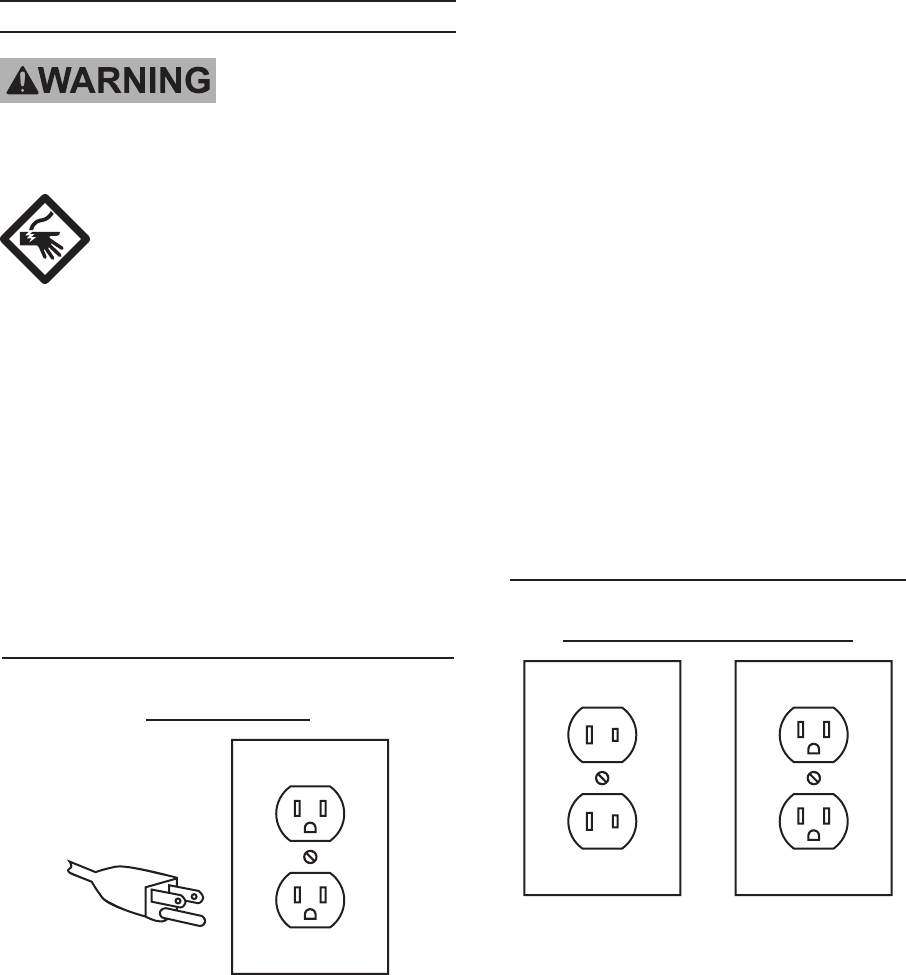
Grounded Tools: Tools with Three
Prong Plugs
3-Prong Plug and Outlet
Tools marked with “Grounding Re-1.
quired” have a three wire cord and
three prong grounding plug. The
plug must be connected to a properly
grounded outlet. If the tool should
electrically malfunction or break
down, grounding provides a low
resistance path to carry electricity
away from the user, reducing the risk
of electric shock. (See 3-Prong Plug
and Outlet.)
The grounding prong in the plug is 2.
connected through the green wire in-
side the cord to the grounding system
in the tool. The green wire in the cord
must be the only wire connected to
the tool’s grounding system and must
never be attached to an electrically
“live” terminal. (See 3-Prong Plug
and Outlet.)
The tool must be plugged into an 3.
appropriate outlet, properly installed
and grounded in accordance with all
codes and ordinances. The plug and
outlet should look like those in the
preceding illustration. (See 3-Prong
Plug and Outlet.)
Double Insulated Tools: Tools
with Two Prong Plugs
Outlets for 2-Prong Plug
Tools marked “Double Insulated” do 1.
not require grounding. They have
a special double insulation system
and complies with the applicable
standards of Underwriters Labora-
tories, Inc., the Canadian Standard
Association, and the National Electri-
cal Code. (See Outlets for 2-Prong
Plug.)
SKU 67139 For technical questions, please call 1-800-444-3353. Page 6
Double insulated tools may be used 2.
in either of the 120 volt outlets shown
in the preceding illustration. (See
Outlets for 2-Prong Plug.)
Extension Cords
Grounded1. tools require a three wire
extension cord. Double Insulated
tools can use either a two or three
wire extension cord.
As the distance from the supply outlet 2.
increases, you must use a heavier
gauge extension cord. Using exten-
sion cords with inadequately sized
wire causes a serious drop in voltage,
resulting in loss of power and pos-
sible tool damage.
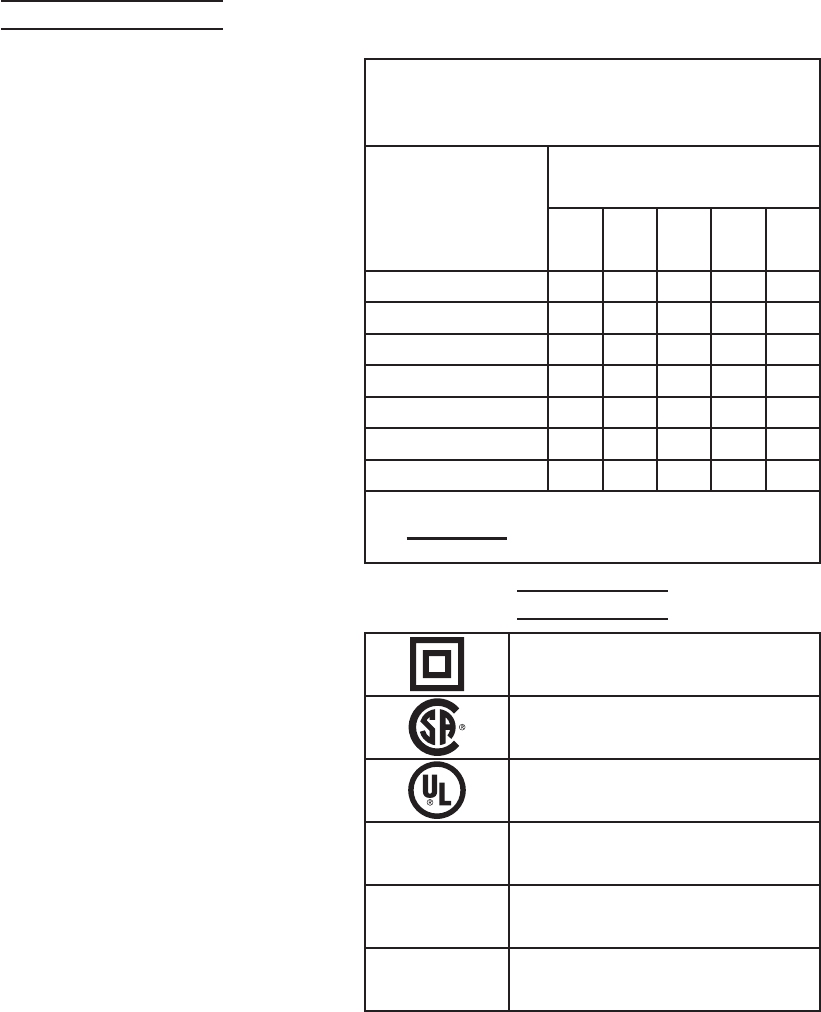
(See Table A.)
The smaller the gauge number of the 3.
wire, the greater the capacity of the
cord. For example, a 14 gauge cord
can carry a higher current than a 16
gauge cord. (See Table A.)
When using more than one exten-4.
sion cord to make up the total length,
make sure each cord contains at
least the minimum wire size required.
(See Table A.)
If you are using one extension cord 5.
for more than one tool, add the
nameplate amperes and use the sum
to determine the required minimum
cord size. (See Table A.)
If you are using an extension cord 6.
outdoors, make sure it is marked with
indicate it is acceptable for outdoor
use.
Make sure the extension cord is prop-7.
erly wired and in good electrical con-
dition. Always replace a damaged
extension cord or have it repaired by
Protect the extension cords from 8.
sharp objects, excessive heat, and
damp or wet areas.
RECOMMENDED MINIMUM WIRE
GAUGE FOR EXTENSION CORDS*
(120/240 VOLT)
NAMEPLATE
AMPERES
(at full load)
EXTENSION CORD
LENGTH
25’
50’
75’
100’
150’
0 – 2.0 18 18 18 18 16
2.1 – 3.4 18 18 18 16 14
3.5 – 5.0 18 18 16 14 12
5.1 – 7.0 18 16 14 12 12
7.1 – 12.0 18 14 12 10 -
12.1 – 16.0 14 12 10 - -
16.1 – 20.0 12 10 - - -
TABLE A
* Based on limiting the line
voltage drop to ve volts at
150% of the rated amperes.
Symbology
Double Insulated
Canadian Standards Association
Underwriters Laboratories, Inc.
V~ Volts Alternating Current
AAmperes
n0 xxxx/min. No Load Revolutions per Minute
(RPM)

SKU 67139 For technical questions, please call 1-800-444-3353. Page 7
SPECIFICATIONS
Video Standard NTSC/PAL
Video
Channel
Audio
Channel
Preview
Resolution
NTSC:
20x480@30fps
(each CH)
PAL:
720x576@25fps
(each CH)
Features
Full-DI, 1-Channel/4-
Channel/1-Channel
Playback
Recording
Resolution
NTSC: 720x240@
60fps (Total)
PAL:
720x288@50fps
(Total)
Features
Variable Frame
Rate, up to 200 hrs,
recording time
Quality 4 Levels
Hard drive 250 gigabite hard drive
Audio
Video MPEG4 Compression
Motion
Detection
Selectable Area and Sensitivity
Detection
Microprocessor 32-bit RISC Processor
Network
Interface RJ45
HDD Port Support SATA Hard drive
USB Port USB 2.0
Audio Port
Remote
Control Support IR Remote Control
Adapter Input: 120 V ~ / 60 Hz
Included
Accessories
4 Infrared Day/Night Cameras
(Two 3.6mm wide angle and
two 6mm for longer range, all
are color in daylight and black
& white infrared night viewing),
Camera Cables, Remote
Control, USB Cable, Cable
Splitter, Power Cord, Power
Adapter, Software CD, Two AAA
Batteries,
NOTICE: Camera surveillance may be
prohibited by laws that vary from
state to state. Check laws in your
area before using for surveillance.
This device complies with part 15 of
following two conditions: (1) This device
may not cause harmful interference, and
(2) this device must accept any interfer-
ence received, including interference that
may cause undesired operation.
To the extent that you use this unit
with software other than what is provided,
we will not be responsible for any loss or
damage to your computer or contents.
Trademark Acknowledgements
Ethernet, Internet Explorer (IE), Ac-
tiveX, DivX, and Windows XP, Windows
Vista are registered trademarks of the
respective holders.
Unpacking
When unpacking, make sure that the
item is intact and undamaged. If any parts
are missing or broken, please call Harbor
Freight Tools at 1-800-444-3353 as soon
as possible.
REV 10h
SKU 67139 For technical questions, please call 1-800-444-3353. Page 8
INSTRUCTIONS FOR
PUTTING INTO USE
Read the ENTIRE IMPORTANT
SAFETY INFORMATION
section at the beginning of this
manual including all text under
subheadings therein before set
up or use of this product.
TO PREVENT
SERIOUS INJURY
FROM ACCIDENTAL
OPERATION:
Unplug the unit from its
electrical outlet before
assembling or making any
adjustments to the wiring.
Components
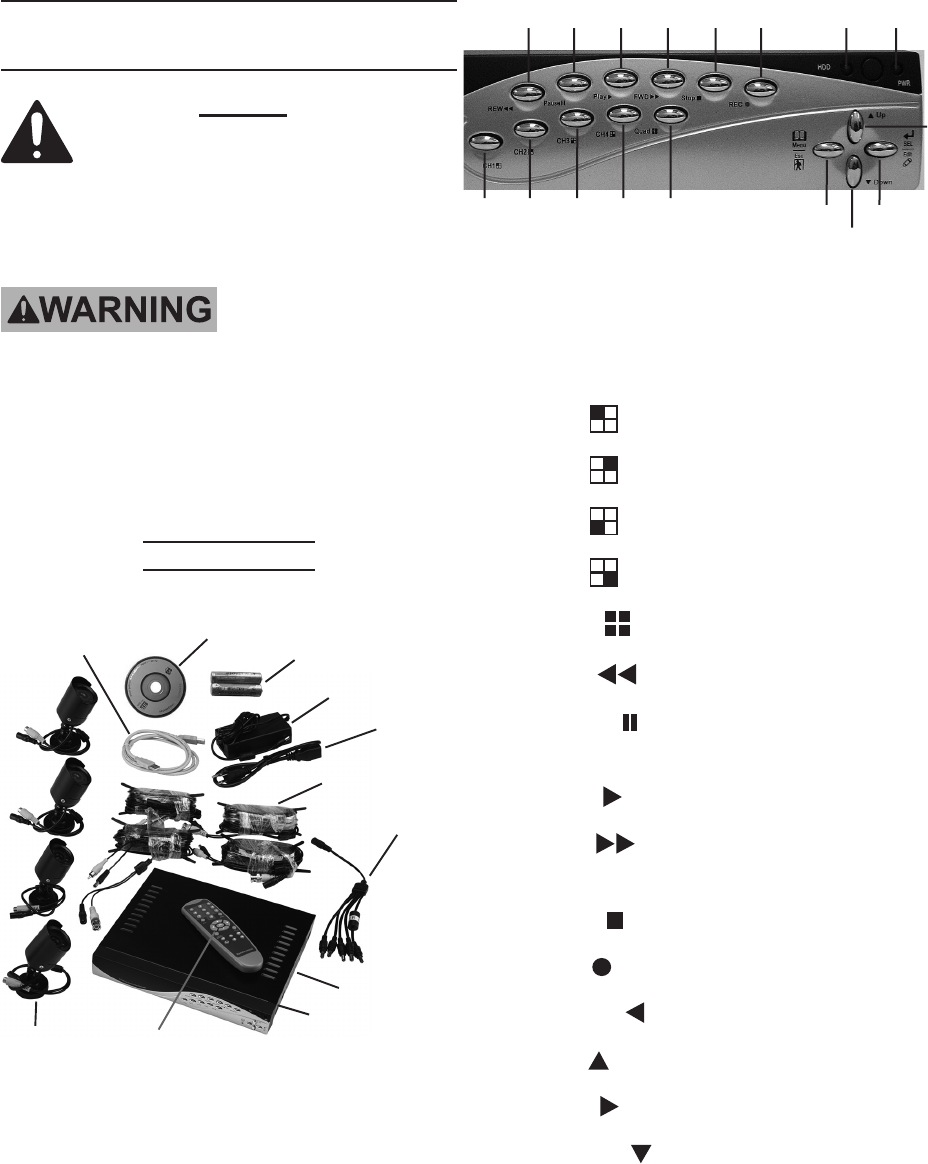
Software CD
Batteries
Cameras
Power Adapter
Power Cord
Camera
Cables
Cable Splitter
DVR
USB Port
Remote Control
USB Cable
Figure 1
Figure 2 - Front Panel
1
314
15
16
17
2
4
13
5
12
6
11
7
10
8 9
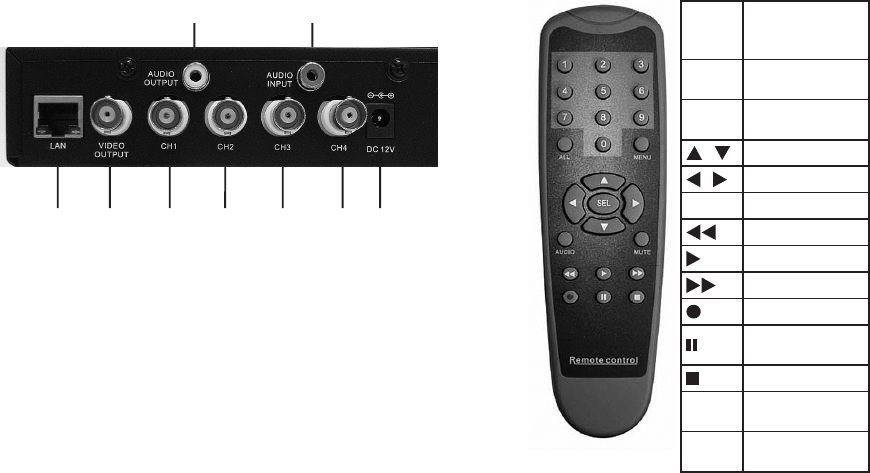
1. PWR - LED indicates unit is on.
HDD - LED indicates hard drive is in 2.
use.
CH13. - Channel 1
CH24. - Channel 2
CH35. - Channel 3
CH46. - Channel 4
Quad7. - View all channels
REW8. - Rewind in playback mode.
PAUSE9. - Pause in Playback Mode,
Auto Sequence Display in Live Mode.
PLAY10. - Play.
FWD11. - Fast Forward in Playback
Mode.
STOP12. - Stop.
REC13. - Record.
[MENU] 14. - Move Left / Menu / ESC.
[UP] 15. - Move up.
[SEL] 16. - Move Right / Select / Edit.
17. - Move down.
REV 10h
SKU 67139 For technical questions, please call 1-800-444-3353. Page 9
Figure 3 - Back Panel
543 6 7 8
2
9
1
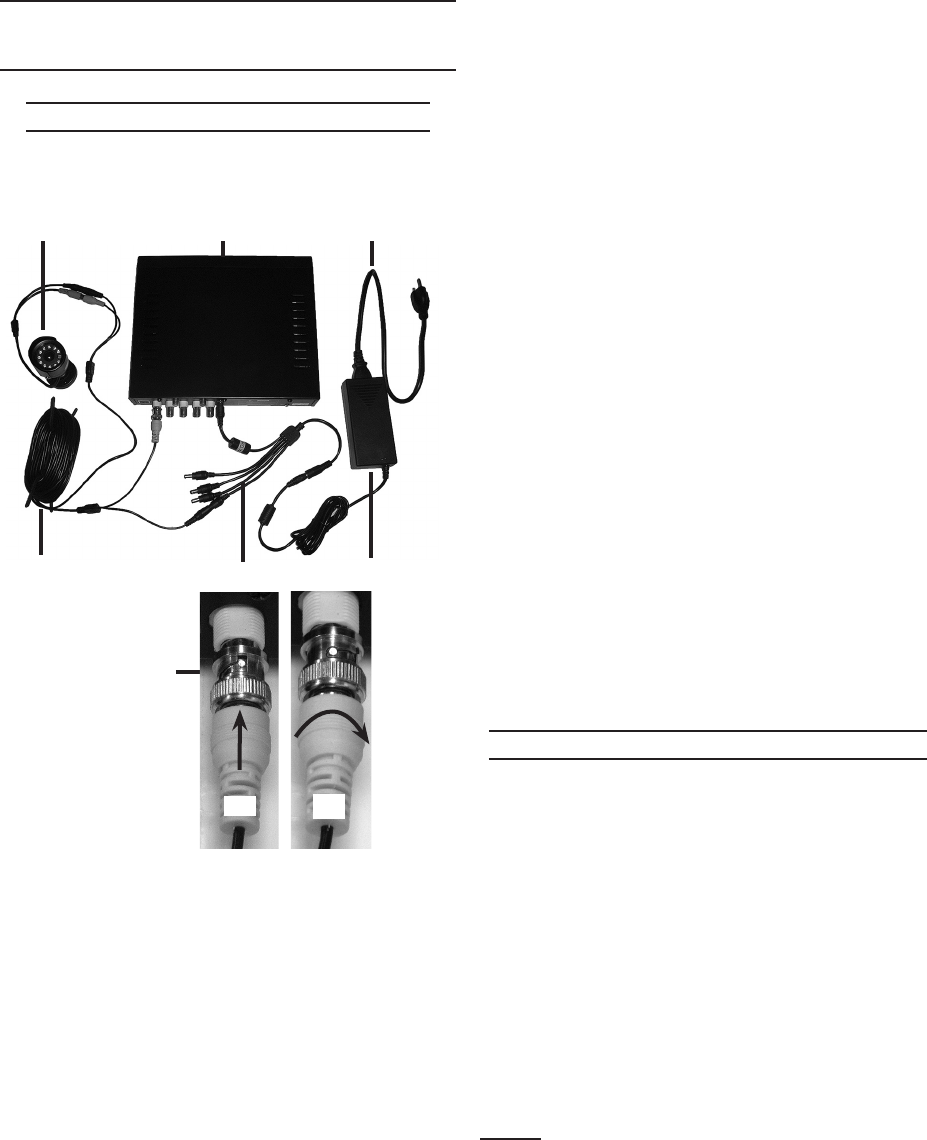
1. AUDIO OUTPUT - Speaker connec-
tion.
AUDIO INPUT2. - Microphone connec-
tion.
LAN 3. - Internet/LAN Ethernet port.
VIDEO OUTPUT4. - monitor connec-
tion.
CH15. - Camera 1 connection.
CH26. - Camera 2 connection.
CH37. - Camera 3 connection.
CH48. - Camera 4 connection.
POWER INPUT JACK9. - 12V DC
Connector from main power adapter.
0 - 9
Number Keys
(1 - 4 Channel
Select)
All Display All
Channels
Menu Enter / Exit
Menu
/ Up / Down
/ Left / Right
SEL Select
Rewind
Play
Forward
Record
Pause /
Playback
Stop
Audio/
Search
Search or switch
audio channels
Mute Turn on/off audio
output
Figure 4
REV 10h

SKU 67139 For technical questions, please call 1-800-444-3353. Page 10
OPERATING INSTRUCTIONS
Read the ENTIRE IMPORTANT
SAFETY INFORMATION
section at the beginning of this
manual including all text under
subheadings therein before set
up or use of this product.
Work Area Set Up
Designate a work area that is clean 1.
and well-lit. The work area must not
allow access by children or pets to
prevent distraction and injury.
Route the power cord and all cabling 2.
along a safe route without creating a
tripping hazard or exposing the cord
and cables to possible damage.
Use a surge protector (sold sepa-3.
rately) to help guard against electrical
4.
of the cameras, test the unit by hook-
ing up all the connections, and test-
ing all the features to insure the unit
is working properly. There are two
6mm cameras for longer range, and
two 3.6mm cameras for wider angle,
shorter range, viewing. Test the
cameras for the best location before
installing. Each camera is labeled on
the side of the unit.
Setup Overview
This unit can be set up in several dif-
with a TV monitor. For set up through
-
ware requirements and you will need
to have an understanding of your mo-
dem, your computer and your internet
connection settings, as well as port
forwarding knowledge. Following are
the possible set up options.
DVR with a TV monitor (sold sepa-1.
rately) - This is the simplest set up
that allows you to adjust all the set-
tings, view and record live images
and play back any recordings. You do
not have computer or internet capa-
bilities with this set up.
DVR with a computer and a TV moni-2.
tor (both sold separately) - This set
on a computer connected to the unit.
You cannot record when the unit is
connected directly to the computer.
DVR and a computer, connected 3.
to the same modem and accessed
through your web browser (computer
and modem sold separately) - This
set up allows you to adjust all the
settings, view and record live images,
and play back any recordings through
a TV monitor to set up the system.
This option may not function with all
web browsers.
Remote access through your internet 4.
service - This arrangement allows
remote access to the DVR through
the internet. You will need to have the
unit already set up as in the previ-
ous paragraph, and have computer
and internet set up knowledge of port
forwarding and your modem’s exter-
nal IP address in order to set up this
REV 10h
SKU 67139 For technical questions, please call 1-800-444-3353. Page 11
SETTING UP THE DVR WITH
A TV MONITOR
DVR/CAMERA CONNECTIONS
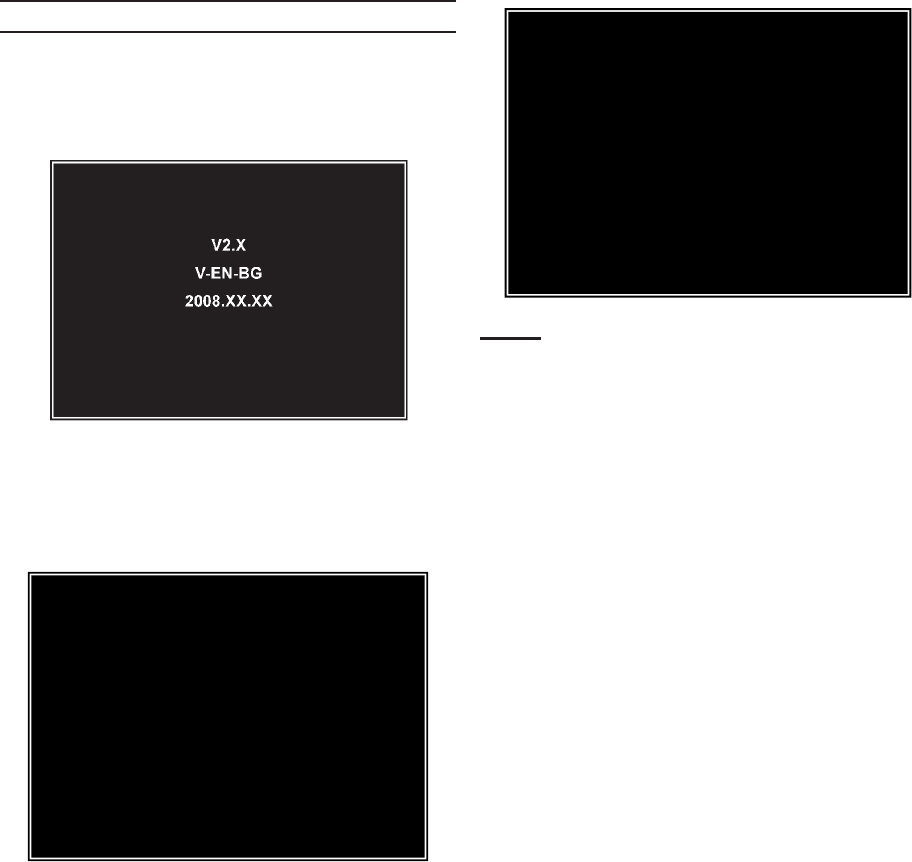
Figure 5 below shows the cable con-
nections for the DVR and cameras.
BNC
Connector
Camera
Power Adapter
Power Cord
Camera
Cable Cable Splitter
DVR
Figure 5
1
6
2
3
5
4
4a 4b
To connect the camera and power
components to the DVR:
Attach the Power Cord to the Power 1.
Adapter.
Attach the Power Adapter Cable to 2.
the single end of the Cable Splitter.
Attach the connector marked “DVR 3.
Power” to the Power Input Jack on
the back of the DVR.
Working with one Camera Cable, at-4.
tach the yellow video BNC Connector
(the largest connector on the cable)
to one of the camera connections
on the back of the DVR (CH1, CH2,
CH3, or CH4). To attach the BNC
Connector:
Align the slots on the BNC Connec-a.
tor with the pins on the DVR connec-
tion and push the BNC Connector in
so the pins slide into the slots.
Turn the connector clockwise to lock b.
the pins in place.
Attach the black power connector at 5.
the BNC end of the same cable to
one of the remaining Cable Splitter
connectors.
Attach the connectors at the other 6.
end of the Camera Cable to the same
color connectors of one of the Cam-
eras.
Repeat steps 4 through 6 for each of 7.
the other three Cameras and Camera
Cables.
DVR/TV MONITOR CONNECTION
You will initially need to connect
the DVR to a TV monitor in order to
adjust the settings regardless of your
TV, such as the Monitor (SKU 66556,
sold separately), plug the BNC con-
nector of the video cable into the
into the video Input or channel slot
on the TV monitor. Plug the TV into a
wall outlet. The unit will power up.
Note: For model 66556, if needed, change
the channel on the front of the
monitor so the light on the monitor is
green and adjust the image using the
adjustment knobs on the back of the
monitor.
REV 10h
SKU 67139 For technical questions, please call 1-800-444-3353. Page 12
STARTING THE DVR
1.
plugged in, the Power LED will light
up.
2. Initially, the DVR will boot-up and dis-
play the current version and release
seconds.
Checking HDD……
MASTER [MAXTOR STM3250310A]
SLAVE……
3. The DVR will then automatically de-
tect the hard drive and show the hard
drive information.
If there is any problem with the hard
drive, the DVR will display the infor-
program.
CHECKING HDD……
MASTER [ MAXTOR S TM3250310A]-NEW-DVR
FORMAT HDD CONFIRM
(SELECT) FORMAT / (MENU) CANCEL?
Note: When detecting a new hard drive,
the DVR will prompt you to format the
hard drive.
Press (SEL) to format the new hard
drive, or (MENU) to cancel and enter
the system.
4.
up, it will enter the mode it is pro-
grammed for, including recording if
it is the scheduled time period for
recording.
REV 10h
SKU 67139 For technical questions, please call 1-800-444-3353. Page 13
OPERATING INSTRUCTIONS
RECORDING
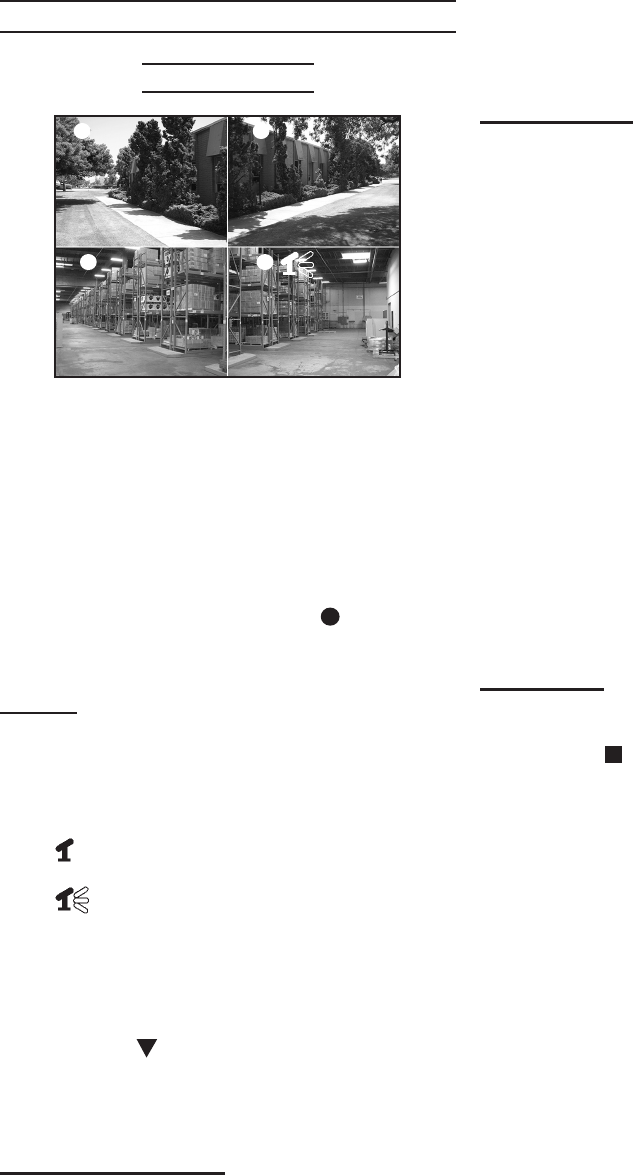
1 2
3 4
A-REC [M] 39% 2009/02/22 16:09:44
1. Set up all the functions of the DVR
following “Programming the DVR”.
Press the record button to begin 2.
recording according to the schedule
you have set.
Each Channel set to record will dis-
play a recording symbol [ ] next to
the channel number.
AUDIO
The channel which is set to audio
will display one of the following audio
symbols next to the record symbol.
- Audio output is off.
- Audio output is on and audio
is attached to the indicated channel.
When the symbol is red it indicates
that audio is currently recording.
To mute the audio signal, press the
button. The audio signal
will continue to record and can be
heard in playback mode.
RECORDING MODE
the bottom left of the screen:
A-REC - Normal recording.
S-REC - Motion sensor recording.
N-REC - No recording.
OTHER DATA
The following will display along the
remaining lower edge of the screen:
[M] or [S]- Indicates which hard drive
is in use (M=Master, S= slave).
#% - Displays the percentage of hard
drive disk space used.
YYYY/MM/DD - Displays current
Year/Month/Day.
HH:MM:SS - Displays current time
(hours:minutes:seconds).
Note: If the date, time or any other
settings are incorrect you will need to
stop recording and go back to the set
up menu to reset the functions.
STOPPING
To stop recording, press the
button. If the password func-
tion is enabled you will be prompted
for the password and will not be able
to stop recording without the current
password.
REV 10h
SKU 67139 For technical questions, please call 1-800-444-3353. Page 14
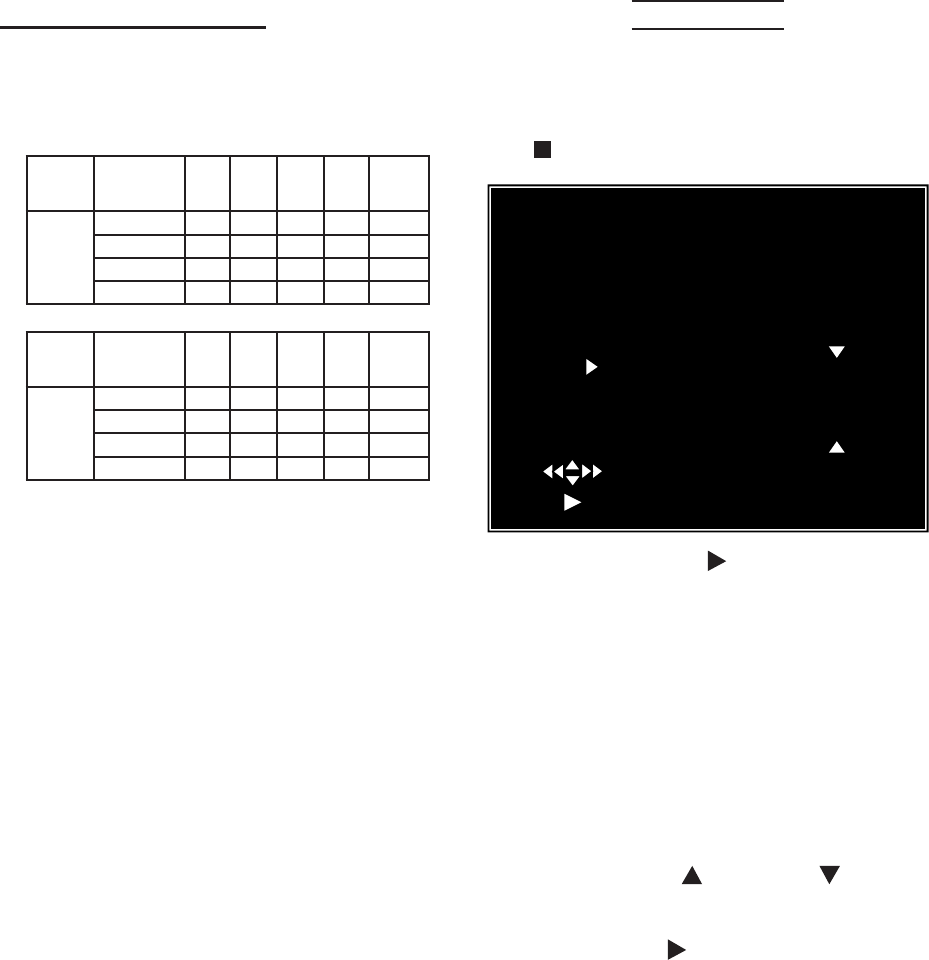
Estimated Record Time
The following charts show the
estimated recording time based on
160GB of hard drive space:
Type Quality 60
fps
48
fps
32
fps
16
fps
1
fps
NTSC
Highest 62 78 116 232 3720
High 88 110 165 330 5280
Normal 107 134 201 401 6420
Low 120 150 225 450 7200
Type Quality 50
fps
36
fps
24
fps
12
fps
1
fps
PAL
Highest 64 89 133 267 3200
High 90 125 188 375 4500
Normal 110 153 229 458 5500
Low 123 171 256 513 6150
To read the above charts, refer
to the total frame rate and video
quality settings which you have set
the cameras to (under “Setting up
the DVR Functions Through the
Main Menu” Section - sub sections:
“Record Frame Rate” and “Video
Quality”).
NTSC and PAL are different
broadcast standards. Each country
uses one standard. Your unit is set to
NTSC for use in the United States.
The fps (frames per second) is the
total frame rate. The Quality is the
video quality. The numbers in the
body of the the charts are the number
of hours of record time. For instance,
in the top chart (Type=NTSC), if you
set the unit to a total of 60 fps and
the quality to High, you will be able
to record for 88 hours to a hard drive
which has 160GB of available space.
A larger hard drive will allow for more
recording time.
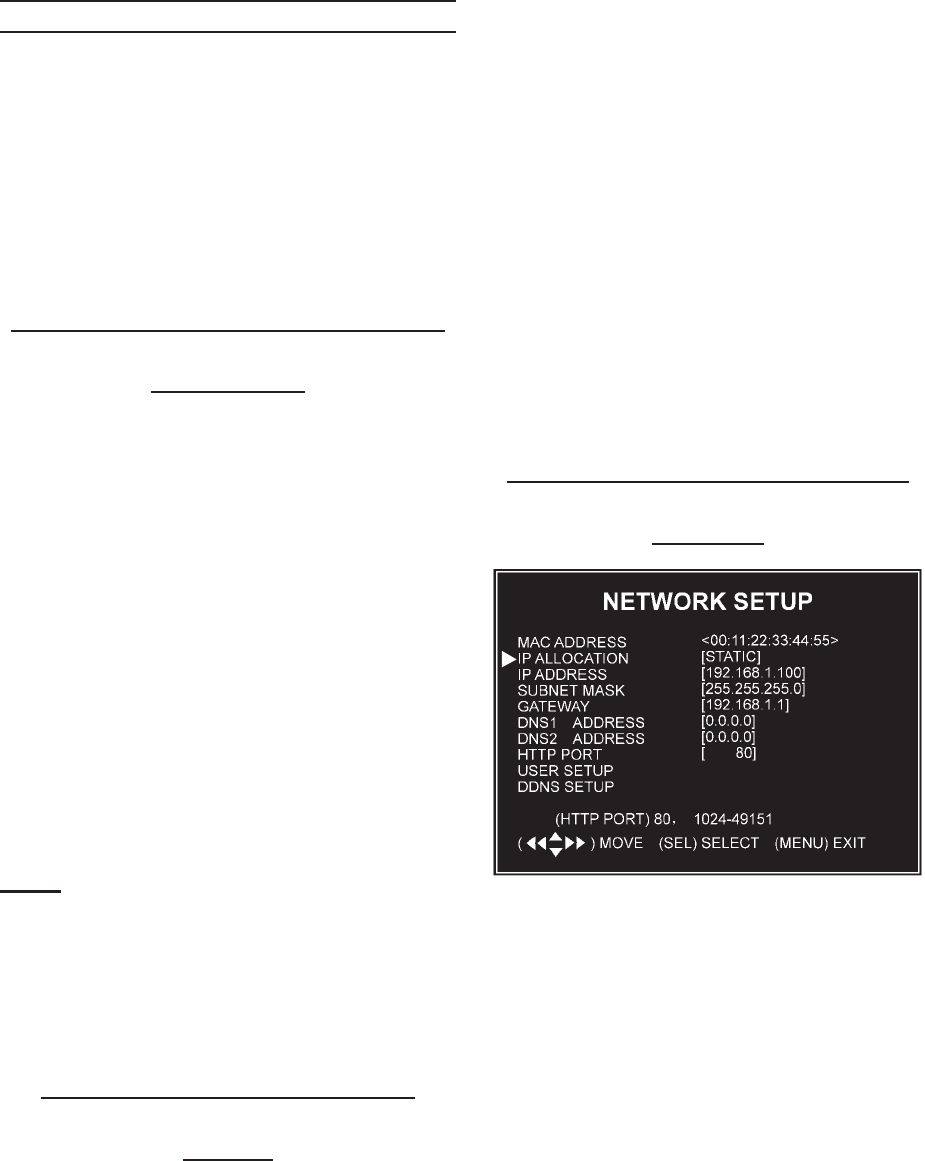
PLAYBACK
To watch recorded videos, you will
need to enter Playback mode. To en-
to stop recording.
SEARCH VIDEO
DISK: MASTER SLAV
08/09/19 1 1:16:31 - 0 8/09/19 15:05:48
TYPE: EVENT TIME
PLAY: E VENT LIST
00006 T 2008/09/19 15:07:40
00006 T 2008/09/19 14:07:40
00006 T 2008/09/19 13:07:40
00006 T 2008/09/19 12:07:40
00006 T 2008/09/19 11:07:40
00006 T 2008/09/19 10:07:40
00006 T 2008/09/19 09:07:40
( ) (SEL)SELECT
( ) PLAY (MENU) PREV MENU
Press the PLAY button to go to
PLAYBACK mode and display the
“Search Video” screen. The most
recent recording will play.
To play a different recording:
Press the [MENU] button while in 1.
PLAYBACK mode. The system will
list all the recordings, with the most
recent at the top of the list.
Press the UP 2. button
to select a recording.
Press PLAY 3. to play the recording.
Press Stop to stop playing the record-4.
ing.
REV 10h
SKU 67139 For technical questions, please call 1-800-444-3353. Page 15
NETWORK SETUP
The 67139 allows you to view your
DVR through the Internet. This is
especially useful for remote security
monitoring.
Set up the unit using a TV monitor so
you can view the Main Menu during
set up. You will not need the TV moni-
tor once the set up is complete.
What you will need to set up The
DVR Online
You will need:
The DVR connected to a router.
The router connected to the Inter-
net.
A PC or laptop that is connected to
the same router as the DVR.
A compatible web browser (instruc-
tions were developed with a com-
mon web browser , other brows-
ers may not be compatible).
A genuine and fully updated version
of Windows XP or Vista.
Note: The computer and DVR need to be
connected to the same router. The
computer is required at the location
to view the DVR for initial set up, but
is not needed for remote access once
the unit is set up and working prop-
erly.
Connecting Your DVR to the
Router
Power off the DVR by removing the 1.
power cable from the back of the
DVR.
Connect the network cable (sold 2.
separately) to the back of the DVR in
the Ethernet port.
Connect the other end of the network 3.
cable to an available port on the
router. The port should be labeled 1-4
or 1-8.
Power on the DVR by reconnecting 4.
the power cable on the back of the
DVR.
A green light should light up on the 5.
back of the DVR at the Ethernet con-
nection and also at the port on the
router.
Finding your DVR’s Internal IP
Address
By default, the DVR IP mode is set to
Static. Changing the Static to DHCP,
will cause the DVR to automatically
retrieve an IP address from the con-
nected router. Unless your network
requires a static IP address, leave the
DVR IP Allocation set as DHCP.
To retrieve the address information:
Press Menu.a.
Move the cursor next to Network b.
Setup and press Select.
REV 10h
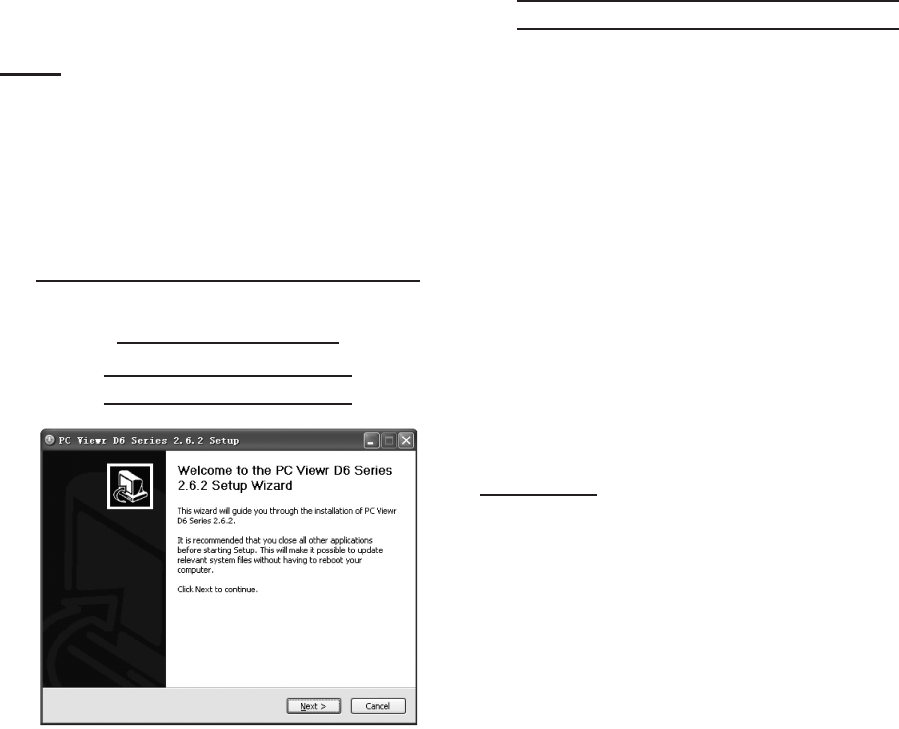
SKU 67139 For technical questions, please call 1-800-444-3353. Page 16
Check that the “IP Allocation” is set c.
to DHCP.
Write down your IP address, sub-d.
net Mask, Gateway and HTTP Port
(default is 80). This information will
be used in the next few steps to view
the DVR on your computer and the
Internet.
Go to the User Setup menu and e.
write down the admin ID and admin
password. The default is “admin”
and “111111”.
Note: If your router does not support
DHCP, contact your network admin-
istrator to supply you with your IP
information. If the DVR needs to store
PPPoE (DSL/ADSL) settings, contact
your ISP (Internet Service Provider)
for the proper settings.
Preparing Your Computer for
Viewing the DVR
Installing Software
The Software CD includes a PC view-
er program for the DVR (DxClient
2.7.1). This program is for backing up
may also need to change the security
settings of the web browser.
To install the PC Viewer program:
Insert Software CD into your com-1.
2.
Double click on “DxClient 2.7.1-3.
ENG”.
Run the “Install” program.4.
installation.
Adding DVR to Trusted Sites
Every computer that is accessing
to download and run ActiveX con-
trols. This is a one time change and
only needs to be made on the com-
puter that is accessing the DVR. This
can be done by changing your web
browser settings so it only affects
change the setting for all websites.
It is recommended that you only
change the setting for your trusted
sites.
CAUTION: Lowering the safety settings of
your computer can open your com-
puter up to viruses. Do this at your
own risk.
To add the DVR’s IP address to the
Trusted Sites on a common web
browser:
1.
2.
3.
Click on SECURITY Tab.4.
Click on TRUSTED SITES.5.
Click on SITES button.6. REV 10h

SKU 67139 For technical questions, please call 1-800-444-3353. Page 17
Type in the IP address of the DVR in 7.
the following format:
HTTP://129.168.1.108
Note: The bold underlined numbers are
your IP address and will be different
from the numbers shown in the above
example.
8.
for all sites” is selected you will need
to uncheck the selection box.
Click ADD.9.
Close window.10.
To change the default setting for the
TRUSTED SITES zone to low, on the
Main Settings:
Click on DEFAULT LEVEL.1.
Change security level of the zone to 2.
“Low” by sliding the slider to the bot-
tom.
This will allow ActiveX controls from 3.
the DVR to be downloaded and the
DVR to be viewed on the computer.
Click APPLY.4.
5.
You should now see the connected
cameras on the computer screen in
the DxClient backup program. Follow
the instructions for “Backup Program”
to use the software.
Viewing Your DVR
Outside of Your Network
and viewed your DVR through a
router, you are now able to set up
your router to view the DVR while at
a remote location. This process is
called Port Forwarding. Port Forward-
ing is required if you want to view
the DVR from a computer that is not
connected to the same router. This
process opens a path on your home/
business network to allow you to view
your DVR video feed from outside
your network (over the Internet).
There are many makes and models
of routers. You will need to follow the
instructions from your router’s manu-
facturer for port forwarding. Consult
computer technician complete this
task if needed.
port forwarding from the modem
where the DVR is located, you will be
prompted to enter your user name
(default: admin), password (de-
fault:111111) and install ActiveX con-
trols. You will now be able to view the
DVR from any PC in the world with
internet access and proper computer
settings.
REV 10h
SKU 67139 For technical questions, please call 1-800-444-3353. Page 18
PROGRAMMING
THE DVR
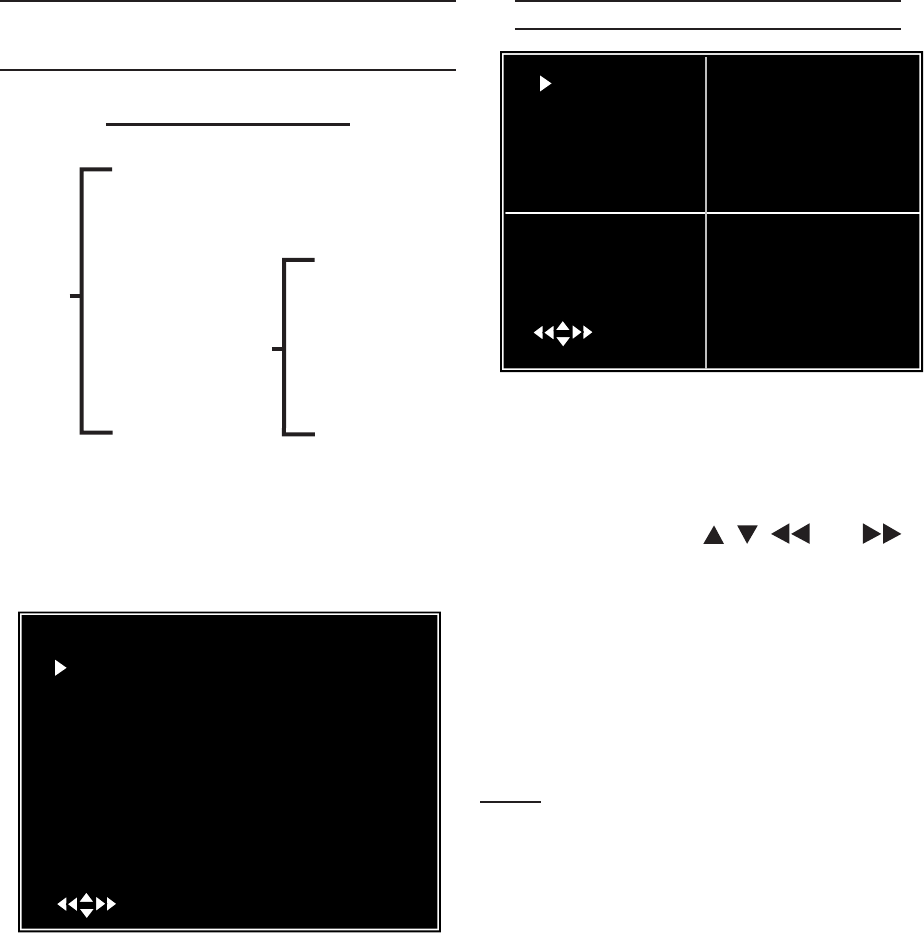
Main Menu Directory:
Camera Setup
Record Setup
Record Frame Rate
Video Quality
Record Schedule
Sensor Setup
Hard Drive Setup
Miscellaneous Setup
Network Setup
Language
Reset Menu
Change Password
Set Time
Hidden Channel
Audio Port Setup
Image Parameters
Password Enable
Keypad Tones
Seq. Dwell Time
Main
Menu
To set the functions of the DVR you
will need to select and adjust items
from the Main Menu.
MAIN MENU
CAMERA SETUP
ATE
HIGH
HARD DRIVE SETUP
LANGUAGE ENGLISH
RESET MENU
( T ( MENU)EXIT
1. Press [Menu] to enter the Main Menu.
To access the menu options and 2.
make selections within the Main
Menu and Sub-Menus:
Press up and down to select items.a.
Press [SEL] to change an option.b.
Press [MENU] to save any changes c.
and return to the previous Menu.
CHANNEL (CAMERA) SETUP
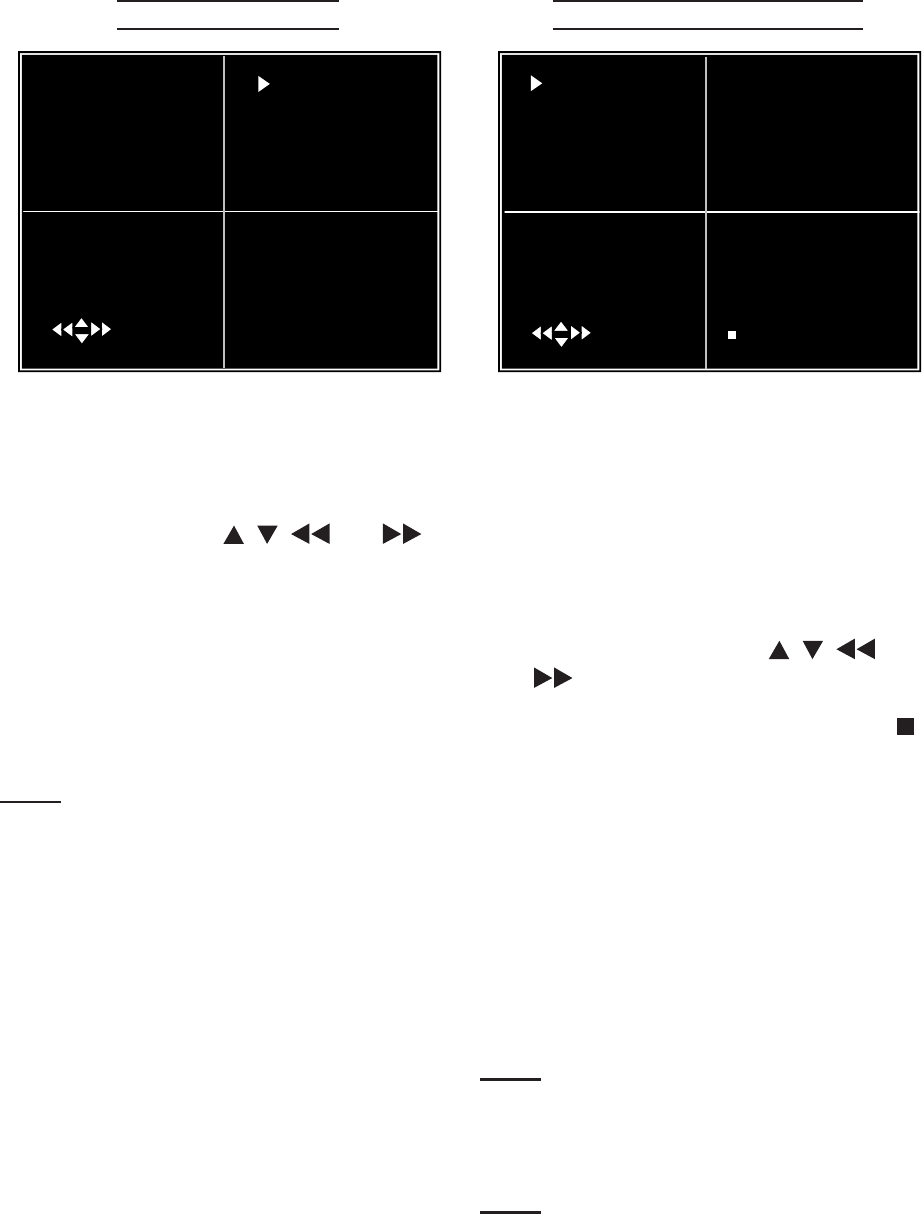
1 o n 2 o n
Channel Setup
3 o n 4 o n
( )Move ( SEL) Select ( MENU) Esc
The Channel (Camera) Setup sub-
menu allows you to turn the cameras
on or off.
In the Channel Set Up Menu, press 1.
the arrow keys [ , , and ] to
select a channel (camera).
Press [SEL] to change the setting 2.
between “on” or “off”.
Press [MENU] to exit the Camera 3.
Setup sub-menu once all the camera
channels have been set.
Note:-
nel Setup, the DVR will not record
from that camera, and the Frame
Rate will not be able to be set for that
camera.
REV 10h
SKU 67139 For technical questions, please call 1-800-444-3353. Page 19
RECORD SETUP
1 N 2
Record Setup
3 N 4 N
( ( SEL) SELECT (MENU) ESC
The Record Setup sub-menu allows
you to choose which channels (cam-
eras) will record.
In the Record Setup sub-menu, press 1.
the arrow keys [ , , and ] to
select a channel (camera).
Press [SEL] to change the setting 2.
between “on” or “off”.
Press [MENU] to exit the Record 3.
Setup sub-menu once all the camera
channels have been set.
Note: If a channel has been disabled (set
to “off”) in the Channel Setup, it will
will display for that channel on the
screen in the Record Setup sub-
menu.
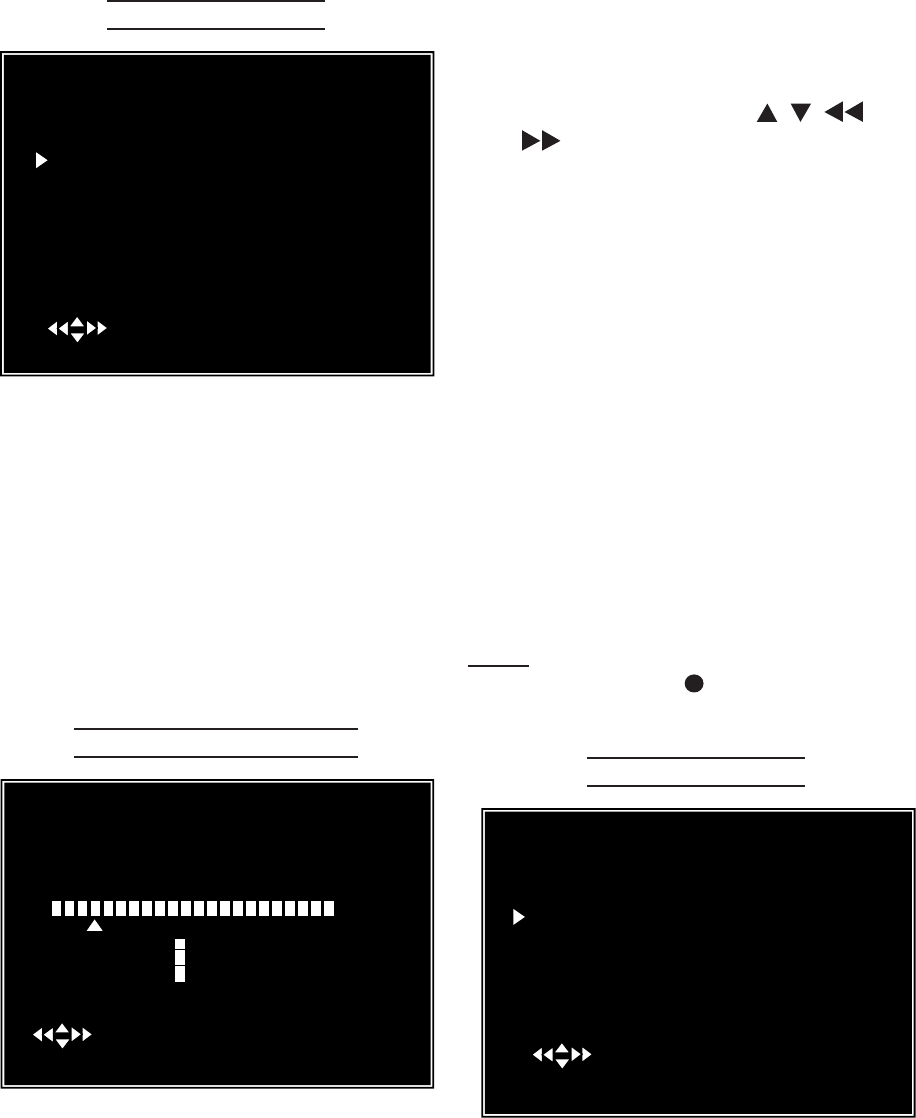
RECORD FRAME RATE
1 3 FPS 2 5 FPS
Record Framerate
TAL 36 FPS
3 2 5FPS 4 3FPS
( (SEL)+ ( )- (MENU) EXIT
The total number of photos taken
per second is divided among the
cameras. The total frame rate of all
the cameras in use is set to 60fps
(frames per second). The higher set-
tings produce better images, but use
up more hard drive space.
In the Record Frame Rate sub-menu, 1.
press the arrow keys [ , , and
] to select a channel (camera).
2.
to decrease, the number of frames
per second for that camera.
Repeat step 1 and 2 for each cam-3.
era, keeping the total number of
frames per second (displayed in the
center of the screen) at or below 60.
Press [MENU] to exit the Record 4.
Frame Rate sub-menu once all the
camera frame rates have been set.
Note: The DVR will automatically adjust
the largest frame rate to a smaller
value if you enter more than a total of
60fps for all the cameras.
Note: If you have your DVR set to PAL,
your maximum framerate is 50fps.
SKU 67139 For technical questions, please call 1-800-444-3353. Page 20
VIDEO QUALITY
Main Menu
CAMERA SETUP
ATE
HIGH
HARD DRIVE SETUP
LANGUAGE ENGLISH
RESET MENU
( ( SEL)SELECT (MENU)ESC
Video Quality can be set to Highest,
High, Normal, and Low. The higher
settings produce better images, but
use up more hard drive space. The
cameras are all set to the same set-
ting in one step in the Main Menu.
In the Main Menu, use the arrow keys
to select Video Quality. Press the
[SEL] button to change between the
four video quality settings.
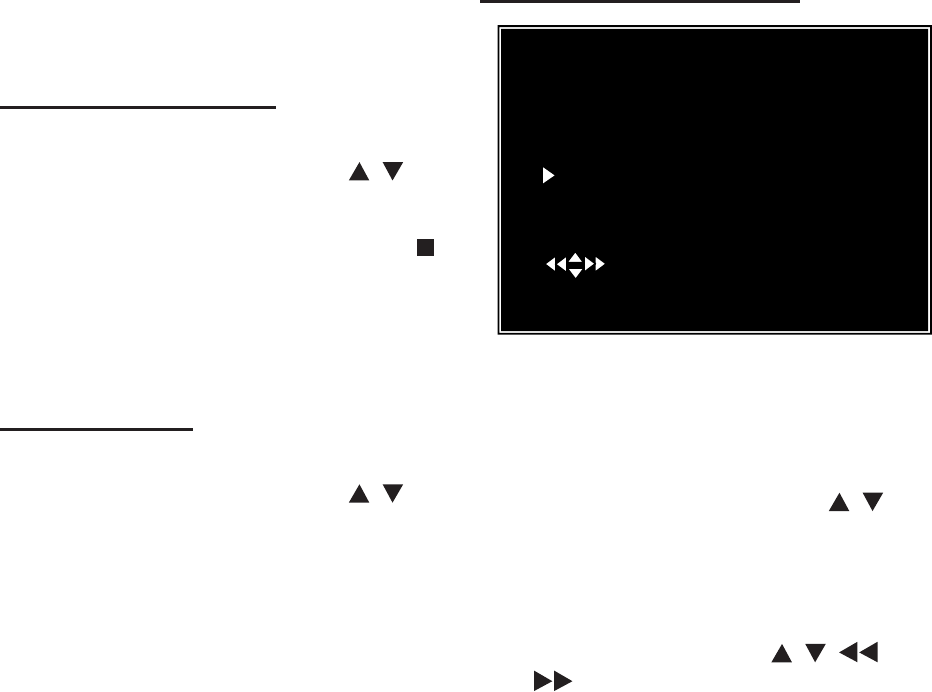
RECORD SCHEDULE
Record Schedule
AM PM
0… 3… 6… 9… 0… 3…. 6… 9…
( T ( MENU) EXIT
S
The Record Schedule sub-menu al-
lows you to customize the recording
time for the cameras. The cameras
are all set to the same schedule.
The time line shows a 24 hour period,
based on AM/PM (0=12).
In the Record Schedule sub-menu, 1.
press the arrow keys [ , , and
] to move the marker to the de-
sired time.
Press [SEL] to modify the recording 2.
mode. The Mode options are:
a.
not record during this period.
b.
will record continuously during this
period.
c.
will begin recording when the motion
sensor is activated.
Press [MENU] to exit the Record 3.
Schedule sub-menu once the record-
ing options have been set.
Note:
press the REC button to activate
the Record Schedule.
SENSOR SETUP
SENSOR SETUP
TIME 30
TIME 0 5
( ( SEL)SELECT (MENU)ESC
The Sensor Setup sub-menu sets
how long (in seconds) the cameras
will record once the sensor is activat-
ed, and whether or not, and how long
(in seconds), the alarm will sound.
SKU 67139 For technical questions, please call 1-800-444-3353. Page 21
This menu also has the sub-menu:
“Motion Detector Setup”, for setting
motion detection options.
SENSOR RECORD TIME
In the Sensor Setup sub-menu, press 1.
the up or down arrow keys [ , ] to
select “Sensor Record Time”.
2.
to decrease, the number of seconds
to record once the sensor is activat-
ed. The recording time can be set to
5, 10, 15, 20, 25 or 30 seconds.
ALARM ON TIME
In the Sensor Setup sub-menu, press 1.
the up or down arrow keys [ , ] to
select “Alarm on Time”.
Press [SEL] to switch between the 2.
following options:
a.
the motion sensor is activated and
will continue until any key is pressed
on the DVR or remote.
b.
# - The alarm will sound for the num-c.
ber of seconds indicated. The alarm
can be set to 5, 10, 15, 20, 25 or 30
seconds. Press [SEL] to increase, or
MOTION DETECTOR SETUP
Motion Detector Setup
CH1 Level 2 Area
CH2 Level 2 Area
CH3 Level 2 Area
CH4 Level 2 Area
( ( SEL)SELECT (MENU)ESC
This sub-menu allows you to set the
motion detection options for each
camera.
In the Sensor Setup sub-menu, press 1.
the up or down arrow keys [ , ] to
select “Motion Detector Setup”.
Press [SEL] to enter the Motion De-2.
tector Setup sub-menu.
Press the arrow keys [3. , , and
] to move between the channels
and the options for each. Press [SEL]
button to change the settings for each
option. The options and settings are:
a.
-
-
ing for each channel.
Level - Use the [SEL] button to set b.
the sensitivity level from 1 (lowest) to
3 (highest).
Area - Use the [SEL] button to enter c.
this sub-menu.
SKU 67139 For technical questions, please call 1-800-444-3353. Page 22
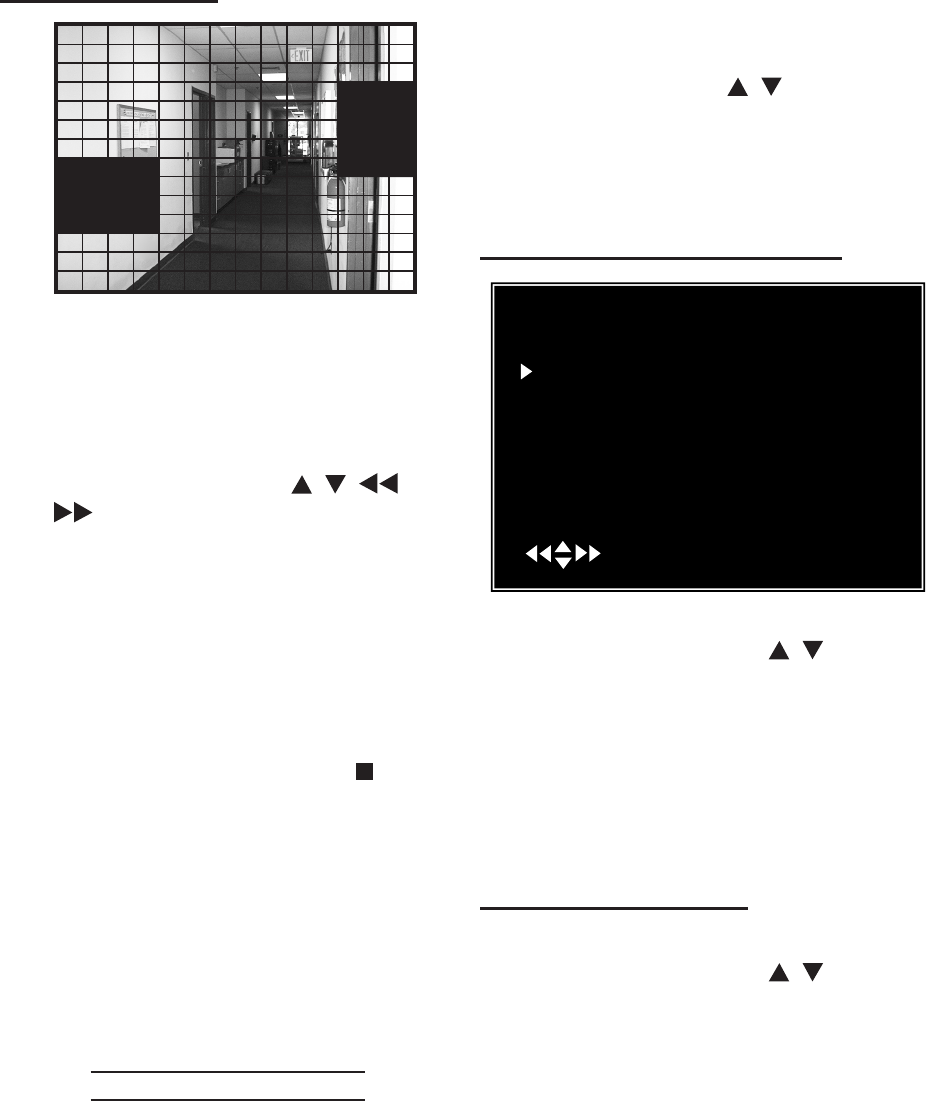
AREA SELECTION
This sub-menu shows the camera’s
view broken up into a grid. You
choose which sections of the image
detect motion.
To set individual blocks of the screen:1.
Press the arrow keys [a. , , and
] to select a block in the grid
Press the [SEL] button to toggle be-b.
tween showing the image in the block
(motion is detected where the image
can be seen), or shading the image in
the block (motion will not be detected
in theses areas).
To disable all areas of the screen 2.
. The
screen will be completely shaded.
To have all of the camera’s viewing 3.
area detect motion, select QUAD. All
of the screen will be in view.
Press [MENU] to exit sub-menu. 4.
Press [MENU] twice more to go back 5.
to the Main Menu.
HARD DRIVE SETUP
The Hard Drive Setup sub-menu al-
lows you to set whether to overwrite
old video once the hard drive is full,
and it allows you to format the hard
drive.
It also shows hard drive size and how
much memory is used.
In the Main Menu, press the up or 1.
down arrow keys [ , ] to select
“Hard Drive Setup”.
Press [SEL] to enter the Hard Drive 2.
Setup sub-menu.
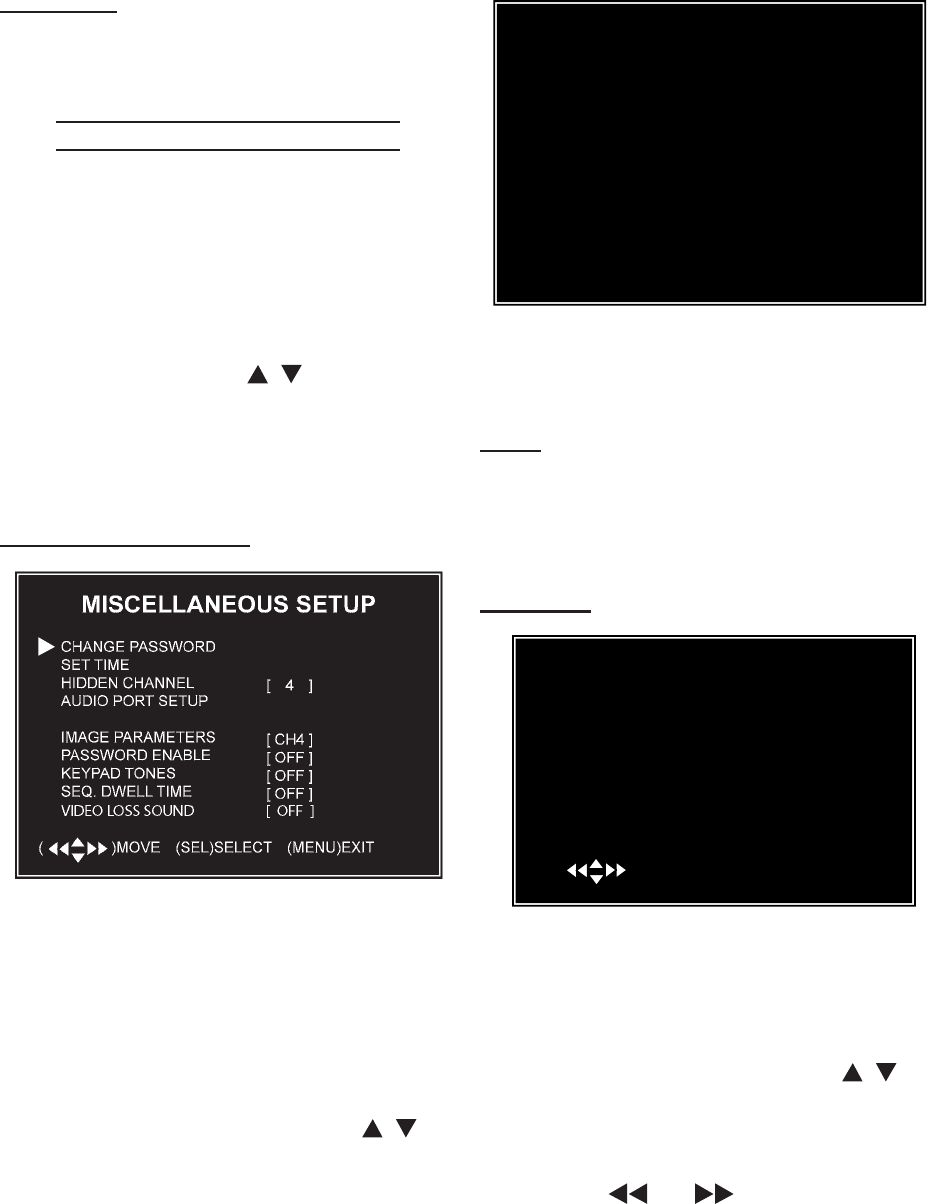
OVERWRITE ENABLE/DISABLE
Hard Drive Setup
WRITE ENABLED [
MAXT STM250310AS
MASTER HDD SIZE 250203MB
MASTER HDD USED 124931MB 50%
T
SLAVE HDD SIZE N/A
SLAVE HDD USED N /A
SLAVT
( ) ( SEL)SELECT (MENU)EXIT
1. In the Hard Drive Setup sub-menu,
press the arrow keys [ , ] to select
Press [SEL] to switch between the 2.
video when the hard drive is full, and
the hard drive is full.
MASTER HDD FORMAT
In the Hard Drive Setup sub-menu, 1.
press the arrow keys [ , ] to select
“Master HDD Format”.
Press [SEL] to Format the hard drive. 2.
This will erase all recorded video
from the hard drive and will make the
hard drive readable by the DVR.
You will be prompted for a password 3.
before formatting. The default pass-
word is “111111”.
SKU 67139 For technical questions, please call 1-800-444-3353. Page 23
CAUTION: All recorded video will be delet-
ed when the hard drive is formatted.
Press [MENU] to exit sub-menu. 4.
MISCELLANEOUS SETUP
The miscellaneous setup sub-menu
allows access to a variety of functions
including changing the password,
setting the time, and setting the audio
port.
In the Main Menu, press the up or 1.
down arrow keys [ , ] to select
“Miscellaneous Setup”.
Press [SEL] to enter the Miscella-2.
neous Setup sub-menu.
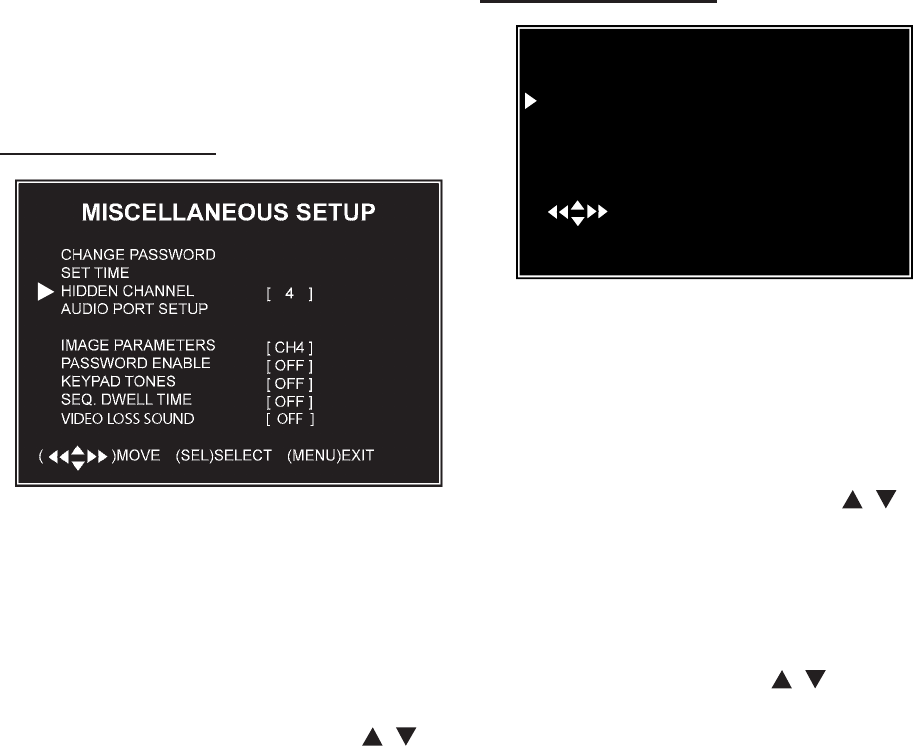
CHANGE PASSWORD
The default password is set to
“111111”. You may change the pass-
word, but be sure to write it down and
keep it in a safe place so you do not
forget the new password. To change
the password:
In the Miscellaneous Setup sub-1.
menu, press the arrow keys [ , ] to
select “Change Password”.
Press [SEL] to enter the sub-menu.2.
CURRENT PARD
NEW PASSRD
PASSRD
[- - - - -]
[- - - - -]
[- - - - -]
3.
enter the new password. Re-enter the
Note: The password must be 6 charac-
ters long, and can be any key except
[MENU].
Press [MENU] to exit sub-menu. 4.
SET TIME
SET TIME
2008/11/11 17:50:01
( ( SEL)SELECT (MENU) ESC
The system date and time format is
YYYY/MM/DD and HH:MM:SS. To set
the date and time:
In the Miscellaneous Setup sub-1.
menu, press the arrow keys [ , ] to
select “Set Time”.
Press [SEL] to enter the sub-menu.2.
Press [3. ] or [ ] to select the
unit to change, then press [SEL] to
SKU 67139 For technical questions, please call 1-800-444-3353. Page 24
change the value. Repeat for each
value.
Press [MENU] to save and return to 4.
the previous menu.
HIDDEN CHANNEL
The system provides the option to
hide a channel (camera) . The se-
lected channel can still record while
it is hidden, the images are just not
viewable until playback. To hide a
channel:
In the Miscellaneous Setup sub-1.
menu, press the arrow keys [ , ] to
select “Hidden Channel”.
Press [SEL] to select the channel 2.
number to hide.
Press [MENU] to save and return to 3.
the previous menu.
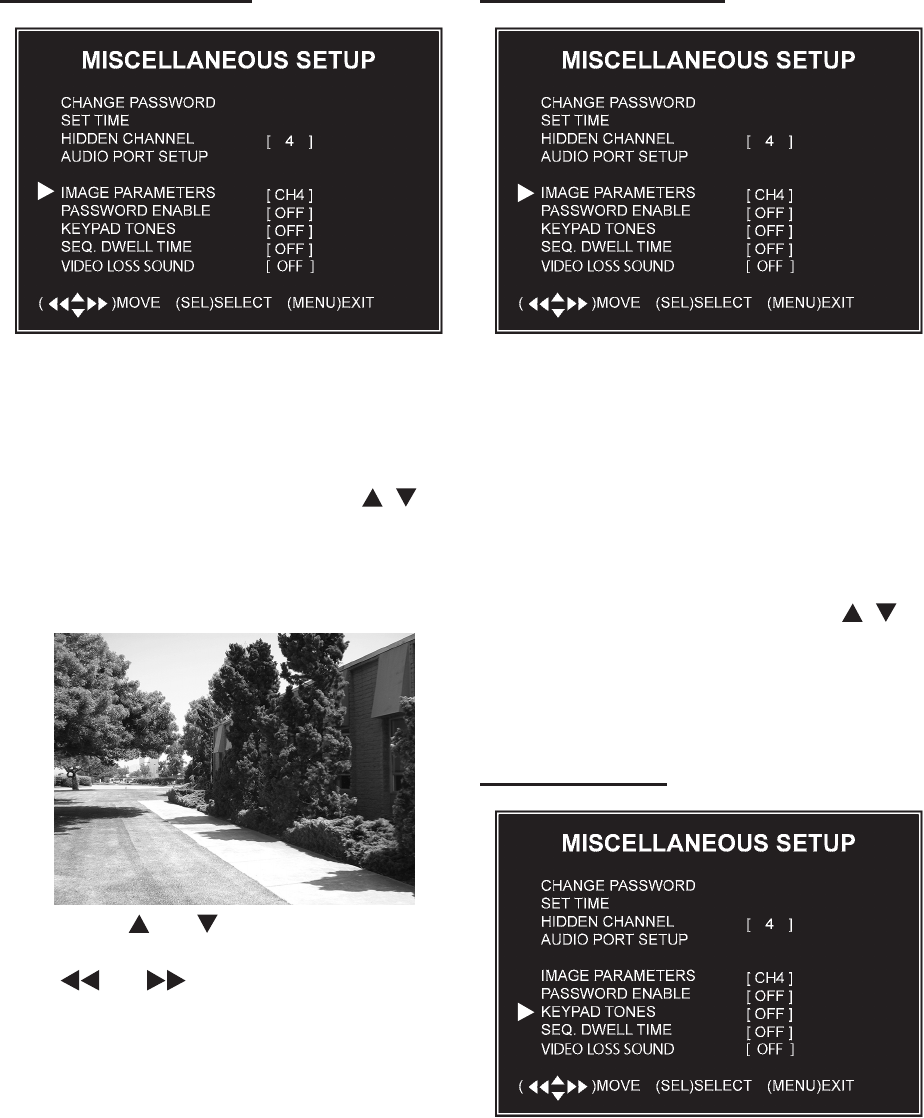
AUDIO PORT SETUP
Audio Port Setup
( ( SEL)SELECT (MENU)EXIT
[ 1 ]
to see which camera you have set up
with a microphone (sold separately).
To enable the audio recording func-
tion:
In the Miscellaneous Setup sub-1.
menu, press the arrow keys [ , ] to
select “Audio Port Setup”.
Press [SEL] to select the channel 2.
number where the microphone is
located.
Press the arrow keys [3. , ] to select
“Audio Port - Record”.
Press [SEL] to toggle between setting 4.
the audio “on” or “off”.
Press [MENU] to save and return to 5.
the previous menu.
SKU 67139 For technical questions, please call 1-800-444-3353. Page 25
IMAGE PARAMETERS
In the Image Parameters sub-menu
you adjust the quality of the image.
To make the adjustments:
In the Miscellaneous Setup sub-1.
menu, press the arrow keys [ , ] to
select “Image Parameters”.
Press [SEL] to enter the image so 2.
you can edit the parameters.
3.
Press [ ] or [ ] buttons to select one
of the following settings, then press
[ ] or [ ] to adjust the levels.
CON: Contrast
BRI: Brightness
HUE: Hue
SAT: Saturation
Press [MENU] to save and return to 4.
the previous menu.
PASSWORD ENABLE
You will always need the current
password to format the hard drive,
to reset the menu, or to access the
customer port. To access other parts
of the system, you can enable or dis-
able the password. To turn password
access on or off:
In the Miscellaneous Setup sub-1.
menu, press the arrow keys [ , ] to
select “Password Enable”.
Press [SEL] to toggle between “on” 2.
and “off”.
KEYPAD TONES
Some models have a buzzer sound
available for the [SEL] button. If
equipped, to set the buzzer sound for
the [SEL] button to on or off:
REV 10d
SKU 67139 For technical questions, please call 1-800-444-3353. Page 26
In the Miscellaneous Setup sub-1.
menu, press the arrow keys [ , ] to
select “Keypad Tones”.
Press [SEL] to toggle between “on” 2.
and “off”.
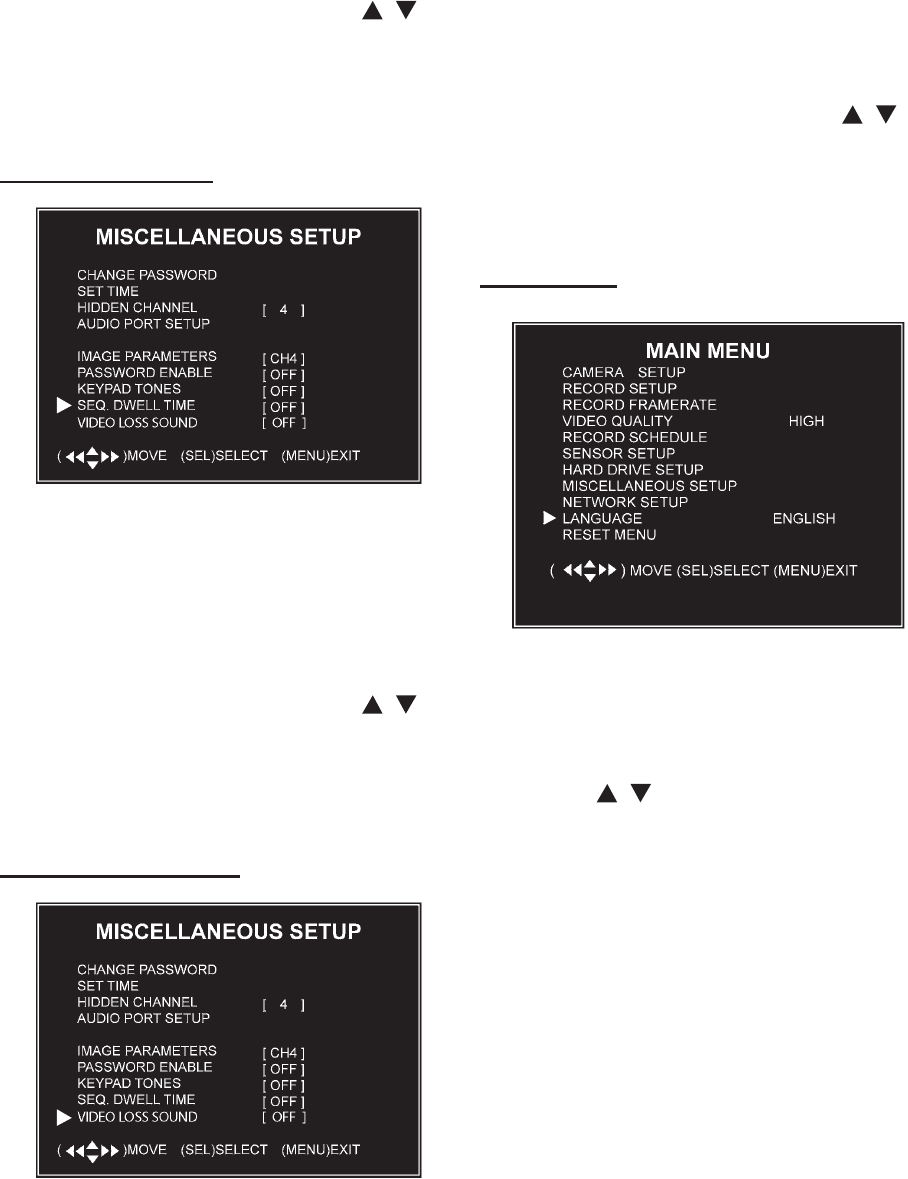
SEQ. DWELL TIME
The Sequence Dwell function sets
the amount of time (1, 5, 10, 15, 30 or
60 seconds) that the system spends
on one setting. To set this function on
or off, and to set the time level:
In the Miscellaneous Setup sub-1.
menu, press the arrow keys [ , ] to
select “Seq. Dwell Time”.
Press [SEL] to choose between “off” 2.
and one of the time settings.
VIDEO LOSS SOUND
The Video Loss Sound function turns
a buzzer on or off which will sound
if one of the cameras is not properly
connected. To set this function on or
off:
In the Miscellaneous Setup sub-1.
menu, press the arrow keys [ , ] to
select “Video Sound Loss”.
Press [SEL] to choose between “off” 2.
and “on” to change the setting.
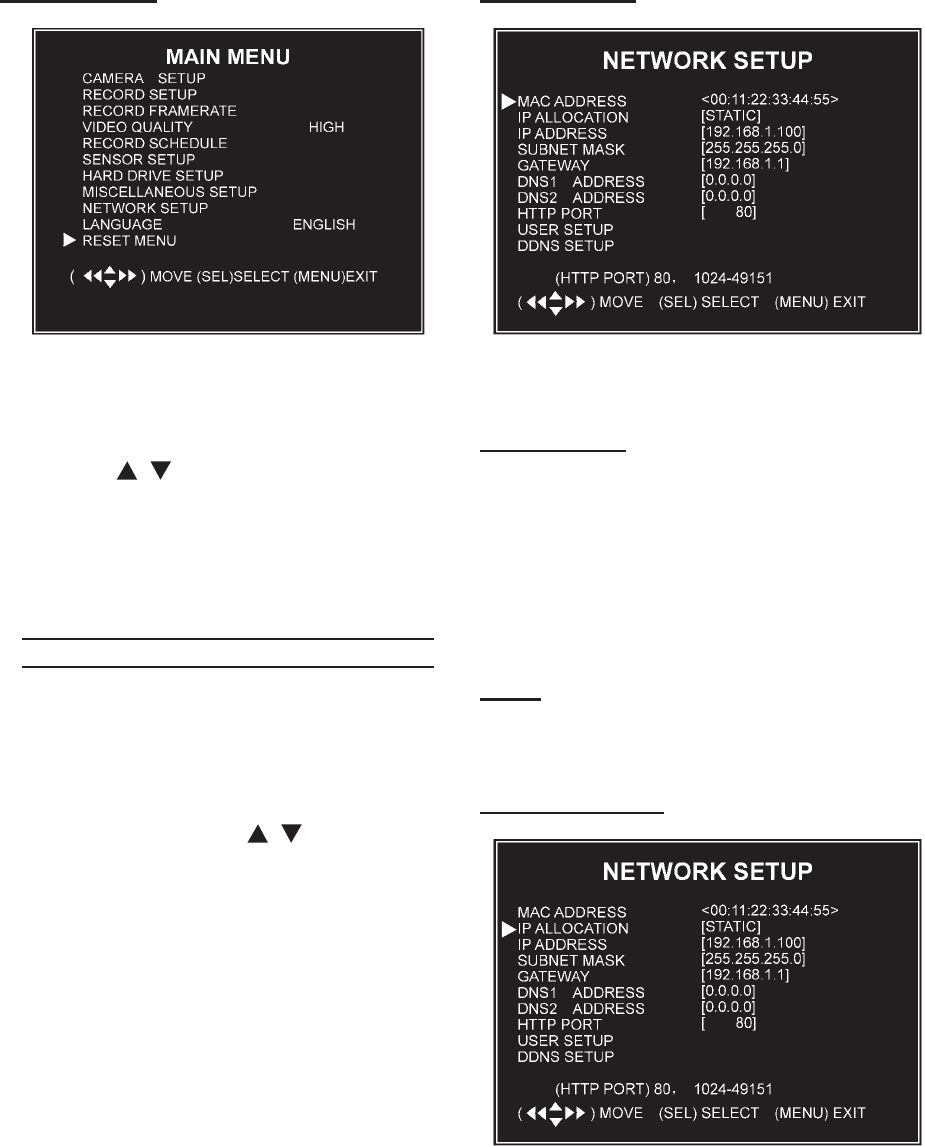
LANGUAGE
The default language is English. To
language:
In the Main Menu, press the arrow 1.
keys [ , ] to select “Language”.
Press [SEL] to cycle through the lan-2.
guage options.
SKU 67139 For technical questions, please call 1-800-444-3353. Page 27
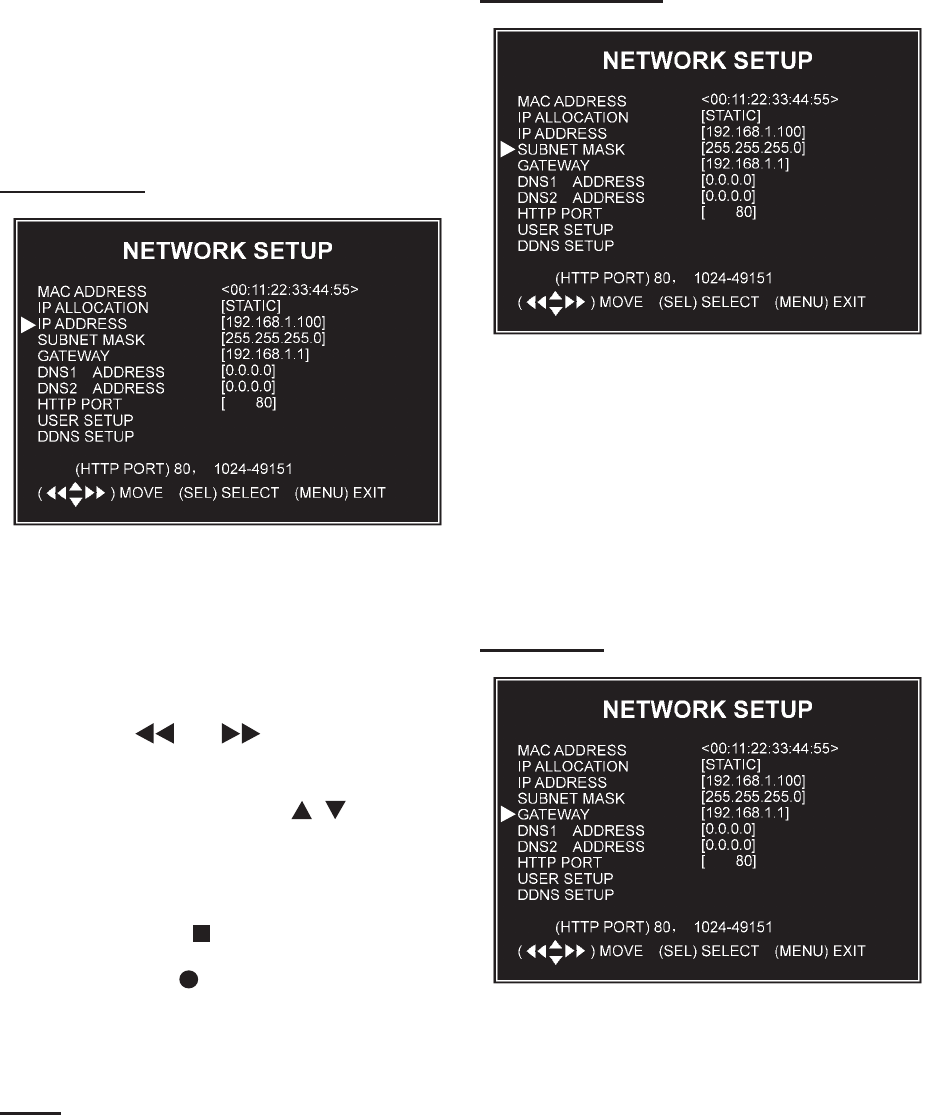
RESET MENU
To reset the menu to the factory set-
tings:
In the Main Menu, press the arrow 1.
keys [ , ] to select “Reset Menu”.
Press [SEL] to reset the menu.2.
You will be prompted to enter the cur-3.
rent password.
NETWORK SET UP SUB-MENU
The Network Set up sub-menu allows
you to customize the DVR to your
network settings.
In the Main Menu, press the up or 1.
down arrow keys [ , ] to select
“Network Setup”.
Press [SEL] to enter the Network 2.
Setup sub-menu.
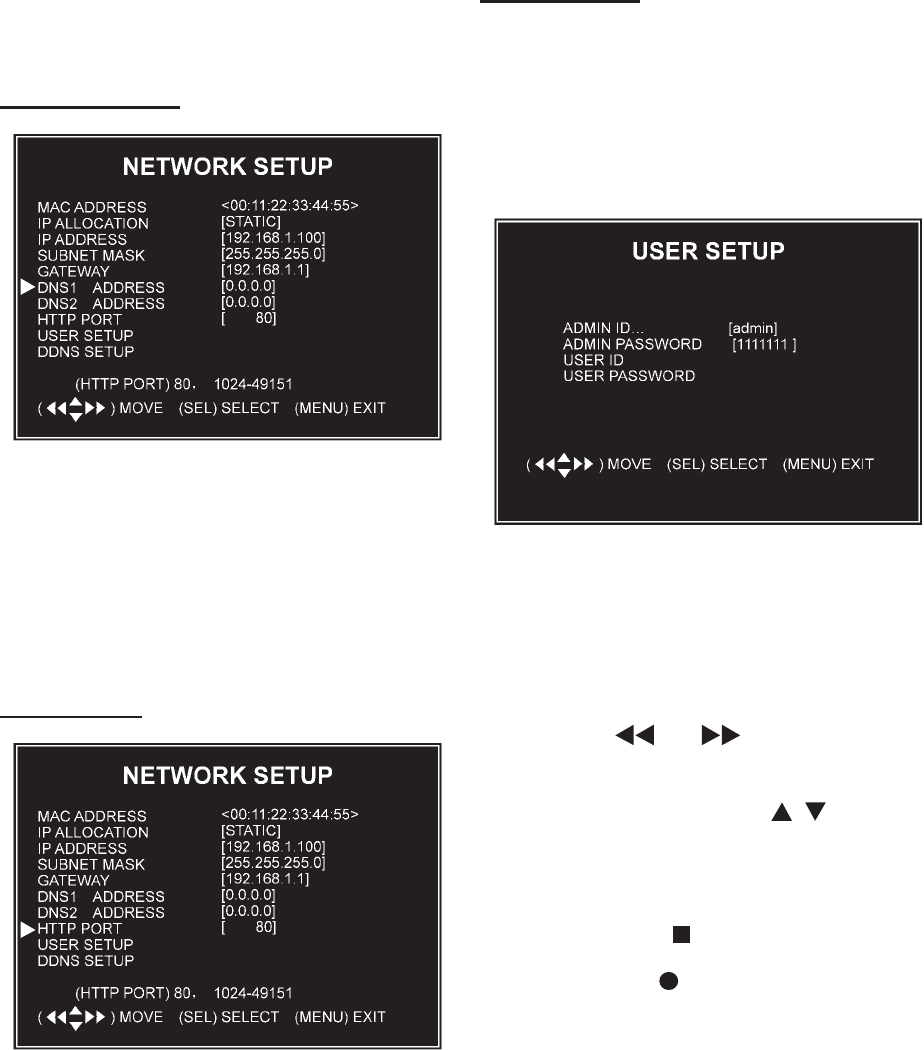
MAC Address
This indicates the DVR network port’s
physical address.
IMPORTANT: The MAC (Media Access
Control) address is your computer’s
unique hardware identity code. This
setting should only be changed if
multiple DVRs are being setup on the
code must not be changed from it’s
setting of “00”.
Note: For new network settings to take af-
fect, the DVR must be restarted after
making any changes.
IP ALLOCATION
The DVR supports DHCP and Static
IP modes.
REV 10g
SKU 67139 For technical questions, please call 1-800-444-3353. Page 28
If your modem/router supports DHCP
functions, you can use DHCP mode.
If you set your IP Allocation to DHCP
mode you do not set the IP Address,
Subnet Mask or Gateway.
If you set your IP Allocation to Static
mode, you will need to setup the fol-
lowing IP Address, Subnet Mask and
Gateway settings manually.
IP ADDRESS
Set up your IP setting according to
the actual network connected to the
DVR. Consult your modem/router for
your IP address.
To adjust the setting:
Press [3. ] or [ ] to move to the
number to change.
Press the arrow keys [4. , ] to
change the number.
Press [SEL] to accept the change.5.
6. to delete a number.
Press 7. REC to insert a number.
Press [MENU] to save and return to 8.
previous menu.
Note: Before using your web browser to
view the program over the network,
you may need to change the security
settings and enable all ActiveX func-
tions.
SUBNET MASK
The Subnet Mask is the identifying
number used to determine where an
IP address belongs on a local area
network. Consult your modem/router
for your LAN’s subnet mask.
Follow the same steps as for chang-
ing the IP Address numbers to make
any changes to the Subnet Mask.
GATEWAY
Set this number to the gateway set by
your modem/router, provided by your
internet service provider.
SKU 67139 For technical questions, please call 1-800-444-3353. Page 29
Follow the same steps as for chang-
ing the IP Address numbers to make
any changes to the Subnet Mask.
DNS ADDRESS
This code is provided by your local
ISP.
Follow the same steps as for chang-
ing the IP Address numbers to make
any changes to the Subnet Mask.
HTTP PORT
This port number is used to communi-
cate with the PC. The default is 80. It
can be changed from 1024 to 49151.
Follow the same steps as for chang-
ing the IP Address numbers to make
any changes to the Subnet Mask.
USER SETUP
When accessing the DVR from a
remote location, you will be prompted
for a login and password. The default
login is “admin” for full administrator
rights, and the default password is
“111111”.
[ ]
[ ]
You can set an additional “user ID”
and password to setup a user with
limited access, allowing only viewing
of live video over a network.
To change the ID and passwords:
Press [9. ] or [ ] to move to the
number to change.
Press the arrow keys [10. , ] to
change the number.
Press [SEL] to accept the change.11.
12. to delete a number.
Press 13. REC to insert a number.
Press [MENU] to save and return to 14.
previous menu.
SKU 67139 For technical questions, please call 1-800-444-3353. Page 30
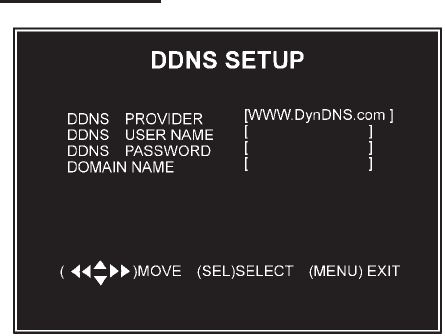
DDNS SETUP
If you require an external service to
maintain a dynamic IP address, enter
the user information here.
Follow the same steps as for chang-
ing the IP Address numbers to make
any changes to the Subnet Mask.
SKU 67139 For technical questions, please call 1-800-444-3353. Page 31
BACKUP PROGRAM
The viewer program installed from
the Software disk allows you to
backup video to other storage media
connected through your PC.
available for playback using the soft-
ware provided on the DVR.
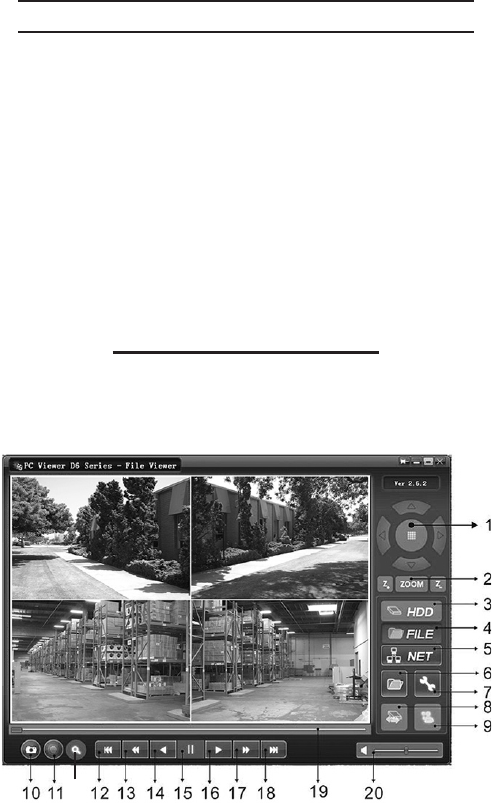
PROGRAM CONTROLS
Following are the available controls in
the program window:
21
1. PTZ - Pan/tilt/zoom functions (not
available).
Zoom in, zoom out (not available).2.
HHD play mode - Plays a video from 3.
the DVR hard drive.
FILE Play Mode - Plays a video from 4.
location.
NET Play Mode - Plays video remote-5.
ly over the internet or intranet.
Event list - Lists the recorded videos.6.
7.
window for settings.
Remote DVR Control8.
Switch between Storage Devices9.
Capture Image10.
BACKUP 11.
Controls 12 through 20 allow manipu-
lation of the selected video, includ-
ing two speeds of fast forward and
rewind as well as sliders for locating
Accelerated Rewind 60x12.
Rewind 10x13.
Forward14.
Stop15.
Playback16.
Fast Forward 10x17.
Accelerated Fast Forward 60x18.
Playback slider19.
Audio slider 20.
Search Time - Used to search for a 21.
video based on the time it was re-
corded.
SKU 67139 For technical questions, please call 1-800-444-3353. Page 32
RUNNING THE PROGRAM
The system will detect the hard drive
automatically when you connect the
DVR to your PC with the USB cable.
A USB icon will appear in the sys-
tem tray (right bottom corner of the
screen). Double-click the icon to run
the program.
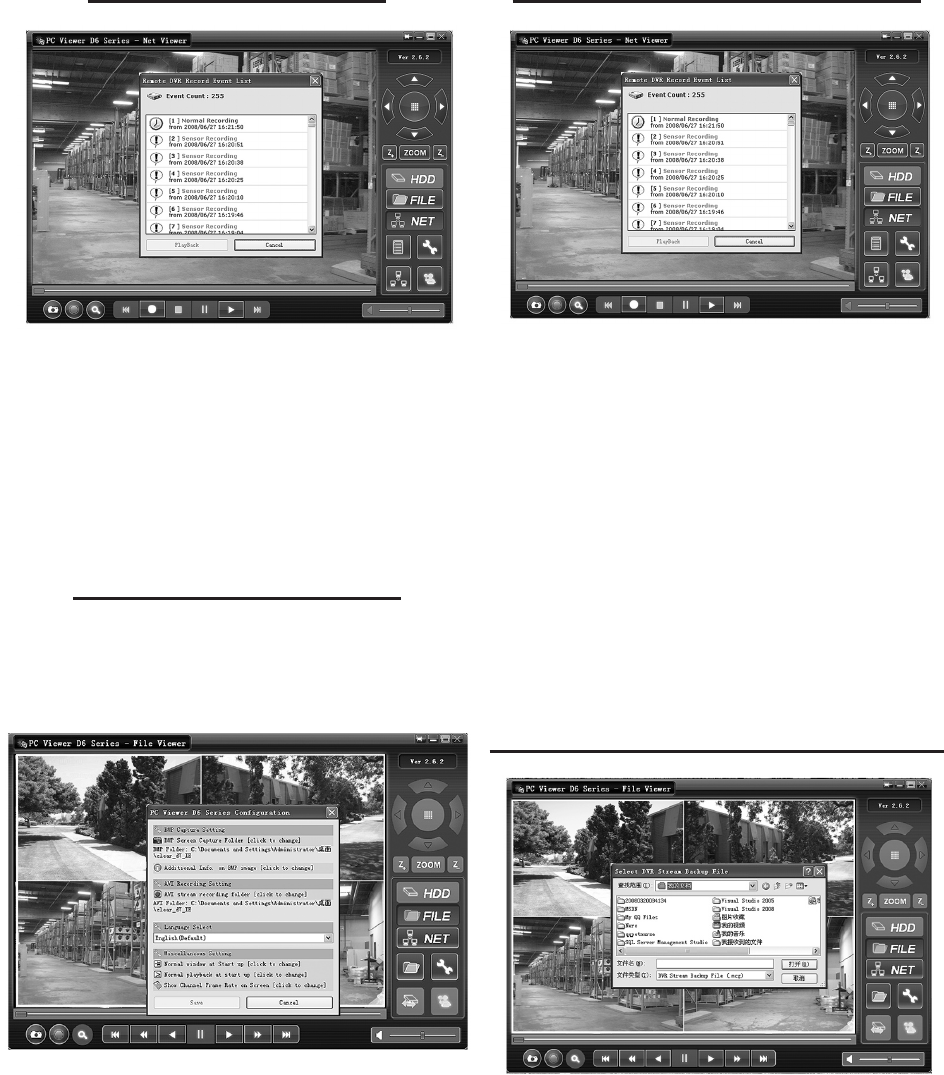
SETTINGS CONFIGURATION
You will need to choose several set-
tings for backup, including whether to
1.
click on Program Local Setting.
Make any adjustments needed, then 2.
click SAVE.
PLAYING OR BACKING UP A VIDEO
3. To play or backup a video, click
Locate the desired video. Click PLAY 4.
to play the video.
To Backup the video, click BACKUP 5.
after clicking PLAY.
To stop the backup, click BACKUP 6.
again.
To Stop playing the video, click 7.
LOCATING AND PLAYING SAVED FILES
1.
Choose a folder to open. 2.
3.
video.
REV 10h
SKU 67139 For technical questions, please call 1-800-444-3353. Page 33
NET PLAY MODE
This mode allows you to remotely
control your DVR via the internet or
intranet using the software applica-
tion.
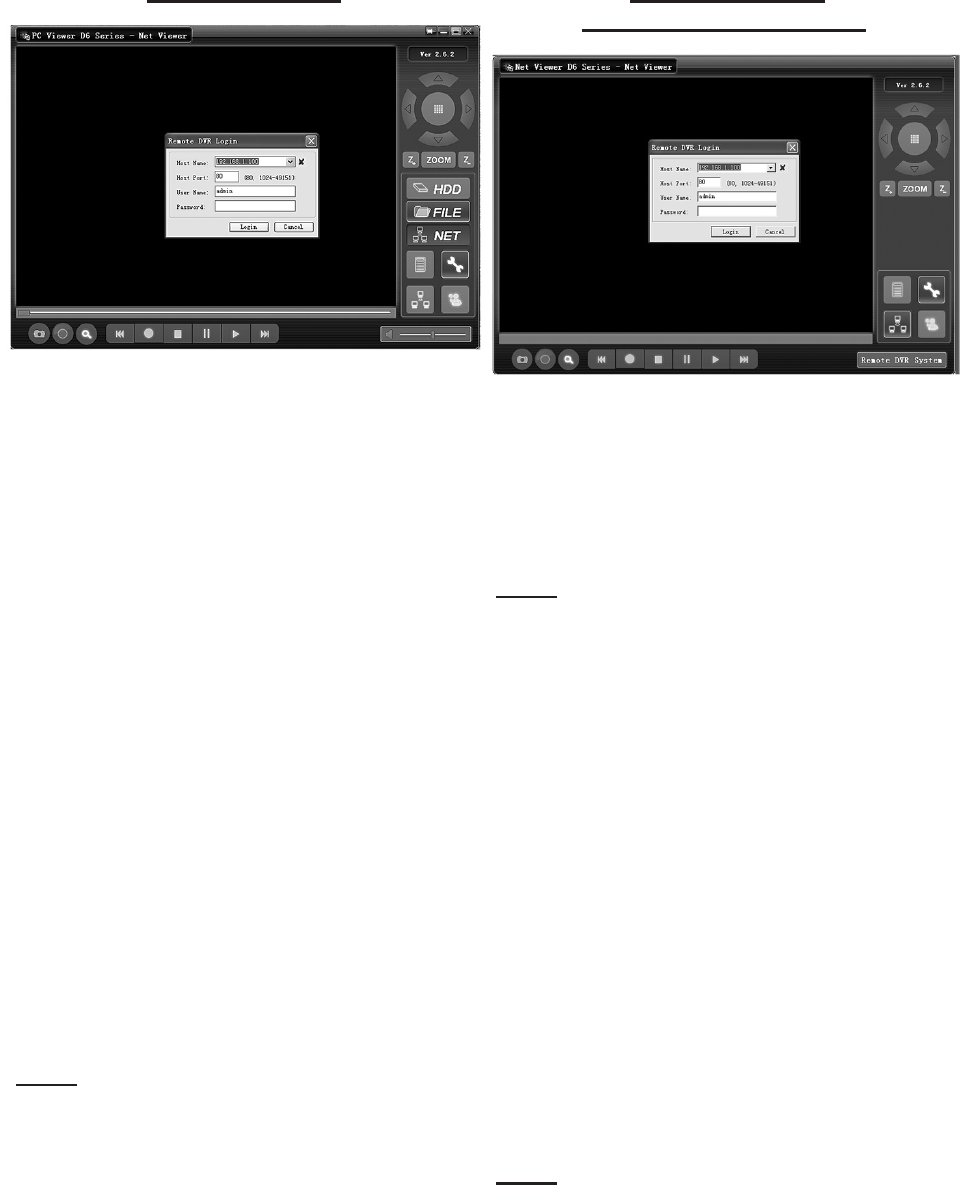
While in the PC Viewer D6 Series, 1.
click on NET Play Mode to open login
window.
Enter the following information of the 2.
DVR that you want to remotely ac-
cess:
Host Name - The IP address that the
DVR is on.
Host Port - The port you pro-
grammed into the DVR.
User Name - “admin” or user name
you entered in Set Up.
Password - “111111” or password
you created in Set Up.
3.
Note: Admin level will be able to access
all of the program functions remotely.
User level will only be able to access
viewing of live video.
Click on NET Play Mode to exit the 4.
remote DVR.
WEB BROWSER
REMOTE CONTROL DVR
This mode allows you to connect to
the DVR through your web browser.
Enter the IP address and domain 1.
name of remote DVR in the address
bar.
Note: If the port number is not 80, add the
port number before the IP address or
domain name.
You will be prompted for the same 2.
information as Net Play Mode. Enter
the following information of the DVR
that you want to remotely access:
Host Name - The IP address that the
DVR is on.
Host Port - The port you pro-
grammed into the DVR.
User Name - “admin” or user name
you entered in Set Up.
Password - “111111” or password
you created in Set Up.
3.
Note: Admin level will be able to access
all of the program functions remotely.
User level will only be able to access
viewing of live video.
SKU 67139 For technical questions, please call 1-800-444-3353. Page 34
Click on NET Play Mode to exit the 4.
remote DVR.
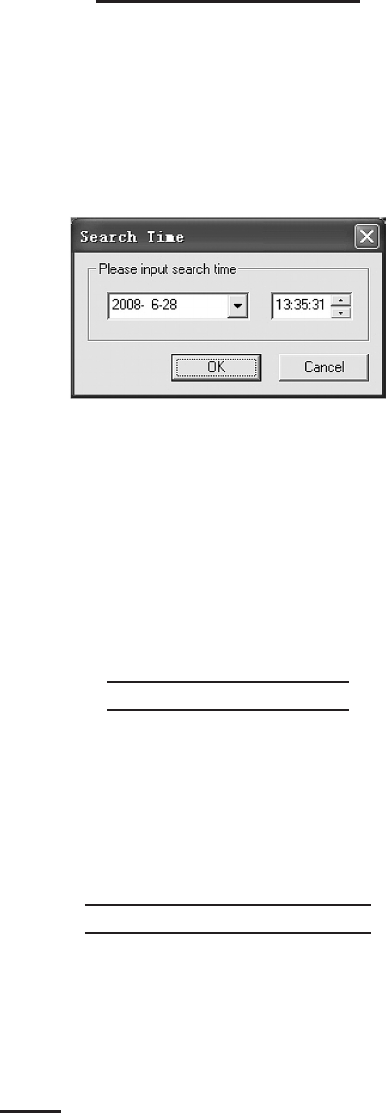
SEARCH TIME OPTION
The Search Time option is available
only through your web browser’s ac-
through this menu you will need to
know the time the video was record-
ed.
1. To use the Search Time Function,
click on Search Time to open the
Search Time menu.
2.
Click on NET Play Mode to exit the 3.
remote DVR.
Audio Connection
To add audio to one of the camera
locations, plug a microphone (sold
separately) into the Audio Input jack
on the back of the DVR. Route the
microphone to the chosen camera.
Hard Disk Installation
An additional hard disk can be con-
nected to this unit. Consult your hard
drive manual for installation and have
Note: Do not disconnect the hard drive
from the unit when the DVR is run-
ning.
To install a separate hard drive:
Make sure the hard drive is set to 1.
Master according to the hard drive
manual.
Carefully remove the Top Cover.2.
Connect the Data Cable to the Hard 3.
Drive.
Connect the Power Cord to the Hard 4.
Drive.
Replace the Top Cover.5.
SKU 67139 For technical questions, please call 1-800-444-3353. Page 35
MAINTENANCE/SERVICING
Procedures not specically
explained in this manual
must be performed only by a
qualied technician.
TO PREVENT
SERIOUS INJURY
FROM ACCIDENTAL
OPERATION:
Unplug the unit from its
electrical outlet before
performing any inspection,
maintenance, or cleaning
procedures.
TO PREVENT SERIOUS
INJURY FROM UNIT FAILURE:
Do not use damaged
equipment. If abnormal noise
occurs, have the problem
corrected before further use.
Cleaning and Maintenance
general condition of the unit, includ-
ing connections, wiring and cameras.
Check for loose or damaged hard-
ware, damaged electrical wiring, and
any other condition that may affect its
safe operation.
WARNING! If the supply cord of
this DVR is damaged, it must be
replaced only by a qualied ser-
vice technician.
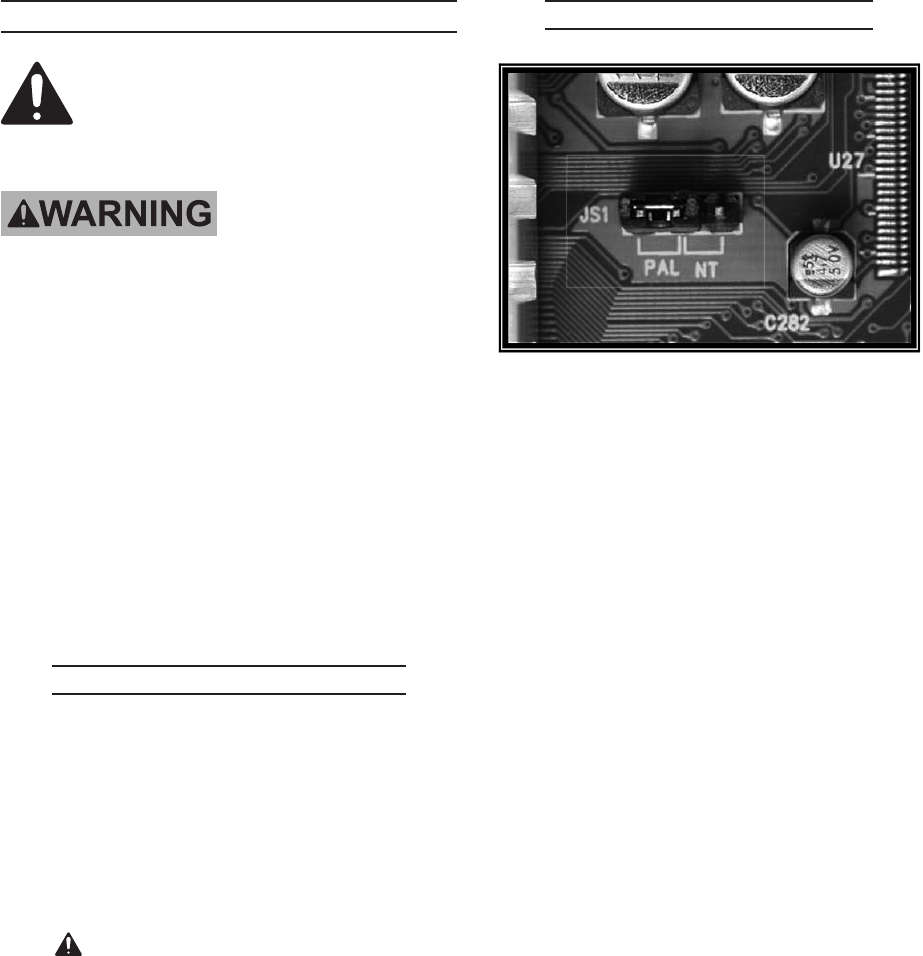
NTSC/PAL Output Select
This unit is set to NTSC video format. It
can be changed to PAL by changing the
jumper JS1 setting. This change must be
this adjustment:
1.
Slide the switch to NTSC or PAL as 2.
needed for your system.
Replace and secure the cover. 3.

SKU 67139 For technical questions, please call 1-800-444-3353. Page 36
Troubleshooting
Problem Possible Causes Likely Solutions
Camera
does not
record
or is not
displayed.
Loose or incorrect 1.
connections.
Camera settings need 2.
adjusting.
Check that all wire connections are secure and in the 1.
correct location.
Through Main Menu check that:2.
a.
b.
Record Framerate - Adjust frames per second.c.
Record Schedule - Set to Normal or Sensor for record d.
time desired.
Sensor Setup - Set Record time once sensor is acti-e.
vated.
f.
sensitivity level -(block out area you do not want de-
tected).
Misc. Setup - Check that time is set to current time. g.
Misc. Setup - Check whether channel is hidden from h.
view (will still record, but will not display live image, only
shows up on playback).
Misc. Setup - Adjust Image Parameters for clearest im-i.
age.
Cannot
access
connected
modem.
Loose or incorrect 1.
connections.
Incorrect address 2.
information.
Check that the connections are secure and plugged into the 1.
correct location in the correct order.
Through the Main Menu under Network Setup, 2.
- Check that IP Allocation is set to DHCP.*
- Note the IP Address.
- Enter the IP Address in the address bar in Internet
Explorer and press enter. You will access the HD.
*Note: if your modem does not support DHCP, you will need
to get the address information from your internet provider.
Error codes
when trying
to install
DxClient
software
Incompatibility with web
browser.
Check if web browser is compatible with software. This will
require online research to determine your web browser’s
compatibility and operations necessary for installation. You
Follow all safety precautions whenever diagnosing or servicing the
tool. Disconnect power supply before service.
REV 10h

SKU 67139 For technical questions, please call 1-800-444-3353. Page 37
Problem Possible Causes Likely Solutions
Cannot
access DVR
remotely.
Port forwarding not 1.
completed.
Incorrect IP address.2.
Firewall protection 3.
hindering access.
4.
Complete port forwarding procedures to set up the modem 1.
for port forwarding. If needed, consult online information or
will need to obtain the external IP address of the modem to
complete this step.
Check for correct external IP address.2.
3.
Add to allowed IP addresses.4.
Buzzer
sounding
cameras are not
connected.
Check that all the camera wiring is completely plugged in at all
connection points.
Poor quality
images
1. If viewed on TV
screen, TV settings
Camera settings need
adjusting.
Through the Main Menu check that1.
Record Framerate - Adjust frames per second.a.
Video Quality - Increase to Highest setting.b.
Misc. Setup - Adjust the Image Parameters for clearest c.
image.
Follow all safety precautions whenever diagnosing or servicing the
tool. Disconnect power supply before service.
REV 10h

SKU 67139 For technical questions, please call 1-800-444-3353. Page 38
PLEASE READ THE FOLLOWING CAREFULLY
Record Product’s Serial Number Here:
Note: If product has no serial number, record month and year of purchase instead.
