Harman Kardon Avr 145 Users Manual
AVR 145 AVR145_OM_EN
AVR 145 to the manual a0a0eac7-6fdb-4924-aba5-12c5ac7ab987
2015-01-25
: Harman-Kardon Harman-Kardon-Avr-145-Users-Manual-235888 harman-kardon-avr-145-users-manual-235888 harman-kardon pdf
Open the PDF directly: View PDF  .
.
Page Count: 63

Designed to Entertain.TM
AVR 145
AUDIO/VIDEO RECEIVER
OWNER’S MANUAL

2
3SAFETY INFORMATION
5INTRODUCTION
7FRONT-PANEL CONTROLS
9REAR-PANEL CONNECTIONS
11 REMOTE CONTROL FUNCTIONS
14 INTRODUCTION TO HOME THEATER
15 CONNECTIONS
15 Speaker Connections
15 Subwoofer
15 Connecting Source Devices to the AVR
16 Audio Connections
16 Digital Audio
16 Analog Audio
16 Video Connections
17 Antennas
17 RS-232 Serial Port
18 SPEAKER PLACEMENT
19 INSTALLATION
19 Step One – Connect the Speakers
19 Step Two – Connect the Subwoofer
19 Step Three – Connect the Antennas
19 Step Four – Connect the Source Components
22 Step Five – Connect Video Display
22 Step Six – Plug in AC Power
22 Step Seven – Insert Batteries in Remote
23 Step Eight – Program Sources Into the Remote
24 Step Nine – Turn On the AVR 145
25 INITIAL SETUP
25 Using the On-Screen Menu System
25 Step One – Determine Speaker Size
26 Step Two – Measure Speaker Distances
26 Step Three – Manual Setup Menu
26 Speaker Size Menu
27 Speaker Crossover Menu
28 Delay Adjust Menu
28 Step Four – EzSet Output Level Calibration
29 Step Five – Configure Sources
31 OPERATION
31 Turning On the AVR 145
31 Sleep Timer
31 Volume Control
32 Mute Function
32 Tone Controls
32 Headphones
32 Source Selection
33 Audio Input Selection
33 Video Input Selection
33 6-Channel Direct Inputs
33 Using the Tuner
34 Recording
34 Using
35 Selecting a Surround Mode
36 ADVANCED FUNCTIONS
36 Audio Processing and Surround Sound
36 Analog Audio Signals
36 Digital Audio Signals
37 Surround Modes
38 Dolby Surround Settings
38 Default Modes
41 Setting Channel Output Levels Manually
42 System Settings
43 Dim Function
43 Advanced Remote Control Functions
43 Punch-Through Programming
43 Macros
44 Resetting the Remote
44 Processor Reset
44 Memory
45 TROUBLESHOOTING GUIDE
46 TECHNICAL SPECIFICATIONS
46 Trademark Acknowledgements
47 APPENDIX
The
Brid
g
eTM
WARNING
For Canadian model
Modèle pour les Canadien
Cet appareil numérique de la classe B est conforme
à la norme NMB-003 du Canada.
Sur les modèles dont la fiche est polarisee:
ATTENTION: Pour éviter les chocs électriques, introduire
la lame la plus large de la fiche dans la borne
correspondante de la prise et pousser jusqu’au fond.
This class B digital apparatus complies with Canadian
ICES-003.
For models having a power cord with a polarized plug:
CAUTION: To prevent electric shock, match wide blade
of plug to wide slot, fully insert.
To prevent fire or shock hazard, do not expose this appli-
ance to rain or moisture.
TABLE OF CONTENTS
SAFETY INFORMATION
1. Read these instructions.
2. Keep these instructions.
3. Heed all warnings.
4. Follow all instructions.
5. Do not use this apparatus near water.
6. Clean only with a dry cloth.
7. Do not block any ventilation openings. Install in
accordance with the manufacturer’s instructions.
8. Do not install near any heat sources such as
radiators, heat registers, stoves or other appara-
tus (including amplifiers) that produce heat.
9. Do not defeat the safety purpose of the polar-
ized or grounding-type plug.A polarized plug
has two blades with one wider than the other.A
grounding-type plug has two blades and a third
grounding prong.The wide blade or the third
prong are provided for your safety. If the provided
plug does not fit into your outlet, consult an elec-
trician for replacement of the obsolete outlet.
10. Protect the power cord from being walked
on or pinched, particularly at plugs, convenience
receptacles and the point where they exit from
the apparatus.
11. Only use attachments/accessories specified
by the manufacturer.
12. Use only with the cart, stand, tripod, bracket
or table specified by the manufacturer or sold
with the apparatus.When a cart is used, use
caution when moving the cart/apparatus combi-
nation to avoid injury from tip-over.
13. Unplug this apparatus during lightning storms
or when unused for long periods of
time.
14. Refer all servicing to qualified
service personnel. Servicing is
required when the apparatus has been
damaged in any way, such as power-supply cord
or plug is damaged, liquid has been spilled or
objects have fallen into the apparatus, the appa-
ratus has been exposed to rain or moisture, does
not operate normally, or has been dropped.
15. Do not use attachments not recommended
by the product manufacturer, as they may cause
hazards.
16.This product should be operated only from
the type of power source indicated on the mark-
ing label. If you are not sure of the type of power
supply to your home, consult your product dealer
or local power company. For products intended
to operate from battery power, or other sources,
refer to the operating instructions.
17. If an outside antenna or cable system is con-
nected to the product, be sure the antenna or
cable system is grounded so as to provide some
protection against voltage surges and built-up
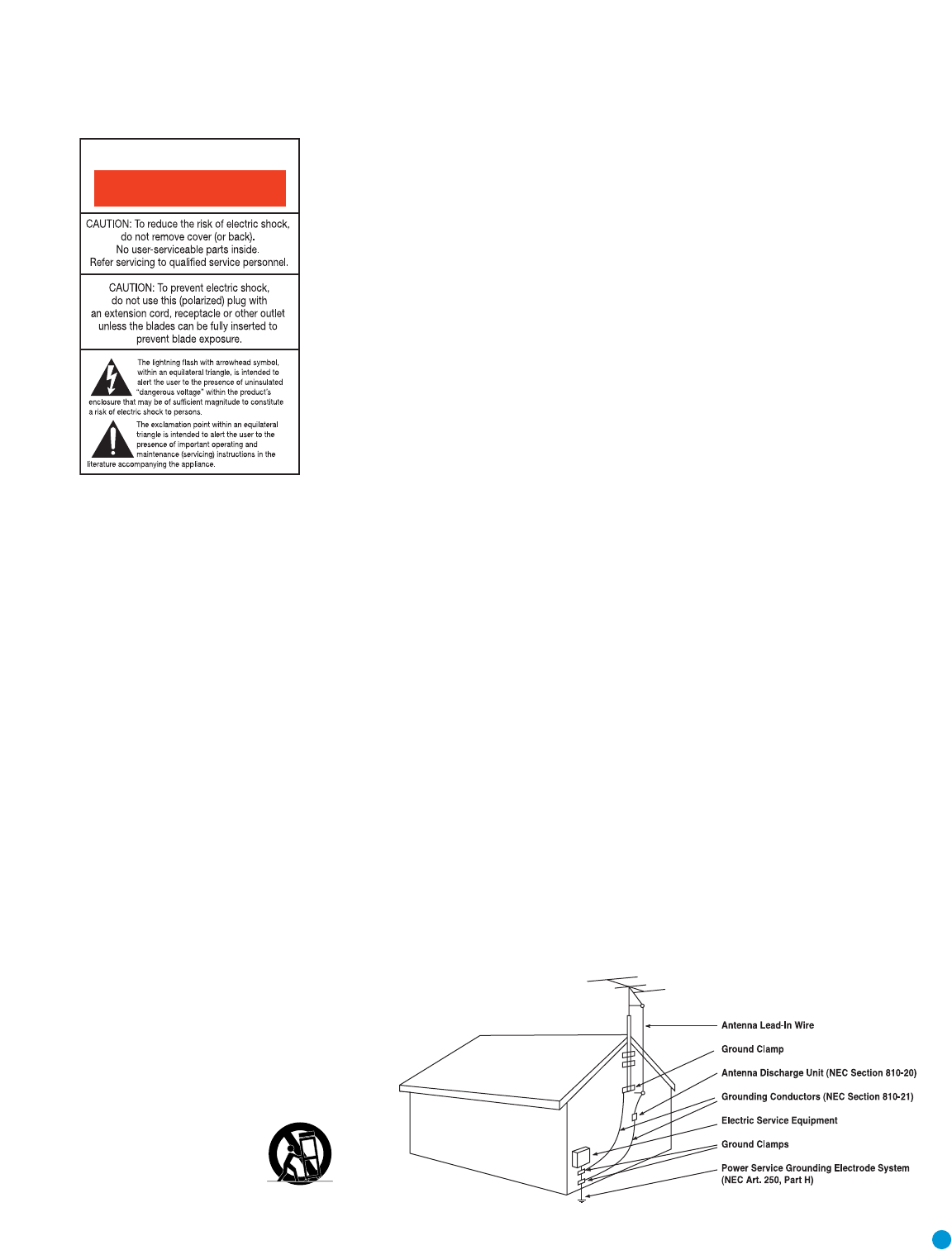
static charges.Article 810 of the National
Electrical Code,ANSI/NFPA 70, provides infor-
mation with regard to proper grounding of the
mast and supporting structure, grounding of the
lead-in wire to an antenna discharge unit, size of
grounding conductors, location of antenna-dis-
charge unit, connection to grounding electrodes,
and requirements for the grounding electrode.
See Figure A.
18.An outside antenna system should not be
located in the vicinity of overhead power lines or
other electric light or power circuits, or where it
can fall into such power lines or circuits.When
installing an outside antenna system, extreme
care should be taken to keep from touching such
power lines or circuits, as contact with them might
be fatal.
19. Do not overload wall outlets, extension cords,
or integral convenience receptacles, as this can
result in a risk of fire or electric shock.
20. Never push objects of any kind into this
product through openings, as they may touch
dangerous voltage points or short-out parts that
could result in a fire or electric shock. Never spill
liquid of any kind on the product.
21.The apparatus shall not be exposed to drip-
ping or splashing, and no objects filled with liq-
uids, such as vases, shall be placed on the
apparatus.
22. Do not attempt to service this product your-
self, as opening or removing covers may expose
you to dangerous voltage or other hazards. Refer
all servicing to qualified service personnel.
23.When replacement parts are required, be
sure the service technician has used replacement
parts specified by the manufacturer or that have
the same characteristics as the original part.
Unauthorized substitutions may result in fire, elec-
tric shock or other hazards.
24. Upon completion of any service or repairs to
this product, ask the service technician to per-
form safety checks to determine that the product
is in proper operating condition.
25.The product should be mounted to a wall
or ceiling only as recommended by the manu-
facturer.
Figure A.
Example of Antenna Grounding as per
National ElectricalCode ANSI/NFPA 70
CAUTION
RISK OF ELECTRIC SHOCK
DO NOT OPEN
3

4
Important Safety Information
Verify Line Voltage Before Use
Your AVR 145 has been designed for use with 120-volt AC current. Connection to
a line voltage other than that for which it is intended can create a safety and fire
hazard and may damage the unit.
If you have any questions about the voltage requirements for your specific model, or
about the line voltage in your area, contact your selling dealer before plugging the unit
into a wall outlet.
Do Not Use Extension Cords
To avoid safety hazards, use only the power cord attached to your unit.We do not
recommend that extension cords be used with this product.As with all electrical
devices, do not run power cords under rugs or carpets or place heavy objects on
them. Damaged power cords should be replaced immediately by an authorized service
center with a cord meeting factory specifications.
Handle the AC Power Cord Gently
When disconnecting the power cord from an AC outlet, always pull the plug;never
pull the cord. If you do not intend to use the unit for any considerable length of time,
disconnect the plug from the AC outlet.
Do Not Open the Cabinet
There are no user-serviceable components inside this product. Opening the cabinet
may present a shock hazard, and any modification to the product will void your
guarantee. If water or any metal object such as a paper clip, wire or staple acciden-
tally falls inside the unit, disconnect it from the AC power source immediately, and
consult an authorized service center.
CATV or Antenna Grounding
If an outside antenna or cable system is connected to this product, be certain that it is
grounded so as to provide some protection against voltage surges and static charges.
Section 810 of the National Electrical Code,ANSI/NFPA No. 70-1984,provides
information with
respect to proper grounding of the mast and supporting structure,
grounding of the lead-in wire to an antenna
discharge unit, size of grounding conduc-
tors, location of antenna discharge unit,
connection to grounding electrodes and
requirements of the grounding electrode.
NOTE TO CATV SYSTEM INSTALLER: This reminder is provided to call the CATV
(cable TV) system installer’s attention to article 820-40 of the NEC, which provides
guidelines for proper grounding and, in particular, specifies that the cable ground
shall be connected to the grounding system of the building, as close to the point
of cable entry as possible.
Installation Location
• To ensure proper operation and to avoid the potential for safety hazards, place the
unit on a firm and level surface.When placing the unit on a shelf, be certain that
the shelf and any mounting hardware can support the weight of the product.
• Make certain that proper space is provided both above and below the unit for
ventilation. If this product will be installed in a cabinet or other enclosed area,
make certain that there is sufficient air movement within the cabinet. Under some
circumstances, a fan may be required.
• Do not place the unit directly on a carpeted surface.
• Avoid installation in extremely hot or cold locations, or in an area that is exposed
to direct sunlight or heating equipment.
• Avoid moist or humid locations.
• Do not obstruct the ventilation slots on the top of the unit, or place objects
directly over them.
• Due to the weight of the AVR 145 and the heat generated by the amplifiers,
there is the remote possibility that the rubber padding on the bottom of the
unit’s feet may leave marks on certain wood or veneer materials. Use caution
when placing the unit on soft woods or other materials that may be damaged
by heat or heavy objects. Some surface finishes may be particularly sensitive to
absorbing such marks, due to a variety of factors beyond Harman Kardon's con-
trol, including the nature of the finish, cleaning materials used, and normal heat
and vibration caused by the use of the product,or other factors.We recommend
that caution be exercised in choosing an installation location for the component and
in normal maintenance practices,as your warranty will not cover this type of damage
to furniture.
Cleaning
When the unit gets dirty, wipe it with a clean,soft,dry cloth. If necessary, and only after
unplugging the AC power cord, wipe it with a soft cloth dampened with mild soapy
water, then a fresh cloth with clean water.Wipe it dry immediately with a dry cloth.
NEVER use benzene, aerosol cleaners, thinner, alcohol or any other volatile cleaning
agent. Do not use abrasive cleaners, as they may damage the finish of metal parts.
Avoid spraying insecticide near the unit.
Moving the Unit
Before moving the unit, be certain to disconnect any interconnection cords with
other components, and make certain that you disconnect the unit from the AC out-
let.
Important Information for the User
This equipment has been tested and found to comply with the limits for a Class-B
digital device, pursuant to Part 15 of the FCC Rules.The limits are designed to pro-
vide reasonable protection against harmful interference in a residential installation.
This equipment generates,
uses and can radiate radio-frequency energy
and, if not
installed and used in accordance with the instructions, may cause harmful interfer-
ence to radio communication. However, there is no guarantee that harmful interfer-
ence will not occur in a particular installation. If this equipment does cause harmful
interference to radio or television reception, which can be determined by turning the
equipment off and on, the user is encouraged to try to correct the interference by
one or more of the following measures:
• Reorient or relocate the receiving antenna.
• Increase the separation between the equipment and receiver.
• Connect the equipment into an outlet on a circuit
different from that to which the
receiver is connected.
• Consult the dealer or an experienced radio/TV technician for help.
This device complies with Part 15 of the FCC Rules. Operation is subject to the
following two conditions: (1) this device may not cause harmful interference, and (2)
this device must accept interference received, including interference that may cause
undesired operation.
NOTE: Changes or modifications may cause this unit to fail to comply with Part
15 of
the FCC Rules and may void the user’s authority to operate the equipment.
Unpacking
The carton and shipping materials used to protect your new receiver during ship-
ment were specially designed to cushion it from shock and vibration.We suggest
that you save the carton and packing materials for use in shipping if you move, or
should the unit ever need repair.
To minimize the size of the carton in storage, you may wish to flatten it.This is done
by carefully slitting the tape seams on the bottom and collapsing the carton.Other card-
board inserts may be stored in the same manner. Packing materials that cannot be col-
lapsed should be saved along with the carton in a plastic bag.
If you do not wish to save the packaging materials, please note that the carton and
other sections of the shipping protection are recyclable. Please
respect the environ-
ment and discard those materials at a local recycling center.
It is important that you remove the protective plastic film from the front-panel lens.
Leaving the film in place will affect the performance of your remote control.
SAFETY INFORMATION
5
Thank you for choosing Harman Kardon®!
In the years since Harman Kardon invented the high-fidelity receiver, we
have taken to heart the philosophy of bringing the joy of home entertain-
ment to as many people as possible, adding performance and ease-of-
use features that enhance the home entertainment experience. In the
years since our first single-channel component was introduced, Harman
Kardon has offered a number of receiver models, each an improvement
upon its predecessors, leading to the AVR 145,a 5.1-channel digital
audio/video receiver that offers a wealth of listening and viewing options,
all in an elegant package.
To obtain the maximum enjoyment from your new receiver, we urge you
to read this manual and refer back to it as you become more familiar
with its features and their operation.
If you have any questions about this product, its installation or its opera-
tion, please contact your retailer or customer installer, or visit our Web
site at www.harmankardon.com.
Please register your product on our Web site at www.harmankardon.com.
Note:You’ll need the product’s serial number.At the same time, you can choose to be notified about our new products
and/or special promotions.
AVR 145 5.1-Channel Audio/Video Receiver
Audio Section
• 40 watts x 5, five channels driven at full power at 8 ohms,
20Hz – 20kHz, <0.07% THD, (surround modes). 200 Watts total.
• 50 watts x 2, two channels driven at full power at 8 ohms,
20Hz – 20kHz, <0.07% THD, (surround off mode). 100 Watts total.
• High current capability, ultrawide bandwidth amplifier design with low
negative feedback
• All-discrete amplifier circuitry
• Dual independent power supplies, for front and surround channels
• Triple crossover bass management
• 24-Bit, twin-core Cirrus Logic®CS 49510 DSP processor with
32-bit post processor
• 192kHz/24-bit D/A conversion
• Sampling upconversion to 96kHz
Surround Modes
• Dolby®Digital
• Dolby Pro Logic®II (Movie, Music and Game)
• Dolby Virtual Speaker Version 2 (Reference 2- or 3-speaker;
Wide 2-, 3-, 4- or 5-speaker)
• Dolby Headphone Version 2
• DTS®(5.1; DTS Stereo)
• DTS 96/24™(DTS Stereo)
• DTS Neo:6®(Cinema 3- or 5-channel; Music 5-channel)
• Logic 7®(Cinema, Music and Enhance)
• Hall 1 and Hall 2
• Theater
• 5-Channel Stereo
• Surround Off (DSP or Analog Bypass)
WWW.HARMANKARDON.COM
INTRODUCTION

6
INTRODUCTION
Audio Inputs
• AM/FM tuner
• CD
• Tape
• 6-Channel direct
• /DMP for iPod®* connectivity
Audio/Video Inputs (With S-Video)
• Video 1
• Video 2
• Video 3
• DVD
• Two 100MHz assignable component video inputs
Digital Audio Inputs
• Two rear-panel/one front-panel coaxial
• Two rear-panel/one front-panel optical
Outputs
• Subwoofer output
• Tape (analog audio)
• Video 1(analog audio and video)
• Video Monitor (composite, S-video and component)
• One coaxial, one optical (digital audio)
• Headphone
Ease of Use
• EzSet™automated setup (microphone integrated into remote)
• On-screen display with composite and S-video; choice of blue or
black background
• Two-line dot-matrix front-panel display
• Color-coded connections
• Programmable eight-device main remote control
• Source input renaming
• A/V Sync Delay
• RS-232 serial port for system upgrades
• Switched accessory power outlet
Supplied Accessories
The following accessory items are supplied with the AVR 145. If any
of these items are missing, please contact Harman Kardon customer
service at www.harmankardon.com.
• System remote control
• AM loop antenna
• FM wire antenna
• Three AAA batteries
• Two covers for front-panel jacks
The
Brid
g
eTM
*Compatible with all iPod models equipped with a dock connector. Not compatible
with iPod shuffle™models. Although iPod photo and video models are compatible,
images and videos stored on the iPod may not be viewed.

7
Main Power Switch:This is a mechanical switch that turns the
power supply on or off. It is usually left pressed in (On position) at all
times, and cannot be turned on using the remote control.
Standby/On Switch: This is an electrical switch that turns the
receiver on for playback, or leaves it in standby mode for quick turn-on
using this switch or the remote control.
Power Indicator:This LED has three possible modes.When main
power is turned off, the LED is dark and the receiver won’t respond to
any button presses.When main power is turned on, but before the
Standby/On Switch is used, the LED turns amber and the receiver is
ready to be turned on.When the receiver is turned on, the LED
turns blue.
Source Select: Press this button to select a source device, which is
a component where a playback signal originates, e.g. DVD, CD, cable TV,
satellite or HDTV tuner.
Source Indicators:The name of the current source input lights up.
The indicated input changes each time the Source Select button is
pressed.
Volume Knob:Turn this knob to raise or lower the volume, which will
be shown in decibels (dB) in the Message Display.
Message Display:Various messages appear in this two-line display
in response to commands.When the on-screen display menu system
(OSD) is in use, the message OSD ON will appear to remind you to
check the video display.
Tuner Band: Press this button to select the tuner as the source, or to
switch between the AM and FM bands.
Tuning: Press either side of this button to tune a radio station.
Tuning Mode:This button toggles between manual (one frequency
step at a time) and automatic (seeks frequencies with acceptable signal
strength) tuning mode. It also toggles between stereo and mono modes
when an FM station is tuned.
Preset Stations: Press this button to select a preset radio station.
Headphone Jack: Plug a 1/4" headphone plug into this jack for
private listening.
Surround Mode: Press this button to select a type of surround
sound (e.g. multichannel) mode. Choose from the Dolby modes, DTS
modes, Logic 7 modes, DSP modes or Stereo modes.
Surround Select:After you have selected the desired type of sur-
round mode, press this button to select a specific variant of that type
of mode.
Surround Mode Indicators: One or more of these icons may light
up as you select different surround modes.The Message Display also
indicates the surround mode.
Analog Audio,Video and Digital Audio Inputs: Connect a
source component that will only be used temporarily to these jacks,
such as a camera or game console. Remember to select only one type
of audio and one type of video connection.
Speaker/Channel Input Indicators:The box icons indicate
which speaker positions you have configured, and the size (frequency
range) of each speaker.When a digital audio input is used, letters will
light inside the boxes to indicate which channels are present in the
incoming signal.
Navigation: These buttons are used together with the following five
buttons to make selections.
Tone Mode: Press this button to access the tone controls (bass and
treble). Use the ‹/›Navigation buttons to make your selections.
Speaker: Press this button to configure speaker sizes, that is, the fre-
quency-range capability of each speaker.
Channel Level Adjust: Press this button to set the output levels for
each channel so that all speakers sound equally loud at the listening
position.
Digital Input Select: Press this button to select the specific digital
audio input (or analog audio input) you used for the current source.
Delay: Press this button to set delay times that compensate for placing
the speakers at different distances from the listening position.
FRONT-PANEL CONTROLS
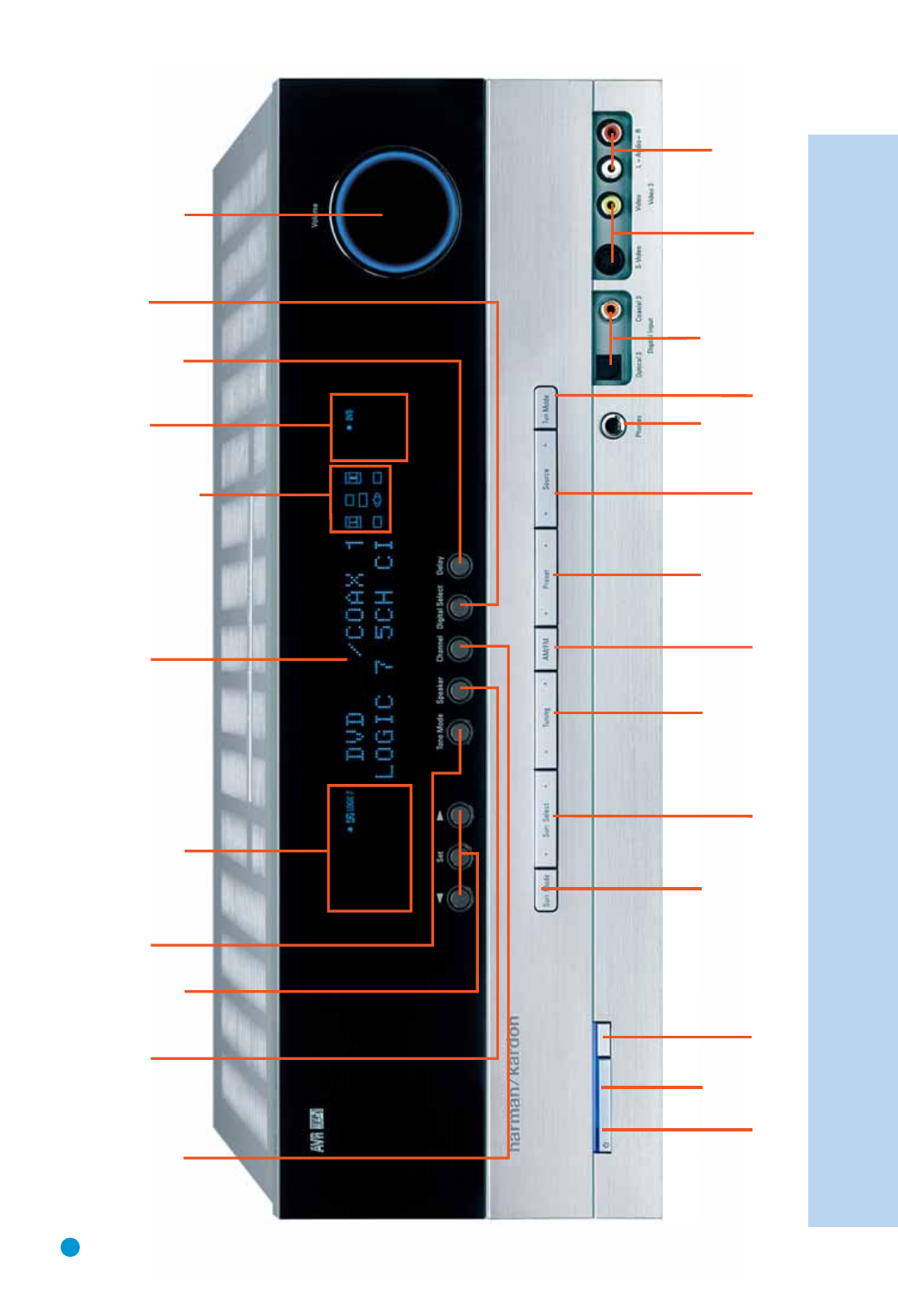
8
Surround
Mode Tuning Preset Stations
Surround
Select Tuner Band Tuning
Mode
Source
Select
Headphone
Jack Digital
Audio Inputs
Video Inputs
Analog Audio
Inputs
Navigation
Tone Mode
Speaker Size
Setup Delay
Digital Input
Select
Power
Indicator
Main Power
Switch
Standby/On
Switch
Volume
Source
Indicators
Message Display
Surround Mode IndicatorsSpeaker/Channel
Input Indicators
Channel Level
Adjust
NOTE: To make it easier to follow the instructions throughout the manual that refer to this illustration, a copy of this page may be downloaded from the Product Support section at
www.harmankardon.com

9
REAR-PANEL CONNECTIONS
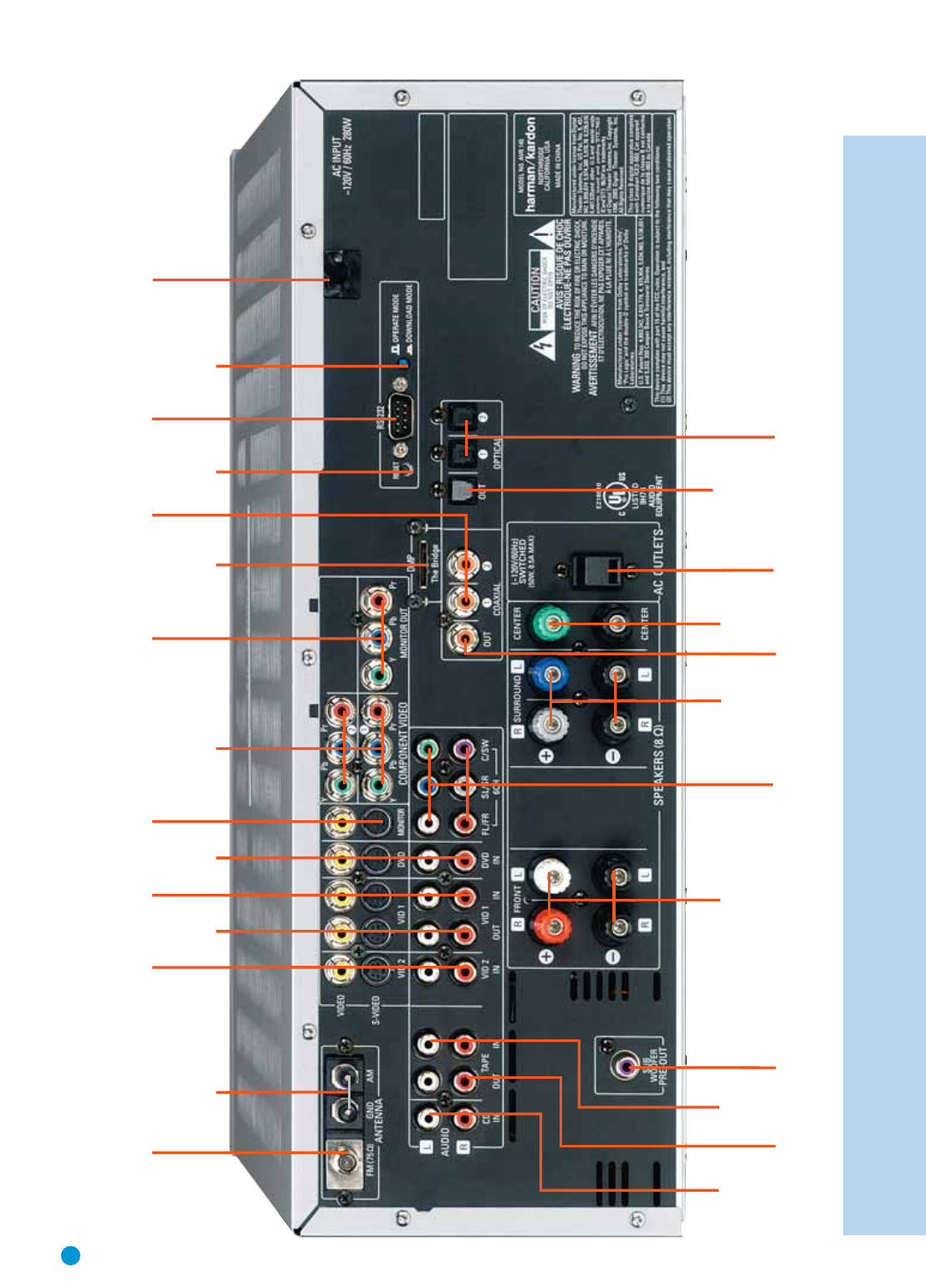
AM and FM Antenna Terminals: Connect the included AM and
FM antennas to their respective terminals for radio reception.
Front,Center and Surround Speaker Outputs: Use two-con-
ductor speaker wire to connect each set of terminals to the correct
speaker. Remember to observe the correct polarity (positive and nega-
tive connections).Always connect the positive lead to the colored termi-
nal on the receiver and the red terminal on the speaker. Connect the
negative lead to the black terminal on both the receiver and the speaker.
See the Connections section for more information on connecting your
speakers.
Subwoofer Output: If you have a powered subwoofer, connect it to
this jack.
Video 1,Video 2 and DVD Audio/Video Inputs:These jacks
may be used to connect your video-capable source components (e.g.,
VCR, DVD player, cable TV box) to the receiver. Remember to use only
one type of video connection for each source. See the Connections
section for more information on audio and video connection options for
each source component.
Video 1 Audio/Video Outputs:These jacks may be used to con-
nect your VCR or another recorder.
Composite and S-Video Monitor Outputs: If some of your
sources use composite or S-video connections, then you will need to
connect one or both of these monitor outputs to the corresponding
inputs on your television or video display in order to view the sources.
CD and Tape Audio Inputs: These jacks may be used to connect
your audio-only source components (e.g., CD player, tape deck). Do not
connect a turntable to these jacks unless you are using the turntable
with a phono preamp.
Tape Outputs:These jacks may be used to connect your CDR or
another audio-only recorder.
Coaxial and Optical Digital Audio Inputs: If your source has
a compatible digital audio output, connect it to one of these jacks for
improved audio performance. Remember to use only one type of digital
audio connection for each source.
Coaxial and Optical Digital Audio Outputs: If your source is
also an audio recorder, you may connect a compatible digital audio out-
put to the recorder’s input for improved recording quality.
The Bridge/DMP Input: Connect the optional Harman Kardon
to this input for use with your iPod (not included).Make
sure the receiver is turned off (in Standby mode) when connecting
The Bridge.
6-Channel Inputs: Connect the analog audio outputs of a DVD-
Audio, SACD™, Blu-ray Disc™or HD-DVD™player (or any other external
decoder) to these jacks to enjoy these proprietary formats.
Component Video Inputs: If both your video source (e.g., DVD
player or HDTV tuner) and your television or video display have analog
component video (Y/Pb/Pr) capability, then you may connect the com-
ponent video outputs of your source to one of the two component video
inputs. Do not make any other video connections to that source.
Component Video Monitor Outputs: If you are using one or
both of the Component Video Inputs and your television or video display
is component-video-capable, you may connect these jacks to the corre-
sponding inputs on your video display.You will also need to connect the
composite and/or S-video monitor outputs to your video display if some
of your sources use those types of video connections.
RS-232 Serial Port:This specialized connector may be used with
your personal computer in case Harman Kardon offers a software
upgrade for the receiver at some time in the future.
RS-232 Mode: Leave this switch popped out in the Operate position
unless the AVR 145 is being upgraded.
RS-232 Reset:This switch is only used during a software upgrade.
A standard processor reset is performed by pressing and holding the
front-panel Tone button.
Switched AC Accessory Outlet: You may plug the AC power
cord of one source device into this outlet, and it will turn on whenever
you turn on the receiver. Do not use a source that consumes more than
50 watts of power.
AC Power Cord:After you have made all other connections, plug the
AC power cord into an unswitched outlet.
The
Brid
g
eTM
FM Antenna
AM Antenna
Video 2
A/V
Inputs
Video 1
A/V
Outputs
Video 1
A/V
Inputs
Video
Monitor
Outputs
DVD A/V
Inputs Component Video
Inputs (1 & 2)
Component Video
Monitor Outputs AC Power
Cord
RS-232
Serial Port
Coaxial Digital
Audio Inputs
(1 & 2)
RS-232
Mode
The Bridge/
DMP Input RS-232
Reset
Subwoofer
Output
Front
Speaker
Outputs
Surround
Speaker
Outputs
6-Channel
Inputs
Center
Speaker
Outputs Switched AC
Accessory
Outlet
Coaxial Digital
Audio Output Optical Digital
Audio Inputs (1 & 2)
Optical Digital
Audio Output
CD
Inputs
Tape
Outputs
Tape
Inputs
10
NOTE: To make it easier to follow the instructions throughout the manual that refer to this illustration, a copy of this page may be downloaded from the Product Support section at
www.harmankardon.com

11
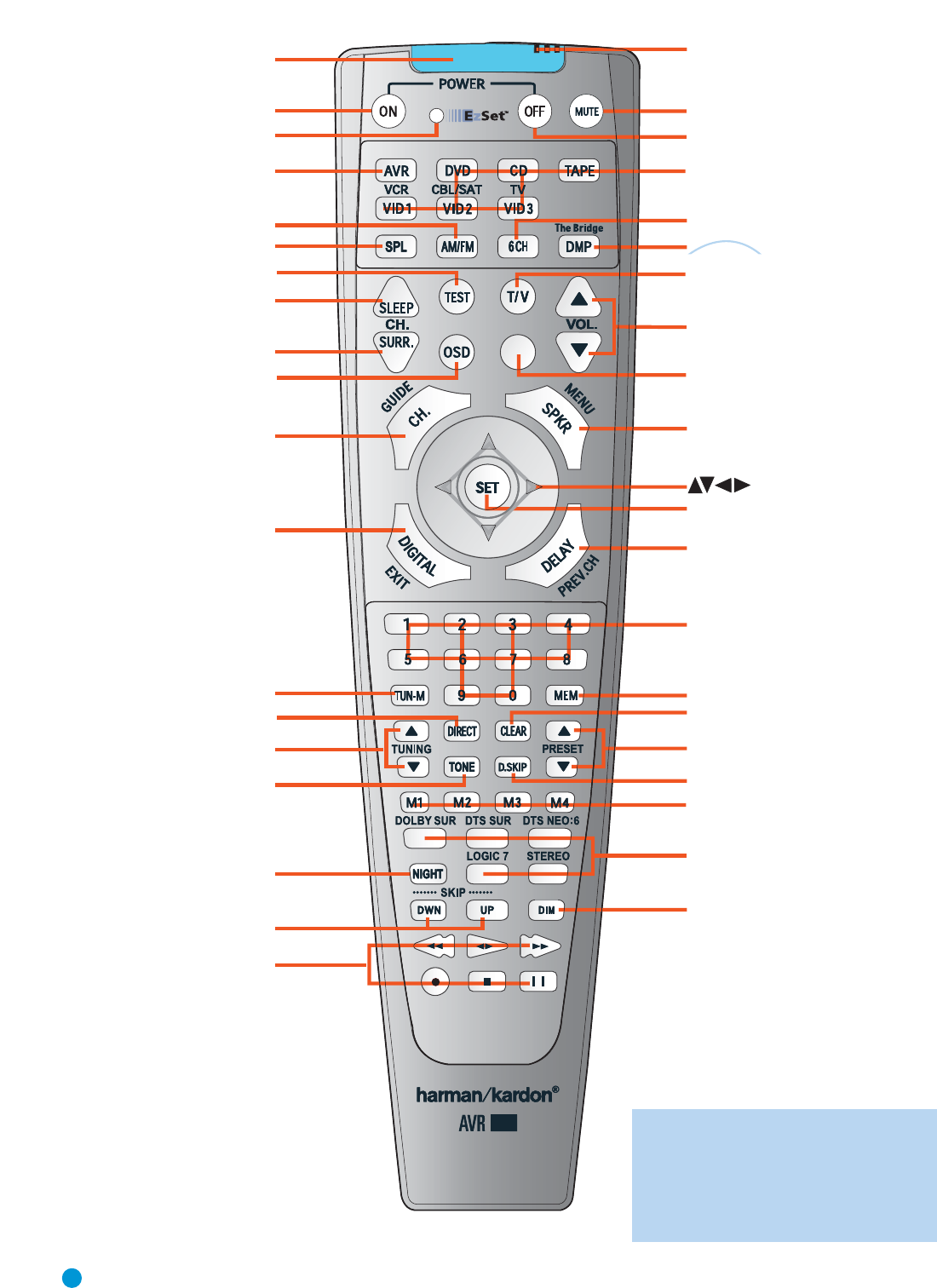
The AVR 145 remote is capable of controlling nine devices, including
the AVR itself and an iPod docked in the optional The Bridge accessory.
During the installation process, you may program the codes for each of
your source components into the remote. Each time you wish to use the
codes for any component, you will need to first press the Selector but-
ton for that component.This changes the button functions to the appro-
priate codes for that product.
Each Input Selector has been preprogrammed to control certain types
of components, with only the codes specific to each brand and model
changing, depending on which product code is programmed.The
device types programmed into each selector may not be changed.
DVD: Controls DVD players and recorders.
CD: Controls CD players and recorders.
Tape: Controls cassette decks.
Video 1: Controls VCRs,TiVo and DVRs.
Video 2: Controls cable and satellite television set-top boxes.
Video 3: Controls televisions and other video displays.
The Bridge/DMP: Controls an iPod docked in The Bridge.
For example, if you have inserted a disc in your CD player and Iyou
would like to skip ahead three tracks, but you then find that the volume
is too loud, you would follow this procedure:
1. Press the CD Input Selector to switch to the codes that control your
CD player.
2. Press the Play Button (in the Transport Controls section) if the disc is
not already playing.
3. Press the Skip Up Button three times to advance three tracks.
4. Press the AVR Button so that you can access the Volume Controls.
5. Press the Volume Down Button until the volume level is satisfactory.
Any given button may have different functions, depending on which
component is being controlled. Some buttons are labeled with these
functions. For example, the Sleep and DSP Surround Buttons are
labeled for use as Channel Up/Down Buttons when controlling a televi-
sion or cable box. See Table A8 in the appendix for listings of the
different functions for each type of component.
IR Transmitter Lens:As buttons are pressed on the remote,
infrared codes are emitted through this lens. Make sure it is pointing
toward the component being operated.
EzSet™Microphone:This microphone “hears” the test tone used
during the EzSet level-setting procedure. Make sure it is pointing toward
the receiver when running EzSet.
Power On Button: Press this button to turn on the AVR or another
device.The Master Power Switch on the AVR 145’s front panel must
first have been switched on.
Mute Button: Press this button to mute the AVR 145’s speaker and
headphones outputs temporarily.To end the muting, press this button
or adjust the volume. Muting is also canceled when the receiver is
turned off.
Program/EzSet Indicator:This LED lights up or flashes in one of
three colors as the remote is programmed with codes,and during the EzSet
procedure.
Power Off Button: Press this button to turn off the AVR 145 or
another device.
AVR Selector:Press this button to switch the remote to the codes
that operate the receiver.
Input Selectors: Press one of these buttons to select a source
device, which is a component where a playback signal originates, e.g.,
DVD, CD, cable TV, satellite or HDTV tuner.This will also turn on the
receiver and switch the remote to the codes that operate the source
device.
AM/FM Button: Press this button to select the tuner as the source,
or to switch between the AM and FM bands.
6-Channel Input Selector: Press this button to select the 6-
Channel Inputs as the audio source.The receiver will use the video input
and remote control codes for the last-selected video source.
EzSet (SPL) Button:Press this button to run the EzSet output-level
calibration procedure.Make sure to point the remote toward the receiver
during EzSet.
The Bridge/DMP Selector: Press this button to select an iPod
docked in the optional The Bridge as the audio source.The remote will
switch to the codes that operate the iPod.
Test Tone: Press this button to activate the test tone for manual out-
put-level calibration.
TV/Video: This button has no effect on the receiver, but is used to
switch video inputs on some video source components.
Sleep Button: Press this button to activate the sleep timer, which
shuts off the receiver after a programmed period of time of up to
90 minutes.
Volume Controls: Press these buttons to raise or lower the volume,
which will be shown in decibels (dB) in the Message Display.
DSP Surround: Press this button to select a DSP surround mode
(Hall 1, Hall 2,Theater).
On-Screen Display (OSD): Press this button to activate the on-
screen menu system.
Channel Level: Press this button to set the output levels for each
channel so that all speakers sound equally loud at the listening position.
Usually this is done while playing an audio selection,such as a favorite CD,
after you have calibrated the levels using EzSet,as described in the Getting
Started section.
REMOTE CONTROL FUNCTIONS
12
IR Transmitter Lens
Program/EzSet Indicator
Power On
AVR Selector
AM/FM
EzSet (SPL)
Test Tone
Sleep
DSP Surround
On-Screen Display
Channel Level
Digital Input
Tuning Mode
Direct Station Entry
Tuning
Tone Mode
Night Mode
Track Skip
Transport Controls
EzSet Microphone
Power Off
Mute
Input Selectors
6-Channel Input Selector
/DMP Selector
TV/Video
Volume Control
Not Used
Speaker Setup
Set
Numeric Keys
Delay
Memory
Clear
Preset Stations Selectors
Disc Skip
Macros
Surround Mode Selectors
Dim
The
BridgeTM
145
NOTE: To make it easier to follow the instruc-
tions throughout the manual that refer to this
illustration, a copy of this page may be down-
loaded from the Product Support section at
www.harmankardon.com

13
REMOTE CONTROL FUNCTIONS
Speaker Setup: Press this button to configure speaker sizes, that is,
the frequency-range capability of each speaker. Usually this is done
using the on-screen menu system, as described in the Getting Started
section.
Navigation and Set Buttons: These buttons are used together to
make selections within the on-screen menu system, or when accessing
the functions of the four buttons surrounding this area of the remote –
Channel Level, Speaker Setup, Digital Input or Delay.
Digital Input Select: Press this button to select the specific digital
audio input (or analog audio input) you used for the current source.
Delay: Press this button to set delay times that compensate for placing
the speakers at different distances from the listening position, or to
resolve a “lip sync” issue that may be caused by digital video process-
ing.This is done using the on-screen menu system, as described in the
Initial Setup section.
Numeric Keys: Use these buttons to enter radio station frequencies
when using the tuner (after pressing the Direct Button), or to select station
presets.
Tuning Mode:This button toggles between manual (one frequency
step at a time) and automatic (seeks frequencies with acceptable signal
strength) tuning mode. It also toggles between stereo and mono modes
when an FM station is tuned.
Memory: After you have tuned a particular radio station,press this
button, then the numeric keys, to save that station as a radio preset.
Tuning: Press these buttons to tune a radio station. Depending on
whether the tuning mode has been set to manual or automatic, each
press will either change one frequency step at a time, or seek the next
frequency with acceptable signal strength.
Direct: Press this button before using the Numeric Keys to directly
enter a radio station frequency.
Clear: Press this button to clear a radio station frequency you have
started to enter.
Preset Stations Selector: Press these buttons to select a preset
radio station.
Tone Mode: Press this button to access the tone controls (bass and
treble). Use the Navigation buttons to make your selections.
Disc Skip:This button has no effect on the receiver, but is used with
some optical disc changers to skip to the next disc.
Macros: These buttons may be programmed to execute long com-
mand sequences with a single button press.They are useful for pro-
gramming the command to turn on or off all of your components, or for
accessing specialized functions for a different component than you are
currently operating.
Surround Mode Selectors: Press any of these buttons to select
a type of surround sound (e.g., multichannel) mode. Choose from the
Dolby modes, DTS modes, Logic 7 modes or Stereo modes. Each
press of a button will cycle to the next available variant of that mode.
Not all modes or mode groups are available with all sources.
Night Mode: Press this button to activate Night mode with specially
encoded Dolby Digital discs or broadcasts. Night mode compresses the
audio so that louder passages are reduced in volume to avoid disturbing
others, while dialogue remains intelligible.
Track Skip:These buttons have no effect on the receiver, but are
used with many source components to change tracks or chapters.
Dim: Press this button to partially or fully dim the front-panel display.
Transport Controls:These buttons have no effect on the receiver,
but are used to control many source components. By default, when the
remote is operating the receiver, these buttons will control a DVD player.

14
INTRODUCTION TO HOME THEATER
The AVR 145 may be the first multichannel surround sound receiver you
have owned.Although it has more connections and features than older
two-channel receivers, many of the principles are similar and the new
concepts are easy to understand.This introductory section will help you
to familiarize yourself with the basic concepts, which will make setup and
operation smoother.
If you are already familiar with home theater, you may skip this section
and proceed to the Connections section on page 15.
Typical Home Theater System
A home theater typically includes your audio/video receiver, which con-
trols the system; a DVD player; a source component for television broad-
casts, which may be a cable box, a satellite dish receiver, an HDTV tuner
or simply an antenna connected to the TV; a video display (television);
and loudspeakers.
All of these components are connected by various types of cables for
audio and video signals.
Multichannel Audio
The main benefit of a home theater system is that several loudspeakers
are used in various locations around the room to produce “surround
sound.” Surround sound helps to immerse you in the musical or film
presentation for increased realism.
The AVR 145 may have up to five speakers connected directly to it
(plus a subwoofer). Each speaker is powered by its own amplifier chan-
nel inside the receiver.When more than two speakers are used, it is
called a multichannel system.
• Front Left and Right – The main speakers are used the same way
as in a two-channel system. However, you may notice that in many
surround modes, these speakers are used more for ambient sound
while the main action is moved to the center speaker.
• Center – The center speaker is usually placed above or below the
video screen, and is used mostly for dialogue in movies and television
programs.This placement allows the dialogue to originate near the
actors’ faces, for a more natural sound.
• Surround Left and Right – The surround speakers are used to
improve directionality of ambient sounds. In addition, by using more
loudspeakers in the system, more dynamic soundtracks may be
played without risk of overloading any one speaker.
Many people expect the surround speakers to play as loudly as the
front speakers.Although all of the speakers in the system will be cali-
brated to sound equally loud at the listening position, most artists use
the surround speaker for ambient effects only, and they program their
materials to steer very little sound to these speakers.
• Subwoofer – A subwoofer is a special-purpose speaker designed
to play only the lowest frequencies (the bass). It may be used to
augment smaller, limited-range satellite speakers used for the other
channels. In addition, many digital-format programs, such as movies
recorded in Dolby Digital, contain a special low-frequency effects
(LFE) channel which is directed only to the subwoofer.The LFE chan-
nel packs the punch of a rumbling train or airplane, or the power of
an explosion, adding realism and excitement to your home theater.
Many people use two subwoofers, placed on the left and right sides
of the room, for additional power and even distribution of the sound.
Surround Modes
There are different theories as to the best way to present surround
sound and to distribute soundtrack information among the various
speakers.A variety of algorithms have been developed in an effort to
accurately reproduce the way we hear sounds in the real world.The
result is a rich variety of surround mode options. Some modes are
selected automatically, depending on the signal being received from the
source. In many cases, you may select a surround mode manually.
Several companies have taken surround sound in slightly differing direc-
tions. It is helpful to group the numerous surround modes either by their
brand name, or by using a generic name:
• Dolby Laboratories, Inc. Modes – Dolby Digital, Dolby Pro Logic II,
Dolby Virtual Speaker, Dolby Headphone
• DTS Modes – DTS, DTS Neo:6, DTS 96/24
• Harman International (Harman Kardon’s Parent Company) –
Logic 7
• DSP Modes – Generic modes that include Hall 1,Hall 2 and Theater
• Stereo Modes – Generic modes that expand upon conventional two-
channel stereo, including DSP Surround Off,Analog Bypass Surround
Off and 5-Channel Stereo
Table 4 on pages 38 – 40 contains detailed explanations of the differ-
ences between the various mode groups, and the mode options avail-
able within each group. Digital modes, such as Dolby Digital and DTS,
are only available with specially encoded programs, such as DVDs and
digital cable or satellite television. Other modes may be used with vari-
ous digital and analog signals to create a different surround presenta-
tion, or to use a different number of speakers. Surround mode selection
depends upon the number of speakers in your system, the materials
you are watching or listening to, and your personal tastes. Feel free to
experiment.
15
CONNECTIONS
There are different types of audio and video connections used to con-
nect the receiver to the speakers and video display, and to connect
the source devices to the receiver.To make it easier to keep them all
straight, the Consumer Electronics Association (CEA) has established a
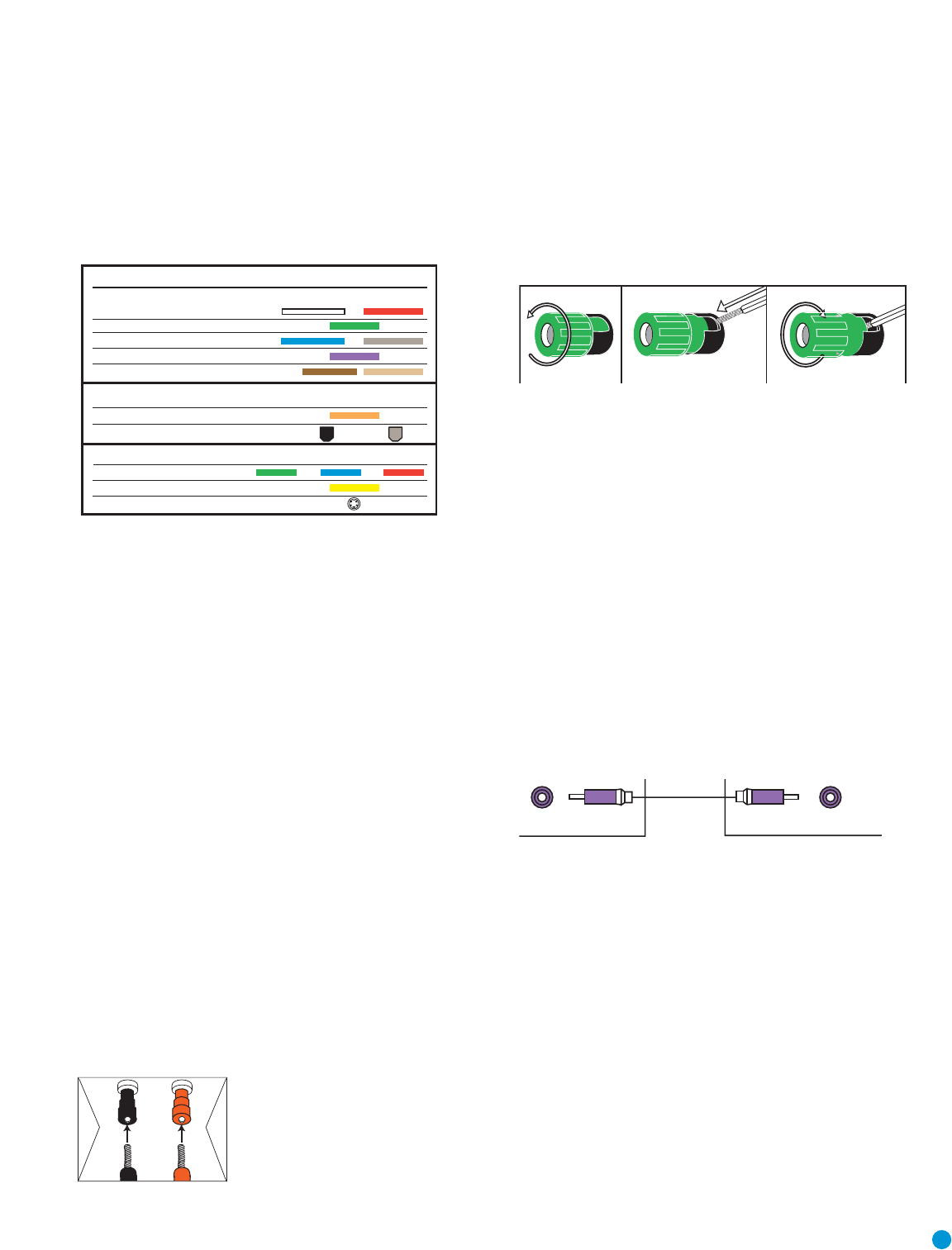
color-coding standard.Table 1 may be helpful to you as a reference
while you set up your system.
Table 1– Connection Color Guide
Types of Cables
This section will briefly review different types of cables and connections
that you may use to set up your system.
Speaker Cables
Speaker cables carry an amplified signal from the receiver’s speaker ter-
minals to each loudspeaker. Speaker cables generally contain two wire
conductors, or leads, inside plastic insulation.The two conductors are
usually differentiated in some way, by using different colors, or stripes, or
even by adding a ridge to the insulation. Sometimes the actual wires are
different, one being copper red and the other silver.
The differentiation is important because each speaker must be connect-
ed to the receiver’s speaker-output terminals using two wires, one posi-
tive (+) and one negative (–).This is called speaker polarity. It’s impor-
tant to maintain the proper polarity for all speakers in the system. If
some speakers have their negative terminals connected to the receiver’s
positive terminals, performance can suffer, especially for the low fre-
quencies.
Always connect the positive terminal on the loudspeaker, which is usually
colored red, to the positive terminal on the receiver, which is colored as
shown in the Connection Color Guide (Table 1). Similarly, always con-
nect the black negative terminal on the speaker to the black negative
terminal on the receiver.
The AVR 145 uses binding-post speaker
terminals that can accept banana plugs
or bare-wire cables.
Banana plugs are simply plugged into the
hole in the middle of the terminal cap.
Figure 1 – Binding-Post Speaker
Terminals With Banana Plugs
Bare wire cables are installed as follows:
1. Unscrew the terminal cap until the pass-through hole in the collar is
revealed.
2. Insert the bare end of the wire into the hole.
3. Screw the cap back into place until the wire is held snugly.
Figure 2 – Binding-Post Speaker Terminals With Bare Wires
Subwoofer
The subwoofer is a specialized type of loudspeaker that is usually con-
nected in a different way.The subwoofer is used to play only the low
frequencies (bass), which require much more power than the other
speaker channels. In order to obtain the best results, most speaker
manufacturers offer powered subwoofers, in which the speaker contains
its own amplifier on board. Sometimes the subwoofer is connected to
the receiver using the front left and right speaker outputs, and then the
front left and right speakers are connected to terminals on the sub-
woofer. More often, a line-level (nonamplified) connection is made
from the receiver’s Subwoofer Output to a corresponding jack on the
subwoofer.
Although the subwoofer output looks similar to the analog audio jacks
used for the various components, it is filtered and only allows the low
frequencies to pass. Don’t connect this output to your other devices.
Although doing so won’t cause any harm, performance will suffer.
Figure 3 – Subwoofer
Connecting Source Devices to the AVR
The AVR 145 is designed to process audio and video input signals,
playing back the audio and displaying the video on a television or moni-
tor connected to the AVR.These signals originate in what are known as
“source devices,” including your DVD player, CD player, DVR (digital
video recorder) or other recorder, tape deck, game console, cable or
satellite television box or MP3 player.Although the tuner is built into the
AVR, it also counts as a source, even though no external connections
are needed, other than the FM and AM antennas.
In general, separate connections are required for the audio and video
portions of the signal.The types of connections used depend upon
what’s available on the source device, and for video signals, the capabili-
ties of your video display.
Subwoofer
Pre-out
12 3
+
Audio Connections
Left Right
Front (FL/FR)
Center (C)
Surround (SL/SR)
Subwoofer (SUB)
Surround Back (SBL/SBR)
Digital Audio Connections
Coaxial
Optical Input Output
Video Connections
Component Y Pb Pr
Composite
S-Video
16
CONNECTIONS
Audio Connections
There are two formats for audio connections: digital and analog.Digital
audio signals are of higher quality, and are required for listening to
sources encoded with digital surround modes, such as Dolby Digital and
DTS.There are two types of digital audio connections commonly used:
coaxial and optical. Either type of digital audio connection may be used
for each source device, but never both simultaneously for the same
source. However, it’s okay to make both analog and digital audio con-
nections at the same time to the same source.
Digital Audio
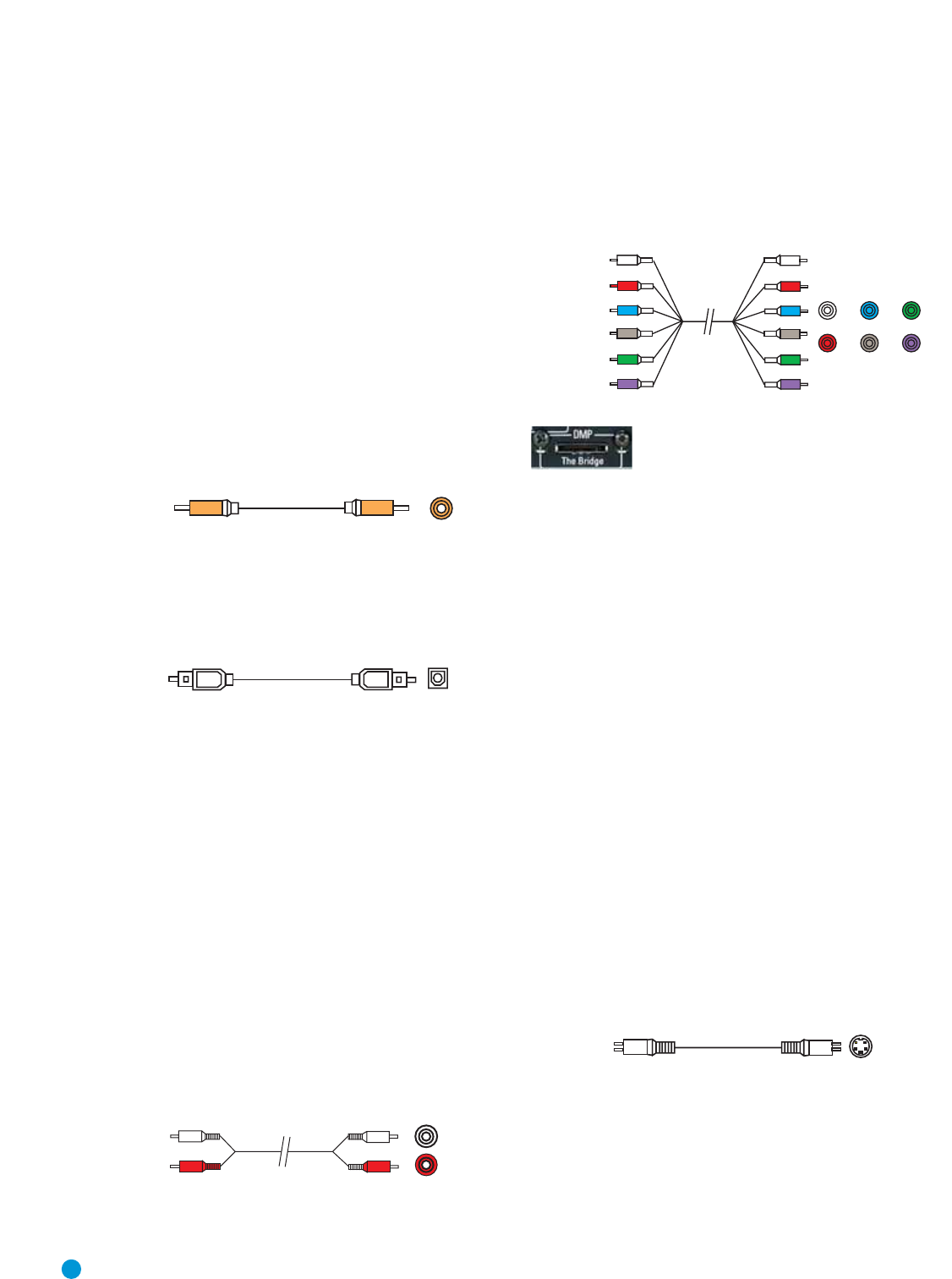
Coaxial digital audio jacks are usually color-coded in orange.Although
they look similar to analog jacks, they should not be confused, and you
should not connect coaxial digital audio outputs to analog inputs or
vice versa.
Figure 4 – Coaxial Digital Audio
Optical digital audio connectors are normally covered by a shutter to
protect them from dust.The shutter opens as the cable is inserted.Input
connectors are color-coded using a black shutter, while outputs use a
gray shutter.
Figure 5 – Optical Digital Audio
Due to the nature of digital signals as binary bits, they aren’t subject
to signal degradation the way analog signals are.Therefore, the quality
of coaxial and optical digital audio connections should be the same,
although it is important to limit the length of the cable.Whichever type of
connection you choose, Harman Kardon recommends that you always
select the highest quality cables available within your budget.
Analog Audio
Analog connections require two cables, one for the left channel (white)
and one for the right channel (red).These two cables are often attached
to each other for most of their length. Most sources that have digital
audio jacks also have analog audio jacks, although some older types of
sources, such as tape decks, have only analog jacks. For sources that
are capable of both digital and analog audio, you may wish to make
both connections. If you wish to record materials from DVDs or other
copy-protected sources, you may only be able to do so using analog
connections. Remember to comply with all laws regarding copyright if
you choose to make a copy for your own personal use.
Figure 6 – Analog Audio
Multichannel analog connections are used with advanced sources where
the digital content is copy-protected and all surround processing is per-
formed inside the source.These types of connections are usually used
with DVD-Audio, SACD, Blu-ray Disc, HD-DVD and other advanced
players.
Figure 7 – Multichannel Analog Audio
Figure 8 – The Bridge
Harman Kardon receivers also include a proprietary, dedicated audio
connection called “The Bridge/DMP”.If you own an iPod with a dock
connector, you may separately purchase The Bridge and connect it to
The Bridge/DMP port on the receiver. Dock your iPod (not included) in
The Bridge, and you may listen to your materials through your high-per-
formance audio system.You may even use the AVR 145 remote to
control the iPod,with navigation messages displayed on the front panel
and on the screen of a video display connected to the AVR.
Video Connections
Although some sources produce an audio signal only (e.g., CD player,
tape deck), many sources output both audio and video signals (e.g.,
DVD player, cable television box, HDTV tuner, satellite box,VCR, DVR).
In addition to the audio connection, you will need to connect one type of
video connection for each source (never more than one at the same
time for any source).
There are three types of analog video connections: composite video,
S-video and component video.
Composite video is the basic connection most commonly available.The
jack is usually color-coded yellow, and looks like an analog audio jack,
although it is important never to confuse the two. Do not connect a
composite video jack to an analog or coaxial digital audio jack, and vice
versa. Both the chrominance (color) and luminance (intensity) compo-
nents of the video signal are transmitted using a single cable.
Figure 9 – Composite Video
Composite
video cable
Multichannel
analog audio
cable (RCA)
Front Surround Center
Subwoofer
L
R
A
nalog audio
cable (RCA)
O
pt
i
ca
l
Optical digital
audio cable
Coaxial
Coaxial digital
audio cable
17
CONNECTIONS
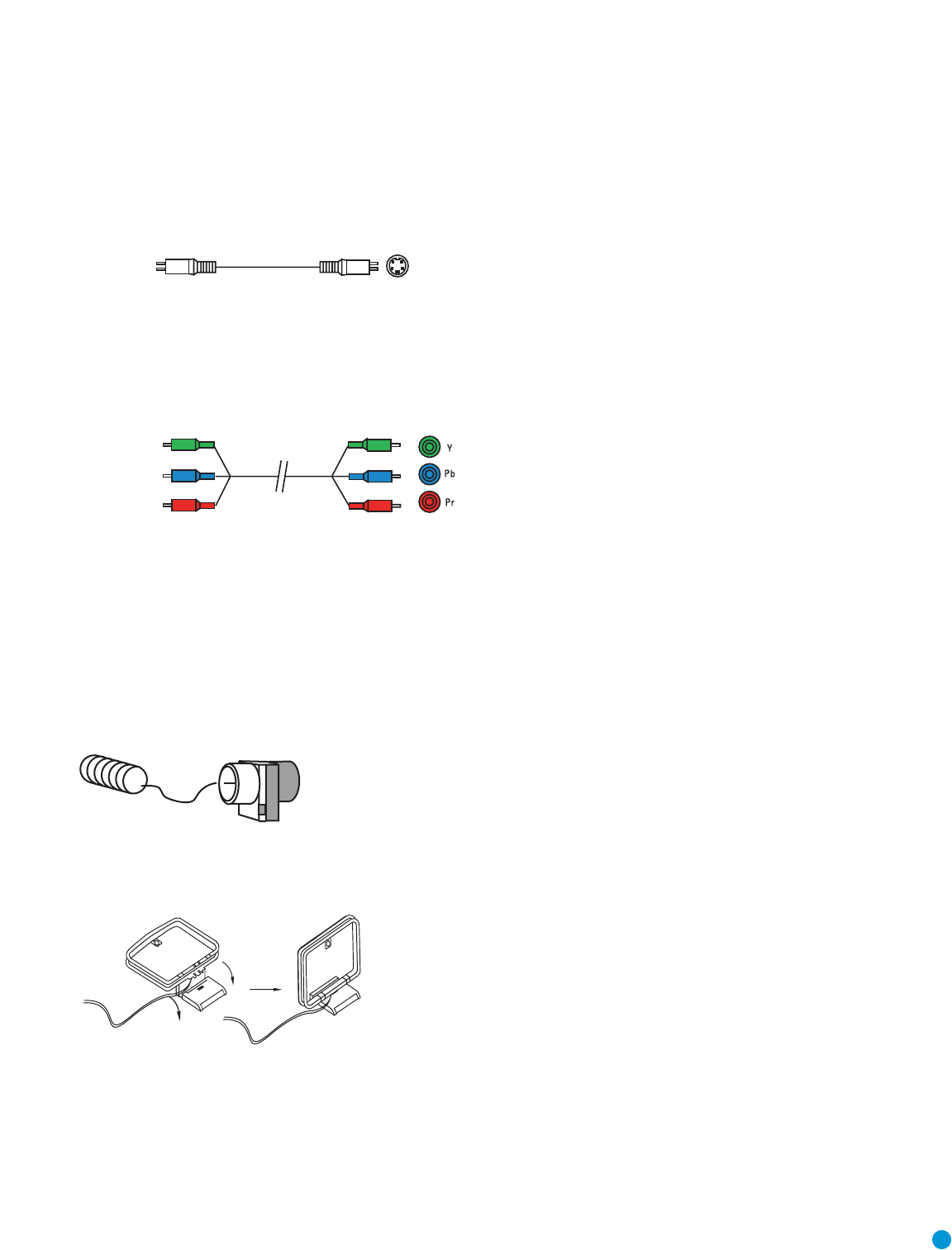
S-video, or “separate” video, transmits the chrominance and luminance
components using separate wires contained within a single cable.The
plug on an S-video cable contains four metal pins, plus a plastic guide
pin. Be careful to line up the plug correctly when you insert it into the
jack on the receiver, source or video display.
Figure 10 – S-Video
Component video separates the video signal into three components –
one luminance (“Y”) and two subsampled color signals (“Pb” and “Pr”) –
that are transmitted using three separate cables.The “Y” cable is color-
coded green, the “Pb” cable is colored blue and the “Pr” cable is col-
ored red.
Figure 11 – Component Video
If it’s available on your video display, component video is recom-
mended as the best quality connection, followed by S-video and then
composite video.
Antennas
The AVR 145 uses separate terminals for the included FM and AM
antennas that provide proper reception for the tuner.
The FM antenna uses a 75-ohm F-connector.
Figure 12 – FM Antenna
The AM loop antenna needs to be assembled.Then connect the two
leads to the screw terminals on the receiver.
Figure 13 – AM Antenna
RS-232 Serial Port
The RS-232 serial port on the AVR 145 is used only for data. If
Harman Kardon releases a software upgrade for the receiver’s operating
system at some time in the future, the upgrade may be downloaded
to the AVR using this port. Complete instructions will be provided at
that time.
Component
video cable
C
omposite
video cable
18
Before you begin to connect cables, it is important to set up your
speakers in their correct locations in the room.
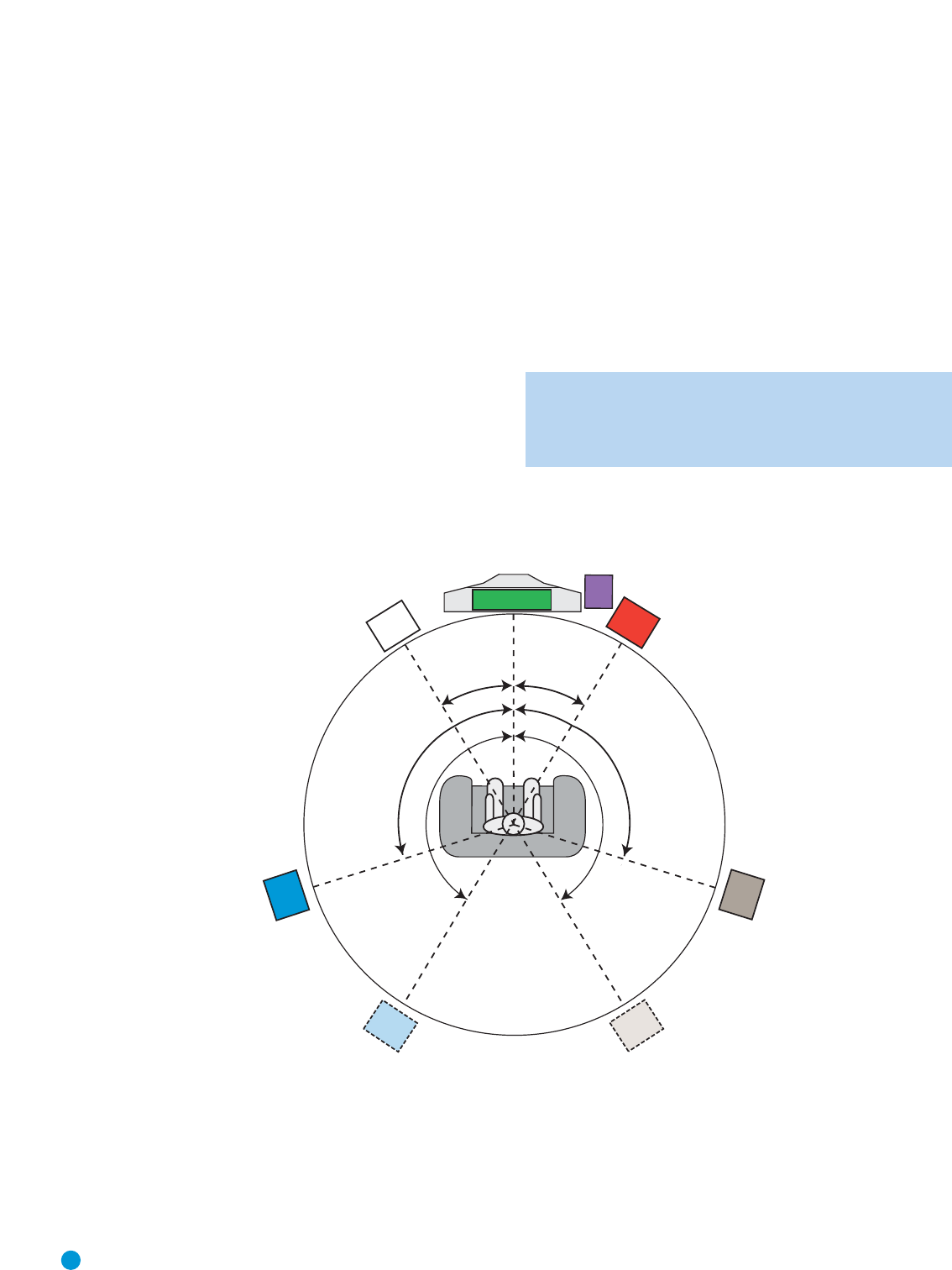
Optimally, the speakers should be placed in a circle with the listening
position at its center.The distance from the listening position to the
video display forms the radius of the circle.
The speakers should be angled so that they directly face the listening
position.
The center speaker is placed either on top of, below or mounted on the
wall above or below the video display screen.
The front left and right speakers are placed along the circle, about 30
degrees from the center speaker and angled toward the listener.
It is best to place the front left/right and center speakers as close to the
same height as possible, preferably at about the same height as the lis-
tener’s ears. In any event the center speaker should be no more than
two feet above or below the left/right speakers.
The side surround speakers should be placed 110 degrees from the
center speaker, that is, slightly behind and angled toward the listener. If
this isn’t feasible, place the surround speakers behind the listener, with
each surround speaker facing the opposite-side front speaker.The sur-
round speakers may be placed a little higher than the listener’s ears.
The subwoofer’s location is less critical, since low-frequency sounds are
omnidirectional. Placing the subwoofer close to a wall or in a corner will
reinforce the low frequencies, and may create a “boomy” sound.You
may wish to experiment over time by placing the subwoofer where the
listener normally sits and then walking around the room until the low
frequencies sound best. Place the subwoofer in that spot.
NOTE: Your receiver will sound its best when the same model
loudspeaker is used for all positions (other than the subwoofer).
If that isn’t possible, try to use speakers made by the same
manufacturer.
SPEAKER PLACEMENT
110°
150°
110°
150°
30° 30°
FL
SR
Alternate Placement
for Side Surround
Left Speaker
Alternate Placement
for Side Surround
Right Speaker
FR
SUB
C
SL
Figure 14 – Speaker Placement
19
INSTALLATION
You are now ready to connect your various components to your receiver.
Before beginning, make sure that all components, including the AVR 145,
are turned completely off and their power cords are unplugged. Don’t
plug any of the power cords back in until you have finished
making all of your connections.
Remember that your receiver generates heat while it is playing. Select a
location that leaves several inches of space on all sides of the receiver. It
is preferable to avoid completely enclosing the receiver inside a cabinet.
It is also preferable to stack components on separate shelves rather
than directly on top of the receiver. Some surface finishes are delicate.
Try to select a location with a sturdy surface finish.
Step One – Connect the Speakers
If you have not yet done so, place your speakers in the listening room
as described in the Speaker Placement section above.
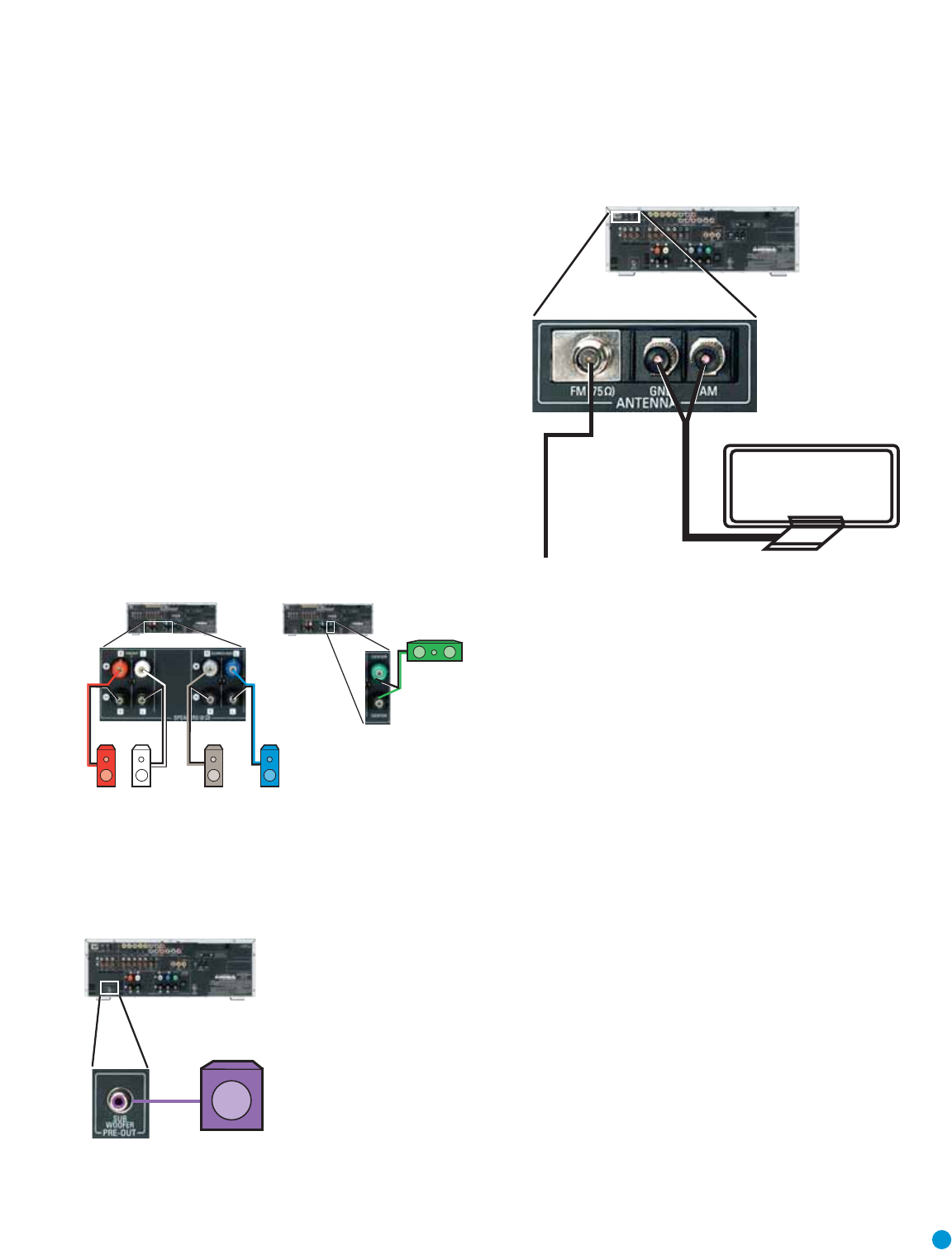
Connect the center, front left, front right, surround left and surround right
loudspeakers to the corresponding speaker terminals on the AVR 145.
Remember to maintain the proper polarity by always connecting the
positive and negative terminals on each speaker to the positive and
negative terminals on the receiver. Use the Connection Color Guide
on page 15 as a reference.
Figure 15 – Speaker Connections
Step Two – Connect the Subwoofer
Connect the Subwoofer Output on the AVR 145 to the line-level input on
your subwoofer. Consult the manufacturer’s guide for the subwoofer for
additional information.
Figure 16 – Subwoofer Connection
Step Three – Connect the Antennas
Connect the FM and AM antennas to their terminals.
Figure 17 – Antenna Connections
Step Four – Connect the Source Components
Use the worksheets in the Appendix to note which connections you will
use for each of your source devices.
For each source, select a source input (Video 1,Video 2,Video 3, etc.).
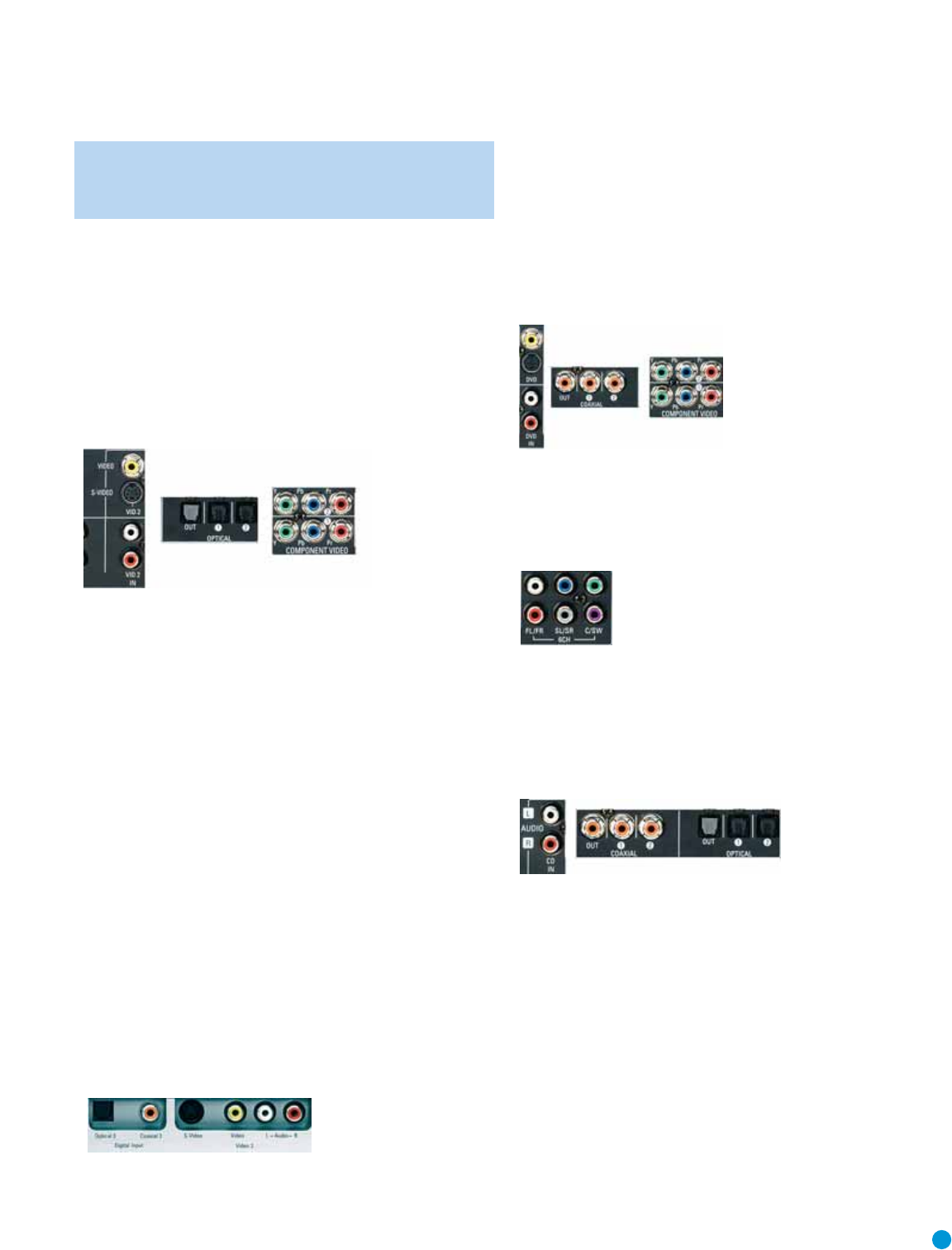
In Table 2 we recommend connecting certain types of sources to certain
source inputs to make it easier to program and use the remote control.
Decide which audio connections you will use. If your source device has
them, use
either
the coaxial digital or the optical digital audio connec-
tion. Referring to Table 2, we recommend you connect the DVD source
to the Coaxial 1 input jack, and the source designated Video 2 to the
Optical 2 input jack. However, you may make whatever connections are
best for your system.
In addition to the digital audio connections, we recommend that you
connect the analog audio connections for each source, as a backup to
the digital connections. For sources that don’t have digital audio outputs,
you must use the analog audio connections.
For each video source, select one type of video connection.Component
video is preferred, but both your source device and your video display
must have this type of video capability. If either device does not, then
use S-video.Again, if either your source device or your video display
doesn’t have S-video connections, then use composite video.
Referring to Table 2, we recommend that you connect the DVD source
to the Component Video 1 inputs, and any one source designated as
Video 1,Video 2 or Video 3 to the Component Video 2 inputs. However,
you may make whatever video connections are best for your system.
FM
AM
AVR 145
AVR 145
SUB
FR FL SR SL
C
AVR 145 AVR 145
Video 1 Source
Since this source includes audio and video recording output jacks, it is
best suited to a video recorder, such as your VCR or DVR.
Referring to Table 2, connect your recorder to the Video 1 Analog Audio
inputs and outputs and to either the Coax 2 or Optical 2 digital audio
input (and corresponding digital audio output). Use either the Video 1
S-video or composite video input and output if you wish to make
recordings. If you don’t plan on recording, you may use the Component
Video 2 inputs.
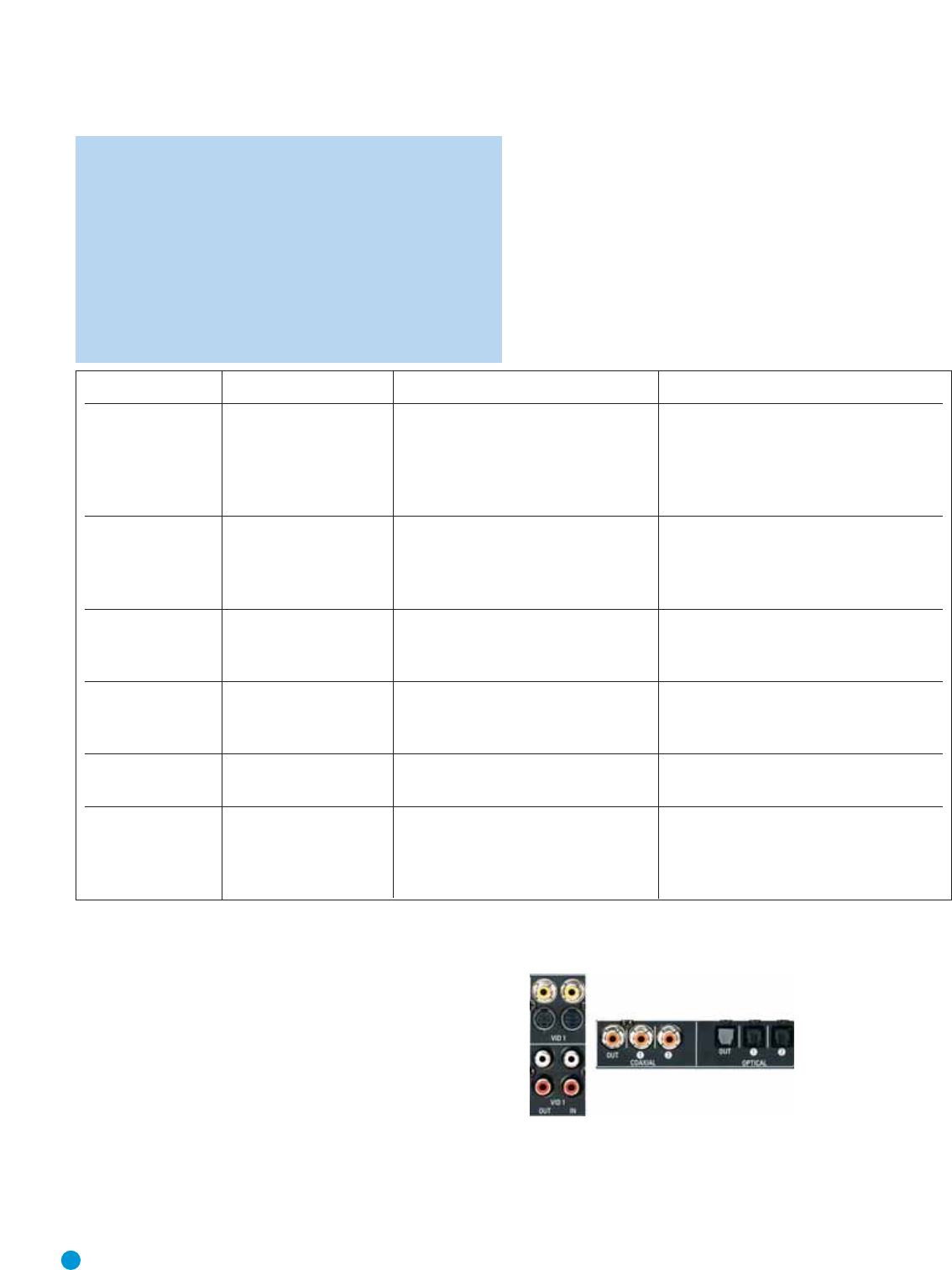
Figure 18 – Video 1 A/V Inputs and Outputs,and Digital Audio Inputs
Remember to connect the audio and video
output
jacks on your
recorder to the Video 1 or digital audio
input
jacks on the AVR, and the
audio and video
input
jacks on your recorder to the Video 1 or digital
audio
output
jacks on the AVR.
Device Type AVR 145 Source Input Audio Connections Video Connections
VCR, DVR, PVR, Video 1 • Video 1 Analog (inputs and outputs) •
One
of component Video 2,Video 1 S-video
TiVo or other and or Video 1 composite video
audio/video recorder • Either Coax 2 or Optical 2, with • For recording, use Video 1 S-video or
corresponding coax or optical digital composite video output, and do not use
output component video connections at all
Cable TV, Satellite, Video 2 • Video 2 Analog and •
One
of component Video 2,Video 2
HDTV or other • Optical 1 S-video,Video 2 composite video
device that delivers
television programs
TV, game console, Video 3 (front-panel jacks) • Video 3 Analog and •
One
of component Video 2,Video 3 S-video
camera or other •
Either
Coax 3 or Optical 3
or
Video 3 composite video
audio/video device
DVD Audio/Video, DVD • DVD Analog • Component Video 1
SACD HD-DVD, • 6-Channel inputs (optional) and
Blu-ray Disc • Coax 1
CD player CD • CD Analog and • Not required
•
Either
Coax 2 or Optical 2
CDR, MiniDisc, Tape • Tape Analog (inputs and outputs) and • Not required
cassette •
Either
Coax 2 or Optical 2
• Use corresponding coax or
optical digital output
20
INSTALLATION
NOTE: It’s possible for a source to use none of the connections
named for that source. For example, you might connect your
DVD player to the Component Video 1 inputs and the Coax 1
digital audio input. However, we will refer to this source as
“DVD”, and in Step Five of the Initial Setup section you will pro-
gram the receiver so that these connections are assigned to the
DVD source.When you select “DVD” as your source using the
front panel or the remote, the correct connections for your DVD
player will be used.
We recommend connecting your various sources using the connections
shown in Table 2 below in order to simplify programming your receiver
and remote control. However, you may connect any device to any
source input.
Table 2 – Recommended Source Component Connections
21
INSTALLATION STEPS
NOTE: It isn’t possible to make recordings using component
video connections. Keep this in mind as you connect other
source devices that you may wish to make recordings from.
Video 2 Source
The Video 2 source is used only for playback, never recording.The
AVR 145 remote control is programmed to operate many brands and
models of cable and satellite television devices, and we recommend
connecting your cable or satellite set-top box to this source.
Referring to Table 2, connect your set-top box to the Video 2 Analog
Audio inputs and to the Optical 1Digital Audio input. If possible, use
the Component Video 2 inputs. Otherwise, connect the set-top box’s
S-video or composite video output to the matching Video 2 video input.
Figure 19 – Video 2 A/V, DIgital Audio and Component Video Inputs
NOTE: If you receive your television programming using your TV
with an antenna or direct cable connection, then you will need
to connect the analog and optical digital audio (if available on
your TV) outputs to the Video 2 Analog Audio inputs and to the
Optical 1 Digital Audio input. Do not connect any video output
on the television set to any video input on the receiver. See
Step Five for information on connecting the receiver’s video
monitor outputs to the television.
Video 3 Source
The Video 3 source is used only for playback, never recording.It is also
generally reserved for components that are only temporarily connected
to the receiver, such as cameras and game consoles.When not in use,
you may place the supplied covers over the front-panel Video 3 jacks
for a cleaner appearance. Simply snap the covers in place.When you
wish to use the jacks, gently press on the left side of each cover to pivot
it out for removal.
Referring to Table 2, connect your camera or game console to the
Video 3 Analog Audio inputs and to either the Coaxial 3 or Optical 3
digital audio input. If possible, use the Component Video 2 inputs.
Otherwise, connect the component’s S-video or composite video
output to the matching Video 3 video input.
Figure 20 – Video 3 A/V and Digital Audio Inputs
DVD
The DVD source is used for a DVD player. If you have a more advanced
multichannel device, such as a Blu-ray Disc or HD-DVD player, connect
it to the DVD source.
Referring to Table 2, connect your DVD player to the DVD Analog Audio
inputs and to the Coaxial 1 Digital Audio input. If possible, use the
Component Video 1 inputs. Otherwise, connect the DVD player’s S-video
or composite video output to the matching DVD video input.
Figure 21 – DVD A/V, DIgital Audio and Component Video Inputs
If your DVD player plays multichannel lossless discs, such as SACD or
DVD-Audio, you will also need to connect the 6-channel analog audio
outputs on the DVD player to the 6-channel analog audio inputs on the
receiver in order to enjoy these discs to their fullest.
Figure 22 – 6-Channel Analog Audio Inputs
CD
The CD source is used for a strictly audio device, such as a CD player.
Referring to Table 2, connect your CD player to the CD Analog Audio
inputs and to the Coaxial 2 or Optical 2 Digital Audio input.
Figure 23 – CD Audio Inputs and Digital Audio Inputs
No video connections are made, although if your system has unusual
requirements, you may connect a video device using component video
outputs to the Component Video 2 inputs on the receiver, if those jacks
are not in use by another device.
Tape
The Tape source is used for audio-only recorders, such as a CDR,
MiniDisc or cassette deck.
Referring to Table 2, connect your recorder to the Tape Analog Audio
inputs and outputs, and to either the Coax 2 or Optical 2 Digital Audio
input (and corresponding digital audio output).
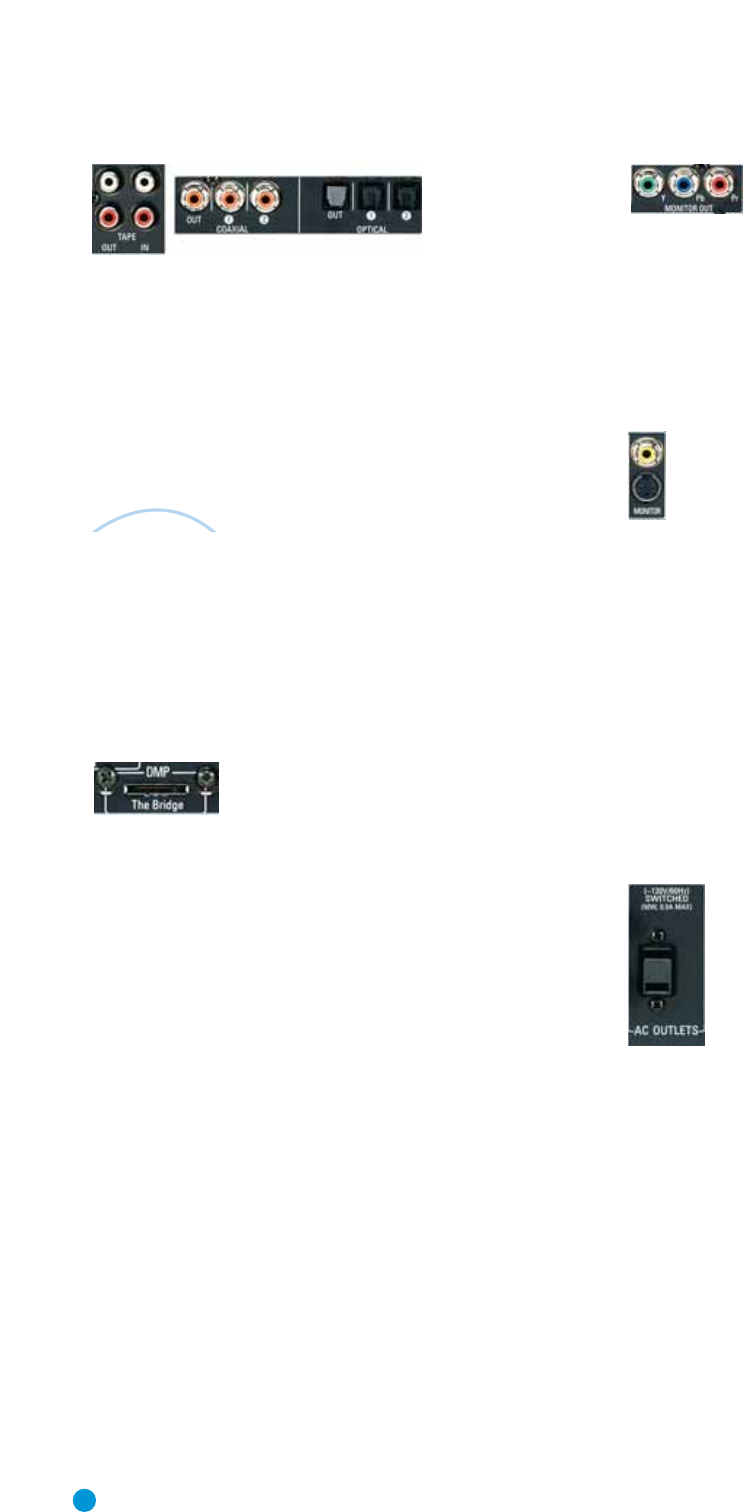
Figure 24 – Tape Audio Inputs and Outputs, and Digital Audio Inputs and Outputs
Remember to connect the
output
jacks on your recorder to the Tape
or digital audio
input
jacks on the AVR, and the
input
jacks on your
recorder to the Tape or digital audio
output
jacks on the AVR.
No video connections are made, although if your system has unusual
requirements, you may connect a video device using component video
outputs to the component Video 2 inputs on the receiver, if those jacks
are not in use by another device.
With Harman Kardon’s optional The Bridge, you can listen to audio
stored on your iPod (not included),use your AVR 145 remote
control to operate the iPod,and even charge the iPod while it’s
docked in The Bridge.
Simply plug the proprietary cable from The Bridge into the special
The Bridge/DMP connector on the rear of the AVR 145’s. Refer to the
owner’s manual for The Bridge to select the appropriate insert to
match your iPod.
Figure 25 – The Bridge/DMP Connector
Step Five – Connect Video Display
Only video connections should be made between the receiver and your
video display (TV), unless your TV is the source for your television pro-
gramming (see note above).
You will need to make a video connection for each type of video used
for your sources. In addition, even if you didn’t use S-video or compos-
ite video for any of your sources, you will still need to use one of these
two video monitor connections in order to view the AVR 145’s on-
screen menus and displays.
First, determine what types of video your display is capable of handling.
Remember that component video is preferred, followed by S-video and
then composite video. Ideally, this guided you in selecting the video con-
nections for your sources.
Next, note which types of video connections you used for your source
devices. Make sure you didn’t use a better type of video connection for
a source than your video display can handle. If so, you will need to dis-
connect the source and use a video connection that’s compatible with
your display.
If you used component video for any sources, connect the Component
Video Monitor outputs on the receiver to one set of component video
inputs on your display. Make a note of how these inputs are labeled on
the display.
Figure 26 – Component Video Monitor Outputs
If you used S-video for any sources, or if all of your sources used com-
ponent video, connect the S-video Monitor output on the receiver to an
S-video input on your display. Make a note of how the input is labeled.
If you used composite video for any sources, connect the composite
video Monitor output on the receiver to a composite video input on the
display.Again, make a note of how this input is labeled on the display.
Figure 27 – S-Video and Composite Video Monitor Outputs
Consult the manual for your TV to make sure you understand how to
select each video input.As you play different source devices that use
different types of video connections, you will need to remember to
select the correct video input on your video display.
Step Six – Plug in AC Power
Having made all of your wiring connections, it is now time to plug each
component’s AC power cord into a working outlet.
You may plug one device into the AC Switched Accessory Outlet on the
rear of the AVR 145. Make sure this device draws no more than 50
watts.The device should have its mechanical or master power switch
turned on, and it will power on any time the AVR 145 is turned on.
Figure 28 – Switched AC Accesssory Outlet
Before plugging the AVR 145’s AC Power Cord into an electrical outlet,
make sure that the Master Power Switch on the front panel is popped
out so that the word OFF appears on its top. Gently press the button to
turn the switch off.This will prevent the possibility of damaging the AVR
in case of a transient power surge.
Step Seven – Insert Batteries in Remote
The AVR 145 remote control uses three AAA batteries, which are
included.
To remove the battery cover located on the back of the remote, firmly
press the ridged depression and slide the cover towards the top of
the remote.
The
BridgeTM
22
INSTALLATION
23
INSTALLATION
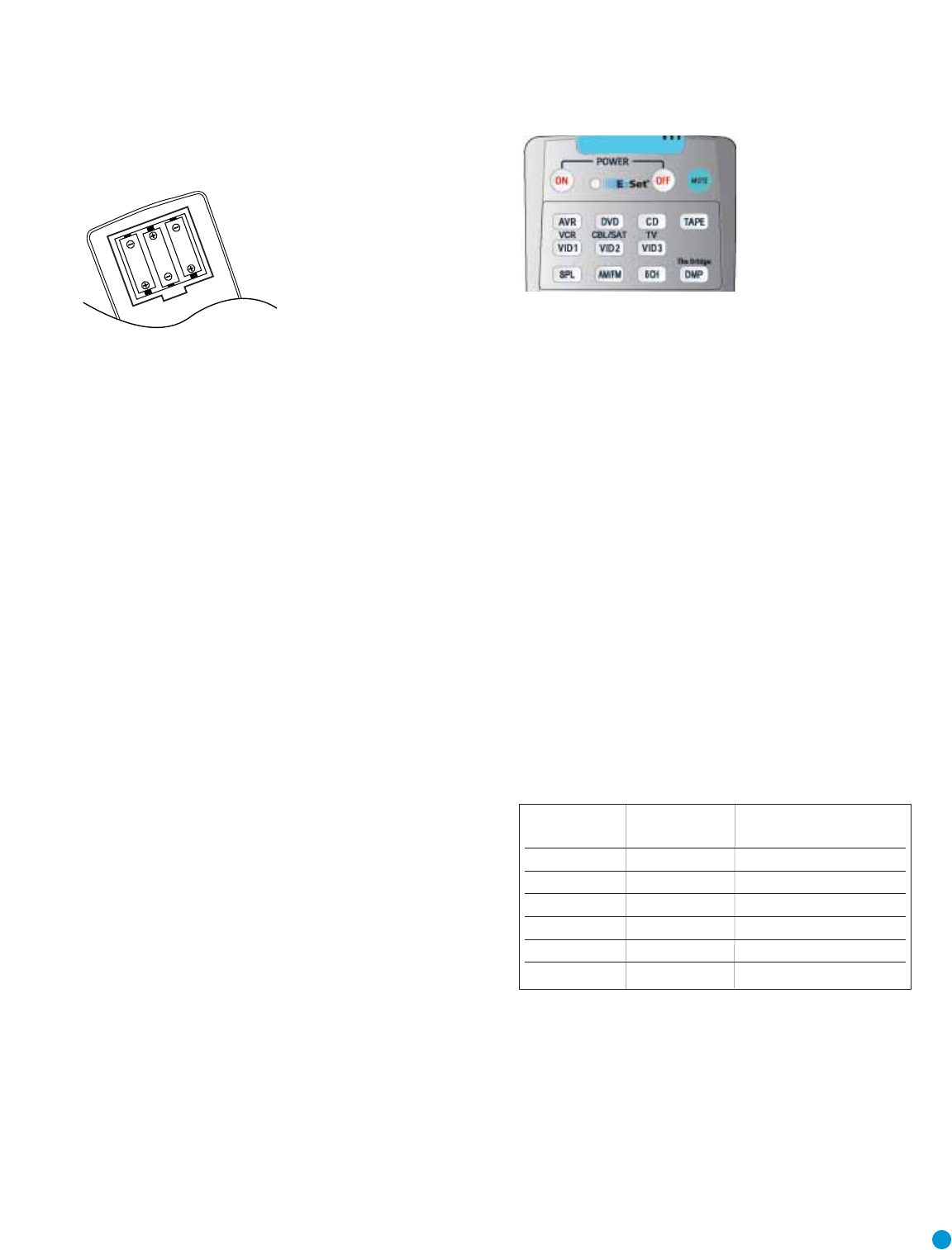
Insert the batteries as shown in the diagram, making sure to observe
the correct polarity.
Figure 29 – Remote Battery Compartment
When using the remote, remember to point the lens toward the front
panel of the AVR 145. Make sure no objects, such as furniture, are
blocking the remote’s path to the receiver. Bright lights, fluorescent lights
and plasma video displays may interfere with the remote’s functioning.
The remote has a range of about 20 feet, depending on the lighting
conditions. It may be used at an angle of up to 30 degrees to either
side of the AVR.
If the remote seems to operate intermittently, or if pressing a button
on the remote does not cause the AVR Selector or one of the Input
Selectors to light up, then make sure the batteries have been inserted
correctly, or replace all three batteries with fresh ones.
Step Eight – Program Sources Into the Remote
The AVR 145 remote is capable of controlling not only the receiver,
but it may also be programmed to control many brands and models of
VCRs, DVD players, CD players, cable boxes, satellite receivers, cassette
decks and TVs, as well as The Bridge.
It may help to think of the remote as a book with pages. Each page rep-
resents the button functions for a different device. In order to access the
functions for a particular device, you first need to turn to that page.This
is done by pressing the AVR Button to access the codes that control the
receiver, or the Input Selector buttons to access the codes for the
devices programmed into the remote.
At the factory, the AVR 145’s codes and the codes to control an iPod
docked in The Bridge are preprogrammed, and the codes for many
Harman Kardon DVD and CD players are also preprogrammed. If you
have other source devices in your system, follow these steps to pro-
gram the correct codes into the remote.
1. Using the codes in Tables A9–A16 of the Appendix, look up the
product type (e.g. DVD, cable TV box) and the brand name of your
source.The number(s) listed are potential candidates for the correct
code set for your particular device.
2.Turn on your source device.
3. Put the remote into Program mode by pressing and holding the Input
Selector and the Mute button simultaneously until the LED on the
remote starts to flash, and then releasing the buttons.
Figure 30 – Input Selectors
4. Enter a code from Step 1 above.
a) If the device turns off, then press the Input Selector again to accept
the code, which will flash.The remote will exit the Program mode.
b) If the device does not turn off, try entering another code. If you run
out of codes, you may search through all of the codes in the
remote’s library for that product type by pressing the ⁄or ¤
button repeatedly until the device turns off.When the device turns
off, enter the code by pressing the Input Selector, which will flash.
The remote then exits Program mode.
5. Once you have accepted a code, it’s a good idea to try using some
other functions to control the device. Sometimes manufacturers
use the same Power code for several different models, while other
codes will vary.You may wish to repeat this process until you’ve pro-
grammed a satisfactory code set that operates most of the functions
you frequently use.
6.You may find out which code number you have programmed by
pressing and holding the Input Selector and Mute Button simultane-
ously to enter the Program mode.Then press the Set Button, and the
LED will blink in the code sequence. One blink represents “1”, two
blinks for “2”, and so forth.A series of many fast blinks represents
“0”. Record the codes programmed for each device here.
Table 3 – Remote Control Codes
If you are unable to locate a code set that correctly operates your
source device, it will not be possible to use the AVR remote to control
that device. However, you may still connect the source to the AVR 145
and operate it using the device’s original remote control.Alternatively,
you may wish to consider purchasing Harman Kardon’s optional TC 30
activity-based remote, which is programmed by accessing a large data-
base of product codes on the Internet.The TC 30 is also capable of
“learning” codes from your device’s original remote.
Source Input Product Type Remote Control Code
(circle one)
Video 1 VCR, PVR
Video 2 Cable, Satellite
Video 3 TV
DVD DVD
CD CD, CDR
Tape Cassette
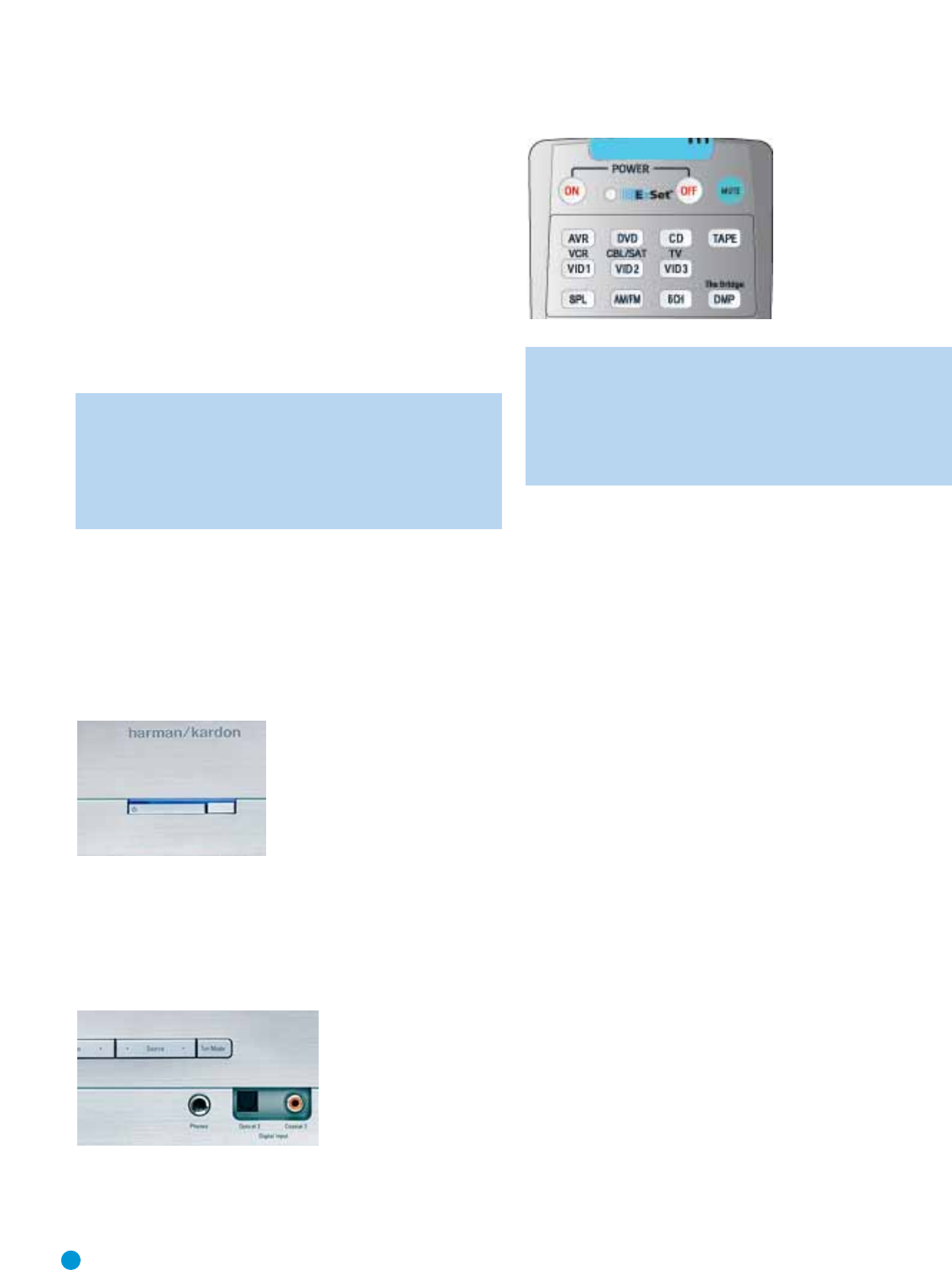
Most of the button labels on the remote describe the button’s function
when used to control the AVR 145. However, the button may perform a
very different function when used to control another device. Refer to the
Remote Control Function List,Table A8 in the Appendix,for a list of
each button’s functions with the various product types.
If you wish, you may program Macros, which are preprogrammed code
sequences that execute many code commands with a single button
press.You may also program “punch-through”codes, which allow the
remote to operate the volume, channel or transport controls of another
device without having to switch the remote to the mode for that device.
See pages 43 through 44 for instructions on these advanced program-
ming functions.
NOTE: The AVR 145 remote is preprogrammed to operate the
transport controls of Harman Kardon DVD players when the AVR
or the Video 2 (cable/satellite) or Video 3 (TV) source is selected.
The volume and mute controls operate the AVR when any
device except Tape has been selected.You may change this
punch-through programming at any time.
Step Nine – Turn On the AVR 145
Two steps are required the first time you turn on the AVR 145.
1. Gently press the Master Power Switch until the word OFF is no longer
visible.The Power Indicator above the two power switches should
light up in amber.This indicates that the AVR is in Standby mode and
is ready to be turned on. Normally, you may leave the Master Power
Switch in the ON position, even when the receiver is not being used.
Figure 31 – Power Switches
2.There are several ways in which the AVR 145 may be turned on from
Standby mode.
a) Press the Standby/On Switch on the front panel.
b) Press the Source Select Button on the front panel.
Figure 32 – Source Select Button
c) Using the remote, press any one of these buttons:AVR, DVD, CD,
TAPE,VID1,VID2,VID3,AM/FM or 6/8CH.
Figure 33 – AVR and Input Selectors
NOTE: Any time you press one of the Input Selectors on the
remote (i.e., DVD, CD,TAPE, VID1,VID2 or VID3), the remote
will switch modes so that it will only transmit the codes pro-
grammed to operate that device. In order to control the receiver,
you will need to press the AVR button to return the remote to
AVR mode.
24
INSTALLATION
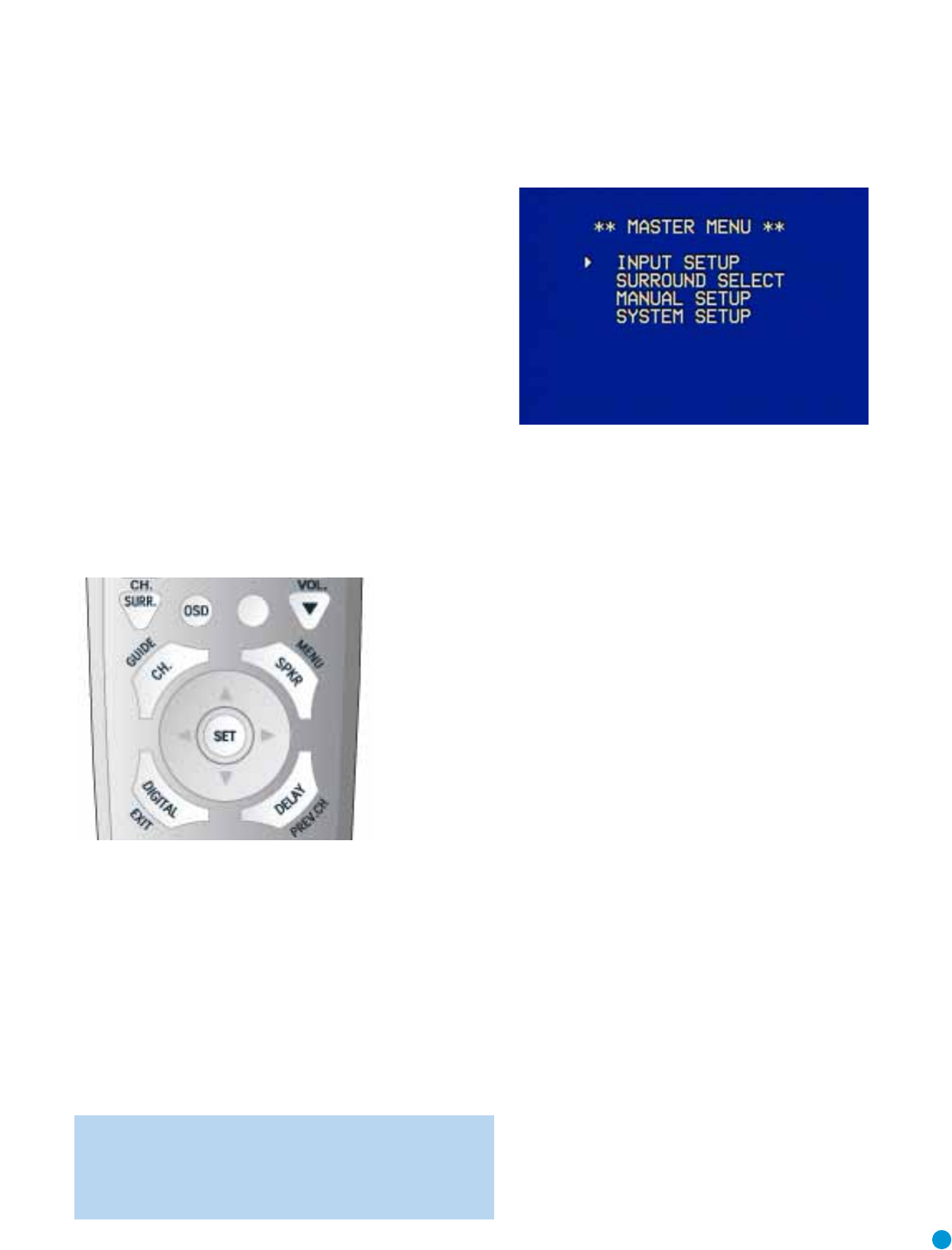
25
Before you begin enjoying your new receiver, a few adjustments should
be made to configure the AVR 145 to match your actual system.
Make sure that you have connected a video display to either the S-
video or composite video monitor output on the receiver.When you turn
on your display and the AVR, you should see a blue screen.A message
may appear briefly at the bottom of the screen.This message is part of
the on-screen display system, and is referred to as the “semi-OSD”.The
semi-OSD is activated any time you send a command to the AVR, and
any time the AVR detects a change in the incoming signal. Semi-OSD
messages are overlaid on top of any video signal, so that you may con-
tinue to watch your program while making adjustments to the AVR.
Although it’s possible to configure the AVR using only the remote and
the semi-OSD messages, we recommend that you use the full-screen
menu system, known as the “full OSD”.
Using the On-Screen Menu System
The full OSD system is accessed by pressing the OSD Button on the
remote.While the full OSD system is in use, it isn’t possible to see any
video programming. In addition, an OSD ON message will appear on the
front panel of the receiver to remind you to use a video display.
Figure 34 – Navigation Buttons
The Master Menu will always be displayed when you first press the OSD
Button. Use the ⁄⁄¤Buttons on the remote to point the cursor to dif-
ferent lines in the menu. Press the Set Button on the remote to select a
line that has no setting to be adjusted, such as one of the submenus
listed in the Master Menu, or a line that returns you to a previous menu.
Within the submenus, after you have positioned the cursor at a particular
line item, you will need to use the ‹/›Buttons on the remote to
change a setting.When the desired setting appears, use the ⁄⁄¤
Buttons to navigate to another line item. Except for the TITLE setting in
the INPUT SETUP menu, there is no need to press the Set Button after
your desired setting appears.
NOTE: The ‹/›and Set Buttons on the front panel have no
effect on the OSD system.
The Master Menu allows access to four submenus: Input Setup,
Surround Select, Manual Setup and System Setup.
Figure 35 – Master Menu Screen
If you are an experienced home theater user, you may prefer to use the
menus in this order:
1. System Setup (described in Advanced Functions section)
2. Manual Setup (described here and in Advanced Functions)
3. Input Setup (described in this section)
4. Surround Select (see Advanced Functions section)
However, we recommend that most users follow the instructions in this
INITIAL SETUP section to configure a basic home theater system.You
may return to these menus at any time to make additional adjustments.
This section requires that you complete all of the steps in the Installation
section that apply to your receiver.You should have connected all of
your loudspeakers and a video display, as well as your source devices.
You should be able to turn on the receiver and view a blue screen on
your video display. If necessary, reread the Installation Section before con-
tinuing.
Step One – Determine Speaker Size
The AVR 145 can’t detect how many speakers you’ve connected to it;
nor can it determine their capabilities. For this part of the system setup,
you will need to consult the owner’s guide for each of your speakers. If
you don’t have the guide, you may be able to obtain the speaker’s tech-
nical specifications from the manufacturer’s Web site, or by contacting
the manufacturer directly.
The specification you’re looking for is the frequency response, which is
usually given as a range, e.g., 100Hz – 20kHz (±3dB).This specifica-
tion tells you whether the speaker is able to play sounds that are very
high- or low-pitched, represented by the high and low frequencies.We
are concerned with the lowest frequency that each of your main speak-
ers is capable of playing, which is 100Hz in this example, a respectable
figure for a typical satellite speaker. Use the worksheets in the appendix
to note this number as the crossover for that speaker (not the same as
the crossover frequency listed in the speaker’s specifications).
INITIAL SETUP
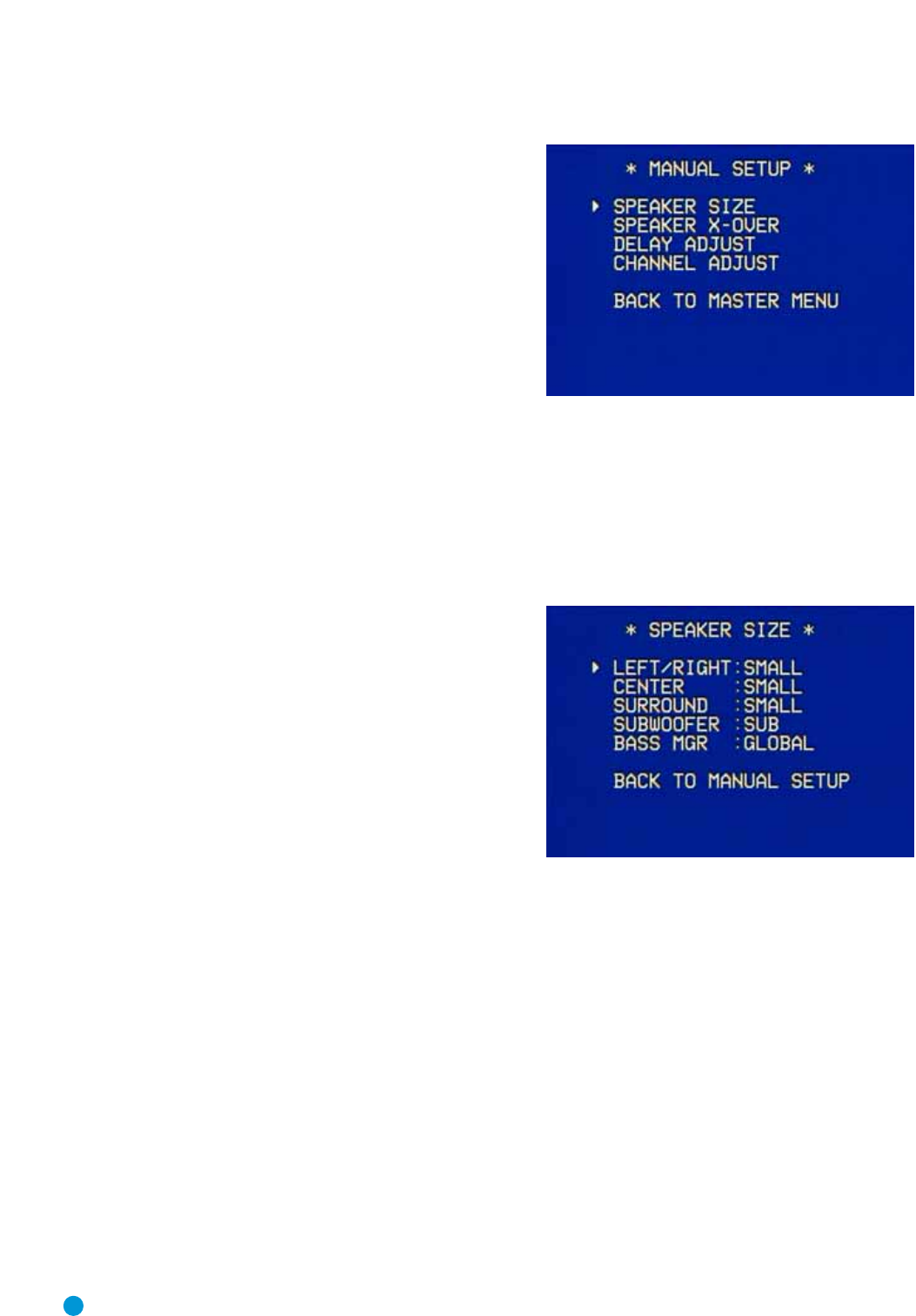
26
INITIAL SETUP
The frequency response for your subwoofer will usually cover only the
very lowest frequencies, since the subwoofer is only designed to play
bass materials.A typical frequency response for a subwoofer is 25Hz –
150Hz. In this case, the higher number is most important and should be
noted in the worksheet.
The purpose of programming this information into the AVR 145 is to
program the receiver’s bass management, which determines which
speakers the receiver will use to play back the low-frequency (bass)
portion of the source program.
If you send the lowest notes to small satellite speakers, you won’t hear
these notes very well, and you may even damage the speaker by going
beyond its capabilities. If you send the highest notes to the special-pur-
pose subwoofer, you may not hear them at all.
With proper bass management, the AVR 145 divides the source signal
at a crossover point.All information above the crossover point is played
through the satellite speaker (front left/right, center or surround
left/right), and all information below the crossover point is played
through the subwoofer.This enables each loudspeaker in your system to
perform at its best, delivering an enjoyable sound experience.
Step Two – Measure Speaker Distances
Ideally, all of your speakers were placed in a circle, each at the same
distance from the listening position. However, your room may not be
ideal, and you may have had to place some speakers a little further
away than others.This could affect the overall sound of the receiver,
as sounds that are supposed to arrive simultaneously from different
speakers blur, due to different arrival times.
Fortunately, the AVR 145 has a delay adjustment that enables the
receiver to compensate for real-world speaker placements.
Before you begin making adjustments, measure the distance from each
speaker to the listening position, and note it in the worksheets in the
appendix. Even if all of your speakers are the same distance from the
listening position, you should enter your speaker distances.
Step Three – Manual Setup Menu
Now you are ready to program these adjustments into the receiver. It’s
best to sit in the usual listening position and make the room as quiet as
possible. Don’t worry if you make a mistake; you can always go back
and change these settings.
With the receiver and video display turned on, press the OSD Button on
the remote. Use the ¤Button on the remote to move the cursor to the
MANUAL SETUP line, and press the Set Button to display the Manual
Setup menu.
Figure 36 – Manual Setup Menu Screen
The Manual Setup menu is the gateway to four submenus.The first
three menus – Speaker Size, Speaker X-over and Delay Adjust – are
described here.The fourth menu – Channel Adjust – is described in the
Advanced Functions section.
Speaker Size Menu
Press the Set Button to display the Speaker Size submenu.
Figure 37 – Speaker Size Menu Screen
The Speaker Size menu lists each of the speaker groups.You will be
programming the correct setting for each group, indicating how many
speakers are in your system and what their capabilities are, based on
the information you obtained in Step One – Determine Speaker Size.
Each of the main speaker groups can be set to one of three settings:
LARGE, SMALL or NONE.These settings don’t refer to the physical size
of the speaker, but rather to the size of the frequency range of each
speaker.These may or may not turn out to be the same.
If the lower number of the frequency response for your speakers is less
than 100Hz, choose the LARGE setting. If this number is 100Hz or
greater, choose the SMALL setting. If you don’t have a speaker con-
nected to that position, choose NONE.
As you can see, the system requires you to use both speakers in a pair.
For example, you can’t connect just a front left speaker without a right
speaker, or just a right surround (rear) speaker without a left one.
However, you can connect only the front speakers, or both front and
surround speakers without a center, or the front left/right and center
speakers without any surrounds.
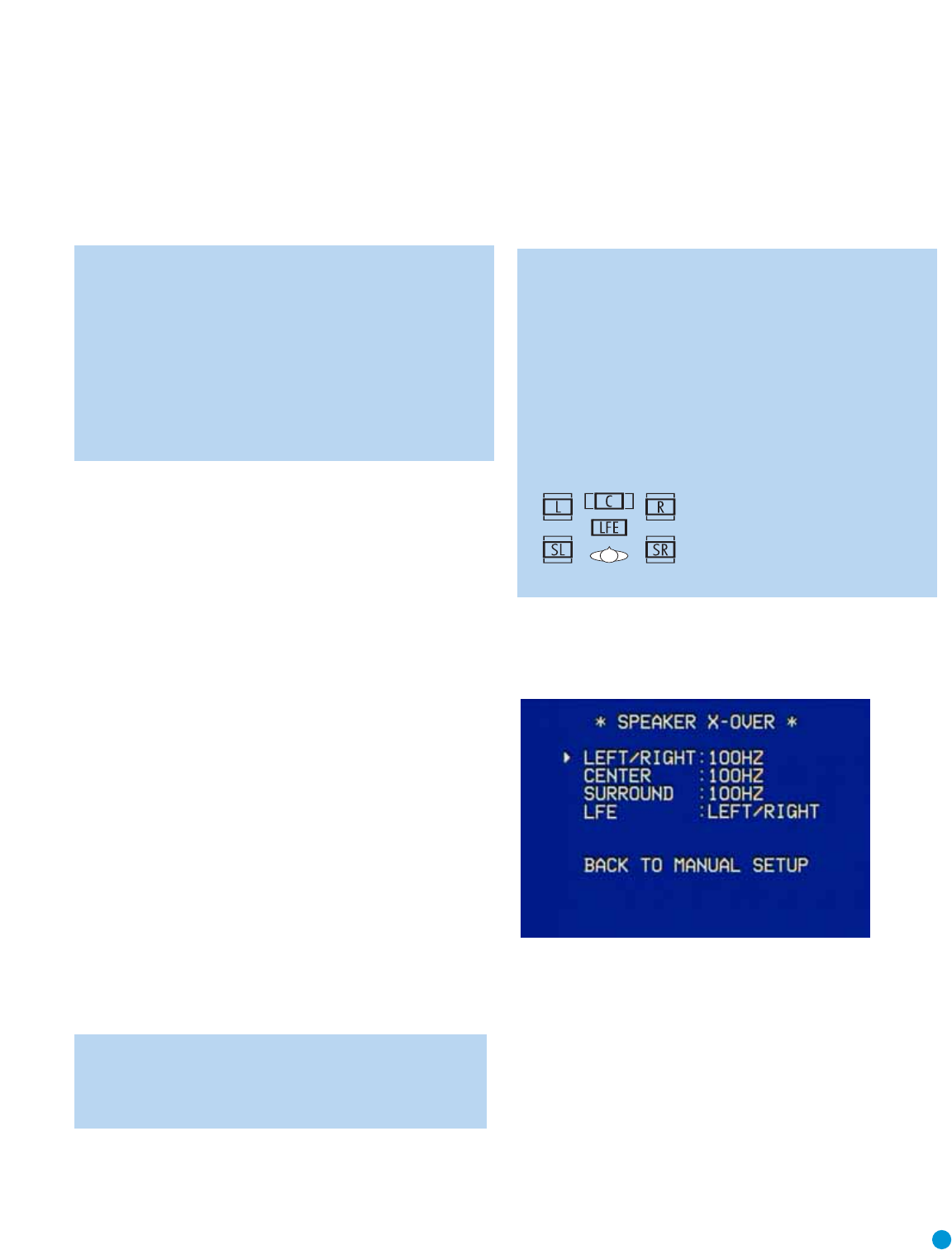
27
INITIAL SETUP
LEFT/RIGHT: This line tells the AVR 145 the capabilities of your front
left and right speakers. Use the ‹/›Buttons to select either SMALL or
LARGE for these speakers.
CENTER: Move the cursor to the line for the center speaker, and use
the ‹/›Buttons to select a setting for this speaker.
NOTE: If the receiver is currently in one of the Logic 7 surround
modes, which will be the case the first time you turn on the
receiver, you won’t be able to set the center speaker to LARGE,
due to the requirements of the Logic 7 processor.You may use
the SMALL setting instead.As you listen to the receiver, if you
find the SMALL setting is not satisfactory, change the surround
mode to one of the Dolby Pro Logic II modes (using the
Surround Select menu, accessible from the Master Menu), and
then you may come back to this menu and change the center
speaker to the LARGE setting.
SURROUND: Move the cursor to the line for the surround, or rear,
speakers, and use the ‹/›Buttons to select a setting for these
two speakers.
SUBWOOFER: Move the cursor to the line for the subwoofer, which is
programmed a little differently.The subwoofer’s “size” setting depends
upon how you programmed the front left and right speakers.
• If you set the front speakers to SMALL, the subwoofer setting will
be SUB, and you won’t be able to change it. All low-frequency
information will always be sent to the subwoofer. If you don’t have a
subwoofer, you may wish to set your front speakers to LARGE so
as not to lose this information, but you may need to lower the vol-
ume to avoid adverse results.
• If you set the front speakers to LARGE, you may select from three
possible settings for the subwoofer.
• L/R+LFE: This setting sends all low-frequency information to the
subwoofer, including both information that would normally be
played through the front left and right speakers and the special
low-frequency effects (LFE) channel information.
• LFE: This setting plays low-frequency information contained in
the left and right program channels to the front speakers, and
directs only the LFE channel information to the subwoofer.
• NONE: This setting steers all low-frequency information to the
front speakers, and no information to the subwoofer output. Use
this setting if you have a passive subwoofer, or a powered sub-
woofer that you connected to the front speaker outputs.
NOTE: If you are using a Harman Kardon HKTS speaker sys-
tem, select the SMALL setting for the LEFT/RIGHT, CENTER
and SURROUND lines, and the subwoofer will automatically be
set to SUB.
BASS MGR: This advanced setting is used if you wish to configure your
speakers differently for different sources. For example, you may prefer to
set your speakers to LARGE while listening to CDs from your CD player.
By changing this setting to INDEPENDENT, you may have different set-
tings for your CD player and your DVD player or other devices.We rec-
ommend that you leave this setting at its factory default of GLOBAL until
you have more experience with the AVR.
Move the cursor to the BACK TO MANUAL SETUP line and press the
Set Button to return to the Manual Setup Menu.
NOTE: The Speaker/Channel Indicators on the front panel of
the receiver will display the speaker size settings as follows. For
each speaker configured as SMALL, a single box will appear in
the position for that speaker. For each speaker configured as
LARGE, a double box will appear in its position. If a speaker is
configured as NONE, no box will appear.The subwoofer will be
indicated by a single box, or no box if no subwoofer has been
configured.The letters inside the boxes appear when a digital
signal is being received that has that channel discretely encoded.
The letters flash when the signal is not present, such as when a
DVD is paused.
Figure 38 – Speaker/Channel Input Indicators
Speaker Crossover Menu
On the Manual Setup menu, move the cursor to the SPEAKER X-OVER
line and press the Set Button to display the Speaker Crossover menu.
Figure 39 – Speaker Crossover Menu Screen
Setting the Speaker Crossover menu correctly ensures that your speakers
are properly used so that they sound their best.Although you could skip
this step the first time you use the receiver, we recommend that you
take the few extra minutes to enter the correct crossover settings.
You may select from seven possible settings: 40Hz,60Hz, 80Hz,
100Hz, 120Hz, 150Hz or 200Hz. Depending upon the frequency
response of your speakers which you recorded in Step One –
Determine Speaker Size, for each speaker group select the number
that matches or is just above the low end of your speaker’s frequency
response.
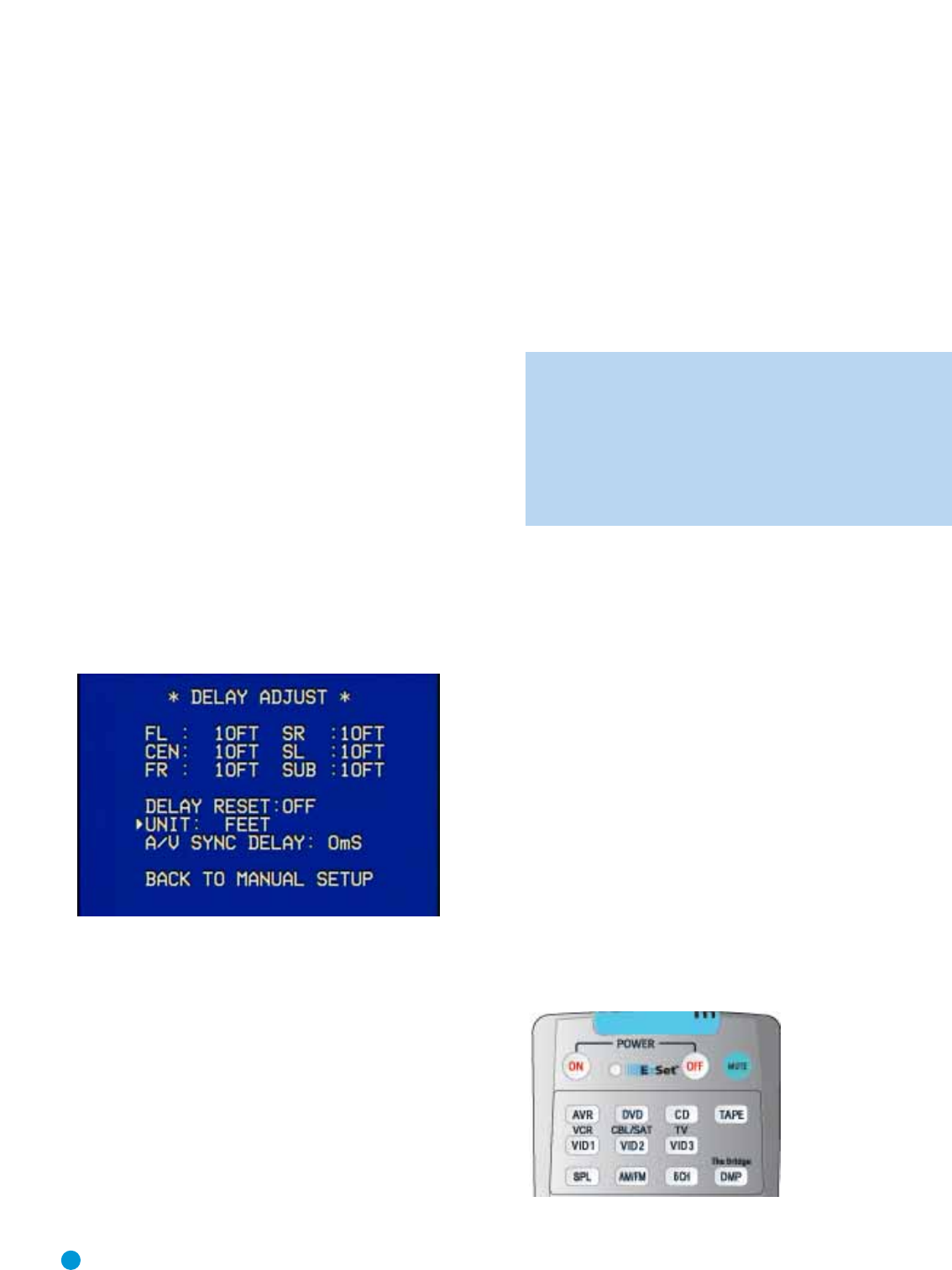
28
INITIAL SETUP
The LFE line sets the frequency for a low-pass filter that determines
what information is sent to the subwoofer for playback. Since the sub-
woofer output combines low-frequency information for all channels, in
order to make sure that no information is lost due to different speakers
having different capabilities, the subwoofer filter should be matched to
the highest crossover frequency used for any speaker group.
Looking at each of your three speaker-group settings in this menu,
determine which group is set to the highest frequency. Move the cursor
to the LFE line, and use the ‹/›Buttons to select that speaker group.
If all three speaker groups have the same setting, you may leave the
LFE filter to its factory default of the LEFT/RIGHT speaker group.
Move the cursor to the BACK TO MANUAL SETUP line and press the
Set Button to return to the Manual Setup menu.
Delay Adjust Menu
As explained above in Step Two – Measure Speaker Distances, some-
times the speakers are placed at different distances from the listening
position, which can muddy the sound, as sounds are heard earlier or
later than desired.
Even if all of your speakers are placed the same distance from the lis-
tening position, you should not skip this menu.
On the Manual Setup menu, move the cursor to the DELAY ADJUST
line and press the Set Button to display the Delay Adjust menu.
Figure 40 – Delay Adjust Menu Screen
This menu requires you to enter the distance from each speaker to the
listening position, which you measured in Step Two – Measure Speaker
Distances.
The default unit of measurement is in feet. If you wish to change the unit
to meters, move the cursor down to the UNIT line, and use the ‹/›
Buttons to change the unit to METER.
Use the ⁄/¤Buttons to move the cursor to the FL (front left) line;
then use the ‹/›Buttons to change the measurement as needed.
Use the ⁄/¤Buttons to move to each speaker in turn – CEN
(center), FR (front right), SR (surround right), SL (surround left) and
SUB (subwoofer).
DELAY RESET: This line is used if you wish to reset all of the speaker
delay settings to the factory default of 10 feet (3.0 meters) at once. Use
the ‹/›Buttons to change the setting of OFF to ON. If you change
any speaker’s setting, this line will automatically revert to OFF.
A/V SYNC DELAY: This line allows you to compensate for a situation in
which one of your source devices, or your video display, introduces a
significant amount of video processing that causes the audio and video
parts of the signal to get out of sync.This is known as a “lip sync” prob-
lem.You may delay the audio for all channels by up to 80 milliseconds
to compensate.
NOTE: We recommend that you adjust the A/V Sync Delay
using the Delay Button on the remote, rather than in this menu,
so that you can view the picture while adjusting the audio delay.
With the program playing, press the Delay Button, and the A/V
SYNC DELAY message will appear on the front panel and in the
semi-OSD display. Press the Set Button to display the current
delay setting, and use the ‹/›Buttons to adjust the setting
until the synchronization issue is resolved.
Move the cursor to the BACK TO MANUAL SETUP line and press the
Set Button to return to the Manual Setup menu, or simply press the
OSD Button to exit the menu system.
Step Four – EzSet Output Level Calibration
This is an important step in the configuration process, and should not be
skipped.
By now you should have connected all of your speakers and sources
and your video display.You should have turned on the receiver and
used the Manual Setup menus to program each of your speakers as
Large or Small.
Sit in the listening position with the remote control, and make sure
to eliminate external noises for the few minutes needed to run the
EzSet procedure.
Use the volume control buttons on the remote to adjust the volume
to –15dB.
Now point the remote at the receiver and press the SPL Button until the
LED blinks, then press the “5” Key.The procedure works best if you
hold the remote at about ear level, pointed toward the receiver.Try not
to tilt the remote out of line with the IR receiver on the AVR’s front panel.
Figure 41 – EzSet (SPL) Button
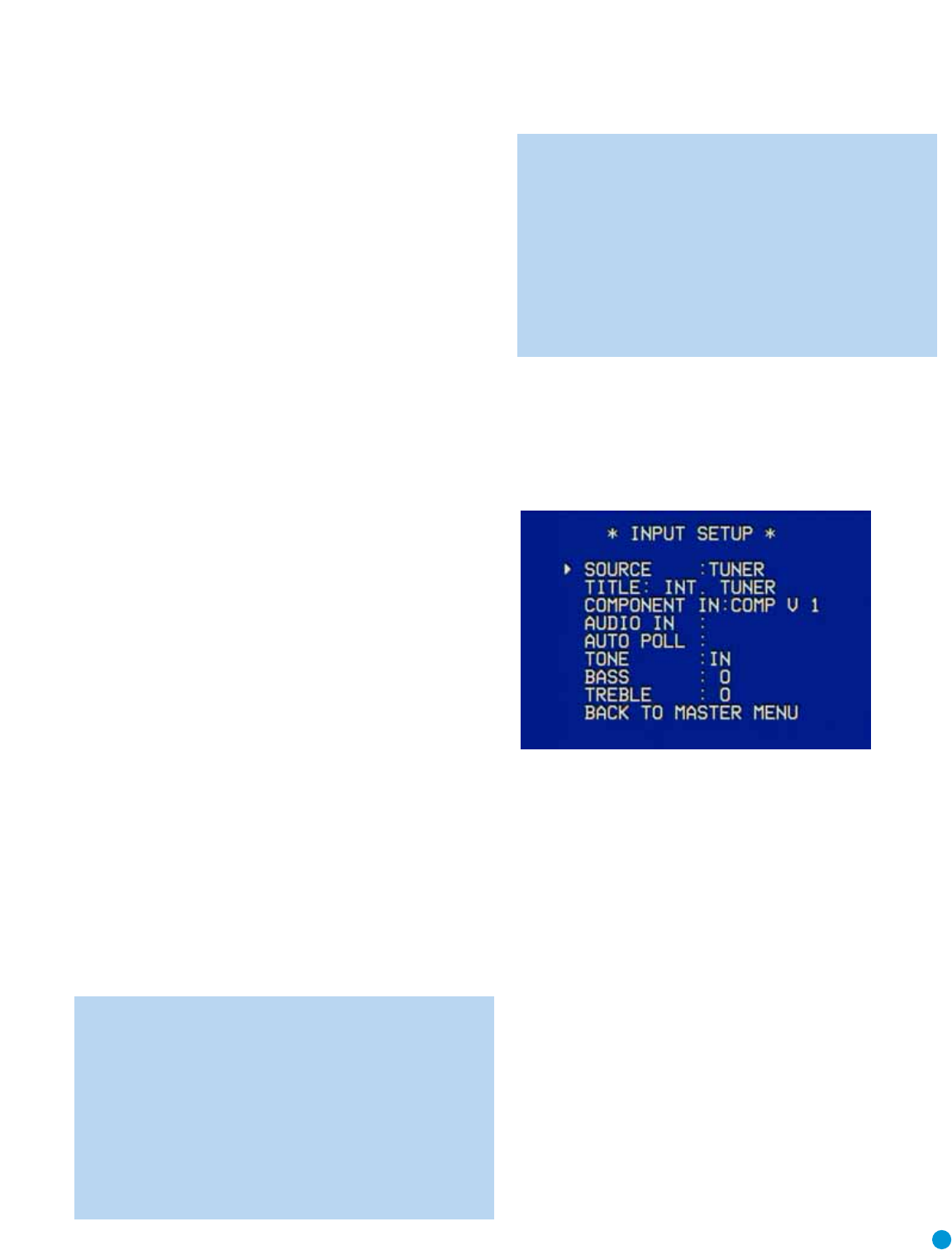
29
INITIAL SETUP
The receiver will generate a loud test tone, which sounds like static.
In fact, it’s a tone that simultaneously uses all frequencies from 20Hz
to 20kHz.
The tone should be heard first through the front left speaker. It will circu-
late to the other speakers in this order: front left, center, front right,sur-
round right, surround left.The tone pauses for a few moments at each
speaker position, while a microphone built into the remote measures the
loudness (sound pressure level) of the tone.The remote contains pro-
gramming that compares the loudness of the tone at each position to a
reference and sends commands to the receiver to adjust the output
level for that channel until the tone matches the reference.
A tri-color LED on the remote indicates EzSet’s findings.The LED turns
red if the channel’s level is too high,amber if the level is too low, and
green when the level is correct.
The result is that each speaker will be heard equally loud at the listening
position.This is important for movie directors, who adjust the loudness
of each channel in the recording to produce a desired sound presenta-
tion. Usually, the director reduces the loudness of, or even the presence
of information in the surround channels so as not to distract the viewer
from the main action taking place on screen. If the test tone sounds as
loud in the rear speakers as it does coming from the other speakers,
then the receiver is performing correctly.
As the tone circulates to each speaker position, the semi-OSD system
and the front panel will display a message reporting which channel the
tone is being sent to. Make sure that the message matches the speaker
you are actually hearing the tone from, and that you are hearing a tone
from each speaker. If that isn’t the case, press the Test Button
twice
to
stop EzSet, and turn off the receiver and unplug it.Then check your
speaker-wire connections.
The semi-OSD system and front panel will also display the level adjust-
ments being made.The levels may vary from –10dB to +10dB. If you
notice that the levels for all speakers are being adjusted very far in either
direction, then stop EzSet by pressing the Test Button
twice
, and adjust
the master volume level higher to compensate for EzSet pushing each
speaker close to +10dB, or lower to compensate for EzSet lowering
each speaker close to –10dB.
As the levels are being adjusted, the LED on the remote will change
until it is green for all channels.
The tone will circulate a second time, and then the procedure will end.
NOTE: In order to optimize performance for each of the many
surround modes and their variants, the AVR 145 is able to
associate a different set of output level settings with each mode.
While this results in extremely realistic reproduction of surround
sound presentations, it does require that you determine the cor-
rect settings for each surround mode.
The first time you turn on the AVR,it will default to the Logic 7
Music mode. Harman Kardon recommends that at initial set-up
you use the default Logic 7 mode, and then copy down the set-
tings produced by EzSet. Change the surround mode either
using the on-screen Surround Setup menu, or by pressing the
desired surround mode group button on the remote, and re-
enter the same settings for each new mode, selecting all modes
you are likely to use.
If you prefer, you may run EzSet for the major surround modes,
such as Logic 7 (select either Cinema or Music), Dolby (select
Dolby Pro Logic II Movie) and DTS (select DTS Neo:6).Then
you may copy the resulting level settings for the other mode
variants within each group.
Advanced users may rerun EzSet for each mode individually.
Step Five – Configure Sources
This is the last step in the configuration process.
Press the OSD Button to view the Master Menu.The cursor will be
pointing to the INPUT SETUP line, and you need only press the Set
Button to display the Input Setup menu.
Figure 42 – Input Setup Menu Screen
The first line indicates that the receiver is currently set to the tuner
source. In fact, you may hear static if the tuner is set to an unused fre-
quency.You will not be able to make any changes to the tuner, other
than selecting a component video input or adjusting the tone controls.
It is not recommended that you make either of these changes for
the tuner.
Press the ‹Button to view the next source.The sources will be selected
in the following order:Tape, 6-Channel Inputs,Video 1,Video 2,Video
3, DVD and CD. Pressing the ›Button selects the sources in the
reverse order.
For each of these sources, you may adjust the settings below.At a mini-
mum, you should make sure that sources you connected to either of
the component video inputs has the correct settings, and that sources
you connected to any of the digital audio inputs also display the correct
settings. Other settings are optional, and you may adjust them at a later
time when you have more experience with the AVR. Refer to the work-
sheets you filled out during installation as you assign inputs to each
source.
TITLE: You may change the display name for any source (except the
tuner). Not only does this enable you to customize your system; it helps
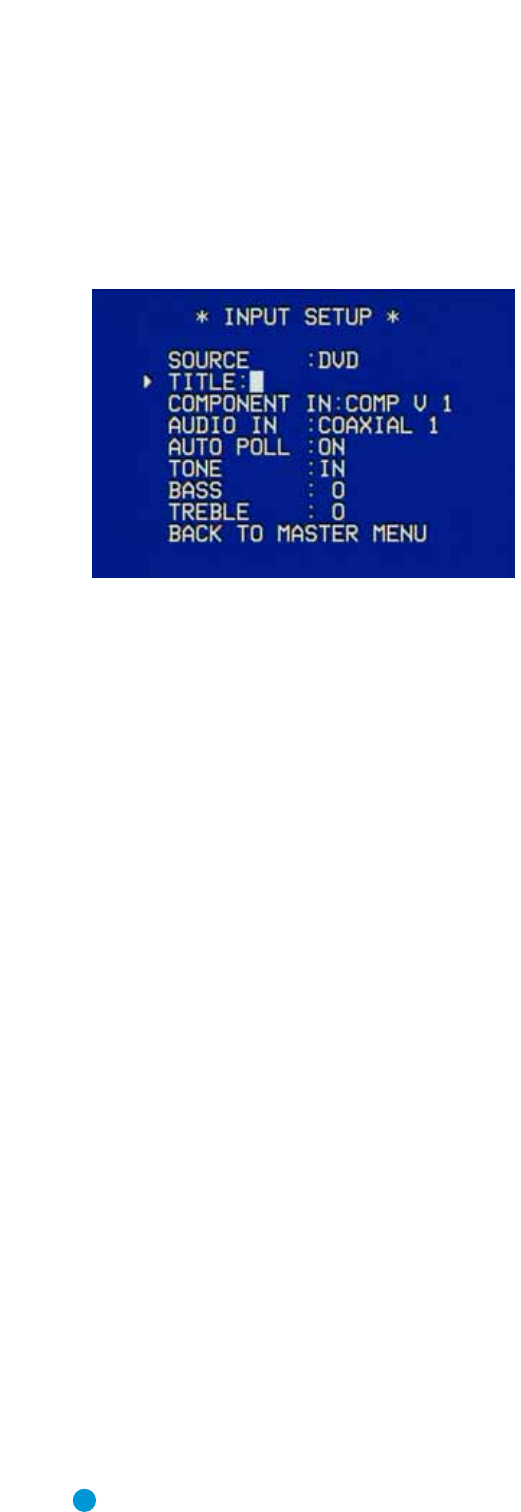
30
INITIAL SETUP
you to select the correct source device even when you have forgotten
which physical connections you used.
Move the cursor down to the TITLE line and press the Set Button.A
block cursor will blink.
Figure 43 – Retitling a Source Input
Now you may use the ⁄/¤Buttons to scroll through the alphabet in
upper and lower case, as well as numbers and a variety of punctuation
marks.When you have selected the desired character, press the ›
Button to move to the next space.You may also press the ›Button to
leave a blank. Press the Set Button when you have finished spelling out
the new display name for the source.
COMPONENT IN: If you connected the source to one of the two compo-
nent video inputs, make sure the correct set of inputs is displayed at this
line. If it isn’t, move the cursor to this line, and then press the ›Button to
change the setting.
AUDIO IN: By default, the analog audio inputs are assigned to all
sources at the factory other than the DVD and Video 2 sources, which
default to Coax 1 and Optical 1, respectively. If you used a digital audio
connection for the source, you will need to change this setting to assign
the correct digital audio input to the source, even if you also connected
the analog audio outputs of the source to the receiver. Move the cursor
to this line, and press the ‹/›Buttons until the correct digital input
appears.
AUTO POLL: The Auto Poll feature is used when both an analog audio
and digital audio connection have been made for one source device.
If for some reason no digital signal is available, the AVR 145 will switch
to the analog inputs for the source.This situation can occur with some
cable or satellite television broadcasts, where some channels are broad-
cast with digital audio and others with analog audio.
For some sources, the Auto Poll feature is unnecessary and may be
undesirable. For example, if your DVD player is stopped,you may not
want to use the analog audio signal or you may have decided not to
connect analog audio. Move the cursor to this line, and press the ‹/›
Buttons until OFF appears, disabling the Auto Poll feature.With Auto Poll
turned off, the receiver will only check for a signal at the audio input
assigned to the source.
The remaining lines in the Input Setup menu activate the tone controls,
and may be skipped at this time.We recommend leaving the tone con-
trols at their factory defaults for most listening,in order to enjoy the
sound mix created by your favorite movie and music artists. However, if
your room or speakers have unusual characteristics, or simply as a mat-
ter of personal preference, see the Tone Controls section on page 32
for more information.
You are now ready to begin enjoying your new receiver!
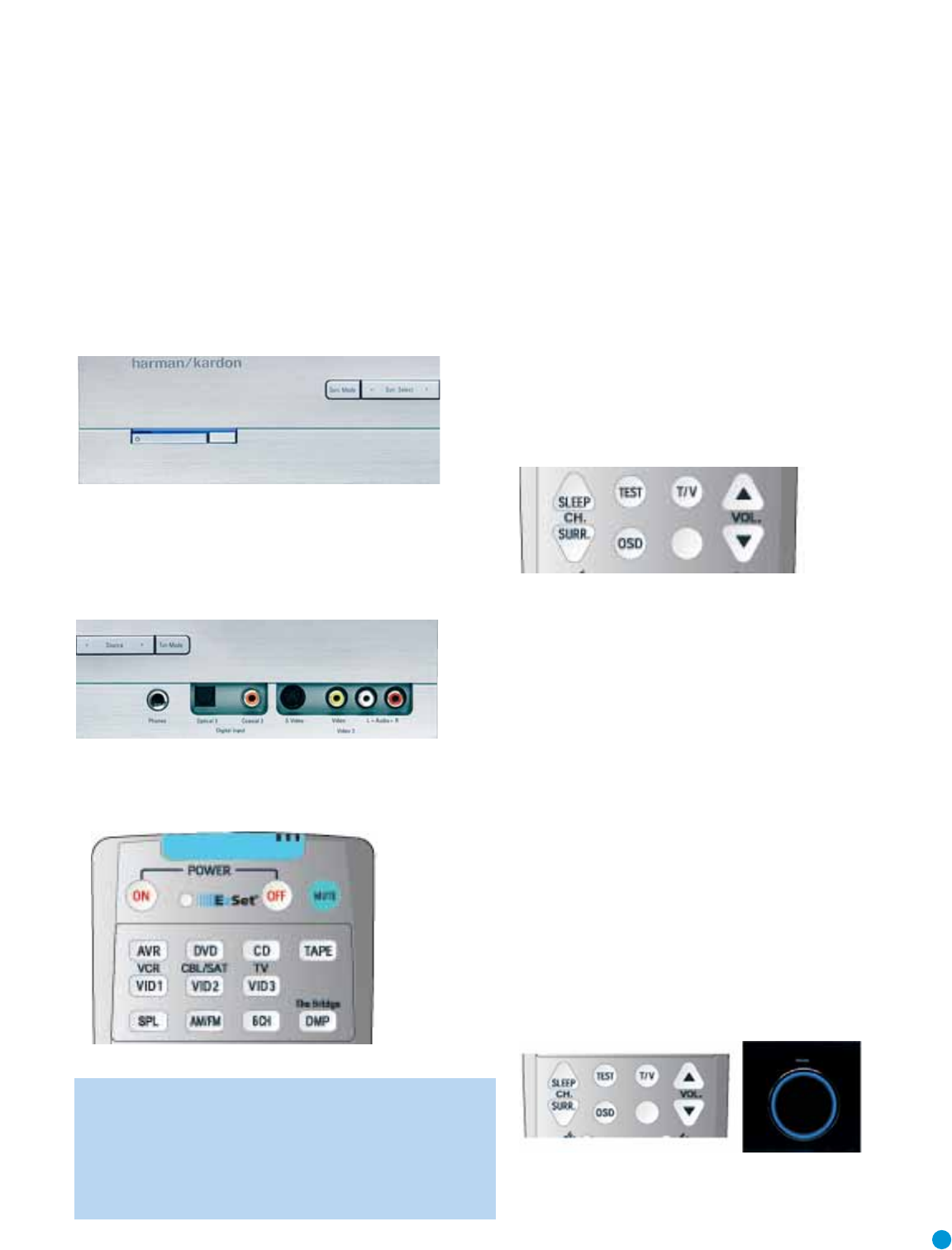
31
OPERATION
Now that you have installed your system components and completed at
least a basic configuration of your receiver, you are ready to begin
enjoying your home theater system.
Turning On the AVR 145
Gently press the Master Power Switch until the word OFF is no longer visi-
ble.The Power Indicator above the two power switches should light up in
amber.This indicates that the AVR is in Standby mode and is ready to be
turned on. Normally, you may leave the Master Power Switch in the ON
position, even when the receiver is not being used.
Figure 44 – Power Switches
There are several ways in which the AVR 145 may be turned on:
a) Press the Standby/On Switch on the front panel.
b) Press the Source Select Button on the front panel.
Figure 45 – Source Select Button
c) Using the remote, press any one of these buttons:AVR, DVD, CD,
TAPE,VID1,VID2,VID3,AM/FM, 6/8CH or The Bridge/DMP.
Figure 46 – AVR and Input Selectors
NOTE: Any time you press one of the remote’s Input Selectors
(i.e., DVD, CD,TAPE, VID1,VID2,VID3 or The Bridge/DMP), the
remote will switch modes so that it will only transmit the codes
programmed to operate that device. In order to control the
receiver, you will need to press the AVR Button to return the
remote to AVR mode.
To turn the receiver off, press either the Standby/On Switch on the front
panel, or press the AVR Button and the OFF Button on the remote.
Unless the receiver will not be used for an extended period of time (for
example, if you will be on vacation), it is not necessary to turn off the
Master Power Switch.When the Master Power Switch is turned off, any
settings you have programmed, including system configuration and pre-
set radio stations, will be preserved for up to four weeks.
Sleep Timer
You may program the AVR to play for up to 90 minutes and then turn
off automatically using the sleep timer.
Press the Sleep Button on the remote, and the time until turn-off will be
displayed. Each additional press of the Sleep Button will reduce the time
until turn-off by 10 minutes, until the OFF setting is reached, which dis-
ables the sleep timer.
Figure 47 – Sleep Button
When the sleep timer has been set, the front-panel display will automati-
cally dim to half-brightness. If you press any button on the remote or
front panel, the display will return to full-brightness.The display will dim
again several seconds after your last command.
If you press the Sleep Button after the timer has been set, the remaining
time until turn-off will be displayed.You may press the Sleep Button to
change the time until turn-off. Pressing and holding the Sleep Button will
disable the sleep timer, and the SLEEP OFF message will appear.
Volume Control
The volume may be adjusted either by turning the knob on the front
panel (clockwise to increase volume or counterclockwise to decrease
volume), or by pressing the Volume Control Buttons on the remote.The
volume is displayed as a negative number of decibels (dB) below the
0dB reference point, and may be changed in 0.5dB increments. Unlike
some volume controls on other products, 0dB is the maximum volume
for the AVR 145.Although it’s physically possible to turn the volume to a
higher level, doing so may damage your hearing and your speakers. For
certain more-dynamic audio materials, even 0dB may be too high,
allowing for damage to equipment.
Figure 48 – Volume Controls
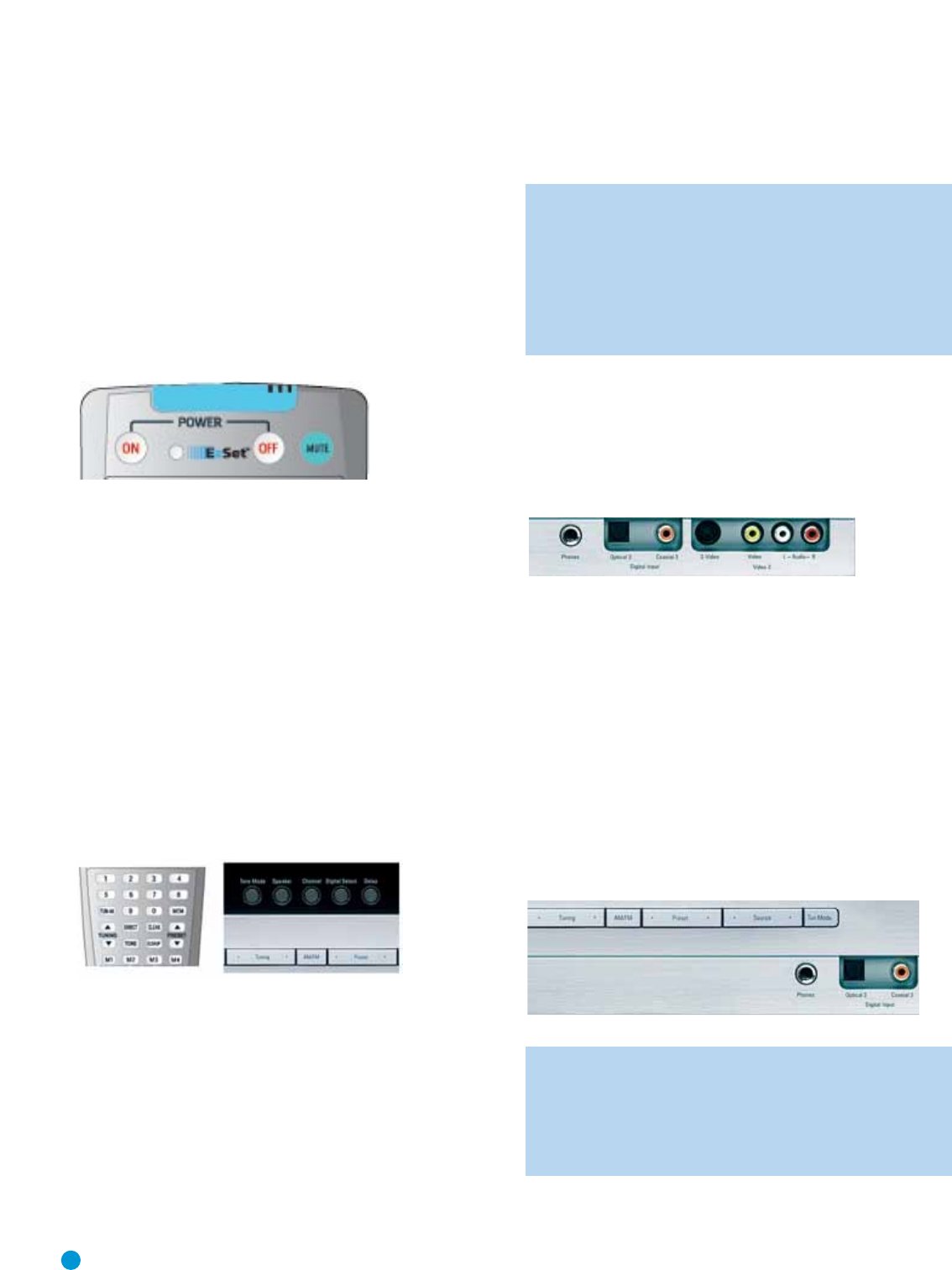
32
OPERATION
Remember that the AVR 145 is designed to reproduce audio with a
minimum amount of distortion.This clarity may lead you to think that
your hearing and the equipment can handle higher volumes.We urge
caution with regard to volume levels.
Mute Function
To temporarily mute all speakers and the headphones, press the Mute
Button on the remote.Any recording in progress will not be affected.
The MUTE message will flash in the display as a reminder.To restore
normal audio, either press the Mute Button again, or adjust the volume.
Turning off the AVR will also end muting.
Figure 49 – Mute Button
Tone Controls
You may boost or cut either the treble or the bass frequencies by up
to 10dB in 2dB increments.
Using the front-panel controls or the remote, press the Tone Mode
Button once.This will indicate whether the tone controls are in or out
of the circuitry. If you wish to return the tone controls to 0, or “flat”
response, press the ‹/›Buttons until the TONE OUT message
appears, which preserves any changes you have made to the bass or
treble settings for later use.To reactivate your changes, the tone control
must again be set to TONE IN.
With the TONE IN message displayed, press the Tone Mode Button
repeatedly to access TREBLE MODE and BASS MODE. Use the ‹/›
Buttons to change the treble or bass settings, as desired.The display
will return to normal a few seconds after your last command.
Figure 50 – Tone Button
You may alternatively adjust the tone controls using the full-OSD menu
system. Press the OSD Button on the remote to view the Master Menu.
The cursor will be pointing to the INPUT SETUP line; press the Set
Button to display that menu.You will be able to view the tone settings. If
you wish to make any changes to the TONE, BASS or TREBLE settings,
use the arrow keys on the remote to move the cursor to the line you
wish to change. Once you have changed the setting using the ‹/›
Buttons, simply move the cursor up or down to a different line; it isn’t
necessary to press the Set Button to enter the new setting.When you
have finished, either wait until the display times out and disappears,
press the OSD Button to clear the display, or move the cursor to the
BACK TO MASTER MENU line if you wish to make other changes using
the menu system.
NOTE: The AVR 145 does not have any conventional balance
control.The EzSet process compensates for any characteristics
of your room or speakers, and we recommend that you leave
the settings as they are after EzSet has been run. However, you
may manually adjust the levels of the left and right channels –
decreasing one and increasing the other by the same amount –
using the Channel Adjust submenu, as described on page 41.
This achieves the same effect as a balance control.
Headphones
Plug the 1/4" plug on a pair of headphones into the headphone jack on
the front of the receiver for private listening.The first time you use the
headphones, the DOLBY H:BP message will be displayed, indicating that
Dolby Headphone surround processing is in the bypass mode, which
delivers a conventional 2-channel signal to the headphones.
Figure 51 – Headphone Jack
Press the Surround Select Button on the front panel, or the Dolby
Button on the remote, to switch to Dolby Headphone virtual surround
processing, indicated by the DOLBY H:DH message. Dolby Headphone
delivers an enhanced sound field that emulates a 5.1-channel speaker
system. No other surround modes are available for the headphones.
Source Selection
Press the front-panel Source Select Button to scroll through the
sources.The left side of the button scrolls down the list that appears in
the display; the right side scrolls upward. For direct access to the tuner,
press the Tuner Band Button, which switches to the last-used band and
frequency. For direct access to any source, press its Input Selector on
the remote (see Figure 46).
Figure 52 – Source Select and Tuner Band Buttons
NOTE: The Bridge/DMP source has no icon in the Source
Indicators display.When selected, the DMP indication will
appear in the message display’s upper line, and one of two
messages will scroll on the right side to indicate whether
The Bridge is unplugged or connected. If you have retitled this
source, then only the new name will appear in the upper line.
The AVR 145 will switch to the audio and video inputs assigned to that
source. If you set the BASS MGR setting in the Speaker X-over menu to
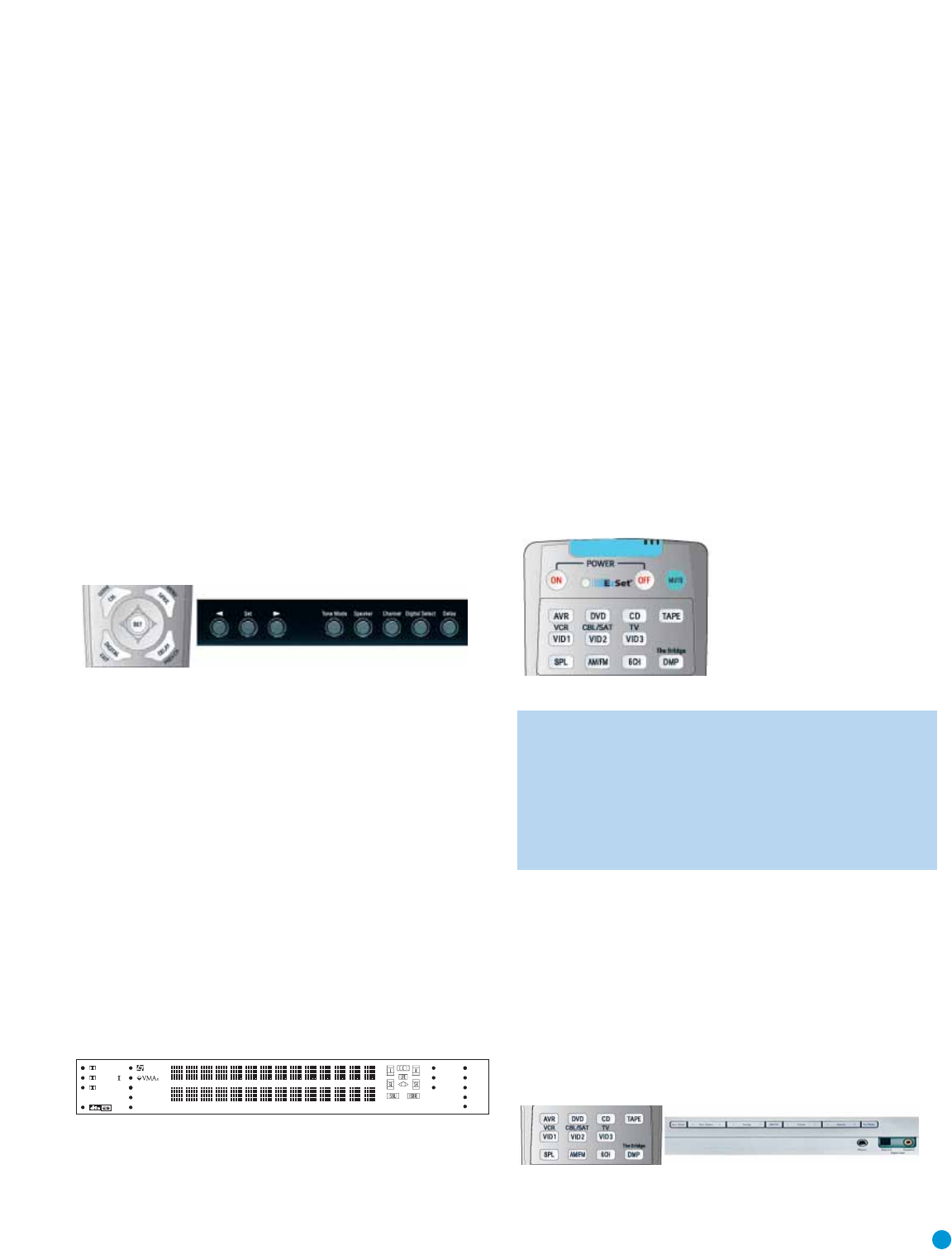
33
OPERATION
INDEPENDENT, the AVR 145 will change the speaker size configuration
to the one you programmed for the source. If you selected a surround
mode for the source, the AVR 145 will switch to that mode.
The source name will appear in the upper line of the front-panel display.
If you retitled the source, only the new title will appear. Otherwise, the
audio input assigned to the source (analog or one of the digital audio
inputs) will also appear.The surround mode will be displayed on the
lower line.The same information will also appear on screen in the
semi-OSD, unless you have set the semi-OSD to OFF in the System
Setup menu.
Audio Input Selection
The AVR 145 is programmed at the factory to use the analog audio
inputs for each source (except for the DVD and Video 2 sources, which
default to Coax 1 and Optical 1).To assign a digital audio input to a
source (if you have not done so using the Input Setup menu during
Initial Setup), press the Digital Button on the remote or front panel.The
current audio input selection will flash in the display, and you may press
the ⁄/¤(or ‹/›on the front panel) Buttons to scroll through the
audio inputs.When the desired input appears, press the Set Button to
select it.
Figure 53 – Digital Input Selection
If the Auto Poll feature has been left ON in the Input Setup menu, and if
a digital audio input has been assigned to the source, the AVR 145 will
first check the digital audio input for a signal. If a signal is present, the
AVR 145 will select the digital audio input. If no signal is present, the
AVR 145 will switch to the analog audio inputs for the source.
Video Input Selection
When a source is selected, the AVR 145 switches to a video input
as follows:
The COMPONENT IN line of the Input Setup menu indicates which
of the two component video inputs on the AVR 145 is assigned to
each source.All of the sources listed in the left column of the Source
Indicators display on the front panel are assigned to the Component
Video 2 inputs by default, and the sources listed in the right column
default to the Component Video 1 sources.This list appears in
Figure 54.
Figure 54 – Front-Panel Input Indicators
You may reassign either component video input to another source, but
there is no option to disable the component video inputs for any source.
If a signal is present at the component video input assigned to that
source, it will be selected. If your device is not using component video,
make sure that other devices connected to the component video inputs
are turned off.
If no signal is present at the component video input, then the S-video or
composite video input for the source will be selected. It is not possible
to reassign the S-video or composite video inputs to other sources.
For audio-only sources, such as the tuner or CD inputs, when no
component video signal is present, the last-used video source will be
selected.
6-Channel Direct Inputs
If you wish to hear audio through the 6-Channel Direct Inputs together
with video, then connect your multichannel player to the Component
Video 1 Inputs (the default for the 6-Channel Inputs), and the correct
audio and video inputs will be selected when you select 6CH as your
source. If your multichannel player uses S-video or composite video
connections, you will first need to select the source you connected the
video output to (e.g., DVD), and then select the 6CH source.
Figure 55 – 6-Channel Input Selector
NOTE: The 6-Channel Inputs pass the incoming signals directly
to the volume control, without digitizing or processing them.
Therefore, you will need to configure bass management settings
(i.e., speaker size, delay and output level) on your source device
so that they match the settings you programmed using the
Manual Setup menu. Consult the owner’s guide for your multi-
channel player for more information.
Using the Tuner
The AVR 145’s built-in tuner may be selected in one of three ways:
1. Press the Source Selector Button on the front panel repeatedly until
the tuner is selected.The last-used band (AM or FM) will be active.
2. Press the Tuner Band Button (marked AM/FM).Press this button
again to switch bands.
3. Press the Tuner Input Selector (marked AM/FM) on the remote. Press
this button again to switch bands.
Figure 56 – Tuner Input Selection
DIGITAL LOGIC 7 VID 1 DVD
CD
FMAM
TAPE
6 8 CH
VID 2
VID 3
PRO LOGIC
3 STEREO DSP
5 7 CH. STEREO
SURR. OFF
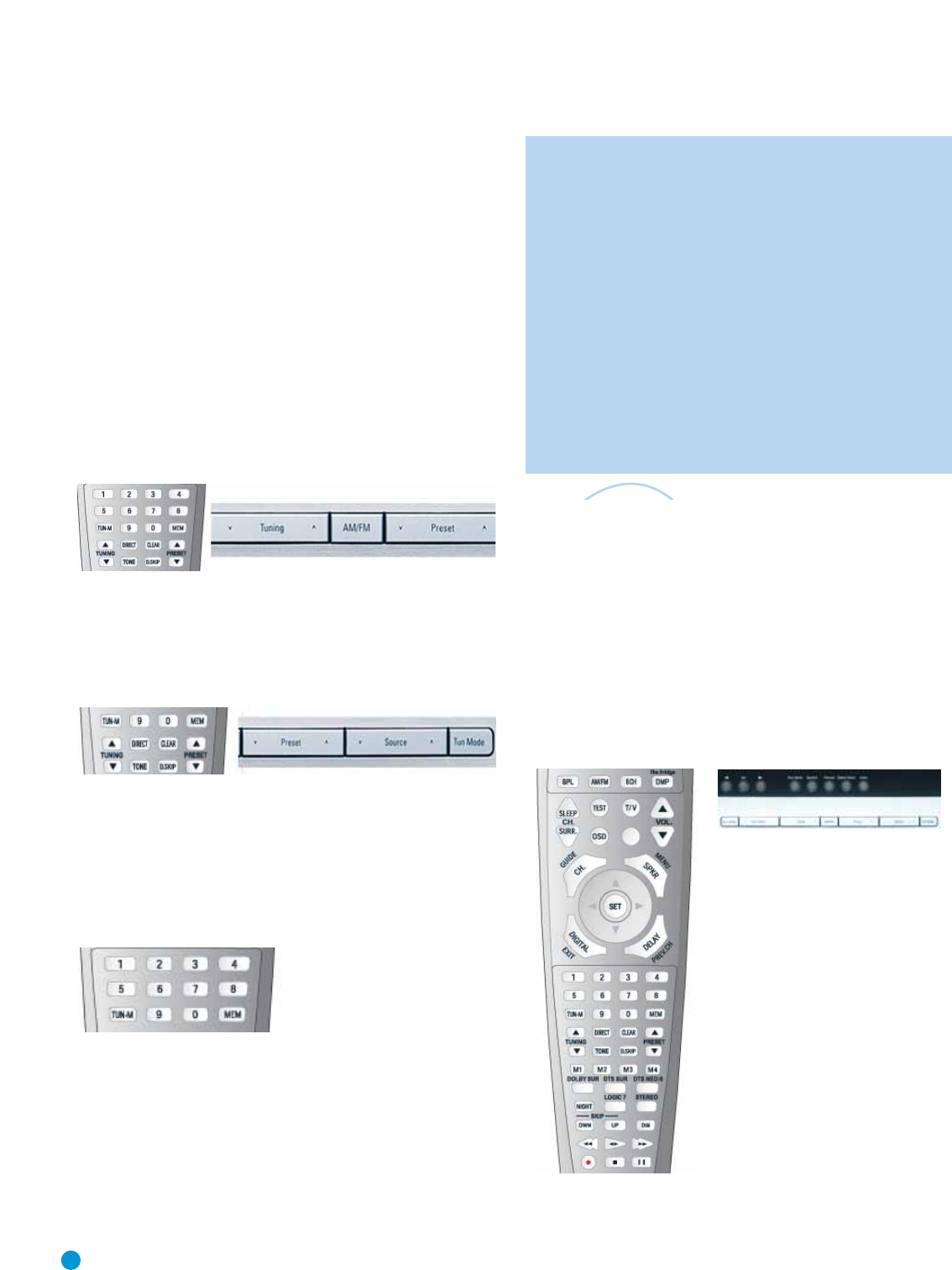
34
OPERATION
Radio stations may be selected in one of four ways:
1. If you know the frequency number, enter it directly by first pressing
the Direct Button on the remote, and then using the Numeric Keys.
2.After you have programmed Preset stations (see below), either enter
the Preset number (1 through 30) using the remote or use the front-
panel Preset Stations Button to scroll through the list of presets.
3. In Auto tuning mode, with each press of the Tuning Buttons (front-
panel or remote) the AVR 145 will scan in the chosen direction until a
station with acceptable signal strength is detected. Press the Tuning
Button again to stop scanning.
4. In Manual tuning mode, with each press of the Tuning Buttons the
AVR 145 will tune the next frequency increment (0.1MHz for FM, or
10kHz for AM) in the selected direction. Press and hold the Tuning
Button for faster scanning.
Figure 57 – Tuning a Station
Press the Tuning Mode Button (TUN-M on the remote) to switch
between Auto and Manual tuning modes.When an FM station has been
tuned, pressing the Tuning Mode Button will switch between stereo and
mono tuning, which may improve reception of weaker stations.
Figure 58 – Tuning Mode
To store a station in one of the 30 presets:
1.Tune the desired station.
2. Press the Memory Button on the remote.
3. Use the Numeric Keys to enter the desired preset number.
Figure 59 – Storing a Preset Station
Recording
Two-channel analog and digital audio signals, as well as composite
and S-video signals, are normally available at the appropriate recording
outputs.Thus, to make a recording, you need only make sure to con-
nect your audio or video recorder to the appropriate output jacks, as
described in the Installation section, insert blank media and make sure
the recorder is turned on and recording while the source is playing.
NOTES:
1.Analog audio signals are not converted to digital form, and
digital audio signals are not converted to analog audio form.
However, you may record a coaxial or optical digital audio
source using either type of digital audio output.
2. Only PCM digital audio signals are available for recording.
Proprietary formats such as Dolby Digital and DTS may not
be recorded using the digital audio connections, although if
the source is connected to the AVR using the analog audio
connections, an analog recording may be made.
3. Component video sources are not available for recording.
4. Please make certain that you are aware of any copyright
restrictions on any material you record. Unauthorized duplica-
tion of copyrighted materials is prohibited by federal law.
Using
The Bridge is an optional dock that may be used with a compatible iPod
(not included).When The Bridge is connected to its proprietary input on
the AVR 145 and the iPod is docked, you may play the audio materials
on your iPod through your high-quality audio system,operate the iPod
using the AVR remote or the AVR’s front-panel controls, view navigation
messages on the AVR’s front panel or a connected video display, and
charge the iPod.
Either press the front-panel Source Selector repeatedly until the mes-
sage “DMP/The Bridge is CONNECTED” scrolls across the front panel
and semi-OSD displays, or press the DMP Button on the remote to
select The Bridge as the input source.
(Left) Figure 60 – Using The Bridge (Remote)
(Above) Figure 61 – Using The Bridge (Front Panel)
The
Brid
g
eTM
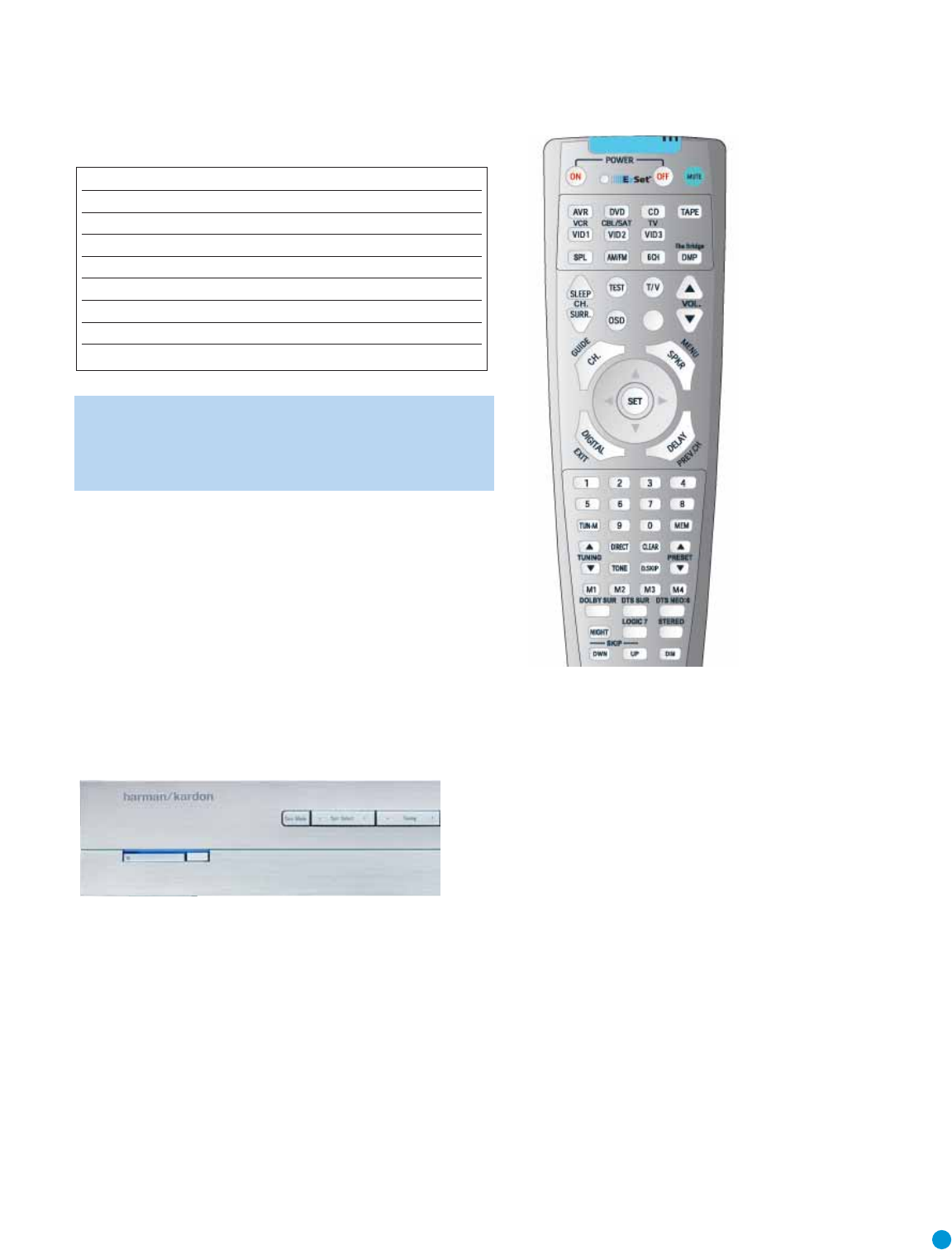
35
ADVANCED FUNCTIONS
This table summarizes the controls available when The Bridge is in use.
Table 4 – Using The Bridge
NOTE: For the Search function,press and hold the indicated but-
ton. Pressing the Previous Track Button once skips to the beginning
of the current track. Press the Previous Track Button
twice
to skip
to the beginning of the previous track.
Selecting a Surround Mode
Surround mode selection can be as simple or sophisticated as your
individual system and tastes. Feel free to experiment with the many
available surround modes on the AVR 145, and you may find a few that
become your favorites for certain sources or program types.Although
more detailed information on surround modes may be found in the
Advanced Functions section, it is easy to select any of the modes avail-
able at a given time:
To select a surround mode using the front-panel controls, press the
Surround Mode Button repeatedly until the desired group of modes is
selected: Logic 7, Dolby, DTS, DSP or Stereo.Then press the Surround
Select Button repeatedly to select the desired mode within the group.
Figure 62 – Select a Surround Mode (Front Panel)
To select a surround mode using the remote control, locate the button
dedicated to the desired group of modes: Logic 7, Dolby Sur, DTS Sur,
DTS Neo:6, Surr (DSP) or Stereo. Press that button repeatedly to select
the desired mode.
Figure 63 – Select a Surround Mode (Remote)
To select a surround mode using the full-OSD menu system, press the
OSD Button to display the Master Menu. Navigate to the SURROUND
SELECT line and press the Set Button to view the Surround Select
menu. Each of the major surround mode groups is listed here. Select
that group to access the MODE setting for selection of an individual
mode.As explained in the Advanced Functions section, there are also
some additional settings that may be made.
You are now ready to enjoy the best in home theater entertainment,
using your AVR 145.As you become more familiar with the receiver,
you may wish to explore some of its advanced functions, which are
described in the following section.
iPod Function Remote Control Key Front-Panel Button
Play Play (›) Tuner Mode
Pause Pause (II) Tuner Mode
Menu Menu (Spkr) Tuner Band (AM/FM)
Select Set Set
Scroll Forward Left Arrow (‹) Preset Down
Scroll Reverse Right Arrow (›) Preset Up
Forward Search/Next Track Forward/Next (››) Tuning Up
Reverse Search/Previous Track Reverse/Previous (‹‹) Tuning Down

36
ADVANCED FUNCTIONS
Much of the AVR 145’s performance is handled automatically, with little
intervention required on your part. However, the AVR 145 is a sophisti-
cated component, and is capable of being customized to suit your par-
ticular system and your tastes. In this section we describe some of the
more advanced adjustments available on the AVR 145.You may save
this section for later, when you have become more familiar with your
receiver.
Audio Processing and Surround Sound
Audio signals generated by sources are encoded in a variety of formats
that can affect not only the quality of the sound but the number of
speaker channels and the surround mode.You may also manually select
a different surround mode, although for certain types of audio signals,
the modes available will be limited in certain ways, as described below.
Analog Audio Signals
Analog audio signals usually consist of two channels – left and right.The
AVR 145 offers three basic options for playback of analog audio:
1. Analog Bypass Mode: In this mode, the 2-channel signal is passed
directly to the volume control, without being digitized or undergoing
any processing for bass management or surround sound.The
requirements for selecting analog bypass mode are:
a) The analog audio inputs for the source must be selected. If neces-
sary, press the Digital Button on the remote and use the ⁄/¤
Buttons to make the selection.
b) The tone controls must be disabled by setting TONE MODE to OUT.
Either use the Input Setup menu in the full-OSD system to make
this change, or press the Tone Mode Button on the front panel or
remote and use the ‹/›Buttons (⁄/¤on the remote) until
the TONE OUT message appears.
c) The Surround Off mode must be selected.The easiest way to
select the Surround Off mode is to press the Stereo Button on the
remote until the Surround Off icon is lit (and the DSP icon is
not
lit)
in the front-panel display.
2. DSP Surround Off Mode: The DSP Surround Off mode digitizes the
incoming signal and applies the bass management settings, including
speaker configuration, delay times and output levels.This mode is
desirable when your front speakers are small, limited-range satellites
and you are using a subwoofer. Both the DSP and Surround Off icons
will be lit when this mode is active. Press the Stereo Button on the
remote repeatedly to select this mode.
3. Analog Surround Modes: One of the main benefits of a surround
receiver such as the AVR 145 is its ability to process 2-channel
audio signals to produce multichannel surround sound in a variety
of modes, even when no surround sound has been encoded in the
recording.Among the available modes are the Dolby Pro Logic II
modes, the Dolby Virtual Speaker modes, the DTS Neo:6 modes, the
Logic 7 modes, the Hall and Theater modes and the Stereo modes.
Digital Audio Signals
Digital audio signals offer the benefit of greater capacity, which allows
recording artists to encode center and surround channel information
directly into the signal.The result is improved sound quality and startling
directionality, since each of these channels is reproduced discretely.
Alternatively, the artist will encode only two channels, but by using a digi-
tal signal, the artist has the capacity to increase the sampling rate, which
enables him or her to include even more detailed information about the
audio signal. High-resolution recordings usually sound extraordinarily
distortion-free at all frequencies, but especially at high frequencies.
Multichannel digital recordings usually are found in the 5.1-, 6.1- or
7.1-channel formats.The channels included in a 5.1-channel recording
are front left, front right, center, surround left,surround right and LFE.
The LFE channel is denoted as “.1” to represent the fact that it is not
full-range, being limited to the low frequencies.
6.1-Channel recordings add a single surround back channel, and 7.1-
channel recordings add surround back left and surround back right
channels to the 5.1-channel configuration.The AVR 145 is unable to
play the surround back channels in these recordings, and will use
5.1-channel (or fewer) surround modes.
Digital formats include Dolby Digital 2.0 (two channels only), Dolby
Digital 5.1, DTS 5.1, DTS 96/24 and 2-channel PCM modes in
44.1kHz, 48kHz or 96kHz.
When a digital signal is received, the AVR 145 detects the encoding
method and the number of channels.The appropriate icon will light in
the front panel for Dolby Digital and DTS signals.The number of chan-
nels encoded will scroll once across the front panel display as three
numbers, separated by slashes (e.g.,“3/2/1”).
The first number indicates the number of front channels in the signal:
“1” represents a monophonic recording, usually an older program that
has been digitally remastered or, more rarely, a modern program on
which the artist has selected an effect.
“2” indicates the presence of the left and right channels, but no
center channel.
“3” indicates that all three front channels (left, right and center) are
present.
The second number indicates whether any surround channels are
present:
“0” indicates that no surround information is present.
“1” indicates that a matrixed surround signal is present.
“2” indicates discrete left and right surround channels.
The third number is used for the LFE channel:
“0” indicates no LFE channel.
“.1” indicates that an LFE channel is present.
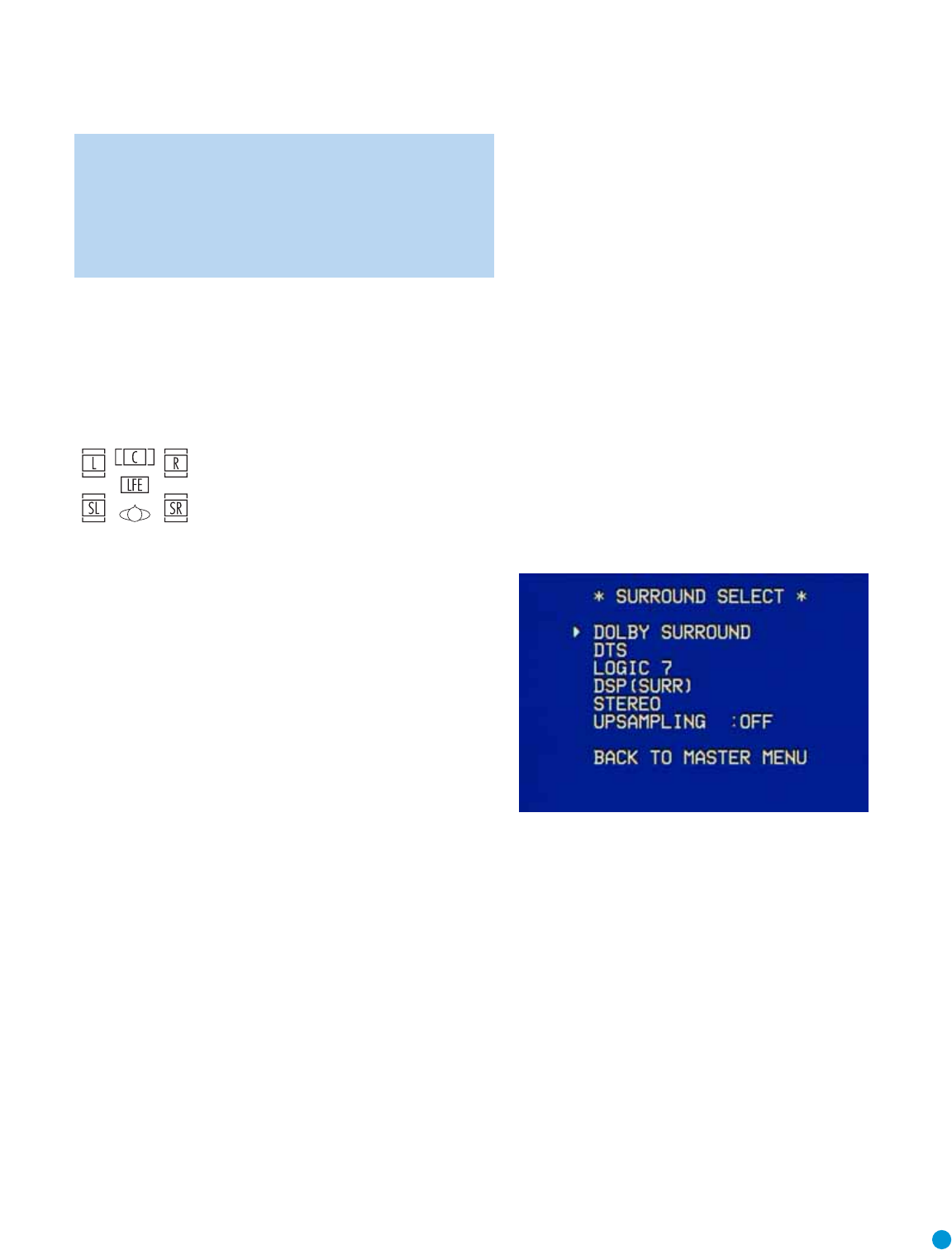
37
ADVANCED FUNCTIONS
NOTE: The 6.1-channel signals – Dolby Digital EX and DTS-ES
Matrix and Discrete – each include a flag meant to signal the
receiver to decode the surround back channel. Since the
AVR 145 is only capable of processing and playing 5.1
channels, the indications EX-OFF or ES-OFF, as appropriate,
will always appear for 6.1-channel bitstreams.
When a PCM signal is received, the PCM message, followed by the
sampling rate of the signal (44.1kHz, 48kHz or 96kHz), will scroll once
across the front-panel display.
In addition, the Speaker/Channel Input Indicators will indicate the num-
ber of channels discretely encoded in the signal by displaying a letter
inside that channel’s speaker box.The letters flash when no signal is
present, such as when a DVD is paused.
Figure 64 – Speaker/Channel Input Indicators
Even when only two channels – left and right – are present in the sig-
nal, the analog surround modes may be used to decode the signal into
the remaining channels.
Surround Modes
As mentioned in the Introduction to Home Theater section, surround
mode selection is dependent upon the format of the incoming audio
signal, as well as personal taste.There is no harm in experimenting with
all of the modes available with any given source material.Table 5 offers
a brief description of each mode the AVR 145 is capable of using,and
also indicates the types of incoming signals or digital bitstreams the
mode may be used with.Additional information about the Dolby and
DTS modes is available on the companies’ Web sites:www.dolby.com
and www.dtsonline.com.
When in doubt, check the jacket of your DVD for more information on
which surround modes are available on the disc. Be aware that usually
nonessential sections of the disc, such as trailers, extra materials or the
disc menu, are only available in Dolby Digital 2.0 (2-channel) or PCM
2-channel mode. If the main title is playing and the letters in the
Speaker/Channel Input Indicators are not lit for all speaker locations,
look for an audio setup section of the disc’s menu.Also, make sure your
DVD player’s audio output is set to the original bitstream rather than just
PCM. Check the DVD player’s output setting by stopping play of the disc
and checking the DVD player’s menu system.
As indicated in Table 5, different surround modes may only be available
with certain input signals or bitstream formats. For any incoming signal,
only a limited number of surround modes are available.Although there is
never a time when all of the AVR 145’s surround modes are available,
there is usually a wide variety of modes available for a given input.
There are three methods of manually selecting one of the available sur-
round modes:
1. From the front panel, press the Surround Mode Button until the
desired mode group (Dolby, DTS, DSP, Stereo, Logic 7) is selected,
and the last-used mode from that group will be activated.Then press
the Surround Select Button repeatedly to scroll through the modes
available within that group.
2. Using the remote, press the button for the desired mode group:
Dolby Surr for Dolby modes
DTS Sur for DTS Digital modes
DTS Neo:6 for the DTS Neo:6 modes
Logic 7 for the Logic 7 modes
Stereo for the Stereo or Surround Off modes
Surr for the DSP Surround modes (Hall 1, Hall 2,Theater)
Press the mode button repeatedly to scroll through the modes available
within that group.
3.The full-OSD menu system allows access to submenus for each of
the mode groups through the Surround Select menu.
Figure 65 – Surround Select Menu Screen
Navigate to the line for the desired surround mode group, and press the
Set Button to access the submenu for that group. In most cases, the
submenu consists of only two lines:
1.A MODE line, which displays the currently selected mode. Use the
‹/›Buttons to scroll through the available modes.
2.A BACK TO SURROUND SELECT line, which may be used to exit the
submenu.
The Dolby Surround submenu adds some advanced settings.
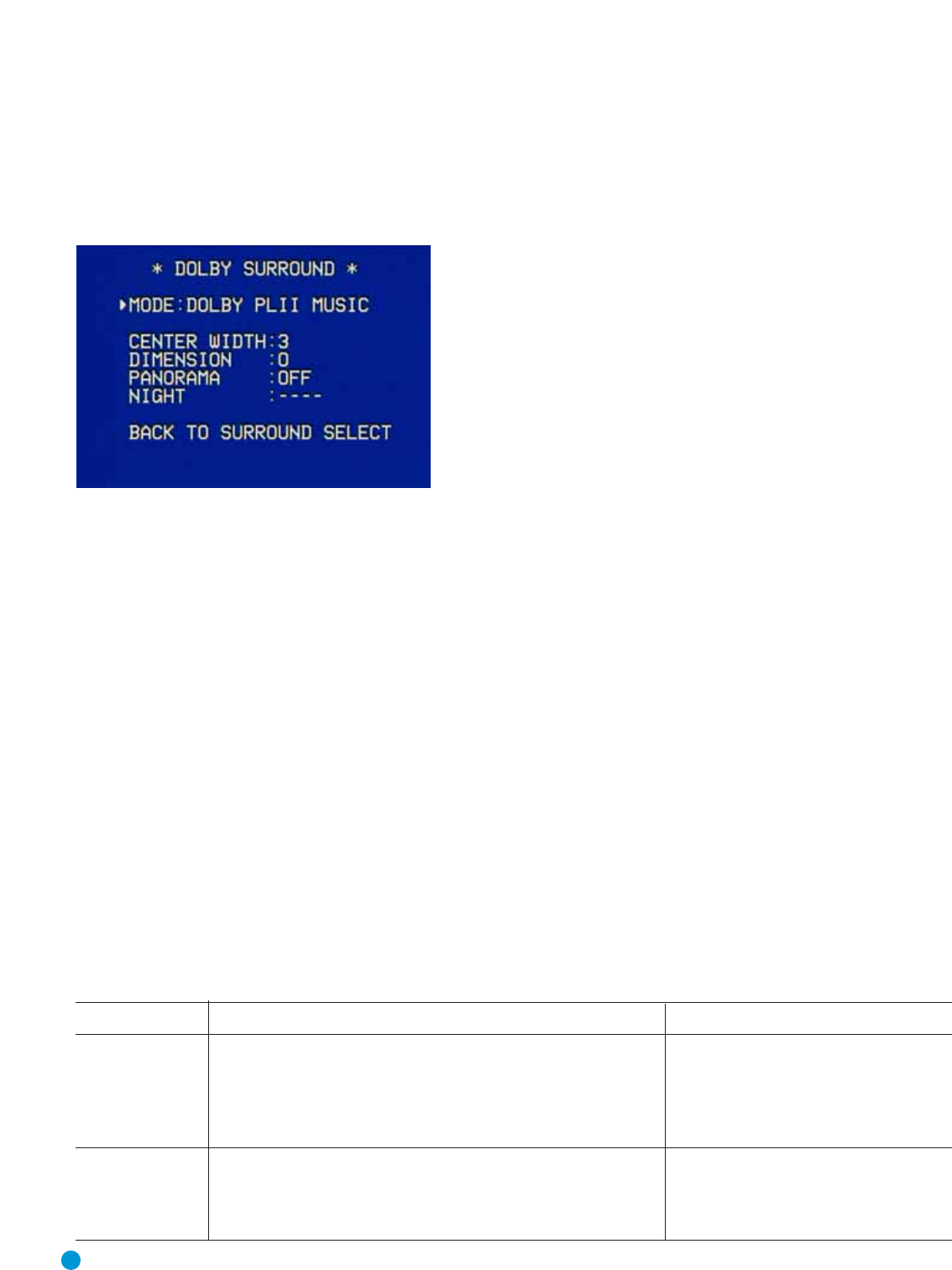
38
ADVANCED FUNCTIONS
Table 5 – Surround Modes
Surround Mode Description Incoming Bitstream or Signal
Dolby Digital Provides up to five separate main audio channels and a dedicated • Dolby Digital 1/0/.0 or .1, 2/0/.0 or .1,
low-frequency effects (LFE) channel. May be encoded for Night mode, 3/0/.0 or .1, 2/1/.0 or .1, 2/2/.0 or .1,
which allows the user to apply a compression setting that maintains 3/2/.0 or .1
intelligibility of softer passages while reducing the loudness of dynamic • Dolby Digital EX (played as 5.1)
passages to avoid disturbing others.
Dolby Digital Stereo Delivers a two-channel downmix of Dolby Digital materials. • Dolby Digital 1/0/.0 or .1, 2/0/.0 or .1,
3/0/.0 or .1, 2/1/.0 or .1, 2/2/.0 or .1,
3/2/.0 or .1
• Dolby Digital EX
Dolby Surround Settings
In addition to the MODE line, the DOLBY SURROUND submenu includes
three settings that are active only when the Dolby Pro Logic II Music
mode has been selected.
Figure 66 – Dolby Surround Menu Screen
CENTER WIDTH: This setting affects how vocals sound through the
three front speakers.A higher number (up to 7) focuses the vocal infor-
mation tightly on the center channel. Lower numbers broaden the vocal
soundstage across the three speakers.
DIMENSION: This setting affects the depth of the surround presenta-
tion, allowing you to “move” the sound toward the front or rear of the
room.The setting of “0” is a neutral default. Setting “F-3” moves the
sound mostly toward the front of the room, while setting “R-3” moves
the sound mostly toward the rear.
PANORAMA: With the Panorama mode turned ON, some of the sound
from the front speakers is moved to the surround speakers, creating an
enveloping “wraparound” type of effect.
Night Mode
Night mode is available with some Dolby Digital programs, if it has been
encoded in the material. It compresses the peak sound levels, maintain-
ing the intelligibility of the dialogue and quieter passages, while reducing
the loudness of special effects and louder passages to avoid disturbing
others.Three levels of compression are available:
OFF: At this setting, there is no compression, as the Night mode is
deactivated.
MID: A mild compression is applied.
MAX: More compression is applied.
We suggest that you experiment with the modes to find a setting that
meets your needs.
The Night mode may also be adjusted without using the full-OSD menu
system.With a Dolby Digital program encoded with Night mode playing,
press the Night Button on the remote. Each press of the button will
cycle through the three settings, with the selected setting being dis-
played on the front panel and in the semi-OSD display.
Upsampling
The last line of the Surround Select menu activates upsampling, only
available with the Dolby Pro Logic II Movie, Dolby Pro Logic II Music and
Dolby Pro Logic modes. Normally set to OFF, upsampling, when activat-
ed, processes digital sources at a higher resolution for improved sound
quality.This feature can be useful to eliminate distortion in some low-
resolution sources.
Default Modes
During initial use or after a processor reset, the AVR 145 will default to
the Logic 7 Music mode for all analog and PCM audio inputs. Subse-
quently, when a source input is selected and an analog or PCM signal is
received, the AVR will switch to the last surround mode used for that
source input/incoming signal combination.
Whenever a multichannel Dolby Digital or DTS signal is detected, the AVR
145 will automatically switch to that mode, unless the DEFAULT SURR
MODE setting in the System Setup menu has been changed to OFF. You
may observe that other surround modes are available for use with the multi-
channel digital bitstreams. If you would prefer the AVR 145 to use one of
those alternate modes any time the same digital signal is detected, then
select that mode while the multichannel bitstream is present, and then
change the DEFAULT SURR MODE setting in the System Setup menu to
OFF.

39
ADVANCED FUNCTIONS
Surround Mode Description Incoming Bitstream or Signal
Dolby Pro Logic II Analog decoder that derives five full-range, discrete main audio channels See below.
from matrix surround-encoded or 2-channel analog sources. Four
variants are available.
Dolby Pro Logic II Variant of Dolby Pro Logic II that is optimized for movie and • Dolby Digital 2.0 or 2.1
Movie television programs. • Analog (2-channel)
• Tuner
• PCM (44.1kHz, 48kHz, 96kHz)
Dolby Pro Logic II Variant of Dolby Pro Logic II that is optimized for music selections. • Dolby Digital 2.0 or 2.1
Music Allows adjustment of sound field presentation in three dimensions: • Analog (2-channel)
• Center Width (adjusts width of vocal soundstage) • Tuner
• Dimension (adjusts depth of soundstage) • PCM (44.1kHz, 48kHz, 96kHz)
• Panorama (adjusts wraparound surround effect)
Dolby Pro Logic II Variant of Dolby Pro Logic II that emphasizes use of the surround • Dolby Digital 2.0 or 2.1
Game channels and subwoofer for total immersion in the video gaming • Analog (2-channel)
experience. • Tuner
• PCM (44.1kHz, 48kHz, 96kHz)
Dolby Pro Logic Original version of Dolby Pro Logic that steered a mono signal • Dolby Digital 2.0 or 2.1
containing information below 7kHz to the surround channels. • Analog (2-channel)
• Tuner
• PCM (44.1kHz, 48kHz, 96kHz)
Dolby Virtual Speaker Simulates 5.1 channels when fewer speakers are present, or a more See below.
enveloping sound field is desired.
Dolby Virtual Speaker When fewer than five main speakers are present, the Reference • Dolby Digital (uses only two-speaker mode
Reference mode virtualizes the missing speakers with accurate localization. when
ignal does not contain scenter channel
Select from two- or three-speaker mode, depending on how many
information)
physical speakers are in your system. • Analog (2-channel)
• Tuner
• PCM (44.1kHz or 48kHz)
Dolby Virtual Speaker Wide mode may be used with two, three, four or five • Dolby Digital (number of channels available
Wide main speakers to widen the front soundstage varies by number of channels in signal)
by virtualizing the locations of the left and right speakers. • Analog (2-channel)
• Tuner
• PCM (44.1kHz or 48kHz)
DTS Digital Using a different encoding/decoding method than Dolby Digital, • DTS 1/0/.0 or .1,2/0/.0 or .1, 3/0/.0 or .1,
it also provides up to 5 discrete main channels, plus an LFE channel. 3/1/.0 or .1, 2/2/.0 or .1, 3/2/.0 or .1
• DTS-ES Matrix (played as 5.1)
• DTS-ES Discrete (played as 5.1)
DTS Stereo Delivers a 2-channel downmix of DTS Digital materials, or presents • DTS 1/0/.0 or .1, 2/0/.0 or .1, 3/0/.0 or .1,
a matrix-encoded surround presentation. 3/1/.0 or .1, 2/2/.0 or .1, 3/2/.0 or .1
• DTS 96/24
• DTS-ES Matrix
• TS-ES Discrete

40
ADVANCED FUNCTIONS
Surround Mode Description Incoming Bitstream or Signal
DTS Neo:6 DTS Neo:6 analog processing is available with DTS-ES (Matrix or Discrete) See below
signals and 2-channel analog or PCM signals to create a 3- or 5-channel
presentation.
DTS Neo:6 Depending on the number of speakers in your system,select 3- or 5-channel • DTS-ES Matrix
Cinema modes, enhanced for movie or video presentations. • DTS-ES Discrete
• Analog (2-channel)
• PCM (44.1kHz or 48kHz)
DTS Neo:6 Available only in 5-channel mode, creates a surround presentation suitable • DTS-ES Matrix
Music for music recordings. • DTS-ES Discrete
• Analog (2-channel)
• PCM (44.1kHz or 48kHz)
Logic 7 Exclusive to Harman Kardon, Logic 7 enhances 2-channel recordings by See below
deriving separate information for the surround back channels.This provides
more accurate placement of sound, improves panning and expands the
sound field, even when used with 5.1-channel systems. Logic 7 uses
96kHz processing.
Logic 7 Especially suited to 2-channel sources containing Dolby Surround or • Analog (2-channel)
Cinema matrix encoding, Logic 7 Cinema mode increases center channel intelligibility. • Tuner
• PCM (44.1kHz, 48kHz, 96kHz)
Logic 7 The AVR 145 is programmed at the factory to default to this mode for • Analog (2-channel)
Music 2-channel signals. Logic 7 Music mode is well suited to conventional • Tuner
2-channel music recordings. • PCM (44.1kHz, 48kHz, 96kHz)
Logic 7 Logic 7 Enhance circulates low frequencies in the 40Hz – 120Hz range to • Analog (2-channel)
Enhance the main speakers for less localized bass performance than would be achieved • Tuner
solely with a subwoofer. Enhance mode is best used with music recordings. • PCM (44.1kHz, 48kHz, 96kHz)
Hall 1 Hall 1 is a DSP (digital signal processor) mode that simulates a small • Analog (2-channel)
concert hall. • Tuner
• PCM (44.1kHz or 48kHz)
Hall 2 Simulates a medium-sized concert hall. • Analog (2-channel)
• Tuner
• PCM (44.1kHz or 48kHz)
Theater Simulates a live-performance theater. • Analog (2-channel)
• Tuner
• PCM (44.1kHz or 48kHz)
5-Channel Stereo Useful for parties, the left- and right-channel information is played through • Analog (2-channel)
both the front and surround speakers on each side, while the center speaker • Tuner
plays a summed mono mix. • PCM (44.1kHz or 48kHz)
DSP Surround Off Turns off all surround processing and plays a pure 2-channel signal. • Analog (2-channel)
The signal is digitized and bass management settings are applied, making it • Tuner
appropriate when a subwoofer is used. • PCM (44.1kHz, 48kHz, 96kHz)
Surround Off Maintains an analog input signal in that form, bypassing all digital processing • Analog (2-channel)
(Analog Bypass) (i.e., surround and bass management). Requires TONE OUT setting. • Tuner
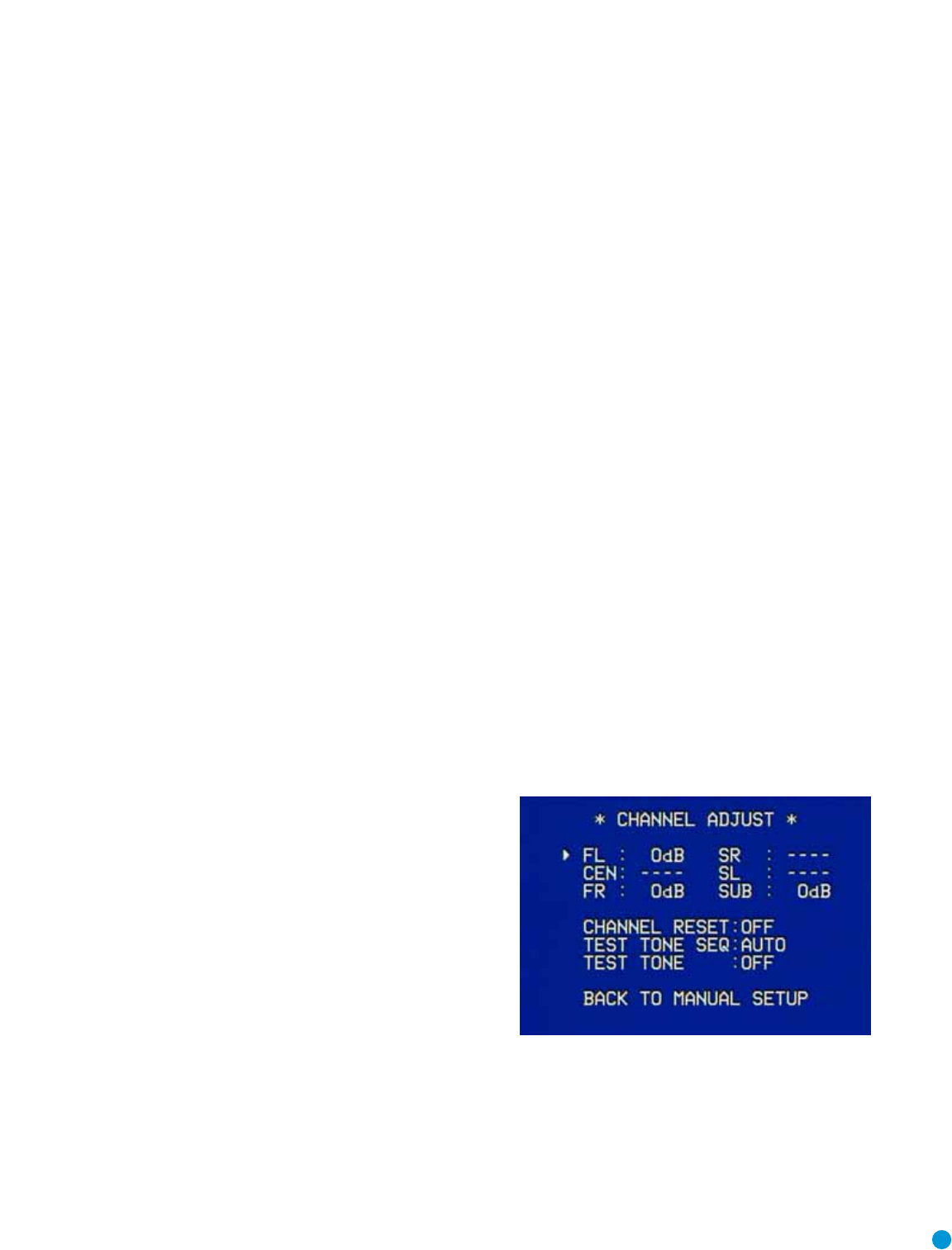
41
ADVANCED FUNCTIONS
Setting Channel Output Levels Manually
For a conventional 2-channel receiver, the balance control enables the
user to control the stereo imaging by adjusting the relative loudness of
the left and right channels, as heard at the listening position.
With five main channels plus a subwoofer, imaging becomes both more
critical and more complex. Unlike the rotary balance control, the goal
of the AVR 145’s channel output adjustment process is to examine the
output level of each channel independently and ensure that each is
heard at the listening position with equal loudness.
If you followed the instructions in Step Four of the Initial Setup section,
then you let EzSet handle this critical task for you, simply and auto-
matically.
However, if you prefer to make these adjustments manually, the
AVR 145’s Channel Adjust menu allows you to do so, either using the
system’s test tone or while playing source material.In addition, this is
the only method for adjusting the level of the subwoofer.
You may use either the EzSet remote or a handheld SPL meter (avail-
able at most electronics stores) set to the C-Weighting,Slow scale.
1. Make sure all speakers have been connected correctly.
2. Use the Speaker Size menu, or press the Speaker Setup Button on
the remote, to make sure the correct speaker size has been entered
for each speaker in your system.
3. Use the Speaker X-over menu to program the correct crossover
setting for each speaker in your system.
4. Use the Delay Adjust menu, or press the Delay Button on the
remote control, to enter the distance between each speaker and
the listening position.
5. If you are using a handheld SPL meter with source material, such as
a test disc or another audio selection, play it now and adjust the
AVR’s master volume control until the
meter
measures 75dB.
6. If you are using the EzSet remote, either set the master volume to
–15dB, or you may play source material and press the SPL Button
once.Adjust the volume until the LED turns green. If it’s amber, the
volume is too low; if it’s red, the volume is too high.
7.There are several methods of adjusting the channel output levels,
using either the test tone or source materials. In all cases, you may
measure the channel levels in one of three ways:
a) By ear.Try to adjust the levels so that all channels sound equally loud.
b) Using a handheld SPL meter set to the C-Weighting,Slow scale.Try to
adjust each channel so that the meter reads 75dB.
c) Using the AVR 145 remote, press the SPL Button once so that the
LED lights steadily.When it’s amber, the level is too low and should be
raised.When the LED is red, the level is too high and should be low-
ered.When the LED is green, the level is correct.
A. Using the Remote Control With the Test Tone
While sitting in the listening position, press the Test Button on the
remote.The test tone will start playing at the front left channel.After
a few seconds, it will move to the center channel, then the front right
channel, surround right, surround left and finally the subwoofer, display-
ing the channel name on the front of the receiver and in the semi-OSD
display, as well as the current level setting (varies between –10dB and
+10dB). Press the ⁄/¤Buttons to adjust the level setting, and the
tone will remain at that channel until several seconds after your last
adjustment.When you have finished adjusting the levels, press the Test
Button again to stop the tone. Measure the levels by ear, using an SPL
meter, or using the remote, as described above.
B. Using the Front-Panel Controls
You may adjust the levels by pressing the Channel Button on the front
panel, and the FRONT L LEVEL message will appear. Use the ‹/›
Buttons on the front panel to select the desired speaker channel to
adjust, and press the Set Button when the desired channel is displayed.
The current level for that channel will appear, and you may adjust it
using the ‹/›Buttons. Press the Set Button to return to the speaker
channel choices.This method is not recommended, as you will not be
able to measure the channel levels at the listening position. In addition,
this method requires that a source is playing.
C. Using the Full-OSD Menu
Next to EzSet, the full-OSD menu system offers the easiest and most
flexible manner of setting output levels. Press the OSD Button to display
the Master Menu, and then navigate to the MANUAL SETUP line. Press
the Set Button to display the Manual Setup menu, and then navigate to
the CHANNEL ADJUST line. Press the Set Button to display the Channel
Adjust menu.
Figure 67 – Channel Adjust Menu Screen
All of the speaker channels will appear at the top of the screen with their
current level settings.Any channels that have not been programmed
using the Speaker Size menu will display four dashes and will not be
accessible.
CHANNEL RESET: If you wish to start by resetting all of the levels to
their factory defaults of 0dB, navigate to this line and change the setting
to ON.The levels will be reset, and this setting will then revert to OFF.

42
If you are using an external source to set your output levels, simply navi-
gate to each channel and use the ⁄/¤Buttons to adjust the level as
desired.
If you would like to set your levels using the AVR 145’s internal test
tone, you will need to adjust the TEST TONE SEQ and TEST TONE lines
as follows.
TEST TONE SEQ: When this setting reads AUTO, the test tone will auto-
matically circulate to all channels, pausing for a few moments at each
channel and then moving to the next channel several seconds later, as
indicated by the blinking cursor.You may adjust the level for any channel
when the test tone is paused there by using the ‹/›Buttons.You may
also use the ⁄/¤Buttons at any time to move the cursor to another
line, and the test tone will follow the cursor.
When this setting reads MANUAL, the test tone will not move to the
next channel until you use the ⁄/¤Buttons to move it.
TEST TONE: This line determines whether the test tone is active or not.
To begin the process of setting the levels, use the ‹/›Buttons to
change the setting to ON.Any time you manually move the cursor out of
the channel listings area of the screen, this setting will automatically
change to OFF, ending the test tone.
NOTE: Setting the channel levels while one surround mode is
active does not necessarily carry over to all other modes.We
recommend that after you have set the levels satisfactorily in
one mode, you note the results and change to other surround
modes. For those modes that don’t reflect your level settings,
you may either copy the settings you obtained as a short cut, or
re-do the procedure to determine the correct settings for those
surround modes.
System Settings
The AVR 145 offers several system settings that allow you to make the
receiver easier to use rather than directly affecting performance. Most of
these settings may be accessed from the SYSTEM SETUP menu, which
is selected by pressing the OSD Button and navigating to the SYSTEM
SETUP line of the MASTER MENU. Press the Set Button to display the
submenu.
Figure 68 – System Setup Menu Screen
VFD FADE TIME OUT: Some people find the brightness of the AVR’s
front-panel display distracting during movies or listening sessions. It’s
possible to dim the front-panel display completely using the Dim func-
tion (see below).Alternatively, you may set the display to remain dark
most of the time, lighting up only when a button is pressed or a remote
command is received.This setting allows you to turn on this feature and
program the amount of time the display remains lit before fading to
dark.
Select a time-out period of between 3 and 10 seconds, or select OFF if
you prefer to leave the displays either on or dimmed at all times.
VOLUME DEFAULT and DEFAULT VOL SET: These two settings are
used together to program a volume level the AVR will always switch to
when turned on.This feature avoids overtaxing the system in case the
last user turned the volume very high.
Press the OSD Button to remove the display from the screen so that
you may adjust the volume to a desired level while a source is playing.
Make a note of the number that appears in the display, and return to the
SYSTEM SETUP menu.At the DEFAULT VOL SET line, select the
desired volume setting, and activate the feature by setting VOLUME
DEFAULT to ON.
NOTE: Although volume is normally displayed 0.5dB incre-
ments, the default volume setting only allows whole numbers.
SEMI OSD TIME OUT: At this line you may program the amount of
time (2 to 5 seconds) the two-line semi-OSD on-screen messages
remain, or you may deactivate the semi-OSD display altogether if you
find it distracting.The same messages will continue to appear on the
front panel of the receiver.
FULL OSD TIME OUT: At this line you may program the amount of time
(20, 30, 40 or 50 seconds) the full-OSD menus remain visible on
screen.The full-OSD system may not be deactivated.
DEFAULT SURR MODE:This setting determines how the AVR 145 will
handle Dolby Digital and DTS sources. For the purposes of this setting,
the “default surround mode” means the mode encoded in the program,
such as Dolby Digital 5.1.With this setting ON, the receiver will always
use the default surround mode in the program.When this setting is
changed to OFF, the receiver will use the surround mode you selected
the last time this type of audio stream was detected.
As an example, the Default Surround Mode setting can be beneficial
when used with Dolby Digital 2.0 programs, such as the ones broadcast
on many channels of some cable and satellite television systems. If you
would prefer to play these programs in the Dolby Pro Logic II Movie
surround mode, then set DEFAULT SURR MODE to OFF,and select your
desired surround mode the first time a Dolby Digital 2.0 program is
played. Dolby Digital 5.1 programs will still be played in 5.1-channel
mode.
NOTE: For PCM and analog sources, the factory default sur-
round mode is Logic 7 Music. In general, the receiver will use
the surround mode selected the last time that type of signal was
received.
ADVANCED FUNCTIONS

43
OSD BACKGROUND: This setting allows you to choose between a blue
or black background for the full-OSD menus.
NOTE: It isn’t possible to view video sources while the full-OSD
menus are displayed.
Dim Function
Some people find the front-panel messages to be distracting and would
prefer to dim them or turn them off altogether.
To dim the display:
1. Press the Dim Button on the remote. Each button press will cycle
through the three settings of:
VFD FULL: Normal brightness
VFD HALF: Display is dimmed but still visible; the light inside the vol-
ume knob goes dark
VFD OFF: Display goes completely dark except for Power Indicator to
remind you that the receiver is turned on
2. Press the Set Button on the front panel and hold it for about five sec-
onds.A message indicating the current brightness setting (see above)
will appear in the display. Use the front-panel ‹/›Buttons to change
the setting.
Advanced Remote Control Functions
The AVR 145 remote control not only operates the AVR 145, but it also
serves as a universal remote that may be programmed to operate many
of your other home theater components, as described in the Installation
section. Each time you select one of your other components, the AVR
remote switches to the control functions for that component. Since
many buttons will have unique functions for each component, you may
wish to refer to the Function List in the Appendix for assistance in oper-
ating your other components.The function of each button will not nec-
essarily correspond to the label printed on the button.
Punch-Through Programming
The AVR 145 remote allows you to select one component for the
remote to operate, while simultaneously setting certain groups of con-
trols to operate another component. For example, while using the AVR
to control surround modes and other audio functions, you may wish to
operate the transport controls of your DVD player. Or while using the
remote to control video functions on your TV, you may wish to use your
cable box to change channels and the AVR to control the volume.
All of this is possible using punch-through programming.
NOTE: It is not necessary to program the remote to control
your DVD player’s transport controls while the AVR is in use, as
the remote is preprogrammed at the factory with this function.
To program punch-through control while operating any device:
1. Simultaneously press and hold the Input Selector (or AVR selector) for
the main device the remote will be operating and the Mute button
until the LED flashes and the remote enters program mode.
2. Select the type of punch-through programming.
a) To program volume control punch-through, press the Volume Up
Button.
b) To program channel control punch-through, press the Volume
Down Button.
c) To program transport control punch-through, press the Play Button.
3. Press the Input Selector (or AVR selector) for the device whose vol-
ume, channel or transport controls you would like to be active while
operating the device you selected in the first step.The LED will flash
green to confirm the programming.
For example, if you wish to watch your TV (programmed into the Video
3 button) while changing channels using your cable box (Video 2), you
would first press the Video 3 and Mute buttons until the LED flashed.
You would then press the Play Button, followed by the Video 2 button.
To undo punch-through programming, follow the same steps as above,
but press the same Input (or AVR) Selector in steps 1 and 3.
Macros
Macros are used to program sequences of up to nineteen commands
that are executed with a single button press. Macros are well-suited for
power on and off commands, or to send out a favorite multi-digit chan-
nel number with one button press, or to have the ability to send out a
code sequence to control another device while the remote is operating
one device but with more flexibility than the built-in punch-through con-
trols.
Some commands may not be programmed into macros: Mute, Dim,
Channel Up/Down, any of the surround mode commands.
NOTE: Use caution when programming complicated macros. It
isn’t possible to program a pause or delay before sending com-
mands after Power On,and the component may not be ready
to respond to commands instantaneously after powering on.
To program, or “record” a macro, follow these steps:
1. Simultaneously press one of the four Macro Buttons or the Power On
Button and the Mute Button at the same time to enter program
mode.
2. Press the Input (or AVR) Selector for each device before you enter
commands to be transmitted to that device.This step counts as one
of the 19 commands allowed for each macro.
3. For the Power On command, do not press the Power On button.
Press the Mute Button instead.
4. Press the Power Off Button to program the Power Off command.
5. Press the Sleep Button to end the programming process.
ADVANCED FUNCTIONS

44
It isn’t possible to “edit” a command within a macro. However, you may
erase the macro as follows:
1. Simultaneously press and hold the Mute Button and the Macro
Button containing the macro until the LED flashes.
2. Press the Surround Button to erase the macro.
Resetting the Remote
To reset the remote to its factory defaults, enter Program mode by
simultaneously pressing and holding any Input Selector and the Mute
Button.When the LED flashes, enter the code “333”.When the LED
goes out, the remote will have been fully reset.
Processor Reset
There may be instances where you wish to fully reset the AVR 145 to its
factory defaults, or the unit may behave erratically after a power surge.
For erratic behavior, we recommend you try turning the Master Power
Switch off and unplugging the AC Power Cord for at least three minutes.
Try plugging the cord back in and turning the receiver back on. If this
doesn’t work, you may want to try a system reset.
NOTE:
A system reset erases all user configurations, including
speaker and level settings and tuner presets.After a reset, you
will need to re-enter all of these settings.
To reset the AVR 145, place the receiver in Standby mode (press the
front-panel Standby/On Switch so that the Power Indicator turns amber).
Then press and hold the front-panel Tone Mode Button for at least five
seconds until the RESET message appears in the display.
If the receiver still does not function correctly after a processor reset,
contact an authorized Harman Kardon service center for assistance.
Service centers may be located by visiting our Web site at www.
harmankardon.com.
Memory
If the AVR 145 is unplugged or experiences a power outage, it will retain
user settings for up to four weeks.
ADVANCED FUNCTIONS

45
TROUBLESHOOTING GUIDE
SYMPTOM CAUSE SOLUTION
Unit does not function when Main • No AC Power • Make certain AC power cord is plugged into
Power Switch is pushed a live outlet
• Check to see whether outlet is switch-controlled
Display lights, but no sound • Intermittent input connections • Make certain that all input and speaker connections
or picture are secure
• Mute is on • Press Mute Button
• Volume control is down • Turn up volume control
No sound from any speaker; • Amplifier is in protection mode • Check speaker wire connections for shorts at receiver and
light around power switch is red due to possible short speaker ends
• Amplifier is in protection mode • Contact your local Harman Kardon service center
due to internal problems
No sound from surround or • Incorrect surround mode • Select a mode other than Stereo
center speakers • Input is monaural • There is no surround information from mono sources
• Incorrect configuration • Check speaker mode configuration
• Stereo or Mono program material • The surround decoder may not create center- or rear-channel
information from nonencoded programs
Unit does not respond to • Weak batteries in remote • Change remote batteries
remote commands • Wrong device selected • Press the AVR selector
• Remote sensor is obscured • Make certain front panel sensor is visible to remote
or connect an optional remote sensor
Intermittent buzzing in tuner • Local interference • Move unit or antenna away from computers, fluorescent
lights, motors or other electrical appliances
Letters flash in the channel indicator • Digital audio feed paused • Resume play for DVD
display and digital audio stops • Check that Digital Input is selected
In addition to the items shown above, additional information on troubleshooting possible problems with your AVR 145, or installation-related issues, may
be found in the list of "Frequently Asked Questions" which is located in the Product Support section of our Web site at www.harmankardon.com.

46
AVR 145 TECHNICAL SPECIFICATIONS
Audio Section
Stereo Mode
Continuous Average Power (FTC)
50 Watts per channel, 20Hz–20kHz,
@ <0.07% THD, both channels driven into 8 ohms
Five-Channel Surround Modes
Power per Individual Channel
Front L&R channels:
40 Watts per channel
@ <0.07% THD, 20Hz–20kHz into 8 ohms
Center channel:
40 Watts @ <0.07% THD, 20Hz–20kHz into 8 ohms
Surround (L & R Side) channels:
40 Watts per channel
@ <0.07% THD, 20Hz–20kHz into 8 ohms
Input Sensitivity/Impedance
Linear (High-Level) 200mV/47k ohms
Signal-to-Noise Ratio (IHF-A) 100dB
Surround System Adjacent Channel Separation
Pro Logic I/II 40dB
Dolby Digital (AC-3) 55dB
DTS 55dB
Frequency Response
@ 1W (+0dB, –3dB) 10Hz –130kHz
High Instantaneous
Current Capability (HCC) ±25 Amps
Transient Intermodulation
Distortion (TIM) Unmeasurable
Slew Rate 40V/µsec
FM Tuner Section
Frequency Range 87.5–108.0MHz
Usable Sensitivity IHF 1.3µV/13.2dBf
Signal-to-Noise Ratio Mono/Stereo 70/68dB
Distortion Mono/Stereo 0.2/0.3%
Stereo Separation 40dB @ 1kHz
Selectivity ±400kHz, 70dB
Image Rejection 80dB
IF Rejection 90dB
AM Tuner Section
Frequency Range 520–1720kHz
Signal-to-Noise Ratio 45dB
Usable Sensitivity Loop 500µV
Distortion 1kHz, 50% Mod 0.8%
Selectivity ±10kHz, 30dB
Video Section
Television Format NTSC
Input Level/Impedance 1Vp-p/75 ohms
Output Level/Impedance 1Vp-p/75 ohms
Video Frequency Response
(Composite and S-Video) 10Hz–8MHz (–3dB)
Video Frequency Response
(Component Video) 10Hz–100MHz (–3dB)
General
Power Requirement AC 120V/60Hz
Power Consumption 65W idle, 540W maximum
(5 channels driven)
Dimensions (Product) (Shipping)
Width 17-5/16 inches (440mm) 22 inches (559mm)
Height 5-7/8 inches (150mm) 10-1/2 inches (267mm)
Depth 13-3/4 inches (350mm) 18-3/4 inches (476mm)
(Product) (Shipping)
Weight 24.4 lb (11.1kg) 29 lb (13.2kg)
Depth measurement includes knobs, buttons and terminal connections.
Height measurement includes feet and chassis.
All features and specifications are subject to change without notice.
Harman Kardon, Harman International, Designed to Entertain and Logic 7 are trademarks of Harman International
Industries, Incorporated,registered in the United States and/or other countries. and EzSet are trade-
marks of Harman International Industries, Incorporated.
Dolby, Pro Logic and the double-D symbol are trademarks of Dolby Laboratories.
Manufactured under license from Dolby Laboratories.
DTS, DTS Surround, DTS-ES and DTS Neo:6 are registered trademarks, and DTS 96/24 is a trademark, of DTS,
Inc.
Cirrus Logic is a registered trademark of Cirrus Logic, Inc.
SACD is a trademark of Sony Corporation.
Apple and iPod are registered trademarks, and Shuffle is a trademark, of Apple Computer,Inc.
Blu-ray Disc is a trademark of the Blu-ray Disc Association.
HD-DVD is a trademark of the DVD Format/Logo Licensing Corporation (DVD FLLC).
TiVo is a registered trademark of TiVo Inc.
The
BridgeTM
Please register your product on our Web site at www.harmankardon.com. Note:You’ll need your serial number.
At the same time, you can choose to be notified about our new products and/or special promotions.
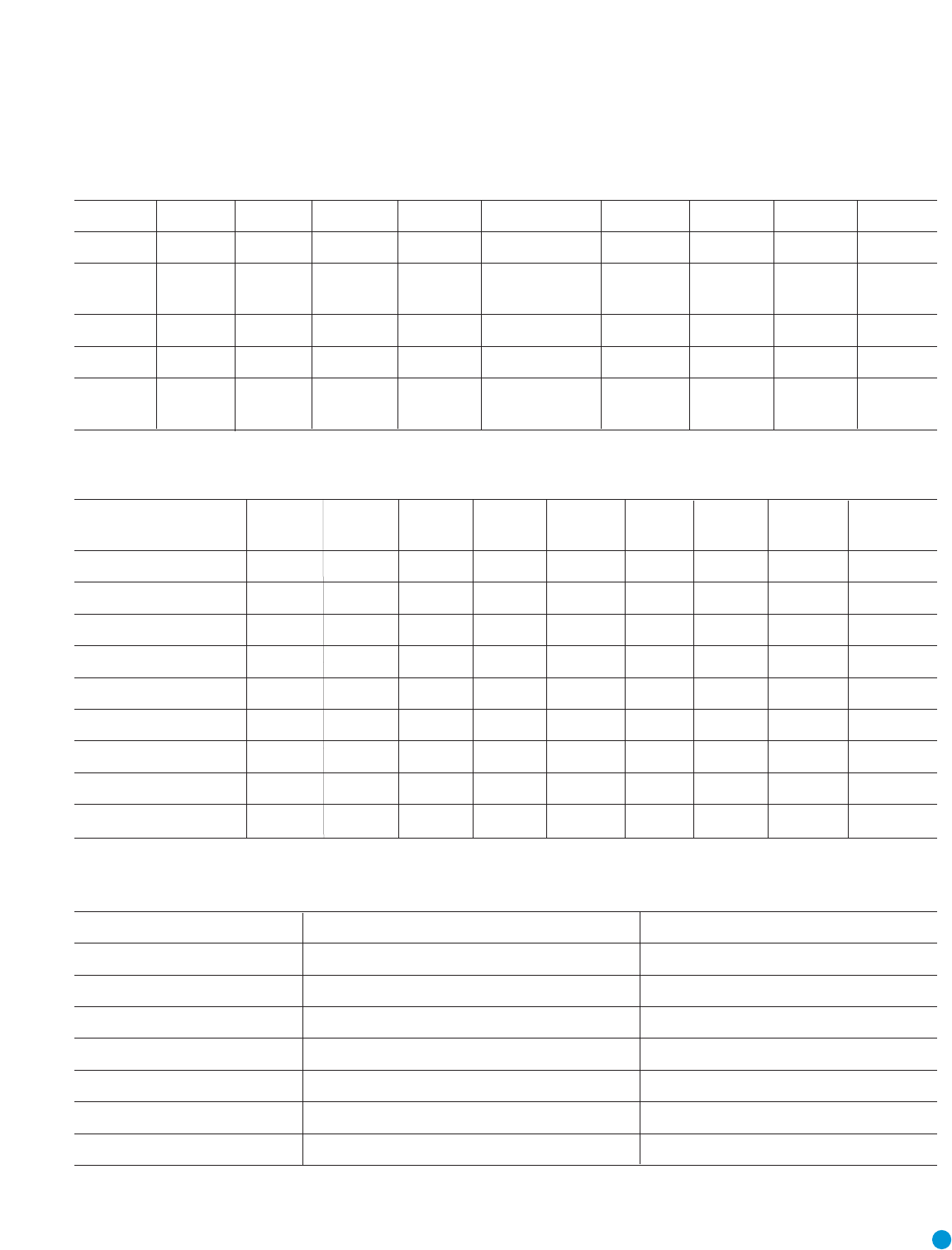
47
Appendix – default settings, worksheets, remote product codes
Table A1 – Source Input Setting Defaults
Source DVD Video 1 Video 2 Video 3 The Bridge/DMP CD Tape Tuner 6-Channel
Title INT.TUNER
Component Comp V 1 Comp V 2 Comp V 2 Comp V 2 Comp V 1 Comp V 1 Comp V 1 Comp V 1 Comp V 1
Video Input
Audio Input Coax 1 Analog Optical 1 Analog The Bridge/DMP Analog Analog Tuner 6-Channel
Auto Poll On On On On --- On On --- ---
Surround Logic 7 Logic 7 Logic 7 Logic 7 Logic 7 Logic 7 Logic 7 Logic 7 Logic 7
Mode* 5CH Music 5CH Music 5CH Music 5CH Music 5CH Music 5CH Music 5CH Music 5CH Music 5CH Music
*The default shown is the preferred surround mode for PCM and Analog audio sources.
Table A2 – Speaker/Channel Setting Defaults
Source DVD Video 1 Video 2 Video 3 The Bridge CD Tape Tuner 6-Channel
/DMP
Bass Manager: Global
Left/Right Speaker Size Small Small Small Small Small Small Small Small Small
Center Speaker Size Small Small Small Small Small Small Small Small Small
Surround Speaker Size Small Small Small Small Small Small Small Small Small
Subwoofer Sub Sub Sub Sub Sub Sub Sub Sub Sub
Left/Right Speaker Crossover 100Hz 100Hz 100Hz 100Hz 100Hz 100Hz 100Hz 100Hz 100Hz
Center Speaker Crossover 100Hz 100Hz 100Hz 100Hz 100Hz 100Hz 100Hz 100Hz 100Hz
Surround Speaker Crossover 100Hz 100Hz 100Hz 100Hz 100Hz 100Hz 100Hz 100Hz 100Hz
Subwoofer Crossover Left/Right Left/Right Left/Right Left/Right Left/Right Left/Right Left/Right Left/Right Left/Right
Table A3 – Delay Setting Defaults
Speaker Position Distance From Speaker to Listening Position Your Delay Settings
Front Left 10 feet
Center 10 feet
Front Right 10 feet
Surround Right 10 feet
Surround Left 10 feet
Subwoofer 10 feet
A/V Sync Delay 0mS
APPENDIX
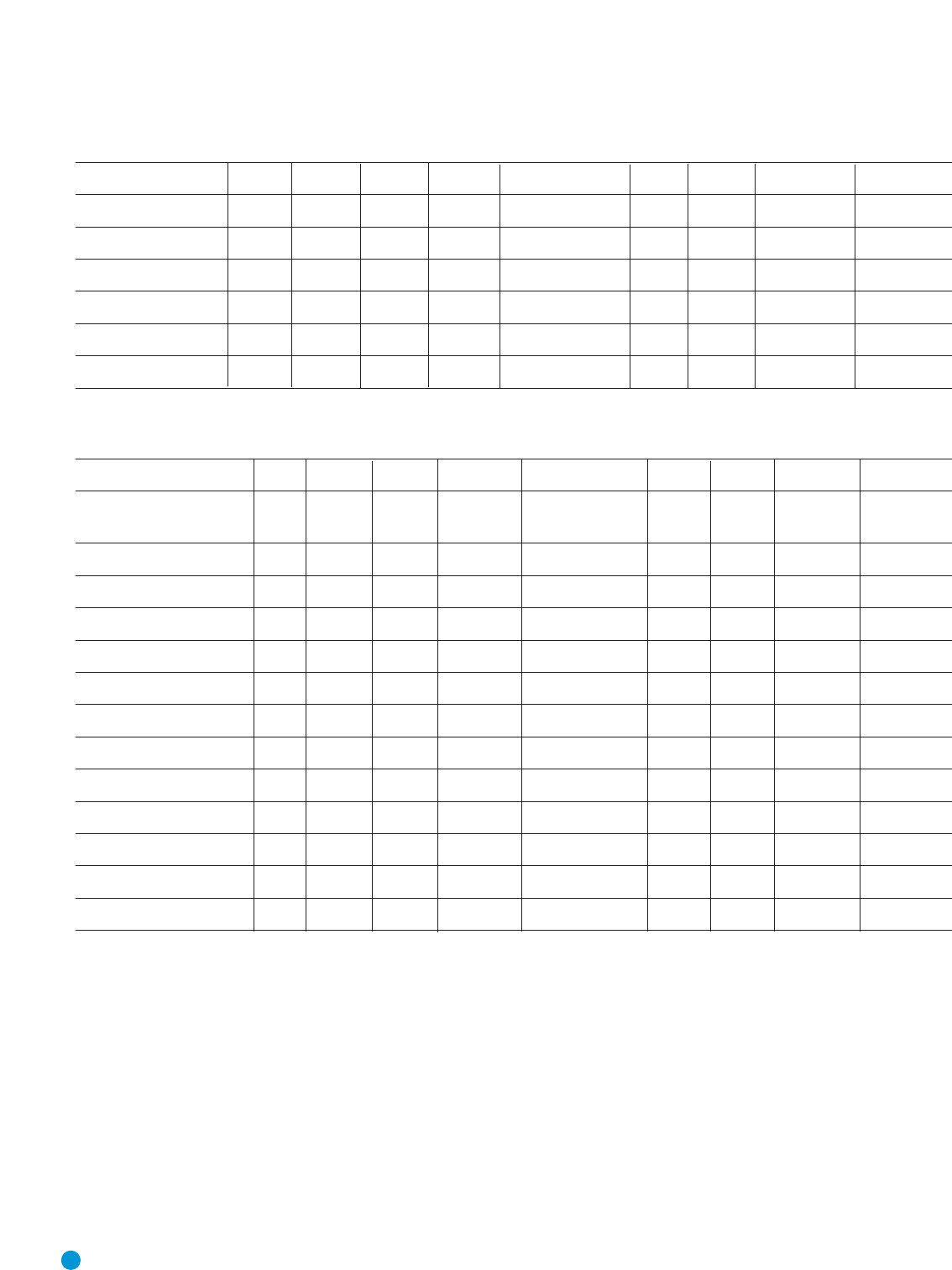
48
Table A4 – Source Input Settings
Source DVD Video 1 Video 2 Video 3 The Bridge/DMP CD Tape Tuner 6-Channel
Title INT.TUNER
Video Input
Component Video Input
Audio Input The Bridge/DMP Tuner 6-Channel
Auto Poll --- --- ---
Surround Mode
Table A5 – Speaker/Channel Settings
Source DVD Video 1 Video 2 Video 3 The Bridge/DMP CD Tape Tuner 6-Channel
Bass Manager :
Global/Independent
Left/Right Speaker Size
Center Speaker Size
Surround Speaker Size
Subwoofer
Left/Right Speaker Crossover
Center Speaker Crossover
Surround Speaker Crossover
Subwoofer Crossover
Left/Right Channel Level
Center Channel Level
Surround Channel Level
Subwoofer Channel Level
Note: Channel levels vary by surround mode rather than source input.
APPENDIX

49
Table A6 – Remote Control Codes
Source Input Product Type (circle one) Remote Control Code
Video 1 VCR, PVR
Video 2 Cable, Satellite
Video 3 TV
DVD DVD
CD CD, CDR
Tape Cassette
Table A7 – System Settings
Feature Default Setting Your Setting
VFD Fade Time Out Off
Volume Default Off
Default Vol Set -25dB
Semi OSD Time Out 5 seconds
Full OSD Time Out 20 seconds
Default Surr Mode On
OSD Background Blue
APPENDIX
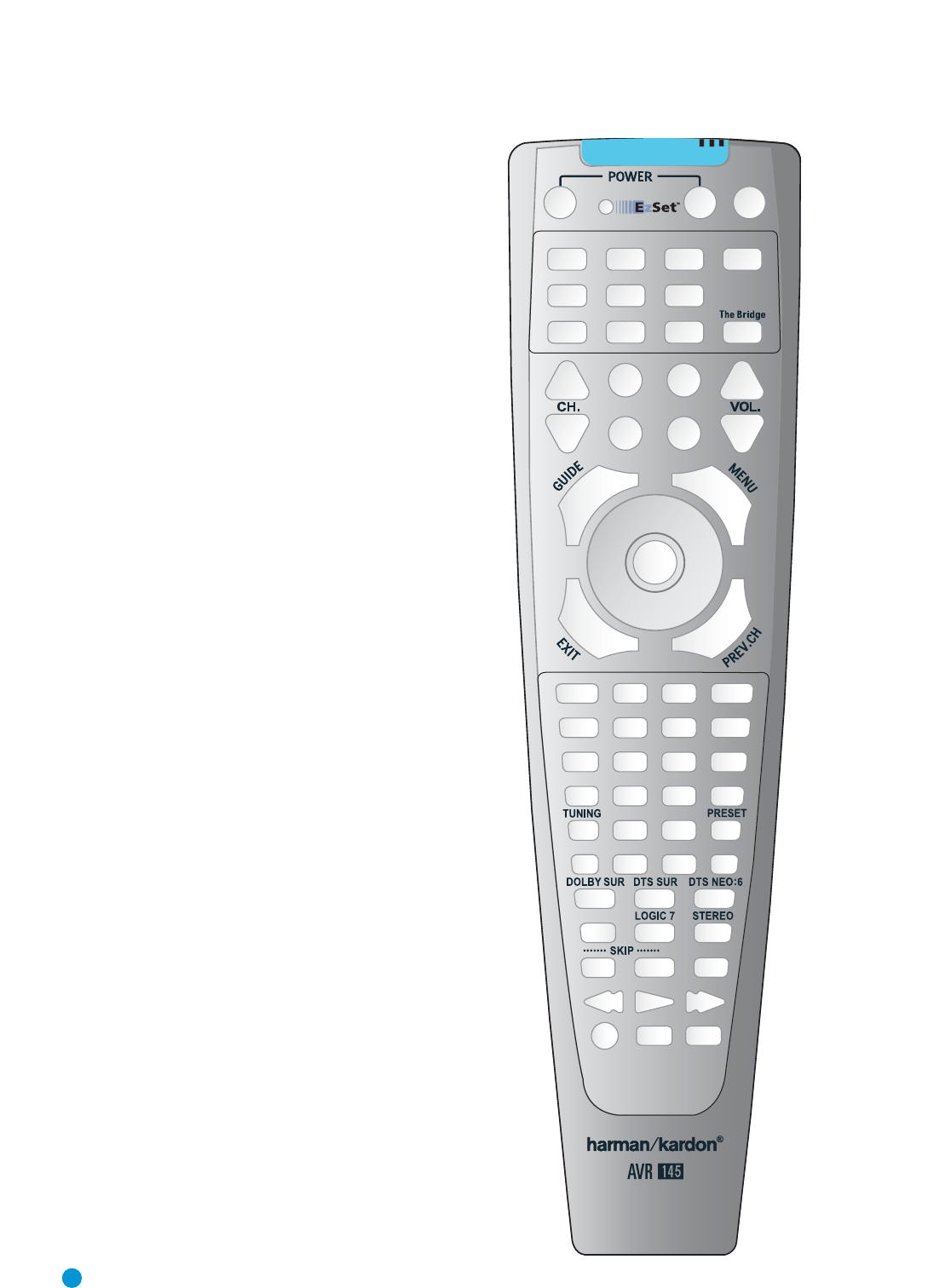
50
13
6
9
12
15 18
21
24
30
33
2
5
8
11 14
17
20
23
26 28
32
47
10
13
16
19 22
25
27
29
31
34
36
35
37 39
38
40 41 43
42
44 45 47
46
48 49 5150
53 54 55
57
56 58
59 60
52
61
63 64
65 67
66
68 69 70
62
Refer to the numbered buttons in this drawing when using the Function List.
Figure 69 – Remote Control Function List Reference
APPENDIX

51
APPENDIX
No. Button Name AVR Function DVD CD/CD-R Tape VCR (VID1) TiVo (VID1) CBL (VID2) SAT (VID2) TV (VID3)
(DMP)
1Power On Power On Power On Power On Power On Power On/Off Power On Power On Power On Power On
2Power Off Power Off Power Off Power Off Power Off TV Power Power Off Power Off Power Off Power Off
3Mute Mute Mute Mute Mute Mute Mute Mute Mute Mute Mute
4AVR AVR Select AVR Select AVR Select AVR Select AVR Select AVR Select AVR Select AVR Select AVR Select AVR Select
5DVD DVD Input Select DVD Select DVD Select DVD Select DVD Select DVD Select DVD Select DVD Select DVD Select DVD Select
6CD CD Input Select CD Select CD Select CD Select CD Select CD Select CD Select CD Select CD Select CD Select
7Tape Tape Input Select Tape Select Tape Select Tape Select Tape Select Tape Select Tape Select Tape Select Tape Select Tape Select
8VID 1 (VCR) Video 1 Select VCR Select VCR Select VCR Select VCR Select VCR Select VCR Select VCR Select VCR Select VCR Select
9VID 2 (CBL/SAT) Video 2 Select CBL/SAT Select CBL/SAT Select CBL/SAT Select CBL/SAT Select CBL/SAT Select CBL Select SAT Select CBL/SAT Select CBL/SAT Select
10 VID 3 (TV) Video 3 Select TV Select TV Select TV Select TV Select TV Select TV Select TV Select TV Select TV Select
11 SPL EzSet
12 AM/FM Tuner Select Tuner Select Tuner Select Tuner Select Tuner Select Tuner Select Tuner Select Tuner Select Tuner Select Tuner Select
13 6CH 6/8 Ch. Input Select 6/8 Ch. Input Select 6/8 Ch.Input Select 6/8 Ch. Input Select
6/8 Ch. Input Select
6/8 Ch. Input Select
6/8 Ch. Input Select 6/8 Ch. Input Select 6/8 Ch.Input Select
6/8 Ch. Input Select
14 (DMP) The Bridge (DMP)
The Bridge (DMP) Select The Bridge (DMP) Select
The Bridge (DMP) Select
The Bridge (DMP) Select The Bridge (DMP) Select
The Bridge (DMP) Select
The Bridge (DMP) Select The Bridge (DMP) Select
The Bridge (DMP) Select
15 Sleep/CH+ Sleep Audio Channel + Channel + Channel + Channel + Channel +
16 Test Tone Test Tone
17 T/V TV/DVD or V. OFF Input Select TV/VCR TV Input TV/CBL TV/SAT TV/VCR
18 Vol Up Volume Up Volume Up Volume Up Volume Up Volume Up Volume Up Volume Up Volume Up Volume Up
19 Surr/CH–
DSP Surround Mode Select
Disc Menu or Title CDR Select Channel – Channel – Channel – Channel – Channel –
20 OSD OSD Program OSD Live TV OSD OSD OSD
21 Blank HD Mode
22 Vol Down Volume Down Volume Down Volume Down Volume Down Volume Down Volume Down Volume Down Volume Down Volume Down
23 CH./Guide Channel Trim Title or Disc Menu Continuous Play Guide Info/Guide Info/Guide
24 ⁄Move/Adjust Up Up Up Up Up Up Up
25 Speaker/Menu Speaker Adjust Menu or Setup Intro Scan Menu Menu Menu Menu Menu Menu
26 fiMove/Adjust Left Left Left Left Left Left Left Scroll –
27 Set Set Enter Enter Select Enter Enter Enter Select
28 flMove/Adjust Right Right Right Right Right Right Right Scroll +
29 ¤ Move/Adjust Down Down Down Down Down Down Down
30 Digital/Exit Digital Input Select Open/Close Return/Exit
31 Delay/Prev. Ch. Delay Adjust Return or Status Open/Close Prev Channel Prev Channel Prev Channel
32 1111 11111
33 2222 22222
34 3 333 33333
35 4 444 44444
36 5555 55555
37 6 666 66666
38 7777 77777
39 8888 88888
40 Tun-M Tuner Mode Chapter+ or Zoom Repeat
41 9999 99999
42 0000 00000
43 Memory Memory Audio or Playlist Time
44 Tuning Up Tuning Up Next Chapter Track Direct Cancel PPV Cancel Sleep
The
Brid
g
eTM
The
Brid
g
eTM
Table A8 – Remote Control Function List

52
No. Button Name AVR Function DVD CD/CD-R Tape VCR (VID1) Tivo (VID1) CBL (VID2) SAT (VID2) TV (VID3)
(DMP)
45 Direct Direct Tuner Entry Angle Random Play FAV FAV
46 Clear Clear Clear Clear Clear Clear Bypass Next
47 Preset Up Preset Tune Up Slow Forward +10 Music Alt
48 Tuning Down Tuning Down Prev Chapter Track Increment
49 Tone Tone mode
50 D. Skip Disc Skip (DVD) Disc Skip Disc Skip Skip
51 Preset Down Preset Tune Down Slow Rev
52 M1 Macro 1 Macro 1 Macro 1 Macro 1 Macro 1 Macro 1 Macro 1 Macro 1 Macro 1
53 M2 Macro 2 Macro 2 Macro 2 Macro 2 Macro 2 Macro 2 Macro 2 Macro 2 Macro 2
54 M3 Macro 3 Macro 3 Macro 3 Macro 3 Macro 3 Macro 3 Macro 3 Macro 3 Macro 3
55 M4 Macro 4 Macro 4 Macro 4 Macro 4 Macro 4 Macro 4 Macro 4 Macro 4 Macro 4
56 Dolby Surround Dolby Modes
57 DTS Surround DTS Digital Modes
58 DTS Neo:6 DTS Neo:6 Select
59 Night Night Mode Select Subtitle On/Off CDP Select
60 Logic 7 Logic 7 Select
61 Stereo Stereo Mode Select
62 Skip Down Skip – (DVD) Step – Skip – Scan – Thumbs Down Skip – (DVD) Skip – (DVD) Skip – (DVD)
63 Skip Up Skip + (DVD) Step + Skip + Scan + Thumbs Up Skip + (DVD) Skip + (DVD) Skip + (DVD)
64 Dim Dimmer Dimmer
65 Rewind (‹‹)R. Search (DVD) R. Search R. Search Rewind Rewind R. Search R. Search (DVD) R. Search (DVD) R. Search (DVD)
Skip–/R. Search
66 Play (‹›)Play (DVD) Play Play R. Play/F. Play Play Play Play (DVD) Play (DVD) Play (DVD) Play
67 F F (››)F. Search (DVD) F. Search F. Search Fast Fwd Fast Fwd F. Search F. Search (DVD) F. Search (DVD) F. Search (DVD)
Skip+/F. Search
68 Record Record Record/Pause Record Record
69 Stop Stop (DVD) Stop Stop Stop Stop Slow Stop (DVD) Stop (DVD) Stop (DVD)
70 Pause Pause (DVD) Pause Pause Pause Pause Pause (DVD) Pause (DVD) Pause (DVD) Pause
The
Brid
g
eTM
APPENDIX

53
APPENDIX
Manufacturer/Brand Setup Code Number
AIWA 027
A MARK 122 132
ADMIRAL 192
AKAI 123 160
AMPRO 164
ANAM 045 106 109 112 122
AOC 122 123 128
BLAUPUNKT 084
BROKSONIC 205 206
CANDLE 123 128
CAPEHART 059
CENTURION 123 171
CENTRONIC 045
CITIZEN 045 123 128 132
CLASSIC 045
CONCERTO 128
CONTEC 045
CORANDO 172
CORONADO 132
CRAIG 045 157 158 159
CROWN 045 132
CURTIS MATHES 123 128 132
CXC 045
DAEWOO 045 087 102 105 106 108 111 114 116 119 127 128 132
DAYTRON 128 132
DIGI LINK 200
DYNASTY 045
DYNATECH 063
ELECTROHOME 115 132
EMERSON 045 123 128 132 139 157 158 159 162 205
FUNAI 045
FUTURETECH 045
GE 029 087 121 123 128 133 145 159 163
GOLDSTAR/LG 101 110 122 128 132
GRUNDIG 193
HALL MARK 128
HARMAN KARDON 201
HITACHI 123 128 132 144 147
INFINITY 148
INKEL 120
JBL 148
JC PENNEY 115 123 128 132 145
JENSEN 019
JVC 079 087 134
KAWASHO 173
KEC 045
KENWOOD 123 204
KMC 132
KTV 045 123 132 162
LLOYTRON 172 173
LODGENET 069
Refer to Tables A9 through A16 when programming the codes for your components into the remote.
Table A9 – Remote Control Product Codes – TV

54
Manufacturer/Brand Setup Code Number
LOGIK 069
LUXMAN 128
LXI 077 145 148
MAGNAVOX 030 123 128 132 145 148
MARANTZ 115 123 148
MATSUI 148
MEMOREX 069 128
METZ 084
MGA 115 123 128
MINERVA 084
MITSUBISHI 077 115 123 128 160 167 168
MTC 175 176
NATIONAL 148 177 179 180 181 182
NEC 115 121 123 125
NIKEI 045
ONKING 045
ONWA 045
OPTONICA 077
ORION 207 208 209 210 211
PANASONIC 087 148 169
PHILCO 045 115 123 128 132 148
PHILIPS 033 034 035 036 123 128 132 145 148
PIONEER 024 123 128
PORTLAND 128 132
PROSCAN 133
PROTON 059 122 128 132 165
QUASAR 032 087
RADIO SHACK 045 128 132 180 196 197
RCA 021 115 123 128 133 145 161 163
REALISTIC 045 167 196
RUNCO 152 153
SAA 183
SAMPO 059 123 128
SAMSUNG 020 022 124 128 132 145
SANYO 026 054
SCOTT 045 128 132
SEARS 128 132 145
SHARP 077 128 132
SIEMENS 084
SIGNATURE 069
SONY 028 031 117 130 136 194 212
SOUNDESIGN 045 128
SPECTRICON 122
SSS 045
SYLVANIA 025 123 128 145 148
SYMPHONIC 184
TANDY 077
TATUNG 063
TECHNICS 181
TECHWOOD 128
APPENDIX
55
Manufacturer/Brand Setup Code Number
TEKNIKA 045 069 115 123 128 132
TELERENT 069
TERA 156
THOMSON 190 191
TMK 128
TOSHIBA 063 129 202
TOTEVISION 132
VIDEO CONCEPTS 160
VIDTECH 128
WARDS 069 128 132 148
YAMAHA 123 128
YORK 128
YUPITERU 045
ZENITH 069 090
ZONDA 122
APPENDIX

56
Manufacturer/Brand Setup Code Number
AIWA 040
AKAI 048 108 109 126
AMPRO 076
ASA 134
AUDIO DYNAMICS 018 048
BROKSONIC 110 147
CANDLE 134 135
CANON 135 140
CAPEHART 094
CITIZEN 134
COMCAST `006
CRAIG 045 116
DAEWOO 017 094 104
DAYTRON 094
DBX 018 048
DYNATECH 040
EMERSON 013 040 042 110 112
FISHER 017
FUNAI 040
GE 076 095 124
GO VIDEO 113
GOLDSTAR/LG 018 107
HARMAN KARDON 018 049
HITACHI 040 048
JC PENNEY 018 045
JENSEN 048
JVC 018 048 111 132
KENWOOD 020 048
LLOYD 040
LXI 020 040
MAGIN 045
MAGNAVOX 040
MARANTZ 018
MEMOREX 017 020 040 052 053 054 076
MGA 049
MITSUBISHI 049 131
MULTITECH 040
NAD 139
NATIONAL 140
NEC 018 048
NORDMENDE 048
OPTIMUS 159
ORION 147
PANASONIC 125 150 167 172
PHILCO 040
PHILIPS 040 075
PORTLAND 094
PULSAR 076
QUASAR 001 125
RADIO SHACK 055 134 140 142 158 159
RCA 095 124 125 157 172
APPENDIX
Table A10 – Remote Control Product Codes – VCR

57
Manufacturer/Brand Setup Code Number
REALISTIC 017 020 040 045 159
SALORA 020
SAMSUNG 045 051 095 105 109
SANSUI 048 116 147
SANYO 017 020
SCOTT 110 112
SEARS 017 020
SHARP 129 156
SONY 080 129
SOUNDESIGN 040
SYLVANIA 040
SYMPHONIC 040
TANDY 017 040
TASHICO 134
TATUNG 048
TEAC 040 048
TEKNIKA 040
THOMAS 040
TiVo 002 003 004 005 007 008 012
TMK 013
TOSHIBA 112 155
TOTEVISION 045
UNITECH 045
VECTOR RESEARCH 018
VIDEO CONCEPTS 018 040
VIDEOSONIC 045
WARDS 040 045 112
YAMAHA 018 040 048
ZENITH 040 050 076 083
APPENDIX

58
Manufacturer/Brand Setup Code Number
ADCOM 063 069
AIWA 072 111 118 156 170
AKAI 050 177 184
AUDIO TECHNICA 053
AUDIOACCESS 125
AUDIOFILE 211
BSR 044
CALIFORNIA AUDIO 109
CAPETRONIC 070
CARRERA 087
CARVER 136 140 141 143 144 145 185 186
CASIO 117 166
CLARINETTE 166
DENON 187 188 213
EMERSON 052 093 108
FISHER 055 095
FRABA 117
FUNAI 126
GE 164
GENEXXA 108
GOLDSTAR/LG 016 087
HAITAI 099 214
HARMAN KARDON 001 002 025 054 190
HITACHI 093
INKEL 216
JC PENNEY 098 147
JENSEN 153
JVC 176 195 196
KENWOOD 030 062 078 079 148 151 176 178 181
LOTTE 108
LUXMAN 077 102
LXI 164
MAGNAVOX 039 113
MARANTZ 058 084 191 192 193
MCINTOSH 194
MCS 080 098
MITSUMI 152
MODULAIRE 166
NAD 013 074 197 198
NAKAMICHI 199 200 201
NEC 069
NIKKO 053 055
ONKYO 037 038 045 046 171 175 202 203
OPTIMUS 065 089 091 092 099 104 212
PANASONIC 075 109 119 158 183 204
PHILIPS 039 138 149 209
PIONEER 071 094 100 112 123 131 161 162 215
PROTON 210
QUASAR 109
RADIO SHACK 126 166 213
RCA 024 081 093 150
APPENDIX
Table A11 – Remote Control Product Codes – CD

59
Table A12 – Remote Control Product Codes – DVD
Manufacturer/Brand Setup Code Number
RCX 169
REALISTIC 058 093 095 104 105 108 164 166
SANSUI 047 081 134 157 172
SANYO 033 082 095
SCOTT 108
SHARP 058 105 114 151 159 167 180 181
SHERWOOD 003 041 058 105 133
SONY 103 115 116 118 132 139 163 205 206 207 208 212 217
SOUNDSTREAM 124
SYMPHONIC 059 110
TAEKWANG 177
TEAC 011 058 085 086 106 107 110 121 137 146 154
THETA DIGITAL 039
TOSHIBA 013 074 097 151 155 173
VECTOR RESEARCH 087
VICTOR 120 130
WARDS 095
YAMAHA 019 031 053 061 135 169
YORK 166
Manufacturer/Brand Setup Code Number
APEX DIGITAL 061
DENON 019 051
GE 003 004
GOLDSTAR/LG 005 055 064 066
HARMAN KARDON 001 002
JVC 006
MAGNAVOX 056
MARANTZ 059
MITSUBISHI 023
NAD 062
ONKYO 009 048
PANASONIC 024 030 044
PHILIPS 056
PIONEER 041 065
PROCEED 060
PROSCAN 003 004
RCA 003 004
SAMSUNG 053 054
SHARP 028
SONY 043 045
THOMSON 003 004
TOSHIBA 009 058 067
YAMAHA 030 063
ZENITH 005 055 064
APPENDIX

60
Manufacturer/Brand Setup Code Number
ALPHASTAR 472
ALPHASTAR DBS 450
ALPHASTAR DSR 442
BIRDVIEW 425
CHANNEL MASTER 320 321 325 361
CHAPARRAL 315 316 451
CITOH 360
DRAKE 313 317 318 413 481
DX ANTENNA 331 352 379 483
ECHOSTAR 395 397 452 453 463 477 478 484 485
ELECTRO HOME 392
FUJITSU 324 329 334
GENERAL INSTRUMENT 303 311 323 365 403 454 468 474
HITACHI DBS 455
HOUSTON TRACKER 463
HUGHES 437 489
JANIEL 366
JERROLD 454 468 484
KATHREIN 410
LEGEND 453
MACOM 317 365 369 370 371
MAGNAVOX 461 473
MEMOREX 453
NEXTWAVE 423
NORSAT 373
OPTIMUS 466
PACE DSS 487
PANASONIC 366 469
PANASONIC DBS 457
PANSAT 420
PERSONAL CABLE 418
PHILIPS 375
PICO 407
PRESIDENT 381 404
PRIMESTAR 412 454 468 475
RCA 301 439 465 490
RCA DSS 458
REALISTIC 349 480
SAMSUNG 442
SATELLITE SERVICE CO 335 388
SCIENTIFIC ATLANTA 339
SONY 405
STAR CHOICE DBS 459
STARCAST 347
SUPER GUIDE 327 423
TEECOM 330 333 390 391 393 409
TOSHIBA 302 426 460 461 462 470
UNIDEN 323 332 348 349 350 351 354 355 381 383 389 403 466 479 480
ZENITH 384 385 387 394 419 488
APPENDIX
Table A13 – Remote Control Product Codes – SAT

61
Manufacturer/Brand Setup Code Number
HARMAN KARDON 001
Table A15 – Remote COntrol Product Codes – CBL
Manufacturer/Brand Setup Code Number
ABC 001 011
ALLEGRO 111
AMERICAST 212
ARCHER 112
BELCOR 113
CABLE STAR 033 113
CITIZEN 111
COLOUR VOICE 085 090
DIGI 114
EAGLE 186
EASTERN 066 070
ELECTRICORD 039
EMERSON 112
FOCUS 116
G.I. 001 011 017 096 097
GC ELECTRONICS 113
GEMINI 032 060
GENERAL 210
GENERAL INSTRUMENT 210
GOODMIND 112
HAMLIN 056 099 100 101 117 175 208
HITACHI 001 188
JASCO 111
JERROLD 001 002 011 017 073 096 097 162 188 210
LINDSAY 118
MACOM 191
MAGNAVOX 017 019 068
MOVIE TIME 035 039
NSC 035 190
OAK 197 220
PACE 179
PANASONIC 053 176 177 189 214
PANTHER 114
PHILIPS 013 019 020 085 090
PIONEER 001 041 119 171 209 215 216
POPULAR MECHANICS 116
PRELUDE 120
PRIMESTAR 162
RADIO SHACK 111 112 213
RCA 053 214
RECOTON 116
REGAL 056 099 100 101 208
APPENDIX
Table A14 – Remote Control Product Codes – TAPE

62
Manufacturer/Brand Setup Code Number
REMBRANT 032
SAMSUNG 003 072 186
SCIENTIFIC ATLANTA 183 203 221 222
SEAM 121
SIGNATURE 001 188
SPRUCER 053 081 177 189
STARCOM 002 011 163
STARGATE 120
TANDY 024
TELECAPATION 028
TEXSCAN 036
TFC 122
TIMELESS 123
TOCOM 170 205
UNITED CABLE 011
UNIVERSAL 033 034 039 042 113
VIDEOWAY 124 211
VIEWSTAR 019 025 086 089 190
ZENITH 065 125 211 219
ZENTEK 116
APPENDIX
Manufacturer/Brand Setup Code Number
HARMAN KARDON 001
TEN TECHNOLOGIES 002
Table A16 – Remote Control Product Codes – THE BRIDGE/DMP

®
250 Crossways Park Drive,Woodbury, New York 11797
www.harmankardon.com
© 2006 Harman International Industries, Incorporated.All rights reserved.
Part No. CQX1A1132Z
