Harmony Technology HNDPF7 Social Photo Frame User Manual

Shenzhen Harmony Technology Co., Ltd Social Photo Frame Users Manual

Users Manual

USER MANUALHN-DPF7000Before connecting, operating or adjusting this product, please read this user’s manualcarefully and completely.ENGLISHFeelcareSocial Photo Frame
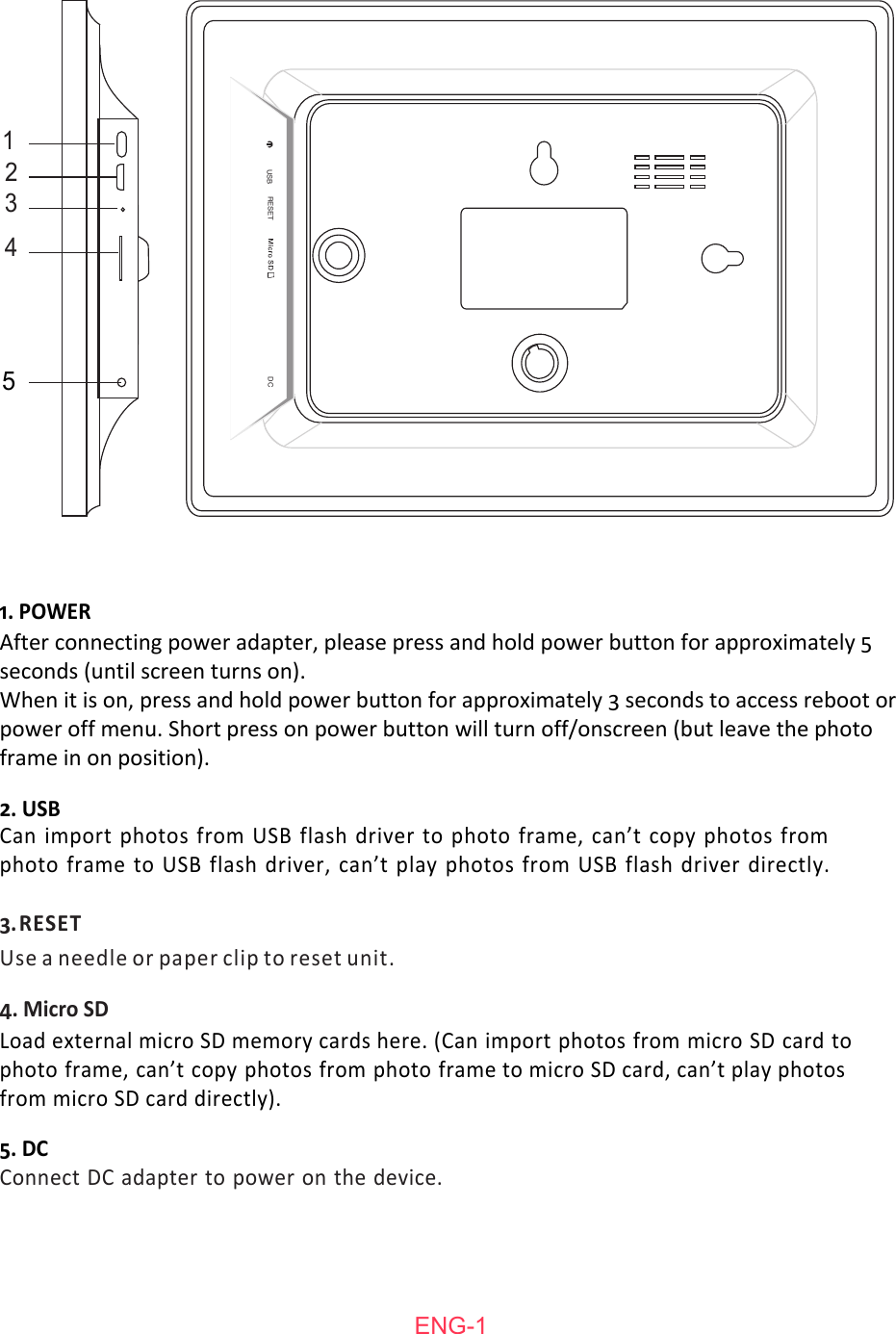
Can import photos from USB flash driver to photo frame, can’t copy photos from photo frame to USB flash driver, can’t play photos from USB flash driver directly.4. Micro SD2. USB3. RESETUse a needle or paper clip to reset unit.5. DCConnect DC adapter to power on the device.1. POWERLoad external micro SD memory cards here. (Can import photos from micro SD card to photo frame, can’t copy photos from photo frame to micro SD card, can’t play photos from micro SD card directly).After connecting power adapter, please press and hold power button for approximately 5 seconds (until screen turns on). When it is on, press and hold power button for approximately 3 seconds to access reboot or power off menu. Short press on power button will turn off/onscreen (but leave the photo frame in on position).ENG-11234RESETUSB DC5
  ENG-2ContentsGetting started............................................................................................................................... 3frameo app.......................................................................................................................................3Feelcare quick setup........................................................................................................................4Start using Feelcare ........................................................................................................................4Navigating your Feelcare .................................................................................................................5Settings............................................................................................................................................6My frame........................................................................................................................................ 6Manage photos...............................................................................................................................6My Friends...................................................................................................................................... 7Display and slideshow.................................................................................................................... 8Wi-Fi.................................................................................................................................................8Backup and Restore........................................................................................................................8About............................................................................................................................................... 9Privacy.............................................................................................................................................9Warranty, Compliance, Support and Safety information...................................................................9
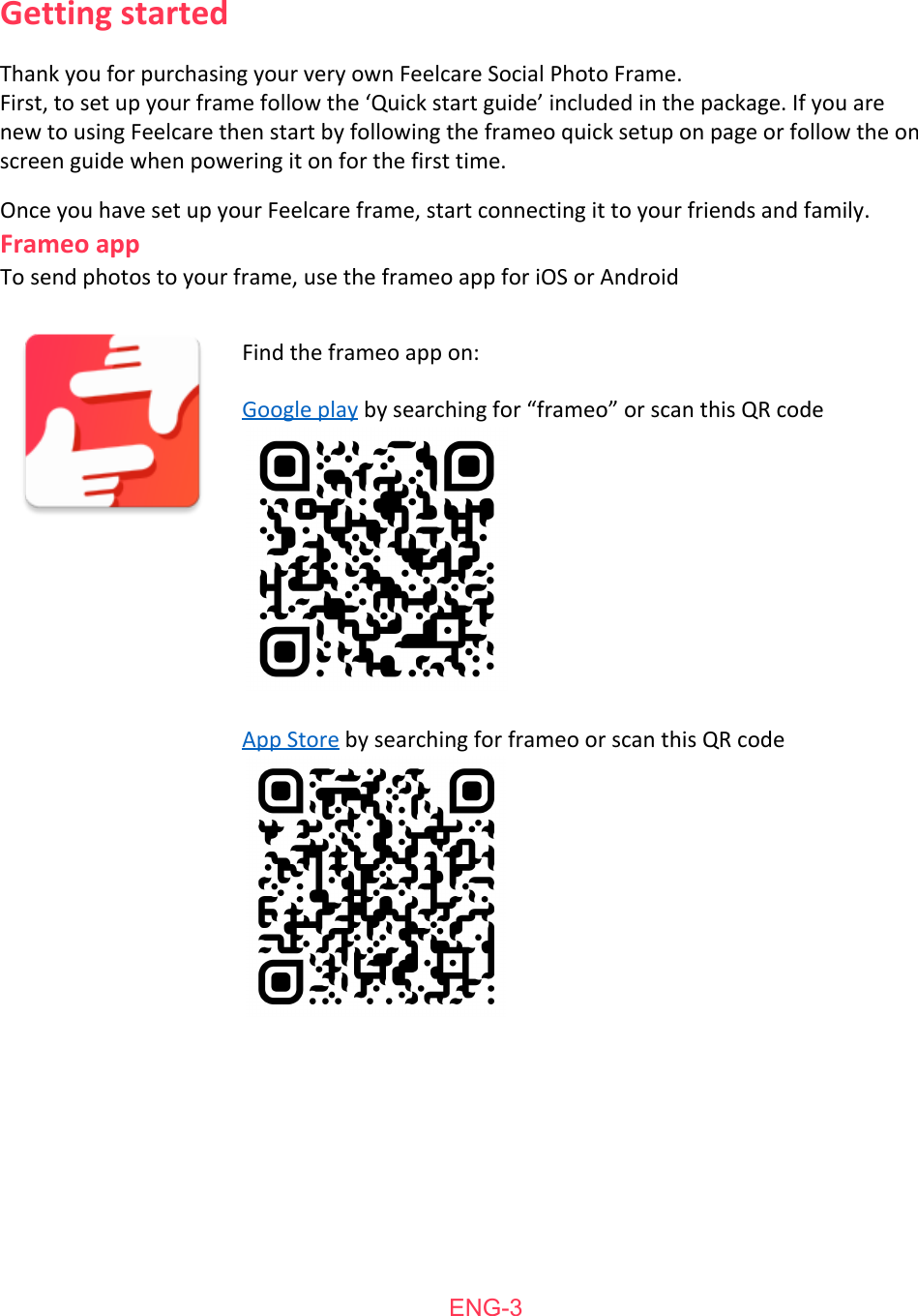
ENG-3Getting   started Once  you   have  set  up   your   Feelcare  frame,   start  connecting   it  to   your   friends   and   family.  Frameo   app To   send   photos   to   your   frame,   use   the  frameo  app   for   iOS   or  Android Find   the  frameo   app   on: Google   play   by   searching   for   “frameo”  or  scan   this   QR  code App   Store   by   searching   for   frameo   or  scan   this   QR  code Thank you for purchasing your very own Feelcare Social Photo Frame.First, to set up your frame follow the ‘Quick start guide’ included in the package. If you are new to using Feelcare then start by following the frameo quick setup on page or follow the on screen guide  when   powering   it  on   for   the  first   time.
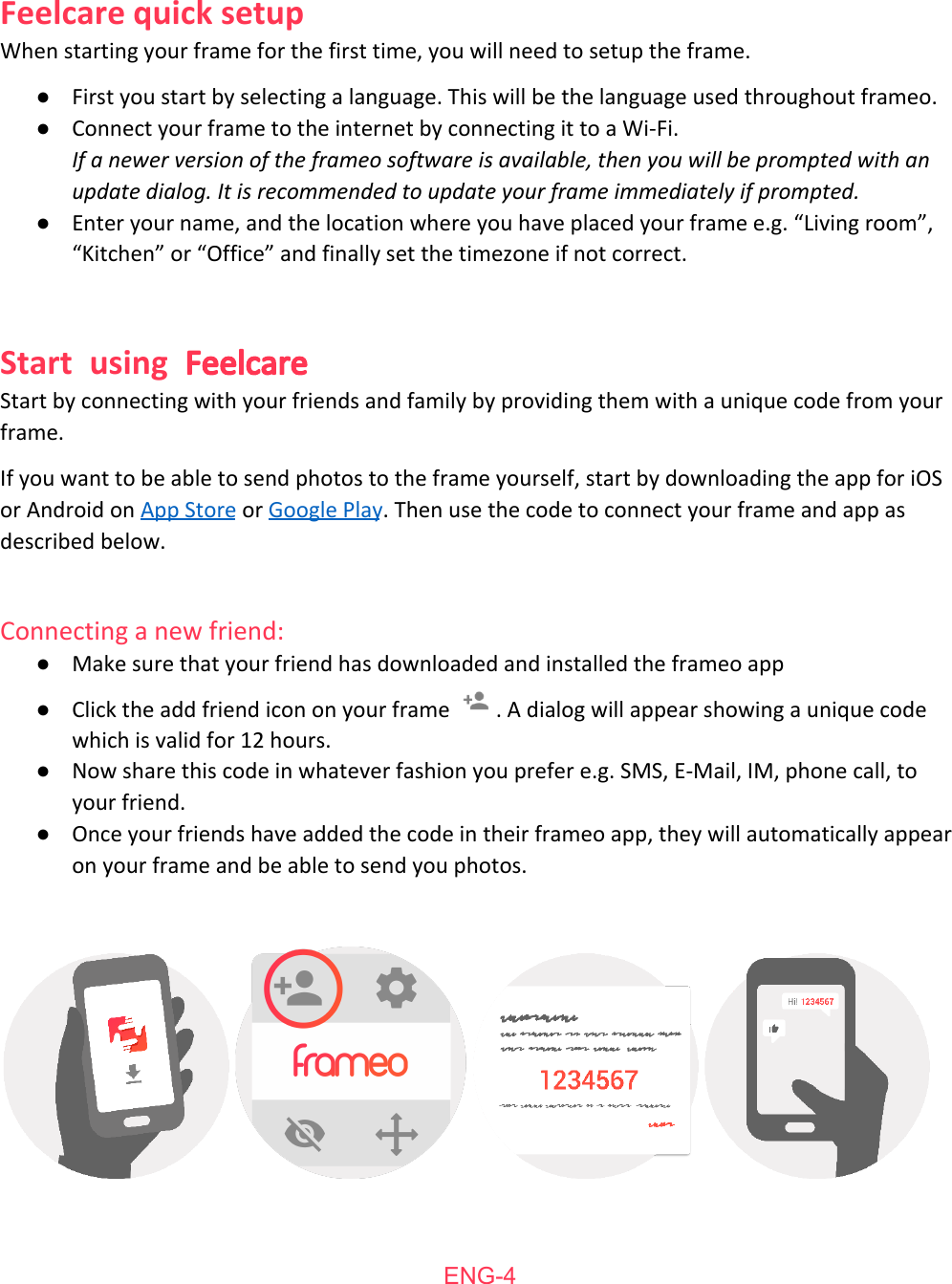
    Feelcare   quick   setup When   starting   your   frame   for   the   first   time,   you   will   need   to   setup   the   frame. ●First   you   start   by   selecting   a   language.   This   will   be   the   language   used   throughout   frameo.  ●Connect   your   frame   to   the   internet   by   connecting   it   to   a   Wi-Fi. If a newer version of the frameo software is available, then you will be prompted with an update dialog. It is recommended to update your frame immediately if prompted. ●Enter   your   name,   and   the   location   where   you   have   placed   your   frame   e.g.   “Living   room”, “Kitchen”   or   “Office”   and   finally   set   the   timezone   if   not   correct.  Start using Feelcare Start   by   connecting   with   your   friends   and   family   by   providing   them   with   a   unique   code   from   your frame.  If   you   want   to   be   able   to   send   photos   to   the   frame   yourself,   start   by   downloading   the   app   for   iOS or   Android   on  App   Store    or  Google   Play .   Then   use   the   code   to   connect   your   frame   and   app   as described   below.  Connecting   a   new   friend:  ●Make   sure   that   your   friend   has   downloaded   and   installed   the   frameo   app ●Click   the   add   friend   icon   on   your   frame  .   A   dialog   will   appear   showing   a   unique   code which   is   valid   for   12   hours. ●Now   share   this   code   in   whatever   fashion   you   prefer   e.g.   SMS,   E-Mail,   IM,   phone   call,   to your   friend. ●Once   your   friends   have   added   the   code   in   their   frameo   app,   they   will   automatically   appear on   your   frame   and   be   able   to   send   you   photos.      ENG-4
  You   interact   with   your   frame   through   its   touchscreen. Swipe   left   or   right   to   go   through   your   photos. To   access   the   menu   bar,   simply   tap   once   on   the   screen,   this   will   show   the   menu.   In   the   menu you   will   find   quick   access   to   the   add   friends   dialog    and   the   settings   menu  .   From   the menu   it   is   also   possible   to   hide   the   currently   shown   photo   and   to   adjust   the   positioning   of   the photo.     ENG-5Navigating  your  Feelcare
 Settings Through   settings,   you   can   personalize   your   frame   to   your   needs.  My   frame Frame   name: Changes   the   name   of   your   frame.   This   is   also   the   name   the   connected   friends   and   family   will   see   in their   list   of   connected   frames.  Frame   location: Changes   the   location   of   your   frame.   This   is   the   location   displayed   on   your  friends'   and   family's   list   ofconnected   frames    which   can   help   to   distinguish   frames   from   each   other.  Set   language: Sets   the   language   throughout   your   frame.  Set   time   zone Sets   the   timezone   that   should   be   used   on   your   frame.  Sleep   mode: Feelcare   offers   a   sleep   mode   which   turns   off   the   screen   to   reduce   power   consumption   while   you e.g.   are   sleeping.   Its   default   setting   is   to   turn   off   the   screen   at   23:00   and   turn   on   the   screen   again at   07:00.   To   change   this   just   set   the   sleep   mode   start/end   time. Your frame is not powered down or in standby, so you will still be able to receive photos during sleep mode.   Manage   photos  Show/hide   photos: Select   which   photos   to   hide   by   tapping   the   particular   photos   you   wish   to   hide.   Hidden   photos   will NOT   be   deleted   from   your   frame,   you   can   always   select   them   to   be   shown   again. Use    to   hide   or   show   all   photos.  ENG-6
  Delete   photos: Select   photos   that   you   want   to   permanently   delete   from   your   frame   by   tapping   the   photo.  Use    to   select   or   deselect   all   and    to   delete   the   selected   photos.  Import   photos: Allows   you   to   import   photos   from   an   external   SD   card. Before   you   try   to   import   photos   from   a   SD   card,   make   sure   you   have   a   SD   card   with   photos   on inserted   into   your   frame. Start   by   selecting   the   photos   that   you   want   to   import   onto   your   frame.   Once   selected   tap   the import   button    to   start   the   import   process. It is currently not possible to add a caption or define the most important part of the photo when using the import function. Alternatively add yourself to your friend list and send them using the app.  My   Friends This   list   contains   all   the   people   that   are   allowed   to   send   photos   to   your   frame.   Remove   person To   remove   a   person   from   this   list,   thereby   removing   their   permission   to   send   you   photos,   tap   the delete   icon  .   You   will   then   be   asked   to   confirm   the   removal   and   if   you   would   like   to   remove   all photos   received   from   this   person.  Add   person To   allow   a   new   person   to   send   you   photos,   simply   tap   the   add   friend   button    and   share   the presented   code   in   whatever   way   you   prefer.    ENG-7
Display   and   slideshow Timer Define   the  duration   a   photo   should   be  displayed. Show   caption Sets   whether   or  not   to   display   the  captions   that   your   friends   have  sent   with   the  photo.   Check   to display   captions.   Uncheck   to   hide   captions.  Brightness   level Adjust   the  brightness   level  of   the  screen. Wi-Fi Set  which   Wi-Fi   the  frame   should   be  connected   to.   If   you   are   connecting   to   a   network   with   a captive  portal   a   web  browser   icon   should   appear  in   top   right   corner   of   the  screen.  Use   this   to   open a   browser   where   you   can   enter   credentials   to   access   the  network. Backup   and   Restore Backup   frame   to   SD   card Tap   to   make   a   backup   of   your   photos,   friends   and   settings.   The   time  of   latest   successful   backup will   be  displayed. Any existing backup on the SD card will be overridden! Automatic   backup If   checked,   your   frame   will   automatically   take   a   backup   within   30  hours   of   you   receiving   new photos   or  making   changes   on   your   frame. Restore   from   backup Before you attempt to restore your frame, start by confirming that your backup is up-to-date. To   restore   from  a   backup,   you   must   first   reset   the  frame.  It  is   important   to   note   that   you   cannot restore   to   a   new  Frameo  frame   and   keep   the  old   frame   operational   at  the  same   time. Reset   frame Removes   all   data   from  your   frame.  This   will   permanently  remove   all   your   photos, friends/connections   and   settings.   ENG-8
About Check   for   update Check  if   an   update   is   available   for   your   frame.  Share  anonymous   analytics   data Sharing   anonymous   analytics   data   helps   us   tremendously   with   improving   the  frameo   software.   We understand   if   you   do   not   wish   to   share  this   data   with   us.   Set  checked   if   you   wish   to   help   us improve  frameo.  Set  unchecked  to   deny  the  sharing   of   anonymous   analytics   data. Guide Opens   the  quick   start  guide,   that   was  shown   when   you   first   started  the  frame.  Warranty,   Compliance,   Support   and   Safety   information For   more   information   regarding   warranty,   hardware   compliances,   support   and   safety   please   refer to   the  material  included   in   the  package. ENG-9
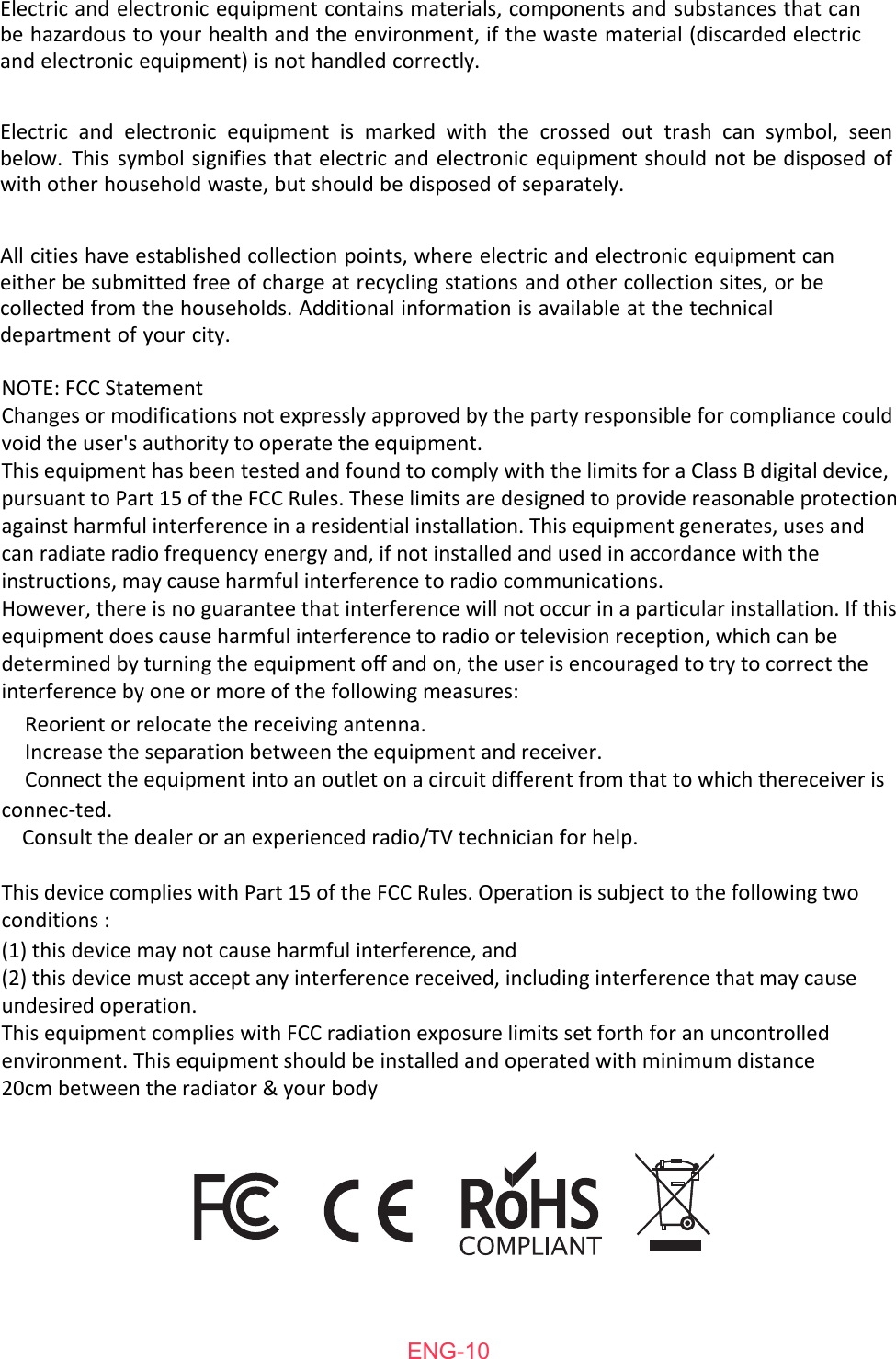
ENG-10Electric and electronic equipment contains materials, components and substances that can be hazardous to your health and the environment, if the waste material (discarded electric and electronic equipment) is not handled correctly.Electric and electronic equipment is marked with the crossed out trash can symbol, seen below. This symbol signifies that electric and electronic equipment should not be disposed of with other household waste, but should be disposed of separately.All cities have established collection points, where electric and electronic equipment can either be submitted free of charge at recycling stations and other collection sites, or be collected from the households. Additional information is available at the technical department of your city.NOTE: FCC StatementChanges or modifications not expressly approved by the party responsible for compliance could void the user's authority to operate the equipment.This equipment has been tested and found to comply with the limits for a Class B digital device, pursuant to Part 15 of the FCC Rules. These limits are designed to provide reasonable protection against harmful interference in a residential installation. This equipment generates, uses and can radiate radio frequency energy and, if not installed and used in accordance with the instructions, may cause harmful interference to radio communications.However, there is no guarantee that interference will not occur in a particular installation. If this equipment does cause harmful interference to radio or television reception, which can be determined by turning the equipment off and on, the user is encouraged to try to correct the interference by one or more of the following measures:    Reorient or relocate the receiving antenna.    Increase the separation between the equipment and receiver.    Connect the equipment into an outlet on a circuit different from that to which thereceiver is connec-ted.    Consult the dealer or an experienced radio/TV technician for help.This device complies with Part 15 of the FCC Rules. Operation is subject to the following two conditions :(1) this device may not cause harmful interference, and(2) this device must accept any interference received, including interference that may cause undesired operation.This equipment complies with FCC radiation exposure limits set forth for an uncontrolled environment. This equipment should be installed and operated with minimum distance 20cm between the radiator & your body

Navigation menu