Hello SNSB Sense User Manual

Hello Inc. Sense

User Manual

USER GUIDE  GETTING STARTED󳋡• Supported Devices  iOS󳋡Sense supports the following devices running iOS 9 or later:  iPhone 4s or newer󳋡iPod touch (5th generation) or newer iPad (3rd generation) or newer󳋡iPad mini (all models)󳋡Android  Sense officially supports the following devices running KitKat 4.4 or later:  Moto G (First, Second, Third generation) Moto X (First and Second generation) Moto X Style/Pure Edition󳋡Samsung Galaxy S4 (International) Samsung Galaxy S4  Samsung Galaxy S5󳋡Samsung Galaxy S6󳋡Samsung Galaxy S6 Edge󳋡Samsung Galaxy S6 Edge+󳋡Samsung Galaxy S7󳋡Samsung Galaxy S7 Edge󳋡Samsung Galaxy Note III󳋡Samsung Galaxy Note 4󳋡Samsung Galaxy Note 5󳋡Nexus 4 (KitKat 4.4 or later recommended) Nexus 5  Nexus 5x Nexus 6󳋡Nexus 6p Nexus 9󳋡Galaxy Note 4 Galaxy Note 5 HTC One󳋡HTC One M8(s) OnePlus One OnePlus Two  If you see your device listed, but can't install the Sense app through the Play Store, double check that your device is running 4.4 KitKat or newer.  While other Android devices running KitKat 4.4 or later with support for Bluetooth Low Energy may work with Sense, we cannot guarantee compatibility with any device not listed.    • Set up Sense󳋡Inside the box, you'll find:  Sense󳋡Sleep Pill󳋡Sense Power cable Sense adapter󳋡2 Hello stickers Get Started card Safety instructions  Download the Sense App  To begin, open the Sense app on your mobile device. If you haven't downloaded the Sense app, see Download the Sense app.
Sense App  When you open the Sense app for the first time, you'll be asked to create an account, provide some information so that Sense can provide you with personalized sleep insights, and set a few preferences. You can follow along with these steps:  1. Open the Sense app, and tap Get Started. 󳋡 2. Tap Set Up Sense 󳋡 3. Input your name, email address, and create a password for your Sense account. Make sure 󳋡you make a note of your password, and keep it in a secure location. 󳋡 4. You'll be asked for some personal information like birthdate, gender, height, and weight, so 󳋡that Sense will be able to provide you with more personalized sleep insights. 󳋡 5. Setting your location will allow Sense to know local sunrise and sunset times, weather, and 󳋡more. 󳋡 6. Once your account and preferences have been set up, you'll be ready to set up Sense. 󳋡 7. Place Sense somewhere close to your bed, like your nightstand. Plug the small end of the 󳋡power cable into Sense, and plug the USB side into the Sense adapter. Do not use any 󳋡other USB power adapter. 󳋡 8. Sense will play a short welcome tone, and begin to glow purple, letting you know that it is 󳋡ready to pair with your device. 󳋡 9. On the Sense app, tap Continue. After a few moments, your device will prompt you to pair 󳋡with Sense. 󳋡 10. Select your WiFi network, and enter your password if necessary. 󳋡 Sleep Pill󳋡With Sense set up and paired, it's time to pair your Sleep Pill.
If you've purchased a second Sleep Pill for your partner, set it aside for now. We'll pair the second Sleep Pill later.  On the Sense app, tap Continue.󳋡When prompted, hold the Sleep Pill in your hand and shake it quickly for three seconds. The Sense app will let you know when the Sleep Pill has paired successfully.󳋡Attach your Sleep Pill to your pillowcase on the side closest to the edge of your bed. You may need to pull your pillowcase taut between two hands.  Room Conditions  With Sense now set up, you'll see examples of Sense's colors, and it will check the conditions of your room.  Smart Alarm  Next, you'll be ready to set a Smart Alarm. Sense's Smart Alarm will gently wake you up when you're in the lightest part of your Sleep Cycle, up to 30 minutes before your set time. To dismiss an alarm, just wave your hand over Sense.  Choose one of the pre-existing alarm tones󳋡Set whether or not you'd like the alarm to repeat across multiple days Choose a time󳋡Tap Save  That's it. Once Sense is set up, you don't need to turn it on, activate it, or tell it that you're ready for bed. All you need to do is Sleep.  Have a good night  • Download the Sense app󳋡Download the Sense app by visiting senseapp.com on your device, or by following these steps:  Download the Sense app for iOS  If you haven’t already, you’ll need to create an Apple ID. Visit Apple’s support page to learn more: https://support.apple.com/en-us/HT204316  Tap the App Store icon on your iPhone, iPad, or iPod touch.󳋡Tap the search icon in the bottom navigation bar󳋡Tap the search field, and search for Sense.󳋡Tap Get, and then tap Install. You may need to input
your Apple ID password.  Once finished, you’ll find the Sense app icon on your home screen. You’re now ready to begin setting up your Sense.  Download the Sense app for Android  If you haven’t already, you’ll need to add a Google Account on your device. Visit Google’s support page to learn more: https://support.google.com/googleplay/answer/2521798  Tap the Google Play icon on your Android device. Tap search icon in the upper right corner󳋡Search for Sense󳋡Tap on Sense  Tap install and follow the prompts to download the app.󳋡Once finished, you’ll find the Sense app on your home screen. You’re now ready to begin setting up your Sense.  • Pair a second Sleep Pill󳋡If you're sharing Sense with a partner, they'll need to create their own Sense account and have their own Sleep Pill.  If your partner is available when you set up Sense, tap “Set up another Sleep Pill” at the end of setup to put Sense back into Pairing Mode. Ask your partner to download the Sense app on their device and go through the setup process using their own Sleep Pill.  If your partner isn't available when you first set up Sense, you can always pair a second Sleep Pill later. When you're ready to pair a second Sleep Pill, follow these steps to put Sense back into pairing mode:  Open the Sense app.󳋡Tap on the Settings icon in the top right corner.󳋡Tap on Sense and Sleep Pill.󳋡Once your Sense connects, tap on Sense.󳋡Tap Put into Pairing Mode󳋡Once Sense has been put into pairing mode, your partner will be able to connect their device with Sense and go through the setup process using their own Sleep Pill.  SENSE󳋡• Positioning Your Sense In Your Bedroom󳋡Sense should be placed somewhere close to your bed, like your nightstand, in order to
maintain its connection to your Sleep Pill.  You’ll also need to make sure Sense remains plugged into an outlet, and is within range of your Wi-Fi network.    • Using Sense󳋡You can check the current conditions of your room by waving your hand over Sense, which will cause it to glow one of three colors:  • A green glow indicates that your environment is just right for a good night’s sleep.  • A yellow glow indicates some minor adjustments might need to be made for optimal sleep conditions. Check the Sense app for details.  • An red glow indicates something in your bedroom would prevent restful sleep. Check the Sense app for details. If your sense glows or pulses any other color, click here. Sense will also glow to indicate the current conditions when you turn off your lights for the night. Keep in mind that It may take Sense a few minutes to reflect any sudden changes to your environment. That’s it. You don’t have to do anything to tell Sense you’re ready for bed. All you need to do next is sleep.  • Caring For Sense Cleaning  When cleaning Sense, use a soft, clean, lint-free cloth. Do not use any liquids or cleaning solutions.  Safety  Sense should be powered only with the wall adapter and power cable provided. If you need a replacement for either of these, please contact
us.  Support  If you’re having issues with Sense, please contact us. Do not attempt to open Sense, as doing so will void your warranty.  • Replacing Sense󳋡If you’ve replaced your Sense and need to set it up on your existing Sense account, follow these steps.  Remove your existing Sense from your account:  1. Open the Sense app. 󳋡 2. Tap the Settings icon in the top right corner. 󳋡 3. Tap Sense and Sleep Pill. 󳋡 4. Tap Sense 󳋡 5. Tap Advanced 󳋡 6. Tap Replace this Sense 󳋡 7. Sense will ask you if you’re sure you want to remove Sense from your account. Tap yes. 󳋡 Pair your new Sense:  1. Open the Sense app. 󳋡 2. Tap the Settings icon in the top right corner. 󳋡 3. Tap Sense and Sleep Pill. 󳋡 4. Tap Pair with Sense 󳋡 5. Follow the onscreen instructions to pair your new Sense to your account. 󳋡
SMART ALARM󳋡• What is the Smart Alarm?󳋡Sense’s Smart Alarm will wake you up at the lightest part of your natural sleep cycle, up to 30 minutes before your requested wake-up time, making sure you wake up refreshed and at the right time for you. We have composed custom Wake Tones that play using the built-in speaker to provide the best sound possible to gently and gradually awaken you.  • Setting Your Smart Alarm󳋡Currently you can only set one Smart Alarm per day.  To set your Smart Alarm:  Open Sense App> Tap alarm icon  Choose to set up a new alarm:  Tap the plus (+) icon at the bottom of the page  Select time:  Scroll through time layout at bottom of the page> Choose the time you would like to wake up  Edit an existing alarm:  Select the Alarm you would like to edit.  Choose tone:  Select Tone - Tap on the sound title to preview the tone> Tap back arrow at the top of the page>  Repeat Alarm:  Select Repeat - Tap on the days you would like this alarm to go off> Tap back arrow at the top of the page  6.  • Multiple Alarms󳋡You can set one smart alarm and as many regular alarms per person as you like.
When using Sense with a partner, make sure you set your alarms for different times.  • Alarms With Two People󳋡You can set as many alarms as you like, with two restrictions:  You can currently only set one Smart Alarm, per person, per day.  If you use Sense with a partner, you can’t both have an Alarm set for the exact same time (either Smart or Regular).  • Dismissing Your Alarm󳋡To dismiss the alarm, wave your hand over Sense, move it at a steady pace and make sure to keep it close to Sense.  SENSE APP󳋡• Sleep Sounds󳋡Falling asleep to a consistent and calming ambient sound can help mask sleep-disrupting nighttime noise, and help you sleep better. With Sleep Sounds, Sense makes it easy to start your night off right.  To begin using Sleep Sounds, make sure that Sense is connected to Wi-Fi, and that you’ve updated to the latest version of the Sense app. If your Sense has been offline, it may take up to 2 hours after reconnecting it for Sleep Sounds to appear in the Sense app.  These Sleep Sounds have been composed just for Sense, and are specifically designed to help you fall asleep more easily.  You’ll find Sleep Sounds alongside Alarms in the Sense app. Tap Sleep Sounds, and you’ll be able to select a Sleep Sound, the duration for which it will play, and the volume.  Tap Sound, and you’ll be presented with a list of the available Sleep Sounds. Tap a Sleep Sound to select it. Once selected, you can preview a Sleep Sound by tapping the play button.  To set how long you’d like the Sleep Sound to play, tap Duration. Note that if you’d like to stop a Sleep Sound at any time, simply wave your hand over Sense. Tap Volume to select the volume level.
Once you’ve chosen a Sleep Sound and set the duration and volume level, return to the Sleep Sounds tab and tap the play button. Your chosen Sleep Sound will play from Sense, and you can drift peacefully off to sleep.  • Trends󳋡Use Trends to see a beautiful calendar view of your Sleep Scores, as well as graphs showing your sleep duration and sleep depth level over time.    Sleep Score󳋡The calendar allows you to see your Sleep Score for the last 7, 30, or 90 days at a glance.  The color indicates the level of your Sleep Score: red for poor sleep (Sleep Score less than 60), yellow for something needs improvement (Sleep Score less than 80), and green for a good sleep (Sleep Score above 80).  Grey indicates no Sleep Score was recorded. This happens if you spent the night away, or if Sense did not record enough data for that night. An empty dot shows your future or not showing data.  Below the calendar, you’ll see the average Sleep Score for the days currently being viewed. *Note that you will need at least 3 days of data to view your Sleep Scores in the calendar.* Sleep Duration󳋡Sleep Duration will highlight the day you slept the least, and the day you slept the most. You’ll also see the average amount of sleep for the days currently being viewed.  Sleep Depth  Sleep Depth shows the % of light sleep, medium sleep, and deep sleep over the last 7 days. This corresponds with the bars in your Sleep Timeline. Missing days are not included in this calculation.  Gets better over time  To start, Trends will show you up to 7 days of data, but you’ll see more as you continue to use Sense. Eventually, you’ll be able to see up to 90 days of sleep data within Trends at any time.
• Smart Alarms󳋡Setting or editing an alarm  Follow these steps to set an alarm, or edit an existing alarm:  1. Tap the Alarm icon at the top of the screen to open up your alarms. 󳋡 2. Tap the [Blue plus button] at the bottom to add a new Smart Alarm, or tap an existing alarm 󳋡to edit it. 󳋡 3. Choose whether your alarm will be a Smart Alarm, or a standard alarm. 󳋡 4. Tap tone to choose an alarm tone. You can tap a tone to preview it. The preview will play 󳋡from your device, but the alarm itself will come from Sense. 󳋡 5. Choose whether you’d like the alarm to repeat across different days. 󳋡 6. Choose a time. Remember, if you’ve chosen to set a Smart Alarm, your alarm may go off up 󳋡to 30 minutes before your set time, when you’re in the lightest part of your sleep cycle. 󳋡 7. Tap Save.󳋡Deleting an alarm󳋡Follow these steps to delete an existing alarm:  1. Tap the Alarm icon at the top of the screen to open up your Smart Alarms. 󳋡 2. Tap the alarm you wish to delete. 󳋡 3. Tap Delete alarm. 󳋡 4. Tap Yes. 󳋡 Turning an alarm on or off󳋡Follow these steps to switch your alarms on or off:  1. Tap the Smart Alarm icon at the top of the screen to open up your
Smart Alarms. 󳋡 2. Tap the switch to toggle your alarm on or off. 󳋡 3. Remember, you can only have one Smart Alarm set per day, though you can have multiple 󳋡standard alarms in addition to a Smart Alarm. 󳋡 4. Set a repeating alarm 󳋡 When an alarm is set to repeat, you can leave it switched on, and it will only go off on the selected days. Even if it is switched on, it will not go off on a day it is not set to repeat on.  1. Tap the Smart Alarm icon at the top of the screen to open up your Smart Alarms. 󳋡 2. Tap the switch to toggle your alarm on or off. 󳋡 3. Remember, you can only have one Smart Alarm set per day, though you can have multiple 󳋡regular alarms in addition to a Smart Alarm. 󳋡 • Sleep Data󳋡Learn how the Sense app provides you with a complete picture of your night.  Sleep Score󳋡Get instant feedback on your sleep and see how the quality of your sleep fluctuates over time with your Sleep Score. Sense takes the environmental readings of your bedroom, your sleep during the night, and analyzes the information to provide you with a unique score out of 100.  Sleep Summary  Your Sleep Summary shows you an at-a-glance view of how much you slept, how much of that time was spent in deep sleep, the conditions of your room during the night, and more.  Sleep Timeline
Your time spent sleeping is displayed as a series of blue bars. These bars come in three levels: light sleep, medium sleep, and deep sleep. The darker and wider the bar, the deeper you were sleeping at that time. You can tap these bars to view more details.  Your timeline will be punctuated by key events that occurred during the night, including the time you went to sleep, the time you woke up, and more. You can tap these events for additional details, or to adjust the time of the event if needed.  You’ll see last night’s sleep data when the app launches, but you can you can swipe left or right to view previous nights as well. You can also tap the date at the top of the screen to quickly jump between nights.  Current Conditions  View a snapshot of the current environmental conditions in your bedroom. You can tap each card for additional details, and view a graph of readings from the last day, or the last week.  Keep in mind that if you make any change to your environment, such as turning the lights on or off, the data displayed may take up to five minutes to update.  • Edit Login Info󳋡Follow these steps if you need to change the email address or password for your Sense account:  Edit email address  1. Open the Sense app. 󳋡 2. Tap the Settings icon in the top right corner. 󳋡 3. Tap My account. 󳋡 4. Tap Email. 󳋡 5. Enter your new email address. 󳋡 6. Tap Save in the top right corner. 󳋡
Edit password  1. Open the Sense app. 󳋡 2. Tap the Settings icon in the top right corner. 󳋡 3. Tap My account. 󳋡 4. Tap Password. 󳋡 5. Enter your current password, your new password, and confirm your new password. 󳋡 6. Tap Save in the top right corner. 󳋡 • Edit Personal Information󳋡Sense uses information about you to provide you with detailed insights about your sleep. If you skipped these steps during setup, or want to edit your information, follow these steps:  1. Open the Sense app. 󳋡 2. Tap the Settings icon in the top right corner. 󳋡 3. Tap My account. 󳋡 4. Tap the information you wish to edit. 󳋡 5. Edit your information, and then hit done. 󳋡 • Edit WiFi󳋡To edit your Wi-Fi information, you’ll need to be nearby Sense.  1. Open the Sense app. 󳋡 2. Tap the Settings icon in the top right corner. 󳋡 3. T ap Sense and Sleep Pill. 󳋡 4. Once Sense connects — it may take a few moments — tap Sense.
󳋡 5. Tap Edit WiFi. 󳋡 6. Select your WiFi network and enter your network password. 󳋡 7. Tap Save. 󳋡 • Change Time Zone󳋡If you’re traveling with Sense, it will update your time zone automatically the next time you connect it to a Wi-Fi network.  If you believe Sense to be set to the wrong time zone, you can also set it manually:  1. Open the Sense app. 󳋡 2. Tap the Settings icon in the top right corner. 󳋡 3. Tap Sense and Sleep Pill. 󳋡 4. Once Sense connects — this may take a few moments — tap Sense. 󳋡 5. Tap Change time zone. 󳋡 6. Tap a time zone to set it. 󳋡 SLEEP PILL󳋡• Clipping Sleep Pill to your Pillow󳋡Clip your Sleep Pill to your pillow, on the side closest to the edge of your bed. The Sleep Pill attaches tightly to make sure it doesn’t fall off during the night, so you may need to hold the edge of your pillow taut in order to slide Sleep Pill on.  It’s best to clip the Sleep Pill directly to your pillow, but if the shape of your pillow makes that tough, you can also clip the Sleep Pill to your pillowcase — just be sure to remove it on laundry day.  *Battery can only be replaced in older Sleep Pill
• Setting up a second Sleep Pill for your partner Pairing a second sleep pill  When you’re sharing Sense with a partner, they'll need to create their own Sense account on their own mobile device to pair their own Sleep Pill.  If your partner is available when you first set up Sense, you can tap “Add another Sleep Pill now” after you pair your first Sleep Pill to put Sense back into pairing mode.  If you’re setting up a second Sleep Pill later, just have your partner download the Sense app and go through the setup process on their device.    Sleep Pill colors  Each Sleep Pill paired with Sense is assigned a color to help you identify which Sleep Pill belongs to you. To see which color is yours, follow these steps:  • Open the Sense app.  • Tap on the Settings icon in the top right corner.  • Tap on Sense and Sleep Pill.  • On this screen, you’ll see which color is assigned to your Sleep Pill — either red or blue. To check the color of a Sleep Pill, just give it a good shake. Sense will glow the color assigned to that Sleep Pill.  • Caring for Sleep Pill󳋡Be sure to remove your Sleep Pill when washing your pillowcase. If you need to clean your Sleep Pill, use a soft, clean, lint-free cloth. Do not use any liquids or other cleaning solutions.
• Replacing a Sleep Pill󳋡Remove your existing Sleep Pill from your account:  1. Open the Sense app. 󳋡 2. Tap the Settings icon in the top right corner. 󳋡 3. Tap Sense and Sleep Pill. 󳋡 4. Tap Sleep Pill 󳋡 5. Tap Advanced 󳋡 6. Tap Replace this Sleep Pill 󳋡 7. Sense will ask you if you’re sure you want to remove this Sleep Pill from your account. Tap 󳋡yes. 󳋡 Pair your new Sleep Pill:  1. Open the Sense app. 󳋡 2. Tap the Settings icon in the top right corner. 󳋡 3. Tap Sense and Sleep Pill. 󳋡 4. Tap Pair a new Sleep Pill. 󳋡 5. Follow the onscreen instructions to pair your new Sleep Pill to your account. 󳋡 SAFETY󳋡• Opening Sense󳋡Do not open Sense. Opening Sense will void your warranty.  If you have issues or concerns with your Sense please contact us at support@hello.is.    • Powering Sense󳋡Sense should be powered with the wall adaptor and
cable provided. Sense will not work with accessories from other manufacturers.  • Sleep Pill Safety󳋡Sleep Pill can be a choking hazard, please keep away from small children.  Legal  Sense with Voice: model number MB15226 Pill: model number PB15226󳋡 Handling Information:  Sense is intended for indoor use at reasonable temperatures.  Use a soft, clean, lint-free cloth to clean Sense. Do not clean Sense or its components while they are connected to a power source. Do not use liquids or abrasive solutions. Sense is not waterproof.  Battery disposal:  Please recycle or dispose of your battery according to your local laws and regulations.  Underwriters Laboratories (UL)  The Sense power adapter has been tested to comply with safety standards in the United States set out by Underwriters Laboratories Inc. (UL). The Sense power adapter complies with the following UL standards:  UL 60950-1 and CAN/CSA C22.2 No. 60950-1-07  FCC ID (1) Sense: 2ABAMSNSB FCC ID (2) Pill: 2ABAMPLLB  FCC Statement
This equipment has been tested and found to comply with the limits for a Class B digital device, pursuant to part 15 of the FCC Rules. These limits are designed to provide reasonable protection against harmful interference in a residential installation. This equipment generates, uses and can radiate radio frequency energy and, if not installed and used in accordance with the instructions, may cause harmful interference to radio communications. However, there is no guarantee that interference will not occur in a particular installation. If this equipment does cause harmful interference to radio or television reception, which can be determined by turning the equipment off and on, the user is encouraged to try to correct the interference by one or more of the following measures: —Reorient or relocate the receiving antenna. —Increase the separation between the equipment and receiver. —Connect the equipment into an outlet on a circuit different from that to which the receiver is connected. —Consult the dealer or an experienced radio/TV technician for help.   FCC Radiation Exposure Statement Sense and Pill complies with FCC radiation exposure limits set forth for an uncontrolled environment and it also complies with Part 15 of the FCC RF Rules. Sense must be installed and operated in accordance with provided instructions and the antenna(s) used for this transmitter must be installed to provide a separation distance of at least 20 cm from all persons and must not be co-located or operating in conjunction with any other antenna or transmitter.
End-users and installers must be provide with antenna installation instructions and consider removing the no-collocation statement.   This device complies with Part 15 of the FCC Rules. Operation is subject to the following two conditions:  (1) this device may not cause harmful interference, and (2) this device must accept any interference received, including interference that may cause undesired operation.   Caution!  Any changes or modifications not expressly approved by the party responsible for compliance could void the user's authority to operate the equipment.  Canada Statement • This device complies with Industry Canada’s licence-exempt RSSs. Operation is subject to the following two conditions: • (1) This device may not cause interference; • (2) This device must accept any interference, including interference that may cause undesired operation of the device. •  Le présent appareil est conforme aux CNR d’Industrie Canada applicables aux appareils radio exempts de licence. L’exploitation est autorisée aux deux conditions suivantes :
• (1) l’appareil ne doit pas produire de brouillage; • (2) l’utilisateur de l’appareil doit accepter tout brouillage radioélectrique subi, même si le brouillage est susceptible d’en compromettre le fonctionnement. •  The device meets the exemption from the routine evaluation limits in section 2.5 of RSS 102 and compliance with RSS-102 RF exposure, users can obtain Canadian information on RF exposure and compliance. • Le dispositif rencontre l'exemption des limites courantes d'évaluation dans la section 2.5 de RSS 102 et la conformité à l'exposition de RSS-102 rf, utilisateurs peut obtenir l'information canadienne sur l'exposition et la conformité de rf.  • Sense must not be co-located or operating in conjunction with any other antenna or transmitter. Sense should be installed and operated with a minimum distance of 20 centimeters between the radiator and your body.  • Sense ne doit pas être Co-placé ou ne fonctionnant en même temps qu'aucune autre antenne ou émetteur. Sense devrait être installé et actionné avec une distance minimum de 20 centimètres entre le radiateur et votre corps.   IC ID (1) Sense: 12602A-SNSB IC ID (2) Pill: 12602A-PLLB  CE Certification  Hello, Inc. is authorized to apply the CE Mark to its Sense and Sleep Pill products, thereby declaring conformity to the relevant
provisions of the following directives:  EMC Directive 2014/30/EULow Voltage Directive 2014/35/EURadio Equipment Directive2014/53/EUEcodesign requirements for Energy Related Products Directive 2009/125/EC RoHS Recast Directive  2011/65/EU   The CE mark for the Sleep Pill is located inside the battery compartment on its bottom panel.  CE Mark  (http://ec.europa.eu/growth/single-market/ce-marking/manufacturers/affix-ce- marking)  European Union Disposal and Recycling – Information for Users
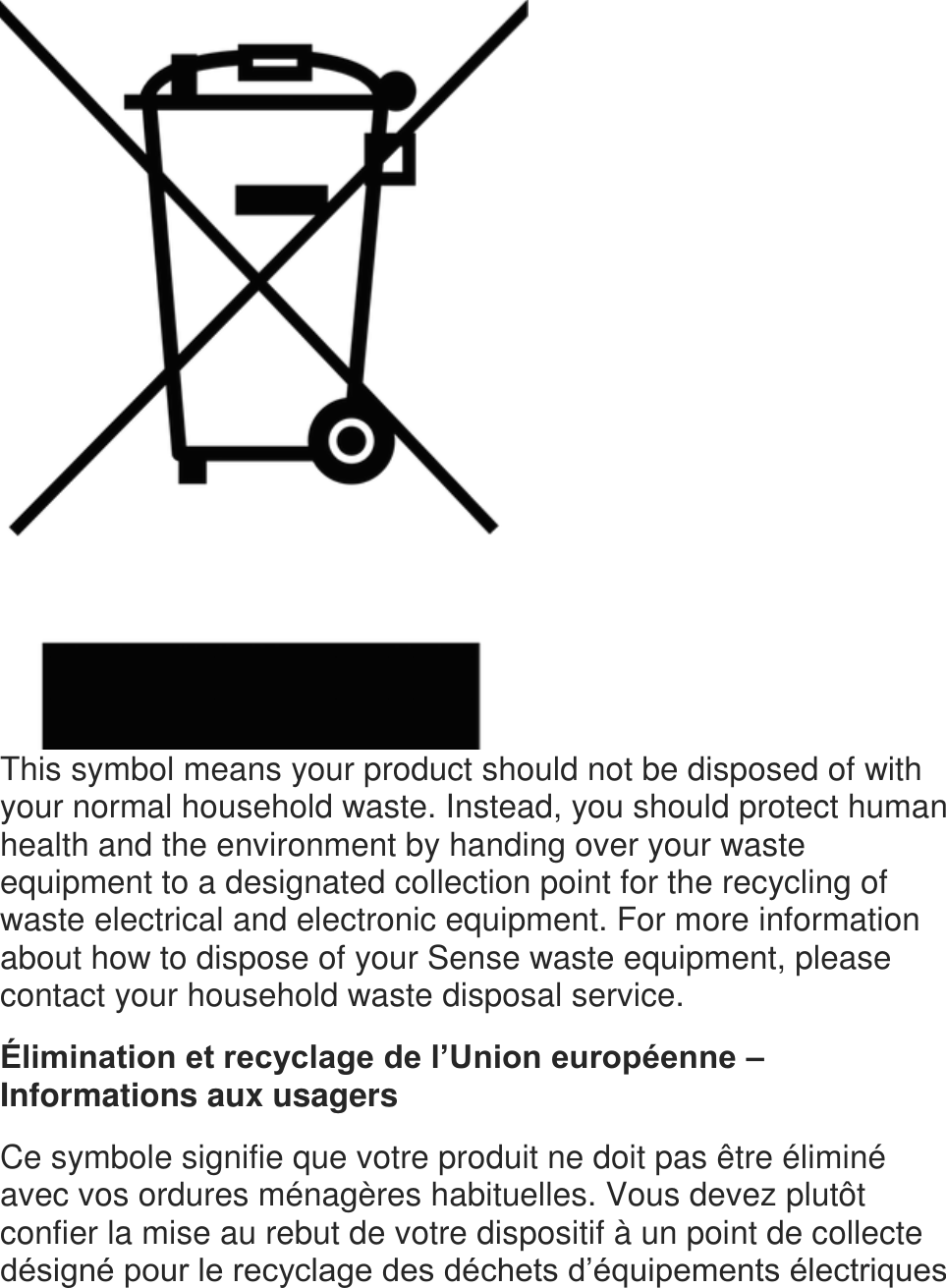
 This symbol means your product should not be disposed of with your normal household waste. Instead, you should protect human health and the environment by handing over your waste equipment to a designated collection point for the recycling of waste electrical and electronic equipment. For more information about how to dispose of your Sense waste equipment, please contact your household waste disposal service.  Élimination et recyclage de l’Union européenne – Informations aux usagers  Ce symbole signifie que votre produit ne doit pas être éliminé avec vos ordures ménagères habituelles. Vous devez plutôt confier la mise au rebut de votre dispositif à un point de collecte désigné pour le recyclage des déchets d’équipements électriques
et électroniques, de manière à protéger la santé humaine et l’environnement. Pour obtenir d’autres informations sur la façon d’éliminer votre dispositif Sense usagé, veuillez contacter votre service d’élimination des ordures ménagères.  Australia/New Zealand Regulatory Compliance Mark (RCM)  Hello, Inc. is authorized to apply the RCM mark to its Sense and Sleep Pill products, thereby declaring conformity to the relevant provisions of the following standards:  AS/NZS CISPR 22:2009 AS/NZS 4268:2012 AS/NZS 4665.1:2005

Navigation menu