Hena Digital Technology MID009 MID User Manual

Hena Digital Technology (Shenzhen) Co., Ltd. MID

user manual

1208741 MID-7113CM BOXCHIP A13方案封面封底印彩色,70g书纸,135x102mm,钉装 TP屏有按键 ENGLISH MANUAL
Table of ContentsTable of Contents......................................P1Features..................................................P2Unit at a Glance .......................................P3Getting Started....................................P4-P5About Applications...............................P5-P6Preinstalled Applications...........................P6Connect to a Wi-Fi network....................P7-P8Optional Connections................................P9Specifications.........................................P101
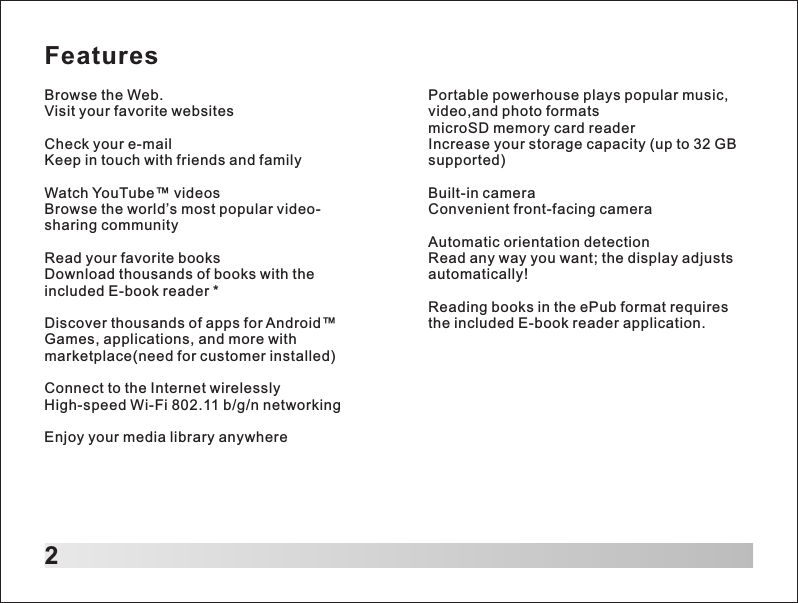
Features2Browse the Web.Visit your favorite websitesCheck your e-mailKeep in touch with friends and familyWatch YouTube™ videosBrowse the world’s most popular video-sharing communityRead your favorite booksDownload thousands of books with the included E-book reader *Discover thousands of apps for Android™Games, applications, and more with marketplace(need for customer installed)Connect to the Internet wirelesslyHigh-speed Wi-Fi 802.11 b/g/n networkingEnjoy your media library anywherePortable powerhouse plays popular music, video,and photo formats microSD memory card readerIncrease your storage capacity (up to 32 GB supported)Built-in cameraConvenient front-facing cameraAutomatic orientation detectionRead any way you want; the display adjusts automatically!Reading books in the ePub format requires the included E-book reader application.
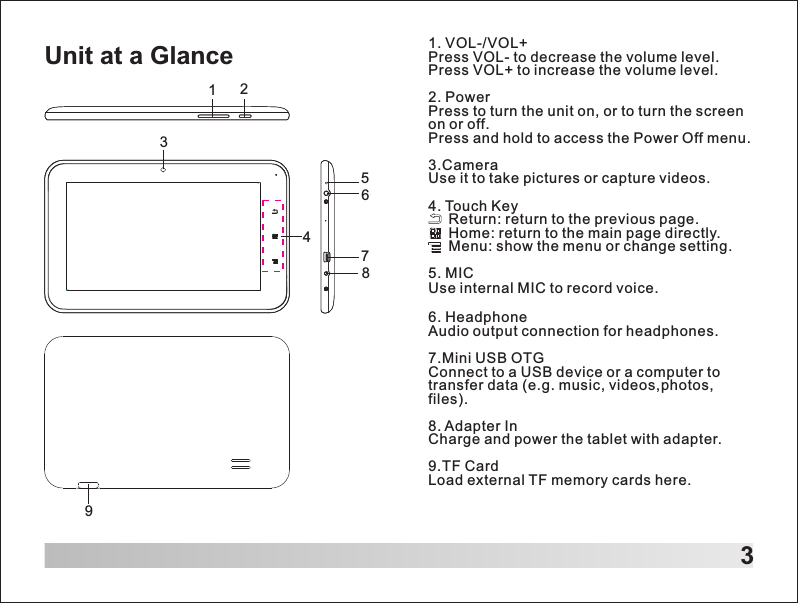
Unit at a Glance3123456  8791. VOL-/VOL+Press VOL- to decrease the volume level.Press VOL+ to increase the volume level.2. PowerPress to turn the unit on, or to turn the screen on or off.Press and hold to access the Power Off menu.3.CameraUse it to take pictures or capture videos.4. Touch Key     Return: return to the previous page.     Home: return to the main page directly.     Menu: show the menu or change setting. 5. MICUse internal MIC to record voice.6. HeadphoneAudio output connection for headphones.7.Mini USB OTGConnect to a USB device or a computer to transfer data (e.g. music, videos,photos, files).8. Adapter InCharge and power the tablet with adapter.9.TF CardLoad external TF memory cards here.
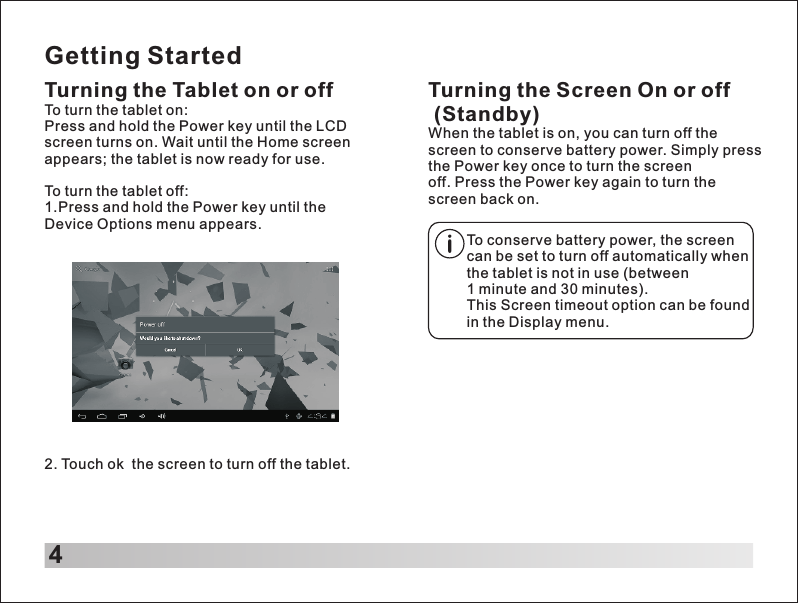
Getting StartedTurning the Tablet on or off2. Touch ok  the screen to turn off the tablet.Turning the Screen On or off (Standby)When the tablet is on, you can turn off the screen to conserve battery power. Simply press the Power key once to turn the screen off. Press the Power key again to turn the screen back on.To turn the tablet on:Press and hold the Power key until the LCD screen turns on. Wait until the Home screen appears; the tablet is now ready for use.To turn the tablet off:1.Press and hold the Power key until the Device Options menu appears.To conserve battery power, the screen can be set to turn off automatically when the tablet is not in use (between 1 minute and 30 minutes).This Screen timeout option can be found in the Display menu.4
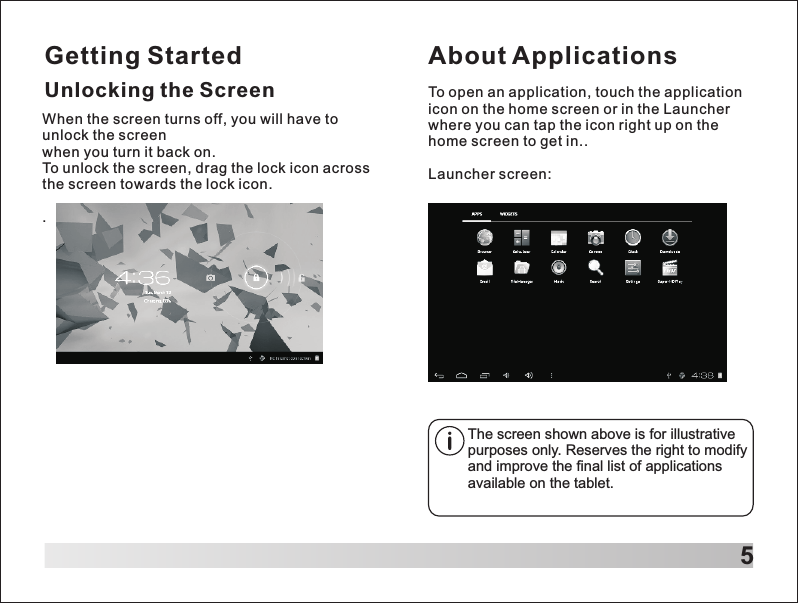
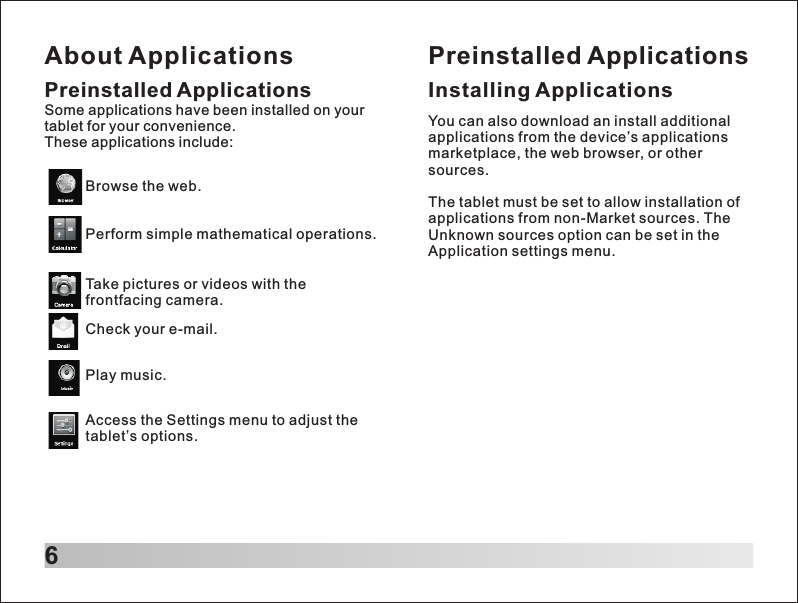
Getting Started5Unlocking the ScreenAbout ApplicationsTo open an application, touch the application icon on the home screen or in the Launcher where you can tap the icon right up on the home screen to get in..Launcher screen:The screen shown above is for illustrative purposes only. Reserves the right to modify and improve the final list of applications available on the tablet.When the screen turns off, you will have to unlock the screen when you turn it back on.To unlock the screen, drag the lock icon across the screen towards the lock icon. .
About Applications6Preinstalled ApplicationsSome applications have been installed on your tablet for your convenience. These applications include:Browse the web.Perform simple mathematical operations.Take pictures or videos with the frontfacing camera.Check your e-mail.Play music.Access the Settings menu to adjust the tablet’s options.Preinstalled ApplicationsInstalling ApplicationsYou can also download an install additional applications from the device’s applications marketplace, the web browser, or other sources.The tablet must be set to allow installation of applications from non-Market sources. The Unknown sources option can be set in the Application settings menu.
7Connect to a Wi-Fi networkThe Notification bar displays icons that indicate your tablet’s Wi-Fi status.Notification that an open Wi-Fi network isin range.Connected to a Wi-Fi network (waves indicate connection strength).        When Wi-Fi is on, the tablet will look for and display a list of available Wi-Fi networks.[no icon] There are no Wi-Fi networks in range, or the Wi-Fi radio is off.1. Turn on the Wi-Fi radio if it is not already on. To turn on Wi-Fi:a.Go to the Home screen: Press the Home key.b.Open the Settings menu: tap the icon right up on the home screen to get into the launcher, then touch Settings icon.c.Open the Wireless & networks menu: Slide the icon to ON status.If a network that you have connected to previously is found, the tablet will connect to it.If you don’t see your network in the list, you can force the tablet to re-scan. To scan for networks, tap the Menu key, and then touch Scan.WIFI 000 1WIFI 000 2
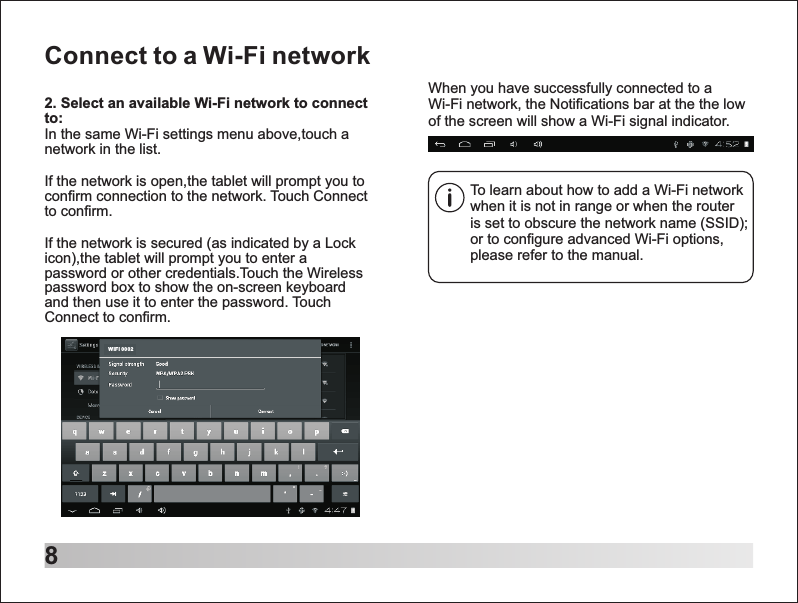
8Connect to a Wi-Fi networkTo learn about how to add a Wi-Fi network when it is not in range or when the router is set to obscure the network name (SSID); or to configure advanced Wi-Fi options, please refer to the manual.When you have successfully connected to a Wi-Fi network, the Notifications bar at the the low of the screen will show a Wi-Fi signal indicator.2. Select an available Wi-Fi network to connect to: In the same Wi-Fi settings menu above,touch a network in the list.If the network is open,the tablet will prompt you to confirm connection to the network. Touch Connect to confirm.If the network is secured (as indicated by a Lock icon),the tablet will prompt you to enter a password or other credentials.Touch the Wireless password box to show the on-screen keyboard and then use it to enter the password. Touch Connect to confirm.WIFI 000 2
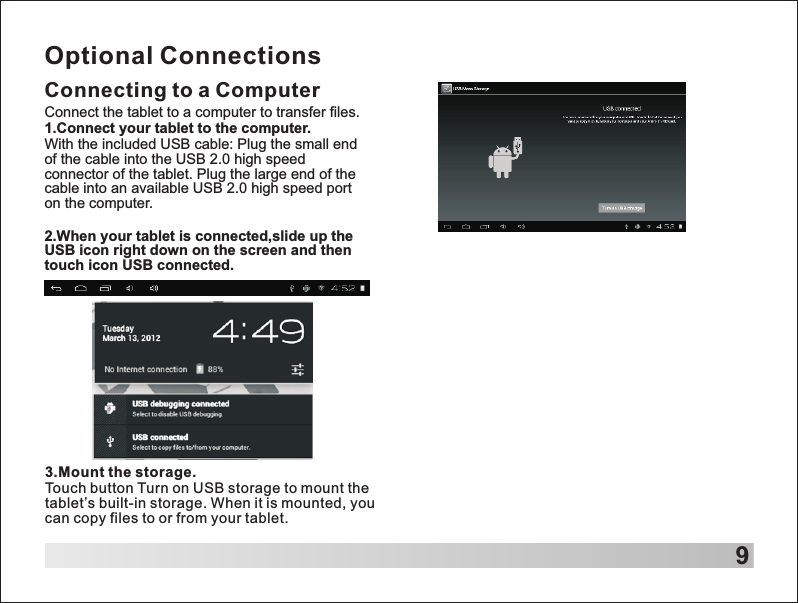
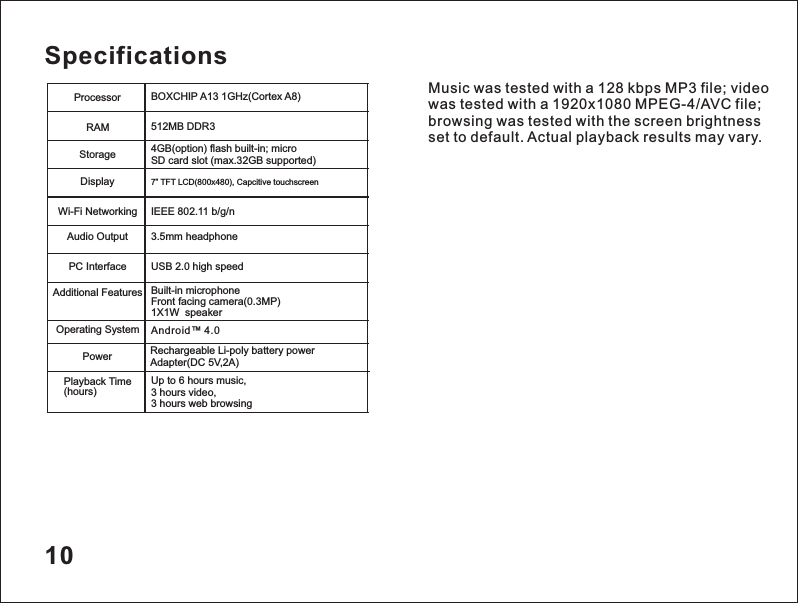
9Optional ConnectionsConnecting to a Computer3.Mount the storage.Touch button Turn on USB storage to mount the tablet’s built-in storage. When it is mounted, you can copy files to or from your tablet.Connect the tablet to a computer to transfer files.1.Connect your tablet to the computer.With the included USB cable: Plug the small end of the cable into the USB 2.0 high speed connector of the tablet. Plug the large end of the cable into an available USB 2.0 high speed port on the computer.2.When your tablet is connected,slide up the USB icon right down on the screen and then touch icon USB connected.
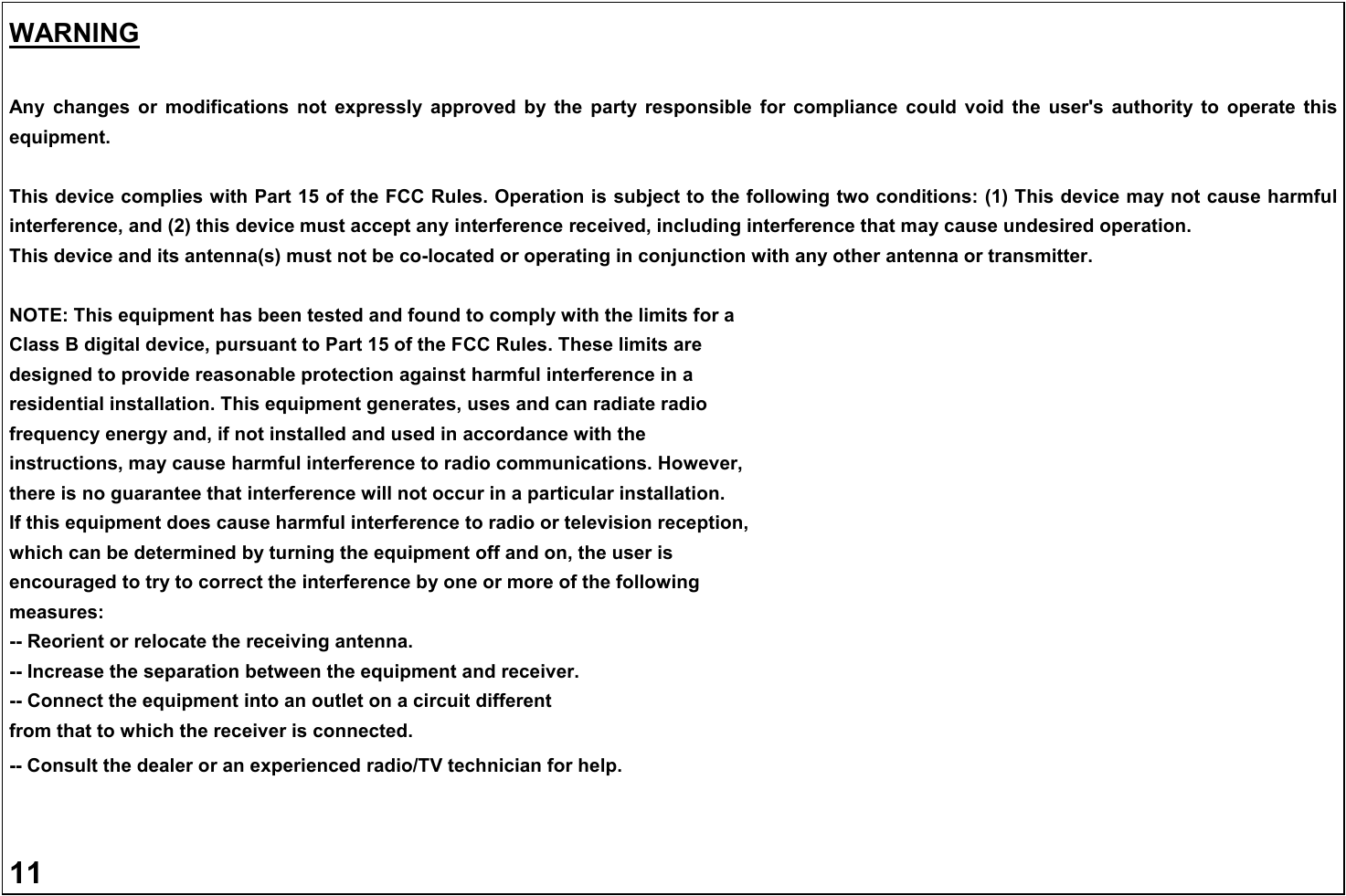
10SpecificationsMusic was tested with a 128 kbps MP3 file; video was tested with a 1920x1080 MPEG-4/AVC file; browsing was tested with the screen brightness set to default. Actual playback results may vary.ProcessorRAMStorageDisplayWi-Fi NetworkingAudio OutputPC InterfaceAdditional FeaturesOperating SystemPowerPlayback Time(hours)BOXCHIP A13 1GHz(Cortex A8)512MB DDR3 4GB(option) flash built-in; micro SD card slot (max.32GB supported)7” TFT LCD(800x480), Capcitive touchscreenIEEE 802.11 b/g/n3.5mm headphoneUSB 2.0 high speedUp to 6 hours music, 3 hours video,3 hours web browsingBuilt-in microphone Front facing camera(0.3MP) 1X1W  speakerAndroid™ 4.0Rechargeable Li-poly battery power Adapter(DC 5V,2A)
WARNING  Any  changes  or  modifications  not  expressly  approved  by  the  party  responsible  for  compliance  could  void  the  user's  authority  to  operate  this equipment.  This device complies with Part 15 of the FCC Rules. Operation is subject to the following two conditions: (1) This device may not cause harmful interference, and (2) this device must accept any interference received, including interference that may cause undesired operation. This device and its antenna(s) must not be co-located or operating in conjunction with any other antenna or transmitter.  NOTE: This equipment has been tested and found to comply with the limits for a Class B digital device, pursuant to Part 15 of the FCC Rules. These limits are designed to provide reasonable protection against harmful interference in a residential installation. This equipment generates, uses and can radiate radio frequency energy and, if not installed and used in accordance with the instructions, may cause harmful interference to radio communications. However, there is no guarantee that interference will not occur in a particular installation. If this equipment does cause harmful interference to radio or television reception, which can be determined by turning the equipment off and on, the user is encouraged to try to correct the interference by one or more of the following measures: -- Reorient or relocate the receiving antenna. -- Increase the separation between the equipment and receiver. -- Connect the equipment into an outlet on a circuit different from that to which the receiver is connected. -- Consult the dealer or an experienced radio/TV technician for help.   11

Navigation menu