Hi Target Surveying Instrument ZHDQCOOL Intelligent Handheld GPS User Manual Hi Target Qcool Quick Start Manual
Hi-Target Surveying Instrument Co., Ltd Intelligent Handheld GPS Hi Target Qcool Quick Start Manual
USERS MANUAL

Qcool Intelligent Handled GPS
1
Hi-Target Qcool Quick Start Manual
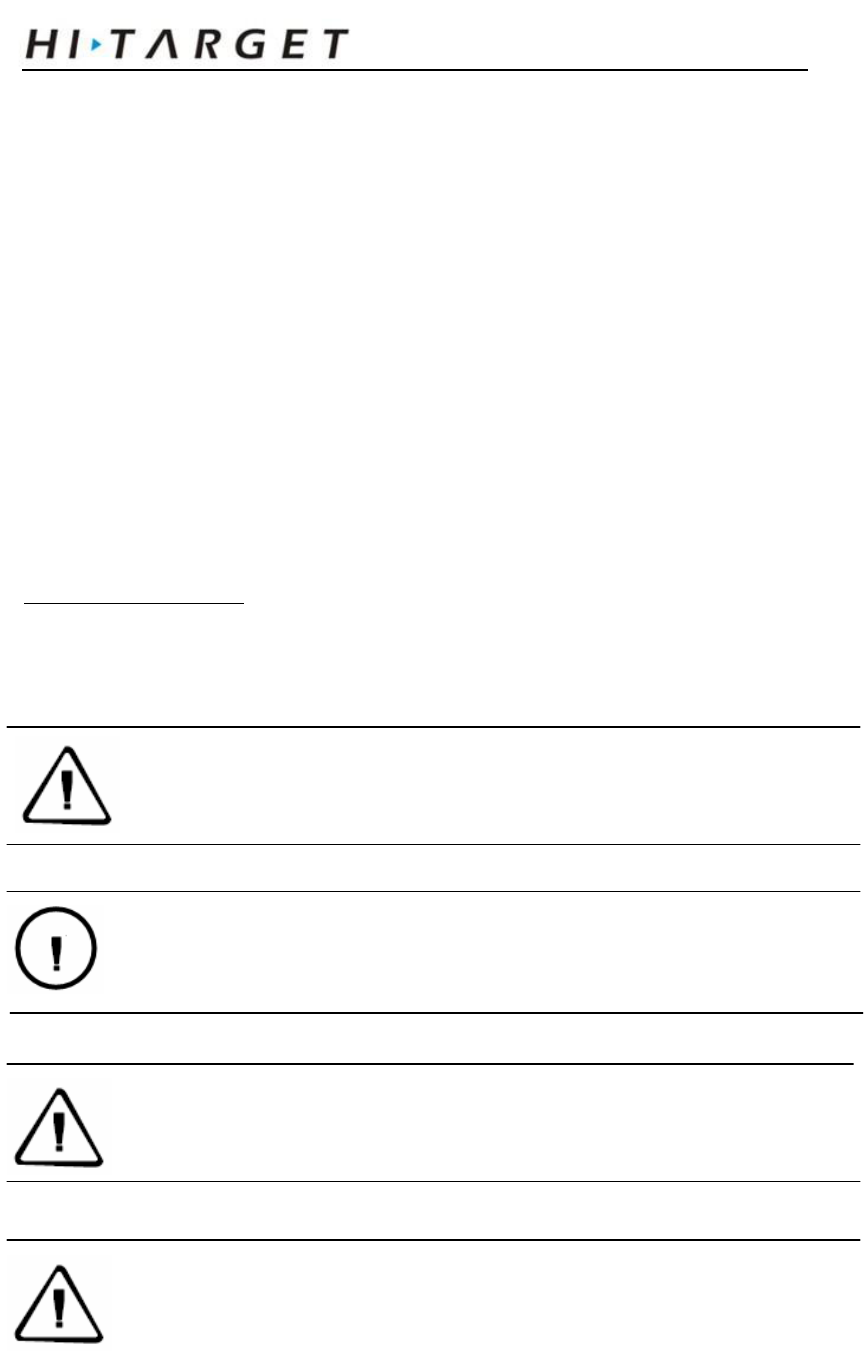
Qcool Intelligent Handled GPS
2
Manual use
Welcome to use Qcool series intelligent handheld GPS. This manual applies to Qcool, this
manual introduces how to install, set up and use intelligent handheld GPS.
Manual introduction
This manual introduce that how to setup and use this Qcool series intelligent handheld GPS.
Experience demanded
In order to you can better use Qcool series intelligent handheld GPS.
HI-TARGET suggest you have a certain measure knowledge, and carefully read the instruction.
If you have any questions, please refer to the official website of the HI-TARGET: <
http://www.hi-target.com/ >.
Safety technical note
Note: pay attention to tip the content general is operation special place, need
to bring your special attention, please read
Warning: the warning content is general very important tip, if not in warning
operate within the tip, you will cause the damage of the instrument, the loss of the
data, and the collapse of the system, even endanger the security of person.
Note: The grantee is not responsible for any changes or modifications not
expressly approved by the party responsible for compliance. Such
modifications could void the user’s authority to operate the equipment.
NOTE: This equipment has been tested and found to comply with the limits for a
Class B digital device, pursuant to part 15 of the FCC Rules. These limits are
designed to provide reasonable protection against harmful interference in a
residential installation. This equipment generates, uses and can radiate radio
frequency energy and, if not installed and used in accordance with the instructions,

Qcool Intelligent Handled GPS
3
may cause harmful interference to radio communications. However, there is no
guarantee that interference will not occur in a particular installation. If this
equipment does cause harmful interference to radio or television reception, which
can be determined by turning the equipment off and on, the user is encouraged to
try to correct the interference by one or more of the following measures:
- Reorient or relocate the receiving antenna.
- Increase the separation between the equipment and receiver.
-Connect the equipment into an outlet on a circuit different from that to which the
receiver is connected.
-Consult the dealer or an experienced radio/TV technician for help.
FCC ID: O39ZHDQCOOL
This device complies with Part 15 of the FCC Rules. Operation is subject
to the following two conditions: (1) this device may not cause harmful
interference, and (2) this device must accept any interference received,
including interference that may cause undesired operation.
International Limited Warranty, Software Licence
Agreement
You must not install or use the software unless you have read and accepted the terms and
conditions of the HI-TARGET software Licence Agreement. Installation or use of the software or
any part thereof, is deemed to be an acceptance of all the terms and conditions of such Licence
Agreement.
Responsibility absolution
Before you use the product, you should read the introduction carefully. Guangzhou HI-TARGET
surveying and mapping instruments Co., LTD. We will not take the responsibility if you not
operate within the product instruction。
Guangzhou HI-TARGET surveying and mapping instruments Co., LTD. Is committed to
continuously improve product function and performance, improve the service quality, and keep
the right to change the content of the instruction without notice in advance.
We have to print described in the content and the consistency of the hardware and software to
do an inspection, but don't rule out the possibility of bias, the picture in the instruction for use
for reference only, if you have a product with discrepancies, please use the product kind prevail.

Qcool Intelligent Handled GPS
4
Technology and service
HI-TARGET have set up the “technology and service” section, if you have problems you settle
them through the "service guide" telephone contact regional technology center, headquarters
division or through the "experts on the judgment seat," "technology BBS" message, we will
answer your questions in time.
Related information
You can find the instructions through the following methods:
1,、purchased products from the HI-TARGET will with a CD, open the CD and you can find
the instruction;
2、land the official website of the HI_TARGET, through "downloaded zone"-" product
specifications "and" GIS product "and you can it.
Your suggestion
If you have any Suggestions and opinions about the introduction, please visit the official
website of the HI-TARGET, and leave massage in "technical service" and "advice and
complaint" edition , your feedback on the quality of the information we will be greatly improved.

Qcool Intelligent Handled GPS
5
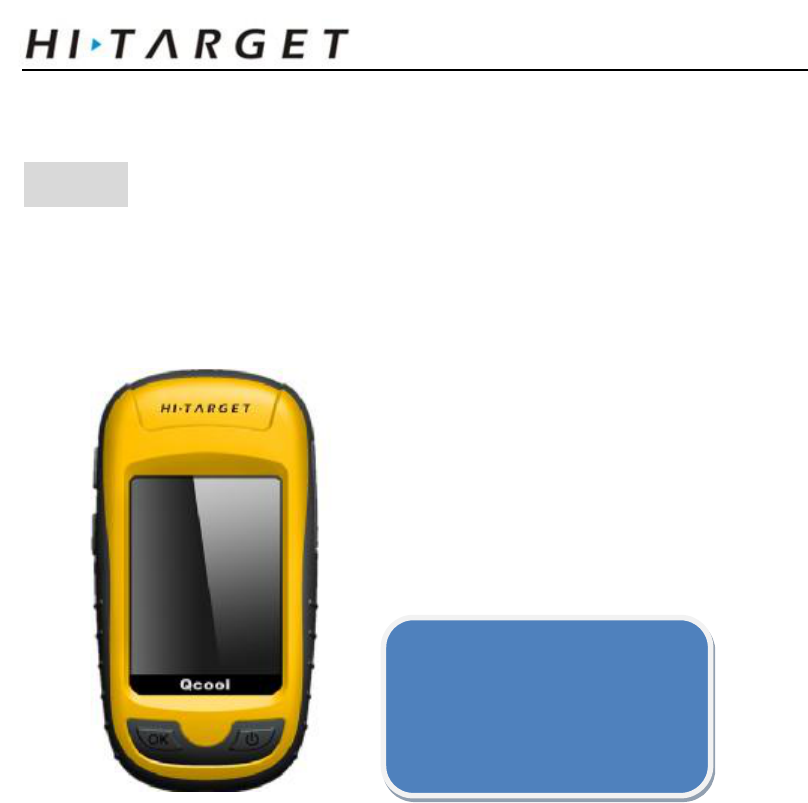
Device
Device Overview
Battery Information
Software
Select / customize coordinate system / datum
Dictionary
New build a project
Import background image
Record Point / Line / Area
Export data
Qcool Intelligent Handled GPS
6
Device
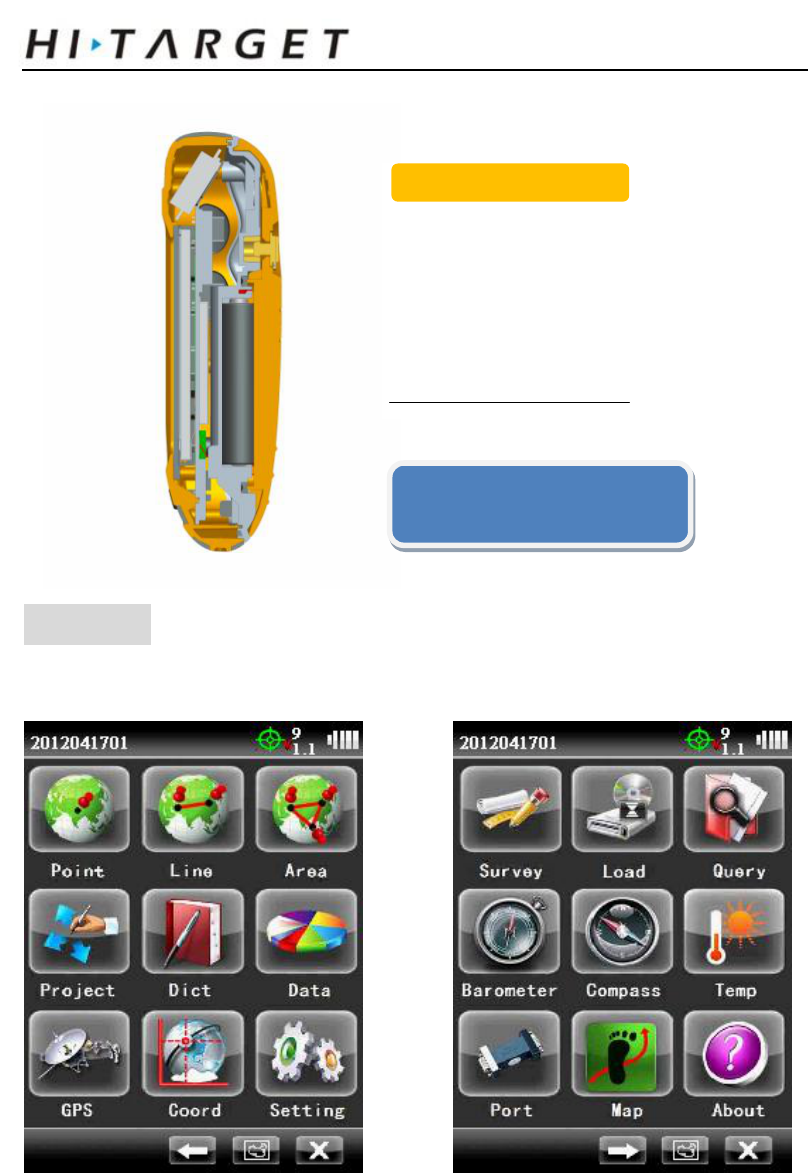
Device Overview
When using your device for the first time, you should complete these tasks to set
up the device and get to know the basic features.
Battery information
You can use alkaline, MiMH, or lithium batteries. Use NiMH or lithium batteries for the best
result. The device operates on two AA batteries.
①
○
2 ○
3
○
5
○
4
① Up key
○2 Down key
○3 Storage Card and USB Port
○4 OK key
○
5
Power and Backlight key
Qcool Intelligent Handled GPS
7
Software
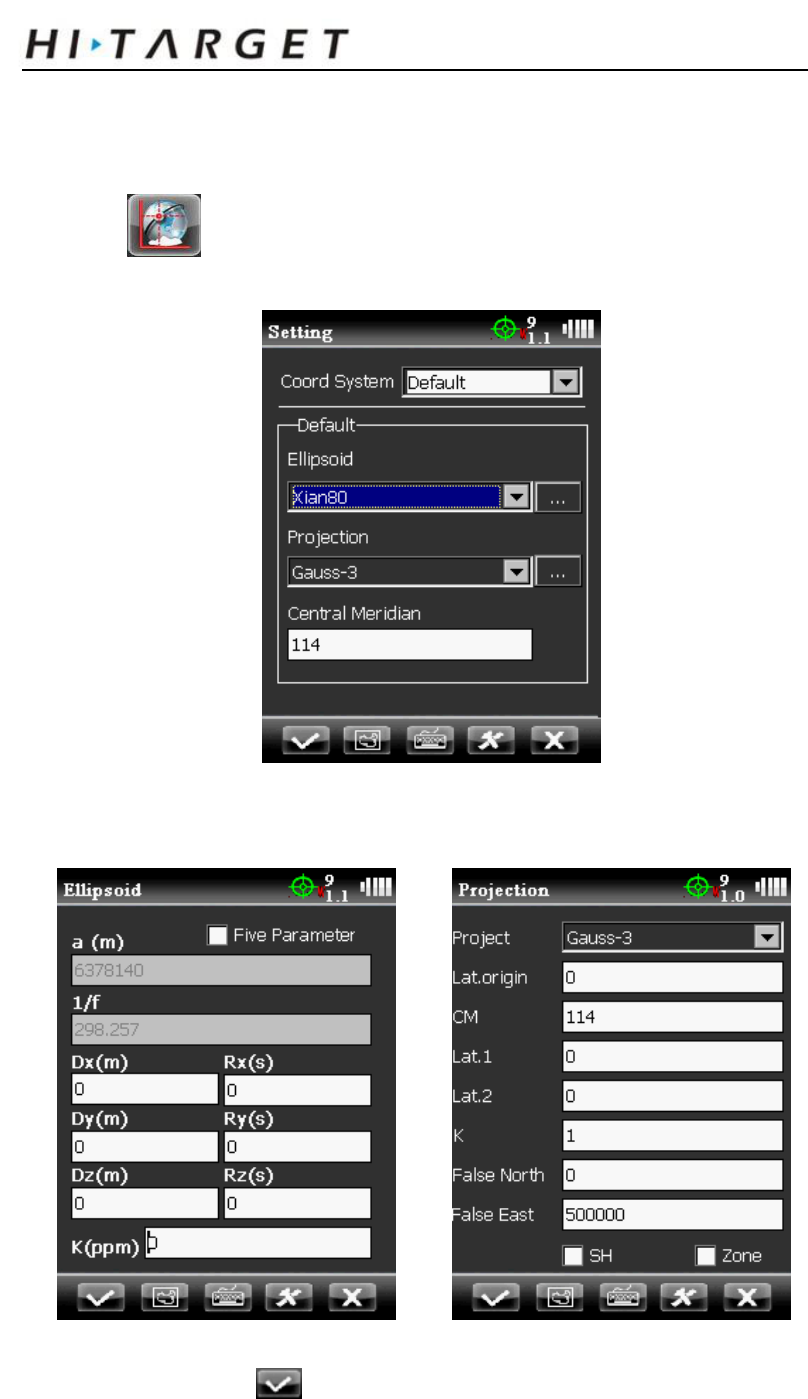
Start Qcool software, main contact interface presents.
Before going out for field operation, please follow below procedure step by step.
In Qcool software, Field operation procedure is presented as below:
Ø Select / Edict coordinate system
Ø Open / New build a dictionary
○
6
○
7
Alkaline batteries lose a
significant amount of their
capacity as temperature
decreases. Therefore, use
lithium batteries when operating
the device in below-freezing
conditions
○6 Rear cover screw
○7 Battery
NOTICE

Qcool Intelligent Handled GPS
8
Ø New build a project
Ø Import background image
Ø Collect Point / Line / Area
Ø Data download
Qcool Intelligent Handled GPS
9
1. Select / Edict coordinate system
Before field operation, your own coordinate system is needed, by
clicking to select / edict coordinate system.
You can edit Ellipsoid, Projection, and Central Meridian.
When finished, click to confirm.
Qcool Intelligent Handled GPS
10
2. Open / New build a dictionary
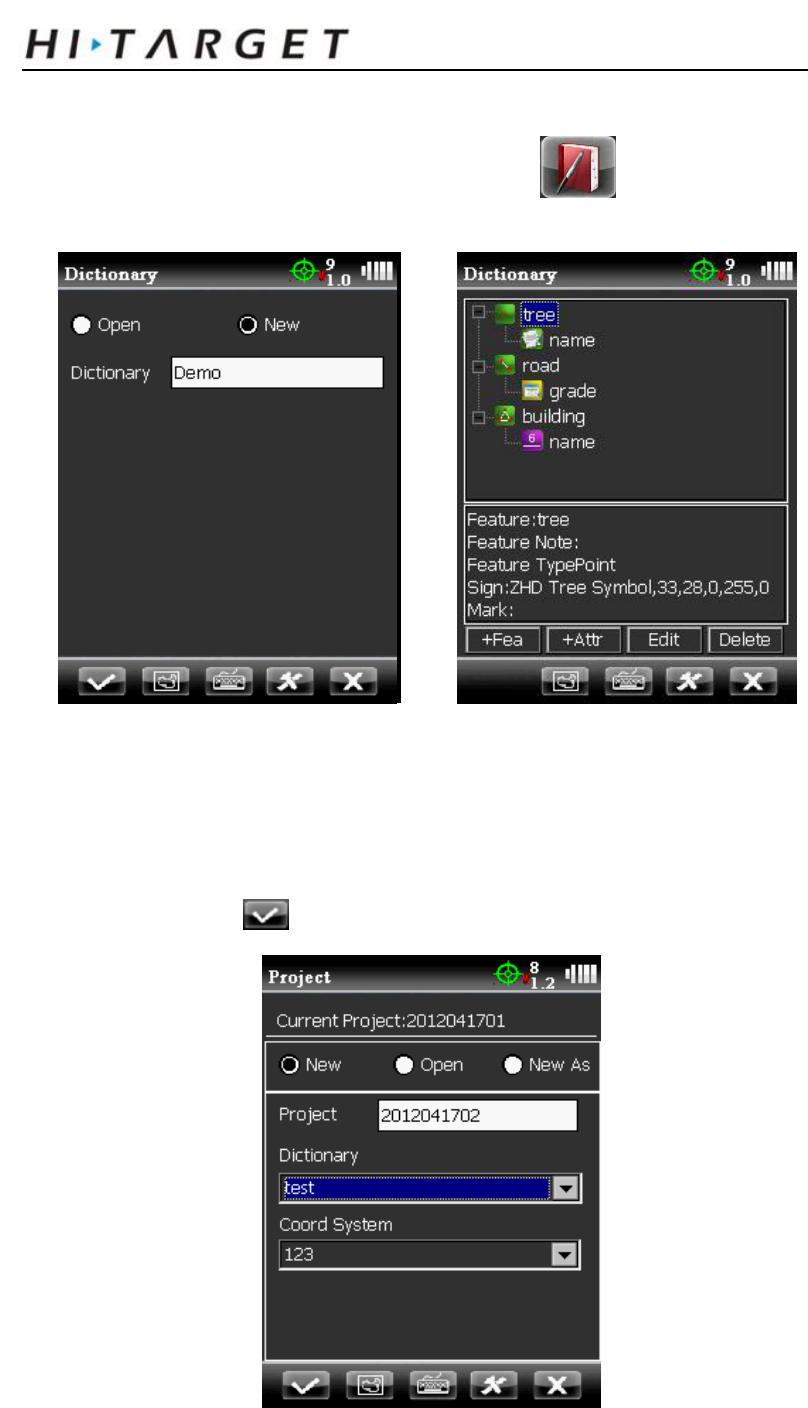
Dictionary is used to record attribute. By clicking you can new build
dictionary or customize the attribute according to your field operation needs.
All the features are described by point, line or area. For example, trees should
be recorded as point, roads should be recorded as line, and buildings should be
recorded as area.
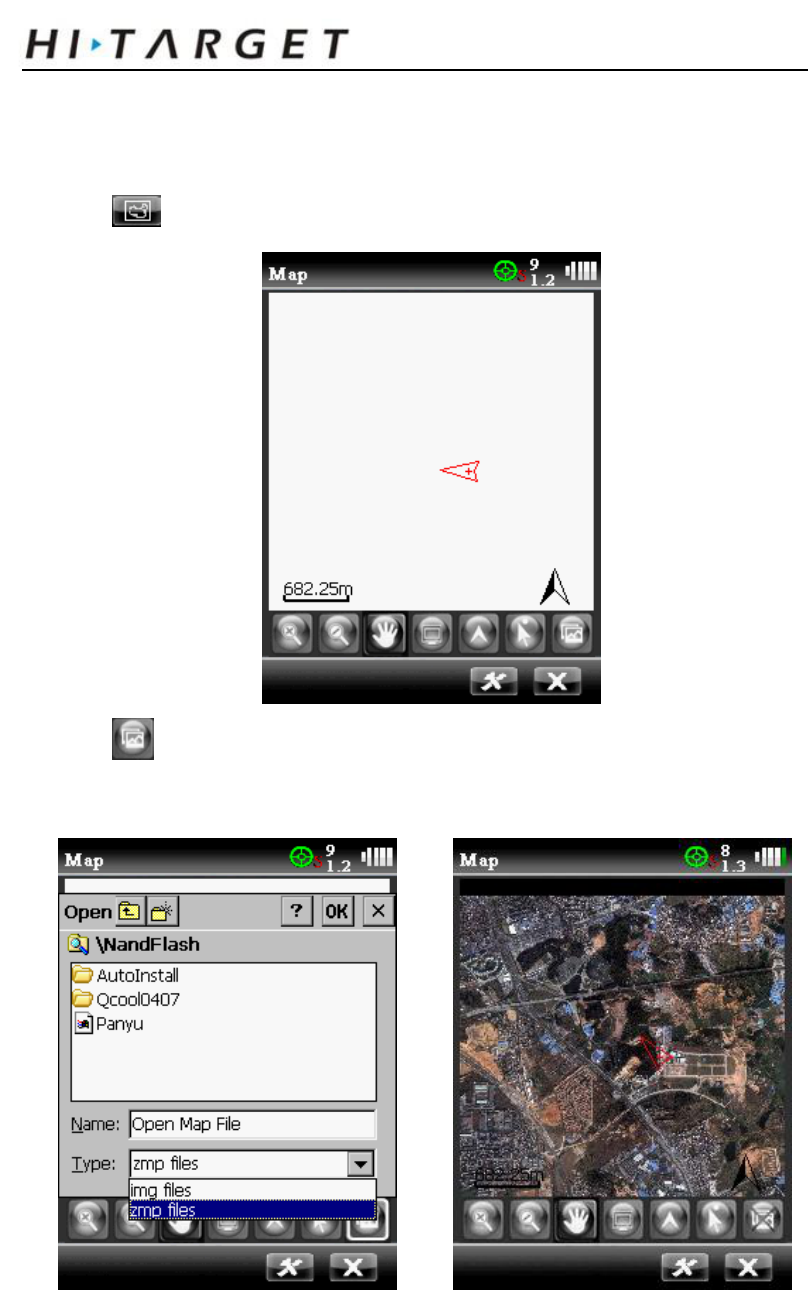
3. New build a project
When coordinate and dictionary are both ready, you can start you project now.
Remember to click to confirm.
Qcool Intelligent Handled GPS
11
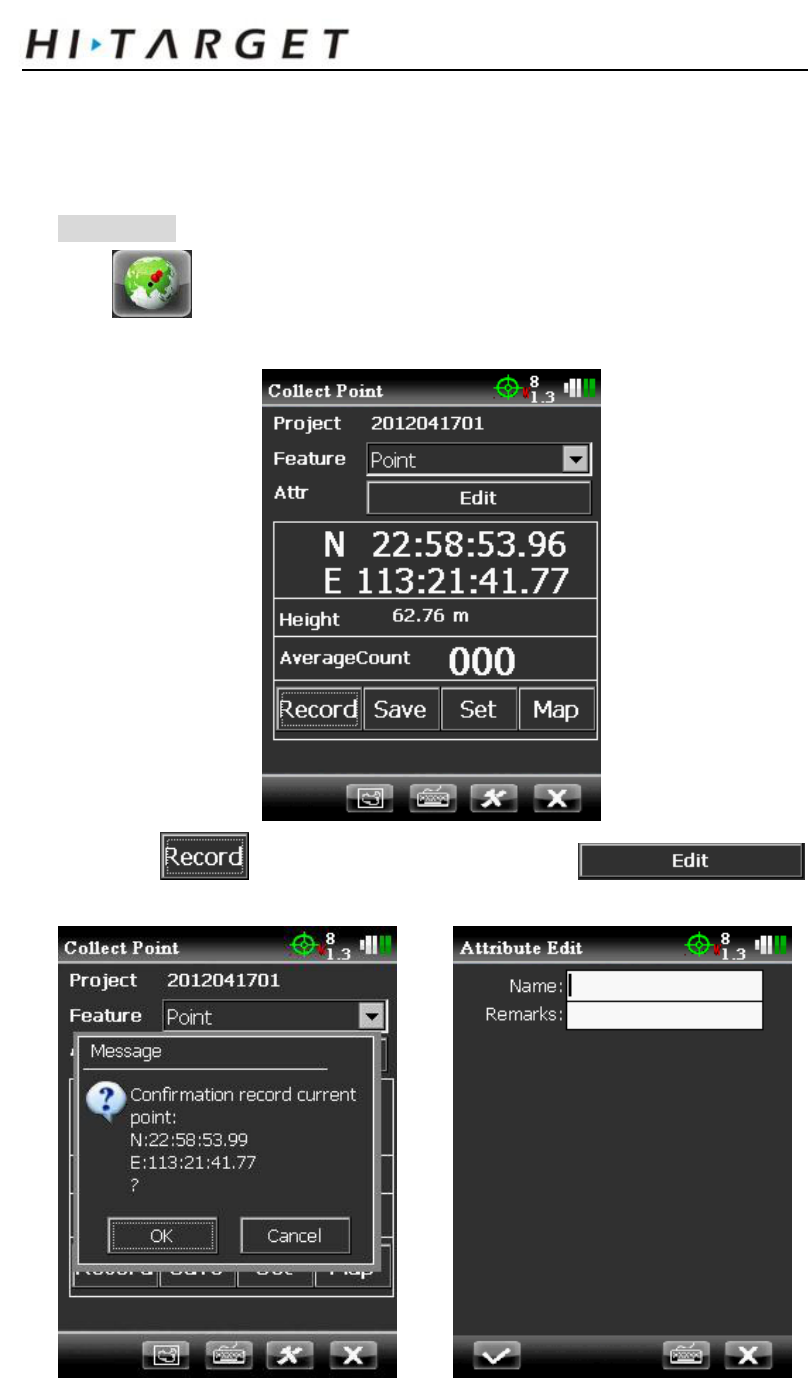
4. Import background image
Map or background image can be imported into program to get more artistic
interface.
Click to enter map interface.
Click to add your map.
There are two type of format for map, *.zmp file can be created by Hi-Target
Hi-Net Server software.
Every signal point on *.zmp map has a coordinate, with this map, Qcool will
show where you are and what the area is.
Qcool Intelligent Handled GPS
12
5. Collect Point / Line / Area
Main function of Qcool is to record the objects with coordinates and attributes.
Notice: when recording, first record coordinate, then attribute.
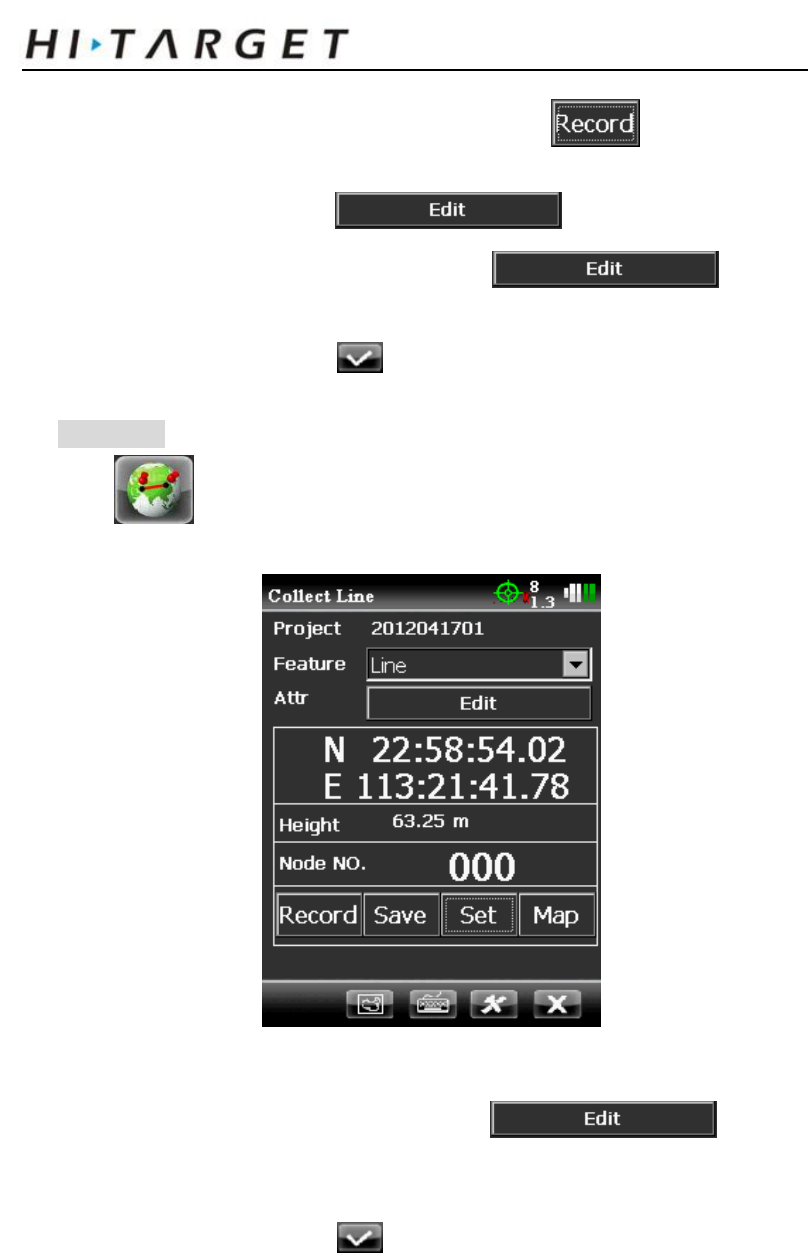
Collect Point
Click to enter “Collect Point” interface. Here you can see your current
position with coordinate.
First click to record coordinate, then click
to record attribute.
Qcool Intelligent Handled GPS
13
When recording coordinate, you can manually click or automatically
recording by distance or time.
For attributes, you can click for every single point or
after recording several coordinates then click to write
the same attribute to those points.
After writing attributes, click to confirm.
Collect Line
Click to enter “Collect Line” interface. Here shows your current
position with coordinate.
At least two points will make a line, which means you should first record at
least two points with coordinate, then click to write
attribute.
Also when recording coordinate, you can manually or automatically operate.
After writing attributes, click to confirm.
Qcool Intelligent Handled GPS
14
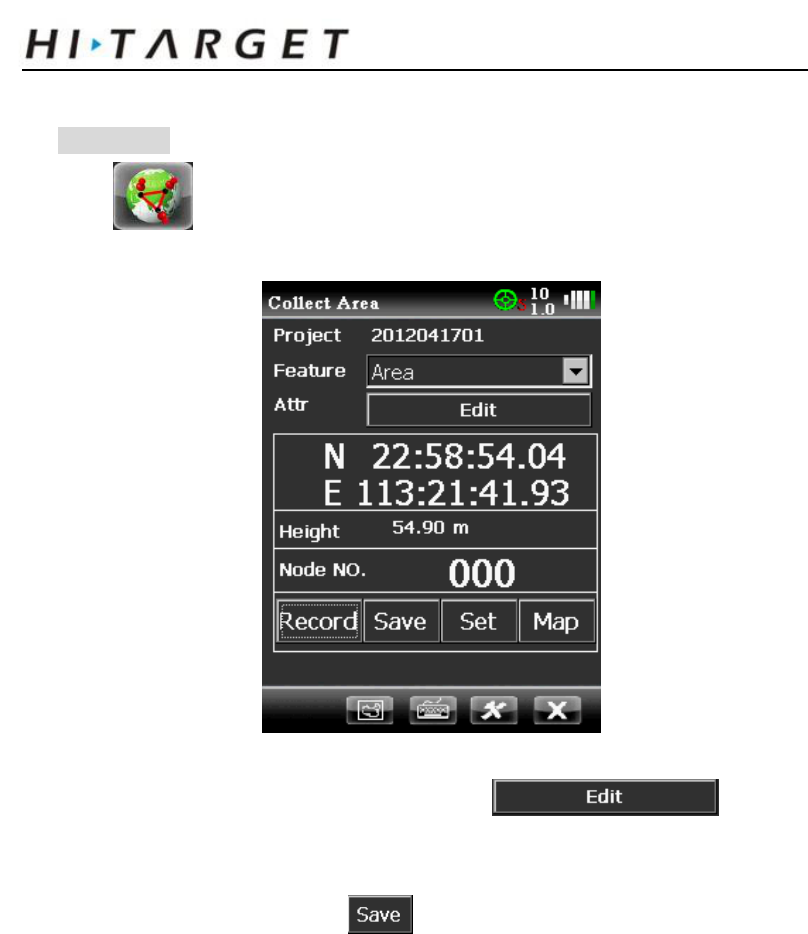
Collect Area
Click to enter “Collect Area” interface. Here shows your current
position with coordinate.
At least three points will make area, which means you should first record at
least three points with coordinate, then click to write
attribute.
Tips: Save your data by clicking .
6. Data download
In order to connect to your PC, Microsoft ActiveSync is need on Windows XP;
Windows Mobile Device Center is need on Windows 7 operating system. After
software been installed, next step is to install driver.
All your data should be stored in NandFlash, Otherwise it will not be stored after
you restart the device.
When finished field operation, data can be downloaded to PC for post-processing.
Hi-Target Hi-Net Server software is the post-processing software which can process
field data and export different format data (DXF, SHP, MIF, CSV, txt).