Hi Target Surveying Instrument ZHDV60 GNSS RTK User Manual
Hi-Target Surveying Instrument Co., Ltd GNSS RTK Users Manual
User manual-revisedpdf
V60 GNSS RTK System Operation Instruction
Preface
Introduction
The introduction is applicable to Hi-Target V60 products. V60
is a new type of GNSS receiver used for measurement. The
introduction describes how to install, set and use V60
products.
In order to help you better use Hi-Target series products,
Hi-Target suggests you carefully reading the instruction. If you
are unfamiliar with V60 products, please refer to
www.hi-target.com.cn/en/
Tips for safe use
Note: the contents here generally are special
operations, needing your special attention.
Please read the contents carefully.
I
Introductions to Receiver
Warning: the contents here generally are very
important. In case of failing to operate
based on warning contents, it will damage
the machine, lose the data, break down the
system and endanger personal safety.
Exclusions
Before using the products, please carefully read the operating
instruction, and it will help you better use the product.
Hi-Target Surveying Instrument Co., Ltd will not assume the
responsibilities if you fail to operate the product according to
the requirements in operating instruction, or operate the
product wrongly because of failing to understand the operating
instruction.
Hi-Target is committed to constantly perfect product functions
and performance, improve service quality and reserve the
rights to change the contents in operating instruction without
separate notice.
II

V60 GNSS RTK System Operation Instruction
We have checked the consistency between contents in
instruction and software & hardware, without eliminating the
possibility of deviation. The pictures in operating instruction
are only used for reference. In case of inconformity with
products, the products shall prevail.
III

Introductions to Receiver
Content
Product Introduction .................................... 1
Preface .................................................. 2
Product Characteristics .................................. 3
Cautions for Use ......................................... 4
Introductions to Receiver................................ 6
Receiver Appearance ...................................... 7
Control Panel ............................................ 7
Upper Cover .............................................. 8
Bottom Cover ............................................. 9
Five-core and Eight-core Sockets ........................ 11
Batteries ............................................... 13
Environmental Requirements .............................. 14
Electronic Jamming ...................................... 14
Elementary Operation ....................................16
Power Supply ............................................ 17
Control Panel ........................................... 21
Key Functions ........................................... 23
Start and Stop Receiver ................................. 29
SIM card/USIM Card ...................................... 29
Static Data Storage ..................................... 31
RTK Data storage ........................................ 34
Reset receiver .......................................... 35
Formatting Receiver ..................................... 35
IV

V60 GNSS RTK System Operation Instruction
Firmware ................................................ 37
Static Collection and Data Transmission ...................38
Preface ................................................. 40
Static Measurement ...................................... 40
U Disk Data Download .................................... 42
Operations of Static Management Software ................ 43
Technical Parameters ....................................46
GNSS Part ............................................... 47
Receiver Precision ...................................... 47
Interface ............................................... 48
Physical characteristics ................................ 48
Environment ............................................. 49
Socket and Main Accessories ..............................50
Preface ................................................. 51
Y-type Data Cable ....................................... 51
Annexed Table 1 Instructions of Indicator Lights in Control
Panel..................................................52
V

V60 GNSS RTK System Operation Instruction
Product Introduction
This chapter describes:
■ Preface
■ Product characteristics
■ Cautions for use
C
H
A
P
T
E
R
1
1
Introductions to Receiver
Preface
V60 is a new type of GNSS receiver used for measurement
pushed forward by Hi-Target recently. The receiver is provided
with 1G mass storage and one SD card extendable slot, which
can record static data in forms of GNS and Rinex
simultaneously. With brand new appearance design and
optimized internal structure, the product extends the design
style of previous products, making it cope with various
complex conditions outside. The product has self-diagnostic
function, which can intelligently monitor the immediate
situations of various software and hardware during operation
process; the product adopts brand new high-precision RTK
system on color liquid crystal screen with modular design. The
product boasts stable and GPRS network module, which can
exchange difference transport module according to customer
requirements and seamlessly connect CORS network system in
main manufactures.
Warning: the instruction represents no standard
configuration. The articles within the box
can be adjusted according to different user
requirements. The specific configuration
shall be subject to the outgoing list upon
purchasing. The suggestions before using
the machine: check whether the product
package is damaged; please open the
package carefully and confirm whether the
articles are consistent with outgoing list; in
2

V60 GNSS RTK System Operation Instruction
case of loss or damage in the product and
its accessories, please immediately contact
with local office or dealers; please carefully
read the operating instruction before
carrying, transporting and using the
product.
Product Characteristics
◇ Obtain the CE0890 certification
◇ Apply multi-satellite system and multi-frequency
GNSS unit; support BDS, GPS and GLONASS
system navigation and positioning
◇ Internally install 1G mass memory; support SD card
data storage, 32GB as a maximum
◇ Internally install a transceiver; then base and rover
can be exchange completely
◇ GPRS Communication function:
◇ With high-capacity lithium battery, the product can
meet long-time operation requirements outside
◇ Intelligent voice
◇ Intelligent self-diagnostic function
◇ Function of accelerating and express upgrading
◇ Static data are stored in two formats (*.GNS /
RINEX Data)
3
Introductions to Receiver
◇ 128x64 resolution; 1.54-inch liquid crystal display
The user can flexibly set the instrument and observe
the operations of instrument through display
Cautions for Use
As a precise instrument, the receiver shall be used and
maintained carefully regardless of the materials resistant to
chemical agent and impact.
Warning: the receiver shall be in stipulated
temperature range upon using and storage.
The detailed requirements are shown in
Chapter V: Technical Parameters —>
Environment.
In order to guarantee the quality of continuous tracking
observation and satellite signals, it is required that the
overhead observation station shall be open, without flaky
barriers above 15° elevating angle; in order to diminish the
interference of electromagnetic wave to GNSS satellite signals,
the observation station shall be free form strong
electromagnetic wave within the range of 200m, such as
television tower, microware station and high-voltage
transmission line; in order to avoid or reduce multipath effect,
the observation station shall be far away from the terrain and
ground features with strong reflection against electromagnetic
wave signal, such as high-rise buildings, waters, etc.
Changes or modifications not expressly approved by the party
4

V60 GNSS RTK System Operation Instruction
responsible for compliance could void the user’s authority to
operate the equipment.
This equipment has been tested and found to comply with the
limits for a Class B digital device, pursuant to Part 15 of the
FCC Rules. These limits are designed to provide reasonable
protection against harmful interference in a residential
installation. This equipment generates, uses and can radiate
radio frequency energy and, if not installed and used in
accordance with the instructions, may cause harmful
interference to radio communications. However, there is no
guarantee that interference will not occur in a particular
installation.
If this equipment does cause harmful interference to radio or
television reception, which can be determined by turning the
equipment off and on, the user is encouraged to try to correct
the interference by one or more of the following measures:
-- Reorient or relocate the receiving antenna.
-- Increase the separation between the equipment and receiver.
-- Connect the equipment into an outlet on a circuit different
from that to which the receiver is connected.
-- Consult the dealer or an experienced radio/TV technician for
help.
5

Introductions to Receiver
Introductions to Receiver
This chapter describes:
■ Receiver appearance
■ Control panel
■ Upper cover
■ Bottom cover
■ Five-core and eight-core sockets
■ Batteries
■ Environmental requirements
■ Electronic jamming
C
H
A
P
T
E
R
2
6
V60 GNSS RTK System Operation Instruction
Receiver Appearance
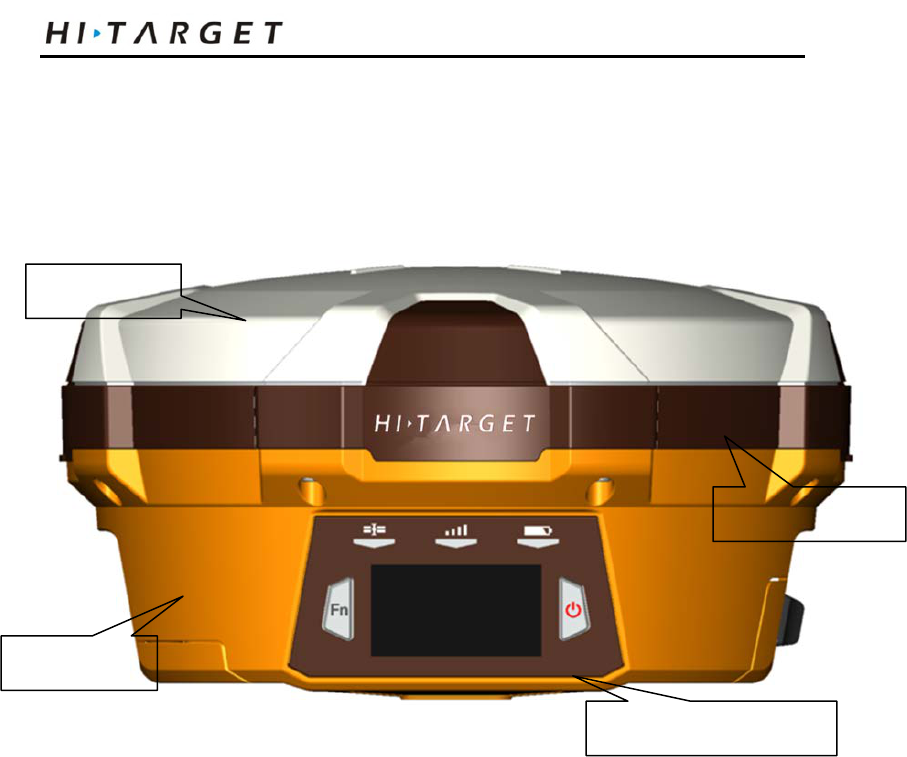
The product appearance is divided into four sections, upper
cover, bottom cover, guard circle and control panel.
Figure 2-1
Control Panel
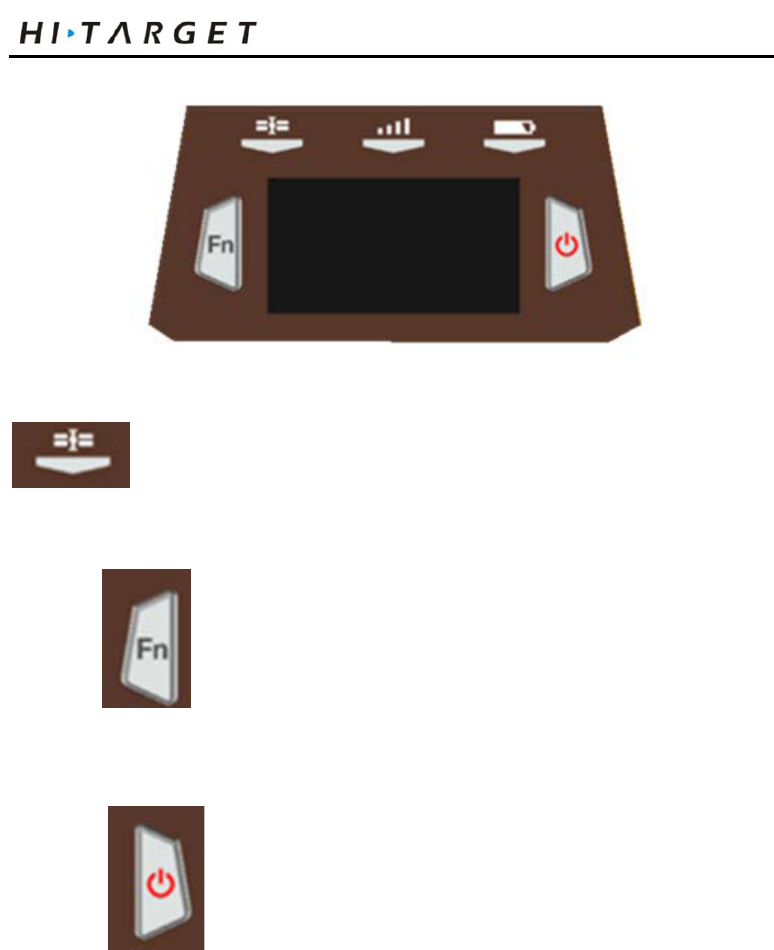
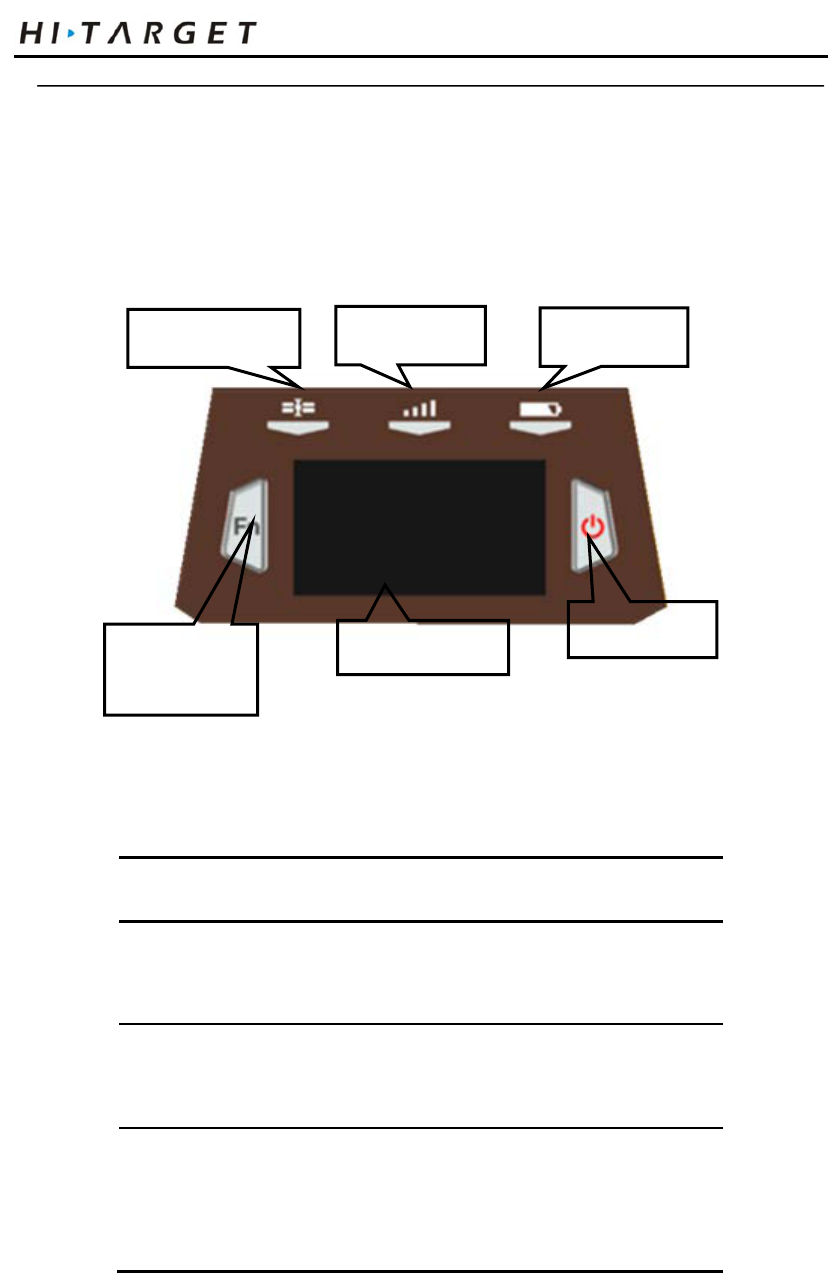
The control panel includes Fn key (function key), power
button, LED display and 3 indicator lights which are satellite
light, status light (bi-color light) and power light (bi-color
light). Two buttons cover all functions of V60 receiver setting.
Upper cover
Bottom cover
Guard circle
Control panel
7
Introductions to Receiver
Figure 2-2
Satellite light (green light), status light (red and
green light) and power light (red and green light)
Function key: set work mode, data link,
satellite elevation, sampling interval, reset receiver, etc.
Power button of startup & shutdown: set
confirmation and inquire current work mode.
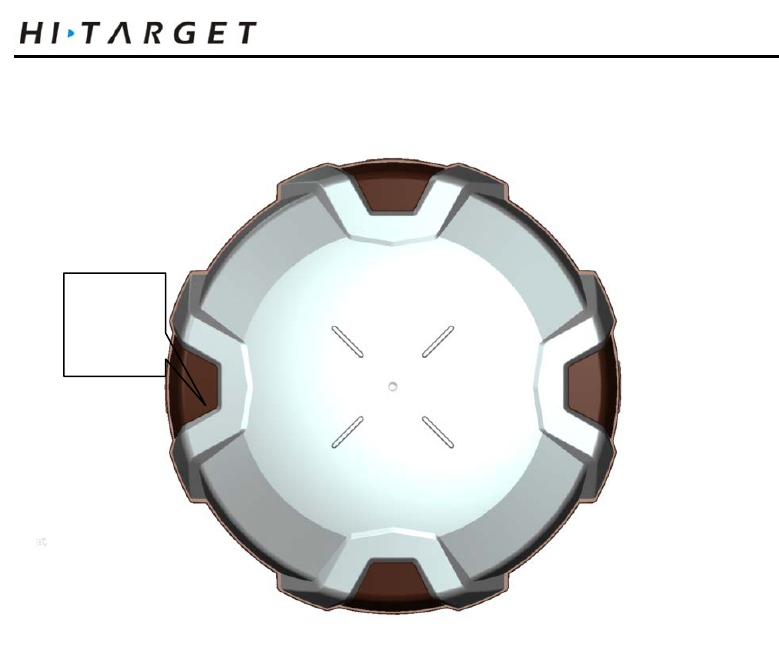
Upper Cover
8
V60 GNSS RTK System Operation Instruction
Bottom Cover
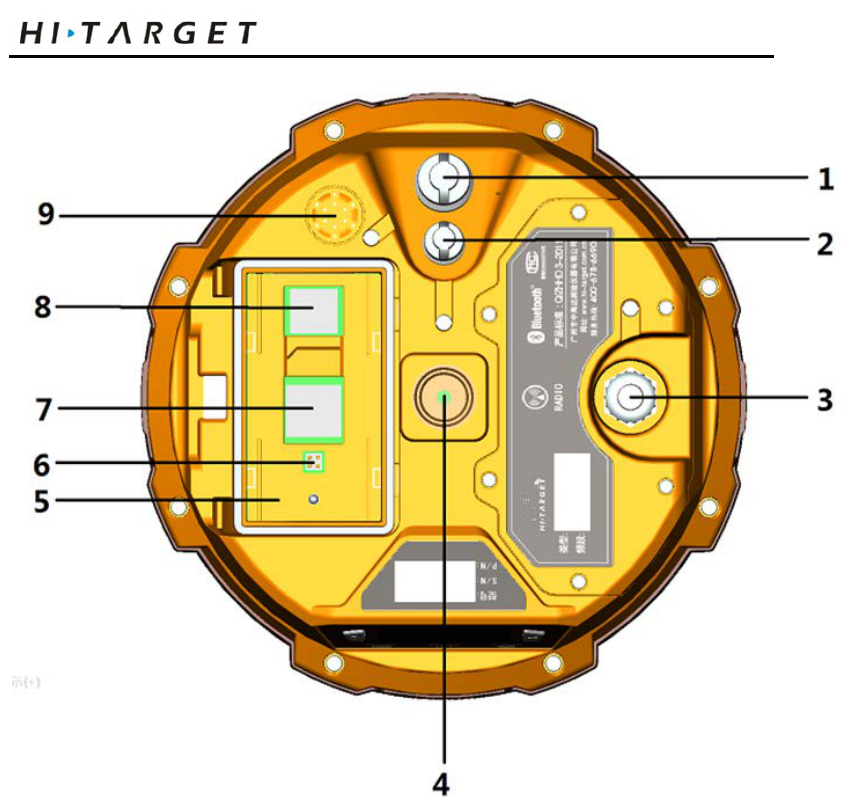
Include battery slot, five-core socket, eight-core socket,
trumpet, etc.
Convex
plate
9
Introductions to Receiver
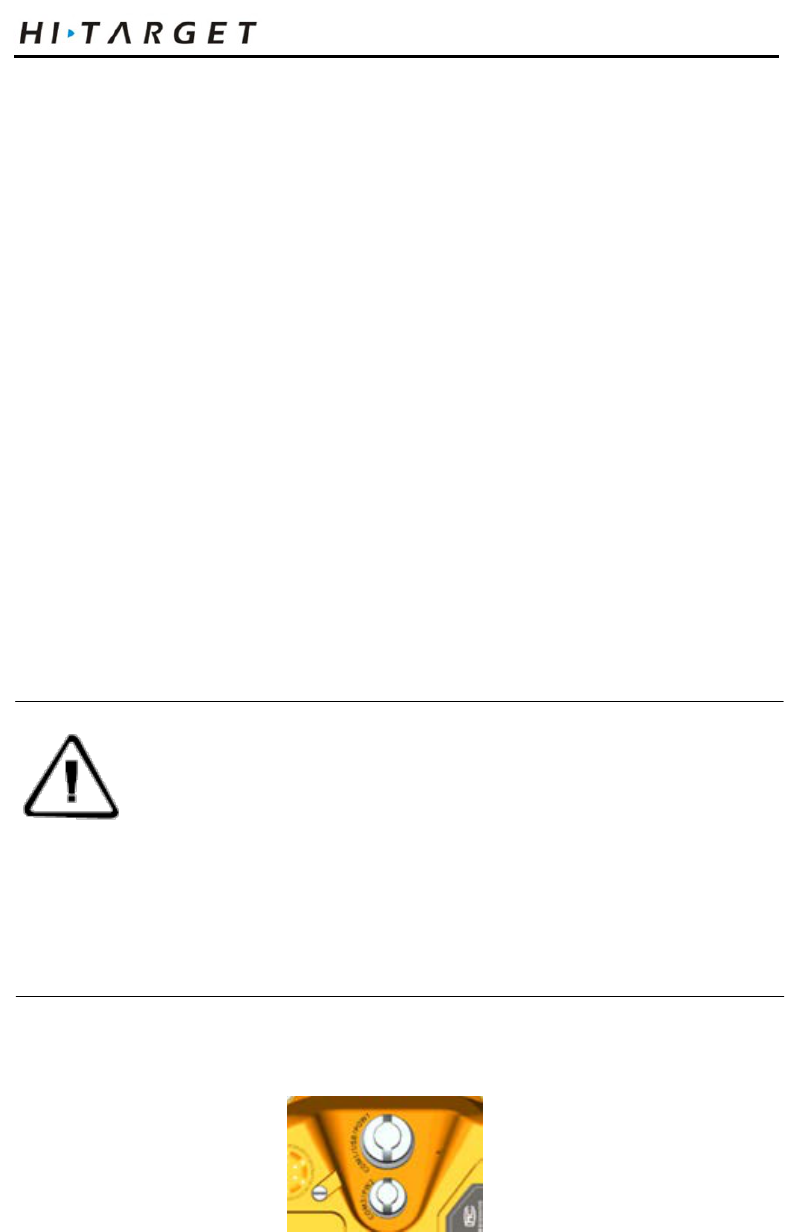
1. Eight-core socket and protection plug; 2. Five-core socket and protection plug; 4.
Connecting screw; 5. Battery slot; 6. Vibrating needle power socket; 7. SIM slot; 8. SD
card slot; 9. Trumpet
Figure 2-3
◇ Eight-core socket: it is used to connect the receiver,
computer, handbook and external power supply, and
load and delete the data.
◇ Five-core socket: it is used to connect the receiver,
external data chain and external power.
10
V60 GNSS RTK System Operation Instruction
◇ Connecting screw: it is used to fasten the instrument
to base or centering rod
◇ Battery slot: it is used to place lithium battery
◇ Vibrating needle power socket: it is used to connect
the lithium battery and host
◇ SIM card slot: when communicating with GSM data,
it is used to place SIM card.
◇ SD card slot: it is used to place SD card, which can
store massive static data.
◇ Trumpet: timely operate the instrument and
broadcast the status with voice
◇ Protection plug: it is used to prevent dust in interface
Note: 1. If it is unnecessary to use five-core socket,
eight-core socket and difference antenna
interface, please cover the rubber plug to
prevent dust.
2. In case of inflowing, the trumpet may be
silent or hoarse, which will recover
normally after drying.
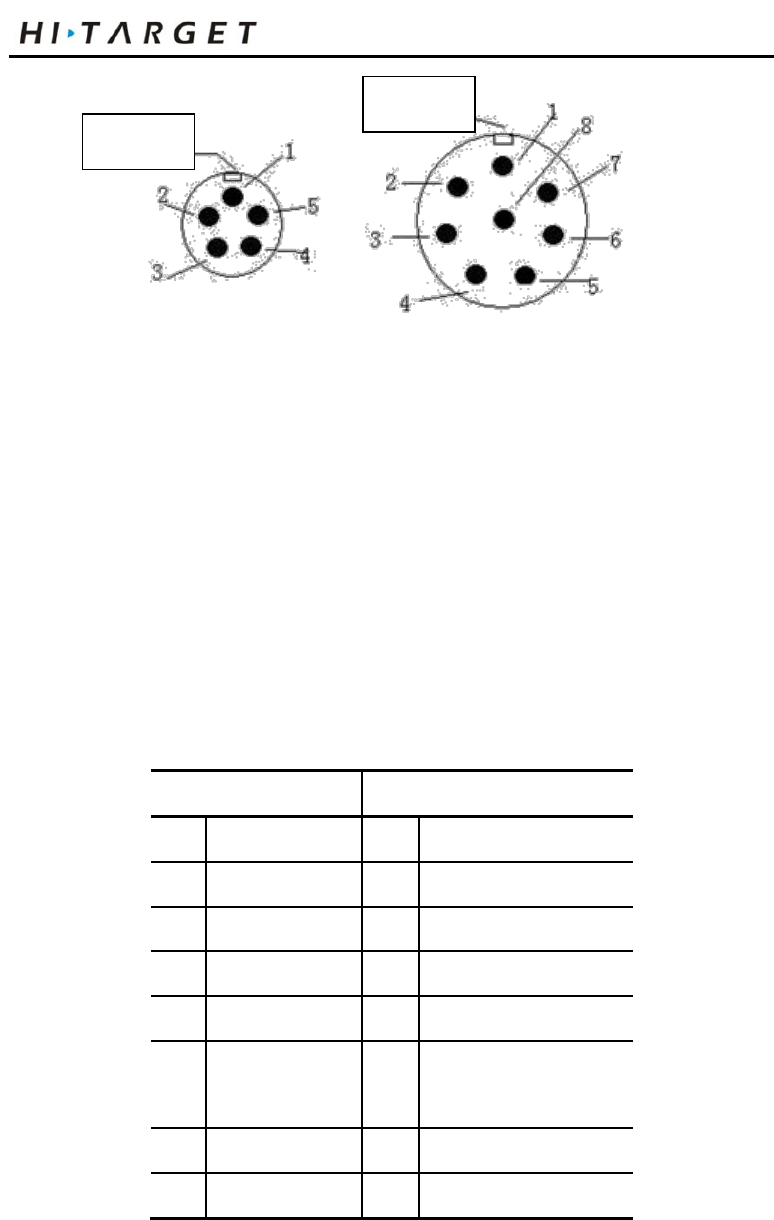
Five-core and Eight-core Sockets
Figure 2-4
11
Introductions to Receiver
Figure 2-5
1. Five-core socket: it is also called as COM2/PW2, which is
used to connect the host and external data chain, and external
power supply.
2. Eight-core socket: it is also called as COM1/USB/PW1,
which is used to connect the computer and controller, set
parameters, download and delete files.
Table 2.1 Description of five-core and eight-core socket signals
Small five-core signal
Large eight-core signal
1 Ground GND 1 Data into RXD
2 Ground GND 2 US B D-
3 Power into Vin 3 US B D+
4 Data into RXD 4 USB V+
5 Data out TXD 5 Power into Vin
6
Cable insertion mark
GC-2
7 Data out TXD
8 Ground GND
◇ Symbol of cable insertion: GC-2 is cable interior
Jag
Jag
12
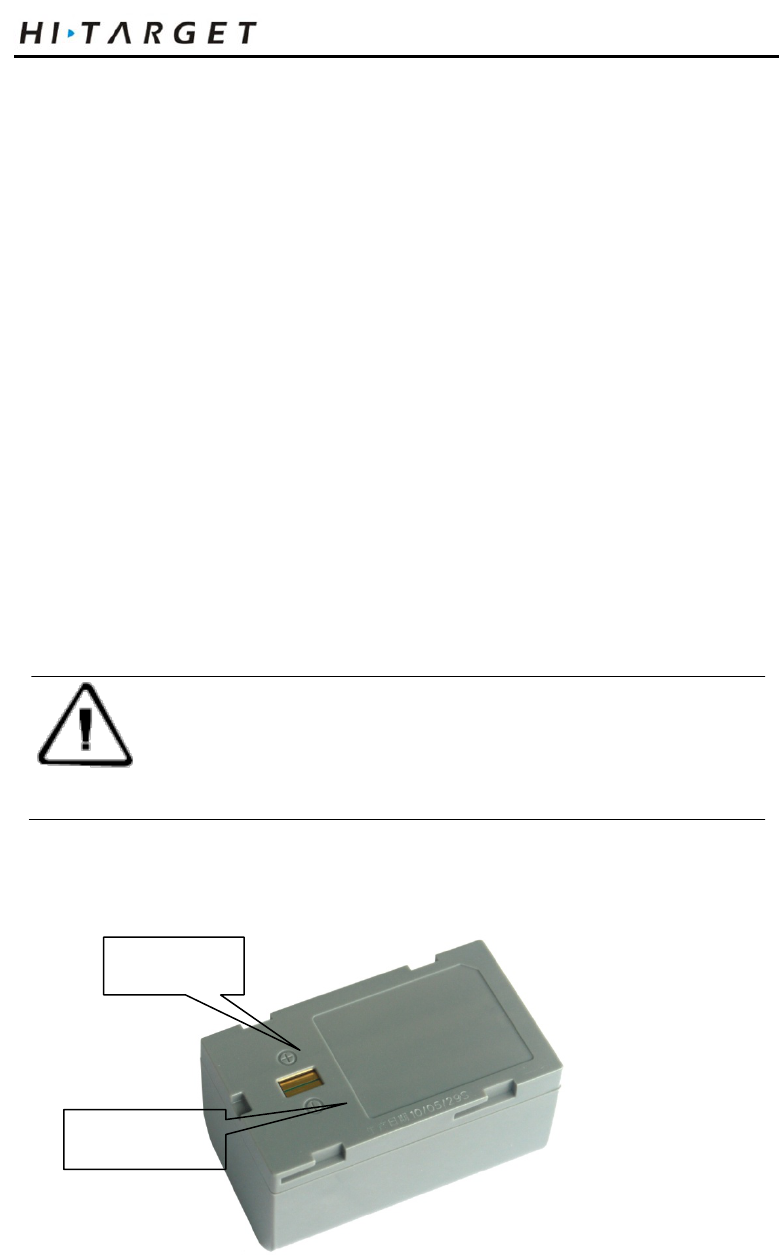
V60 GNSS RTK System Operation Instruction
ground
◇ All round sockets are numbered anticlockwise in
positive face; all round plugs are numbered
anticlockwise in weld face.
◇ All TXD and RXD are described by the receiver.
EXD is the transmit data line of receiver; RXD is
the receive data line of receiver.
◇ The signal of computer serial DB9 pin joint: 2
(RXD computer data receiving signal line); 3.
(TXD computer data transmit signal line) and 5.
(GND signal earth). “2 receiving 3 sending” for
short
Note: It refers to the socket front of host bottom in
the face of host (weld face of socket).
Batteries
Positive pole
Negative pole
13
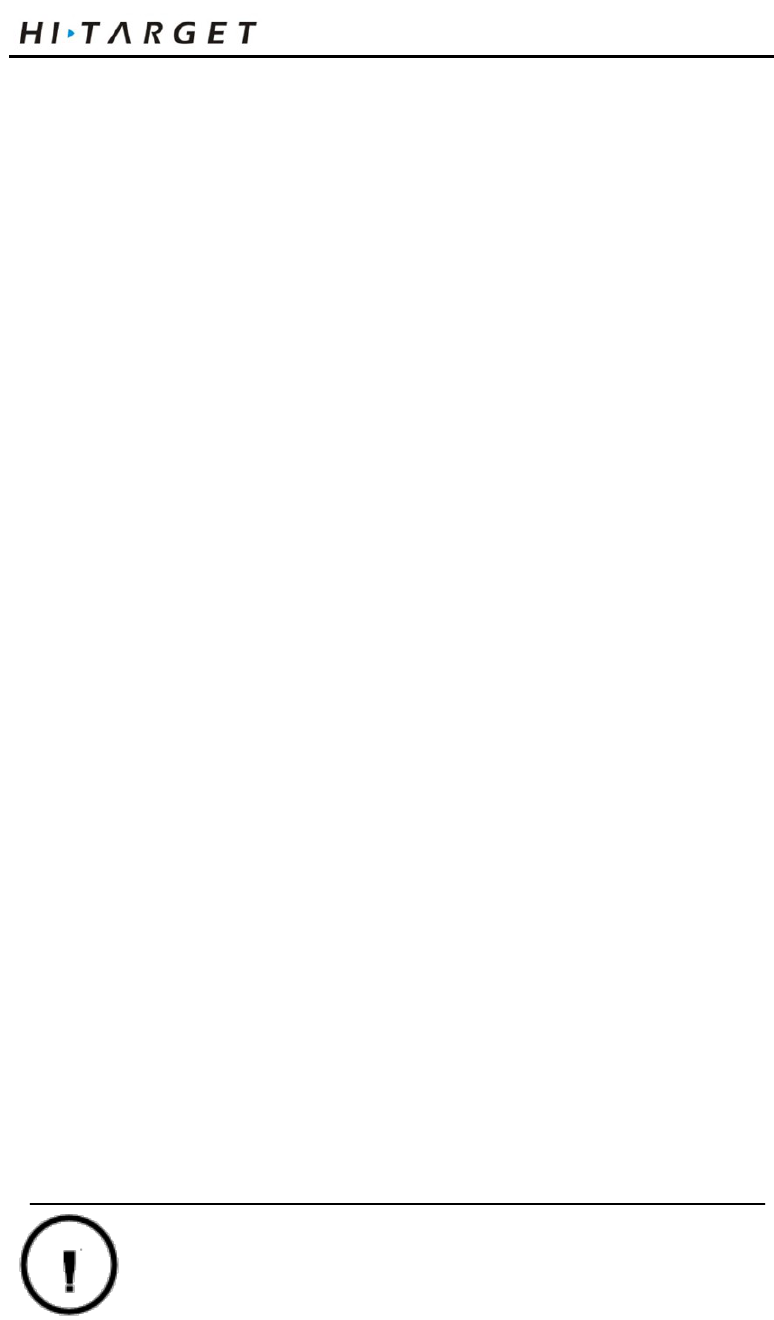
Introductions to Receiver
Figure 2-6
Environmental Requirements
The receiver shall operate in dry working environment
regardless of waterproof materials. In order to advance the
stability and service cycle of receiver, the receiver shall be
prevented from extreme environment, such as:
◇ Moisture
◇ Temperatures above 65 degrees centigrade
◇ Below - 40 degrees centigrade
◇ Corrosive liquids or gases
Electronic Jamming
The receiver shall not be installed in the place near to strong
electric power and interference signal, such as:
◇ Oil duct (spark plugs)
◇ Generator
◇ Battery-operated motor cycle
◇ DC-AC power supply changeover equipment
◇ Signal transmitting station (tower)
◇ Power supply
Warning: the receiver shall be installed 1 meter away
14

V60 GNSS RTK System Operation Instruction
from human body.
15

Elementary Operation
Elementary Operation
This chapter describes:
■ Power supply
■ Control panel
■ Function Key
■ Start and stop receiver
■ SIM card/USIM card
■ Static data storage
■ RTK data storage
■ Reset receiver
■ Formatting receiver
■ Firmware
C
H
A
P
T
E
R
3
16
V60 GNSS RTK System Operation Instruction
Power Supply
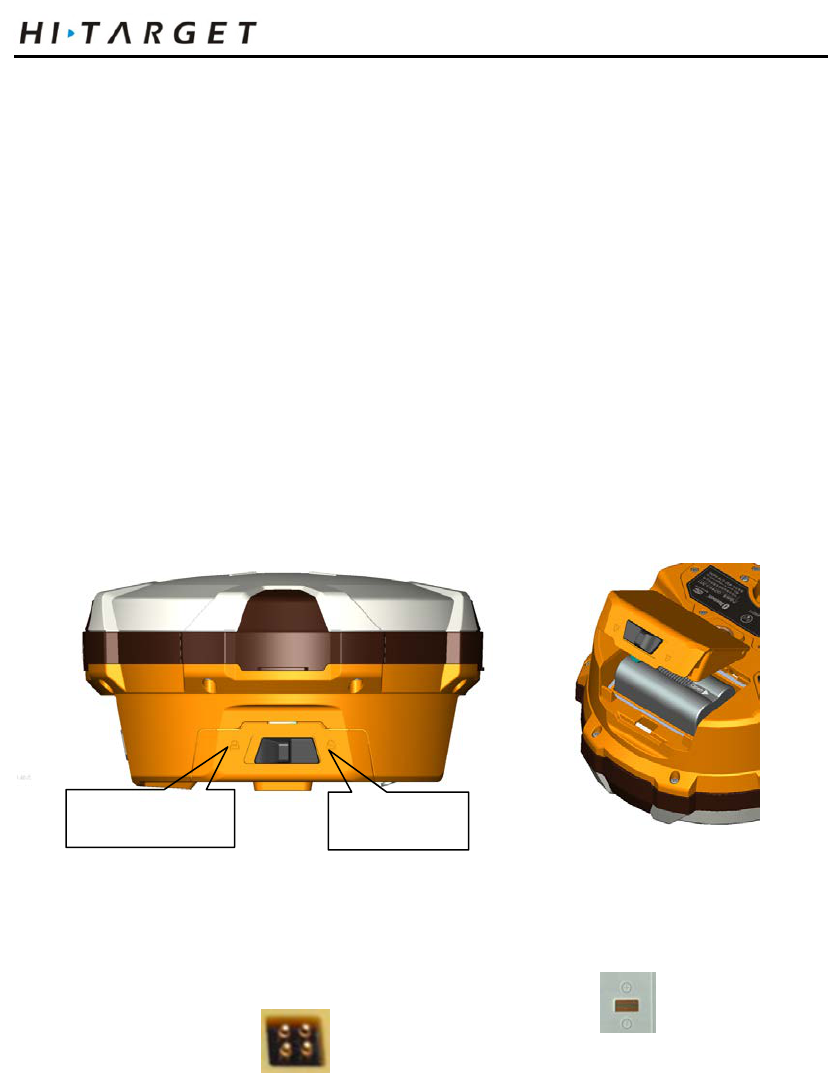
Battery cover plate installation and removal
Installation: obliquely insert the two raised areas on battery cover
plate into the slot; press downwards and fasten the battery cover
upon the sound of “bang”; place the pushing and dialing key in
locking status.
Removal: move the pushing and dialing key to deblocking status;
the battery cover will be popped automatically and opened.
Figure 3-1
Battery installation and removal
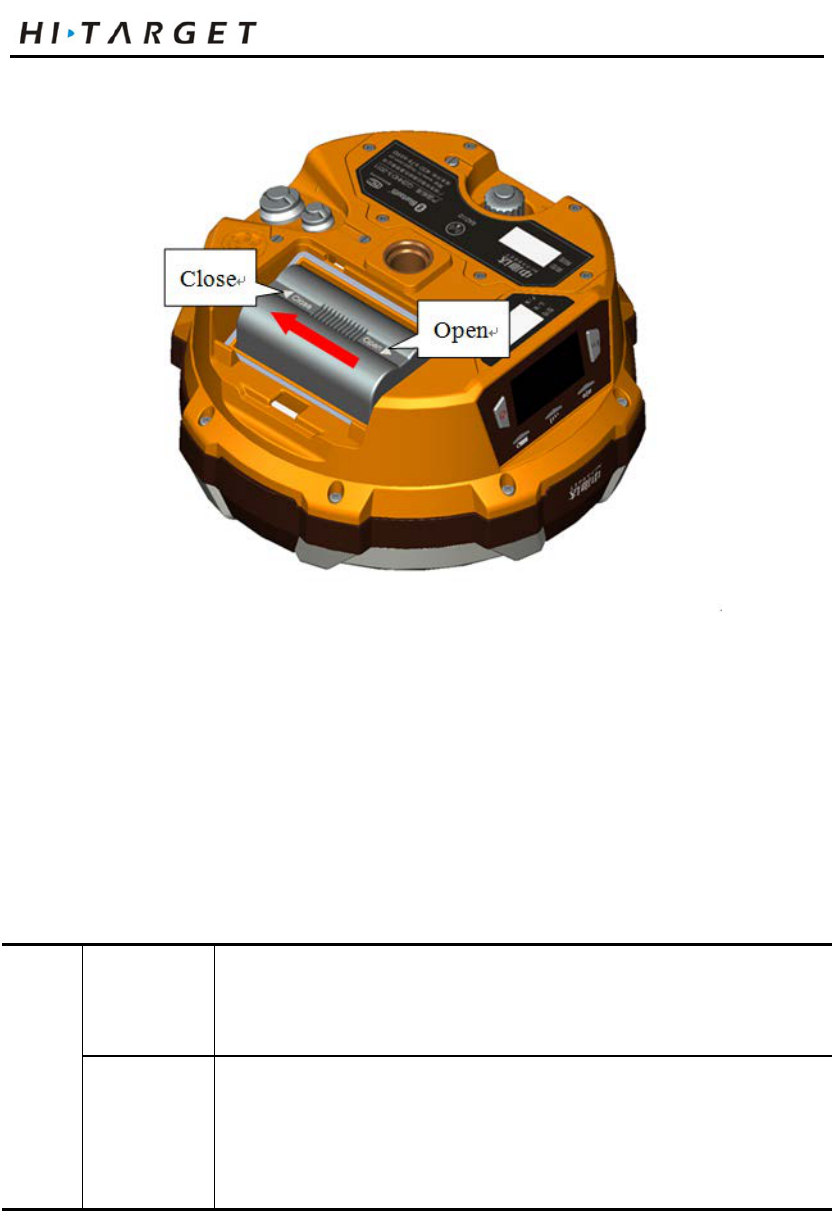
Installation: 1. Align “open” side at battery slot with vibrating
needle power socket .
2. Lightly push in towards “close” side (as shown by red
arrow) to install battery.
Unlock state
L
ock state
17
Elementary Operation
Figure 3-2
Removal: push out along with “open” side and pour out the battery
to dismantle the battery.
Power supply mode
Table 3.1 Power supply mode of V60 receiver
Power
supply
Power
supply mode
Bu ilt-in lithium battery, eight-core socket/five-
core socket external
power supply
Scope of
Power
Supply
DC power: 6V-28V
The receiver can also supply power through eight-core
18
V60 GNSS RTK System Operation Instruction
socket/five-core socket external power supply. Where:
The receiver will automatically start after energizing eight-core
socket external power supply
The receiver will start through pressing the power button on
control panel after energizing five-core socket external power
supply.
The external voltage range of GSM operation mode is DC 6-28V.
The current shall be more than 1,000 mA. Upon external power
supply, the host will automatically detect the voltage of lithium
battery and external power supply, and supply power choosing
higher voltage. As for external power supply, it shall use the
special power specified by Hi-Target.
Note: 1. The service life of lithium battery will
decrease along with the decrease in
temperature and increase in
charging-discharging times. A new 5000
mAh lithium battery can be used for 12
hours upon collection of static data, 9 hours
upon GPRS rover.
2. After using up, it shall charge the battery
within 24 hours, or the battery performance
will be damaged.
3. When the battery is not used for a long time,
19
Elementary Operation
please charge once every month to prolong
the service life of battery.
Recharge
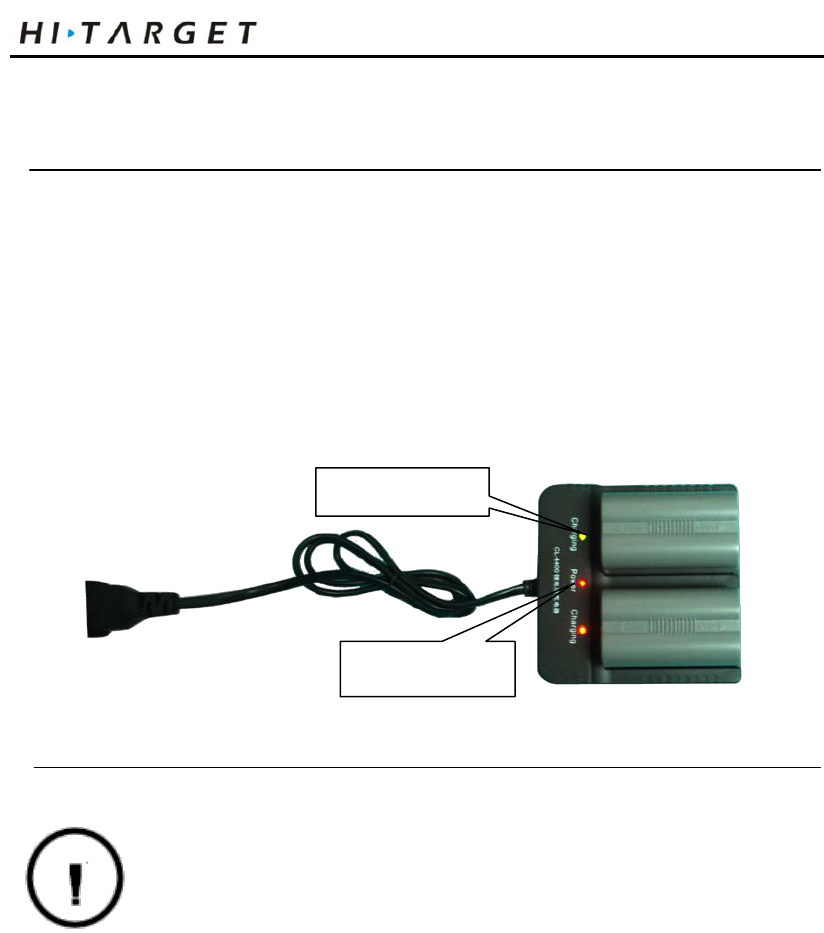
BL-5000 lithium battery shall use Hi-Target CL-4400 lithium
battery charger to charge. About 7 hours of charging ti me CL-4400
charger is designed with charge lamp. The lamp is red during
charging process and turns green upon finishing charging. The
battery is full continue charging for another 1-1.5 hours.
Figure 3-3
Warning: 1. only the battery and charger configured by
the manufacturer can be used; the battery shall
not be thrown into fire or used in metal short
circuit electrode.
2. It shall stop using in case of heating,
deformation, liquid leakage, smelling or other
abnormal reactions during using, charging or
storage process. Check whether the battery and
charger are in failure.
3. If the service time of battery is shortened or the
battery is aged, it shall exchange new battery.
Charging lamp
Charger lamp
20
V60 GNSS RTK System Operation Instruction
Control Panel
Most settings and operations of receiver are completed using two
keys on control panel.
Figure 3-4
Table 3.2 Description of keys operation time
Operation name
Note
Click action
The key operation shall be less than 0.5
seconds
Double-click
action
The interval between double click shall be less
than 1 second and more than 0.2 seconds
Long-press
operation
The key operation shall be more than 3 seconds
and less than 6 seconds, upon the sound of
“ding-dong”
Satellite light Status light Power light
Function Key
Fn
LCD Display
Power key
21

Elementary Operation
Super long-press
operation
The key operation shall be more than 6
seconds, upon two counts of “ding-dong”
Slow flashing Light on greater than 0.5 seconds
Quick flashing
Light on less than 0.3 seconds
22
V60 GNSS RTK System Operation Instruction
Key Functions
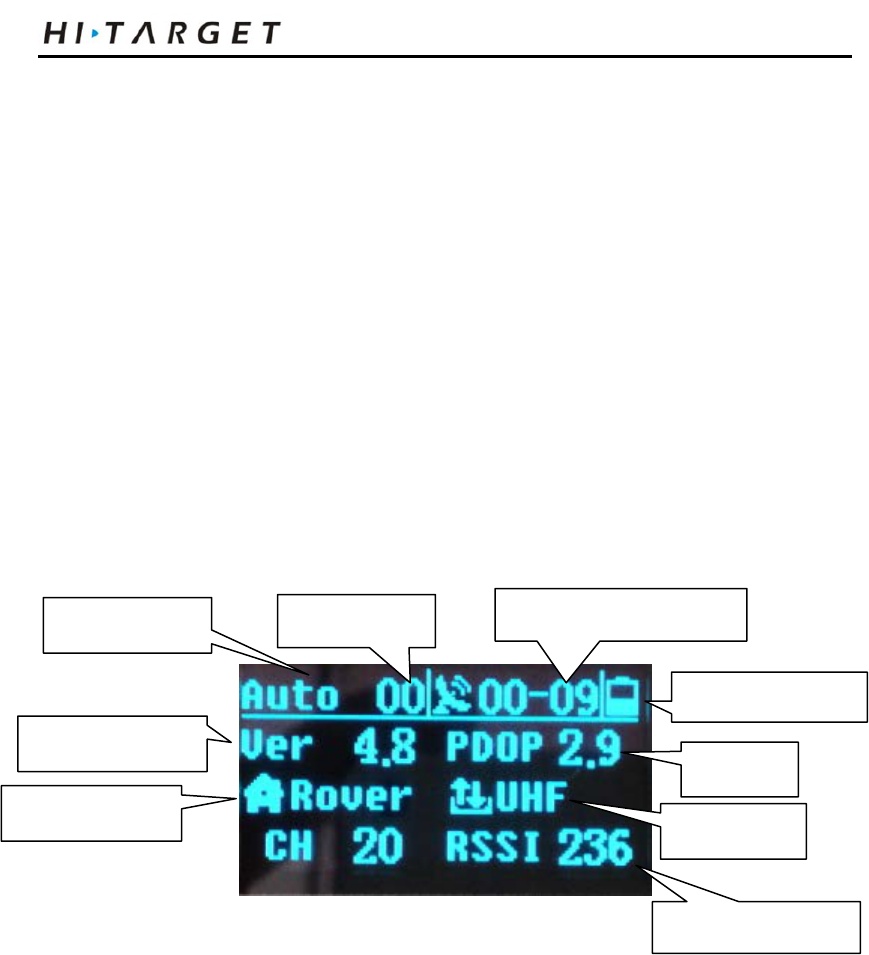
V60 GNSS RTK system can on or off LCD panel display through
double clicking power key. High-definition LCD panel can
complete the basic requirements of receiver with two keys, which
also can flexibly set three work modes, base, rover and static mode.
The key operation of control panel is specified as follows:
LCD coordinates key operation
Double click the power key and start the LCD; the initial interface
will display current work mode and relevant basic information.
Figure 3-5
Solution state
Working mode
Difference age Shared Satellites - Visible Satellites
Remaining power of host
Data link form
PDOP value
Signal enhancement value
Host firmware version:
23
Elementary Operation
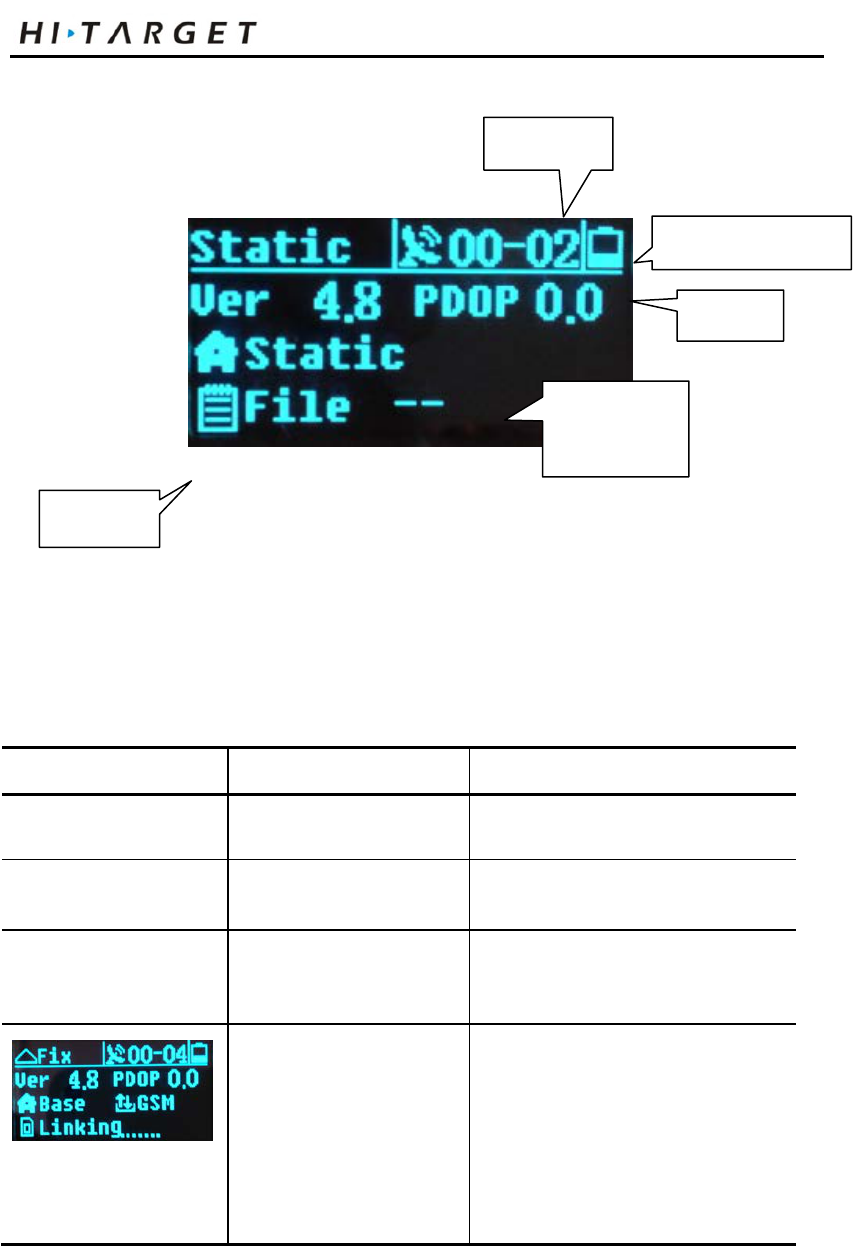
Figure 3-6
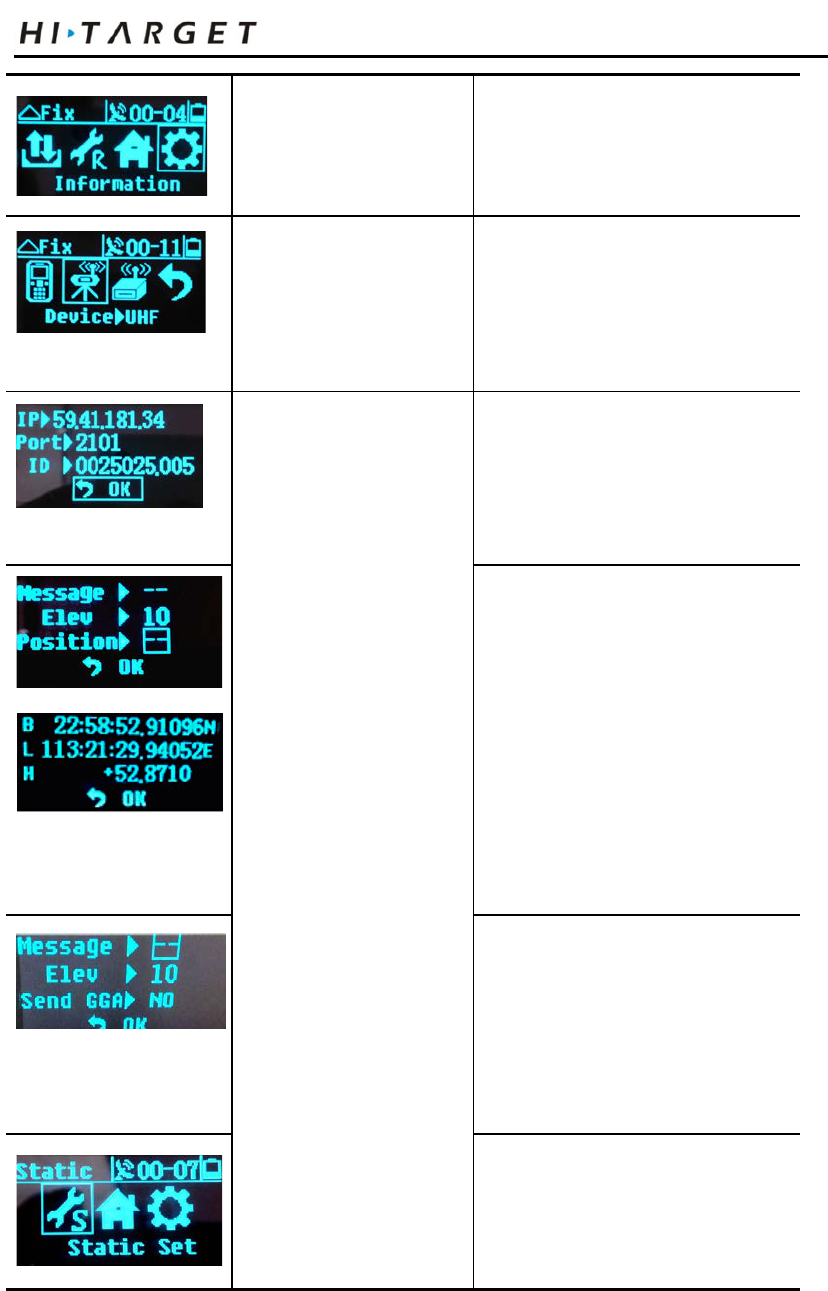
Table 3.3 Description of key operation (LCD state)
Function Operation Keys Content
On / Off LCD screen Double click power key
Selection menu Click Fn key
Click Fn key and the choice box is
skipped to next option
Confirm choice option Click power key
Click power key; confirm the
contents in menu including choice
box; enter into lower menu
Display / close initial
interface
Double click power key
Display work mode of receiver,
satellite information and version
information
File name of static
data
Working mode
Visible satellite
Remaining power of host
PDOP value
24
V60 GNSS RTK System Operation Instruction
Click Fn key
PTK mode is indicated as from left
to right:
Data link; difference parameters;
work mode; system information
Switch data chain
Click Fn key and skip
choice box; click power
key to confirm the choice
Data link menu contains three
optional data chain models: GSM,
plug-
in and returning to previous
menu options
GSM Parameter set:
Click Fn key and skip
choice box; click power
key and enter into edit
state
After finishing edit, click
Fn key choice box and
skip to “ok”; click power
key to return to previous
menu
GSM data link: import IP of server;
port; group No.; team No.
Differential parameter
setting in base
The setting of difference parameters
in base contains:
1. Difference massage format:
CMR/RTCM2 /RTCM3/sCMRx
2. Elevation angle: 0°-30°
3. Known points: B L H
Parameter setting of
rover
The setting of difference parameters
in rover contains:
1. Difference massage format: any
forms auto-adapted to base.
2. Elevation angle: 0°-30°
3. Frequency of transmitting GGA
data: 0s, 1s, 2s, 5s, 10s, 30s, 60s
Static mode is indicated as from left
to right:
St
atic parameter; work mode;
system information
25
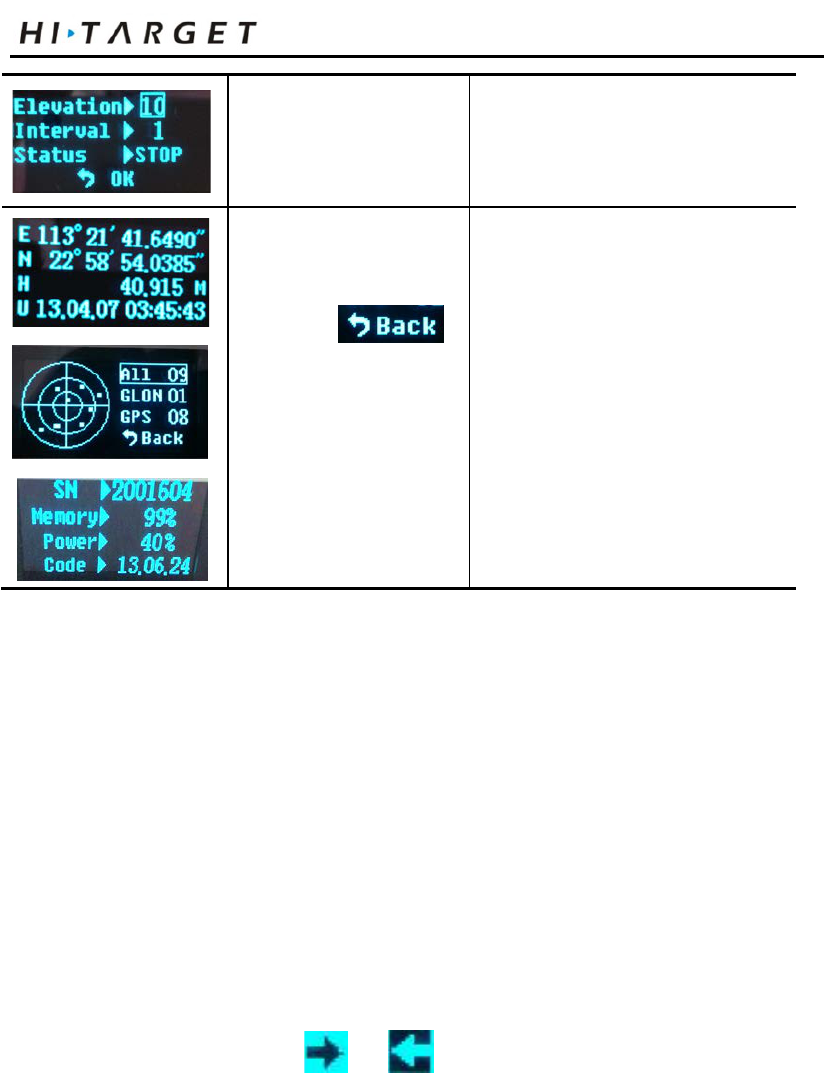
Elementary Operation
Static parameter setting
Elevation angle 0 ° - 30 °
Sampling interval: 1s, 2s, 5s, 10s,
15s, 30s
System Information
1. Choose ,
click power key to return
to previous menu;
2. If the interface
has no
returning option, click
power key to return to
previous menu;
System information provides the
current coordinates of receiver, sky
plot and system state for users to
inquire.
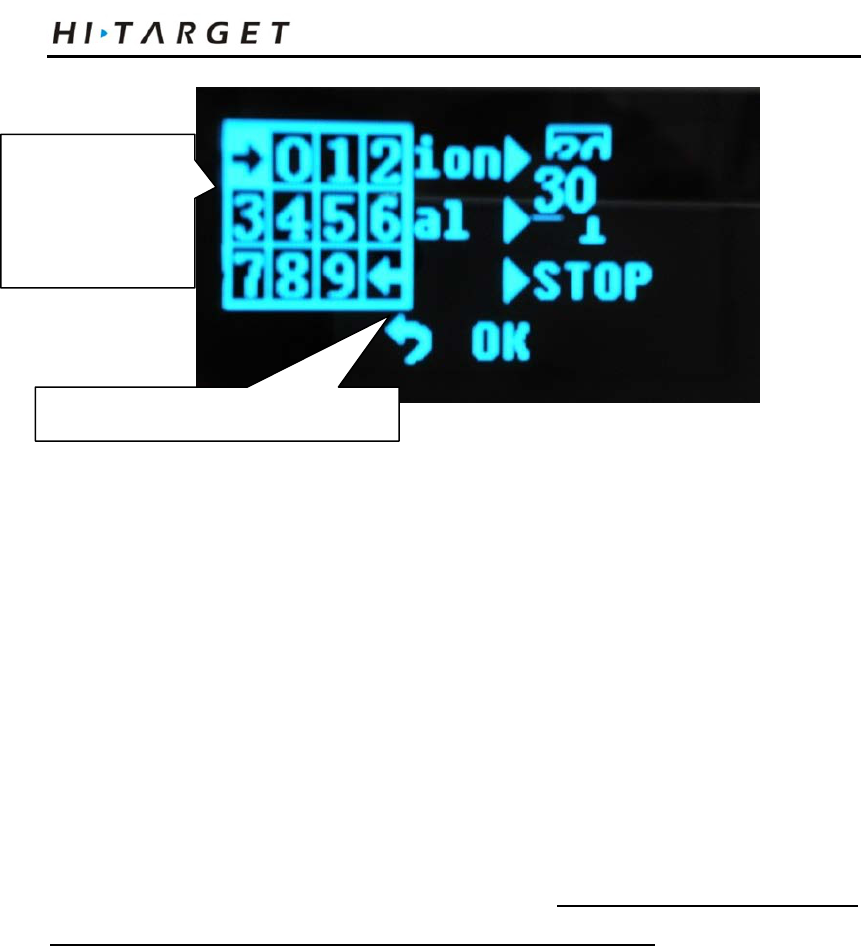
Parameter editing method
Taking edit height as an example, liquid crystal interface
parameters are edited from left to right. It will pop up a digital
option box for selecting operation.
1. Firstly, the cursor is shown in underline quick flashing state at
tens digit. Click Fn key to choose figures; click power key after
confirming; the cursor will be automatically kipped to next bit;
2. If it is unnecessary to edit from the first bit, open the option box
to pitch on the cursor or , the cursor will skip one bit
upwards or downwards;
3. After editing, click Fn key, pitch on the frame and skip to next
edit option (such as sample interval).
26
V60 GNSS RTK System Operation Instruction
Figure 3-7
Notes:
1. Only when liquid crystal displays initial interface or state
information, can the equipment terminal software be connected
with host through serial port/Bluetooth. When liquid crystal
interface is in mode parameter setting interface, the terminal is
unable to connect with the host. It is necessary to wait for liquid
crystal operation and return to previous menu.
2. As for GSM data link parameter setting interface, the panel can
be effective only setting Hi-Target server IP: 202.96.185.34, port:
9000, group number (7 bits), team number (3 bits); if connected by
CORS, parameter setting shall be operated through Hi-Target
handbook software.
3. During the process of static data collection, it is effective to set
parameters (elevation angle, sampling interval). The successful
parameters will be effective upon restarting static collection.
4. If the keys are not operated exceeding 50 seconds under LCD
state, the LCD will close automatically and the system will enter
Cursor skips one
place downwards
Cursor skips one place upwards
27
Elementary Operation
into key mode, in order to economize power consumption. The
user can double click power key to restart LCD.
Use keys to off LCD.
If there is no LCD, it can switch the work mode through two keys
and provide voice service to assist the users in finishing operation.
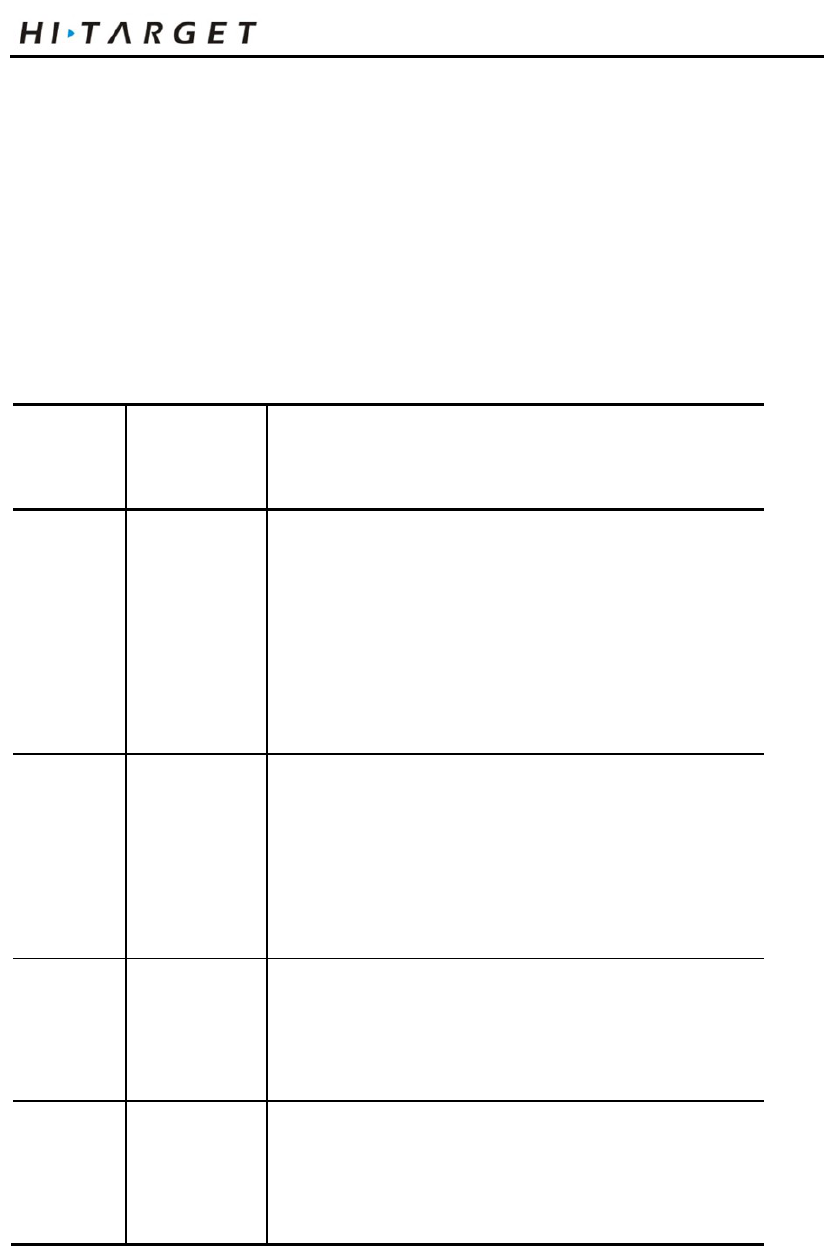
Table 3.4 Description of key operation (without LCD state)
Function Operation
keys
Content
Working
mode
Double click
Fn key
(interval >0.2
S; less than
1S
Choose the work mode of “base”, “rover” and “static”.
Data link Long-press
Fn key
(Greater than
3 S)
Enter into the mode choice of “GSM” and data link;
click power key to pitch on the mode
Setting
confirmati
on
Click power
key
Promote current work mode, data link mode with voice;
use power lamp to indicate electric quantity of battery
Automatic
set-up
base
Fn key +
power button
startup
Press on Fn key and then press power key to start;
loosen Fn key upon the sound of “ding dong”. Confirm
the current state of receiver with voice prompt
28
V60 GNSS RTK System Operation Instruction
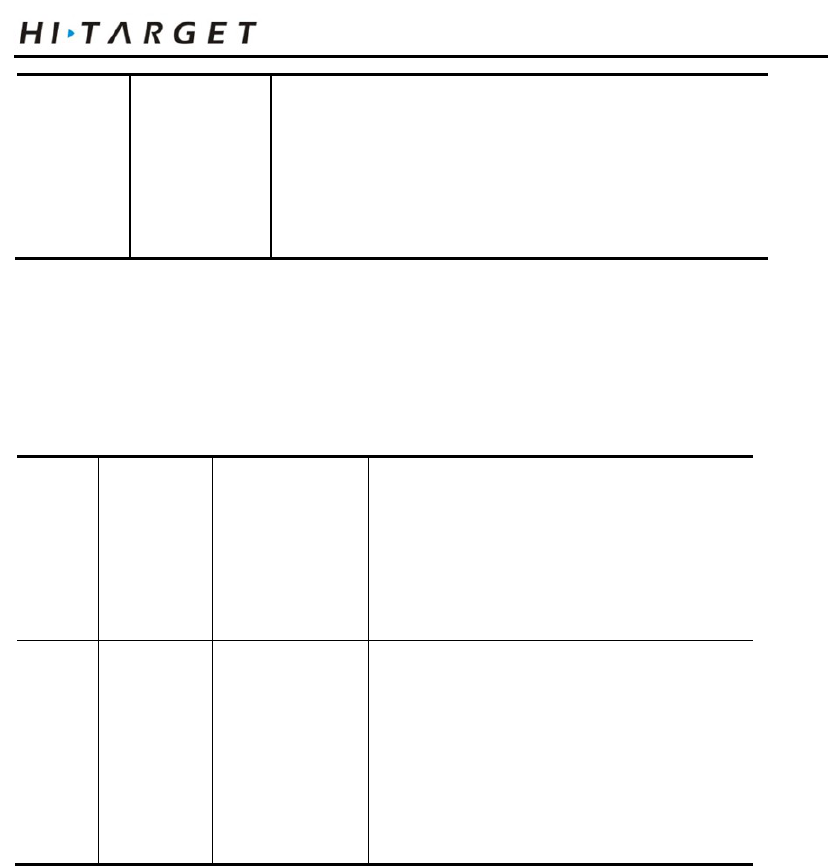
Reset
receiver
Super long Fn
key press
Reset motherboard If the handbook Bluetooth fails to
connect with the host after resetting the host, it can
adjust the host in static mode and then reset after data
collection.
Start and Stop Receiver
Table 3.5 Description of display state of indicator under startup and shutdown
mode
Boot-s
trap
Press the
power
button for
1 second
All ind icator
lights on
S
tarting music, work mode before
previous startup and Voice prompt of data
link mode
Shutdo
wn
Long
press
power
button for
3 seconds
All ind icator
lights off
Shutdown music
The display state of indicator under different setting modes is
different. See appendix 3: description of indicators on control
panel.
SIM card/USIM Card
The receiver uses online data link mode to operate RTK; it is
necessary to prepare online communication card and open the
relevant data communication business. The card quantity
demanded is set according to the configuration of RTK
29
Elementary Operation
measurement system. Each host and controller installs one card.
The receiver supports SIM card and USIM card
Table 3.6 Description of SIM card / USIM card
USIM
card
GPRS
(
ZHD/ VRS
)
GSM
SIM card
GPRS
(
ZHD/ VRS
)
GSM
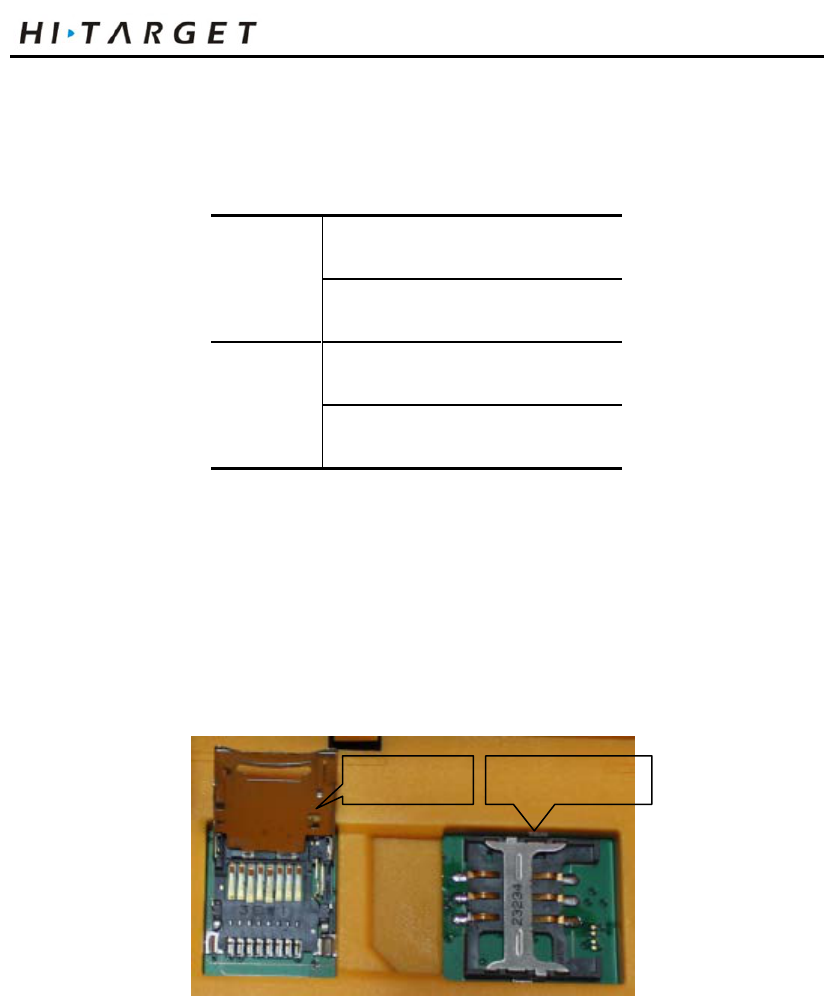
Before using SIM card or USIM card, please ensure GPRS data
business has been opened.
SIM installation procedure
1. Dismantle battery cover plate; take down the battery and
disclose SIM card slot.
Figure 3-8
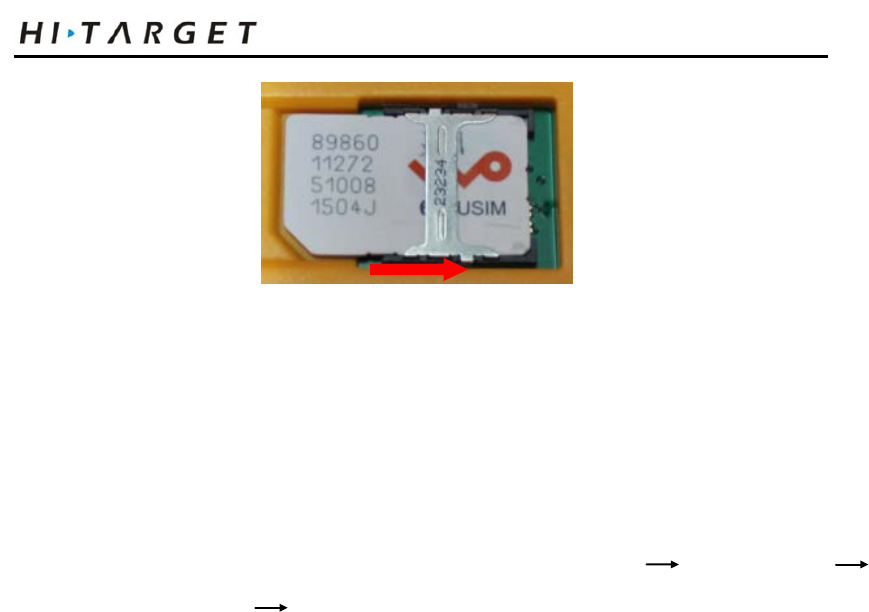
2. Place SIM card into cassette; insert the card into slot with front
down (the face with mental contacts) and lock the card
SIM card slot
SD card
30
V60 GNSS RTK System Operation Instruction
Figure 3-9
Static Data Storage
Dual format storage for static data
It can use Hi-Target RTK software to start or close static data
collection function under standard form in GPS information
advanced settings RTK setting; it shall open or close static
data collection function under standard form before recording
static collection; if it is necessary the carry out the operation
during collection process, the collection will continue to record
new file after stopping records. At this time, the static data have
been stored in two files.
Save data in internal storage
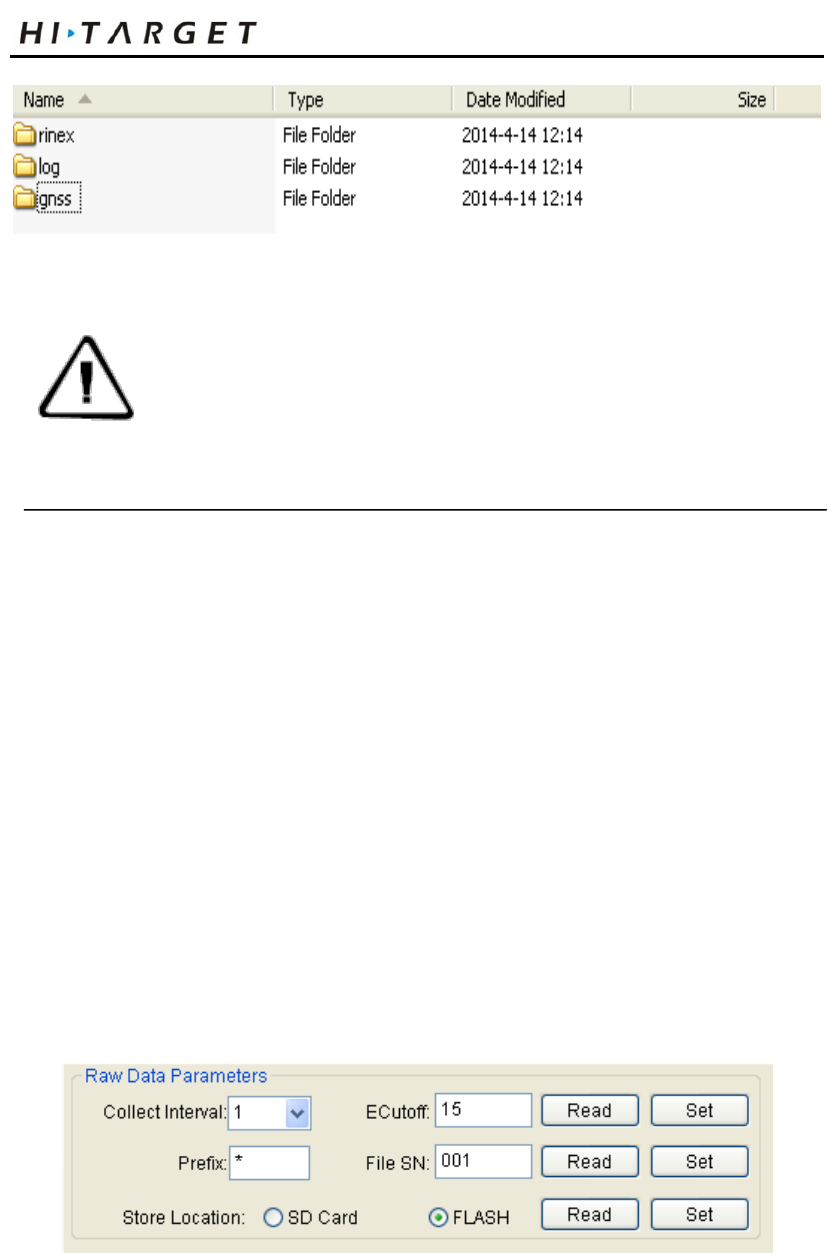
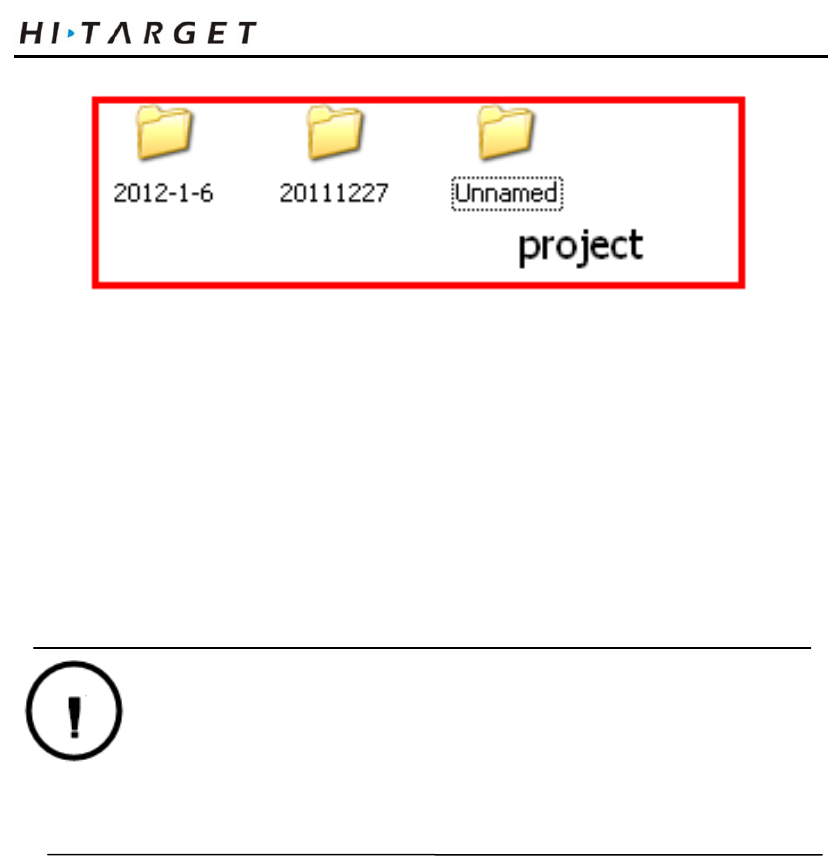
GNSS static data are stored in “static”: in 1G massive memory.
The effective storage space is 800M bytes. There are 3 files in total:
log, gnss, rinex. log folder stores log information; gnss folder
stores static data file whose format is *. GNS, rinex folder stores
static data under standard format. You can use USB of Y –type
data line to connect with the computer. Use USB to copy the static
data to your computer.
31
Elementary Operation
Note: when the storage space of receiver is less than
2M bytes, the data light (red light) will flash
quickly and stop recording data. The current
data file will not be covered.
External SD card data storage
The receiver shall support SD card data. SD card slot is installed
under the battery. When the capacity of internal storage is not
enough, the system will automatically store the static data into SD
card.
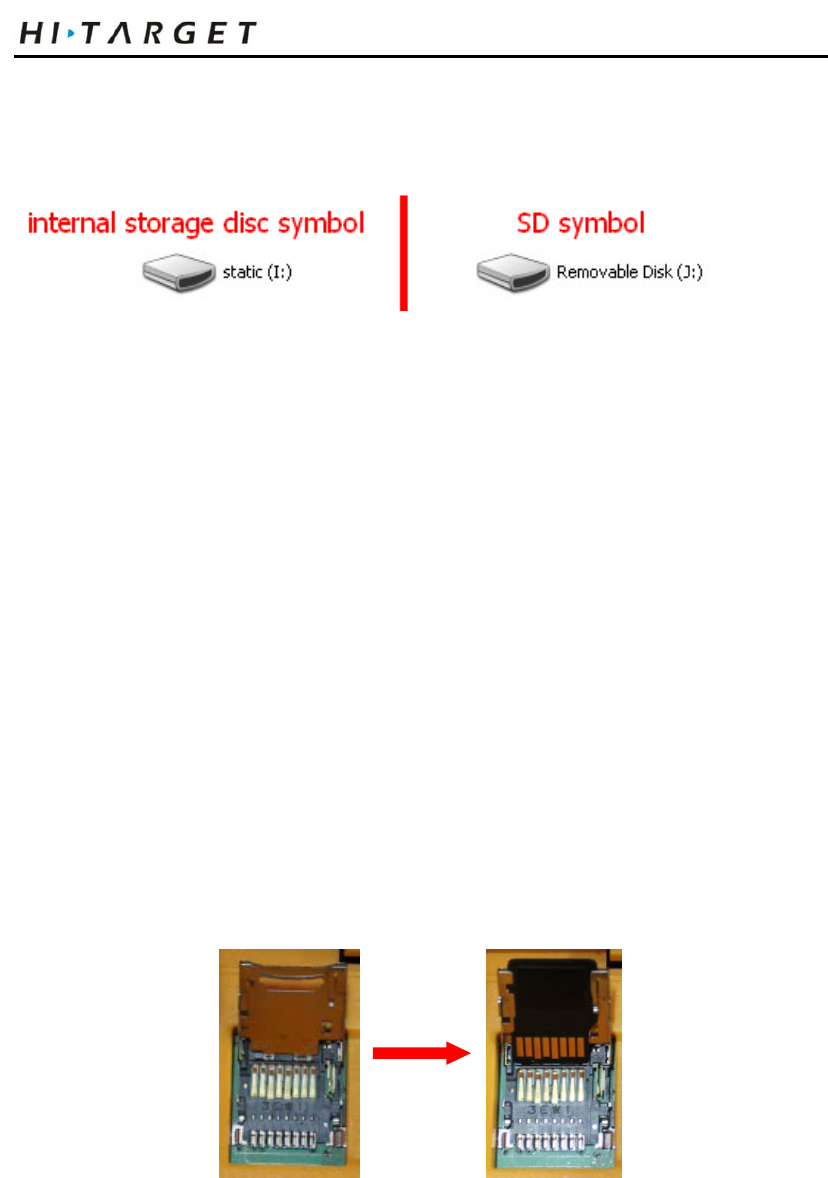
Before external data collection, it can use Y-type data line to
connect the computer and receiver. Through receiver management
software, manually set the storage location of static file in SD
card/internal memory. The setting is successful after restarting the
instrument.
32
V60 GNSS RTK System Operation Instruction
Figure 3-11
Figure 3-12
SD card
SD card installation procedure
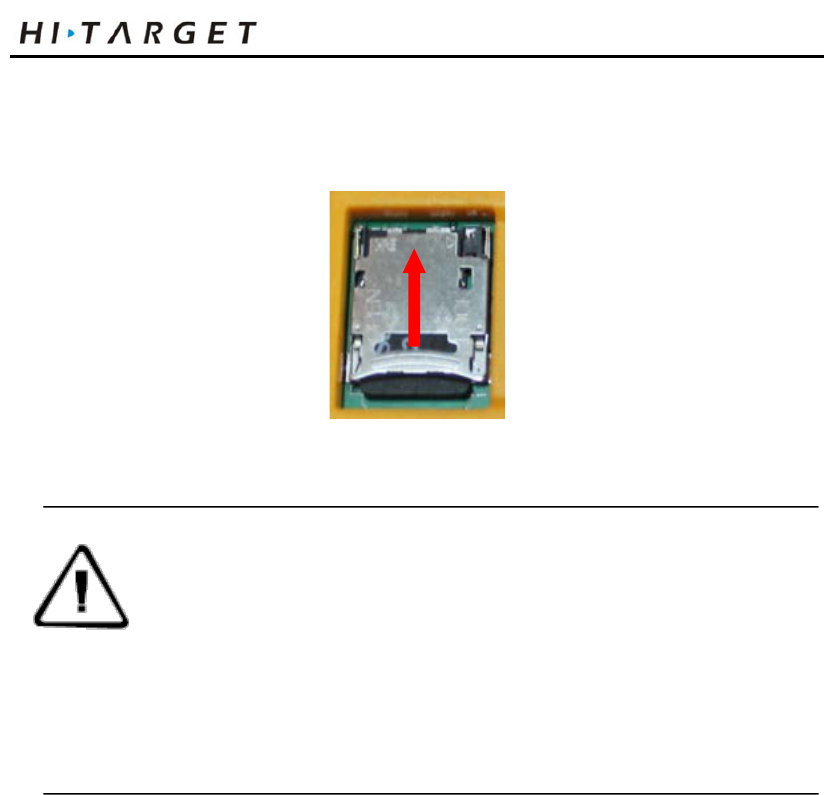
1. Dismantle battery cover plate; take down the battery and
disclose SD card slot.
2. Push up the mental cover according to the prompts; open the
upper cover of SD card and place SD card.
Figure 3-13
33
Elementary Operation
3. Push down the upper cover and push outside to fasten the upper
cover.
Figure 3-14
Note: it shall turn off the power of receiver before
installing card. If SIM card is installed under
startup state, the receiver will fail to detect SIM
card, and the setting of work mode will be
ineffective.
RTK Data storage
The controller can be connected with the receiver through
Bluetooth. After finishing setting, the collected RTK data will be
store in NandFlash of the controller. You can download RTK data
to your computer through the cable.
34
V60 GNSS RTK System Operation Instruction
Figure 3-15
Reset receiver
Super long-press Fn key and reset the motherboard. The
motherboard can be recovered to delivery state.
Warning: the reset of motherboard will prolong the first
locking time of receiver. It is necessary to reset
the work mode of receiver.
Formatting Receiver
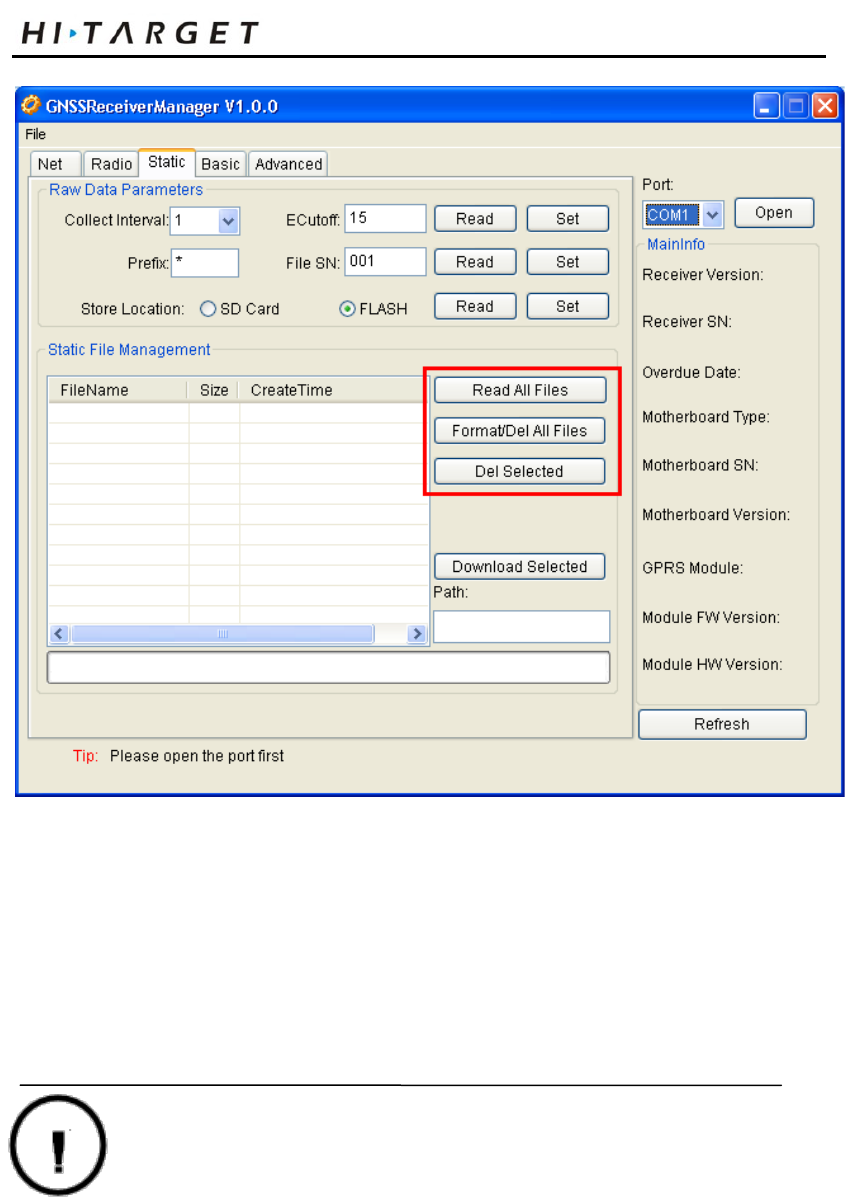
If it is necessary to format the receiver, use the serial port of Y-type
data line to connect with the computer; open GNSS receiver
management software, choose serial port and open serial port.
After connecting the instrument, the upper side of management
software will display the machine number. Click “Format/Delete
all” to format the receiver. All data will be deleted and unable to
recover.
35
Elementary Operation
Figure 3-16
Warning: Before formatting the receiver, it shall ensure
all useful data in receiver are copied to the computer.
The data will not be recovered upon deletion or
formatting.
36
V60 GNSS RTK System Operation Instruction
Firmware
The receiver can upgrade firmware through USB drive.
Upgrade steps of firmware:
Figure 3-17
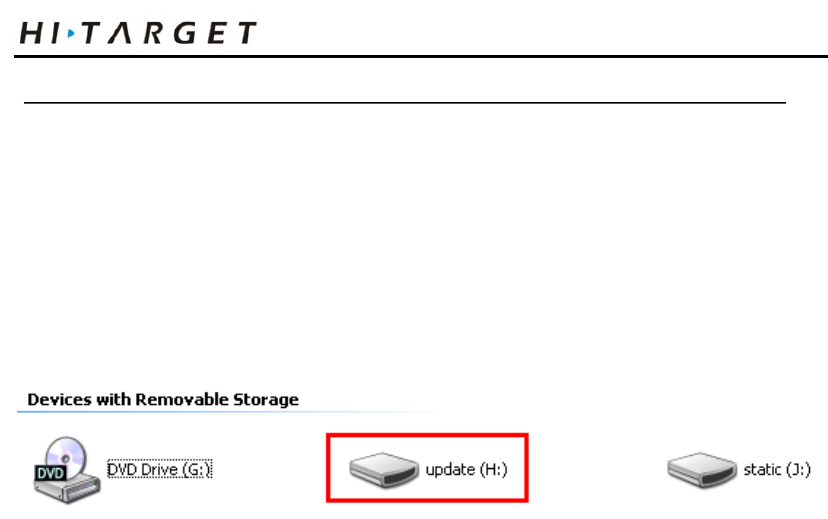
1. Firstly, it shall open the receiver and use Y-type data line to
connect with USB port of computer. Open “my computer”, and
“update” disk will appear.
2. Copy the firmware (the firmware can be downloaded from
official website) to “update” disk; remove U disk, pull up Y line
and restart the receiver.
3. During restarting process, it will have voice prompts in case of
failure or success. In case of failure in updating, please update
again or contact with technicians.
37

Static Collection and Data Transmission
Static Collection and Data
C
H
A
P
T
E
R
4
38

V60 GNSS RTK System Operation Instruction
Transmission
This chapter describes:
■ Preface
■ Static measurement
■U disk data download
■ Operations of static management software
39

Static Collection and Data Transmission
Preface
V60 receiver can be used in double-frequency static
measurement. The setting method is double clicking Fn key,
and then the voice broadcast will enter into work mode.
Continue clicking Fn key and the work mode of voice
broadcast is static mode when the satellite light and state light
are on. Click power key to confirm. After successful setting,
the red state light will flash one by several seconds (according
to the sampling interval), one epoch will be collected by one
flash. The static data can be stored in host or SD card. If the
static data document shall be downloaded to computer, it shall
use static post-processing software to process.
Static Measurement
1. Setup the instrument in measurement point; align and level
the instrument.
2. Measure height of the instrument for three times; the
difference between two times shall not be more than 3mm; the
average is regarded as the final height of instrument. Height of
instrument refers to the distance between center of
measurement point and measurement marker line of
instrument.
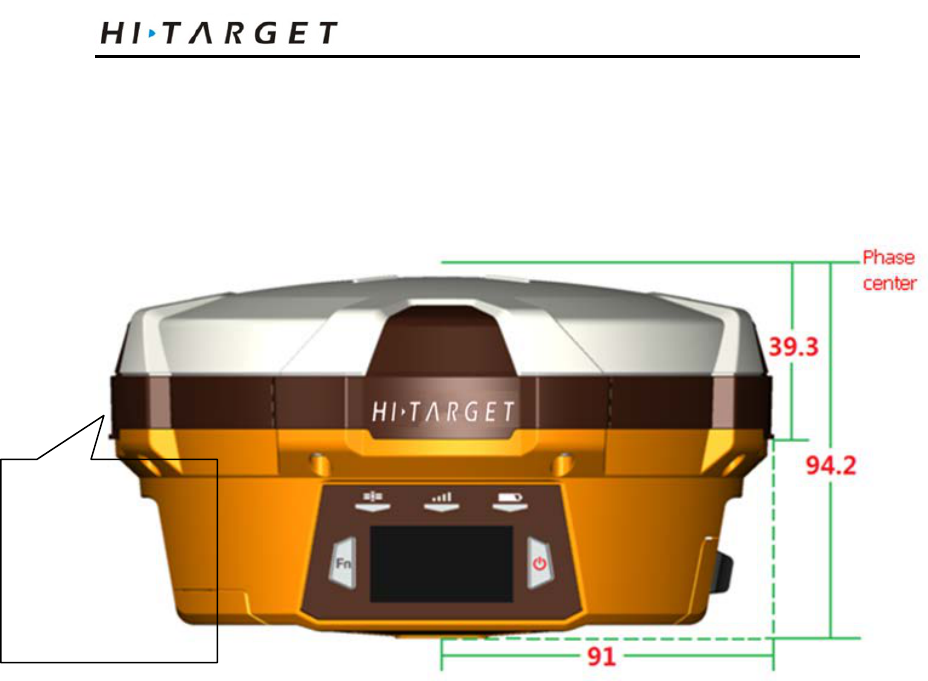
3. Receiver parameters:
◇ Receiver radius 91mm
◇ The height from receiver bottom to phase center of
antenna is 94.2mm
40
V60 GNSS RTK System Operation Instruction
◇ The height from measurement line of instrument to
phase center of antenna is 39.3mm.
Figure 4-1
4. Record the point name, instrument SN, height and initial
observation time.
5. Start up and set the receiver as static mode. Flashing
satellite light indicates that it is searching the satellite. If the
satellite light turns to long-light state from flashing state, it
indicates that the satellite is locked. The state light will be
flashing according to sampling interval. One time of flashing
indicates one epoch is collected.
6. Shut down after finishing measurement and record
shutdown time.
Measuring position of
antenna height (lower
edge of embossing
position)
41
Static Collection and Data Transmission
7. Download and process data.
Note: it is unable to move the base and change
collection parameters during collection process.
U Disk Data Download
Receiver file management is stored by USB drive. It can be
used upon inserting and download by dragging directly
without download programs. It can only download static data
and unable to write or read the receiver.
The receiver can download USB drive data with Y-type data
cable, one end is connected to computer USB and the other
end is connected to eight-core socket on bottom of receiver.
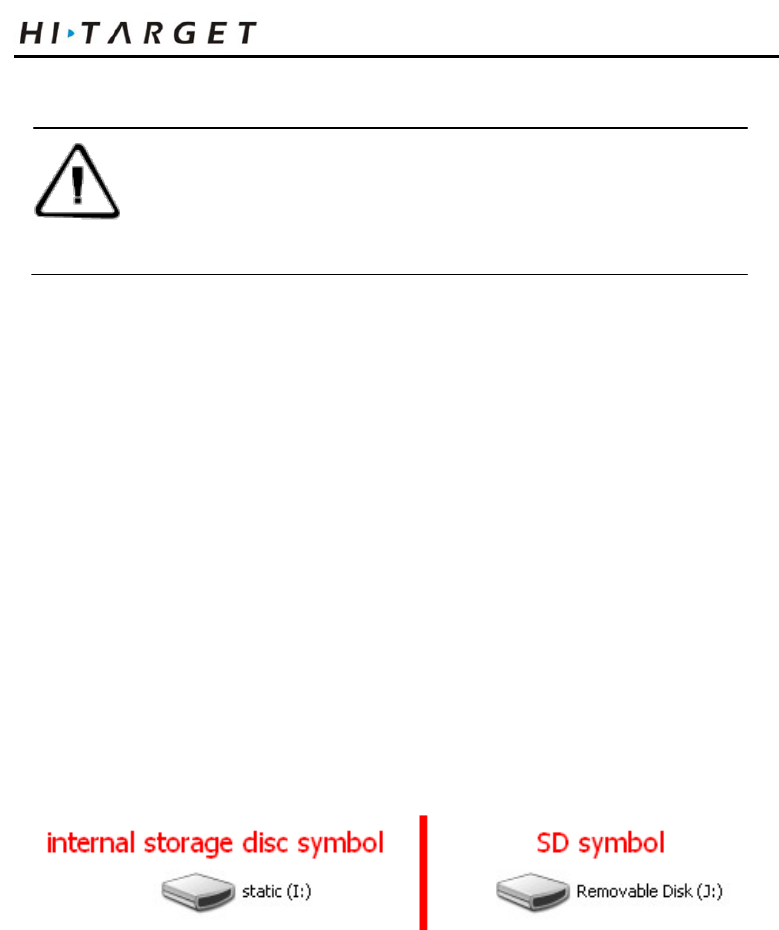
After connection, “static” disk and SD card will appear in
computer. After opening the disk, it can copy the collected
static file.
Figure 4-2
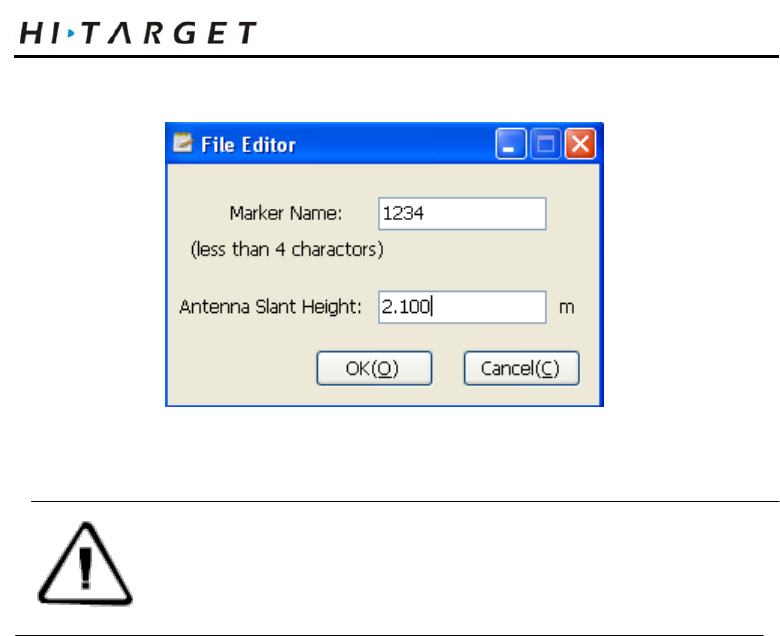
The steps to modify point name and antenna height of
downloaded static file are:
1. Choose *. GNS and double click the mouse
2. Pop up the dialogue of “file edit” to modify point name and
input antenna height, and then click “ok”
42
V60 GNSS RTK System Operation Instruction
Figure 4-3
Note: the static files in removable disk can be
deleted by GNSS receiver management
software rather than deleting directly.
Operations of Static Management Software
The main functions of GNSS receiver management software:
◇ Delete the original data document
◇ Delete and format the whole internal storage
◇ Read and set the parameters
◇ Set the storage path of static data
Procedures:
1. Use two ends of Y-type data line to connect eight-core
socket of receiver and serial port of computer.
2. Select computer port and click connect.
3. Refresh directory; the observed data file will appear in the
43
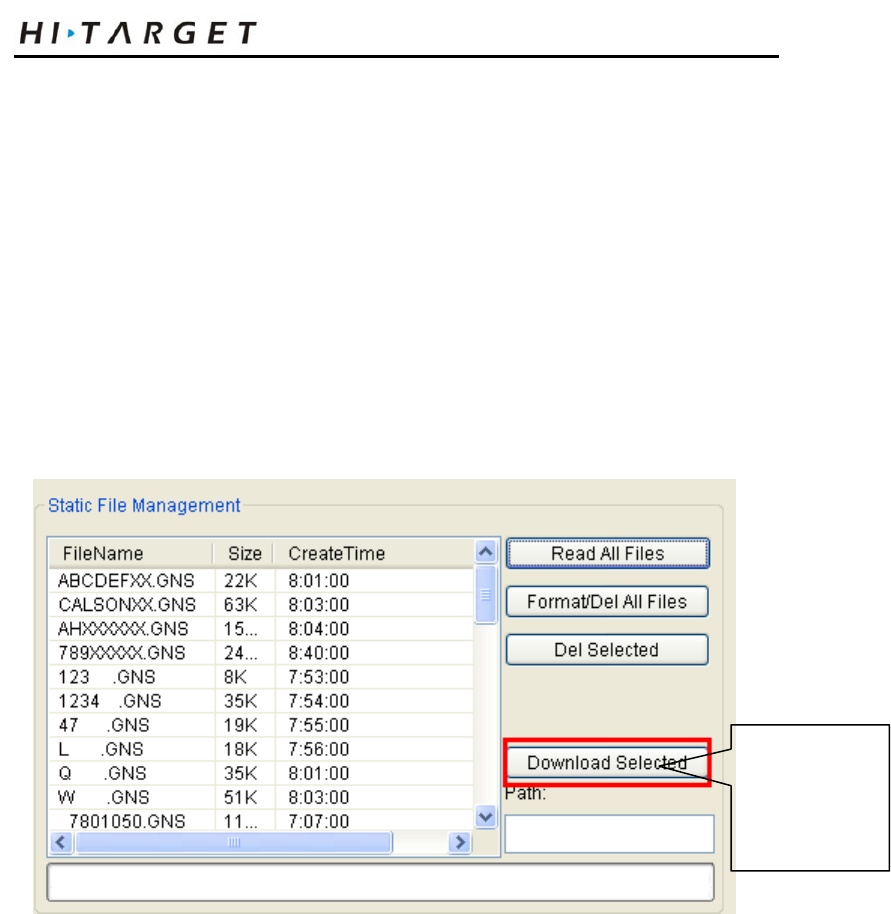
Static Collection and Data Transmission
form.
4. File name: 8 characters in total. The first character is
replaced by underline; the second, third and fourth character
are the last three characters of machine number; the fifth, sixth
and seventh character are annual day; the eighth character is
the number of time on that day.
5. Creation time: creation time of file (Beijing Time)
Figure 4-4
6. Deleting data: pitch on the data to delete, click and delete
the selected file.
7. Change collection interval and satellite cutoff angle:
transmit the data to change and click setting parameters Click
and read the parameters to investigate the original collection
interval and satellite cutoff angle.
V60 does not
support serial
port download
44

V60 GNSS RTK System Operation Instruction
8. Format data: click “Format/Delete all” to format the receiver.
All data will not be recovered after deleting.
45

Technical Parameters
Technical Parameters
This chapter describes:
■ GNSS part
■ Receiver precision
■ Interface
■ Physical characteristics
■ Environment
C
H
A
P
T
E
R
5
46

V60 GNSS RTK System Operation Instruction
GNSS Part
◇ GPS: synchronously track L1 C/A, L2E, L2C, L5
◇ BDS: synchronously track B1, B2
◇ GLONASS: synchronously track L1 C/A, L1 P, L2
C/A (only limited to GLONASS M) and L2P
◇ SBAS, WASS, MSAS, ENGOS
◇ GALILEO:( upgrade reserved)
◇ Initial time is less than 10 seconds
◇ Initial reliability: >99.9%
◇ 1Hz, 2Hz, 5Hz, 10Hz, 20Hz and 50Hz navigation
output
◇ Difference format supports: sCMRx, CMR, CMR+,
RTCM 2.1, 2.2, 2.3, 3.0, 3.1, 3.2
◇ Navigation output format: ASCII: NMEA-0183 GSV,
AVR, RMC, HDT, VGK, VHD, ROT, GGK, GGA,
GSA, ZDA, VTG, GST, PJT, PJK, BPQ, GLL, GRS,
GBS
Receiver Precision
◇ Accuracy of static mode and fast static mode:
Horizontal: ±(2.5+0.5×10⁻⁶D) mm
Vertical: ± (5+0.5×10⁻⁶D) mm
◇ RTK navigation accuracy: Horizontal: ±(8+1×10⁻⁶D)
mm
47

Technical Parameters
Vertical: ± (15+1×10⁻⁶D) mm
Interface
◇ Two RS232 serial interfaces
◇ One USB interface
◇ 1 SIM card interface
◇ 1 SD card interface
◇ 1 Bluetooth interface
◇ 1 built-in lithium battery interface
◇ Two external DC power input interface
Physical characteristics
◇ Built-in 1GB memory
◇ Volume: φ182mm×h98mm
◇ Weight: 1.25kg (excluding lithium battery)
◇ It can resist 2m natural falling and 2m underwater
soaking
◇ 5000 mAh large-capacity lithium battery is installed
internally for power supply The continuous working
hours of new battery: 12 hours in static; 9 hours in
GPRS mode
◇ External DC power supply; input range of width is
6-28V; internal and external power supply can
switch automatically
◇ Host power consumption (under static mode):
48

V60 GNSS RTK System Operation Instruction
≤3.5W
Environment
◇ Protection grade: IP67
◇ Working temperature: -40 ℃-65 ℃; storage
temperature: -40 ℃-75 ℃
49

Annexed Table 2
Socket and Main
Accessories
This chapter describes:
■ Preface
■ Y-type data cable
C
H
A
P
T
E
R
6
50
V60 GNSS RTK System Operation Instruction
Preface
The chapter will introduce the appearance and application of
main interface of receiver and accessories. The following
equipment does not represent all users purchased V60.
According to different configurations, the specific
configuration shall be subject to the delivery order upon
purchasing.
Y-type Data Cable
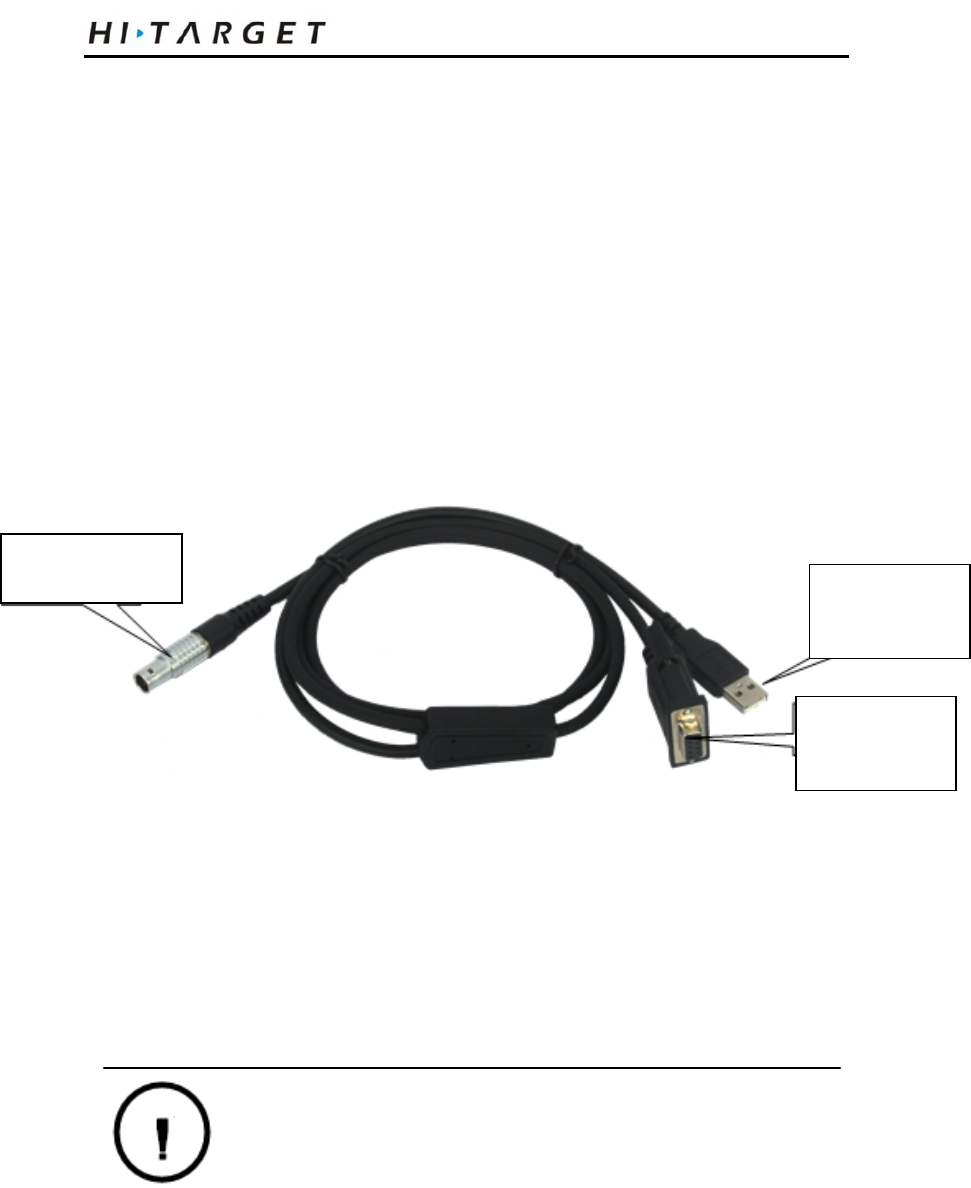
Figure 6-2
Eight-core plug: connect eight-core socket of receiver
USB interface: connect computer USB interface and download
the static data of receiver.
Serial interface: it is used to connect with computer serial port,
update receiver firmware, set the receiver, manage static data.
Warning: 1. when connecting various plugs of
receiver, it shall align the red point
in line joint at the red point in
receiver socket, or it will damage
the receiver socket and plugs of
Eight-core plug
US B Port
Series
interface
51
Annexed Table 2
various lines.
2. When plug out the plug, directly grasp
the sliding collar and pull out the plug
with effort. It shall not rotate the plug.
3. After using the cable, it shall place the
cable in the place difficult for
extrusion, in order to prevent
damaging the plug. When installing
the difference antenna, it shall rotate
the fixed nut in bottom of difference
antenna with hand, rather than
grasping the upper side to rotate, or the
difference antenna will be in bad
contact and influence the operating
range.
52

V60 GNSS RTK System Operation Instruction
Annexed Table 1 Instructions of
Indicator Lights in Control Panel
Annexed Table 2.1 Instructions of indicator lights
Operation Signification
Power light
(Yellow)
Alwa
ys on
Normal voltage: internal battery >7.6V; external
battery >12.6V
Power light
(Red)
Alwa
ys on
Normal voltage: 7.1V< internal battery≤7.6V,
11V<external battery≤12.6V
Slow
flashi
ng
Under voltage: Internal battery ≤7.1V; external battery
≤11V
Quic
k
flashi
ng
Indicating electric quantity: flash 1-4 times every minute;
indicate electrical quant ity
Signal lamp;
indicator
(Status
Green)
Alwa
ys off
GSM is not used
Alwa
ys on
GSM connection to server
Slow
flashi
ng
It indicates that it has logged in GPRS network upon GSM
Quic
k
flashi
ng
It indicates that it is logging in GPRS network upon GSM
Data light
(Status Red)
Slow
flashi
ng
1. data link receiving and transmission data (the rover is
only for promoting receiving; the base is only for
promoting the transmission)
2. Static data collection
Quic
k
flashi
ng
1. error occurred upon static mode (FLASH storage space
is not enough)
53

Annexed Table 2
The display status of indicator under different setting modes:
1. Work mode (double click Fn key to enter into the pattern of work mode
setting; choose the mode after clicking Fn key; press power key to confirm; it
will automatically confirm if the power key is not pressed for exceeding 10
seconds;) ●on; ○off
Annexed Table 2.2 Display status of indicator under work mode
Mode
Satellite lamp
(single green)
Signal light (green light in
double lights)
Base ● ○
Rover ○ ●
Static ● ●
2. Data link (long press Fn key to enter into data link setting mode; choose the
mode after clicking Fn key; press power key to confirm; it will automatically
confirm if the power key is not pressed for exceeding 10 seconds;) ● on; ○ off
Alwa
ys on
The data link equip
ment used in rover or base is unable to
communicate. The communication module is in failure
without data output.
Satellite
light
(Green)
Alwa
ys on
Locked satellites
Slow
flashi
ng
Satellite search or satellite losing lock
Quic
k
flashi
ng
Repo
rt the number of satellite once every minute upon
locking the satellite
Alwa
ys off
1. Upon resetting receiver, the motherboard is in failure
without data output.
2. Under static mode, the motherboard is in failure without
data output.
54

V60 GNSS RTK System Operation Instruction
Annexed Table 2.3 Display status of indicator under data chain mode
Type
Satellite lamp
(single green)
Signal light (green
light in double lights)
GSM ○ ●
External ● ●
55