HiTeC Digital Audio HDA-DXM7110 7.1 CHANNEL DIGITAL SOUNDCARD User Manual USERS MANUAL

Hitec Digital Audio 7.1 CHANNEL DIGITAL SOUNDCARD USERS MANUAL

USERS MANUAL

Copyright / Disclaimer / FCC Statement  Copyright  Copyright © 2005 HITEC DIGITAL AUDIO, All rights reserved. No part of this publication may be reproduced, transmitted, transcribed, stored in a retrieval system, or translated into any language or computer language, in any form or by any means, electronic, mechanical, magnetic, optical, chemical, manual or otherwise, without the prior written permission from HiTeC DIGITAL AUDIO,  In no event will HiTeC DIGITAL AUDIO be liable for direct, indirect, special, exemplary, incidental, or consequential damages resulting from any defect or omission in this manual, even if advised of the possibility of such damages. In the interest of continued product development, HiTeC DIGITAL AUDIO reserves the right to make improvements to this manual and the products it describes at any time, without notices or obligation.  Disclaimer We makes no representations or warranties, either expressed or implied, with respect to the contents hereof and specifically disclaims any warranties, merchantability or fitness for any particular purpose. Any software described in this manual is sold or licensed "as is". Should the programs prove defective following their purchase, the buyer (and not this company, its distributor,or its dealer) assumes the entire cost of all necessary servicing, repair, and any incidental or consequential damages resulting from any defect in the software. HiTeC DIGITAL AUDIO reserves the right to make improvements to this manual and the products it describes at any time, without notices or obligation.    Trademarks  HDA, HDA logo and Digital X-Mystique are trademarks of HiTeC DIGITAL AUDIO. C-Media, C-Media logo and Xear 3D are trademarks of C-Media Electronics Inc.
“Dolby”and “Dolby Digital” are trademarks of Dolby Laboratories. EAX and A3D are trademarks of Creative Technology Ltd. Microsoft, DirectSound3D, Windows are trademarks of Microsoft Corporation. All brands or product names mentioned in this manual are trademarks or registered trademarks of their respective companies.   License  Dolby Digital RTCE driver is manufactured under license from Dolby Laboratories.   FCC and CE Radiation Norm  INFORMATION TO USER:    FCC :  This equipment has been tested and found to comply with the limits for aClass B digital device, pursuant to Part 15 of Federal Communication Commission (FCC) rules.   CE : This equipment has been tested and found to comply with the limits of the European Council Directive on the approximation of the law of the member states relating to electromagnetic compatibility (89/336/EEC) according to EN 55022 class B.   These limits are designed to provide reasonable protection against harmful interference in a residential installation. This equipment generates, uses, and can radiate radio frequency energy and, if not installed and used in accordance with the instructions, may cause harmful interference to radio communications. However, there is no guarantee that interference will not occur in a particular installation. If this equipment does cause harmful interference to radio or television reception, which can be determined by turning the equipment off and on, the user is encouraged to try to correct the interference by one or more of the following measures: (1.) Reorient or relocate the receiving antenna. (2.) Increase the separation between the equipment
and receiver. (3.) Connect the equipment into an outlet on a circuit different from that to which the receiver is connected. (4.) Consult the dealer or an experienced radio TV technician for help  FCC DECLARATION OF CONFORMITY  PRODUCT NAME    HDA Digital X-Mystique 7.1 GOLD    MODEL NUMBER    HDA-DXM7110  FCC RULES TESTED TO COMPLY WITH FCC PART 15, CLASS B  OPERATING ENVIRONMENT FOR HOME OR OFFICE USE  FCC COMPLIANCE STATEMENT:  This device complies with part 15 of the FCC rules. Operation is subject to the following conditions. (1) This device may not cause harmful interference and (2)This device must accept any interference received including interference that may cause undesired operation.    CAUTION  Changes or modifications to this unit not expressly approved by the party responsible for compliance could void the user’s authority to operate the equipment.  PARTY RESPONSIBLE FOR PRODUCT COMPLIANCE  HiTeC DIGITAL AUDIO, Rm317, 3rd Flr., Paradise Bldg., 40-1 Singye-dong, Yongsan-gu, Seoul, Korea(ROK)   Tel: +82-2-707-1491 Fax: +82-2-704-4947
 Table of Content   1. Introduction 2. Feature Overview 3. Installing H/W, S/W, and Speakers 3.1 Audio Hardware 3.2 Audio Software 3.3 Connection and Speaker Setup 4. Using Audio Driver 4.1 Find Out “3D Audio Configuration” 4.2 Main Setting 4.3 Mixer/Volume 4.4 Sound Effects 4.5 Magic VoiceTM and Karaoke 4.6 Look for Information 5. Using Play3D Demo 6. Number of Output Channel 7. FAQ & Trouble Shooting
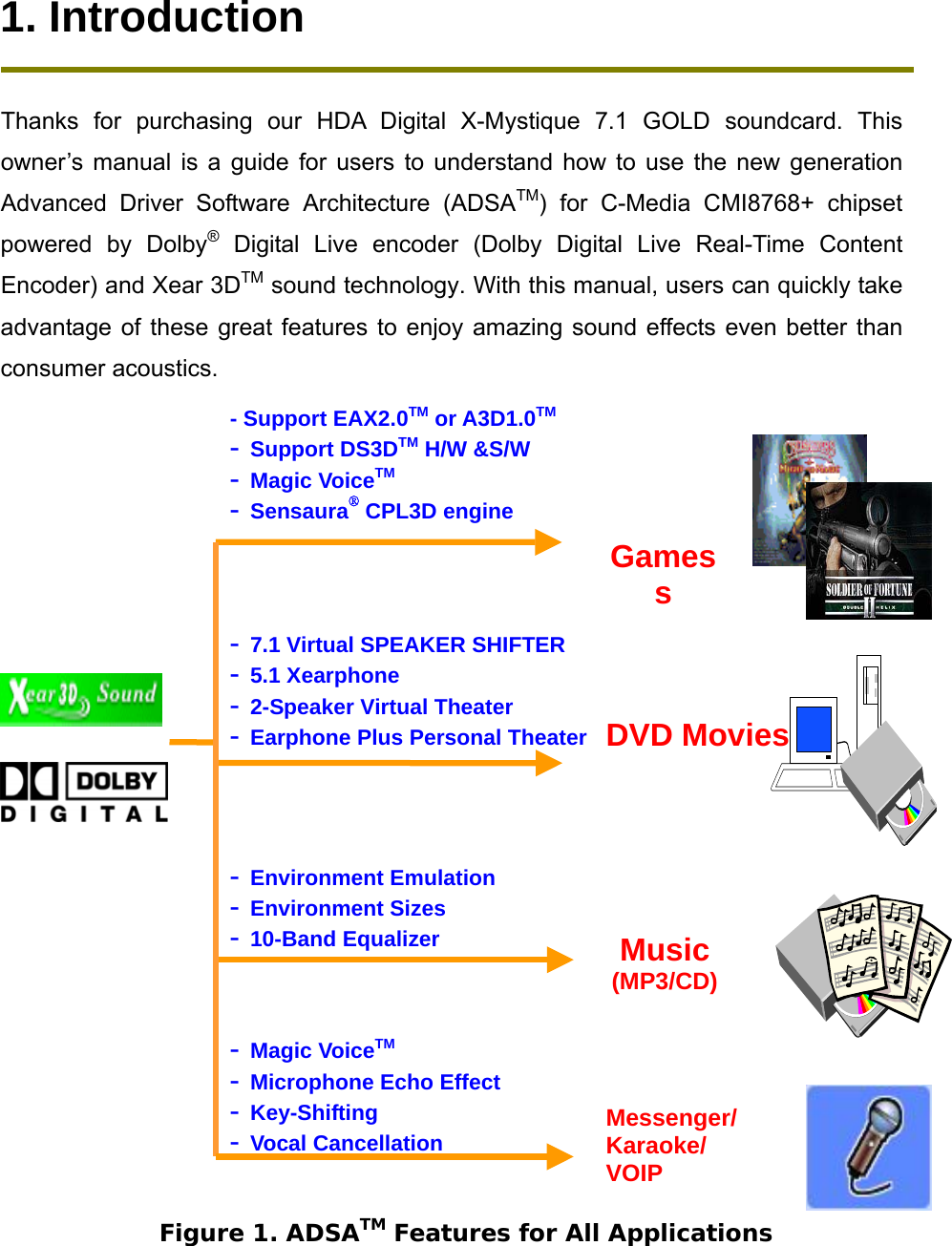
 1. Introduction  Thanks for purchasing our HDA Digital X-Mystique 7.1 GOLD soundcard. This owner’s manual is a guide for users to understand how to use the new generation Advanced Driver Software Architecture (ADSATM) for C-Media CMI8768+ chipset powered by Dolby® Digital Live encoder (Dolby Digital Live Real-Time Content Encoder) and Xear 3DTM sound technology. With this manual, users can quickly take advantage of these great features to enjoy amazing sound effects even better than consumer acoustics.                      - Support EAX2.0TM or A3D1.0TM - Support DS3DTM H/W &S/W - Magic VoiceTM - Sensaura® CPL3D engine -  7.1 Virtual SPEAKER SHIFTER - 5.1 Xearphone -  2-Speaker Virtual Theater -  Earphone Plus Personal Theater- Environment Emulation - Environment Sizes - 10-Band Equalizer DVD Movies Gamess Music (MP3/CD) - Magic VoiceTM -  Microphone Echo Effect - Key-Shifting - Vocal Cancellation  Messenger/Karaoke/ VOIP Figure 1. ADSATM Features for All Applications
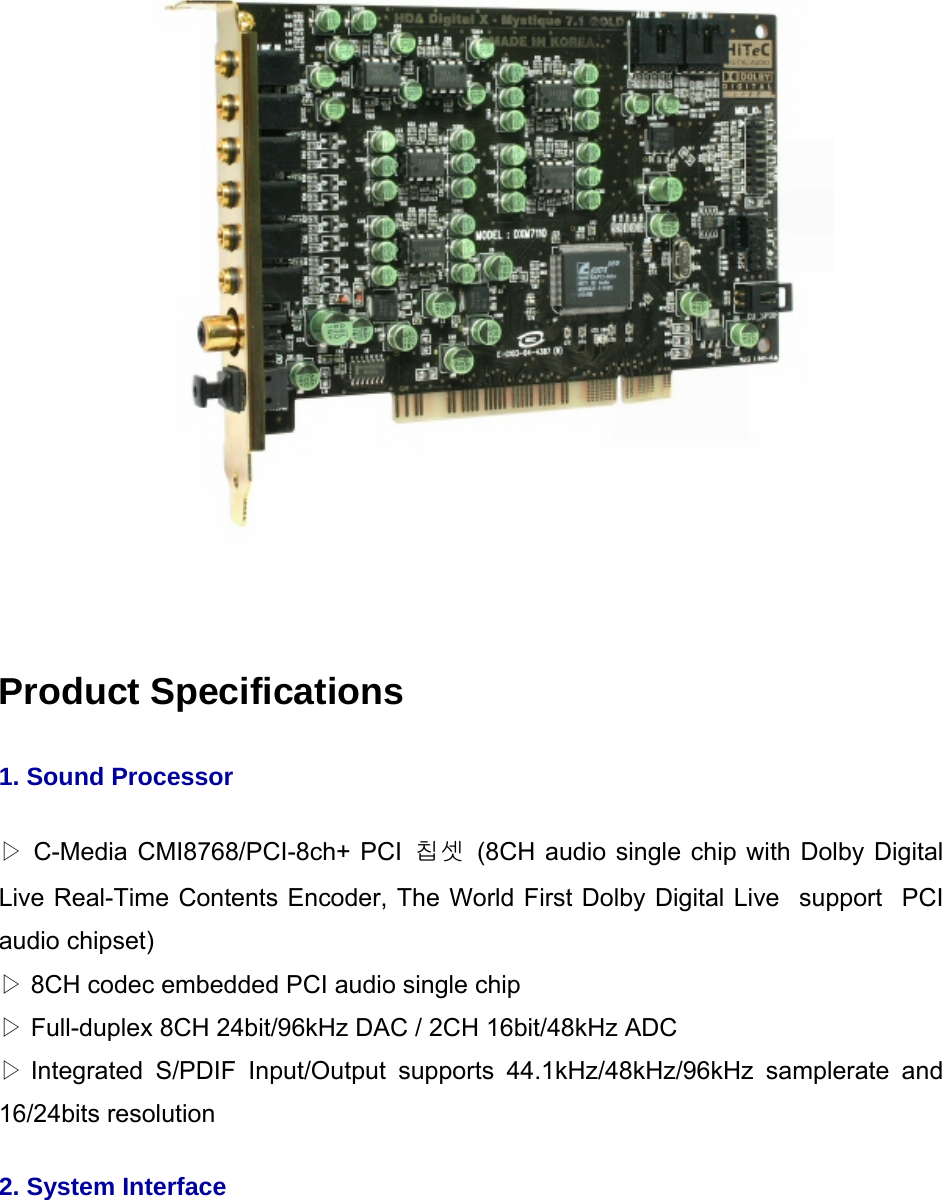
                  Product Specifications 1. Sound Processor  C▷-Media CMI8768/PCI-8ch+ PCI 칩셋 (8CH audio single chip with Dolby Digital Live Real-Time Contents Encoder, The World First Dolby Digital Live   support  PCI audio chipset)   ▷ 8CH codec embedded PCI audio single chip ▷ Full-duplex 8CH 24bit/96kHz DAC / 2CH 16bit/48kHz ADC   ▷ Integrated S/PDIF Input/Output supports 44.1kHz/48kHz/96kHz samplerate and 16/24bits resolution 2. System Interface
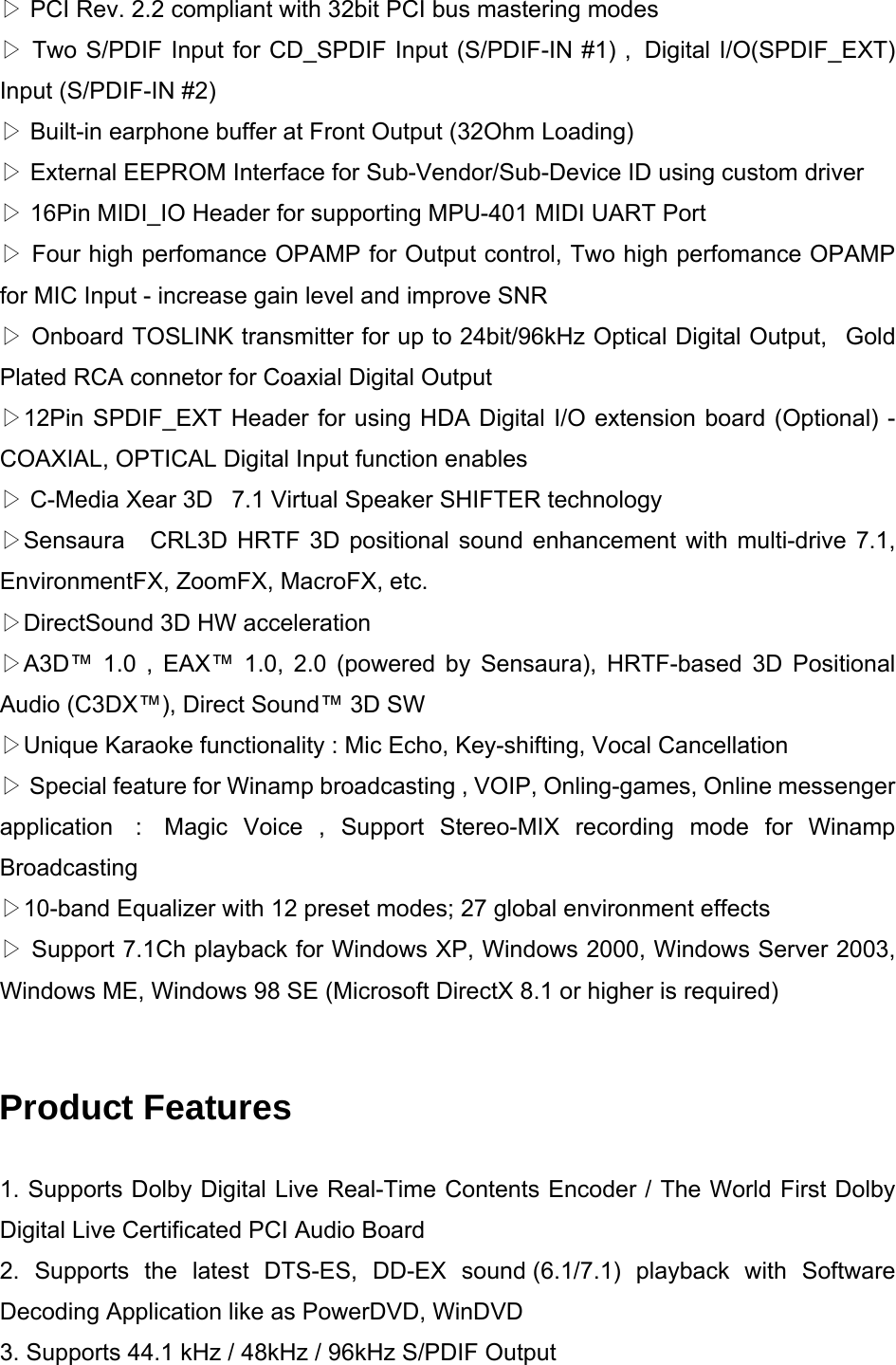
 PCI Rev. 2.2 compliant with 32bit PCI bus mastering modes▷  Two S/PDIF Input for CD_SPDIF Input (S/PDIF▷-IN #1) ,  Digital I/O(SPDIF_EXT) Input (S/PDIF-IN #2)  Built▷-in earphone buffer at Front Output (32Ohm Loading)  External EEPROM Interface for Sub▷-Vendor/Sub-Device ID using custom driver   16Pin MIDI_IO Header for supporting MPU▷-401 MIDI UART Port  Four high perfom▷ance OPAMP for Output control, Two high perfomance OPAMP for MIC Input - increase gain level and improve SNR  Onboard TOSLINK transmitter for up to 24bit/96kHz Optical Digital Output, ▷ Gold Plated RCA connetor for Coaxial Digital Output 12Pin SPDIF_EXT H▷eader for using HDA Digital I/O extension board (Optional) - COAXIAL, OPTICAL Digital Input function enables  C▷-Media Xear 3D   7.1 Virtual Speaker SHIFTER technology   Sensaura ▷  CRL3D HRTF 3D positional sound enhancement with multi-drive 7.1, EnvironmentFX, ZoomFX, MacroFX, etc.   DirectSound 3D HW acceleration▷ A3D™ 1.0 , EAX™ 1.0, 2.0 (powered by Sensaura), HRTF▷-based 3D Positional Audio (C3DX™), Direct Sound™ 3D SW Unique Karaoke functionality : Mic Echo, Key▷-shifting, Vocal Cancellation  Special fea▷ture for Winamp broadcasting , VOIP, Onling-games, Online messenger application  :  Magic Voice , Support Stereo-MIX recording mode for Winamp Broadcasting 10▷-band Equalizer with 12 preset modes; 27 global environment effects  Support 7.1Ch playback for ▷Windows XP, Windows 2000, Windows Server 2003, Windows ME, Windows 98 SE (Microsoft DirectX 8.1 or higher is required)  Product Features 1. Supports Dolby Digital Live Real-Time Contents Encoder / The World First Dolby Digital Live Certificated PCI Audio Board 2. Supports the latest DTS-ES, DD-EX sound (6.1/7.1) playback with Software Decoding Application like as PowerDVD, WinDVD   3. Supports 44.1 kHz / 48kHz / 96kHz S/PDIF Output
4. Onboard COAXIAL RCA connector, OPTICAL Toslink trasmitter for high quality Digital Output) 5. Supports 44.1kHz / 48kHz / 96kHz S/PDIF Input with HDA X-10 Digital Input extension board [Digital I/O (SPDIF-IN #2)] 6. Supports CD S/PDIF Input (SPDIF-IN #1) 7. Adopt large capacity regulator and 6pcs of DUAL DIP TYPE OPAMP 8. Anti-Pop control Circuit 9. 7.1 Virtual Speaker Shifter  10. Support Stereo MIX recording option and Mic Echo which makes the best environment for Winmap broadcasting 11. Support Karaoke features such as Echo, Magic Voice, Vocal Cancel, and Key Control   * All specifications are subject to change without prior notice.  System Requirements (Minimum)  Intel Pentium III 500MHz CPU or equivalent CPU Motherboard with above level CPU support At least 256MB of RAM One available PCI 2.1 or higher spec compliant slot Microsoft Windows 98SE/ME/2000/Server2003/XP operating system Hardisc Drive supporting UDMA 66/100 and 5400rpm Active 2ch speakers / Headphone or Speakers with powered amplifier
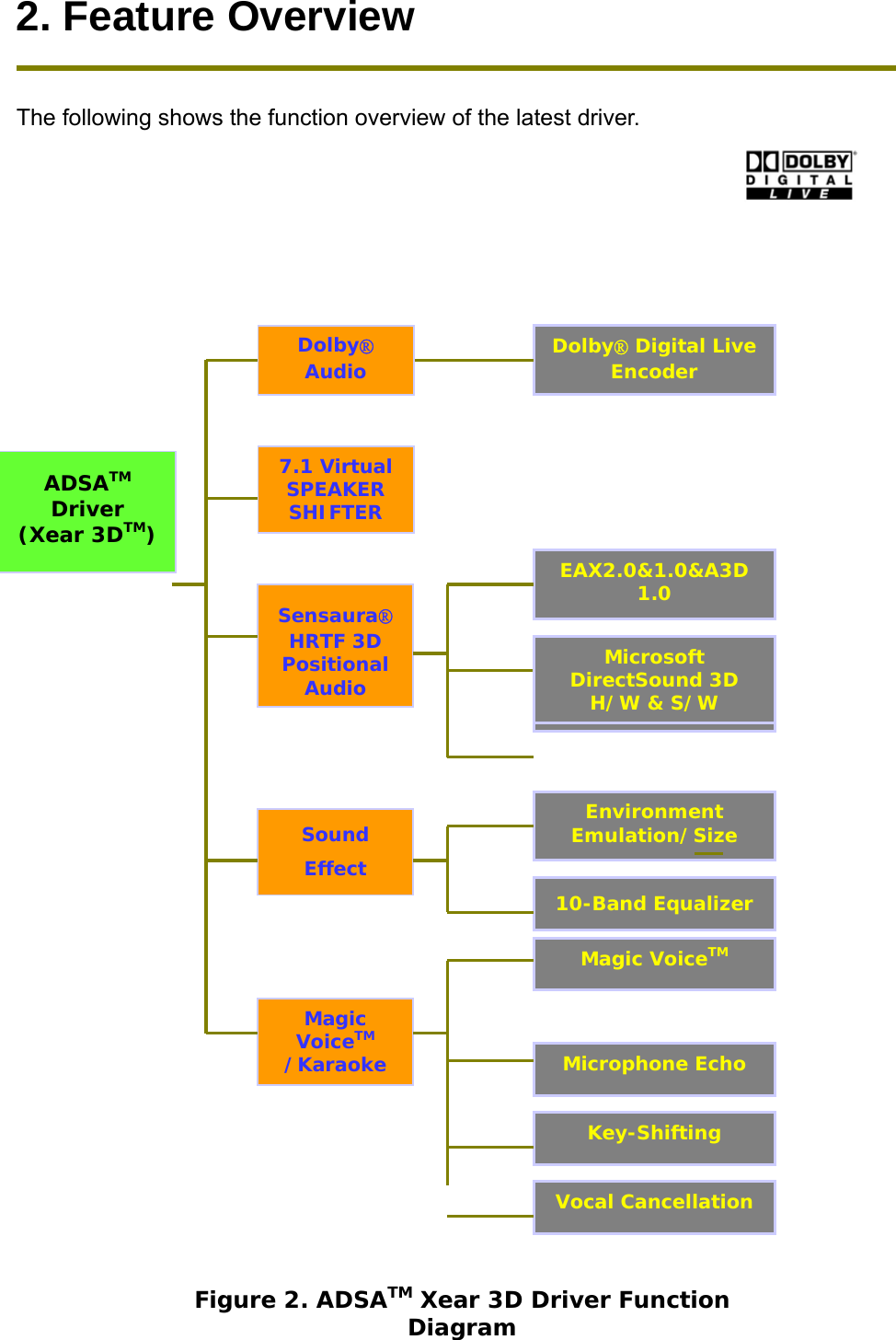
2. Feature Overview  The following shows the function overview of the latest driver.                                Sensaura® HRTF 3D Positional Audio Environment Emulation/Size Microphone Echo 10-Band Equalizer Dolby® Digital Live Encoder  Sound Effect Dolby® Audio 7.1 Virtual SPEAKER SHIFTER EAX2.0&1.0&A3D 1.0 Multi-drive 7.1 Microsoft DirectSound 3D H/W & S/W Key-Shifting Vocal Cancellation Magic VoiceTM /Karaoke Magic VoiceTM ADSATM Driver (Xear 3DTM)  Figure 2. ADSATM Xear 3D Driver Function Diagram
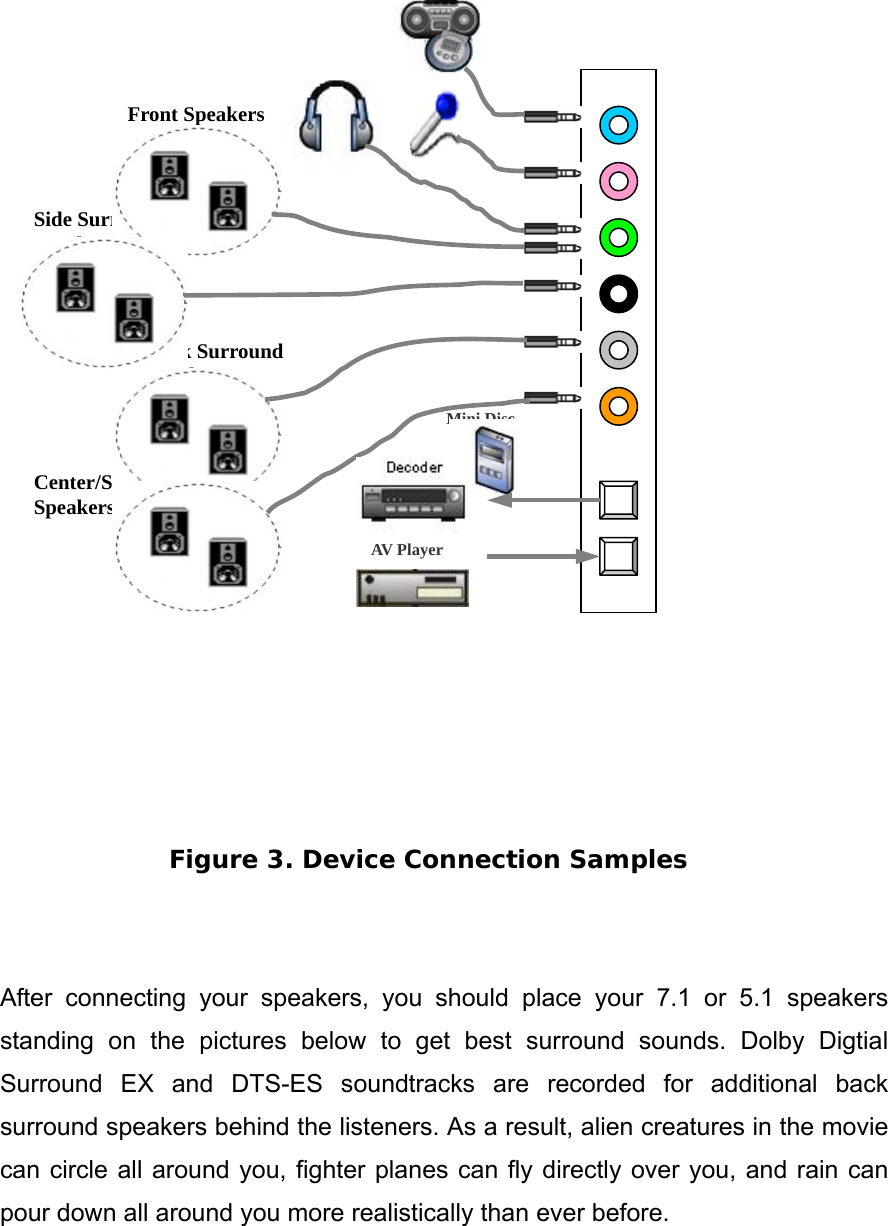
3. Installing H/W, S/W, and Speakers  3.1 Audio Hardware  HDA Digital X-Mystique 7.1 GOLD driver is designed to support the CMI8768+ (PCI 8ch audio chips with Dolby® Digital Live encoder). The “+” version chips mean Dolby Digital Live encoder is included. If you bought HDA X-Mystique 7.1 GOLD sound board, you should install your board to the PCI slot on your motherboard when power-off first.    3.2 Audio Software  Just put the support/driver CD into your CD-ROM/DVD-ROM to install the HDA Digital X-Mystique 7.1 GOLD driver/software via the installation program. If your system use Windows® 98 SE or Windows® ME, you have to install DirectX 9.0 (DirectX 9.0c End-User Runtime recommended) or higher version (from the website below) to support 7.1 channel surround sound normally.    http://www.microsoft.com/downloads/search.aspx?displaylang=en&categoryid=2 3.3 Connection and Speaker Setup  The following figure shows a port design of HDA Digital X-Mystique 7.1 GOLD sound board bracket and also illustrate how to connecting your audio devices to the sound card.
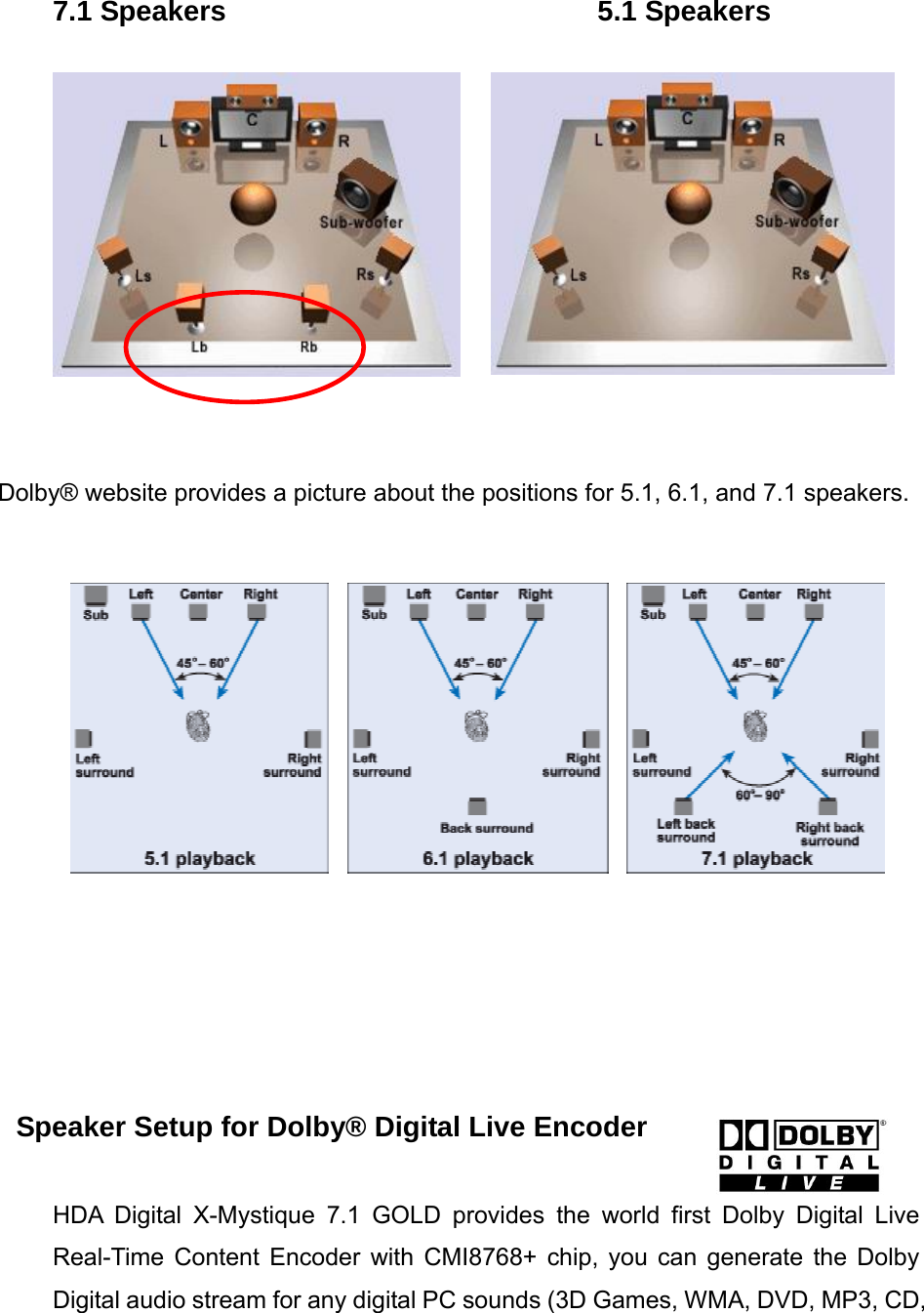
 Front OUT/HeadphoneSide Surround OUTBack Surround OUTCenter/Subwoofer Coaxial S/PDIF OUTOptical S/PDIF OUT LINE IN MIC IN Metal Plate Bracket Front Speakers Side Surround Speakers Back Surround Speakers Center/Subwoofer Speakers Mini Disc AV Player                  Figure 3. Device Connection Samples   After connecting your speakers, you should place your 7.1 or 5.1 speakers standing on the pictures below to get best surround sounds. Dolby Digtial Surround EX and DTS-ES soundtracks are recorded for additional back surround speakers behind the listeners. As a result, alien creatures in the movie can circle all around you, fighter planes can fly directly over you, and rain can pour down all around you more realistically than ever before.
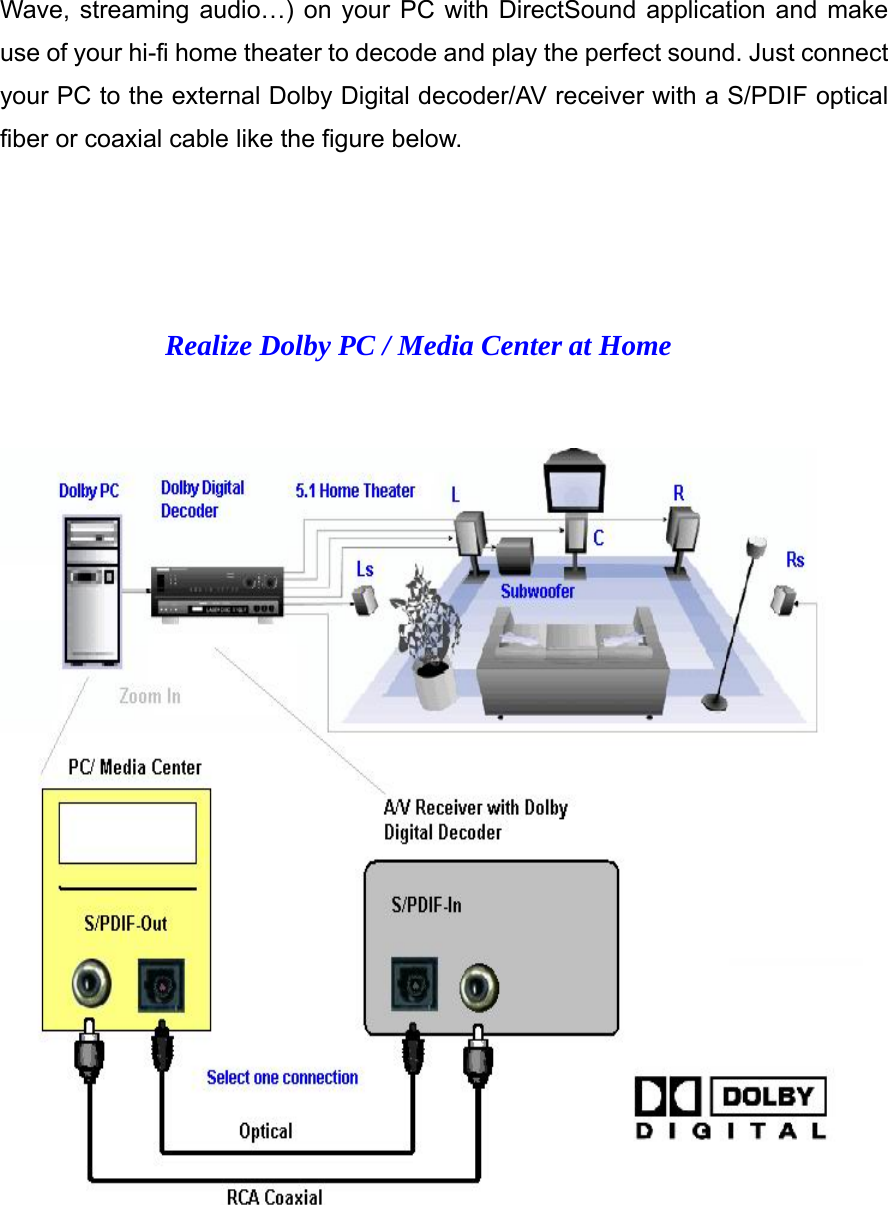
  7.1 Speakers                          5.1 Speakers           Dolby® website provides a picture about the positions for 5.1, 6.1, and 7.1 speakers.               Speaker Setup for Dolby® Digital Live Encoder    HDA Digital X-Mystique 7.1 GOLD provides the world first Dolby Digital Live Real-Time Content Encoder with CMI8768+ chip, you can generate the Dolby Digital audio stream for any digital PC sounds (3D Games, WMA, DVD, MP3, CD,
Wave, streaming audio…) on your PC with DirectSound application and make use of your hi-fi home theater to decode and play the perfect sound. Just connect your PC to the external Dolby Digital decoder/AV receiver with a S/PDIF optical fiber or coaxial cable like the figure below.     Realize Dolby PC / Media Center at Home
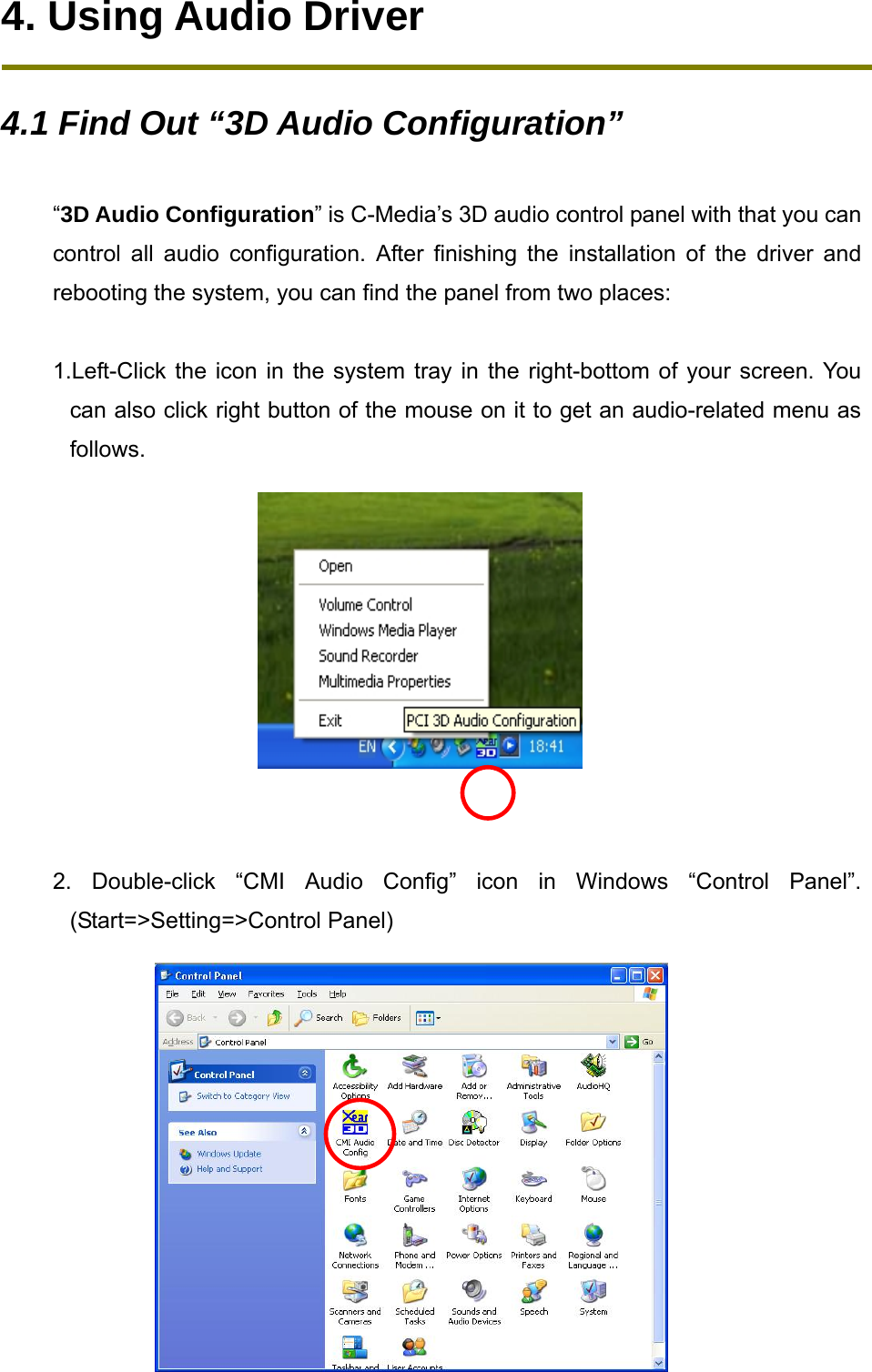
4. Using Audio Driver  4.1 Find Out “3D Audio Configuration”  “3D Audio Configuration” is C-Media’s 3D audio control panel with that you can control all audio configuration. After finishing the installation of the driver and rebooting the system, you can find the panel from two places:  1.Left-Click the icon in the system tray in the right-bottom of your screen. You can also click right button of the mouse on it to get an audio-related menu as follows.           2. Double-click “CMI Audio Config” icon in Windows “Control Panel”. (Start=>Setting=>Control Panel)
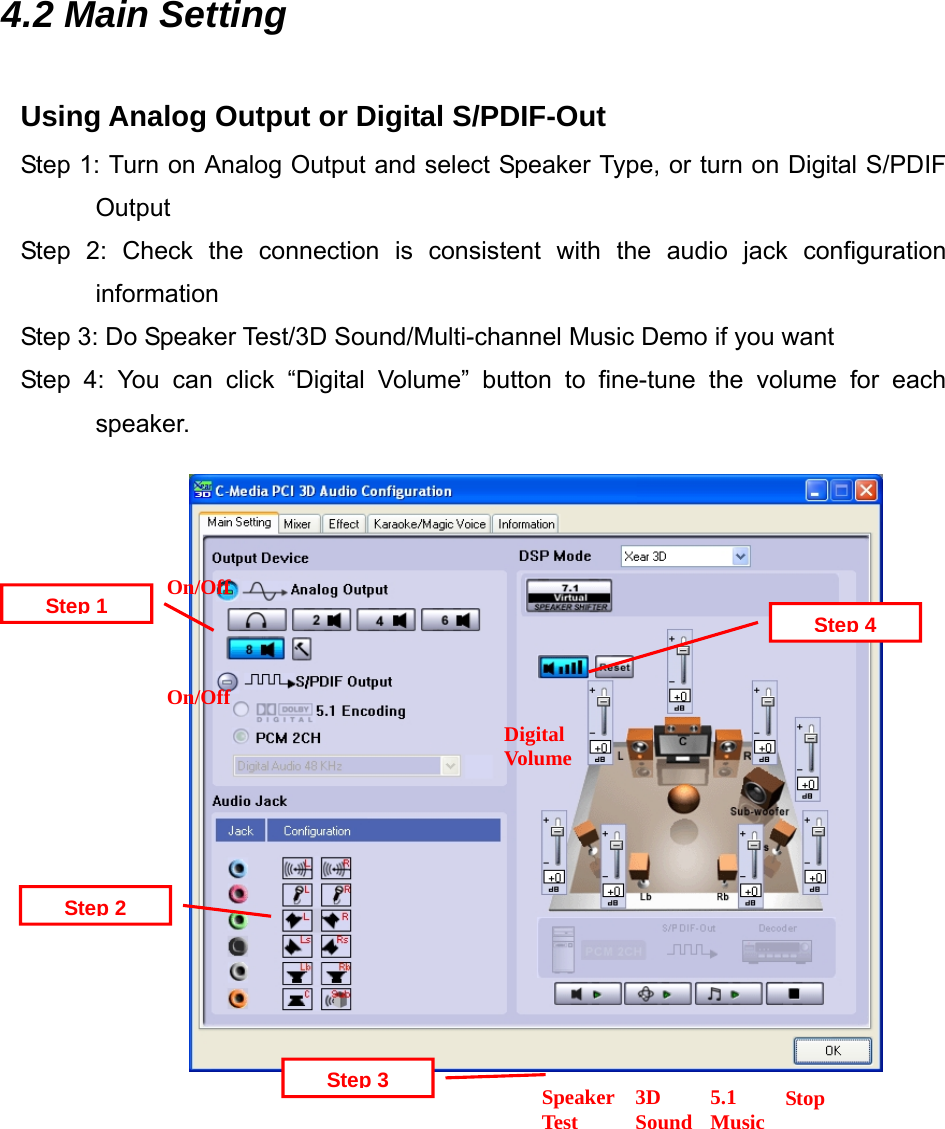
4.2 Main Setting  Using Analog Output or Digital S/PDIF-Out Step 1: Turn on Analog Output and select Speaker Type, or turn on Digital S/PDIF Output Step 2: Check the connection is consistent with the audio jack configuration information Step 3: Do Speaker Test/3D Sound/Multi-channel Music Demo if you want Step 4: You can click “Digital Volume” button to fine-tune the volume for each speaker.                 Digital VolumeOn/OffStep 4Speaker Test Step 3Step 2On/OffStep 13D Sound 5.1 Music  Stop
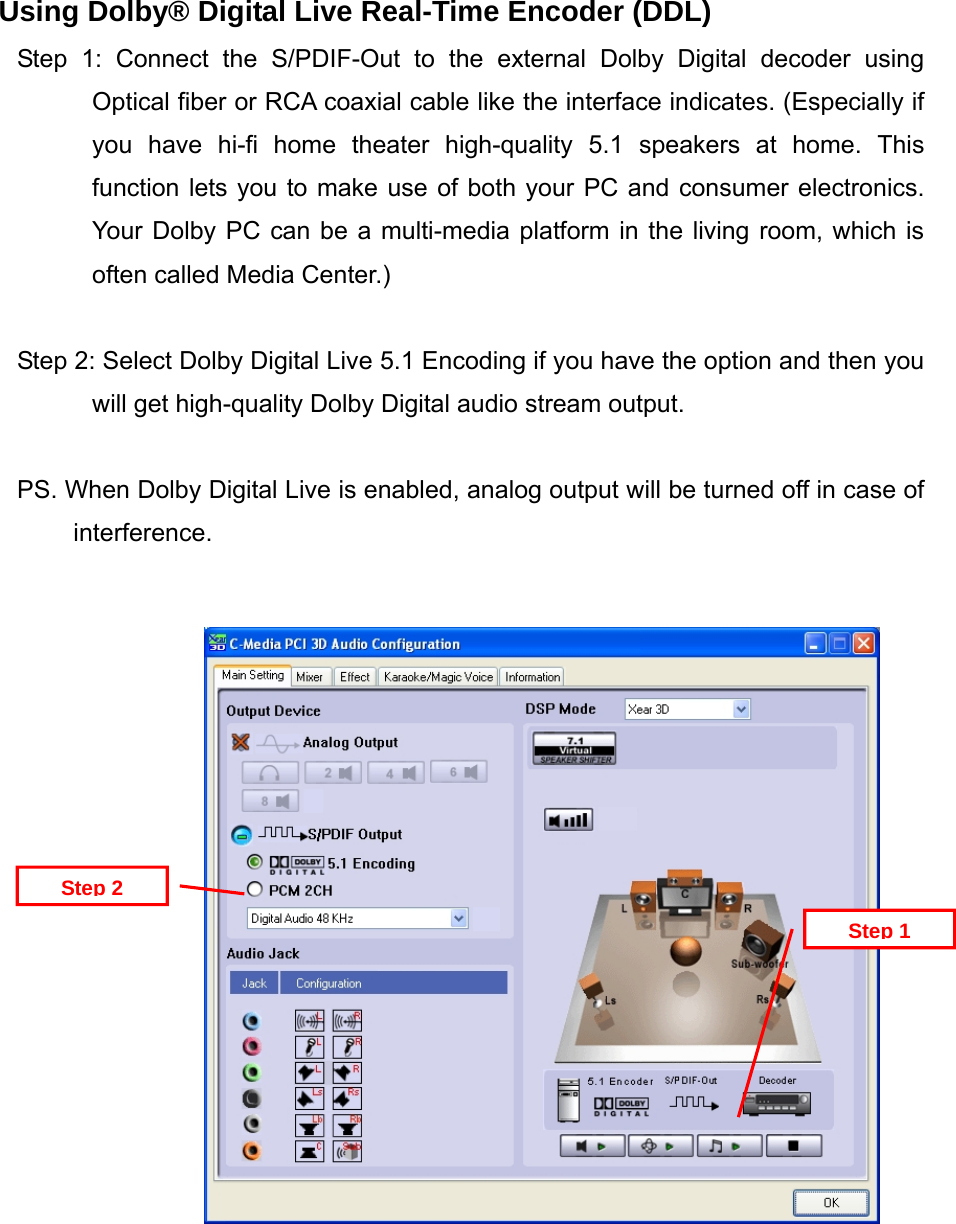
Using Dolby® Digital Live Real-Time Encoder (DDL) Step 1: Connect the S/PDIF-Out to the external Dolby Digital decoder using Optical fiber or RCA coaxial cable like the interface indicates. (Especially if you have hi-fi home theater high-quality 5.1 speakers at home. This function lets you to make use of both your PC and consumer electronics. Your Dolby PC can be a multi-media platform in the living room, which is often called Media Center.)  Step 2: Select Dolby Digital Live 5.1 Encoding if you have the option and then you will get high-quality Dolby Digital audio stream output.  PS. When Dolby Digital Live is enabled, analog output will be turned off in case of interference.   Step 2 Step 1
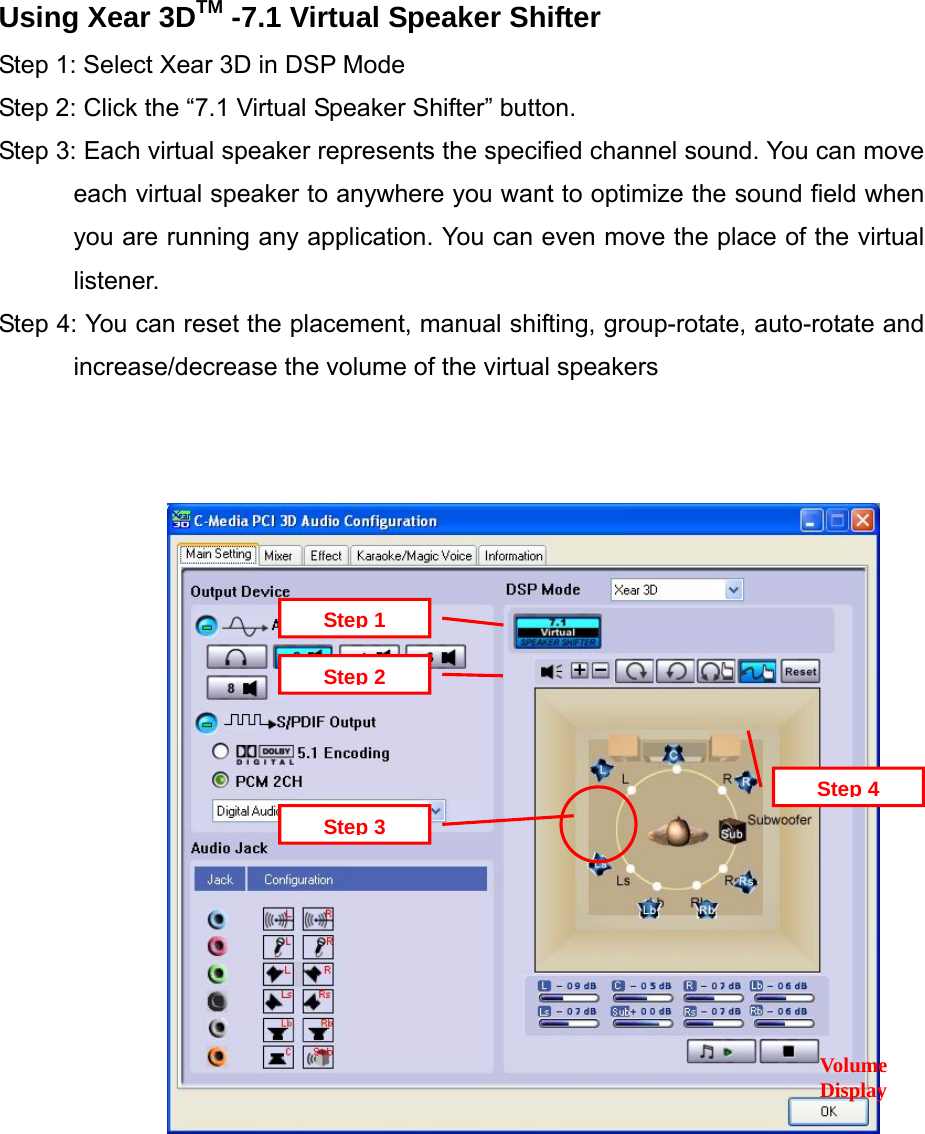
Using Xear 3DTM -7.1 Virtual Speaker Shifter Step 1: Select Xear 3D in DSP Mode Step 2: Click the “7.1 Virtual Speaker Shifter” button. Step 3: Each virtual speaker represents the specified channel sound. You can move each virtual speaker to anywhere you want to optimize the sound field when you are running any application. You can even move the place of the virtual listener. Step 4: You can reset the placement, manual shifting, group-rotate, auto-rotate and increase/decrease the volume of the virtual speakers    Step 4Volume DisplayStep 3Step 2Step 1
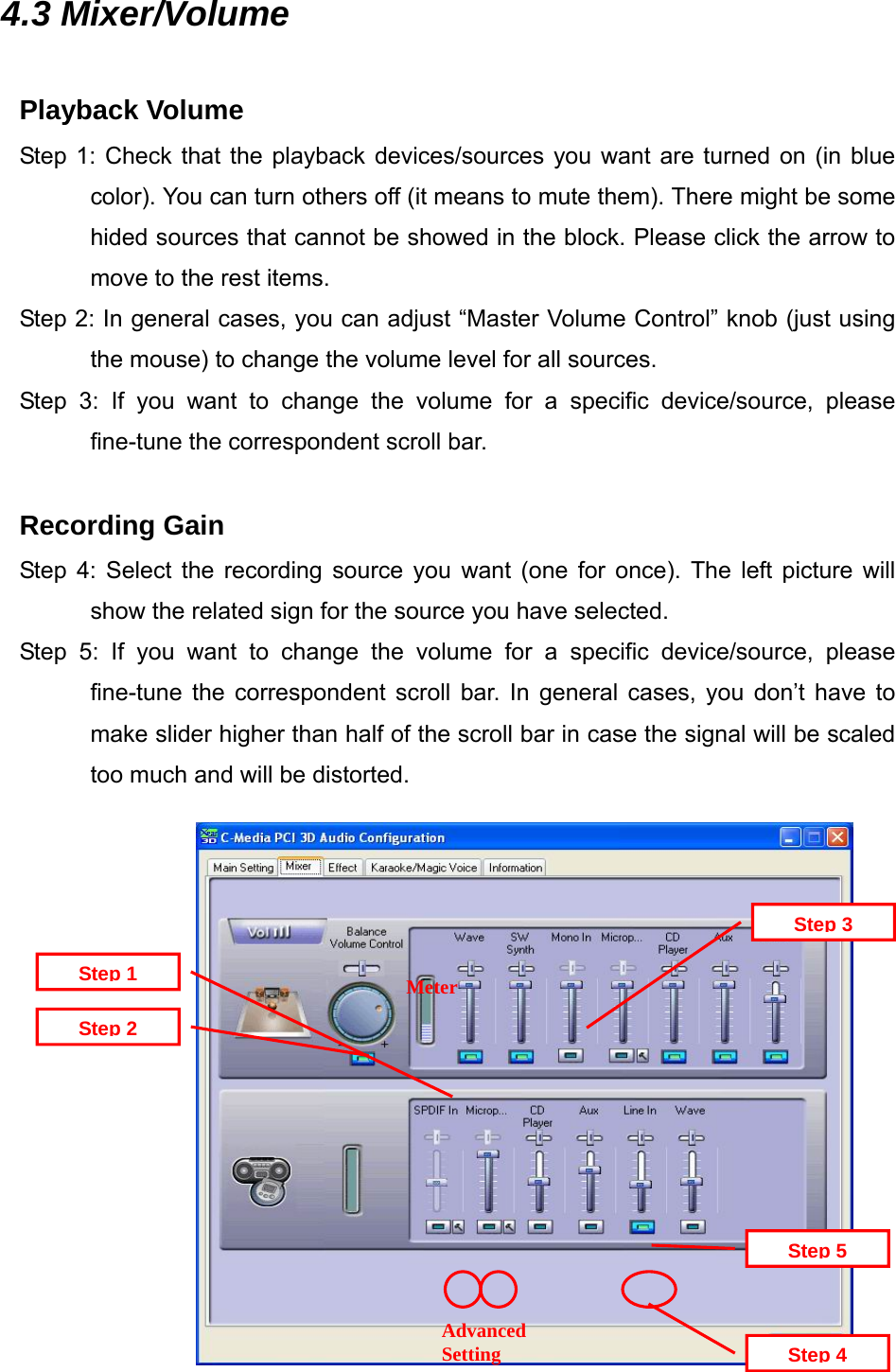
4.3 Mixer/Volume  Playback Volume Step 1: Check that the playback devices/sources you want are turned on (in blue color). You can turn others off (it means to mute them). There might be some hided sources that cannot be showed in the block. Please click the arrow to move to the rest items. Step 2: In general cases, you can adjust “Master Volume Control” knob (just using the mouse) to change the volume level for all sources. Step 3: If you want to change the volume for a specific device/source, please fine-tune the correspondent scroll bar.  Recording Gain Step 4: Select the recording source you want (one for once). The left picture will show the related sign for the source you have selected. Step 5: If you want to change the volume for a specific device/source, please fine-tune the correspondent scroll bar. In general cases, you don’t have to make slider higher than half of the scroll bar in case the signal will be scaled too much and will be distorted.  Advanced Setting Step 5Step 4Step 3MeterStep 2Step 1
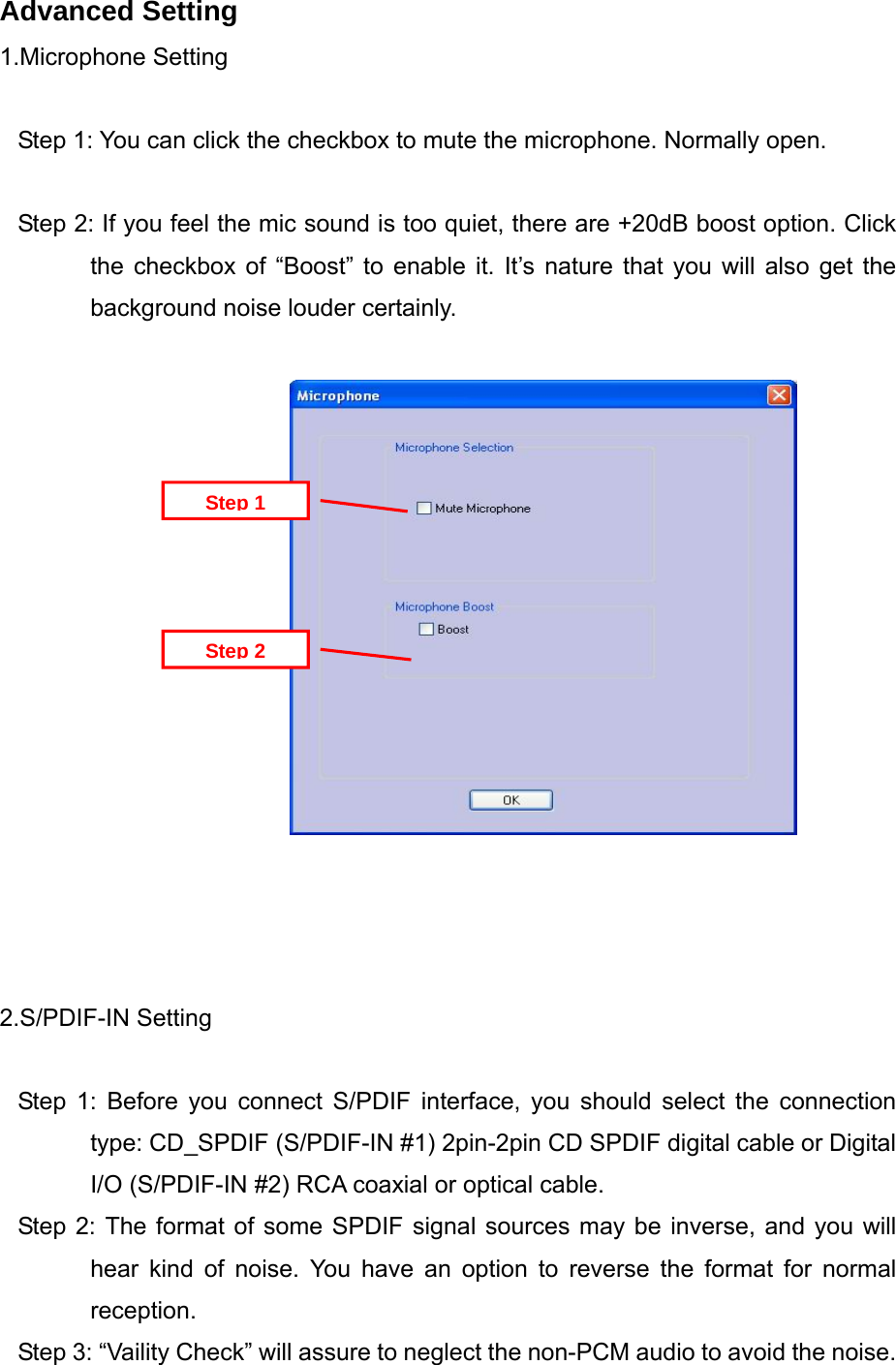
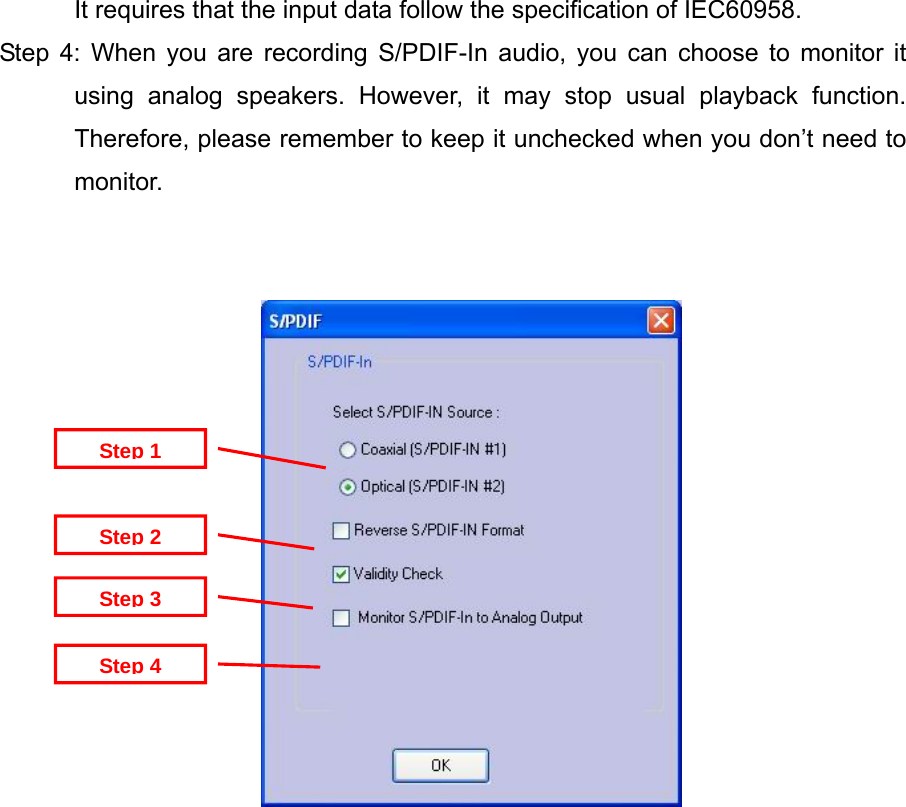
Advanced Setting 1.Microphone Setting  Step 1: You can click the checkbox to mute the microphone. Normally open.  Step 2: If you feel the mic sound is too quiet, there are +20dB boost option. Click the checkbox of “Boost” to enable it. It’s nature that you will also get the background noise louder certainly.   Step 2 Step 1               2.S/PDIF-IN Setting  Step 1: Before you connect S/PDIF interface, you should select the connection type: CD_SPDIF (S/PDIF-IN #1) 2pin-2pin CD SPDIF digital cable or Digital I/O (S/PDIF-IN #2) RCA coaxial or optical cable.   Step 2: The format of some SPDIF signal sources may be inverse, and you will hear kind of noise. You have an option to reverse the format for normal reception. Step 3: “Vaility Check” will assure to neglect the non-PCM audio to avoid the noise.
It requires that the input data follow the specification of IEC60958. Step 4: When you are recording S/PDIF-In audio, you can choose to monitor it using analog speakers. However, it may stop usual playback function. Therefore, please remember to keep it unchecked when you don’t need to monitor.    Step 4Step 3Step 2Step 1
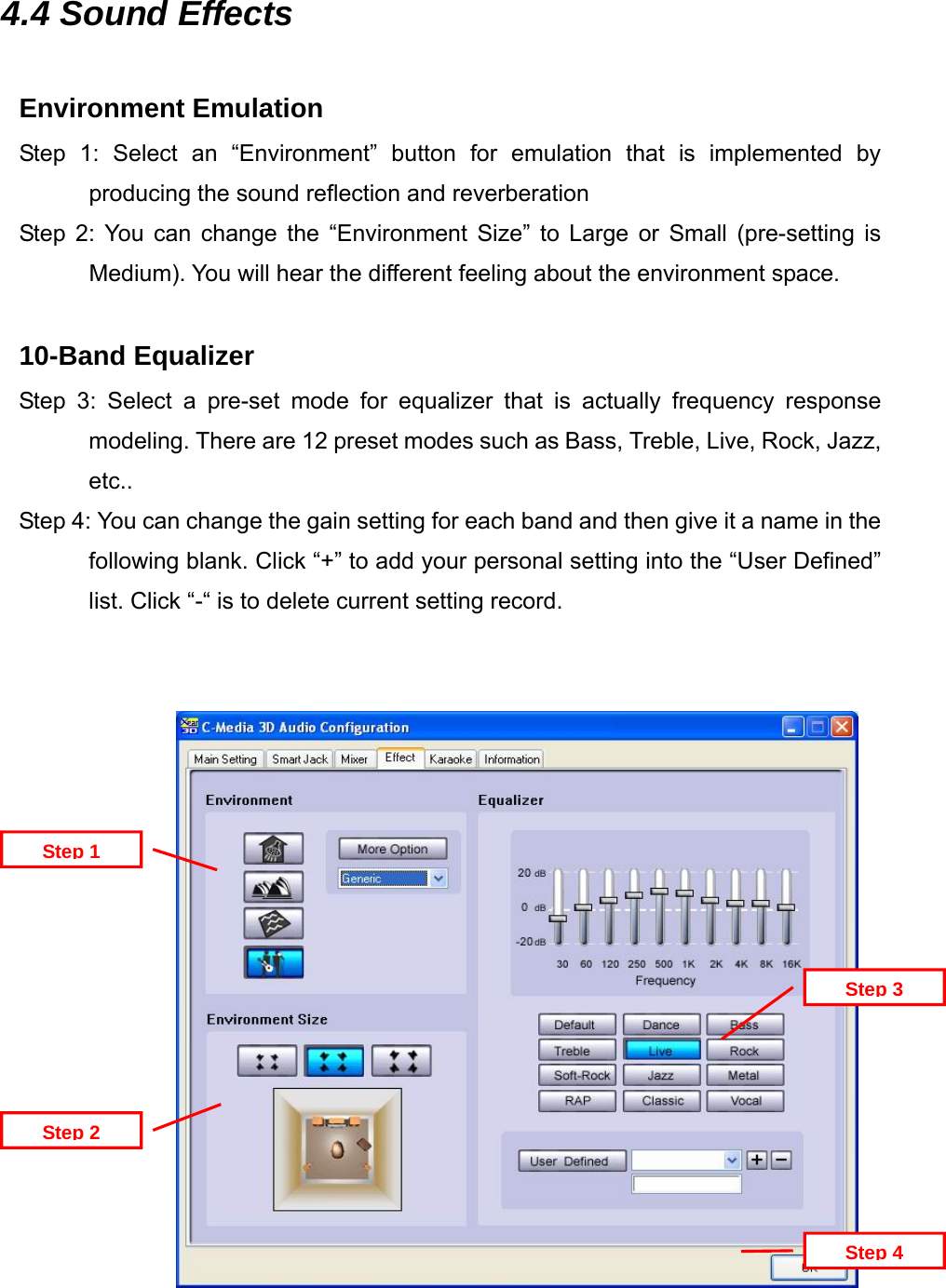
4.4 Sound Effects  Environment Emulation Step 1: Select an “Environment” button for emulation that is implemented by producing the sound reflection and reverberation Step 2: You can change the “Environment Size” to Large or Small (pre-setting is Medium). You will hear the different feeling about the environment space.  10-Band Equalizer Step 3: Select a pre-set mode for equalizer that is actually frequency response modeling. There are 12 preset modes such as Bass, Treble, Live, Rock, Jazz, etc.. Step 4: You can change the gain setting for each band and then give it a name in the following blank. Click “+” to add your personal setting into the “User Defined” list. Click “-“ is to delete current setting record.                  Step 1Step 4Step 3Step 2
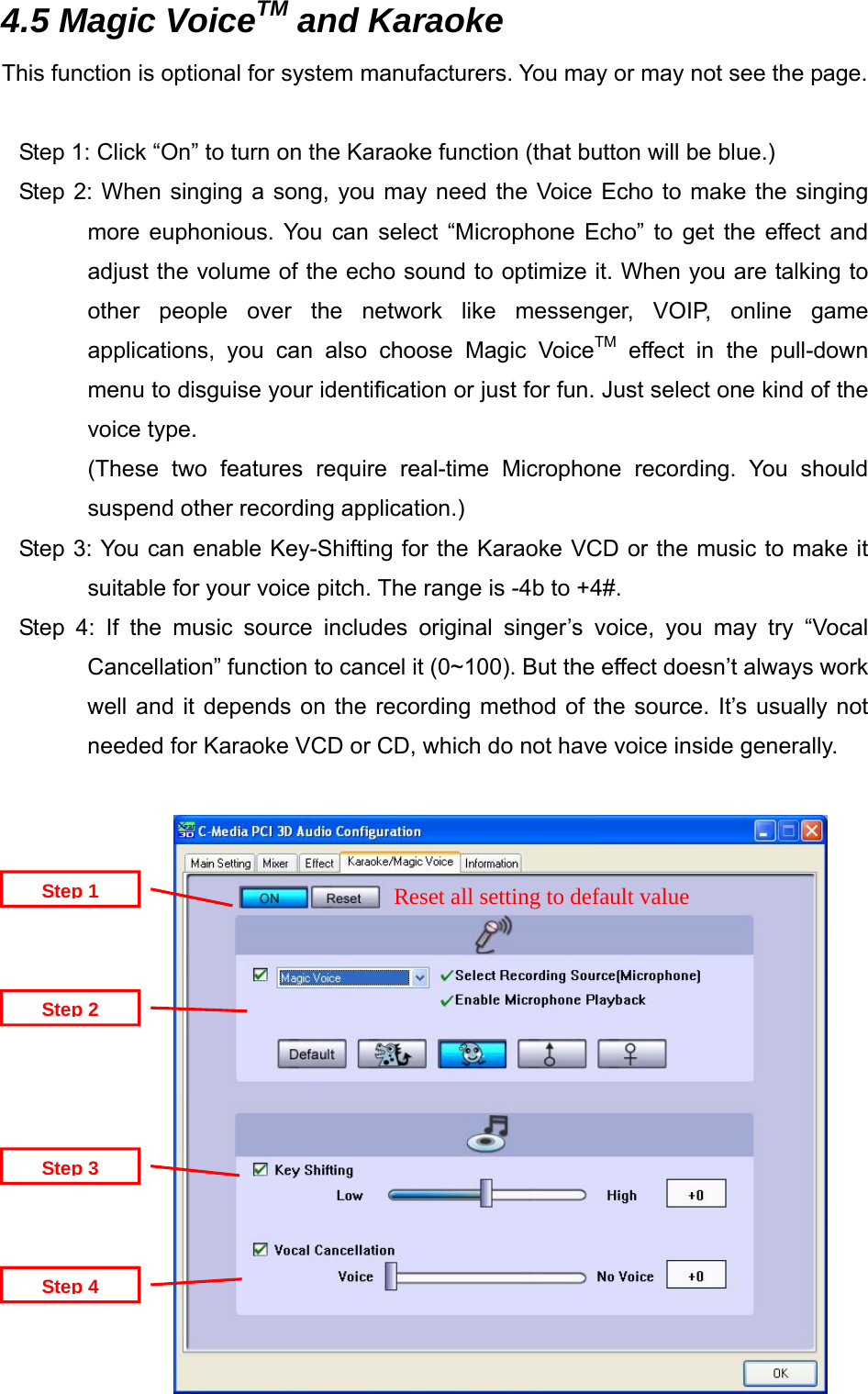
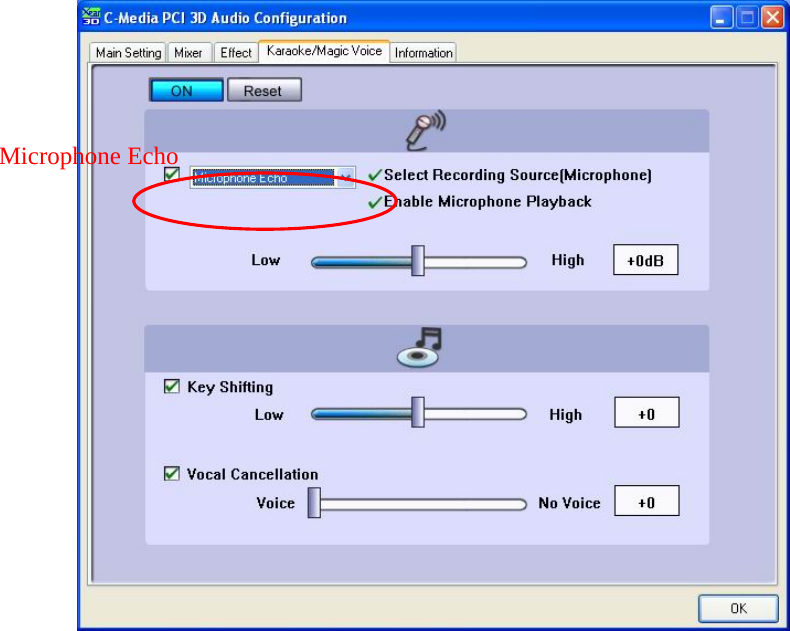
 4.5 Magic VoiceTM and Karaoke This function is optional for system manufacturers. You may or may not see the page.  Step 1: Click “On” to turn on the Karaoke function (that button will be blue.) Step 2: When singing a song, you may need the Voice Echo to make the singing more euphonious. You can select “Microphone Echo” to get the effect and adjust the volume of the echo sound to optimize it. When you are talking to other people over the network like messenger, VOIP, online game applications, you can also choose Magic VoiceTM effect in the pull-down menu to disguise your identification or just for fun. Just select one kind of the voice type. (These two features require real-time Microphone recording. You should suspend other recording application.)   Step 3: You can enable Key-Shifting for the Karaoke VCD or the music to make it suitable for your voice pitch. The range is -4b to +4#. Step 4: If the music source includes original singer’s voice, you may try “Vocal Cancellation” function to cancel it (0~100). But the effect doesn’t always work well and it depends on the recording method of the source. It’s usually not needed for Karaoke VCD or CD, which do not have voice inside generally.              Reset all setting to default value Step 4Step 3Step 2Step 1
 Microphone Echo
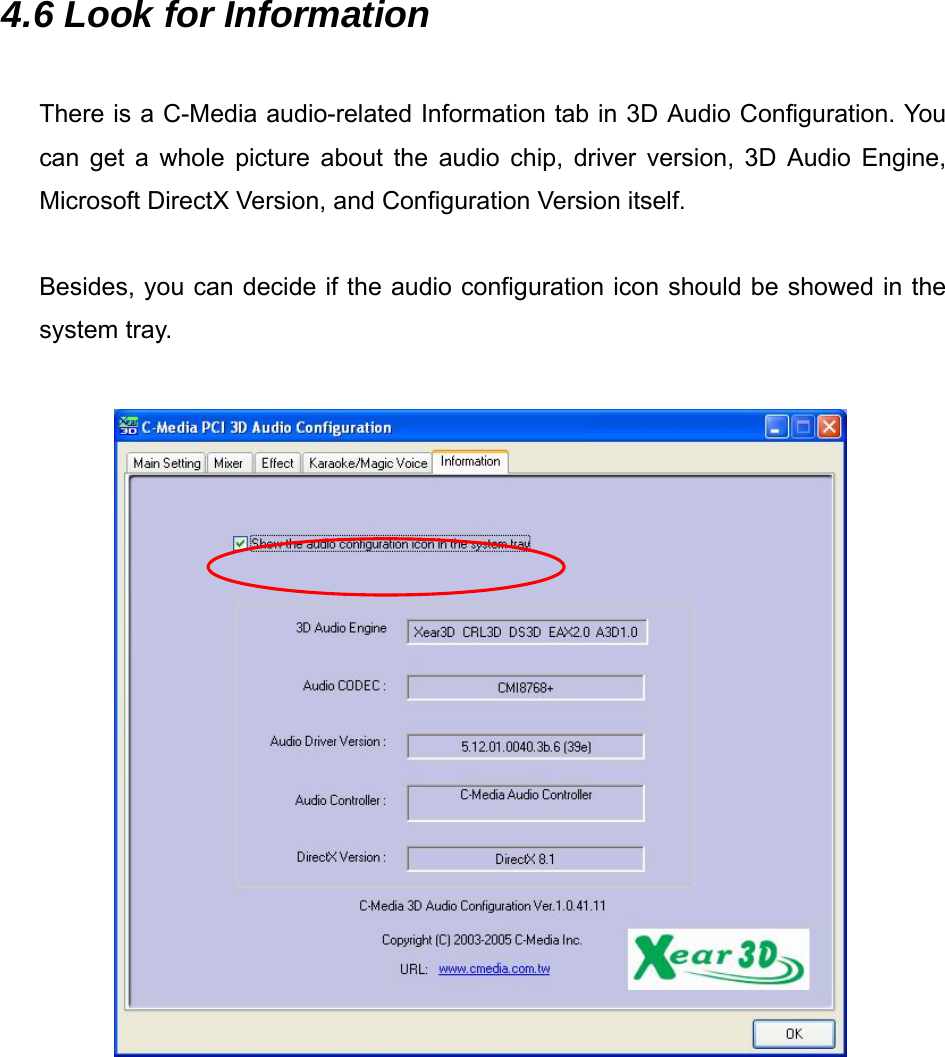
 4.6 Look for Information  There is a C-Media audio-related Information tab in 3D Audio Configuration. You can get a whole picture about the audio chip, driver version, 3D Audio Engine, Microsoft DirectX Version, and Configuration Version itself.  Besides, you can decide if the audio configuration icon should be showed in the system tray.
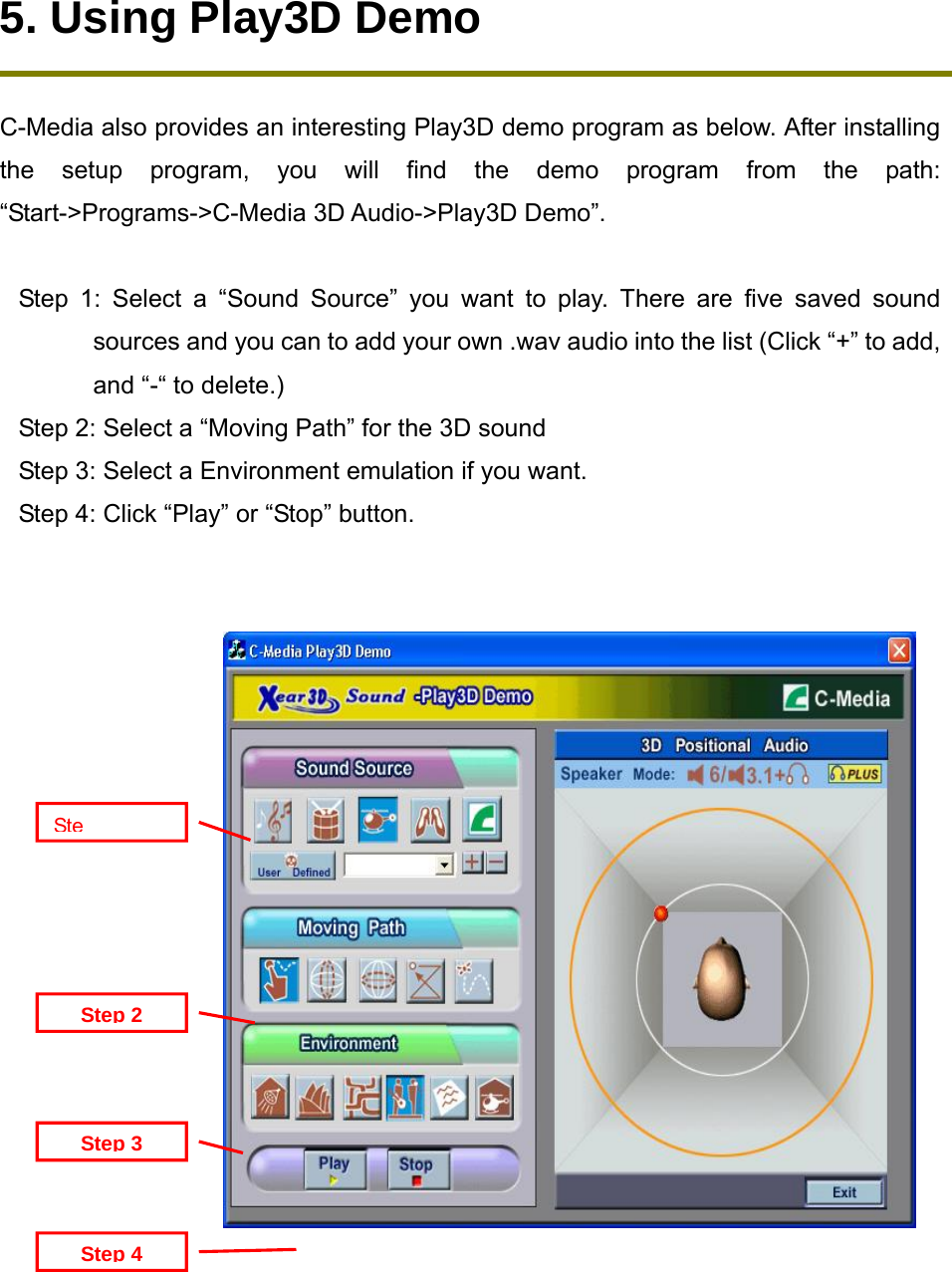
5. Using Play3D Demo  C-Media also provides an interesting Play3D demo program as below. After installing the setup program, you will find the demo program from the path: “Start->Programs->C-Media 3D Audio->Play3D Demo”.  Step 1: Select a “Sound Source” you want to play. There are five saved sound sources and you can to add your own .wav audio into the list (Click “+” to add, and “-“ to delete.) Step 2: Select a “Moving Path” for the 3D sound Step 3: Select a Environment emulation if you want. Step 4: Click “Play” or “Stop” button.      Step 3Step 2 Ste             Step 4
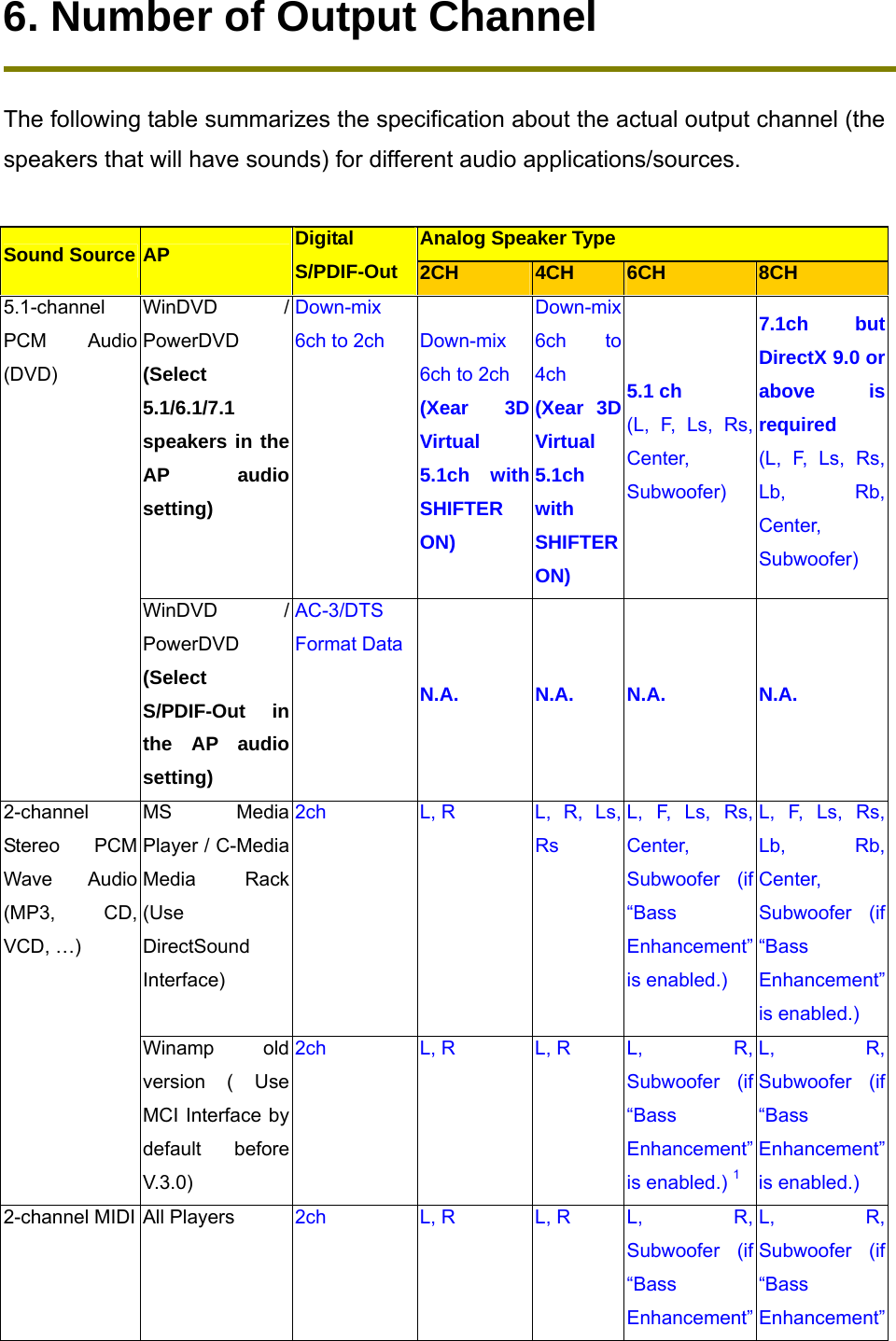
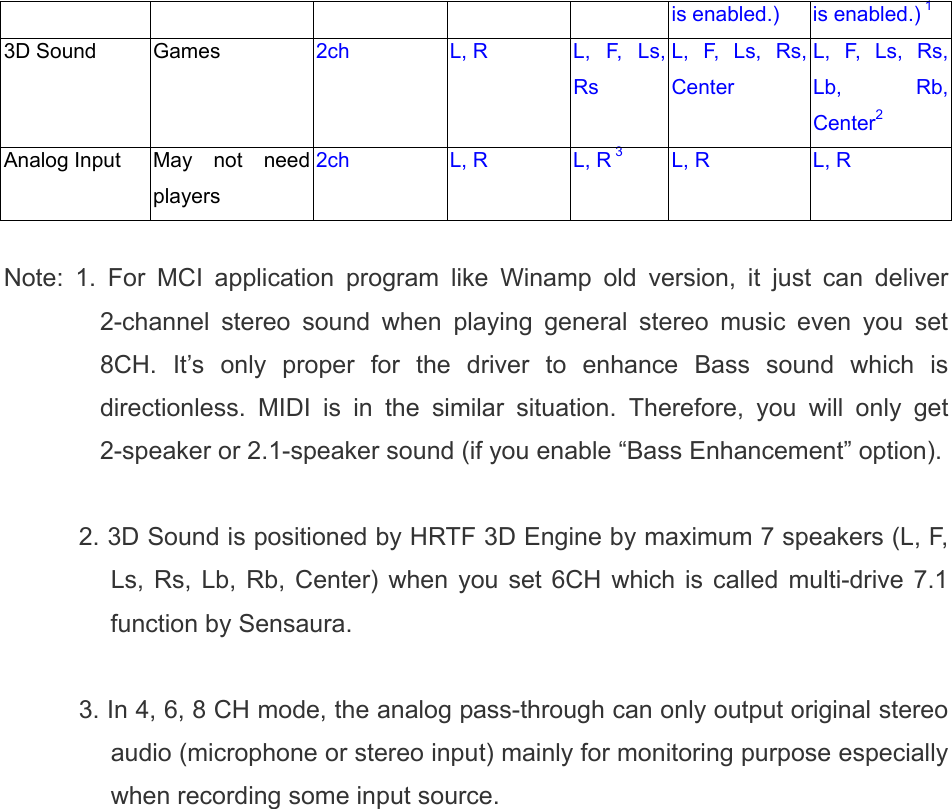
6. Number of Output Channel  The following table summarizes the specification about the actual output channel (the speakers that will have sounds) for different audio applications/sources.  Analog Speaker Type Sound Source AP  Digital S/PDIF-Out  2CH  4CH  6CH  8CH WinDVD / erDVD Pow(Select 5.1/6.1/7.1 speakers in the AP audio setting) Down-mix 6ch to 2ch  Down-mix 6ch to 2ch (Xear 3D Virtual 5.1ch with SHIFTER ON) Down-mix 6ch to 4ch (Xear 3D Virtual 5.1ch with SHIFTER ON) 5.1 ch  (L, F, Ls, Rs, Center, Subwoofer) 7.1ch but DirectX 9.0 or above is required (L, F, Ls, Rs, Lb, Rb, Center, Subwoofer) 5.1-channel PCM Audio (DVD) WinDVD / PowerDVD (Select S/PDIF-Out in the AP audio setting) AC-3/DTS Format DataN.A. N.A. N.A.  N.A. MS Media yer / C-Media ia Rack DirectSound Interface) PlaMed(Use 2ch  L, R  L, R, Ls, Rs L, F, Ls, Rs, Center, Subwoofer (if “Bass Enhancement” is enabled.)   L, F, Ls, Rs, Lb, Rb, Center, Subwoofer (if “Bass Enhancement” is enabled.) 2-channel Stereo PCM Wave Audio (MP3, CD, VCD, …) Winamp old version ( Use MCI Interface by default before V.3.0) 2ch  L, R  L, R  L,  R, Subwoofer (if “Bass Enhancement” is enabled.) 1L, R, Subwoofer (if “Bass Enhancement” is enabled.) 2-channel MIDI All Players  2ch  L, R  L, R  L,  R, Subwoofer (if “Bass Enhancement” L, R, Subwoofer (if “Bass Enhancement”
is enabled.)    is enabled.) 13D Sound  Games  2ch  L, R  L, F, Ls, Rs L, F, Ls, Rs, Center L, F, Ls, Rs, Lb, Rb, Center2Analog Input  May not need players 2ch  L, R  L, R 3 L, R  L, R  Note: 1. For MCI application program like Winamp old version, it just can deliver 2-channel stereo sound when playing general stereo music even you set 8CH. It’s only proper for the driver to enhance Bass sound which is directionless. MIDI is in the similar situation. Therefore, you will only get 2-speaker or 2.1-speaker sound (if you enable “Bass Enhancement” option).  2. 3D Sound is positioned by HRTF 3D Engine by maximum 7 speakers (L, F, Ls, Rs, Lb, Rb, Center) when you set 6CH which is called multi-drive 7.1 function by Sensaura.  3. In 4, 6, 8 CH mode, the analog pass-through can only output original stereo audio (microphone or stereo input) mainly for monitoring purpose especially when recording some input source.
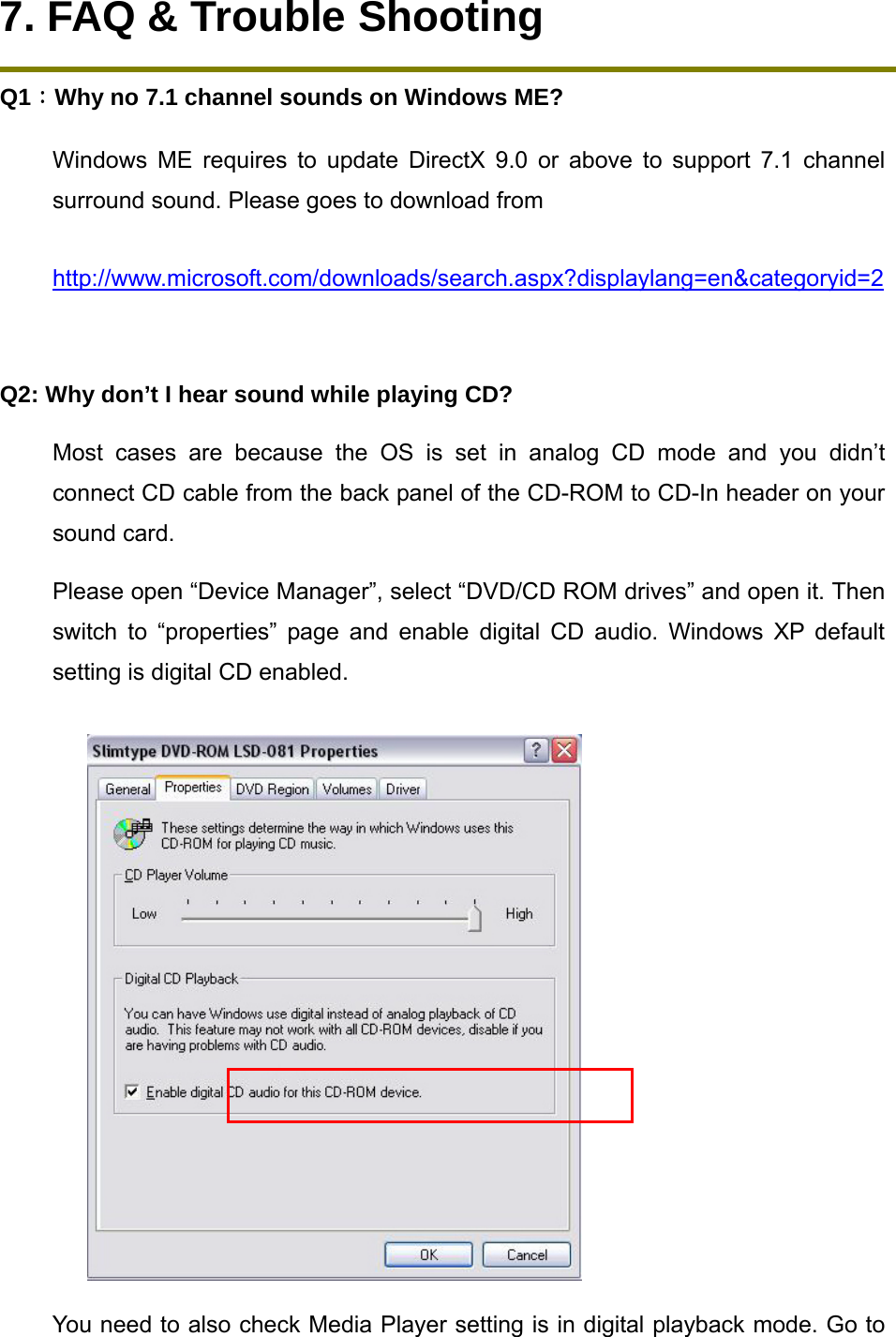
7. FAQ & Trouble Shooting Q1:Why no 7.1 channel sounds on Windows ME? Windows ME requires to update DirectX 9.0 or above to support 7.1 channel surround sound. Please goes to download from   http://www.microsoft.com/downloads/search.aspx?displaylang=en&categoryid=2 Q2: Why don’t I hear sound while playing CD? Most cases are because the OS is set in analog CD mode and you didn’t connect CD cable from the back panel of the CD-ROM to CD-In header on your sound card. Please open “Device Manager”, select “DVD/CD ROM drives” and open it. Then switch to “properties” page and enable digital CD audio. Windows XP default setting is digital CD enabled.  You need to also check Media Player setting is in digital playback mode. Go to
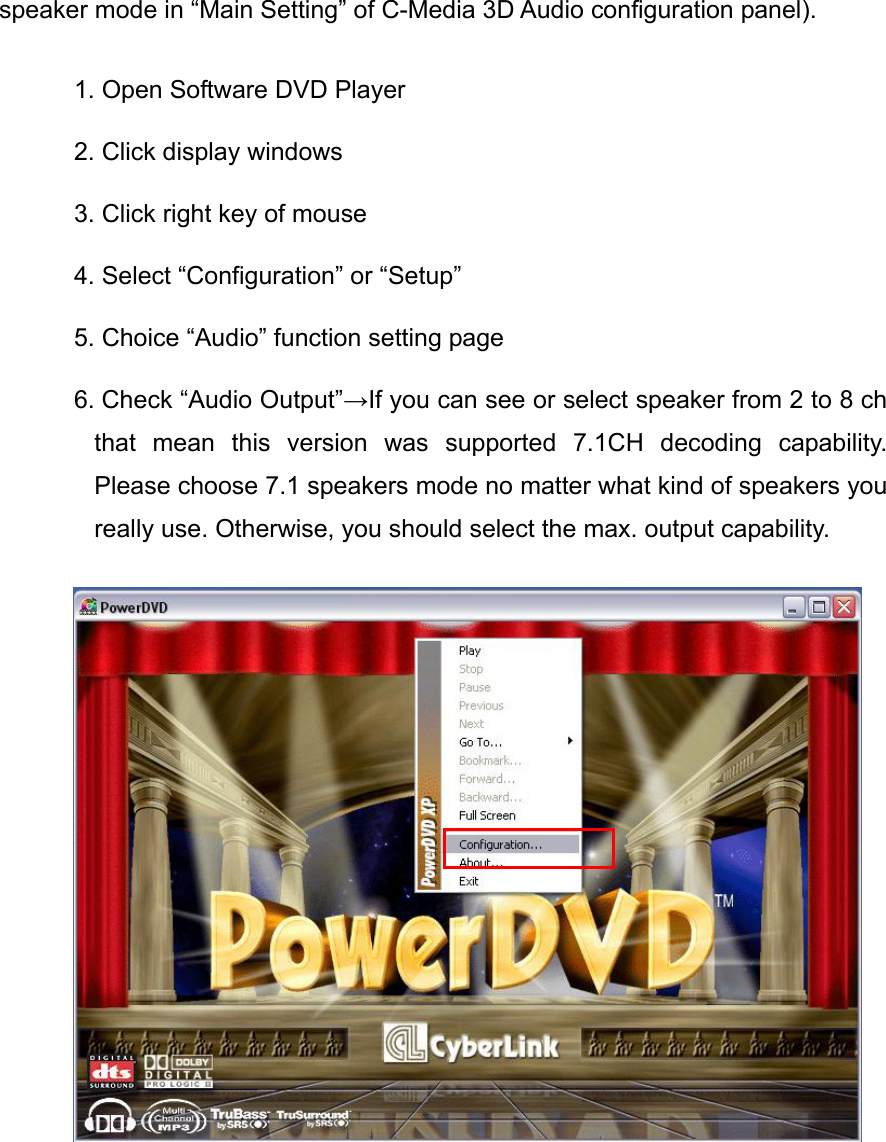
[Tools=>Options=>Devices=>DVD-ROM or CD-ROM]. You will see the following window             Q3:Xear 3DTM Sound technology provide amazing function in 7.1 Virtual Speaker Shifter. How to use this function in different applications? 7.1 Virtual Speaker Shifter can be utilized for 2CH, 4CH, 5.1CH, or 7.1CH audio source over any kind of output device (even your earphone, stereo speakers). Each virtual speaker represents a source channel. You can move each virtual speaker anywhere you want to get the best sound field.   If you want to enjoy real 5.1/7.1CH DVD surround sound, you should buy a software DVD player with Dolby Digital EX or DTS ES decoding function such as WinDVD or Power DVD. With Xear 3D Virtual Speaker Shifter DSP mode, you should always set the maximum output channel from the players to get best sound effects. Virtual Speaker SHIFTER engine can deliver the multi-channel sound sources over your real speakers (it should be corresponding to the
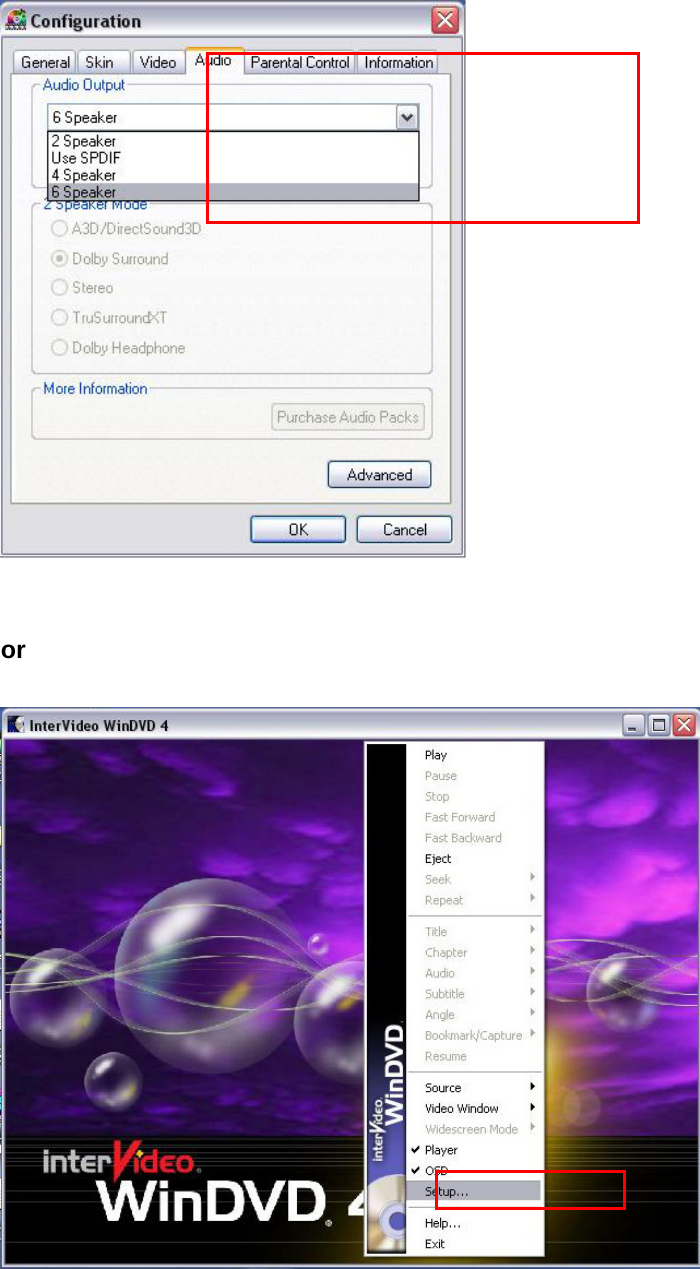
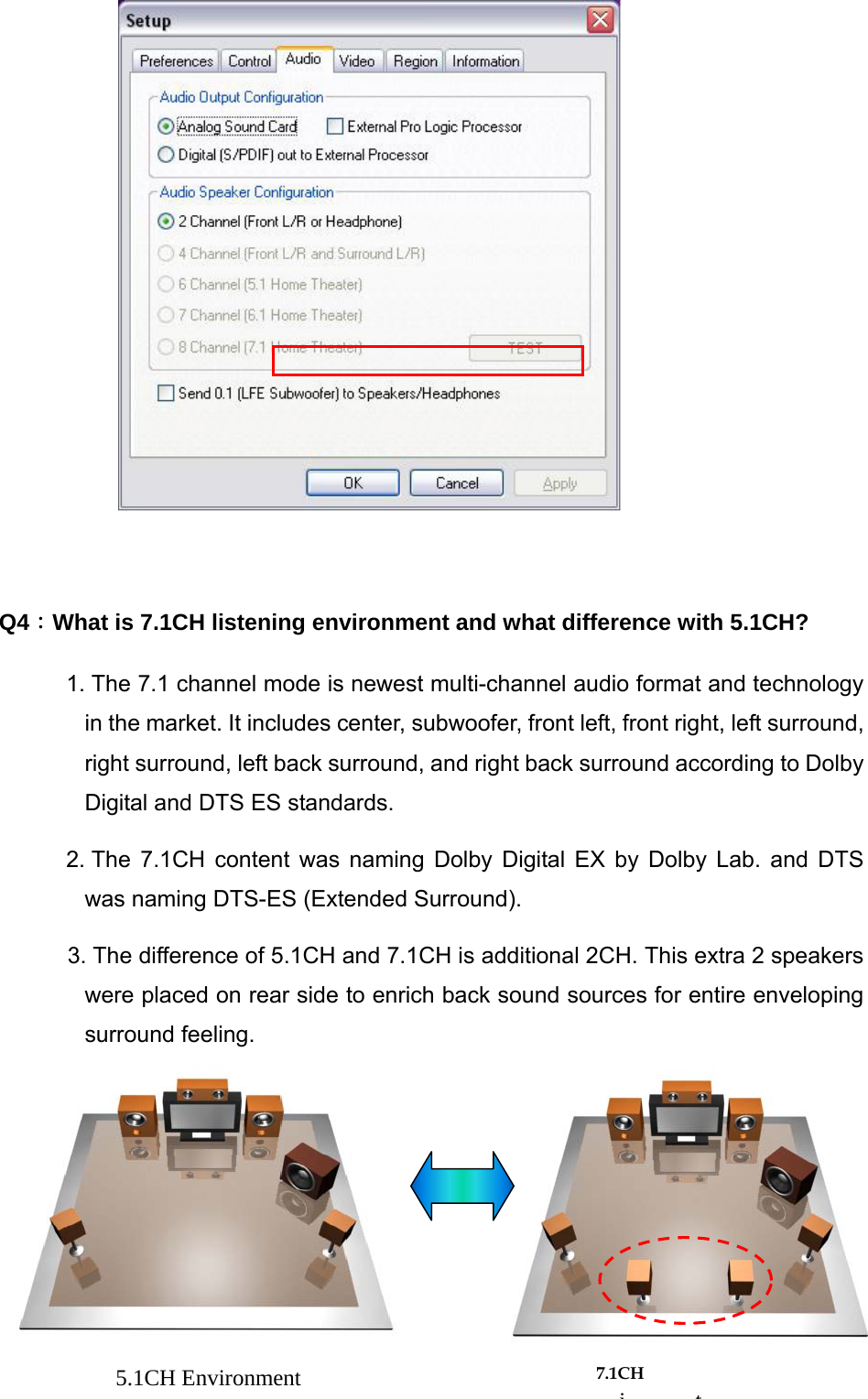
speaker mode in “Main Setting” of C-Media 3D Audio configuration panel). 1. Open Software DVD Player 2. Click display windows 3. Click right key of mouse 4. Select “Configuration” or “Setup” 5. Choice “Audio” function setting page 6. Check “Audio Output”→If you can see or select speaker from 2 to 8 ch that mean this version was supported 7.1CH decoding capability. Please choose 7.1 speakers mode no matter what kind of speakers you really use. Otherwise, you should select the max. output capability.
  or
  Q4:What is 7.1CH listening environment and what difference with 5.1CH? 1. The 7.1 channel mode is newest multi-channel audio format and technology in the market. It includes center, subwoofer, front left, front right, left surround, right surround, left back surround, and right back surround according to Dolby Digital and DTS ES standards. 2. The 7.1CH content was naming Dolby Digital EX by Dolby Lab. and DTS was naming DTS-ES (Extended Surround). 3. The difference of 5.1CH and 7.1CH is additional 2CH. This extra 2 speakers were placed on rear side to enrich back sound sources for entire enveloping surround feeling.      5.1CH Environment  7.1CH   it
Note:  This equipment has been tested and found to comply with the limits for a class B digital device, pursuant to Part 15 of the FCC Rules. These limits are designed to provide reasonable protection against harmful interference in a residential installation. This equipment generates, uses and can radiate radio frequency energy and if not installed and used in accordance with the instructions, may cause harmful interference to radio communications. However, there is no guarantee that interference will not occur in a particular installation. If this equipment does cause harmful interference to radio or television reception, which can be determined by turning the equipment off and on, the user is encouraged to try to correct the interference by one or more of the following measures:  -Reorient or relocate the receiving antenna -Increase the separation between the equipment and receiver -Connect the equipment into an outlet on a circuit different from that to which the receiver is connected -Consult the dealer or an experienced radio/TV technician for help.    This device complies with Part 15 of the FCC Rules. Operation is subject to the following two conditions: (1) this device may not cause harmful interference, and (2) this device must accept any interference received, including interference that may cause undesired operation.   **CAUTION: Changes or modifications not expressly approved by the party responsible for compliance could void the user's authority to operate the equipment.

Navigation menu