High End Systems Dl1 Users Manual 600228
DL1 to the manual ee257f13-1c59-477c-b705-590f29d1af66
2015-02-09
: High-End-Systems High-End-Systems-Dl1-Users-Manual-565176 high-end-systems-dl1-users-manual-565176 high-end-systems pdf
Open the PDF directly: View PDF  .
.
Page Count: 82
- User Manual
- Contacting High End Systems®
- Product Modification Warning
- FCC Information
- Important Safety Information
- Symbols
- Patents
- Warranty Information
- What You Should Know About Copyright
- Table of Contents
- List of Figures
- Chapter 1: Features and Specifications
- Chapter 2: Setup and Configuration
- Chapter 3: Fixture Operation
- TalkBack™ Support for Remote Access
- The Menu Display
- Menu Option Descriptions
- DMX Address Menu
- Set Parameters Menu
- Factory Default Settings
- Pan/Tilt Swap
- Pan Invert
- Tilt Invert
- Display Level
- Data Loss Timeout
- Projector Input Source
- Projector Default?
- Reset Projector Hours
- Striking the Projector Lamp
- Projector In By DMX?
- Iris Version
- Zoom Override Menu
- Focus Override Menu
- Projector Control
- Camera Option
- Align Pan Motors
- New Air Filter
- Fixture Mode Menu
- Test Options Menu
- Information Menu
- Chapter 4:
- DMX Programming
- Chapter 5: General Maintenance and Troubleshooting
- Appendix A: Safety Information
- Appendix B: MSpeed Conversion Table

DL1 User Manual i
User Manual
© High End Systems, Inc. 2004, All Rights Reserved
Information and specifications in this document are subject to change without notice.
High End Systems, Inc. assumes no responsibility or liability for any errors or
inaccuracies that may appear in this manual.
Trademarks used in this text: High End Systems, WholeHog III, Catalyst, the Catalyst
Logo, Dataflash, Intellebeam, and LithoPatterns are registered trademarks; and TalkBack,
the High End Systems globe logo and the Hog logo are trademarks of High End Systems,
Inc. or High End Systems Europe Ltd. Belden is a registered trademark of Belden, Inc.
Mac OS is a trademark of Apple Computer, Inc. registered in the U.S. and in other
countries.
Other trademarks and trade names may be used in this document to refer to either the
entities claiming the marks and names or their products. High End Systems disclaims any
proprietary interest in trademarks and trade names owned by others.
DL.1 User Manual
P/N 60600228 Version 5.0, September 2004
Printed in the USA

ii DL1 User Manual
Contacting High End Systems®
US and the Americas
Sales Department: High End Systems, Inc.
2105 Gracy Farms Lane
Austin, TX 78758 USA
voice: 512.836.2242
fax: 512.837.5290
Customer Service: High End Systems, Inc.
2105 Gracy Farms Lane
Austin, TX 78758 USA
voice: 800.890.8989
24-hour fax: 512.834.9195
24-hour voice mail: 512.837.3063 or 800.890.8989
U.S. New York High End Systems, Inc. New York
311 W. 43rd Street, Ste 400
New York, NY 10036
voice: 210.957.6840
fax: 212.957.4466
U.S. Los Angeles: High End Systems, Inc.
8200 Haskell Avenue
Van Nuys, CA 91406 US
voice: 818.947.0550
fax: 818.908.8975
Orlando voice: 352.241.8567
Europe Headquarters: High End Systems Europe LTD.
53 Northfield Road
London W13
voice: +44 20.8579.5665
fax: +44 20.8579.8469
Singapore: High End Systems Singapore Pte. Ltd.
1 Tannery Road 06-05
Cencon 1
Singapore 1334
voice: +65 6742 8266
FAX: +65 6743 9322
World Wide Web: http://www.highend.com

DL1 User Manual iii
Declaration of Conformity
according to ISO/IEC Guide 22 and EN45104
Manufacturer’s name: High End Systems, Inc.
Distributor’s name: High End Systems, Inc.
Distributor’s address: 2105 Gracy Farms Lane
Austin, Texas 78758 USA
Declares that the product
Product Name: DL.1
Product Number: All
Product Options: All
conforms to the following EEC directives:
73/23/EEC, as amended by 93/68/EEC
89/336/EEC, as amended by 92/31/EEC and 93/68/EEC
Equipment referred to in this declaration of conformity was first manufactured in
compliance with the following standards in 2003:
Safety: EN60950:2000
EMC: EN55022: 1998: Class A ITE
EN61000-3-2
EN61000-3-3
EN55024:1998
EN61000-4-2: Level 3, Class 2
EN61000-4-3: 1995 Level 2 (3V/m)
EN61000-4-4: 1995 Level 2 (1/.5kV)
EN61000-4-5: 1995 Level 3 (2/1kV)
EN61000-4-6: 1965 Level 2 (3Vrms)
EN61000-4-11:1994
USA, Thursday, September 16, 2004
Kenneth Stuart Hansen, Compliance Engineer

iv DL1 User Manual
Product Modification Warning
High End Systems products are designed and manufactured to meet the
requirements of United States and International safety regulations. Modifications to
the product could affect safety and render the product non-compliant to relevant
safety standards.
Mise En Garde Contre La Modification Du Produit. Les produits High End
Systems sont conçus et fabriqués conformément aux exigences des règlements
internationaux de sécurité. Toute modification du produit peut entraîner sa non
conformité aux normes de sécurité en vigueur.
Produktmodifikationswarnung. Design und Herstellung von High End
Systems entsprechen den Anforderungen der U.S. Amerikanischen und
internationalen Sicherheitsvorschriften. Abänderungen dieses Produktes können
dessen Sicherheit beeinträchtigen und unter Umständen gegen die diesbezüglichen
Sicherheitsnormen verstoßen.
Avvertenza Sulla Modifica Del Prodotto. I prodotti di High End Systems
sono stati progettati e fabbricati per soddisfare i requisiti delle normative di sicurezza
statunitensi ed internazionali. Qualsiasi modifica al prodotto potrebbe pregiudicare
la sicurezza e rendere il prodotto non conforme agli standard di sicurezza pertinenti.
Advertencia De Modificación Del Producto. Los productos de High End
Systems están diseñados y fabricados para cumplir los requisitos de las
reglamentaciones de seguridad de los Estados Unidos e internacionales. Las
modificaciones al producto podrían afectar la seguridad y dejar al producto fuera de
conformidad con las normas de seguridad relevantes.
FCC Information
This equipment has been tested and found to comply with the limits for a Class A
digital device, pursuant to part 15 of the FCC rules. These limits are designed to
provide reasonable protection against harmful interference when the equipment is
operated in a commercial environment. This equipment generates, uses, and can
radiate radio frequency energy and, if not installed and used in accordance with the
instruction manual, may cause harmful interference to radio communications.
Operation of this equipment in a residential area is likely to cause harmful
interference, in which case the user will be required to correct the interference at his
own expense.
DL1 User Manual v
Important Safety Information
Instructions pertaining to continued protection against fire, electric shock, and injury
to persons are found in Appendix A. Please read all instructions prior to assembling,
mounting, and operating this equipment.
Important: Informations De Sécurité. Les instructions se rapportant à la
protection permanente contre les incendies, l’électrocution, excessif et aux blessures
corporelles se trouvent dans l’Annexe A. Veuillez lire toutes les instructions avant
d’assembler, de monter ou d’utiliser cet équipement.
Wichtige Sicherheitshinweise. Sicherheitsanleitungen zum Schutz gegen
Feuer, elektrischen Schlag, und Verletzung von Personen finden Sie in Anhang A.
Vor der Montage, dem Zusammenbau und der Intbetriebnahme dieses Geräts alle
Anleitungen sorgfältig durchlesen.
Informazioni Importanti Di Sicurezza. Le istruzioni sulla protezione da
incendi, folgorazione, e infortuni sono contenute nell’appendice A. Si prega di
leggere tutte le istruzioni prima di assemblare, montare e azionare l’apparecchiatura.
Informacion Importante De Seguridad. En el Apéndice A se encuentran
instrucciones sobre protección continua contra incendios, descarga eléctrica, y
lesiones personales. Lea, por favor, todas las instrucciones antes del ensamblaje,
montaje y operación de este equipo.
Symbols
The following international caution and warning symbols appear in margins
throughout this manual to highlight messages.
Caution: This symbol appears adjacent to Caution messages. Not heeding
these messages could result in personal injury and/or damage to
equipment.
Warning: This symbol appears adjacent to high voltage warning messages.
Not heeding these messages could result in serious personal
injury.
Minimum focus distance to non-flammable surface. In this case, 1
meter .
Do not mount on a flammable surface.
Equipment surfaces may reach temperatures up to 130° C (266° F).
Allow the fixture to cool before handling.

vi DL1 User Manual
Patents
This product may use one or more of the following patents: US 4,392,187; US 4,602,321;
US 4,688,161; US 4,701,833; US 4,709,311; US 4,779,176; US 4,800,474; US 4,962,687;
US 4,972,306;US 4,980,806; US 5,010,459; US 5,031,078; US 5,073,847; US 5,078,039;
US 5,186,536; US 5,209,560; US 5,278,742; US 5,282,121; US5,307,295; US 5,329,431;
US 5,331,822; US 5,367,444; US 5,402,326;US 5,430,629; US 5,432,691; US 5,454,477;
US 5,455,748; US 5,506,762; US 5,515,254; US 5,537,303; US5,545,951; US 5,580,164;
US 5,590,954; US 5,590,955; US 5,640,061; US 5,647,662; US5,665,305; US 5,691,886;
US 5,728,994; US 5,758,955; US 5,758,956; US 5,769,527; US5,774,273; US 5,798,619;
US 5,806,951; US 5,823,661; US 5,825,548; US5,828,485; US 5,829,868; US 5,857,768;
US 5,882,107; US 5,934,794; US 5,940,204; US 5,945,786; US5,953,152; US 5,980,066;
US 6,048,080; US 6,327,103; US 6,048,081; US 6,057,958; US6,054,816; US 6,126,288;
US 6,142,652; US 6,172,822; US 6,188,933;US 6,208,087; US 6,219,093; US 6,220,730;
US 6,241,366; US 6,255,787; US 6,256,136; US 6,278,542; US6,288,828; US 6,327,103;
US 6,421,165; US 6,430,934; US 6,466,357; US 6,502,961; US 6,693,392; US 6,719,433;
USD347,113; US D350,408; US D359,574; US D360,404; US D365,165; US D366,712;
US D370,080; US D372,550; US D377,338; US D381,740; US D409,771; EP 0662275;
EP 0767398; DE 621495; DE 655144; DE 797503; EP 0475082; GB 2 043 769 B;
GB 2 055 842 B; GB 2 283 808 B; GB 2 290 134 B; GB 2 291 814 B; GB 2 292 530 B;
GB 2 292 896 B; GB 2 294 909 B; GB 2 295 058 B; GB 2 303 203 B; GB 2 306 887 B;
GB 2 307 036 B; GB 2 316 477 B; MR0862-1996; M9,604,224.9
Warranty Information
Limited Warranty. Unless otherwise stated, your product (excluding the lamp) is
covered by a one year parts and labor limited warranty. The lamp carries a 30-day
warranty. It is the owner’s responsibility to furnish receipts or invoices for
verification of purchase, date, and dealer or distributor. If purchase date cannot be
provided, date of manufacture will be used to determine warranty period.
Fog machine warning. Like all high quality video projection units, the DL-1
fixture must be kept protected from excessive amounts of glycol fog, mineral oil, and
smoke. DL-1 incorporates two-stage air filtering to reduce these risks to a minimum;
however, the user must follow these guidelines to ensure continued operation of the
fixture:
• Air filters (both fixture and projector) should be checked and cleaned on a
regular basis. When used in a closed or fixed environment where fog or haze is
used, we recommend at least a weekly check.
• Do not situate DL-1 in areas of high fog density such as directly in front of a fog
machine or mineral oil hazer.
• Minimize the exposure of DL-1 to both glycol fog and mineral oil.

DL1 User Manual vii
DL-1 is a highly complex and sensitive electro-optical device and care and thought in
how it is used, rigged, and positioned will maximize the product’s life and your
investment.
Failure to follow these guidelines and carry out regular maintenance will void the
warranty.
Returning an Item Under Warranty for Repair. It is necessary to obtain a
Return Material Authorization (RMA) number from your dealer or point of purchase
BEFORE any units are returned for repair. The manufacturer will make the final
determination as to whether or not the unit is covered by warranty.
Any Product unit or parts returned to High End Systems must be packaged in a suitable
manner to ensure the protection of such Product unit or parts, and such package shall be
clearly and prominently marked to indicate that the package contains returned Product
units or parts and with an RMA number. Accompany all returned Product units or parts
with a written explanation of the alleged problem or malfunction. Ship returned Product
units or parts to: 2105 Gracy Farms Lane, Austin, TX 78758 USA.
Note: Freight Damage Claims are invalid for fixtures shipped in non-factory boxes
and packing materials.
Freight. All shipping will be paid by the purchaser. Items under warranty shall have
return shipping paid by the manufacturer only in the Continental United States. Under no
circumstances will freight collect shipments be accepted. Prepaid shipping does not
include rush expediting such as air freight. Air freight can be sent customer collect in the
Continental United States.
REPAIR OR REPLACEMENT AS PROVIDED FOR UNDER THIS WARRANTY IS THE
EXCLUSIVE REMEDY OF THE CONSUMER. HIGH END SYSTEMS, INC. MAKES NO
WARRANTIES, EXPRESS OR IMPLIED, WITH RESPECT TO ANY PRODUCT, AND
HIGH END SPECIFICALLY DISCLAIMS ANY WARRANTY OF MERCHANTABILITY OR
FITNESS FOR A PARTICULAR PURPOSE. HIGH END SHALL NOT BE LIABLE FOR
ANY INDIRECT, INCIDENTAL OR CONSEQUENTIAL DAMAGE, INCLUDING LOST
PROFITS, SUSTAINED OR INCURRED IN CONNECTION WITH ANY PRODUCT OR
CAUSED BY PRODUCT DEFECTS OR THE PARTIAL OR TOTAL FAILURE OF ANY
PRODUCT REGARDLESS OF THE FORM OF ACTION, WHETHER IN CONTRACT,
TORT (INCLUDING NEGLIGENCE), STRICT LIABILITY OR OTHERWISE, AND
WHETHER OR NOT SUCH DAMAGE WAS FORESEEN OR UNFORESEEN.
Warranty is void if the product is misused, damaged, modified in any way, or for
unauthorized repairs or parts. This warranty gives you specific legal rights, and you may
also have other rights which vary from state to state.

viii DL1 User Manual
What You Should Know About Copyright
Written By Suzy Vaughan Associates for High End Systems
I want to use a film clip from "When Harry Met Sally" in a promotional piece
advertising my services. What do I have to do to be able to do that? First of all, you need
to obtain permission to use the clip from its owners. The clip is considered intellectual
property, just as though it were your car or some software code developed by and
belonging to Microsoft. This is because the U.S. Copyright Act gave creators of literary
works (which include books, films, television programs, art works, still photos and
musical compositions and recordings) the right to sell or license these works and to make
money from them for the period of the copyright.
But what about public domain material? I heard that lots of material is in the public
domain and can be used for free. Once the copyright runs out, the creative work falls into
the public domain and can be used freely by anyone without payment or licensing. If the
work is not public domain, it is considered literary property. The Copyright Act provides
substantial penalties for copyright infringement ranging from $10,000 for accidental
infringement to $250,000 for willful infringement. However, contrary to popular belief,
there really is not that much material in the public domain so this approach will limit you
creatively.
What if I want to use a clip in a public performance? It's not being filmed or taped.
Surely I don't need permission for that? Public gatherings require clearance whenever
copyrighted data is projected to audiences, or for any use other than just personal
viewing. Concerts, tradeshows, industrial shows, parties and raves are all examples of
public performance and permission must be obtained.
Suppose I want to use a still photo or a magazine cover or a television clip? Do I have
to obtain permission for them too? Yes, they are also copyrighted works, whose owners
must grant a license for their usage.
Do I need any other permissions to use this material? In many cases you do. You may
need to obtain permission to use the appearance of actors who appear in the clip as well
as pay the writers and directors of the film that your clip comes from.
What about music? I hear you can use 8 bars for free. 8 bars for free is a fallacy that has
been passed around as a fact for a long period of time. However, it isn't true. Both musical
compositions and records require licensing and payment.
What about High End Systems material included with the Catalyst? Do I have to clear
that? No. High End Systems has worked to provide clearance for the content that is
provided with the Catalyst system. Any materials you received directly from HES with the
purchase of a new Catalyst system have already been properly licensed for your use in
shows and presentations. That does not, however, license you to sell this content
separately from the Catalyst system. Also, please be sure that any new content you obtain
from outside sources is properly cleared for public presentation.
This sounds really difficult and I don't know how to do it? What do I do to properly
license copyrighted material? You need to consult with a Content Clearing House or with
a properly licensed Intellectual Property Attorney. Content clearinghouses are typically

DL.1 User Manual ix
Table of Contents
Contacting High End Systems® ....................................................................................................ii
Product Modification Warning ......................................................................................................iv
FCC Information .............................................................................................................................iv
Important Safety Information .........................................................................................................v
Symbols ............................................................................................................................................v
Patents .............................................................................................................................................vi
Warranty Information.....................................................................................................................vi
What You Should Know About Copyright ................................................................................. viii
Chapter 1: Features and Specifications
Features ........................................................................................................................................ 1-1
Operation............................................................................................................................... 1-1
Optional Digital Eye Technology......................................................................................... 1-2
Optional Accessories ................................................................................................................... 1-2
Specifications ............................................................................................................................... 1-3
Physical Specifications.........................................................................................................1-3
Electrical Specifications .......................................................................................................1-4
Projector Specifications........................................................................................................1-4
Environmental Specifications .............................................................................................. 1-4
Cable and Connector Specifications.................................................................................... 1-5
Video Connectors:.......................................................................................................... 1-5
DMX and RS-485 Projector Link.................................................................................. 1-5
Chapter 2: Setup and Configuration
Unpacking the Fixture................................................................................................................. 2-1
Replacing the Power Cord Cap................................................................................................... 2-1
Installing a Line Cord Cap - U.K. Only................................................................................ 2-2
Vatic Fitter Heads Information - Danmark ......................................................................... 2-2
Connecting Video......................................................................................................................... 2-2
Mounting the Fixture................................................................................................................... 2-4
Recommended Mounting Orientation................................................................................. 2-4
Fog Machine Warning .......................................................................................................... 2-4
Mounting the Fixture Upright.............................................................................................. 2-5
Truss Mounting.............................................................................................................. 2-5
Verifying the Truss Support.......................................................................................... 2-5
Clamps ............................................................................................................................ 2-5
Mounting Procedure...................................................................................................... 2-6
Linking the Fixtures..................................................................................................................... 2-7
Data Cabling and Connectors .............................................................................................. 2-7
DMX Data Cables .......................................................................................................... 2-7
Cable Connectors........................................................................................................... 2-7

xDL.1 User Manual
Setting up the Link ............................................................................................................... 2-8
Installing a Terminator.........................................................................................................2-9
Powering On the Fixture ............................................................................................................. 2-9
Homing the Fixture............................................................................................................... 2-9
Viewing the Display Panel ................................................................................................. 2-10
Verifying and Uploading Fixture Software.............................................................................. 2-10
Setting the DMX Start Channel................................................................................................ 2-11
Shutting Down the Fixture........................................................................................................ 2-12
Locking Pan and Tilt Positions .......................................................................................... 2-12
Chapter 3: Fixture Operation
TalkBack™ Support for Remote Access..................................................................................... 3-1
The Menu Display........................................................................................................................ 3-2
Navigational Basics............................................................................................................... 3-2
Display in Menu Locked Mode ............................................................................................ 3-3
Fixture Software Version .............................................................................................. 3-3
System Configuration Type........................................................................................... 3-3
DMX Start Channel ....................................................................................................... 3-3
Error Message Display .................................................................................................. 3-3
Unlocking the Menu System................................................................................................ 3-3
Exiting the Menu System ..................................................................................................... 3-3
Menu Map.............................................................................................................................. 3-4
Menu Option Description............................................................................................................ 3-6
DMX Address Menu ............................................................................................................. 3-6
Setting a DMX Start Channel ....................................................................................... 3-6
Set Parameters Menu ........................................................................................................... 3-6
Factory Default Settings................................................................................................ 3-6
Pan/Tilt Swap ................................................................................................................. 3-7
Pan Invert ....................................................................................................................... 3-7
Tilt Invert........................................................................................................................ 3-7
Display Level.................................................................................................................. 3-8
Data Loss Timeout......................................................................................................... 3-8
Projector Input Source .................................................................................................. 3-8
Projector Default?.......................................................................................................... 3-9
Reset Projector Hours.................................................................................................... 3-9
Striking the Projector Lamp........................................................................................ 3-10
Projector In By DMX?.................................................................................................. 3-10
Iris Version ................................................................................................................... 3-10
Zoom Override Menu .................................................................................................. 3-11
Focus Override Menu .................................................................................................. 3-11
Projector Control ......................................................................................................... 3-11
Camera Option............................................................................................................. 3-12
Align Pan Motors ......................................................................................................... 3-13

DL.1 User Manual xi
New Air Filter............................................................................................................... 3-13
Fixture Mode Menu ........................................................................................................... 3-14
Crossloading Fixture Software ................................................................................... 3-14
Test Options Menu.............................................................................................................. 3-15
Homing the Fixture...................................................................................................... 3-15
Copying the Boot Code................................................................................................ 3-15
Self Test Menu ............................................................................................................. 3-16
Information Menu .............................................................................................................. 3-16
Unique Number............................................................................................................ 3-16
DMX Values Menu....................................................................................................... 3-17
Temperatures Menu..................................................................................................... 3-17
Fixture Hours ............................................................................................................... 3-18
Fixture Hours Reset..................................................................................................... 3-18
Lamp Hours.................................................................................................................. 3-18
Projector Status............................................................................................................ 3-18
Projector Hours Reset.................................................................................................. 3-18
Software Version.......................................................................................................... 3-18
Module Versions Menu................................................................................................ 3-18
Display Errors .............................................................................................................. 3-19
Chapter 4: DMX Programming
DMX Programming Overview .................................................................................................... 4-1
8-bit vs. 16-bit DMX.............................................................................................................. 4-1
Lighting Consoles ................................................................................................................. 4-1
Fixture Libraries ............................................................................................................ 4-1
DMX Output Displays ................................................................................................... 4-2
16-bit DMX..................................................................................................................... 4-2
Parameter Descriptions............................................................................................................... 4-3
Standard Movement and Projection Controls .................................................................... 4-3
Pan and Tilt ....................................................................................................................4-3
Dimming Iris .................................................................................................................. 4-3
Focus............................................................................................................................... 4-3
Zoom............................................................................................................................... 4-3
MSpeed (Motor Speed) ................................................................................................. 4-3
Control Function Options.............................................................................................. 4-4
Changing Projector Source Input................................................................................. 4-5
Digital Eye Technology Control........................................................................................... 4-6
Zoom............................................................................................................................... 4-6
Focus............................................................................................................................... 4-6
IR Illuminator................................................................................................................. 4-6
Shutter ............................................................................................................................ 4-6
White Balance ................................................................................................................ 4-6
Orientation .....................................................................................................................4-6

xii DL.1 User Manual
Effects ............................................................................................................................. 4-6
DL.1 Protocol Tables ................................................................................................................... 4-7
Standard DL.1 Protocol ........................................................................................................ 4-7
Enhanced DL.1 Protocol....................................................................................................... 4-8
Chapter 5: General Maintenance and Troubleshooting
Maintaining the Filtering System ............................................................................................... 5-1
Replacing Parts ............................................................................................................................ 5-2
Replacing Filters ................................................................................................................... 5-2
Replacing the Lamp ..............................................................................................................5-3
Replacing the Fuse................................................................................................................ 5-4
Cleaning or Replacing the Front Window........................................................................... 5-5
Replacing a Driver Board ..................................................................................................... 5-6
Replacing 2-Phase Board...................................................................................................... 5-7
Replacing 3-Phase Board...................................................................................................... 5-7
General Troubleshooting............................................................................................................. 5-8
LED States............................................................................................................................. 5-8
General Troubleshooting Suggestions .............................................................................. 5-11
Appendix A: Safety Information
Appendix B: MSpeed Conversion Table

DL.1 User Manual xiii
List of Figures
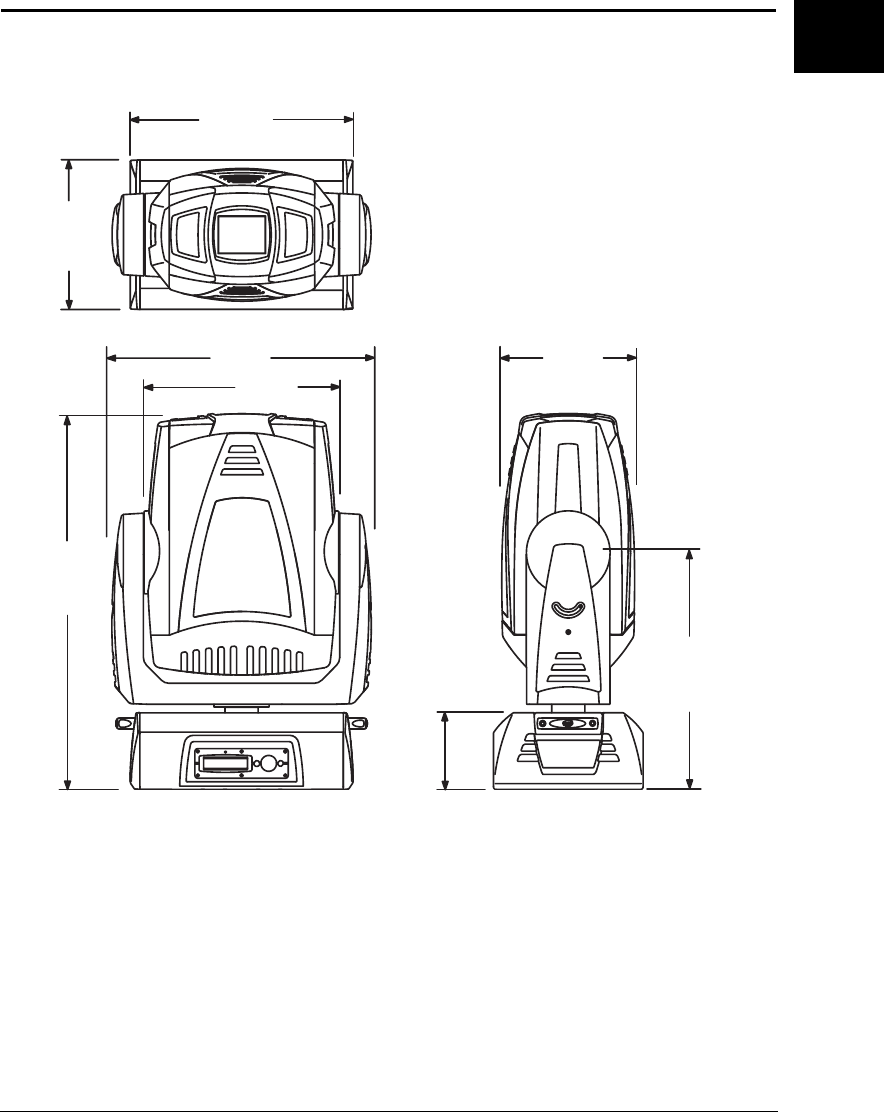
Figure 1-1: DL.1 Fixture Dimensions ................................................................................ 1-3
Figure 2-1: Video Connectors ............................................................................................. 2-2
Figure 2-2: RGBHV Connectors ......................................................................................... 2-3
Figure 2-3: Attaching the Mounting brackets ................................................................... 2-6
Figure 2-4: Truss Mounting ................................................................................................ 2-6
Figure 2-5: XLR 5-pin connector ........................................................................................ 2-8
Figure 2-6: Linking DL.1 Fixtures ...................................................................................... 2-8
Figure 2-7: Data cable terminator ...................................................................................... 2-9
Figure 2-8: The DL.1 menu system navigation buttons ................................................. 2-11
Figure 2-9: Pan and Tilt Locks ......................................................................................... 2-12
Figure 3-1: DL.1 fixture front panel display ...................................................................... 3-2
Figure 3-2: DL.1 key map ................................................................................................. 3-11
Figure 3-3: Reading the DMX Values Menu Display ..................................................... 3-17
Figure 5-1: Replacing the Projector Filter ......................................................................... 5-2
Figure 5-2: DL.1 Rear Gasket ............................................................................................. 5-3
Figure 5-3: Replacing the Fuse ........................................................................................... 5-4
Figure 5-4: Cleaning or Replacing the Front Window ...................................................... 5-5
Figure 5-5: Driver board configurations ............................................................................ 5-6
Figure 5-6: DL.1 Rear Gasket ............................................................................................. 5-7
Figure 5-7: Accessing CPU and 3-phase boards. .............................................................. 5-7
Figure 5-8: Addressing screw and LED locations. .......................................................... 5-10

xiv DL.1 User Manual

DL.1 User Manual Features and Specifications 1-1
1
Chapter 1:
Features and Specifications
The DL.1 (Digital Light 1) fixture merges video projection and automated lighting
technologies with a DMX controllable video light engine housed in a moving yoke
fixture. DL.1 itself doesn't generate images; it is a mechanical means of displaying
video images onto a stage with automated control of zoom, focus, and other video-
related parameters. DL.1 fixtures can be used in conjunction with the Catalyst Media
Server and Catalyst Version 3.0 software, or alone to project images from DVDs,
videos and other compatible media.
The optional Digital Eye Technology provides a fully equipped digital camera and IR
illuminator to project live video on its local unit or another DL.1 fixture through an
ethernet link. Combining camera and light from the same source allow for a unique
point of view. Camera features include optical and digital zoom, frame rate and invert
effects. Combining the camera with IR illuminator allows focus and fading in
blackout situations. The ability to point the camera at it’s own projection and
adjusting zoom creates unique realtime video feedback and “hall of mirrors” effects.
This manual gives you information about the setup, operation and maintenance of
the DL.1 fixture. For additional information specific to the projector housed in the
DL.1 including projector maintenance, onboard menu and troubleshooting, see the
projector’s user manual shipped with your fixture.
Features
Operation
• DMX512 compatible control (pan, tilt, dimming iris, zoom, focus, and others)
• High resolution stepper motors (180,000 steps per revolution) to provide smooth,
16-bit movement control
• 400° pan, 270° tilt
• Variable 100–200V, 50/60Hz or 200-240V, 50/60Hz power input
• On-board menu system with dot matrix display
• Accepts RGBHV, VGA, S-Video inputs
• TalkBack™ protocol—standard in High End Systems automated luminaires,
provides bi-directional communication to electronic feedback on sensor function,
lamp life, and other details needed for maintenance purposes.
1-2 Features and Specifications DL.1 User Manual
Optional Digital Eye Technology
• Captures digital video in light or dark settings and inputs directly into the graphic
engine.
• Optical + digital zoom can increase image upto 216×
• Scalable infrared output
• Built-in real-time video effects including:
—Options for 1–30 frame captures / sec
—Vertical and Horizontal image invert
—B and White, Color Negative and Freeze Frame
Optional Accessories
The following table lists accessories available for the Catalyst system from your High
End dealer/distributor. For more information, contact your High End Systems dealer/
distributor or see “Contacting High End Systems®” on page ii.
Part Description Part Number
Replacement air filter 80260014
5 amp, slow-blow fuse 90403012
Pan belt 99360038
Tilt belt 99360039
Front window 80530074
Digital Eye Technology module 60040003
Digital Media Server 56020001
Wholehog III lighting console 61020001
LCD Monitor 56070009
Galvanized safety cable 12040001
Cheeseborough clamp 55040014
Lightwave Research Upload Dongle 26040002
Male 5-pin DMX terminator 90404039
Heavy duty 5-pin XLR cable (10’) 55050017
Heavy duty 5-pin XLR cable (25’) 55050018
Heavy duty 5-pin XLR cable (50’) 55050019
Heavy duty 5-pin XLR cable (100’) 55050020
User Manual 60600228

1-4 Features and Specifications DL.1 User Manual
Electrical Specifications
Warning: Class I equipment – This equipment must be earthed
Input ratings: 100—120V 6.8A 50/60Hz, 200—240V 3.4A 50/60Hz
Power factor: 0.94
Fuse: Power supply output fuse: 5A, 250V slow blow only.
Lamp: M275W NS4 POA-LMP47
Light Output: 4500 ANSI lumens
Lamp Life: 2000 hours
Projector Specifications
Aspect ratio: 4:3 native, 5:4 and 16:9 supported
Brightness uniformity: 95%
Contrast ratio: 800:1, full on/full off
Data compatibility: SXGA, XGA, SVGA, VGA, and Macintosh
Display technology: 1.3” TFT active matrix, 3 panels
Scanning frequency: H-sync, 15—100kHz; V-sync, 50—100Hz
Panel resolution: 1024 x 768 dots
Horizontal resolution: 800 TV lines (HDTV)
Projection lens: F=1.7—2.0 f=48.2mm~62.6mm
Zoom Lens Throw Ratio: 1.8 - 2.4:1
V-Sync range: 50—100Hz
Minimum focus distance to non-flammable surface: 1.4 m (4.6 ft)
Video compatibility: NTSC, NTSC4.43, PAL, PAL-M, PAL-N, SECAM, HDTV (1080i,
1035i, 720p, 480i, 480p, 575i, 575p)
Number of colors: 16.7 million
Environmental Specifications
Maximum ambient temperature (Ta): 35° C (95° F)

DL.1 User Manual Features and Specifications 1-5
1
Cable and Connector Specifications
Video Connectors:
• RGBHV—BNC x 5
•VGA—DB15
• S-Video—mini-DIN
DMX and RS-485 Projector Link
Cables: Belden 9841 or equivalent (meets specifications for EIA RS-485 applications)
with the following characteristics:
• Two 4-conductor twisted pairs plus a shield
• Maximum capacitance between conductors: 30 pF/ft
• Maximum capacitance between conductor and shield: 55 pF/ft
• Maximum resistance: 20 Ohm/100 ft
• Nominal impedance: 100–140 Ohm
Connectors: Two 5-pin male and female XLR connectors:
•Pin 1 Ground
•Pin 2 Data–
•Pin 3 Data+
• Pin 4 Secondary data–
• Pin 5 Secondary data+
Terminator: 5-pin male XLR connector with a 120 Ohm terminating resistor fitted
between pins 2 and 3.

1-6 Features and Specifications DL.1 User Manual

DL.1 User Manual Setup and Configuration 2-1
2
Chapter 2:
Setup and Configuration
Unpacking the Fixture
Your DL.1 fixture ships in a road case that is specifically designed to protect the
product during transport. Unpack the DL.1 fixture and verify that it is undamaged.
Inspect both the outside of the fixture and the projector for physical damage to
components.
Your DL.1 fixture ships with the following:
• One road case
• One DL.1 fixture
•Two mounting brackets
• One projector manual
• One power cord
High End Systems® assumes no responsibility for products that are damaged during
transport. Return a product for repair in its road case.
Before sending anything to the factory, call your High End Systems dealer/distributor
for a Return Material Authorization (RMA) number. The factory cannot accept any
goods shipped without an RMA number.
Replacing the Power Cord Cap
The SEOW cable shipped with the DL.1 fixture does not have an attached power cord
cap. Different locations (even within the same country) may require a different
power cord cap to connect the fixture to a power outlet.
Because of the variety of power cord caps used worldwide, High End Systems, Inc.
cannot make specific recommendations for the power cord cap.
Contact a local authority for the type of power cord cap needed. When installing the
power cord cap, note that the cores in the mains lead are colored in accordance with
the following code:
• green and yellow = earth
•blue = neutral
• brown = live
2-2 Setup and Configuration DL.1 User Manual
Warning: Class 1 equipment - This equipment must be earthed.
Installing a Line Cord Cap - U.K. Only
In the United Kingdom, the colours of the cores in the mains lead of this equipment
may not correspond with the colored markings identifying the terminals in the
fixture’s plug. Therefore, install a line cord cap in accordance with the following
code:
• The core which is coloured green and yellow must be connected to the plug
terminal which is marked with the letter “E,” or by the earth symbol , or
coloured green, or green and yellow.
• The core which is coloured blue must be connected to the terminal which is
marked with the letter “N” or coloured black.
• The core which is coloured brown must be connected to the terminal which
is marked with the letter “L” or coloured red.
Warning:Class 1 equipment - This equipment must be earthed.
Vatic Fitter Heads Information - Danmark
Advarsel: Beskyttelse mod elektrisk chock.
Vigtigt!
Lederne med gul/groen isolation maa kun tilsluttes en klemme maerket
Connecting Video
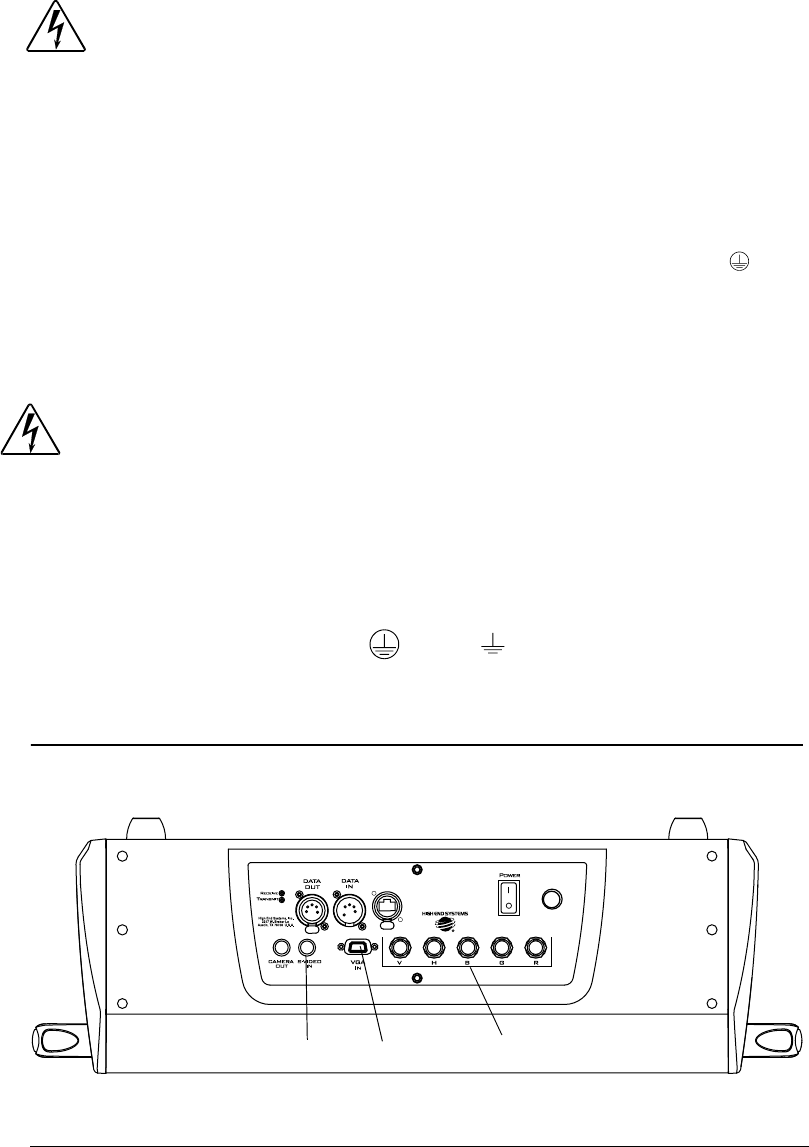
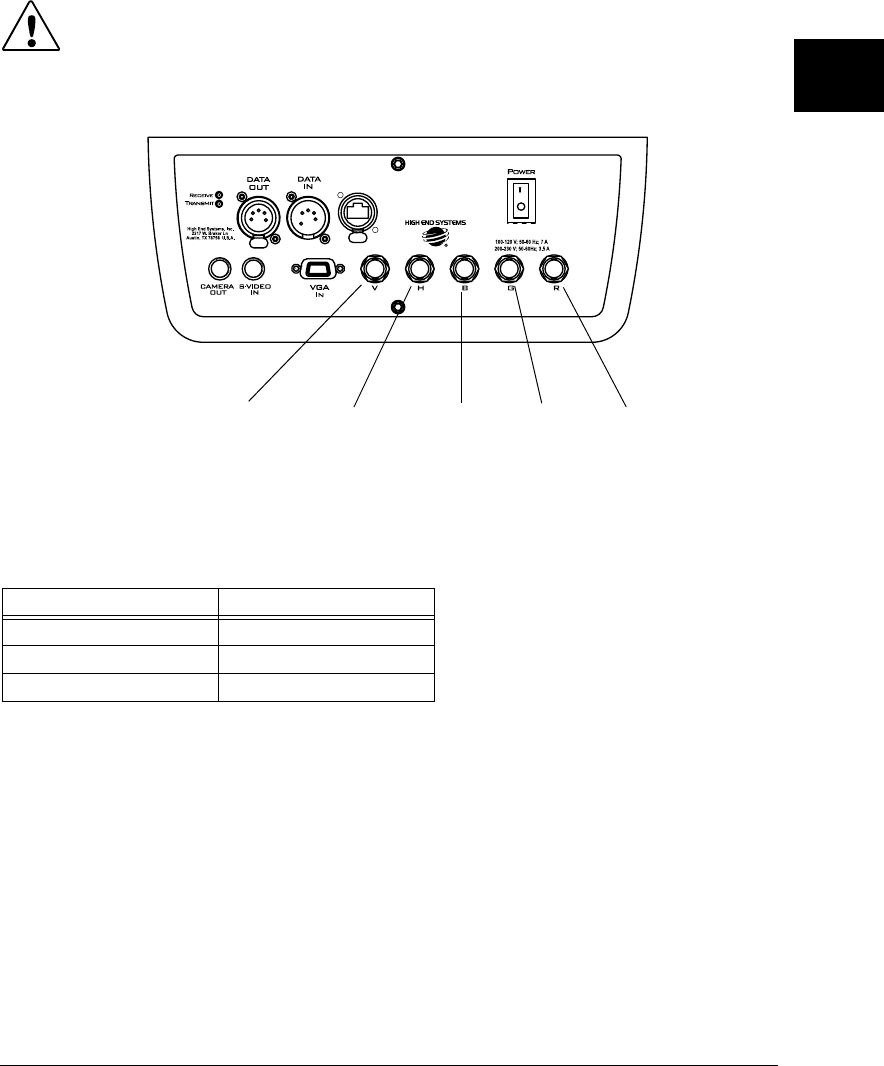
The DL.1 fixture has three sets of video connectors on its rear panel, as shown in
Figure 2-1.
eller
100-120V; 50-60Hz; 6.8A
200-240V; 50-60Hz; 3.4A
S-Video VGA RGBHV
Figure 2-1 Video Connectors
DL.1 User Manual Setup and Configuration 2-3
2
Only one set of connectors at a time is active. You can set the active connectors using
either the DL.1 menu system or the DMX protocol. To select an input, see “Menu
Map” on page 3-4 first.
Caution: Do not physically connect both the RGBHV and VGA connectors.
Doing so can cause damage to the fixture and void the warranty.
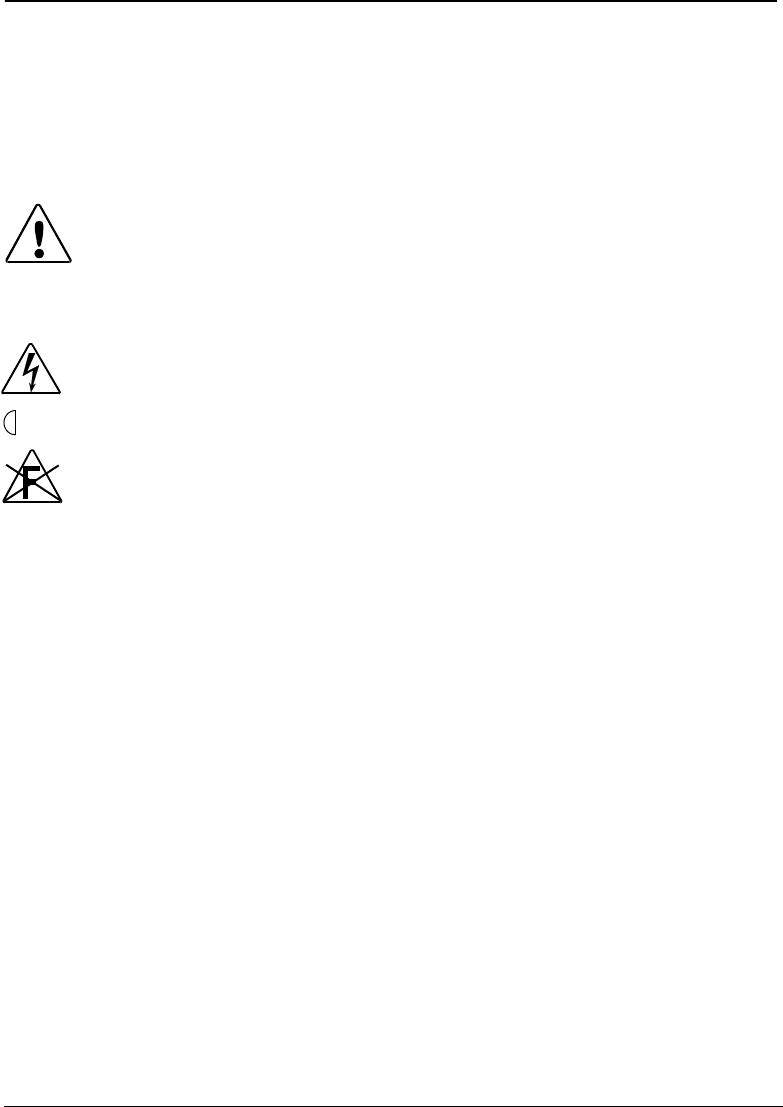
Figure 2-2 shows the RGBHV connectors in more detail:
The projector provided with the DL.1 fixture makes a distinction between inputs and
sources. Table 2-1 shows the relationship between DL.1 inputs and sources:
Table 2-1 DL.1 Inputs and Sources
Input Source
Input 1 Not used by DL.1
Input 2 RGBHV or VGA
Input 3 S-Video
Vertical sync Horizontal sync Blue Green Red
Figure 2-2 RGBHV Connectors
2-4 Setup and Configuration DL.1 User Manual
Mounting the Fixture
Recommended Mounting Orientation
High End Systems recommends mounting the DL.1 perpendicular to the floor,
suspended vertically from a support system (such as a truss), permanently to the
ceiling, or freestanding on its base.
Consider all the following Cautions and warnings before mounting the DL.1 fixture.
Caution: Mounting the DL.1 parallel with the floor can shorten the lamp
life, reduce positioning accuracy and put excessive stress on the
topbox.
Use a secondary safety cable when mounting this fixture.
Warnings: Equipment suitable for dry locations only. Do not expose this
equipment to rain or moisture.
Maintain a minimum focus distance of 1.4 meters from
combustible materials.
Do not mount on a flammable surface.
Fog Machine Warning
Like all high quality video projection units, the DL-1 fixture must be kept protected
from excessive amounts of glycol fog, mineral oil, and smoke. DL-1 incorporates
two-stage air filtering to reduce these risks to a minimum; however, the user must
follow these guidelines to ensure continued operation of the fixture:
• Air filters (both fixture and projector) should be checked and cleaned on a
regular basis. When used in a closed or fixed environment where fog or haze is
used, we recommend at least a weekly check.
• Do not situate DL-1 in areas of high fog density such as directly in front of a fog
machine or mineral oil hazer.
• Minimize the exposure of DL-1 to both glycol fog and mineral oil.
DL-1 is a highly complex and sensitive electro-optical device and care and thought in
how it is used, rigged, and positioned will maximize the product’s life and your
investment.
Note: Failure to follow these guidelines and carry out regular maintenance will
void the warranty.
1.4 m
DL.1 User Manual Setup and Configuration 2-5
2
Mounting the Fixture Upright
Caution: Do not mount the fixture upright without the four rubber feet.
To mount the fixture upright, make sure that all four rubber feet are installed on the
fixture’s base and place the fixture on a sturdy, stable surface that will support more
than the 39 kg (85 lb) weight of the DL.1 fixture. If the surface is above floor height,
use safety cables to secure the fixture to the surface.
You can optionally lock the DL.1’s pan and tilt positions if desired, (see Figure 2-9 on
page 2-12).
Note: The minimum focusable distance for the DL.1 fixture is 1.4 meters. Placing
the DL.1 closer than 1.4 meters to any object won’t allow it to focus
properly.
Truss Mounting
Verifying the Truss Support
When mounting the fixture on a truss or another type of support, verify the truss or
support will handle the combined weight of all the devices on the truss.
Verify that fixture clamps used are capable of supporting the weight of the fixture.
Cheeseborough clamps for a two-inch truss are available from your High End
Systems dealer/distributor (see “Optional Accessories” on page 1-2).
Note: Due to the wide variety of possible lighting designs, High End Systems
cannot make specific mounting recommendations. Consider the following
procedure as a suggested guideline only.
You will need:
• safety cables (1)
• cheeseborough clamps (2)
• locking washers (2)
Clamps
Always mount the DL.1 fixture with the cheeseborough clamps that shipped with
your fixture and a safety cable attached (using the mounting bracket) to the fixture’s
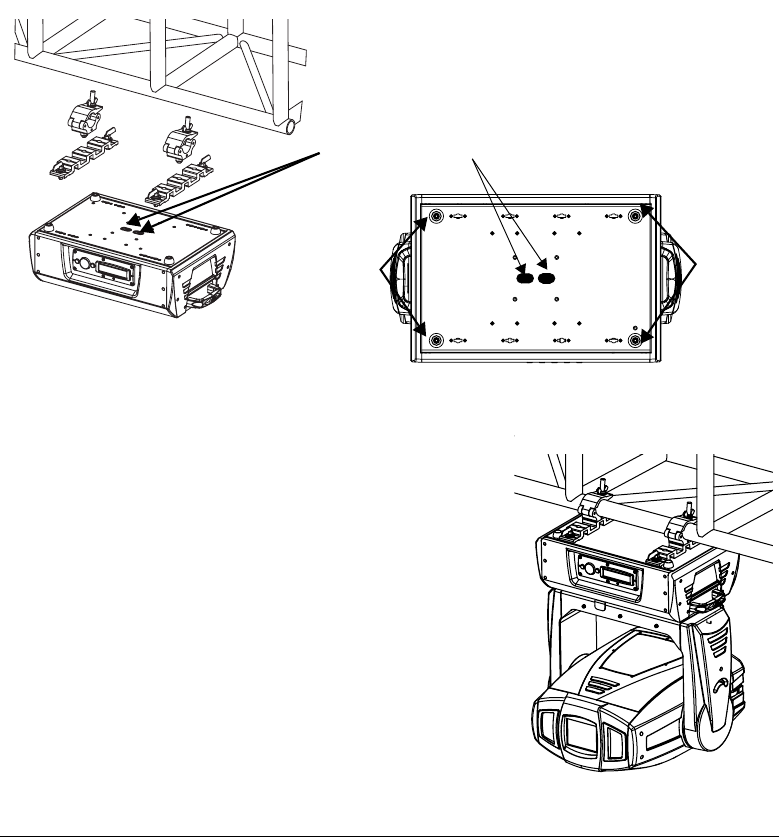
base, shown in Figure 2-3. Do not use C- Clamps to mount the DL.1 fixture. You can
remove the mounting clamps for floor applications.
Caution: Do not store loose clamps in the bottom of the road case, as they
may cause damage to the unit head and output window.
2-6 Setup and Configuration DL.1 User Manual
Mounting Procedure
1. Disconnect power to the fixture. If it has been operating, allow the fixture to cool
for five minutes before handling.
2. At least two people are required to mount the fixture with one person on each
side supporting and attaching that side of the fixture. After the clamps are
attached, one person can support the fixture while the other attaches safety
cables.
3. Optionally lock the pan and tilt positions as discussed in “Pan and Tilt Locks” on
page 2-12.
4. Attach two mounting brackets to the base of the fixture (as shown in Figure 2-3)
using the provided quarter-turn screws.
5. Attach suitable cheeseborough clamps to the
mounting bracket. Use locking washers when
attaching the clamps to the fixture’s base.
6. Tighten the clamps firmly to the fixture’s base and
to the support.
7. Loop one or more suitable safety cables around the
support, around the fixture’s base, and around the
truss. Figure 2-4 shows an example:
Figure 2-3 Attaching the Mounting brackets
Attach
one
mountin
g
bracket
Loop safety cables through
holes in base
Attach
one
mounting
bracket
Figure 2-4 Truss Mounting

DL.1 User Manual Setup and Configuration 2-7
2
Linking the Fixtures
DL.1 fixtures can be linked to other fixtures on a standard DMX 512 link and then be
controlled by a DMX controller.
The number of fixtures on a link will be determined by the combined number of
channels required by all the fixtures. The DL.1 fixture requires 11 channels on a
DMX 512 link.
Note: When connecting more than 32 fixtures to a link, use a DMX splitter. The 32
device limit complies with the EIA-485 standard. Connecting more than 32
devices per link without a DMX splitter will eventually deteriorate the digital
signal.
Controllers, serial data distributors, data line optoisolators, and any fixtures
using the RS-422 DMX standard of serial communications (including
Dataflash
®
AF1000 xenon strobes, and Intellabeam
®
fixtures) block
software uploads, crossloads, or TalkBack™ protocol on a link. Therefore,
make sure to either put all of these devices after the DL.1 fixture on the link,
or bypass these devices when performing software uploads or crossloads.
Data Cabling and Connectors
To link one or more fixtures to a controller and/or to each other, obtain data cabling.
Cabling can be purchased from High End Systems or constructed.
High End Systems recommends data-grade cable. Data-grade cable is designed to
carry a high-quality signal with less susceptibility to electromagnetic interference.
DMX Data Cables
Use Belden® 9842 or equivalent (meets specifications for EIA RS-485 applications)
data cables with the following characteristics:
• Two twisted pairs (4-conductors) plus a shield
• Maximum capacitance between conductors: <15 pF/ft.
• Maximum capacitance between conductor and shield: 55 pF/ft.
• Maximum resistance: 20 /1000 ft.
• Nominal impedance: 120
Cable Connectors
The DL.1 fixture accepts 5-pin XLR cable connectors. Cabling must have a male XLR
connector on one end of the cable and a female XLR connector on the other end.
Pin one is the common (cable shield), pin two is the data complement (negative), pin
three is the data true (positive). Pins four and five are not used, but they allow a
secondary data link to pass through the fixture, (see Figure 2-5). Test each cable
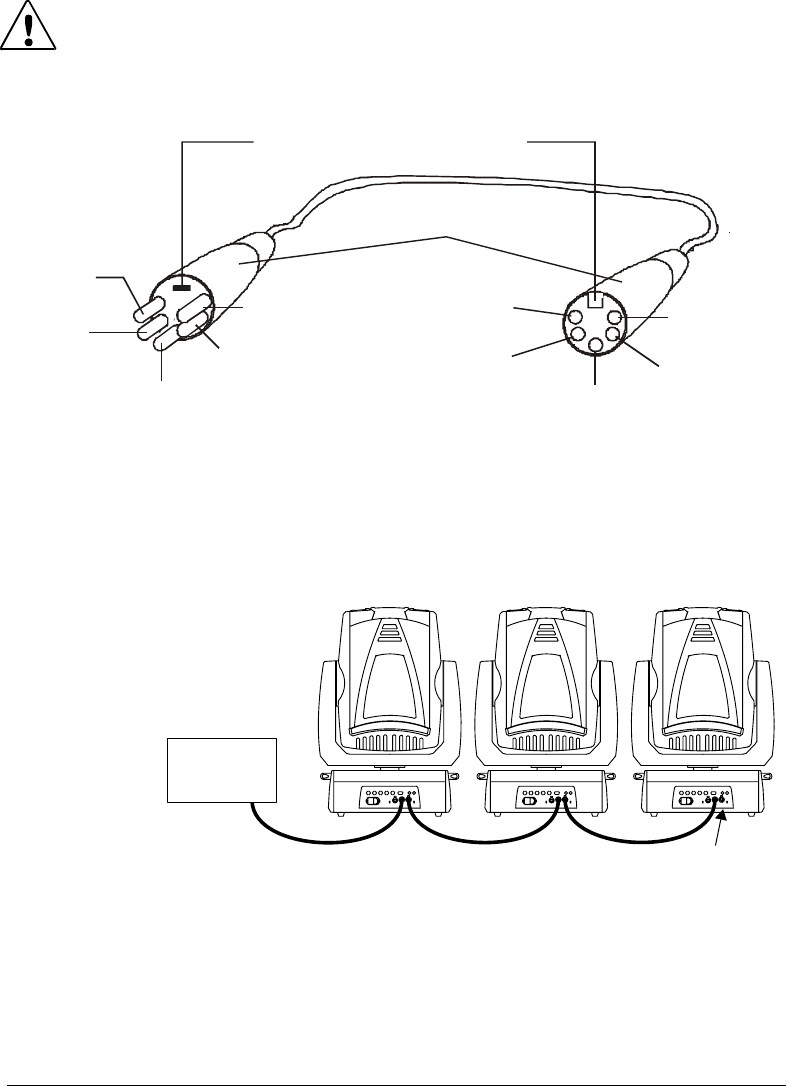
2-8 Setup and Configuration DL.1 User Manual
with a voltage/ohm meter (VOM) to verify correct polarity and to make sure that the
negative and positive pins are not grounded or shorted to the shield or to each other.
Caution: Do not connect anything to the ground lug on the XLR
connectors. Do not connect or allow contact between the
common (cable shield) and the fixture’s chassis ground.
Grounding the common could cause a ground loop and/or erratic
behavior.
Setting up the Link
To link one or
more fixtures to
a DMX control-
ler as shown in
Figure 2-6:
1. Connect a
DMX Data
cable’s male
XLR con-
nector to a
controller’s
DMX Data
Out connector .
2. Connect the Data cable’s female XLR connector to the Data In connector of the
first (or next) fixture on the DMX link.
3. Continue linking the remaining fixtures connecting a cable from the Data Out
connector of each fixture to the Data In connector of the next fixture on the link.
positive
(data true)*
negative
(data
complement)*
Common
(cable shield)
Male XLR Connector Female XLR Connector
positive
(data true)
negative
(data
complement)
XLR shell
Common
(cable shield)
positive
(data true)*
negative
(data complement)* negative
(data
complement)
positive
(data true)
*This data line is not used by the fixture, but allows data to pass through the fixture.
Grounding lug (inside XLR shell)
2
1
3
1
2
3
4
5
5
4
Fi
g
ure 2-5 XLR 5-
p
in connector
DMX
CONTROLLER
Figure 2-6 Linking DL.1 Fixtures
Terminate the
last fixture on
a DMX link.
DL.1 User Manual Setup and Configuration 2-9
2
4. Connect a male terminator to the Data Out connector of the last fixture in the
link. For information on obtaining a terminator, see “Optional Accessories” on
page 1-2.
Installing a Terminator
Install a 120 ohm, 1/4 watt (minimum) terminator in the fixture’s Data Out (female)
cable connector in the last fixture on each DMX link. A terminator on the last fixture
of the link prevents data reflection, which can corrupt the data communication on the
link.
Purchase a terminator from a High End Systems dealer/distributor (see “Optional
Accessories” on page 1-2), or follow the instructions below to construct a terminator.
To construct a terminator:
1. Disassemble a male 5-pin XLR connector.
2. Solder a 120 ohm resistor, minimum of 1/4
watt, between pins two and three.
3. Reassemble the XLR connector
Powering On the Fixture
Caution: Do not power on the fixture until verifying that the line cord cap
is suitable for the power source in your location.
Warning: This equipment for connection to a branch circuit having a
maximum overload protection of 20 A.
To power on the DL.1 fixture, simply connect it to an appropriately-rated power
source and turn the power switch located on the rear of the fixture to the ON (|)
position. After being connected, controller commands can remotely power up or
shutdown the fixture, (see “Control Function Options” on page 4-4 in the Standard
Protocol table.) before performing procedures that require the fixture to be
disconnected from power.
Homing the Fixture
When the DL.1 fixture is connected to an appropriately-rated power source, it
automatically begins a homing procedure to verify that the major functions of the
fixture and projector are oriented properly. The initial homing ends with the display
in the Menu Locked mode.
120
Ω
1
2
34
5
i
gure 2-7 Data cable terminator

2-10 Setup and Configuration DL.1 User Manual
Viewing the Display Panel
The DL.1 display panel gives access to the fixture’s onboard menu system. “The DL.1
fixture’s on-board menu system allows the user to:” on page 3-1 describes the menu
system in detail.
Verifying and Uploading Fixture Software
Check the display in the Menu Locked mode to identify the Software version loaded
on the fixture. Verify that the version displayed by the fixture is the latest available.
The latest software for DL.1 fixtures is available in the support section of the High
End Systems web site (www.highend.com). If a software upgrade is required, there
are three ways to upload new software to DL.1 fixtures:
1. Attach a High End Systems Upload Dongle to the computer and upload the
software to the DL.1 fixture.
A High End Systems Upload Dongle requires a 386-based (or faster) computer,
MS DOS® version 3.3 (or later) or Windows 95/98/ME, and one MB of free disk
space. To obtain an Upload Dongle (with installation and operation instructions),
contact your High End Systems dealer/distributor (see “Contacting High End
Systems®” on page ii).
2. Crossload software from one fixture that contains the new software to all other
DL.1 fixtures on the link.
3. Upload the new software to all DL.1 fixtures on the link using a HandShake™
handheld controller from High End Systems.
Note: Before uploading new software, disconnect any controllers, bypass any
serial data distributors and/or data line optoisolators, and bypass or make
sure that any fixtures using RS-422 communications (such as Dataflash®
AF1000 xenon strobes, and Intellabeam® fixtures) are located after all the
DL.1 fixtures on the link. These devices will block communication with
any other DL.1 fixtures on the link
DL.1 User Manual Setup and Configuration 2-11
2
Setting the DMX Start Channel
Each standard configuration DL.1 fixture requires a block of 11 consecutive channels
on a 512-Channel DMX link. A range of 20 Channels for Enhanced (Camera)
Protocol is required for a DL.1 fixture equipped with Digital Eye Technology.
Up to forty-six 11-channel standard DL.1 fixtures (25 running Enhanced Protocol)
can be assigned to a single 512-channel DMX link.
To set the start channel on an DL.1 fixture:
1. Access the fixture’s menu system via the dot matrix display on the fixture’s front
panel. For a detailed description of the menu system, see Chapter 3.
2. Unlock the menu system by pressing and holding down the Menu button until the
extended 2-line display appears. DMX ADDRESS MENU is the first option at the top
menu level.
3. Press the Enter button to select. The display will show SET DMX START
CHANNEL:###. The display will show the start channel currently assigned to the
fixture.
4. Use the up and down arrow buttons on the Navigation button to select a new
DMX start channel. The display will flash a new option ready for selection.
Note: The last valid start channel for a DL.1 fixture is 502 (512–11+1).
5. Press the Enter button to accept the new DMX Start channel. The display will
stop flashing when a new option is entered. The new option will not be stored
until the Enter button is pressed.
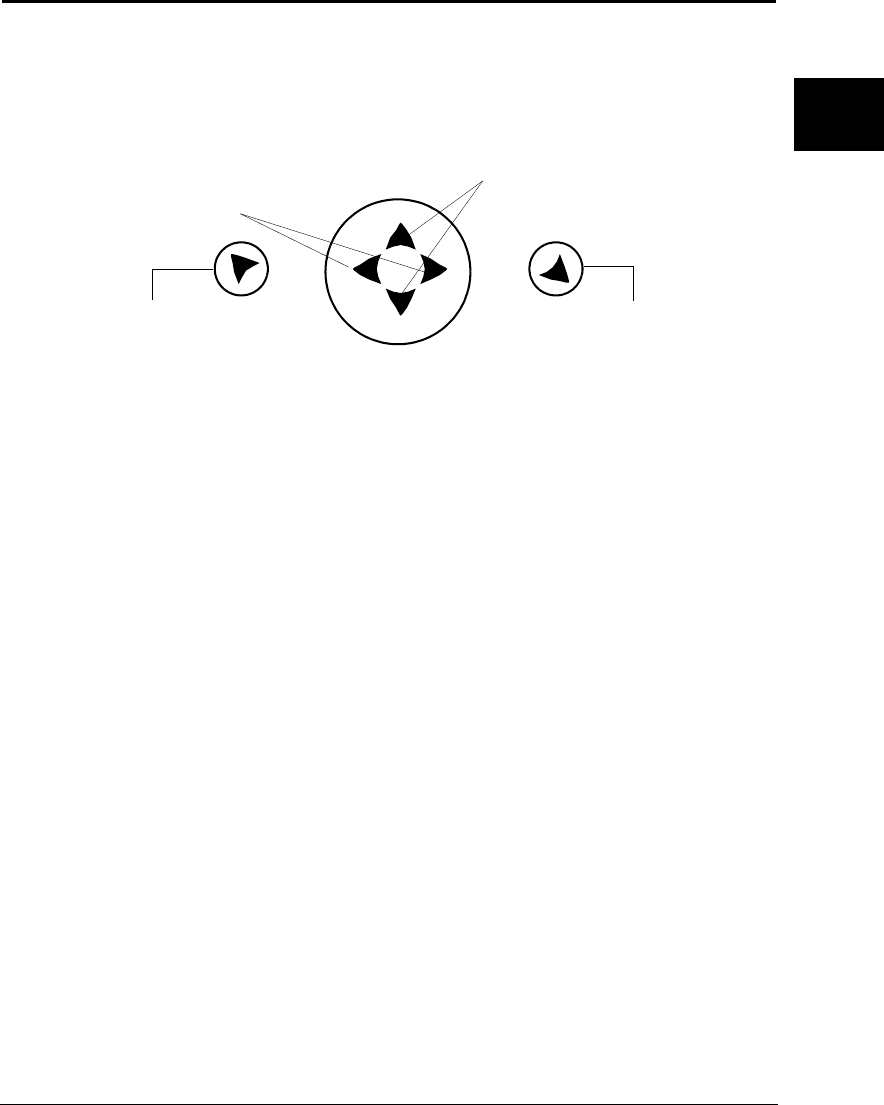
Use left and right arrows to
move through the current
menu level options
Use up and down arrows to
select from available value or
setting options.
Use the Menu button (on the left
when viewing the display) to
unlock the menu and move back
to the previous menu level
4-way Navigation Button
Use the Enter button (on the
right when viewing the
display) to store a selected
menu value or option.
Figure 2-8 The DL.1 menu system navigation buttons
2-12 Setup and Configuration DL.1 User Manual
Shutting Down the Fixture
The DL.1 fixture automatically shuts down in the event of DMX data loss. A DMX
controller can shut down the fixture remotely with the shutdown option in the
control channel–see “Control Function Options” on page 4-4.
Locking Pan and Tilt Positions
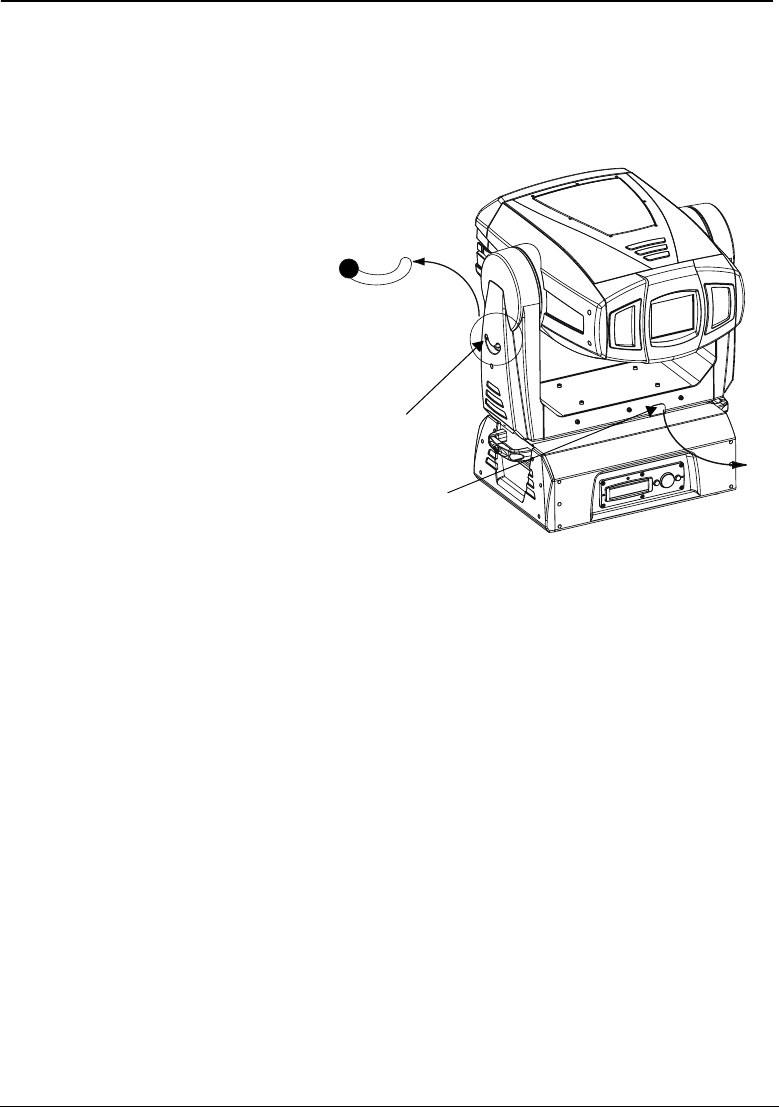
Before shipping the DL.1 fixture,
lock its pan and tilt in position so
the fixture does not move during
transit.
To lock the fixture:
1. Position the projector head as
shown in Figure 2-9 to pack
it in the road case.
2. Move the tilt lock peg to the
upper left (locked) position.
3. Pull the pan lock latch out
and move the fixture’s yoke
to slide it around the pole
located between the fixture
body and the bottom of the
yoke.
4. Release the pan lock, causing it to latch onto the pole.
5. Gently move the projector head and yoke to make sure both pan and tilt positions
are locked in place.
6. Place the DL.1 fixture in its provided road case for shipping.
Note: You can optionally lock pan and tilt positions during operation in the event
the projected image needs to remain in a fixed position.
Lock Unlock
Figure 2-9 Pan and Tilt Locks
Tilt Lock
Pan Lock

DL.1 User Manual Fixture Operation 3-1
3
Chapter 3:
Fixture Operation
The DL.1 fixture operates on a DMX link to project output from any video source
including from the Catalyst Media Server. This chapter outlines the DL.1 fixture’s
onboard menu system. For more information on operating the fixture with a
controller, consult the controller documentation.
The DL.1 fixture’s on-board menu system allows the user to:
• Set a start channel
• Enable and disable default parameter settings
• Crossload firmware
•Home the fixture
• Test movement and sensor functions
• View software version, temperature, lamp information, fixture information, DMX
values, and errors.
TalkBack™ Support for Remote Access
All DL.1 fixtures support TalkBack” technology. TalkBack™ technology allows
remote access to the menu system built into High End Systems fixtures. A DMX
controller supporting TalkBack can remotely access any option in the DL.1 onboard
menu system.
TalkBack protocol uses the normal DMX-512 connection for bi-directional
communication with the fixture so physical access to the fixture is no longer required
to perform operations like changing a DMX address or configuring preset programs.
TalkBack protocol utilizes the primary DMX link (pins 2-3) in a half-duplex
communication mode. This means that it does not require pins 4-5 to be connected or
used to receive TalkBack messages coming from the fixture.
TalkBack protocol uses a discovery process to find the unique number that is embed-
ded inside each fixture, similar to a serial number. Once the fixtures have all been
identified, the current fixture parameter settings and information can be accessed.
Fixture access can happen at anytime, but the Talkback messages are only valid after
the fixture starts homing.
3-2 Fixture Operation DL.1 User Manual
The Menu Display
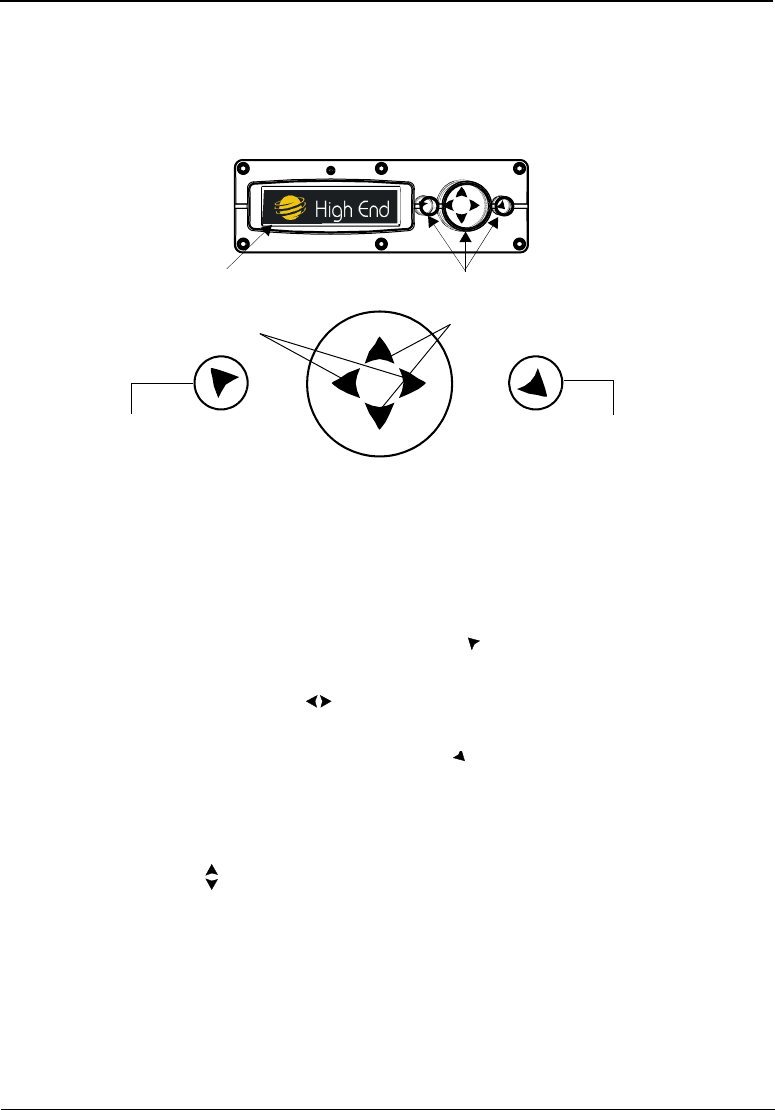
The front panel on the DL.1 fixture has a dot matrix display and six arrows on
buttons that control navigation for the on-board menu system. The buttons are
configured with the Menu button on the left and the Enter button on the right. The
center button navigates through the current level of menu options [Left and Right]
and values available for the current option [Up and Down].
Navigational Basics
1. Unlock the Menu system by pressing the Menu button for a few seconds until
the display goes to the 2-line format.
2. Use the left and right arrows on the 4-way Navigation button to scroll
through Menu options at the current level.
3. Stop at the desired menu and press the Enter button to select. The new option
will not be stored unless the Enter button is pressed.
4. If there is another level of menu choices repeat Steps 2 and 3.
5. At the option or setting menu level, use the up and down arrows on the
Navigation button to scroll to the desired option or setting. The option flashes
until the Enter button is pressed. Pressing the Enter button stores the new value
for that option. Pressing the Menu button returns to the previous menu level
without changing the value of an option.
6. Continue pressing the Menu button to move back up levels and exit the menu
system.
Menu system buttonsAlpha numeric display
Use the Menu button (on the left
when viewing the display) to
unlock the menu and move
back to the previous menu level
Use the Enter button (on the
right when viewing the display)
to select the currently displayed
menu value or option.
Use left and right arrows to move through
the current menu level options
Use up and down arrows to select from
available value or setting options.
4-way Navigation Button
Figure 3-1 DL.1 fixture front panel display

DL.1 User Manual Fixture Operation 3-3
3
Display in Menu Locked Mode
The DL.1 fixture display panel gives access to the onboard menu system. When the
menu system is in locked mode, the panel displays in large 8-character words
designed to be viewed from a distance. Under normal circumstances, when the
display is locked, it cycles between displaying the fixture’s software version
[V##.##], the High End Systems logo, the Catalyst logo, and the fixture’s
configuration type [STANDARD]. Any errors present are also displayed in an 8-
character error description.
Fixture Software Version
The software version loaded on the system can vary even between units purchased at
the same time. “Fixture Software Version” on page 3-3 describes the procedures to
ensure that all Catalyst systems on the link are running the latest software.
System Configuration Type
The configuration type identifies the fixture as either STANDARD or CAMERA (equipped
with Digital Eye Technology). A Standard configuration operates on 12 DMX
channels. A Camera configuration requires 20 DMX channels for control.
DMX Start Channel
The DMX Start Channel is the first channel currently assigned to that fixture in its
range of channels on a DMX link. For more information on DMX Start channels, see
“Setting a DMX Start Channel” on page 3-6.
Error Message Display
Errors are displayed in short 8-character form when the menu system is locked.
Unlocked, menu system’s 2-line format displays more detailed information.
Unlocking the Menu System
To unlock the menu system, press and hold the Menu button until the display
changes to the 2-line format. The menu system is protected against inadvertent menu
changes by requiring the Menu button to be held for a few seconds before allowing
entry to the menus. DMX Address Menu is the first option on the top menu level.
Exiting the Menu System
To exit the menu system, keep pressing the Menu button to back out of each menu
level until the High End Systems logo appears. The word AUTOLOCK will appear
briefly on the display to indicate the fixture’s software is “locking” the display. The
display switches back to the large 8-character format and, after a few seconds, begins
the standard display for the locked mode as described above.
3-4 Fixture Operation DL.1 User Manual
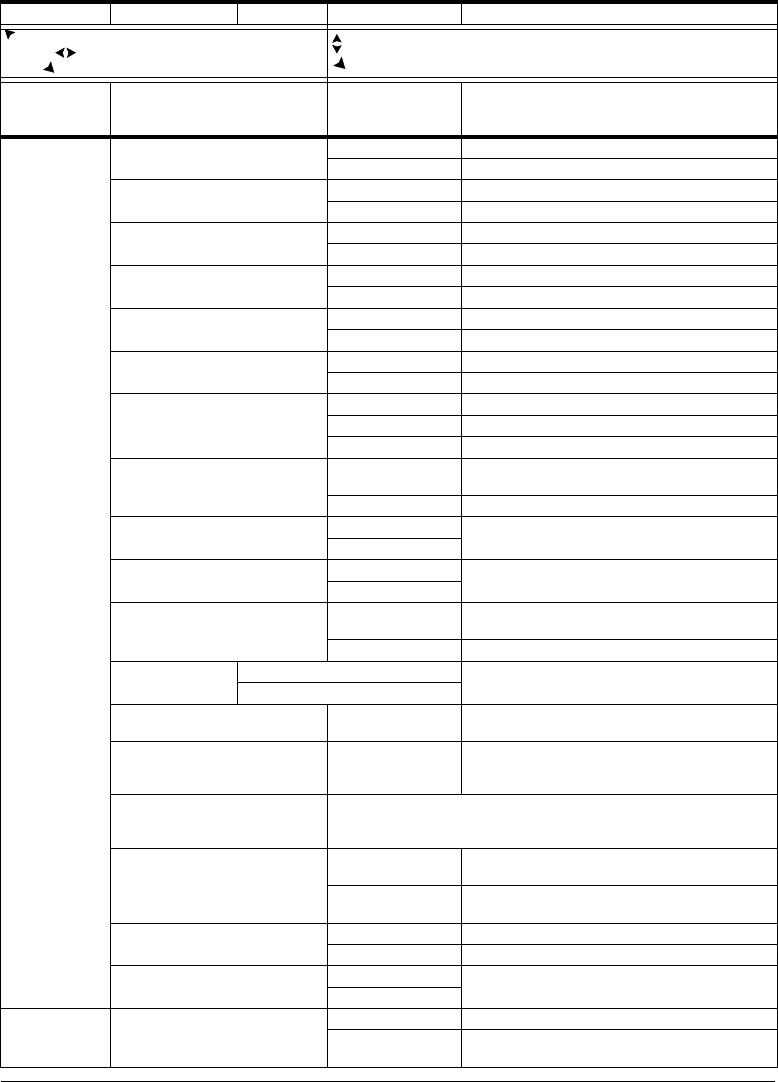
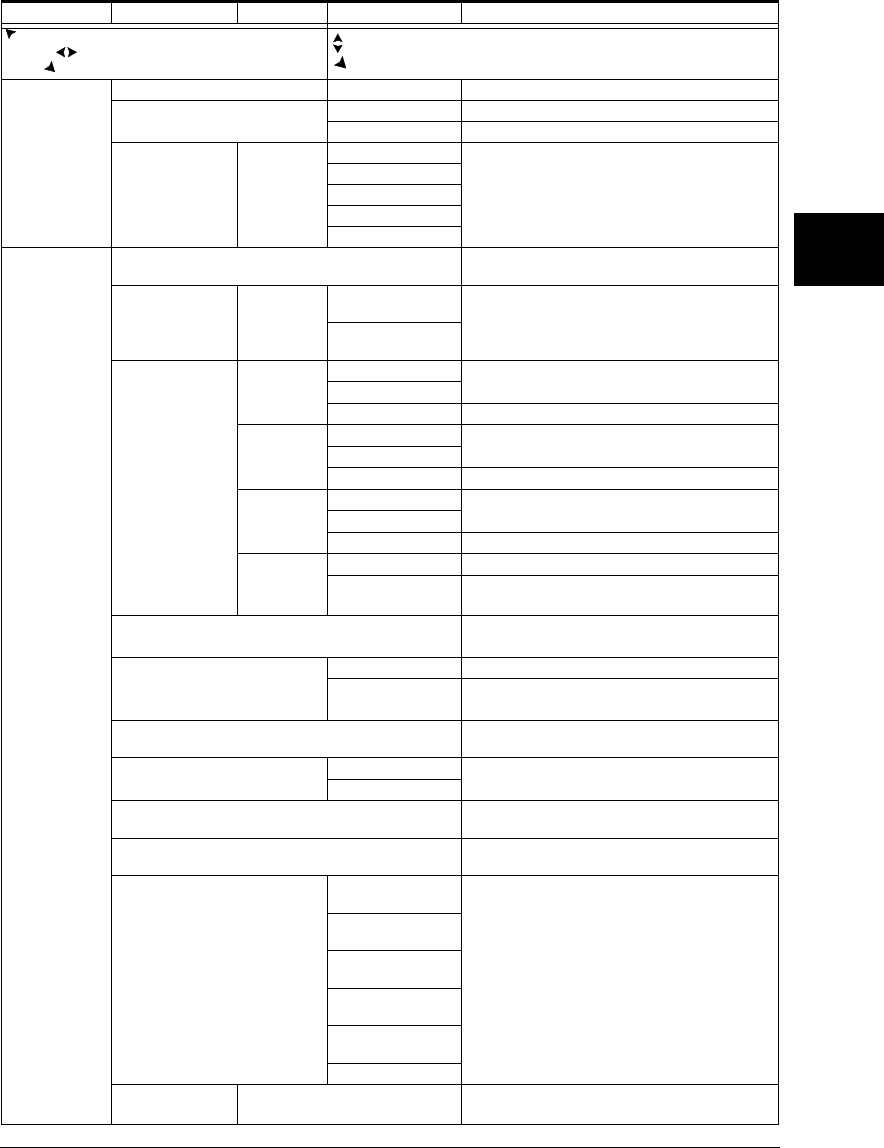
Menu Map
Use the following table to navigate the menu options on the DL.1 fixture.
Level 1 Level 2 Level 3 Option/Setting Description/Notes
enters /exits Menu System and moves up
levels moves between items on same
level. selects
scrolls between values
selects
DMX ADDRESS
MENU
SET DMX START
CHANNEL:###
1-512
Selected value becomes the first DMX value
in the range for that mirror head on a DMX
512 link.
SET
PARAMETERS
MENU
FACTORY DEFAULT
SETTINGS:###
ON
Reverts to DL.1 default settings
OFF
Indicates a factory default has changed
PAN/TILT SWAP: ENABLED
Swaps the Pan and Tilt Motion
DISABLED
Restores default Pan and Tilt Motion
PAN INVERT: ENABLED
Inverts Pan motor direction
DISABLED
Restores default Pan motor direction
TILT INVERT: ENABLED
Inverts Tilt motor direction
DISABLED
Restores default Tilt motor direction
DISPLAY LEVEL:
ON
Turns display on
OFF
Display fully dimmed when menu is locked
DATA LOSS TIMEOUT: LONG
Shutter closes when fixture shuts down
SHORT
Shutter closes one second after data loss
PROJECTOR IN/SOURCE
RGBHV
Selects RGBHV or VGA
SVIDEO
Selects S-Video
NOT AVAILABLE
Displayed when
PROJ IN BY DMX
is enabled
PROJCTR DEFAULT? YES
Returns the projector to its factory default
settings.
NO
Leaves the projector’s settings as they are.
RESET PROJ HRS YES
Press <Enter> for 5 seconds to reset
projector hours
NO
PROJ LAMP ON?
XXX XXXXXXXXX
ON-TAKES 90 SEC
Select
ON
and Lamp will strike after a
90-second delay.
OFF
PROJ IN BY DMX? ENABLED
Set projector input using channel 11 of the
DMX protocol.
DISABLED
Set projector input using the menu system.
IRIS VERSION
#### V1.0
PRE 1.0
Identifies fixture iris version
POST 1.0
ZOOM OVERRIDE MENU
VALUE:### 0-255
Manually sets DMX zoom value
FOCUS OVERRIDE MENU
VALUE
###
0-255
Manually sets DMX focus value
PROJECTOR CONTROL ?
TO EXIT -> MENU
Select to hand off control to Projector. Navigation buttons now
control projector menu system. Use the MENU button used to
exit this option.
CAMERA OPTION
ENABLED
Digital Eye Technology installed and using
20-channel DMX protocol.
DISABLED
Disables Digital Eye Technology and reverts
to 12-channel reduced DMX protocol.
ALIGN PAN MOTORS
XXXXXX
YES
Aligns motors (30 minutes to complete)
NO/ABORT
Aborts align motors
NEW AIR FILTER?
XXX
YES
Selecting YES after new air filter installation
calibrates the fixture.
NO
FIXTURE MODE
MENU
CROSSLOAD
FIRMWARE
NO
Safe setting
YES
Uploads fixture software to all other DL-1
fixtures on the link
DL.1 User Manual Fixture Operation 3-5
3
TEST OPTIONS
MENU
HOME FIXTURE: ALL
Homes the projector head
COPY BOOT: NO
Safe position: no action when selected
YES
Copies boot code to fixture
SELF TEST
MENU:
CHASSIS
TEST MENU:
PAN
Performs and displays all self test functions
sequentially in the format:
STEP:## DMX:###
TILT
IRIS
FOCUS
ZOOM
INFORMATION
MENU
UNIQUE NUMBER
##########
Displays fixture’s unique number
DMX
VALUES MENU BY CHANNEL
1:XXX XXX XXX
4:XXX XXX XXX
Displays current values for Link Channels
001– 512 with 6 DMX values/screen. The
first number in the line is the first channel #
with a value displayed on that line.
X:XXX XXX XXX
X:XXX XXX XXX
TEMPERATURES
MENU
CURRENT
INTAKE ####
Displays current temperature of selected
sensor in centigrade
LAMP ####
PANEL #####
MINIMUM
INTAKE MAX ####
Displays minimum temperature of selected
sensor in centigrade
LAMP MAX ####
PANEL MAX #####
MAXIMUM
INTAKE MIN ###
Displays maximum temperature of selected
sensor in centigrade
LAMP MIN ####
PANEL MIN ####
RESET
NO
Default “safe” setting
YES
Press <Enter> for 5 seconds to reset all
sensors to current temperature
FIXTURE HOURS
###:##
Displays fixture operation time in
hours:minutes
FIXTURE HOURS RESET:
NO
Default “safe” setting
YES
Press Enter for 5 seconds to reset fixture
hours to 0
LAMP HOURS:
###:##
Displays lamp operation time in
hours:minutes
PROJECTOR STATUS
XXXXXX
ON
Displays the Projector Status
STANDBY
PROJ HOURS RESET
0
Displays the number of times Projector
Lamp hours have been reset to 0
SOFTWARE VERSION
VER XX.XX.XX
Display current Fixture software version
Major.Minor.Build
MODULE VERSIONS MENU
PAN 2 * 3 PHASE
HW: XXX SW:XX
Displays the available Hardware and
Software versions for each board .
TILT 2 * 3 PHASE
HW: XX SW:XX
RS232 INTERFACE
HW: XX SW:XX
FAN CONTROL
HW: XX SW:XX
ZOOM-FOCUS-IRIS
HW: XX SW:XX
DISPLAY
DISPLAY ERRORS
MENU
XXXXXXXXXXXXXXX
XXXXXXXXXXXXXXX
Scrolls through errors displayed in
2-line, 16-character format
Level 1 Level 2 Level 3 Option/Setting Description/Notes
enters /exits Menu System and moves up
levels moves between items on same
level. selects
scrolls between values
selects

3-6 Fixture Operation DL.1 User Manual
Menu Option Descriptions
DMX Address Menu
DMX address is the top level menu selection used to set the fixture’s DMX start
channel. Use this menu option, set a start channel or to change the existing DMX
start channel to another DMX start channel.
Setting a DMX Start Channel
To set the DMX start channel:
1. Press the Menu button to unlock the menu system or to move back up the system
to the top level menus. DMX ADDRESS MENU is the first menu item at the top level.
2. Press the Enter button to select. The display will show SET DMX START
CHANNEL:###.The display shows the fixture’s currently assigned start channel.
3. Use the up and down arrows on the Navigation button to select the same DMX
start channel as the Media Server for the DL.1. The display will flash a new
option ready for selection.
Note: The last valid start channel for an DL.1 is based on the channel range
required by fixture’s protocol mode. The last valid start channel for the
DL.1 in standard mode (running without Digital Eye Technology) is 501
(512–12+1). The last valid start channel for the DL.1 in enhanced mode
(with Digital Eye Technology) is 493 (512–20+1).
4. Press the Enter button to accept the new DMX Start channel.
Note: If the Enter button is not pressed, the old value will remain selected after
exiting the menu.
Set Parameters Menu
The Set Parameters menu sets all factory options to their default settings or changes
the factory options individually.
Factory Default Settings
If any of the factory default settings are changed, this menu reverts to the OFF option.
The ON option restores all factory defaults.
To check and reset factory defaults:
1. Press the Menu button to unlock the menu system or to move back up the system
to the top level menus.
2. Using the left and right arrows on the Navigation button, scroll through the top
level to SET PARAMETERS MENU and press the Enter button to select.
3. Using the left and right arrows on the Navigation button, scroll to FACTORY
DEFAULT SETTINGS. The current state (ON or OFF) will be displayed.

DL.1 User Manual Fixture Operation 3-7
3
4. To reinstate the factory defaults if OFF is displayed, use the up and down arrows
on the Navigation button to scroll to ON and press the Enter button to select.
Pan/Tilt Swap
This option swaps the pan motor and tilt motor operation.
To swap Pan and Tilt:
1. Press the Menu button to unlock the menu system or to move back up the system
to the top level menus.
2. Using the left and right arrows on the Navigation button, scroll through the top
level to SET PARAMETERS MENU and press the Enter button to select.
3. Using the left and right arrows on the Navigation button, scroll to PAN/TILT
SWAP. The current state (ENABLED or DISABLED) will be displayed.
4. Use the up and down arrows on the Navigation button to scroll to ENABLED to
swap pan and tilt or DISABLED to revert fixture to default setting and press the
Enter button to select.
Pan Invert
This menu option inverts the direction of the pan motor to coordinate movements of
fixtures in opposite directions.
To invert the fixture’s Pan motion:
1. Press the Menu button to unlock the menu system or to move back up the system
to the top level menus.
2. Using the left and right arrows on the Navigation button, scroll through the top
level to SET PARAMETERS MENU and press the Enter button to select.
3. Using the left and right arrows on the Navigation button, scroll to PAN INVERT.
The current state (ENABLED or DISABLED) will be displayed.
4. Use the up and down arrows on the Navigation button to scroll to ENABLED to
invert Pan movement or DISABLED to revert fixture to default setting and press
the Enter button to select.
Tilt Invert
This menu option inverts the direction of the tilt motor to coordinate movements
between fixtures on a link facing each other vertically.
To invert the fixture’s Tilt motion:
1. Press the Menu button to unlock the menu system or to move back up the system
to the top level menus.
2. Using the left and right arrows on the Navigation button, scroll through the top
level to SET PARAMETERS MENU and press the Enter button to select.
3. Using the left and right arrows on the Navigation button, scroll to TILT INVERT.
The current state (ENABLED or DISABLED) will be displayed.

3-8 Fixture Operation DL.1 User Manual
4. Use the up and down arrows on the Navigation button to scroll to ENABLED to
invert Tilt movement or DISABLED to revert fixture to default setting and press
the Enter button to select.
Display Level
Use this menu option to turn the display on or off.
To change display level:
1. Press the Menu button to unlock the menu system or to move back up the system
to the top level menus.
2. Using the left and right arrows on the Navigation button, scroll through the top
level to SET PARAMETERS MENU and press the Enter button to select.
3. Using the left and right arrows on the Navigation button, scroll to the DISPLAY
LEVEL.
4. Using the up and down arrows on the Navigation button, choose ON to turn the
display on or OFF to dim the display and press the Enter button to store the
option.
Data Loss Timeout
Use this menu option to set the length of time required to close the shutter after DMX
data loss.
To change data loss timeout:
1. Press the Menu button to unlock the menu system or to move back up the system
to the top level menus.
2. Using the left and right arrows on the Navigation button, scroll through the top
level to SET PARAMETERS MENU and press the Enter button to select.
3. Using the left and right arrows on the Navigation button, scroll to DATA LOSS
TIMEOUT.
4. Using the up and down arrows on the Navigation button, choose LONG to set the
fixture to close the shutter only when the fixture shuts down or SHORT to close
the shutter about one second after DMX data loss.
Projector Input Source
Use this menu option to select either the RGBHV or S-Video inputs. The RGBHV
setting also enables you to accept VGA input.
Note: If the PROJ IN BY DMX? is enabled, the fixture is receiving DMX input
from a controller and the display for this menu will read NOT AVAILABLE.
See “Projector In By DMX?” on page 3-10 to disable this menu option
before setting Project Input Source .
DL.1 User Manual Fixture Operation 3-9
3
Caution: Do not physically connect both the RGBHV and VGA connectors.
Doing so can cause damage to the fixture and void the warranty.
To change projector input:
1. Press the Menu button to unlock the menu system or to move back up the system
to the top level menus.
2. Using the left and right arrows on the Navigation button, scroll through the top
level to SET PARAMETERS MENU and press the Enter button to select.
3. Using the left and right arrows on the Navigation button, scroll to PROJECTOR
INPUT.
4. Using the up and down arrows on the Navigation button, choose RGBHV to enable
the RGBHV or VGA inputs or choose SVIDEO to enable the S-Video input.
Projector Default?
Use this menu option to return the projector (as opposed to the DL.1 fixture) to its
factory default settings. For more information about projector factory defaults,
consult the projector manual shipped with the DL.1.
For example, if you previously set the projector input to an invalid state and you’re
not seeing output from the projector, resetting the projector to its defaults can cause
the image to redisplay.
To set the projector to its factory defaults:
1. Press the Menu button to unlock the menu system or to move back up the system
to the top level menus.
2. Using the left and right arrows on the Navigation button, scroll through the top
level to SET PARAMETERS MENU and press the Enter button to select.
3. Using the left and right arrows on the Navigation button, scroll to PROJCTR
DEFAULT?.
4. Using the up and down arrows on the Navigation button, choose YES to reset the
projector or NO to leave the projector at its current settings.
Reset Projector Hours
Use this menu option to reset the Projector hours of use to zero:
1. Press the Menu button to unlock the menu system or to move back up the system
to the top level menus.
2. Using the left and right arrows on the Navigation button, scroll through the top
level to SET PARAMETERS MENU.
3. Using the left and right arrows, on the Navigation button, scroll to
RESET PROJ HRS.
4. Using the up and down arrows on the Navigation button, select YES and hold for
5 seconds to reset the projector hours to zero.

3-10 Fixture Operation DL.1 User Manual
Striking the Projector Lamp
The menu option PROJ LAMP ON? allows the operator to strike the lamp using the
following steps:
1. Press the Menu button to unlock the menu system or to move back up the system
to the top level menus.
2. Using the left and right arrows on the Navigation button, scroll through the top
level to SET PARAMETERS MENU and press the Enter button to select.
3. Using the left and right arrows on the Navigation button, scroll to
RESET LAMP ON?.
4. Using the up and down arrows on the Navigation button, scroll to YES. Press the
Enter button. The lamp will strike after a 90 second delay.
Projector In By DMX?
By default, the menu identifies the input connection, (see “Projector Input Source” on
page 3-8). Enabling this option allows you to control this option using channel 11 in
the DMX protocol.
To put projector inputs under DMX control:
1. Press the Menu button to unlock the menu system or to move back up the system
to the top level menus.
2. Using the left and right arrows on the Navigation button, scroll through the top
level to SET PARAMETERS MENU and press the Enter button to select.
3. Using the left and right arrows on the Navigation button, scroll to PROJ IN BY
DMX?.
4. Using the up and down arrows on the Navigation button, choose ENABLED to
control projector input using the DMX protocol or DISABLED to control projector
input using the DL.1 menu.
Iris Version
The menu system has built-in adaptations to accomodate changes to the Iris sensor
location and interaction affect made in Version 1.0 of the fixture software.
To identify the fixture’s iris version:
1. Press the Menu button to unlock the menu system or to move back up the system
to the top level menus.
2. Using the left and right arrows on the Navigation button, scroll through the top
level to SET PARAMETERS MENU.
3. Using the left and right arrows on the Navigation button, scroll to IRIS
VERSION. The display will show an iris version of PRE V1.0 or POST V1.0.
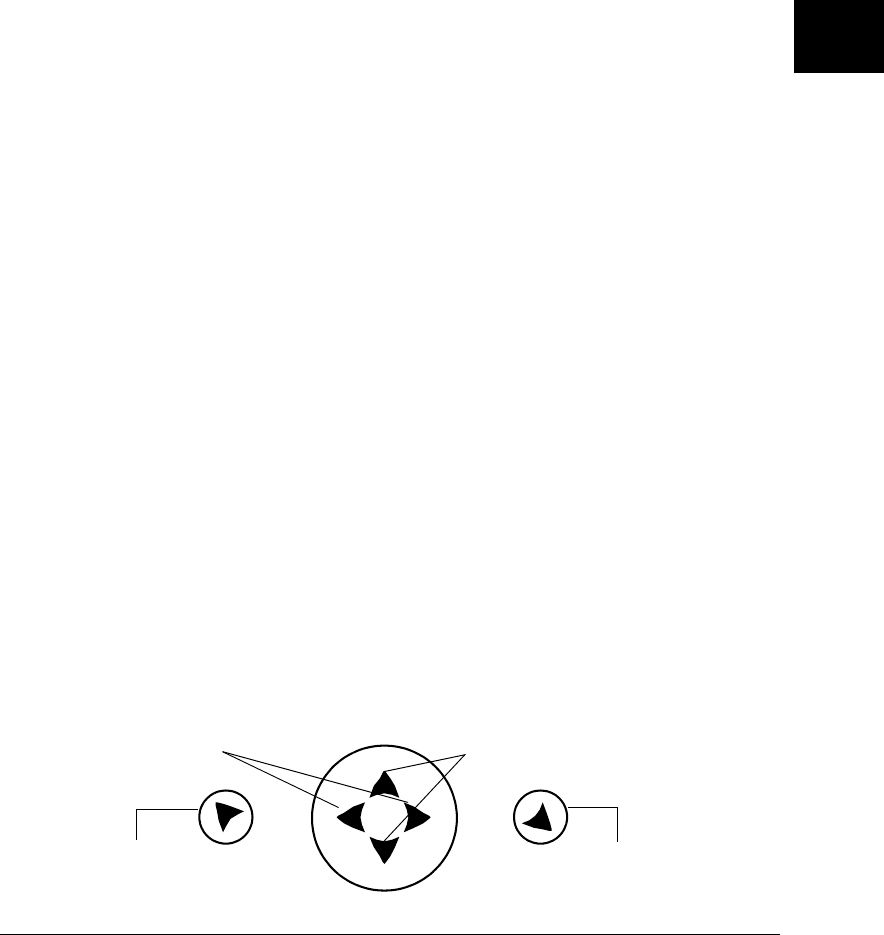
DL.1 User Manual Fixture Operation 3-11
3
Zoom Override Menu
Use this menu option to override the zoom value sent the by the DMX console to the
fixture. This feature is commonly used with PROJECTOR CTRL, which is discussed on
page 3-11.
To select a DMX Zoom value:
1. Press the Menu button to unlock the menu system or to move back up the system
to the top level menus.
2. Using the left and right arrows on the Navigation button, scroll through the top
level to SET PARAMETERS MENU and press the Enter button to select.
3. Using the left and right arrows on the Navigation button, scroll to ZOOM
OVERRIDE MENU.
4. Using the up and down arrows on the Navigation button, scroll to a DMX value
between 0 and 255 and press the Enter button to select.
Focus Override Menu
Use this menu option to override the zoom value sent the by the DMX console to the
fixture. This feature is commonly used with PROJECTOR CTRL, which is discussed on
page 3-11.
To select a DMX Focus value:
1. Press the Menu button to unlock the menu system or to move back up the system
to the top level menus.
2. Using the left and right arrows on the Navigation button, scroll through the top
level to SET PARAMETERS MENU and press the Enter button to select.
3. Using the left and right arrows on the Navigation button, scroll to FOCUS
OVERRIDE MENU.
4. Using the up and down arrows on the Navigation button, scroll to a DMX value
between 0 and 255 and press the Enter button to select.
Projector Control
Use this menu option to toggle between the DL.1 menu system and the native
projector menu system. The projector’s menu system is discussed in the projector
manual provided with the DL.1 fixture.If you enable projector control, the DL.1’s
function keys map to projector function buttons as shown in Figure 3-2:
Menu button Enter button
Point buttons (used to select an
item or adjust a value)
Figure 3-2 DL.1 key map
Volume +/- buttons

3-12 Fixture Operation DL.1 User Manual
To enable projector control:
1. Press the Menu button to unlock the menu system or to move back up the system
to the top level menus.
2. Using the left and right arrows on the Navigation button, scroll through the top
level to SET PARAMETERS MENU and press the Enter button to select.
3. Using the left and right arrows on the Navigation button, scroll to PROJECTOR
CTRL and press the Enter button to select .
4. Press the MENU button to return to the DL.1 menu system.
Limitations of Projector Control. The following projector options are not valid when
you’re controlling the projector with its menu system:
• Digital video connectors do not function
• RCA connectors do not function
• Input 1 (computer control) does not function
• The USB connector does not function
• Component video connectors do not function
• Audio in connectors do not function
The only valid inputs are: Input 2 (which selects the RBGHV or VGA connectors) and
Input 3 (which selects the S-Video connector).
Caution: Do not physically connect both the RGBHV and VGA connectors.
Doing so can cause damage to the fixture and void the warranty.
Camera Option
The DL.1 software automatically recognizes whether the fixture is equipped with the
Digital Eye Technology option and selectes the appropriate protocol.
To disable the Digital Eye Technology option installed in a fixture and revert to the
12-channel Reduced DMX Protocol:
1. Press the Menu button to unlock the menu system or to move back up the system
to the top level menus.
2. Using the left and right arrows on the Navigation button, scroll through the top
level to SET PARAMETERS MENU and press the Enter button to select.
3. Using the left and right arrows on the Navigation button, scroll to CAMERA
OPTION. The current state will be displayed.
4. Use the up and down arrows on the Navigation button to scroll to DISABLED and
press the Enter button to select.

DL.1 User Manual Fixture Operation 3-13
3
Align Pan Motors
To realign the pan motors:
1. Press the Menu button to unlock the menu system or to move back up the system
to the top level menus.
2. Using the left and right arrows on the Navigation button, scroll through the top
level to SET PARAMETERS MENU and press the Enter button to select.
3. Using the left and right arrows on the Navigation button, scroll to ALIGN PAN
MOTORS.
4. Use the up and down arrows on the Navigation button to scroll to YES and press
the Enter button to select. The motor alignment sequence will begin.
Note: This operation takes 30 minutes to complete. Selecting NO/ABORT aborts
the sequence.
New Air Filter
Installing a new air filter requires fixture recalibration.
To calibrate the fixture after installing a new air filter:
1. Press the Menu button to unlock the menu system or to move back up the system
to the top level menus.
2. Using the left and right arrows on the Navigation button, scroll through the top
level to SET PARAMETERS MENU and press the Enter button to select.
3. Using the left and right arrows on the Navigation button, scroll to NEW AIR
FILTER.
4. Use the up and down arrows on the Navigation button to scroll to YES and press
the Enter button to select. The recalibration sequence will begin.

3-14 Fixture Operation DL.1 User Manual
Fixture Mode Menu
The Mode menu crossloads software from one fixture to other fixtures on the link.
Note: Fixtures receiving the crossloaded data must not be in shutdown mode.
Crossloading Fixture Software
A fixture running a newer software version can load the new software to all other
Catalyst systems on the link using the CROSSLOAD FIRMWARE menu option.
To CROSSLOAD FIRMWARE from one fixture to all DL.1 fixtures on the link:
1. Disconnect or bypass any controllers, serial data distributors, data line
optoisolators, and any fixtures using RS-422 communications (such as
Dataflash® AF1000 xenon strobes, and Intellabeam® fixtures). These devices will
block communication between the crossloading fixture and any other fixtures on
the link.
2. On the crossloading fixture only, unlock the menu system by pressing and
holding down the Menu button until the extended 2-line display appears
indicating the top menu level.
3. Using the left and right arrows on the Navigation button, scroll to the FIXTURE
MODE MENU and press the Enter button to select.
4. Use the left and right arrows on the Navigation button to scroll to CROSSLOAD
FIRMWARE.
5. Use the up and down arrows on the Navigation button to scroll to the YES option
and press the Enter button to store. The fixture will upload its software to all
other fixtures on the link.
When the crossload has finished successfully, CROSSLOADING COMPLETE will appear
briefly in the display of the crossloading fixture, and all other fixtures will
automatically home.
Note: If a new boot code was included with the latest software, the fixture
displays a BOOTDIFF error when it returns to the locked mode of the menu
system. To correct the boot code, copy the new boot code to each fixture
(see “Copying the Boot Code” on page 4-15).
DL.1 User Manual Fixture Operation 3-15
3
Test Options Menu
The TEST OPTIONS MENU manually homes the fixture, performs fixture self tests, and
stores new boot code information. Performing fixture self tests may help identify
mechanical problems in the fixture.
Homing the Fixture
The fixture automatically homes all its functions whenever it is turned on. This menu
option manually homes the entire fixture.
To remotely home the fixture using a DMX controller, see “Control Function
Options” on page 4-4 in the DL.1 Standard Protocol table.
To manually home the fixture:
1. Press the Menu button to unlock the menu system or to move back up the system
to the top level menus.
2. Use the left and right arrows on the Navigation button to scroll to the
TEST OPTIONS MENU and press the Enter button to select.
3. Use the left and right arrows on the Navigation button to scroll to HOME FIXTURE.
4. Using the up and down arrows on the Navigation button, choose ALL to home the
projector head or NO if you don’t want to home the projector.
Copying the Boot Code
When new software is uploaded to a fixture, it may contain a new boot code which
must be copied to each fixture. This is apparent if the fixture displays a BOOTDIFF
error.
Caution: Do not remove power from the fixture while performing a boot copy.
To accept and store the new boot code:
1. Press the Menu button to unlock the menu system or to move back up the system
to the top level menus.
2. Using the left and right arrows on the Navigation button, scroll to the
TEST OPTIONS MENU and press the Enter button to select.
3. Using the left and right arrows on the Navigation button, scroll to the COPY BOOT
option.
4. Use the up and down arrows on the Navigation button to scroll to the YES option
and then press the Enter button to store the command. The fixture will store the
new boot code, then automatically home.

3-16 Fixture Operation DL.1 User Manual
Self Test Menu
This option displays the steps and DMX values generated as the fixture tests the
motor operation of various functions. Self test can be run and viewed on all the
fixture parameters sequentially, or individual parameters.
To access the SELF TEST MENU:
1. Press the Menu button to unlock the menu system or to move back up the system
to the top level menus.
2. Use the left and right arrows on the Navigation button to scroll to the
TEST OPTIONS MENU and press the Enter button to select. The menu displays
CHASSIS TEST MENU.
3. Use the left and right Navigation buttons to scroll the function you wish to test.
4. Press the Enter button to select. The fixture begins running the self test on the
selected function.
Information Menu
The Information menu displays current fixture information such as sensor status,
total fixture hours, hardware and software versions, DMX errors, and DMX channel
values. Fixture hours resets are also executed in the Information Menu.
Unique Number
EachDL.1 fixture has a unique number similar to a serial number. TalkBack™
protocol uses this number to identify a fixture for remote communication over a
DMX link. This option displays the fixture’s Unique identification number.
To view the fixture’s Unique number:
1. Press the Menu button to unlock the menu system or to move back up the system
to the top level menus.
2. Use the left and right arrows on the Navigation button to scroll to the
INFORMATION MENU and press the Enter button to select.
3. Use the left and right arrows on the Navigation button to scroll to the
UNIQUE NUMBER option to view the fixture’s 10-digit unique number.
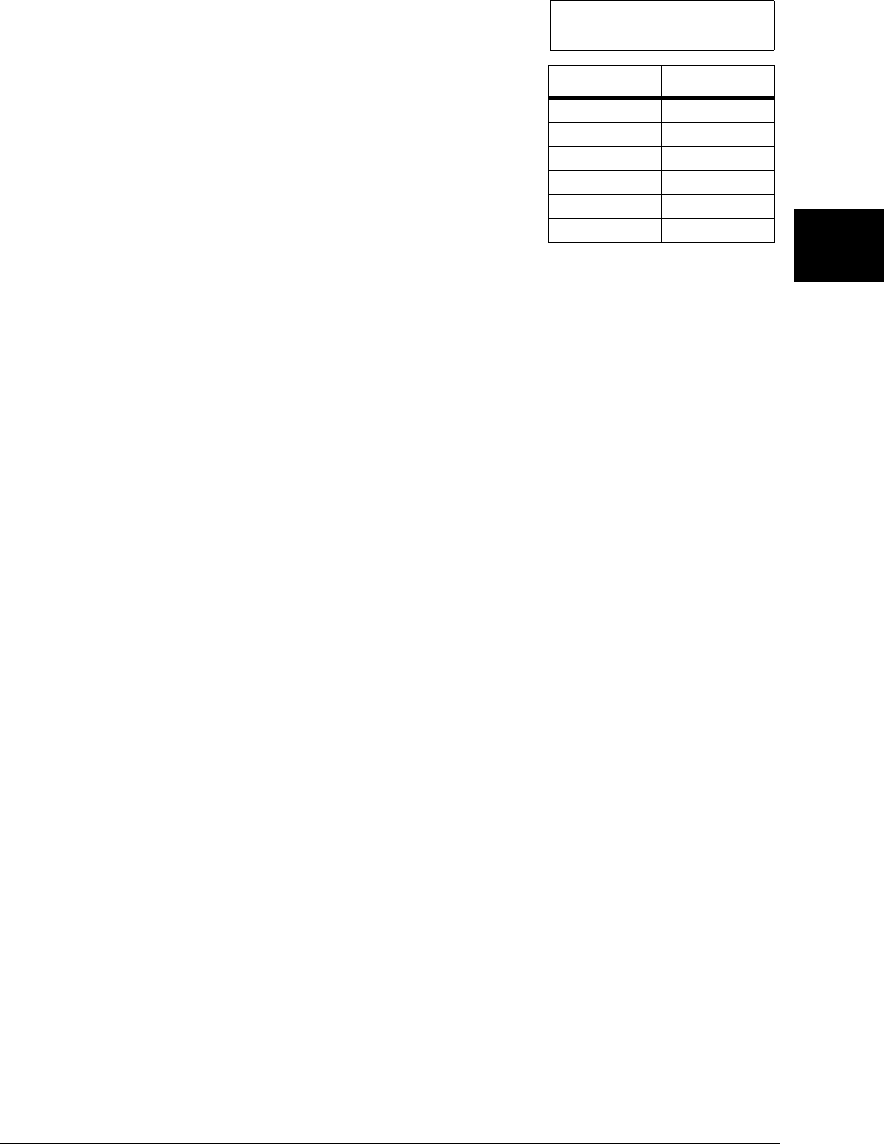
DL.1 User Manual Fixture Operation 3-17
3
DMX Values Menu
This menu displays the current values for
the DMX link. When viewing DMX value
settings by Channel, the DL.1 fixture
displays current values for Channels 001–
512 in two lines of three DMX values each
per screen. Figure 3-3 shows an example of
the first two lines displayed. The number at
the beginning of each line indicates the first
channel with a value displayed on that line.
To View DMX Values:
1. Press the Menu button to unlock the menu system or to move back up the system
to the top level menus.
2. Use the left and right arrows on the Navigation button to scroll to the
INFORMATION MENU and press the Enter button to select.
3. Use the left and right arrows on the Navigation button to scroll to the
DMX VALUES MENU option and press the Enter button to select. The display will
read BY CHANNEL.
4. Press the Enter button to select.
5. Scroll through the DMX values listed to the desired Channel.
Temperatures Menu
This menu displays the fixture’s internal temperature at the Intake and Lamp sensors
in degrees centigrade.
To access the Temperatures Menu:
1. Press the Menu button to unlock the menu system or to move back up the system
to the top level menus.
2. Use the left and right arrows on the Navigation button to scroll to the
INFORMATION MENU and press the Enter button to select.
3. Use the left and right arrows on the Navigation button to scroll to the
TEMPERATURE option and press the Enter button to select.
4. Use the left and right arrows on the Navigation button to scroll to
CURRENT, MINIMUM, MAXIMUM, or RESET and press the Enter button to select.
OR, to reset internal temperatures to the Current temperature:
Use the left and right arrows on the Navigation button to select a sensor and
press the Enter button to select, or (for the RESET option) select NO to not reset
the sensors, or YES to reset all sensors to current temperatures.
Channel DMX Value
001 0
002 255
003 0
004 255
005 0
006 0
001 0 255 0
004 255 0 0
Figure 3-3 Reading the DMX
Values Menu Display
The table below
describes the first
two lines displayed
in the DMX
Values Menu
shown above it.
Scrolling down
reveals addition
channel values in
the same format

3-18 Fixture Operation DL.1 User Manual
Fixture Hours
Use this option to view the fixture operation time in hours and minutes.
Fixture Hours Reset
Use this option to reset the fixture operation time to zero.
To access the FIXTURE HOURS RESET option:
1. Press the Menu button to unlock the menu system or to move back up the system
to the top level menus.
2. Use the left and right arrows on the Navigation button to scroll to the
INFORMATION MENU and press the Enter button to select.
3. Use the left and right arrows on the Navigation button to scroll to the
FIXTURE HOURS RESET option and press the Enter button to select.
4. Use the up and down arrows on the Navigation button to scroll to YES. Press and
hold the Enter button down for 5 seconds to select.
Lamp Hours
Use this option to view the lamp operation time in hours and minutes.
Projector Status
Power to the internal projector can be turned ON or OFF with this option.
Projector Hours Reset
Selecting this option displays the number of times the projector lamp hours have
been reset.
Software Version
This option display’s the fixture’s software version as: V(Major).(Minor).(Build)
Module Versions Menu
This option display’s the hardware and software versions for the selected board .
The DL.1 fixture has the following driver boards:
•Pan
•Tilt
• RS232
•Fan
• Zoom-Focus-Iris
•Display
The menu displays NOT AVAILABLE if the version cannot be read from the selected
board.

DL.1 User Manual Fixture Operation 3-19
3
Display Errors
This menu option displays current errors in a descriptive 32-character text field.
To DISPLAY ERRORS:
1. Press the Menu button to unlock the menu system or to move back up the system
to the top level menus.
2. Use the left and right arrows on the Navigation button to scroll to the
INFORMATION MENU and press the Enter button to select.
3. Use the left and right arrows on the Navigation button to scroll to the DISPLAY
ERRORS menu option and press the Enter button to select.
4. Use the up and down arrows on the Navigation button to view the list of current
errors.

3-20 Fixture Operation DL.1 User Manual

DL.1 User Manual DMX Programming 4-1
4
Chapter 4:
DMX Programming
DMX Programming Overview
A lighting console typically utilizes a protocol called DMX-512 to communicate with
automated lighting fixtures and conventional dimmers. This protocol consists of 512
unique channels of control per output link (universe). Typically a lighting fixture or
device will use a channel for each parameter’s function. Each channel consists of 256
values ranging from 0 to 255. The lighting console is programmed to transmit a
corresponding DMX value for the desired function of each parameter. All DMX
values are stored within in the lighting console, and typically are referred to as cues,
scenes, or presets.
8-bit vs. 16-bit DMX
Most parameters of an automated light use one channel of DMX providing 256 values
of control (0-255). This is known as 8-bit DMX. Although several DL.1 parameters
use 8-bit DMX, several require a more accurate range of values than can be provided
with a single DMX channel.
By utilizing two DMX channels for a single parameter, 65535 values become
available for controlling and adjusting parameter functions. This is known at 16-bit
DMX. You can adjust 16-bit DMX values in both coarse and fine increments. The first
channel of the pair provides coarse control changes of the DMX value in increments
of 256. The second channel of the pair provides fine control and changes of the DMX
value in increments of 1.
Lighting Consoles
Lighting consoles differ in many aspects and it is important to understand how your
console operates with DL.1 fixtures.
Fixture Libraries
Many sophisticated lighting consoles utilize pre-made fixture libraries. A fixture
library consists of profiles for various types of lighting fixtures and devices. Each
profile corresponds to the fixture’s DMX protocol and allows for ease of
programming. Depending upon the manufacturer of your lighting console, some
DL.1 parameters might have different labels for parameter names and functions than
are listed within this manual. Consult your lighting console manual for further
information.

4-2 DMX Programming DL.1 User Manual
DMX Output Displays
Although all lighting consoles output the same 512 channels of DMX per link, the on-
screen labeling often differs. Parameter functions are displayed in either alpha-numeric
descriptions (strobe 1), percentage (0-100%) or decimal (0-255 for 8-bit and 0-65535 for
16-bit). Consult your lighting console manual for further information.
16-bit DMX
Individual access of the two DMX channels used with 16-bit parameters varies by lighting
console. Consult your lighting console manual for further information.

DL.1 User Manual DMX Programming 4-3
4
Parameter Descriptions
Note: All the DMX values identified in the following descriptions are in
decimal units.
Standard Movement and Projection Controls
Pan and Tilt
Channels 1– 4 control the Pan and Tilt parameters. The DL.1 fixture has a 400° pan
range and a 270° tilt range. Two channels for Pan and two for Tilt provide 16-bit
position adjustment to a fraction of a degree.
MSpeed values control the timing of pan and tilt motion for DL.1 fixtures, (see
“MSpeed (Motor Speed)” on page 4-3). To control Pan and Tilt movement timing via
DMX controller crossfading, set Pan/Tilt MSpeed off in the Control parameter (see
“Control Function” on page 4-7 in the DMX Protocol Table.)
Note: Optical encoders for pan and tilt instantly correct the fixture’s position if
the fixture is jarred from its programmed position. If a physical obstruction
prevents the fixture from correcting its position, the fixture “times out” to
prevent wear on the motors. If the fixture has timed out, remove the
obstruction and home the fixture to return it to normal operation.
Dimming Iris
DL.1 fixtures have a mechanical iris that functions as a dimmer for the fixture output.
This feature gives the operator the ability to fully shutter the output and eliminate the
residual luminance from video black. Channel 5 controls the dimming iris adjustment
from closed (DMX value = 0) to fully open (DMX value = 255).
Focus
Channel 6 controls the fixture’s mechanical focus from near (DMX value = 0) to far
(DMX value = 255).
Zoom
Channel 7 controls the fixture’s mechanical zoom from narrow (DMX value = 0) to
wide (DMX value = 255).
MSpeed (Motor Speed)
The MSpeed parameter is controlled with DMX Channel 12. MSpeed is the time
required for a motor to complete movement when changing from one position to
another. MSpeed provides a means for all motors to reach their target position at the
same time, even though each motor may have different distances to travel. MSpeed
movement is extremely smooth because the fixture controls movements independent
of DMX refresh rates.

4-4 DMX Programming DL.1 User Manual
MSpeed times vary from 0.15 seconds to 252.7 seconds. However, when MSpeed is
applied to a parameter, the delay value (length of time allowed for the entire scene)
needs to be longer than the MSpeed value to allow the motors to complete their
movement before the end of the scene. An MSpeed value that is longer than the delay
value could produce an undesirable result; for example, an unintended “jump” to
another position initiated before the first motion is complete. For a listing of exact
MSpeed times, see “Appendix B: MSpeed Conversion Table”.
Note: Since Pan and Tilt are the only parameters controlled with MSpeed in DL.1
fixtures, setting the MSpeed Channel to Xfade (DMX value = 0) or the
Control Channel to MSpeed Off (DMX value = 10-13) will have the same
outcome.
Control Function Options
Channel 10 operates several Control functions. These functions remotely control
various fixture operations and allow access to the internal-projector menu controls.
Fixture operations . All of the following Fixture operation control settings except for
Turning MSpeed off require Channel 5 (Dimming Iris) be closed (DMX decimal value
= 0). These control options allow the user to:
•Turn MSpeed off
• Turn the display on and off
• Adjust display brightness
•Home
—All the fixture components
—Pan and Tilt
—Focus/Zoom/Dimming Iris
• Turn Lamp on and off
•Shutdown the fixture
• Reset the Camera
Internal Menu Access. The following Control options do not require Channel 5 be
set to Closed (DMX value = 0). They allow the user to access the:
• Projector Menu
• Projector Up / Down / Left / Right
• Projector Select
• Projector Orientation
These values enable you to access the projector’s menu system under DMX control.
For details about these features and about the projector’s menu system, you must
consult the projector manual provided with the DL.1. For a list of limitations on these
features, see “Limitations of Projector Control” on page 3-12.
DL.1 User Manual DMX Programming 4-5
4
To use the native projector menu system under DMX control:
1. Send DMX decimal value 180–184 (Menu button) on Channel 10 to access the
projector’s main menu. Send a DMX value in the “safe” range (0–9).
This command is equivalent to releasing the key on the projector’s keypad.
Failure to release the key will result in unpredictable performance.
Optional. If the projector is mounted on the ceiling, flip the display by sending a
value from 205–208 on Channel 10.
2. Use Channels 1 through 4 to adjust the pan and tilt to direct the projector to a
suitable surface so you can view its on-screen display.
3. Adjust Zoom (Channel 7) and Focus (Channel 6) as needed to bring the
projector’s on-screen display into focus.
4. Use the projector’s on-screen display as discussed in the projector manual
provided with the DL.1 fixture.
5. To exit the projector’s menu system, repeat steps 2 and 3.
Projector Orientation. Projector Floor Orientation, Projector Ceiling Orientation,
Projector Front Projection and Projector Rear Projection are active commands – i.e.
they do not require the dimming iris value to be at zero to operate.
Once set, these commands maintain their value until reset even after shutdown and
re-homing. For example, if the Control channel is set to DMX decimal value of 210 to
switch the unit to Ceiling operation, then the unit will remain in Ceiling orientation
until another command is sent to switch back to Floor. This allows the Control
channel to revert to its safe value or some other value without losing the orientation
or mirroring status.
Changing Projector Source Input
S-Video input can be utilized with either RGBHV or VGA but not both. You can select
between RGBHV and VGA in the menu system, (see “Projector Input Source” on page
3-8). RGBHV is the factory default. You can also select the Projector Input via DMX
using Channel 11.
Note: Before being able to use the DMX protocol to select projector source input,
you must enable the PROJ IN BY DMX? menu option, see “Projector In By
DMX?” on page 3-10.
Once the selection is made, allow about 10 seconds for the change to take effect .
Caution: Do not physically connect both the VGA and the RGBHV
connectors at the same time. Doing so can damage the projector
and void the warranty.

4-6 DMX Programming DL.1 User Manual
Digital Eye Technology Control
Zoom
Channel 12 and 13 provide 16-bit control of the camera Zoom function. The Zoom
includes 18× optical and 12× digital zoom (216× combined). Adjust Zoom from In
(DMX value = 0) to Out (DMX value = 65535)
Focus
Channel 14 and 15 provide 16-bit control of the camera Focus function. Auto focus is
active at DMX values = 0–511. Set Manual focus from In (Far End) value = 512 to
Out (Near End) value = 65535.
IR Illuminator
DL.1 fixtures with Digital Eye Technology are equipped with an illuminator that can
output infrared (IR) light. Channel 16 controls both the IR illuminator output and the
camera’s infrared sensing option. DMX values = 0 – 63 are the default with
illuminator off and the camera set to sense the visible light spectrum. From
DMXvalues =64–127, the Illuminator remains off , but the camera’s Auto IR function
is ON detecting ambient infrared light in the environment. The rest of the range
turns the Auto adjustment off and adjusts the amount of IR illuminator output from
FULL (DMX value = 128) to OFF (DMX value = 255).
Shutter
Digital Eye Technology can create slow-motion and choppy-frame effects using the
camera shutter options. Channel 17 controls the camera shutter providing six steps
of frame rate control from 1 to 30 frames/second. DMX values = 0 – 63 set Full Auto
Exposure and is the default option.
White Balance
Channel 18 adjusts for the variation in what is perceived as “White” in different light
conditions. The Auto White Balance mode computes the white balance value output
using color information from the entire screen. It outputs the proper value using the
color temperature on a range of values from 3000 to 7500K and is the default setting.
Other settings for this Parameter accommodate Indoor and Outdoor lighting
conditions.
Orientation
Digital Eye Technology can Vertically Invert (Flip) or Horizontally Invert (Mirror) the
image being viewed by the camera. Channel 19 controls the Orientation parameter.
All four combinations of Vertical and Horizontal Invert are available.
Effects
Digitial Eye Technology can convert an image to black and white (B&W), or can
invert the color (Negative art). A snapshot can also be taken of the image (Freeze
Frame) with or without one of these effects applied. Channel 20 controls the Effects
parameter.
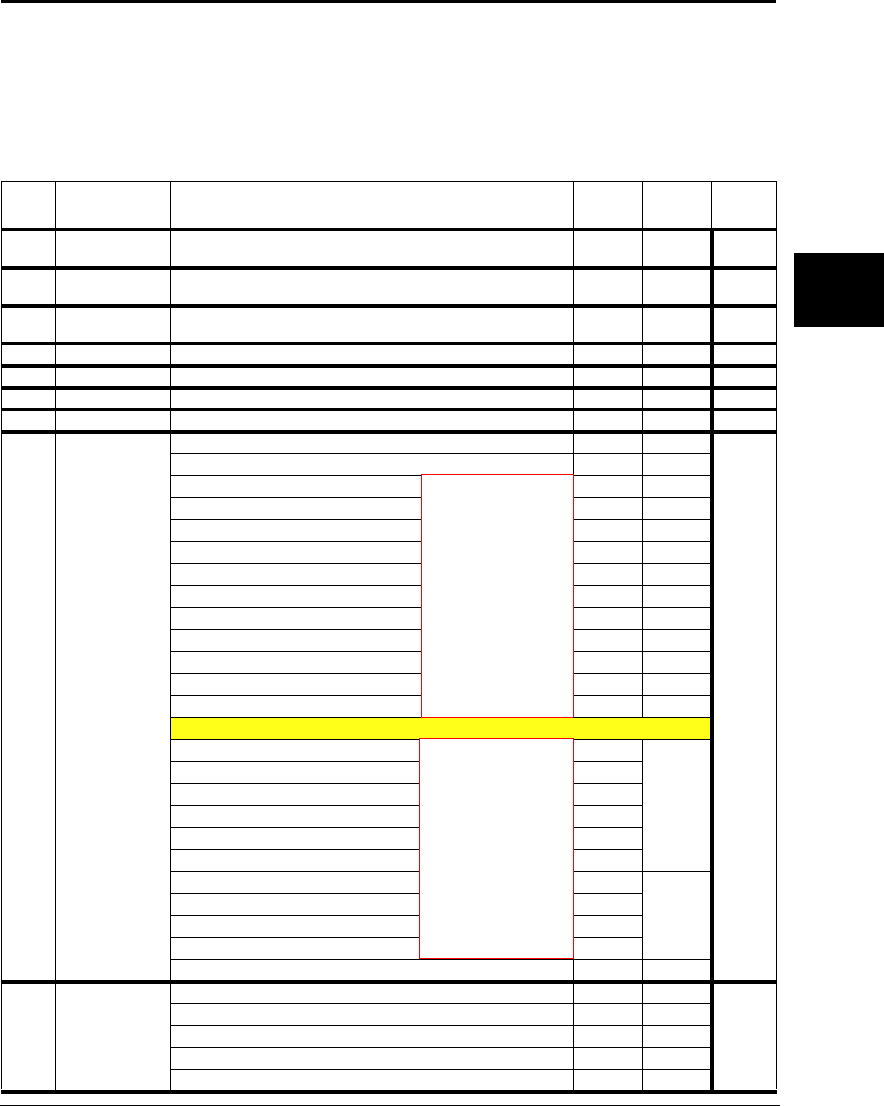
DL.1 User Manual DMX Programming 4-7
4
DL.1 Protocol Tables
DL.1 fixtures offer two protocol levels —Standard and Enhanced. Standard Protocol
controls fixture movement and output features. Running Enhanced protocol provides
an additional nine channels for controlling Digital Eye Technology and increases the
fixture footprint on the DMX link from 11 to 20.
Standard DL.1 Protocol
Chan
#Function Description Value
dec.
Value
%
Default
dec.
1
2Pan Position Moves projector head from 0°–400° 0-65535 0-100 32768
3
4Tilt Position Moves projector head from 0°–270° 0-
65535 0-100 32768
5Dimming Iris Adjusts the mechanical iris located in front of the
projector output lens from closed to open 0-255 0-100 0
6Focus Adjusts focus from near to far 0-255 0-100 128
7Zoom Adjusts zoom from narrow to wide 0-255 0-100 128
8MSpeed See Appendix B for conversion tables 0-255 0-100 0
9Macro Reserved for future use n/a N/A 0
10 Control
Function
Safe 0-9 0-4
0
Pan and Tilt MSpeed off 10-13 5-7
Display Off 20-28 8-11
Display Dim 30-38 12-15
Display Bright 40-48 16-19
Home All 60-68 24-27
Lamp ON 80-88 32-35
Lamp OFF 90-98 36-39
Shutdown 120-130 47-51
Reserved 131-149 52-58
Camera Reset 150-155 59-61
Home Pan/Tilt 160-168 62-66
Home Focus/Zoom/Dimming Iris 170-178 67-70
Using the Projector’s Menu System—see page 4-4
Projector Menu 180-184
NA
Projector Up 185-188
Projector Down 189-192
Projector Left 193-196
Projector Right 197-200
Projector Select 201-204
Projector Floor Orientation 205-208
NA
Projector Ceiling Orientation 209-212
Projector Front Projection 213-216
Projector Rear Projection 217-220
Reserved 221-255 87-100
11
Input Source
Select
(See page 4-5)
Safe 0-31 0-12
32-47
RGBHV (Default) 32-47 12-18
S-Video Input 3 48-63 19-25
Internal Source Input 1 64-79 25-31
Reserved for future use 80-255 31-100
(These active
commands
do not require
Channel 5 = 0)
(These Control
options require
Channel 5 = 0)
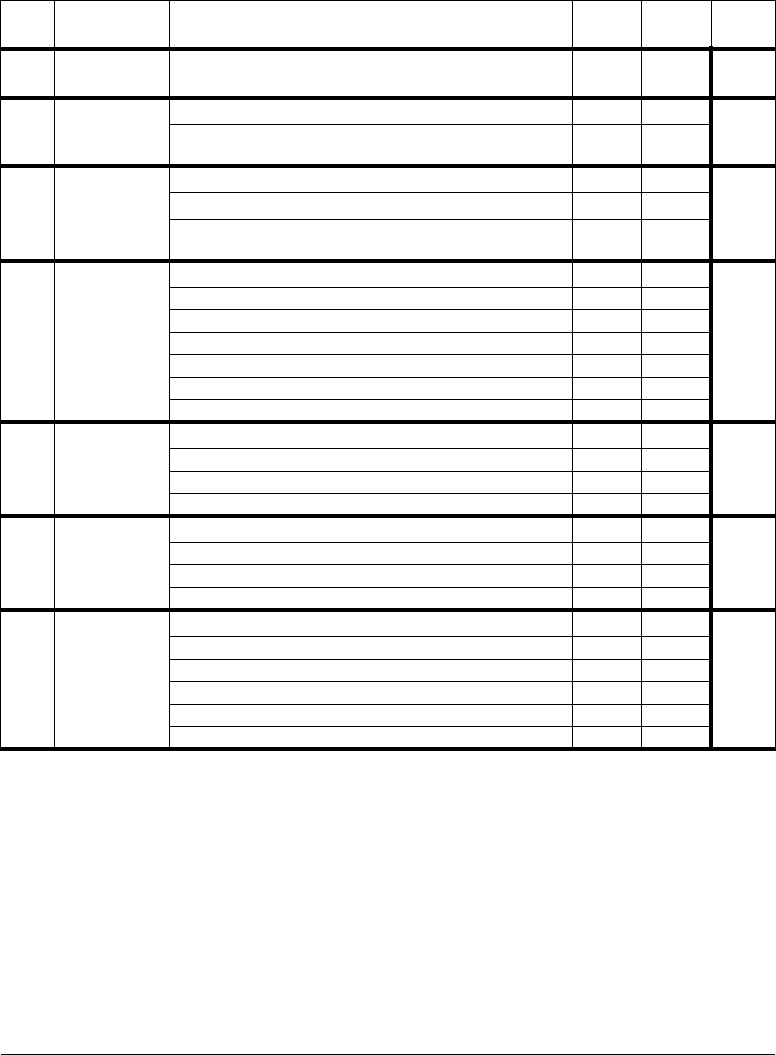
4-8 DMX Programming DL.1 User Manual
Enhanced DL.1 Protocol
Fixtures with Digital Eye Technology accessory require these additional nine
channels.
Chan
#Function Description Value
dec.
Value
%
Default
dec.
12
13
Zoom (16 bit
adjustment) Auto Zoom position 0-
65535 0-100 32768
14 Focus (16 bit
adjustment)
Auto Focus position 0-511 0-1
0
15 Focus In (Far End) to Out (Near End) 512-
65535 2-100
16 Infared
Illuminator
Camera’s IR sensing OFF, illuminator OFF 0-63 0-24
0
Camera’s IR Auto sensing ON, Illuminator OFF 64-127 25-49
Camera’s IR Manual sensing ON, Illuminator scaled
across the range from FULL to OFF 128-255 50-100
17 Shutter
Auto Exposure=Full Auto 0-63 0-25
0
Auto Exposure=Shutter Priority, Shutter Speed = 30 64-95 26-38
Auto Exposure =Shutter Priority, Shutter Speed = 15 96-126 39-49
Auto Exposure=Shutter Priority, Shutter Speed = 8 127-157 50-62
Auto Exposure=Shutter Priority, Shutter Speed = 4 158-188 63-74
Auto Exposure=Shutter Priority, Shutter Speed = 2 189-219 75-86
Auto Exposure=Shutter Priority, Shutter Speed = 1 220-255 87-100
18
White
Balance
Mode
Auto Focus 0-63 0-25
0
Indoor 64-95 26-38
Outdoor 96-127 39-50
Reserved - no change from previous state 128-255 51-100
19 Orientation
Flip OFF, Mirror OFF 0-63 0-25
0
Flip OFF, Mirror ON 64-127 26-50
Flip ON, Mirror OFF 128-191 51-75
Flip ON, MIrror ON 192-255 76-100
20 Camera
Effects
Freeze Frame OFF, Negative Art OFF, B&W OFF 0-63 0-25
0
Freeze Frame ON, Negative Art OFF, B&W OFF 64-127 26-49
Freeze Frame OFF, Negative Art ON, B&W OFF 128-159 50-62
Freeze Frame ON, Negative Art ON, B&W OFF 160-191 63-75
Freeze Frame OFF, Negative Art OFF, B&W ON 192-223 76-88
Freeze Frame ON, Negative Art OFF, B&W ON 224-255 89-100
DL.1 User Manual General Maintenance and Troubleshooting 5-1
5
Chapter 5:
General Maintenance and
Troubleshooting
This chapter includes information on replacing parts, and cleaning the fixture. Please
note the warnings under each heading before servicing the fixture.
The following toolset should be all you need for the maintenance procedures in this
chapter:
•M3 allen wrench
•M4 allen wrench
• #2 Phillips screwdriver
•Gloves
• Protective eyewear
• Mild glass cleaner (containing no ammonia) and a soft, lint-free cotton cloth
Warning: This fixture must be serviced by qualified personnel. The
information listed in this chapter is intended to assist qualified
personnel only.
Maintaining the Filtering System
Like all high quality video projection units, the DL-1 fixture must be kept protected
from excessive amounts of glycol fog, mineral oil, and smoke. DL-1 fixture is
equipped with a two-stage air filtering to reduce these risks to a minimum:
• The prefilter is designed to keep out large dust and debris such as from
pyrotechnics and confetti.
• The HEPA filter is designed to aid in filtering small particles of dust, cigarette
smoke, fog and haze. The HEPA filter will require changing more often if the DL-
1 is exposed to theatrical fog or smoke. Depending on the levels of exposure
filter life can vary dramatically.
The Projector housed inside the DL.1 fixture contains an additional filter.
Fixture filters should be checked and cleaned on a regular basis. When used in a
closed or fixed environment where fog or haze is used, a weekly check is
recommended.
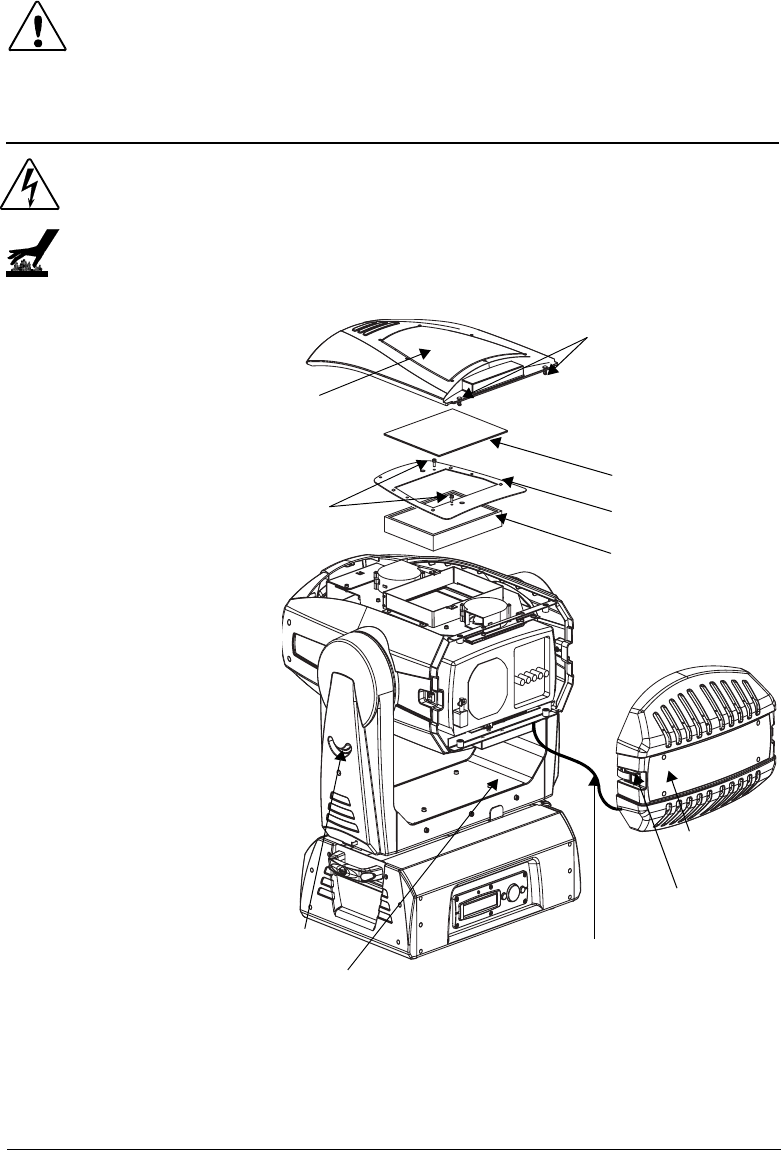
5-2 General Maintenance and Troubleshooting DL.1 User Manual
Caution: Minimize the exposure of DL-1 fixtures to both glycol fog and
mineral oil. Do not situate DL-1 in areas of high fog density such as
directly in front of a fog machine or mineral oil hazer.
Replacing Parts
Warnings: Disconnect power before servicing.
Replace fuses with the specified type and rating only.
Equipment surfaces may reach temperatures up to 130° C (266° F).
Allow the fixture to cool before handling.
Replacing Filters
The fixture filters should be
checked whenever the display
flashes Service Filter.
To access the fixture filter:
1. Lock the fixture head in
place using the 90° pan
lock and the 0° tilt lock
settings as shown in
Figure 2-9 on page 2-12.
2. Unlatch and remove the
rear bezel assembly.
3. Loosen the two quarter-
turn screws on the top
cover and remove the top
cover.
4. Slide the top cover back
to free it from the front
bezel.
Inspect the filters:
5. Lift the prefilter away
from the filter bracket
6. Remove the two philips
pan screws securing the
filter bracket and lift the
filter unit off the fixture. Inspect both filters.
7. A dirty prefitler can cause an early Service Filter warning. If only the prefilter
looks dirty, clean it with water. Thoroughly dry the prefilter before proceeding.
Top cover
Filter bracket
Fixture Hepa Filter
Rear bezel
Latch
Quarter-turn screws
Philips
pan
screws
Safety cable
T
ilt lock
Pan lock
Figure 5-1 Replacing the Projector Filter
Fixture Prefilter
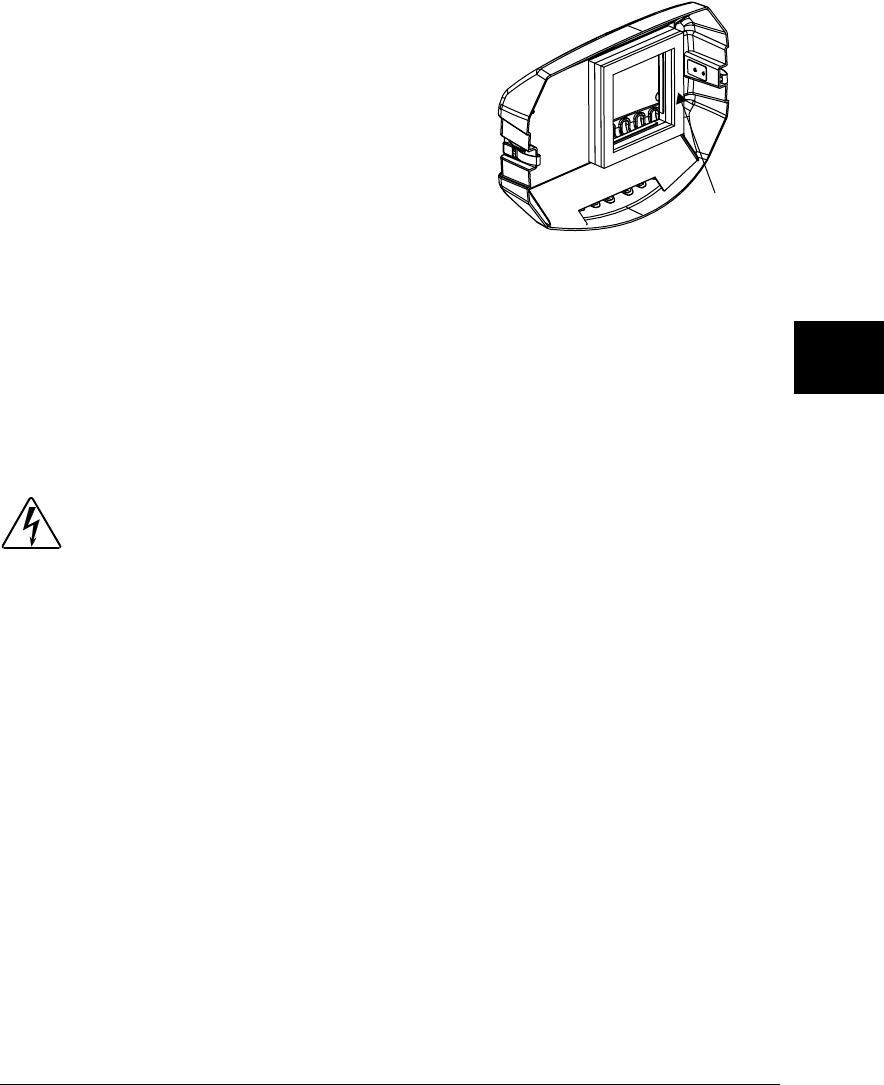
DL.1 User Manual General Maintenance and Troubleshooting 5-3
5
8. If the hepa filter is discolored with partculates, replace it only with the part listed
in “Optional Accessories” on page 1-2.
Reassemble the fixture:
9. Rreattach the filter bracket with the two philips
pan screws.
10. Replace the prefilter over the bracket.
11. Replace the top cover, fastening it with the two
quarter-turn screws.
12. Carefully replace the rear bezel, making sure to
place (but do not force) the gasket (shown in
Figure 5-5-2) over the lamp cover located on the
back of the projector.
13. Relatch the rear bezel assembly.
Recalibrating the fixture:
14. After replacing any filter, use the menu system to recalibrate the fixture, (see
“New Air Filter” on page 3-13.)
Replacing the Lamp
Warning: Equipment surfaces may reach temperatures up to 130° C (266° F).
Do not attempt to hot-restrike the lamp. Allow the fixture to cool
before handling or restriking the lamp.
To replace the lamp:
1. Lock the fixture head in place using the 90° pan lock and the 0° tilt lock settings
as discussed in Figure 2-9 on page 2-12.
2. Unlatch and remove the rear bezel assembly.
3. Consult the projector manual (shipped with the DL.1 fixture) for lamp
replacement instructions.
4. Carefully replace the rear bezel, making sure to place (but do not force) the
gasket (shown in Figure 5-5-2) over the lamp cover located on the back of the
projector.
5. Relatch the rear bezel assembly.
Gasket
Figure 5-2 DL.1 Rear Gasket
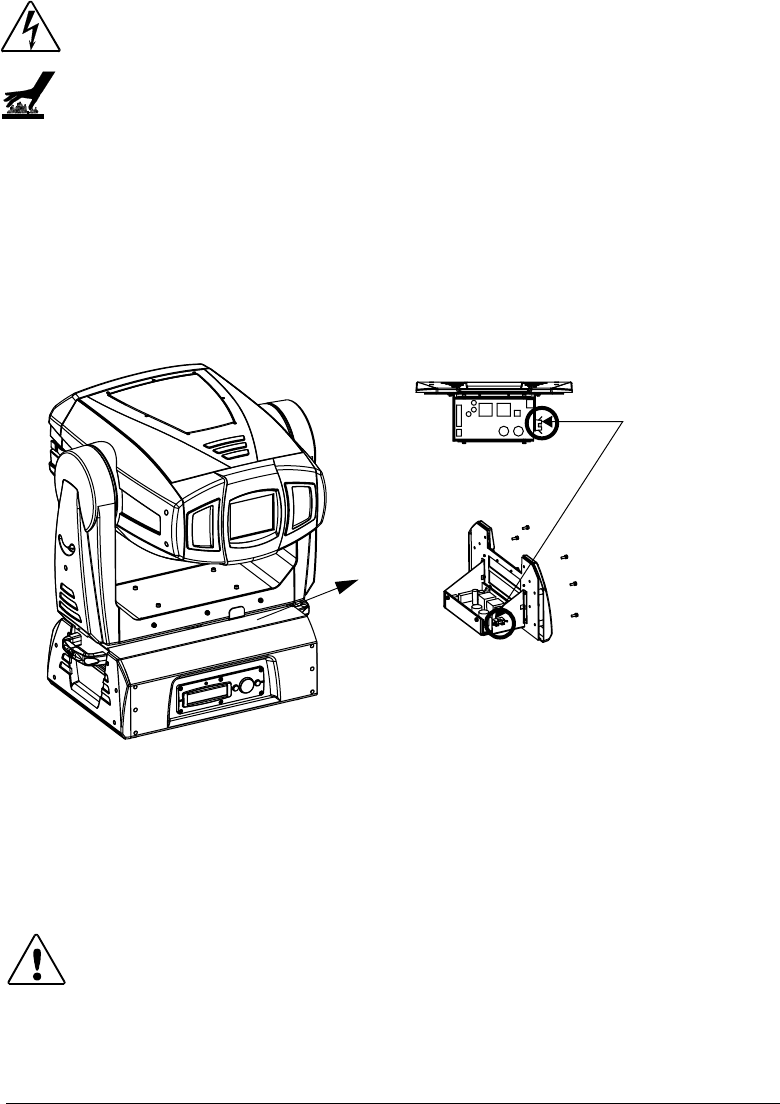
5-4 General Maintenance and Troubleshooting DL.1 User Manual
Replacing the Fuse
Warnings: Disconnect power before servicing.
Replace fuses with the specified type and rating only.
Equipment surfaces may reach temperatures up to 130° C (266° F).
Allow the fixture to cool before handling.
The DL.1 has one user-serviceable fuse which controls mains voltage to the fixture.
To replace a fuse:
1. Disconnect power to the fixture. If the fixture has been operating, allow the
fixture to cool before handling.
2. Remove the six M4 socket cap screws from the motor power supply side of the
fixture, as shown in Figure 5-2:
3. Slide the side assembly out.
4. Locate the fuse holder (circled in Figure 5-2).
5. Remove the fuse from the fuse holder.
6. Replace the fuse with a 5A, slow-blow fuse only.
7. Replace the side assembly.
Caution: Make sure you align the assembly properly when inserting;
damage to the fixture can result from improper alignment.
8. Replace the six M4 socket caps that secure the side assembly to the fixture.
Top view
Fuse
Figure 5-3 Replacing the Fuse
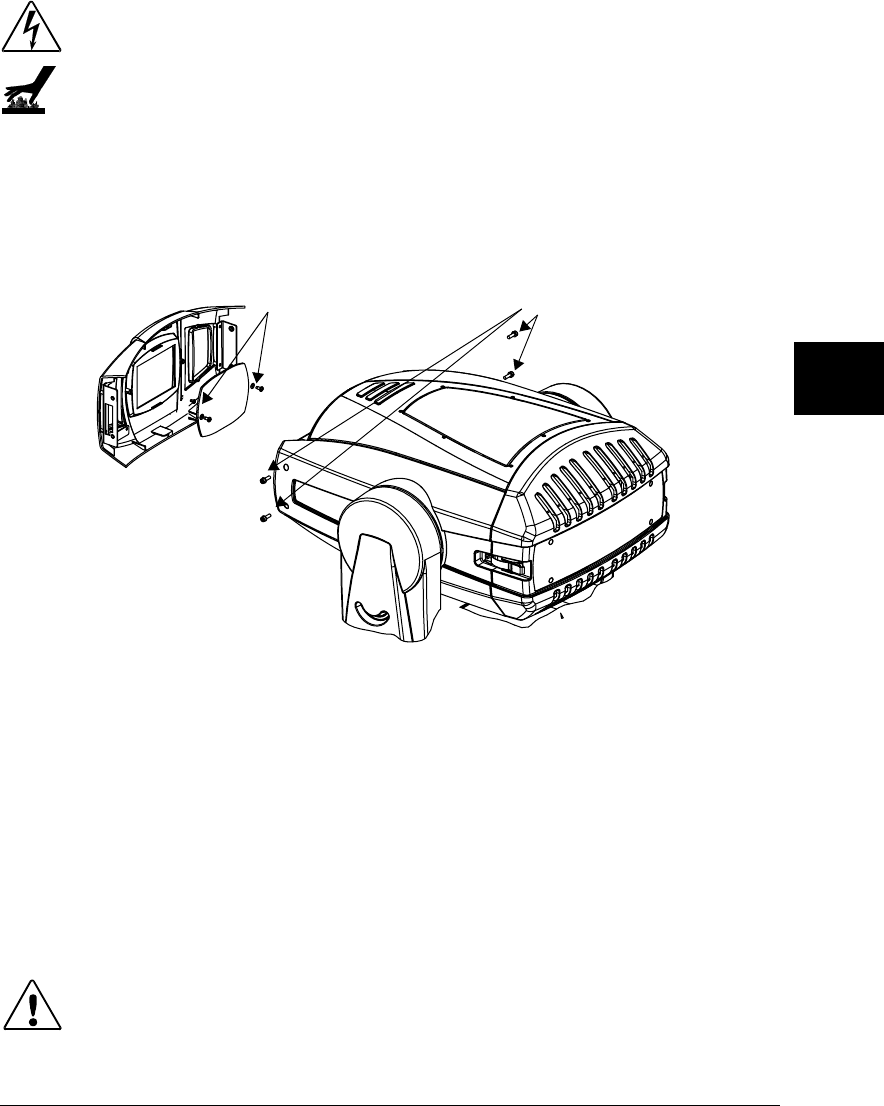
DL.1 User Manual General Maintenance and Troubleshooting 5-5
5
Cleaning or Replacing the Front Window
Warnings: Disconnect power before servicing.
Equipment surfaces may reach temperatures up to 130° C (266° F).
Allow the fixture to cool before handling.
To clean the internal glass components:
1. Disconnect power to the fixture. If the fixture has been operating, allow the
fixture to cool for at least 5 minutes before handling.
2. Remove the four M5 socket caps (two on each side of the front bezel), as shown
in Figure 5-5-4:
3. Slide the bezel from the front of the fixture.
4. Inside the bezel, locate the two Phillips head screws and washers securing the
front window in place.
5. Remove the screws, making sure not to misplace the washers.
6. To clean the front window: Clean the front window using a mild glass cleaner
(containing no ammonia) and a soft, lint-free cotton cloth.
7. To replace the front window: Replace the window with the part specified in
“Optional Accessories” on page 1-2.
8. Carefully replace the Phillips screws and washers, making sure not to break the
glass.
Caution: Use plastic washers only when replacing the front glass. Using
metal washers can damage the glass.
9. Replace the front bezel.
M5 socket cap screws
Phillips screws
and washers
Figure 5-4 Cleaning or Replacing the Front Window
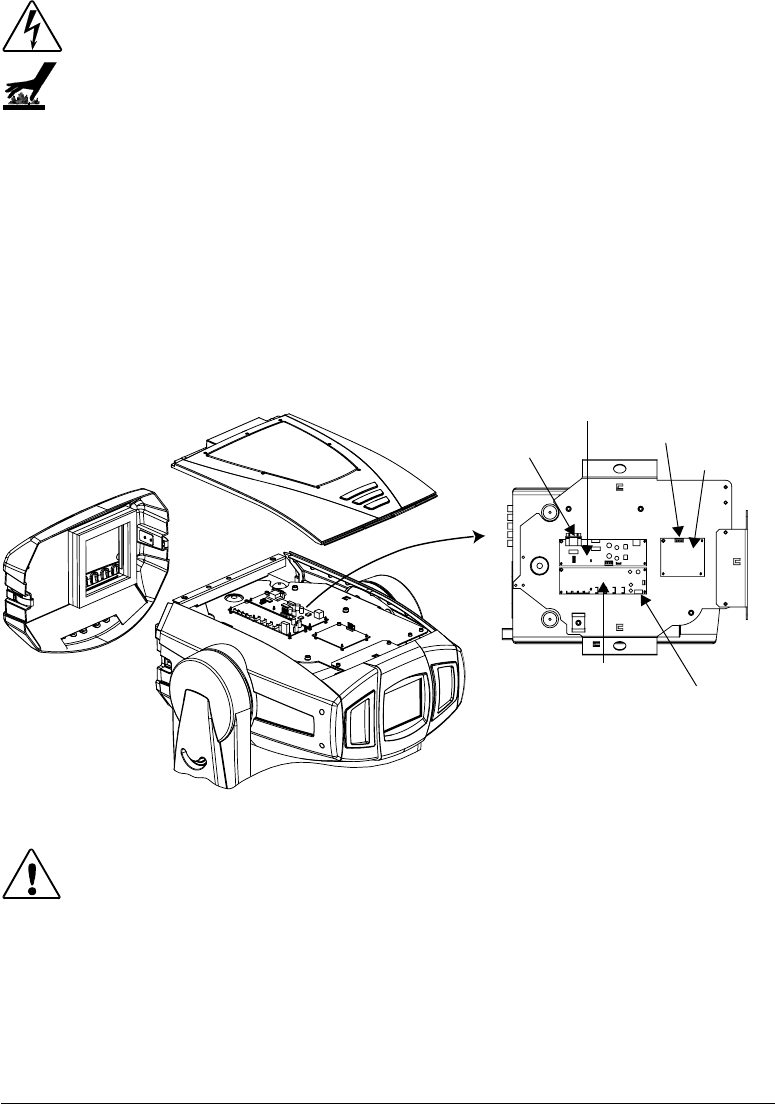
5-6 General Maintenance and Troubleshooting DL.1 User Manual
Replacing a Driver Board
Warnings: Disconnect power before servicing.
Equipment surfaces may reach temperatures up to 130° C (266° F).
Allow the fixture to cool before handling.
The DL.1 fixture is designed with two basic types of motor driver boards:
• One 2-phase board drives the motors for the focus/zoom/dimming iris
functions.
• Interchangeable 3-phase pan and tilt driver boards. Addressing screw
placement determines whether the board has pan or tilt driver functionality.
In addition, the DL.1 fixture has a CPU board located inside the fixture chassis with
the 3-phase board. Figure 5-5-5 shows the location of the driver boards and
landmarks you can use to locate functional areas (and LEDs) on the boards
themselves:
Caution: The fixture will not function correctly if adressing screws are
missing from driver boards. Figure 5-5-5 identifies screw
locations on each board.
When changing a board, align the screw holes and standoffs to ensure correct
orientation in the fixture.
Figure 5-5 Driver board configurations
Serial port Power connector
Data comm. board
Fan board
RS232
2-phase board
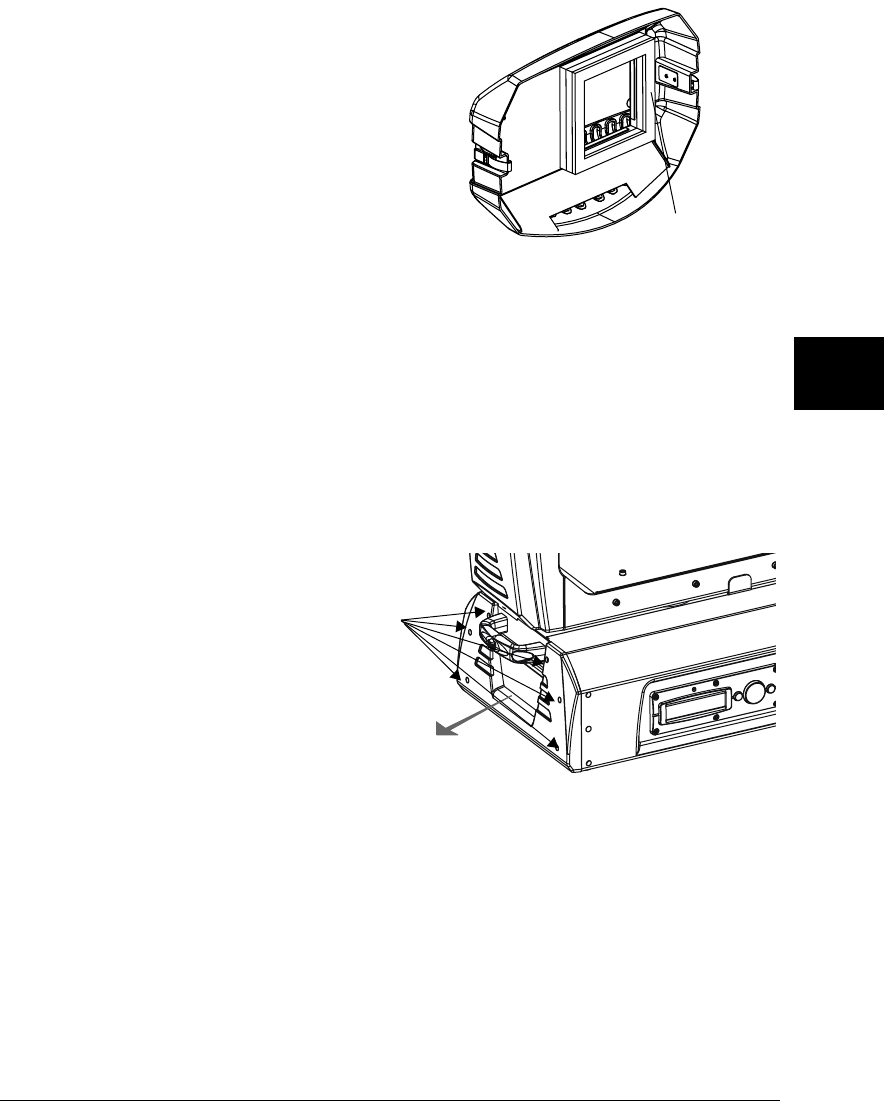
DL.1 User Manual General Maintenance and Troubleshooting 5-7
5
Replacing 2-Phase Board
To replace the 2-phase driver board:
1. Disconnect power to the fixture and allow it
to cool.
2. Unlatch the two rear latches and remove the
rear bezel.
Figure 5-5-1 shows the location of the rear
latches and rear bezel.
3. Use a 3 mm allen wrench to remove the
addressing screws and star washers.
4. Position new board against module aligning
the center top standoff. Place contact screw(s) in the appropriate position.
Note: When installing a replacement driver board on a module, always place a
star washer between an address screw and the pad on the logic board to
ensure good electrical contact.
5. Carefully replace the rear bezel, making sure to place (but do not force) the
gasket (shown in Figure 5-5-6) over the lamp cover located on the back of the
projector.
Replacing 3-Phase Board
To replace the 3-phase driver board:
1. Disconnect power to the fixture.
If the fixture has been operating,
allow the fixture to cool before
handling.
2. Facing the menu display with the
fixture upright, remove the six
M4 socket cap screws from the
left end bracket as shown in
Figure 5-5-7.
3. Slide the side assembly out of the topbox. The CPU board is on the base and two
3-phase boards are on either side of the assembly.
4. Use a 3 mm allen wrench to remove the addressing screws and star washers, (see
Figure 5-8 on page 5-10 for addressing screw location.
5. Position the new board against module aligning the center top standoff. Place
contact screw(s) in the appropriate position.
Note: When installing a replacement driver board on a module, always place a
star washer between an address screw and the pad on the logic board to
ensure good electrical contact.
Gasket
Figure 5-6 DL.1 Rear Gasket
Figure 5-7 Accessing CPU and 3-phase boards.
M4 socket
cap
screws
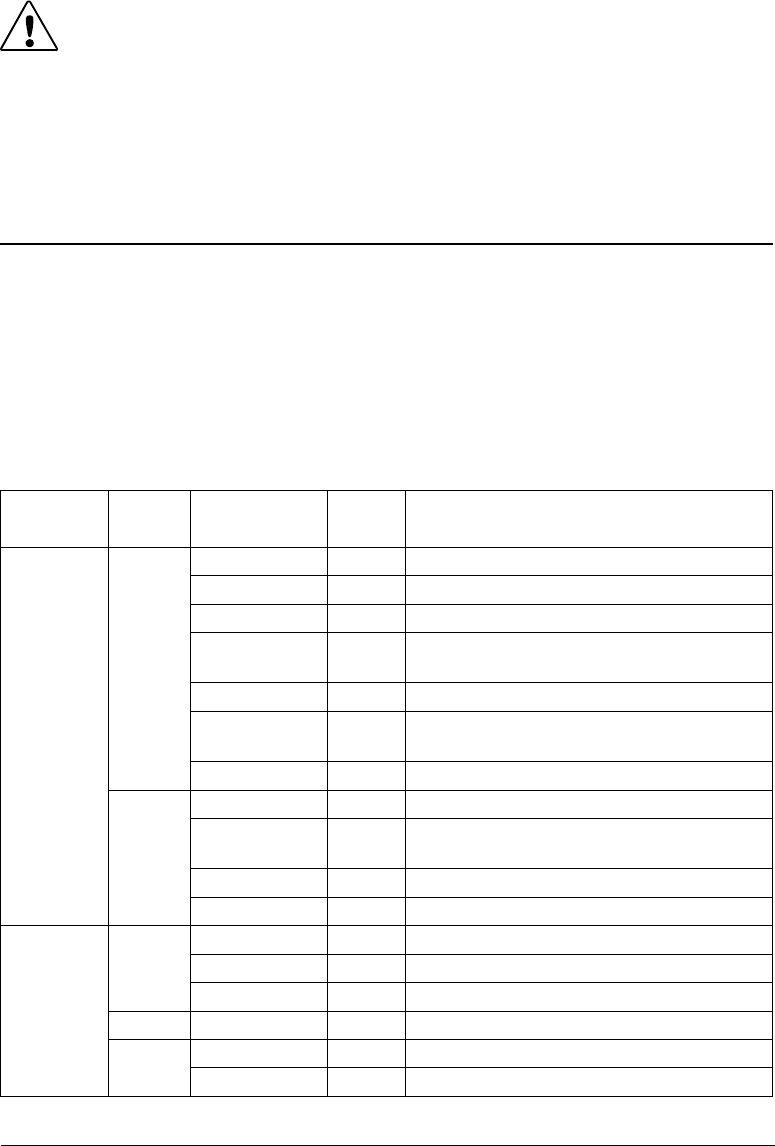
5-8 General Maintenance and Troubleshooting DL.1 User Manual
Caution: The fixture will not function correctly if contact screws are missing
from boards.
6. Replace the side assembly. Make sure you align the assembly properly when
inserting; damage to the fixture can result from improper alignment.
7. Replace the six M4 socket caps that secure the side assembly to the fixture.
General Troubleshooting
This section discusses troublehsooting LED states and general troubleshooting
suggestions.
LED States
LEDs located on DL.1 fixture boards indicate how the unit is functioning. Table 5-1
lists LED States, and problems they may indicate. For details on locating board
LEDs, see Figure 5-8 on page 5-10.
Table 5-1 LED States
LED
Location LED # State Problem? Description
2-phase
Board
LD1
LD2
LD3
LD4
Steady Green No S3 (dimming iris) sensor open
Steady Yellow No S3 (dimming iris) sensor closed
Blinking Red No Board is initializing
Infinitely
Blinking Red Yes Board not receiving data
Steady red Yes Board not receiving data
Blinking Red
and Green Yes Addressing screw(s) missing from board
OFF Yes Board not receiving power
LD5
Steady Green No Receiving proper voltage
Blinking Dim
Green No Receiving data
Dim Green Yes Board not receiving data
OFF Yes Board not receiving power
3-phase
Boards
LD1
Steady Green No Board receiving proper voltage
Dim Green Yes Board not receiving data
OFF Yes Board not receiving power
LD2 Blinking Red Yes Board not programmed
LD3 Steady Green No Board programmed properly
Blinking Red Yes Board not programmed
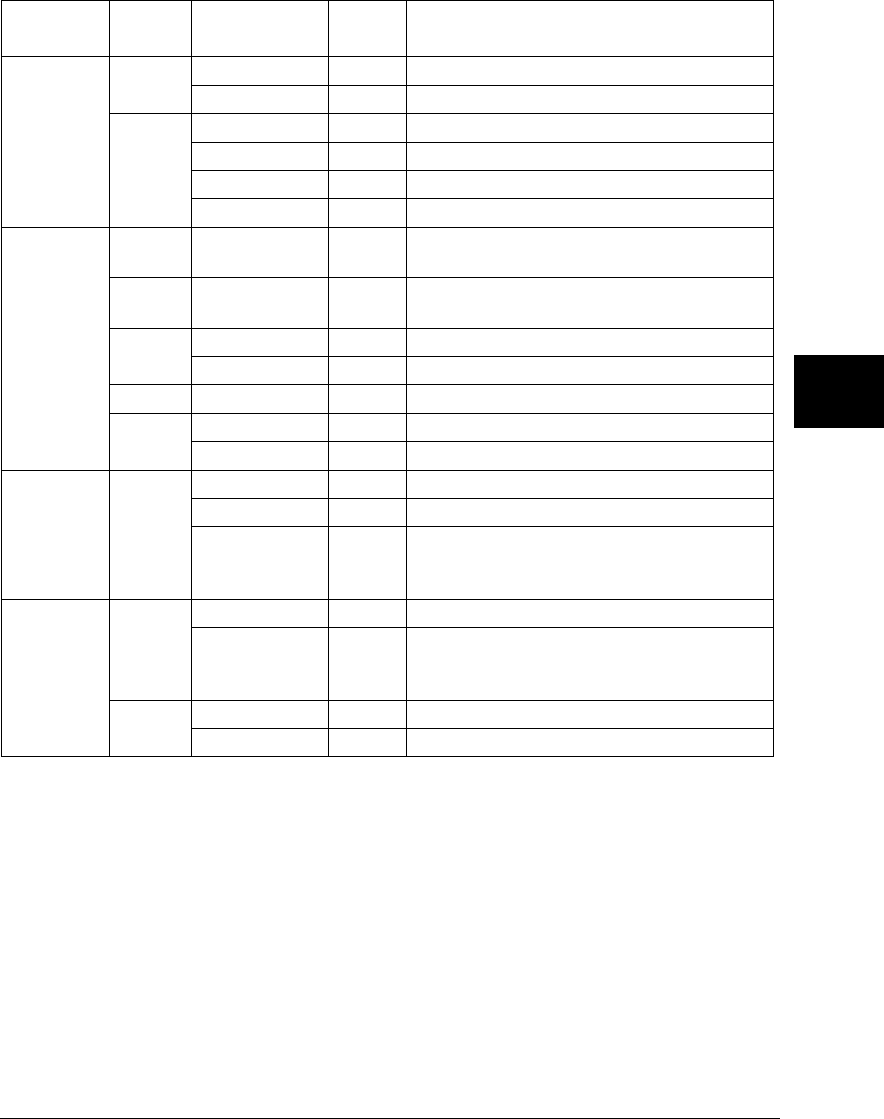
DL.1 User Manual General Maintenance and Troubleshooting 5-9
5
Fan Board
LD1 Blinking Green No Board receiving signals from CPU
Steady Red Yes Board not receiving data
LD2
Blinking Green No Board receiving
Steady Green Yes Error while receiving
Blinking Red No Board is transmitting
Steady Red Yes Error while transmitting
CPU Board
LD1 Steady Orange No Receiving information from 2 & 3 phase
boards
LD1 Flickering Yes Not receiving information from 2 & 3 phase
boards
LD2 Steady Green No Board receiving proper voltage
OFF Yes Board not receiving power
LD3 Steady Red No Currently not used
LD4 Steady Green No Receiving data
OFF Yes Not receiving data
On front of
fixture
Steady Red No Transmitting DMX
Steady Green No Receiving DMX data
Off
Yes, if
data is
applied
DMX data is not being received from the
CPU Board
RS-232
Board
LD1
Steady Green No CPU operating properly
Blinking Red
Yes, if
after
homing
RS-232 Board not found
LD2 Blinking Green No Receiving DMX Data
Blinking Red No Transmitting DMX Data
Table 5-1 LED States
LED
Location LED # State Problem? Description
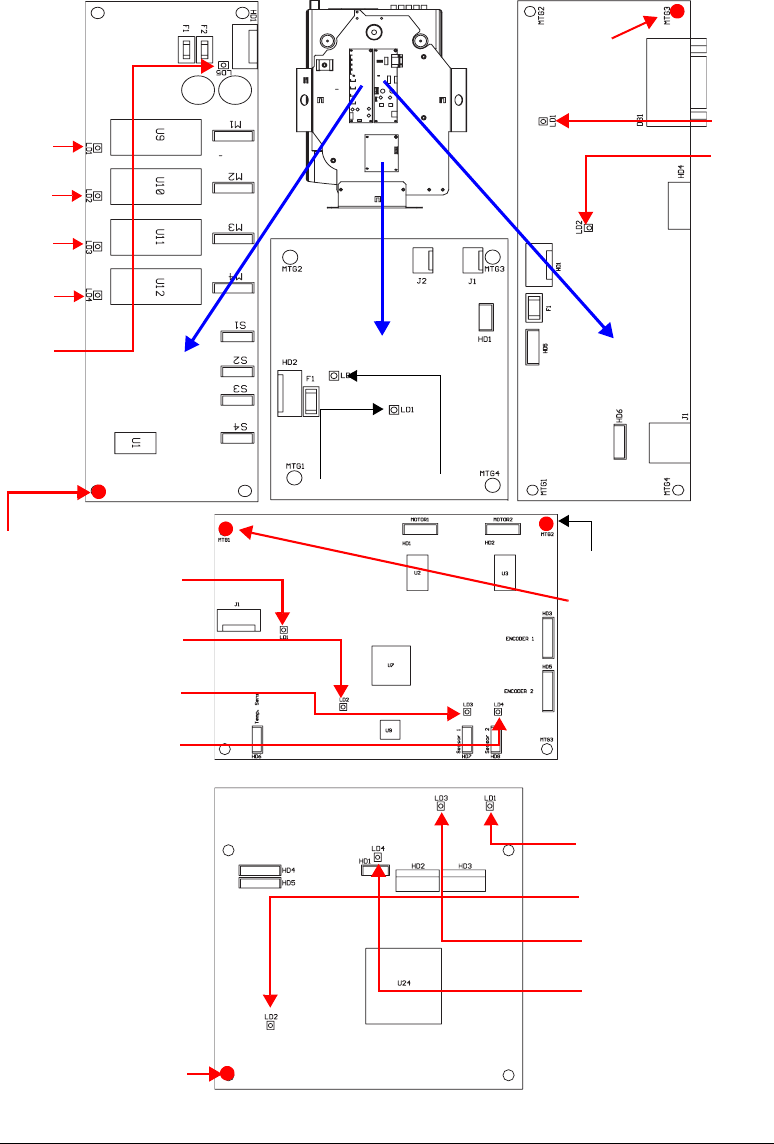
5-10 General Maintenance and Troubleshooting DL.1 User Manual
Fi
g
ure 5-8 Addressin
g
screw and LED locations.
2-Phase
LED 1
LED 2
LED 4
LED 5
RS-232
LED 1
Board
LED 2
Fan Board
LED 1 LED 2
LED 3
3-Phase
LED 2
LED 4
LED 3
LED 1
LED 1
LED 2
LED 4
LED 5
LED 3
CPU
Board
Board
Pan Addressing Screw
Tilt Addressing Screw
CPU Addressing Screw
2-Phase
Addressing
Screw
Board
RS-232
Addressing
Screw

DL.1 User Manual General Maintenance and Troubleshooting 5-11
5
General Troubleshooting Suggestions
Table 5-2 shows general troubleshooting suggestions:
Table 5-2 DL.1 Troubleshooting Suggestions
Problem Solution
The fixture won’t power on
1. Verify fixture is plugged in to an appropriately-rated power
source (power ratings are shown on page 1-4).
2. Verify the power switch is in the ON position.
3. Check the fuse (page 5-4).
4. Check power cord wiring (page page 2-1).
The fixture powers on but
no image
1. Make sure a video input is physically attached to the input you
selected, and that the video feed is active.
2. Is the dimming iris closed? (If so, check the setting for DMX
channel 10—Control—which usually shuts the dimming iris. See
page 4-4.)
3. Did you recently change inputs? About 10 seconds are required
for an input change to take effect. However, you might have
selected an invalid input using projector controls.
4. Set the projector back to its default settings as shown on
page 3-9. Or use the DMX protocol to exit the projector menu
system (see page 4-4).
Image is blurry, out of focus,
or colors are unnatural
1. Check the housing filter (see page 5-2).
2. Is the DL.1 mounted less than 1.4 meters to an object? If so,
move the DL.1 farther away to enable it to focus properly.
3. Make sure the DL.1 is not operating near fog machines, hazers,
or mineral oil hazers (see page 2-4).
4. Clean the front window (see page 5-5).
5. Check the lamp (see the projector manual shipped with the
DL.1).
6. If you’re using the projector’s on-screen programming system,
you can override zoom and focus using the menu system (see
page 3-10).
Projector behaves
erratically or won’t respond
to DMX control
1. To control the internal projector with the DMX protocol, you must
first enable DMX (see page 3-10).
2. If you’re using DMX to control the projector using its native menu
system, make sure you send a safe command after each button
command; otherwise, it’s analogous to pressing a button on the
projector menu system and not releasing it (see page 4-4).

5-12 General Maintenance and Troubleshooting DL.1 User Manual

DL.1 User Manual Safety Information A-1
A
Appendix
A:
Safety Information
Warning: For Continued Protection Against Fire
1. This equipment for connection to branch circuit having a maximum overload
protection of 20 A.
Warning: For Continued Protection Against Electric Shock
1. If this equipment was received without a line cord plug, attach the appropriate line
cord plug according to the following code:
• brown–live
•blue–neutral
• green/yellow–earth
2. As the colours of the cores in the mains lead of this equipment may not correspond
with the coloured markings identifying the terminals in your plug, proceed as follows:
• the core which is coloured green and yellow must be connected to the
terminal in the plug which is marked with the letter E or by the earth symbol
, or coloured green or green and yellow.
• the core which is coloured blue must be connected to the terminal which is
marked with the letter N or coloured black.
• the core which is coloured brown must be connected to the terminal which is
marked with the letter L or coloured red.
3. Class I equipment. This equipment must be earthed.
4. Equipment suitable for dry locations only. Do not expose this equipment to rain
or moisture.
5. Refer servicing to qualified personnel; no user serviceable parts inside.

A-2 Safety Information DL.1 User Manual
Appendice A
Importantes Informations Sur La Sécurité
Mise En Garde: Pour Une Protection Permanente Contre Les
Incendies
1. Cet appareil de connection au circuit comporte une protection contre les surcharges
de 20 A.
Mise En Garde: Pour Une Protection Permanente Contre Les Chocs
Électriques
2. Si cet équipement est livré sans prise de cable, veuillez connecter la prise de cable
correcte selon le code suivant:
•marron - phase
•bleu - neutre
• vert/jaune - terre
3. Débrancher le courant avant de changer les lampes ou d'effectuer des réparations.
4. Cet équipement doit être uniquement utilisé dans des endroits secs. Ne pas l'exposer
à la pluie ou l'humidité.
5. À l'intérieur de l'équipement il n'y a pas de pièces remplaçables par l' utilisateur.
Confiez l'entretien à un personnel qualifié.
6. Equipement de Classe I. Cet équipement doit être mis à la terre.

DL.1 User Manual Safety Information A-3
A
Anhang A
Wichtige Hinweise Für Ihre Sicherheit
Warnung: Zum Schutz Vor Brandgefahr
1. Dieses Gerät darf nur an eine Zweigleitung mit einem Überlastungsschutz von
höchstens 20 A angeschlossen werden.
Warnung: Zum Schutz Gegen Gefährliche Körperströme
1. Wenn dieses Gerät ohne einen Netzkabelstecker erhalten wurde, ist der
entsprechende Netzkabelstecker entsprechend dem folgenden Code anzubringen:
• Braun - Unter Spannung stehend
• Blau - Neutral
•Grün/Gelb - Erde
2. Vor dem Austauschen von Lampen oder vor Wartungsarbeiten stets den Netzstecker
ziehen.
3. Diese Geräte sind nur zum Einbau in trockenen Lagen bestimmt und müssen vor
Regen und Feuchtigkeit geschützt werden.
4. Servicearbeiten sollten nur von Fachpersonal ausgeführt werden. Das Gerät enthält
keine wartungsbedürftigen Teile.
5. Dieses Gerät gehört zur Klasse I. Dieses Gerät muß geerdet werden.

A-4 Safety Information DL.1 User Manual
Apéndice A
Información Importante De Seguridad
Advertencia: Para Protección Continua Contra Incendios
1. Este equipo debe conectarse a un circuito que tenga una protección máxima contra
una sobrecargas de 20 A.
Advertencia: Para La Protección Continua Contra Electrocuciones
1. Si se recibió este equipo sin el conector de alimentacion, monte usted el conector
correcto según ia clave siguente:
• moreno - vivo
• azul - neutral
• verde/amarillo - tierra
2. Desconecte el suministro de energía antes de cambiar lámparas o prestar servicio de
reparación.
3. Este equipo esta disenado para usarce en lugares secos no lo exponga a la lluvia o
humedad.
4. Derive el servicio de reparación de este equipo al personal calificado. El interior no
contiene repuestos que puedan ser reparados por el usuario.
5. Equipo de Clase I. Este equipo debe conectarse a tierra.

DL.1 User Manual Safety Information A-5
A
Appendice A
Importanti Informazioni Di Sicurezza
Avvertenza: Per Prevenire Incendi
1. Questa apparecchiatura e' da collegarsi ad un circuito con una protezione da
sovraccarico massima di 20 ampere.
Avvertenza: Per Prevenire Le Scosse Elettriche
1. Da non montare sopra una superficie infiammabile.
2. Mantenere l' apparecchio a un minimo di 1.0 metri (3.28 piedi) di distanza dai
materiali combustibili.
3. Sostituire i fusibili usando soltanto quelli del tipo e della taratura adatta.
4. Mantenere una distanza minima di 1.0 metri (3.28 piedi) dagli oggetti accesi.
5. Questa apparecchiatura e' da collegarsi ad un circuito con una protezione da
sovraccarico massima di 20 ampere.
Vigtig Sikkerhedsinformation
Advarsel: Beskyttelse mod elektrisk chock.
VIGTIGT! LEDEREN MED GUL/GROEN ISOLATION MAA KUN TILSLUTTES
KLEMME MAERKET ELLER .

A-6 Safety Information DL.1 User Manual
DL.1 User Manual MSpeed Conversion Table B-1
B
Time
(sec.)
Value
(dec.)
Value
(%)
Value
(hex)
0.15 255 100 FF
0.15 254 100 FE
0.17 253 99 FD
0.19 252 99 FC
0.21 251 98 FB
0.25 250 98 FA
0.29 249 98 F9
0.35 248 97 F8
0.41 247 97 F7
0.47 246 96 F6
0.55 245 96 F5
0.63 244 96 F4
0.73 243 95 F3
0.83 242 95 F2
0.94 241 95 F1
1.05 240 94 F0
1.18 239 94 EF
1.31 238 93 EE
1.45 237 93 ED
1.60 236 93 EC
1.75 235 92 EB
1.92 234 92 EA
2.09 233 91 E9
2.27 232 91 E8
2.46 231 91 E7
2.66 230 90 E6
2.86 229 90 E5
Appendix B:
MSpeed Conversion Table
The following table lists the MSpeed (motor) movement times and their corresponding
DMX controller values. If you have a numeric-type controller, use the Value Decimal
(dec.) column. If you have a fader-type controller, use the Value Percentage (%) column.
If your controller allows you to program hex values, use the Value (hex) column.
3.07 228 89 E4h
3.29 227 89 E3
3.52 226 89 E2
3.76 225 88 E1
4.00 224 88 E0
4.25 223 87 DF
4.52 222 87 DE
4.78 221 87 DD
5.06 220 86 DC
5.34 219 86 DB
5.64 218 85 DA
5.94 217 85 D9
6.25 216 85 D8
6.56 215 84 D7
6.89 214 84 D6
7.22 213 84 D5
7.56 212 83 D4
7.91 211 83 D3
8.27 210 82 D2
8.63 209 82 D1
9.00 208 82 D0
9.39 207 81 CF
9.77 206 81 CE
10.17 205 80 CD
10.58 204 80 CC
10.99 203 80 CB
11.41 202 79 CA
Time
(sec.)
Value
(dec.)
Value
(%)
Value
(hex)
11.84 201 79 C9
12.28 200 78 C8
12.72 199 78 C7
13.17 198 78 C6
13.63 197 77 C5
14.10 196 77 C4
14.58 195 76 C3
15.07 194 76 C2
15.56 193 76 C1
16.06 192 75 C0
16.57 191 75 BF
17.09 190 75 BE
17.61 189 74 BD
18.14 188 74 BC
18.68 187 73 BB
19.23 186 73 BA
19.79 185 73 B9
20.36 184 72 B8
20.93 183 72 B7
21.51 182 71 B6
22.10 181 71 B5
22.70 180 71 B4
23.30 179 70 B3
23.92 178 70 B2
24.54 177 69 B1
25.17 176 69 B0
25.80 175 69 AF
Time
(sec.)
Value
(dec.)
Value
(%)
Value
(hex)

B-2 MSpeed Conversion Table DL.1 User Manual
26.45 174 68 AE
27.10 173 68 AD
27.76 172 67 AC
28.43 171 67 AB
29.11 170 67 AA
29.80 169 66 A9
30.49 168 66 A8
31.19 167 65 A7
31.90 166 65 A6
32.62 165 65 A5
33.34 164 64 A4
34.08 163 64 A3
34.82 162 64 A2
35.57 161 63 A1
36.33 160 63 A0
37.09 159 62 9F
37.87 158 62 9E
38.65 157 62 9D
39.44 156 61 9C
39.44v 156 61 9C
40.23 155 61 9B
41.04 154 60 9A
41.85 153 60 99
42.68 152 60 98
43.50 151 59 97
44.34 150 59 96
45.19 149 58 95
46.04 148 58 94
46.90 147 58 93
47.77 146 57 92
48.65 145 57 91
49.54 144 56 90
50.43 143 56 8F
51.33 142 56 8E
52.24 141 55 8D
53.16 140 55 8C
54.09 139 55 8h
55.02 138 54 8A
Time
(sec.)
Value
(dec.)
Value
(%)
Value
(hex)
55.96v 137 54 89
56.91 136 53 88
57.87 135 53 87
58.84 134 53 86
59.81 133 52 85
60.79 132 52 84
61.78 131 51 83
62.78 130 51 82
63.79 129 51 81
64.80 128 50 80
65.82 127 50 7F
66.85 126 49 7E
67.89 125 49 7D
68.94 124 49 7C
69.99 123 48 7B
71.05 122 48 7A
72.13 121 47 79
73.20 120 47 78
74.29 119 47 77
75.38 118 46 76
76.49 117 46 75
77.60 116 45 74
78.71 115 45 73
79.84 114 45 72
80.98 113 44 71
82.12 112 44 70
83.27 111 44 6F
84.43 110 43 6E
85.59 109 43 6D
86.77 108 42 6C
87.95 107 42 6B
89.14 106 42 6A
90.34 105 41 69
91.55 104 41 68
92.76 103 40 67
93.98 102 40 66
95.21 101 40 65
96.45 100 39 64
Time
(sec.)
Value
(dec.)
Value
(%)
Value
(hex)
97.70 99 39 63
98.95 98 38 62
100.22 97 38 61
101.49 96 38 60
102.77 95 37 5F
104.05 94 37 5E
105.35 93 36 5D
106.65 92 36 5C
107.96 91 36 5B
109.28 90 35 5A
110.61 89 35 59
111.94 88 35 58
113.28 87 34 57
114.63 86 34 56
115.99 85 33 55
117.36 84 33 54
118.73 83 33 53
120.12 82 32 52
121.5v 81 32 51
122.91 80 31 50
124.31 79 31 4F
125.73 78 31 4E
127.15 77 30 4D
128.58 76 30 4C
130.02 75 29 4B
134.39 72 28 48
135.86 71 28 47
137.34 70 27 46
138.82 69 27 45
140.32 68 27 44
141.82 67 26 43
143.33 66 26 42
144.85 65 25 41
146.38 64 25 40
147.92 63 25 3F
149.46 62 24 3E
151.01 61 24 3D
152.57 60 24 3C
Time
(sec.)
Value
(dec.)
Value
(%)
Value
(hex)
DL.1 User Manual MSpeed Conversion Table B-3
B
154.14 59 23 3B
155.71 58 23 3A
157.30 57 22 39
158.89 56 22 38
160.49 55 22 37
162.09 54 21 36
163.71 53 21 35
165.33 52 20 34
166.96 51 20 33
168.60 50 20 32
170.25 49 19 31
171.91 48 19 30
173.57 47 18 2F
175.24 46 18 2E
176.92 45 18 2D
178.61 44 17 2C
180.30 43 17 2B
182.01 42 16 2A
183.72 41 16 29
185.44 40 16 28
187.17 39 15 27
188.90 38 15 26
190.65 37 15 25
192.40 36 14 24
194.16 35 14 23
195.92 34 13 22
197.70 33 13 21
199.48 32 13 20
201.28 31 12 1F
203.08 30 12 1E
204.88 29 11 1D
206.70 28 11 1C
208.52 27 11 1B
210.36 26 10 1A
212.19 25 10 19
214.04 24 9 18
215.90 23 9 17
217.76 22 9 16
Time
(sec.)
Value
(dec.)
Value
(%)
Value
(hex)
219.63 21 8 15
221.51 20 8 14
223.40 19 7 13
225.30 18 7 12
227.20 17 7 11
229.11 16 6 10
231.03 15 6 0F
232.96 14 5 0E
234.90 13 5 0D
236.84 12 5 0C
238.79 11 4 0B
240.75 10 4 0A
242.72 9 4 09
244.70 8 3 08
246.68 7 3 07
248.68 6 2 06
250.68 5 2 05
246.68 7 3 07
248.68 6 2 06
250.68 5 2 05
252.68 4 2 04
Time
(sec.)
Value
(dec.)
Value
(%)
Value
(hex)

B-4 MSpeed Conversion Table DL.1 User Manual
