Hitachi Information and Telecommunication Systems EMG21 Gateway Wireless Router User Manual

Hitachi, Ltd., Information & Telecommunication Systems Company Gateway Wireless Router Users Manual

Users Manual

        Hitachi EMS Gateway Model EM-G21     User Manual    Read and keep this manual.   Thank you for purchasing your Hitachi EMS Gateway, Model EM-G21. Your safety and the safety of others is important. Please read this manual before installing and this product. In order to ensure the safe operation of the Hitachi EMS Gateway, read obey all safety messages and all of the instructions contained in the manual and the warnings.   After reading this manual, this manual should be kept in a readily accessible location ease of reference. If this product is sold to another party, this manual should the product to the new owner of the product.
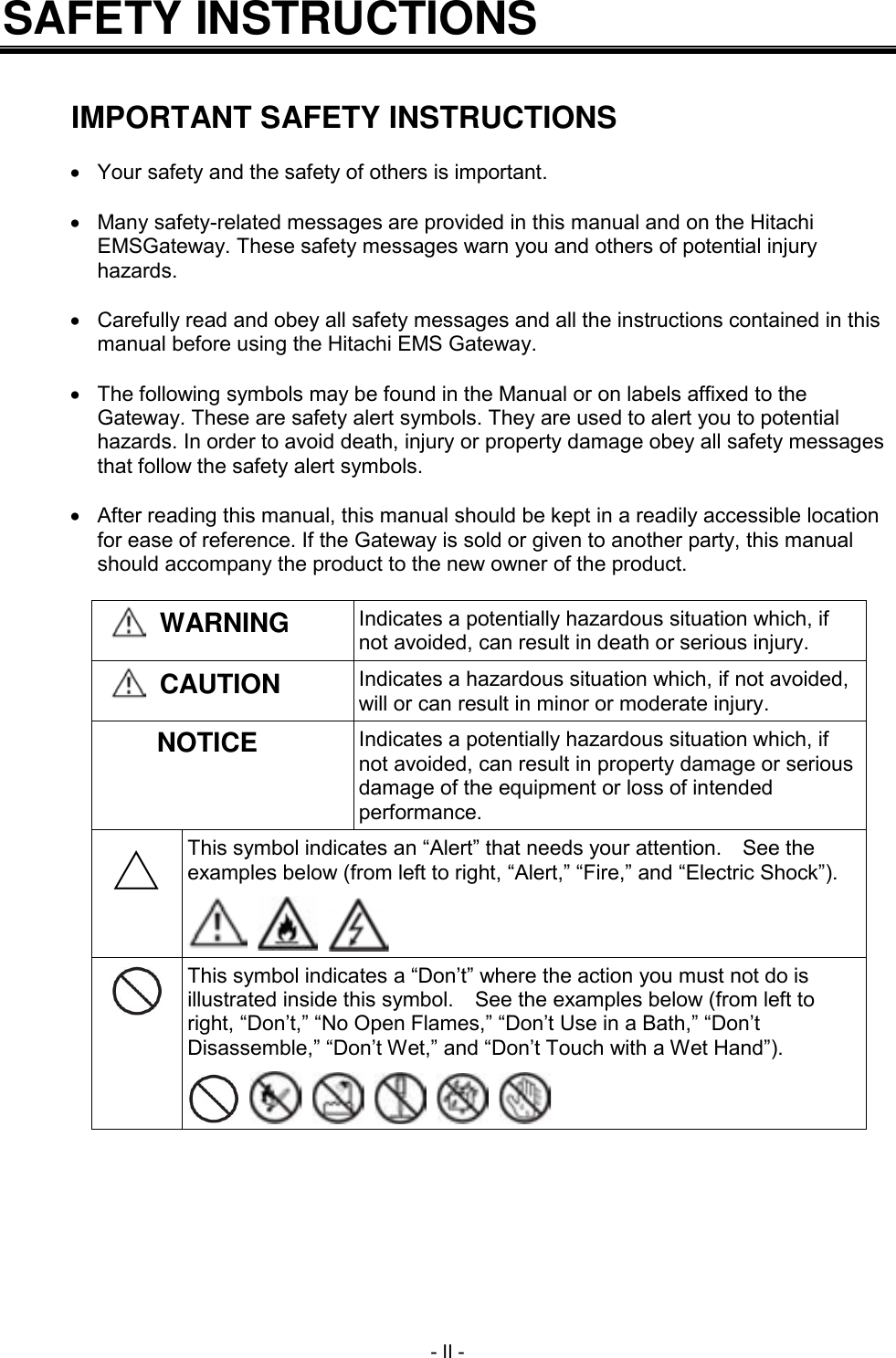
 - II - SAFETY INSTRUCTIONS   IMPORTANT SAFETY INSTRUCTIONS    Your safety and the safety of others is important.    Many safety-related messages are provided in this manual and on the Hitachi EMSGateway. These safety messages warn you and others of potential injury hazards.    Carefully read and obey all safety messages and all the instructions contained in this manual before using the Hitachi EMS Gateway.    The following symbols may be found in the Manual or on labels affixed to the Gateway. These are safety alert symbols. They are used to alert you to potential hazards. In order to avoid death, injury or property damage obey all safety messages that follow the safety alert symbols.    After reading this manual, this manual should be kept in a readily accessible location for ease of reference. If the Gateway is sold or given to another party, this manual should accompany the product to the new owner of the product.   WARNING Indicates a potentially hazardous situation which, if not avoided, can result in death or serious injury.  CAUTION Indicates a hazardous situation which, if not avoided, will or can result in minor or moderate injury. NOTICE Indicates a potentially hazardous situation which, if not avoided, can result in property damage or serious damage of the equipment or loss of intended performance. △ This symbol indicates an “Alert” that needs your attention.    See the examples below (from left to right, “Alert,” “Fire,” and “Electric Shock”).       This symbol indicates a “Don’t” where the action you must not do is illustrated inside this symbol.    See the examples below (from left to right, “Don’t,” “No Open Flames,” “Don’t Use in a Bath,” “Don’t Disassemble,” “Don’t Wet,” and “Don’t Touch with a Wet Hand”).
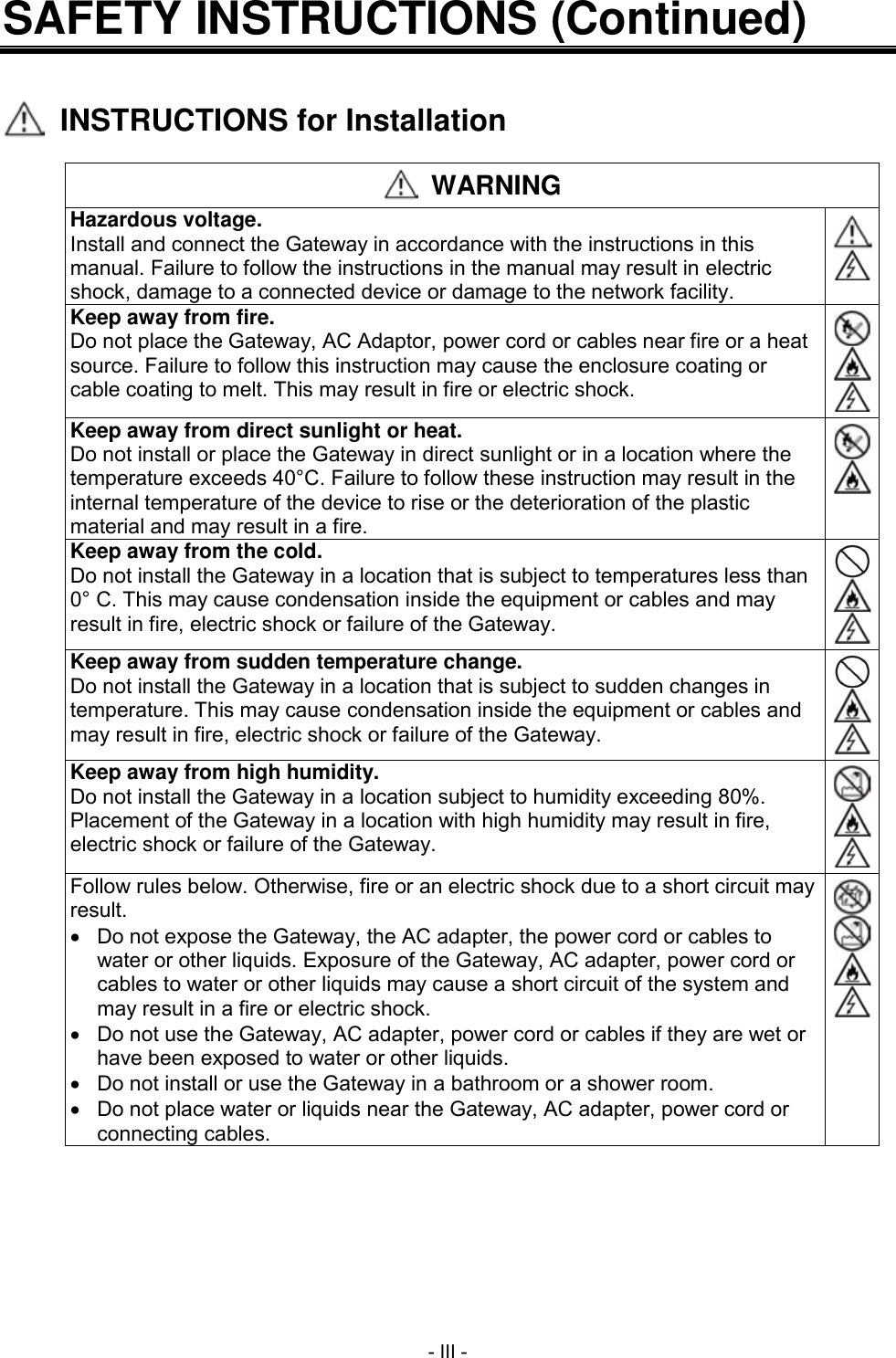
 - III - SAFETY INSTRUCTIONS (Continued)     INSTRUCTIONS for Installation   WARNING Hazardous voltage. Install and connect the Gateway in accordance with the instructions in this manual. Failure to follow the instructions in the manual may result in electric shock, damage to a connected device or damage to the network facility.   Keep away from fire. Do not place the Gateway, AC Adaptor, power cord or cables near fire or a heat source. Failure to follow this instruction may cause the enclosure coating or cable coating to melt. This may result in fire or electric shock.    Keep away from direct sunlight or heat. Do not install or place the Gateway in direct sunlight or in a location where the temperature exceeds 40°C. Failure to follow these instruction may result in the internal temperature of the device to rise or the deterioration of the plastic material and may result in a fire.   Keep away from the cold. Do not install the Gateway in a location that is subject to temperatures less than 0° C. This may cause condensation inside the equipment or cables and may result in fire, electric shock or failure of the Gateway.    Keep away from sudden temperature change. Do not install the Gateway in a location that is subject to sudden changes in temperature. This may cause condensation inside the equipment or cables and may result in fire, electric shock or failure of the Gateway.    Keep away from high humidity. Do not install the Gateway in a location subject to humidity exceeding 80%. Placement of the Gateway in a location with high humidity may result in fire, electric shock or failure of the Gateway.    Follow rules below. Otherwise, fire or an electric shock due to a short circuit may result.   Do not expose the Gateway, the AC adapter, the power cord or cables to water or other liquids. Exposure of the Gateway, AC adapter, power cord or cables to water or other liquids may cause a short circuit of the system and may result in a fire or electric shock.     Do not use the Gateway, AC adapter, power cord or cables if they are wet or have been exposed to water or other liquids.   Do not install or use the Gateway in a bathroom or a shower room.   Do not place water or liquids near the Gateway, AC adapter, power cord or connecting cables.
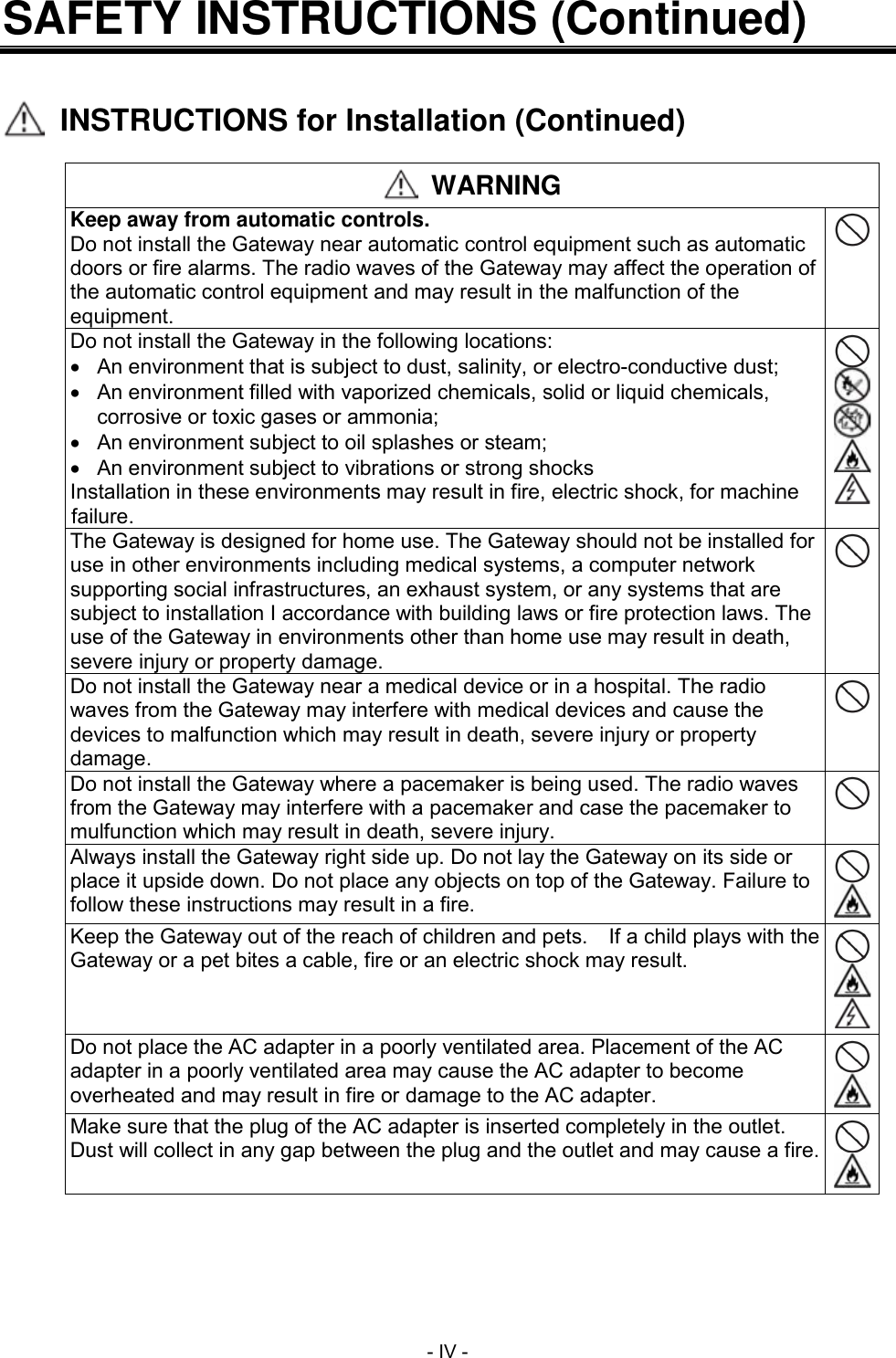
 - IV - SAFETY INSTRUCTIONS (Continued)     INSTRUCTIONS for Installation (Continued)   WARNING Keep away from automatic controls. Do not install the Gateway near automatic control equipment such as automatic doors or fire alarms. The radio waves of the Gateway may affect the operation of the automatic control equipment and may result in the malfunction of the equipment.  Do not install the Gateway in the following locations:   An environment that is subject to dust, salinity, or electro-conductive dust;   An environment filled with vaporized chemicals, solid or liquid chemicals, corrosive or toxic gases or ammonia;   An environment subject to oil splashes or steam;   An environment subject to vibrations or strong shocks Installation in these environments may result in fire, electric shock, for machine failure.      The Gateway is designed for home use. The Gateway should not be installed for use in other environments including medical systems, a computer network supporting social infrastructures, an exhaust system, or any systems that are subject to installation I accordance with building laws or fire protection laws. The use of the Gateway in environments other than home use may result in death, severe injury or property damage.  Do not install the Gateway near a medical device or in a hospital. The radio waves from the Gateway may interfere with medical devices and cause the devices to malfunction which may result in death, severe injury or property damage.  Do not install the Gateway where a pacemaker is being used. The radio waves from the Gateway may interfere with a pacemaker and case the pacemaker to mulfunction which may result in death, severe injury.  Always install the Gateway right side up. Do not lay the Gateway on its side or place it upside down. Do not place any objects on top of the Gateway. Failure to follow these instructions may result in a fire.   Keep the Gateway out of the reach of children and pets.  If a child plays with the Gateway or a pet bites a cable, fire or an electric shock may result.    Do not place the AC adapter in a poorly ventilated area. Placement of the AC adapter in a poorly ventilated area may cause the AC adapter to become overheated and may result in fire or damage to the AC adapter.   Make sure that the plug of the AC adapter is inserted completely in the outlet. Dust will collect in any gap between the plug and the outlet and may cause a fire.
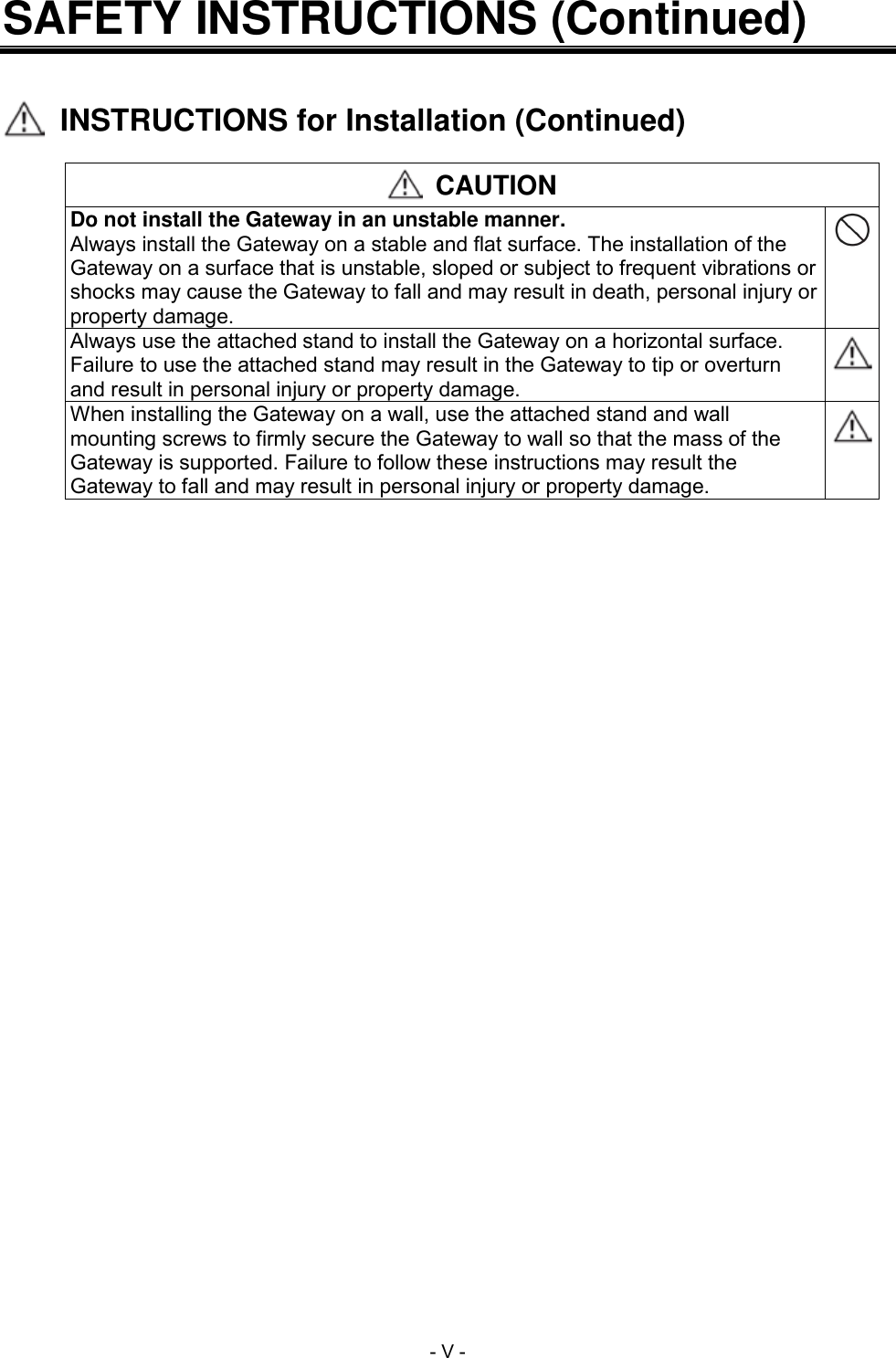
 - V - SAFETY INSTRUCTIONS (Continued)     INSTRUCTIONS for Installation (Continued)   CAUTION Do not install the Gateway in an unstable manner. Always install the Gateway on a stable and flat surface. The installation of the Gateway on a surface that is unstable, sloped or subject to frequent vibrations or shocks may cause the Gateway to fall and may result in death, personal injury or property damage.  Always use the attached stand to install the Gateway on a horizontal surface. Failure to use the attached stand may result in the Gateway to tip or overturn and result in personal injury or property damage.  When installing the Gateway on a wall, use the attached stand and wall mounting screws to firmly secure the Gateway to wall so that the mass of the Gateway is supported. Failure to follow these instructions may result the Gateway to fall and may result in personal injury or property damage.
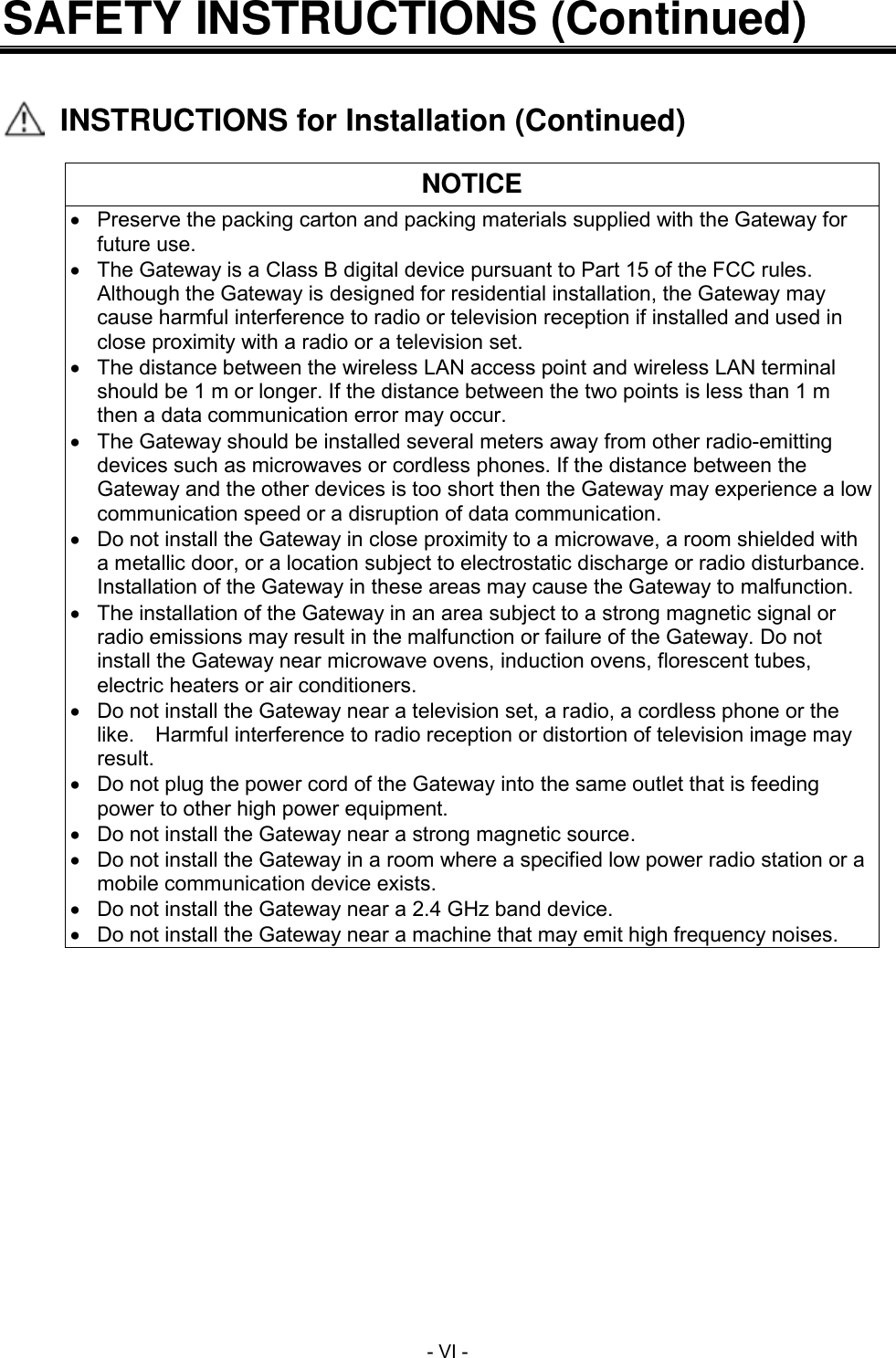
 - VI - SAFETY INSTRUCTIONS (Continued)     INSTRUCTIONS for Installation (Continued)  NOTICE   Preserve the packing carton and packing materials supplied with the Gateway for future use.  The Gateway is a Class B digital device pursuant to Part 15 of the FCC rules.   Although the Gateway is designed for residential installation, the Gateway may cause harmful interference to radio or television reception if installed and used in close proximity with a radio or a television set.   The distance between the wireless LAN access point and wireless LAN terminal should be 1 m or longer. If the distance between the two points is less than 1 m then a data communication error may occur.   The Gateway should be installed several meters away from other radio-emitting devices such as microwaves or cordless phones. If the distance between the Gateway and the other devices is too short then the Gateway may experience a low communication speed or a disruption of data communication.   Do not install the Gateway in close proximity to a microwave, a room shielded with a metallic door, or a location subject to electrostatic discharge or radio disturbance. Installation of the Gateway in these areas may cause the Gateway to malfunction.   The installation of the Gateway in an area subject to a strong magnetic signal or radio emissions may result in the malfunction or failure of the Gateway. Do not install the Gateway near microwave ovens, induction ovens, florescent tubes, electric heaters or air conditioners.   Do not install the Gateway near a television set, a radio, a cordless phone or the like.    Harmful interference to radio reception or distortion of television image may result.   Do not plug the power cord of the Gateway into the same outlet that is feeding power to other high power equipment.   Do not install the Gateway near a strong magnetic source.   Do not install the Gateway in a room where a specified low power radio station or a mobile communication device exists.   Do not install the Gateway near a 2.4 GHz band device.   Do not install the Gateway near a machine that may emit high frequency noises.
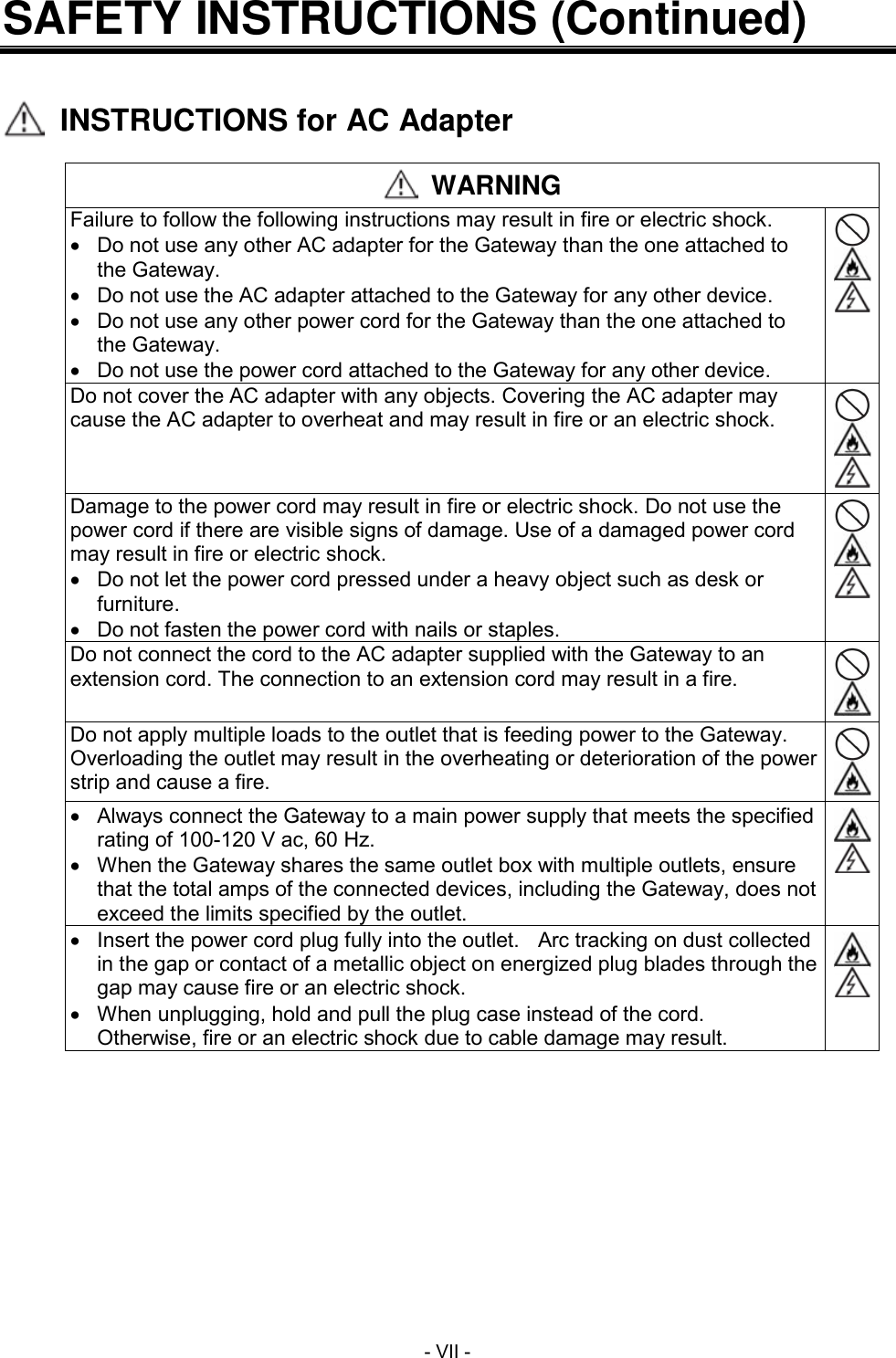
 - VII - SAFETY INSTRUCTIONS (Continued)     INSTRUCTIONS for AC Adapter   WARNING Failure to follow the following instructions may result in fire or electric shock.   Do not use any other AC adapter for the Gateway than the one attached to the Gateway.   Do not use the AC adapter attached to the Gateway for any other device.   Do not use any other power cord for the Gateway than the one attached to the Gateway.   Do not use the power cord attached to the Gateway for any other device.    Do not cover the AC adapter with any objects. Covering the AC adapter may cause the AC adapter to overheat and may result in fire or an electric shock.    Damage to the power cord may result in fire or electric shock. Do not use the power cord if there are visible signs of damage. Use of a damaged power cord may result in fire or electric shock.   Do not let the power cord pressed under a heavy object such as desk or furniture.   Do not fasten the power cord with nails or staples.    Do not connect the cord to the AC adapter supplied with the Gateway to an extension cord. The connection to an extension cord may result in a fire.   Do not apply multiple loads to the outlet that is feeding power to the Gateway. Overloading the outlet may result in the overheating or deterioration of the power strip and cause a fire.     Always connect the Gateway to a main power supply that meets the specified rating of 100-120 V ac, 60 Hz.   When the Gateway shares the same outlet box with multiple outlets, ensure that the total amps of the connected devices, including the Gateway, does not exceed the limits specified by the outlet.     Insert the power cord plug fully into the outlet.    Arc tracking on dust collected in the gap or contact of a metallic object on energized plug blades through the gap may cause fire or an electric shock.   When unplugging, hold and pull the plug case instead of the cord.   Otherwise, fire or an electric shock due to cable damage may result.
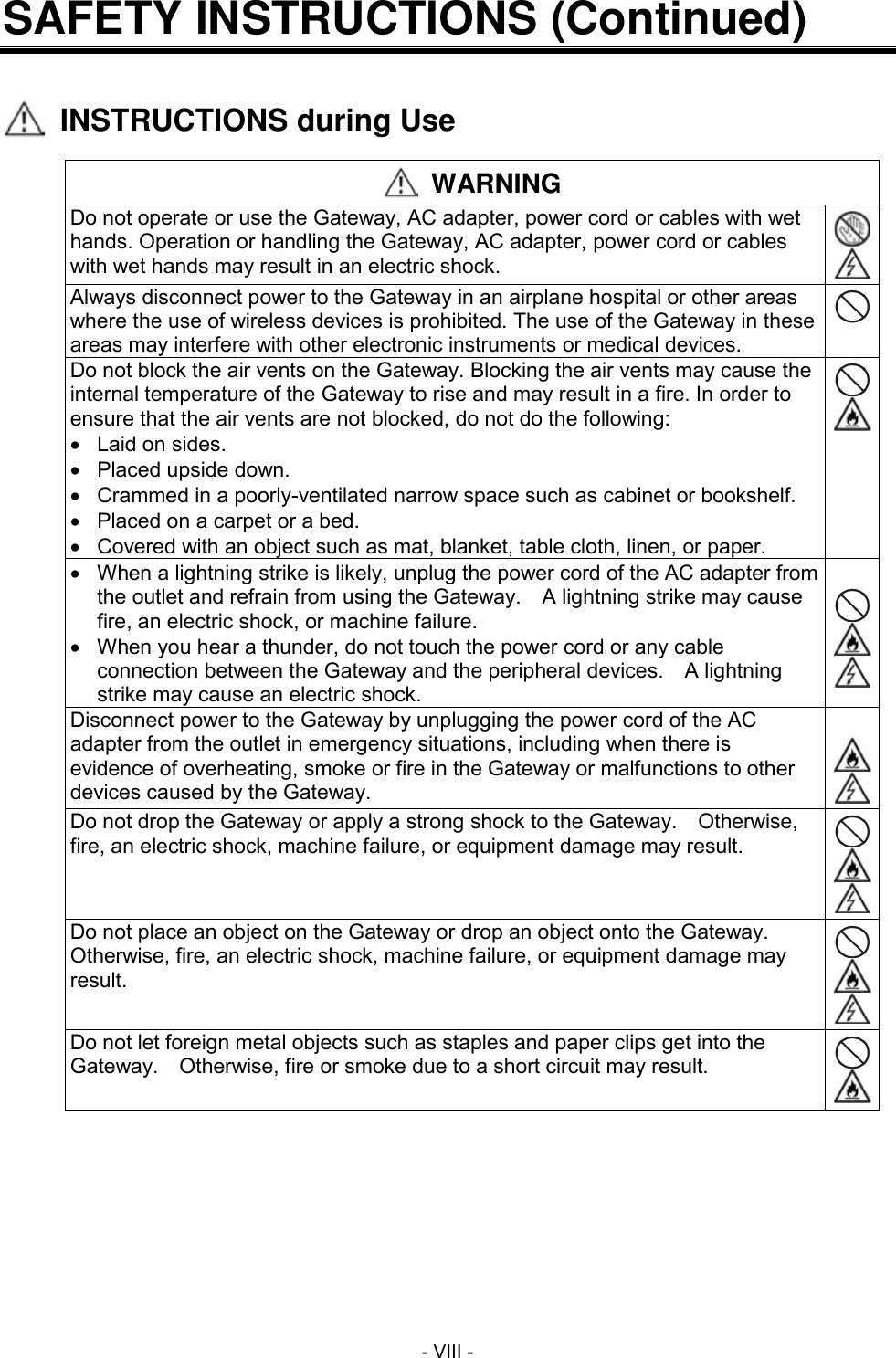
 - VIII - SAFETY INSTRUCTIONS (Continued)     INSTRUCTIONS during Use   WARNING Do not operate or use the Gateway, AC adapter, power cord or cables with wet hands. Operation or handling the Gateway, AC adapter, power cord or cables with wet hands may result in an electric shock.   Always disconnect power to the Gateway in an airplane hospital or other areas where the use of wireless devices is prohibited. The use of the Gateway in these areas may interfere with other electronic instruments or medical devices.  Do not block the air vents on the Gateway. Blocking the air vents may cause the internal temperature of the Gateway to rise and may result in a fire. In order to ensure that the air vents are not blocked, do not do the following:   Laid on sides.   Placed upside down.   Crammed in a poorly-ventilated narrow space such as cabinet or bookshelf.   Placed on a carpet or a bed.   Covered with an object such as mat, blanket, table cloth, linen, or paper.     When a lightning strike is likely, unplug the power cord of the AC adapter from the outlet and refrain from using the Gateway.    A lightning strike may cause fire, an electric shock, or machine failure.   When you hear a thunder, do not touch the power cord or any cable connection between the Gateway and the peripheral devices.    A lightning strike may cause an electric shock.     Disconnect power to the Gateway by unplugging the power cord of the AC adapter from the outlet in emergency situations, including when there is evidence of overheating, smoke or fire in the Gateway or malfunctions to other devices caused by the Gateway.    Do not drop the Gateway or apply a strong shock to the Gateway.    Otherwise, fire, an electric shock, machine failure, or equipment damage may result.    Do not place an object on the Gateway or drop an object onto the Gateway.   Otherwise, fire, an electric shock, machine failure, or equipment damage may result.    Do not let foreign metal objects such as staples and paper clips get into the Gateway.    Otherwise, fire or smoke due to a short circuit may result.
 - IX - SAFETY INSTRUCTIONS (Continued)     INSTRUCTIONS during Use (Continued)   WARNING When powered, do not cover or place the Gateway or the AC adapter near a heater. This may result in the internal temperatures of the Gateway or AC adapter to rise and may result in a fire, personal injuries or machine failure.   Do not let the Gateway or AC adapter come in contact with human skin for an extended period of time while the Gateway and AC adapter are powered. This may result in burns or other personal injuries.  Store small parts such as caps, covers, and screws beyond the reach of children to avoid accidental ingestion.    In case of accidental ingestion, see a doctor at once.    CAUTION Do not step on the Gateway. Do not step on the Gateway. Failure to follow this instruction may result in personal injuries or damage to the equipment.  In the event of fire or earthquake, check the condition of the Gateway. Immediately disconnect power to the Gateway by unplugging the power cord of the AC adapter from the outlet if any problems are identified. Failure to disconnect power to the Gateway may result in damage to the equipment or the malfunction of the Gateway.    NOTICE   Disconnection or loose connection of a device connecting cable on the Gateway during operation may cause malfunction and loss of important data.    Never touch cable connections on the Gateway during operation.  The Gateway is designed as an electronic device for home use.    Pay attention not to make too many connections of electronic devices such as PCs with the Gateway.  Otherwise, malfunction due to convergence of communications may result.
 - X - SAFETY INSTRUCTIONS (Continued)     INSTRUCTIONS for Moving, Cleaning, and Maintenance   WARNING Clean the power cord plug periodically. Unplug the power cord of the AC adapter from the outlet and remove dust between the power cord plug and the outlet periodically (about once per six months).    Failure to follow these instructions may result in fire or electric shock.    Disconnect power and all cables before moving the Gateway. Unplug the power cord of the AC adapter from the outlet and disconnect all cables connected between the Gateway and the peripheral devices before moving the Gateway.    Failure to follow these instructions may result in fire or electric shock    Disconnect power before maintenance. Unplug the power cord of the AC adapter from the outlet before maintenance.   Failure to follow these instructions may result in electric shock or other injury.   Do not disassemble or modify the Gateway. Never disassemble or modify the Gateway.  Failure to follow these instructions may result in fire or electric shock.     NOTICE   When unplugging and plugging the power cord of the AC adapter attached to the Gateway, wait 10 seconds or longer between unplugging and plugging.   When the exterior of the Gateway is dirty, wipe the exterior with a dry, soft cloth.    If the dirt in areas other than device connecting cable ports is heavy, wipe the dirt using a well-wrung-out soft cloth moistened with neutral detergent diluted with water, and then wipe with a new, dry, soft cloth.  Never let device connecting cable ports get wet.    Never use a dry or pre-moistened wipe, alcohol, benzine, thinner, or other organic solvent so as not to cause the exterior shape or color to change.   Do not apply insecticide spray or other volatile spray on the exterior of the Gateway.   Do not contact a rubber, a vinyl, or an adhesive tape on the exterior for a long time.   Such actions may cause the exterior shape or color to change.   Do not drop the Gateway or bump the Gateway on any other objects while moving the Gateway. Dropping or bumping the Gateway may result in damage to the equipment or a malfunction.   To avoid equipment damage while moving the Gateway, use the packing carton and packing materials supplied with the Gateway.
 - XI - SAFETY INSTRUCTIONS (Continued)     INSTRUCTIONS on Storage   WARNING Store packing materials such as vinyl bags beyond the reach of children.   Otherwise, they may suffocate by accidentally swallowing a small piece of packing material or putting a vinyl bag on their heads.     CAUTION Unplug the power cord of the AC adapter from the outlet when you do not plan to use the Gateway for an extended period of time.
 - XII - Information on Functionality  INFORMATION Networking   Depending on the network environment at your premise, cases below may occur.   Unable to obtain a maximum communication speed.   Unable to obtain a stable communication speed.   Unable to establish a communication link.   If your network is connected to an external network, threats of unauthorized intrusion and information leak may increase.    Install firewall software on your PCs connected to the Gateway as necessary. Wireless LAN   Standard values of up to 300 Mbps, 54 Mbps, and 11 Mbps present theoretical maximum values of IEEE 802.11 Wireless LAN Standard and do not present actual (effective) data throughput values.   Reachable distance and communication speed of the wireless LAN facility built in the Gateway largely differ with environmental conditions at your premise.    These conditions include communication distances, electromagnetic factors (such as obstacles and microwave appliances), performances of connected PCs, and network usage rates.   When an IEEE 802.11b device, an IEEE 802.11g device, and an IEEE 802.11n device coexist in the network at your premise, the throughput of the IEEE 802.11n device may become significantly slow.   To enable communications with an IEEE 802.11n device, wireless encryption on the wireless LAN terminal must be set to “-” (no encryption), “WPA-PSK (AES),” or “WPA2-PSK (AES),” where the last choice is recommended.   WLAN channels 12 and 13 are not allowed to use. Your configuration of wireless channel 12 or 13 is invalid. Firmware upgrade   In order to keep the firmware of the Gateway up to date, the Gateway automatically checks for a new firmware version over an applicable external network and, if a new version is found, upgrades the installed firmware within the predefined timeframe.   During execution of firmware upgrade, all other connections are automatically disconnected.   Execution of firmware upgrade may interrupt your use of services via an external network such as viewing streaming content.    If this happens, wait until execution of firmware upgrade is complete and then retry use of the interrupted service.
 - XIII - Information on Functionality (Continued)  INFORMATION Management of site-specific information   The Gateway can register and store information that is specific to you and your premise.    If such site-specific information leaks, your loss may be unpredictable.   Take utmost care in managing such site-specific information stored in the Gateway.   You can completely erase the site-specific information by initializing the Gateway.   Follow the procedure in Section 8.1, “Initialization of the Gateway.”  Important Information on Wireless LAN Security for Privacy  INFORMATION   Because wireless LAN uses radio waves instead of LAN cables for communications among devices such as PCs through wireless LAN access points, it has the benefit of LAN connection anywhere as far as radio waves can reach.   Conversely, without proper security settings, wireless LAN may be susceptible to the following threats because radio waves can reach anywhere within their scope beyond obstacles such as walls:   Sniffing:    A malicious third party may willfully intercept radio waves, thus stealing the content of communications such as e-mails or personal information such as user IDs, passwords, and credit-card numbers.   Unauthorized intrusion:    A malicious third party may intrude on the personal or corporate network without consent, and either steal personal or confidential information (leaking), spread false information while impersonating a particular person (spoofing), overwrite intercepted communications (tampering), or spread malware to corrupt data and crash the system (destroying).   Most wireless LAN adapters and wireless LAN access points are equipped with security measures against the above-mentioned threats.    By configuring the settings of such security measures properly, the user can minimize the susceptibility of the user’s wireless LAN system to these threats.   Some wireless LAN adapters and wireless LAN access points may ship with security settings not configured by default.    Accordingly, in order to minimize possible threats to the user’s wireless LAN system, the user is required to configure all security settings before the user starts using wireless LAN adapters and wireless LAN access points.   By design, wireless LAN is still susceptible to security breach via special methods.   Use wireless LAN with this in mind.   The Manufacturer advises the user to configure, at the user’s own judgement and responsibility, all security settings on wireless LAN devices properly before use, based on the user’s full understanding of possible threats when such settings are not made.   The Manufacturer disclaims any loss due to the user’s failure in configuring proper security settings on wireless LAN devices or due to security breach inevitable by design of wireless LAN.
 - XIV - TABLE OF CONTENTS    SAFETY SUMMARY .................................................................................... IV 1.  GETTING STARTED ...................................................................................... 1 1.1  Content of Received Package ................................................................ 1 1.2  Elements in Access Areas ...................................................................... 2 1.3  User Responsibility ................................................................................. 3 1.3.1  List of Items Prepared by the User ...................................................................... 3 1.3.2  Requirements for User PC ................................................................................... 3 1.3.3  Requirements for LAN Cable ............................................................................... 4 1.3.4  Copying of Default Wireless LAN Settings .......................................................... 5 2.  INSTALLING THE GATEWAY ........................................................................ 6 2.1  Methods of Installation............................................................................ 6 2.2  Installation Procedures by Methods ....................................................... 7 2.2.1  Vertical Installation on Horizontal Surface Using Stand ....................................... 7 2.2.2  Wall-mounting Installation Using Stand and Wall-mounting Screws.................... 8 3.  TURNING ON/OFF POWER ........................................................................ 12 3.1  Turning On Power ................................................................................ 12 3.2  Turning Off Power ................................................................................ 12 4.  MAKING WIRED CONNECTIONS ............................................................... 13 4.1  WAN Connection .................................................................................. 13 4.2  Wired LAN Connection ......................................................................... 14 5.  MAKING WIRELESS CONNECTIONS ........................................................ 15 5.1  Determination of SSID and Security Encryption Key ............................ 15 5.1.1  Determination of SSID ....................................................................................... 15 5.1.2  Determination of Security Encryption Key ......................................................... 15 5.2  Setup of MAC Address Filtering ........................................................... 18 5.3  Wireless Connection on Windows® 7 or Windows Vista® ................... 19 5.3.1  Connection by Selecting SSID from List on Windows® 7 or Windows Vista® .. 19 5.3.2  Connection by Directly Typing SSID on Windows® 7 or Windows Vista® ........ 20 5.4  Wireless Connection on Windows® XP ................................................ 21 5.4.1  Connection by Selecting SSID from List on Windows® XP ............................... 21 5.4.2  Connection by Directly Typing SSID on Windows® XP ..................................... 22 5.5  Wireless Connection on Mac OS® X .................................................... 23 5.5.1  Connection by Selecting SSID from List on Mac OS® X ................................... 23 5.5.2  Connection by Directly Typing SSID on Mac OS® X ......................................... 24 6.  PERFORMING FIRMWARE UPGRADE ...................................................... 25 6.1  Outline of Firmware Upgrade ............................................................... 25 6.2  Confirmation of Currently Installed Firmware Version .......................... 26 6.3  Automatic Firmware Upgrade Procedure ............................................. 27 6.4  Manual Firmware Upgrade Procedure ................................................. 29 7.  TROUBLESHOOTING ................................................................................. 30 7.1  During Installation Work ....................................................................... 30 7.2  During Use ........................................................................................... 32
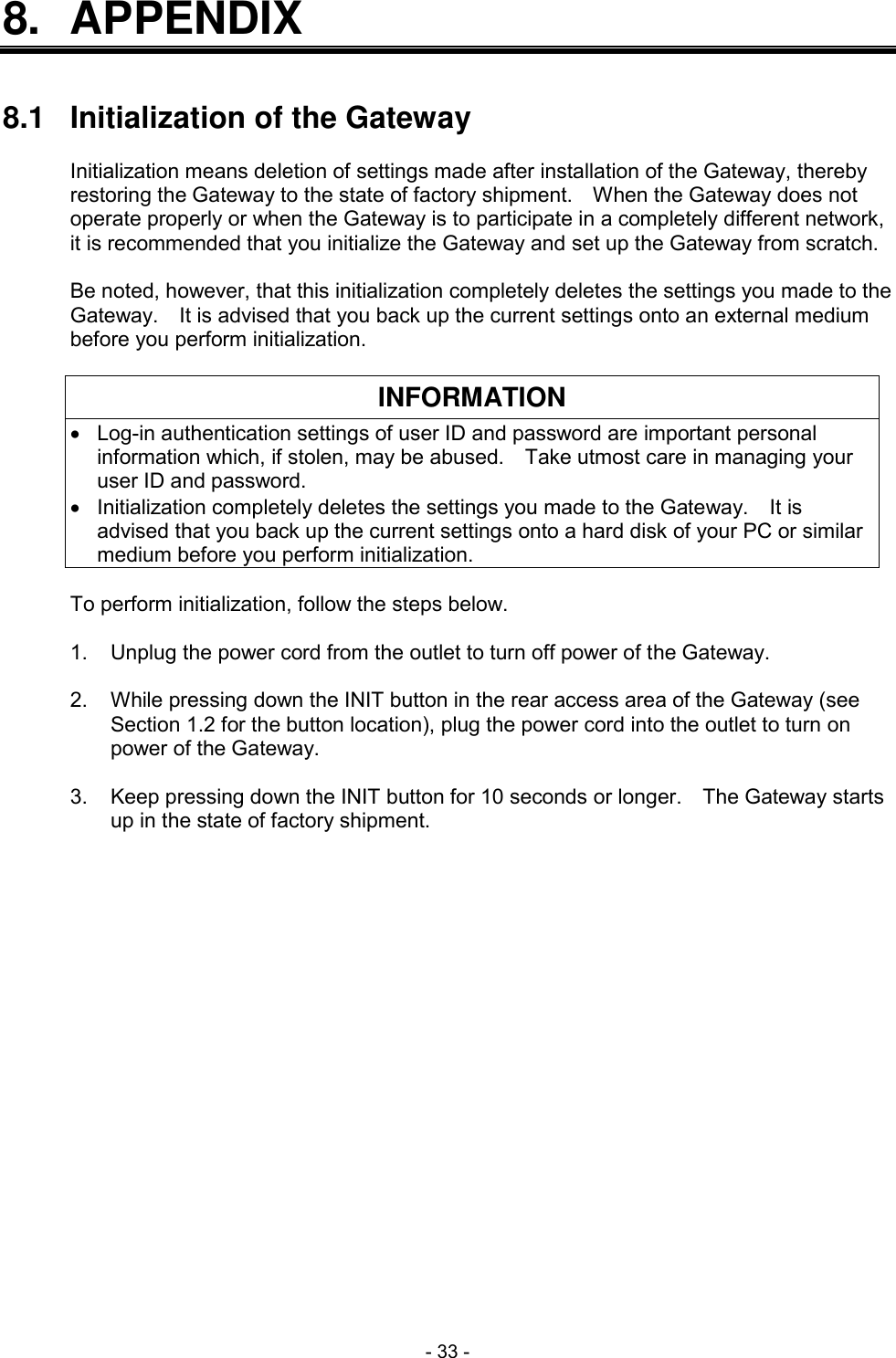
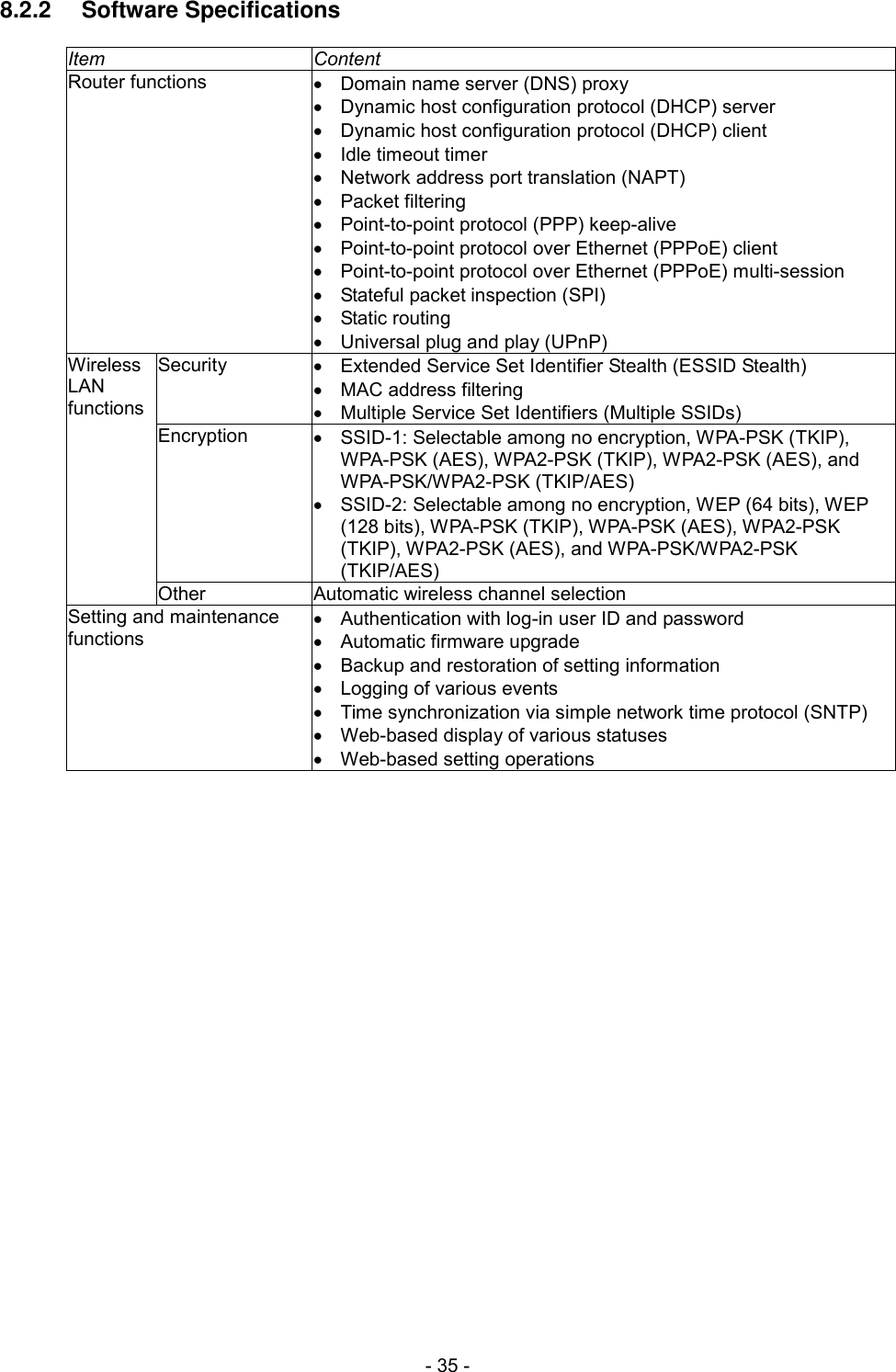
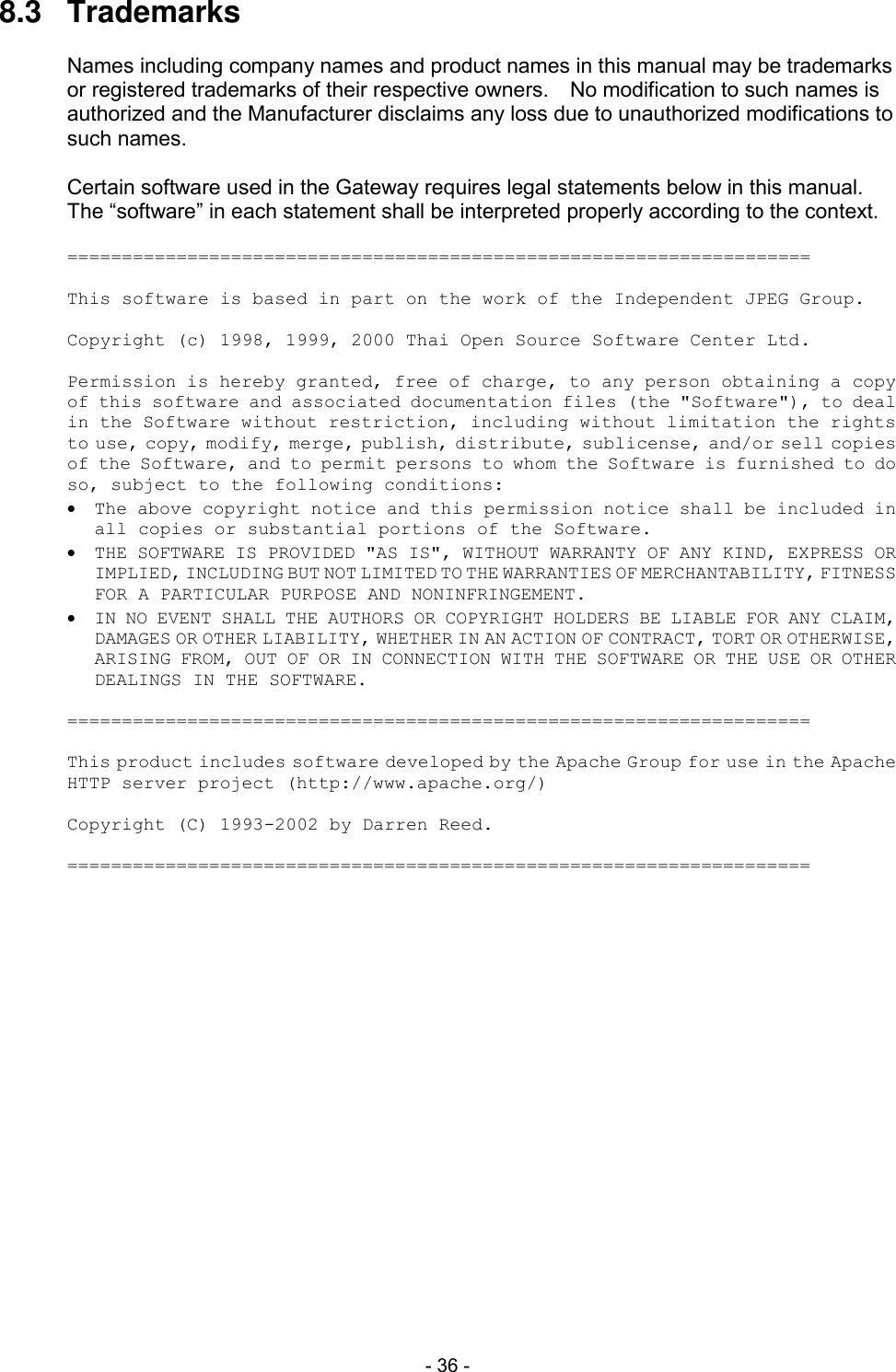
 - XV - 8.  APPENDIX ................................................................................................... 33 8.1  Initialization of the Gateway .................................................................. 33 8.2  Specifications ....................................................................................... 34 8.2.1 Hardware Specifications .................................................................................... 34 8.2.2  Software Specifications ...................................................................................... 35 8.3  Trademarks .......................................................................................... 36
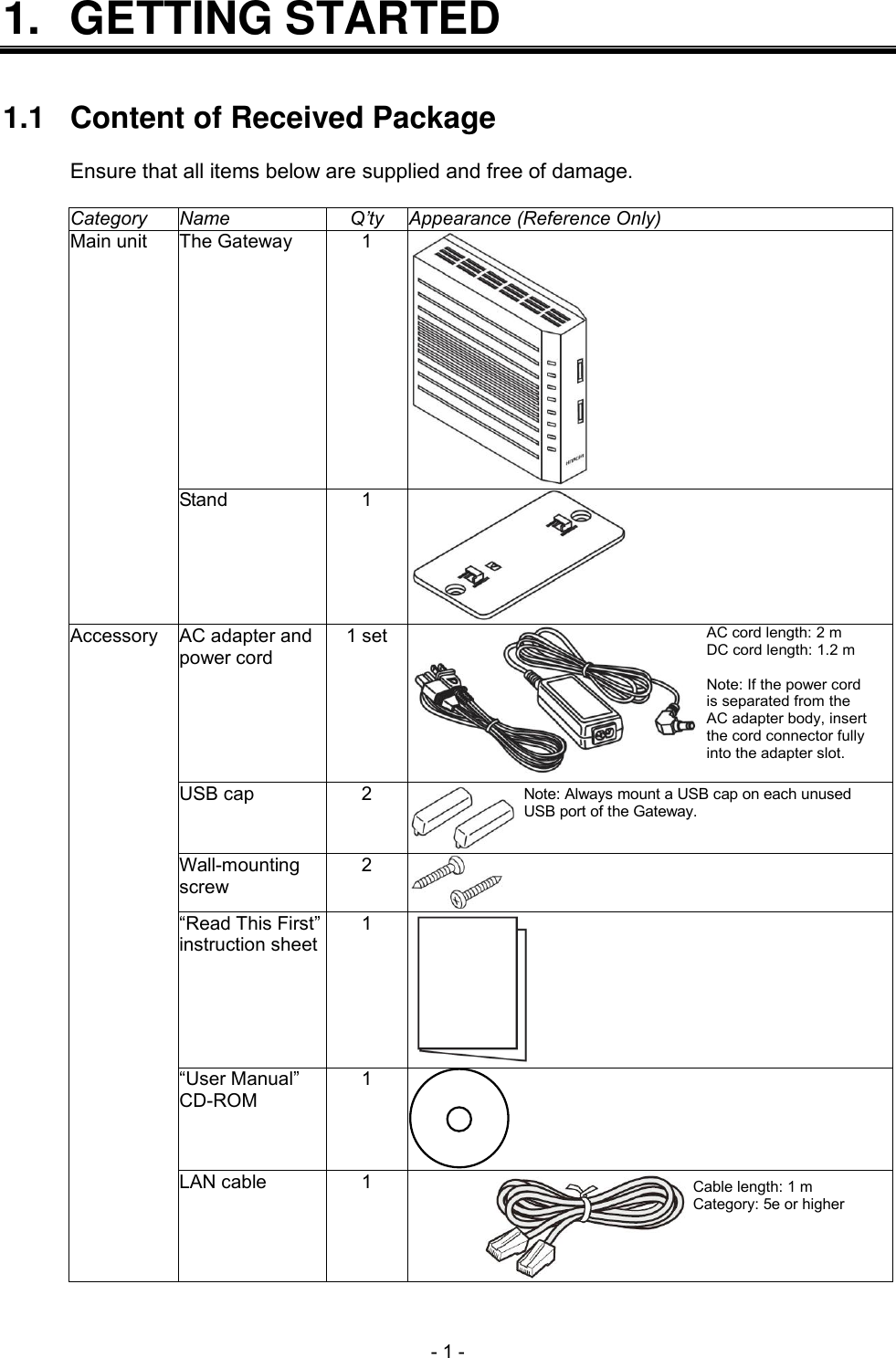
 - 1 - 1.  GETTING STARTED   1.1  Content of Received Package  Ensure that all items below are supplied and free of damage.  Category Name Q’ty Appearance (Reference Only) Main unit The Gateway 1  Stand 1  Accessory AC adapter and power cord 1 set  AC cord length: 2 m DC cord length: 1.2 m  Note: If the power cord is separated from the AC adapter body, insert the cord connector fully into the adapter slot.  USB cap 2 Note: Always mount a USB cap on each unusedUSB port of the Gateway. Wall-mounting screw 2  “Read This First” instruction sheet 1  “User Manual” CD-ROM 1  LAN cable 1 Cable length: 1 mCategory: 5e or higher
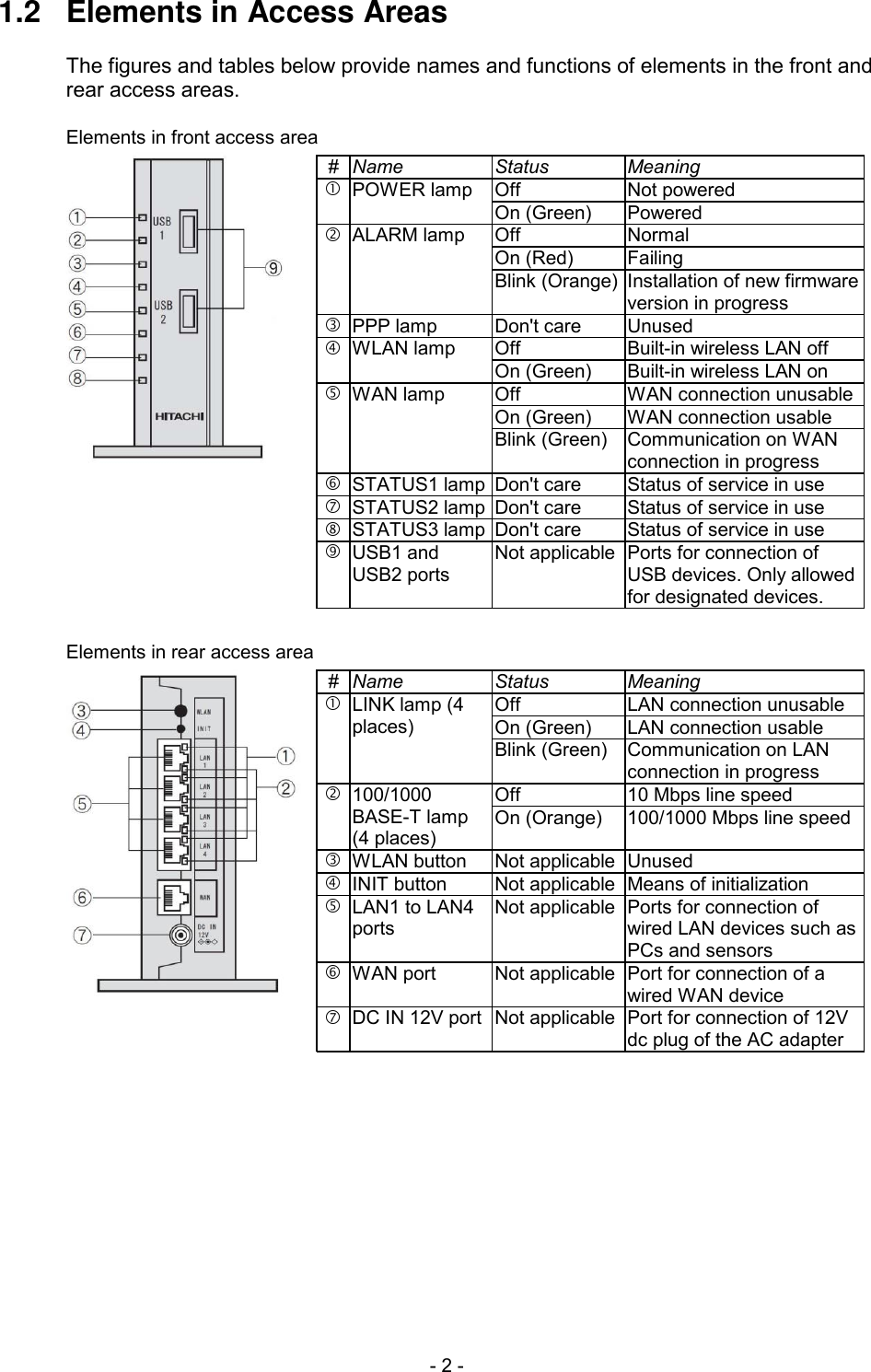
 - 2 - 1.2  Elements in Access Areas  The figures and tables below provide names and functions of elements in the front and rear access areas.  Elements in front access area# Name Status MeaningOff Not poweredPOWER lampOn (Green) PoweredOff NormalOn (Red) FailingALARM lampBlink (Orange)Installation of new firmwareversion in progressPPP lamp Don't care UnusedOff Built-in wireless LAN offWLAN lampOn (Green) Built-in wireless LAN onOffWAN connection unusableOn (Green) WAN connection usableWAN lampBlink (Green) Communication on WANconnection in progressSTATUS1 lampDon't care Status of service in useSTATUS2 lampDon't care Status of service in useSTATUS3 lampDon't care Status of service in useUSB1 andUSB2 portsNot applicablePorts for connection ofUSB devices. Only allowedfor designated devices.  Elements in rear access area# Name Status MeaningOff LAN connection unusableOn (Green) LAN connection usableLINK lamp (4places)Blink (Green) Communication on LANconnection in progressOff 10 Mbps line speed100/1000BASE-T lamp(4 places)On (Orange) 100/1000 Mbps line speedWLAN buttonNot applicableUnusedINIT buttonNot applicableMeans of initializationLAN1 to LAN4portsNot applicablePorts for connection ofwired LAN devices such asPCs and sensorsWAN portNot applicablePort for connection of awired WAN deviceDC IN 12V portNot applicablePort for connection of 12Vdc plug of the AC adapter
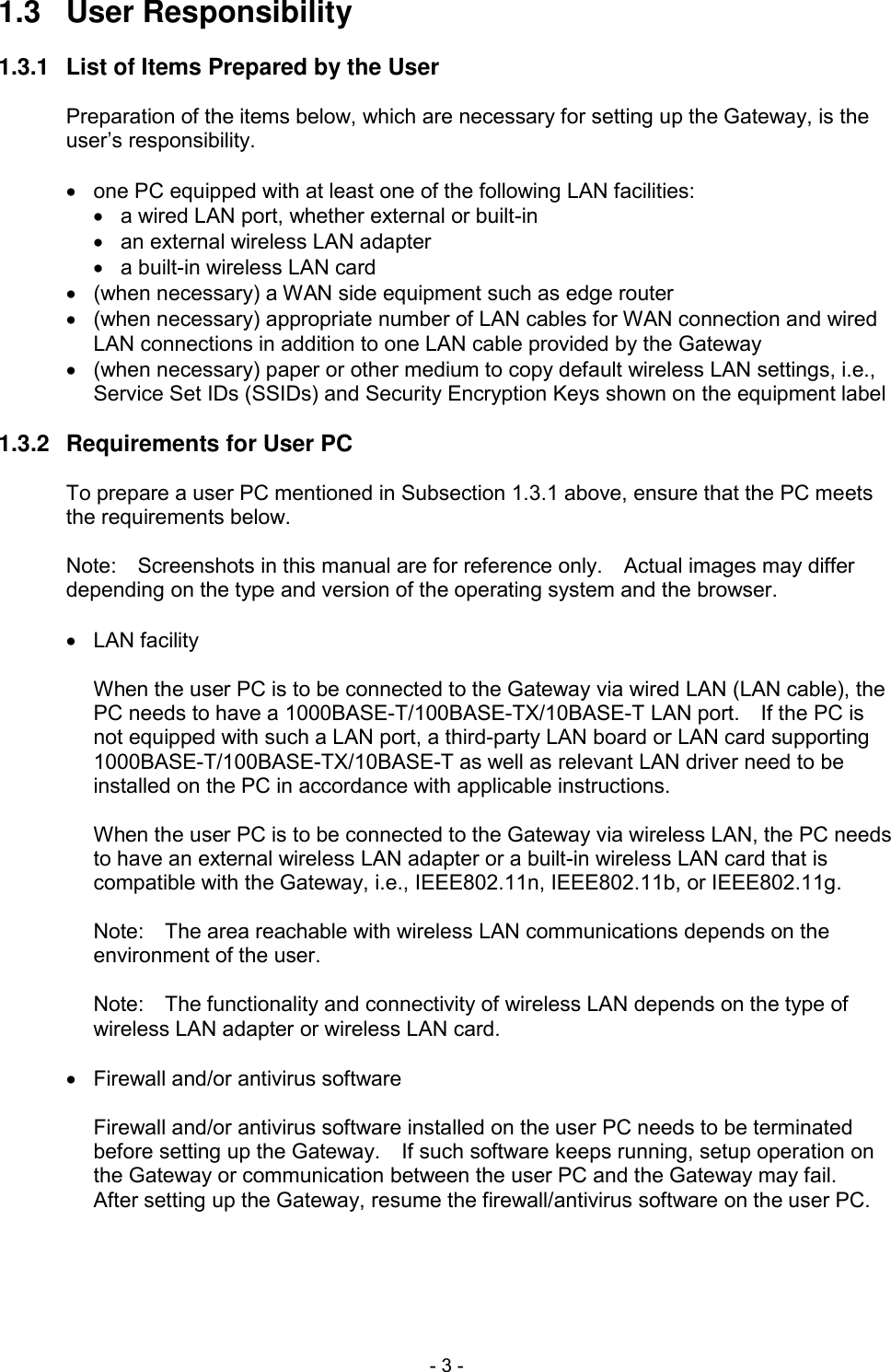
 - 3 - 1.3  User Responsibility  1.3.1  List of Items Prepared by the User  Preparation of the items below, which are necessary for setting up the Gateway, is the user’s responsibility.    one PC equipped with at least one of the following LAN facilities:   a wired LAN port, whether external or built-in   an external wireless LAN adapter   a built-in wireless LAN card   (when necessary) a WAN side equipment such as edge router   (when necessary) appropriate number of LAN cables for WAN connection and wired LAN connections in addition to one LAN cable provided by the Gateway   (when necessary) paper or other medium to copy default wireless LAN settings, i.e., Service Set IDs (SSIDs) and Security Encryption Keys shown on the equipment label  1.3.2  Requirements for User PC  To prepare a user PC mentioned in Subsection 1.3.1 above, ensure that the PC meets the requirements below.  Note:    Screenshots in this manual are for reference only.    Actual images may differ depending on the type and version of the operating system and the browser.    LAN facility  When the user PC is to be connected to the Gateway via wired LAN (LAN cable), the PC needs to have a 1000BASE-T/100BASE-TX/10BASE-T LAN port.    If the PC is not equipped with such a LAN port, a third-party LAN board or LAN card supporting 1000BASE-T/100BASE-TX/10BASE-T as well as relevant LAN driver need to be installed on the PC in accordance with applicable instructions.  When the user PC is to be connected to the Gateway via wireless LAN, the PC needs to have an external wireless LAN adapter or a built-in wireless LAN card that is compatible with the Gateway, i.e., IEEE802.11n, IEEE802.11b, or IEEE802.11g.  Note:    The area reachable with wireless LAN communications depends on the environment of the user.  Note:    The functionality and connectivity of wireless LAN depends on the type of wireless LAN adapter or wireless LAN card.    Firewall and/or antivirus software  Firewall and/or antivirus software installed on the user PC needs to be terminated before setting up the Gateway.    If such software keeps running, setup operation on the Gateway or communication between the user PC and the Gateway may fail.   After setting up the Gateway, resume the firewall/antivirus software on the user PC.
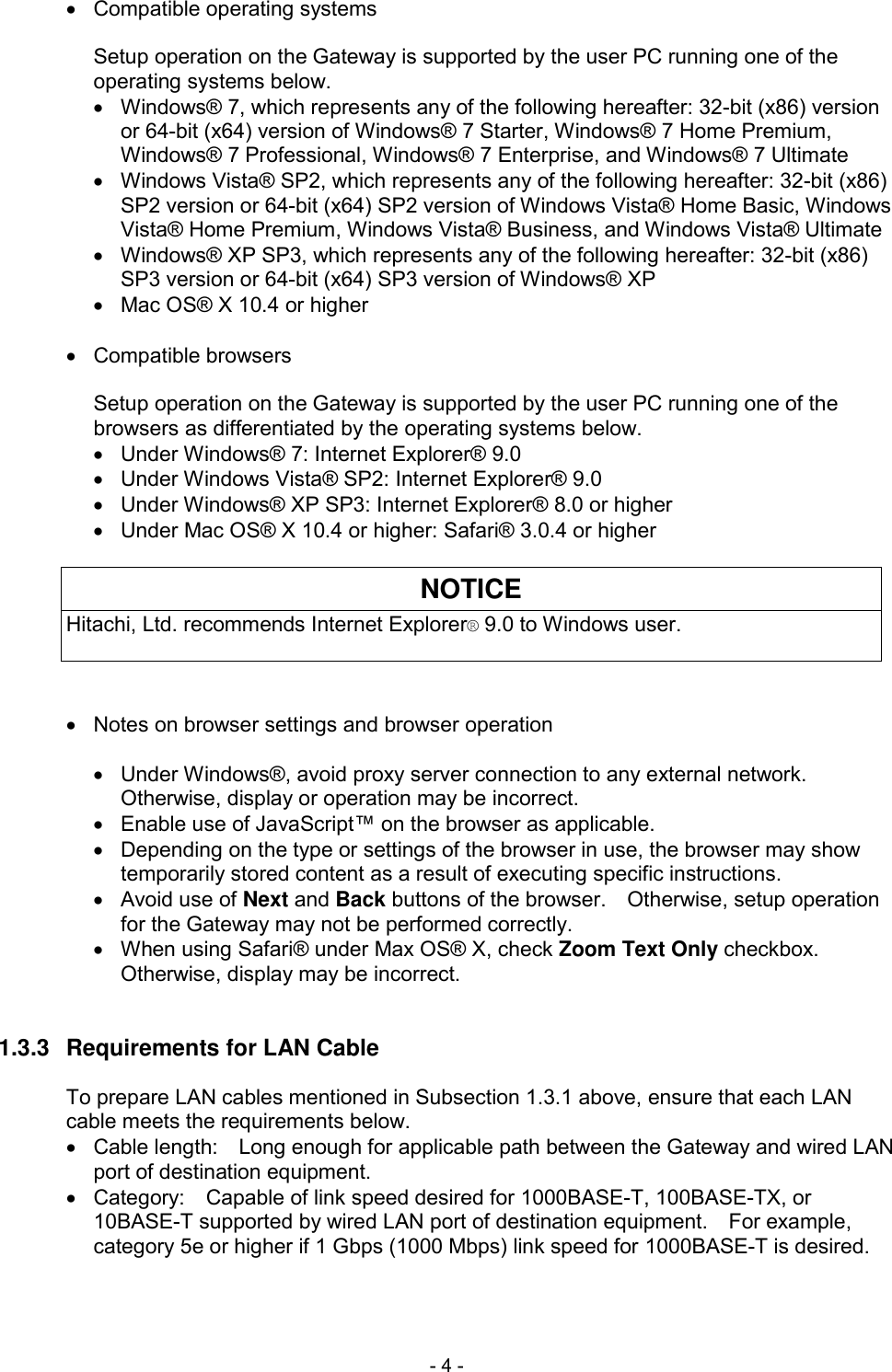
 - 4 -   Compatible operating systems  Setup operation on the Gateway is supported by the user PC running one of the operating systems below.   Windows® 7, which represents any of the following hereafter: 32-bit (x86) version or 64-bit (x64) version of Windows® 7 Starter, Windows® 7 Home Premium, Windows® 7 Professional, Windows® 7 Enterprise, and Windows® 7 Ultimate   Windows Vista® SP2, which represents any of the following hereafter: 32-bit (x86) SP2 version or 64-bit (x64) SP2 version of Windows Vista® Home Basic, Windows Vista® Home Premium, Windows Vista® Business, and Windows Vista® Ultimate   Windows® XP SP3, which represents any of the following hereafter: 32-bit (x86) SP3 version or 64-bit (x64) SP3 version of Windows® XP   Mac OS® X 10.4 or higher    Compatible browsers  Setup operation on the Gateway is supported by the user PC running one of the browsers as differentiated by the operating systems below.   Under Windows® 7: Internet Explorer® 9.0   Under Windows Vista® SP2: Internet Explorer® 9.0   Under Windows® XP SP3: Internet Explorer® 8.0 or higher   Under Mac OS® X 10.4 or higher: Safari® 3.0.4 or higher  NOTICE Hitachi, Ltd. recommends Internet Explorer® 9.0 to Windows user.      Notes on browser settings and browser operation    Under Windows®, avoid proxy server connection to any external network.   Otherwise, display or operation may be incorrect.   Enable use of JavaScript™ on the browser as applicable.   Depending on the type or settings of the browser in use, the browser may show temporarily stored content as a result of executing specific instructions.   Avoid use of Next and Back buttons of the browser.    Otherwise, setup operation for the Gateway may not be performed correctly.   When using Safari® under Max OS® X, check Zoom Text Only checkbox.   Otherwise, display may be incorrect.   1.3.3  Requirements for LAN Cable  To prepare LAN cables mentioned in Subsection 1.3.1 above, ensure that each LAN cable meets the requirements below.   Cable length:    Long enough for applicable path between the Gateway and wired LAN port of destination equipment.   Category:    Capable of link speed desired for 1000BASE-T, 100BASE-TX, or 10BASE-T supported by wired LAN port of destination equipment.    For example, category 5e or higher if 1 Gbps (1000 Mbps) link speed for 1000BASE-T is desired.
 - 5 - NOTICE When the user prepares a LAN cable, procure a LAN cable of category 5e or higher if 1 Gbps (1000 Mbps) link speed for 1000BASE-T is desired.  Otherwise, slowdown of link speed or communication failure may result.  1.3.4  Copying of Default Wireless LAN Settings  Copy default wireless LAN settings mentioned in Subsection 1.3.1 above by taking note thereof onto paper, by taking a picture thereof, or by using a similar method.    These default wireless LAN settings, i.e., Service Set IDs (SSIDs) and relevant Security Encryption Keys comprising Pre-Shared Key (PSK) and Wired Equivalent Privacy (WEP) key, are shown on the equipment label as illustrated below.  Note:    The illustrated label is for reference only and may differ on actual units.  INFORMATION Take utmost care in managing the medium that contains a copy of default wireless LAN settings, i.e., SSIDs and Security Encryption Keys shown on the equipment label.    The Service Set IDs (SSID) are displayed on the side of the The Gateway.  Hitachi recommends that you choose SSID-1 for your network for increased security.
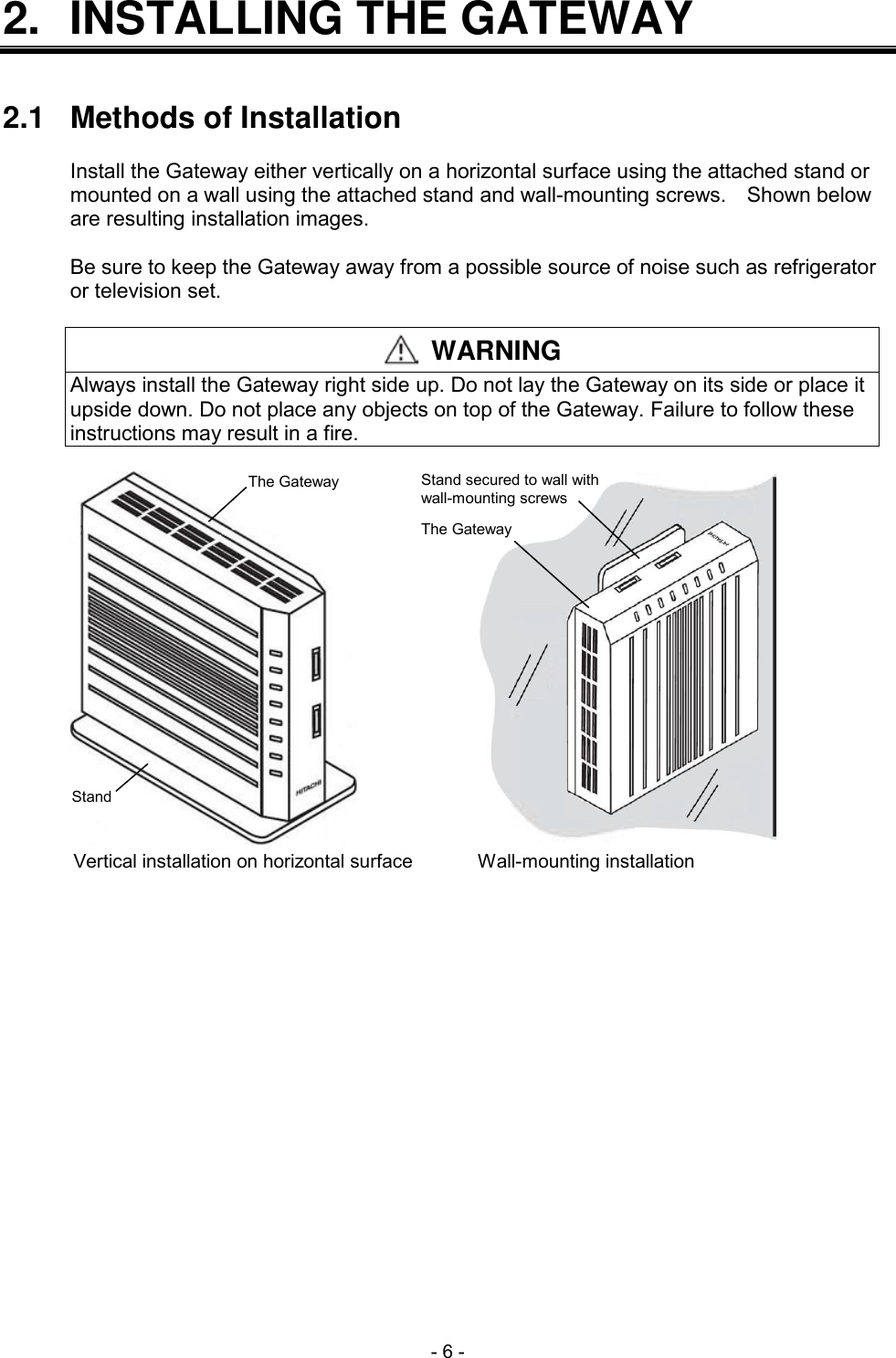
 - 6 - 2.  INSTALLING THE GATEWAY   2.1  Methods of Installation  Install the Gateway either vertically on a horizontal surface using the attached stand or mounted on a wall using the attached stand and wall-mounting screws.    Shown below are resulting installation images.  Be sure to keep the Gateway away from a possible source of noise such as refrigerator or television set.   WARNING Always install the Gateway right side up. Do not lay the Gateway on its side or place it upside down. Do not place any objects on top of the Gateway. Failure to follow these instructions may result in a fire.  Vertical installation on horizontal surfaceWall-mounting installationStandThe GatewayStand secured to wall withwall-mounting screwsThe Gateway
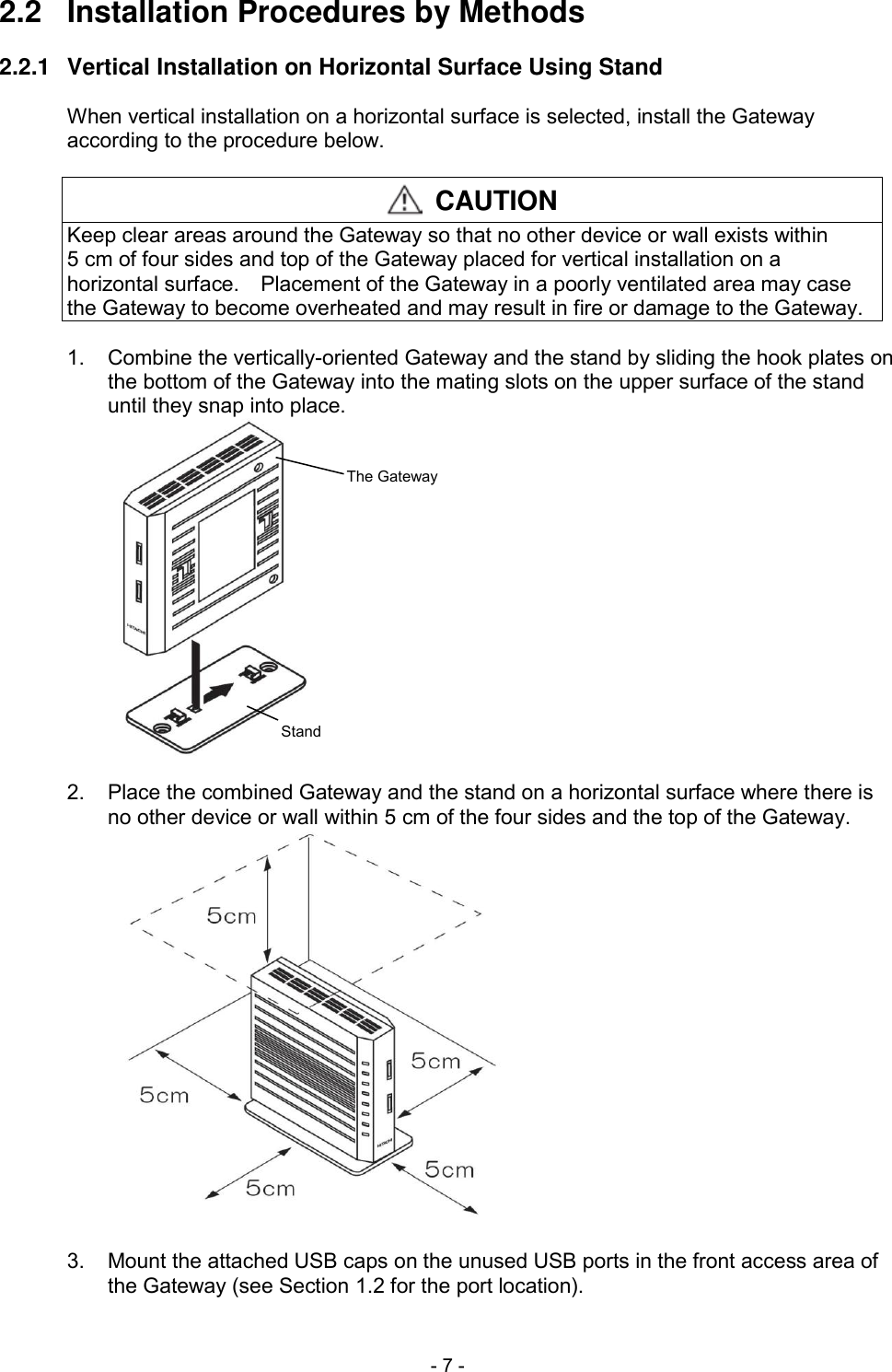
 - 7 - 2.2  Installation Procedures by Methods  2.2.1  Vertical Installation on Horizontal Surface Using Stand  When vertical installation on a horizontal surface is selected, install the Gateway according to the procedure below.   CAUTION Keep clear areas around the Gateway so that no other device or wall exists within 5 cm of four sides and top of the Gateway placed for vertical installation on a horizontal surface.    Placement of the Gateway in a poorly ventilated area may case the Gateway to become overheated and may result in fire or damage to the Gateway.  1.  Combine the vertically-oriented Gateway and the stand by sliding the hook plates on the bottom of the Gateway into the mating slots on the upper surface of the stand until they snap into place. StandThe Gateway  2.  Place the combined Gateway and the stand on a horizontal surface where there is no other device or wall within 5 cm of the four sides and the top of the Gateway.   3.  Mount the attached USB caps on the unused USB ports in the front access area of the Gateway (see Section 1.2 for the port location).
 - 8 - 2.2.2  Wall-mounting Installation Using Stand and Wall-mounting Screws  When wall-mounting installation is selected, follow the procedure below.   CAUTION   Keep clear areas around the Gateway so that no other device or wall exists within 5 cm of three open sides, top, and bottom of the Gateway placed for wall-mounting installation.    Placement of the Gateway in a poorly ventilated area may case the Gateway to become overheated and may result in fire or damage to the Gateway.   Avoid locations on the wall below for wall-mounting installation.    Failure to follw these instructions may result in personal injury or property damage.   Location subject to strong shock or vibration.   Location unable to support the mass of the Gateway.   Location where the tip of the wall-mounting screw may damage cables routed behind the wall or thrust out the other side of the wall in the next room.   When mounting the Gateway onto the stand secured on the wall, unmounting the Gateway from the stand secured on the wall, or connecting a cable on the Gateway mounted on the wall, support the Gateway by hand to avoid extra mass.  To perform wall-mounting installation of the Gateway, do the steps below.  1.  Hold the attached stand by one hand in such a manner that the apex of triangle faces up.    Hold the Gateway by the other hand in such a manner that its rear end faces down.    Then, while keeping their orientations, combine the Gateway and the stand by sliding the hook plates on the equipment label side of the Gateway into the mating slots on the front surface of the stand until they snap into place.  Apex oftriangefacing upStandThe Gateway with itsrear end facing down
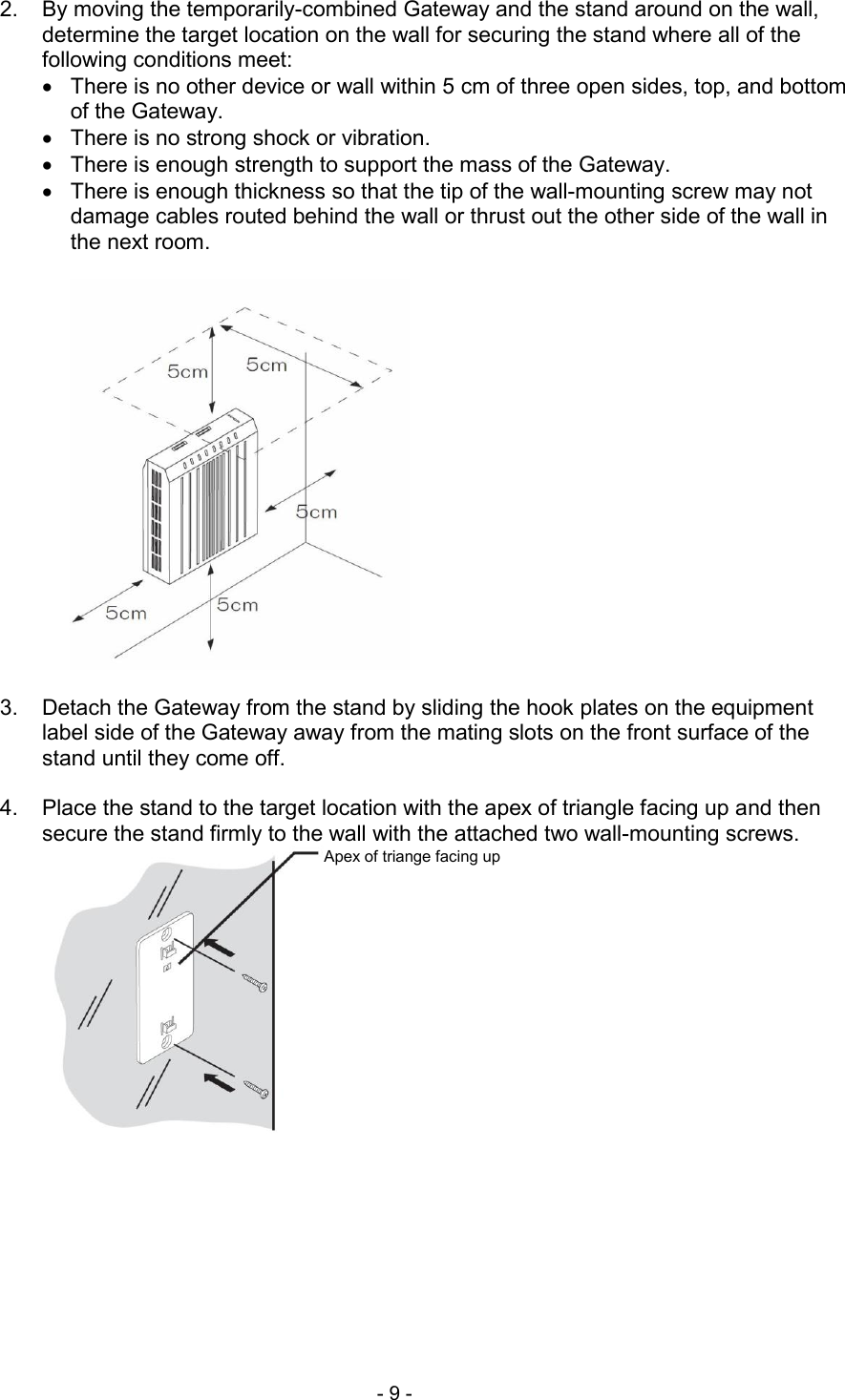
 - 9 -  2.  By moving the temporarily-combined Gateway and the stand around on the wall, determine the target location on the wall for securing the stand where all of the following conditions meet:   There is no other device or wall within 5 cm of three open sides, top, and bottom of the Gateway.   There is no strong shock or vibration.   There is enough strength to support the mass of the Gateway.   There is enough thickness so that the tip of the wall-mounting screw may not damage cables routed behind the wall or thrust out the other side of the wall in the next room.    3.  Detach the Gateway from the stand by sliding the hook plates on the equipment label side of the Gateway away from the mating slots on the front surface of the stand until they come off.  4.  Place the stand to the target location with the apex of triangle facing up and then secure the stand firmly to the wall with the attached two wall-mounting screws. Apex of triange facing up
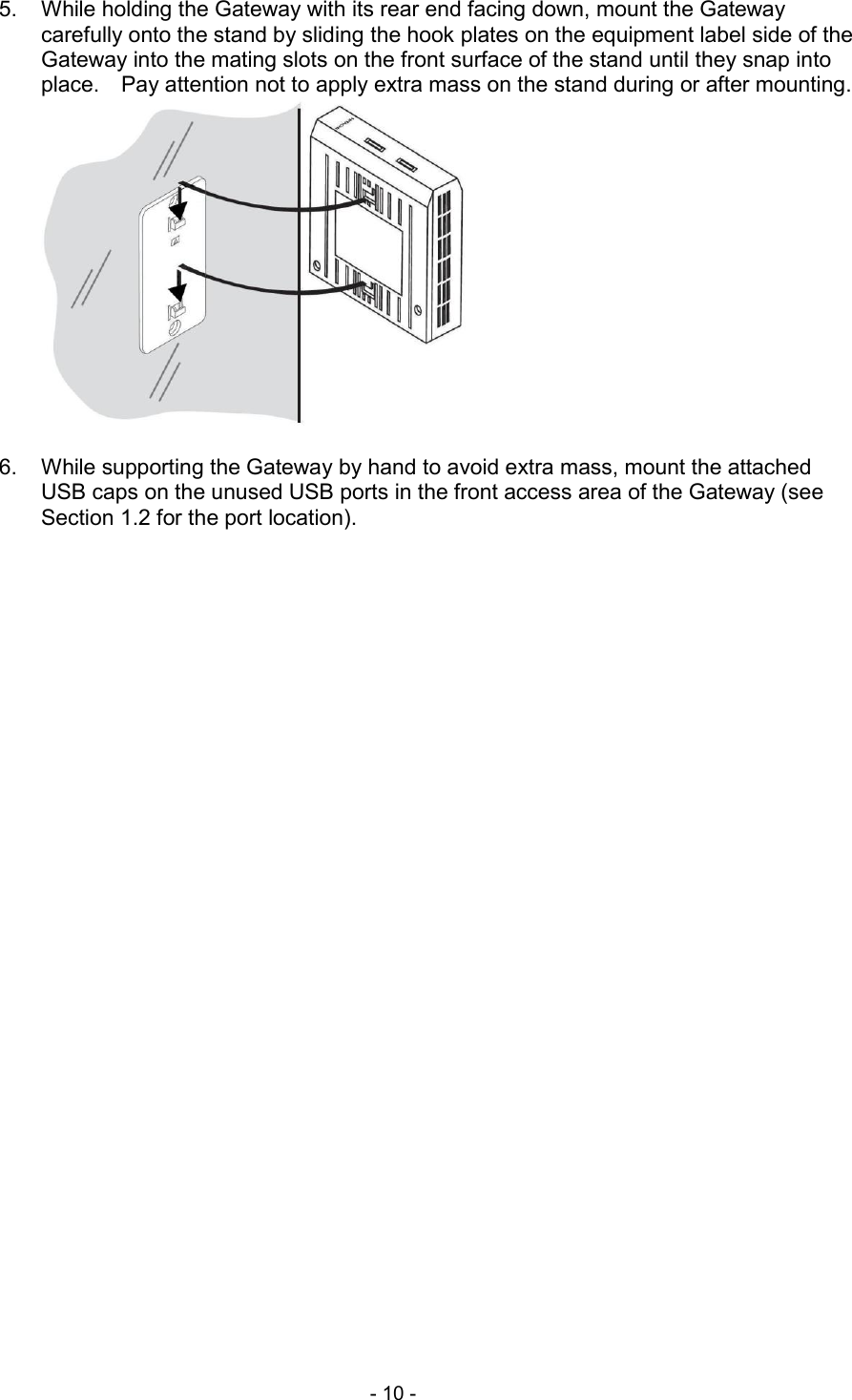
 - 10 -  5.  While holding the Gateway with its rear end facing down, mount the Gateway carefully onto the stand by sliding the hook plates on the equipment label side of the Gateway into the mating slots on the front surface of the stand until they snap into place.    Pay attention not to apply extra mass on the stand during or after mounting.   6.  While supporting the Gateway by hand to avoid extra mass, mount the attached USB caps on the unused USB ports in the front access area of the Gateway (see Section 1.2 for the port location).
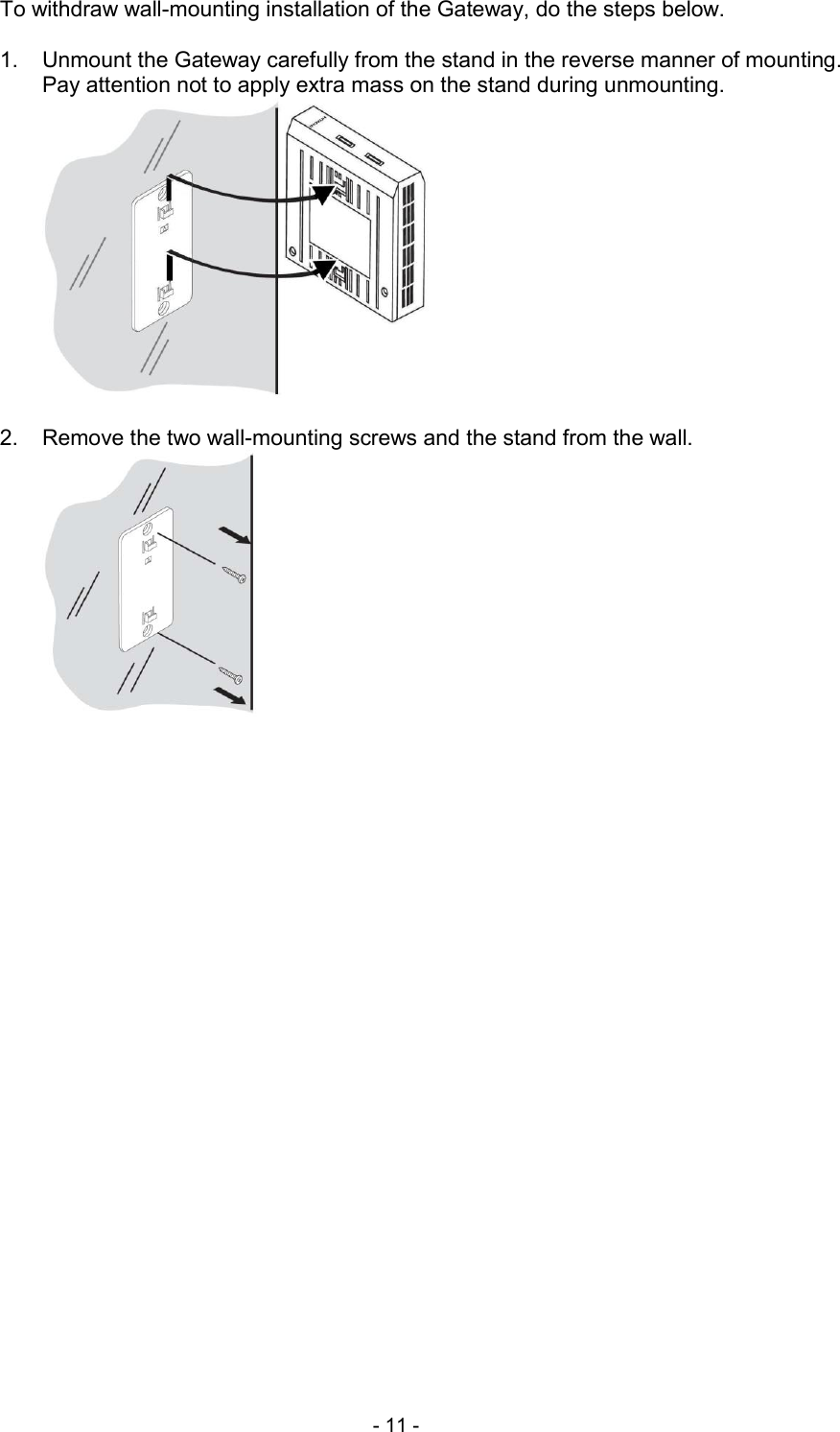
 - 11 - To withdraw wall-mounting installation of the Gateway, do the steps below.  1.  Unmount the Gateway carefully from the stand in the reverse manner of mounting.   Pay attention not to apply extra mass on the stand during unmounting.   2.  Remove the two wall-mounting screws and the stand from the wall.
 - 12 - 3.  TURNING ON/OFF POWER   3.1  Turning On Power  To turn on power of the Gateway, follow the procedure below.   WARNING Failure to follow the following instructions result in fire or electric shock.   Do not use any other AC adapter for the Gateway than the one attached to the Gateway.   Do not use the AC adapter attached to the Gateway for any other device.   Do not use any other power cord for the Gateway than the one attached to the Gateway.   Do not use the power cord attached to the Gateway for any other device.  INFORMATION At power-on, all lamps in the front access area temporarily turn on.  1.  (First time only)    Insert the DC IN 12V jack of the attached AC adapter fully into the mating port in the rear access area of the Gateway (see Section 1.2 for the port location).    When performing this insertion on the Gateway mounted on the wall, support the Gateway by hand to avoid extra mass.    Keep this connection throughout use of the Gateway.  2.  (First time only)    Connect the cord connector of the attached power cord fully into the slot in the AC adapter if they are not yet connected.    Keep this connection throughout use of the Gateway.  3.  While holding the plug case of the power cord by hand, plug the power cord fully into the outlet.    This action automatically turns on power of the Gateway.    Ensure that all lamps in the front access area temporarily turn on at power-on.  3.2  Turning Off Power  To turn off power of the Gateway, unplug the power cord from the outlet while holding the plug case of the power cord.  INFORMATION While firmware upgrade is in progress, do not disconnect power until installation of a new firmware version is finished.    Otherwise, firmware upgrade will not complete successfully.
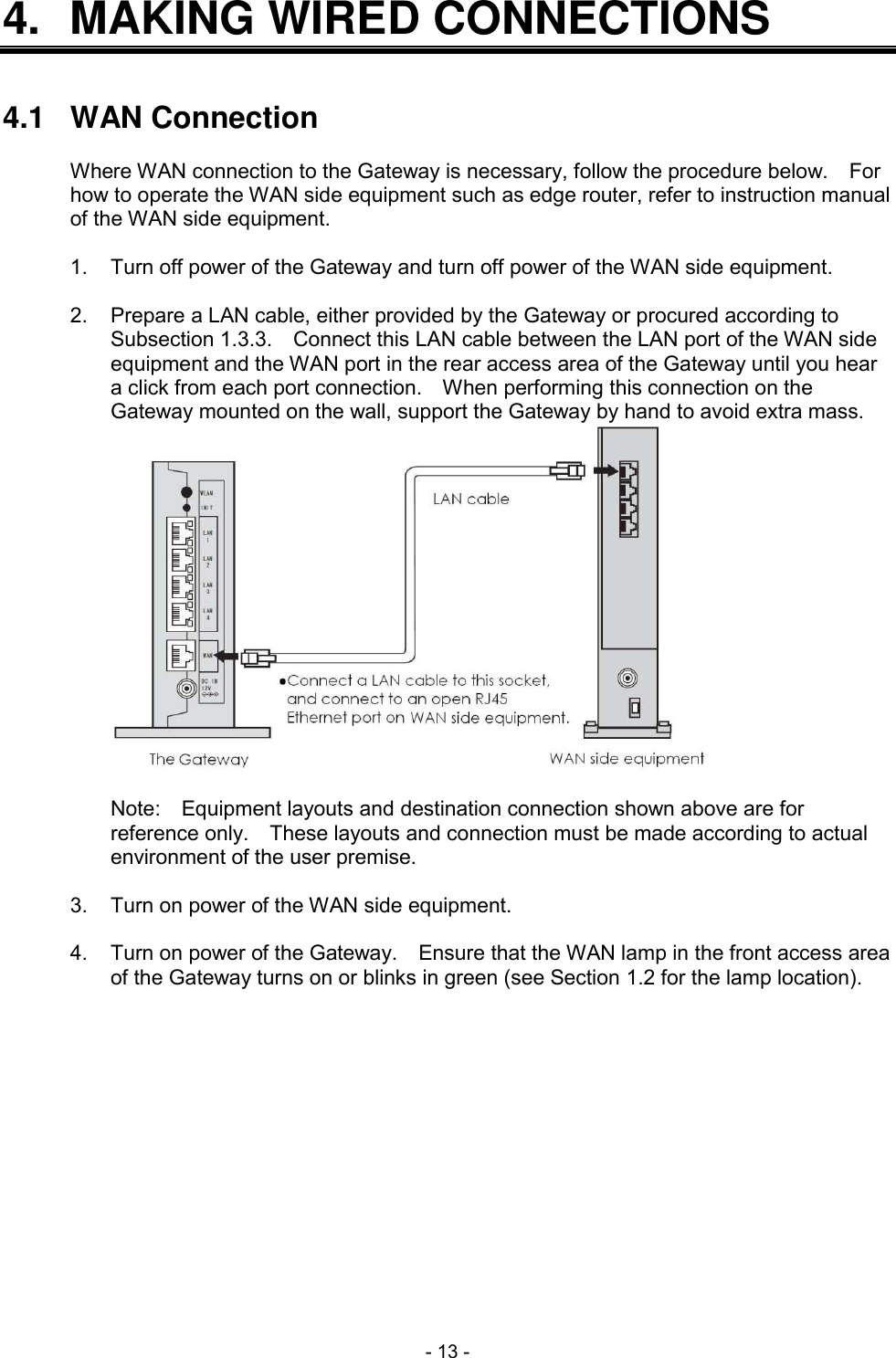
 - 13 - 4.  MAKING WIRED CONNECTIONS   4.1  WAN Connection  Where WAN connection to the Gateway is necessary, follow the procedure below.    For how to operate the WAN side equipment such as edge router, refer to instruction manual of the WAN side equipment.  1.  Turn off power of the Gateway and turn off power of the WAN side equipment.  2.  Prepare a LAN cable, either provided by the Gateway or procured according to Subsection 1.3.3.    Connect this LAN cable between the LAN port of the WAN side equipment and the WAN port in the rear access area of the Gateway until you hear a click from each port connection.    When performing this connection on the Gateway mounted on the wall, support the Gateway by hand to avoid extra mass.   Note:    Equipment layouts and destination connection shown above are for reference only.    These layouts and connection must be made according to actual environment of the user premise.  3.  Turn on power of the WAN side equipment.  4.  Turn on power of the Gateway.    Ensure that the WAN lamp in the front access area of the Gateway turns on or blinks in green (see Section 1.2 for the lamp location).
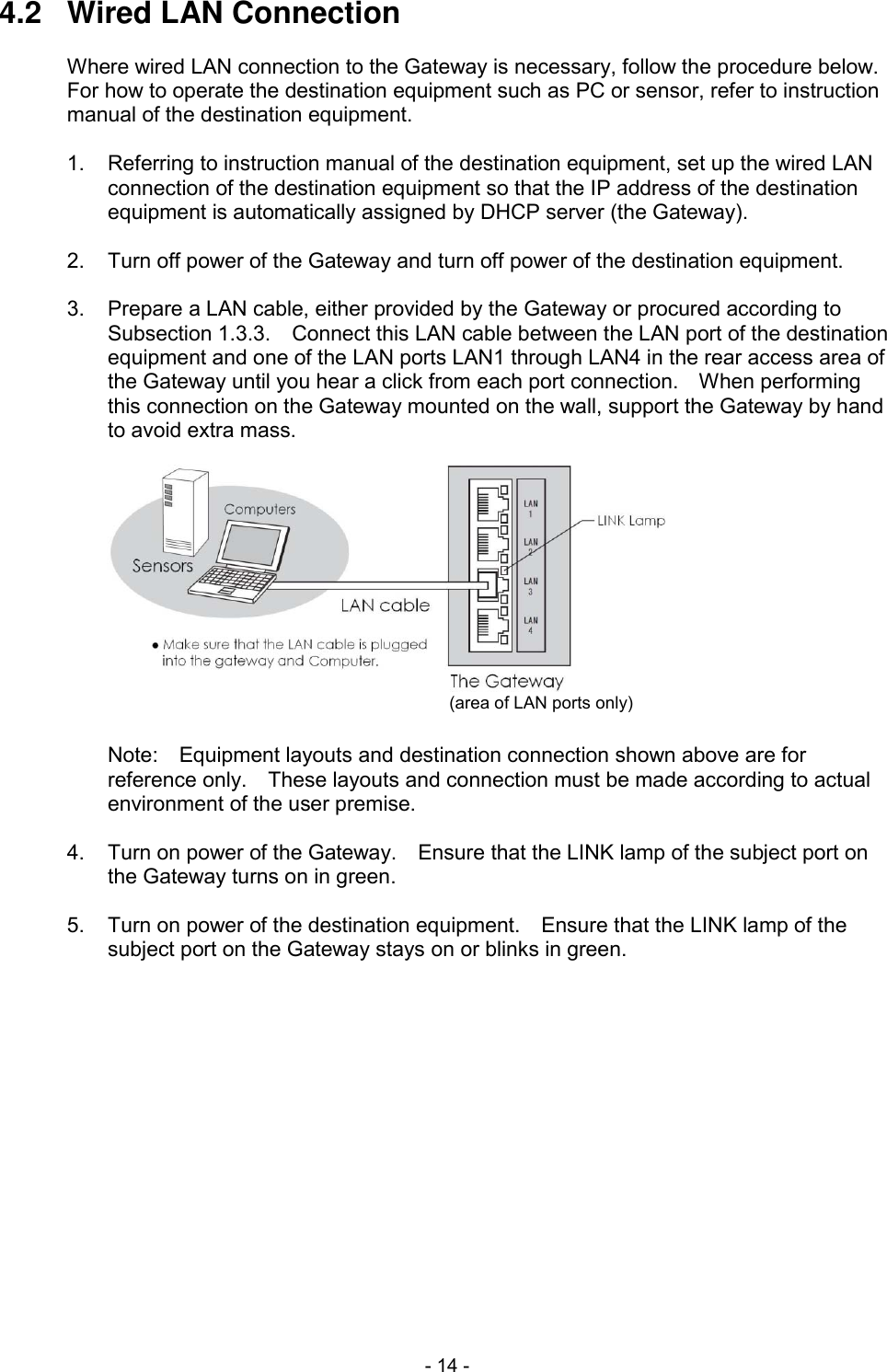
 - 14 - 4.2  Wired LAN Connection  Where wired LAN connection to the Gateway is necessary, follow the procedure below.   For how to operate the destination equipment such as PC or sensor, refer to instruction manual of the destination equipment.  1.  Referring to instruction manual of the destination equipment, set up the wired LAN connection of the destination equipment so that the IP address of the destination equipment is automatically assigned by DHCP server (the Gateway).  2.  Turn off power of the Gateway and turn off power of the destination equipment.  3.  Prepare a LAN cable, either provided by the Gateway or procured according to Subsection 1.3.3.    Connect this LAN cable between the LAN port of the destination equipment and one of the LAN ports LAN1 through LAN4 in the rear access area of the Gateway until you hear a click from each port connection.    When performing this connection on the Gateway mounted on the wall, support the Gateway by hand to avoid extra mass. (area of LAN ports only)  Note:    Equipment layouts and destination connection shown above are for reference only.    These layouts and connection must be made according to actual environment of the user premise.  4.  Turn on power of the Gateway.    Ensure that the LINK lamp of the subject port on the Gateway turns on in green.  5.  Turn on power of the destination equipment.    Ensure that the LINK lamp of the subject port on the Gateway stays on or blinks in green.
 - 15 - 5.  MAKING WIRELESS CONNECTIONS   Where wireless LAN connection of a user PC to the Gateway is necessary, first follow steps in Section 5.1 and optionally follow steps in Section 5.2.    Then, depending on the operating system running on the user PC, follow steps in Section 5.3, Section 5.4, or Section 5.5.    For how to operate the user PC, refer to its instruction manual.  5.1  Determination of SSID and Security Encryption Key  Determine the SSID and the Security Encryption Key according to Subsection 5.1.1 and Subsection 5.1.2.  5.1.1  Determination of SSID  You can determine the SSID by choosing either of the default SSID values for SSID-1 and SSID-2, which you copied in Subsection 1.3.4, based on the conditions below.   SSID-1 supports settings of no encryption, WPA-PSK (TKIP), WPA-PSK (AES), WPA2-PSK (TKIP), WPA2-PSK (AES), and WPA-PSK/WPA2-PSK (TKIP/AES).   SSID-2 supports settings of WEP (64 bits) and WEP (128 bits) in addition to those supported by SSID-1.   The Manufacturer recommends SSID-1 due to increased security.  5.1.2  Determination of Security Encryption Key  You can determine the Security Encryption Key by choosing either of the default Security Encryption Key values for SSID-1 and SSID-2, which you copied in Subsection 1.3.4, based on the conditions below.   Default Security Encryption Key for SSID-1 applies to WPA-PSK (TKIP), WPA-PSK (AES), WPA2-PSK (TKIP), WPA2-PSK (AES), or WPA-PSK/WPA2-PSK (TKIP/AES).   Default Security Encryption Key for SSID-2 applies to WEP (128 bits).  Alternatively, you can determine the Security Encryption Key by creating a new PSK or a new WEP key as applicable, according to the rules in the table below.  If you choose to create a new PSK or a new WEP key, record the value by taking note thereof onto paper, by taking a picture thereof, or by using a similar method.  INFORMATION   If you choose to create a new PSK or a new WEP key, make sure that the value is hard for anyone else to guess.   Take utmost care in managing the medium that contains the value of a new PSK or a new WEP key you created.   If you choose to use a WEP key, whether new or default, set MAC Address Filtering (disabled for SSID-1 and enabled for SSID-2 by default) to strengthen security according to the procedure in Section 5.2.
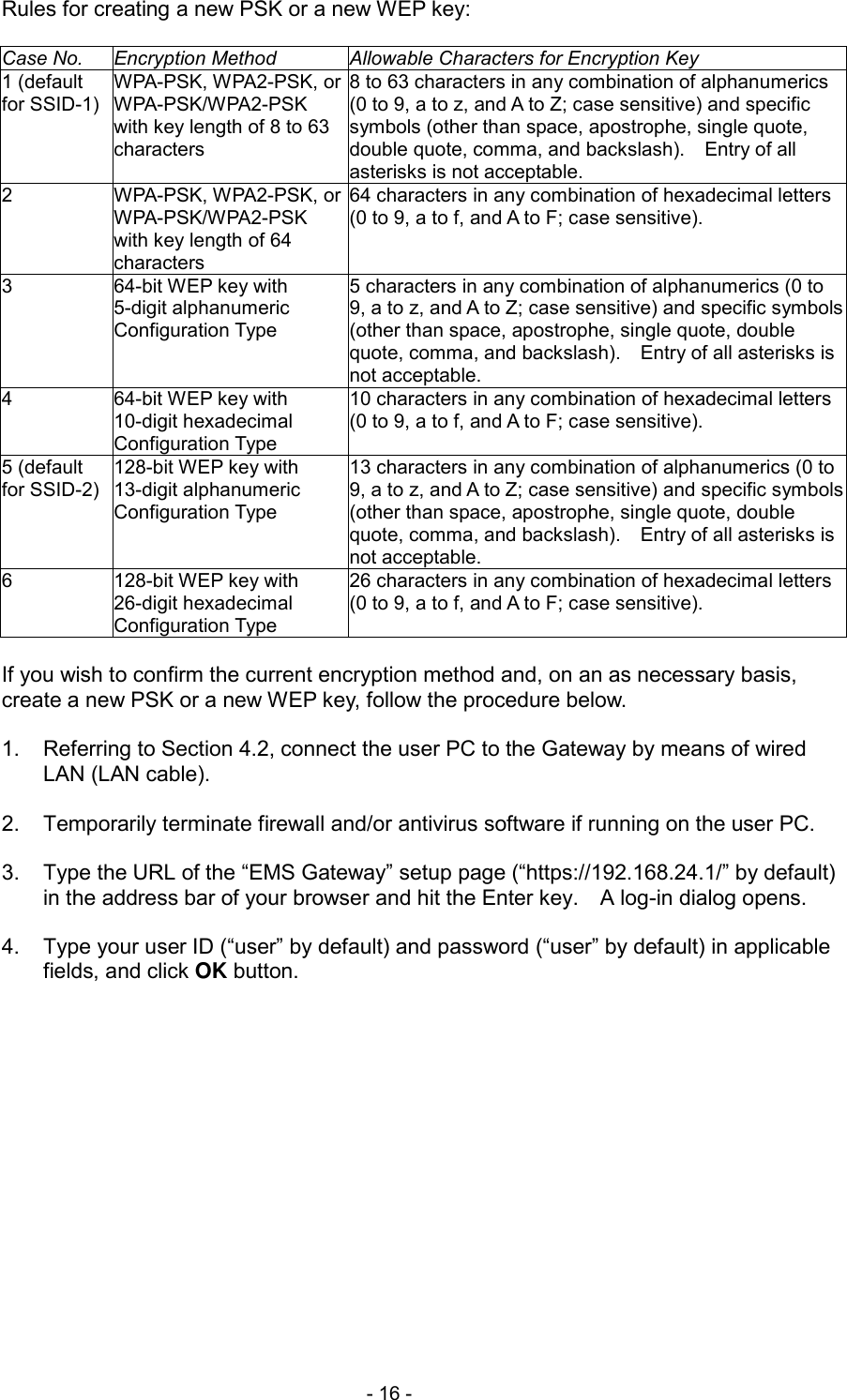
 - 16 - Rules for creating a new PSK or a new WEP key:  Case No. Encryption Method Allowable Characters for Encryption Key 1 (default for SSID-1) WPA-PSK, WPA2-PSK, or WPA-PSK/WPA2-PSK with key length of 8 to 63 characters 8 to 63 characters in any combination of alphanumerics (0 to 9, a to z, and A to Z; case sensitive) and specific symbols (other than space, apostrophe, single quote, double quote, comma, and backslash).    Entry of all asterisks is not acceptable. 2 WPA-PSK, WPA2-PSK, or WPA-PSK/WPA2-PSK with key length of 64 characters 64 characters in any combination of hexadecimal letters (0 to 9, a to f, and A to F; case sensitive). 3 64-bit WEP key with 5-digit alphanumeric Configuration Type 5 characters in any combination of alphanumerics (0 to 9, a to z, and A to Z; case sensitive) and specific symbols (other than space, apostrophe, single quote, double quote, comma, and backslash).    Entry of all asterisks is not acceptable. 4 64-bit WEP key with 10-digit hexadecimal Configuration Type 10 characters in any combination of hexadecimal letters (0 to 9, a to f, and A to F; case sensitive). 5 (default for SSID-2) 128-bit WEP key with 13-digit alphanumeric Configuration Type 13 characters in any combination of alphanumerics (0 to 9, a to z, and A to Z; case sensitive) and specific symbols (other than space, apostrophe, single quote, double quote, comma, and backslash).    Entry of all asterisks is not acceptable. 6 128-bit WEP key with 26-digit hexadecimal Configuration Type 26 characters in any combination of hexadecimal letters (0 to 9, a to f, and A to F; case sensitive).  If you wish to confirm the current encryption method and, on an as necessary basis, create a new PSK or a new WEP key, follow the procedure below.  1.  Referring to Section 4.2, connect the user PC to the Gateway by means of wired LAN (LAN cable).  2.  Temporarily terminate firewall and/or antivirus software if running on the user PC.  3.  Type the URL of the “EMS Gateway” setup page (“https://192.168.24.1/” by default) in the address bar of your browser and hit the Enter key.    A log-in dialog opens.  4.  Type your user ID (“user” by default) and password (“user” by default) in applicable fields, and click OK button.
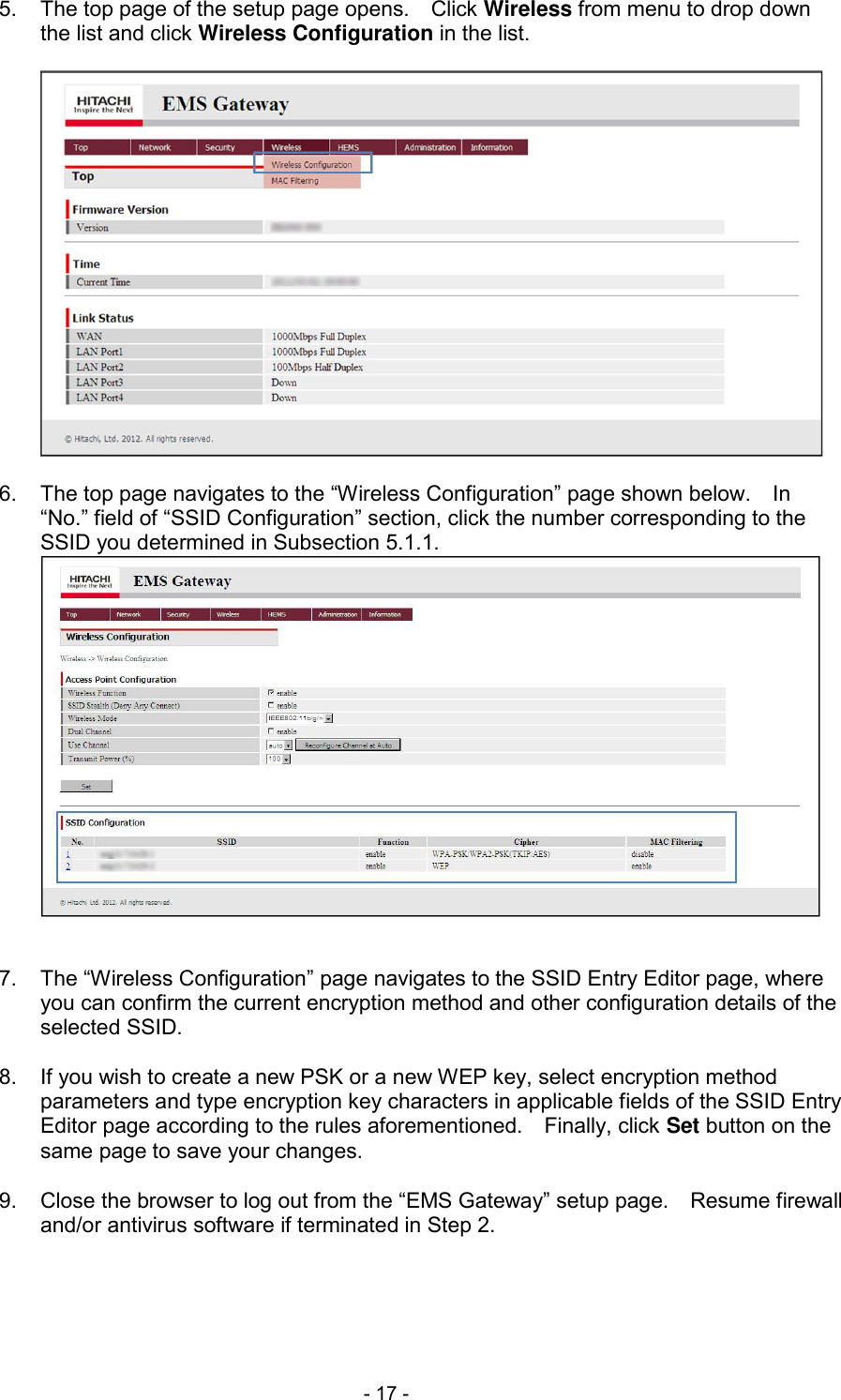
 - 17 - 5.  The top page of the setup page opens.    Click Wireless from menu to drop down the list and click Wireless Configuration in the list.    6.  The top page navigates to the “Wireless Configuration” page shown below.    In “No.” field of “SSID Configuration” section, click the number corresponding to the SSID you determined in Subsection 5.1.1.    7.  The “Wireless Configuration” page navigates to the SSID Entry Editor page, where you can confirm the current encryption method and other configuration details of the selected SSID.  8.  If you wish to create a new PSK or a new WEP key, select encryption method parameters and type encryption key characters in applicable fields of the SSID Entry Editor page according to the rules aforementioned.    Finally, click Set button on the same page to save your changes.  9.  Close the browser to log out from the “EMS Gateway” setup page.    Resume firewall and/or antivirus software if terminated in Step 2.
 - 18 - 5.2  Setup of MAC Address Filtering  If you wish to specify MAC address filtering for the user PC that connects to the Gateway via encrypted wireless LAN, follow the procedure below.  1.  Do Steps 1 to 7 of Subsection 5.1.2.  2.  If you wish to enable MAC address filtering for SSID-1, check enable check box in “MAC Address Filtering” field of “SSID Configuration” section on the SSID Entry Editor page.    Finally, click Set button on the same page.  3.  Click Wireless from menu to drop down the list and click MAC Filtering in the list.  4.  The SSID Entry Editor page navigates to the “MAC Filtering” page shown below.    5.  In “MAC Address” field of “Accept MAC Address” section, type the MAC address of the user PC for wireless connection according to the rules below.   Hexadecimal letters (0 to 9, a to f, and A to F; not case sensitive) and colon (:) in the form of “xx:xx:xx:xx:xx:xx” are accepted.  If the user PC shows a hyphen (-) as a separator, use a colon instead of each hyphen when you type.   Do not specify the same MAC address in two or more entry fields.  6.  Click Set button on the same page to register the specified MAC address to the Gateway.  7.  Close the browser to log out from the “EMS Gateway” setup page.    Resume firewall and/or antivirus software if terminated in Step 1.
 - 19 - 5.3  Wireless Connection on Windows® 7 or Windows Vista®  To connect the user PC running Windows® 7 or Windows Vista® to the Gateway via wireless LAN, you may follow either of the procedures below.   Select SSID from list (Subsection 5.3.1)   Directly type SSID (Subsection 5.3.2)  Of these, only the latter is available if ESSID Stealth is enabled on the target SSID.  5.3.1  Connection by Selecting SSID from List on Windows® 7 or Windows Vista®  1.  If you have not turned on the Gateway and/or the user PC, first start up the Gateway and then start up the user PC.  2.  Disconnect the LAN cable if connected between the user PC and the Gateway.  3.  On the user PC, click Start button (Windows® logo button) and click Control Panel.  4.  Click Network and Internet and click Connect to a network to navigate to the wireless LAN connection page.  5.  In the list of SSIDs, select the SSID value you determined in Subsection 5.1.1 (emg21-●●●●●●-1 for SSID-1 and emg21-●●●●●●-2 for SSID-2 where ●●●●●● depends on the actual unit).  6.  In “Security key” field, type the Security Encryption Key value you determined in Subsection 5.1.2.  7.  Ensure that the message on the wireless LAN connection page changes from “Acquiring network address” to “connected.”  Note:    If the message does not change to “connected,” entry of a wrong Security Encryption Key value is suspect.    Click Disconnect button and redo Steps 3 through 7.  8.  Close the wireless LAN connection page.
 - 20 - 5.3.2  Connection by Directly Typing SSID on Windows® 7 or Windows Vista®  1.  If you have not turned on the Gateway and/or the user PC, first start up the Gateway and then start up the user PC.  2.  Disconnect the LAN cable if connected between the user PC and the Gateway.  3.  On the user PC, click Start button (Windows® logo button) and click Control Panel.  4.  Click Network and Internet and click Network and Sharing Center to navigate to the “Network and Sharing Center” page.  5.  Under Windows® 7, click Set up a new connection or network in “Change your networking settings” section.    Under Windows Vista®, click Set up a connection or network in “Tasks” list.  6.  The “Network and Sharing Center” page navigates to the wireless LAN connection page.    Select Manually connect to a wireless network from the list of connection options and click Next button.  7.  In “Network Name” field, type the SSID value you determined in Subsection 5.1.1 (emg21-●●●●●●-1 for SSID-1 and emg21-●●●●●●-2 for SSID-2 where ●●●●●● depends on the actual unit).  8.  In “Security Type” field, select an option according to your preference (encryption type is automatic).    WPA2-Personal is recommended for an IEEE 802.11n-based user PC.  9.  In “Security key” field, type the Security Encryption Key value you determined in Subsection 5.1.2.  10.  Check Start this connection automatically check box, check Connect even if the network is not broadcasting check box, and click Next button.  11.  Ensure that a message dialog shows successful addition of the specified SSID.   Click Close button in the message dialog.  Note:    If the successful message dialog does not appear, specifying of a wrong parameter or value is suspect.    Redo Steps 3 through 11.  12.  Close the wireless LAN connection page.
 - 21 - 5.4  Wireless Connection on Windows® XP  To connect the user PC running Windows® XP to the Gateway via wireless LAN, you may follow either of the procedures below.   Select SSID from list (Subsection 5.4.1)   Directly type SSID (Subsection 5.4.2)  Of these, only the latter is available if ESSID Stealth is enabled on the target SSID.  5.4.1  Connection by Selecting SSID from List on Windows® XP  1.  If you have not turned on the Gateway and/or the user PC, first start up the Gateway and then start up the user PC.  2.  Disconnect the LAN cable if connected between the user PC and the Gateway.  3.  On the user PC, click Start and click Control Panel.  4.  Click Network and Internet connections.  5.  Click Network Connections.  6.  Right-click Wireless Network Connection and select View Available Wireless Networks from the drop-down menu to open the “Wireless Network Connection” window.  7.  In the list of SSIDs, select the SSID value you determined in Subsection 5.1.1 (emg21-●●●●●●-1 for SSID-1 and emg21-●●●●●●-2 for SSID-2 where ●●●●●● depends on the actual unit).  8.  In “Security key” field, type the Security Encryption Key value you determined in Subsection 5.1.2.  9.  Ensure that the message on the “Wireless Network Connection” window changes from “Acquiring network address” to “Connected.”  Note:    If the message does not change to “Connected,” entry of a wrong Security Encryption Key value is suspect.    Click Disconnect button and redo Steps 3 through 9.  10. Close the “Wireless Network Connection” window and other open windows if any.
 - 22 - 5.4.2  Connection by Directly Typing SSID on Windows® XP  1.  If you have not turned on the Gateway and/or the user PC, first start up the Gateway and then start up the user PC.  2.  Disconnect the LAN cable if connected between the user PC and the Gateway.  3.  On the user PC, click Start and click Control Panel.  4.  Click Network and Internet connections.  5.  Click Network Connections.  6.  Right-click Wireless Network Connection and select Properties (or Wireless LAN Connection depending on the user PC configuration) from the drop-down menu to open the “Wireless Network Connection Properties” window.  7.  Click General tab, check Internet Protocol (TCP/IP) check box, and click Properties button.  8.  Click Obtain an IP address automatically radio button, click Obtain DNS server address automatically radio button, and click OK button.  9.  Click Wireless Networks tab, check Use Windows to configure my wireless network settings check box, and click Add... button.  10.  Click Association tab.  11.  In “Network name (SSID)” field, type the SSID value you determined in Subsection 5.1.1 (emg21-●●●●●●-1 for SSID-1 and emg21-●●●●●●-2 for SSID-2 where ●●●●●● depends on the actual unit).  12.  In “Network Authentication” and “Data encryption” fields, select each option according to your preference.    A combination of WPA2-PSK and AES is recommended for an IEEE 802.11n-based user PC.  13.  In “Network key” field, type the Security Encryption Key value you determined in Subsection 5.1.2.  14.  Click Connection tab, check Connect when this network is in range check box, and click OK button.  15.  Ensure that the specified SSID appears in the list of “Preferred networks” section.  Note:    If the specified SSID does not appear in the list, specifying of a wrong parameter or value is suspect.    Click Cancel button and redo Steps 3 through 15.  16.  Click OK button to close the “Wireless Network Connection Properties” window and then close other open windows if any.
 - 23 - 5.5  Wireless Connection on Mac OS® X  To connect the user PC running Mac OS® X to the Gateway via wireless LAN, you may follow either of the procedures below.   Select SSID from list (Subsection 5.5.1)   Directly type SSID (Subsection 5.5.2)  Of these, only the latter is available if ESSID Stealth is enabled on the target SSID.  5.5.1  Connection by Selecting SSID from List on Mac OS® X  1.  If you have not turned on the Gateway and/or the user PC, first start up the Gateway and then start up the user PC.  2.  Disconnect the LAN cable if connected between the user PC and the Gateway.  3.  On the user PC, click AirPort icon in the upper right menu bar and select Turn AirPort On in the menu.  Note:    If Turn AirPort On is not available in the menu and Turn AirPort Off is shown instead, first select Turn AirPort Off in the menu and then select Turn AirPort On in the menu.  4.  In the list of SSIDs, select the SSID value you determined in Subsection 5.1.1 (emg21-●●●●●●-1 for SSID-1 and emg21-●●●●●●-2 for SSID-2 where ●●●●●● depends on the actual unit).  5.  In “Password” field, type the Security Encryption Key value you determined in Subsection 5.1.2.    Click OK button.  6.  Click AirPort icon in the upper right menu bar and ensure that the specified SSID is shown in the menu with a check mark.  Note:    If you encounter a connection error dialog during the procedure above, entry of a wrong Security Encryption Key value is suspect.    Click OK button in the error dialog and redo Steps 3 through 6.
 - 24 - 5.5.2  Connection by Directly Typing SSID on Mac OS® X  1.  If you have not turned on the Gateway and/or the user PC, first start up the Gateway and then start up the user PC.  2.  Disconnect the LAN cable if connected between the user PC and the Gateway.  3.  On the user PC, click Apple menu and select System Preferences... in the menu.  4.  Click Network icon.  5.  In the “Network” dialog opened, click AirPort in the left pane, select Automatic in “Location” field, and click Advanced... button.  6.  In the “AirPort” dialog opened, click AirPort tab and click + button below the list of “Preferred Networks” section.  7.  In “Network Name” field, type the SSID value you determined in Subsection 5.1.1 (emg21-●●●●●●-1 for SSID-1 and emg21-●●●●●●-2 for SSID-2 where ●●●●●● depends on the actual unit).  8.  In “Security” field, select an option according to your preference.    WPA2 Personal is recommended for an IEEE 802.11n-based user PC.  9.  In “Password” field, type the Security Encryption Key value you determined in Subsection 5.1.2.    Click Add button.  10.  Ensure that the specified SSID appears in the list of “Preferred Networks” section.   Click OK button to close the “AirPort” dialog.  11.  In the “Network” dialog returned, select the specified SSID in “Location” field and click Advanced... button again.  12.  In the “AirPort” dialog opened, click TCP/IP tab.  13.  In “Configure IPv4” field, select Using DHCP.    In “IPv4 Address” field, ensure that an IP address is shown.    Click OK button to close the “AirPort” dialog.  14.  In the “Network” dialog returned, click Apply button to close the dialog.    When done, exit System Preferences.  Note:    If you encounter a connection error dialog during the procedure above, specifying of a wrong parameter or value is suspect.    Click OK button in the error dialog and redo Steps 3 through 14.
 - 25 - 6.  PERFORMING FIRMWARE UPGRADE   6.1  Outline of Firmware Upgrade  “Firmware” refers to software that operates the Gateway.    For proper operation of the Gateway, it is requested that you always keep the firmware version up to date according to the firmware upgrade procedures in this chapter.    You can confirm the firmware version currently installed in the Gateway according to the procedure in Section 6.2.  There are two firmware upgrade methods: automatic firmware upgrade (see Section 6.3) and manual firmware upgrade (see Section 6.4).  INFORMATION   In order to keep the firmware of the Gateway up to date, the Gateway automatically checks for a new firmware version over an applicable external network and, if a new version is found, upgrades the firmware as scheduled.    For the purpose of this automatic firmware upgrade, a new version firmware file is downloaded in the Gateway upon finding over the external network or, if the connection is busy, at the time of upgrading the firmware.   During upgrading of the firmware initiated by manual firmware upgrade, the ALARM lamp in the front access area of the Gateway blinks in orange.   While firmware upgrade is in progress, do not disconnect power until installation of a new firmware version is finished.    Otherwise, firmware upgrade will not complete successfully.   When the Gateway has downloaded a new version firmware file and is manually restarted before the predefined timeframe by unplugging and plugging the power cord, the Gateway starts up in the new firmware version.   When the Gateway starts up in the state of factory shipment and a new firmware version is found after this startup process, the Gateway automatically upgrades the firmware.  Wait until downloading of a new version firmware file, restarting of the Gateway, and upgrading of the firmware are all complete.   For the purpose of upgrading the firmware, the Gateway automatically restarts and all network connections temporarily get disconnected.    Accordingly, terminate the ongoing communications, if any (such as communications with the user PC connected to the network), before upgrading of the firmware takes place.   Operation of manual firmware upgrade is not available during upgrading of the firmware, during task scheduling for automatic firmware upgrade, during restarting of the Gateway, or during any setting/maintenance operation.   Firmware upgrade does not guarantee upgrading of all functions to the latest.   Use a firmware version applicable to the Gateway whenever you perform firmware upgrade.    Otherwise, the Gateway may become inoperative.   Firmware upgrade may not always keep your settings.    It is hence recommended that you back up your settings before upgrading of the firmware takes place.
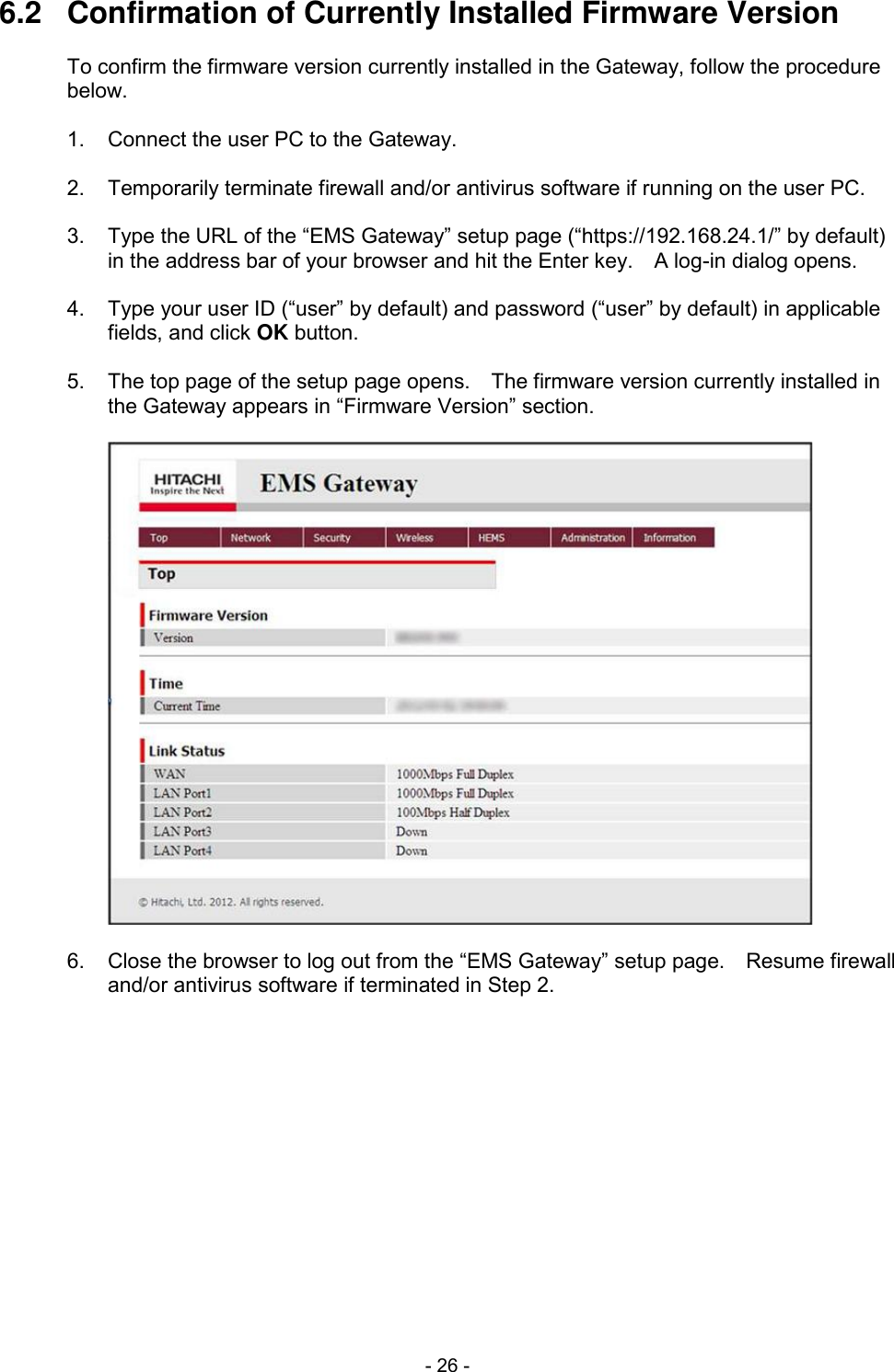
 - 26 - 6.2  Confirmation of Currently Installed Firmware Version  To confirm the firmware version currently installed in the Gateway, follow the procedure below.  1.  Connect the user PC to the Gateway.  2.  Temporarily terminate firewall and/or antivirus software if running on the user PC.  3.  Type the URL of the “EMS Gateway” setup page (“https://192.168.24.1/” by default) in the address bar of your browser and hit the Enter key.    A log-in dialog opens.  4.  Type your user ID (“user” by default) and password (“user” by default) in applicable fields, and click OK button.  5.  The top page of the setup page opens.    The firmware version currently installed in the Gateway appears in “Firmware Version” section.    6.  Close the browser to log out from the “EMS Gateway” setup page.    Resume firewall and/or antivirus software if terminated in Step 2.
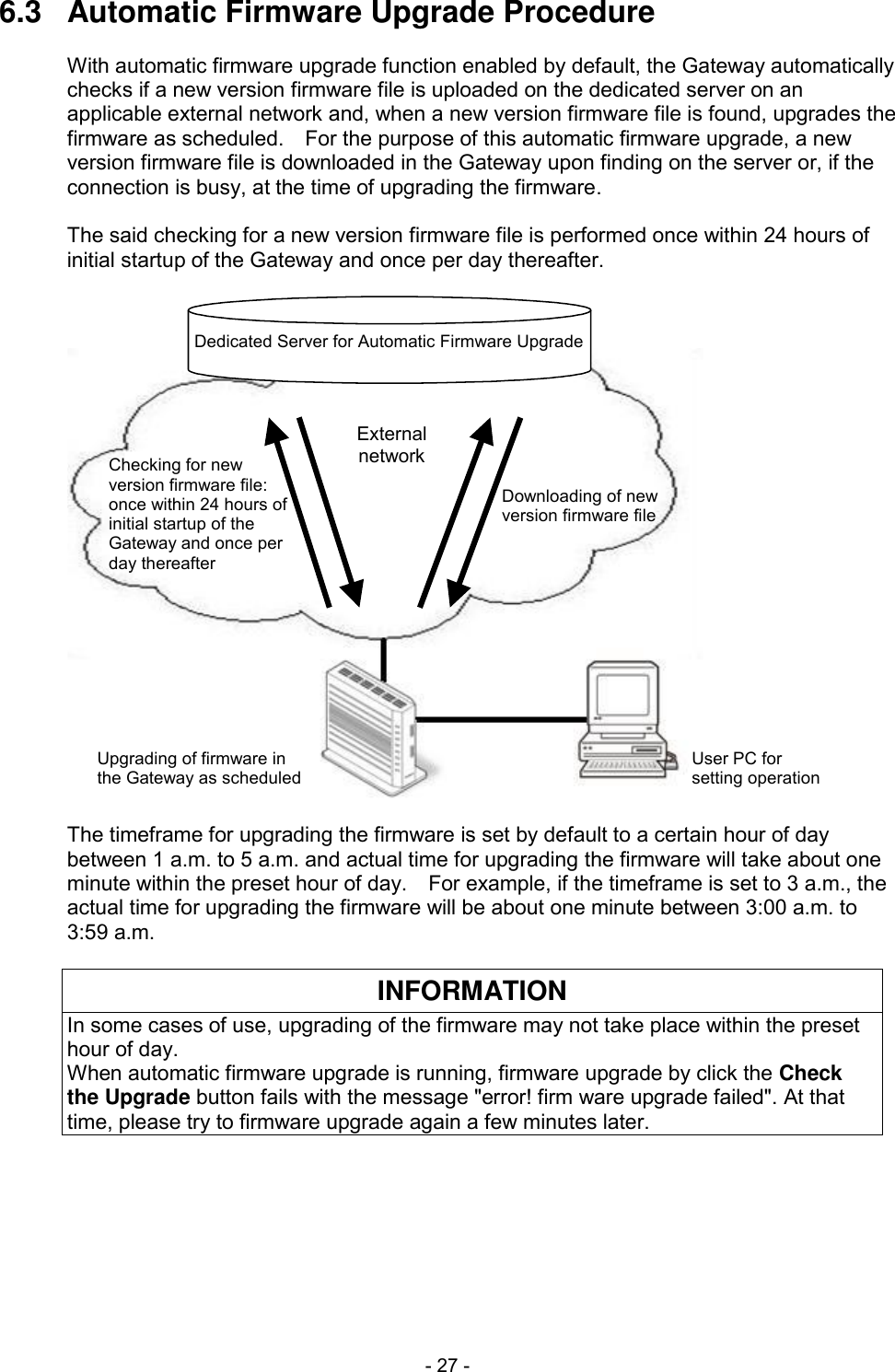
 - 27 - 6.3  Automatic Firmware Upgrade Procedure  With automatic firmware upgrade function enabled by default, the Gateway automatically checks if a new version firmware file is uploaded on the dedicated server on an applicable external network and, when a new version firmware file is found, upgrades the firmware as scheduled.    For the purpose of this automatic firmware upgrade, a new version firmware file is downloaded in the Gateway upon finding on the server or, if the connection is busy, at the time of upgrading the firmware.  The said checking for a new version firmware file is performed once within 24 hours of initial startup of the Gateway and once per day thereafter.  Dedicated Server for Automatic Firmware UpgradeExternalnetworkChecking for newversion firmware file:once within 24 hours ofinitial startup of theGateway and once perday thereafterDownloading of newversion firmware fileUpgrading of firmware inthe Gateway as scheduledUser PC forsetting operation  The timeframe for upgrading the firmware is set by default to a certain hour of day between 1 a.m. to 5 a.m. and actual time for upgrading the firmware will take about one minute within the preset hour of day.    For example, if the timeframe is set to 3 a.m., the actual time for upgrading the firmware will be about one minute between 3:00 a.m. to 3:59 a.m.  INFORMATION In some cases of use, upgrading of the firmware may not take place within the preset hour of day. When automatic firmware upgrade is running, firmware upgrade by click the Check the Upgrade button fails with the message "error! firm ware upgrade failed". At that time, please try to firmware upgrade again a few minutes later.
 - 28 - You can change the timeframe for upgrading the firmware according to the procedure below.    Be noted that this scheduled upgrading of the firmware accompanies restarting of the Gateway, which may interrupt your use of services via an external network.  1.  Connect the user PC to the Gateway.  2.  Temporarily terminate firewall and/or antivirus software if running on the user PC.  3.  Type the URL of the “EMS Gateway” setup page (“https://192.168.24.1/” by default) in the address bar of your browser and hit the Enter key.    A log-in dialog opens.  4.  Type your user ID (“user” by default) and password (“user” by default) in applicable fields, and click OK button.    The top page of the setup page opens.  5.  Click Administration from menu to drop down the list and click Firmware Upgrade in the list.  6.  The top page navigates to the “Firmware Upgrade” page shown below.    Ensure that enable check box in “Auto Reboot” field of “Auto Reboot” section is checked.    7.  In “Reboot Time” field of “Auto Reboot” section, click the down arrow to drop down the time of day list.    In this list, click to select a time of day value that matches your desired hour of day for upgrading the firmware.  8.  Click Set button in “Auto Reboot” section.  9.  Close the browser to log out from the “EMS Gateway” setup page.    Resume firewall and/or antivirus software if terminated in Step 2.
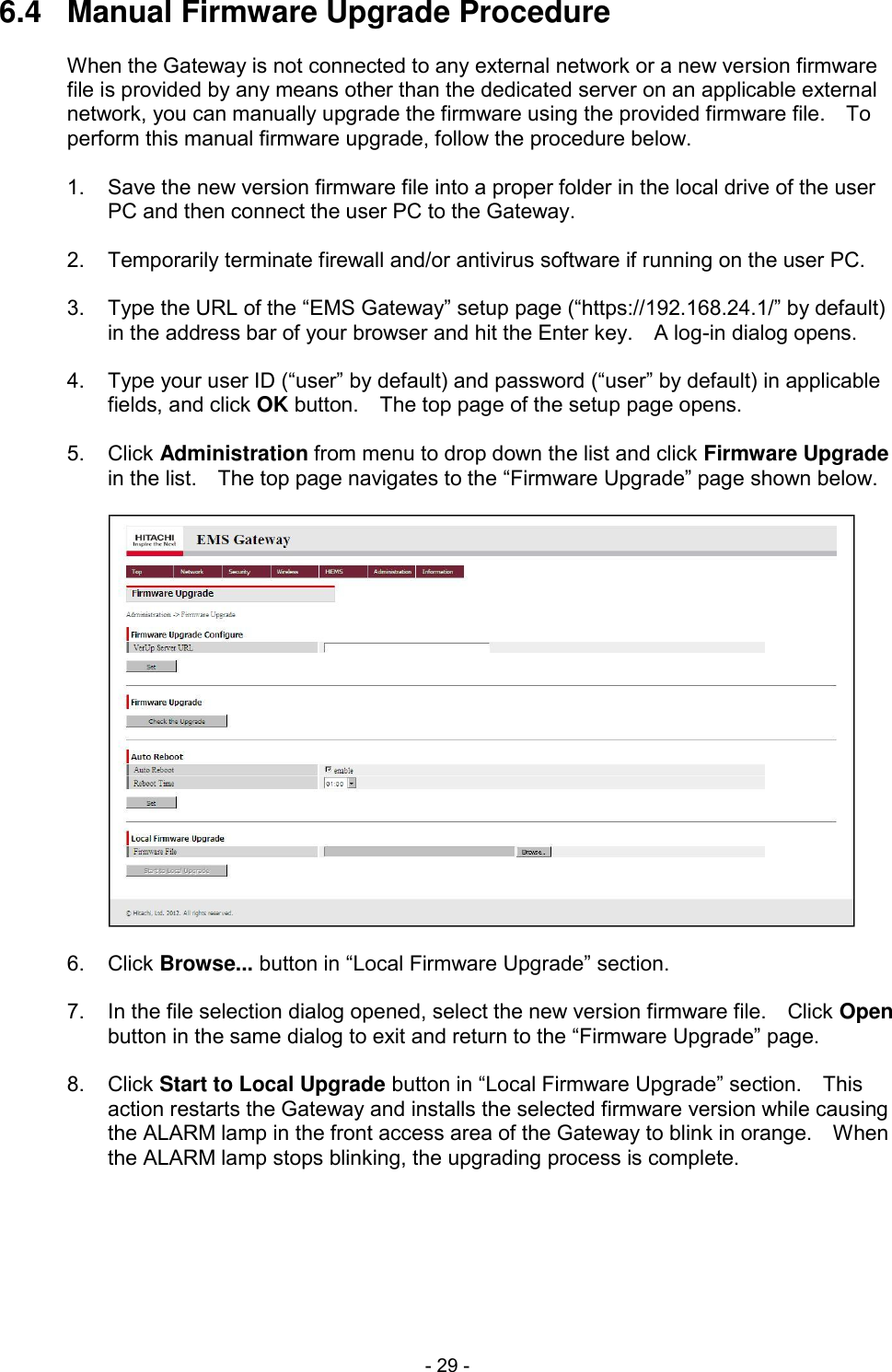
 - 29 - 6.4  Manual Firmware Upgrade Procedure  When the Gateway is not connected to any external network or a new version firmware file is provided by any means other than the dedicated server on an applicable external network, you can manually upgrade the firmware using the provided firmware file.    To perform this manual firmware upgrade, follow the procedure below.  1.  Save the new version firmware file into a proper folder in the local drive of the user PC and then connect the user PC to the Gateway.  2.  Temporarily terminate firewall and/or antivirus software if running on the user PC.  3.  Type the URL of the “EMS Gateway” setup page (“https://192.168.24.1/” by default) in the address bar of your browser and hit the Enter key.    A log-in dialog opens.  4.  Type your user ID (“user” by default) and password (“user” by default) in applicable fields, and click OK button.    The top page of the setup page opens.  5.  Click Administration from menu to drop down the list and click Firmware Upgrade in the list.    The top page navigates to the “Firmware Upgrade” page shown below.    6.  Click Browse... button in “Local Firmware Upgrade” section.  7.  In the file selection dialog opened, select the new version firmware file.    Click Open button in the same dialog to exit and return to the “Firmware Upgrade” page.  8.  Click Start to Local Upgrade button in “Local Firmware Upgrade” section.    This action restarts the Gateway and installs the selected firmware version while causing the ALARM lamp in the front access area of the Gateway to blink in orange.    When the ALARM lamp stops blinking, the upgrading process is complete.
 - 30 - 7.  TROUBLESHOOTING   7.1  During Installation Work  First check the flowchart below to determine your stage of installation work.    Then, try actions thereunder that may apply to your stage.  Is the POWER lamp in the front access area of the Gateway lit in green?  No: Try actions for Stage a.  Yes  Is the ALARM lamp in the front access area of the Gateway off?  No: Try actions for Stage b.  Yes  When the WAN port in the rear access area of the Gateway is in use, is the WAN lamp in the front access area lit in green or blinking in green?  No: Try actions for Stage c.  Yes  When any of the wired LAN ports in the rear access area of the Gateway is in use, is the subject LINK lamp in the rear access area lit in green or blinking in green?  No: Try actions for Stage d.  Yes  Is the IP address of the connected PC set to be automatically assigned?  No: Try actions for Stage e.  Yes  Is the connected PC able to open and perform the “EMS Gateway” setup page in the browser?  No: Try actions for Stage f.  Yes  Is there any other trouble?  Yes: Try actions for Stage g.  Stage Symptom Suspected Cause and Action To Be Taken a. The POWER lamp in the front access area of the Gateway is not lit in green.   Check if the power cord plug is firmly inserted in the outlet.   Try connecting any other device to the outlet to see if the power is supplied to the outlet.   If the power cord is plugged to a service outlet of any other device such as PC, plug the power cord directly to a mains outlet.    Otherwise, disconnection of power to the service outlet also disconnects power to the Gateway.   Check if the power cord is free of damage.    If you find any damage, immediately unplug the power cord from the outlet. b. The ALARM lamp in the front access area of the Gateway is lit in red. The Gateway is in error.    Restart the Gateway by unplugging and plugging the power cord with an interval of 10 seconds or longer between unplugging and plugging. c. When the WAN port in the rear access area of the Gateway is in use, the WAN lamp in the front access area is not lit in green or not blinking in green.   Check if both the Gateway and the WAN side equipment are turned on.   Reconnect the LAN cable between the WAN port of the Gateway and the LAN port of the WAN side equipment until you hear a click from each port connection. (Continued on next page)
 - 31 - (Continued) Stage Symptom Suspected Cause and Action To Be Taken d. When any of the wired LAN ports in the rear access area of the Gateway is in use, the subject LINK lamp in the rear access area is not lit in green or not blinking in green.   Check if both the Gateway and the destination equipment are turned on.   Check if the wired LAN connection to the destination equipment meets the networking environment of your premise.   Check if the wired LAN facility in the destination equipment (LAN board or LAN card) is properly configured.   Reconnect the LAN cable between the subject LAN port of the Gateway and the LAN port of the destination equipment until you hear a click from each port connection.   When the user prepares a LAN cable, procure a LAN cable of category 5e or higher if 1 Gbps (1000 Mbps) link speed for 1000BASE-T is desired.    Otherwise, slowdown of link speed or communication failure may result. e. The IP address of the connected PC is not set to be automatically assigned.   Referring to instruction manual of the connected PC, set up the wired LAN connection of the connected PC so that the IP address of the connected PC is automatically assigned by DHCP server (the Gateway).   To cause the above setting to take effect, the Gateway needs to start up and become ready prior to startup of the connected PC.  To ensure this, recycle power of the connected PC while the Gateway is running. f. The connected PC is not able to open the “EMS Gateway” setup page in the browser.   Check if the connection is appropriate referring to Chapter 4 (wired connection) or Chapter 5 (wireless connection).   Set up the OS and the browser so as not to use proxy.   Temporarily terminate firewall and/or antivirus software, if running on the user PC, before trying to open the “EMS Gateway” setup page. The connected PC is not able to perform the “EMS Gateway” setup page properly in the browser.   Enable JavaScript™ in the browser settings.   Use compatible browser defined in Subsection 1.3.2. g. There is any other trouble.   Check if the latest firmware version is applied and, if not, perform firmware upgrade according to Chapter 6.   Initialize the Gateway and set up the Gateway from scratch according to Section 8.1.
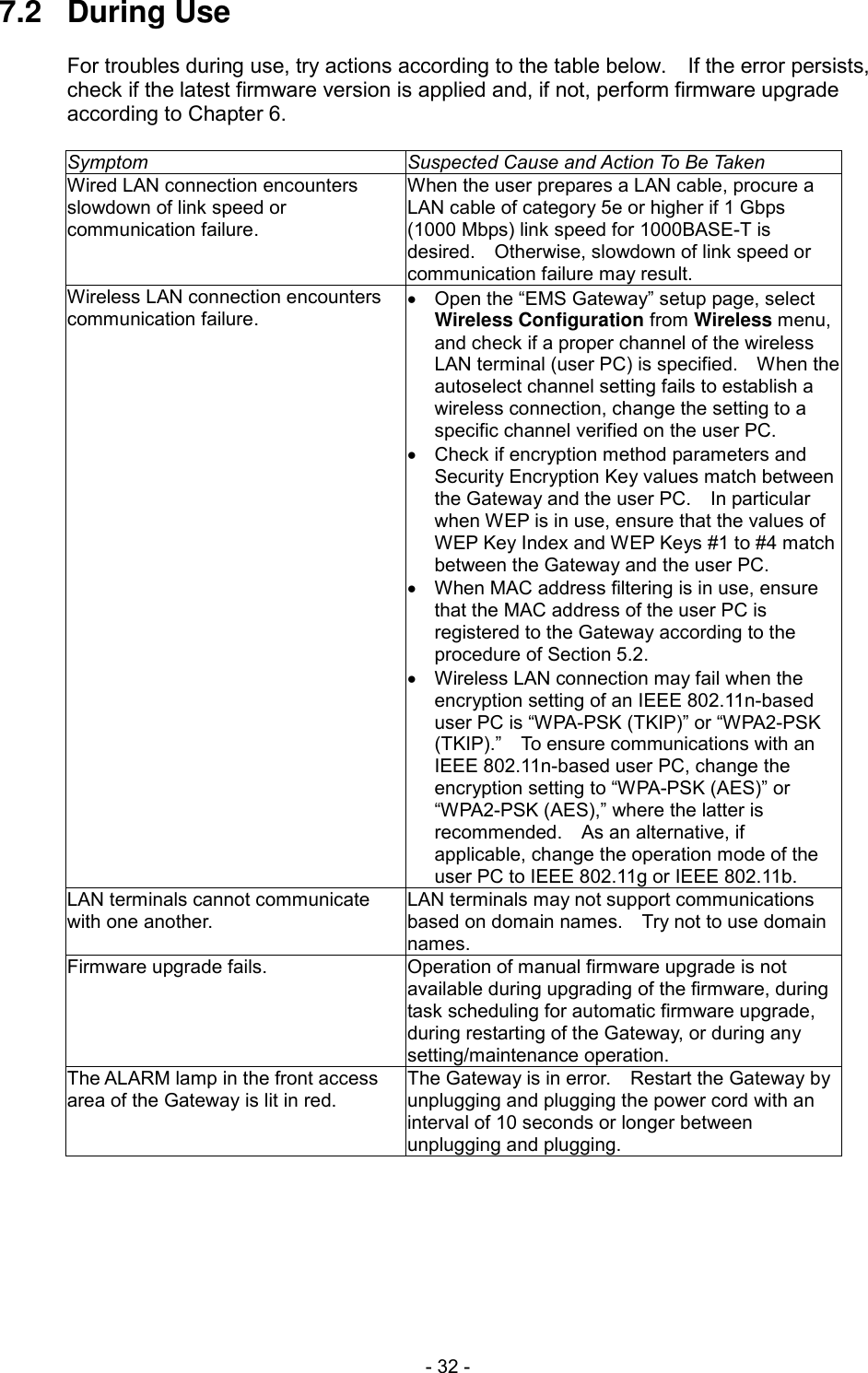
 - 32 - 7.2  During Use  For troubles during use, try actions according to the table below.    If the error persists, check if the latest firmware version is applied and, if not, perform firmware upgrade according to Chapter 6.  Symptom Suspected Cause and Action To Be Taken Wired LAN connection encounters slowdown of link speed or communication failure. When the user prepares a LAN cable, procure a LAN cable of category 5e or higher if 1 Gbps (1000 Mbps) link speed for 1000BASE-T is desired.    Otherwise, slowdown of link speed or communication failure may result. Wireless LAN connection encounters communication failure.   Open the “EMS Gateway” setup page, select Wireless Configuration from Wireless menu, and check if a proper channel of the wireless LAN terminal (user PC) is specified.    When the autoselect channel setting fails to establish a wireless connection, change the setting to a specific channel verified on the user PC.   Check if encryption method parameters and Security Encryption Key values match between the Gateway and the user PC.    In particular when WEP is in use, ensure that the values of WEP Key Index and WEP Keys #1 to #4 match between the Gateway and the user PC.   When MAC address filtering is in use, ensure that the MAC address of the user PC is registered to the Gateway according to the procedure of Section 5.2.   Wireless LAN connection may fail when the encryption setting of an IEEE 802.11n-based user PC is “WPA-PSK (TKIP)” or “WPA2-PSK (TKIP).”  To ensure communications with an IEEE 802.11n-based user PC, change the encryption setting to “WPA-PSK (AES)” or “WPA2-PSK (AES),” where the latter is recommended.    As an alternative, if applicable, change the operation mode of the user PC to IEEE 802.11g or IEEE 802.11b. LAN terminals cannot communicate with one another. LAN terminals may not support communications based on domain names.    Try not to use domain names. Firmware upgrade fails. Operation of manual firmware upgrade is not available during upgrading of the firmware, during task scheduling for automatic firmware upgrade, during restarting of the Gateway, or during any setting/maintenance operation. The ALARM lamp in the front access area of the Gateway is lit in red. The Gateway is in error.    Restart the Gateway by unplugging and plugging the power cord with an interval of 10 seconds or longer between unplugging and plugging.
 - 33 - 8.  APPENDIX   8.1  Initialization of the Gateway  Initialization means deletion of settings made after installation of the Gateway, thereby restoring the Gateway to the state of factory shipment.    When the Gateway does not operate properly or when the Gateway is to participate in a completely different network, it is recommended that you initialize the Gateway and set up the Gateway from scratch.  Be noted, however, that this initialization completely deletes the settings you made to the Gateway.    It is advised that you back up the current settings onto an external medium before you perform initialization.  INFORMATION  Log-in authentication settings of user ID and password are important personal information which, if stolen, may be abused.    Take utmost care in managing your user ID and password.   Initialization completely deletes the settings you made to the Gateway.    It is advised that you back up the current settings onto a hard disk of your PC or similar medium before you perform initialization.  To perform initialization, follow the steps below.  1.  Unplug the power cord from the outlet to turn off power of the Gateway.  2.  While pressing down the INIT button in the rear access area of the Gateway (see Section 1.2 for the button location), plug the power cord into the outlet to turn on power of the Gateway.  3.  Keep pressing down the INIT button for 10 seconds or longer.    The Gateway starts up in the state of factory shipment.
 - 34 - 8.2  Specifications  8.2.1  Hardware Specifications Item Content WAN port Physical interface 8-pin modular jack (RJ-45) Number of ports 1 Standard Autonegotiate among 1000BASE-T, 100BASE-TX, and 10BASE-T (IEEE802.3ab, IEEE802.3u, and IEEE802.3) Wired LAN port Physical interface 8-pin modular jack (RJ-45) Number of ports 4 (under built-in switching hub) Standard Autonegotiate among 1000BASE-T, 100BASE-TX, and 10BASE-T (IEEE802.3ab, IEEE802.3u, and IEEE802.3) Wireless LAN port IEEE802.11b   Frequency band: 2.4 GHz (2402 to 2474 MHz)   Number of channels: 1 to 11   Modulation: Direct sequence spread spectrum (DSSS)   Data rate: 11/5.5/2/1 Mbps (auto sensing) IEEE802.11g   Frequency band: 2.4 GHz (2402 to 2474 MHz)   Number of channels: 1 to 11   Modulation: Orthogonal frequency division multiplexing (OFDM)   Data rate: 54/48/36/24/18/12/9/6 Mbps (auto sensing) IEEE802.11n   Frequency band: 2.4 GHz (2402 to 2474 MHz)   Number of channels: 1 to 11   Modulation: Orthogonal frequency division multiplexing (OFDM)   Data rate:   HT20: 144.4/130/117/104/78/72.2/65/58.5/52/39/26/19.5/13/ 6.5 Mbps (auto sensing)   HT40 (dual channel): 300/270/243/216/162/150/135/121.5/ 108/81/54/40.5/27/13.5 Mbps (auto sensing) Antenna Diversity/multiple-input and multiple-output (MIMO) with 2 transmit and 2 receive antennas (built-in) USB port Physical interface Right Angle to Type A Female Number of ports 2 Standard USB 2.0 Data rate 480/12/1.5 Mbps (high/full/low speed, auto sensing) Output power 5 V, 500 mA per port Lamp POWER See Section 1.2. ALARM PPP WLAN WAN STATUS1 STATUS2 STATUS3 LINK 100/1000BASE-T Button WLAN INIT Casing Versatile for standing and wall-mounting installations Operating environment   Ambient temperature: 0 to 40 °C   Ambient humidity: 20 to 80 %, no condensation Main unit dimensions (mm) Approx. 40 (W)  149 (D)  135 (H) excluding protrusions Main unit mass (kg) Up to 0.4 Power supply(Rate of AC adapter) Mains 100 to 120 V ac, 60 Hz Power supply(Rate of the Gateway) 12 V dc, 1.3 A (supplied from AC adapter) Power consumption Up to 10 W (including AC adapter and excluding USB devices)
 - 35 - 8.2.2  Software Specifications  Item Content Router functions   Domain name server (DNS) proxy   Dynamic host configuration protocol (DHCP) server   Dynamic host configuration protocol (DHCP) client   Idle timeout timer   Network address port translation (NAPT)   Packet filtering   Point-to-point protocol (PPP) keep-alive   Point-to-point protocol over Ethernet (PPPoE) client   Point-to-point protocol over Ethernet (PPPoE) multi-session   Stateful packet inspection (SPI)   Static routing   Universal plug and play (UPnP) Wireless LAN functions Security   Extended Service Set Identifier Stealth (ESSID Stealth)   MAC address filtering   Multiple Service Set Identifiers (Multiple SSIDs) Encryption   SSID-1: Selectable among no encryption, WPA-PSK (TKIP), WPA-PSK (AES), WPA2-PSK (TKIP), WPA2-PSK (AES), and WPA-PSK/WPA2-PSK (TKIP/AES)   SSID-2: Selectable among no encryption, WEP (64 bits), WEP (128 bits), WPA-PSK (TKIP), WPA-PSK (AES), WPA2-PSK (TKIP), WPA2-PSK (AES), and WPA-PSK/WPA2-PSK (TKIP/AES) Other Automatic wireless channel selection Setting and maintenance functions   Authentication with log-in user ID and password   Automatic firmware upgrade   Backup and restoration of setting information   Logging of various events   Time synchronization via simple network time protocol (SNTP)   Web-based display of various statuses   Web-based setting operations
 - 36 - 8.3  Trademarks  Names including company names and product names in this manual may be trademarks or registered trademarks of their respective owners.    No modification to such names is authorized and the Manufacturer disclaims any loss due to unauthorized modifications to such names.  Certain software used in the Gateway requires legal statements below in this manual.   The “software” in each statement shall be interpreted properly according to the context.  ====================================================================  This software is based in part on the work of the Independent JPEG Group.  Copyright (c) 1998, 1999, 2000 Thai Open Source Software Center Ltd.  Permission is hereby granted, free of charge, to any person obtaining a copy of this software and associated documentation files (the "Software"), to deal in the Software without restriction, including without limitation the rights to use, copy, modify, merge, publish, distribute, sublicense, and/or sell copies of the Software, and to permit persons to whom the Software is furnished to do so, subject to the following conditions:   The above copyright notice and this permission notice shall be included in all copies or substantial portions of the Software.   THE SOFTWARE IS PROVIDED "AS IS", WITHOUT WARRANTY OF ANY KIND, EXPRESS OR IMPLIED, INCLUDING BUT NOT LIMITED TO THE WARRANTIES OF MERCHANTABILITY, FITNESS FOR A PARTICULAR PURPOSE AND NONINFRINGEMENT.   IN NO EVENT SHALL THE AUTHORS OR COPYRIGHT HOLDERS BE LIABLE FOR ANY CLAIM, DAMAGES OR OTHER LIABILITY, WHETHER IN AN ACTION OF CONTRACT, TORT OR OTHERWISE, ARISING FROM, OUT OF OR IN CONNECTION WITH THE SOFTWARE OR THE USE OR OTHER DEALINGS IN THE SOFTWARE.  ====================================================================  This product includes software developed by the Apache Group for use in the Apache HTTP server project (http://www.apache.org/)  Copyright (C) 1993-2002 by Darren Reed.  ====================================================================
 - 37 - LICENSE ISSUES  The OpenSSL toolkit stays under a dual license, i.e. both the conditions of the OpenSSL License and the original SSLeay license apply to the toolkit. See below for the actual license texts. Actually both licenses are BSD-style Open Source licenses. In case of any license issues related to OpenSSL please contact openssl-core@openssl.org.  OpenSSL License  Copyright (c) 1998-2007 The OpenSSL Project. All rights reserved.  Redistribution and use in source and binary forms, with or without modification, are permitted provided that the following conditions are met: 1.  Redistributions of source code must retain the above copyright notice, this list of conditions and the following disclaimer. 2.  Redistributions in binary form must reproduce the above copyright notice, this list of conditions and the following disclaimer in the documentation and/or other materials provided with the distribution. 3.  All advertising materials mentioning features or use of this software must display the following acknowledgment: "This product includes software developed by the OpenSSL Project for use in the OpenSSL Toolkit. (http://www.openssl.org/)" 4.  The names "OpenSSL Toolkit" and "OpenSSL Project" must not be used to endorse or promote products derived from this software without prior written permission. For written permission, please contact openssl-core@openssl.org. 5.  Products derived from this software may not be called "OpenSSL" nor may "OpenSSL" appear in their names without prior written permission of the OpenSSL Project. 6.  Redistributions of any form whatsoever must retain the following acknowledgment: "This product includes software developed by the OpenSSL Project for use in the OpenSSL Toolkit (http://www.openssl.org/)"  THIS SOFTWARE IS PROVIDED BY THE OpenSSL PROJECT "AS IS" AND ANY EXPRESSED OR IMPLIED WARRANTIES, INCLUDING, BUT NOT LIMITED TO, THE IMPLIED WARRANTIES OF MERCHANTABILITY AND FITNESS FOR A PARTICULAR PURPOSE ARE DISCLAIMED. IN NO EVENT SHALL THE OpenSSL PROJECT OR ITS CONTRIBUTORS BE LIABLE FOR ANY DIRECT, INDIRECT, INCIDENTAL, SPECIAL, EXEMPLARY, OR CONSEQUENTIAL DAMAGES (INCLUDING, BUT NOT LIMITED TO, PROCUREMENT OF SUBSTITUTE GOODS OR SERVICES; LOSS OF USE, DATA, OR PROFITS; OR BUSINESS INTERRUPTION) HOWEVER CAUSED AND ON ANY THEORY OF LIABILITY, WHETHER IN CONTRACT, STRICT LIABILITY, OR TORT (INCLUDING NEGLIGENCE OR OTHERWISE) ARISING IN ANY WAY OUT OF THE USE OF THIS SOFTWARE, EVEN IF ADVISED OF THE POSSIBILITY OF SUCH DAMAGE.  ====================================================================
 - 38 - This product includes cryptographic software written by Eric Young (eay@cryptsoft.com).  This product includes software written by Tim Hudson (tjh@cryptsoft.com).  Original SSLeay License  Copyright (C) 1995-1998 Eric Young (eay@cryptsoft.com). All rights reserved.  This package is an SSL implementation written by Eric Young (eay@cryptsoft.com). The implementation was written so as to conform with Netscape's SSL.  This library is free for commercial and non-commercial use as long as the following conditions are adhered to. The following conditions apply to all code found in this distribution, be it the RC4, RSA, lhash, DES, etc., code; not just the SSL code. The SSL documentation included with this distribution is covered by the same copyright terms except that the holder is Tim Hudson (tjh@cryptsoft.com).   Copyright remains Eric Young's, and as such any Copyright notices in the code are not to be removed.   If this package is used in a product, Eric Young should be given attribution as the author of the parts of the library used. This can be in the form of a textual message at program startup or in documentation (online or textual) provided with the package.  Redistribution and use in source and binary forms, with or without modification, are permitted provided that the following conditions are met: 1.  Redistributions of source code must retain the copyright notice, this list of conditions and the following disclaimer. 2.  Redistributions in binary form must reproduce the above copyright notice, this list of conditions and the following disclaimer in the documentation and/or other materials provided with the distribution. 3.  All advertising materials mentioning features or use of this software must display the following acknowledgement: "This product includes cryptographic software written by Eric Young (eay@cryptsoft.com)" The word 'cryptographic' can be left out if the routines from the library being used are not cryptographic related :-). 4.  If you include any Windows specific code (or a derivative thereof) from the apps directory (application code) you must include an acknowledgement: "This product includes software written by Tim Hudson (tjh@cryptsoft.com)"  THIS SOFTWARE IS PROVIDED BY ERIC YOUNG "AS IS" AND ANY EXPRESS OR IMPLIED WARRANTIES, INCLUDING, BUT NOT LIMITED TO, THE IMPLIED WARRANTIES OF MERCHANTABILITY AND FITNESS FOR A PARTICULAR PURPOSE ARE DISCLAIMED. IN NO EVENT SHALL THE AUTHOR OR CONTRIBUTORS BE LIABLE FOR ANY DIRECT, INDIRECT, INCIDENTAL, SPECIAL, EXEMPLARY, OR CONSEQUENTIAL DAMAGES (INCLUDING, BUT NOT LIMITED TO, PROCUREMENT OF SUBSTITUTE GOODS OR SERVICES; LOSS OF USE, DATA, OR PROFITS; OR BUSINESS INTERRUPTION) HOWEVER CAUSED AND ON ANY THEORY OF LIABILITY, WHETHER IN CONTRACT, STRICT LIABILITY, OR TORT (INCLUDING NEGLIGENCE OR OTHERWISE) ARISING IN ANY WAY OUT OF THE USE OF THIS SOFTWARE, EVEN IF ADVISED OF THE POSSIBILITY OF SUCH DAMAGE.  The license and distribution terms for any publicly available version or derivative of this code cannot be changed. i.e. this code cannot simply be copied and put under another distribution license [including the GNU Public License].  ====================================================================
 - 39 - GNU General Public License (GPL)  This product includes software provided under GNU General Public License (GPL) or GNU Lesser General Public License (LGPL). Upon request, a medium containing source code subject to GPL and LGPL may be provided to the requestor. If you wish to obtain such a medium, follow instructions at http://www.hitachi.co.jp/products/it/network/gpl_emsgw/index.html  This provision of medium may be a paid service inclusive of cost for medium, postage, packaging labor, tax, and other fees as applicable.
 - 40 - READ THIS FIRST     Hitachi, Ltd. (the “Manufacturer”) disclaims any loss due to missed communications and lost opportunities, which may arise from any failure, malfunction, or anomaly of Hitachi EMS Gateway Model EM-G21 (the “Gateway”) or from external causes such as power outage.    The Manufacturer also disclaims pure economic loss due to possible loss of information stored in the Gateway, which may arise from the same.   The Manufacturer advises the user to back up such information stored in the Gateway by taking note thereof on paper or similar method.   Third-party products mentioned in this manual, if any, are for reference only and not intended for mandatory use.   The content of this manual, the hardware, the software, and the external appearance of the Gateway may be revised in future without prior notice.   Analysis (including but not limited to reverse-compiling, reverse-assembling, and reverse-engineering), reproduction, resale, and modification of the software included in the Gateway are prohibited.   The Gateway is usable only in the U.S.A. by law.  Do not use the Gateway in any other country or region.                                Copyright © 2012, Hitachi, Ltd.    All rights reserved.
 - 41 - STATEMENT ON FCC COMPLIANCE   This device complies with Part 15 of the FCC Rules.    Operation is subject to the following two conditions: (1)  This device may not cause harmful interference, and (2)  This device must accept any interference received, including interference that may cause undesired operation.  Note:    This device has been tested and found to comply with the limits for Class B digital devices, pursuant to Part 15 of the FCC rules.    These limits are designed to provide reasonable protection against harmful interference in a residential installation.   This device generates, uses, and can radiate radio frequency energy and, if not installed and used in accordance with the instructions, may cause harmful interference to radio or television reception, which can be determined by turning this device off and on.    The user is encouraged to try to correct the interference by one or more of following measures:   Reorient or relocate the receiving antenna.   Increase the separation between this device and receiver.   Connect this device into an outlet on a circuit different from that to which the receiver is connected.   Consult the dealer or an experienced radio/TV technician for help.  Modifications:  The FCC requires the user to be notified that any changes or modifications to this device that are not expressly approved by the party responsible for compliance could void the user’s authority to operate this device.   CAUTION Exposure to Radio Frequency Radiation. The radiated output power of the wireless LAN facility built in this device (the “Wireless LAN”) is far below the FCC radio frequency exposure limits.    Nevertheless, the Wireless LAN shall be used in such a manner that the potential for human contact during normal operation is minimized.  In the usual operating configuration, the distance between the antenna and the user should not be less than 20 cm.  Please follow instructions in this manual for the details regarding antenna location.

Navigation menu