Hitachi Managed Services Business Division PCKCB120 Biometric Reader User Manual 05

Hitachi, Ltd. Service Platform Business Division Group Biometric Reader 05

05 User Manual

 1 / 12  Hitachi Biometric Reader  PC-KCB120 User Guide  Read all guidelines in this document carefully before using this product. This document should be kept for the future reference.  Important Notices  Quoting or partial / total reprinting of the contents of this document without license is prohibited.  The contents of this document are subject to change without notice.  In the case of any errors, inaccuracies or omissions in the contents of this document, please contact with your distributor.  Hitachi, Ltd. permits the acquisition and use of the product according to the conditions indicated in this document.  According to the statements contained in previous paragraphs, Hitachi, Ltd. will not assume any liability or obligation for damages of any kind arising from the use of this product. Consequently, do not use the product unless you fully understand its operation.   Product Reliability   The product you have purchased has been designed and manufactured for general office use. Avoid its use for applications that require extremely high reliability or in cases where lives or property may be at stake, for example the control of chemical plants, medical devices, urgent communications etc.  Hitachi, Ltd. assumes no liability for any such uses and for any derived circumstances that may lead to accidents if used inappropriately.  Hitachi, Ltd. does not guarantee the correct functioning of this product if it is used simultaneously with other identification devices.   Regulations and Measures  ICES-003 Statements This Class B digital apparatus complies with Canadian ICES-003. Cet appareil numérique de la classe B est conforme à la norme NMB-003 du Canada.  Federal Communications Commission (FCC) Statement               Note: This equipment has been tested and found to comply with the limits for a class B digital device, pursuant to Part 15 of the FCC Rules. These limits are designed to provide This device complies with Part 15 of the FCC Rules. Operation is subject to the following two conditions:(1) this device may not cause harmful interference, and (2) this device must accept any interference received, including interference that may cause undesired operation. FCC WARNING Changes or modifications not expressly approved by the party responsible for compliance could void the user’s authority to operate the equipment. USB cable in the package must be used for connection to host computer in order to meet FCC emission limits.
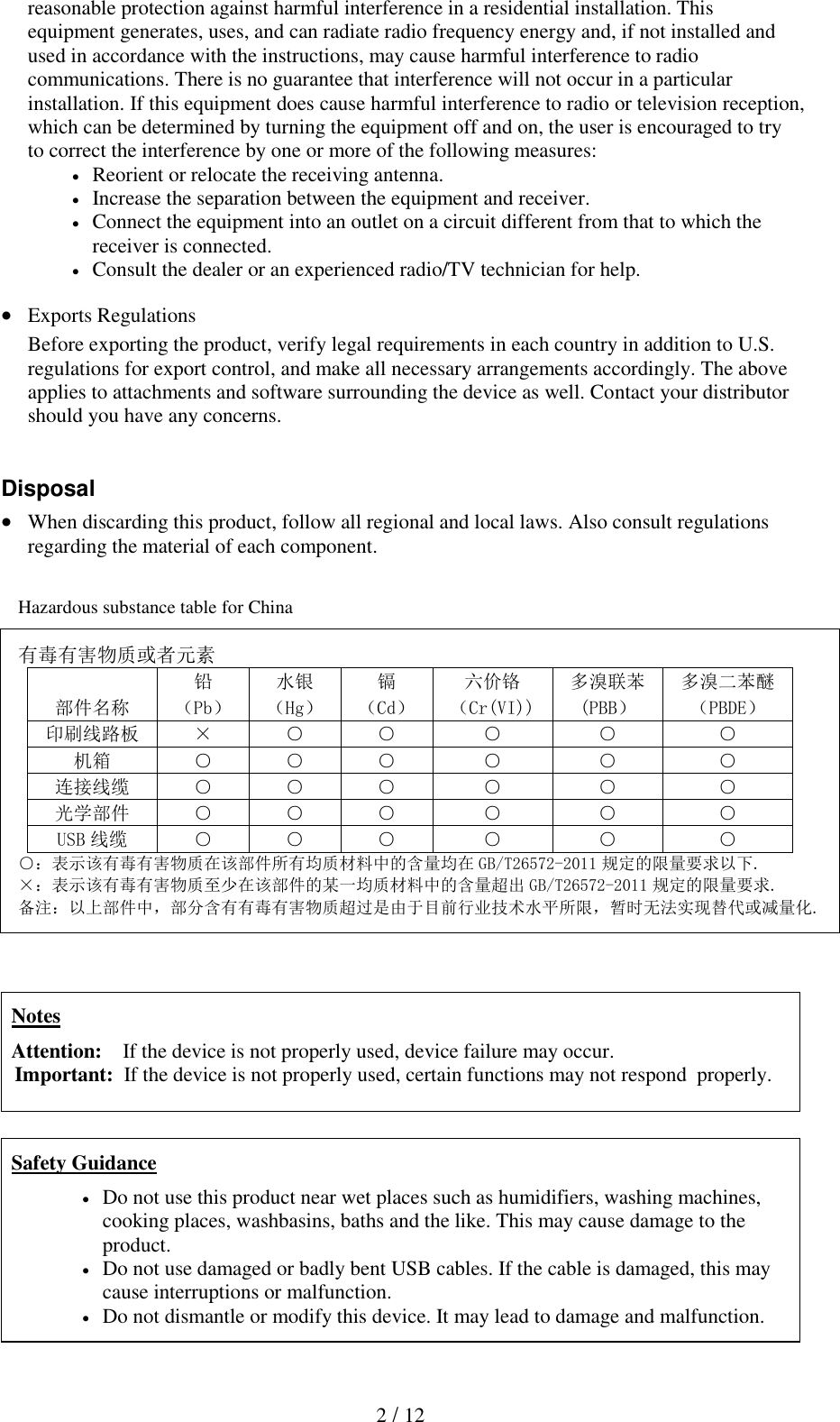
 2 / 12 reasonable protection against harmful interference in a residential installation. This equipment generates, uses, and can radiate radio frequency energy and, if not installed and used in accordance with the instructions, may cause harmful interference to radio communications. There is no guarantee that interference will not occur in a particular installation. If this equipment does cause harmful interference to radio or television reception, which can be determined by turning the equipment off and on, the user is encouraged to try to correct the interference by one or more of the following measures:   Reorient or relocate the receiving antenna.   Increase the separation between the equipment and receiver.   Connect the equipment into an outlet on a circuit different from that to which the receiver is connected.  Consult the dealer or an experienced radio/TV technician for help.   Exports Regulations Before exporting the product, verify legal requirements in each country in addition to U.S. regulations for export control, and make all necessary arrangements accordingly. The above applies to attachments and software surrounding the device as well. Contact your distributor should you have any concerns.   Disposal  When discarding this product, follow all regional and local laws. Also consult regulations regarding the material of each component.    Hazardous substance table for China  有毒有害物质或者元素 部件名称 铅 水银 镉 六价铬 多溴联苯 多溴二苯醚 (Pb) (Hg) (Cd) (Cr(VI)) (PBB) (PBDE) 印刷线路板 × ○ ○ ○ ○ ○ 机箱 ○ ○ ○ ○ ○ ○ 连接线缆 ○ ○ ○ ○ ○ ○ 光学部件 ○ ○ ○ ○ ○ ○ USB 线缆 ○ ○ ○ ○ ○ ○ ○:表示该有毒有害物质在该部件所有均质材料中的含量均在 GB/T26572-2011 规定的限量要求以下. ×:表示该有毒有害物质至少在该部件的某一均质材料中的含量超出 GB/T26572-2011 规定的限量要求. 备注:以上部件中,部分含有有毒有害物质超过是由于目前行业技术水平所限,暂时无法实现替代或减量化.    Notes Attention:    If the device is not properly used, device failure may occur. Important:  If the device is not properly used, certain functions may not respond  properly.    Safety Guidance  Do not use this product near wet places such as humidifiers, washing machines, cooking places, washbasins, baths and the like. This may cause damage to the product.  Do not use damaged or badly bent USB cables. If the cable is damaged, this may cause interruptions or malfunction.   Do not dismantle or modify this device. It may lead to damage and malfunction.
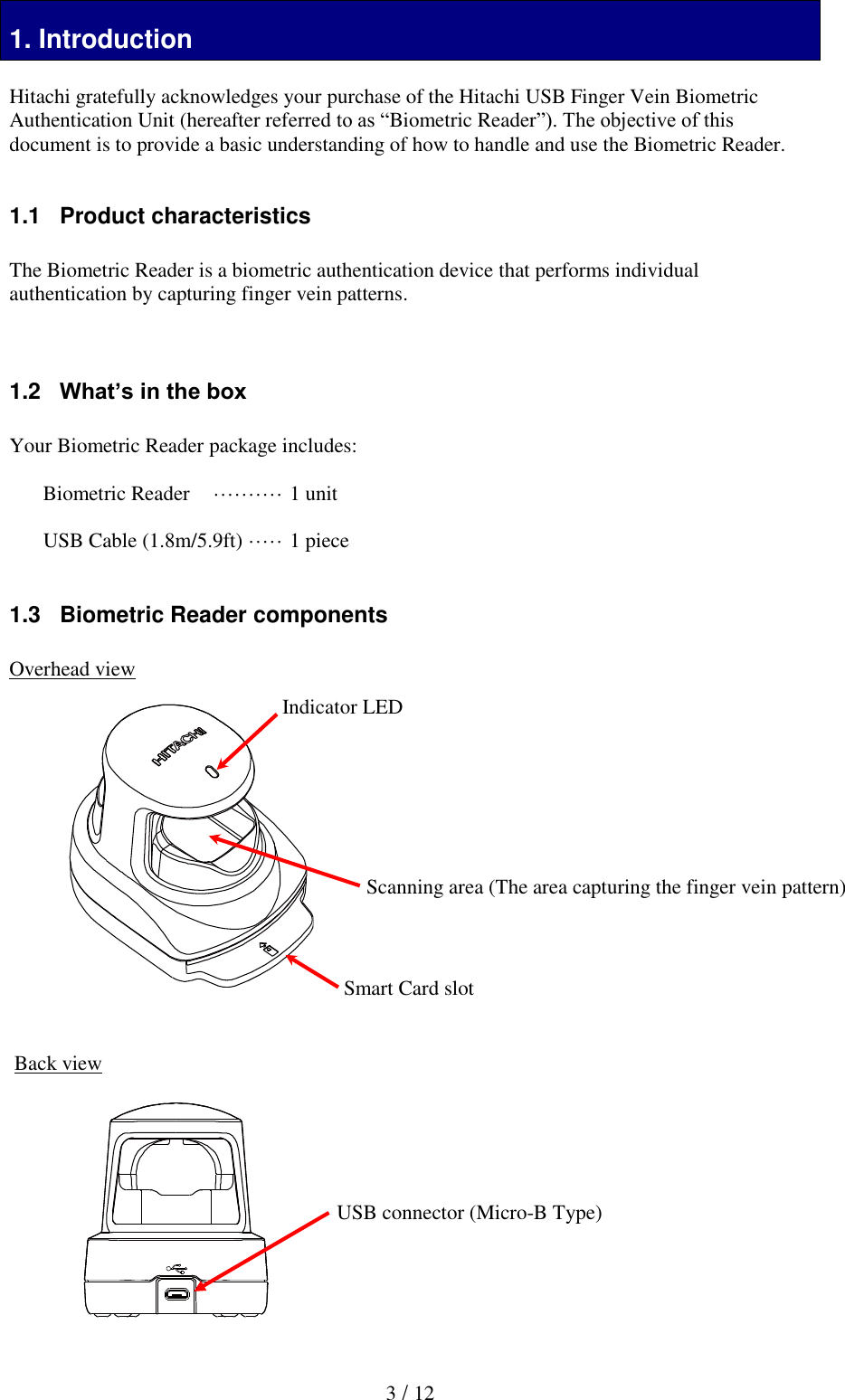
 3 / 12 1. Introduction 1. Introduction  Hitachi gratefully acknowledges your purchase of the Hitachi USB Finger Vein Biometric Authentication Unit (hereafter referred to as “Biometric Reader”). The objective of this document is to provide a basic understanding of how to handle and use the Biometric Reader.   1.1   Product characteristics  The Biometric Reader is a biometric authentication device that performs individual authentication by capturing finger vein patterns.    1.2   What’s in the box  Your Biometric Reader package includes:  Biometric Reader  ·········· 1 unit  USB Cable (1.8m/5.9ft)  ····· 1 piece  1.3   Biometric Reader components  Overhead view                    Back view          USB connector (Micro-B Type) Scanning area (The area capturing the finger vein pattern) Indicator LED Smart Card slot
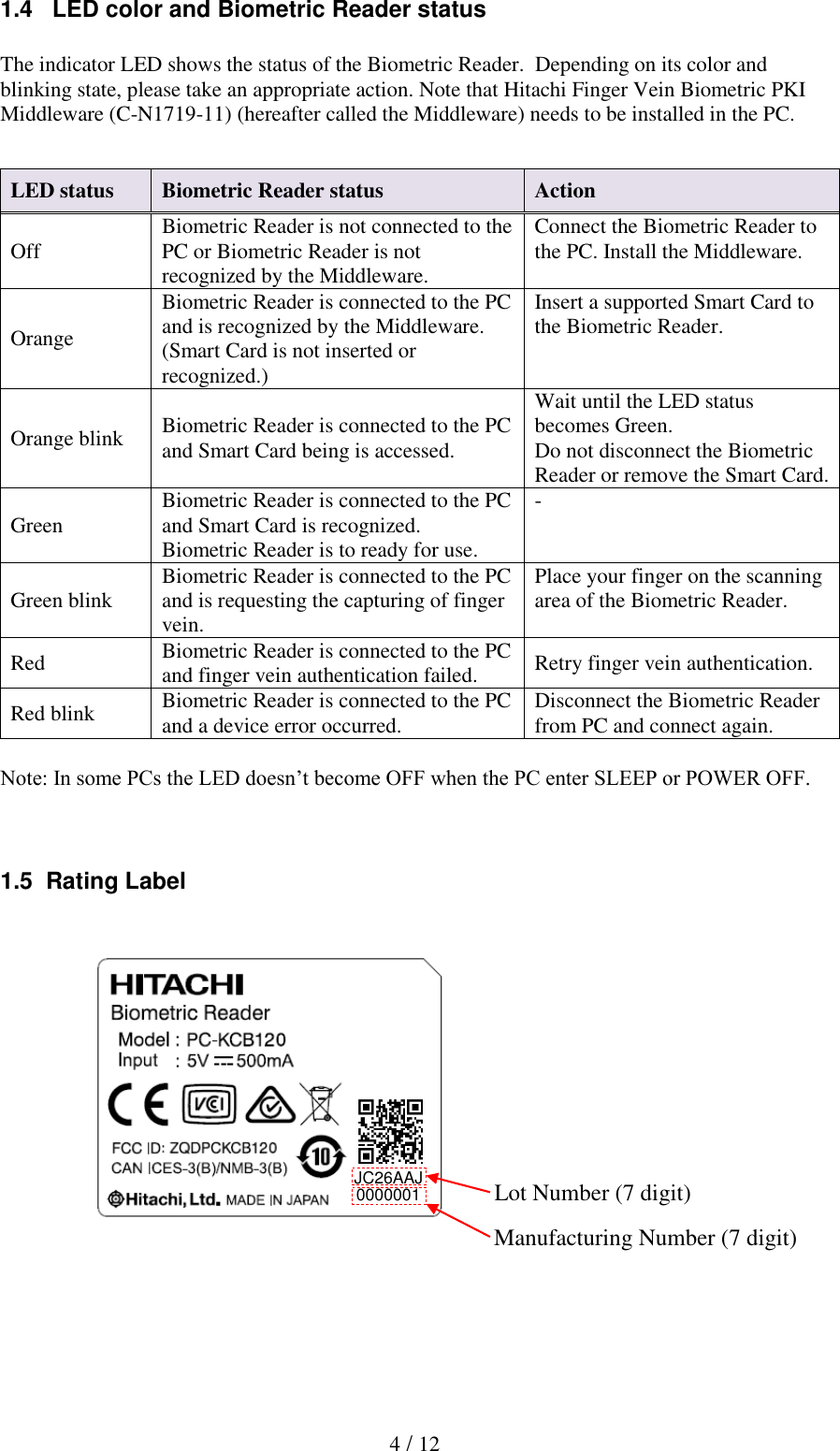
 4 / 12 1.4   LED color and Biometric Reader status  The indicator LED shows the status of the Biometric Reader.  Depending on its color and blinking state, please take an appropriate action. Note that Hitachi Finger Vein Biometric PKI Middleware (C-N1719-11) (hereafter called the Middleware) needs to be installed in the PC.   Note: In some PCs the LED doesn’t become OFF when the PC enter SLEEP or POWER OFF.    1.5  Rating Label              2. Installation of the Biometric Reader LED status Biometric Reader status Action Off Biometric Reader is not connected to the PC or Biometric Reader is not recognized by the Middleware. Connect the Biometric Reader to the PC. Install the Middleware. Orange Biometric Reader is connected to the PC and is recognized by the Middleware. (Smart Card is not inserted or recognized.) Insert a supported Smart Card to the Biometric Reader. Orange blink Biometric Reader is connected to the PC and Smart Card being is accessed. Wait until the LED status becomes Green.  Do not disconnect the Biometric Reader or remove the Smart Card. Green Biometric Reader is connected to the PC and Smart Card is recognized. Biometric Reader is to ready for use. - Green blink Biometric Reader is connected to the PC and is requesting the capturing of finger vein. Place your finger on the scanning area of the Biometric Reader. Red Biometric Reader is connected to the PC and finger vein authentication failed. Retry finger vein authentication. Red blink Biometric Reader is connected to the PC and a device error occurred. Disconnect the Biometric Reader from PC and connect again. Lot Number (7 digit) Manufacturing Number (7 digit) JC26AAJ 0000001
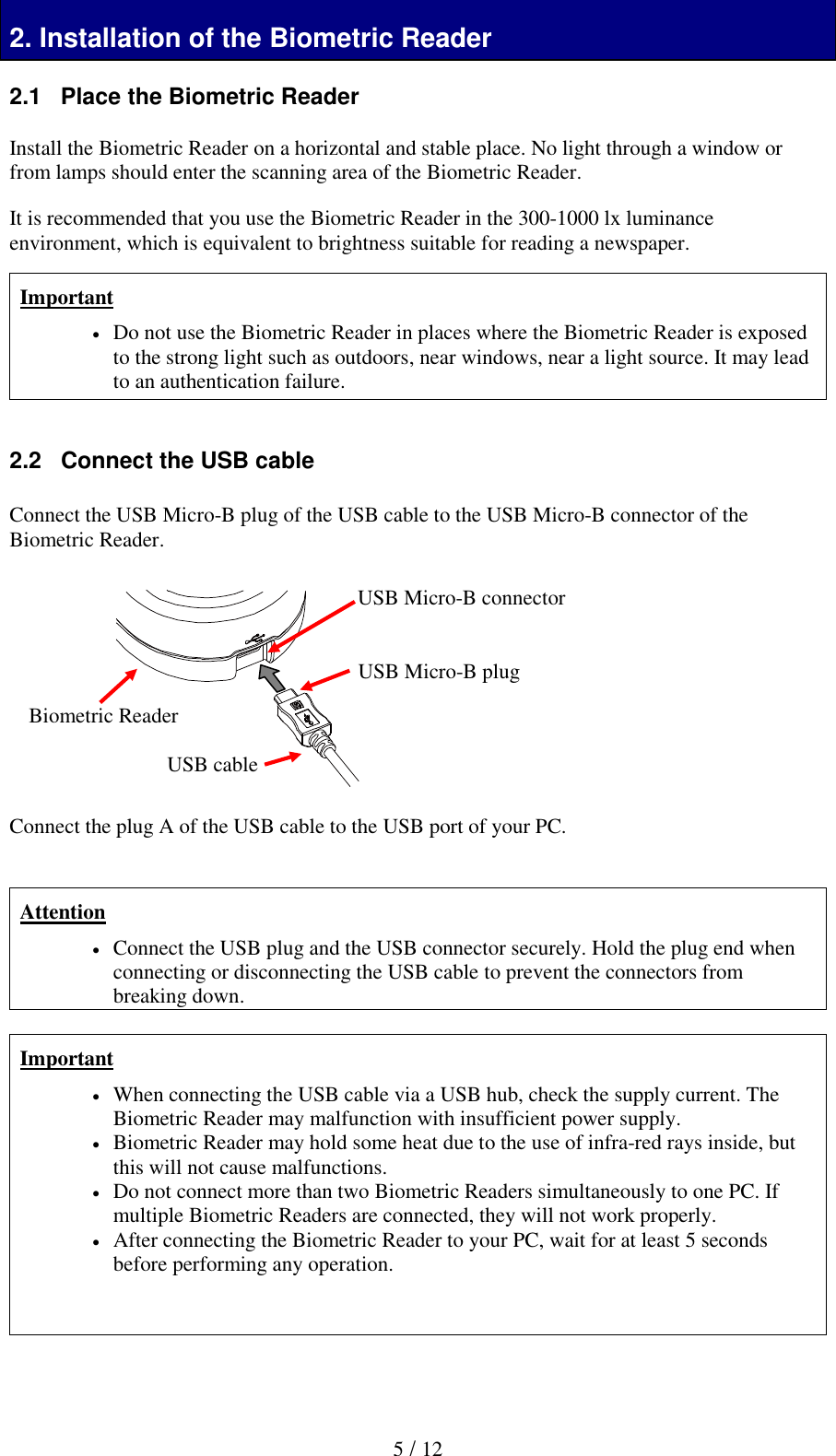
 5 / 12 2. Installation of the Biometric Reader 2.1   Place the Biometric Reader  Install the Biometric Reader on a horizontal and stable place. No light through a window or from lamps should enter the scanning area of the Biometric Reader.   It is recommended that you use the Biometric Reader in the 300-1000 lx luminance environment, which is equivalent to brightness suitable for reading a newspaper.  Important  Do not use the Biometric Reader in places where the Biometric Reader is exposed to the strong light such as outdoors, near windows, near a light source. It may lead to an authentication failure.   2.2   Connect the USB cable  Connect the USB Micro-B plug of the USB cable to the USB Micro-B connector of the Biometric Reader.             Connect the plug A of the USB cable to the USB port of your PC.   Attention  Connect the USB plug and the USB connector securely. Hold the plug end when connecting or disconnecting the USB cable to prevent the connectors from breaking down.  Important  When connecting the USB cable via a USB hub, check the supply current. The Biometric Reader may malfunction with insufficient power supply.  Biometric Reader may hold some heat due to the use of infra-red rays inside, but this will not cause malfunctions.  Do not connect more than two Biometric Readers simultaneously to one PC. If multiple Biometric Readers are connected, they will not work properly.  After connecting the Biometric Reader to your PC, wait for at least 5 seconds before performing any operation.     Biometric Reader USB Micro-B connector USB Micro-B plug USB cable
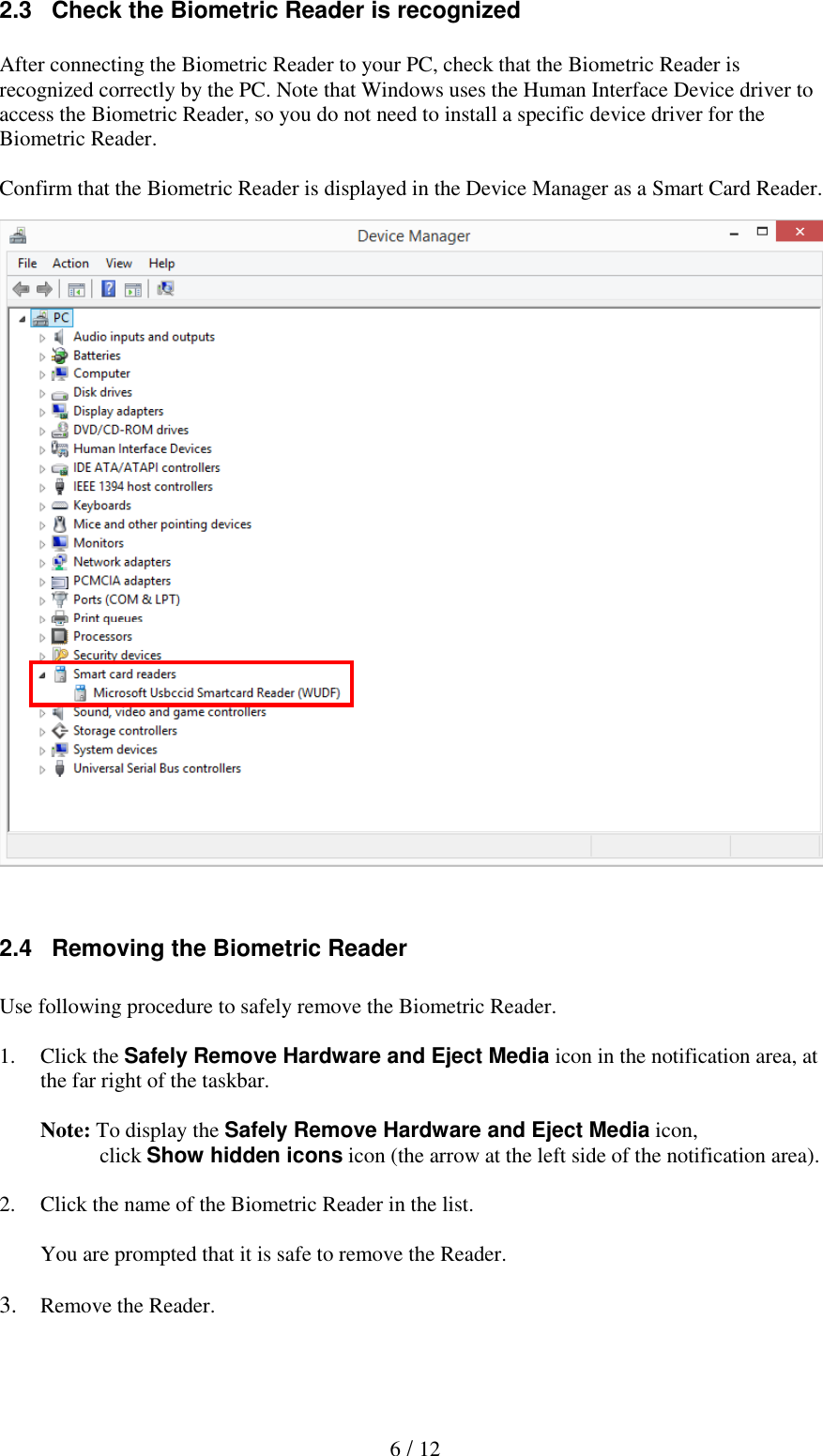
 6 / 12 2.3   Check the Biometric Reader is recognized  After connecting the Biometric Reader to your PC, check that the Biometric Reader is recognized correctly by the PC. Note that Windows uses the Human Interface Device driver to access the Biometric Reader, so you do not need to install a specific device driver for the Biometric Reader.  Confirm that the Biometric Reader is displayed in the Device Manager as a Smart Card Reader.                        2.4   Removing the Biometric Reader  Use following procedure to safely remove the Biometric Reader.  1. Click the Safely Remove Hardware and Eject Media icon in the notification area, at the far right of the taskbar.  Note: To display the Safely Remove Hardware and Eject Media icon,            click Show hidden icons icon (the arrow at the left side of the notification area).   2. Click the name of the Biometric Reader in the list.  You are prompted that it is safe to remove the Reader.  3. Remove the Reader. 3. How to use the Biometric Reader
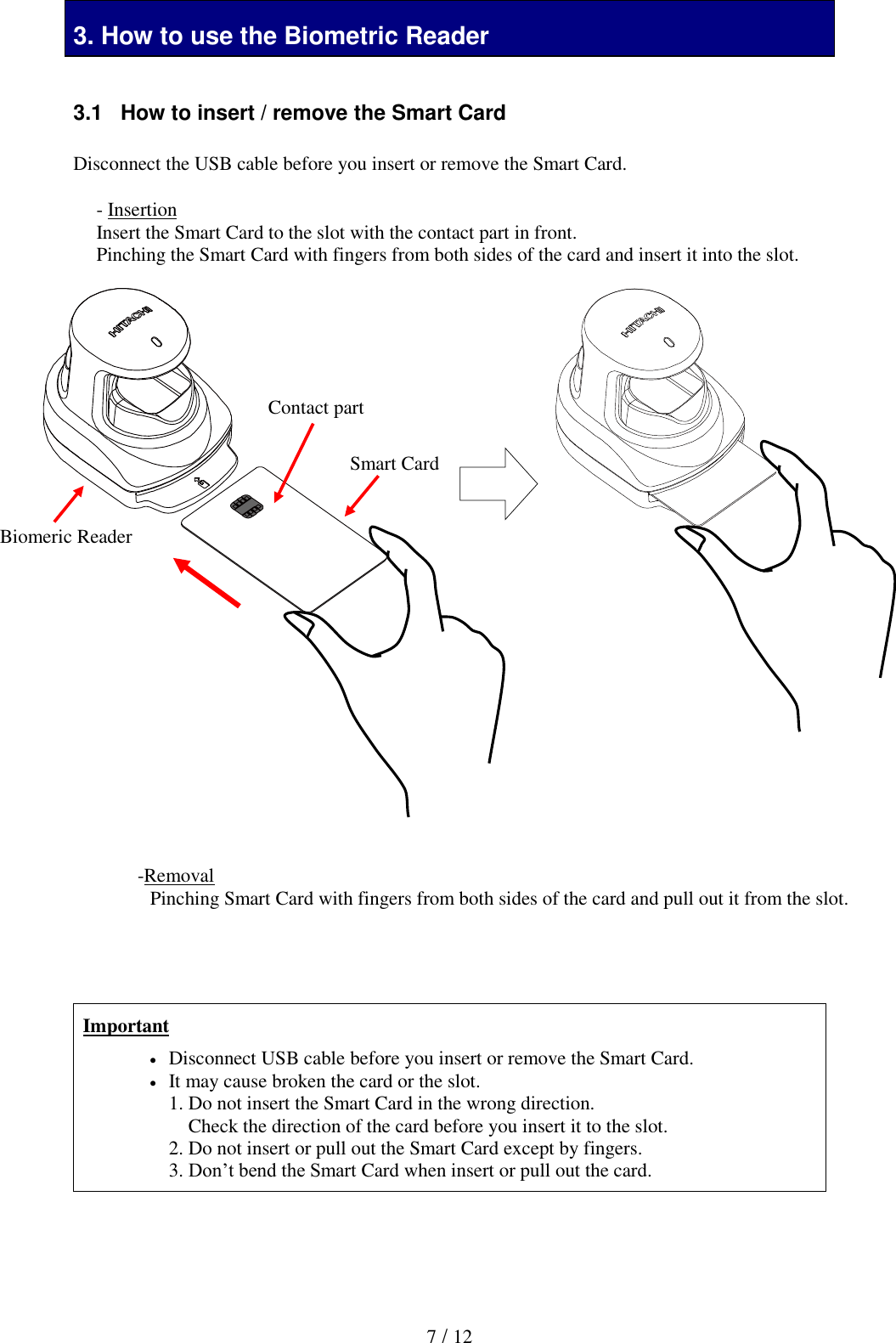
 7 / 12 3. How to use the Biometric Reader  3.1   How to insert / remove the Smart Card  Disconnect the USB cable before you insert or remove the Smart Card.                                      Important  Disconnect USB cable before you insert or remove the Smart Card.  It may cause broken the card or the slot. 1. Do not insert the Smart Card in the wrong direction.     Check the direction of the card before you insert it to the slot. 2. Do not insert or pull out the Smart Card except by fingers. 3. Don’t bend the Smart Card when insert or pull out the card.   - Insertion Insert the Smart Card to the slot with the contact part in front. Pinching the Smart Card with fingers from both sides of the card and insert it into the slot.  -Removal Pinching Smart Card with fingers from both sides of the card and pull out it from the slot. Contact part  Smart Card Biomeric Reader
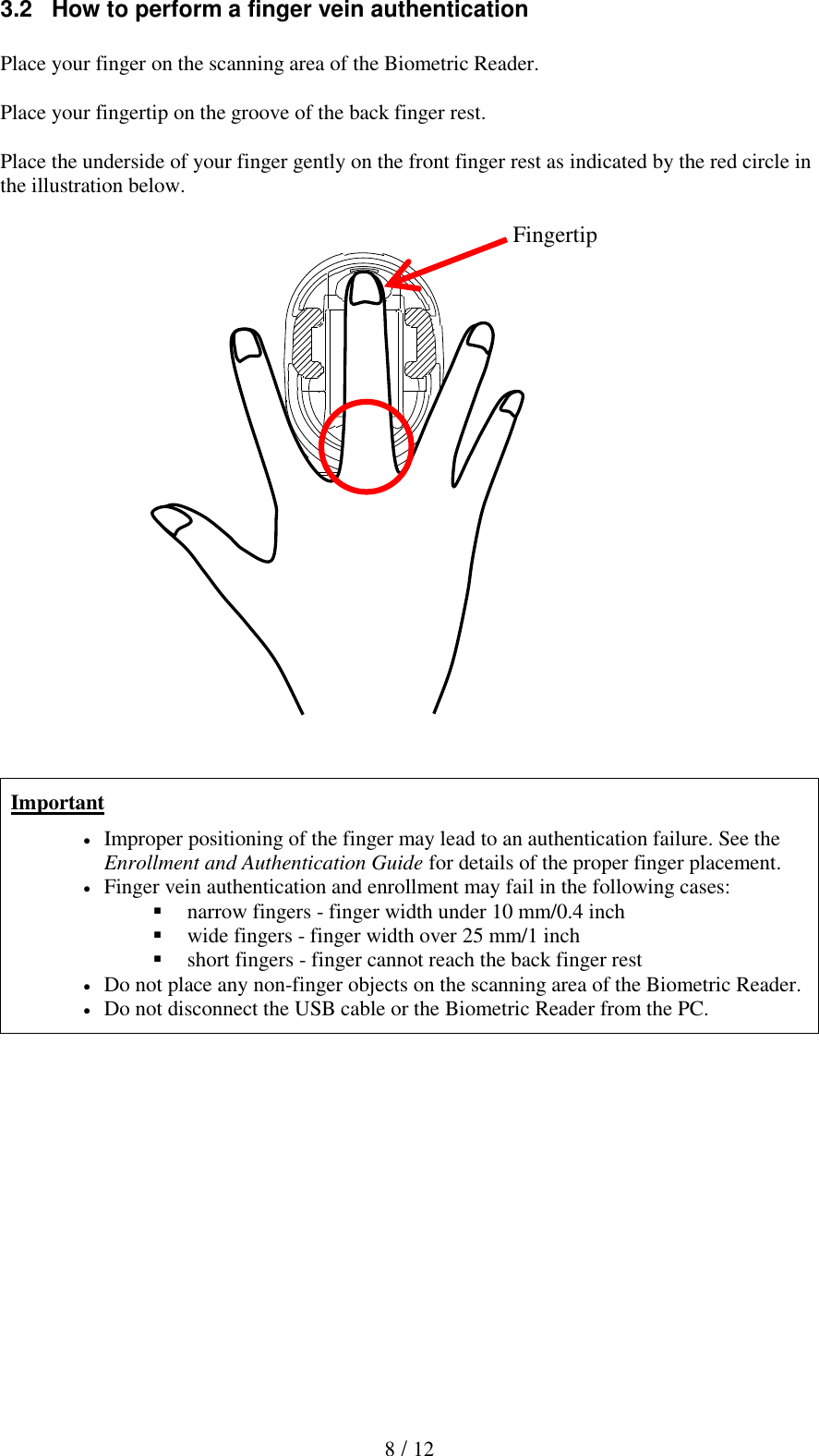
 8 / 12 3.2   How to perform a finger vein authentication  Place your finger on the scanning area of the Biometric Reader.  Place your fingertip on the groove of the back finger rest.  Place the underside of your finger gently on the front finger rest as indicated by the red circle in the illustration below.                         Important  Improper positioning of the finger may lead to an authentication failure. See the Enrollment and Authentication Guide for details of the proper finger placement.  Finger vein authentication and enrollment may fail in the following cases:  narrow fingers - finger width under 10 mm/0.4 inch  wide fingers - finger width over 25 mm/1 inch  short fingers - finger cannot reach the back finger rest  Do not place any non-finger objects on the scanning area of the Biometric Reader.  Do not disconnect the USB cable or the Biometric Reader from the PC.  Fingertip
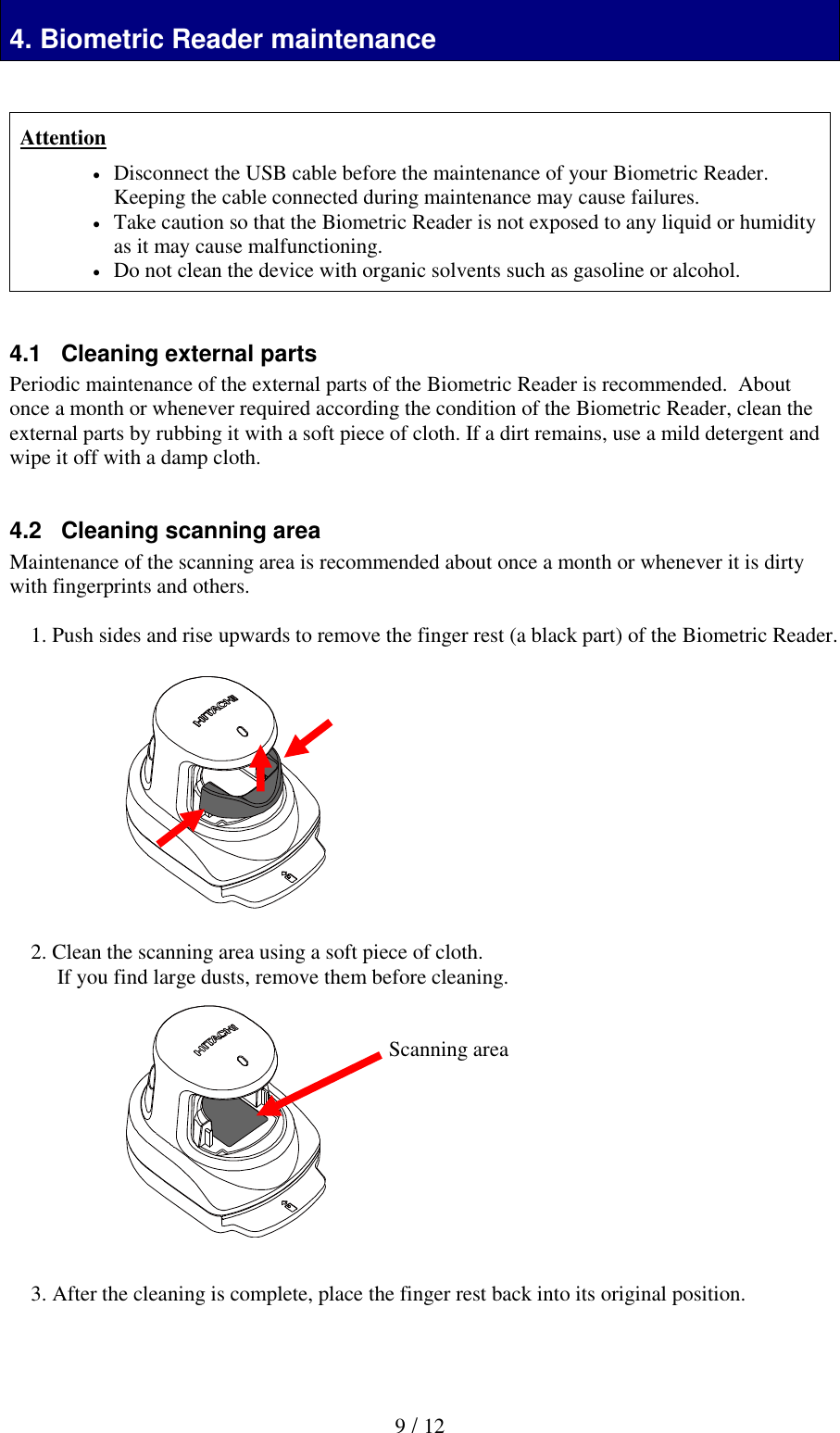
 9 / 12 Biometric Reader maintenance 4. Biometric Reader maintenance   Attention  Disconnect the USB cable before the maintenance of your Biometric Reader. Keeping the cable connected during maintenance may cause failures.    Take caution so that the Biometric Reader is not exposed to any liquid or humidity as it may cause malfunctioning.  Do not clean the device with organic solvents such as gasoline or alcohol.   4.1   Cleaning external parts Periodic maintenance of the external parts of the Biometric Reader is recommended.  About once a month or whenever required according the condition of the Biometric Reader, clean the external parts by rubbing it with a soft piece of cloth. If a dirt remains, use a mild detergent and wipe it off with a damp cloth.   4.2   Cleaning scanning area Maintenance of the scanning area is recommended about once a month or whenever it is dirty with fingerprints and others.  1. Push sides and rise upwards to remove the finger rest (a black part) of the Biometric Reader.             2. Clean the scanning area using a soft piece of cloth.  If you find large dusts, remove them before cleaning.             3. After the cleaning is complete, place the finger rest back into its original position.   Scanning area
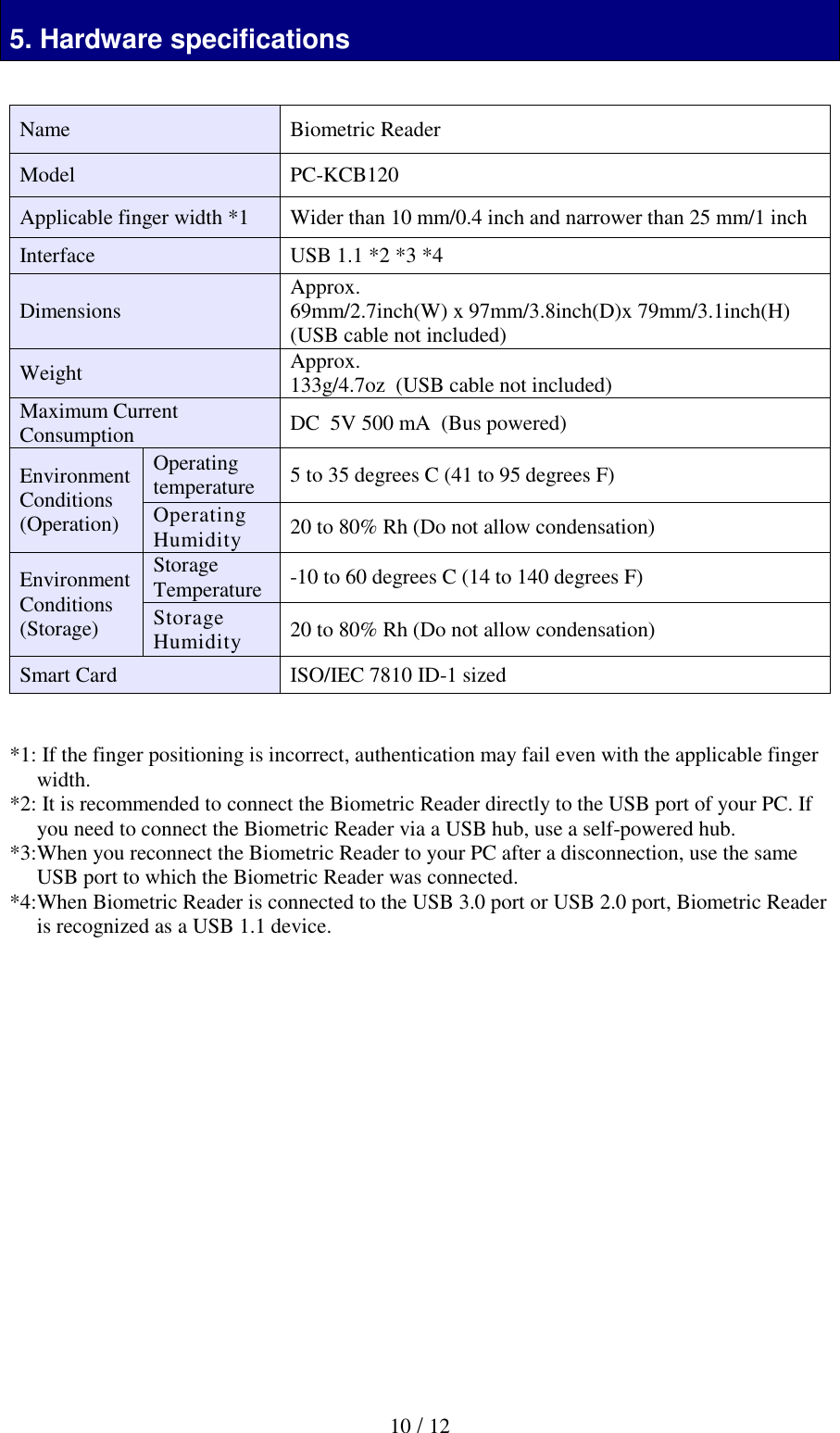
 10 / 12  5. Hardware specifications    *1: If the finger positioning is incorrect, authentication may fail even with the applicable finger width.  *2: It is recommended to connect the Biometric Reader directly to the USB port of your PC. If you need to connect the Biometric Reader via a USB hub, use a self-powered hub.  *3:When you reconnect the Biometric Reader to your PC after a disconnection, use the same USB port to which the Biometric Reader was connected. *4:When Biometric Reader is connected to the USB 3.0 port or USB 2.0 port, Biometric Reader is recognized as a USB 1.1 device.            6. Troubleshooting Name Biometric Reader Model PC-KCB120 Applicable finger width *1 Wider than 10 mm/0.4 inch and narrower than 25 mm/1 inch  Interface USB 1.1 *2 *3 *4 Dimensions Approx.  69mm/2.7inch(W) x 97mm/3.8inch(D)x 79mm/3.1inch(H) (USB cable not included) Weight  Approx.  133g/4.7oz  (USB cable not included) Maximum Current Consumption DC  5V 500 mA  (Bus powered)  Environment Conditions  (Operation) Operating temperature 5 to 35 degrees C (41 to 95 degrees F) Operating Humidity 20 to 80% Rh (Do not allow condensation) Environment Conditions  (Storage) Storage Temperature -10 to 60 degrees C (14 to 140 degrees F) Storage Humidity 20 to 80% Rh (Do not allow condensation) Smart Card ISO/IEC 7810 ID-1 sized
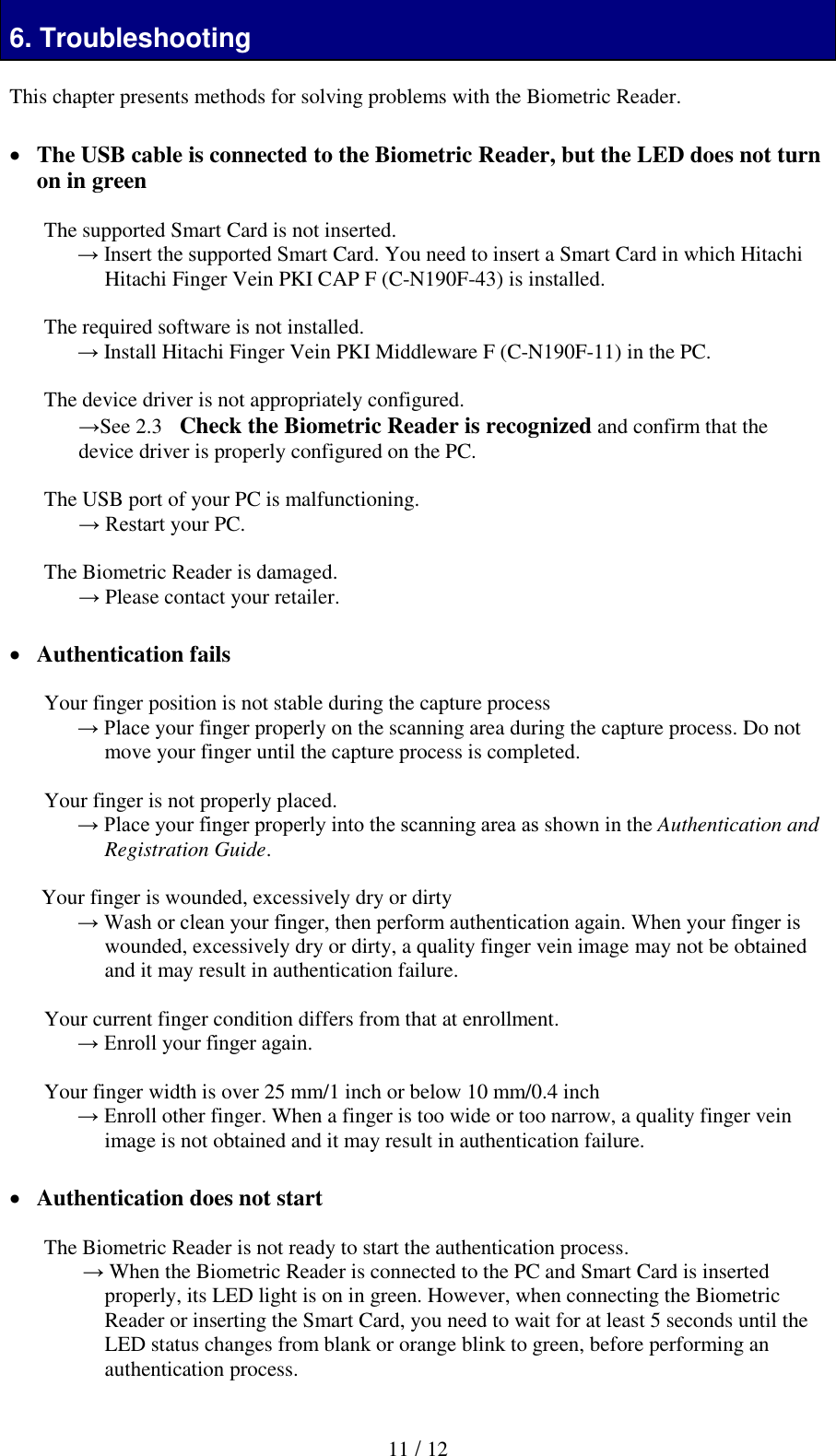
 11 / 12 6. Troubleshooting  This chapter presents methods for solving problems with the Biometric Reader.    The USB cable is connected to the Biometric Reader, but the LED does not turn on in green  The supported Smart Card is not inserted. → Insert the supported Smart Card. You need to insert a Smart Card in which Hitachi Hitachi Finger Vein PKI CAP F (C-N190F-43) is installed.  The required software is not installed. → Install Hitachi Finger Vein PKI Middleware F (C-N190F-11) in the PC.  The device driver is not appropriately configured. →See 2.3   Check the Biometric Reader is recognized and confirm that the device driver is properly configured on the PC.   The USB port of your PC is malfunctioning. → Restart your PC.  The Biometric Reader is damaged. → Please contact your retailer.   Authentication fails  Your finger position is not stable during the capture process → Place your finger properly on the scanning area during the capture process. Do not move your finger until the capture process is completed.  Your finger is not properly placed. → Place your finger properly into the scanning area as shown in the Authentication and Registration Guide.  Your finger is wounded, excessively dry or dirty  → Wash or clean your finger, then perform authentication again. When your finger is wounded, excessively dry or dirty, a quality finger vein image may not be obtained and it may result in authentication failure.   Your current finger condition differs from that at enrollment.  → Enroll your finger again.   Your finger width is over 25 mm/1 inch or below 10 mm/0.4 inch → Enroll other finger. When a finger is too wide or too narrow, a quality finger vein image is not obtained and it may result in authentication failure.   Authentication does not start  The Biometric Reader is not ready to start the authentication process.  → When the Biometric Reader is connected to the PC and Smart Card is inserted properly, its LED light is on in green. However, when connecting the Biometric Reader or inserting the Smart Card, you need to wait for at least 5 seconds until the LED status changes from blank or orange blink to green, before performing an authentication process.
 12 / 12  Copyright   © Hitachi, Ltd. 2018. All rights reserved.  The software and the manual can be used and managed under the responsibility of the administrator registered in the relevant document of Biometric Reader.  Without the express consent of Hitachi, Ltd., the following is prohibited:    1. Reproduction, photocopying or transference of this user's guide contents, either     partially or in its entirety, as well as the transfer of the registration information      contained in the Unit memory.  2. Translation of this user's guide to any computer languages or any other language.   The use of any electronic, mechanical, magnetic, optic or similar procedures for performing the above actions laid down in points 1 and 2 is also prohibited.   All other logos, product names, brand names and company names mentioned herein are either trademarks or registered trademarks of their respective owners.   Hitachi Biometric Reader  PC-KCB120 User Guide  1st Edition June 2018  Reproduction is forbidden without consent.  © Hitachi, Ltd. 2013,2018. All rights reserved.

Navigation menu