Hitachi Managed Services Business Division PCKCS50 USB Finger Vein Biometric Authentication Unit User Manual Hardware Operations Manual

Hitachi, Ltd.,Information & Telecommunication Systems Company USB Finger Vein Biometric Authentication Unit Hardware Operations Manual

Hardware_Manual
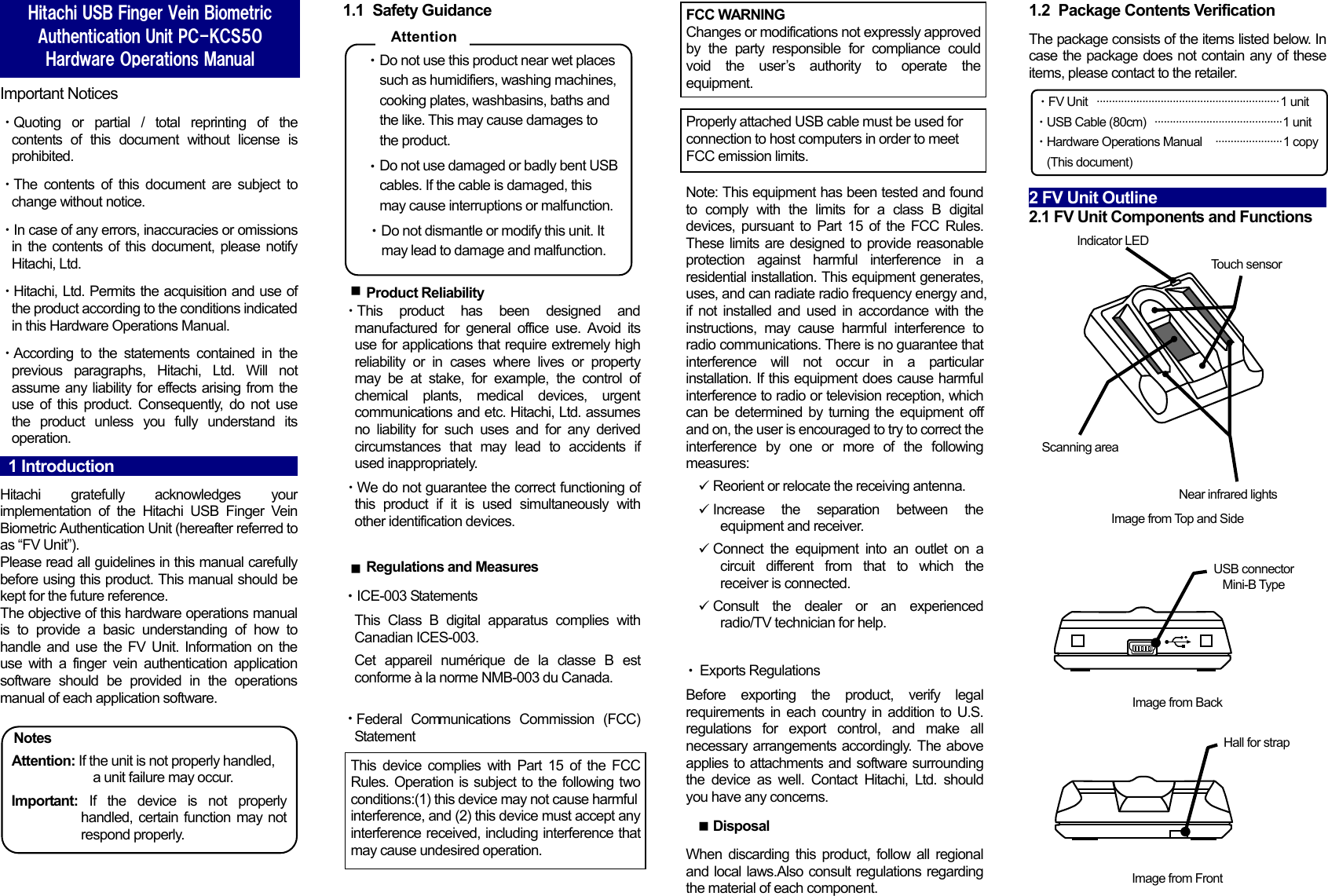
  Important Notices ・Quoting or partial / total reprinting of the contents of this document without license is prohibited. ・The contents of this document are subject to change without notice. ・In case of any errors, inaccuracies or omissions in the contents of this document, please notify Hitachi, Ltd. ・Hitachi, Ltd. Permits the acquisition and use of the product according to the conditions indicated in this Hardware Operations Manual. ・According to the statements contained in the previous paragraphs, Hitachi, Ltd. Will not assume any liability for effects arising from the use of this product. Consequently, do not use the product unless you fully understand its operation.   1 Introduction                                                 Hitachi gratefully acknowledges your implementation of the Hitachi USB Finger Vein Biometric Authentication Unit (hereafter referred to as “FV Unit”). Please read all guidelines in this manual carefully before using this product. This manual should be kept for the future reference. The objective of this hardware operations manual is to provide a basic understanding of how to handle and use the FV Unit. Information on the use with a finger vein authentication application software should be provided in the operations manual of each application software.  Notes Attention: If the unit is not properly handled,             a unit failure may occur. Important: If the device is not properly handled, certain function may not respond properly.  1.1 Safety Guidance  ・Do not use this product near wet places such as humidifiers, washing machines, cooking plates, washbasins, baths and the like. This may cause damages to the product. ・Do not use damaged or badly bent USB cables. If the cable is damaged, this may cause interruptions or malfunction. ・・・・Do not dismantle or modify this unit. It may lead to damage and malfunction.   Product Reliability ・This product has been designed and manufactured for general office use. Avoid its use for applications that require extremely high reliability or in cases where lives or property may be at stake, for example, the control of chemical plants, medical devices, urgent communications and etc. Hitachi, Ltd. assumes no liability for such uses and for any derived circumstances that may lead to accidents if used inappropriately. ・We do not guarantee the correct functioning of this product if it is used simultaneously with other identification devices.   Regulations and Measures ICE-003 Statements This Class B digital apparatus complies with Canadian ICES-003. Cet appareil numérique de la classe B est conforme à la norme NMB-003 du Canada.    Federal Communications Commission (FCC) Statement                Note: This equipment has been tested and found to comply with the limits for a class B digital devices, pursuant to Part 15 of the FCC Rules. These limits are designed to provide reasonable protection against harmful interference in a residential installation. This equipment generates, uses, and can radiate radio frequency energy and, if not installed and used in accordance with the instructions, may cause harmful interference to radio communications. There is no guarantee that interference will not occur in a particular installation. If this equipment does cause harmful interference to radio or television reception, which can be determined by turning the equipment off and on, the user is encouraged to try to correct the interference by one or more of the following measures:   Reorient or relocate the receiving antenna.  Increase the separation between the equipment and receiver.   Connect the equipment into an outlet on a circuit different from that to which the receiver is connected.   Consult the dealer or an experienced radio/TV technician for help.    Exports Regulations Before exporting the product, verify legal requirements in each country in addition to U.S. regulations for export control, and make all necessary arrangements accordingly. The above applies to attachments and software surrounding the device as well. Contact Hitachi, Ltd. should you have any concerns.  Disposal When discarding this product, follow all regional and local laws.Also consult regulations regarding the material of each component. 1.2  Package Contents Verification The package consists of the items listed below. In case the package does not contain any of these items, please contact to the retailer. ・FV Unit   ···························································· 1 unit ・USB Cable (80cm)   ·········································· 1 unit ・Hardware Operations Manual   ······················ 1 copy   (This document)  2 FV Unit Outline                         2.1 FV Unit Components and Functions  Hitachi USB Finger Vein Biometric Authentication Unit PC-KCS50 Hardware Operations Manual  AttentionThis device complies with Part 15 of the FCC Rules. Operation is subject to the following two conditions:(1) this device may not cause harmfulinterference, and (2) this device must accept any interference received, including interference that may cause undesired operation. FCC WARNINGChanges or modifications not expressly approved by the party responsible for compliance could void the user’s authority to operate the equipment. Properly attached USB cable must be used for connection to host computers in order to meet FCC emission limits.           Image from Top and Side Indicator LED Scanning area Near infrared lights Touch sensor Image from Back USB connector Mini-B Type Image from Front Hall for strap    üüüünnn
 2.2 FV Unit Installation and Configuration  ① Install the FV Unit on a horizontal in a stable and secure location. Place the unit away from windows, direct light, or strong light sources. Use of the unit under 300-1000 Lux, which is equivalent to the light required to read a newspaper without difficulty, is strongly advised.  ・Do not use FV Unit in places receiving solar rays, either direct sun exposure or strong sun light coming in through windows. Exposure to strong sun light may lead to authentication failure.  ② Connect the USB Connector (Mini-B Type) of the USB cable to FV Unit. Connect A Plug of the USB cable to the USB port or to the PC Hub.        ・Insert the USB plug into the USB connector in a safe manner. Hold the plug end when connecting or disconnecting the USB cable. If the plug end is not held when connecting or disconnecting, failures may occur.  ・When connecting the USB via the hub, verify the supply current. Equipment may malfunction with insufficient power supply. ・FV Unit may hold some heat due to the use of infrared rays in the product, but this will not cause failures. ・Do not connect more than two units simultaneously to one PC. If multiple FV Units are connected, they will not work properly. ・After connecting the FV Unit, wait for at least 5 seconds before performing any operation.  3 FV Unit Maintenance                                          Periodic maintenance of the external part of FV Unit is recommended. About once a month or whenever required according to the condition of the unit, clean the external part of the unit.   ・Before performing FV Unit maintenance, remove the USB cable. Keeping the cable connected during maintenance may cause failures. ・Take caution so that the product is not exposed to any liquid or humidity, as that may cause malfunctioning. ・Do not clean the device using organic solvents such as gasoline or alcohol.   ・Maintenance of the external part   Clean the external part by rubbing it with a soft piece of cloth. If dirt remains, use a mild detergent and rinse off with a damp cloth. Ensure that the FV scanner is in no way soaked in liquid. ・Maintenance of the scanning area Clean the scanning area using a soft piece of cloth. In case of big and obvious dirt particles, remove these before cleaning.   4 Hardware Specifications                                           Name  USB Finger Vein Biometric Authentication Unit Model PC-KCS50 Applicable Finger Size    More than 10 mm / 0.4”   and less than 25 mm / 1” *1 Interface  USB2.0     *2 Dimension Approx. 52 mm / 2.0” (W) x 64 mm / 2.5” (D) x 17 mm / 0.7” (H) Weight Approx. 35 g / 1.2 oz  (USB cable not included) Maximum energy supplyDC 5V 500mA (Bus powered) Environment Conditions(Operation)Operating Temperature5 to 40 degrees C (41 to 95 degrees F) Operating Humidity20 to 80%Rh (Do not allow condensation) Environment Conditions(Storage)Storage Temperature-10 to 60 degrees C (14 to 140 degrees F) Storage Humidity20 to 80%Rh (Do not allow condensation)        5 How to Use the FV Unit                                          Refer to Hitachi USB Finger Vein Biometric Authentication Unit Software Operations Manual for the usage of FV Unit including the finger placing. Regarding the accuracy of authentication, refer to the same document as well.  6 Trouble shooting                                    Refer to “Troubleshooting” in Hitachi USB Finger Vein Biometric Authentication Unit Software Operations Manual if you have any problem with FV Unit. If the problem is obviously caused by a hardware defect, please contact to the retailer.   Copyright © Hitachi, Ltd. 2012. All rights reserved. The manual can be used and managed under the responsibility of the administrator registered in the relevant document of FV Unit. Without the express consent of Hitachi, Ltd., the following is prohibited:  1. Reproduction, photocopying or transference of this user's guide contents, either partially or in its entirety, as well as the transfer of the registration information contained in the scanner memory.  2. Translation of this user's guide to any computer languages or any other language. The use of any electronic, mechanical, magnetic, optic or similar procedures for performing the above actions laid down in points 1 and 2 is also prohibited. The trademarks and registered trademarks of the corporations mentioned in this publication are the property of their respective holders.    This product uses “Camellia”, a block-cipher technique which was co-developed by Nippon Telegraph and Telephone Corporation (NTT) and Mitsubishi Electric Corporation. “Camellia” is a registered trademark of NTT and Mitsubishi Electric Corporation.  THIS SOFTWARE IS PROVIDED BY NTT ``AS IS'' AND ANY EXPRESS OR IMPLIED WARRANTIES, INCLUDING, BUT NOT LIMITED TO, THE IMPLIED WARRANTIES OF MERCHANTABILITY AND FITNESS FOR A PARTICULAR PURPOSE ARE DISCLAIMED. IN NO EVENT SHALL NTT BE LIABLE FOR ANY DIRECT, INDIRECT, INCIDENTAL, SPECIAL, EXEMPLARY, OR CONSEQUENTIAL DAMAGES (INCLUDING, BUT NOT LIMITED TO, PROCUREMENT OF SUBSTITUTE GOODS OR SERVICES; LOSS OF USE, DATA, OR PROFITS; OR BUSINESS INTERRUPTION) HOWEVER CAUSED AND ON ANY THEORY OF LIABILITY, WHETHER IN CONTRACT, STRICT LIABILITY, OR TORT (INCLUDING NEGLIGENCE OR OTHERWISE) ARISING IN ANY WAY OUT OF THE USE OF THIS SOFTWARE, EVEN IF ADVISED OF THE POSSIBILITY OF SUCH DAMAGE.    Hardware Operations Manual First Edition March 2012  Reproduction is forbidden without consent.   © Hitachi, Ltd. 2012. All rights reserved  Attention  Important *1:  In case of incorrect finger positioning, even with appropriate finger size, authentication may fail to be completed. *2:    If possible, connect the FV scanner directly to a PC USB port. If connecting via a USB hub, use a self-powered hub. When the FV Scanner is disconnected from a USB port, use the same USB port upon reconnection.  Important  Important

Navigation menu