Hitachi 55Dmx01W Users Manual
55DMX01W to the manual 5cee8826-a336-41b9-8a48-682d6a257c49
2015-01-24
: Hitachi Hitachi-55Dmx01W-Users-Manual-313003 hitachi-55dmx01w-users-manual-313003 hitachi pdf
Open the PDF directly: View PDF  .
.
Page Count: 1
DLPTM TECHNOLOGY REAR PROJECTION TELEVISION
55DMX01W
OPERATING GUIDE
IMPORTANT SAFEGUARDS 2-4
SETUP CUSTOMIZE VIDEO AUDIO THEATER
USING THE DLPTM TECHNOLOGY
REAR PROJECTION TV AS A PC
MONITOR
FIRST TIME USE 5-24
THE REMOTE CONTROL 25-37
ULTRATEC BIT MAP
ON SCREEN DISPLAY
LAMP REPLACEMENT
PLUG AND PLAY
TRADEMARK ACKNOWLEDGMENT
AGENCY REGULATORY INFORMATION
USEFUL INFORMATION
SPECIFICATIONS
SERVICE HOTLINE
FEATURE INFORMATION
80-91
69-79
38-68
Digital Light Processing, DLP, Digital Micromirror Device and DMD are trademarks of Texas Instruments.
The DLP logo is a trademanrk of Texas Instruments.
2
IMPORTANT
Follow all warnings and instructions marked on this Rear Projection Television.
WARNING
RISK OF ELECTRIC SHOCK
DO NOT OPEN
CAUTION: TO REDUCE THE RISK OF ELECTRIC SHOCK,
DO NOT REMOVE COVER (OR BACK).
NO USER SERVICEABLE PARTS INSIDE.
REFER SERVICING TO QUALIFIED SERVICE PERSONNEL.
The lightning flash with arrowhead symbol, within an equilateral
triangle, is intended to alert the user to the presence of uninsulated
dangerous voltage within the product s enclosure that may be of a
sufficient magnitude to constitute a risk of electric shock to persons.
The exclamation point within an equilateral triangle, is intended to
alert the user to the presence of important operating and
maintenance (servicing) instructions in the literature accompanying
the appliance.
WARNING:
TO PREVENT FIRE OR SHOCK HAZARD, DO NOT EXPOSE
THIS REAR PROJECTION TELEVISION TO RAIN OR MOISTURE.
NOTE: ¥ There are no user serviceable parts inside the Rear Projection Television.
¥Model and serial numbers are indicated on back side of the Rear Projection
Television.
POWER SOURCE
This Rear Projection Television is designed to operate on 120 Volts 60Hz, AC
current. Insert power cord into a 120 Volt 60Hz outlet.
TO PREVENT ELECTRIC SHOCK, DO NOT USE THE REAR PROJECTION
TELEVISION S PLUG WITH AN EXTENSION CORD, RECEPTACLE, OR OTHER OUTLET
UNLESS THE BLADES AND GROUND TERMINAL CAN BE FULLY INSERTED TO
PREVENT BLADE EXPOSURE.
NEVER CONNECT THE DLPTM REAR PROJECTION TELEVISION TO 50HZ, DIRECT
CURRENT, OR ANYTHING OTHER THAN THE SPECIFIED VOLTAGE.
CAUTION: Never remove the back cover of the Rear Projection Television as this can expose you to very high voltages
and other hazards. If the Rear Projection Television does not operate properly, unplug the Rear Projection
Television and call your authorized dealer or service shop.
NOTE: This Rear Projection Television receiver will display closed captioning, ( or ), in accordance
with paragraph 15.119 of the FCC rules.
CAUTION: Adjust only those controls that are covered in the instructions, as improper changes or modifications
not expressly approved by HITACHI could void the user s warranty.
MODIFICATIONS: The FCC requires the user to be notified that any changes or modifications made to this device that
are not expressly approved by Hitachi America, Ltd. Home Electronics Division may void the user s
warranty.
CAUTION: TO PREVENT ELECTRIC SHOCK, MATCH WIDE BLADE OF PLUG TO WIDE SLOT, FULLY INSERT
3
IMPORTANT
FOR YOUR PERSONAL SAFETY
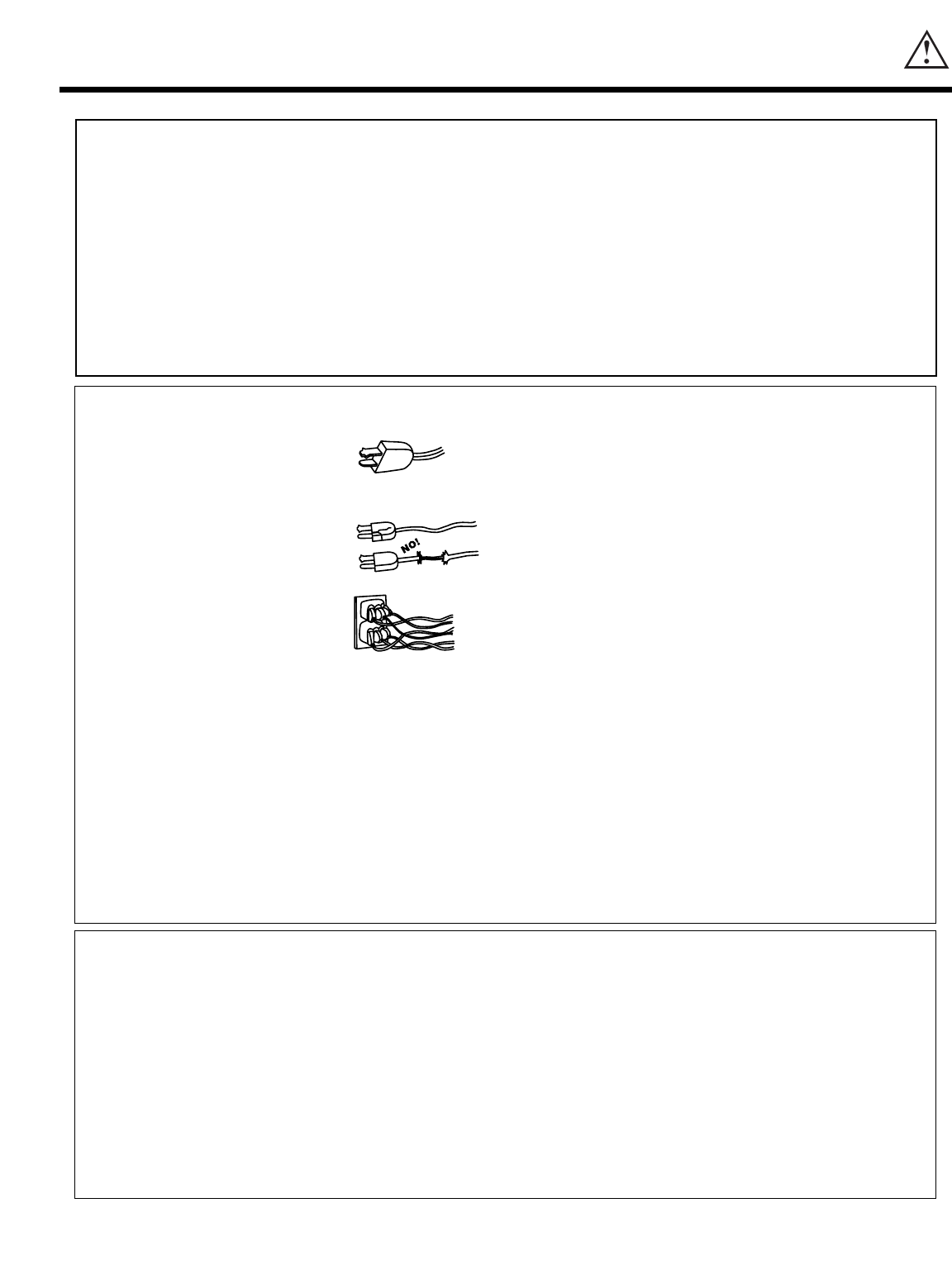
1. This Rear Projection Television set is equipped with
a polarized alternating-current line plug (a plug
having one blade wider than the other.) This plug
will fit into the power outlet only one way. This is a
safety feature. If you are unable to insert the plug
fully into the power outlet, try reversing the plug. If
the plug should still fail to fit, contact your electrician
to replace your obsolete outlet. Do not defeat the
safety purpose of the polarized plug.
2. When the power cord or plug is damaged or frayed,
unplug the Rear Projection Television set from the
wall outlet and refer servicing to qualified service
personnel.
3. Do not overload wall outlets and extension cords as
this can result in fire or electric shock.
4. Do not allow anything to rest on or roll over the
power cord, and do not place the Rear Projection
Television where the power cord is subject to traffic
or abuse. This may result in a shock or fire hazard.
5. Do not attempt to service the Rear Projection
Television set yourself as opening or removing
covers may expose you to dangerous voltage or
other hazards. Refer all servicing to qualified
service personnel.
6. Never push objects of any kind into the Rear
Projection Television sets cabinet slots as they may
touch dangerous voltage points or short out parts
that could result in a fire or electric shock. Never
spill liquid of any kind on the Rear Projection
Tel evision set.
7. If the Rear Projection Television set has been
dropped or the cabinet has been damaged, unplug
the Rear Projection Television set from the wall
outlet and refer servicing to qualified service
personnel.
8. If liquid has been spilled into the Rear Projection
Television set, unplug it from the wall outlet and
refer service to qualified service personnel.
9. Do not subject your Rear Projection Television set
to impact of any kind. Be careful not to damage the
screen surface.
10. Unplug the Rear Projection Television set from the
wall outlet before cleaning. Use a damp cloth for
cleaning. Do not use liquid or aerosol cleaners.
11-1. Do not place the Rear Projection Television set
on an unstable cart, stand, or table. The Rear
Projection Television set may fall, causing
serious injury to a child or an adult, and serious
damage to the appliance. Use only with a cart or
stand recommended by the manufacturer, or
sold with the Rear Projection Television set. Wall
or shelf mounting should follow the
manufacturer s instructions, and should use a
mounting kit approved by the manufacturer.
11-2. An appliance and cart combination should be
moved with care. Quick stops, excessive force,
and uneven surfaces may cause the appliance
and cart combination to overturn.
IMPORTANT SAFEGUARDS
CAUTION: SAFETY POINTS YOU SHOULD KNOW ABOUT YOUR
¥ Read all of these instructions. HITACHI REAR PROJECTION TELEVISION
¥ Save these instructions for later use. RECEIVER
¥ Follow all warnings and instructions marked
on the Rear Projection Television receiver.
Our reputation has been built on the quality, performance, and ease of service of HITACHI Rear Projection Television receivers.
Safety is also foremost in our minds in the design of these units. To help you operate these products properly, this section illustrates safety tips which will be of benefit to you.
Please read it carefully and apply the knowledge you obtain from it to the proper operation of your HITACHI Rear Projection Television receiver.
Please fill out your warranty card and mail it to HITACHI. This will enable HITACHI to notify you promptly in the improbable event that a safety problem should be discovered in
your product model.
15. The set has slots or openings in the cabinet for
ventilation purposes which provide reliable
operation of the receiver and protect the Rear
Projection Television from overheating. These
openings must not be blocked or covered.
¥Never cover the slots or openings with cloth or
other material.
¥Never block the bottom ventilation slots of the set
by placing it on a bed, sofa, rug, etc.
¥Never place the set near or over a radiator or heat
generator.
¥Never place the set in a built-in enclosure, unless
proper ventilation is provided.
PROTECTION AND LOCATION OF YOUR SET
12. Do not use the Rear Projection Television set near
water, for example, near a bathtub, washbowl,
kitchen sink, or laundry tub, in a wet basement, or
near a swimming pool, etc.
¥ Never expose the set to rain or water. If the set has
been exposed to rain or water, unplug set from wall
outlet and refer to qualified service personnel.
13. Choose a place where light (artificial or sunlight)
does not shine directly on the screen.
14. Avoid dusty places, since accumulated dust inside
the chassis may cause failure of the set when high
humidity persists.
SAFETY TIPS
4
Public Viewing of Copyrighted Material
Public viewing of programs broadcast by TV stations and cable companies, as well as programs from other sources, may
require prior authorization from the broadcaster or owner of the video program material.
PLACEMENT LOCATION
When placing your projection color television against a wall, make sure the back of your television is 5 inches away from
the wall to ensure proper air ventilation.
PROTECTION AND LOCATION OF YOUR REAR PROJECTION TELEVISION
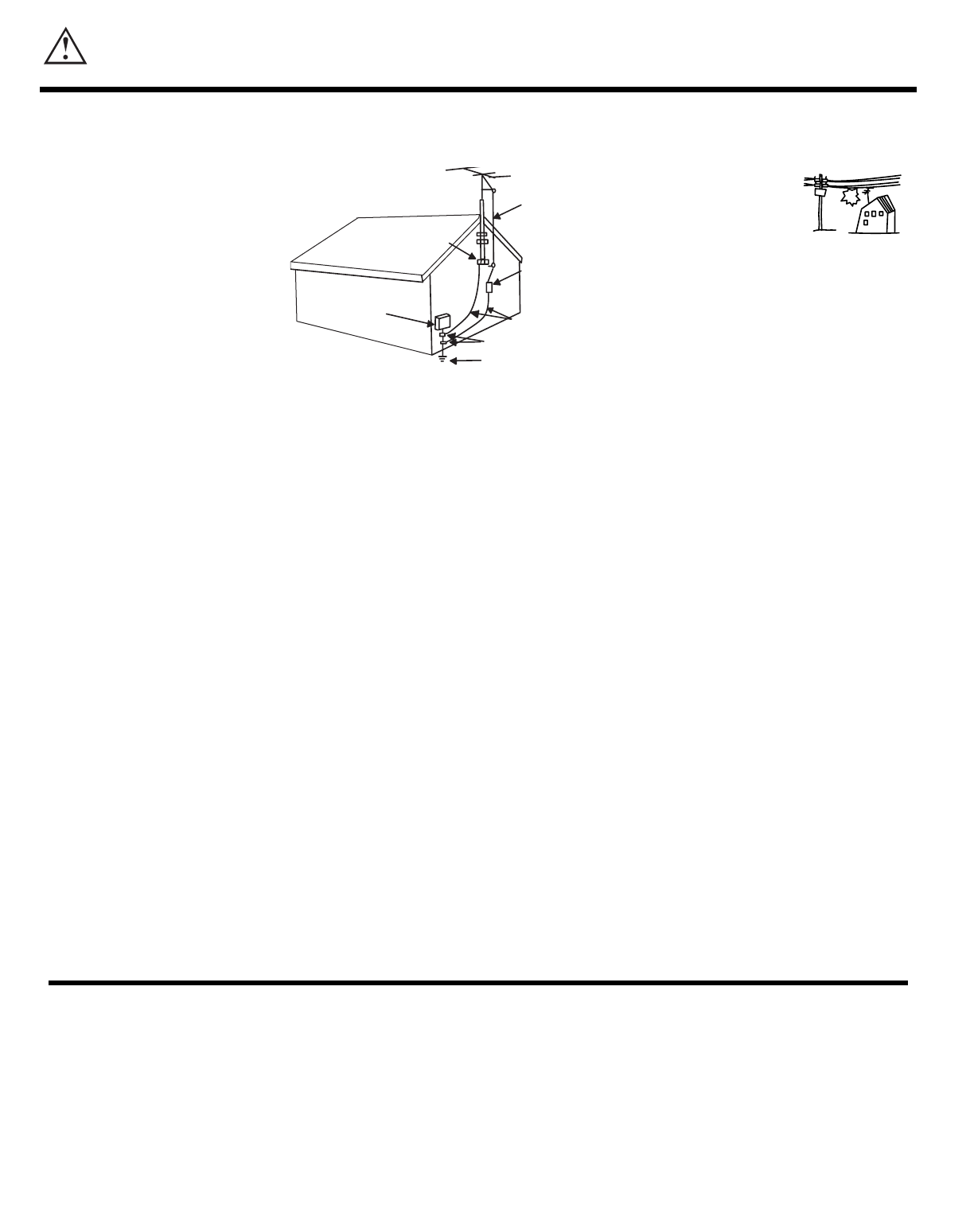
16-1. If an outside antenna is connected
to the Rear Projection Television,
be sure the antenna system is
grounded so as to provide some
protection against voltage surges
and built-up static charges.
Section 810 of the National
Electrical Code, NFPA No. 70-
1975, provides information with
respect to proper grounding of the
mast and supporting structure,
grounding of the lead-in wire to an
antenna discharge unit, size of
grounding conductors, location of
antenna discharge unit connection
to grounding electrode, and
requirements for the grounding
electrode.
16-2.Note to CATV system installer:
(Only for Rear Projection
Television with CATV reception).
This reminder is provided to call
the CATV system installer s
attention to Article 820-40 of the
NEC that provides guidelines for
proper grounding and, in
particular, specifies that the
cable ground shall be connected
to the grounding system of the
building, as close to the point of
cable entry as practical.
ANTENNA
LEAD IN
WIRE
ANTENNA
DISCHARGE UNIT
(NEC SECTION 810-20)
GROUNDING CONDUCTORS
(NEC SECTION 810-21)
GROUNDING CONDUCTORS
POWER SERVICE GROUNDING
ELECTRODE SYSTEM
(NEC PART 250 PART H)
NEC NATIONAL ELECTRICAL CODE
ELECTRIC
SERVICE
EQUIPMENT
GROUND
CLAMP
No !
5
Check to make sure you have the following accessories before disposing of the packing material.
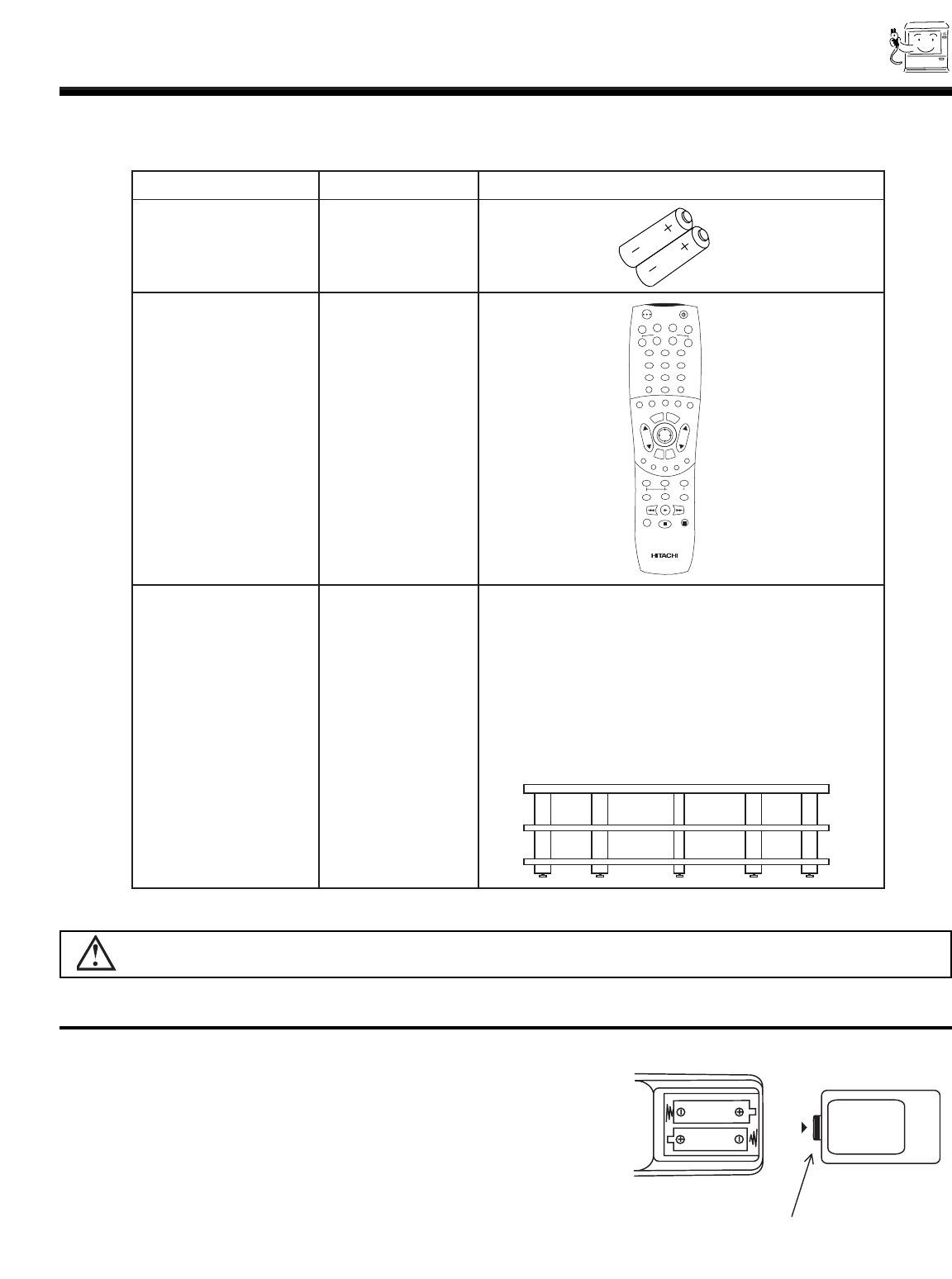
REMOTE CONTROL BATTERY INSTALLATION AND REPLACEMENT
1. Open the battery cover of the remote control by pushing the notched
part of the cover with your fingers and pulling the cover off.
2. Insert two new AA size batteries for the remote control. When
replacing old batteries, push them towards the springs and lift them out.
3. Match the batteries to the (+) and (-) marks in the battery compartment.
4. Replace the cover.
BOTTOM VIEW
Lift up on tab to
remove back cover.
ACCESSORIES
PARTS NAME PART NO. ILLUSTRATION
DRY BATTERY (R6P-AA)
“AA” SIZE BATTERY FQ00021
CLU-579TSI
REMOTE CONTROL HL01329
SP-55D
55V TELEVISION STAND
(Not included, order separately)
OPTIONAL H530051
CUSTOM HITACHI
TELEVISION STAND
Excellent for VCR and video-
tape storage. Special features
include thick top shelf (1 inch),
aluminum column (shark grey
color), glass shelf (green edge)
and black rubber foot.
POWER
TV VCR CBL
AV2
AV1 AV3
SAT
DVD
12
456
3
789
0LAST CHSLEEP
INPUT
HELP
C.S.
EXIT
MENU
CHVOL
RECALL
MUTE
GUIDE/TVGUIDE/TVGUIDE/TV
INFO
VCR PLUS+
SVCS
GUIDE/TV
SCHD
PIP PIP CH
SWAP
FREEZE
PIP MODE PIP ACCESS
PROG TV/VCR SLOW
SOURCE WIZARD
REC
SELECT
TV/PC
ASPECT
CAUTION: Television stand model SP-55D is designed for use with 55DMX01W only. Use of a smaller stand, a non Hitachi
recommended stand or a generic stand may result in instability, causing possible injury.
6
HOW TO SET UP YOUR NEW
HITACHI DLPTM REAR PROJECTION TV
ANTENNA
Unless your Rear Projection TV is connected to a cable TV system or to a centralized antenna system, a good outdoor color TV
antenna is recommended for best performance. However, if you are located in an exceptionally good signal area that is free from
interference and multiple image ghosts, an indoor antenna may be sufficient.
LOCATION
Select an area where sunlight or bright indoor illumination will not fall directly on the picture screen. Also, be sure that the location
selected allows a free flow of air to and from the perforated back cover of the set.
To avoid cabinet warping, cabinet color changes, and increased chance of set failure, do not place the Rear Projection TV where
temperatures can become excessively hot, for example, in direct sunlight or near a heating appliance, etc.
VIEWING
The major benefit of the HITACHI Rear Projection Television is its large viewing screen. To see this large screen at its best, test
various locations in the room to find the optimum spot for viewing.
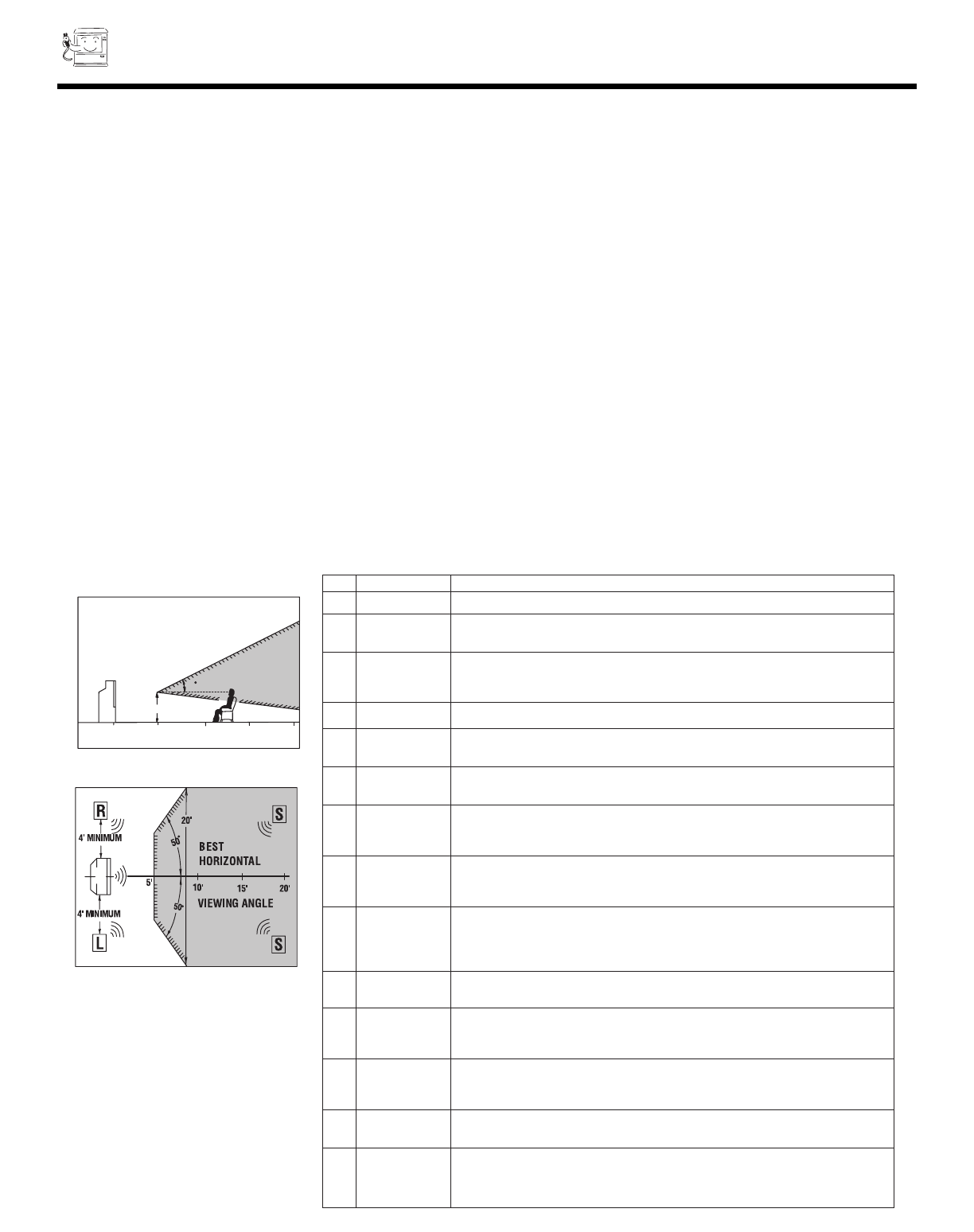
The best picture is seen by sitting directly in front of the Rear Projection TV and about 10 to 18 feet from the screen. Picture
brightness decreases as the viewer moves to the left and right of the receiver.
During daylight hours, reflections from outside light may appear on the screen. If so, drapes or screens can be used to reduce the
reflection or the Rear Projection TV can be located in a different section of the room.
If the Rear Projection TV s audio output will be connected to a Hi-Fi system s external speakers, the best audio performance will
be obtained by placing the speakers equidistant from each side of the receiver cabinet and as close as possible to the height of
the picture screen center. For best stereo separation, place the external speakers at least four feet from the side of the Rear
Projection TV, place the surround speakers to the side or behind the viewing area. Differences in room sizes and acoustical
environments will require some experimentation with speaker placement for best performance.
20
3'
0' 5' 10' 15'
8
BEST
VERTICAL VIEWING
ANGLE
20'
1 Lamp Explosion This set has a 200W lamp. The lamp rarely breaks. If it does, it will make a pop noise.
2On time It takes time (17 seconds) to display picture on television compared to a conventional color tele-
vision. LED at the front panel indicates the set is under power on condition. (See note on page 9)
3Restart time It takes about 60 seconds for the picture to re-appear, after quickly pressing power OFF
then ON again. Three LEDs indicate the set is under power on condition. On: Three LED s
blink alternately. Off: One LED blinks.
4When power off Fans will keep working for about 2 minutes after power OFF to cool down the lamp.
5 Lamp replacement It is recommended that you replace the lamp every 4000 hours to obtain good picture bright-
ness (This is not a guarantee that life time of a lamp is 4000 hours).
6 Bright and This set has fixed pixel elements. There may be some dark/bright spots on the
dark spot element. However, this is not a defect.
7 Streaks in Please set proper signal strength. You may see streaks in picture on some channels without
Picture proper antenna. Streaks may disappear when signal is strong. Place antenna and cable
away from the AC power cord.
8 Bend, tilt Due to varying signal content, you may see vertical or horizontal lines bend occasionally in
PC mode. However, this phenomenon is not a defect. It s caused by a lack of picture content
due to under-scanning in PC mode.
9PC mode This set provides the best picture quality in SVGA mode. It is recommended that you set your
PC to SVGA mode. In OVERSCAN mode, top/bottom icon will be approximately 19% to 50%
within the viewable area, and should be accessible to grab and click. Picture is overscanned
when receiving XGA or higher resolution signals.
10 Burning Please do not leave the TV set with still pictures like games, stock market qutoes, and other
non-moving pictures. Otherwise it may cause a pattern burn on the screen.
11 Protect Operation When the lamp is cooling down, the remote control does not respond within 15 seconds. LED at
when power on the front panel shows if your set accepts remote commands. When blinking is slow, your set is
ready to accept remote commands.
12 Please do not There is a color wheel spinning at high revolution in the television set. It may be broken if you
move your set move your set before setting power off.
when it is on
13 Input/PinP The television CPU sets picture blanking to hide unnecessary noise, until it becomes stable.
mode change
14 OSD position/size OSD position/size change according to the picture aspect format, when watching a component
(Y-PBPR) signal. SDTV (480P): OSD aspect changes when screen format is changed. HDTV
(720P): OSD expands horizontally. (Both edges of OSD may be hidden according to
circumstances.)
No. Items Notes
7
HOOK-UP CABLES AND CONNECTORS
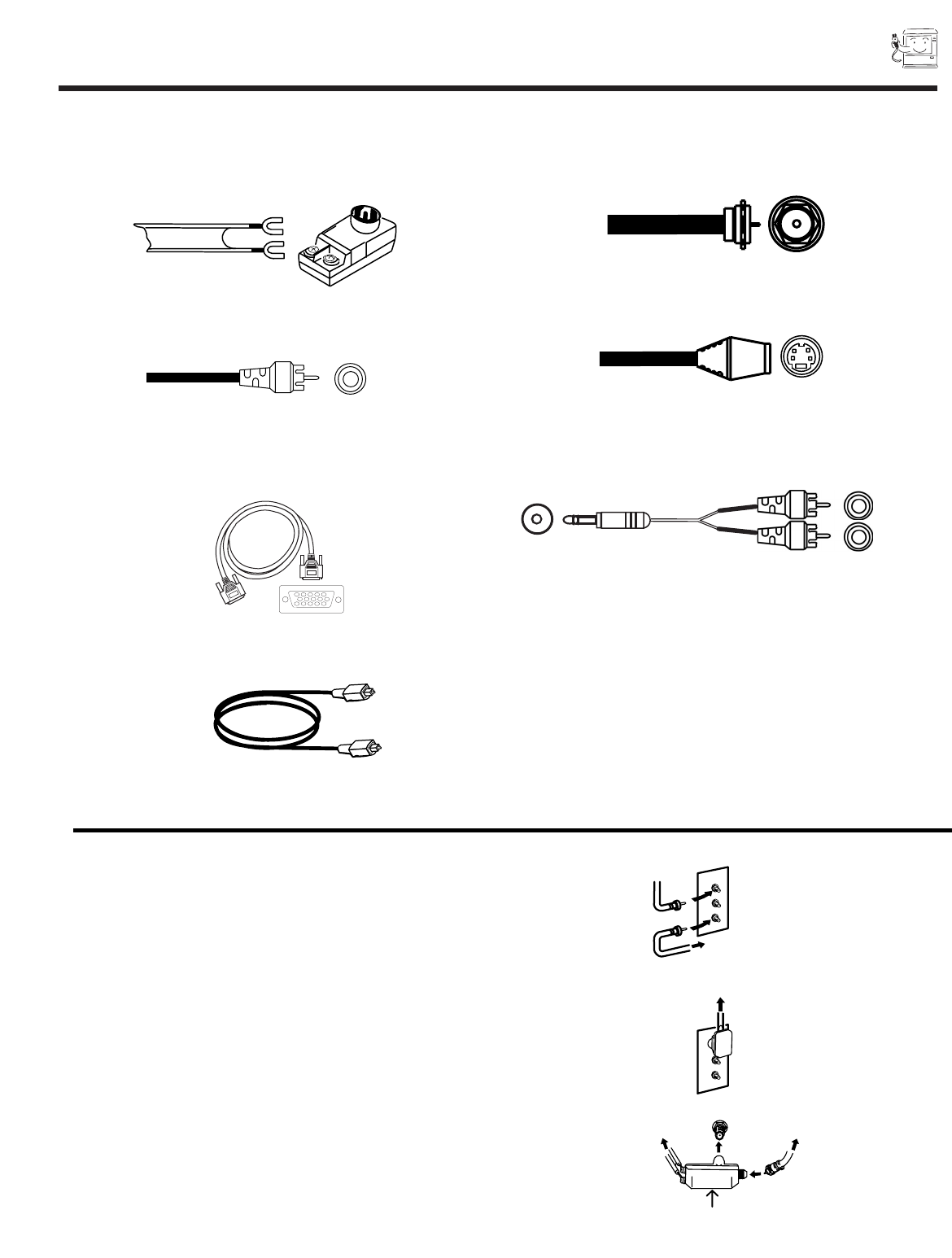
Most video/audio connections between components can be made with shielded video and audio cables that have phono
connectors. For best performance, video cables should use 75-Ohm coaxial shielded wire. Cables can be purchased from most
stores that sell audio/video products. Below are illustrations and names of common connectors. Before purchasing any cables,
be sure of the output and input connector types required by the various components and the length of each cable.
300-Ohm Twin Lead Connector
This outdoor antenna cable must be connected to an antenna
adapter (300-Ohm to 75-Ohm).
Phono Connector
Used on all standard video and audio cables which connect to
inputs and outputs located on the Rear Projection Television s
rear jack panel and front control panel.
’’F’’ Type 75-Ohm Coaxial Antenna Connector
For connecting RF signals (antenna or cable TV) to the
antenna terminal on the Rear Projection Television.
S-VIDEO (Super Video) Connector (Optional)
This connector is used on camcorders, VCRs, and laserdisc
players with an S-VIDEO feature in place of the standard video
cable to produce a high quality picture.
ANTENNA CONNECTIONS TO REAR JACK PANEL
VHF (75-Ohm) antenna/CATV (Cable TV)
When using a 75-Ohm coaxial cable system, connect the outdoor
antenna or CATV coaxial cable to the ANT A (75-Ohm) terminal. If
you have a second antenna or cable TV system, connect the coaxial
cable to the ANT B terminal.
VHF (300-Ohm) antenna/UHF antenna
When using a 300-Ohm twin lead from an outdoor antenna, connect
the VHF or UHF antenna leads to screws of the VHF or UHF
adapter. Plug the adapter into the antenna terminal on the TV.
When both VHF and UHF antennas are connected
Attach an optional antenna cable mixer to the TV antenna
terminal, and connect the cables to the antenna mixer. Consult
your dealer or service store for the antenna mixer.
T
o outdoor antenna
o
r CATV cable
To second antenna
or cable system
Antenna mixer
ANT A/ANT B
To UHF
Antenna
To outdoor
antenna or
CATV system
To outdoor VHF
or UHF antenna
ANT A
TO CONVERTER
ANT B
PC AUDIO OUT
3.5 mm
Stereo
Mini Plug
2
RCA Type
Plugs
Stereo Cable (3.5 mm plug to 3.5 mm plug) (Optional)
This cable is used to connect from AUDIO OUT jack on the
back of the computer s sound card to the PC AUDIO INPUT
jack of the Rear Projection Television.
Optical Cable
This cable can be used to connect to a component with an
Optical Audio Out jack, such as a Dolby* Digital DVD player or
an HDTV Set Top Box. Use this cable for the best sound quality.
D-SUB MINI 15-Pin Cable (Optional)
This cable is used to connect a computer VGA output to the D-
SUB input.
12345
678910
1112131415
8
FRONT PANEL CONTROLS
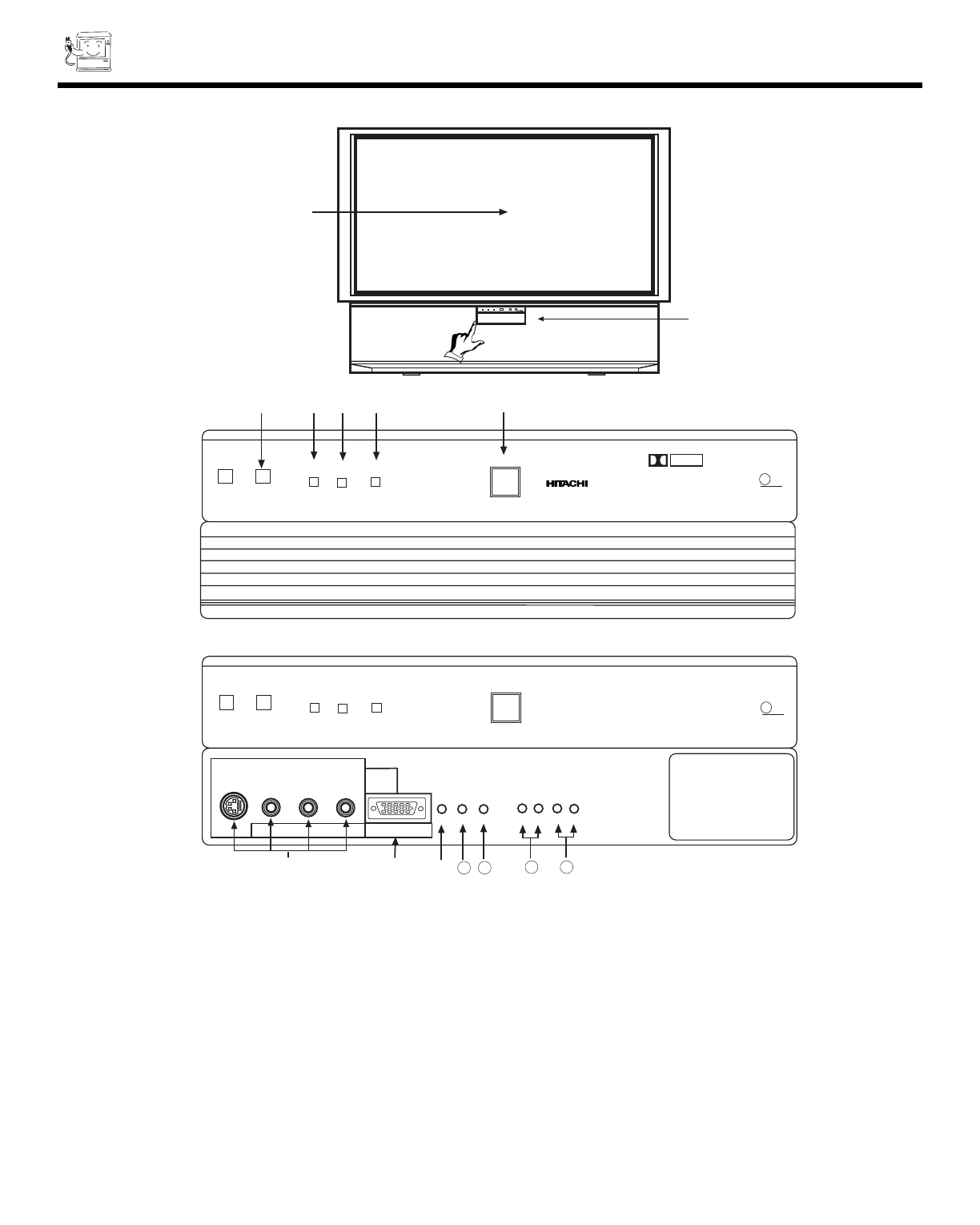
REMOTE CONTROL Sensor
Point your remote at the screen when selecting channels, adjusting volume, etc. The remote control sensor is inside the screen.
PERFECT PICTURE Sensor
The PERFECT PICTURE sensor will make automatic picture adjustments depending on the amount of light in the room to give the
best picture. (see page 59)
LAMP Indicator - NORMAL OPERATION INDICATOR IS OFF
If light is lit, the lamp has failed. See page 80-83 for lamp replacement procedure. Consult your Hitachi dealer for proper part. If
light is blinking, lamp cover is not assembled securely after replacement.
TEMP Indicator
This light is off during normal operation.
If this indicator is lit, the optic unit is too hot. If this indicator is blinking, the cooling fan has stopped. Please call service.
Shown with Control
Panel Door Closed.
LAMP TEMP POWER
Push to open door for
front controls and inputs.
DLP
A TEXAS INSTRUMENTS TECHNOLOGY
INPUT 3
VOL-
10
Shown with Control
Panel Door Open.
LAMP TEMP POWER
AUDIO/
PC AUDIO
L/(MONO) R
VIDEO
S-VIDEO
INPUT 2
PC RGB INPUT 2
12345
678910
1112131415
INPUT VOL+ CH- CH+
TV/PC EXIT
MENU
11 1312
SELECT
PUSH
POWER
DLP
A TEXAS INSTRUMENTS TECHNOLOGY
PUSH
9
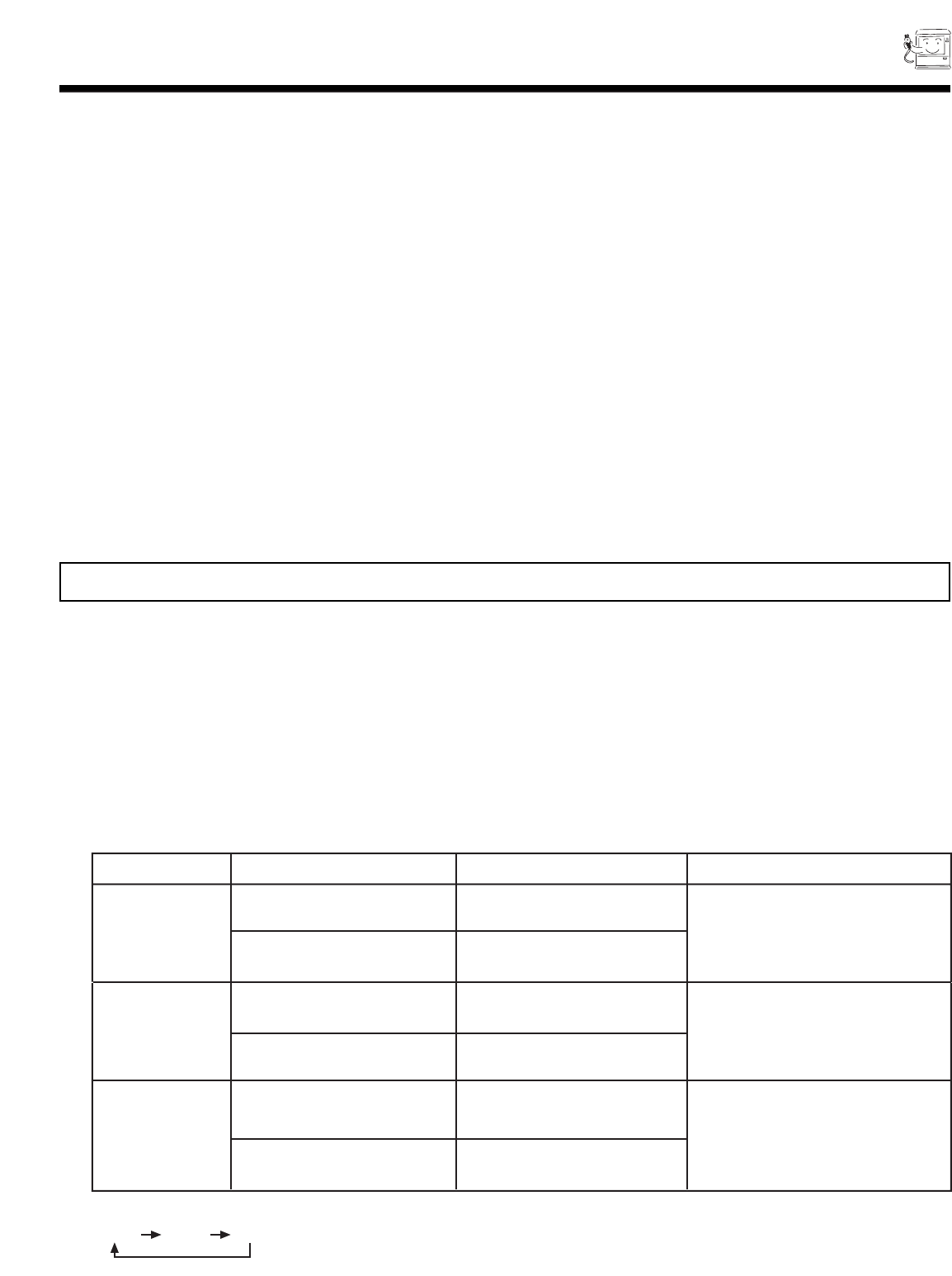
FRONT PANEL CONTROLS
POWER Light
This light is on during normal operation.
Light Blinking Slowly (2 seconds): Rear Projection Television lamp is cooling down. It takes 12-15 seconds to warm up and
about 2 minutes to cool down.
POWER Button
Press this button to turn the TV on or off.
FRONT INPUT JACKS (for VIDEO: 3 and PC2 AUDIO)
Use these audio/video jacks for a quick hook-up from a camcorder or VCR to instantly view your favorite show or new recording.
Press the INPUT button until VIDEO: 3 appears in the top right corner of the TV screen. If you have mono sound, insert the audio
cable into the left audio jack. VIDEO: 3 audio input jacks can be used for PC2 audio when a PC is connected to front input VIDEO:
3 jack. When using S-Video cable on the front panel, make sure the arrow () marking on the S-Video cable points to the left, to
properly insert the S-Video cable into your television.
PC INPUT 2 (Front)
Use this 15 pin D-Sub input for a quick hook up from your PC connection.
TV/PC Button
Press this button to switch from TV, PC INPUT 1 (PC1) and PC INPUT 2 (PC2). Your selection is shown in the top right corner of
the screen.
INPUT/EXIT Button
Press this button to select the current antenna source, VIDEO: 1, 2, 3 or alternate antenna source. Your selection is shown in the
top right corner of the screen. This button also serves as the EXIT button when in MENU mode.
MENU Button
This button allows you to enter the MENU, making it possible to set TV features to your preference without using the remote.
This button also serves as the SELECT button when in menu mode.
VOLUME Level
Press these buttons for your desired sound level. The volume level will be displayed on the TV screen. These buttons also serve
as the cursor left () and right () buttons when in MENU mode.
CHANNEL Selector
Press these buttons until the desired channel appears in the top right corner of the TV screen. These buttons also serve as the
cursor down () and up () buttons when in MENU mode.
NOTE: COMPONENT INPUT takes priority over S-VIDEO input, and S-VIDEO input takes priority over VIDEO input.
NO LAMP LIGHT
or BROKEN LAMP
WRONG LAMP UNIT
ASSEMBLY
Too Hot inside the
OPTIC unit
COOLING FAN STOPPED
NORMAL
OPERATION
COOL DOWN
LIGHT ON
BLINKING
LIGHT ON
BLINKING
LIGHT ON
SLOWLY BLINKING
INDICATOR INDICATION MEANING ACTION
LAMP LED
TEMP
LED
POWER
Need to exchange if
LAMP still does not light by
Power On again.
Check assembly condition of
LAMP UNIT
Call Service
NOTES:
1.
2. If the LAMP, TEMP, and POWER LED are blinking in the order below, the Rear Projection Television is warming up.
LAMP TEMP POWER
10
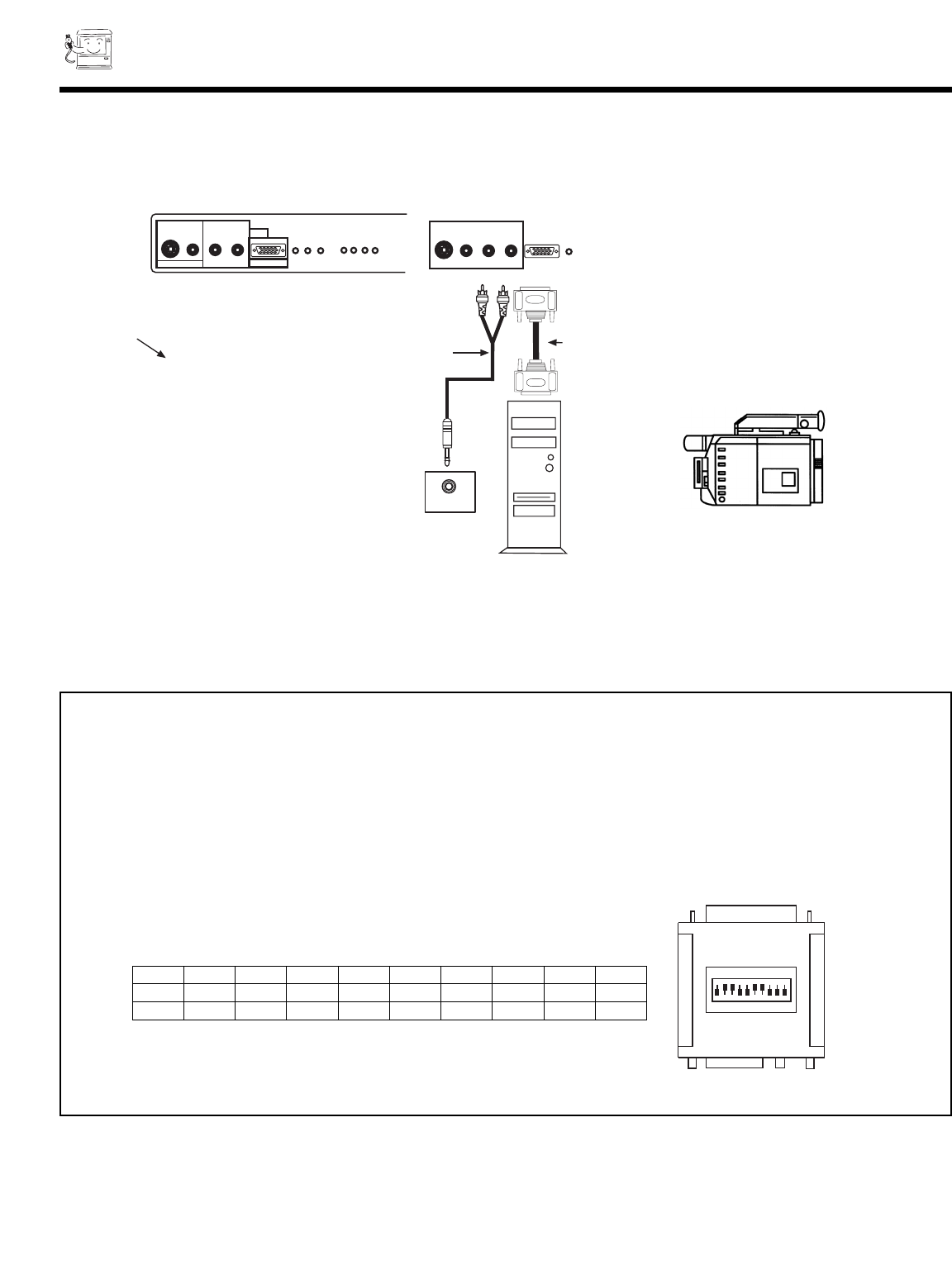
FRONT PANEL JACKS AND CONNECTIONS
NOTE: Optional adapter for *Apple®Macintosh®computers. If the optional AESP model G301/U Macintosh to VGA®adapter
connector is configured and connected between Macintosh video out and the Rear Projection Television video in, the
Macintosh is forced to boot in 640 x 480/60 Hz or 800 x 600/60 Hz mode (set mode) because the operational adapter
correctly manipulates the Macintosh sense pins.
For the optional adapter to work, it s DIP switch settings should be # 2, 3, 6, 7 = ON and # 1, 4, 5, 8, 9, 10 = OFF.
See below: Example - See Switch Instructions for details.
Mode 5 = 2367 (SVGA 800 x 600/60 Hz configuration)
(VGA 640 x480/60 Hz configuration)
Composite Separate Sync
ON DIP
12345678910
ON
1458910
2367
OFF
SW1 SW2 SW3 SW4 SW5 SW6 SW7 SW8 SW9 SW10
ON ON ON ON
OFF OFF OFF OFF OFF OFF
A/V Cable and
S-INPUT Cable
(Optional)
Back of VCR
D-SUB 15 Pin
RGB Cable
(Optional)
PC
AUDIO OUT
Back of PC
Audio Cable
(Optional) S-VHS Video Camera Output
VIDEO 3
VOL-
AUDIO IN
VIDEO 3/PC2
L/(MONO) R
VIDEO
S-VIDEO
PC2
12345
678910
1112131415
INPUT VOL+ CH- CH+
TV/PC EXIT
MENU
SELECT
VIDEO 3
VOL-
AUDIO IN
VIDEO 3/PC2
L/(MONO) R
VIDEO
S-VIDEO
PC2
12345
678910
1112131415
INPUT VOL+ CH- CH+
11
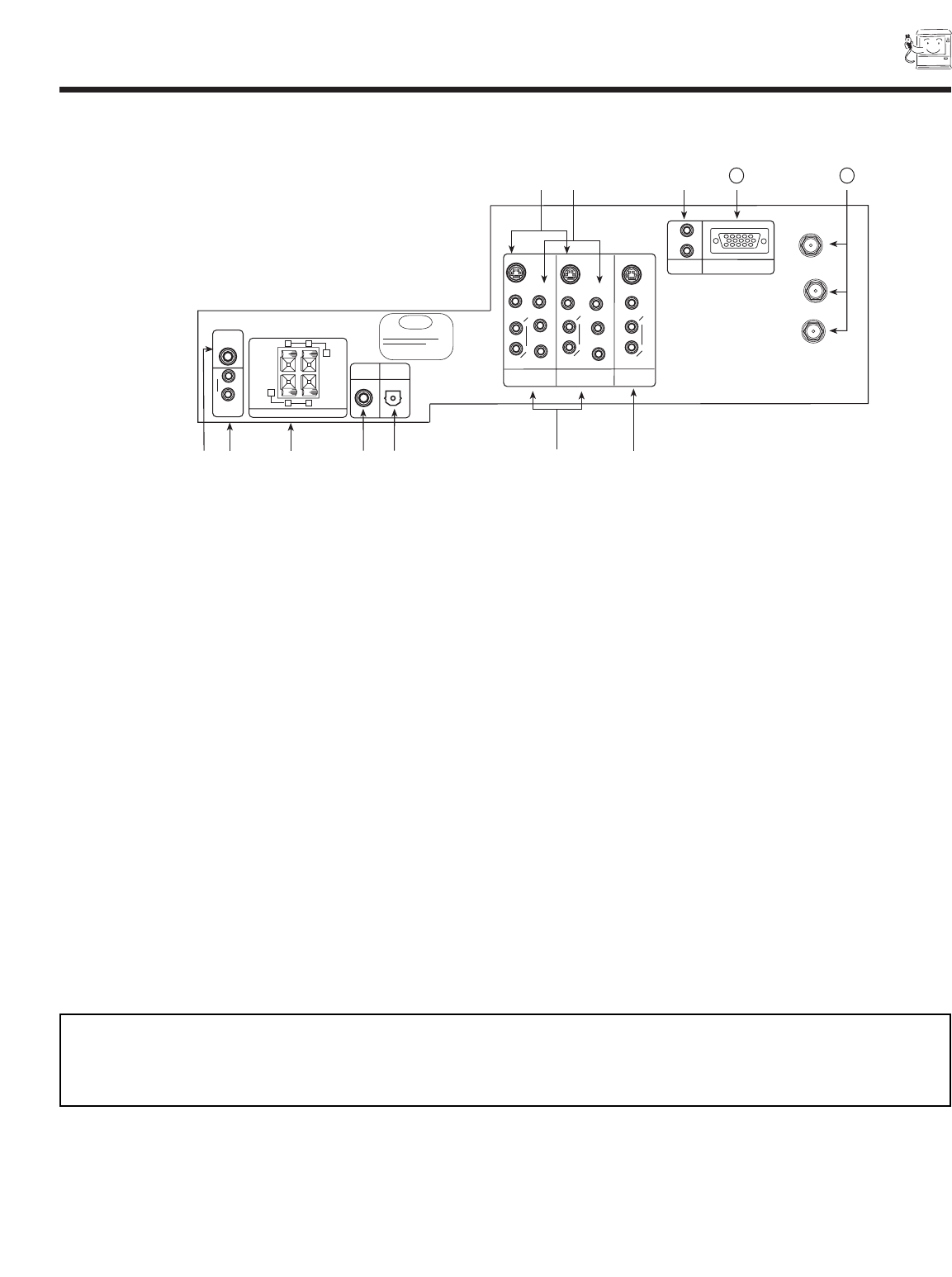
REAR PANEL JACKS
REAR VIEW
SUB WOOFER Output
This jack provides variable audio output to a sub-woofer accessory. With this connection, the audio can be controlled by the
television s main volume. This feature can be turned on and off in the THEATER-SPEAKER SETUP menu.
AUDIO TO Hi-Fi
These jacks provide variable audio output to a seperate stereo amplifier. With this connection, the audio to the stereo can be
controlled by the television s main volume. Use these jacks for the external audio amplifier.
REAR SPEAKER Output Terminals
These terminals are used to connect external speakers, which are used for the surround sound feature. The volume level is
controlled by the television s main volume. These speaker output terminals can be turned on and off in the THEATER-SPEAKER
SETUP menu. Use speakers with 8-Ohm impedance only.
Coaxial Input
This jack provides high quality audio input from a Dolby Digital DVD player or HDTV Set Top Box. This input can be used for
VIDEO: 1 or VIDEO: 2 audio, as selected in the THEATER-INPUT SOURCE menu. (see page 66)
Optical Input
This jack provides high quality audio input from a Dolby Digital DVD player or HDTV Set Top Box. Use a digital optical cable to
connect your TV to a compatible device. This input can be used for VIDEO: 1 or VIDEO: 2 audio, as selected in the THEATER-
INPUT SOURCE menu. (see page 66).
ANT A
TO
CONVERTER
ANT B
12345
678910
1112131415
AUDIO
L
R
(MONO)
VIDEO VIDEO
AUDIO
(MONO)
L
R
AUDIO
(MONO)
L
R
VIDEO
S-VIDEO
Y
S-VIDEO
Y
B
R
P
P
B
R
P
P
S-VIDEO
L
R
L
R
SUB
WOOFER
STOP
CONNECT ONLY 8 OHM SPEAKERS
DO NOT SHORT CIRCUIT
THESE TERMINALS
(Such damage is NOT COVERED
by your television warranty)
11 12
REAR SPEAKER
8Ω ONLY
-
L
+
-
+
R
OPTICAL
INPUT
COAXIAL
INPUT
PC RGB INPUT 1
PC AUDIO
INPUT 1
MONITOR
OUT
INPUT 2
INPUT 1
AUDIO
TO HI-FI
NOTE: This TV s optical digital input jack fully complies with the international standard governing this type of jack (IEC958), and
is designed for connection to a Dolby Digital or PCM from DVD Player or HDTV Set Top Box. Older equipment, some of
which is not fully compliant with IEC958, may not be compatible with the Dolby Digital bit stream. Such a connection
using anything other than Dolby Digital AC-3 or PCM bit stream could create a high noise level, causing damage to your
speakers.
12
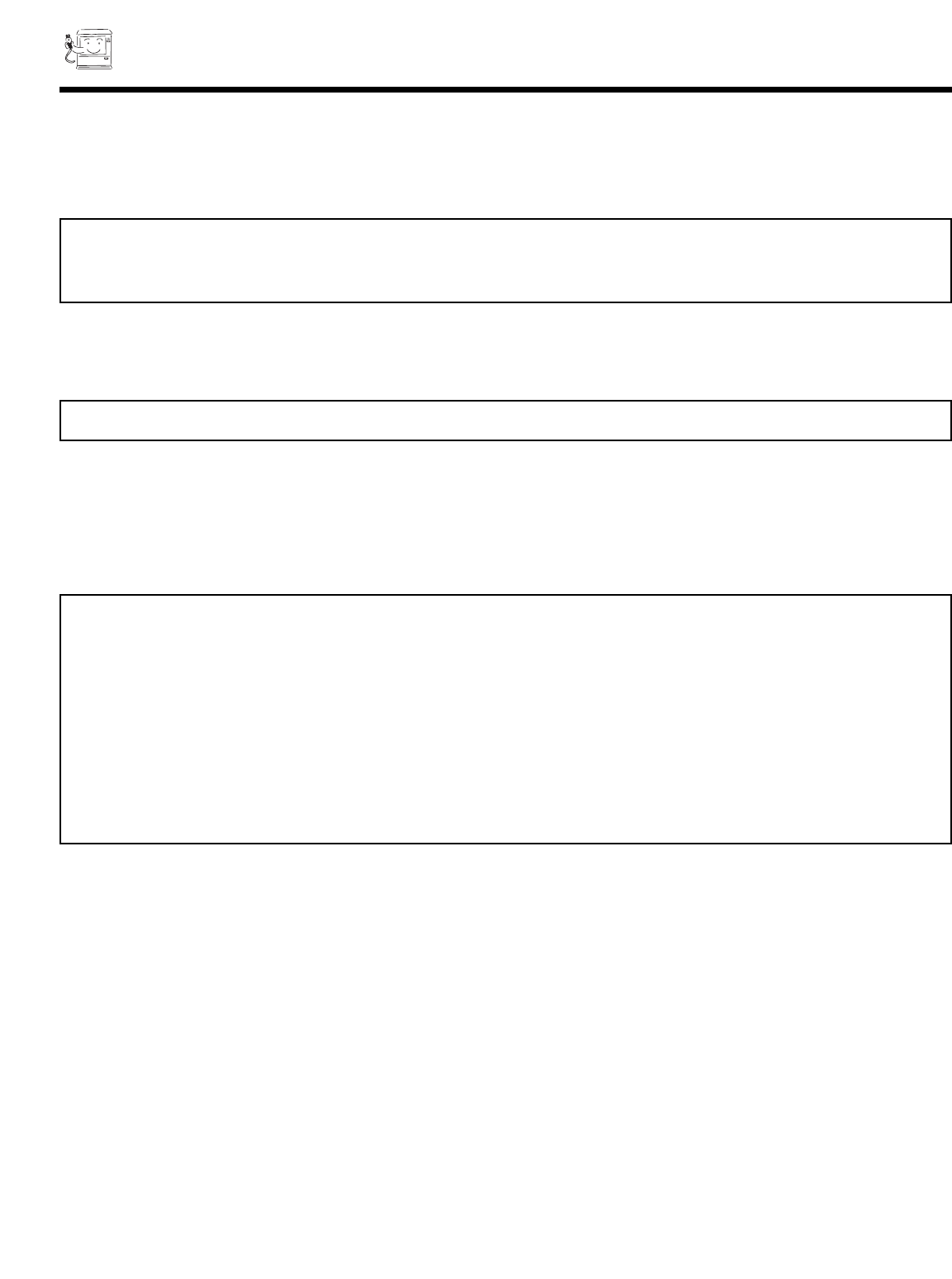
REAR PANEL JACKS
AUDIO/VIDEO INPUTS 1, 2
The INPUT button on the front panel or Remote Control will step through each signal source input each time it is pressed. Use
the audio and video inputs to connect external devices, such as VCRs, camcorders, laserdisc players, DVD players etc. (If you
have mono sound, insert the audio cable into the left audio jack.)
MONITOR OUT
These jacks provide fixed audio and video signals which are used for recording. Use the S-VIDEO Output for high quality video
output. There is no MONITOR OUT when using COMPONENT VIDEO INPUT.
S-VIDEO Inputs 1 and 2
Inputs 1 and 2 provide S-VIDEO (Super Video) jacks for connecting equipment with S-VIDEO output capability.
COMPONENT VIDEO Y-PBPR INPUT
Y-PBPRjacks provide for connecting equipment with this capability, such as a DVD player.
PC AUDIO INPUT 1
Connect external devices for audio in PC mode. (see page 72)
PC INPUT 1
Use this 15-pin D-Sub Input for your PC connection. (see page 69)
ANTENNA Input/Output
The remote control allows you to switch between two separate 75-Ohm RF antenna inputs, ANT A and ANT B. ANT A input can be
displayed as a main picture or sub-picture. ANT B can only be displayed as a main picture. (ANT B cannot be displayed as a sub-
picture.) The antenna output labeled TO CONVERTER allows the ANT A connection to pass directly to a different source, such
as a cable box, only when ANT B is displayed as a main picture.
NOTE: DO NOT connect standard VIDEO or S-VIDEO when using Y-PBPRinput.
Your component outputs may be labeled Y, B-Y, and R-Y. In this case, connect the components B-Y output to the TV s
PBinput and the components R-Y output to the TV s PRinput.
It may be necessary to adjust TINT or turn AUTO COLOR-ON to obtain optimum picture quality when using the
Y-PBPR inputs. (see pages 58 and 59)
To ensure no copyright infringement, the MONITOR OUT output will be abnormal, when using the Y-PBPRjacks.
When using the Y-PBPRjacks, Component Y-PBPRsignal will be viewed as a blank PIP sub-picture. (see page 29)
NOTE: S-VIDEO Output may be used for recording, only when the input is of S-VIDEO type.
NOTE: You may use VIDEO, S-VIDEO, or COMPONENT: Y-PBPRInputs to connect to INPUT 1, 2. But note that only one of
these may be used at a time.
COMPONENT INPUT takes priority over S-VIDEO input and S-VIDEO input takes priority over VIDEO input.
13
TIPS ON REAR PANEL CONNECTIONS
TIPS ON REAR PANEL CONNECTIONS
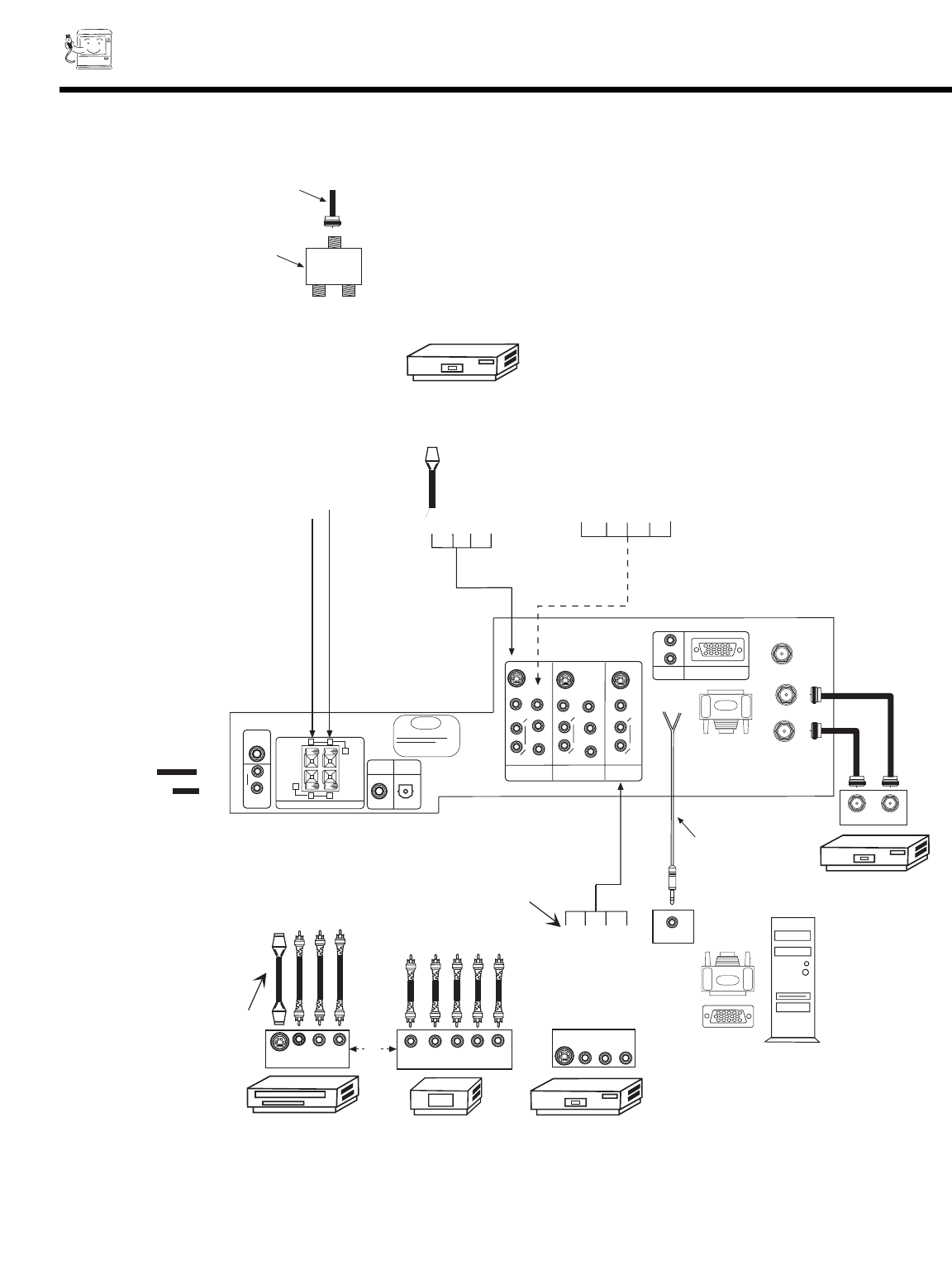
S-VIDEO connections are provided for high performance laserdisc players, VCRs etc. that have this feature. Use these connections
in place of the standard video connection if your device has this feature.
If your device has only one audio output (mono sound), connect it to the left audio jack on the television.
Refer to the operating guide of your other electronic equipment for additional information on connecting your hook-up cables.
Asingle VCR can be used for VCR#1 and VCR#2, but note that a VCR cannot record its own video or line output. (INPUT 1 in
example on page 14) Refer to your VCR operating guide for more information on line input-output connection.
You may use VIDEO, S-VIDEO, or COMPONENT: Y-PBPRinputs, but note that only one of these may be used at a time.
Connect only 1 component to each input jack.
COMPONENT: Y-PBPR connections are provided for high performance components, such as DVD players. Use these connections
in place of the standard video connection if your device has this feature.
When using the Y-PBPRinput jacks, connect your components audio output to the TV s Left and Right audio input jacks.
Your component outputs may be labeled Y, B-Y, and R-Y. In this case, connect the components B-Y output to the TV s PBinput and
the components R-Y output to the TV s PRinput.
It may be necessary to adjust TINT or turn AUTO COLOR-ON to obtain optimum picture quality when using the
Y-PBPRinputs. (see pages 58 and 59)
To ensure no copyright infringement, the MONITOR OUT output will be abnormal, when using the Y-PBPRjacks.
NOTE: Turn off the Rear Projection Television and the PC before connecting or disconnecting any cables.
REAR PANEL JACKS
14
ANT A
TO
CONVERTER
ANT B
12345
678910
1112131415
AUDIO
L
R
(MONO)
VIDEO VIDEO
AUDIO
(MONO)
L
R
AUDIO
(MONO)
L
R
VIDEO
S-VIDEO
Y
S-VIDEO
Y
B
R
P
P
B
R
P
P
S-VIDEO
L
R
L
R
SUB
WOOFER
STOP
CONNECT ONLY 8 OHM SPEAKERS
DO NOT SHORT CIRCUIT
THESE TERMINALS
(Such damage is NOT COVERED
by your television warranty)
REAR SPEAKER
8Ω ONLY
-
L
+
-
+
R
OPTICAL
INPUT
COAXIAL
INPUT
PC RGB INPUT 1
PC AUDIO
INPUT 1
MONITOR
OUT
INPUT 2
INPUT 1
AUDIO
TO HI-FI
2-Way signal splitter
Outside antenna or
cable TV coaxial cable
12345
678910
1112131415
AUDIO OUT
OPTIONAL
VCR #2
V L R
INPUT
S-VIDEO
INPUT
OUTPUT
Cable TV Box
Optional, see tips
on page 13
Laserdisc player, VCR,
camcorder, etc.
OUTPUT
Y PB PR L R
HDTV Set-Top Box
V L R
OUTPUT
S-VIDEO
Optional, see tips
on page 13
OR
DVD Player
VCR #1
REAR SPEAKER TERMINAL CONNECTIONS
15
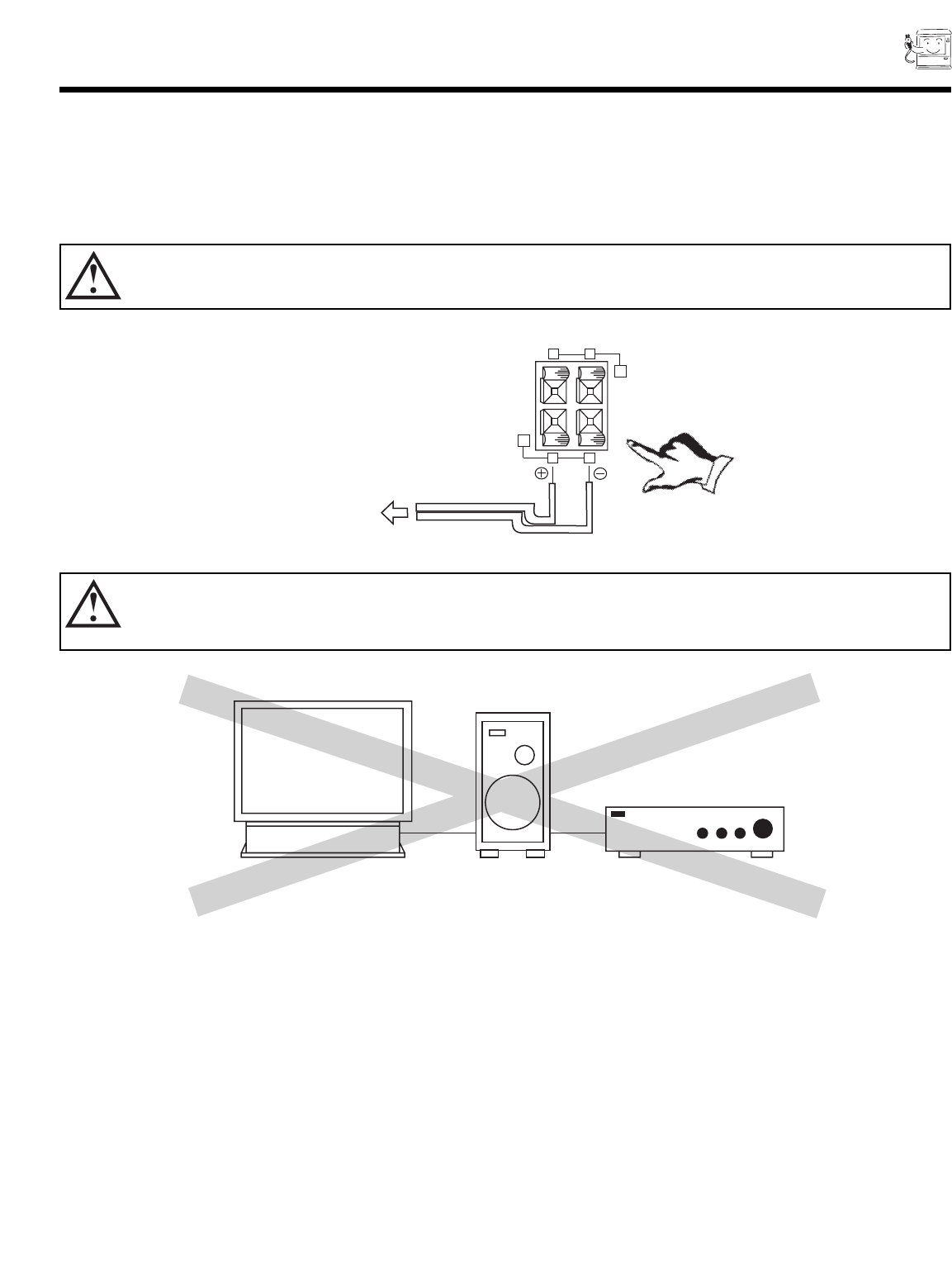
CONNECT AFTER TURNING THE POWER OF THE TV OFF.
Push in the Right Speaker button and insert the positive (+) lead wire into the hole next to the button. Once the wire is in place, pull
the red button back to original position and the wire is locked into place. In the same manner, push in the Right Speaker black button
and insert the negative (-) lead wire. Repeat this procedure for the Left Speaker.
TO
EXTERNAL
SPEAKER
-
L
+
-
+
R
PROJECTION TV SPEAKER AMPLIFIER
CAUTION: Do not connect speakers simultaneously to the REAR SPEAKER terminal of the Rear Projection TV and an
external amplifier. This could damage both the TV and the speakers. Your TV was designed to use 8-Ohm
speakers only. Any other type may degrade the audio performance of your entertainment system.
CAUTION: Do not short speaker terminal, (do not connect a wire directly across any two terminals). This could cause
damage to your audio outputs or TV.
16
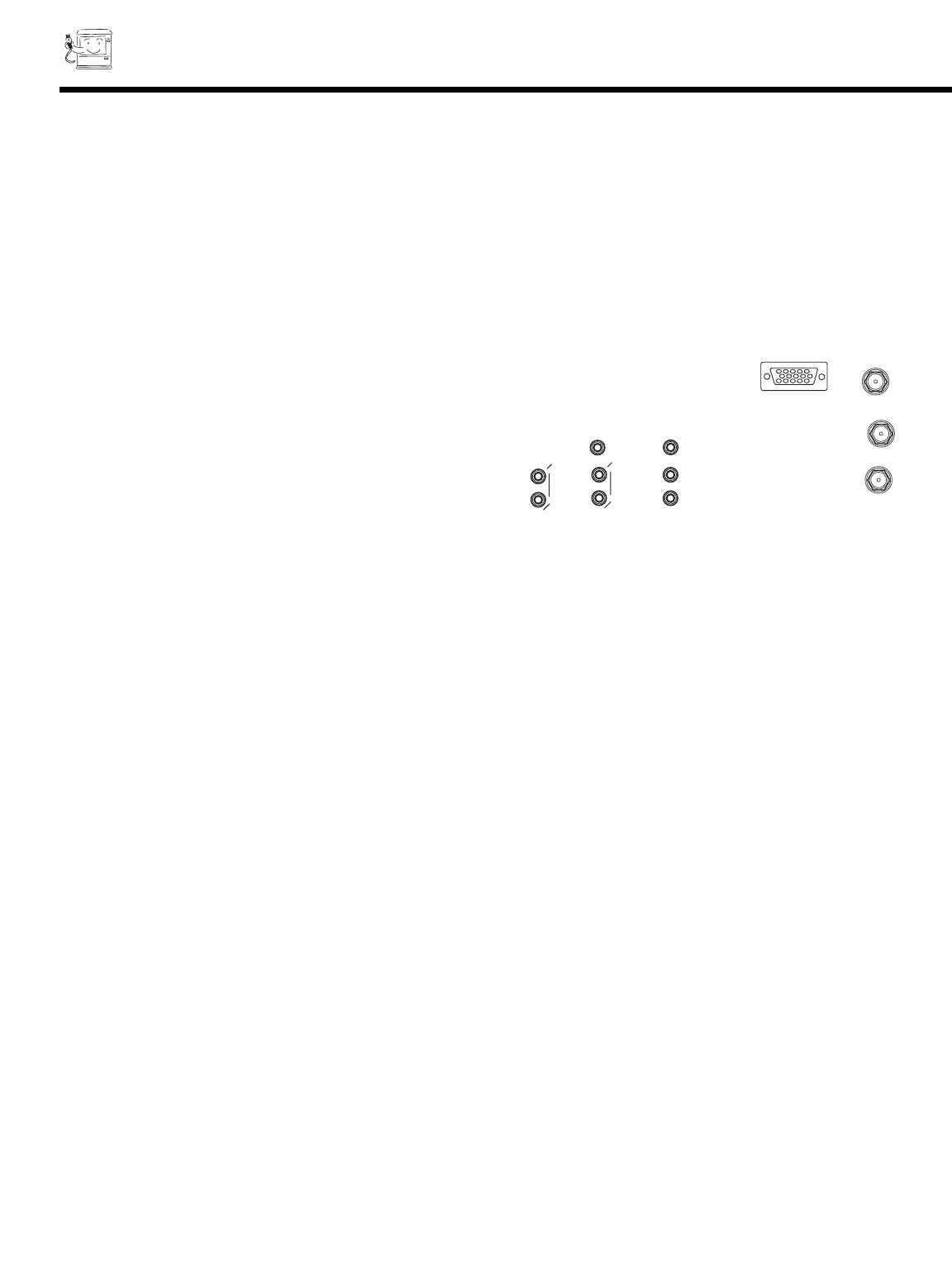
CONNECTING EXTERNAL AUDIO SOURCES
ANT A
TO
CONVERTER
ANT B
12345
678910
1112131415
AUDIO
L
R
(MONO)
VIDEO VIDEO
AUDIO
(MONO)
L
R
AUDIO
(MONO)
L
17
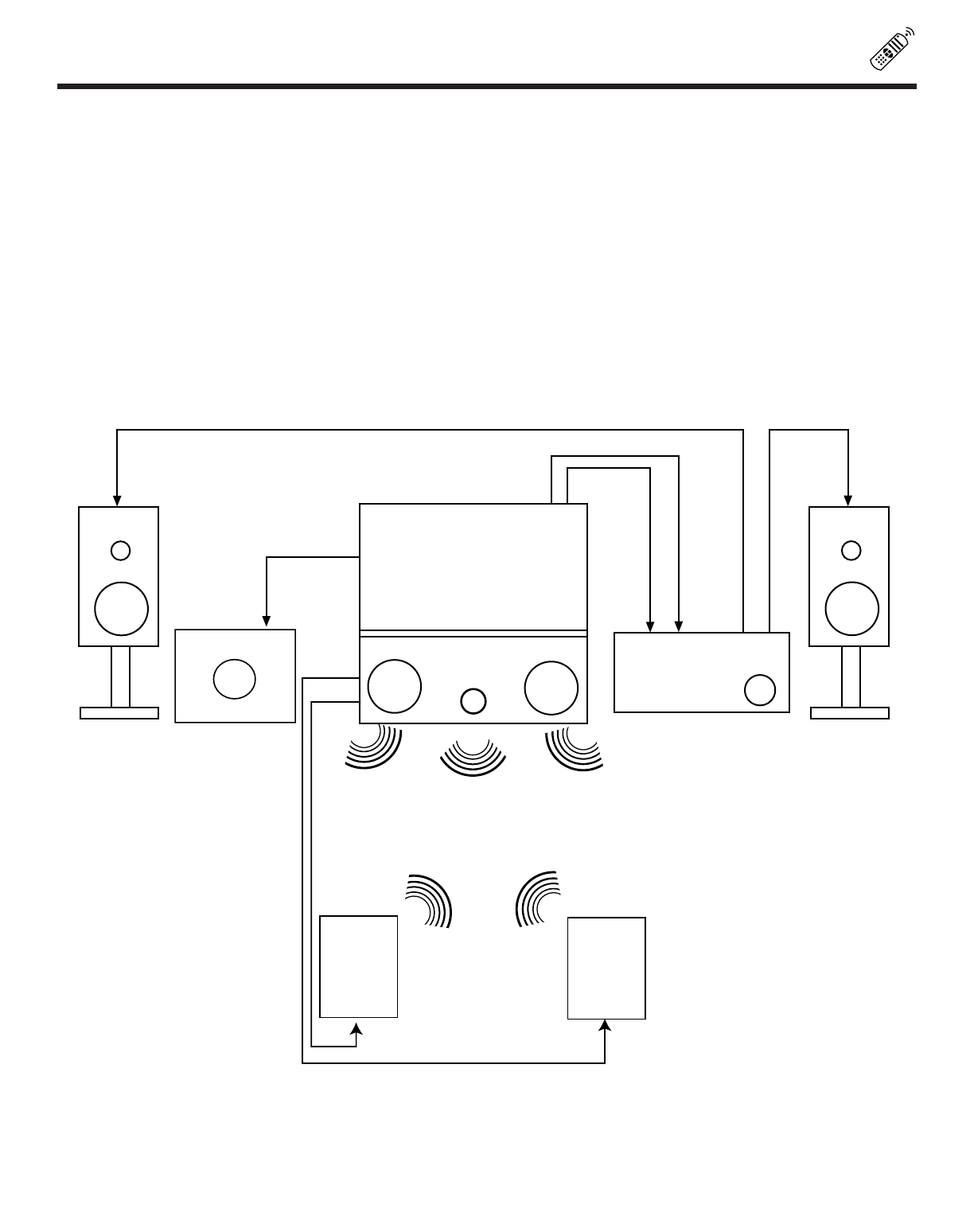
AUDIO SYSTEM SETUP
Match the numbers below to the diagrams for speaker placement and refer to the table on page 18 for the different surround sound
requirements. (See page 63 and 64 for SURROUND functions.)
The television s internal speakers.
The television s internal center channel speaker, which is on only when the television is in SURROUND-STADIUM, SURROUND-
ROCK ARENA, SURROUND-JAZZ CLUB, SURROUND-PRO LOGIC, or SURROUND-DOLBY DIGITAL mode.
These speakers are connected to a separate audio amplifier. Use the AUDIO TO HI-FI output on the TV.
These speakers are connected to a rear speaker 8-Ohm output on the TV.
This sub woofer is connected to the SUB WOOFER output on the TV.
L R
IN
STEREO SYSTEM
AMPLIFIER
L R OUT
LR
RS
LS
IN
SUB WOOFER
18
AUDIO SYSTEM SETUP
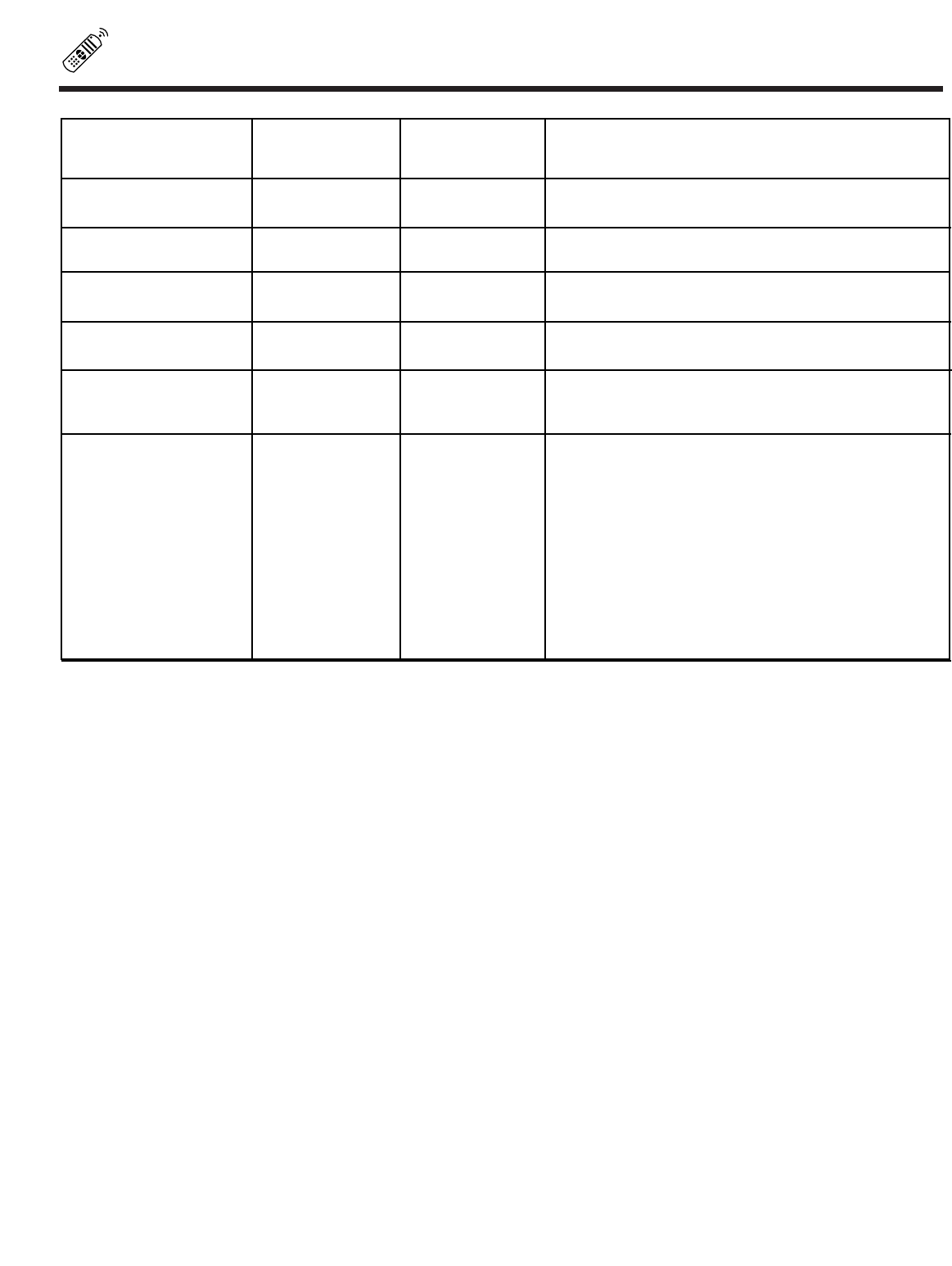
SURROUND REQUIRED OPTIONAL EFFECT
FEATURE CONNECTION CONNECTION
OFF Receive mono and stereo sound.
STADIUM Listener has feeling of being at a stadium.
ROCK ARENA Listener has feeling of being at a rock concert.
JAZZ CLUB Listener has feeling of being at a jazz club.
DOLBY Movie theater reproduction, with separate left,
PRO LOGIC center, right, and surround channels.
DOLBY DIGITAL To be used with a DVD player or HDTV Set Top
Box with Dolby Digital output. This provides up to
6 channels of all-digital surround sound. There are
3 full-range channels for the front (FL, C, FR) plus
separate, full-range left and right surround
channels (SL, SR). The sixth channel is Low
Frequency Effects for a sub woofer (SW),
supplying those room-shaking rumbles
experienced in the best movie theaters.
When left and right speakers are connected (), the internal speakers () can be disabled, creating better separation between left, center and right
channels. The center channel audio will be heard from (), this speaker cannot be disabled.
19
CONNECTING EXTERNAL VIDEO SOURCES
The exact arrangement you use to connect the VCR, camcorder, laserdisc player, and DVD player to your TV set is dependent on the
model and features of each component. Check the owner s manual of each component for the location of video and audio inputs and
outputs.
The following connection diagrams are offered as suggestions. However, you may need to modify them to accommodate your particular
assortment of components and features. For best performance, video and audio cables should be made from coaxial shielded wire.
Before Operating External Video Source
The input mode is changed every time the INPUT button on the Front Panel or the Remote Control is pressed as shown below. Connect
an external source to the INPUT terminals, then press the INPUT button as necessary to view the input source. (See page 27)
NOTE: When the Rear Projection TV is set to VIDEO and a video signal is not received from the VIDEO INPUT jack on the back
panel of the Rear Projection TV (i.e., VCR/laserdisc player, etc. is not connected or the video device is OFF), the TV set
will appear to be OFF.
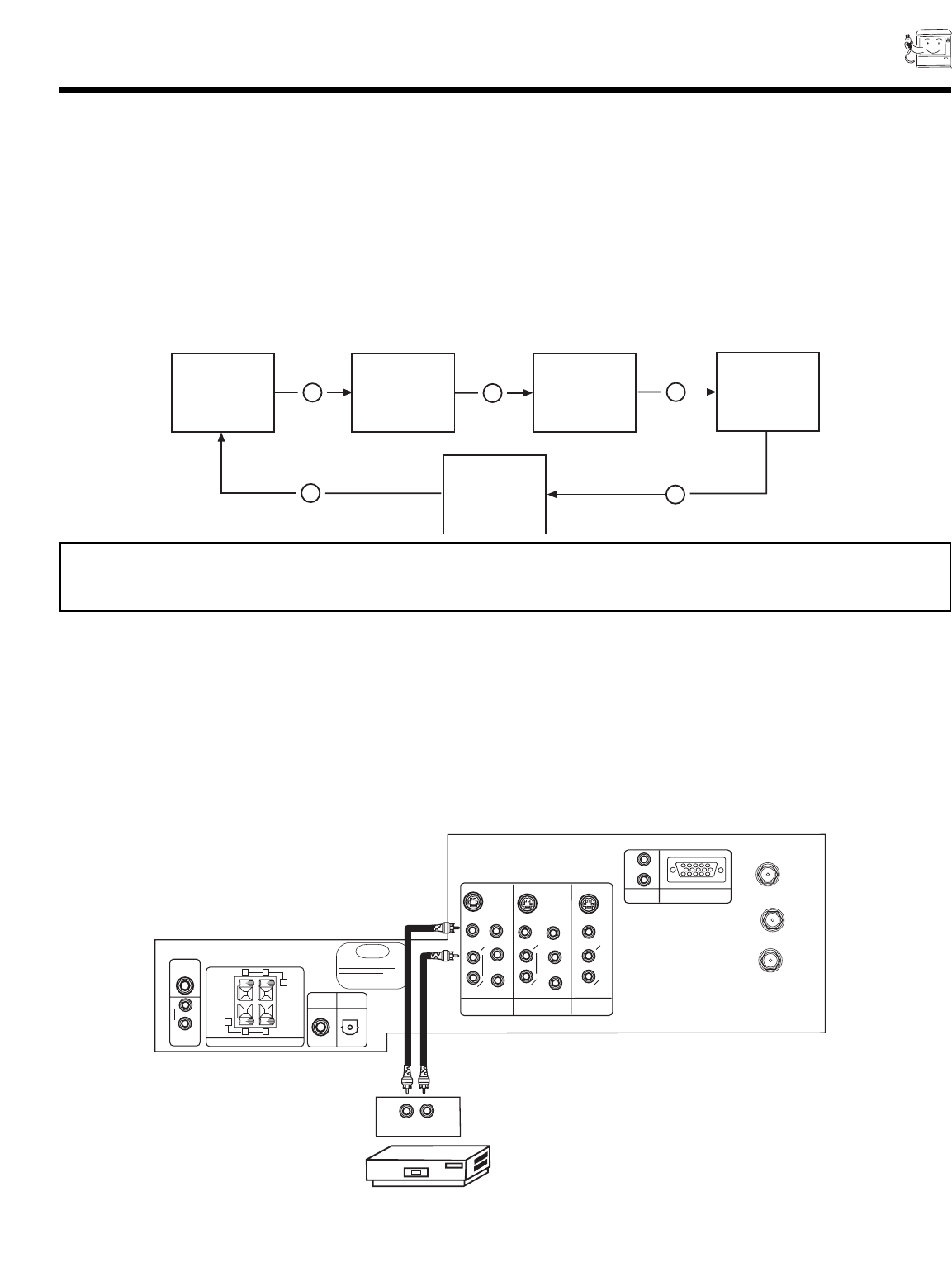
CONNECTING A MONAURAL AUDIO VCR OR LASERDISC PLAYER
1. Connect the cable from the VIDEO OUT of the VCR or the laserdisc player to the INPUT (VIDEO) jack on the TV set below.
2. Connect the cable from the AUDIO OUT of the VCR or the laserdisc player to the INPUT (MONO)/L(AUDIO) jack.
3. Press the INPUT button on the Front Panel or Remote Control to view the program from the VCR or the laserdisc player. The VIDEO
icon disappears automatically after approximately eight seconds.
4. Press the INPUT button to return to the previous channel.
INPUT VIDEO:1
12
INPUT MODE SELECTION ORDER
(INPUT) (INPUT) (INPUT)
VIDEO:2
INPUT INPUT VIDEO:3
INPUT
INPUT
ANT A
32
ANT B
ANT A
TO
CONVERTER
ANT B
12345
678910
1112131415
AUDIO
L
R
(MONO)
VIDEO VIDEO
AUDIO
(MONO)
L
R
AUDIO
(MONO)
L
R
VIDEO
S-VIDEO
Y
S-VIDEO
Y
B
R
P
P
B
R
P
P
S-VIDEO
L
R
L
R
SUB
WOOFER
STOP
CONNECT ONLY 8 OHM SPEAKERS
DO NOT SHORT CIRCUIT
THESE TERMINALS
(Such damage is NOT COVERED
by your television warranty)
REAR SPEAKER
8Ω ONLY
-
L
+
-
+
R
OPTICAL
INPUT
COAXIAL
INPUT
PC RGB INPUT 1
PC AUDIO
INPUT 1
MONITOR
OUT
INPUT 2
INPUT 1
AUDIO
TO HI-FI
Rear Panel of Television
Hitachi Model or
Similar Model
VCR
VIDEO OUT AUDIO OUT

20
CONNECTING EXTERNAL VIDEO SOURCES
CONNECTING A STEREO VCR OR STEREO LASERDISC PLAYER
1. Connect the cable from the VIDEO OUT of the VCR or the laserdisc player to the INPUT (VIDEO) jack, as shown on the TV set
below.
2. Connect the cable from the AUDIO OUT R of the VCR or the laserdisc player to the INPUT (AUDIO/R) jack.
3. Connect the cable from the AUDIO OUT L of the VCR or the laserdisc player to the INPUT (AUDIO/L) jack.
4. Press the INPUT button to view the program from the VCR or laserdisc player. The VIDEO icon disappears automatically after
approximately eight seconds.
5. Press the INPUT button to return to the previous channel.
21
CONNECTING EXTERNAL VIDEO SOURCES
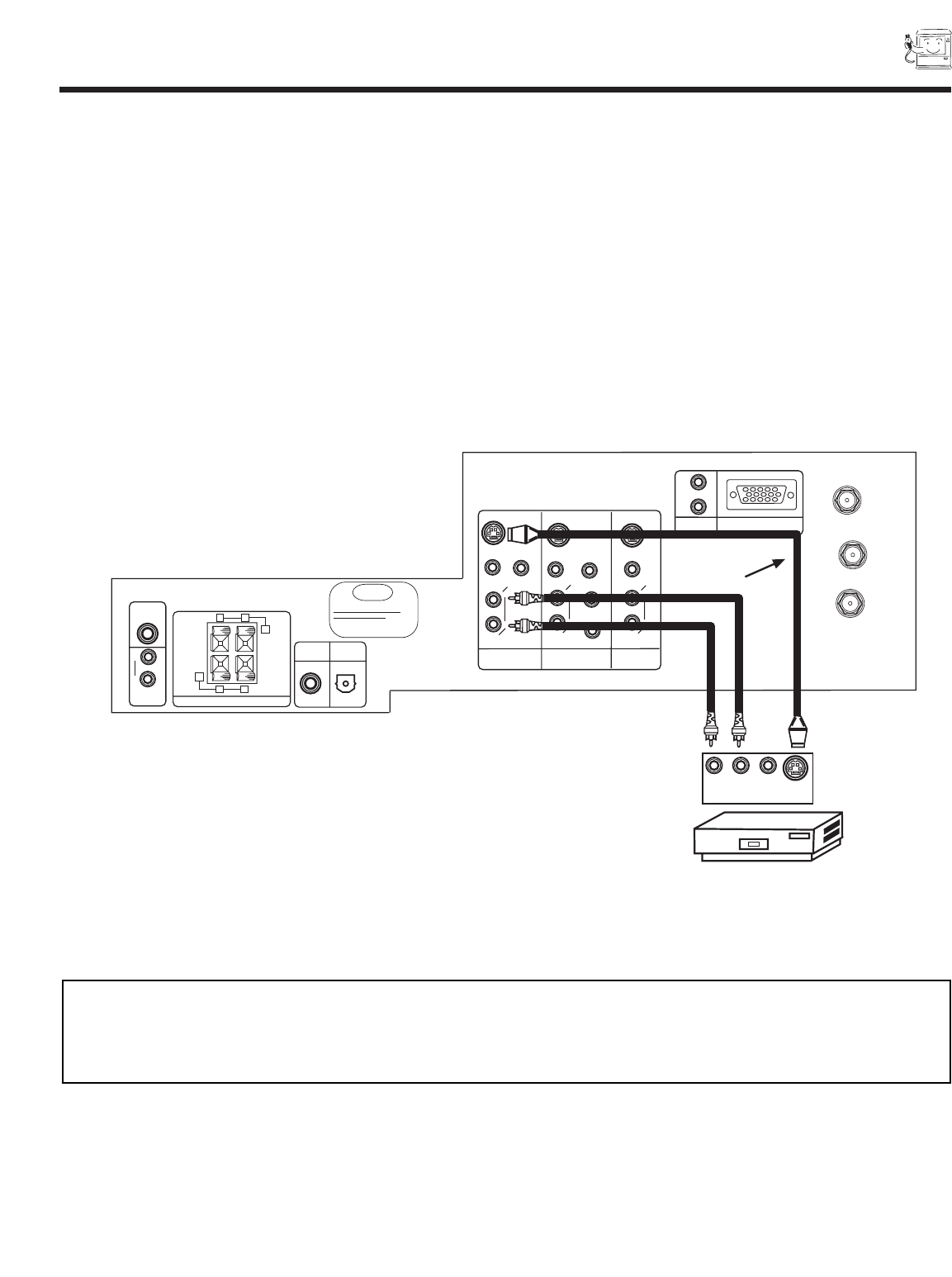
CONNECTING AN S-VIDEO VCR OR LASERDISC PLAYER
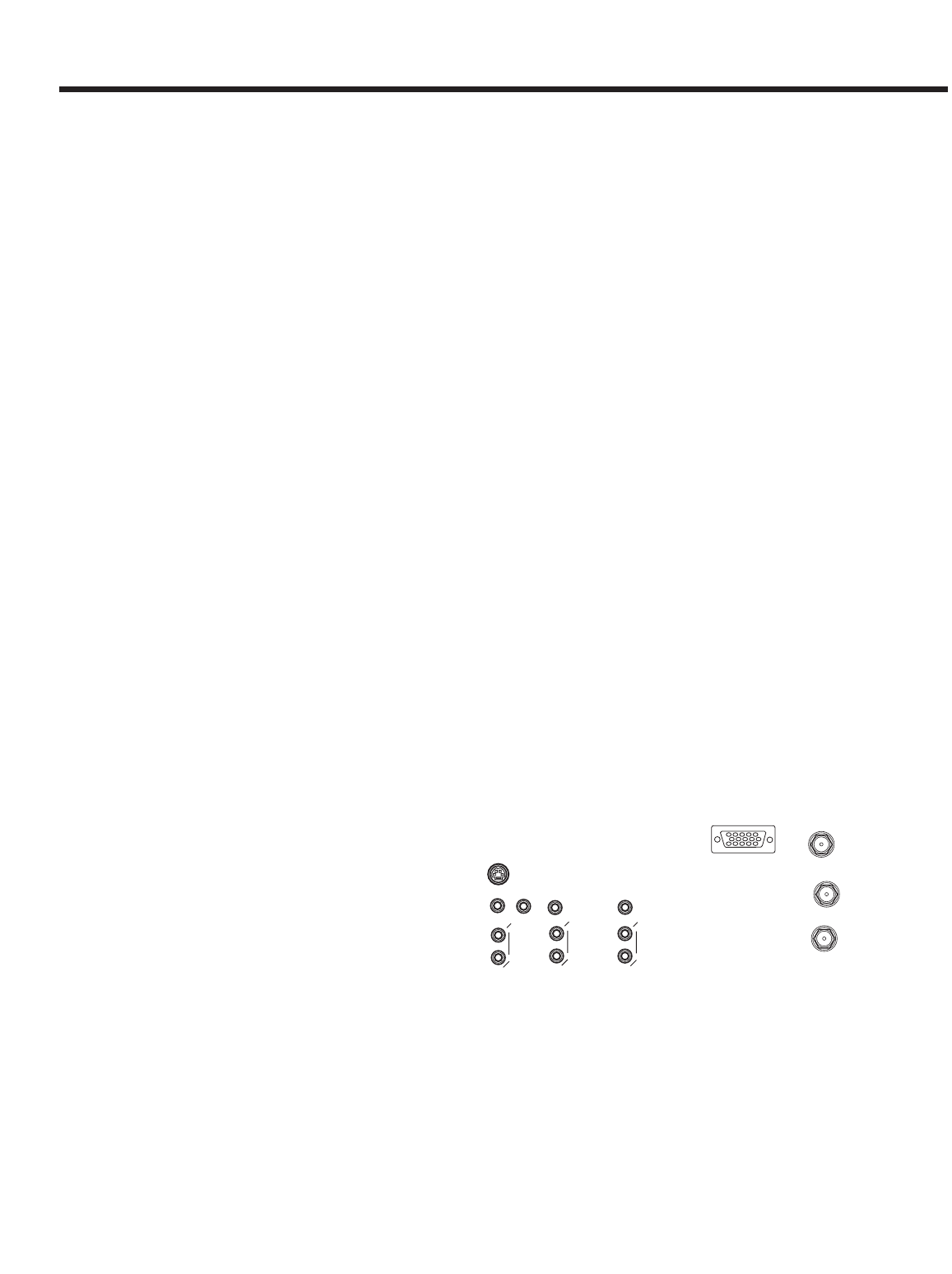
1. Connect the cable from the S-VIDEO OUT of the VCR or the laserdisc player to the INPUT (S-VIDEO) jack, as shown on the
TV set below.
2. Connect the cable from the AUDIO OUT R of the VCR or the laserdisc player to the INPUT (AUDIO/R) jack.
3. Connect the cable from the AUDIO OUT Lof the VCR or the laserdisc player to the INPUT (AUDIO/L) jack.
4. Press the INPUT button to view the program from the VCR or laserdisc player. The VIDEO icon disappears automatically after
approximately eight seconds.
5. Press the INPUT button to return to the previous channel.
NOTES: 1. Completely insert the connection cord plugs when connecting to rear panel jacks. The picture and sound that is
played back will be abnormal if the connection is loose.
2. A single VCR can be used for VCR #1 and VCR #2, but note that a VCR cannot record its own video or line output.
(INPUT: 1 in example on page 14) Refer to your VCR operating guide for more information on line input-
output connections.
ANT A
TO
CONVERTER
ANT B
12345
678910
1112131415
AUDIO
L
R
(MONO)
VIDEO VIDEO
AUDIO
(MONO)
L
R
AUDIO
(MONO)
L
R
VIDEO
S-VIDEO
Y
S-VIDEO
Y
B
R
P
P
B
R
P
P
S-VIDEO
L
R
L
R
SUB
WOOFER
STOP
CONNECT ONLY 8 OHM SPEAKERS
DO NOT SHORT CIRCUIT
THESE TERMINALS
(Such damage is NOT COVERED
by your television warranty)
REAR SPEAKER
8Ω ONLY
-
L
+
-
+
R
OPTICAL
INPUT
COAXIAL
INPUT
PC RGB INPUT 1
PC AUDIO
INPUT 1
MONITOR
OUT
INPUT 2
INPUT 1
AUDIO
TO HI-FI
S-VIDEO
R L V
Rear Panel of Television
Hitachi Model or
Similar Model
VCR or Laserdisc Player
OUTPUT
See tips on
Page 13
Back of VCR or
Laserdisc Player
22
CONNECTING EXTERNAL VIDEO SOURCES
CONNECTING A STEREO LASERDISC/DVD PLAYER OR HDTV SET TOP BOX TO INPUT 1 OR 2 COMPONENT: Y-PBPR.
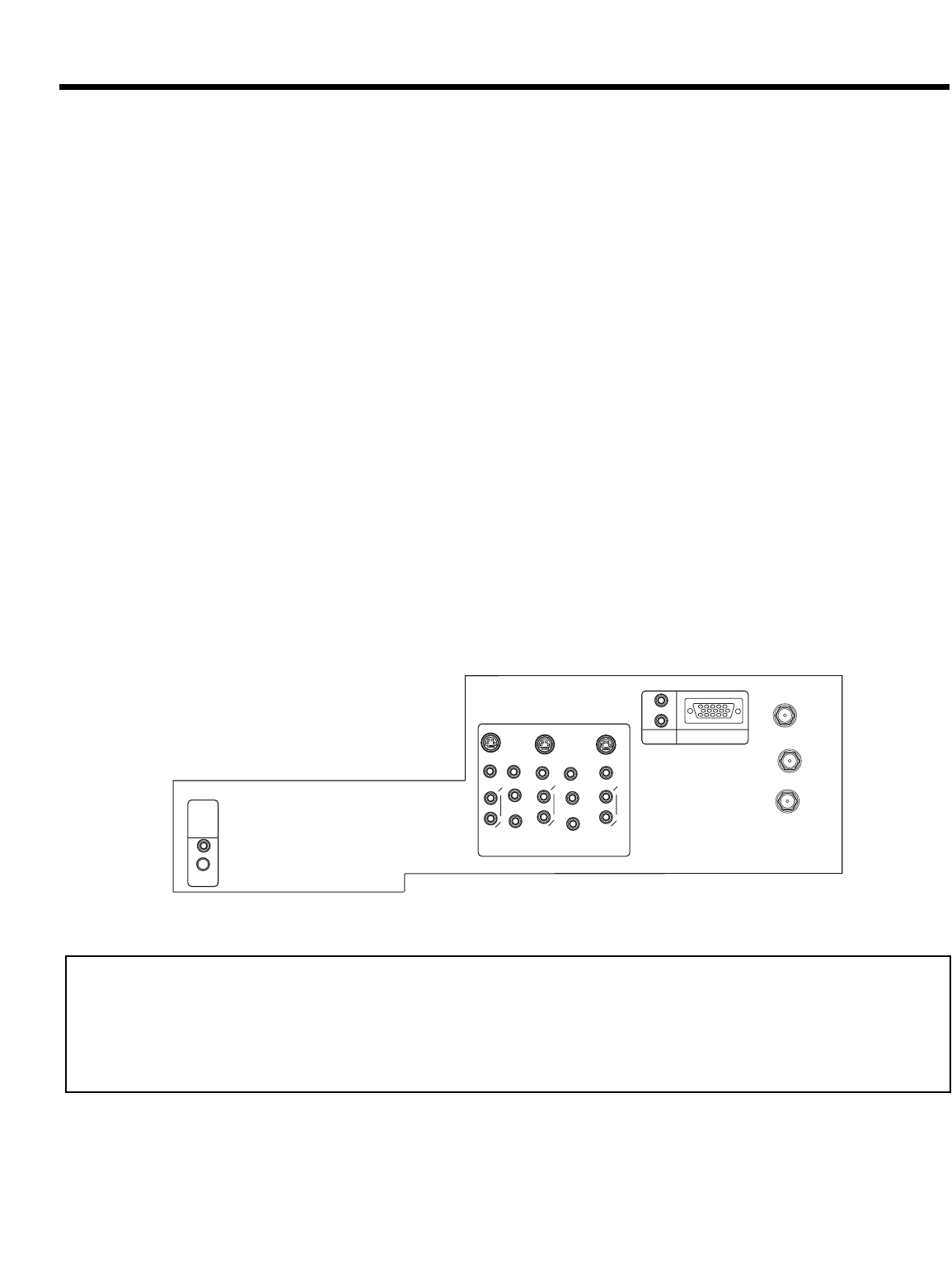
1. Connect the cable from the Y OUT of the Laserdisc/DVD player or HDTV set top box to the INPUT (Y) jack, as shown on the TV
set below.
2. Connect the cable from the CB/PBOUT or B-Y OUT of the Laserdisc/DVD player or HDTV set top box to the INPUT (PB) jack.
3. Connect the cable from the CR/PROUT or R-Y OUT of the Laserdisc/DVD player or HDTV set top box to the INPUT (PR) jack.
4. Connect the cable from the AUDIO OUT R of the Laserdisc/DVD player or HDTV set top box to the INPUT (AUDIO/R) jack.
5. Connect the cable from the AUDIO OUT L of the Laserdisc/DVD player or HDTV set top box to the INPUT (AUDIO/L) jack.
6. Press the INPUT button, to view the program from the Laserdisc/DVD player or HDTV set top box. The VIDEO icon disappears
automatically after approximately eight seconds.
7. Press the INPUT button to return to the previous channel.
ANT A
TO
CONVERTER
ANT B
12345
678910
1112131415
AUDIO
L
R
(MONO)
VIDEO VIDEO
AUDIO
(MONO)
L
R
AUDIO
(MONO)
L
R
VIDEO
S-VIDEO
Y
23
CONNECTING A DVD PLAYER OR HDTV SET TOP BOX WITH DOLBY DIGITAL OPTICAL OUTPUT TO INPUT 1 or 2
COMPONENT: Y-PBPR
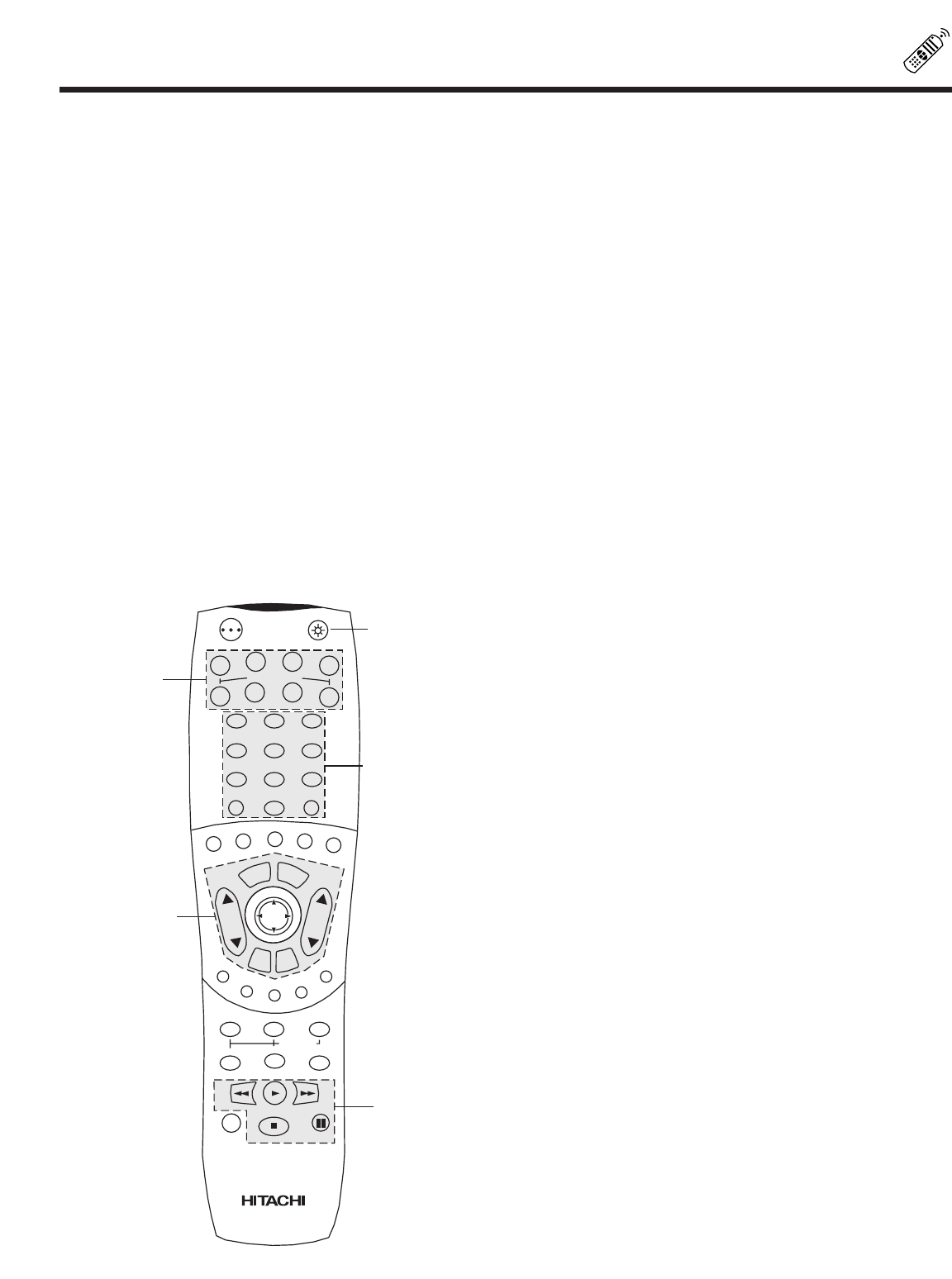
1. Connect the cable from the Y OUT of the DVD player or HDTV Set Top Box to the INPUT (Y) jack, as shown on the TV set
below.
2. Connect the cable from the CB/PBOUT or B-Y OUT of the DVD player or HDTV Set Top Box to the INPUT (PB) jack.
3. Connect the cable from the CR/PROUT or R-Y OUT of the DVD player or HDTV Set Top Box to the INPUT (PR) jack.
4. Connect the cable from the OPTICAL OUTPUT of the DVD player or HDTV Set Top Box to the OPTICAL INPUT jack.
5. Press the INPUT button, to view the program from the DVD player or HDTV Set Top Bx. The VIDEO icon disappears
automatically after approximately eight seconds.
6. Press the INPUT button to return to the previous channel.
NOTES: 1. Completely insert the connection cord plugs when connecting to rear panel jacks. The picture and sound that is
played back will be abnormal if the connection is loose.
2. See page 13 for tips on REAR PANEL CONNECTIONS.
3. If your device is connected to INPUT 1 component jacks, make sure to select VID1-OPTICAL from the
THEATER-INPUT SOURCE menu. If it is connected to INPUT 2 component jacks, make sure to select VID2-
OPTICAL from the THEATER-INPUT SOURCE menu.
ANT A
TO
CONVERTER
ANT B
12345
678910
1112131415
AUDIO
L
R
(MONO)
VIDEO VIDEO
AUDIO
(MONO)
L
R
AUDIO
(MONO)
L
R
VIDEO
S-VIDEO
Y
S-VIDEO
Y
B
R
P
P
B
R
P
P
S-VIDEO
L
R

24
CONNECTING EXTERNAL VIDEO SOURCE
25
THE GENIUS REMOTE CONTROL
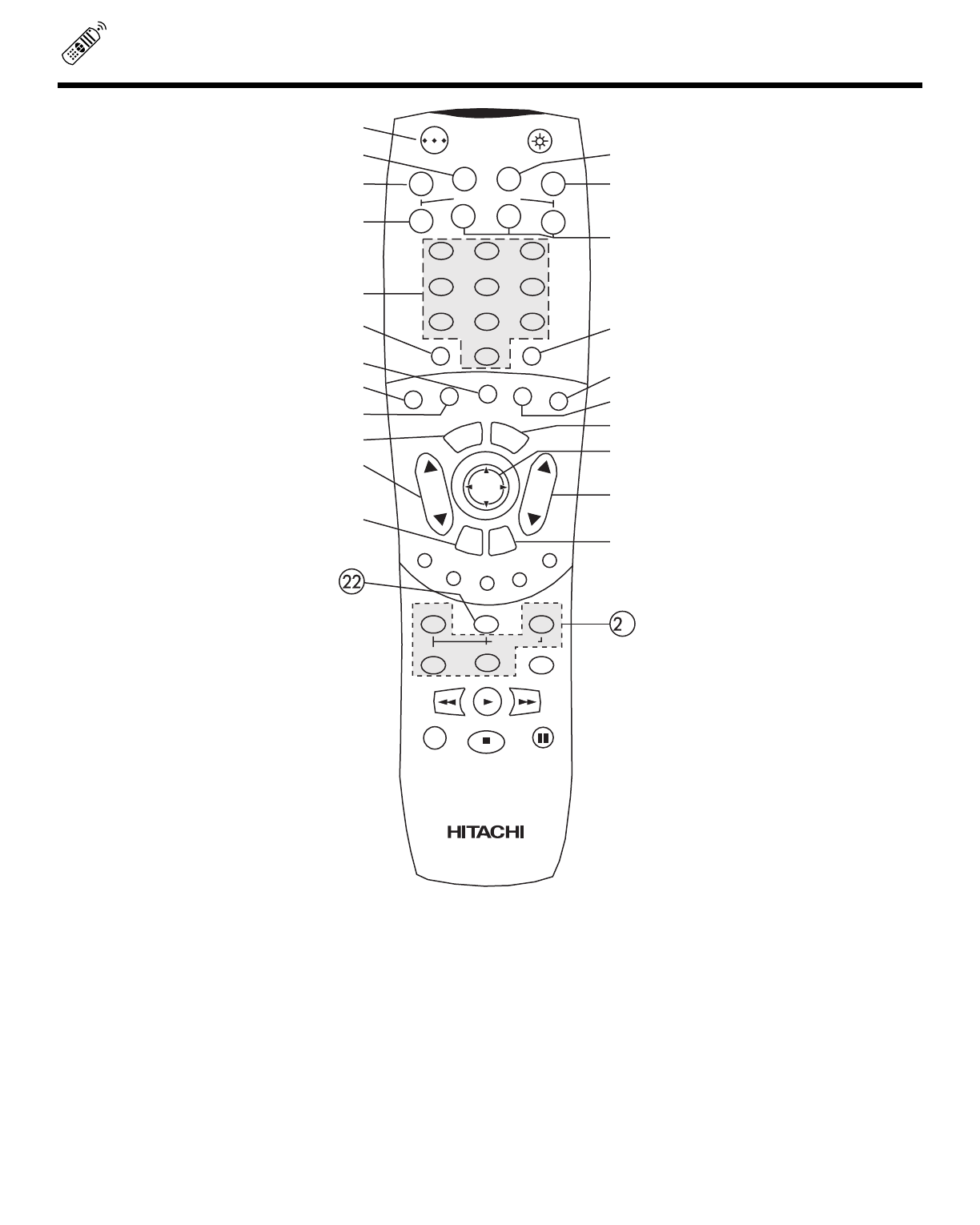
In addition to controlling all the functions on your HITACHI Projection TV, the new remote control is designed to operate different
types of VCRs, CATV (Cable TV) converters, satellite receivers, DVD players, and other audio/video equipment with one touch.
Basic operation keys are grouped together in one area.
To operate your TV, point the remote control at the remote sensor of the TV and press the TV button. The TV button will blink,
indicating that the remote will now control your television.
To operate your VCR, point the remote at the remote sensor of the VCR and press the VCR button. The VCR button will blink,
indicating that the remote will now control your VCR. (See page 32 for instructions on how to program the remote to control your
VCR.)
To operate your cable box, point the remote at the remote sensor of the cable box and press the CABLE (CBL) button. The CBL
button will blink, indicating that the remote will now control your cable box. (See page 33 for instructions on how to program the
remote to control your cable box.)
To operate your satellite receiver, point the remote at the remote sensor of the satellite receiver and press the SATELLITE (SAT)
button. The SAT button will blink, indicating that the remote will now control your satellite receiver. (See page 34 for instructions
on how to program the remote to control your satellite receiver.)
To operate your DVD player, point the remote at the remote sensor of the DVD player and press the DVD button. The DVD button
will blink, indicating that the remote will now control your DVD player. (See page 35 for instruction on how to program the remote
to control your DVD player.)
To operate additional audio/video equipment, point the remote at the remote sensor of the component you wish to control and
press the AV1, AV2 or AV3 button. This button will blink, indicating that the remote will now control the desired component. (See
page 36 for instructions on how to program the remote to control additional Audio/Video equipment.)
These buttons allow the remote to control your TV, VCR,
cable box, satellite receiver, DVD player, or other
Audio/Video equipment depending on which mode is
chosen, as explained above.
,LIGHT BUTTON
When you are in a dark room, press the light button
on the remote to light up the buttons shown in and the
source button will blink. The light will stay on for about 8
seconds if the light button is not pressed again. These
buttons will not appear to light if the room is too bright.
POWER
TV VCR CBL
AV2
AV1 AV3
SAT
DVD
12
456
3
789
0
LAST CHSLEEP
INPUT
HELP
C.S.
EXIT
MENU
CHVOL
RECALL
MUTE
GUIDE/TVGUIDE/TVGUIDE/TV
INFO
VCR PLUS+
SVCS
GUIDE/TV
SCHD
PIP PIP CH
SWAP
FREEZE
PIP MODE PIP ACCESS
PROG TV/VCR SLOW
SOURCE WIZARD
REC
SELECT
TV/PC
ASPECT
26
HOW TO USE THE GENIUS REMOTE TO CONTROL YOUR TV
POWER button
Press this button to turn the TV set on or off when the remote is in TV mode.
TV button
When the TV button is pressed, it will blink, to indicate the remote is in TV mode.
VCR button
When the VCR button is pressed, it will blink to indicate the remote is in VCR mode. (see page 32)
CABLE (CBL)
When the CABLE button is pressed, it will blink to indicate the remote is in CABLE mode. (see page 33)
SATELLITE (SAT)
When the SAT button is pressed, it will blink to indicate the remote is in SATELLITE mode. (see page 34)
DVD button
When the DVD button is pressed, it will blink to indicate the remote is in DVD mode. (see page 35)
POWER
TV VCR CBL
AV2
AV1 AV3
SAT
DVD
12
456
3
789
0
LAST CHSLEEP
INPUT
HELP
C.S.
EXIT
MENU
CHVOL
RECALL
MUTE
GUIDE/TVGUIDE/TVGUIDE/TV
INFO
VCR PLUS+
SVCS
GUIDE/TV
SCHD
PIP PIP CH
SWAP
FREEZE
PIP MODE PIP ACCESS
PROG TV/VCR SLOW
SOURCE WIZARD
REC
SELECT
ASPECT
TV/PC
1
27
HOW TO USE THE GENIUS REMOTE TO CONTROL YOUR TV
SLEEP button
Press this button to display the sleep timer in the lower left corner of the screen. Every subsequent press of this button will add 15
minutes to this timer, up to a maximum of three hours. Once set, use RECALL when you want to view time remaining. If the SLEEP
button is pressed while the timer is set, it will reset to the original condition.
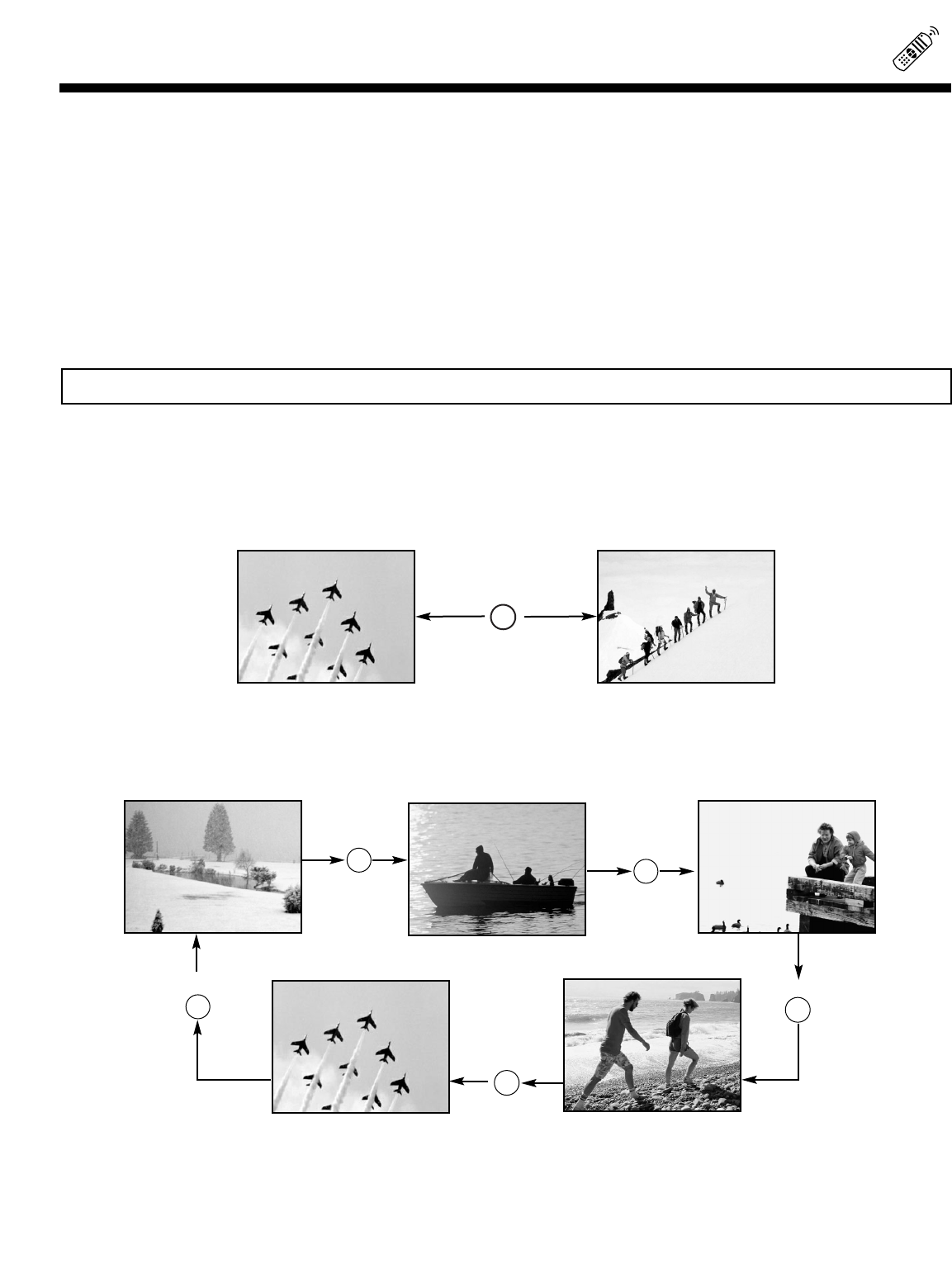
LAST CHANNEL (LAST CH) button
Use this button to select between the last two channels viewed. (Good for watching two sporting events, etc.)
INPUT button
The INPUT button will select between both antenna signals and the three sets of video input jacks each time the button is pressed.
If the Picture-in-Picture is on, the INPUT button will select between the three sets of video input jacks and both antenna sources
when main channel is chosen with the PIP CH button. If the sub-picture is chosen, the INPUT button will select between the three
sets of video input jacks and the ANT A antenna source (ANT B source cannot be displayed as a PIP sub-picture).
CHANNEL selector buttons
CHANNEL selector buttons are used to set FAMILY FAVORITES, CHANNEL MEMORY, etc.
Enter one, two, or three numbers to select channels. Enter 0 first for channels 1 to 9, or simply press the single digit channel you
wish to tune then wait a few seconds for the TV to tune. For channels 100 and above, press the 1 button, wait until two dashes
appear next to the channel display on your TV, then enter the remaining two numbers using the number buttons.
Channel selection may also be performed by pressing CH up () or down ().
You can also use these number buttons to directly access OSD sub-menu s of your choice. While navigating the On-Screen-
Display s, you will notice that each sub-menu has a number next to it. For example, the SET UP menu has 9 sub-menu s. Pressing
the button while in the SET UP menu will take you directly to the CLOCK SET sub-menu. This makes navigating the menu s
faster and easier.
NOTE: The TV may not receive some channels if you are not in the correct SIGNAL SOURCE mode. (see page 42)
ANT A 28 S - IN: 1 Y- P
BPR: 2
ANT B 13
INPUT
S - IN: 3
ANT A 10 ANT A 39
LAST CH
TV/PC button
Press this button to switch between TV, PC1 (PC INPUT 1) and PC2 (PC INPUT 2) modes.
HELP button
Press this button when a menu is displayed to view HELP text, which gives a description of the displayed menu. The HELP text
will be displayed every time a MENU is displayed, until this button is pressed again.
INPUT
INPUT
INPUT
INPUT
AV1, AV2, AV3 buttons
When pressed, each of these buttons will blink to indicate the remote is in Audio/Video mode. (see page 36)
28
HOW TO USE THE GENIUS REMOTE TO CONTROL YOUR TV
ASPECT button
Press this button to quickly change the aspect ratio of the viewable picture in normal, full, fill, and smooth wide. (See page 47 and
48 for more information)
COMMERCIAL SKIP (C.S.) button
Press this button repeatedly to select channel skip time (30~180 seconds) when no menu is displayed and the TV will tune to the
last channel viewed when the selected amount of time is up. The user can change stations SURF to any station they wish, and
after the selected amount of time, the TV will tune back to the original channel.
MENU button
The MENU button will start the On-Screen Display.
EXIT button
When in MENU mode, this button will exit all On-Screen Displays.
THUMB STICK/SELECT button
All the On-Screen Display features can be set or adjusted by using the THUMB STICK.
The THUMB STICK will highlight functions or adjust and set different features. Press the THUMB STICK toward desired direction
and press down to SELECT.
VOLUME, MUTE button
Press the VOLUME up () or down () button until you obtain the desired sound level.
To reduce the sound to one half of normal volume (SOFT MUTE) to answer the telephone, etc., press the MUTE button. Press the
MUTE button again to turn the sound off completely (MUTE). To restore the sound, press the MUTE button one more time, or press
the VOLUME Up () button.
RECALL button
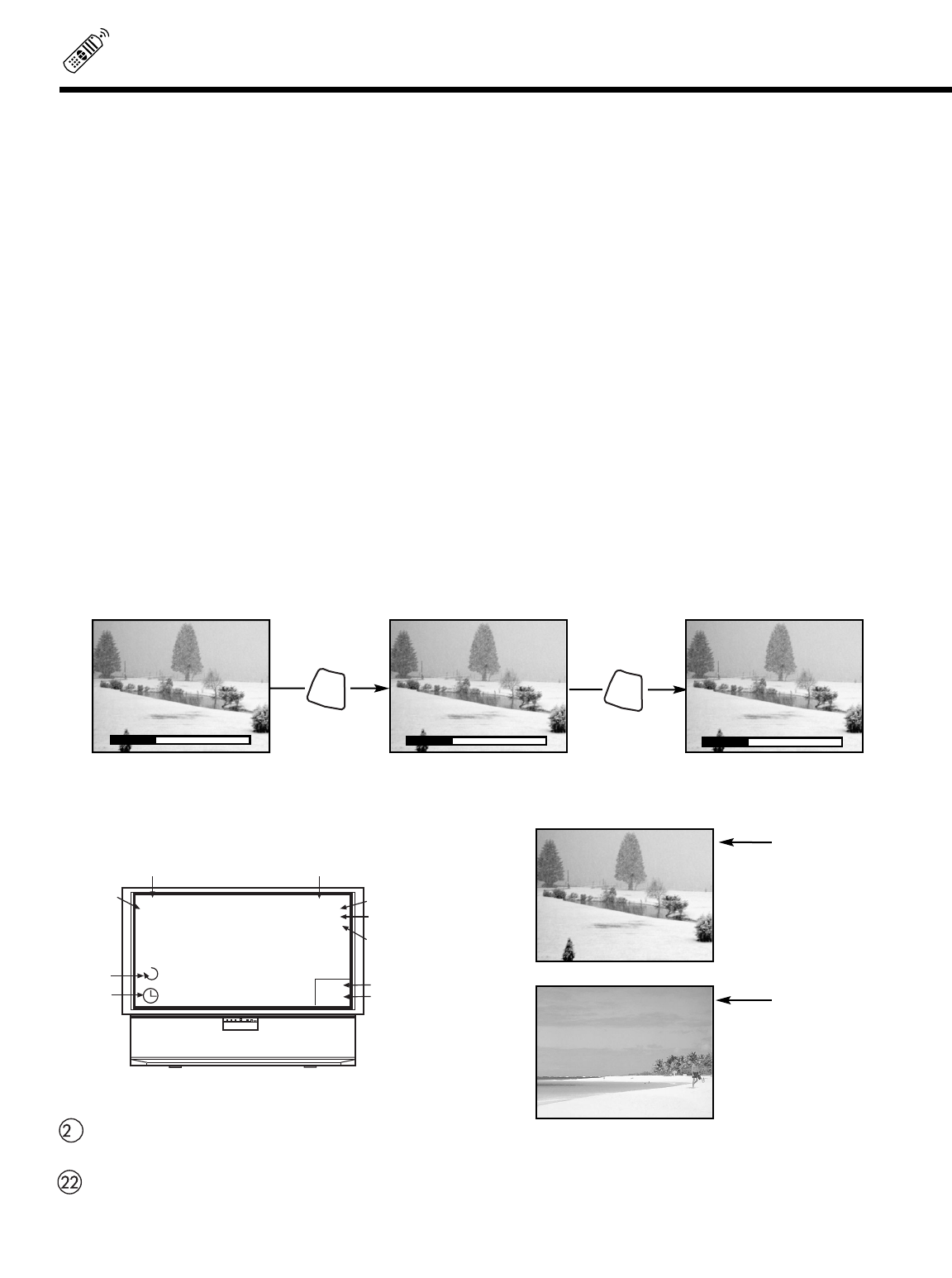
Press this button when no menu is displayed when you want to check the channel being received, the picture source, if the channel
has stereo (ST) or second audio program (SAP), the time, CHANNEL ID, if the Commercial Skip (C.S.) function is activated and if
the SLEEP timer is set.
PICTURE-IN-PICTURE buttons
See separate section on page 29 for a description.
PIP CH button
Use the PIP CH button to select between main picture and sub-picture tuning. The channel number which is highlighted indicates
what channel is being controlled.
When an S-VIDEO
Input is connected.
When a COMPONENT
VIDEO: Y-PBPRInput
is connected.
S - IN: 1
Y- P
BPR: 2
PUSH
ANT A 10
ABCD
10:00PM
PIP ANT A 12
STEREO
ST/SA
SLEEP 0:15
SLEEP
TIMER
Audio
Broadcast
Audio Selected Main Picture Source
CHANNEL ID
Time
Sub-Picture
Source
PIP
(C.S.)
Commerical
Skip
Aspect Style
SMOOTH
WIDE
▲
▲
VOLUME 8
▲
▲
MUTE 8
▲
▲
SOFTMUTE 8
MUTE
MUTE
1
29
PICTURE-IN-PICTURE (PIP)
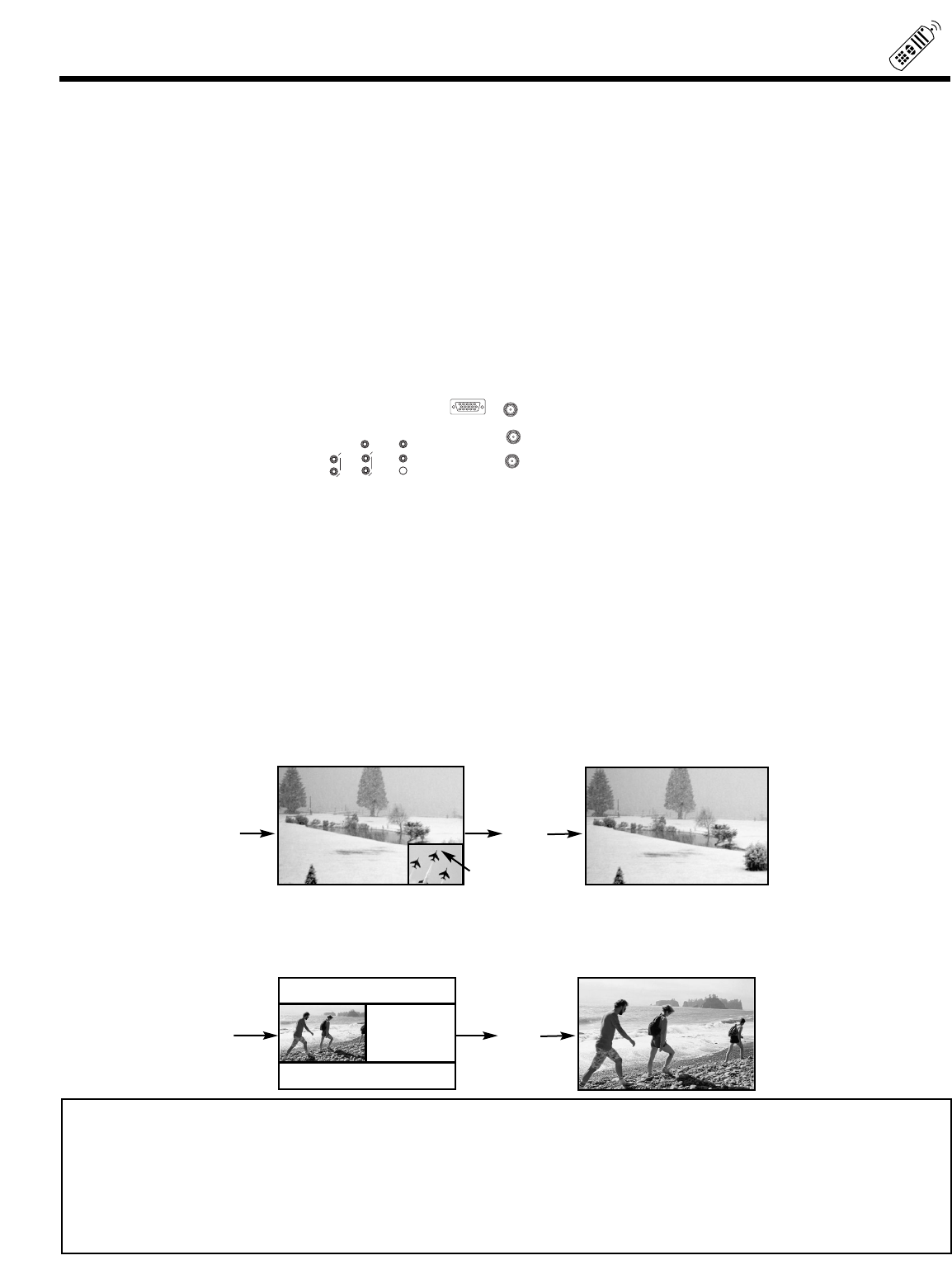
NOTES: 1. Y-PBPRinput cannot be viewed as main picture or sub-picture when in SINGLE PIP MODE. If you tune to a Y-PBPR
input, the TV set will automatically change to SPLIT PIP MODE.
2. When ANT B is selected as the main channel, the SWAP feature is disabled.
3. COMPONENT: Y-PBPR input can be viewed as main or sub-picture, only when SPLIT PIP MODE is chosen.
4. Only sound from the main picture can be heard.
5. It will take more than 3 seconds for the CPU to synchronize the motor frequency with input signal frequency when
you change the input mode (Video: 1, Video: 2 and so on). Press the TV/PC button to switch between TV, PC1 (PC
INPUT1) and PC2 (PC INPUT 2) modes.
Main Picture
Sub Picture
ANT A 10
ANT A
TO
CONVERTER
ANT B
12345
678910
1112131415
AUDIO
L
R
(MONO)
VIDEO VIDEO
AUDIO
(MONO)
L
R
30
PICTURE-IN-PICTURE (PIP)
NOTES: 1. If no buttons are pressed when in SURF mode, auto-scanning will continuously scan channels in memory. (see pages
43 and 44)
2. If a channel is tuned during this SURF scanning, sub-pictures will be removed from the screen.
3. SURF MODE PIP is allowed only when ANT A is selected as the main channel.
4. If PARENTAL CONTROL MOVIE/TV RATINGS setting is ON, PIP SURF mode will be deactivated.
NOTES: 1. The SWAP button will only operate when SINGLE PIP mode or SPLIT PIP mode is chosen.
2. The SWAP function will not operate if ANT B input is set as the main channel (ANT B input cannot be displayed as
a sub-picture.)
PICTURE-IN-PICTURE CONT.
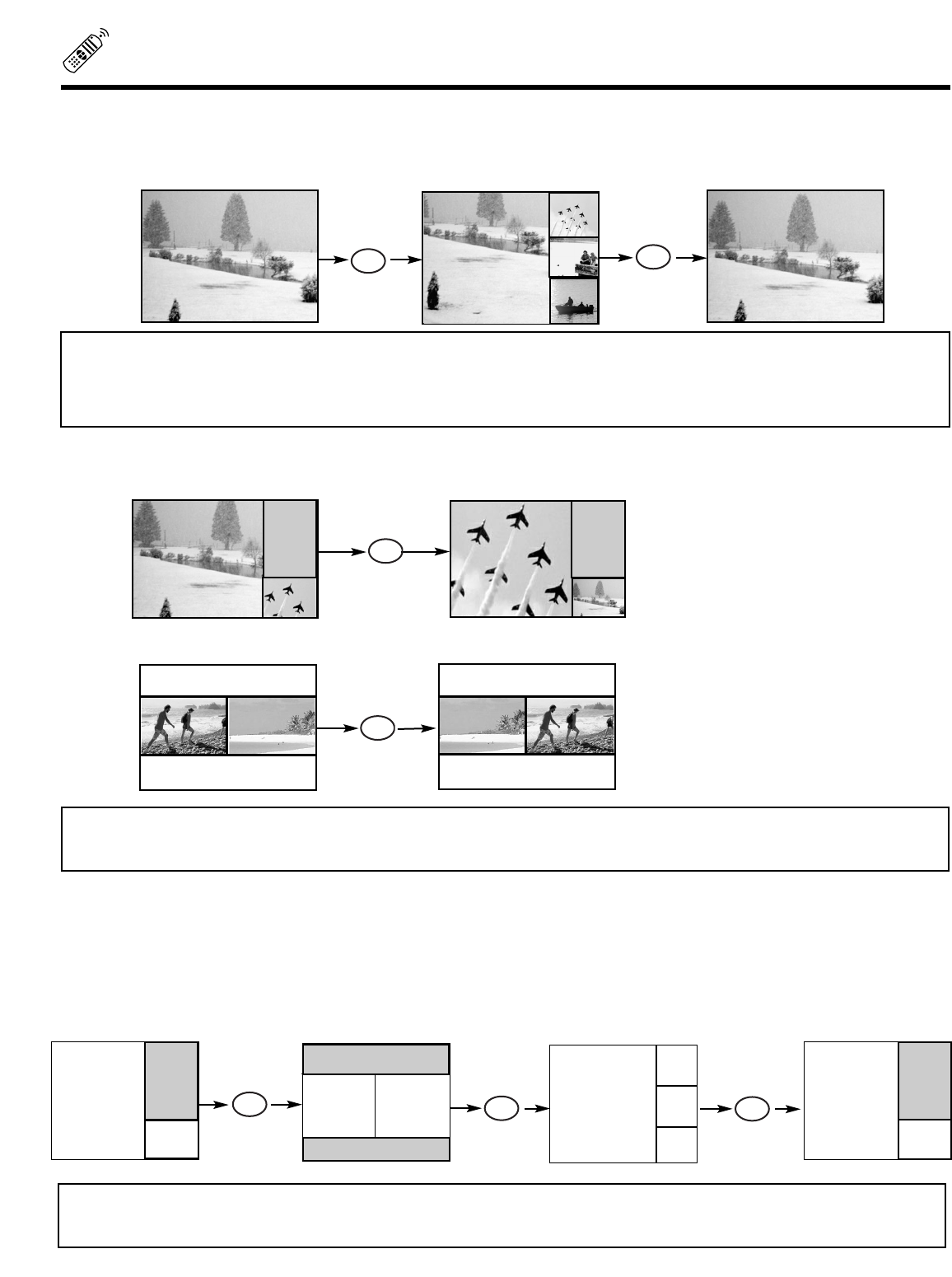
SURF MODE PIP
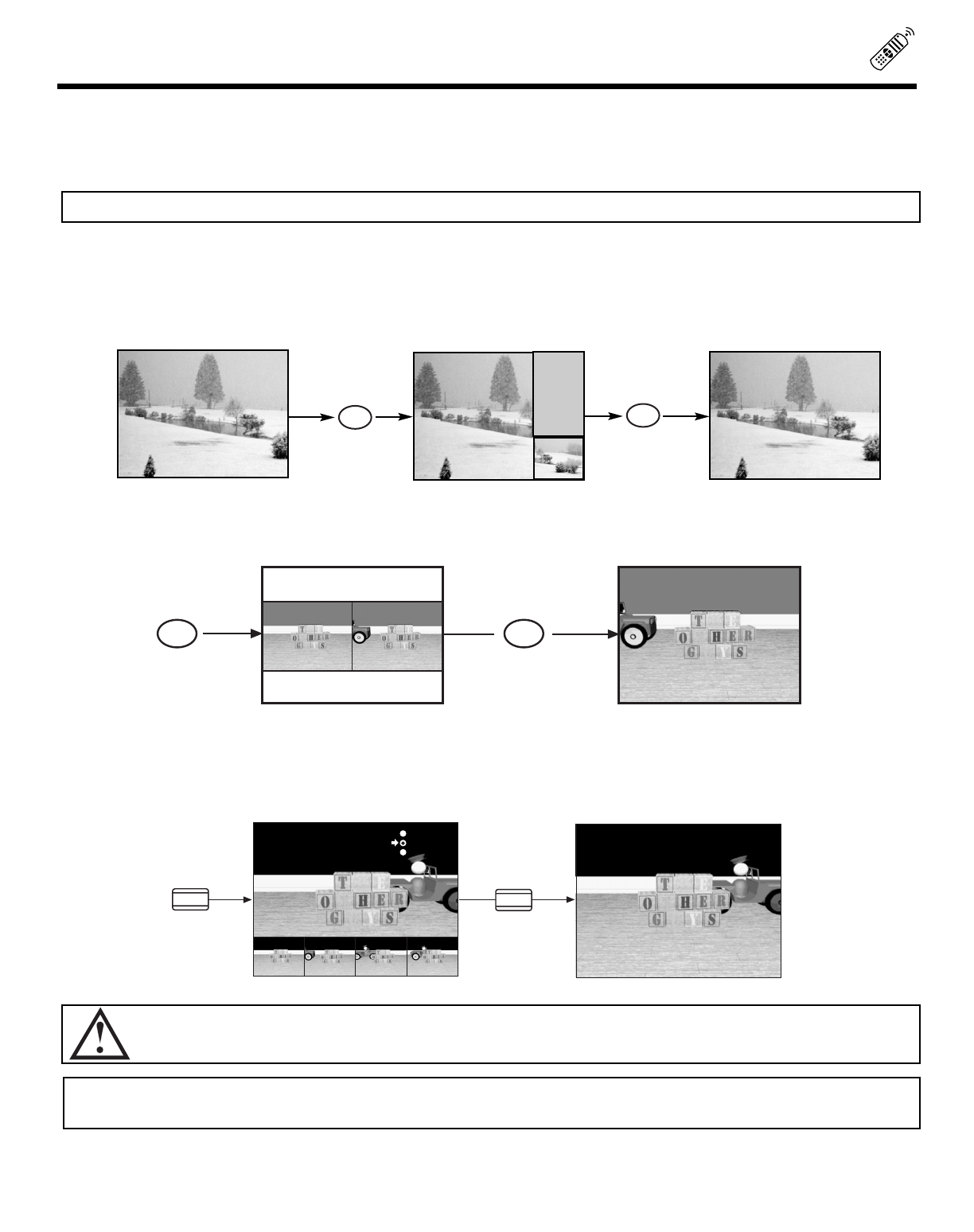
This feature will automatically scan all active channel numbers (those set in memory) and display them as PIP sub-pictures, along
the right edge of the screen. Press the PIP button a second time to remove the sub-pictures from the screen.
SWAP button
If you wish to switch what is being shown on the main picture to the sub-picture, press the SWAP button.
ANT A 28
ANT A 10
VIDEO: 1
09
10
12
PIP MODE button
To change between the three different PIP modes (SINGLE, SPLIT, or SURF) press the PIP MODE button when PIP is ON.
Each press of this button will change PIP to a different mode. Pressing this button three times will cycle through all three
different PIP modes.
ANT A 10 VIDEO: 1 VIDEO: 1 ANT A 10
SINGLE
SPLIT
PIP
PIP
SWAP
SWAP
PIP MODE
ANT A 10
VIDEO: 1
PIP MODE
PIP MODE
NOTES: 1. When main channel is COMPONENT: Y-PBPRinput, only SPLIT PIP mode will be allowed. If sub-picture is changed
to a COMPONENT: Y-PBPRusing the PIP CH button, the PIP mode will automatically change to SPLIT mode.
2. SURF mode PIP is only allowed when ANT A is the main picture.
VIDEO: 1
ANT A 10
ANT A 10
VIDEO: 1 ANT A 10
VIDEO: 1 ANT A 10
VIDEO: 1
31
PICTURE-IN-PICTURE (PIP)
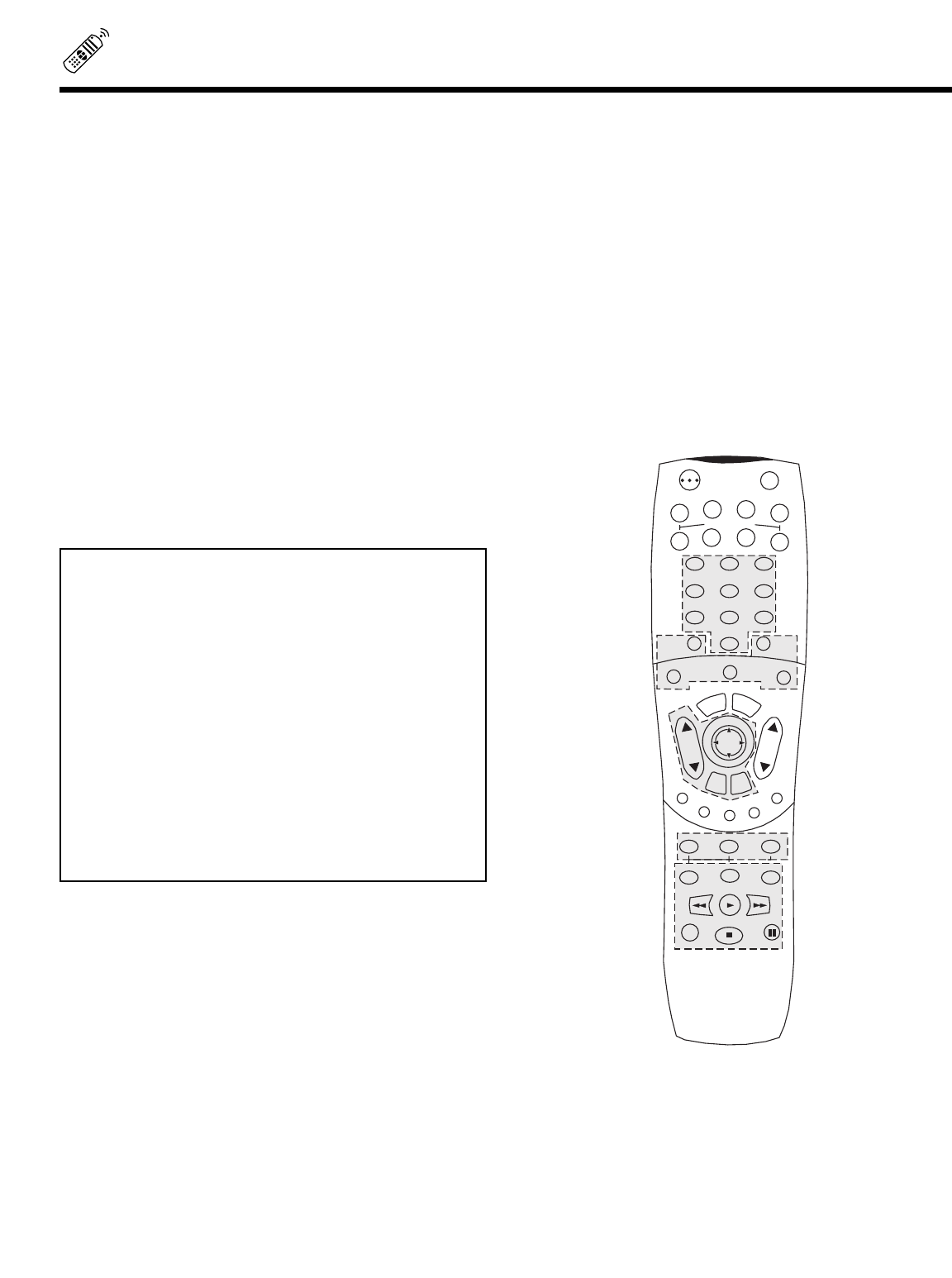
FREEZE button (With PIP ON)
If you wish to freeze the sub-picture, press the FREEZE button. This is convenient when trying to write down the address for
a mail order company, recording statistics for a sporting event, etc. To return the picture to motion, press the FREEZE button
again.
FREEZE button (With PIP OFF)
Press the FREEZE button to freeze the picture, depending on the mode selected (SINGLE, SPLIT or STROBE).
To change FREEZE modes, use the PIP MODE button to cycle through the three different modes.
SINGLE FREEZE
Press the FREEZE button to freeze one frame of the picture you are currently viewing. Press this button again or PIP to return to
normal viewing.
SPLIT FREEZE
Press the FREEZE button to freeze the picture you are currently viewing. (Only the right sub-picture will freeze). Press this button
again or PIP to return to normal viewing.
CAUTION: Apattern burn may develop if the sub-picture is left in the same corner permanently. If the PIP feature is used
frequently, occasionally MOVE the sub-picture using the THUMB STICK , or .
NOTES: 1. Each freeze frame is delayed about 0.1 (1/10) second.
2. When viewing a COMPONENT: Y-PBPR INPUT, only SPLIT MODE FREEZE is allowed.
NOTE: The FREEZE function will only operate when SINGLE PIP or SPLIT PIP mode is chosen.
Hot Springs Clay Mask
C/O John Doe
Run-Spa Retreat
P.O. Box 55512
Any Town, USA 98765
Check or
Money Order Only
1-800-555-1212
Hot Springs Clay
Mask
C/O CHAU/CHAN
Run-Spa Retreat
P.O. Box 55512
Any Town, USA 98765
Check or
Money Order Only
1-800-555-1212
FREEZEFREEZE
STROBE FREEZE
Press the FREEZE button to freeze three frames of the picture you are currently viewing. Press this button again or PIP to return
to normal viewing. This feature is useful for viewing a moving picture that has many details, for example, a close play in a sporting
event or a golf swing.
FREEZE
FRZ FRZ
SPLIT
STROBE 4
STROBE 7
FREEZE
ANT A 10
32
USING THE REMOTE TO CONTROL VCR FUNCTION
Operating the precoded function for your VCR.
This remote is designed to operate different types of VCRs. You must first program the remote to match the remote system of your
VCR. (refer to page 37 for pre-codes)
1. Turn ON your VCR.
2. Aim the remote control at the front of your VCR.
3. Press and release the VCR button to switch to VCR pre-coded mode.
4. Hold down the VCR button on the remote and enter the two digit preset code that matches your VCR, as shown on page 37. The
indicator light will flash 3 times if the code was accepted.
5. Aim the remote at the VCR and press the POWER button. The remote will turn off your VCR when the correct two digit preset code
is entered. When this occurs, the remote control is programmed for your VCR. If the VCR does not turn off, try a different two digit
preset code.
6. The remote will now control your VCR.
NOTES:
1. If your VCR cannot be operated after performing the
above procedures, your VCR s code has not been
precoded into the remote.
2. In the unlikely event that your VCR cannot be operated
after performing the above procedures, please consult
your VCR operating guide.
3. The remote control will remember the codes you have
programmed until the batteries are removed from the
remote control. After replacing the batteries repeat the
entire programming procedure as stated above.
4. The MENU button will act as the VCR MENU button for
HITACHI VCRs.
5. The LAST CH button will act as your VCR ENTER button
if required.
6. The SLEEP button will act as your VCR 100 button if
required.
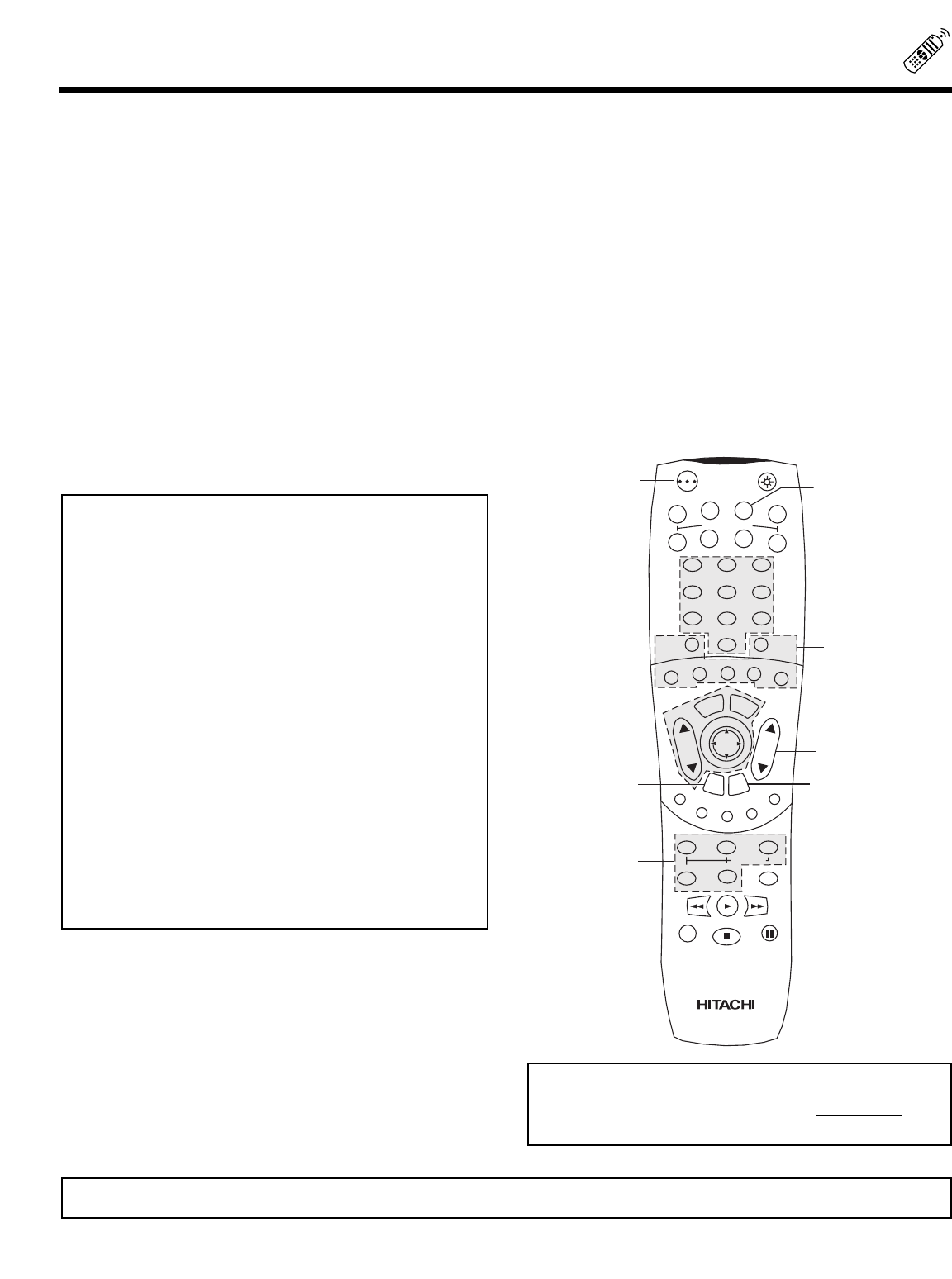
VCR Button
This button allows the remote to control your VCR by setting
it to VCR mode.
PRECODED VCR Buttons
These buttons transmit the chosen precoded VCR codes.
For some VCRs, you must press the RECORD button twice
to record a program.
EXCLUSIVE TV Buttons
These buttons are for operating the TV.
POWER
TV VCR CBL
AV2
AV1 AV3
SAT
DVD
12
456
3
789
0
LAST CHSLEEP
INPUT
HELP
C.S.
EXIT
MENU
CHVOL
RECALL
MUTE
GUIDE/TVGUIDE/TVGUIDE/TV
INFO
VCR PLUS+
SVCS
GUIDE/TV
SCHD
PIP PIP CH
SWAP
FREEZE
PIP MODE PIP ACCESS
PROG TV/VCR SLOW
SOURCE WIZARD
33
USING THE REMOTE TO CONTROL CABLE BOX FUNCTIONS
Operating the precoded function for your cable box.
This remote is designed to operate different types of cable boxes. You must first program the remote to match the remote system of
your cable box. (refer to page 37)
1. Turn ON your cable box.
2. Aim the remote control at the front of your cable box.
3. Press and release the Cable (CBL) button to switch to Cable pre-coded mode.
4. Hold down the CBL button on the remote and enter the two digit preset code that matches your cable box as shown on page 37.
The indicator light will flash 3 times if the code was accepted.
5. Aim the remote at the cable box and press the POWER button. The remote will turn off your cable box when the correct two digit
preset code is entered. When this occurs, the remote control is programmed for your cable box. If the cable box does not turn off,
try a different two digit preset code.
6. The remote will now control your Cable box.
NOTES:
1. If your cable box cannot be operated after performing the
above procedures, your cable box code has not been
precoded into the remote.
2. In the unlikely event that your cable box cannot be
operated after performing the above procedures, please
consult your cable box operating guide.
3. The remote control will remember the codes you have
programmed until the batteries are removed from the
remote control. After replacing the batteries repeat the
entire programming procedure as stated above.
4. The LAST CH button will act as the cable box ENTER
button if required.
5. The SLEEP button will act as your cable box 100 button
if required.
6. The INPUT button will act as the TV/SAT button when in
SAT mode.
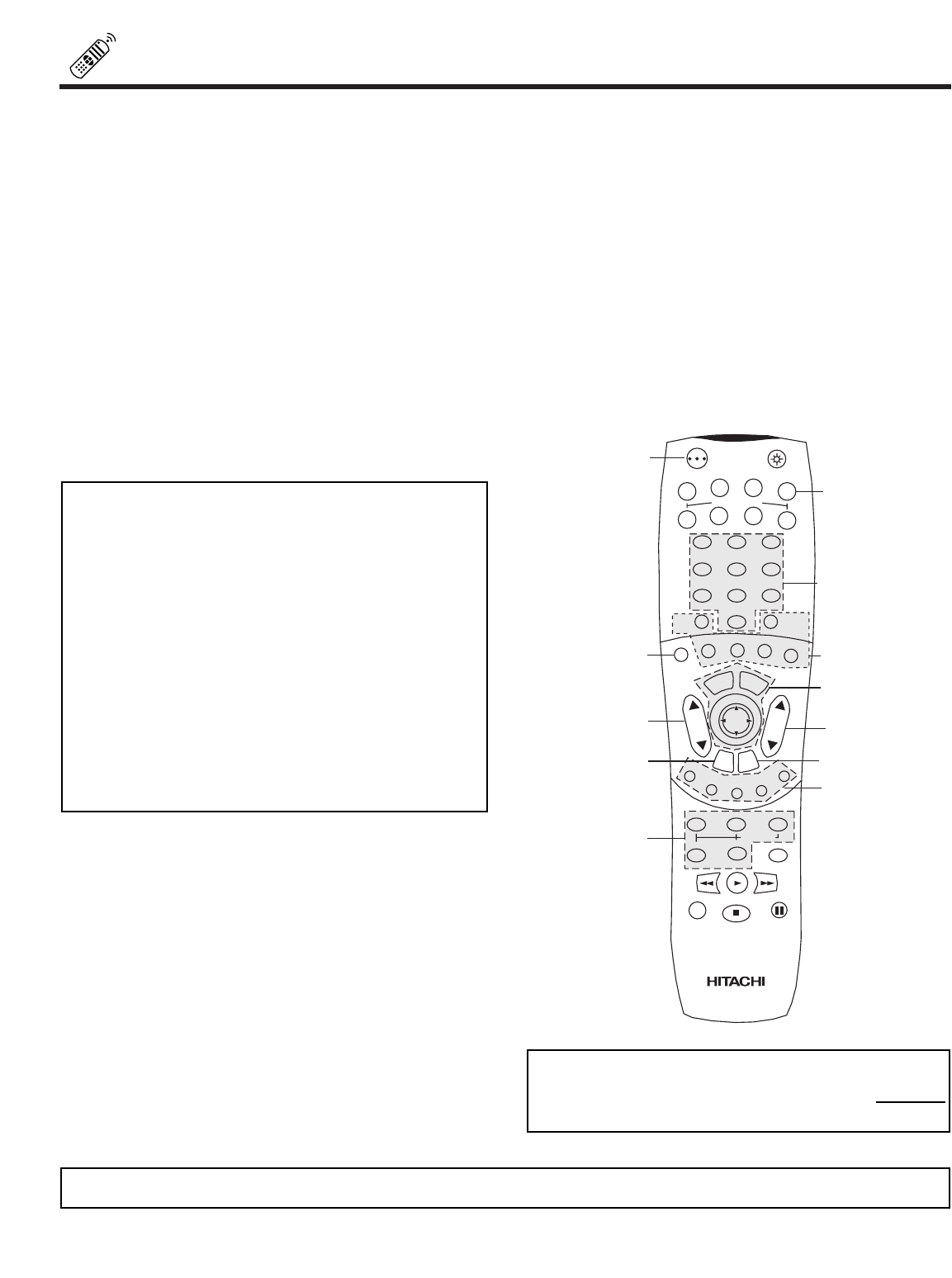
CABLE (CBL) button
This button allows the remote to control your cable box by
setting it to CABLE mode.
PRECODED CABLE BOX buttons
These buttons transmit the chosen precoded cable codes.
EXCLUSIVE TV buttons
These buttons are for operating the TV.
POWER
TV VCR CBL
AV2
AV1 AV3
SAT
DVD
12
456
3
789
0
LAST CHSLEEP
INPUT
HELP
C.S.
EXIT
MENU
CHVOL
RECALL
MUTE
GUIDE/TVGUIDE/TVGUIDE/TV
INFO
VCR PLUS+
SVCS
GUIDE/TV
SCHD
PIP PIP CH
SWAP
FREEZE
PIP MODE PIP ACCESS
PROG TV/VCR SLOW
SOURCE WIZARD
REC
SELECT
TV/PC
ASPECT
MY CABLE BOX CODE IS:
NOTE: Refer to instruction manual of the Cable Box for operation of the buttons exclusively for the Cable Box.
USING THE REMOTE TO CONTROL
SATELLITE RECEIVER FUNCTIONS
34
Operating the precoded function for your satellite receiver.
This remote is designed to operate different types of satellite systems. You must first program the remote to match the remote system
of your satellite receiver. (refer to page 37)
1. Turn ON your satellite receiver.
2. Aim the remote control at the front of your satellite receiver.
3. Press and release the SATELLITE (SAT) button to switch to satellite pre-coded mode.
4. Hold down the SAT button on the remote and enter the two digit preset code that matches your satellite receiver as shown on page
37. The indicator light will flash 3 times if the code was accepted.
5. Aim the remote at the satellite receiver and press the POWER button. The remote will turn off your satellite receiver when the
correct two digit preset code is entered. When this occurs, the remote control is programmed for your satellite receiver. If the
satellite receiver does not turn off, try a different two digit preset code.
6. The remote will now control your satellite receiver.
NOTES:
1. If your satellite receiver cannot be operated after
performing the above procedures, your satellite receiver
code has not been precoded into the remote.
2. In the unlikely event that your satellite receiver cannot be
operated after performing the above procedures, please
consult your satellite receiver operating guide.
3. The remote control will remember the codes you have
programmed until the batteries are removed from the
remote control. After replacing the batteries repeat the
entire programming procedure as stated above.
4. The INPUT button will act as the TV/SAT button when in
SAT mode.
SATELLITE (SAT) button
This button allows the remote to control your satellite
receiver by setting it to SATELLITE mode.
PRECODED SATELLITE RECEIVER buttons
These buttons transmit the chosen precoded satellite codes.
EXCLUSIVE TV buttons
These buttons are for operating the TV.
POWER
TV VCR CBL
AV2
AV1 AV 3
SAT
DVD
12
456
3
789
0
LAST CHSLEEP
INPUT
HELP
C.S.
EXIT
MENU
CHVOL
RECALL
MUTE
GUIDE/TVGUIDE/TVGUIDE/TV
INFO
VCR PLUS+
SVCS
GUIDE/TV
SCHD
PIP PIP CH
SWAP
FREEZE
PIP MODE
PIP ACCESS
PROG TV/VCR SLOW
SOURCE WIZARD
REC
SELECT
TV/PC
ASPECT
MY SATELLITE RECEIVER CODE IS:
NOTE: Refer to instruction manual of the Satellite Receiver for operation of the buttons exclusively for the Satellite Receiver.
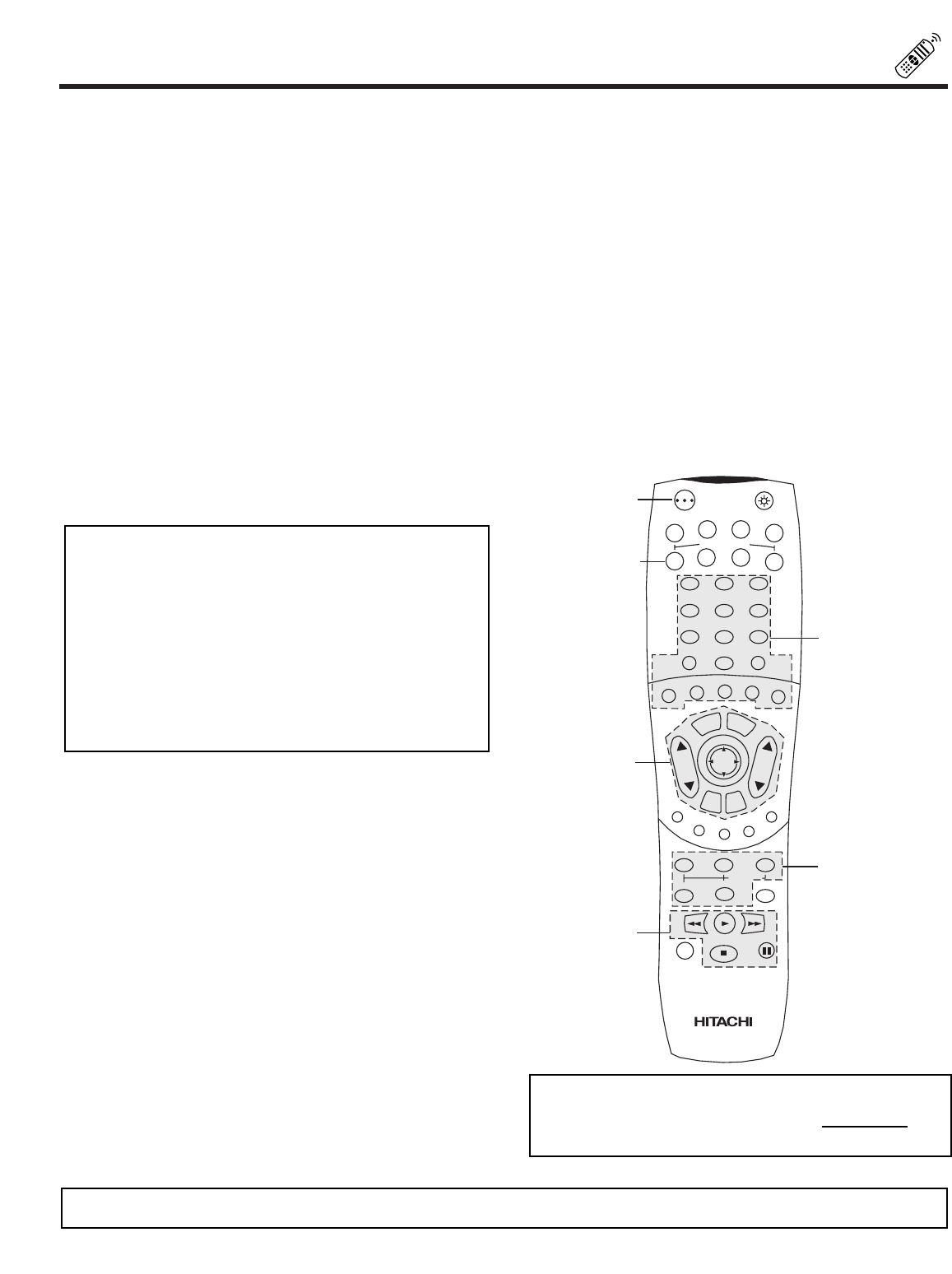
35
USING THE REMOTE TO CONTROL DVD FUNCTIONS
Operating the precoded function for your DVD player.
This remote is designed to operate different types of DVD players. You must first program the remote to match the remote system of
your DVD player. (refer to page 37 for pre-codes)
1. Turn ON your DVD player.
2. Aim the remote control at the front of your DVD player.
3. Press and release the DVD button to switch to DVD pre-coded mode.
4. Hold down the DVD button on the remote and enter the two digit preset code that matches your DVD player, as shown on page 37.
The indicator light will flash 3 times if the code was accepted.
5. Aim the remote at the DVD player and press the POWER button. The remote will turn off your DVD player when the correct two
digit preset code is entered. When this occurs, the remote control is programmed for your DVD player. If the DVD player does not
turn off, try a different two digit preset code.
6. The remote will now control your DVD player.
NOTES:
1. If your DVD player cannot be operated after performing
the above procedures, your DVD players code has not
been precoded into the remote.
2. In the unlikely event that your DVD player cannot be
operated after performing the above procedures, please
consult your DVD player operating guide.
3. The remote control will remember the codes you have
programmed until the batteries are removed from the
remote control. After replacing the batteries repeat the
entire programming procedure as stated above.
DVD Button
This button allows the remote to control your DVD player by
setting it to DVD mode.
PRECODED DVD Buttons
These buttons transmit the chosen precoded DVD codes.
EXCLUSIVE TV Buttons
These buttons are for operating the TV.
POWER
TV VCR CBL
AV2
AV1 AV 3
SAT
DVD
12
456
3
789
0
LAST CHSLEEP
EXIT
MENU
CHVOL
RECALL
MUTE
GUIDE/TVGUIDE/TVGUIDE/TV
INFO
VCR PLUS+
SVCS
GUIDE/TV
SCHD
PIP PIP CH
SWAP
FREEZE
PIP MODE
PIP ACCESS
PROG TV/VCR SLOW
SOURCE WIZARD
REC
SELECT
INPUT
HELP
C.S.
TV/PC
ASPECT
MY DVD PLAYER CODE IS:
NOTE: Refer to instruction manual of the DVD player for operation of the buttons exclusively for the DVD player.
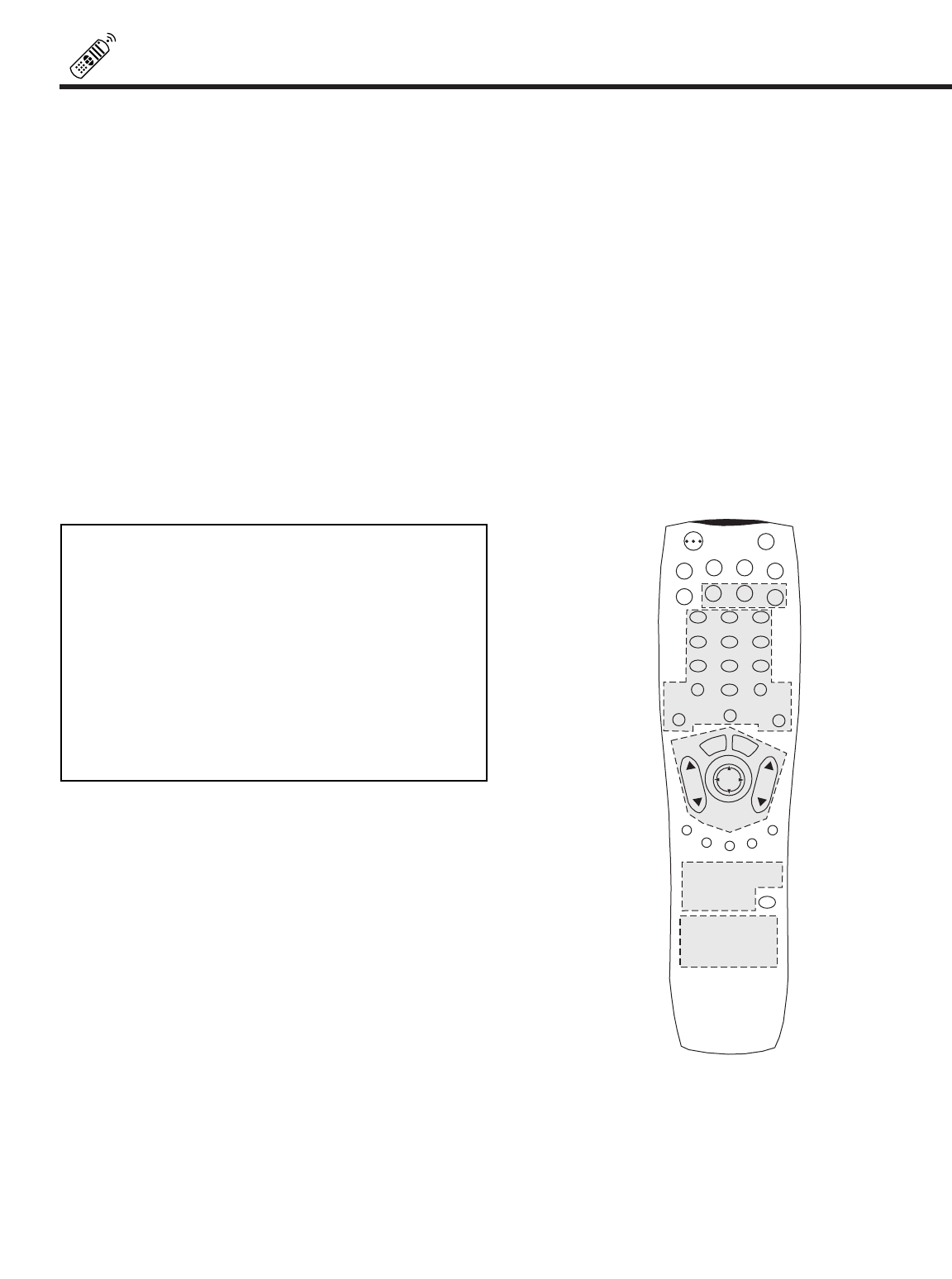
36
USING THE REMOTE TO CONTROL
ADDITIONAL AUDIO/VIDEO EQUIPMENT
Operating the precoded function for your Audio/Video component.
This remote is designed to operate different types of Audio/Video component. You must first program the remote to match the remote
system of your Audio/Video component. (refer to page 37 for pre-codes)
1. Turn ON your Audio/Video component you wish to control with the Remote.
2. Aim the remote control at the front of your Audio/Video component.
3. Press and release the AV1, AV2 or AV3 button to switch to Audio/Video component pre-coded mode.
4. Hold down the AV1, AV2 or AV3 button on the remote and enter the two digit preset code that matches your Audio/Video component,
as shown on page 37. The indicator light will flash 3 times if the code was accepted.
5. Aim the remote at the Audio/Video component and press the POWER button. The remote will turn off your Audio/Video component
when the correct two digit preset code is entered. When this occurs, the remote control is programmed for your Audio/Video
component. If the Audio/Video component does not turn off, try a different two digit preset code.
6. The remote will now control your Audio/Video component.
7. Repeat steps 1 - 6 if you wish to program the remote to control another Audio/Video component. Be sure to use a different A/V
button on the remote, since only one component can be programmed per button.
NOTES:
1. If your Audio/Video component cannot be operated after
performing the above procedures, your Audio/Video
component s code has not been precoded into the
remote.
2. In the unlikely event that your Audio/Video component
cannot be operated after performing the above
procedures, please consult your Audio/Video equipment
operating guide.
3. The remote control will remember the codes you have
programmed until the batteries are removed from the
remote control. After replacing the batteries repeat the
entire programming procedure as stated above.
AV1, AV2, AV3 Buttons
These buttons allows the remote to control your Audio/Video
equipment by setting it to Audio/Video mode.
PRECODED AUDIO/VIDEO Buttons
These buttons transmit the chosen precoded Audio/Video
component codes.
EXCLUSIVE TV Buttons
These buttons are for operating the TV.

37
VCR BRAND. . . . . . . . . . . . . CODE
Adventura . . . . . . . . . . . . . . . . . . 01
Aiko. . . . . . . . . . . . . . . . . . . . . . . 09
Aiwa . . . . . . . . . . . . . . . . . . . . . . 01
Akai. . . . . . . . . . . . . . . . . 02, 47, 48
American High. . . . . . . . . . . . . . . 23
Asha . . . . . . . . . . . . . . . . . . . . . . 44
Audiovox . . . . . . . . . . . . . . . . . . . 24
Beaumark . . . . . . . . . . . . . . . . . . 44
Bell & Howell. . . . . . . . . . . . . . . . 32
Brandt . . . . . . . . . . . . . . . . . . . . . 42
Broksonic. . . . . . . 33, 34, 41, 49, 50
Calix . . . . . . . . . . . . . . . . . . . . . . 24
Canon . . . . . . . . . . . . . . . . . . . . . 23
Capehart . . . . . . . . . . . . . . . . . . . 07
Carver. . . . . . . . . . . . . . . . . . . . . 31
CCE . . . . . . . . . . . . . . . . . . . 09, 30
Citizen. . . . . . . . . . . . . . . . . . 09, 24
Colt . . . . . . . . . . . . . . . . . . . . . . . 30
Craig . . . . . . . . . . . . . 19, 24, 30, 44
Curtis Mathes. . . . . . . . . . 02, 23, 46
Cybe rnex . . . . . . . . . . . . . . . . . . 44
Daewoo . . . . . . . . . . . 07, 09, 17, 37
Daytron . . . . . . . . . . . . . . . . . . . . 07
Dynatech. . . . . . . . . . . . . . . . . . . 01
Electrohome . . . . . . . . . . . . . . . . 24
Electrophonic. . . . . . . . . . . . . . . . 24
Emerex . . . . . . . . . . . . . . . . . . . . 08
Emerson . . . . 01, 09, 13, 16, 24, 27,
. . . . . . 28, 33, 34, 36, 41, 47, 49, 50
Fisher. . . . . . . . . . . . . 19, 21, 32, 45
Fuji . . . . . . . . . . . . . . . . . . . . 10, 23
Funai. . . . . . . . . . . . . . . . . . . . . . 01
GE. . . . . . . . . . . . . . . 04, 23, 40, 46
Gerrard . . . . . . . . . . . . . . . . . . . . 01
Goldstar. . . . . . . . . . . . . . 24, 25, 43
Gradiente . . . . . . . . . . . . . . . . . . 01
Harley Davidson . . . . . . . . . . . . . 01
Harmon/Kardon. . . . . . . . . . . . . . 25
Harwood . . . . . . . . . . . . . . . . . . . 30
Headquarter . . . . . . . . . . . . . . . . 18
Hi-Q . . . . . . . . . . . . . . . . . . . . . . 19
Hitachi . . . . . . . . . 01, 02, 03, 04, 05
Jensen . . . . . . . . . . . . . . . . . . . . 02
JVC . . . . . . . . . . . . . . . . . 02, 14, 26
KEC. . . . . . . . . . . . . . . . . . . . 09, 24
Kenwood . . . . . . . . . . . . . 02, 25, 26
KLH. . . . . . . . . . . . . . . . . . . . . . . 30
Kodak . . . . . . . . . . . . . . . . . . 23, 24
Lloyd . . . . . . . . . . . . . . . . . . . . . . 01
Lloyd s. . . . . . . . . . . . . . . . . . . . . 27
Logik . . . . . . . . . . . . . . . . . . . . . . 30
LXI . . . . . . . . . . . . . . . . . . . . . . . 24
Magnavox . . . . . . 15, 23, 29, 31, 35
Magnin . . . . . . . . . . . . . . . . . . . . 44
Marantz . . . . . . . . . . . . . . . . . 23, 31
Marta. . . . . . . . . . . . . . . . . . . . . . 24
Matsushita. . . . . . . . . . . . . . . . . . 23
MEI . . . . . . . . . . . . . . . . . . . . . . . 23
Memorex. . . . . . . . . . 01, 15, 18, 19,
. . . . . . . . . . . . . . 20, 23, 24, 32, 44
MGA . . . . . . . . . . . . . . . . . . . 16, 47
MGN Technology. . . . . . . . . . . . . 44
Minolta. . . . . . . . . . . . . . . . . . 03, 05
Mitsubishi. . . . . . . 16, 26, 39, 47, 48
Motorola . . . . . . . . . . . . . . . . 20, 23
MTC . . . . . . . . . . . . . . . . . . . 01, 44
Multitech . . . . . . . . . . . . . . . . 01, 30
NEC. . . . . . . . . . . 02, 06, 25, 26, 32
Nikko. . . . . . . . . . . . . . . . . . . . . . 24
Noblex. . . . . . . . . . . . . . . . . . . . . 44
Olympus . . . . . . . . . . . . . . . . 12, 23
Optimus . . . . . . . . . . . . . 20, 24, 32
Orion. . . . . . . . . . . . . . . . . . . . . . 49
Panasonic. . . . . . . 11, 12, 23, 38, 51
Penney. . . 03, 06, 23, 24, 25, 44, 45
Pentax. . . . . . . . . . . . . . . 03, 04, 05
Philco . . . . . . . . . . . . . . . . . . . . . 23
Phillips. . . . . . . . . . . . . . . 23, 29, 31
Pilot. . . . . . . . . . . . . . . . . . . . . . . 24
Pioneer . . . . . . . . . . . . . . . . . . . . 26
Portland. . . . . . . . . . . . . . . . . . . . 07
Protec . . . . . . . . . . . . . . . . . . . . . 30
Pulsar . . . . . . . . . . . . . . . . . . . . . 15
Quarter . . . . . . . . . . . . . . . . . . . . 18
Quartz. . . . . . . . . . . . . . . . . . . . . 18
Quasar . . . . . . . . . . . . . . . . . . . . 23
Radio Shack . . . . . . . . . . . . . 01, 24
Radix. . . . . . . . . . . . . . . . . . . . . . 24
Randex . . . . . . . . . . . . . . . . . . . . 24
RCA. . . . . . . . 03, 04, 05, 35, 40, 46
Realistic . . . . . . . . . . 01, 18, 19, 20,
. . . . . . . . . . . . . . 21, 23, 24, 32, 44
Ricoh. . . . . . . . . . . . . . . . . . . . . . 22
Runco . . . . . . . . . . . . . . . . . . . . . 15
Samsung. . . . . . . . . . . . . . . . 17, 44
Sanky . . . . . . . . . . . . . . . . . . 15, 20
Sansui. . . . . . . . . . . . . . . . . . 02, 26
Sanyo . . . . . . . . . . . . 18, 19, 32, 44
Scott. . . . . . . . 16, 17, 33, 34, 36, 41
Sears . . . . . . . . . . . . . . . 03, 05, 18,
. . . . . . . . . . . . . . 21, 23, 24, 32, 45
Sharp . . . . . . . . . . . . . . . . . . . . . 20
Shintom. . . . . . . . . . . . . . . . . . . . 30
Shogun . . . . . . . . . . . . . . . . . . . . 44
Singer . . . . . . . . . . . . . . . . . . . . . 30
Sony . . . . . . . . . . . . . 08, 10, 22, 23
STS. . . . . . . . . . . . . . . . . . . . . . . 03
Sylvania. . . . . . . . 01, 16, 23, 29, 31
Symphonic. . . . . . . . . . . . . . . . . . 01
Tatung. . . . . . . . . . . . . . . . . . . . . 02
Teac . . . . . . . . . . . . . . . . . . . 01, 02
Technics . . . . . . . . . . . . . . . . 23, 38
Teknika . . . . . . . . . . . . . . 01, 23, 24
Telefunken. . . . . . . . . . . . . . . . . . 42
TMK . . . . . . . . . . . . . . . . . . . . 27,44
Toshiba . . . . . . . . . . . 16, 17, 21, 36
Totvision . . . . . . . . . . . . . . . . 24, 44
Unitech . . . . . . . . . . . . . . . . . . . . 44
Vector . . . . . . . . . . . . . . . . . . . . . 17
Vector Research . . . . . . . . . . 06, 25
Video Concepts . . . . . . . . 06, 17, 47
Videosonic. . . . . . . . . . . . . . . . . . 44
Wards . . . . . . . . . 01, 03, 19, 20, 23,
. . . . . . . . . . . . . . 30, 35, 36, 44, 46
XR-1000 . . . . . . . . . . . . . 01, 23, 30
Yamaha. . . . . . . . . . . . . . . . . . . . 25
Zenith . . . . . . . . . . . . . . . 10, 15, 22
DVD BRAND. . . . . . . . . . . . . CODE
Denon . . . . . . . . . . . . . . . . . . . . . 04
Hitachi. . . . . . . . . . . . . . . . . . . . . 07
JVC. . . . . . . . . . . . . . . . . . . . . . . 01
Kenwood. . . . . . . . . . . . . . . . . . . 04
Magnavox . . . . . . . . . . . . . . . . . . 05
Mitsubishi . . . . . . . . . . . . . . . . . . 10
Panasonic . . . . . . . . . . . . . . . . . . 04
Phillips. . . . . . . . . . . . . . . . . . . . . 06
Pioneer . . . . . . . . . . . . . . . . . . . . 03
RCA (Proscan). . . . . . . . . . . . . . . 09
Sony . . . . . . . . . . . . . . . . . . . . . . 02
Toshiba . . . . . . . . . . . . . . . . . . . . 05
Yamaha. . . . . . . . . . . . . . . . . . . . 08
Zenith . . . . . . . . . . . . . . . . . . . . . 05
CABLE BRAND . . . . . . . . . . CODE
ABC . . . . . . . . . . . . . 01, 07, 08, 17,
. . . . . . . . . . . . . . 18, 20, 36, 37, 49
Antronix. . . . . . . . . . . . . . . . . . . . 39
Archer . . . . . . . . . . . . . . . 11, 24, 39
Belcor . . . . . . . . . . . . . . . . . . . . . 32
Cable Star. . . . . . . . . . . . . . . . . . 32
Century . . . . . . . . . . . . . . . . . . . . 11
Citizen. . . . . . . . . . . . . . . . . . . . . 11
Colour Voice . . . . . . . . . . . . . 30, 42
Comtronics . . . . . . . . . . . . . . 25, 28
Contec. . . . . . . . . . . . . . . . . . . . . 21
Dae Ryung . . . . . . . . . . . . . . . . . 20
Eastern . . . . . . . . . . . . . . . . . . . . 14
Electricord . . . . . . . . . . . . . . . . . . 31
Everquest . . . . . . . . . . . . . . . . . . 51
Focus . . . . . . . . . . . . . . . . . . . . . 52
GC Electronics. . . . . . . . . . . . 32, 39
Gemini. . . . . . . . . . . . 05, 38, 43, 51
General Instrument . . . . . . . . 01, 12
Goldstar. . . . . . . . . . . . . . . . . 10, 25
Hamlin . . . . . . . . . . . . 04, 13, 22, 23
Hitachi. . . . . . . . . . . . . . . . . . . . . 01
Hytex. . . . . . . . . . . . . . . . . . . . . . 36
Jasco. . . . . . . . . . . . . . . . . . . . . . 11
Jerrold . . . 01, 08, 12, 37, 49, 50, 51
Macom . . . . . . . . . . . . . . . . . . . . 35
Magnavox . . . . . . . . . . . . . . . . . . 15
Memorex. . . . . . . . . . . . . . . . . . . 03
Movie Time . . . . . . . . . . . 29, 31, 33
NSC. . . . . . . . . . . . . . . . . 29, 33, 38
Oak . . . . . . . . . . . . . . . . . 21, 36, 46
Panasonic . . . . . . . . . . . . 02, 03, 09
Paragon. . . . . . . . . . . . . . . . . . . . 03
Phillips. . . . . . . . . . . . 11, 15, 16, 26,
. . . . . . . . . . . . . . . . . 30, 42, 43, 44
Pioneer . . . . . . . . . . . . . . 06, 10, 19
Popular Mechanics . . . . . . . . . . . 52
Pulsar . . . . . . . . . . . . . . . . . . . . . 03
RCA . . . . . . . . . . . . . . . . . . . . . . 02
Realistic. . . . . . . . . . . . . . . . . . . . 39
Recoton. . . . . . . . . . . . . . . . . . . . 52
Regal. . . . . . . . . . . . . . . . 04, 22, 34
Regency . . . . . . . . . . . . . . . . . . . 14
Rembrandt. . . . . . . . . . . . . . . 01, 38
Runco . . . . . . . . . . . . . . . . . . . . . 03
Samsung. . . . . . . . . . . . . . . . 10, 25
Scientific Atlanta. . . . . 17, 20, 41, 45
Signal . . . . . . . . . . . . . . . . . . 25, 51
Signature. . . . . . . . . . . . . . . . . . . 01
SL Marx. . . . . . . . . . . . . . . . . . . . 25
Sprucer . . . . . . . . . . . . . . . . . . . . 02
Starcom. . . . . . . . . . . . . . 37, 49, 51
Stargate. . . . . . . . . . . . . . . . . 25, 51
Starquest. . . . . . . . . . . . . . . . . . . 51
Starsight . . . . . . . . . . . . . . . . 53, 54
Sylvania. . . . . . . . . . . . . . . . . . . . 18
Teleview . . . . . . . . . . . . . . . . . . . 25
Texscan. . . . . . . . . . . . . . . . . . . . 18
Tocom . . . . . . . . . . . . . . . 07, 27, 50
Toshiba . . . . . . . . . . . . . . . . . . . . 03
Tusa . . . . . . . . . . . . . . . . . . . . . . 51
TV 86 . . . . . . . . . . . . . . . . . . . . . 29
Unika. . . . . . . . . . . . . . . . . . . 11, 39
United Artists. . . . . . . . . . . . . . . . 36
United Cable . . . . . . . . . . . . . . . . 49
Universal . . . . 11, 24, 31, 32, 34, 39
Videoway. . . . . . . . . . . . . . . . . . . 47
Viewstar. . . . . . . . . . . 15, 28, 29, 40
Zenith . . . . . . . . . . . . . . . . . . 03, 48
Zentek. . . . . . . . . . . . . . . . . . . . . 52
SATELLITE BRAND . . . . . . . CODE
Echostar . . . . . . . . . . . . . . . . . . . 04
Hitachi. . . . . . . . . . . . . . . . . . . . . 01
Hughes . . . . . . . . . . . . . . . . . . . . 05
RCA . . . . . . . . . . . . . . . . . . . . . . 02
Sony . . . . . . . . . . . . . . . . . . . . . . 03
AMPLIFIER BRAND . . . . . . . CODE
Aiwa . . . . . . . . . . . . . . . . . . . 05, 06
Carver . . . . . . . . . . . . 01, 06, 07, 08
Casio. . . . . . . . . . . . . . . . . . . . . . 09
Clarinette. . . . . . . . . . . . . . . . . . . 09
Denon . . . . . . . . . . . . . . . . . . . . . 10
Fisher . . . . . . . . . . . . . . . . . . 08, 11
Hitachi. . . . . . . . . . . . . . . . . . . . . 12
JVC. . . . . . . . . . . . . . . . . . . . . . . 13
Kenwood . . . . . . . . . . 14, 15, 17, 18
Lloyd s. . . . . . . . . . . . . . . . . . . . . 09
Magnavox . . . . . . . . . . . . 01, 06, 09
Marantz . . . . . . . . . . . . . . 01, 06, 16
MCS . . . . . . . . . . . . . . . . . . . . . . 16
Modulaire . . . . . . . . . . . . . . . . . . 09
Onkyo . . . . . . . . . . . . . . . . . . . . . 09
Optimus . . . . . . . . 03, 04, 11, 15, 20
Panasonic . . . . . . . . . . . . . . . . . . 16
Penney . . . . . . . . . . . . . . . . . . . . 09
Philips . . . . . . . . . . . . . . . . . . 01, 06
Pioneer . . . . . . . . 03, 04, 20, 21, 22
Quasar . . . . . . . . . . . . . . . . . . . . 16
Realistic. . . . . . . . . . . . . . . . . . . . 09
Sansui. . . . . . . . . . . . . . . . . . . . . 06
Sanyo . . . . . . . . . . . . . . . . . . . . . 11
Sharp . . . . . . . . . . . . . . . . . . . . . 15
Sony . . . . . . . . . . . . . . . . . . . . . . 05
Technics. . . . . . . . 02, 16, 23, 24, 25
Victor. . . . . . . . . . . . . . . . . . . . . . 13
Wards. . . . . . . 03, 04, 05, 07, 20, 21
Yamaha. . . . . . . . . . . . . . . . . 15, 26
Yorx. . . . . . . . . . . . . . . . . . . . . . . 09
CD BRAND . . . . . . . . . . . . . . CODE
Adcom. . . . . . . . . . . . . . . . . . . . . 02
Aiwa . . . . . . . . . . . . . . . . . . . . . . 02
California Audio Lab. . . . . . . . . . . 03
Carver. . . . . . . . . . . . . . . . . . . . . 02
Denon . . . . . . . . . . . . . . . . . . . . . 04
DKK . . . . . . . . . . . . . . . . . . . . . . 05
Emerson . . . . . . . . . . . . . . . . . . . 01
Fisher . . . . . . . . . . . . . . . . . . . . . 06
Genexxa . . . . . . . . . . . . . . . . . . . 07
Hitachi . . . 01, 07, 08, 09, 10, 11, 12
JVC. . . . . . . . . . . . . . . . . . . . . . . 13
Kenwood . . . . . . . . . . . . . 06, 14, 15
Krell. . . . . . . . . . . . . . . . . . . . . . . 02
Magnavox . . . . . . . . . . . . . . . . . . 02
Marantz . . . . . . . . . . . . . . . . . 02, 03
MCS . . . . . . . . . . . . . . . . . . . . . . 03
Mission . . . . . . . . . . . . . . . . . . . . 03
NSM . . . . . . . . . . . . . . . . . . . . . . 02
Onkyo . . . . . . . . . . . . . . . . . . . . . 16
Optimus. . . . . . . . . . . . . . 05, 07, 17
Panasonic . . . . . . . . . . . . . . . . . . 03
Philips . . . . . . . . . . . . . . . . . . . . . 02
Pioneer . . . . . . . . . . . . . . . . . 07, 17
Proton . . . . . . . . . . . . . . . . . . . . . 02
QED . . . . . . . . . . . . . . . . . . . . . . 02
Quasar . . . . . . . . . . . . . . . . . . . . 03
RCA . . . . . . . . . . . . . . . . . . . 01, 21
Realistic. . . . . . . . . . . . . . . . . . . . 01
Rotel . . . . . . . . . . . . . . . . . . . . . . 02
SAE. . . . . . . . . . . . . . . . . . . . . . . 02
Sansui. . . . . . . . . . . . . . . . . . . . . 02
Scott . . . . . . . . . . . . . . . . . . . . . . 01
Sony . . . . . . . . . . . . . . . . . . . 05, 18
Technics. . . . . . . . . . . . . . 03, 19, 20
Victor. . . . . . . . . . . . . . . . . . . . . . 13
TAPE BRAND . . . . . . . . . . . . CODE
Aiwa. . . . . . . . . . . . . . . . . . . . 11, 12
Hitachi . . . . . . . . . . . . 01, 02, 03, 04
Jerrold. . . . . . . . . . . . . . . . . . 13, 14
JVC. . . . . . . . . . . . . . . . . . . . . . . 05
Kenwood. . . . . . . . . . . . . . . . . . . 06
Optimus. . . . . . . . . . . . . . . . . . . . 07
Panasonic . . . . . . . . . . . . . . . . . . 08
Pioneer . . . . . . . . . . . . . . . . . . . . 07
Scientific Atlanta . . . . . . . . . . . . . 15
Sony. . . . . . . . . . . . . . 09, 10, 11, 12
Starcom. . . . . . . . . . . . . . . . . . . . 13
Wards . . . . . . . . . . . . . . . . . . . . . 07
VCR, CABLE, SATELLITE, DVD and
AUDIO/VIDEO CODES
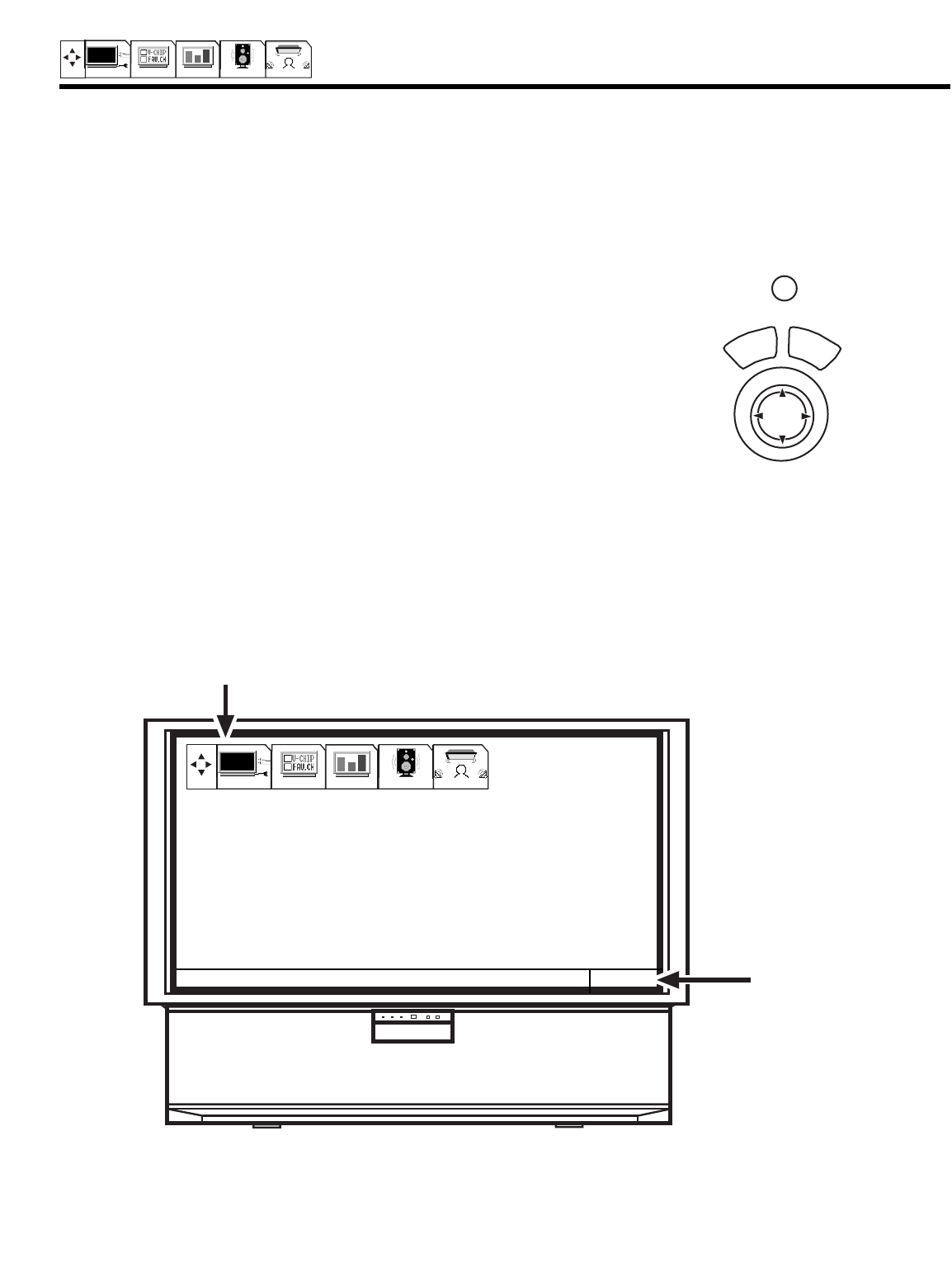
This part of the screen shows which
remote control buttons to use.
PUSH
This part of the screen shows
what selections are available.
ULTRATEC OSD
38
SETUP CUSTOMIZE VIDEO AUDIO THEATER
1. Press MENU on the remote control to display the different features on your HITACHI Projection TV.
2. Press the THUMB STICK to highlight a different feature.
3. Press EXIT on the remote control to quickly exit from a menu.
4. Press HELP on the remote control when a menu is displayed,
and text will appear giving a description of that menu.
HELP
EXIT
MENU
SELECT
TO QUIT EXIT
SETUP CUSTOMIZE VIDEO AUDIO THEATER
1. MENU LANGUAGE
2. PLUG & PLAY
3. SIGNAL SOURCE
4. AUTO CHANNEL SET
5. CHANNEL MEMORY
6. CHANNEL LIST
7. CLOCK SET
8. PICTURE FORMATS
9. LAMP TIME
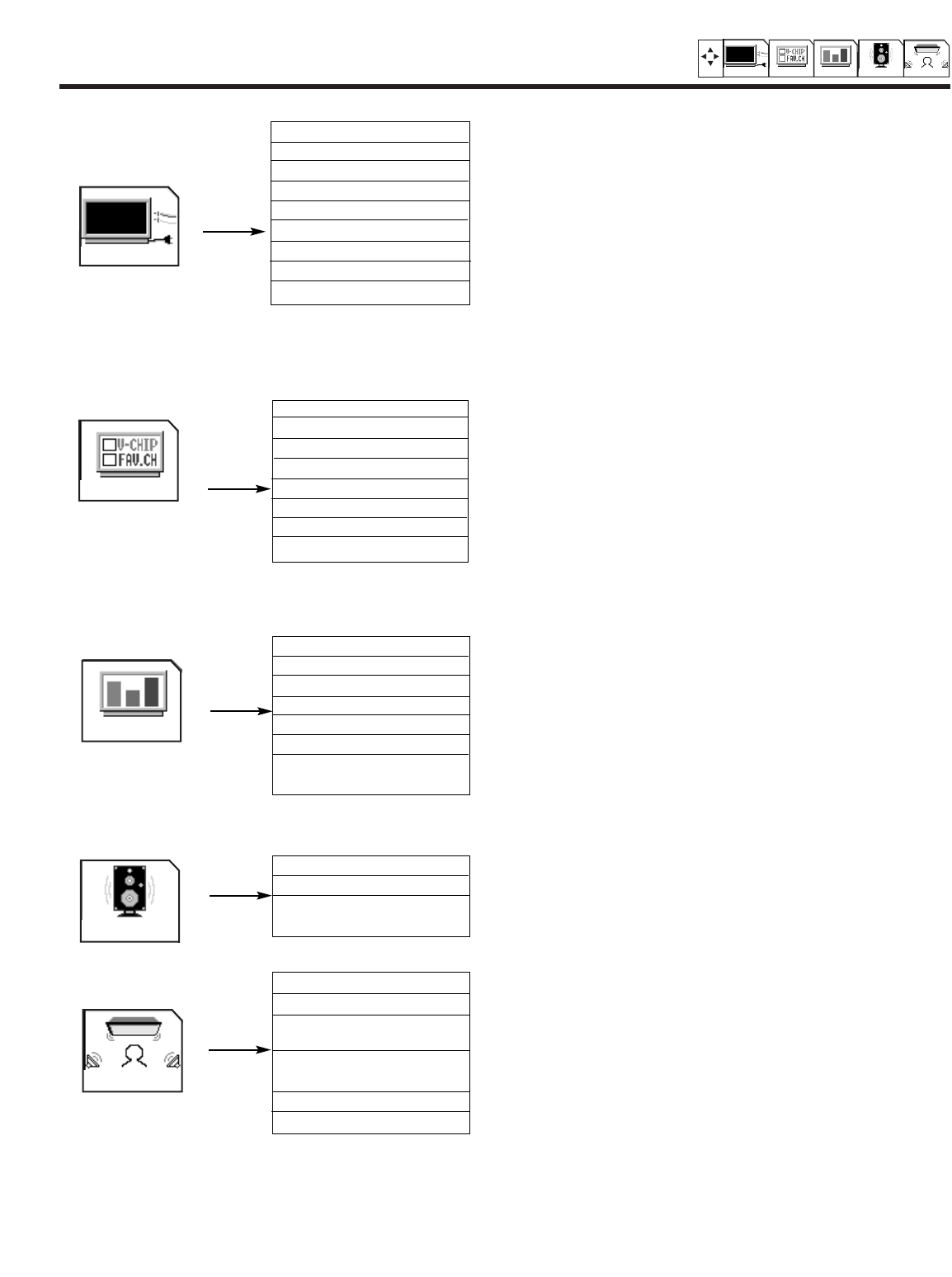
ULTRATEC OSD
39
SETUP CUSTOMIZE VIDEO AUDIO THEATER
SET UP
1. MENU LANGUAGE Choose English, French, or Spanish text.
2. PLUG & PLAY Optimum hook up for your system.
3. SIGNAL SOURCE Select Antenna or Cable TV.
4. AUTO CHANNEL SET First time set up for channel buttons.
5. CHANNEL MEMORY Channel buttons, add or skip.
6. CHANNEL LIST Check channel name, scan, and child lock.
7. CLOCK SET Set before using timer features.
8. PICTURE FORMATS Select type of screen format and component input.
9. LAMP TIME Counts the hours the television has operated.
1. CHANNEL ID. Label channels PAY1, ABC, etc.
2. VIDEO ID. Label video inputs VCR1, DVD1, etc.
3. FAMILY FAVORITES Allows you to set and view favorite channels.
4. PARENTAL CONTROL Block channel picture and sound.
5. 4 EVENT PROGRAM Turn TV on and off once, daily, or weekly.
6. AUTO LINK Automatically turn TV on with any VIDEO input.
7. CLOSED CAPTION Feature to display dialogue/text.
8. MENU BACKGROUND Select from three types of backgrounds.
1. CONTRAST Adjust contrast.
2. BRIGHTNESS Adjust brightness.
3. COLOR Adjust color.
4. TINT Adjust tint.
5. SHARPNESS Adjust sharpness.
6. RESET Set VIDEO settings to factory preset.
7. ADVANCED Improve picture performance.
SETTINGS
1. EQUALIZER Precise audio control.
2. RESET Set AUDIO settings to factory preset.
3. ADVANCED Improve sound performance.
SETTINGS
1. THEATER MODES Picture and sound are automatically set.
2. SURROUND Special sound effects, including Dolby Digital.
3. INPUT SOURCE Set audio of VIDEO 1 or VIDEO 2 to analog, optical or
coaxial (digital).
4. LISTENING Set for optimum audio performance based on your
POSITION listening position.
5. LISTENING MODE Choose between Standard, Night, or Maximum.
6. SPEAKER SETUP Select specific speaker output.
CUSTOMIZE
VIDEO
AUDIO
THEATER
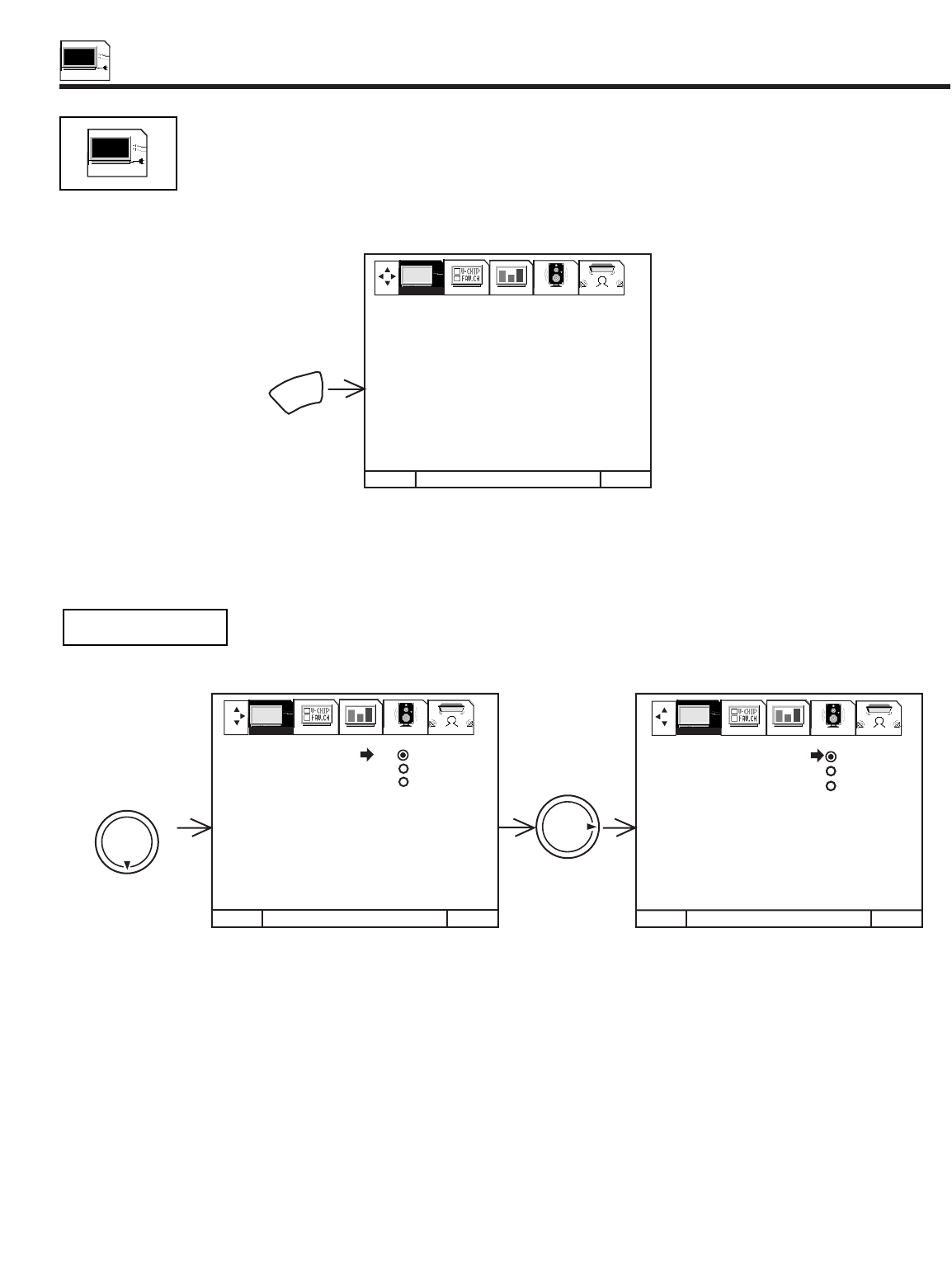
SET UP
40
SET UP
Select SETUP when setting your TV up for the first time. Use the THUMB STICK or on the remote to highlight
the function desired.
This feature will allow you to select any one of three different languages for all on-screen displays.
Use THUMB STICK or to select the MENU LANGUAGE of your choice.
Press EXIT to quit menu or THUMB STICK to return to previous menu.
MENU LANGUAGE
EXITEXITEXIT
THUMB
STICK THUMB
STICK
1. MENU LANGUAGE ENGLISH
2. PLUG &PLAY FRANCAIS
3. SIGNAL SOURCE ESPAÑOL
4. AUTO CHANNEL SET
5. CHANNEL MEMORY
6. CHANNEL LIST
7. CLOCK SET
8. PICTURE FORMATS
9. LAMP TIME
MENU TO MENU BAR TO QUITMENU TO MENU BAR TO QUIT MENU TO MENU BAR TO QUIT
1. MENU LANGUAGE ENGLISH
2. PLUG &PLAY FRANCAIS
3. SIGNAL SOURCE ESPAÑOL
4. AUTO CHANNEL SET
5. CHANNEL MEMORY
6. CHANNEL LIST
7. CLOCK SET
8. PICTURE FORMATS
9. LAMP TIME
SETUP CUSTOMIZE VIDEO AUDIO THEATER SETUP CUSTOMIZE VIDEO AUDIO THEATER
SET UP
EXIT
MENU
TO QUIT
1. MENU LANGUAGE
2. PLUG & PLAY
3. SIGNAL SOURCE
4. AUTO CHANNEL SET
5. CHANNEL MEMORY
6. CHANNEL LIST
7. CLOCK SET
8. PICTURE FORMATS
9. LAMP TIME
SETUP CUSTOMIZE VIDEO AUDIO THEATER
Use THUMB STICK or to select the sub-menu of your choice. You can also use the number buttons to directly access the sub-
menu of your choice. For example, pressing the button while in the OSD shown above, will take you directly to the CLOCK SET
sub-menu.
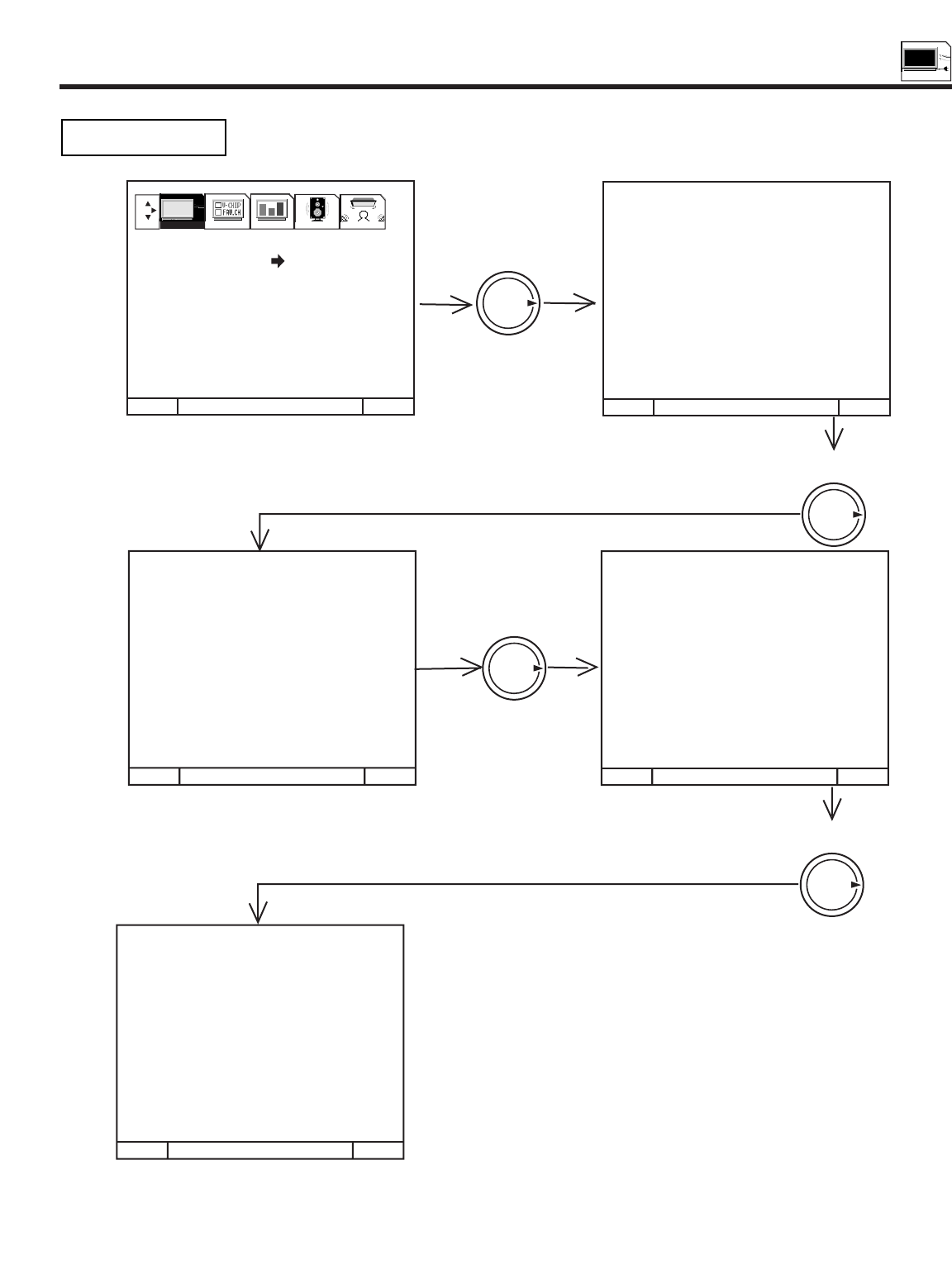
SET UP
41
SET UP
This graphic guide function will help you to properly set up your TV or Home Theater System. Simply answer
three questions and a graphic will be displayed, showing you the optimum setup for your personalized system.
Press THUMB STICK or to highlight the correct answers to all three questions.
Press THUMB STICK to display the graphic guide.
Press EXIT to quit menu or THUMB STICK to begin AUTO CHANNEL SET. (see page 43)
PLUG & PLAY
1. MENU LANGUAGE
2. PLUG & PLAY
3. SIGNAL SOURCE
4. AUTO CHANNEL SET
5. CHANNEL MEMORY
6. CHANNEL LIST
7. CLOCK SET
8. PICTURE FORMATS
9. LAMP TIME
QUESTION 1. MY TV SIGNAL
COMES FROM:
A) ANTENNA OR CABLE
(WITHOUT CABLE BOX)
B) CABLE BOX
C) SATELLITE RECEIVER
D) SATELLITE RECEIVER
(WITH CABLE BOX)
PRESS , TO SELECT
PRESS TO ENTER
QUESTION 2. I WANT TO
CONNECT A
VCR/DVD TO
MY SYSTEM.
A) YES
B) NO
PRESS , TO SELECT
PRESS TO ENTER
QUESTION 3. I WANT TO
CONNECT A
SET TOP BOX
TO MY SYSTEM
A) YES
B) NO
PRESS , TO SELECT
PRESS TO ENTER
MENU TO MENU BAR TO QUIT EXIT MENU TO MENU BAR TO QUIT EXIT
MENU TO MENU BAR TO QUIT EXIT MENU TO MENU BAR TO QUIT EXIT
WELCOME TO YOUR PLUG &
PLAY ON SCREEN SET UP GUIDE.
AFTER ANSWERING THREE SIMPLE
QUESTIONS, THIS SYSTEM WILL
SHOW YOU TYPICAL CONNECTIONS
FOR YOUR TV, CABLE, VCR, DVD,
SET TOP BOX, OR SATELLITE
RECEIVER.
(FOR DETAILED CONNECTIONS
REFER TO OWNERS GUIDE)
PRESS TO START
THUMB
STICK
THUMB
STICK
THUMB
STICK
SETUP CUSTOMIZE VIDEO AUDIO THEATER
THUMB
STICK
MENU TO MENU BAR TO QUIT EXIT
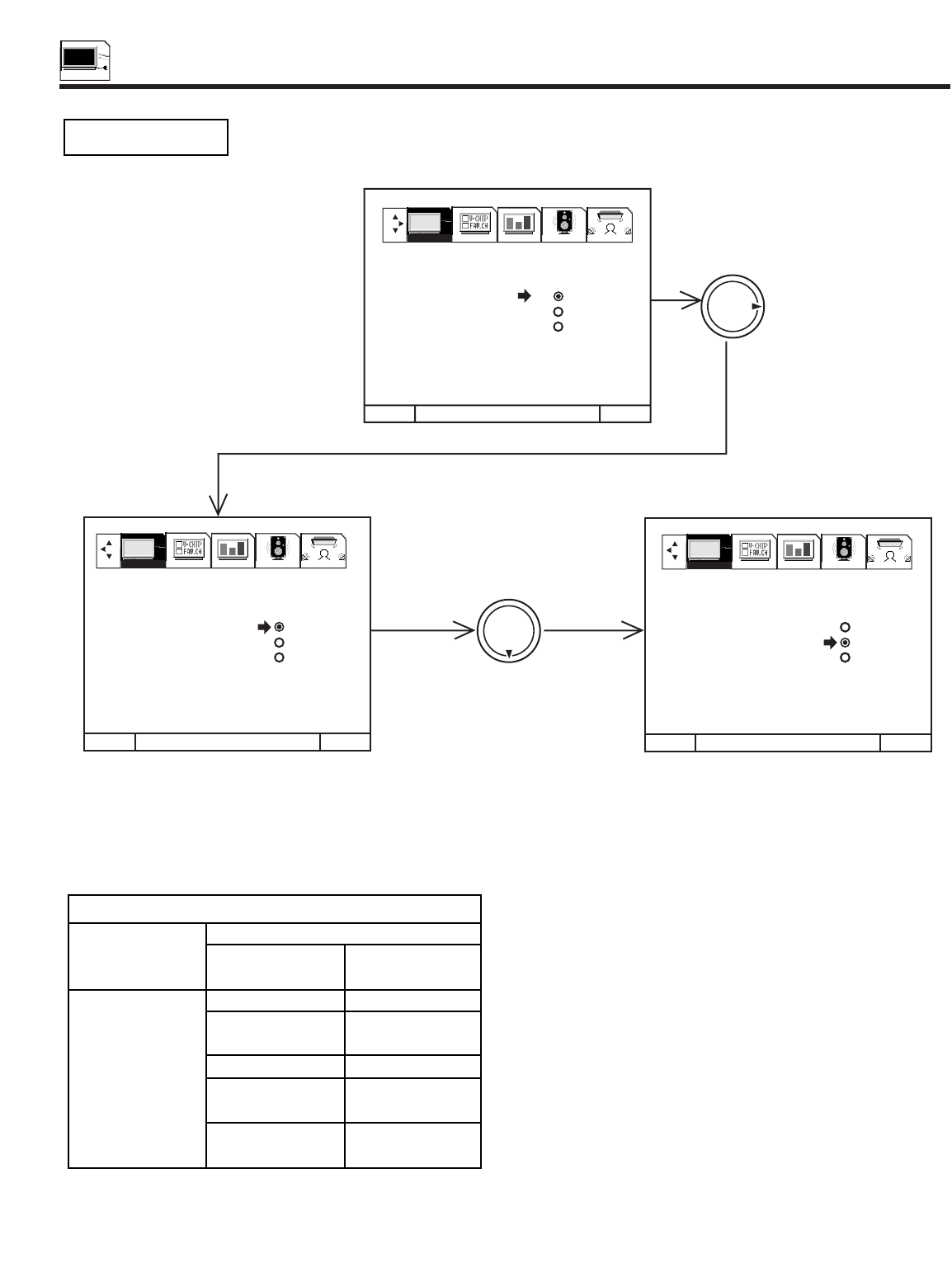
SET UP
42
SET UP
Select ANTENNA if you are using an indoor or outdoor antenna. Select CATV if you have cable TV.
Press THUMB STICK or to highlight and select the correct SIGNAL SOURCE mode.
Press EXIT to quit MENU or THUMB STICK to return to previous menu.
Reception channels for each mode are shown at the left.
Refer to your cable or TV guide for channel identification standards.
If certain CATV channels are poor or not possible in CATV1 mode,
set SIGNAL SOURCE to CATV2.
SIGNAL SOURCE
MENU TO MENU BAR TO QUIT EXIT
MENU TO MENU BAR TO QUIT EXIT MENU TO MENU BAR TO QUIT EXIT
THUMB
STICK
THUMB
STICK
SETUP CUSTOMIZE VIDEO AUDIO THEATER
SETUP CUSTOMIZE VIDEO AUDIO THEATER SETUP CUSTOMIZE VIDEO AUDIO THEATER
1. MENU LANGUAGE
2. PLUG & PLAY
3. SIGNAL SOURCE ANTENNA
4. AUTO CHANNEL SET CATV 1
5. CHANNEL MEMORY CATV 2
6. CHANNEL LIST
7. CLOCK SET
8. PICTURE FORMATS
9. LAMP TIME
1. MENU LANGUAGE
2. PLUG & PLAY
3. SIGNAL SOURCE ANTENNA
4. AUTO CHANNEL SET CATV 1
5. CHANNEL MEMORY CATV 2
6. CHANNEL LIST
7. CLOCK SET
8. PICTURE FORMATS
9. LAMP TIME
1. MENU LANGUAGE
2. PLUG & PLAY
3. SIGNAL SOURCE ANTENNA
4. AUTO CHANNEL SET CATV 1
5. CHANNEL MEMORY CATV 2
6. CHANNEL LIST
7. CLOCK SET
8. PICTURE FORMATS
9. LAMP TIME
RECEPTION BAND
CATV 1 OR CATV 2
AIR
VHF 2 ~ 13ch
UHF 14 ~ 69ch
CATV CHANNEL
VHF 2~13
Mid band A~1
A-5 ~ A-1
Super band J~W
Hyper band
W + 1 ~ W + 28
Ultraband
W + 29 ~ W + 84
Indicated on
the screen
2 ~ 13
14 ~ 22
95 ~ 99
23 ~ 36
37 ~ 64
65 ~ 125
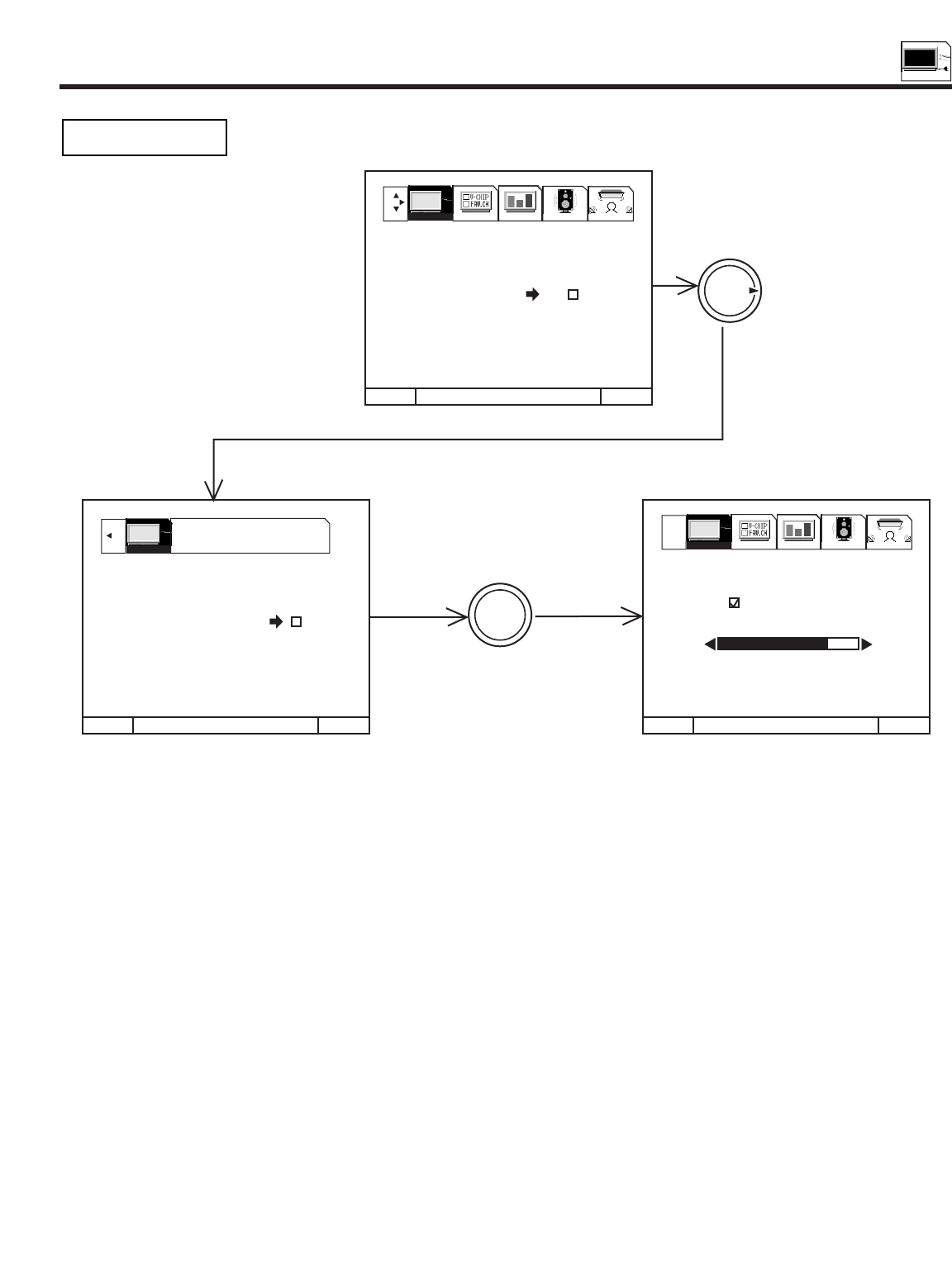
SET UP
43
SET UP
This feature will automatically store active TV channels in CHANNEL MEMORY. This will allow you to skip
unused channels when using CHANNEL UP () or DOWN ().
If the EXIT button is pressed while the AUTO CHANNEL SET function is engaged, programming will stop. If two antenna are
connected, switch antenna inputs with the INPUT button and repeat AUTO CHANNEL SET for the second antenna input.
Remember to select the correct SIGNAL SOURCE mode before using AUTO CHANNEL SET.
See CHANNEL MEMORY to add or to erase additional channels.
AUTO CHANNEL SET
MENU TO MENU BAR TO QUIT EXIT
MENU TO MENU BAR TO QUIT EXIT MENU TO MENU BAR TO QUIT EXIT
AUTO CHANNEL SET
1. MENU LANGUAGE
2. PLUG & PLAY
3. SIGNAL SOURCE
4. AUTO CHANNEL SET BEGIN
5. CHANNEL MEMORY
6. CHANNEL LIST
7. CLOCK SET
8. PICTURE FORMATS
9. LAMP TIME
THUMB
STICK
THUMB
STICK
SETUP CUSTOMIZE VIDEO AUDIO THEATER
SELECT
PRESS SELECT TO
ACTIVATE/DEACTIVATE
1. MENU LANGUAGE
2. PLUG & PLAY
3. SIGNAL SOURCE
4. AUTO CHANNEL SET BEGIN
5. CHANNEL MEMORY
6. CHANNEL LIST
7. CLOCK SET
8. PICTURE FORMATS
9. LAMP TIME
INSTALLING
CHANNEL 110
88% COMPLETE
SETUP SETUP CUSTOMIZE VIDEO AUDIO THEATER
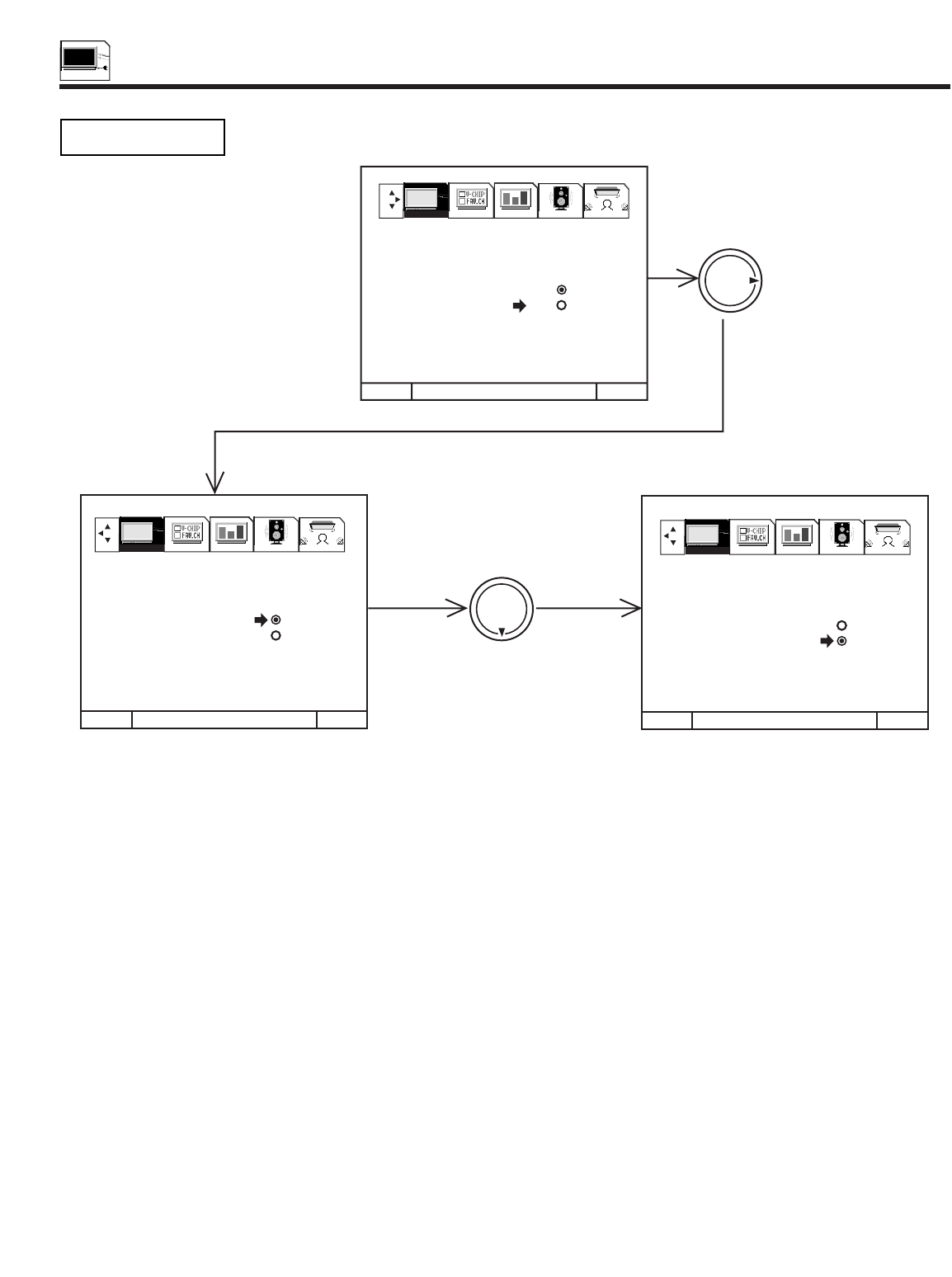
SET UP
44
SET UP
Use this function after AUTO CHANNEL SET to add or erase additional channels to the remote control
CHANNEL or buttons.
Add or erase additional channels while still in CHANNEL MEMORY using CHANNEL or or the number buttons to change the
channel.
Press EXIT to quit menu or THUMB STICK to return to previous menu.
CHANNEL MEMORY
MENU TO MENU BAR TO QUIT EXIT
MENU TO MENU BAR TO QUIT EXIT MENU TO MENU BAR TO QUIT EXIT
THUMB
STICK
THUMB
STICK
1. MENU LANGUAGE
2. PLUG & PLAY
3. SIGNAL SOURCE CHANNEL 3
4. AUTO CHANNEL SET ADD
5. CHANNEL MEMORY ERASE
6. CHANNEL LIST
7. CLOCK SET
8. PICTURE FORMATS
9. LAMP TIME
1. MENU LANGUAGE
2. PLUG & PLAY
3. SIGNAL SOURCE CHANNEL 3
4. AUTO CHANNEL SET ADD
5. CHANNEL MEMORY ERASE
6. CHANNEL LIST NEXT CH
7. CLOCK SET CH CH
8. PICTURE FORMATS OR # KEYS
9. LAMP TIME
1. MENU LANGUAGE
2. PLUG & PLAY
3. SIGNAL SOURCE CHANNEL 3
4. AUTO CHANNEL SET ADD
5.CHANNEL MEMORY ERASE
6. CHANNEL LIST NEXT CH
7. CLOCK SET CH CH
8. PICTURE FORMATS OR # KEYS
9. LAMP TIME
SETUP CUSTOMIZE VIDEO AUDIO THEATER
SETUP CUSTOMIZE VIDEO AUDIO THEATER
SETUP CUSTOMIZE VIDEO AUDIO THEATER
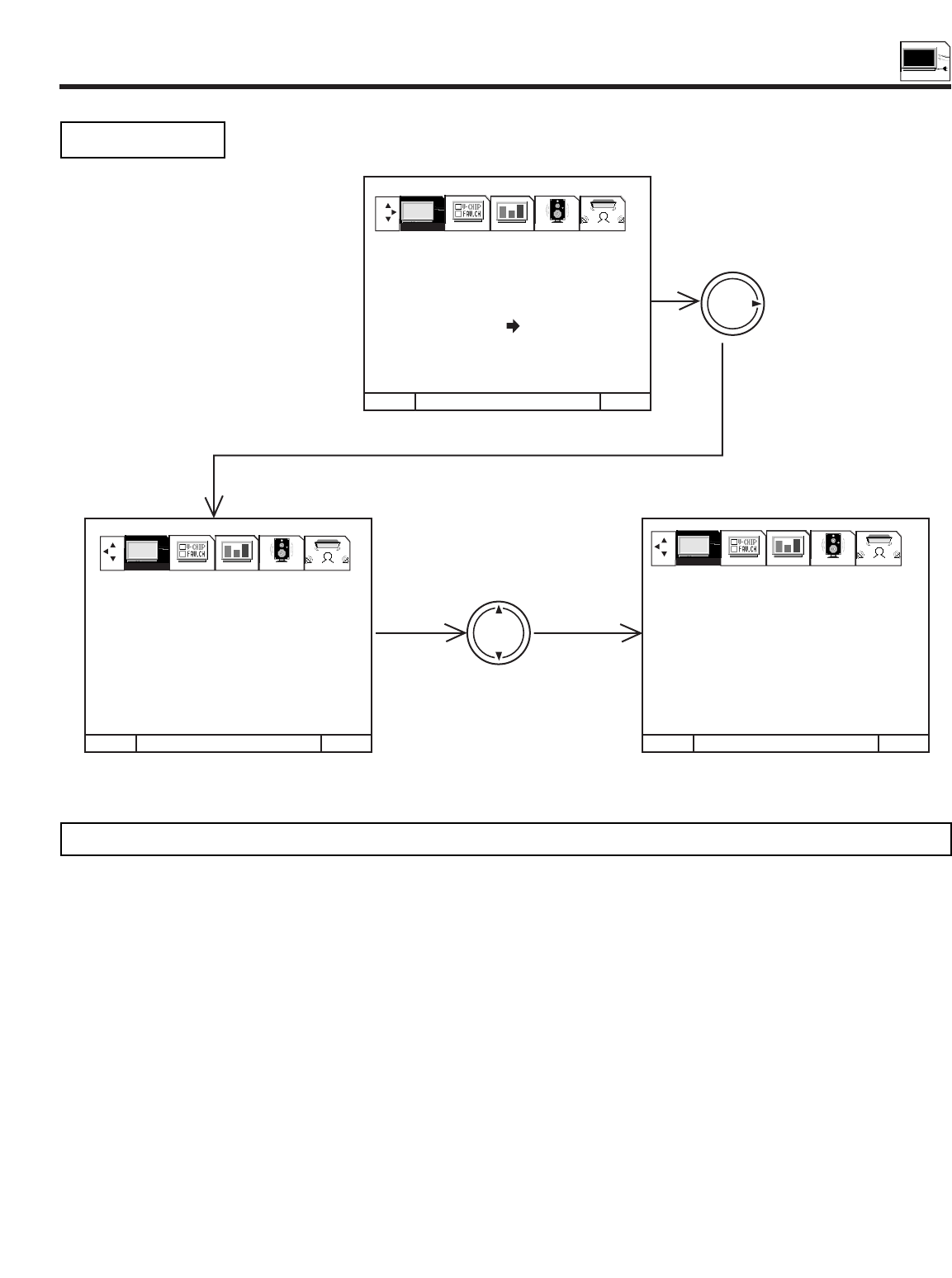
SET UP
45
SET UP
This function allows you to review which channels are labeled in CHANNEL ID (ID.), which have been added
to CHANNEL MEMORY (SCAN), and which are protected by PARENTAL CONTROL (LOCK).
Press THUMB STICK or to review more channels.
Press EXIT to quit menu or THUMB STICK to return to previous menu.
CHANNEL LIST
CHANNEL LIST ANT A
CH ID SCAN LOCK
1ESPN ON --
2ABC ON --
3BRVOON ON
4CBS ON --
5**** -- --
6CNN ON --
7COM ON ON
8ESP2 ON --
CHANNEL LIST ANT A
CH ID SCAN LOCK
9HBO ON --
10 HGTV ON --
11 FOX ON --
12 BET ON --
13 AMC ON --
14 HSN ON ON
15 **** -- --
16 FAM ON --
MENU TO MENU BAR TO QUIT EXIT
MENU TO MENU BAR TO QUIT EXIT MENU TO MENU BAR TO QUIT EXIT
THUMB
STICK
THUMB
STICK
SETUP CUSTOMIZE VIDEO AUDIO THEATER
1. MENU LANGUAGE
2. PLUG & PLAY
3. SIGNAL SOURCE
4. AUTO CHANNEL SET
5. CHANNEL MEMORY
6. CHANNEL LIST
7. CLOCK SET
8. PICTURE FORMATS
9. LAMP TIME
SETUP CUSTOMIZE VIDEO AUDIO THEATER SETUP CUSTOMIZE VIDEO AUDIO THEATER
NOTE: Each touch of THUMB STICK or will display the next eight channels.
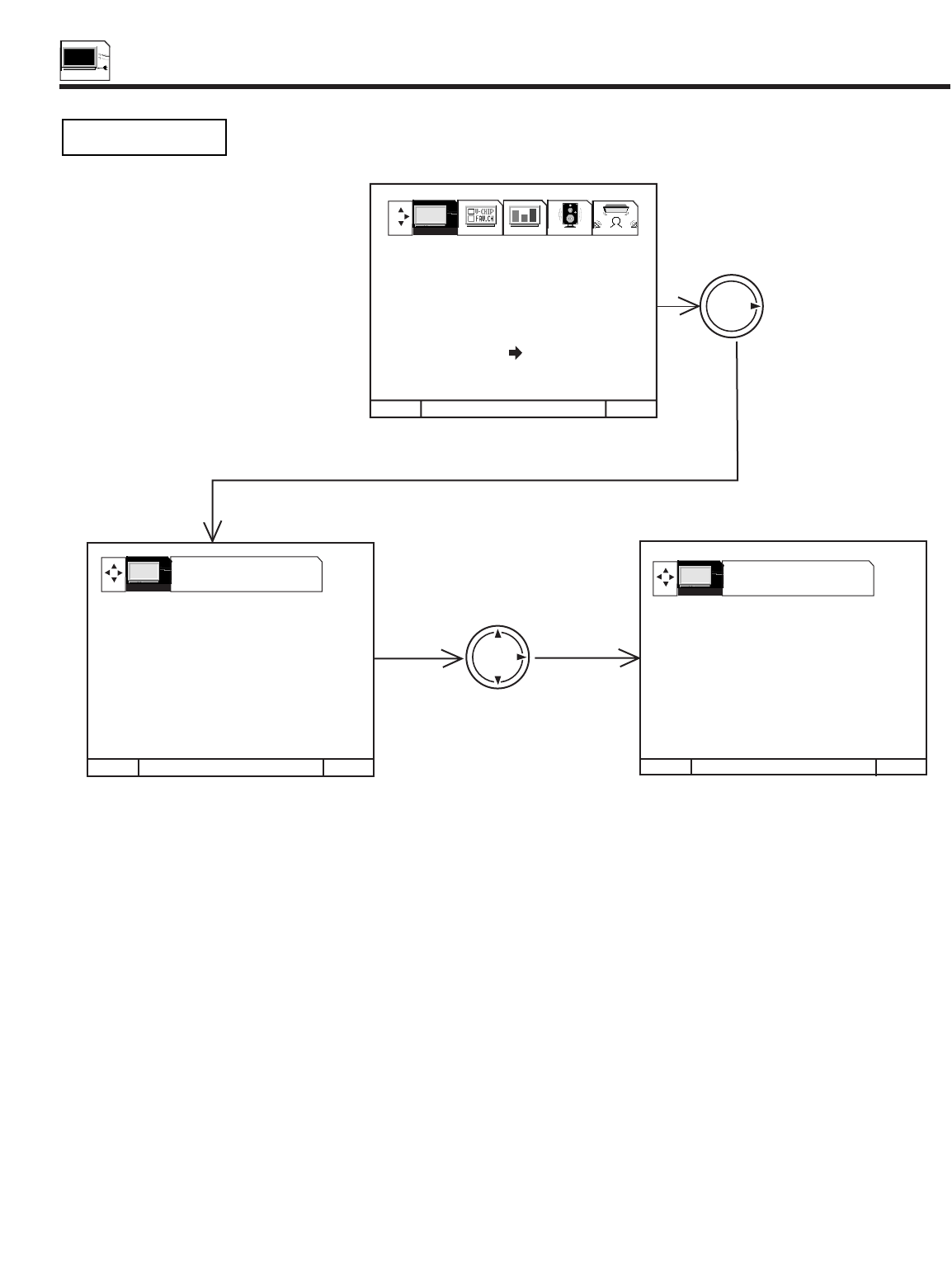
SET UP
46
SET UP
The time must be set before you can use the 4 EVENT PROGRAM or TV TIME OUT.
Use THUMB STICK or to set the time, date, and year.
Press THUMB STICK or to change position.
Press EXIT to quit menu or THUMB STICK to return to previous menu when the CURSOR is in the first position.
CLOCK SET
CLOCK SET
- - - - AM JAN 01 2000 CLOCK SET
12:00 PM MAY 10 2000
MENU TO MENU BAR TO QUIT EXIT MENU TO MENU BAR TO QUIT EXIT
TO SET TIME
THUMB
STICK
TO SET TIME
MENU TO MENU BAR TO QUIT EXIT
SETUP CUSTOMIZE VIDEO AUDIO THEATER
SETUP SETUP
1. MENU LANGUAGE
2. PLUG & PLAY
3. SIGNAL SOURCE
4. AUTO CHANNEL SET
5. CHANNEL MEMORY
6. CHANNEL LIST
7. CLOCK SET
8. PICTURE FORMATS
9. LAMP TIME
THUMB
STICK
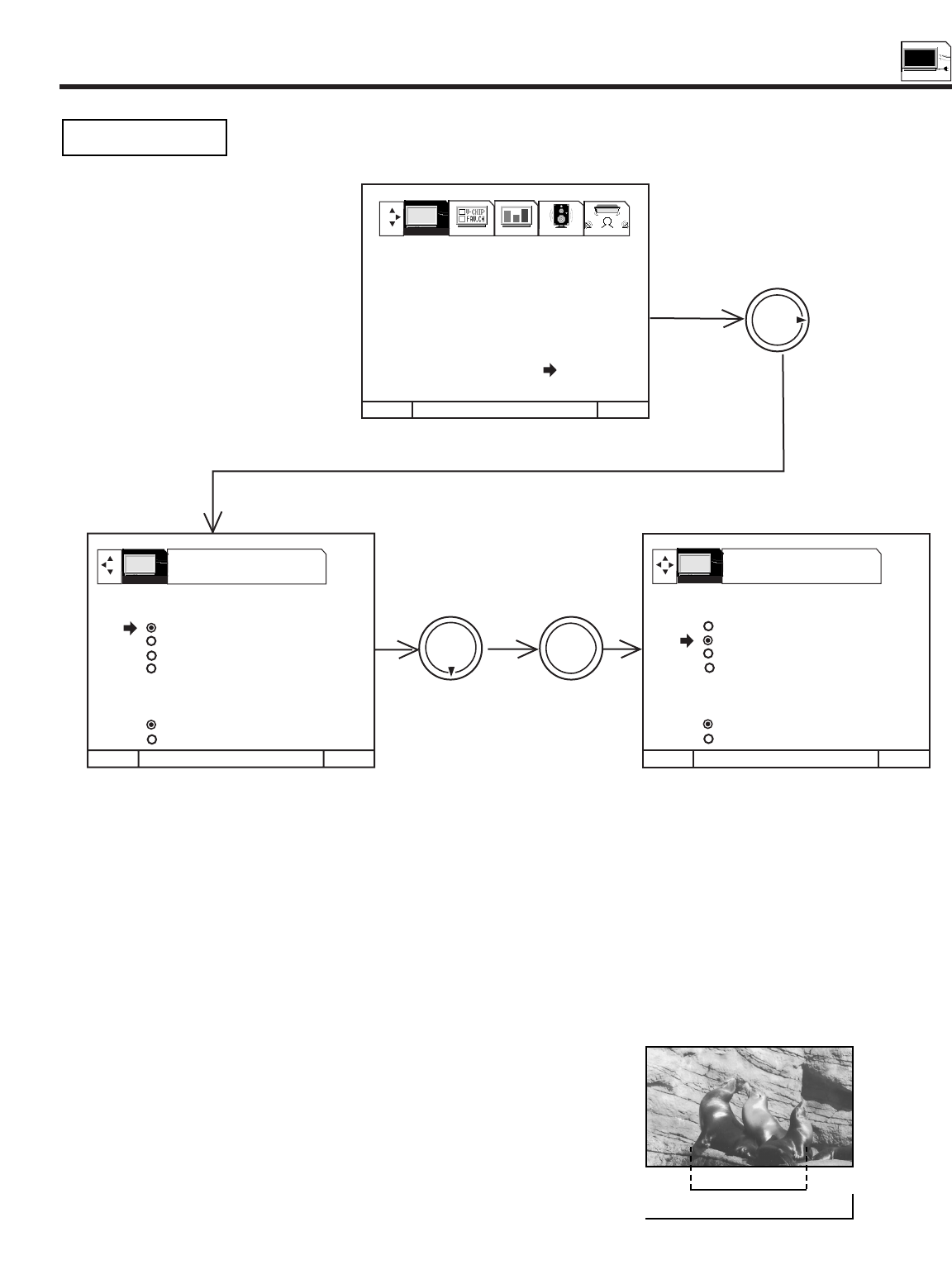
SET UP
47
SET UP
The PICTURE FORMATS function is very useful when setting up reception of High Definition, Standard
Definition and NTSC signals.
Press THUMB STICK or to highlight then press down on THUMB STICK to select Aspect Style (normal, full, fill, smooth wide)
Press EXIT to quit menu or THUMB STICK to return to previous menu.
Press THUMB STICK or to highlight V. POSITION, then THUMB STICK or to change V. POSITION.
Press THUMB STICK or to highlight V. SIZE, then THUMB STICK or to change V. SIZE.
Press THUMB STICK or to highlight then press down on THUMB STICK to select COMPONENT COLOR TYPE.
PICTURE FORMATS
PICTURE FORMATS ANT A 3
ASPECT STYLE
NORMAL
FULL
FILL
SMOOTH WIDE
V. POSITION 0
V. SIZE +15
COMPONENT COLOR TYPE
HDTV
SDTV/DVD
MENU TO MENU BAR TO QUIT EXIT
THUMB
STICK
THUMB
STICK
MENU TO MENU BAR TO QUIT EXIT
SETUP CUSTOMIZE VIDEO AUDIO THEATER
MENU TO MENU BAR TO QUIT EXIT
THUMB
STICK
PRESS SELECT TO
ACTIVATE/DEACTIVATE PRESS SELECT TO
ACTIVATE/DEACTIVATE
PICTURE FORMATS ANT A 3
ASPECT STYLE
NORMAL
FULL
FILL
SMOOTH WIDE
V. POSITION 0
V. SIZE +15
COMPONENT COLOR TYPE
HDTV
SDTV/DVD
1. MENU LANGUAGE
2. PLUG & PLAY
3. SIGNAL SOURCE
4. AUTO CHANNEL SET
5. CHANNEL MEMORY
6. CHANNEL LIST
7. CLOCK SET
8. PICTURE FORMATS
9. LAMP TIME
SETUP SETUP
SELECT
Normal Choose this when receiving a 4:3 image and you want the on-screen
appearance of the video to be a centered picture with side panels
(blank areas) on the right and left sides.
Full Choose this when you want the television to adjust the 4:3 image
horizontally so it fills your 16:9 screen. No side panels will be added,
and the image is vertically unaltered. This setting is especially useful
for viewing 16:9 formatted DVDs.
ASPECT STYLE
If you receive an image with a 4:3 aspect ratio, the image will be displayed at that ratio on your HDTV unless you specify otherwise.
The Picture Format menu allows you to adjust the image through the following options:
4:3 ratio
16:9 ratio
SET UP
48
SET UP
V. POSITION
This function allows you to select when aspect style is either Full or Fill or Smooth Wide. Vertical position can be changed with this
mode. For example, it will be useful for centering the picture when there is gray area at both top and bottom of the picture with HDTV
signal. Adjustable range is -10 (video center is toward bottom of screen) to +10 (video center is toward top of screen).
Fill This function allows you to select when receiving either NTSC or
SDTV. Full screen picture is available in this mode when
receiving letterbox signal. Both vertical edges will be hidden if you
select Fill for ordinary 4:3 picture.
Smooth Wide This function allows you to select when receiving either NTSC or
SDTV signal. 4:3 picture is expanded horizontally as being close
to both left and right sides. It keeps 4:3 ratio in the center of the
picture, then expands as it is close to both left and right edge of
the picture to show picture distortion minimized. This function
allows you to watch picture without side panel for 4:3.
ASPECT STYLE
Some digital (ATSC format)
stations may transmit 4:3
images in a way that will
not allow expansion. You
will be unable to adjust the
picture format.
NOTES: 1. The aspect Style setting you select for an ANT input will automatically be set for the other ANT input. However, all three
video inputs have independent Aspect Style settings.
2. You will not be able to access the V. Position menu if Aspect Style-Normal is set.
3. You will not be able to access the V. SIZE menu if Aspect Style - Normal or Full is set.
4. You will only be able to access the Aspect Style menu when viewing a 4:3-480i or 480P. When viewing a 16:9-1080i
or 720P input you will not be able to access this menu.
5. If COMPONENT COLOR TYPE is set improperly (does not match actual input signal), the color and tint of the main
picture will be abnormal.
6. You must be tuned to VIDEO: 1 or 2 input and have a component hooked up to the Y-PBPRinput jacks to
access this component color type.
7. All component color type settings will affect only color component input you are currently viewing. If you are using
both sets of component input jacks, be sure to set the component color type feature for both inputs.
8. Adjustable range of V. Position is -20 to +20 when receiving 480P picture.
COMPONENT COLOR TYPE
This function allows you to automatically change tint and color coordinates for DTV programs.
HDTV - High Definition Television - Use for High Vision Signal Y-PBPRfrom HDTV Set-Top Box.
SDTV /DVD - Standard Definition Television or DVD (Digital Versatile Disc Player) Y-CBCR.
V. SIZE
This function allows you to select when aspect style is Fill. It will not be available when selecting other aspect style. It is useful when
you wish to change vertical size of the picture. Adjustable ranges is -15 (video size is narrowed) to +15 (video size is broadened).
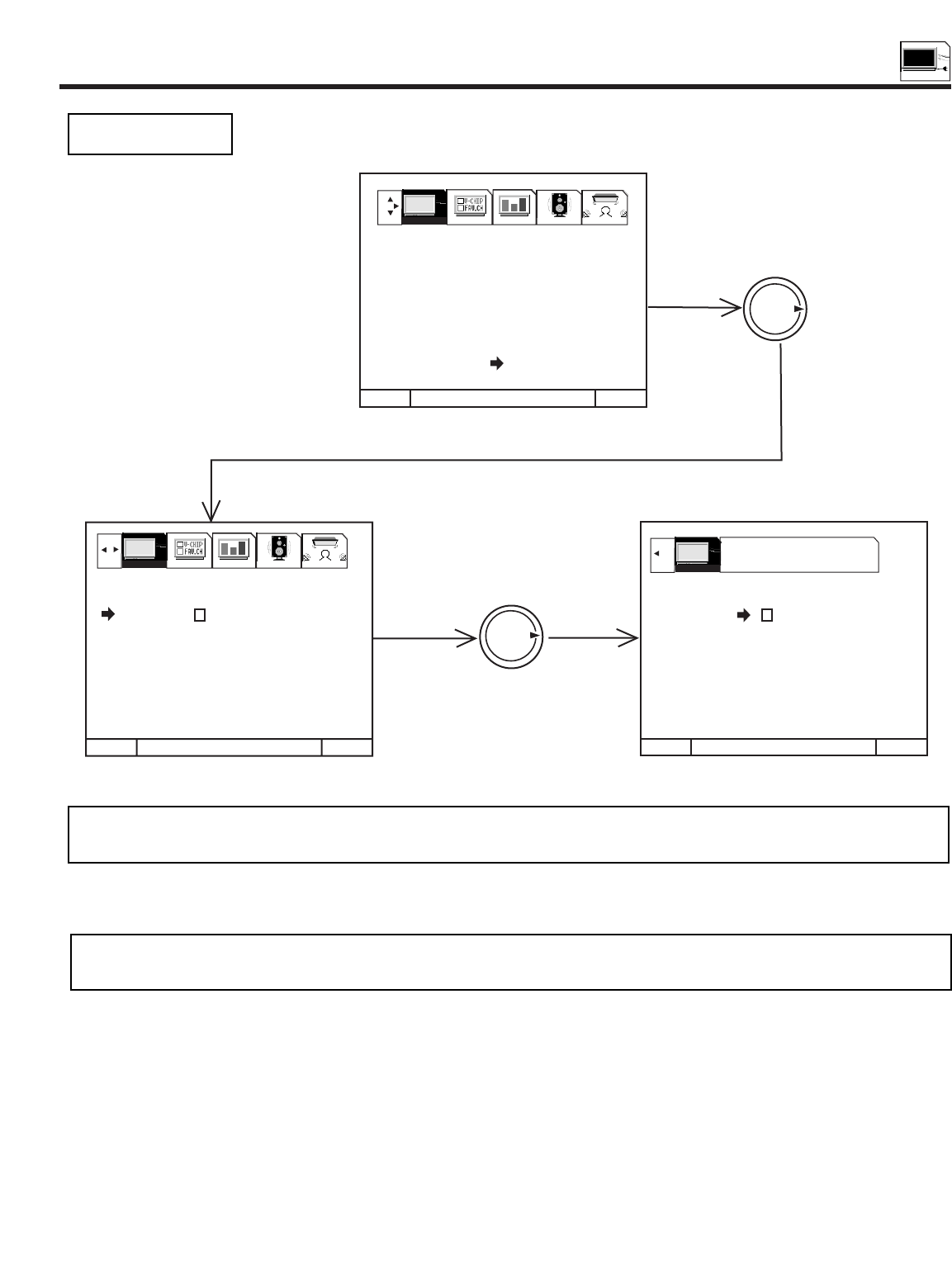
SET UP
49
SET UP
The LAMP TIME counts the hours the lamp has operated.
LAMP TIME
Press SELECT to reset LAMP TIME (after lamp replacement).
NOTE: LAMP TIME should be left on to keep track of time lamp operates.
LAMP TIME should be reset when lamp is replaced.
MENU TO MENU BAR TO QUIT EXIT
THUMB
STICK
THUMB
STICK
MENU TO MENU BAR TO QUIT EXIT
SETUP CUSTOMIZE VIDEO AUDIO THEATER
MENU TO MENU BAR TO QUIT EXIT
PRESS SELECT TO
ACTIVATE/DEACTIVATE
LAMP TIME 15 H
RESET
LAMP TIME 15 H
RESET ARE YOU SURE?
SETUP
1. MENU LANGUAGE
2. PLUG & PLAY
3. SIGNAL SOURCE
4. AUTO CHANNEL SET
5. CHANNEL MEMORY
6. CHANNEL LIST
7. CLOCK SET
8. PICTURE FORMATS
9. LAMP TIME
SETUP CUSTOMIZE VIDEO AUDIO THEATER
At around 4,000 hours of operations, the lamp needs to be replaced with a new one. There is a spare lamp for replacement at the
rear of the television. See page 80-83 for Lamp Replacement procedure.
NOTE: the lamp should be replaced every 4,000 hours to obtain good picture brightness.
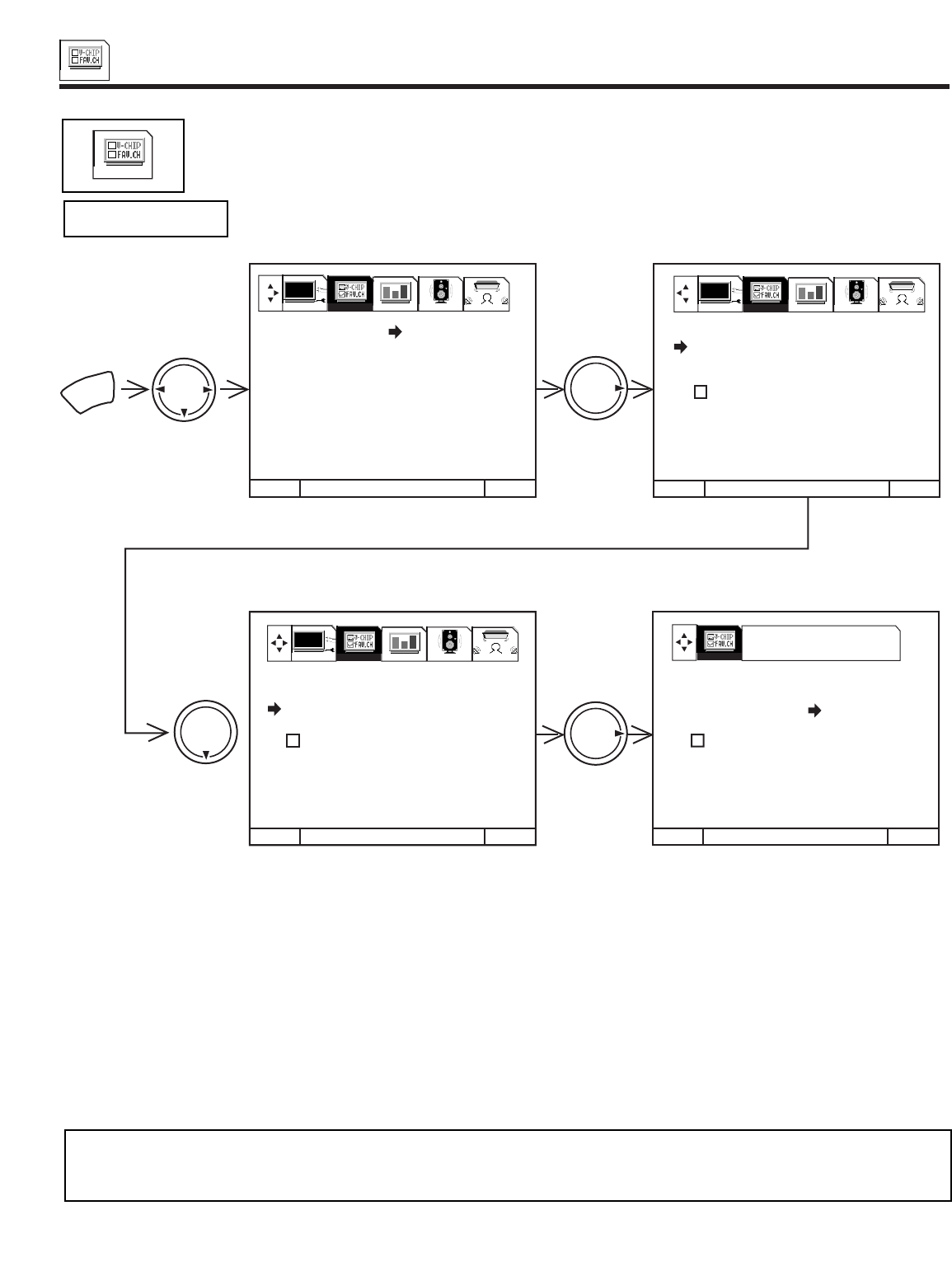
CUSTOMIZE
50
CUSTOMIZE
CUSTOMIZE
This selection contains advanced features which will make TV viewing easier and more enjoyable.
Use this feature to give up to 20 channels a name when ANTENNAsignal source is selected and up to 60
channels a name when CATV signal source is selected.
Press THUMB STICK to highlight CHANNEL LIST.
Press THUMB STICK to select preset CHANNEL LIST.
Press THUMB STICK to scroll through the preset CHANNEL LIST.
Press down on THUMB STICK to select desired CHANNEL ID.
To customize CHANNEL ID, select CUSTOM CH.
Press THUMB STICK or to select letter.
Press THUMB STICK or to change character position.
(*) represents a blank space.
Press CHANNEL or and the number buttons to label additional channels.
Press EXIT to quit menu or THUMB STICK to return to previous menu when the CURSOR is in the first position.
Select RESET to erase a CHANNEL ID.
NOTES: 1. If ANT A and ANT B are in the same SIGNAL SOURCE mode (see page 42), the CHANNEL ID for both antenna
inputs will be the same.
2. CHANNEL ID will be displayed only when channel is displayed as main picture.
CHANNEL ID.
MENU TO MENU BAR TO QUIT EXIT
MENU TO MENU BAR TO QUIT EXITMENU TO MENU BAR TO QUIT EXITMENU TO MENU BAR TO QUIT EXIT
MENU TO MENU BAR TO QUIT EXITMENU TO MENU BAR TO QUIT EXITMENU TO MENU BAR TO QUIT EXIT
MENU TO MENU BAR TO QUIT EXIT
MENU
THUMB
STICK
THUMB
STICK
THUMB
STICK
THUMB
STICK
PRESS SELECT TO
ACTIVATE/DEACTIVATE
CHANNEL ID.
CH 22
CHANNEL LIST
CUSTOM CH.
RESET
NEXT CH
CH CH
OR # KEYS
1. CHANNEL ID.
2. VIDEO ID.
3. FAMILY FAVORITES
4. PARENTAL CONTROL
5. 4 EVENT PROGRAM
6. AUTO LINK
7. CLOSED CAPTION
8. MENU BACKGROUND
CHANNEL ID.
CH 22
CHANNEL LIST A&E
CUSTOM CH. ABC
RESET AMC
AP
NEXT CH BET
CH CH BRVO
OR # KEYS
CHANNEL ID.
CH 22
CHANNEL LIST A&E
CUSTOM CH. ABC
RESET AMC
AP
NEXT CH BET
CH CH BRVO
OR # KEYS
SETUP CUSTOMIZE VIDEO AUDIO THEATER SETUP CUSTOMIZE VIDEO AUDIO THEATER
SETUP CUSTOMIZE VIDEO AUDIO THEATER CUSTOMIZE
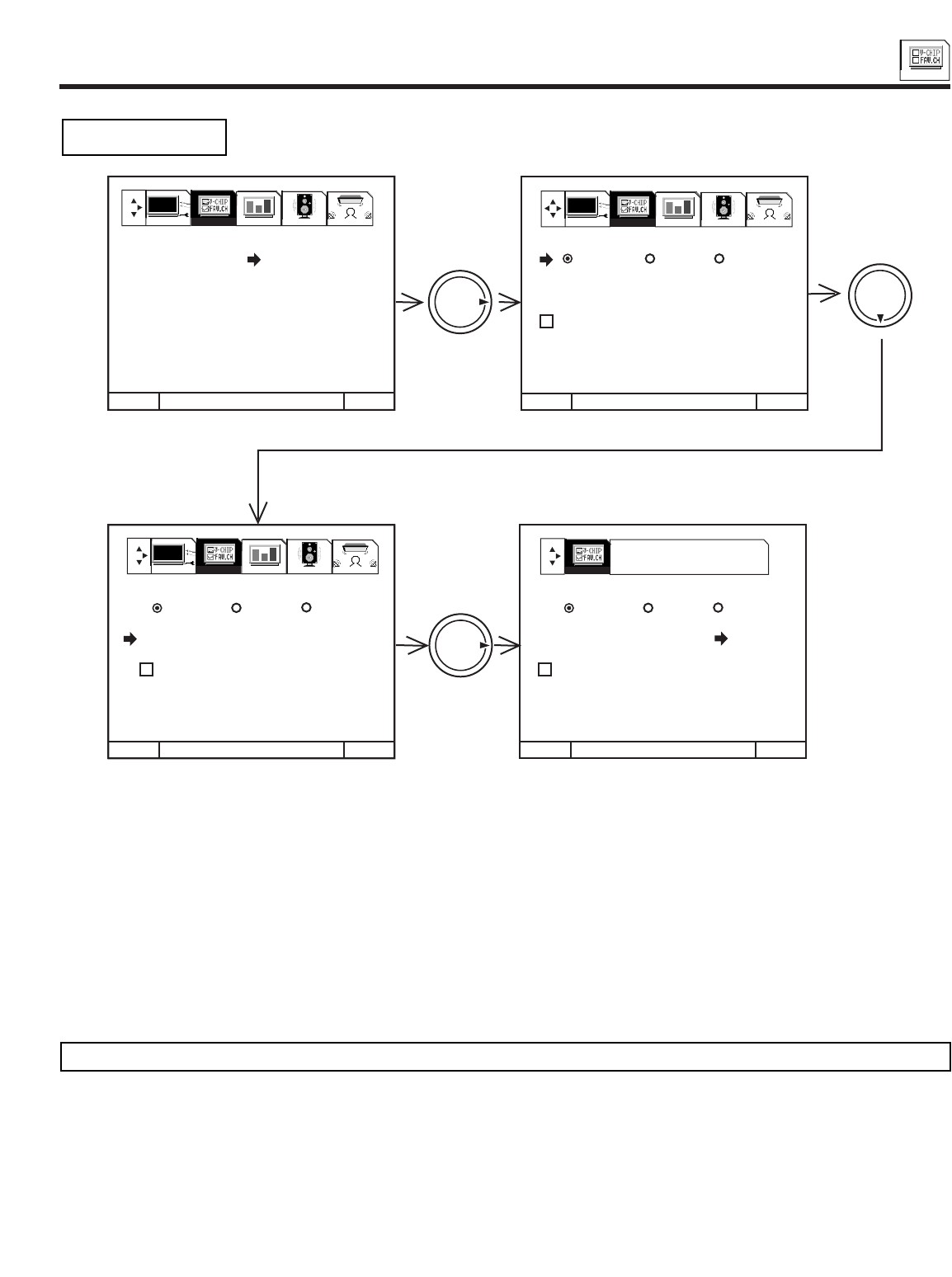
CUSTOMIZE
51
CUSTOMIZE
Use this feature to give a name to any of the three video inputs.
Press THUMB STICK to highlight VIDEO LIST.
Press THUMB STICK to select preset VIDEO LIST.
Press THUMB STICK or to scroll through the preset VIDEO LIST.
Press down on THUMB STICK to select desired VIDEO ID.
To customize VIDEO ID, select CUSTOM.
Press THUMB STICK to select the video input to be named.
Press THUMB STICK or to select letters.
Press THUMB STICK or to change position.
Press EXIT to quit menu or THUMB STICK to return to previous menu when the CURSOR is in the first position.
(*) represents a blank space.
Select RESET to set VIDEO ID to original condition.
NOTE: VIDEO ID will be displayed only when VIDEO input is displayed as main picture.
VIDEO ID.
MENU TO MENU BAR TO QUIT EXIT
MENU TO MENU BAR TO QUIT EXITMENU TO MENU BAR TO QUIT EXITMENU TO MENU BAR TO QUIT EXIT
MENU TO MENU BAR TO QUIT EXITMENU TO MENU BAR TO QUIT EXITMENU TO MENU BAR TO QUIT EXIT MENU TO MENU BAR TO QUIT EXITMENU TO MENU BAR TO QUIT EXITMENU TO MENU BAR TO QUIT EXIT
THUMB
STICK THUMB
STICK
THUMB
STICK
PRESS SELECT TO
ACTIVATE/DEACTIVATE
VIDEO ID.
VID 1 VID2 VID3
VIDEO LIST
CUSTOM
RESET
1. CHANNEL ID.
2. VIDEO ID.
3. FAMILY FAVORITES
4. PARENTAL CONTROL
5. 4 EVENT PROGRAM
6. AUTO LINK
7. CLOSED CAPTION
8. MENU BACKGROUND
VIDEO ID.
VID 1 VID2 VID3
VIDEO LIST CAM
CUSTOM CBL
RESET DVD
LD
SAT
STB
VIDEO ID.
VID 1 VID2 VID3
VIDEO LIST CAM
CUSTOM CBL
RESET DVD
LD
SAT
STB
SETUP CUSTOMIZE VIDEO AUDIO THEATER
SETUP CUSTOMIZE VIDEO AUDIO THEATER
SETUP CUSTOMIZE VIDEO AUDIO THEATER CUSTOMIZE
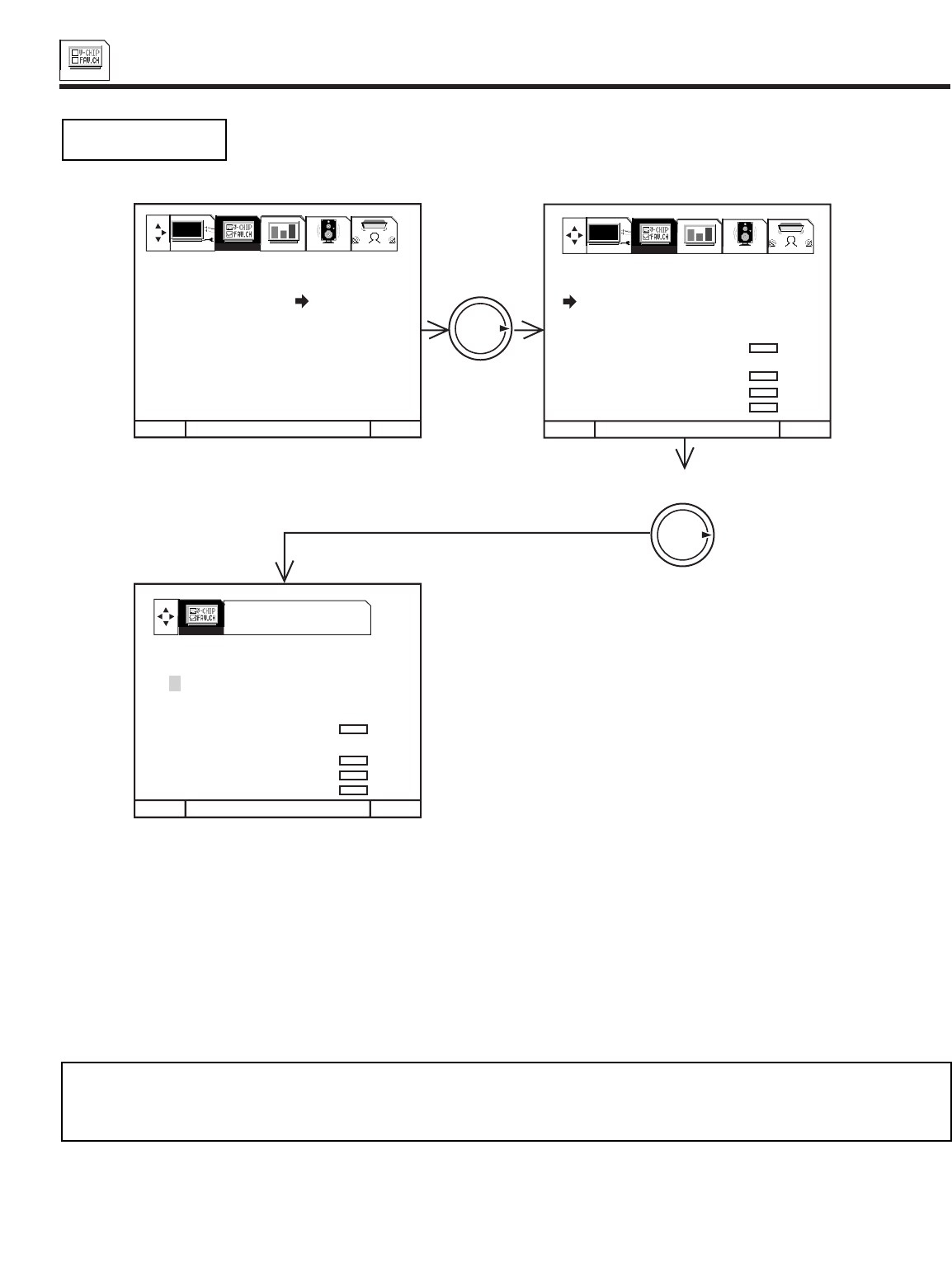
CUSTOMIZE
52
CUSTOMIZE
This function allows you to group your favorite channels into six personalized categories that you can rename.
Atotal of 36 channels can be stored in the FAMILY FAVORITES function.
Channel stored with AUTO CHANNEL SET will automatically be stored in FAMILY FAVORITES.
To rename the categories, use the THUMB STICK to highlight the category you would like to rename.
Use THUMB STICK or to change a letter and THUMB STICK to select the next character to change.
To enter a channel into a category, highlight the channel location to be stored.
Press CHANNEL or or the number buttons to enter the desired channel. Repeat until category has been set with your favorite
channels. The channel to be added is displayed in the top right corner of the screen.
Enter channel 00 to erase a favorite channel.
To reset categories and channels back to original factory preset, press RECALL while you are renaming a category.
FAMILY FAVORITES
(MENU)
MENU TO MENU BAR TO QUIT EXIT
MENU TO MENU BAR TO QUIT EXITMENU TO MENU BAR TO QUIT EXITMENU TO MENU BAR TO QUIT EXIT
MENU TO MENU BAR TO QUIT EXITMENU TO MENU BAR TO QUIT EXITMENU TO MENU BAR TO QUIT EXIT
THUMB
STICK
THUMB
STICK
TO CHANGE LETTER
[STATUS] TO RESET ALL
FAMILY FAVORITES CH 3
MOVIES SPORTS NEWS
31233
61545
821
11 28
12 30
13 32
FAMILY FAVORITES CH 3
MOVIES SPORTS NEWS
31233
61545
821
11 28
12 30
13 32
SETUP CUSTOMIZE VIDEO AUDIO THEATER
CUSTOMIZE
1. CHANNEL ID.
2. VIDEO ID.
3. FAMILY FAVORITES
4. PARENTAL CONTROL
5. 4 EVENT PROGRAM
6. AUTO LINK
7. CLOSED CAPTION
8. MENU BACKGROUND
SETUP CUSTOMIZE VIDEO AUDIO THEATER
NOTES: 1. This function cannot be accessed when ANT B is the main channel.
2. When the input source is not ANT A, the message PLEASE SWITCH TO ANTA will appear.
3. Each category contains 2 groups of 3 channels, for a total of 6 channels per category.
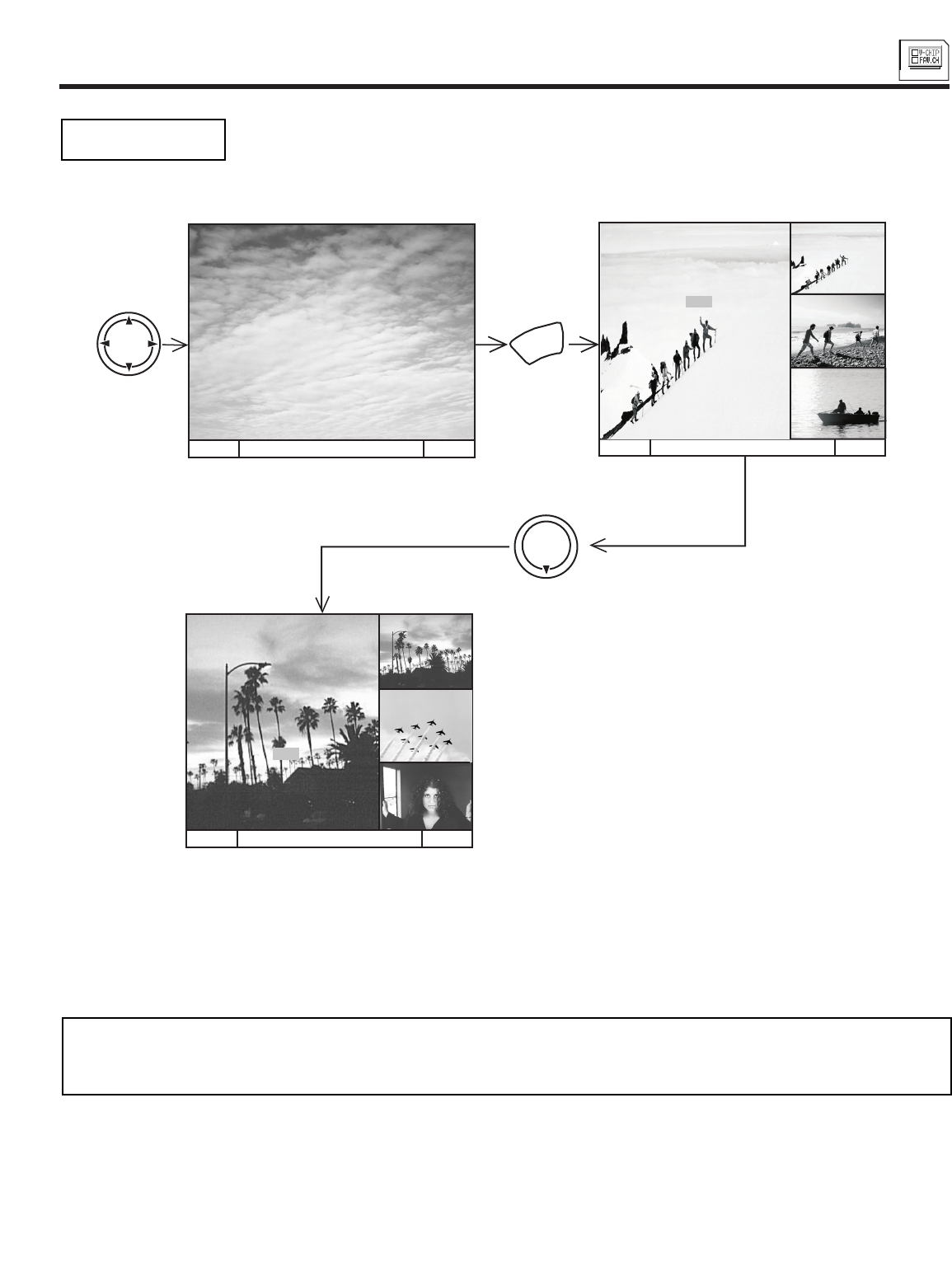
CUSTOMIZE
53
CUSTOMIZE
Use this function to display FAMILY FAVORITES selections as sub-pictures or to tune the main picture to a
desired favorite channel.
Select a category using THUMB STICK or .
Press MENU and the category will be displayed as sub-pictures at the right edge of the screen. This is useful for previewing a category.
Use THUMB STICK , , or to highlight a favorite channel and the TV will automatically tune to that channel.
Press EXIT to remove FAMILY FAVORITES OSD from the screen.
NOTES: 1. If a category has some blank channel entries, these channels will appear as black sub-pictures.
2. Each category contains 2 groups of 3 channels. Pressing the MENU button will display only 1 group per
category, depending on which group you select.
FAMILY FAVORITES
(OPERATION)
MENU TO SURF TO QUIT EXIT MENU TO SURF TO QUIT EXIT
MENU
THUMB
STICK
THUMB
STICK
MENU TO SURF TO QUIT EXIT
FAMILY FAVORITES CH 12
MOVIES
3
6
8
11
12
13
3
6
8
CH 3
MOVIES
3
6
8
11
12
13
11
12
13
CH 11
MOVIES
3
6
8
11
12
13
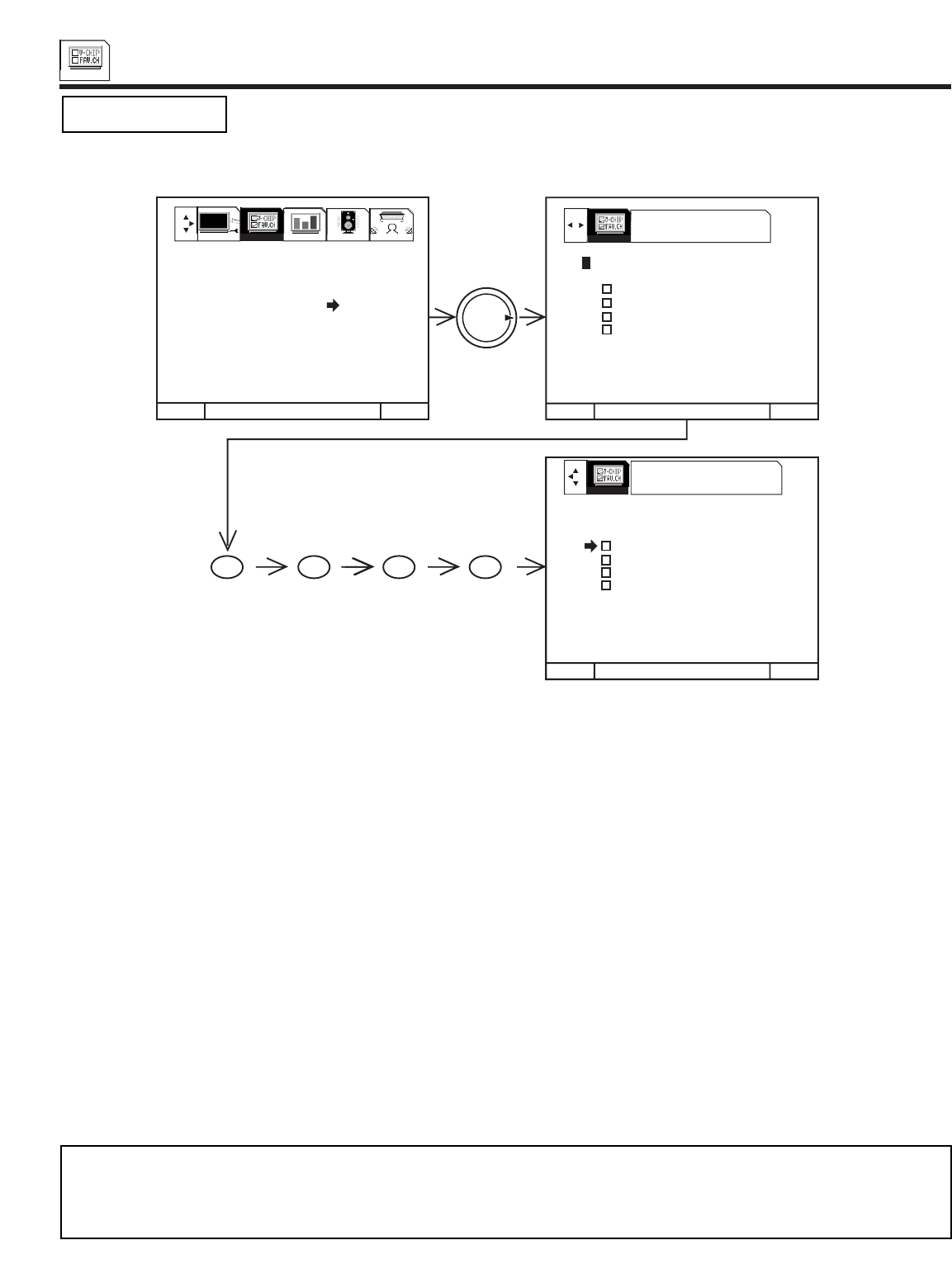
CUSTOMIZE
54
CUSTOMIZE
This function will block out the picture and sound of the selected channel or video input.
It can also be used to keep the TV from being viewed for a scheduled amount of time that you set.
The code to enter PARENTAL CONTROL is a four digit secret code number. The factory preset code is 0000.
Use the number buttons to select secret code.
Use THUMB STICK or to highlight function and press down on the THUMB STICK to set ON or OFF.
When CHANNEL is turned on, the picture and sound for the chosen channel will be blocked out.
When VIDEO LOCK is turned on, the picture and sound for all video inputs will be blocked out. To lock the video inputs, you must
be tuned to one of the video inputs.
When QUICK LOCK is turned on, the picture and sound for channels 3, 4 on both ANTA/B and all video inputs will be blocked out.
When FRONT PANEL LOCK is turned on, all buttons on the Front Panel will be deactivated, except the POWER button.
When TV TIME OUT is turned on, you can set the BEGIN and END times and the TV cannot be viewed during that time period.
(Set clock first.) Use THUMB STICK or to highlight ONCE (TV will time out one time only), DAILY (TV will time out every
day), WEEKLY (TV will time out one time a week) or OFF (to disable this function) and then press down on THUMB STICK to
SELECT your choice.
MOVIE RATINGS, TV RATINGS, and CANADIAN RATINGS are explained in detail in the Parental Control Movie/TV Ratings Reference
Guide.
To change the secret code number, select CHANGE SECRET CODE. Enter a new four digit key number you prefer.
If you forget your secret code, use the factory code 7777 to erase your key number. This will reset the secret code number back to the
factory preset 0000.
Press EXIT to quit menu or THUMB STICK to return to previous menu.
PARENTAL CONTROL
MENU TO MENU BAR TO QUIT EXIT
MENU TO MENU BAR TO QUIT EXITMENU TO MENU BAR TO QUIT EXITMENU TO MENU BAR TO QUIT EXIT
USE NUMBER BUTTONS TO
ENTER THE SECRET CODE
MENU TO MENU BAR TO QUIT EXITMENU TO MENU BAR TO QUIT EXITMENU TO MENU BAR TO QUIT EXIT
THUMB
STICK
PRESS SELECT TO
ACTIVATE/DEACTIVATE
1. CHANNEL ID.
2. VIDEO ID.
3. FAMILY FAVORITES
4. PARENTAL CONTROL
5. 4 EVENT PROGRAM
6. AUTO LINK
7. CLOSED CAPTION
8. MENU BACKGROUND
PARENTAL CONTROL
**** ENTER SECRET CODE
CHANNEL 3
VIDEO LOCK
QUICK LOCK
FRONT PANEL LOCK
TV TIME OUT
MOVIE RATINGS
TV RATINGS
CANADIAN RATINGS (ENG)
CANADIAN RATINGS (FRN)
PARENTAL CONTROL
**** CHANGE SECRET CODE?
CHANNEL 3
VIDEO LOCK
QUICK LOCK
FRONT PANEL LOCK
TV TIME OUT
MOVIE RATINGS
TV RATINGS
CANADIAN RATINGS (ENG)
CANADIAN RATINGS (FRN)
0 0 0 0
SETUP CUSTOMIZE VIDEO AUDIO THEATER
CUSTOMIZE
CUSTOMIZE
NOTE: 1. If ANTA and ANT B are in the same SIGNAL SOURCE mode (see page 42), when a channel is locked, it is locked
on both antenna inputs.
2. When using TV TIME OUT make sure the clock is set (see page 46).
3. When the RECALL button is pressed, text appears on the screen to indicate that CHILD LOCK is activated.
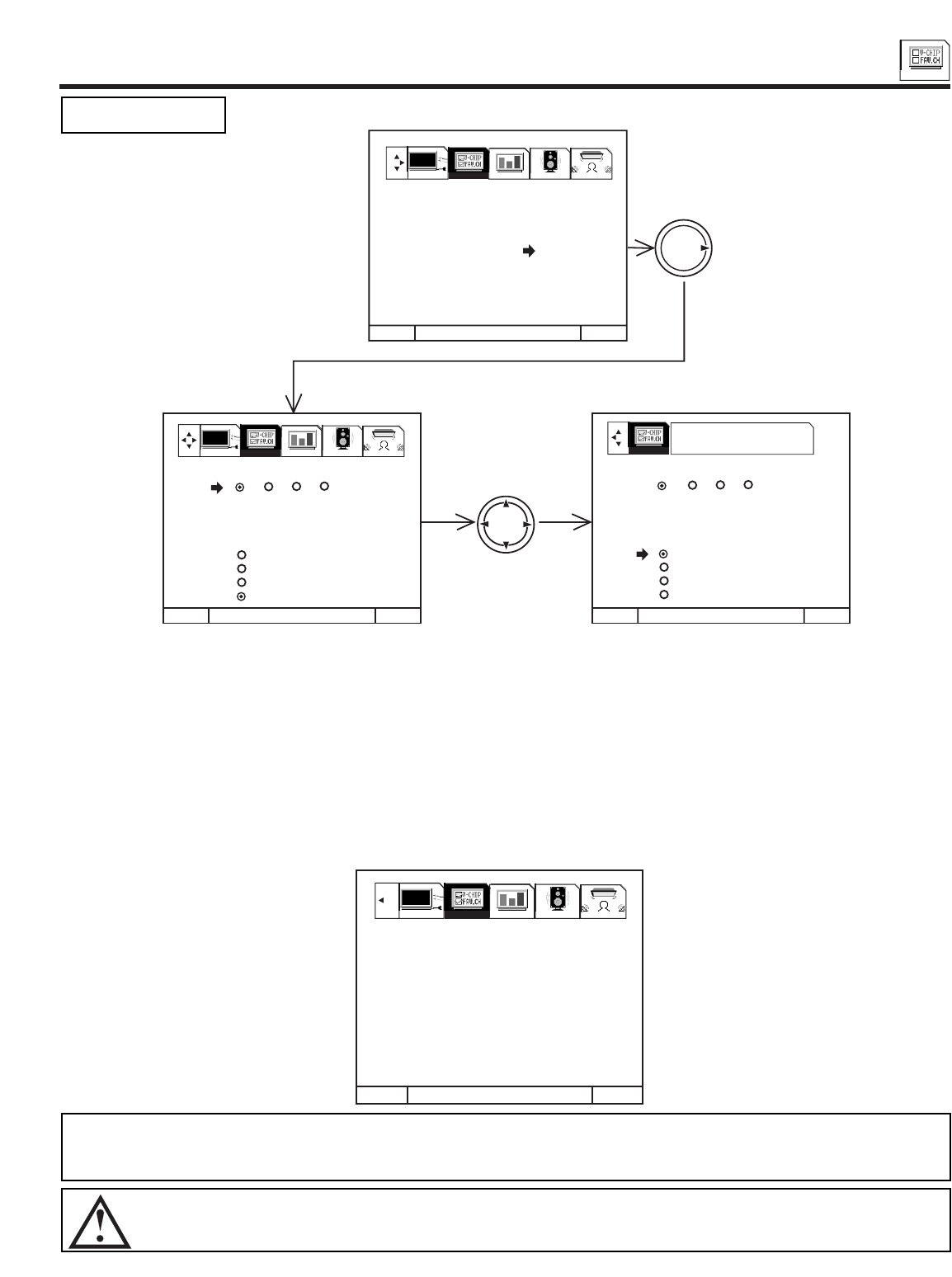
CUSTOMIZE
55
CUSTOMIZE
This function will automatically turn the TV on and off, one time only, every day, or once a week.
Press THUMB STICK to select PROGRAM 1, 2, 3, or 4.
Press THUMB STICK or to select the time the TV will turn on and off.
Use THUMB STICK to change position.
Press THUMB STICK or to select the day of the week you want the timer to turn on TV. (If you set timer to turn on DAILY, do not
need to set DAY OF WEEK).
Press THUMB STICK or, CHANNEL()or(), or number buttons to set the channel the TV will tune to when it automatically turns
on.
Press THUMB STICK or to highlight, then press down (SELECT) on the THUMB STICK to select mode ONCE (TV will turn on/off
one time only), or mode DAILY (TV will turn on/off at the same time every day), WEEKLY (TV will turn on/off at same time every week)
or OFF (to disable this function).
Press EXIT to quit menu or THUMB STICK to return to previous menu.
If the clock is not set, you can not use this function and the screen below will appear.
NOTES: 1. The OFF Timer will only activate if the TV was turned on or tuned with the ON Timer and no channel selection was
made after this time. If you change the channel after the ON Timer has been activated, the OFF Timer will deactivate.
2. If no remote control button is pressed after ON Timer is activated, the TV will automatically turn off after three hours.
CAUTION: Do not use your TV as a deterrent when away from home by using the ON and OFF TIMERS. For safety, the
TV should be turned off when you are away from home.
4 EVENT PROG.
MENU TO MENU BAR TO QUIT EXIT
MENU TO MENU BAR TO QUIT EXIT MENU TO MENU BAR TO QUIT EXIT
4 EVENT PROGRAM
1 2 3 4
--:-- AM TV ON
--:-- AM TV OFF
SUN (DAY OF WEEK)
-- CHANNEL
ONCE
DAILY
WEEKLY
OFF
THUMB
STICK
THUMB
STICK
PRESS SELECT TO
ACTIVATE/DEACTIVATE
4 EVENT PROGRAM
1 2 3 4
10:00 AM TV ON
11:00 AM TV OFF
MON (DAY OF WEEK)
10 CHANNEL
ONCE
DAILY
WEEKLY
OFF
1. CHANNEL ID.
2. VIDEO ID.
3. FAMILY FAVORITES
4. PARENTAL CONTROL
5. 4 EVENT PROGRAM
6. AUTO LINK
7. CLOSED CAPTION
8. MENU BACKGROUND
SETUP CUSTOMIZE VIDEO AUDIO THEATER
SETUP CUSTOMIZE VIDEO AUDIO THEATER
CUSTOMIZE
MENU TO MENU BAR TO QUIT EXIT
4 EVENT PROGRAM
PLEASE SET
CLOCK FIRST
SETUP CUSTOMIZE VIDEO AUDIO THEATER
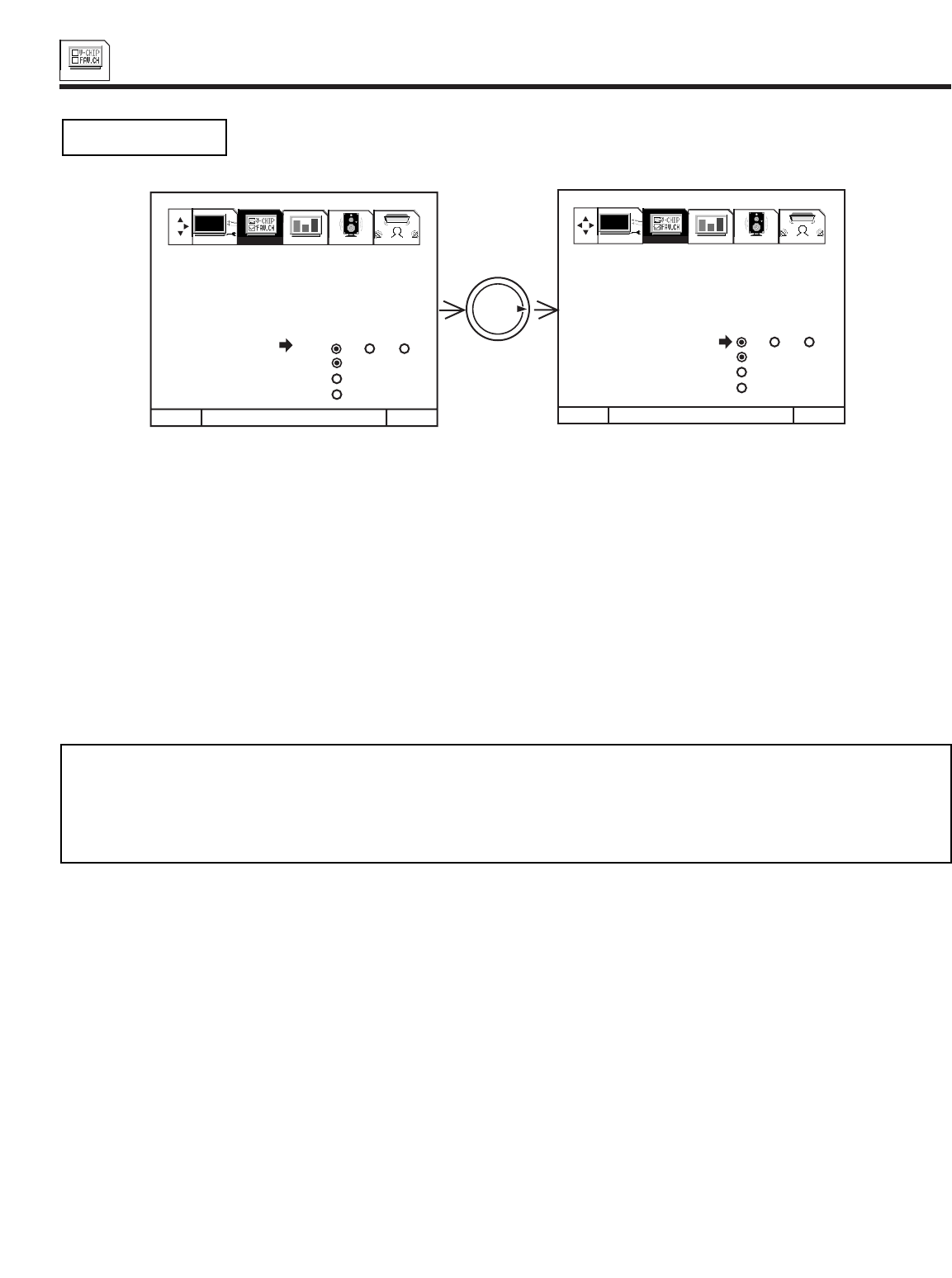
CUSTOMIZE
56
CUSTOMIZE
Use this function to automatically turn the TV on and tune to VIDEO: 1, 2 or 3 when it detects a VIDEO input.
Use THUMB STICK to select Video Input.
Use THUMB STICK or , then press down (SELECT) on THUMB STICK to change AUTO LINK setting.
When AUTO is selected, the TV will turn on and tune to VIDEO: 1, 2 or 3 automatically, when the VIDEO: 1, 2 or 3 input device is turned
on. This is convenient when you want to watch a movie with your VCR, laserdisc player, or DVD player.
When REMOTE is selected, the TV will turn on and tune to VIDEO: 1, 2 or 3 automatically, when the VIDEO: 1, 2 or 3 input device is
turned on and the VCR, laserdisc, or DVD play button on your remote control is pressed.
This is convenient when you want to record a movie with your VCR and watch it later.
Select OFF to disable this function.
Press EXIT to quit menu or THUMB STICK to return to previous menu.
AUTO LINK
NOTES: 1. Once the TV has been turned on using the AUTO LINK feature, it must be reset before AUTO LINK is used again. To
do this, turn your VCR, laserdisc, or DVD player OFF. This feature is now reset and will turn on your TV as described
above.
2. When using REMOTE mode, any remote control button will substitute for your video input device play button.
However, intended operation is for use with your VCR, laserdisc, or DVD play button.
MENU TO MENU BAR TO QUIT EXIT MENU TO MENU BAR TO QUIT EXIT
THUMB
STICK
1. CHANNEL ID.
2. VIDEO ID.
3. FAMILY FAVORITES
4. PARENTAL CONTROL
5. 4 EVENT PROGRAM
6. AUTO LINK V1 V2 V3
7. CLOSED CAPTION AUTO
8. MENU BACKGROUND REMOTE
OFF
1. CHANNEL ID.
2. VIDEO ID.
3. FAMILY FAVORITES
4. PARENTAL CONTROL
5. 4 EVENT PROGRAM
6. AUTO LINK V1 V2 V3
7. CLOSED CAPTION AUTO
8. MENU BACKGROUND REMOTE
OFF
SETUP CUSTOMIZE VIDEO AUDIO THEATER
SETUP CUSTOMIZE VIDEO AUDIO THEATER
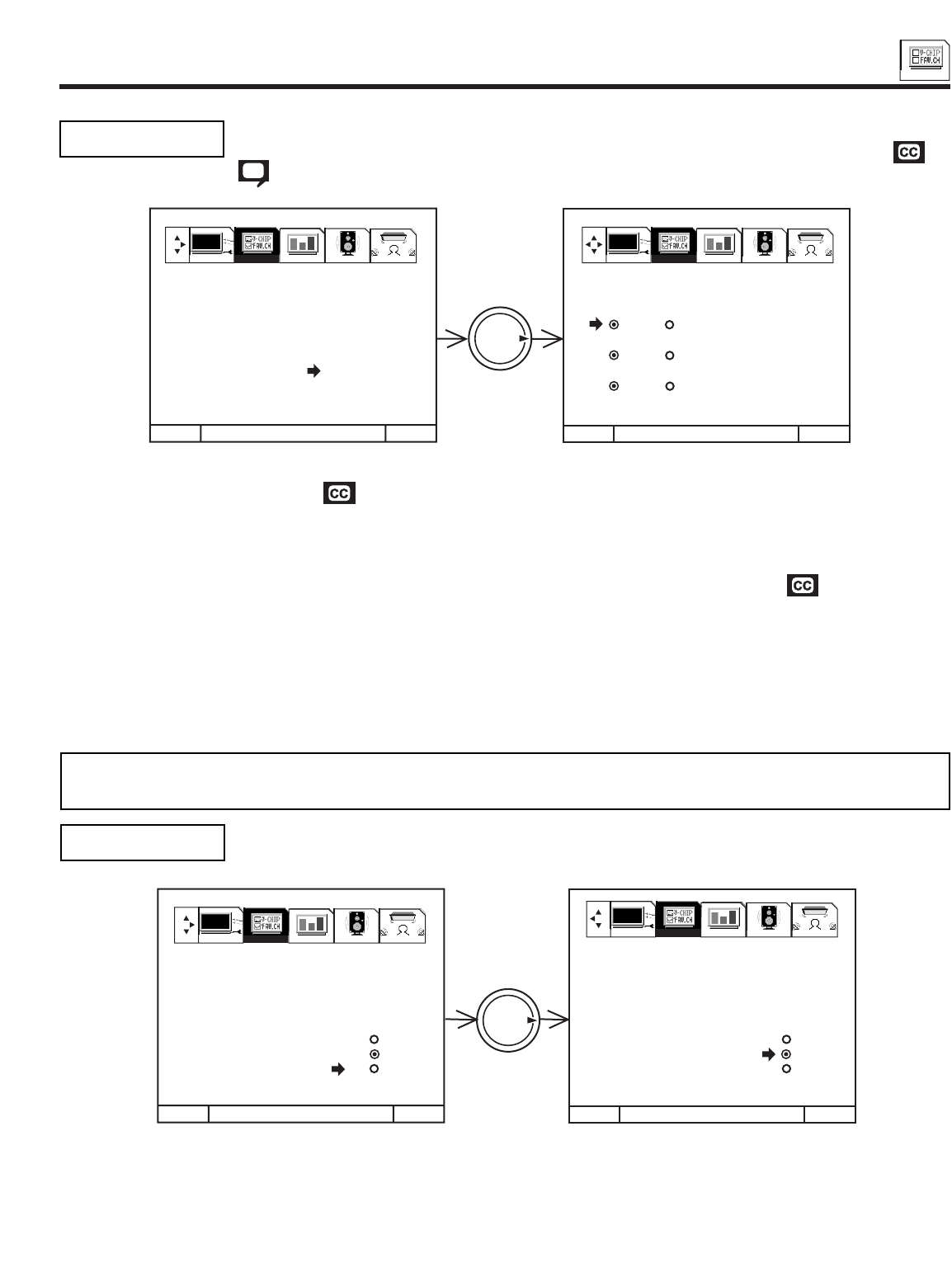
CUSTOMIZE
57
CUSTOMIZE
DISPLAY: ON/OFF will turn the display on or off.
MODE: C.C. (Closed Caption) is for the program you are viewing.
TEXT is for additional information such as news reports or a TV program guide. This information covers the entire
screen and viewing the TV program is not possible. TEXT may not be available with every program.
CHANNEL: 1 is used for the primary language (usually English).
2is sometimes used for a second language (may vary by region).
Use THUMB STICK or to highlight the function to change then press THUMB STICK to change the function.
Press EXIT to quit menu or THUMB STICK to return to previous menu.
Closed Captions are the dialogue, narration, and/or sound effects of a television program or home video
which are displayed on the TV screen. Your local TV program guide denotes these programs as or
.
CLOSED CAPTION
MENU TO MENU BAR TO QUIT EXIT MENU TO MENU BAR TO QUIT EXIT
THUMB
STICK
1. CHANNEL ID.
2. VIDEO ID.
3. FAMILY FAVORITES
4. PARENTAL CONTROL
5. 4 EVENT PROGRAM
6. AUTO LINK
7. CLOSED CAPTION
8. MENU BACKGROUND
CLOSED CAPTION
DISPLAY
OFF ON
MODE
C.C. TEXT
CHANNEL
12
SETUP CUSTOMIZE VIDEO AUDIO THEATER SETUP CUSTOMIZE VIDEO AUDIO THEATER
This function allows you to choose from three menu backgrounds.
Use THUMB STICK or to change MENU BACKGROUND setting.
Press EXIT to quit menu or THUMB STICK to return to previous menu.
Select CLEAR and no background is visible, select GRAY and a gray background is visible (no picture can be seen behind menu
screen), select SHADED and a light background is visible.
MENU BACKGROUND
MENU TO MENU BAR TO QUIT EXIT MENU TO MENU BAR TO QUIT EXIT
THUMB
STICK
1. CHANNEL ID.
2. VIDEO ID.
3. FAMILY FAVORITES
4. PARENTAL CONTROL
5. 4 EVENT PROGRAM
6. AUTO LINK CLEAR
7. CLOSED CAPTION GRAY
8. MENU BACKGROUND SHADED
1. CHANNEL ID.
2. VIDEO ID.
3. FAMILY FAVORITES
4. PARENTAL CONTROL
5. 4 EVENT PROGRAM
6. AUTO LINK CLEAR
7. CLOSED CAPTION GRAY
8. MENU BACKGROUND SHADED
SETUP CUSTOMIZE VIDEO AUDIO THEATER SETUP CUSTOMIZE VIDEO AUDIO THEATER
NOTE: CLOSED CAPTION will not work when viewing a 480P, 720P, or 1080i input via the COMPONENT: Y-PBPRinputs.
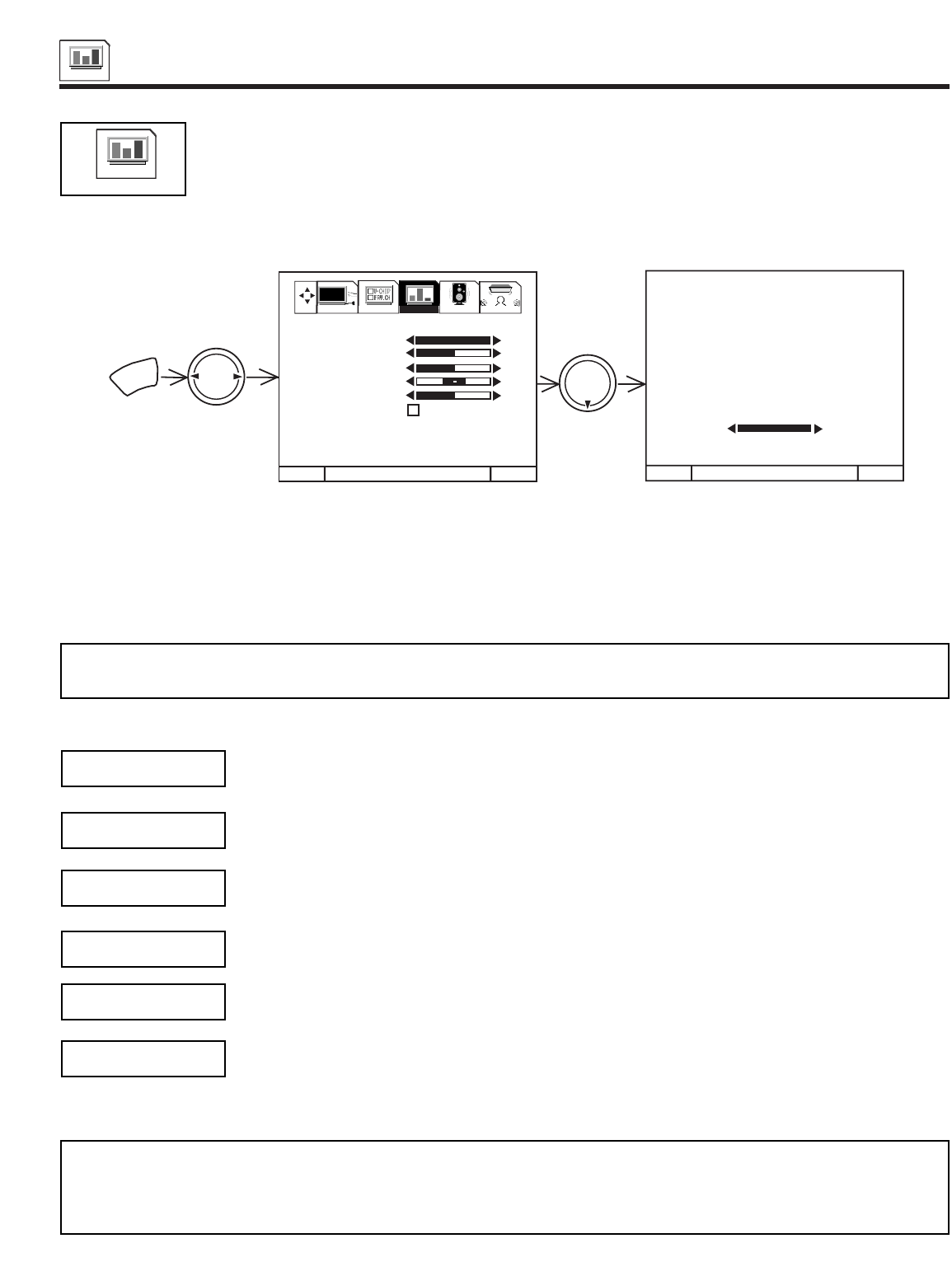
VIDEO
58
VIDEO
VIDEO
Select VIDEO to adjust picture settings and improve picture quality.
Use this function to change the contrast between black and white levels in the picture. This adjustment will
only affect the picture when ADVANCED SETTINGS PERFECT PICTURE is OFF. (see page 59)
Use the THUMB STICK or to highlight the function to be adjusted.
Press the THUMB STICK or to adjust the function.
Press EXIT to quit menu.
NOTE: If CONTRAST is selected, you are adjusting CONTRAST. The additional menu items BRIGHTNESS, COLOR, TINT,
and SHARPNESS can be selected and adjusted in the same manner.
Use this function to adjust the level of color in the picture.
Use this function to adjust flesh tones so they appear natural.
Use this function to adjust overall picture brightness.
Use this function to adjust the amount of fine detail in the picture.
When RESET is selected, press down (SELECT) on THUMB STICK to return video adjustments to factory
preset conditions.
CONTRAST
COLOR
TINT
BRIGHTNESS
SHARPNESS
RESET
MENU TO MENU BAR TO QUIT EXIT MENU TO MENU BAR TO QUIT EXIT
100%
50%
50%
50%
MENU
THUMB
STICK
THUMB
STICK
100%
CONTRAST
1. CONTRAST
2. BRIGHTNESS
3. COLOR
4. TINT
5. SHARPNESS
6. RESET
7. ADVANCED
SETTINGS
SETUP CUSTOMIZE VIDEO AUDIO THEATER
NOTES: 1. It may be necessary to adjust TINT to obtain optimum picture quality when using the COMPONENT VIDEO Y-PBPR
input jacks.
2. If you are using the COMPONENT VIDEO input jacks (Y-PBPR) and notice that the TINT and COLOR are abnormal,
check to make sure that PICTURE FORMATS - COMPONENT COLOR TYPE is set properly. (see page 48)
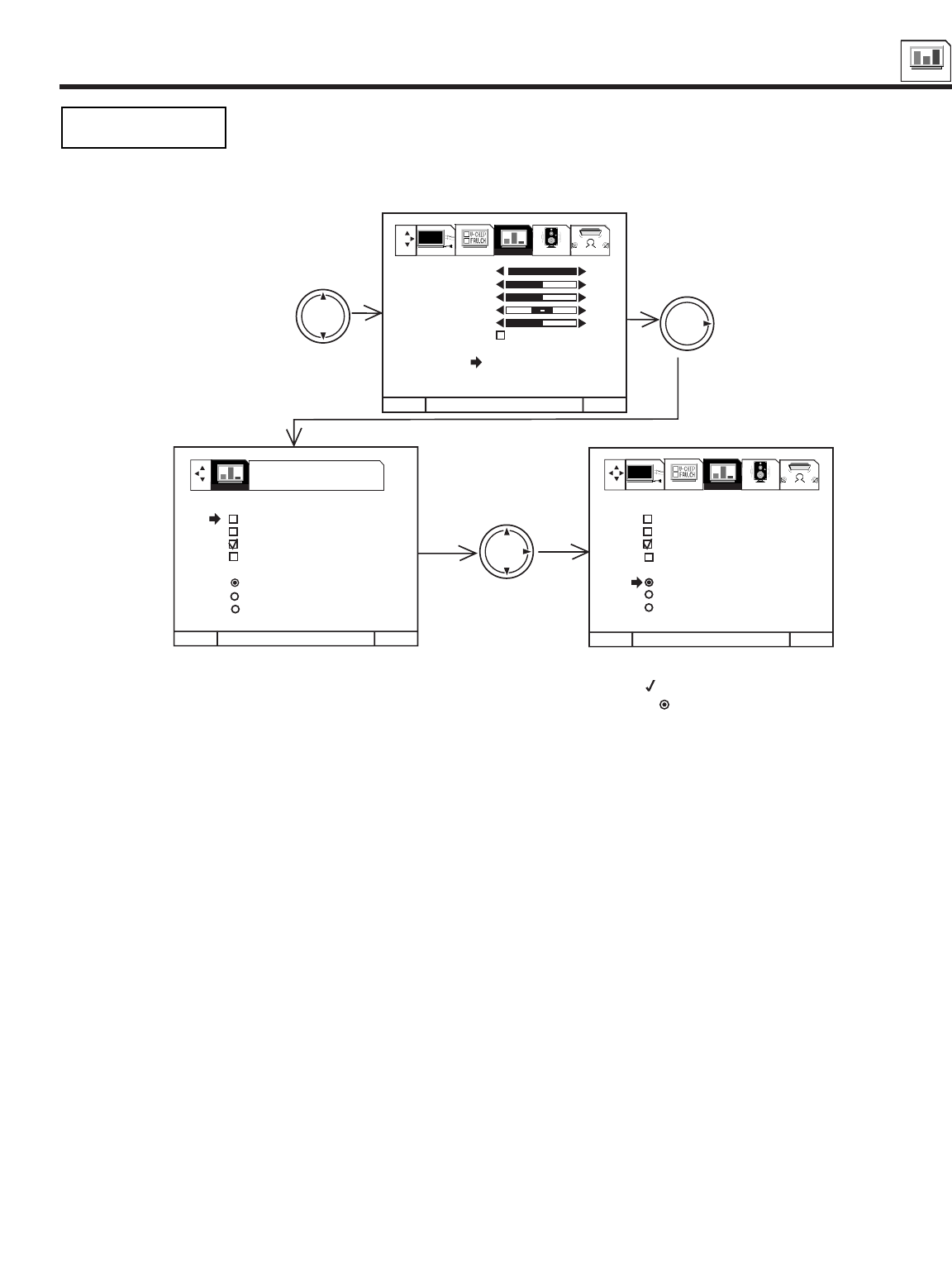
VIDEO
59
VIDEO
Your HITACHI Projection TV has a PERFECT PICTURE function which will automatically adjust picture
settings to produce the highest quality picture possible.
When PERFECT PICTURE is highlighted, press down on THUMB STICK to turn the PERFECT PICTURE on
or off.
Use THUMB STICK or to select function.
Press down on THUMB STICK to select the function setting. When the function has an in the box, it is ON.
Use THUMB STICK to change COLOR TEMPERATURE. When the function shows a , it is selected.
Press EXIT to quit menu or THUMB STICK to return to previous menu.
PERFECT PICTURE
When the PERFECT PICTURE function is on, the TVs internal computer will perform the following:
1. Automatically monitor and adjust contrast depending on room lighting (sensor is located in the front panel) to produce a more
natural picture.
2. Automatically monitor and adjust color levels and maintain natural flesh tones.
3. Automatically compensate for weak or strong TV signals to produce a clear picture.
Turn the PERFECT PICTURE function off to control other PREFERENCE SETTINGS.
AUTO COLOR
The AUTO COLOR function automatically monitors and adjusts the color to maintain constant color levels even after a program or
channel changes. It also maintains natural flesh tones while preserving fidelity of background colors. (This function will automatically
set to on and cannot be turned off when the PERFECT PICTURE function is ON.) This function does not operate with a COMPONENT:
Y-PBPRinput signal.
NOISE REDUCTION
The NOISE REDUCTION function automatically reduces conspicuous noise in the picture without degrading picture quality.
(This function will automatically be set to on and cannot be turned off when the PERFECT PICTURE function is ON.)
AUTO DYNAMIC CONTRAST
The AUTO DYNAMIC CONTRASTfunction automatically monitors and adjusts the color to maintain constant contrast levels even after
a program or channel changes. It also maintains natural flesh tones while preserving fidelity of background colors. (This function will
automatically set to on and cannot be turned off when the AUTO DYNAMIC CONTRAST function is ON.) This function does not operate
with a COMPONENT: Y-PBPRinput signal.
COLOR TEMPERATURE
Set this to WARM for hotter colors with more red, or set to COOL for less intense colors with more blue or STANDARD for standard
color.
ADVANCED
SETTINGS
MENU TO MENU BAR TO QUIT EXIT
MENU TO MENU BAR TO QUIT EXIT MENU TO MENU BAR TO QUIT EXIT
THUMB
STICK
THUMB
STICK
THUMB
STICK
100%
50%
50%
50%
PRESS SELECT TO
ACTIVATE/DEACTIVATE
1. CONTRAST
2. BRIGHTNESS
3. COLOR
4. TINT
5. SHARPNESS
6. RESET
7. ADVANCED
SETTINGS
VIDEO SETUP CUSTOMIZE VIDEO AUDIO THEATER
SETUP CUSTOMIZE VIDEO AUDIO THEATER
ADVANCED SETTINGS
PERFECT PICTURE
AUTO COLOR
NOISE REDUCTION
AUTO DYNAMIC CONTRAST
COLOR TEMPERATURE
COOL
WARM
STANDARD
ADVANCED SETTINGS
PERFECT PICTURE
AUTO COLOR
NOISE REDUCTION
AUTO DYNAMIC CONTRAST
COLOR TEMPERATURE
COOL
WARM
STANDARD
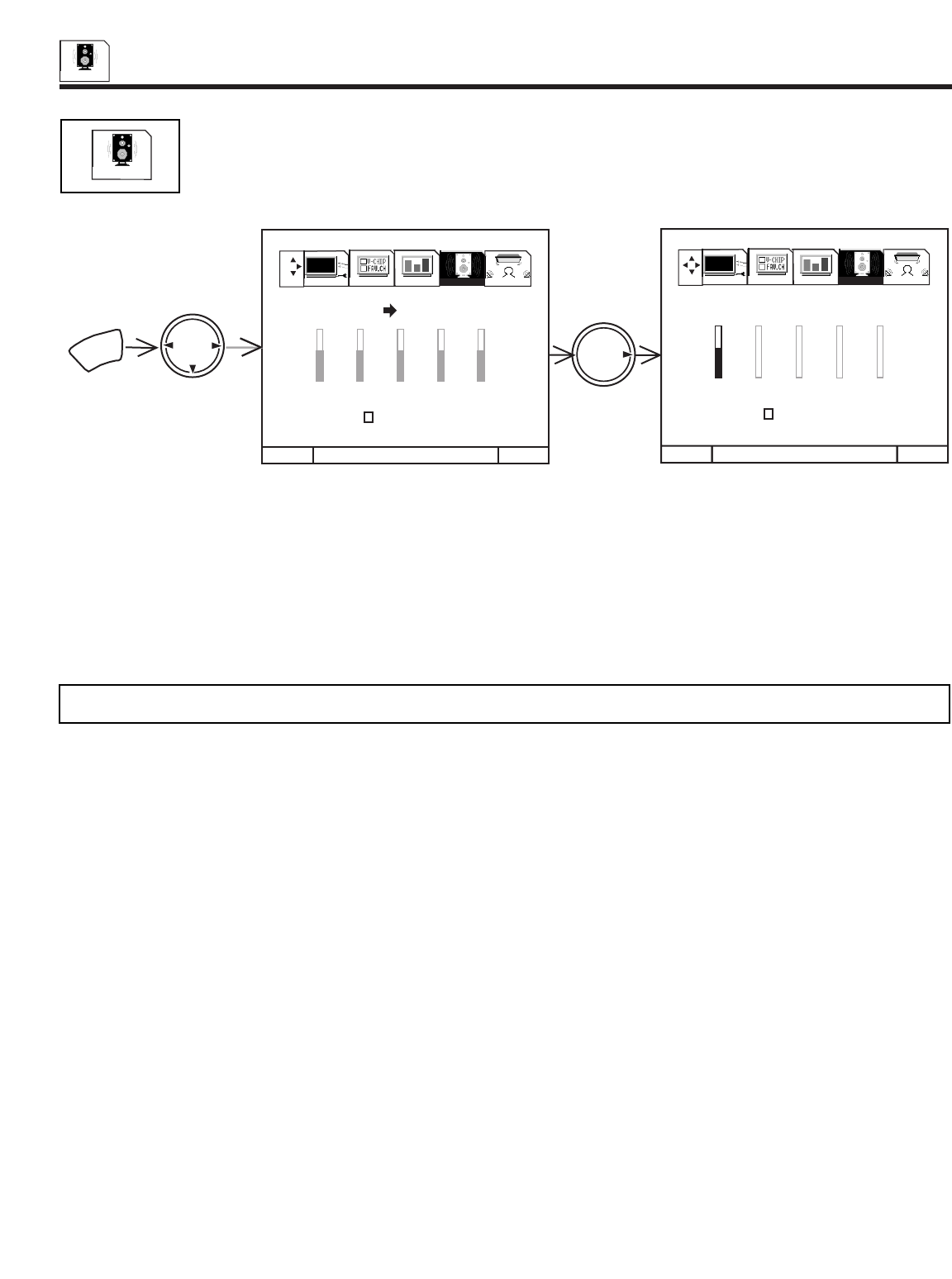
AUDIO
60
AUDIO
Select AUDIO to adjust the TV to your preference and to improve the sound quality.
Use THUMB STICK or to highlight the function to be adjusted.
When EQUALIZER is highlighted, press THUMB STICK to select the frequency you would like to adjust (60, 250, 1K, 3K or 10K).
Then use THUMB STICK or to adjust selected frequency.
When RESET is highlighted, press down on THUMB STICK to reset EQUALIZER settings to factory conditions.
Press EXIT to quit menu.
AUDIO
MENU TO MENU BAR TO QUIT EXIT MENU TO MENU BAR TO QUIT EXIT
MENU
THUMB
STICK
THUMB
STICK
60 250 1K 3K 10K
60 250 1K 3K 10K
SETUP CUSTOMIZE VIDEO AUDIO THEATER
SETUP CUSTOMIZE VIDEO AUDIO THEATER
2. RESET
3. ADVANCED SETTINGS
1. EQUALIZER
2. RESET
3. ADVANCED SETTINGS
1. EQUALIZER
NOTE: When DYNAMIC BASS is turned ON, the 60Hz level signal will automatically be increased.

AUDIO
61
AUDIO
Use ADVANCED SETTINGS to improve the sound performance of your TV, depending on listening conditions.
MTS MODE
Multi-Channel Television Sound will allow you to select STEREO (a stereo broadcast), MONO (monaural sound) used when receiving
a weak stereo broadcast or SAP (second audio program) which may be a secondary language, weather report, etc.
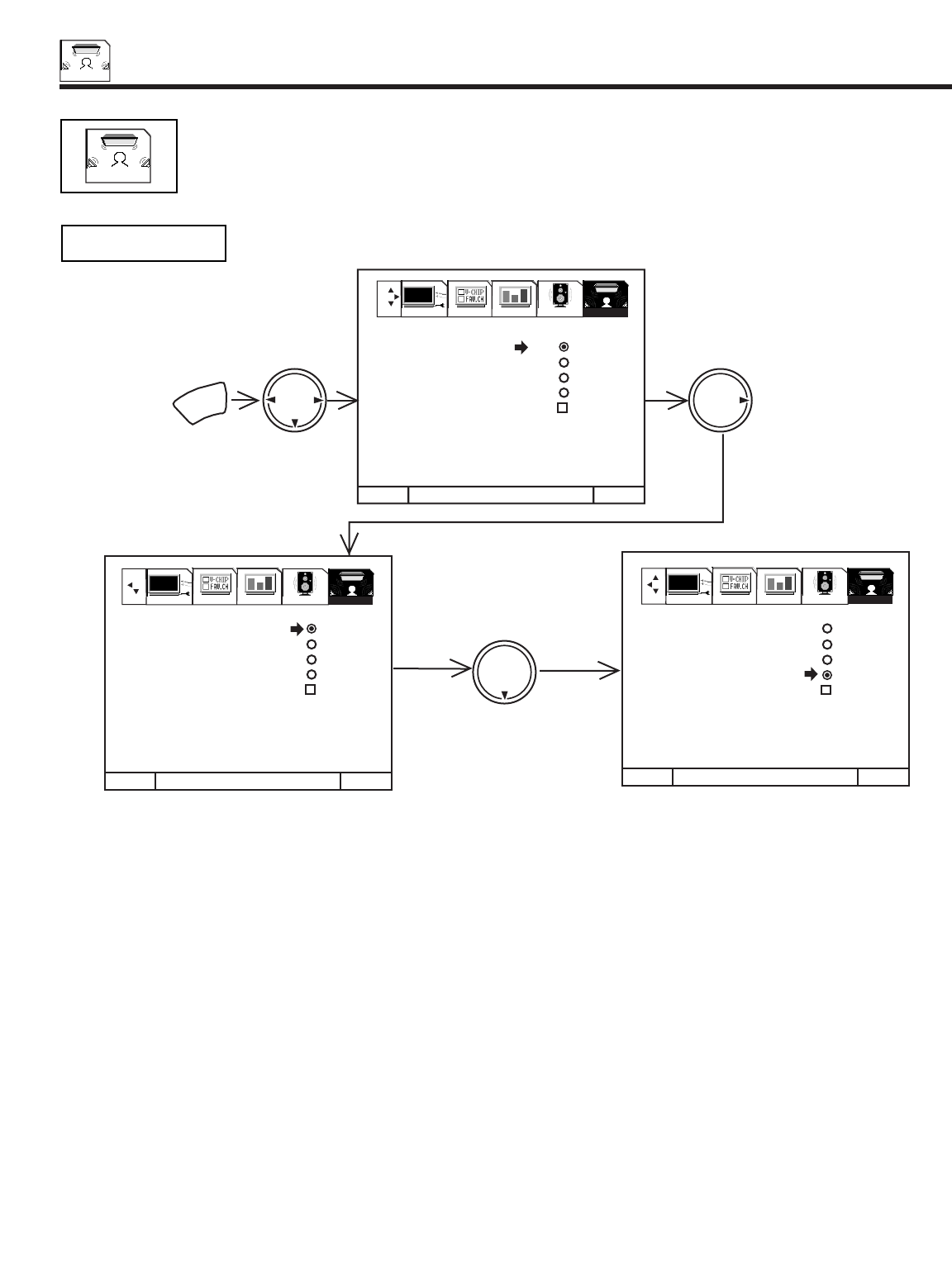
THEATER
62
THEATER
Use THUMB STICK or to change THEATER MODES settings.
When TV mode is chosen, the following are automatically set:
CONTRAST - 100%, COLOR TEMPERATURE - COOL, EQUALIZER is set to center, LOUDNESS - ON, PERFECT VOLUME - ON,
DYNAMIC BASS - OFF, SURROUND - OFF, AUTO DYNAMIC CONTRAST - ON.
When MOVIES mode is chosen, the following are automatically set:
CONTRAST - 100%, COLOR TEMPERATURE - WARM, EQUALIZER set to center, LOUDNESS - OFF, PERFECT VOLUME - OFF,
DYNAMIC BASS - ON, SURROUND - PRO LOGIC, AUTO DYNAMIC CONTRAST - ON.
When MUSIC mode is chosen, the following are automatically set:
CONTRAST - 100%, COLOR TEMPERATURE - COOL, EQUALIZER set to enhance low and high frequency range, LOUDNESS -
OFF, PERFECT VOLUME - OFF, DYNAMIC BASS - OFF, SURROUND - ROCK ARENA, AUTO DYNAMIC CONTRAST - OFF.
When SPORTS mode is chosen, the following are automatically set:
CONTRAST - 100%, COLOR TEMPERATURE - COOL, EQUALIZER set to center, LOUDNESS - OFF, PERFECT VOLUME - OFF,
DYNAMIC BASS - ON, SURROUND - STADIUM, AUTO DYNAMIC CONTRAST - OFF.
You can customize each of the above modes (TV, MOVIE, and SPORTS) to your preference to increase viewing performance and
pleasure, depending upon the video program being viewed. However, if RESET is selected, all modes will reset to the initial conditions
as explained above.
When RESET is selected, it will take approximately two seconds to return to factory conditions (SPORTS mode).
Press EXIT to quit menu or THUMB STICK to return to previous menu.
Use this function to choose from automatic picture settings to optimize your TVs performance.
THEATER MODES
MENU TO MENU BAR TO QUIT EXIT
MENU TO MENU BAR TO QUIT EXIT MENU TO MENU BAR TO QUIT EXIT
MENU
THUMB
STICK
THUMB
STICK
THUMB
STICK
SETUP CUSTOMIZE VIDEO AUDIO THEATER
1. THEATER MODES TV
2. SURROUND MOVIES
3. INPUT SOURCE MUSIC
4. LISTENING SPORTS
POSITION RESET
5. LISTENING MODE
6. SPEAKER SETUP
1. THEATER MODES TV
2. SURROUND MOVIES
3. INPUT SOURCE MUSIC
4. LISTENING SPORTS
POSITION RESET
5. LISTENING MODE
6. SPEAKER SETUP
1. THEATER MODES TV
2. SURROUND MOVIES
3. INPUT SOURCE MUSIC
4. LISTENING SPORTS
POSITION RESET
5. LISTENING MODE
6. SPEAKER SETUP
SETUP CUSTOMIZE VIDEO AUDIO THEATER SETUP CUSTOMIZE VIDEO AUDIO THEATER
THEATER
Use this function to choose picture and audio settings for a true home THEATER experience.
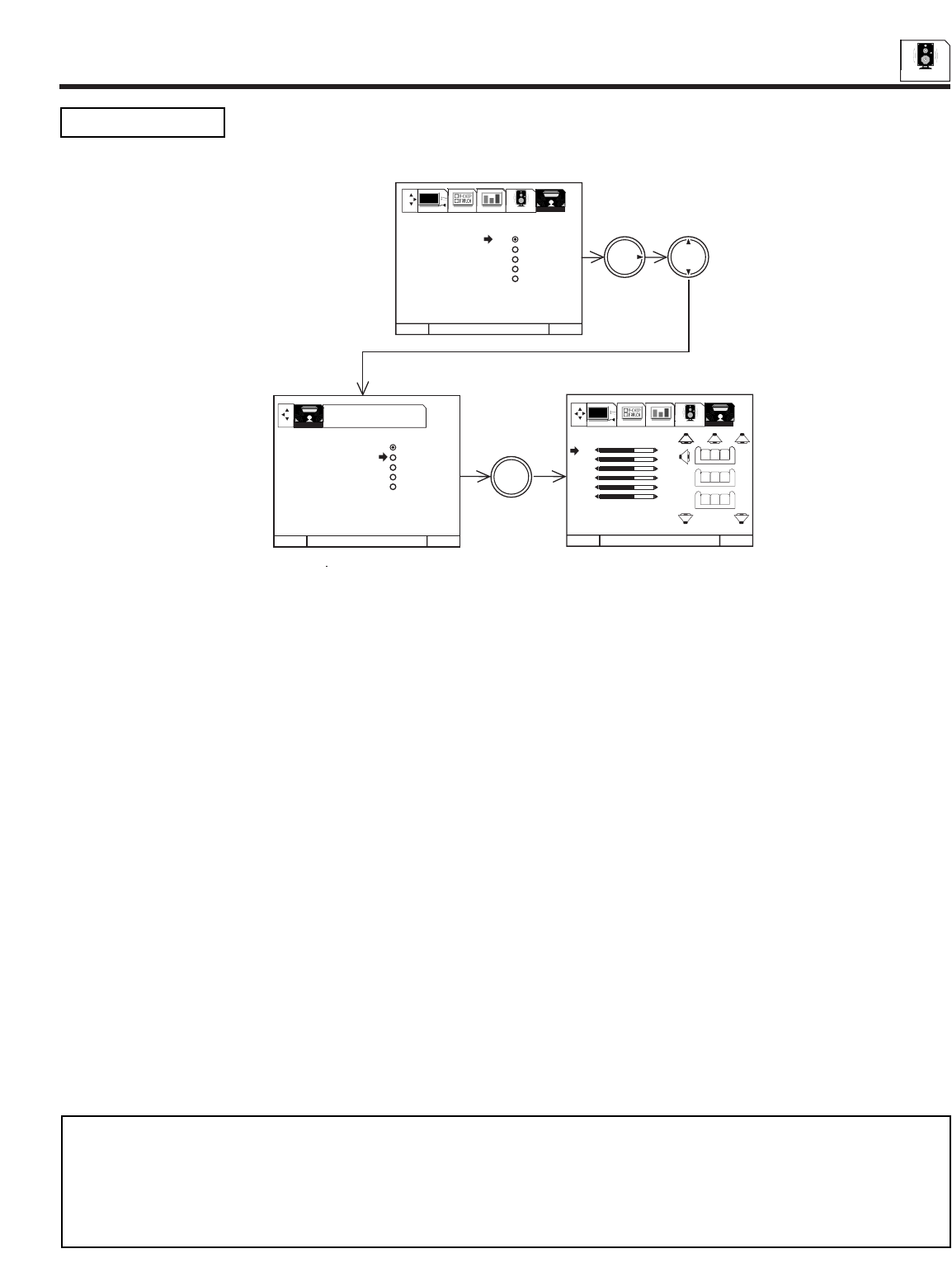
THEATER
63
AUDIO
SURROUND The following surround settings will reproduce the live sound you would hear in concert halls,
sports stadiums, movie theaters, etc. when you set up your speaker system as shown in the section
on audio system setup on pages 23-24. The surround system is most effective with movie and other
stereo material that is Dolby Surround encoded.
To enter the SURROUND MODE, use THUMB STICK or to highlight then press down on THUMB STICK to select SURROUND
MODE of your choice.
Now press THUMB STICK or to select speaker to be adjusted.
Use THUMB STICK or to adjust the volume of the highlighted speakers. MAIN volume also controls AUDIO TO HI-FI output
level. Adjust MAIN volume first.
Each SURROUND setting has separate FL (Front Left), C (Center), FR (Front Right), SR (Surround Right), SL (Surround Left), and
SW (Sub Woofer) volume controls, except OFF, which has only balance and SW (Sub Woofer) controls.
All speaker volumes will increase or decrease when the main VOLUME is set.
The maximum volume allowed for the CENTER, REAR, and SUB WOOFER will depend on how loud the MAIN volume is set.
SURROUND OFF
Use this for normal stereo/mono broadcasts.
STADIUM SURROUND
Select this mode to simulate being at a sporting event.
ROCK ARENA SURROUND
Select this mode to simulate being at a medium sized Rock Arena.
JAZZ CLUB SURROUND
Select this mode to simulate being at a small Jazz Club.
PRO LOGIC SURROUND
Select this mode when viewing a program which is DOLBY PRO LOGIC encoded. (see page 64 for more information)
DOLBY DIGITAL SURROUND
Select this mode when viewing a program which is DOLBY DIGITAL encoded and you have a digital (optical or coaxial) input. (see
pages 65 and 66 for more information)
MENU TO MENU BAR TO QUIT EXIT
MENU TO MENU BAR TO QUIT EXIT MENU TO BACK QUIT EXIT
THUMB
STICK THUMB
STICK
THUMB
STICK
SETUP CUSTOMIZE VIDEO AUDIO THEATER
0
0
0
0
0
0
FL
C
FR
SR
SL
SW
STADIUM
PRESS SELECT TO
ACTIVATE/DEACTIVATE
SELECT
1. THEATER MODES
2. SURROUND OFF
3. INPUT SOURCE STADIUM
4. LISTENING ROCK ARENA
POSITION JAZZ CLUB
5. LISTENING MODE PRO LOGIC
6. SPEAKER SETUP
1. THEATER MODES
2. SURROUND OFF
3. INPUT SOURCE STADIUM
4. LISTENING ROCK ARENA
POSITION JAZZ CLUB
5. LISTENING MODE PRO LOGIC
6. SPEAKER SETUP
THEATER
SETUP CUSTOMIZE VIDEO AUDIO THEATER
NOTES: 1. This TV can not decode or process DTS (Digital Theater Surround).
2. If you can not adjust SR, SL, or SW, make sure they are turned on in the THEATER - SPEAKER SETUP menu.
(see page 68)
3. PROLOGIC indication in surround menu changes to DOLBY DIGITAL automatically when Dolby Digital audio is
inputted. However, PROLOGIC indication appears when Dolby Digital 2.0 is inputted. STADIUM , ROCK ARENA ,
and JAZZ CLUB are not selectable when Dolby Digital signal is inputted. (See pages 64-65)
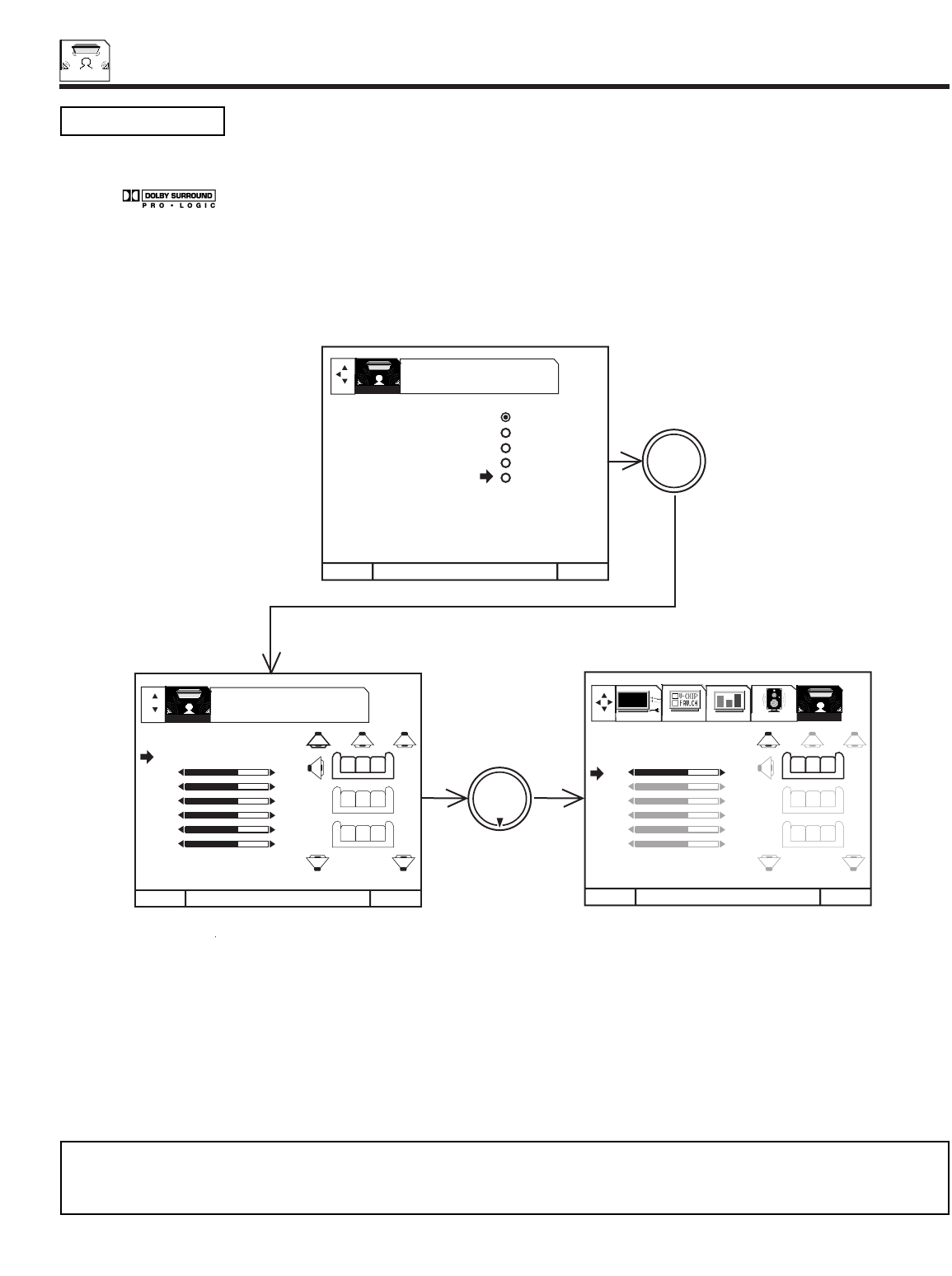
THEATER
64
THEATER
DOLBY PRO LOGIC
Dolby Pro Logic provides four separate sound channels: front left, center, front right, and surround. For properly encoded programs
marked the center sound channel contains the dialogue for the program viewed. The left and right channels produce
sound effects that will match the action on the TV screen. For example, Dolby Pro Logic will enhance the effect of a car viewed driving
from the left side of the TV screen to the right side. The surround channel (speakers) are placed behind the viewing area to add
additional spatial sound effects.
To fully benefit from Dolby Pro Logic Surround, it is recommended that the surround speaker system be complete, as shown on page
17.
Press THUMB STICK or to change volume level of each speaker independently.
Press SELECT on THUMB STICK when TESTTONE is highlighted and TV will automatically cycle through all speakers. Simply wait
until the speaker you wish to adjust is highlighted (static noise will be heard from this speaker), then use THUMB STICK or to
adjust VOLUME. Using TEST TONE, you can quickly and easily set each speaker volume to a desired level.
Press on THUMB STICK when TEST TONE is highlighted to manually cycle through all speakers.
When main VOLUME is changed, all speaker volumes will change according to the percentages you set in this menu.
Set TV balance by adjusting FL (Front Left) and FR (Front Right) volume control.
MENU TO MENU BAR TO QUIT EXIT
MENU TO MENU BAR TO QUIT EXIT MENU TO MENU BAR TO QUIT EXIT
THUMB
STICK
THUMB
STICK 0
0
0
0
0
0
FL
C
FR
SR
SL
SW
SELECT
0
0
0
0
0
0
FL
C
FR
SR
SL
SW
PRO LOGIC
TEST TONE
PRO LOGIC
TEST TONE
PRESS SELECT TO
ACTIVATE/DEACTIVATE
PRESS SELECT TO
ACTIVATE/DEACTIVATE
1. THEATER MODES OFF
2. SURROUND STADIUM
3. INPUT SOURCE ROCK ARENA
4. LISTENING JAZZ CLUB
POSITION PRO LOGIC
5. LISTENING MODE
6. SPEAKER SETUP
SETUP CUSTOMIZE VIDEO AUDIO THEATER
THEATER
THEATER
NOTE: Center channel audio will always be heard from the TVs center speaker. If THEATER-SPEAKER SETUP-FRONT L/R is
set to EXTERNAL W/AMP, center channel audio will still be heard from the TV s center speaker. Only the front Left and
Right internal TV speakers can be turned off.
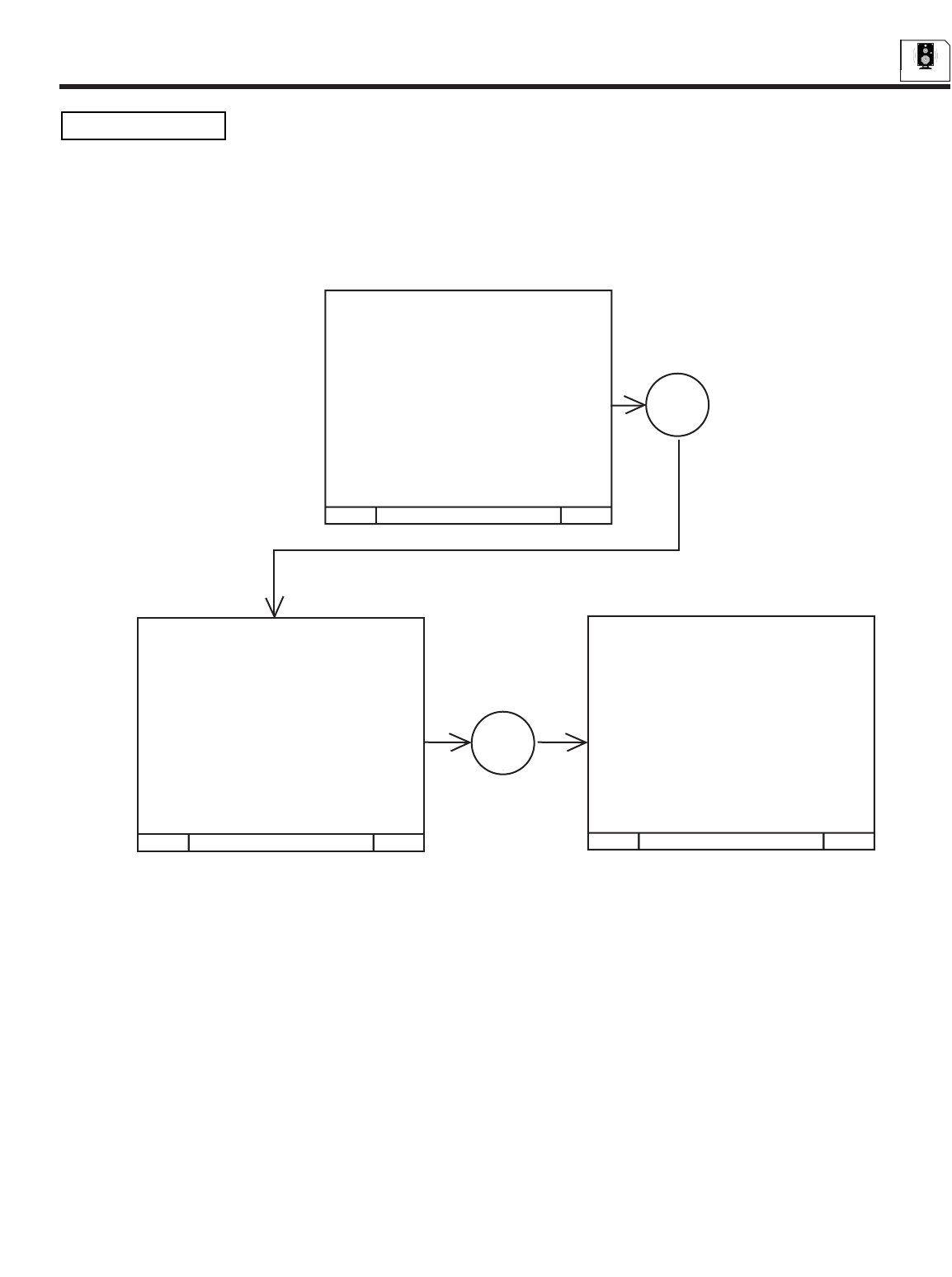
THEATER
65
AUDIO
DOLBY DIGITAL
Dolby Digital provides six independent sound channels: front left, center, front right, surround left, surround right, and sub woofer. Select
this feature when viewing properly encoded programs marked .
To fully benefit from Dolby Digital Surround, it is recommended that the surround speaker system be complete, as shown on
page 17.
Press THUMB STICK or to change volume level of each speaker independently.
Press SELECT on THUMB STICK when TESTTONE is highlighted and TV will automatically cycle through all speakers. Simply wait
until the speaker you wish to adjust is highlighted (static noise will be heard from this speaker), then use THUMB STICK or to
adjust VOLUME. Using TEST TONE, you can quickly and easily set each speaker volume to a desired level.
Press on THUMB STICK when TEST TONE is highlighted to manually cycle through all speakers.
When main VOLUME is changed, all speaker volumes will change according to the percentages you set in this menu.
Set TV balance by adjusting FL (Front Left) and FR (Front Right) volume control.
Menu To Back Quit Exit
Menu To Back Quit Exit Menu To Back Quit Exit
THUMB
STICK
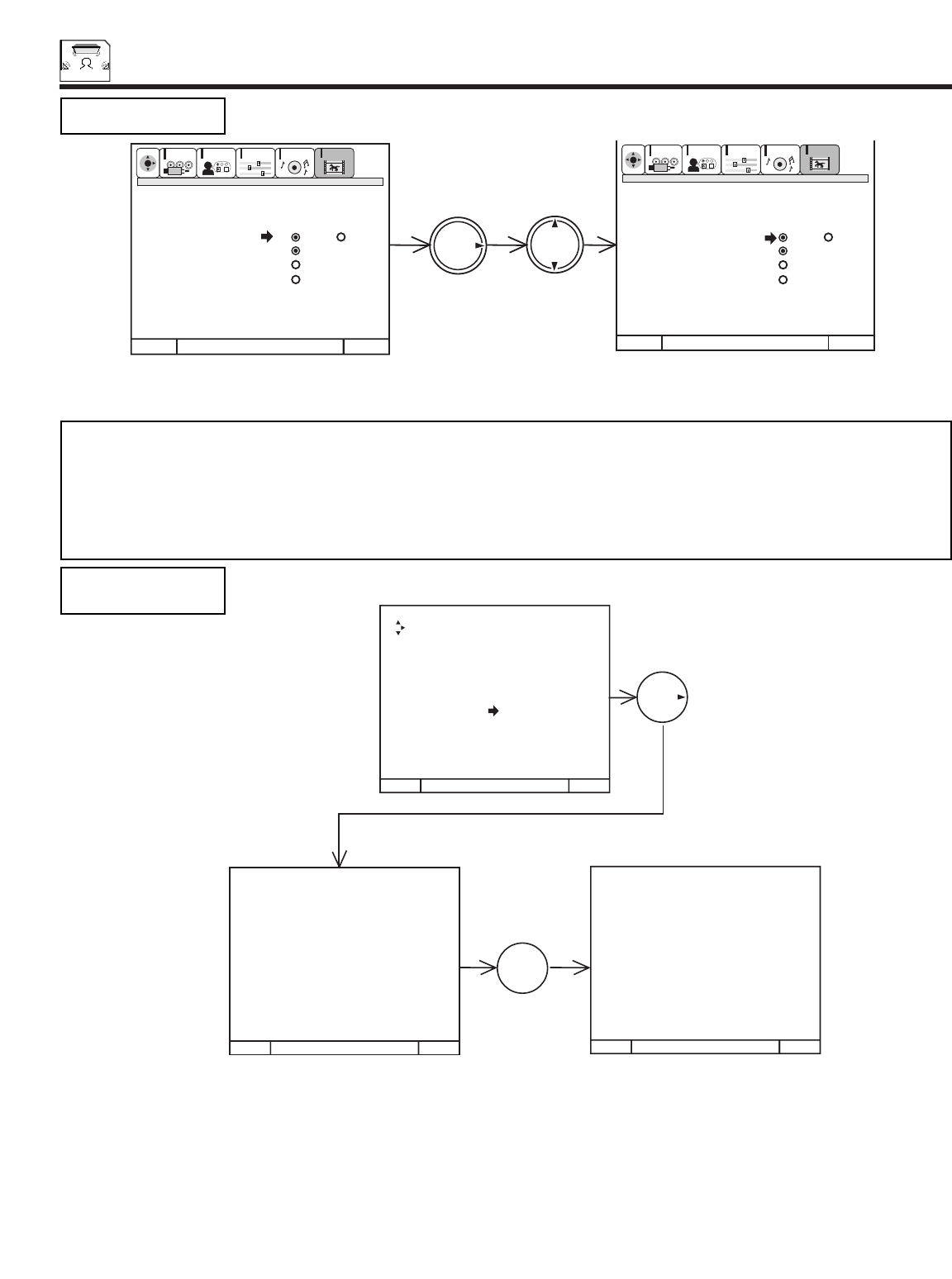
THEATER
66
THEATER
Use THUMB STICK or to select DIGITAL or ANALOG.
Press EXIT to quit menu or THUMB STICK to return to previous menu.
Set audio input to Digital or Analog. This fueature is used only when viewing VIDEO:1 or VIDEO:2 inputs,
since only these inputs can accept DIGITAL audio input.
INPUT SOURCE
Menu To Back Quit Exit Menu To Back Quit Exit
THUMB
STICK
THUMB
STICK
CUSTOMIZE
SETUP VIDEO AUDIO
THEATER
SEL
CUSTOMIZE
SETUP VIDEO AUDIO
THEATER
SEL
Theater Modes
Surround
Input Source Vid4 Vid5
Listening Analog
Position Optical
Listening Mode Coaxial
Speaker Setup (Digital)
Theater Modes
Surround
Input Source Vid4 Vid5
Listening Analog
Position Optical
Listening Mode Coaxial
Speaker Setup (Digital)
NOTE: 1. This feature selects between DIGITAL (Optical and Coaxial) Inputs on rear panel and ANALOG (Audio Left/Right)
Inputs on rear panel.
2. DIGITAL audio can only be used for VIDEO:1 or VIDEO:2 inputs. VIDEO:3 inputs can accept only ANALOG audio
input.
3. You cannot select COAXIAL for both VIDEO:1 and VIDEO:2 inputs. You also cannot select OPTICAL for both
VIDEO:1 and VIDEO:2 inputs. You may only have 1 type of audio input for each rear panel input.
Press down on THUMB STICK to select Front, Center, or Rear LISTENING POSITION that matches your setup.
Press EXIT to quit menu or THUMB STICK to return to previous menu.
Set for optimum audio performance based on your listening position.
LISTENTING
POSITION
MENU TO MENU BAR TO QUIT EXIT
MENU TO MENU BAR TO QUIT EXIT MENU TO MENU BAR TO QUIT EXIT
THUMB
STICK
THUMB
STICK475 m1STICK
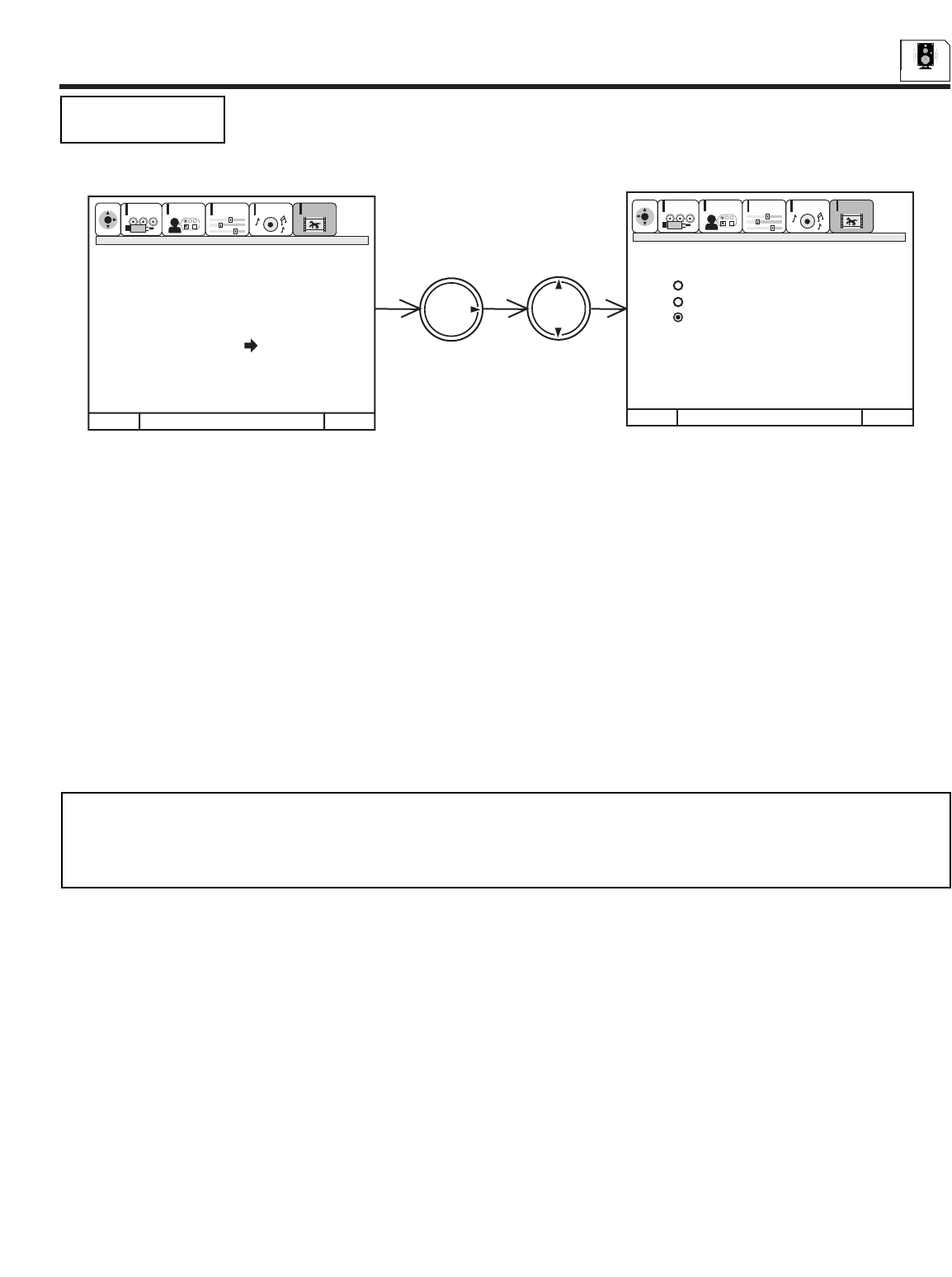
THEATER
67
AUDIO
Use THUMB STICK or to select STANDARD, NIGHT, MAXIMUM.
Press EXIT to quit menu or THUMB STICK to return to previous menu.
When STANDARD is selected:
It is the normal listening mode. It does not make full use of your televisions dynamic range, but is a good compromise for all day
viewing/listening.
When NIGHT is selected:
This mode allows the audio to be reproduced in such a way that the impact of sound track extremes (such as explosions) are reduced
while quiet passages are boosted , allowing all the audio information to be heard at a low volume level. As it s name suggests, this mode
is intended for night time viewing.
When MAXIMUM is selected:
This mode makes the best use of the televisions dynamic range. It will enhance the sound effects such as explosions or screams.
Choose between pre-set audio modes Standard, Night, or Maximum. Take advantage of these features to
reduce or increase sound effects.
LISTENING MODE
Menu To Back Quit Exit Menu To Back Quit Exit
THUMB
STICK
THUMB
STICK Listening Mode
CUSTOMIZE
SETUP VIDEO AUDIO
THEATER
SEL
CUSTOMIZE
SETUP VIDEO AUDIO
THEATER
SEL
Theater Modes
Surround
Input Source
Listening
Position
Listening Mode
Speaker Setup
Standard
Night
Maximum
NOTES: 1. This feature is only accessible when SURROUND-DOLBY DIGITAL mode is selected and INPUT SOURCE-DIGITAL
(Optical or Coaxial) is chosen.
2. You must be in VIDEO:1 or VIDEO:2 to access this feature, since these are the only inputs which accept DOLBY
DIGITAL inputs.
Available Digital Audio Formats:
Dolby Digital
PCM 32, 44.1, 48kHz (2 channels)
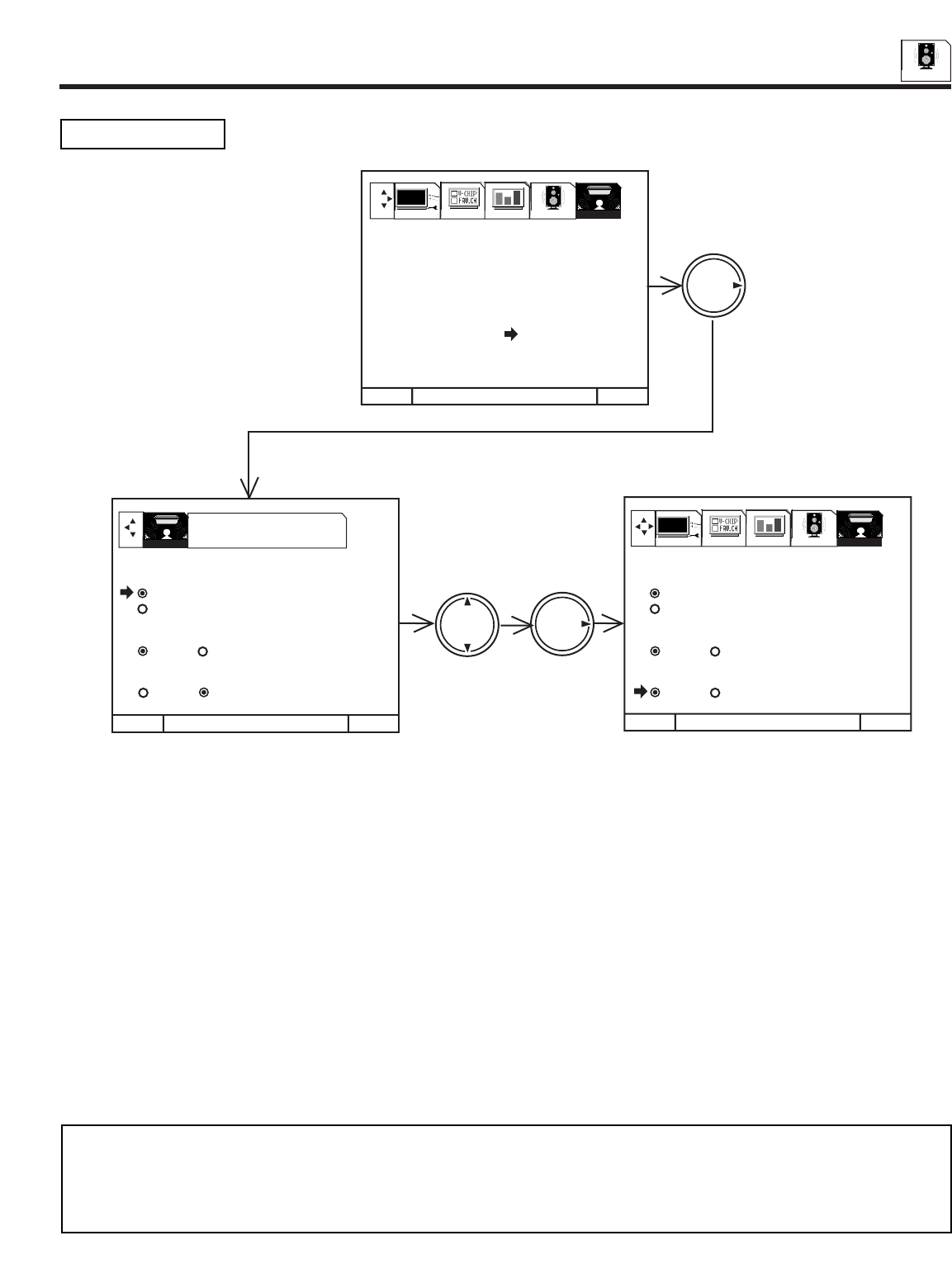
THEATER
68
AUDIO
SPEAKER SETUP Select specific speaker output, including a subwoofer.
Press THUMB STICK or to highlight feature.
Press down on THUMB STICK to select INTERNAL or EXTERNALW/AMP.
Use THUMB STICK to change SURROUND or SUB WOOFER feature to your desired setting.
Press EXIT to quit menu or THUMB STICK to return to previous menu.
Select FRONT L/R - INTERNAL if you wish to use the TV internal Left and Right speakers.
Select FRONT L/R- EXTERNAL W/AMP if you wish to turn off the TV internal Left and Right speakers and use speakers connected to
an external amplifier. This will provide better audio separation.
Select SURROUND - YES if you are using the TV speaker terminals (on rear panel) to power your surround speakers.
Select SURROUND - NO if you are not using the TV speaker terminals for your surround speakers or want to turn surround speakers
OFF.
Select SUB WOOFER - YES if you have a sub woofer connected to the rear panel Sub Woofer jack. If you are not using this rear
panel Sub Woofer jack or wish to turn OFF your SUB WOOFER, select SUB WOOFER - NO.
MENU TO MENU BAR TO QUIT EXIT
MENU TO BACK TO QUIT EXIT MENU TO BACK TO QUIT EXIT
THUMB
STICK
THUMB
STICK
SETUP CUSTOMIZE VIDEO AUDIO THEATER
SPEAKER SETUP
FRONT L/R
INTERNAL
EXTERNAL W/AMP
SURROUND
YES NO
SUB WOOFER
YES NO
SPEAKER SETUP
FRONT L/R
INTERNAL
EXTERNAL W/AMP
SURROUND
YES NO
SUB WOOFER
YES NO
THUMB
STICK
PRESS SELECT TO
ACTIVATE/DEACTIVATE
1. THEATER MODES
2. SURROUND
3. INPUT SOURCE
4. LISTENING
POSITION
5. LISTENING MODE
6. SPEAKER SETUP
SETUP CUSTOMIZE VIDEO AUDIO THEATER
THEATER
NOTES: 1. Surround speakers and Sub Woofer volume will increase and decrease when main volume is adjusted. Refer to
THEATER-SURROUND menu on page 63 for instructions on how to set up your speakers.
2. If SURROUND-NO, SUB WOOFER-NO are selected, when THEATER-SURROUND is chosen you will not be able to
adjust volume level of SL, SR, or SW. This is because these speakers are turned OFF by selecting SURROUND-NO
and SUB WOOFER-NO.
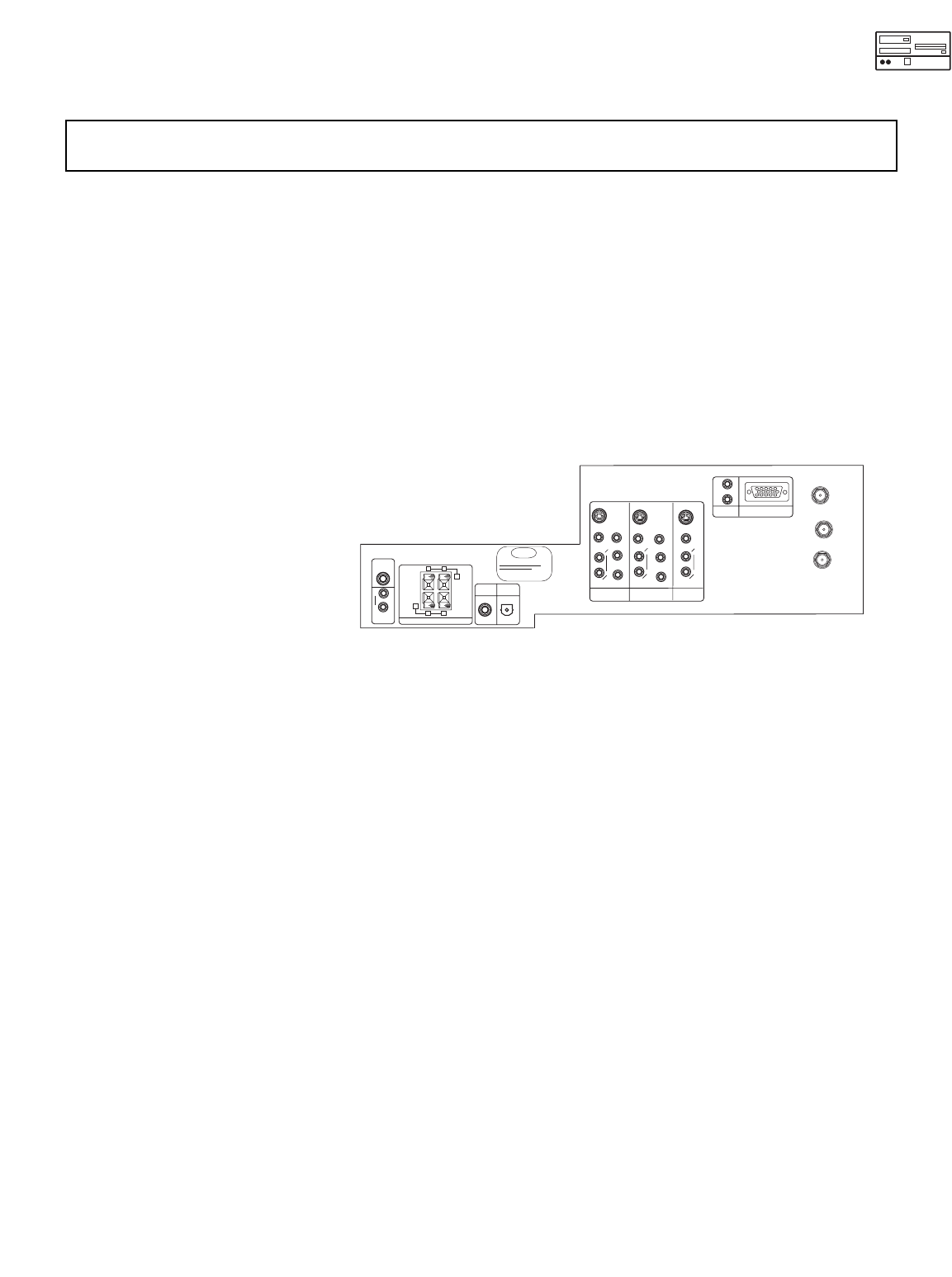
PC MODE CONNECTION AND OPERATION
69
IMPORTANT: TURN OFF THE REAR PROJECTION TV/PC MONITOR AND THE PC BEFORE CONNECTING OR
DISCONNECTING ANY CABLES.
ANT A
TO
CONVERTER
ANT B
12345
678910
1112131415
AUDIO
L
R
(MONO)
VIDEO VIDEO
AUDIO
(MONO)
L
R
AUDIO
(MONO)
L
R
VIDEO
S-VIDEO
Y
S-VIDEO
Y
B
R
P
P
B
R
P
P
S-VIDEO
L
R
L
R
SUB
WOOFER
STOP
CONNECT ONLY 8 OHM SPEAKERS
DO NOT SHORT CIRCUIT
THESE TERMINALS
(Such damage is NOT COVERED
by your television warranty)
REAR SPEAKER
8Ω ONLY
-
L
+
-
+
R
OPTICAL
INPUT
COAXIAL
INPUT
PC RGB INPUT 1
PC AUDIO
INPUT 1
MONITOR
OUT
INPUT 2
INPUT 1
AUDIO
TO
PC MODE SPECIFICATION
70
No. Item Operation
1 Event Program Only power on is available
2 Commercial Skip Not available.
3 Video Control Contrast and brightness work separately, however, other picture controls
are not available.
4 Audio Same as Video 3.
5 Audio-Balance Balance does not work in PC mode if surround setting is not OFF.
6 Surround Mode Same as Video 3.
7 Mute / Soft Mute Same as TV mode.
8 Closed Caption Not available.
9 Clock Clock indication is not available.
10 Sleep Timer Only one minute remaining indication.
11 Monitor Out Both picture and audio are not available.
12 Child Lock / Video Not available.
Lock / V-Chip
13 TV Time Out Not available.
14 Front Panel Lock Available.
15 Menu Language Three languages are available.
16 Auto Link Turning back to TV mode in operation, then power on.
17 Menu Background Not available.
2. The new setting (horizontal position, vertical position, clock, and phase) of the signal will be stored. The monitor can store up to 10
settings in addition to the 20 pre-set signal timing. Any additional new settings (more than 10) will over-write the first users setting,
second setting and so on.
3. Operation PC mode related to Tv functions are shown below.
PC ON SCREEN DISPLAY
71
4. Other signal formats may not be displayed correctly. Use AUTO ADJUST to automatically adjust the horizontal position, vertical
position, clock, and phase. We recommend you use signal, which has more than 50% of amplitude of white area at each corner of
the picture, execute Auto adjustment. It may not work correctly with dark picture. (See page 74-75).
5. Input signal level.
6. PC picture will not appear at all when receiving a signal which is not supported by this product. If PC display setting is wrong, the
monitor will display:
SYNC TTL level H/V separate signal
RGB 0.7Vpp
PC:1
NO SYNC. SIGNAL
PC:1
INVALID SCAN FREQ.
Without sync Either horizontal or vertical
frequency is inappropriate.
NOTE: 1. If PC cannot display an input signal, please try AUTO ADJUST to display the signal. This is to initialize the MultiScan
Converter.
2. If PC is set to correct horizontal and vertical frequencies and the picture is out of sync or scrambled, check the video
card documentation and set up software to properly set the monitor.
NOTE: Interlaced signal is not available.
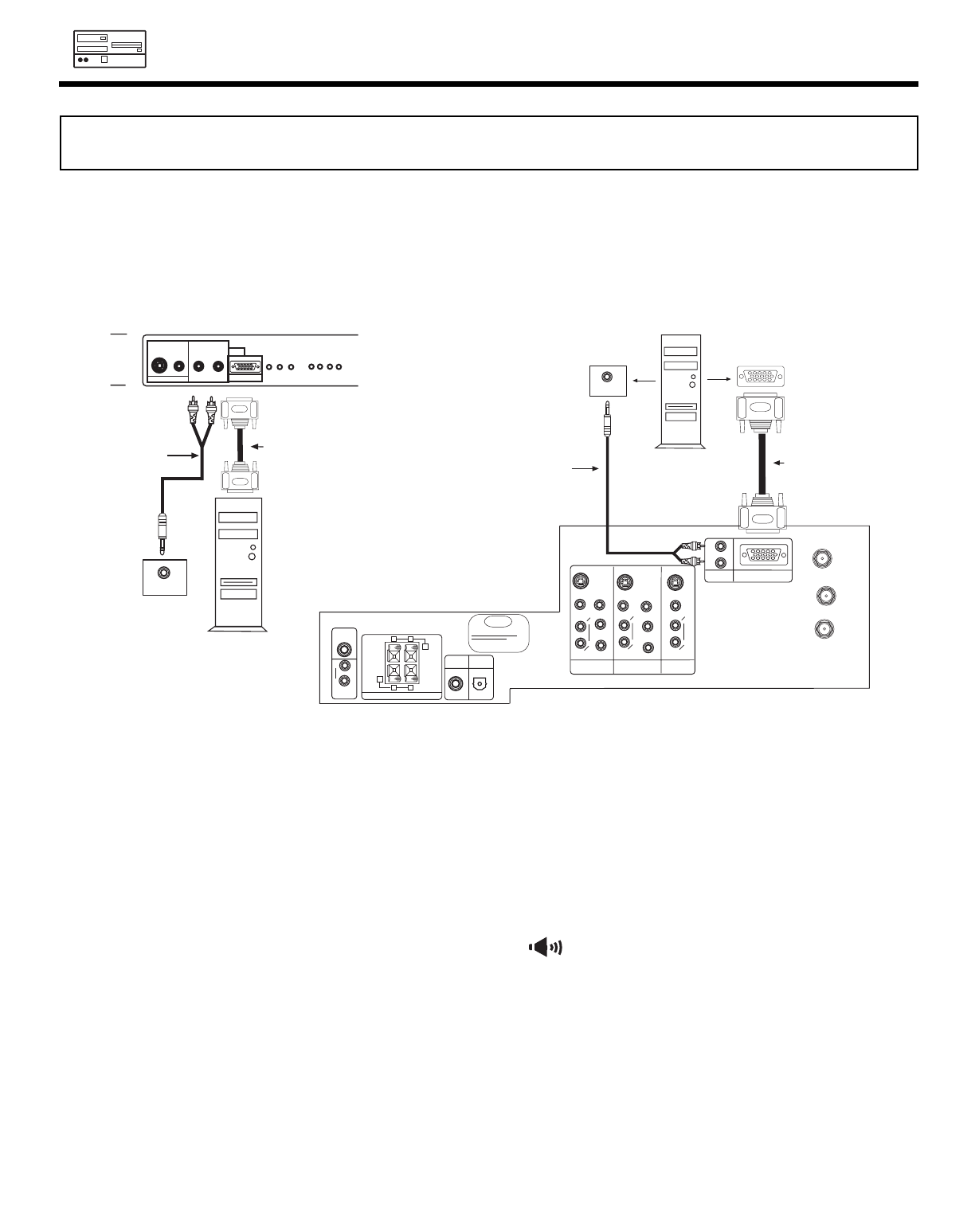
72
PC MODE CONNECTION AND OPERATION
2. Turn the DLPTM Rear Projection TV/PC monitor power on.
3. Press the TV/PC button on the front panel or on the remote control until you select PC mode.
4. Turn the PC power on.
5. Press the menu button on the DLPTM Rear Projection TV/PC monitor front panel or on the remote control to display the PC on screen
display.
6. Press the left () or right () cursor buttons to select the audio menu .
7. Press the select buttons to access the audio adjustment functions.
8. Use cursor and select button to adjust equalizer, loudness, and dynamic bass to your preference.
IMPORTANT: TURN POWER OFF ON THE DLPTM REAR PROJECTION TELEVISION AND THE PC BEFORE CONNECTING
OR DISCONNECTING ANY CABLES.
ANT A
TO
CONVERTER
ANT B
12345
678910
1112131415
AUDIO
L
R
(MONO)
VIDEO VIDEO
AUDIO
(MONO)
L
R
AUDIO
(MONO)
L
R
VIDEO
S-VIDEO
Y
S-VIDEO
Y
B
R
P
P
B
R
P
P
S-VIDEO
L
R
L
R
SUB
WOOFER
STOP
CONNECT ONLY 8 OHM SPEAKERS
DO NOT SHORT CIRCUIT
THESE TERMINALS
(Such damage is NOT COVERED
by your television warranty)
REAR SPEAKER
8Ω ONLY
-
L
+
-
+
R
OPTICAL
INPUT
COAXIAL
INPUT
PC RGB INPUT 1
PC AUDIO
INPUT 1
MONITOR
OUT
INPUT 2
INPUT 1
AUDIO
TO HI-FI
AUDIO OUT
12345
678910
1112131415
RGB
OUTPUT
D-SUB 15 Pin
RGB Cable
(Optional)
Audio Cable
(Optional)
Rear Panel of Television
REAR PANEL
CONNECTION TO PC
D-SUB 15 Pin
RGB Cable
(Optional)
PC
AUDIO OUT
Back of PC
Audio Cable
(Optional)
VIDEO 3
VOL-
AUDIO IN
VIDEO 3/PC2
L/(MONO) R
VIDEO
S-VIDEO
PC2
12345
678910
1112131415
INPUT VOL+ CH- CH+
TV/PC EXIT
MENU
SELECT
FRONT PANEL
CONNECTION TO PC
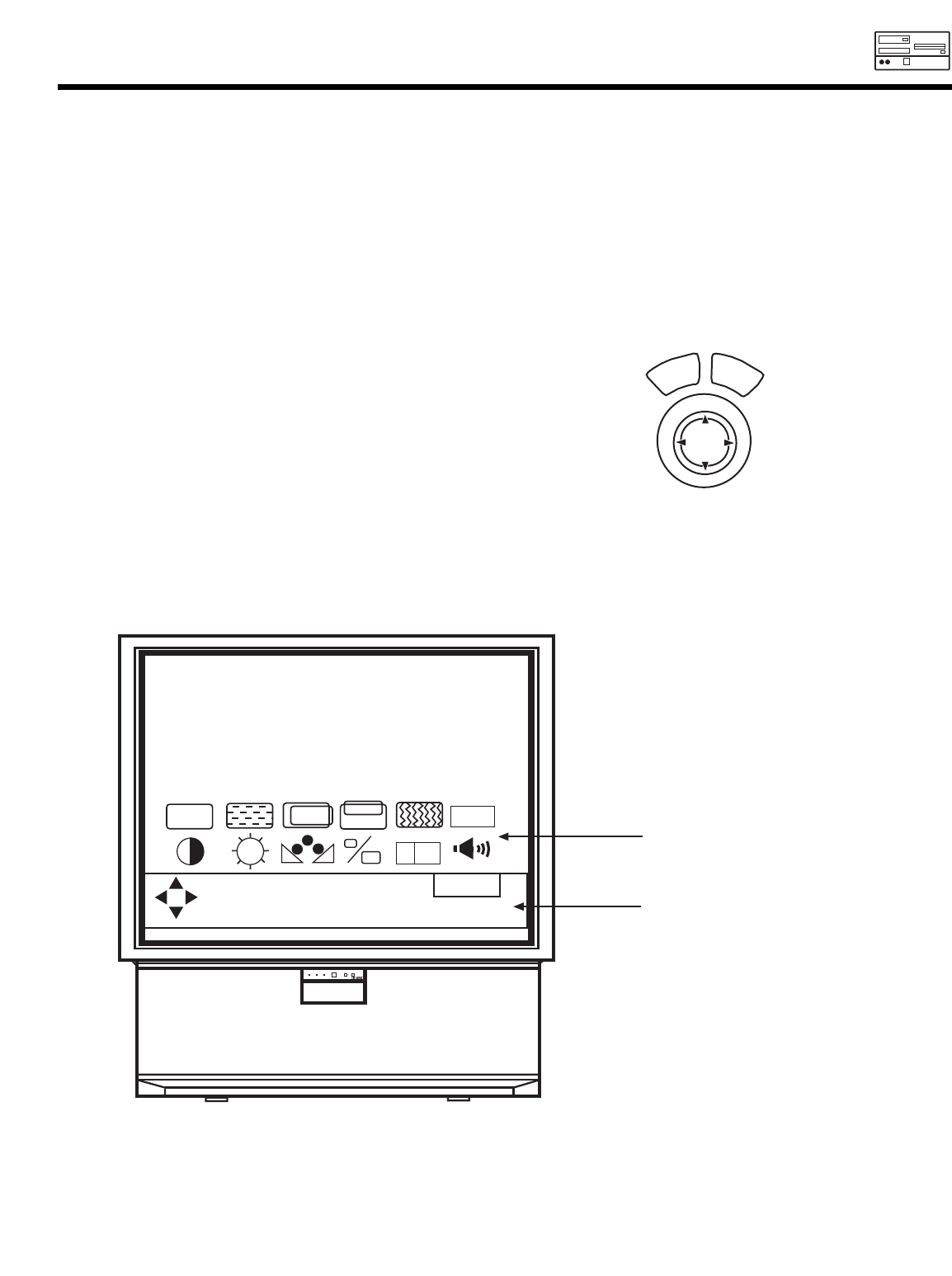
PC ON SCREEN DISPLAY
73
1. Press MENU on the remote control to display the different features in PC MODE.
2. Press the CURSOR buttons to highlight a different feature.
3. Press EXIT on the remote control to quickly exit from a menu.
AUTO
EON
OFF
R
EXIT
TO QUIT
This part of the screen shows
what selections are available.
This part of the screen shows which
remote control buttons to use.
PUSH
EXIT
MENU
SELECT
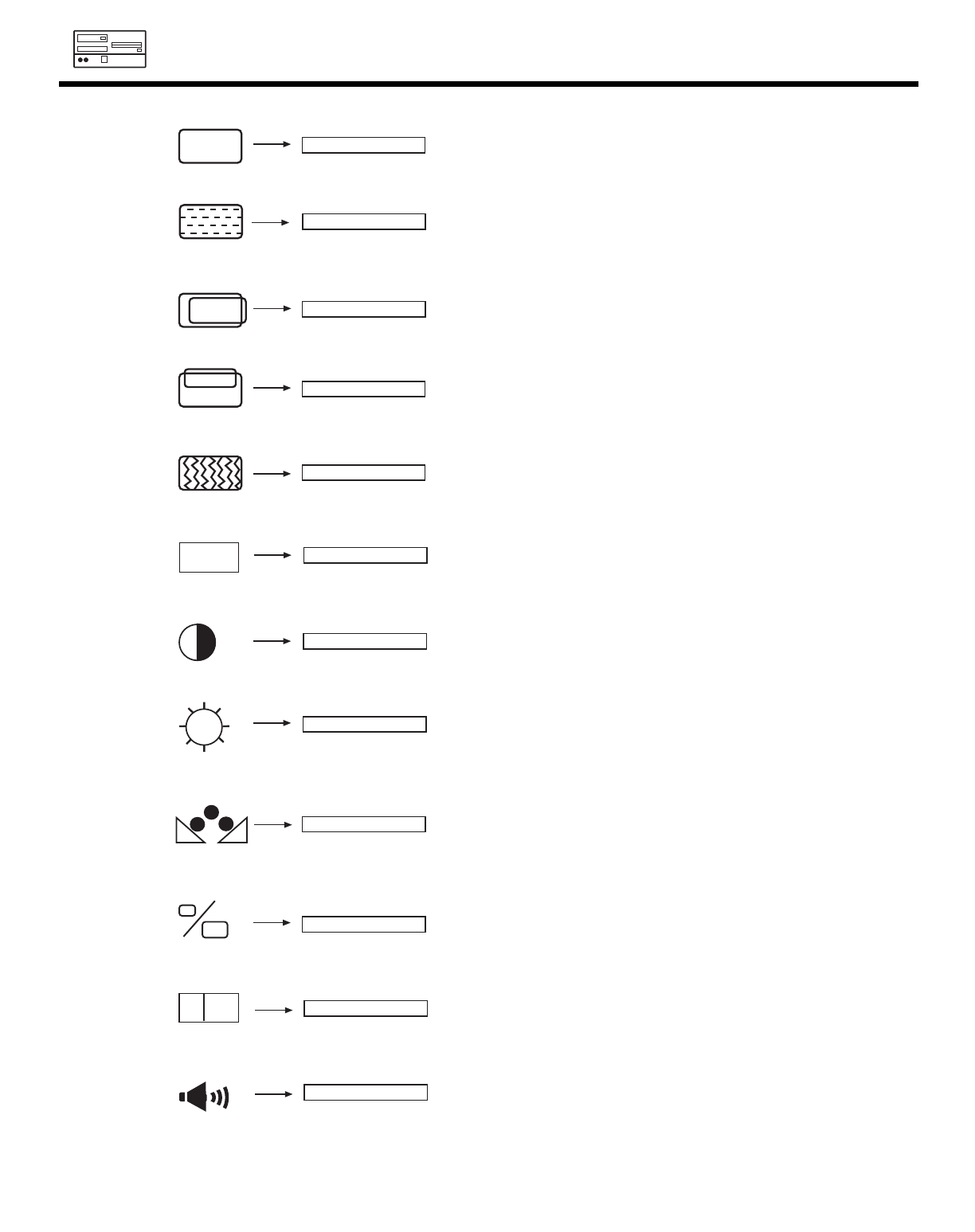
74
PC MODE ULTRATEC OSD
ENHANCE Enhance picture details.
EXPANSION Increase the horizontal size and vertical
size.
Adjusts the phase to correct blurred or
unstable images.
PHASE
Adjusts the dot clock frequency to reduce
the vertical stripe.
CLOCK
Adjust overall picture brightness.
BRIGHTNESS
Change the contrast between black and white levels in the picture.
CONTRAST
Adjust vertical position.
V POSITION
Adjust horizontal position.
H POSITION
DATA RECALL Recall the factory preset data of PC settings.
AUTO ADJUST Automatically adjust the geometry to fit the screen.
COLOR BALANCE Balance between Red and Blue color.
AUDIO EQUALIZER Enhance audio quality.
AUTO
R
EON
OFF
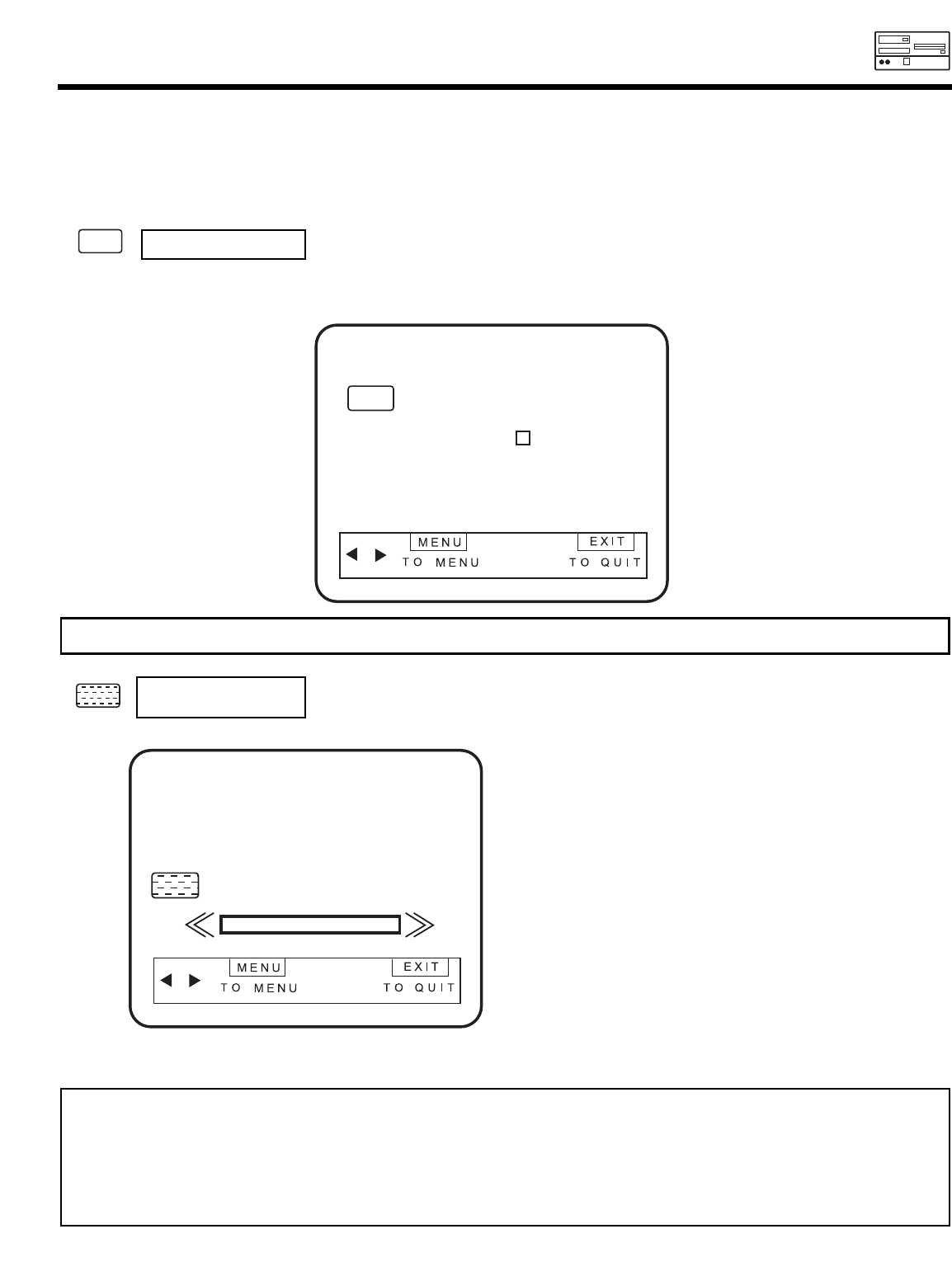
PC ON SCREEN DISPLAY
75
SET UP ADJUSTMENTS The following adjustments are independent of the TV mode:
¥Press MENU in PC mode for on screen display.
¥Press CURSORS to highlight the item to be adjusted.
¥Press SELECT to select the highlighted item.
¥Use CURSORS and SELECT to adjust.
ARE YOU SURE?
AUTO AUTO ADJUST
HORIZONTAL POSITION, VERTICAL POSITION, CLOCK and PHASE for current PC format are
adjusted automatically.
AUTO ADJUST
NOTE: ¥Press SELECT to AUTO ADJUST the PC mode.
¥The other functions do not operate while automatic adjustment is in progress.
¥Proceed to automatic adjustment after more than 20 minutes have passed since the power is ON.
¥Select a bright image for display while automatic adjustment takes place.
¥If automatic adjustment terminates unsuccessfully, try automatic adjustment again. If automatic adjustment fails
several times in succession, try using manual adjustment.
AUTO
PHASE Adjusts the phase to correct blurred or unstable images. Phase of sampling clock of Multi-
Scan Converter unit is changed when pressing CURSOR () left or right () button.
Use Left/Right cursors to adjust the phase. Press the
MENU button to return to initial position of menu icon
and EXIT to quit.
PHASE 0
Press SELECT to select AUTO ADJUST.
NOTE: Always reset AUTO ADJUST when setting new display setting (VGA, SVGA, XGA) or when changing to a new computer.
PC ON SCREEN DISPLAY
76
V POSITION This feature allows you to adjust the vertical position in PC mode.
Use Left/Right cursors to adjust the vertical position.
Press MENU button to return to initial position of
menu icon and EXIT to quit.
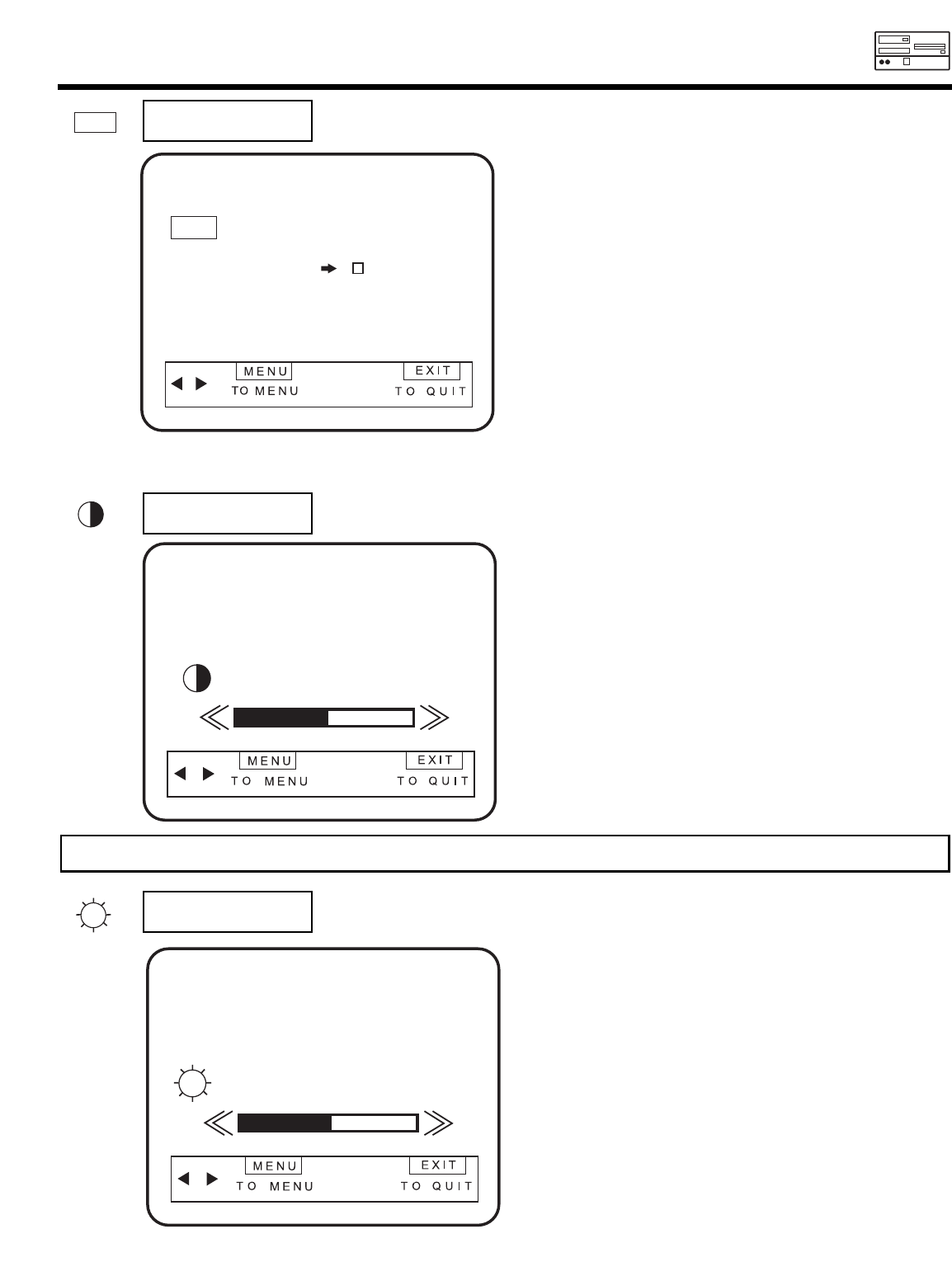
PC ON SCREEN DISPLAY
77
CONTRAST This feature allows you to adjust the contrast in PC mode.
BRIGHTNESS This feature allows you to adjust brightness in PC Mode.
Use Left/Right cursors to adjust contrast.
Press MENU button to return to initial position
of menu icon and EXIT to quit.
NOTE: See TV contrast feature for additional information regarding contrast.
CONTRAST 50%
BRIGHTNESS 50%
Use Left/Right cursors to adjust brightness.
Press MENU button to return to initial position of menu
icon and EXIT to quit.
DATA RECALL Set HORIZONTAL POSITION, VERTICAL POSITION, CLOCK and PHASE to factory preset, for
current PC format.
ARE YOU SURE?
DATA RECALL
R
Press THUMB STICK to select DATA RECALL.
R
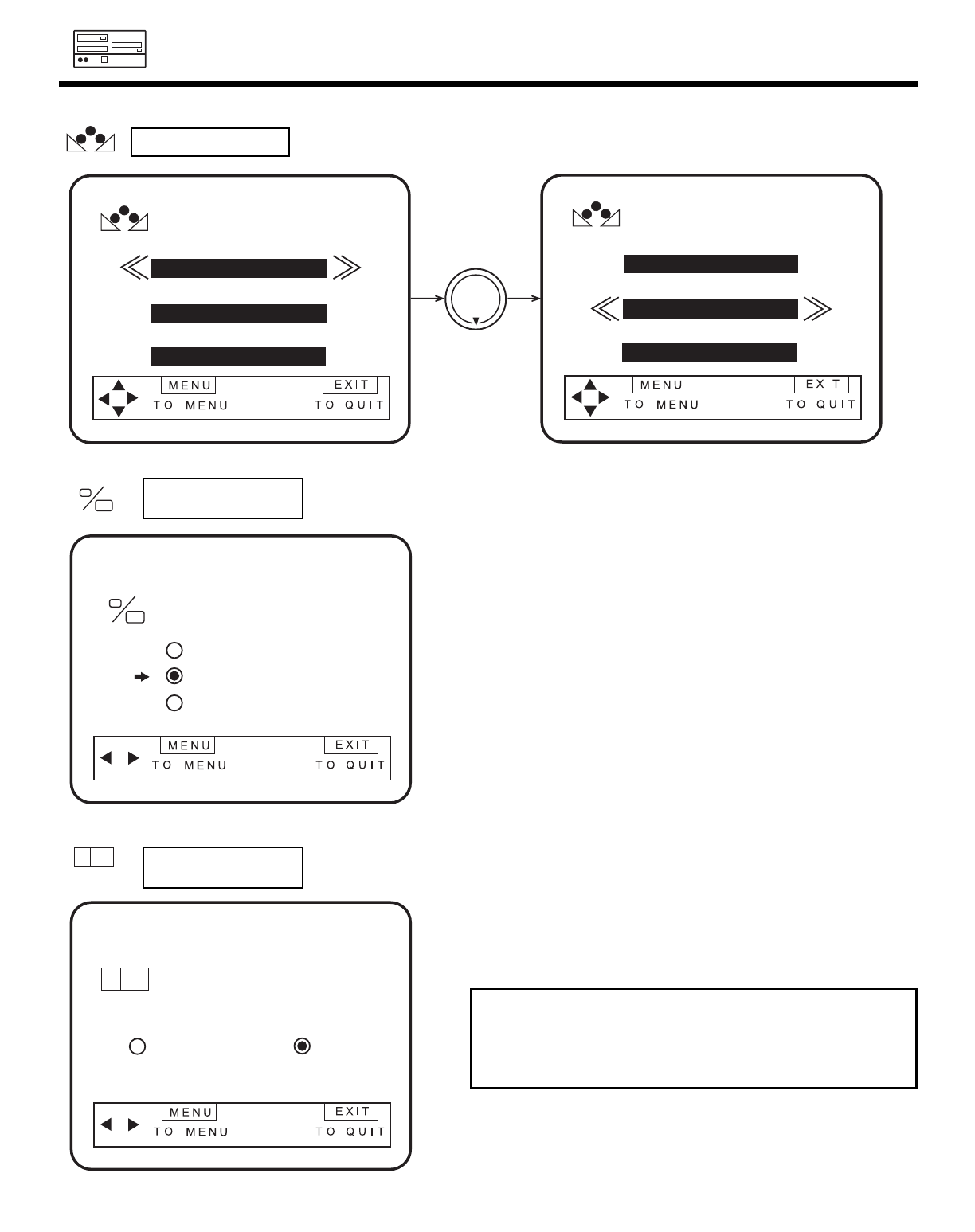
PC ON SCREEN DISPLAY
78
COLOR BALANCE
RED
GREEN
BLUE
100%
100%
100%
COLOR BALANCE
RED
GREEN
BLUE
100%
100%
100%
THUMB
STICK
Use the CURSOR to change the COLOR BALANCE of red, green and blue.
COLOR BALANCE
The picture size is expanded when switching from REAL, NORMAL and FULL. REAL
feature is not available on XGA or SXGA mode.
¥ Use Left/Right cursors to set EXPANSION ON or OFF.
¥ Press MENU button to store and EXIT to quit.
EXPANSION
EXPANSION
REAL
NORMAL
FULL
Enhances the picture detail.
¥ Use Left/Right cursors to set ENHANCE ON or OFF.
¥ Press MENU button to MENU and EXIT to quit.
ENHANCE
ENHANCE
ON OFF
EON
OFF
EON
OFF
NOTE: This function can be used when inputted signal resolution is
either equal to or less than SVGA with FULL or NORMAL
mode. Enhance may have no effect or picture quality may
be worse when XGA or higher resolution signal is inputted or
Real mode is selected.
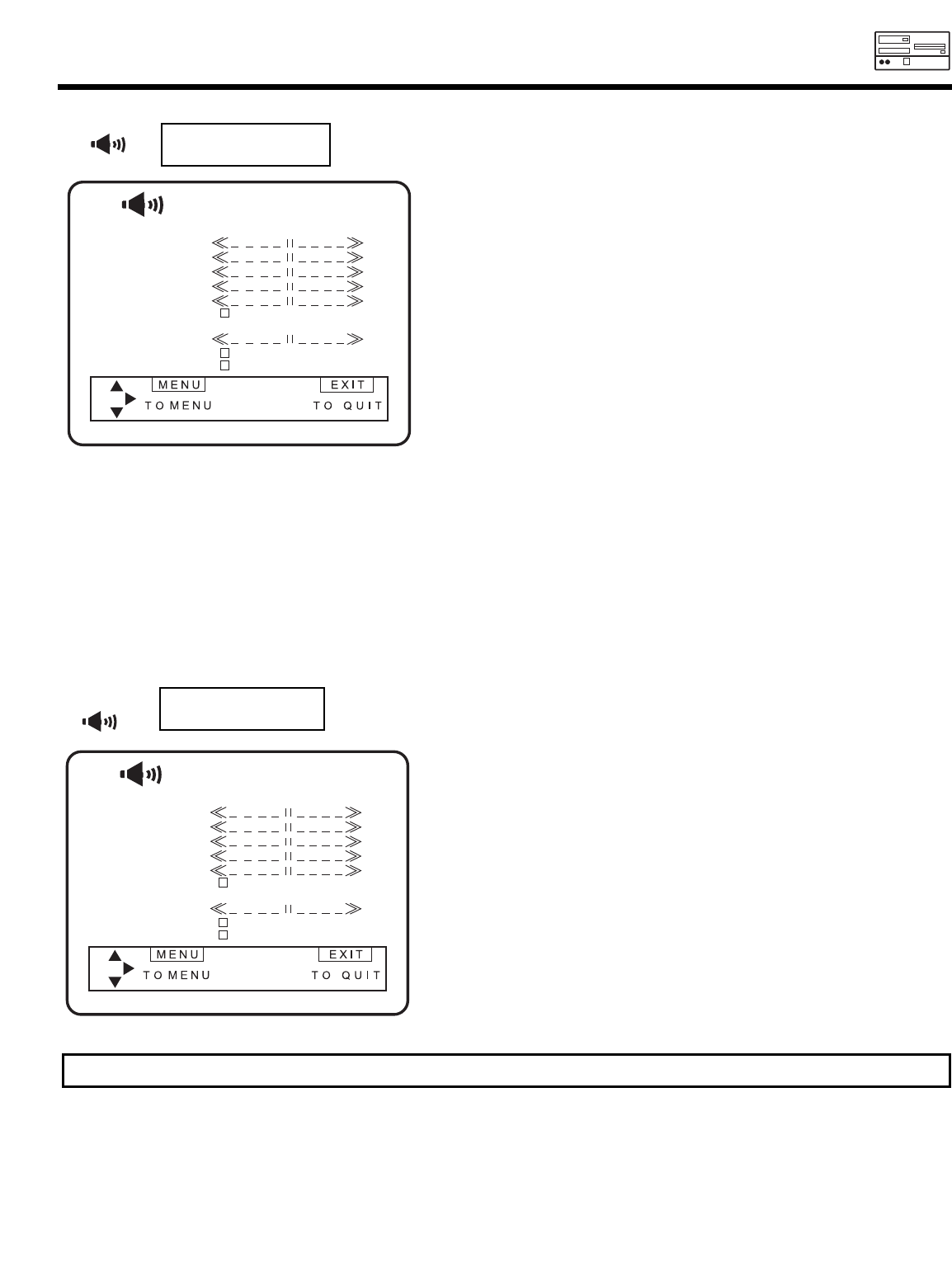
PC ON SCREEN DISPLAY
79
AUDIO
60
250
1k
3k
10k
RESET
BALANCE
LOUDNESS
DYNAMIC BASS
EQUALIZER
Use the CURSOR or to highlight the function to be
adjusted.
Press CURSOR or to adjust the function.
Press MENU button to store and EXIT to quit.
EQUALIZER
This function controls the low audio frequency and high audio frequency between 60 Hz to 10k Hz.
RESET
When RESET is selected, the ARE YOU SURE? display will appear on the screen to confirm your choice. Press
SELECT to return AUDIO adjustments to factory preset conditions.
BALANCE
This function will control the left to right balance of the TV internal speakers and the AUDIO TO HI FI output.
Press CURSOR for more AUDIO ADJUSTMENT.
AUDIO
Use CURSOR or , then press SELECT to select
DYNAMIC BASS on or off.
Press MENU button to store and EXIT to quit.
AUDIO
60
250
1k
3k
10k
RESET
BALANCE
LOUDNESS
DYNAMIC BASS
EQUALIZER
DYNAMIC BASS
NOTE: TV mode and PC mode AUDIO have the same effect. BALANCE works if surround is set to OFF in TV/VCR mode.

DEMAN
MOI!
80
LAMP REPLACEMENT
Lamp Replacement
After extended use, if the TV picture turns dark, the color looks unusual or LAMP INDICATOR light
turns on, then it is time to replace the lamp with a new lamp. Lamp should be replaced after 4,000
hours of use.
WARNING:
The lamp gets very hot! The lamp may explode if improperly handled. To avoid injury, please observe the following
precautions.
¥Do not open lamp compartment or attempt to remove lamp assembly unless the lamp assembly is being replaced.
¥Unplug the product s power cord from the AC outlet before attempting to replace the lamp assembly.
¥If the lamp is in use when failure occurs or if the lamp has exploded, wait at least 30-45 minutes for the lamp to
cool before opening the lamp compartment or touching the lamp assembly or any broken pieces.
¥Broken lamp pieces can cause injury. Handle with gloves to avoid cuts.
¥Do not place any foreign objects inside the lamp compartment.
¥When installing a new lamp, follow handling instruction included with the new lamp. Do not touch glass surface of
new lamp.
¥Please dispose of old lamp assembly properly.
CAUTION!
ALAMP indicator will light when lamp becomes hot. Unplug product s power cord from the AC outlet and allow
lamp to cool for at least 30-45 minutes. If LAMP indicator is still lit, please contact your authorized service center.
(see page 8)
NOTES:
¥Contact your Hitachi dealer for a new lamp unit. Using other lamps may cause damage to
the TV Set.
TYPE NAME: DLPTM LAMP ASSEMBLY
PART NUMBER: DP00341
¥When replacing the lamp, let it cool down completely, for approximately 30 to 45 minutes
after the power has been switched off and A.C. cord has been unplugged.
¥Do not touch the glass of the new lamp or make it dirty which can shorten the life
of the lamp and ruin the picture quality.
¥Keep the lamp out of the reach of children and away from flammable materials.
¥Do not pour water onto the removed lamp or put any object inside the lamp.
¥Once the lamp is removed, do not put flammable materials and metal objects inside the
lamp receptacle on the TV set. Do not touch the receptacle.
¥Install the new lamp securely, otherwise the picture may become dark or it may cause
severe overheating and possible fire.
¥Install the lamp cover correctly, otherwise power will not come on.
¥When you have finished changing the lamp, remember to reset the LAMP TIME COUNTER.
(See page 49 to reset the LAMP TIME COUNTER.)
¥LAMP MUST BE DISPOSED OF PROPERLY. FOR ASSISTANCE, PLEASE CALL
1-800-HITACHI
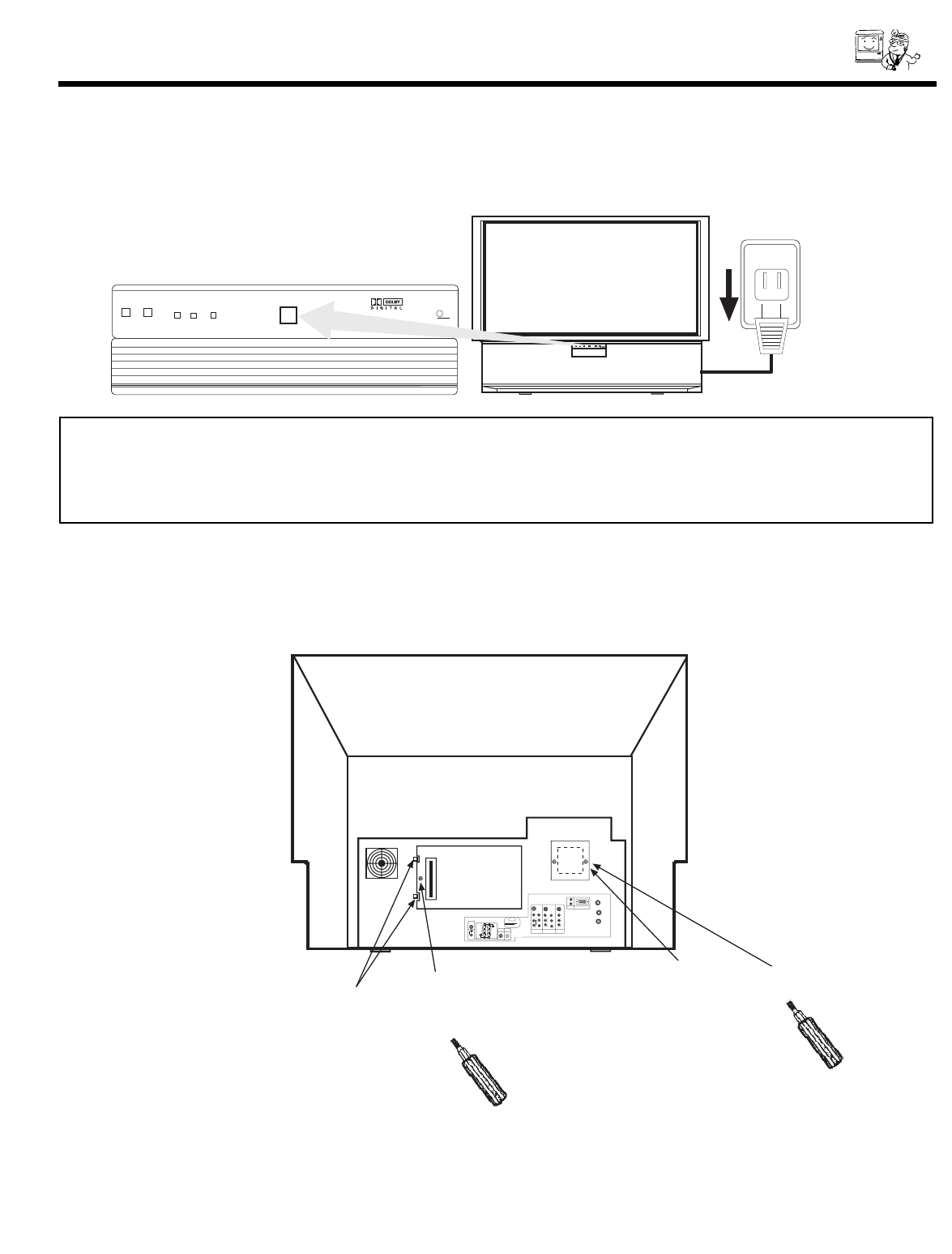
DEMAN
MOI!
ASK
ME!
81
LAMP REPLACEMENT
POWER
LAMP TEMP POWER
DLP
A TEXAS INSTRUMENTS TECHNOLOGY
PUSH
120V
PUSH
ANT A
✴✯
CONVERTER
✡✮✴ ✢
12345
678910
1112131415
✡✵✤✩✯
✬
✲
✈✭✯✮✯✉
✶✩✤✥✯ ✶✩✤✥✯
✡✵✤✩✯
✈✭✯✮✯✉
✬
✲
✡✵✤✩✯
✈✭✯✮✯✉
✬
✲
✶✩✤✥✯
✳✍✶✩✤✥✯
✹
✳✍✶✩✤✥✯
✹
✢
✲
✣
✰
✢
✲
✣
✰
✳✍✶✩✤✥✯
✬
✲
✬
✲
✳✵✢
✷✯✯✦✥✲
STOP
CONNECT ONLY 8 OHM SPEAKERS
DO NOT SHORT CIRCUIT
THESE TERMINALS
(Such damage is NOT COVERED
by your television warranty)
✲✥✡✲ ✳✰✥✡✫✥✲
8Ω ONLY
✍
✬
☞
✍
☞
✲
✯✰✴✩✣✡✬
✩✮✰✵✴
✣✯✡✸✩✡✬
✩✮✰✵✴
✰✣ ✲✧✢ ✩✮✰✵✴ ✑
✰✣ ✡✵✤✩✯
✩✮✰✵✴ ✑
✭✯✮✩✴✯✲
✯✵✴
✩✮✰✵✴ ✒
✩✮✰✵✴ ✑
✡✵✤✩✯
✴✯ ★✩✍✦✩
Two Clips
Spare Lamp Retaining
Screw
Lamp Cover
Retaining
Screw
2. Loosen the screw that secures the lamp cover with a Phillips Head Screw Driver.
Release the two clips on the left side of lamp cover. Remove the lamp cover by pulling
it toward you and to the right.
1. Turn off the main power switch on the front panel and unplug the power cord from the wall
outlet.
CAUTION: THE LAMP IS VERY HOT AND MAY CAUSE FIRE OR SEVERE BURNS. WAIT AT
LEAST 30 MINUTES TO ALLOW THE LAMP TO COOL BEFORE PROCEEDING WITH
LAMP REMOVAL.

DEMAN
MOI!
82
LAMP REPLACEMENT
3. Loosen the two screws securing the latch cover with a Phillips Head Screw Driver as
shown. If these screws are not loosened completely, the lamp unit cannot be removed.
ANT A
✴✯
✣✯✮✶✥✲✴✥✲
✡✮✴ ✢
12345
678910
1112131415
✡✵✤✩✯
✬
✲
✈✭✯✮✯✉
✶✩✤✥✯ ✶✩✤✥✯
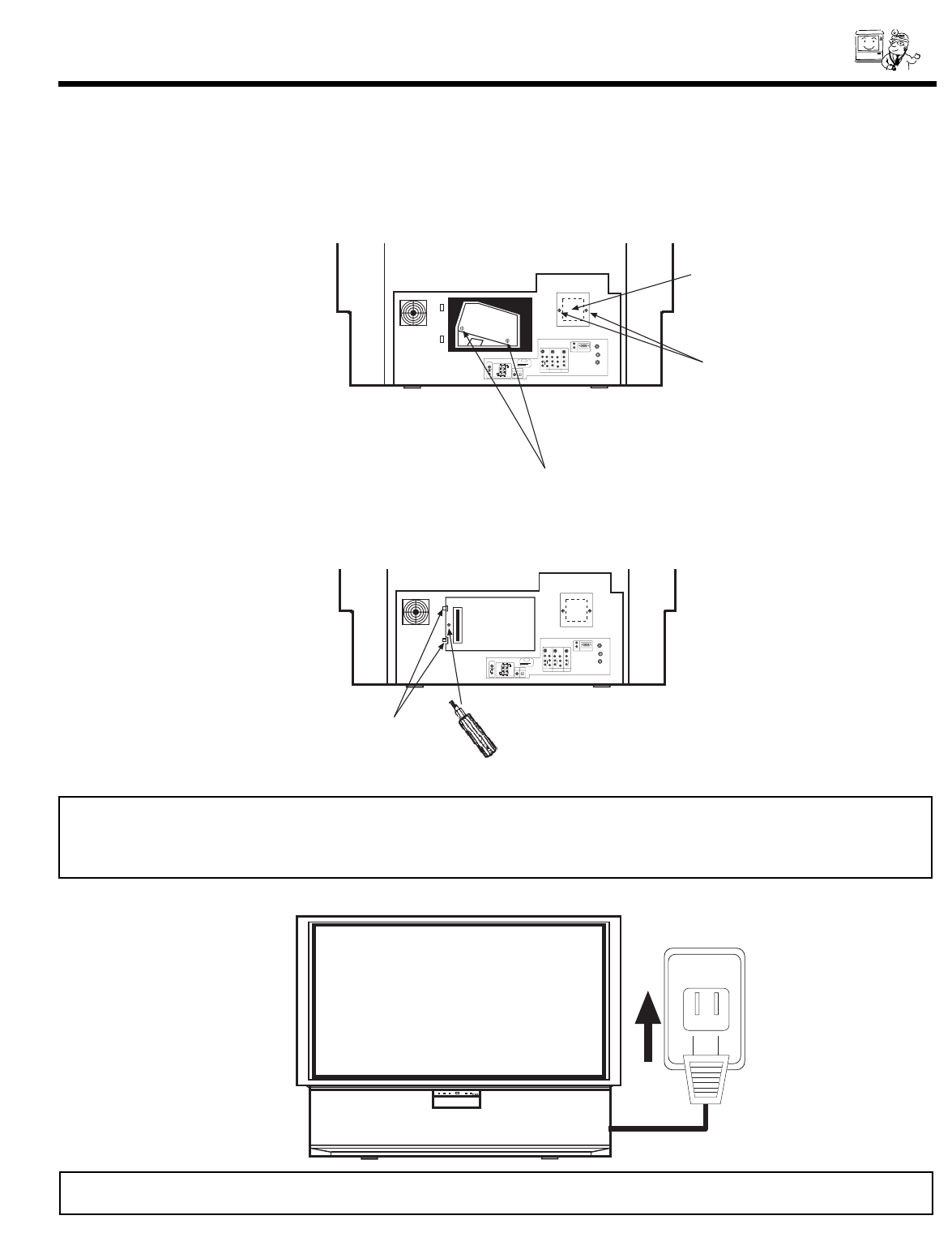
DEMAN
MOI!
ASK
ME!
83
LAMP REPLACEMENT
7. Reinstall the lamp cover by re-engaging the two clips and installing the screw removed
in Step 2. Be sure to install the lamp cover securely and tighten the screw before turning
the power on, otherwise it may cause unusual colors.
ANT A
✴✯
✣✯✮✶✥✲✴✥✲
✡✮✴ ✢
12345
678910
1112131415
✡✵✤✩✯
✬
✲
✈✭✯✮✯✉
✶✩✤✥✯ ✶✩✤✥✯
✡✵✤✩✯
✈✭✯✮✯✉
✬
✲
✡✵✤✩✯
✈✭✯✮✯✉
✬
✲
✶✩✤✥✯
✳✍✶✩✤✥✯
✹
✳✍✶✩✤✥✯
✹
✢
✲
✣
✰
✢
✲
✣
✰
✳✍✶✩✤✥✯
✬
✲
✬
✲
✳✵✢
✷✯✯✦✥✲
STOP
CONNECT ONLY 8 OHM SPEAKERS
DO NOT SHORT CIRCUIT
THESE TERMINALS
(Such damage is NOT COVERED
by your television warranty)
✲✥✡✲ ✳✰✥✡✫✥✲
8Ω ONLY
✍
✬
☞
✍
☞
✲
✯✰✴✩✣✡✬
✩✮✰✵✴
✣✯✡✸✩✡✬
✩✮✰✵✴
✰✣ ✲✧✢ ✩✮✰✵✴ ✑
✰✣ ✡✵✤✩✯
✩✮✰✵✴ ✑
✭✯✮✩✴✯✲
✯✵✴
✩✮✰✵✴ ✒
✩✮✰✵✴ ✑
✡✵✤✩✯
✴✯ ★✩✍✦✩
Lamp Cover Retaining Screw
Two Clips
8. Plug power cord into AC outlet and turn on the main power switch.
120V
PUSH
NOTES: 1. After installing the new lamp, don t forget to reset the LAMP TIME COUNTER. (see page 49)
2. The old lamp must be disposed of properly. For assistance, please call 1-800-HITACHI.
5. Remove the two screws securing the spare lamp unit. Remove the spare lamp unit.
Replace the spare lamp cover.
6. Replace the lamp.
¥ Push the lamp unit back to its original position.
¥ Tighten the scres firmly on the lamp unit. If they are loose, the TV may not operate
correctly.
ANT A
TO
CONVERTER
ANT B
12345
678910
1112131415
AUDIO
L
R
(MONO)
VIDEO VIDEO
AUDIO
(MONO)
L
R
AUDIO
(MONO)
L
R
VIDEO
S-VIDEO
Y
S-VIDEO
Y
B
R
C
P
B
R
C
P
S-VIDEO
L
R
L
R
SUB
WOOFER
STOP
CONNECT ONLY 8 OHM SPEAKERS
DO NOT SHORT CIRCUIT
THESE TERMINALS
(Such damage is NOT COVERED
by your television warranty)
REAR SPEAKER
8Ω ONLY
-
L
+
-
+
R
OPTICAL
INPUT
COAXIAL
INPUT
PC RGB INPUT 1
PC AUDIO
INPUT 1
MONITOR
OUT
INPUT 2
INPUT 1
AUDIO
TO HI-FI
Lamp Unit Retaining Screws
Retaining Screws
Spare Lamp
CAUTION: IF POWER IS CONNECTED BEFORE THE LAMP COVER IS INSTALLED, THE
POWER WILL BE OFF AND THE LAMP INDICATOR WILL FLASH (See page 8).
84
PLUG and PLAY
This DLPTM Rear Projection TV complies with VESA DDC2B specifications,
Plug & Play is a system with computer, peripherals (including monitors) and
operating system. It works when the monitor is connected to a DDC ready
computer that is running an operating system software that is capable for the
plug & play.
When a Plug and Play PC is powered on, it sends a command to the Monitor
requesting identification. The Monitor sends back a string of data including its
characteristics.
TRADEMARK ACKNOWLEDGMENT
DDC is a trademark of Video Electronics Standard Association.
IBM PC/AT and VGA are registered trademarkds of International Business Machines Corporation of the U.S.A.
Apple and Macintosh are registered trademarks of Apple Computer, Inc.
VESA is a trademark of a nonprofit organization, Video Electronics Standard Association.
This Class B digital apparatus meets all requirements of the Canadian Interference-Causing Equipment Regulations.
This Class B digital apparatus complies with Canadian ICES-003.
Cet appareil num rique de la classe B la norme NMB-003 du Canada.
Cable Compatible Television Apparatus- T l vision c blocompatible, Canada.
Notes on Closed Caption:
This television receiver will display television closed captioning, ( or ), in accordance with paragraph 15.119
of the FCC rules.
TM
USEFUL INFO
85
DEMAN
MOI!
ASK
ME!
AGENCY REGULATORY
INFORMATION
Federal Communications Commission Notice
This equipment has been tested and found to comply with the limits for a Class B digital device, pursuant to Part 15 of
the FCC Rules. These limits are designed to provide reasonable protection against harmful interference in a residential
installation. This equipment generates, uses and can radiate radio frequency energy and if not installed and used in
accordance with the instructions, may cause harmful interference to radio communications. However, there is no
guarantee that interference will not occur in a particular installation. If this equipment does cause harmful interference
to radio or television reception, which can be determined by turning the equipment off and on, the user is encouraged
to try to correct the interference by one or more of the following measures:
¥ Reorient or relocate the receiving antenna.
¥ Increase the separation between the equipment and the receiver.
¥ Connect the equipment into an outlet on a circuit different from that to which the receiver is connected.
¥ Consult the dealer or an experienced radio/television technician for help.
Modifications
The FCC requires the user to be notified that any changes or modifications made to this device that are not expressly
approved by Hitachi Home Electronics (America), Inc. may void the user s warranty.
Cables
Connections to this device must be made with shielded cables with metallic RFI/EMI connector hoods to maintain
compliance with FCC Rules and Regulations.
Any cables that are supplied with the system must be replaced with identical cables in order to assure compliance with
FCC rules. Order Hitachi spares as replacement cables.
Declaration of Conformity
This device complies with Part 15 of the FCC Rules. Operation is subject to the following two conditions: (1) this device
may not cause harmful interference and (2) this device must accept any interference received, including interference
that may cause undesired operation.
Any cables that are supplied with the system must be replaced with identical cables in order to assure compliance with
FCC rules. Order Hitachi spares as replacement cables.
For questions regarding this declaration, contact:
Hitachi America, LTD.
Home Electronics Division
1855 Dornoch Court
San Diego, CA 92154
Tel. 1-800-448-2244 (1-800-HITACHI)
ATTN: CUSTOMER RELATIONS

86
DEMAN
MOI!
ASK
ME!
USEFUL INFO
DO
Dust the screen and cabinet with a soft cloth.
Clean the screen with a soft cloth moistened in warm water and dry with a soft cloth. A mild soap may be used if
the screen is extremely dirty.
Place your television away from extreme heat, humidity and extremely dusty places.
Remove the plug from the wall outlet if your television will not be used for a long period of time, for instances,
when you go on vacation.
DO NOT
Do not clean your screen or cabinet with strong cleaners, polishes or a chemically treated cloth.
Do not place rubber or vinyl products or cellophane tape on your television.
Do not touch the screen too often.
Do not subject the remote control to shocks such as dropping it on the floor, etc. Physical damage to the precision
parts may result.
Avoid placing the remote control in a high humidity place or getting it wet. Do not leave it on or near a heater.
Excessive heat or moisture may cause the unit to cease operation.
When the batteries run down, remote control operation will become erratic or possibly stop altogether. Replace the
old batteries with two new AA size batteries.
Exposure of the viewing screen to prolonged direct sunlight or heat may cause the screen to permanently warp,
resulting in a distorted picture.
87
USEFUL INFO
This Rear Projection Television incorporates advanced power surge protection technology designed to protect against component
or circuit damage due to internal voltage or power surges.
IF YOUR SET SHOULD APPEAR TO HAVE A LOSS OF POWER, PLEASE FOLLOW THIS PROCEDURE:
1) Press the power switch (ON/OFF switch) once.
2) If there is still no power, wait 30 seconds and press the power switch again.
3) If there is still no power, unplug the power cord from the wall. Wait thirty seconds and plug the power cord back in. Press
the power switch again.
This protective technology should provide for years of lasting entertainment from your HITACHI Rear Projection Television.
SYMPTOMS
CHECK THESE ITEMS AND
TRY THESE ADJUSTMENTS
No picture, no sound
Sound OK, picture poor
Picture OK, sound poor
Picture blurred
Lines or streaks in picture
Poor reception on some channels
No color
Poor color
Be sure external connection is correct
Be sure power cord is plugged in
Be sure Rear Projection TV is switched ON
Try another channel (station trouble)
Check antenna connections (back of Rear Projection TV.
Check antenna for broken lead-in wire
Check for local interference
Check outside antenna
Adjust Contrast control
Adjust Brightness control
Adjust Color control
Adjust Tint control
Adjust Volume control
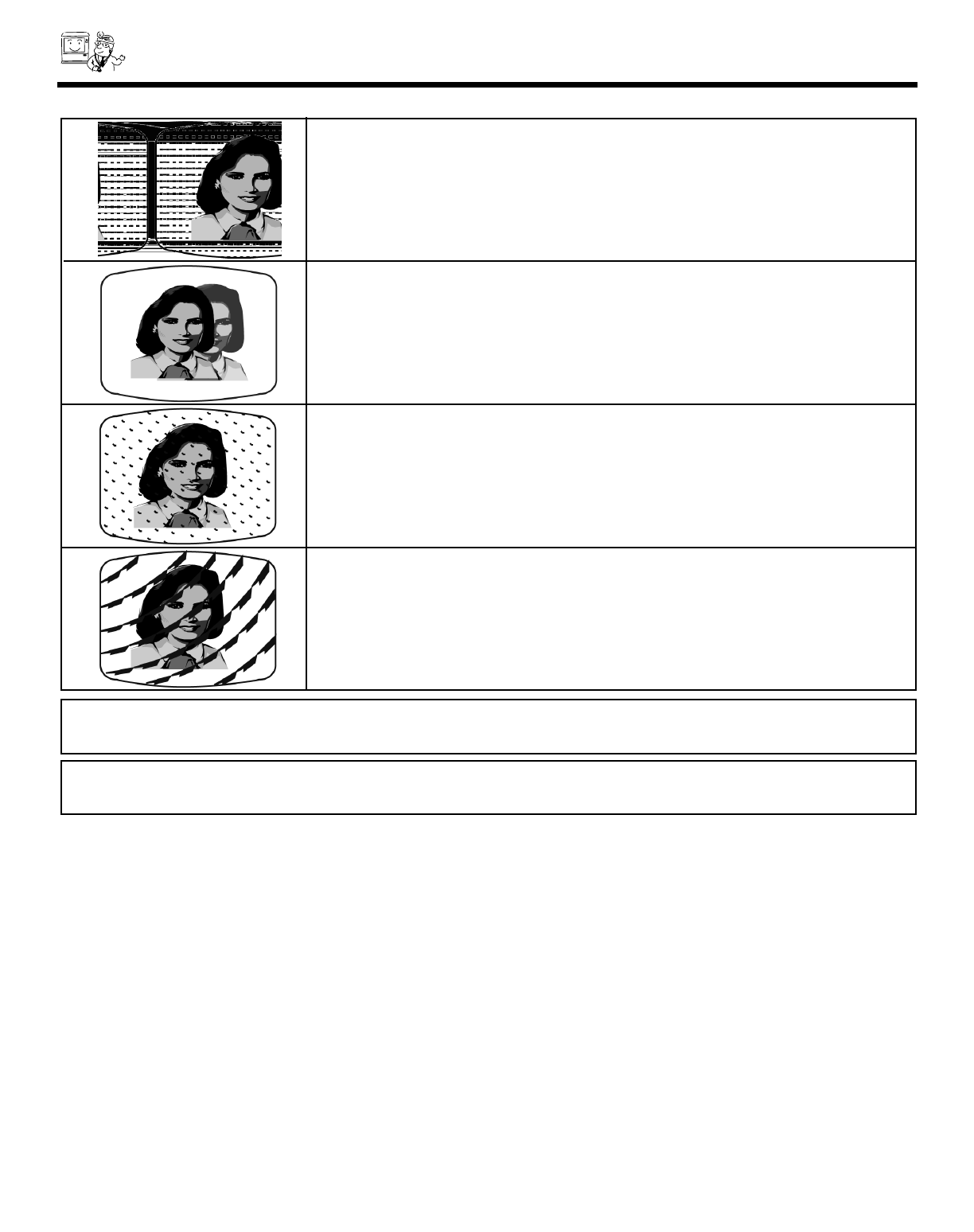
88
DEMAN
MOI!
CARE OF YOUR HITACHI PROJECTION TV
¥ IGNITION NOISE:
Black spots or horizontal streaks may appear, picture may flutter or drift. Usually caused by
interference from automobile ignition systems, neon lamps, electrical drills and other
electrical appliances.
¥ GHOSTS:
Ghosts are caused by the Rear Projection Television signal following two paths. One is the
direct path and the other is reflected from tall buildings, hills or some other objects. Changing
the direction or position of the antenna may improve reception. Ghosting may also be
caused by defects in the antenna system such as unshielded leads or connecting several
sets to the same antenna without using multiple antenna couplers.
¥ SNOW:
If your receiver is located in the fringe area of a television station where the signal is weak,
your picture may be marred by the appearance of small dots. When the signal is extremely
weak, it may be necessary to install a special antenna to improve the picture.
¥ RADIO FREQUENCY INTERFERENCE:
The interference produces moving ripples or diagonal streaks and in some cases, causes
loss of contrast in the picture.
NOTE: The Rear Projection Television can generate sound distortion in external devices such as a radio. Please separate radio
equipment from the Rear Projection Television to a considerable distance.
NOTE: The Rear Projection Television has the nature that some pixels do not always work correctly. That is, some are lit and
some are not. This is not a problem.
SCREEN
The screen surface is easily scratched. Do not rub, touch or
tap it with sharp or abrasive objects. Be especially careful
when transporting the Rear Projection Television.
PANEL
Do not expose the screen to direct sunlight. It may damage
the panel. When the Rear Projection Television is used in a
cold place, the image may look lengthened. This is not a
malfunction. The image will become normal when the
temperature rises.
When the same static picture has been displayed continuously,
an afterimage impression of that picture may remain on the
screen. This will disappear after a certain period of time.
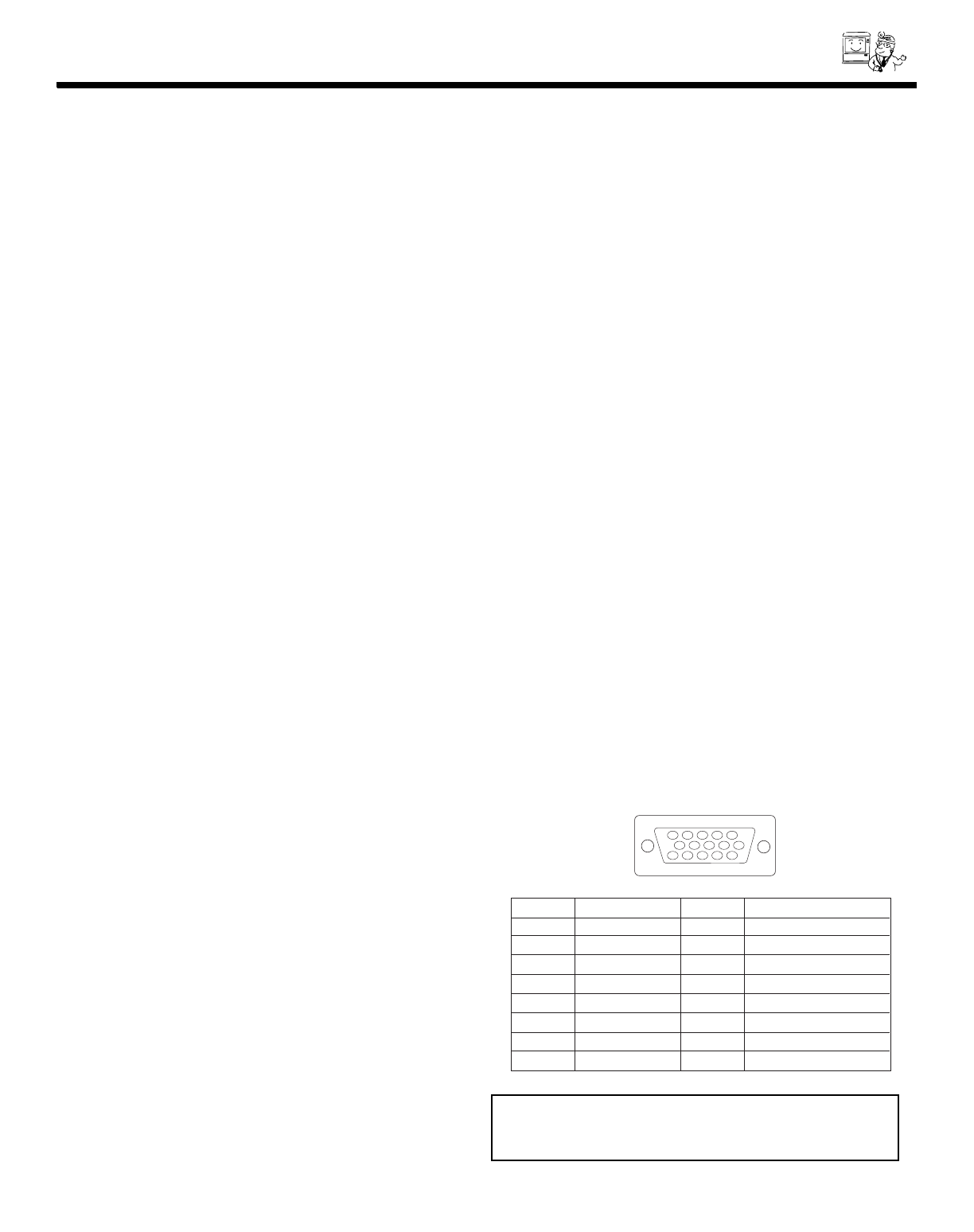
89
DEMAN
MOI!
ASK
ME!
SPECIFICATION
Features:
¥Superfine Picture Quality with Digital Light ProcessingTM Technology.
¥Digital Micromirror DeviceTM System
* Digital Light Processing, DLP, Digital Micromirror Device and DMD are trademarks of Texas Instruments.
¥16:9 Aspect Ratio, 1280 x 720 Resolution
¥HDTV compatible (1080i, 720P, 480P, 480i)
¥PC input: XGA Compatible (XGA: Compressed, SVGA/VGA: Real)
¥Perfect Picture System
¥Remote (controls many VCR brands, cable box, satellite boxes and and other audio equipment.)
¥High Definitions On Screen Display (Ultra TEC BIT-MAP)
¥2-Tuner Picture in Picture (Single, Split-Screen and Surf 3)
¥Full Set of Input Jacks, including S-VIDEO
¥COMPONENT: Y-CB/CRand Y-PB/PRInput Jacks
¥2 sets of PC input D-Sub Mini 15 pin connector
¥Closed Caption Decoder
¥Parental Control
¥Dual Antenna inputs
¥Digital 3 Dimensional Y/C Comb Filter (3DYC)
¥All time progressive scanning with Multi-Scan Converter Technology
¥Dolby Digital, Dolby Pro Logic, Stadium, Rock Arena, Jazz Club Surround Sound
* Manufactured under license from Dolby Laboratories. Dolby , Pro Logic and the double-D symbol are trademarks of Dolby
Laboratories. Confidential Unpublished Works. '1992-1997 Dolby Laboratories, Inc. All rights reserved.
Inputs:
¥Power Input . . . . . . . . . . . . .AC 120V, 60Hz
¥Power Consumption (operating)
55DMX01W . . . . . . . . . . . . . . . . . . . .360W
¥Power Consumption (maximum)
55DMX01W . . . . . . . . . . . . . . . . . . . .440W
¥Antenna input impedance . . . . . . . . .75 Ohm
¥Channel coverage . . . . . . . . . . . . . . .181ch.
VHF-Band . . . . . . . . . . . . . . . . . . . . .2 ~ 13
UHF-Band . . . . . . . . . . . . . . . . . . . .14 ~ 69
CATV Mid Band . . . . . . . . . . . . . . .A-5 ~ A-1
. . . . . . . . . . . . . . . . . . . . . . . . . . .A-I
Super Band . . . . . . . . . . . . . . . . . . . . .J-W
Hyper Band . . . . . . . . . . . . . . .W+1 - W+28
Ultra Band . . . . . . . . . . . . . . .W+29 - W+84
¥Video . . . . . . . . . . . . . . . .1.0Vp-p, 75 Ohm
¥S-VIDEO
Luminance (Y) . . . . . . . . . .1.0Vp-p, 75 Ohm
Chrominance (C) . . . . . .0.286Vp-p, 75 Ohm
¥Component Video
Luminance (Y) . . . . . . . . . . . . . . .1.0Vp-p, 75 Ohm
Chrominance (CB,CR) . . . . . . . . .0.7Vp-p, 75 Ohm
Chrominance (PB,PR) . . . . . . . . .0.7Vp-p, 75 Ohm
¥Audio input level(average) 470mVrms, 47k Ohm
Outputs:
¥Video . . . . . . . . . . . . . . . . . . . . .1.0Vp-p. 75 Ohm
¥Audio . . . . . . . . . . . . . . . . . . .470mVrms, 1k Ohm
Dimensions:
55DMX01W
¥Height (in.) 40 1/16
¥Width (in.) 51 1/2
¥Depth (in.) 23 25/32
¥Weight (lbs.) 207 lbs.
NOTE: Due to improvements, specifications in this
operating guide are subject to change without
notice.
PIN NO. SIGNAL PIN NO. SIGNAL
1 Red Video 9 No Connection
2 Green Video 10 Ground
3 Blue Video 11 No Connection
4 No Connection 12 SDA (DDC)
5 No Connection 13 H-Sync
6 Red Ground 14 V-Sync
7 Green Ground 15 SCL (DDC)
8 Blue Ground
12345
678910
1112131415
D-Sub Mini 15-Pin connector Pin Assignments

USEFUL INFO
90
DEMAN
MOI!
ASK
ME!
Hitachi America, LTD.
Home Electronics Division
1855 Dornoch Court
San Diego, CA 92154
Hitachi America, LTD.
Home Electronics Division
Hitachi has made every effort to assure you hours of trouble free operation from your unit. However, should you require
service, a network of Hitachi Authorized Service Facilities has been established in all 50 states and Puerto Rico. Each facility
will provide you with convenient and expedient assistance. Our service hotline operator will direct you to the Hitachi
Authorized Service Facility nearest you. Just present proof of purchase and/or delivery receipts to the Hitachi Authorized
Service Facility and service will be rendered in accordance with the terms of the limited warranty as stated on your warranty
card or operating guide.
Should you have any questions regarding warranty, service, operation or technical assistance, please
contact: 1-800-HITACHI
(1-800-448-2244)
service
service

91

QR46312
