Hitachi L42S503 User Manual LCD TELEVISION Manuals And Guides L0912334
HITACHI LCD Television Manual L0912334 HITACHI LCD Television Owner's Manual, HITACHI LCD Television installation guides
User Manual: Hitachi L42S503 L42S503 HITACHI LCD TELEVISION - Manuals and Guides View the owners manual for your HITACHI LCD TELEVISION #L42S503. Home:Electronics Parts:Hitachi Parts:Hitachi LCD TELEVISION Manual
Open the PDF directly: View PDF  .
.
Page Count: 56
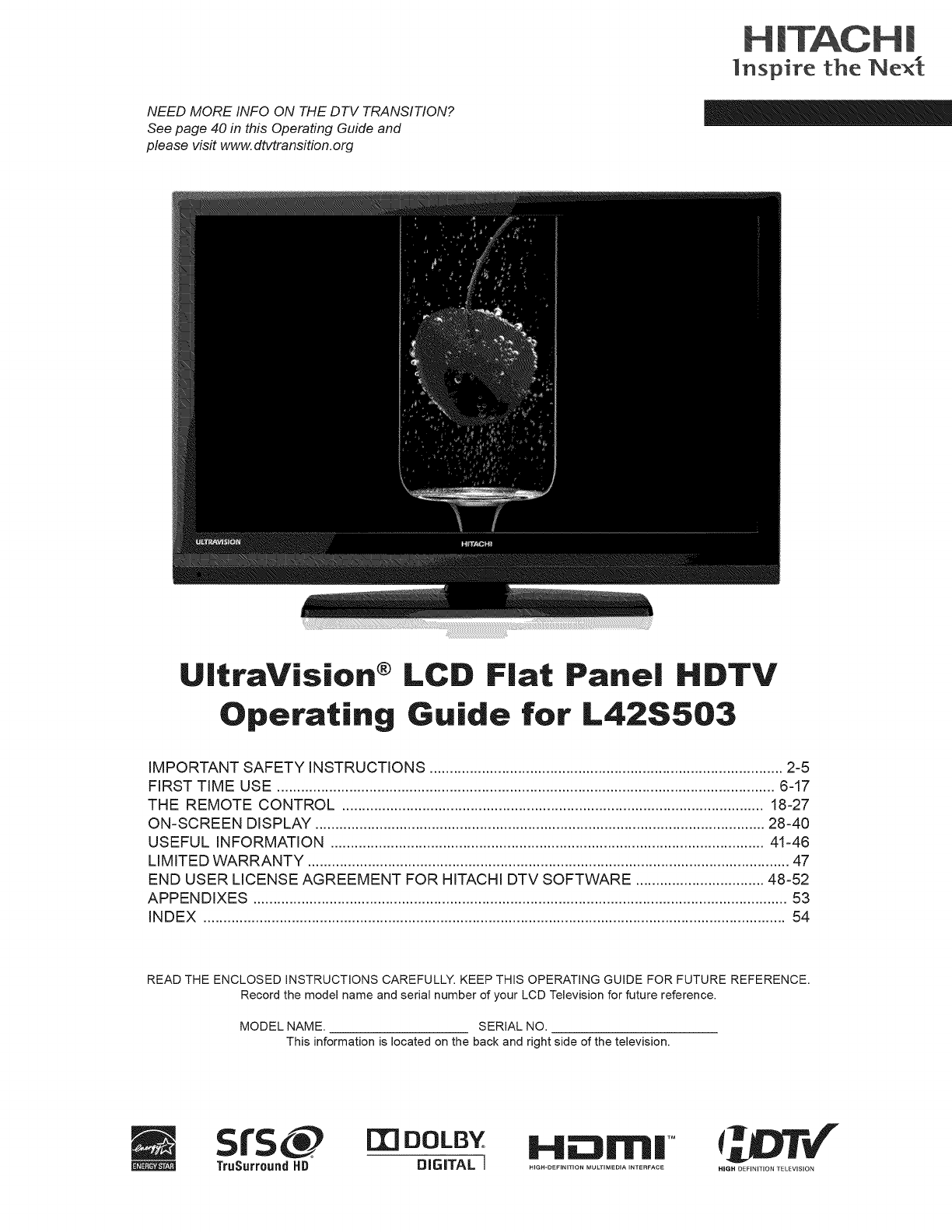
NEED MORE INFO ON THE DTV TRANSITION?
See page 40 in this Operating Guide and
please visit www. dtvtransition, org
HiTACHi
Inspire the Nex_
. . ®
UitraV_s_on
Operating
LCD Fiat Pane| HDTV
Guide for L42S503
IMPORTANT SAFETY INSTRUCTIONS ........................................................................................ 2-5
FIRST TIME USE ............................................................................................................................ 6-17
THE REMOTE CONTROL ......................................................................................................... 18-27
ON-SCREEN DISPLAY ................................................................................................................ 28-40
USEFUL INFORMATION ............................................................................................................ 41-46
LIMITED WARRANTY ........................................................................................................................ 47
END USER LICENSE AGREEMENT FOR HITACHI DTV SOFTWARE ................................ 48-52
APPENDIXES ..................................................................................................................................... 53
INDEX ................................................................................................................................................. 54
READ THE ENCLOSED INSTRUCTIONS CAREFULLY. KEEP THIS OPERATING GUIDE FOR FUTURE REFERENCE.
Record the model name and serial number of your LCD Television for future reference.
MODEL NAME. SERIAL NO.
This information is located on the back and right side of the television.
sfs@
TruSurround HD HE::)rlrl| TM
HIGH-DEFINITION MULTIMEDIA INTERFACE 101"4
HIGH DEFINITION TELEVISION
important Safety instructions
SAFETY POINTS YOU SHOULD KNOW ABOUT YOUR HiTACHi LCD TELEViSiON
Our reputation has been built on the quality, performance, and ease of service of Hitachi LCD televisions.
Safety is also foremost in our minds in the design of these units. To help you operate these products properly, this section illustrates safety
tips which will be of benefit to you. Please read it carefully and apply the knowledge you obtain from it to the proper operation of your Hitachi
LCD television.
2
CAUTION
CAUTION: TO REDUCE THE RISK OF ELECTRIC SHOCK,
DO NOT REMOVE COVER (OR BACK).
NO USER SERVICEABLE PARTS iNSiDE.
REFER SERViCiNG TO QUALiFiED SERVICE PERSONNEL
The lightning flash with arrowhead symbol, within an equilateral
triangle, is intended to alert the user to the presence of uninsulated
"dangerous voltage" within the product's enclosure that may be of a
sufficient magnitude to constitute a risk of electric shock to a person.
The exclamation point within an equilateral triangle, is intended to
alert the user to the presence of important operating and maintenance
(servicing) instructions in the literature accompanying the appliance.
READ BEFORE OPERATING EQUIPMENT
Follow all warnings and instructions marked on this LCD television.
1. Read these instructions.
2. Keep these instructions.
3. Heed all warnings.
4. Follow all instructions.
5. Do not use this apparatus near water.
6. Clean only with a dry cloth.
7. Do not block any ventilation openings, install in accordance
with the manufacturer's instructions.
8. Do not install near any heat sources such as radiators, heat
registers, stoves, or other apparatus (including amplifiers) that
produce heat.
9. Do not defeat the safety purpose of the polarized or grounding-
type plug. A polarized plug has two blades with one wider
than the other. A grounding type plug has two blades and
a third grounding prong. The wide blade or the third prong
are provided for your safety. If the provided plug does not fit
into your outlet, consult an electrician for replacement of the
obsolete outlet.
10. Protect the power cord from being walked on or pinched
particularly at plugs, convenience receptacles, and the point
where they exit from the apparatus.
11. Only use the attachments/accessories specified by the
manufacturer.
12. Use only with the cart, stand, tripod, bracket, or table specified
by the manufacturer, or sold with the apparatus.
When a cart is used, use caution when moving
the cart/apparatus combination to avoid injury
from tip-over.
13. Unplug this apparatus during lightning storms
or when unused for long periods of time.
14. Refer all servicing to qualified service personnel. Servicing
is required when the apparatus has been damaged in any
way, such as power-supply cord or plug is damaged, liquid
has been spilled or objects have fallen into the apparatus, the
Power source
15.
16.
17.
18.
apparatus has been exposed to rain or moisture, does not
operate normally, or has been dropped.
Televisions are designed to comply with the recommended
safety standards for tilt and stability. Do not apply excessive
pulling force to the front, or top, of the cabinet which could
cause the product to overturn resulting in product damage
and/or personal injury.
Follow instructions for wall, shelf or ceiling mounting as
recommended by the manufacturer.
An outdoor antenna should not be located in the vicinity of
overhead power lines or other electrical circuits.
If an outside antenna is connected to the receiver be sure the
antenna system is grounded so as to provide some protection
against voltage surges and built up static charges. Section
810 of the National Electric Code, ANSI/NFPA No. 70-1984,
provides information with respect to proper grounding for the
mast and supporting structure, grounding of the lead-in wire
to an antenna discharge unit, size of grounding connectors,
location of antenna discharge unit, connection to grounding
electrodes and requirements for the grounding electrode.
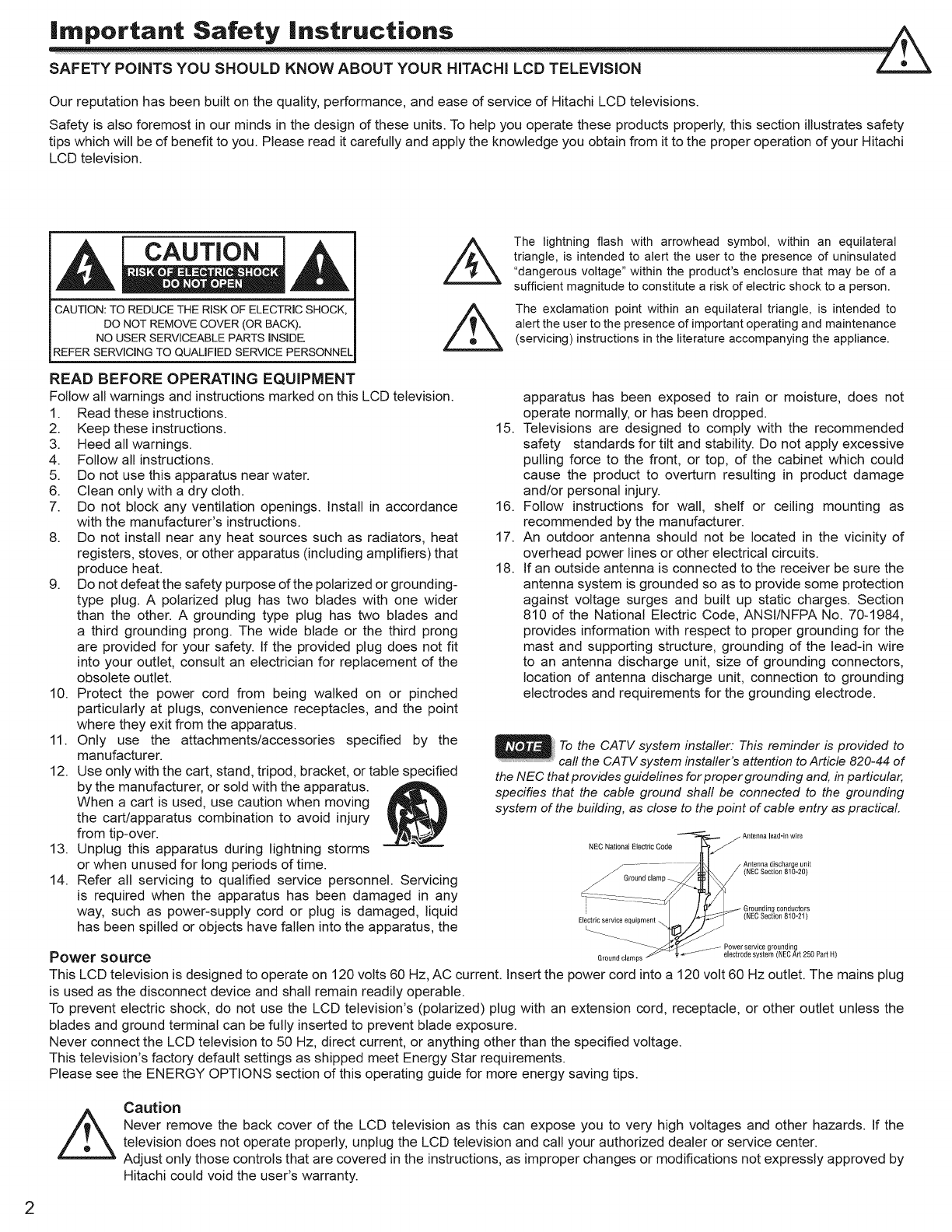
To the CATV system installer: This reminder is provided to
call the CATV system installer's attention to Article 820-44 of
the NEC that provides guidelines for proper grounding and, in particular,
specifies that the cable ground shall be connected to the grounding
system of the building, as close to the point of cable entry as practical.
Antenna lead-in wire
NEC National Electric Code j_/
Ill
........................ Antenna discharge unit
Ground elam_ (NEC Section 810-20)
_z___ -- ___ __:_
i-- Grounding conductors
Electric service equipment
r service gr unding
Ground clamps _ " ÷ _ electrode system (NEC Art 250 Part H)
This LCD television is designed to operate on 120 volts 60 Hz, AC current. Insert the power cord into a 120 volt 60 Hz outlet. The mains plug
is used as the disconnect device and shall remain readily operable.
To prevent electric shock, do not use the LCD television's (polarized) plug with an extension cord, receptacle, or other outlet unless the
blades and ground terminal can be fully inserted to prevent blade exposure.
Never connect the LCD television to 50 Hz, direct current, or anything other than the specified voltage.
This television's factory default settings as shipped meet Energy Star requirements.
Please see the ENERGY OPTIONS section of this operating guide for more energy saving tips.
Caution
Never remove the back cover of the LCD television as this can expose you to very high voltages and other hazards. If the
television does not operate properly, unplug the LCD television and call your authorized dealer or service center.
Adjust only those controls that are covered in the instructions, as improper changes or modifications not expressly approved by
Hitachi could void the user's warranty.
important Safety instructions
Warning
A•To reduce the risk of fire or electric shock, do not expose this apparatus to rain or moisture.
• The LCD television should not be exposed to dripping or splashing and objects filled with liquids, such as vases, should
not be placed on the television.
• This apparatus shall be connected to a mains socket outlet with a protective earthing connection.
Public viewing of copyrighted material
Public viewing of programs broadcast by TV stations and cable companies, as well as programs from other sources, may require prior
authorization from the broadcaster or owner of the video program material.
This product incorporates copyright protection technology that is protected by U.S. patents and other intellectual property rights.
Use of this copyright protection technology must be authorized, and is intended for home and other limited payper-view uses only unless
otherwise authorized. Reverse engineering or disassembly is prohibited.
Lead/Mercury Notice
(_ This product contains lead and one or more non-replaceable mercury backlights. Do not put in trash. Recycle or dispose
of according to applicable laws. For product recycling and disposal information, contact your local government agency or
visit www.eiae.org (in USA) or www.epsc.ca (in Canada). FOR MORE INFORMATION, CALL 800-HITACHI.
FEDERAL COMMUNICATIONS COMMISSION NOTICE
This equipment has been tested and found to comply with the limits for a Class B digital device, pursuant to Part 15 of the FCC Rules. These
limits are designed to provide reasonable protection against harmful interference in a residential installation. This equipment generates, uses
and can radiate radio frequency energy and if not installed and used in accordance with the instructions, may cause harmful interference
to radio communications. However, there is no guarantee that interference will not occur in a particular installation. If this equipment does
cause harmful interference to radio or television reception, which can be determined by turning the equipment off and on, the user is
encouraged to try to correct the interference by one or more of the following measures:
• Reorient or relocate the receiving antenna.
• Increase the separation between the equipment and the receiver.
• Connect the equipment into an outlet on a circuit different from that to which the receiver is connected.
• Consult the dealer or an experienced radio/television technician for help.
This device complies with Part 15 of the FCC Rules. Operation is subject to the following two conditions :
(1) This device may not cause harmful interference and (2) This device must accept any interference received, including interference that
may cause undesired operation.
Modifications
The FCC requires the user to be notified that any changes or modifications made to this device that are not expressly approved by Hitachi
Home Electronics (America), Inc, may void the user's authority to operate the equipment.
Cables
Connections to this device must be made with shielded cables with metallic RFI/EMI connector hoods to maintain compliance with FCC
Rules and Regulations.
Any cables that are supplied with the system must be replaced with identical cables in order to assure compliance with FCC rules. Order
Hitachi spares as replacement cables.
This LCD Television receiver will display television closed captioning, (r_ orE] ), in accordance with paragraph 15.119 and 15.122 of
the FCC rules.
INDUSTRY CANADA AGENCY REGULATORY INFORMATION
Cable Compatible Television Apparatus- Television c_blocompatible, Canada.
Declaration of Conformity
This device complies with part 15 of the FCC Rules. Operation is subject to the following two conditions :
(1)This device may not cause harmful interference and (2)This device must accept any interference received,
including interference that may cause undesired operation.
For questions regarding this declaration, contact:
Hitachi Home Electronics (America), Inc.
900 Hitachi Way
Chula Vista, CA 91914-3556
Tel. 800-448-2244(800-HITACHI)
ATTN: Customer Relations
•VGA and XGA are trademarks of International Business Machines Corporation.
•VESA is a registered trademark of the Video Electronics Standard Association.
•HDMI, the HDMI logo and High-Definition Multimedia interface are trademarks of registered trademarks of HDMI Licensing LLC.
3
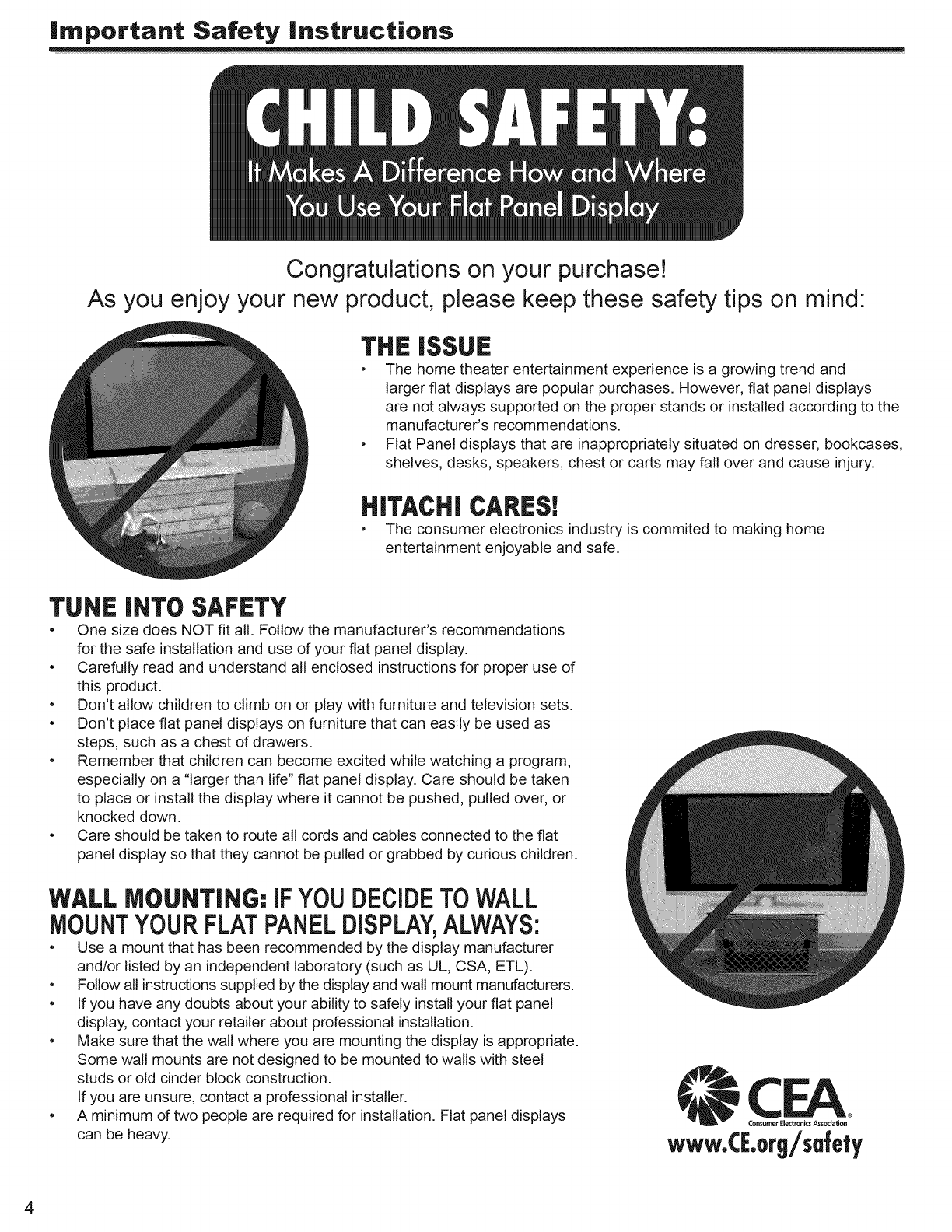
|rnporta.t Safety |nstructions
Congratulations on your purchase!
As you enjoy your new product, please keep these safety tips on mind
TUNE INTO SAFETY
THE iSSUE
•The home theater entertainment experience is a growing trend and
larger flat displays are popular purchases. However, flat panel displays
are not always supported on the proper stands or installed according to the
manufacturer's recommendations.
•Flat Panel displays that are inappropriately situated on dresser, bookcases,
shelves, desks, speakers, chest or carts may fall over and cause injury.
HiTACHi CARES!
• The consumer electronics industry is commited to making home
entertainment enjoyable and safe.
•One size does NOT fit all. Follow the manufacturer's recommendations
for the safe installation and use of your flat panel display.
•Carefully read and understand all enclosed instructions for proper use of
this product.
•Don't allow children to climb on or play with furniture and television sets.
•Don't place flat panel displays on furniture that can easily be used as
steps, such as a chest of drawers.
•Remember that children can become excited while watching a program,
especially on a "larger than life" flat panel display. Care should be taken
to place or install the display where it cannot be pushed, pulled over, or
knocked down.
•Care should be taken to route al! cords and cables connected to the flat
panel display so that they cannot be pulled or grabbed by curious children.
WALL MOUNTING: IFYOUDECIDETOWALL
MOUNTYOURFLATPANELDISPLAY,ALWAYS:
•Use a mount that has been recommended by the display manufacturer
and/or listed by an independent laboratory (such as UL, CSA, ETL).
•Follow all instructions supplied by the display and wall mount manufacturers.
•If you have any doubts about your ability to safely install your flat panel
display, contact your retailer about professional installation.
•Make sure that the wall where you are mounting the display is appropriate.
Some wall mounts are not designed to be mounted to walls with steel
studs or old cinder block construction.
If you are unsure, contact a professional installer.
•A minimum of two people are required for installation. Flat panel displays
can be heavy.
CEA
ConsumerElectronics Association
www.C[.org/sufely
4
PRECAUTIONS AND REMINDERS
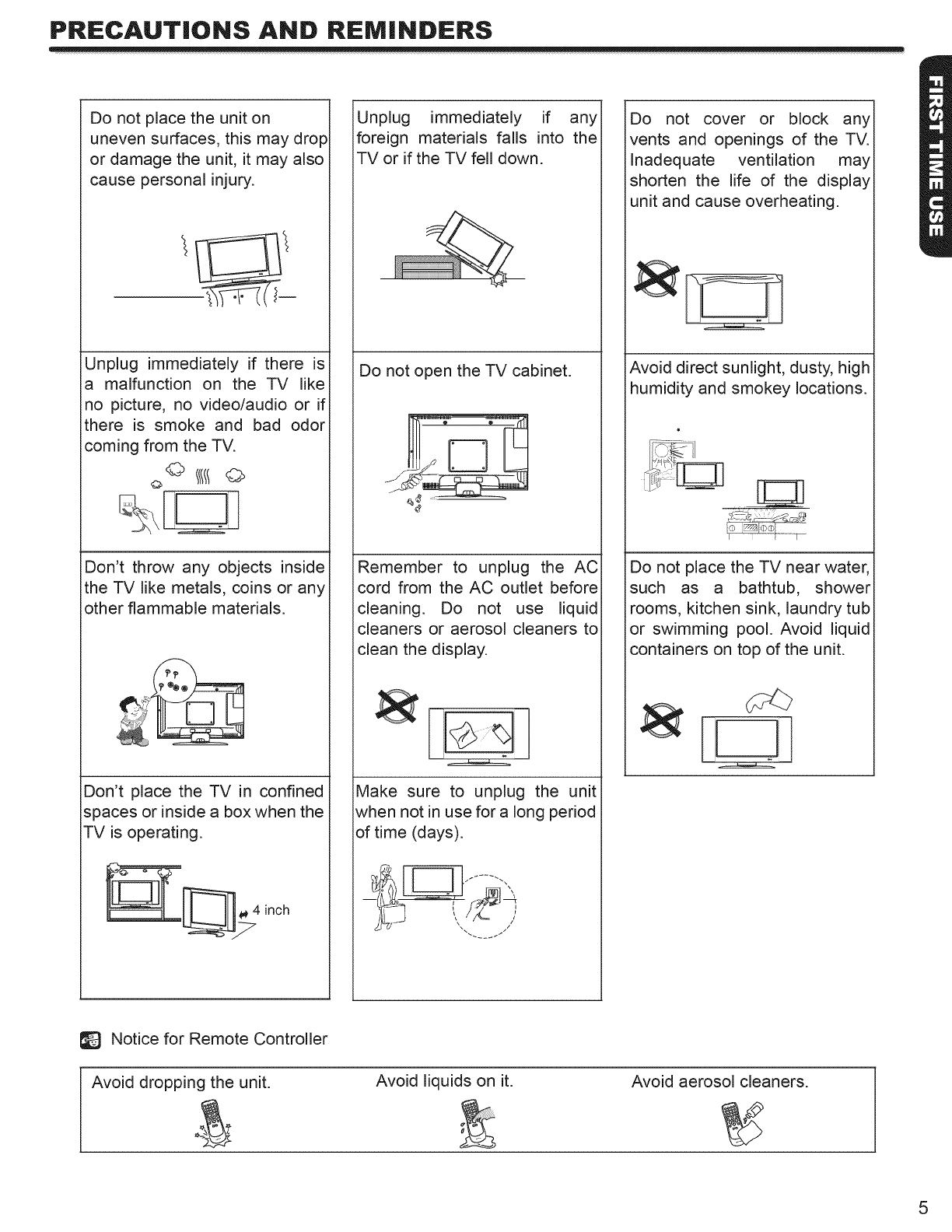
Do not place the unit on
uneven surfaces, this may drop
or damage the unit, it may also
cause personal injury.
Unplug immediately if there is
amalfunction on the TV like
ino picture, no video/audio or if
there is smoke and bad odor
coming from the TV.
43 ©
Don't throw any objects inside
the TV like metals, coins or any
other flammable materials.
Don't place the TV in confined
spaces or inside a box when the
TV is operating.
Unplug immediately if any
foreign materials falls into the
TV or if the TV fell down.
Do not open the TV cabinet.
Remember to unplug the AC
cord from the AC outlet before
cleaning. Do not use liquid
cleaners or aerosol cleaners to
clean the display.
Make sure to unplug the unit
when not in use for a long period
of time (days).
Do not cover or block any
vents and openings of the TV.
Inadequate ventilation may
shorten the life of the display
unit and cause overheating.
Avoid direct sunlight, dusty, high
humidity and smokey locations.
Do not place the TV near water,
such as a bathtub, shower
rooms, kitchen sink, laundry tub
or swimming pool. Avoid liquid
containers on top of the unit.
[lj
Notice for Remote Controller
Avoid dropping the unit. Avoid liquids on it. Avoid aerosol cleaners.
5
Accessories
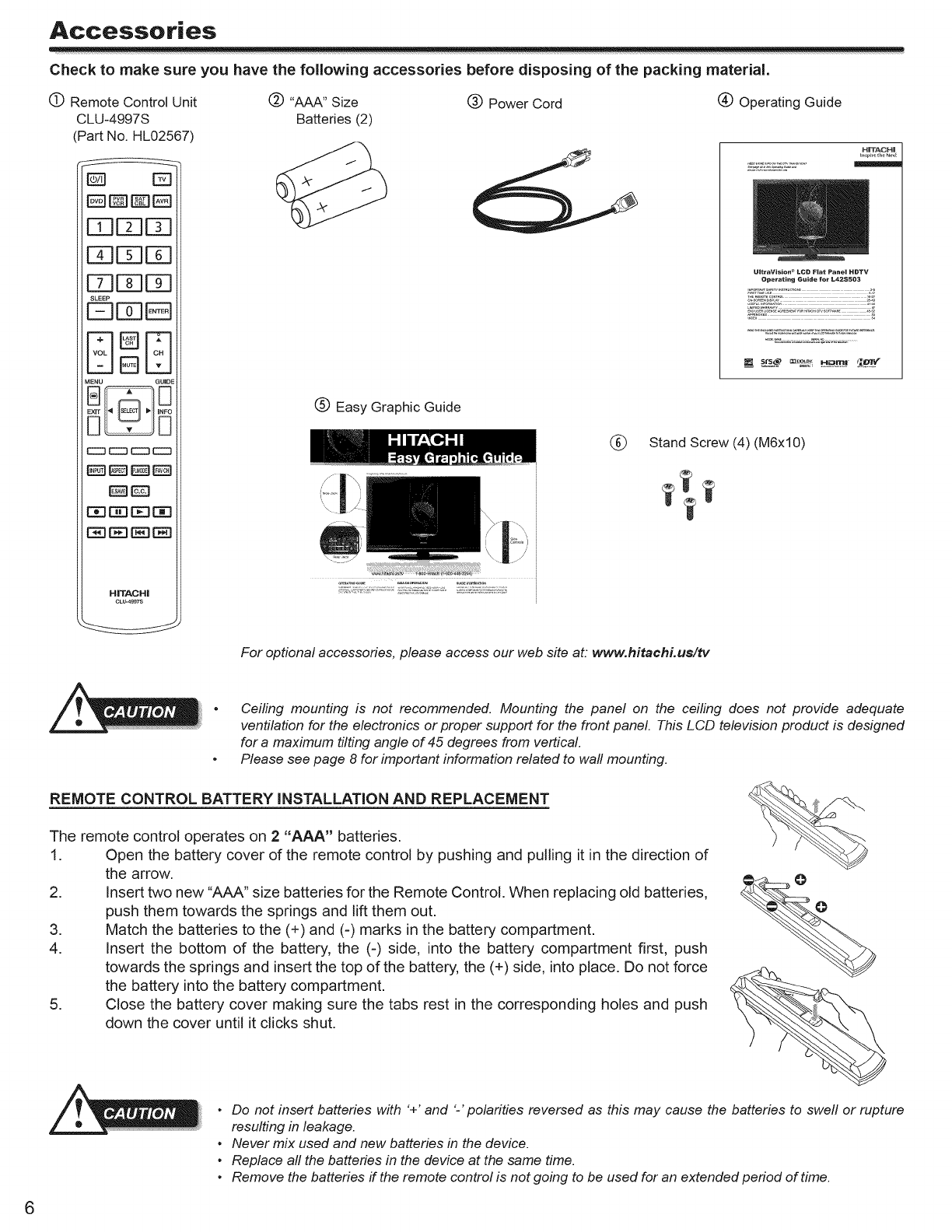
Check to make sure you have the following accessories before disposing of the packing material.
C) Remote Control Unit
CLU-4997S
(Part No. HL02567)
(_) "AAA" Size
Batteries (2)
(_) Power Cord (_ Operating Guide
E3123E3
MENU GUIDE
r-n r-n r-n r-n
HiTACHi
CLU-4997S
(_) Easy Graphic Guide
®
HiTACHi
UIttaVisio. _LCD Flat Panel HDTV
Operating Guide for L42SS03
srs_ m.... _umr !_4
Stand Screw (4) (M6xl0)
6
For optional accessories, please access our web site at. www.hitachi.us/tv
Ceiling mounting is not recommended. Mounting the panel on the ceiling does not provide adequate
ventilation for the electronics or proper support for the front panel. This LCD television product is designed
for a maximum tilting angle of 45 degrees from vertical.
Please see page 8 for important information related to wall mounting.
REMOTE CONTROL BATTERY INSTALLATION AND REPLACEMENT
The remote control operates on 2 "AAA" batteries.
1. Open the battery cover of the remote control by pushing and pulling it in the direction of
the arrow.
2. Insert two new "AAA" size batteries for the Remote Control. When replacing old batteries,
push them towards the springs and lift them out.
3. Match the batteries to the (+) and (-) marks in the battery compartment.
4. Insert the bottom of the battery, the (-) side, into the battery compartment first, push
towards the springs and insert the top of the battery, the (+) side, into place. Do not force
the battery into the battery compartment.
5. Close the battery cover making sure the tabs rest in the corresponding holes and push
down the cover until it clicks shut.
•Do not insert batteries with '+' and '-' polarities reversed as this may cause the batteries to swell or rupture
resulting in leakage.
•Never mix used and new batteries in the device.
•Replace all the batteries in the device at the same time.
•Remove the batteries if the remote control is not going to be used for an extended period of time.
How To |.sta|| Your New Hitachi LCD Television
Take the following precautions to prevent the LCD Television from tipping over and possibly causing injury, it is important to
mount the unit on astable and flat surface.
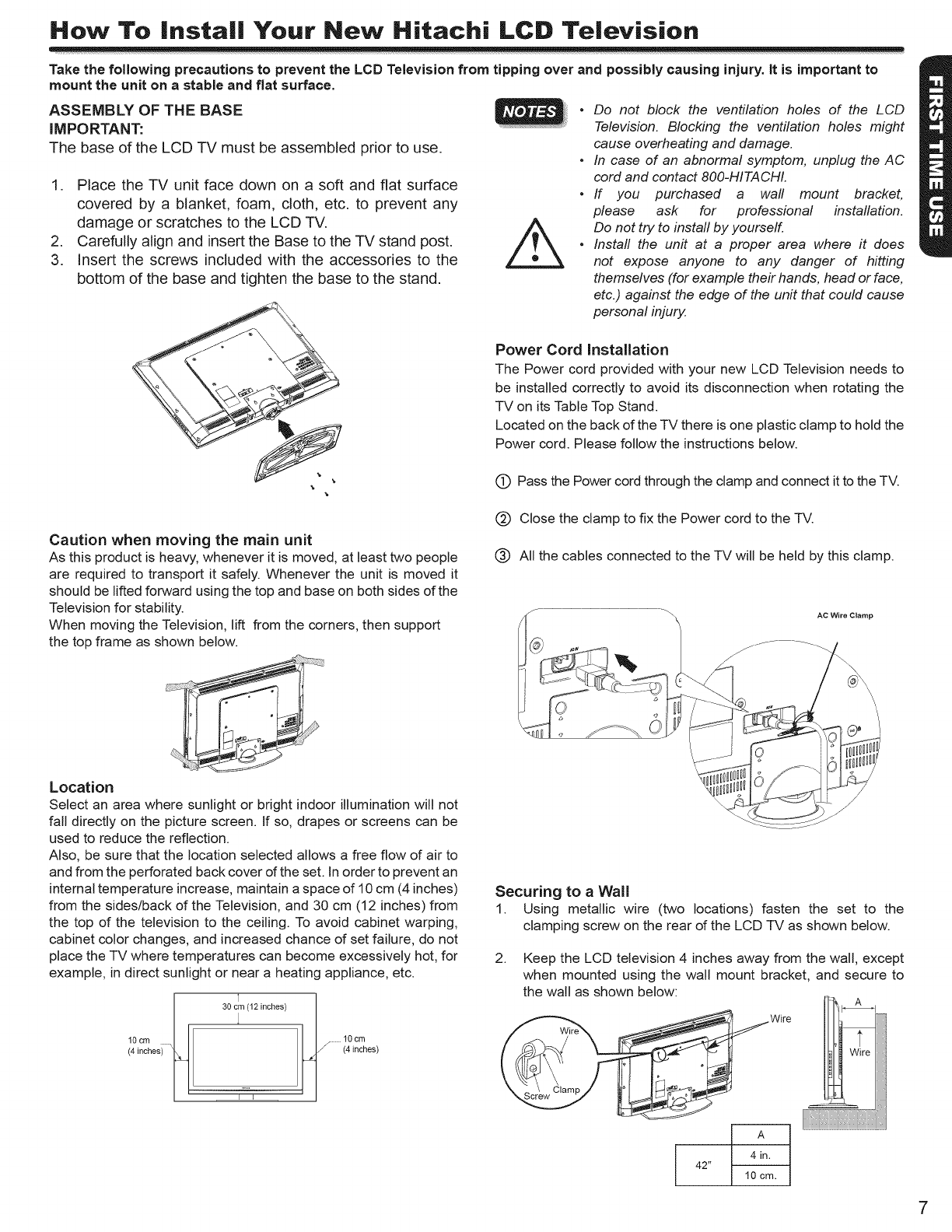
ASSEMBLY OF THE BASE
IMPORTANT:
The base of the LCD TV must be assembled prior to use.
1. Place the TV unit face down on a soft and flat surface
covered by a blanket, foam, cloth, etc. to prevent any
damage or scratches to the LCD TV.
2. Carefully align and insert the Base to the TV stand post.
3. Insert the screws included with the accessories to the
bottom of the base and tighten the base to the stand.
I,
•Do not block the ventilation holes of the LCD
Television. Blocking the ventilation holes might
cause overheating and damage.
•In case of an abnormal symptom, unplug the AC
cord and contact 800-HITACHI.
•If you purchased a wall mount bracket,
please ask for professional installation.
Do not try to instafl by yourself.
•Install the unit at a proper area where it does
not expose anyone to any danger of hitting
themselves (for example their hands, head or face,
etc.) against the edge of the unit that could cause
personal injury.
Power Cord installation
The Power cord provided with your new LCD Television needs to
be installed correctly to avoid its disconnection when rotating the
TV on its Table Top Stand.
Located on the back of the TV there is one plastic clamp to hold the
Power cord. Please follow the instructions below.
(_ Pass the Power cord through the clamp and connect it to the TV.
Caution when moving the main unit
As this product is heavy, whenever it is moved, at least two people
are required to transport it safely. Whenever the unit is moved it
should be lifted forward using the top and base on both sides of the
Television for stability.
When moving the Television, lift from the corners, then support
the top frame as shown below.
Location
Select an area where sunlight or bright indoor illumination will not
fall directly on the picture screen. If so, drapes or screens can be
used to reduce the reflection.
Also, be sure that the location selected allows a free flow of air to
and from the perforated back cover of the set. In order to prevent an
internal temperature increase, maintain a space of 10 cm (4 inches)
from the sides/back of the Television, and 30 cm (12 inches) from
the top of the television to the ceiling. To avoid cabinet warping,
cabinet color changes, and increased chance of set failure, do not
place the TV where temperatures can become excessively hot, for
example, in direct sunlight or near a heating appliance, etc.
3°im/12'°c"°s/Y
140i_hes) ]_J _ (!40'_mhes )
-'--"T_
(_) Close the clamp to fix the Power cord to the TV.
All the cables connected to the TV will be held by this clamp.
AC Wire Clamp
Securing to a Wall
1. Using metallic wire (two locations) fasten the set to the
clamping screw on the rear of the LCD TV as shown below.
2. Keep the LCD television 4 inches away from the wall, except
when mounted using the wall mount bracket, and secure to
the wall as shown below:
7
How To |.sta|| Your New Hitachi LCD Television
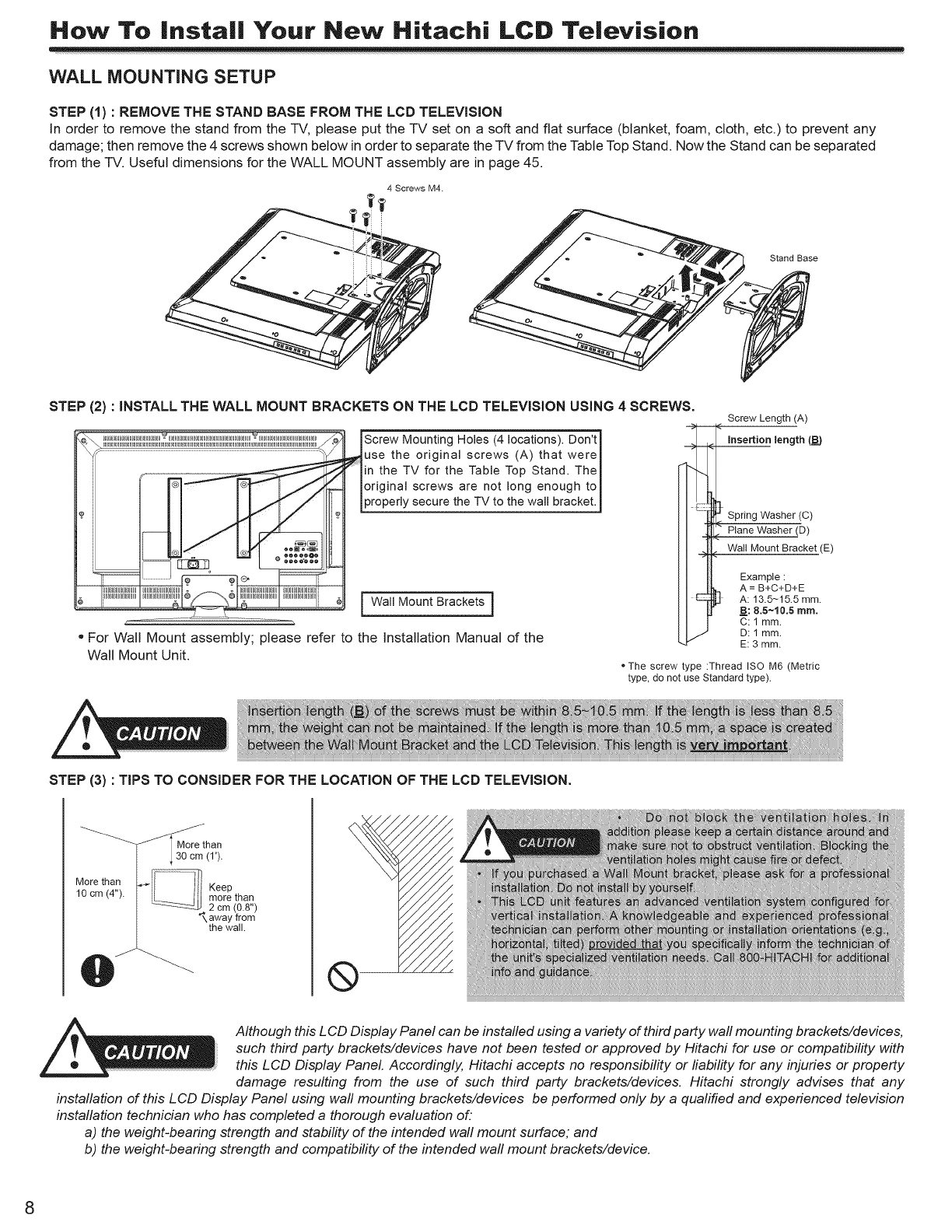
WALL MOUNTING SETUP
STEP (1) : REMOVE THE STAND BASE FROM THE LCD TELEViSiON
In order to remove the stand from the TV, please put the TV set on a soft and flat surface (blanket, foam, cloth, etc.) to prevent any
damage; then remove the 4 screws shown below in order to separate the TV from the Table Top Stand. Now the Stand can be separated
from the TV. Useful dimensions for the WALL MOUNT assembly are in page 45.
4 Screws M4.
Stand Base
STEP (2) : iNSTALL THE WALL MOUNT BRACKETS ON THE LCD TELEViSiON USING 4SCREWS.
............................_"......................................_............................_"lScrew Mounlng Holes (4 locations). Don'tI
muse the original screws (A) that were I
.................................................................." Iin the TV for the Table Top Stand. The_
io |original screws are not long enough tol
[properly secure the TV to the wall bracket.1
llllllllllllllIll IlllllllIIIlllll IIIIIIIIIIIIIIIIII llIlllllllIlllll I
• For Wall Mount assembly; please refer to the Installation Manual of the
Wall Mount Unit.
-- <
Screw Length (A)
insertion length (BB)
Spring Washer (C)
Plane Washer (D)
Wall Mount Bracket (E)
Example :
A = B+C+D+E
A: 13.5-15.5 mm.
B: 8.5~10.5 ram.
C: 1 mm
D: 1 mm.
E: 3 mm
• The screw type :Thread ISO M6 (Metric
type, do not use Standard type).
STEP (3) : TIPS TO CONSIDER FOR THE LOCATION OF THE LCD TELEVISION.
iii
i
veil
ie d_
iii iiia
Although this LCD Display Panel can be installed using a variety of third party wall mounting brackets/devices,
such third party brackets/devices have not been tested or approved by Hitachi for use or compatibility with
_: this LCD Display Panel. Accordingly, Hitachi accepts no responsibility or liability for any injuries or property
damage resulting from the use of such third party brackets/devices. Hitachi strongly advises that any
installation of this LCD Display Panel using wall mounting brackets/devices be performed only by a qualified and experienced television
installation technician who has completed a thorough evaluation of.
a) the weight-bearing strength and stability of the intended wall mount surface; and
b) the weight-bearing strength and compatibility of the intended wall mount brackets/device.
8
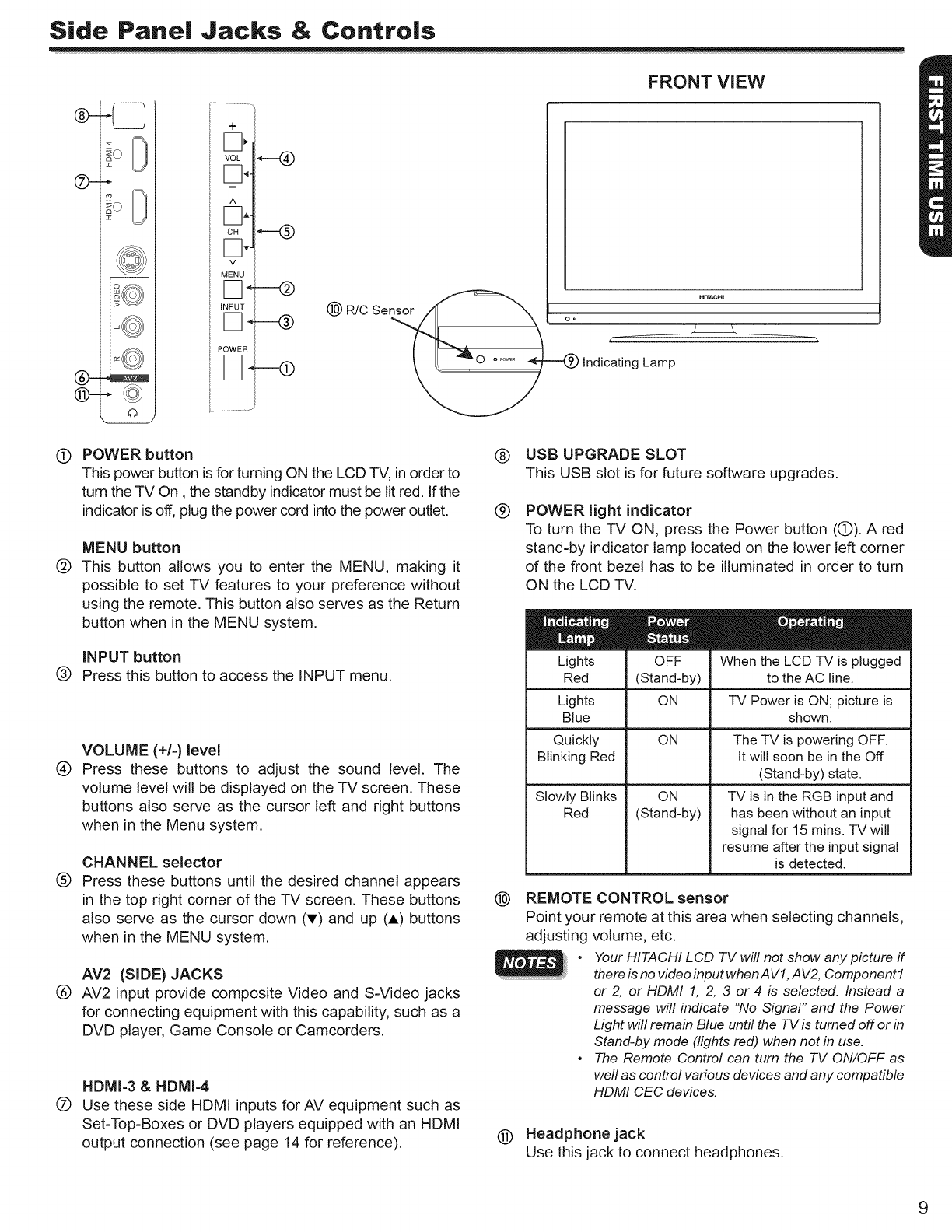
Side Pane| Jacks & Controls
J
@-
@-
@-
IIIJI
o
o.
v
MENU
iNPUT
POWER
(_) R/C Sensor
FRONT VIEW
HrrAcl41
indicating Lamp
(b
(2)
POWER button
This power button is for turning ON the LCD TV, in order to
turn the TV On, the standby indicator must be lit red. If the
indicator is off, plug the power cord into the power outlet.
MENU button
This button allows you to enter the MENU, making it
possible to set TV features to your preference without
using the remote. This button also serves as the Return
button when in the MENU system.
INPUT button
(_ Press this button to access the INPUT menu.
®
®
®
®
VOLUME (+/-) level
Press these buttons to adjust the sound level. The
volume level will be displayed on the TV screen. These
buttons also serve as the cursor left and right buttons
when in the Menu system.
CHANNEL selector
Press these buttons until the desired channel appears
in the top right corner of the TV screen. These buttons
also serve as the cursor down (T) and up (A) buttons
when in the MENU system.
AV2 (SIDE) JACKS
AV2 input provide composite Video and S-Video jacks
for connecting equipment with this capability, such as a
DVD player, Game Console or Camcorders.
HDMI-3 & HDMI-4
Use these side HDMI inputs for AV equipment such as
Set-Top-Boxes or DVD players equipped with an HDMI
output connection (see page 14 for reference).
®
(9
®
®
USB UPGRADE SLOT
This USB slot is for future software upgrades.
POWER light indicator
To turn the TV ON, press the Power button (O). A red
stand-by indicator lamp located on the lower left corner
of the front bezel has to be illuminated in order to turn
ON the LCD TV.
Lights
Red OFF
(Stand-by)
ON
When the LCDTV is plugged
to the AC line.
ON
(Stand-by)
Lights TV Power is ON; picture is
Blue shown.
Quickly ON
Blinking Red
Slowly Blinks
Red
The TV is powering OFF.
It will soon be in the Off
(Stand-by) state.
TV is in the RGB input and
has been without an input
signal for 15 mins. TV will
resume after the input signal
is detected.
REMOTE CONTROL sensor
Point your remote at this area when selecting channels,
adjusting volume, etc.
•Your HITACHI LCD TV will not show any picture if
there is no video input when A V1,A V2, Component1
or 2, or HDMI 1, 2, 3 or 4 is selected. Instead a
message will indicate "No Signal" and the Power
Light will remain Blue until the TV is turned off or in
Stand-by mode (lights red) when not in use.
•The Remote Control can turn the TV ON/OFF as
weft as control various devices and any compatible
HDMI CEC devices.
Headphone jack
Use this jack to connect headphones.
9
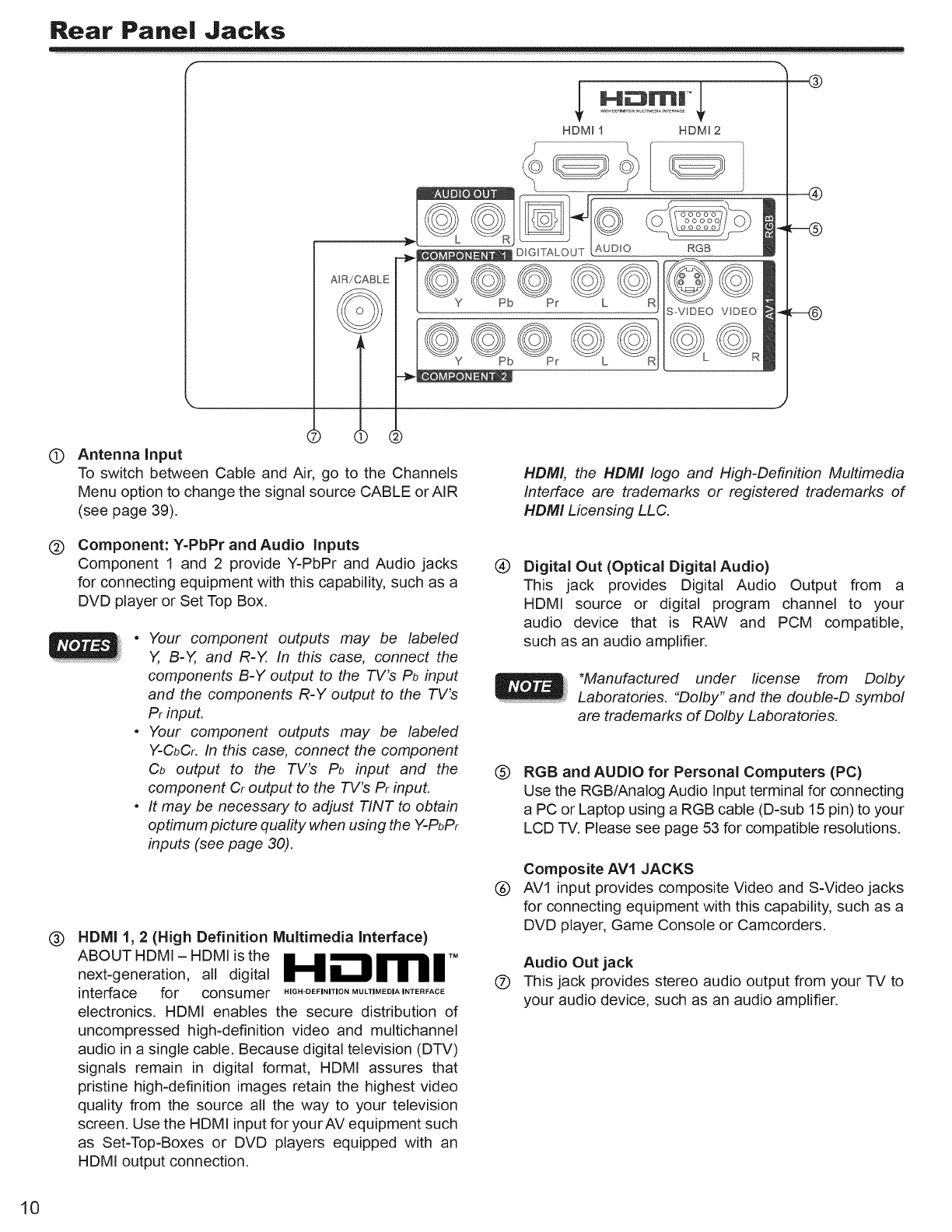
Rear Pane| Jacks
AiR!CABLE
T
HDMI 1 HDMI 2
[ ]
D_GFTALOUT RGB
©©©
Y Pb Pr L R
d) Antenna Input
To switch between Cable and Air, go to the Channels
Menu option to change the signal source CABLE or AiR
(see page 39).
®
HDMI, the HDM! logo and High-Definition Multimedia
Interface are trademarks or registered trademarks of
HDM! Licensing LLC.
@
®
Component: Y-PbPr and Audio Inputs
Component 1 and 2 provide Y-PbPr and Audio jacks
for connecting equipment with this capability, such as a
DVD player or Set Top Box.
.Your component outputs may be labeled
Y, B-Y, and R-Y. In this case, connect the
components B-Y output to the TV's Pb input
and the components R-Y output to the TV's
Pr input.
•Your component outputs may be labeled
Y-CbCr. In this case, connect the component
Cb output to the TV's Pb input and the
component Cr output to the TV's Pr inpuL
•It may be necessary to adjust TINT to obtain
optimum picture quality when using the Y-PbPr
inputs (see page 30).
HDMI 1, 2 (High Definition Multimedia interface)
next-generation, all digital
interface for consumer HIGH-DEFINITIONMULTiMEDiAINTERFACE
electronics. HDMI enables the secure distribution of
uncompressed high-definition video and multichannel
audio in a single cable. Because digital television (DTV)
signals remain in digital format, HDMI assures that
pristine high-definition images retain the highest video
quality from the source all the way to your television
screen. Use the HDMI input for yourAV equipment such
as Set-Top-Boxes or DVD players equipped with an
HDMI output connection.
®
®
®
®
Digital Out (Optical Digital Audio)
This jack provides Digital Audio Output from a
HDMI source or digital program channel to your
audio device that is RAW and PCM compatible,
such as an audio amplifier.
*Manufactured under ficense from Dolby
Laboratories. "Dolby" and the double-D symbol
are trademarks of Dolby Laboratories.
RGB and AUDIO for Personal Computers {PC)
Use the RGB/Ana]og Audio input terminal for connecting
a PC or Laptop using a RGB cable (D-sub 15 pin) to your
LCD TV. Please see page 53 for compatible resolutions.
Composite AVl JACKS
AVl input provides composite Video and S-Video jacks
for connecting equipment with this capability, such as a
DVD player, Game Console or Camcorders.
Audio Out jack
This jack provides stereo audio output from your TV to
your audio device, such as an audio amplifier.
10
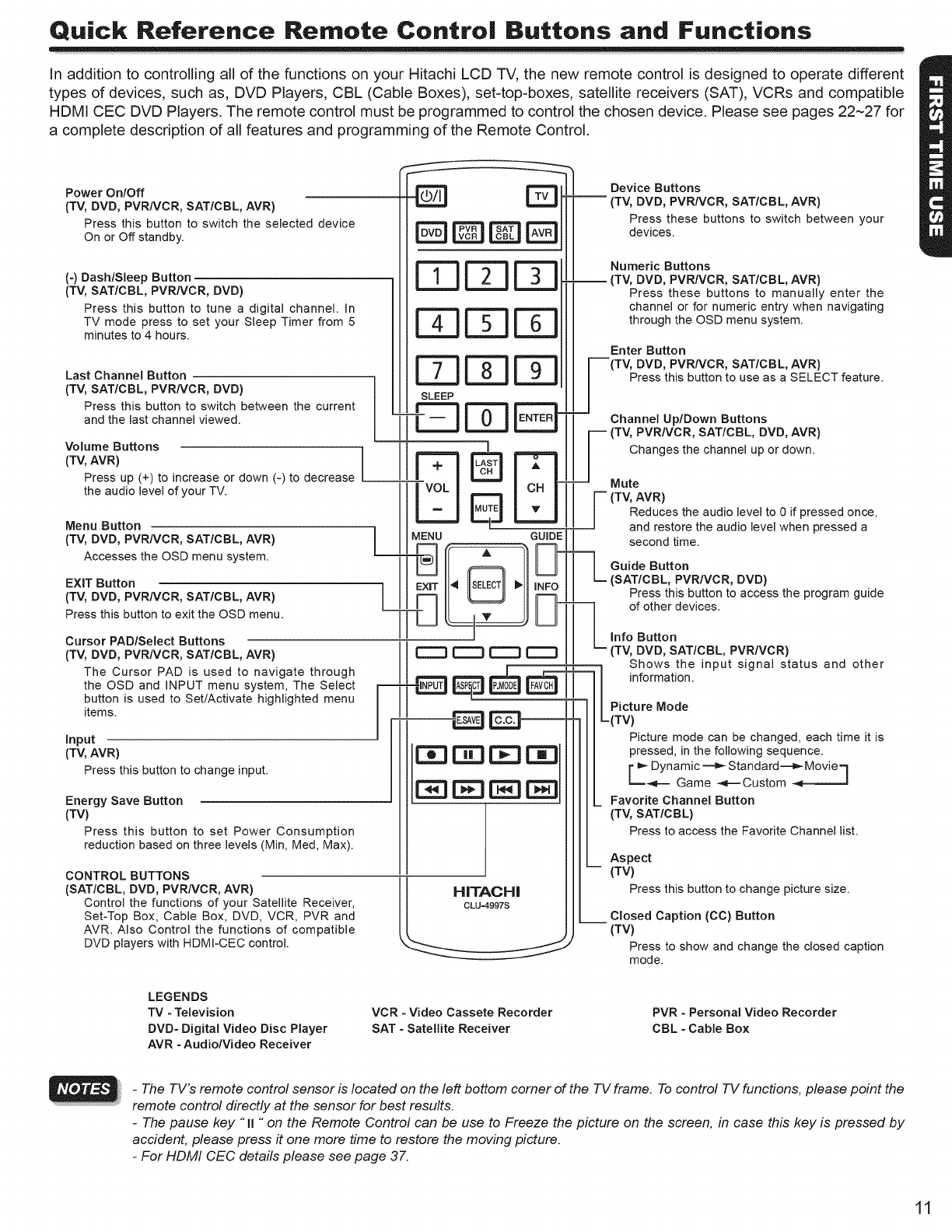
Quick Reference Remote Contro| Buttons and Functions
In addition to controlling all of the functions on your Hitachi LCD TV, the new remote control is designed to operate different
types of devices, such as, DVD Players, CBL (Cable Boxes), set-top-boxes, satellite receivers (SAT), VCRs and compatible
HDMI CEC DVD Players, The remote control must be programmed to control the chosen device, Please see pages 22~27 for
a complete description of all features and programming of the Remote Control,
Power On/Off
(TV, DVD, PVRNCR, SAT/CBL, AVR)
Press tMs button to switch the selected device
On or Off standby.
(-) Dash/Sleep Button
(TV, SAT/CBL, PVRNCR, DVD)
Press this button to tune a digital channel. In
TV mode press to set your Sleep Timer from 5
minutes to 4 hours.
Last Channel Button
(TV, SAT/CBL, PVRNCR, DVD)
Press this button to switch between the current
and the last channel viewed.
Volume Buttons
(TV, AVR)
Press up (+) to increase or down (-) to decrease
the audio level of your -IV.
Menu Button
(TV, DVD, PVRNCR, SAT/CBL, AVR)
Accesses the OSD menu system.
EXIT Button
(TV, DVD, PVRNCR, SAT/CBL, AVR)
Press this button to exit the OSD menu.
Cursor PAD/Select Buttons
(TV, DVD, PVRNCR, SAT/CBL, AVR)
The Cursor PAD is used to navigate through
the OSD and INPUT menu system, The Select
button is used to Set/Activate highlighted menu
items.
input
uSSS
]
F
Device Buttons
-- (TV, DVD, PVRNCR, SAT/CBL, AVR)
Press these buttons to switch between your
devices.
Numeric Buttons
-- (TV, DVD, PVRNCR, SAT/CBL, AVR)
Press these buttons to manually enter the
channel or for numeric entry when navigating
through the OSD menu system.
Enter Button
(TV, DVD, PVR/VCR, SAT/CBL, AVR)
Press this button to use as a SELECT feature.
Channel Up/Down Buttons
(TV, PVRNCR, SAT/CBL, DVD, AVR)
Changes the channel up or down.
Mute
(TV, AVR)
Reduces the audio level to 0 if pressed once,
and restore the audio level when pressed a
second time.
q Guide Button
-- (SAT/CBL, PVR/VCR, DVD)
Press this button to access the program guide
--] of other devices.
LInfo Button
(TV, DVD, SAT/CBL, PVR/VCR)
Shows the input signal status and other
|Picture Mode
| LCTV
(TV,AVR}
Press this button to change input.
Energy Save Button
(TV)
Press tMs button to set Power Consumption
reduction based on three levels (Min, Med, Max),
CONTROL BUTTONS
(SAT/CBL, DVD, PVRNCR, AVR)
Control the functions of your Satellite Receiver,
Set-Top Box, Cable Box, DVD, VCR, PVR and
AVR. Also Control the functions of compatible
DVD players with HDMI-CEC control.
HITACHI
Picture mode can be changed, each time it is
pressed, in the following sequence.
E Dynamic _ Standard--_Movie-1
_-- Game _,e-Custom _ /
Favorite Channel Button
(TV, SAT/CBL)
Press to access the Favorite Channel list.
Aspect
-- (TV)
Press thisbuttontochange picturesize.
__ Closed Caption (CC) Button
(TV)
Press to show and change the closed caption
mode.
LEGENDS
TV - Television
DVD- Digital Video Disc Player
AVR - Audio/Video Receiver
VCR - Video Cassete Recorder
SAT - Satellite Receiver
PVR -Personal Video Recorder
CBL - Cable Box
-The TV's remote control sensor is located on the left bottom corner of the TV frame. To control TV functions, please point the
remote control directly at the sensor for best results.
-The pause key "II "on the Remote Control can be use to Freeze the picture on the screen, in case this key is pressed by
accident, please press it one more time to restore the moving picture.
-For HDMI CEC details please see page 37.
11

Quick Setup Guide
Perform the following steps to quickly setup your new
Hitachi LCD Television Set.
1. ANTENNA CONNECTION
Unless your LCD Television is connected to a cable TV system or
to a centralized antenna system, a good outdoor color TV antenna
is recommended for best performance. However, if you are located
in an exceptionally good signal area that is free from interference
and multiple image ghosts, an indoor antenna may be sufficient.
a). VHF (75-Ohm) antenna/CATV (Cable TV)
When using a 75-Ohm coaxial cable system, connect the CA-R/coaxial
cable to theAIR/CABLE (75-Ohm) terminal. Or if you have an antenna,
connect the coaxial cable to the same AIR/CABLE terminal.
Air/Cable
AIR/CABLE
_oM__ _DM_2
Rear Panel Jack
To outdoorAntenna i_r] iL To Antenna
or _ Terminal
Cable TV (CATV)
System
b). VHF (300-Ohm) antenna/UHF antenna
When using a 300-Ohm twin lead from an outdoor antenna, connect
the VHF or UHF antenna leads to screws of the VHF or UHF adapter.
Plug the adapter into the antenna terminal on the TV.
To Antenna
Terminal
Attach an optional antenna cable mixer to the TV antenna terminal
and connect the cables to the antenna mixer. Consult your dealer
or service store for the antenna mixer.
............. _ To outdoor antenna
To UHF antenna | _ _ or CATV system
Antenna Mixer
c). When both VHF and UHF antennas are connected
Connecting a 300-Ohm twin lead connector may cause interference. Using a 75-Ohm coaxial cable is recommended.
2. CONNECT YOUR NEW HITACHI LCD "IV TO THE POWER SOURCE
a). Connect the power cord to your TV set and c). The Indicating Lamp will light red (Standby mode) and
secure it with the AC Wire Clamp (see page 7) . then light blue (image displays).
__! AC Wire Clamp
indicating
Lamp
O0POWER
b). Connect the power cord to the AC wall outlet.
3. POWER ON/OFF YOUR NEW HITACHI LeD TV. or
Press the POWER button on the Remote Control .....
or the POWER button on the Side Control Panel to []
INPUT
power on/off the LCD TV, For Stand-By []
Power OFF
If the Indicating lamp is OFF, the Power Button on the
Remote Control will not operate. Please make sure
that the power cord is plugged to the AC outlet.
4. FOLLOW THE TV SETUP WIZARD INSTRUCTIONS ON NEXT PAGE.
12
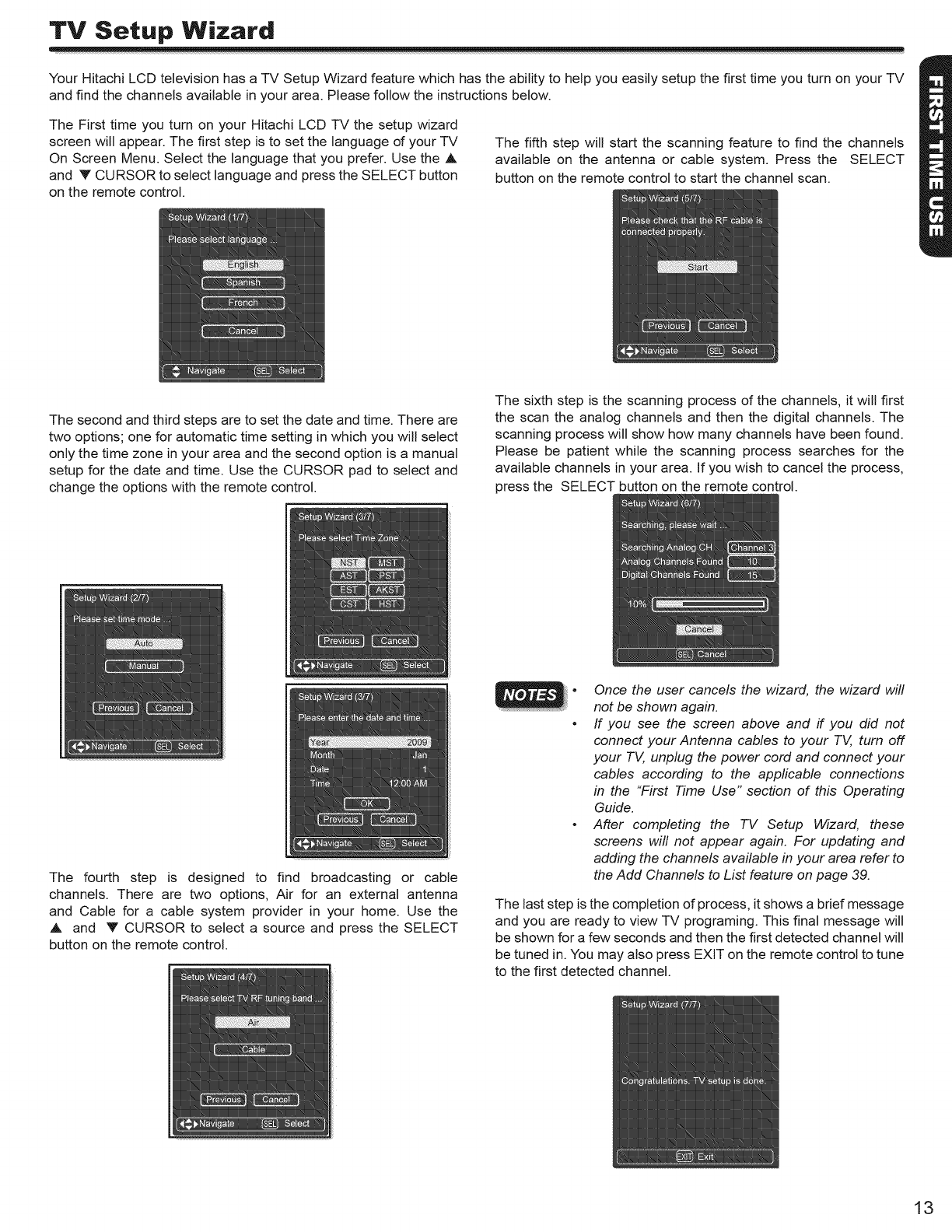
TV Setup Wizard
Your Hitachi LCD television has a TV Setup Wizard feature which has the ability to help you easily setup the first time you turn on your TV
and find the channels available in your area. Please follow the instructions below.
The First time you turn on your Hitachi LCD TV the setup wizard
screen will appear. The first step is to set the language of your TV
On Screen Menu. Select the language that you prefer. Use the A
and Y CURSORto select language and press the SELECT button
on the remote control.
The fifth step will start the scanning feature to find the channels
available on the antenna or cable system. Press the SELECT
button on the remote control to start the channel scan.
The second and third steps are to set the date and time. There are
two options; one for automatic time setting in which you will select
only the time zone in your area and the second option is a manual
setup for the date and time. Use the CURSOR pad to select and
change the options with the remote control.
The sixth step is the scanning process of the channels, it will first
the scan the analog channels and then the digital channels. The
scanning process will show how many channels have been found.
Please be patient while the scanning process searches for the
available channels in your area. If you wish to cancel the process,
press the SELECT button on the remote control.
The fourth step is designed to find broadcasting or cable
channels. There are two options, Air for an external antenna
and Cable for a cable system provider in your home. Use the
A and Y CURSOR to select a source and press the SELECT
button on the remote control.
•Once the user cancels the wizard, the wizard will
not be shown again.
•If you see the screen above and if you did not
connect your Antenna cables to your TV, turn off
your TV, unplug the power cord and connect your
cables according to the applicable connections
in the "First Time Use" section of this Operating
Guide.
•After completing the TV Setup Wizard, these
screens will not appear again. For updating and
adding the channels available in your area refer to
the Add Channels to List feature on page 39.
The last step is the completion of process, it shows a brief message
and you are ready to view TV programing. This final message will
be shown for a few seconds and then the first detected channel will
be tuned in. You may also press EXIT on the remote control to tune
to the first detected channel.
13
Side Pane| Connections
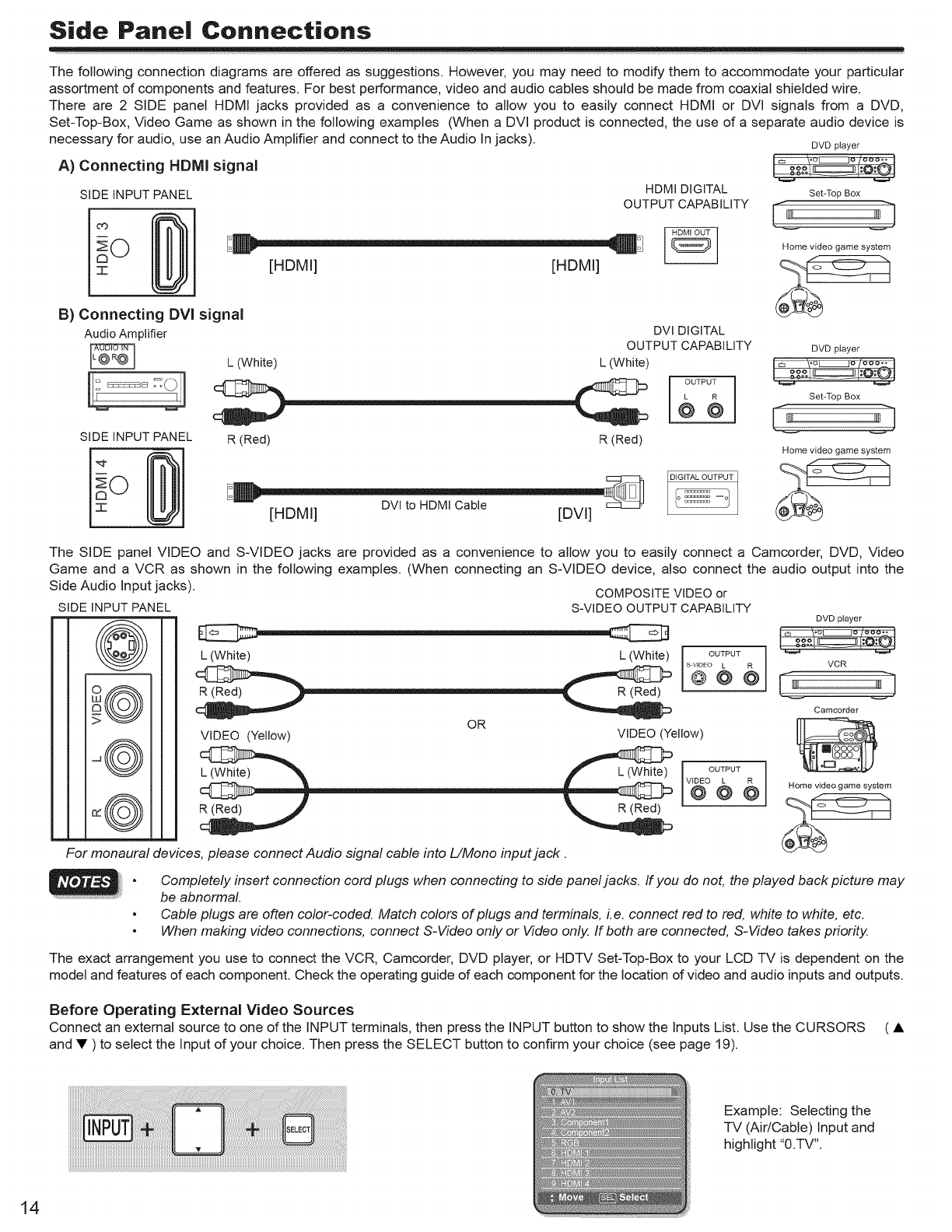
The following connection diagrams are offered as suggestions. However, you may need to modify them to accommodate your particular
assortment of components and features. For best performance, video and audio cables should be made from coaxial shielded wire.
There are 2 SIDE panel HDMI jacks provided as a convenience to allow you to easily connect HDMI or DVI signals from a DVD,
Set-Top-Box, Video Game as shown in the following examples (When a DVI product is connected, the use of a separate audio device is
necessary for audio, use an Audio Amplifier and connect to the Audio In jacks).
A) Connecting HBMI signal
SIDE INPUT PANEL HDMI DIGITAL
OUTPUT CAPABILITY
[HDMI] [HDMI]
B) Connecting DVI signal
SIDE INPUT PANEL
Audio Amplifier DVI DIGITAL
OUTPUT CAPABILITY
L (White) L (White)
R (Red) R(Red)
[HDMI] [DVl]
DVD player
SebTop Box
LJ
Home video game system
DVD player
OUTPUT
SebTop Box
L: 3
Home video game system
The SIDE panel VIDEO and S-VIDEO jacks are provided as a convenience to allow you to easily connect a Camcorder, DVD, Video
Game and a VCR as shown in the following examples. (When connecting an S-VIDEO device, also connect the audio output into the
Side Audio Input jacks). COMPOSITE VIDEO or
SIDE INPUT PANEL S-VIDEO OUTPUT CAPABILITY
OUTPUT
L (White) L (White)ls_o _})
N OR
VIDEO (Yellow) VIDEO (Yellow) O T UT
_@ R(Red) R(Red) vs° _ I_
For monaural devices, please connect Audio signal cable into L/Mono input jack.
DVD player
VCR
Camcorder
Home video game system
•Completely insert connection cord plugs when connecting to side panel jacks. If you do not, the played back picture may
be abnormal.
•Cable plugs are often color-coded. Match colors of plugs and terminals, Le. connect red to red, white to white, etc.
•When making video connections, connect S-Video only or Video only. If both are connected, S-Video takes priority.
The exact arrangement you use to connect the VCR, Camcorder, DVD player, or HDTV Set-Top-Box to your LCD TV is dependent on the
model and features of each component. Check the operating guide of each component for the location of video and audio inputs and outputs.
Before Operating External Video Sources
Connect an external source to one of the INPUT terminals, then press the INPUT button to show the Inputs List. Use the CURSORS ( •
and • ) to select the Input of your choice. Then press the SELECT button to confirm your choice (see page 19).
Example: Selecting the
TV (Air/Cable) Input and
highlight "0.TV".
14
Rear Panel Connections
Outside antenna
or
Cable -IV coaxial cable
!
2-Way
signal
splitter
AIR/CABLE
@
HDMI 1
@
AUDIO
HDMI 2 4_
S VIDEO
v,dOeUTPUT
,%
HDMI i
to
HDMI
=i
r'm
DIGITAL
OUTPUT CAPABILITY
Personal Computer
STEREO SYSTEM
AMPLIFIER
Cables are not included.
HDTV SET-TOP BOX DVD PLAYER
DVD PLAYER VIDEO GAME
with Component with Composite
Output capability video capability
TIPS ON REAR PANEL CONNECTIONS
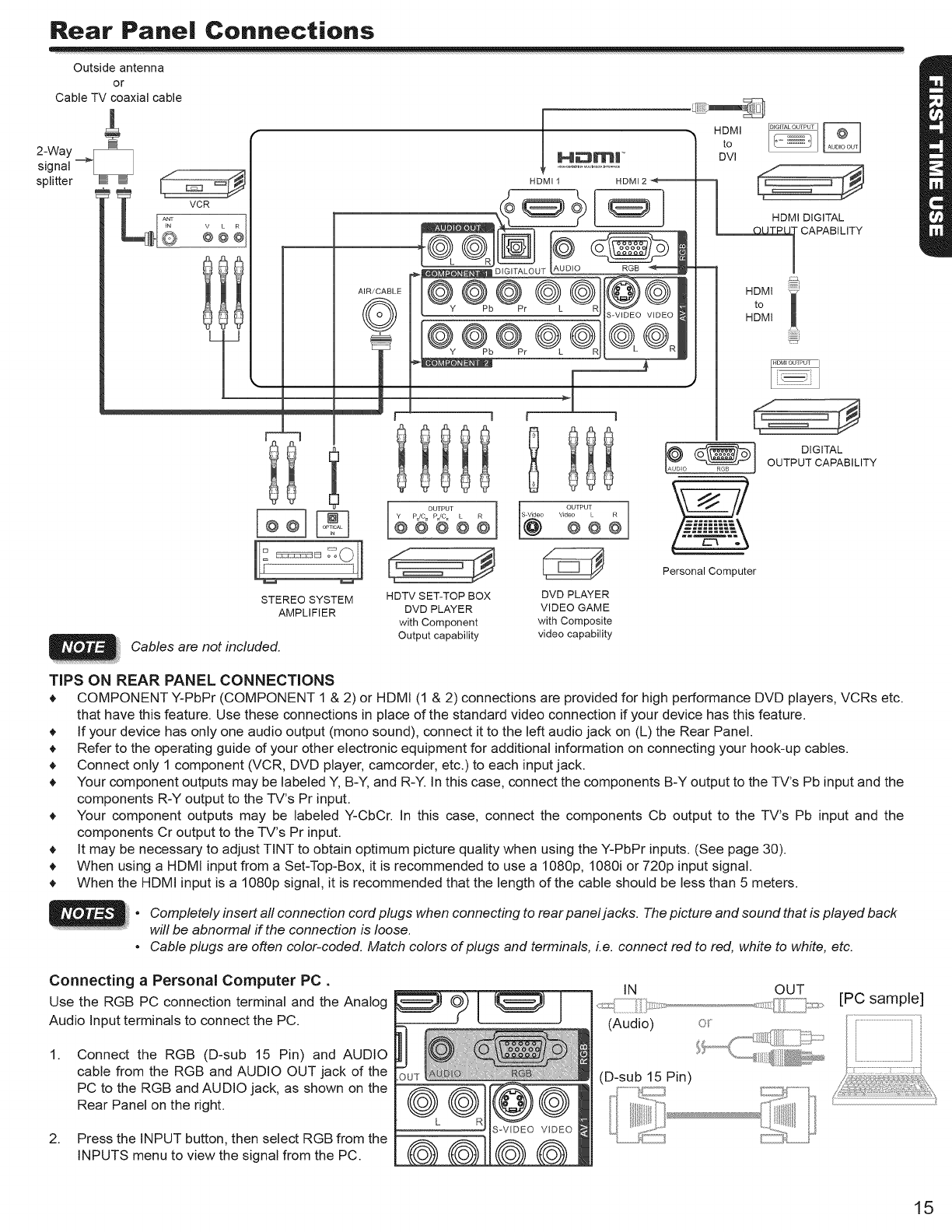
COMPONENT Y-PbPr (COMPONENT 1 & 2) or HDMI (1 & 2) connections are provided for high performance DVD players, VCRs etc.
that have this feature. Use these connections in place of the standard video connection if your device has this feature.
If your device has only one audio output (mono sound), connect it to the left audio jack on (L) the Rear Panel.
Refer to the operating guide of your other electronic equipment for additional information on connecting your hook-up cables.
Connect only 1 component (VCR, DVD player, camcorder, etc.) to each input jack.
Your component outputs may be labeled Y, B-Y, and R-Y. In this case, connect the components B-Y output to the TV's Pb input and the
components R-Y output to the TV's Pr input.
Your component outputs may be labeled Y-CbCr. In this case, connect the components Cb output to the TV's Pb input and the
components Cr output to the TV's Pr input.
It may be necessary to adjust TINT to obtain optimum picture quality when using the Y-PbPr inputs. (See page 30).
When using a HDMI input from a Set-Top-Box, it is recommended to use a 1080p, 1080i or 720p input signal.
When the HDMI input is a 1080p signal, it is recommended that the length of the cable should be less than 5 meters.
• Completely insert all connection cord plugs when connecting to rear panel jacks. The picture and sound that is played back
will be abnormal if the connection is loose.
•Cable plugs are often color-coded. Match colors of plugs and terminals, i.e. connect red to red, white to white, etc.
Connecting a Personal Computer PC.
Use the RGB PC connection terminal and the Analog
Audio Input terminals to connect the PC.
1. Connect the RGB (D-sub 15 Pin) and AUDIO
cable from the RGB and AUDIO OUT jack of the
PC to the RGB and AUDIO jack, as shown on the
Rear Panel on the right.
2. Press the INPUT button, then select RGB from the
INPUTS menu to view the signal from the PC.
IN
(Audio)
(D-sub 15 Pin)
O?
OUT [PC sample]
15
Rear Pane| Connections
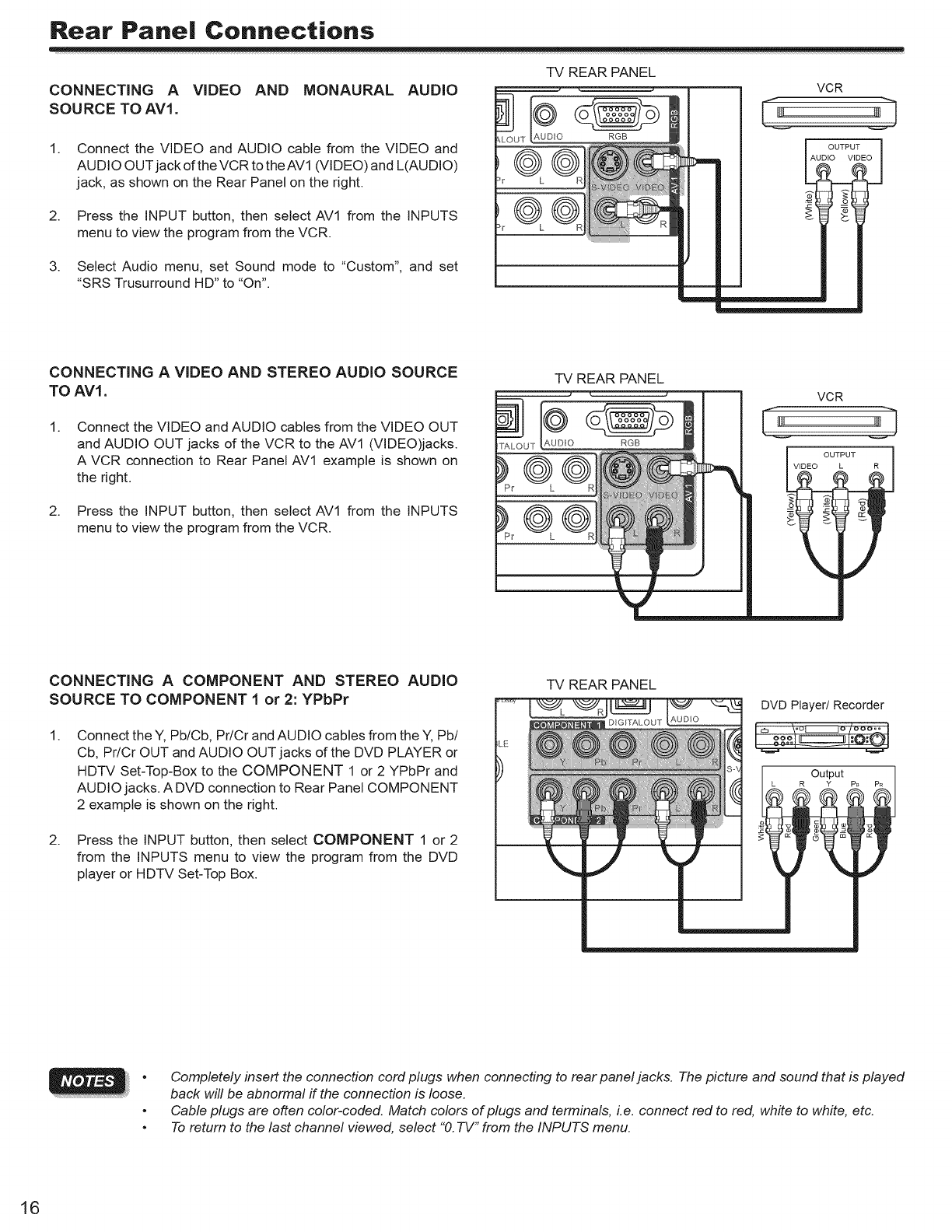
CONNECTING A VIDEO AND MONAURAL AUDIO
SOURCE TO AV1.
1.
2.
Connect the VIDEO and AUDIO cable from the VIDEO and
AUDIO OUT jack of the VCR to the AV1 (VIDEO) and L(AUDIO)
jack, as shown on the Rear Panel on the right.
Press the INPUT button, then select AV1 from the INPUTS
menu to view the program from the VCR.
UT
L
®
TV REAR PANEL
VCR
3. Select Audio menu, set Sound mode to "Custom", and set
"SRS Trusurround HD" to "On".
CONNECTING A VIDEO AND STEREO AUDIO SOURCE
TO AVl.
1. Connect the VIDEO and AUDIO cables from the VIDEO OUT
and AUDIO OUT jacks of the VCR to the AV1 (VIDEO)jacks.
A VCR connection to Rear Panel AV1 example is shown on
the right.
2. Press the INPUT button, then select AV1 from the INPUTS
menu to view the program from the VCR.
TV REAR PANEL
VCR
[Z ,,,,-1
CONNECTING A COMPONENT AND STEREO AUDIO
SOURCE TO COMPONENT 1 or 2: YPbPr
1. Connect the Y, Pb/Cb, Pr/Cr and AUDIO cables from the Y, Pb/
Cb, Pr/Cr OUT and AUDIO OUT jacks of the DVD PLAYER or
HDTV Set-Top-Box to the COMPONENT 1 or 2 YPbPr and
AUDIO jacks. A DVD connection to Rear Panel COMPONENT
2 example is shown on the right.
2. Press the INPUT button, then select COMPONENT 1 or 2
from the INPUTS menu to view the program from the DVD
player or HDTV Set-Top Box.
TV REAR PANEL
DVD Player/Recorder
Output
•Completely insert the connection cord plugs when connecting to rear panel jacks. The picture and sound that is played
back will be abnormal if the connection is loose.
•Cable plugs are often color-coded. Match colors of plugs and terminals, Le. connect red to red, white to white, etc.
•To return to the last channel viewed, select "0. TV" from the INPUTS menu.
16
Rear Pane| Connections
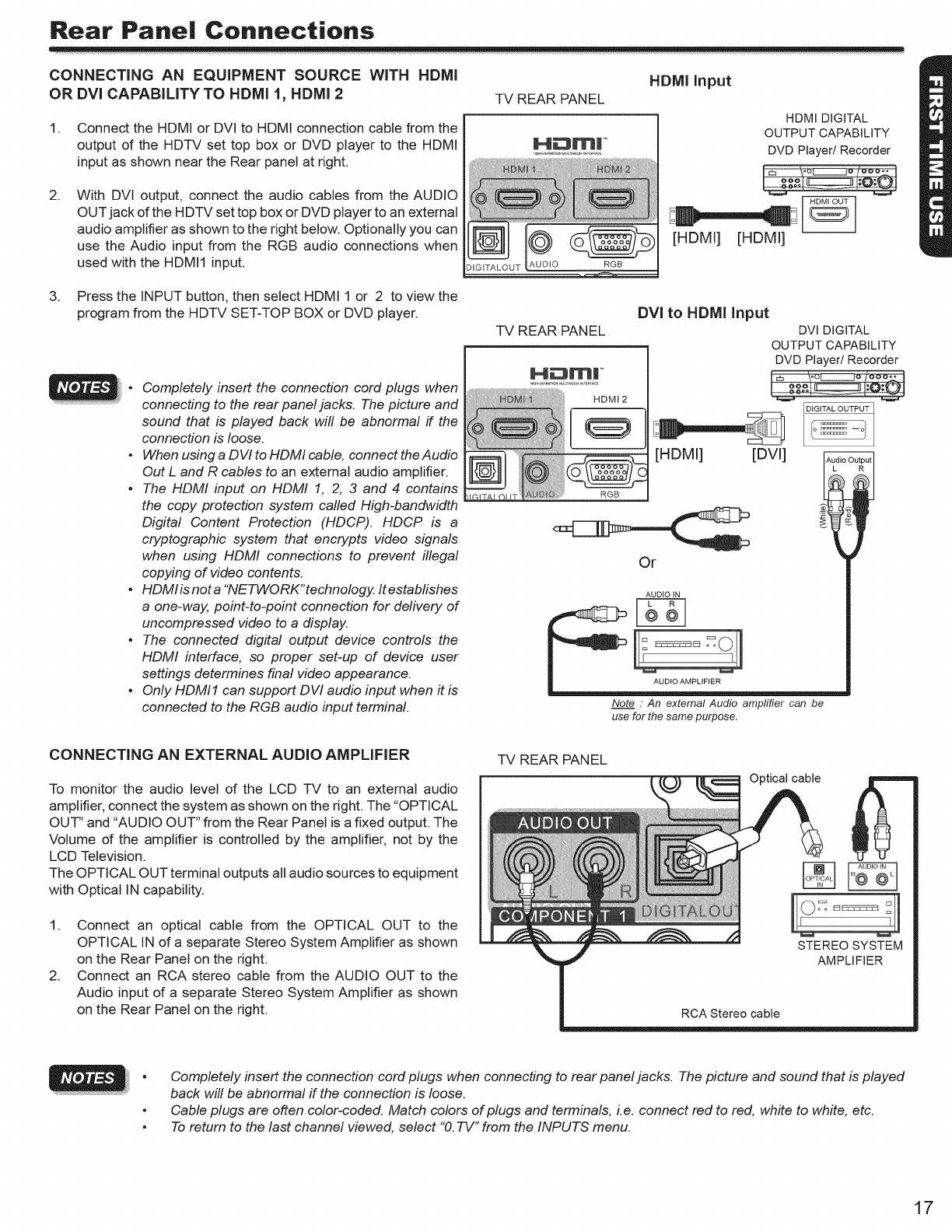
CONNECTING AN EQUIPMENT SOURCE WiTH HDMI
OR DVl CAPABiLiTY TO HDMI 1, HDMI 2
1. Connect the HDMI or DVI to HDMI connection cable from the
output of the HDTV set top box or DVD player to the HDMI
input as shown near the Rear panel at right.
2. With DVI output, connect the audio cables from the AUDIO
OUT jack of the H DTV set top box or DVD player to an external
audio amplifier as shown to the right below. Optionally you can
use the Audio input from the RGB audio connections when
used with the HDMI1 input.
TV REAR PANEL
HDMI input
HDMI DIGITAL
OUTPUT CAPABILITY
DVD Player/Recorder
[HDMI] [HDMI]
3. Press the INPUT button, then select HDMI 1 or 2 to view the
program from the HDTV SET-TOP BOX or DVD player.
•Completely insert the connection cord plugs when
connecting to the rear panel jacks. The picture and
sound that is played back will be abnormal if the
connection is loose.
•When using a DW to HDMI cable, connect theAudio
Out L and R cables to an external audio amplifier.
•The HDMI input on HDMI 1, 2, 3 and 4 contains
the copy protection system called High-bandwidth
Digital Content Protection (HDCP). HDCP is a
cryptographic system that encrypts video signals
when using HDMI connections to prevent illegal
copying of video contents.
•HDMlisnota "NETWORK'technology. Itestablishes
a one-way, point-to-point connection for defivery of
uncompressed video to a display.
•The connected digital output device controls the
HDMI interface, so proper set-up of device user
settings determines final video appearance.
•Only HDMI1 can support DW audio input when it is
connected to the RGB audio input terminal.
TV REAR PANEL
RGB
DVl to HDMI input
DVl DIGITAL
OUTPUT CAPABILITY
DVD Player/Recorder
Or
AUDIO iN
AUDIO AMPLIFIER
Note .An external Audio amplifier can be
use for the same purpose.
CONNECTING AN EXTERNAL AUDIO AMPLIFIER
To monitor the audio level of the LCD TV to an external audio
amplifier, connect the system as shown on the right. The "OPTICAL
OUT" and "AUDIO OUT" from the Rear Panel is a fixed output. The
Volume of the amplifier is controlled by the amplifier, not by the
LCD Television.
The OPTICAL OUT terminal outputs all audio sources to equipment
with Optical IN capability.
1. Connect an optical cable from the OPTICAL OUT to the
OPTICAL IN of a separate Stereo System Amplifier as shown
on the Rear Panel on the right.
2. Connect an RCA stereo cable from the AUDIO OUT to the
Audio input of a separate Stereo System Amplifier as shown
on the Rear Panel on the right.
TV REAR PANEL
Optical cable
•Completely insert the connection cord plugs when connecting to rear panel jacks. The picture and sound that is played
back will be abnormal if the connection is loose.
•Cable plugs are often color-coded. Match colors of plugs and terminals, Le. connect red to red, white to white, etc.
•To return to the last channel viewed, select "0. TV" from the INPUTS menu.
17
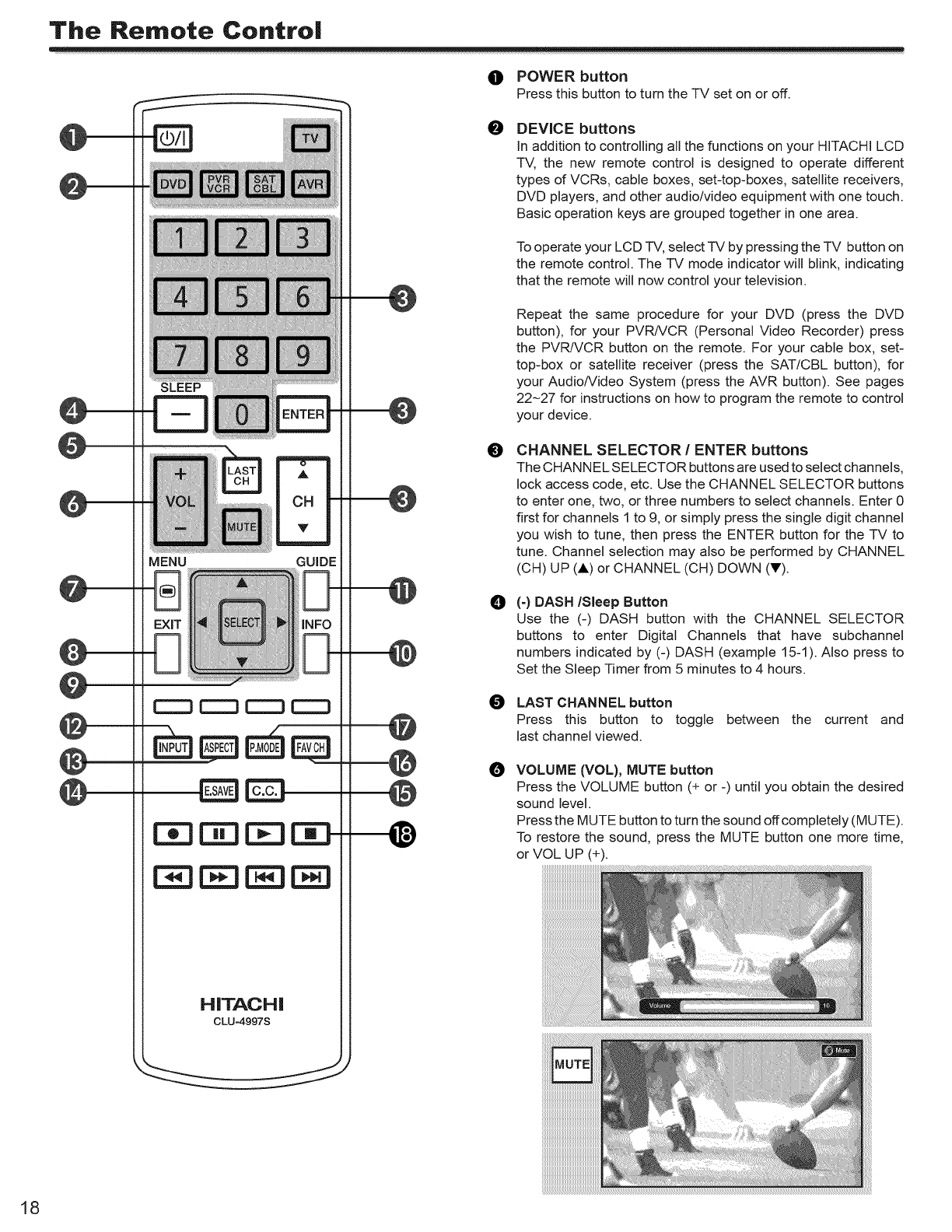
The Remote Co.tro|
OPOWER button
Press this button to turn the TV set on or off.
@
@
@
SLEEP
-I
MENU GUIDE
INFO
HiTACHi
CLU-4997S
e
o
O
O
O
DEVICE buttons
in addition to controlling all the functions on your HITACHI LCD
TV, the new remote control is designed to operate different
types of VCRs, cable boxes, set-top-boxes, satellite receivers,
DVD players, and other audio/video equipment with one touch.
Basic operation keys are grouped together in one area.
To operate your LCD TV, select -IV by pressing the TV button on
the remote control. The TV mode indicator will blink, indicating
that the remote will now control your television.
Repeat the same procedure for your DVD (press the DVD
button), for your PVR/VCR (Personal Video Recorder) press
the PVR/VCR button on the remote. For your cable box, set-
top-box or satellite receiver (press the SAT/CBL button), for
your Audio/Video System (press the AVR button). See pages
22-27 for instructions on how to program the remote to control
your device.
CHANNEL SELECTOR /ENTER buttons
The CHAN NEL SELECTOR buttons are used to select channels,
lock access code, etc. Use the CHANNEL SELECTOR buttons
to enter one, two, or three numbers to select channels. Enter 0
first for channels 1 to 9, or simply press the single digit channel
you wish to tune, then press the ENTER button for the TV to
tune. Channel selection may also be performed by CHANNEL
(CH) UP (&) or CHANNEL (CH) DOWN (V).
(-) DASH/Sleep Button
Use the (-) DASH button with the CHANNEL SELECTOR
buttons to enter Digital Channels that have subchannel
numbers indicated by (-) DASH (example 15-1). Also press to
Set the Sleep Timer from 5 minutes to 4 hours.
LAST CHANNEL button
Press this button to toggle between the current and
last channel viewed.
VOLUME (VOL), MUTE button
Press the VOLUME button (+ or -) until you obtain the desired
sound level.
Press the MUTE button to turn the sound off completely (MUTE).
To restore the sound, press the MUTE button one more time,
or VOL UP (+).
18
0
Closed Captioning will display automatically when MUTE is on
and Closed Caption is set to With Mute (see page 36).
When the TV power is turned off at a volume level 21 or greater,
the volume level will default to 20 when the TV is turned on.
However, if it is set to a level 20 or less, the volume level will
be at the level it was set when the TV is turned off.
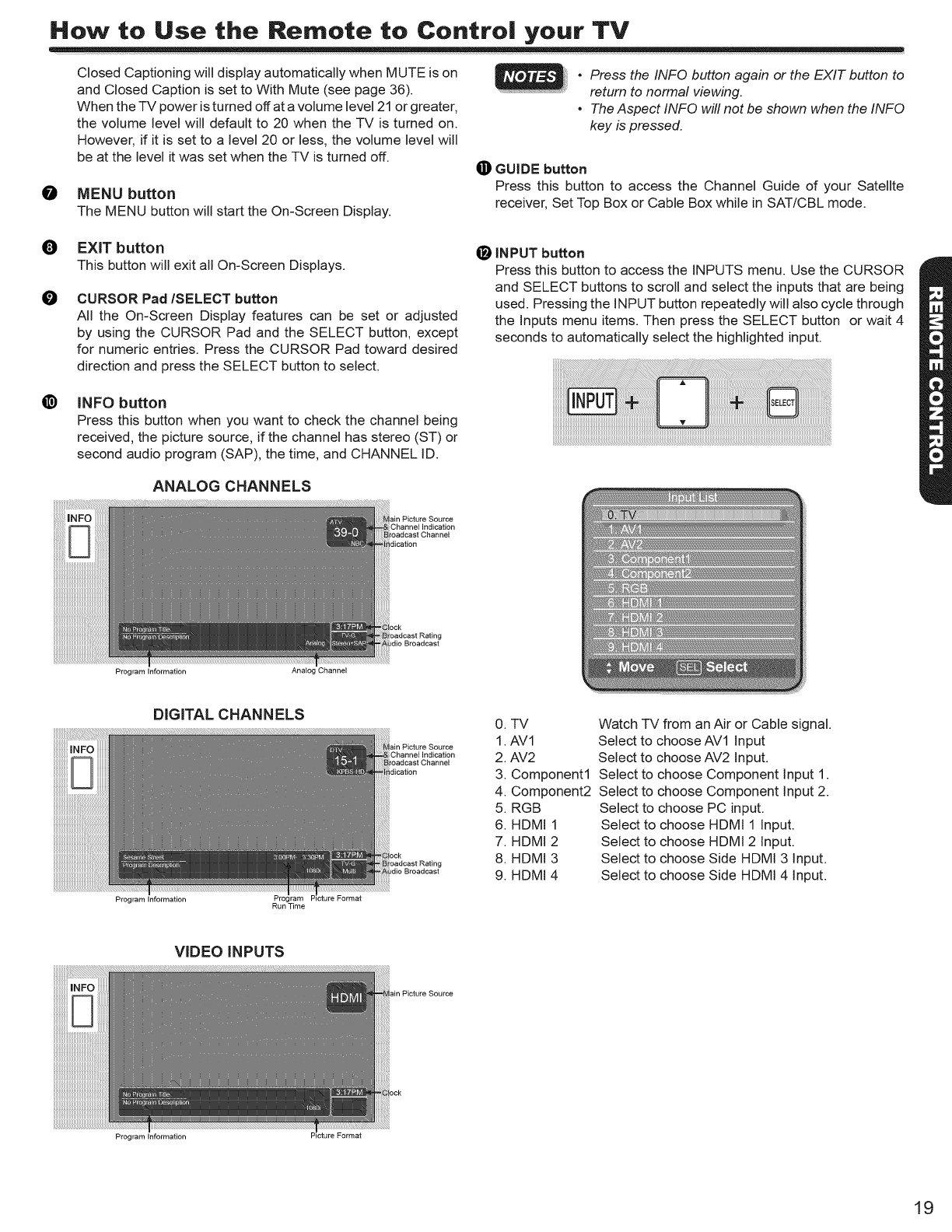
MENU button
The MENU button will start the On-Screen Display.
•Press the INFO button again or the EXIT button to
return to normal viewing.
•The Aspect INFO will not be shown when the INFO
key is pressed.
li) GUIDE button
Press this button to access the Channel Guide of your Satellte
receiver, Set Top Box or Cable Box while in SAT/CBL mode.
O
O
EXIT button
This button will exit all On-Screen Displays.
CURSOR Pad/SELECT button
All the On-Screen Display features can be set or adjusted
by using the CURSOR Pad and the SELECT button, except
for numeric entries. Press the CURSOR Pad toward desired
direction and press the SELECT button to select.
@ INPUT button
Press this button to access the INPUTS menu. Use the CURSOR
and SELECT buttons to scroll and select the inputs that are being
used. Pressing the INPUT button repeatedly will also cycle through
the Inputs menu items. Then press the SELECT button or wait 4
seconds to automatically select the highlighted input.
@INFO button
Press this button when you want to check the channel being
received, the picture source, if the channel has stereo (ST) or
second audio program (SAP), the time, and CHANNEL ID.
ANALOG CHANNELS
Program Information Analog Channel
DIGITAL CHANNELS
Program Information Run Time
Channel Indication
0. TV
1. AV1
2. AV2
3. Component1
4. Component2
5. RGB
6. HDMI 1
7. HDMI 2
8. HDMI 3
9. HDMI 4
Watch TV from an Air or Cable signal.
Select to choose AV1 Input
Select to choose AV2 Input.
Select to choose Component Input 1.
Select to choose Component Input 2.
Select to choose PC input.
Select to choose HDMI 1 Input.
Select to choose HDMI 2 Input.
Select to choose Side HDMI 3 Input.
Select to choose Side HDMI 4 Input.
VIDEO INPUTS
Program Information Picture Format
19
How to Use the Remote to Centre! your TV
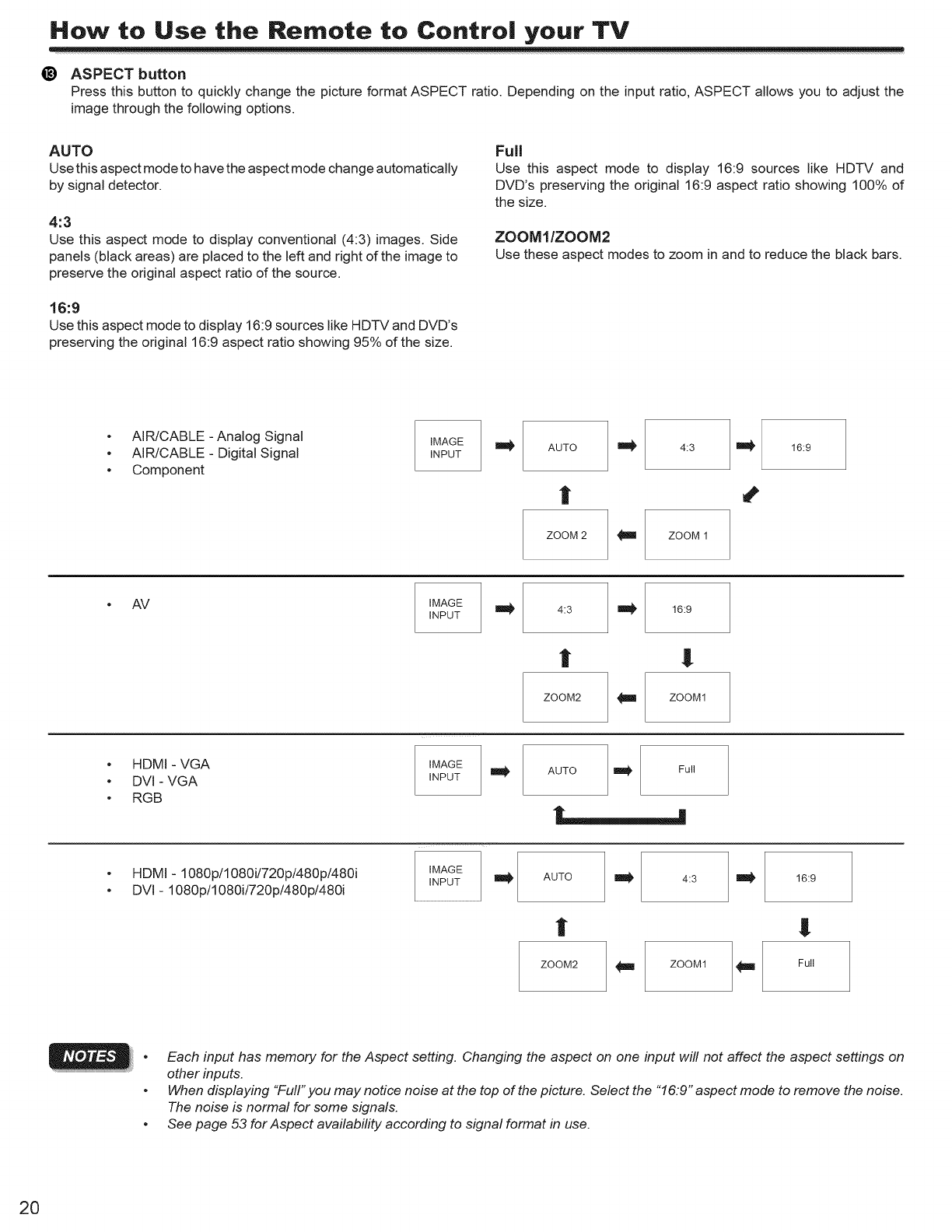
_) ASPECT button
Press this button to quickly change the picture format ASPECT ratio. Depending on the input ratio, ASPECT allows you to adjust the
image through the following options.
AUTO
Use this aspect mode to have the aspect mode change automatically
by signal detector.
4:3
Use this aspect mode to display conventional (4:3) images. Side
panels (black areas) are placed to the left and right of the image to
preserve the original aspect ratio of the source.
16:9
Use this aspect mode to display 16:9 sources like HDTV and DVD's
preserving the original 16:9 aspect ratio showing 95% of the size.
Full
Use this aspect mode to display 16:9 sources like HDTV and
DVD's preserving the original 16:9 aspect ratio showing 100% of
the size.
ZOOMI/ZOOM2
Use these aspect modes to zoom in and to reduce the black bars.
• AIR/CABLE - Analog Signal
• AIR/CABLE - Digital Signal
• Component
IMAGE
INPUT ilW AUTO
l
ZOOM 2
4:3
ZOOM 1
16:9
° AV IMAGE
INPUT 4:3 16:9
l !
ZOOM2 ZOOM1
o
o
o
HDMI - VGA
DVI - VGA
RGB
IMAGE
INPUT AUTO Full
• HDMI- 1080p/1080i/720p/480p/480i
• DVI - 1080p/1080i/720p/480p/480i
IMAGE
INPUT AUTO
i
4:3
ZOOM2 _il ZOOM1
16:9
!
Full
•Each input has memory for the Aspect setting. Changing the aspect on one input will not affect the aspect settings on
other inputs.
•When displaying "Full" you may notice noise at the top of the picture. Select the "16:9" aspect mode to remove the noise.
The noise is normal for some signals.
•See page 53 forAspect availability according to signal format in use.
20
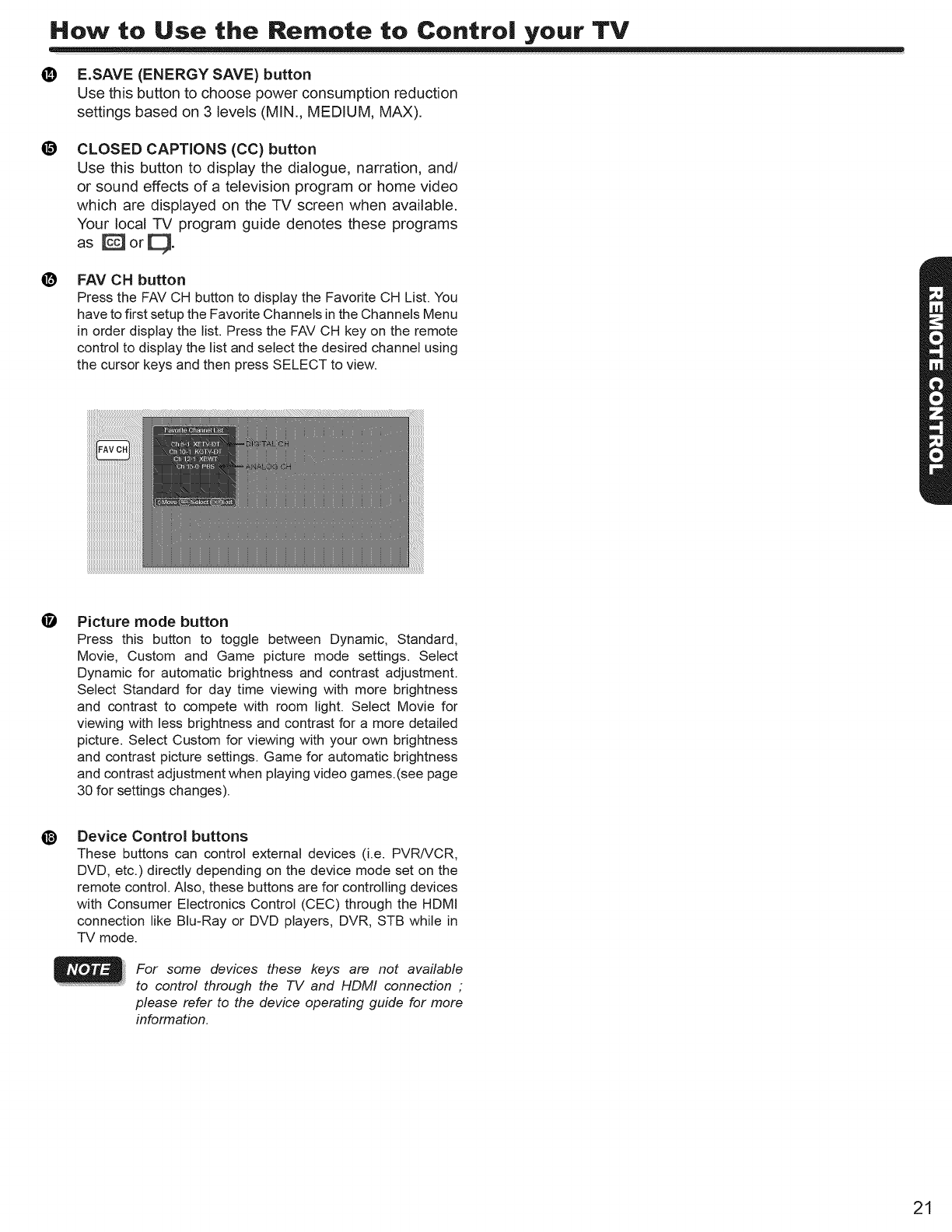
• E.SAVE (ENERGY SAVE) button
Use this button to choose power consumption reduction
settings based on 3 levels (MIN., MEDIUM, MAX).
@CLOSED CAPTIONS (CC) button
Use this button to display the dialogue, narration, and/
or sound effects of a television program or home video
which are displayed on the TV screen when available.
Your local TV program guide denotes these programs
as orE3.
@FAV CH button
Press the FAV CH button to display the Favorite CH List. You
have to first setup the Favorite Channels in the Channels Menu
in order display the list. Press the FAV CH key on the remote
control to display the list and select the desired channel using
the cursor keys and then press SELECT to view.
OPicture mode button
Press this button to toggle between Dynamic, Standard,
Movie, Custom and Game picture mode settings. Select
Dynamic for automatic brightness and contrast adjustment.
Select Standard for day time viewing with more brightness
and contrast to compete with room light. Select Movie for
viewing with less brightness and contrast for a more detailed
picture. Select Custom for viewing with your own brightness
and contrast picture settings. Game for automatic brightness
and contrast adjustment when playing video games.(see page
30 for settings changes).
@Device Control buttons
These buttons can control external devices (i.e. PVR/VCR,
DVD, etc.) directly depending on the device mode set on the
remote control. Also, these buttons are for controlling devices
with Consumer Electronics Control (CEC) through the HDMI
connection like Blu-Ray or DVD players, DVR, STB while in
TV mode.
For some devices these keys are not available
to control through the TV and HDMI connection ;
please refer to the device operating guide for more
information.
21
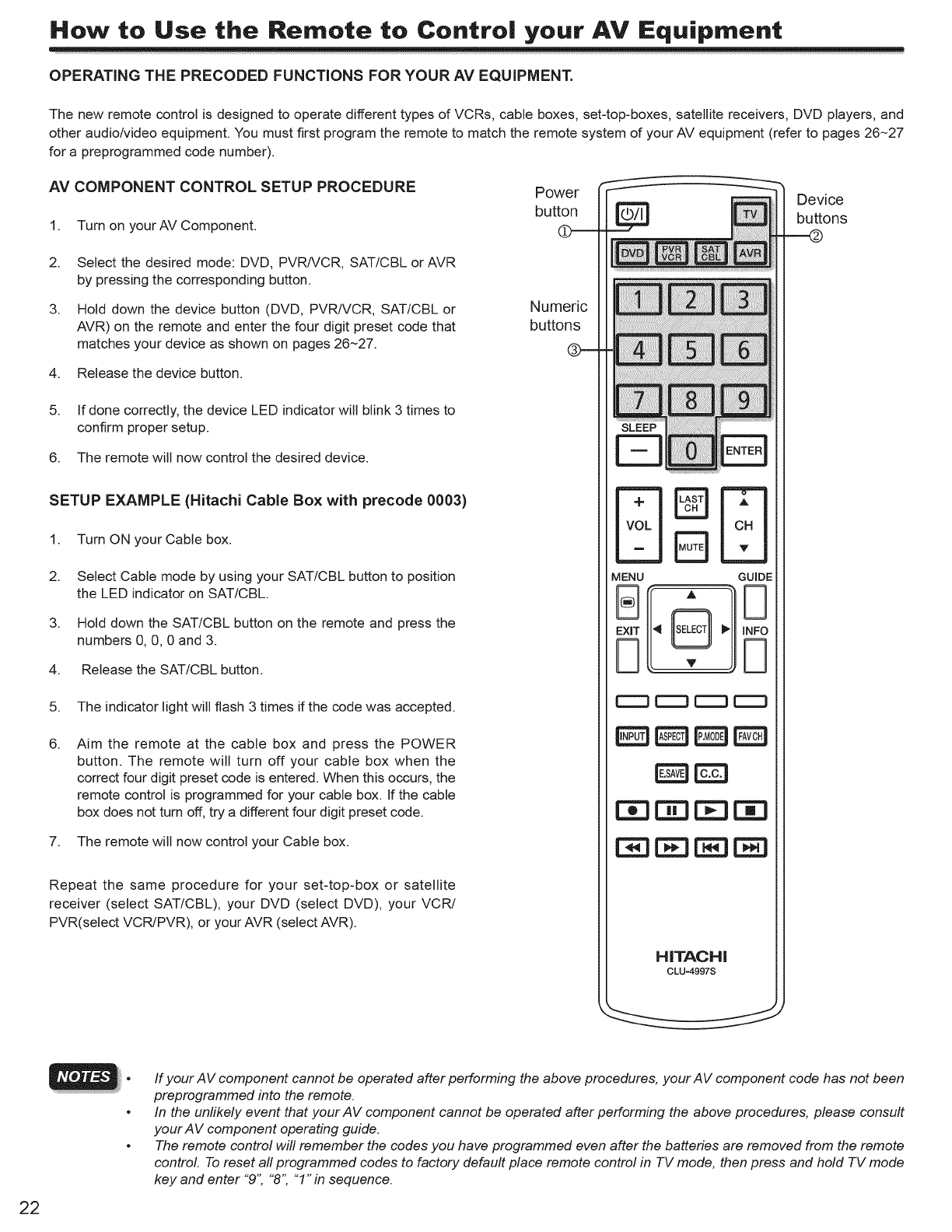
OPERATING THE PRECODED FUNCTIONS FOR YOUR AV EQUIPMENT.
The new remote control is designed to operate different types of VCRs, cable boxes, set-top-boxes, satellite receivers, DVD players, and
other audio/video equipment. You must first program the remote to match the remote system of your AV equipment (refer to pages 26-27
for a preprogrammed code number).
AV COMPONENT CONTROL SETUP PROCEDURE Power
button
1. Turn on yourAV Component. O
2. Select the desired mode: DVD, PVRNCR, SAT/CBL or AVR
by pressing the corresponding button.
3. Hold down the device button (DVD, PVR/VCR, SAT/CBL or Numeric
AVR) on the remote and enter the four digit preset code that buttons
matches your device as shown on pages 26-27.
4.
5.
Release the device button.
If done correctly, the device LED indicator will blink 3 times to
confirm proper setup.
6. The remote will now control the desired device.
SETUP EXAMPLE (Hitachi Cable Box with precode 0003)
1. Turn ON your Cable box.
2.
3.
Select Cable mode by using your SAT/CBL button to position
the LED indicator on SAT/CBL.
Hold down the SAT/CBL button on the remote and press the
numbers 0, 0, 0 and 3.
4. Release the SAT/CBL button.
5. The indicator light will flash 3 times if the code was accepted.
6. Aim the remote at the cable box and press the POWER
button. The remote will turn off your cable box when the
correct four digit preset code is entered. When this occurs, the
remote control is programmed for your cable box. If the cable
box does not turn off, try a different four digit preset code.
7. The remote will now control your Cable box.
Repeat the same procedure for your set-top-box or satellite
receiver (select SAT/CBL), your DVD (select DVD), your VCR/
PVR(select VCR/PVR), or your AVR (select AVR).
8SE]
MENU GUIDE
CCD CC3 _ _
[3E]E EE3[3E]
EE]EBI]
HITACHI
CLU=4997S
Device
buttons
22
•If your AV component cannot be operated after performing the above procedures, yourAV component code has not been
preprogrammed into the remote.
•In the unlikely event that your AV component cannot be operated after performing the above procedures, please consult
your A V component operating guide.
•The remote control will remember the codes you have programmed even after the batteries are removed from the remote
control. To reset all programmed codes to factory default place remote control in TV mode, then press and hold TV mode
key and enter "9" "8" "1" in sequence.
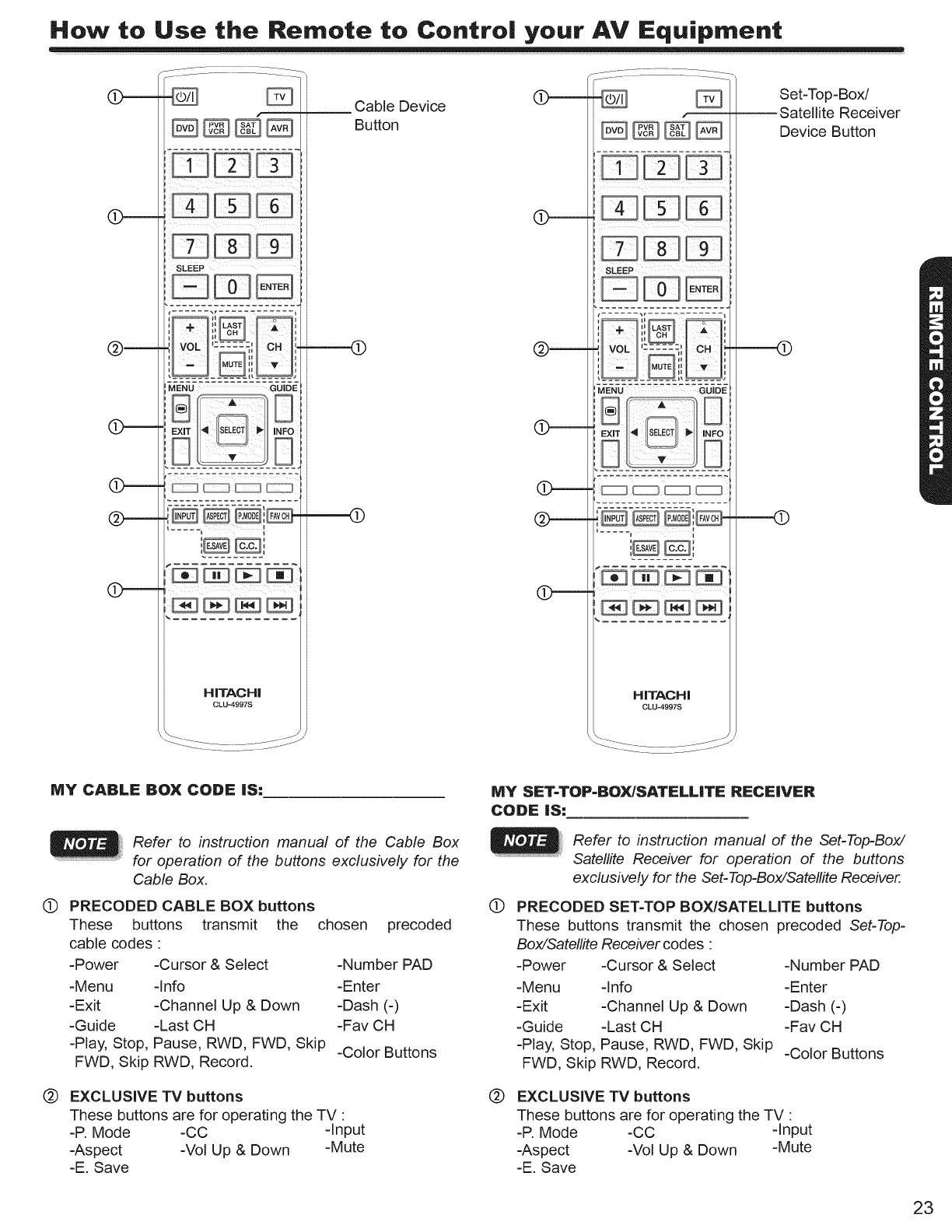
How to Use the Remote to Centre! your AV Equipment
i i i_ii i ii _i
SLEEP
k ,
Q ..... zl il.
MENU GUIDE
HITACHI
CLU-4997S
,. Cable Device
Button
(D------
(b------
(D-----
(D------
SLEEP
_¥-N-U-:'': :' 7' :': _iJigg
HITACHI
CLU-4997S
Set-Top-Box/
_Satellite Receiver
Device Button
_______¢
MY CABLE BOX CODE IS:
Refer to instruction manual of the Cable Box
for operation of the buttons exclusively for the
Cable Box.
(D PRECODED CABLE BOX buttons
These buttons transmit the chosen precoded
cable codes :
-Power -Cursor & Select -Number PAD
-Menu -Info -Enter
-Exit -Channel Up & Down -Dash (-)
-Guide -Last CH -Fav CH
-Play, Stop, Pause, RWD, FWD, Skip -Color Buttons
FWD, Skip RWD, Record.
EXCLUSIVE TV buttons
These buttons are for operating the TV :
-P. Mode -CC -Input
-Aspect -Vol Up & Down -Mute
-E. Save
MY SET-TOP-gOX/SATELL|TE RECEIVER
CODE IS:
®
@
Refer to instruction manual of the Set-Top-Box/
Satellite Receiver for operation of the buttons
exclusively for the Set-Top-Box/Satellite Receiver.
PRECODED SET-TOP BOX/SATELLITE buttons
These buttons transmit the chosen precoded Set-Top-
Box/Satellite Receiver codes :
-Power -Cursor & Select -Number PAD
-Menu -Info -Enter
-Exit -Channel Up & Down -Dash (-)
-Guide -Last CH -Fav CH
-Play, Stop, Pause, RWD, FWD, Skip -Color Buttons
FWD, Skip RWD, Record.
EXCLUSIVE TV buttons
These buttons are for operating the TV :
-P. Mode -CC -Input
-Aspect -Vol Up & Down -Mute
-E. Save
23
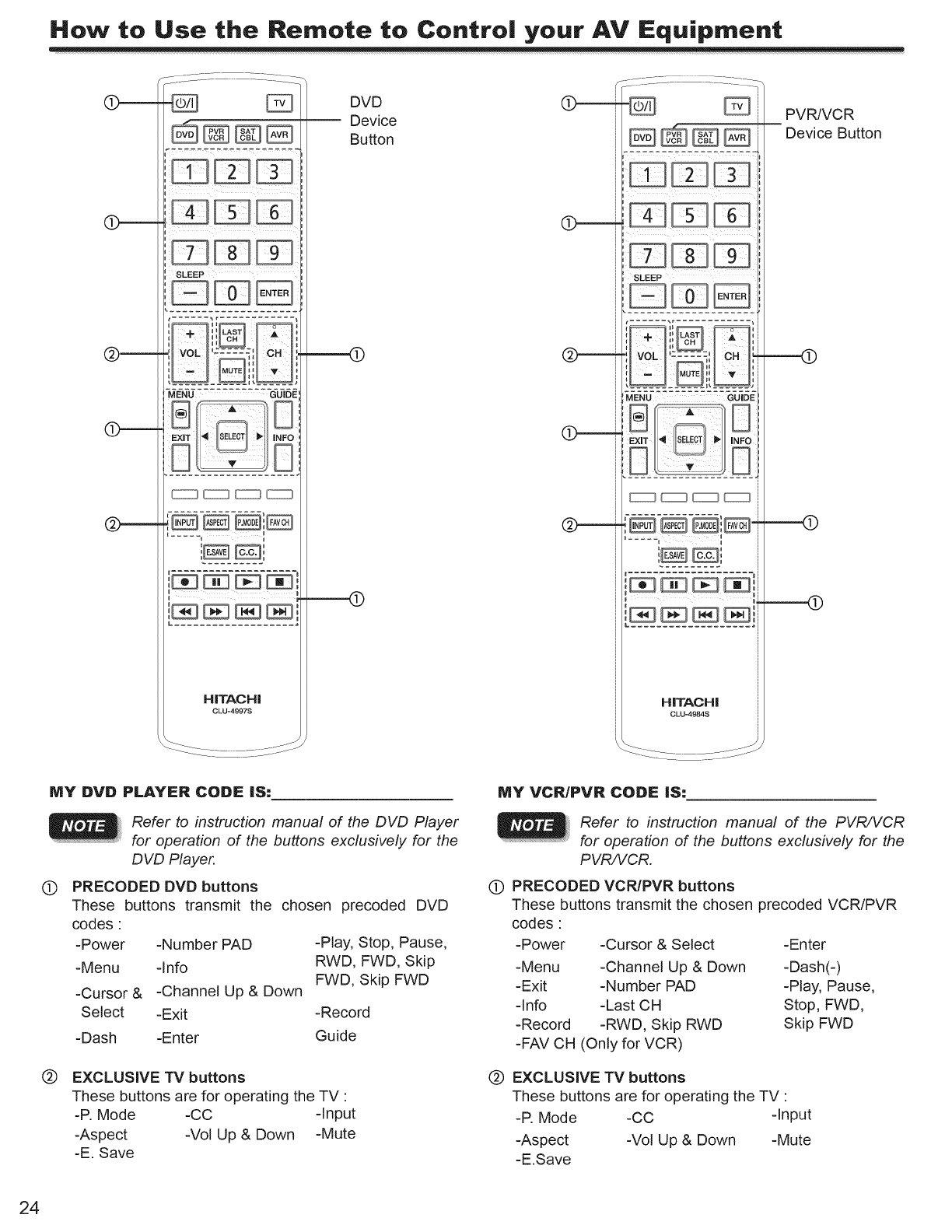
How to Use the Remote to Centre! your AV Equipment
f
SLEEP
MENU GUIDE
J
i i B
L ....................
HITACHi
CLU-4997S
DVD
Device
Button
----49
¢..__._
(b-----
(9------
SLEEP
EXT J4 s_L'_41 PI NFt3
"SJ,. S
HITACH I
0LU-4984S
PVR/VCR
Device Button
----(9
MY DVD PLAYER CODE IS:
Refer to instruction manual of the DVD Player
for operation of the buttons exclusively for the
DVD Player.
(_) PRECODED DVD buttons
These buttons transmit the chosen precoded DVD
codes:
-Power -Number PAD -Play, Stop, Pause,
-Menu -Info RWD, FWD, Skip
FWD, Skip FWD
-Cursor & -Channel Up & Down
Select -Exit -Record
-Dash -Enter Guide
@EXCLUSIVE TV buttons
These buttons are for operating the TV :
-P. Mode -CC -Input
-Aspect -Vol Up & Down -Mute
-E. Save
MY VCR/PVR CODE IS:
@
Refer to instruction manual of the PVR/VCR
for operation of the buttons exclusively for the
PVR/VCR.
PRECODED VCR/PVR buttons
These buttons transmit the chosen precoded VCR/PVR
codes:
-Power -Cursor & Select -Enter
-Menu -Channel Up & Down -Dash(-)
-Exit -Number PAD -Play, Pause,
-Info -Last CH Stop, FWD,
-Record -RWD, Skip RWD Skip FWD
-FAV CH (Only for VCR)
@EXCLUSIVE TV buttons
These buttons are for operating the TV :
-R Mode -CC -Input
-Aspect -Vol Up & Down -Mute
-E.Save
24
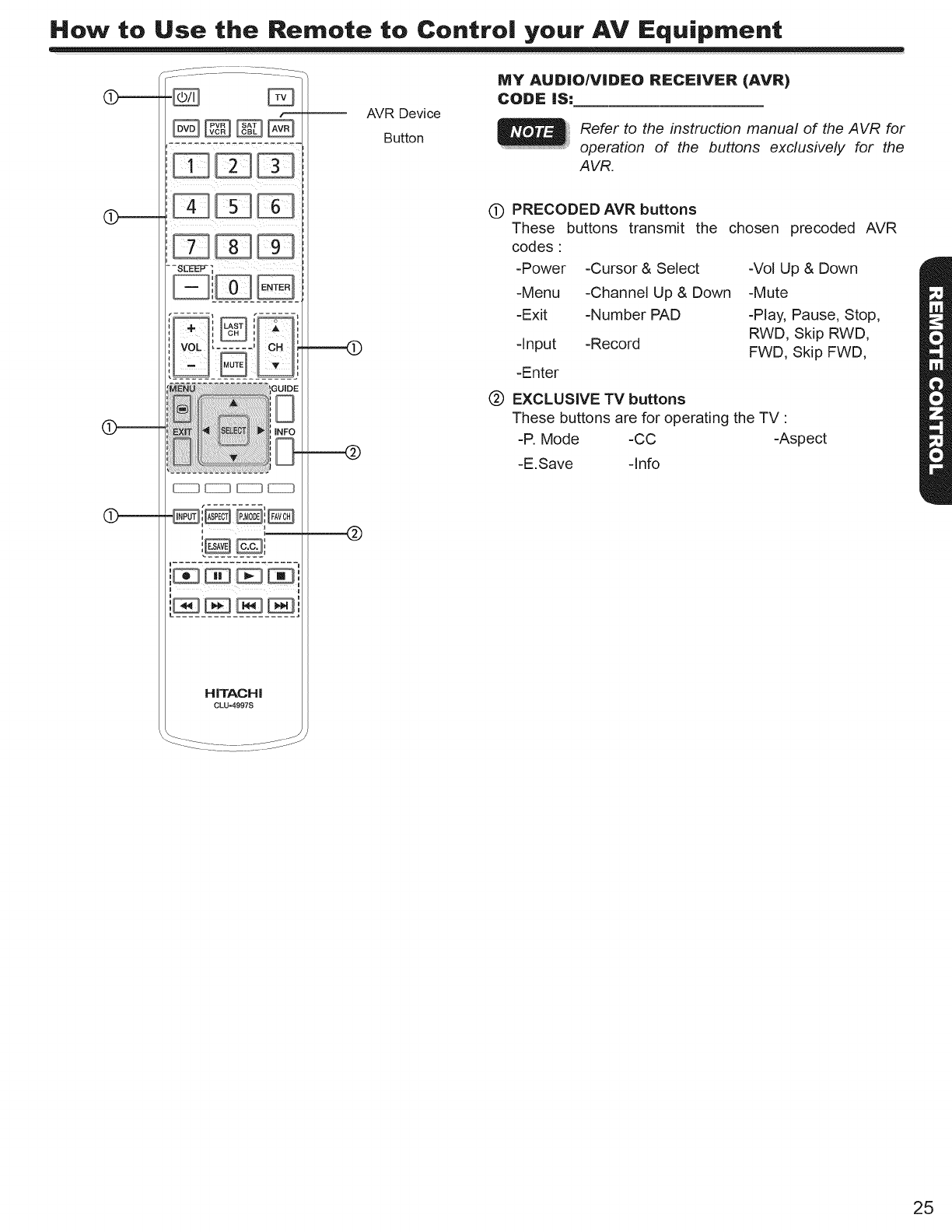
How to Use the Remote to Centre! your AV Equipment
HiTACHi
CLU=4997S
0====
AVR Device
Button
MY AUDIO/VIDEO RECEIVER (AVR)
CODE iS:
Refer to the instruction manual of the A VR for
operation of the buttons exclusively for the
AVR.
---4£
(D PRECODED AVR buttons
These buttons transmit the
codes:
-Power -Cursor & Select
-Menu -Channel Up & Down
-Exit -Number PAD
-Input -Record
-Enter
@ EXCLUSIVE TV buttons
chosen precoded AVR
-Vol Up & Down
-Mute
-Play, Pause, Stop,
RWD, Skip RWD,
FWD, Skip FWD,
These buttons are for operating the TV "
-P. Mode -CC -Aspect
-E.Save -Info
25
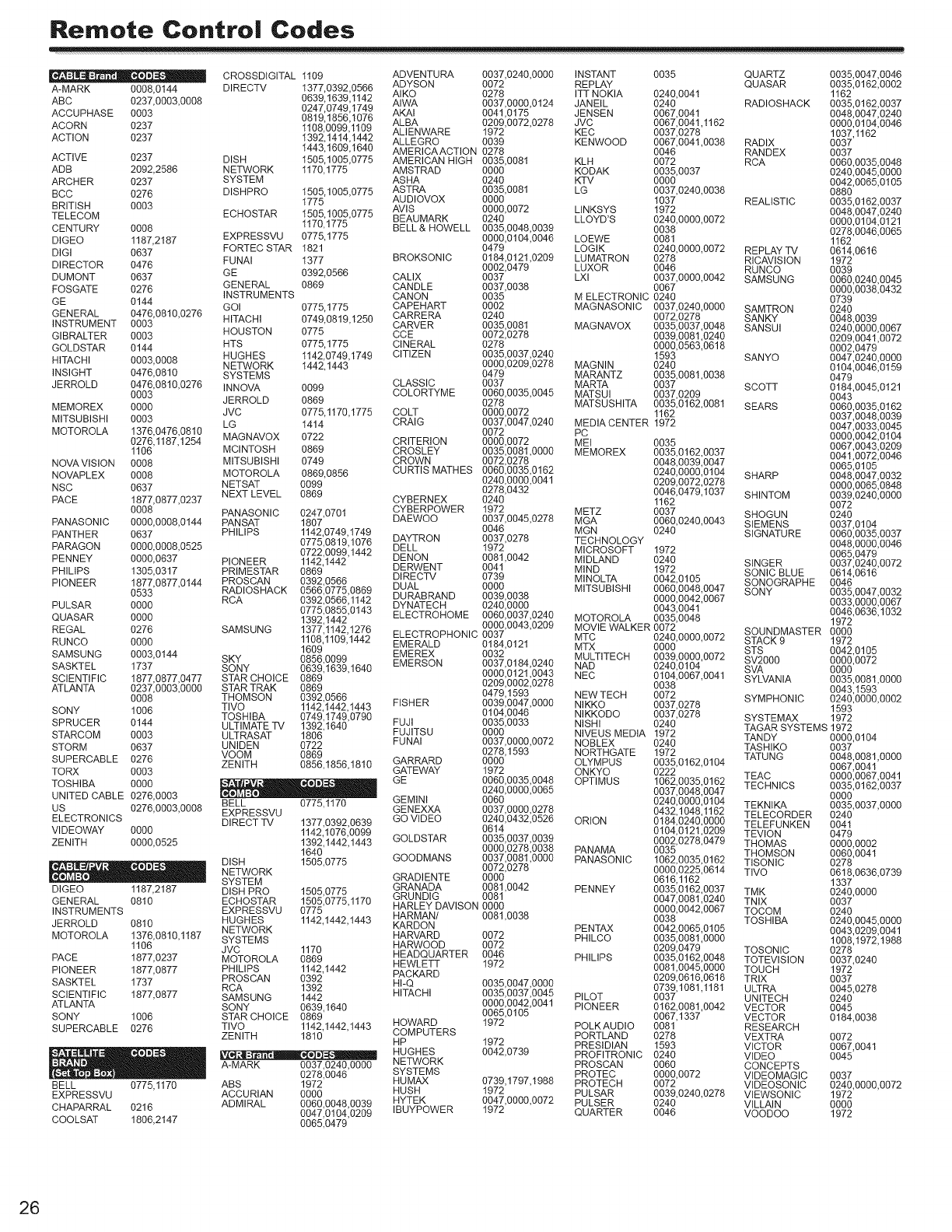
Remote Contro| Codes
, = .- .,•B CROSSDIGITAL 1109
A-MARK 0008,0144 DIRECTV
ABC 0237,0003,0008
ACCUPHASE 0003
ACORN 0237
ACTION 0237
ACTIVE 0237 DISH
ADB 2092,2586 NETWORK
ARCHER 0237 SYSTEM
BCC 0276 DISHPRO
BRITISH 0003
TELECOM ECHOSTAR
CENTURY 0008
DIGEO 1187,2187
ADVENTURA
EXPRESSVU 0775,1775
ADYSON
1377,0392,0566 AIKO
0639,1639,1142 AIWA
0247,0749,1749 AKAI
0819,1856,1078 ALBA
1108,0099,1109 ALIENWARE 1972
1392,1414,1442 ALLEGRO 0039
1443,1609,1640 AMERICAACTION 0278
1505,1005,0775 AMERICAN HIGH 0035,0081 KLH
1170,1775 AMSTRAD 0000 KODAK
ASHA 0240 KTV
1505,1005,0775 ASTRA 0035,0081 LG
1775 AUDIOVOX 0000
1505,1005,0775 AVIS 0000,0072 LINKSYS
BEAUMARK 0240 LLOYD'S
1170,1775 BELL & HOWELL 0035,0048,0039
0000,0104,0046 LOEWE
0037,0240,0000 INSTANT
0072 REPLAY
0278 ITT NOKIA
0037,0000,0124 JANEIL
0041,0175 JENSEN
0209,0072,0278 JVC
KEC
KENWOOD
DIGI 0637 FORTEC STAR 1821 0479 LOGIK
0035 QUARTZ 0035,0047,0046
QUASAR 0035,0162,0002
0240,0041 1162
0240 RADIOSHACK 0035,0162,0037
0067,0041 0048,0047,0240
0067,0041,1162 0000,0104,0046
0037,0278 1037,1162
0067,0041,0038 RADIX 0037
0046 RANDEX 0037
0072 RCA 0060,0035,0048
0035,0037 0240,0045,0000
0000 0042,0065,0105
0037,0240,0038 0880
1037 REALISTIC 0035,0162,0037
1972 0048,0047,0240
0240,0000,0072 0000,0104,0121
0038 0278,0046,0065
0081 1162
0240,0000,0072 REPLAY TV 0614,0616
DIRECTOR 0476 FUNAI
DUMONT 0637 GE
FOSGATE 0276 GENERAL
INSTRUMENTS
GE 0144 GOI
GENERAL 0476,0810,0276
INSTRUMENT 0003 HITACHI
GIBRALTER 0003 HOUSTON
GOLDSTAR 0144 HTS
HITACHI 0003,0008 HUGHES
NETWORK
INSIGHT 0476,0810 SYSTEMS
JERROLD 0476,0810,0276 INNOVA
0003 JERROLD
MEMOREX 0000 JVC
MITSUBISHI 0003 LG
1377 BROKSONIC
0392,0566 CALIX
0869 CANDLE
CANON
0775,1775 CAPEHART
0749,0819,1250 CARRERA
CARVER
0775 CCE
0775,1775 CINERAL
1142,0749,1749 CITIZEN
1442,1443
0099 CLASSIC
COLORTYME
0869
0775,1170,1775 COLT
1414 CRAIG
MOTOROLA 1376,0476,0810
0276,1187,1254 MAGNAVOX 0722
1106 MCINTOSH 0869
NOVAVISION 0008 MITSUBISHI 0749
NOVAPLEX 0008 MOTOROLA 0869,0856
NSC 0637 NETSAT 0099
NEXT LEVEL 0869
PACE 1877,0877,0237
0008 PANASONIC 0247,0701
PANASONIC 0000,0008,0144 PANSAT 1807
PANTHER 0637 PHILIPS 1142,0749,1749
PARAGON 0000,0008,0525 0775,0819,1076
PENNEY 0000,0637
PHILIPS 1305,0317
0184,0121,0209 LUMATRON 0278 RICAVISION
0002,0479 LUXOR 0046 RUNCO
0037 LXl 0037,0000,0042 SAMSUNG
0037,0038 0067
0035 M ELECTRONIC 0240
0002 MAGNASONIC 0037,0240,0000 SAMTRON
0240 0072,0278 SANKY
0035,0081 MAGNAVOX 0035,0037,0048 SANSUI
0072,0278 0039,0081,0240
0278 0000,0563,0618
0035,0037,0240 1593 SANYO
0000,0209,0278 MAGNIN 0240
0479 MARANTZ 0035,0081,0038
0037 MARTA 0037 SCOTT
0060,0035,0045 MATSUI 0037,0209
0278 MATSUSHITA 0035,0162,0081 SEARS
0000,0072 1162
0037,0047,0240 MEDIA CENTER 1972
0072 PC
CRITERION 0000,0072 MEI 0035
CROSLEY 0035,0081,0000 MEMOREX 0035,0162,0037
CROWN 0072,0278 0048,0039,0047
CURTIS MATHES 0060,0035,0162 0240,0000,0104 SHARP
0240,0000,0041 0209,0072,0278
0278,0432 0046,0479,1037 SHINTOM
CYBERNEX 0240 1162
CYBERPOWER 1972 METZ 0037 SHOGUN
DAEWOO 0037,0045,0278 MGA 0060,0240,0043 SIEMENS
0046 MGN 0240 SIGNATURE
DAYTRON 0037,0278 TECHNOLOGY
0722,0099,1442 DELL 1972 MICROSOFT 1972
PIONEER 1142,1442 DENON 0081,0042 MIDLAND 0240 SINGER
PRIMESTAR 0869 DERWENT 0041 MIND 1972 SONIC BLUE
DIRECTV 0739 MINOLTA 0042,0105 SONOGRAPHE 0046
1972
0039
0060,0240,0045
0000,0038,0432
0739
0240
0048,0039
0240,0000,0067
0209,0041,0072
0002,0479
0047,0240,0000
0104,0046,0159
0479
0184,0045,0121
0043
0060,0035,0162
0037,0048,0039
0047,0033,0045
0000,0042,0104
0087,0043,0209
0041,0072,0046
0085,0105
0048,0047,0032
0000,0065,0848
0039,0240,0000
0072
0240
0037,0104
0080,0035,0037
004&0000,0046
0065,0479
0037,0240,0072
0614,0616
PIONEER
PULSAR
QUASAR
REGAL
RUNCO
SAMSUNG
SASKTEL
SCIENTIFIC
ATLANTA
1609 EMEREX
0003,0144 SKY 0856,0099 EMERSON
1737 SONY 0639,1639,1640
1877,0877,0477 STAR CHOICE 0869
0237,0003,0000 STAR TRAK 0869
0008 THOMSON 0392,0566 FISHER
SONY 1006 TWO 1142,1442,1443
TOSHIBA 0749,1749,0790
SPRUCER 0144 ULTIMATE TV 1392,1640 FUJI
STARCOM 0003 ULTRASAT 1806 FUJITSU
STORM 0637 UNIDEN 0722 FUNAI
SUPERCABLE 0276 VOOM 0869
TORX 0003 ZENITH 0856,1856,1810 GATEwAyGARRARD
TOSHIBA 0000 •--_B GE
UNITED CABLE 0276,0003 [_o],N={o GEMINI
US 0276,0003,0008 BELL 0775,1170
EXPRESSVU GENEXXA
ELECTRONICS DIRECT TV 1377,0392,0639 GO VIDEO
VIDEOWAY 0000 1142,1076,0099
ZENITH 0000,0525 1392,1442,1443 GOLDSTAR
1640
DISH 1505,0775 GOODMANS
_ NETWORK
SYSTEM GRADIENTE
DIGEO 1187,2187 DISH PRO 1505,0775 GRANADA
GENERAL 0810 ECHOSTAR 1505,0775,1170 GRUNDIG 0081
HARLEY DAVISON 0000
INSTRUMENTS EXPRESSVU 0775
JERROLD 0810 HUGHES 1142,1442,1443 HARMAN/ 0081,0038
NETWORK KARDON
MOTOROLA 1376,0810,1187 SYSTEMS HARVARD 0072
1106 JVC 1170 HARWOOD 0072
PACE 1877,0237 MOTOROLA 0869 HEADQUARTER 0046
PIONEER 1877,0877 PHILIPS 1142,1442 HEWLETT 1972
SASKTEL 1737 PROSCAN 0392 PACKARD
RCA 1392 HI-Q
SCIENTIFIC 1877,0877 SAMSUNG 1442 HITACHI
ATLANTA SONY 0639,1640
SONY 1006 STAR CHOICE 0869
SUPERCABLE 0276 TWO 1142,1442,1443 HOWARD
ZENITH 1810 COMPUTERS
HP 1972
_ = _ .• B HUGHES 0042,0739
A-MARK 0037,0240,0000 NETWORK
0278,0046 SYSTEMS
BELL 0775,1170 ABS 1972 HUMAX
EXPRESSVU ACCURIAN 0000 HUSH
CHAPARRAL 0216 ADMIRAL 0060,0048,0039 HYTEK
0047,0104,0209 IBUYPOWER
COOLSAT 1806,2147 0065,0479
1877,0877,0144 PROSCAN 0392,0566
0533 RADIOSHACK 0566,0775,0869 DUAL 0000 MITSUBISHI 0060,0048,0047 SONY 0035,0047,0032
0000 RCA 0392,0566,1142 DURABRAND 0039,0038 0000,0042,0067 0033,0000,0067
0775,0855,0143 DYNATECH 0240,0000 0043,0041 0046,0636,1032
0000 1392,1442 ELECTROHOME 0060,0037,0240 MOTOROLA 0035,0048 1972
0000,0043,0209 MOVIE WALKER 0072 SOUNDMASTER 0000
0276 SAMSUNG 1377,1142,1276 ELECTROPHONIC 0037 MTC 0240,0000,0072 STACK 9 1972
0000 1108,1109,1442 EMERALD 0184,0121 MTX 0000 STS 0042,0105
0032 MULTITECH 0039,0000,0072 SV2000 0000,0072
0037,0184,0240 NAD 0240,0104 SVA 0000
0000,0121,0043 NEC 0104,0067,0041 SYLVANIA 0035,0081,0000
0209,0002,0278 0038 0043,1593
0479,1593 NEW TECH 0072 SYMPHONIC 0240,0000,0002
0039,0047,0000 NIKKO 0037,0278 1593
0104,0046 NIKKODO 0037,0278 SYSTEMAX 1972
0035,0033 NISHI 0240 TAGAR SYSTEMS 1972
0000 NIVEUS MEDIA 1972 TANDY 0000,0104
0037,0000,0072 NOBLEX 0240 TASHIKO 0037
0278,1593 NORTHGATE 1972 TATUNG 0048,0081,0000
0000 OLYMPUS 0035,0162,0104 0067,0041
1972 ONKYO 0222 TEAC 0000,0067,0041
0060,0035,0048 OPTIMUS 1062,0035,0162 TECHNICS 0035,0162,0037
0240,0000,0065 0037,0048,0047 0000
0060 0240,0000,0104 TEKNIKA 0035,0037,0000
0037,0000,0278 0432,1048,1162 TELECORDER 0240
0240,0432,0526 ORION 0184,0240,0000 TELEFUNKEN 0041
0614 0104,0121,0209 TEVION
0035,0037,0039 0002,0278,0479 THOMAS
0000,0278,0038 PANAMA 0035 THOMSON
0037,0081,0000 PANASONIC 1062,0035,0162 TISONIC
0072,0278 0000,0225,0614 TWO
0000 0616,1162
0081,0042 PENNEY 0035,0162,0037 TMK
0035,0047,0000
0035,0037,0045 PILOT
0000,0042,0041 PIONEER
0065,0105
1972
0047,0081,0240 TNIX
0000,0042,0067 TOCOM
0038 TOSHIBA
PENTAX 0042,0065,0105
PHILCO 0035,0081,0000
0209,0479 TOSONIC
PHILIPS 0035,0182,0048 TOTEVISlON
0081,0045,0000 TOUCH
0209,0618,0618 TRIX
0739,1081,1181 ULTRA
0037 UNITECH
0162,0081,0042 VECTOR
0067,1337 VECTOR
POLKAUDIO 0081 RESEARCH
PORTLAND 0278 VEXTRA
PRESIDIAN 1593 VICTOR
PROFITRONIC 0240 VIDEO
PROSCAN 0060 CONCEPTS
O479
0000,0002
0060,0041
0278
0618,0636,0739
1337
0240,0000
0037
0240
0240,0045,0000
0043,0209,0041
1008,1972,1988
0278
0037,0240
1972
0037
0045,0278
0240
0045
0184,0038
PROTEC
0739,1797,1988 PROTECH
1972 PULSAR
0047,0000,0072 PULSER
1972 QUARTER
OO72
0067,0041
0045
0000,0072 VIDEOMAGIC 0037
0072 VlDEOSONIC 0240,0000,0072
0039,0240,0278 VlEWSONIC 1972
0240 VILLAIN 0000
0046 VOODOO 1972
26
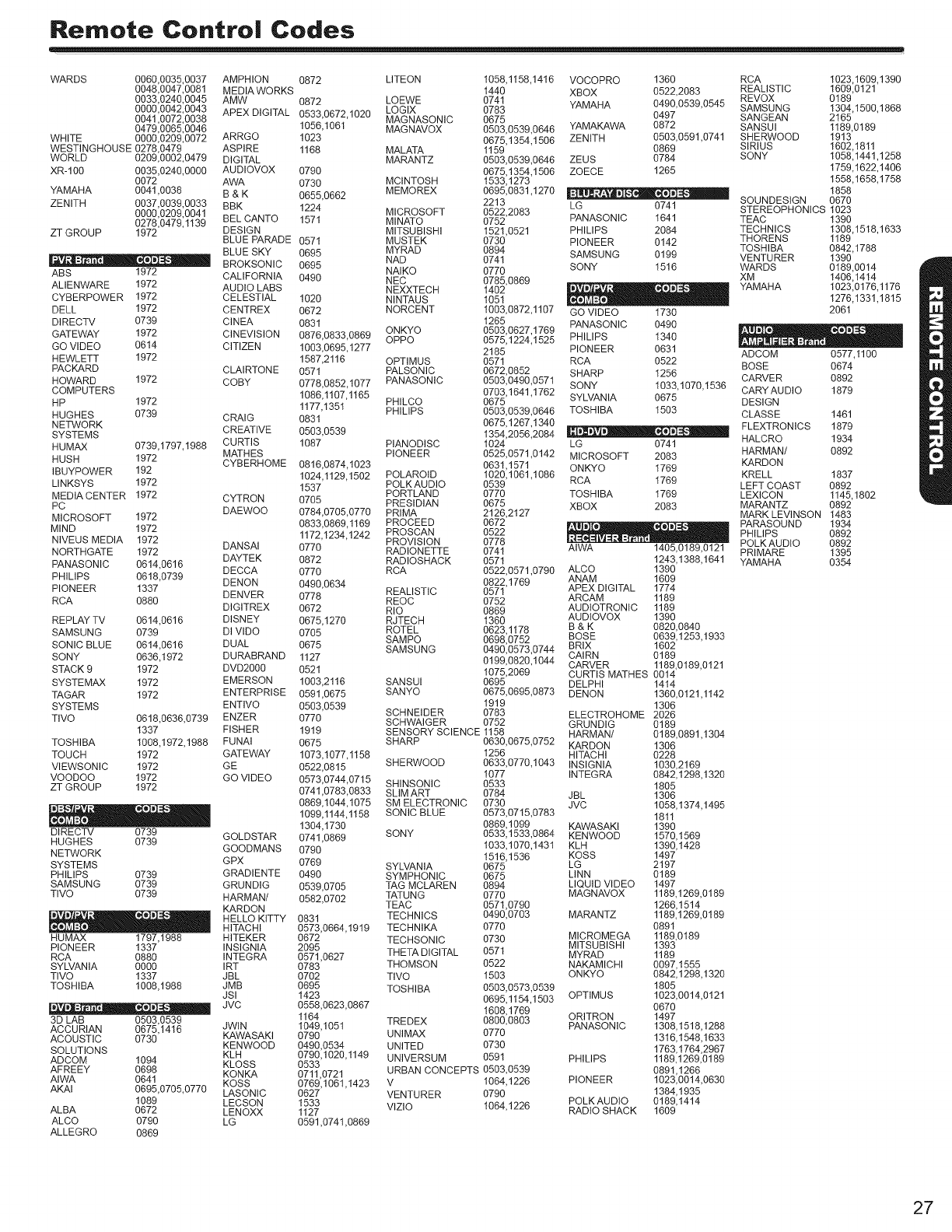
Remote Contro| Codes
WARDS 0060,0035,0037
0048,0047,0081
0033,0240,0045
0000,0042,0043
0041,0072,0038
0479,0085,0046
WHITE 0000,0209,0072
WESTINGHOUSE 0278,0479
WORLD 0209,0002,0479
XR-1 O0 0035,0240,0000
0072
YAMAHA 0041 _0038
ZENITH 0037,0039,0033
0000,0209,0041
0278,0479,1139
ZT GROUP 1972
AMPHION
MEDIA WORKS
AMW
APEX DIGITAL
ARRGO
ASPIRE
DIGITAL
AUDIOVOX
AWA
B&K
BBK
BEL CANTO
DESIGN
BLUE PARADE
BLUE SKY
" ° :°° _ BROKSONIC
ABS 1972 CALIFORNIA
ALIENWARE 1972 AUDIO LABS
CYBERPOWER 1972 CELESTIAL
DELL 1972 CENTREX
DIRECTV 0739 CINEA
GATEWAY 1972 CINEVISION
GO VIDEO 0614 CITIZEN
HEWLETT 1972
PACKARD CLAIRTONE
HOWARD 1972 COBY
COMPUTERS
HP 1972
HUGHES 0739 CRAIG
NETWORK CREATIVE
SYSTEMS
HUMAX 0739,1797,1988 CURTIS
HUSH 1972 MATHES
CYBERHOME
IBUYPOWER 192
LINKSYS 1972
MEDIA CENTER 1972 CYTRON
PC DAEWOO
MICROSOFT 1972
MIND 1972
NIVEUS MEDIA 1972 DANSAI
NORTHGATE 1972 DAYTEK
PANASONIC 0614,0616 DECCA
PHILIPS 0618,0739 DENON
PIONEER 1337 DENVER
RCA 0880 DIGITREX
REPLAY TV 0614,0616 DISNEY
SAMSUNG 0739 DI VIDO
SONIC BLUE 0614,0616 DUAL
SONY 0636,1972 DURABRAND
STACK 9 1972 DVD200O
SYSTEMAX 1972 EMERSON
TAGAR 1972 ENTERPRISE
SYSTEMS ENTIVO
TIVO 0618,0636,0739 ENZER
1337 FISHER
TOSHIBA 1008,1972,1988 FUNAI
TOUCH 1972 GATEWAY
VIEWSONIC 1972 GE
VOODOO 1972 GO VIDEO
ZT GROUP 1972
DIRECTV 0739
HUGHES 0739
NETWORK
SYSTEMS
PHILIPS 0739
SAMSUNG 0739
TIVO 0739
ALBA
ALCO
ALLEGRO
HUMAX 1797,1988
PIONEER 1337
RCA 0880
SYLVANIA 0000
TIVO 1337
TOSHIBA 1008,1988
3D LAB 0503,0539
ACCURIAN 0675,1416
ACOUSTIC 0730
SOLUTIONS
ADCOM 1094
AFREEY 0698
AIWA 0641
AKAI 0695,0705,0770
1089
0672
0790
0869
GOLDSTAR
GOODMANS
GPX
GRADIENTE
GRUNDIG
HARMAN/
KARDON
HELLO KITTY
HITACHI
HITEKER
INSIGNIA
INTEGRA
IRT
JBL
JMB
JSl
JVC
JWIN
KAWASAKI
KENWOOD
KLH
KLOSS
KONKA
KOSS
LASONIC
LECSON
LENOXX
LG
O872
0872
0533,0672,1020
1056,1061
1023
1168
0790
0730
0655,0662
1224
1571
0571
0695
0695
0490
1020
0672
0831
0876,0833,0869
1003,0695,1277
1587,2116
0571
0778,0852,1077
1086,1107,1165
1177,1351
0831
0503,0539
1087
0816,0874,1023
1024,1129,1502
1537
0705
0784,0705,0770
0833,0869,1169
1172,1234,1242
0770
0872
0770
0490,0634
0778
0672
0675,1270
0705
0675
1127
0521
1003,2116
0591,0675
0503,0539
0770
1919
0675
1073,1077,1158
0522,0815
0573,0744,0715
0741,0783,0833
0869,1044,1075
1099,1144,1158
1304,1730
0741,0869
0790
0769
0490
0539,0705
0582,0702
0831
0573,0664,1919
0672
2095
0571,0627
0783
0702
0695
1423
0558,0623,0867
1164
1049,1051
0790
0490,0534
0790,1020,1149
0533
0711,0721
0769,1061,1423
0627
1533
1127
0591,0741,0869
LITEON 1058,1158,1416
1440
LOEWE 0741
LOGIX 0783
MAGNASONIC 0675
MAGNAVOX 0503,0539,0646
0675,1354,1506
MALATA 1159
MARANTZ 0503,0539,0646
0675,1354,1506
MCINTOSH 1533,1273
MEMOREX 0695,0831,1270
2213
MICROSOFT 0522,2083
MINATO 0752
MITSUBISHI 1521,0521
MUSTEK 0730
MYRAD 0894
NAD 0741
NAIKO 0770
NEC 0785,0869
NEXXTECH 1402
NINTAUS 1051
NORCENT 1003,0872,1107
1265
ONKYO 0503,0627,1769
OPPO 0575,1224,1525
2185
OPTIMUS 0571
PALSONIC 0672,0852
PANASONIC 0503,0490,0571
0703,1641,1762
PHILCO 0675
PHILIPS 0503,0539,0646
0675,1267,1340
1354,2056,2084
PIANODISC 1024
PIONEER 0525,0571,0142
0631,1571
POLAROID 1020,1061,1086
POLK AUDIO 0539
PORTLAND 0770
PRESlDIAN 0675
PRIMA 2126,2127
PROCEED 0672
PROSCAN 0522
PROVISION 0778
RADIONETTE 0741
RADIOSHACK 0571
RCA 0522,0571,0790
0822,1769
REALISTIC 0571
REOC 0752
RIO 0869
RJTECH 1360
ROTEL 0623,1178
SAMPO 0698,0752
SAMSUNG 0490,0573,0744
0199,0820,1044
1075,2069
SANSUI 0695
SANYO 0675,0695,0873
1919
SCHNEIDER 0783 ELECTROHOME
SCHWAIGER 0752 GRUNDIG
SENSORY SCIENCE 1158 HARMAN/
SHARP 0630,0675,0752 KARDON
1256 HITACHI
SHERWOOD 0633,0770,1043 INSIGNIA
1077 INTEGRA
SHINSONIC 0533
SLIM ART 0784 JBL
SM ELECTRONIC 0730 JVC
SONIC BLUE 0573,0715,0783
0869,1099 KAWASAKI
SONY 0533,1533,0864 KENWOOD
1033,1076,1431 KLH
1516,1536 KOSS
SYLVANIA 0675 LG
SYMPHONIC 0675 LINN
TAG MCLAREN 0894 LIQUID VIDEO
TATUNG 0770 MAGNAVOX
TEAC 0571,0790
TECHNICS 0490,0703 MARANTZ
TECHNIKA 0770
TECHSONIC 0730 MICROMEGA
MITSUBISHI
THETA DIGITAL 0571 MYRAD
THOMSON 0522 NAKAMICHI
TIVO 1503 ONKYO
TOSHIBA 0503,0573,0539
0695,1154,1503 OPTIMUS
1608,1769 ORITRON
TREDEX 0800,0803 PANASONIC
UNIMAX 0770
UNITED 0730
UNIVERSUM 0591 PHILIPS
URBAN CONCEPTS 0503,0539
V 1064,1226 PIONEER
VENTURER 0790
VlZIO 1064,1226 POLKAUDIO
RADIO SHACK
VOCOPRO 1360 RCA 1023,1609,1390
XBOX 0522,2083 REALISTIC 1609,0121
REVOX 0189
YAMAHA 0490,0539,0545 SAMSUNG 1304,1500,1868
0497 SANGEAN 2165
YAMAKAWA 0872 SANSUI 1189,0189
ZENITH 0503,0591,0741 SHERWOOD 1913
0869 SIRIUS 1602,1811
ZEUS 0784 SONY 1058,1441,1258
ZOECE 1265 1759,1622,1406
1558,1658,1758
1858
:_.± ! •_, SOUNDESIGN 0670
LG 0741 STEREOPHONICS 1023
PANASONIC 1641 TEAC 1390
PHILIPS 2084 TECHNICS 1308,1518,1633
PIONEER 0142 THORENS 1189
TOSHIBA 0842,1788
SAMSUNG 0199 VENTURER 1390
SONY 1516 WARDS 0189,0014
XM 1406,1414
_ YAMAHA 1023,0176,1176
1276,1331,1815
GO VIDEO 1730 2061
PANASONIC 0490
PHILIPS 1340
PIONEER 0631 ADCOM 0577,1100
RCA 0522 BOSE 0674
SHARP 1256 CARVER 0892
SONY 1033,1070,1536 CARYAUDIO 1879
SYLVANIA 0675 DESIGN
TOSHIBA 1503 CLASSE 1461
FLEXTRONICS 1879
HALCRO 1934
HARMANI 0892
KARDON
KRELL 1837
LEFT COAST 0892
LEXICON 1145,1802
MARANTZ 0892
e e meo
LG 0741
MICROSOFT 2083
ONKYO 1769
RCA 1769
TOSHIBA 1769
XBOX 2083 MARK LEVINSON 1483
_ PARASOUND 1934
PHILIPS 0892
AIWA 1405,0189,0121 POLKAUDIO 0892
PRIMARE 1395
1243,1388,1641 YAMAHA 0354
ALCO 1390
ANAM 1609
APEX DIGITAL 1774
ARCAM 1189
AUDIOTRONIC 1189
AUDIOVOX 1390
B & K 0820,0840
BOSE 0639,1253,1933
BRIX 1602
CAIRN 0189
CARVER 1189,0189,0121
CURTIS MATHES 0014
DELPHI 1414
DENON 1360,0121,1142
1306
2026
0189
0189,0891,1304
1306
0228
1030,2169
0842,1298,1320
1805
1306
1058,1374,1495
1811
1390
1570,1569
1390,1428
1497
2197
0189
1497
1189,1269,0189
1266,1514
1189,1269,0189
0891
1189,0189
1393
1189
0097,1555
0842,1298,1320
1805
1023,0014,0121
0670
1497
1308,1518,1288
1316,1548,1633
1763,1764,2967
1189,1269,0189
0891,1266
1023,0014,0630
1384,1935
0189,1414
1609
27
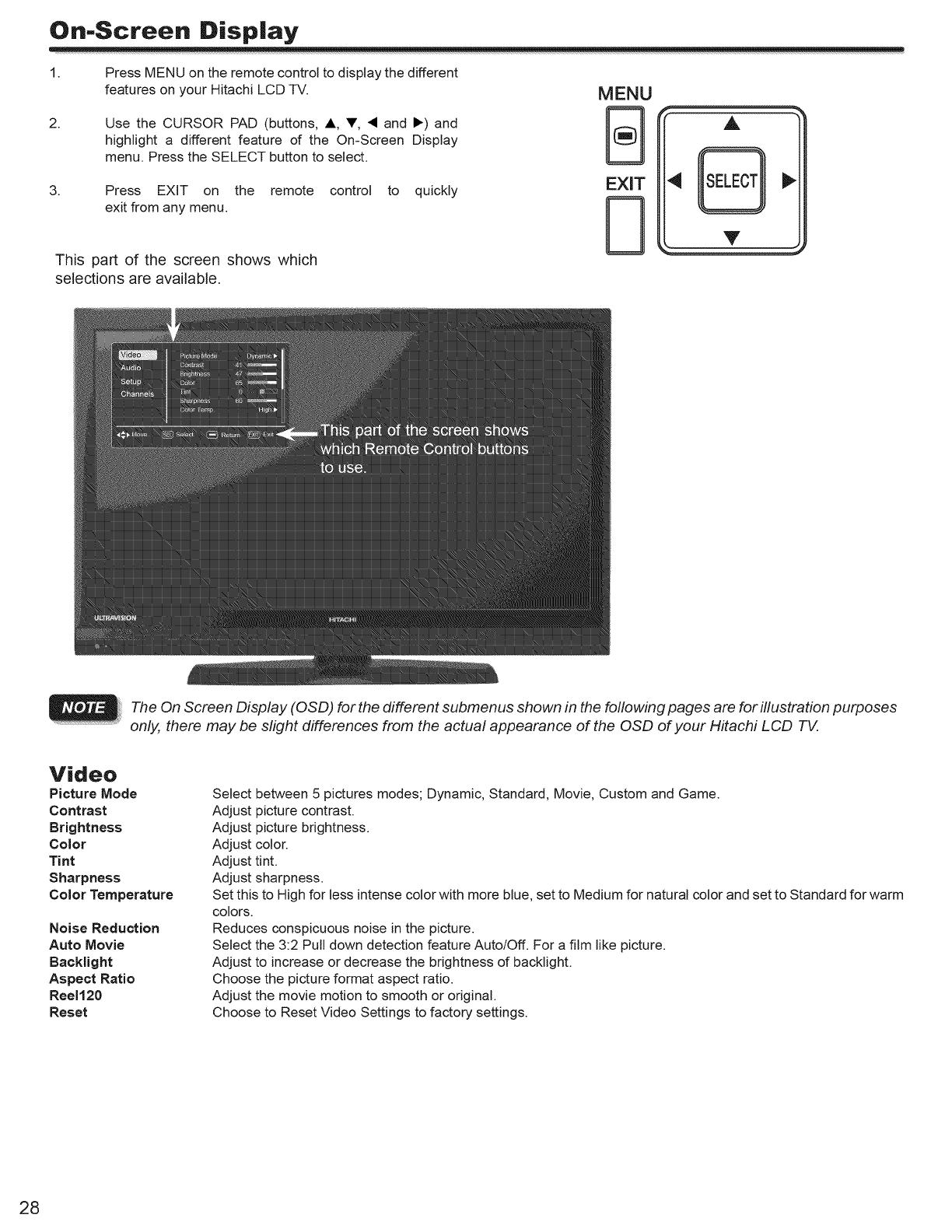
On-Screen Display
1.
2.
Press MENU on the remote control to display the different
features on your Hitachi LCD TV.
Use the CURSOR PAD (buttons, A, T, • and I_) and
highlight a different feature of the On-Screen Display
menu. Press the SELECT button to select.
3. Press EXIT on the remote control to quickly
exit from any menu.
This part of the screen shows which
selections are available.
MENU
B
EXIT
A
V
The On Screen Display (OSD) for the different submenus shown in the following pages are for illustration purposes
only, there may be slight differences from the actual appearance of the OSD of your Hitachi LCD TV.
Video
Picture Mode
Contrast
Brightness
Color
Tint
Sharpness
Color Temperature
Noise Reduction
Auto Movie
Backlight
Aspect Ratio
Reel120
Reset
Select between 5 pictures modes; Dynamic, Standard, Movie, Custom and Game.
Adjust picture contrast.
Adjust picture brightness.
Adjust color.
Adjust tint.
Adjust sharpness.
Set this to High for less intense color with more blue, set to Medium for natural color and set to Standard for warm
colors.
Reduces conspicuous noise in the picture.
Select the 3:2 Pull down detection feature Auto/Off. For a film like picture.
Adjust to increase or decrease the brightness of backlight.
Choose the picture format aspect ratio.
Adjust the movie motion to smooth or original.
Choose to Reset Video Settings to factory settings.
28
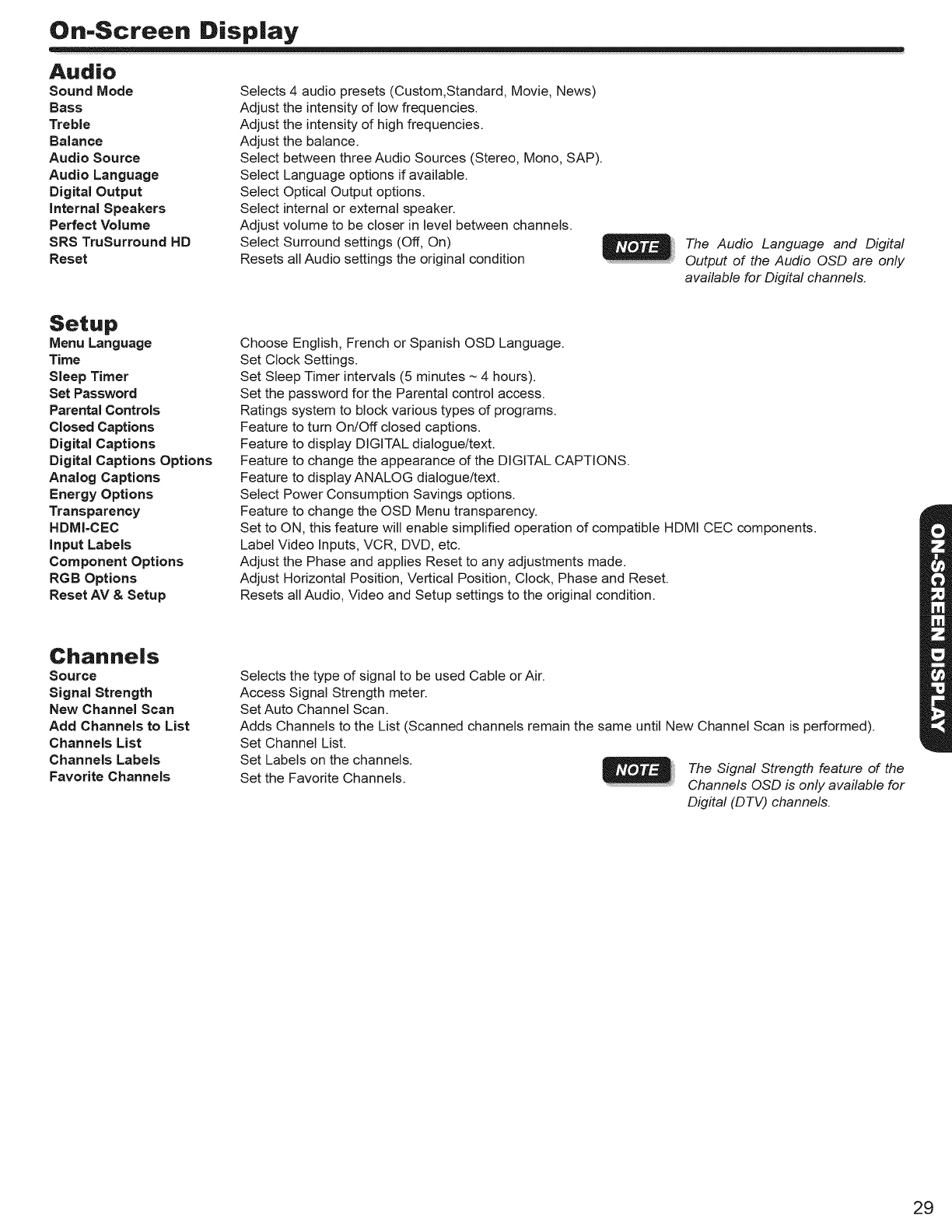
On-Screen Display
Audio
Sound Mode
Bass
Treble
Balance
Audio Source
Audio Language
Digital Output
internal Speakers
Perfect Volume
SRS TruSurround HD
Reset
Selects 4 audio presets (Custom,Standard, Movie, News)
Adjust the intensity of low frequencies.
Adjust the intensity of high frequencies.
Adjust the balance.
Select between three Audio Sources (Stereo, Mono, SAP).
Select Language options if available.
Select Optical Output options.
Select internal or external speaker.
Adjust volume to be closer in level between channels.
Select Surround settings (Off, On)
Resets all Audio settings the original condition The Audio Language and Digital
Output of the Audio OSD are only
available for Digital channels.
Setup
Menu Language
Time
Sleep Timer
Set Password
Parental Controls
Closed Captions
Digital Captions
Digital Captions Options
Analog Captions
Energy Options
Transparency
HDMI-CEC
input Labels
Component Options
RGB Options
Reset AV &Setup
Choose English, French or Spanish OSD Language.
Set Clock Settings.
Set Sleep Timer intervals (5 minutes - 4 hours).
Set the password for the Parental control access.
Ratings system to block various types of programs.
Feature to turn On/Off closed captions.
Feature to display DIGITAL dialogue/text.
Feature to change the appearance of the DIGITAL CAPTIONS.
Feature to display ANALOG dialogue/text.
Select Power Consumption Savings options.
Feature to change the OSD Menu transparency.
Set to ON, this feature will enable simplified operation of compatible HDMI CEC components.
Label Video Inputs, VCR, DVD, etc.
Adjust the Phase and applies Reset to any adjustments made.
Adjust Horizontal Position, Vertical Position, Clock, Phase and Reset.
Resets all Audio, Video and Setup settings to the original condition.
Channels
Source
Signal Strength
New Channel Scan
Add Channels to List
Channels List
Channels Labels
Favorite Channels
Selects the type of signal to be used Cable or Air.
Access Signal Strength meter.
Set Auto Channel Scan.
Adds Channels to the List (Scanned channels remain the same until New Channel Scan is performed).
Set Channel List.
Set Labels on the channels. The Signal Strength feature of the
Set the Favorite Channels. Channels OSD is only available for
Digital (D TV) channels.
29
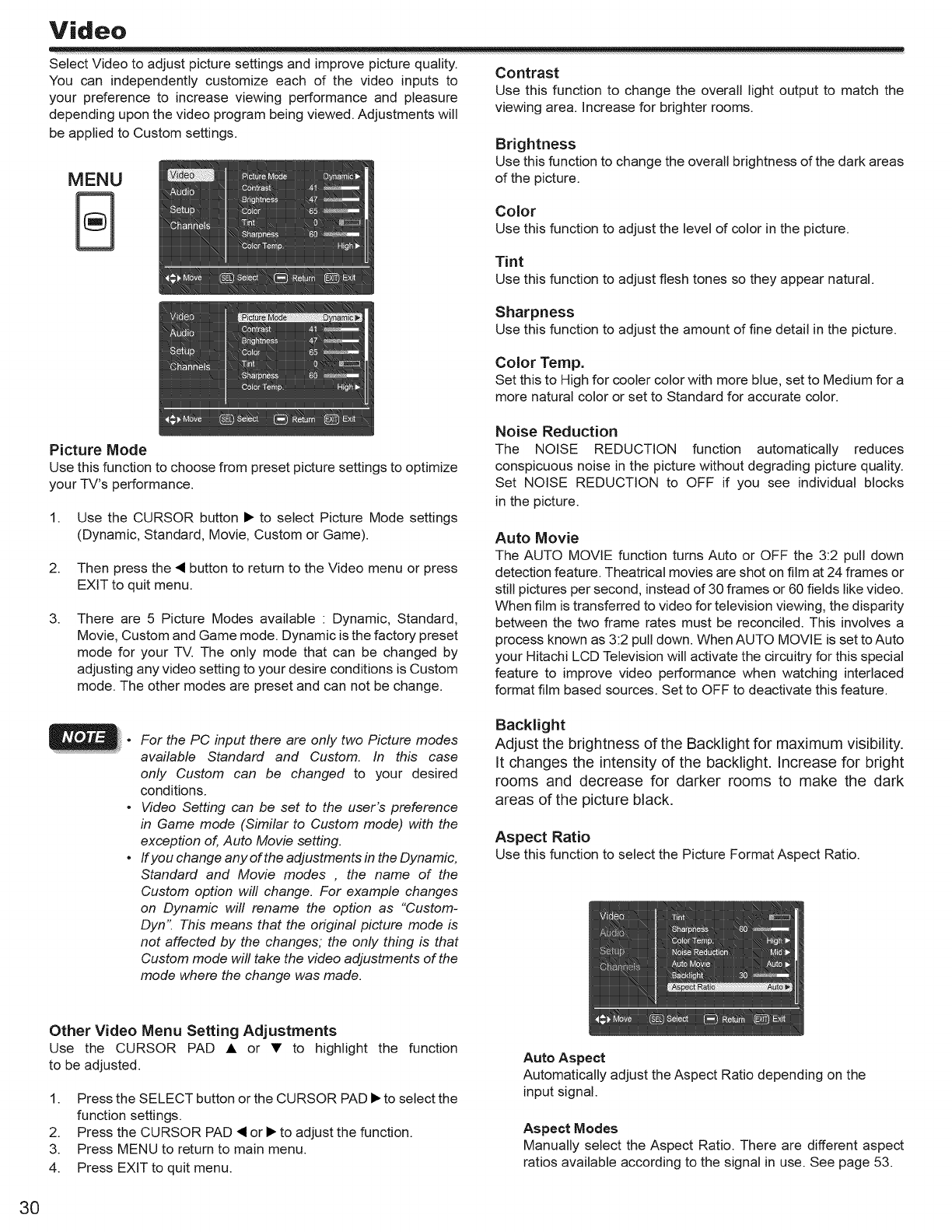
Video
Select Video to adjust picture settings and improve picture quality. Contrast
You can independently customize each of the video inputs to
your preference to increase viewing performance and pleasure
depending upon the video program being viewed. Adjustments will
be applied to Custom settings.
MENU
B
Use this function to change the overall light output to match the
viewing area. Increase for brighter rooms.
Brightness
Use this function to change the overall brightness of the dark areas
of the picture.
Color
Use this function to adjust the level of color in the picture.
Tint
Use this function to adjust flesh tones so they appear natural.
Sharpness
Use this function to adjust the amount of fine detail in the picture.
Color Temp.
Set this to High for cooler color with more blue, set to Medium for a
more natural color or set to Standard for accurate color.
Picture Mode
Use this function to choose from preset picture settings to optimize
your TV's performance.
1. Use the CURSOR button • to select Picture Mode settings
(Dynamic, Standard, Movie, Custom or Game).
2. Then press the • button to return to the Video menu or press
EXIT to quit menu.
3. There are 5 Picture Modes available : Dynamic, Standard,
Movie, Custom and Game mode. Dynamic is the factory preset
mode for your TV. The only mode that can be changed by
adjusting any video setting to your desire conditions is Custom
mode. The other modes are preset and can not be change.
Noise Reduction
The NOISE REDUCTION function automatically reduces
conspicuous noise in the picture without degrading picture quality.
Set NOISE REDUCTION to OFF if you see individual blocks
in the picture.
Auto Movie
The AUTO MOVIE function turns Auto or OFF the 3:2 pull down
detection feature. Theatrical movies are shot on film at 24 frames or
still pictures per second, instead of 30 frames or 60 fields like video.
When film is transferred to video for television viewing, the disparity
between the two flame rates must be reconciled. This involves a
process known as 3:2 pull down. When AUTO MOVIE is set to Auto
your Hitachi LCD Television will activate the circuitry for this special
feature to improve video performance when watching interlaced
format film based sources. Set to OFF to deactivate this feature.
For the PC input there are only two Picture modes
available Standard and Custom. In this case
only Custom can be changed to your desired
conditions.
Video Setting can be set to the user's preference
in Game mode (Similar to Custom mode) with the
exception of, Auto Movie setting.
If you change any ofthe adjustments in the Dynamic,
Standard and Movie modes , the name of the
Custom option will change. For example changes
on Dynamic will rename the option as "Custom-
Dyn" This means that the original picture mode is
not affected by the changes; the only thing is that
Custom mode will take the video adjustments of the
mode where the change was made.
Backlight
Adjust the brightness of the Backlight for maximum visibility.
It changes the intensity of the backlight. Increase for bright
rooms and decrease for darker rooms to make the dark
areas of the picture black.
Aspect Ratio
Use this function to select the Picture Format Aspect Ratio.
Other Video Menu Setting Adjustments
Use the CURSOR PAD • or •to highlight the function
to be adjusted.
1. Press the SELECT button or the CURSOR PAD • to select the
function settings.
2. Press the CURSOR PAD • or • to adjust the function.
3. Press MENU to return to main menu.
4. Press EXIT to quit menu.
Auto Aspect
Automatically adjust the Aspect Ratio depending on the
input signal.
Aspect Modes
Manually select the Aspect Ratio. There are different aspect
ratios available according to the signal in use. See page 53.
30
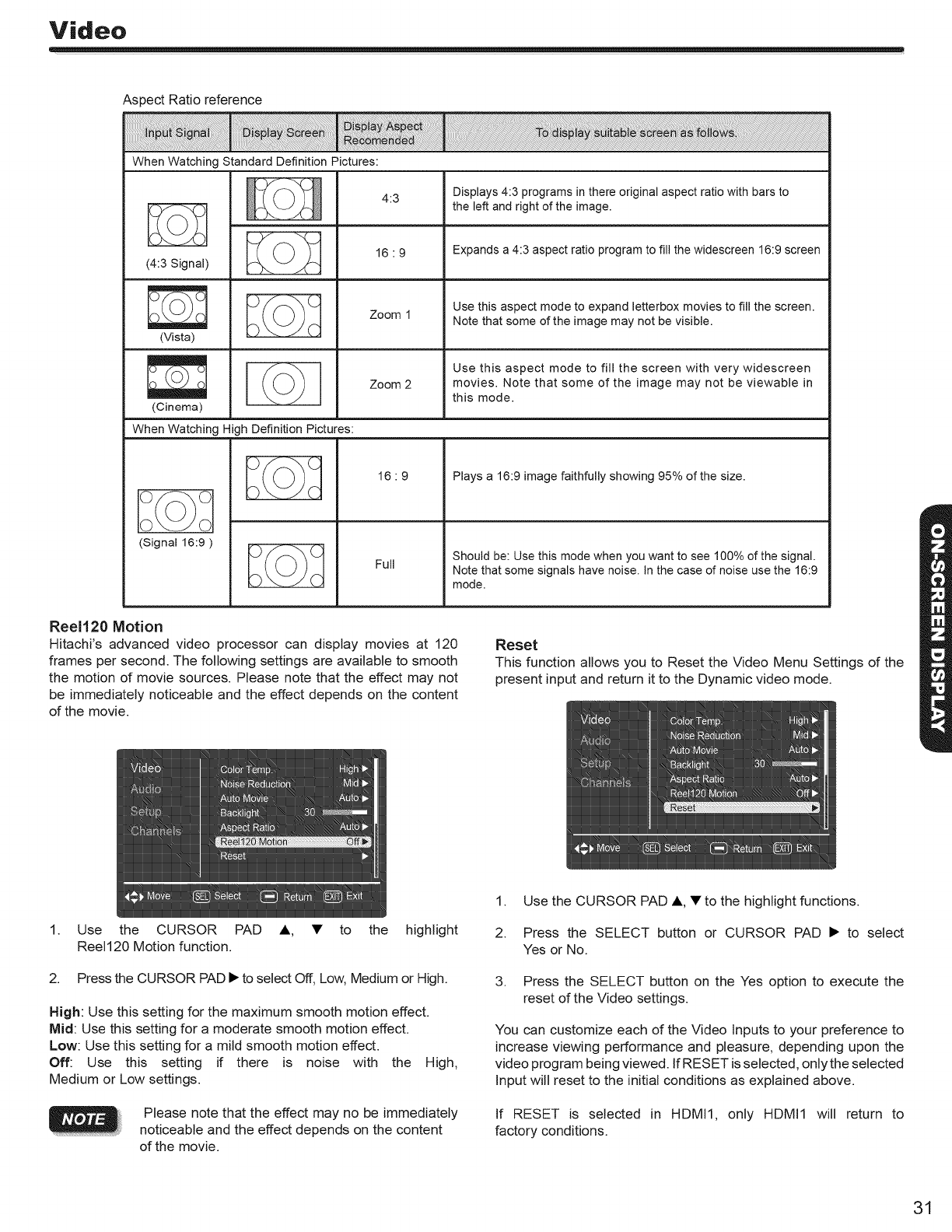
Video
Aspect Ratio reference
When Watching Standard Definition Pictures:
4:3 Displays4:3 programs in thereoriginal aspect ratio with bars to
the left and right of the image.
R_._ _ 16 • 9 Expandsa 4:3 aspect ratio programto fill the widescreen 16:9 screen
(4:3Signal)
_ Usethis aspect modeto expand letterbox movies to fill the screen.
Zoom 1 Note that some of the image may not be visible.
D_J(3
(Vista)
Use this aspect mode to fill the screen with very widescreen
Zoom 2 movies, Note that some of the image may not be viewable in
this mode,
(Cinema)
When Watching High Definition Pictures:
o©o
(Signal 16:9 )
Full
169 Plays a 16:9 image faithfully showing 95% of the size.
Should be: Use this mode when you want to see 100% of the signal.
Note that some signals have noise. In the case of noise use the 16:9
mode.
Reel120 Motion
Hitachi's advanced video processor can display movies at 120
frames per second. The following settings are available to smooth
the motion of movie sources. Please note that the effect may not
be immediately noticeable and the effect depends on the content
of the movie.
Reset
This function allows you to Reset the Video Menu Settings of the
present input and return it to the Dynamic video mode.
1. Use the CURSOR PAD A, • to the highlight
Reel120 Motion function.
2. Press the CURSOR PAD • to select Off, Low, Medium or High.
High: Use this setting for the maximum smooth motion effect.
Mid: Use this setting for a moderate smooth motion effect.
Low: Use this setting for a mild smooth motion effect.
Off: Use this setting if there is noise with the High,
Medium or Low settings.
Please note that the effect may no be immediately
noticeable and the effect depends on the content
of the movie.
1. Use the CURSOR PAD A, • to the highlight functions.
2. Press the SELECT button or CURSOR PAD • to select
Yes or No.
3. Press the SELECT button on the Yes option to execute the
reset of the Video settings.
You can customize each of the Video Inputs to your preference to
increase viewing performance and pleasure, depending upon the
video program being viewed. If RESET is selected, only the selected
Input will reset to the initial conditions as explained above.
If RESET is selected in HDMI1, only HDMI1 will return to
factory conditions.
31
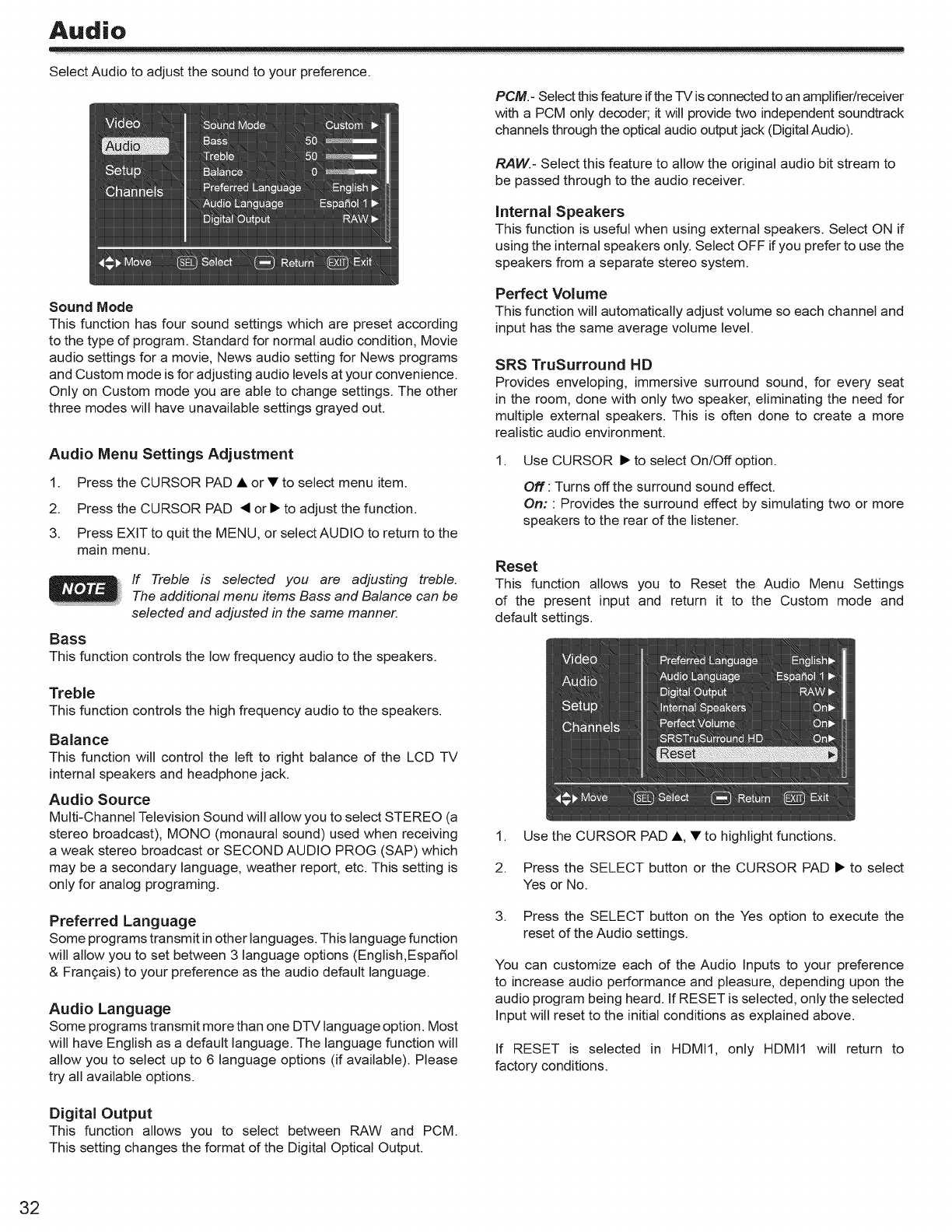
Audio
Select Audio to adjust the sound to your preference.
PCM.- Select this feature if the TV is connected to an amplifier/receiver
with a PCM only decoder; it will provide two independent soundtrack
channels through the optical audio output jack (Digital Audio).
Sound Mode
This function has four sound settings which are preset according
to the type of program. Standard for normal audio condition, Movie
audio settings for a movie, News audio setting for News programs
and Custom mode is for adjusting audio levels at your convenience.
Only on Custom mode you are able to change settings. The other
three modes will have unavailable settings grayed out.
Audio Menu Settings Adjustment
1. Press the CURSOR PAD • or •to select menu item.
2. Press the CURSOR PAD • or • to adjust the function.
3. Press EXIT to quit the MENU, or select AUDIO to return to the
main menu.
If Treble is selected you are adjusting treble.
The additional menu items Bass and Balance can be
selected and adjusted in the same manner.
Bass
This function controls the low frequency audio to the speakers.
RAW.- Select this feature to allow the original audio bit stream to
be passed through to the audio receiver.
Internal Speakers
This function is useful when using external speakers. Select ON if
using the internal speakers only. Select OFF if you prefer to use the
speakers from a separate stereo system.
Perfect Volume
This function will automatically adjust volume so each channel and
input has the same average volume level.
SRS TruSurround HD
Provides enveloping, immersive surround sound, for every seat
in the room, done with only two speaker, eliminating the need for
multiple external speakers. This is often done to create a more
realistic audio environment.
1. Use CURSOR • to select On/Off option.
Off: Turns off the surround sound effect.
On: : Provides the surround effect by simulating two or more
speakers to the rear of the listener.
Reset
This function allows you to Reset the Audio Menu Settings
of the present input and return it to the Custom mode and
default settings.
Treble
This function controls the high frequency audio to the speakers.
Balance
This function will control the left to right balance of the LCD TV
internal speakers and headphone jack.
Audio Source
Multi-Channel Television Sound will allow you to select STEREO (a
stereo broadcast), MONO (monaural sound) used when receiving
a weak stereo broadcast or SECOND AUDIO PROG (SAP) which
may be a secondary language, weather report, etc. This setting is
only for analog programing.
Preferred Language
Some programs transmit in other languages. This language function
will allow you to set between 3 language options (English,EspaSol
& Frangais) to your preference as the audio default language.
Audio Language
Some programs transmit more than one DTV language option. Most
will have English as a default language. The language function will
allow you to select up to 6 language options (if available). Please
try all available options.
1. Use the CURSOR PAD •, • to highlight functions.
2. Press the SELECT button or the CURSOR PAD • to select
Yes or No.
3. Press the SELECT button on the Yes option to execute the
reset of the Audio settings.
You can customize each of the Audio Inputs to your preference
to increase audio performance and pleasure, depending upon the
audio program being heard. If RESET is selected, only the selected
Input will reset to the initial conditions as explained above.
If RESET is selected in HDMI1, only HDMI1 will return to
factory conditions.
Digital Output
This function allows you to select between RAW and PCM.
This setting changes the format of the Digital Optical Output.
32
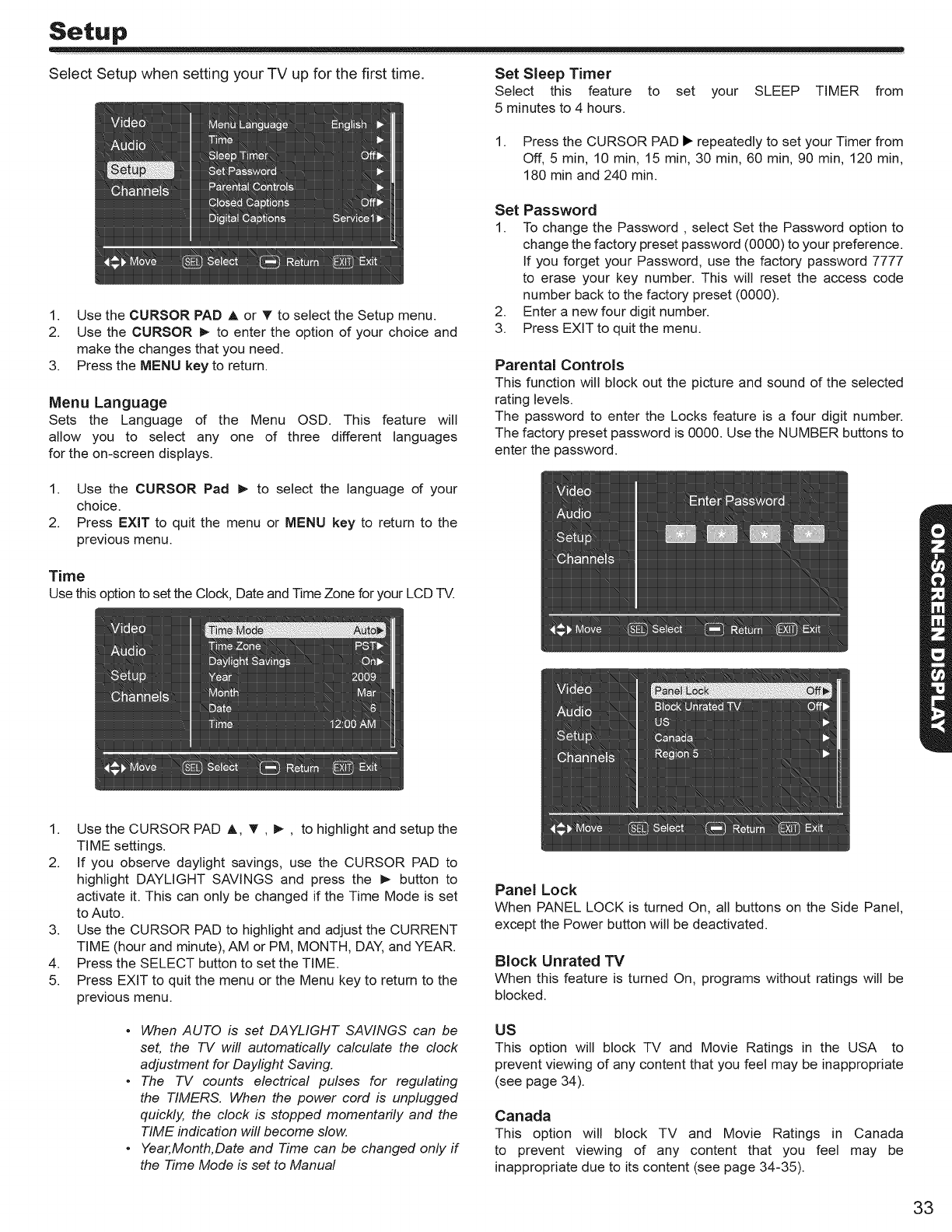
Setup
Select Setup when setting your TV up for the first time. Set Sleep Timer
Select this feature to set your SLEEP TIMER from
5 minutes to 4 hours.
1. Press the CURSOR PAD I_ repeatedly to set your Timer from
Off, 5 min, 10 min, 15 min, 30 min, 60 min, 90 min, 120 min,
180 min and 240 min.
1. Use the CURSOR PAD A or _' to select the Setup menu.
2. Use the CURSOR _ to enter the option of your choice and
make the changes that you need.
3. Press the MENU key to return.
Menu Language
Sets the Language of the Menu OSD. This feature will
allow you to select any one of three different languages
for the on-screen displays.
Set Password
1. To change the Password, select Set the Password option to
change the factory preset password (0000) to your preference.
If you forget your Password, use the factory password 7777
to erase your key number. This will reset the access code
number back to the factory preset (0000).
2. Enter a new four digit number.
3. Press EXIT to quit the menu.
Parental Controls
This function will block out the picture and sound of the selected
rating levels.
The password to enter the Locks feature is a four digit number.
The factory preset password is 0000. Use the NUMBER buttons to
enter the password.
1. Use the CURSOR Pad I_ to select the language of your
choice.
2. Press EXIT to quit the menu or MENU key to return to the
previous menu.
Time
Usethis optionto setthe Clock,DateandTimeZone for your LCD-IV.
1. Use the CURSOR PAD A, _', I_, to highlight and setup the
TIME settings.
2. If you observe daylight savings, use the CURSOR PAD to
highlight DAYLIGHT SAVINGS and press the _- button to
activate it. This can only be changed if the Time Mode is set
to Auto.
3. Use the CURSOR PAD to highlight and adjust the CURRENT
TIME (hour and minute), AM or PM, MONTH, DAY, and YEAR.
4. Press the SELECT button to set the TIME.
5. Press EXIT to quit the menu or the Menu key to return to the
previous menu.
•When AUTO is set DAYLIGHT SAVINGS can be
set, the TV will automatically calculate the clock
adjustment for Daylight Saving.
•The TV counts electrical pulses for regulating
the TIMERS. When the power cord is unplugged
quickly, the clock is stopped momentarily and the
TIME indication will become slow.
•Year,Month, Date and Time can be changed only if
the Time Mode is set to Manual
Panel Lock
When PANEL LOCK is turned On, all buttons on the Side Panel,
except the Power button will be deactivated.
Block Unrated "IV
When this feature is turned On, programs without ratings will be
blocked.
US
This option will block TV and Movie Ratings in the USA to
prevent viewing of any content that you feel may be inappropriate
(see page 34).
Canada
This option will block TV and Movie Ratings in Canada
to prevent viewing of any content that you feel may be
inappropriate due to its content (see page 34-35).
33
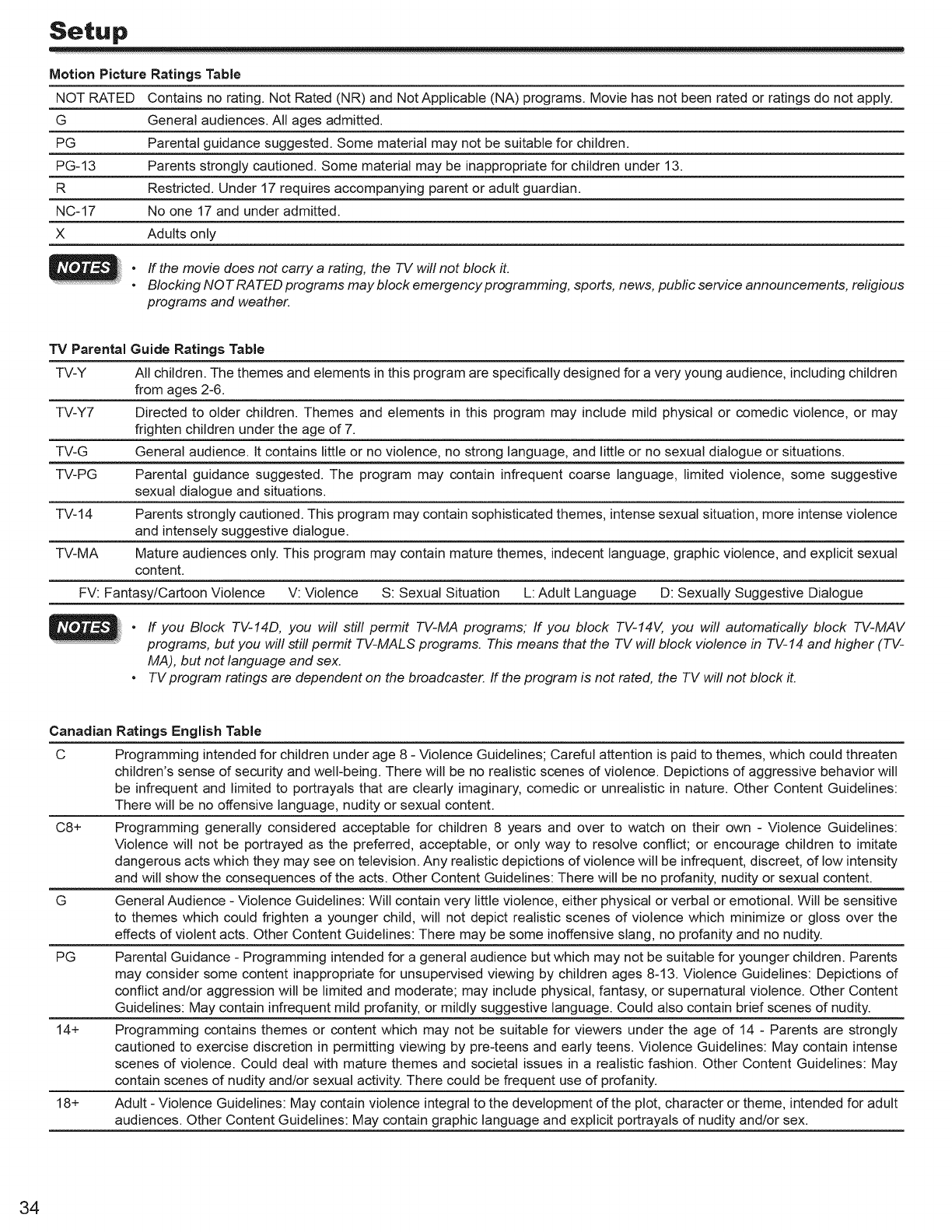
Setup
Motion Picture Ratings Table
NOT RATED Contains no rating. Not Rated (NR) and Not Applicable (NA) programs. Movie has not been rated or ratings do not apply.
G General audiences. All ages admitted.
PG Parental guidance suggested. Some material may not be suitable for children.
PG-13 Parents strongly cautioned. Some material may be inappropriate for children under 13.
R Restricted. Under 17 requires accompanying parent or adult guardian.
NC-17 No one 17 and under admitted.
X Adults only
•If the movie does not carry a rating, the TV will not block it.
•B__ckingN_TRATEDpr_gramsmayb__ckemergencypr_gramming_sp_rts_neWs_pub_cserviceann_uncements_re_ig__us
programs and weather.
TV Parental Guide Ratings Table
TV-Y All children. The themes and elements in this program are specifically designed for a very young audience, including children
from ages 2-6.
TV-Y7 Directed to older children. Themes and elements in this program may include mild physical or comedic violence, or may
frighten children under the age of 7.
TV-G General audience, it contains little or no violence, no strong language, and little or no sexual dialogue or situations.
TV-PG Parental guidance suggested. The program may contain infrequent coarse language, limited violence, some suggestive
sexual dialogue and situations.
TV-14 Parents strongly cautioned. This program may contain sophisticated themes, intense sexual situation, more intense violence
and intensely suggestive dialogue.
TV-MA Mature audiences only. This program may contain mature themes, indecent language, graphic violence, and explicit sexual
content.
FV: Fantasy/Cartoon Violence V: Violence S: Sexual Situation L: Adult Language D: Sexually Suggestive Dialogue
•If you Block TV-14D, you will still permit TV-MA programs; If you block TV-14V, you will automatically block TV-MAV
programs, but you will still permit TV-MALS programs. This means that the TV will block violence in TV- 14 and higher (TV-
MA), but not language and sex.
•TV program ratings are dependent on the broadcaster. If the program is not rated, the TV will not block it.
C8+
G
PG
14+
18+
Ratings English Table
Programming intended for children under age 8 - Violence Guidelines; Careful attention is paid to themes, which could threaten
children's sense of security and weIFbeing. There will be no realistic scenes of violence. Depictions of aggressive behavior will
be infrequent and limited to portrayals that are clearly imaginary, comedic or unrealistic in nature. Other Content Guidelines:
There will be no offensive language, nudity or sexual content.
Programming generally considered acceptable for children 8 years and over to watch on their own - Violence Guidelines:
Violence will not be portrayed as the preferred, acceptable, or only way to resolve conflict; or encourage children to imitate
dangerous acts which they may see on television. Any realistic depictions of violence will be infrequent, discreet, of low intensity
and will show the consequences of the acts. Other Content Guidelines: There will be no profanity, nudity or sexual content.
General Audience - Violence Guidelines: Will contain very little violence, either physical or verbal or emotional. Will be sensitive
to themes which could frighten a younger child, will not depict realistic scenes of violence which minimize or gloss over the
effects of violent acts. Other Content Guidelines: There may be some inoffensive slang, no profanity and no nudity.
Parental Guidance - Programming intended for a general audience but which may not be suitable for younger children. Parents
may consider some content inappropriate for unsupervised viewing by children ages 8-13. Violence Guidelines: Depictions of
conflict and/or aggression will be limited and moderate; may include physical, fantasy, or supernatural violence. Other Content
Guidelines: May contain infrequent mild profanity, or mildly suggestive language. Could also contain brief scenes of nudity.
Programming contains themes or content which may not be suitable for viewers under the age of 14 - Parents are strongly
cautioned to exercise discretion in permitting viewing by pre-teens and early teens. Violence Guidelines: May contain intense
scenes of violence. Could deal with mature themes and societal issues in arealistic fashion. Other Content Guidelines: May
contain scenes of nudity and/or sexual activity. There could be frequent use of profanity.
Adult - Violence Guidelines: May contain violence integral to the development of the plot, character or theme, intended for adult
audiences. Other Content Guidelines: May contain graphic language and explicit portrayals of nudity and/or sex.
34
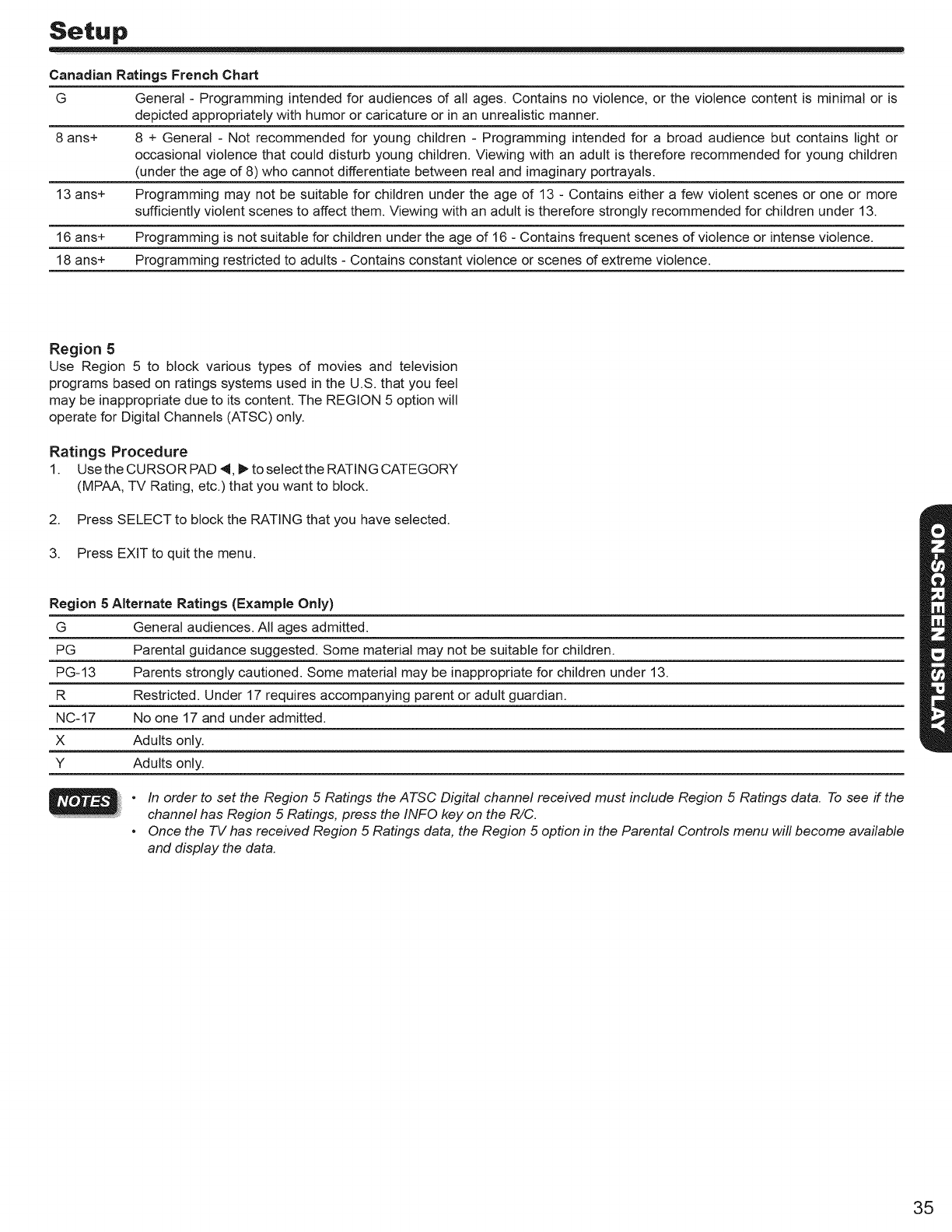
Setup
Canadian Ratings French Chart
G General - Programming intended for audiences of all ages. Contains no violence, or the violence content is minimal or is
depicted appropriately with humor or caricature or in an unrealistic manner.
8 ans+ 8 + General - Not recommended for young children - Programming intended for a broad audience but contains light or
occasional violence that could disturb young children. Viewing with an adult is therefore recommended for young children
(under the age of 8) who cannot differentiate between real and imaginary portrayals.
13 ans+ Programming may not be suitable for children under the age of 13 - Contains either a few violent scenes or one or more
sufficiently violent scenes to affect them. Viewing with an adult is therefore strongly recommended for children under 13.
16 ans+ Programming is not suitable for children under the age of 16 - Contains frequent scenes of violence or intense violence.
18 ans+ Programming restricted to adults - Contains constant violence or scenes of extreme violence.
Region 5
Use Region 5 to block various types of movies and television
programs based on ratings systems used in the U.S. that you feel
may be inappropriate due to its content. The REGION 5 option will
operate for Digital Channels (ATSC) only.
Ratings Procedure
1. Use the CURSOR PAD 4, I_ to select the RATING CATEGORY
(MPAA, TV Rating, etc.) that you want to block.
2. Press SELECT to block the RATING that you have selected.
3. Press EXIT to quit the menu.
Region 5 Alternate Ratings (Example Only)
G General audiences. All ages admitted.
PG Parental guidance suggested. Some material may not be suitable for children.
PG-13 Parents strongly cautioned. Some material may be inappropriate for children under 13.
R Restricted. Under 17 requires accompanying parent or adult guardian.
NC-17 No one 17 and under admitted.
X Adults only.
Y Adults only.
•In order to set the Region 5 Ratings the ATSC Digital channel received must include Region 5 Ratings data. To see if the
channel has Region 5 Ratings, press the INFO key on the R/C.
•Once the TV has received Region 5 Ratings data, the Region 5 option in the Parental Controls menu will become available
and display the data.
35
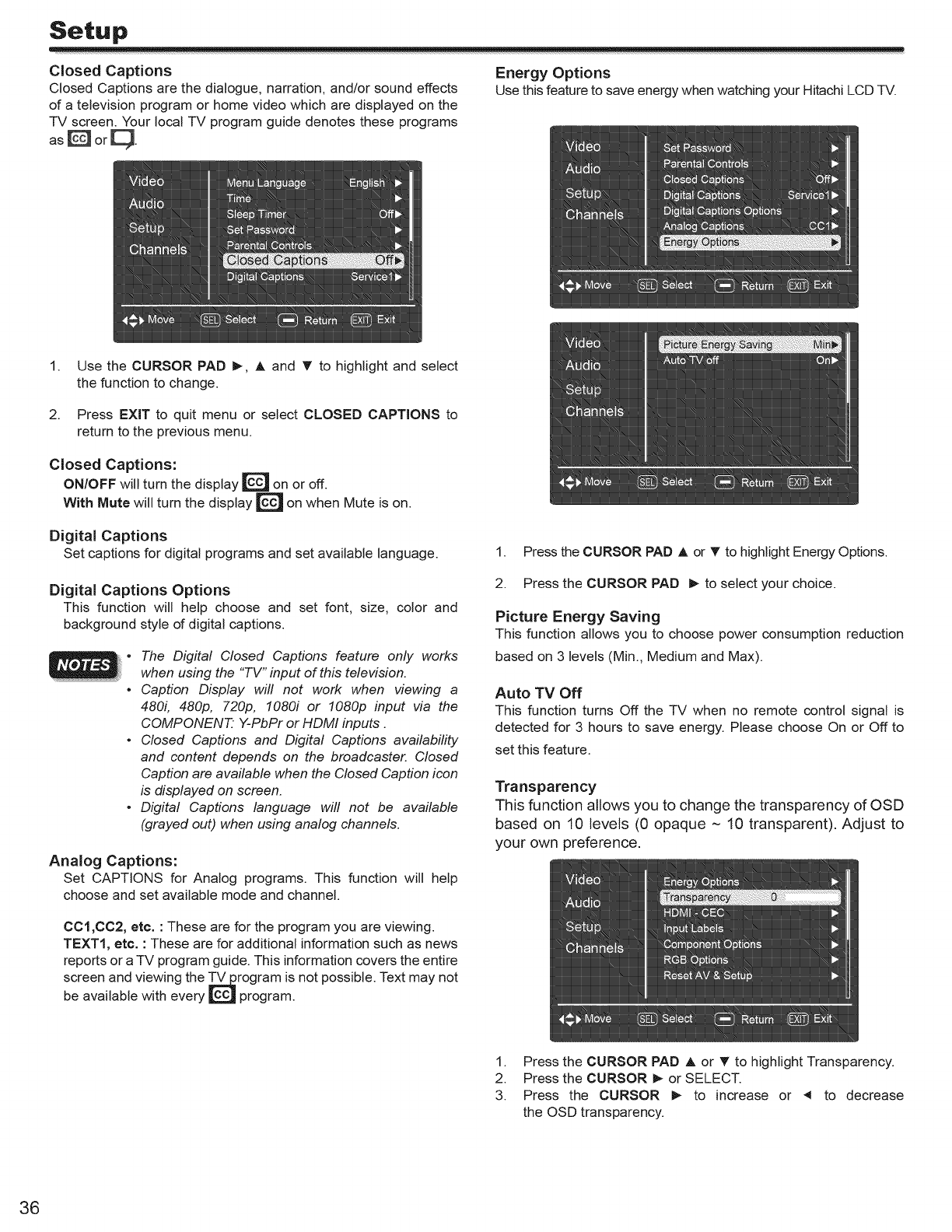
Setup
Closed Captions
Closed Captions are the dialogue, narration, and/or sound effects
of a television program or home video which are displayed on the
TV screen. Your local -IV program guide denotes these programs
as_or_.
Energy Options
Usethisfeatureto saveenergywhen watching your HitachiLCDTV.
1. Use the CURSOR PAD I_, A and T to highlight and select
the function to change.
2. Press EXIT to quit menu or select CLOSED CAPTIONS to
return to the previous menu.
Closed Captions:
ON/OFF will turn the display _ on or off.
With Mute will turn the display _ on when Mute is on.
Digital Captions
Set captions for digital programs and set available language.
Digital Captions Options
This function will help choose and set font, size, color and
background style of digital captions.
•The Digital Closed Captions feature only works
when using the "TV" input of this television.
•Caption Display will not work when viewing a
480i, 480p, 720p, 1080i or 1080p input via the
COMPONENT Y-PbPr or HDMI inputs.
•Closed Captions and Digital Captions availability
and content depends on the broadcaster. Closed
Caption are available when the Closed Caption icon
is displayed on screen.
•Digital Captions language will not be available
(grayed out) when using analog channels.
Analog Captions:
Set CAPTIONS for Analog programs. This function will help
choose and set available mode and channel.
CCl,CC2, etc. : These are for the program you are viewing.
TEXT1, etc. : These are for additional information such as news
reports or a TV program guide. This information covers the entire
screen and viewing the _rogram is not possible. Text may not
be available with every _ program.
1. Press the CURSOR PAD A or T to highlight Energy Options.
2. Press the CURSOR PAD I_ to select your choice.
Picture Energy Saving
This function allows you to choose power consumption reduction
based on 3 levels (Min., Medium and Max).
Auto TV Off
This function turns Off the TV when no remote control signal is
detected for 3 hours to save energy. Please choose On or Off to
set this feature.
Transparency
This function allows you to change the transparency of OSD
based on 10 levels (0 opaque ~ 10 transparent). Adjust to
your own preference.
1. Press the CURSOR PAD A or _' to highlight Transparency.
2. Press the CURSOR _- or SELECT.
3. Press the CURSOR I_ to increase or <to decrease
the OSD transparency.
36
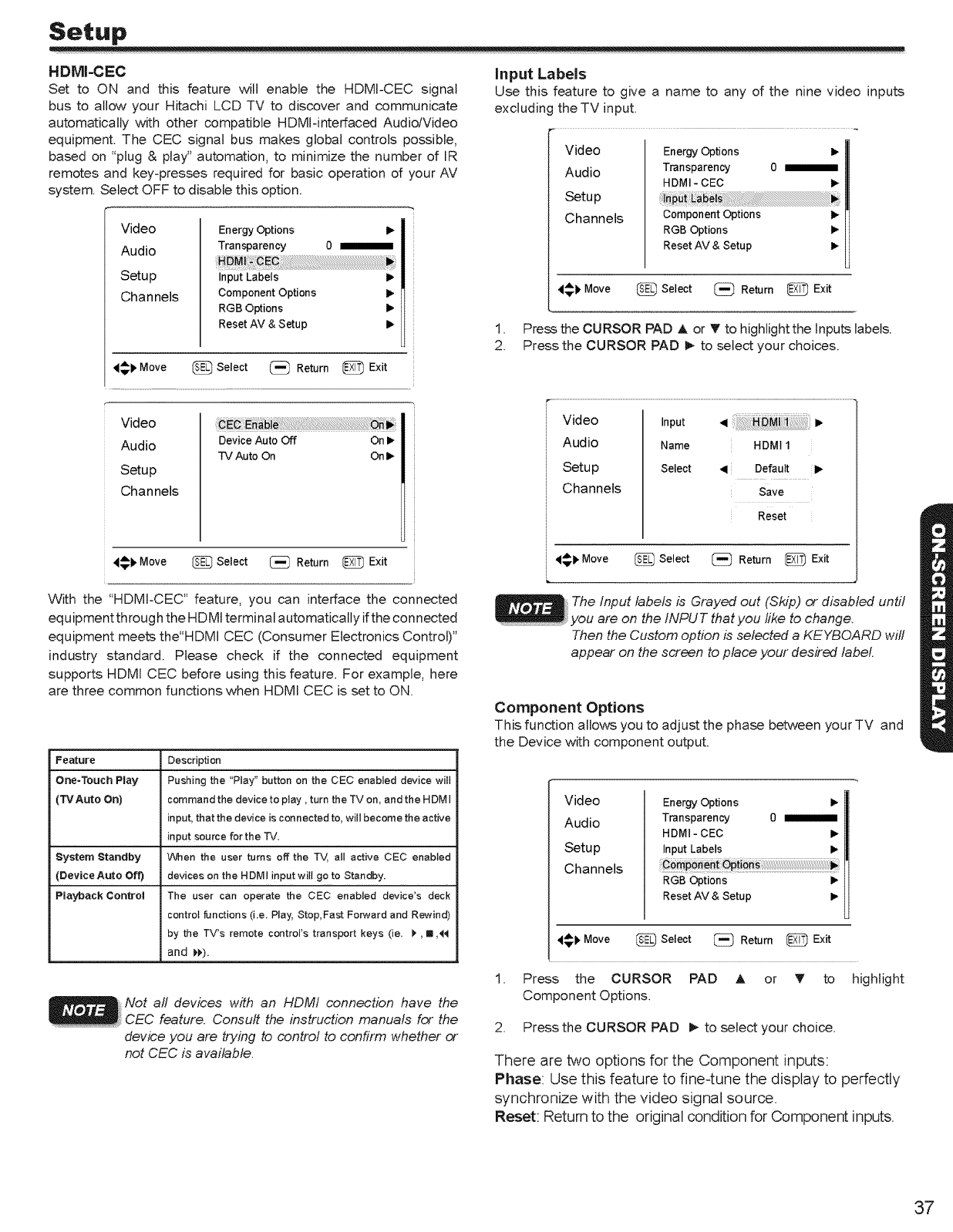
HDMI-CEC
Set to 0['4 and this feature will enable the HDMI-CEC signal
bus to allow your Hitachi LCD TV to discover and communicate
automatically with other compatible HDMI-interfaced Audio/Video
equipment. The CEC signal bus makes global controls possible,
based on "plug & play" automation, to minimize the number of IR
remotes and key-presses required for basic operation of your AV
system. Select OFF to disable this option.
Video
Audio
Setup
Channels
Energy Options I_
Transparency 0
Input Labels I_
Component Options Ib
RGB Options I_
Reset AV & Setup I_
_i_ Move _ Select (_ Return _ Exit
Video
Audio
Setup
Channels
Device Auto Off On I_
"IV Auto On On I_
4_1' Move (_ Select (_ Return _ Exit
With the "HDMI-CEC" feature, you can interface the connected
equipmentthrough the HDMI terminal automaticaltyifthe connected
equipment meets the"HDMI CEC (Consumer Electronics Control)"
industry standard. Please check if the connected equipment
supports HDMI CEC before using this feature. For example, here
are three common functions when HDMI CEC is set to ON.
Feature Description
One=Touch Play Pushing the "Play" button on the CEC enabled device will
(TV Auto On) command the device to play, turn the TV on, and the HDM I
input, that the device is connected to, will become the active
input source for the TV,
System Standby When the user turns off the TV, all active CEC enaMed
(DeviceAuto Off) devices on the HDMI input will go to Standby,
Playback Control The user can operate the CEC enabled device's deck
controt functions (i.e. PJay, Stop,Fast Forward and Rewind)
by the TV's remote controFs transport keys (ie. _, 11,414
and l,_,).
Not all devices with an HDMI connection have the
CEC feature. Consult the instruction manuals for the
device you are trying to control to confirm whether or
not CEC is available.
input Labels
Use this feature to give a name to any of the nine video inputs
excluding the TV input.
Video
Audio
Set up
Channels
Energy Options I_
Transparency 0 ml
HDMI- CEC 1_
Component Options I_
RGB Options I_
Reset AV & Setup I_
1.
2
_.), Move _ Select [_ Return @ Exit
Press the CURSOR PAD ,L or T to highlight the Inputs labels.
Press the CURSOR PAD 1_ to select your choices.
Video
Audio
Set up
Channels
Input
Name
Select
HDMI1
,11 Default I_
Save
Reset
_#F Move _ Select [_ Return @ Exit
The Input labels is Grayed out (Skip) or disabled until
you are on the INPUT that you like to change.
Then the Custom option is selected a KEYBOARD wilt
appear on the screen to place your desired label
Component Options
This function allows you to adjust the phase between yourTV and
the Device with component output.
Video
Audio
Setup
Channels
Energy Options
Transparency 0
HDMI -CEC I_
InputLabels I_
RGB Options i_
Reset AV & Setup It,
1.
_l' Move _ Select _ Return _ Exit
Press the CURSOR PAD ,L or T to highlight
Component Options.
2. Press the CURSOR PAD t_ to select your choice.
There are two options for the Component inputs:
Phase: Use this feature to fine4une the display to perfectly
synchronize with the video signal source.
Reset: Return to the original condition for Component inputs.
37
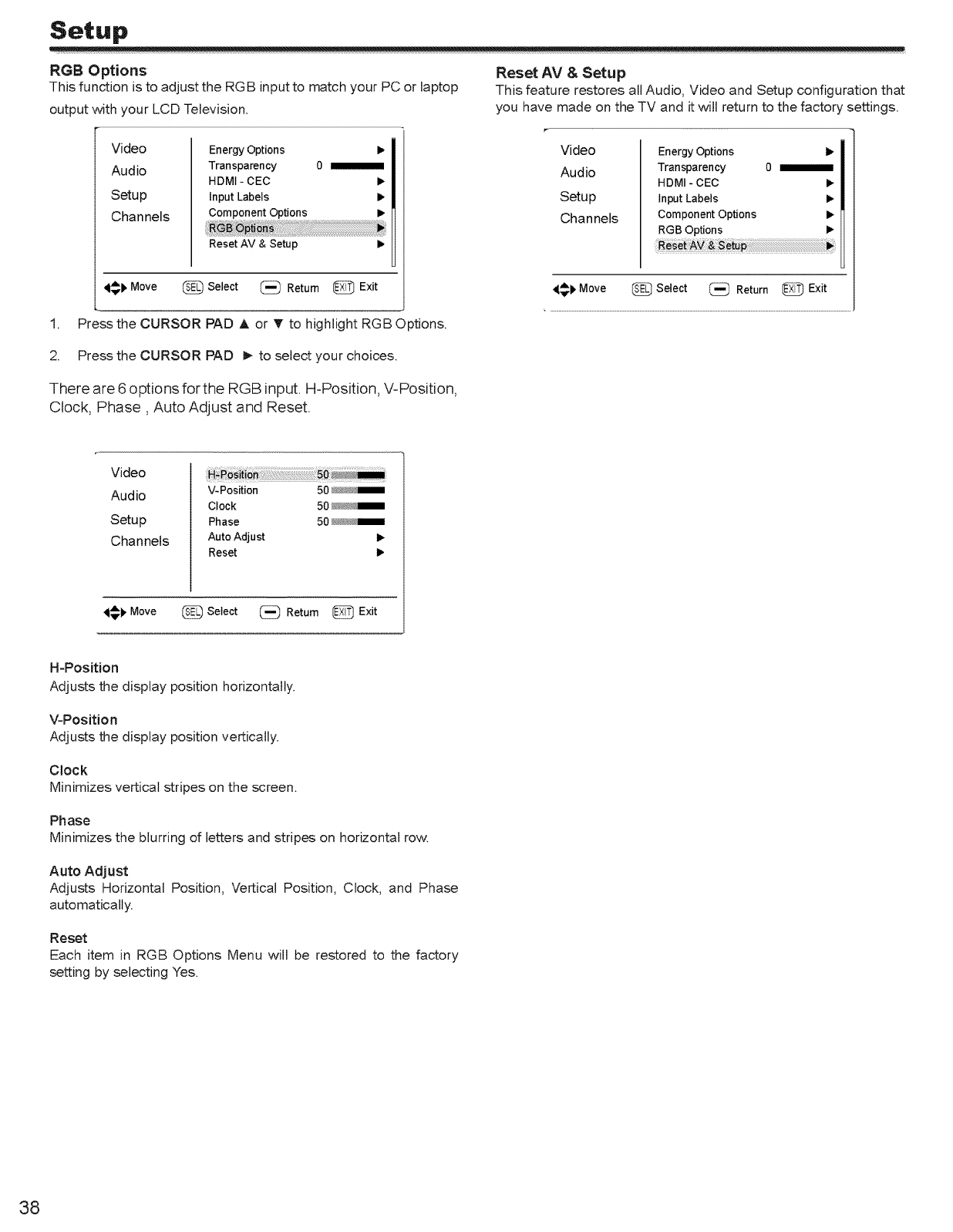
Setup
RGB Options
This function is to adjust the RGB input to match your PC or laptop
output with your LCD Television.
Video
Audio
Setup
Channels
Energy Options I_
Transparency 0 m
HDMI-CEC i_
Input Labels I_
Component Options I_
Reset AV & Setup I_
4_,_ Move _ Select _ Return 1_ Exit
1. Press the CURSOR PAD A or T to highlight RGB Options.
Reset AV &Setup
This feature restores all Audio, Video and Setup configuration that
you have made on the TV and it will return to the factory settings.
Video
Audio
Setup
Channels
Energy Options I_
Transparency 0 _1
HDMI - CEC I_
Input Labels i_
Component Options I_
RGB Options I_
_p Move _ Select _ Return _ Exit
2. Pressthe CURSOR PAD 1_to select your choices.
There are 6 options for the RGB input. H-Position, V-Position,
Clock, Phase, Auto Adjust and Reset.
Video
Audio
Setup
Channels
V-Position 50 _m
Clock 50_/4_
Phase 50_m
AutoAdjust 1_
Reset I_
_1_ Move _ Select (_ Retum [_ Exit
H-Position
Adjusts the display position horizontally.
V-Position
Adjusts the display position vertically.
Clock
Minimizes vertical stripes on the screen.
Phase
Minimizes the blurring of letters and stripes on horizontal row.
Auto AdJust
Adjusts Horizontal Position, Vertical Position, Clock, and Phase
automatically.
Reset
Each item in RGB Options Menu will be restored to the factory
setting by selecting Yes.
38
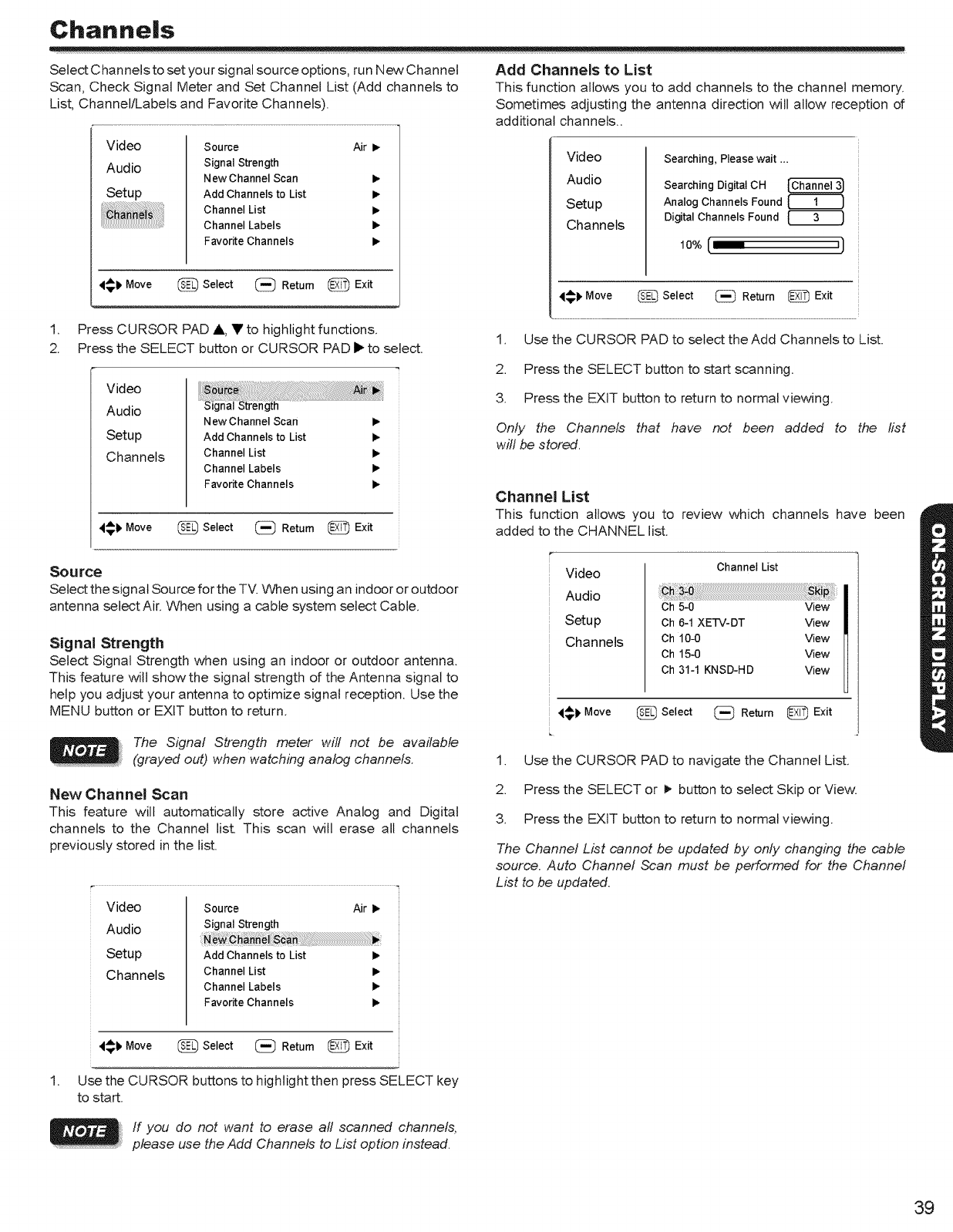
Channe|s
Select Channels to set your signal source options, run New Channel
Scan, Check Signal Meter and Set Channel List (Add channels to
List, Channel/Labels and Favorite Channels).
Video
Audio
Setup
Source Air I_
Signal Strength
New Channel Scan I_
Add Channels to List I_
Channel List I_
Channel Labels i_
Favorite Channels I_
4_1' Move _ Select (_ Return @ Exit
1. Press CURSOR PAD ,ii,, V to highlight functions.
2. Press the SELECT button or CURSOR PAD I_ to selecL
Video
Audio
Setup
Channels
New Channel Scan I_
Add Channels to List i_
Channel List 11,
Channel Labels I_
Favorite Channels ib
4#b Move _ Select (_ Return _ Exit
Add Channels to List
This function allows you to add channels to the channel memory.
Sometimes adjusting the antenna direction will allow reception of
additional channels..
Video
Audio
Setup
Channels
Searching, Please wait ...
Searching Digital OH
Analog Channels Found
Digital Channels Found
10o,_(
1,
2. Press the SELECT button to start scanning.
3. Press the EXIT button to return to normal viewing.
Only the Channels that have not been added
will be stored.
4_k Move _ Select (_ Return _ Exit
Use the CURSOR PAD to select the Add Channels to List.
to the list
Channel List
This function allows you to review which channels have been
added to the CHANNEL list.
So u roe
Select the signal Source for the TV. '_en using an indoor or outdoor
antenna select Air. When using a cable system select Cable.
Signal Strength
Select Signal Strength when using an indoor or outdoor antenna.
This feature wilt show the signal strength of the Antenna signal to
help you adjust your antenna to optimize signal reception. Use the
MENU button or EXIT button to return.
The Signal Strength meter will not be available
(grayed out) when watching analog channels.
Video
Audio
Setup
Channels
Channel List
Ch 5-0 View
Oh 6-1 XE-rV-DT View
Oh 10-0 View
Oh 15-0 View
Ch 31-1 KNSD-HD View
1.
41€p Move _ Select (_ Return _ Exit
Use the CURSOR PAD to navigate the Channel List.
New Channel Scan
This feature will automatically store active Analog and Digital
channels to the Channel list. This scan will erase all channels
previously stored in the list.
Video
Audio
Setup
Channels
Source Air I_
Signal Strength
Add Channels to List I_
Channel List I_
Channel Labels I_
Favorite Channels It,
2. Press the SELECT or i_ button to select Skip or View.
3. Press the EXIT button to return to normal viewing.
The Channel List cannot be updated by only changing the cable
source. Auto Channel Scan must be performed for the Channel
List to be updated.
'qCb Move _ Select _ Return _ Exit
Use the CURSOR buttons to highlight then press SELECT key
to start.
If you do not want to erase all scanned channels,
please use the Add Channels to List option instead.
39
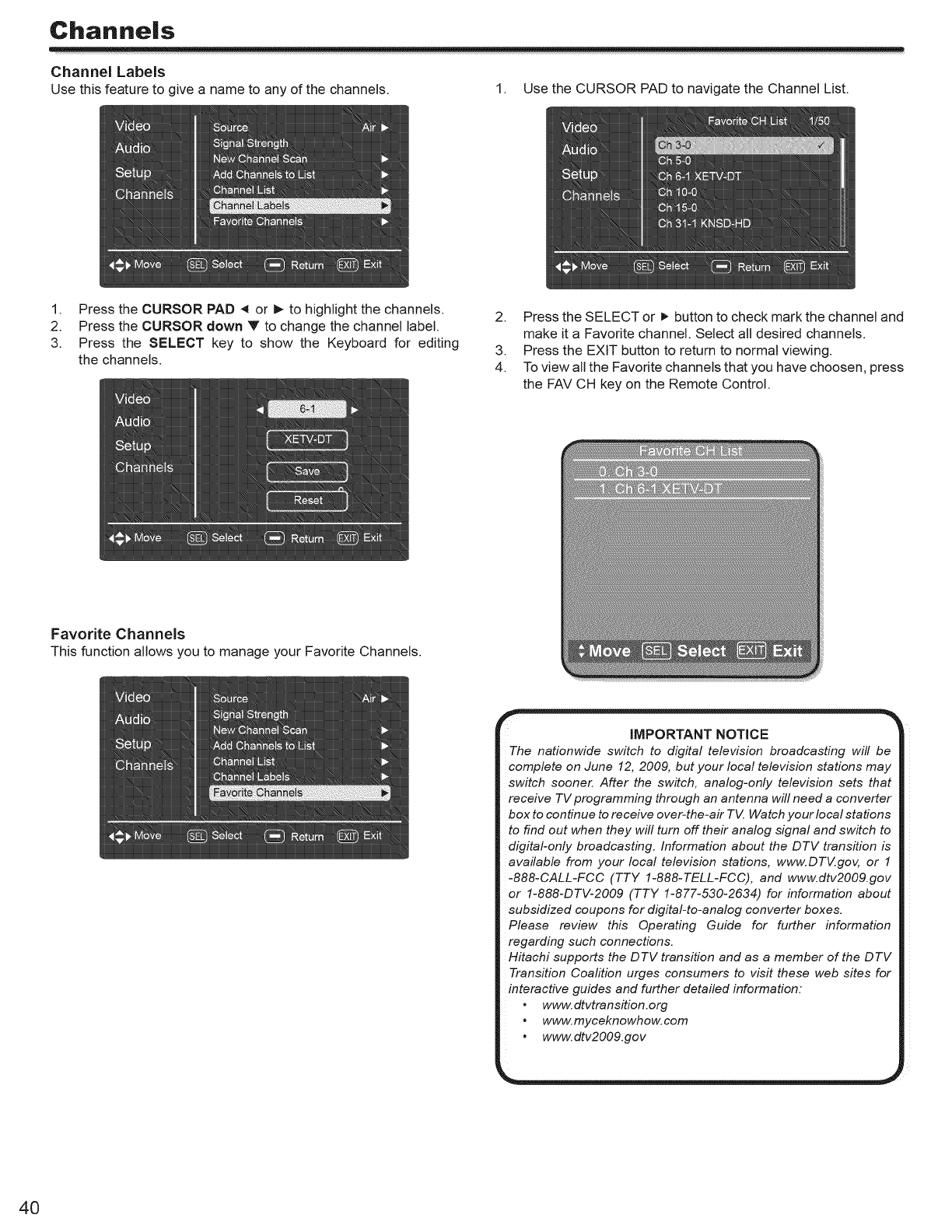
Channels
Channel Labels
Use this feature to give a name to any of the channels. 1. Use the CURSOR PAD to navigate the Channel List.
1. Press the CURSOR PAD ,_ or _ to highlight the channels.
2. Press the CURSOR down Y to change the channel label.
3. Press the SELECT key to show the Keyboard for editing
the channels.
2. Press the SELECT or =, button to check mark the channel and
make it a Favorite channel. Select all desired channels.
3. Press the EXIT button to return to normal viewing.
4. To view all the Favorite channels that you have choosen, press
the FAV CH key on the Remote Control.
Favorite Channels
This function allows you to manageyour Favorite Channels.
IMPORTANT NOTICE
The nationwide switch to digital television broadcasting will be
complete on June 12, 2009, but your local television stations may
switch sooner. After the switch, analog-only television sets that
receive TV programming through an antenna will need a converter
box to continue to receive over-the-air TV. Watch your local stations
to find out when they will turn off their analog signal and switch to
digital-only broadcasting. Information about the DTV transition is
available from your local television stations, www.DTV.gov, or 1
-888-CALL-FCC (TTY 1-888-TELL-FCC), and www.dtv2OOg.gov
or 1-888-DTV-2009 (TTY 1-877-530-2634) for information about
subsidized coupons for digital-to-analog converter boxes.
Please review this Operating Guide for further information
regarding such connections.
Hitachi supports the DTV transition and as a member of the DTV
Transition Coafition urges consumers to visit these web sites for
interactive guides and further detailed information:
•www.dtvtransition.org
•www.myceknowhow.com
°www.dtv2OO9.gov
4O
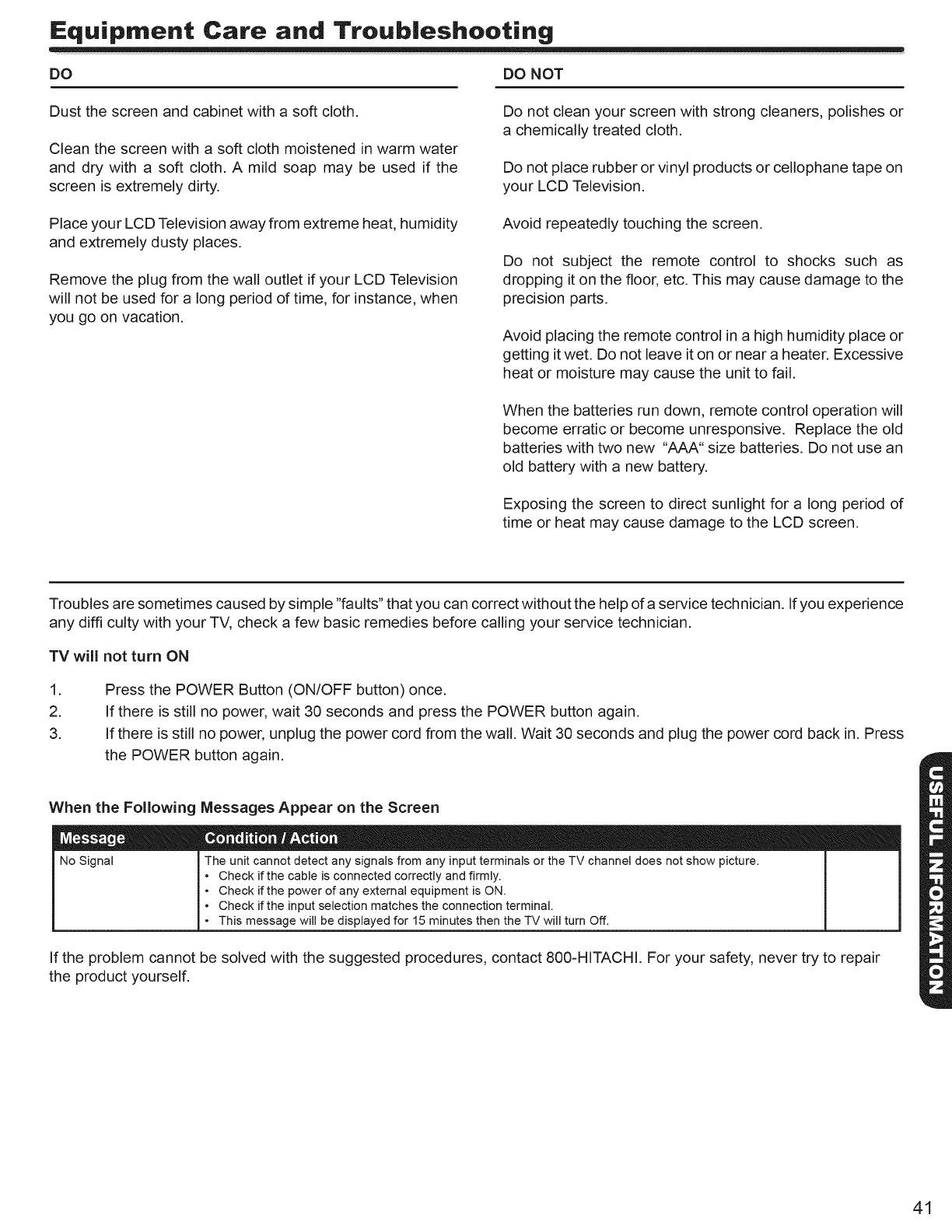
Equipment Care and Troub|eshooting
DO DO NOT
Dust the screen and cabinet with a soft cloth.
Clean the screen with a soft cloth moistened in warm water
and dry with a soft cloth. A mild soap may be used if the
screen is extremely dirty.
Do not clean your screen with strong cleaners, polishes or
a chemically treated cloth.
Do not place rubber or vinyl products or cellophane tape on
your LCD Television.
Place your LCD Television away from extreme heat, humidity
and extremely dusty places.
Remove the plug from the wal! outlet if your LCD Television
will not be used for a long period of time, for instance, when
you go on vacation.
Avoid repeatedly touching the screen.
Do not subject the remote control to shocks such as
dropping it on the floor etc. This may cause damage to the
precision parts.
Avoid placing the remote control in a high humidity place or
getting it wet. Do not leave it on or near a heater. Excessive
heat or moisture may cause the unit to fail.
When the batteries run down, remote control operation will
become erratic or become unresponsive. Replace the old
batteries with two new "AAA" size batteries. Do not use an
old battery with a new battery.
Exposing the screen to direct sunlight for a long period of
time or heat may cause damage to the LCD screen.
Troubles are sometimes caused by simple "faults" that you can correct without the help of a service technician. Ifyou experience
any difficulty with your TV, check a few basic remedies before calling your service technician.
TV will not turn ON
.
2.
3.
Press the POWER Button (ON/OFF button) once.
If there is still no power, wait 30 seconds and press the POWER button again.
If there is still no power unplug the power cord from the wall. Wait 30 seconds and plug the power cord back in. Press
the POWER button again.
When the Following
No Signal
If the problem cannot
the product yourself.
Messages Appear on the Screen
The unit cannot detect any signals from any input terminals or the TV channel does not show picture.
• Check if the cable is connected correctly and firmly.
• Check if the power of any external equipment is ON.
• Check if the input selection matches the connection terminal.
• This message will be displayed for 15 minutes then the TV will turn Off.
be solved with the suggested procedures, contact 800-HITACHI. For your safety, never try to repair
41
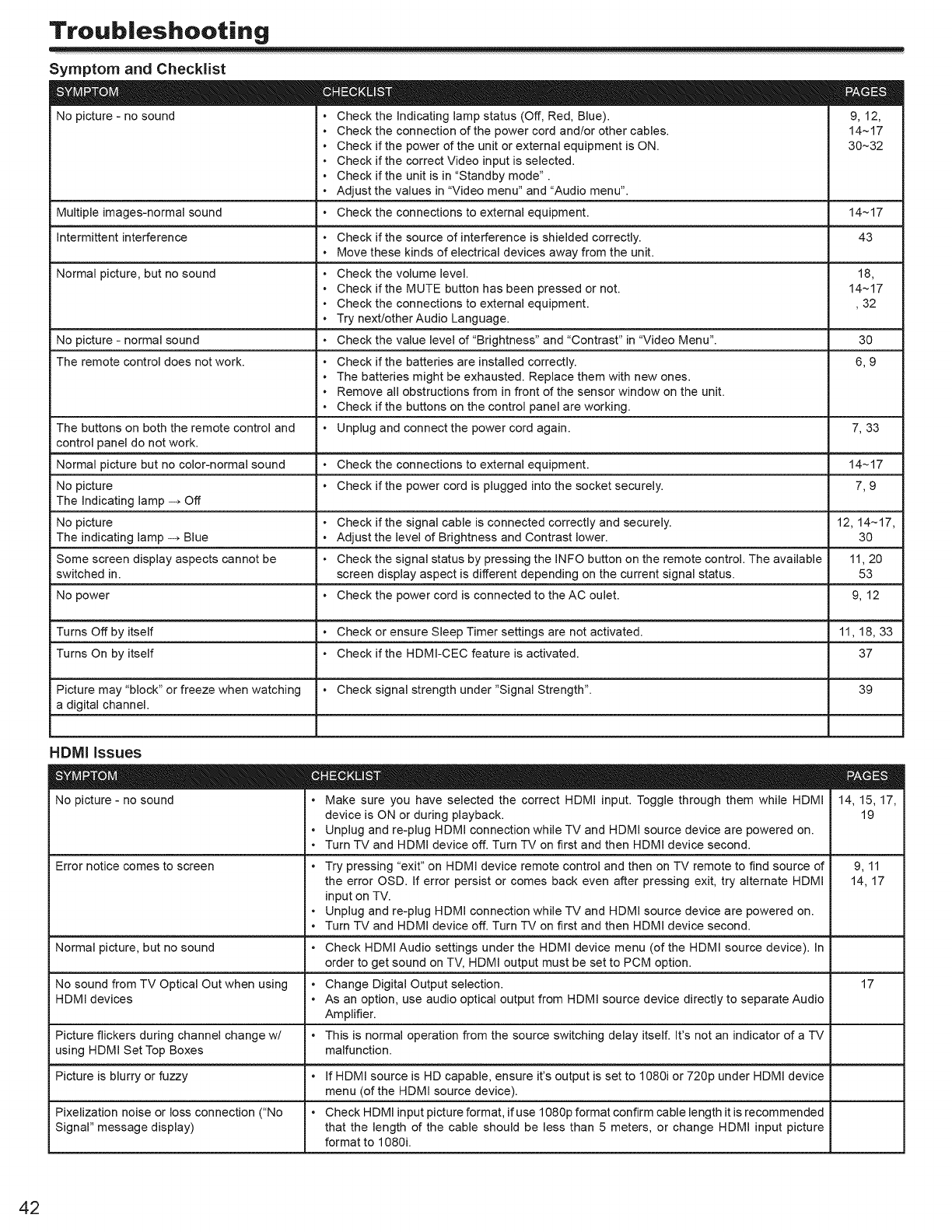
Troub|eshooting
Symptom and Checklist
No picture - no sound • Check the indicating lamp status (Off, Red, Blue). 9, 12,
• Check the connection of the power cord and/or other cables. 14~17
• Check if the power of the unit or external equipment is ON. 30~32
• Check if the correct Video input is selected.
• Check if the unit is in "Standby mode".
• Adjust the values in "Video menu" and "Audio menu".
Multiple images-normal sound • Check the connections to external equipment. 14~17
L
intermittent interference • Check if the source of interference is sMelded correctly. 43
• Move these kinds of electrical devices away from the unit.
Normal picture, but no sound • Check the volume level. 18,
• Check if the MUTE button has been pressed or not. 14~17
• Check the connections to external equipment. ,32
• Try next/otherAudio Language.
No picture - normal sound • Check the value level of "Brightness" and "Contrast" in "Video Menu". 30
The remote control does not work. • Check if the batteries are installed correctly. 6, 9
• The batteries might be exhausted. Replace them with new ones.
• Remove all obstructions from in front of the sensor window on the unit.
• Check if the buttons on the control panel are working.
The buttons on both the remote control and • Unplug and connect the power cord again. 7, 33
control panel do not work.
Normal picture but no color-normal sound • Check the connections to external equipment. 14~17
No picture • Check if the power cord is plugged into the socket securely. 7, 9
The Indicating lamp -, Off
No picture • Check if the signal cable is connected correctly and securely. 12, 14~17,
The indicating lamp -, Blue • Adjust the level of Brightness and Contrast lower. 30
Some screen display aspects cannot be • Check the signal status by pressing the INFO button on the remote control. The available 11, 20
switched in. screen display aspect is different depending on the current signal status. 53
No power • Check the power cord is connected to the AC oulet. 9, 12
Turns Off by itself • Check or ensure Sleep Timer settings are not activated. 11, 18, 33
Turns On by itself • Check if the HDMI-CEC feature is activated. 37
Picture may "block" or freeze when watching • Check signal strength under "Signal Strength". 39
a digital channel.
HDMI issues
No picture - no sound • Make sure you have selected the correct HDMI input. Toggle through them while HDMI
device is ON or during playback.
• Unplug and re-plug HDMI connection while TV and HDMI source device are powered on.
• Turn TV and HDMI device off. Turn TV on first and then HDMI device second.
14, 15, 17,
19
Error notice comes to screen • Try pressing "exit" on HDMI device remote control and then on TV remote to find source of 9, 11
the error OSD. If error persist or comes back even after pressing exit, try alternate HDMI 14, 17
input on TV.
• Unplug and re-plug HDMI connection while TV and HDMI source device are powered on.
• Turn TV and HDMI device off. Turn TV on first and then HDMI device second.
Normal picture, but no sound • Check HDMI Audio settings under the HDMI device menu (of the HDMI source device). In
order to get sound on TV, HDMI output must be set to PCM option.
No sound from TV Optical Out when using • Change Digital Output selection. 17
HDMI devices • As an option, use audio optical output from HDMI source device directly to separate Audio
Amplifier.
Picture flickers during channel change w/ • This is normal operation from the source switching delay itself. It's not an indicator of a TV
using HDMI Set Top Boxes malfunction.
Picture is blurry or fuzzy • If HDMI source is HD capable, ensure it's output is set to 1080i or 720p under HDMI device
menu (of the HDMI source device).
Pixelization noise or loss connection ("No • Check HDMI input picture format, if use 1080p format confirm cable length it is recommended
Signal" message display) that the length of the cable should be less than 5 meters, or change HDMI input picture
format to 1080i.
42
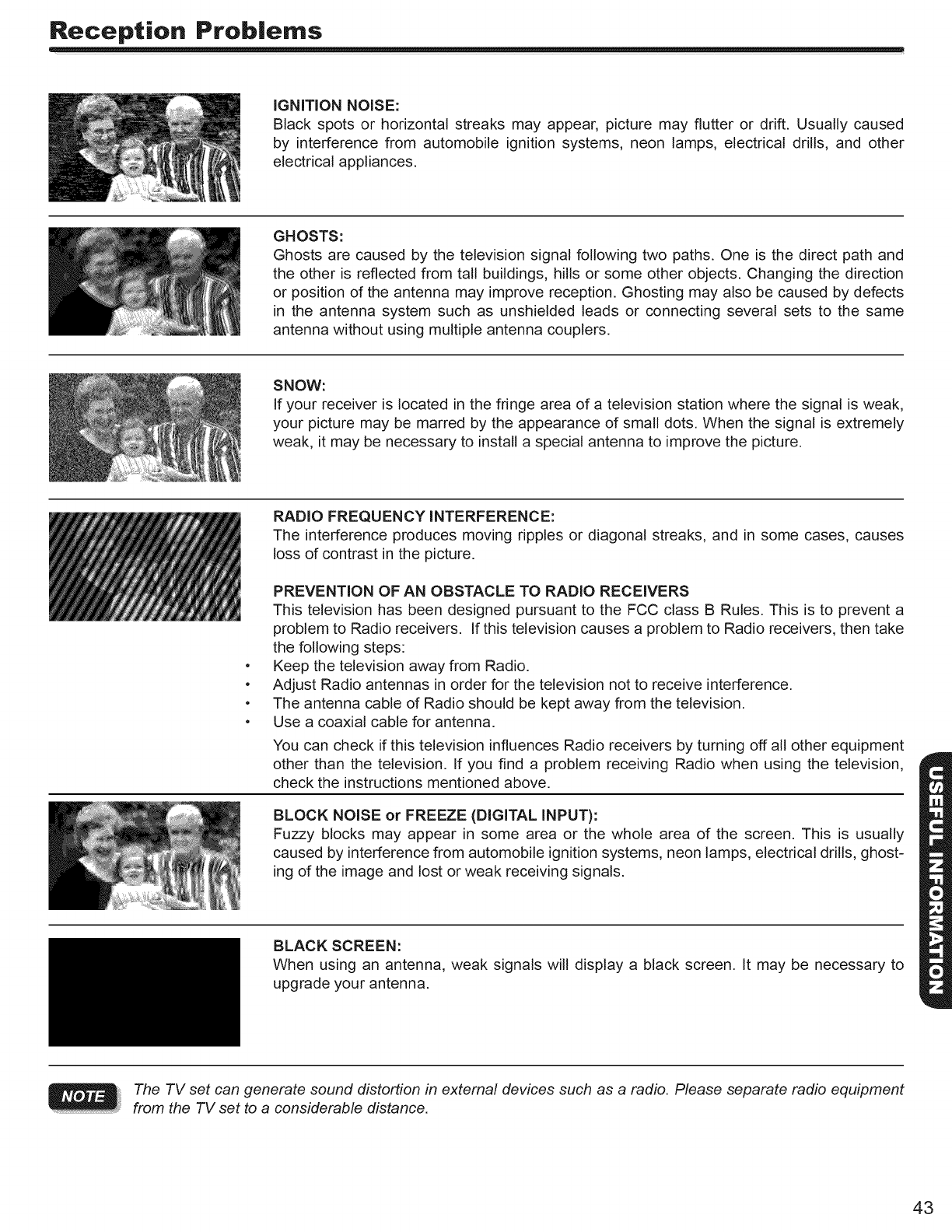
Reception Prob|ems
IGNITION NOISE:
Black spots or horizontal streaks may appear, picture may flutter or drift. Usually caused
by interference from automobile ignition systems, neon lamps, electrical drills, and other
electrical appliances.
GHOSTS:
Ghosts are caused by the television signal following two paths. One is the direct path and
the other is reflected from tall buildings, hills or some other objects. Changing the direction
or position of the antenna may improve reception. Ghosting may also be caused by defects
in the antenna system such as unshielded leads or connecting several sets to the same
antenna without using multiple antenna couplers.
SNOW:
If your receiver is located in the fringe area of a television station where the signal is weak,
your picture may be marred by the appearance of small dots. When the signal is extremely
weak, it may be necessary to install a special antenna to improve the picture.
RADIO FREQUENCY INTERFERENCE:
The interference produces moving ripples or diagonal streaks, and in some cases, causes
loss of contrast in the picture.
o
o
o
o
PREVENTION OF AN OBSTACLE TO RADIO RECEIVERS
This television has been designed pursuant to the FCC class B Rules. This is to prevent a
problem to Radio receivers. If this television causes a problem to Radio receivers, then take
the following steps:
Keep the television away from Radio.
Adjust Radio antennas in order for the television not to receive interference.
The antenna cable of Radio should be kept away from the television.
Use a coaxial cable for antenna.
You can check if this television influences Radio receivers by turning off all other equipment
other than the television. If you find a problem receiving Radio when using the television,
check the instructions mentioned above.
BLOCK NOISE or FREEZE (DIGITAL INPUT):
Fuzzy blocks may appear in some area or the whole area of the screen. This is usually
caused by interference from automobile ignition systems, neon lamps, electrical drills, ghost-
ing of the image and lost or weak receiving signals.
BLACK SCREEN:
When using an antenna, weak signals will display a black screen. It may be necessary to
upgrade your antenna.
The TV set can generate sound distortion in external devices such as a radio. Please separate radio equipment
from the TV set to a considerable distance.
43
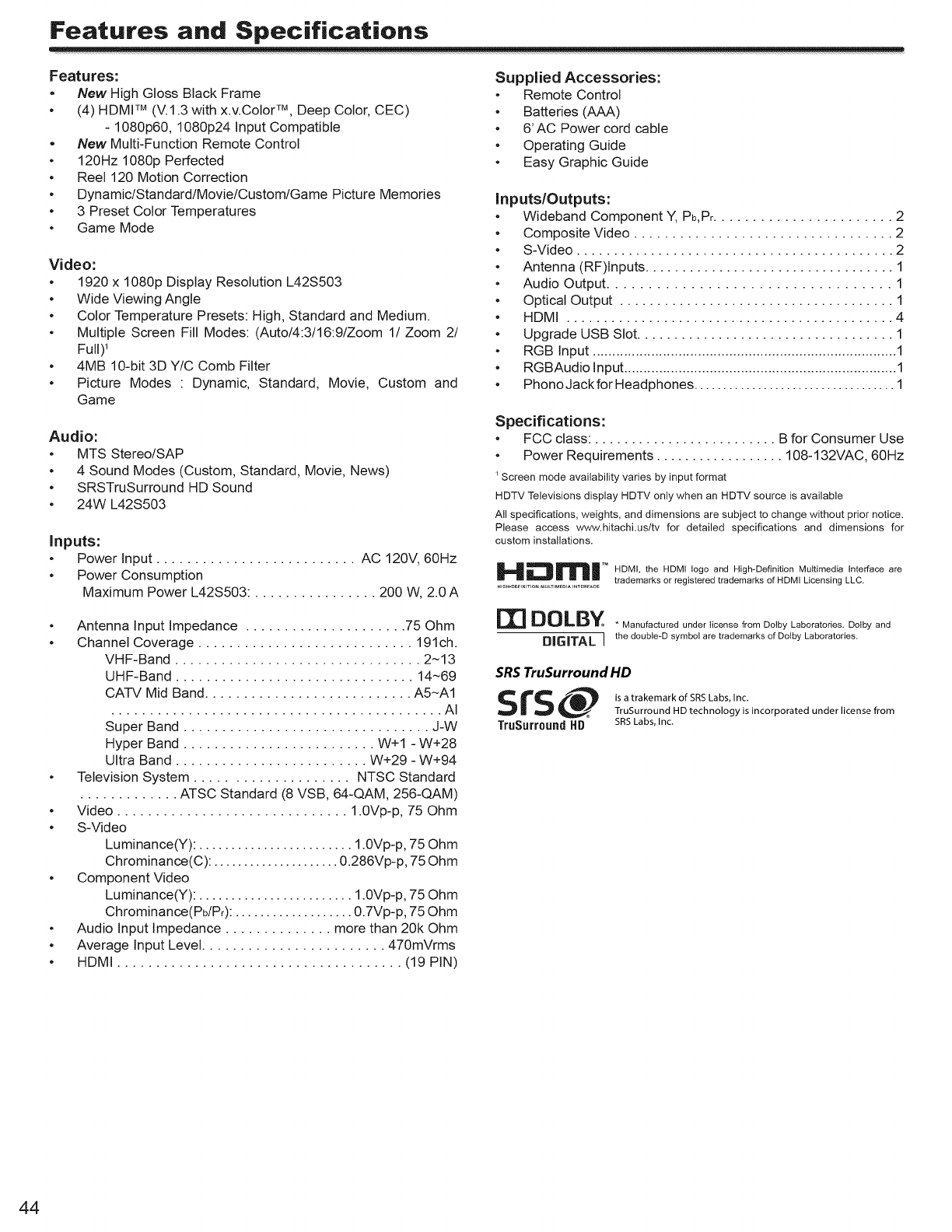
Features and Specifications
Features:
.New High Gloss Black Frame
°(4) HDMV M(V.1.3 with x.v.Color TM, Deep Color, CEC)
-1080p60, 1080p24 input Compatible
.New Multi-Function Remote Control
•120Hz 1080p Perfected
•Reel 120 Motion Correction
•Dynamic/Standard/Movie/Custom/Game Picture Memories
•3 Preset Color Temperatures
•Game Mode
Video:
•1920 x 1080p Display Resolution L42S503
•Wide Viewing Angle
•Color Temperature Presets: High, Standard and Medium.
•Multiple Screen Fill Modes: (Auto/4:3/16:9/Zoom 1/Zoom 2/
Full) 1
•4MB 10-bit 3D Y/C Comb Filter
•Picture Modes : Dynamic, Standard, Movie, Custom and
Game
Audio:
°MTS Stereo/SAP
°4 Sound Modes (Custom, Standard, Movie, News)
•SRSTruSurround HD Sound
•24W L42S503
Inputs:
•Power Input .......................... AC 120V, 60Hz
•Power Consumption
Maximum Power L42S503: ................ 200 W, 2.0 A
•Antenna Input Impedance ..................... 75 Ohm
•Channel Coverage ............................ 191ch.
VHF-Band ................................ 2-13
UHF-Band ............................... 14-69
CATV Mid Band ........................... A5-A1
........................................... AI
Super Band ................................ J-W
Hyper Band ......................... W+I - W+28
Ultra Band ......................... W+29 - W+94
•Television System .................... NTSC Standard
............. ATSC Standard (8 VSB, 64-QAM, 256-QAM)
•Video .............................. 1.0Vp-p, 75 Ohm
•S-Video
Luminance(Y): ........................ 1.0Vp-p, 75 Ohm
Chrominance(C): ..................... 0.286Vp-p, 75 Ohm
•Component Video
Luminance(Y): ........................ 1.0Vp-p, 75 Ohm
Chrominance(Pb/Pr): ................... 0.7Vp-p, 75 Ohm
•Audio Input Impedance .............. more than 20k Ohm
•Average Input Level ........................ 470mVrms
• HDMI ..................................... (19 PIN)
Supplied Accessories:
•Remote Control
•Batteries (AAA)
•6' AC Power cord cable
•Operating Guide
•Easy Graphic Guide
Inputs/Outputs:
•Wideband Component Y, Pb,Pr....................... 2
•Composite Video .................................. 2
•S-Video ........................................... 2
•Antenna (RF)lnputs .................................. 1
•Audio Output .................................. 1
•Optical Output ..................................... 1
•HDMI ............................................ 4
•Upgrade USB Slot ................................... 1
•RGB Input .............................................................................. 1
•RGBAudio Input ...................................................................... 1
•Phono Jack for Headphones ................................... 1
Specifications:
•FCC class: ......................... B for Consumer Use
•Power Requirements .................. 108-132VAC, 60Hz
Screen mode availability varies by input format
HDTV Televisions display HDTV only when an HDTV source is available
All specifications, weights, and dimensions are subject to change without prior notice.
Please access www.hitachi.us/tv for detailed specifications and dimensions for
custom installations.
'" DMI, the HDMI logo and High-Definition Multimedia Interface are
trademarks or registered trademarks of HDMI Licensing LLC,
.IGH-OEFINmONMULTiMEdiAI_TERFACE
[I] DOLBY . Manufactured under li ..... from Dotby Laboratories, Dolby and
D|G_TAL Ithe double-D symbot are trademarks of Doiby Laboratories,
SRS TruSurround HD
SrS_ is a trakemark of SRS Labs, Inc.
TruSurround HD technology is incorporated under license from
TruSurroundHD SRSLabs,Inc.
44
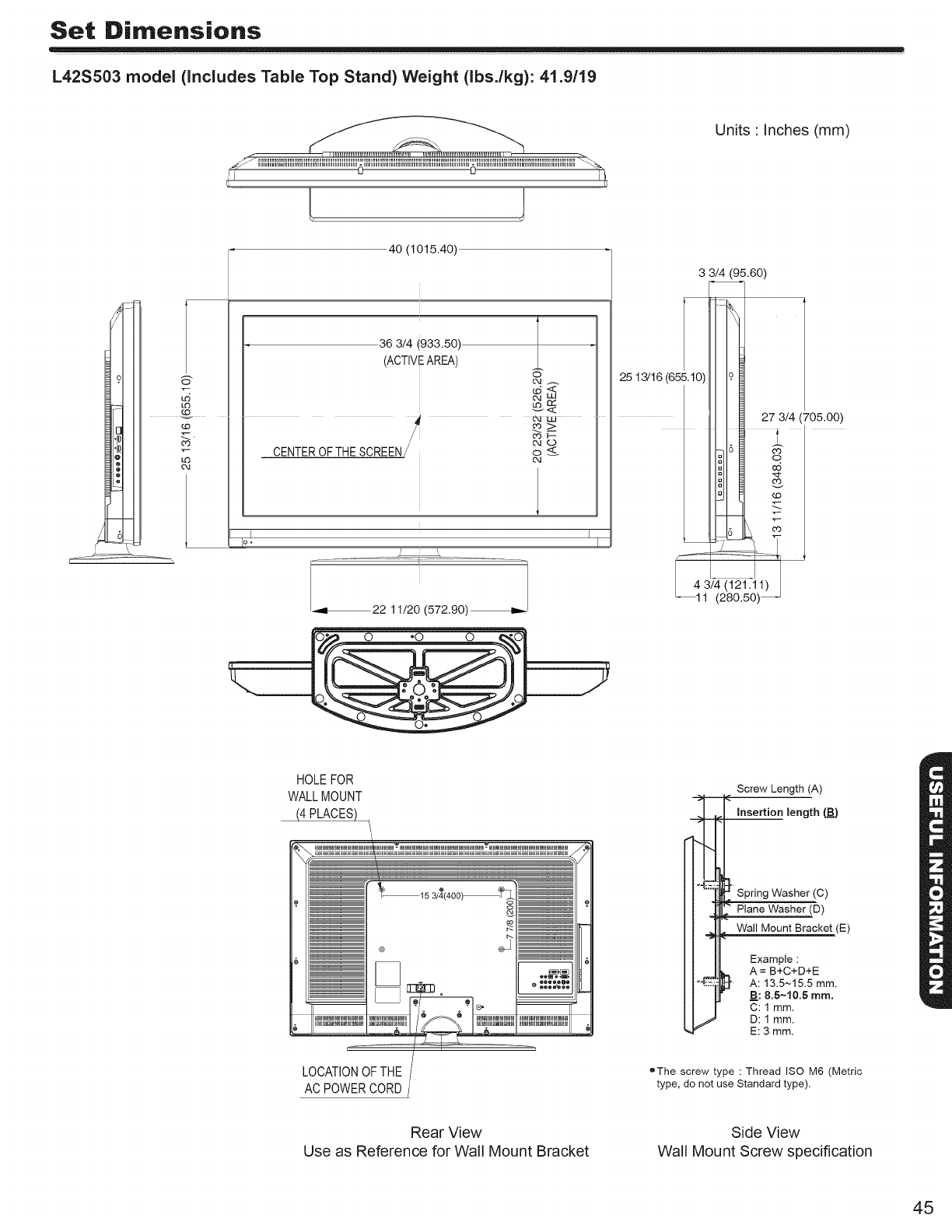
Set Dimensions
L42S503 model (Includes Table Top Stand) Weight (Ibs./kg): 41.9/19
Units Inches (mm)
/
6"
[5
LO
r.D
LO
04
JJ
40 (1015.40)
]
36 3/4 (933.50)
(ACTIVE AREA)
04
04 LM
/o4°
CENTER OF THE SCREEN o
O4
..................._ L_
_22 11/20 (572.90)_
2
3 3/4 (95.60)
HOLEFOR
WALLMOUNT
®
-- 400
Screw Length (A)
_ _nse_ion _en_t_ (B)
} Spring Washer (C)
LOCATIONOFTHE
AC POWERCORD
• The screw type : Thread ISO M6 (Metric
type, do not use Standard type).
Rear View
Use as Reference for Wail Mount Bracket
Side View
Wall Mount Screw specification
45
HiTACHi HOME ELECTRONICS (AMERICA), iNC.
Sincere -Prompt - Efficient
HITACHI
Inspire the Ne×t
HITACHI has made every effort to assure you hours of trouble free operation from your Hitachi product.
Should you require service assistance with OPERATIONAL, HOOK UP, TECHNICAL ASSISTANCE OR WARRANTY
SERVICE SUPPORT, please contact one of our knowledgeable Customer Service Representatives at 800.HITACHI
(800.448.2244).
Our Customer Service Representatives will provide you with the assistance you need and if necessary coordinate the repair
process with a local Authorized Service Facility in your area. Please be prepared to submit proof of purchase and/or delivery
receipts to your 800.HITACHI Customer Service Representative. Warranty coverage wil! be provided in accordance with the
provisions of your Limited Warranty (see the Limited Warranty page in this operating guide).
Pour de plus amples renseignements sur le service durant la p6riode couverte par la garantie, sur le fonctionnement ou pour
de I'assistance technique communiquez avec:
Au Canada: 800.HITACHI 1800.448.2244)
Lundi- Vendredi 8:00 am - 7:00 pm HNC
Samedi 10:00 am - 5:00 pm HNC
Hitachi Home Electronics
(America), Inc.
Customer Service Support
PO Box 3900
Peoria, IL 61612
U.S.A. customerservice.ce@h hea.hitachi.com
Canada: customerservice.ca@hhea.hitachi.com
Customer Record
The MODEL NAME and SERIAL NUMBER of this product is located on the backcover and also on the RIGHT SIDE of the
set. Please follow the next steps to find this information and then record it in the space provided below for use in case you call
800.HITACHI, they will require this information in order to give you the proper support.
O Look on the right side of the set
O Locate the label where it shows the information
related to MODEL NAME and SERIAL #.
800.HITACHI will require this information in
order to give you the proper support regarding
your questions.
Model Name Serial Number
46
Limited Warranty
Congratulations on your purchase of a new Hitachi display product.
LIMITED WARRANTY
Hitachi Home Electronics
(America), inc. warrants this
product in accordance with
the terms and conditions
applicable to the products
identified below:
Conditions of Hitachi Limited Warranty
This Hitachi display product (the "Product") is warranted to be free from defects in materials and workmanship beginning
on the date of purchase by the original owner and continuing for the duration of the applicable time periods specified
below, if the Product is found to be defective, Hitachi will repair or replace (at Hitachi's option) defective parts at no
charge, subject to the conditions of this Limited Warranty. if the original owner rejects, refuses or otherwise does not
accept Hitachi's offer to repair or replace such defective parts under this Limited Warranty, this Limited Warranty shall
be void and of no further force or effect. This Limited Warranty extends to the original owner only and is not transferable,
and such owner must provide a dated sales receipt for the Product to qualify for parts or service under this Limited
Warranty. The original owner must notify Hitachi of a defect claim by calling 800-HITACHI during the applicable Limited
Warranty period for this Limited Warranty to be effective. This Limited Warranty is valid only in the U.S.A. and Puerto
Rico.
Hitachi Product : PARTS: The Limited Warranty period for parts is 1 year from the date of original purchase. During the Limited Warranty
LCD Fiat Panel Televisions period for parts, Hitachi will replace defective parts with new or rebuilt parts (at Hitachi's option) at no charge for such
parts. Any replacement part will be warranted for the remainder of the original warranty period applicable to the part
replaced.
LABOR: The Limited Warranty period for labor is 1 year from the date of original purchase. During the Limited Warranty
period for labor, Hitachi will repair or replace (at Hitachi's option) defective parts without charge for labor.
SERVICE LOCATION: In-home warranty service, which includes either in-home repair or free pick-up and delivery (at
Hitachi's option), applies to all Hitachi product_ except: (i) 32-inch and smaller LCD Fiat Panel Televisions; (ii) Products
located outside the U.S.A. or Puerto Rico; (iii) Products located more than seventy-five (75) driving miles from Hitachi's
nearest Authorized Service Facility. if the f eg_i_l #lauses (i), (ii), (iii)apply, then the Product owner will be responsible
for bringing/delivering the Product to a nitacRi,Authorized Service Facility and, following warranty service, retrieving the
Product from such Authorized Servi_e Fa_i)_y
800-H,TACH
CERTIFIED Please call 800-HITACN!,(8Q0 _ 2244) for operational, hook up or warranty servi, upport.
SERVICE
CENTER Visit our website _ wwwlhi_achi-homeei_ro _ _ Us :
Hitachi is aproud supporter weaUthof nforma i;p od andtech asdownUoadabUeoperatingof the Certified Service Center Hitachi's website f tures
program. Businesses who guides and u_efu!i_ormation.
display the CSC certification
mark have demonstrated that
they operate in accordance
with the high standards of
professionalism prescribed by
the Consortium for Certified ................................................ .......................... ....
Se ,eeCenters ............ __ _iiiiii_I_
IMPORTANT:
Before using or installing ...... __ SERIAL NO.
Product, please complete _EALER NAME, DATE OF PURCHASE
form and attach your sales receipt
and retain them for your records. ....
This will help facilitate proper CiTY STATE
warranty coverage.
Warranty Limitations ...... .........
This Hitachi Limited Warranty does not cover: .....',] =:i } i "' ; ' ....
A. Any Product that has been modified or repaired in a manner not previous{ ,aNthorized by Hitachi in writing.
B. Any Product whose serial number has been removed, altered, repla£_, de{_ed or rendered illegible.
C. Any defect, malfunction, or failure caused by or resulting from im_rope _ una_;thorized service, maintenance or repair.
D. Damage resulting from abuse, misuse, mishandling, neglect q_ _age caused by exposure to hostile operating environments such as areas containing dust and/
or smoke. ' , ',
E. Damage caused by power surges, accidents, natural disablers or _y ether events or circumstances outside Hitachi's control.
F. Any Product used in any manner inconsistent with the #cce_:_ble s_t-u p, usage, safety or installation configurations identified in the Product's Operating Guide.
G. Any Product used for purposes or applications, or su_J te_ t_'operating conditions, other than those identified as acceptable in the Product's Operating Guide.
H. Product repairs (including any product whose case has _e_ bpened), or part replacements provided or installed, by any person other than an Authorized Hitachi
Service Facility Representative.
I. Improper uncrating, set-up or installation or any misadjustments caused by user-operated controls.
J. Any labor or costs associated with removing the Product from a custom cabinet or other specialized product installation that impedes direct and immediate removal
of the Product from the owner's premises (must be arranged and paid by the owner).
K. Product cabinets, cabinet parts, knobs, batteries or accessories.
L. Product screens that have been cleaned by any method other than as specified in the Product's Operating Guide.
M. Normal usage, degraded brightness caused by backlight aging and/or cell defects or ordinary wear and tear, including, without limitation, scratches or marks on the
Product's screen, cabinet or the appearance of bright or dark screen pixels.
N. Any Product returned for service that is damaged due to improper packaging, mishandling or shipping. (IMPORTANT: When shipping any Product to a Hitachi
Authorized Service Facility, Product owner must package it securely in the original shipping container or its equivalent to prevent damage. The Product must be
returned with the shipping charges prepaid and proof of purchases included in the shipping container. Failure to properly package such product during such shipment
will void all warranties.)
O. Any Product purchased or serviced outside the United States of America and Puerto Rico.
R Any Product that has been used for commercial purposes.
NO PERSON, AGENT, DISTRIBUTOR, DEALER, SERVICE FACILITY, OR COMPANY IS AUTHORIZED TO CHANGE, MODIFY OR AMEND THE TERMS OF THIS LIMITED WARRANTY IN
ANY MANNER WHATSOEVER. EXCEPT AS PROVIDED IN THIS LIMITED WARRANTY, HITACHI MAKES NO EXPRESS WARRANTY REGARDING THIS HITACHI PRODUCT. FURTHER,
ALL IMPLIED WARRANTIES RELATING TO ANY PORTION OF THIS PRODUCT, INCLUDING ANY WARRANTY OF MERCHANTABILITY OR FITNESS FOR A PARTICULAR PURPOSE, ARE
LIMITED TO THE DURATION SPECIFIED UNDER THIS LIMITED WARRANTY. HITACHI SHALL NOT BE LIABLE TO THE PURCHASER OR TO ANY OTHER PERSON FOR ANY INCIDENTAL
OR CONSEQUENTIAL DAMAGES OR LOSS OF PROFIT OR PRODUCT RESULTING FROM ANY DEFECT IN, OR MALFUNCTION OR FAILURE OF, THIS HITACHI PRODUCT. BECAUSE
SOME STATES DO NOTALLOW LIMITATIONS ON HOW LONG AN IMPLIED WARRANTY LASTS, OR THE EXCLUSION OF INCIDENTAL OR CONSEQUENTIAL DAMAGES, THE ABOVE
LIMITATIONS MAY NOT APPLY TO YOU. THIS LIMITED WARRANTY CONFERS SPECIFIC LEGAL RIGHTS, INCLUDING CERTAIN OTHER RIGHTS THAT MAY VARY DEPENDING ON
YOUR JURISDICTION.
47
End User License Agreement for HiTACHi DTV Software
END USER LICENSE AGREEMENT FOR HiTACHi DTV SOFTWARE
IMPORTANT - READ CAREFULLY: This End User License Agreement for HITACHI
DTV Software (this "Agreement") is a legal agreement between you ("you" or "your"),
in your capacity as the owner of a HiTACHi brand digital television (the "DTV"), and
HITACHI America, Ltd., Home Electronics Division ("HiTACHi"). By using the DTV
or the digital television software installed on the DTV (the "DTV Software") or any
Upgrade (as defined below, and together with the DTV Software, the "Software"), you
agree to be bound by the terms and conditions of this Agreement. JF YOU DO NOT
AGREE TO BE BOUND BY THIS LICENSE AGREEMENT, DO NOT USE THE DTV
OR THE SOFTWARE.
1. UCENSE GRANT. HITACHm grants to you, for the life of the DTV, a non-
exclusive, non-transferable, revocable license to install and use one copy of the
Software on the DTV, subject to the following limitations and restrictions:
a. You may not share, duplicate, republish or redistribute the Software;
b. You may not resell, rent, lease, sublicense, gift, loan, as sign or otherwise
transfer the Software or any of your rights under this Agreement;
c. You may not modify, adapt, translate, reverse engineer, decompile,
disassemble or make derivative works from the Software or use the
Software in combination with any non-Hitachi software; and
d. You may not use the Software for any commercial purpose.
2. V_OLATmONS; INDEMNITY. You understand and agree that your use of the
Software in any manner except as permitted under this Agreement could
constitute a serious crime and could subject you to damages and an award to
HITACHI of attorneys' fees in connection with your violation of this Agreement.
You further understand that you may be held legally responsible for any
copyright infringement or other violation of intellectual property rights caused
or facilitated by your failure to abide by the terms of this Agreement. You agree
to defend, indemnify and hold HITACHI and its parent and affiliate companies
harmless from and against any and all liability resulting from any breach by you
of this Agreement.
3. INTELLECTUAL PROPERTY. The Software is protected by federal copyright
laws, international copyright treaties and other intellectual property laws and
treaties. The Software is licensed, not sold, to you. All right, title and interest in
and to the Software and any intellectual property associated therewith, including
any accompanying printed materials, shall belong to HiTACHi and its licensors
and suppliers. Except as expressly provided herein, neither HITACHI nor any
of its licensors or suppliers grants to you under this Agreement any express or
implied right in or to any patents, copyrights, trademarks, trade secrets or other
intellectual property. All right, title and interest in and to the intellectual property
rights associated with any content that is accessible through use of the Software
shall belong to the applicable content owners and may be protected by copyright
or other intellectual property laws and treaties. This Agreement grants you no
rights to use such content. Any rights of HITACHi not expressly granted to you
hereunder are reserved expressly by Hitachi.
4. SOFTWARE UPGRADES. In the future, HiTACHi may release or make
available one or more upgrades to the DTV Software (each, an "Upgrade").
You understand and agree that if you decide to install or use any Upgrade, your
installation and use of such Upgrade and/or any other software or intellectual
property HiTACHi may provide in connection therewith shall be governed by
the terms and conditions of this Agreement, except to the extent that HiTACHi
provides different or supplementary license terms or conditions that accompany
such Upgrade or other software or intellectual property. In the event HiTACHi
provides you with a "flash card" or other media to effect or facilitate an Upgrade,
you understand and acknowledge that your failure to return such flash card
or other media to HiTACHi as HITACH_ may require could result in HITACHi
placing your name and your DTV's serial number on a "No Further Upgrades"
list, which will prohibit you from receiving any subsequent Upgrades HITACHi
may later release or make available. IF YOU DO NOT AGREE WITH ALL THE
TERMS AND CONDITIONS OF THIS AGREEMENT OR ALL THE TERMS
AND CONDITIONS OF ANY DIFFERENT OR SUPPLEMENTARY LICENSE
THAT MAY ACCOMPANY SUCH UPGRADE, (A) DO NOT USE ANY HITACHI-
PROVIDED FLASH CARD OR OTHER MEDIA, (B) DO NOT PERFORM
INSTALL ANY HITACHI-PROVIDED UPGRADE SOFTWARE ON YOUR DTV,
AND (C) PROMPTLY RETURN SUCH FLASH CARD OR OTHER MEDIA TO
HITACHI.
6.
7.
8.
9.
10.
11.
government. You warrant and represent that neither the U.S. Bureau of Industry
and Security nor any other U.S federal Agency has suspended, revoked, or
denied your export privileges.
NO WARRANTmES. The software is provided to you in "as is" condition and
HiTACHi makes no warranties of any kind whatsoever regarding the software
and, to the maximum extent permitted by law, hereby expressly disclaims
all warranties of any kind whatsoever, express or implied, with respect to
the software. All implied warranties, including without limitation, the implied
warranties of non-infringement, merchantability and fitness for a particular
purpose are hereby expressly disclaimed by HITACHI to the maximum extent
permitted by law.
LIMITATION OF LIABILITY. To the maximum extent permitted by applicable
law, HITACHI, its licensors, suppliers, parent companies, affiliates, subsidiaries,
employees and agents shall not under any circumstances be liable to you or
any third parties for any damages of any nature arising in any way from this
agreement, your use of the software or otherwise, whether indirect, special,
incidental, consequential or otherwise, including, without limitation, any claims
for lost profits, lost good will, lost data, business interruption, procurement of
substitute goods or services, or expenditures made or committed for in reliance
on the continuation of this agreement, even if advised in advance of the
possibility of such damages.
NO FAILURE OF ESSENTIAL PURPOSE. You agree that neither HITACHI'S
breach of this agreement nor its failure to repair a defect, error or bug in the
software shall constitute a failure of the essential purpose of this agreement.
CRYPTOGRAPHIC SOFTWARE. The software contains software developed by
the OpenSSL Project, including cryptographic software written by eric young
(the "cryptographic software"). The cryptographic software is provided by the
OpenSSL Project in "as is" condition and any express or implied warranties,
including but not limited to, the implied warranties of merchantability and fitness
for a particular purpose are hereby expressly disclaimed to the maximum
extent permitted by law. In no event shall the OpenSSL Project, its contributors,
HiTACHi or any of its parent or affiliate companies be liable for any direct,
indirect, incidental, special, exemplary, or consequential damages (including,
but not limited to, procurement of substitute goods or services; loss of use, data,
or profits; or business interruption) however caused and on any theory of liability,
whether in contract, strict liability, or tort (including negligence or otherwise)
arising in any way out of the use of the software or the cryptographic software,
even if advised in advance of the possibility of such damages.
TERMINATION. HITACHI may terminate this Agreement immediately at any
time by providing notice to you.
GOVERNING LAW; SEVERABmUTY. This Agreement will be governed by the
laws of the State of New York, and you consent to the exclusive jurisdiction and
venue in the federal courts sitting in the Southern District of New York, unless
no federal subject matter jurisdiction exists, in which case you consent to the
exclusive jurisdiction and venue in the Borough of Manhattan, New York, USA.
5. EXPORT RESTRICTIONS. HITACHI is licensing the Software for use within
North America only. You agree that you will not export or re-export the Software.
You specifically agree not to export or reexport the Software: (i) to any country
to which the U.S. has embargoed or restricted the export of goods or services,
which currently include, but are not necessarily limited to Cuba, Iran, Libya,
North Korea, Sudan and Syria, or to any national of any such country, wherever
located, who intends to transmit or transport the Software back to such country;
(ii) to any person or entity who you know or have reason to know will utilize
the Software in the design, development, or production of nuclear, chemical,
or biological weapons; or (iii) to any person or entity who has been prohibited
from participating in U.S. export transactions by any federal agency of the U.S.
48
End User License Agreement for Open Source Software
OPEN SOURCE SOFTWARE LICENSE iNFORMATiON
This Hitachi TV incorporates open source software modules distributed under certain licenses, including the GNU General
Public License Version 3 (as defined by the Free Software Foundation, Inc.).
The open source software modules incorporated in this Hitachi TV are shown in the table below
AC3 decoder liba52.c www.liba52.sourceforge.net GNU General Public License Version 3
PNG decoder libpng 1.0.2 www.libpng.orglpublpngllibpng.html http:llwww.libpng.orglpublpnglsrcl
libpng-LICENSE.txt
zlib Zlib 1.1.3 www.zlib.net http:llwww.zlib.netlzliblicense.html
THESE SOFTWARE MODULES AND THE SOURCE CODE MODIFICATIONS THERETO ARE PROVIDED "AS IS" AND
BOTH THE LICENSORS AND HITACHI DISCLAIM ANY AND ALL WARRANTIES OF ANY KIND, INCLUDING THE IMPLIED
WARRANTY OF MERCHANTABILITY AND OF FITNESS FOR A PARTICULAR PURPOSE.
See above links and the GNU General Public License that appears on the following pages of this Operating Guide for
additional terms and conditions.
If you would like to learn more about the Free Software Foundation, Inc. or the GNU software project, please visit http://www.
fsf.erg. If you would like to request a copy of the Source Code Modifications, please send an email to the following address:
tvsoftwaresupport@hhea.hitachi.com
49
End User License Agreement for Operating System Software
3. Protecting Users' Legal Rights From Anti=Circumvention
TERMS AND CONDiTiONS Law.
O. Definitions.
"This License" refers to version 3 of the GNU General Public License.
"Copyright" also means copyright-like laws that apply to other kinds of works, such
as semiconductor masks.
"The Program" refers to any copyrightable work licensed under this License. Each
licensee is addressed as "you". "Licensees" and "recipients" may be individuals or
organizations.
To "modify" a work means to copy from or adapt all or part of the work in a fashion
requiring copyright permission, other than the making of an exact copy. The resulting
work is called a "modified version" of the earlier work or a work "based on" the earlier
work.
A "covered work" means either the unmodified Program or a work based on the
Program.
To "propagate" a work means to do anything with it that, without permission, would
make you directly or secondarily liable for infringement under applicable copyright
law, except executing it on a computer or modifying a private copy. Propagation
includes copying, distribution (with or without modification), making available to the
public, and in some countries other activities as well.
To "convey" a work means any kind of propagation that enables other parties to
make or receive copies. Mere interaction with a user through a computer network,
with no transfer of a copy, is not conveying.
An interactive user interface displays "Appropriate Legal Notices" to the extent
that it includes a convenient and prominently visible feature that (1) displays an
appropriate copyright notice, and (2) tells the user that there is no warranty for the
work (except to the extent that warranties are provided), that licensees may convey
the work under this License, and how to view a copy of this License. If the interface
presents a list of user commands or options, such as a menu, a prominent item in the
list meets this criterion.
1. Source Code.
The "source code" for a work means the preferred form of the work for making
modifications to it. "Object code" means any non-source form of a work.
A"Standard Interface" means an interface that either is an official standard defined
by a recognized standards body, or, in the case of interfaces specified for a particular
programming language, one that is widely used among developers working in that
language.
The "System Libraries" of an executable work include anything, other than the work
as a whole, that (a) is included in the normal form of packaging a Major Component,
but which is not part of that Major Component, and (b) serves only to enable use
of the work with that Major Component, or to implement a Standard Interface for
which an implementation is available to the public in source code form. A "Major
Component", in this context, means a major essential component (kernel, window
system, and so on) of the specific operating system (if any) on which the executable
work runs, or a compiler used to produce the work, or an object code interpreter
used to run it.
The "Corresponding Source" for a work in object code form means all the source
code needed to generate, install, and (for an executable work) run the object code and
to modify the work, including scripts to control those activities. However, it does not
include the work's System Libraries, or genera!-purpose tools or generally available
free programs which are used unmodified in performing those activities but which are
not part of the work. For example, Corresponding Source includes interface definition
files associated with source files for the work, and the source code for shared libraries
and dynamically linked subprograms that the work is specifically designed to require,
such as by intimate data communication or control flow between those subprograms
and other parts of the work.
The Corresponding Source need not include anything that users can regenerate
automatically from other parts of the Corresponding Source.
The Corresponding Source for a work in source code form is that same work.
2. Basic Permissions.
All rights granted under this License are granted for the term of copyright on the
Program, and are irrevocable provided the stated conditions are met. This License
explicitly affirms your unlimited permission to run the unmodified Program. The output
from running a covered work is covered by this License only if the output, given its
content, constitutes a covered work. This License acknowledges your rights of fair
use or other equivalent, as provided by copyright law.
You may make, run and propagate covered works that you do not convey, without
conditions so long as your license otherwise remains in force. You may convey
covered works to others for the sole purpose of having them make modifications
exclusively for you, or provide you with facilities for running those works, provided
that you comply with the terms of this License in conveying all material for which you
do not control copyright. Those thus making or running the covered works for you
must do so exclusively on your behalf, under your direction and control, on terms
that prohibit them from making any copies of your copyrighted material outside their
relationship with you.
Conveying under any other circumstances is permitted solely under the conditions
stated below. Sublicensing is not allowed; section 10 makes it unnecessary.
No covered work shall be deemed part of an effective technological measure under
any applicable law fulfilling obligations under article 11 of the WlPO copyright treaty
adopted on 20 December 1996, or similar laws prohibiting or restricting circumvention
of such measures.
When you convey a covered work, you waive any legal power to forbid circumvention
of technological measures to the extent such circumvention is effected by exercising
rights under this License with respect to the covered work, and you disclaim any
intention to limit operation or modification of the work as a means of enforcing,
against the work's users, your or third parties' legal rights to forbid circumvention of
technological measures.
4. Conveying Verbatim Copies.
You may convey verbatim copies of the Program's source code as you receive it,
in any medium, provided that you conspicuously and appropriately publish on each
copy an appropriate copyright notice; keep intact all notices stating that this License
and any non-permissive terms added in accord with section 7 apply to the code; keep
intact all notices of the absence of any warranty; and give all recipients a copy of this
License along with the Program.
You may charge any price or no price for each copy that you convey, and you may
offer support or warranty protection for a fee.
5. Conveying Modified Source Versions.
You may convey a work based on the Program, or the modifications to produce it
from the Program, in the form of source code under the terms of section 4, provided
that you also meet all of these conditions:
a) The work must carry prominent notices stating that you modified it, and
giving a relevant date.
b) The work must carry prominent notices stating that it is released under
this License and any conditions added under section 7. This requirement
modifies the requirement in section 4 to "keep intact all notices".
c) You must license the entire work, as a whole, under this License to anyone
who comes into possession of a copy. This License will therefore apply, along
with any applicable section 7 additional terms, to the whole of the work, and
all its parts, regardless of how they are packaged. This License gives no
permission to license the work in any other way, but it does not invalidate
such permission if you have separately received it.
d) If the work has interactive user interfaces, each must display Appropriate
Legal Notices; however, if the Program has interactive interfaces that do not
display Appropriate Legal Notices, your work need not make them do so.
A compilation of a covered work with other separate and independent works, which
are not by their nature extensions of the covered work, and which are not combined
with it such as to form a larger program, in or on a volume of a storage or distribution
medium, is called an "aggregate" if the compilation and its resulting copyright are not
used to limit the access or legal rights of the compilation's users beyond what the
individual works permit. Inclusion of a covered work in an aggregate does not cause
this License to apply to the other parts of the aggregate.
6. Conveying Non-Source Forms.
You may convey a covered work in object code form under the terms of sections
4 and 5, provided that you also convey the machine-readable Corresponding Source
under the terms of this License, in one of these ways:
a) Convey the object code in, or embodied in, a physical product (including
a physical distribution medium), accompanied by the Corresponding
Source fixed on a durable physical medium customarily used for software
interchange.
b) Convey the object code in, or embodied in, a physical product (including a
physical distribution medium), accompanied by a written offer, valid for at least
three years and valid for as long as you offer spare parts or customer support
for that product model, to give anyone who possesses the object code either
(1) a copy of the Corresponding Source for all the software in the product
that is covered by this License, on a durable physical medium customarily
used for software interchange, for a price no more than your reasonable cost
of physically performing this conveying of source, or (2) access to copy the
Corresponding Source from a network server at no charge.
c) Convey individual copies of the object code with a copy of the written
offer to provide the Corresponding Source. This alternative is allowed only
occasionally and noncommercially, and only if you received the object code
with such an offer, in accord with subsection 6b.
d) Convey the object code by offering access from a designated place
(gratis or for a charge), and offer equivalent access to the Corresponding
Source in the same way through the same place at no further charge. You
need not require recipients to copy the Corresponding Source along with
the object code. If the place to copy the object code is a network server,
the Corresponding Source may be on a different server (operated by you
or a third party) that supports equivalent copying facilities, provided you
maintain clear directions next to the object code saying where to find the
Corresponding Source. Regardless of what server hosts the Corresponding
Source, you remain obligated to ensure that it is available for as long as
needed to satisfy these requirements.
5O
End User License Agreement for Operating System Software
e) Convey the object code using peer-to-peer transmission, provided you or a notice indicating where to find the applicable terms.
inform other peers where the object code and Corresponding Source of the
work are being offered to the general public at no charge under subsection Additional terms, permissive or non-permissive, may be stated in the form of a
6d. separately written license, or stated as exceptions; the above requirements apply
A separable portion of the object code, whose source code is excluded from the either way.
Corresponding Source as a System Library, need not be included in conveying the
object code work. 8. Termination.
A "User Product" is either (1) a "consumer product", which means any tangible
personal property which is normally used for personal, family, or household purposes,
or (2) anything designed or sold for incorporation into a dwelling. In determining
whether a product is a consumer product, doubtful cases shall be resolved in favor of
coverage. For a particular product received by a particular user, "normally used" refers
to a typical or common use of that class of product, regardless of the status of the
particular user or of the way in which the particular user actually uses, or expects or is
expected to use, the product. A product is a consumer product regardless of whether
the product has substantial commercial, industrial or non-consumer uses, unless such
uses represent the only significant mode of use of the product.
"Installation Information" for a User Product means any methods, procedures,
authorization keys, or other information required to install and execute modified
versions of a covered work in that User Product from a modified version of its
Corresponding Source. The information must suffice to ensure that the continued
functioning of the modified object code is in no case prevented or interfered with solely
because modification has been made.
If you convey an object code work under this section in, or with, or specifically for
use in, a User Product, and the conveying occurs as part of a transaction in which
the right of possession and use of the User Product is transferred to the recipient in
perpetuity or for a fixed term (regardless of how the transaction is characterized),
the Corresponding Source conveyed under this section must be accompanied by the
installation information. But this requirement does not apply if neither you nor any
third party retains the ability to install modified object code on the User Product (for
example, the work has been installed in ROM).
The requirement to provide Installation Information does not include a requirement
to continue to provide support service, warranty, or updates for a work that has been
modified or installed by the recipient, or for the User Product in which it has been
modified or installed. Access to a network may be denied when the modification itself
materially and adversely affects the operation of the network or violates the rules and
protocols for communication across the network.
Corresponding Source conveyed, and installation Information provided, in accord
with this section must be in a format that is publicly documented (and with an
implementation available to the public in source code form), and must require no
special password or key for unpacking, reading or copying.
7. Additional Terms.
"Additional permissions" are terms that supplement the terms of this License by
making exceptions from one or more of its conditions. Additional permissions that
are applicable to the entire Program shall be treated as though they were included
in this License, to the extent that they are valid under applicable law. If additional
permissions apply only to part of the Program, that part may be used separately under
those permissions, but the entire Program remains governed by this License without
regard to the additional permissions.
When you convey a copy of a covered work, you may at your option remove any
additional permissions from that copy, or from any part of it. (Additional permissions
may be written to require their own removal in certain cases when you modify the
work.) You may place additional permissions on material, added by you to a covered
work, for which you have or can give appropriate copyright permission.
Notwithstanding any other provision of this License, for material you add to a
covered work, you may (if authorized by the copyright holders of that material)
supplement the terms of this License with terms:
a) Disclaiming warranty or limiting liability differently from the terms of
sections 15 and 16 of this License; or
b) Requiring preservation of specified reasonable legal notices or author
attributions in that material or in the Appropriate Legal Notices displayed by
works containing it; or
c) Prohibiting misrepresentation of the origin of that material, or requiring that
modified versions of such material be marked in reasonable ways as different
from the original version; or
d) Limiting the use for publicity purposes of names of licensors or authors of
the material; or
e) Declining to grant rights under trademark law for use of some trade names,
trademarks, or service marks; or
f) Requiring indemnification of licensors and authors of that material by
anyone who conveys the material (or modified versions of it) with contractual
assumptions of liability to the recipient, for any liability that these contractual
assumptions directly impose on those licensors and authors.
All other non-permissive additional terms are considered "further restrictions"
within the meaning of section 10. If the Program as you received it, or any part of it,
contains a notice stating that it is governed by this License along with a term that is a
further restriction, you may remove that term. If a license document contains a further
restriction but permits relicensing or conveying under this License, you may add to a
covered work material governed by the terms of that license document, provided that
the further restriction does not survive such relicensing or conveying.
If you add terms to a covered work in accord with this section, you must place, in
the relevant source files, a statement of the additional terms that apply to those files,
You may not propagate or modify a covered work except as expressly provided
under this License. Any attempt otherwise to propagate or modify it is void, and will
automatically terminate your rights under this License (including any patent licenses
granted under the third paragraph of section 11).
However, if you cease all violation of this License, then your license from a particular
copyright holder is reinstated (a) provisionally, unless and until the copyright holder
explicitly and finally terminates your license, and (b) permanently, if the copyright
holder fails to notify you of the violation by some reasonable means prior to 60 days
after the cessation.
Moreover, your license from a particular copyright holder is reinstated permanently
if the copyright holder notifies you of the violation by some reasonable means, this is
the first time you have received notice of violation of this License (for any work) from
that copyright holder, and you cure the violation prior to 30 days after your receipt of
the notice.
Termination of your rights under this section does not terminate the licenses of
parties who have received copies or rights from you under this License. If your rights
have been terminated and not permanently reinstated, you do not qualify to receive
new licenses for the same material under section 10.
9. Acceptance Not Required for Having Copies.
You are not required to accept this License in order to receive or run a copy of the
Program. Ancillary propagation of a covered work occurring solely as a consequence
of using peer-to-peer transmission to receive a copy likewise does not require
acceptance. However, nothing other than this License grants you permission to
propagate or modify any covered work. These actions infringe copyright if you do
not accept this License. Therefore, by modifying or propagating a covered work, you
indicate your acceptance of this License to do so.
10. Automatic Licensing of Downstream Recipients.
Each time you convey a covered work, the recipient automatically receives a
license from the original licensors, to run, modify and propagate that work, subject
to this License. You are not responsible for enforcing compliance by third parties with
this License.
An "entity transaction" is a transaction transferring control of an organization,
or substantially all assets of one, or subdividing an organization, or merging
organizations. If propagation of a covered work results from an entity transaction,
each party to that transaction who receives a copy of the work also receives whatever
licenses to the work the party's predecessor in interest had or could give under the
previous paragraph, plus a right to possession of the Corresponding Source of the
work from the predecessor in interest, if the predecessor has it or can get it with
reasonable efforts.
You may not impose any further restrictions on the exercise of the rights granted or
affirmed under this License. For example, you may not impose a license fee, royalty,
or other charge for exercise of rights granted under this License, and you may not
initiate litigation (including a cross-claim or counterclaim in a lawsuit) alleging that any
patent claim is infringed by making, using, selling, offering for sale, or importing the
Program or any portion of it.
11. Patents.
A "contributor" is a copyright holder who authorizes use under this License of the
Program or a work on which the Program is based. The work thus licensed is called
the contributor's "contributor version".
A contributor's "essential patent claims" are all patent claims owned or controlled
by the contributor, whether already acquired or hereafter acquired, that would be
infringed by some manner, permitted by this License, of making, using, or selling
its contributor version, but do not include claims that would be infringed only as a
consequence of further modification of the contributor version. For purposes of
this definition, "control" includes the right to grant patent sublicenses in a manner
consistent with the requirements of this License.
Each contributor grants you a non-exclusive, worldwide, royalty-free patent license
under the contributor's essential patent claims, to make, use, sell, offer for sale, import
and otherwise run, modify and propagate the contents of its contributor version.
In the following three paragraphs, a "patent license" is any express agreement
or commitment, however denominated, not to enforce a patent (such as an express
permission to practice a patent or covenant not to sue for patent infringement).
To "grant" such a patent license to a party means to make such an agreement or
commitment not to enforce a patent against the party.
51
End User License Agreement for Operating System Software
If you convey a covered work, knowingly relying on a patent license, and the
Corresponding Source of the work is not available for anyone to copy, free of charge
and under the terms of this License, through a publicly available network server or
other readily accessible means, then you must either (1) cause the Corresponding
Source to be so available, or (2) arrange to deprive yourself of the benefit of the
patent license for this particular work, or (3) arrange, in a manner consistent with the
requirements of this License, to extend the patent license to downstream recipients.
"Knowingly relying" means you have actual knowledge that, but for the patent license,
your conveying the covered work in a country, or your recipient's use of the covered
work in a country, would infringe one or more identifiable patents in that country that
you have reason to believe are valid.
If, pursuant to or in connection with a single transaction or arrangement, you
convey, or propagate by procuring conveyance of, a covered work, and grant a patent
license to some of the parties receiving the covered work authorizing them to use,
propagate, modify or convey a specific copy of the covered work, then the patent
license you grant is automatically extended to all recipients of the covered work and
works based on it.
A patent license is "discriminatory" if it does not include within the scope of its
coverage, prohibits the exercise of, or is conditioned on the non-exercise of one
or more of the rights that are specifically granted under this License. You may not
convey a covered work if you are a party to an arrangement with a third party that is
in the business of distributing software, under which you make payment to the third
party based on the extent of your activity of conveying the work, and under which
the third party grants, to any of the parties who would receive the covered work
from you, a discriminatory patent license (a) in connection with copies of the covered
work conveyed by you (or copies made from those copies), or (b) primarily for and
in connection with specific products or compilations that contain the covered work,
unless you entered into that arrangement, or that patent license was granted, prior
to 28 March 2007.
Nothing in this License shall be construed as excluding or limiting any implied
license or other defenses to infringement that may otherwise be available to you
under applicable patent law.
16. Limitation of Liability.
IN NO EVENT UNLESS REQUIRED BY APPLICABLE LAW OR AGREED TO
IN WRITING WILL ANY COPYRIGHT HOLDER, OR ANY OTHER PARTY WHO
MODIFIES AND/OR CONVEYS THE PROGRAM AS PERMITTED ABOVE, BE
LIABLE TO YOU FOR DAMAGES, INCLUDING ANY GENERAL, SPECIAL,
INCIDENTAL OR CONSEQUENTIAL DAMAGES ARISING OUT OF THE USE OR
INABILITY TO USE THE PROGRAM (INCLUDING BUT NOT LIMITED TO LOSS
OF DATA OR DATA BEING RENDERED INACCURATE OR LOSSES SUSTAINED
BY YOU OR THIRD PARTIES OR A FAILURE OF THE PROGRAM TO OPERATE
WITH ANY OTHER PROGRAMS), EVEN IF SUCH HOLDER OR OTHER PARTY
HAS BEEN ADVISED OF THE POSSIBILITY OF SUCH DAMAGES.
17. interpretation of Sections 15 and 16.
If the disclaimer of warranty and limitation of liability provided above cannot be
given local legal effect according to their terms, reviewing courts shall apply local law
that most closely approximates an absolute waiver of all civil liability in connection
with the Program, unless a warranty or assumption of liability accompanies a copy of
the Program in return for a fee.
12. No Surrender of Others' Freedom.
If conditions are imposed on you (whether by court order, agreement or
otherwise) that contradict the conditions of this License, they do not excuse you
from the conditions of this License. If you cannot convey a covered work so as to
satisfy simultaneously your obligations under this License and any other pertinent
obligations, then as a consequence you may not convey it at all. For example, if you
agree to terms that obligate you to collect a royalty for further conveying from those to
whom you convey the Program, the only way you could satisfy both those terms and
this License would be to refrain entirely from conveying the Program.
13. Use with the GNU Affero General Public License.
Notwithstanding any other provision of this License, you have permission to link or
combine any covered work with a work licensed under version 3 of the GNU Affero
General Public License into a single combined work, and to convey the resulting
work. The terms of this License will continue to apply to the part which is the covered
work, but the special requirements of the GNU Affero General Public License, section
13, concerning interaction through a network will apply to the combination as such.
14. Revised Versions of this License.
The Free Software Foundation may publish revised and/or new versions of the
GNU General Public License from time to time. Such new versions will be similar
in spirit to the present version, but may differ in detail to address new problems or
concerns.
Each version is given a distinguishing version numben If the Program specifies
that a certain numbered version of the GNU General Public License "or any later
version" applies to it, you have the option of following the terms and conditions either
of that numbered version or of any later version published by the Free Software
Foundation. If the Program does not specify a version number of the GNU General
Public License, you may choose any version ever published by the Free Software
Foundation.
If the Program specifies that a proxy can decide which future versions of the GNU
General Public License can be used, that proxy's public statement of acceptance of a
version permanently authorizes you to choose that version for the Program.
Later license versions may give you additional or different permissions. However,
no additional obligations are imposed on any author or copyright holder as a result of
your choosing to follow a later version.
15. Disclaimer of Warranty.
THERE IS NO WARRANTY FOR THE PROGRAM, TO THE EXTENT
PERMITTED BY APPLICABLE LAW. EXCEPT WHEN OTHERWISE STATED IN
WRITING THE COPYRIGHT HOLDERS AND/OR OTHER PARTIES PROVIDE THE
PROGRAM "AS IS" WITHOUT WARRANTY OF ANY KIND, EITHER EXPRESSED
OR IMPLIED, iNCLUDING, BUT NOT MMITED TO, THE IMPLIED WARRANTIES
OF MERCHANTABILITY AND FITNESS FOR A PARTICULAR PURPOSE. THE
ENTIRE RISKAS TO THE QUALITY AND PERFORMANCE OF THE PROGRAM IS
WITH YOU. SHOULD THE PROGRAM PROVE DEFECTIVE, YOU ASSUME THE
COST OF ALL NECESSARY SERVICING, REPAIR OR CORRECTION.
52
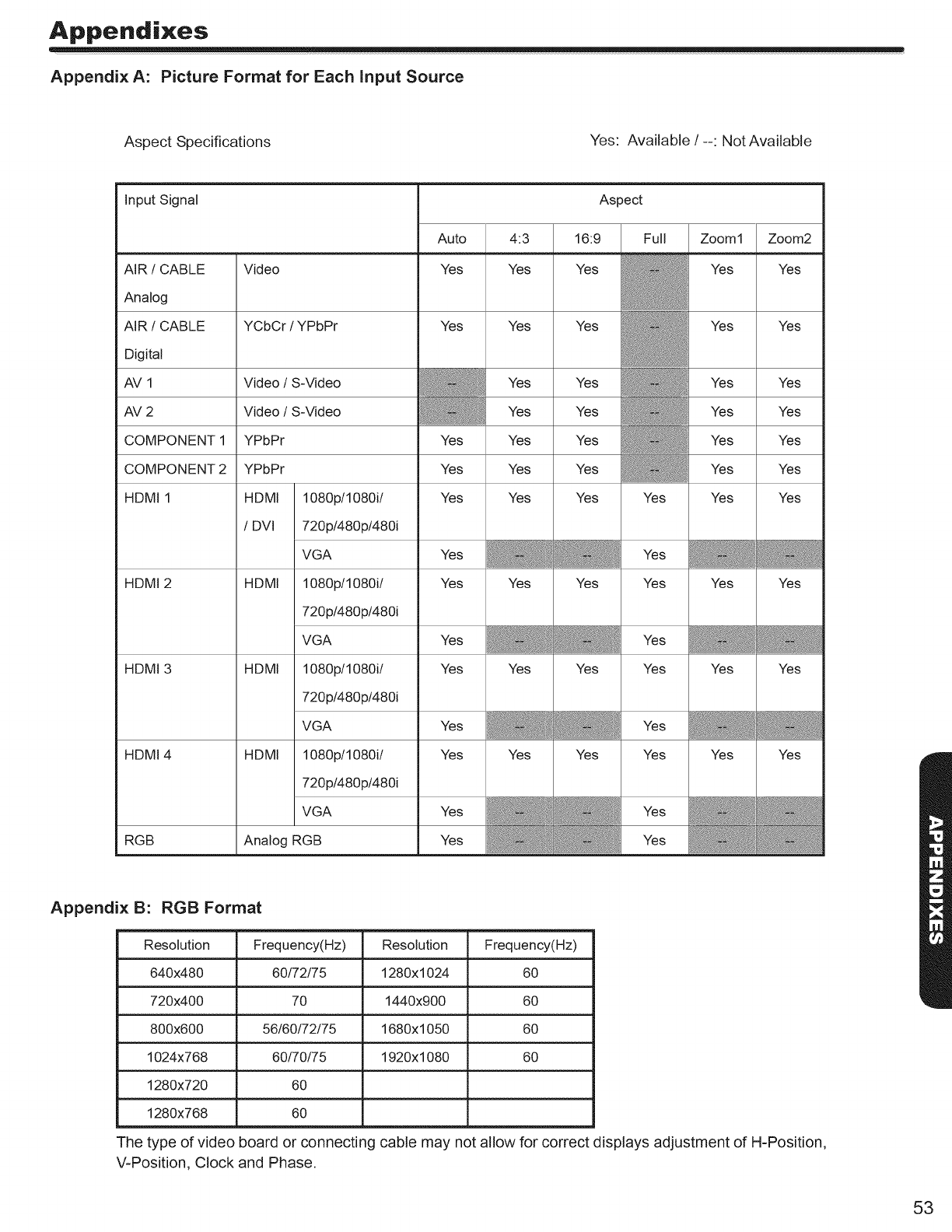
Appendixes
Appendix A: Picture Format for Each input Source
Aspect Specifications Yes: Available /--: Not Available
Input Signal
AIR /CABLE
Analog
AIR /CABLE
Digital
AV1
AV2
COMPONENT 1
COMPONENT 2
HDMI 1
HDMI 2
HDMI 3
Video
YCbCr /YPbPr
Video /S-Video
Video /S-Video
YPbPr
YPbPr
HDMI I
/BY1 I
HDMI I
Auto
Yes
HDMI 4
RGB
HDMI I
HDMI I
1080p/1080i/
720p/480p/480i
VGA
1080p/1080i/
720p/480p/480i
VGA
1080p/1080i/
720p/480p/480i
VGA
1080p/1080i/
720p/480p/480i
VGA
Analog RGB
Yes
Yes
Yes
Yes
Yes
Yes
4:3
Yes
Yes
Yes
Yes
Yes
Yes
Yes
Yes
Zoom1 Zoom2
Yes Yes
Yes Yes
Yes
Yes
Yes
Yes
Yes
Yes
Yes
Yes
Yes
Yes
Yes
Aspect
16:9 Full
Yes
Yes
Yes
Yes
Yes
Yes
Yes Yes
Yes
Yes Yes
Yes
Yes Yes
Yes
Yes Yes
Yes
Yes
Yes
Yes
Yes Yes Yes Yes
Yes Yes
Yes
Yes
Yes
Yes
Yes
Appendix B: RGB Format
Resolution Frequency(Hz) Resolution Frequency(Hz)
640x480 60/72/75 1280xl 024 60
720x400 70 1440x900 60
800x600 56/60/72/75 1680xl 050 60
1024x768 60/70/75 1920x1080 60
1280x720 60
1280x768 60
The type of video board or connecting cable may not allow for correct displays adjustment of H-Position,
V-Position, Clock and Phase.
53
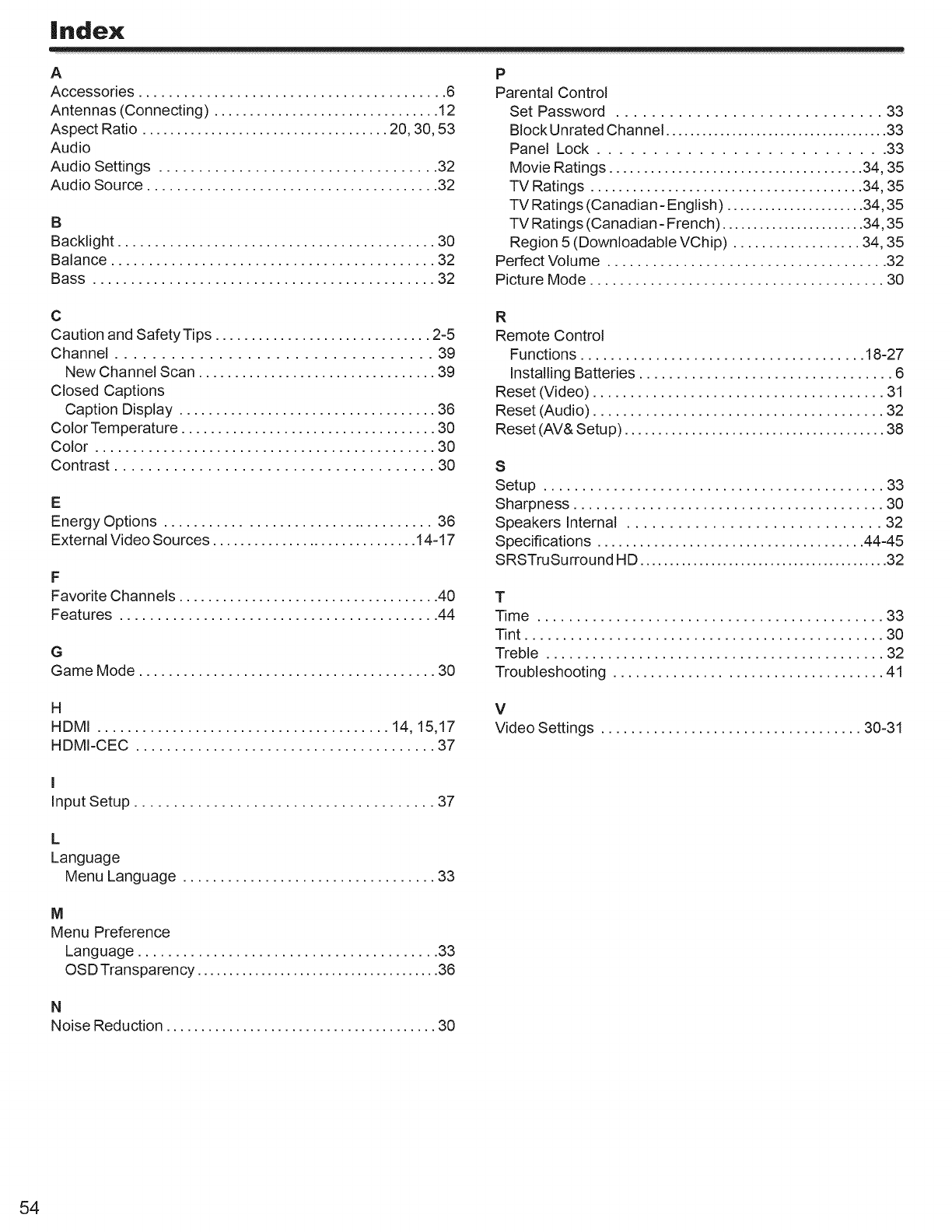
Index
A
Accessories ......................................... 6
Antennas (Connecting) ................................ 12
Aspect Ratio .................................... 20, 30, 53
Audio
Audio Settings ................................... 32
Audio Source ....................................... 32
B
Backlight ........................................... 30
Balance ........................................... 32
Bass ............................................. 32
P
Parental Control
Set Password .............................. 33
Block Unrated Channel ..................................... 33
Panel Lock .......................... 33
Movie Ratings ..................................... 34, 35
TV Ratings ....................................... 34, 35
TV Ratings (Canadian- English) ...................... 34, 35
TV Ratings (Canadian- French) ....................... 34, 35
Region 5 (Downloadable VChip) .................. 34, 35
Perfect Volume ..................................... 32
Picture Mode ....................................... 30
C
Caution and Safety Tips .............................. 2-5
Channel .................................. 39
New Channel Scan ................................. 39
Closed Captions
Caption Display ................................... 36
Color Temperature ................................... 30
Color ............................................. 30
Contrast ...................................... 30
E
Energy Options .................................... 36
External Video Sources .............................. 14-17
F
Favorite Channels .................................... 40
Features .......................................... 44
G
Game Mode ........................................ 30
R
Remote Control
Functions ...................................... 18-27
Installing Batteries .................................. 6
Reset (Video) ....................................... 31
Reset (Audio) ....................................... 32
Reset (AV& Setup) ....................................... 38
S
Setup ............................................ 33
Sharpness ......................................... 30
Speakers Internal .............................. 32
Specifications ...................................... 44-45
SRSTruSurround HD .......................................... 32
T
Time ............................................ 33
Tint ............................................... 30
Treble ............................................ 32
Troubleshooting .................................... 41
H
HDMI ....................................... 14, 15,17
HDMI-CEC ....................................... 37
V
Video Settings ................................... 30-31
I
Input Setup ...................................... 37
L
Language
Menu Language .................................. 33
M
Menu Preference
Language ........................................ 33
OSD Transparency ...................................... 36
N
Noise Reduction ....................................... 30
54

Notes
55

Notes
56
