Honeywell 1450g Xenon 1900 Quick Start Guide User Manual To The B5f19482 6ab2 4891 9157 E6476f673faa
User Manual: Honeywell 1450g to the manual
Open the PDF directly: View PDF  .
.
Page Count: 14
- Voyager™ 1450g Series Quick Start Guide
- Getting Started
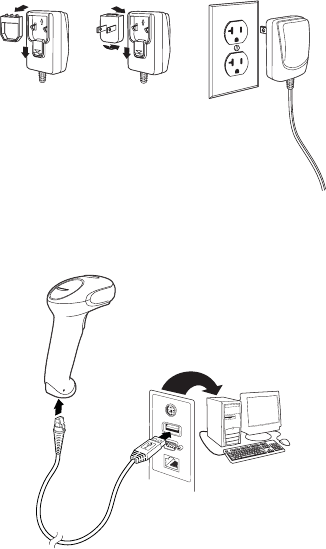
- Power Supply Assembly (if included)
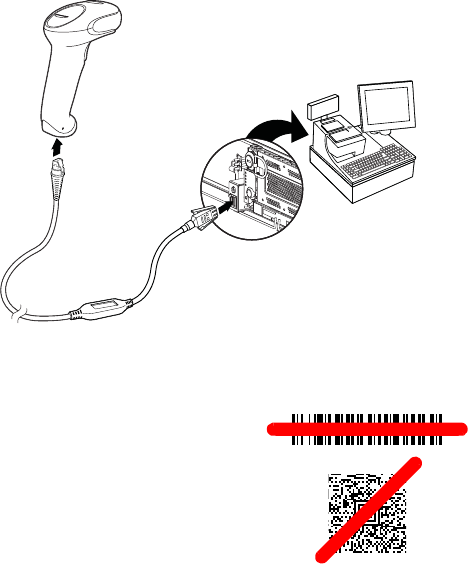
- Connecting the Scanner
- USB:
- Keyboard Wedge:
- RS232 Serial Port:
- RS485:
- Reading Techniques
- Standard Product Defaults
- RS485 Interface
- Keyboard Country
- Trigger
- Suffix
- Add Code ID Prefix to all Symbologies
- Function Code Transmit
- Data Format Editor Instructions
- Programming Chart
- EZConfig-Scanning
- Technical Assistance
- Limited Warranty
- Patents
- User Documentation
- Disclaimer

Voyager™ 1450g Series
Corded Area-Imaging Scanner
Quick Start Guide
VG1450-QS Rev A
11/14
Aller à www.honeywellaidc.com pour le français.
Vai a www.honeywellaidc.com per l'italiano.
Gehe zu www.honeywellaidc.com für Deutsch.
Ir a www.honeywellaidc.com para español.
Para Português, acesse www.honeywellaidc.com.br.
Перейти на русскоязычный сайт www.honeywellaidc.com.
Pro češtinu jdi na www.honeywellaidc.com.
Pre slovenčinu choď na www.honeywellaidc.com
日本語 : www.honeywellaidc.com をご覧ください。
如要到中国 www.honeywellaidc.com(简体)。
한글 www.honeywellaidc.com 로 이동합니다 .
Power Supply Assembly (if included)
Connecting the Scanner
USB:

Keyboard Wedge:
RS232 Serial Port:
RS485:
Reading Techniques
The view finder projects an aiming
beam that should be centered over the
bar code, but it can be positioned in any
direction for a good read.
Hold the scanner over the bar code,
press the button, and center the aiming
beam on the bar code.
The aiming beam is smaller when the
scanner is closer to the code and larger
when it is farther from the code. Hold
the scanner close to smaller bar codes,
and farther away from large bar codes
to get a proper read.

If the bar code is highly reflective (e.g., laminated), you may need to
tilt the scanner at an angle so the bar code can be scanned.
Standard Product Defaults
The following bar code resets all standard product default settings.
Standard Product Defaults
Note: PDF and 2D bar codes can only be read by Voyager model
1450g2D and cannot be read by model 1450g1D.
RS485 Interface
The RS485 interface defaults to port 5B. If you have an IBM POS
terminal using port 9B, scan the appropriate code below to program
the terminal, then power cycle the cash register.
IBM Port 9B HHBCR-1
Interface
IBM Port 9B HHBCR-2
Interface
Note: For additional RS485 interface selections, see the User’s
Guide for your product at our website,
www.honeywellaidc.com.
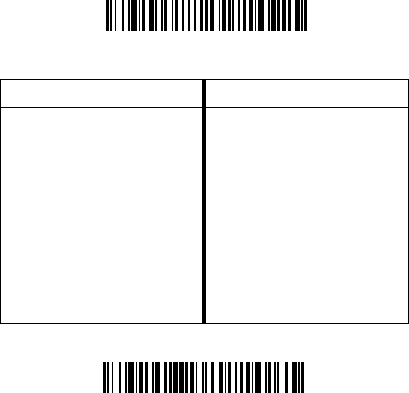
Keyboard Country
Scan the Program Keyboard Country bar code below, then scan
the numeric bar code(s) from page 11, then the Save bar code to
program the keyboard for your country. As a general rule, the
following characters are not supported by the scanner for countries
other than the United States:
@ | $ # { } [ ] = / ‘ \ < > ~.
Program Keyboard Country
Country Code Scan Country Code Scan
Belgium 1Italy 5
Brazil 16 Japan 28
Czechoslovakia 15 Latin America 14
Denmark 8Russia 26
Finland 2Slovakia 22
France 3Spain 10
Germany/Austria 4Switzerland 6
Great Britain 7USA (Default) 0
Norway 9
Save
Note: For a complete list of country codes, see the User’s Guide for
your product at our website, www.honeywellaidc.com.

Trigger
The following bar codes will allow you to use the scanner in Manual
Trigger - Normal Mode (need to press the button to read) or
Presentation mode (the scanner is activated when it “sees” a bar
code).
Manual Trigger - Normal
(Default)
Presentation Mode
Suffix
If you want a carriage return after the bar code, scan the Add CR
Suffix bar code. To add a tab after the bar code, scan the Add Tab
Suffix bar code. Otherwise, scan the Remove Suffix bar code to
remove the suffixes.
Add CR Suffix
Remove Suffix
Add Tab Suffix

Add Code ID Prefix to all Symbologies
Scan the following bar code if you wish to add a Code ID prefix to all
symbologies at once.
Add Code ID Prefix To All Symbologies
(Temporary)
Note: For a complete list of Code IDs, see the User’s Guide for your
product at our website, www.honeywellaidc.com.
Function Code Transmit
When this selection is enabled and function codes are contained
within the scanned data, the scanner transmits the function code to
the terminal. Charts of these function codes are provided in your
User’s Guide. When the scanner is in keyboard wedge mode, the
scan code is converted to a key code before it is transmitted.
Enable
(Default)
Disable

Data Format Editor Instructions
The following are abbreviated instructions for entering a data format.
For complete instructions refer to your User’s Guide, available at our
website, www.honeywellaidc.com.
1. Scan the Enter Data Format symbol.
2. Primary/Alternate Format: scan 0 for Primary Format
3. Terminal Type: scan 099 for any terminal type
4. Code I.D.: scan 99 for any bar code type
5. Length: scan 9999 for any length bar code.
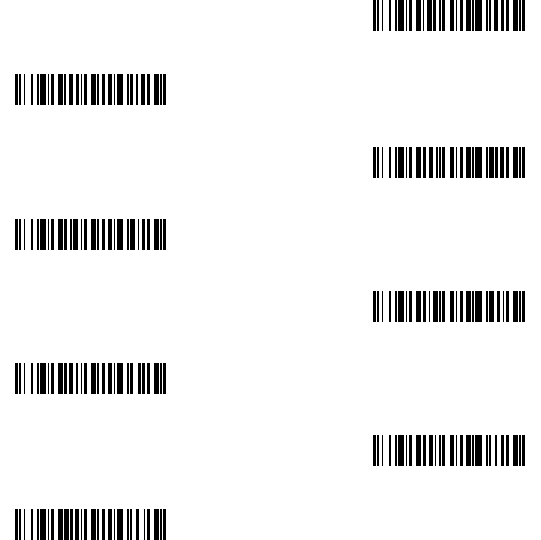
6. Editor commands: use the Programming Chart that follows.
7. Scan Save to save your entries.
Enter Data Format
Clear All Data Formats
Save
Programming Chart
0
2
1
4
3
5
6
7
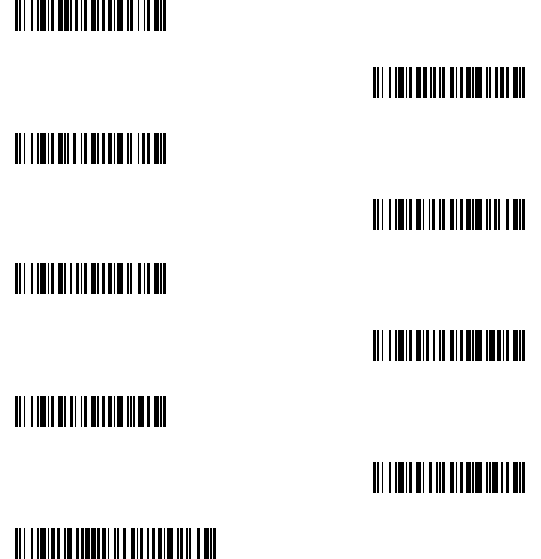
A
B
C
D
E
F
9
8
Save
EZConfig-Scanning
To access additional features for the scanner use EZConfig-Scanning, an
online configuration software tool, available from our website at www.honey-
wellaidc.com.
Technical Assistance
Contact information for technical support, product service, and repair can be
found at www.honeywellaidc.com.
Limited Warranty
Refer to www.honeywellaidc.com/warranty_information for your product’s
warranty information.
Patents
For patent information, refer to www.hsmpats.com.
User Documentation
For localized versions of this document, and to download the User’s Guide,
go to www.honeywellaidc.com.
Disclaimer
Honeywell International Inc. (“HII”) reserves the right to make changes in
specifications and other information contained in this document without prior
notice, and the reader should in all cases consult HII to determine whether
any such changes have been made. The information in this publication does
not represent a commitment on the part of HII.
HII shall not be liable for technical or editorial errors or omissions contained
herein; nor for incidental or consequential damages resulting from the fur-
nishing, performance, or use of this material.
This document contains proprietary information that is protected by copy-
right. All rights are reserved. No part of this document may be photocopied,
reproduced, or translated into another language without the prior written con-
sent of HII.
2014 Honeywell International Inc. All rights reserved.
Web Address: www.honeywellaidc.com
