Honeywell 3800Ghd Barcode Reader Users Manual 3800g UG Rev C
3800gHD to the manual f8978746-0c41-4278-b0ca-3a35a54a05d8
3800G_ug
2015-01-23
: Honeywell Honeywell-Honeywell-3800Ghd-Barcode-Reader-3800Ghd-Users-Manual-261133 honeywell-honeywell-3800ghd-barcode-reader-3800ghd-users-manual-261133 honeywell pdf
Open the PDF directly: View PDF  .
.
Page Count: 156 [warning: Documents this large are best viewed by clicking the View PDF Link!]
- 3800g/3800gHD/3800gPDF General Purpose Handheld Linear Imager User's Guide
- Table of Contents
- Getting Started
- Terminal Interfaces
- Output
- Data Editing
- Data Formatting
- Secondary Interface
- Symbologies
- Introduction
- Message Length
- Codabar Start / Stop Characters
- Codabar Check Character
- Codabar Concatenation
- Codabar Message Length
- Code 39 Start / Stop Characters
- Code 39 Check Character
- Code 39 Message Length
- Code 39 Append
- Full ASCII
- Code 39 Code Page
- Check Digit
- Interleaved 2 of 5 Message Length
- Code 93 Message Length
- Code 93 Code Page
- Straight 2 of 5 Industrial Message Length
- Straight 2 of 5 IATA Message Length
- Matrix 2 of 5 Message Length
- Check Digits Required
- Code 11 Message Length
- ISBT 128 Concatenation
- Code 128 Message Length
- Code 128 Code Page
- Code 128 Function Code Transmit
- Telepen Output
- Telepen Message Length
- UPC A Check Digit
- UPC A Number System
- UPC A Addenda
- UPC A Addenda Required
- UPC A Addenda Separator
- UPC E0 and UPC E1
- UPC E0 and UPC E1 Expand
- UPC E0 and UPC E1 Addenda Required
- UPC E0 and UPC E1 Addenda Separator
- UPC E0 Check Digit
- UPC E0 Number System
- UPC E0 Addenda
- EAN/JAN 13 Check Digit
- EAN/JAN 13 Addenda
- EAN/JAN 13 Addenda Required
- EAN/JAN 13 Addenda Separator
- ISBN Translate
- EAN/JAN 8 Check Digit
- EAN/JAN 8 Addenda
- EAN/JAN 8 Addenda Required
- EAN/JAN 8 Addenda Separator
- MSI Check Character
- MSI Message Length
- Plessey Message Length
- GS1 DataBar Expanded Message Length
- Korea Post Message Length
- PosiCode Message Length
- Codablock F Message Length
- Code 16K Message Length
- Code 49 Message Length
- PDF417 Message Length
- MicroPDF417 Message Length
- UPC/EAN Version
- GS1 Composite Code Message Length
- Interface Keys
- Utilities
- Visual Xpress
- Serial Programming Commands
- Product Specifications
- Maintenance
- Customer Support
- Appendix A

™
3800g/3800gHD/3800gPDF
General Purpose Handheld Linear Imager
User’s Guide

Disclaimer
Honeywell International Inc. (“HII”) reserves the right to make changes in speci-
fications and other information contained in this document without prior notice,
and the reader should in all cases consult HII to determine whether any such
changes have been made. The information in this publication does not repre-
sent a commitment on the part of HII.
HII shall not be liable for technical or editorial errors or omissions contained
herein; nor for incidental or consequential damages resulting from the furnish-
ing, performance, or use of this material.
This document contains proprietary information that is protected by copyright.
All rights are reserved. No part of this document may be photocopied, repro-
duced, or translated into another language without the prior written consent of
HII.
© 2006-2009 Honeywell International Inc. All rights reserved.
Other product names or marks mentioned in this document may be trademarks
or registered trademarks of other companies and are the property of their
respective owners.
Web Address: www.honeywell.com/aidc

i
Chapter 1 - Getting Started
About This Manual .......................................................1-1
Unpacking the Imager..................................................1-1
3800g Models ..............................................................1-1
Connecting the Imager with USB.................................1-2
USB PC or Macintosh Keyboard............................1-2
IBM SurePos..........................................................1-3
USB HID.................................................................1-3
USB Com Port Emulation.......................................1-3
Plug and Play...............................................................1-4
Connecting the Imager When Powered by Host
(Keyboard Wedge) ....................................................1-4
Keyboard Wedge Connection ................................1-5
Laptop Direct Connect ...........................................1-6
Connecting the Imager with RS-232 Serial Port ....1-6
IBM 4683 Ports 5B, 9B, and 17 Interface...............1-7
Reading Techniques ....................................................1-8
Reading PDF417 Bar Codes..................................1-8
Resetting the Standard Product Defaults.....................1-9
Chapter 2 - Terminal Interfaces
Terminal ID ..................................................................2-1
Supported Terminals....................................................2-2
Keyboard Country ........................................................2-4
Keyboard Style.............................................................2-5
Keyboard Modifiers ......................................................2-6
RS-232 Baud Rate.................................................2-8
RS-232 Word Length: Data Bits, Stop Bits,
and Parity...............................................................2-8
RS-232 Handshaking...........................................2-10
Chapter 3 - Output
Table of Contents

ii
Good Read Indicators..................................................3-1
Beeper – Good Read.............................................3-1
Beeper Volume – Good Read................................3-1
Beeper Pitch – Good Read....................................3-1
Beeper Duration – Good Read ..............................3-2
LED – Good Read .................................................3-2
Number of Beeps – Good Read ............................3-2
Good Read Delay ........................................................3-3
User-Specified Good Read Delay..........................3-3
Trigger Modes..............................................................3-3
Manual/Serial Trigger ............................................3-3
Automatic Trigger ..................................................3-4
Presentation Mode.................................................3-4
Continuous Illumination Mode ...............................3-4
Hands Free Time-Out..................................................3-4
Reread Delay...............................................................3-5
User-Specified Reread Delay ................................3-5
Centering Window .......................................................3-5
Output Sequence Overview.........................................3-8
Output Sequence Editor ........................................3-9
Require Output Sequence .....................................3-9
Output Sequence Editor ......................................3-11
Require Output Sequence ...................................3-11
Multiple Symbols........................................................3-12
No Read.....................................................................3-12
Video Reverse ...........................................................3-13
Chapter 4 - Data Editing
Prefix/Suffix Overview..................................................4-1
To Add a Prefix or Suffix........................................4-1
To Clear One or All Prefixes or Suffixes ................4-2
To Add a Carriage Return Suffix to All
Symbologies ..........................................................4-3
Prefix Selections ....................................................4-3
Suffix Selections ....................................................4-4
Function Code Transmit ........................................4-4

iii
Intercharacter, Interfunction, and Intermessage
Delays ..........................................................................4-4
Intercharacter Delay...............................................4-5
User Specified Intercharacter Delay ......................4-5
Interfunction Delay .................................................4-6
Intermessage Delay ...............................................4-6
Chapter 5 - Data Formatting
Data Format Editor Introduction...................................5-1
To Add a Data Format............................................5-1
Other Programming Selections..............................5-2
Data Format Editor Commands .............................5-2
Data Format Editor.................................................5-4
Data Formatter.......................................................5-5
Alternate Data Formats..........................................5-5
Chapter 6 - Secondary Interface
3800g Models ..............................................................6-1
Enabling the Secondary Interface................................6-1
Secondary RS-232 Connection ...................................6-1
Secondary Trigger Mode .............................................6-2
Hands Free Time-Out ..................................................6-2
Chapter 7 - Symbologies
Introduction ..................................................................7-1
All Symbologies ...........................................................7-2
Message Length ..........................................................7-2
Codabar .......................................................................7-3
Codabar Start/Stop Characters .............................7-3
Codabar Check Character .....................................7-3
Codabar Concatenation .........................................7-4
Codabar Message Length......................................7-5

iv
Code 39 .......................................................................7-5
Code 39 Start/Stop Characters.............................7-5
Code 39 Check Character .....................................7-5
Code 39 Message Length......................................7-6
Code 39 Append....................................................7-6
Code 32 Pharmaceutical (PARAF)..............................7-7
Full ASCII...............................................................7-7
Code 39 Code Page ..............................................7-8
Interleaved 2 of 5.........................................................7-8
Check Digit ............................................................7-8
Interleaved 2 of 5 Message Length .......................7-9
Code 93 .....................................................................7-10
Code 93 Message Length....................................7-10
Code 93 Code Page ............................................7-10
Straight 2 of 5 Industrial (three-bar start/stop)...........7-11
Straight 2 of 5 Industrial Message Length ...........7-11
Straight 2 of 5 IATA (two-bar start/stop) ....................7-11
Straight 2 of 5 IATA Message Length..................7-12
Matrix 2 of 5...............................................................7-12
Matrix 2 of 5 Message Length .............................7-12
Code 11 .....................................................................7-13
Check Digits Required .........................................7-13
Code 11 Message Length....................................7-14
Code 128 ...................................................................7-14
ISBT 128 Concatenation......................................7-14
Code 128 Message Length..................................7-15
Code 128 Code Page ..........................................7-15
Code 128 Function Code Transmit......................7-15
Telepen......................................................................7-15
Telepen Output ....................................................7-16
Telepen Message Length ....................................7-16
UPC A........................................................................7-17
UPC A Check Digit ..............................................7-17
UPC A Number System .......................................7-17
UPC A Addenda ..................................................7-18
UPC A Addenda Required...................................7-18
UPC A Addenda Separator..................................7-18

v
UPC-A/EAN-13
with Extended Coupon Code...................................7-19
UPC E ........................................................................7-19
UPC E0 and UPC E1 ...........................................7-19
UPC E0 and UPC E1 Expand..............................7-20
UPC E0 and UPC E1 Addenda Required ............7-20
UPC E0 and UPC E1 Addenda Separator...........7-20
UPC E0 Check Digit.............................................7-20
UPC E0 Number System .....................................7-21
UPC E0 Addenda.................................................7-21
EAN/JAN 13...............................................................7-21
EAN/JAN 13 Check Digit......................................7-22
EAN/JAN 13 Addenda..........................................7-22
EAN/JAN 13 Addenda Required..........................7-22
EAN/JAN 13 Addenda Separator.........................7-23
ISBN Translate.....................................................7-23
EAN/JAN 8.................................................................7-23
EAN/JAN 8 Check Digit........................................7-24
EAN/JAN 8 Addenda............................................7-24
EAN/JAN 8 Addenda Required............................7-24
EAN/JAN 8 Addenda Separator...........................7-25
MSI.............................................................................7-25
MSI Check Character...........................................7-25
MSI Message Length ...........................................7-26
Plessey Code.............................................................7-26
Plessey Message Length.....................................7-26
GS1 DataBar Omnidirectional....................................7-26
GS1 DataBar Limited .................................................7-27
GS1 DataBar Expanded ............................................7-27
GS1 DataBar Expanded Message Length...........7-28
China Post Code........................................................7-28
Korea Post Code........................................................7-29
Korea Post Message Length................................7-29
PosiCode ...................................................................7-29
PosiCode Message Length..................................7-30

vi
Trioptic Code .............................................................7-30
Codablock F...............................................................7-31
Codablock F Message Length .............................7-31
Code 16K...................................................................7-31
Code 16K Message Length .................................7-32
Code 49 .....................................................................7-32
Code 49 Message Length....................................7-33
PDF417 (3800gHD/3800gPDF only) .........................7-33
PDF417 Message Length ....................................7-33
MicroPDF417 (3800gHD/3800gPDF only) ................7-34
MicroPDF417 Message Length ...........................7-34
GS1 Composite Codes..............................................7-34
UPC/EAN Version................................................7-35
GS1 Composite Code Message Length ..............7-35
GS1 Emulation...........................................................7-35
Label Code (3800gHD/3800gPDF only)...................7-36
TCIF Linked Code 39 (TLC39)
(3800gHD/3800gPDF only) .......................................7-36
Chapter 8 - Interface Keys
Keyboard Function Relationships................................8-1
Supported Interface Keys ...........................................8-3
Chapter 9 - Utilities
To Add a Test Code I.D. Prefix to All Symbologies .....9-1
Show Software Revision..............................................9-1
Show Data Format....................................................... 9-1
Resetting the Standard Product Defaults ....................9-1
Temporary Visual Xpress Configuration......................9-2
Chapter 10 - Visual Xpress
Visual Xpress Introduction.........................................10-1
Installing Visual Xpress from the Web .................10-2
Chapter 11 - Serial Programming Commands

vii
Conventions ...............................................................11-1
Menu Command Syntax ............................................11-1
Query Commands................................................11-2
Concatenation of Multiple Commands .................11-2
Responses ...........................................................11-2
Examples of Query Commands ...........................11-3
Trigger Commands ....................................................11-4
Resetting the Standard Product Defaults...................11-4
Menu Commands.......................................................11-5
Chapter 12 - Product Specifications
3800g Product Specifications ....................................12-1
3800gHD/3800gPDF Product Specifications ............12-2
Chapter 13 - Maintenance
Repairs.......................................................................13-1
Maintenance ..............................................................13-1
Cleaning the Device.............................................13-1
Inspecting Cords and Connectors........................13-1
Replacing the Interface Cable..............................13-2
Troubleshooting .........................................................13-2
Chapter 14 - Customer Support
Technical Assistance .................................................14-1
Online Technical Assistance................................14-1
Product Service and Repair .......................................14-2
Online Product Service and Repair Assistance ...14-2
Limited Warranty........................................................14-3
Appendix A
Symbology Chart ........................................................ A-1
ASCII Conversion Chart (Code Page 1252) ............... A-3
Code Page Mapping of Printed Bar Codes................. A-5

viii

Product Agency Compliance
USA
FCC Part 15 Subpart B Class B
This device complies with part 15 of the FCC Rules. Operation is subject to
the following two conditions:
1. This device may not cause harmful interference.
2. This device must accept any interference received, including interference
that may cause undesired operation.
This equipment has been tested and found to comply with the limits for a
Class B digital device pursuant to part 15 of the FCC Rules. These limits are
designed to provide reasonable protection against harmful interference in a
residential installation. This equipment generates, uses, and can radiate
radio frequency energy and, if not installed and used in accordance with the
instructions, may cause harmful interference to radio communications.
However, there is no guarantee that interference will not occur in a particular
installation. If this equipment does cause harmful interference to radio or
television reception, which can be determined by turning the equipment off
and on, the user is encouraged to try to correct the interference by one or
more of the following measures:
• Reorient or relocate the receiving antenna.
• Increase the separation between the equipment and receiver.
• Connect the equipment into an outlet on a circuit different from that to
which the receiver is connected.
• Consult the dealer or an experienced radio or television technician for
help.
Caution: Any changes or modifications made to this equipment not
expressly approved by Honeywell International Inc. may void the
FCC authorization to operate this equipment.
Note: To maintain compliance with FCC Rules and Regulations, cables
connected to this device must be shielded cables.
UL Statement
UL listed: UL60950-1 for I.T.E. product safety.
Canada
Industry Canada ICES-003
This Class B digital apparatus complies with Canadian ICES-003. Operation
is subject to the following conditions:
1. This device may not cause harmful interference.
2. This device must accept any interference received, including
interference that may cause undesired operation.
Conformité à la règlementation canadienne
Cet appareil numérique de la Classe B est conforme à la norme NMB-003 du
Canada. Son fonctionnement est assujetti aux conditions suivantes :
1. Cet appareil ne doit pas causer de brouillage préjudiciable.
2. Cet appareil doit pouvoir accepter tout brouillage reçu, y compris le
brouillage pouvant causer un fonctionnement indésirable.
cUL Statement
cUL listed: CSA C22.2 No.60950-1-03 for I.T.E. product safety.
Europe
The CE marking indicates compliance to 2004/108/EC EMC Directive
with Standards EN55022 CLASS A, EN55024, EN61000-3-2,
EN61000-3-3. In addition, complies to 2006/95/EC Low Voltage
Directive, when shipped with recommended power supply.
For CE-related inquiries, please contact:
Honeywell Imaging & Mobility Europe BV
Nijverheidsweg 9
5627 BT Eindhoven
The Netherlands
Honeywell shall not be liable for use of our product with equipment (i.e.,
power supplies, personal computers, etc.) that is not CE marked and does
not comply with the Low Voltage Directive.
Waste Electrical and Electronic Equipment
Information
Honeywell complies with Directive 2002/96/EC OF THE EUROPEAN
PARLIAMENT AND OF THE COUNCIL of 27 January 2003 on waste
electrical and electronic equipment (WEEE).
This product has required the extraction and use of natural resources for its
production. It may contain hazardous substances that could impact health
and the environment, if not properly disposed.
In order to avoid the dissemination of those substances in our environment
and to diminish the pressure on the natural resources, we encourage you to
use the appropriate take-back systems for product disposal. Those systems
will reuse or recycle most of the materials of the product you are disposing in
a sound way.
The crossed out wheeled bin symbol informs you that the product
should not be disposed of along with municipal waste and invites you to use
the appropriate separate take-back systems for product disposal.
If you need more information on the collection, reuse, and recycling systems,
please contact your local or regional waste administration.
You may also contact your supplier for more information on the
environmental performances of this product.
Germany
GS Mark Applicable if GS logo is marked on product to indicate
meeting geprufte Sicherheit approval.
Australia/NZ
C-Tick Statement
Conforms to AS/NZS 3548 EMC requirements.
South Korea
MIC Class A EMC requirements.
Mexico
Applicable if NOM logo is marked on product. Conforms to
NOM-019.
M
I
C

International
Eye Safety Statement (LED)
This device has been tested in accordance with IEC60825-1:1993 +A:1997
+A2:2001 LED safety, and has been certified to be under the limits of a Class
1 LED device.
Caution: Use of controls or adjustments or performance of procedures
other than those specified herein may result in hazardous
radiation exposure.
CB Scheme
Certified to IEC60950-1 I.T.E. Product Safety.
Solids and Water Protection
The devices have a rating of IP41, immunity of foreign particles and dripping
water tested to Standard EN60259.
Patents
Please refer to the product packaging for a list of patents.
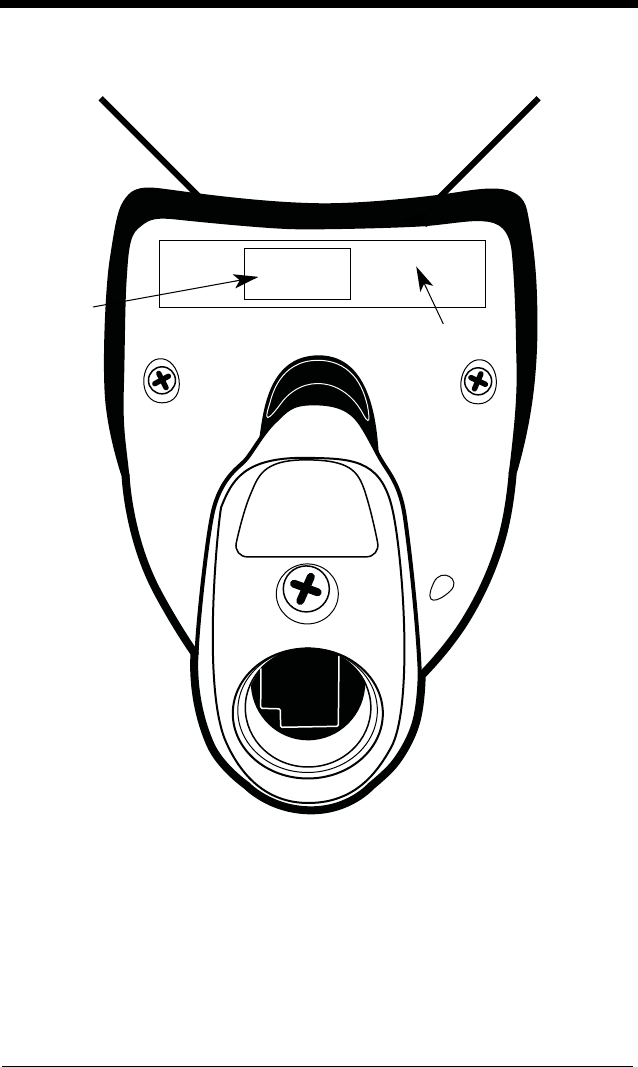
3800g Imager Identification
Light Source
Item
Number,
Serial
Number
and
Revision Compliance
Label location


1 - 1
1
Getting Started
About This Manual
This User’s Guide provides installation and programming instructions for the
3800g. Product specifications, dimensions, warranty, and customer support
information are also included.
Honeywell bar code imagers are factory programmed for the most common ter-
minal and communications settings. If you need to change these settings, pro-
gramming is accomplished by scanning the bar codes in this guide.
An asterisk (*) next to an option indicates the default setting.
Unpacking the Imager
After you open the shipping carton containing the 3800g, take the following
steps:
• Check to make sure everything you ordered is present.
• Save the shipping container for later storage or shipping.
• Check for damage during shipment. Report damage immediately to the
carrier who delivered the carton.
3800g Models
Note: The Honeywell 3800g imager may be used with many interfaces, which
are described in this User’s Guide. Refer to the chart below to determine
the models that can be used with your interface. Refer to Chapter 6 for
programming information regarding Secondary Interfaces.
The chart below lists the 3800g imager models.
Models Primary Interfaces Secondary
Interfaces
3800G04E,
3800G14E
TTL level RS-232, USB, Key-
board wedge
TTL level RS-232
3800G05E,
3800G15E
TTL level RS-232, IBM Retail,
USB, Retail USB, Keyboard
wedge
TTL level RS-232
3800GHD24E TTL level RS-232, USB, Key-
board wedge
TTL level RS-232
3800GPDF04E TTL level RS-232, USB, Key-
board wedge
TTL level RS-232
1 - 2
Connecting the Imager with USB
Note: Honeywell recommends connecting the imager end of the cable first and
the host end second.
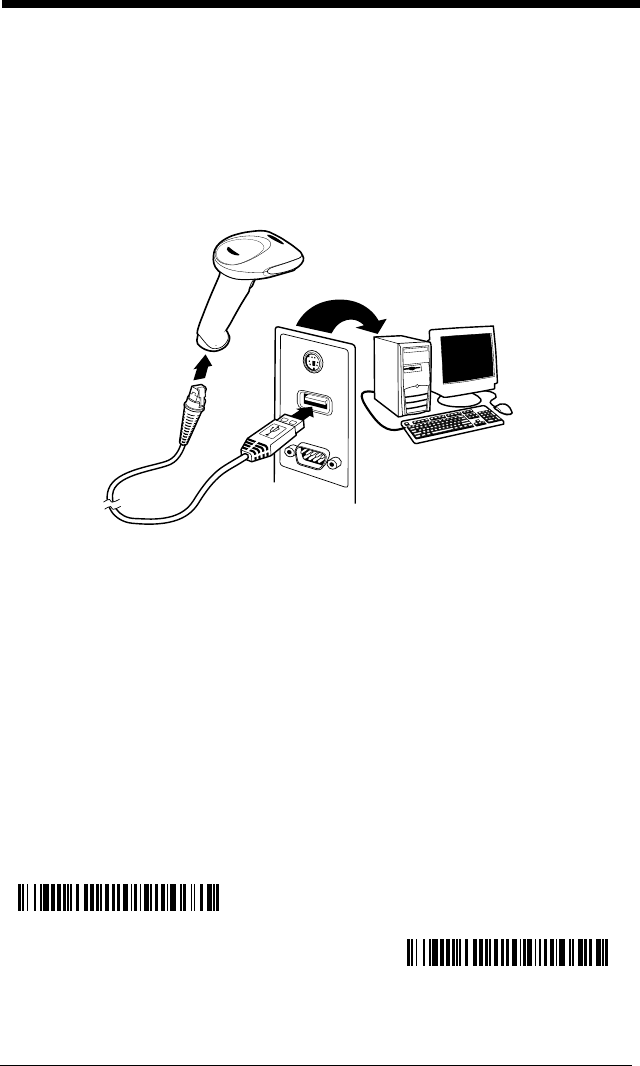
An imager can be connected to the USB port of a computer.
1. Connect the appropriate interface cable to the imager and to the computer.
2. The imager beeps.
3. Verify the imager operation by scanning a bar code from the Sample
Symbols in the back of this manual.
For additional USB programming and technical information, refer to the Honey-
well “USB Application Note,” available at www.honeywell.com/aidc.
USB PC or Macintosh Keyboard
The 3800g imagers are factory programmed for a USB interface. If this is your
interface and you do not need to modify the settings, skip to Chapter 3.
If you programmed the imager for a different terminal interface and you want to
change to a USB Keyboard (PC) or USB Keyboard (Mac), scan one of the fol-
lowing codes to program the 3800g. Scanning these codes adds a CR and
selects the terminal ID (USB PC Keyboard - 124, USB Macintosh Keyboard -
125).
USB Keyboard (PC)
USB Keyboard (Mac)
1 - 3
IBM SurePos
Scan one of the following “Plug and Play” codes to program the 3800gX5 for
IBM SurePos (USB Handheld imager) or IBM SurePos (USB Tabletop imager).
Note: After scanning one of these codes, you must power cycle the cash
register.
USB HID
Scan the following code to program the 3800g for USB HID bar code scanners.
Scanning this code changes the terminal ID to 131.
USB Com Port Emulation
Scan the following code to program the 3800g to emulate a regular RS-232-
based Com Port. If you are using a Microsoft® Windows® PC, you will need to
download a driver from the Honeywell website (www.honeywell.com/aidc). The
driver will use the next available Com Port number. Apple® Macintosh comput-
ers recognize the imager as a USB CDC class device and automatically uses a
class driver. Scanning the code below changes the terminal ID to 130.
Note: No extra configuration (e.g., baud rate) is necessary.
CTS/RTS Emulation
IBM SurePos (USB Handheld Scanner) Interface
IBM SurePos (USB Tabletop Scanner) Interface
USB HID Bar Code Scanner
USB Com Port Emulation
On
* Off

1 - 4
ACK/NAK Mode
Plug and Play
Plug and Play bar codes provide instant imager set up for commonly used inter-
faces.
Note: After you scan one of the codes, power cycle the host terminal to have
the interface in effect.
Connecting the Imager When Powered by Host
(Keyboard Wedge)
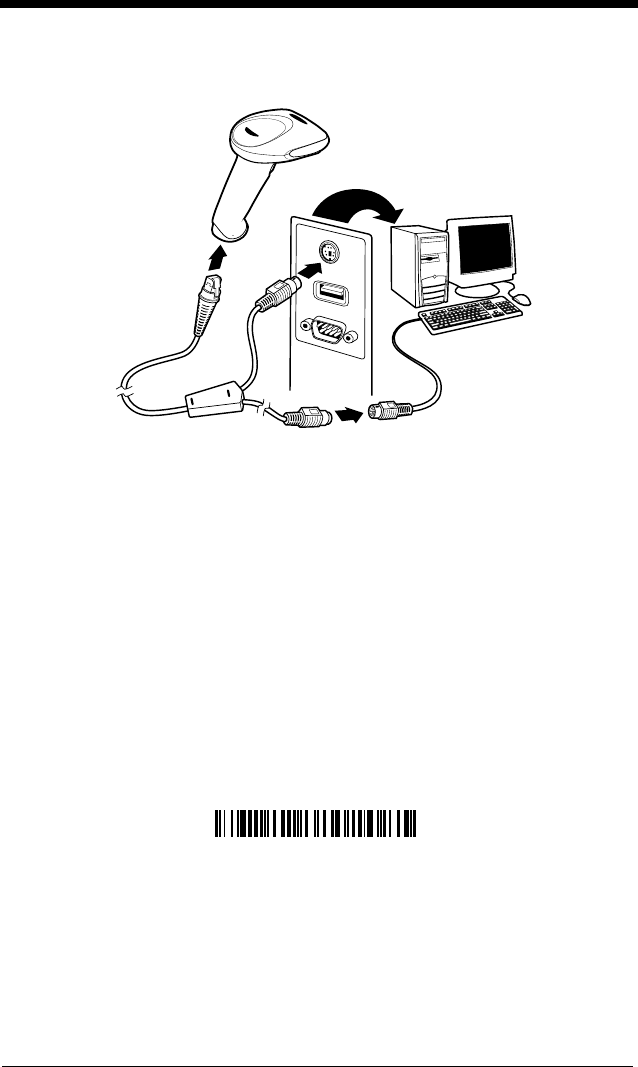
An imager can be connected between the keyboard and PC as a “keyboard
wedge,” plugged into the serial port or connected to a portable data terminal.
The following is an example of a keyboard wedge connection:
1. Turn off power to the terminal/computer.
2. Disconnect the keyboard cable from the back of the terminal/computer.
On
* Off
1 - 5
3. Connect the appropriate interface cable to the imager and to the terminal/
computer.
4. Turn the terminal/computer power back on.
Note: You will not hear a power-up beep because the 3800g is factory defaulted
to a USB connection. You must scan the IBM PC AT and Compatibles
with CR suffix bar code on page 1-5 to enable keyboard wedge ability.
Verify the imager operation by scanning a bar code from the Sample Symbols in
the back of this manual. The imager beeps once.
Keyboard Wedge Connection
Scanning the bar code below allows operation of the 3800g as a keyboard
wedge interface to an IBM PC AT with a U. S. keyboard.
If you programmed the imager for a different terminal interface and you want to
change to an IBM PC AT and compatibles keyboard wedge interface, scan the
bar code below.
Note: The following bar code also programs a carriage return (CR) suffix.
IBM PC AT and Compatibles
with CR suffix
1 - 6
Laptop Direct Connect
For most laptops, scanning the Laptop Direct Connect bar code allows opera-
tion of the imager in parallel with the integral keyboard. The following Laptop
Direct Connect bar code selects terminal ID 03, programs a carriage return
(CR) suffix and turns on Emulate External Keyboard (page 2-5).
Connecting the Imager with RS-232 Serial Port
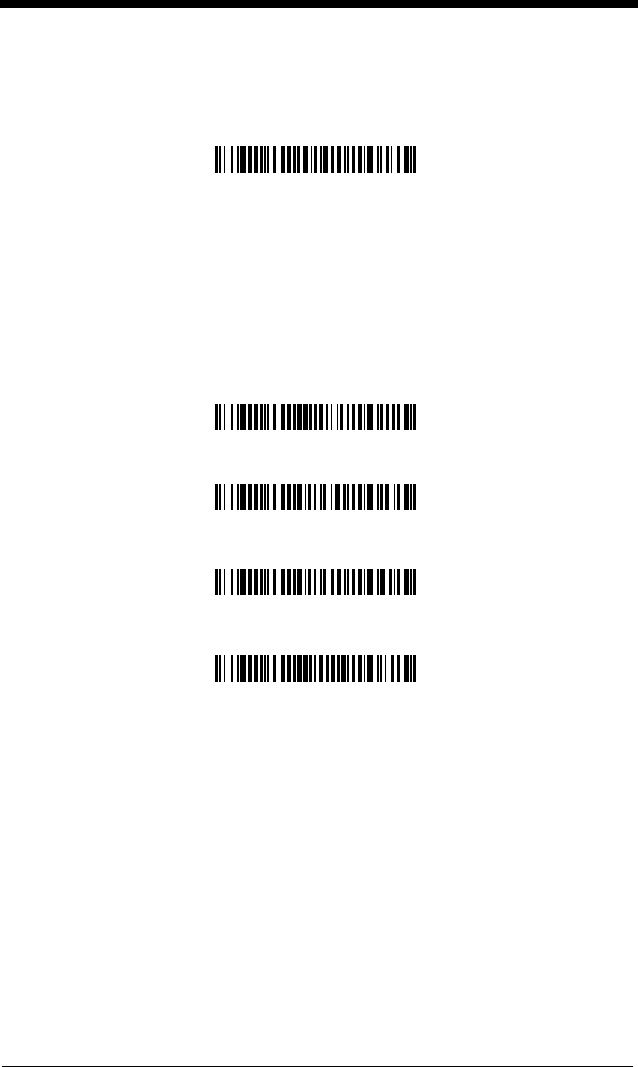
1. Turn off power to the terminal/computer.
2. Connect the appropriate interface cable to the imager.
Note: For the imager to work properly, you must have the correct cable for your
type of terminal/computer.
3. Plug the serial connector into the serial port on your computer. Tighten the
two screws to secure the connector to the port.
4. Connect the power supply and plug into an outlet.
5. Turn the terminal/computer power back on.
Note: You will not hear a power-up beep because the 3800g is factory defaulted
to a USB connection. You must scan the RS-232 Interface bar code
below to enable RS-232 ability.
Laptop Direct Connect
with CR suffix
1 - 7
All communication parameters between the imager and terminal must match for
correct data transfer through the serial port using RS-232 protocol. Scanning
the RS-232 interface bar code, programs the imager for an RS-232 interface at
38,400 baud, parity–none, 8 data bits, 1 stop bit, and adds a suffix of a CR LF.
Refer to page 2-8 for additional RS-232 configuration settings.
IBM 4683 Ports 5B, 9B, and 17 Interface
Scan one of the following “Plug and Play” codes to program the 3800GX5E for
IBM 4683 Port 5B, 9B, or 17.
Note: After scanning one of these codes, you must power cycle the cash
register.
RS-232 Interface
IBM 4683 Port 5B Interface
IBM 4683 Port 9B HHBCR-1 Interface
IBM 4683 Port 17 Interface
IBM 4683 Port 9B HHBCR-2 Interface
1 - 8
Reading Techniques
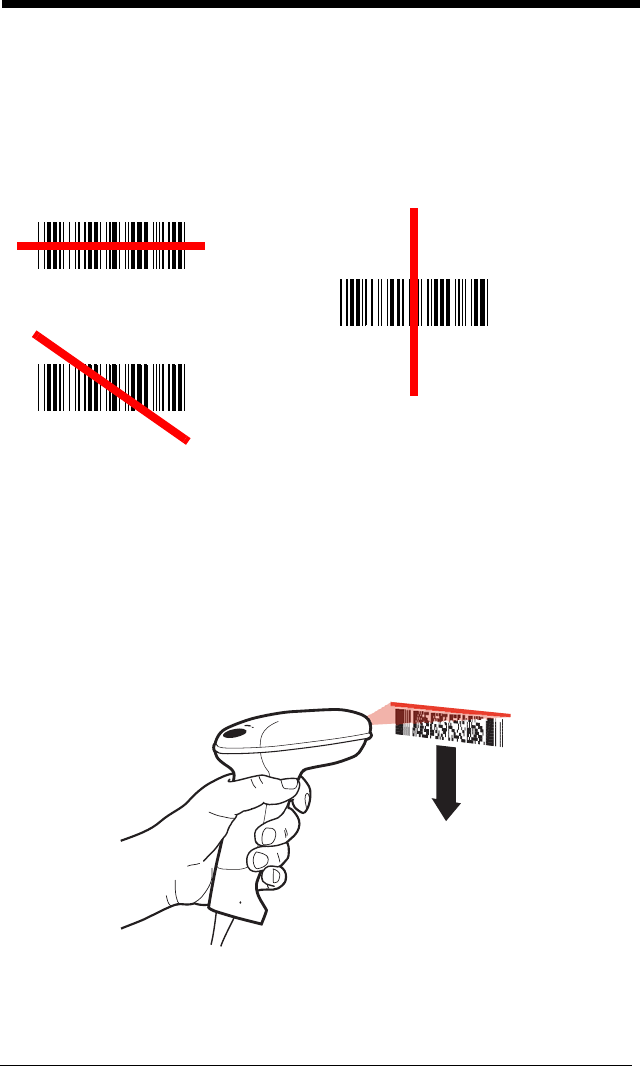
The imager has a bright red aiming beam that corresponds to its horizontal field
of view. The aiming beam should be centered horizontally over the bar code; it
will not read if the aiming beam is in any other direction.
The best focus point for reading most code densities is about 5 inches (12.7
cm) from the unit. To read a single bar code or multiple bar codes (on a page or
on an object), hold the imager at an appropriate distance from the target, pull
the trigger, and center the aiming beam on the bar code.
Reading PDF417 Bar Codes
Note: Applies to 3800gHD and 3800gPDF.
To read PDF417 bar codes with a PDF-enabled 3800gHD/3800gPDF, hold the
trigger down and move the scanner up and down so the aiming line sweeps
from the top of the bar code to the bottom, and back up. This ensures that the
entire code is scanned.
Good Technique
Bad Technique
Bad Technique

1 - 9
Resetting the Standard Product Defaults
If you aren’t sure what programming options are in your imager, or you’ve
changed some options and want the factory settings restored, scan the
Stan-
dard Product Default Settings
bar code below.
The Menu Commands starting on page 11-5 lists the factory default settings for
each of the commands (indicated by an asterisk (*) on the programming pages).
Standard Product Default Settings

1 - 10

2 - 1
2
Terminal Interfaces
Terminal ID
If your interface is not a standard PC AT, refer to Terminal ID, beginning on page
2-1 and locate the Terminal ID number for your PC. Scan the Terminal ID bar
code below, then scan the numeric bar code(s) from the Programming Chart
inside the back cover of this manual to program the imager for your terminal ID.
Scan Save to save your selection.
For example, an IBM AT terminal has a Terminal ID of 003. You would scan the
Terminal ID bar code, then 0, 0, 3 from the Programming Chart inside the back
cover of this manual, then Save. If you make an error while scanning the digits
(before scanning Save), scan the Discard code on the Programming Chart,
scan the Terminal ID bar code, scan the digits, and the Save code again.
Note: After scanning one of these codes, you must power cycle your computer.
Terminal ID
Save

2 - 2
Supported Terminals
Terminal Model(s) Terminal ID
DEC VT510, 520, 525 (PC style) 005
DEC VT510, 520, 525 (DEC style
LK411) 104
Esprit 200, 400 005
Heath Zenith PC, AT 003
HP Vectra 003
IBM XT 001
IBM PS/2 25, 30, 77DX2 002
IBM AT, PS/2 30–286, 50, 55SX, 60,
70, 70–061, 70–121, 80 003
IBM 102 key 3151, 3161, 3162, 3163, 3191,
3192, 3194, 3196, 3197, 3471,
3472, 3476, 3477
006
IBM 122 key 3191, 3192, 3471, 3472 007
IBM 122 key 3196, 3197, 3476, 3477, 3486,
3482, 3488 008
IBM 122 key 3180 024
IBM 122 key 3180 data entry keyboard 114
IBM DOS/V 106 key PC & Workstation 102
IBM SurePOS USB Handheld Imager 128
IBM SurePOS USB Tabletop Imager 129
IBM Thinkpad 360 CSE, 340, 750 097
IBM Thinkpad 106
IBM Thinkpad 365, 755CV 003
I/O 122 key 2676D, 2677C, 2677D 008
ITT 9271 007
Lee Data IIS 007
NEC 98XX Series 103
Olivetti M19, M200 001
Olivetti M240, M250, M290, M380,
P500 003
RS-232 TTL 000
Silicon Graphics Indy, Indigoll 005
Telex 88 key 078, 078A, 79, 80, 191, 196,
1191,1192, 1471, 1472, 1476,
1477, 1483
025
Telex 88 key Data Entry Keyboard 112
Telex 102 key 078, 078A, 79, 80, 191, 196,
1191,1192, 1471, 1472, 1476,
1477, 1483
045

2 - 3
* Factory default setting
Telex 122 key 078, 078A, 79, 80, 191, 196,
1191,1192, 1471, 1472, 1476,
1477, 1482, 1483
046
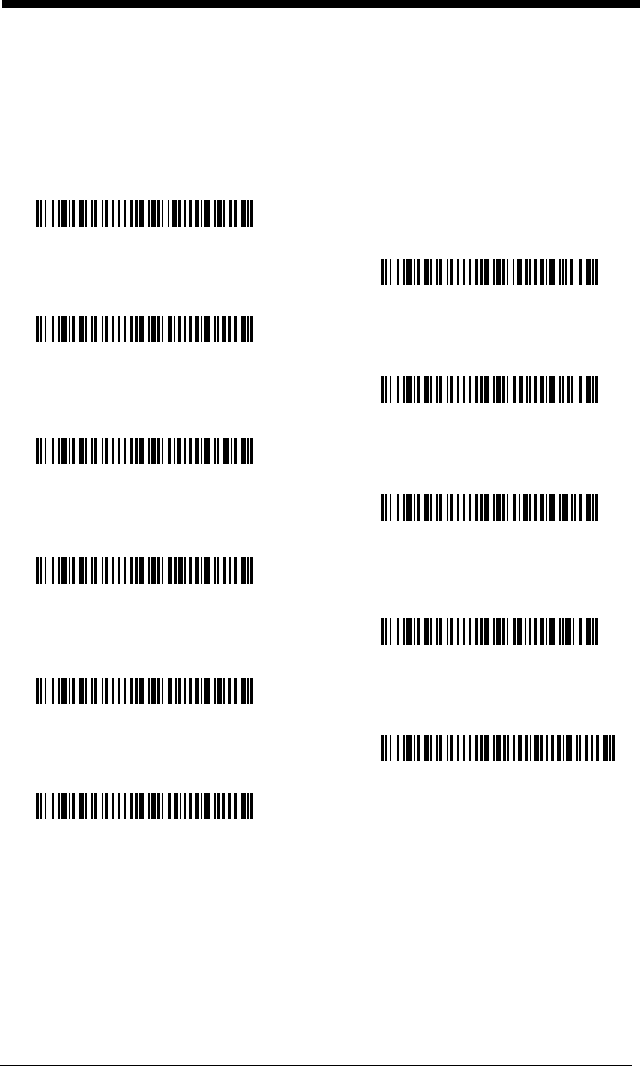
USB PC Keyboard 124 *
USB Mac Keyboard 125
USB Com Port 130
USB HIDPOS 131
Supported Terminals (Continued)
Terminal Model(s) Terminal ID
2 - 4
Keyboard Country
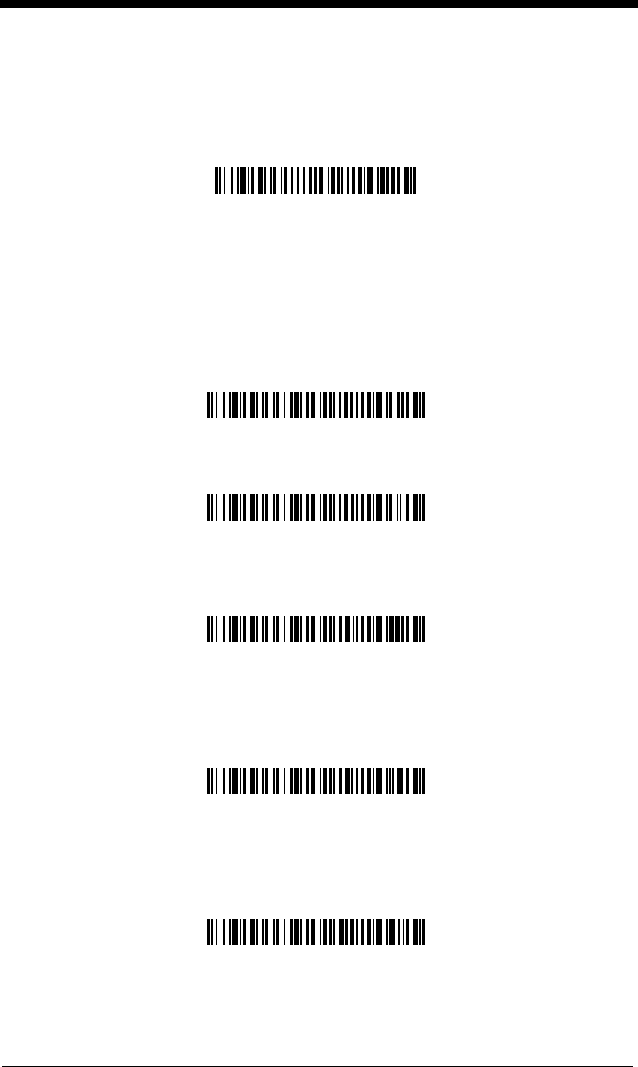
Scan the appropriate country code below to program the keyboard for your
country. As a general rule, the following characters are supported, but need
special care for countries other than the United States:
@ | $ # { } [ ] = / ‘ \ < > ~
* United States
Denmark
France
Germany/Austria
Great Britain
Italy
Norway
Spain
Switzerland
Belgium
Finland
2 - 5
Please refer to Honeywell website (www.honeywell.com/aidc) for complete key-
board country support information and applicable interfaces. If you need to pro-
gram a keyboard for a country other than one listed above, scan the Program
Keyboard Country bar code below, then scan the numeric bar code(s) for the
appropriate country from the inside back cover, then the Save bar code.
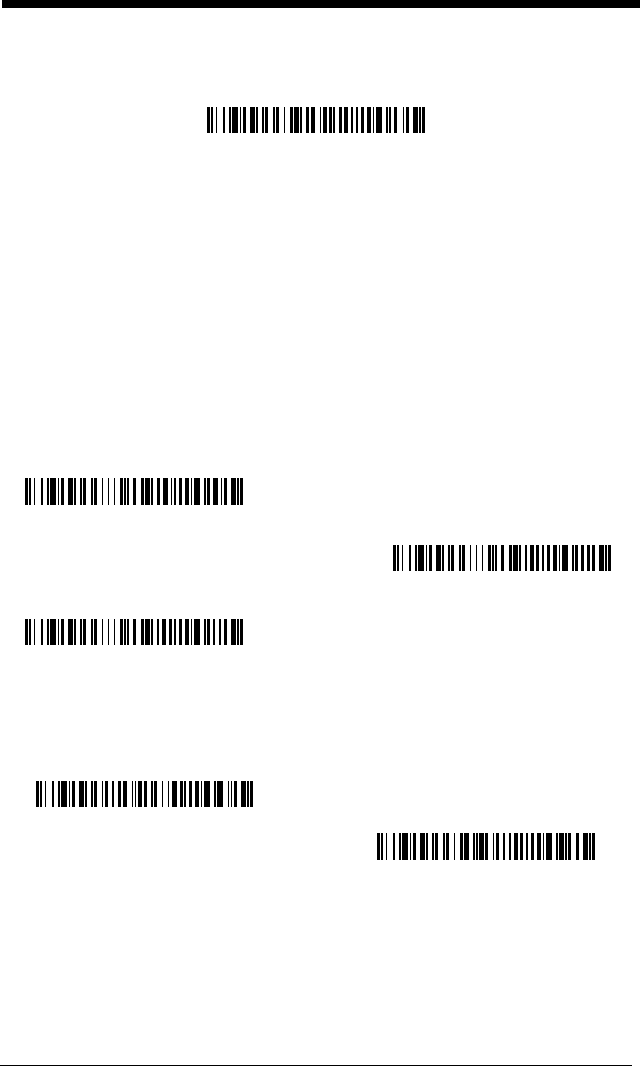
Keyboard Style
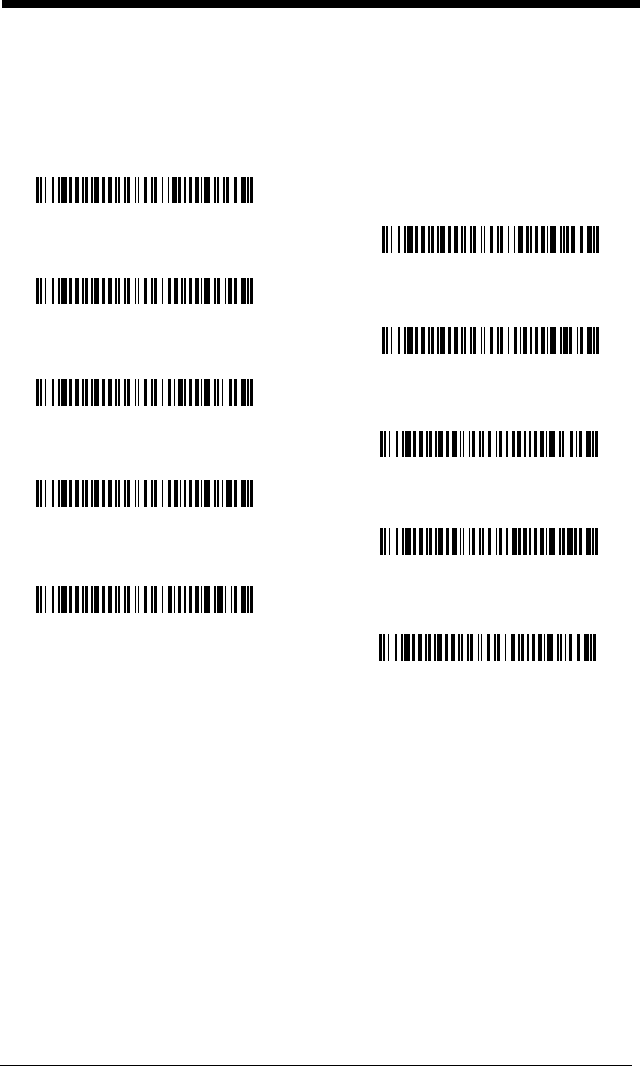
This programs keyboard styles, such as Caps Lock and Shift Lock.
Default =
Regular.
Regular
is used when you normally have the Caps Lock key off.
Caps Lock
is used when you normally have the Caps Lock key on.
Shift Lock
is used when you normally have the Shift Lock key on (not common
to U.S. keyboards).
Automatic Caps Lock
is used if you change the Caps Lock key on and off.
The software tracks and reflects if you have Caps Lock on or off (AT and PS/2
only). This selection can only be used with systems that have an LED which
notes the Caps Lock status.
Autocaps via NumLock
bar code should be scanned in countries (e.g., Ger-
many, France) where the Caps Lock key cannot be used to toggle Caps Lock.
The NumLock option works similarly to the regular Auotcaps, but uses the Num-
Lock key to retrieve the current state of the Caps Lock.
Program Keyboard Country
* Regular
Caps Lock
Shift Lock
Automatic Caps Lock
Autocaps via NumLock
2 - 6
Emulate External Keyboard
should be scanned if you do not have an external
keyboard (IBM AT or equivalent).
Note: After scanning the Emulate External Keyboard bar code, you must power
cycle your computer.
Keyboard Modifiers
This modifies special keyboard features, such as CTRL+ ASCII codes and
Turbo Mode.
Control + ASCII Mode On:
The imager sends key combinations for ASCII
control characters for values 00-1F. Windows is the preferred mode. All key-
board country codes are supported. DOS mode is a legacy mode, and it does
not support all keyboard country codes. New users should use the Windows
mode. Refer to Keyboard Function Relationships, page 8-1 for CTRL+ ASCII
Values.
Default = Off
Turbo Mode:
The imager sends characters to a terminal faster. If the terminal
drops characters, do not use Turbo Mode.
Default = Off
Emulate External Keyboard
Windows Mode Control + ASCII
Mode On
* Control + ASCII Mode Off
DOS Mode Control + ASCII
Mode On
Turbo Mode On
* Turbo Mode Off

2 - 7
Numeric Keypad Mode:
Sends numeric characters as if entered from a
numeric keypad.
Default = Off
Automatic Direct Connect Mode:
This selection can be used if you have an
IBM AT style terminal and the system is dropping characters.
Default = Off
Numeric Keypad Mode On
* Numeric Keypad Mode Off
Automatic Direct
Connect Mode On
* Automatic Direct Connect
Mode Off
2 - 8
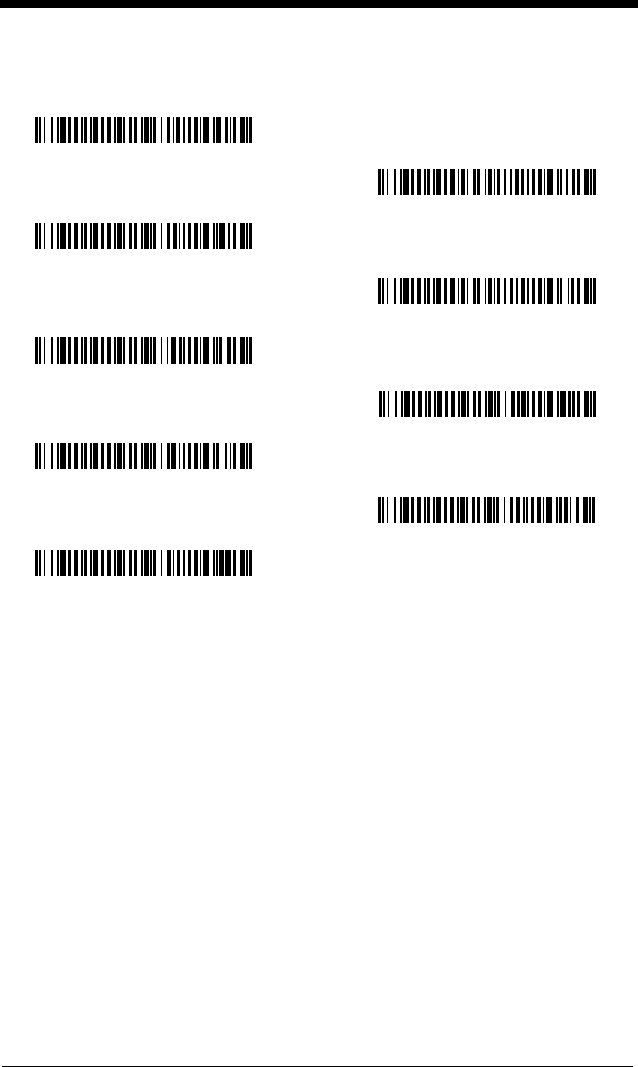
RS-232 Baud Rate
Baud Rate sends the data from the imager to the terminal at the specified rate.
The host terminal must be set for the same baud rate as the imager.
Default = 38,400
.
RS-232 Word Length: Data Bits, Stop Bits, and Parity
Data Bits
sets the word length at 7 or 8 bits of data per character. If an applica-
tion requires only ASCII Hex characters 0 through 7F decimal (text, digits, and
punctuation), select 7 data bits. For applications which require use of the full
ASCII set, select 8 data bits per character.
Default = 8.
Stop Bits
sets the stop bits at 1 or 2.
Default = 1.
300
2400
600
1200
4800
* 38400
9600
19200
115,200
57,600
2 - 9
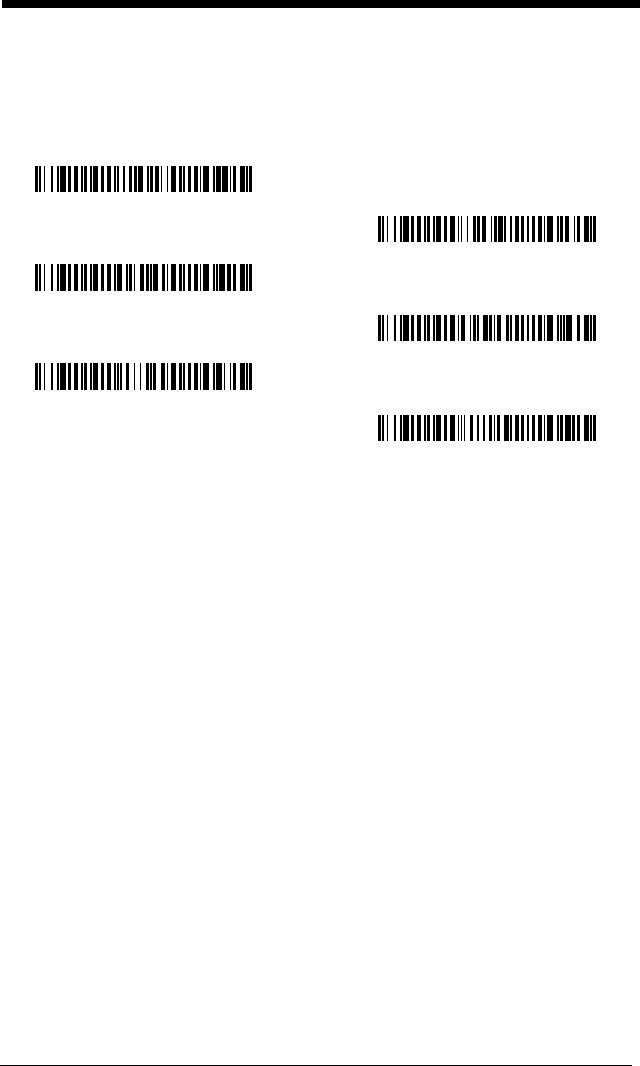
Parity
provides a means of checking character bit patterns for validity.
Default = None.
7 Data, 1 Stop, Parity Even
7 Data, 1 Stop, Parity None
7 Data, 1 Stop, Parity Odd
7 Data, 2 Stop, Parity Odd
7 Data, 2 Stop, Parity Even
7 Data, 2 Stop Parity None
* 8 Data, 1 Stop, Parity None
8 Data, 1 Stop, Parity Even
8 Data, 1 Stop, Parity Odd
2 - 10
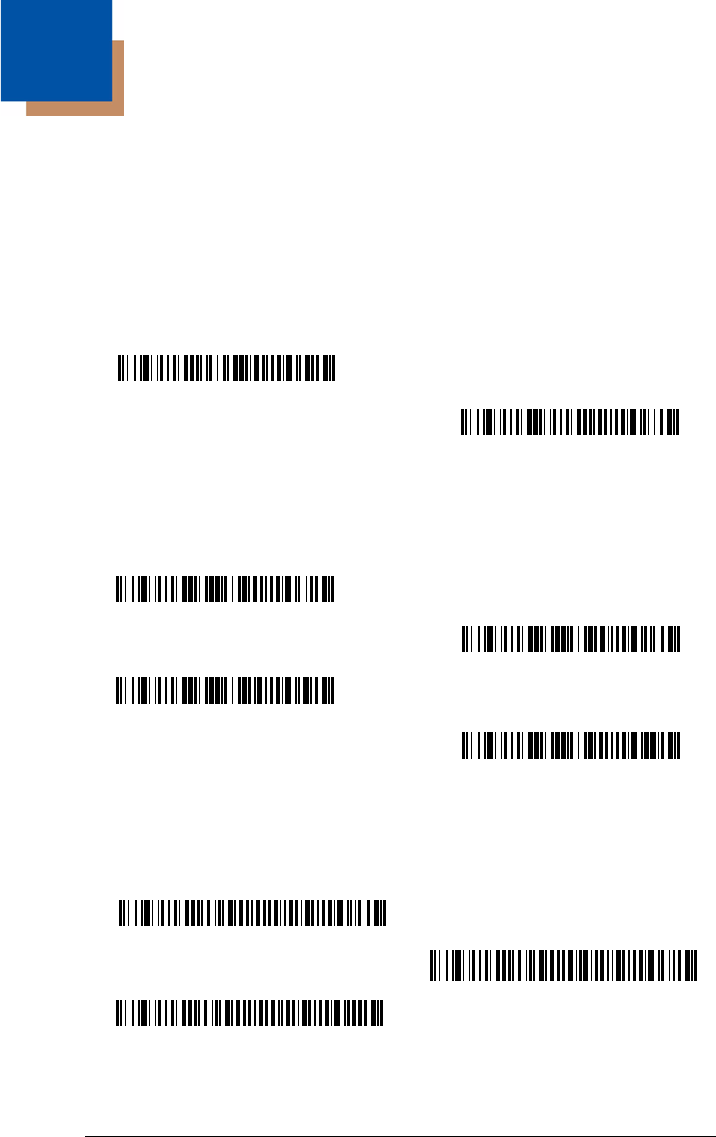
RS-232 Handshaking
RS-232 handshaking is a set of rules concerning the exchange of data between
serially communicating devices.
Default = RTS/CTS, XON/XOFF and ACK/
NAK Off
.
RTS/CTS On
* XON/OFF Off
* RTS/CTS Off
XON/XOFF On
ACK/NAK On
* ACK/NAK Off
3 - 1
3
Output
Good Read Indicators
Beeper – Good Read
The beeper may be programmed On or Off in response to a good read. Turning
this option off, only turns off the beeper response to a good read indication. All
error and menu beeps are still audible.
Default = On.
Beeper Volume – Good Read
The beeper volume codes modify the volume of the beep the imager emits on a
good read.
Default = High for the
3800g
.
Beeper Pitch – Good Read
The beeper pitch codes modify the pitch (frequency) of the beep the imager
emits on a good read.
Default = Medium.
* On
Off
*High
Medium
Off
Low
Low (1600 Hz)
* Medium (2550 Hz)
High (4200 Hz)
3 - 2
Beeper Duration – Good Read
The beeper duration codes modify the length of the beep the imager emits on a
good read.
Default = Normal.
LED – Good Read
The LED indicator can be programmed On or Off in response to a good read.
Default = On.
Number of Beeps – Good Read
The number of beeps of a good read can be programmed from 1 - 9. The same
number of beeps will be applied to the beeper and LED in response to a good
read. For example, if you program this option to have five beeps, there will be
five beeps and five LED flashes in response to a good read. The beeps and
LED flashes are in sync with one another. To change the number of beeps,
scan the bar code below and then scan a digit (1-9) bar code and the Save bar
code on the Programming Chart inside the back cover of this manual.
Default =
One.
* Normal Beep
Short Beep
* On
Off
Number of Pulses
3 - 3
Good Read Delay
This sets the minimum amount of time before the imager can read another bar
code.
Default = No Delay.
User-Specified Good Read Delay
If you want to set your own length for the good read delay, scan the bar code
below, then set the delay (from 0-30,000 milliseconds) by scanning digits from
the inside back cover, then scanning
Save
.
Trigger Modes
Manual/Serial Trigger
You can activate the imager either by pressing the trigger, or using a serial trig-
ger command (see Trigger Commands on page 11-4). When in manual trigger
mode, the imager scans until a bar code is read, or until the trigger is released.
When in serial mode, the imager scans until a bar code has been read or until
the deactivate command is sent. In serial mode, the imager can also be set to
turn itself off after a specified time has elapsed (see Read Time-Out, which fol-
lows).
Read Time-Out
Use this selection to set a time-out (in milliseconds) of the imager’s trigger when
using serial commands to trigger the imager. Once the imager has timed out,
you can activate the imager either by pressing the trigger or using a serial trig-
* No Delay
Short Delay (500 ms)
Medium Delay (1000 ms)
Long Delay (1500 ms)
User-Specified Good Read Delay
* Manual/Serial Trigger
3 - 4
ger command. After scanning the Read Time-Out bar code, set the time-out
duration (from 0-300,000 milliseconds) by scanning digits from the inside back
cover, then scanning Save.
Default = 30,000.
Automatic Trigger
The imager scans continuously using internal LEDs to detect bar codes.
Presentation Mode
Presentation Mode uses ambient light to detect bar codes. The LEDs are off for
ambient conditions until a change occurs in the imager’s field of view. Then the
LEDS turn on automatically to read the code. If the light level in the room is not
high enough, Presentation Mode may not work properly.
Continuous Illumination Mode
If you have several bar codes that are close together, you may wish to have a
continuous aiming beam on in order to properly aim the imager at one bar code.
Scan the Continuous Illumination On bar code to program the imager for this
capability. Once you have the aiming beam over the correct bar code, pull the
trigger to read the code. Scan the Continuous Illumination Off bar code to
turn off this feature.
Hands Free Time-Out
The Automatic Trigger and Presentation Modes are referred to as “hands free”
modes. If the imager’s trigger is pulled when using a hands free mode, the
imager changes to manual trigger mode. You can set the time the imager
should remain in manual trigger mode by setting the Hands Free Time-Out.
Once the time-out value is reached, (if there have been no further trigger pulls)
the imager reverts to the original hands free mode.
Read Time-Out
Automatic Trigger
Presentation Mode
Continuous Illumination Mode On
* Continuous Illumination Mode Off
3 - 5
Scan the
Hands Free Time-Out
bar code, then scan the time-out duration
(from 0-300,000 milliseconds) from the inside back cover, and
Save
.
Default =
5,000 ms.
Reread Delay
This sets the time period before the imager can read the
same
bar code a sec-
ond time. Setting a reread delay protects against accidental rereads of the
same bar code. Longer delays are effective in minimizing accidental rereads at
POS (point of sale). Use shorter delays in applications where repetitive bar
code scanning is required.
Default = Medium.
Reread Delay only works when in automatic trigger mode or presentation mode
(see page 3-4).
User-Specified Reread Delay
If you want to set your own length for the reread delay, scan the bar code below,
then set the delay (from 0-30,000 milliseconds) by scanning digits from the
inside back cover, then scanning
Save
.
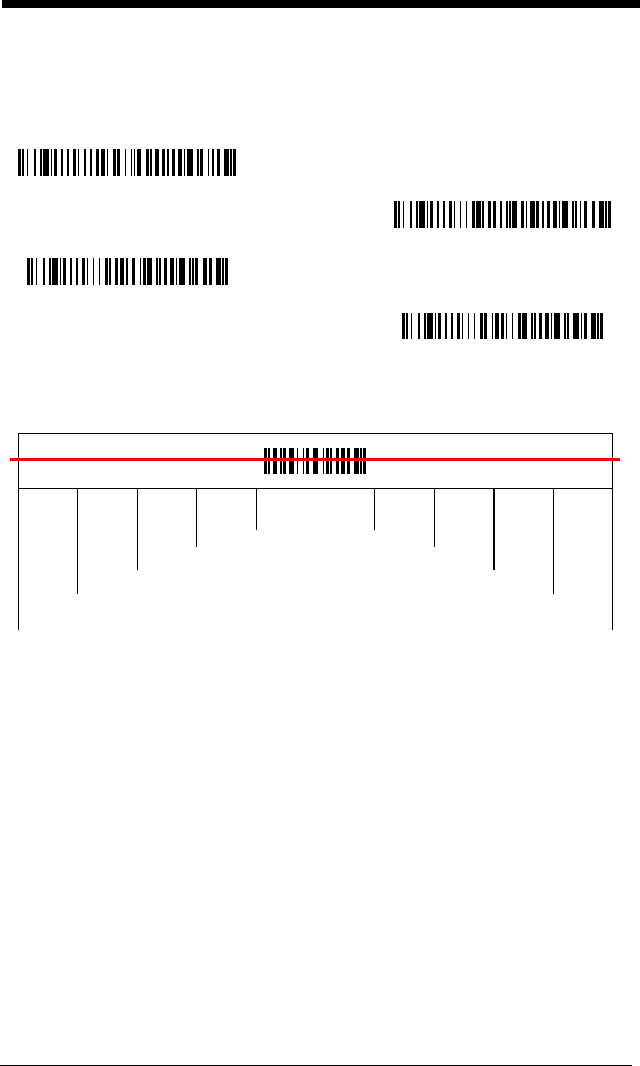
Centering Window
Use the centering feature to narrow the imager’s field of view so the imager
reads only the bar code you want. When centering is turned on, the imager only
reads codes that intersect or are contained within the centering window you set
up. At least part of a bar code must be within the window to be decoded or out-
put by the imager.
Hands Free Time-Out
Short (500 ms)
* Medium (750 ms)
Long (1000 ms)
Extra Long (2000 ms)
User-Specified Reread Delay
3 - 6
To change the left or right edge of the centering window, scan Centering On,
then scan one of the following bar codes. Then scan the percent you want to
shift the centering window using digits on the inside back cover of this manual.
Scan
Save
. Default Centering = 40% for Left, 60% for Right.
The figure below illustrates the percentage range from 1 to 100%.
Left of Centering Window
Right of Centering Window
* Centering Off
Centering On
20%
30%
90%
80%
40% 60% 70%
10%
0% 100%
3 - 7
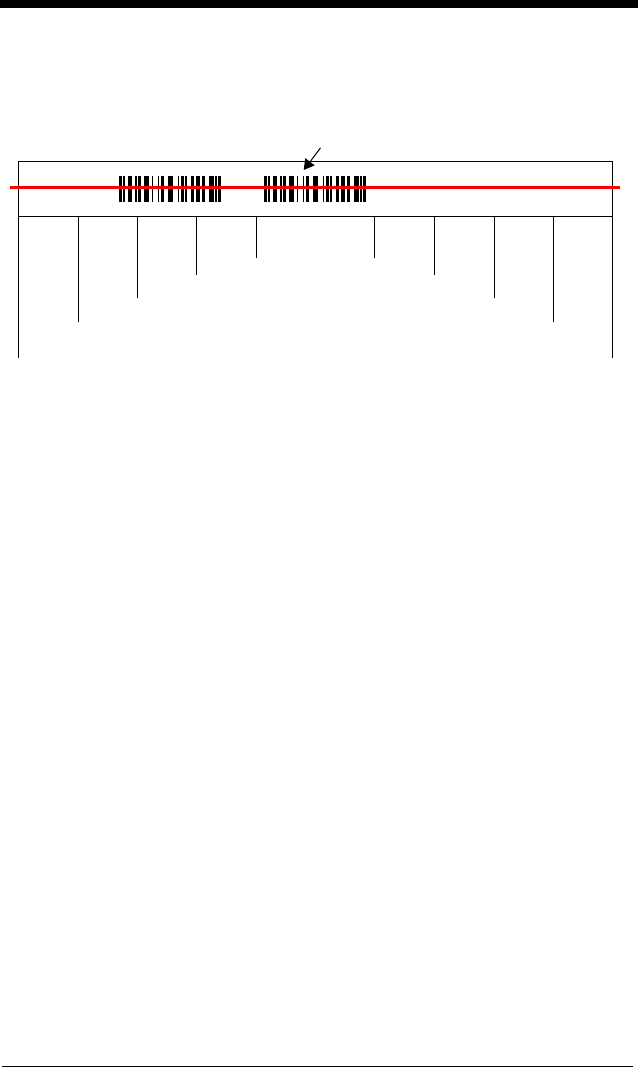
Example: If you have two bar codes next to one another and the centering
window is set to 40% left edge and 60% right edge, only the bar
code that intersects that window will be decoded.
20%
30%
90%
80%
40% 60% 70%
10%
0% 100%
Decoded bar code

3 - 8
Output Sequence Overview
Require Output Sequence
When turned off, the bar code data will be output to the host as the imager
decodes it. When turned on, all output data must conform to an edited
sequence or the imager will not transmit the output data to the host device.
Note: This selection is unavailable when the Multiple Symbols Selection is
turned on.
Output Sequence Editor
This programming selection allows you to program the imager to output data
(when scanning more than one symbol) in whatever order your application
requires, regardless of the order in which the bar codes are scanned. Reading
the
Default Sequence
symbol programs the imager to the Universal values,
shown below. These are the defaults. Be certain you want to delete or clear all
formats before you read the
Default Sequence
symbol.
Note: To make Output Sequence Editor selections, you’ll need to know the
code I.D., code length, and character match(es) your application
requires. Use the Alphanumeric symbols (inside back cover) to read
these options.
Note: You must hold the trigger while reading each bar code in a sequence.
To Add an Output Sequence
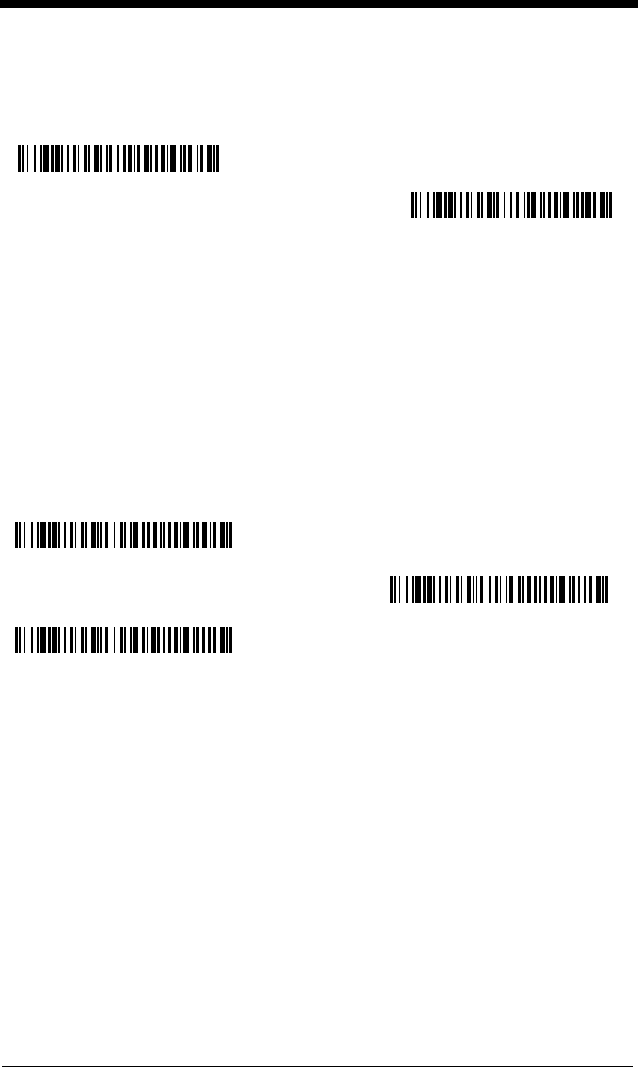
1. Scan the
Enter Sequence
symbol (see Require Output Sequence, page 3-
9).
2. Code I.D.
On the Symbology Chart on page A-1, find the symbology to which you want
to apply the output sequence format. Locate the Hex value for that symbol-
ogy and scan the 2 digit hex value from the Programming Chart (inside back
cover).
3. Length
Specify what length (up to 9999 characters) of data output will be acceptable
for this symbology. Scan the four digit data length from the Programming
Chart. (Note: 50 characters is entered as 0050. 9999 is a universal num-
ber, indicating all lengths.) When calculating the length, you must count any
programmed prefixes, suffixes, or formatted characters as part of the length
(unless using 9999).
4. Character Match Sequences
On the ASCII Conversion Chart (Code Page 1252), page A-3, find the Hex
value that represents the character(s) you want to match. Use the Program-
ming Chart to read the alphanumeric combination that represents the ASCII
characters. (99 is the Universal number, indicating all characters.)
5. End Output Sequence Editor
Scan
F F
to enter an Output Sequence for an additional symbology, or
Save
to save your entries.
Other Programming Selections
3 - 9
•
Discard
This exits without saving any Output Sequence changes.
Output Sequence Editor
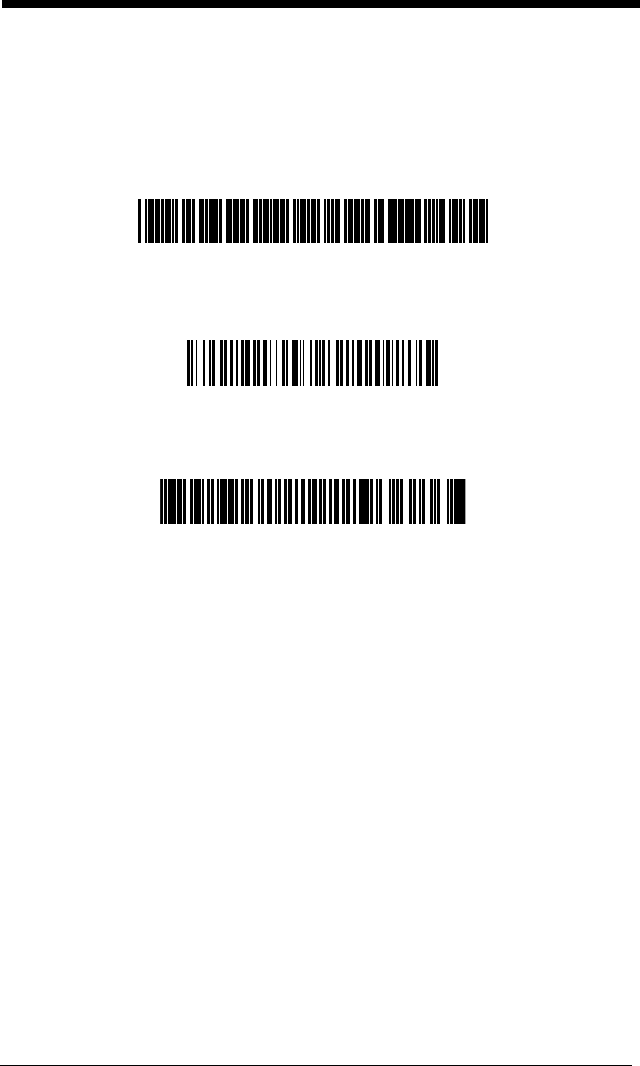
Require Output Sequence
When an output sequence is
Required
, all output data must conform to an
edited sequence or the imager will not transmit the output data to the host
device. When it’s
On/Not Required
, the imager will attempt to get the output
data to conform to an edited sequence, but if it cannot, the imager transmits all
output data to the host device as is.
When the output sequence is
Off
, the bar code data is output to the host as the
imager decodes it.
Note: This selection is unavailable when the Multiple Symbols Selection is
turned on.
Enter Sequence
Default Sequence
Required
On/Not Required
* Off
3 - 10
Output Sequence Example
In this example, you are scanning Code 93, Code 128, and Code 39 barcodes,
but you want the image scanner to output Code 39 1st, Code 128 2nd, and
Code 93 3rd, as shown below.
Note: Code 93 must be enabled to use this example.
You would set up the sequence editor with the following command line:
SEQBLK62999941FF6A999942FF69999943FF
The breakdown of the command line is shown below:
SEQBLKsequence editor start command
62 code identifier for Code 39
9999 code length that must match for Code 39, 9999 = all lengths
41 start character match for Code 39, 41h = “A”
FF termination string for first code
6A code identifier for Code 128
9999 code length that must match for Code 128, 9999 = all lengths
42 start character match for Code 128, 42h = “B”
FF termination string for second code
69 code identifier for Code 93
9999 code length that must match for Code 93, 9999 = all lengths
43 start character match for Code 93, 43h = “C”
FF termination string for third code
A - Code 39
B - Code 128
C - Code 93
3 - 11
To program the previous example using specific lengths, you would have to
count any programmed prefixes, suffixes, or formatted characters as part of the
length. If you use the example on page 3-10, but assume a <CR> suffix and
specific code lengths, you would use the following command line:
SEQBLK62001241FF6A001342FF69001243FF
The breakdown of the command line is shown below:
SEQBLK sequence editor start command
62 code identifier for Code 39
0012 A - Code 39 sample length (11) plus CR suffix (1) = 12
41 start character match for Code 39, 41h = “A”
FF termination string for first code
6A code identifier for Code 128
0013 B - Code 128 sample length (12) plus CR suffix (1) = 13
42 start character match for Code 128, 42h = “B”
FF termination string for second code
69 code identifier for Code 93
0012 C - Code 93 sample length (11) plus CR suffix (1) = 12
43 start character match for Code 93, 43h = “C”
FF termination string for third code
Output Sequence Editor
Require Output Sequence
When an output sequence is
Required
, all output data must conform to an
edited sequence or the image scanner will not transmit the output data to the
host device. When it’s
On/Not Required
, the image scanner will attempt to get
the output data to conform to an edited sequence, but if it cannot, the image
scanner transmits all output data to the host device as is.
Enter Sequence
Default Sequence
3 - 12
When the output sequence is
Off
, the barcode data is output to the host as the
image scanner decodes it.
Note: This selection is unavailable when the Multiple Symbols Selection is
turned on.
Multiple Symbols
When this programming selection is turned
On
, it allows you to read multiple
symbols with a single pull of the imager’s trigger. If you press and hold the trig-
ger, aiming the imager at a series of symbols, it reads unique symbols once,
beeping (if turned on) for each read. The imager attempts to find and decode
new symbols as long as the trigger is pulled. When this programming selection
is turned
Off
, the imager will only read the symbol closest to the aiming beam.
No Read
With No Read turned
On
, the imager sends an “NR” to the host if you pull and
release the trigger without reading a code (e.g., bad bar code). If No Read is
turned
Off
, the “NR” will not be sent to the host.
If you want a different notation than “NR,” for example, “Error,” or “Bad Code,”
you can edit the output message using the Data Formatter (page 5-5). The hex
code for the No Read symbol is 9C.
Required
On/Not Required
*Off
On
* Off
On
* Off

3 - 13
Video Reverse
Video Reverse is used to allow the imager to read bar codes that are inverted.
The “Off” bar code below is an example of this type of bar code.
Note: If additional menuing is required, Video Reverse must be disabled to read
the menu bar codes and then re-enabled after menuing is completed.
On
* Off

3 - 14
4 - 1
4
Data Editing
Prefix/Suffix Overview
When a bar code is scanned, additional information is sent to the host computer
along with the bar code data. This group of bar code data and additional,
user-defined data is called a “message string.” The selections in this section
are used to build the user-defined data into the message string.
Prefix and Suffix characters are data characters that can be sent before and
after scanned data. You can specify if they should be sent with all symbologies,
or only with specific symbologies. The following illustration shows the break-
down of a message string:
Points to Keep In Mind
• It is not necessary to build a message string. The selections in this chapter
are only used if you wish to alter the default settings.
Default prefix = None.
Default suffix = None
.
• A prefix or suffix may be added or cleared from one symbology or all
symbologies.
• You can add any prefix or suffix from the ASCII Conversion Chart (Code Page
1252) on page A-3, plus Code I.D. and AIM I.D.
• You can string together several entries for several symbologies at one time.
• Enter prefixes and suffixes in the order in which you want them to appear on
the output.
To Add a Prefix or Suffix
Step 1. Scan the Add Prefix or Add Suffix symbol (page 4-3).
Step 2. Determine the 2 digit Hex value from the Symbology Chart (included in
Appendix A) for the symbology to which you want to apply the prefix or
suffix. For example, for Code 128, Code ID is “j” and Hex ID is “6A”.
Step 3. Scan the 2 hex digits from the Programming Chart inside the back
cover of this manual or scan 9, 9 for all symbologies.
Prefix Scanned DataSuffix
1-11
alpha numeric
characters
variable length1-11
alpha numeric
characters

4 - 2
Step 4. Determine the hex value from the ASCII Conversion Chart (Code Page
1252) on page A-3, for the prefix or suffix you wish to enter.
Step 5. Scan the 2 digit hex value from the Programming Chart inside the back
cover of this manual.
Step 6. Repeat Steps 4 and 5 for every prefix or suffix character.
Step 7. To add the Code I.D., scan 5, C, 8, 0.
To add AIM I.D., scan 5, C, 8, 1.
To add a backslash (\), scan 5, C, 5, C.
Note: To add a backslash (\) as in Step 7, you must scan 5C twice – once to
create the leading backslash and then to create the backslash itself.
Step 8. Scan Save to exit and save, or scan Discard to exit without saving.
Repeat Steps 1-6 to add a prefix or suffix for another symbology.
Example: Add a Suffix to a specific symbology
To send a CR (carriage return)Suffix for UPC only:
Step 1. Scan Add Suffix.
Step 2. Determine the 2 digit hex value from the Symbology Chart (included in
the ASCII Conversion Chart (Code Page 1252) on page A-3) for UPC.
Step 3. Scan 6, 3 from the Programming Chart inside the back cover of this
manual.
Step 4. Determine the hex value from the ASCII Conversion Chart (Code Page
1252) on page A-3, for the CR (carriage return).
Step 5. Scan 0, D from the Programming Chart inside the back cover of this
manual.
Step 6. Scan Save, or scan Discard to exit without saving.
To Clear One or All Prefixes or Suffixes
You can clear a single prefix or suffix, or clear all prefixes/suffixes for a symbol-
ogy. When you Clear One Prefix (Suffix), the specific character you select is
deleted from the symbology you want. When you Clear All Prefixes (Suffixes),
all the prefixes or suffixes for a symbology are deleted.
Step 1. Scan the Clear One Prefix or Clear One Suffix symbol.
Step 2. Determine the 2 digit Hex value from the Symbology Chart (included in
Appendix A) for the symbology from which you want to clear the prefix
or suffix.
4 - 3
Step 3. Scan the 2 digit hex value from the Programming Chart inside the back
cover of this manual or scan 9, 9 for all symbologies.
Your change is automatically saved.
To Add a Carriage Return Suffix to All Symbologies
Scan the following bar code if you wish to add a carriage return suffix to all sym-
bologies at once. This action first clears all current suffixes, then programs a
carriage return suffix for all symbologies.
Prefix Selections
Add CR Suffix
All Symbologies
Add Prefix
Clear One Prefix
Clear All Prefixes
4 - 4
Suffix Selections
Function Code Transmit
When this selection is enabled and function codes are contained within the
scanned data, the imager transmits the function code to the terminal. Charts of
these function codes are provided in Supported Interface Keys starting on
page 8-3. When the imager is in keyboard wedge mode, the scan code is con-
verted to a key code before it is transmitted.
Default = Enable.
Intercharacter, Interfunction, and Intermessage
Delays
Some terminals drop information (characters) if data comes through too quickly.
Intercharacter, interfunction, and intermessage delays slow the transmission of
data, increasing data integrity.
Each delay is composed of a 5 millisecond step. You can program up to 99
steps (of 5 ms each) for a range of 0-495 ms.
Add Suffix
Clear One Suffix
Clear All Suffixes
* Enable
Disable
4 - 5
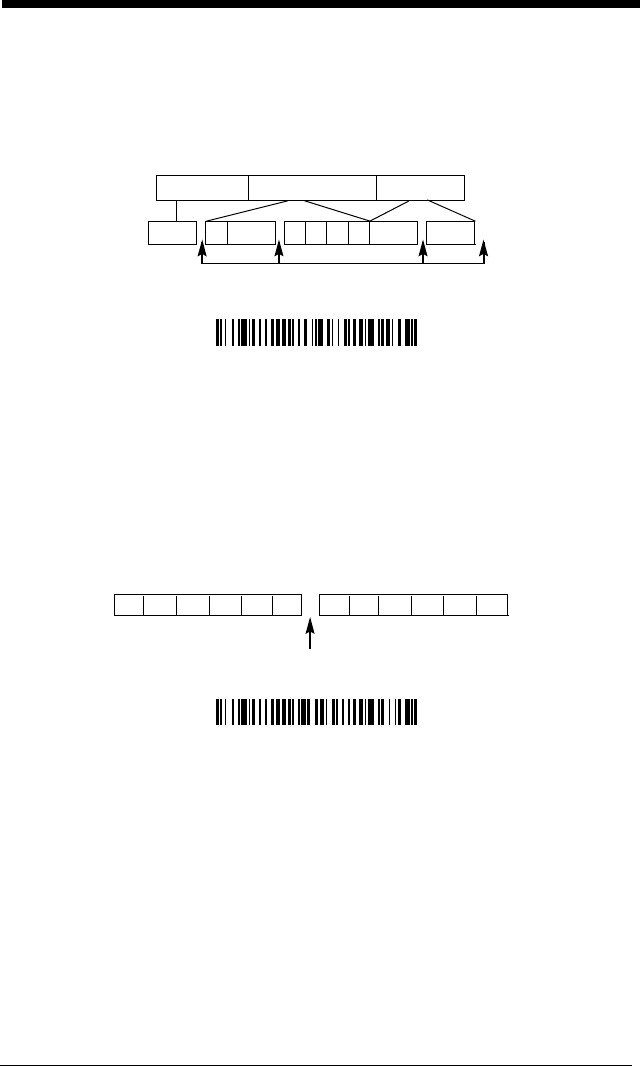
Intercharacter Delay
An intercharacter delay of up to 495 milliseconds may be placed between the
transmission of each character of scanned data. Scan the Intercharacter
Delay bar code below, then scan the number of milliseconds and the Save bar
code using the Programming Chart inside the back cover of this manual.
To remove this delay, scan the Intercharacter Delay bar code, then set the
number of steps to 0. Scan the Save bar code using the Programming Chart
inside the back cover of this manual.
Note: Intercharacter delays are not supported in USB serial emulation.
User Specified Intercharacter Delay
An intercharacter delay of up to 495 milliseconds may be placed after the trans-
mission of a particular character of scanned data. Scan the Delay Length bar
code below, then scan the number of milliseconds and the Save bar code using
the Programming Chart inside the back cover of this manual.
Next, scan the Character to Trigger Delay bar code, then the 2-digit hex value
for the ASCII character that will trigger the delay ASCII Conversion Chart (Code
Page 1252) on page A-3.
To remove this delay, scan the Delay Length bar code, and set the number of
steps to 0. Scan the Save bar code using the Programming Chart inside the
back cover of this manual.
12345
Intercharacter Delay
Prefix Scanned Data Suffix
Intercharacter Delay
Delay Length
Character to Trigger Delay
4 - 6
Interfunction Delay
An interfunction delay of up to 495 milliseconds may be placed between the
transmission of each segment of the message string. Scan the Interfunction
Delay bar code below, then scan the number of milliseconds and the Save bar
code using the Programming Chart inside the back cover of this manual.
To remove this delay, scan the Interfunction Delay bar code, then set the num-
ber of steps to 0. Scan the Save bar code using the Programming Chart inside
the back cover of this manual.
Intermessage Delay
An intermessage delay of up to 495 milliseconds may be placed between each
scan transmission. Scan the Intermessage Delay bar code below, then scan
the number of milliseconds and the Save bar code using the Programming
Chart inside the back cover of this manual.
To remove this delay, scan the Intermessage Delay bar code, then set the
number of steps to 0. Scan the Save bar code using the Programming Chart
inside the back cover of this manual.
Interfunction Delays
Prefix Scanned Data Suffix
12345STX HT CR LF
Interfunction Delay
2nd Scan Transmission1st Scan Transmission
Intermessage Delay
Intermessage Delay

5 - 1
5
Data Formatting
Data Format Editor Introduction
You may use the Data Format Editor to change the imager’s output. For exam-
ple, you can use the Data Format Editor to insert characters at certain points in
bar code data as it is scanned. The selections in the following pages are used
only if you wish to alter the output.
Default Data Format setting = None.
Normally, when you scan a bar code, it gets outputted automatically; however
when you do a format, you must use a “send” command (see Send Commands
on page 5-2) within the format program to output data.
Multiple formats may be programmed into the imager. They are stacked in the
order in which they are entered. However, the following list presents the order
in which formats are applied:
1. Specific Term ID, Actual Code ID, Actual Length
2. Specific Term ID, Actual Code ID, Universal Length
3. Specific Term ID, Universal Code ID, Actual Length
4. Specific Term ID, Universal Code ID, Universal Length
5. Universal Term ID, Actual Code ID, Actual Length
6. Universal Term ID, Actual Code ID, Universal Length
7. Universal Term ID, Universal Code ID, Actual Length
8. Universal Term ID, Universal Code ID, Universal Length
If you have changed data format settings, and wish to clear all formats and
return to the factory defaults, scan the Default Data Format code on page 5-4.
To Add a Data Format
Step 1. Scan the Enter Data Format symbol (page 5-4).
Step 2. Primary/Alternate Format
Determine if this will be your primary data format, or one of 3 alternate
formats. (Alternate formats allow you “single shot” capability to scan
one bar code using a different data format. After the one bar code has
been read, the imager reverts to the primary data format. See page 5-
5.) If you are programming the primary format, scan 0 using the Pro-
gramming Chart inside the back cover of this manual. If you are pro-
gramming an alternate format, scan 1, 2, or 3, depending on the
alternate format you are programming.
Step 3. Terminal Type
Refer to the Supported Terminals Chart (page 2-2) and locate the Ter-
minal ID number for your PC. Scan three numeric bar codes on the

5 - 2
inside back cover to program the imager for your terminal ID (you must
enter 3 digits). For example, scan 0 0 3 for an AT wedge.
Note: The wildcard for all terminal types is 099.
Step 4. Code I.D.
In Appendix A find the symbology to which you want to apply the data
format. Locate the Hex value for that symbology and scan the 2 digit
hex value from the Programming Chart inside the back cover of this
manual.
Step 5. Length
Specify what length (up to 9999 characters) of data will be acceptable
for this symbology. Scan the four digit data length from the Program-
ming Chart inside the back cover of this manual. (Note: 50 characters
is entered as 0050. 9999 is a universal number, indicating all lengths.)
Step 6. Editor Commands
Refer to the Format Editor Commands Chart (page 5-2). Scan the
symbols that represent the command you want to enter. 94 alphanu-
meric characters may be entered for each symbology data format.
Step 7. Scan Save from the Programming Chart inside the back cover of this
manual to save your entries.
Other Programming Selections
•Clear One Data Format
This deletes one data format for one symbology. If you are clearing the
primary format, scan 0 from the Programming Chart inside the back cover of
this manual. If you are clearing an alternate format, scan 1, 2, or 3, depending
on the alternate format you are clearing. Scan the Terminal Type (refer to the
Supported Terminals Chart on page 2-2), Code I.D. (refer to the Symbology
Chart on page A-1), and the bar code data length for the specific data format
that you want to delete. All other formats remain unaffected.
•Save from the Programming Chart inside the back cover of this manual
This exits, saving any Data Format changes.
•Discard from the Programming Chart inside the back cover of this manual
This exits without saving any Data Format changes.
Data Format Editor Commands
Send Commands
F1 Send all characters followed by “xx” key or function code, starting from cur-
rent cursor position.
Syntax = F1xx
(xx stands for the hex value for an
ASCII code, see ASCII Conversion Chart (Code Page 1252) on page A-3.)
F2 Send “nn” characters followed by “xx” key or function code, starting from
current cursor position.
Syntax = F2nnxx
(nn stands for the numeric value

5 - 3
(00-99) for the number of characters and xx stands for the hex value for an
ASCII code. See ASCII Conversion Chart (Code Page 1252) on page A-3.)
F3 Send up to but not including “ss” character (Search and Send) starting from
current cursor position, leaving cursor pointing to “ss” character followed by
“xx” key or function code.
Syntax = F3ssxx
(ss and xx both stand for the
hex values for ASCII codes, see ASCII Conversion Chart (Code Page
1252) on page A-3.)
F4 Send “xx” character “nn” times (Insert) leaving cursor in current cursor posi-
tion.
Syntax = F4xxnn
(xx stands for the hex value for an ASCII code, see
ASCII Conversion Chart (Code Page 1252) on page A-3, and nn is the
numeric value (00-99) for the number of times it should be sent.)
E9 Send all but the last “nn” characters, starting from the current cursor posi-
tion.
Syntax = E9nn
(nn is the numeric value (00-99) for the number of
characters that will not be sent at the end of the message.)
Move Commands
F5 Move the cursor ahead “nn” characters from current cursor position.
Syntax = F5nn
(nn stands for the numeric value (00-99) for the number of
characters the cursor should be moved ahead.)
F6 Move the cursor back “nn” characters from current cursor position.
Syntax = F6nn
(nn stands for the numeric value (00-99) for the number of
characters the cursor should be moved back.)
F7 Move the cursor to the beginning of the data string.
Syntax = F7.
EA Move the cursor to the end of the data string.
Syntax = EA
Search Commands
F8 Search ahead for “xx” character from current cursor position, leaving cursor
pointing to “xx” character.
Syntax = F8xx
(xx stands for the hex value for
an ASCII code, see ASCII Conversion Chart (Code Page 1252) on page A-
3.)
F9 Search back for “xx” character from current cursor position, leaving cursor
pointing to “xx” character.
Syntax = F9xx
(xx stands for the hex value for
an ASCII code, see ASCII Conversion Chart (Code Page 1252) on page A-
3.)
E6 Search ahead for the first non “xx” character from the current cursor posi-
tion, leaving cursor pointing to non “xx” character.
Syntax = E6xx
(xx
stands for the hex value for an ASCII code, see ASCII Conversion Chart
(Code Page 1252) on page A-3.
E7 Search back for the first non “xx” character from the current cursor position,
leaving cursor pointing to non “xx” character.
Syntax = E7xx
(xx stands for
the hex value for an ASCII code, see ASCII Conversion Chart (Code Page
1252) on page A-3.)
Miscellaneous Commands
FB Suppress all occurrences of up to 15 different characters, starting at the
current cursor position, as the cursor is advanced by other commands.
When the FC command is encountered, the suppress function is termi-
nated. The cursor is not moved by the FB command. Syntax = FBnnxxyy
. .zz where nn is a count of the number of suppressed characters in the list
5 - 4
and xxyy .. zz is the list of characters to be suppressed. (xx stands for the
hex value for an ASCII code, see ASCII Conversion Chart (Code Page
1252) on page A-3.)
FC Disables suppress filter and clear all suppressed characters.
Syntax = FC.
E4 Replaces up to 15 characters in the data string with user specified charac-
ters. Replacement continues until the E5 command is encountered.
Syn-
tax = E4nnxx1xx2yy1yy2...zz1zz2
where nn is the total count of both
characters to be replaced plus replacement characters; xx1 defines charac-
ters to be replaced and xx2 defines replacement characters, continuing
through zz1 and zz2.
E5 Terminates character replacement.
Syntax = E5.
FE Compare character in current cursor position to the character “xx.” If char-
acters are equal, increment cursor. If characters are not equal, no format
match.
Syntax = FExx
(xx stands for the hex value for an ASCII code, see
ASCII Conversion Chart (Code Page 1252) on page A-3.)
EC Check to make sure there is an ASCII number at the current cursor posi-
tion. If character is not numeric, format is aborted.
Syntax = EC
.
ED Check to make sure there is a non-numeric ASCII character at the current
cursor position. If character is numeric, format is aborted.
Syntax = ED
.
Data Format Editor
Enter Data Format
* Default Data Format
Clear One Data Format
Save
Discard
Clear All Data Formats
5 - 5
Data Formatter
When Data Formatter is turned off, the bar code data is output to the host as
read (including prefixes and suffixes). Choose one of the following options.
Default = Data Formatter On.
When Data Formatter is required, all input data must conform to an edited for-
mat or the imager does not transmit the input data to the host device.
Alternate Data Formats
Alternate formats allow you “single shot” capability to scan one bar code using a
different data format than your primary format. When data formats are pro-
grammed (see page 5-1), you must input whether you are programming the pri-
mary format, or an alternate format numbered 1, 2, or 3.
An alternate format is initiated by scanning one of the 3 alternate format bar
codes below. The imager will scan the next bar code, formatting the data with
the selected alternate format, then revert immediately to the primary format.
Data Formatter Off
* Data Formatter On,
but Not Required
Data Format On, Format Required
Alternate Data Format 1
Alternate Data Format 2
Alternate Data Format 3

5 - 6
6 - 1
6
Secondary Interface
By switching secondary interface cables, the 3800g imager, for example, can
communicate with a portable data terminal (secondary interface) in addition to
the host terminal (primary interface). See the table below for the secondary
interfaces for the 3800g.
3800g Models
Enabling the Secondary Interface
The secondary interface can be programmed at any time.
You can temporarily disable the secondary interface, but still retain the second-
ary interface settings in the imager’s memory by scanning the Disable bar code
below. To re-enable the secondary interface, scan the Enable bar code.
Default =Disable
.
Secondary RS-232 Connection
All communication parameters between the imager and terminal must match for
correct data transfer through the serial port using RS-232 protocol.
Models Primary Interfaces Secondary
Interfaces
3800G04E,
3800G14E
TTL level RS-232, USB, Key-
board wedge
TTL level RS-232
3800G05E,
3800G15E
TTL level RS-232, IBM Retail,
USB, Retail USB, Keyboard
wedge
TTL level RS-232
3800GHD24E TTL level RS-232, USB, Key-
board wedge
TTL level RS-232
3800GPDF04E TTL level RS-232, USB, Key-
board wedge
TTL level RS-232
* Disable
Enable
6 - 2
RS-232 programmable selections are used by both the primary and secondary
interfaces. Changing an RS-232 parameter (e.g., baud rate or parity), while in
primary
or
secondary mode will affect both interfaces. If you want to change the
RS-232 settings, refer to the Connecting the Imager with RS-232 Serial Port
section on page 1-6.
Secondary Trigger Mode
Manual Trigger:
You must press the imager trigger to scan. When not scan-
ning, idle power is maintained.
Default = Manual Trigger
.
Automatic Trigger:
The imager scans continuously at full power.
Presentation Mode:
The LEDs are off until a bar code is presented to the
imager. Then the LEDs turn on automatically to read the code. Presentation
Mode uses ambient light to detect the bar codes.
Hands Free Time-Out
The Automatic Trigger and Presentation Modes are referred to as “hands free”
modes. If the imager’s trigger is pulled when using a hands free mode, the
imager changes to manual trigger mode. You can set the time the imager
should remain in manual trigger mode by setting the Hands Free Time-Out.
Once the time-out value is reached, (if there have been no further trigger pulls)
the imager reverts to the original hands free mode.
Note: If you change the time-out duration for the secondary interface, the
duration of the primary interface will also be changed.
RS-232 Interface
* Manual Trigger
Automatic Trigger
Presentation Mode

6 - 3
Scan the
Hands Free Time-Out
bar code, then scan the time-out duration
(from 0-300,000 milliseconds) from the inside back cover, and
Save
.
Default =
5,000 ms.
Hands Free Time-Out

6 - 4

7 - 1
7
Symbologies
Introduction
This programming section contains the following menu selections. Refer to
Chapter 11 for settings and defaults.
•All Symbologies •Korea Post Code
•China Post Code •Label Code
(3800gHD/
3800gPDF only)
•Codabar •Matrix 2 of 5
•Codablock F •MicroPDF417
(3800gHD/
3800gPDF only)
•Code 11 •MSI
•Code 16K •PDF417 (3800gHD/
3800gPDF only)
•Code 39 •Plessey Code
•Code 32 Pharmaceutical (PARAF) •PosiCode
•Code 49 •Straight 2 of 5 IATA
(two-bar start/stop)
•Code 93 •Straight 2 of 5
Industrial (three-bar
start/stop)
•Code 128 •Label Code
(3800gHD/
3800gPDF only)
•UPC-A/EAN-13 with Extended
Coupon Code •Telepen
•EAN/JAN 8 •Trioptic Code
•GS1 DataBar Omnidirectional •UPC A
•GS1 DataBar Limited •UPC E
•GS1 DataBar Expanded •Straight 2 of 5 IATA
(two-bar start/stop)
•Interleaved 2 of 5 •Straight 2 of 5
Industrial (three-bar
start/stop)

7 - 2
All Symbologies
If you want to decode all the symbologies allowable for your imager, scan the
All Symbologies On
code. If on the other hand, you want to decode only a
particular symbology, scan All Symbologies Off followed by the On symbol for
that particular symbology.
Message Length
You are able to set the valid reading length of some of the bar code symbologies.
If the data length of the scanned bar code doesn’t match the valid reading length,
the imager will issue an error beep. You may wish to set the same value for
minimum and maximum length to force the imager to read fixed length bar code
data. This helps reduce the chances of a misread.
EXAMPLE: Decode only those bar codes with a count of 9-20 characters.
Min. length = 09 Max. length = 20
EXAMPLE: Decode only those bar codes with a count of 15 characters.
Min. length = 15 Max. length = 15
For a value other than the minimum and maximum message length defaults,
scan the bar codes included in the explanation of the symbology, then scan the
digit value of the message length and Save bar codes on the Programming Chart
inside the back cover of this manual. The minimum and maximum lengths and
the defaults are included with the respective symbologies.
All Symbologies On
All Symbologies Off
7 - 3
Codabar
<Default All Codabar Settings>
Codabar
Codabar Start/Stop Characters
Start/Stop characters identify the leading and trailing ends of the bar code. You
may either transmit, or not transmit Start/Stop characters.
Default = Don’t Transmit
.
Codabar Check Character
Codabar check characters are created using different “modulos.” You can pro-
gram the imager to read only Codabar bar codes with Modulo 16 check charac-
ters.
Default = No Check Character.
No Check Character
indicates that the imager reads and transmits bar code
data with or without a check character.
When Check Character is set to
Validate and Transmit
, the imager will only
read Codabar bar codes printed with a check character, and will transmit this
character at the end of the scanned data.
* On
Off
Transmit
* Don’t Transmit
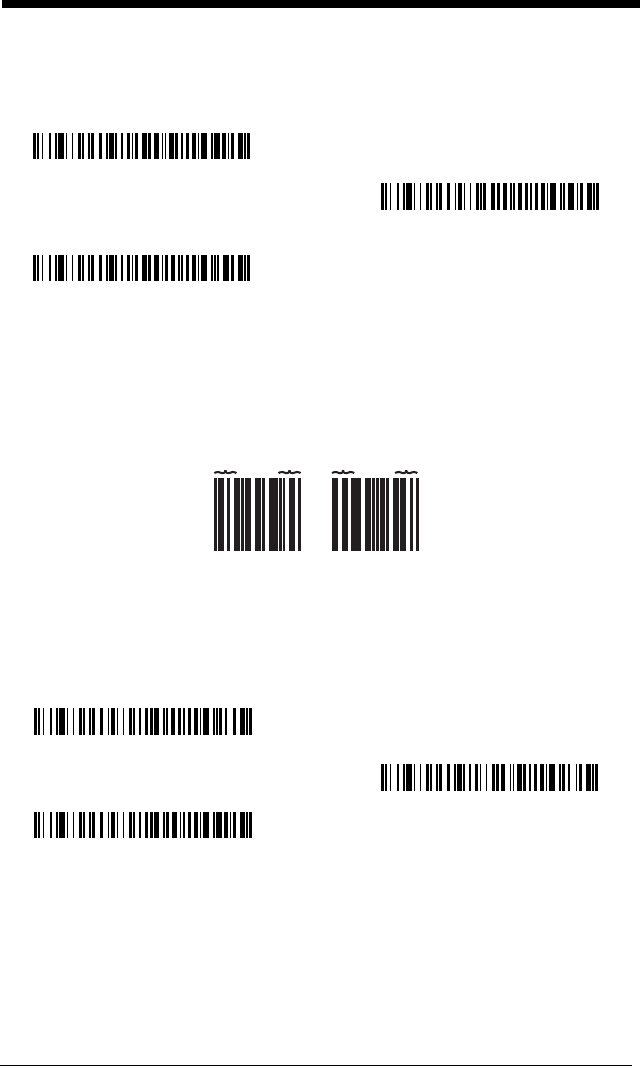
7 - 4
When Check Character is set to
Validate, but Don’t Transmit
, the unit will only
read Codabar bar codes printed
with
a check character, but will not transmit the
check character with the scanned data.
Codabar Concatenation
Codabar supports symbol concatenation. When you enable concatenation, the
imager looks for a Codabar symbol having a “D” start character, adjacent to a
symbol having a “D” stop character. In this case the two messages are concat-
enated into one with the “D” characters omitted.
Select Require to prevent the imager from decoding a single “D” Codabar sym-
bol without its companion. This selection has no effect on Codabar symbols
without Stop/Start D characters.
* No Check Character
Validate Modulo 16 and Transmit
Validate Modulo 16, but
Don’t Transmit
A12D D34A
Codabar
Character Stop Start StopStart
On
* Off
Require
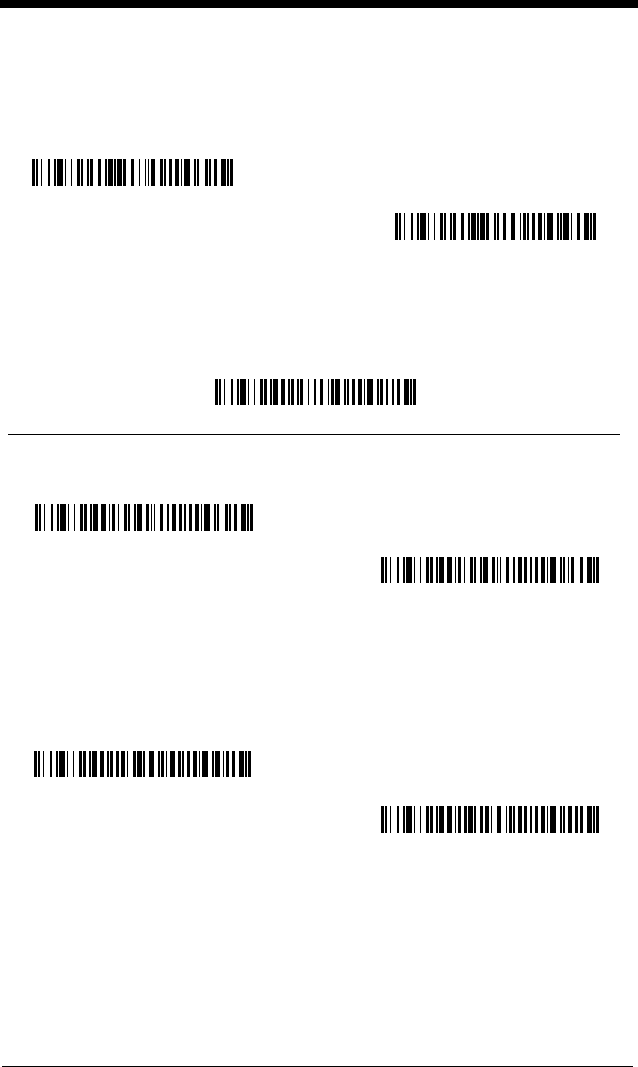
7 - 5
Codabar Message Length
Scan the bar codes below to change the message length. Refer to Message
Length on page 7-2 for additional information. Minimum and Maximum
lengths = 2-60. Minimum Default = 4, Maximum Default = 60.
Code 39
< Default All Code 39 Settings >
Code 39
Code 39 Start/Stop Characters
Start/Stop characters identify the leading and trailing ends of the bar code. You
may either transmit, or not transmit Start/Stop characters.
Default =
Don’t
Tra nsmit.
Code 39 Check Character
No Check Character indicates that the imager reads and transmits bar code
data with or without a check character.
When Check Character is set to Validate, but Don’t Transmit, the unit only
reads Code 39 bar codes printed with a check character, but will not transmit
the check character with the scanned data.
Minimum Message Length
Maximum Message Length
* On
Off
Transmit
* Don’t Transmit
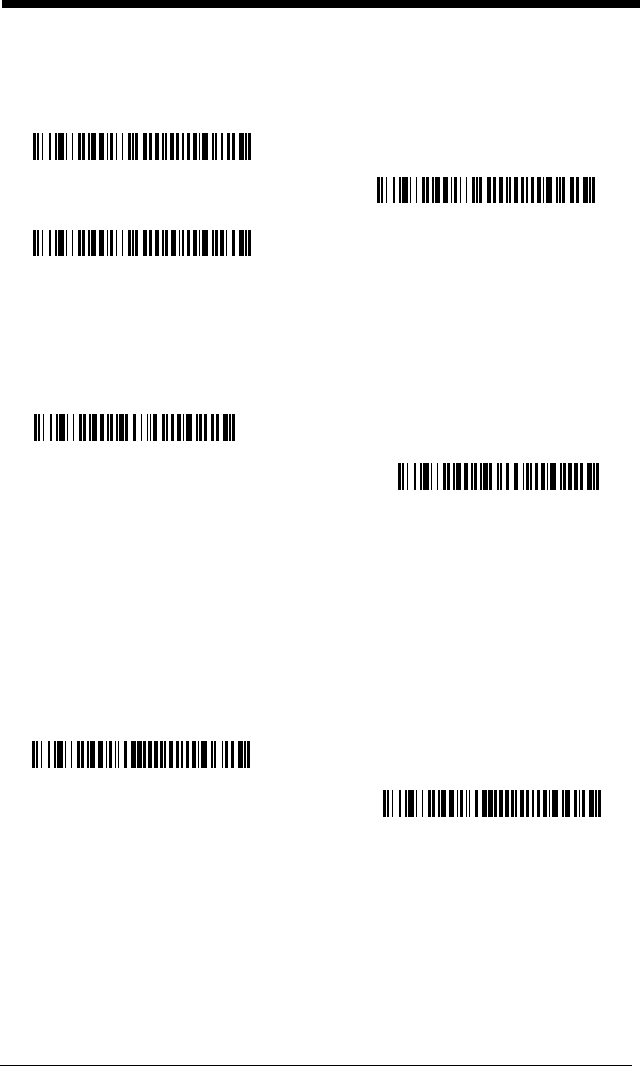
7 - 6
When Check Character is set to Validate and Transmit, the imager only reads
Code 39 bar codes printed with a check character, and will transmit this charac-
ter at the end of the scanned data.
Default = No Check Character.
Code 39 Message Length
Scan the bar codes below to change the message length. Refer to Message
Length on page 7-2 for additional information. Minimum and Maximum
lengths = 0-48. Minimum Default = 0, Maximum Default = 48.
Code 39 Append
This function allows the imager to append the data from several Code 39 bar
codes together before transmitting them to the host computer. When this func-
tion is enabled, the imager stores those Code 39 bar codes that start with a
space (excluding the start and stop symbols), and does not immediately trans-
mit the data. The imager stores the data in the order in which the bar codes are
read, deleting the first space from each. The imager transmits the appended
data when it reads a Code 39 bar code that starts with a character other than a
space.
Default = Off.
Validate, but Don’t Transmit
* No Check Character
Validate and Transmit
Minimum Message Length
Maximum Message Length
* Off
On
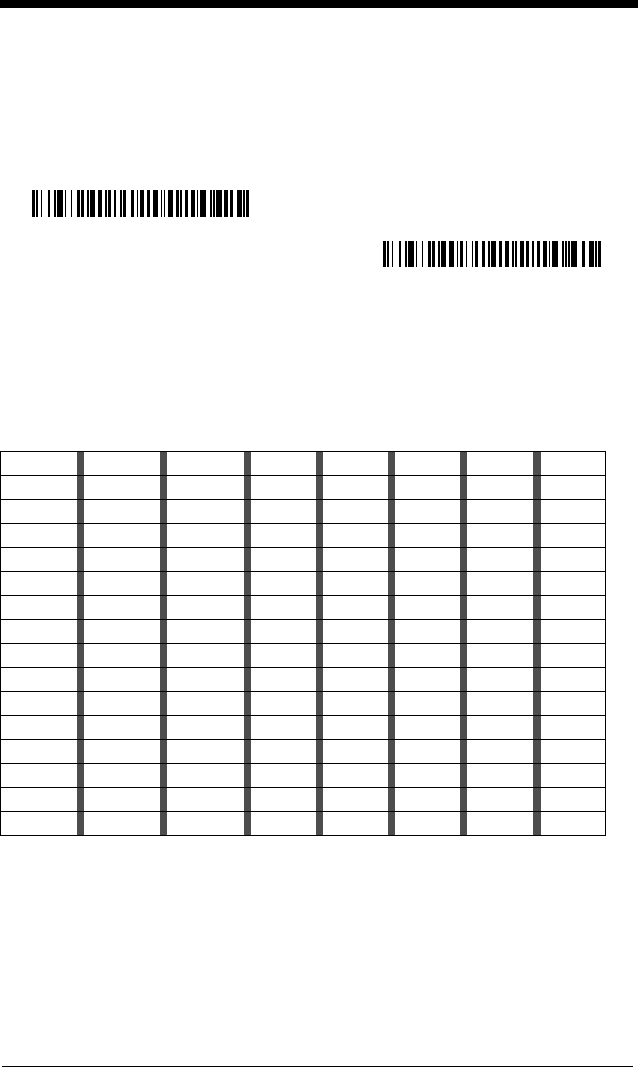
7 - 7
Code 32 Pharmaceutical (PARAF)
Code 32 Pharmaceutical is a form of the Code 39 symbology used by Italian
pharmacies. This symbology is also known as PARAF.
Default = Off.
Note: Trioptic Code must be turned off to scan Code 32 Pharmaceutical codes.
Full ASCII
If Full ASCII Code 39 decoding is enabled, certain character pairs within the bar
code symbol will be interpreted as a single character. For example: $V will be
decoded as the ASCII character SYN, and /C will be decoded as the ASCII
character #.
Default = Off
.
NUL %U DLE $P
SP SPACE
00@%VPP‘%Wp+P
SOH $A DC1 $Q !/A 11AAQQa+Aq+Q
STX $B DC2 $R “/B 22BBRRb+Br+R
ETX $C DC3 $S #/C 33CCSSc+Cs+S
EOT $D DC4 $T $/D 44DDTTd+Dt+T
ENQ $E NAK $U %/E 55EEUUe+Eu+U
ACK $F SYN $V &/F 66FFVVf+Fv+V
BEL $G ETB $W ‘/G77GGWWg+Gw+W
BS $H CAN $X (/H 88HHXXh+Hx+X
HT $I EM $Y )/I 99IIYYi+Iy+Y
LF $J SUB $Z */J :/ZJJZZj+Jz+Z
VT $K ESC %A +/K ;%FKK[%Kk+K{%P
FF $L FS %B ,/L <%GLL\%Ll+L|%Q
CR $M GS %C -- =%HMM]%Mm+M}%R
SO $N RS %D .. >%INN^%Nn+N~%S
SI $O US %E //O ?%JOO_%Oo+ODEL %T
* Off
On
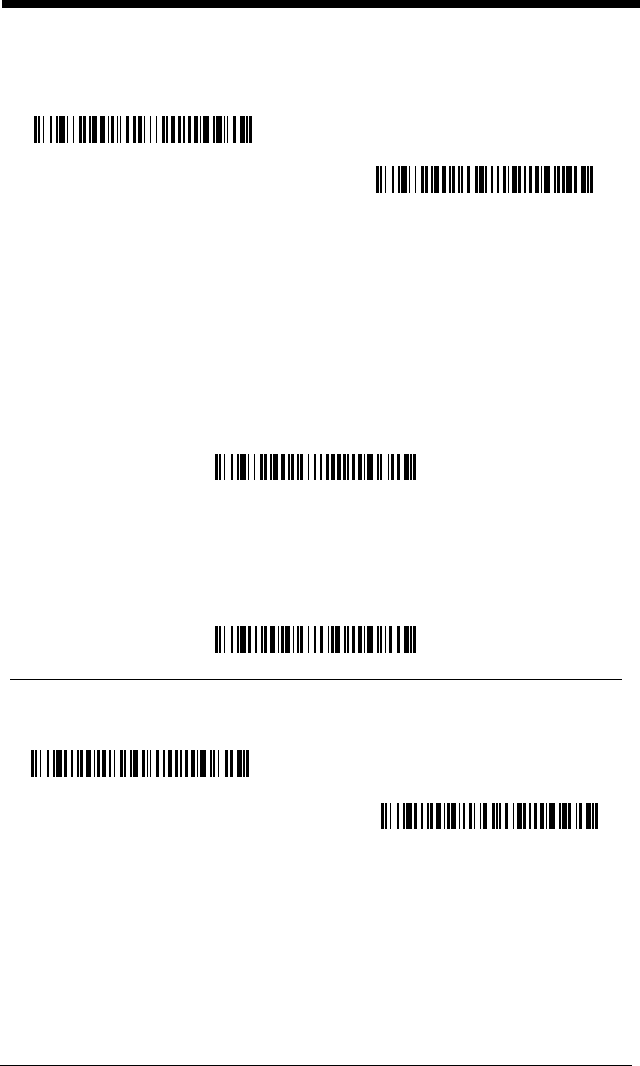
7 - 8
Character pairs /M and /N decode as a minus sign and period respectively.
Character pairs /P through /Y decode as 0 through 9.
Code 39 Code Page
Code pages define the mapping of character codes to characters. If the data
received does not display with the proper characters, it may be because the bar
code being scanned was created using a code page that is different from the
one the host program is expecting. If this is the case, scan the bar code below,
select the code page with which the bar codes were created from the chart,
Code Page Mapping of Printed Bar Codes on page A-5, and scan the value and
the Save bar code from the Programming Chart inside the back cover of this
manual. The data characters should then appear properly.
Interleaved 2 of 5
< Default All Interleaved 2 of 5 Settings >
Interleaved 2 of 5
Check Digit
No Check Digit indicates that the imager reads and transmits bar code data
with or without a check digit.
When Check Digit is set to Validate, but Don’t Transmit, the unit only reads
Interleaved 2 of 5 bar codes printed with a check digit, but will not transmit the
check digit with the scanned data.
* Full ASCII Off
Full ASCII On
Code 39 Code Page
* On
Off
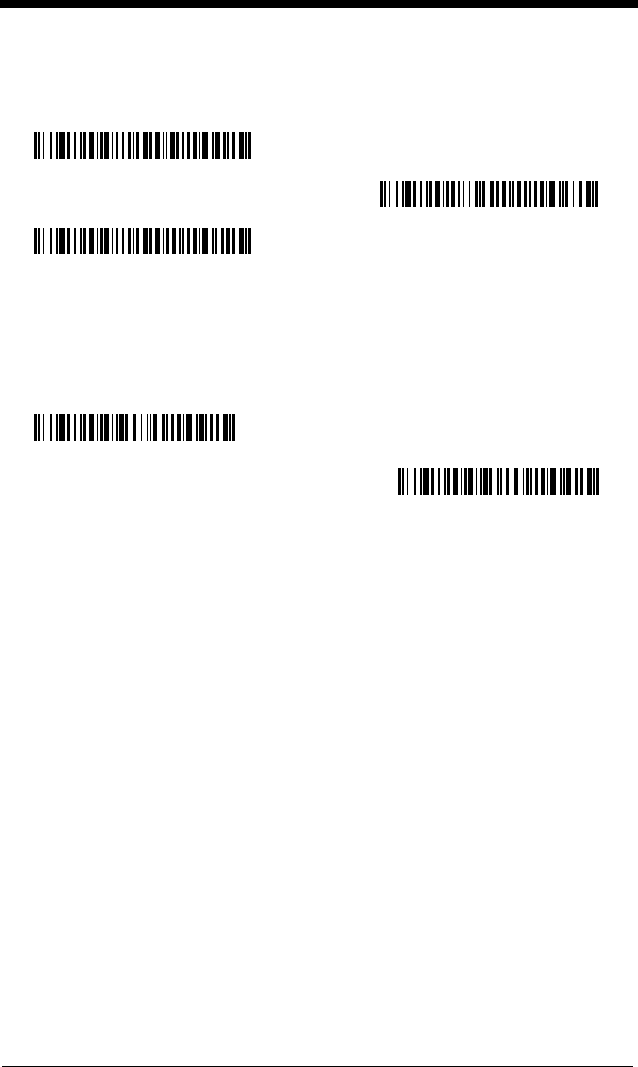
7 - 9
When Check Digit is set to Validate and Transmit, the imager only reads Inter-
leaved 2 of 5 bar codes printed with a check digit, and will transmit this digit at
the end of the scanned data.
Default = No Check Digit.
Interleaved 2 of 5 Message Length
Scan the bar codes below to change the message length. Refer to Message
Length on page 7-2 for additional information. Minimum and Maximum
lengths = 2-80. Minimum Default = 4, Maximum Default = 80.
Validate, but Don’t Transmit
* No Check Digit
Validate and Transmit
Minimum Message Length
Maximum Message Length
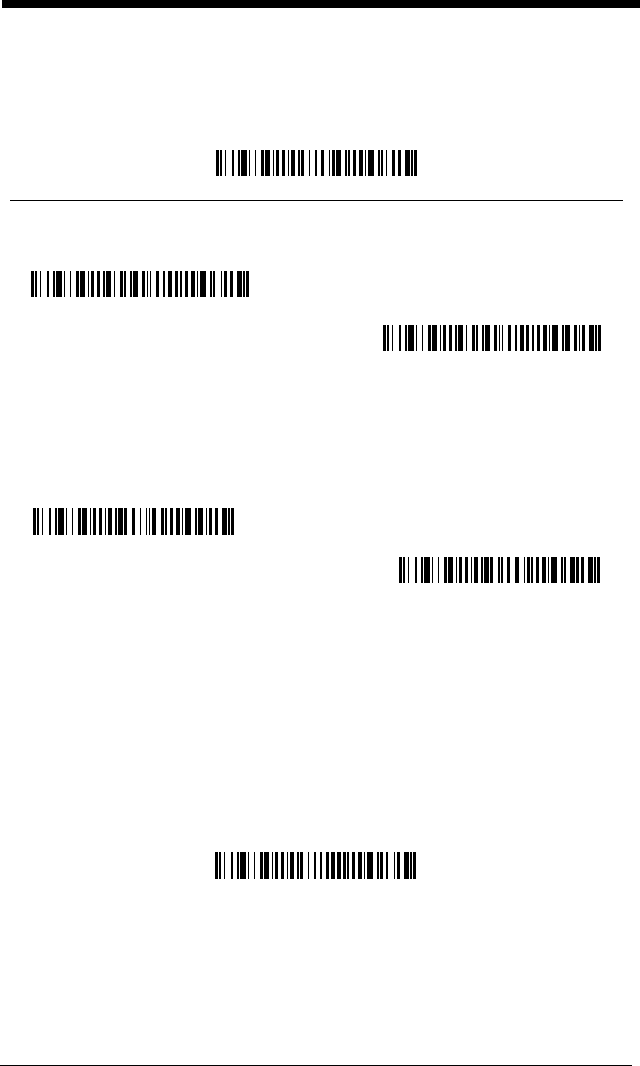
7 - 10
Code 93
< Default All Code 93 Settings >
Code 93
Code 93 Message Length
Scan the bar codes below to change the message length. Refer to Message
Length on page 7-2 for additional information. Minimum and Maximum
lengths = 0-80. Minimum Default = 0, Maximum Default = 80.
Code 93 Code Page
Code pages define the mapping of character codes to characters. If the data
received does not display with the proper characters, it may be because the bar
code being scanned was created using a code page that is different from the
one the host program is expecting. If this is the case, scan the bar code below,
select the code page with which the bar codes were created from the chart,
Code Page Mapping of Printed Bar Codes on page A-5, and scan the value and
the Save bar code from the Programming Chart inside the back cover of this
manual. The data characters should then appear properly.
* On
Off
Minimum Message Length
Maximum Message Length
Code 93 Code Page
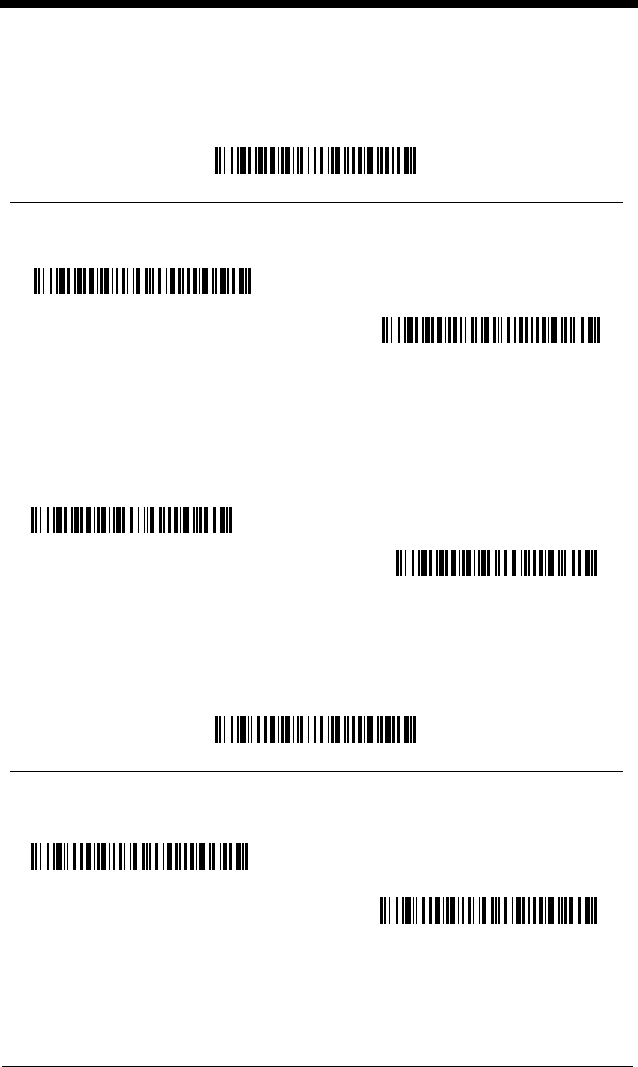
7 - 11
Straight 2 of 5 Industrial (three-bar start/stop)
<Default All Straight 2 of 5 Settings>
Straight 2 of 5 Industrial
Straight 2 of 5 Industrial Message Length
Scan the bar codes below to change the message length. Refer to Message
Length on page 7-2 for additional information. Minimum and Maximum
lengths = 1-48. Minimum Default = 4, Maximum Default = 48.
Straight 2 of 5 IATA (two-bar start/stop)
<Default All Code IATA 2 of 5 Settings>
Straight 2 of 5 IATA
On
* Off
Minimum Message Length
Maximum Message Length
On
* Off
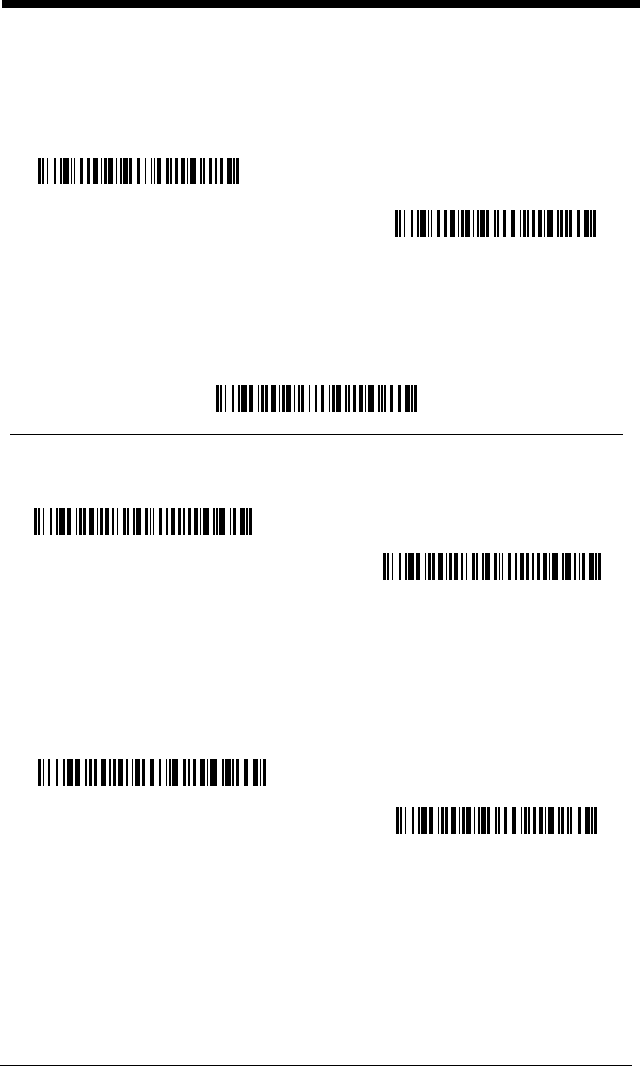
7 - 12
Straight 2 of 5 IATA Message Length
Scan the bar codes below to change the message length. Refer to Message
Length on page 7-2 for additional information. Minimum and Maximum
lengths = 1-48. Minimum Default = 4, Maximum Default = 48.
Matrix 2 of 5
<Default All Matrix 2 of 5 Settings>
Matrix 2 of 5
Matrix 2 of 5 Message Length
Scan the bar codes below to change the message length. Refer to Message
Length on page 7-2 for additional information. Minimum and Maximum
lengths = 1-80. Minimum Default = 4, Maximum Default = 80.
Minimum Message Length
Maximum Message Length
On
* Off
Minimum Message Length
Maximum Message Length
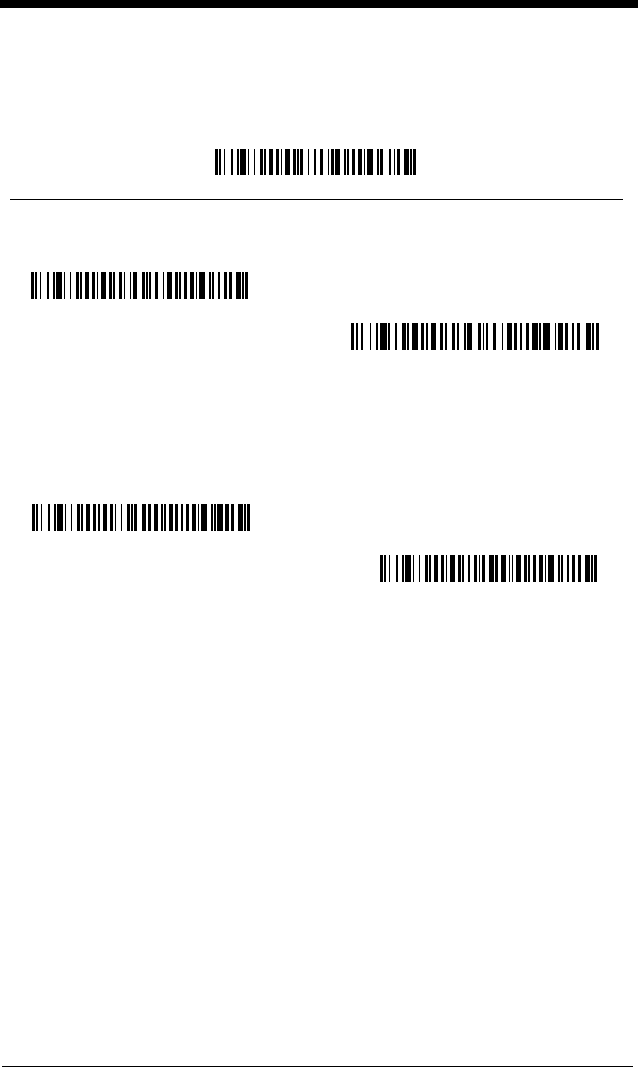
7 - 13
Code 11
<Default All Code 11 Settings>
Code 11
Check Digits Required
This option sets whether 1 or 2 check digits are required with Code 11 bar
codes.
Default = Two Check Digits.
On
* Off
One Check Digit
* Two Check Digits
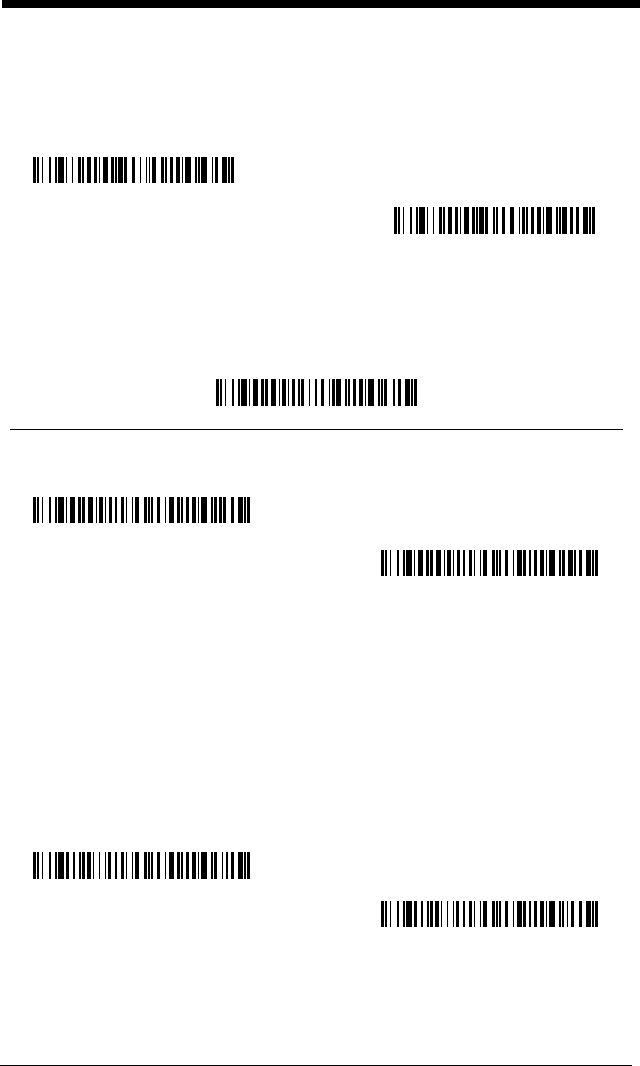
7 - 14
Code 11 Message Length
Scan the bar codes below to change the message length. Refer to Message
Length on page 7-2 for additional information. Minimum and Maximum
lengths = 1-80. Minimum Default = 4, Maximum Default = 80.
Code 128
<Default All Code 128 Settings>
Code 128
ISBT 128 Concatenation
In 1994 the International Society of Blood Transfusion (ISBT) ratified a standard
for communicating critical blood information in a uniform manner. The use of
ISBT formats requires a paid license. The ISBT 128 Application Specification
describes 1) the critical data elements for labeling blood products, 2) the current
recommendation to use Code 128 due to its high degree of security and its
space-efficient design, 3) a variation of Code 128 that supports concatenation
of neighboring symbols, and 4) the standard layout for bar codes on a blood
product label. Use the bar codes below to turn concatenation on or off.
Default
=Off.
Minimum Message Length
Maximum Message Length
* On
Off
* Off
On
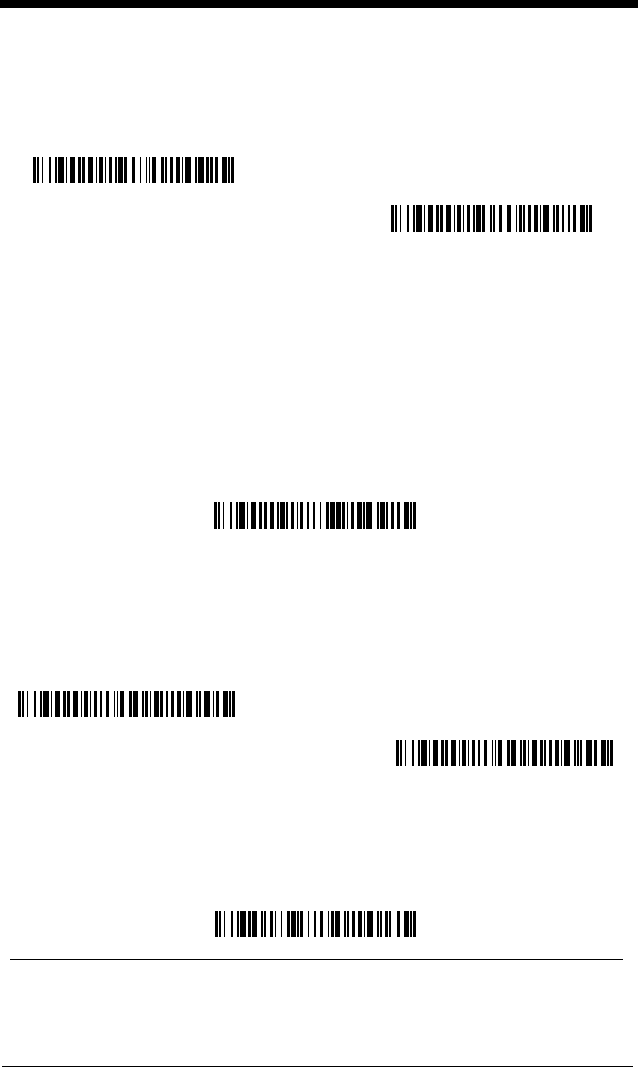
7 - 15
Code 128 Message Length
Scan the bar codes below to change the message length. Refer to Message
Length on page 7-2 for additional information. Minimum and Maximum
lengths = 0-80. Minimum Default = 0, Maximum Default = 80.
Code 128 Code Page
Code pages define the mapping of character codes to characters. If the data
received does not display with the proper characters, it may be because the bar
code being scanned was created using a code page that is different from the
one the host program is expecting. If this is the case, scan the bar code below,
select the code page with which the bar codes were created from the chart,
Code Page Mapping of Printed Bar Codes on page A-5, and scan the value and
the Save bar code from the Programming Chart inside the back cover of this
manual. The data characters should then appear properly.
Code 128 Function Code Transmit
By default, Code 128 function codes are not transmitted with Code 128 bar
code data. However, if you wish to transmit Code 128 function codes with the
bar code data, scan the Function Codes On bar code, below.
Default = Off
Telepen
<Default All Telepen Settings>
Minimum Message Length
Maximum Message Length
Code 128 Code Page
* Function Codes Off
Function Codes On
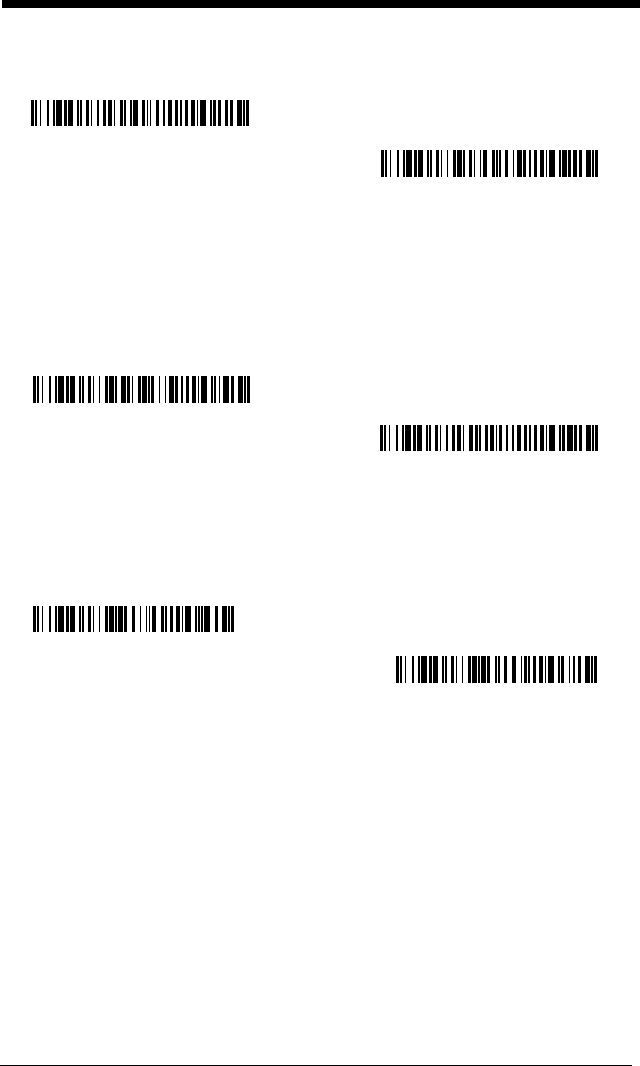
7 - 16
Telepen
Telepen Output
Using AIM Telepen Output, the imager reads symbols with start/stop pattern 1
and decodes them as standard full ASCII (start/stop pattern 1). When Original
Telepen Output is selected, the imager reads symbols with start/stop pattern 1
and decodes them as compressed numeric with optional full ASCII (start/stop
pattern 2).
Default = AIM Telepen Output.
Telepen Message Length
Scan the bar codes below to change the message length. Refer to Message
Length on page 7-2 for additional information. Minimum and Maximum
lengths = 1-60. Minimum Default = 1, Maximum Default = 60.
On
* Off
Original Telepen Output
* AIM Telepen Output
Minimum Message Length
Maximum Message Length
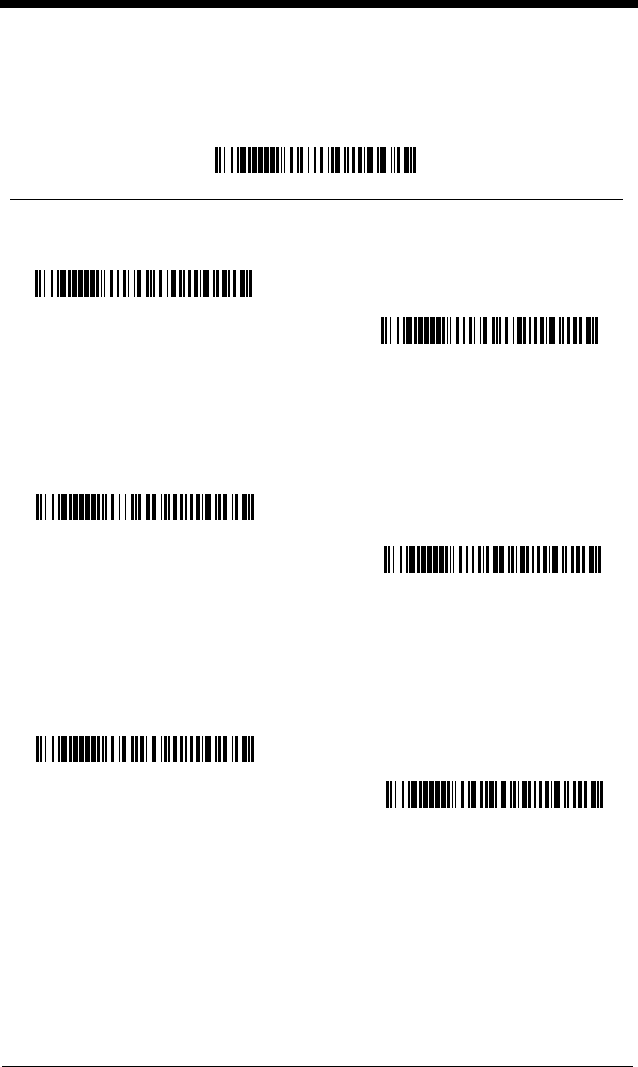
7 - 17
UPC A
<Default All UPC A Settings>
UPC A
UPC A Check Digit
This selection allows you to specify whether the check digit should be transmit-
ted at the end of the scanned data or not.
Default = On
.
UPC A Number System
The numeric system digit of a U.P.C. symbol is normally transmitted at the
beginning of the scanned data, but the unit can be programmed so it will not
transmit it.
Default = On.
* On
Off
* On
Off
Off
* On
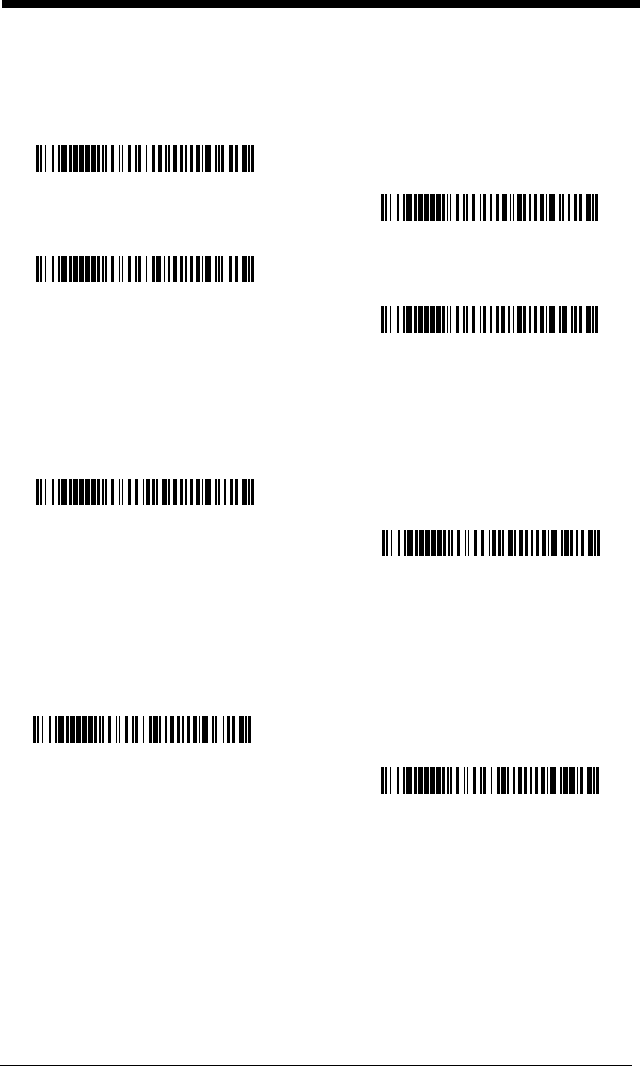
7 - 18
UPC A Addenda
This selection adds 2 or 5 digits to the end of all scanned UPC A data.
Default = Off for both 2 Digit and 5 Digit Addenda.
UPC A Addenda Required
When Addenda Required is set to on, the imager will only read UPC A bar
codes that have addenda.
Default = Not Required.
UPC A Addenda Separator
When this feature is on, there is a space between the data from the bar code
and the data from the addenda. When turned off, there is no space.
Default = On.
* 5 Digit Addenda Off
5 Digit Addenda On
* 2 Digit Addenda Off
2 Digit Addenda On
* Not Required
Required
Off
* On
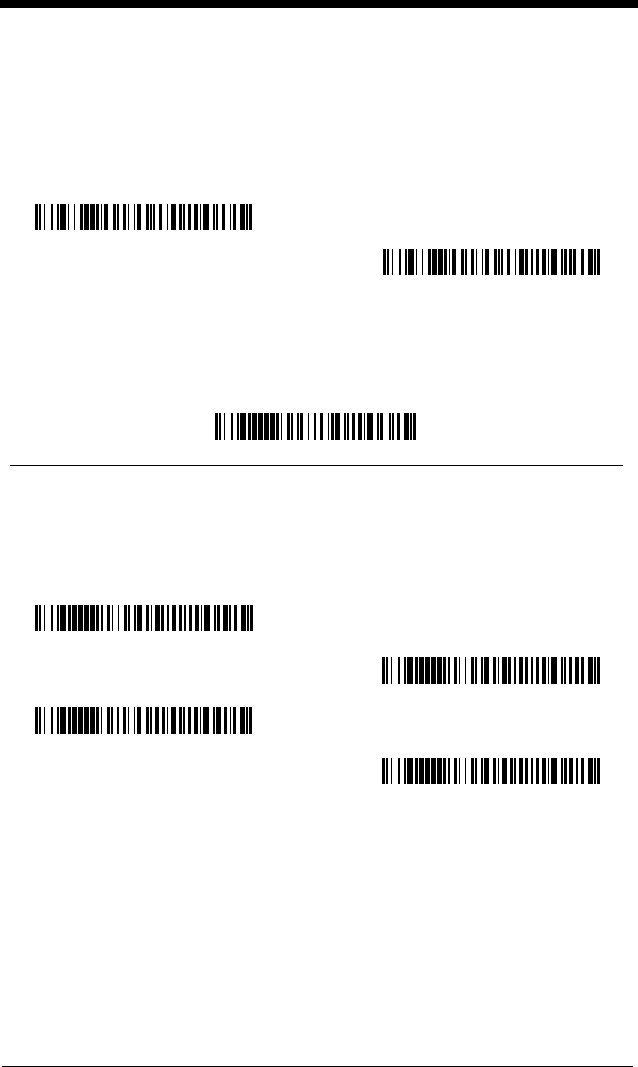
7 - 19
UPC-A/EAN-13
with Extended Coupon Code
Use the following codes to enable or disable UPC-A and EAN-13 with Extended
Coupon Code.
Default = On.
UPC E
<Default All UPC E Settings>
UPC E0 and UPC E1
Most U.P.C. bar codes lead with the 0 number system. For these codes, use the
UPC E0 selection. If you need to read codes that lead with the 1 number sys-
tem, use the UPC E1 selection.
Default = On (UPC E0) and Off (UPC E1).
* On
Off
* UPC E0 On
UPC E0 Off
UPC E1 On
* UPC E1 Off
7 - 20
UPC E0 and UPC E1 Expand
UPC E Expand expands the UPC E code to the 12 digit, UPC A format.
Default = Off.
UPC E0 and UPC E1 Addenda Required
When Addenda Required is set to on, the imager will only read UPC E bar
codes that have addenda.
Default = Not Required.
UPC E0 and UPC E1 Addenda Separator
When this feature is on, there is a space between the data from the bar code
and the data from the addenda. When turned off, there is no space.
Default = On.
UPC E0 Check Digit
Check Digit specifies whether the check digit should be transmitted at the end
of the scanned data or not.
Default = On.
* Off
On
* Not Required
Required
Off
* On
Off
* On
7 - 21
UPC E0 Number System
The numeric system digit of a U.P.C. symbol is normally transmitted at the
beginning of the scanned data, but the unit can be programmed so it will not
transmit it.
Default = On.
UPC E0 Addenda
This selection adds 2 or 5 digits to the end of all scanned UPC E data.
Default = Off for both 2 Digit and 5 Digit Addenda.
EAN/JAN 13
<Default All EAN/JAN Settings>
Off
* On
* 5 Digit Addenda Off
5 Digit Addenda On
* 2 Digit Addenda Off
2 Digit Addenda On
7 - 22
EAN/JAN 13
EAN/JAN 13 Check Digit
This selection allows you to specify whether the check digit should be transmit-
ted at the end of the scanned data or not.
Default = On.
EAN/JAN 13 Addenda
This selection adds 2 or 5 digits to the end of all scanned EAN/JAN 13 data.
Default = Off for both 2 Digit and 5 Digit Addenda.
EAN/JAN 13 Addenda Required
When Addenda Required is set to on, the imager will only read EAN/JAN 13 bar
codes that have addenda.
Default = Not Required.
* On
Off
Off
* On
* 5 Digit Addenda Off
5 Digit Addenda On
* 2 Digit Addenda Off
2 Digit Addenda On
* Not Required
Required
7 - 23
EAN/JAN 13 Addenda Separator
When this feature is on, there is a space between the data from the bar code
and the data from the addenda. When turned off, there is no space.
Default = On.
Note: If you want to enable or disable EAN13 with Extended Coupon Code,
refer to UPC-A/EAN-13 with Extended Coupon Code on page 7-19.
ISBN Translate
This selection causes EAN-13 Bookland symbols to be translated into their
equivalent ISBN number format.
Default = Off.
EAN/JAN 8
<Default All EAN/JAN 8 Settings>
Off
* On
* Off
On
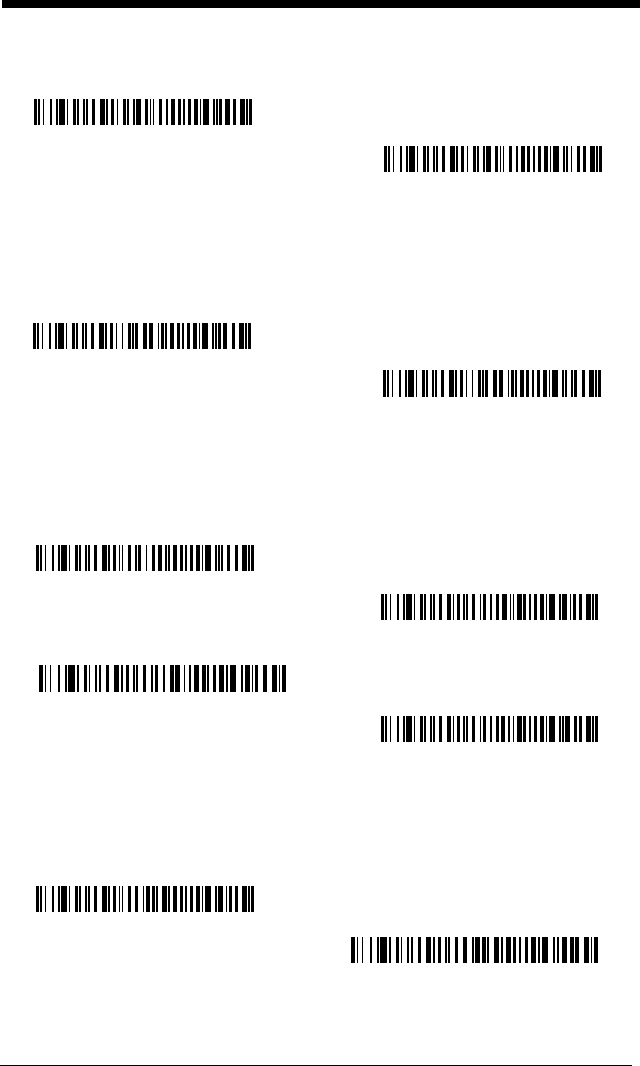
7 - 24
EAN/JAN 8
EAN/JAN 8 Check Digit
This selection allows you to specify whether the check digit should be transmit-
ted at the end of the scanned data or not.
Default = On.
EAN/JAN 8 Addenda
This selection adds 2 or 5 digits to the end of all scanned EAN/JAN 8 data.
Default = Off for both 2 Digit and 5 Digit Addenda.
EAN/JAN 8 Addenda Required
When Addenda Required is set to on, the imager will only read EAN/JAN 8 bar
codes that have addenda.
Default = Not Required.
* On
Off
Off
* On
* 5 Digit Addenda Off
5 Digit Addenda On
* 2 Digit Addenda Off
2 Digit Addenda On
* Not Required
Required
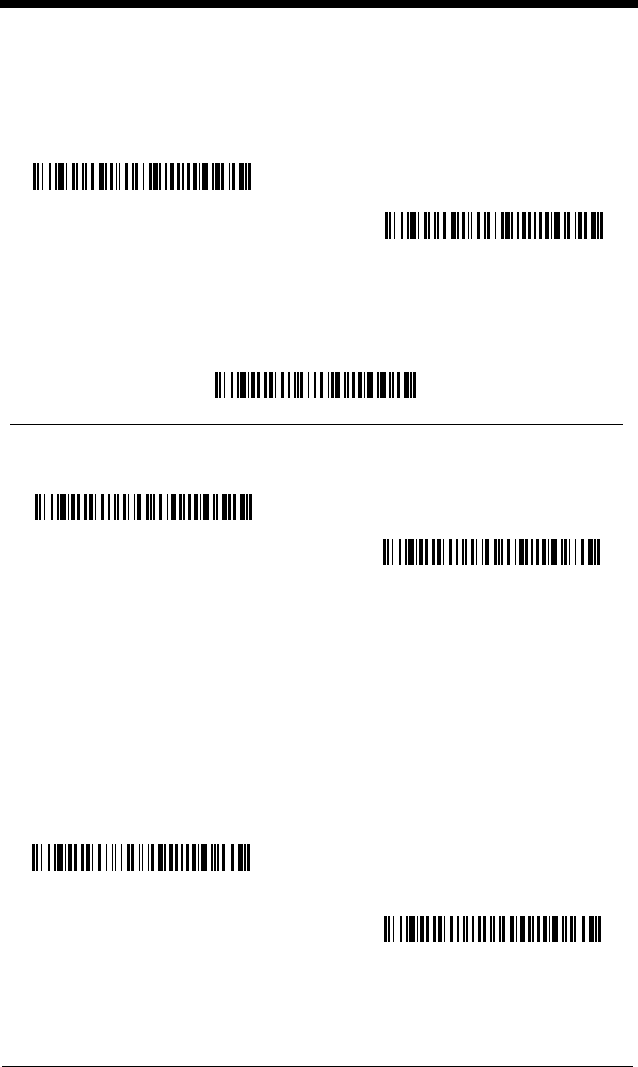
7 - 25
EAN/JAN 8 Addenda Separator
When this feature is on, there is a space between the data from the bar code
and the data from the addenda. When turned off, there is no space.
Default = On.
MSI
<Default All MSI Settings>
MSI
MSI Check Character
Different types of check characters are used with MSI bar codes. You can
program the imager to read MSI bar codes with Type 10 check characters.
Default = Validate Type 10, but Don’t Transmit.
When Check Character is set to
Validate and Transmit
, the imager will only
read MSI bar codes printed with the specified type check character, and will
transmit this character at the end of the scanned data.
When Check Character is set to
Validate, but Don’t Transmit
, the unit will only
read MSI bar codes printed with the specified type check character, but will not
transmit the check character with the scanned data.
Off
* On
On
* Off
Validate Type 10 and Transmit
* Validate Type 10, but Don’t
Transmit
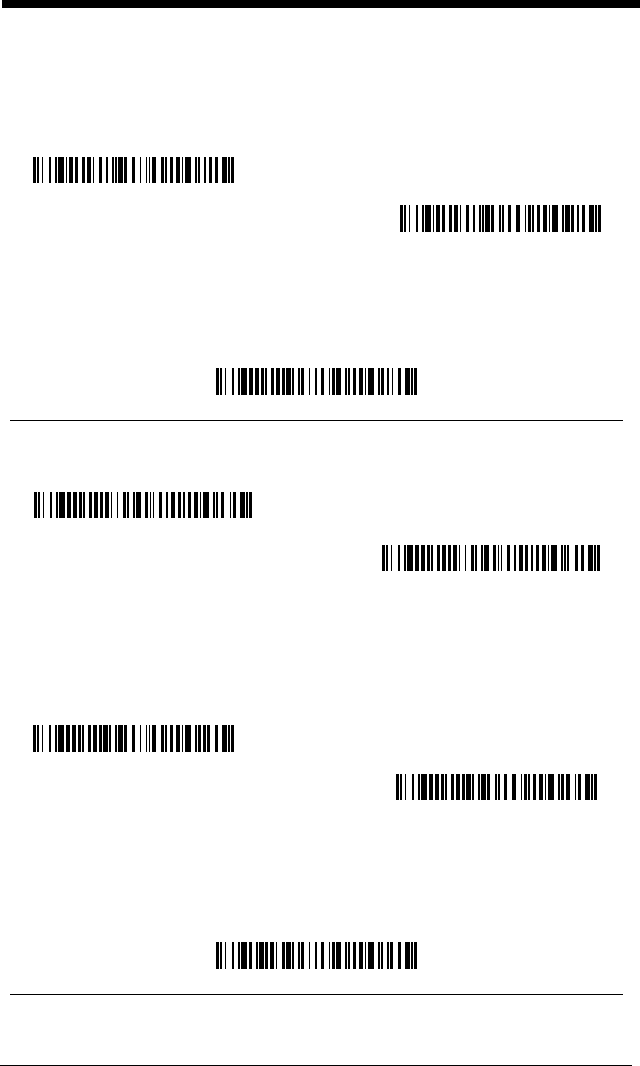
7 - 26
MSI Message Length
Scan the bar codes below to change the message length. Refer to Message
Length on page 7-2 for additional information. Minimum and Maximum
lengths = 4-48. Minimum Default = 4, Maximum Default = 48.
Plessey Code
<Default All Plessey Code Settings>
Plessey Code
Plessey Message Length
Scan the bar codes below to change the message length. Refer to Message
Length on page 7-2 for additional information. Minimum and Maximum
lengths = 4-48. Minimum Default = 4, Maximum Default = 48.
GS1 DataBar Omnidirectional
< Default All GS1 DataBar Omnidirectional Settings >
Minimum Message Length
Maximum Message Length
On
* Off
Minimum Message Length
Maximum Message Length
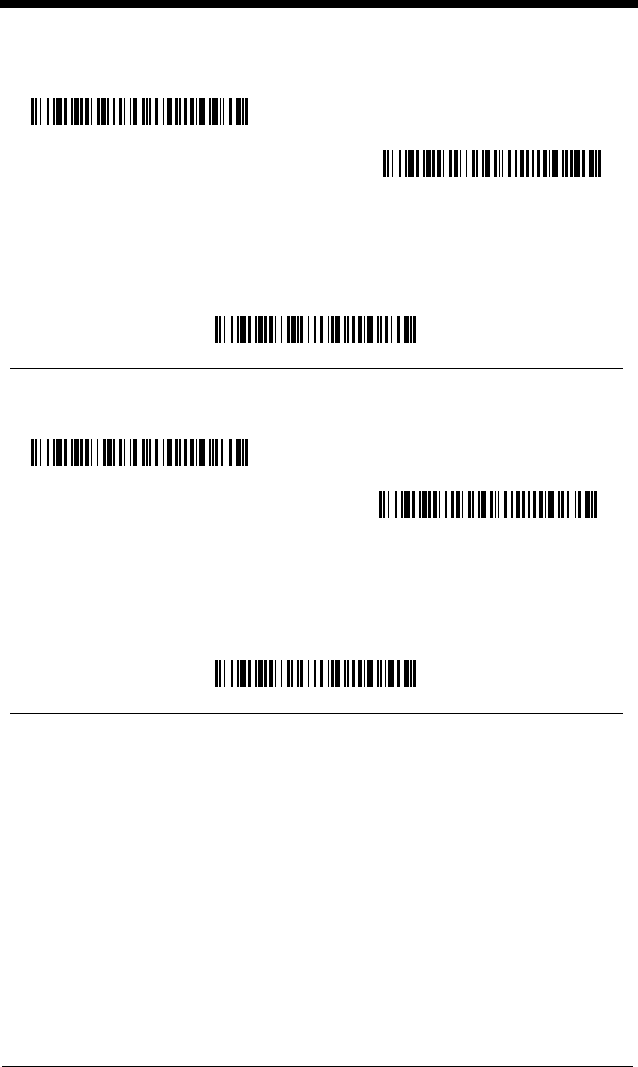
7 - 27
GS1 DataBar Omnidirectional
GS1 DataBar Limited
< Default All GS1 DataBar Limited Settings >
GS1 DataBar Limited
GS1 DataBar Expanded
< Default All GS1 DataBar Expanded Settings >
* On
Off
* On
Off
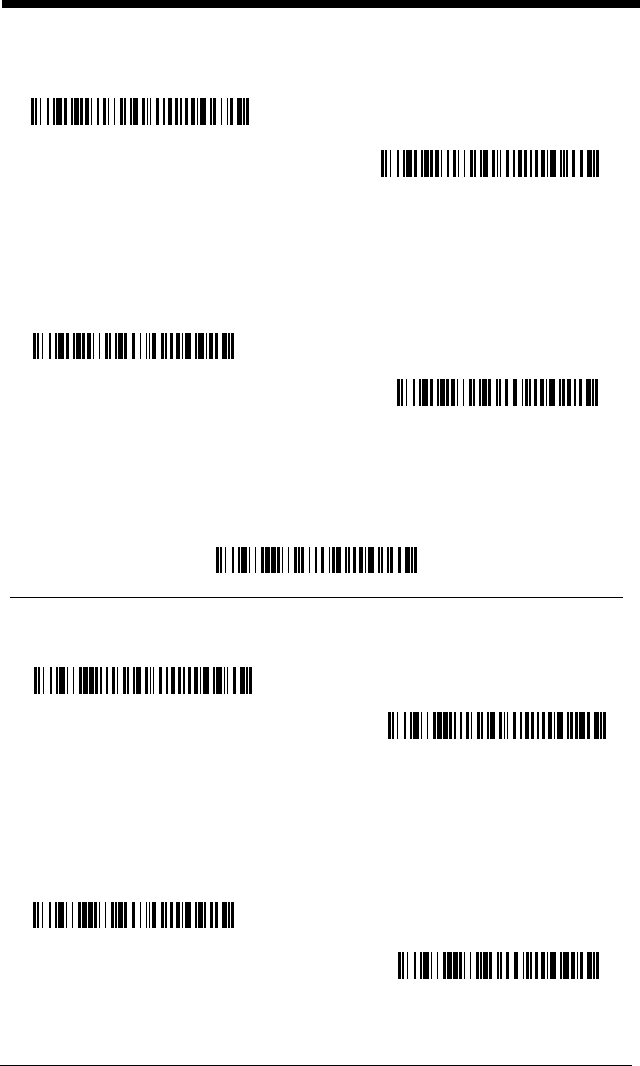
7 - 28
GS1 DataBar Expanded
GS1 DataBar Expanded Message Length
Scan the bar codes below to change the message length. Refer to Message
Length on page 7-2 for additional information. Minimum and Maximum
lengths = 4-74. Minimum Default = 4, Maximum Default = 74.
China Post Code
<Default All China Post Code Settings>
China Post Code
China Post Message Length
Scan the bar codes below to change the message length. Refer to Message
Length on page 7-2 for additional information. Minimum and Maximum
lengths = 2-80. Minimum Default = 4, Maximum Default = 80.
* On
Off
Minimum Message Length
Maximum Message Length
On
* Off
Minimum Message Length
Maximum Message Length
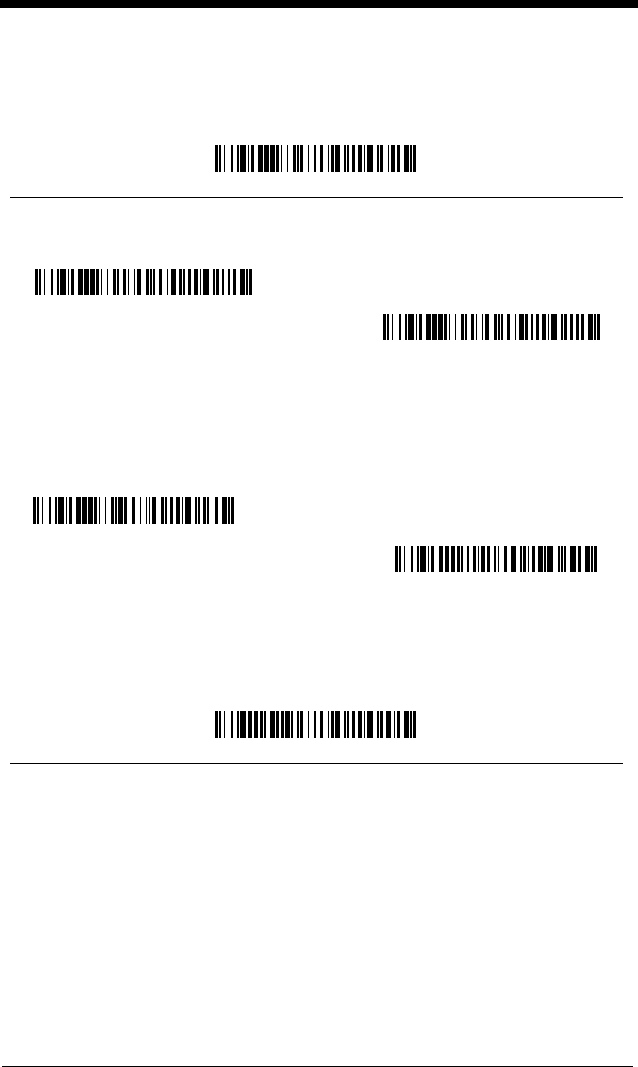
7 - 29
Korea Post Code
<Default All Korea Post Code Settings>
Korea Post Code
Korea Post Message Length
Scan the bar codes below to change the message length. Refer to Message
Length on page 7-2 for additional information. Minimum and Maximum
lengths = 2-80. Minimum Default = 4, Maximum Default = 48.
PosiCode
<Default All PosiCode Settings>
On
* Off
Minimum Message Length
Maximum Message Length
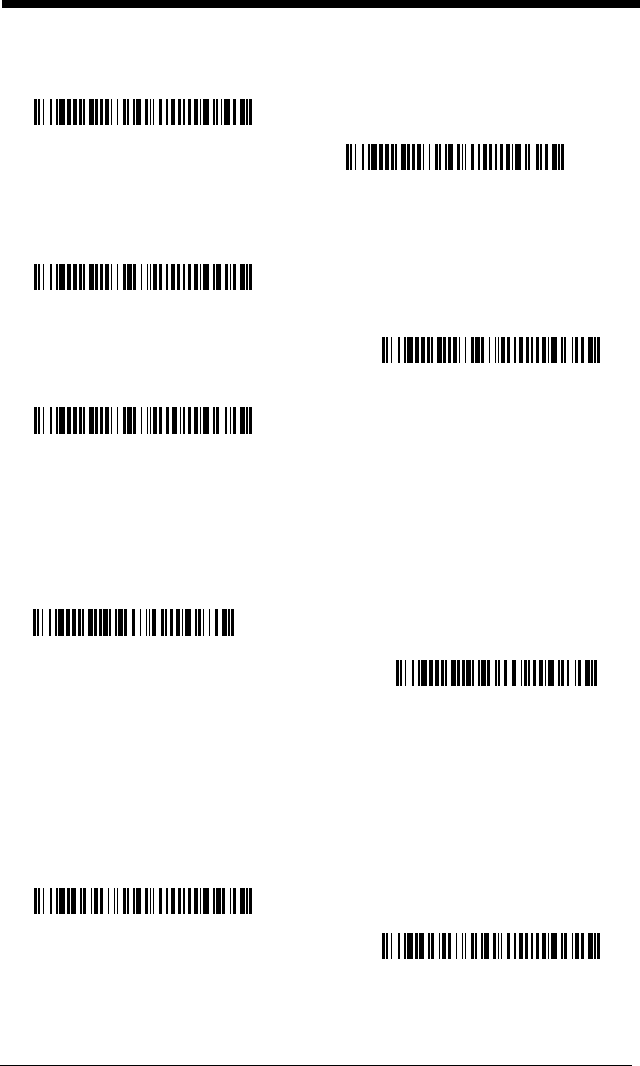
7 - 30
PosiCode A and B
You have to have PosiCode A and B on to read any of the PosiCode symbolo-
gies.
PosiCode Message Length
Scan the bar codes below to change the message length. Refer to Message
Length on page 7-2 for additional information. Minimum and Maximum
lengths = 2-80. Minimum Default = 4, Maximum Default = 48.
Trioptic Code
Trioptic Code is used for labeling magnetic storage media.
Note: If you are going to scan Code 32 Pharmaceutical codes, Trioptic Code
must be off.
* On
Off
A and B On
(No Limited)
A and B and Limited A On
(Limited B Off)
* A and B and Limited B On
(Limited A Off)
Minimum Message Length
Maximum Message Length
On
* Off
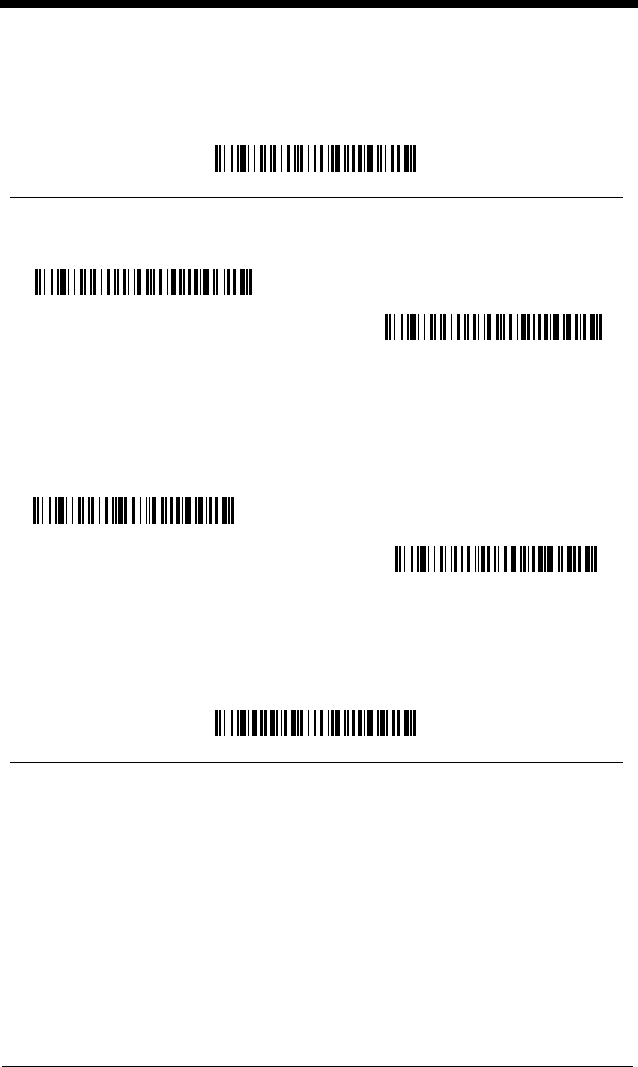
7 - 31
Codablock F
<Default All Codablock F Settings>
Codablock F
Codablock F Message Length
Scan the bar codes below to change the message length. Refer to Message
Length on page 7-2 for additional information. Minimum and Maximum
lengths = 1-2048. Minimum Default = 1, Maximum Default = 2048.
Code 16K
<Default All Code 16K Settings>
On
* Off
Minimum Message Length
Maximum Message Length
7 - 32
Code 16K
Code 16K Message Length
Scan the bar codes below to change the message length. Refer to Message
Length on page 7-2 for additional information. Minimum and Maximum
lengths = 0-160. Minimum Default = 1, Maximum Default = 160.
Code 49
<Default All Code 49 Settings>
On
* Off
Minimum Message Length
Maximum Message Length
7 - 33
Code 49
Code 49 Message Length
Scan the bar codes below to change the message length. Refer to Message
Length on page 7-2 for additional information. Minimum and Maximum
lengths = 1-81. Minimum Default = 1, Maximum Default = 81.
PDF417 (3800gHD/3800gPDF only)
< Default All PDF417 Settings >
PDF417
PDF417 Message Length
Scan the barcodes below to change the message length. Refer to Message
Length (page 7-2) for additional information. Minimum and Maximum lengths =
1-2750. Minimum Default = 1, Maximum Default = 2750.
* On
Off
Minimum Message Length
Maximum Message Length
Off
* On
Maximum Message Length
Minimum Message Length
7 - 34
MicroPDF417 (3800gHD/3800gPDF only)
< Default All MicroPDF417 Settings >
MicroPDF417
MicroPDF417 Message Length
Scan the barcodes below to change the message length. Refer to Message
Length (page 7-2) for additional information. Minimum and Maximum lengths =
1-366. Minimum Default = 1, Maximum Default = 366.
GS1 Composite Codes
Linear codes are combined with a unique 2D composite component to form a
new class called GS1 Composite symbology. GS1 Composite symbologies
allow for the co-existence of symbologies already in use.
Default = Off.
* Off
On
Maximum Message Length
Minimum Message Length
On
* Off
7 - 35
UPC/EAN Version
Scan the
UPC/EAN Version On
barcode to decode GS1 Composite symbols
that have a UPC or EAN linear component. (This does not affect GS1 Compos-
ite symbols with a GS1-128 or GS1linear component. If either of these codes
are the linear component, either Code 128 or the correct GS1 code must be
enabled.)
Default = Off.
GS1 Composite Code Message Length
Scan the barcodes below to change the message length. Refer to Message
Length (page 7-2) for additional information. Minimum and Maximum lengths =
1-2435. Minimum Default = 1, Maximum Default = 2435.
GS1 Emulation
The imager can automatically format the output from any GS1 data carrier to
emulate what would be encoded in an equivalent GS1-128 or GS1 DataBar
symbol. GS1 data carriers include UPC-A and UPC-E, EAN-13 and EAN-8,
ITF-14, GS1-128, and GS1-128 DataBar and GS1Composites. If GS1-128
Emulation is selected, the AIM Symbology Identifier will be reported as “]C1”. If
GS1 DataBar Emulation is selected, the AIM Symbology Identifier will be
reported as “]e0.” Any application that accepts GS1 data can be simplified
since it only needs to recognize one data carrier type.
Default = GS1 Emulation
Off
.
UPC/EAN Version On
* UPC/EAN Version Off
Maximum Message Length
Minimum Message Length
GS1 Data Bar Emulation
GS1-128 Emulation
* GS1 Emulation Off
7 - 36
Label Code (3800gHD/3800gPDF only)
The standard Label Code is used in library situations.
Default = Off.
TCIF Linked Code 39 (TLC39) (3800gHD/
3800gPDF only)
This code is a composite code since it has a Code 39 linear component and a
MicroPDF417 stacked code component. All barcode readers are capable of
reading the Code 39 linear component. The MicroPDF417 component can only
be decoded if TLC39 On is selected. The linear component may be decoded
as Code 39 even if TLC39 is off.
Default = Off.
On
* Off
On
* Off

8 - 1
8
Interface Keys
Keyboard Function Relationships
The following Keyboard Function Code, Hex/ASCII Value, and Full ASCII
“CTRL”+ relationships apply to all terminals that can be used with the imager.
Refer to page 2-6 enable Control + ASCII mode.
Function Code HEX/ASCII Value Full ASCII “CTRL” +
NUL 00 2
SOH 01 A
STX 02 B
ETX 03 C
EOT 04 D
ENQ 05 E
ACK 06 F
BEL 07 G
BS 08 H
HT 09 I
LF 0A J
VT 0B K
FF 0C L
CR 0D M
SO 0E N
SI 0F O
DLE 10 P
DC1 11 Q
DC2 12 R
DC3 13 S
DC4 14 T
NAK 15 U
SYN 16 V
ETB 17 W
CAN 18 X
EM 19 Y
SUB 1A Z
ESC 1B [
FS 1C \
GS 1D ]
RS 1E 6
US 1F -

8 - 2
The last five characters in the Full ASCII “CTRL”+ column ( [ \ ] 6 - ), apply to
US only. The following chart indicates the equivalents of these five characters
for different countries.
Country Codes
United States [ \ ] 6 -
Belgium [<]6-
Scandinavia 8 < 9 6 -
France ^ 8 $ 6 =
Germany à + 6 -
Italy \ + 6 -
Switzerland <. . 6 -
United Kingdom [ ¢ ] 6 -
Denmark 8 \ 9 6 -
Norway 8 \ 9 6 -
Spain [ \ ] 6 -

8 - 3
Supported Interface Keys
ASCII HEX
IBM AT/XT and
PS/2 Compatibles,
WYSE PC/AT
Supported Keys
IBM XTs and
Compatibles
Supported Keys
IBM, DDC, Memorex
Telex, Harris*
Supported Keys
NUL 00 Reserved Reserved Reserved
SOH 01 Enter (KP) CR/Enter Enter
STX 02 Cap Lock Caps Lock F11
ETX 03 ALT make Reserved F12
EOT 04 ALT break Reserved F13
ENQ 05 CTRL make Reserved F14
ACK 06 CTRL break Reserved F15
BEL 07 CR/Enter CR/Enter New Line
BS 08 Reserved Reserved F16
HT 09 Tab Tab F17
LF 0A Reserved Reserved F18
VT 0B Tab Tab Tab/Field Forward
FF 0C Delete Delete Delete
CR 0D CR/Enter CR/Enter Field Exit/New Line
SO 0E Insert Insert Insert
SI 0F Escape Escape F19
DLE 10 F11 Reserved Error Reset
DC1 11 Home Home Home
DC2 12 Print Print F20
DC3 13 Back Space Back Space Back Space
DC4 14 Back Tab Back Tab Backfield/Back Tab
NAK 15 F12 Reserved F21
SYN 16 F1 F1 F1
ETB 17 F2 F2 F2
CAN 18 F3 F3 F3
EM 19 F4 F4 F4
SUB 1A F5 F5 F5
ESC 1B F6 F6 F6
FS 1C F7 F7 F7
GS 1D F8 F8 F8
RS 1E F9 F9 F9
US 1F F10 F10 F10
* IBM 3191/92, 3471/72, 3196/97, 3476/77, Telex (all models)

8 - 4
Supported Interface Keys
ASCII HEX IBM, Memorex Telex (102)*
Supported Keys Memorex Telex (88)**
Supported Keys
NUL 00 Reserved Reserved
SOH 01 Enter Enter
STX 02 F11 PF10
ETX 03 F12 PF11
EOT 04 F13 PF12
ENQ 05 F14 Reserved
ACK 06 F15 Reserved
BEL 07 New Line New Line
BS 08 F16 Field Forward
HT 09 F17 Field Forward
LF 0A F18 Reserved
VT 0B Tab/Field Forward Field Forward
FF 0C Delete Delete
CR 0D Field Exit New Line
SO 0E Insert Insert
SI 0F Clear Erase
DLE 10 Error Reset Error Reset
DC1 11 Home Reserved
DC2 12 Print Print
DC3 13 Back Space Back Space
DC4 14 Back Tab Back Field
NAK 15 F19 Reserved
SYN 16 F1 PF1
ETB 17 F2 PF2
CAN 18 F3 PF3
EM 19 F4 PF4
SUB 1A F5 PF5
ESC 1B F6 PF6
FS 1C F7 PF7
GS 1D F8 PF8
RS 1E F9 PF9
US 1F F10 Home
* IBM 3196/97, 3476/77, 3191/92, 3471/72, Memorex Telex (all models) with 102
key keyboards
** Memorex Telex with 88 key keyboards

8 - 5
Supported Interface Keys
ASCII HEX
Esprit 200, 400
ANSI
Supported Keys
Esprit 200, 400
ASCII
Supported Keys
Esprit 200, 400
PC
Supported Keys
NUL 00 Reserved Reserved Reserved
SOH 01 New Line New Line New Line
STX 02 N/A N/A N/A
ETX 03 N/A N/A N/A
EOT 04 N/A N/A N/A
ENQ 05 N/A N/A N/A
ACK 06 N/A N/A N/A
BEL 07 New Line New Line New Line
BS 08 N/A N/A N/A
HT 09 Tab Tab Tab
LF 0A N/A N/A N/A
VT 0B Tab Tab Tab
FF 0C N/A N/A Delete
CR 0D New Line New Line New Line
SO 0E N/A N/A Insert
SI 0F Escape Escape Escape
DLE 10 F11 F11 F11
DC1 11 Insert Insert Home
DC2 12 F13 F13 Print
DC3 13 Back Space Back Space Back Space
DC4 14 Back Tab Back Tab Back Tab
NAK 15 F12 F12 F12
SYN 16 F1 F1 F1
ETB 17 F2 F2 F2
CAN 18 F3 F3 F3
EM 19 F4 F4 F4
SUB 1A F5 F5 F5
ESC 1B F6 F6 F6
FS 1C F7 F7 F7
GS 1D F8 F8 F8
RS 1E F9 F9 F9
US 1F F10 F10 F10

8 - 6
Supported Interface Keys
ASCII HEX
Apple Mac/iMac
Supported Keys
NUL 00 Reserved
SOH 01 Enter/Numpad Enter
STX 02 CAPS
ETX 03 ALT make
EOT 04 ALT break
ENQ 05 CNTRL make
ACK 06 CNTRL break
BEL 07 RETURN
BS 08 APPLE make
HT 09 TAB
LF 0A APPLE break
VT 0B TAB
FF 0C Del
CR 0D RETURN
SO 0E Ins Help
SI 0F ESC
DLE 10 F11
DC1 11 Home
DC2 12 Prnt Scrn
DC3 13 BACKSPACE
DC4 14 LSHIFT TAB
NAK 15 F12
SYN 16 F1
ETB 17 F2
CAN 18 F3
EM 19 F4
SUB 1A F5
ESC 1B F6
FS 1C F7
GS 1D F8
RS 1E F9
US 1F F10
DEL 7F BACKSPACE
9 - 1
9
Utilities
To Add a Test Code I.D. Prefix to All Symbologies
This selection allows you to turn on transmission of a Code I.D. before the
decoded symbology. (See the Symbology Chart, included in the "Appendix
A" on page A-1) for the single character code that identifies each symbology.)
This action first clears all current prefixes, then programs a Code I.D. prefix for
all symbologies. This is a temporary setting that will be removed when the unit
is power cycled.
Show Software Revision
Scan the bar code below to output the current software revision, unit serial num-
ber, and other product information.
Show Data Format
Scan the bar code below to show current data format settings.
Resetting the Standard Product Defaults
If you aren’t sure what programming options are in your imager, or you’ve
changed some options and want the standard product default settings restored,
scan the
Standard Product Default Settings
bar code below.
The Menu Commands starting on page 11-5 lists the standard product default
settings for each of the commands (indicated by an asterisk (*) on the program-
ming pages).
Add Code I.D. Prefix to
All Symbologies (Temporary)
Show Revision
Data Format Settings
Standard Product Default Settings

9 - 2
Temporary Visual Xpress Configuration
For quick download communication configuration, scan the Visual Xpress bar
code to temporarily configure the imager for Visual Xpress settings. Refer to
Visual Xpress on page 10-1 for additional information about Visual Xpress.
Note: If you have a unit capable of keyboard wedge mode, scan the bar code
below and the unit will communicate in RS-232 mode, allowing it to work
with Visual Xpress. To convert the imager back to keyboard wedge
communication, cycle the power.
Note: If you download new software into a unit, the user-programmed
parameters are retained. If you need to discard user-programmed
settings, scan the Standard Product Default Settings bar code (see
Standard Product Default Settings on page 9-1).
Visual Xpress

10 - 1
10
Visual Xpress
Visual Xpress Introduction
Visual Xpress provides a wide range of PC-based programming functions that
can be performed on an imager connected to your PC's COM port. Visual
Xpress allows you to download upgrades to the imager's firmware, change pro-
grammed parameters, and create and print programming bar codes. Using
Visual Xpress, you can even save/open the programming parameters for an
imager. This saved file can be e-mailed or, if required, you can create a single
bar code that contains all the customized programming parameters and mail or
fax that bar code to any location. Users in other locations can scan the bar
code to load in the customized programming.
To communicate with an imager, Visual Xpress requires that the PC have at
least one available serial communication port, or a serial port emulation using a
physical USB port. If you are using the serial port and RS-232 cable, an exter-
nal power supply is required. When using a USB serial port emulation, only a
USB cable is required.
Visual Xpress Operations
The Visual Xpress software performs the following operations:
Scan Data
Scan Data allows you to scan bar codes and display the bar code data in a win-
dow. Scan Data lets you send serial commands to the imager and receive
imager response that can be seen in the Scan Data window. The data dis-
played in the Scan Data window can either be saved in a file or printed.
Configure
Configure displays the programming and configuration data of the imager. The
imager's programming and configuration data is grouped into different catego-
ries. Each category is displayed as a tree item under the "Configure" tree node
in the application explorer. When one of these tree nodes is clicked, the right-
hand side is loaded with the parameters' form belonging to that particular cate-
gory. The "Configure" tree option has all the programming and configuration
parameters specified for an imager. You can set or modify these parameters as
required. You can later write the modified settings to the imager, or save them
to a dcf file.
Imaging
Imaging provides all the image-related functions that a 2D Imager can perform.
You can capture an image using the current settings, and the image will be dis-
played in an image window. Images captured from the imager can be saved to
files in different image formats. You can modify the image settings and save the
image settings to an INI file, which can be loaded later to capture new images.
Imaging also lets you preview the images continuously captured by the imager.

10 - 2
Installing Visual Xpress from the Web
1. Access the Honeywell web site at www.honeywell.com/aidc.
2. Click in the Quick Search text box and enter Visual Xpress.
3. Click on Search Now.
4. Click on the entry for Visual Xpress.
5. When prompted, select Save File, and save the files to the
c:\windows\temp directory.
6. Once you have finished downloading the file, exit the web site.
7. Using Explorer, go to the c:\windows\temp file and unzip the file you saved.
8. Double click on Setup.exe and follow the screen prompts to install the
Visual Xpress program.
9. If you’ve selected the defaults during installation, you can click on Start
Menu-Programs-Hand Held Products-Visual Xpress.

11 - 1
11
Serial Programming Commands
The serial programming commands can be used in place of the programming
bar codes. Both the serial commands and the programming bar codes will pro-
gram the 3800g. For complete descriptions and examples of each serial pro-
gramming command, refer to the corresponding programming bar code in this
manual.
The device must be set to an RS-232 interface (see page 1-7). The following
commands can be sent via a PC com port using terminal emulation software.
Conventions
The following conventions are used for menu and query command descriptions:
parameter
A label representing the actual value you should send as part of a
command.
[
option
] An optional part of a command.
{Data} Alternatives in a command.
bold Names of menus, menu commands, buttons, dialog boxes, and
windows that appear on the screen.
Menu Command Syntax
Menu commands have the following syntax (spaces have been used for clarity
only):
Prefix Tag SubTag {Data} [, SubTag {Data}] [; Tag SubTag {Data}] […] Storage
Prefix Three ASCII characters: SYN M CR (ASCII 22,77,13).
Tag A 3 character case-insensitive field that identifies the desired menu
command group. For example, all RS-232 configuration settings
are identified with a Tag of 232.
SubTag A 3 character case-insensitive field that identifies the desired menu
command within the tag group. For example, the SubTag for the
RS-232 baud rate is BAD.
Data The new value for a menu setting, identified by the Tag and Sub-
Tag.
Storage A single character that specifies the storage table to which the
command is applied. An exclamation point (!) performs the com-
mand’s operation on the device’s volatile menu configuration table.
A period (.) performs the command’s operation on the device’s
non-volatile menu configuration table. Use the non-volatile table
only for semi-permanent changes you want saved through a power
cycle.

11 - 2
Query Commands
Several special characters can be used to query the device about its settings.
^What is the default value for the setting(s).
?What is the device’s current value for the setting(s).
*What is the range of possible values for the setting(s). (The de-
vice’s response uses a dash (-) to indicate a continuous range of
values. A pipe (|) separates items in a list of non-continuous val-
ues.)
Tag Field Usage
When a query is used in place of a Tag field, the query applies to the
entire
set
of commands available for the particular storage table indicated by the Storage
field of the command. In this case, the SubTag and Data fields should not be
used because they are ignored by the device.
SubTag Field Usage
When a query is used in place of a SubTag field, the query applies only to the
subset of commands available that match the Tag field. In this case, the Data
field should not be used because it is ignored by the device.
Data Field Usage
When a query is used in place of the Data field, the query applies only to the
specific command identified by the Tag and SubTag fields.
Concatenation of Multiple Commands
Multiple commands can be issued within one Prefix/Storage sequence. Only
the Tag, SubTag, and Data fields must be repeated for each command in the
sequence. If additional commands are to be applied to the same Tag, then the
new command sequence is separated with a comma (,) and only the SubTag
and Data fields of the additional command are issued. If the additional com-
mand requires a different Tag field, the command is separated from previous
commands by a semicolon (;).
Responses
The device responds to serial commands with one of three responses:
ACK Indicates a good command which has been processed.
ENQ Indicates an invalid Tag or SubTag command.
NAK Indicates the command was good, but the Data field entry was out of
the allowable range for this Tag and SubTag combination, e.g., an entry
for a minimum message length of 100 when the field will only accept 2
characters.
When responding, the device echoes back the command sequence with the
status character inserted directly before each of the punctuation marks (the
period, exclamation point, comma, or semicolon) in the command.

11 - 3
Examples of Query Commands
In the following examples, a bracketed notation [ ] depicts a non-displayable
response.
Example: Example #1:What is the range of possible values for Codabar
Coding Enable?
Enter: cbrena*.
Response: CBRENA0-1[ACK]
This response indicates that Codabar Coding Enable (CBRENA) has a range of
values from 0 to 1 (off and on).
Example: Example #2: What is the default value for Codabar Coding Enable?
Enter: cbrena^.
Response: CBRENA1[ACK]
This response indicates that the default setting for Codabar Coding Enable
(CBRENA) is 1, or on.
Example: Example #3: What is the device’s current setting for Codabar
Coding Enable?
Enter: cbrena?.
Response: CBRENA1[ACK]
This response indicates that the device’s Codabar Coding Enable (CBRENA) is
set to 1, or on.
Example: Example #4: What are the device’s settings for all Codabar
selections?
Enter: cbr?.
Response: CBRENA1[ACK],
SSX0[ACK],
CK20[ACK],
CCT1[ACK],
MIN2[ACK],
MAX60[ACK],
DFT[ACK].
This response indicates that the device’s Codabar Coding Enable (CBRENA) is
set to 1, or on;
the Start/Stop Character (SSX) is set to 0, or Don’t Transmit;
the Check Character (CK2) is set to 0, or Not Required;
concatenation (CCT) is set to 1, or Enabled;
the Minimum Message Length (MIN) is set to 2 characters;
the Maximum Message Length (MAX) is set to 60 characters;
and the Default setting (DFT) has no value.

11 - 4
Trigger Commands
You can activate and deactivate the imager with serial trigger commands. First,
the imager must be put in Manual/Serial Trigger Mode either by scanning the
Manual/Serial Trigger Mode bar code (page 3-3), or by sending the Manual/
Serial Menu Command (page 11-8). Once the imager is in serial trigger mode,
the trigger is activated and deactivated by sending the following commands:
Activate:SYN T CR
Deactivate:SYN U CR
The imager scans until a bar code has been read, until the deactivate command
is sent, or until the serial time-out has been reached (see Read Time-Out on
page 3-3 for a description, and the serial command on page 11-8).
Resetting the Standard Product Defaults
If you aren’t sure what programming options are in your imager, or you’ve
changed some options and want the factory settings restored, scan the
Stan-
dard Product Default Settings
bar code below.
The chart on the following pages lists the factory default settings for each of the
menu commands (indicated by an asterisk (*) on the programming pages).
Standard Product Default Settings
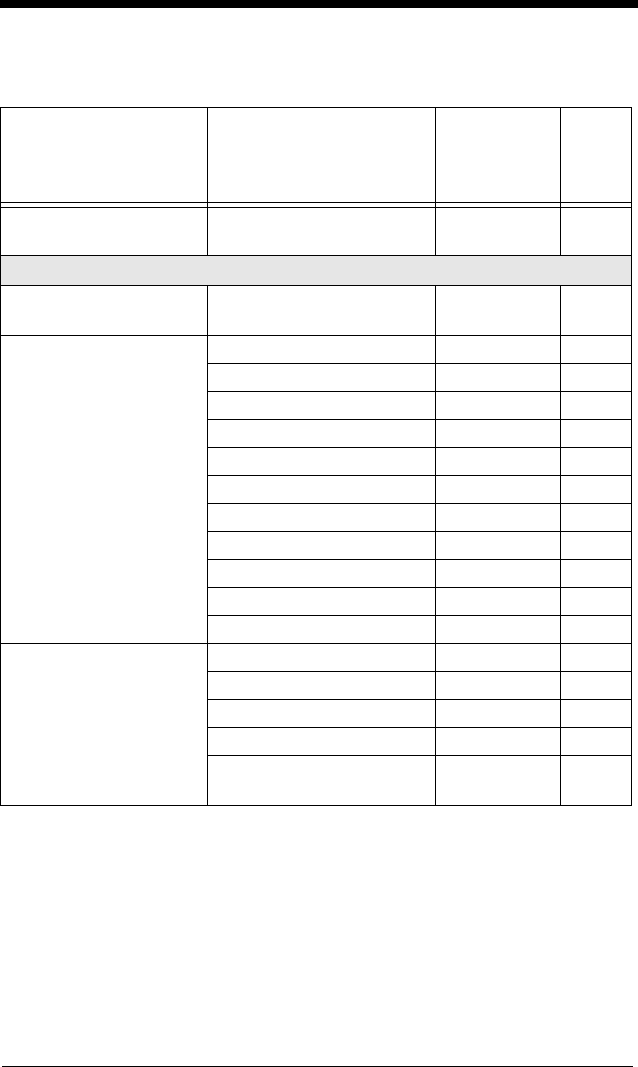
11 - 5
Menu Commands
Selection Setting
* Indicates default
Serial
Command
# Indicates a
numeric entry
Page
Factory Default Set-
tings
Default DEFALT
Terminal Interfaces
Terminal ID USB PC Keyboard TERMID### 2-1
Program Keyboard
Country
*USA KBDCTY0 2-4
Belgium KBDCTY1 2-4
Denmark KBDCTY8 2-4
Finland KBDCTY2 2-4
France KBDCTY3 2-4
Germany/Austria KBDCTY4 2-4
Great Britain KBDCTY7 2-4
Italy KBDCTY5 2-4
Norway KBDCTY9 2-4
Spain KBDCTY10 2-4
Switzerland KBDCTY6 2-4
Keyboard Style *Regular KBDSTY0 2-5
Caps Lock KBDSTY1 2-5
Shift Lock KBDSTY2 2-5
Automatic Caps Lock KBDSTY6 2-5
Emulate External
Keyboard
KBDSTY5 2-6
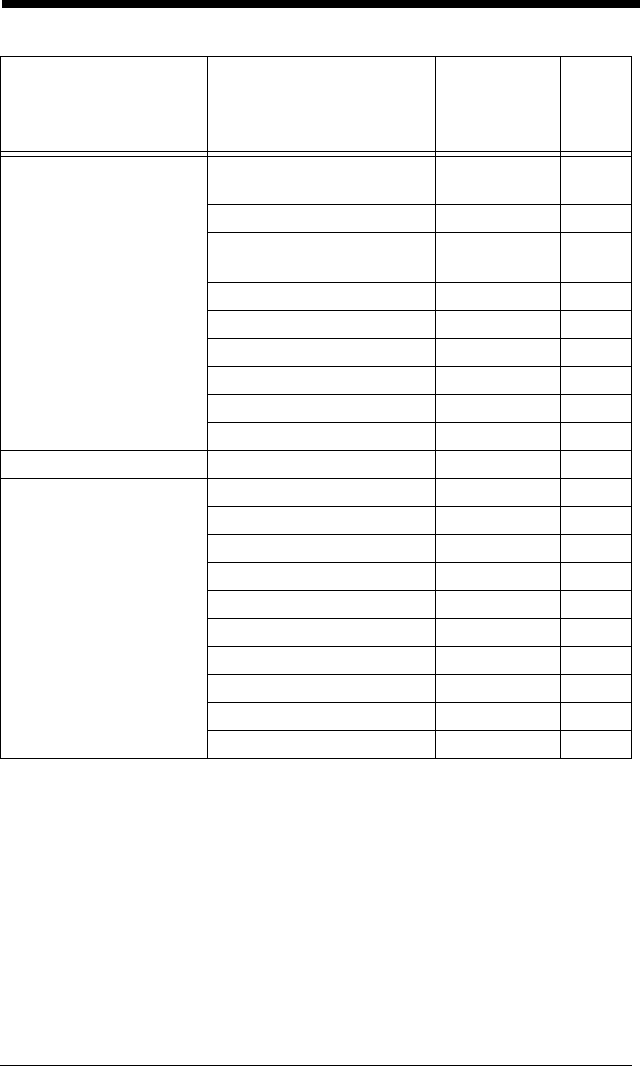
11 - 6
Keyboard Modifiers Windows Mode Control +
ASCII
KBDCAS2 2-6
*Control + ASCII Off KBDCAS0 2-6
DOS Mode Control +
ASCII Mode On
KBDCAS1 2-6
*Turbo Mode Off KBDTMD0 2-6
Turbo Mode On KBDTMD1 2-6
*Numeric Keypad Off KBDNPS0 2-7
Numeric Keypad On KBDNPS1 2-7
*Auto Direct Conn. Off KBDADC0 2-7
Auto Direct Conn. On KBDADC1 2-7
Serial Port Connection RS-232 PAP232 1-7
Baud Rate 300 BPS 232BAD0 2-8
600 BPS 232BAD1 2-8
1200 BPS 232BAD2 2-8
2400 BPS 232BAD3 2-8
4800 BPS 232BAD4 2-8
9600 BPS 232BAD5 2-8
19200 BPS 232BAD6 2-8
38400 BPS 232BAD7 2-8
*57600 BPS 232BAD8 2-8
115200 BPS 232BAD9 2-8
Selection Setting
* Indicates default
Serial
Command
# Indicates a
numeric entry
Page
11 - 7
Word Length: Data
Bits, Stop Bits, and
Parity
7 Data, 1 Stop, Parity
Even 232WRD3 2-9
7 Data, 1 Stop, Parity
None
232WRD0 2-9
7 Data, 1 Stop, Parity
Odd
232WRD6 2-9
7 Data, 2 Stop, Parity
Even
232WRD4 2-9
7 Data, 2 Stop, Parity
None
232WRD1 2-9
7 Data, 2 Stop, Parity
Odd
232WRD7 2-9
8 Data, 1 Stop, Parity
Even
232WRD5 2-9
*8 Data, 1 Stop, Parity
None
232WRD2 2-9
8 Data, 1 Stop, Parity
Odd
232WRD8 2-9
RS-232 Handshaking *RTS/CTS Off 232CTS0 2-10
RTS/CTS On 232CTS1 2-10
*XON/XOFF Off 232XON0 2-10
XON/XOFF On 232XON1 2-10
*ACK/NAK Off 232ACK0 2-10
ACK/NAK On 232ACK1 2-10
Output Selections
Beeper - Good Read Off BEPBEP0 3-1
*On BEPBEP1 3-1
Beeper Volume - Good
Read
Off BEPLVL0 3-1
Low BEPLVL1 3-1
Medium BEPLVL2 3-1
*High BEPLVL3 3-1
Selection Setting
* Indicates default
Serial
Command
# Indicates a
numeric entry
Page
11 - 8
Beeper Pitch - Good
Read (Frequency)
Low (1600) (min 400Hz) BEPFQ116
00
3-1
*Medium (2550) BEPFQ125
50
3-1
High (4200) (max
9000Hz)
BEPFQ142
00
3-1
Beeper Duration -
Good Read
*Normal Beep BEPBIP0 3-2
Short Beep BEPBIP1 3-2
LED - Good Read Off BEPLED0 3-2
*On BEPLED1 3-2
Number of Beeps -
Good Read
*1 BEPRPT1 3-2
Range 1 - 9 BEPRPT# 3-2
Good Read Delay *No Delay DLYGRD0 3-3
Short Delay (500 ms) DLYGRD50
0
3-3
Medium Delay (1000 ms) DLYGRD10
00
3-3
Long Delay (1500 ms) DLYGRD15
00
3-3
User-Specified Good
Read Delay
Range 0 - 30,000 ms DLYGRD####
#
3-3
Trigger Mode *Manual/Serial Trigger TRGMOD0 3-3
Read Time-Out (0 -
300,000 ms) *30,000
TRG-
STO####
3-4
Automatic Trigger TRGMOD1 3-4
Presentation Mode TRGMOD3 3-4
Continuous Illumination
On
ILLAON1 3-4
*Continuous Illumination
Off
ILLAON0 3-4
Hands Free Time-Out (0-
300,000 seconds) *5000
TRGPTO##
####
3-5
Selection Setting
* Indicates default
Serial
Command
# Indicates a
numeric entry
Page
11 - 9
Reread Delay Short (500 ms) DLYRRD50
0
3-5
*Medium (750 ms) DLYRRD75
0
3-5
Long (1000 ms) DLYRRD10
00
3-5
Extra Long (2000 ms) DLYRRD30
00
3-5
User-Specified Reread
Delay
Range 0 - 30,000 ms DLYRRD####
#
3-5
Centering Centering On DECWIN1 3-6
*Centering Off DECWIN0 3-6
Left of Centering Win-
dow *40
DECLFT### 3-6
Right of Centering Win-
dow *60
DECRGT##
#
3-6
Output Sequence Edi-
tor
Enter Sequence SEQBLK 3-9
Default Sequence SEQDFT 3-9
Require Output
Sequence
Required SEQ_EN2 3-9
On/Not Required SEQ_EN1 3-9
*Off SEQ_EN0 3-9
Multiple Symbols On SHOTGN1 3-13
*Off SHOTGN0 3-13
No Read On SHWNRD1 3-12
*Off SHWNRD0 3-12
Video Reverse On VIDREV1 3-12
*Off VIDREV0 3-12
Prefix/Suffix Selections
Add CR Suffix to All Symbologies VSUFCR 4-3
Prefix Add Prefix PREBK2## 4-3
Clear One Prefix PRECL2 4-3
Clear All Prefixes PRECA2 4-3
Selection Setting
* Indicates default
Serial
Command
# Indicates a
numeric entry
Page
11 - 10
Suffix Add Suffix SUFBK2## 4-4
Clear One Suffix SUFCL2 4-4
Clear All Suffixes SUFCA2 4-4
Function Code Trans-
mit
*Enable RMVFNC0 4-4
Disable RMVFNC1 4-4
Intercharacter Delay DLYCHR## 4-5
User Specified Inter-
character Delay
Delay Length DLYCRX## 4-5
Character to Trigger
Delay
DLY_XX### 4-5
Interfunction Delay DLYFNC## 4-6
Intermessage Delay DLYMSG## 4-6
Data Formatter Selections
Data Format Editor *Default Data Format
(None)
DFMDF3 5-4
Enter Data Format DFMBK3## 5-4
Clear One Data Format DFMCL3 5-4
Clear All Data Formats DFMCA3 5-4
Data Formatter Off DFM_EN0 5-5
*On, but Not Required DFM_EN1 5-5
On, Required DFM_EN2 5-5
Alternate Data For-
mats
1VSAF_15-5
2VSAF_25-5
3VSAF_35-5
Secondary Interface Selections
Enabling the Second-
ary Interface
*Disable 2IF_EN0 6-1
Enable 2IF_EN1 6-1
Secondary RS-232
Connection
RS-232 Interface 2IFTYP0 6-2
Secondary Trigger
Mode
*Manual Trigger 2IFTRG0 6-2
Automatic Trigger 2IFTRG1 6-2
Presentation Mode 2IFTRG3 6-2
Selection Setting
* Indicates default
Serial
Command
# Indicates a
numeric entry
Page
11 - 11
Symbologies
All Symbologies All Symbologies Off ALLENA0 7-2
All Symbologies On ALLENA1 7-2
Codabar Default All Codabar
Settings
CBRDFT 7-3
Codabar Off CBRENA0 7-3
*On CBRENA1 7-3
Codabar Start/Stop
Char.
*Don’t Transmit CBRSSX0 7-3
Transmit CBRSSX1 7-3
Codabar Check Char. *No Check Char. CBRCK20 7-4
Validate, But Don’t Trans-
mit
CBRCK21 7-4
Validate, and Transmit CBRCK22 7-4
Codabar Concatena-
tion
*Off CBRCCT0 7-4
On CBRCCT1 7-4
Require CBRCCT2 7-4
Codabar Message
Length
Minimum (2 - 60) *4 CBRMIN## 7-5
Maximum (2 - 60) *60 CBRMAX## 7-5
Code 39 Default All Code 39
Settings
C39DFT 7-5
Code 39 Off C39ENA0 7-5
*On C39ENA1 7-5
Code 39 Start/Stop
Char.
*Don’t Transmit C39SSX0 7-5
Transmit C39SSX1 7-5
Code 39 Check Char. *No Check Char. C39CK20 7-6
Validate, But Don’t
Transmit
C39CK21 7-6
Validate,
and Transmit
C39CK22 7-6
Code 39 Message
Length
Minimum (0 - 48) *0 C39MIN## 7-6
Maximum (0 - 48) *48 C39MAX## 7-6
Selection Setting
* Indicates default
Serial
Command
# Indicates a
numeric entry
Page
11 - 12
Code 39 Append *Off C39APP0 7-6
On C39APP1 7-6
Code 32 Pharmaceuti-
cal (PARAF)
*Off C39B320 7-7
On C39B321 7-7
Code 39 Full ASCII *Off C39ASC0 7-8
On C39ASC1 7-8
Interleaved 2 of 5 Default All Interleaved
2 of 5 Settings
I25DFT 7-8
Interleaved 2 of 5 Off I25ENA0 7-8
*On I25ENA1 7-8
Interleaved 2 of 5
Check Digit
*No Check Char. I25CK20 7-9
Validate, But Don’t
Transmit
I25CK21 7-9
Validate, and Transmit I25CK22 7-9
Interleaved 2 of 5 Mes-
sage Length
Minimum (2 - 80) *4 I25MIN## 7-9
Maximum (2 - 80) *80 I25MAX## 7-9
Code 93 Default All Code 93
Settings
C93DFT 7-10
Code 93 Off C93ENA0 7-10
*On C93ENA1 7-10
Code 93 Message
Length
Minimum (0 - 80) *0 C93MIN## 7-10
Maximum (0 - 80) *80 C93MAX## 7-10
Straight 2 of 5 Indus-
trial
Default All Straight 2 of 5
Settings
R25DFT 7-11
Straight 2 of 5 Indus-
trial
*Off R25ENA0 7-11
On R25ENA1 7-11
Straight 2 of 5 Indus-
trial Message Length
Minimum (1 - 48) *4 R25MIN## 7-11
Maximum (1 - 48) *48 R25MAX## 7-11
Straight 2 of 5 IATA Default All Straight 2 of 5
IATA
Settings
A25DFT 7-11
Selection Setting
* Indicates default
Serial
Command
# Indicates a
numeric entry
Page
11 - 13
Straight 2 of 5 IATA *Off A25ENA0 7-11
On A25ENA1 7-11
Straight 2 of 5 IATA
Message Length
Minimum (1 - 48) *4 A25MIN## 7-12
Maximum (1 - 48) *48 A25MAX## 7-12
Matrix 2 of 5 Default All Matrix 2 of 5
Settings
X25DFT 7-12
Matrix 2 of 5 *Off X25ENA0 7-12
On X25ENA1 7-12
Matrix 2 of 5 Message
Length
Minimum (1 - 80) *4 X25MIN## 7-12
Maximum (1 - 80) *80 X25MAX## 7-12
Code 11 Default All Code 11
Settings
C11DFT 7-13
Code 11 *Off C11ENA0 7-13
On C11ENA1 7-13
Code 11 Check Digits
Required
1 Check Digit C11CK20 7-13
*2 Check Digits C11CK21 7-13
Code 11 Message
Length
Minimum (1 - 80) *4 C11MIN## 7-14
Maximum (1 - 80) *80 C11MAX## 7-14
Code 128 Default All Code 128
Settings
128DFT 7-14
Code 128 Off 128ENA0 7-14
*On 128ENA1 7-14
ISBT Concatenation On ISBENA1 7-14
*Off ISBENA0 7-14
Code 128 Message
Length
Minimum (0 - 80) *0 128MIN## 7-15
Maximum (0 - 80) *80 128MAX## 7-15
Code 128 Code Page Code 128 Code Page 128DCP 7-15
Code 128 Function
Code Transmit
*Off 128FNX0 7-15
On 128FNX1 7-15
ISBT Concatenation *Off ISBENA0 7-14
On ISBENA1 7-14
Selection Setting
* Indicates default
Serial
Command
# Indicates a
numeric entry
Page
11 - 14
Telepen Default All Telepen
Settings
TELDFT 7-16
Telepen *Off TELENA0 7-16
On TELENA1 7-16
Telepen Output *AIM Telepen Output TELOLD0 7-16
Original Telepen Output TELOLD1 7-16
Telepen Message
Length
Minimum (1 - 60) *1 TELMIN## 7-16
Maximum (1 - 60) *60 TELMAX## 7-16
UPC A Default All
UPC A Settings
UPADFT 7-17
UPC A Off UPAENA0 7-17
*On UPAENA1 7-17
UPC A Check Digit Off UPACKX0 7-17
*On UPACKX1 7-17
UPC A Number Sys-
tem
Off UPANSX0 7-17
*On UPANSX1 7-17
UPC A 2 Digit
Addenda
*Off UPAAD20 7-18
On UPAAD21 7-18
UPC A 5 Digit
Addenda
*Off UPAAD50 7-18
On UPAAD51 7-18
UPC A Addenda
Required
*Not Required UPAARQ0 7-18
Required UPAARQ1 7-18
UPC A Addenda
Separator
Off UPAADS0 7-18
*On UPAADS1 7-18
UPC E Default All UPC E
Settings
UPEDFT 7-19
UPC E0 Off UPEEN00 7-19
*On UPEEN01 7-19
UPC E1 *Off UPEEN10 7-19
On UPEEN11 7-19
Selection Setting
* Indicates default
Serial
Command
# Indicates a
numeric entry
Page
11 - 15
UPC E Expand *Off UPEEXP0 7-20
On UPEEXP1 7-20
UPC E Check Digit Off UPECKX0 7-20
*On UPECKX1 7-20
UPC E Number Sys-
tem
Off UPENSX0 7-21
*On UPENSX1 7-21
UPC E 2 Digit
Addenda
*Off UPEAD20 7-21
On UPEAD21 7-21
UPC E 5 Digit
Addenda
*Off UPEAD50 7-21
On UPEAD51 7-21
UPC E Addenda
Required
*Not Required UPEARQ0 7-20
Required UPEARQ1 7-20
UPC E Addenda
Separator
Off UPEADS0 7-20
*On UPEADS1 7-20
EAN/JAN 13 Default All EAN/
JAN 13 Settings
E13DFT 7-22
EAN/JAN 13 Off E13ENA0 7-22
*On E13ENA1 7-22
EAN/JAN 13 Check
Digit
Off E13CKX0 7-22
*On E13CKX1 7-22
EAN/JAN 13 2 Digit
Addenda
*Off E13AD20 7-22
On E13AD21 7-22
EAN/JAN 13 5 Digit
Addenda
*Off E13AD50 7-22
On E13AD51 7-22
EAN/JAN 13 Addenda
Required
*Not Required E13ARQ0 7-22
Required E13ARQ1 7-22
EAN/JAN 13 Addenda
Separator
Off E13ADS0 7-23
*On E13ADS1 7-23
ISBN Translate *Off E13ISB0 7-23
On E13ISB1 7-23
Selection Setting
* Indicates default
Serial
Command
# Indicates a
numeric entry
Page
11 - 16
EAN/JAN 8 Default All EAN/
JAN 8 Settings
EA8DFT 7-24
EAN/JAN 8 Off EA8ENA0 7-24
*On EA8ENA1 7-24
EAN/JAN 8 Check
Digit
Off EA8CKX0 7-24
*On EA8CKX1 7-24
EAN/JAN 8 2 Digit
Addenda
*Off EA8AD20 7-24
On EA8AD21 7-24
EAN/JAN 8 5 Digit
Addenda
*Off EA8AD50 7-24
On EA8AD51 7-24
EAN/JAN 8 Addenda
Required
*Not Required EA8ARQ0 7-24
Required EA8ARQ1 7-24
EAN/JAN 8 Addenda
Separator
Off EA8ADS0 7-25
*On EA8ADS1 7-25
Coupon Code Off CPNENA0 7-25
*On CPNENA1 7-19
MSI Default All MSI Settings MSIDFT 7-25
MSI *Off MSIENA0 7-25
On MSIENA1 7-25
MSI Check Character *Validate Type 10, but
Don’t Transmit
MSICHK0 7-25
Validate Type 10 and
Transmit
MSICHK1 7-25
MSI Message Length Minimum (4 - 48) *4 MSIMIN## 7-26
Maximum (4 - 48) *48 MSIMAX## 7-26
Plessey Code Default All Plessey Set-
tings
PLSDFT 7-26
Plessey Code *Off PLSENA0 7-26
On PLSENA1 7-26
Plessey Message
Length
Minimum (4 - 48) *4 PLSMIN## 7-26
Maximum (4 - 48) *48 PLSMAX## 7-26
Selection Setting
* Indicates default
Serial
Command
# Indicates a
numeric entry
Page
11 - 17
GS1 DataBar Omnidi-
rectional
Default All
GS1 DataBar Omnidirec-
tional Settings
RSSDFT 7-27
GS1 DataBar Omnidi-
rectional
Off RSSENA0 7-27
*On RSSENA1 7-27
GS1 DataBar Limited Default All GS1 DataBar
Limited Settings
RSLDFT 7-27
GS1 DataBar Limited Off RSLENA0 7-27
*On RSLENA1 7-27
GS1 DataBar
Expanded
Default All GS1 DataBar
Expanded Settings
RSEDFT 7-28
GS1 DataBar
Expanded
Off RSEENA0 7-28
*On RSEENA1 7-28
GS1 DataBar
Expanded Msg.
Length
Minimum (4 - 74) *4 RSEMIN## 7-28
Maximum (4 - 74) *74 RSEMAX## 7-28
China Post Code Default All China Post
Code Settings
CPCDFT 7-28
China Post Code *Off CPCENA0 7-28
On CPCENA1 7-28
China Post Code Msg.
Length
Minimum (2 - 80) *4 CPCMIN## 7-28
Maximum (2 - 80) *80 CPCMAX## 7-28
Korea Post Code Default All Korea Post
Code Settings
KPCDFT 7-29
Korea Post Code *Off KPCENA0 7-29
On KPCENA1 7-29
Korea Post Code Msg.
Length
Minimum (2 - 80) *4 KPCMIN## 7-29
Maximum (2 - 80) *48 KPCMAX## 7-29
PosiCode Default All PosiCode Set-
tings
POSDFT 7-29
Selection Setting
* Indicates default
Serial
Command
# Indicates a
numeric entry
Page
11 - 18
PosiCode Off POSENA0 7-30
*On POSENA1 7-30
A and B On POSLIM0 7-30
A and B and Limited A
On
POSLIM1 7-30
*A and B and Limited B
On
POSLIM2 7-30
PosiCode Msg. Length Minimum (2 - 80) *4 POSMIN## 7-30
Maximum (2 - 80) *48 POSMAX## 7-30
Trioptic Code *Off TRIENA0 7-30
On TRIENA1 7-30
Codablock F Default All Codablock F
Settings
CBFDFT 7-31
Codablock F *Off CBFENA0 7-31
On CBFENA1 7-31
Codablock F Msg.
Length
Minimum (1 - 2048) *1 CBF-
MIN####
7-31
Maximum (1 - 2048)
*2048
CBF-
MAX####
7-31
Code 16K Default All Code 16K Set-
tings
16KDFT 7-31
Code 16K *Off 16KENA0 7-32
On 16KENA1 7-32
Code 16K Minimum (0 - 160) *1 16KMIN### 7-32
Maximum (0 - 160) *160 16KMAX##
#
7-32
Code 49 Default All Code 49 Set-
tings
C49DFT 7-32
Code 49 Off C49ENA0 7-33
*On C49ENA1 7-33
Code 49 Minimum (1 - 81) *1 C49MIN## 7-33
Maximum (1 - 81) *81 C49MAX## 7-33
Selection Setting
* Indicates default
Serial
Command
# Indicates a
numeric entry
Page
11 - 19
PDF417
(3800gHD/3800gPDF
only
Default All PDF417 Set-
tings PDFDFT
7-33
PDF417 *On PDFENA1 7-33
Off PDFENA0 7-33
PDF417 Msg. Length Minimum (1-2750) *1 PDFMIN 7-34
Maximum (1-2750)
*2750 PDFMAX 7-34
MicroPDF417
(3800gHD/3800gPDF
only)
Default All Micro PDF417
Settings MPDDFT
7-34
MicroPDF417 On MPDENA1 7-34
*Off MPDENA0 7-34
MicroPDF417 Msg.
Length
Minimum (1-366) *1 MPDMIN 7-34
Maximum (1-366) *366 MPDMAX 7-34
GS1 Composite Codes On COMENA1 7-34
*Off COMENA0 7-34
UPC/EAN Version On COMUPC1 7-35
*Off COMUPC0 7-35
GS1 Composite Codes
Msg. Length
Minimum (1-2435) *1 COMMIN 7-35
Maximum (1-2435) *2435 COMMAX 7-35
GS1 Emulation
GS1 Emulation EANEMU2 7-35
GS1-128 Emulation EANEMU1 7-35
*GS1 Emulation Off EANEMU0 7-35
Label Code (3800gHD/
3800gPDF only)
*Off LBLENA0 7-36
On LBLENA1 7-36
TCIF Linked Code 39
(TLC39) (3800gHD/
3800gPDF only)
*Off T39ENA0 7-36
On T39ENA1 7-36
Selection Setting
* Indicates default
Serial
Command
# Indicates a
numeric entry
Page

11 - 20
12 - 1
12
Product Specifications
3800g Product Specifications
Parameter Specification
Dimensions (Typical):
Height 5.9 inches (15 cm)
Length 4.4 inches (11.2 cm)
Width 3.1 inches (7.9 cm)
Weight 5.6 ounces (160 g)
Light Source 630 nm visible red LED @ 800µW max radiant power
Scan Rate 270 scans per second in most usages
Skew Angle ±65 degrees
Pitch Angle ±65 degrees
Horizontal Velocity 20 inches (50 cm) per second
Scan Contrast 20% minimum
Voltage Requirements 3800GX4E: 4.5-5.5VDC at imager
3800GX5E: 4.5-12VDC at imager
Current Draw (Max): Scanning Standby Inrush
3800GX4E / 3800GX5E @5Vdc 250mA 87mA 380mA
3800GX5E @12VDC 126mA 50mA N/A
Temperature Ranges:
Operating 32° F to +122° F (0° C to +50° C)
Storage -40° F to +140° F (-40° C to +60° C)
Humidity 0 to 95% non-condensing
Mechanical Drop Operational after 50 drops from 5 feet
(1.5 m) to concrete
Vibration Withstands 5G peak from 22 to 300 Hz
ESD Sensitivity 15 kV to any external surface
Sealant Rating IP41
Power Sources/Requirements
• Host-powered options available (e.g., USB)
• 12VDC adapter: Use only a UL/cUL listed power
supply with LPS output rated 5Vdc, 2.4A. Contact
your sales representative to order Honeywell part
number PS5U-4xE.
12 - 2
3800gHD/3800gPDF Product Specifications
Parameter Specification
Dimensions (Typical):
Height 5.9 inches (15 cm)
Length 4.4 inches (11.2 cm)
Width 3.1 inches (7.9 cm)
Weight 5.6 ounces (160 g)
Light Source 628 nm visible red LED @ 300µW max radiant power
Scan Rate 270 scans per second in most usages
Skew Angle ±65 degrees
Pitch Angle ±65 degrees
Horizontal Velocity 10 inches (50 cm) per second
Scan Contrast 37% minimum
Voltage Requirements 4.5 to 5.5 VDC at imager
Current Draw (Max): Scanning Standby Inrush
3800gHDX4E / 3800gPDFX4E
@5VDC 450mA 87mA 450mA
Temperature Ranges:
Operating 32° F to +122° F (0° C to +50° C)
Storage -40° F to +140° F (-40° C to +60° C)
Humidity 0 to 95% non-condensing
Mechanical Drop Operational after 50 drops from 5 feet
(1.5 m) to concrete
Vibration Withstands 5G peak from 22 to 300 Hz
ESD Sensitivity 15 kV to any external surface
Sealant Rating IP41
Power Sources/Requirements
• Host-powered options available (e.g., USB)
• 12VDC adapter: Use only a UL/cUL listed power
supply with LPS output rated 5Vdc, 2.4A. Contact
your sales representative to order Honeywell part
number PS5U-4xE.


12 - 4
Standard Cable Pinouts
Serial Output
10 Pin RJ41 Modular Plug
connects to the imager handle
1
2 Cord shield
3 Prog 1 (Tied to supply power for primary cable)
4 Supply ground
5 Receive data - Serial data to imager
6 Transmit data - Serial data from imager
7 Supply power input (Refer to tables on page 12-1)
8 Request to send data
9 Clear to send data
10
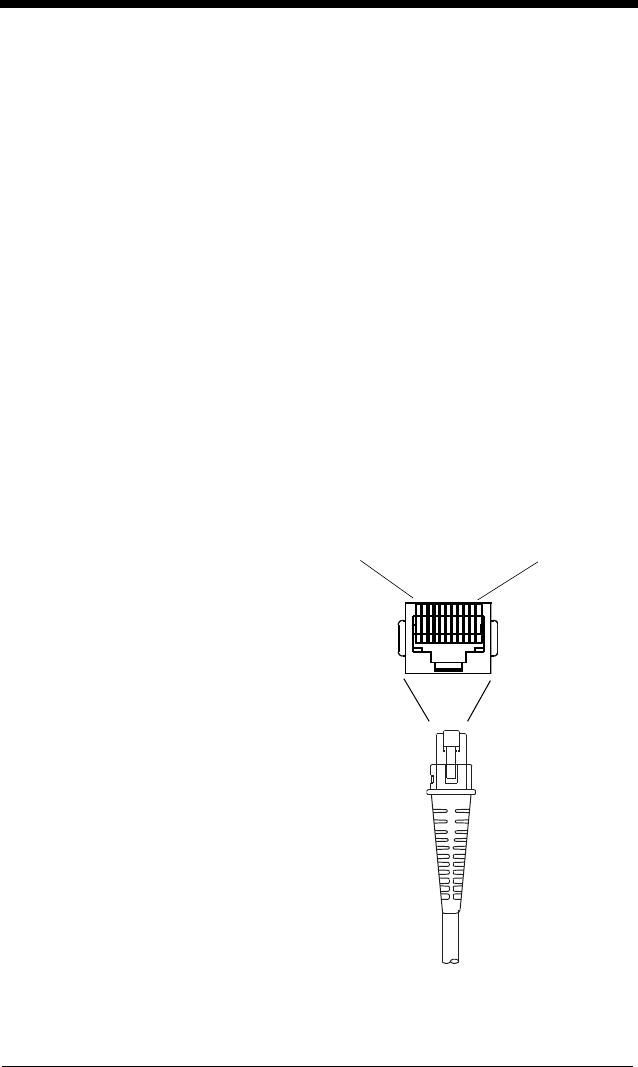
12 - 5
Standard Cable Pinouts
USB
10 Pin Modular Plug
connects to the imager handle
1
2 Data +
3 Tied to supply power
4 Supply ground
5
6
7 5 volt supply power input
8
9
10 Data -

12 - 6
13 - 1
13
Maintenance
Repairs
Repairs and/or upgrades are not to be performed on this product. These ser-
vices are to be performed only by an authorized service center. Please see
Customer Support on page 14-1 for further information.
Maintenance
The 3800g provides reliable and efficient operation with a minimum of care.
Although specific maintenance is not required, the following periodic checks
ensure dependable scanner operation:
Cleaning the Device
Reading performance may degrade if the scanner’s window is not clean. If the
window is visibly dirty, or if the scanner isn’t operating well, clean the window
with a soft cloth or lens tissue dampened with water (or a mild soapy water solu-
tion). If a soapy water solution is used, rinse with a clean lens tissue dampened
with water only.
The scanner’s housing may also be cleaned the same way.
Inspecting Cords and Connectors
Inspect the scanner’s interface cable and connector for wear or other signs of
damage. A badly worn cable or damaged connector may interfere with scanner
operation. Contact your Honeywell distributor for information about cable
replacement. Cable replacement instructions are on page 13-2.
!Caution:
Do not submerge the imager in water. Do not use
abrasive wipes or tissues on the imager’s window –
abrasive wipes may scratch the window.
Never use solvents (e.g., acetone, benzene, ether, or
phenol-based agents) on the housing or window –
solvents may damage the finish or the window.
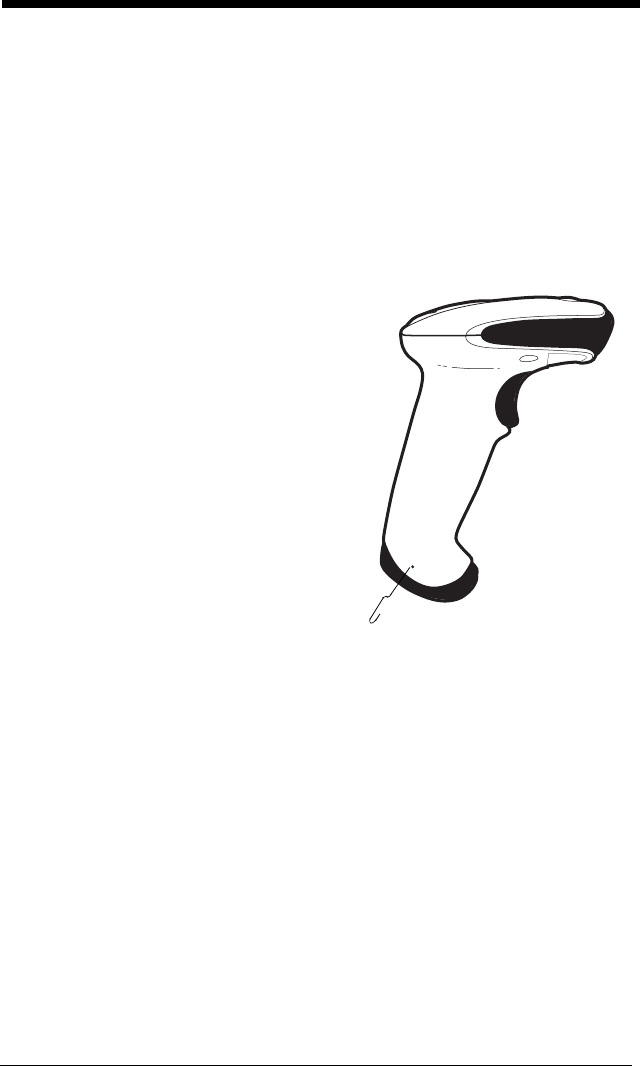
13 - 2
Replacing the Interface Cable
The standard interface cable is attached to the scanner with an 10-pin modular
connector. When properly seated, the connector is held in the 3800g scanner’s
handle by a flexible retention tab. The interface cable is designed to be field
replaceable.
• Order replacement cables from Honeywell or from an authorized distributor.
• When ordering a replacement cable, specify the cable part number of the
original interface cable.
To Replace the 3800g Interface Cable:
1. Turn the power to the host system
OFF.
2. Disconnect the scanner’s cable from
the terminal or computer.
3. Locate the small hole on the side of
the scanner’s handle. This is the
cable release.
4. Straighten one end of a paper clip.
5. Insert the end of the paper clip into the
small hole and press in. This
depresses the retention tab, releasing
the connector. Pull the connector out
while maintaining pressure on the
paper clip, then remove the paper clip.
6. Replace with the new cable.
Insert the connector into the opening
and press firmly. The connector is
keyed to go in only one way, and will click into place.
Troubleshooting
The scanner automatically performs self-tests whenever you turn it on. If your
scanner is not functioning properly, review the following Troubleshooting Guide
to try to isolate the problem.
Is the power on? Is the aiming beam line on?
If the aiming beam line isn’t illuminated, check that:
• The cable is connected properly.
• The host system power is on (if external power isn’t used).
• The trigger works.
Cable
Release

13 - 3
Is the scanner having trouble reading your symbols?
If the scanner isn’t reading symbols well, check that the symbols:
• Aren’t smeared, rough, scratched, or exhibiting voids.
• Aren’t coated with frost or water droplets on the surface.
• Are enabled in the scanner or in the decoder to which the scanner connects.
Is the bar code displayed but not entered?
The bar code is displayed on the host device correctly, but you still have to press
a key to enter it (the Enter/Return key or the Tab key, for example).
You need to program a suffix. Programming a suffix enables the scanner to out-
put the bar code data plus the key you need (such as “CR”) to enter the data
into your application. Refer to Prefix/Suffix Overview on page 4-1 for further
information.
Does the scanner read the bar code incorrectly?
If the scanner reads a bar code, but the data is not displayed correctly on the
host screen:
• The scanner may not be programmed for the appropriate terminal interface.
For example, you scan “12345” and the host displays “@es%.”
Reprogram the scanner with the correct Plug and Play or Terminal selection
bar code. See Chapter 1 and Chapter 2.
• The scanner may not be programmed to output your bar code data properly.
For example, you scan “12345” and the host displays “A12345B.”
Reprogram the scanner with the proper symbology selections. See Chapter
7.
The scanner won’t read your bar code at all.
1. Scan the sample bar codes in the back of this manual. If the scanner reads
the sample bar codes, check that your bar code is readable.
Verify that your bar code symbology is enabled (see Chapter 7).
2. If the scanner still can’t read the sample bar codes, scan All Symbologies on
page 7-2.
If you aren’t sure what programming options have been set in the scanner, or if
you want the factory default settings restored, scan Resetting the Standard
Product Defaults on page 11-4.

13 - 4

14 - 1
14
Customer Support
Technical Assistance
If you need assistance installing or troubleshooting your device, please call your
distributor or the nearest technical support office:
North America/Canada
Telephone: (800) 782-4263
Fax number: (315) 554-6705
E-mail: natechsupport@honeywell.com
Latin America
Telephone: (803) 835-8000
Telephone: (800) 782-4263
E-mail: latechsupport@honeywell.com
Brazil
Telephone: +55 (21) 3535-9100
Fax: +55 (21) 3535-9105
E-mail: brsuporte@honeywell.com
Mexico
Telephone: (803) 835-8000
E-mail: latechsupport@honeywell.com
Europe, Middle East, and Africa
Telephone: +31 (0) 40 7999 393
Fax: +31 (0) 40 2425 672
E-mail: eurosupport@honeywell.com
Asia Pacific
Telephone - Hong Kong: +852-3188-3485 or
2511-3050
Telephone - China: +86 21 6361 3818
E-mail: aptechsupport@honeywell.com
Japan
Telephone: +813-3839-8511
E-mail: aptechsupport@honeywell.com
Malaysia
Telephone: +603-6201-7020
E-mail: aptechsupport@honeywell.com
Online Technical Assistance
You can also access technical assistance online at www.honeywell.com/aidc.

14 - 2
Product Service and Repair
Honeywell International Inc. provides service for all its products through service
centers throughout the world. To obtain warranty or non-warranty service,
contact the appropriate location below to obtain a Return Material Authorization
number (RMA #) before returning the product.
North America
Telephone: (800) 782-4263
Fax: (803) 835-8012
E-mail: naservice@honeywell.com
Latin America
Telephone: (803) 835-8000
Telephone: (800) 782-4263
Fax: (239) 263-9689
E-mail: laservice@honeywell.com
Brazil
Telephone: +55 (21) 3535-9100
Fax: +55 (21) 3535-9105
E-mail: brservice@honeywell.com
Mexico
Telephone: +52 (55) 5203-2100
Fax: +52 (55) 5531-3672
E-mail: mxservice@honeywell.com
Europe, Middle East, and Africa
Telephone: +31 (0) 40 2901 633
Fax: +31 (0) 40 2901 631
E-mail: euservice@honeywell.com
Asia Pacific
Telephone: +852-2511-3050
Fax: +852-2511-3557
E-mail: apservice@honeywell.com
Japan
Telephone: +813-3839-8511
Fax: +813-3839-8519
E-mail: apservice@honeywell.com
Online Product Service and Repair Assistance
You can also access product service and repair assistance online at
www.honeywell.com/aidc.

14 - 3
Limited Warranty
Honeywell International Inc. ("HII") warrants its products and optional accesso-
ries to be free from defects in materials and workmanship and to conform to
HII’s published specifications applicable to the products purchased at the time
of shipment. This warranty does not cover any HII product which is (i) improp-
erly installed or used; (ii) damaged by accident or negligence, including failure
to follow the proper maintenance, service, and cleaning schedule; or (iii) dam-
aged as a result of (A) modification or alteration by the purchaser or other party,
(B) excessive voltage or current supplied to or drawn from the interface connec-
tions, (C) static electricity or electro-static discharge, (D) operation under condi-
tions beyond the specified operating parameters, or (E) repair or service of the
product by anyone other than HII or its authorized representatives.
This warranty shall extend from the time of shipment for the duration published
by HII for the product at the time of purchase ("Warranty Period"). Any defective
product must be returned (at purchaser’s expense) during the Warranty Period
to HII factory or authorized service center for inspection. No product will be
accepted by HII without a Return Materials Authorization, which may be
obtained by contacting HII. In the event that the product is returned to HII or its
authorized service center within the Warranty Period and HII determines to its
satisfaction that the product is defective due to defects in materials or workman-
ship, HII, at its sole option, will either repair or replace the product without
charge, except for return shipping to HII.
EXCEPT AS MAY BE OTHERWISE PROVIDED BY APPLICABLE LAW, THE
FOREGOING WARRANTY IS IN LIEU OF ALL OTHER COVENANTS OR
WARRANTIES, EITHER EXPRESSED OR IMPLIED, ORAL OR WRITTEN,
INCLUDING, WITHOUT LIMITATION, ANY IMPLIED WARRANTIES OF MER-
CHANTABILITY OR FITNESS FOR A PARTICULAR PURPOSE, OR NON-
INFRINGEMENT.
HII’S RESPONSIBILITY AND PURCHASER’S EXCLUSIVE REMEDY UNDER
THIS WARRANTY IS LIMITED TO THE REPAIR OR REPLACEMENT OF THE
DEFECTIVE PRODUCT WITH NEW OR REFURBISHED PARTS. IN NO
EVENT SHALL HII BE LIABLE FOR INDIRECT, INCIDENTAL, OR CONSE-
QUENTIAL DAMAGES, AND, IN NO EVENT, SHALL ANY LIABILITY OF HII
ARISING IN CONNECTION WITH ANY PRODUCT SOLD HEREUNDER
(WHETHER SUCH LIABILITY ARISES FROM A CLAIM BASED ON CON-
TRACT, WARRANTY, TORT, OR OTHERWISE) EXCEED THE ACTUAL
AMOUNT PAID TO HII FOR THE PRODUCT. THESE LIMITATIONS ON LIA-
BILITY SHALL REMAIN IN FULL FORCE AND EFFECT EVEN WHEN HII MAY
HAVE BEEN ADVISED OF THE POSSIBILITY OF SUCH INJURIES, LOSSES,
OR DAMAGES. SOME STATES, PROVINCES, OR COUNTRIES DO NOT
ALLOW THE EXCLUSION OR LIMITATIONS OF INCIDENTAL OR CONSE-

14 - 4
QUENTIAL DAMAGES, SO THE ABOVE LIMITATION OR EXCLUSION MAY
NOT APPLY TO YOU.
All provisions of this Limited Warranty are separate and severable, which
means that if any provision is held invalid and unenforceable, such determina-
tion shall not affect the validity of enforceability of the other provisions hereof.
Use of any peripherals not provided by the manufacturer may result in damage
not covered by this warranty. This includes but is not limited to: cables, power
supplies, cradles, and docking stations. HII extends these warranties only to the
first end-users of the products. These warranties are non-transferable.
The duration of the limited warranty for the 3800g, 3800gHD, and 3800gPDF is
five (5) years.
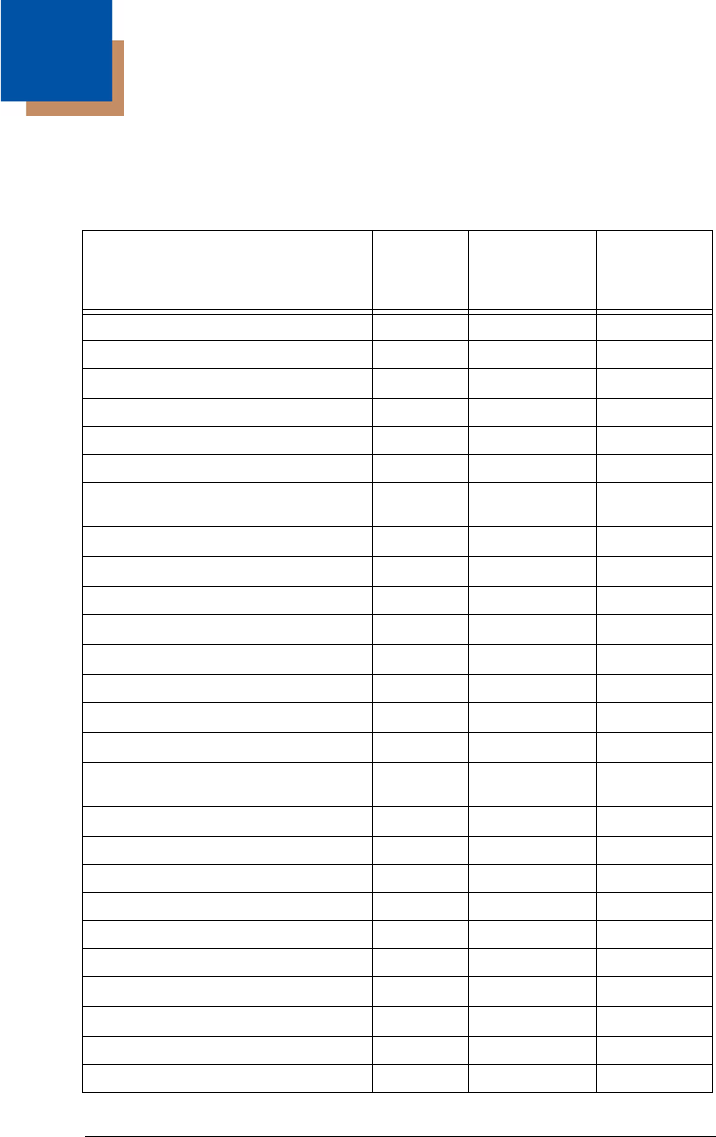
A - 1
A
Appendix A
Symbology Chart
Symbology AIM ID
Possible AIM
ID Modifiers
(
m
)
Code ID
(hex)
All Symbologies
(0x99)
Australian Post ]X0 A (0x41)
Aztec Code ]z
m
0-9, A-C z (0x7A)
British Post ]X0 B (0x42)
Canadian Post ]X0 C (0x43)
China Post ]X0 Q (0x51)
Chinese Sensible Code (Han Xin
Code) ]X0 H (0x48)
Codabar ]F
m
0-1 a (0x61)
Codablock F ]O
m
0, 1, 4, 5, 6 q (0x71)
Code 11 ]H3 h (0x68)
Code 128 ]C
m
0, 1, 2, 4 j (0x6A)
Code 16K ]K
m
0, 1, 2, 4 o (0x6F)
Code 32 Pharmaceutical (PARAF) ]X0 < (0x3C)
Code 39 (supports Full ASCII mode) ]A
m
0, 1, 3, 4, 5, 7 b (0x62)
Code 49 ]T
m
0, 1, 2, 4 l (0x6C)
Code 93 and 93i ]G
m
0-9, A-Z,
a-m i (0x69)
Data Matrix ]d
m
0-6 w (0x77)
EAN-13 (including Bookland EAN) ]E0 d (0x64)
EAN-13 with Add-On ]E3 d (0x64)
EAN-13 with Extended Coupon Code ]E3 d (0x64)
EAN-8 ]E4 D (0x44)
EAN-8 with Add-On ]E3 D (0x44)
GS1 Composite ]e
m
0-3 y (0x79)
GS1 DataBar ]e
m
0 y (0x79)
GS1-128 ]C1 I (0x49)
Intelligent Mail Barcode ]X0 M (0x4D)
A - 2
Note: “m” represents the AIM modifier character. Refer to International Technical
Specification, Symbology Identifiers, for AIM modifier character details.
Prefix/Suffix entries for specific symbologies override the universal (All
Symbologies, 99) entry.
Interleaved 2 of 5 ]I
m
0, 1, 3 e (0x65)
Japanese Post ]X0 J (0x4A)
KIX (Netherlands) Post ]X0 K (0x4B)
Korea Post ]X0 ? (0x3F)
Matrix 2 of 5 ]X0 m (0x6D)
MaxiCode ]U
m
0-3 x (0x7 8)
MicroPDF417 ]L
m
3-5 R (0x52)
MSI ]M
m
0 g (0x67)
OCR MICR (E 13 B) ]o3 O (0x4F)
OCR SEMI Font ]o3 O (0x4F)
OCR US Money Font ]o3 O (0x4F)
OCR-A ]o1 O (0x4F)
OCR-B ]o2 O (0x4F)
PDF417 ]L
m
0-2 r (0x72)
Planet Code ]X0 L (0x4C)
Plessey Code ]P0 n (0x6E)
Postal-4i (UPU 4-State) ]X0 N (0x4E)
Postnet ]X0 P (0x50)
QR Code and Micro QR Code ]Q
m
0-6 s (0x73)
Straight 2 of 5 IATA ]R
m
0, 1, 3 f (0x66)
Straight 2 of 5 Industrial ]S0 f (0x66)
TCIF Linked Code 39 (TLC39) ]L2 T (0x54)
UPC-A ]E0 c (0x63)
UPC-A with Add-On ]E3 c (0x63)
UPC-A with Extended Coupon Code ]E3 c (0x63)
UPC-E ]E0 E (0x45)
UPC-E with Add-On ]E3 E (0x45)
UPC-E1 (obsolete) ]X0 E (0x45)
Symbology AIM ID
Possible AIM
ID Modifiers
(
m
)
Code ID
(hex)
A - 3
ASCII Conversion Chart (Code Page 1252
)
Note: This table applies to U.S. style keyboards. Certain characters may differ depending on your
Country Code/PC regional settings.
Dec Hex Char Dec Hex Char Dec Hex Char Dec Hex Char
000 NUL 32 20 64 40 @96 60 ‘
101 SOH 33 21 !65 41 A97 61 a
202 STX 34 22 “66 42 B98 62 b
303 ETX 35 23 #67 43 C99 63 c
404 EOT 36 24 $68 44 D100 64 d
505 ENQ 37 25 %69 45 E101 65 e
606 ACK 38 26 &70 46 F102 66 f
707 BEL 39 27 ‘71 47 G103 67 g
808 BS 40 28 (72 48 H104 68 h
909 HT 41 29 )73 49 l105 69 i
10 0A LF 42 2A *74 4A J106 6A j
11 0B VT 43 2B +75 4B K107 6B k
12 0C FF 44 2C ,76 4C L108 6C l
13 0D CR 45 2D -77 4D M109 6D m
14 0E SO 46 2E .78 4E N110 6E n
15 0F SI 47 2F /79 4F O111 6F o
16 10 DLE 48 30 080 50 P112 70 p
17 11 DC1 49 31 181 51 Q113 71 q
18 12 DC2 50 32 282 52 R114 72 r
19 13 DC3 51 33 383 53 S115 73 s
20 14 DC4 52 34 484 54 T116 74 t
21 15 NAK 53 35 585 55 U117 75 u
22 16 SYN 54 36 686 56 V118 76 v
23 17 ETB 55 37 787 57 W119 77 w
24 18 CAN 56 38 888 58 X120 78 x
25 19 EM 57 39 989 59 Y121 79 y
26 1A SUB 58 3A :90 5A Z122 7A z
27 1B ESC 59 3B ;91 5B [123 7B {
28 1C FS 60 3C <92 5C \124 7C |
29 1D GS 61 3D =93 5D ]125 7D }
30 1E RS 62 3E >94 5E ^126 7E ~
31 1F US 63 3F ?95 5F _127 7F
A - 4
Dec Hex Char Dec Hex Char Dec Hex Char Dec Hex Char
128 80 €
€160 A0 192 C0 À224 E0 à
129 81 161 A1 ¡193 C1 Á225 E1 á
130 82 ‚162 A2 ¢194 C2 Â226 E2 â
131 83 ƒ163 A3 £195 C3 Ã227 E3 ã
132 84 „164 A4 ¤196 C4 Ä228 E4 ä
133 85 …165 A5 ¥197 C5 Å229 E5 å
134 86 †166 A6 ¦198 C6 Æ230 E6 æ
135 87 ‡167 A7 §199 C7 Ç231 E7 ç
136 88 ˆ168 A8 ¨200 C8 È232 E8 è
137 89 ‰169 A9 ©201 C9 É233 E9 é
138 8A Š170 AA 202 CA Ê234 EA ê
139 8B ‹171 AB «203 CB Ë235 EB ë
140 8C Œ172 AC ¬204 CC Ì236 EC ì
141 8D 173 AD -205 CD Í237 ED í
142 8E Ž174 AE ®206 CE Î238 EE î
143 8F 175 AF ¯207 CF Ï239 EF ï
144 90 176 B0 °208 D0 Ð240 F0 ð
145 91 ‘177 B1 ±209 D1 Ñ241 F1 ñ
146 92 ’178 B2 ²210 D2 Ò242 F2 ò
147 93 “179 B3 ³211 D3 Ó243 F3 ó
148 94 ”180 B4 ´212 D4 Ô244 F4 ô
149 95 •181 B5 µ213 D5 Õ245 F5 õ
150 96 –182 B6 ¶214 D6 Ö246 F6 ö
151 97 —183 B7 ·215 D7 ×247 F7 ÷
152 98 ˜184 B8 ¸216 D8 Ø248 F8 ø
153 99 ™185 B9 ¹217 D9 Ù249 F9 ù
154 9A š186 BA 218 DA Ú250 FA ú
155 9B ›187 BB »219 DB Û251 FB û
156 9C œ188 BC ¼220 DC Ü252 FC ü
157 9D 189 BD ½221 DD Ý253 FD ý
158 9E ž190 BE ¾222 DE Þ254 FE þ
159 9F Ÿ191 BF ¿223 DF ß255 FF ÿ
ª
A - 5
Code Page Mapping of Printed Bar Codes
Code pages define the mapping of character codes to characters. If the data
received does not display with the proper characters, it may be because the bar
code being scanned was created using a code page that is different from the
one the host program is expecting. If this is the case, select the code page with
which the bar codes were created. The data characters should then appear
properly.
Note: The Code Page option is available for Code 39, Code 93, and Code 128.
Code Page Standard Description
1CP ISO646
2 (Default) ISO 2022 Automatic National Replacement Charac-
ters
3 CP Binary
82 ISO 2022 11 Swe Swedish Replacement Characters
83 ISO 2022 69 Fra French/Belgium Replacement Characters
81 ISO 2022 25 Fra French/Belgium Replacement Characters
84 ISO 2022 11 Ger German Replacement Characters
85 ISO 2022 11 Ita Italian Replacement Characters
86 ISO 2022 11 Swi Swiss Replacement Characters
87 ISO 2022 11 UK British Replacement Characters
88 ISO 2022 11 Dan Danish Replacement Characters
89 ISO 2022 11 Nor Norwegian Replacement Characters
90 ISO 2022 11 Spa Spanish Replacement Characters

A - 6
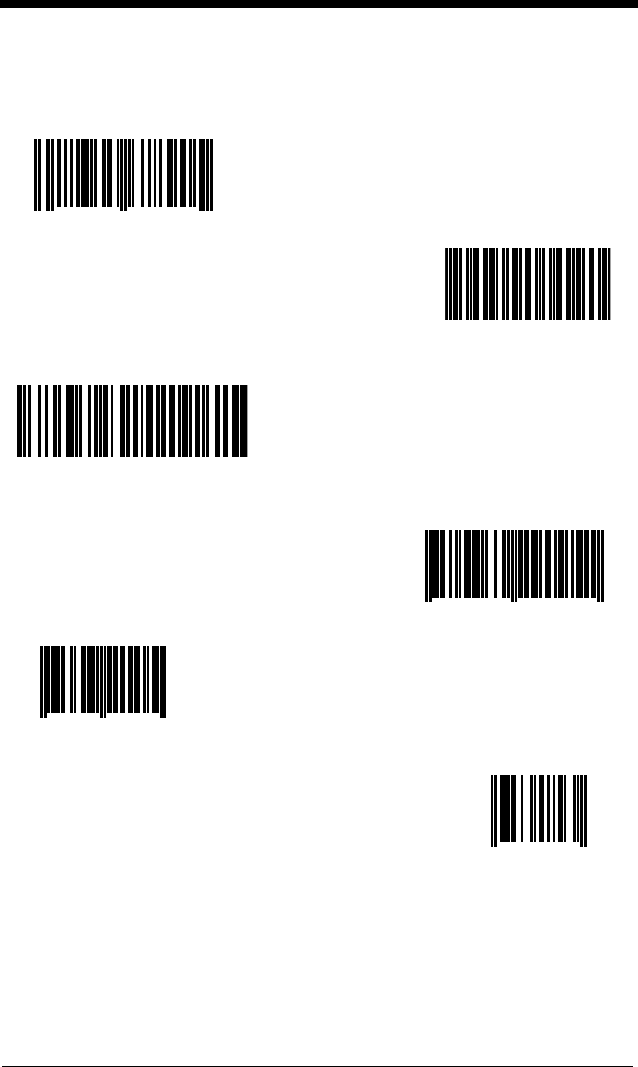
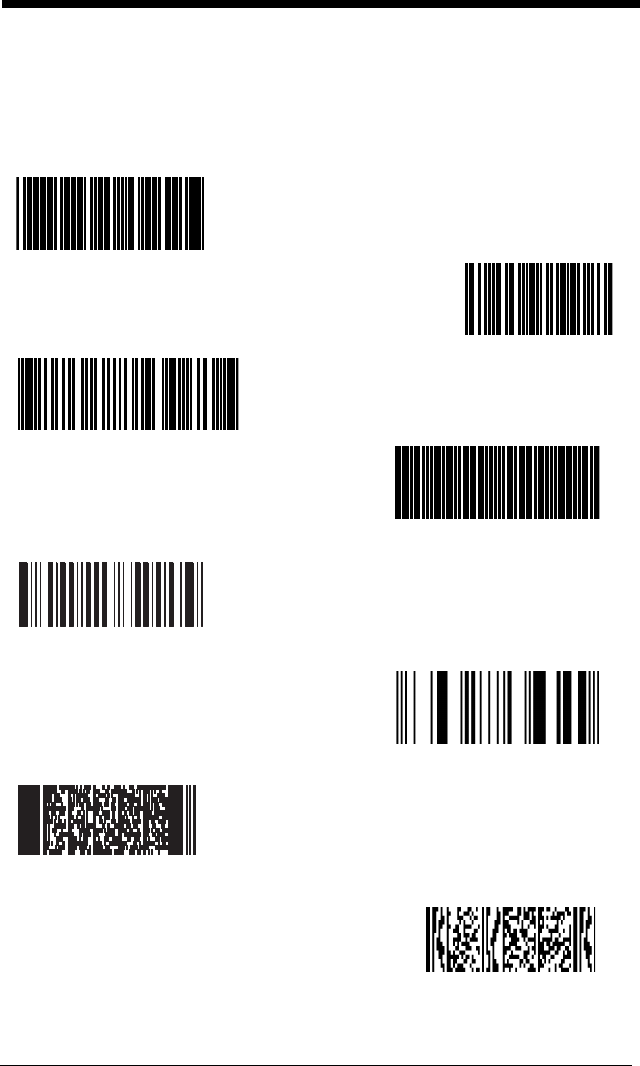
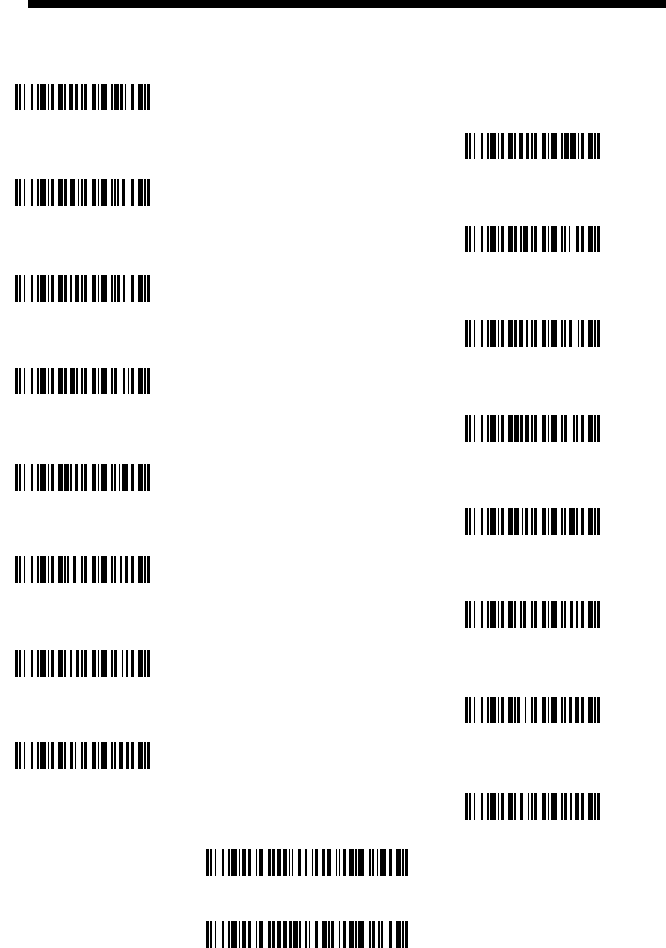
Programming Chart
A
C
Save
B
Discard
F
E
D
Note:
If you make an error while scanning the letters or digits (before scanning
Save), scan Discard, scan the correct letters or digits, and Save.
0
2
6
1
7
5
4
3
8
9
Honeywell
700 Visions Drive
P.O. Box 208
Skaneateles Falls, NY 13153-0208
3800g-UG Rev C
4/09
