Hosiden CFU0288 802.15.4 ZigBee Energy Display User Manual Manual

Hosiden Corporation 802.15.4 ZigBee Energy Display Manual

Manual

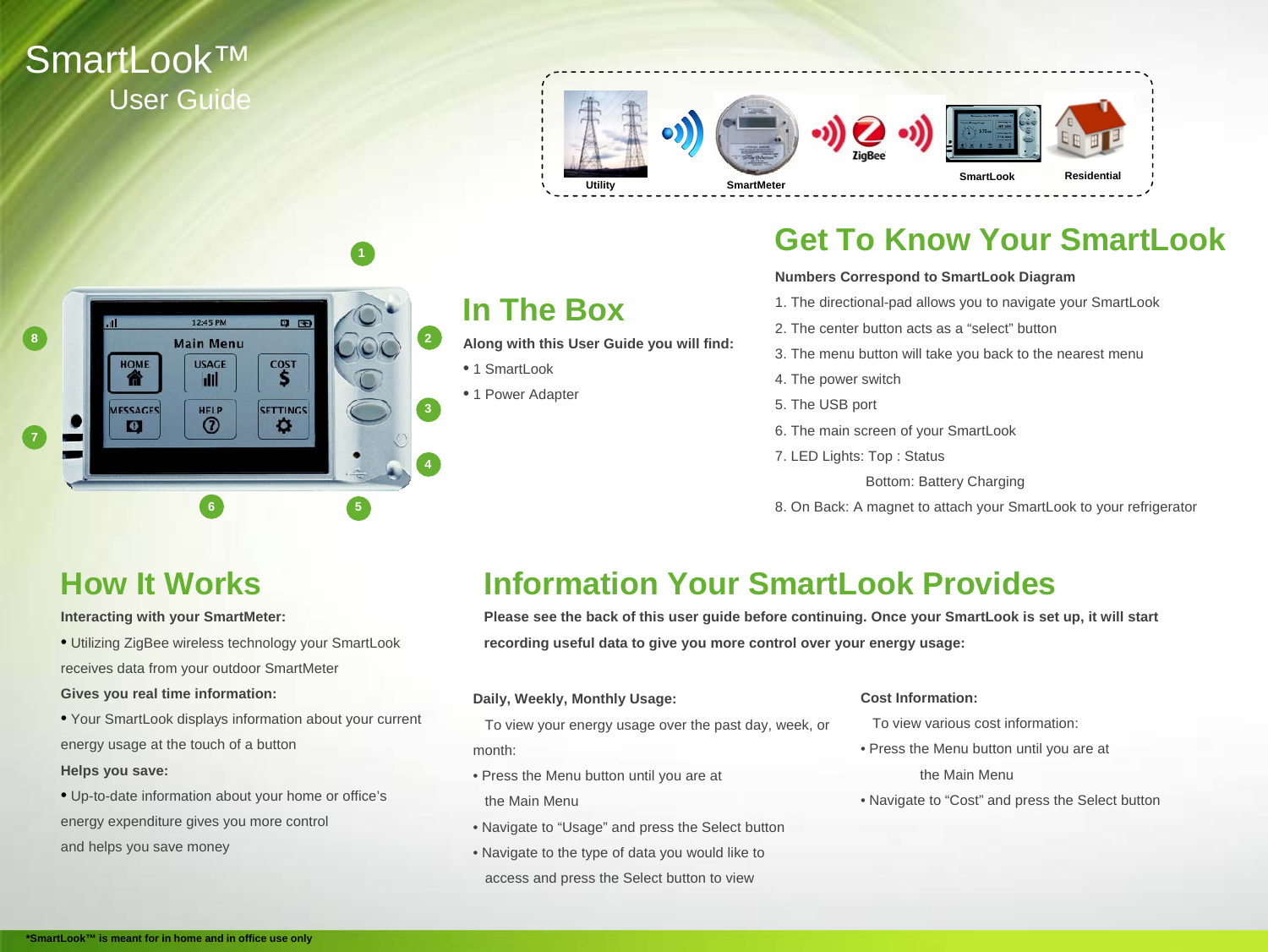
SmartLook™User GuideIn The BoxAlong with this User Guide you will find:•1 SmartLook•1 Power AdapterGet To Know Your SmartLookNumbers Correspond to SmartLook Diagram 1. The directional-pad allows you to navigate your SmartLook2. The center button acts as a “select” button3. The menu button will take you back to the nearest menu4. The power switch5. The USB port6. The main screen of your SmartLook7. LED Lights: Top : StatusBottom: Battery Charging8. On Back: A magnet to attach your SmartLook to your refrigerator  2431568UtilityResidentialHow It WorksInteracting with your SmartMeter:•Utilizing ZigBee wireless technology your SmartLookreceives data from your outdoor SmartMeterGives you real time information:•Your SmartLook displays information about your current energy usage at the touch of a buttonHelps you save:•Up-to-date information about your home or office’senergy expenditure gives you more controland helps you save moneyInformation Your SmartLook ProvidesPlease see the back of this user guide before continuing. Once your SmartLook is set up, it will start recording useful data to give you more control over your energy usage:Daily, Weekly, Monthly Usage:To view your energy usage over the past day, week, or month:• Press the Menu button until you are at the Main Menu• Navigate to “Usage” and press the Select button• Navigate to the type of data you would like to access and press the Select button to viewCost Information:To view various cost information:• Press the Menu button until you are at the Main Menu• Navigate to “Cost” and press the Select button7*SmartLook™ is meant for in home and in office use onlySmartLookSmartMeterUtility
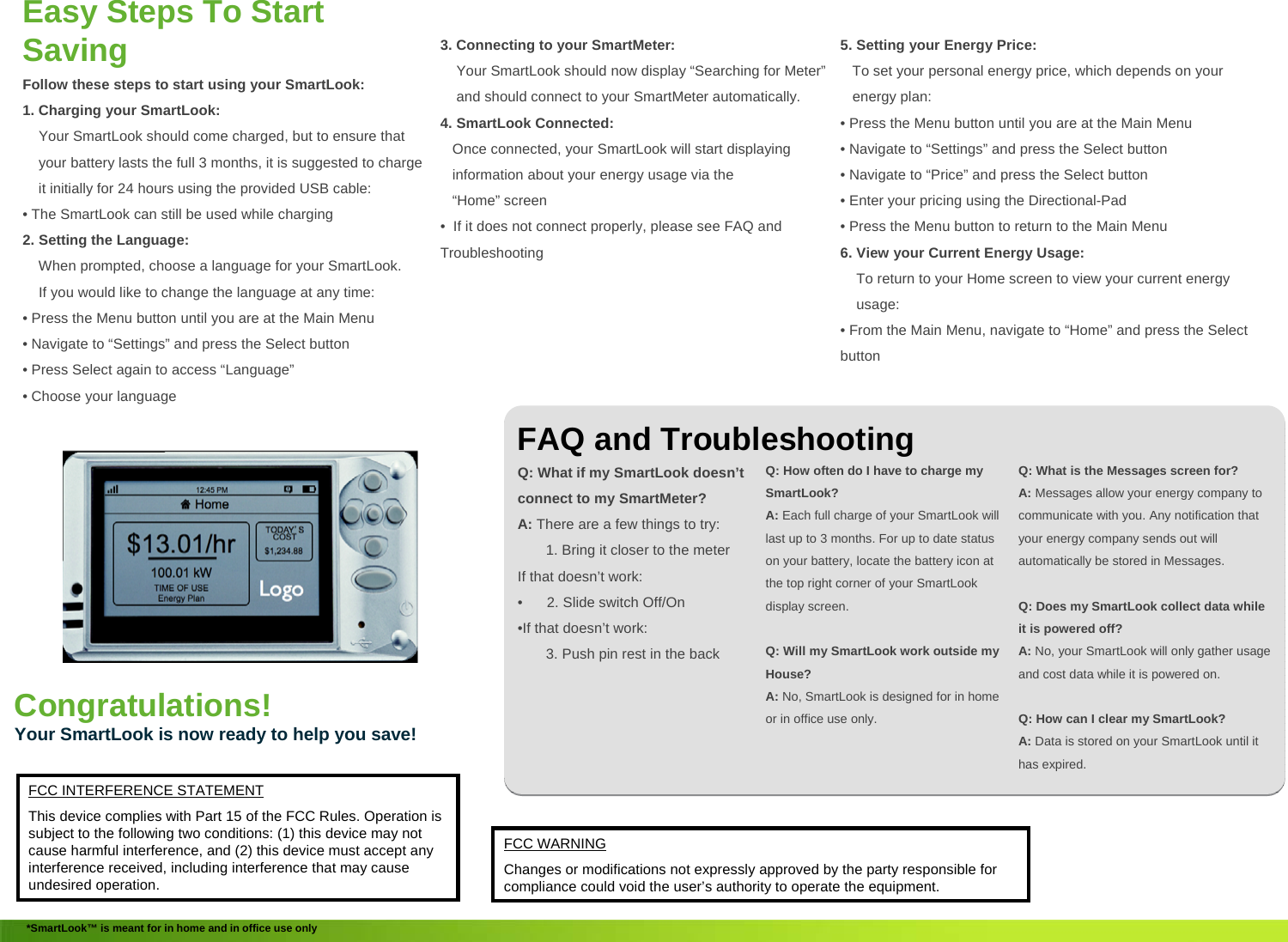
5. Setting your Energy Price:To set your personal energy price, which depends on your energy plan:• Press the Menu button until you are at the Main Menu• Navigate to “Settings” and press the Select button• Navigate to “Price” and press the Select button• Enter your pricing using the Directional-Pad• Press the Menu button to return to the Main Menu6. View your Current Energy Usage:To return to your Home screen to view your current energy usage:• From the Main Menu, navigate to “Home” and press the Select buttonEasy Steps To Start Saving Follow these steps to start using your SmartLook:1. Charging your SmartLook:Your SmartLook should come charged, but to ensure that         your battery lasts the full 3 months, it is suggested to charge it initially for 24 hours using the provided USB cable:• The SmartLook can still be used while charging2. Setting the Language:When prompted, choose a language for your SmartLook.If you would like to change the language at any time:• Press the Menu button until you are at the Main Menu• Navigate to “Settings” and press the Select button• Press Select again to access “Language”• Choose your languageFAQ and TroubleshootingQ: What if my SmartLook doesn’t connect to my SmartMeter?A: There are a few things to try:1. Bring it closer to the meterIf that doesn’t work:• 2. Slide switch Off/On•If that doesn’t work:3. Push pin rest in the backQ: How often do I have to charge my SmartLook?A: Each full charge of your SmartLook will last up to 3 months. For up to date status on your battery, locate the battery icon at the top right corner of your SmartLookdisplay screen.Q: Will my SmartLook work outside my House?A: No, SmartLook is designed for in home or in office use only.Q: What is the Messages screen for?A: Messages allow your energy company to communicate with you. Any notification that your energy company sends out will automatically be stored in Messages.Q: Does my SmartLook collect data while it is powered off?A: No, your SmartLook will only gather usage and cost data while it is powered on.Q: How can I clear my SmartLook?A: Data is stored on your SmartLook until it has expired.Congratulations!Your SmartLook is now ready to help you save!*SmartLook™ is meant for in home and in office use only3. Connecting to your SmartMeter:Your SmartLook should now display “Searching for Meter”and should connect to your SmartMeter automatically.4. SmartLook Connected:Once connected, your SmartLook will start displaying information about your energy usage via the “Home” screen • If it does not connect properly, please see FAQ and TroubleshootingFCC INTERFERENCE STATEMENTThis device complies with Part 15 of the FCC Rules. Operation is subject to the following two conditions: (1) this device may notcause harmful interference, and (2) this device must accept any interference received, including interference that may cause undesired operation.FCC WARNINGChanges or modifications not expressly approved by the party responsible for compliance could void the user’s authority to operate the equipment.

Navigation menu