Howell Intelligent Technology YT02I 2.4G Camera User Manual 15 YT02I UserMan

Shenzhen Howell Intelligent Technology Co., Ltd. 2.4G Camera 15 YT02I UserMan

15_YT02I UserMan

2.4G Camera Quick User GuideFamily use Stores use Indoor useFor more information, please visit our online websitehttp://www.cam158.com
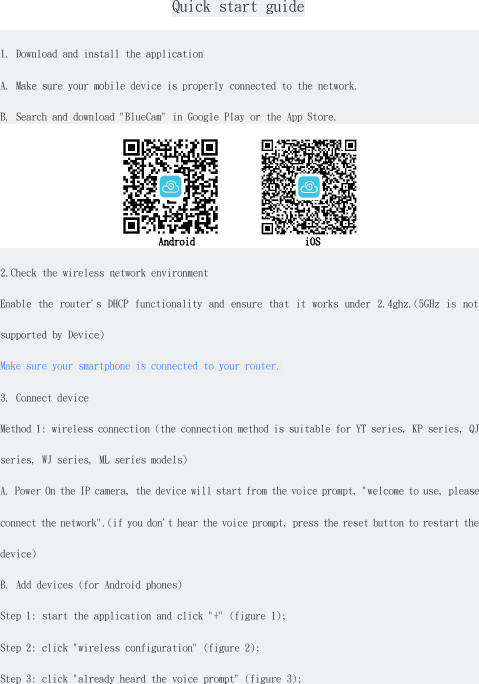
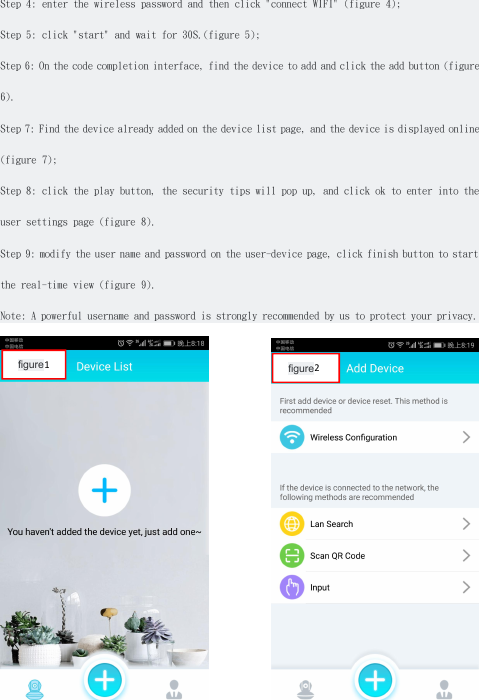
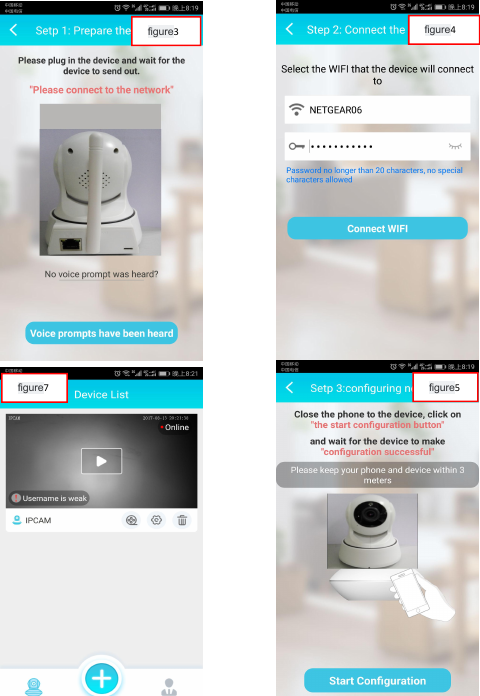
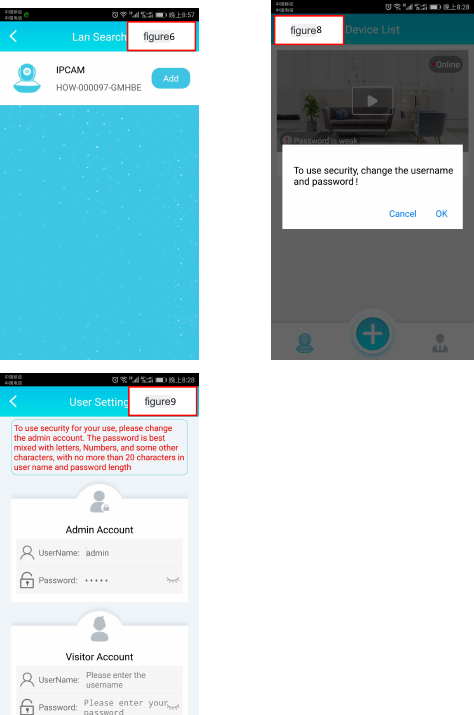
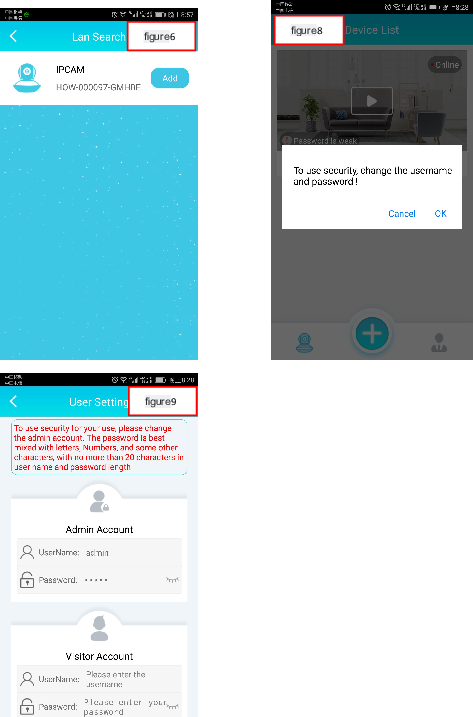
Quick start guide1. Download and install the applicationA. Make sure your mobile device is properly connected to the network.B. Search and download "BlueCam" in Google Play or the App Store.Android iOS2.Check the wireless network environmentEnable the router's DHCP functionality and ensure that it works under 2.4ghz.(5GHz is notsupported by Device)Make sure your smartphone is connected to your router.3. Connect deviceMethod 1: wireless connection (the connection method is suitable for YT series, KP series, QJseries, WJ series, ML series models)A. Power On the IP camera, the device will start from the voice prompt, "welcome to use, pleaseconnect the network".(if you don't hear the voice prompt, press the reset button to restart thedevice)B. Add devices (for Android phones)Step 1: start the application and click "+" (figure 1);Step 2: click "wireless configuration" (figure 2);Step 3: click "already heard the voice prompt" (figure 3);
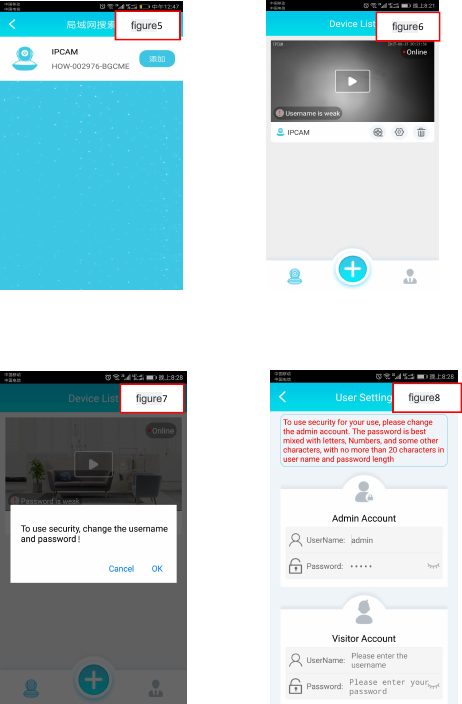
Step 4: enter the wireless password and then click "connect WIFI" (figure 4);Step 5: click "start" and wait for 30S.(figure 5);Step 6: On the code completion interface, find the device to add and click the add button (figure6).Step 7: Find the device already added on the device list page, and the device is displayed online(figure 7);Step 8: click the play button, the security tips will pop up, and click ok to enter into theuser settings page (figure 8).Step 9: modify the user name and password on the user-device page, click finish button to startthe real-time view (figure 9).Note: A powerful username and password is strongly recommended by us to protect your privacy.figure2figure1
figure5figure7figure4figure3
figure9figure8figure6
If there is no device on the code success page, go back to step 2 and re-configure the device.Reset button:Press "reset" button for 5 seconds and the device will reboot (you can hear "reset success") and it willautomatically revert to factory settings. So you need to make a wifi setup again after reboot.Note: when you try to reset the device, make sure it is powered on.
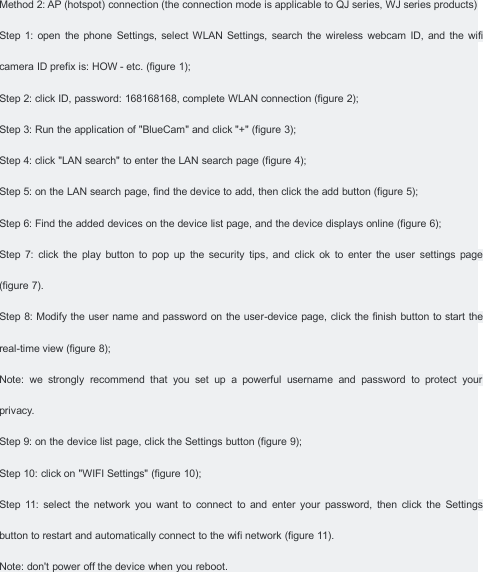
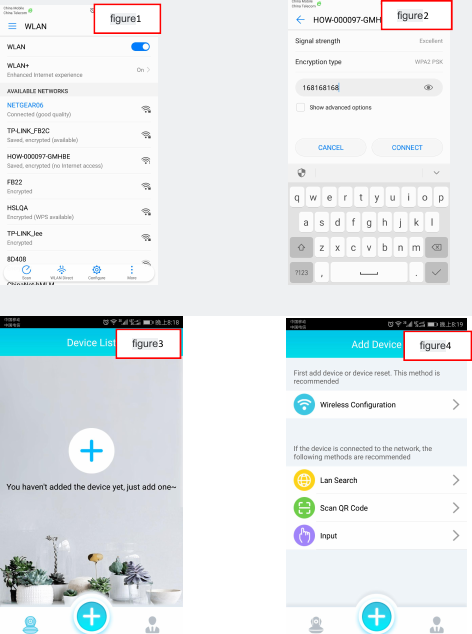
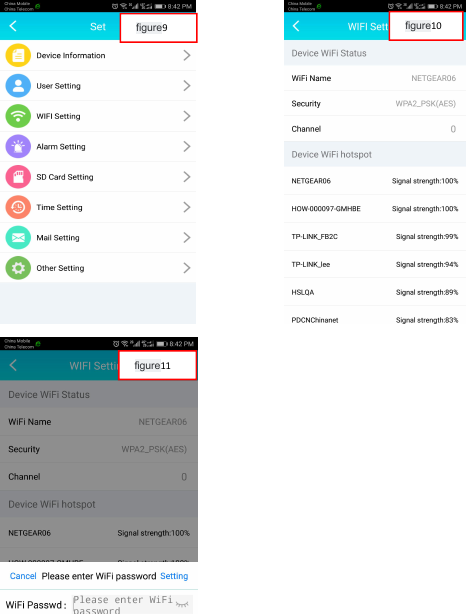
Method 2: AP (hotspot) connection (the connection mode is applicable to QJ series, WJ series products)Step 1: open the phone Settings, select WLAN Settings, search the wireless webcam ID, and the wificamera ID prefix is: HOW - etc. (figure 1);Step 2: click ID, password: 168168168, complete WLAN connection (figure 2);Step 3: Run the application of "BlueCam" and click "+" (figure 3);Step 4: click "LAN search" to enter the LAN search page (figure 4);Step 5: on the LAN search page, find the device to add, then click the add button (figure 5);Step 6: Find the added devices on the device list page, and the device displays online (figure 6);Step 7: click the play button to pop up the security tips, and click ok to enter the user settings page(figure 7).Step 8: Modify the user name and password on the user-device page, click the finish button to start thereal-time view (figure 8);Note: we strongly recommend that you set up a powerful username and password to protect yourprivacy.Step 9: on the device list page, click the Settings button (figure 9);Step 10: click on "WIFI Settings" (figure 10);Step 11: select the network you want to connect to and enter your password, then click the Settingsbutton to restart and automatically connect to the wifi network (figure 11).Note: don't power off the device when you reboot.
figure4figure3figure2figure1
figure8figure7figure6figure5
figure11figure10figure9
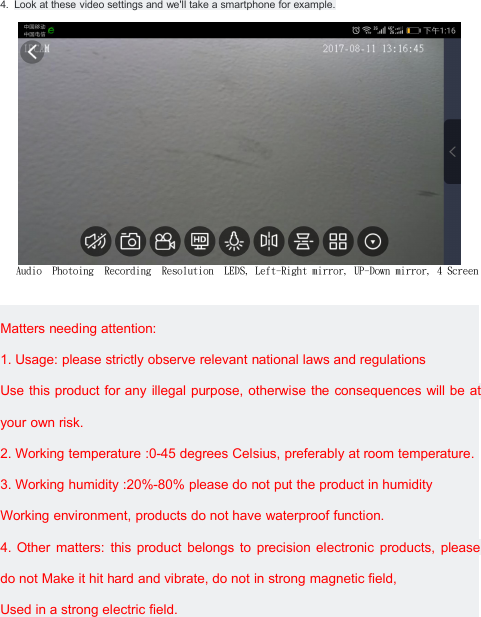
4. Look at these video settings and we'll take a smartphone for example.Audio Photoing Recording Resolution LEDS, Left-Right mirror, UP-Down mirror, 4 ScreenMatters needing attention:1. Usage: please strictly observe relevant national laws and regulationsUse this product for any illegal purpose, otherwise the consequences will be atyour own risk.2. Working temperature :0-45 degrees Celsius, preferably at room temperature.3. Working humidity :20%-80% please do not put the product in humidityWorking environment, products do not have waterproof function.4. Other matters: this product belongs to precision electronic products, pleasedo not Make it hit hard and vibrate, do not in strong magnetic field,Used in a strong electric field.
An the Responsible Party Information as follow(America)Company Name:Nexx Garage Company LimitedAddress:4095 Roaring Fork Ln  Frisco, TX  75033,United States  Telephone:+1-469-233-5252 support@nexxgarage.com、Scott Vu
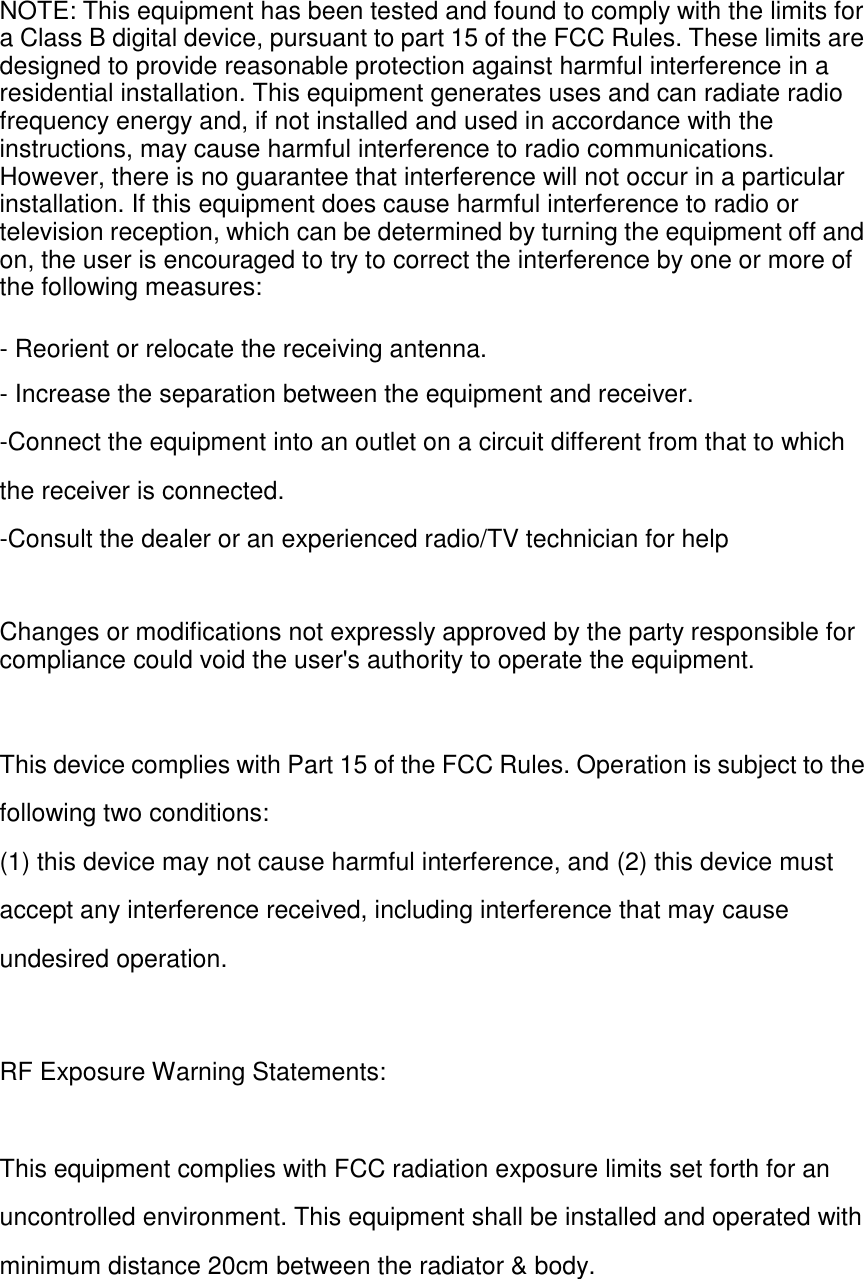
NOTE: This equipment has been tested and found to comply with the limits for a Class B digital device, pursuant to part 15 of the FCC Rules. These limits are designed to provide reasonable protection against harmful interference in a residential installation. This equipment generates uses and can radiate radio frequency energy and, if not installed and used in accordance with the instructions, may cause harmful interference to radio communications. However, there is no guarantee that interference will not occur in a particular installation. If this equipment does cause harmful interference to radio or television reception, which can be determined by turning the equipment off and on, the user is encouraged to try to correct the interference by one or more of the following measures: - Reorient or relocate the receiving antenna. - Increase the separation between the equipment and receiver. -Connect the equipment into an outlet on a circuit different from that to which the receiver is connected. -Consult the dealer or an experienced radio/TV technician for help Changes or modifications not expressly approved by the party responsible for compliance could void the user's authority to operate the equipment. This device complies with Part 15 of the FCC Rules. Operation is subject to the following two conditions: (1) this device may not cause harmful interference, and (2) this device must accept any interference received, including interference that may cause undesired operation. RF Exposure Warning Statements: This equipment complies with FCC radiation exposure limits set forth for an uncontrolled environment. This equipment shall be installed and operated with minimum distance 20cm between the radiator & body.

Navigation menu