Hp B421 42 Inch Led Digital Signage Display Users Manual User Guide
Hp-B321-31-5-Inch-Led-Digital-Signage-Display-Users-Manual-153141 hp-b321-31-5-inch-led-digital-signage-display-users-manual-153141
2015-01-05
: Hp Hp-B421-42-Inch-Led-Digital-Signage-Display-Users-Manual-153143 hp-b421-42-inch-led-digital-signage-display-users-manual-153143 hp pdf
Open the PDF directly: View PDF  .
.
Page Count: 29
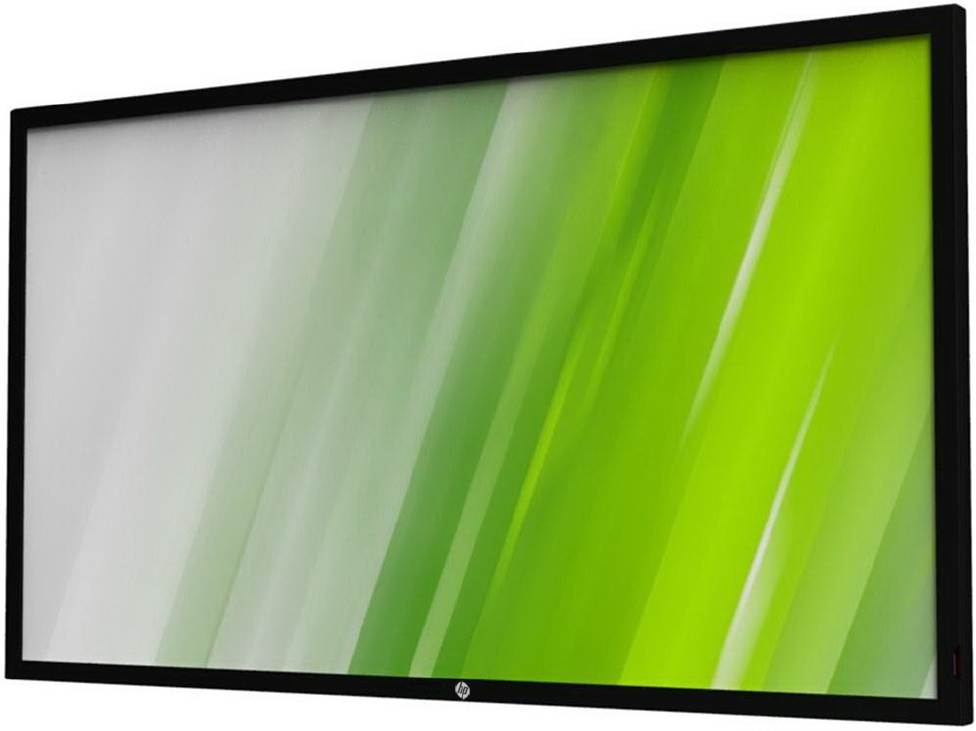
B321/B421
HP LED Digital Signage Display
User Guide
ii
B321/B421
Safety Instructions
Warnings and Precautions
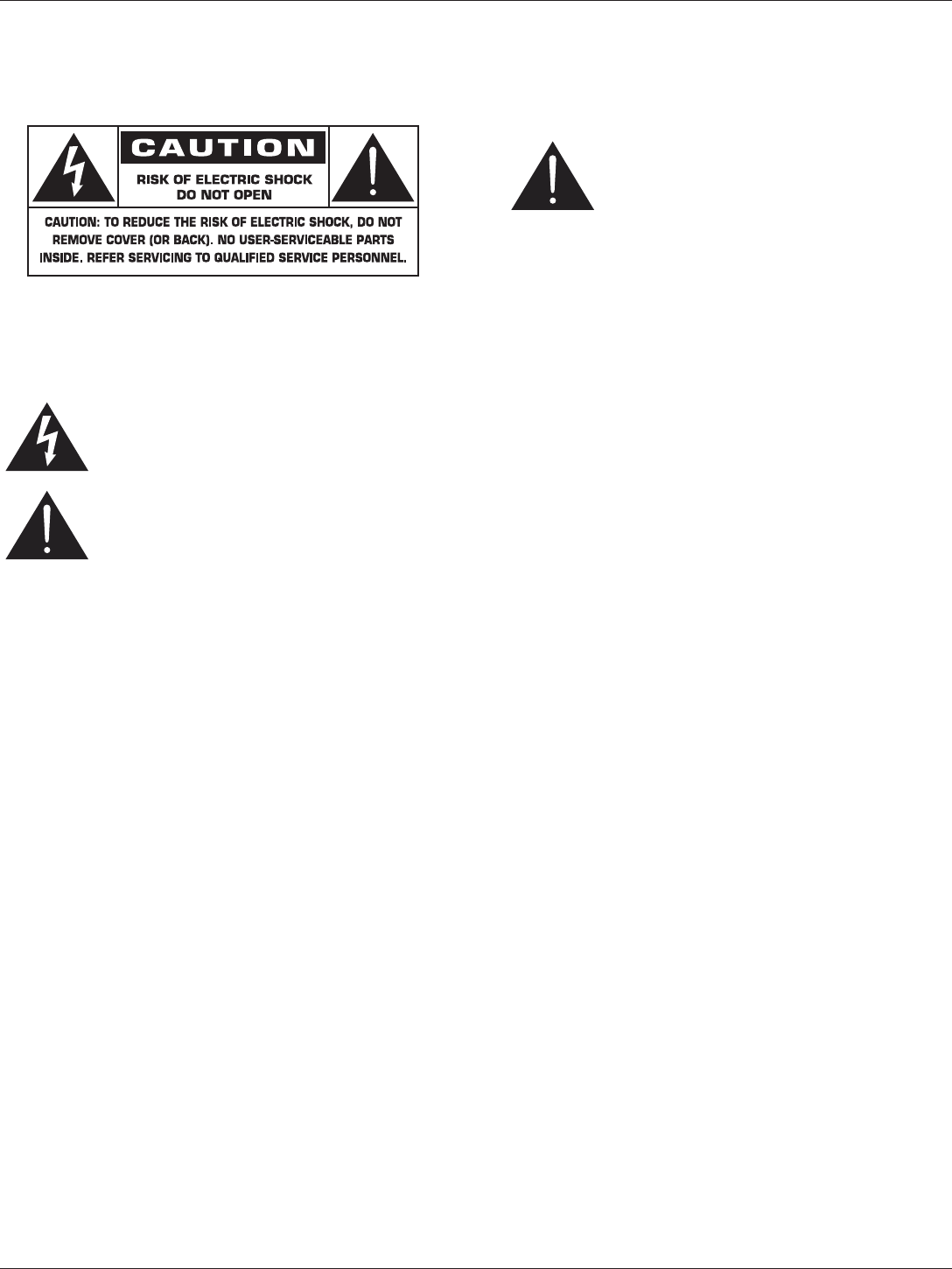
KNOW THESE SAFETY SYMBOLS
CAUTION: TO REDUCE THE RISK OF ELECTRIC SHOCK,
DO NOT REMOVE COVER (OR BACK).
NO USER SERVICEABLE PARTS INSIDE.
REFER SERVICING TO QUALIFIED SERVICE
PERSONNEL.
This symbol indicates high voltage is present
inside. It is dangerous to make any kind of
contact with any inside part of this product.
This symbol alerts you that important literature
concerning operation and maintenance has
been included with this product.
CAUTION: FCC/CSA regulations state that any unauthorized
changes or modications to this equipment may
void the user’s authority to operate it.
CAUTION: To prevent electric shock, match the wide blade
of plug to the wide slot, and fully insert the plug.
TO PREVENT DAMAGE WHICH MAY RESULT IN FIRE
OR ELECTRIC SHOCK HAZARD, DO NOT EXPOSE THIS
APPLIANCE TO RAIN OR MOISTURE.
The Socket-outlet should be installed near the apparatus and
be easily accessible.
Read and follow these instructions
when connecting and using your Public
Information Display:
• Unplug the display if you are not going to use it for an
extensive period of time.
• Unplug the display if you need to clean it with a slightly
damp cloth. The screen many be wiped with a dry cloth
when the power is off. However, never use alcohol, solvents
or ammonia-based liquids.
• Consult a service technician if the display does not operate
normally when you have followed the instructions in this
manual.
• The casing cover should be opened only by qualied service
personnel.
• Keep the display out of direct sunlight and away from stoves
or any other heat sources.
• Remove any object that could fall into the vents or prevent
proper cooling of the display’s electronics.
• Do not block the ventilation holes on the cabinet.
• Keep the display dry. To avoid electric shock, do not expose
it to rain or excessive moisture.
• If turning off the display by detaching the power cable, wait
for 6 seconds before re-attaching the power cable for normal
operation.
• To avoid the risk of shock or permanent damage to the set
do not expose the display to rain or excessive moisture.
• When positioning the display, make sure the power plug and
outlet are easily accessible.
• IMPORTANT: Always activate a screen saver program
during your application. If a still image in high contrast
remains on the screen for an extended period of time, it may
leave an ‘after-image’ or ‘ghost image’ on the front of the
screen. This is a well-known phenomenon that is caused by
the shortcomings inherent in LCD technology. In most cases
the afterimage will disappear gradually over a period of time
after the power has been switched off. Be aware that the
after-image symptom cannot be repaired and is not covered
under warranty.
iii
B321/B421
Important Safety Instructions
1. Read these instructions.
2. Keep these instructions.
3. Heed all warnings.
4. Follow all instructions.
5. Do not use this apparatus near water.
6. Clean only with dry cloth.
7. Do not block any ventilation openings. Install in accordance
with the manufacturer’s instructions.
8. Do not install near any heat sources such as radiators, heat
registers, stoves, or other apparatus (including ampliers)
that produce heat.
9. Do not defeat the safety purpose of the polarized or
grounding-type plug. A polarized plug has two blades with
one wider than the other. If the provided plug does not t
into your outlet, consult an electrician for replacement of the
obsolete outlet.
10. Protect the power cord from being walked on or pinched
particularly at plugs, convenience receptacles, and the point
where they exit from the apparatus.
11. Only use attachments/accessories specied by the
manufacturer.
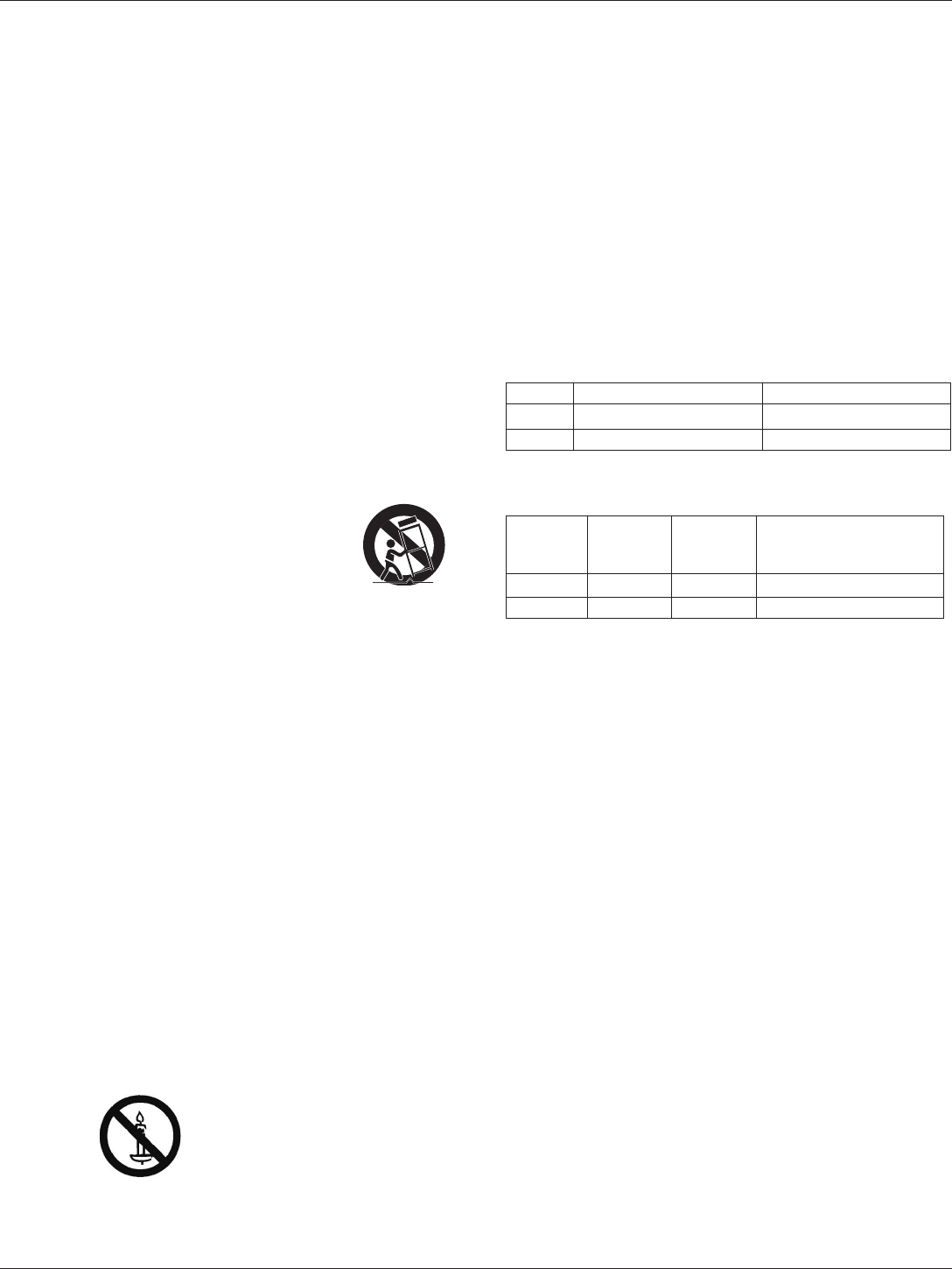
12. Use only with the cart, stand, tripod, bracket,
or table specied by the manufacturer, or
sold with the apparatus. When a cart is used,
use caution when moving the cart/apparatus
combination to avoid injury from tip-over.
13. Unplug this apparatus during lightning storms or when
unused for long periods of time.
14. Refer all servicing to qualied service personnel. Servicing
is required when the apparatus has been damaged in any
way, such as power-supply cord or plug is damaged, liquid
has been spilled or objects have fallen into the apparatus,
the apparatus has been exposed to rain or moisture, does
not operate normally, or has been dropped.
WARNING: TO REDUCE THE RISK OF FIRE OR ELECTRIC
SHOCK, DO NOT EXPOSE THIS APPARATUS
TO RAIN OR MOISTURE.
WARNING: Apparatus shall not be exposed to dripping or
splashing and no objects lled with liquids, such
as vases, shall be placed on the apparatus.
WARNING: The batteries (batteries installed) shall not be
exposed to excessive heat such as sunshine, re
or the like.
WARNING: The mains plug or appliance coupler is used as
the disconnect device,the disconnect device shall
remain readily operable.
WARNING: To prevent the spread of re, keep candles or
other open ames away from this product at all
times.
WARNING: To prevent injury, this apparatus must be securely
attached to the oor/wall in accordance with the
installation instructions.
CAUTION: These servicing instructions are for use by
qualied service personnel only. To reduce the
risk of electric shock,do not perform any servicing
other than that contained in the operating
instructions unless you are qualitied to do so.
CAUTION: Excessive sound pressure from earphones and
headphones can cause hearing loss. Adjustment
of the equalizer to maximum increases the
earphone and headphone output voltage and the
sound pressure level. Therefore, to protect your
hearing, adjust the equalizer to an appropriate
level.
For UL/CUL application: For use only with UL Listed Wall
Mount Bracket with minimum weight/load:
Model Viewable Image Size Minimum weight/load (kg)
B321 80.0cm(31.5 in.)diagonal 19.8
B421 106.7cm(42 in.)diagonal 35.7
For CB application: The equipment and its associated
mounting means still remain secure during the test.
Model Unit Weight
(kg)
VESA Size
(mm)
Mounting Screws*
(X=Thickness of wall-
mount plate)
B321 6.6 200 × 100 M6 × (16 + X)
B421 11.9 400 × 400 M6 × (20 + X)
iv
B321/B421
Federal Communications Commission (FCC)
Notice (U.S. Only)
This equipment has been tested and found
to comply with the limits for a Class B digital
device, pursuant to Part 15 of the FCC Rules.
These limits are designed to provide reasonable
protection against harmful interference when
the equipment is operated in a commercial
environment. This equipment generates, uses
and can radiate radio frequency energy and,
if not installed and used in accordance with
the instructions manual, may cause harmful
interference to radio communications. Operation
of this equipment in a residential area is likely
to cause harmful interference in which case the
user will be required to correct the interference
at his own expense.
Changes or modications not expressly
approved by the party responsible for
compliance could void the user’s authority to
operate the equipment.
Use only an RF shielded cable that was supplied with the
display when connecting this display to a computer device.
To prevent damage which may result in re or shock hazard, do
not expose this appliance to rain or excessive moisture.
THIS CLASS B DIGITAL APPARATUS MEETS ALL
REQUIREMENTS OF THE CANADIAN INTERFERENCE-
CAUSING EQUIPMENT REGULATIONS.
This device complies with Part 15 of the FCC
Rules. Operation is subject to the following
two conditions: (1) this device may not cause
harmful interference, and (2) this device must
accept any interference received, including
interference that may cause undesired
operation.
Electric, Magnetic and Electronmagnetic
Fields (“EMF”)
1. We manufacture and sell many products targeted at
consumers, which, like any electronic apparatus, in general
have the ability to emit and receive electromagnetic signals.
2. One of our leading Business Principles is to take all
necessary health and safety measures for our products, to
comply with all applicable legal requirements and to stay
well within the EMF standards applicable at the time of
producing the products.
3. We are committed to develop, produce and market products
that cause no adverse health effects.
4. We conrm that if its products are handled properly for their
intended use, they are safe to use according to scientic
evidence available today.
5. We play an active role in the development of international
EMF and safety standards, enabling us to anticipate further
developments in standardization for early integration in its
products.
v
B321/B421
Information for U.K. only
WARNING – THIS APPLIANCE MUST BE EARTHED.
Important:
(A)
(B)
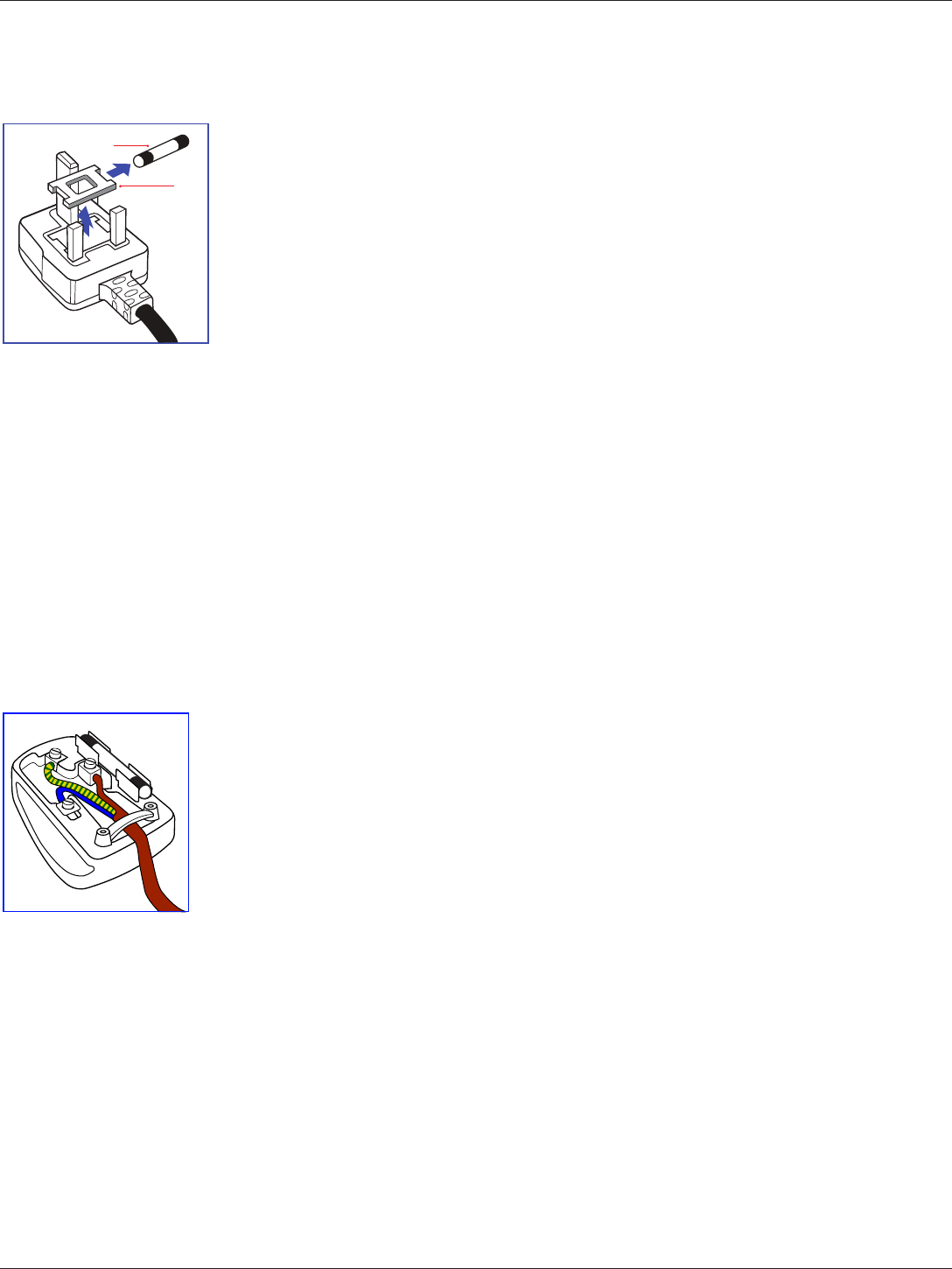
This apparatus is supplied with an approved moulded 13A plug.
To change a fuse in this type of plug proceed as follows:
1. Remove fuse cover and fuse.
2. Fit new fuse which should be a BS 1362 5A,A.S.T.A. or BSI
approved type.
3. Ret the fuse cover.
If the tted plug is not suitable for your socket outlets, it should
be cut off and an appropriate 3-pin plug tted in its place.
If the mains plug contains a fuse, this should have a value of
5A. If a plug without a fuse is used, the fuse at the distribution
board should not be greater than 5A.
NOTE: The severed plug must be destroyed to avoid a
possible shock hazard should it be inserted into a 13A
socket elsewhere.
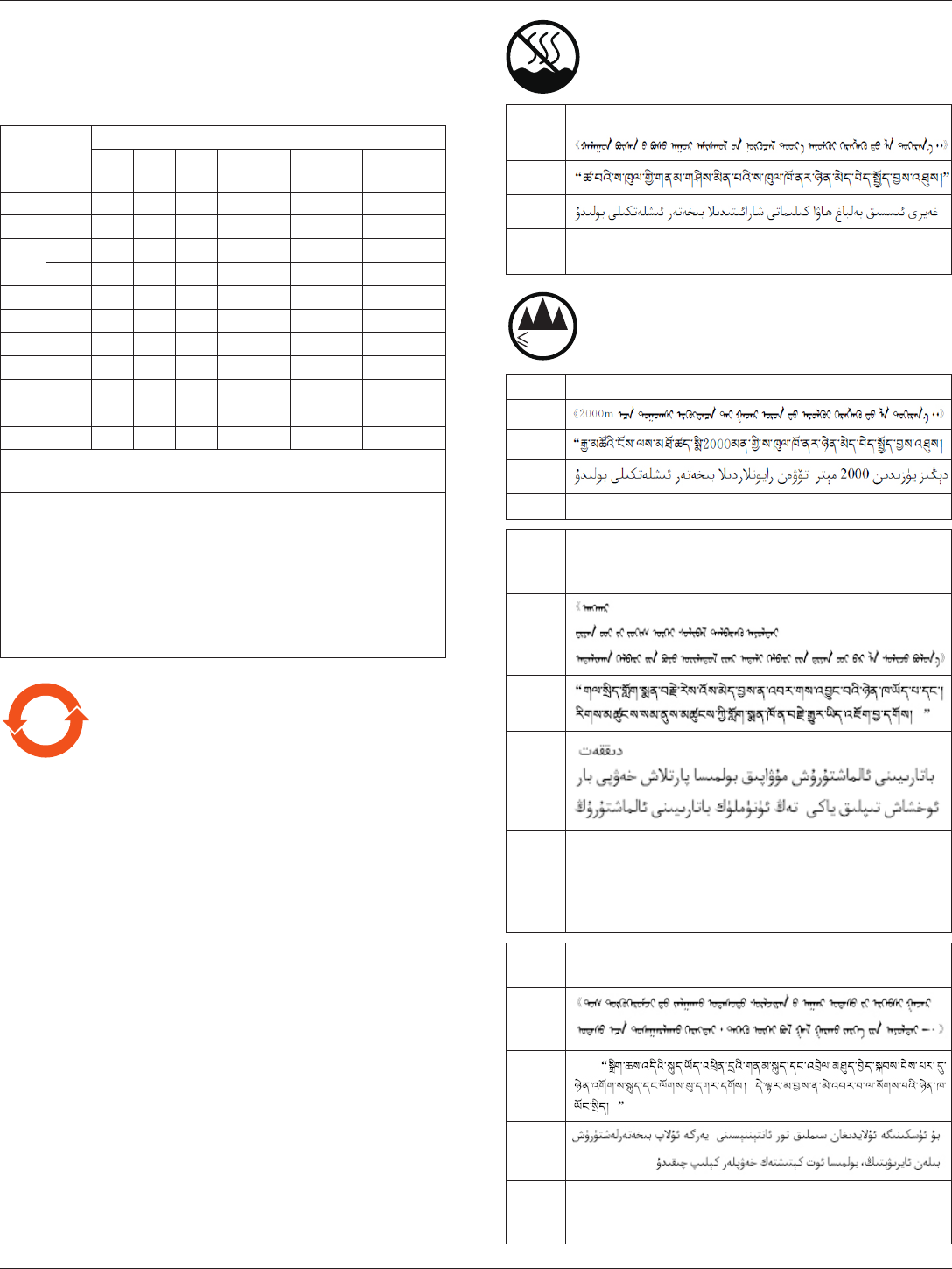
How to connect a plug
The wires in the mains lead are coloured in accordance with the
following code:
BLUE – “NEUTRAL” (“N”)
BROWN – “LIVE” (“L”)
GREEN & YELLOW – “EARTH” (“E”)
1. The GREEN & YELLOW wire must be connected to the
terminal in the plug which is marked with the letter “E” or
by the Earth symbol or coloured GREEN or GREEN &
YELLOW.
2. The BLUE wire must be connected to the terminal which is
marked with the letter “N” or coloured BLACK.
3. The BROWN wire must be connected to the terminal which
marked with the letter “L” or coloured RED.
Before replacing the plug cover, make certain that the cord grip
is clamped over the sheath of the lead – not simply over the
three wires.
vi
B321/B421
China RoHS
中国电子信息产品污染控制标识要求
本产品有毒有害物质或元素的名称及含量标识表:
零部件名称
有毒有害物质或元素
铅
(Pb)
汞
(Hg)
镉
(Cd)
六价铬
(Cr 6+)
多溴联苯
(PBBs)
多溴二苯醚
(PBDEs)
塑料外框 O O O O O O
后壳 O O O O O O
LCD
面板
CCFL X X O O O O
LED X O O O O O
电源基板 X O O O O O
主基板 X O O O O O
按键基板 X O O O O O
底座 O O O O O O
电源线 X O O O O O
其他线材 X O O O O O
遥控器 X O O O O O
*:电路板组件包括印刷电路板及其构成的零部件,如电阻、电容、
集成电路、连接器等。
○:表示该有害物质在该部件所有均质材料中的含量均在SJ/
T11363-2006《电子信息产品中有毒有害物质的限量要求》规定的
限量要求以下。
×:表示该有害物质至少在该部件的某一均质材料中的含量超出
SJ/T11363-2006《电子信息产品中有毒有害物质的限量要求》规定
的限量要求;
备注:以上“×”的部件,部分含有有害物质超过是由于目前行业
技术水平所限,暂时无法实现替代或减量化。
10 环保使用期限
在产品本体上标示的该标志表示环境保护使用期限为 10 年。
电子信息产品的环境保护使用期限是指电子信息产品中所含的有
毒有害物质或元素不会向外部泄漏或出现突然变异,并且电子信
息产品的用户在使用该电子信息产品时也不会对环境造成严重污
染或对人体、财产带来严重损害的期限。
在环境保护期限中,请按照使用说明书使用本产品。
本环境保护使用不覆盖易损件:电池。
《废弃电子产品回收处理管理条例》提示性说明
为了更好地关爱及保护地球,当用户不再需要此产品或产品寿命
终止时,请遵守国家废弃电器电子产品回收处理相关法律规定,
将其交给当地具有国家认可的回收处理资质的厂商进行回收处
理。
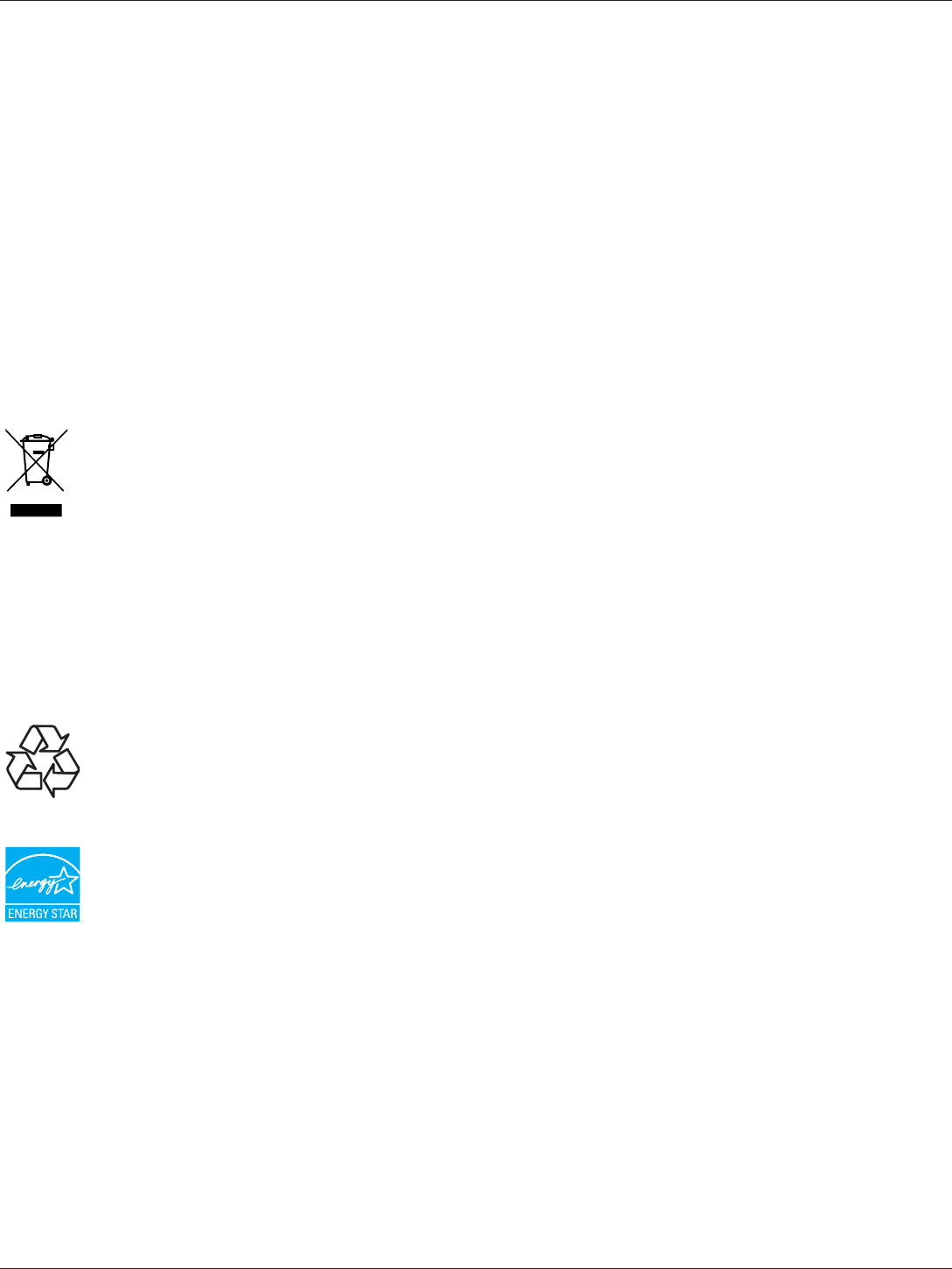
仅适用于非热带气候条件下安全使用 :
汉 文 仅适用于非热带气候条件下安全使用。
蒙古文
藏 文
维 文
壮 文 Dan hab yungh youq gij dienheiq diuzgen mbouj dwg
diegndat haenx ancienz sawjyungh.
≤200
0
m
仅适用于海拔 2000m 以下地区安全使用 :
汉 文 仅适用于海拔 2000m 以下地区安全使用。
蒙古文
藏 文
维 文
壮 文 Hai dou gaxgonq, wngdang sien duenh denvasen bae.
汉 文
“注意
如果电池更换不当会有爆炸危险
只能用同样类型或等效类型的电池来更换”
蒙古文
藏 文
维 文
壮 文
“Louzsim
Danghnaeuz denyouz vuenh ndaej mbouj habdangq aiq miz
gij yungyiemj fatseng bauqcaq
Cijndaej yungh gij denyouz doengzyiengh loihhingz roxnaeuz
daengjyauq loihl haenx vuenh”
汉 文 “接入本设备的有线网络天线必须与保护接地隔离 ,不
然可能会引起着火等危险 !”
蒙古文
藏 文
维 文
壮 文
“Gij mizsienq vangjloz denhsen ciephaeuj bonj sezbi daeuj
haenx itdingh aeu caeuq gij ciepdieg baujhoh doxliz, mboujne
aiq miz gij yungyiemj dawzfeiz daengj!”
vii
B321/B421
End-of-Life Disposal
Your new Public Information Display contains materials that can
be recycled and reused. Specialized companies can recycle
your product to increase the amount of reusable materials and
to minimize the amount to be disposed of.
Please nd out about the local regulations on how to dispose of
your old display from your local dealer.
(For customers in Canada and U.S.A.)
This product may contain lead and/or mercury. Dispose of in
accordance to local-state and federal regulations. For additional
information on recycling contact www.eia.org (Consumer
Education Initiative)
Waste Electrical and Electronie Equipment-
WEEE
Attention users in European Union private
households
This marking on the product or on its packaging
illustrates that, under European Directive
2002/96/EC governing used electrical and
electronic appliances, this product may
not be disposed of with normal household
waste. You are responsible for disposal of
this equipment through a designated waste
electrical and electronic equipment collection.
To determine the locations for dropping off such
waste electrical and electronic, contact your
local government ofce, the waste disposal
organization that serves your household or the
store at which you purchased the product.
End of Life Directives-Recycling
Your new Public Information Display contains
several materials that can be recycled for new
users.
Please dispose of according to all Local, State,
and Federal laws.
As an ENERGY STAR Partner, we have
determined that this product meets the
ENERGY STAR guidelines for energy efciency.

viii
B321/B421
Table Of Contents
5.1.2. Sound menu ..........................14
5.1.3. General settings menu ..........14
5.2. Network Settings ............................. 15
6. Input mode ............................................. 16
7. Cleaning and Troubleshooting ............. 17
7.1. Cleaning .......................................... 17
7.2. Troubleshooting ............................... 18
8. TechnicalSpecications ....................... 19
8.1. B321 ................................................ 19
8.2. B421 ................................................ 20
1. Unpacking and Installation ..................... 1
1.1. Unpacking ......................................... 1
1.2. Package Contents ............................. 1
1.3. Installation Notes ............................... 1
1.4. Mounting on a Wall ............................ 1
2. Parts and Functions ................................ 3
2.1. Control Panel .................................... 3
2.2. Input/Output Terminals ...................... 4
2.3. Remote Control ................................. 5
2.3.1. General functions ....................5
2.3.2. Inserting batteries in the remote
control ..................................... 6
2.3.3. Handling the remote control .... 6
2.3.4. Operating range of the remote
control ..................................... 6
3. Connection ............................................... 7
3.1. Connecting External Equipments ...... 7
3.2. Connecting Multiple Displays ............ 8
3.2.1. RS232C control connection
(optional) ................................. 8
3.2.2. IR connection (optional) .......... 8
3.3. IR Pass-through Connection
(optional) ........................................... 8
3.4. Wire-connecting to Network (optional) 9
4. Operation ................................................ 10
4.1. Watch the Connected Video Source 10
4.2. Change Picture Format ................... 10
4.3. Play Multimedia Files ...................... 10
4.3.1. Play les from computer .......10
4.3.2. Play multimedia les from USB
device .................................... 10
4.4. Play options ..................................... 11
4.4.1. Playing music les ................ 11
4.4.2. Playing movie les ................12
4.4.3. Playing photo les .................12
5. Change your settings ............................ 13
5.1. Settings ........................................... 13
5.1.1. Picture menu .........................13
1
B321/B421
1. Unpacking and Installation
1.1. Unpacking
• This product is packed in a carton, together with the standard accessories.
• Any other optional accessories will be packed separately.
• Due to the size and weight of this display it is recommended for two people to move it.
• After opening the carton, ensure that the contents are complete and in good condition.
1.2. Package Contents
Please verify that you received the following items with your package content:
• LCD display
• Documention & Software Disc
• Remote control with AAA batteries
• Power cord (1.8 m)
• VGA cable (1.8 m)
• HDMI cable (1.8 m)
* Only one power cord is provided with your display.
Power Cord For China
For North America For UK
Remote Control
and AAA Batteries
VGA Cable
HDMI Cable
Disc
NOTE:
• Keep the package box and packing material for shipping the display.
1.3. Installation Notes
• Due to the high power consumption, always use the plug exclusively designed for this product. If an extended line is required, please
consult your service agent.
• The distance between the back of the product and the wall should be maintained for proper ventilation. Avoid installing the product in
the kitchen, bathroom or any other places with high humidity so as not to shorten the service life of the electronic components.
• The product can normally operate only under 2000 m in altitude. In installations at altitudes above 2000 m, some abnormalities may
be experienced.
• Note:Display models provided in this guide are available in select countries/regions.Go to www.hp.com/support for additional
information.
1.4. Mounting on a Wall
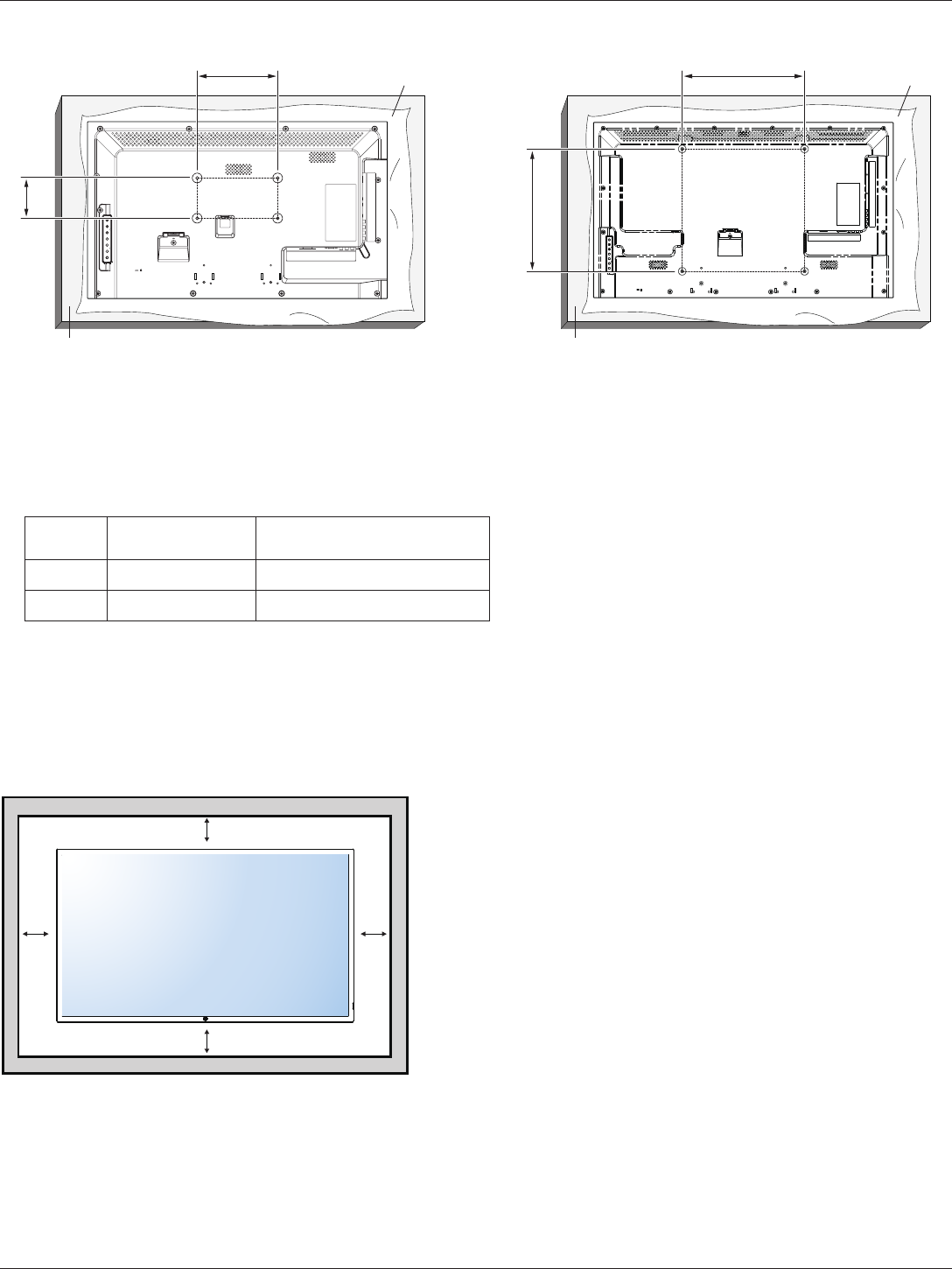
To mount this display to a wall, you will have to obtain a standard wall-mounting kit. We recommend using a mounting interface that
complies with UL1678 standard in North America.
2
B321/B421
B321:
Protective Sheet
Table
200
100
B421:
Protective Sheet
Table
400
400
1. Lay a protective sheet on a table, which was wrapped around the display when it was packaged, beneath the screen surface so as
not to scratch the screen face.
2. Ensure you have all accessories for mounting this display.
3. Follow the instructions that come with the base mounting kit. Failure to follow correct mounting procedures could result in damage to
the equipment or injury to the user or installer. Product warranty does not cover damage caused by improper installation.
4. For the wall-mounting kit, use mounting screws and tighten them securely.
Model VESA Size (mm) Mounting Screws*
(X=Thickness of wall-mount plate)
B321 200 × 100 M6 × (16 + X)
B421 400 × 400 M6 × (20 + X)
Caution:
To prevent the display from falling:
• To lessen the probability of injury and damage resulting from fall of the display in case of earthquake or other natural disaster, be sure
to consult the bracket manufacturer for installation location.
Ventilation Requirements for enclosure locating
To allow heat to disperse, leave space between surrounding objects as shown in the diagram below.
100 mm 100 mm
100 mm
100 mm
NOTES: When installing the display on a wall, please consult a professional technician for proper installation. We accept no liability for
installations not performed by a professional technician.
The display can be installed on a wall and viewed in only the landscape position.
Using the display for more than 14 hours per day may result in image retention damage,which is not covered under the HP
warranty.To avoid image tetention damage,always turn off the monitor when it is not in use.
This product does not support a single image video wall solution.
3
B321/B421
2. Parts and Functions
2.1. Control Panel
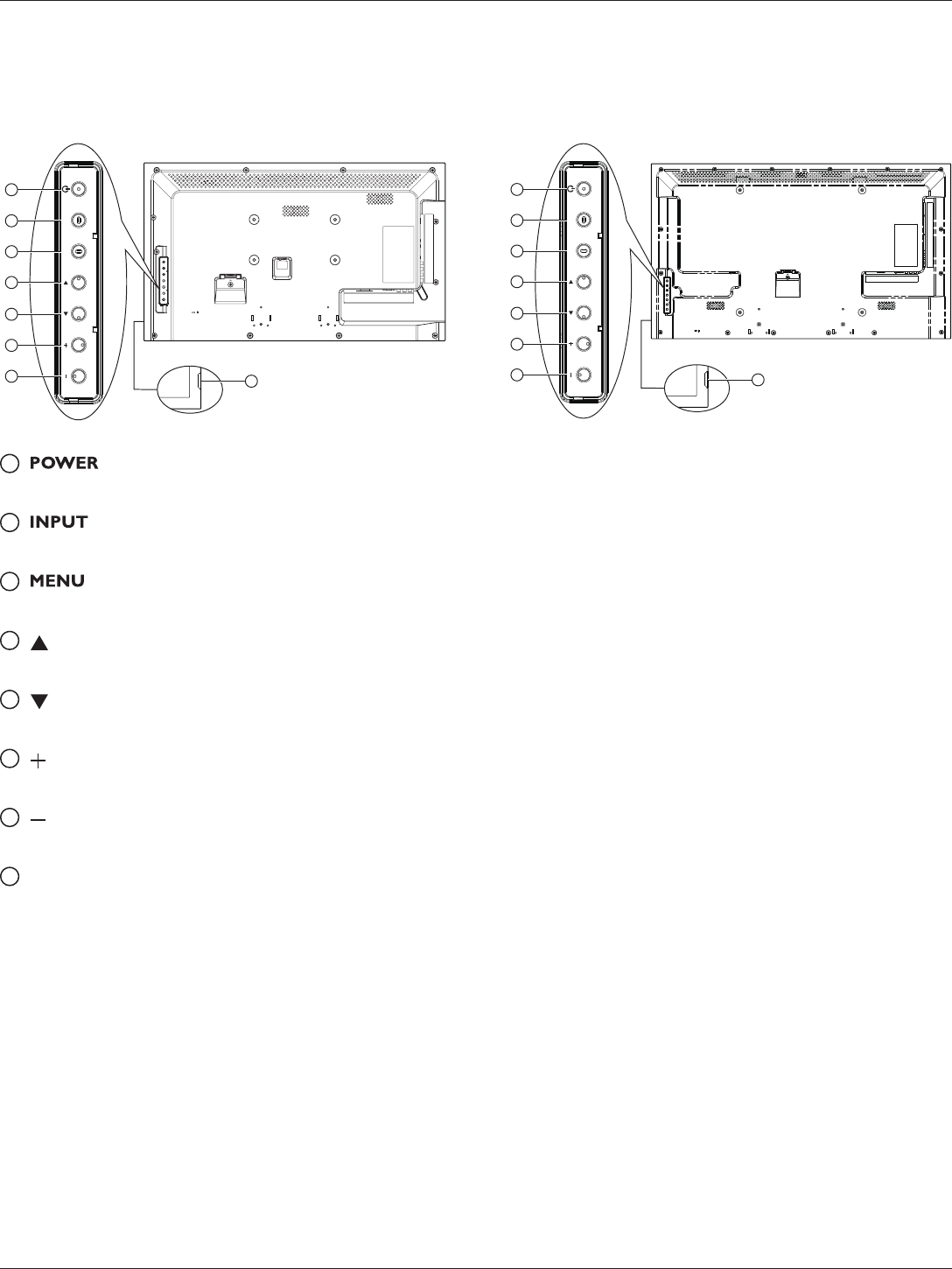
B321:
INPUT MENU
3
2
5
4
1
7
6
8
B421:
INPUT MENU
3
2
5
4
1
7
6
8
1 [ ] button
Press to switch the display on or off.
2 [ ] button
Press to select input source.
3 [ ] button
Press to access the OSD menu.
4 [ ] button
Press to move the highlight bar up to adjust the selected item while OSD menu is on.
5 [ ] button
Press to move the highlight bar down to adjust the selected item while OSD menu is on.
6 [ ] button
Press to increase the adjustment while OSD menu is on, or to increase the audio output level while OSD menu is off.
7 [ ] button
Press to decrease the adjustment while OSD menu is on, or to decrease the audio output level while OSD menu is off.
8
Remote control sensor and power status indicator
• Receives command signals from the remote control.
-Lights green when this display is turned on
-Lights red when this display is in standby mode
-Lights off when the main power of this display is turned off
4
B321/B421
2.2. Input/Output Terminals
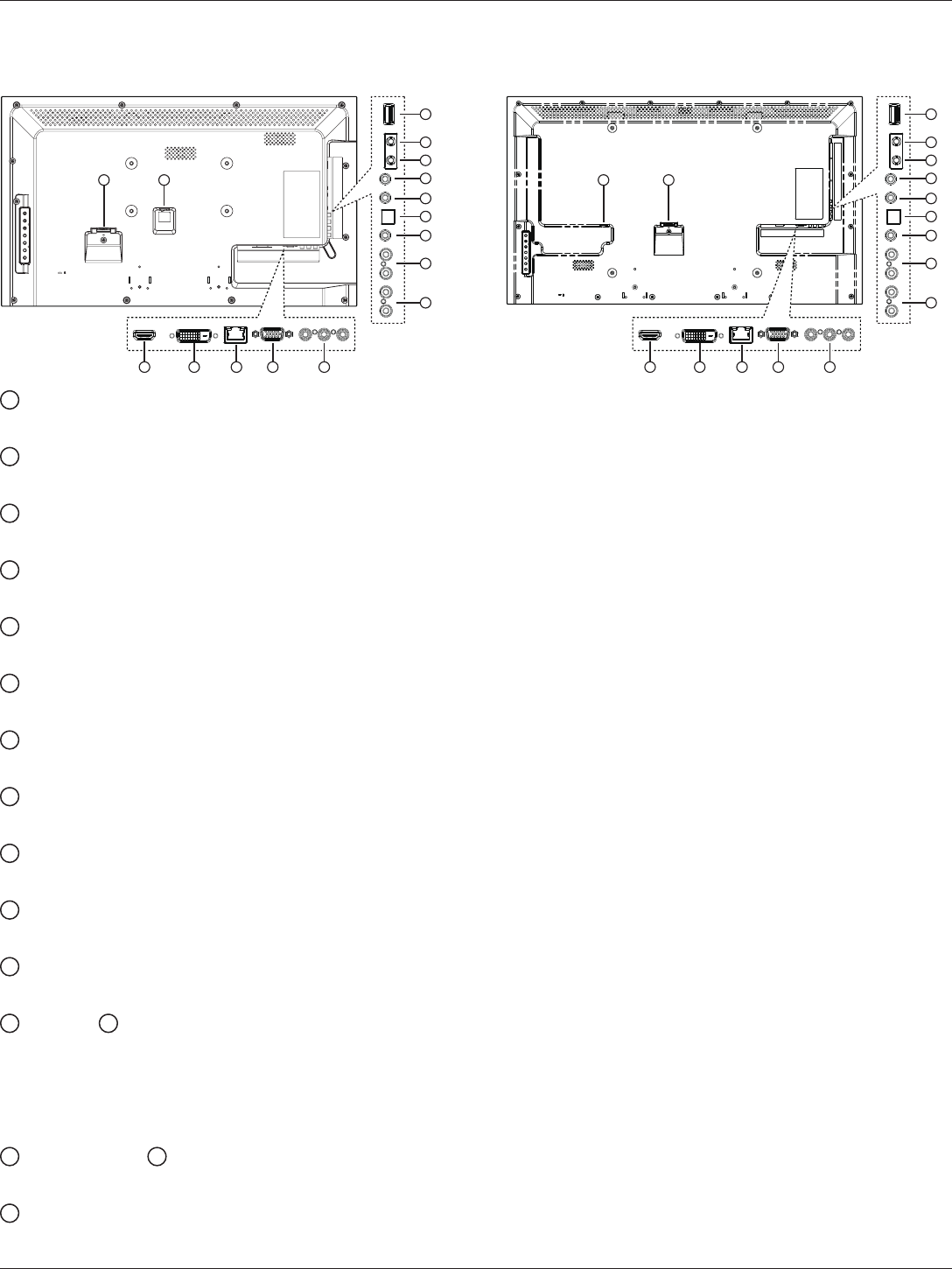
B321:
3 4
6
5
7
8
9
10
11
12
13
14
15
16
1 2
Y Pb Pr
LRL R IN
OUT
INOUT
B421:
3 4
6
5
7
8
9
10
11
12
13
14
15
16
2 1
Y Pb Pr
LRL R IN
OUT
INOUT
1 AC IN
AC power input.
2 MAIN POWER SWITCH
Main power on/off switch.
3 HDMI IN
HDMI video/audio input.
4 DVI IN
DVI-D video input.
5 RJ-45
LAN control function for the use of remote control signal from control center.
6 VGA IN (D-Sub)
VGA video input.
7 COMPONENT IN (RCA)
Component YPbPr video source input.
8 AUDIO IN (RCA)
Audio input from external AV device.
9 AUDIO OUT (RCA)
Audio signal output to connect your external AV device.
10 AUDIO IN (3.5mm)
Audio input from your PC.
11 SPDIF OUT
Digital audio signal output to connect your external AV device.
12 IR OUT / 13 IR IN (3.5 mm)
IR signal output/input for the loop-through function.
NOTES:
• This display’s remote control sensor will stop working if the jack [IR IN] is connected.
• To remotely control your A/V device via this display, refer to page 8 for IR Pass Through connection.
14 RS232C OUT / 15 RS232C IN (2.5 mm)
RS232C network output/input for the loop-through function.
16 USB PORT
Connect your USB storage device.
5
B321/B421
2.3. Remote Control
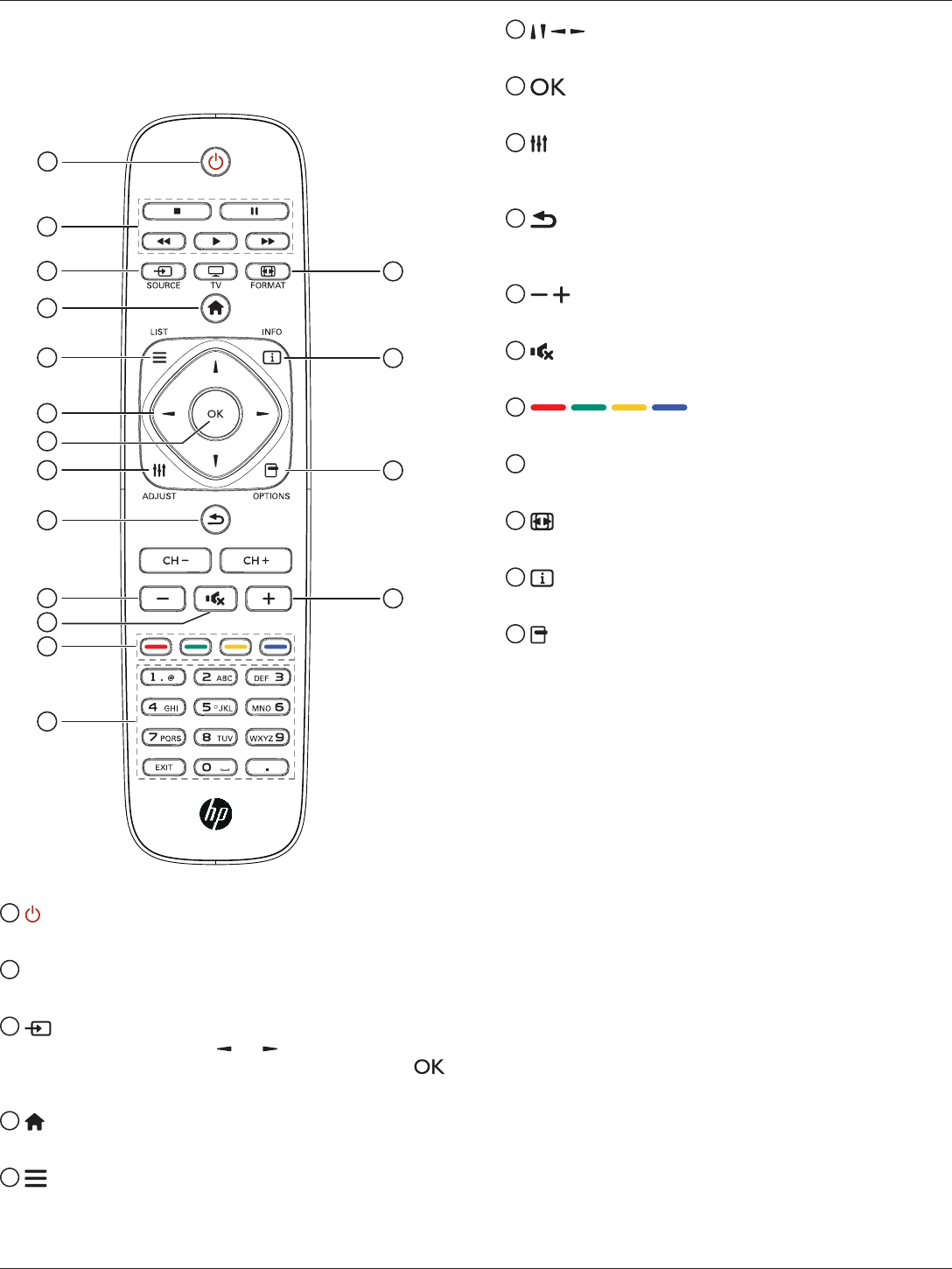
2.3.1. General functions
1
14
15
16
10
2
3
4
5
6
7
8
9
11
10
12
13
1 POWER button
Switch this display on or off.
2 PLAY buttons
Control playback of media les.
3 SOURCE button
Select input source. Press [ ] or [ ] button to select from
USB, Network, HDMI, DVI, YPbPr, AV, or VGA. Press [
] button to conrm and exit.
4 HOME button
Access the OSD menu.
5 LIST
No function.
6 NAVIGATION buttons
Navigate through menus and select items.
7 button
Conrm an entry or selection.
8 ADJUST button
Access currently available options, picture and sound
menus.
9 BACK button
Return to the previous menu page or exit from the previous
function.
10 VOLUME button
Adjust volume.
11 MUTE button
Press to turn the mute function on/off.
12 COLOR buttons
Select tasks or options.
13 NUMERIC buttons
Enter text for network setting.
14 FORMAT button
Change picture format.
15 INFO button
Display information about current activity.
16 OPTIONS
Access currently available options, picture and sound
menus.
6
B321/B421
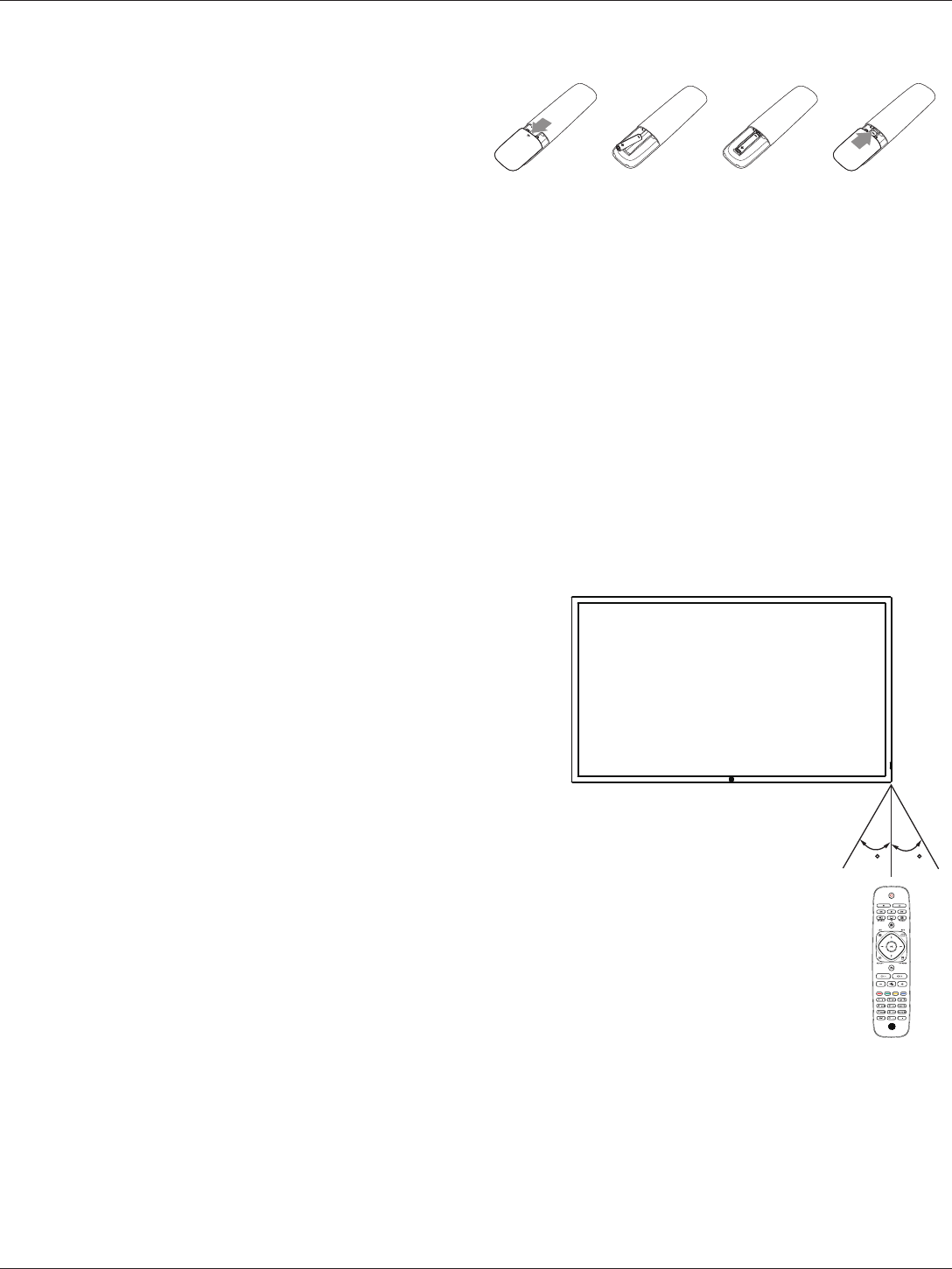
2.3.2. Inserting batteries in the remote control
The remote control is powered by two 1.5V AAA batteries.
To install or replace batteries:
1. Press and then slide the cover to open it.
2. Align the batteries according to the (+) and (–) indications inside
the battery compartment.
3. Replace the cover.
Caution:
The incorrect use of batteries can result in leaks or bursting. Be sure to follow these instructions:
• Place “AAA” batteries matching the (+) and (–) signs on each battery to the (+) and (–) signs of the battery compartment.
• Do not mix battery types.
• Do not combine new batteries with used ones. It causes shorter life or leakage of batteries.
• Remove the dead batteries immediately to prevent them from liquid leaking in the battery compartment. Don’t touch exposed battery
acid, as it can damage your skin.
NOTE: If you do not intend to use the remote control for a long period, remove the batteries.
2.3.3. Handling the remote control
• Do not subject to strong shock.
• Do not allow water or other liquid to splash the remote control. If the remote control gets wet, wipe it dry immediately.
• Avoid exposure to heat and steam.
• Other than to install the batteries, do not open the remote control.
2.3.4. Operating range of the remote control
Point the front of the remote control toward this display’s remote control sensor
when pressing a button.
Use the remote control within a distance of less than 10m/33ft from this
display’s sensor, and a horizontal and vertical angle of less than 30 degrees.
NOTE: The remote control may not function properly when the remote control
sensor on this display is under direct sunlight or strong illumination, or
when there is an obstacle in the path of signal transmission.
30 30
7
B321/B421
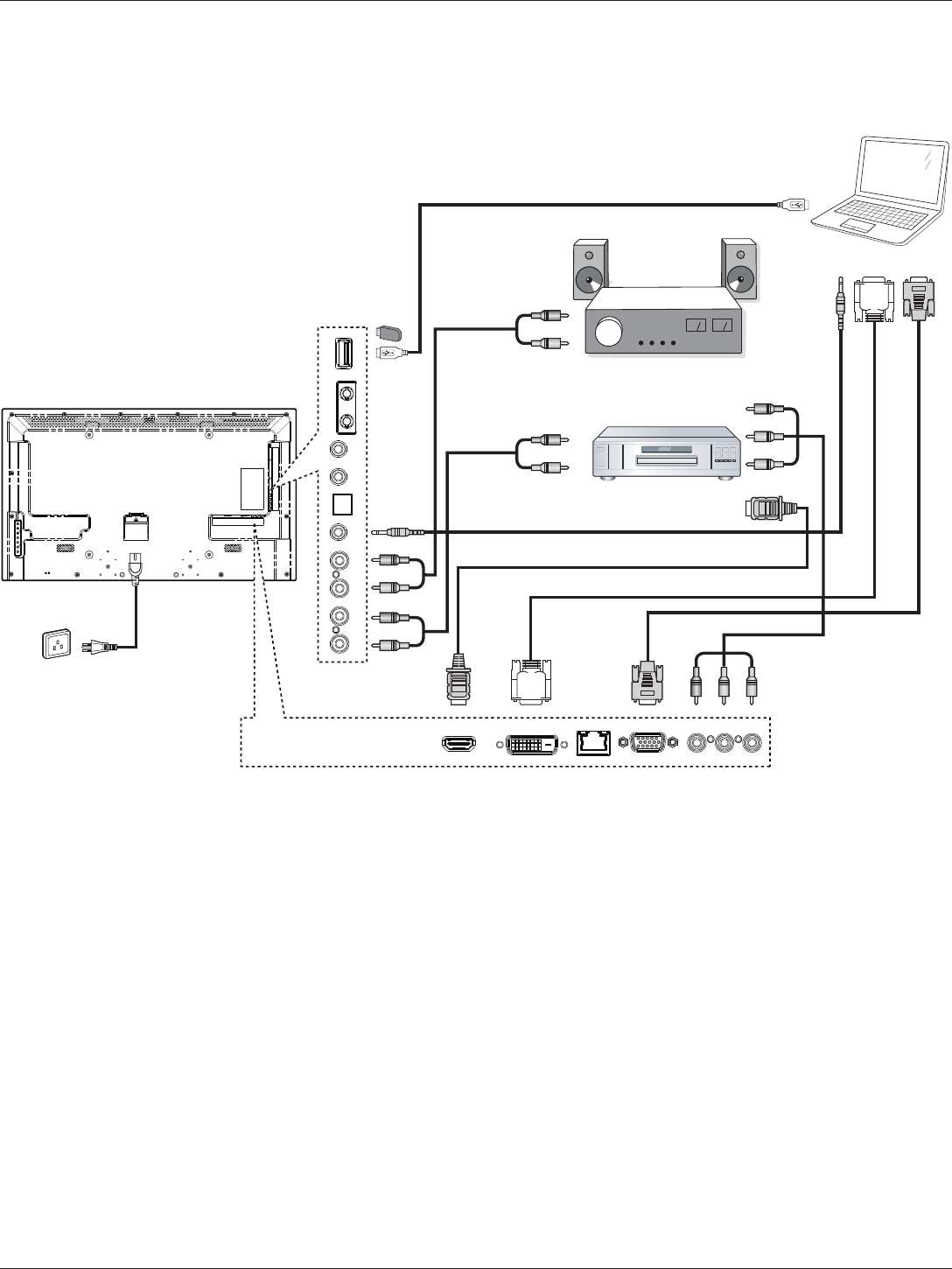
3. Connection
NOTE: The peripherals and cables shown are for example purposes only.
3.1. Connecting External Equipments
DVD / VCR / VCD
PC
STEREO AMPLIFIER
AUDIO OUT
USB
RS232C
INOUT
IR
INOUT
AUDIO IN AUDIO
IN
COMPONENT OUT (YPbPr)
SPDIF
HDMI IN DVI IN RJ-45 VGA IN COMPONENT IN
AUDIO OUT
DVI OUT
VGA OUT
USB
AUDIO OUT
AUDIO IN
HDMI OUT
AC IN
Y Pb Pr
R
L
R
L
USB
8
B321/B421
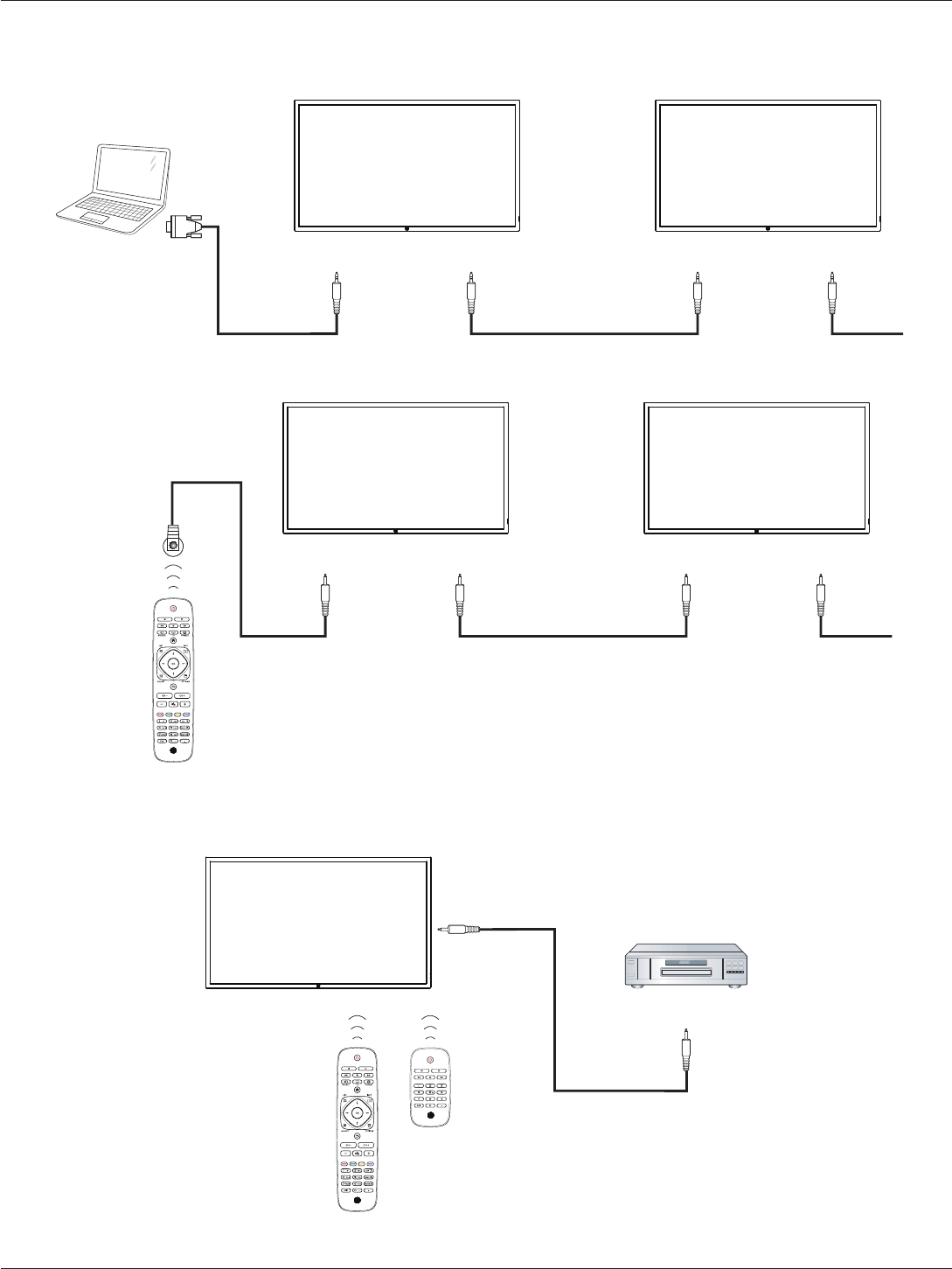
3.2. Connecting Multiple Displays
3.2.1. RS232C control connection (optional)
PC
DISPLAY 1 DISPLAY 2
[RS232C IN]
[RS-232C]
[RS232C OUT] [RS232C IN] [RS232C OUT]
3.2.2. IR connection (optional)
DISPLAY 1 DISPLAY 2
[IR IN] [IR OUT] [IR IN]
External
IR Receiver [IR OUT]
NOTE: This display’s remote control sensor will stop working if the [IR IN] is connected.
3.3. IR Pass-through Connection (optional)
DISPLAY DVD / VCR / VCD
(DVD / VCR / VCD)
Remote Control
[IR OUT]
[IR IN]
9
B321/B421
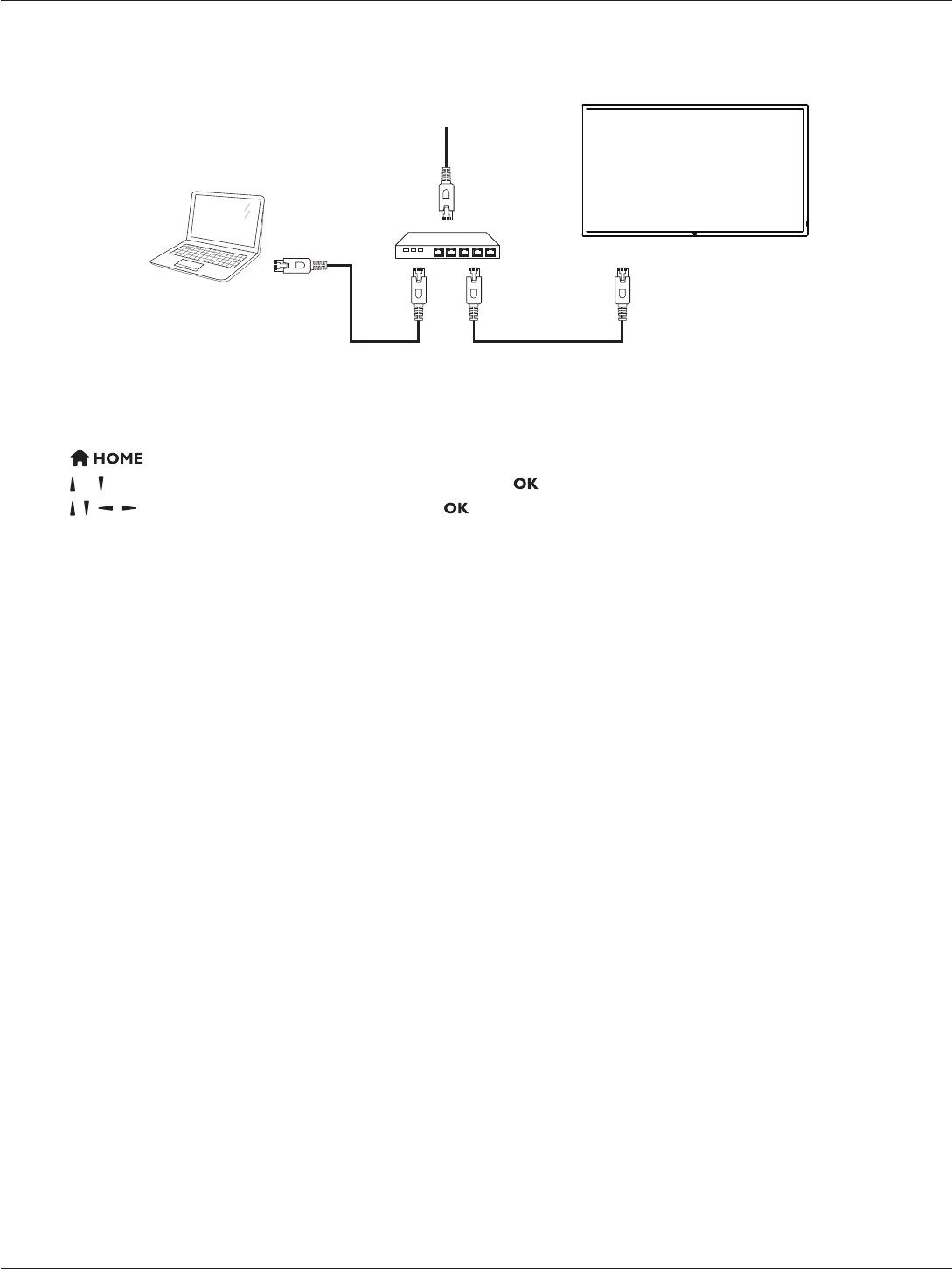
3.4. Wire-connecting to Network (optional)
If you connect this display to a network, you can play photos, music and videos from your computer. See Play multimedia les (Page 10)
for more detail.
PC
[RJ-45]
[RJ-45] ROUTER
INTERNET
To setup the network:
1. Switch on the router and switch on its DHCP setting.
2. Connect the router to this display with an Ethernet cable.
3. Press button to display the OSD menu.
4. Press or button to select the menu item {Network settings}. Press button to enter its submenu.
5. Press , , , , or number button to adjust its value. Press button to conrm.
NOTE: Connecting with a shielded CAT-5 Ethernet cable to comply with the EMC directive.
10
B321/B421
4. Operation
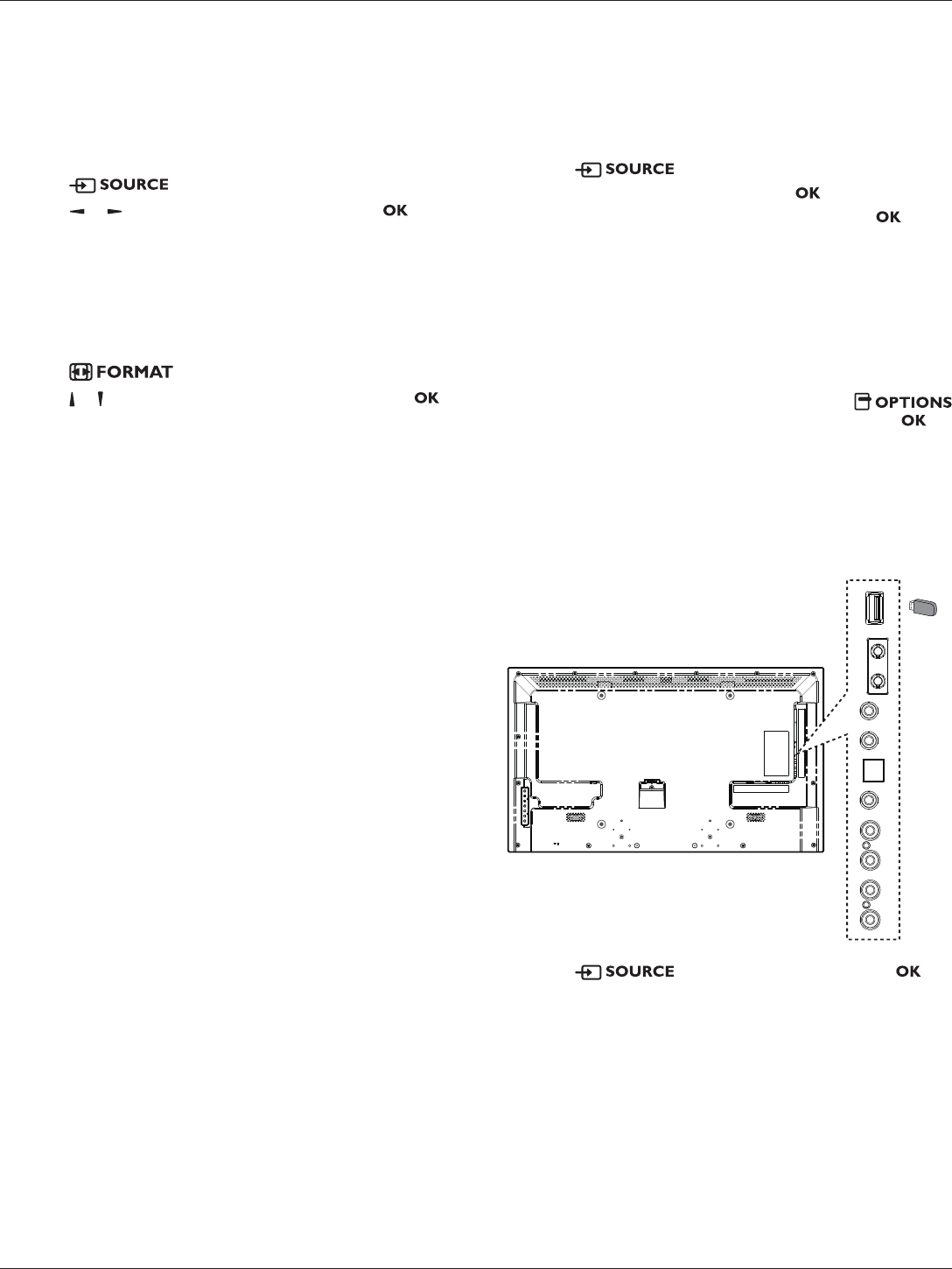
NOTE: The control button described in this section is mainly on
the remote control unless specied otherwise.
4.1. Watch the Connected Video Source
See page 7 for external equipments connection.
1. Press button.
2. Press or button to select a device, then press
button.
4.2. Change Picture Format
You can change the picture format to suit the video source.
Each video source has its available picture formats.
The available picture formats depend on the video source:
1. Press button.
2. Press or button to select a picture format, then press
button.
• {Auto zoom}: Enlarge the picture to ll the screen.
Recommended for minimal screen distortion but not for
HD or PC.
• {Movie expand 16:9}: Scale 4:3 format to 16:9. Not
recommended for HD or PC.
• {Wide screen}: Shows widescreen format content
unstretched. Not recommended for HD or PC.
• {Unscaled}: Provide maximum detail for PC. Only
available when PC mode is selected in the {Picture}
menu.
• {4:3}: Display the classic 4:3 format.
4.3. Play Multimedia Files
You can play videos, photos, and music on your display from:
• Your computer connected through your network.
• A USB device connected to this display.
4.3.1. Play files from computer
To play les from computer, you will need:
• A wired network, connected with a Universal Plug and Play
(uPnP) router.
• Optional: A LAN cable that connects your display to your
network.
• A media server running on your computer.
• Appropriate settings on your computer rewall to allow you
to run the media server.
Set up the network
1. Connect your display and the computer to the same network.
See page 9 for connecting your display to a network.
2. Switch on your computer and the router.
NOTE: If the apparatus does not return to DLNA mode due
to external electrical disturbances (e.g. electrostatic
discharge), user intervention is required.
Set up media sharing
1. Install a media server on your computer to share media les.
These are some media servers:
• For PC: Windows Media Player 11 (or higher) or TVersity
• For Mac: Twonky
2. Switch on media sharing on your computer using the media
server. For more information on how to set up the media
server, refer to the website of the media server.
Playles
1. Press button.
2. Select [Browse network], then press button.
3. Select a le from the content browser, then press button
to start playing.
4. Press the Play buttons on the remote control to control
playing.
Tips:
• Select the top bar to lter your les by type.
• Select [Sort] to arrange the les by album name, artist, or
other elds.
• To clear the list of ofine media servers, press
button, then select [Clearofineservers] and press
button.
4.3.2. Play multimedia files from USB device
This display can play music, movie, WMV le formats or photo
les from your USB device.
1. Connect your USB device to the USB port on this display.
AUDIO OUT
USB
RS232C
INOUT
IR
INOUT
AUDIO IN AUDIO
IN
SPDIF
USB
2. Press button, select USB, then press
button.
11
B321/B421
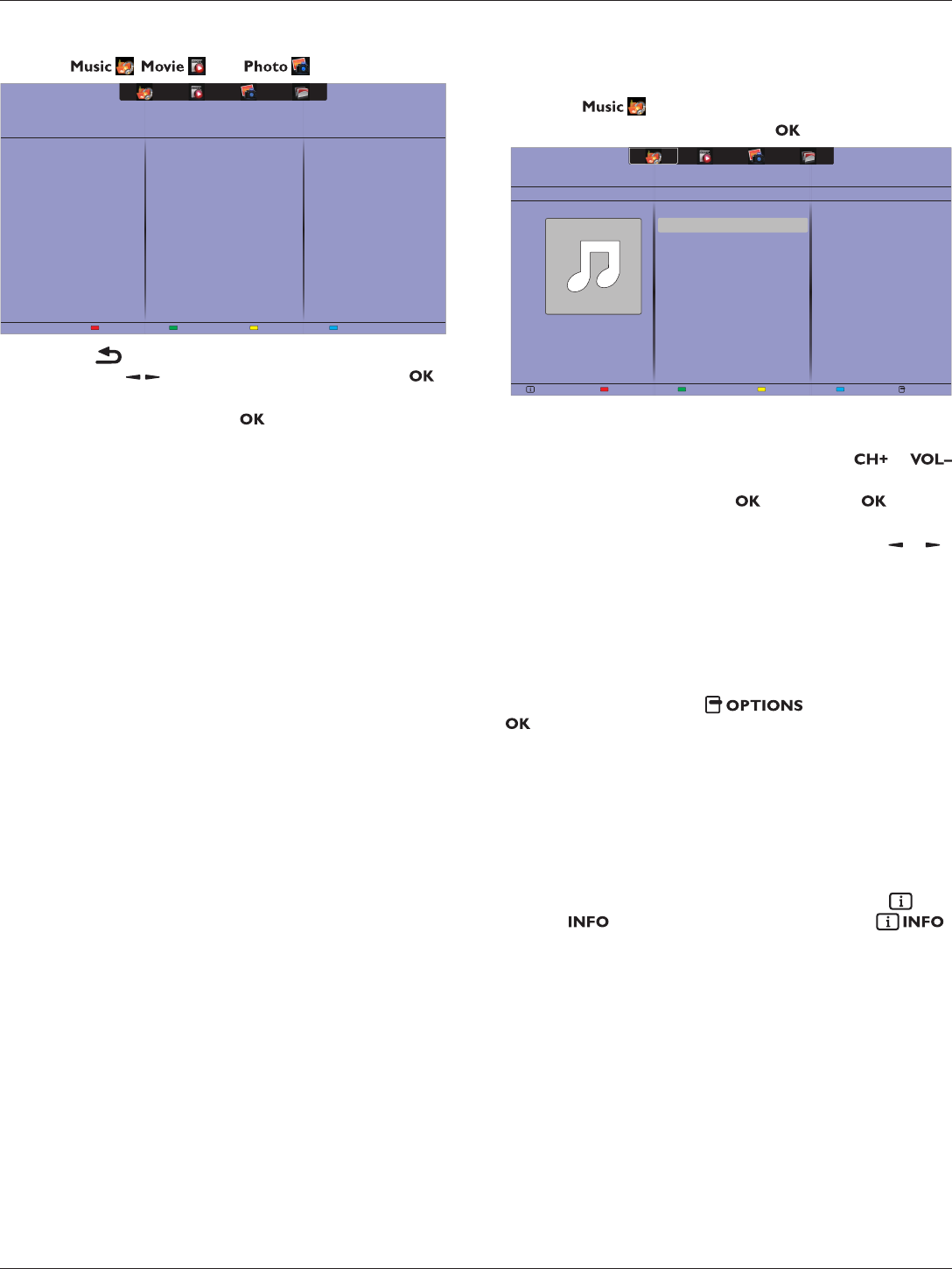
3. The connected USB device is detected automatically for all
its playable les, which will be automatically sorted into 3
types: , , and .
4. Press the BACK button to go up to the top layer in the
screen. Press button to select the le type. Press
button to enter its play list.
5. Select the le you want. Press button to start playing.
6. Follow the on-screen instruction to control the play option.
7. Press the PLAY buttons (H F G I J) to control
playing.
Supportedlesystem:
• FAT32
Supportedleformat:
• Music: MP3, WMA, M4A, AAC, AC3
• Movie: AVI, MP4, MOV, MPG/MPEG
• Photo: JPEG, BMP, GIF
Caution:
• The manufacturer is not responsible if the USB device is not
supported, nor is it responsible for damage to or loss of data
in the device.
• Do not overload the USB port. If you connect a USB storage
device that consumes more than 500mA power, make sure
that it is connected to its own external power supply.
4.4. Play options
4.4.1. Playing music files
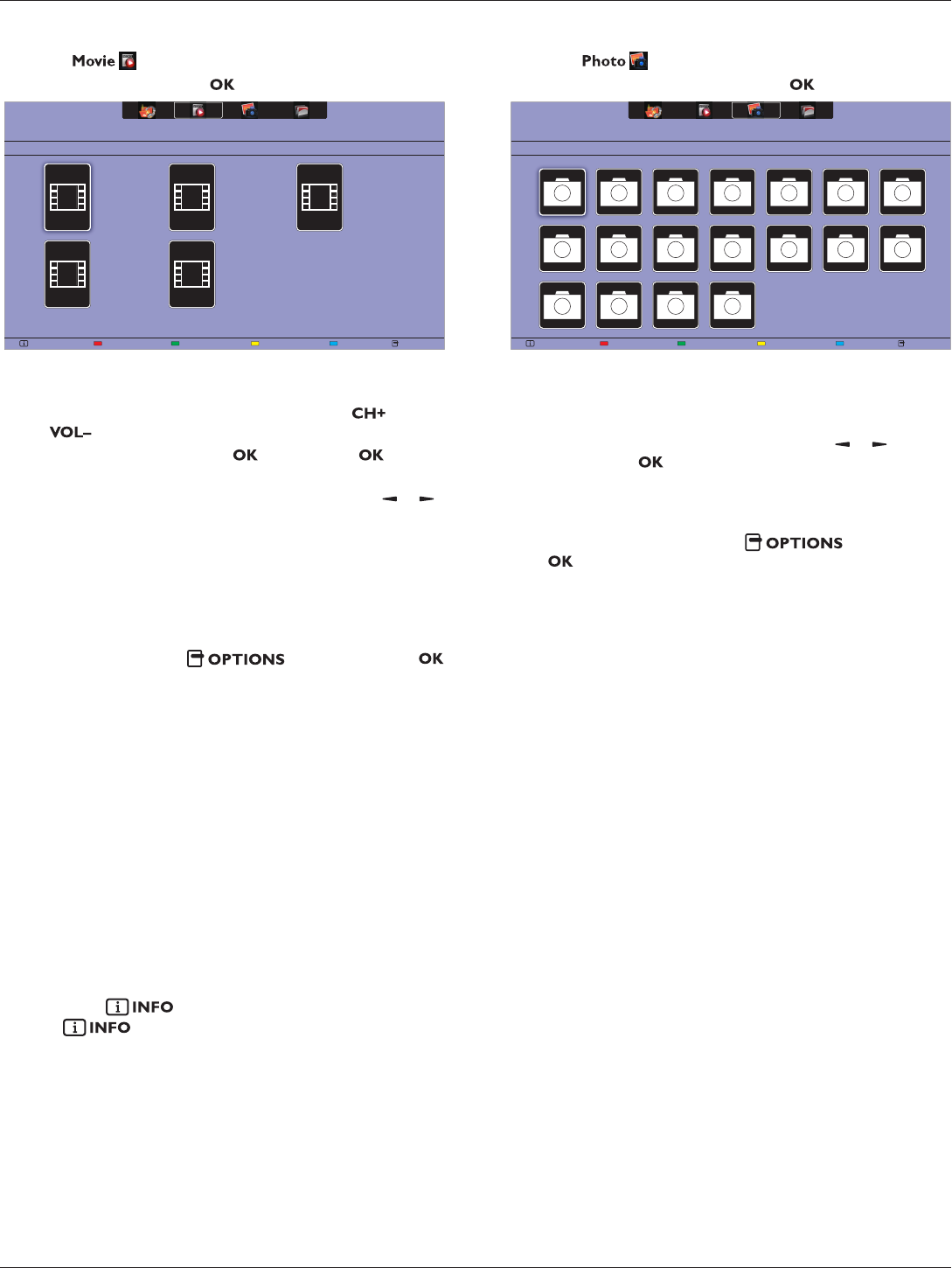
1. Select in the top bar.
2. Select one music track, then press button.
USB deviceSortPlay All OptionsInfo
05:051. Music
Album
• To play all the tracks in a folder, select one music le,
then select {Play All}.
• To skip to the next or previous track, press or
button.
• To pause the track, press button. Press button
again to resume playback.
• To skip backward or forward 10 seconds, press or
button.
• To search backward or forward, press G or J
button, press repeatedly to toggle between different
speeds.
• To stop the music, press H button.
Music options
While you play music, press button, then press
button to select an option:
• {Repeat}: Select {Repeat} to play a track or an album
repeatedly, or select {Play once} to play a track once.
• {Media Server}: When you play content from a media
server, you can select another media server.
• {ShufeOn} / {ShufeOff}: Enable or disable random play
of tracks.
NOTE: To view information about a song (for example, title,
artist or duration), select the song, then press
button. To hide the information, press
button again.
12
B321/B421
4.4.2. Playing movie files
1. Select in the top bar.
2. Select a video, then press button.
USB devicePlay All OptionsInfo
Track
• To play all the videos in a folder, select one video le,
then select {Play All}.
• To skip to the next or previous video, press or
button.
• To pause the video, press button. Press button
again to resume playback.
• To skip backward or forward 10 seconds, press or
button.
• To search backward or forward, press G or J
button, press repeatedly to toggle between different
speeds.
• To stop the video, press H button.
Movie options
While playing video, press button, then press
button to select an option:
• {Subtitles}: Select the available subtitle settings.
• {Subtitle Language}: Select the language for subtitles if
available.
• {Character Set}: Select the correct character set for the
subtitles.
• {Audio Language}: Select an audio language.
• {Repeat}: Select {Repeat} to play the video le repeatedly
or {Play once} to play the video le once.
• {Media server}: When you play content from a media
server, you can select another media server.
• {ShufeOn} / {ShufeOff}: Enable or disable random play
of video les.
NOTE: To view information about a video (for example, played
position, duration, title, or date), select the video, then
press button. To hide the information, press
button again.
4.4.3. Playing photo files
1. Select in the top bar.
2. Select a photo thumbnail, then press button.
USB deviceSortPlay All OptionsInfo
Date
Start a slideshow
If there are multiple photos in a folder, select a photo, then
select {Play All}.
• To skip to the previous or next photo, press or button,
and then press button.
• To stop the slideshow, press H button.
Slideshow options
While you play a slideshow, press button, then
press button to select an option:
• {ShufeOff} / {ShufeOn}: Enable or disable random
display of pictures in the slideshow.
• {Repeat}: Select {Repeat} to watch a slideshow repeatedly
or {Play once} to watch once.
• {Slideshow Time}: Select the displaying time for each photo
in the slideshow.
• {Slideshow Transitions}: Select the transition from one
photo to the next.
• {Media Server}: When you play content from a media
server, you can select another media server.
13
B321/B421
5. Change your settings
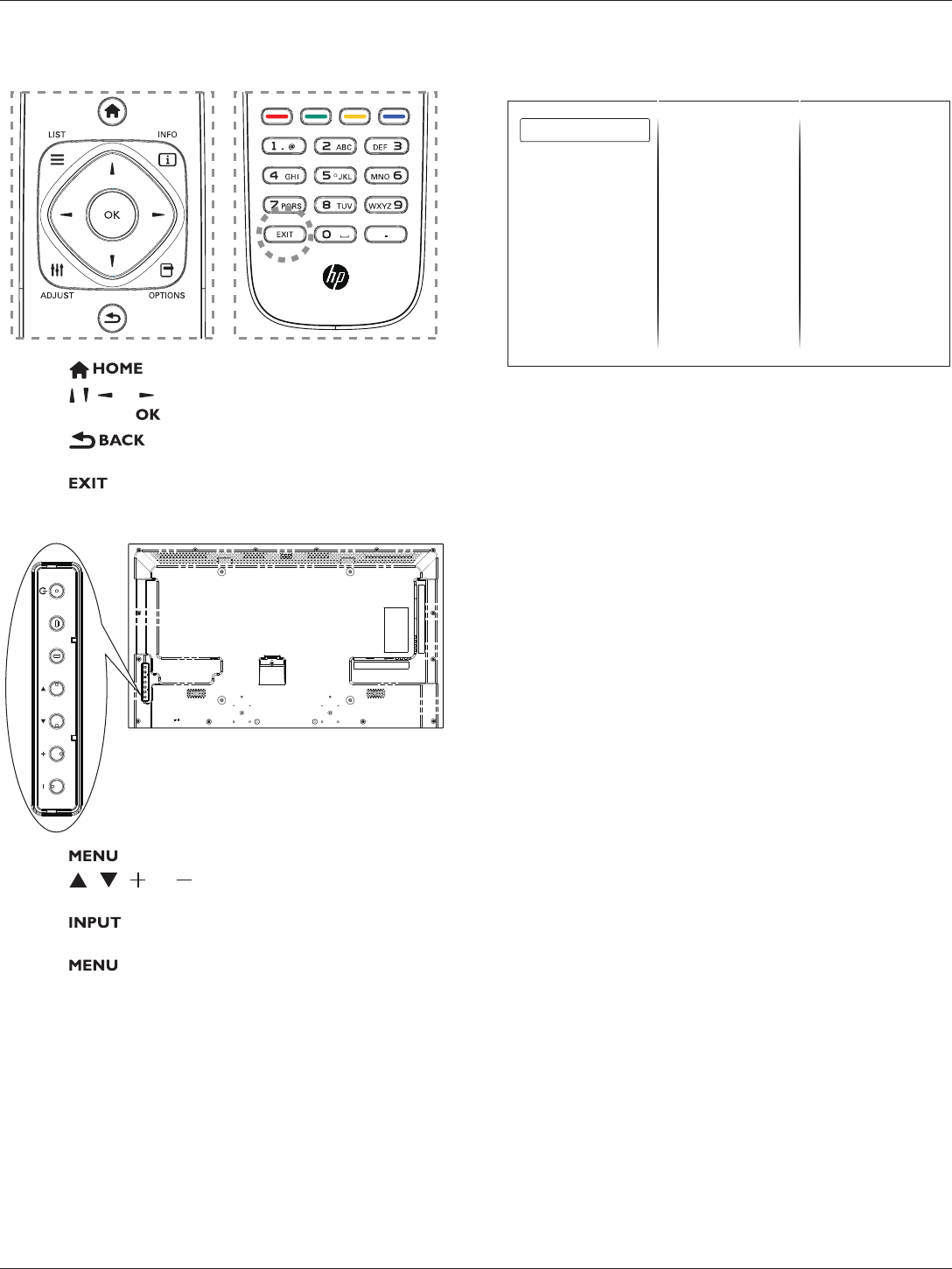
Using the remote control:
1. Press button to display the OSD menu.
2. Press , , , or button to select its menu item or to adjust
its value. Press button to conrm.
3. Press button to go back to the previous menu
layer.
4. Press button to exit the OSD menu.
Using this display’s control buttons:
INPUT MENU
1. Press button to display the OSD menu.
2. Press[ ] [ ] [ ] or [ ] button to select menu item or
adjust its value.
3. Press button to conrm menu selection and enter its
submenu.
4. Press button to exit the OSD menu.
5.1. Settings
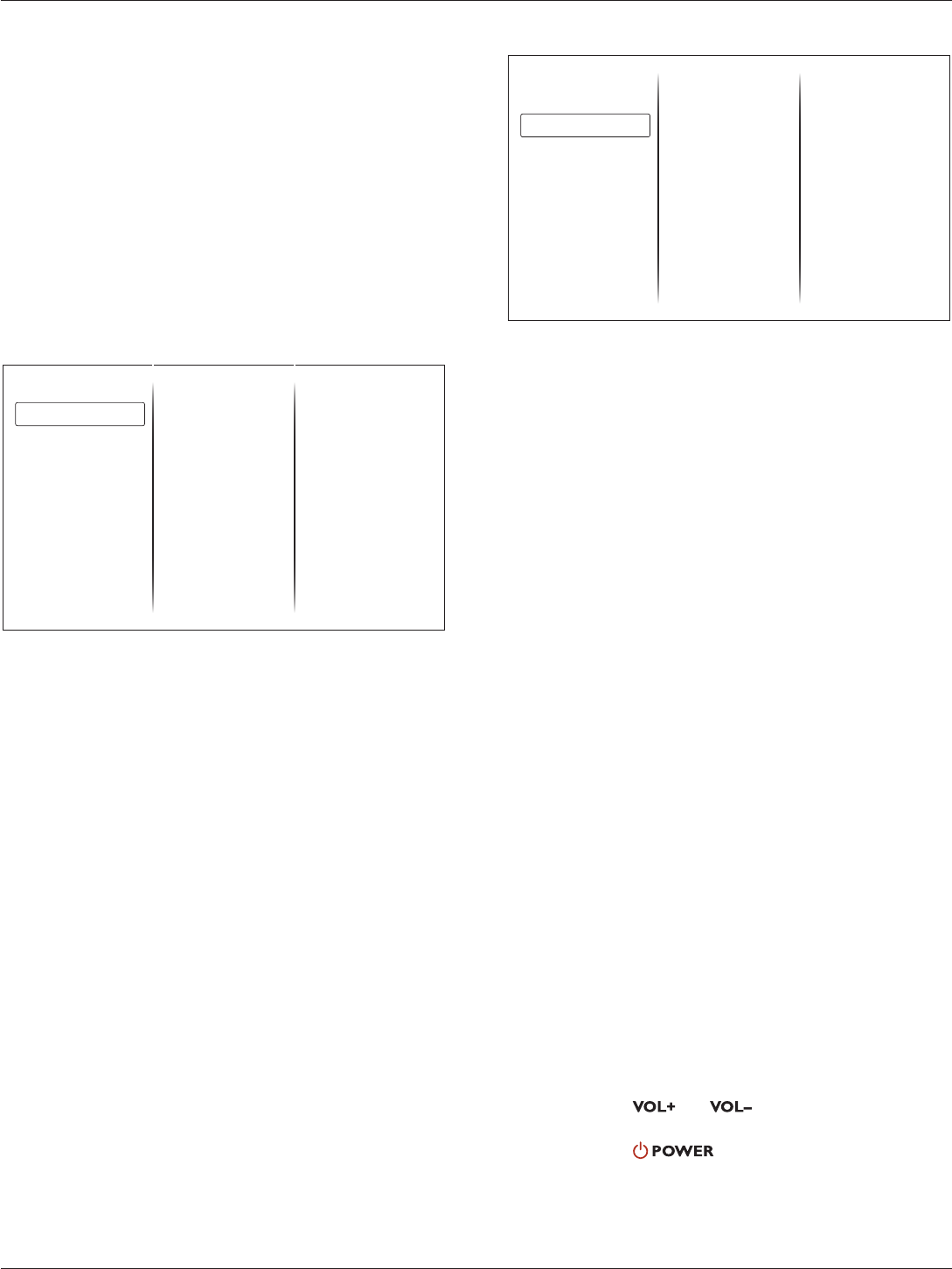
5.1.1. Picture menu
Picture style
Restore style
Backlight
Contrast
Brightness
Colour
Sharpness
Advanced
Game or computer
Foramat and edges
Picture
Sound
General settings
Network settings
Picture style
Select a predened picture setting.
Restore style
Restore the last-selected predened picture setting.
Backlight
Adjust the brightness of this display’s backlight.
Contrast
Adjust video contrast.
Brightness
Adjust screen brightness.
Colour
Adjust the colour saturation of the picture.
Sharpness
Adjust the sharpness of the picture.
Advanced
Access advanced settings such as gamma, tint settings and
video contrast settings.
• {Noise reduction}: Select the amount of noise reduction
for the picture.
• {Gamma}: Adjust the non-linear setting for picture
luminance and contrast.
• {Color temp.}: Change the colour balance.
• {Custom color temp.}: Customise colour balance
setting.
• {Advanced sharpness}: Enable superior sharpness,
especially on lines and contours in the picture.
• {Dynamic contrast}: Dynamically enhance the details in
the dark, medium and light areas of the picture.
• {Dynamic backlight}: Select a backlight level to
optimise dynamic power consumption and picture
contrast.
• {Colour enhancement}: Dynamically enhance the
• vividness and details of colours.
14
B321/B421
Game or computer
When viewing content from a connected game console, select
{Game} to apply game settings. When a computer is connected
through HDMI, select {Computer}.
Make sure that {Format and edges} {Picture format}
{Unscaled} is selected so as to view maximum detail.
Format and edges
Access advanced settings to control the displaying format of the
picture.
• {Picture format}: Change the picture format.
• {Screen edges}: Change the picture size.
• {Picture shift}: If available, move the position of the
picture.
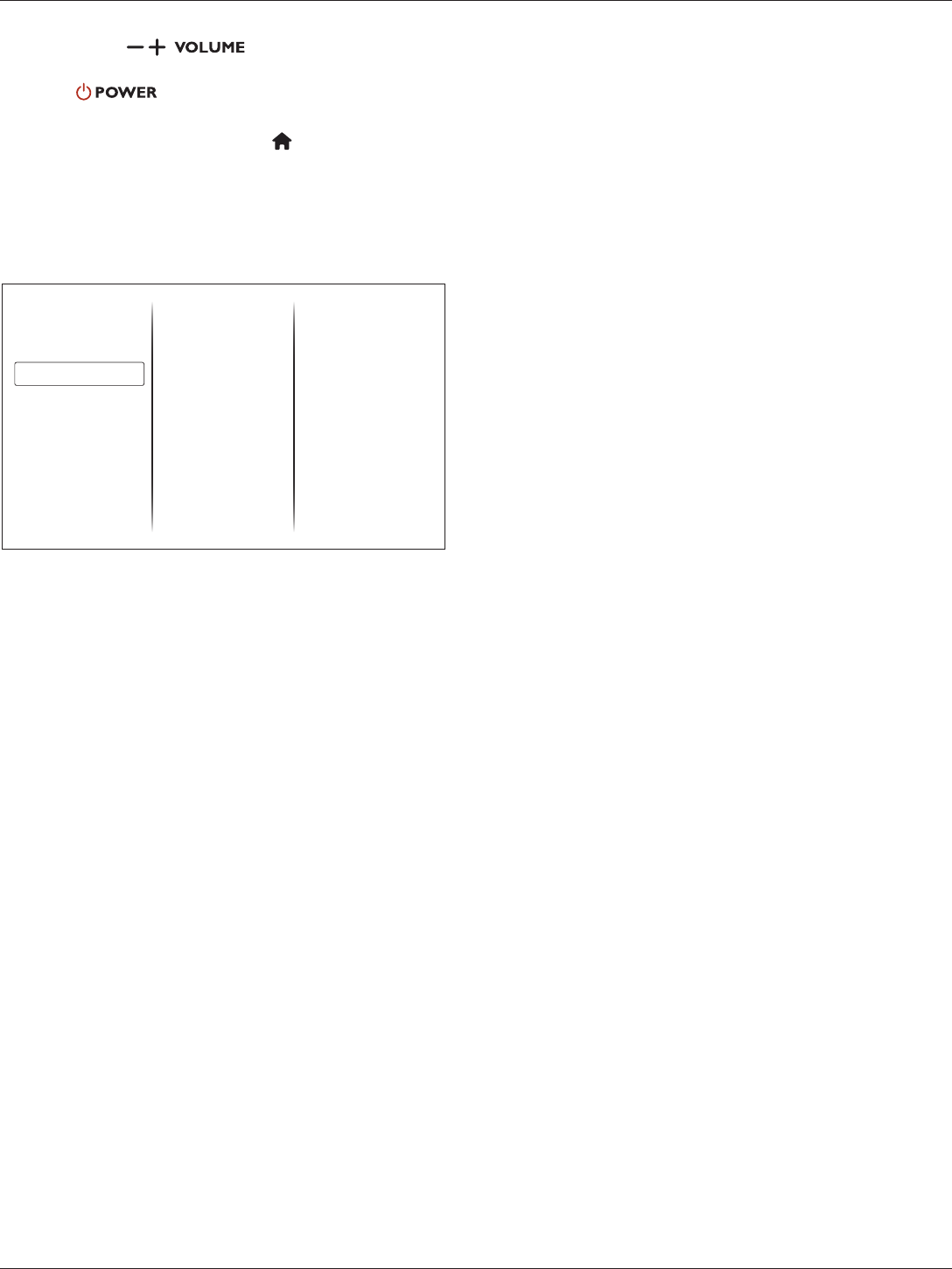
5.1.2. Sound menu
Sound style
Restore style
Bass
Treble
Audio out
Advanced
Picture
Sound
General settings
Network settings
Sound style
Access predened sound settings.
Restore style
Restore the last-selected predened sound setting.
Bass
Adjust the bass level of the speaker and headphones.
Treble
Adjust the treble level of the speaker and headphones.
Audio out
Adjust audio output volume.
Advanced
Access advanced settings to enhance your audio experience.
• {Auto volume leveling}: Enable the reduction of sudden
volume changes.
• {Speaker}: Turn on or off the internal speakers.
• {Clear sound}: Enhance sound quality.
• {Audio out format}: Select the type of audio output
through the digital audio output connector.
• {Audio out delay}: Automatically sync the image on this
display to the audio from a connected home theatre.
• {Audio out offset}: Adjust the setting for audio output
delay. Available if {Audio out delay} is switched on.
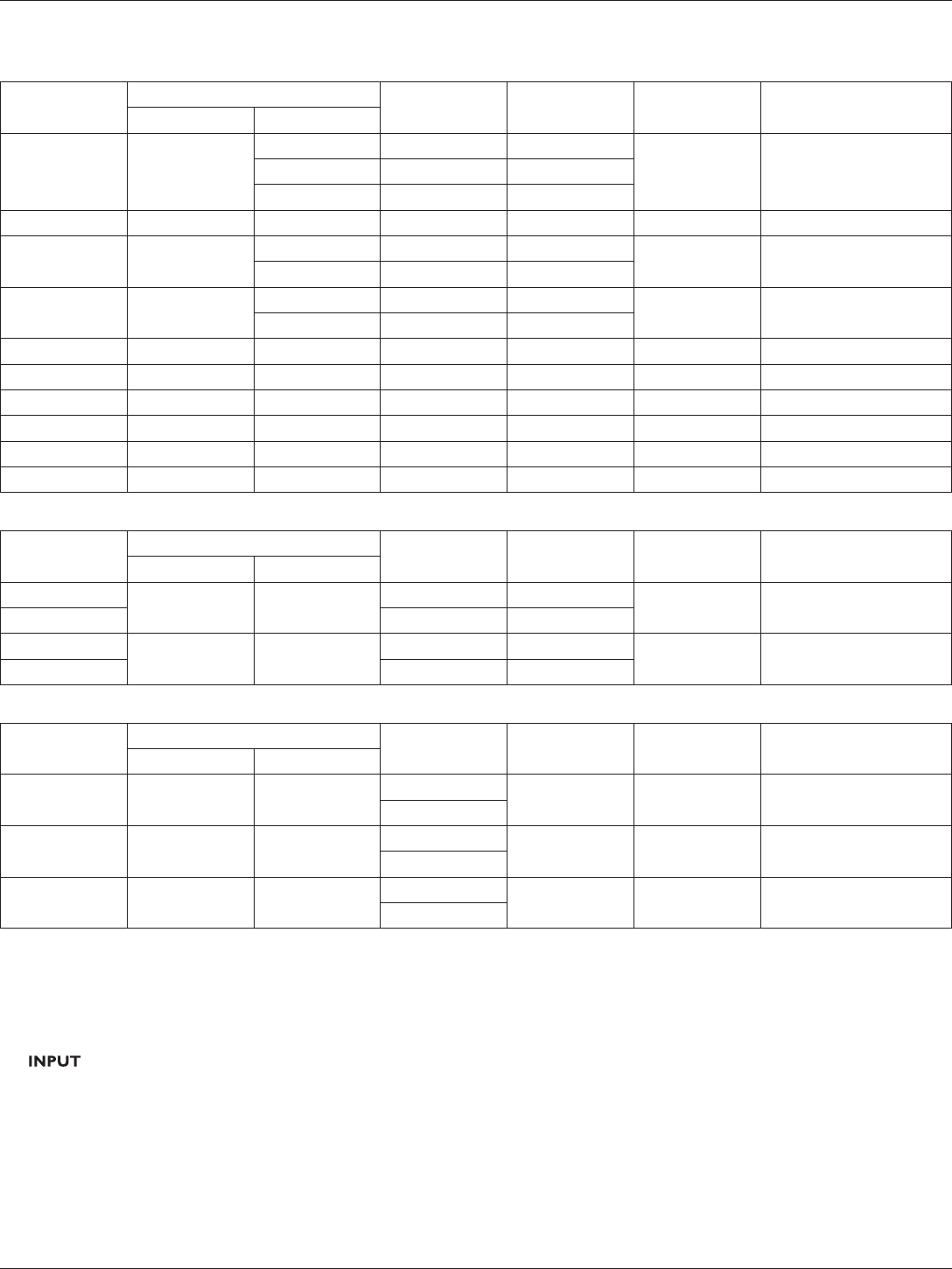
5.1.3. General settings menu
Menu language
Monitor id
Eco mode
Auto search
Clock
USB scheduling
Sleep timer
Auto switch off
Control settings
Factory settings
Picture
Sound
General settings
Network settings
Menu language
Select language used for OSD menus.
Monitor id
Set the ID number for controlling this display via the RS232C
connection. Each display must have a unique ID number when
multiple sets of this display are connected.
Eco mode
Set this display to reduce the power consumption automatically.
Auto search
Choose to let this display detect and display available signal
sources automatically.
Clock
Adjust clock settings.
USB scheduling
This function allows you to program up to 3 different scheduled
time intervals for this display to activate, and auto play USB
media le of your setting.
After changing the {Clock} option in the {General settings}
menu, you need to set this {USB scheduling} again.
Sleep timer
Switch off this display after a specied time.
Auto switch off
Set the time for this display to be switched off after a period of
no activity. Press any key on the remote control to disable this
function.
Control settings
• {Local KB lock}: Choose to enable or disable the keyboard
(control buttons) function of this display.
• {Unlock}: Enable the keyboard function.
• {Lock all}: Lock all keyboard function.
• {Lock but volume}: Disable all the keyboard function
except the and button.
• {Lock but power}: Disable all the keyboard function
except the button.
• {RC lock}: Choose to enable or disable the button function
of the remote control.
• {Unlock}: Enable the button function.
• {Lock all}: Lock all button function.
15
B321/B421
• {Lock but volume}: Disable all the button function
except the button.
• {Lock but power}: Disable all the button function except
the button.
NOTE: To disable the lock function from [Local KB lock] or
[RC lock] item, press buttons 1 9 9 8 on the remote
control.
Factory settings
Reset all your customized settings to the factory defaults.
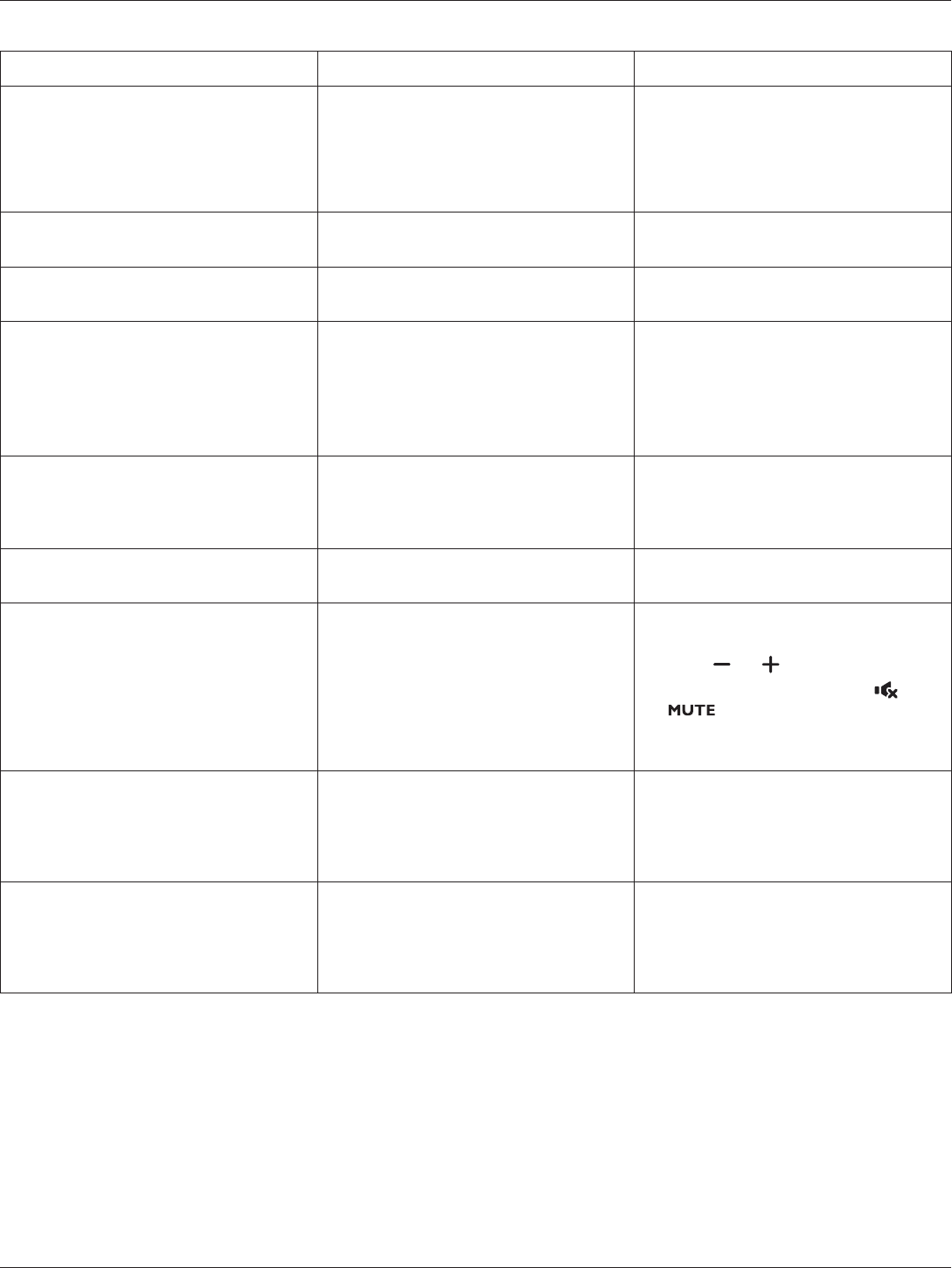
5.2. Network Settings
View network settings
Network configuration
Static IP configuration
Digital Media Render...
Network name
Picture
Sound
General settings
Network settings
View network settings
View connected network status.
Network settings
Select how this display should assign addresses to the network
resources.
StaticIPConguration
Assign {IP address}, {Netmask}, {Gateway}, {DNS1}, and
{DNS2} for this display.
Digital Media Renderer - DMR
Receive multimedia les from Smart Phones or Tablets
connected to your network.
Network name
Rename this display for easy identication if you have more
than one display connected to your network.
16
B321/B421
6. Input mode
PC Resolution:
Standard
Resolution
Active Resolution Refresh Rate Pixel Rate Aspect Ratio Stand for Mode
H Pixels V Lines
VGA 640
480 60 Hz 25.175 MHz
4:3 Video Graphic Array480 72 Hz 31.5 MHz
480 75 Hz 31.5 MHz
WVGA 720 400 70 Hz 33.75 MHz 16:9 Wide Video Graphic Array
SVGA 800 600 60 Hz 40 MHz 4:3 Super VGA
600 75 Hz 49.5 MHz
XGA 1024 768 60 Hz 65 MHz 4:3 Extended Graphic Array
768 75 Hz 78.75 MHz
WXGA 1280 768 60 Hz 79.5 MHz 5:3 Wide XGA
WXGA 1280 800 60 Hz 79.5 MHz 16:10 Wide XGA
SXGA 1280 1024 60 Hz 108 MHz 5:4 Super XGA
WXGA 1360 768 60 Hz 85.5 MHz 16:9 Wide XGA
UXGA 1600 1200 60 Hz 162 MHz 4:3 Ultra XGA
HD1080 1920 1080 60 Hz 148.5 MHz 16:9 HD1080
SDTV Resolution:
Standard
Resolution
Active Resolution Refresh Rate Pixel Rate Aspect Ratio Stand for Mode
H Pixels V Lines
480i 720 480 29.97 Hz 13.5 MHz 4:3 Modied NTSC Standard
480p 59.94 Hz 27 MHz
576i 720 480 25 Hz 13.5 MHz 4:3 Modied PAL Standard
576p 50 Hz 27 MHz
HDTV Resolution:
Standard
Resolution
Active Resolution Refresh Rate Pixel Rate Aspect Ratio Stand for Mode
H Pixels V Lines
720p 1280 720 50 Hz 74.25 MHz 16:9 Normally DVB Mode
60 Hz
1080i 1920 1080 25 Hz 74.25 MHz 16:9 Normally ATSC Mode
30 Hz
1080p 1920 1080 50 Hz 148.5 MHz 16:9 Normally ATSC Mode
60 Hz
• The PC text quality is optimum in HD 1080 mode (1920 × 1080, 60 Hz).
• Your PC display screen might appear different depending on the manufacturer (and your particular version of Windows).
• Check your PC instruction book for information about connecting your PC to a display.
• If a vertical and horizontal frequency-select mode exists, select 60 Hz (vertical) and 31.5 KHz (horizontal). In some cases, abnormal
signals (such as stripes) might appear on the screen when the PC power is turned off (or if the PC is disconnected). If so, press the
[ ] button to enter the video mode. Also, make sure that the PC is connected.
• When horizontal synchronous signals seem irregular in RGB mode, check PC power saving mode or cable connections.
• This display settings table complies to the IBM/VESA standards, and based on the analog input.
• The DVI support mode is regarded as same to the PC support mode.
• The best timing for the vertical frequency to each mode is 60 Hz.

17
B321/B421
7. Cleaning and Troubleshooting
7.1. Cleaning
Caution When Using the Display
• Do not bring your hands, face or objects close to the ventilation holes of the display. The top of the display is usually very hot due
to the high temperature of exhaust air being released through the ventilation holes. Burns or personal injuries may occur if any
body parts are brought too close. Placing any object near the top of the display could also result in heat related damage to the
object as well as the display itself.
• Be sure to disconnect all cables before moving the display. Moving the display with its cables attached may damage the cables
and thus cause re or electric shock.
• Disconnect the power plug from the wall outlet as a safety precaution before carrying out any type of cleaning or maintenance
procedure.
Front Panel Cleaning Instructions
• The front of the display has been specially treated. Wipe the surface gently using only a cleaning cloth or a soft, lint-free cloth.
• If the surface becomes dirty, soak a soft, lint-free cloth in a mild detergent solution. Wring the cloth to remove excess liquid. Wipe
the surface of the display to remove dirt. Then use a dry cloth of the same type to dry.
• Do not scratch or hit the surface of the panel with ngers or hard objects of any kind.
• Do not use volatile substances such as insert sprays, solvents and thinners.
Cabinet Cleaning Instructions
• If the cabinet becomes dirty, wipe the cabinet with a soft, dry cloth.
• If the cabinet is extremely dirty, soak a lint-free cloth in a mild detergent solution. Wring the cloth to remove as much moisture as
possible. Wipe the cabinet. Use another dry cloth to wipe over until the surface is dry.
• Do not allow any water or detergent to come into contact with the surface of the display. If water or moisture gets inside the unit,
operating problems, electrical and shock hazards may result.
• Do not scratch or hit the cabinet with ngers or hard objects of any kind.
• Do not use volatile substances such as insert sprays, solvents and thinners on the cabinet.
• Do not place anything made from rubber or PVC near the cabinet for any extended periods of time.
18
B321/B421
7.2. Troubleshooting
Symptom Possible Cause Remedy
No picture is displayed 1. The power cord is disconnected.
2. The main power switch on the back of
the display is not switched on.
3. The selected input has no connection.
4. The display is in standby mode.
1. Plug in the power cord.
2. Make sure the power switch is switched
on.
3. Connect a signal connection to the
display.
Interference displayed on the display or
audible noise is heard
Caused by surrounding electrical appliances
or uorescent lights.
Move the display to another location to see
is the interference is reduced.
Color is abnormal The signal cable is not connected properly. Make sure that the signal cable is attached
rmly to the back of the display.
Picture is distorted with abnormal
patterns
1. The signal cable is not connected
properly.
2. The input signal is beyond the
capabilities of the display.
1. Make sure that the signal cable is
attached rmly.
2. Check the video signal source to see
if it is beyond the range of the display.
Please verify its specications with this
display’s specication section.
Displayimagedoesn’tllupthefullsize
of the screen
The zoom mode is not correctly set. Use the Zoom mode or Custom zoom
function in the Screen menu to ne tune
display geometry and time frequency
parameter.
Can hear sound, but no picture Improperly connected source signal cable. Make sure that both video inputs and sound
inputs are correctly connected.
Can see picture but no sound is heard 1. Improperly connected source signal
cable.
2. Volume is turned all the way down.
3. [MUTE] is turned on.
4. No external speaker connected.
1. Make sure that both video inputs and
sound inputs are correctly connected.
2. Press [ ] or [ ] button to hear sound.
3. Switch MUTE off by using the
[ ] button.
4. Connect external speakers and adjust
the volume to a suitable level.
Some picture elements do not light
up
Some pixels of the display may not turn on. This display is manufactured using an
extremely high level of precision technology:
however, sometimes some pixels of the
display may not display. This is not a
malfunction.
After-Images can still be seen on the
display after the display is powered off.
(Examples of still pictures include logos,
video games, computer images, and
images displayed in 4:3 normal mode)
A still picture is displayed for an over
extended period of time
Do not allow a still image to be displayed
for an extended period of time as this can
cause a permanent after-image to remain
on the display.
19
B321/B421
8. Technical Specifications
8.1. B321
Display:
Item Specications
Screen Size (Active Area) 31.5” LCD (80 cm)
Aspect Ratio 16:9
Number of Pixels 1920 (H) × 1080 (V)
Pixel Pitch 0.36375 (H) × 0.36375 (V) [mm]
Displayable Colors 16.7 Million colors
Brightness 350 cd/m²
Contrast Ratio (Typical) 3000:1
Viewing Angle 178 degrees
In/Out Terminals:
Item Specications
Speaker Output Internal Speakers 5W (L) + 5W (R) [RMS]/16Ω, 1 Way 1 Speaker System
82 dB/W/M/160 Hz ~ 13 KHz
Audio Output RCA Jack × 2 0.5V [rms] (Normal) / 2 Channel (L+R)
Audio Input 3.5 mm Stereo × 1
RCA Jack × 2
0.5V [rms] (Normal) / 2 Channel (L+R)
RS232C Input/Output 2.5 mm × 2 TXD + RXD (1:1)
LAN RJ-45 Jack × 1 (8 pin) 10/100 LAN Port
HDMI Input HDMI Jack × 1
(Type A) (19 pin)
Digital RGB: TMDS (Video + Audio)
MAX:
Video: 720p, 1080p, 1920 × 1080/60 Hz (WUXGA)
Audio: 48 KHz / 2 Channel (L+R)
Supports LPCM only
DVI-D Input DVI-D jack Digital RGB: TMDS (Video)
VGA Input D-Sub Jack × 1
(15 pin)
Analog RGB: 0.7V [p-p] (75Ω), H/CS/V: TTL (2.2kΩ), SOG: 1V [p-p] (75Ω)
MAX: 720p, 1080p, 1920 × 1080/60 Hz (WUXGA)
Component Input RCA Jack × 3 Y: 1V [p-p] (75Ω), Pb: 0.7V [p-p] (75Ω), Pr: 0.7V [p-p] (75Ω)
MAX: 480i, 576i, 480p, 576p, 720p, 1080i, 1080p
SPDIF Output SPDIF Port Serial digital audio output when input is HDMI
IR Input/Output 3.5 mm × 2 IR pass through or IR daisy chain
USB Input USB × 1 (Type B) USB 2.0, External PC connection
General:
Item Specications
Power Input 100-240V 50-60Hz, 1.5A
Power Consumption (Max.) 68 W
Power Consumption (Typical) 55 W
Power Consumption (EPA6.0) 40 W
Power Consumption (Standby & Off) < 0.5W (OSD: APM mode off)
Dimensions [W × H × D] 745 × 439.5 × 39.8 mm
Weight 6.6 Kg
Gross Weight 9.0 Kg
Environmental Condition:
Item Specications
Temperature Operational 5 ~ 40°C
Storage -20 ~ 60°C
Humidity Operational 20 ~ 80% RH (No condensation)
Storage 10 ~ 90% RH (No condensation)
Altitude Operational 0 ~ 2,000 m
Storage 0 ~ 5,000 m
20
B321/B421
8.2. B421
Display:
Item Specications
Screen Size (Active Area) 42” LCD (106.7 cm)
Aspect Ratio 16:9
Number of Pixels 1920 (H) × 1080 (V)
Pixel Pitch 0.4845 (H) × 0.4845 (V) [mm]
Displayable Colors 16.7 Million colors
Brightness 350 cd/m²
Contrast Ratio (Typical) 3000:1
Viewing Angle 178 degrees
In/Out Terminals:
Item Specications
Speaker Output Internal Speakers 7W (L) + 7W (R) [RMS]/16Ω, 1 Way 1 Speaker System
82 dB/W/M/160 Hz ~ 13 KHz
Audio Output RCA Jack × 2 0.5V [rms] (Normal) / 2 Channel (L+R)
Audio Input 3.5 mm Stereo × 1
RCA Jack × 2
0.5V [rms] (Normal) / 2 Channel (L+R)
RS232C Input/Output 2.5 mm × 2 TXD + RXD (1:1)
LAN RJ-45 Jack × 1 (8 pin) 10/100 LAN Port
HDMI Input HDMI Jack × 1
(Type A) (19 pin)
Digital RGB: TMDS (Video + Audio)
MAX:
Video: 720p, 1080p, 1920 × 1080/60 Hz (WUXGA)
Audio: 48 KHz / 2 Channel (L+R)
Supports LPCM only
DVI-D Input DVI-D jack Digital RGB: TMDS (Video)
VGA Input D-Sub Jack × 1
(15 pin)
Analog RGB: 0.7V [p-p] (75Ω), H/CS/V: TTL (2.2kΩ), SOG: 1V [p-p] (75Ω)
MAX: 720p, 1080p, 1920 × 1080/60 Hz (WUXGA)
Component Input RCA Jack × 3 Y: 1V [p-p] (75Ω), Pb: 0.7V [p-p] (75Ω), Pr: 0.7V [p-p] (75Ω)
MAX: 480i, 576i, 480p, 576p, 720p, 1080i, 1080p
SPDIF Output SPDIF Port Serial digital audio output when input is HDMI
IR Input/Output 3.5 mm × 2 IR pass through or IR daisy chain
USB Input USB × 1 (Type B) USB 2.0, External PC connection
General:
Item Specications
Power Input 100-240V 50-60Hz, 2.5A
Power Consumption (Max.) 104 W
Power Consumption (Typical) 88 W
Power Consumption (EPA6.0) 61 W
Power Consumption (Standby & Off) < 0.5W (OSD: APM mode off)
Dimensions [W × H × D] 980.4 × 572.9 × 38.5 mm
Weight 11.9 Kg
Gross Weight 15.3 Kg
Environmental Condition:
Item Specications
Temperature Operational 5 ~ 40°C
Storage -20 ~ 60°C
Humidity Operational 20 ~ 80% RH (No condensation)
Storage 10 ~ 90% RH (No condensation)
Altitude Operational 0 ~ 2,000 m
Storage 0 ~ 5,000 m
© 2013,Hewlett Packard Development Company, L.P.
The only warranties for HP products and services are set forth in the express warranty statements accompanying such products and
services. Nothing herein should be construed as constituting an additional warranty. HP shall not be liable for technical or editorial errors
or omissions contained herein.
This document contains proprietary information that is protected by copyright. No part of this document may be photocopied, repro-
duced, or translated to another language without the prior written consent of Hewlett-Packard Company.
Document Part Number: 749839-001
First Edition (January 2014)
Specications are subject to change without notice.
