Hp Compaq D530 Ultra Slim Desktop Pc Service And Maintain 347286 002
Hp-Compaq-D338-Microtower-Desktop-Pc-Service-And-Maintain-141516 hp-compaq-d338-microtower-desktop-pc-service-and-maintain-141516
Hp-Compaq-D538-Small-Form-Factor-Desktop-Pc-Service-And-Maintain-141540 hp-compaq-d538-small-form-factor-desktop-pc-service-and-maintain-141540
Hp-Compaq-D538-Convertible-Minitower-Desktop-Pc-Service-And-Maintain-141537 hp-compaq-d538-convertible-minitower-desktop-pc-service-and-maintain-141537
HP Compaq Business Desktop d330 & d530 Series Personal Computers Service Reference Card, 2nd Edition c00067072
2015-01-05
: Hp Hp-Compaq-D530-Ultra-Slim-Desktop-Desktop-Pc-Service-And-Maintain-141534 hp-compaq-d530-ultra-slim-desktop-desktop-pc-service-and-maintain-141534 hp pdf
Open the PDF directly: View PDF  .
.
Page Count: 2
Service Reference Card
HP Compaq d330 and d530 Series Personal Computers
© 2003 Hewlett-Packard Development Company, L.P. The information contained herein is sub-
ject to change without notice. HP shall not be liable for technical or editorial errors or omissions
contained herein. Intel, Pentium, Intel Inside, and the Intel logo are trademarks or registered
trademarks of the Intel Corporation and its subsidiaries in the U. S. and other countries.
Document Number 347286-002. 2nd Edition October 2003.
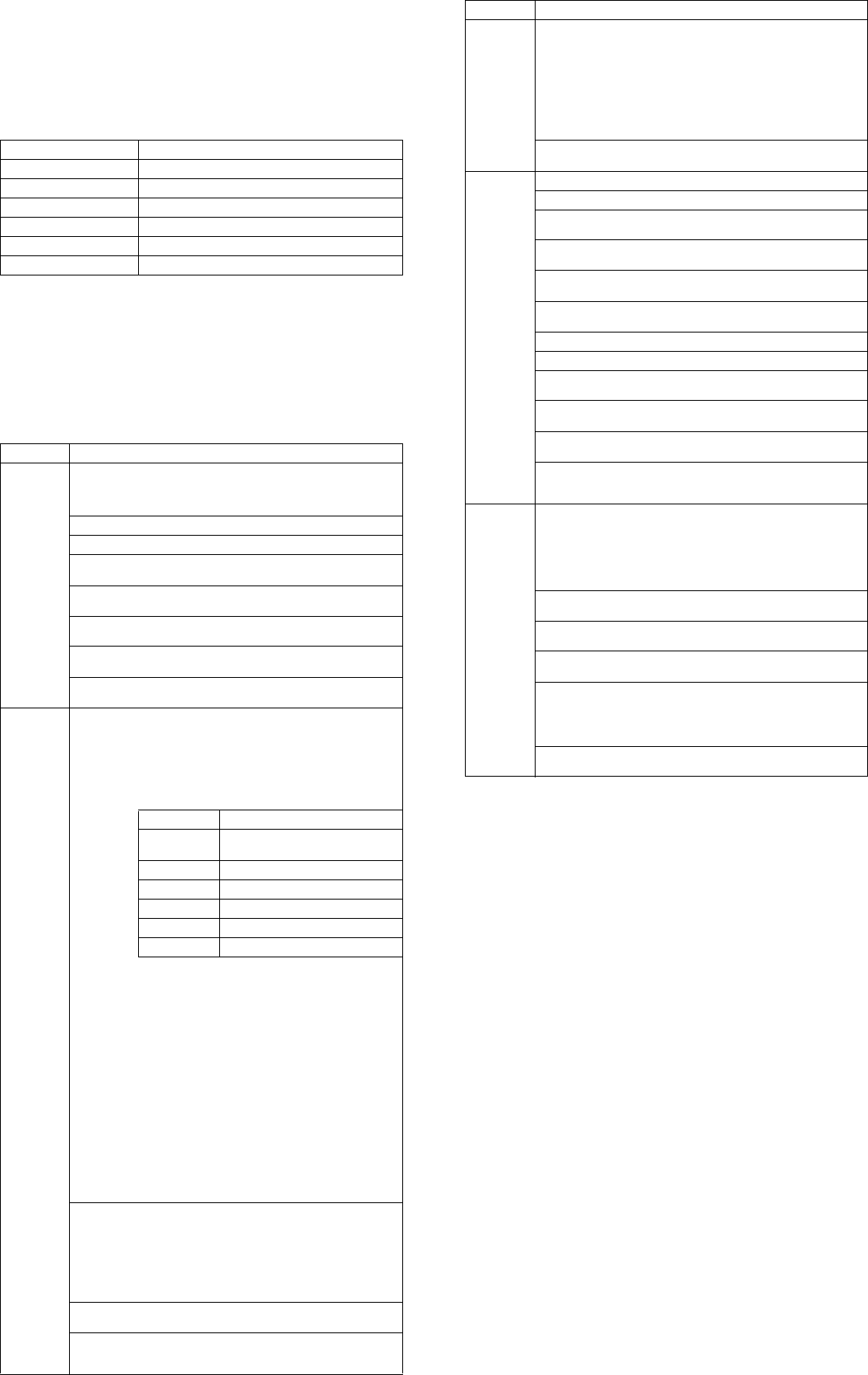
Key Specifications
* All form factors EXCEPT the USDT include an AGP 2.0 (AGP 8x) slot.
System Setup and Boot
Basic system information regarding file, storage, security, and power configuration is main-
tained in the Setup Utility held in the system ROM. The Setup Utility is accessed by
pressing the F10 key when prompted (on screen) to do so during the boot sequence. If the
screen prompt opportunity is missed, a restart will be necessary.
Failsafe Boot Block ROM
The computer comes with a reprogrammable flash system ROM (read only memory). To
upgrade the ROM, you may:
a. Order an upgraded ROMPaq diskette from HP.
or
b. Download the latest ROMPaq images from the HP Web site (www.hp.com)
All ROMPaq ROM images from HP are digitally signed to ensure authenticity and mini-
mize potential corruption. Your system ROM includes a Failsafe Boot Block that is pro-
tected during the flash process and allows the computer to be restarted in the unlikely event
of an unsuccessful ROM flash.
If the system detects an invalid system ROM during the boot sequence the system will
sound one long and three short beeps, flash the three keyboard LEDs twice, and display a
recovery mode message on the screen. To recover from the Boot Block recovery mode
complete the following steps:
1. Remove any diskettes from the diskette drive and turn off power.
2. Insert a ROMPaq diskette into the diskette drive.
3. Turn on power to the system.
4. If a Setup password has been established, the Caps Lock LED will come on to prompt
you for the password. Enter the password.
5. A successful boot and ROM flashing (re-programming) with a ROMPaq diskette is
indicated by the three keyboard LEDs turning on and a series of beeps rising in tone.
Security Functions
The system offers two passwords (Power-On and Setup) for system and data protection.
The passwords are independent of each other. The Power-On password, if established,
protects the computer from unauthorized access by prompting the user for a password during
power up. The Setup password, if established, protects the computer from unauthorized or
inadvertent re-configuration by prompting the user for a password prior to entering the Setup
Utility.
To establish a password:
1. Turn on or restart the computer. If you are in Windows, click Start > Shut Down >
Restart the computer.
2. When the F10 Setup message appears in the lower-right corner of the screen, press
the
F10 key. Press Enter to bypass the title screen, if necessary. If you do not press F10
when prompted, a restart will be necessary.
3. Select Security, then select Setup Password or Power-On Password and follow the
instructions on the screen.
4. Before exiting, click File > Save Changes and Exit.
Key Specifications
Processor Type: Intel Pentium 4 or Intel Celeron
RAM Type: DDR PC2100, PC2700, or PC3200 non-ECC
Maximum RAM Supported: up to 4 GB depending on the model
Expansion Bus: PCI 2.2
Graphics Adapter* Integrated controller, AGP support on select models
Hard drive interface: UATA/100, SATA
I/O Interfaces: Serial (2), parallel (1), USB 2.0 (6), diskette drive (1)
Computer Setup Menu
Heading Option / Description
File System Information - Lists product name/type/speed/stepping, cache
size, system ROM/version, installed memory size, system board revi-
sion, chassis serial number, integrated MAC for enabled or embedded
NIC, and asset tracking number.
About - Provides copyright information.
Set Time and Date - Allows selection of system time and date.
Save to Diskette - Saves system configuration, including CMOS, to a
formatted, blank 1.44-MB diskette.
Restore From Diskette - Restores factory default settings and clears all
passwords.
Set Defaults and Exit - Restores factory default settings and clears all
passwords.
Ignore Changes and Exit - Exits Computer Setup without applying or
saving any changes.
Save Changes and Exit - Saves changes to system configuration and
exits Computer Setup.
Storage Device Configuration - Lists all installed storage devices. The following
options appear when a device is selected.
Diskette Type (legacy diskette drives only) Identifies the
highest capacity media type accepted by the diskette
drive.
Drive Emulation (IDE devices only) Selects drive type
emulation for storage
Drive Type Emulation Options
ATAPI Zip
Drive None (treated as other).
IDE Hard drive No emulation available.
Diskette None or hard drive.
IDE CD-ROM None, diskette, or hard drive.
ATAPI LS-120 None (treated as other).
Other None, CD, diskette, hard drive.
Transfer Mode (IDE devices only) Specifies active data
transfer mode: PIO, Max PIO, Enhanced DMA, Ultra
DMA, and Max DMA.
Translation Mode (IDE devices only) Selects translation
mode to enable the BIOS to access disks partitioned and
formatted on other systems and may be necessary for
users of older versions of Unix. Options are: Bit-Shift,
LBA Assisted, User, and None.
NOTE: The translation mode automatically selected by
BIOS should usually not be changed.
Translation Parameters (IDE disk devices only) Allows
you to specify disk parameters logical cylinders (max. of
1024), heads (max. of 256), and sectors per track (max.
of 63) used by BIOS to translate disk I/O requests.
Fields are visible and changeable only when drive trans-
lation mode is set to User.
Multisector Transfers (IDE ATA devices only) Specifies
how many sectors are transferred per multi-sector PIO
operation. Options: Disabled, 8, and 16.
Options Removable Media Boot. Enables/disables ability to boot
system from removable media.
Primary IDE Controller enable/disable.
Secondary IDE Controller enable/disable
Diskette MBR Validation enable/disable strict validation
of the diskette Master Boot Record (MBR).
DPS Self-Test - Allows execution of self-tests on IDE hard drives capa-
ble of Drive Protection System (DPS) tests.
Controller Order - Allows selection of controller priority in the boot
sequence. Not shown if all drives are connected to embedded IDE con-
trollers
Continued
Computer Setup Menu
(Continued)
Heading Option / Description
Storage
(Continued) SATA Configuration (select models only). Allows selection of UATA
and/or SATA controllers.
For Windows 2K and XP, UATA and SATA are configurable as separate
controllers. Depending on model, up to 4 UATA or 2 SATA devices may
be accessed.
For Window 98, and earlier OSs, UATA and SATA are configured as a
combined controller. Depending on model, up to 2 UATA or 2 SATA
devices may be accessed.
Boot Order. Allows selection of boot order of installed mass storage
devices (diskette, hard drive, CD-ROM, etc).
Security Setup Password - Enables setup (administrator) password.
Power-On Password - Enables power-on password.
Password Options (appears only if Power-On password is set) - Enable/
disable password for warm boot.
Smart Cover Lock (select models only) - Enables/disables Smart Cover
Lock.
Smart Cover Sensor (select models only) - Enables/disables Smart
Cover Sensor. May also log cover removal.
DriveLock (select hard drives) - Allows assignment of master or user
password for hard drive(s).
Master Boot Record (MBR) Security - Enable/disable MBR.
Save MBR - Saves backup copy of MBR of current bootable disk.
Restore MBR - Restores MBR to current bootable disk. (Appears only if
MBR security is enabled.)
Device Security - Enable/disable serial/parallel/USB ports, system
audio, NIC (select models).
Network Service Boot - Enables/disables Network Service Boot (select
models only).
System IDs - Allows setting of Asset Tag and Ownership Tag, chassis
serial number, keyboard locale, and Universal Unique Identifier
(UUID).
Advanced
(advanced
users only)
Power-On Options - Select POST mode for QuickBoot, FullBoot, Full-
Boot every 1-30 days.; Enable/disable POST messages; Select Safe
POST mode; Enable/disable option ROM prompt; Enable/disable I/O
APIC mode; Select computer state after power loss; Select wakeup boot
source; Enable/disable POST delay (for slow hard drives); Enable/dis-
able ACPI/USB buffers; Enable/disable NIC option ROM download;
Enable/disable hot-pluggable multibay floppy.
Onboard Devices - Set resources for onboard devices (serial/parallel
port, diskette controller, etc).
PCI Devices - Lists currently installed PCI devices and IRQ settings.
Allows configuration/disabling of devices (no effect on APIC systems)
Bus Options - Enable/disable PCI bus mastering, PCI VGA palette
snooping, PCI SERR# function, and ECC on select systems.
Device Options - Set printer mode (output only, bidirectional, Num
Lock State)
Enable/disable power management events, wake-up events, processor
cache, processor number, ACPI thermal mode, ACPI S# support. Select
AGP aperture size. Enables monitor tracking.
PCI VGA Configuration - Allows selection of VGA controller (if multi-
ple PCI video controllers are installed).
Security Functions (Continued)
To change a password:
1. Turn on or restart the computer. If you are in Windows, click Start > Shut Down >
Restart the Computer. To change the setup password, run Computer Setup.
2. When the key icon appears, type your current password, a slash (/) or alternate de-
limiter character, your new password, another slash (/) or alternate delimiter character,
and your new password again as shown:
current password/new password/new password.
NOTE: Type the new password carefully since the actual characters do not appear
on the screen.
3. Press the enter key.
The new password will take effect the next time the computer is restarted.
To delete a password using Setup:
1. Turn on or restart the computer. If you are in Windows, click Start > Shut Down >
Restart the Computer. To delete the setup password, run Computer Setup (F10).
2. When the key icon appears, type your current password followed by a slash (/) or
alternate delimiter character as shown. Example: currentpassword/
3. Press the Enter key.
To delete the Setup password by clearing CMOS:
1. Shut down (Power down) the system and disconnect the power cord from the outlet
or the system unit.
2. Remove the chassis cover.
3. On the system board, press and release the CMOS clear switch.
4. Replace the chassis cover and reconnect the power cord.
To delete or disable the Power On password:
1. Shut down (Power down) the system and disconnect the power cord from the outlet
or the system unit.
2. Remove the chassis cover.
3. On the system board, remove the jumper on pins 1 and 2 of header E49 and place
only on pin 2.
4. Replace the chassis cover and reconnect the power cord.
NOTES:
[1] For more information about Setup Utilities refer to the Computer Setup Guide.
[2] If for any reason the Setup utility is not accessible to unlock the Smart Cover Lock then a
FailSafe key is required to bypass the Smart Cover Lock and open the computer. Refer to the
Hardware Reference Guide on how to use the FailSafe key. To order a FailSafe key contact
HP or your HP reseller.
[3] Available on select models.
Diagnostic Functions
Diagnostic functions are provided by the Setup Utility (in system ROM) and by Diagnostics
for Windows. Diagnostics for Windows provides detailed system information including:
• Processor type and speed
• Memory amount, mapping, and integrity
• Hardware peripheral availability/settings
• Hard drive type, space used/available
• System identification, asset tracking
Diagnostics for Windows may be pre installed on some models and can be downloaded free of
charge from www.hp.com.
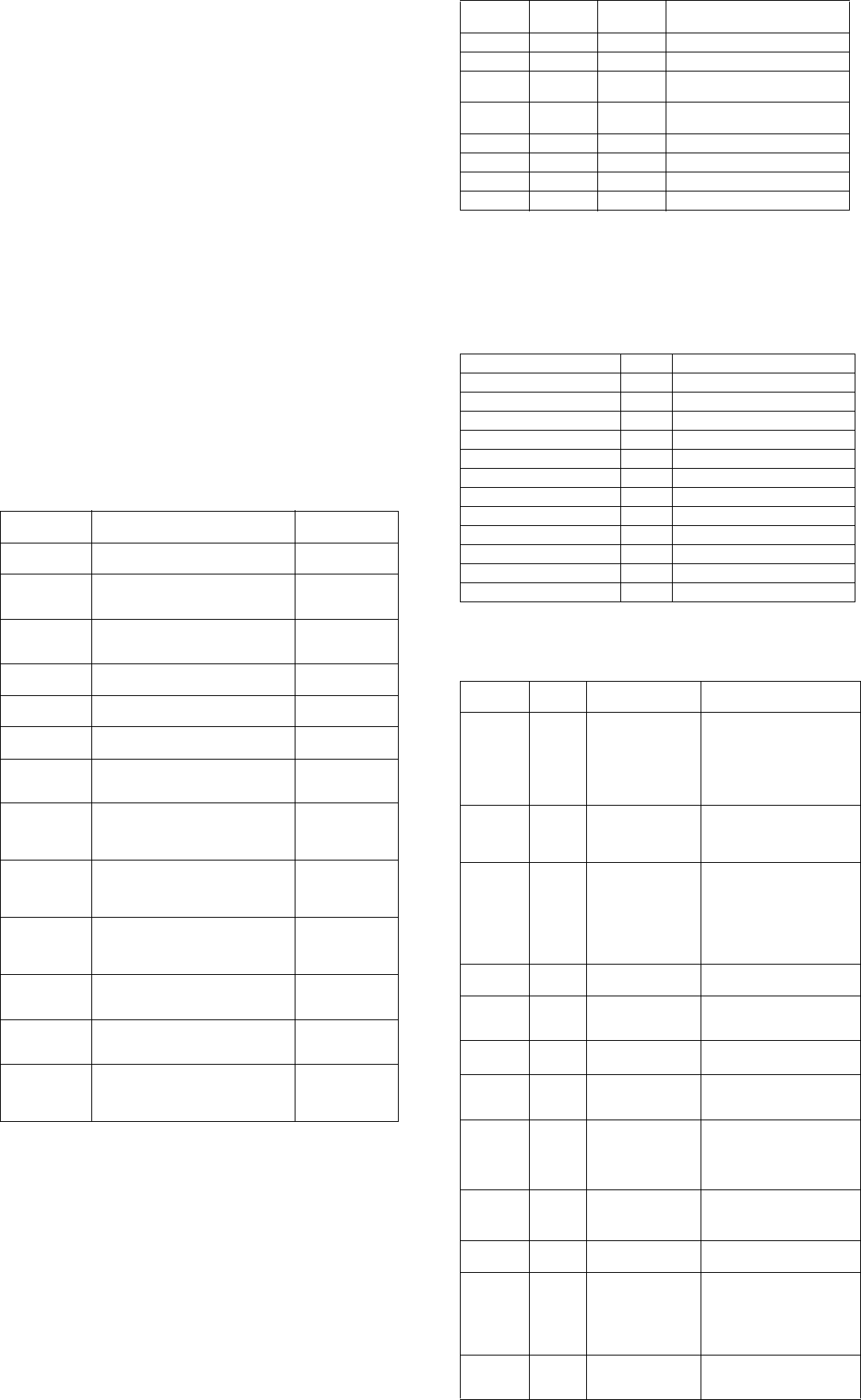
Error Conditions and Messages
NOTES:
[1] Accompanied by 1 short, 2 long beeps
[2] Accompanied by 1 long, 2 short beeps
[3] Accompanied by 2 long, 1 short beeps
[4] All LEDs will blink in sync twice, accompanied by 1 long and 3 short beeps
[5] LEDs will blink in sequence (NUM, Caps, then Scroll Lock)
[6] Accompanied by rising beep tone
NOTE:
[1] Repeated after 2 second pause
NOTES: L = long, S = short
Security Features
Feature Purpose How It Is
Established
Removable Media
Boot Control Prevents booting from removable media
drives. Setup Utilities. [1]
Serial, Parallel,
USB, or Infrared
Interface Control
Prevents data transfer through integrated
serial, parallel, USB, or infrared interface. Setup Utilities. [1]
Power-On
Password Prevents use of computer until password is
entered. Can apply to both initial startup
and restart.
Setup Utilities. [1]
Setup Password Prevents reconfiguration of computer until
password is entered. Setup Utilities. [1]
Network Server
Mode Provides unique security features for
computer used as server. Setup Utilities. [1]
DriveLock Prevents unauthorized access to data on
drives supporting password protection. Setup Utilities. [1]
Smart
Cover Lock [2][3] Software-controllable solenoid that, when
activated, prevents unauthorized access to
chassis interior.
Setup Utilities. [1]
Smart
Cover Sensor [3] Indicates computer cover or side panel has
been removed. Can be set to require
password for restart after cover or panel
removal.
Setup Utilities. [1]
Master Boot
Record (MBR)
Security
May prevent unintentional or malicious
changes to MBR of the current bootable
disk and provides a means of recovering
“last known” parameters.
Setup Utilities. [1]
Drive Protection
System (DPS Diagnostic tool built into hard drives on
select models designed to discover
problems that might result in unwarranted
drive replacement.
Setup Utilities or
Diagnostics for
Windows.
Memory Change
Alerts Detects addition or removal of memory
modules. Notifies system administrator. Refer to Intelligent
Manageability
Guide.
Ownership Tag Displays ownership information as defined
by system administrator during system
startup. (Protected by setup password).
Setup Utilities. [1]
Kensington
CableLock
Provision
Inhibits access to interior of computer
chassis. Can also be used to secure
computer to a fixed object for prevent theft.
Requires Kensington
cable lock accessory
to secure computer
to a fixed object.
PS/2 Keyboard LED Indications
NUM lock
LED Caps Lock
LED Scroll Lock
LED Event
Blinking [1] Off [1] Off [1] Memory Failure
Off [2] Blinking [2] Off [2] Graphics controller failure
Off [3] Off [3] Blinking [3] System failure prior to graphics
controller initialization
On Off Off ROMPaq diskette not present, faulty,
or drive problem
Off On Off Password prompt
Blinking [4] Blinking [4] Blinking [4] Invalid ROM and/or flash failed
Blinking [4] Blinking [5] Blinking [5] Keyboard locked in network mode
On [6] On [6] On [6] Successful ROM flash
Chassis LED and Beep Messages
Power LED # Beeps Event
Steady green None S0 System on (normal operation)
Blinks green @ 0.5 Hz None S1 Suspend
Blinks green @ 0.5 Hz None S3 Suspend to RAM
Off (clear) None S4 Suspend to disk
Off (clear) None S5 Soft off
Blinks red 2 times @ 1 Hz [1] None Processor thermal shutdown
Blinks red 3 times @ 1 Hz [1] None Processor not seated / installed
Blinks red 4 times @ 1 Hz [1] None Power supply failure
Blinks red 5 times @ 1 Hz [1] 5 Memory error
Blinks red 6 times @ 1 Hz [1] 6 Video error
Blinks red 7 times @ 1 Hz [1] 7 PCA failure
Blinks red 8 times @ 1 Hz [1] 8 Invalid ROM checksum (error)
Common POST Error Messages
Screen
Message Beeps Probable Cause Recommended Action
101-Option
ROM Error 1L, 1S 1. System ROM
checksum error.
2. Expansion card.
3. CMOS corruption.
4. System board
1. Verify ROM, reflash if
required.
2. Remove suspected expansion
card, reboot.
3. Clear CMOS memory, reboot.
4. Replace system board.
102-, 103-
System
Board
Failure
none DMA, timers 1. Clear CMOS memory.
2. Remove expansion boards.
3. Replace system board.
164-Memory
Size Error 2S Incorrect memory
configuration. 1. Run Setup (F10).
2. Check DIMMs for proper
seating, proper type, and HP
compatibility.
3. Remove DIMMs singularly
and reboot to isolate faulty
DIMM.
201-Memory
Error none RAM failure Same as 164.
202-Memory
Type
Mismatch
none DIMMs do not match. Same as 164.
212-Failed
Processor none Processor has failed to
initialize. 1. Check processor seating.
2. Replace processor.
301-, 304-
Keyboard
Error
none Keyboard failure. Check keyboard connection or
keys. Replace keyboard. If 304,
possible system board problem
411-Network
Interface
Card
Interrupt
Conflict
2S NIC interrupt conflicts
with another device. Reset IRQ (reboot system).
501-Display
Adapter
Failure
1L, 2S Graphics controller. 1. Reseat graphics card.
2. Check monitor connection.
3. Replace graphics card.
602-Diskette
Boot Error none Diskette in drive A not
bootable Remove/replace diskette.
1720-, 1721-
SMART
Hard Drive
Detects
Imminent
Failure
none Hard drive is about to
fail. Run drive protection system test
if available. Check for firmware
patch for erroneous error
message.
178x, 179x-
Hard Drive
Failure
none Hard drive or hard
drive circuitry failure. Run Setup or hard drive
diagnostics. Replace hard drive.
