Hp Laserjet M551 M551Xh Laser Printer Cf083A201 Users Manual Enterprise 500 Color Service ENWW
HP LaserJet Enterprise 500 Color M551 HP LaserJet Enterprise 500 Color M551 shared.swissparts.ch - /Manuals/HP/LaserJet/Mono Laserjet/
HP LaserJet Enterprise 500 Color M551 HP LaserJet Enterprise 500 Color M551 shared.swissparts.ch - /Manuals/HP/LaserJet/Color Laserjet/
2015-02-09
: Hp Hp-Hp-Laserjet-M551-M551Xh-Laser-Printer-Cf083A201-Users-Manual-545069 hp-hp-laserjet-m551-m551xh-laser-printer-cf083a201-users-manual-545069 hp pdf
Open the PDF directly: View PDF  .
.
Page Count: 646 [warning: Documents this large are best viewed by clicking the View PDF Link!]
- Theory of operation
- Basic operation
- Engine control system
- Laser/scanner system
- Image formation system
- Pickup, feed, and delivery system
- Jam detection
- Optional paper feeder
- Removal and replacement
- Introduction
- Removal and replacement strategy
- Service approach
- Customer self repair (CSR) components
- Print cartridges
- Duplex reverse guide
- Toner collection unit
- Formatter PCA
- Disk drives
- Tray cassette
- Fuser
- Pickup roller (Tray 1)
- Pickup roller (Tray 2)
- Pickup and feed rollers (Tray 3)
- Separation roller (Tray 2)
- Secondary transfer roller
- Secondary transfer assembly
- Intermediate transfer belt (ITB)
- Right door (optional paper feeder)
- Covers
- Identification and location
- Front door assembly
- Right door assembly
- Right rear cover
- Left cover
- Left bottom cover
- Left bottom handle
- Hardware integration pocket (HIP) (dn and xh models only)
- Control panel assembly
- Right front cover
- Front top cover
- Rear cover and upper rear cover
- Rear top cover
- Right bottom handle
- Rear bottom handle
- Internal assemblies
- Delivery fan, cartridge fan, and environmental sensor
- Toner collection sensor
- Residual toner feed motor
- Registration density (RD) sensor assembly
- Power supply fan and fan duct
- Registration assembly
- Lower pickup guide
- Interconnect board (ICB)
- DC controller PCA and tray
- Low voltage power supply
- High voltage power supply lower (HVPS-D)
- Developing disengagement motor
- Pickup motor
- Lifter drive assembly
- Automatic close assembly
- Cassette pickup drive assembly
- Cassette pickup assembly
- Laser/scanner assembly (Y/M)
- Laser/scanner assembly (C/Bk)
- High voltage power supply upper (HVPS-T)
- Drum motor 1
- Drum motor 2 or drum motor 3
- Fuser motor
- Main drive assembly
- Fuser drive assembly
- Delivery assembly
- Duplex drive assembly
- Optional paper feeder assembly (Tray 3)
- Solve problems
- Solve problems checklist
- Menu map
- Current settings pages
- Preboot menu options
- Troubleshooting process
- Tools for troubleshooting
- Individual component diagnostics
- LED diagnostics
- Engine diagnostics
- Paper path test
- Paper path sensors test
- Manual sensor test
- Print/stop test
- Component tests
- Diagrams
- Internal print-quality test pages
- Print quality troubleshooting tools
- Control panel menus
- Interpret control panel messages, status-alert messages, and event code errors
- 10.0X.Y0 Supply memory error
- 10.22.50
- 10.22.51
- 10.22.52
- 10.23.50
- 10.23.51
- 10.23.52
- 10.23.60
- 10.23.70 Printing past very low
- 10.XX.34 Used supply in use
- 10.XX.40 Genuine HP supplies installed
- 10.XX.41 Unsupported supply in use
- 10.XX.70 Printing past very low
- 10.YY.15 Install <supply>
- 10.YY.25 Wrong cartridge in <color> slot
- 10.YY.35 Incompatible <supply>
- 11.00.YY Internal clock error
- 13.00.00
- 13.A3.D3
- 13.A3.FF
- 13.B2.9C
- 13.B2.A1
- 13.B2.A2
- 13.B2.A3
- 13.B2.D1
- 13.B2.D2
- 13.B2.D3
- 13.D3.DZ
- 13.WX.EE
- 13.WX.FF
- 13.WX.YZ Fuser area jam
- 13.WX.YZ Fuser wrap jam
- 13.WX.YZ Jam below control panel
- 13.WX.YZ Jam in middle right door
- 13.WX.YZ Jam in right door
- 13.WX.YZ Jam in Tray 1
- 13.WX.YZ Jam in Tray <X>
- 20.00.00 Insufficient memory To continue, press OK
- 21.00.00 Page too complex
- 32.08.XX
- 32.1C.XX
- 32.21.00
- 33.XX.YY
- 33.XX.YY Used board/disk
- 41.02.00 Error
- 41.03.YZ Unexpected size in tray <X>
- 41.05.YZ Unexpected type in tray <X>
- 41.07.YZ Error To continue, press OK
- 42.XX.YY
- 47.00.XX
- 47.01.XX
- 47.02.XX
- 47.03.XX
- 47.04.XX
- 47.05.00
- 47.06.XX
- 47.WX.YZ Printer calibration error To continue, press OK
- 49.XX.YY To continue, turn off then on
- 50.WX.YZ Fuser error To continue, turn off then on
- 51.00.YY Error
- 52.00.XX To continue, turn off then on
- 54.XX.YY Error
- 55.00.YY DC controller error To continue, turn off then on
- 55.0X.YY DC controller error To continue, turn off then on
- 56.00.YY Error To continue, turn off then on
- 57.00.0Y Error To continue, turn off then on
- 58.00.04
- 59.00.YY Error To continue, turn off then on
- 59.05.XX
- 60.00.0Y Tray <Y> lifting error
- 61.00.01
- 62.00.00 No system To continue, turn off then on
- 70.00.00 Error To continue, turn off then on
- 81.0X.YY Embedded JetDirect error
- 98.00.01 Corrupt data in firmware volume
- 98.00.02 Corrupt data in solutions volume
- 98.00.03 Corrupt data in configuration volume
- 98.00.04 Corrupt data in job data volume
- 99.00.01 Upgrade not performed file is corrupt
- 99.00.02 Upgrade not performed timeout during receive
- 99.00.03 Upgrade not performed error writing to disk
- 99.00.04 Upgrade not performed timeout during receive
- 99.00.05 Upgrade not performed timeout during receive
- 99.00.06 Upgrade not performed error reading upgrade
- 99.00.07 Upgrade not performed error reading upgrade
- 99.00.08 Upgrade not performed error reading upgrade
- 99.00.09 Upgrade canceled by user
- 99.00.10 Upgrade canceled by user
- 99.00.11 Upgrade canceled by user
- 99.00.12 Upgrade not performed the file is invalid
- 99.00.13 Upgrade not performed the file is invalid
- 99.00.14 Upgrade not performed the file is invalid
- 99.00.2X
- 99.09.60 Unsupported disk
- 99.09.61 Unsupported disk
- 99.09.62 Unknown disk
- 99.09.63 Incorrect disk
- 99.09.64 Disk malfunction
- 99.09.65 Disk data error
- 99.09.66 No disk data installed
- 99.09.67 Disk is not bootable please download firmware
- 99.XX.YY
- 99.XX.YY
- <Binname> Full Remove all paper from bin
- <Supply> almost full
- <Supply> low OR Supplies low
- <Supply> very low OR Supplies very low
- <Tray X> lifting
- [File System] device failure To clear, press OK
- [File System] file operation failed To clear, press OK
- [File System] file system is full To clear, press OK
- [File System] is not initialized
- [File System] is write protected
- Accept bad signature
- Bad optional tray connection
- Calibration reset pending
- Canceling
- Canceling... <jobname>
- Checking engine
- Checking paper path
- Chosen personality not available To continue, press OK
- Cleaning do not grab paper
- Cleaning...
- Clearing event log
- Clearing paper path
- Close front door
- Close lower right door
- Close upper right door
- Creating cleaning page
- Data received To print last page, press OK
- EIO <X> disk initializing
- Event log is empty
- Expected drive missing
- HP Secure Hard Drive disabled
- Incompatible <supply>
- Incompatible supplies
- Install <supply>
- Install <supply> Close rear door
- Install Fuser Unit
- Install supplies
- Install Transfer Unit
- Internal disk not functional
- Internal disk spinning up
- Load Tray <X>: [Type], [Size]
- Load Tray <X>: [Type], [Size] To use another tray, press OK
- Manually feed output stack Then press OK to print second sides
- Manually feed: [Type], [Size]
- Manually feed: [Type], [Size] To use another tray, press OK
- Moving solenoid
- Moving solenoid and motor
- No job to cancel
- Paused
- Performing Color Band Test...
- Performing Paper Path Test...
- Please wait...
- Printing CMYK samples...
- Printing Color Usage Log...
- Printing Configuration...
- Printing Demo Page...
- Printing Diagnostics Page...
- Printing Engine Test...
- Printing Event Log...
- Printing File Directory...
- Printing Font List...
- Printing Fuser Test Page...
- Printing Help Page...
- Printing Menu Map...
- Printing PQ Troubleshooting...
- Printing Registration Page...
- Printing RGB Samples...
- Printing stopped
- Printing Supplies Status Page...
- Printing Usage Page...
- Processing duplex job Do not grab paper until job completes
- Processing job from tray <X>... Do not grab paper until job completes
- Processing...
- Processing... copy <X> of <Y>
- Ready
- Ready <IP Address>
- Remove all print cartridges
- Remove at least one print cartridge
- Remove shipping lock from Tray 2
- Replace <supply>
- Replace Supplies
- Restore Factory Settings
- Restricted from printing in color
- Rotating <color> motor
- Rotating motor
- Size mismatch in Tray <X>
- Sleep mode on
- Supplies in wrong positions
- Tray <X> empty: [Type], [Size]
- Tray <X> open
- Tray <X> overfilled
- Troubleshooting
- Type mismatch Tray <X>
- Unsupported drive installed To continue, press OK
- Unsupported supply in use OR Unsupported supply installed To continue, press OK
- Unsupported tray configuration
- Unsupported USB accessory detected Remove USB accessory
- USB accessory needs too much power Remove USB and turn off then on
- USB accessory not functional
- Used supply installed To continue, press OK OR Used supply in use
- Wrong cartridge in <color> slot
- Event log messages
- Individual component diagnostics
- Clear jams
- Solve paper handling problems
- Use manual print modes
- Solve image quality problems
- Clean the product
- Solve performance problems
- Solve connectivity problems
- Service mode functions
- Preboot menu options
- Product updates
- Parts and diagrams
- Service and support
- Hewlett-Packard limited warranty statement
- HP's Premium Protection Warranty: LaserJet print cartridge limited warranty statement
- Color LaserJet Fuser Kit, Toner Collection Unit, and Transfer Kit Limited Warranty Statement
- Data stored on the print cartridge
- End User License Agreement
- OpenSSL
- Customer self-repair warranty service
- Customer support
- Product specifications
- Regulatory information
- FCC regulations
- Environmental product stewardship program
- Protecting the environment
- Ozone production
- Power consumption
- Paper use
- Plastics
- HP LaserJet print supplies
- Return and recycling instructions
- Paper
- Material restrictions
- Disposal of waste equipment by users in private households in the European Union
- Chemical substances
- Material Safety Data Sheet (MSDS)
- For more information
- Declaration of conformity
- Certificate of volatility
- Safety statements
- Laser safety
- Canadian DOC regulations
- VCCI statement (Japan)
- Power cord instructions
- Power cord statement (Japan)
- EMC statement (Korea)
- Laser statement for Finland
- GS statement (Germany)
- Substances Table (China)
- Restriction on Hazardous Substances statement (Turkey)
- Restriction on Hazardous Substances statement (Ukraine)
- Index
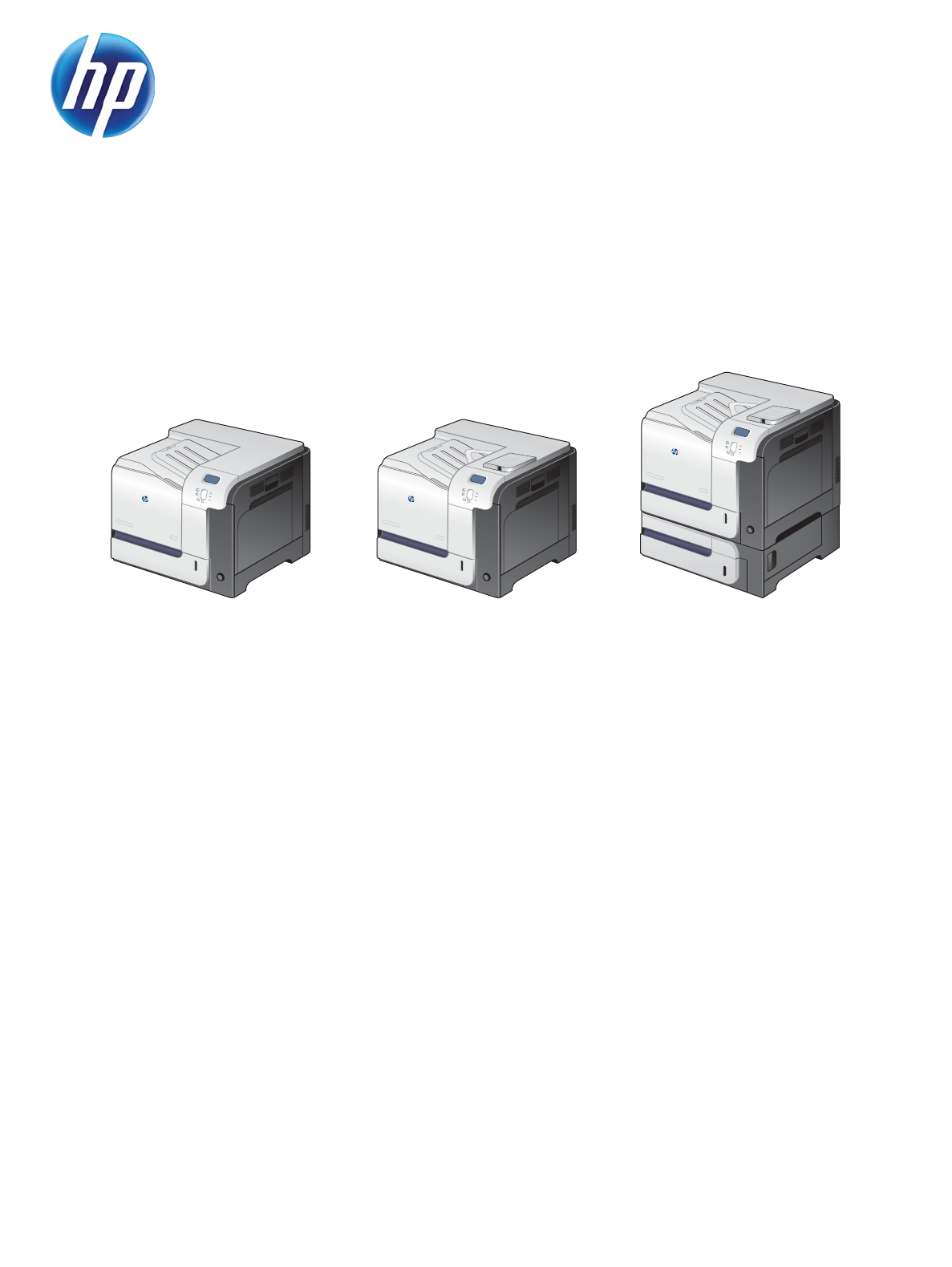
LASERJET ENTERPRISE 500 COLOR
Service Manual
M551n M551dn M551xh

HP LaserJet Enterprise 500 color M551
Printers
Service Manual
Copyright and License
© 2011 Copyright Hewlett-Packard
Development Company, L.P.
Reproduction, adaptation, or translation
without prior written permission is
prohibited, except as allowed under the
copyright laws.
The information contained herein is subject
to change without notice.
The only warranties for HP products and
services are set forth in the express warranty
statements accompanying such products and
services. Nothing herein should be
construed as constituting an additional
warranty. HP shall not be liable for technical
or editorial errors or omissions contained
herein.
Part number: CF079-90942
Edition 1, 10/2011
Trademark Credits
ENERGY STAR
®
and the ENERGY STAR
®
mark are registered U.S. marks.

Conventions used in this guide
TIP: Tips provide helpful hints or shortcuts.
NOTE: Notes provide important information to explain a concept or to complete a task.
CAUTION: Cautions indicate procedures that you should follow to avoid losing data or damaging
the product.
WARNING! Warnings alert you to specific procedures that you should follow to avoid personal
injury, catastrophic loss of data, or extensive damage to the product.
ENWW iii
iv Conventions used in this guide ENWW

Table of contents
1 Theory of operation .......................................................................................................... 1
Basic operation ........................................................................................................................ 2
Sequence of operation ............................................................................................... 3
Engine control system ............................................................................................................... 4
DC controller ............................................................................................................ 5
Solenoids .................................................................................................. 6
Clutches .................................................................................................... 6
Switches ................................................................................................... 6
Sensors ..................................................................................................... 7
Motors and fans ......................................................................................... 7
High voltage power supply ...................................................................................... 10
Low voltage power supply ........................................................................................ 12
Overcurrent/overvoltage protection ............................................................ 14
Safety ..................................................................................................... 14
Sleep (powersave) mode ........................................................................... 14
Power supply voltage detection .................................................................. 14
Low voltage power supply failure ............................................................... 14
Power off condition .................................................................................. 15
Fuser control ........................................................................................................... 15
Fuser temperature control circuit ................................................................. 16
Fuser over temperature protection ............................................................... 17
Fuser failure detection ............................................................................... 18
Laser/scanner system ............................................................................................................. 19
Image formation system .......................................................................................................... 21
Image formation process .......................................................................................... 22
Step 1: Pre-exposure ................................................................................. 23
Step 2: Primary charging .......................................................................... 23
Step 3: Laser-beam exposure ..................................................................... 24
Step 4: Development ................................................................................ 24
Step 5: Primary transfer ............................................................................ 25
Step 6: Secondary transfer ........................................................................ 25
Step 7: Separation ................................................................................... 26
ENWW v
Step 8: Fusing ......................................................................................... 26
Step 9: ITB cleaning ................................................................................. 27
Step 10: Drum cleaning ............................................................................ 27
Print cartridge ......................................................................................................... 27
Developing roller engagement and disengagement ..................................................... 29
Intermediate transfer belt (ITB) unit ............................................................................. 31
Primary-transfer-roller engagement and disengagement ................................. 32
ITB cleaning ............................................................................................ 35
Calibration ............................................................................................................. 36
Color misregistration control ...................................................................... 36
Image stabilization control ........................................................................ 37
Pickup, feed, and delivery system ............................................................................................. 38
Pickup-and-feed unit ................................................................................................ 42
Cassette pickup ........................................................................................ 43
Cassette presence detection ........................................................ 44
Cassette lift operation ................................................................ 45
Cassette paper presence detection .............................................. 46
Cassette media width detection ................................................... 47
Multifeed prevention .................................................................. 48
Multipurpose tray pickup ........................................................................... 49
Paper feed .............................................................................................. 50
Skew-feed prevention ................................................................. 51
OHT detection .......................................................................... 52
Fusing and delivery unit ........................................................................................... 52
Loop control ............................................................................................ 53
Pressure-roller pressurization control ........................................................... 54
Duplexing unit (duplex models) ................................................................................. 55
Duplexing reverse and feed control ............................................................ 56
Duplex pickup operation ........................................................................... 56
Jam detection ........................................................................................................................ 57
Optional paper feeder ............................................................................................................ 59
Paper-feeder pickup and feed operation .................................................................... 61
Paper size detection and cassette presence detection .................................................. 62
Paper feeder cassette lift operation ............................................................................ 64
Paper feeder presence detection ............................................................................... 66
Paper-feeder multiple feed prevention ........................................................................ 67
Paper feeder jam detection ....................................................................................... 68
2 Removal and replacement .............................................................................................. 69
Introduction ........................................................................................................................... 70
Removal and replacement strategy ........................................................................................... 70
vi ENWW
Cautions during removal and replacement ................................................................. 70
Electrostatic discharge ............................................................................................. 71
Required tools ......................................................................................................... 72
Service approach ................................................................................................................... 73
Before performing service ........................................................................................ 73
After performing service ........................................................................................... 73
Post service test ....................................................................................................... 73
Print-quality test ........................................................................................ 73
Parts removal order ................................................................................................. 74
Customer self repair (CSR) components ..................................................................................... 76
Print cartridges ........................................................................................................ 76
Duplex reverse guide ............................................................................................... 78
Toner collection unit ................................................................................................ 79
Formatter PCA ........................................................................................................ 81
Disk drives ............................................................................................................. 82
Remove the HDD ...................................................................................... 82
Remove the SSM ...................................................................................... 84
Install a replacement hard drive ................................................................. 85
Reload the firmware .................................................................. 85
Tray cassette .......................................................................................................... 86
Fuser ..................................................................................................................... 87
Pickup roller (Tray 1) ............................................................................................... 88
Pickup roller (Tray 2) ............................................................................................... 89
Pickup and feed rollers (Tray 3) ................................................................................ 91
Separation roller (Tray 2) ......................................................................................... 93
Secondary transfer roller .......................................................................................... 94
Reinstall the transfer roller ......................................................................... 95
Secondary transfer assembly .................................................................................... 96
Reinstall the secondary transfer assembly .................................................... 97
Intermediate transfer belt (ITB) ................................................................................... 98
Right door (optional paper feeder) .......................................................................... 100
Covers ................................................................................................................................ 102
Identification and location ...................................................................................... 102
Front door assembly .............................................................................................. 103
Right door assembly .............................................................................................. 105
Right rear cover .................................................................................................... 109
Left cover ............................................................................................................. 111
Remove the left cover .............................................................................. 111
Left bottom cover ................................................................................................... 113
Remove the left bottom cover ................................................................... 113
Left bottom handle ................................................................................................. 114
ENWW vii
Remove the left bottom handle ................................................................. 114
Hardware integration pocket (HIP) (dn and xh models only) ....................................... 115
Control panel assembly ......................................................................................... 116
Right front cover .................................................................................................... 118
Remove the right front cover .................................................................... 118
Reinstall the power button ........................................................ 121
Front top cover ..................................................................................................... 122
Remove the front top cover ...................................................................... 122
Rear cover and upper rear cover ............................................................................ 124
Remove the rear cover and upper rear cover ............................................. 124
Rear top cover ...................................................................................................... 127
Remove the rear top cover ....................................................................... 127
Right bottom handle .............................................................................................. 129
Remove the right bottom handle ............................................................... 129
Rear bottom handle ............................................................................................... 130
Remove the rear bottom handle ................................................................ 130
Internal assemblies ............................................................................................................... 131
Delivery fan, cartridge fan, and environmental sensor ................................................ 131
Remove the delivery fan, cartridge fan, and environmental sensor ................ 131
Toner collection sensor ........................................................................................... 136
Remove the toner collection sensor ........................................................... 136
Residual toner feed motor ....................................................................................... 138
Remove the residual toner feed motor ....................................................... 138
Reinstall the residual toner collection door .................................. 142
Registration density (RD) sensor assembly ................................................................. 143
Remove the RD sensor assembly ............................................................... 143
Power supply fan and fan duct ................................................................................ 147
Remove the power supply fan and fan duct ............................................... 147
Registration assembly ............................................................................................ 150
Remove the registration assembly ............................................................. 150
Lower pickup guide ............................................................................................... 155
Remove the lower pickup guide ............................................................... 155
Reinstall the lower pickup guide ............................................................... 157
Interconnect board (ICB) ........................................................................................ 158
Remove the ICB ...................................................................................... 158
DC controller PCA and tray .................................................................................... 160
Remove the DC controller PCA ................................................................. 160
Low voltage power supply ...................................................................................... 163
Remove the low voltage power supply ...................................................... 163
High voltage power supply lower (HVPS-D) .............................................................. 167
Remove the high voltage power supply lower ............................................ 167
viii ENWW
Reinstall the high voltage power supply lower ............................. 169
Developing disengagement motor ........................................................................... 170
Remove the developing disengagement motor ........................................... 170
Pickup motor ........................................................................................................ 172
Remove the pickup motor ........................................................................ 172
Lifter drive assembly .............................................................................................. 173
Remove the lifter drive assembly ............................................................... 173
Automatic close assembly ....................................................................................... 175
Remove the automatic close assembly ....................................................... 175
Cassette pickup drive assembly ............................................................................... 176
Remove the cassette pickup drive assembly ............................................... 176
Reinstall the cassette pickup drive assembly ................................ 181
Cassette pickup assembly ....................................................................................... 183
Remove the cassette pickup assembly ....................................................... 184
Laser/scanner assembly (Y/M) ............................................................................... 186
Remove the laser/scanner assembly (Y/M) ................................................ 186
Laser/scanner assembly (C/Bk) .............................................................................. 193
Remove the laser/scanner assembly (C/Bk) ............................................... 194
Reinstall the protective glass cleaner (PGC) actuators ................... 198
High voltage power supply upper (HVPS-T) .............................................................. 201
Remove the high voltage power supply upper ............................................ 202
Reinstall the high voltage power supply upper ............................ 205
Drum motor 1 ....................................................................................................... 206
Remove the drum motor 1 ....................................................................... 207
Drum motor 2 or drum motor 3 ............................................................................... 208
Remove the drum motor 2 or drum motor 3 ............................................... 209
Fuser motor .......................................................................................................... 210
Remove the fuser motor ........................................................................... 211
Main drive assembly ............................................................................................. 212
Remove the main drive assembly .............................................................. 213
Reinstall the main drive assembly .............................................. 217
Fuser drive assembly ............................................................................................. 223
Remove the fuser drive assembly .............................................................. 224
Reinstall the fuser drive assembly ............................................... 227
Delivery assembly ................................................................................................. 228
Remove the delivery assembly .................................................................. 229
Reinstall the delivery assembly .................................................. 232
Duplex drive assembly ........................................................................................... 233
Remove the duplex drive assembly ........................................................... 234
Optional paper feeder assembly (Tray 3) ................................................................................ 235
Drawer connector ................................................................................................. 235
ENWW ix
3 Solve problems ............................................................................................................. 237
Solve problems checklist ....................................................................................................... 238
Menu map .......................................................................................................................... 240
Current settings pages .......................................................................................................... 241
Preboot menu options ........................................................................................................... 242
Troubleshooting process ........................................................................................................ 243
Determine the problem source ................................................................................. 243
Troubleshooting flowchart ....................................................................... 243
Power subsystem ................................................................................................... 244
Power-on checks .................................................................................... 244
Power-on troubleshooting overview ............................................ 244
Tools for troubleshooting ....................................................................................................... 246
Individual component diagnostics ............................................................................ 246
LED diagnostics ...................................................................................... 246
Understand lights on the formatter ............................................. 246
Engine diagnostics ................................................................................. 254
Defeating interlocks ................................................................. 254
Disable cartridge check ........................................................... 256
Engine test button .................................................................... 257
Paper path test ....................................................................................... 258
Paper path sensors test ........................................................................... 258
Manual sensor test ................................................................................. 260
Registration sensor .................................................................. 261
Fuser loop sensors ................................................................... 262
Fuser output sensor .................................................................. 263
Duplexer refeed sensor ............................................................ 264
Output-bin full sensor ............................................................... 265
Fuser pressure-release sensor .................................................... 266
ITB alienation sensor ................................................................ 267
Right- and front-door interlock switches ....................................... 269
Tray/bin manual sensor test ..................................................... 271
Print/stop test ........................................................................................ 279
Component tests ..................................................................................... 280
Component test (special-mode test) ............................................ 280
Diagrams ............................................................................................................. 282
Block diagrams ...................................................................................... 282
Location of connectors ............................................................................ 284
DC controller PCA ................................................................... 284
Paper feeder driver PCA .......................................................... 285
Plug/jack locations ................................................................................. 286
Locations of major components ................................................................ 286
xENWW
Base product .......................................................................... 286
1 x 500 paper feeder .............................................................. 293
General timing chart ............................................................................... 294
Circuit diagrams .................................................................................... 295
Internal print-quality test pages ................................................................................ 297
Print quality troubleshooting pages ........................................................... 297
Print quality assessment page .................................................................. 300
Cleaning page ....................................................................................... 302
Set up an auto cleaning page ................................................... 302
Configuration page ................................................................................ 303
Configuration page ................................................................. 303
HP embedded Jetdirect page .................................................... 305
Finding important information on the configuration pages ............ 306
Color band test ...................................................................................... 307
Print quality troubleshooting tools ............................................................................ 308
Repetitive defects ruler ............................................................................ 308
Calibrate the product .............................................................................. 309
Control panel menus .............................................................................................. 310
Sign In menu ......................................................................................... 310
Retrieve Job From USB menu ................................................................... 311
Retrieve Job From Device Memory menu ................................................... 312
Supplies menu ....................................................................................... 316
Trays menu ............................................................................................ 324
Administration menu ............................................................................... 329
Reports menu .......................................................................... 329
General Settings menu ............................................................. 331
Retrieve From USB Settings menu .............................................. 349
General Print Settings menu ...................................................... 349
Default Print Options menu ....................................................... 352
Display Settings menu .............................................................. 355
Manage Supplies menu ........................................................... 356
Manage Trays menu ................................................................ 363
Network Settings menu ............................................................ 365
Troubleshooting menu ............................................................................. 382
Device Maintenance menu ...................................................................... 388
Backup/Restore menu .............................................................. 388
Calibrate/Cleaning menu ........................................................ 388
USB Firmware Upgrade menu ................................................... 391
Interpret control panel messages, status-alert messages, and event code errors ............. 392
10.0X.Y0 Supply memory error ............................................................... 392
10.22.50 .............................................................................................. 393
ENWW xi
10.22.51 .............................................................................................. 393
10.22.52 .............................................................................................. 393
10.23.50 .............................................................................................. 393
10.23.51 .............................................................................................. 394
10.23.52 .............................................................................................. 394
10.23.60 .............................................................................................. 394
10.23.70 Printing past very low .............................................................. 394
10.XX.34 Used supply in use ................................................................... 395
10.XX.40 Genuine HP supplies installed ................................................... 395
10.XX.41 Unsupported supply in use ........................................................ 396
10.XX.70 Printing past very low ............................................................... 396
10.YY.15 Install <supply> ....................................................................... 397
10.YY.25 Wrong cartridge in <color> slot ................................................ 397
10.YY.35 Incompatible <supply> ............................................................. 398
11.00.YY Internal clock error .................................................................. 399
13.00.00 .............................................................................................. 399
13.A3.D3 ............................................................................................. 399
13.A3.FF .............................................................................................. 399
13.B2.9C ............................................................................................. 399
13.B2.A1 ............................................................................................. 400
13.B2.A2 ............................................................................................. 400
13.B2.A3 ............................................................................................. 400
13.B2.D1 .............................................................................................. 400
13.B2.D2 .............................................................................................. 400
13.B2.D3 .............................................................................................. 400
13.D3.DZ ............................................................................................. 401
13.WX.EE ............................................................................................. 401
13.WX.FF ............................................................................................. 401
13.WX.YZ Fuser area jam ...................................................................... 402
13.WX.YZ Fuser wrap jam ...................................................................... 403
13.WX.YZ Jam below control panel ......................................................... 404
13.WX.YZ Jam in middle right door ......................................................... 404
13.WX.YZ Jam in right door .................................................................... 405
13.WX.YZ Jam in Tray 1 ........................................................................ 405
13.WX.YZ Jam in Tray <X> ..................................................................... 406
20.00.00 Insufficient memory To continue, press OK .................................. 406
21.00.00 Page too complex ................................................................... 406
32.08.XX .............................................................................................. 407
32.1C.XX .............................................................................................. 407
32.21.00 .............................................................................................. 411
33.XX.YY .............................................................................................. 412
xii ENWW
33.XX.YY Used board/disk ..................................................................... 412
41.02.00 Error ...................................................................................... 412
41.03.YZ Unexpected size in tray <X> ..................................................... 413
41.05.YZ Unexpected type in tray <X> .................................................... 413
41.07.YZ Error To continue, press OK ...................................................... 415
42.XX.YY .............................................................................................. 417
47.00.XX .............................................................................................. 417
47.01.XX .............................................................................................. 417
47.02.XX .............................................................................................. 417
47.03.XX .............................................................................................. 418
47.04.XX .............................................................................................. 418
47.05.00 .............................................................................................. 418
47.06.XX .............................................................................................. 418
47.WX.YZ Printer calibration error To continue, press OK ........................... 418
49.XX.YY To continue, turn off then on ...................................................... 420
50.WX.YZ Fuser error To continue, turn off then on .................................... 421
51.00.YY Error ...................................................................................... 424
52.00.XX To continue, turn off then on ...................................................... 424
54.XX.YY Error ...................................................................................... 425
55.00.YY DC controller error To continue, turn off then on .......................... 427
55.0X.YY DC controller error To continue, turn off then on .......................... 427
56.00.YY Error To continue, turn off then on .............................................. 427
57.00.0Y Error To continue, turn off then on ............................................. 428
58.00.04 .............................................................................................. 428
59.00.YY Error To continue, turn off then on .............................................. 429
59.05.XX .............................................................................................. 429
60.00.0Y Tray <Y> lifting error ............................................................... 430
61.00.01 .............................................................................................. 431
62.00.00 No system To continue, turn off then on ...................................... 431
70.00.00 Error To continue, turn off then on ............................................. 431
81.0X.YY Embedded JetDirect error ......................................................... 432
98.00.01 Corrupt data in firmware volume ............................................... 432
98.00.02 Corrupt data in solutions volume ............................................... 433
98.00.03 Corrupt data in configuration volume ......................................... 433
98.00.04 Corrupt data in job data volume ............................................... 433
99.00.01 Upgrade not performed file is corrupt ........................................ 433
99.00.02 Upgrade not performed timeout during receive ........................... 434
99.00.03 Upgrade not performed error writing to disk ............................... 434
99.00.04 Upgrade not performed timeout during receive ........................... 434
99.00.05 Upgrade not performed timeout during receive ........................... 434
99.00.06 Upgrade not performed error reading upgrade ........................... 435
ENWW xiii
99.00.07 Upgrade not performed error reading upgrade ........................... 435
99.00.08 Upgrade not performed error reading upgrade ........................... 435
99.00.09 Upgrade canceled by user ....................................................... 435
99.00.10 Upgrade canceled by user ....................................................... 436
99.00.11 Upgrade canceled by user ....................................................... 436
99.00.12 Upgrade not performed the file is invalid ................................... 436
99.00.13 Upgrade not performed the file is invalid ................................... 436
99.00.14 Upgrade not performed the file is invalid ................................... 437
99.00.2X .............................................................................................. 437
99.09.60 Unsupported disk .................................................................... 438
99.09.61 Unsupported disk .................................................................... 438
99.09.62 Unknown disk ......................................................................... 438
99.09.63 Incorrect disk .......................................................................... 438
99.09.64 Disk malfunction ...................................................................... 438
99.09.65 Disk data error ........................................................................ 439
99.09.66 No disk data installed .............................................................. 439
99.09.67 Disk is not bootable please download firmware .......................... 439
99.XX.YY .............................................................................................. 439
99.XX.YY .............................................................................................. 440
<Binname> Full Remove all paper from bin ............................................... 440
<Supply> almost full ............................................................................... 440
<Supply> low OR Supplies low ................................................................ 440
<Supply> very low OR Supplies very low .................................................. 441
<Tray X> lifting ...................................................................................... 442
[File System] device failure To clear, press OK ........................................... 442
[File System] file operation failed To clear, press OK .................................. 442
[File System] file system is full To clear, press OK ....................................... 442
[File System] is not initialized ................................................................... 443
[File System] is write protected ................................................................. 443
Accept bad signature ............................................................................. 443
Bad optional tray connection ................................................................... 443
Calibration reset pending ........................................................................ 444
Canceling ............................................................................................. 444
Canceling... <jobname> ......................................................................... 444
Checking engine .................................................................................... 444
Checking paper path .............................................................................. 444
Chosen personality not available To continue, press OK ............................. 445
Cleaning do not grab paper .................................................................... 445
Cleaning... ............................................................................................ 445
Clearing event log .................................................................................. 445
Clearing paper path ............................................................................... 445
xiv ENWW
Close front door ..................................................................................... 446
Close lower right door ............................................................................ 446
Close upper right door ............................................................................ 446
Creating cleaning page .......................................................................... 446
Data received To print last page, press OK ............................................... 447
EIO <X> disk initializing ......................................................................... 447
Event log is empty .................................................................................. 447
Expected drive missing ........................................................................... 447
HP Secure Hard Drive disabled ................................................................ 447
Incompatible <supply> ............................................................................ 448
Incompatible supplies ............................................................................. 448
Install <supply> ...................................................................................... 449
Install <supply> Close rear door .............................................................. 449
Install Fuser Unit ..................................................................................... 449
Install supplies ....................................................................................... 450
Install Transfer Unit ................................................................................. 450
Internal disk not functional ....................................................................... 450
Internal disk spinning up ......................................................................... 451
Load Tray <X>: [Type], [Size] .................................................................. 451
Load Tray <X>: [Type], [Size] To use another tray, press OK ....................... 451
Manually feed output stack Then press OK to print second sides .................. 452
Manually feed: [Type], [Size] ................................................................... 452
Manually feed: [Type], [Size] To use another tray, press OK ....................... 452
Moving solenoid .................................................................................... 452
Moving solenoid and motor ..................................................................... 453
No job to cancel .................................................................................... 453
Paused .................................................................................................. 453
Performing Color Band Test... .................................................................. 453
Performing Paper Path Test... ................................................................... 453
Please wait... ......................................................................................... 454
Printing CMYK samples... ........................................................................ 454
Printing Color Usage Log... ..................................................................... 454
Printing Configuration... .......................................................................... 454
Printing Demo Page... ............................................................................. 454
Printing Diagnostics Page... ..................................................................... 454
Printing Engine Test... ............................................................................. 455
Printing Event Log... ................................................................................ 455
Printing File Directory... ........................................................................... 455
Printing Font List... .................................................................................. 455
Printing Fuser Test Page... ....................................................................... 455
Printing Help Page... .............................................................................. 456
ENWW xv
Printing Menu Map... ............................................................................. 456
Printing PQ Troubleshooting... ................................................................. 456
Printing Registration Page... ..................................................................... 456
Printing RGB Samples... .......................................................................... 456
Printing stopped ..................................................................................... 456
Printing Supplies Status Page... ................................................................ 457
Printing Usage Page... ............................................................................ 457
Processing duplex job Do not grab paper until job completes ...................... 457
Processing job from tray <X>... Do not grab paper until job completes ......... 457
Processing... .......................................................................................... 457
Processing... copy <X> of <Y> ................................................................ 458
Ready ................................................................................................... 458
Ready <IP Address> ............................................................................... 458
Remove all print cartridges ...................................................................... 458
Remove at least one print cartridge .......................................................... 458
Remove shipping lock from Tray 2 ............................................................ 459
Replace <supply> .................................................................................. 459
Replace Supplies .................................................................................... 460
Restore Factory Settings .......................................................................... 461
Restricted from printing in color ................................................................ 461
Rotating <color> motor ........................................................................... 461
Rotating motor ....................................................................................... 461
Size mismatch in Tray <X> ...................................................................... 462
Sleep mode on ...................................................................................... 462
Supplies in wrong positions ..................................................................... 462
Tray <X> empty: [Type], [Size] ................................................................ 463
Tray <X> open ....................................................................................... 463
Tray <X> overfilled ................................................................................. 464
Troubleshooting ..................................................................................... 464
Type mismatch Tray <X> ......................................................................... 464
Unsupported drive installed To continue, press OK ..................................... 464
Unsupported supply in use OR Unsupported supply installed To continue,
press OK ............................................................................................... 465
Unsupported tray configuration ................................................................ 465
Unsupported USB accessory detected Remove USB accessory ...................... 465
USB accessory needs too much power Remove USB and turn off then on ...... 466
USB accessory not functional ................................................................... 466
Used supply installed To continue, press OK OR Used supply in use ............. 466
Wrong cartridge in <color> slot ............................................................... 467
Event log messages ............................................................................................... 468
Print an event log ................................................................................... 469
xvi ENWW
View an event log .................................................................................. 470
Clear an event log .................................................................................. 470
Clear jams .......................................................................................................................... 471
Common causes of jams ........................................................................................ 471
Jam locations ........................................................................................................ 472
Clear jams in Tray 1 .............................................................................................. 473
Clear jams in the output bin area ............................................................................ 475
Clear jams in Tray 2 .............................................................................................. 476
Clear jams in the right door .................................................................................... 477
Clear jams in the optional 500-sheet paper and heavy media tray (Tray 3) .................. 481
Clear jams in the lower right door (Tray 3) ............................................................... 482
Jam causes and solutions ....................................................................................... 483
Jams in the output bin ............................................................................. 483
Jams in the fuser and transfer area ........................................................... 483
Jams in the duplex area (duplex models) ................................................... 487
Jams in Tray 1, Tray 2 and internal paper path .......................................... 488
Jams in Tray 3 ....................................................................................... 490
Change jam recovery ............................................................................................ 491
Solve paper handling problems ............................................................................................. 492
Product feeds multiple sheets .................................................................................. 492
Paper does not feed automatically ........................................................................... 492
Use manual print modes ....................................................................................................... 494
Solve image quality problems ................................................................................................ 497
Image defects table ............................................................................................... 497
Clean the product ................................................................................................................ 503
Clean the paper path ............................................................................................ 503
Set up an auto cleaning page .................................................................. 503
Solve performance problems ................................................................................................. 504
Solve connectivity problems ................................................................................................... 505
Solve direct connect problems ................................................................................ 505
Solve network problems ......................................................................................... 505
Service mode functions ......................................................................................................... 507
Service menu ........................................................................................................ 507
Product resets ....................................................................................................... 509
Restore factory-set defaults ....................................................................... 509
Product cold reset ................................................................................... 510
Clean Disk and Partial Clean functions .................................................................... 510
Active and repository firmware locations ................................................... 510
Partial Clean ......................................................................................... 511
Execute a Partial Clean ............................................................ 511
Clean Disk ............................................................................................ 512
ENWW xvii
Execute a Clean Disk ............................................................... 512
Preboot menu options ........................................................................................................... 514
Product updates ................................................................................................................... 521
Determine the installed revision of firmware .............................................................. 521
Perform a firmware upgrade ................................................................................... 521
Embedded Web Server ........................................................................... 521
USB storage device (Preboot menu) .......................................................... 522
USB storage device (control-panel menu) ................................................... 523
4 Parts and diagrams ...................................................................................................... 525
Order parts, accessories, and supplies ................................................................................... 526
Part numbers ....................................................................................................................... 527
Accessories .......................................................................................................... 527
Print cartridges and toner collection unit ................................................................... 527
Memory ............................................................................................................... 527
Customer self repair (CSR) and service kits ............................................................... 528
Screws ................................................................................................................................ 530
How to use the parts lists and diagrams .................................................................................. 530
Covers ................................................................................................................................ 532
............................................................................................................................ 532
Right-door assembly ............................................................................................................. 534
Internal assemblies ............................................................................................................... 536
Internal assemblies (1 of 5) ..................................................................................... 536
Internal assemblies (2 of 5) ..................................................................................... 538
Internal assemblies (3 of 5) ..................................................................................... 540
Internal assemblies (4 of 5) ..................................................................................... 542
Internal assemblies (5 of 5) ..................................................................................... 544
Cassette ............................................................................................................... 546
Paper pickup assembly .......................................................................................... 548
PCAs ................................................................................................................... 550
Assessories .......................................................................................................................... 552
1 x 500-sheet paper feeder .................................................................................... 552
Paper feeder covers ............................................................................................... 554
Paper feeder main body ........................................................................................ 556
Paper feeder cassette ............................................................................................. 558
Paper feeder PCA ................................................................................................. 560
Alphabetical parts list ........................................................................................................... 562
Numerical parts list .............................................................................................................. 568
Appendix A Service and support ..................................................................................... 575
Hewlett-Packard limited warranty statement ............................................................................. 576
xviii ENWW
HP's Premium Protection Warranty: LaserJet print cartridge limited warranty statement .................. 578
Color LaserJet Fuser Kit, Toner Collection Unit, and Transfer Kit Limited Warranty Statement .......... 579
Data stored on the print cartridge ........................................................................................... 580
End User License Agreement .................................................................................................. 581
OpenSSL ............................................................................................................................. 584
Customer self-repair warranty service ..................................................................................... 585
Customer support ................................................................................................................. 586
Appendix B Product specifications ................................................................................... 587
Physical specifications .......................................................................................................... 588
Power consumption, electrical specifications, and acoustic emissions .......................................... 588
Environmental specifications .................................................................................................. 588
Appendix C Regulatory information ................................................................................. 589
FCC regulations ................................................................................................................... 590
Environmental product stewardship program ........................................................................... 591
Protecting the environment ...................................................................................... 591
Ozone production ................................................................................................. 591
Power consumption ............................................................................................... 591
Paper use ............................................................................................................. 591
Plastics ................................................................................................................. 591
HP LaserJet print supplies ....................................................................................... 591
Return and recycling instructions ............................................................................. 592
United States and Puerto Rico .................................................................. 592
Multiple returns (more than one cartridge) .................................. 592
Single returns .......................................................................... 592
Shipping ................................................................................ 592
Non-U.S. returns .................................................................................... 593
Paper .................................................................................................................. 593
Material restrictions ............................................................................................... 593
Disposal of waste equipment by users in private households in the European Union ...... 594
Chemical substances ............................................................................................. 594
Material Safety Data Sheet (MSDS) ......................................................................... 594
For more information ............................................................................................. 594
Declaration of conformity ...................................................................................................... 595
Certificate of volatility ........................................................................................................... 597
Types of memory ................................................................................................... 597
Volatile memory ..................................................................................... 597
Non-volatile memory .............................................................................. 597
Mass Storage memory ............................................................................ 597
Safety statements ................................................................................................................. 598
ENWW xix
Laser safety .......................................................................................................... 598
Canadian DOC regulations .................................................................................... 598
VCCI statement (Japan) .......................................................................................... 598
Power cord instructions .......................................................................................... 598
Power cord statement (Japan) ................................................................................. 598
EMC statement (Korea) .......................................................................................... 599
Laser statement for Finland ..................................................................................... 599
GS statement (Germany) ........................................................................................ 600
Substances Table (China) ....................................................................................... 600
Restriction on Hazardous Substances statement (Turkey) ............................................. 600
Restriction on Hazardous Substances statement (Ukraine) ........................................... 600
Index ............................................................................................................................... 601
xx ENWW

List of tables
Table 1-1 Sequence of operation ............................................................................................................ 3
Table 1-2 Solenoids .............................................................................................................................. 6
Table 1-3 Clutches ................................................................................................................................ 6
Table 1-4 Switches ................................................................................................................................ 6
Table 1-5 Sensors ................................................................................................................................. 7
Table 1-6 Motors .................................................................................................................................. 8
Table 1-7 Fans ..................................................................................................................................... 9
Table 1-8 High voltage power supply circuits ......................................................................................... 10
Table 1-9 Converted DC voltages ......................................................................................................... 13
Table 1-10 Fuser components ............................................................................................................... 15
Table 1-11 Image formation process ..................................................................................................... 22
Table 1-12 Primary-transfer-roller engagement states ............................................................................... 32
Table 1-13 Image-stabilization controls .................................................................................................. 37
Table 1-14 Switches and sensors for the pickup, feed, and delivery system (1 of 2) .................................... 38
Table 1-15 Switches and sensors for the pickup, feed, and delivery system (2 of 2) .................................... 39
Table 1-16 Motors and solenoids for the pickup, feed, and delivery system ............................................... 40
Table 1-17 Jams that the product detects ............................................................................................... 57
Table 1-18 Electrical components for the paper feeder ............................................................................ 60
Table 1-19 Paper size detection ........................................................................................................... 62
Table 3-1 Troubleshooting flowchart .................................................................................................... 243
Table 3-2 Heartbeat LED, product initialization ..................................................................................... 247
Table 3-3 Heartbeat LED, product operational ...................................................................................... 249
Table 3-4 Connectivity LED, product initialization .................................................................................. 251
Table 3-5 Connectivity LED, product operational ................................................................................... 253
Table 3-6 Paper-path sensors diagnostic tests ....................................................................................... 259
Table 3-7 Manual sensor diagnostic tests ............................................................................................. 260
Table 3-8 Manual sensor test 2 diagnostic tests .................................................................................... 271
Table 3-9 Component test details ........................................................................................................ 280
Table 3-10 Sensors ........................................................................................................................... 282
Table 3-11 DC controller connectors ................................................................................................... 284
Table 3-12 Paper feeder driver PCA connectors ................................................................................... 285
Table 3-13 PCAs, motors, fans, switches, solenoids, and clutches ........................................................... 291
ENWW xxi
Table 3-14 Important information on the configuration pages ................................................................. 306
Table 3-15 Sign In menu .................................................................................................................. 310
Table 3-16 Retrieve Job From USB menu ....................................................................................... 311
Table 3-17 Retrieve Job From Device Memory menu ................................................................... 312
Table 3-18 Supplies menu ............................................................................................................... 316
Table 3-19 Trays menu .................................................................................................................... 324
Table 3-20 Reports menu ................................................................................................................ 329
Table 3-21 General Settings menu ................................................................................................. 331
Table 3-22 Retrieve From USB Settings menu ............................................................................... 349
Table 3-23 General Print Settings menu .......................................................................................... 349
Table 3-24 Default Print Options menu .......................................................................................... 352
Table 3-25 Display Settings menu .................................................................................................. 355
Table 3-26 Manage Supplies menu ................................................................................................ 356
Table 3-27 Manage Trays menu ..................................................................................................... 363
Table 3-28 Network Settings menu ................................................................................................ 365
Table 3-29 Jetdirect Menu ............................................................................................................. 365
Table 3-30 Troubleshooting menu .................................................................................................. 382
Table 3-31 Backup/Restore menu .................................................................................................. 388
Table 3-32 Calibrate/Cleaning menu ............................................................................................. 388
Table 3-33 Causes and solutions for delivery delay jam ........................................................................ 483
Table 3-34 Causes and solutions for fuser delivery delay jams ............................................................... 483
Table 3-35 Causes and solutions for wrapping jams ............................................................................. 484
Table 3-36 Causes and solutions for fuser delivery stationary jams .......................................................... 484
Table 3-37 Causes and solutions for residual media jams ...................................................................... 484
Table 3-38 Causes and solutions for pickup delay jams 2 ...................................................................... 485
Table 3-39 Causes and solutions for pickup stationary jams ................................................................... 486
Table 3-40 Causes and solutions for duplexing reverse jams .................................................................. 487
Table 3-41 Causes and solutions for duplex repick jams ........................................................................ 487
Table 3-42 Causes and solutions for residual media jams ...................................................................... 488
Table 3-43 Causes and solutions for pickup delay jam 1: tray pickup ..................................................... 488
Table 3-44 Causes and solutions for pickup stationary jams ................................................................... 489
Table 3-45 Causes and solutions for pickup delay jam 1; MP tray pickup ................................................ 489
Table 3-46 Causes and solutions for pickup delay and pickup stationary jams ......................................... 490
Table 3-47 Print modes under the Adjust Paper Types sub menu ....................................................... 494
Table 3-48 MP modes under the Optimize submenu ........................................................................... 495
Table 3-49 Image defects table .......................................................................................................... 497
Table 3-50 Solve performance problems .............................................................................................. 504
Table 3-51 Preboot menu options (1 of 5) ............................................................................................ 514
Table 3-52 Preboot menu options (2 of 5) ............................................................................................ 516
Table 3-53 Preboot menu options (3 of 5) ............................................................................................ 517
Table 3-54 Preboot menu options (4 of 5) ............................................................................................ 518
xxii ENWW
Table 3-55 Preboot menu options (5 of 5) ............................................................................................ 519
Table 3-56 Preboot menu options (5 of 5) ............................................................................................ 520
Table 4-1 Common fasteners ............................................................................................................. 530
Table 4-2 External covers, panels, and doors ....................................................................................... 533
Table 4-3 Right-door assembly ............................................................................................................ 535
Table 4-4 Internal assemblies (1 of 5) .................................................................................................. 537
Table 4-5 Internal assemblies (2 of 5) .................................................................................................. 539
Table 4-6 Internal assemblies (3 of 5) .................................................................................................. 541
Table 4-7 Internal assemblies (4 of 5) .................................................................................................. 543
Table 4-8 Internal assemblies (5 of 5) .................................................................................................. 545
Table 4-9 Cassette ............................................................................................................................ 547
Table 4-10 Paper pickup assembly ..................................................................................................... 549
Table 4-11 PCAs .............................................................................................................................. 551
Table 4-12 1 x 500-sheet paper feeder ............................................................................................... 553
Table 4-13 Paper feeder covers .......................................................................................................... 555
Table 4-14 Paper feeder main body .................................................................................................... 557
Table 4-15 Cassette .......................................................................................................................... 559
Table 4-16 Paper feeder PCA ............................................................................................................ 561
Table 4-17 Alphabetical parts list ....................................................................................................... 562
Table 4-18 Numerical parts list ........................................................................................................... 568
Table B-1 Product dimensions ............................................................................................................. 588
Table B-2 Product dimensions, with all doors and trays fully opened ....................................................... 588
ENWW xxiii
xxiv ENWW

List of figures
Figure 1-1 Relationship between the main product systems ......................................................................... 2
Figure 1-2 Engine control system ............................................................................................................. 4
Figure 1-3 DC controller block diagram ................................................................................................... 5
Figure 1-4 High voltage power supply circuits ........................................................................................ 10
Figure 1-5 Low voltage power-supply circuit ........................................................................................... 12
Figure 1-6 Fuser components ................................................................................................................ 15
Figure 1-7 Fuser temperature control circuit ............................................................................................ 16
Figure 1-8 Laser/scanner system ........................................................................................................... 19
Figure 1-9 Image formation system ........................................................................................................ 21
Figure 1-10 Image formation process .................................................................................................... 22
Figure 1-11 Pre-exposure ..................................................................................................................... 23
Figure 1-12 Primary charging ............................................................................................................... 23
Figure 1-13 Laser-beam exposure ......................................................................................................... 24
Figure 1-14 Development ..................................................................................................................... 24
Figure 1-15 Primary transfer ................................................................................................................. 25
Figure 1-16 Secondary transfer ............................................................................................................ 25
Figure 1-17 Separation ....................................................................................................................... 26
Figure 1-18 Fusing .............................................................................................................................. 26
Figure 1-19 ITB cleaning ...................................................................................................................... 27
Figure 1-20 Drum cleaning .................................................................................................................. 27
Figure 1-21 Print-cartridge system ......................................................................................................... 28
Figure 1-22 Developing-roller engagement and disengagement control ..................................................... 29
Figure 1-23 ITB unit ............................................................................................................................. 31
Figure 1-24 Three states of primary-transfer-roller engagement and disengagement ..................................... 33
Figure 1-25 ITB cleaning process .......................................................................................................... 35
Figure 1-26 Toner patterns for calibration .............................................................................................. 36
Figure 1-27 Switches and sensors for the pickup, feed, and delivery system (1 of 2) ................................... 38
Figure 1-28 Switches and sensors for the pickup, feed, and delivery system (2 of 2) ................................... 39
Figure 1-29 Motors and solenoids for the pickup, feed, and delivery system .............................................. 40
Figure 1-30 Three main units of the pickup, feed, and delivery system ....................................................... 41
Figure 1-31 Pick feed mechanism ......................................................................................................... 42
Figure 1-32 Cassette-pickup mechanism ................................................................................................ 43
ENWW xxv
Figure 1-33 Cassette presence sensor .................................................................................................... 44
Figure 1-34 Cassette lift mechanism ...................................................................................................... 45
Figure 1-35 Paper level detection mechanism ......................................................................................... 46
Figure 1-36 Cassette media width detection ........................................................................................... 47
Figure 1-37 Multifeed prevention .......................................................................................................... 48
Figure 1-38 Multipurpose tray pickup mechanism ................................................................................... 49
Figure 1-39 Paper-feed mechanism ....................................................................................................... 50
Figure 1-40 Skew-feed prevention ......................................................................................................... 51
Figure 1-41 Fuser and delivery unit ....................................................................................................... 52
Figure 1-42 Loop-control mechanism ..................................................................................................... 53
Figure 1-43 Pressure-roller pressurization control .................................................................................... 54
Figure 1-44 Duplexing unit ................................................................................................................... 55
Figure 1-45 Jam detection sensors ........................................................................................................ 57
Figure 1-46 Optional paper feeder ....................................................................................................... 59
Figure 1-47 Signals for the paper feeder ............................................................................................... 60
Figure 1-48 Paper-feeder pickup and feed operation ............................................................................... 61
Figure 1-49 Paper size detection .......................................................................................................... 62
Figure 1-50 Paper-feeder cassette lift ..................................................................................................... 64
Figure 1-51 Paper-feeder multiple feed prevention .................................................................................. 67
Figure 1-52 Jam detection .................................................................................................................... 68
Figure 2-1 Phillips and pozidrive screwdriver comparison ........................................................................ 72
Figure 2-2 Parts removal order (1 of 2) .................................................................................................. 74
Figure 2-3 Parts removal order (2 of 2) .................................................................................................. 75
Figure 2-4 Remove the print cartridge (1 of 2) ........................................................................................ 76
Figure 2-5 Remove the print cartridge (2 of 2) ........................................................................................ 77
Figure 2-6 Remove the duplex reverse guide (1 of 2) ............................................................................... 78
Figure 2-7 Remove the duplex reverse guide (2 of 2) ............................................................................... 78
Figure 2-8 Remove the toner collection unit (1 of 4) ................................................................................. 79
Figure 2-9 Remove the toner collection unit (2 of 4) ................................................................................. 79
Figure 2-10 Remove the toner collection unit (3 of 4) ............................................................................... 80
Figure 2-11 Remove the toner collection unit (4 of 4) ............................................................................... 80
Figure 2-12 Remove the formatter ......................................................................................................... 81
Figure 2-13 Remove the HDD (1 of 2) ................................................................................................... 82
Figure 2-14 Remove the HDD (2 of 2) ................................................................................................... 83
Figure 2-15 Remove the SSM (1 of 2) .................................................................................................... 84
Figure 2-16 Remove the SSM (2 of 2) .................................................................................................... 84
Figure 2-17 Remove the tray cassette (1 of 2) ......................................................................................... 86
Figure 2-18 Remove the tray cassette (2 of 2) ......................................................................................... 86
Figure 2-19 Remove the fuser (1 of 2) ................................................................................................... 87
Figure 2-20 Remove the fuser (2 of 2) ................................................................................................... 87
Figure 2-21 Remove the pickup roller (Tray 1; 1 of 2) ............................................................................. 88
xxvi ENWW
Figure 2-22 Remove the pickup roller (Tray 1; 2 of 2) ............................................................................. 88
Figure 2-23 Remove the pickup roller (Tray 2; 1 of 4) ............................................................................. 89
Figure 2-24 Remove the pickup roller (Tray 2; 2 of 4) ............................................................................. 89
Figure 2-25 Remove the pickup roller (Tray 2; 3 of 4) ............................................................................. 90
Figure 2-26 Remove the pickup roller (Tray 2; 4 of 4) ............................................................................. 90
Figure 2-27 Remove the Pickup and feed rollers (Tray 3; 1 of 2) ............................................................... 91
Figure 2-28 Remove the Pickup and feed rollers (Tray 3; 2 of 2) ............................................................... 92
Figure 2-29 Remove the separation roller (Tray 2) ................................................................................... 93
Figure 2-30 Remove the transfer roller (1 of 3) ....................................................................................... 94
Figure 2-31 Remove the transfer roller (2 of 3) ....................................................................................... 94
Figure 2-32 Remove the transfer roller (3 of 3) ....................................................................................... 95
Figure 2-33 Reinstall the transfer roller ................................................................................................... 95
Figure 2-34 Remove the secondary transfer assembly (1 of 3) .................................................................. 96
Figure 2-35 Remove the secondary transfer assembly (2 of 3) .................................................................. 96
Figure 2-36 Remove the secondary transfer assembly (3 of 3) .................................................................. 97
Figure 2-37 Reinstall the secondary transfer assembly ............................................................................. 97
Figure 2-38 Remove the intermediate transfer belt (1 of 3) ....................................................................... 98
Figure 2-39 Remove the intermediate transfer belt (2 of 3) ....................................................................... 98
Figure 2-40 Remove the intermediate transfer belt (3 of 3) ....................................................................... 99
Figure 2-41 Remove the right door; optional paper feeder (1 of 3) ......................................................... 100
Figure 2-42 Remove the right door; optional paper feeder (2 of 3) ......................................................... 100
Figure 2-43 Remove the right door; optional paper feeder (3 of 3) ......................................................... 101
Figure 2-44 External panels, covers, and doors; identification and location ............................................. 102
Figure 2-45 Remove the front door assembly (1 of 2) ............................................................................ 103
Figure 2-46 Remove the front door assembly (2 of 2) ............................................................................ 104
Figure 2-47 Remove the right door assembly (1 of 8) ............................................................................ 105
Figure 2-48 Remove the right door assembly (2 of 8) ............................................................................ 105
Figure 2-49 Remove the right door assembly (3 of 8) ............................................................................ 106
Figure 2-50 Remove the right door assembly (4 of 8) ............................................................................ 106
Figure 2-51 Remove the right door assembly (5 of 8) ............................................................................ 107
Figure 2-52 Remove the right door assembly (6 of 8) ............................................................................ 107
Figure 2-53 Remove the right door assembly (7 of 8) ............................................................................ 108
Figure 2-54 Remove the right door assembly (8 of 8) ............................................................................ 108
Figure 2-55 Remove the right rear cover (1 of 3) .................................................................................. 109
Figure 2-56 Remove the right rear cover (2 of 3) .................................................................................. 109
Figure 2-57 Remove the right rear cover (3 of 3) .................................................................................. 110
Figure 2-58 Remove the left cover (1 of 4) ........................................................................................... 111
Figure 2-59 Remove the left cover (2 of 4) ........................................................................................... 111
Figure 2-60 Remove the left cover (3 of 4) ........................................................................................... 112
Figure 2-61 Remove the left cover (4 of 4) ........................................................................................... 112
Figure 2-62 Remove the left bottom cover ............................................................................................ 113
ENWW xxvii
Figure 2-63 Remove the left bottom handle .......................................................................................... 114
Figure 2-64 Remove the HIP (1 of 2) ................................................................................................... 115
Figure 2-65 Remove the HIP (2 of 2) ................................................................................................... 115
Figure 2-66 Remove the control panel assembly (1 of 4) ........................................................................ 116
Figure 2-67 Remove the control panel assembly (2 of 4) ........................................................................ 116
Figure 2-68 Remove the control panel assembly (3 of 4) ........................................................................ 117
Figure 2-69 Remove the control panel assembly (4 of 4) ........................................................................ 117
Figure 2-70 Remove the right front cover (1 of 5) .................................................................................. 118
Figure 2-71 Remove the right front cover (2 of 5) .................................................................................. 119
Figure 2-72 Remove the right front cover (3 of 5) .................................................................................. 119
Figure 2-73 Remove the right front cover (4 of 5) .................................................................................. 120
Figure 2-74 Remove the right front cover (5 of 5) .................................................................................. 120
Figure 2-75 Reinstall the power button ................................................................................................. 121
Figure 2-76 Remove the front top cover (1 of 2) .................................................................................... 122
Figure 2-77 Remove the front top cover (2 of 2) .................................................................................... 123
Figure 2-78 Remove the rear cover and upper rear cover (1 of 4) ........................................................... 124
Figure 2-79 Remove the rear cover and upper rear cover (2 of 4) ........................................................... 125
Figure 2-80 Remove the rear cover and upper rear cover (3 of 4) ........................................................... 125
Figure 2-81 Remove the rear cover and upper rear cover (4 of 4) ........................................................... 126
Figure 2-82 Remove the rear top cover (1 of 2) .................................................................................... 127
Figure 2-83 Remove the rear top cover (2 of 2) .................................................................................... 128
Figure 2-84 Remove the right bottom handle ........................................................................................ 129
Figure 2-85 Remove the rear bottom handle ......................................................................................... 130
Figure 2-86 Remove the delivery fan, cartridge fan, and environmental sensor (1 of 9) ............................. 131
Figure 2-87 Remove the delivery fan, cartridge fan, and environmental sensor (2 of 9) ............................. 132
Figure 2-88 Remove the delivery fan, cartridge fan, and environmental sensor (3 of 9) ............................. 132
Figure 2-89 Remove the delivery fan, cartridge fan, and environmental sensor (4 of 9) ............................. 133
Figure 2-90 Remove the delivery fan, cartridge fan, and environmental sensor (5 of 9) ............................. 133
Figure 2-91 Remove the delivery fan, cartridge fan, and environmental sensor (6 of 9) ............................. 134
Figure 2-92 Remove the delivery fan, cartridge fan, and environmental sensor (7 of 9) ............................. 134
Figure 2-93 Remove the delivery fan, cartridge fan, and environmental sensor (8 of 9) ............................. 135
Figure 2-94 Remove the delivery fan, cartridge fan, and environmental sensor (9 of 9) ............................. 135
Figure 2-95 Remove the toner collection sensor (1 of 4) ......................................................................... 136
Figure 2-96 Remove the toner collection sensor (2 of 4) ......................................................................... 136
Figure 2-97 Remove the toner collection sensor (3 of 4) ......................................................................... 137
Figure 2-98 Remove the toner collection sensor (4 of 4) ......................................................................... 137
Figure 2-99 Remove the residual toner feed motor (1 of 7) ..................................................................... 138
Figure 2-100 Remove the residual toner feed motor (2 of 7) ................................................................... 139
Figure 2-101 Remove the residual toner feed motor (3 of 7) ................................................................... 139
Figure 2-102 Remove the residual toner feed motor (4 of 7) ................................................................... 140
Figure 2-103 Remove the residual toner feed motor (5 of 7) ................................................................... 140
xxviii ENWW
Figure 2-104 Remove the residual toner feed motor (6 of 7) ................................................................... 141
Figure 2-105 Remove the residual toner feed motor (7 of 7) ................................................................... 141
Figure 2-106 Reinstall the residual toner collection door ........................................................................ 142
Figure 2-107 Remove the RD sensor assembly (1 of 6) .......................................................................... 143
Figure 2-108 Remove the RD sensor assembly (2 of 6) .......................................................................... 144
Figure 2-109 Remove the RD sensor assembly (3 of 6) .......................................................................... 144
Figure 2-110 Remove the RD sensor assembly (4 of 6) .......................................................................... 145
Figure 2-111 Remove the RD sensor assembly (5 of 6) .......................................................................... 145
Figure 2-112 Remove the RD sensor assembly (6 of 6) .......................................................................... 146
Figure 2-113 Remove the power supply fan (1 of 4) .............................................................................. 147
Figure 2-114 Remove the power supply fan (2 of 4) .............................................................................. 148
Figure 2-115 Remove the power supply fan (3 of 4) .............................................................................. 148
Figure 2-116 Remove the power supply fan (4 of 4) .............................................................................. 149
Figure 2-117 Remove the registration assembly (1 of 8) ........................................................................ 150
Figure 2-118 Remove the registration assembly (2 of 8) ........................................................................ 151
Figure 2-119 Remove the registration assembly (3 of 8) ........................................................................ 151
Figure 2-120 Remove the registration assembly (4 of 8) ........................................................................ 152
Figure 2-121 Remove the registration assembly (5 of 8) ........................................................................ 152
Figure 2-122 Remove the registration assembly (6 of 8) ........................................................................ 153
Figure 2-123 Remove the registration assembly (7 of 8) ........................................................................ 153
Figure 2-124 Remove the registration assembly (8 of 8) ........................................................................ 154
Figure 2-125 Remove the ICB (1 of 3) ................................................................................................. 158
Figure 2-126 Remove the ICB (2 of 3) ................................................................................................. 159
Figure 2-127 Remove the ICB (3 of 3) ................................................................................................. 159
Figure 2-128 Remove the DC controller PCA and tray (1 of 4) ............................................................... 160
Figure 2-129 Remove the DC controller PCA and tray (2 of 4) ............................................................... 161
Figure 2-130 Remove the DC controller PCA and tray (3 of 4) ............................................................... 161
Figure 2-131 Remove the DC controller PCA and tray (4 of 4) ............................................................... 162
Figure 2-132 Remove the low voltage power supply (1 of 7) .................................................................. 163
Figure 2-133 Remove the low voltage power supply (2 of 7) .................................................................. 164
Figure 2-134 Remove the low voltage power supply (3 of 7) .................................................................. 164
Figure 2-135 Remove the low voltage power supply (4 of 7) .................................................................. 165
Figure 2-136 Remove the low voltage power supply (5 of 7) .................................................................. 165
Figure 2-137 Remove the low voltage power supply (6 of 7) .................................................................. 166
Figure 2-138 Remove the low voltage power supply (7 of 7) .................................................................. 166
Figure 2-139 Remove the high voltage power supply lower (1 of 4) ........................................................ 167
Figure 2-140 Remove the high voltage power supply lower (2 of 4) ........................................................ 168
Figure 2-141 Remove the high voltage power supply lower (3 of 4) ........................................................ 168
Figure 2-142 Remove the high voltage power supply lower (4 of 4) ........................................................ 169
Figure 2-143 Reinstall the high voltage power supply lower ................................................................... 169
Figure 2-144 Remove the developing disengagement motor (1 of 2) ....................................................... 170
ENWW xxix
Figure 2-145 Remove the developing disengagement motor (2 of 2) ....................................................... 171
Figure 2-146 Remove the pickup motor ............................................................................................... 172
Figure 2-147 Remove the lifter drive assembly (1 of 2) .......................................................................... 173
Figure 2-148 Remove the lifter drive assembly (2 of 2) .......................................................................... 174
Figure 2-149 Remove the automatic close assembly .............................................................................. 175
Figure 2-150 Remove the cassette pickup drive assembly (1 of 10) ......................................................... 176
Figure 2-151 Remove the cassette pickup drive assembly (2 of 10) ......................................................... 177
Figure 2-152 Remove the cassette pickup drive assembly (3 of 10) ......................................................... 177
Figure 2-153 Remove the cassette pickup drive assembly (4 of 10) ......................................................... 178
Figure 2-154 Remove the cassette pickup drive assembly (5 of 10) ......................................................... 178
Figure 2-155 Remove the cassette pickup drive assembly (6 of 10) ......................................................... 179
Figure 2-156 Remove the cassette pickup drive assembly (7 of 10) ......................................................... 179
Figure 2-157 Remove the cassette pickup drive assembly (8 of 10) ......................................................... 180
Figure 2-158 Remove the cassette pickup drive assembly (9 of 10) ......................................................... 180
Figure 2-159 Remove the cassette pickup drive assembly (10 of 10) ....................................................... 181
Figure 2-160 Reinstall the cassette pickup drive assembly (1 of 3) .......................................................... 181
Figure 2-161 Reinstall the cassette pickup drive assembly (2 of 3) .......................................................... 182
Figure 2-162 Reinstall the cassette pickup drive assembly (3 of 3) .......................................................... 182
Figure 2-163 Remove the cassette pickup assembly (1 of 3) ................................................................... 184
Figure 2-164 Remove the cassette pickup assembly (2 of 3) ................................................................... 184
Figure 2-165 Remove the cassette pickup assembly (3 of 3) ................................................................... 185
Figure 2-166 Remove the laser/scanner assembly (Y/M) (1 of 12) ......................................................... 186
Figure 2-167 Remove the laser/scanner assembly (Y/M) (2 of 12) ......................................................... 187
Figure 2-168 Remove the laser/scanner assembly (Y/M) (3 of 12) ......................................................... 187
Figure 2-169 Remove the laser/scanner assembly (Y/M) (4 of 12) ......................................................... 188
Figure 2-170 Remove the laser/scanner assembly (Y/M) (5 of 12) ......................................................... 188
Figure 2-171 Remove the laser/scanner assembly (Y/M) (6 of 12) ......................................................... 189
Figure 2-172 Remove the laser/scanner assembly (Y/M) (7 of 12) ......................................................... 189
Figure 2-173 Remove the laser/scanner assembly (Y/M) (8 of 12) ......................................................... 190
Figure 2-174 Remove the laser/scanner assembly (Y/M) (9 of 12) ......................................................... 190
Figure 2-175 Remove the laser/scanner assembly (Y/M) (10 of 12) ....................................................... 191
Figure 2-176 Remove the laser/scanner assembly (Y/M) (11 of 12) ....................................................... 191
Figure 2-177 Remove the laser/scanner assembly (Y/M) (12 of 12) ....................................................... 192
Figure 2-178 Remove the laser/scanner assembly (C/Bk) (1 of 7) .......................................................... 194
Figure 2-179 Remove the laser/scanner assembly (C/Bk) (2 of 7) .......................................................... 194
Figure 2-180 Remove the laser/scanner assembly (C/Bk) (3 of 7) .......................................................... 195
Figure 2-181 Remove the laser/scanner assembly (C/Bk) (4 of 7) .......................................................... 195
Figure 2-182 Remove the laser/scanner assembly (C/Bk) (5 of 7) .......................................................... 196
Figure 2-183 Remove the laser/scanner assembly (C/Bk) (6 of 7) .......................................................... 197
Figure 2-184 Remove the laser/scanner assembly (C/Bk) (7 of 7) .......................................................... 198
Figure 2-185 Reinstall the PGC actuators (1 of 5) ................................................................................. 198
xxx ENWW
Figure 2-186 Reinstall the PGC actuators (2 of 5) ................................................................................. 199
Figure 2-187 Reinstall the PGC actuators (3 of 5) ................................................................................. 199
Figure 2-188 Reinstall the PGC actuators (4 of 5) ................................................................................. 200
Figure 2-189 Reinstall the PGC actuators (5 of 5) ................................................................................. 200
Figure 2-190 Remove the high voltage power supply upper (1 of 5) ....................................................... 202
Figure 2-191 Remove the high voltage power supply upper (2 of 5) ....................................................... 202
Figure 2-192 Remove the high voltage power supply upper (3 of 5) ....................................................... 203
Figure 2-193 Remove the high voltage power supply upper (4 of 5) ....................................................... 203
Figure 2-194 Remove the high voltage power supply upper (5 of 5) ....................................................... 204
Figure 2-195 Reinstall the high voltage power supply upper ................................................................... 205
Figure 2-196 Remove the drum motor 1 ............................................................................................... 207
Figure 2-197 Remove the drum motor 2 or drum motor 3 ...................................................................... 209
Figure 2-198 Remove the fuser motor .................................................................................................. 211
Figure 2-199 Remove the main drive assembly (1 of 7) ......................................................................... 213
Figure 2-200 Remove the main drive assembly (2 of 7) ......................................................................... 213
Figure 2-201 Remove the main drive assembly (3 of 7) ......................................................................... 214
Figure 2-202 Remove the main drive assembly (4 of 7) ......................................................................... 214
Figure 2-203 Remove the main drive assembly (5 of 7) ......................................................................... 215
Figure 2-204 Remove the main drive assembly (6 of 7) ......................................................................... 215
Figure 2-205 Remove the main drive assembly (7 of 7) ......................................................................... 216
Figure 2-206 Reinstall the main drive assembly (1 of 11) ....................................................................... 217
Figure 2-207 Reinstall the main drive assembly (2 of 11) ....................................................................... 217
Figure 2-208 Reinstall the main drive assembly (3 of 11) ....................................................................... 218
Figure 2-209 Reinstall the main drive assembly (4 of 11) ....................................................................... 218
Figure 2-210 Reinstall the main drive assembly (5 of 11) ....................................................................... 219
Figure 2-211 Reinstall the main drive assembly (6 of 11) ....................................................................... 220
Figure 2-212 Reinstall the main drive assembly (7 of 11) ....................................................................... 220
Figure 2-213 Reinstall the main drive assembly (8 of 11) ....................................................................... 221
Figure 2-214 Reinstall the main drive assembly (9 of 11) ....................................................................... 221
Figure 2-215 Reinstall the main drive assembly (10 of 11) ..................................................................... 222
Figure 2-216 Reinstall the main drive assembly (11 of 11) ..................................................................... 222
Figure 2-217 Remove the fuser drive assembly (1 of 6) .......................................................................... 224
Figure 2-218 Remove the fuser drive assembly (2 of 6) .......................................................................... 224
Figure 2-219 Remove the fuser drive assembly (3 of 6) .......................................................................... 225
Figure 2-220 Remove the fuser drive assembly (4 of 6) .......................................................................... 225
Figure 2-221 Remove the fuser drive assembly (5 of 6) .......................................................................... 226
Figure 2-222 Remove the fuser drive assembly (6 of 6) .......................................................................... 226
Figure 2-223 Reinstall the fuser drive assembly ..................................................................................... 227
Figure 2-224 Remove the delivery assembly (1 of 5) ............................................................................. 229
Figure 2-225 Remove the delivery assembly (2 of 5) ............................................................................. 229
Figure 2-226 Remove the delivery assembly (3 of 5) ............................................................................. 230
ENWW xxxi
Figure 2-227 Remove the delivery assembly (4 of 5) ............................................................................. 230
Figure 2-228 Remove the delivery assembly (5 of 5) ............................................................................. 231
Figure 2-229 Reinstall the delivery assembly (1 of 2) ............................................................................. 232
Figure 2-230 Reinstall the delivery assembly (2 of 2) ............................................................................. 232
Figure 2-231 Remove the duplex drive assembly (1 of 2) ....................................................................... 234
Figure 2-232 Remove the duplex drive assembly (2 of 2) ....................................................................... 234
Figure 2-233 Remove the drawer connector; optional paper feeder ........................................................ 236
Figure 3-1 Diagnostic test (1 of 3) ....................................................................................................... 255
Figure 3-2 Diagnostic test (2 of 3) ....................................................................................................... 255
Figure 3-3 Diagnostic test (3 of 3) ....................................................................................................... 256
Figure 3-4 Engine-test button .............................................................................................................. 257
Figure 3-5 Test the registration sensor .................................................................................................. 261
Figure 3-6 Test the fuser loop sensors .................................................................................................. 262
Figure 3-7 Test the fuser output sensor (1 of 2) ...................................................................................... 263
Figure 3-8 Test the fuser output sensor (2 of 2) ...................................................................................... 263
Figure 3-9 Test the duplexer refeed sensor ........................................................................................... 264
Figure 3-10 Test the output-bin-full sensor ............................................................................................. 265
Figure 3-11 Test the fuser pressure-release sensor (1 of 2) ...................................................................... 266
Figure 3-12 Test the fuser pressure-release sensor (2 of 2) ...................................................................... 266
Figure 3-13 Test the ITB alienation sensor (1 of 2) ................................................................................. 267
Figure 3-14 Test the ITB alienation sensor (2 of 2) ................................................................................. 268
Figure 3-15 Test the right- and front-door interlock switches (1 of 4) ........................................................ 269
Figure 3-16 Test the right- and front-door interlock switches (2 of 4) ........................................................ 269
Figure 3-17 Test the right- and front-door interlock switches (3 of 4) ........................................................ 270
Figure 3-18 Test the right- and front-door interlock switches (4 of 4) ........................................................ 270
Figure 3-19 Test the Tray 1 paper sensor ............................................................................................. 272
Figure 3-20 Test the Tray 2 paper sensor ............................................................................................. 273
Figure 3-21 Test the Tray 2 cassette sensor (1 of 2) ............................................................................... 274
Figure 3-22 Test the Tray 2 cassette sensor (2 of 2) ............................................................................... 274
Figure 3-23 Test the Tray 2 cassette lifter sensor ................................................................................... 275
Figure 3-24 Test the optional Tray 3 empty sensor ................................................................................ 276
Figure 3-25 Test the optional Tray 3 media feed sensor ......................................................................... 277
Figure 3-26 Test the optional Tray 3 stack surface sensor ....................................................................... 278
Figure 3-27 Test the optional Tray 3 media size sensors ........................................................................ 279
Figure 3-28 Sensors .......................................................................................................................... 282
Figure 3-29 DC controller PCA ........................................................................................................... 284
Figure 3-30 Paper feeder driver PCA ................................................................................................. 285
Figure 3-31 Component locations (1 of 6) ............................................................................................ 286
Figure 3-32 Component locations (2 of 6) ............................................................................................ 287
Figure 3-33 Component locations (3 of 6) ............................................................................................ 288
Figure 3-34 Component locations (4 of 6) ............................................................................................ 289
xxxii ENWW
Figure 3-35 Component locations (5 of 6) ............................................................................................ 290
Figure 3-36 Component locations (6 of 6) ............................................................................................ 291
Figure 3-37 1 x 500 paper feeder ...................................................................................................... 293
Figure 3-38 General timing chart ........................................................................................................ 294
Figure 3-39 General circuit diagram ................................................................................................... 295
Figure 3-40 Paper feeder circuit diagram ............................................................................................ 296
Figure 3-41 Print-quality troubleshooting procedure ............................................................................... 297
Figure 3-42 Yellow print-quality troubleshooting page ........................................................................... 298
Figure 3-43 Yellow comparison page .................................................................................................. 298
Figure 3-44 Black print-quality troubleshooting page ............................................................................. 299
Figure 3-45 Configuration page ......................................................................................................... 304
Figure 3-46 HP embedded Jetdirect page ............................................................................................ 305
Figure 3-47 Repetitive defects ruler ..................................................................................................... 308
Figure 3-48 Sample event log ............................................................................................................ 468
Figure 3-49 Jam locations .................................................................................................................. 472
Figure 4-1 External covers, panels, and doors ...................................................................................... 532
Figure 4-2 Right-door assembly ........................................................................................................... 534
Figure 4-3 Internal assemblies (1 of 5) ................................................................................................. 536
Figure 4-4 Internal assemblies (2 of 5) ................................................................................................. 538
Figure 4-5 Internal assemblies (3 of 5) ................................................................................................. 540
Figure 4-6 Internal assemblies (4 of 5) ................................................................................................. 542
Figure 4-7 Internal assemblies (5 of 5) ................................................................................................. 544
Figure 4-8 Cassette ........................................................................................................................... 546
Figure 4-9 Paper pickup assembly ...................................................................................................... 548
Figure 4-10 PCAs ............................................................................................................................. 550
Figure 4-11 1 x 500-sheet paper feeder .............................................................................................. 552
Figure 4-12 Paper feeder covers ......................................................................................................... 554
Figure 4-13 Paper feeder main body ................................................................................................... 556
Figure 4-14 Cassette ......................................................................................................................... 558
Figure 4-15 Paper feeder PCA ........................................................................................................... 560
ENWW xxxiii
xxxiv ENWW

Basic operation
The product routes all high-level processes through the formatter, which stores font information,
processes the print image, and communicates with the host computer.
The basic product operation comprises the following systems:
●The engine-control system, which includes the power supply and the DC controller printed circuit
assembly (PCA)
●The laser/scanner system, which forms the latent image on the photosensitive drum
●The image-formation system, which transfers a toner image onto the paper
●The media feed system, which uses a system of rollers and belts to transport the paper through the
product
●Option (optional paper feeder)
Figure 1-1 Relationship between the main product systems
Laser/scanner system
Image-formation system
Media-feed system
Option
Engine control system
2 Chapter 1 Theory of operation ENWW

Sequence of operation
The DC controller PCA controls the operating sequence, as described in the following table.
NOTE: The terms fusing and fixing are synonymous.
Table 1-1 Sequence of operation
Period Duration Description
Waiting From the time the power is turned on,
the door is closed, or when the product
exits Sleep mode until the product is
ready for printing
●Heats the fuser sleeve
●Pressurizes the fuser pressure roller
●Detects the print cartridges
●Detects the home position for the
primary transfer roller and the
developing unit
●Cleans the secondary transfer roller
Standby From the end of the waiting sequence or
the last rotation until the formatter
receives a print command or until the
product is turned off
●The product is in the READY state.
●The product enters Sleep mode
after the specified length of time.
●The product calibrates if it is time
for an automatic calibration.
Initial rotation From the time the formatter receives a
print command until the paper enters the
paper path
●Activates the high-voltage power
supply
●Prepares each laser/scanner unit
●Warms the fuser to the correct
temperature
Printing From the time the first sheet of paper
enters the paper path until the last sheet
has passed through the fuser
●Forms the image on the
photosensitive drums
●Transfers the toner to the paper
●Fuses the toner image onto the
paper
●Performs calibration after a
specified number of pages
Last rotation From the time the last sheet of paper
exits the fuser until the motors stop
rotating
●Moves the last printed sheet into
the output bin
●Stops each laser/scanner unit
●Discharges the bias from the high-
voltage power supply
ENWW Basic operation 3
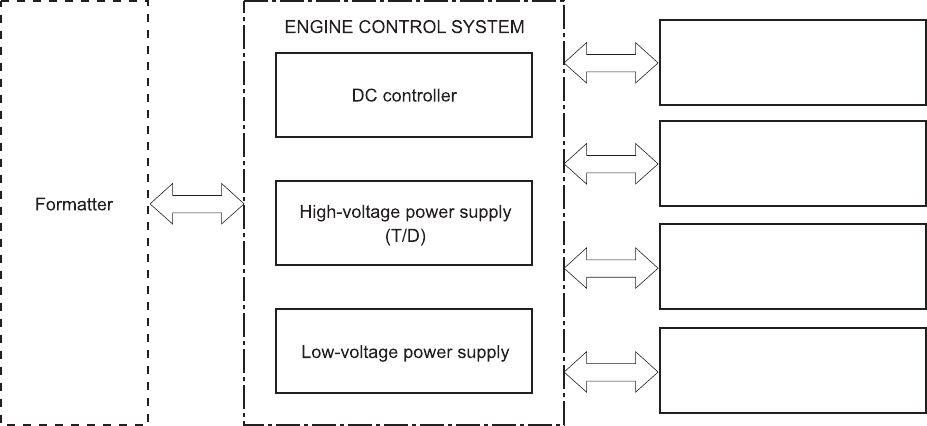
Engine control system
The engine-control system receives commands from the formatter and interacts with the other main
systems to coordinate all product functions. The engine-control system consists of the following
components:
●DC controller
●High-voltage power supply
●Low-voltage power supply
Figure 1-2 Engine control system
Laser/scanner system
Image-formation system
Media-feed system
Option
4 Chapter 1 Theory of operation ENWW
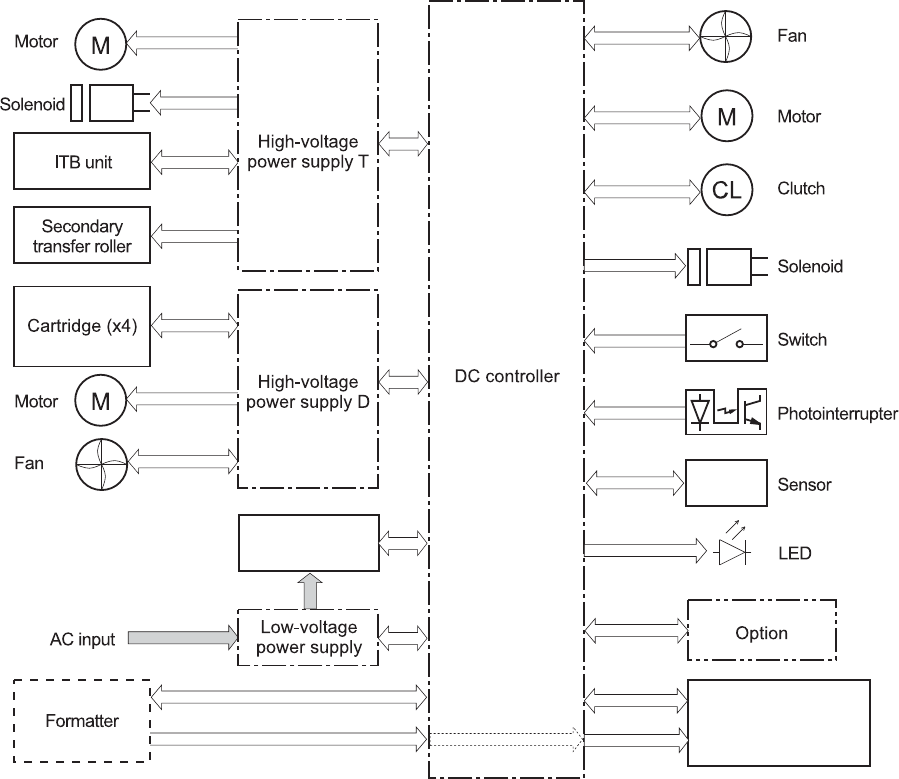
DC controller
The DC controller controls the operational sequence of the printer.
Figure 1-3 DC controller block diagram
Fuser
Laser/scanner
ENWW Engine control system 5

Solenoids
Table 1-2 Solenoids
Component abbreviation Component name
SL1 Primary transfer roller disengagement solenoid
SL2 Duplex reverse solenoid (HP LaserJet Enterprise 500 color M551dn and HP LaserJet Enterprise
500 color M551xh only)
SL3 Multipurpose-tray pickup solenoid
SL4 Cassette pickup solenoid
Clutches
Table 1-3 Clutches
Component abbreviation Component name
CL1 Duplex re-pickup clutch (HP LaserJet Enterprise 500 color M551dn and HP LaserJet Enterprise
500 color M551xh only)
Switches
Table 1-4 Switches
Component abbreviation Component name
SW1, SW2 5V interlock switch
SW3 24V interlock switch
SW4 Power switch
Test print switch
6 Chapter 1 Theory of operation ENWW

Sensors
Table 1-5 Sensors
Component abbreviation Component name
SR1 Drum home position sensor 1
SR2 Drum home position sensor 2
SR3 Drum home position sensor 3
SR5 Fuser output sensor
SR6 Output bin full sensor
SR7 Fuser pressure release sensor
SR8 Registration sensor
SR9 Fuser pressure release sensor
SR11 Developer alienation sensor
SR13 Tray 2 cassette sensor
SR14 Fuser loop 1 sensor
SR15 Fuser loop 2 sensor
SR17 ITB alienation sensor
SR20 Tray 2 paper sensor
SR21 Tray 1 paper sensor
SR22 Duplexer refeed sensor (HP LaserJet Enterprise 500 color M551dn and HP LaserJet Enterprise
500 color M551xh only)
OHT sensor (in)
OHT sensor (out)
RD sensor (front)
RD sensor (rear)
Environmental sensor (temperature and humidity)
Yellow toner-level sensor
Magenta toner-level sensor
Cyan toner-level sensor
Black toner-level sensor
Toner collection-box-full sensor
Motors and fans
ENWW Engine control system 7

The product has 11 motors and three fan motors. The motors drive the components in the paper-feed
and image-formation systems. The fan motors cool the product's inside.
Table 1-6 Motors
Abbreviation Name Purpose Type Failure detection
M2 Fuser motor Drives the Fuser roller,
the delivery roller, and
the Fuser pressure
roller
DC motor Yes
M3 Drum motor 1 Drives the
photosensitive drum
(yellow/magenta),
developing unit
(yellow), and primary
charging roller
(yellow/magenta)
DC motor Yes
M4 Drum motor 2 Drives the
photosensitive drum
(cyan), developing unit
(magenta/cyan), and
primary charging roller
(cyan)
DC motor Yes
M5 Drum motor 3 Drives the
photosensitive drum
(black), developing unit
(black), and ITB drive
roller, and secondary
transfer roller
DC motor Yes
M7 Lifter motor Drives the lifter for the
cassette
Stepping motor Yes
M8 Cyan/black scanner
motor
Drives the scanner
mirror in the cyan/
black laser scanner
DC motor Yes
M9 Yellow/magenta
scanner motor
Drives the scanner
mirror in the yellow/
magenta laser scanner
DC motor Yes
M10 Developing
disengagement motor
Drives the developing
unit disengagement
Stepping motor No
M11 Duplex reverse motor
(HP LaserJet Enterprise
500 color M551dn
and HP LaserJet
Enterprise 500 color
M551xh only)
Drives the duplex
reverse roller and
duplex feed roller
Stepping motor No
8 Chapter 1 Theory of operation ENWW

Table 1-6 Motors (continued)
Abbreviation Name Purpose Type Failure detection
M12 Residual toner-feed
motor
Drives the residual
toner feed screw
DC motor Yes
M13 Pickup motor Drives the cassette
pickup roller, MP tray
pickup roller, feed
roller, registration
roller, and re-pickup
roller
Stepping motor No
Table 1-7 Fans
Abbreviation Name Cooling area Type Speed
FM1 Power supply fan Around the power
supply unit
Intake Full/half
FM2 Cartridge fan Around the cartridges Intake Full/half
FM3 Delivery fan Around the delivery
unit
Intake Full/half
ENWW Engine control system 9
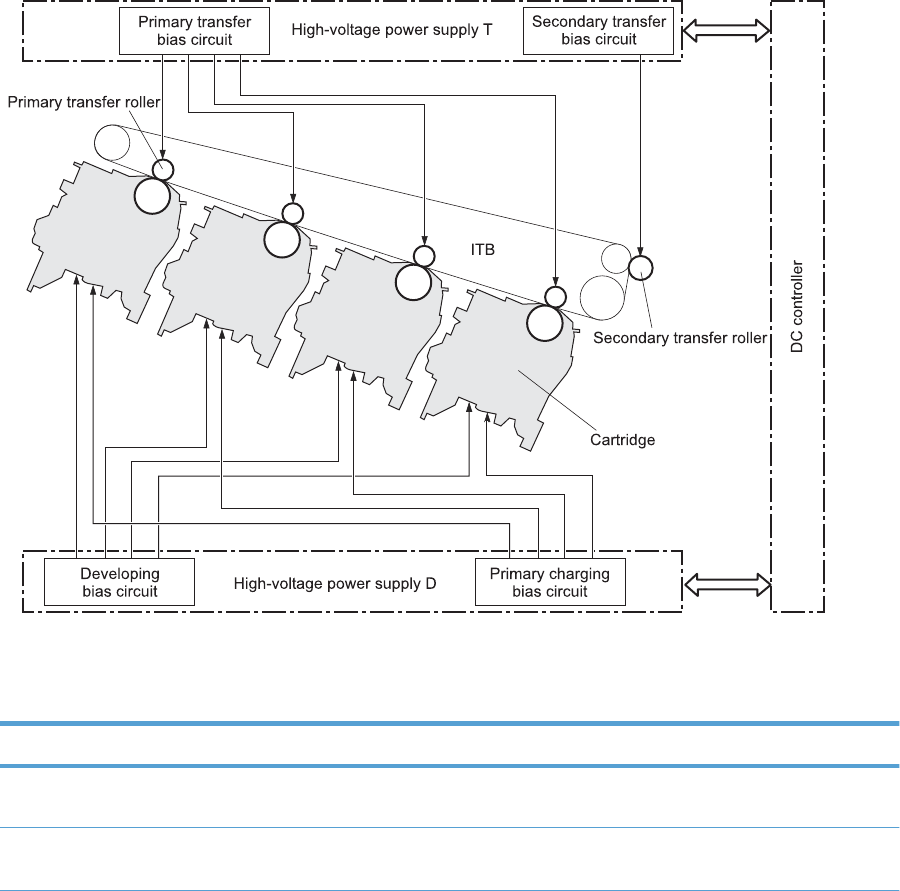
High voltage power supply
The high-voltage power supply delivers the high-voltage biases to the following components used to
transfer toner during the image-formation process:
●Primary-charging roller (in the cartridge)
●Developing roller (in the cartridge)
●Primary-transfer roller
●Secondary-transfer roller
Figure 1-4 High voltage power supply circuits
Y
M
C
K
The high voltage power supply contains several separate circuits.
Table 1-8 High voltage power supply circuits
Circuit Description
Primary-charging-bias generation DC negative bias is applied to the surface of the photosensitive drum to prepare it
for image formation.
Developing-bias generation DC negative bias adheres the toner to each photosensitive drum during the image-
formation process.
10 Chapter 1 Theory of operation ENWW

Table 1-8 High voltage power supply circuits (continued)
Circuit Description
Primary-transfer-bias generation DC positive bias transfers the latent toner image from each photosensitive drum
onto the ITB.
Secondary-transfer-bias generation Two DC biases, one positive and one negative, transfer the toner from the ITB onto
the paper.
ENWW Engine control system 11
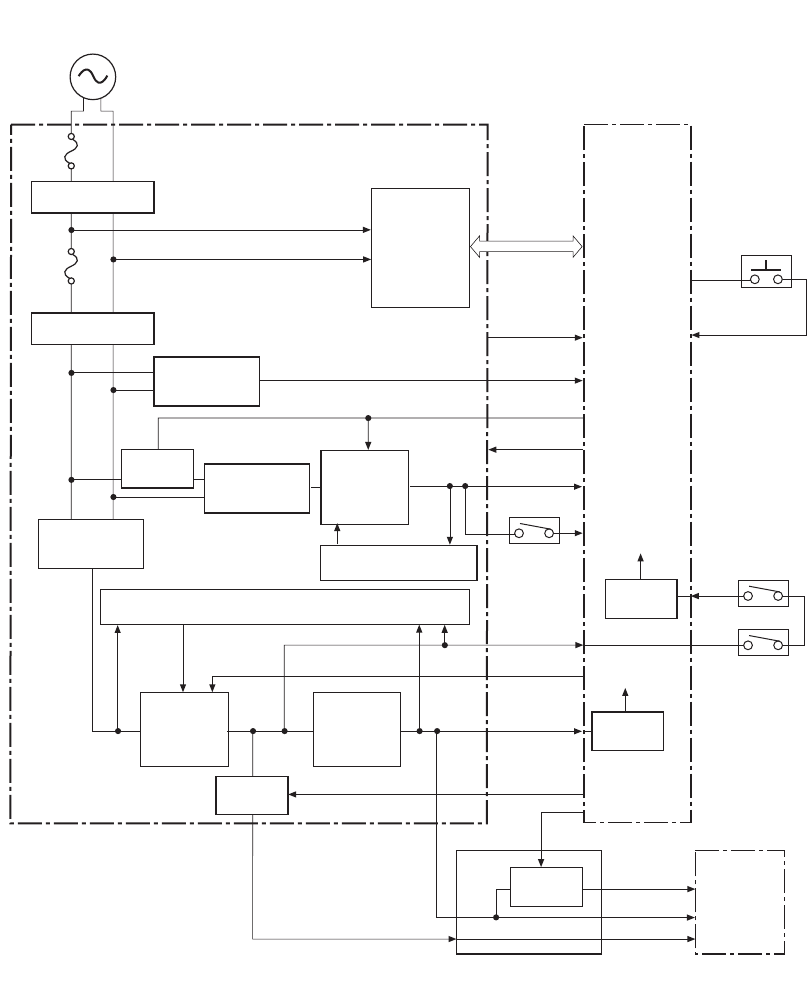
Low voltage power supply
The low-voltage power-supply circuit converts the AC power from the wall receptacle into the DC
voltage that the product components use. The product has two low-voltage power-supplies for 110 Volt
or 220 Volt input.
Figure 1-5 Low voltage power-supply circuit
+3.3VA
Protection circuit
24VRMT
Low-voltage power supply
AC input
Noise filter
Fuse
DC controller
Fixing control
circuit
Rectifying
circuit
+24V
generation
circuit
+24VA
+5VA SW2
+5VC SW1
+24VB
SW3
Protection circuit
/ZEROX
PSTYP100
+3.3VC
Rectifying
circuit
+5V
generation
circuit
+3.3V
generation
circuit
Fuse
PWRSWON
VC5VOFF
Formatter
ICB
+5VD
+5VB
+3.3VB
+3.3VA
+5VB
VC3VOFF
PWRSAVE
Noise filter
+24VB
Switch
Switch
Switch
Switch
Switch
Zero crossing
circuit
Power switch
The low voltage power supply converts the AC power into three DC voltages, which it then subdivides,
as described in the following table.
12 Chapter 1 Theory of operation ENWW

Table 1-9 Converted DC voltages
Main DC voltage Sub-voltage Behavior Notes
+24 V +24VA Stopped during Sleep
(powersave) mode
The 24V POWER SUPPLY
(24VRMT) signal controls
supply or interruption of
+24VA.
+24VB Interrupted when the front
door or right door open
Stopped during Sleep
(powersave) mode
+5 V +5VA Supplied during Sleep
(powersave) mode 2 and
Sleep (powersave) mode 3
The VOLTAGE
CONVERSION (PWRSAVE)
signal converts output voltage
of +5VA into 3.2V.
+5VB Supplied during Sleep
(powersave) mode 2
Stopped during Sleep
(powersave) mode 3
Supplies power to the
formatter
The 5V POWER SUPPLY
(VC5VOFF) signal sontrols
supply or interruption of
+5VB.
The VOLTAGE
CONVERSION (PWRSAVE)
signal converts output voltage
of +5VB into 3.2V
+5VC Supplied during Sleep
(powersave) mode 2 and
Sleep (powersave) mode 3
Interrupted when the front
door or right door open
the VOLTAGE CONVERSION
(PWRSAVE) signal converts
output voltage of +5VC into
3.2V.
+5VD Stopped during Sleep
(powersave) mode
Interrupted when the front
door or right door open
+3.3 V 3.3VA Constantly supplied
3.3VB Stopped only when the power
is off
Supplies power to the
formatter
The 3V POWER SUPPLY
(VC3VOFF) signal controls
supply or interruption of
+3.3VB.
3.3VC Stopped during Sleep
(powersave) mode 2 and
Sleep (powersave) mode 3
ENWW Engine control system 13
Overcurrent/overvoltage protection
The low-voltage power supply stops supplying the DC voltage to the product components whenever it
detects excessive current or abnormal voltage from the power source.
The low-voltage power supply has a protective circuit against overcurrent and overvoltage to prevent
failures in the power supply circuit.
If the low-voltage power supply is not supplying DC voltage, the protective function might be running. In
this case, turn the power off and unplug the power cord. Do not plug in and turn on the product until
the cause is found and corrected.
In addition, the low-voltage power supply has two fuses (FU100/FU101) to protect against overcurrent.
If overcurrent flows into the AC line, the fuse blows to stop AC power.
Safety
For safety, the product interrupts the power supply of +24VB by turning off the interlock switch (SW3)
and +5VC by turning off the interlock switch (SW1/SW2).
The AC power is supplied to the product even when the power switch is turned off because the product
uses the soft switch for turning on/off the product. Always unplug the power cord before disassembling
the product.
Sleep (powersave) mode
Sleep mode conserves energy by stopping the power to several components when the product is idle.
The product has three sleep modes depending on the power consumption. The DC controller supplies or
converts each power supply according to the sleep mode.
●Sleep mode 1: Stops +24VA and +24VB
●Sleep mode 2: Stops +24VA, +24VB and +5VD. Converts +5VA, +5VB and +5VC into +3.2V.
●Sleep mode 3: Stops +24VA, +24VB, +5VB and +5VD. Converts +5VA and +5VC into +3.2V.
Power supply voltage detection
The product detects the power supply voltage that is connected to the product. The DC controller
monitors the POWER SUPPLY VOLTAGE (PSTYP100) signal and detects power supply voltage, whether
100 V or 200 V, to control the fusing operation.
Low voltage power supply failure
The DC controller determines a low-voltage power supply failure and notifies the formatter when the
low-voltage power supply does not supply +24 V.
14 Chapter 1 Theory of operation ENWW
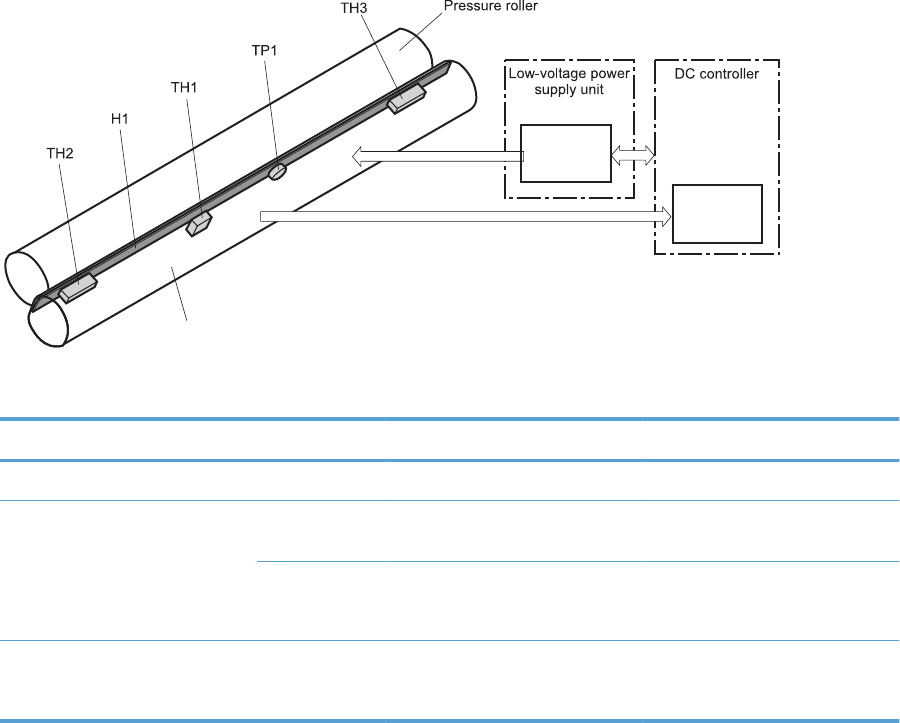
Power off condition
The DC controller turns off the product with the 24V POWER SUPPLY (24VRMT) signal, 5V POWER
SUPPLY (VC5VOFF) signal, 3V POWER SUPPLY (VC3VOFF) signal, and VOLTAGE CONVERSION
(PWRSAVE) signal.
+5VA and +5VC, are converted into +3.2V, and +3.3VA and supplied during the power off condition.
Fuser control
The fuser-control circuit controls the fuser temperature. The product uses an on-demand fusing method.
Figure 1-6 Fuser components
Fuser control
circuit
Fuser heater
safety circuit
Fuser sleeve
FUSER TEMPERATURE signal
FUSER HEATING
CONTROL signal
Table 1-10 Fuser components
Type of component Abbreviation Name Function
Heaters H1 Fuser heater Heats the fuser sleeve.
Thermistors
(Contact type)
TH1 Main thermistor Each thermistor detects the center
temperature of the fuser sleeve.
TH2
TH3
Sub thermistor Each thermistor detects the side
temperature of the fuser heater.
Thermoswitches
(Non-contact type)
TP1 For the fuser heater Controls the fuser-roller main
heater
ENWW Engine control system 15
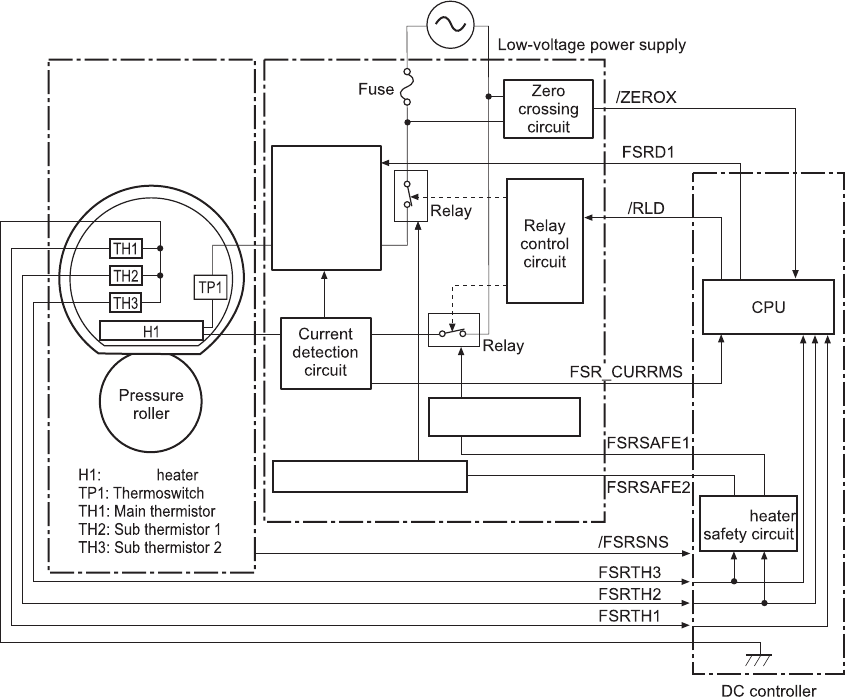
Fuser temperature control circuit
The temperatures of the two rollers in the fuser fluctuate according to the stage of the printing process.
The DC controller sends commands to the fuser-control circuit to adjust temperatures.
Figure 1-7 Fuser temperature control circuit
Fuser
Fuser sleeve unit
Fuser Fuser heater safety circuit
Fuser control circuit Fuser
Fuser heater safety
circuit
Fuser heater
control circuit
16 Chapter 1 Theory of operation ENWW

Fuser over temperature protection
To protect the fuser from excessive temperatures, the product has four layers of protective functions. If
one function fails, the subsequent functions should detect the problem.
●DC controller: When a thermistor or thermopile detects a temperature above a certain threshold,
the DC controller interrupts power to the specific heater. Following are the thresholds for each
component:
◦TH1: 230° C (446° F) or higher
◦TH2: 285° C (545° F) or higher
◦TH3: 285° C (545° F) or higher
●Fuser heater safety circuit: If the DC controller fails to interrupt the power to the heaters at the
prescribed temperatures, the fuser heater safety circuit deactivates the triac-drive circuit and
releases the relay, which causes the heaters to stop at slightly higher temperature thresholds.
◦TH2: 290° C (554° F) or higher
◦TH3: 290° C (554° F) or higher
●Current detection protection circuit: If current flowing in each triac exceeds a specific value,
the current detection protection circuit deactivates the triac-drive circuit and releases the relay,
which interrupts the power supply to the heaters.
●Thermoswitch: If the temperature in the heaters is abnormally high, and the temperature in the
thermoswitches exceeds a specified value, the contact to the thermoswitch breaks. Breaking this
contact deactivates the triac-drive circuit and releases the relay, which interrupts the power supply
to the heaters. Following are the thresholds for each thermoswitch:
◦TP1: 270° C (518° F) or higher
NOTE: When the thermoswitches reach this temperature, the temperature on the fuser rollers is about
320° C (608° F).
ENWW Engine control system 17
Fuser failure detection
When the DC controller detects any of the following conditions, it determines that the fuser has failed.
The DC controller then interrupts power to the fuser heaters and notifies the formatter.
●Abnormally high temperatures: Temperatures are too high for any of the following
components, at any time:
◦TH1: 230° C (446° F) or higher
◦TH2: 285° C (545° F) or higher
◦TH3: 285° C (545° F) or higher
●Abnormally low temperatures: Temperatures are too low at any of the following
components after the product has initialized.
◦TH1: 120° C (248° F) or lower
◦TP2 or TP3: 100° C (212° F) or lower
Or, the temperature drops in either of the thermopiles (TP1 and TP2) by 30° C (86° F) or more
within a specified length of time.
●Abnormal temperature rise: The DC controller determines an abnormal temperature rise if
the detected temperature of TH1 does not rise 2° C within a specified time period after the fuser
motor is turned on, or if the detected temperature of the thermistors does not rise to a specified
temperature for a specified time after the fuser motor is turned on.
●Thermistor open: The DC controller determines a thermistor open if:
◦The detected temperature of TH1 is kept at 12° C (53° F) or lower for a specified time after
the fuser motor is turned on.
◦The detected temperature of TH2 is kept at 4° C (39° F) or lower for a specified time.
◦The detected temperature of TH3 is kept at 4° C (39° F) or lower for a specified time.
●Drive-circuit failure: The DC controller determines a drive-circuit failure:
◦If the detected power supply frequency is out of a specified range when the printer is turned
on or during the standby period
◦If the current detection circuit detects an out of specified current value
●Fuser discrepancy: The DC controller determines a fuser type mismatch when it detects an
unexpected fuser unit presence signal. The product has two fusers for 110 V or 220 V input
power.
18 Chapter 1 Theory of operation ENWW
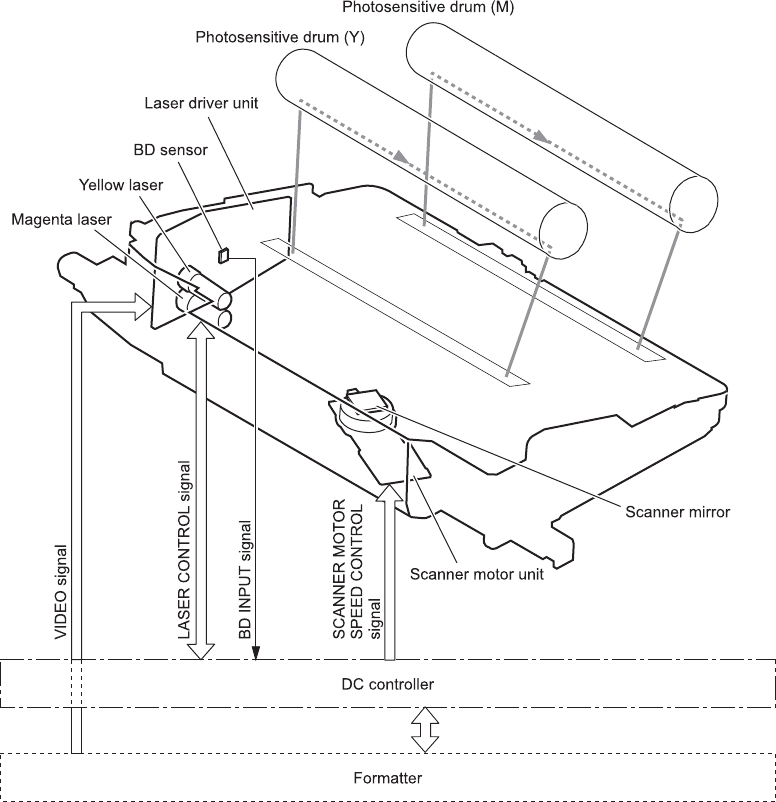
Laser/scanner system
The laser/scanner system forms the latent electrostatic image on the photosensitive drums according to
the VIDEO signals sent from the formatter. The product has two laser/scanners: one for yellow and
magenta and the other for cyan and black.
The formatter sends the DC controller instructions for the image of the page to be printed. The DC
controller signals the lasers to emit light, and the laser beams pass through lenses and onto the scanner
mirror, which rotates at a constant speed. The mirror reflects the beam onto the photosensitive drum in
the pattern necessary for the image, exposing the surface of the drum so it can receive toner.
Figure 1-8 Laser/scanner system
ENWW Laser/scanner system 19
The DC controller determines that a laser/scanner has failed when any of the following conditions
occurs:
●Laser failure: The detected laser intensity does not match a specified value when the product
initializes.
●Beam-detect (BD) failure: The BD interval is outside a specified range during printing.
●Scanner-motor failure: The scanner motor does not reach a specified rotation speed within a
certain time after it begins rotating.
20 Chapter 1 Theory of operation ENWW
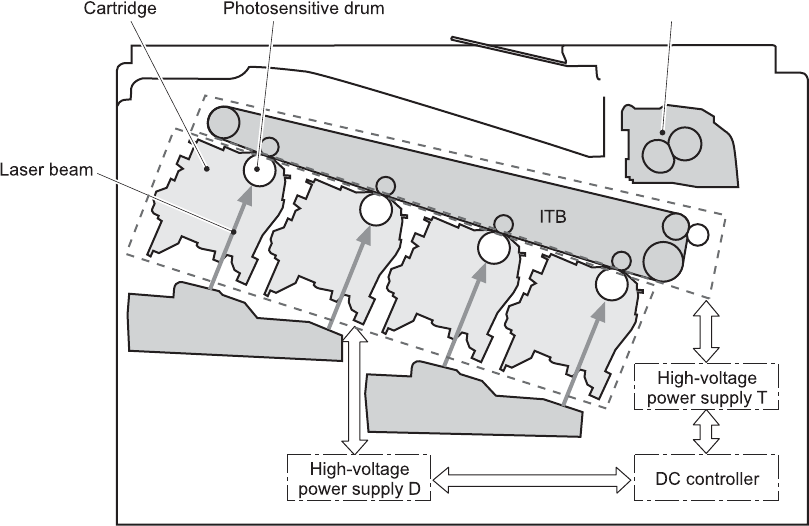
Image formation system
The image-formation system creates the printed image on the paper. The system consists of the laser/
scanners, print cartridges, imaging drums, ITB, and fuser.
Figure 1-9 Image formation system
Laser/scanner
Laser/scanner
Fuser
Y
M
C
K
ENWW Image formation system 21
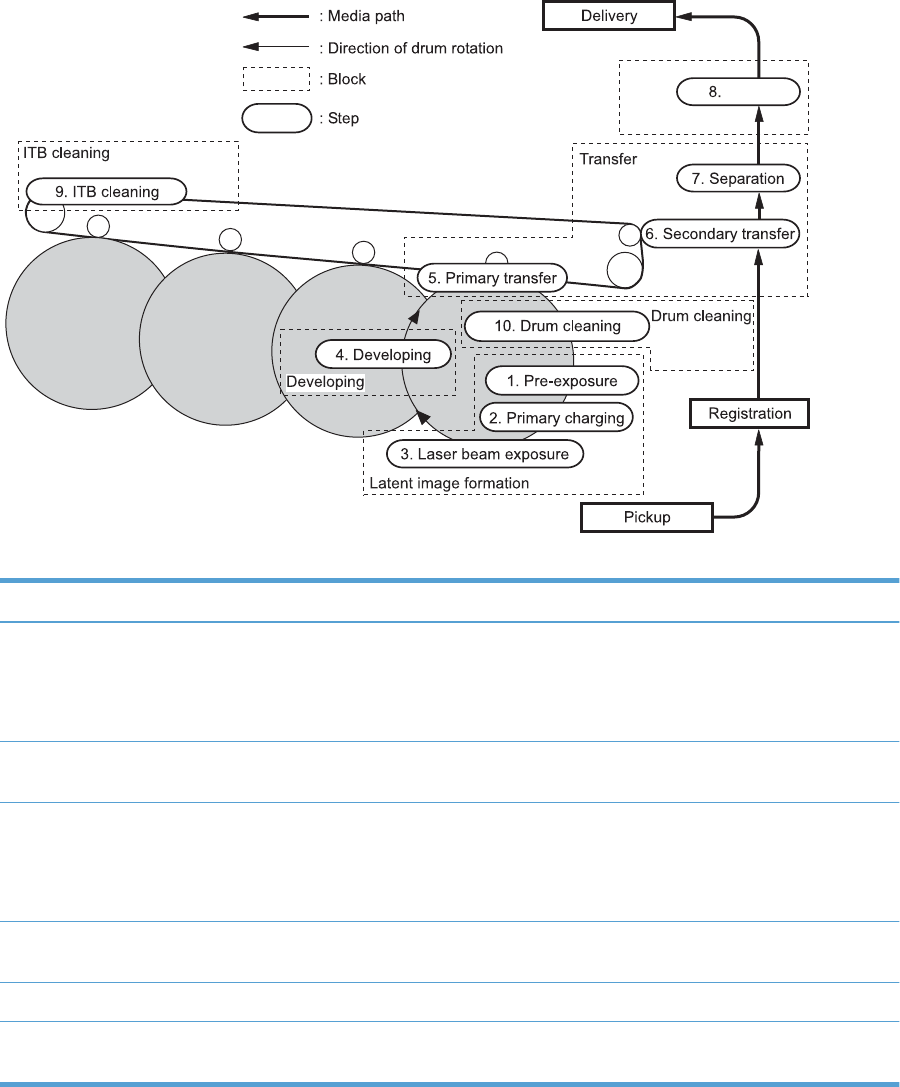
Image formation process
The image-formation system consists of ten steps divided into six functional blocks.
Figure 1-10 Image formation process
Fusing
Fuser
Y
MCK
Table 1-11 Image formation process
Functional block Steps Description
Latent image formation 1. Pre-exposure
2. Primary charging
3. Laser-beam exposure
An invisible latent image forms on the
surface of the photosensitive drums.
Development 4. Development Toner adheres to the electrostatic latent
image on the photosensitive drums.
Transfer 5. Primary transfer
6. Secondary transfer
7. Separation
The toner image transfers to the ITB and
subsequently to the paper.
Fusing 8. Fusing The toner fuses to the paper to make a
permanent image.
ITB cleaning 9. ITB cleaning Residual toner is removed from the ITB.
Drum cleaning 10. Drum cleaning Residual toner is removed from the
photosensitive drums.
22 Chapter 1 Theory of operation ENWW
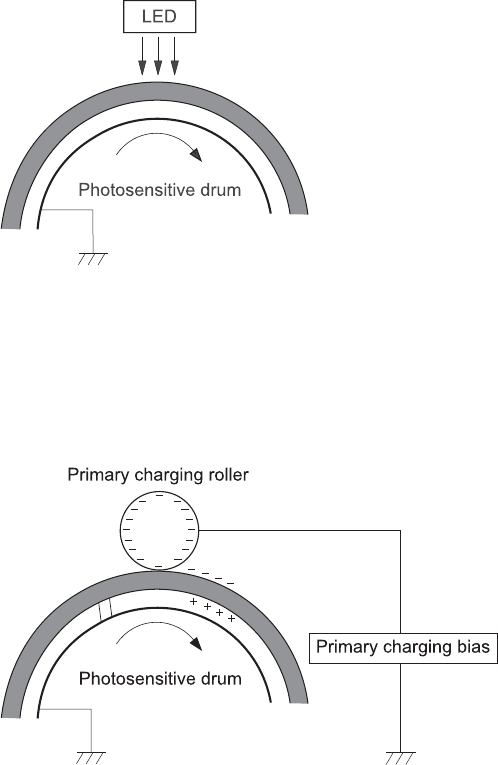
Step 1: Pre-exposure
Light from the pre-exposure LED strikes the surface of the photosensitive drum to remove any residual
electrical charges from the drum surface.
Figure 1-11 Pre-exposure
Step 2: Primary charging
The primary-charging roller contacts the photosensitive drum and charges the drum with negative
potential.
Figure 1-12 Primary charging
ENWW Image formation system 23
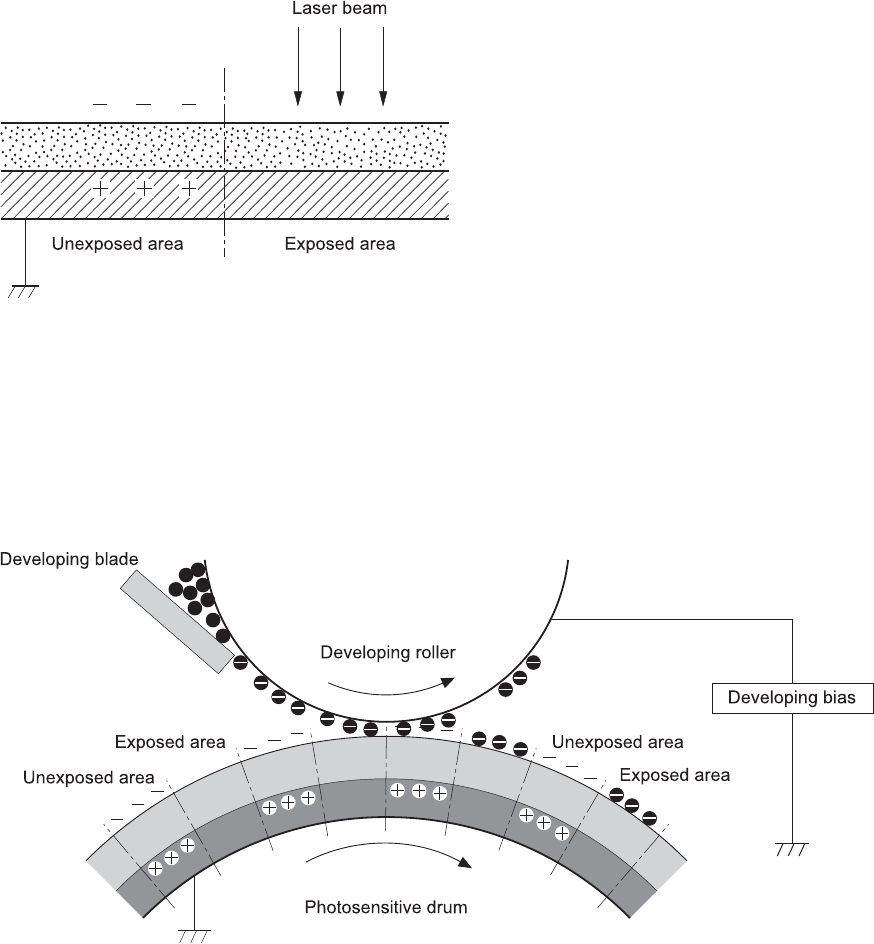
Step 3: Laser-beam exposure
The laser beam strikes the surface of the photosensitive drum in the areas where the image will form.
The negative charge neutralizes in those areas, which are then ready to accept toner.
Figure 1-13 Laser-beam exposure
Step 4: Development
Toner acquires a negative charge as the developing cylinder contacts the developing blade. Because
the negatively charged surface of the photosensitive drums have been neutralized where they have
been struck by the laser beam, the toner adheres to those areas on the drums. The latent image
becomes visible on the surface of each drum.
Figure 1-14 Development
24 Chapter 1 Theory of operation ENWW
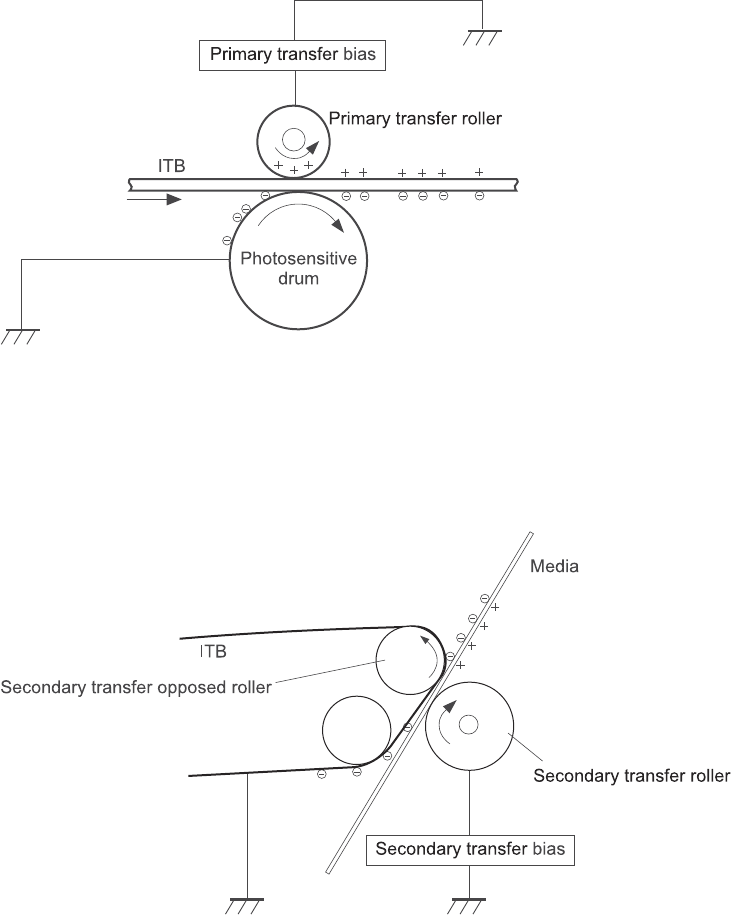
Step 5: Primary transfer
The positively charged primary-transfer rollers contact the ITB, giving the ITB a positive charge. The ITB
attracts the negatively charged toner from the surface of each photosensitive drum, and the complete
toner image transfers onto the ITB, beginning with yellow, followed by magenta, cyan, and black.
Figure 1-15 Primary transfer
Step 6: Secondary transfer
The paper acquires a positive charge from the secondary-transfer roller, and so it attracts the negatively
charged toner from the surface of the ITB. The complete toner image transfers onto the paper.
Figure 1-16 Secondary transfer
ENWW Image formation system 25
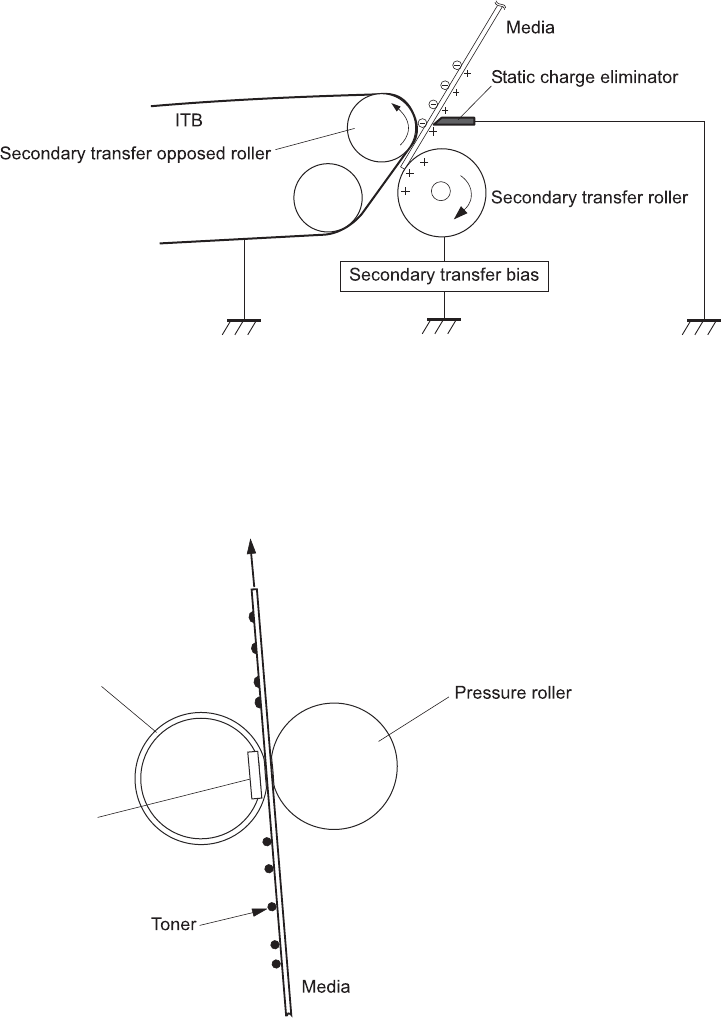
Step 7: Separation
The stiffness of the paper causes it to separate from the ITB as the ITB bends. The static-charge
eliminator removes excess charge from the paper to ensure that the toner fuses correctly.
Figure 1-17 Separation
Step 8: Fusing
To create the permanent image, the paper passes through heated, pressurized rollers to melt the toner
onto the page.
Figure 1-18 Fusing
Fuser sleeve
Fuser heater
26 Chapter 1 Theory of operation ENWW
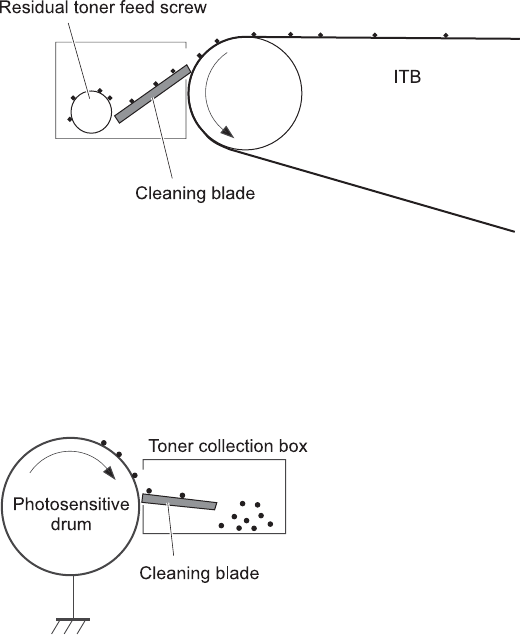
Step 9: ITB cleaning
The cleaning blade scrapes the residual toner off the surface of the ITB. The residual toner feed screw
deposits residual toner in the toner collection box.
Figure 1-19 ITB cleaning
Step 10: Drum cleaning
Inside the print cartridge, the cleaning blade removes residual toner from the surface of the drum to
prepare it for the next image. The waste toner falls into the hopper in the print cartridge.
Figure 1-20 Drum cleaning
Print cartridge
The product has four print cartridges, one for each color. Each print cartridge contains a reservoir of
toner and the following components:
●Photosensitive drum
●Developing roller
●Primary-charging roller
ENWW Image formation system 27
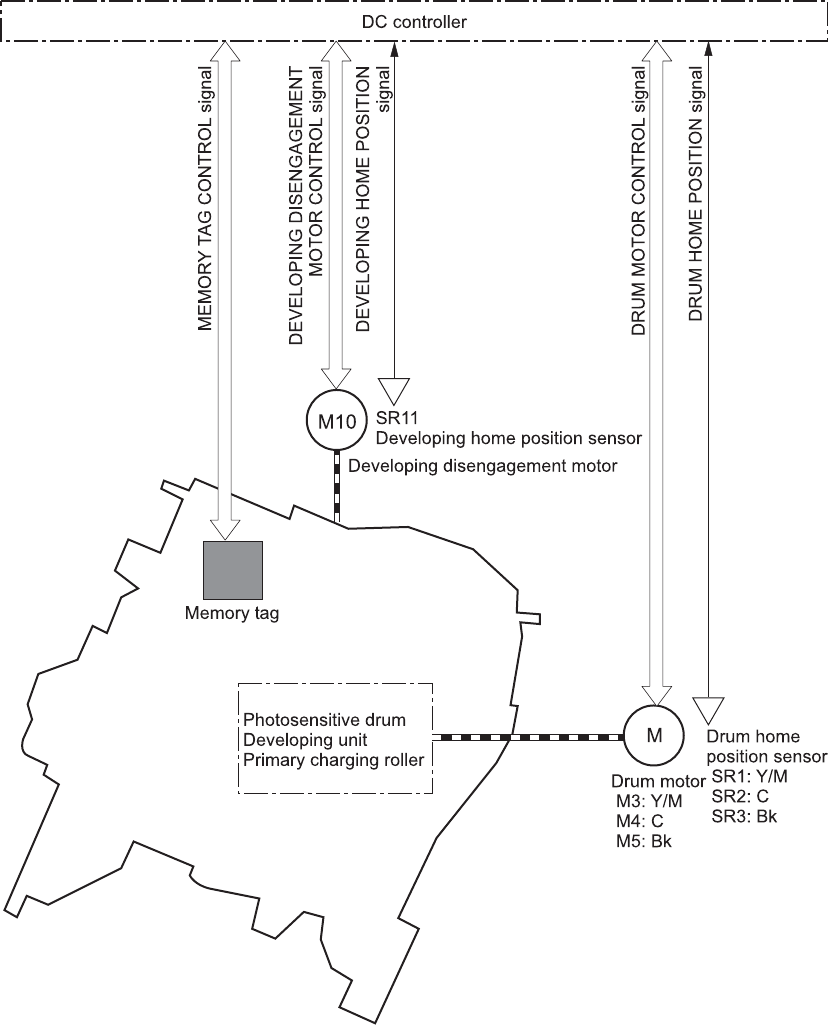
The DC controller rotates the drum motor to drive the photosensitive drum, developing roller, and the
primary-charging roller.
Figure 1-21 Print-cartridge system
The DC controller rotates the drum motor to drive the photosensitive drum, developing unit, and primary
charging roller.
The memory tag is a non-volatile memory chip that stores information about the usage for the print
cartridge.
28 Chapter 1 Theory of operation ENWW
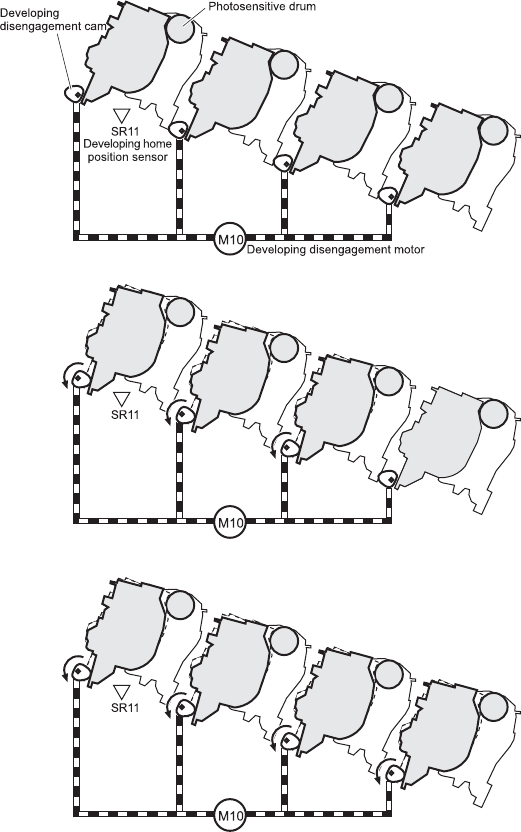
The DC controller notifies the formatter of an error if any of the following conditions exist:
●The memory tag fails to either read to or write from the DC controller
●The RD sensors detect a missing or incorrectly installed print cartridge.
●The accumulated print time reaches a specified time period or the cartridge runs out of toner.
●The toner level in any of the print cartridges drops below a certain level
Developing roller engagement and disengagement
The product can print in full-color mode or in black-only mode. To print in black-only mode, the product
disengages the developing rollers in the cyan, magenta, and yellow print cartridges. This maximizes
the life of the cartridges.
Figure 1-22 Developing-roller engagement and disengagement control
Four developing units engaged
Only the Bk developing unit engaged
Four developing units disengaged
Y
M
C
K
Y
M
C
K
Y
M
C
K
Y
M
C
K
Y
M
C
K
Y
M
C
K
ENWW Image formation system 29
The DC controller rotates the developing disengagement motor and changes the direction of the cam
according to the instructions from the formatter for each print job.
When the product is turned on and at the end of each print job, all four of the developing rollers
disengage from the photosensitive drums. If the next print job is full-color mode, each of the developing
rollers engage. If the next print job is black-only mode, only the black developing roller engages.
If the DC controller does not detect any output from the developing home-position sensor, it determines
that the developing-disengagement motor has failed.
30 Chapter 1 Theory of operation ENWW
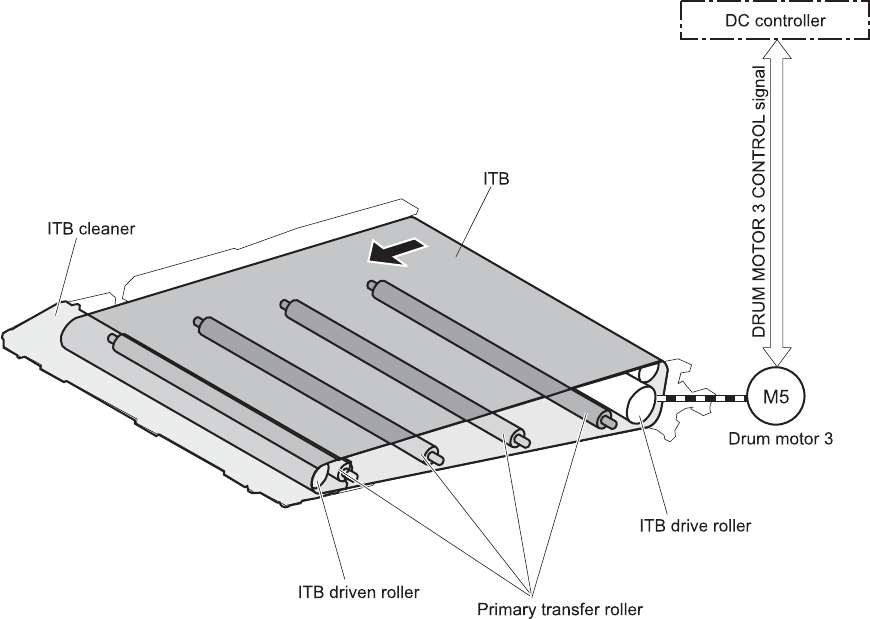
Intermediate transfer belt (ITB) unit
The ITB unit accepts the toner images from the photosensitive drums and transfers the completed image
to the paper. The ITB unit has these main components:
●ITB
●ITB drive roller
●ITB-driven roller
●Primary-transfer rollers
●ITB cleaner
The ITB motor drives the ITB drive roller, which rotates the ITB. The motion of the ITB causes the primary
transfer rollers to rotate. The ITB cleaner cleans the ITB surface.
Figure 1-23 ITB unit
YMCK
ENWW Image formation system 31

Primary-transfer-roller engagement and disengagement
Depending on the requirements of the print job, the primary-transfer rollers engage with the ITB so it
can receive toner from the photosensitive drums.
Table 1-12 Primary-transfer-roller engagement states
Roller state Product state
All rollers disengaged The home position for the ITB unit
32 Chapter 1 Theory of operation ENWW
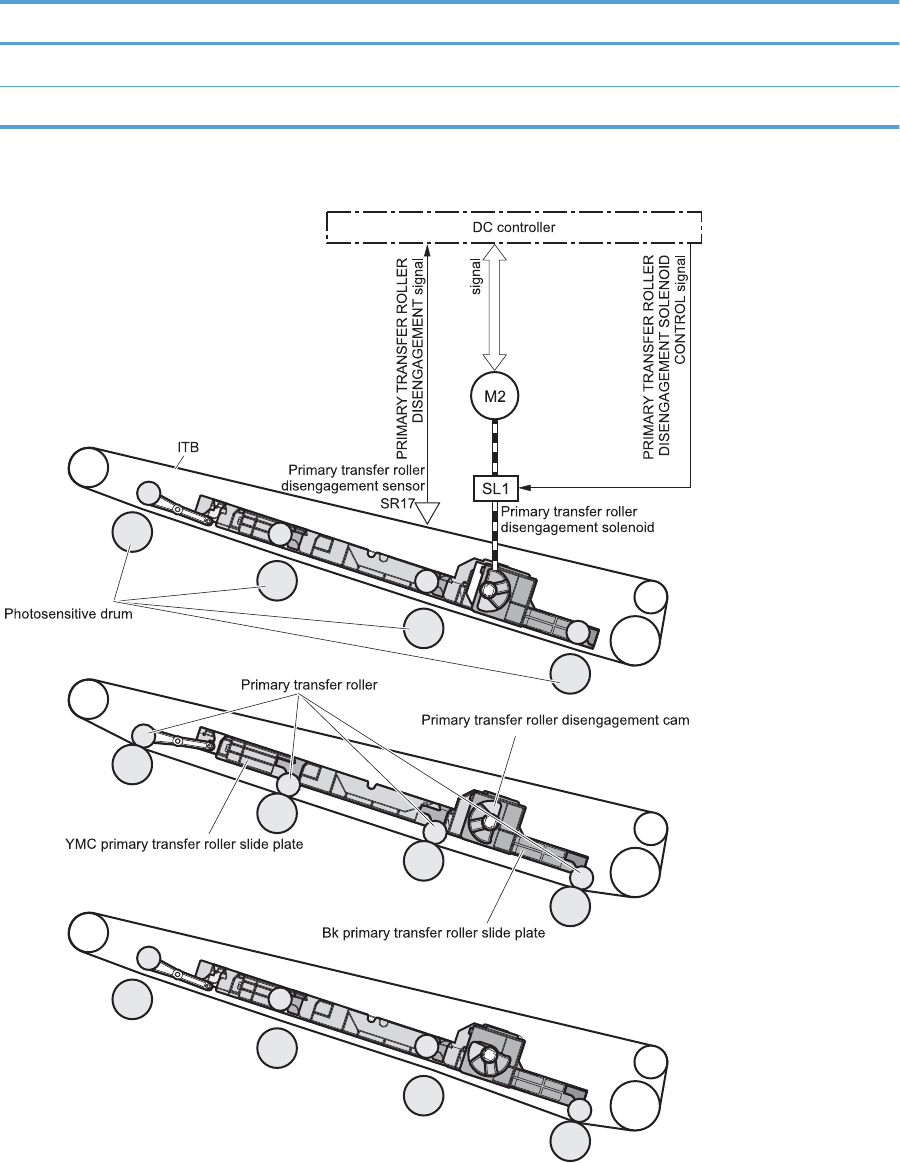
Table 1-12 Primary-transfer-roller engagement states (continued)
Roller state Product state
All rollers engaged The state for a full-color print job
Black roller engaged The state for a black-only print job
Figure 1-24 Three states of primary-transfer-roller engagement and disengagement
Four colors are disengaged
Four colors are engaged
Only black is engaged
Y
M
C
K
Y
M
C
K
Y
M
C
K
Y
M
C
K
Y
M
C
K
Y
M
C
K
Fuser motor
FUSER MOTOR CONTROL
The primary-transfer-roller disengagement motor rotates or reverses to place the primary-transfer-roller
disengagement cam into one of three positions. The cam causes the transfer-roller slide plate to move to
the right or left. This movement causes the primary-transfer rollers to move up to engage the ITB with the
photosensitive drum or down to disengage it.
ENWW Image formation system 33
If the DC controller does not receive the expected signal from the ITB home-position sensor when the
primary-transfer-roller engages or disengages, but the primary-transfer-roller disengagement motor is
rotating, the DC controller determines that the primary-transfer-disengagement mechanism has failed,
and notifies the formatter.
34 Chapter 1 Theory of operation ENWW
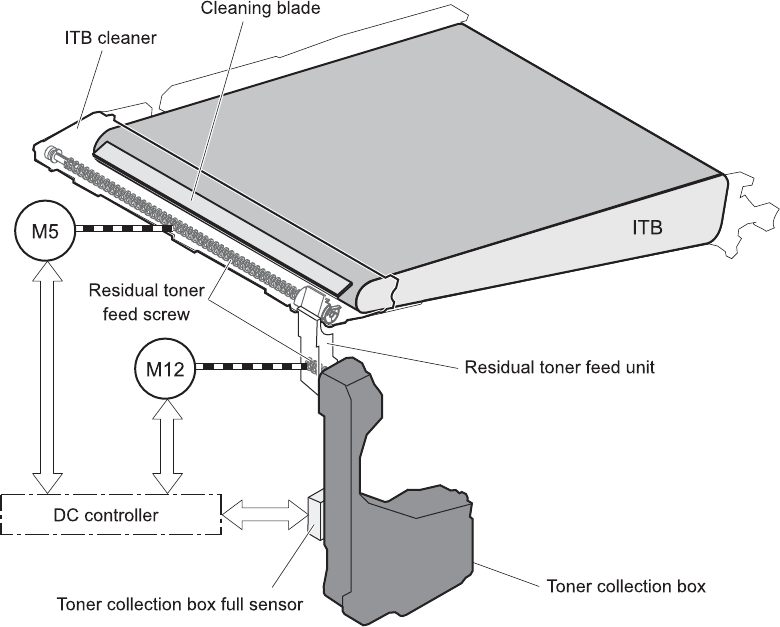
ITB cleaning
The cleaning blade in the ITB cleaner scrapes the residual toner off the ITB surface. The drum motor
(M5) drives the residual toner feed screw. The screw feeds the residual toner to the residual toner feed
unit. The residual toner feed motor (M12) drives the residual toner feed screw. The residual toner feed
screw deposits the residual toner in the toner collection box. The DC control detects whether the toner
collection box is full, using the toner collection-box-full sensor, and then notifies the formatter.
Figure 1-25 ITB cleaning process
ENWW Image formation system 35
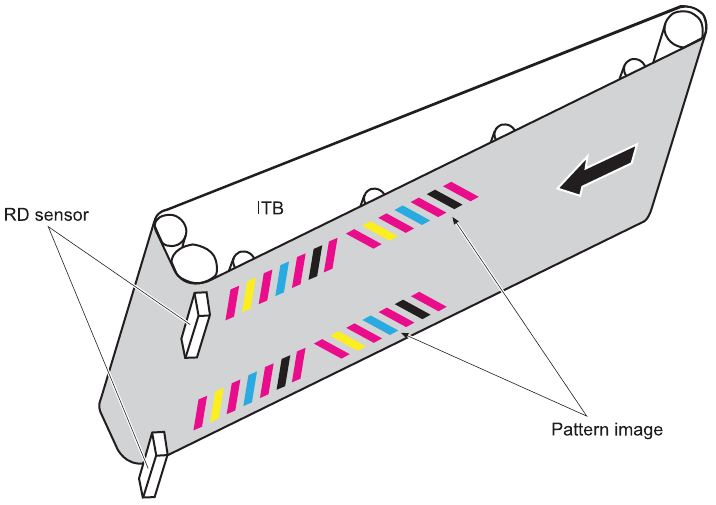
Calibration
The product calibrates itself to maintain excellent print quality. Calibration corrects color-misregistration
and color-density variation.
During calibration, the product places a specific pattern of toner on the surface of the ITB. Sensors at
the end of the ITB read the toner pattern to determine if adjustments are necessary.
Figure 1-26 Toner patterns for calibration
Color misregistration control
Internal variations in the laser/scanners can cause the toner images to become misaligned. The color-
misregistration control corrects the following problems:
●Horizontal scanning start position
●Horizontal scanning magnification
●Vertical scanning start position
The calibration occurs when any of the following occurs:
●A cartridge is replaced
●The temperature of the sub thermistor is 50 C (122 F) or lower when the product recovers from
sleep mode after a specific number of pages print.
●A specified number of pages have printed.
●The formatter sends a command.
●The user requests a calibration by using the control-panel menus.
36 Chapter 1 Theory of operation ENWW

If data from the color-misregistration and image-density sensors is outside a specified range when the
product is turned on or when it is beginning the calibration sequence, the DC controller determines that
these sensors have failed, and it notifies the formatter.
Image stabilization control
Environmental changes or deterioration of the photosensitive drums and toner can cause variations in
the image density. The image-stabilization control reduces these fluctuations. There are three kinds of
image stabilization controls.
Table 1-13 Image-stabilization controls
Image stabilization control Description
Environment change control The environment change control calibrates each high-voltage bias to obtain an
appropriate image according to the environment changes. The DC controller
determines the environment where the product is installed based on the surrounding
temperature and humidity data from the environment sensor, controls, and related
biases. This control occurs under the following circumstances:
●The print cartridge is replaced.
The DC controller notifies the formatter when it encounters a communication error
with the environmental sensor.
Image density control (DMAX) This control corrects variations in image density related to deterioration of the
photosensitive drum or the toner. The DC controller adjusts the high-voltage biases
to correct the problem under the following conditions:
●The sub thermistor detects a temperature that is too low when the product is
turned on.
●After a specific period of the completion of a print operation
●A print cartridge is replaced.
●The ITB is replaced.
●A specified number of pages have printed.
●The formatter sends a command.
●The environment is relatively charged.
Image halftone control (DHALF) The DC controller measures the halftone pattern according to the command from the
formatter. The formatter performs this control to calibrate the halftone, based on the
halftone-density measurements, under the following conditions:
●The formatter sends a command.
●DMAX is completed.
The DC controller determines a RD sensor failure and notifies the formatter if it detects an out-of-
specified-data value from the RD sensor when the product is turned on or when the color misregistration
control starts.
ENWW Image formation system 37
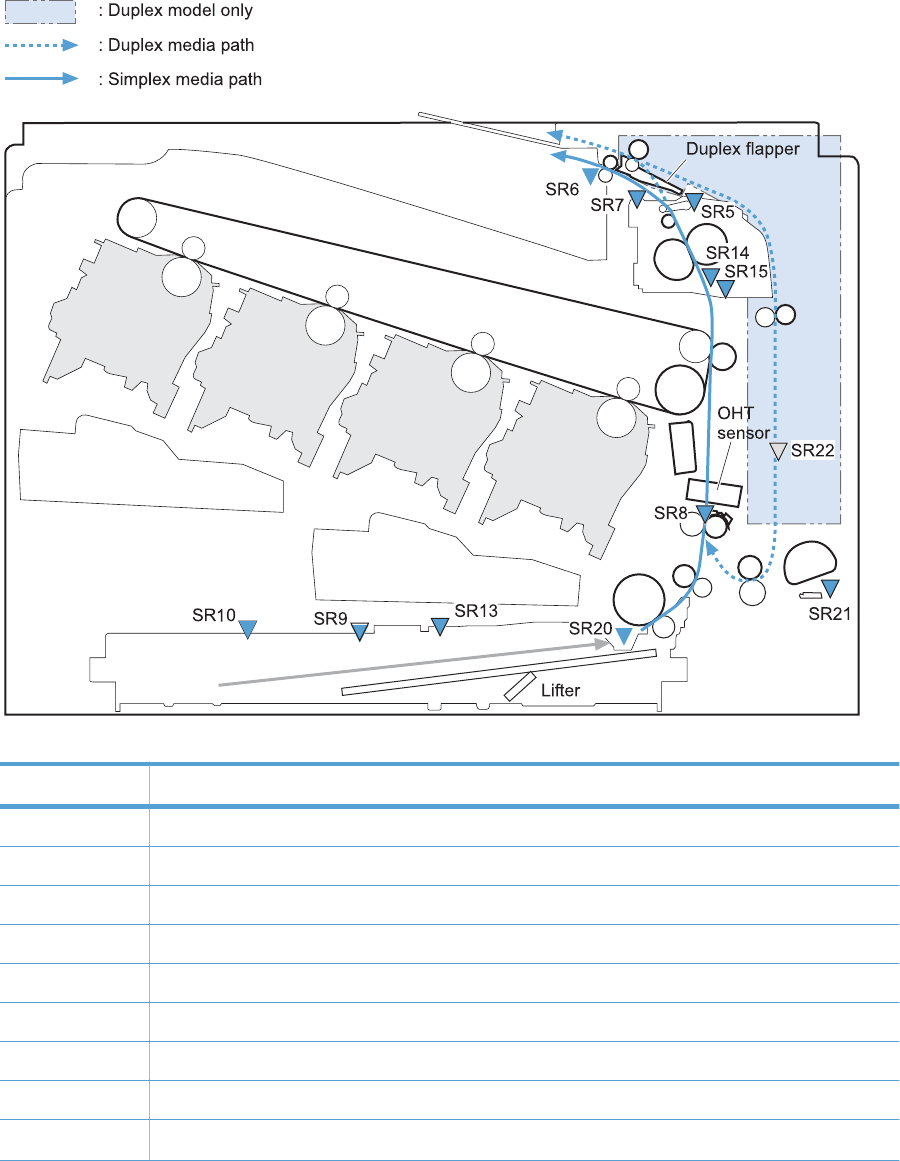
Pickup, feed, and delivery system
The pickup, feed, and delivery system uses a series of rollers to move the paper through the product.
Figure 1-27 Switches and sensors for the pickup, feed, and delivery system (1 of 2)
Y
M
C
K
Table 1-14 Switches and sensors for the pickup, feed, and delivery system (1 of 2)
Abbreviation Component
SR5 Fuser output
SR6 Output bin full
SR7 Fuser pressure release
SR8 Registration
SR9 Tray 2 cassette lifter
SR13 Tray 2 cassette sensor
SR14 Fuser loop 1
SR15 Fuser loop 2
SR20 Tray 2 paper
38 Chapter 1 Theory of operation ENWW
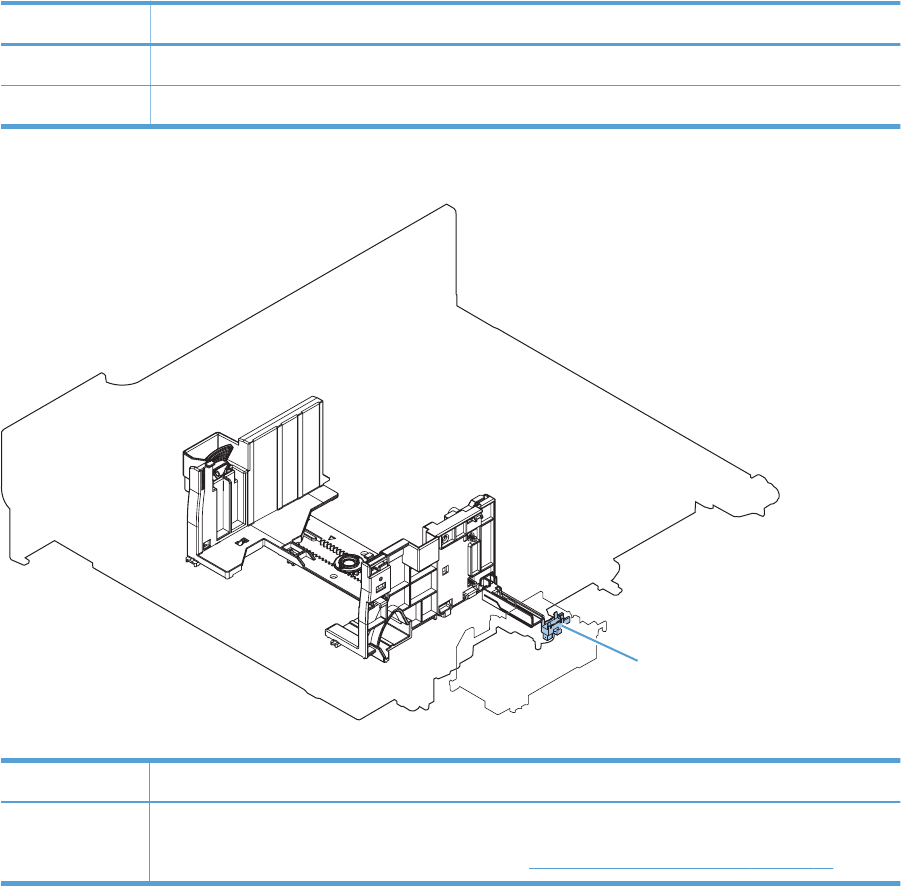
Table 1-14 Switches and sensors for the pickup, feed, and delivery system (1 of 2) (continued)
Abbreviation Component
SR21 Tray 1 paper
SR22 Duplexer refeed (duplex models only)
Figure 1-28 Switches and sensors for the pickup, feed, and delivery system (2 of 2)
SR10
Table 1-15 Switches and sensors for the pickup, feed, and delivery system (2 of 2)
Abbreviation Component
SR10 Paper Width (Tray 2)
NOTE: For more information about this sensor, see Cassette media width detection on page 47.
ENWW Pickup, feed, and delivery system 39
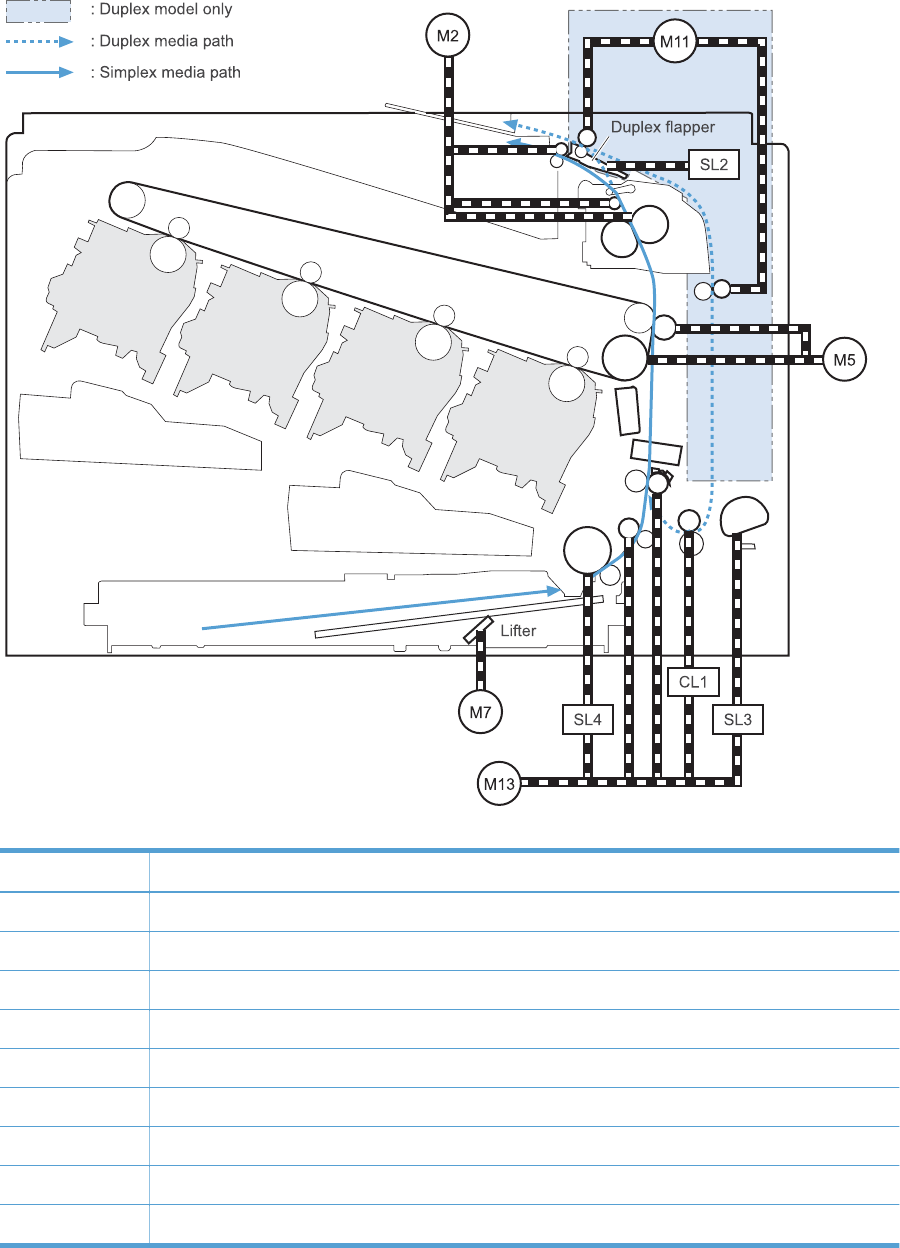
Figure 1-29 Motors and solenoids for the pickup, feed, and delivery system
Y
M
C
K
Table 1-16 Motors and solenoids for the pickup, feed, and delivery system
Abbreviation Component
M2 Fuser motor
M5 Drum motor 3
M7 Lifter motor
M11 Duplex reverse motor (duplex models only)
M13 Pickup motor
CL1 Duplex re-pickup clutch (duplex models only)
SL2 Duplex reverse solenoid (duplex models only)
SL3 Multipurpose tray pickup solenoid
SL4 Cassette pickup solenoid
40 Chapter 1 Theory of operation ENWW
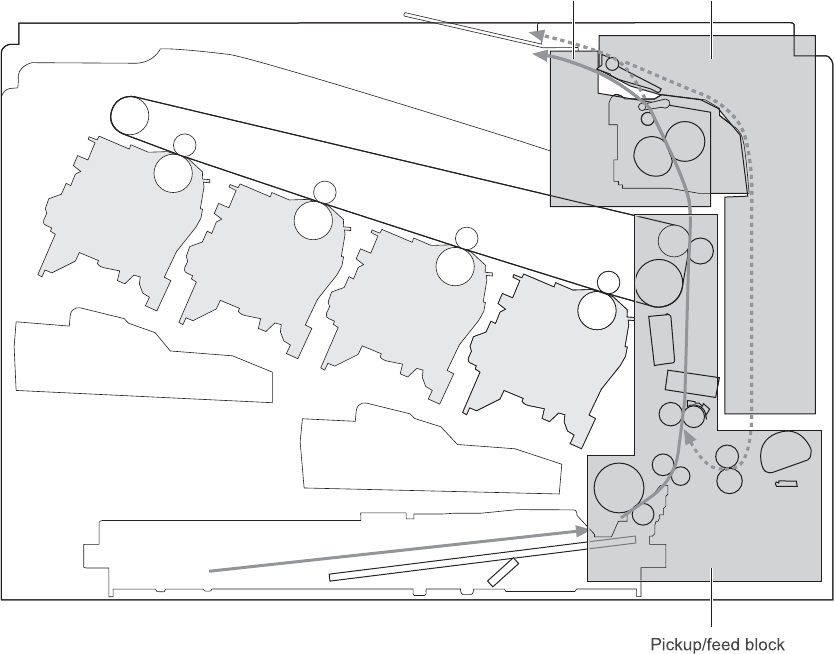
Figure 1-30 Three main units of the pickup, feed, and delivery system
Fuser/delivery block Duplex block
Y
M
C
K
ENWW Pickup, feed, and delivery system 41
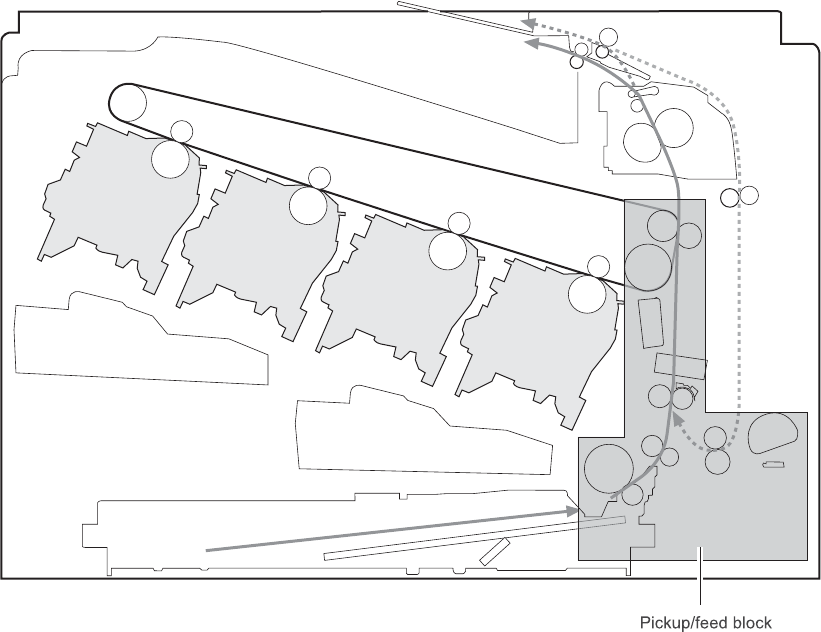
Pickup-and-feed unit
The pickup-and-feed unit picks an individual sheet of paper from the multipurpose tray or the cassettes,
carries it through the secondary-transfer unit, and feeds it into the fuser.
Figure 1-31 Pick feed mechanism
Y
M
C
K
42 Chapter 1 Theory of operation ENWW
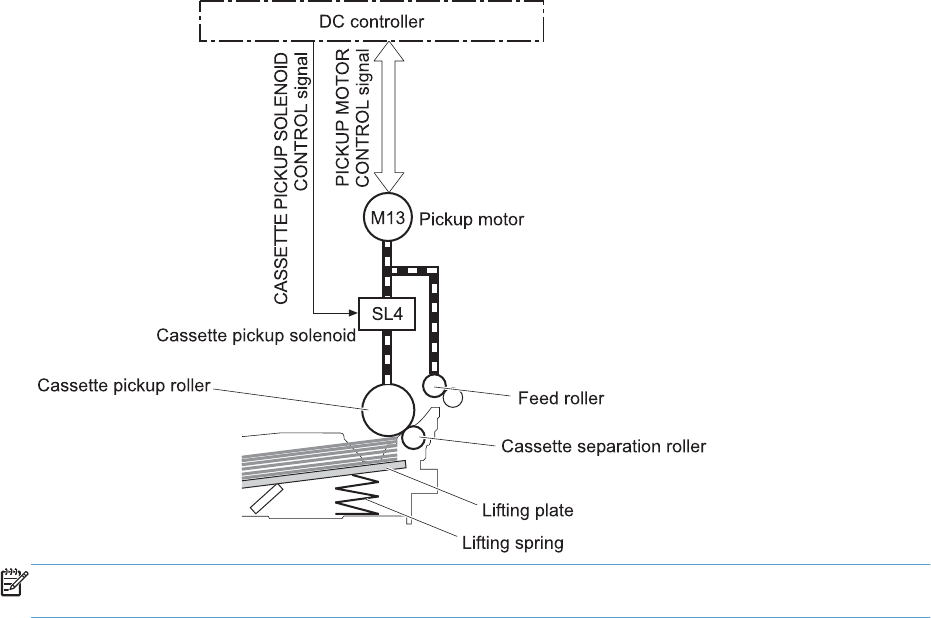
Cassette pickup
The sequence of steps for the cassette-tray pickup operation is the following:
1. When the product starts or the tray closes, the lifting mechanism lifts the paper stack so it is ready.
2. After receiving a print command from the formatter, the DC controller rotates the pickup motor,
which causes the cassette pickup roller, cassette feed roller, and cassette separation roller to
rotate.
3. The DC controller drives the cassette pickup solenoid, which rotates the cassette pickup cam. As
the pickup cam rotates, the pickup arm moves down, and the cassette pickup roller touches the
surface of the paper stack. The cassette pickup roller then picks up one sheet of paper.
Figure 1-32 Cassette-pickup mechanism
NOTE: The lift-up operation lifts the lifting plate to keep the stack surface of the media at a pickup
position. The lifting spring helps support the lifting plate depending on the media size and amount.
ENWW Pickup, feed, and delivery system 43
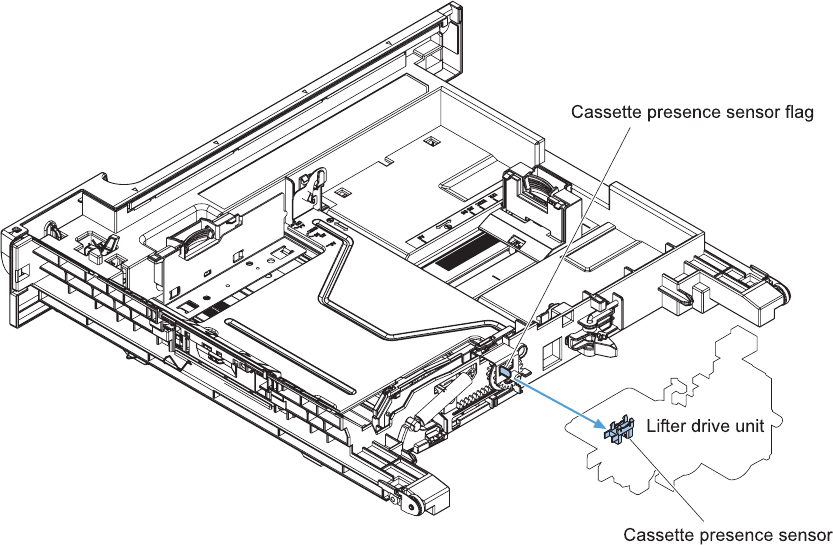
Cassette presence detection
The cassette presence sensor is in the lifter drive unit. The sensor detects the cassette-presence sensor
flag and determines whether the cassette is installed correctly.
Figure 1-33 Cassette presence sensor
44 Chapter 1 Theory of operation ENWW
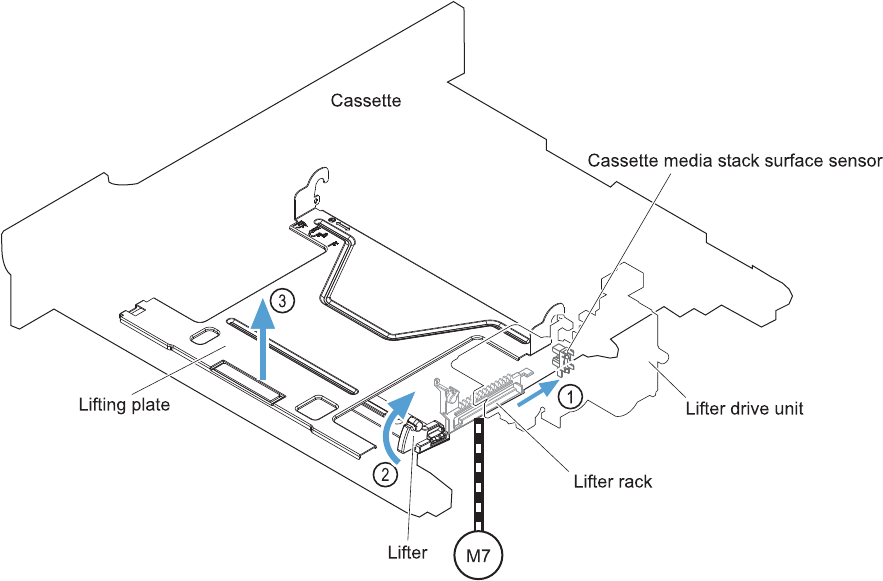
Cassette lift operation
The DC controller rotates the lifter motor (M7) and moves the lifter rack until the Tray 2 cassette lifter
sensor (SR9) detects it. The lifter lifts, and the lifting plate moves up to the position where the media can
be picked up. The lift operation is performed by monitoring the cassette media-stack-surface sensor
when the printer is turned on, when the cassette is installed, or as needed during a print operation.
If the paper-stack surface sensor does not detect the paper within a specified time after the lifter motor
begins rotating, the DC controller notifies the formatter that the lifter motor has failed.
The DC controller lowers the lifting plate when no printing occurs to prevent media damage and pickup
failure. If a print operation does not occur for a specified time, the DC controller reverses the lifter
motor and moves the lifter rack until the cassette media-stack surface sensor stops detecting it.
Figure 1-34 Cassette lift mechanism
ENWW Pickup, feed, and delivery system 45
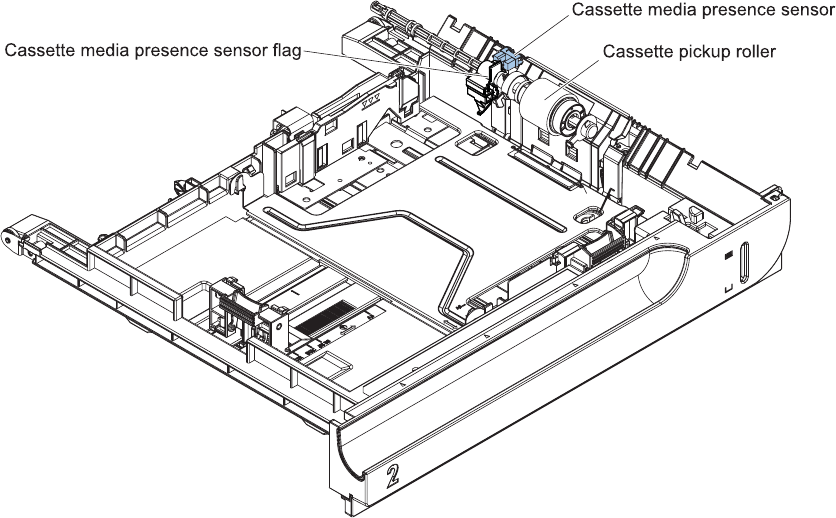
Cassette paper presence detection
The cassette media-presence sensor detects whether paper is in the cassette.
Figure 1-35 Paper level detection mechanism
46 Chapter 1 Theory of operation ENWW
Cassette media width detection
The paper width 1 sensor (SR10) detects the size of the paper loaded in the cassette. The DC controller
determines the paper size using the paper-width sensor. The paper-width sensor flag moves relative to
the cassette-side paper guide.
The pickup pressure is adjusted according to the paper size to prevent a pickup failure. The pickup
pressure increases when large paper sizes (Letter, A4, and A5-R) are loaded and decreases when
small paper sizes (Executive, B5, A5, A6, and 4 x 6) are loaded.
Figure 1-36 Cassette media width detection
Media width sensor
Automatic close unit
Media width sensor flag
Cassette side paper guide
ENWW Pickup, feed, and delivery system 47
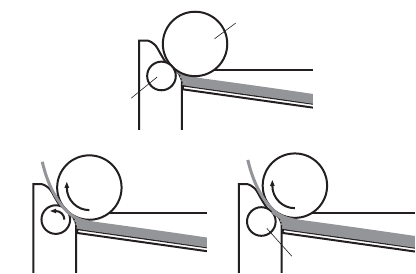
Multifeed prevention
In the cassette, a separation roller prevents multiple sheets of paper from entering the paper path. The
cassette pickup roller drives the separation roller through a sheet of paper.
The low friction force between the sheets weakens the driving force from the cassette pickup roller.
Because some braking force is applied to the cassette separation roller, the weak rotational force of the
pickup roller is not enough to rotate the separation roller. Therefore, the separation roller holds back
any multiple-fed sheets, and one sheet of media is fed into the printer.
Figure 1-37 Multifeed prevention
Cassette pickup
roller
Media
Lifting plate
Cassette
separation
roller
Normal feed Multiple feed
Separation roller does not rotate
48 Chapter 1 Theory of operation ENWW
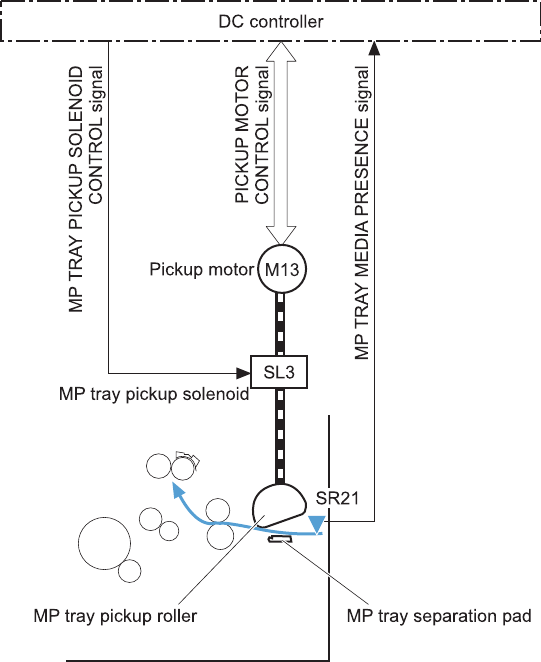
Multipurpose tray pickup
The multipurpose tray paper-presence sensor detects whether paper is in the tray. If no paper is present,
the DC controller notifies the formatter. Printing does not occur until paper is in the tray.
The sequence of steps for the multipurpose tray pickup operation as follows:
1. After receiving a print command from the formatter, the DC controller reverses the pickup motor,
which causes the multipurpose tray separation roller to rotate.
2. The DC controller turns on the multipurpose tray pickup solenoid (SL3), causing the multipurpose
tray pickup roller to rotate.
3. The multipurpose tray separation roller isolates a single sheet of paper in case more than one
sheet was picked. The single sheet of paper feeds into the product.
The Tray 1 paper sensor (SR21) detects whether the media is present in the MP tray. No printing occurs
if no media is loaded.
Figure 1-38 Multipurpose tray pickup mechanism
ENWW Pickup, feed, and delivery system 49
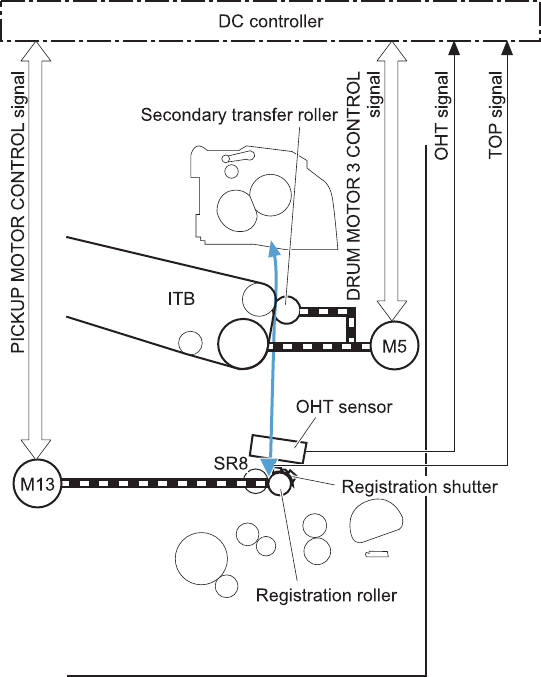
Paper feed
After the pickup operation, the paper feeds through the product and into the fuser.
1. The paper passes through the feed rollers. The registration shutter aligns the paper correctly to
prevent skewed printing.
2. The DC controller detects the leading edge of paper by the Registration sensor (SR8) and controls
the rotational speed of the pickup motor to align with the leading edge of image on the ITB.
3. The DC controller detects whether or not the media is overhead transparency, using the OHT
sensor.
4. The toner image on the ITB transfers onto the media, which feeds to the fuser.
Figure 1-39 Paper-feed mechanism
50 Chapter 1 Theory of operation ENWW
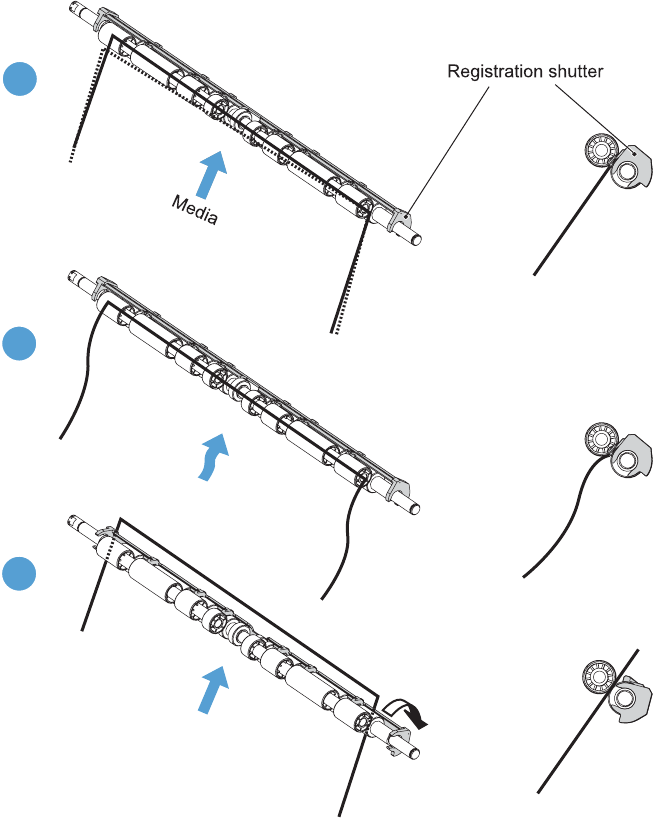
Skew-feed prevention
The product can straighten the paper without slowing the feed operation.
1. As the paper enters the paper path, the leading edge strikes the registration shutter, which
straightens the paper. The paper does not pass through the shutter .
2. The feed rollers keep pushing the paper, which creates a force on the leading edge against the
registration shutter.
3. When the force is great enough, the registration shutter opens and the paper passes through.
Figure 1-40 Skew-feed prevention
1
2
3
ENWW Pickup, feed, and delivery system 51
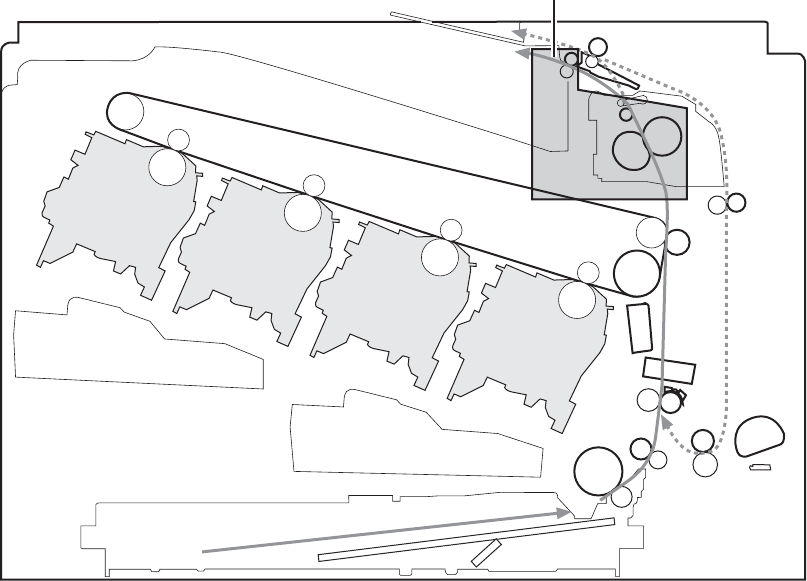
OHT detection
The OHT sensor detects overhead transparencies. The OHT sensor is a transmission sensor that uses an
LED. The DC controller determines a media mismatch and notifies the formatter when the media type
differs from the media type detected by the OHT sensor. The DC controller turns the LED in the OHT
sensor on and off during the wait or initial rotation period. If the intensity of the light does not match the
specified value, the DC controller determines that the OHT sensor has failed.
Fusing and delivery unit
The fusing and delivery unit fuses the toner onto the paper and delivers the printed page into the output
bin. The following controls ensure optimum print quality:
●Loop control
●Pressure roller pressurization/depressurization control
A sensor detects when the output bin is full, and the DC controller notifies the formatter.
Figure 1-41 Fuser and delivery unit
Fuser/delivery block
Y
M
C
K
52 Chapter 1 Theory of operation ENWW
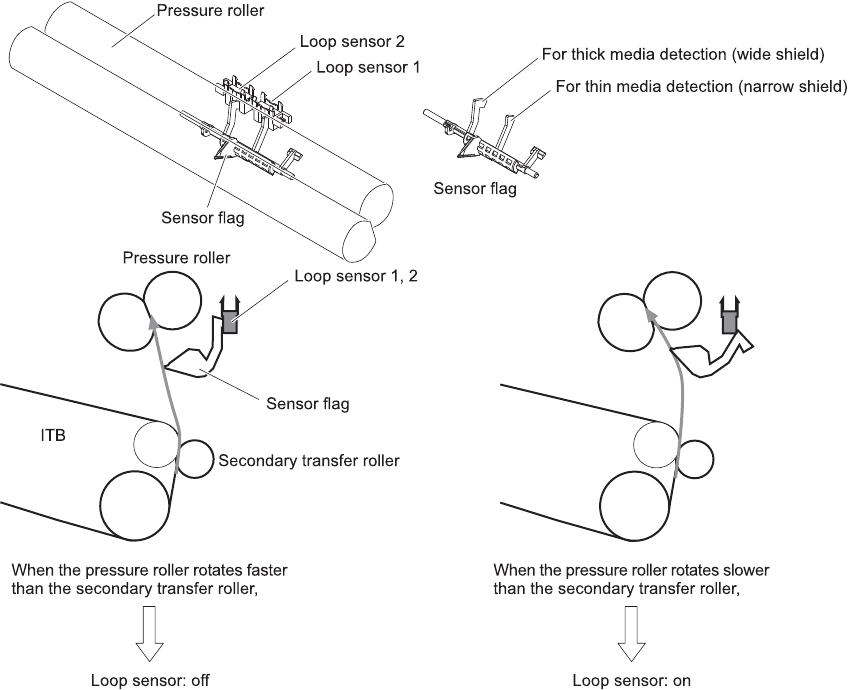
Loop control
The loop control monitors the tension of the paper between the second-transfer roller and the fuser.
●If the fuser rollers rotate more slowly than the secondary transfer rollers, the paper warp increases
and an image defect or paper crease occurs.
●If the fuser rollers rotate faster than the secondary transfer rollers, the paper warp decreases and
the toner image fails to transfer to the paper correctly, causing color misregistration.
To prevent these problems, the loop sensors, which are located between the secondary transfer rollers
and the fuser rollers, detect whether the paper is sagging or is too taut. The DC controller adjusts the
speed of the fuser motor.
Figure 1-42 Loop-control mechanism
ENWW Pickup, feed, and delivery system 53
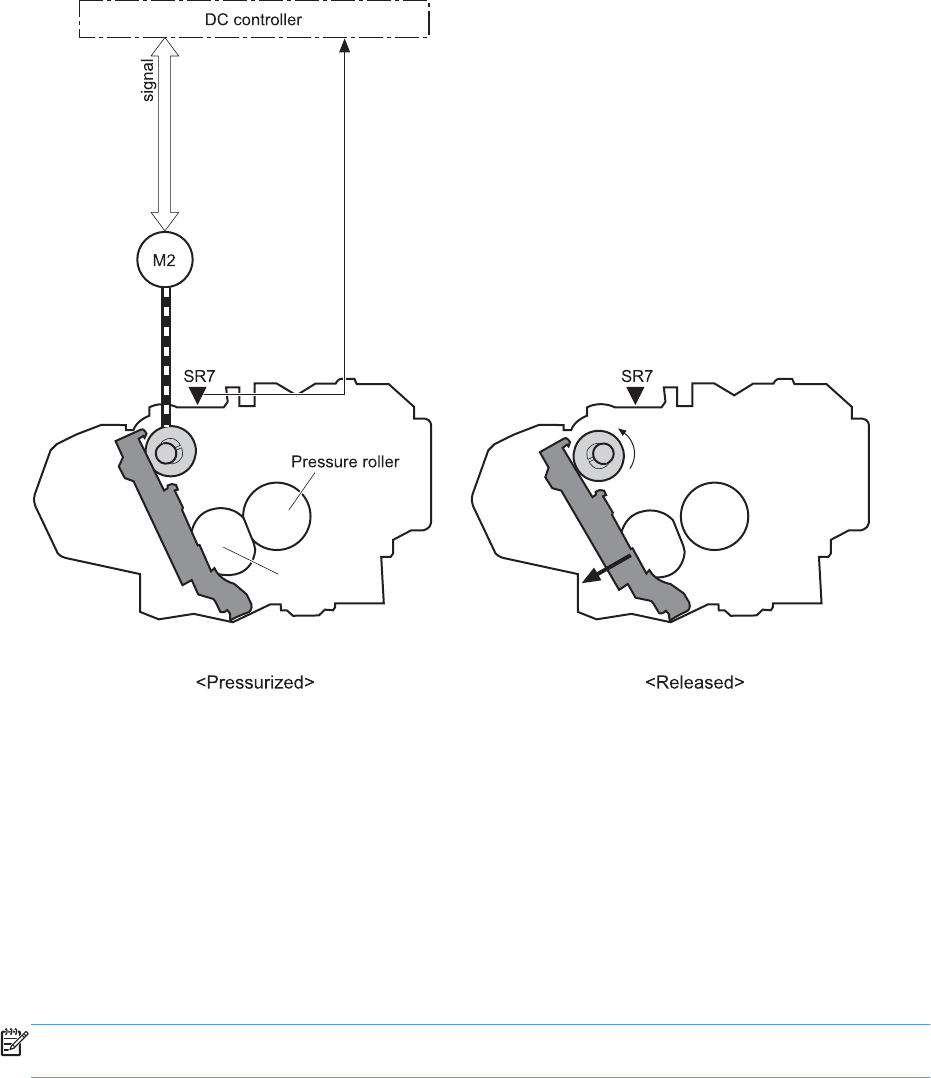
Pressure-roller pressurization control
To prevent excessive wear on the pressure roller and help with jam-clearing procedures, the pressure
roller pressurizes only during printing and standby. The DC controller reverses the fuser motor. The
fuser motor rotates the fuser pressure-release cam.
Figure 1-43 Pressure-roller pressurization control
Fuser motor
FUSER PRESSURE RELEASE signal
FUSER MOTOR CONTROL
Fuser pressure release cam
Fuser sleeve
The pressure roller depressurizes under the following conditions:
●The product is turned off with the on/off switch
●Any failure occurs other than a fuser pressure-release mechanism failure
●During powersave mode
●When a paper jam is detected
If the DC controller does not sense the fuser pressure-release sensor for a specified period after it
reverses the fuser motor, it notifies the formatter that a fuser pressure-release mechanism failure has
occurred.
NOTE: The fuser remains pressurized if the power is interrupted when the power cord is removed or
the surge protector is turned off, or if the fuser is removed without turning off the product.
54 Chapter 1 Theory of operation ENWW
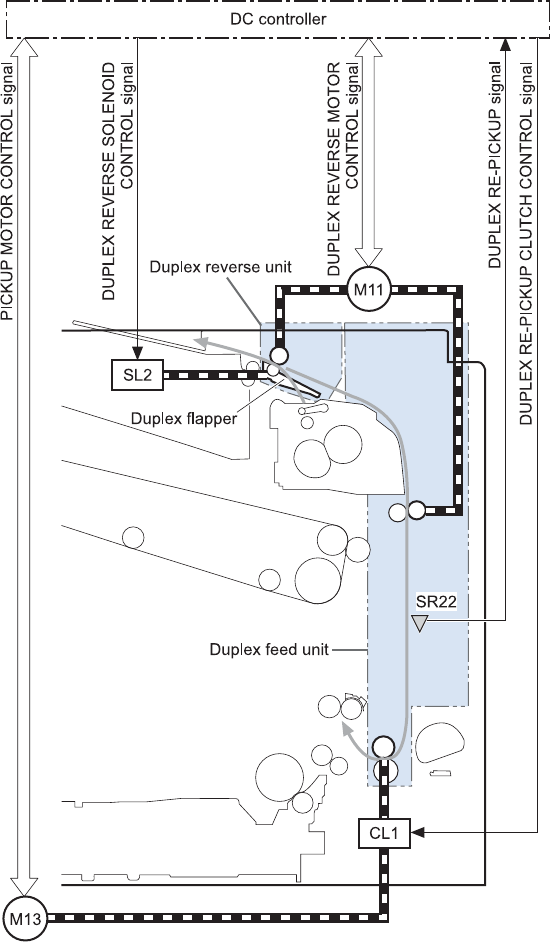
Duplexing unit (duplex models)
For supported models, the duplexing unit reverses the paper and feeds it through the paper path to
print the second side. The duplexing unit consists of the following components:
●Duplexing-reverse unit: Installed on top of the product
●Duplexing-feed unit: Along the right side
The DC controller controls the operational sequence of the duplex block. The DC controller drives each
load, such as motors, solenoid, and clutch, depending on the duplex reverse unit and duplex feed unit
controls.
Figure 1-44 Duplexing unit
ENWW Pickup, feed, and delivery system 55
Duplexing reverse and feed control
The duplexing reverse procedure pulls the paper into the duplexing unit after it exits the fuser. The
duplexing feed procedure moves the paper through the duplexer so it can enter the product paper path
to print the second side of the page.
1. After the first side has printed, the duplexing flapper solenoid opens, which creates a paper path
into the duplexing-reverse unit.
2. After the paper has fully entered the duplexing-reverse unit, the duplexing-reverse motor reverses
and directs the paper into the duplexing-feed unit.
3. The duplexing re-pickup motor and duplexing feed motor move the paper into the duplexing re-
pickup unit.
4. To align the paper with the toner image on the ITB, the duplexing re-pickup motor stops and the
paper pauses.
5. The paper re-enters the paper path, and the second side prints.
Duplex pickup operation
The product has the following two duplex-media-feed modes depending on the media sizes:
●One-sheet mode: Prints one sheet that is printed on two sides in one duplex print operation
●Two-sheet mode: Prints two sheets that are printed on two-sides in one duplex print operation
(maximum paper size is A4)
The formatter specifies the duplex-media-feed mode.
56 Chapter 1 Theory of operation ENWW
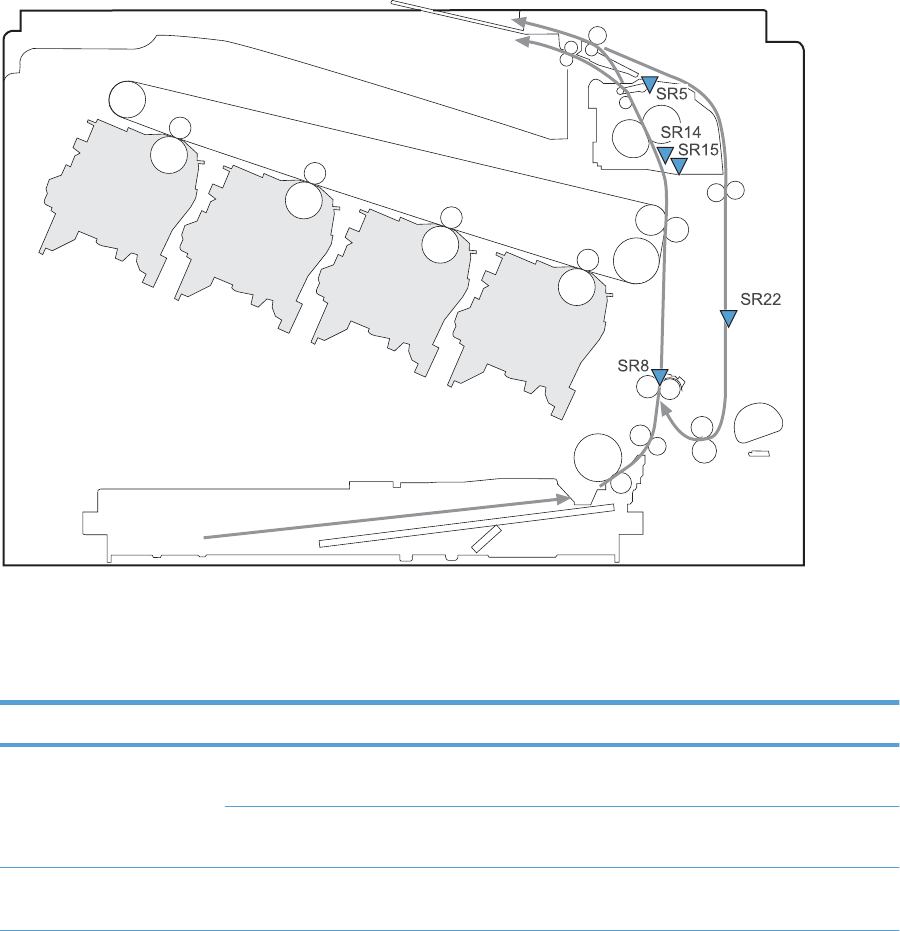
Jam detection
The product uses the following sensors to detect the paper as it moves through the paper path and to
report to the DC controller if the paper has jammed.
●Fuser output sensor (SR5)
●Registration sensor (SR8)
●Fuser loop 1 (SR14)
●Fuser loop 2 (SR15)
●Duplexer refeed (SR22)
Figure 1-45 Jam detection sensors
Y
M
C
K
The product determines that a jam has occurred if one of these sensors detects paper at an
inappropriate time. The DC controller stops the print operation and notifies the formatter.
Table 1-17 Jams that the product detects
Jam Description
Pickup delay jam 1 Cassette pickup: The TOP sensor does not detect the leading edge of the paper within a
specified period after the cassette pickup solenoid has turned on.
Multipurpose tray pickup: The TOP sensor does not detect the leading edge of the paper
within a specified period after the multipurpose tray solenoid has turned on.
Pickup stationary jam The TOP sensor does not detect the trailing edge of the paper within a specified time from
when it detects the leading edge.
ENWW Jam detection 57

Table 1-17 Jams that the product detects (continued)
Jam Description
Fuser delivery delay jam The fuser delivery paper-feed sensor does not detect the leading edge of the paper within a
specified period after the TOP sensor detects the leading edge.
Fuser delivery stationary jam The fuser delivery paper-feed sensor does not detect the trailing edge of the paper within a
specified period after it detects the leading edge.
Wrapping jam After detecting the leading edge of the paper, the fuser delivery paper-feed sensor detects the
absence of paper, and it has not yet detected the trailing edge.
Residual paper jam One of the following sensors detects paper presence during the initialization sequence:
●Fuser delivery paper-feed sensor
●TOP senosor
●Loop sensor 1
●Loop sensor 2
Door open jam A door is open while paper is moving through the product.
Duplexing re-pickup jam 1 The duplex re-pickup sensor does not detect the leading edge of the paper within a specified
period after the media reverse operation starts in the duplex reverse unit.
Duplexing re-pickup jam 2 The TOP sensor does not detect the leading edge of the paper within a specified period after
the paper is re-picked.
After a jam, some sheets of paper might remain inside the product. If the DC controller detects residual
paper after a door closes or after the product is turned on, the product automatically clears itself of
those residual sheets.
58 Chapter 1 Theory of operation ENWW
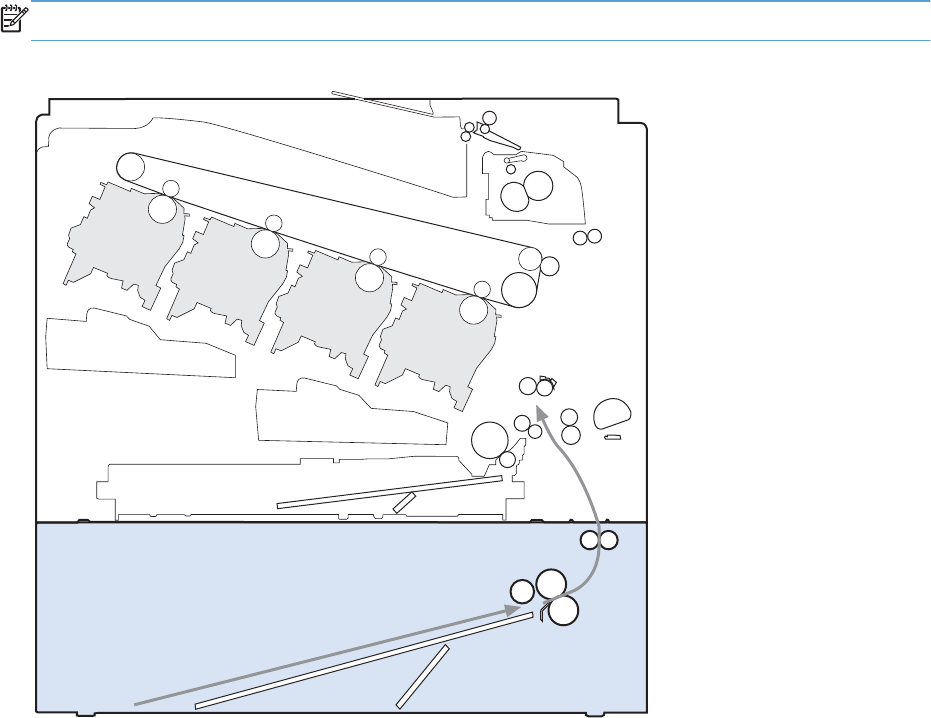
Optional paper feeder
The 1x500-sheet paper feeder is optionally installed at bottom of the printer. The paper feeder picks up
the print media and feeds it to the printer.
NOTE: These optional trays are not identical to the main cassette (Tray 2).
Figure 1-46 Optional paper feeder
Y
M
C
K
The paper-deck drivers contain a microcomputer and control the paper feeder. The paper-deck drivers
receive commands from the DC controller. If the DC controller is unable to communicate with a paper-
deck driver, it notifies the formatter that the optional paper feeders is not connected correctly.
ENWW Optional paper feeder 59
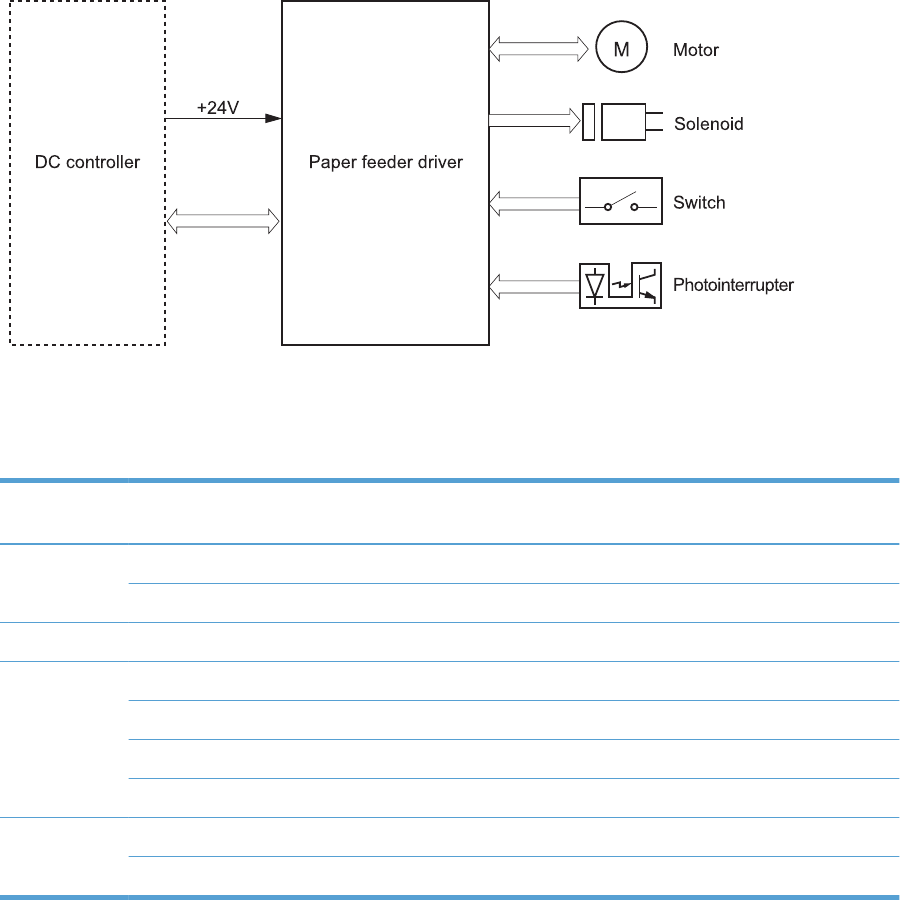
Figure 1-47 Signals for the paper feeder
The input trays contain several motors, solenoids, sensors, and switches, as described in the following
table.
Table 1-18 Electrical components for the paper feeder
Component
type
Abbreviation Component name
Motors M1 Paper feeder motor
M2 Paper feeder lift motor
Solenoids SL1 Paper feeder pickup solenoid
Sensors SR1 Tray 3 installed sensor
SR2 Tray 3 stack surface sensor 2
SR3 Tray 3 paper present sensor
SR4 Tray 3 feed sensor
Switches SW1 Paper feeder cassette media-size switch
SW2 Paper-feeder door switch
60 Chapter 1 Theory of operation ENWW
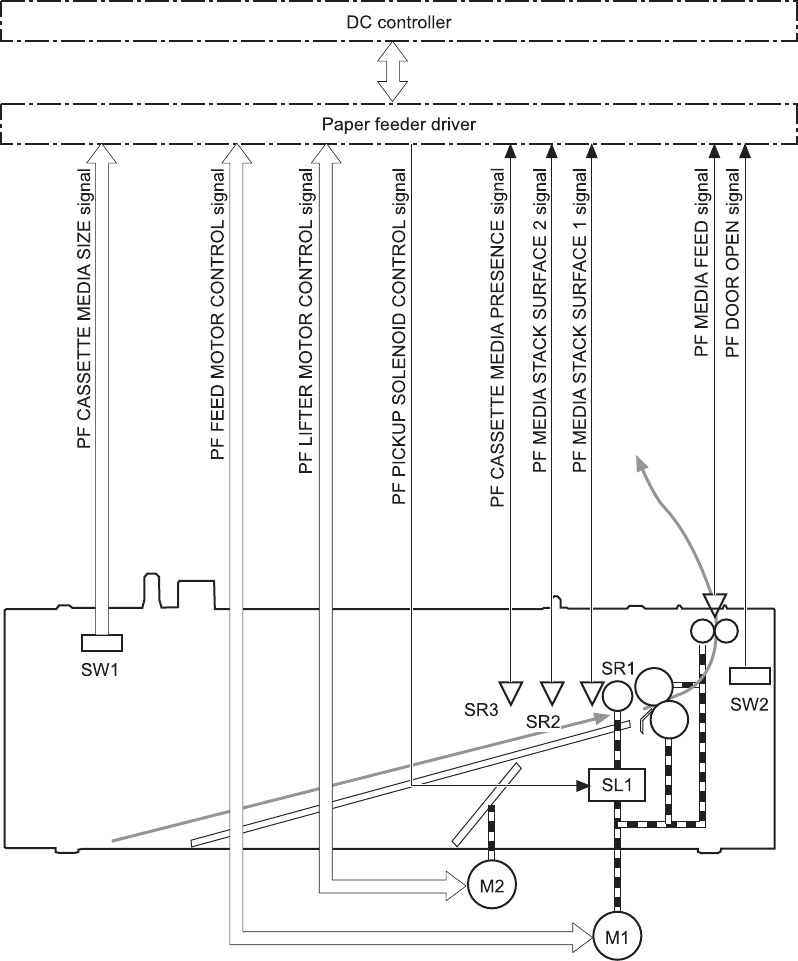
Paper-feeder pickup and feed operation
The paper feeder picks up one sheet from the paper-feeder cassette and feeds it to the product.
Figure 1-48 Paper-feeder pickup and feed operation
ENWW Optional paper feeder 61
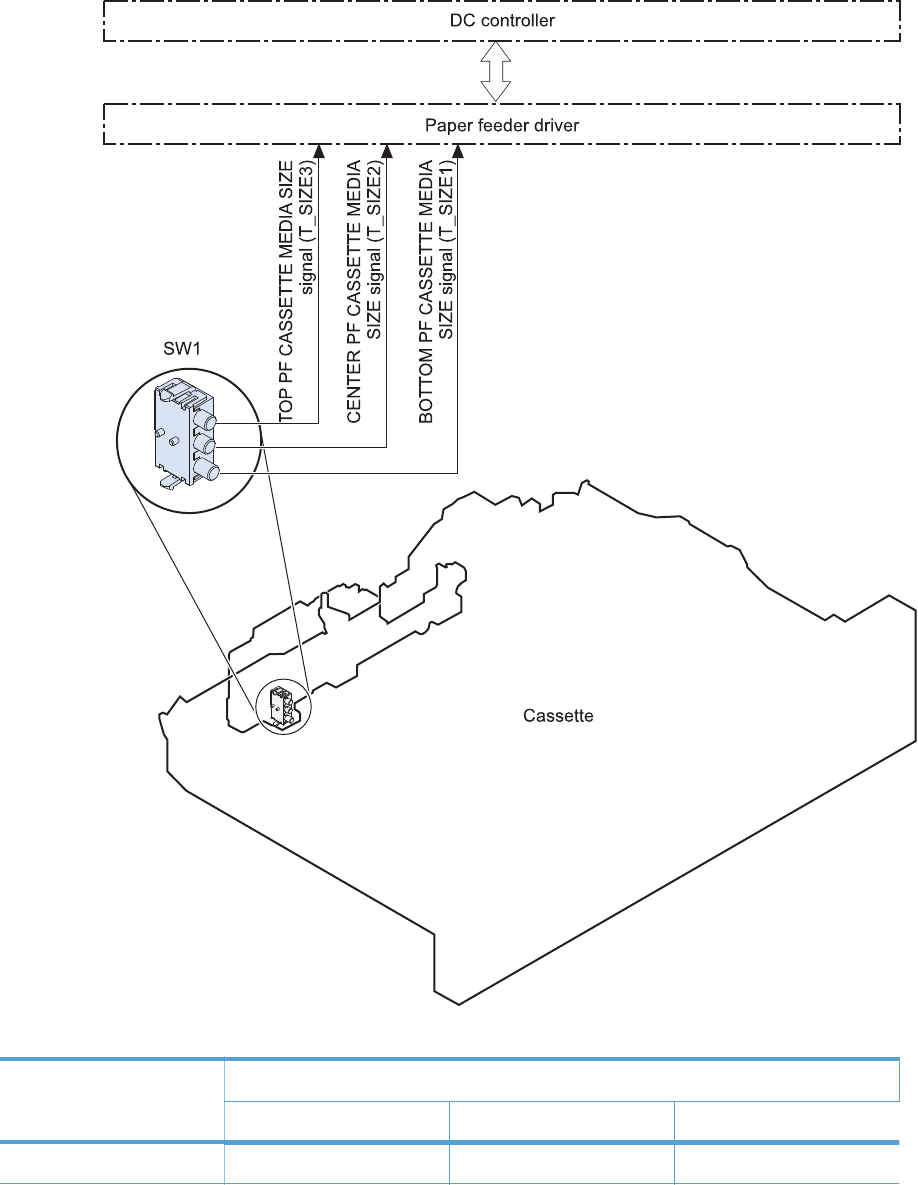
Paper size detection and cassette presence detection
The paper-feeder cassette media-size switch (SW1) detects the size of paper loaded in the paper-feeder
cassette. The paper-feeder driver determines the media size by monitoring the combination of the
switches.
Figure 1-49 Paper size detection
Table 1-19 Paper size detection
Paper size Paper-feeder cassette media-size switch settings
Top switch Center switch Bottom switch
Universal On On On
62 Chapter 1 Theory of operation ENWW

Table 1-19 Paper size detection (continued)
Paper size Paper-feeder cassette media-size switch settings
Top switch Center switch Bottom switch
A5 On Off Off
B5 Off On On
Executive On Off On
Letter Off On Off
A4 Off Off On
Legal On On Off
No cassette Off Off Off
The paper-feeder cassette media size switch (SW1) detects whether the paper-feeder cassette is
installed correctly. The paper-feeder driver determines if a cassette is absent when all three switches are
turned off. The paper-feeder driver determines a cassette presence when one of the switches is turned
on.
ENWW Optional paper feeder 63
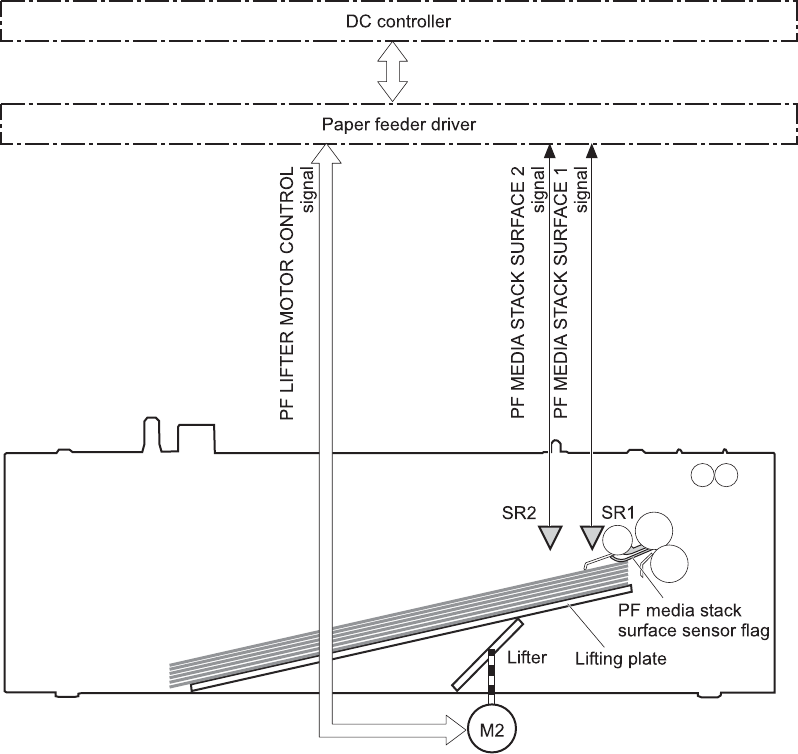
Paper feeder cassette lift operation
The cassette lift operation keeps the stack surface of paper at a specified height to maintain stable
media feeding. The paper-feeder driver controls the paper-feeder lifter motor (M2) and monitors the
paper-feeder media stack surface sensors (SR1, SR2) to adjust the stack height when the printer is
turned on, when the printer recovers from sleep mode, when the paper-feeder cassette is installed or as
needed during a print operation. The paper feeder has two paper-feeder media-stack surface sensors.
The paper-feeder media stack surface sensor 1 detects the stack height during a print operation. The
paper-feeder media-stack surface sensor 2 detects the stack height when the printer is turned on, when
the printer recovers from sleep mode and when the paper-feeder cassette is installed. The operational
sequence of the lift operation is as follows:
1. The paper-feeder driver rotates the paper-feeder lifter motor to lift the lifting plate.
2. The paper-feeder driver stops the paper-feeder lifter motor when the paper-feeder media-stack
surface sensor 2 detects the stack surface.
3. The paper-feeder driver rotates the lifter motor again when paper-feeder media stack surface 1
detects that the media surface is lowered during a print operation.
Figure 1-50 Paper-feeder cassette lift
64 Chapter 1 Theory of operation ENWW
The paper-feeder driver notifies the formatter if either of the paper-feeder media-stack surface sensors
fails to detect the stack surface within a specified period from when a lift-up operation starts.
ENWW Optional paper feeder 65
Paper feeder presence detection
The Tray 3 paper present (SR3) detects whether the paper is present in the paper-feeder cassette.
66 Chapter 1 Theory of operation ENWW
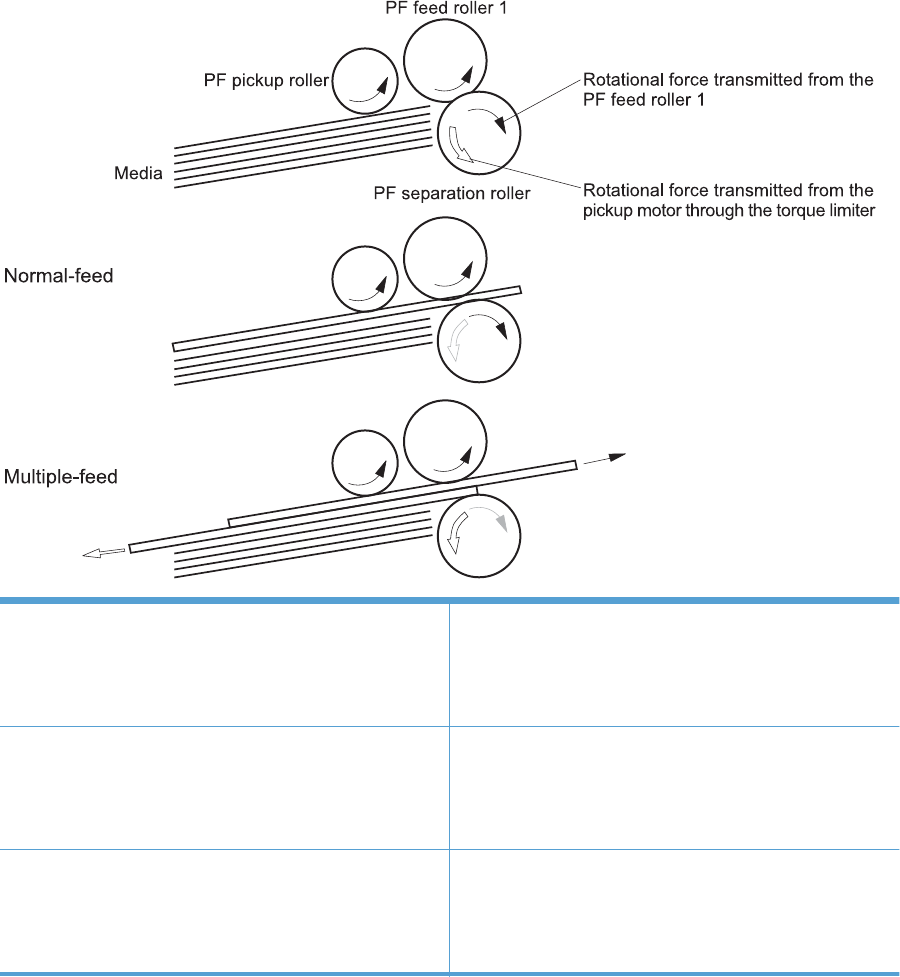
Paper-feeder multiple feed prevention
The paper-feeder uses a separation roller to prevent multiple sheets of paper from entering the printer.
The separation roller prevents multiple feeds of paper by allowing the paper-feeder separation roller to
rotate in the same direction as the paper-feeder feed roller 1. The paper-feeder separation roller is
equipped with the torque limiter. If multiple sheets of paper are picked up, the torque limiter takes
control of the paper-feeder separation roller, and pushes the extra sheets back to the paper-feeder
cassette. That way, only the top sheet is fed to the printer.
Figure 1-51 Paper-feeder multiple feed prevention
No-load Rotational force for paper-feeder separation roller: Pushes
back the media into the paper-feeder cassette
Rotational force for paper-feeder feed roller 1: Feeds media
into the printer
Normal feed Rotational force for paper-feeder separation roller: Pushes
back the media into the paper-feeder cassette
Rotational force for paper-feeder feed roller 1: Feeds media
into the printer
Multiple-feed The low friction force between the sheets weakens the
rotational force from the paper-feeder feed roller 1.
The paper-feeder separation roller rotates by its own
rotational force and removes the extra sheet.
ENWW Optional paper feeder 67
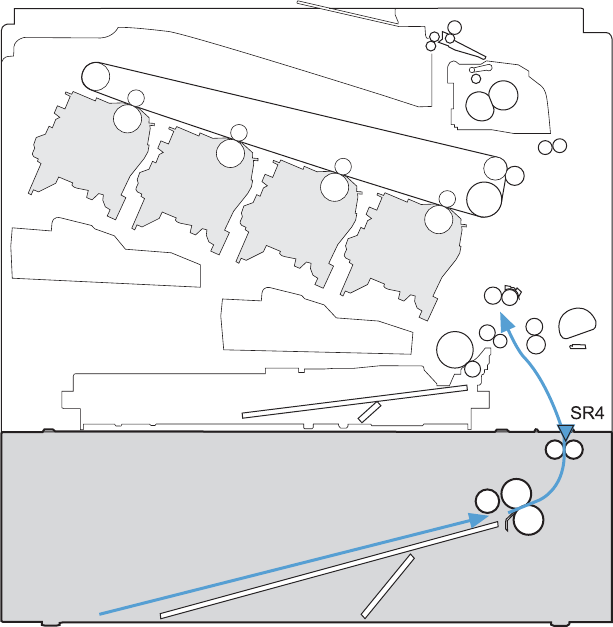
Paper feeder jam detection
The paper feeder uses the Tray 3 feed (SR4) to detect the presence of paper and to check whether
paper has jammed.
Figure 1-52 Jam detection
Y
M
C
K
The paper-feeder driver identifies a jam if the sensor detects paper at a specified timing stored in the
paper-feeder driver. The paper-feeder driver stops printing and notifies the formatter through the DC
controller of the jam. The paper feeder detects the following jams:
●Pickup delay jam: The paper-feeder media-feed sensor does not detect the leading edge of media
within a specified period from when the paper-feeder pickup solenoid is turned on.
●Pickup stationary jam: The paper-feeder media-feed sensor does not detect the trailing edge of
media within a specified time period from when the sensor detects the leading edge.
68 Chapter 1 Theory of operation ENWW


Introduction
This chapter describes the removal and replacement of field-replaceable units (FRUs) and customer-
replaceable units (CRUs).
Replacing FRUs is generally the reverse of removal. Occasionally, notes and tips are included to
provide directions for difficult or critical replacement procedures.
HP does not support repairing individual subassemblies or troubleshooting to the component level.
Note the length, diameter, color, type, and location of each screw. Be sure to return each screw to its
original location during reassembly.
Incorrectly routed or loose wire harnesses can interfere with other internal components and can become
damaged or broken. Frayed or pinched harness wires can be difficult to find. When replacing wire
harnesses, always use the provided wire loops, lance points, or wire-harness guides and retainers.
Removal and replacement strategy
Cautions during removal and replacement
WARNING! Turn the product off, wait 5 seconds, and then remove the power cord before
attempting to service the product. If this warning is not followed, severe injury can result, in addition to
damage to the product. The power must be on for certain functional checks during troubleshooting.
However, disconnect the power supply during parts removal.
Never operate or service the product with the protective cover removed from the laser/scanner
assembly. The reflected beam, although invisible, can damage your eyes.
The sheet-metal parts can have sharp edges. Be careful when handling sheet-metal parts.
CAUTION: Do not bend or fold the flat flexible cables (FFCs) during removal or installation. Also, do
not straighten pre-folds in the FFCs. You must fully seat all FFCs in their connectors. Failure to fully seat
an FFC into a connector can cause a short circuit in a PCA.
NOTE: To install a self-tapping screw, first turn it counterclockwise to align it with the existing thread
pattern, and then carefully turn it clockwise to tighten. Do not overtighten. If a self-tapping screw-hole
becomes stripped, repair the screw-hole or replace the affected assembly.
TIP: For clarity, some photos in this chapter show components removed that would not be removed to
service the product. If necessary, remove the components listed at the beginning of a procedure before
proceeding to service the product.
70 Chapter 2 Removal and replacement ENWW

Electrostatic discharge
CAUTION: Some parts are sensitive to electrostatic discharge (ESD). Look for the ESD reminder
when removing product parts. Always perform service work at an ESD protected workstation or mat, or
use an ESD strap. If an ESD workstation, mat, or strap is not available, ground yourself by touching the
sheet-metal chassis before touching an ESD sensitive part.
Protect the ESD sensitive parts by placing them in ESD pouches when they are out of the product.
ENWW Removal and replacement strategy 71
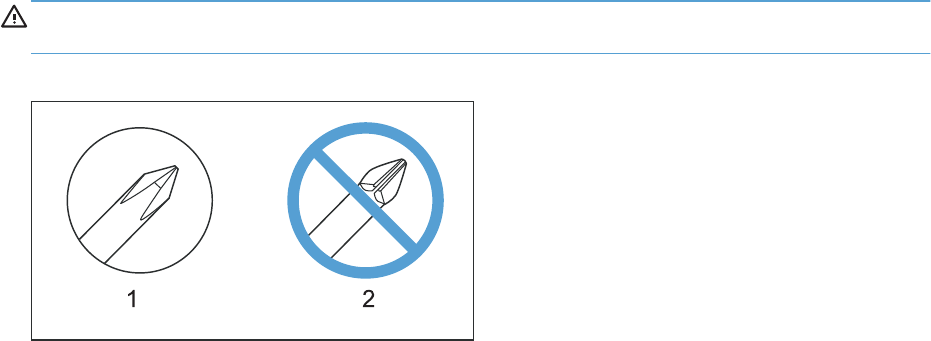
Required tools
●#2 Phillips screwdriver with a magnetic tip and a 152-mm (6-inch) shaft length
●Small flat blade screwdriver
●Needle-nose pliers
●ESD mat or ESD strap (if one is available)
●Penlight (optional)
CAUTION: Always use a Phillips screwdriver (callout 1). Do not use a pozidrive screwdriver
(callout 2) or any motorized screwdriver. These can damage screws or screw threads.
Figure 2-1 Phillips and pozidrive screwdriver comparison
72 Chapter 2 Removal and replacement ENWW

Service approach
Before performing service
●Remove all media from the product.
●Turn off the power using the power switch.
●Unplug the power cable and interface cable or cables.
●Place the product on an ESD workstation or mat, or use an ESD strap (if one is available). If an
ESD workstation, mat, or strap is not available, ground yourself by touching the sheet-metal
chassis before touching an ESD sensitive part.
●Remove the print cartridges. See Print cartridges on page 76.
●Remove the tray cassette or cassettes.
After performing service
●Plug in the power cable.
●Reinstall the print cartridges.
●Reinstall the tray cassette or cassettes.
●If the 1 x 500-sheet paper feeder was removed for service, place the product on the feeder.
Engage the feeder tray locks to secure the feeder to the product.
Post service test
Perform the following test to verify that the repair or replacement was successful.
Print-quality test
1. Verify that you have completed the necessary reassembly steps.
2. Make sure that the tray contains clean, unmarked paper.
3. Attach the power cord and interface cable or interface cables, and then turn on the product.
4. Verify that the expected startup sounds occur.
5. Print a configuration page, and then verify that the expected printing sounds occur.
6. Send a print job from the host computer, and then verify that the output meets expectations.
7. If necessary, restore any customer-specified settings.
8. Clean the outside of the product with a damp cloth.
ENWW Service approach 73

Parts removal order
Figure 2-2 Parts removal order (1 of 2)
Component Remove Remove Remove Remove Remove Remove
Print cartridges
Duplex reverse
guide
Toner collection
unit (TCU)
Formatter
Hard drive (HDD) Formatter
Solid state drive
(SSD) Formatter
Memory DIMMs Formatter
Tray 2-3 cassettes
Fuser
Tray 1 pickup
roller
Tray 2 pickup and
separation rollers Tray 2 cassette
Tray 3 pickup,
feed, and
separation rollers
Tray 3 cassette
Secondary
transfer rollers
Secondary
transfer assembly
(T2)
Intermediate
transfer belt (ITB)
Front-door
assembly
Right-door
assembly
Right-rear cover
Left cover
Left-bottom cover TCU Left cover
Hardware
integration pocket
(HIP)
Control panel
Right-front cover Control panel
Right-bottom
cover Control panel Right front cover Right-rear cover
Front-top cover TCU Left cover Control panel
Rear cover TCU Right-rear cover Left cover
Rear-bottom
cover TCU Right-rear cover Left cover Rear cover
Upper-rear cover TCU Right-rear cover Left cover Rear cover
Rear-top cover TCU Left cover HIP Control panel Front-top cover Rear cover
Formatter
Roller cover
74 Chapter 2 Removal and replacement ENWW

Figure 2-3 Parts removal order (2 of 2)
Component Remove Remove Remove Remove Remove Remove Remove Remove Remove Remove
Delivery fan,
cartridge fan,
and
environmental
sensor
TCU Left cover
Toner
collection
sensor
TCU Left cover
Residual-toner
feed motor TCU ITB Left cover
Registration
density (RD)
sensor
T2 ITB
Power supply
(PS) fan and
fan duct
TCU Right-rear cover Left cover Rear cover
Registration
assembly TCU T2 ITB Right-rear cover Left cover Rear cover RD sensor PS fan and
duct
Interconnect
board (ICB) TCU Formatter Left cover Rear cover
DC controller
(DCC) and tray
(optional)
TCU Formatter Right-rear cover Left cover Rear cover ICB LVPS (if
removing tray)
Low-voltage
power supply
(LVPS)
TCU Formatter Right-rear cover Left cover Rear cover ICB
High-voltage
power supply
(HVPS) lower
ICB LVPS
Developing-
disegagement
motor
ICB LVPS HVPS-lower
Pickup motor ICB LVPS HVPS-lower
Lifter-drive
assembly ICB LVPS HVPS-lower
Automatic
close assembly ICB LVPS HVPS-lower Lifter-drive
Cassette
pickup drive
assembly
ICB LVPS HVPS-lower
Laser scanner
(Y/M) ICB LVPS HVPS-lower
Laser scanner
(C/Bk) ICB LVPS HVPS-lower Lifter-drive Laser scanner
(Y/M)
Cassette
pickup
assembly
Registration
assembly ICB LVPS HVPS lower PS fan and duct T2 ITB RD sensor
Cassette
pickup drive
assembly
High-voltage
power supply
(HVPS) upper
Drum motors
1, 2, or 3 HVPS-upper
Fuser motor HVPS-upper
Main-drive
assembly
Fuser-drive
assembly Main drive
Delivery
assembly Main drive Fuser drive
Duplex-drive
assembly Main drive Fuser drive Delivery
assembly
Rear-top cover
PS fan and duct
ICB
DCC and tray
LVPS
HVPS lower and
upper
TCU
Formatter
Fuser
T2
ITB
Right-rear cover
Left cover
HIP
Control panel
Front-top cover
Rear cover
TCU
Formatter
Right-rear cover
Left cover
HIP
Control panel
Front-top cover
Rear cover
Rear-top cover
ICB
DCC
LVPS
TCU
Formatter
Right-rear cover
Left cover
Rear cover
ENWW Service approach 75
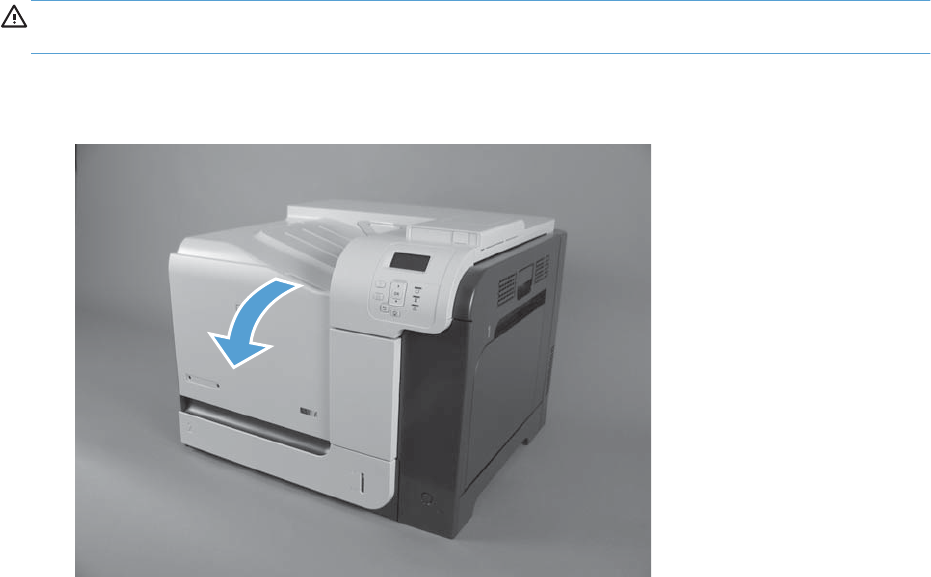
Customer self repair (CSR) components
Print cartridges
CAUTION: If toner gets on your clothing, wipe it off with a dry cloth and wash clothing in cold
water. Hot water sets toner into fabric.
1. Open the front door. Make sure that the door is completely open.
Figure 2-4 Remove the print cartridge (1 of 2)
76 Chapter 2 Removal and replacement ENWW
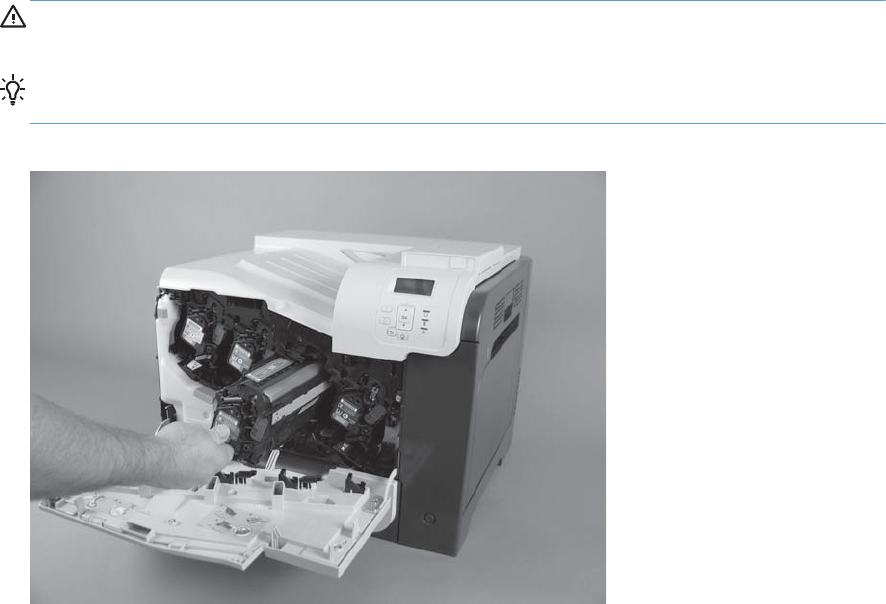
2. Grasp the print-cartridge handle and pull out to remove. Repeat this step for each print cartridge.
CAUTION: Do not touch the green roller. Doing so can damage the cartridge. Do not expose
the cartridge to strong light. Cover the cartridge with a sheet of paper to protect it from light.
Reinstallation tip Align the print cartridge with its slot and insert the print cartridge until it
clicks into place.
Figure 2-5 Remove the print cartridge (2 of 2)
ENWW Customer self repair (CSR) components 77
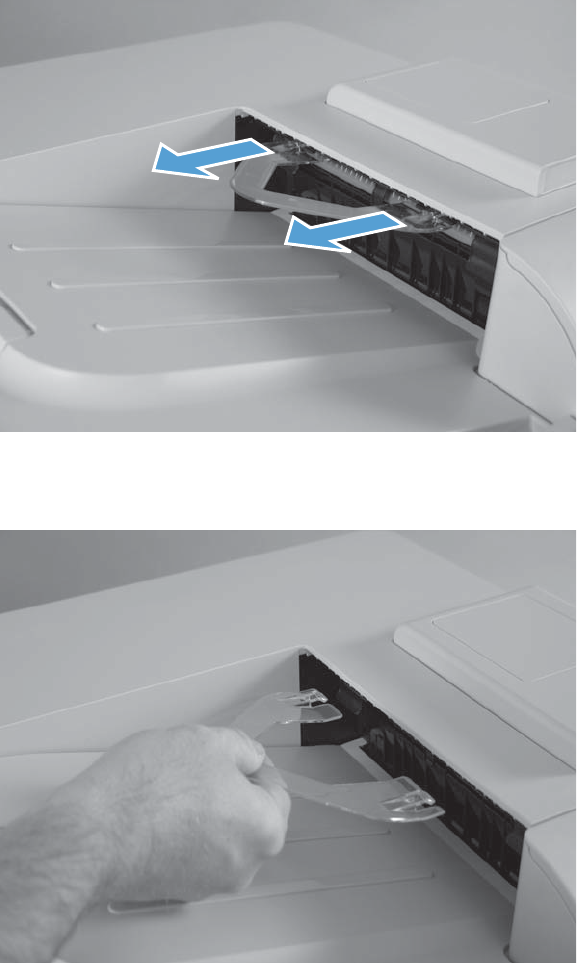
Duplex reverse guide
1. Grasp the duplex reverse guide and pull it away from the product to release it.
Figure 2-6 Remove the duplex reverse guide (1 of 2)
2. Remove the guide.
Figure 2-7 Remove the duplex reverse guide (2 of 2)
78 Chapter 2 Removal and replacement ENWW
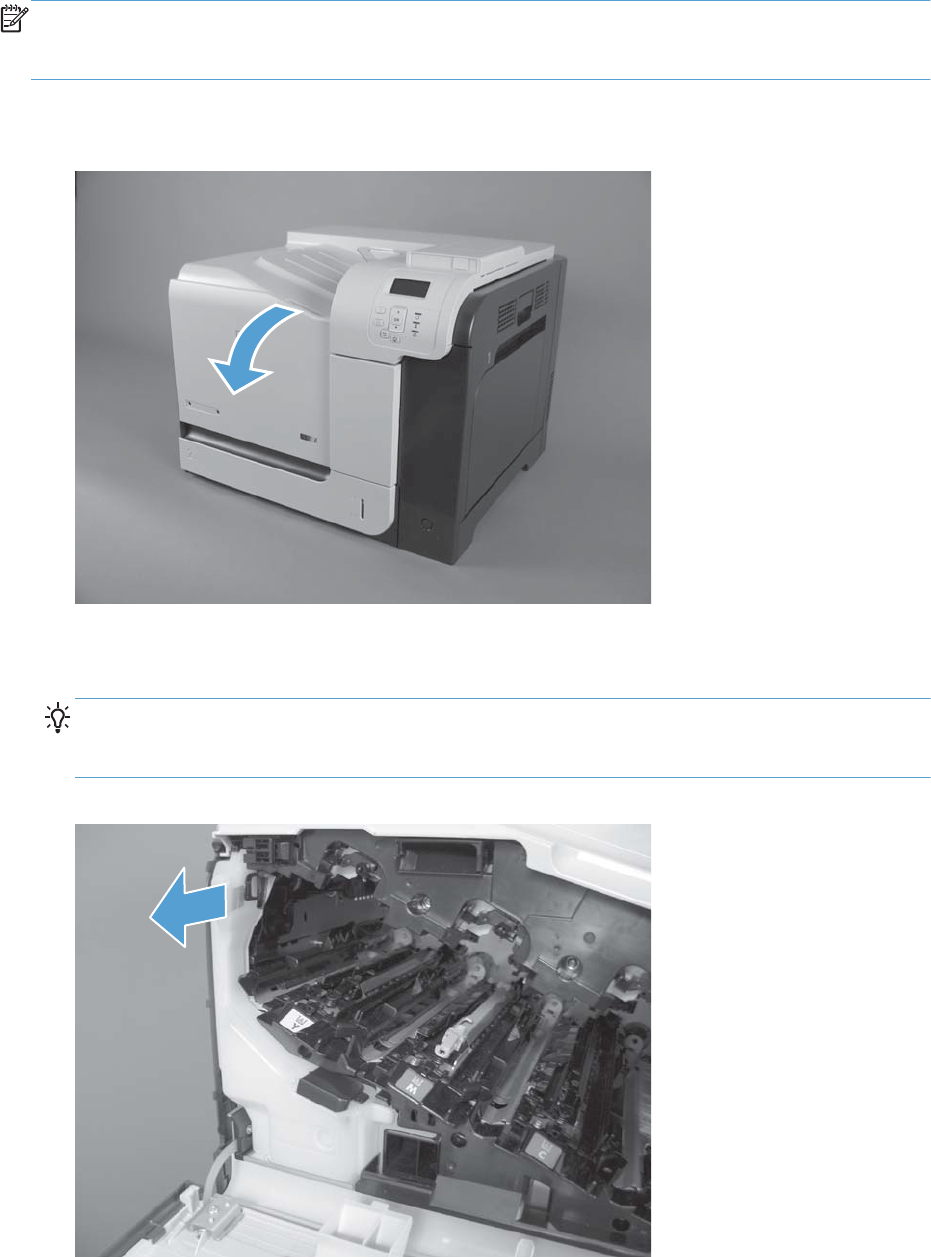
Toner collection unit
NOTE: The toner collection unit is designed for a single use. Do not try to empty the toner collection
unit and reuse it. Doing so could cause toner to spill inside the product and result in reduced print
quality. For recycling information, see the product user guide.
1. Open the front door. Make sure that the door is completely open.
Figure 2-8 Remove the toner collection unit (1 of 4)
2. Grasp the blue label at the top of the toner collection unit and pull the toner collection unit straight
away from the product.
Reinstallation tip Insert the bottom of the replacement unit into the product first and then push
the top of the unit until it clicks into place. If the toner collection unit is installed incorrectly, the
front door will not close completely.
Figure 2-9 Remove the toner collection unit (2 of 4)
ENWW Customer self repair (CSR) components 79
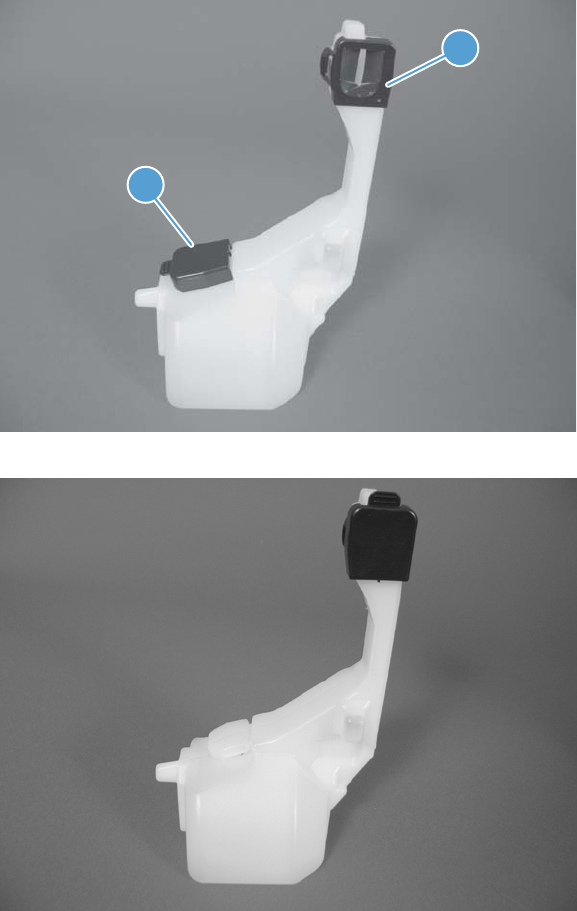
3. To prevent toner spills, place the blue cap (callout 1) over the blue opening at the top of the unit
(callout 2).
Figure 2-10 Remove the toner collection unit (3 of 4)
1
2
Figure 2-11 Remove the toner collection unit (4 of 4)
4. Recycle the toner collection unit.
80 Chapter 2 Removal and replacement ENWW
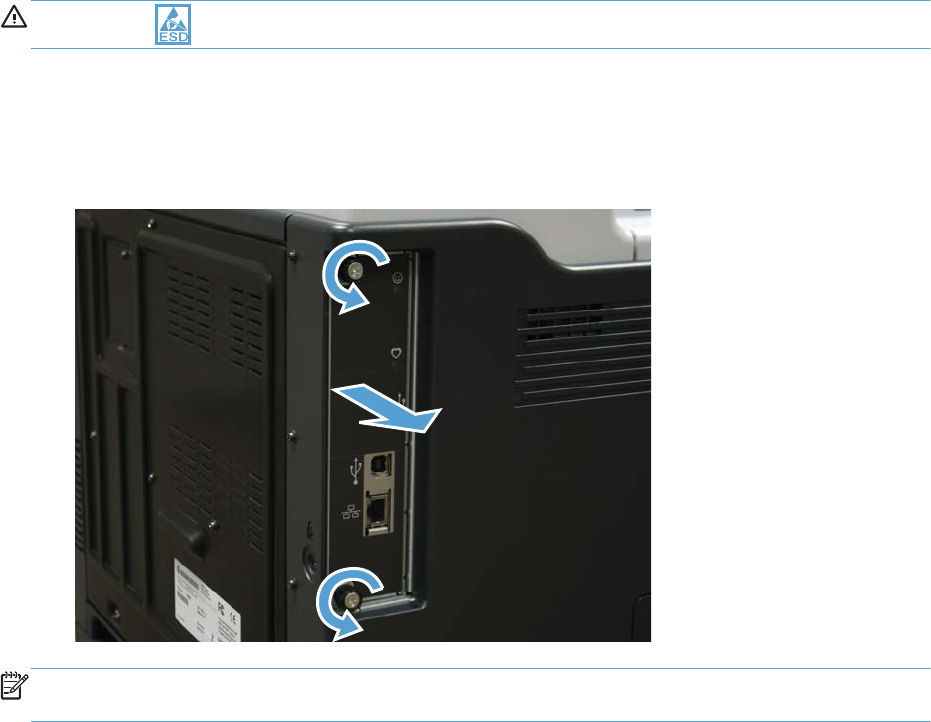
Formatter PCA
CAUTION: ESD sensitive component.
1. Turn the product off and disconnect the power and interface cable or interface cables.
2. Unscrew the formatter thumb screws, and then firmly pull the formatter from the product. Place the
formatter on a clean, flat, grounded surface.
Figure 2-12 Remove the formatter
NOTE: When reinstalling the formatter, push firmly on the right side to make sure the formatter is
seated.
ENWW Customer self repair (CSR) components 81
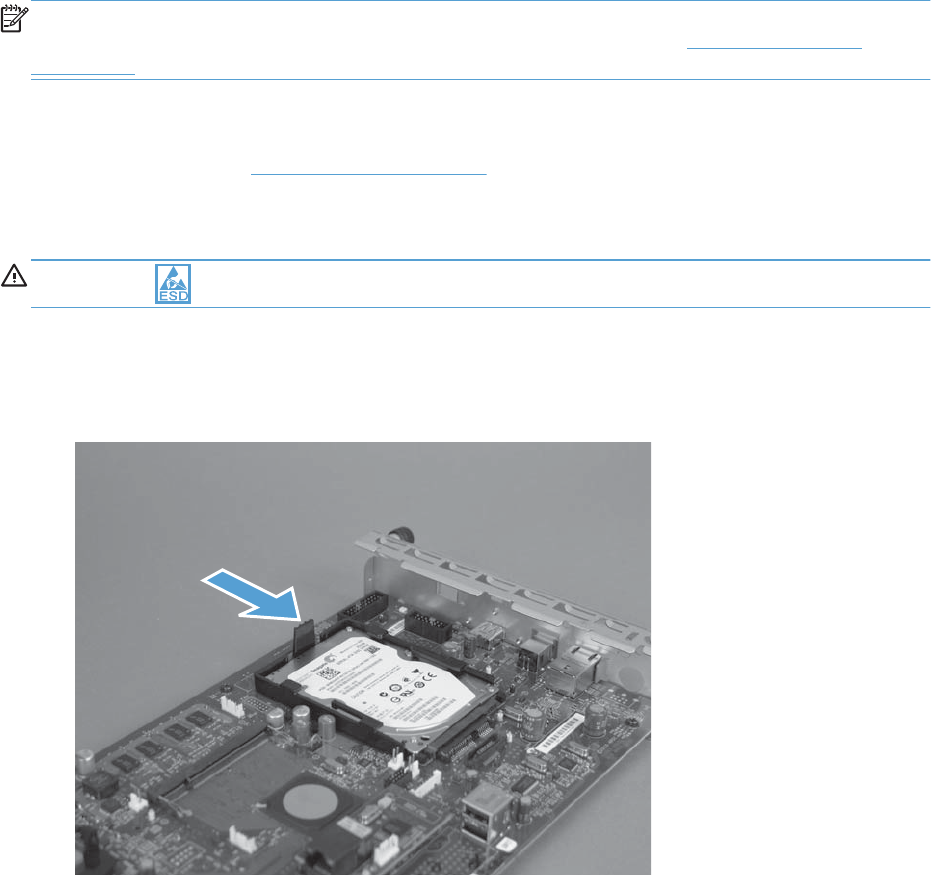
Disk drives
NOTE: The product has a hard disk drive (HDD) or solid state module (SSM) installed. If you install a
replacement disk drive, you must perform reload the product firmware. See Reload the firmware
on page 85.
Before proceeding, remove the following components:
●Formatter PCA. See Formatter PCA on page 81
Remove the HDD
CAUTION: ESD sensitive component.
1. Place the formatter on a clean, flat, grounded surface.
2. Release the lcoking tab to release the HDD.
Figure 2-13 Remove the HDD (1 of 2)
82 Chapter 2 Removal and replacement ENWW
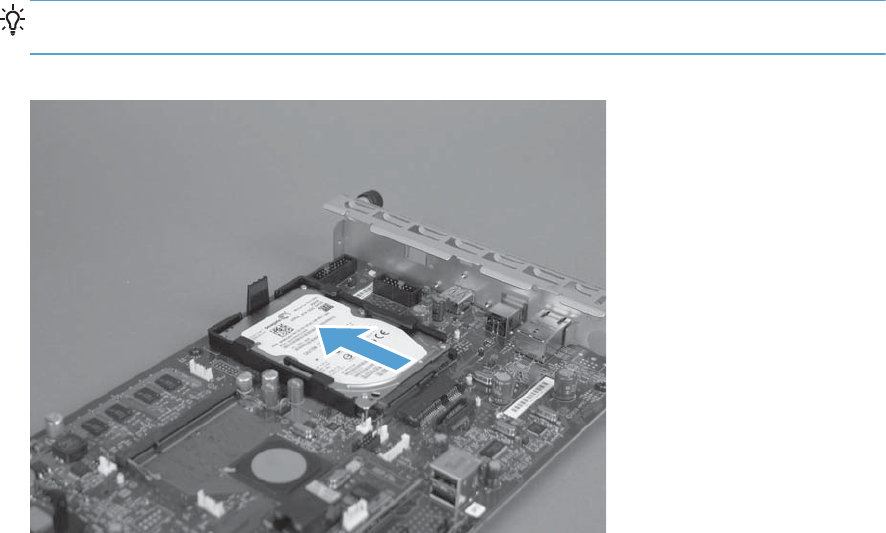
3. Hold the locking tab in the release position, and then slide the HDD toward the edge of the
formatter to remove it.
Reinstallation tip When the HDD is reinstalled, make sure that the HDD is fully seated and
that the locking lever snaps into the locked position.
Figure 2-14 Remove the HDD (2 of 2)
ENWW Customer self repair (CSR) components 83
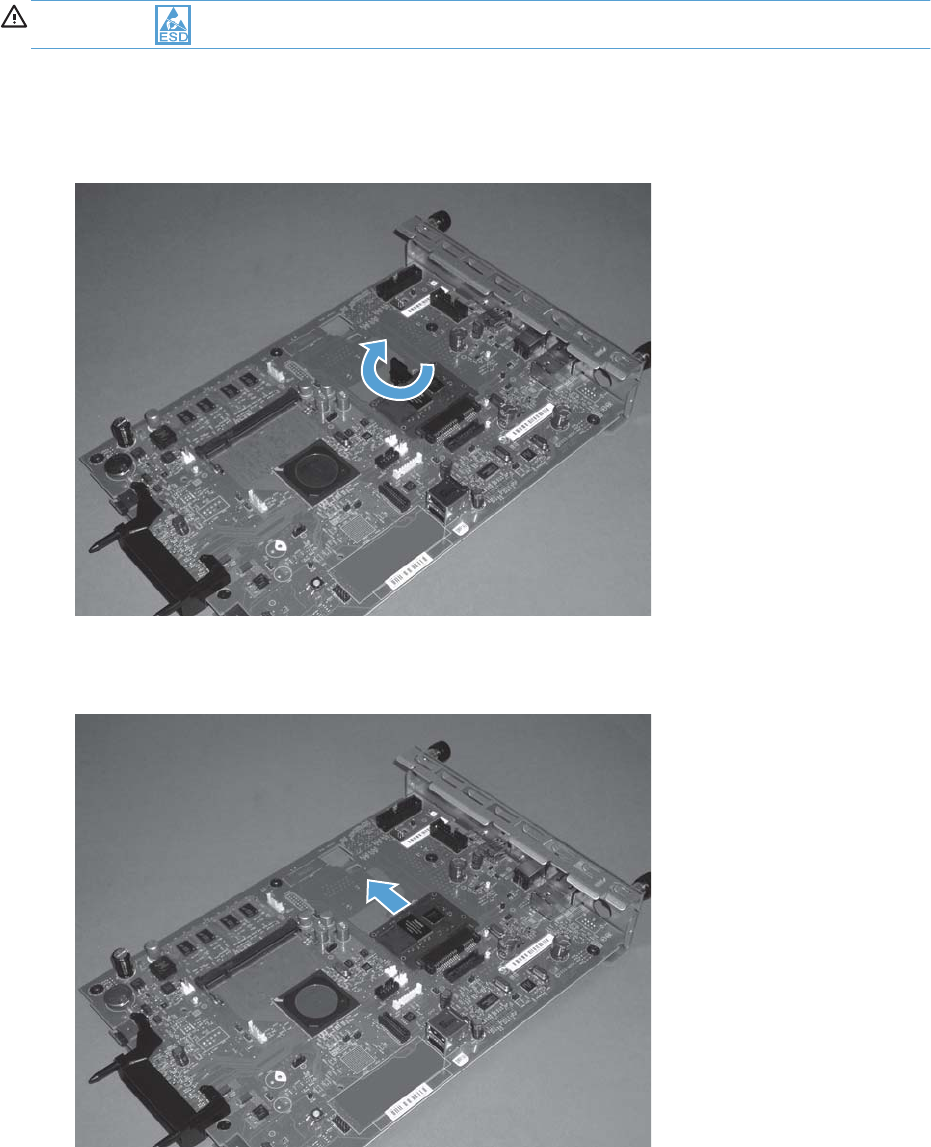
Remove the SSM
CAUTION: ESD sensitive component.
1. Place the formatter on a clean, flat, grounded surface.
2. Turn the locking tab to release it, and then remove the tab.
Figure 2-15 Remove the SSM (1 of 2)
3. Slide the SSM toward the edge of the formatter to remove it.
Figure 2-16 Remove the SSM (2 of 2)
84 Chapter 2 Removal and replacement ENWW

Install a replacement hard drive
After installing a replacement hard drive, you must reload the firmware by performing a firmware
upgrade.
Reload the firmware
1. Copy the xxxxxxx.bdl file to a portable USB flash memory storage device (thumbdrive).
2. Turn the product on, and then wait until it reaches the Ready state.
3. Press the Home button or OK button.
4. Press the Down arrow button to highlight Device Maintenance, and then press the OK
button.
5. Press the Down arrow button to highlight USB Firmware Upgrade, and then press the OK
button.
6. Insert the portable USB storage device with the xxxxxxx.bdl file on it into the USB port on the
front of the product, and then press the OK button.
7. Press the Down arrow button to highlight the xxxxxxx.bdl file, and then press the OK button.
TIP: If there is more than one xxxxxxx.bdl file on the storage device, make sure that you
select the correct file for this product.
8. A prompt to upgrade an older, newer, or reinstall the same version appears. Press the Down
arrow button to highlight the desired option, and then press the OK button.
When the upgrade is complete, the product will initialize.
NOTE: The upgrade process can take up to 10 minutes to complete.
9. When the upgrade process is complete, print a configuration page and verify that the upgrade
firmware version was installed.
ENWW Customer self repair (CSR) components 85
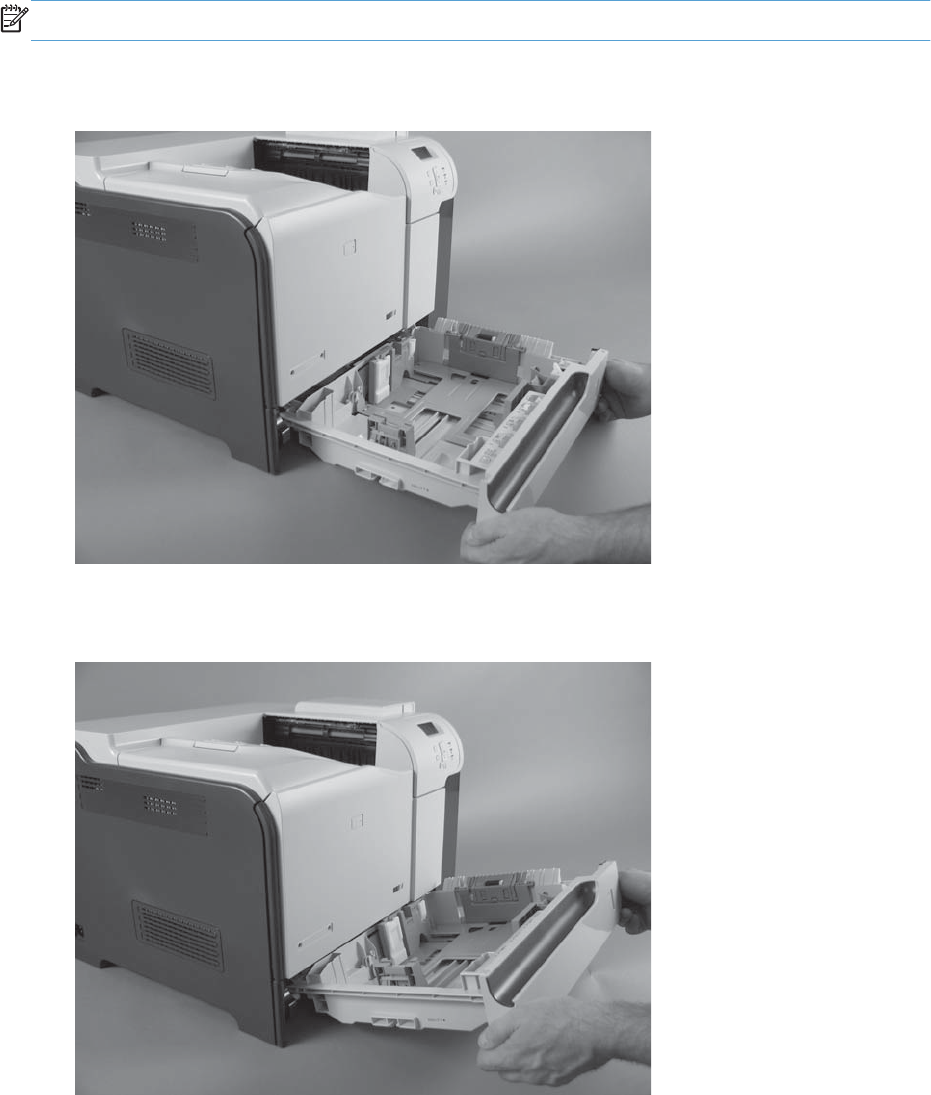
Tray cassette
NOTE: Use this procedure to remove the Tray 2 or optional Tray 3 cassette.
1. Pull the tray straight out of the product until it stops.
Figure 2-17 Remove the tray cassette (1 of 2)
2. Carefully lift up on the tray to release it, and then remove the tray.
Figure 2-18 Remove the tray cassette (2 of 2)
86 Chapter 2 Removal and replacement ENWW
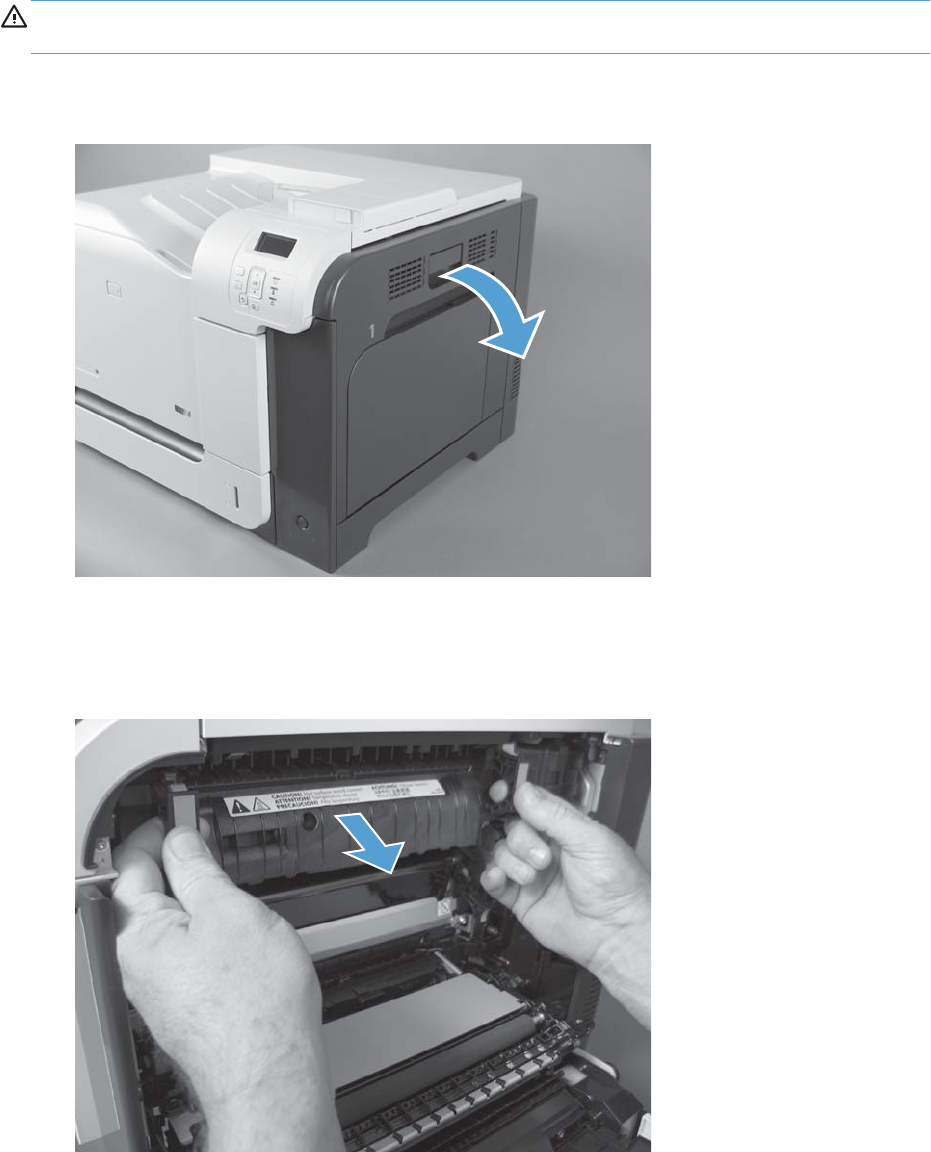
Fuser
CAUTION: The fuser might be hot. Allow enough time after turning off the product power for the
fuser to cool.
1. Open the right door assembly.
Figure 2-19 Remove the fuser (1 of 2)
2. Grasp the handles and squeeze the blue release triggers.
Pull the fuser straight out of the product to remove it.
Figure 2-20 Remove the fuser (2 of 2)
ENWW Customer self repair (CSR) components 87
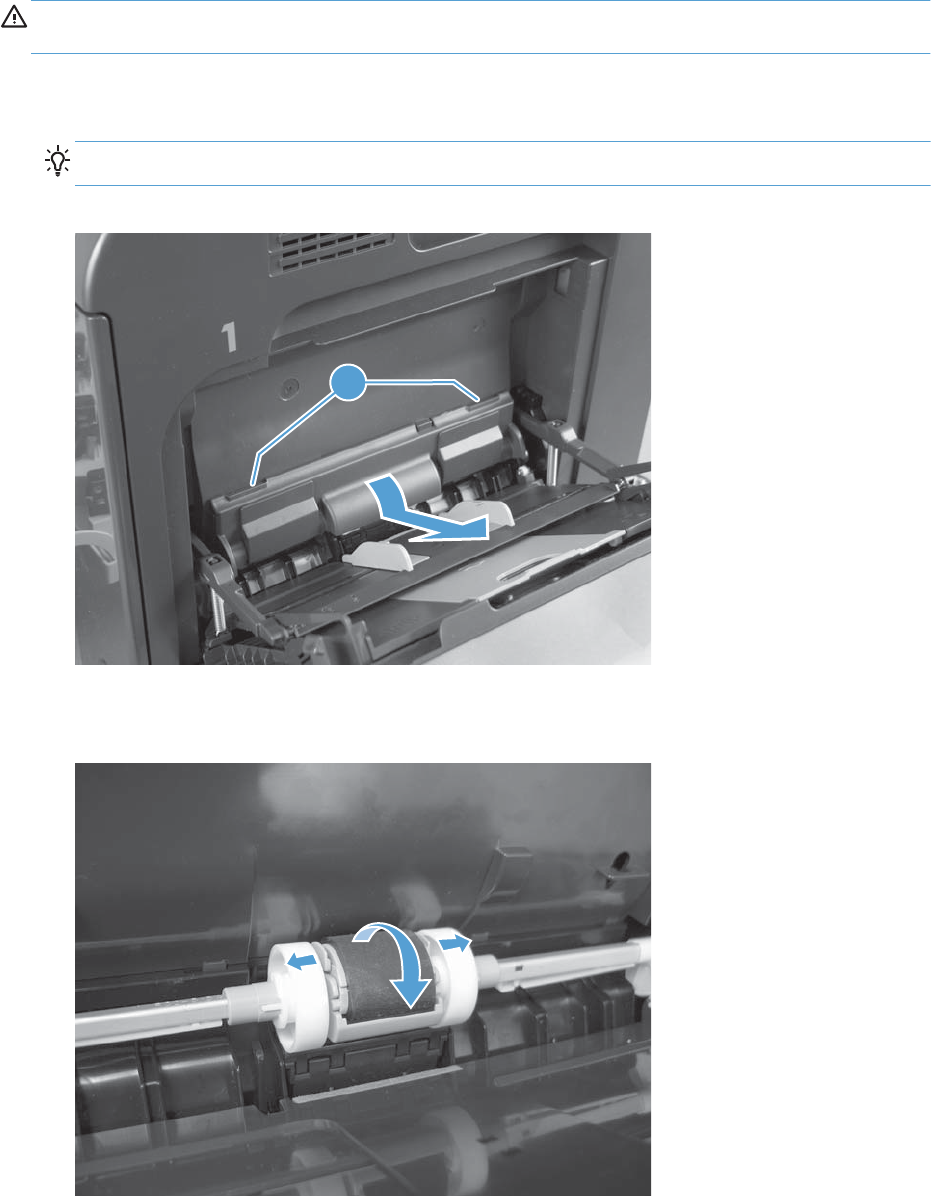
Pickup roller (Tray 1)
CAUTION: Do not touch the spongy roller surface unless you are replacing the roller. Skin oils on the
roller can cause paper pickup problems.
1. Open Tray 1, release two tabs (callout 1), and then rotate the roller cover away from the product
to remove it.
TIP: Push down along the top edge of the cover to easily release the tabs.
Figure 2-21 Remove the pickup roller (Tray 1; 1 of 2)
1
2. Release two tabs and rotate the roller body away from the product to remove it.
Figure 2-22 Remove the pickup roller (Tray 1; 2 of 2)
88 Chapter 2 Removal and replacement ENWW
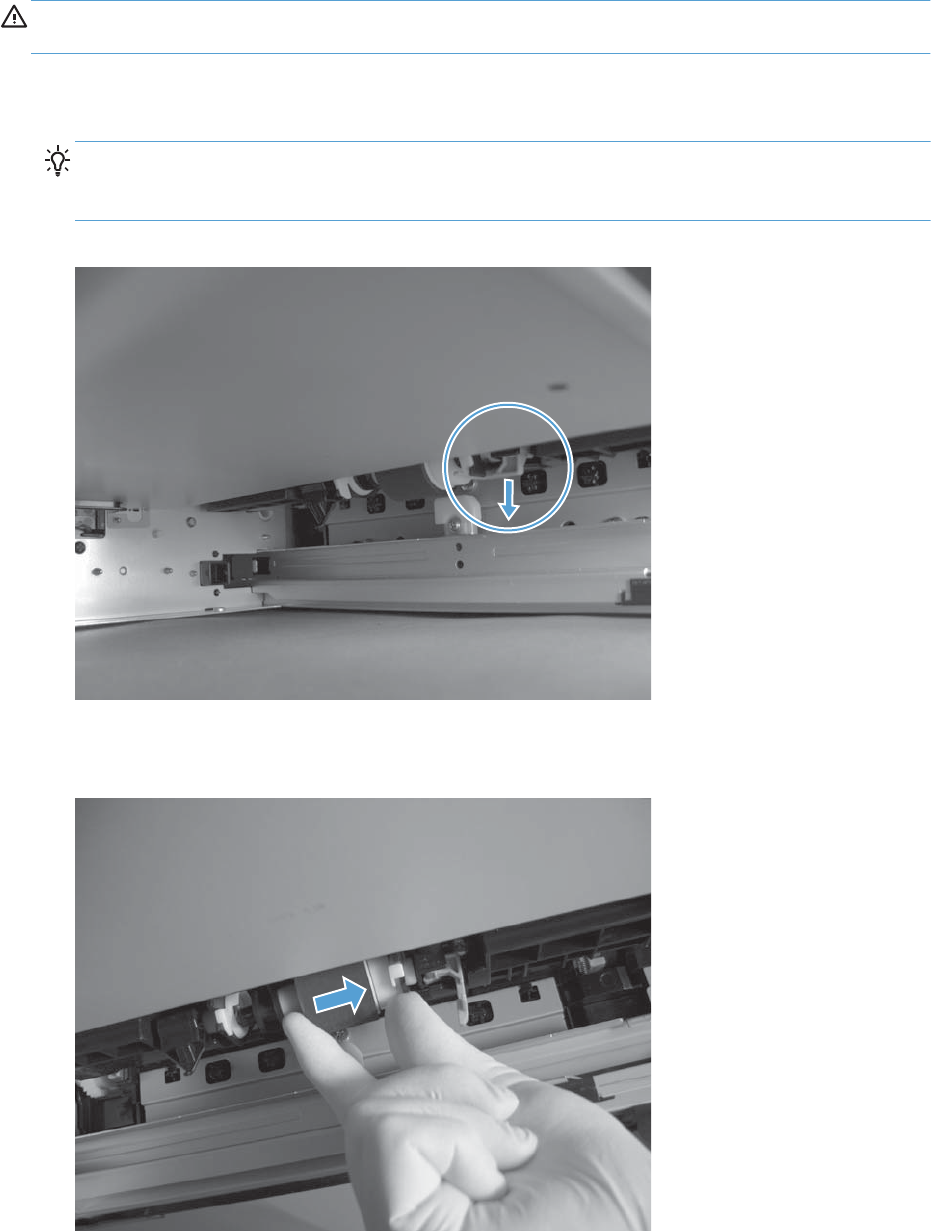
Pickup roller (Tray 2)
CAUTION: Do not touch the spongy roller surface unless you are replacing the roller. Skin oils on the
roller can cause paper pickup problems.
1. Look up into the Tray 2 cavity (where the cassette would be installed), and pull down to release
the blue roller-locking lever.
Reinstallation tip When the roller is reinstalled, rotate the roller shaft several times to make
sure that the shaft correctly engages the drive mechanism. You should hear a click when the shaft
engages the drive mechanism.
Figure 2-23 Remove the pickup roller (Tray 2; 1 of 4)
2. Pull the roller toward the front of the product to release the rear of the roller shaft.
Figure 2-24 Remove the pickup roller (Tray 2; 2 of 4)
ENWW Customer self repair (CSR) components 89
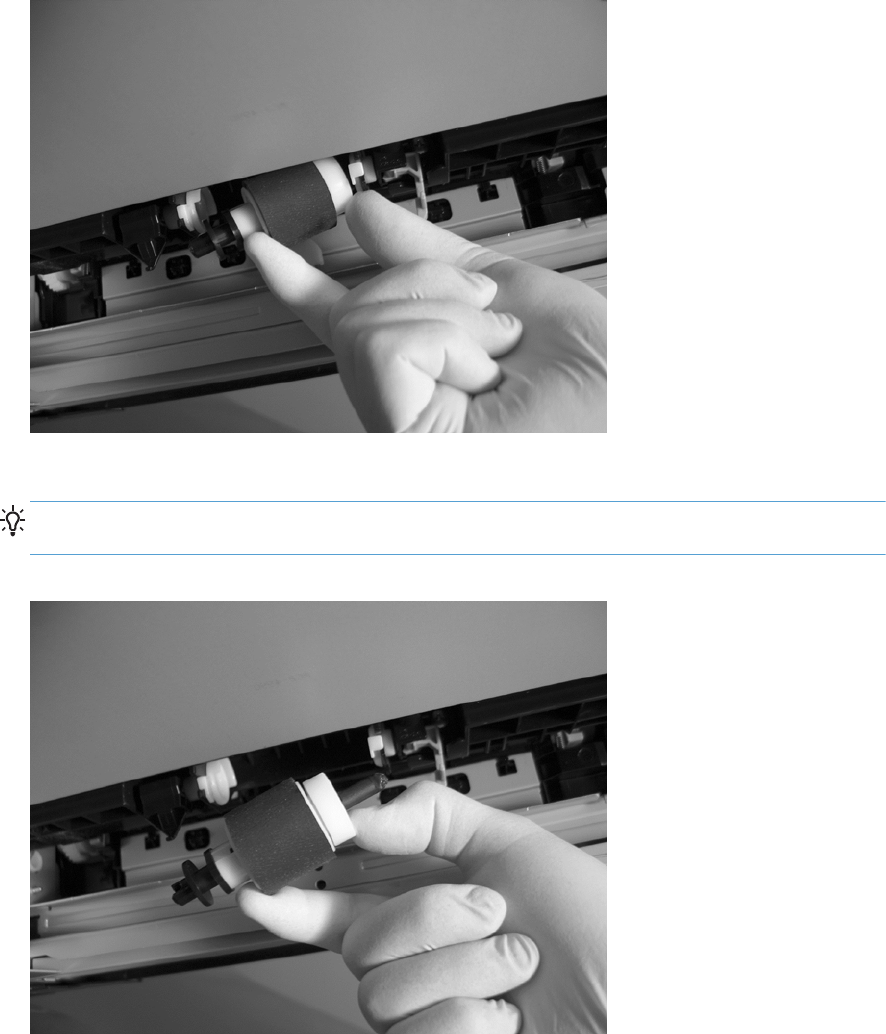
3. Rotate the roller shaft down and away from the product, and then slide the roller toward the rear
of the product to release the front of the roller shaft.
Figure 2-25 Remove the pickup roller (Tray 2; 3 of 4)
4. Remove the pickup roller.
Reinstallation tip Make sure that the roller is orientated correctly when it is reinstalled the
large white collar should be positioned toward the front of the product.
Figure 2-26 Remove the pickup roller (Tray 2; 4 of 4)
90 Chapter 2 Removal and replacement ENWW
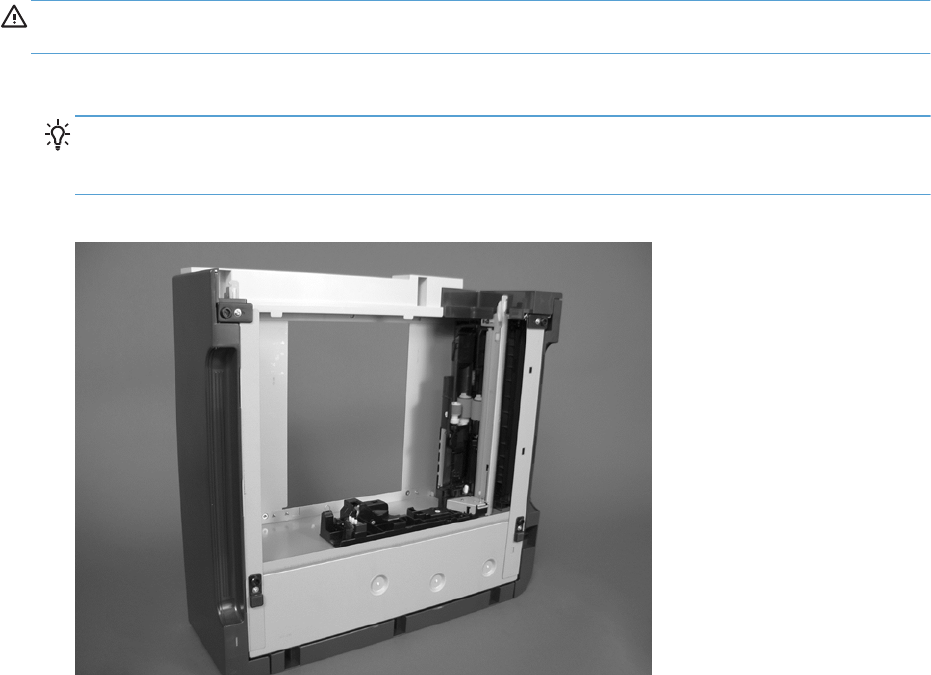
Pickup and feed rollers (Tray 3)
CAUTION: Do not touch the spongy roller surface unless you are replacing the roller. Skin oils on the
roller can cause paper pickup problems.
1. Locate the Tray 3 pickup and feed rollers.
TIP: The feeder is shown front side up in this procedure for clarity. You do not have to separate
the product from the feeder to remove these rollers. Remove the cassette, and then reach up into
the cavity to remove the rollers.
Figure 2-27 Remove the Pickup and feed rollers (Tray 3; 1 of 2)
ENWW Customer self repair (CSR) components 91
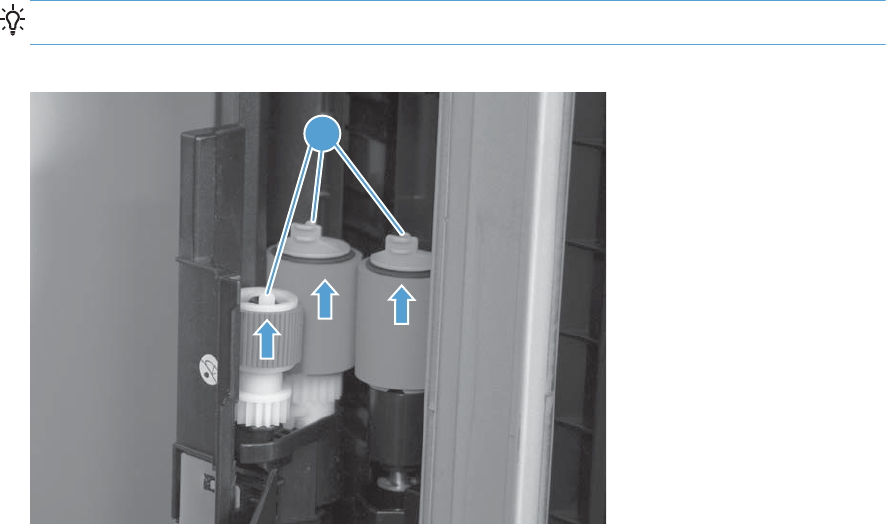
2. Release three tabs (callout 1), and then remove the rollers.
Reinstallation tip When you reinstall the rollers, make sure that the rollers snap into place.
Figure 2-28 Remove the Pickup and feed rollers (Tray 3; 2 of 2)
1
92 Chapter 2 Removal and replacement ENWW
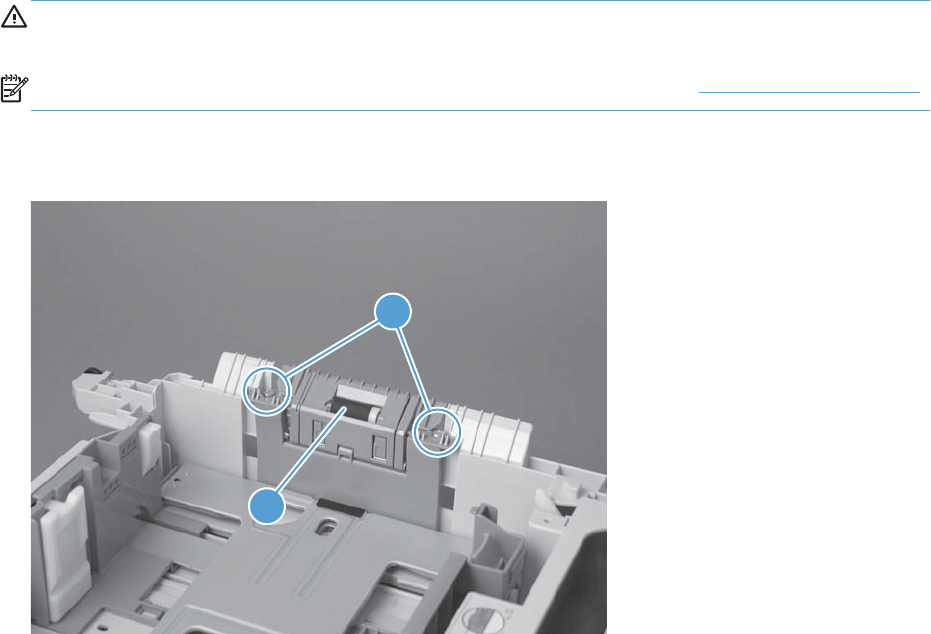
Separation roller (Tray 2)
CAUTION: Do not touch the spongy roller surface unless you are replacing the roller. Skin oils on the
roller can cause paper pickup problems.
NOTE: Remove the Tray 2 cassette if not already removed for service. See Tray cassette on page 86.
Remove two screws (callout 1), and then remove the separation roller assembly (callout 2).
Figure 2-29 Remove the separation roller (Tray 2)
1
2
ENWW Customer self repair (CSR) components 93
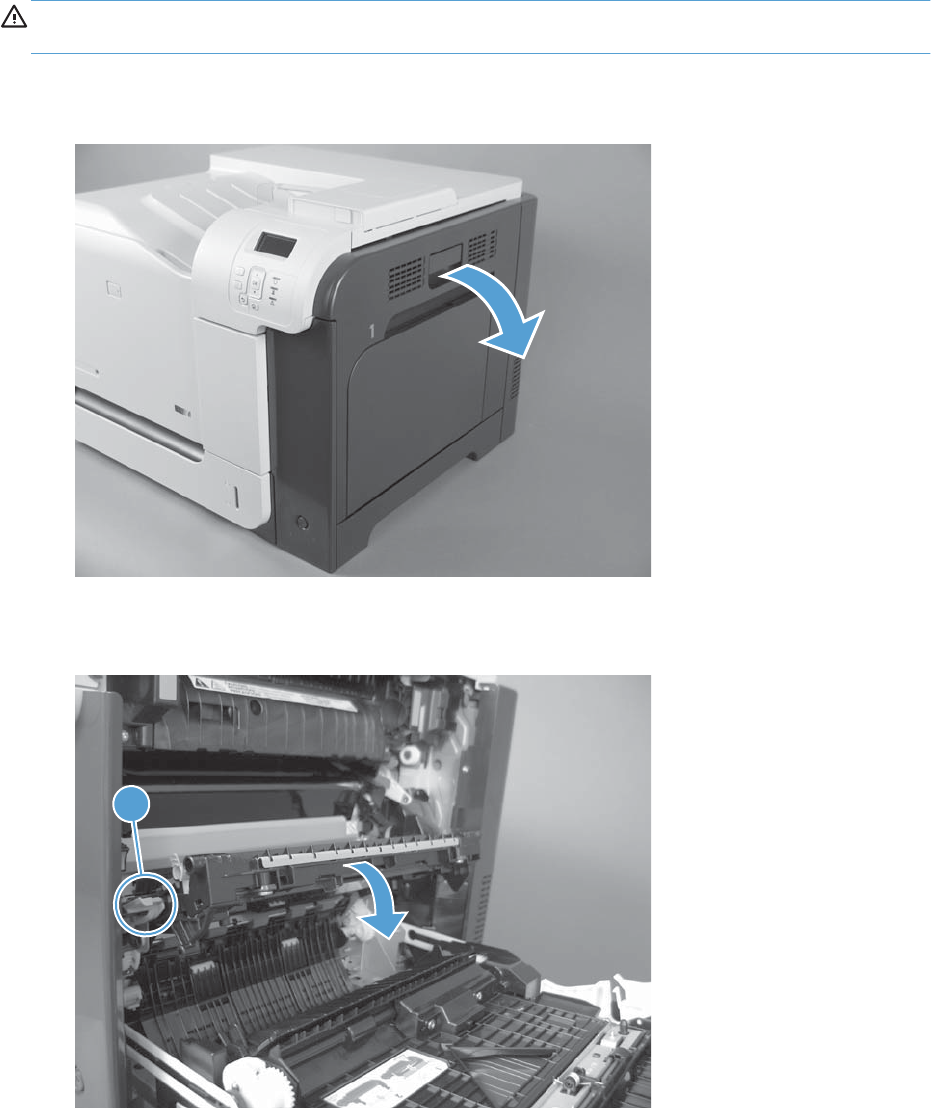
Secondary transfer roller
CAUTION: Do not touch the spongy roller surface unless you are replacing the roller. Skin oils on the
roller can cause image quality problems.
1. Open the right door assembly.
Figure 2-30 Remove the transfer roller (1 of 3)
2. Use the blue lever (callout 1) to lower the secondary transfer assembly.
Figure 2-31 Remove the transfer roller (2 of 3)
1
94 Chapter 2 Removal and replacement ENWW
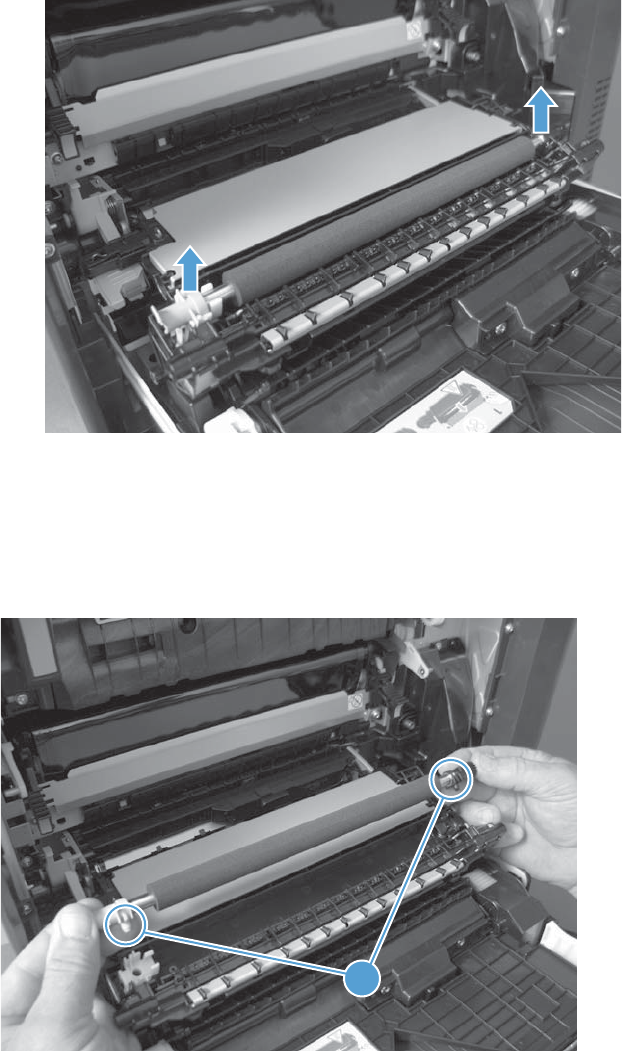
3. Grasp the roller shaft collars, and lift the transfer roller off of the product.
Figure 2-32 Remove the transfer roller (3 of 3)
Reinstall the transfer roller
When you reinstall the transfer roller, make sure that the pins on the shaft collars (callout 1) align with
the holes in the mounting assembly.
Figure 2-33 Reinstall the transfer roller
1
ENWW Customer self repair (CSR) components 95
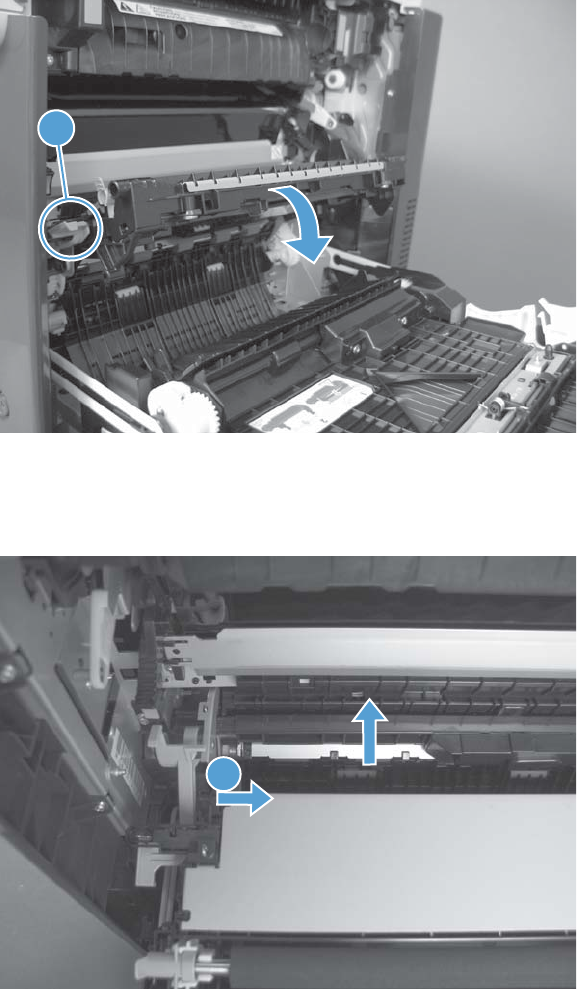
Secondary transfer assembly
The secondary transfer assembly includes the transfer roller.
1. Open the right door assembly.
2. Use the blue lever (callout 1) to lower the secondary transfer assembly.
Figure 2-34 Remove the secondary transfer assembly (1 of 3)
1
3. Push the pin on the release-lever side of the assembly toward the inside of the product to release it,
and then lift the assembly up.
Figure 2-35 Remove the secondary transfer assembly (2 of 3)
1
96 Chapter 2 Removal and replacement ENWW
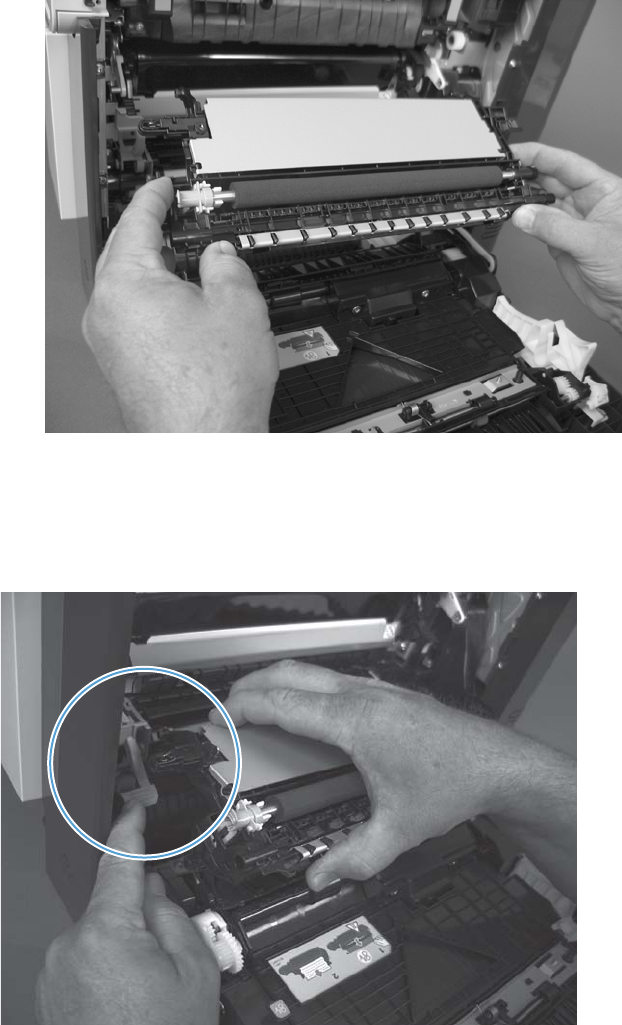
4. Pull the assembly straight out of the product to remove it.
Figure 2-36 Remove the secondary transfer assembly (3 of 3)
Reinstall the secondary transfer assembly
Press and hold down the blue release lever when you reinstall the assembly.
Figure 2-37 Reinstall the secondary transfer assembly
ENWW Customer self repair (CSR) components 97
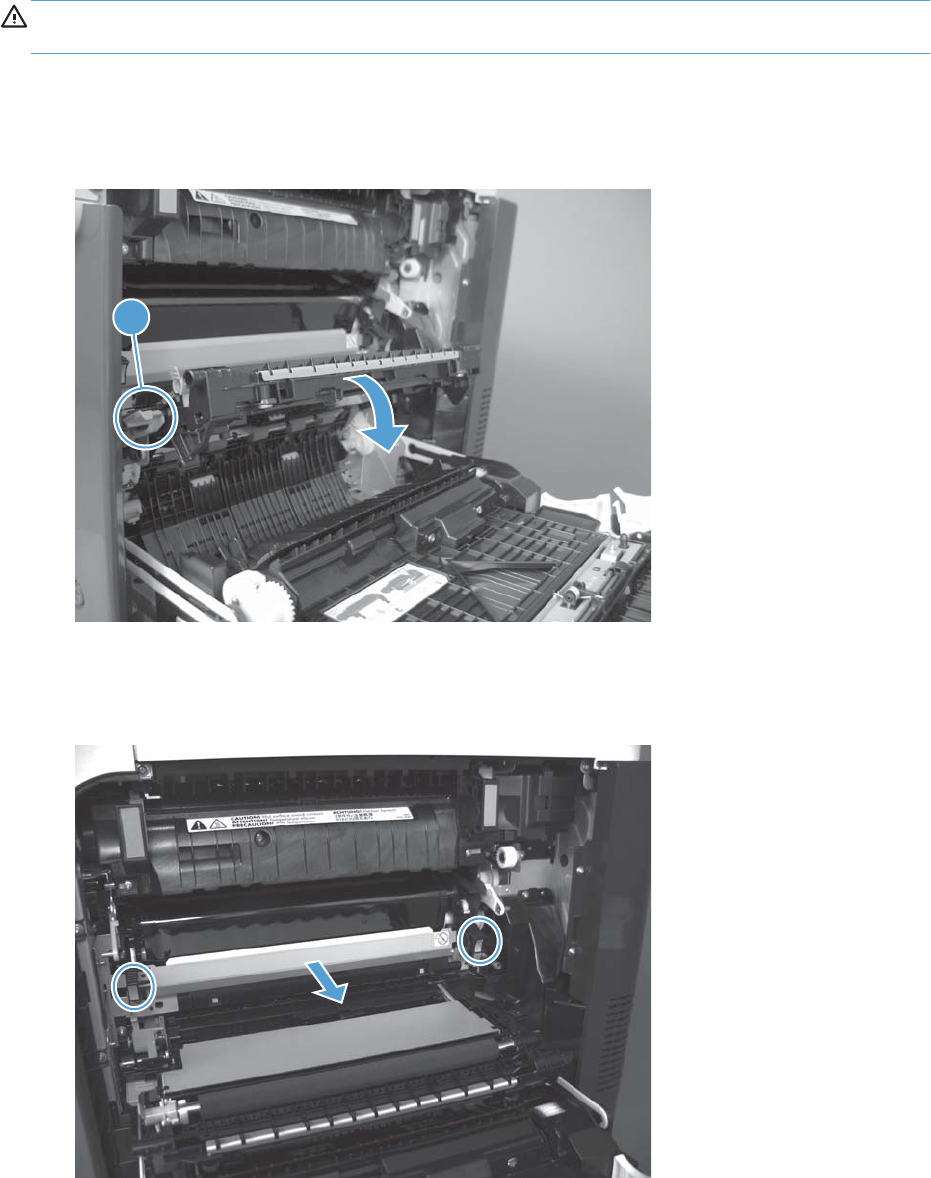
Intermediate transfer belt (ITB)
CAUTION: Do not touch the black-plastic belt. Skin oils and fingerprints on the belt can cause print-
quality problems. Always place the ITB on a flat surface in a safe and protected location.
1. Open the right door assembly.
2. Use the blue lever (callout 1) to lower the secondary transfer assembly.
Figure 2-38 Remove the intermediate transfer belt (1 of 3)
1
3. Grasp the small handles on the ITB and then pull the ITB out of the product until two large handles
expand along the right- and left-side of the ITB.
Figure 2-39 Remove the intermediate transfer belt (2 of 3)
98 Chapter 2 Removal and replacement ENWW
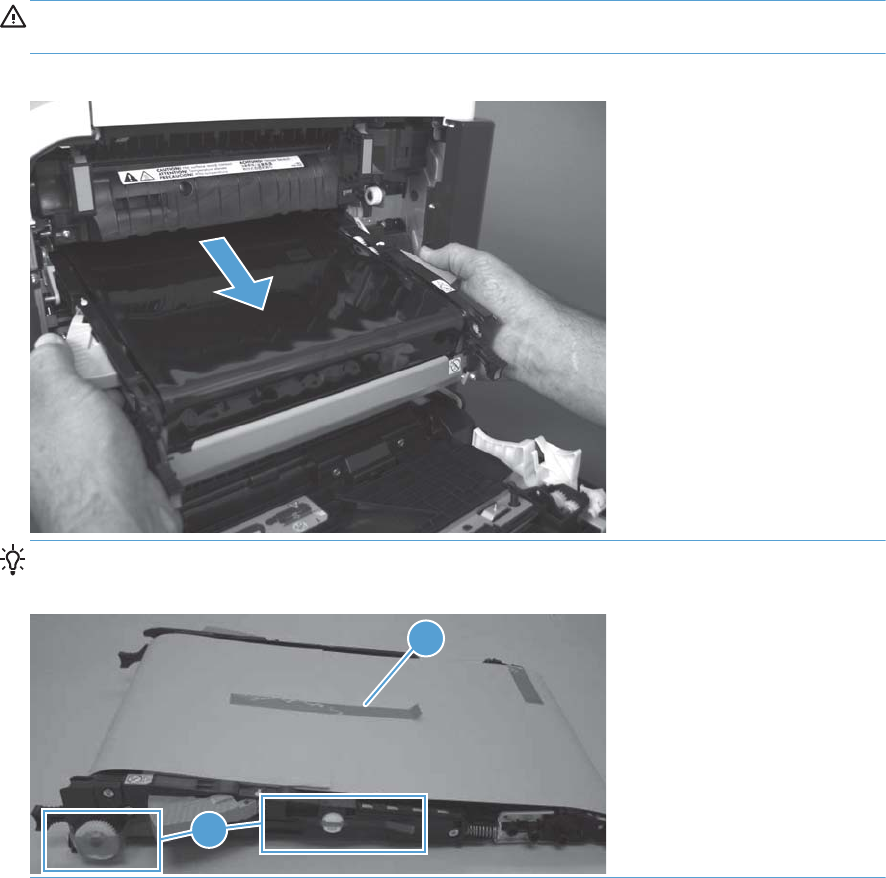
4. Grasp the large handles on the ITB and then pull the ITB straight out of the product to remove it.
CAUTION: The ITB is a sensitive component. Be careful when handling the ITB so that it is not
damaged. Always place the ITB in a safe and protected location.
Figure 2-40 Remove the intermediate transfer belt (3 of 3)
Reinstallation tip If you are installing a replacement ITB, make sure that you remove all of the
packing tape (callout 1) and the protective cover sheet (callout 2).
1
2
ENWW Customer self repair (CSR) components 99
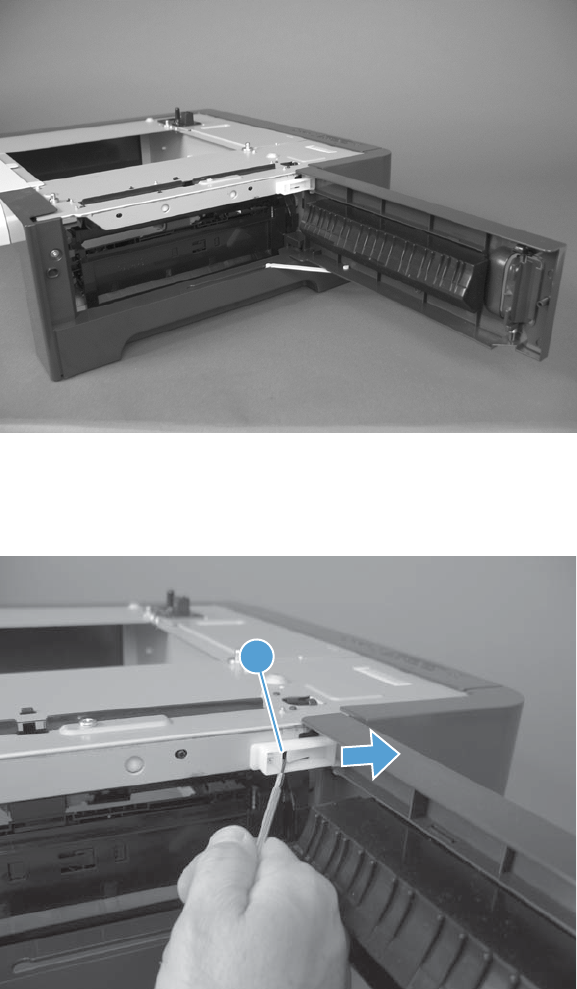
Right door (optional paper feeder)
1. Open the right door.
Figure 2-41 Remove the right door; optional paper feeder (1 of 3)
2. Release one tab (callout 1), and then slide the stopper toward the right side of the product to
remove it.
Figure 2-42 Remove the right door; optional paper feeder (2 of 3)
1
100 Chapter 2 Removal and replacement ENWW
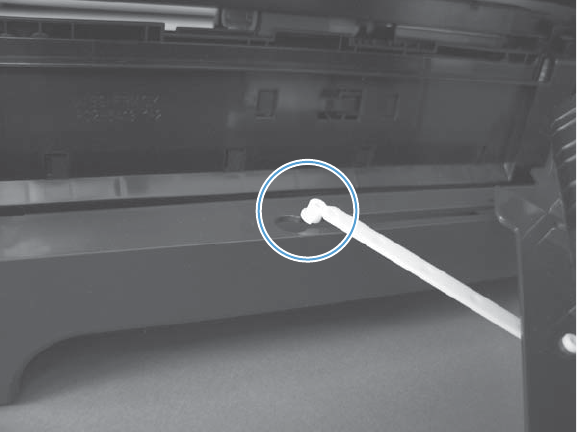
3. Support the door, and then release the door-retainer arm at the bottom of the door. Raise the door
to release the lower hinge pin, and then remove the door.
Figure 2-43 Remove the right door; optional paper feeder (3 of 3)
ENWW Customer self repair (CSR) components 101
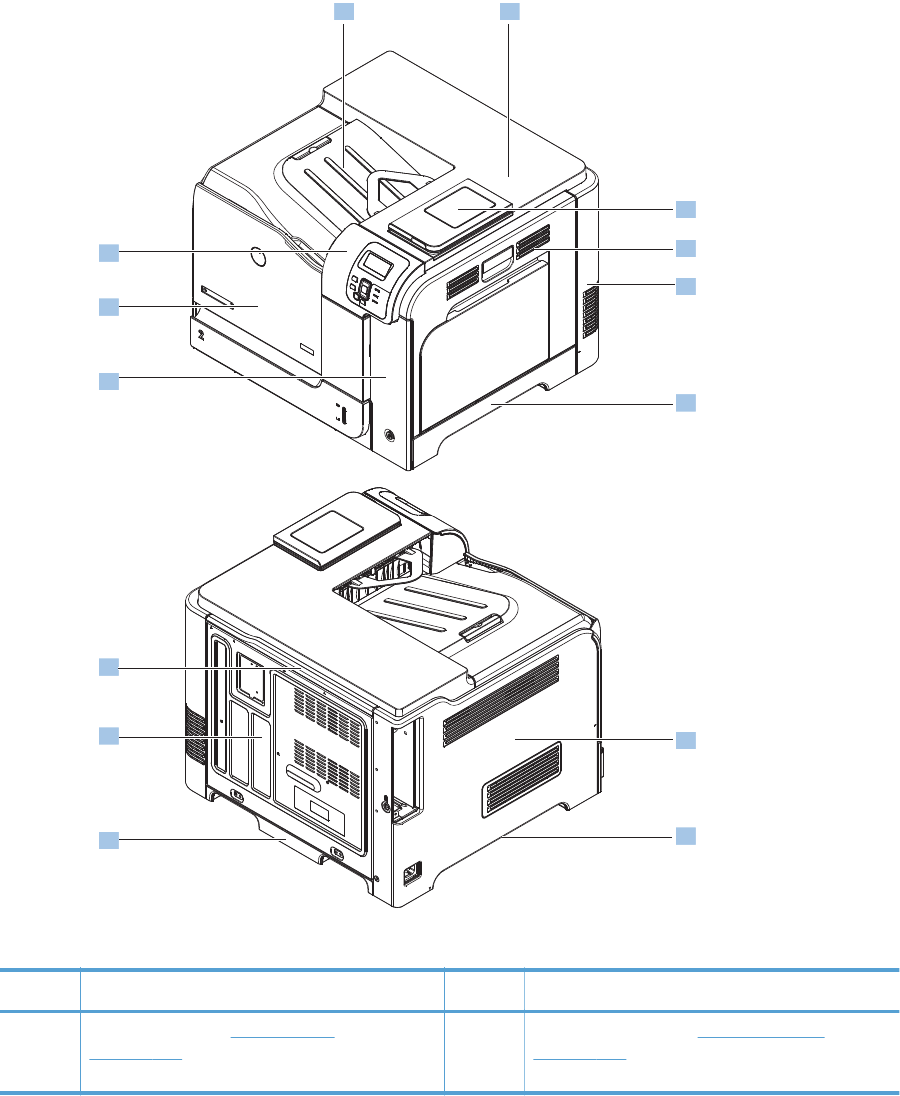
Covers
Identification and location
Figure 2-44 External panels, covers, and doors; identification and location
12
3
4
5
6
7
8
9
10
11
12
13
14
Item Description Item Description
1 Front top cover (see Front top cover
on page 122)
8 Left bottom handle (see Left bottom handle
on page 114
102 Chapter 2 Removal and replacement ENWW
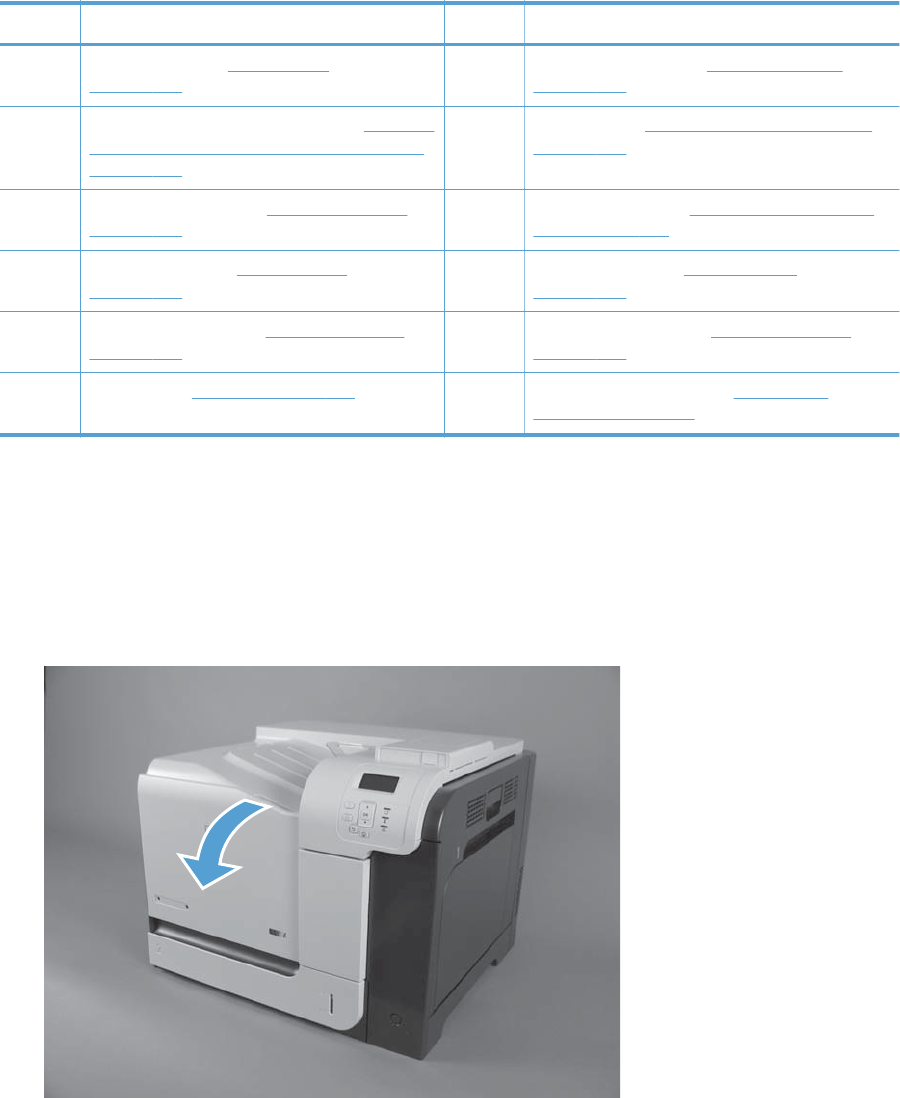
Item Description Item Description
2 Rear top cover (see Rear top cover
on page 127)
9 Rear bottom handle (see Rear bottom handle
on page 130)
3 Hardware integration pocket (HIP) (see Hardware
integration pocket (HIP) (dn and xh models only)
on page 115)
10 Rear cover (see Rear cover and upper rear cover
on page 124)
4 Right door assembly (see Right door assembly
on page 105)
11 Upper rear cover (see Rear cover and upper rear
cover on page 124)
5 Rear right cover (see Right rear cover
on page 109)
12 Right front cover (see Right front cover
on page 118)
6 Right bottom handle (see Right bottom handle
on page 129)
13 Front door assembly (see Front door assembly
on page 103)
7 Left cover (see Left cover on page 111) 14 Control panel assembly (see Control panel
assembly on page 116)
Front door assembly
1. Open the front door.
Figure 2-45 Remove the front door assembly (1 of 2)
ENWW Covers 103
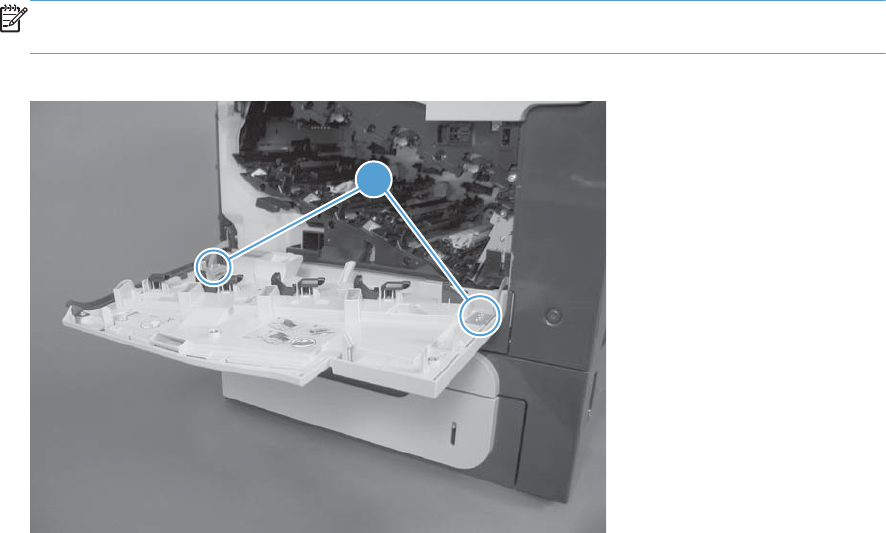
2. Remove two screws (callout 1), and then remove the front door assembly.
NOTE: A small sheet-metal bracket on the left side of the door is not captive. Do not lose the
bracket when you remove the screw.
Figure 2-46 Remove the front door assembly (2 of 2)
1
104 Chapter 2 Removal and replacement ENWW
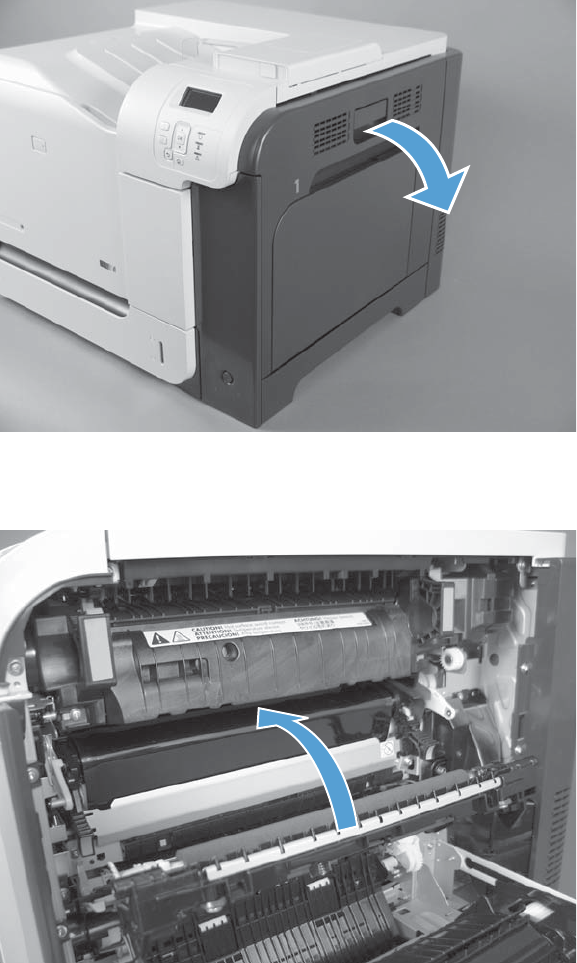
Right door assembly
1. Open the right door assembly.
Figure 2-47 Remove the right door assembly (1 of 8)
2. Close the secondary transfer assembly.
Figure 2-48 Remove the right door assembly (2 of 8)
ENWW Covers 105
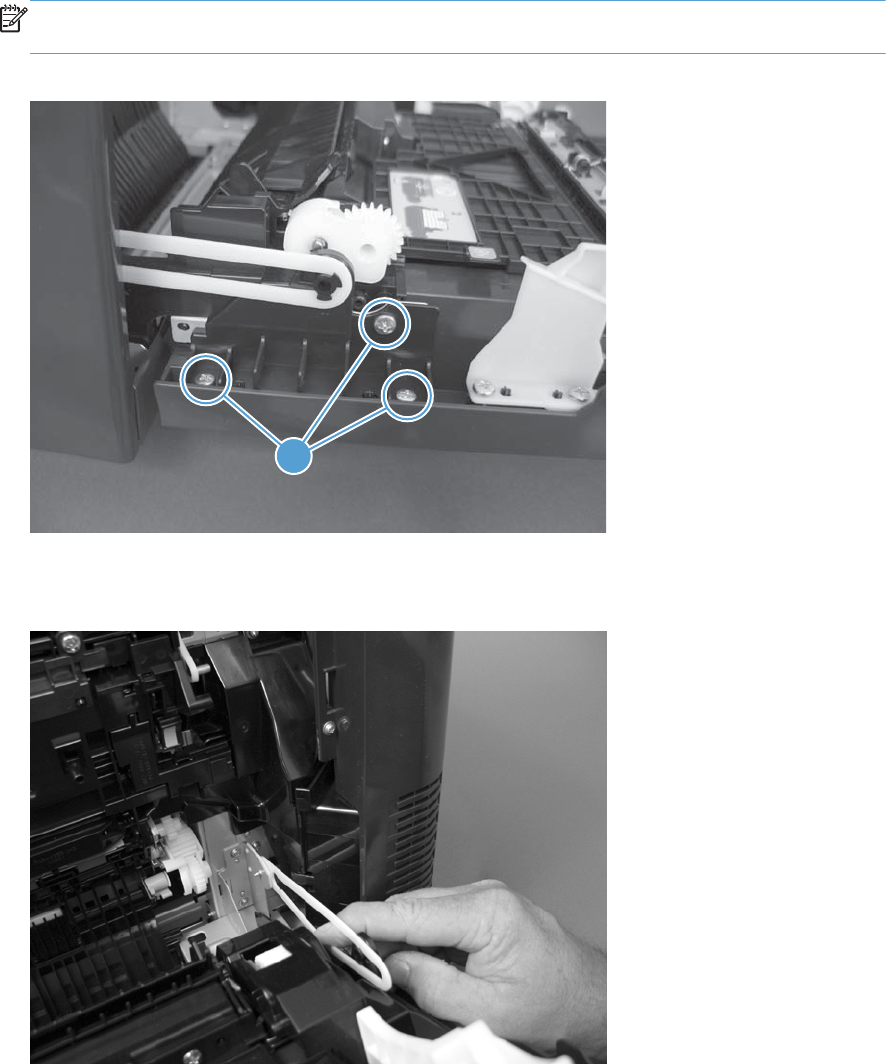
3. Remove three screws (callout 1).
NOTE: Press down on the hinge with your hand to prevent it from springing upward when the
screws are removed.
Figure 2-49 Remove the right door assembly (3 of 8)
1
4. Carefully release one link arm.
Figure 2-50 Remove the right door assembly (4 of 8)
106 Chapter 2 Removal and replacement ENWW
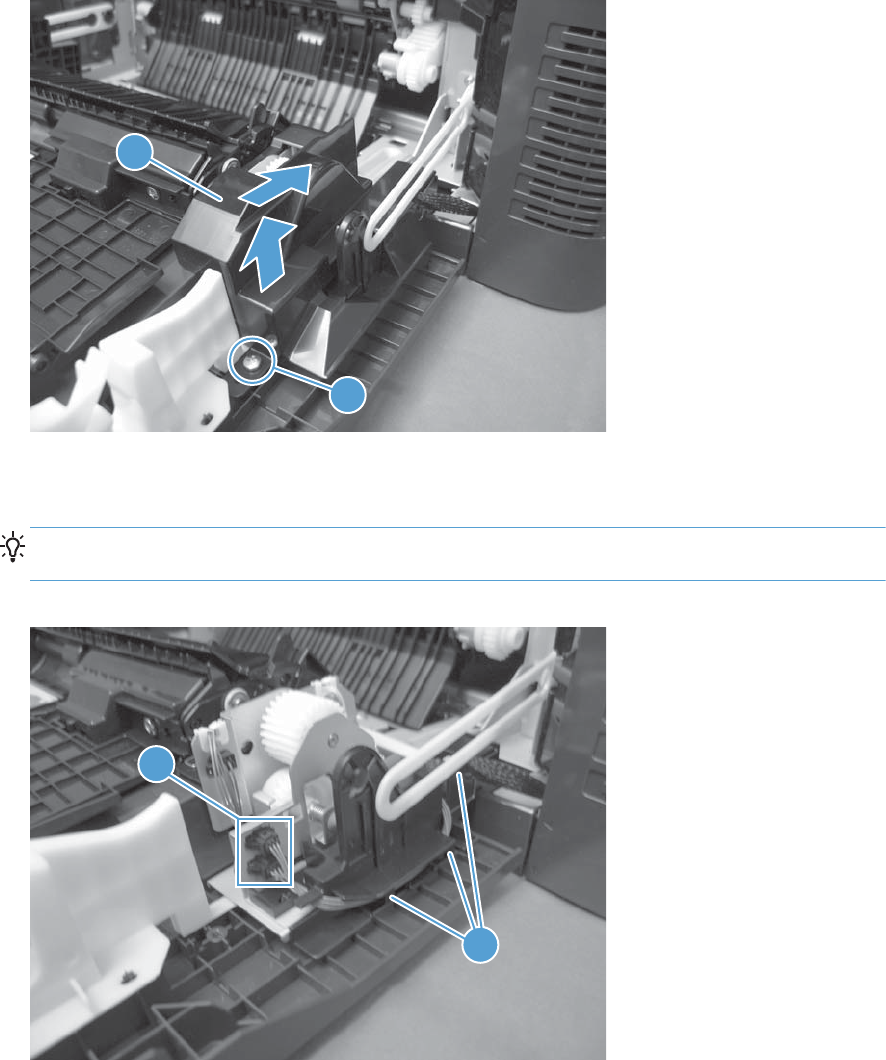
5. Remove one screw (callout 1). Push the cover (callout 2) toward the product, and then lift the cover
to remove.
Figure 2-51 Remove the right door assembly (5 of 8)
1
2
6. Disconnect two connectors (callout 1), and then release the wire harness from the guide
(callout 2).
TIP: It is easier to disconnect the lower connector if you first remove the wire harnesses from the
guide.
Figure 2-52 Remove the right door assembly (6 of 8)
1
2
ENWW Covers 107
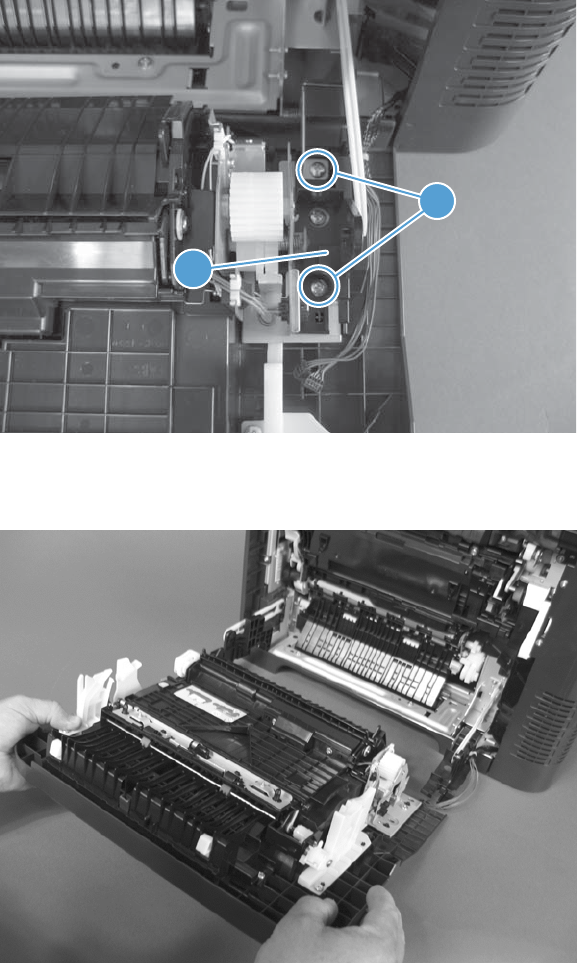
7. While pressing down on the small hinge (callout 1), remove two screws (callout 2).
Figure 2-53 Remove the right door assembly (7 of 8)
2
1
8. Remove the right door assembly.
Figure 2-54 Remove the right door assembly (8 of 8)
108 Chapter 2 Removal and replacement ENWW
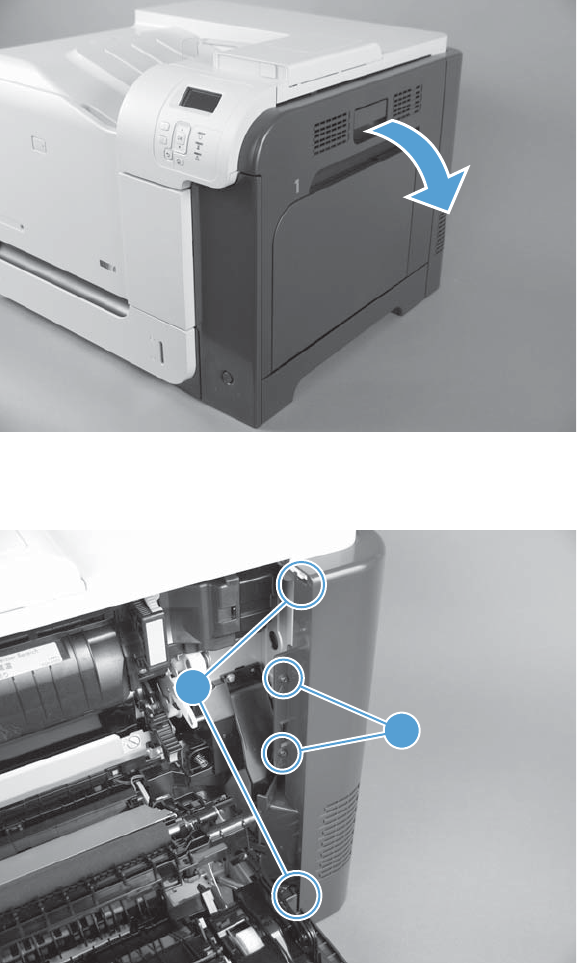
Right rear cover
1. Open the right door assembly.
Figure 2-55 Remove the right rear cover (1 of 3)
2. Remove two screws (callout 1) and release two tabs (callout 2).
Figure 2-56 Remove the right rear cover (2 of 3)
2
1
ENWW Covers 109
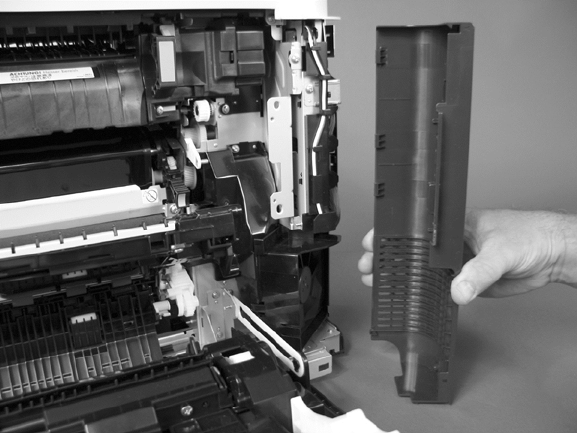
3. Rotate the cover away from the product, and then remove it.
Figure 2-57 Remove the right rear cover (3 of 3)
110 Chapter 2 Removal and replacement ENWW
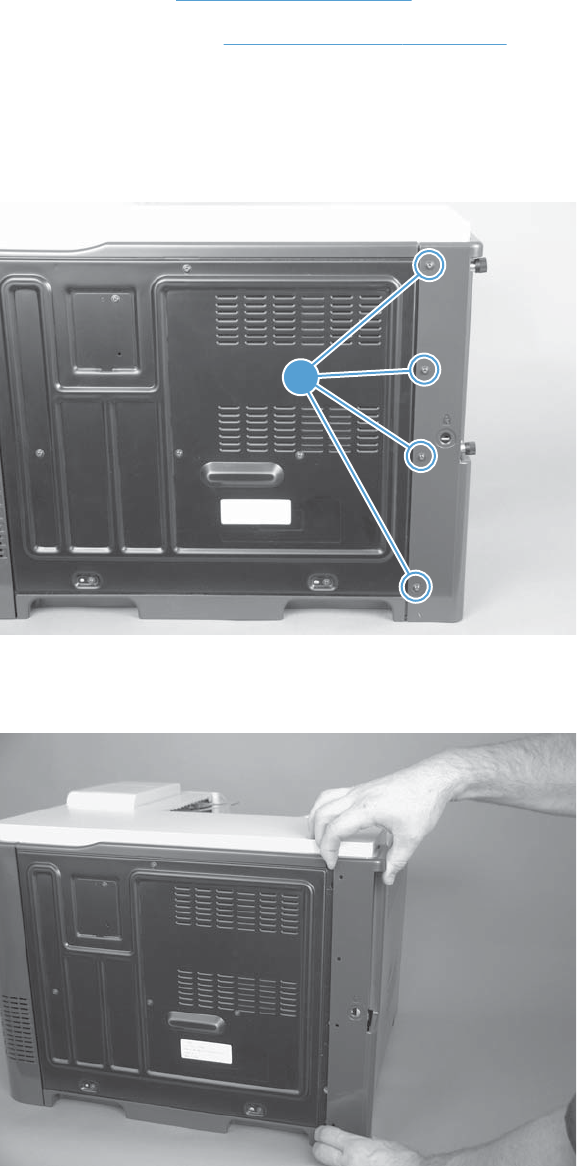
Left cover
Before proceeding, remove the following components:
●Formatter PCA. See Formatter PCA on page 81.
●Toner collection unit. See Toner collection unit on page 79.
Remove the left cover
1. Remove four screws (callout 1).
Figure 2-58 Remove the left cover (1 of 4)
1
2. Release the rear edge of the cover, and slightly separate the cover from the product.
Figure 2-59 Remove the left cover (2 of 4)
ENWW Covers 111
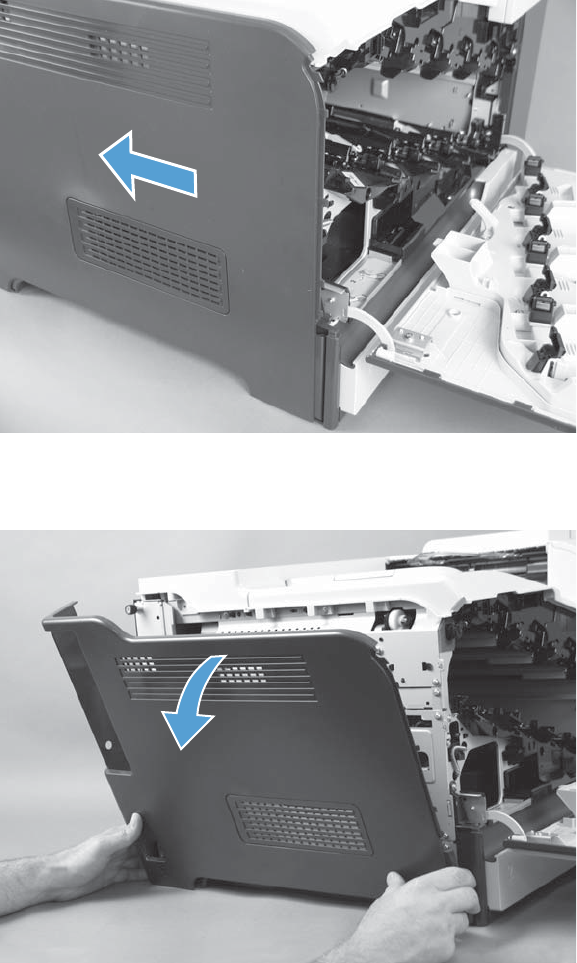
3. Slide the cover toward the back of the product.
Figure 2-60 Remove the left cover (3 of 4)
4. Remove the cover.
Figure 2-61 Remove the left cover (4 of 4)
112 Chapter 2 Removal and replacement ENWW
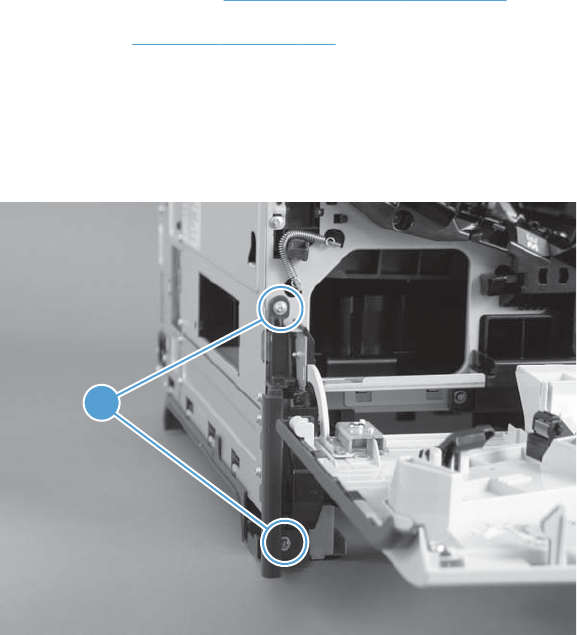
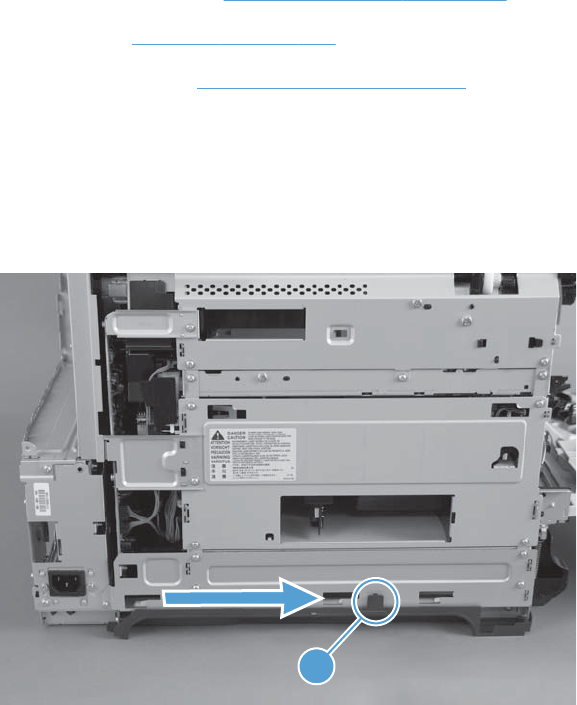
Left bottom handle
Before proceeding, remove the following components:
●Toner collection unit. See Toner collection unit on page 79.
●Left cover. See Left cover on page 111.
●Left bottom cover. See Left bottom cover on page 113.
Remove the left bottom handle
▲Release the retainer (callout 1), and then slide the handle toward the front side of the product to
remove it.
Figure 2-63 Remove the left bottom handle
1
114 Chapter 2 Removal and replacement ENWW
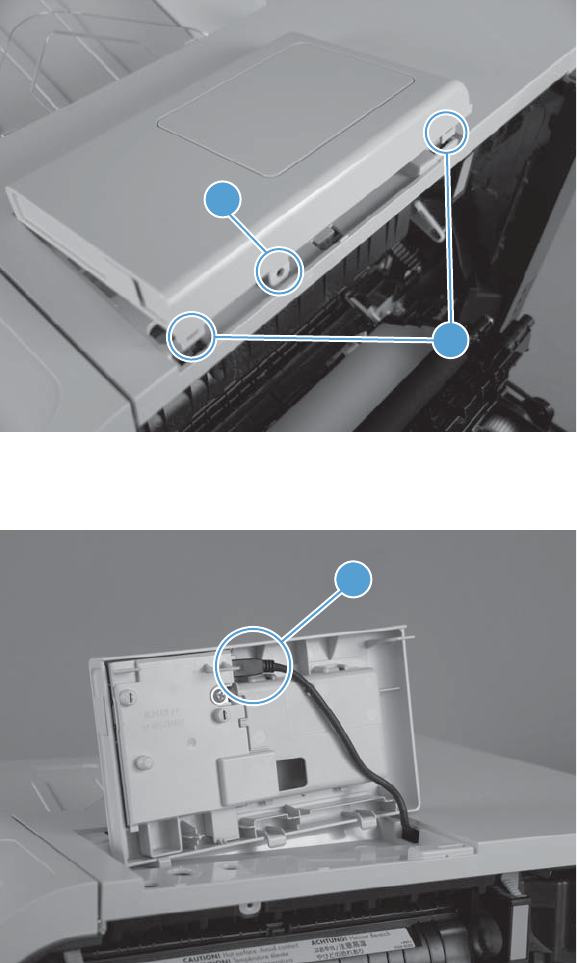
Hardware integration pocket (HIP) (dn and xh models only)
1. Remove one screw (callout 1), and then release two tabs (callout 2).
Figure 2-64 Remove the HIP (1 of 2)
2
1
2. Release one connector (callout 1).
Figure 2-65 Remove the HIP (2 of 2)
1
ENWW Covers 115
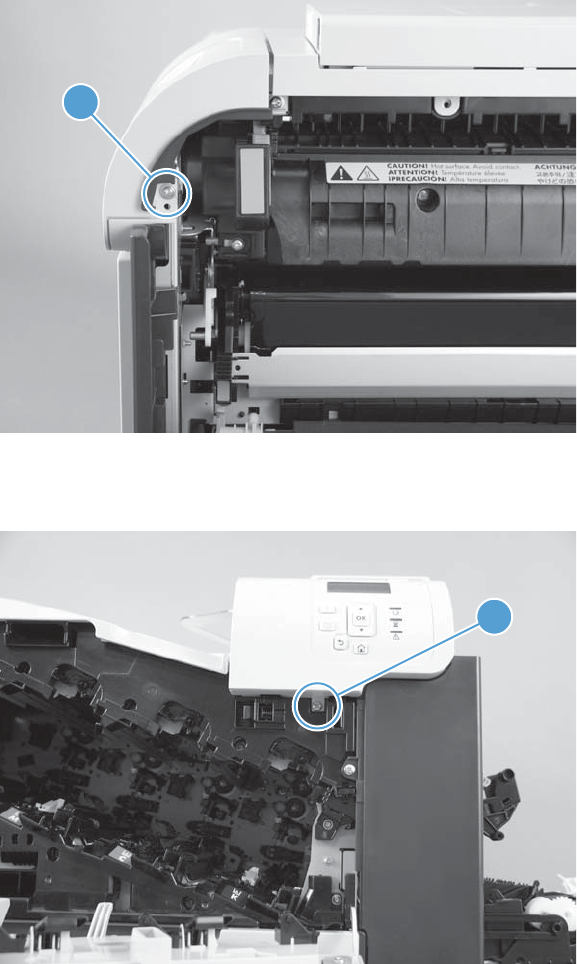
Control panel assembly
1. Open the front door and the right door.
2. Remove one screw (callout 1).
Figure 2-66 Remove the control panel assembly (1 of 4)
1
3. Remove one screw (callout 1).
Figure 2-67 Remove the control panel assembly (2 of 4)
1
116 Chapter 2 Removal and replacement ENWW
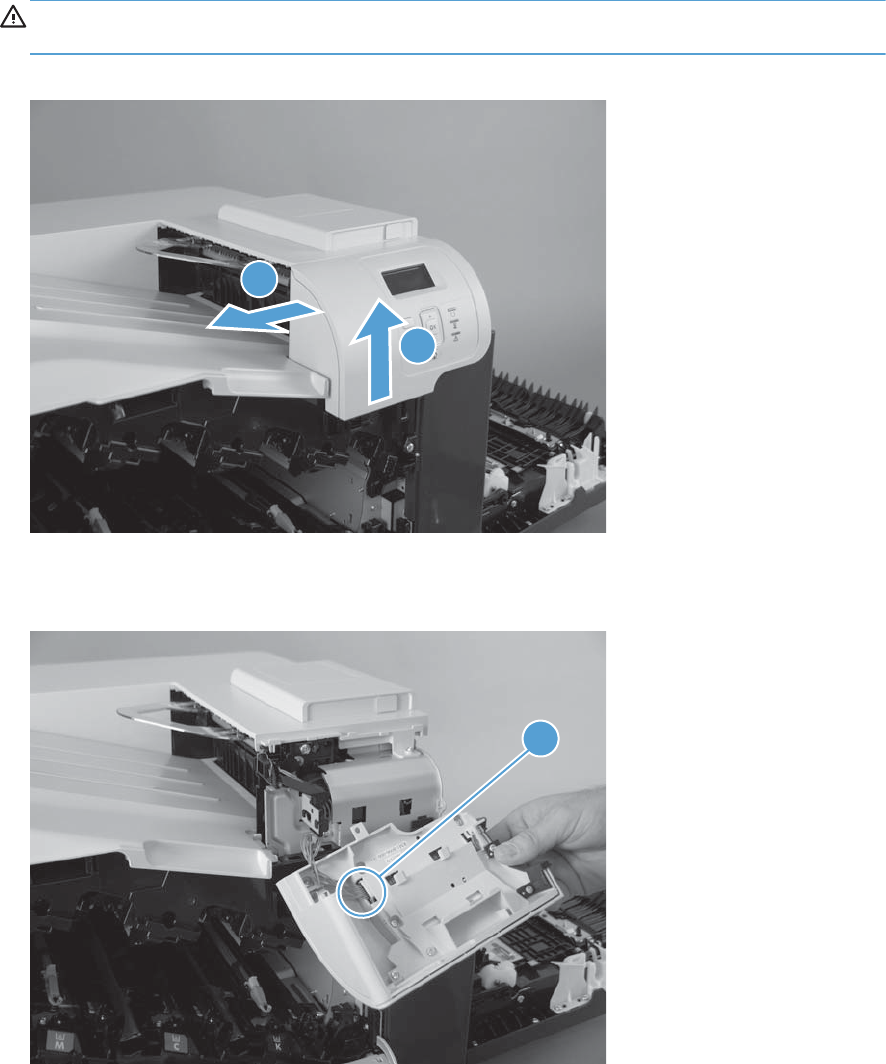
4. Lift the control panel assembly up, and then rotate the top of the assembly to the left to release
from the product.
CAUTION: The control panel assembly is attached to the product by the wire harness
connector.
Figure 2-68 Remove the control panel assembly (3 of 4)
1
2
5. Disconnect one connector (callout 1), and then remove the control panel assembly.
Figure 2-69 Remove the control panel assembly (4 of 4)
1
ENWW Covers 117
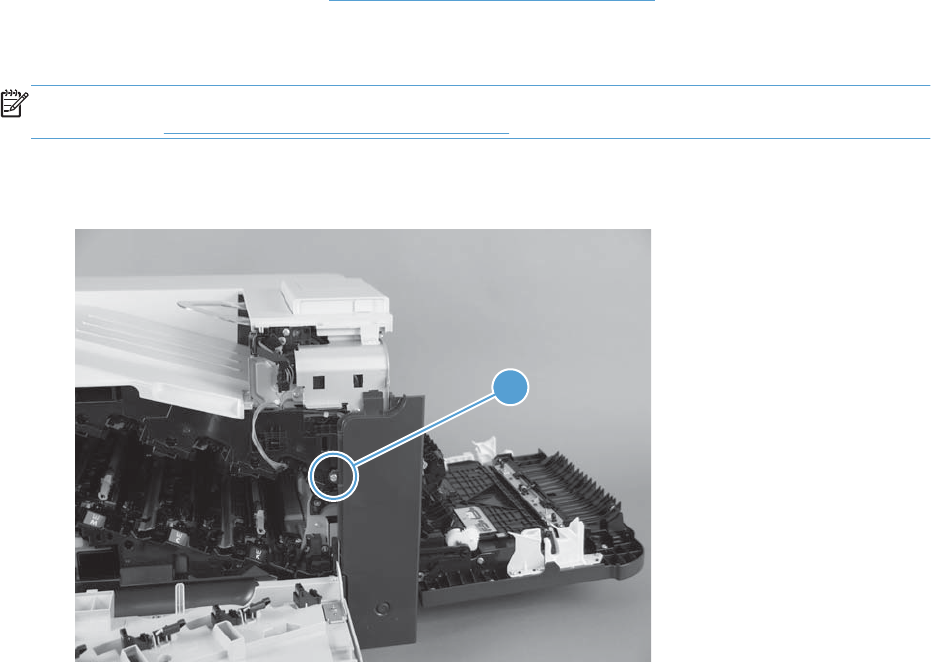
Right front cover
Before proceeding, remove the following components:
●Control panel assembly. See Control panel assembly on page 116.
Remove the right front cover
NOTE: Be careful. When removing the cover, do not dislodge the power button. If the button is
dislodged, see Reinstall the power button on page 121 to reinstall it.
1. Remove one screw (callout 1).
Figure 2-70 Remove the right front cover (1 of 5)
1
118 Chapter 2 Removal and replacement ENWW
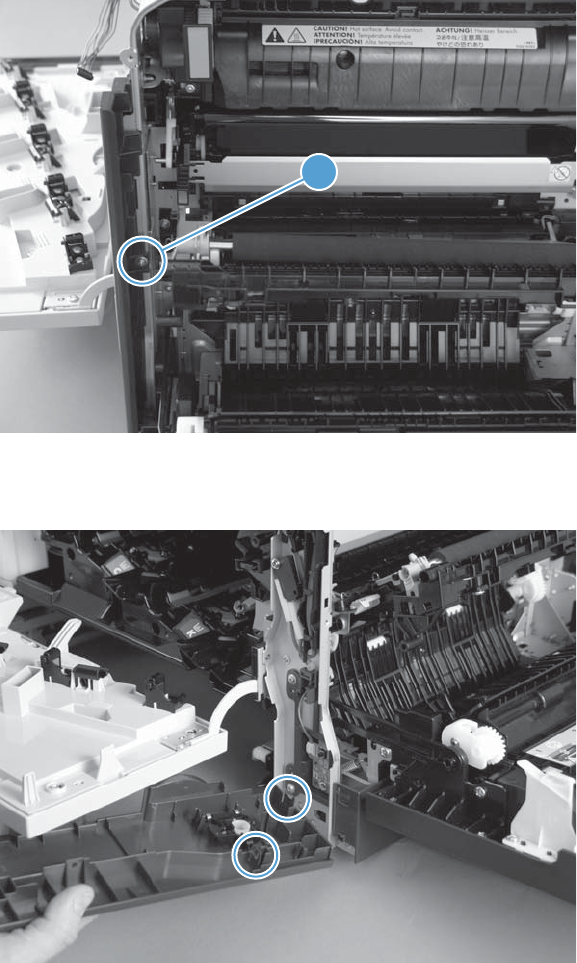
2. Remove one screw (callout 1).
Figure 2-71 Remove the right front cover (2 of 5)
1
3. Before you proceed, take note of the tab locations at the bottom of the cover.
Figure 2-72 Remove the right front cover (3 of 5)
ENWW Covers 119
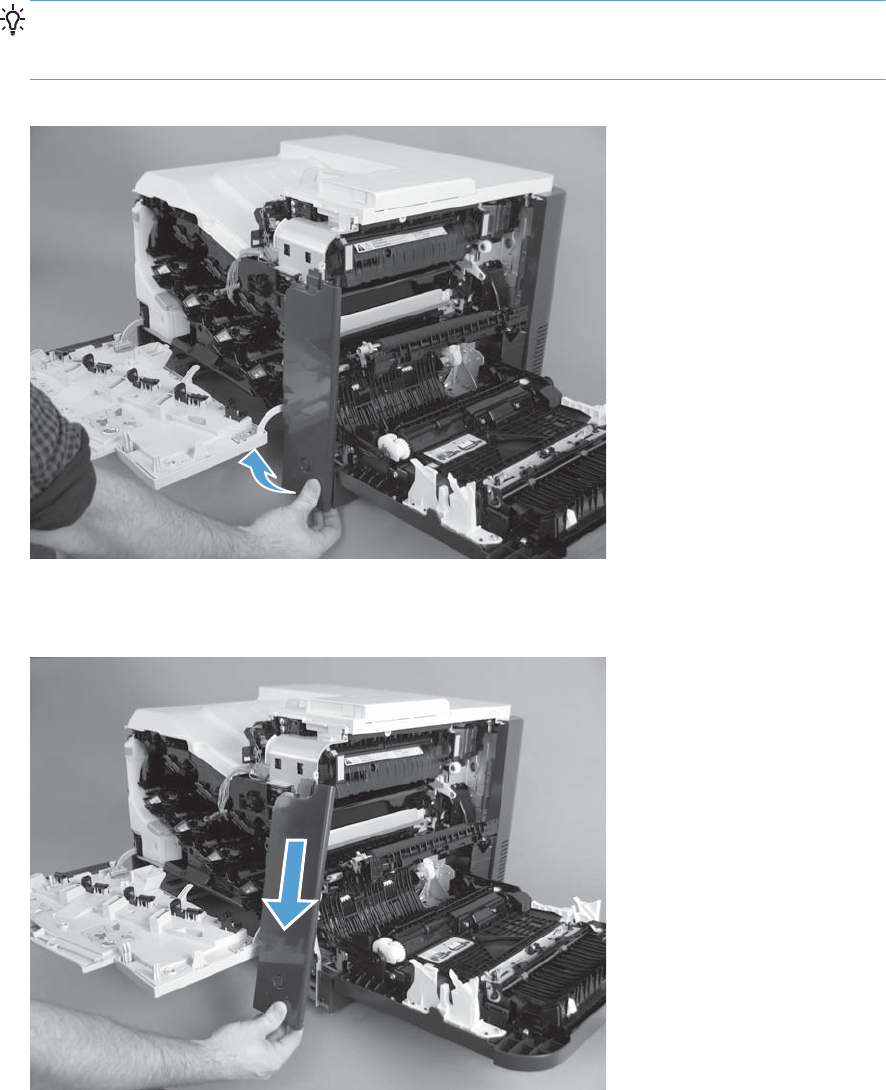
4. Release the tab on the bottom of the cover.
TIP: It might be easier if you position the product at the edge of the work surface so that there is
space to access the tab. You might try pushing the tab down by carefully inserting a small flat
blade screwdriver.
Figure 2-73 Remove the right front cover (4 of 5)
5. Pull down on the cover to remove it.
Figure 2-74 Remove the right front cover (5 of 5)
120 Chapter 2 Removal and replacement ENWW
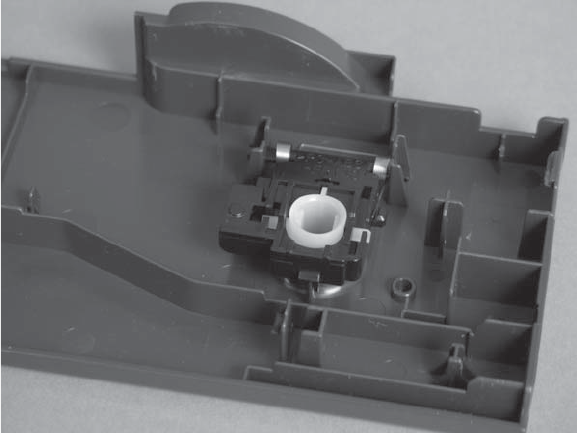
Reinstall the power button
Snap the power button into the holders on the cover. Make sure that the spring is correctly installed.
Figure 2-75 Reinstall the power button
ENWW Covers 121
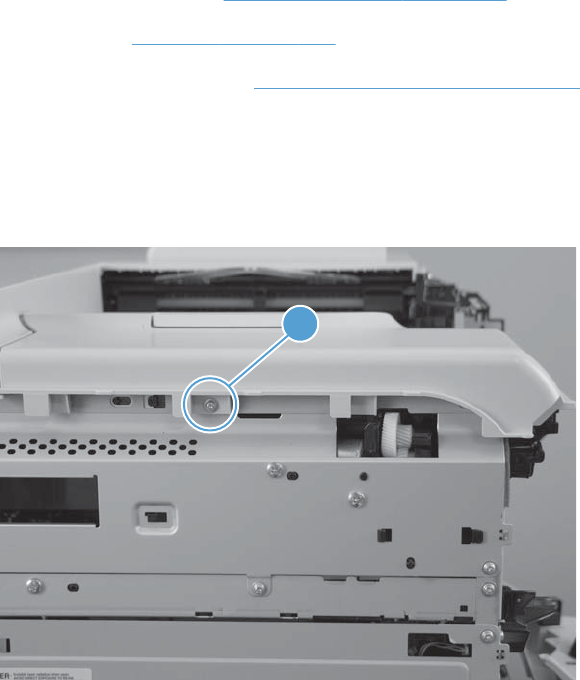
Front top cover
Before proceeding, remove the following components:
●Toner collection unit. See Toner collection unit on page 79.
●Left cover. See Left cover on page 111.
●Control panel assembly. See Control panel assembly on page 116.
Remove the front top cover
1. Remove one screw (callout 1).
Figure 2-76 Remove the front top cover (1 of 2)
1
122 Chapter 2 Removal and replacement ENWW
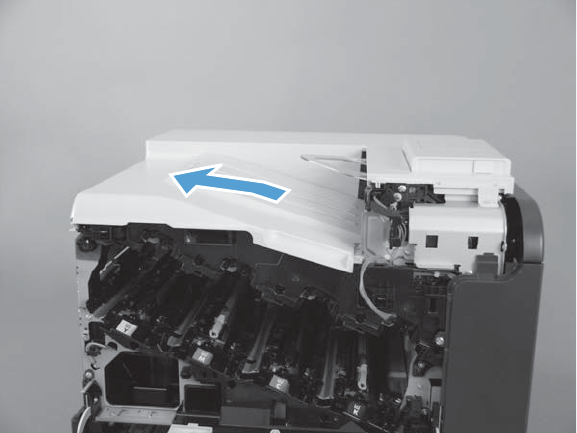
2. Slide the cover toward the left side of the product to release it, and then remove the cover.
Figure 2-77 Remove the front top cover (2 of 2)
ENWW Covers 123
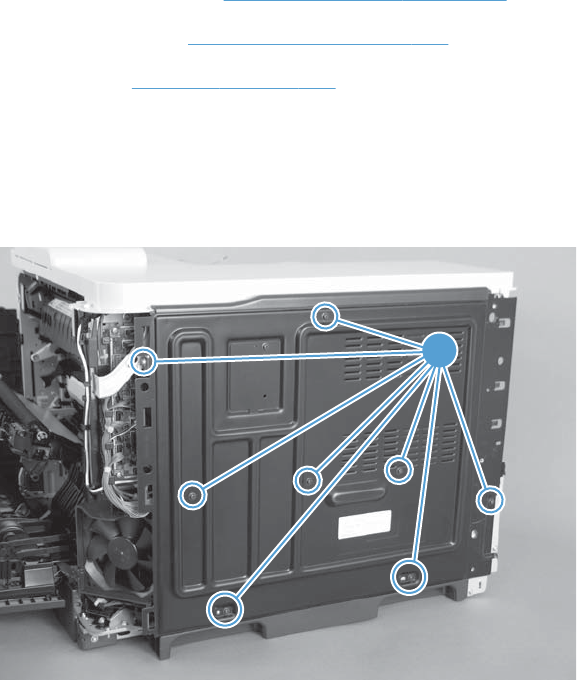
Rear cover and upper rear cover
Before proceeding, remove the following components:
●Toner collection unit. See Toner collection unit on page 79.
●Right rear cover. See Right rear cover on page 109.
●Left cover. See Left cover on page 111.
Remove the rear cover and upper rear cover
1. Remove eight screws (callout 1).
Figure 2-78 Remove the rear cover and upper rear cover (1 of 4)
1
124 Chapter 2 Removal and replacement ENWW
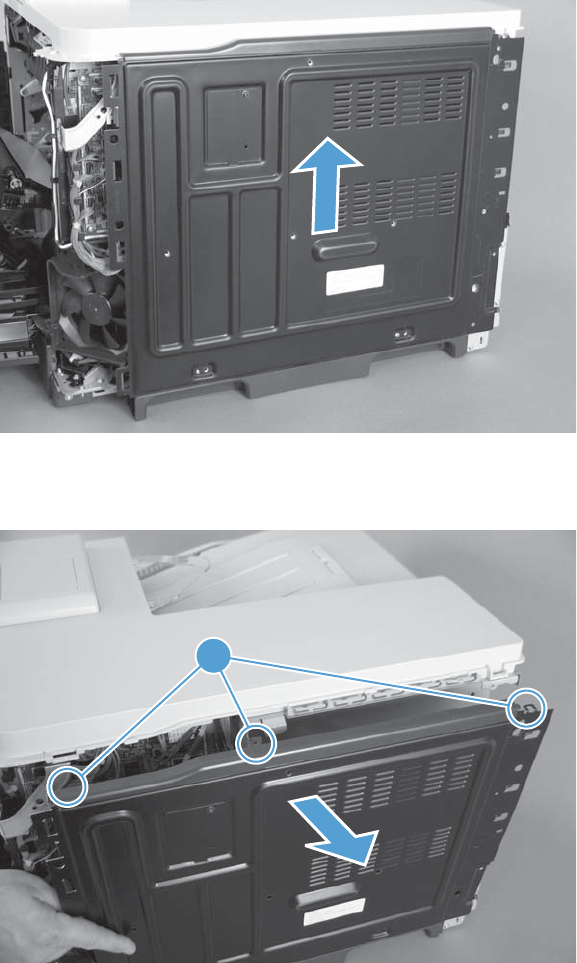
2. Slide the cover up.
Figure 2-79 Remove the rear cover and upper rear cover (2 of 4)
3. Release three tabs (callout 1) and then remove the cover.
Figure 2-80 Remove the rear cover and upper rear cover (3 of 4)
1
ENWW Covers 125
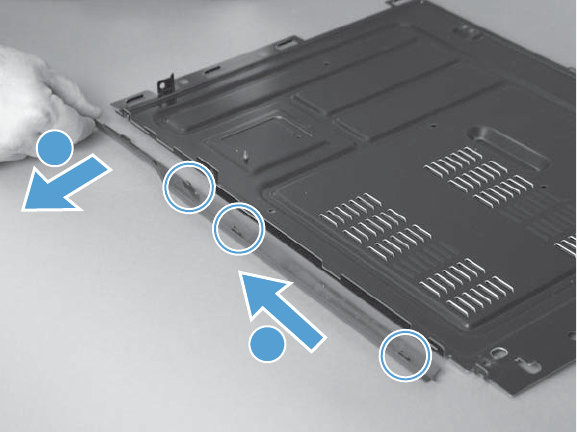
4. Slide the upper rear cover toward the left to release three tabs (callout 1), and then separate the
upper rear cover (callout 2) from the rear cover.
Figure 2-81 Remove the rear cover and upper rear cover (4 of 4)
2
1
126 Chapter 2 Removal and replacement ENWW
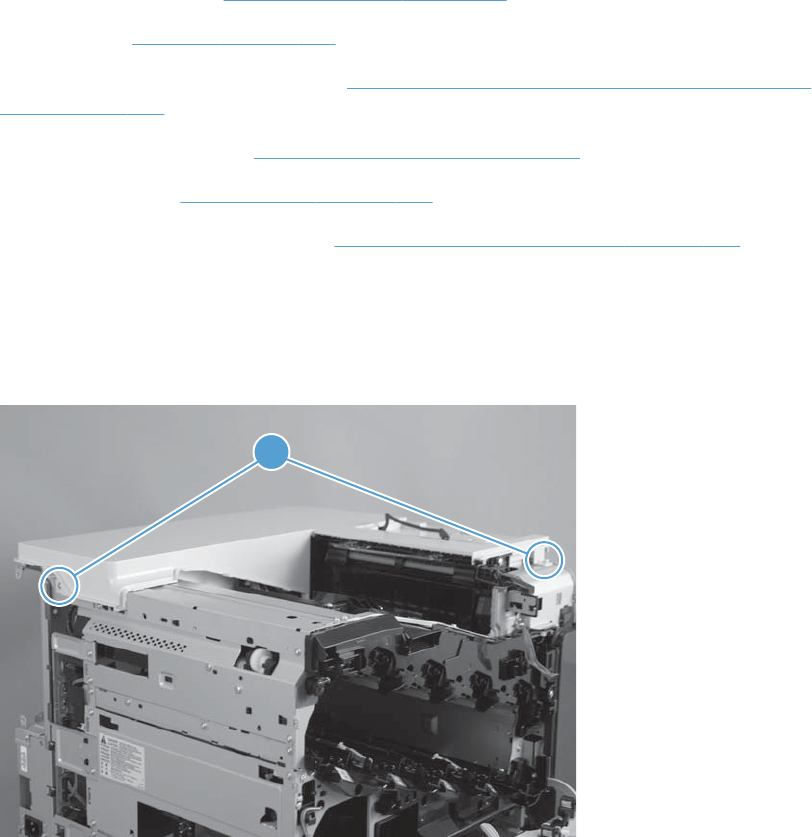
Rear top cover
Before proceeding, remove the following components:
●Toner collection unit. See Toner collection unit on page 79.
●Left cover. See Left cover on page 111.
●Hardware integration pocket (HIP). See Hardware integration pocket (HIP) (dn and xh models
only) on page 115.
●Control panel assembly. See Control panel assembly on page 116.
●Front top cover. See Front top cover on page 122.
●Rear cover and rear upper cover. See Rear cover and upper rear cover on page 124.
Remove the rear top cover
1. Remove two screws (callout 1).
Figure 2-82 Remove the rear top cover (1 of 2)
1
ENWW Covers 127
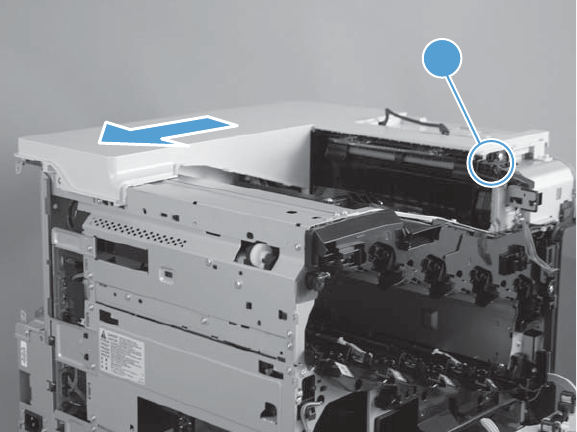
2. Lift the corner of the cover to release one tab (callout 1), and then slide the cover toward the left
side of the product to remove it.
Figure 2-83 Remove the rear top cover (2 of 2)
1
128 Chapter 2 Removal and replacement ENWW
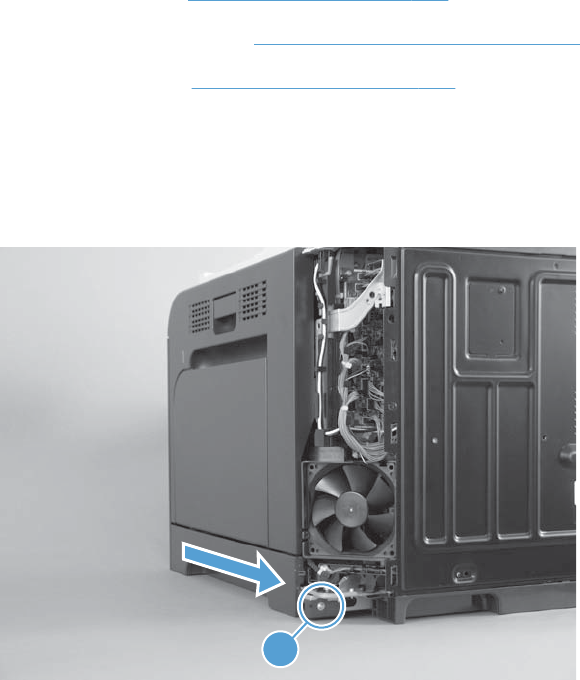
Right bottom handle
Before proceeding, remove the following components:
●Right rear cover. See Right rear cover on page 109.
●Control panel assembly. See Control panel assembly on page 116.
●Right front cover. See Right front cover on page 118.
Remove the right bottom handle
▲Remove one screw (callout 1), and then slide the handle toward the rear of the product to remove.
Figure 2-84 Remove the right bottom handle
1
ENWW Covers 129
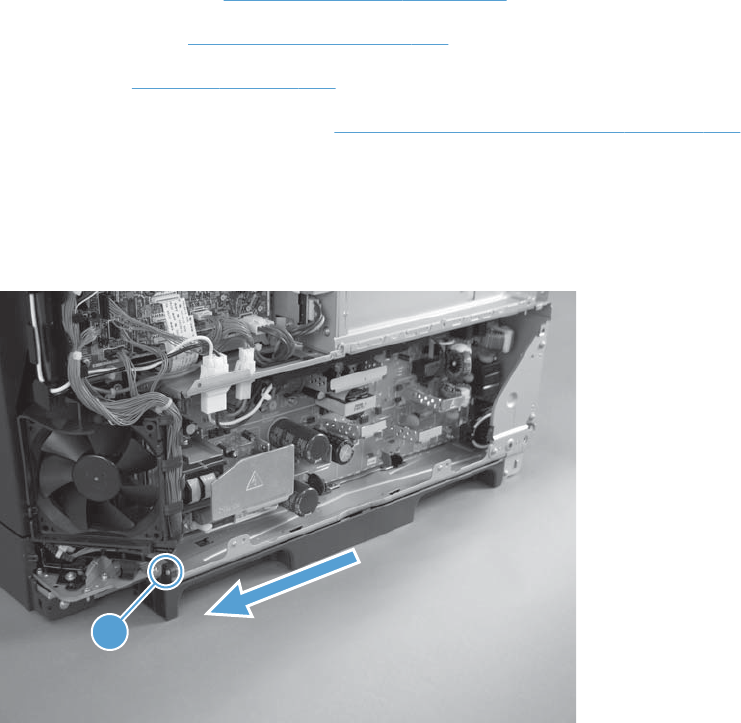
Rear bottom handle
Before proceeding, remove the following components:
●Toner collection unit. See Toner collection unit on page 79.
●Right rear cover. See Right rear cover on page 109.
●Left cover. See Left cover on page 111.
●Rear cover and rear upper cover. See Rear cover and upper rear cover on page 124.
Remove the rear bottom handle
▲Remove one screw (callout 1), and then slide the handle to the right of the product to remove.
Figure 2-85 Remove the rear bottom handle
1
130 Chapter 2 Removal and replacement ENWW
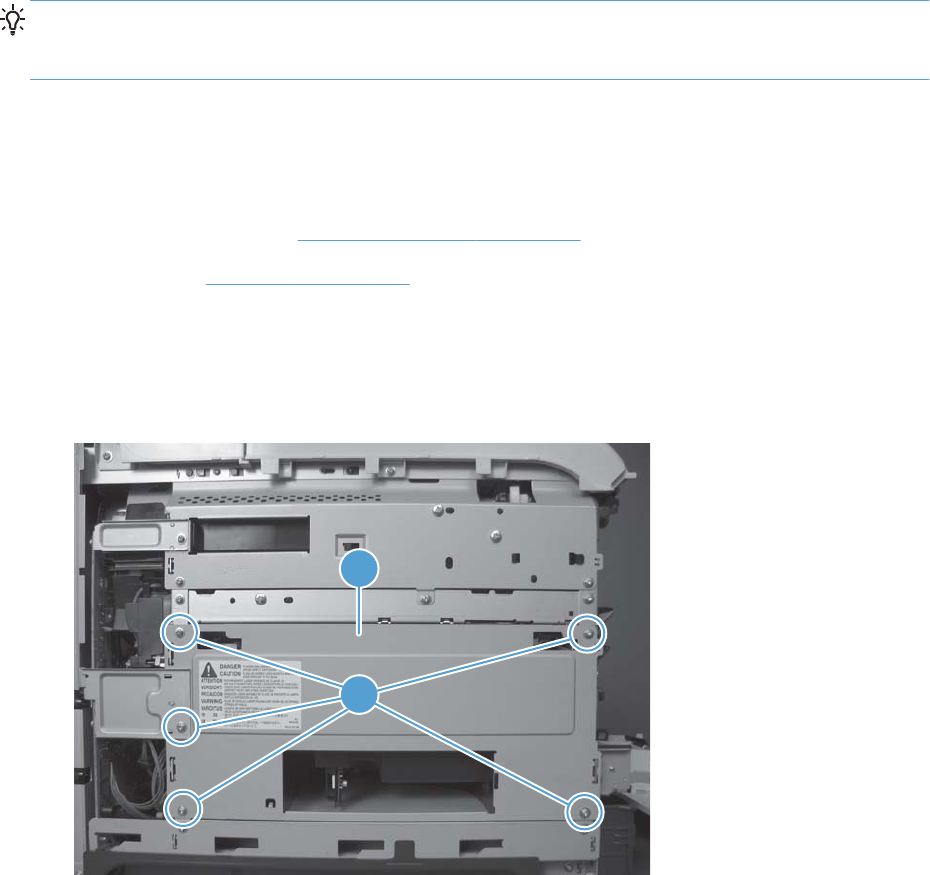
Internal assemblies
TIP: For clarity, some photos in this chapter show components removed that would not be removed to
service the product. If necessary, remove the components listed at the beginning of a procedure before
proceeding to service the product.
Delivery fan, cartridge fan, and environmental sensor
Before proceeding, remove the following components:
●Toner collection unit. See Toner collection unit on page 79.
●Left cover. See Left cover on page 111.
Remove the delivery fan, cartridge fan, and environmental sensor
1. Remove five screws (callout 1), and then remove the sheet-metal plate (callout 2).
Figure 2-86 Remove the delivery fan, cartridge fan, and environmental sensor (1 of 9)
2
1
ENWW Internal assemblies 131
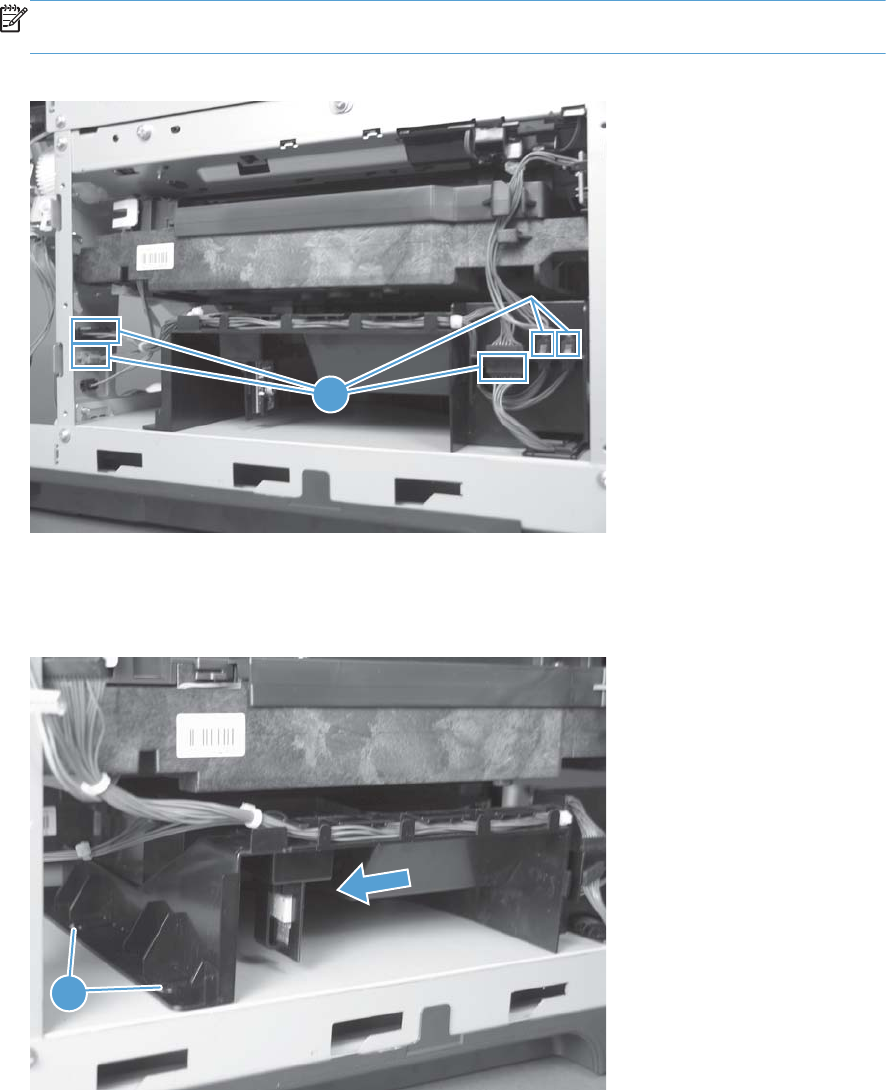
2. Disconnect five connectors (callout 1).
NOTE: Disconnect the larger connector on the right side from the bottom. Disconnect the two
smaller connectors on the right side from the top.
Figure 2-87 Remove the delivery fan, cartridge fan, and environmental sensor (2 of 9)
1
3. Release two tabs (callout 1), and then slide the delivery fan and cartridge fan assembly toward the
power-supply side of the product to release it.
Figure 2-88 Remove the delivery fan, cartridge fan, and environmental sensor (3 of 9)
1
132 Chapter 2 Removal and replacement ENWW
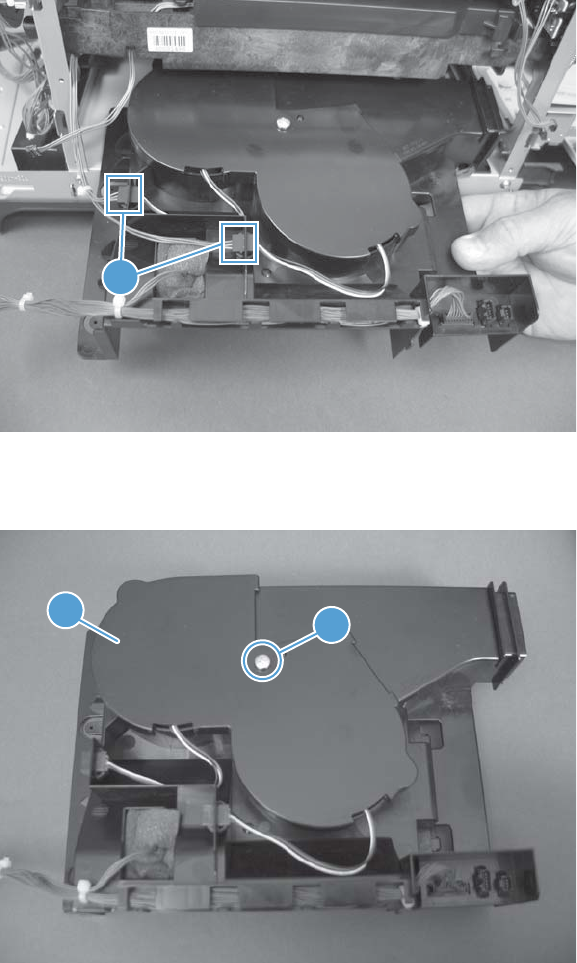
4. Pull the assembly slightly out of the product, disconnect two connectors (callout 1), and then
remove the assembly.
Figure 2-89 Remove the delivery fan, cartridge fan, and environmental sensor (4 of 9)
1
5. Remove one screw (callout 1), and then remove the cover (callout 2).
Figure 2-90 Remove the delivery fan, cartridge fan, and environmental sensor (5 of 9)
21
ENWW Internal assemblies 133
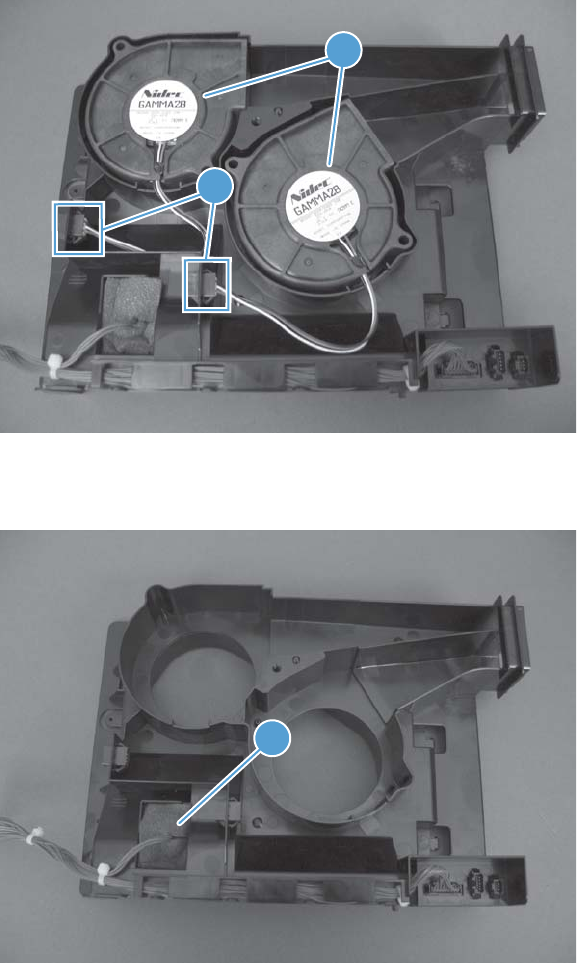
6. Disconnect two connectors (callout 1), and then remove the fans (callout 2).
Figure 2-91 Remove the delivery fan, cartridge fan, and environmental sensor (6 of 9)
2
1
7. Remove the antistatic foam (callout 1).
Figure 2-92 Remove the delivery fan, cartridge fan, and environmental sensor (7 of 9)
1
134 Chapter 2 Removal and replacement ENWW
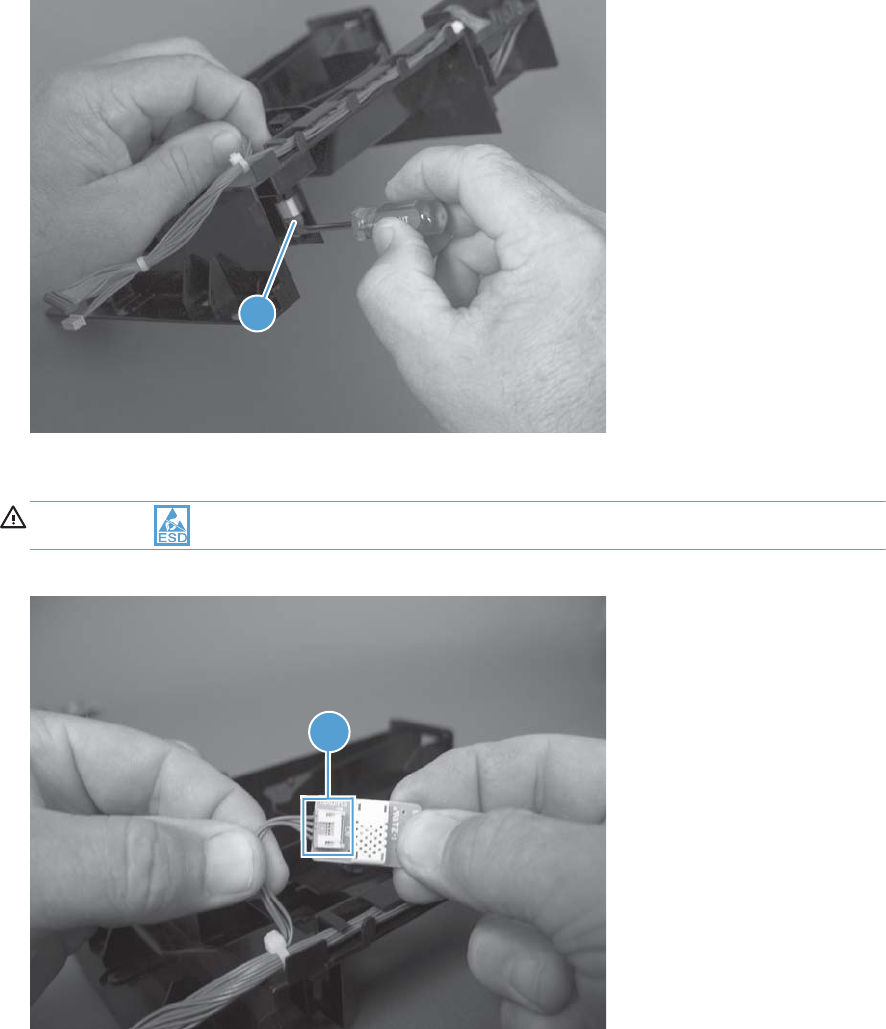
8. Release one tab (callout 1).
Figure 2-93 Remove the delivery fan, cartridge fan, and environmental sensor (8 of 9)
1
9. Disconnect one connector (callout 1), and then remove the environmental sensor.
CAUTION: ESD sensitive part.
Figure 2-94 Remove the delivery fan, cartridge fan, and environmental sensor (9 of 9)
1
ENWW Internal assemblies 135
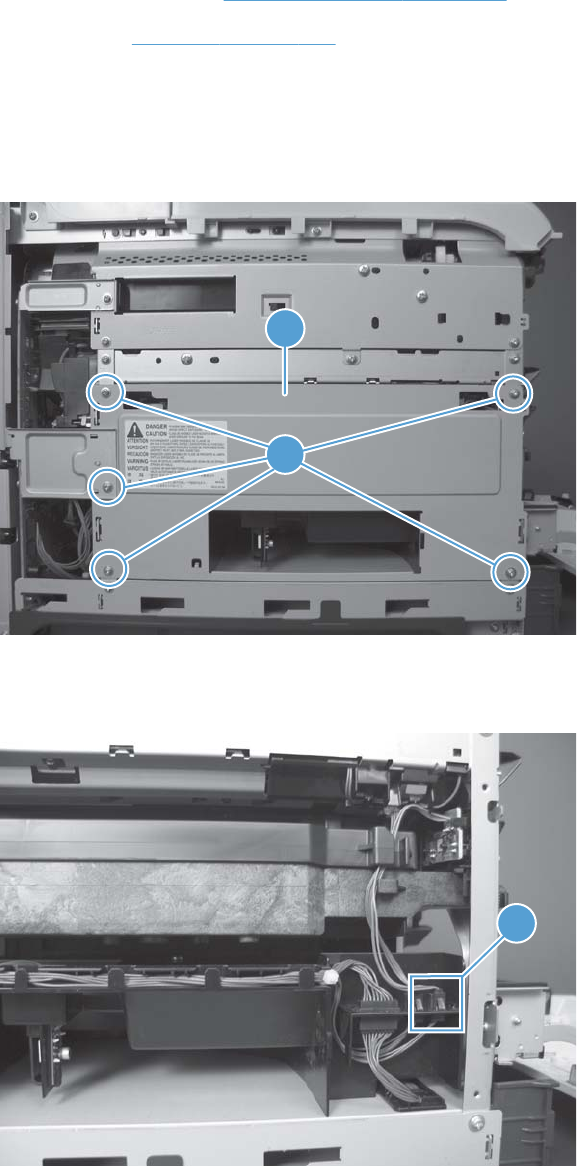
Toner collection sensor
Before proceeding, remove the following components:
●Toner collection unit. See Toner collection unit on page 79.
●Left cover. See Left cover on page 111.
Remove the toner collection sensor
1. Remove five screws (callout 1), and then remove the sheet-metal plate (callout 2).
Figure 2-95 Remove the toner collection sensor (1 of 4)
2
1
2. Disconnect one connector (callout 1).
Figure 2-96 Remove the toner collection sensor (2 of 4)
1
136 Chapter 2 Removal and replacement ENWW
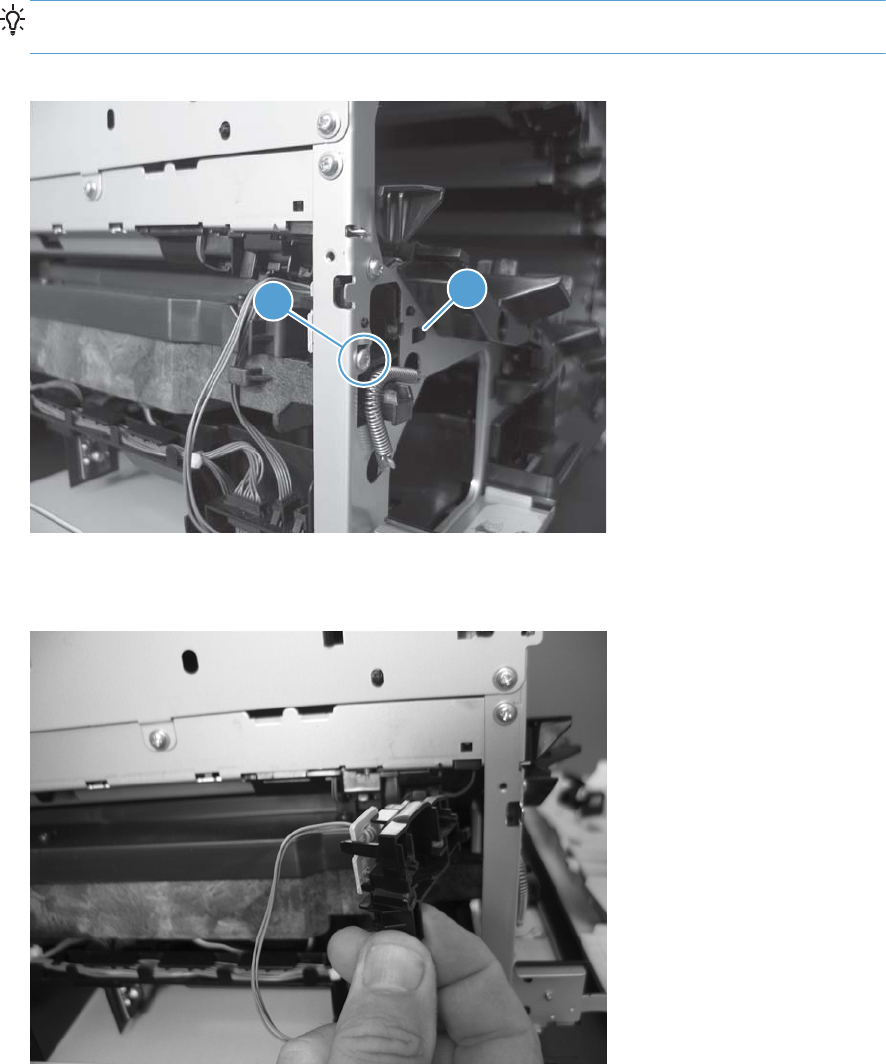
3. Remove one screw (callout 1).
Reinstallation tip When you reinstall the sensor, make sure that the tab (callout 2) on the
sensor body completely engages the slot in the product chassis.
Figure 2-97 Remove the toner collection sensor (3 of 4)
12
4. Remove the toner collection sensor.
Figure 2-98 Remove the toner collection sensor (4 of 4)
ENWW Internal assemblies 137
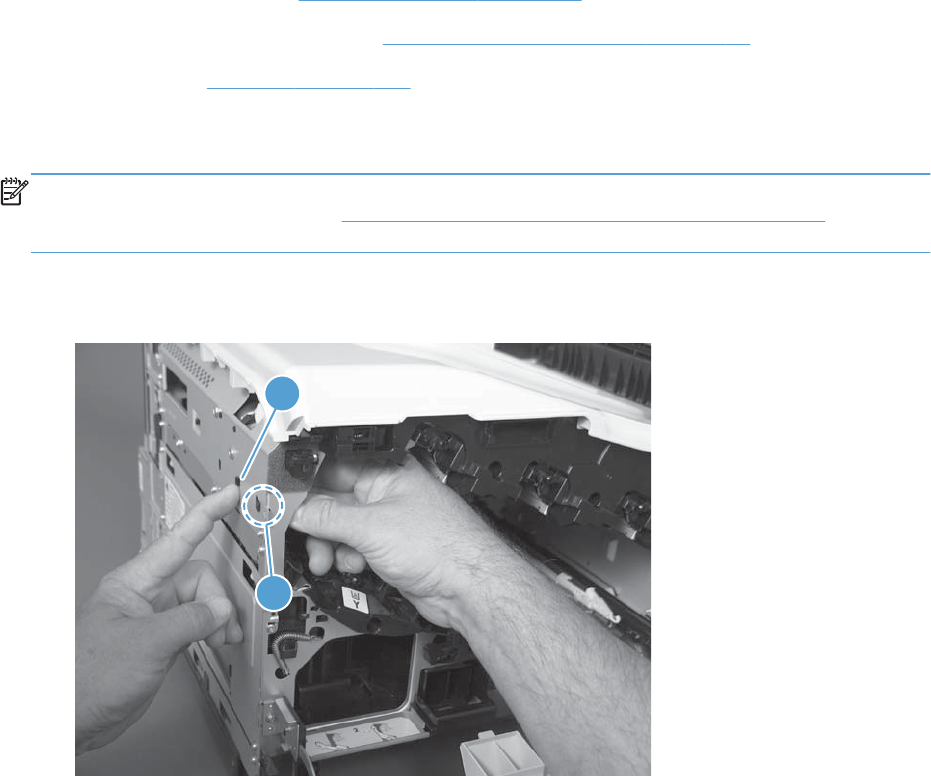
Residual toner feed motor
Before proceeding, remove the following components:
●Toner collection unit. See Toner collection unit on page 79.
●Intermediate transfer belt (ITB). See Intermediate transfer belt (ITB) on page 98.
●Left cover. See Left cover on page 111.
Remove the residual toner feed motor
NOTE: Be careful. Do not dislodge the residual toner collection door when you remove the assembly.
If the door becomes dislodged, see Reinstall the residual toner collection door on page 142 to reinstall
it.
1. Release one tab (callout 1) while you support the cover (callout 2).
Figure 2-99 Remove the residual toner feed motor (1 of 7)
1
2
138 Chapter 2 Removal and replacement ENWW
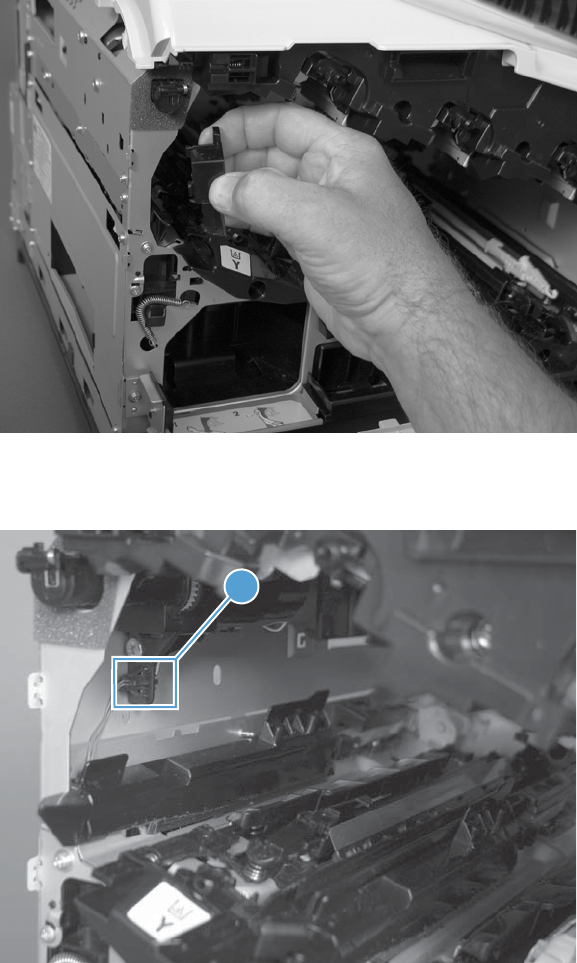
2. Remove the cover.
Figure 2-100 Remove the residual toner feed motor (2 of 7)
3. Disconnect one connector (callout 1).
Figure 2-101 Remove the residual toner feed motor (3 of 7)
1
ENWW Internal assemblies 139
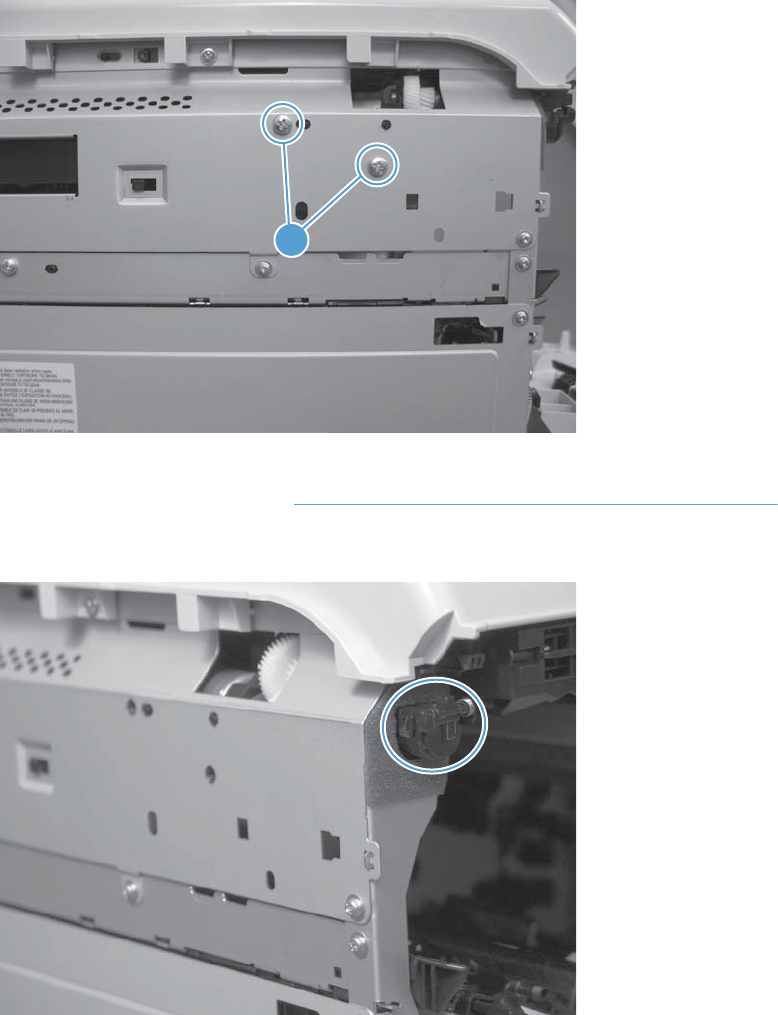
4. Support the assembly, and then remove two screws (callout 1).
Figure 2-102 Remove the residual toner feed motor (4 of 7)
1
5. Be careful. Do not dislodge the residual toner collection door when you remove the assembly. If
the door becomes dislodged, see Reinstall the residual toner collection door on page 142 to
reinstall it.
Figure 2-103 Remove the residual toner feed motor (5 of 7)
140 Chapter 2 Removal and replacement ENWW
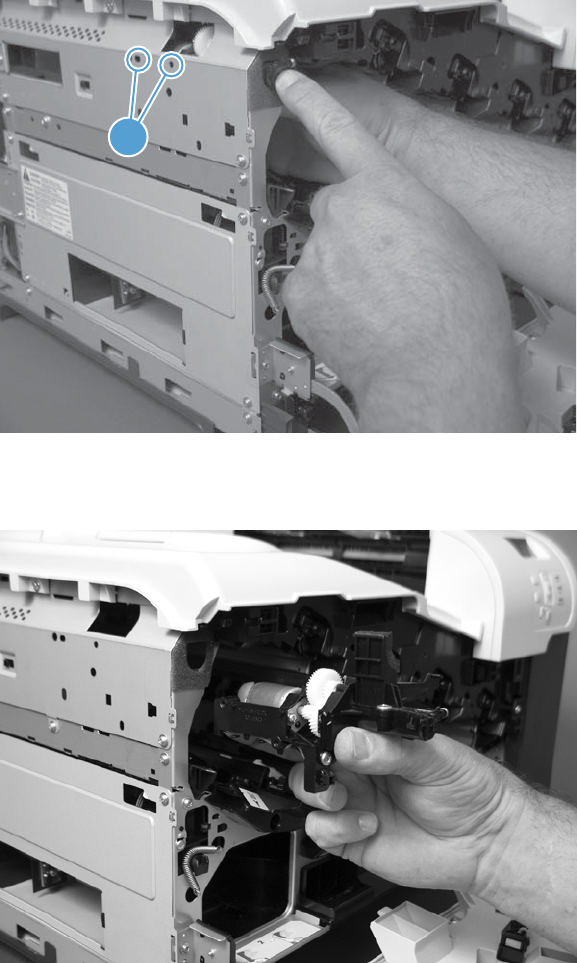
6. Release two tabs (callout 1), and then push the assembly into the product to release it.
Figure 2-104 Remove the residual toner feed motor (6 of 7)
1
7. Remove the motor.
Figure 2-105 Remove the residual toner feed motor (7 of 7)
ENWW Internal assemblies 141
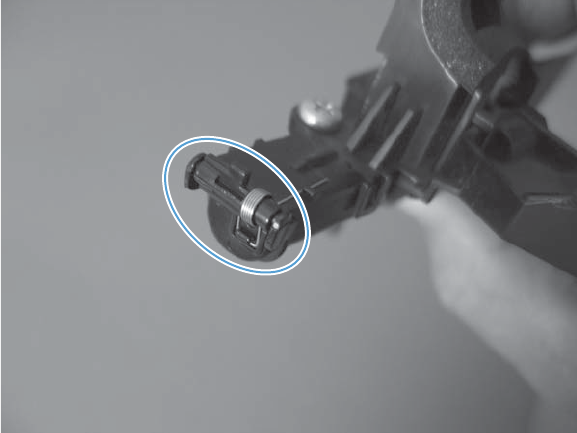
Reinstall the residual toner collection door
Snap the residual toner collection door into the holders on the assembly. Make sure that the spring is
correctly installed.
Figure 2-106 Reinstall the residual toner collection door
142 Chapter 2 Removal and replacement ENWW
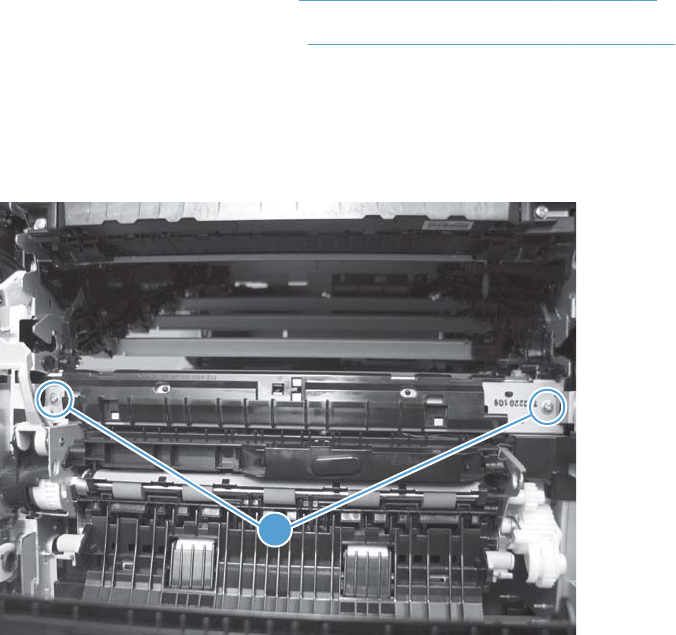
Registration density (RD) sensor assembly
Before proceeding, remove the following components:
●Secondary transfer assembly. See Secondary transfer assembly on page 96.
●Intermediate transfer belt (ITB). See Intermediate transfer belt (ITB) on page 98.
Remove the RD sensor assembly
1. Remove two screws (callout 1).
Figure 2-107 Remove the RD sensor assembly (1 of 6)
1
ENWW Internal assemblies 143
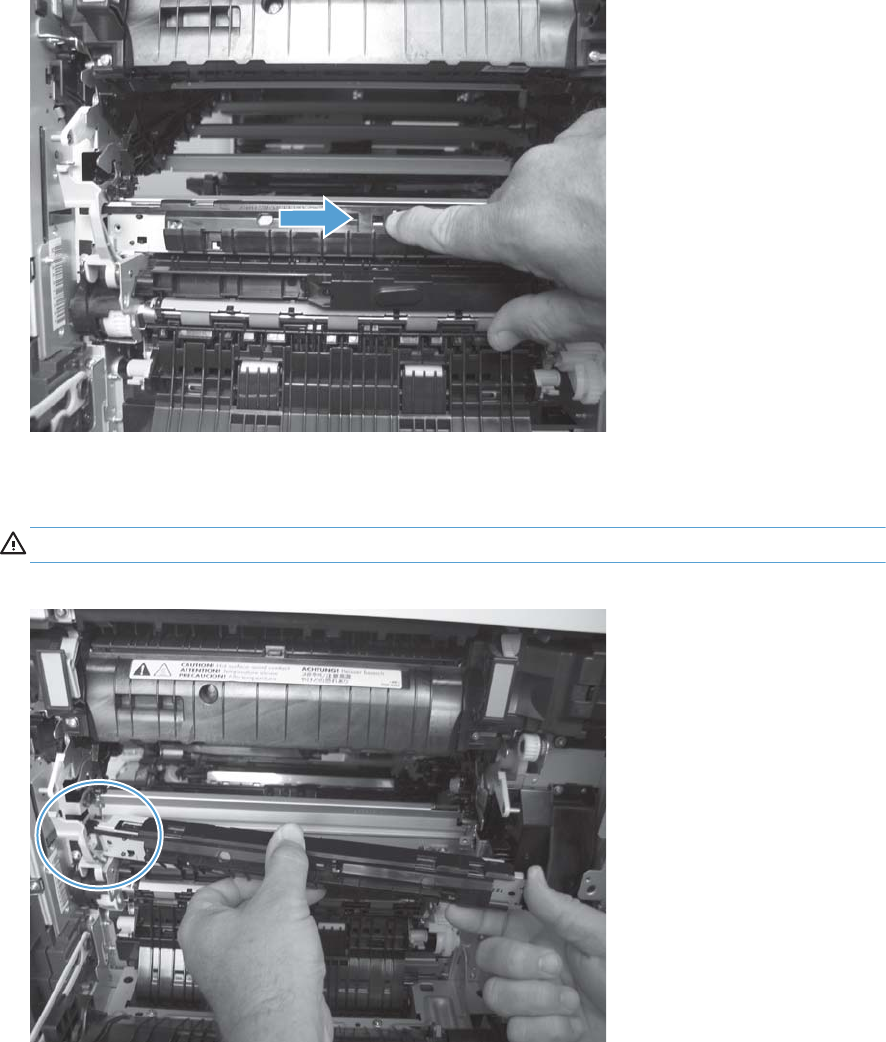
2. Slide the shutter toward the right side of the product. Keep the shutter in this position for the
following step.
Figure 2-108 Remove the RD sensor assembly (2 of 6)
3. Carefully separate the assembly from the product. The assembly wire harnesses are still attached
to the product.
CAUTION: Do not damage the shutter as it passes through the chassis.
Figure 2-109 Remove the RD sensor assembly (3 of 6)
144 Chapter 2 Removal and replacement ENWW
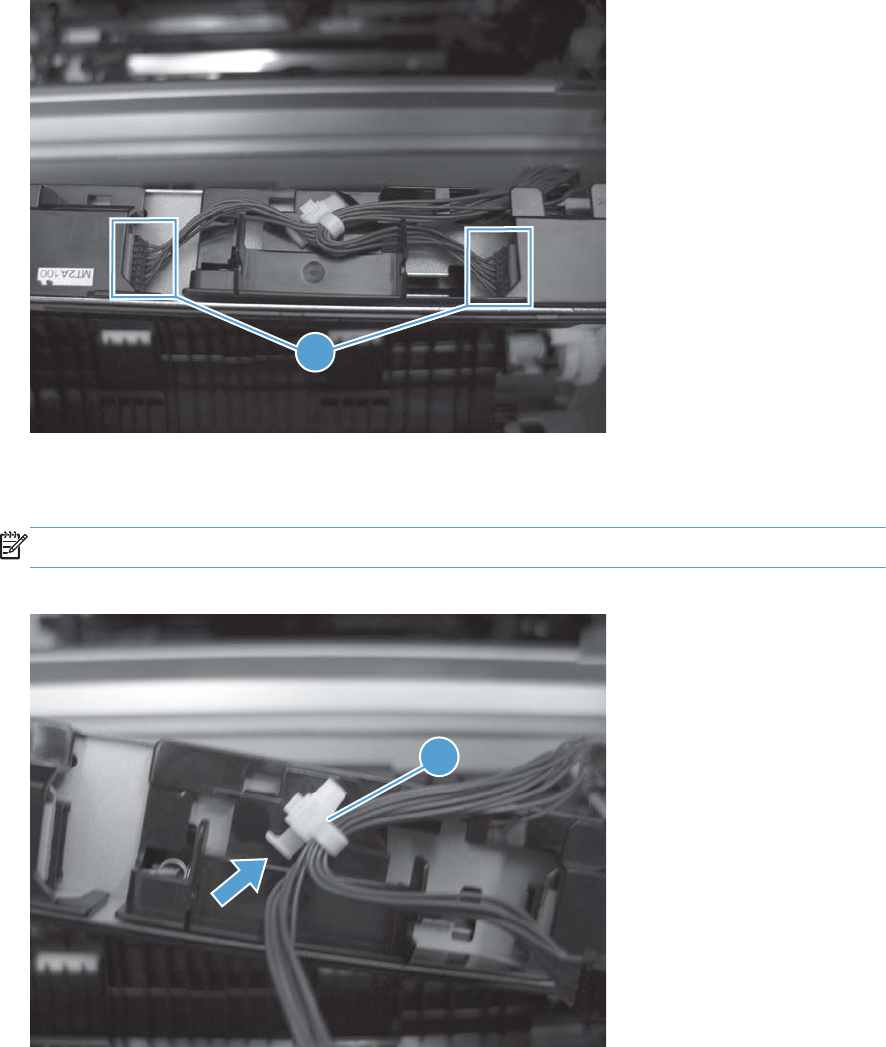
4. Disconnect two connectors (callout 1) on the back side of the assembly.
Figure 2-110 Remove the RD sensor assembly (4 of 6)
1
5. Push in on the locking tab to release the retainer (callout 1), and then separate the retainer from
the assembly.
NOTE: The retainer remains attached to the wire harness, and disengages from the assembly.
Figure 2-111 Remove the RD sensor assembly (5 of 6)
1
ENWW Internal assemblies 145
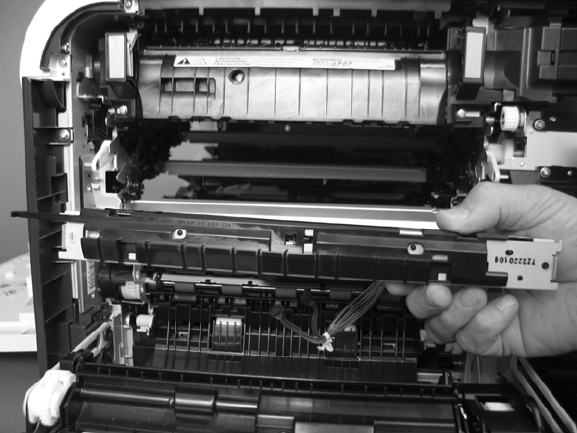
6. Remove the assembly.
Figure 2-112 Remove the RD sensor assembly (6 of 6)
146 Chapter 2 Removal and replacement ENWW
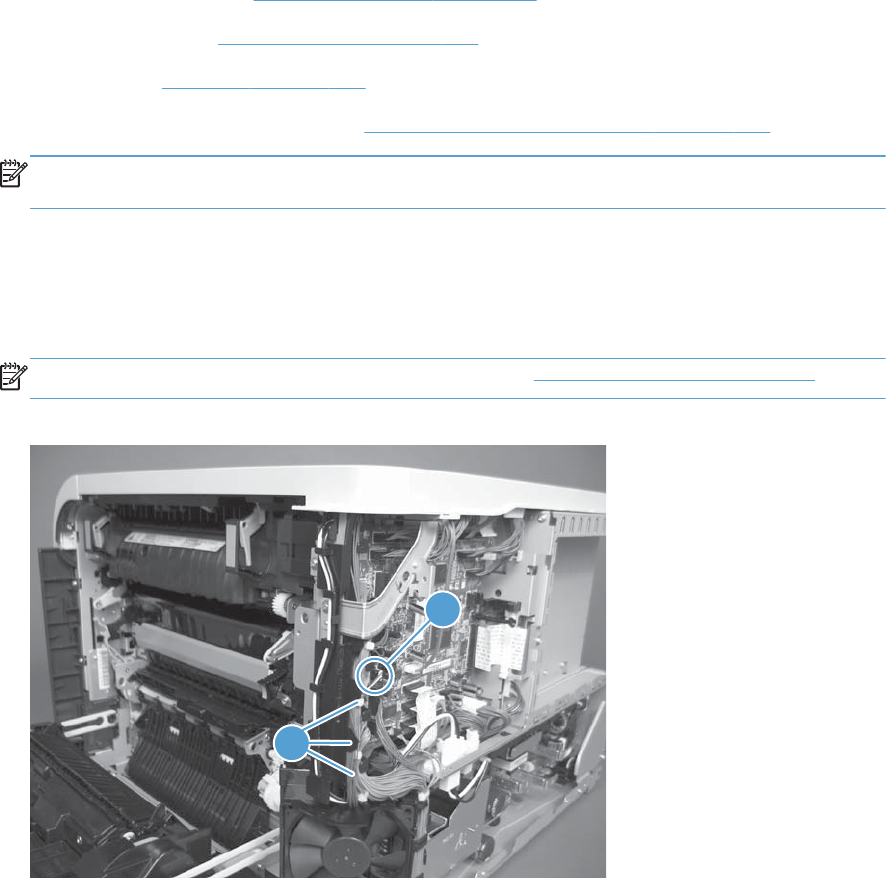
Power supply fan and fan duct
Before proceeding, remove the following components:
●Toner collection unit. See Toner collection unit on page 79.
●Right rear cover. See Right rear cover on page 109.
●Left cover. See Left cover on page 111.
●Rear cover and upper rear cover. See Rear cover and upper rear cover on page 124.
NOTE: It is not necessary to separate the upper rear cover from the rear cover to remove the
power supply fan.
Remove the power supply fan and fan duct
1. Disconnect one connector (callout 1; J119) and release the wire harnesses from the guide
(callout 2).
NOTE: To locate DC controller connector locations, see DC controller PCA on page 284.
Figure 2-113 Remove the power supply fan (1 of 4)
1
2
ENWW Internal assemblies 147
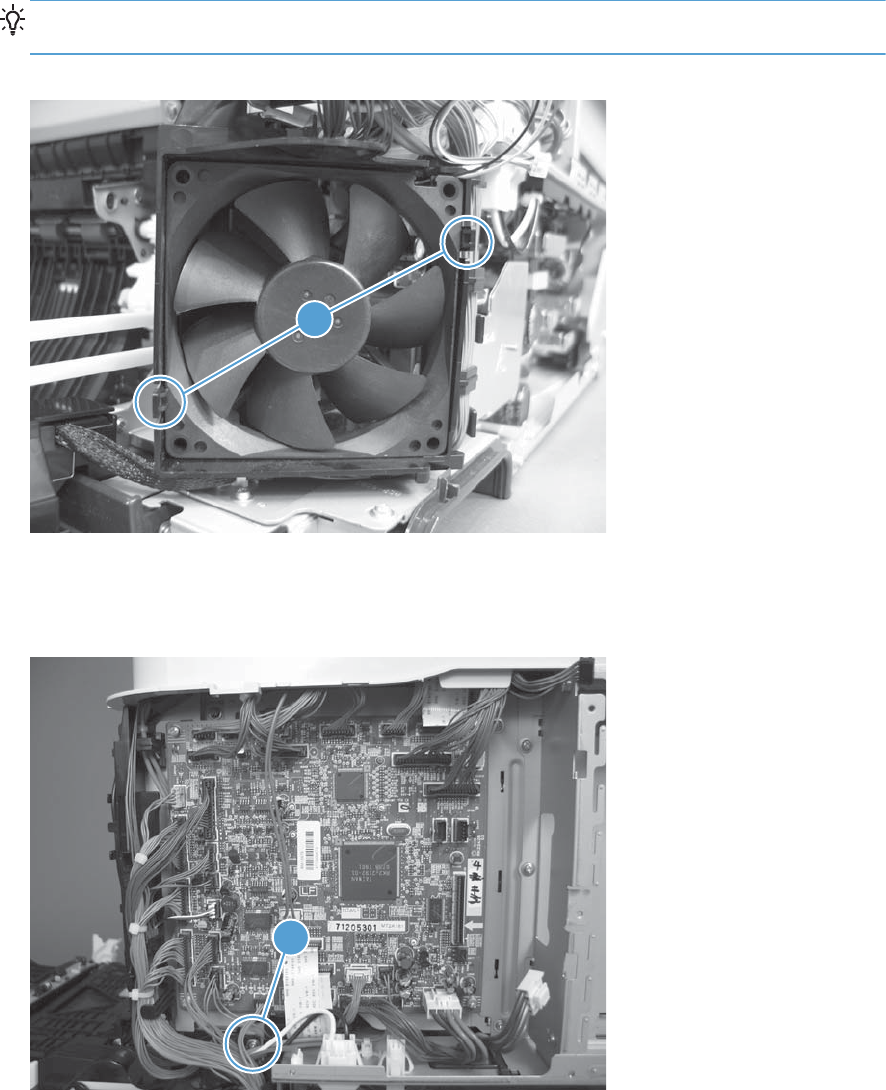
2. To remove the fan only: Release two tabs (callout 1), and then remove the fan from the fan
duct.
Reinstallation tip When the fan is reinstalled, the air must flow into the product. Look at the
arrows embossed on the fan frame that indicate air flow direction.
Figure 2-114 Remove the power supply fan (2 of 4)
1
3. To remove the fan and fan duct: Remove one screw (callout 1), and then release the wire
harnesses from the guides on the fan duct.
Figure 2-115 Remove the power supply fan (3 of 4)
1
148 Chapter 2 Removal and replacement ENWW
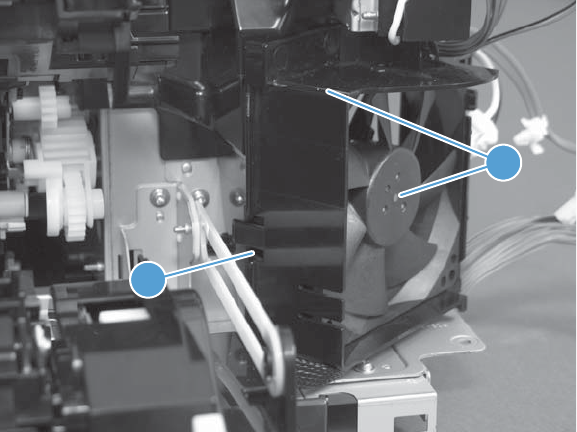
4. To remove the fan and fan duct: Release one tab (callout 1), and then remove the fan and
fan duct (callout 2).
Figure 2-116 Remove the power supply fan (4 of 4)
1
2
ENWW Internal assemblies 149
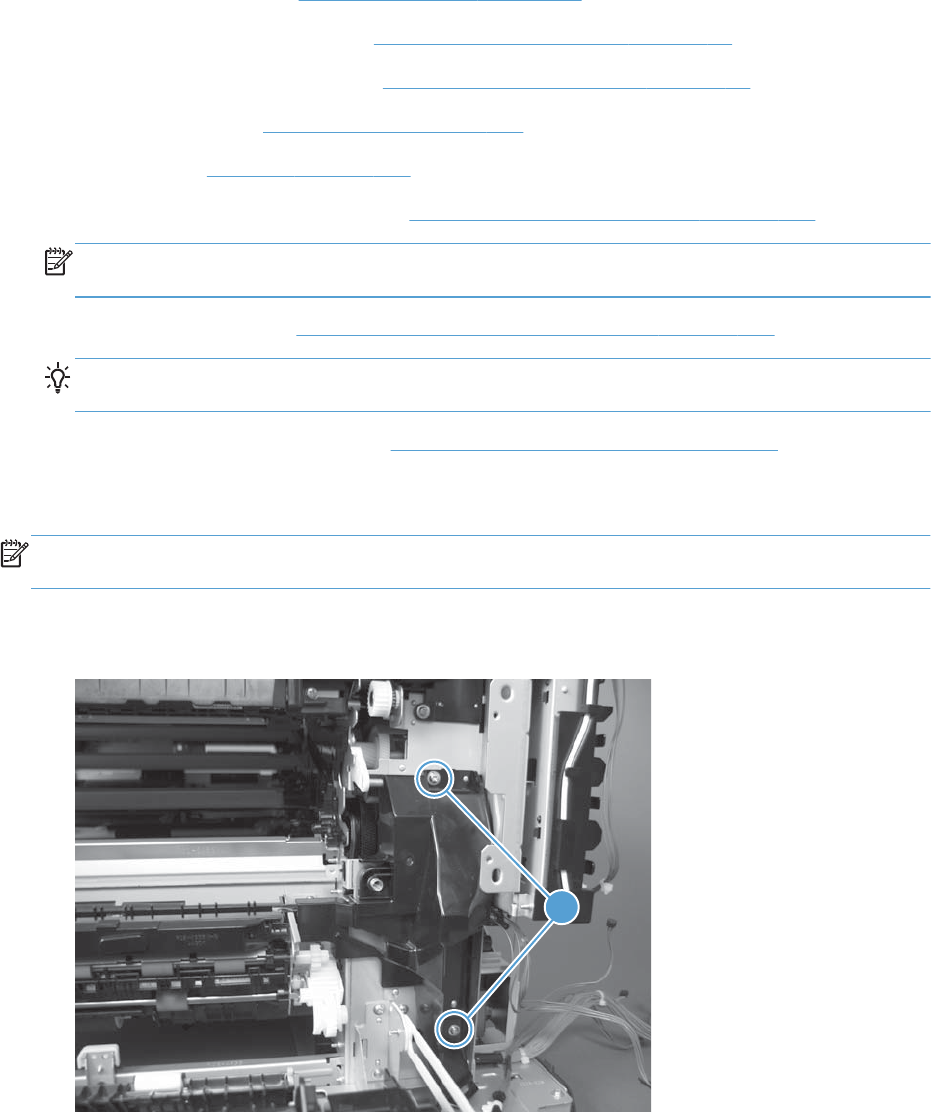
Registration assembly
Before proceeding, remove the following components:
●Toner collection unit. See Toner collection unit on page 79.
●Secondary transfer assembly. See Secondary transfer assembly on page 96.
●Intermediate transfer belt (ITB). See Intermediate transfer belt (ITB) on page 98.
●Right rear cover. See Right rear cover on page 109.
●Left cover. See Left cover on page 111.
●Rear cover and upper rear cover. See Rear cover and upper rear cover on page 124.
NOTE: It is not necessary to separate the upper rear cover from the rear cover to remove the
registration assembly.
●RD sensor assembly. See Registration density (RD) sensor assembly on page 143.
TIP: Removing the RD sensor assembly makes it much easier to reinstall the registration
assembly.
●Power supply fan and fan duct. See Power supply fan and fan duct on page 147.
Remove the registration assembly
NOTE: If a replacement registration assembly is installed, you must use the control panel menus to
reset the registration-roller count.
1. Remove two screws (callout 1).
Figure 2-117 Remove the registration assembly (1 of 8)
1
150 Chapter 2 Removal and replacement ENWW
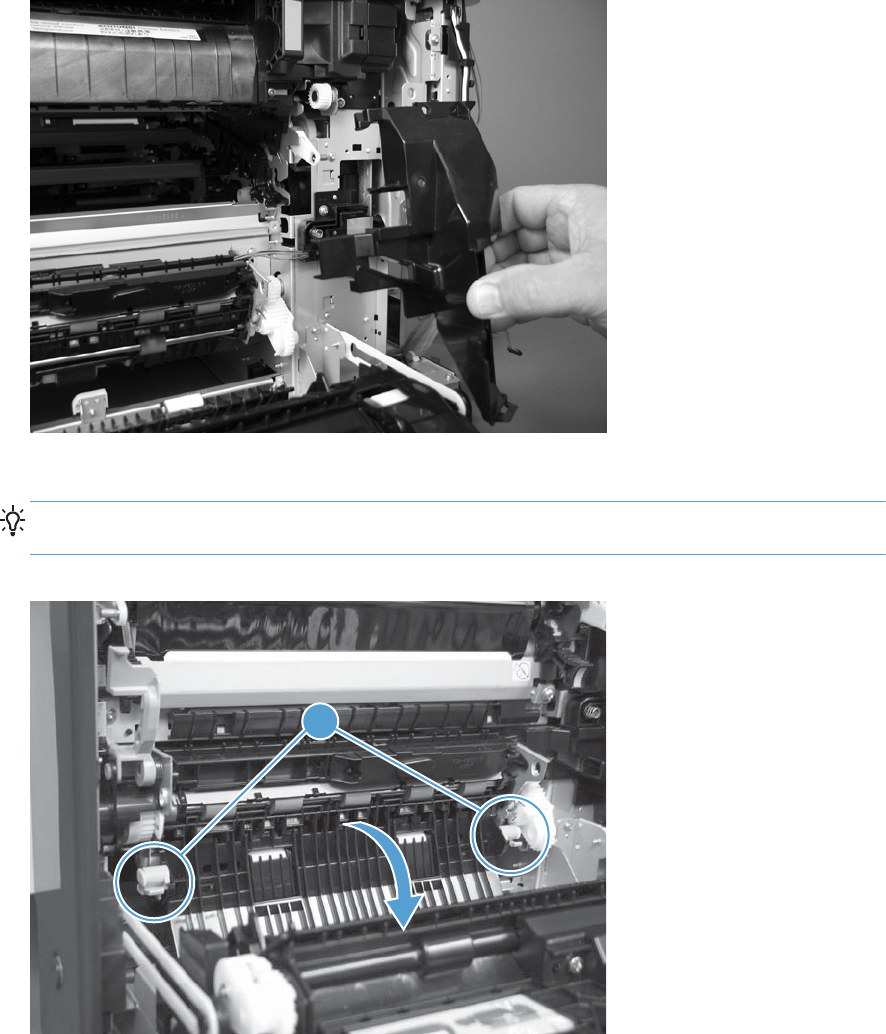
2. Pull down on the cover to release one tab, and then rotate the cover away from the product to
remove it.
Figure 2-118 Remove the registration assembly (2 of 8)
3. Release two green latches (callout 1), and then lower the feed guide.
Reinstallation tip Make sure that the feed guide snaps into the closed position when you
reinstall the registration assembly.
Figure 2-119 Remove the registration assembly (3 of 8)
1
ENWW Internal assemblies 151
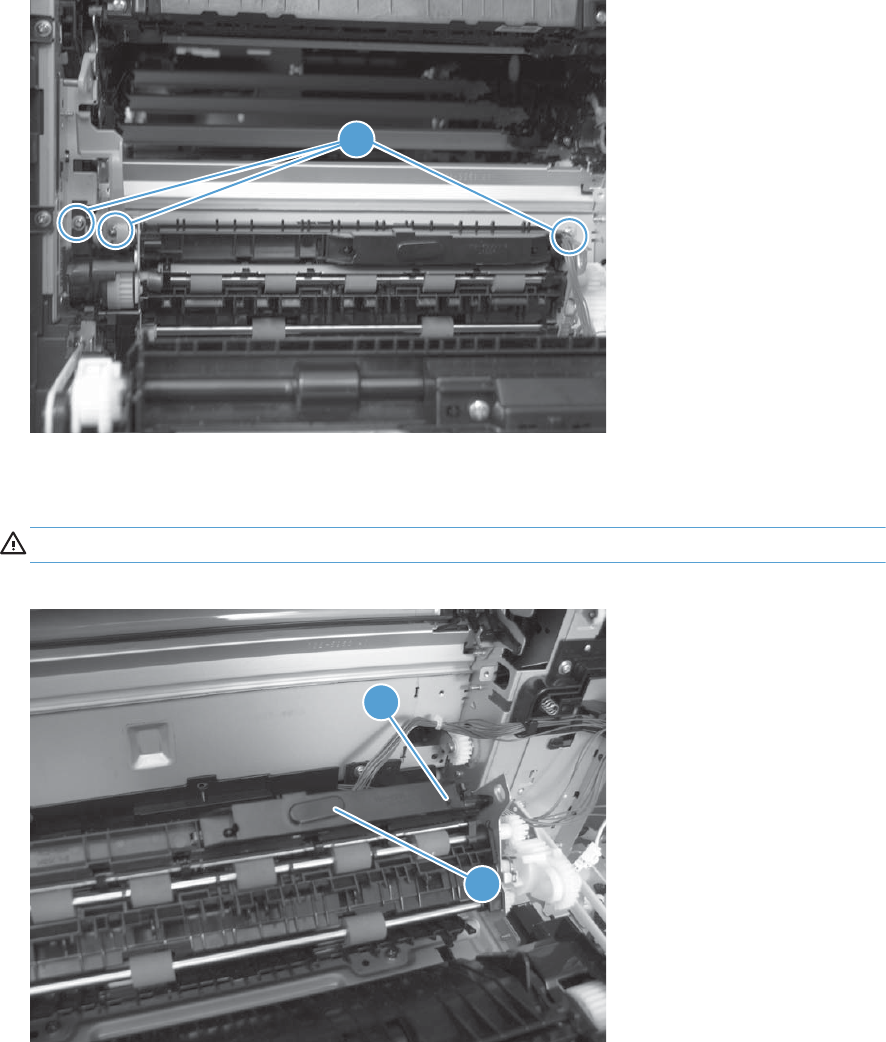
4. Remove three screws (callout 1).
Figure 2-120 Remove the registration assembly (4 of 8)
1
5. Separate the assembly from the product, release one tab (callout 1), and then remove the cover
(callout 2).
CAUTION: The assembly is still attached to the product by the wire harnesses.
Figure 2-121 Remove the registration assembly (5 of 8)
1
2
152 Chapter 2 Removal and replacement ENWW
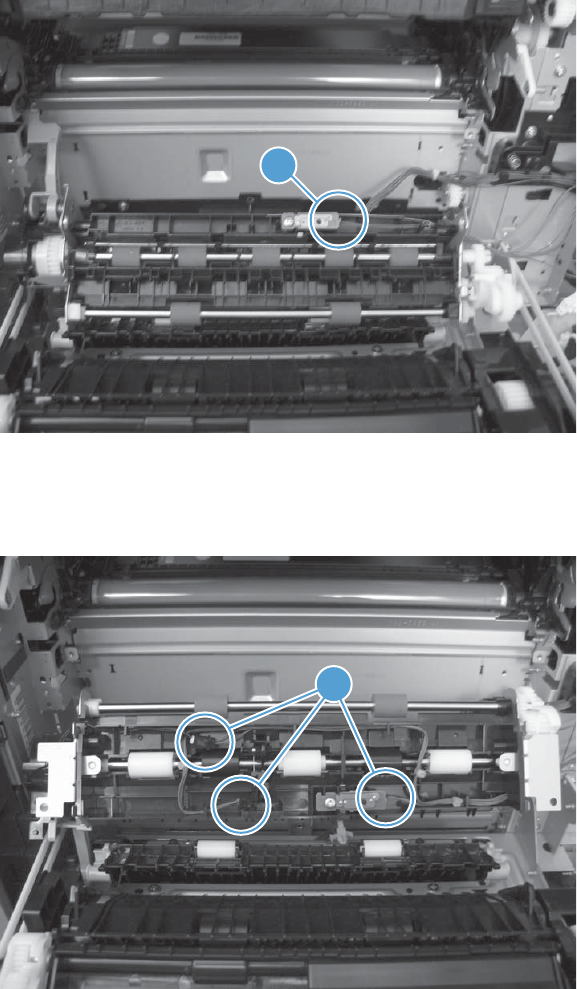
6. Disconnect one connector (callout 1), and then release the wire harness from the retainer.
Figure 2-122 Remove the registration assembly (6 of 8)
1
7. Disconnect three connectors (callout 1) on the back side of the assembly, and then release the
wires from the retainers.
Figure 2-123 Remove the registration assembly (7 of 8)
1
ENWW Internal assemblies 153
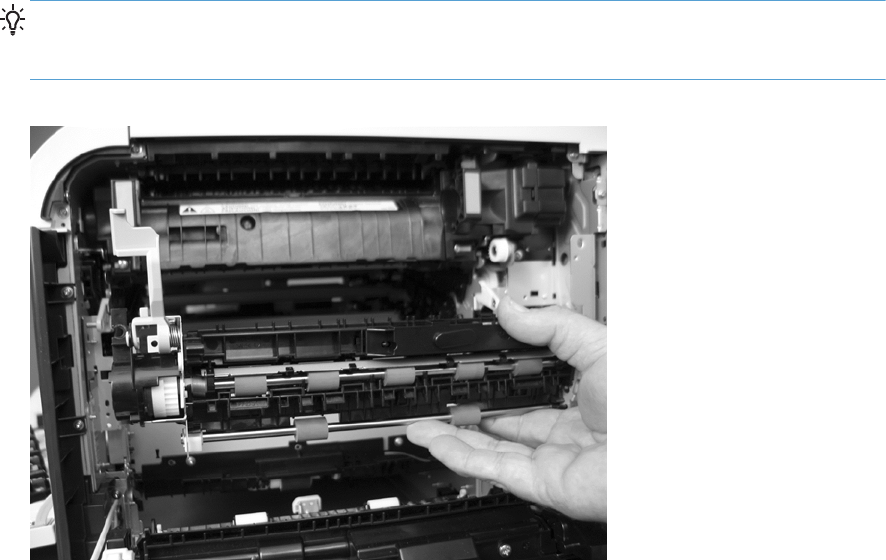
8. Remove the assembly.
Reinstallation tip When you reinstall the registration assembly, make sure that it is correctly
positioned in the product. The tabs on the assembly must fit into the slots in the product chassis
and the assembly should fit securely up against the product chassis.
Figure 2-124 Remove the registration assembly (8 of 8)
154 Chapter 2 Removal and replacement ENWW
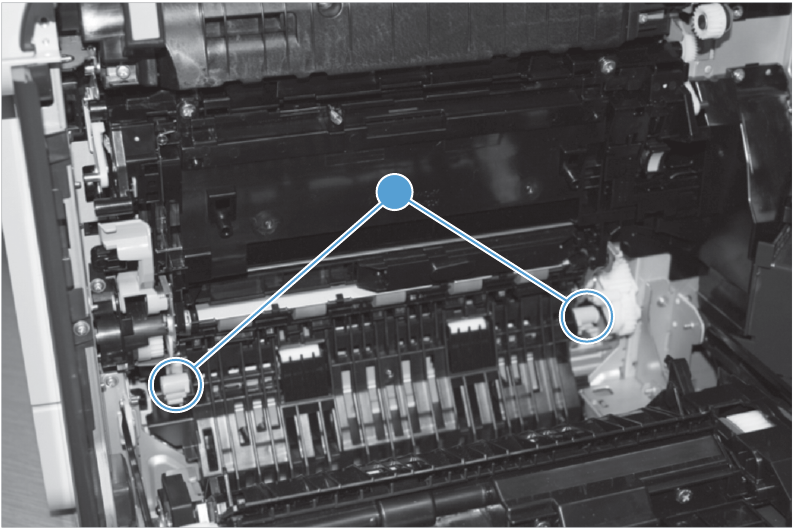
Lower pickup guide
Remove the lower pickup guide
1. Open the right Door. The lower pickup guide is directly below the registration assembly and is
locked into place by 2 green circular knobs, one on each side of the upper portion of the guide.
1
ENWW Internal assemblies 155
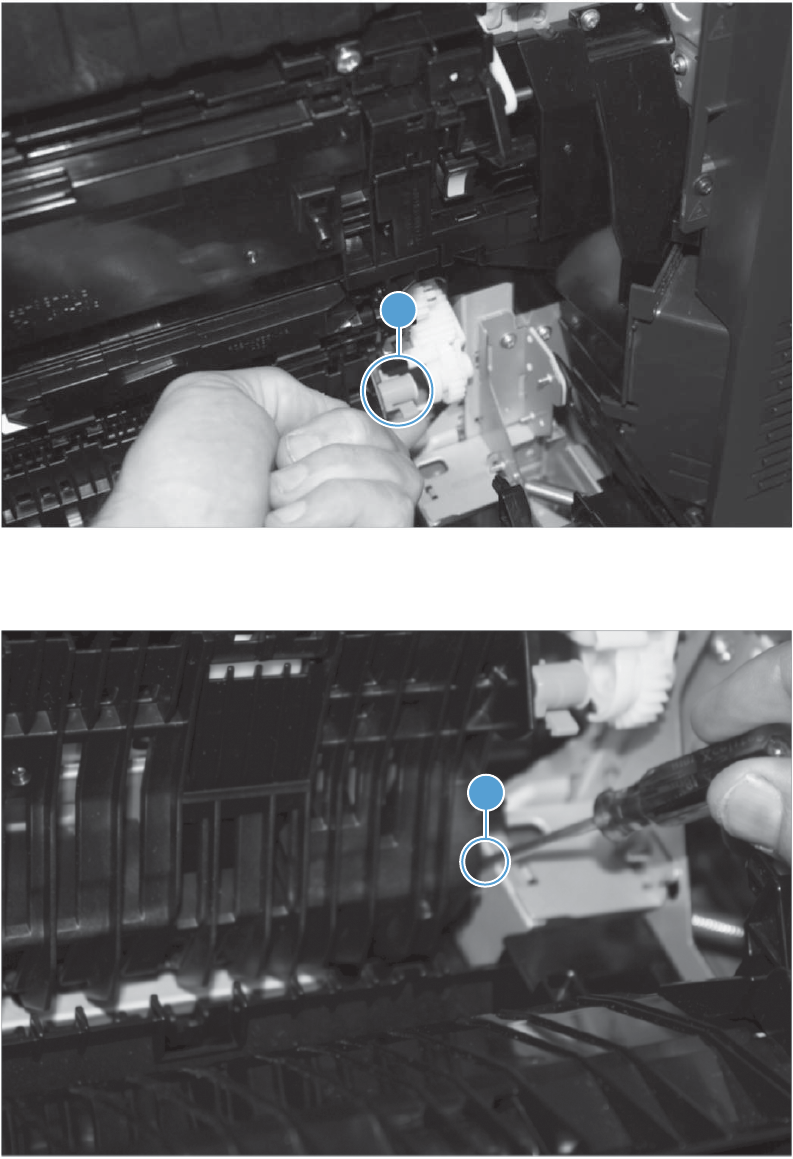
2. Press upward from below the on each knob at the same time to release the assembly.
1
3. Using a small straight edged screw driver, wedge the blade and press inward on the hinge pin on
the lower right side of the assembly and then pull the assembly out of the hinge pin hole.
1
4. Remove the assembly by rotating it up and away from the printer counter clockwise.
156 Chapter 2 Removal and replacement ENWW
Reinstall the lower pickup guide
▲Put the lower left side of the parts axle into the hole in the sheet metal, slightly depress the right
hinge pin, and then snap the pin back into the whole in the sheet metal. Rotate the lower pickup
guide back into place toward the printer until the green knobs snap back into place.
ENWW Internal assemblies 157
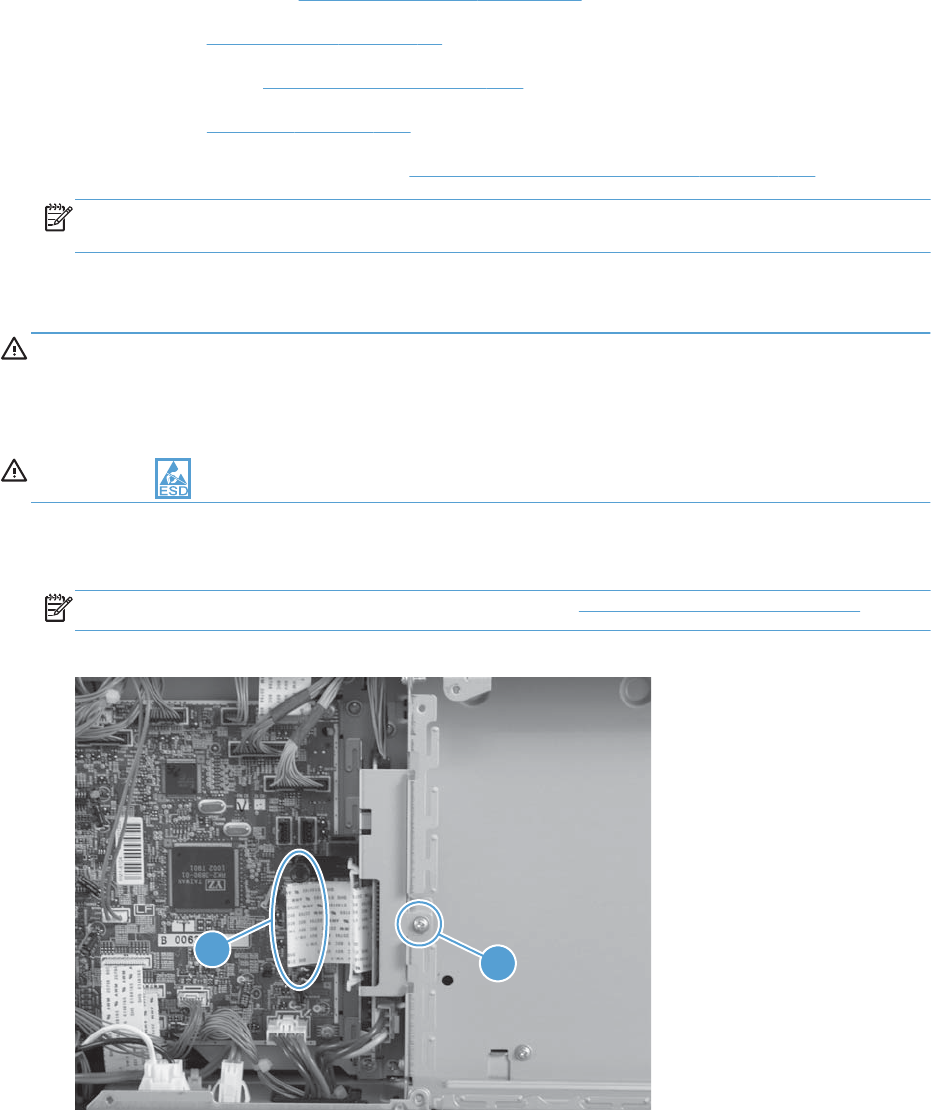
Interconnect board (ICB)
Before proceeding, remove the following components:
●Toner collection unit. See Toner collection unit on page 79.
●Formatter. See Formatter PCA on page 81.
●Right rear cover. See Right rear cover on page 109.
●Left cover. See Left cover on page 111.
●Rear cover and upper rear cover. See Rear cover and upper rear cover on page 124.
NOTE: It is not necessary to separate the upper rear cover from the rear cover to remove the
interconnect board (ICB).
Remove the ICB
WARNING! Do not remove the ICB from a product and then install it into a different product.
Failure to follow this warning will result in severe damage to that product and cause it to be unusable.
HP recommends that if you remove and replace the ICB, you should destroy the discarded ICB so that it
can not accidentally be installed in a different product.
CAUTION: ESD sensitive part.
1. Disconnect one connector (callout 1; J105) from the DC controller, and then remove one screw
(callout 2).
NOTE: To locate DC controller connector locations, see DC controller PCA on page 284.
Figure 2-125 Remove the ICB (1 of 3)
2
1
158 Chapter 2 Removal and replacement ENWW
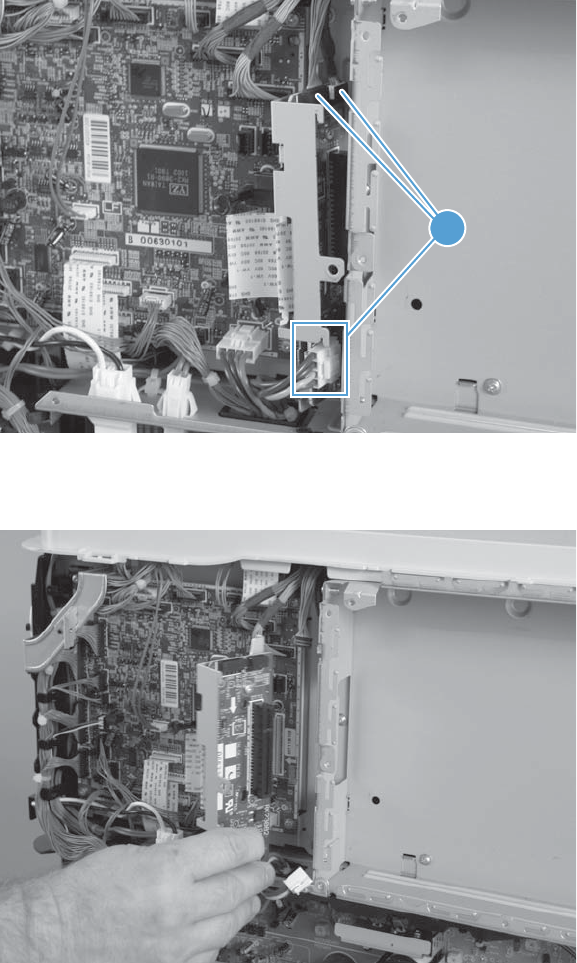
2. Disconnect three connectors (callout 1).
Figure 2-126 Remove the ICB (2 of 3)
1
3. Carefully rotate and slide the ICB up and away from the chassis to remove.
Figure 2-127 Remove the ICB (3 of 3)
ENWW Internal assemblies 159
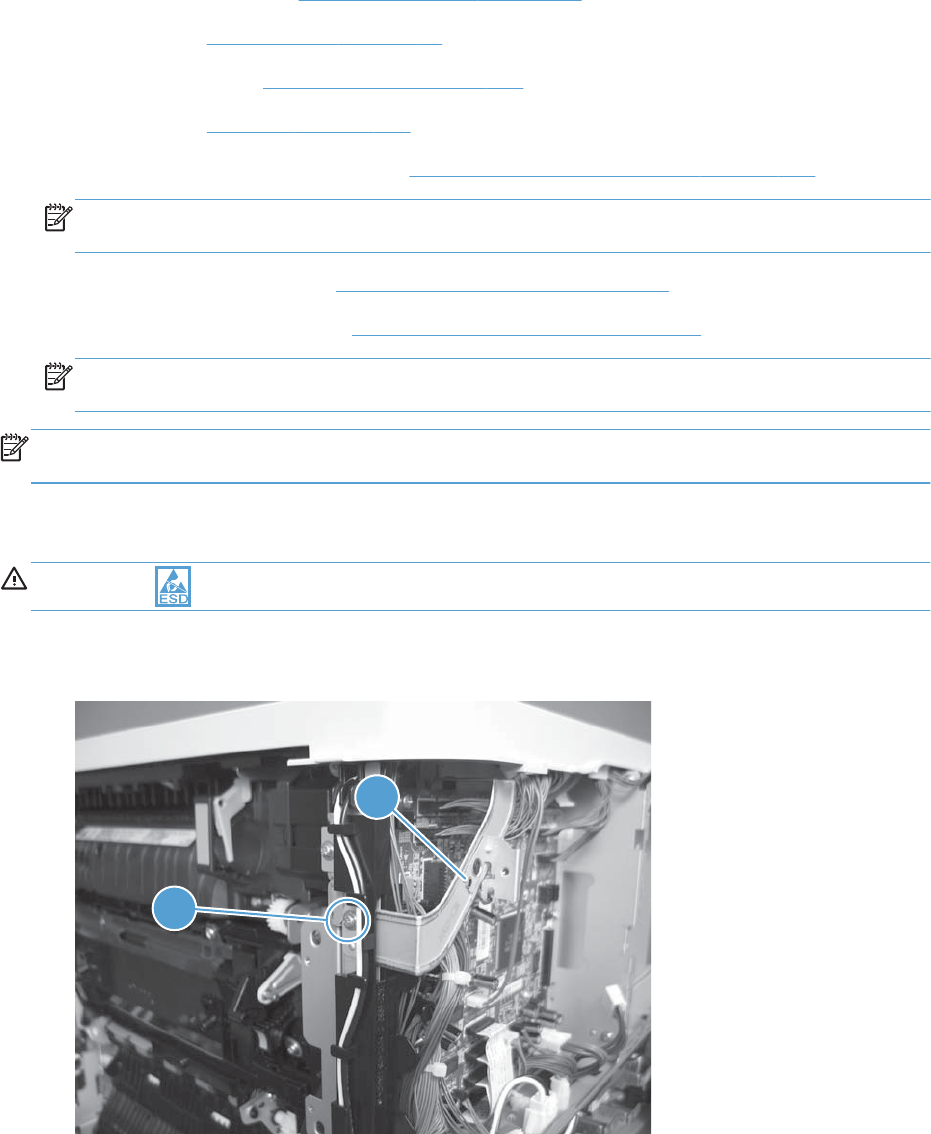
DC controller PCA and tray
Before proceeding, remove the following components:
●Toner collection unit. See Toner collection unit on page 79.
●Formatter. See Formatter PCA on page 81.
●Right rear cover. See Right rear cover on page 109.
●Left cover. See Left cover on page 111.
●Rear cover and upper rear cover. See Rear cover and upper rear cover on page 124.
NOTE: It is not necessary to separate the upper rear cover from the rear cover to remove the DC
controller PCA.
●Interconnect board (ICB). See Interconnect board (ICB) on page 158.
●Low voltage power supply. See Low voltage power supply on page 163.
NOTE: Remove the low voltage power supply only if removing the tray with the DC controller
PCA.
NOTE: If removing the DC controller to access another component, skip the third step and leave the
DC controller attached to the sheet-metal tray.
Remove the DC controller PCA
CAUTION: ESD sensitive part.
1. Remove one screw (callout 1), and then remove the sheet-metal bracket (callout 2).
Figure 2-128 Remove the DC controller PCA and tray (1 of 4)
1
2
160 Chapter 2 Removal and replacement ENWW
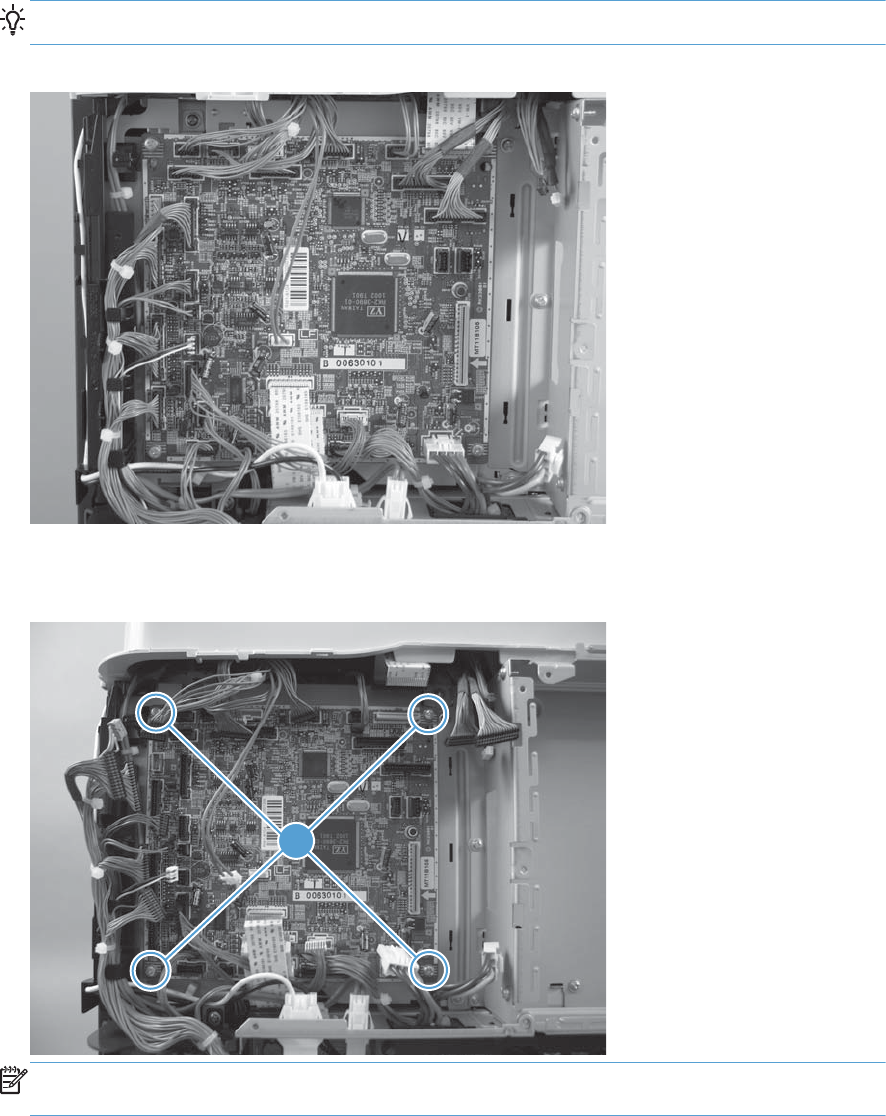
2. Disconnect all the connectors.
Reinstallation tip The connector locations J133 and J134 are not used.
Figure 2-129 Remove the DC controller PCA and tray (2 of 4)
3. Remove four screws (callout 1), and then remove the DC controller PCA.
Figure 2-130 Remove the DC controller PCA and tray (3 of 4)
1
NOTE: If removing the DC controller to access another component, skip this step and leave the
DC controller attached to the sheet-metal tray.
ENWW Internal assemblies 161
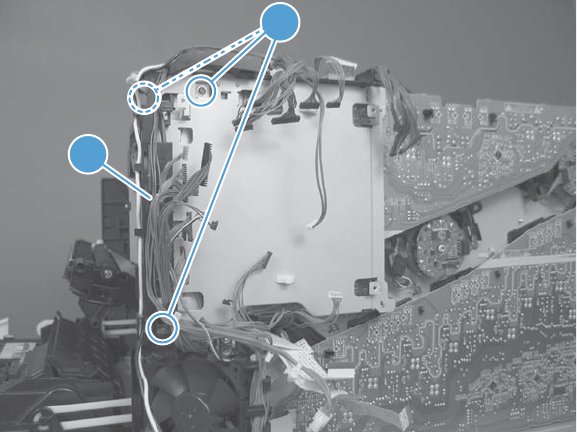
4. If necessary, remove three screws (callout 1), remove the wire guide (callout 2), and then remove
the sheet-metal tray.
Figure 2-131 Remove the DC controller PCA and tray (4 of 4)
2
1
162 Chapter 2 Removal and replacement ENWW
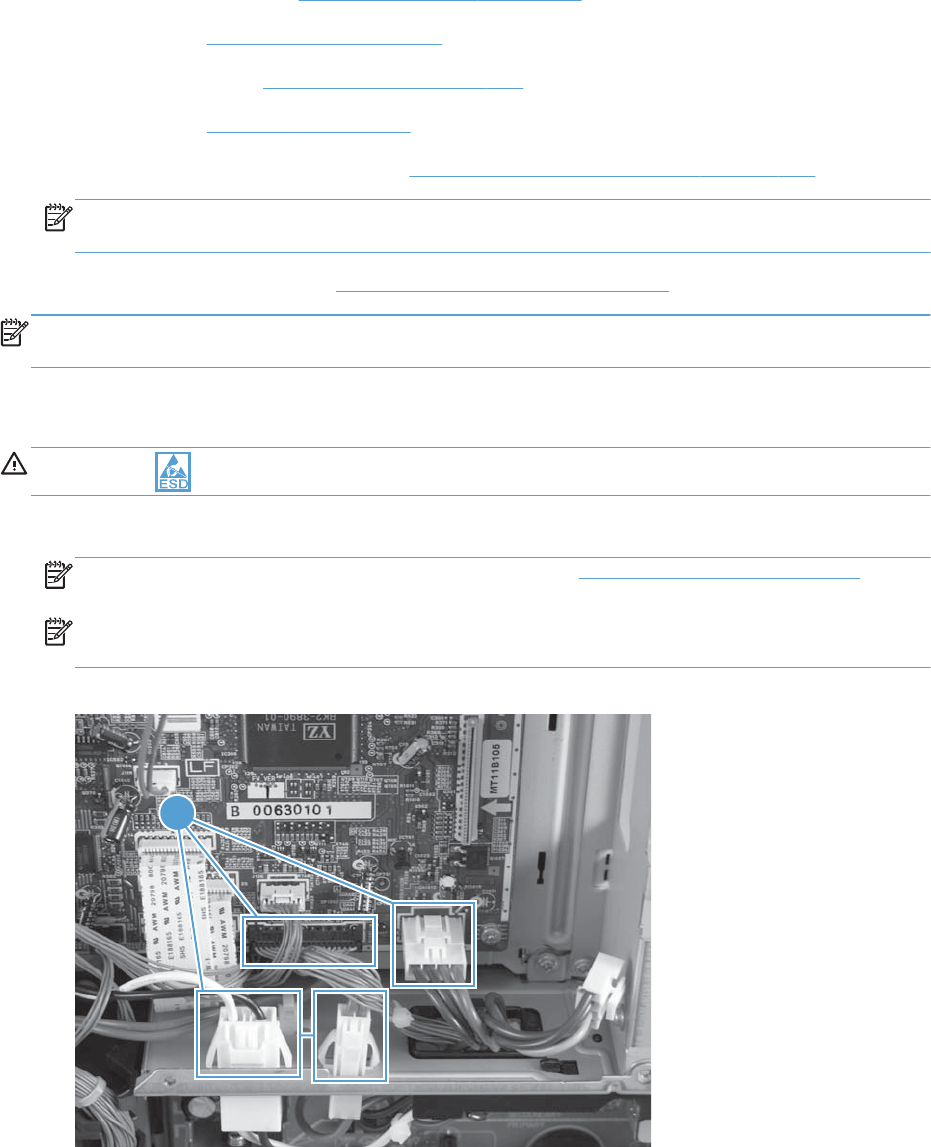
Low voltage power supply
Before proceeding, remove the following components:
●Toner collection unit. See Toner collection unit on page 79.
●Formatter. See Formatter PCA on page 81.
●Right rear cover. See Right rear cover on page 109.
●Left cover. See Left cover on page 111.
●Rear cover and upper rear cover. See Rear cover and upper rear cover on page 124.
NOTE: It is not necessary to separate the upper rear cover from the rear cover to remove the
low voltage power supply.
●Interconnect board (ICB). See Interconnect board (ICB) on page 158.
NOTE: The formatter cage is attached to the low voltage power supply (LVPS). Remove both
components as an assembly. You can then remove the formatter cage from the LVPS.
Remove the low voltage power supply
CAUTION: ESD sensitive part.
1. Disconnect four connectors (callout 1; J100 and J101 on the DC controller PCA).
NOTE: To locate DC controller connector locations, see DC controller PCA on page 284.
NOTE: If the ICB is removed with the power supply, as noted in the above bulleted list, also
disconnect one FFC (J105) on the DC controller and the connector on the top of the ICB.
Figure 2-132 Remove the low voltage power supply (1 of 7)
1
ENWW Internal assemblies 163
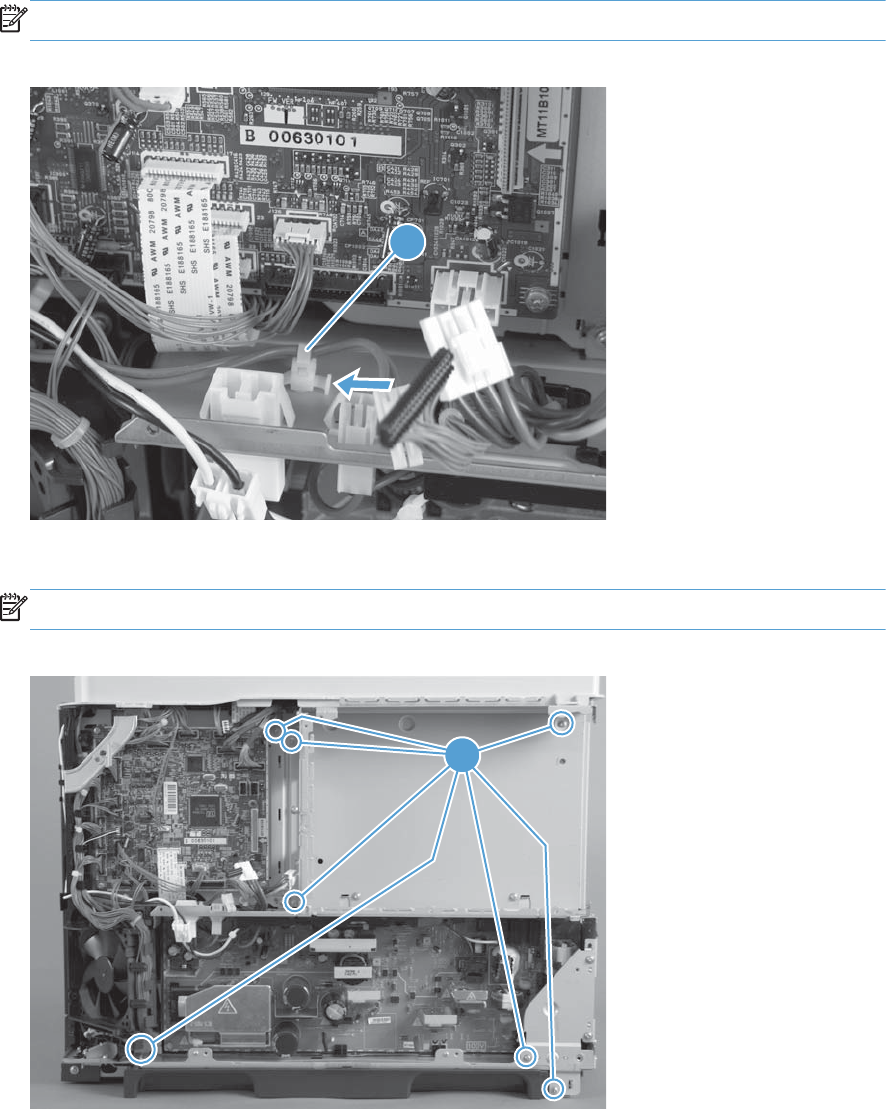
2. Push in on the locking tab to release the retainer (callout 1), and then separate the retainer from
the assembly.
NOTE: The retainer remains attached to the wire harness, and disengages from the assembly.
Figure 2-133 Remove the low voltage power supply (2 of 7)
1
3. Remove seven screws (callout 1).
NOTE: The illustration below shows the ICB removed.
Figure 2-134 Remove the low voltage power supply (3 of 7)
1
164 Chapter 2 Removal and replacement ENWW
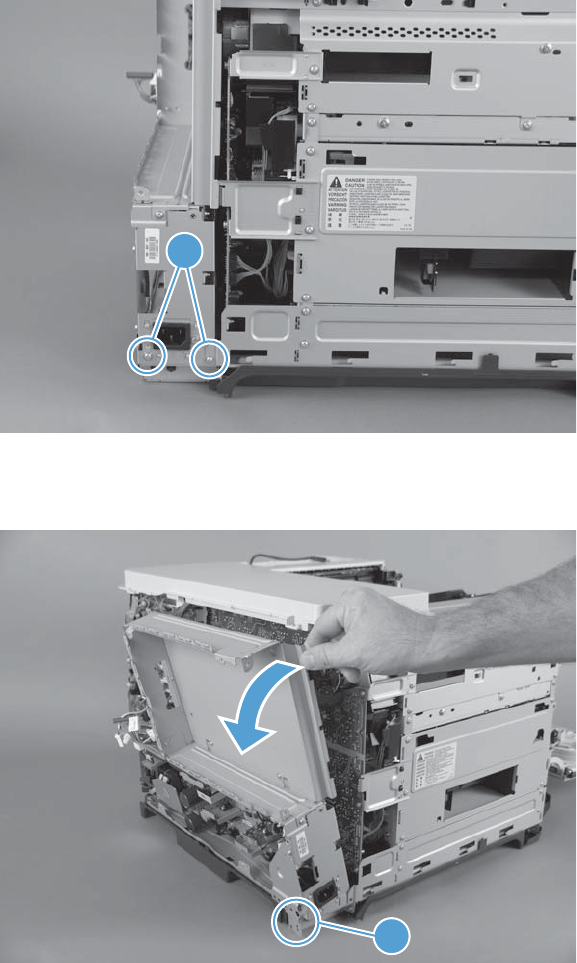
4. Remove two screws (callout 1).
Figure 2-135 Remove the low voltage power supply (4 of 7)
1
5. Release one tab (callout 1), and then rotate the formatter cage away from the top of the product.
Figure 2-136 Remove the low voltage power supply (5 of 7)
1
ENWW Internal assemblies 165
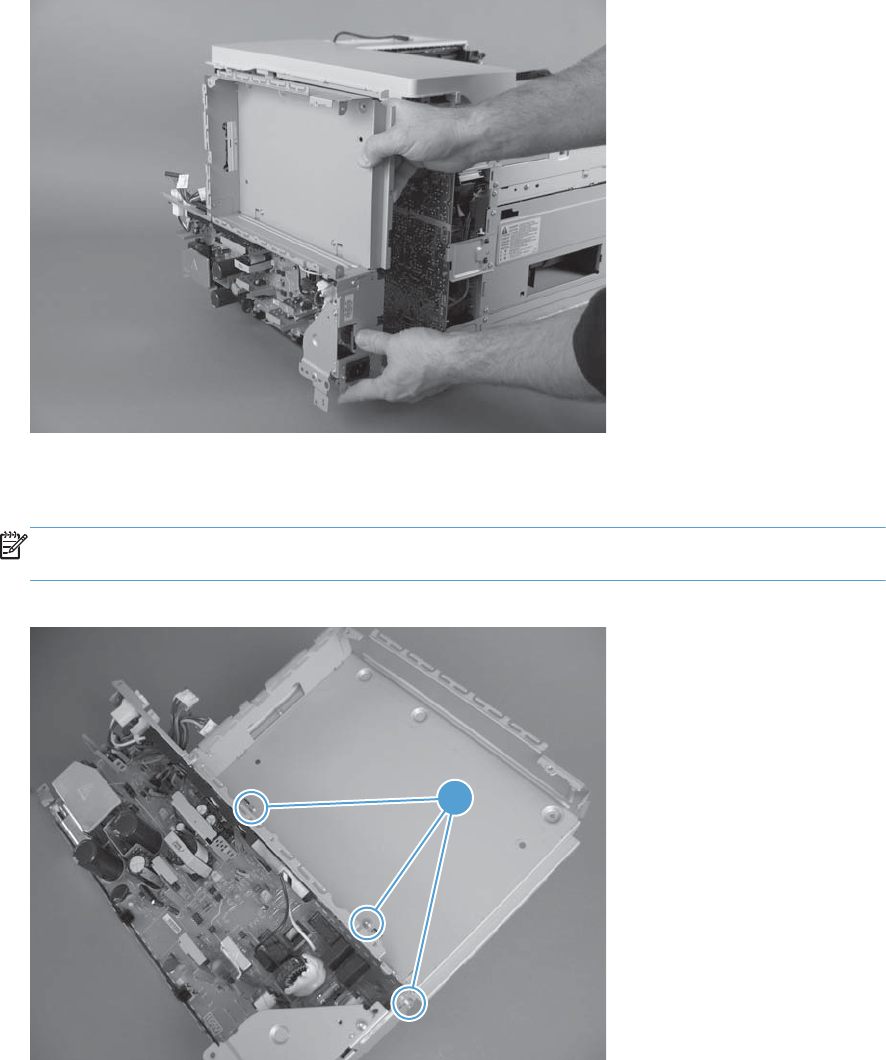
6. Remove the assembly.
Figure 2-137 Remove the low voltage power supply (6 of 7)
7. Remove three screws (callout 1), and then separate the formatter cage from the low voltage power
supply.
NOTE: If you are removing the power supply for internal product access, you can leave the
formatter cage installed on the power supply chassis.
Figure 2-138 Remove the low voltage power supply (7 of 7)
1
166 Chapter 2 Removal and replacement ENWW
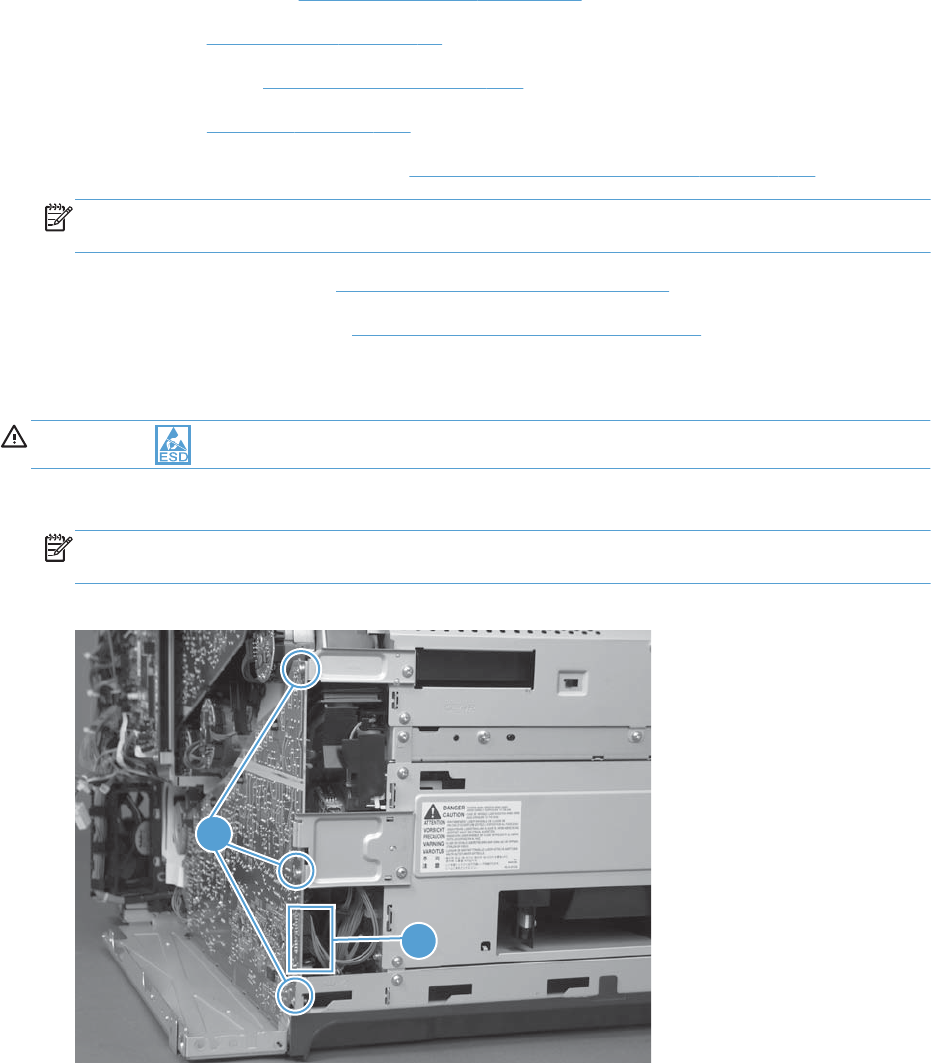
High voltage power supply lower (HVPS-D)
Before proceeding, remove the following components:
●Toner collection unit. See Toner collection unit on page 79.
●Formatter. See Formatter PCA on page 81.
●Right rear cover. See Right rear cover on page 109.
●Left cover. See Left cover on page 111.
●Rear cover and upper rear cover. See Rear cover and upper rear cover on page 124.
NOTE: It is not necessary to separate the upper rear cover from the rear cover to remove the
high voltage power supply lower.
●Interconnect board (ICB). See Interconnect board (ICB) on page 158.
●Low voltage power supply. See Low voltage power supply on page 163.
Remove the high voltage power supply lower
CAUTION: ESD sensitive part.
1. Disconnect two connectors (callout 1), and then remove three screws (callout 2).
NOTE: The screws include lock washers and are unique to this assembly. Make sure to reinstall
with this assembly.
Figure 2-139 Remove the high voltage power supply lower (1 of 4)
2
1
ENWW Internal assemblies 167
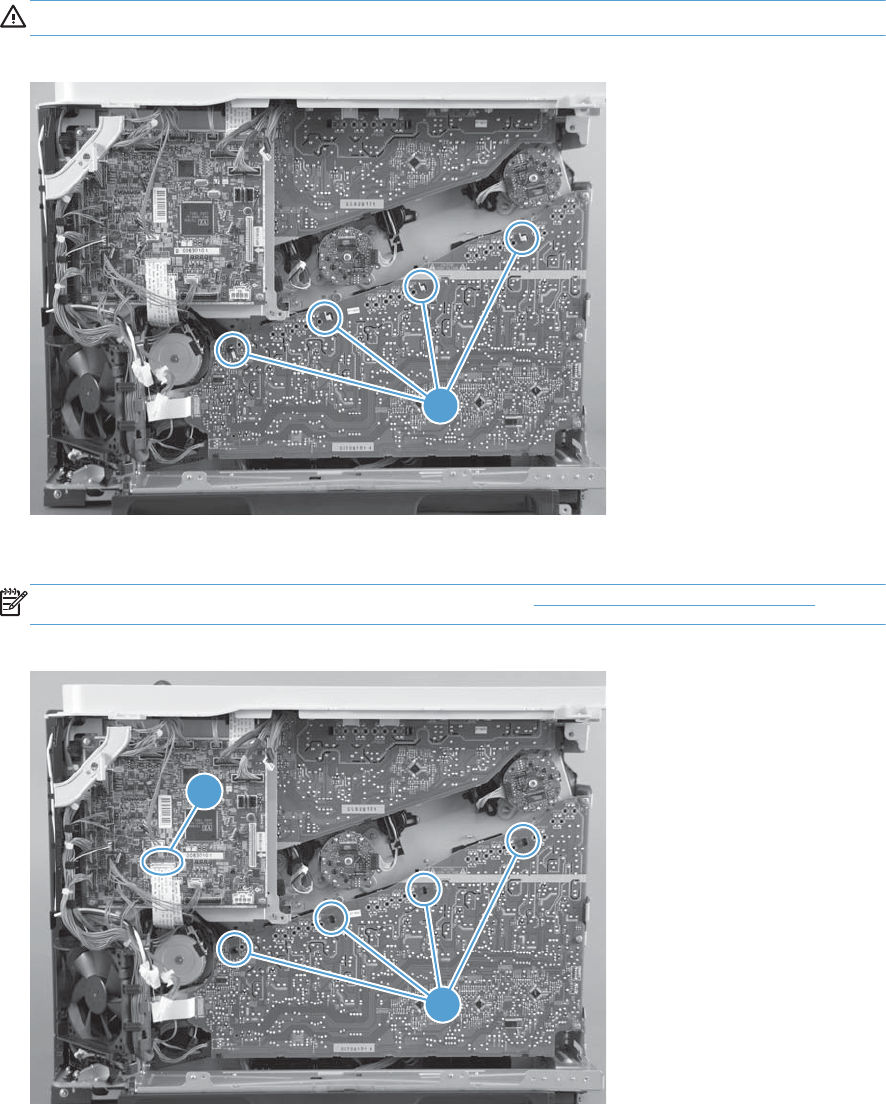
2. Use a small flat blade screwdriver to carefully remove four locking clips (callout 1).
CAUTION: Do not damage the PCA with the screwdriver.
Figure 2-140 Remove the high voltage power supply lower (2 of 4)
1
3. Disconnect one connector (callout 1; J114), and then release four clips (callout 2).
NOTE: To locate DC controller connector locations, see DC controller PCA on page 284.
Figure 2-141 Remove the high voltage power supply lower (3 of 4)
2
1
168 Chapter 2 Removal and replacement ENWW
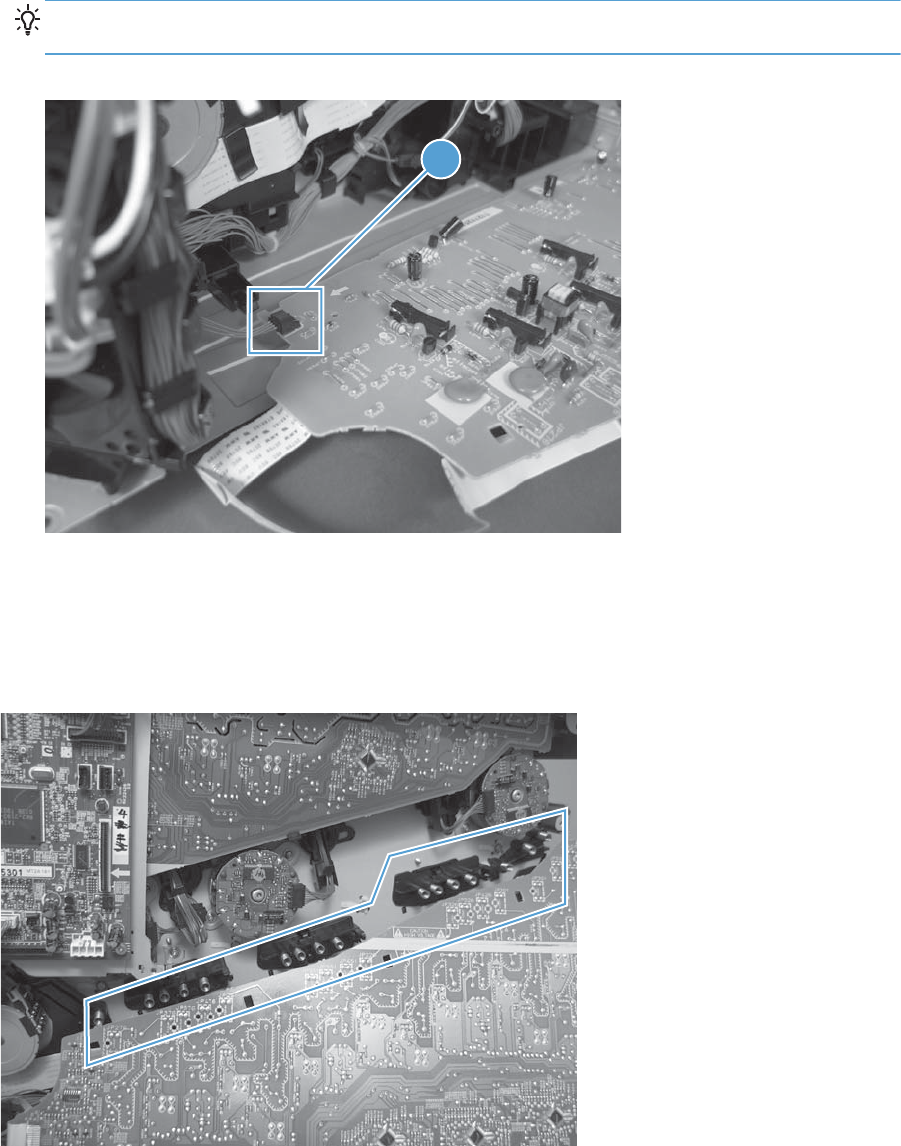
4. Rotate the top of the power supply away from the chassis, and then disconnect one connector
(callout 1). Remove the power supply.
Reinstallation tip Make sure the cables do not get stuck behind or damaged by the sheet
metal.
Figure 2-142 Remove the high voltage power supply lower (4 of 4)
1
Reinstall the high voltage power supply lower
When you reinstall the power supply, look through the holes in the PCA and make sure that the high
voltage contact springs are correctly seated against the PCA.
Figure 2-143 Reinstall the high voltage power supply lower
ENWW Internal assemblies 169
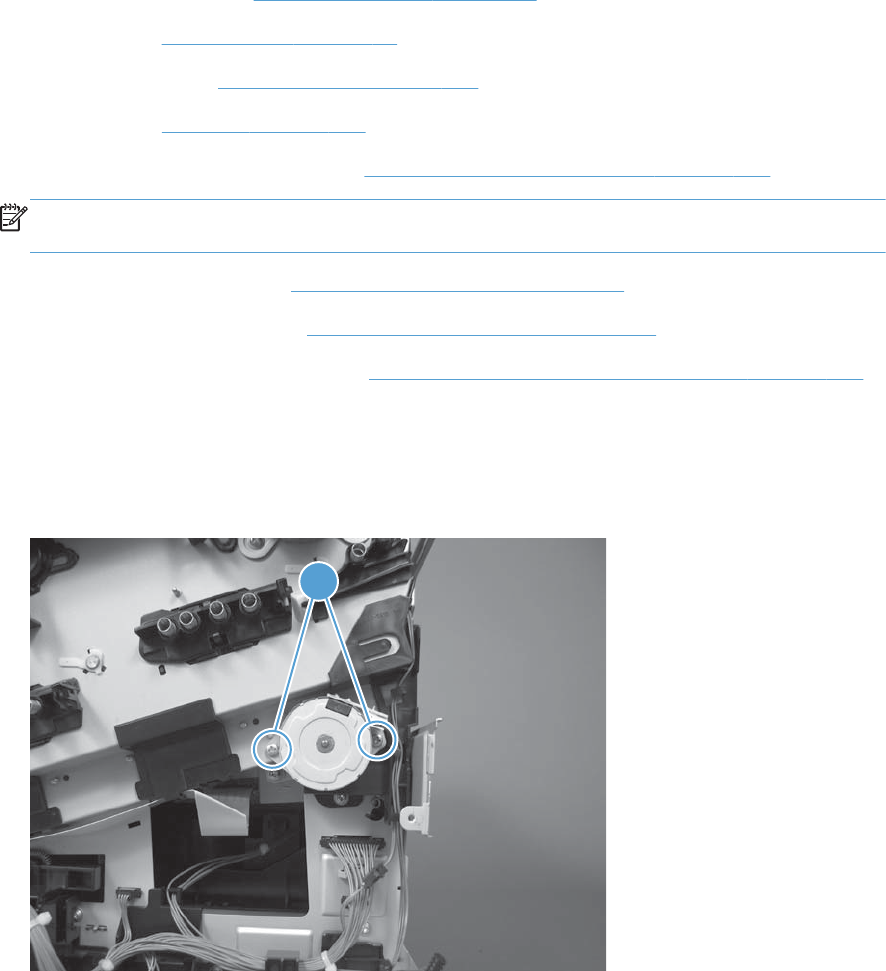
Developing disengagement motor
Before proceeding, remove the following components:
●Toner collection unit. See Toner collection unit on page 79.
●Formatter. See Formatter PCA on page 81.
●Right rear cover. See Right rear cover on page 109.
●Left cover. See Left cover on page 111.
●Rear cover and upper rear cover. See Rear cover and upper rear cover on page 124.
NOTE: It is not necessary to separate the upper rear cover from the rear cover to remove the
developing disengagement motor.
●Interconnect board (ICB). See Interconnect board (ICB) on page 158.
●Low voltage power supply. See Low voltage power supply on page 163.
●High voltage power supply lower. See High voltage power supply lower (HVPS-D) on page 167.
Remove the developing disengagement motor
1. Remove two screws (callout 1).
Figure 2-144 Remove the developing disengagement motor (1 of 2)
1
170 Chapter 2 Removal and replacement ENWW
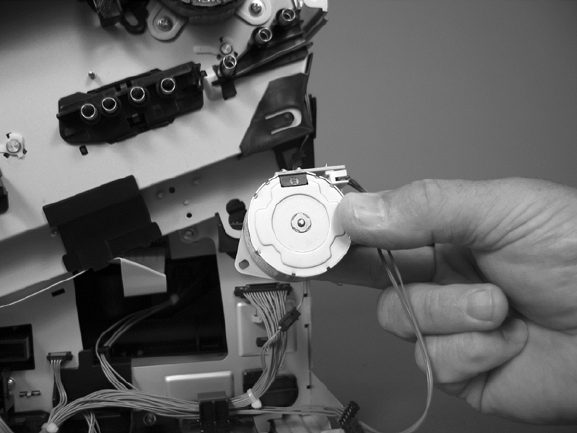
2. Remove the motor.
Figure 2-145 Remove the developing disengagement motor (2 of 2)
ENWW Internal assemblies 171
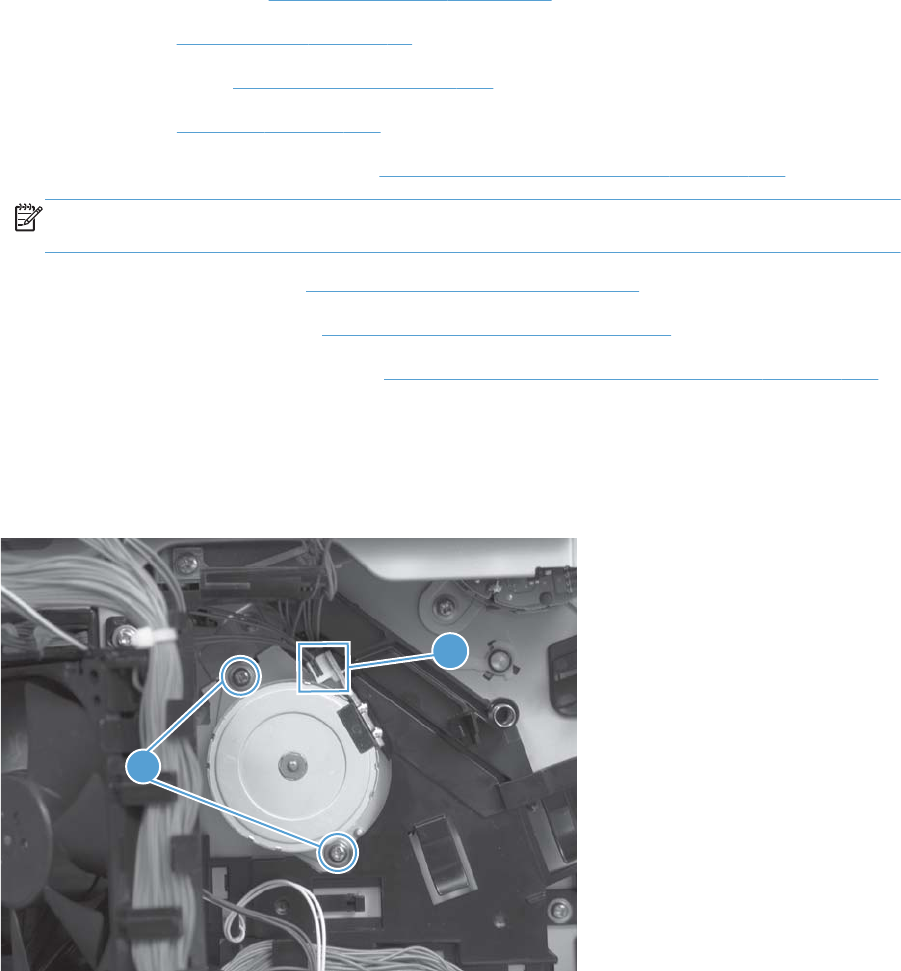
Pickup motor
Before proceeding, remove the following components:
●Toner collection unit. See Toner collection unit on page 79.
●Formatter. See Formatter PCA on page 81.
●Right rear cover. See Right rear cover on page 109.
●Left cover. See Left cover on page 111.
●Rear cover and upper rear cover. See Rear cover and upper rear cover on page 124.
NOTE: It is not necessary to separate the upper rear cover from the rear cover to remove the
pickup motor.
●Interconnect board (ICB). See Interconnect board (ICB) on page 158.
●Low voltage power supply. See Low voltage power supply on page 163.
●High voltage power supply lower. See High voltage power supply lower (HVPS-D) on page 167.
Remove the pickup motor
Disconnect one connector (callout 1), remove two screws (callout 2), and then remove the motor.
Figure 2-146 Remove the pickup motor
1
2
172 Chapter 2 Removal and replacement ENWW
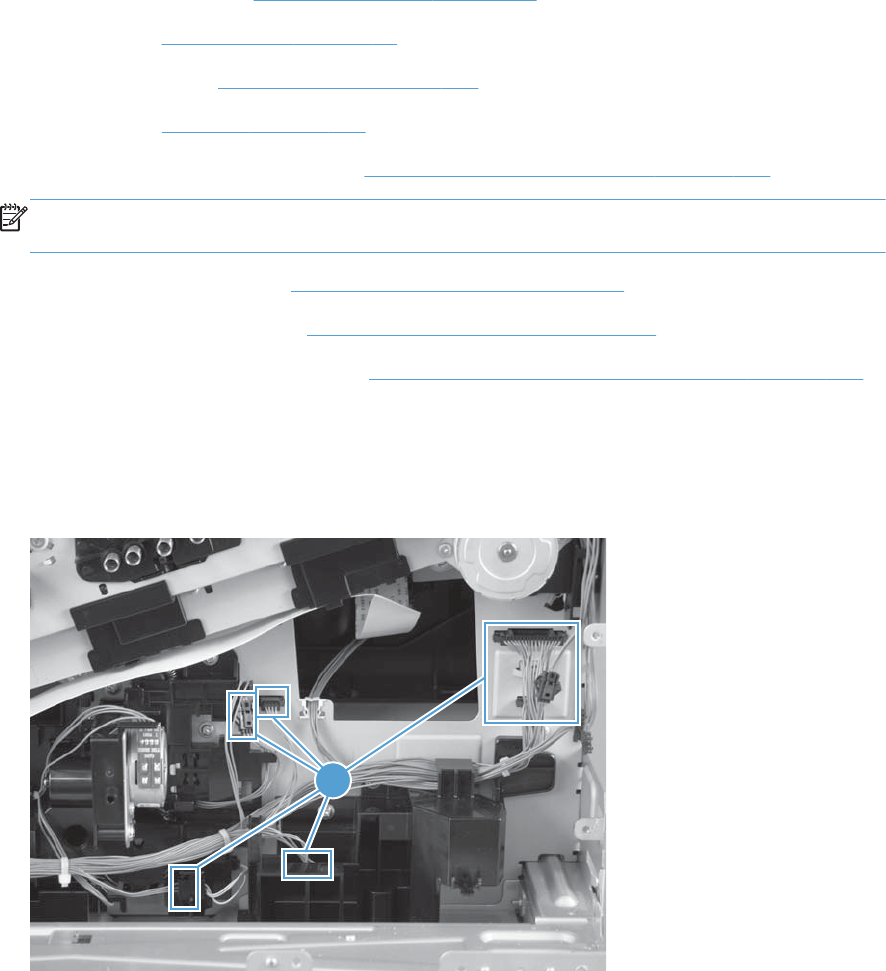
Lifter drive assembly
Before proceeding, remove the following components:
●Toner collection unit. See Toner collection unit on page 79.
●Formatter. See Formatter PCA on page 81.
●Right rear cover. See Right rear cover on page 109.
●Left cover. See Left cover on page 111.
●Rear cover and upper rear cover. See Rear cover and upper rear cover on page 124.
NOTE: It is not necessary to separate the upper rear cover from the rear cover to remove the
lifter drive assembly.
●Interconnect board (ICB). See Interconnect board (ICB) on page 158.
●Low voltage power supply. See Low voltage power supply on page 163.
●High voltage power supply lower. See High voltage power supply lower (HVPS-D) on page 167.
Remove the lifter drive assembly
1. Disconnect eight connectors (callout 1), and then release the wire harness from the retainers.
Figure 2-147 Remove the lifter drive assembly (1 of 2)
1
ENWW Internal assemblies 173
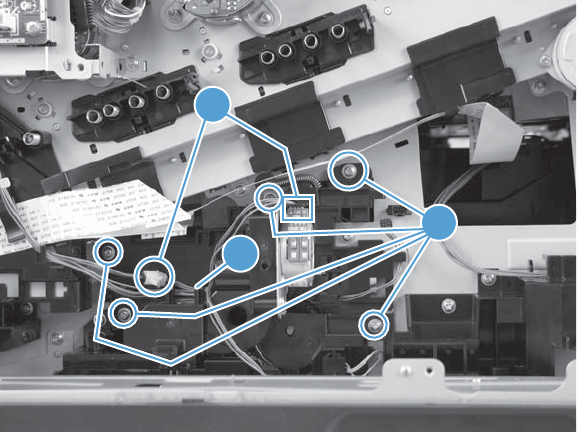
2. Remove five screws (callout 1), disconnect two connectors (callout 2), release the wire harness
from the retainers (callout 3), and then remove the assembly.
Figure 2-148 Remove the lifter drive assembly (2 of 2)
1
2
3
174 Chapter 2 Removal and replacement ENWW
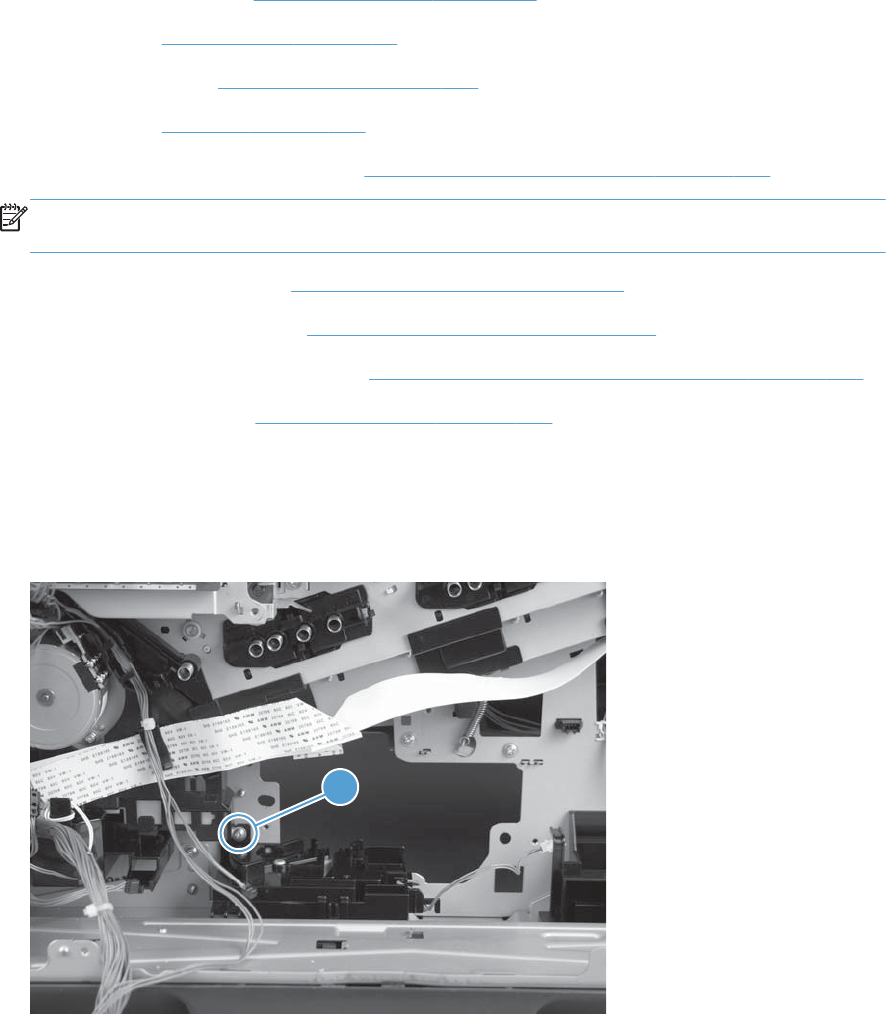
Automatic close assembly
Before proceeding, remove the following components:
●Toner collection unit. See Toner collection unit on page 79.
●Formatter. See Formatter PCA on page 81.
●Right rear cover. See Right rear cover on page 109.
●Left cover. See Left cover on page 111.
●Rear cover and upper rear cover. See Rear cover and upper rear cover on page 124.
NOTE: It is not necessary to separate the upper rear cover from the rear cover to remove the
lifter drive assembly.
●Interconnect board (ICB). See Interconnect board (ICB) on page 158.
●Low voltage power supply. See Low voltage power supply on page 163.
●High voltage power supply lower. See High voltage power supply lower (HVPS-D) on page 167.
●Lifter drive assembly. See Lifter drive assembly on page 173.
Remove the automatic close assembly
▲Remove one screw (callout 1), and then remove the assembly.
Figure 2-149 Remove the automatic close assembly
1
ENWW Internal assemblies 175
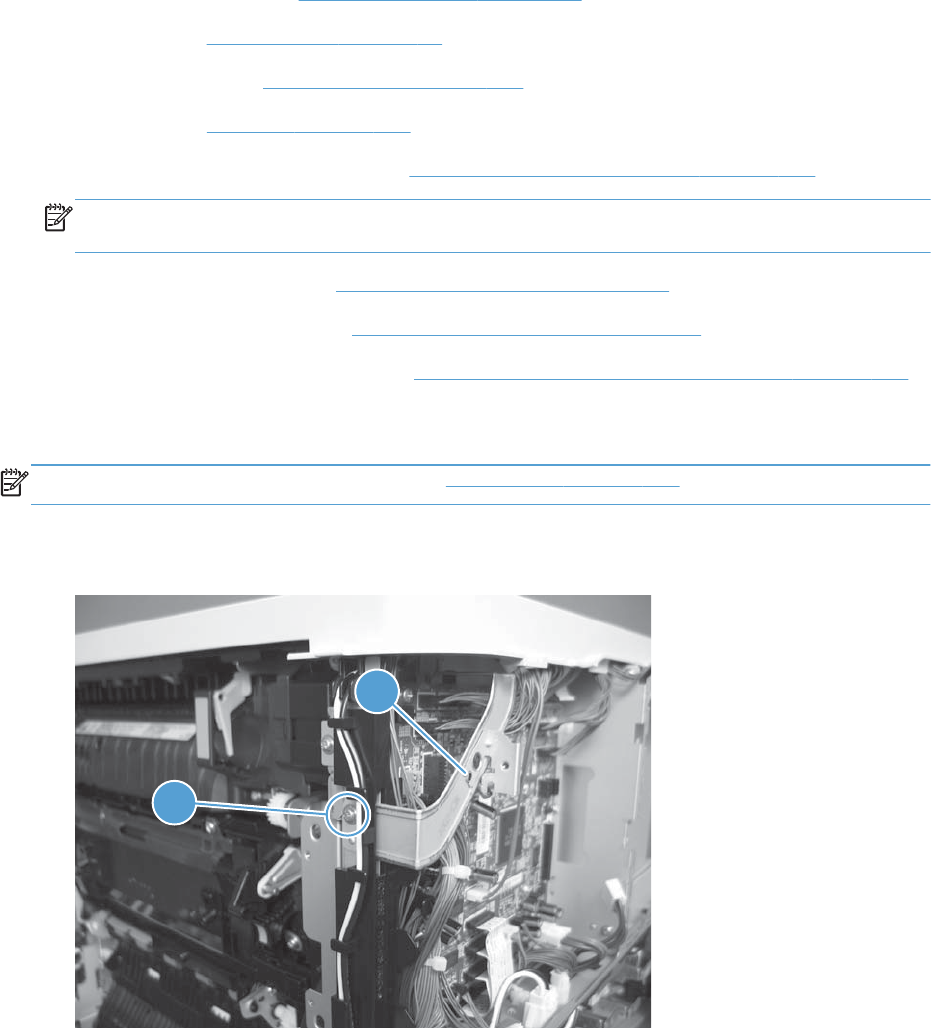
Cassette pickup drive assembly
Before proceeding, remove the following components:
●Toner collection unit. See Toner collection unit on page 79.
●Formatter. See Formatter PCA on page 81.
●Right rear cover. See Right rear cover on page 109.
●Left cover. See Left cover on page 111.
●Rear cover and upper rear cover. See Rear cover and upper rear cover on page 124.
NOTE: It is not necessary to separate the upper rear cover from the rear cover to remove the
cassette-pickup drive assembly.
●Interconnect board (ICB). See Interconnect board (ICB) on page 158.
●Low voltage power supply. See Low voltage power supply on page 163.
●High voltage power supply lower. See High voltage power supply lower (HVPS-D) on page 167.
Remove the cassette pickup drive assembly
NOTE: To remove the pickup motor only, see Pickup motor on page 172.
1. Remove one screw (callout 1), and then remove the sheet-metal bracket (callout 2).
Figure 2-150 Remove the cassette pickup drive assembly (1 of 10)
1
2
176 Chapter 2 Removal and replacement ENWW
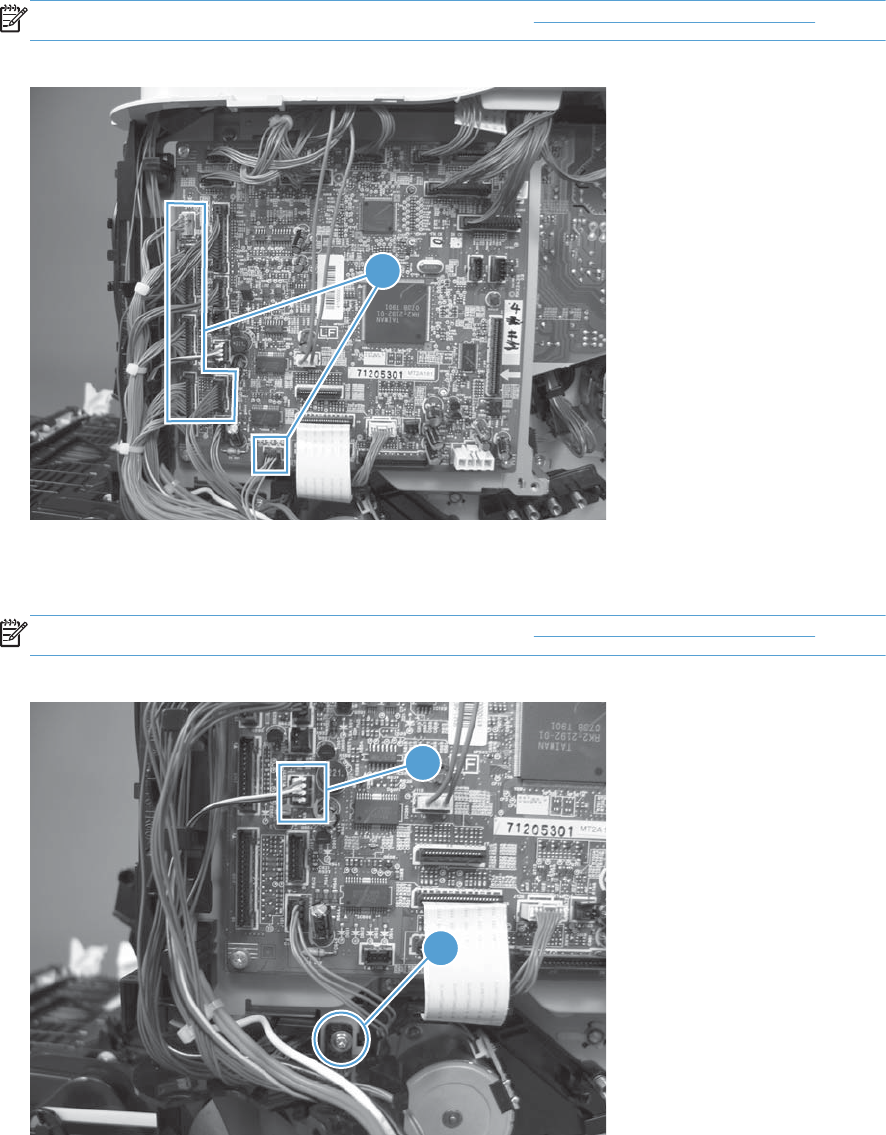
2. Disconnect six connectors (callout 1; J106, J107, J108, J137, J138, J140).
NOTE: To locate DC controller connector locations, see DC controller PCA on page 284.
Figure 2-151 Remove the cassette pickup drive assembly (2 of 10)
3
1
3. Disconnect one connector (callout 1; J119), remove one screw (callout 2), and then release the
wire harness from the guides.
NOTE: To locate DC controller connector locations, see DC controller PCA on page 284.
Figure 2-152 Remove the cassette pickup drive assembly (3 of 10)
1
2
ENWW Internal assemblies 177
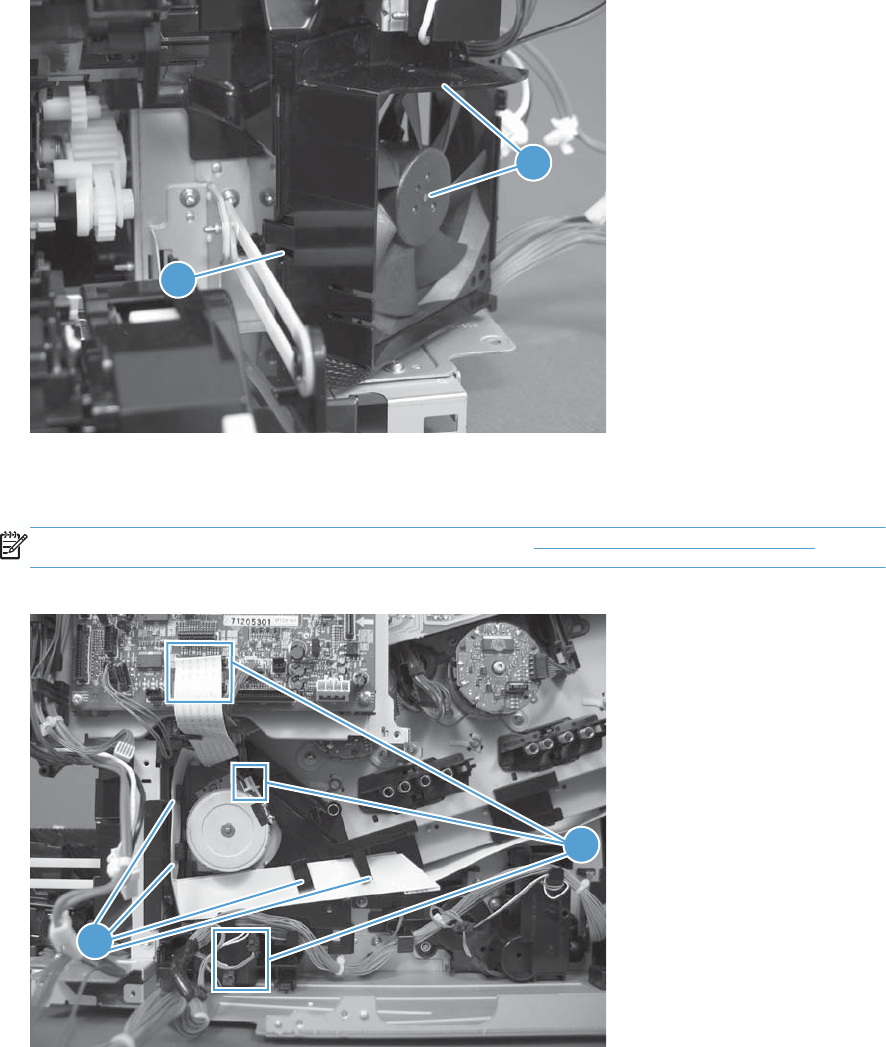
4. Release one tab (callout 1), and then remove the fan and fan duct (callout 2).
Figure 2-153 Remove the cassette pickup drive assembly (4 of 10)
1
2
5. Disconnect five connectors (callout 1; J110, J111 on the DC controller PCA), release the FFCs
from the guide (callout 2), and then release the wire harnesses from the guides.
NOTE: To locate DC controller connector locations, see DC controller PCA on page 284.
Figure 2-154 Remove the cassette pickup drive assembly (5 of 10)
2
1
178 Chapter 2 Removal and replacement ENWW
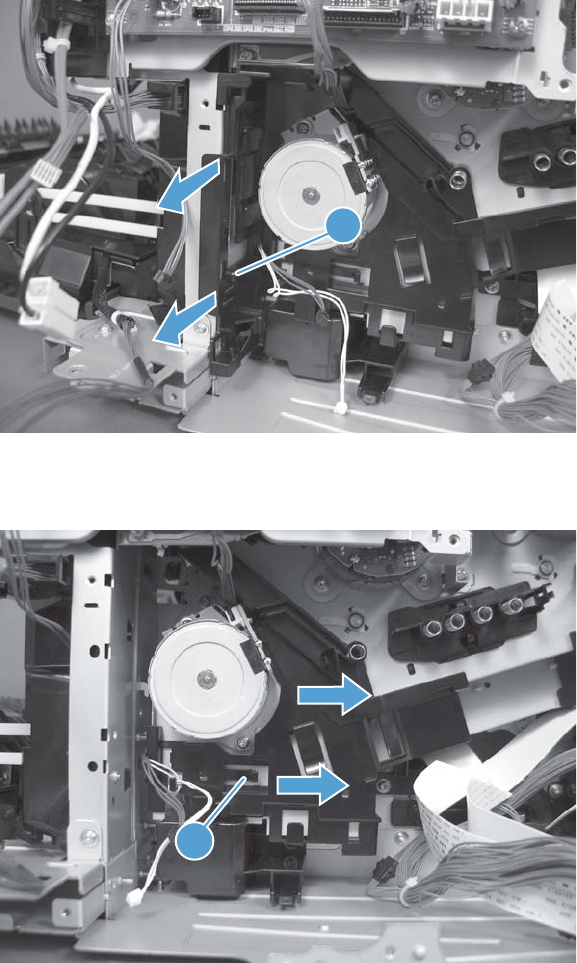
6. Release one tab (callout 1), and then remove the guide.
Figure 2-155 Remove the cassette pickup drive assembly (6 of 10)
1
7. Release one tab (callout 1), and then remove the guide.
Figure 2-156 Remove the cassette pickup drive assembly (7 of 10)
1
ENWW Internal assemblies 179
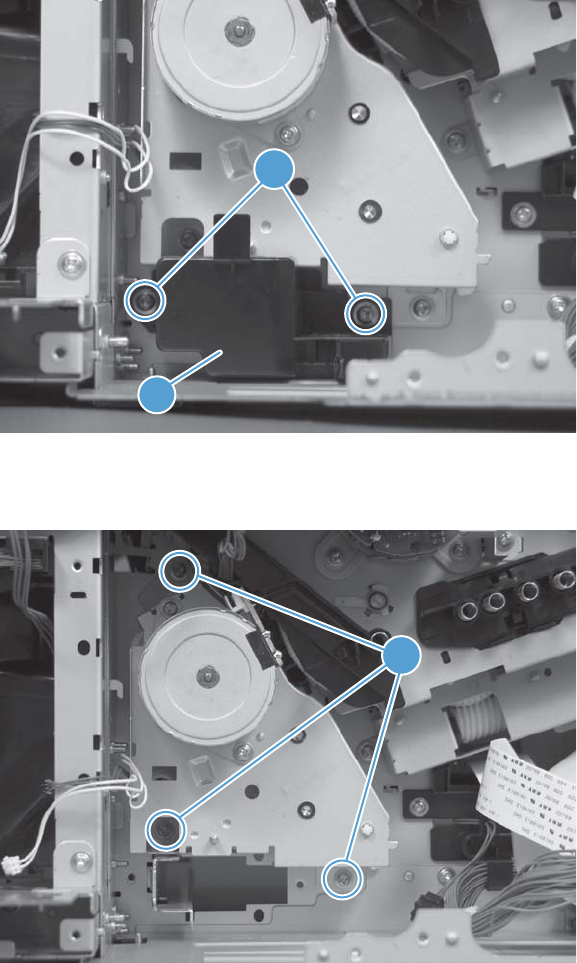
8. Remove two screws (callout 1), and then remove the high voltage bracket (callout 2).
Figure 2-157 Remove the cassette pickup drive assembly (8 of 10)
2
1
9. Remove three screws (callout 1).
Figure 2-158 Remove the cassette pickup drive assembly (9 of 10)
1
180 Chapter 2 Removal and replacement ENWW
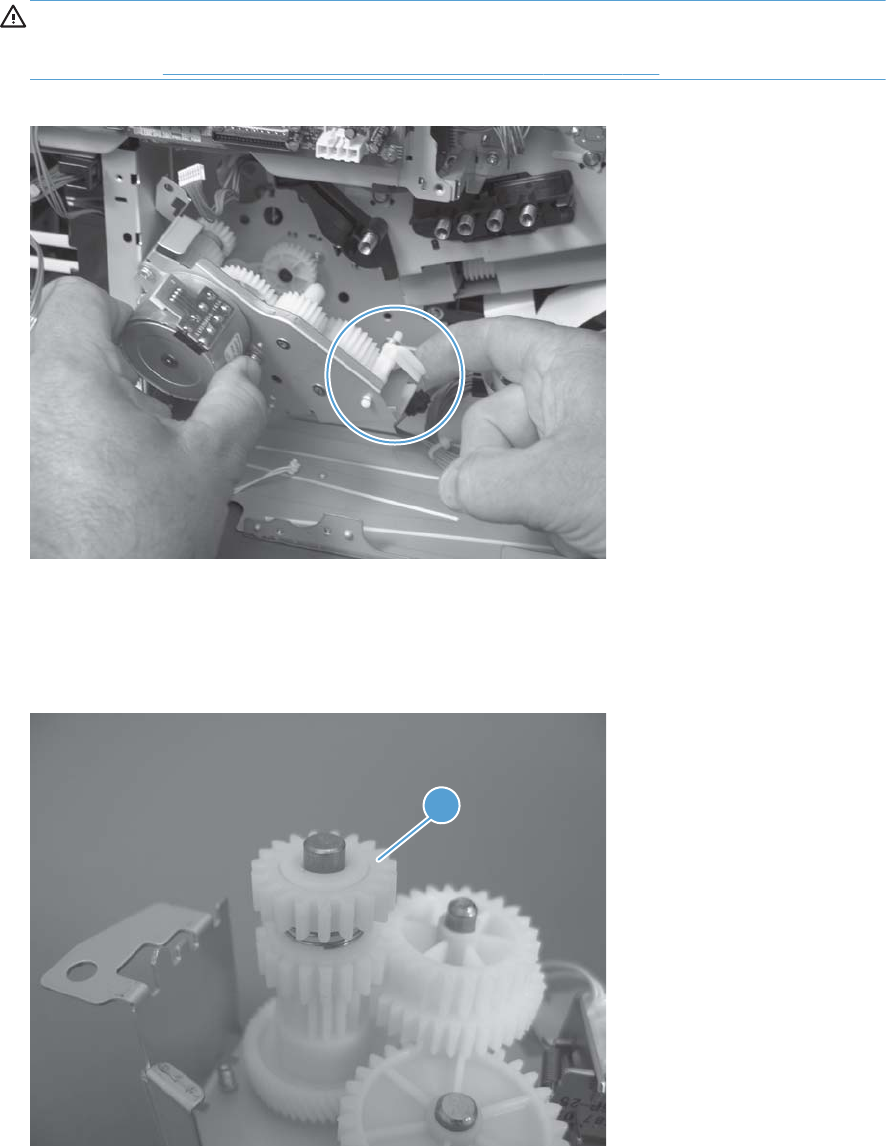
10. Carefully remove the assembly.
CAUTION: The gears, arm, and spring on the assembly are not captive. Use your finger to
secure the arm and spring as you remove the assembly. If the gears, arm, or spring become
dislodged, see Reinstall the cassette pickup drive assembly on page 181.
Figure 2-159 Remove the cassette pickup drive assembly (10 of 10)
Reinstall the cassette pickup drive assembly
1. Make sure that the spring-loaded gear (callout 1) is correctly installed.
Figure 2-160 Reinstall the cassette pickup drive assembly (1 of 3)
1
ENWW Internal assemblies 181
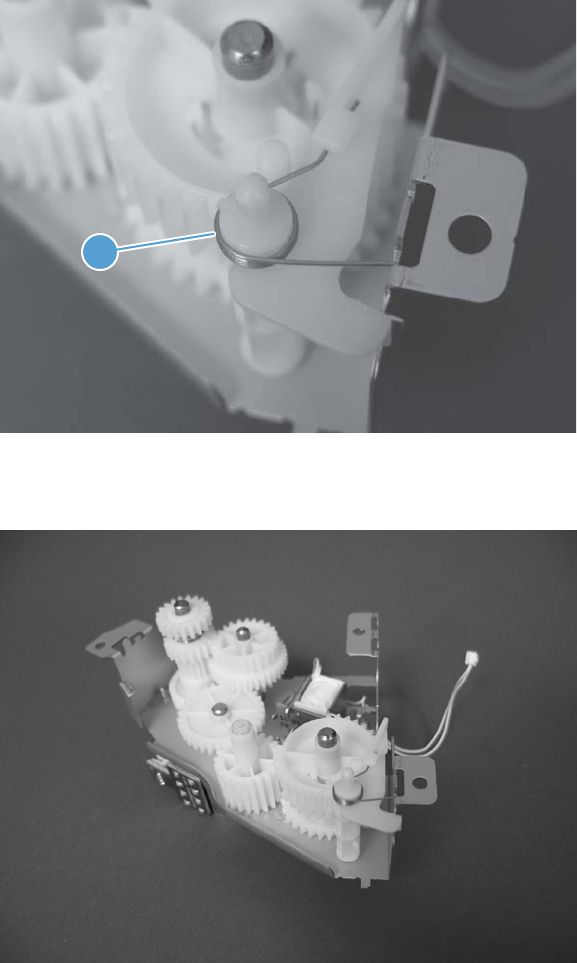
2. Make sure that the spring (callout 1) is correctly installed.
Figure 2-161 Reinstall the cassette pickup drive assembly (2 of 3)
1
3. Make sure that the gears, arm, and spring are correctly installed.
Figure 2-162 Reinstall the cassette pickup drive assembly (3 of 3)
182 Chapter 2 Removal and replacement ENWW

Cassette pickup assembly
Before proceeding, remove the following components:
●Toner collection unit. See Toner collection unit on page 79.
●Formatter. See Formatter PCA on page 81.
●Secondary transfer unit. See Secondary transfer assembly on page 96.
●Intermediate transfer belt. See Intermediate transfer belt (ITB) on page 98.
●Right rear cover. See Right rear cover on page 109.
●Left cover. See Left cover on page 111.
●Rear cover and upper rear cover. See Rear cover and upper rear cover on page 124.
NOTE: It is not necessary to separate the upper rear cover from the rear cover to remove the
cassette pickup assembly.
●Registration density (RD) sensor assembly. See Registration density (RD) sensor assembly
on page 143.
●Power supply fan and fan duct. See Power supply fan and fan duct on page 147.
●Registration assembly. See Registration assembly on page 150.
●Interconnect board (ICB). See Interconnect board (ICB) on page 158.
●Low voltage power supply. See Low voltage power supply on page 163.
●High voltage power supply lower. See High voltage power supply lower (HVPS-D) on page 167.
●Cassette pickup drive assembly. See Cassette pickup drive assembly on page 176.
ENWW Internal assemblies 183
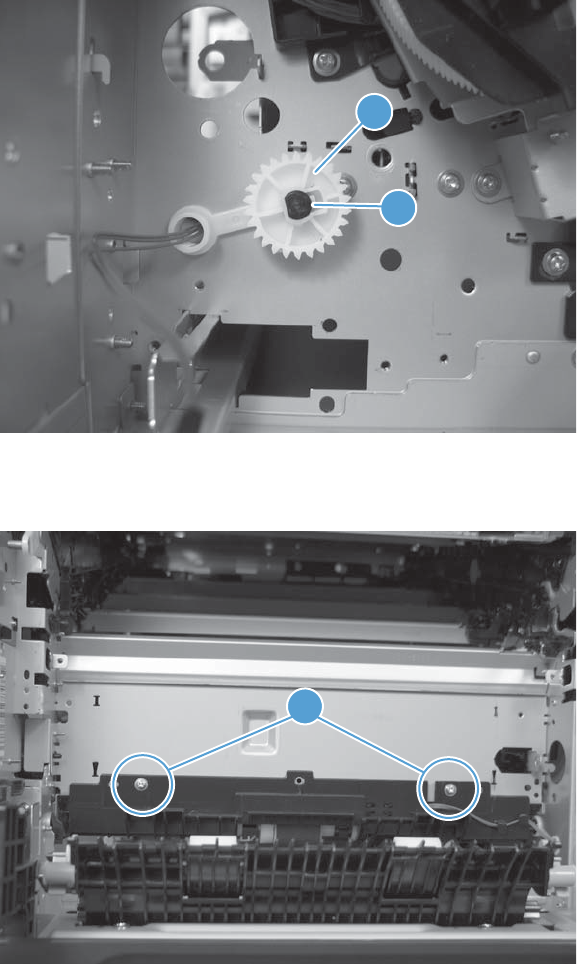
Remove the cassette pickup assembly
1. Release one tab (callout 1), and then remove the gear (callout 2).
Figure 2-163 Remove the cassette pickup assembly (1 of 3)
2
1
2. Remove two screws (callout 1).
Figure 2-164 Remove the cassette pickup assembly (2 of 3)
1
184 Chapter 2 Removal and replacement ENWW
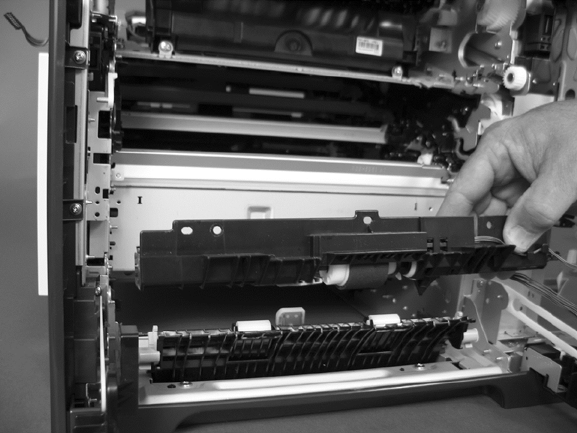
3. Remove the assembly.
Figure 2-165 Remove the cassette pickup assembly (3 of 3)
ENWW Internal assemblies 185
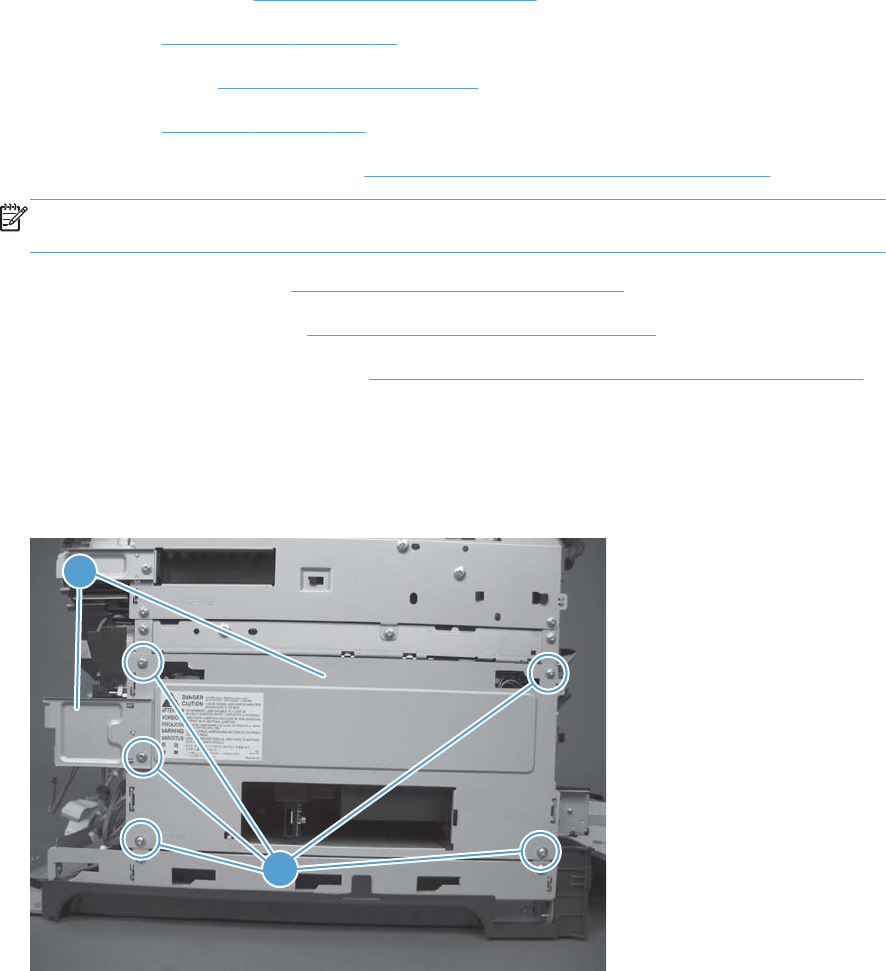
Laser/scanner assembly (Y/M)
Before proceeding, remove the following components:
●Toner collection unit. See Toner collection unit on page 79.
●Formatter. See Formatter PCA on page 81.
●Right rear cover. See Right rear cover on page 109.
●Left cover. See Left cover on page 111.
●Rear cover and upper rear cover. See Rear cover and upper rear cover on page 124.
NOTE: It is not necessary to separate the upper rear cover from the rear cover to remove the
laser/scanner assembly (Y/M).
●Interconnect board (ICB). See Interconnect board (ICB) on page 158.
●Low voltage power supply. See Low voltage power supply on page 163.
●High voltage power supply lower. See High voltage power supply lower (HVPS-D) on page 167.
Remove the laser/scanner assembly (Y/M)
1. Remove five screws (callout 1), and then remove the sheet-metal plate (callout 2).
Figure 2-166 Remove the laser/scanner assembly (Y/M) (1 of 12)
1
2
186 Chapter 2 Removal and replacement ENWW
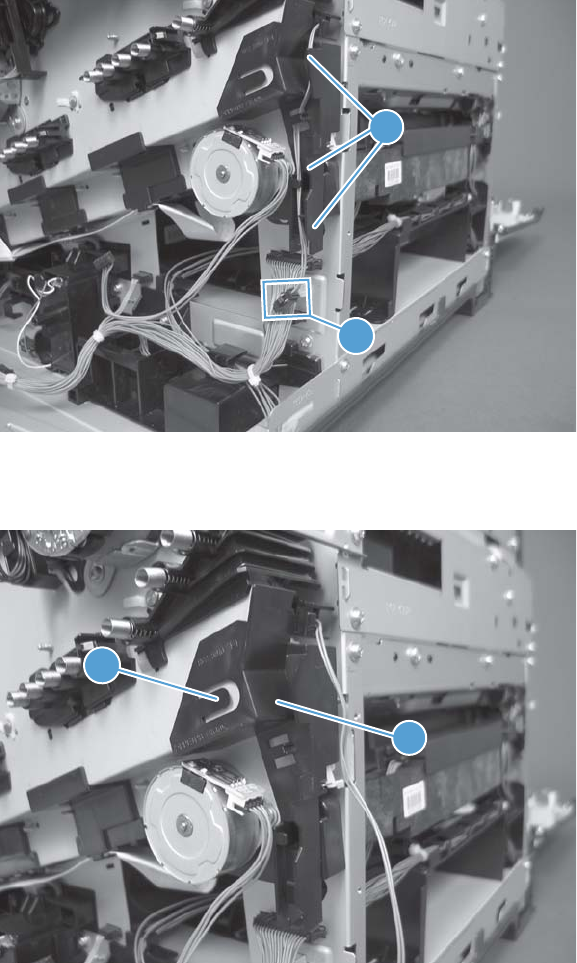
2. Disconnect the in-line one connector (callout 1), and then release the wire harnesses from the
guide (callout 2).
Figure 2-167 Remove the laser/scanner assembly (Y/M) (2 of 12)
2
1
3. Release one tab (callout 1), and then remove the guide (callout 2).
Figure 2-168 Remove the laser/scanner assembly (Y/M) (3 of 12)
2
1
ENWW Internal assemblies 187
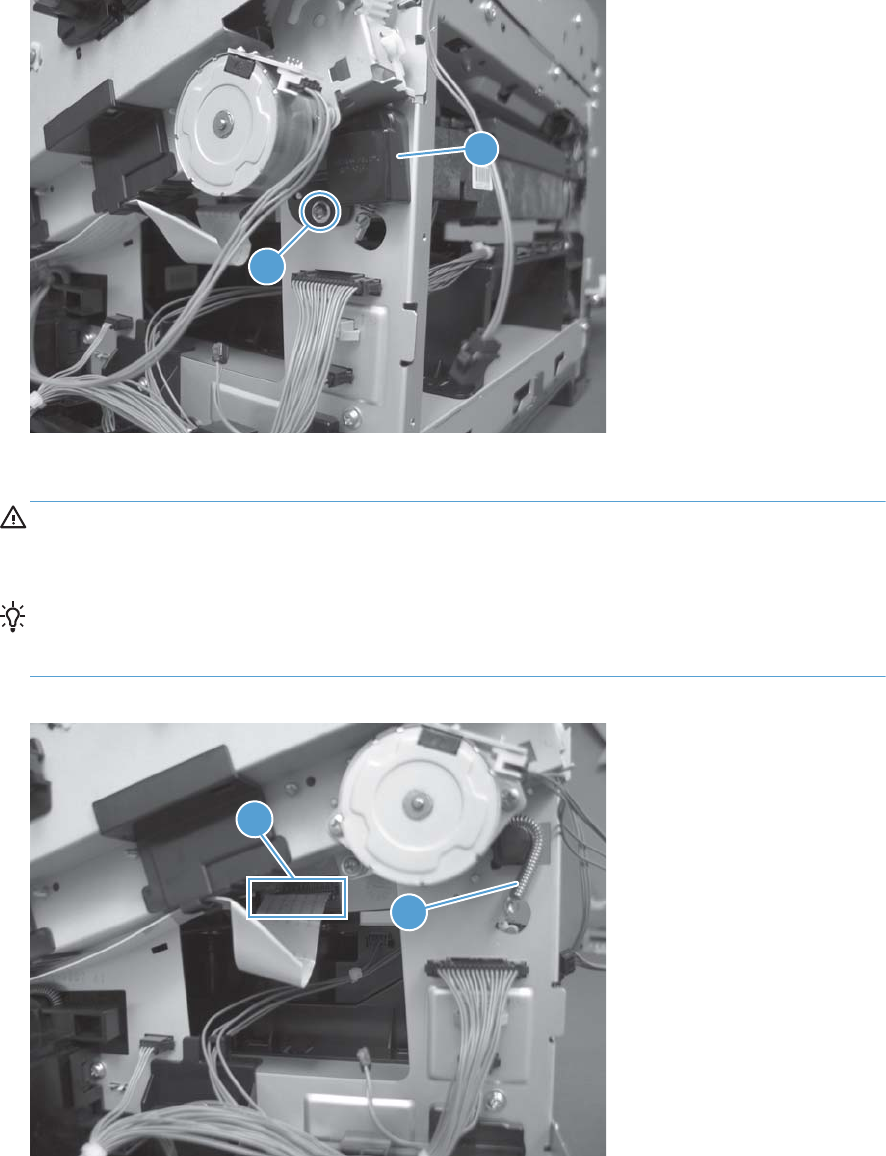
4. Remove one screw (callout 1), and then remove the cover (callout 2).
Figure 2-169 Remove the laser/scanner assembly (Y/M) (4 of 12)
2
1
5. Disconnect one FFC (callout 1), and then release one spring (callout 2).
CAUTION: The spring is not captive. Do not lose the spring when it is removed. Use a pair of
needle-nose pliers to safely retain the spring when it is removed. Do not use a flat blade
screwdriver to remove the spring; the spring could forcibly leave the product and strike you.
Reinstallation tip When you reinstall the spring, make sure that the laser/scanner fits tightly
up against the product chassis, and make sure that the FFC is fully seated in the connector. The
locator tabs on the front and rear of the scanner must be firmly seated in the slots in the chassis.
Figure 2-170 Remove the laser/scanner assembly (Y/M) (5 of 12)
2
1
188 Chapter 2 Removal and replacement ENWW
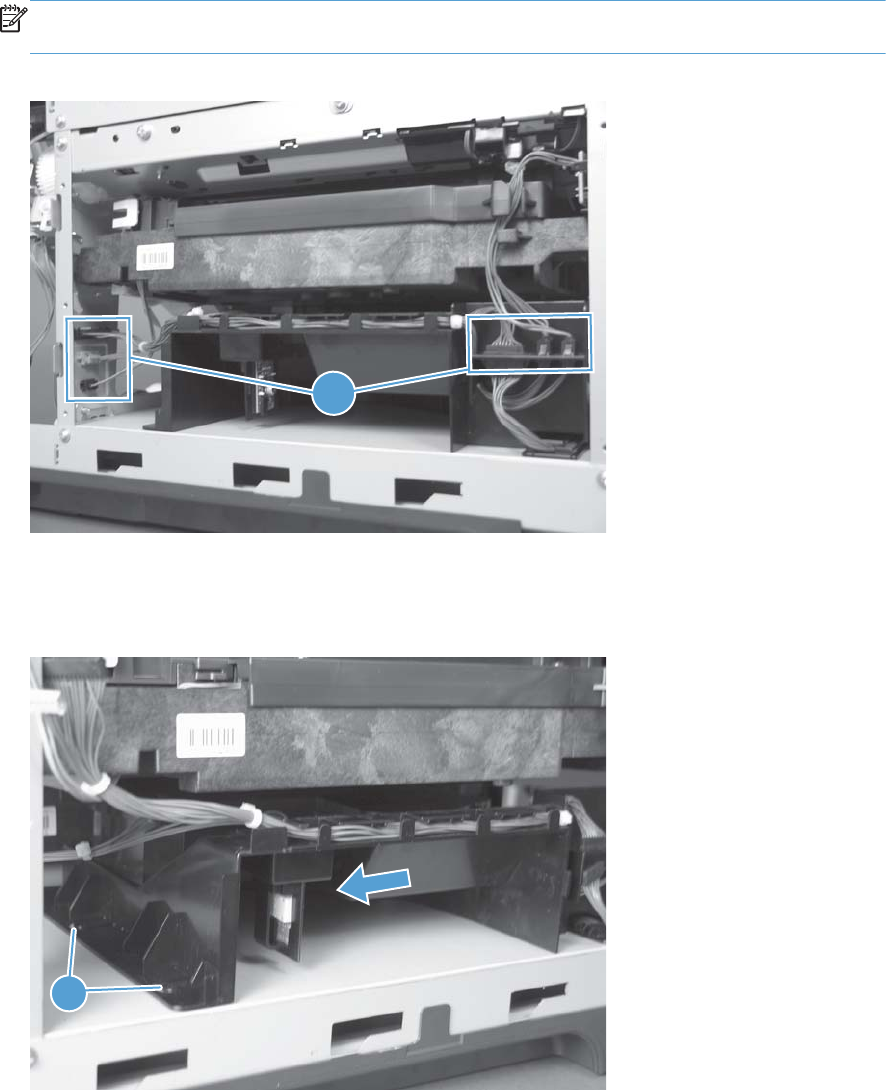
6. Disconnect six connectors (callout 1).
NOTE: Disconnect the larger connector on the right side from the bottom. Disconnect the two
smaller connectors on the right side from the top.
Figure 2-171 Remove the laser/scanner assembly (Y/M) (6 of 12)
1
7. Release two tabs (callout 1), and then slide the fan assembly toward the power-supply side of the
product to release it.
Figure 2-172 Remove the laser/scanner assembly (Y/M) (7 of 12)
1
ENWW Internal assemblies 189
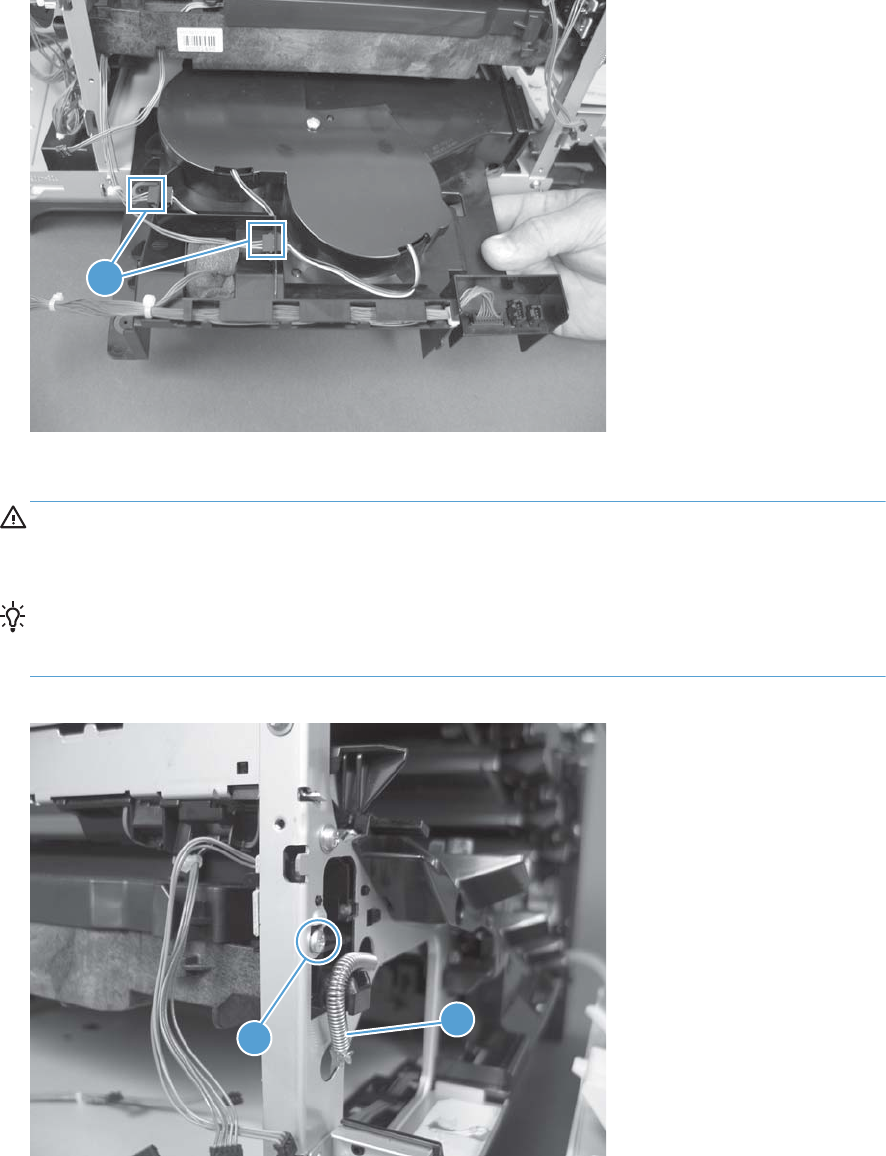
8. Pull the fan assembly slightly out of the product, disconnect two connectors (callout 1), and then
remove the assembly.
Figure 2-173 Remove the laser/scanner assembly (Y/M) (8 of 12)
1
9. Remove one screw (callout 1), and then release one spring (callout 2).
CAUTION: The spring is not captive. Do not lose the spring when it is removed. Use a pair of
needle-nose pliers to safely retain the spring when it is removed. Do not use a flat blade
screwdriver to remove the spring; the spring could forcibly leave the product and strike you.
Reinstallation tip When the laser/scanner is properly positioned in the chassis, the plastic
parts which protrude at the front and rear of the product will be firmly seated against the locator
tabs on the chassis. Verify that the assembly is correctly seated, and then install the spring.
Figure 2-174 Remove the laser/scanner assembly (Y/M) (9 of 12)
2
1
190 Chapter 2 Removal and replacement ENWW
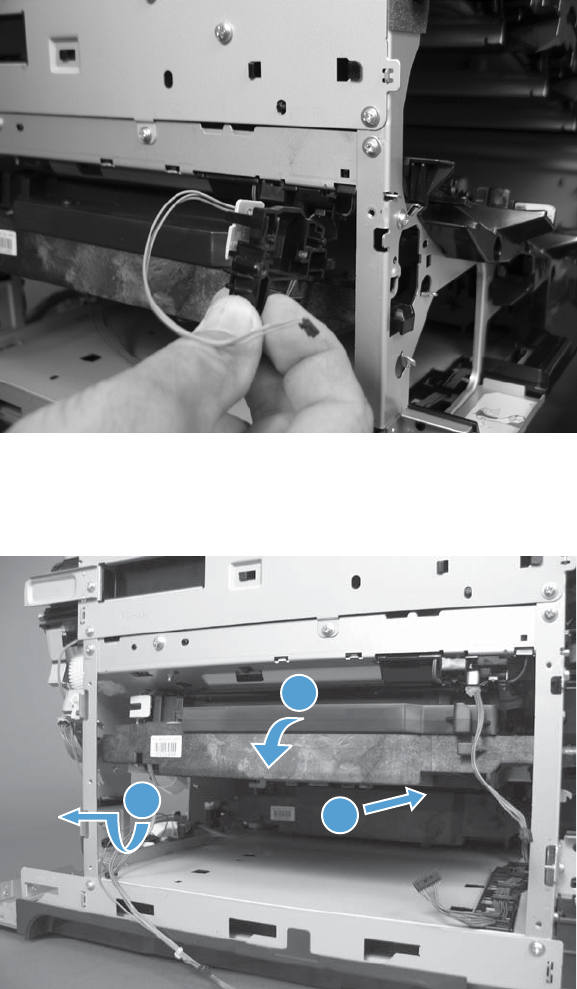
10. Remove the toner collection sensor.
Figure 2-175 Remove the laser/scanner assembly (Y/M) (10 of 12)
11. Rotate the front of the laser/scanner assembly down (callout 1), and then slide it toward the right
(callout 2). Lower the left corner, and then rotate the left corner out of the product (callout 3).
Figure 2-176 Remove the laser/scanner assembly (Y/M) (11 of 12)
1
2
3
ENWW Internal assemblies 191
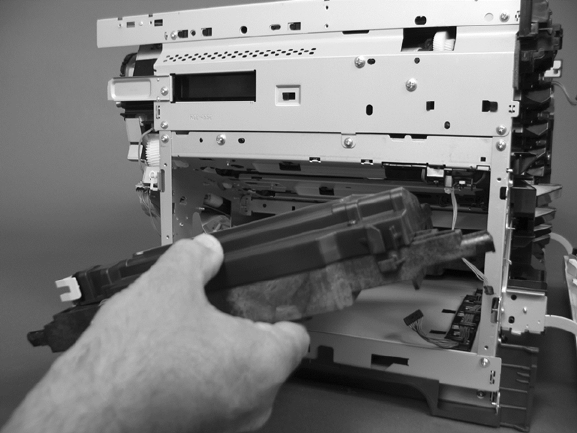
12. Pull the laser/scanner assembly straight out of the product to remove it.
Figure 2-177 Remove the laser/scanner assembly (Y/M) (12 of 12)
192 Chapter 2 Removal and replacement ENWW

Laser/scanner assembly (C/Bk)
Before proceeding, remove the following components:
●Toner collection unit. See Toner collection unit on page 79.
●Formatter. See Formatter PCA on page 81.
●Right rear cover. See Right rear cover on page 109.
●Left cover. See Left cover on page 111.
●Rear cover and upper rear cover. See Rear cover and upper rear cover on page 124.
NOTE: It is not necessary to separate the upper rear cover from the rear cover to remove the
laser/scanner assembly (C/Bk).
●Interconnect board (ICB). See Interconnect board (ICB) on page 158.
●Low voltage power supply. See Low voltage power supply on page 163.
●High voltage power supply lower. See High voltage power supply lower (HVPS-D) on page 167.
●Lifter drive assembly. See Lifter drive assembly on page 173.
●Laser/scanner assembly (Y/M). See Laser/scanner assembly (Y/M) on page 186.
ENWW Internal assemblies 193
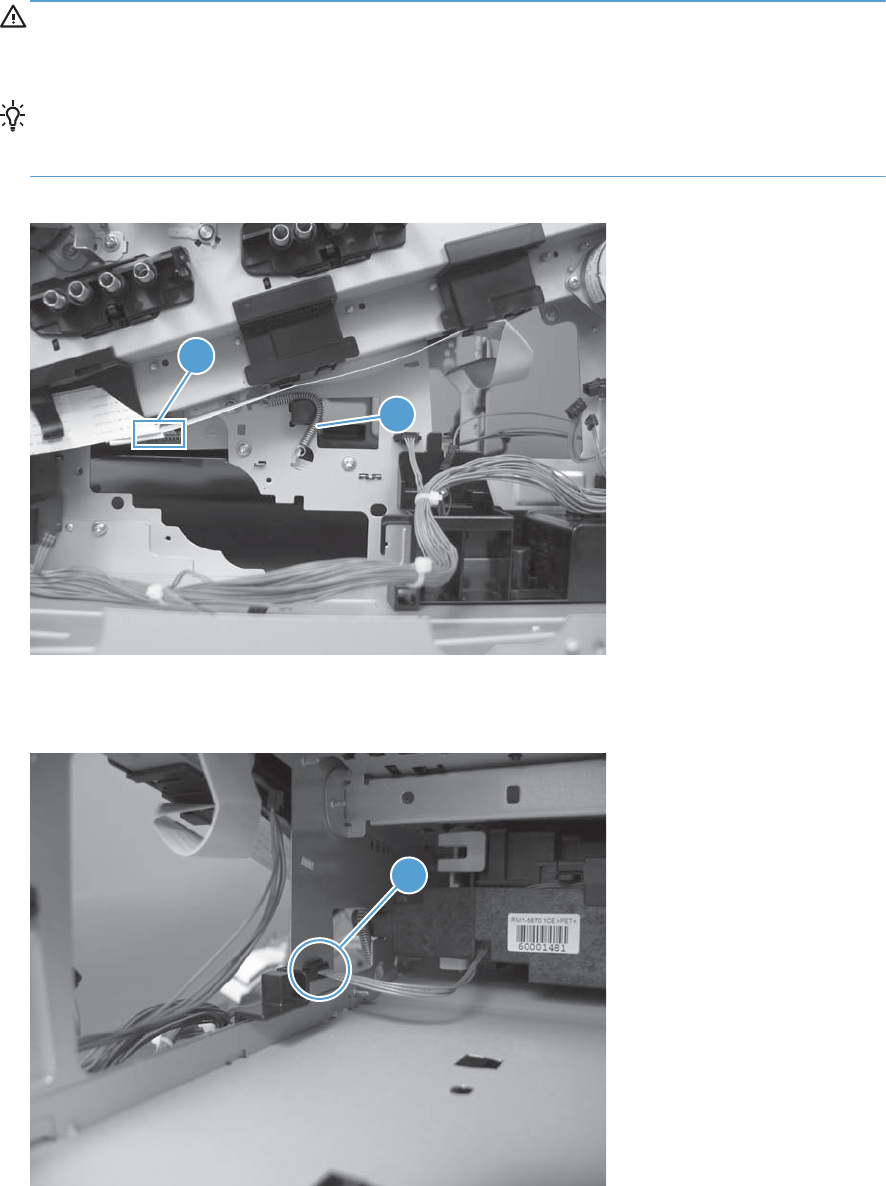
Remove the laser/scanner assembly (C/Bk)
1. Release one spring (callout 1), and then disconnect one connector (callout 2).
CAUTION: The spring is not captive. Do not lose the spring when it is removed. Use a pair of
needle-nose pliers to safely retain the spring when it is removed. Do not use a flat blade
screwdriver to remove the spring; the spring could forcibly leave the product and strike you.
Reinstallation tip When you reinstall the spring, make sure that the laser/scanner fits tightly
up against the product chassis, and make sure that the FFC is fully seated in the connector. The
locator tabs on the front of the scanner must be firmly seated in the slots in the chassis.
Figure 2-178 Remove the laser/scanner assembly (C/Bk) (1 of 7)
1
2
2. Disconnect one connector (callout 1).
Figure 2-179 Remove the laser/scanner assembly (C/Bk) (2 of 7)
1
194 Chapter 2 Removal and replacement ENWW
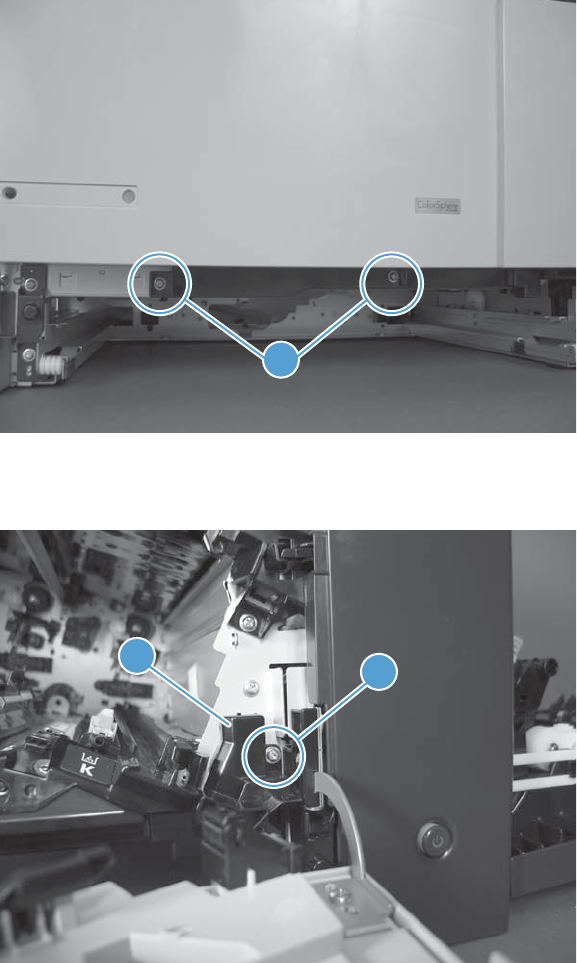
3. Remove two screws (callout 1) located below the front door.
Figure 2-180 Remove the laser/scanner assembly (C/Bk) (3 of 7)
1
4. Open the front door, and then remove one screw (callout 1) and the cover (callout 2).
Figure 2-181 Remove the laser/scanner assembly (C/Bk) (4 of 7)
1
2
ENWW Internal assemblies 195
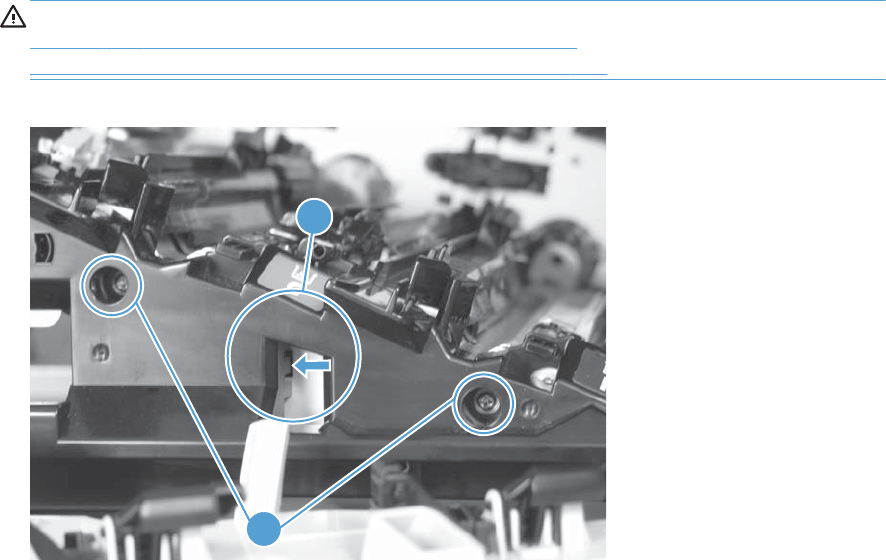
5. Remove two screws (callout 1). Use your finger to release the locking tab (callout 2), and then
remove the cover.
CAUTION: Be careful. The PGC actuators are easily dislodged when the cover is removed. See
Figure 2-185 Reinstall the PGC actuators (1 of 5) on page 198. To reinstall the actuators, see
Reinstall the protective glass cleaner (PGC) actuators on page 198.
Figure 2-182 Remove the laser/scanner assembly (C/Bk) (5 of 7)
1
2
196 Chapter 2 Removal and replacement ENWW
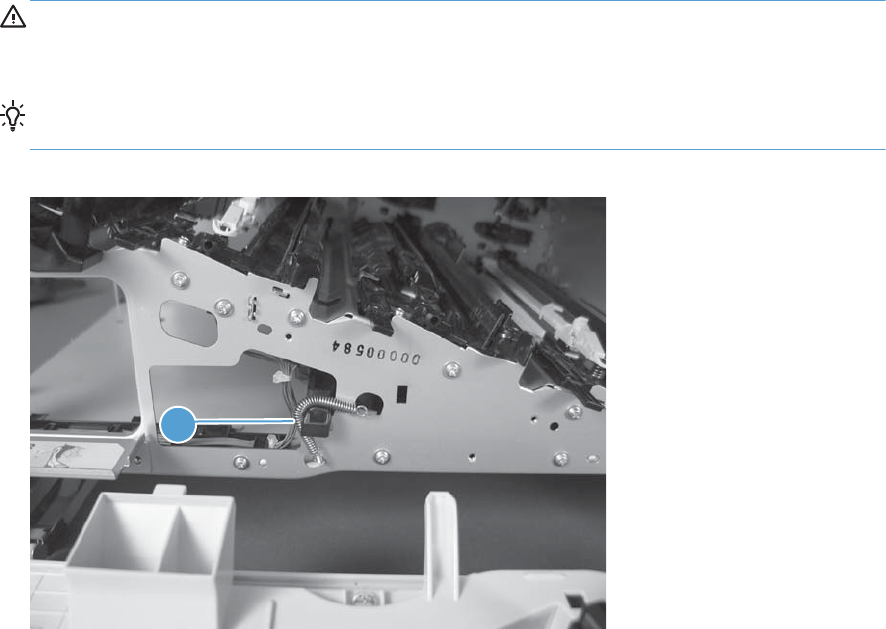
6. Release one spring (callout 1).
CAUTION: The spring is not captive. Do not lose the spring when it is removed. Use a pair of
needle-nose pliers to safely retain the spring when it is removed. Do not use a flat blade
screwdriver to remove the spring; the spring could forcibly leave the product and strike you.
Reinstallation tip When you reinstall the spring, make sure that the laser/scanner fits tightly
up against the product chassis.
Figure 2-183 Remove the laser/scanner assembly (C/Bk) (6 of 7)
1
ENWW Internal assemblies 197
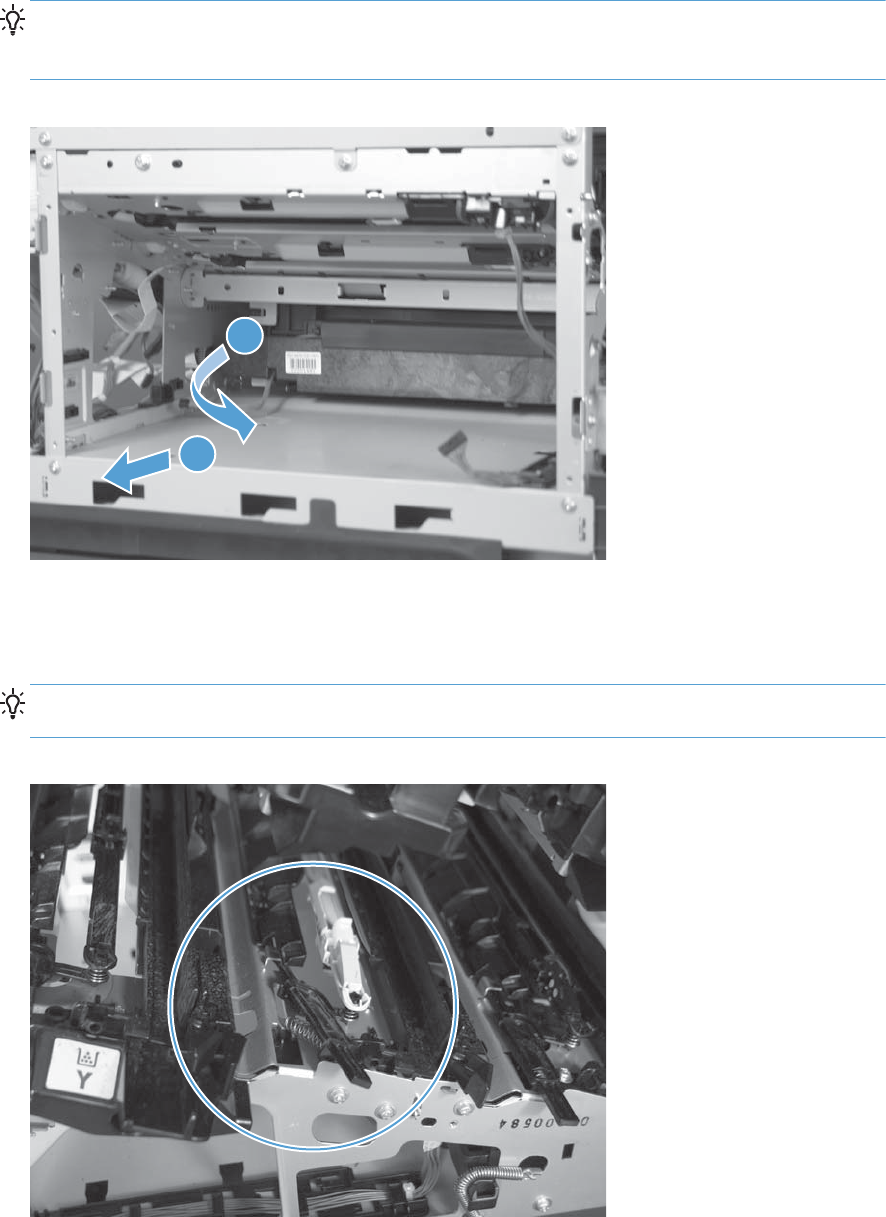
7. Rotate the corner of the assembly away from the product until you can see the PCA, and then
remove the assembly from the product.
Reinstallation tip When the laser/scanner is properly positioned in the chassis, the plastic
parts which protrude at the front and rear of the product will be firmly seated against the locator
tabs on the chassis. Verify that the assembly is correctly seated, and then install the spring.
Figure 2-184 Remove the laser/scanner assembly (C/Bk) (7 of 7)
1
2
Reinstall the protective glass cleaner (PGC) actuators
1. The following figure shows a dislodged PGC actuator.
TIP: If the actuator and spring are only slightly dislodged, you might be able to easily push them
back into place.
Figure 2-185 Reinstall the PGC actuators (1 of 5)
198 Chapter 2 Removal and replacement ENWW
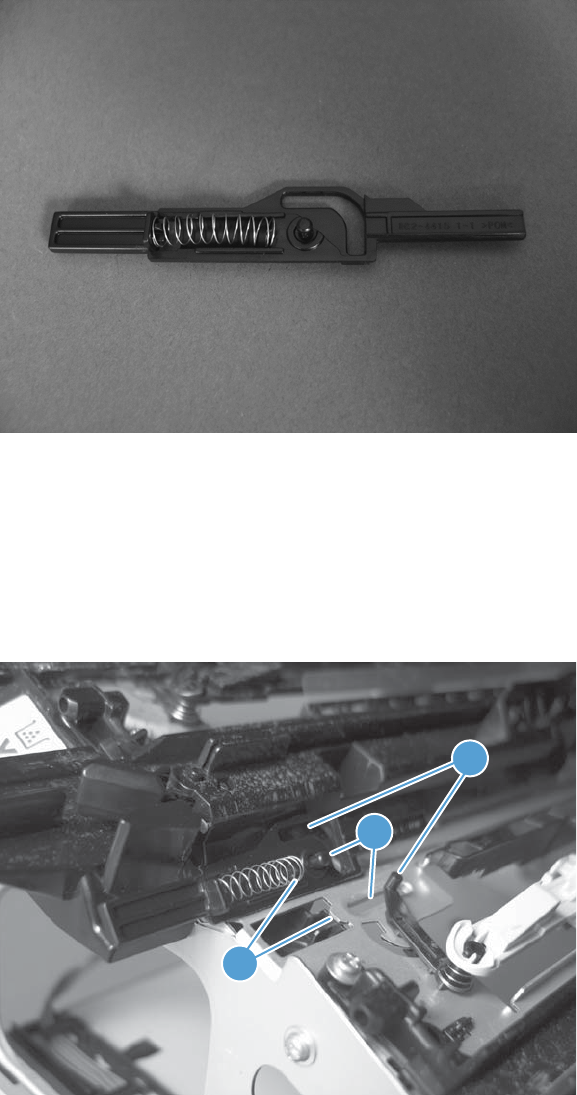
2. Remove the actuator and spring from the product. Install the spring on the actuator.
Figure 2-186 Reinstall the PGC actuators (2 of 5)
3. Before proceeding, take note of the following:
●Callout 1: The pin on the actuator will be installed into the slot in the chassis.
●Callout 2: The pin on the pivot arm will be installed into the slot on the actuator.
●Callout 3: The end of the spring will be installed onto the tab on the chassis.
Figure 2-187 Reinstall the PGC actuators (3 of 5)
3
1
2
ENWW Internal assemblies 199
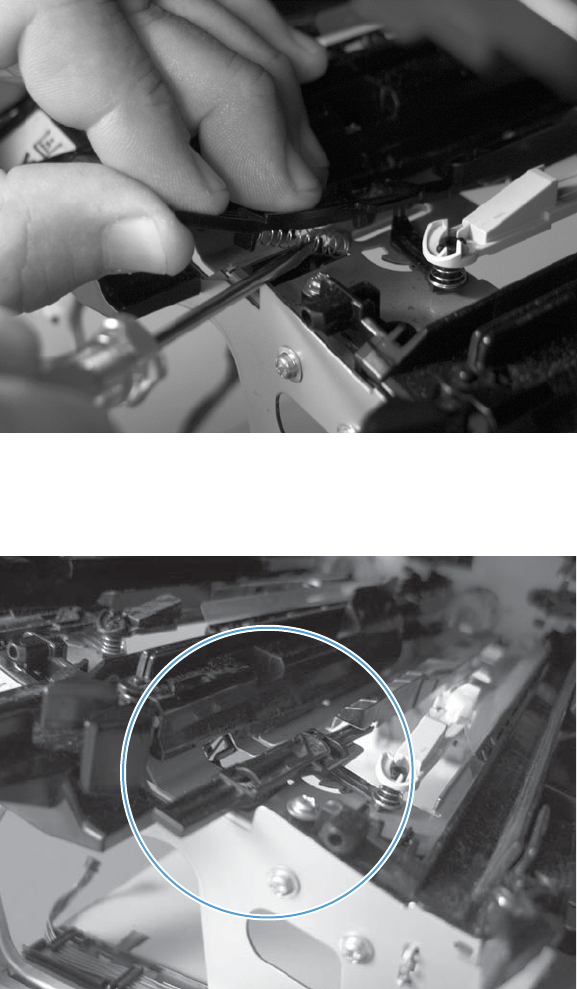
4. Place the end of the actuator into the PGC rod, and then use a small flat blade screw driver to
fasten the end of the spring on the tab on the chassis.
Figure 2-188 Reinstall the PGC actuators (4 of 5)
5. Push down on the actuator to seat it into place. Verify that the actuators is correctly installed. The
PGC actuator should freely move when you push in on the actuator.
Figure 2-189 Reinstall the PGC actuators (5 of 5)
200 Chapter 2 Removal and replacement ENWW

High voltage power supply upper (HVPS-T)
Before proceeding, remove the following components:
●Toner collection unit. See Toner collection unit on page 79.
●Formatter. See Formatter PCA on page 81.
●Right rear cover. See Right rear cover on page 109.
●Left cover. See Left cover on page 111.
●Hardware integration pocket (HIP). See Hardware integration pocket (HIP) (dn and xh models
only) on page 115.
●Control panel assembly. See Control panel assembly on page 116
●Front top cover. See Front top cover on page 122.
●Rear top cover. See Rear top cover on page 127.
●Rear cover and upper rear cover. See Rear cover and upper rear cover on page 124.
NOTE: It is not necessary to separate the upper rear cover from the rear cover to remove the
high voltage power supply upper.
●Interconnect board (ICB). See Interconnect board (ICB) on page 158.
●DC controller. See DC controller PCA and tray on page 160.
●Low voltage power supply. See Low voltage power supply on page 163.
ENWW Internal assemblies 201
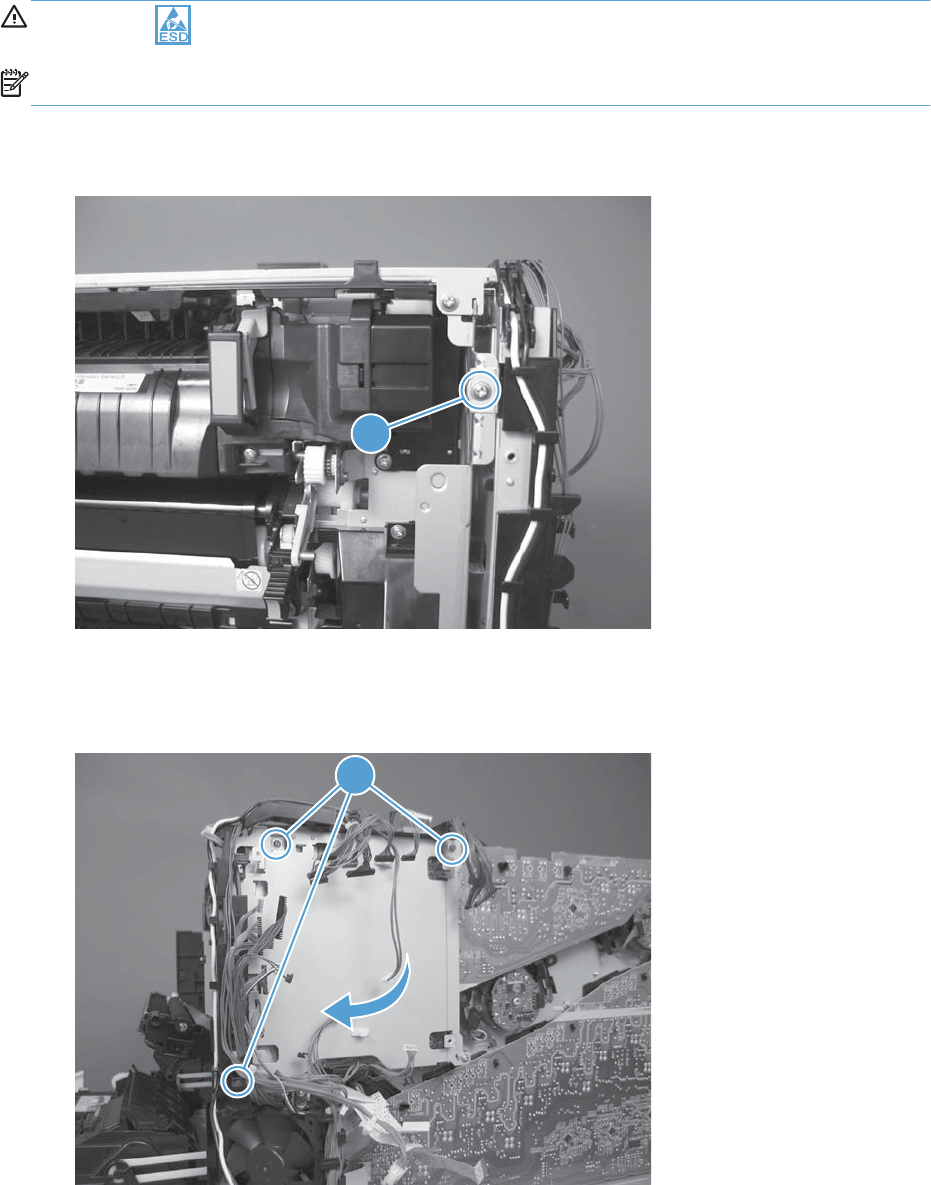
Remove the high voltage power supply upper
CAUTION: ESD sensitive part.
NOTE: If the sheet-metal tray was removed with the DC controller, begin at step 3.
1. Remove one screw (callout 1).
Figure 2-190 Remove the high voltage power supply upper (1 of 5)
1
2. Remove three screws (callout 1), and then rotate the sheet-metal plate away from the power
supply.
Figure 2-191 Remove the high voltage power supply upper (2 of 5)
1
202 Chapter 2 Removal and replacement ENWW
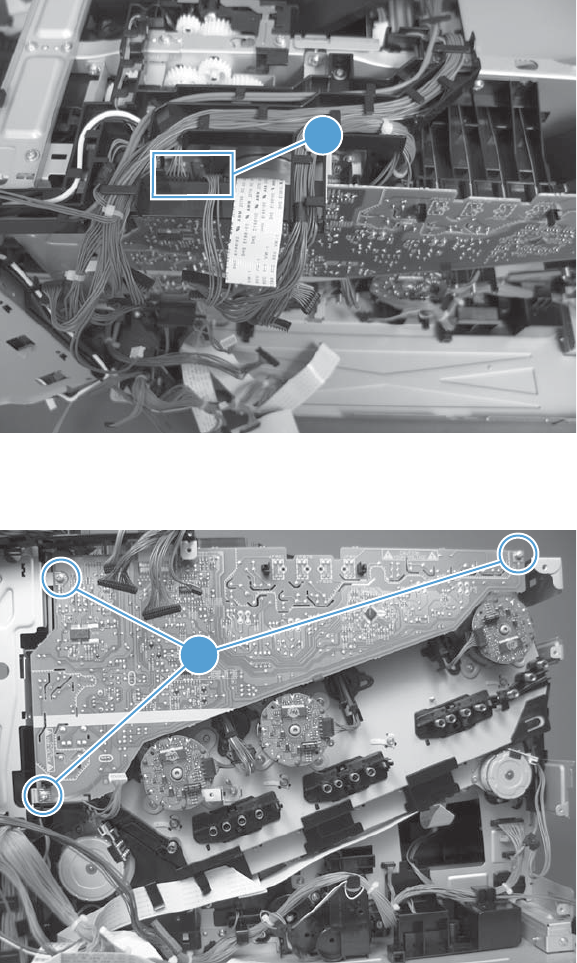
3. Duplex models only: Disconnect one connector (callout 1).
Figure 2-192 Remove the high voltage power supply upper (3 of 5)
1
4. Remove three screws (callout 1).
Figure 2-193 Remove the high voltage power supply upper (4 of 5)
1
ENWW Internal assemblies 203
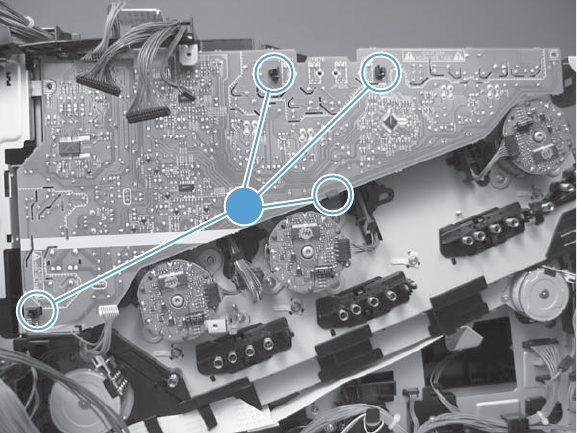
5. Release four tabs (callout 1), and then remove the power supply.
Figure 2-194 Remove the high voltage power supply upper (5 of 5)
1
204 Chapter 2 Removal and replacement ENWW
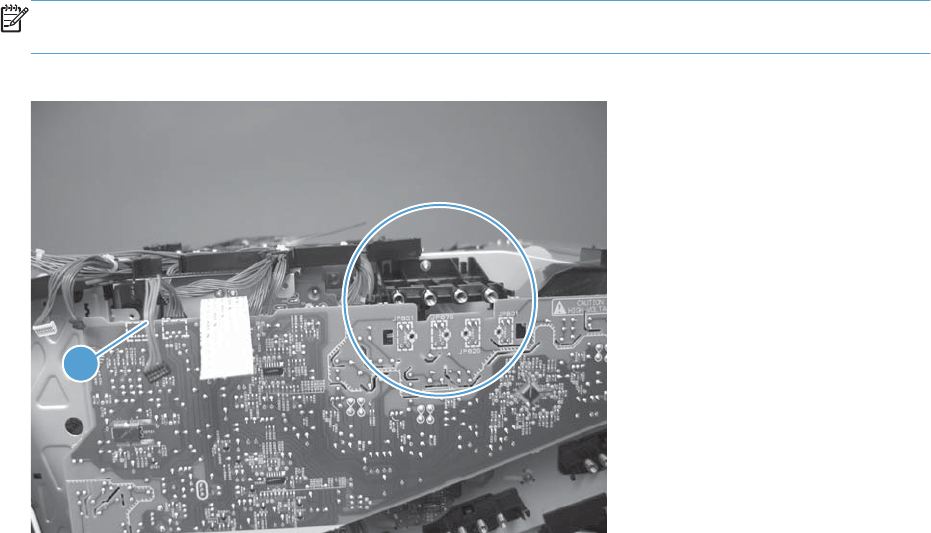
Reinstall the high voltage power supply upper
When you reinstall the power supply, look through the holes in the PCA and make sure that the high
voltage contact springs are correctly seated against the PCA.
NOTE: For a replacement power supply, remove one wire harness (callout 1) and then install it on
the replacement power supply.
Figure 2-195 Reinstall the high voltage power supply upper
1
ENWW Internal assemblies 205

Drum motor 1
Before proceeding, remove the following components:
●Toner collection unit. See Toner collection unit on page 79.
●Formatter PCA. See Formatter PCA on page 81.
●Right rear cover. See Right rear cover on page 109.
●Left cover. See Left cover on page 111.
●Hardware integration pocket (HIP). See Hardware integration pocket (HIP) (dn and xh models
only) on page 115.
●Control panel assembly. See Control panel assembly on page 116
●Front top cover. See Front top cover on page 122.
●Rear cover and upper rear cover. See Rear cover and upper rear cover on page 124.
NOTE: It is not necessary to separate the upper rear cover from the rear cover to remove drum
motor 1.
●Rear top cover. See Rear top cover on page 127.
●Interconnect board (ICB). See Interconnect board (ICB) on page 158.
●DC controller. See DC controller PCA and tray on page 160.
●Low voltage power supply. See Low voltage power supply on page 163.
●High voltage power supply upper. See High voltage power supply upper (HVPS-T) on page 201.
206 Chapter 2 Removal and replacement ENWW
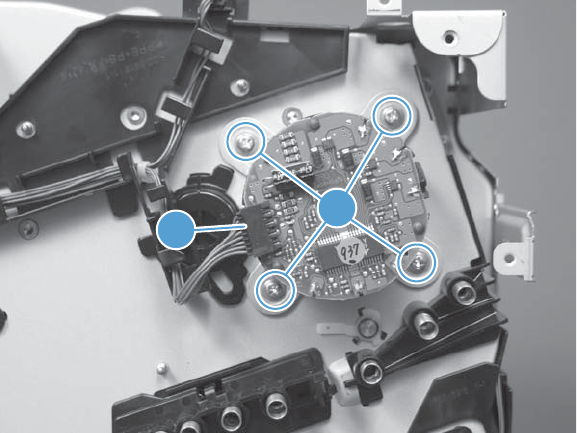
Remove the drum motor 1
▲Disconnect one connector (callout 1), remove four screws (callout 2), and then remove the motor.
Figure 2-196 Remove the drum motor 1
2
1
ENWW Internal assemblies 207

Drum motor 2 or drum motor 3
Before proceeding, remove the following components:
●Toner collection unit. See Toner collection unit on page 79.
●Formatter PCA. See Formatter PCA on page 81.
●Right rear cover. See Right rear cover on page 109.
●Left cover. See Left cover on page 111.
●Hardware integration pocket (HIP). See Hardware integration pocket (HIP) (dn and xh models
only) on page 115.
●Control panel assembly. See Control panel assembly on page 116.
●Front top cover. See Front top cover on page 122.
●Rear cover and upper rear cover. See Rear cover and upper rear cover on page 124.
NOTE: It is not necessary to separate the upper rear cover from the rear cover to remove drum
motor 2 or drum motor 3.
●Rear top cover. See Rear top cover on page 127.
●Interconnect board (ICB). See Interconnect board (ICB) on page 158.
●DC controller. See DC controller PCA and tray on page 160.
●Low voltage power supply. See Low voltage power supply on page 163.
●High voltage power supply upper. See High voltage power supply upper (HVPS-T) on page 201.
208 Chapter 2 Removal and replacement ENWW
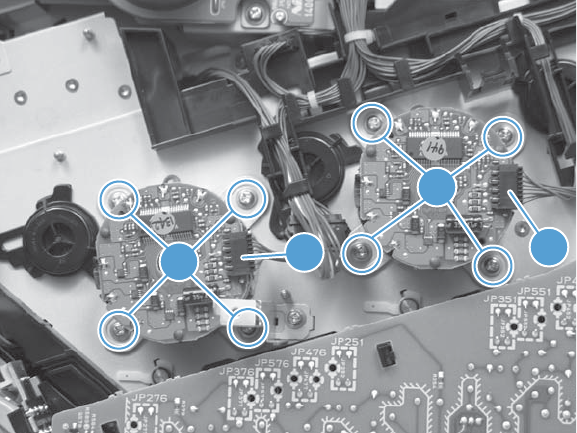
Remove the drum motor 2 or drum motor 3
▲Do one of the following:
●Remove drum motor 2: Disconnect one connector (callout 1), remove four screws (callout 2),
and then remove the motor.
●Remove drum motor 3: Disconnect one connector (callout 3), remove four screws (callout 4),
and then remove the motor.
Figure 2-197 Remove the drum motor 2 or drum motor 3
431
2
ENWW Internal assemblies 209

Fuser motor
Before proceeding, remove the following components:
●Toner collection unit. See Toner collection unit on page 79.
●Formatter. See Formatter PCA on page 81.
●Right rear cover. See Right rear cover on page 109.
●Left cover. See Left cover on page 111.
●Hardware integration pocket (HIP). See Hardware integration pocket (HIP) (dn and xh models
only) on page 115.
●Control panel assembly. See Control panel assembly on page 116.
●Front top cover. See Front top cover on page 122.
●Rear cover and upper rear cover. See Rear cover and upper rear cover on page 124.
NOTE: It is not necessary to separate the upper rear cover from the rear cover to remove the
fuser motor.
●Rear top cover. See Rear top cover on page 127.
●Interconnect board (ICB). See Interconnect board (ICB) on page 158.
●DC controller PCA. See DC controller PCA and tray on page 160.
●Low voltage power supply. See Low voltage power supply on page 163.
●High voltage power supply upper. See High voltage power supply upper (HVPS-T) on page 201.
NOTE: The terms fusing and fixing are synonymous.
210 Chapter 2 Removal and replacement ENWW
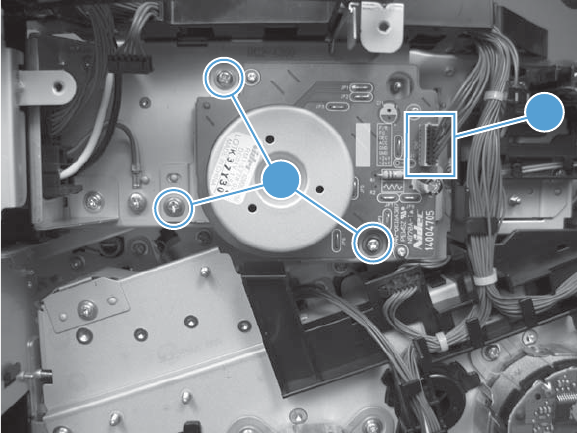
Remove the fuser motor
Disconnect one connector (callout 1), remove three screws (callout 2), and then remove the motor.
Figure 2-198 Remove the fuser motor
2
1
ENWW Internal assemblies 211

Main drive assembly
Before proceeding, remove the following components:
●Toner collection unit. See Toner collection unit on page 79.
●Formatter. See Formatter PCA on page 81.
●Fuser. See Fuser on page 87.
●Secondary transfer assembly. See Secondary transfer assembly on page 96.
●Intermediate transfer belt (ITB). See Intermediate transfer belt (ITB) on page 98.
●Right rear cover. See Right rear cover on page 109.
●Left cover. See Left cover on page 111.
●Hardware integration pocket (HIP). See Hardware integration pocket (HIP) (dn and xh models
only) on page 115.
●Control panel assembly. See Control panel assembly on page 116.
●Front top cover. See Front top cover on page 122.
●Rear cover and upper rear cover. See Rear cover and upper rear cover on page 124.
NOTE: It is not necessary to separate the upper rear cover from the rear cover to remove the
main drive assembly.
●Rear top cover. See Rear top cover on page 127.
●Power supply fan and fan duct. See Power supply fan and fan duct on page 147.
●Interconnect board (ICB). See Interconnect board (ICB) on page 158.
●DC controller PCA. See DC controller PCA and tray on page 160.
●Low voltage power supply. See Low voltage power supply on page 163.
●High voltage power supply lower. See High voltage power supply lower (HVPS-D) on page 167.
●High voltage power supply upper. See High voltage power supply upper (HVPS-T) on page 201.
212 Chapter 2 Removal and replacement ENWW
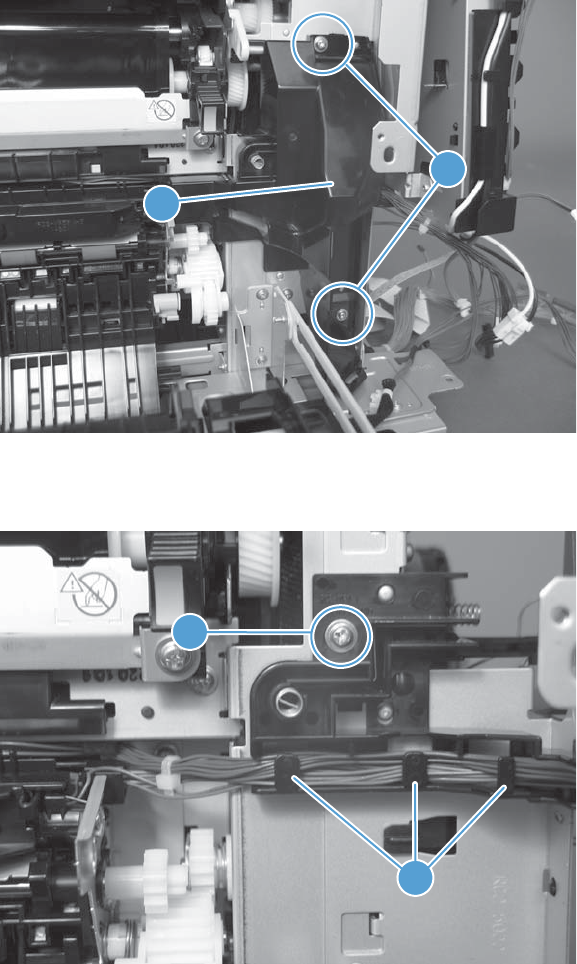
Remove the main drive assembly
1. Remove two screws (callout 1), and then remove the cover (callout 2).
Figure 2-199 Remove the main drive assembly (1 of 7)
1
2
2. Release the wire harnesses from the guide (callout 1), and then remove one screw (callout 2).
Figure 2-200 Remove the main drive assembly (2 of 7)
2
1
ENWW Internal assemblies 213
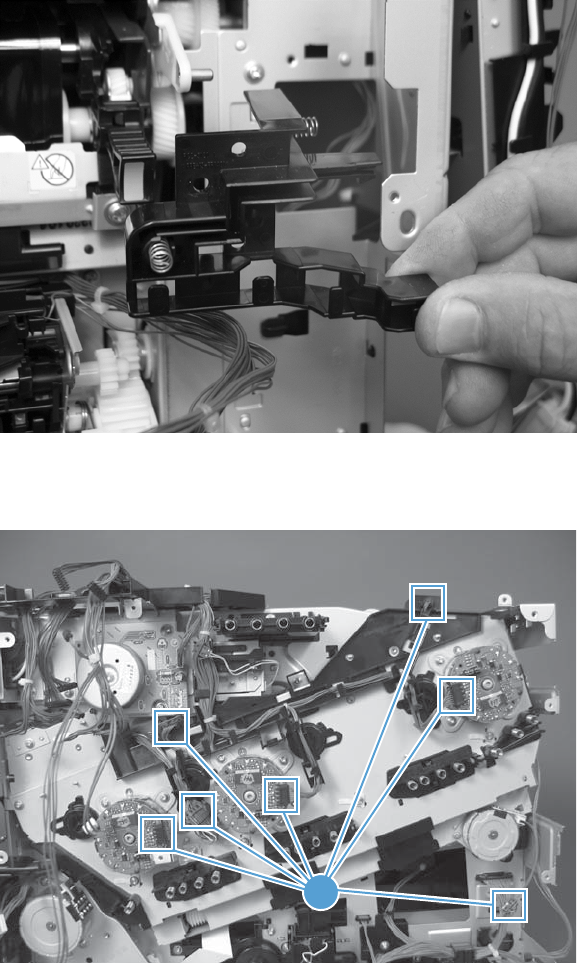
3. Lift the high voltage bracket up to release it, and then remove the bracket.
Figure 2-201 Remove the main drive assembly (3 of 7)
4. Disconnect seven connectors (callout 1), and then release the wire harnesses from the guides.
Figure 2-202 Remove the main drive assembly (4 of 7)
1
214 Chapter 2 Removal and replacement ENWW
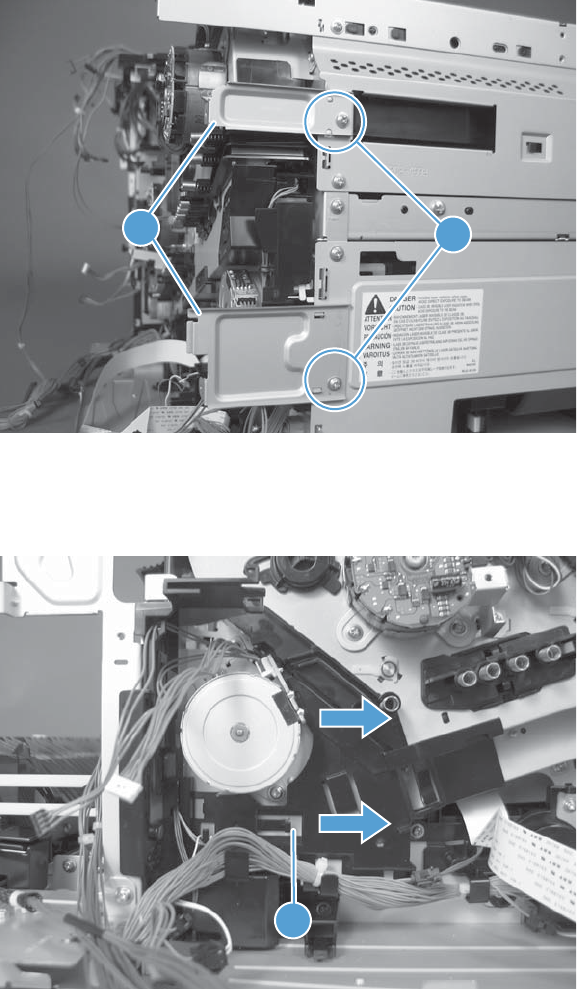
5. Remove two screws (callout 1), and then remove the sheet-metal plates (callout 2).
Figure 2-203 Remove the main drive assembly (5 of 7)
1
2
6. Release the FFCs and lower wiring harness from the guide, and then release one tab (callout 1)
and remove the guide.
Figure 2-204 Remove the main drive assembly (6 of 7)
1
ENWW Internal assemblies 215
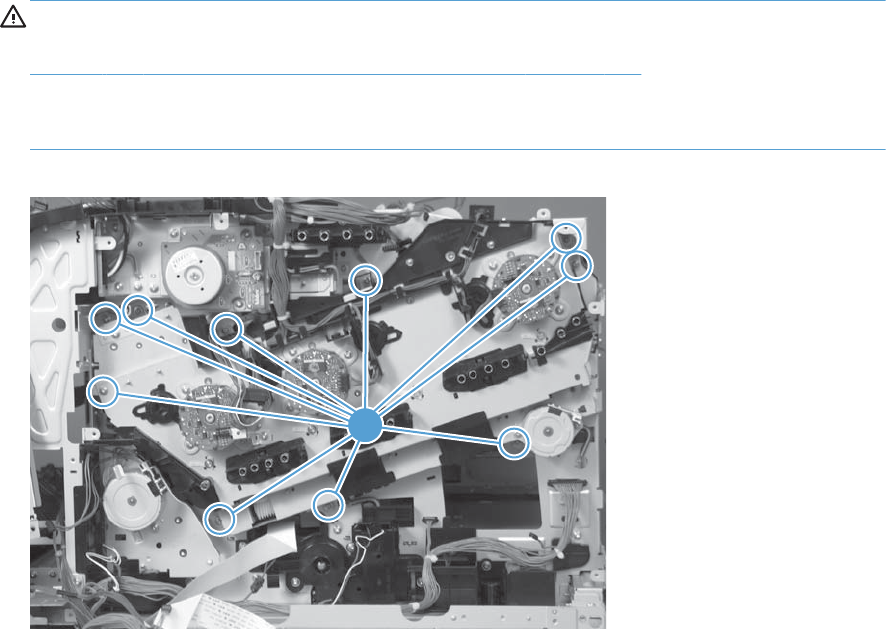
7. Remove ten screws (callout 1), and then carefully remove the assembly.
CAUTION: Be careful when you remove the assembly. The cams on the backside of the
assembly can be dislodged. If the cams become dislodged, install them on the shafts as shown in
Figure 2-207 Reinstall the main drive assembly (2 of 11) on page 217.
The black cam must be installed on the shaft furthest away from the developing disengagement
motor. The white cams are interchangeable.
Figure 2-205 Remove the main drive assembly (7 of 7)
1
216 Chapter 2 Removal and replacement ENWW
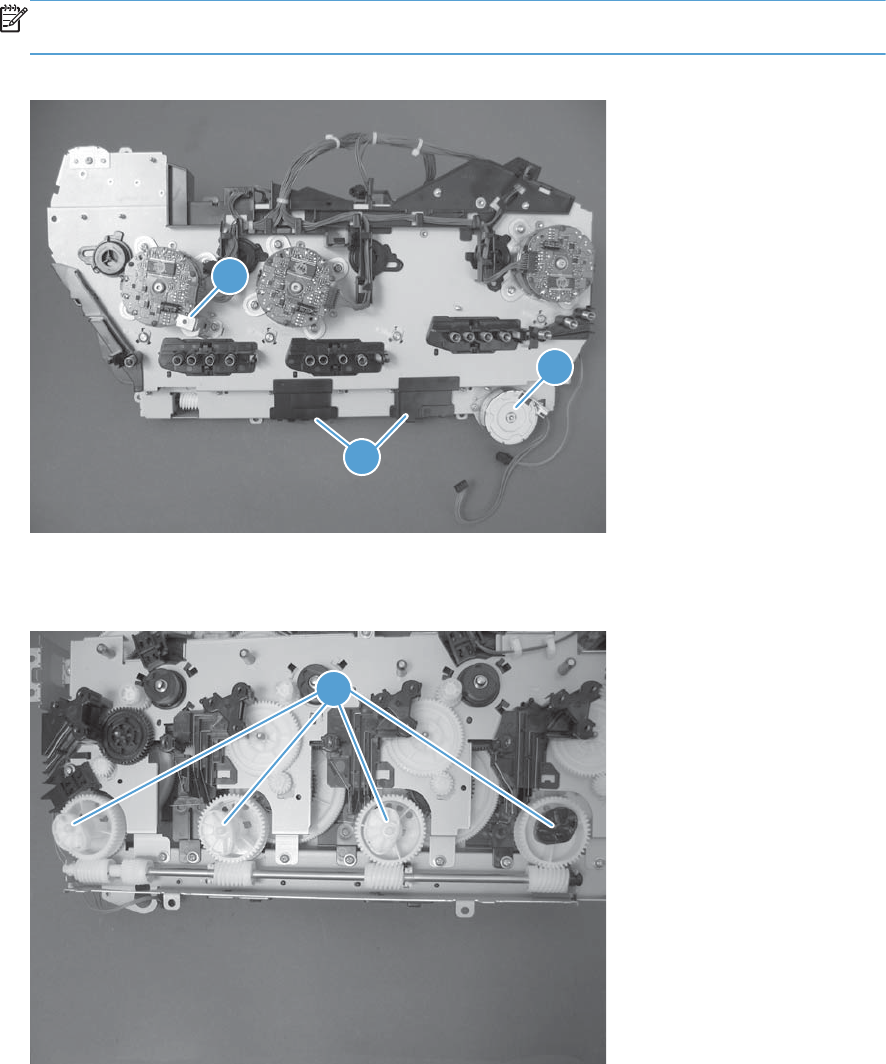
Reinstall the main drive assembly
1. Remove the bracket (callout 1), two guides (callout 2), and the developing disengagement motor
(callout 3).
Install the bracket and guides on the replacement main drive assembly.
NOTE: Do not install the developing disengagement motor on the assembly (this motor must be
removed from the assembly to align the main drive cams).
Figure 2-206 Reinstall the main drive assembly (1 of 11)
3
2
1
2. Locate the cams (callout 1) on the back side of the assembly.
Figure 2-207 Reinstall the main drive assembly (2 of 11)
1
ENWW Internal assemblies 217
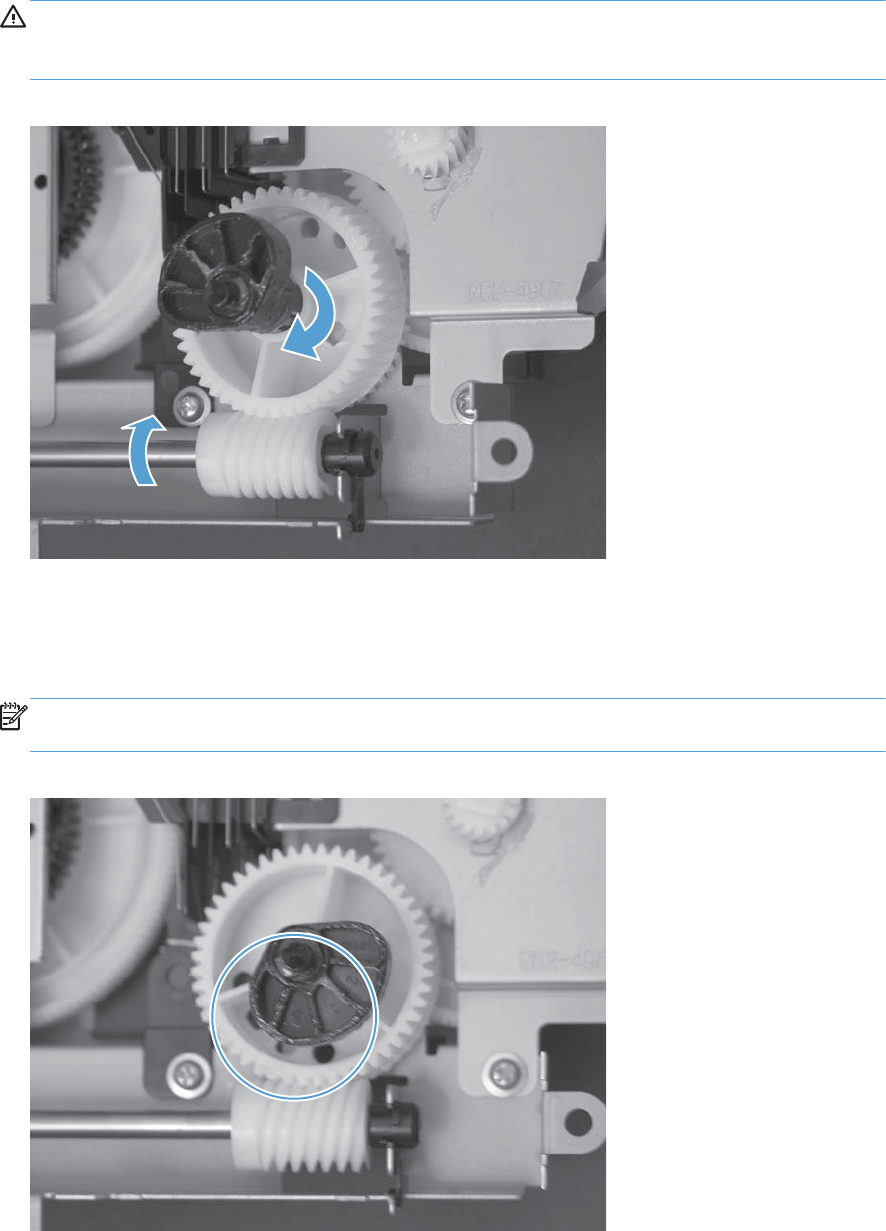
3. Slowly rotate the shaft near the black cam.
WARNING! Do not touch the plastic gears or cams. You must not wipe away any of the grease
that is applied to these components. Always rotate the gears and cams by rotating the metal drive
shaft.
Figure 2-208 Reinstall the main drive assembly (3 of 11)
4. Continue to rotate the shaft until the holes in the black-cam gear align as shown below.
When correctly aligned, the bottom-most hole in the gear is aligned with a hole in the sheet-metal
chassis.
NOTE: The holes in the other cam gears have a different alignment. You must make sure that the
holes in the black-cam gear are correctly aligned.
Figure 2-209 Reinstall the main drive assembly (4 of 11)
218 Chapter 2 Removal and replacement ENWW
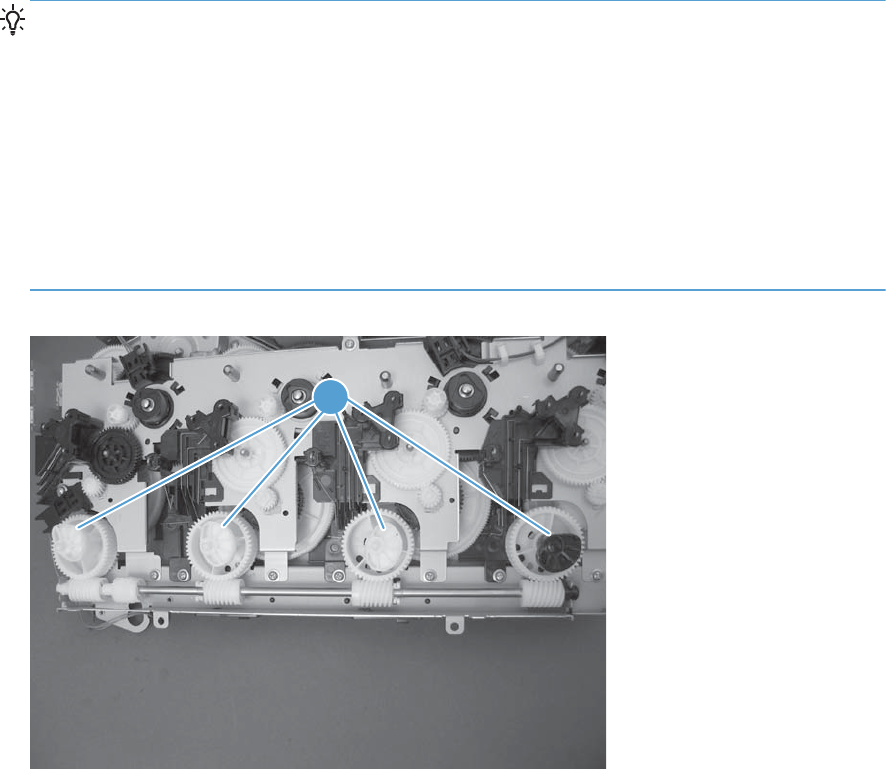
5. Verify that the cams (callout 1) align correctly.
TIP: The second cam in from the right (the white cam to the left of the black cam), should have
the second hole aligned with the hole in the sheet-metal chassis.
The third cam in from the right, should have the third hole aligned with the hole in the sheet-metal
chassis.
The fourth cam in from the right (the cam nearest the developing disengagement motor), should
have the fourth hole aligned with the hole in the sheet-metal chassis.
If the second, third, or fourth cams do not correctly align, do the following. Hold the long drive
shaft, gently tilt the cam and gear away from the shaft to allow clearance to rotate the gear until
the correct hole in the gear aligns with the hole in the chassis.
Figure 2-210 Reinstall the main drive assembly (5 of 11)
1
ENWW Internal assemblies 219
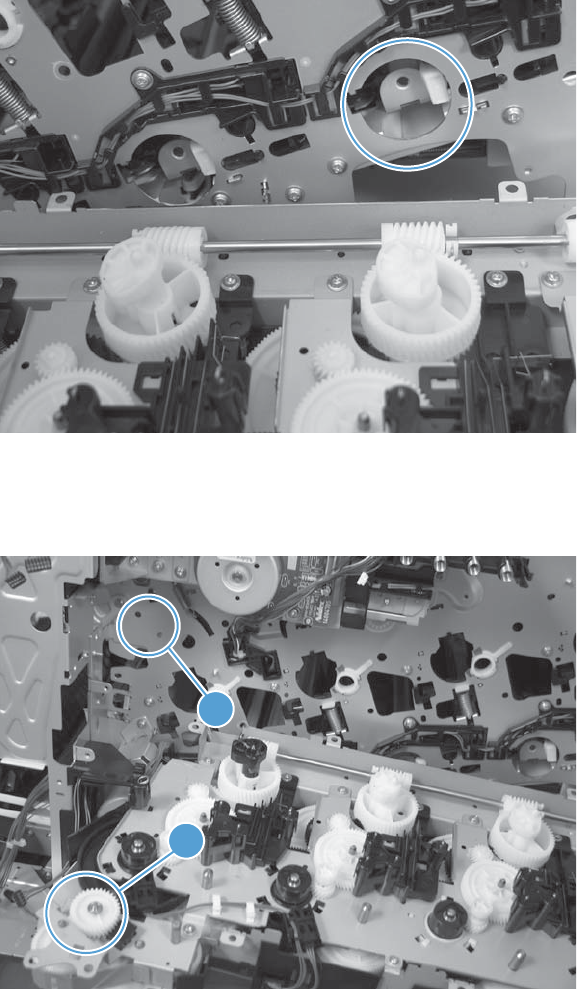
6. When the cams align correctly, they easily fit into the holes in the chassis.
Figure 2-211 Reinstall the main drive assembly (6 of 11)
7. When the assembly is placed on the chassis, the pin on the swing gear and on the bracket
(callout 1), must align with the holes in the chassis (callout 2).
Figure 2-212 Reinstall the main drive assembly (7 of 11)
1
2
220 Chapter 2 Removal and replacement ENWW
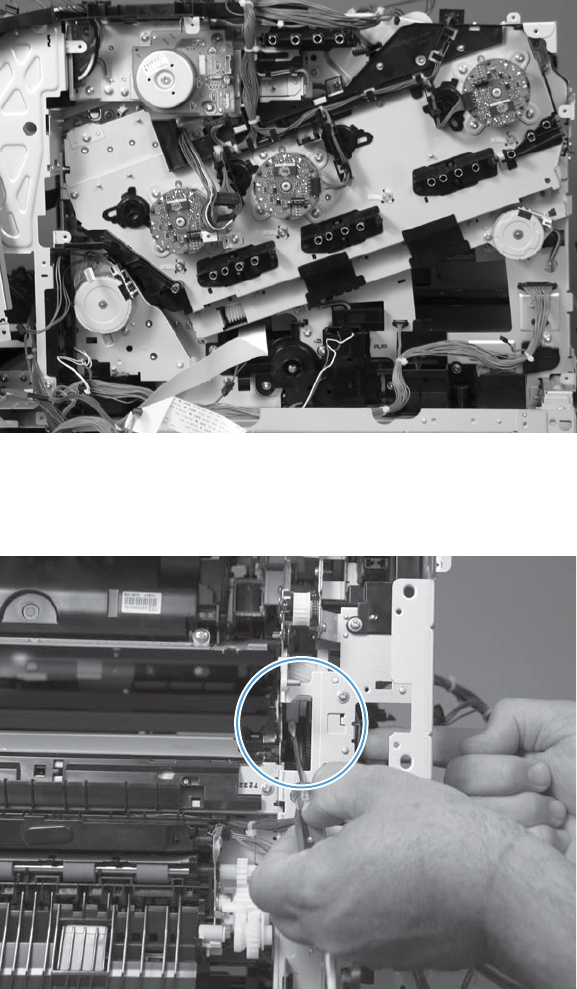
8. Position the assembly on the chassis.
Figure 2-213 Reinstall the main drive assembly (8 of 11)
9. Use your finger to push in on the assembly, and use a small flat blade screwdriver to align the pin
on the swing gear with the hole in the chassis.
Figure 2-214 Reinstall the main drive assembly (9 of 11)
ENWW Internal assemblies 221
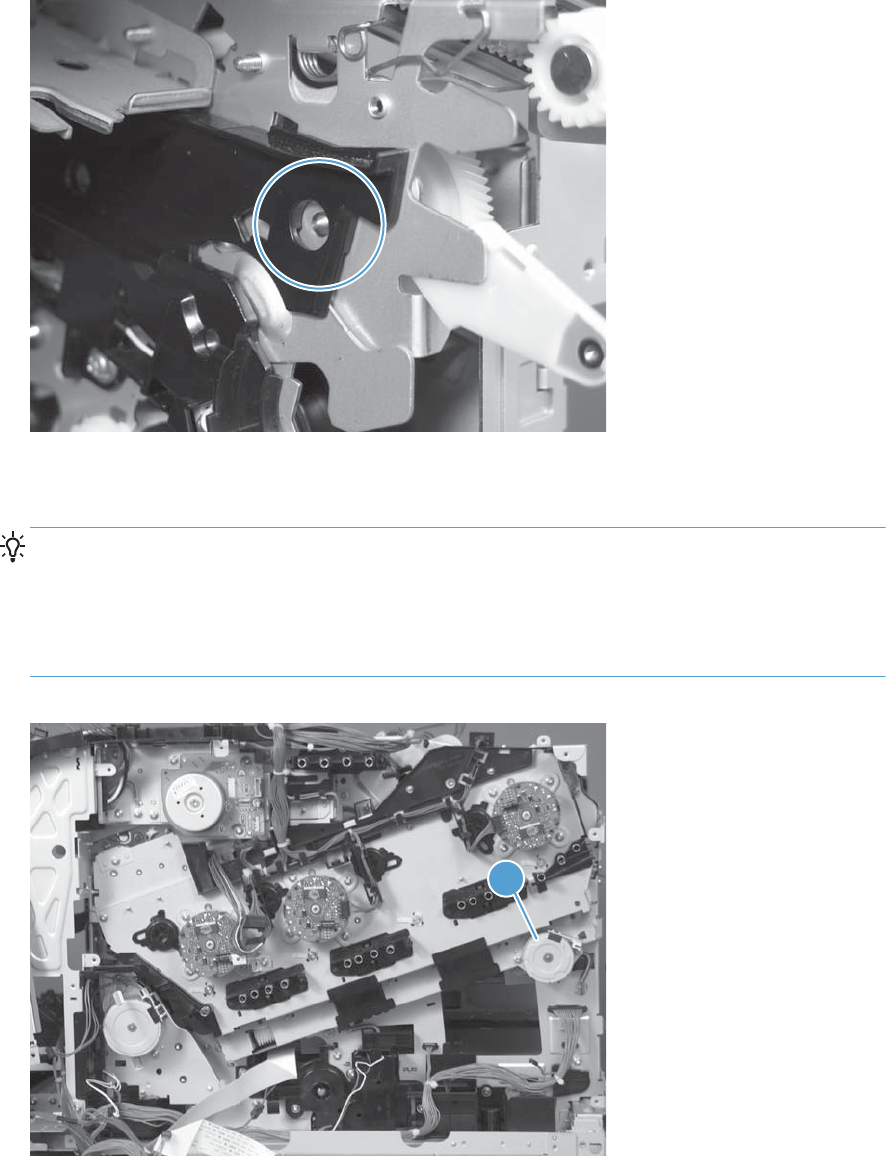
10. When the assembly is correctly installed against the chassis, the pin above the swing gear
protrudes through the hole in the chassis.
Figure 2-215 Reinstall the main drive assembly (10 of 11)
11. Install the main drive assembly mounting screws, and then reinstall the developing disengagement
motor (callout 1).
TIP: After reassembling the product, use the Diagnostics menu to print a Color Band Test
page.
If the test page shows one or more color planes are not printing (usually in the upper left corner of
the page), the cam or cams for the missing color plane are not correctly aligned. Repeat the
reinstall the main drive assembly procedure.
Figure 2-216 Reinstall the main drive assembly (11 of 11)
1
222 Chapter 2 Removal and replacement ENWW

Fuser drive assembly
Before proceeding, remove the following components:
●Toner collection unit. See Toner collection unit on page 79.
●Formatter. See Formatter PCA on page 81.
●Fuser. See Fuser on page 87.
●Secondary transfer assembly. See Secondary transfer assembly on page 96.
●Right rear cover. See Right rear cover on page 109.
●Left cover. See Left cover on page 111.
●Hardware integration pocket (HIP). See Hardware integration pocket (HIP) (dn and xh models
only) on page 115.
●Control panel assembly. See Control panel assembly on page 116.
●Front top cover. See Front top cover on page 122.
●Rear cover and upper rear cover. See Rear cover and upper rear cover on page 124.
NOTE: It is not necessary to separate the upper rear cover from the rear cover to remove the
fuser drive assembly.
●Rear top cover. See Rear top cover on page 127.
●Power supply fan and fan duct. See Power supply fan and fan duct on page 147.
●Interconnect board (ICB). See Interconnect board (ICB) on page 158.
●DC controller PCA. See DC controller PCA and tray on page 160.
●Low voltage power supply. See Low voltage power supply on page 163.
●High voltage power supply lower. See High voltage power supply lower (HVPS-D) on page 167.
●High voltage power supply upper. See High voltage power supply upper (HVPS-T) on page 201.
●Main drive assembly. See Main drive assembly on page 212.
ENWW Internal assemblies 223
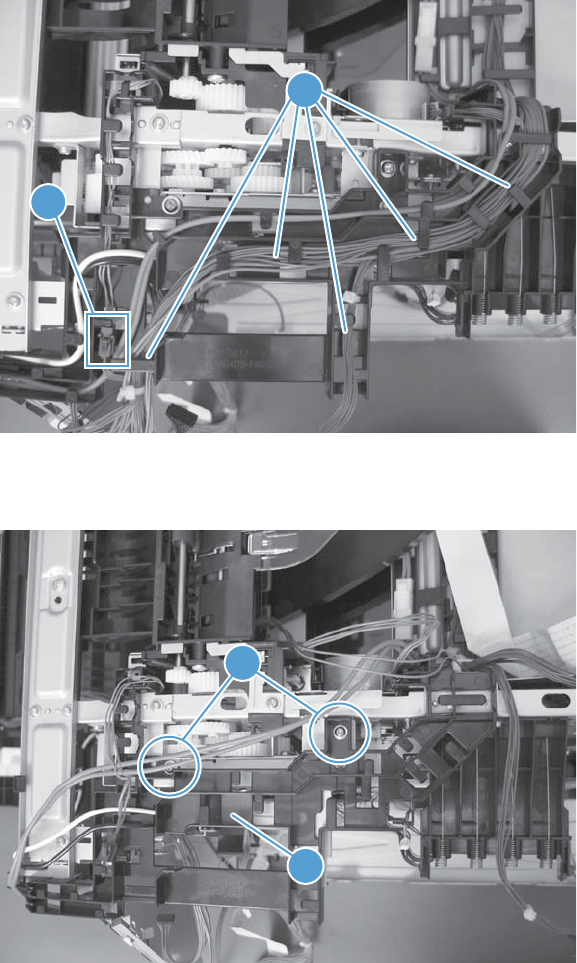
Remove the fuser drive assembly
1. Disconnect one connector (callout 1), and then release the wire harnesses from the guide
(callout 2).
Figure 2-217 Remove the fuser drive assembly (1 of 6)
2
1
2. Remove two screws (callout 1), and then remove the guide (callout 2).
Figure 2-218 Remove the fuser drive assembly (2 of 6)
1
2
224 Chapter 2 Removal and replacement ENWW
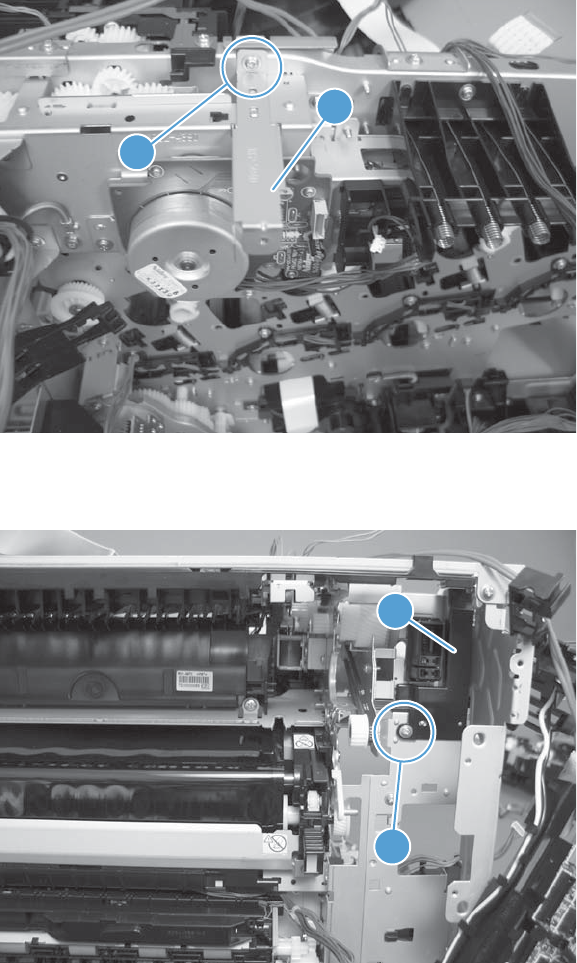
3. Remove one screw (callout 1), and then remove the sheet-metal plate (callout 2).
Figure 2-219 Remove the fuser drive assembly (3 of 6)
2
1
4. Remove one screw (callout 1), and then remove the cover (callout 2).
Figure 2-220 Remove the fuser drive assembly (4 of 6)
2
1
ENWW Internal assemblies 225
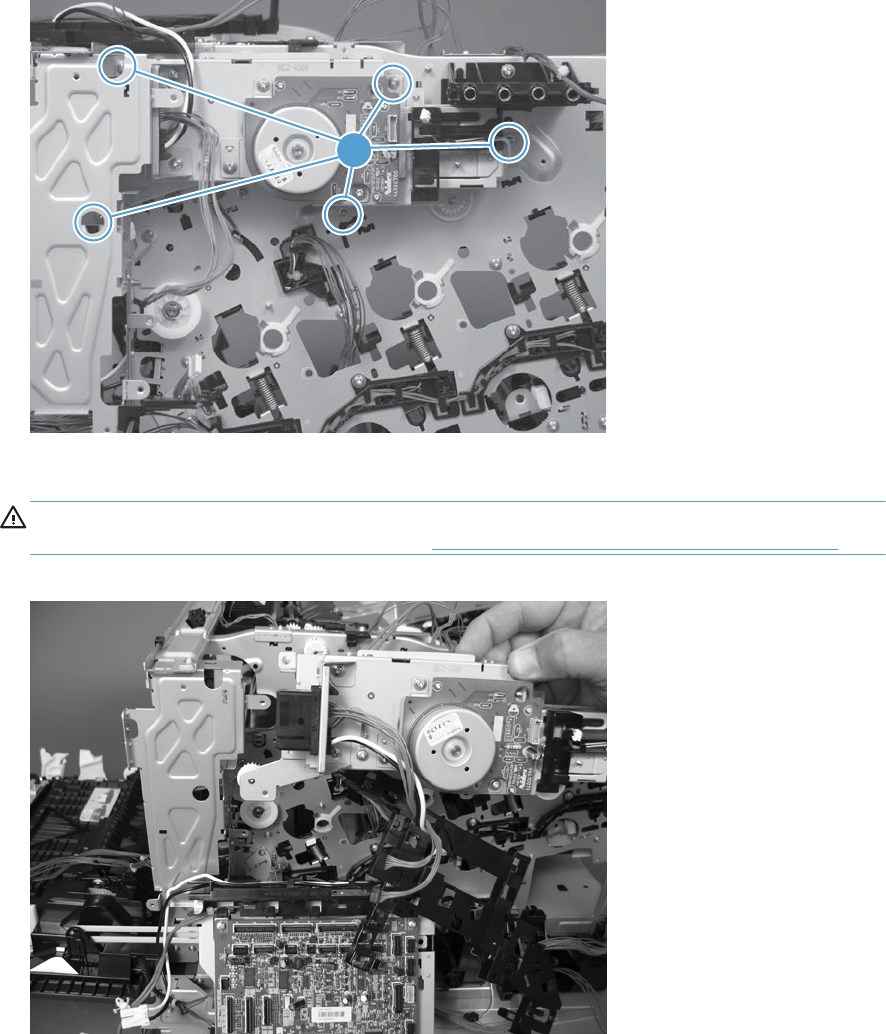
5. Remove five screws (callout 1).
Figure 2-221 Remove the fuser drive assembly (5 of 6)
1
6. Carefully remove the assembly.
CAUTION: A gear on the assembly is not captive. Do not lose the gear when you remove the
assembly. If the gear becomes dislodged, see Reinstall the fuser drive assembly on page 227.
Figure 2-222 Remove the fuser drive assembly (6 of 6)
226 Chapter 2 Removal and replacement ENWW
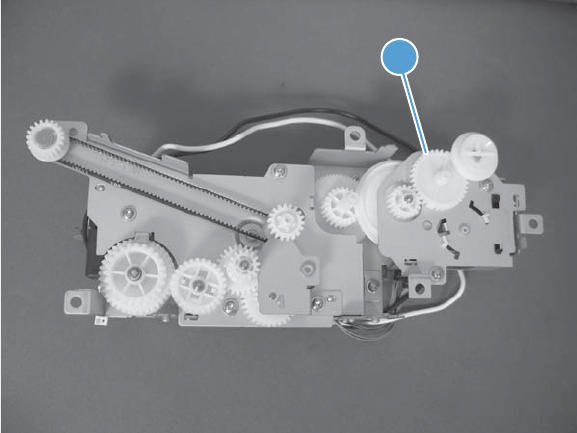
Reinstall the fuser drive assembly
If the gear (callout 1) is dislodged when the assembly is removed, use the figure below to correctly
install it on the assembly.
Figure 2-223 Reinstall the fuser drive assembly
1
ENWW Internal assemblies 227

Delivery assembly
Before proceeding, remove the following components:
●Toner collection unit. See Toner collection unit on page 79.
●Formatter PCA. See Formatter PCA on page 81.
●Fuser. See Fuser on page 87.
●Secondary transfer assembly. See Secondary transfer assembly on page 96.
●Intermediate transfer belt (ITB). See Intermediate transfer belt (ITB) on page 98.
●Right rear cover. See Right rear cover on page 109.
●Left cover. See Left cover on page 111.
●Hardware integration pocket (HIP). See Hardware integration pocket (HIP) (dn and xh models
only) on page 115.
●Control panel assembly. See Control panel assembly on page 116.
●Front top cover. See Front top cover on page 122.
●Rear cover and upper rear cover. See Rear cover and upper rear cover on page 124.
NOTE: It is not necessary to separate the upper rear cover from the rear cover to remove the
delivery assembly.
●Rear top cover. See Rear top cover on page 127.
●Power supply fan and fan duct. See Power supply fan and fan duct on page 147.
●Interconnect board (ICB). See Interconnect board (ICB) on page 158.
●Low voltage power supply. See Low voltage power supply on page 163.
●High voltage power supply lower. See High voltage power supply lower (HVPS-D) on page 167.
●High voltage power supply upper. See High voltage power supply upper (HVPS-T) on page 201.
●Main drive assembly. See Main drive assembly on page 212.
●Fuser drive assembly. See Fuser drive assembly on page 223.
228 Chapter 2 Removal and replacement ENWW
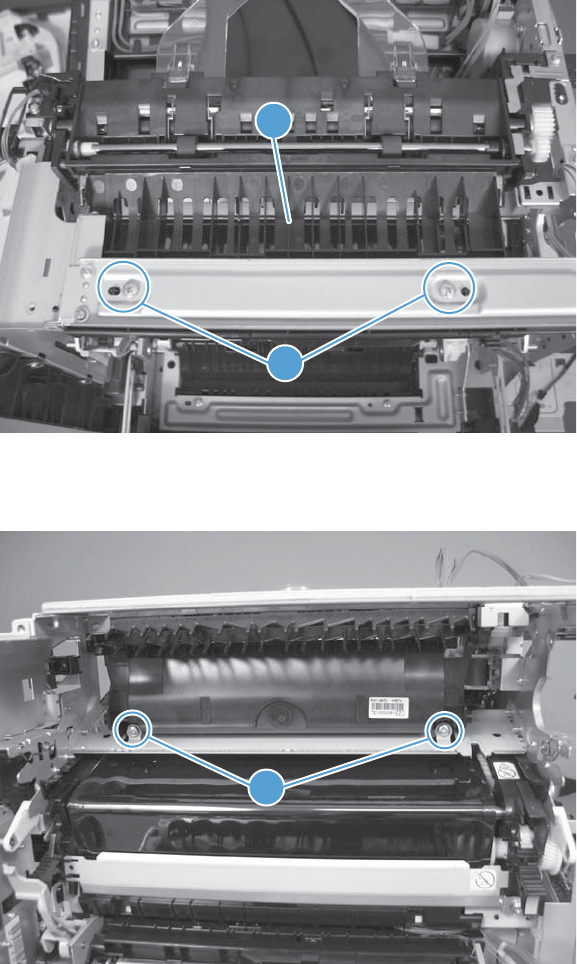
Remove the delivery assembly
1. Remove two screws (callout 1), and then remove the guide (callout 2).
Figure 2-224 Remove the delivery assembly (1 of 5)
1
2
2. Remove two screws (callout 1).
Figure 2-225 Remove the delivery assembly (2 of 5)
1
ENWW Internal assemblies 229
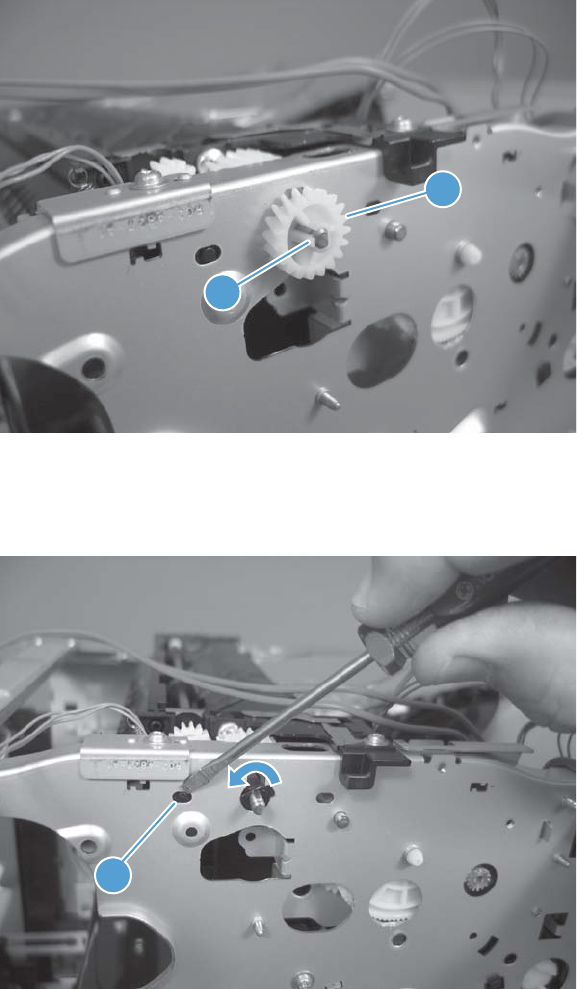
3. Release one tab (callout 1), and then remove the gear (callout 2).
Figure 2-226 Remove the delivery assembly (3 of 5)
2
1
4. Release one tab (callout 1), and then rotate the locking clip until the tab on the clip aligns with the
slot in the chassis.
Figure 2-227 Remove the delivery assembly (4 of 5)
1
230 Chapter 2 Removal and replacement ENWW
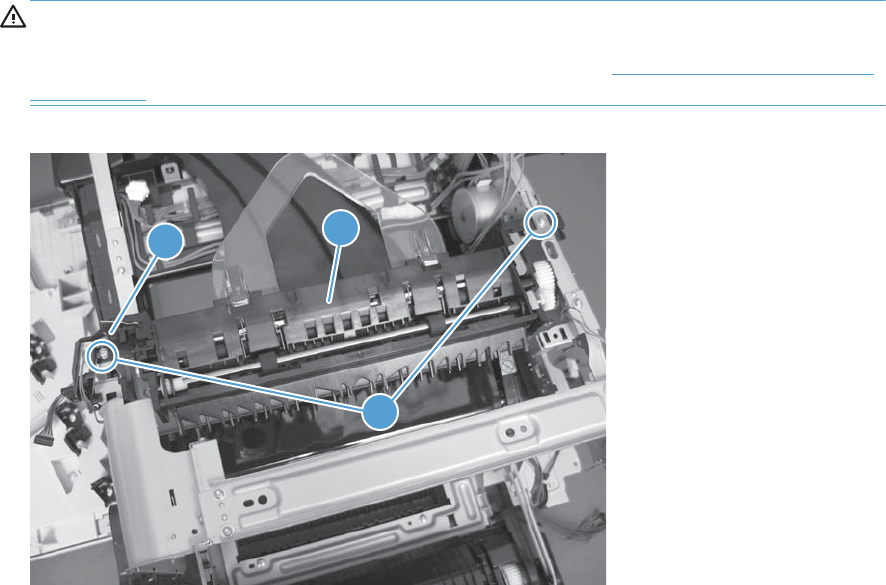
5. Disconnect one connector (callout 1), remove two screws (callout 2), and then carefully lift the
assembly (callout 3) off of the product to remove it.
CAUTION: A solenoid arm (duplex models only; on the right side) and a spring (on the left
side) on the assembly are not captive. Do not lose the solenoid arm or spring when you remove
the assembly. If the solenoid arm or spring become dislodged, see Reinstall the delivery assembly
on page 232.
Figure 2-228 Remove the delivery assembly (5 of 5)
13
2
ENWW Internal assemblies 231
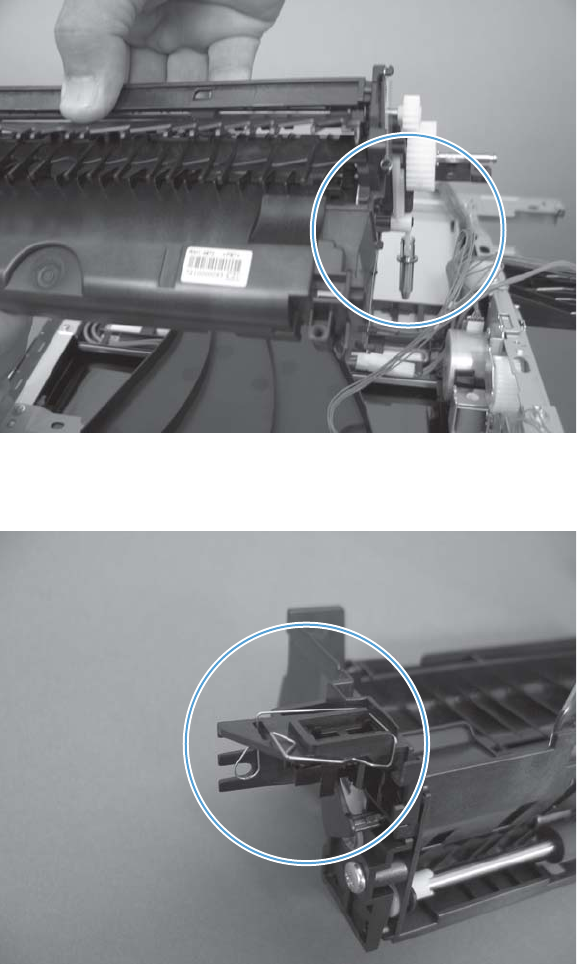
Reinstall the delivery assembly
1. Duplex models only: Make sure that the solenoid arm is correctly installed on the assembly.
Figure 2-229 Reinstall the delivery assembly (1 of 2)
2. Make sure that the spring is correctly installed on the assembly.
Figure 2-230 Reinstall the delivery assembly (2 of 2)
232 Chapter 2 Removal and replacement ENWW

Duplex drive assembly
Before proceeding, remove the following components:
●Toner collection unit. See Toner collection unit on page 79.
●Formatter PCA. See Formatter PCA on page 81.
●Fuser. See Fuser on page 87.
●Secondary transfer assembly. See Secondary transfer assembly on page 96.
●Intermediate transfer belt (ITB). See Intermediate transfer belt (ITB) on page 98.
●Right rear cover. See Right rear cover on page 109.
●Left cover. See Left cover on page 111.
●Hardware integration pocket (HIP). See Hardware integration pocket (HIP) (dn and xh models
only) on page 115.
●Control panel assembly. See Control panel assembly on page 116.
●Front top cover. See Front top cover on page 122.
●Rear cover and upper rear cover. See Rear cover and upper rear cover on page 124.
NOTE: It is not necessary to separate the upper rear cover from the rear cover to remove the
duplex drive assembly.
●Rear top cover. See Rear top cover on page 127.
●Power supply fan and fan duct. See Power supply fan and fan duct on page 147.
●Interconnect board (ICB). See Interconnect board (ICB) on page 158.
●Low voltage power supply. See Low voltage power supply on page 163.
●High voltage power supply lower. See High voltage power supply lower (HVPS-D) on page 167.
●High voltage power supply upper. See High voltage power supply upper (HVPS-T) on page 201.
●Main drive assembly. See Main drive assembly on page 212.
●Fuser drive assembly. See Fuser drive assembly on page 223.
●Delivery assembly. See Delivery assembly on page 228.
ENWW Internal assemblies 233
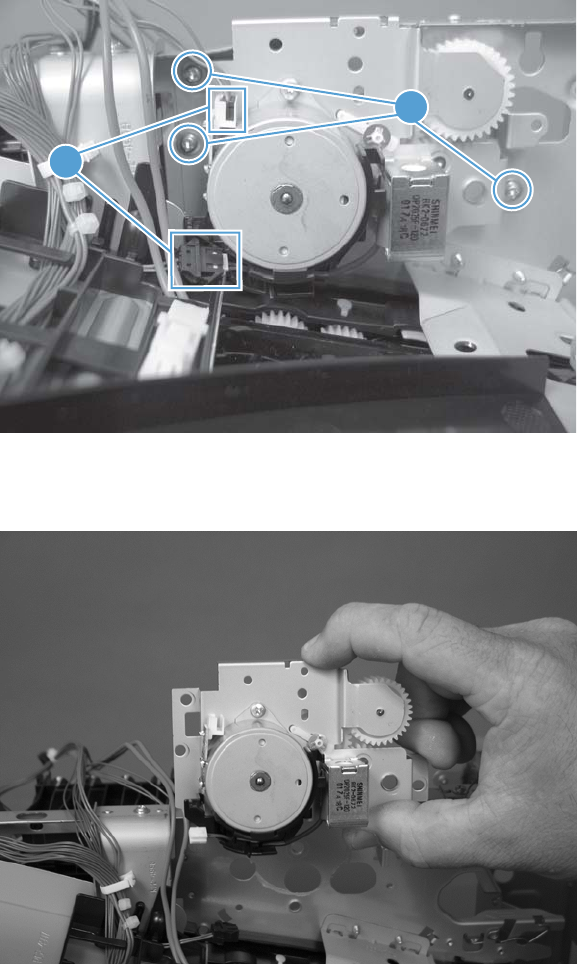
Remove the duplex drive assembly
1. Disconnect two connectors (callout 1), and then remove three screws (callout 2).
Figure 2-231 Remove the duplex drive assembly (1 of 2)
2
1
2. Remove the assembly.
Figure 2-232 Remove the duplex drive assembly (2 of 2)
234 Chapter 2 Removal and replacement ENWW
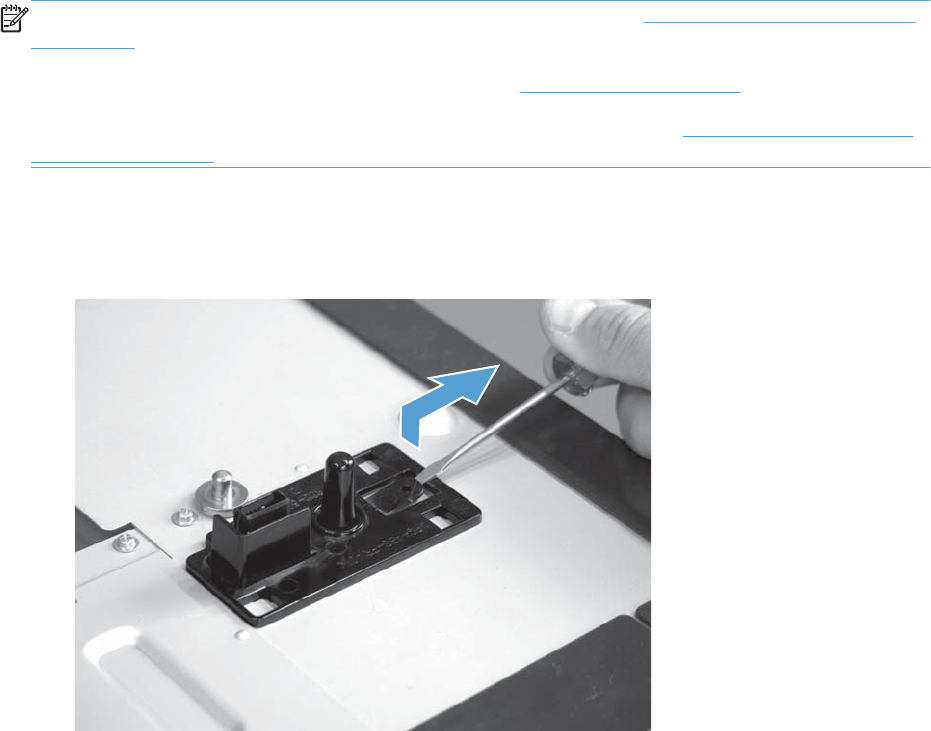
Optional paper feeder assembly (Tray 3)
NOTE: For information about removing the Tray 3 pickup roller, see Pickup and feed rollers (Tray 3)
on page 91.
For information about removing the Tray 3 cassette, see Tray cassette on page 86.
For information about removing the right door (optional paper feeder), see Right door (optional paper
feeder) on page 100.
Drawer connector
1. With a small screwdriver, lift one tab and then slide the drawer connector to release.
ENWW Optional paper feeder assembly (Tray 3) 235
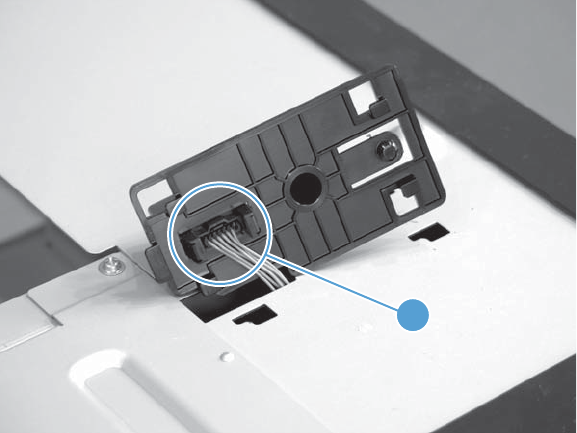
2. Remove one connector (callout 1).
Figure 2-233 Remove the drawer connector; optional paper feeder
1
236 Chapter 2 Removal and replacement ENWW

3 Solve problems
To use the information in this chapter, you should have a basic understanding of the HP LaserJet
printing process. Explanations of each mechanical assembly, the printer systems, and the basic theory
of operation are contained in the English-language service manual. Do not perform any of these
troubleshooting processes unless you understand the function of each product component.
NOTE: To perform diagnostic and configuration procedures (for example, resetting page counts) for
the HP LaserJet Enterprise 500 color M551, you must install the CP1210 Service Config Tool (available
at your HP authorized repair center).
●Solve problems checklist
●Menu map
●Current settings pages
●Preboot menu options
●Troubleshooting process
●Tools for troubleshooting
●Clear jams
●Solve paper handling problems
●Use manual print modes
●Solve image quality problems
●Clean the product
●Solve performance problems
●Solve connectivity problems
●Service mode functions
●Preboot menu options
●Product updates
ENWW 237
Solve problems checklist
If the product is not responding correctly, complete the steps in the following checklist, in order. If the
product does not pass a step, follow the corresponding troubleshooting suggestions. If a step resolves
the problem, you can stop without performing the other steps on the checklist.
1. Make sure one of the following messages display on the control panel: Ready, Paused, or
Sleep mode on. If no lights are on or the display does not say Ready, Paused, or Sleep
mode on, use the Power-on checks section in the product service manual to troubleshoot the
problem.
2. Check the cables.
a. Check the cable connection between the product and the computer or network port. Make
sure that the connection is secure.
b. Make sure that the cable itself is not faulty by using a different cable, if possible.
c. Check the network connection.
3. Ensure that the print media that you are using meets specifications.
4. Print a configuration page. If the product is connected to a network, an HP Jetdirect page also
prints.
a. If the pages do not print, check that at least one tray contains print media.
b. If the page jams in the product, see the jams section.
5. If the configuration page prints, check the following items.
a. If the page prints correctly, the product hardware is working. The problem is with the
computer you are using, with the printer driver, or with the program.
b. If the page does not print correctly, the problem is with the product hardware.
6. Does the image quality meet the user's requirements? If yes, see step 7. If no, check the following
items:
●Print the print-quality (PQ) troubleshooting pages.
●Solve the print-quality problems, and then see step 7.
7. At the computer, check to see if the print queue is stopped, paused, or set to print offline.
Windows: Click Start, click Settings, and then click Printers or Printers and Faxes.
Double-click HP LaserJet Enterprise 500 color M551.
-or-
Mac OS X: Open Printer Setup Utility, and then double-click the line for the HP LaserJet
Enterprise 500 color M551.
238 Chapter 3 Solve problems ENWW
8. Verify that you have installed the HP LaserJet Enterprise 500 color M551 printer driver. Check the
program to make sure that you are using the HP LaserJet Enterprise 500 color M551 printer
driver.
9. Print a short document from a different program that has worked in the past. If this solution works,
the problem is with the program that you are using. If this solution does not work (the document
does not print) complete these steps:
a. Try printing the job from another computer that has the product software installed.
b. If you connected the product to the network, connect the product directly to a computer with
a USB cable. Redirect the product to the correct port, or reinstall the software, selecting the
new connection type that you are using.
ENWW Solve problems checklist 239

Menu map
Print the menu maps
1. At the control panel, press the Home button.
2. Open the following menus:
●Administration
●Reports
●Configuration/Status Pages
3. Use the Down arrow to highlight the Administration Menu Map item, and then press the
OK button to select it.
4. Use the Up arrow button to highlight the Print item, and then press the OK button.
5. Press the Home button or back arrow button to exit the menus.
240 Chapter 3 Solve problems ENWW

Current settings pages
Printing the current settings pages provides a map of the user configurable settings that might be helpful
in the troubleshooting process.
Print the current settings pages
1. At the control panel, press the Home button.
2. Open the following menus:
●Administration
●Reports
●Configuration/Status Pages
3. Use the Down arrow button to highlight the Current Settings Page item, and then press the
OK button to select it.
4. Use the Up arrow button to highlight the Print item, and then press the OK button.
5. Press the Home button or back arrow button to exit the menus.
ENWW Current settings pages 241
Preboot menu options
If an error occurs while the product is booting, an error message appears on the control-panel display.
The user can access the Preboot menus. The Error menu item will not be seen if an error did not occur.
CAUTION: The Clean Disk option performs a disk initialization for the entire disk. The operating
system, firmware files, and third party files (among other files) will be completely lost. HP does not
recommend this action.
Access the Preboot menu
1. Turn the product on.
2. Press the Stop button when the Ready, Data, and Attention LEDs are illuminated solid.
NOTE: The window for accessing the Preboot menu, while the Ready, Data, and Attention
LEDs are illuminated solid, is around one second. You can press the button repeatedly while the
product is starting up to make you sure you gain access to the Preboot menu.
3. Use the Down arrow button to navigate the Preboot menu options.
4. Press the OK button to select a menu item.
Cold reset using the Preboot menu
1. Turn the product on.
2. Press the Stop button when the Ready, Data, and Attention LEDs are illuminated solid.
3. Use the Down arrow button to highlight Administrator, and then press the OK button.
4. Scroll to the Startup Options item, and then press the OK button.
5. Scroll to the Cold Reset item, and then press the OK button.
6. Press the back arrow button twice to highlight Continue, and then press the OK button.
NOTE: The product will initialize.
242 Chapter 3 Solve problems ENWW

Troubleshooting process
Determine the problem source
When the product malfunctions or encounters an unexpected situation, the product control panel alerts
you to the situation. This section contains a pre-troubleshooting checklist to filter out many possible
causes of the problem. A troubleshooting flowchart helps you diagnose the root cause of the problem.
The remainder of this chapter provides steps for correcting problems.
●Use the troubleshooting flowchart to pinpoint the root cause of hardware malfunctions. The
flowchart guides you to the section of this chapter that contains steps for correcting the
malfunction.
Before beginning any troubleshooting procedure, check the following issues:
●Are supply items within their rated life?
●Does the configuration page reveal any configuration errors?
NOTE: The customer is responsible for checking supplies and for using supplies that are in good
condition.
Troubleshooting flowchart
This flowchart highlights the general processes that you can follow to quickly isolate and solve product
hardware problems.
Each row depicts a major troubleshooting step. A “yes” answer to a question allows you to proceed to
the next major step. A “no” answer indicates that more testing is needed. Go to the appropriate section
in this chapter, and follow the instructions there. After completing the instructions, go to the next major
step in this troubleshooting flowchart.
Table 3-1 Troubleshooting flowchart
1
Power on
Is the product on and does a readable
message display?
Follow the power-on troubleshooting checks. See Power subsystem
on page 244.
After the control panel display is functional, see step 2.
Yes No
2
Control panel
messages
Does the message Ready display on the
control panel?
After the errors have been corrected, go to step 3.
Yes No
3
Event log
Open the Troubleshooting menu and print
an event log to see the history of errors with
this product.
Does the event log print?
If the event log does not print, check for error messages.
If paper jams inside the product, see the jams section of the
product service manual.
If error messages display on the control panel when you try to print
an event log, see the control panel message section of the service
manual.
After successfully printing and evaluating the event log, see step 4.
Yes No
ENWW Troubleshooting process 243

Table 3-1 Troubleshooting flowchart (continued)
4
Information
pages
Open the Reports menu and print the
configuration pages to verify that all the
accessories are installed.
Are all the accessories installed?
If accessories that are installed are not listed on the configuration
page, remove the accessory and reinstall it.
After evaluating the configuration pages, see step 5.
Yes No
5
Image quality
Does the print quality meet the customer's
requirements?
Compare the images with the sample defects in the image defect
tables. See the images defects table in the product service manual.
After the print quality is acceptable, see step 6.
Yes No
6
Interface
Can the customer print successfully from the
host computer?
Verify that all I/O cables are connected correctly and that a valid
IP address is listed on the Jetdirect configuration page.
If error messages display on the control panel when you try to print
an event log, see the control panel message section of the service
manual.
When the customer can print from the host computer, this is the
end of the troubleshooting process.
Yes. This is the end of
the troubleshooting
process.
No
Power subsystem
Power-on checks
The basic product functions should start up when the product is plugged into an electrical outlet and the
power switch is pushed to the on position. If the product does not start, use the information in this
section to isolate and solve the problem.
Power-on troubleshooting overview
Turn on the product power. If the control panel display remains blank, random patterns display, or
asterisks remain on the control panel display, perform power-on checks to find the cause of the
problem.
During normal operation, the main cooling fan begins to spin briefly after the product power is turned
on. Place your hand over the holes in the left-side cover, near the formatter. If the fan is operating, you
will feel air passing out of the product. You can also lean close to the product and hear the fan
operating. You can also place your hand over the hole in the right-rear lower corner. If the fan is
operating, you should feel air being drawn into the product. When this fan is operational, the DC side
of the power supply is functioning correctly.
After the fan is operating, the main motor turns on (unless the right or front cover is open, a jam
condition is sensed, or the paper-path sensors are damaged). You might be able to visually and
audibly determine if the main motor is turned on.
If the fan and main motor are operating correctly, the next troubleshooting step is to isolate print
engine, formatter, and control panel problems. Perform an engine test. If the formatter is damaged, it
might interfere with the engine test. If the engine-test page does not print, try removing the formatter
244 Chapter 3 Solve problems ENWW

and then performing the engine test again. If the engine test is then successful, the problem is almost
certainly with the formatter, the control panel, or the cable that connects them.
If the control panel is blank when you turn on the product, check the following items.
1. Make sure that the product is plugged directly into an active electrical outlet (not a power strip)
that delivers the correct voltage.
2. Make sure that the power switch is in the on position.
3. Make sure that the fan runs briefly, which indicates that the power supply is operational.
4. Make sure that the control panel display wire harness is connected.
5. Make sure that the formatter is seated and operating correctly. Turn off the product and remove
the formatter. Reinstall the formatter, and then verify that the heartbeat LED is flashing.
6. Remove any external solutions, and then try to turn the product on again.
NOTE: If the control panel display is blank, but the main cooling fan runs briefly after the product
power is turned on, try printing an engine-test page to determine whether the problem is with the
control-panel display, formatter, or other product components.
ENWW Troubleshooting process 245
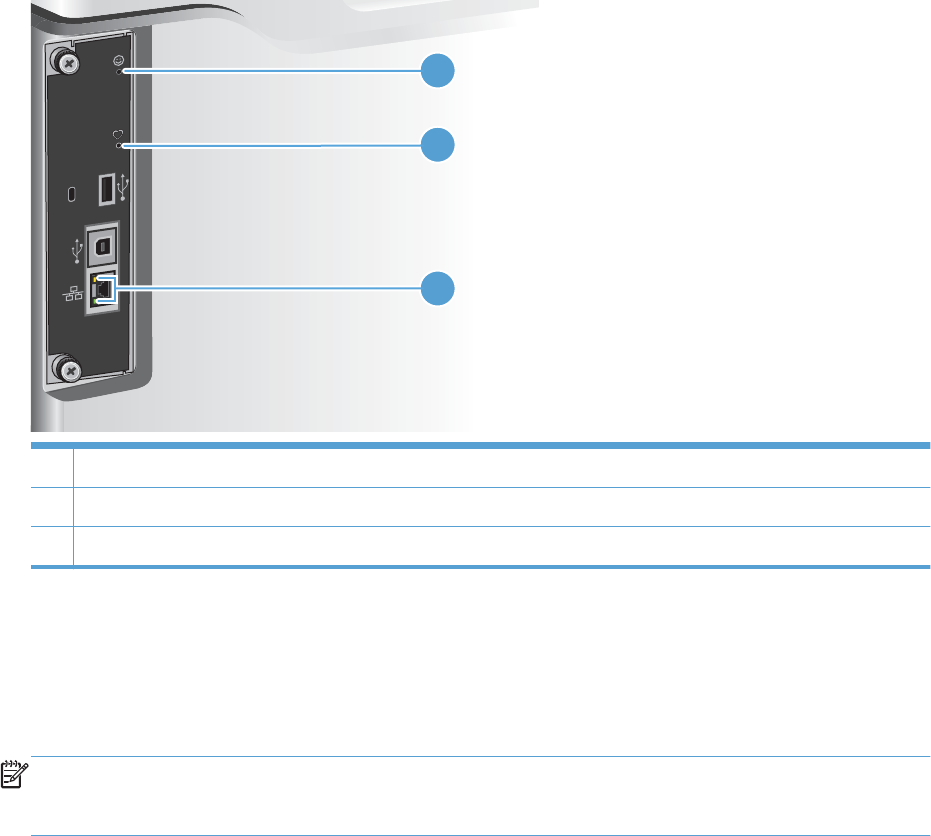
Tools for troubleshooting
The section describes the tools that can help you solve problems with your device.
Individual component diagnostics
LED diagnostics
LED, engine, and individual diagnostics can identify and troubleshoot product problems.
Understand lights on the formatter
Three LEDs on the formatter indicate that the product is functioning correctly.
2
1
3
1 Connectivity LED
2 Heartbeat LED
3 HP Jetdirect LEDs
Heartbeat LED
The heartbeat LED provides information about product operation. If a product error occurs, the
formatter displays a message on the control-panel display. However, error situations can occur causing
the formatter to control panel communication to be interrupted.
NOTE: HP recommends fully troubleshooting the formatter and control panel before replacing either
component. Use the hjeartbeat LED to troubleshoot formatter and control panel errors to avoid
unnecessarily replacing these components.
246 Chapter 3 Solve problems ENWW

Formatter to control panel communication interruptions
●The firmware does not fully initialize and configure the control panel interface.
●The control panel is not functioning (either a failed component or power problem).
●Interface cabling between the formatter and control panel is damaged or disconnected.
TIP: If the heartbeat LED is illuminated—by an error condition or normal operation—the formatter is
fully seated and the power is on. The pins for the LED circuit in the formatter connector are recessed so
that this LED will not illuminate unless the formatter is fully seated.
The heartbeat LED operates according to the product state. When the product is initializing, see
Heartbeat LED, product initialization on page 247. When the product is in Ready mode, see
Connectivity LED, product operating on page 249.
Heartbeat LED, product initialization
The following table describes the heartbeat LED operation while the product is executing the firmware
boot process.
NOTE: When the initialization process completes the heartbeat LED should be illuminated solid green
—the LED is off if the product is in Sleep mode.
If after initialization the heartbeat LED is not solid green, see Connectivity LED, product operating
on page 249.
Table 3-2 Heartbeat LED, product initialization
Product initializing
state
Heartbeat LED, normal state Heartbeat LED, error state
No power (power cord
unplugged or power
switch off)
Off Not applicable
Power on (immediately
after the power switch
pressed)
Red, solid
●Duration should be 1 second or less
Red, solid
●Firmware error; problem finding hardware
and booting the serial peripheral interface
flash memory
◦Boot process halted
Replace the formatter.
Serial peripheral
interface (SPI) flash
memory boot
Green, solid Red, solid
●Firmware error; problem corrupt or missing
SPI flash memory
◦Boot process halted
Replace the formatter.
ENWW Tools for troubleshooting 247

Table 3-2 Heartbeat LED, product initialization (continued)
Product initializing
state
Heartbeat LED, normal state Heartbeat LED, error state
HW checks on board
DRAM
Green, solid Red, solid
●Power on self check failure
◦Boot process halted
Replace the formatter.
Control panel
connection initializes
Green, solid
NOTE: Control panel communication
successful. If an error occurs, a message should
appear on the control-panel display.
Yellow, fast flash
●Formatter to control panel connection failed
◦Boot process continues
Check the cables between the formatter and
control panel for damage. Make sure that the
cables are fully seated.
Preboot menu
available (including
diagnostics)
Green, solid Red, solid
●Diagnostic failure
◦Follow diagnostic instructions
Turn the power off, and then on again to restart
the initialization process.
Accessing disk for
firmware image
Green, solid
NOTE: If applicable, disk error messages
appear on the control-panel display.
Yellow, fast flash
●Control panel not connected
Firmware boot Green, solid
NOTE: If applicable, error messages appear
on the control-panel display.
Yellow, fast flash
●Control panel not connected
Product operational Green, heartbeat blink
NOTE: If applicable, error messages appear
on the control-panel display.
Yellow, fast flash
●Control panel not connected
49.XX.YY error or
initialization freezes
Not applicable LED off
NOTE: An error message (for example,
49.XX.YY) might appear on the control-panel
display.
Eventually a formatter connection missing
message will appear.
Turn the power off, and then on again to restart
the initialization process.
If the error persists, perform a firmware upgrade.
248 Chapter 3 Solve problems ENWW

Table 3-2 Heartbeat LED, product initialization (continued)
Product initializing
state
Heartbeat LED, normal state Heartbeat LED, error state
Control panel
connection interrupted
after the product is
operational
Not applicable Yellow, fast flash
●Control panel not connected
Sleep mode Green, slow blink Not applicable
Approaching Sleep
mode
Green, slow blink Not applicable
Wake up from Sleep
mode
Follows initialization progression above. Follows initialization progression above.
Approaching wake up
from Sleep mode
Follows initialization progression above. Follows initialization progression above.
Connectivity LED, product operating
The following table describes the connectivity operation when the product completes the firmware boot
process and is in the Ready state.
Table 3-3 Heartbeat LED, product operational
LED color Description
Green ●Normal operation
◦Formatter is operating normally
◦Firmware is operating normally
◦Control panel is connected
Yellow ●Formatter cannot connect to the control panel
◦Check control panel connections
◦Verify control panel functionality
ENWW Tools for troubleshooting 249

Table 3-3 Heartbeat LED, product operational (continued)
LED color Description
Red ●Formatter error or failure
◦Serial peripheral interface (SPI) flash memory boot error
◦Power on self test (formatter) failed
◦Diagnostic (formatter) failed
Off TIP: The connectivity LED is off if the power cord is unplugged, the product power switch is in
the off position, or the product is in Sleep mode.
●Firmware or system freeze
◦Check the control panel for an error message
◦Control panel failure
NOTE: This condition is not usually caused by a formatter failure.
Turn the power off, and then on again.
If the error persists, perform a firmware upgrade.
Connectivity LED
The connectivity LED provides information about product operation. If a product error occurs, the
formatter displays a message on the control-panel display. However, error situations can occur causing
the formatter to control panel communication to be interrupted.
NOTE: HP recommends fully troubleshooting the formatter and control panel before replacing either
component. Use the connectivity LED to troubleshoot formatter and control panel errors to avoid
unnecessarily replacing these components.
Formatter to control panel communication interruptions
●The firmware does not fully initialize and configure the control panel interface.
●The control panel is not functioning (either a failed component or power problem).
●Interface cabling between the formatter and control panel is damaged or disconnected.
TIP: If the connectivity LED is illuminated—by an error condition or normal operation—the formatter is
fully seated and the power is on. The pins for the LED circuit in the formatter connector are recessed so
that this LED will not illuminate unless the formatter is fully seated.
The connectivity LED operates according to the product state. When the product is initializing, see
Connectivity LED, product initialization on page 250. When the product is in Ready mode, see
Connectivity LED, product operating on page 252.
Connectivity LED, product initialization
The following table describes the connectivity operation while the product is executing the firmware
boot process.
250 Chapter 3 Solve problems ENWW

NOTE: When the initialization process completes the connectivity LED should be illuminated solid
green—the LED is off if the product is in Sleep mode
If after initialization the connectivity LED is not solid green, see Connectivity LED, product operating
on page 252.
Table 3-4 Connectivity LED, product initialization
Product initializing
state
Connectivity LED, normal state Connectivity LED, error state
No power (power cord
unplugged or power
button off)
Off Not applicable
Power on (immediately
after the power button
pressed)
Red, solid
●Duration should be 1 second or less
Red, solid
●Firmware error; problem finding hardware
and booting the serial peripheral interface
flash memory
◦Boot process halted
Replace the formatter.
Serial peripheral
interface (SPI) flash
memory boot
Green, solid Red, solid
●Firmware error; problem corrupt or missing
SPI flash memory
◦Boot process halted
Replace the formatter.
HW checks on board
DRAM
Green, solid Red, solid
●Power on self check failure
◦Boot process halted
Replace the formatter.
Control panel
connection initializes
Green, solid
NOTE: Control panel communication
successful. If an error occurs, a message should
appear on the control-panel display.
Yellow, fast flash
●Formatter to control panel connection failed
◦Boot process continues
Check the cables between the formatter and
control panel for damage. Make sure that the
cables are fully seated.
Preboot menu
available (including
diagnostics)
Green, solid Red, solid
●Diagnostic failure
◦Follow diagnostic instructions
Turn the power off, and then on again to restart
the initialization process.
ENWW Tools for troubleshooting 251

Table 3-4 Connectivity LED, product initialization (continued)
Product initializing
state
Connectivity LED, normal state Connectivity LED, error state
Accessing disk for
firmware image
Green, solid
NOTE: If applicable, disk error messages
appear on the control-panel display.
Yellow, fast flash
●Control panel not connected
Firmware boot Green, solid
NOTE: If applicable, error messages appear
on the control-panel display.
Yellow, fast flash
●Control panel not connected
Product operational Green, heartbeat blink
NOTE: If applicable, error messages appear
on the control-panel display.
Yellow, fast flash
●Control panel not connected
49.XX.YY error or
initialization freezes
Not applicable LED off
NOTE: An error message (for example,
49.XX.YY) might appear on the control-panel
display.
Eventually a formatter connection missing
message will appear.
Turn the power off, and then on again to restart
the initialization process.
If the error persists, perform a firmware upgrade.
Control panel
connection interrupted
after the product is
operational
Not applicable Yellow, fast flash
●Control panel not connected
Sleep mode Green, slow blink Not applicable
Approaching Sleep
mode
Green, slow blink Not applicable
Wake up from Sleep
mode
Follows initialization progression above. Follows initialization progression above.
Approaching wake up
from Sleep mode
Follows initialization progression above. Follows initialization progression above.
Connectivity LED, product operating
The following table describes the connectivity operation when the product completes the firmware boot
process and is in the Ready state.
252 Chapter 3 Solve problems ENWW

Table 3-5 Connectivity LED, product operational
LED color Description
Green ●Normal operation
◦Formatter is operating normally
◦Firmware is operating normally
◦Control panel is connected
Yellow ●Formatter cannot connect to the control panel
◦Check control panel connections
◦Verify control panel functionality
Red ●Formatter error or failure
◦Serial peripheral interface (SPI) flash memory boot error
◦Power on self test (formatter) failed
◦Diagnostic (formatter) failed
Off TIP: The connectivity LED is off if the power cord is unplugged, the product power button is in
the off position, or the product is in Sleep mode.
●Firmware or system freeze
◦Check the control panel for an error message
◦Control panel failure
NOTE: This condition is not usually caused by a formatter failure.
Turn the power off, and then on again.
If the error persists, perform a firmware upgrade.
HP Jetdirect LEDs
The embedded HP Jetdirect print server has two LEDs. The yellow LED indicates network activity, and
the green LED indicates the link status. A blinking yellow LED indicates network traffic. If the green LED
is off, a link has failed.
For link failures, check all the network cable connections. In addition, you can try to manually configure
the link settings on the embedded print server by using the product control-panel menus.
1. Press the Home button.
2. Press the Down arrow button to highlight the Administration menu, and then press the OK
button.
3. Press the Down arrow button to highlight the Network Settings menu, and then press the OK
button.
4. Press the Down arrow button to highlight the Jetdirect Menu option, and then press the OK
button.
ENWW Tools for troubleshooting 253

5. Press the Down arrow button to highlight the Link Speed menu, and then press the OK button.
6. Select the appropriate link speed, and then press the OK button.
Engine diagnostics
This section provides an overview of the engine diagnostics that are available in the HP LaserJet
Enterprise 500 color M551 product. The product contains extensive internal diagnostics that help in
troubleshooting print quality, paper path, noise, component, and timing issues.
Defeating interlocks
Different tests can be used to isolate different types of issues. For component or noise isolation, you can
run the diagnostic test when the front and right doors are open. To operate the product with the doors
open, the door switch levers must be depressed to simulate a closed-door position.
WARNING! Be careful when performing printer diagnostics to avoid risk of injury. Only trained
service personnel should open and run the diagnostics with the covers removed. Never touch any of the
power supplies when the printer is turned on.
1. Open the right and front doors.
254 Chapter 3 Solve problems ENWW
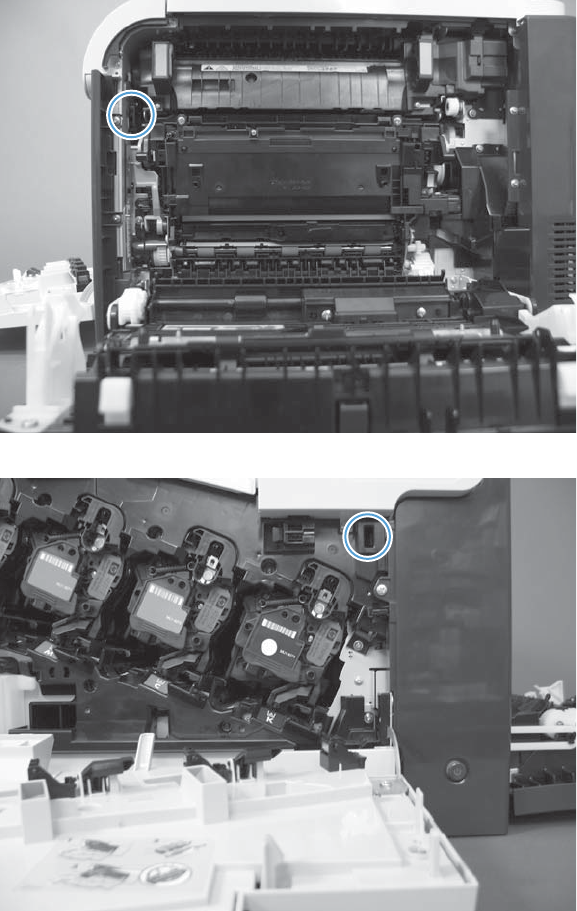
2. Locate the slots on the right and front of the product.
Figure 3-1 Diagnostic test (1 of 3)
Figure 3-2 Diagnostic test (2 of 3)
ENWW Tools for troubleshooting 255
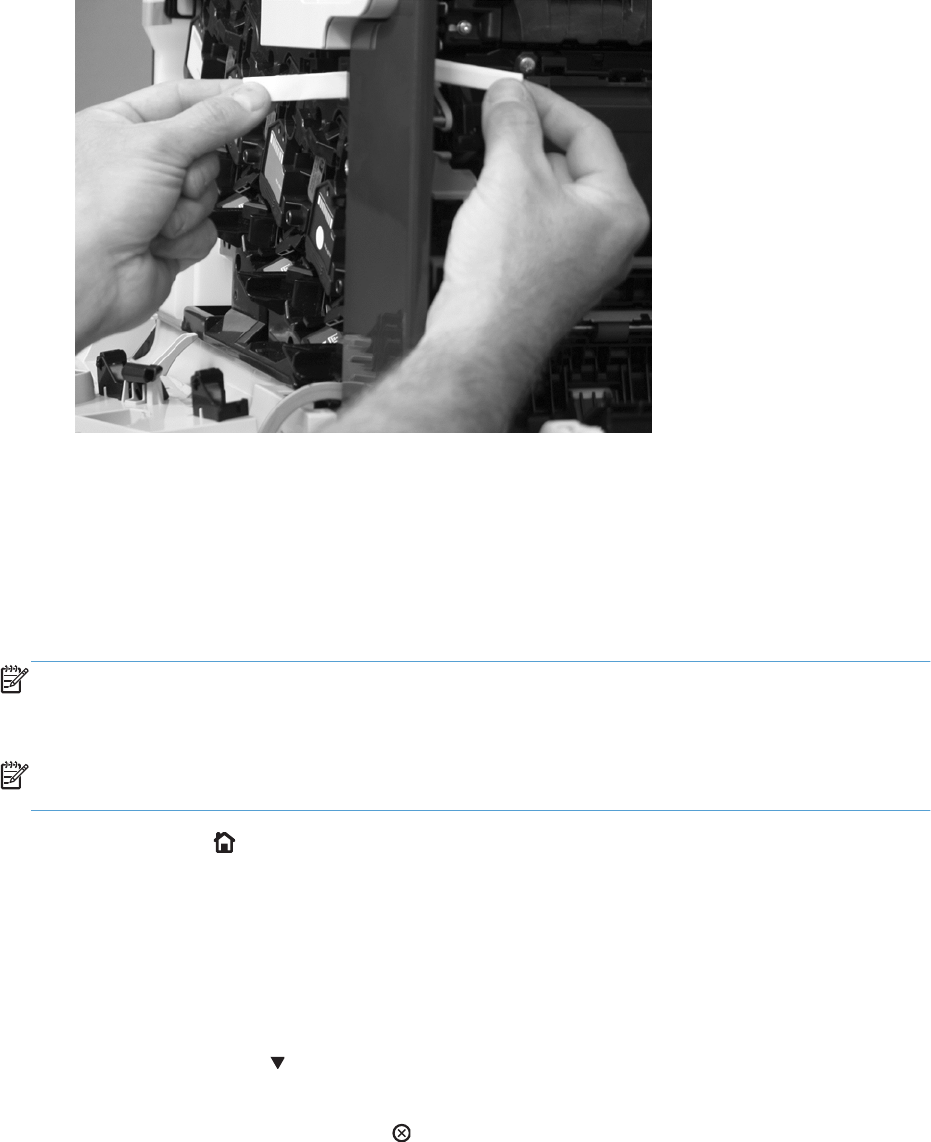
3. Insert a folded piece of paper into each slot at the same time until the product is in a Ready state.
Figure 3-3 Diagnostic test (3 of 3)
Disable cartridge check
Use this diagnostic test to print internal pages or send an external job to the product when one or more
print cartridges are removed or exchanged. Consumable supply errors are ignored while the product is
in this mode. When the product is in this mode, you can navigate the troubleshooting menus and print
internal pages (the print quality pages will be the most useful). This test can be used isolate problems,
such as noise, and to isolate print-quality problems that are related to individual print cartridges.
NOTE: Cartridges are not keyed and can be interchanged. An error will display on the control panel
if a print cartridge is installed in the wrong position. The Supplies menu will explain which print
cartridge is misplaced.
NOTE: Do not remove or exchange print cartridges until after you start the disable cartridge check
diagnostic.
1. Press the Home button.
2. Open the following menus:
●Administration
●Troubleshooting
●Diagnostic Tests
3. Press the Down arrow button to highlight Disable Cartridge Check, and then press the OK
button.
To exit this diagnostic test, press the Stop button and then select Exit Troubleshooting.
256 Chapter 3 Solve problems ENWW
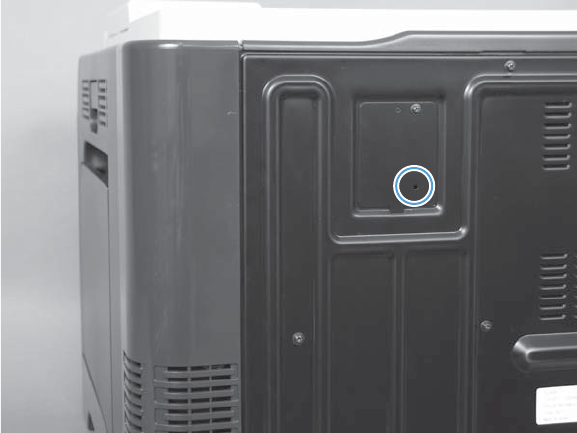
Engine test button
To verify that the product engine is functioning, print an engine test page. Use a small pointed object to
depress the test-page switch located on the rear of the product. The test page should have a series of
horizontal lines. The test page can use only Tray 2 as the paper source, so make sure that paper is
loaded in Tray 2.
Figure 3-4 Engine-test button
ENWW Tools for troubleshooting 257

Paper path test
This diagnostic test generates one or more test pages that you can use to isolate the cause of jams.
To isolate a problem, specify which input tray to use, specify whether to use the duplex path, and
specify the number of copies to print. Multiple copies can be printed to help isolate intermittent
problems. The following options become available after you start the diagnostic feature:
●Print Test Page. Run the paper-path test from the default settings: Tray 2, no duplex, and one
copy. To specify other settings, scroll down the menu and select the setting, and then scroll back
up and select Print Test Page to start the test.
●Source Tray. Select Tray 1, Tray 2, or the optional tray.
●Test Duplex Path. Enable or disable two-sided printing.
NOTE: Duplex models only.
●Number of Copies. Set the numbers of copies to be printed; the choices are 1,10, 50, 100, or
500.
1. Press the Home button.
2. Open the following menus:
●Administration
●Troubleshooting
●Diagnostic Tests
3. Press the Down arrow button to highlight Paper Path Test, and then press the OK button.
4. Select the paper-path test options for the test you want to run.
Paper path sensors test
This test displays the status of each paper-path sensor and allows viewing of sensor status while printing
internal pages.
1. Press the Home button.
2. Open the following menus:
●Administration
●Troubleshooting
●Diagnostic Tests
258 Chapter 3 Solve problems ENWW

3. Press the Down arrow button to highlight the Paper Path Sensors option, and then press the
OK button.
4. Select Start Test. Press the Down arrow button to see the test results.
NOTE: Exiting the Paper-path sensor test menu and then reentering it will clear the test values
from the previous test.
Viewing the sensor status before you activate the test should show that the sensors PS9, PS11 and
SW5 have already been activated. After running the Paper-path sensor test, sensor PS9 does not
show any activation status.
Table 3-6 Paper-path sensors diagnostic tests
Sensor name Sensor number
Registration SR8
Fuser loop 1 SR14
Fuser loop 2 SR15
Fuser pressure release SR7
Fuser output SR5
Duplexer refeed SR22
Developer alienation SR11
ITB alienation SR17
Output bin full SR6
Tray 1 paper SR21
Tray 2 paper SR20
Tray 2 Cassette Sensor SR13
Tray 2 Cassette Lifter SR9
Tray 3 paper SR3
Tray 3 feed SR4
Tray 3 installed SR1
Tray 3 size (top) button SW1
Tray 3 (middle) button
Tray 3 (bottom) button
ENWW Tools for troubleshooting 259

Manual sensor test
Use this diagnostic test to manually test the product sensors and switches. Each sensor is represented by
a letter and number on the control panel display.
1. Press the Home button.
2. Open the following menus:
●Administration
●Troubleshooting
●Diagnostic Tests
3. Press the Down arrow button to highlight the Manual Sensor Test item, and then press the
OK button.
To exit this diagnostic, press the Stop key, and then select Exit Troubleshooting.
Menus cannot be opened during this test, so the OK button serves the same function as the Stop
button.
Table 3-7 Manual sensor diagnostic tests
Sensor or switch name Sensor or switch number
Front door switch SW1
Registration SR8
Fuser loop 1 SR14
Fuser loop 2 SR15
Fuser pressure release SR7
Fuser output SR5
Duplexer refeed SR22
Developer alienation SR11
ITB alienation SR17
Output bin full SR6
260 Chapter 3 Solve problems ENWW
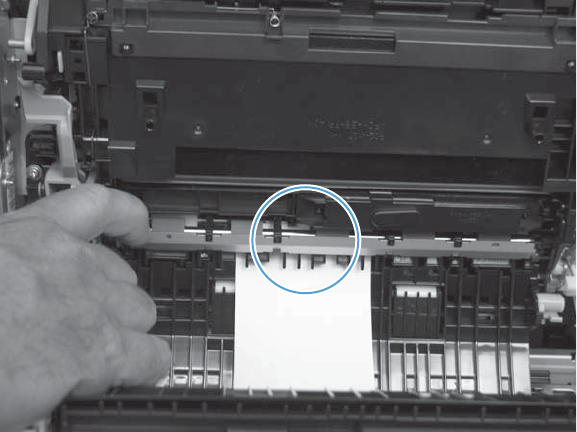
Registration sensor
1. Open the right door.
2. Open the registration shutter.
3. Insert a piece of paper to activate the TOP sensor.
Figure 3-5 Test the registration sensor
4. Check the control-panel display for sensor response.
5. If no response, replace the registration assembly.
ENWW Tools for troubleshooting 261
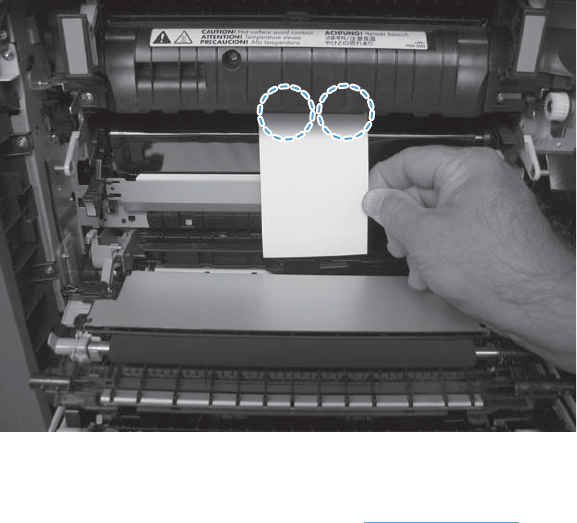
Fuser loop sensors
1. Open the right door.
2. Lower the secondary transfer assembly.
3. Slowly insert a piece of paper to activate the fuser loop sensors underneath the fuser.
Figure 3-6 Test the fuser loop sensors
4. Check the control-panel display for a sensor response.
5. If there is no response, replace fuser. See Fuser on page 87.
262 Chapter 3 Solve problems ENWW
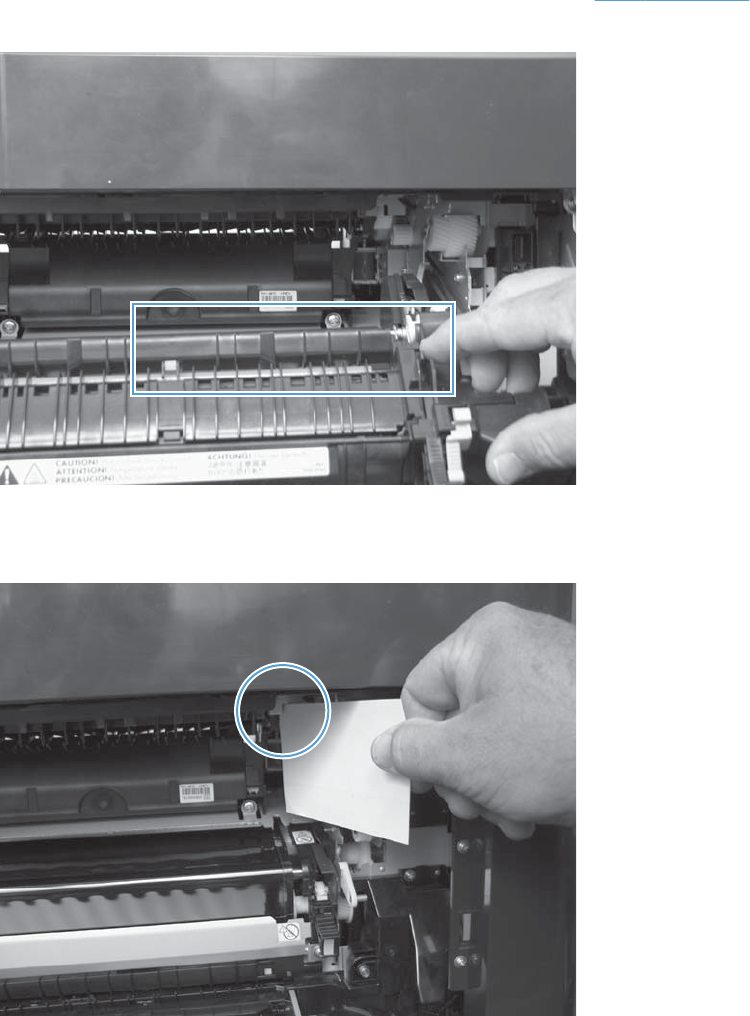
Fuser output sensor
1. Open the right door.
2. Lower the secondary transfer assembly.
3. Remove the fuser assembly, and then verify that the sensor flag on the fuser assembly moves
freely. If the sensor flag does not move freely, replace the fuser. See Fuser on page 87.
Figure 3-7 Test the fuser output sensor (1 of 2)
4. Insert a piece of paper to activate the sensor.
Figure 3-8 Test the fuser output sensor (2 of 2)
5. Check the control-panel display for a sensor response.
6. If there is no response, replace the fuser output sensor.
ENWW Tools for troubleshooting 263
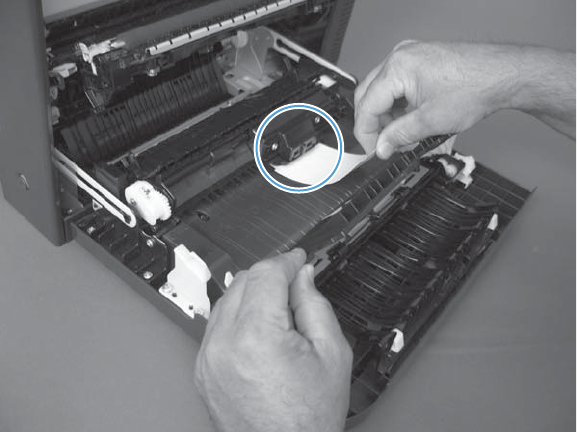
Duplexer refeed sensor
1. Open the right door.
2. Use the green handle to lift the duplex jam cover.
3. Insert a piece of paper to activate the sensor (8492).
Figure 3-9 Test the duplexer refeed sensor
4. Check the control-panel display for sensor response.
5. If no response, replace the right door assembly.
264 Chapter 3 Solve problems ENWW
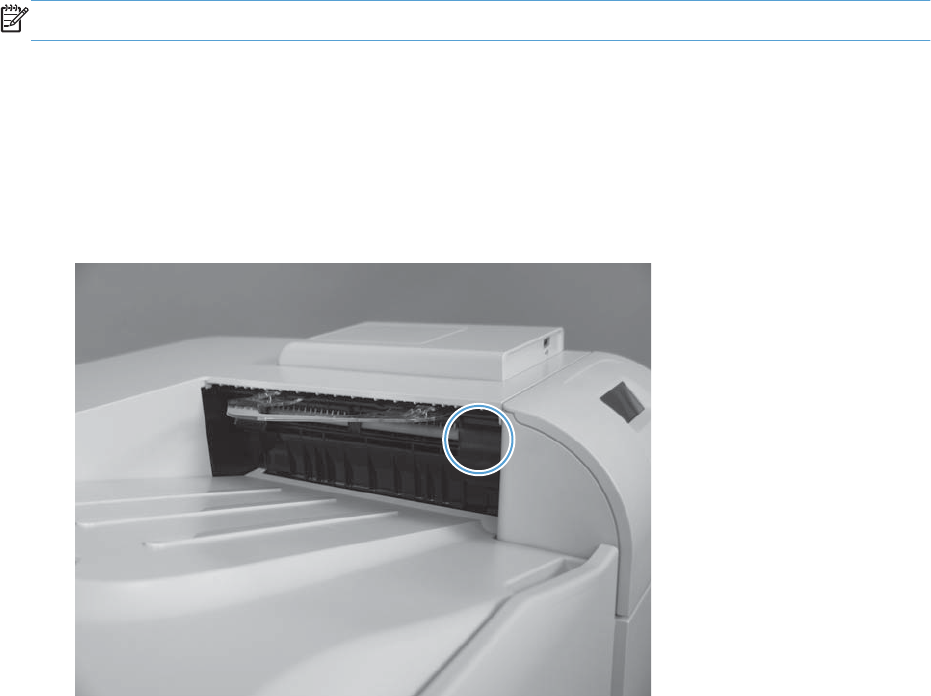
Output-bin full sensor
NOTE: Upper-front cover has been removed for clarity.
1. Open the right door.
2. Lower the secondary transfer assembly.
3. Remove the fuser.
4. Move the output-bin full sensor flag.
Figure 3-10 Test the output-bin-full sensor
5. Check the control-panel display for sensor response.
6. If no response, remove the control panel and verify that the flag is moving. If not, replace the
delivery assembly. If the sensor is malfunctioning, replace the delivery assembly.
ENWW Tools for troubleshooting 265
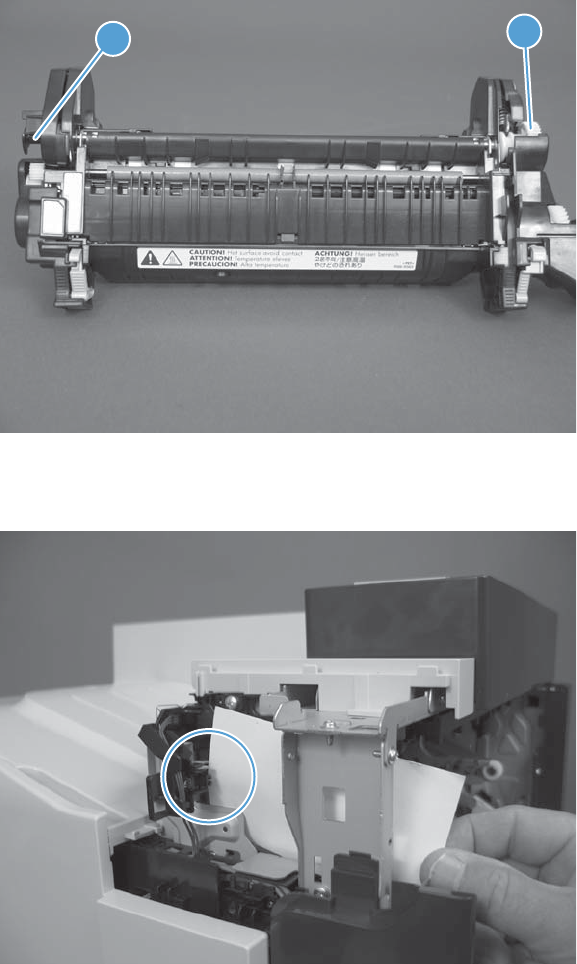
Fuser pressure-release sensor
1. Open the right door.
2. Lower the secondary transfer assembly.
3. Remove the fuser, and then rotate the gear (callout 1) to move the flag (callout 2). If the flag does
not actuate, replace the fuser.
Figure 3-11 Test the fuser pressure-release sensor (1 of 2)
21
4. Insert a piece of paper to activate the fuser pressure-release sensor.
Figure 3-12 Test the fuser pressure-release sensor (2 of 2)
5. Check the control-panel display for sensor response.
6. If there is no response, replace fuser pressure-release sensor.
266 Chapter 3 Solve problems ENWW
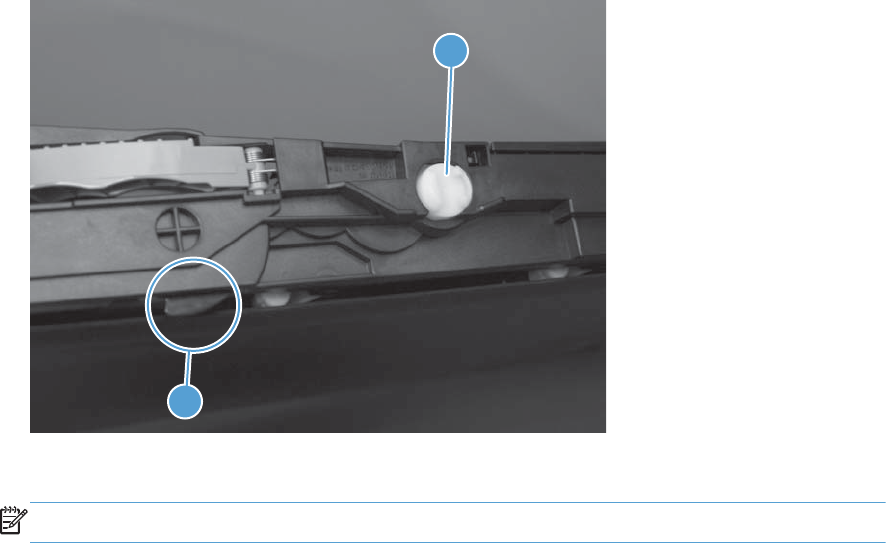
ITB alienation sensor
1. Open the right door.
2. Lower the secondary transfer assembly.
3. Remove the ITB.
4. Rotate the gear (callout 1) to move the flag (callout 2). If the flag does not actuate, replace the ITB.
Figure 3-13 Test the ITB alienation sensor (1 of 2)
1
2
5. Remove all print cartridges.
NOTE: Cover all removed print cartridges with paper.
6. Locate the sensor behind the cyan OPC drum position.
ENWW Tools for troubleshooting 267
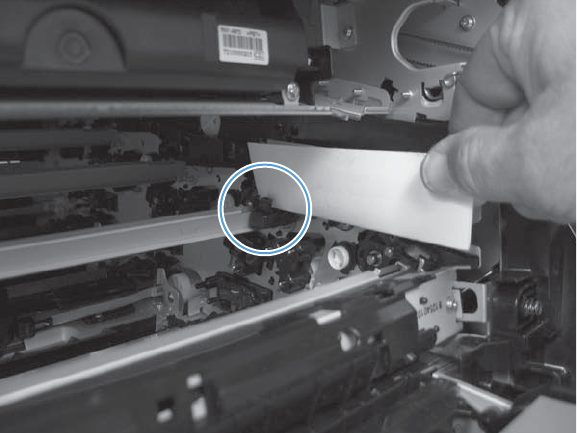
7. Insert a piece of paper to activate the ITB alienation sensor.
Figure 3-14 Test the ITB alienation sensor (2 of 2)
8. Check the control-panel display for sensor response.
9. If no response, replace the sensor.
268 Chapter 3 Solve problems ENWW
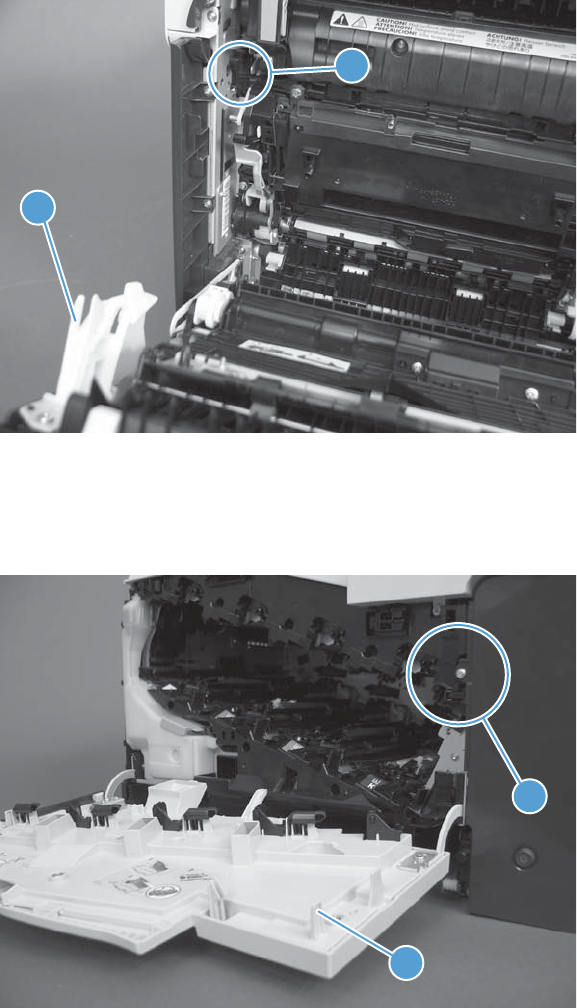
Right- and front-door interlock switches
1. Open the right door (callout 1) to disengage the right-door switch (callout 2).
Figure 3-15 Test the right- and front-door interlock switches (1 of 4)
2
1
2. Close the right door and check the control panel on the product for sensor response.
3. Open the front door (callout 3) to disengage the front-door switch (callout 4).
Figure 3-16 Test the right- and front-door interlock switches (2 of 4)
3
4
4. Close the front door and check the control panel on the product for sensor response.
5. If either interlock switch failed to respond, remove the upper-front cover and right-front cover. By
removing the right-front cover, you can tell if the linkages are properly closing the switches.
ENWW Tools for troubleshooting 269
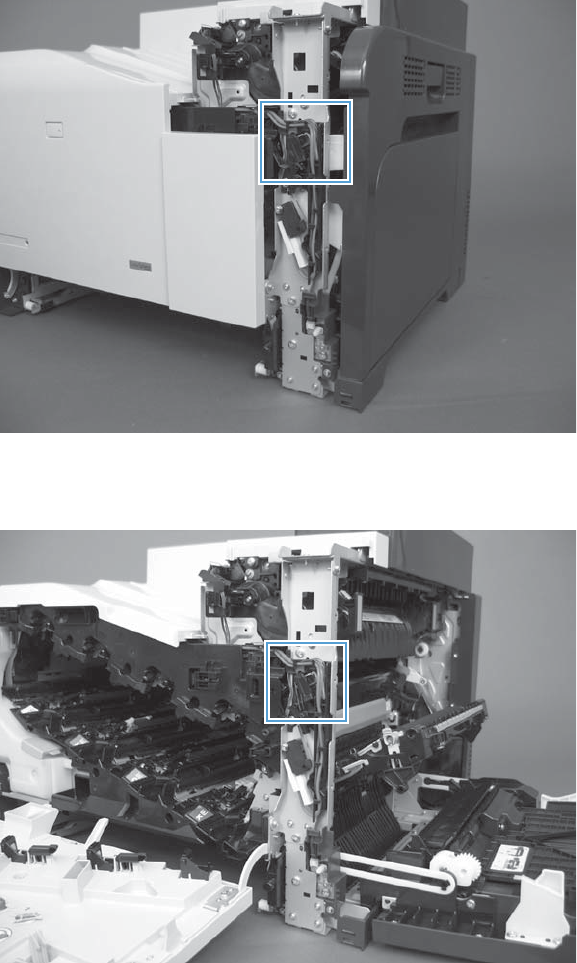
6. Close the right door and front door to verify that the switches close.
Figure 3-17 Test the right- and front-door interlock switches (3 of 4)
7. Open the right door and front door to verify that the switches open.
Figure 3-18 Test the right- and front-door interlock switches (4 of 4)
8. If the switches do not close, check the connectors on the DC controller PCA.
9. If the switches are opening/closing correctly when either door is open or closed, then check J118
on the DC controller.
10. If the connectors are securely connected to the DC controller PCA and the switches still do not
close, replace the DC controller PCA.
270 Chapter 3 Solve problems ENWW

Tray/bin manual sensor test
Use this test to test paper-path sensors and the paper-size switches manually. The following illustrations
and table show the locations of these sensors.
1. Press the Home button.
2. Open the following menus:
●Administration
●Troubleshooting
●Diagnostic Tests
3. Press the Down arrow button to highlight the Manual Tray/Bin Sensor Test item, and then
press the OK button.
Table 3-8 Manual sensor test 2 diagnostic tests
Sensor or switch name Sensor or switch number
Tray 1 paper SR21
Tray 2 paper SR20
Tray 2 cassette sensor SR13
Tray 2 cassette lifter SR9
Paper Width 1 SR10
Output-bin full SR6
Tray 3 paper present SR3
Tray 3 feed SR4
Tray 3 installed SR1
Tray 3 size switch (top) button SW1
Tray 3 size switch (middle) button
Tray 3 size switch (bottom) button
To perform an end-plate (left-side set of switches) or side-plate (right-side set of switches) switch test, do
the following:
●Remove the appropriate tray (for example, if you want to test SR20 or SR9, remove Tray 2).
●Watch for the corresponding bit to toggle from 1 to 0. It can take a few seconds for bits to toggle.
●Test each switch individually to see if the corresponding bit toggles from 0 to 1.
ENWW Tools for troubleshooting 271
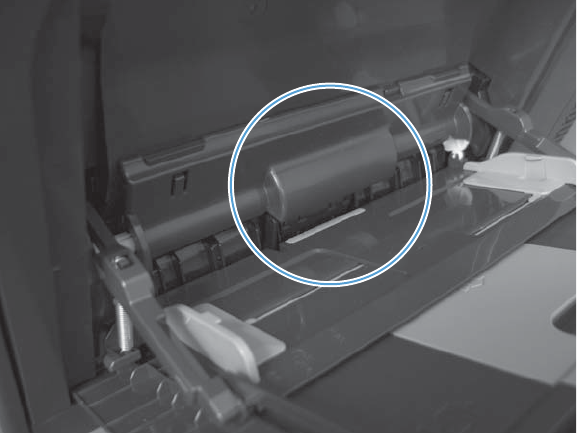
Tray 1 paper sensor
1. Open Tray 1.
2. Move the Tray 1 paper sensor flag.
Figure 3-19 Test the Tray 1 paper sensor
3. Check the control-panel display for sensor response.
4. If no response, replace Tray 1.
272 Chapter 3 Solve problems ENWW
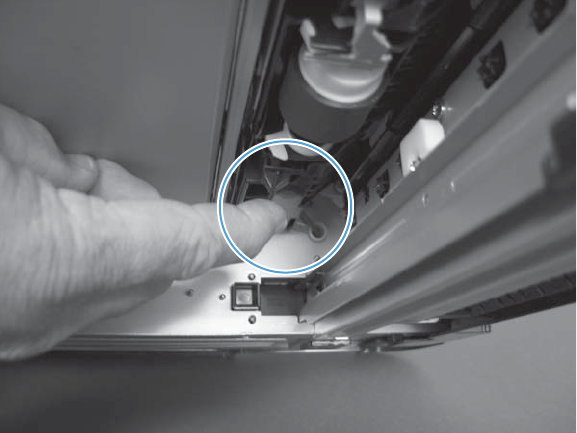
Tray 2 paper sensor
1. Remove Tray 2.
2. Move the Tray 2 paper sensor flag.
Figure 3-20 Test the Tray 2 paper sensor
3. Check the control-panel display for sensor response.
4. If there is no response, replace the Tray 2 paper-out sensor.
ENWW Tools for troubleshooting 273
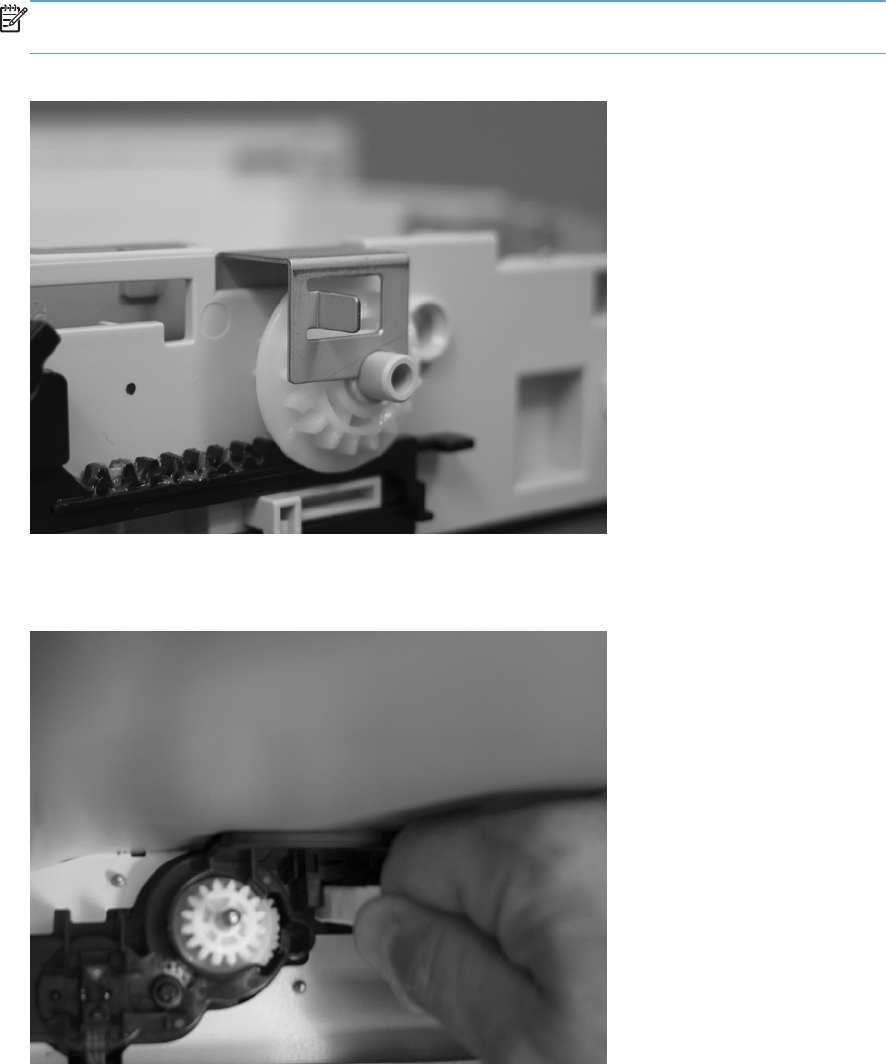
Tray 2 cassette sensor
1. Remove Tray 2.
NOTE: The Tray 2 Cassette sensor flag is on the back of Tray 2. Inspect the flag to verify that it
is aligned correctly. If it is bent upward, it might miss the sensor when installed.
Figure 3-21 Test the Tray 2 cassette sensor (1 of 2)
2. Insert a piece of paper in the Tray 2 cassette sensor.
Figure 3-22 Test the Tray 2 cassette sensor (2 of 2)
3. Check the control-panel display for sensor response.
4. If there is no response, replace the lifter-drive assembly.
274 Chapter 3 Solve problems ENWW
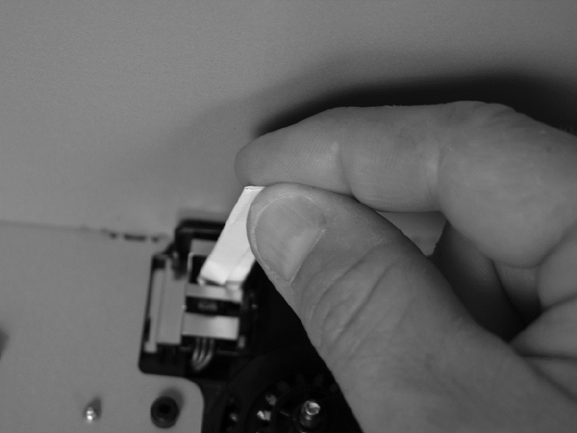
Tray 2 cassette lifter sensor
1. Remove Tray 2.
2. In the Tray 2 cavity, insert a piece of paper in the Tray 2 cassette lifter sensor.
Figure 3-23 Test the Tray 2 cassette lifter sensor
3. Check the control-panel display for sensor response.
4. If no response, replace the lifter-drive assembly.
ENWW Tools for troubleshooting 275
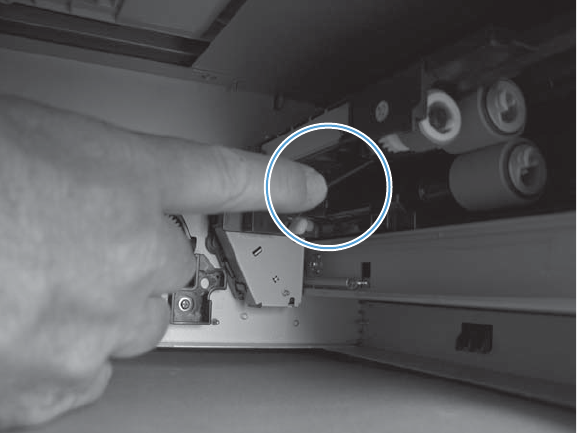
Tray 3 empty sensor
1. Remove the optional Tray 3 cassette.
2. Move the optional Tray 3 empty sensor flag.
Figure 3-24 Test the optional Tray 3 empty sensor
3. Check the control-panel display for sensor response.
4. If no response, replace the optional Tray 3.
276 Chapter 3 Solve problems ENWW
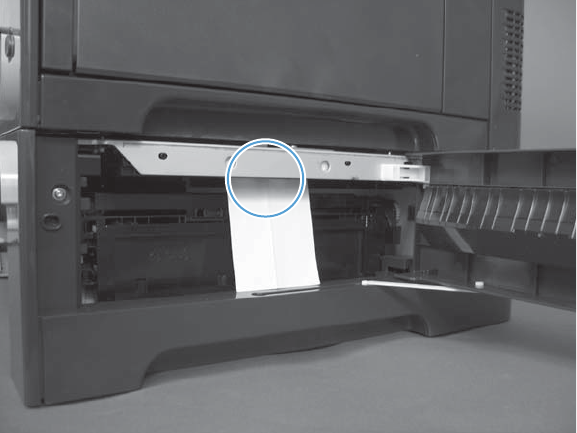
Tray 3 media feed sensor
1. Open the right door on optional Tray 3.
2. Insert a piece of paper to activate the optional Tray 3 media feed sensor
Figure 3-25 Test the optional Tray 3 media feed sensor
3. Check the control-panel display for sensor response.
4. If there is no response, replace the optional Tray 3.
ENWW Tools for troubleshooting 277
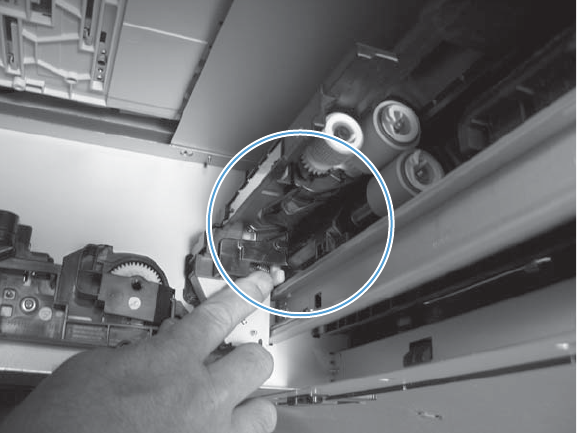
Tray 3 stack surface sensor
1. Remove the optional Tray 3 cassette.
2. Push the lever to activate the sensor arms.
Figure 3-26 Test the optional Tray 3 stack surface sensor
3. If there is no response, replace the optional Tray 3.
278 Chapter 3 Solve problems ENWW
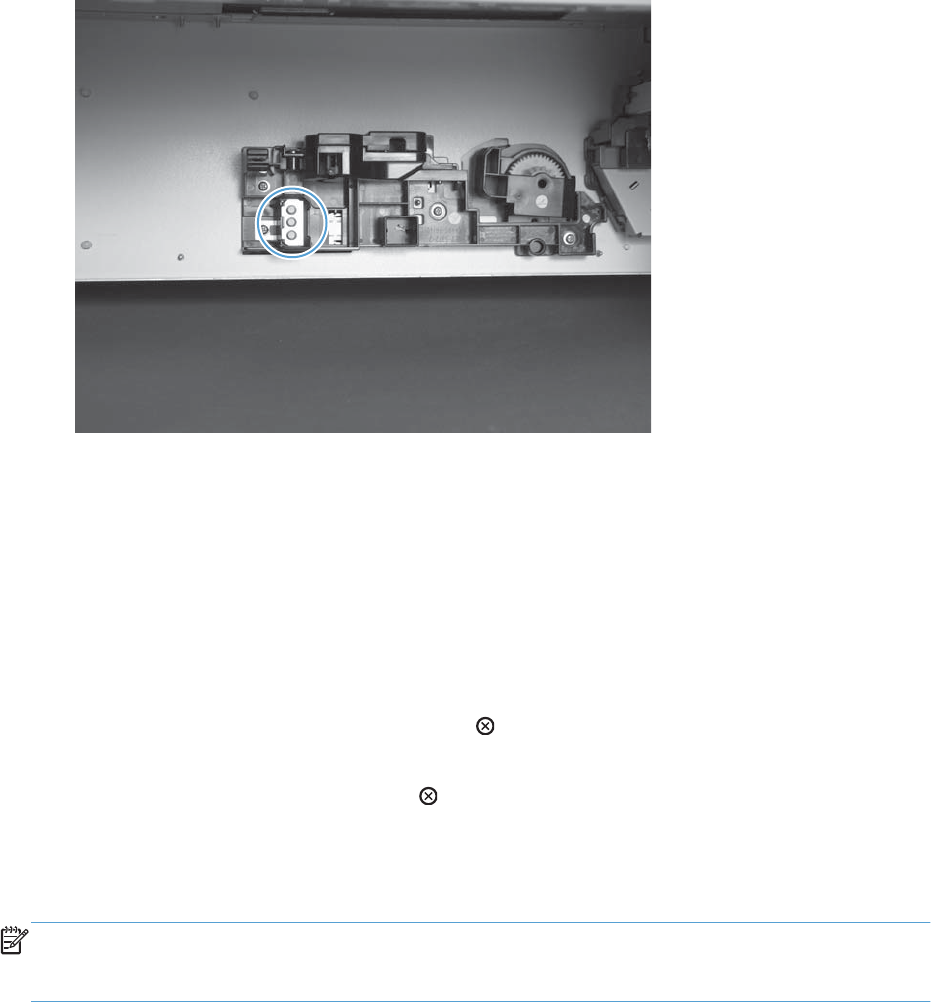
Tray 3 media size sensors
1. Push any of the three buttons to see if the control panel changes for sensors S, T or U.
●S: top button on size switch
●T: middle button on size switch
●U: bottom button on size switch
Figure 3-27 Test the optional Tray 3 media size sensors
2. If any of the tests fail, replace the 500-sheet feeder.
Print/stop test
Use this diagnostic test to isolate the cause of problems such as image-formation defects and jams
within the engine. During this test you can stop the paper anywhere along the product paper path. The
test can be programmed to stop printing internal pages or an external print job when the paper
reaches a certain position. The test can also be programmed to stop from 0 to 60,000 ms. If the timer
is set to a value that is greater than the job-print time, you can recover the product in one of two ways.
●After the print job is completed press the Stop button to return to the Diagnostic Tests menu
before the timer times out.
●After the timer times out, press the Stop button. Activate the door switch to restart the engine
and return it to a normal state.
When the timer trips, the control panel display shows the message Printing stopped. Select OK to
print the previously selected job. If you do not want the previous job to print, select Stop.
NOTE: Do not try to perform a print/stop test while the product is calibrating, because you will be
required to power-cycle the product. If a jam message displays on the control panel during testing,
activate the door switch.
ENWW Tools for troubleshooting 279

Component tests
Component test (special-mode test)
This test activates individual parts independently to isolate problems.
Each component test can be performed once or repeatedly. If you turn on the Repeat option from the
drop-down menu, the test cycles the component on and off. This process continues for two minutes, and
then the test terminates.
NOTE: The front or side door interlocks must be defeated to run the component tests. Some tests may
require that the ITB and print cartridges be removed. The control panel display prompts you to remove
some or all cartridges during certain tests.
1. Press the Home button.
2. Open the following menus:
●Administration
●Troubleshooting
●Diagnostic Tests
3. Press the Down arrow button to highlight the Component Test item, and then press the OK
button.
4. Select the component test options for the test you want to run.
Table 3-9 Component test details
Component test Motor or solenoid number Comments
Transfer Motors M5 All motors related to cartridges and belts
Belt Only M10 Remove all print cartridges to perform
this test. Rotates the ITB belt. You can
hear the auger motor running.
Cartridge Motors ●M3: yellow
●M4: magenta and cyan
●M5: black
Activates three drum motors at a
specified speed for 10 seconds.
Black Laser Scanner M8 Activates the black/cyan scanner motor
for 10 seconds.
Cyan Laser Scanner M8 Activates the black/cyan scanner motor
for 10 seconds.
Magenta Laser Scanner M9 Activates the yellow/magenta scanner
motor for 10 seconds.
Yellow Laser Scanner M9 Activates the yellow/magenta scanner
motor for 10 seconds.
280 Chapter 3 Solve problems ENWW

Table 3-9 Component test details (continued)
Component test Motor or solenoid number Comments
Fuser Motor M2 Activate the fuser motor at a specified
speed for 10 seconds.
Fuser Pressure Release Motor M2 reverse Reverses the fuser motor and pressurizes
or depressurizes the pressure release
motor.
Alienation Motor M10 Activates CMYK developer alienation in
the following sequence: All colors
engaged, all colors alienated, K-only
engaged, and K alienated.
ITB Contact/Alienation M2 Activates the ITB drive motor at a
specified speed for 10 seconds.
TCU Motor M12 Activates the motor at a specified speed
for 10 seconds.
Tray <X> Pickup Solenoid Tray 1: SL3
Tray 2: SL4
Tray 3: SL1
Activates the solenoid for 10 seconds.
Tray <X> Pickup Motor Tray 2: SL4
Tray 3: M1 (paper feeder motor) and
M2 (paper feeder lift motor)
Activates the pickup motor, pickup
roller, separation roller, and registration
roller at a specified speed for 10
seconds.
Duplexer Pickup Motor M11: Duplex reverse motor Activates the motor at a specified speed
for 10 seconds.
Duplex Refeed Clutch Solenoid ●CL1: duplex re-pickup clutch
●SL2: duplex reverse solenoid
Activates the clutch and solenoid for 10
seconds.
ENWW Tools for troubleshooting 281
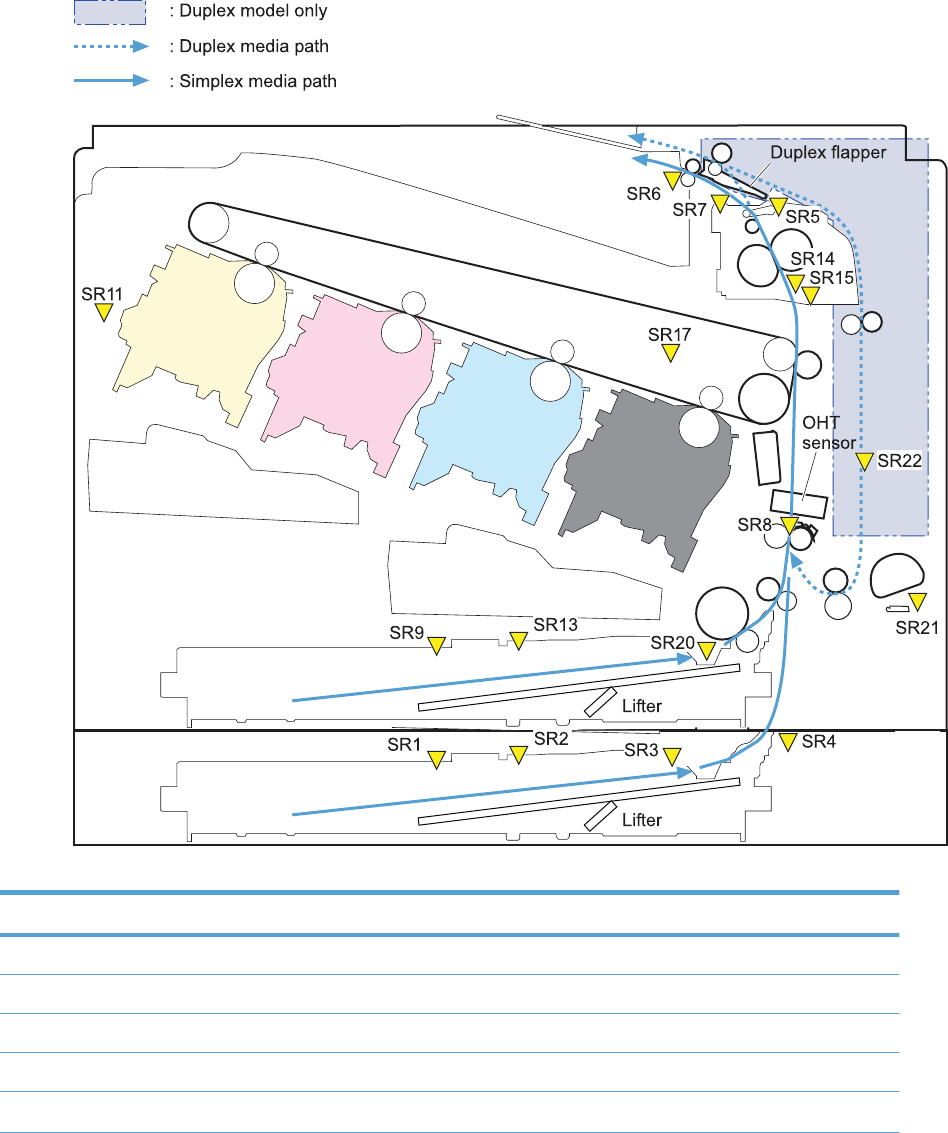
Diagrams
Block diagrams
Figure 3-28 Sensors
Table 3-10 Sensors
Component abbreviation Component name
SR1 Tray 3 paper surface sensor 1
SR2 Tray 3 paper surface sensor 2
SR3 Tray 3 paper sensor
SR4 Tray 3 feed sensor
SR5 Fuser output
282 Chapter 3 Solve problems ENWW

Table 3-10 Sensors (continued)
Component abbreviation Component name
SR6 Output bin full
SR7 Fuser pressure release
SR8 Registration
SR9 Tray 2 cassette lifter
SR10 Paper width 1
SR11 Developer alienation
SR13 Tray 2 cassette sensor
SR14 Fuser loop 1
SR15 Fuser loop 2
SR17 ITB alienation
SR20 Tray 2 paper
SR21 Tray 1 paper
SR22 Duplexer refeed (HP LaserJet Enterprise 500 color M551dn and HP LaserJet Enterprise 500
color M551xh only)
ENWW Tools for troubleshooting 283
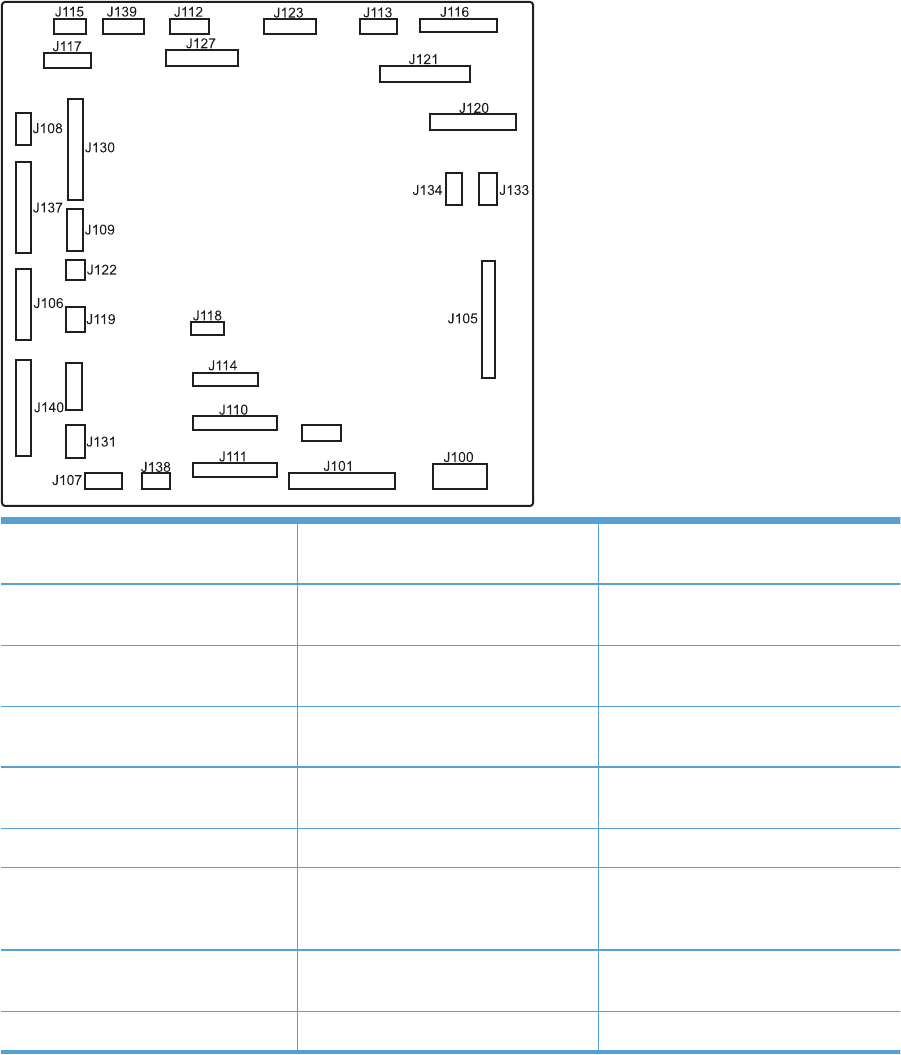
Location of connectors
DC controller PCA
Figure 3-29 DC controller PCA
J126
J141
J100: 24 v from low-voltage power
supply (LVPS) and interlock
J114: HVPS lower J126: memory tag connector
J101: LVPS J115: fuser sensors J127: pre-exposure LEDs (rear), SR17,
SL1
J105: interconnect board (ICB) J116: HVPS upper J130: registration density (RD) sensors
(front and rear)
J106: 500-sheet feeder, developing
home position, laser motors
J117: fuser motor J131: pickup motor
J107: duplex sensor, Tray 1 solenoid,
paper present sensor
J118: 5 v interlock J133: not used
J108: environmental sensor J119: LVPS fan J134: not used
J109: duplex clutch, overhead
transparency (OHT) in, top-of-page
sensor
J120: drum motor 1 and drum motor 2 J137: toner collection unit (TCU) full,
TCU motor, toner level detection
J110: YM laser J121: drum motor 3, drum position
1,2,3
J138: 24 v to HVPS lower
J111: CK laser J122: OHT out J139: fuser sensors
284 Chapter 3 Solve problems ENWW
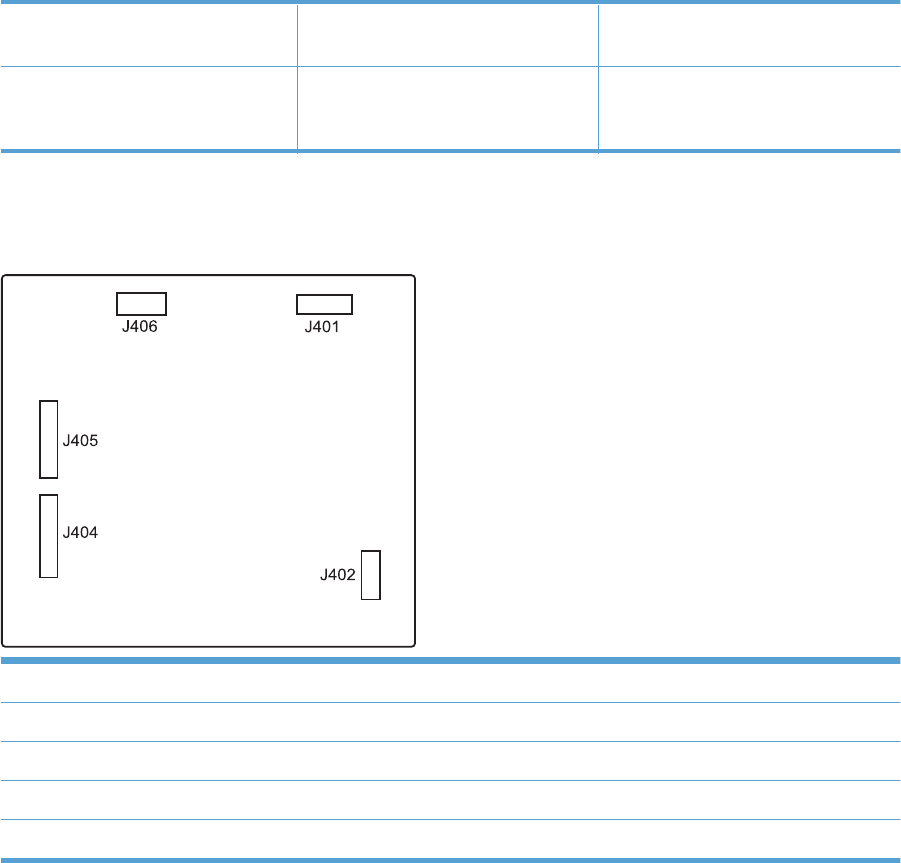
J112: pre-exposure LEDs (front) J123: pressure release, bin full, fuser
delivery
J140: tray present, stack surface (lifter
drive assembly)
J113: 24 v to high-voltage power
supply (HVPS) upper
J141: lifter motor, media width sensor
(lifter drive assembly; auto close
assembly)
Paper feeder driver PCA
Figure 3-30 Paper feeder driver PCA
J401: engine connector
J402: not used
J404: SW1, SW2, lifter motor
J405: SR1, SR2, SR3, SR4, SL1
J406: feed motor
ENWW Tools for troubleshooting 285

Plug/jack locations
3
2
1
1 USB port for a third-party device
2 Hi-speed USB 2.0 printing port
3 RJ-45 network port
Locations of major components
Use the diagrams to locate components. For a list of components, see Table 3-13 PCAs, motors, fans,
switches, solenoids, and clutches on page 291
Base product
Figure 3-31 Component locations (1 of 6)
1
286 Chapter 3 Solve problems ENWW
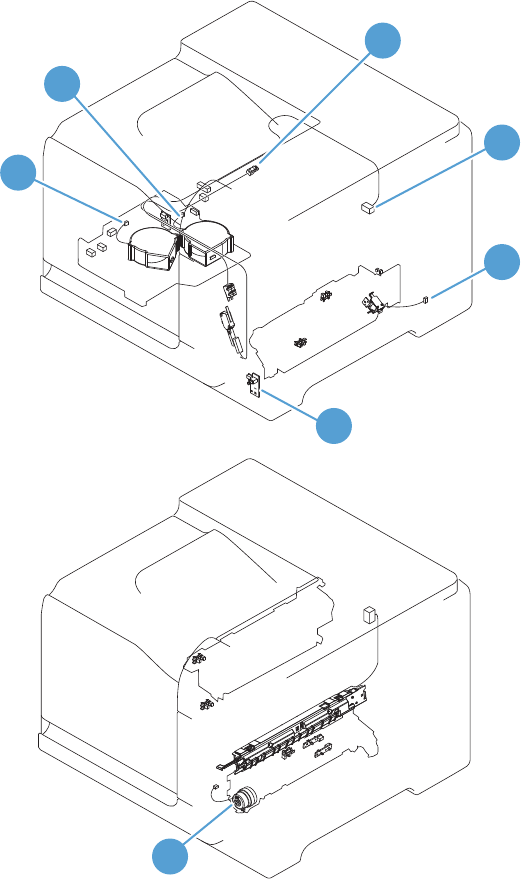
Figure 3-32 Component locations (2 of 6)
2
3
4
5
6
7
8
ENWW Tools for troubleshooting 287
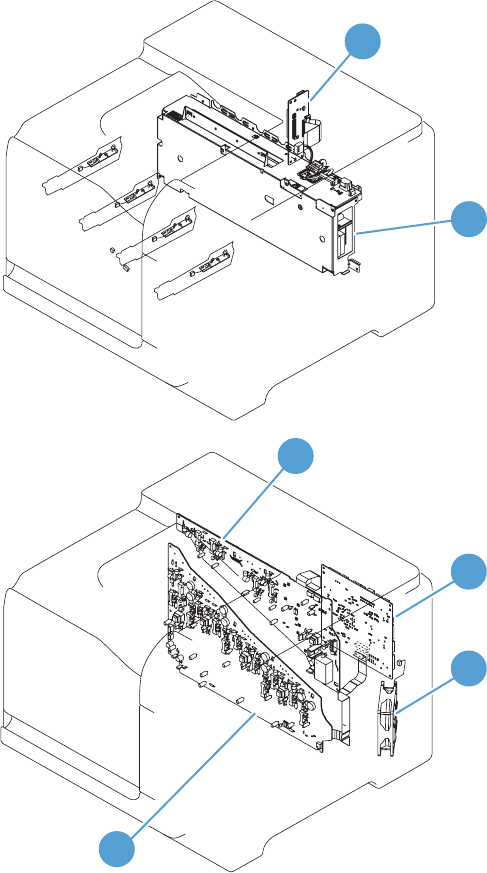
Figure 3-33 Component locations (3 of 6)
10
9
11
12
13
14
288 Chapter 3 Solve problems ENWW
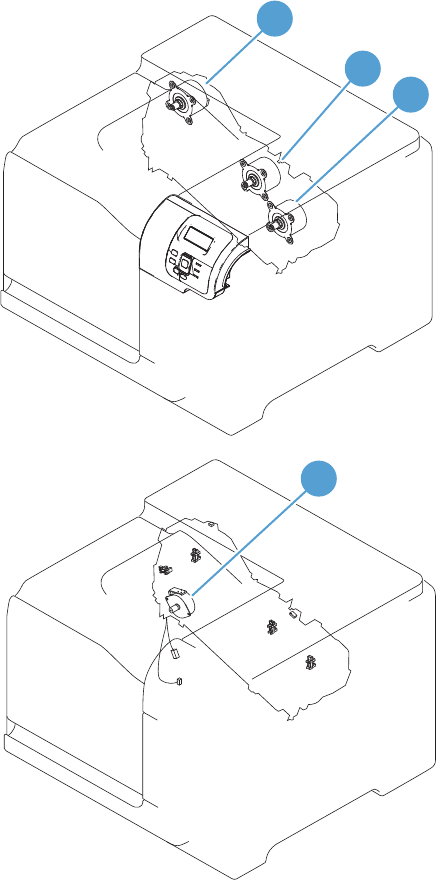
Figure 3-34 Component locations (4 of 6)
16 17
15
18
ENWW Tools for troubleshooting 289
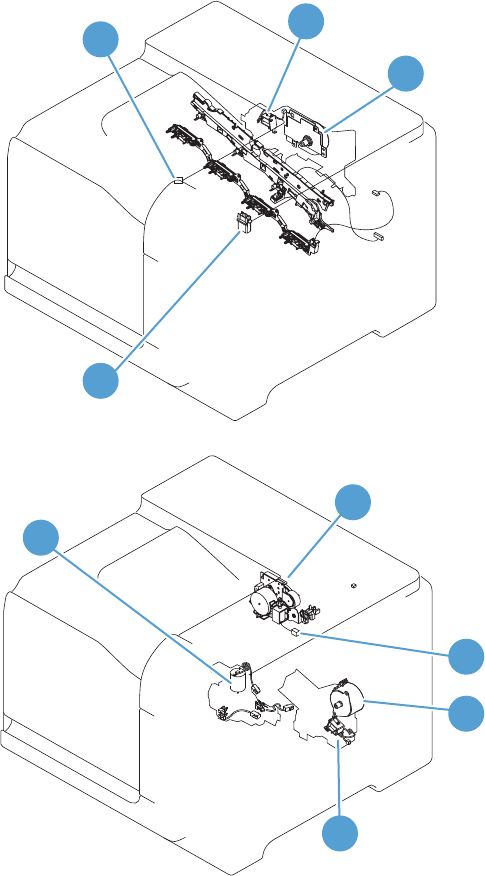
Figure 3-35 Component locations (5 of 6)
22 19
20
21
23
24
25
26
27
290 Chapter 3 Solve problems ENWW
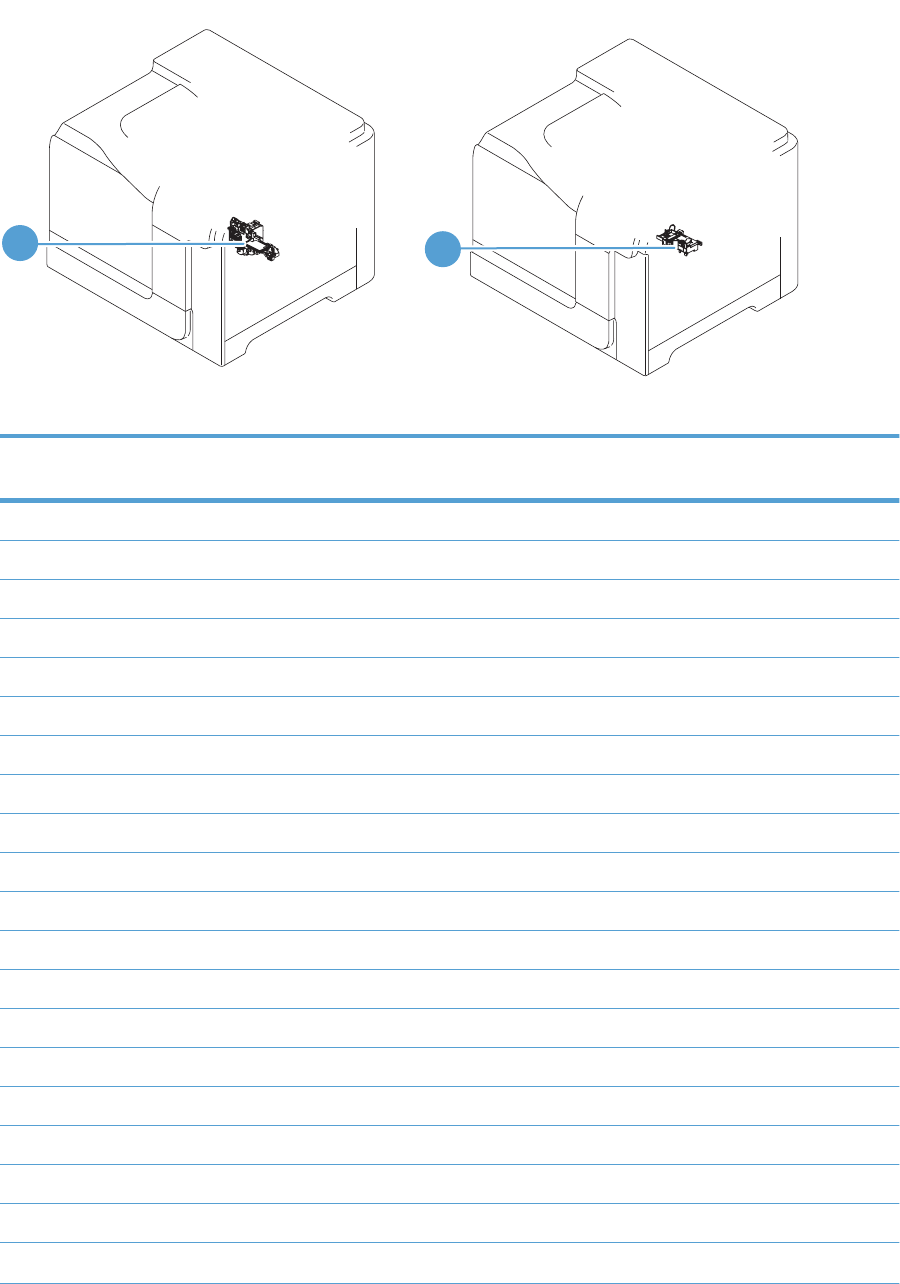
Figure 3-36 Component locations (6 of 6)
28 29
Table 3-13 PCAs, motors, fans, switches, solenoids, and clutches
Location Connector Component
abbreviation
Component name
1 J89 M12 Residual toner-feed motor
2 J26 FM2 Cartridge fan
3 J27 FM3 Delivery fan
4 J62 SW3 24V interlock switch
5 J118 SW1, SW2 5V interlock switch
6 J84 SL3 Multipurpose-tray pickup solenoid
7J780SW4Power switch
8 J86 CL1 Duplex re-pick clutch
9 ICB Interconnect board (ICB)
10 LVPS Low-voltage power supply
11 HVPS (t) HVPS-T upper
12 DCC DC Controller
13 J119 FM1 Power-supply fan
14 HVPS (d) HVPS-D (lower)
15 J41 M3 Drum motor 1
16 J40 M4 Drum motor 2
17 J42 M5 Drum motor 3
18 J25 M10 Development-disengagement motor
19 J8 SL1 Primary transfer roller disengagement solenoid
20 J15 M2 Fuser motor
ENWW Tools for troubleshooting 291

Table 3-13 PCAs, motors, fans, switches, solenoids, and clutches (continued)
Location Connector Component
abbreviation
Component name
21 J55 M9 Yellow/magenta scanner motor
22 J56 M8 Cyan/black scanner motor
23 J20 M11 Duplex reverse motor (HP LaserJet Enterprise 500 color
M551dn and HP LaserJet Enterprise 500 color M551xh only)
24 J21 SL2 Duplex reverse solenoid (HP LaserJet Enterprise 500 color
M551dn and HP LaserJet Enterprise 500 color M551xh only)
25 J6 M13 Pickup motor
26 J83 SL4 Cassette-pickup solenoid
27 J78 M7 Tray 2 lifter motor
28 J140 and J141
(DC controller)
N/A Lifter drive assembly
29 J141 (DC
controller)
N/A Automatic close assembly
292 Chapter 3 Solve problems ENWW
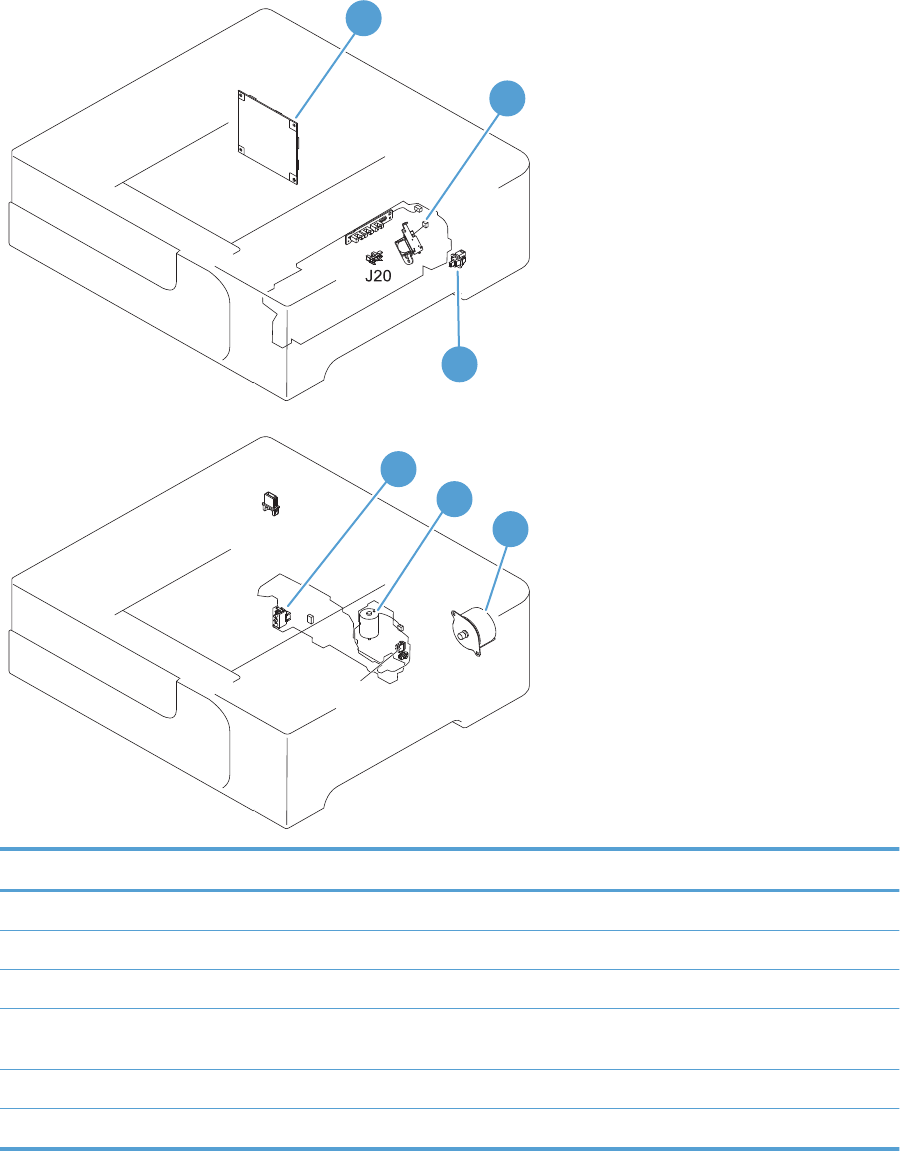
1 x 500 paper feeder
Figure 3-37 1 x 500 paper feeder
1
2
4
3
5
6
Location Connector Component abbreviation Component name
1 PF PCA Paper-feeder driver PCA
2 J18 SL1 Paper-feeder pickup solenoid
3 J21 SW2 Paper-feeder door switch
4 J16 SW1 Paper feeder cassette media
size switch
5 J15 M2 Paper-feeder lifter motor
6 J14 M1 Paper-feeder motor
ENWW Tools for troubleshooting 293

General timing chart
Figure 3-38 General timing chart
Timing chart is two consecutive print jobs on letter-size paper (full color using one-to-one speed mode)
STBY STBY
3Fixing delivery sensor
4Fixing motor
Primary transfer bias Y
10 Pickup motor
15 Developing bias Y
13 Primary charging bias C
18 Developing bias Bk
TOP sensor
23 Secondary transfer bias
6TOP signal
21 Primary transfer bias C
22 Primary transfer bias Bk
19
20 Primary transfer bias M
5Scanner motor
11 Primary charging bias Y
14 Primary charging bias Bk
12 Primary charging bias M
Operation
Drum motor 17
PRINTINTR LSTR
1Cassette pickup solenoid
2
8 Drum motor 2
9 Drum motor 3
16 Developing bias M
17 Developing bias C
Print command
294 Chapter 3 Solve problems ENWW
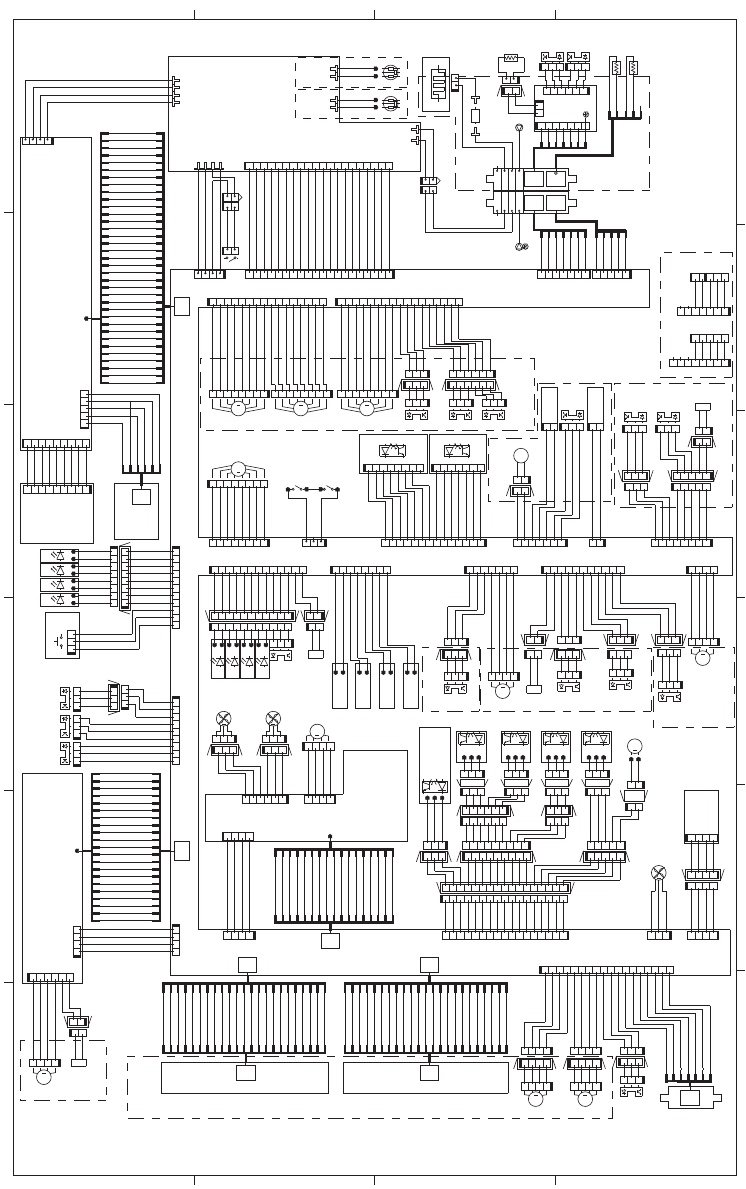
Circuit diagrams
Figure 3-39 General circuit diagram
A
6 5 4 3 12
B
C
D
B7
A5
B7
M
SL
23
23
MM
M
M
MM
SL
CL
A5
17
7
23 23
M
TP
SL
21 35
M
M
M
SL
5
+5VA
PREEXP2
+5VA
PREEXP3
+5VA
PREEXP4
+5VA
PGND
SGND
SGND
SGND
SGND
SGND
SGND
PREEXP2
Fuser unit
FSRSAFE2
FSRSAFE1
SGND
SGND
24VRMT
N.C.
+5VA
PREEXP3
+5VA
PREEXP1
PGND
PGND
+24VB
+24VB
SGND
DRMHP1
+24VB
/DRM3DEC
/DRM3ACC
SGND
CLEI
PREEXP4
/BD3O
/BD2O
/BD1O
DUPSL
DUPMPHA
DUPMI0A
DUPMI1A
DUPMI1B
DUPMI0B
DUPMPHB
2TRNCNT
2TRCNT
2TRS
HVTCLK
1TR2S
1TR1S
HVDACLK
HVDALD
SGND
N.C.N.C.
PGND
FAN1LK
SGND
PGND
C/K laser unit
SCN
UNIT
SGND
I2CSDA
WTSSNS
SGND
SGND
SGND
SGND
/DRM3FG
SGND
Drive unit
MP tray unit
REFEEDS
SGND
SGND
MPTSL
VSS1
VSS2
VSS3
RMCL
Registration
unit
/FSMFG
/FSMDEC
/FSMACC
PGND
PGND
Duplex unit
Inter connect board
YMCK
MCK
OHT sensor
(in)
+24VA
LD2CTRL2
LD2CTRL1
/VDO22
/VDO21
VDO22
VDO21
/BD2I
LD2CTRL0
LD2PDOUT
LD1PDOUT
SGND
/VDO120
VDO120
LD1CTRL2
LD1CTRL1
LD1CTRL0
/VDO110
VDO110
/VDO42
VDO42
LD4CTRL2
LD4CTRL1
LD4CTRL0
/VDO41
VDO41
/BD4I
LD4PDOUT
LD3PDOUT
/VDO32
VDO32
LD3CTRL2
LD3CTRL1
LD3CTRL0
/VDO31
500-sheet PF
DEVHP
HVTCLK
FSLP1
FSLP2
FSRTH3
SGND
FSRTH2
FSRTH1
N.C.
PGND
PGND
/VCRST
SGND
/BD4O
/SCN4ACC
/SCN4DEC
/HVRESET
DUPMIDWN
+24VB
+24VB
FSMFR
+24VB
HVDALD
HVDACLK
HVDATA1
DEV1CNT
DEV2CNT
DEV3CNT
OHT_SNS
PAPOUT
MPTPEND
+5VA
/SCN2ACC
/SCN2DEC
PGND
+24VA
+24VA
DEV4CNT
DEVMPHB
DEVMIOB
DEVMIOA
DEVMPHA
FAN2D
FAN2LK
FAN3D
VSS4
VIN1
VIN2
VIN3
VIN4
/ZEROX
FAN1D
+5VC
HEATERC
HEATER1
SGND
1TR1:JP801-JP802
1TR2:JP826-JP827
1TR3:JP851-JP852
FAN3LK
1TR4:JP876-JP877
PRI1:JP201-JP202
PRI2:JP226-JP227
PRI4:JP276-JP277
PRI3:JP251-JP252
BL1 :JP301-JP302
BL2 :JP326-JP327
BL3 :JP351-JP352
BL4 :JP376-JP377
RS1 :JP401-JP402
RS2 :JP426-JP427
RS3 :JP451-JP452
RS4 :JP476-JP477
DEV1:JP501-JP502
DEV2:JP526-JP527
DEV3:JP551-JP552
DEV4:JP576-JP577
+5VA
1TR4S
1TR3S
PGND
+24VB
PGND
+24VB
PGND
PGND
FAN2LK
FAN3D
FAN3LK
SGND
HVDATA2
I2CSCK
/HVRESET
WTMON
WTMSNS
HVT-D
RD sensor (front)
INPOPIN
PGND
INPOPOT
INPOPCLK
INPOPTMG
+24VA
+5VA
FP_5V
/FPCS
FPCLK
FPI
FPO
DEVMOUT0B
DEVMOUT1B
DEVMOUT0A
DEVMOUT1A
FEEDMOUT0A
FEEDMOUT1A
FEEDMOUT0B
FEEDMOUT1B
SGND
OHT_LED
RTSNS1
RTSNS2
RTSNS3
RTSNS4
Toner collection
box full sensor
Y
M
C
K
+24VA
+24VA
PGND
PGND
DRMFR
/DRM2ACC
/DRM2DEC
/DRM2FG
+24VA
+24VA
PGND
PGND
DRMFR
/DRM1FG
/DRM1DEC
/DRM1ACC
DRMKFR
24VAFU3
24VAFU2
DRMHP2
DRMHP3
Simplex model
E-label (Y)
FAN2D
SGND
SGND
1TRHP
24VAFU2
1TRSL
Y
RDSRGAIN1
DSRSR
DSRDR
SGND
SGND
DSFDR
DSFSR
RDSFGAIN1
RDSFGAIN0
100V 200V
FSRSNS
RDSRGAIN0
Toner level sensor
RDSRLED
RDSFLED
N.C.
2TRCLK
DUP_SL
+24VB
DUPMPHAD
DUPMPHAND
DUPMPHBD
DUPMPHBND
HVT-T
2TR :T901
Power supply
LH
DC controller
SGND
DP
DN
VBUS
SGND
WAKEENG
/VDOEN
CLEO
VDO11I
/VDO11I
VDO12I
/VDO12I
VD021
/VD021
VD022
/VD022
VDO31
/VDO31
VDO32
/VDO32
VDO41
/VDO41
VDO42
/VDO42
SGND
SGND
/TOPO
WAKEVC
VC3VOFF
SGND
SGND
+3.3VC
CHK24VB
+24VB
PGND
SGND
+3.3VC
+3.3VC
SGND
+3.3VC
+3.3VC
PREEXP1
+3.3VA
+5VD
+5VD
+3.3VC
TOPI
SGND
+3.3VC
+3.3VC
+3.3VC
+3.3VC
+3.3VC
SGND
PAPFULL
+3.3VC
FSPRS
+3.3VC
+3.3VC
+5VA
+5VA
+3.3VA
+3.3VA
SGND
PSTYP100
+24VB
/FSRMSTOP
CHK24VB
FSR_CURRMS
/RLD
+3.3VA
SGND
Operation
panel
SGND
3.3VFP
SGND
KEYS
+3.3VA
FSRD
CSTLUPS
CSTPEND
SGND
+3.3VC
+3.3VC
SGND
CSTSNS
SGND
+3.3VC
24VAFU2
CSTSL
+3.3VC
SGND
CSTPWIDTH
PWRSWON
/SWLED
+5VB
PWRSAVE
VC5VOFF
SGND
LUPMOUT0B
LUPMOUT1A
LUPMOUT0A
+5VDFU1
+5VDFU1
+5VDFU1
+5VDFU1
VDO31
TONLED1
TONLED2
TONLED3
TONLED4
SHIELD
SGND
LUPMOUT1B
Cassette pickup
drive unit
Lifter drive unit
Auto-close
unit
WTLED
USB I/F
J31
12345
J306
21
J89L
J89LH
21
J89D
123
J81D
J81LH
1
2
3
J81L
1
23
J24
SR10
123
J79D
123
J43
J93LH
87654321
J42
J82DH
1234
J6
321
J71D
J76LH
J74H
J73H
321
J73D
321
J73L
1
2
3
J96D
J96LH
321
J96L J72H
123
J72D
J71H
12
34
56
J76L
12345678
J92D
J92DH
12345678
J92L
J80DH
321
J80D
321
J80L
123456
J76D
123
J780
1234
J113
1234
J201
21
SL4
M7
1234
J78
1234567
J141
11 10 9 8 2345617
J140
1
2
3
J79L
J79LH
1
2
J83L
J83DH
21
J83D
321
J82L
1
2
3
J5
SR20
M12
123
J82D
SR2 SR1
SR21
M13
SR13
321
J3
12
3
J4
J105
98 2
3
4
561
7
J30
98 234561
7
J303
J301
11 10 9 8 2345617
J112
2341
J304
TB102
12
J61M
1
2
J61F
1791 654328910111213141516171820
J600
123
J95D
123
J95L
J95LH
98 2345617
J123
J116
123456
J202
12
J21D
J21DH
12
J21L
J130
21
J122
FM1
SR9
87654321
J126
1234567
J109
4321
J131
123
J74D
1
23
J71L
12345
J75D
98 2345617
J97D
12
3
J74L
J98LH
123
4
J2
4321
J98L
1
23
4
J108
4321
J98D
IL201
TB211
TB210
TB110
TB 111
IL101
716543289
J97L
J97DH
123
J70D
123
J91L
54321
J75L
J77L
J91DH
1
23456
7
8
J511
1
2
3
4
5
67
J510
71654328910
11
J88L
12
SL1
LED5
1
23
J16
13 12 11 10 9 8 2345617
J127
J87DH
J88DH
11 10 9 8 2345617
J88D
12
J87D
J70LH
321
J1
321
J46
J75DH
321
J91D
J77LH
12
J701S
123
J70L
1
2
3
J9S
7654321
J109S
321
J93D
654321
J94D
123456
J94L
J94LH
1
2
3
J93L
123
J45
321
J44
J86DH
21
J86D
12
J86L
2
1
SW3
2
1
12345
J85L
J85LH
J57LH
21
J701
321
J9
54321
J85S
12
J702
SR8
J26DH
321
J26D
J27DH
1
23
J27D
1
2
345
J85D
123
J90L
J90LH
321
J8
321
J90D
87654321
J107
12
TP1
321
J27L
123
J26L
FM2
654321
J262
321
J72L
M2
J200
12
J51D
J250
LED4
SR22
J77D
J137
J58LH
1234
J58L
SW2
2341
J100
TB601
TB501
TB502
TB104
TB602
J111
J110
12
J60M
12
J60F
MT4
4123
J50D
4321
J58D
12
3
4
J57D
18
J106
21
H1
J121
1
234
J20
20 1819
J101
J114
1234
J138
J50LA
21
SW4
SR7 LED2LED1
J55DA
SR11
SR6 SR5
CL1
21
J87L
SR17
LED7LED6 LED8
1
2
3
J7
SL3
21
J84L
J84DH
1
2
J84D
SR3 M5 M3 M4
87654321
J41
12345678
J40
71654328910111213141516
J120
FM3
M10
LED3
123
4
5
J115
123456
7
J139
M8 M9
105J305J
1
2
3
J119
J51DH
4123
J50L
2
31
J118
321
J47
123
J48
21
SL2
M11
1234567
J350
1
2
34
5
6
J352
J50DB
TB101
21
J12
J50DA
MT3
SW1
1234
J261
87654321
J117
12345678
J15
J50LB
21
J51L
4321
J57L
4321
J56
1234
J55
4321
J25
321
J11
123
J10
SR15
SR14
21
TH2
12
TH1
21
TH3
7
17
1
4
1
2
3
5
6
7
8
9
10
11
12
13
14
15
16
17
18
19
20
21
22
23
4
1
2
3
5
6
7
8
9
10
11
12
13
14
15
16
17
18
19
20
21
22
23
4
1
2
3
5
6
7
8
9
10
11
12
13
14
15
16
18
19
20
21
22
23
4
1
2
3
5
6
7
8
9
10
11
12
13
14
15
16
17
18
19
20
21
22
23
4
1
2
3
5
6
7
5
3
2
1
4
6
5
3
2
4
4
1
2
3
5
4
1
2
3
5
6
7
8
9
10
11
12
13
14
15
16
17
18
19
20
21
21
20
19
18
17
16
15
14
13
12
11
10
9
8
7
6
5
3
2
4
1
4
1
2
3
5
6
7
4
1
2
3
5
6
7
8
9
10
11
12
13
14
15
16
17
4
1
2
3
5
6
7
8
9
10
11
12
13
14
15
16
17
4321
J251
TB105
TB106
TB107
21
J351
1
2345678
J107S
4
1
2
3
5
6
7
8
9
10
11
12
13
14
15
16
17
18
19
20
21
22
23
24
25
26
27
28
29
30
31
32
33
34
35
4
1
2
3
5
6
7
8
9
10
11
12
13
14
15
16
17
18
19
20
21
22
23
24
25
26
27
28
29
30
31
32
33
34
35
5
3
2
4
1
RD sensor (rear)
OHT sensor
(out)
E-label (M)
E-label (C)
E-label (K)
Environment
sensor
Y/M laser unit
17 16 15 14 13 12 11 10 9 8 7 6 5 4 3 2 1
17 16 15 14 13 12 11 10 9 8 7 6 5 4 3 2 1
7165432891011121314151617
7165432891011121314151617
7165432891011121314151617
7165432891011121314151617
7165432891011121314
ENWW Tools for troubleshooting 295
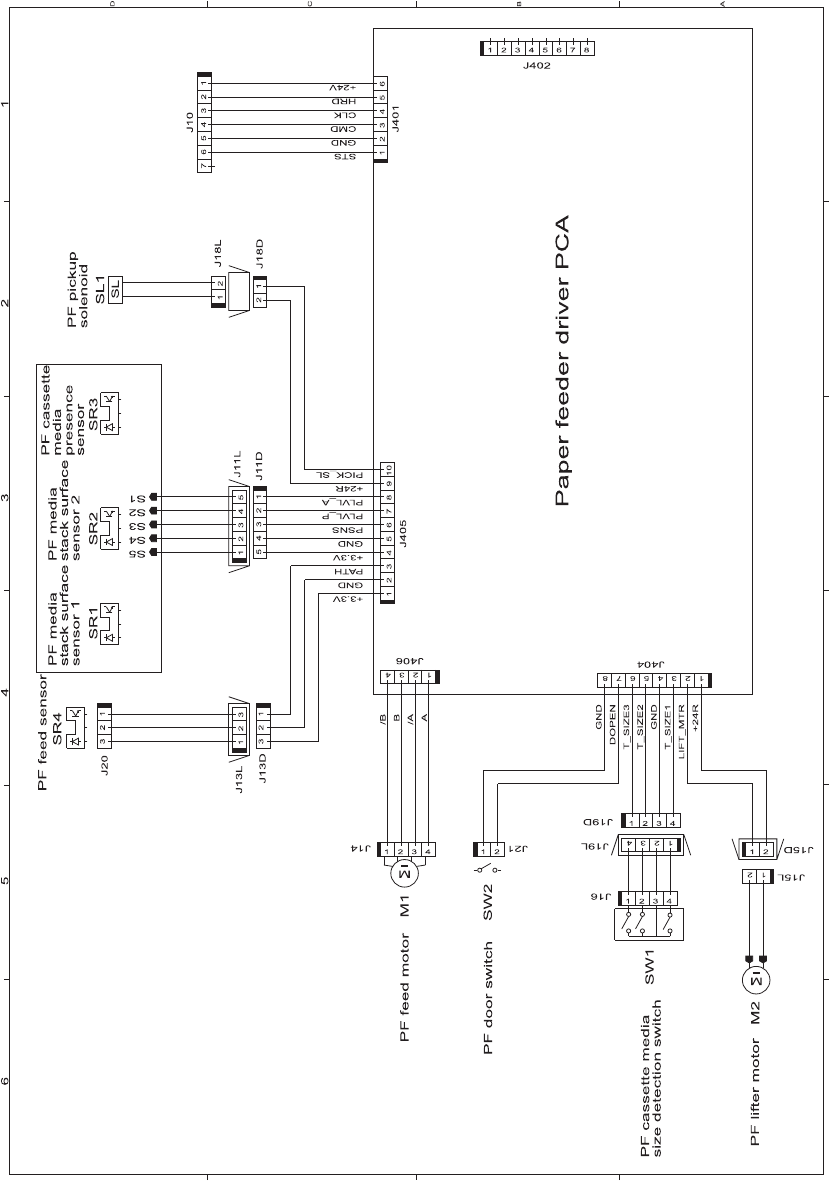
Figure 3-40 Paper feeder circuit diagram
296 Chapter 3 Solve problems ENWW

Internal print-quality test pages
Print quality troubleshooting pages
Use the built-in print-quality-troubleshooting pages to help diagnose and solve print-quality problems.
1. Press the Home button.
2. Open the following menus:
●Administration
●Troubleshooting
●Print Quality Pages
3. Press the Down arrow button to highlight the Print PQ Troubleshooting Pages item, and
then press the OK button to print the pages.
The product returns to the Ready state after printing the print-quality-troubleshooting pages. Follow the
instructions on the pages that print out.
Figure 3-41 Print-quality troubleshooting procedure
HP LaserJet 500 color m551
Print Quality Trpubleshooting Procedure
Page 1
ENWW Tools for troubleshooting 297
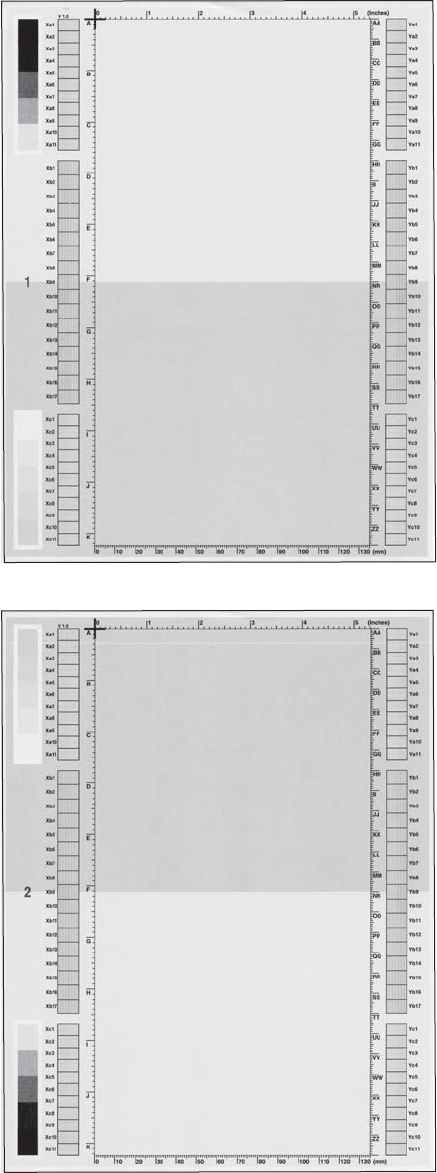
Figure 3-42 Yellow print-quality troubleshooting page
Yellow
Green
Figure 3-43 Yellow comparison page
Green
Yellow
Yellow cannot be easily seen unless combined with cyan, so half of each page is yellow and the other
half is an amplified version of yellow problems (green half). Compare the yellow on page one with the
corresponding green on page two for defects. You can also check the cyan page for defects.
298 Chapter 3 Solve problems ENWW
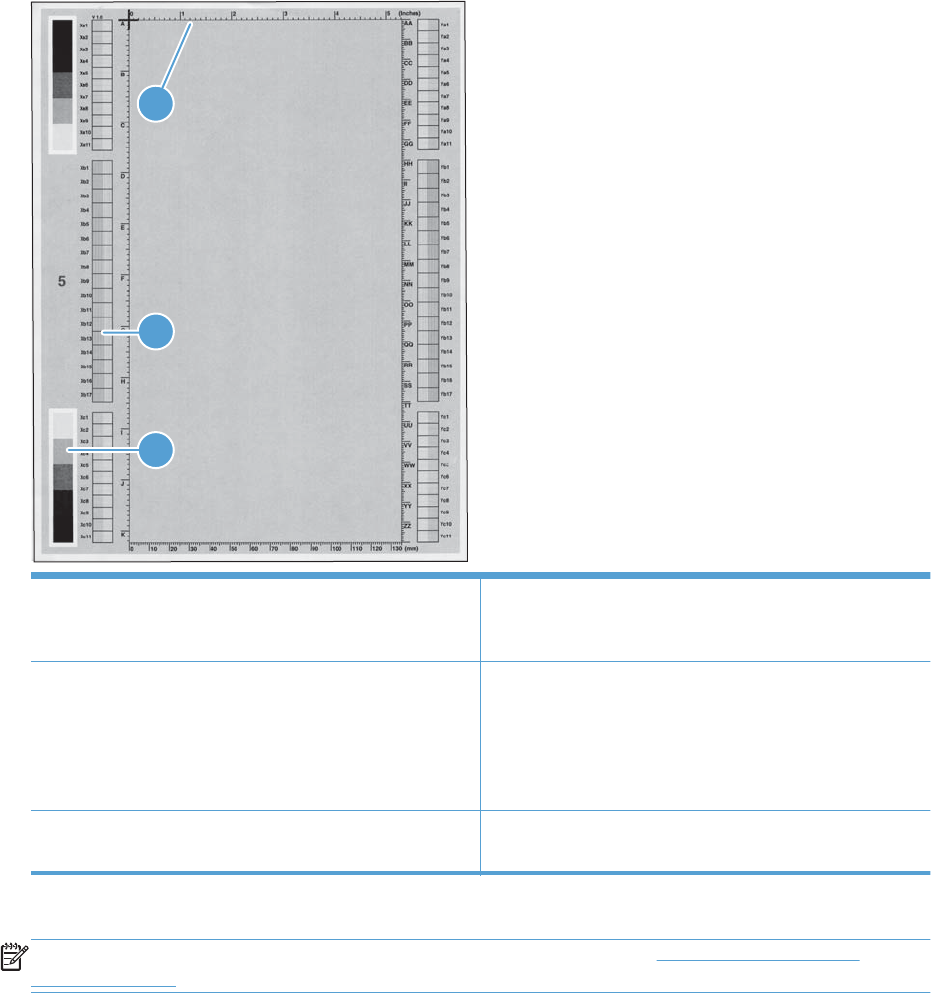
Figure 3-44 Black print-quality troubleshooting page
1
3
2
1. Grids The grids are in inches and millimeters. They are label with
letters and numbers so that defects can be described by
position and by distance between repeats.
2. Color plane registration (CPR) bars After printing, the box with no extra color in each area on
each page shows how far off the CPR of that color is. Each
page has two process direction areas and three scan
direction areas that are labeled x and y and 1–11. The page
should be fed by the long edge. Each square from the center
equals 42 microns.
3. Color ramp patches Used to detect offset for the OPC or developer in the image
drum or offset in the fuser.
NOTE: To get further assistance in print quality troubleshooting, go to www.hp.com/support/
lj500colorM551 and select PQ Troubleshooting Tools.
ENWW Tools for troubleshooting 299
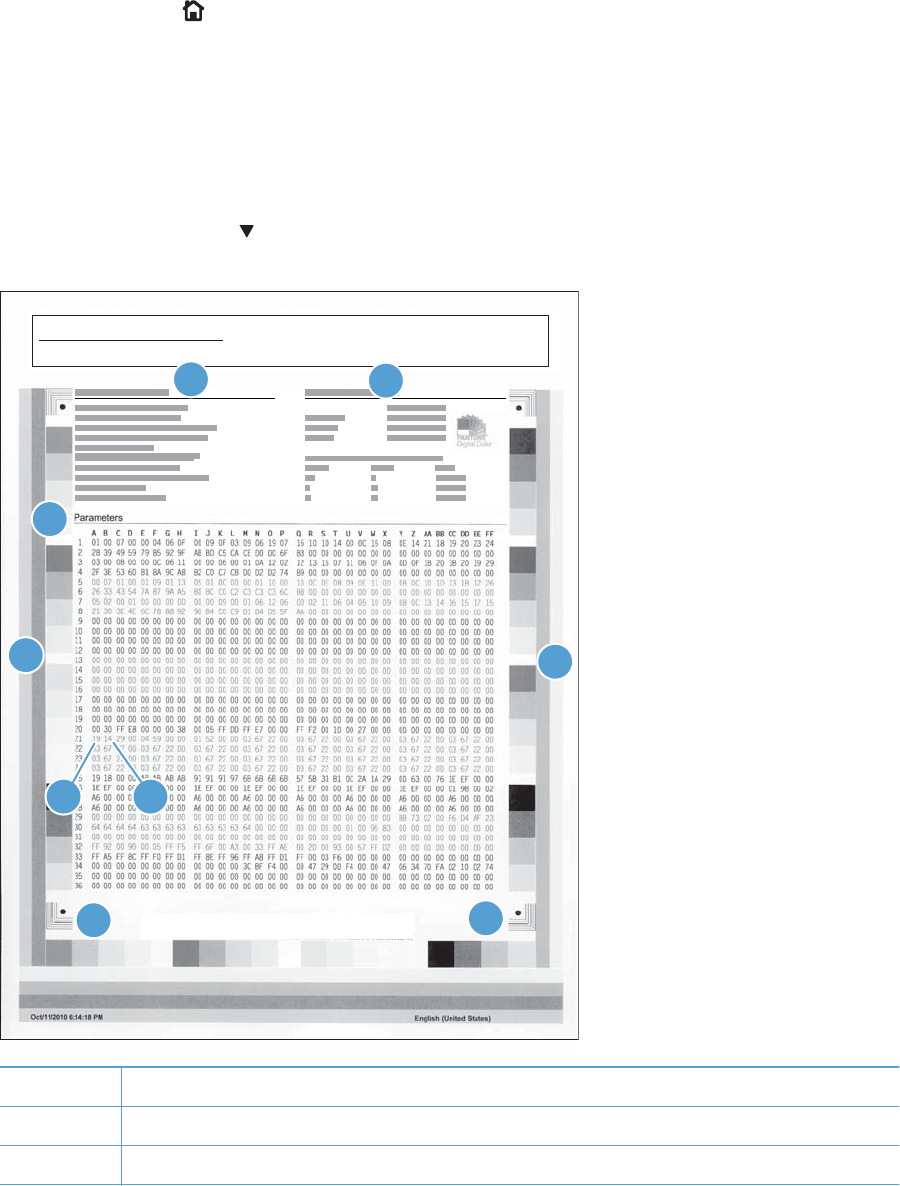
Print quality assessment page
Use the diagnostics page to evaluate problems with color plane registration, EP parameters, and print
quality.
1. Press the Home button.
2. Open the following menus:
●Administration
●Troubleshooting
●Print Quality Pages
3. Press the Down arrow button to highlight the Print Diagnostic Page item, and then press the
OK button to print the page.
HP LaserJet 500 color m551
Diagnostics Page
Page 1
56
1
2
3
44
8
7
1Calibration information
2Parameters
3Color density
300 Chapter 3 Solve problems ENWW

4Color plane registration
5Primary colors
6Secondary colors
7Temperature values (21A)
8Humidity values (21B)
ENWW Tools for troubleshooting 301

Cleaning page
Process a cleaning page
1. Press the Home button.
2. Open the following menus:
●Device Maintenance
●Calibrate/Cleaning
3. Press the Down arrow button to highlight the Print Cleaning Page item, and then press the
OK button.
4. The product prints a cleaning page, and then returns to the main menu. Discard the printed page.
Set up an auto cleaning page
Use the procedure in this section to set up an automatic cleaning page.
1. Press the Home button.
2. Open the following menus:
●Device Maintenance
●Calibrate/Cleaning
3. Press the Down arrow button to highlight the Cleaning Settings item, and then select the
Auto Cleaning item. Select the On item, and then press the OK button.
4. Press the Down arrow button to highlight the Cleaning Interval item, and then use the arrow
buttons to select an interval. Press the OK button.
TIP: HP recommends processing a cleaning page after every 5000 printed pages.
5. Press the Down arrow button to highlight the Auto Cleaning Size item, and then use the
arrow buttons to select the cleaning page size. Press the OK button.
302 Chapter 3 Solve problems ENWW

Configuration page
Depending on the model, up to three pages print when you print a configuration page. In addition to
the main configuration page, the embedded Jetdirect configuration pages print.
Configuration page
Use the configuration page to view current product settings, to help troubleshoot product problems, or
to verify installation of optional accessories, such as memory (DIMMs), paper trays, and printer
languages.
1. Press the Home button.
2. Open the following menus:
●Administration
●Reports
●Configuration/Status Pages
3. Press the Down arrow button to highlight the Configuration Page item, and then press the
OK button.
4. Press the Up arrow button to highlight the Print item, and then press the OK button.
The message Submitted to Queue displays on the control panel until the product finishes printing
the configuration page. The product returns to the Ready state after printing the configuration page.
NOTE: If the product is configured with EIO cards (for example, an HP Jetdirect Print Server) or an
optional hard-disk drive, additional pages will print that provide information about those devices.
ENWW Tools for troubleshooting 303

Figure 3-45 Configuration page
HP LaserJet 500 color m551
Configuration Page
Page 1
1 5
6
7
8
9
2
3
4
1Printer information
2Installed personalities and options
3HP Web services
4Color density
5Calibration information
6Memory
7Event log
8Security
9Paper trays and options
304 Chapter 3 Solve problems ENWW

HP embedded Jetdirect page
The second configuration page is the HP embedded Jetdirect page, which contains the following
information:
Always make sure the status line under the HP Jetdirect configuration lines indicates "I/O Card Ready."
Figure 3-46 HP embedded Jetdirect page
HP LaserJet 500 color m551
Embedded Jetdirect Page
Page 1
2
3
14
5
6
1HP Jetdirect Configuration indicates the product status, model number, hardware firmware version, port select, port
configuration, auto negotiation, manufacturing identification, and manufactured date.
2Security Settings information
3Network Statistics indicates the total packets received, unicast packets received, bad packets received, framing
errors received, total packets transmitted, unsendable packets, transmit collisions, and transmit late collisions.
4TCP/IP information, including the IP address
5IPv4 information
6IPv6 information
ENWW Tools for troubleshooting 305

Finding important information on the configuration pages
Certain information, such as the firmware date codes, the IP address, and the e-mail gateways, is
especially helpful while servicing the product. This information is on the various configuration pages.
Table 3-14 Important information on the configuration pages
Type of information Specific information Configuration page
Firmware date codes
When you use the remote firmware upgrade
procedure, all of these firmware components
are upgraded.
DC controller Look on the main configuration page,
under “Device Information.”
Firmware datecode Look on the main configuration page,
under “Device Information.”
Embedded Jetdirect firmware version Look on the embedded Jetdirect page,
under “HP Jetdirect Configuration.”
Accessories and internal storage
All optional devices that are installed on the
product should be listed on the main
configuration page.
In addition, separate pages print for the
optional paper handling devices and the fax
accessory. These pages list more-detailed
information for those devices.
External disk (optional) Look on the main configuration page,
under “Installed Personalities and
Options.” Shows model and capacity.
Embedded HP Jetdirect Look on the main configuration page,
under “Installed Personalities and
Options.” Shows model and ID.
Total RAM Look on the main configuration page,
under “Memory.”
Duplex unit Look on the main configuration page,
under “Paper Trays and Options.”
Additional 500-sheet feeders Additional 500-sheet feeders Look on the main configuration page,
under “Paper Trays and Options.”
Engine cycles and event logs
Total page counts and maintenance kit
counts are important for ongoing product
maintenance.
The configuration page lists only the three
most recent errors. To see a list of the 50
most recent errors, print an event log from
the Diagnostics menu.
Engine cycles Look on the main configuration page,
under “Device Information.”
Event-log information Event-log information Look on the main configuration page,
under “Event log.”
306 Chapter 3 Solve problems ENWW

Color band test
The color-band test page shows bands of colors that can indicate whether or not the product is
producing colors correctly.
1. Press the Home button.
2. Open the following menus:
●Administration
●Troubleshooting
●Print Quality Pages
3. Press the Down arrow button to highlight the Color Band Test item, and then press the OK
button.
4. Press the Down arrow button to highlight the Print Test Page item, and then press the OK
button.
ENWW Tools for troubleshooting 307
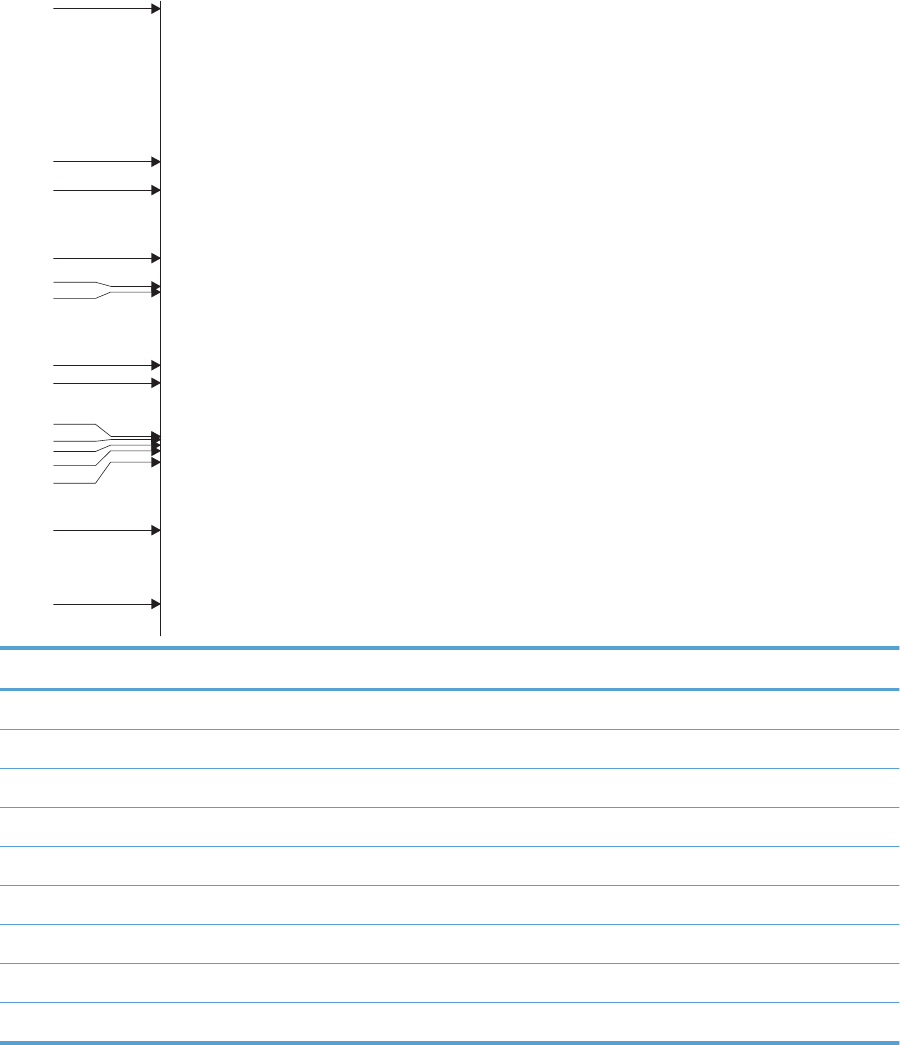
Print quality troubleshooting tools
Repetitive defects ruler
If defects repeat at regular intervals on the page, use this ruler to identify the cause of the defect. Place
the top of the ruler at the first defect. The marking that is beside the next occurrence of the defect
indicates which component needs to be replaced.
Figure 3-47 Repetitive defects ruler
0 mm
27 mm
32 mm
44 mm
66 mm
63 mm
92 mm
105 mm
76 mm
77 mm
78 mm
80 mm
49 mm
75.5 mm
50 mm
Distance between defects Product components that cause the defect
27 mm Print cartridge: primary charge roller
32 mm Print cartridge: developer roller
44 mm Printer: primary transfer roller
49 mm Print cartridge: RS roller
50 mm Printer: secondary transfer roller
63 mm ITB: secondary transfer backing roller
66 mm Printer: distance from secondary transfer roller to fuser
75.5 mm Print cartridge: OPC drum
76 mm ITB: driven roller
308 Chapter 3 Solve problems ENWW

Distance between defects Product components that cause the defect
77 mm Fuser sleeve
78 mm Fuser pressure roller
80 mm Printer: distance from primary transfer roller to secondary transfer roller for black
92 mm Print cartridge station to station pitch: distance from the centerline of one OPC to the
centerline of the adjacent OPC
ITB: drive roller
105 mm Printer: distance from registration to secondary transfer roller
Calibrate the product
Calibration is a product function that optimizes print quality. If you experience any image-quality
problems, calibrate the product.
1. Press the Home button.
2. Open the following menus:
●Device Maintenance
●Calibrate/Cleaning
3. Press the Down arrow button to highlight the Full Calibration or Quick Calibration setting,
and then press the OK button.
●Full Calibration: takes about 70 seconds and performs color plane registration,
environment change control, and Dmax and Dhalf adjustments. Use Full Calibration if
colors are misaligned or appear blurry. Full Calibration runs automatically after a
replacement transfer belt (ITB) is installed. Full Calibration must be run manually after a
laser scanner is replaced.
●Quick Calibration: takes about 45 seconds and performs Dmax and Dhalf adjustments.
Use Quick Calibration if colors are wrong, highlights are missing, or if colors are too dark
or too light.
ENWW Tools for troubleshooting 309

Control panel menus
Sign In menu
Table 3-15 Sign In menu
First level Second level Values
User Access Code Access Code
Administrator Access Code Access Code
Service Access Code Access Code
310 Chapter 3 Solve problems ENWW

Retrieve Job From USB menu
Use the Retrieve Job From USB menu to view listings of jobs stored on an external USB memory
device.
NOTE: You must enable this feature by using the control-panel menus or the HP Embedded Web
Server before it can be used.
Table 3-16 Retrieve Job From USB menu
First level Second level Values Description
Retrieve Job From USB OK
Cancel
This product features walk-up
USB printing, so you can
quickly print files without
sending them from a
computer. The product
accepts standard USB storage
accessories in the USB port on
the front of the product. You
can print the following types
of files:
●.pdf
●.prn
●.pcl
●.ps
●.cht
1. Insert the USB storage
accessory into the USB
port on the front of the
product.
NOTE: You might need
to remove the cover from
the USB port.
2. Press the down arrow to
select a folder from the
list.
3. Select the name of the
document that you want
to print.
4. Press the OK button to
print the document.
Select a File or Folder Select from the provided list.
ENWW Tools for troubleshooting 311

Retrieve Job From Device Memory menu
Use the Retrieve Job From Device Memory menu to view listings of jobs stored on the internal
product memory.
Table 3-17 Retrieve Job From Device Memory menu
First level Second level Third level Fourth level Fifth level Values Description
Retrieve Job
From Device
Memory
NOTE: Select
from a list of
folders.
All Jobs (With
PIN)
NOTE: Individual
job names also
appear.
Print Enter Pin to
Print
Use this menu to
view listings of
all stored jobs.
When a user
name is selected
the following
options are
available
depending upon
whether the job
is PIN secured.
All Jobs (With
PIN) — Menu
options include:
If you have
stored more than
one job on the
product, you
have the option
to print or delete
all of them at the
same time.
Print: Select this
option to print
jobs that have
been secured
with a PIN. You
will be
prompted to
Enter Pin to
Print. In the
Copies field,
select the
number of
copies to print.
312 Chapter 3 Solve problems ENWW

Table 3-17 Retrieve Job From Device Memory menu (continued)
First level Second level Third level Fourth level Fifth level Values Description
NOTE: To
print more
copies than
were specified
in the driver
when the job
was stored,
press the down
arrow to
highlight the
Copies option,
and then press
the OK button.
Press the up
arrow or the
down arrow to
select the
number of
copies, and then
press the OK
button. The
number of
copies printed is
the number of
copies specified
in the driver
multiplied by the
number of
copies specified
for the Copies
option.
Copies Range: 1 –
9999
Default = 1
ENWW Tools for troubleshooting 313

Table 3-17 Retrieve Job From Device Memory menu (continued)
First level Second level Third level Fourth level Fifth level Values Description
Print and
Delete
Enter Pin to
Print
Print and
Delete: Select
this option to
print and then
delete all jobs
that have been
secured with a
PIN. You will be
prompted to
Print and
Delete. In the
Copies field,
select the
number of
copies to print.
NOTE: Print
and Delete is
only available
for certain types
of stored jobs.
Delete Select
this option to
delete all jobs
that have been
secured with a
PIN. You will be
prompted to
Enter Pin to
Print.
Copies Range: 1 –
9999
Default = 1
Delete Enter Pin to
Print
Delete: Select
this option to
delete a job that
has been
secured with a
PIN. You will be
prompted to
Enter Pin to
Print.
314 Chapter 3 Solve problems ENWW

Table 3-17 Retrieve Job From Device Memory menu (continued)
First level Second level Third level Fourth level Fifth level Values Description
All Jobs (No
PIN)
NOTE: Individual
job names also
appear.
Print Copies Range: 1 –
9999
Default = 1
Job without
PIN — Menu
options include:
Print: Select this
option to print a
job without a
PIN. In the
Copies field,
select the
number of
copies to print.
Print and
Delete
Copies Range: 1 –
9999
Default = 1
Print and
Delete: Select
this option to
print and then
delete a job
without a PIN. In
the Copies
field, select the
number of
copies to print.
Delete Delete All
Jobs
Yes
No
Delete: Select
this option to
delete a job
without a PIN.
ENWW Tools for troubleshooting 315

Supplies menu
In the following table, asterisks (*) indicate the factory default setting.
Table 3-18 Supplies menu
First level Second level Third level Fourth level Values Description
Manage Supplies Print Supplies
Status
Use the Manage
Supplies menu to
configure settings for
the product supplies.
Supply Settings Black Cartridge Very Low
Settings
Stop
Prompt to
continue*
Continue
Use the Supply
Settings menu to
configure how the
product reacts when
supplies are reaching
the end of their
estimated life.
Use this feature to
configure how the
product responds
when the black print
cartridge is reaching
the end of its
estimated life.
Very Low
Settings: Specify
how the product
notifies you when the
print cartridge is very
low.
316 Chapter 3 Solve problems ENWW

Table 3-18 Supplies menu (continued)
First level Second level Third level Fourth level Values Description
●Stop: The
product stops
until you
replace the print
cartridge.
●Prompt to
continue: The
product stops
and prompts
you to replace
the print
cartridge. You
can
acknowledge
the prompt and
continue
printing.
●Continue: The
product alerts
you that a print
cartridge is very
low, but it
continues
printing.
Low Threshold
Settings
1-100% Low Threshold
Settings: Set the
estimated percentage
at which the product
notifies you when the
print cartridge is very
low.
Color Cartridges Very Low
Settings
Stop
Prompt to
continue*
Continue
Use this feature to
configure how the
product responds
when each of the
color print cartridges
is reaching the end
of its estimated life.
Very Low
Settings: Specify
how the product
notifies you when the
print cartridge is very
low.
ENWW Tools for troubleshooting 317

Table 3-18 Supplies menu (continued)
First level Second level Third level Fourth level Values Description
●Stop: The
product stops
until you
replace the print
cartridge.
●Prompt to
continue: The
product stops
and prompts
you to replace
the print
cartridge. You
can
acknowledge
the prompt and
continue
printing.
●Prompt to
continue: The
product alerts
you that a print
cartridge is very
low, but it
continues
printing.
Low Threshold
Settings
Cyan Cartridge
Magenta
Cartridge
Yellow Cartridge
1-100%
Low Threshold
Settings: Set the
estimated percentage
at which the product
notifies you when the
print cartridge is very
low. You can specify
a different
percentage for each
color.
318 Chapter 3 Solve problems ENWW

Table 3-18 Supplies menu (continued)
First level Second level Third level Fourth level Values Description
Toner Collection
Unit
Very Low
Settings
Stop*
Prompt to
continue
Continue
Low Threshold
Settings: Specify
how the product
notifies you when the
toner collection unit
is very low.
●Stop: The
product stops
until you
replace the
toner collection
unit.
●Prompt to
continue: The
product stops
and prompts
you to replace
the toner
collection unit.
You can
acknowledge
the prompt and
continue
printing.
●Continue: The
product alerts
you that the
toner collection
unit is very low,
but it continues
printing.
Low Threshold
Settings: Set the
estimated percentage
at which the product
notifies you when the
toner collection unit
is very low.
ENWW Tools for troubleshooting 319

Table 3-18 Supplies menu (continued)
First level Second level Third level Fourth level Values Description
Fuser Kit Very Low
Settings
Stop
Prompt to
continue*
Continue
Use this feature to
configure how the
product responds
when the fuser is
reaching the end of
its estimated life.
Very Low
Settings: Specify
how the product
notifies you when the
fuser is very low.
●Stop: The
product stops
until you
replace the
fuser.
●Prompt to
continue: The
product stops
and prompts
you to replace
the fuser. You
can
acknowledge
the prompt and
continue
printing.
●Continue: The
product alerts
you that the
fuser is very
low, but it
continues
printing.
Low Threshold
Settings
1-100% Low Threshold
Settings: Set the
estimated percentage
at which the product
notifies you when the
fuser is very low.
Color/Black Mix Mostly Black
Pages
Use this feature to
instruct the product
when to switch
between color and
monochrome printing
modes for the best
overall performance.
Select the setting
depending on the
types of jobs you
typically print.
320 Chapter 3 Solve problems ENWW

Table 3-18 Supplies menu (continued)
First level Second level Third level Fourth level Values Description
Auto* Select Auto to
instruct the product to
use the mode that is
appropriate for the
first page of the job.
If necessary, the
product switches
modes during the
middle of a job and
then stays in that
mode until the job is
finished. This is the
factory default
setting.
Mostly Color
Pages
Select Mostly
Color Pages if the
majority of jobs that
you print are in
color. The product
uses color mode for
all jobs, even if the
job contains no color
pages. Using this
setting can save
time, but it increases
wear on the color
print cartridges.
Select Mostly
Color Pages if the
majority of jobs that
you print are in black
& white. The product
uses monochrome
mode until it detects
a color page. The
product switches
back to monochrome
mode when it detects
a sequence of
several monochrome
pages. Using this
setting can increase
the time required to
print a job, but it
decreases wear on
the color print
cartridges.
ENWW Tools for troubleshooting 321

Table 3-18 Supplies menu (continued)
First level Second level Third level Fourth level Values Description
Supply Messages Low Message On*
Off
Use the Supply
Messages menu to
configure whether a
message appears on
the control panel
when supplies are
getting low, but have
not yet reached the
low threshold.
Configure whether a
message appears on
the control panel
when supplies are
getting low, but have
not yet reached the
low threshold. To
configure the Low
Message select On
or Off.
Level Gauge On*
Off
Enable this feature to
determine whether or
not a supply level
gauge appears on
the control panel.
Reset Supplies New Fuser Kit No*
Yes
Use this menu to
notify the product
that a new supplies
kit has been
installed. These kits
include the transfer
kit, fuser kit,
maintenance kit, and
document feeder kit.
Use this menu to
notify the product
that a new fuser kit
has been installed.
Black Cartridge The status is
displayed.
Cyan Cartridge The status is
displayed.
Magenta
Cartridge
The status is
displayed.
Yellow Cartridge The status is
displayed.
322 Chapter 3 Solve problems ENWW

Table 3-18 Supplies menu (continued)
First level Second level Third level Fourth level Values Description
Toner Collection
Unit
The status is
displayed.
Fuser Kit The status is
displayed.
ENWW Tools for troubleshooting 323

Trays menu
In the following table, asterisks (*) indicate the factory default setting.
Table 3-19 Trays menu
First level Second level Values Description
Manage Trays Use Requested Tray Exclusively*
First
The product automatically
prompts you to configure a tray
for paper type and size in the
following situations:
●When you load paper into
the tray
●When you specify a
particular tray or media
type for a print job through
the printer driver or a
software program and the
tray is not configured to
match the print-job’s settings
NOTE: The prompt does not
appear if you are printing from
Tray 1, and it is configured for
the Any Size and Any Type
settings. In this situation, if the
print job does not specify a tray,
the product prints from Tray 1,
even if the paper size and type
settings in the print job do not
match the paper loaded in Tray
1.
You can configure the trays for
type and size without a prompt
from the product.
NOTE: Labels on each tray
indicate the correct way to load
paper. If you change the size or
type of paper that is loaded in
the tray, you need to configure
the tray for the new size or type.
NOTE: Before using any
paper, verify that it is of good
quality and is free of cuts, nicks,
tears, spots, loose particles, dust,
wrinkles, curls, or bent corners.
324 Chapter 3 Solve problems ENWW

Table 3-19 Trays menu (continued)
First level Second level Values Description
Use Requested Tray
Use this feature to control how
the product handles jobs that
have specified a specific input
tray. Two options are available:
●First: The product never
selects a different tray when
the user has indicated that
a specific tray should be
used, even if that tray is
empty. This is the factory
default setting.
●First: The product pulls
from another tray if the
specified tray is empty,
even though the user
specifically indicated a tray
for the job.
Manually Feed Prompt Always*
Unless loaded
Use this feature to indicate
whether a prompt should appear
when the type or size for a job
does not match the specified tray
and the product pulls from the
multipurpose tray instead. Two
options are available:
●Always: A prompt always
appears before using the
multipurpose tray. This is
the factory default setting.
●Unless loaded: A
message appears only if the
multipurpose tray is empty.
Size/Type Prompt Display*
Do not display
Use this feature to control
whether the tray configuration
message appears whenever a
tray is closed. Two options are
available:
●Display: This option shows
the tray configuration
message when a tray is
closed. The user is able to
configure the tray settings
directly from this message.
●Do not display: This
option prevents the tray
configuration message from
automatically appearing.
ENWW Tools for troubleshooting 325

Table 3-19 Trays menu (continued)
First level Second level Values Description
Use Another Tray Enabled*
Disabled
Use this feature to turn on or off
the control-panel prompt to select
another tray when the specified
tray is empty. Two options are
available:
●Enabled: When this option
is selected, the user is
prompted either to add
paper to the selected tray or
to choose a different tray.
This is the factory default
setting.
●Disabled: When this
option is selected, the user
is not given the option of
selecting a different tray.
The product prompts the
user to add paper to the
tray that was initially
selected.
Alternative Letterhead
Mode
Disabled*
Enabled
Use this feature so that you can
load letterhead or preprinted
paper into the tray the same way
for all print jobs, whether you
are printing to one side of the
sheet or to both sides of the
sheet. When this option is
selected, load the paper as you
would for printing on both sides.
See the user documentation that
came with the product for
instructions about loading
letterhead for printing on both
sides. When this option is
selected, the product speed
slows to the speed required for
printing on both sides.
326 Chapter 3 Solve problems ENWW

Table 3-19 Trays menu (continued)
First level Second level Values Description
Duplex Blank Pages Auto*
Yes
Use this feature to control how
the product handles two-sided
jobs (duplexing). Two options
are available:
●Auto: This option enables
Smart Duplexing, which
instructs the product not to
process blank pages.
●Yes: This option disables
Smart Duplexing and forces
the duplexer to flip the sheet
of paper even if it is printed
on only one side. This might
be preferable for certain
jobs that use paper types
such as letterhead or
prepunched paper.
Image Rotation Standard*
Alternate
The following Image Rotation
settings allow the user to load
asymmetrical paper, such as
letterhead or prepunched paper,
in the input tray using the same
orientation regardless of whether
the stapling feature is enabled or
an external accessory is
attached. The user can also load
paper consistently across multiple
products that may be installed
and configured with different
external accessories.
The Alternate setting is also
available for when the user does
not want the product to rotate the
image. This setting may be
appropriate for aligning a
preprinted form that was
originally used with a legacy
product. With this option,
asymmetrical paper may need to
be loaded differently for stapled
jobs than for non-stapled jobs.
ENWW Tools for troubleshooting 327

Table 3-19 Trays menu (continued)
First level Second level Values Description
Override A4/Letter Yes*
No
Use this feature to print on letter-
size paper when an A4 job is
sent but no A4-size paper is
loaded in the product (or to print
on A4 paper when a letter-size
job is sent but no letter-size
paper is loaded). This option will
also override A3 with ledger-size
paper and ledger with A3-size
paper. Select Yes to enable this
option. This is the factory default
setting. Select No to disable this
option.
Tray 1 Size Select from a provided list. Select the size of paper that is
loaded in the tray.
Tray 1 Type Select from a provided list. Select the type of paper that is
loaded in each tray.
Tray 2 Size Select from a provided list. Select the size of paper that is
loaded in the tray.
Tray 2 Type Select from a provided list. Select the type of paper that is
loaded in each tray.
Tray 3 Size Select from a provided list. Select the size of paper that is
loaded in the tray.
Tray 3 Type Select from a provided list. Select the type of paper that is
loaded in each tray.
328 Chapter 3 Solve problems ENWW

Administration menu
Reports menu
Table 3-20 Reports menu
First level Second level Description
Configuration/Status Pages Print Select the name of the report you want to
print.
Administration Menu Map Administration Menu Map: Shows a
map of the entire Administration menu
and the selected values for each setting.
Configuration Page Configuration Page: Shows the product
settings and installed accessories.
Supplies Status Page Supplies Status Page: Shows the
approximate remaining life for the supplies;
reports statistics on total number of pages
and jobs processed, serial number, page
counts, and maintenance information.
HP provides approximations of the
remaining life for the supplies as a customer
convenience. The actual remaining supply
levels might be different than the
approximations provided.
Usage Page Usage Page: Shows a count of all paper
sizes that have passed through the product;
lists whether they were simplex, duplex,
monochrome, or color; and reports the page
count.
File Directory Page File Directory Page: Shows the file name
and folder name for files that are stored in
the product memory.
Current Settings Page Print a summary of the current settings for the
product. This might be helpful if you plan to
make changes and need a record of the
present configuration.
Color Usage Job Log The Color Usage Job Log page contains
information about the number of color and
black & white pages that each user has
printed. It also indicates from which software
program each of the jobs was printed.
Other Pages Print
Demonstration Page Demonstration Page — Prints a
demonstration page.
RGB Samples RGB Samples — Prints color samples for
different RGB values. Use the samples as a
guide for matching printed colors.
ENWW Tools for troubleshooting 329

Table 3-20 Reports menu (continued)
First level Second level Description
CMYK Samples CMYK Samples — Prints color samples for
different CMYK values. Use the samples as a
guide for matching printed colors.
PCL Font List PCL Font List — Prints the available PCL
fonts.
PS Font List PS Font List — Prints the available PS fonts.
330 Chapter 3 Solve problems ENWW

General Settings menu
In the following table, asterisks (*) indicate the factory default setting.
Table 3-21 General Settings menu
First level Second level Third level Fourth level Values Description
Date/Time
Settings
Date/Time
Format
Date Format DD/MMM/YYYY
MMM/DD/YYYY*
YYYY/MMM/DD
Use the Date/Time
Settings menu to
specify the date and
time and to configure
date/time settings.
Select the format that
the product uses to
show the date and
time, for example 12-
hour format or 24-
hour format.
Time Format 12 hour (AM/
PM)*
24 hours
Date/Time Date Month
Day
Year
Set values from the
lists.
Time Hour
Minute
AM/PM
Set values from the
lists.
Time Zone Month
Day
Year
Set values from the
lists.
Adjust for
Daylight Savings
On
Off*
If you are in an area
that uses daylight
savings time, select
the Adjust for
Daylight Savings
box.
Energy Settings Sleep Timer
Settings
Sleep/Auto Off
Timer
Enable*
Disable
The settings within
this menu affect how
much power the
product uses.
Sleep/Auto Off Timer
Use this menu item to
enable or disable the
sleep timer.
ENWW Tools for troubleshooting 331

Table 3-21 General Settings menu (continued)
First level Second level Third level Fourth level Values Description
Sleep/Auto Off
After
The default value is
45 minutes.
Enter a value
between 1 and 120
minutes.
Use this menu item to
set the number of
minutes after which
the product enters
Sleep or Auto Off
mode. Use the arrow
buttons on the control
panel to increase or
decrease the number
of minutes.
Wake/Auto On
Events
All Events*
Network port
Power button
only
Use this menu item to
select the events that
will wake the product
from Sleep/Auto Off
mode. If you select
the All Events
option for the
Wake/Auto On
Events setting, any
interaction with the
product wakes it.
Optimum Speed/
Energy Usage
Faster First Page*
Save Energy
Save More
Energy
Save Most Energy
Use this feature to
specify how much the
fuser cools down
between print or
copy jobs. Jobs print
faster if the fuser is
warm, but the
product uses more
energy. To maximize
the product speed,
select the Faster
First Page option.
To maximize energy
conservation, select
the Save Most
Energy option. Or,
select one of the
other settings to
compromise between
speed and energy
conservation.
332 Chapter 3 Solve problems ENWW

Table 3-21 General Settings menu (continued)
First level Second level Third level Fourth level Values Description
Print Quality Adjust Color Highlights Cyan Density
Magenta Density
Yellow Density
Black Density
-5 to 5
Default = 0
Highlights are the
brightest color-values
in an image.
Restore Color Values:
Use this feature to
restore all the color-
density settings to the
factory default
values.
Cyan Density
Increase the value to
make colors appear
more blue. Decrease
the value to make
colors appear less
blue.
Magenta Density
Increase the value to
make colors appear
more pink. Decrease
the value to make
colors appear less
pink.
Yellow Density
Increase the value to
make colors appear
more yellow.
Decrease the value to
make colors appear
less yellow.
Black Density
Increase the value to
make colors appear
more black.
Decrease the value to
make colors appear
less black.
ENWW Tools for troubleshooting 333

Table 3-21 General Settings menu (continued)
First level Second level Third level Fourth level Values Description
Midtones Cyan Density
Magenta Density
Yellow Density
Black Density
-5 to 5
Default = 0
Midtones are the
middle-range color-
values in an image.
For each color, select
a setting to adjust the
darkness or lightness
of midtones on the
printed page.
Decrease the value to
lighten the midtones.
Increase the value to
darken the midtones.
Cyan Density
Increase the value to
make colors appear
more blue. Decrease
the value to make
colors appear less
blue.
Magenta Density
Increase the value to
make colors appear
more pink. Decrease
the value to make
colors appear less
pink.
Yellow Density
Increase the value to
make colors appear
more yellow.
Decrease the value to
make colors appear
less yellow.
Black Density
Increase the value to
make colors appear
more black.
Decrease the value to
make colors appear
less black.
334 Chapter 3 Solve problems ENWW

Table 3-21 General Settings menu (continued)
First level Second level Third level Fourth level Values Description
Shadows Cyan Density
Magenta Density
Yellow Density
Black Density
-5 to 5
Default = 0
Shadows are the
darkest color-values
in an image.
For each color, select
a setting to adjust the
darkness or lightness
of shadows on the
printed page.
Decrease the value to
lighten the shadows.
Increase the value to
darken the shadows.
Cyan Density
Increase the value to
make colors appear
more blue. Decrease
the value to make
colors appear less
blue.
Magenta Density
Increase the value to
make colors appear
more pink. Decrease
the value to make
colors appear less
pink.
Yellow Density
Increase the value to
make colors appear
more yellow.
Decrease the value to
make colors appear
less yellow.
Black Density
Increase the value to
make colors appear
more black.
Decrease the value to
make colors appear
less black.
Restore Color
Values
Use this feature to
restore all the color-
density settings to the
factory default
values.
ENWW Tools for troubleshooting 335

Table 3-21 General Settings menu (continued)
First level Second level Third level Fourth level Values Description
Image
Registration
Adjust Tray <X> Print Test Page Image Registration
Use this feature to
shift the margin
alignment to center
the image on the
page from top to
bottom and from left
to right. You can also
align the image on
the front with the
image printed on the
back.
Adjust Tray <X>
Use this menu to
adjust the registration
settings for each tray.
Before adjusting
these values, print a
registration test page.
It provides alignment
guides in the X and Y
directions so you can
determine which
adjustments are
necessary. You can
adjust values for X1
Shift, X2 Shift, Y1
Shift, and Y2 Shift.
Print Test Page
Print this page to test
the image
registration. It
provides alignment
guides in the X and Y
directions so you can
determine which
adjustments are
necessary.
336 Chapter 3 Solve problems ENWW

Table 3-21 General Settings menu (continued)
First level Second level Third level Fourth level Values Description
X1 Shift
Y1 Shift
X2 Shift
Y2 Shift
-5.00 mm to 5.00
mm
Default = 0
The direction that is
perpendicular to the
way the paper
passes through the
product is referred to
as X. This is also
known as the scan
direction. X1 is the
scan direction for a
single-sided page or
for the second side of
a two-sided page. X2
is the scan direction
for the first side of a
two-sided page.
The direction that the
paper feeds through
the product is
referred to as Y. Y1
is the feed direction
for a single-sided
page or for the
second side of a two-
sided page. Y2 is the
feed direction for the
first side of a two-
sided page.
ENWW Tools for troubleshooting 337

Table 3-21 General Settings menu (continued)
First level Second level Third level Fourth level Values Description
Auto Sense
Behavior
Tray 1 Sensing Fuser Kit
Expanded
sensing
Transparency
only
Auto Sense
Behavior
Use this feature to
configure which
paper types the
product should
automatically sense.
The product can
detect the type of
paper in the tray. The
following settings are
available:
Tray 1 Sensing
●Expanded
sensing: The
product senses
only the first
page and
assumes the rest
of the pages are
the same type.
●Transparency
only: The
product senses
only the first
page. The
product
distinguishes
transparencies
from other
paper types.
Adjust Paper
Types
Select from a list of
paper types that the
product supports.
The available
options are the same
for each paper type.
Print Mode Select from a list of
print modes.
Default = Auto
Sense Behavior
Changing the Print
Mode setting is
usually the first thing
to try to resolve print-
quality problems.
Problems can include
toner not sticking well
to the page, a faint
image of the page
repeated on the same
or following page,
incorrect gloss level,
etc.
338 Chapter 3 Solve problems ENWW

Table 3-21 General Settings menu (continued)
First level Second level Third level Fourth level Values Description
Resistance Mode Normal*
Up
Down
Use this setting to
correct print quality
problems in low-
humidity
environments and
highly resistive
paper. The default
setting is Normal.
Use the Up setting to
solve print quality
problems that are
related to poor toner-
transfer. Use the
Down setting in the
event that small, “pin-
hole” defects occur.
Humidity Mode Normal*
High
Use this setting to
correct print quality
problems in high-
humidity
environments. The
default setting is
Normal. Use the
High setting if you
are in a high-
humidity environment
and you are seeing
problems with low
toner density on the
first page of a job.
Pre-Rotation
Mode
Off*
On
Turn this feature on if
horizontal lines
appear on pages.
Using this feature
increases the first-
page-out time by a
few seconds.
ENWW Tools for troubleshooting 339

Table 3-21 General Settings menu (continued)
First level Second level Third level Fourth level Values Description
Fuser Temp Mode Normal*
Up
Down
If you are seeing a
faint image of the
page repeated at the
bottom of the page
or on the following
page, you should first
make sure the Paper
Type and Print Mode
settings are correct
for the type of paper
you are using. If you
continue to see ghost
images on your print
jobs, set the Fuser
Temp feature to one
of the Alternate
settings . Try the
Normal setting first
and see if it solves
the problem. If you
continue to see the
problem, try Up and
then Down. With
the Up and Down
settings you may see
an extra delay
between jobs.
Paper Curl Mode Normal*
Reduced
If excessive curling of
paper occurs in
warm, high-humidity
environments above
23° C (73° F), set
this feature to
Reduced. Using this
setting slows printing
and increases the
frequency of
consumable
replacements.
340 Chapter 3 Solve problems ENWW

Table 3-21 General Settings menu (continued)
First level Second level Third level Fourth level Values Description
Optimize Normal Paper Standard*
Smooth
Use this menu to
optimize various print
modes to address
print quality issues.
Normal Paper
Use this setting to
correct print quality
problems when using
very smooth paper of
normal weight. The
default setting is
Standard. The
Smooth setting
should be used if you
are having print
quality problems with
very smooth paper.
Heavy Paper Standard*
Smooth
Use this setting to
correct print quality
problems when using
very smooth heavy
weight paper
(129-216 gsm). The
default setting is
Standard. The
Smooth setting
should be used if you
are having print
quality problems with
very smooth heavy
paper.
Envelope Control Normal*
Alternate 1
Alternate 2
Enable this feature if
es are sticking
together in the output
bin. This setting
reduces the fuser
temperature.
Environment Normal*
Low Temp
Enable this feature if
the product is
operating in a low
temperature
environment and you
are having problems
with print quality
such as blisters in the
printed image.
ENWW Tools for troubleshooting 341

Table 3-21 General Settings menu (continued)
First level Second level Third level Fourth level Values Description
Line Voltage Normal*
Low Voltage
Enable this feature if
the product is
operating in a low
voltage environment
and you are having
problems with print
quality such as
blisters in the printed
image.
Tray 1 Normal*
Alternate
This feature affects
how often the
product performs an
internal cleaning
procedure. Set this
feature to Alternate
if you are having
problems with extra
toner on pages. The
product performs the
cleaning procedure
after each job that is
printed from Tray 1.
Using this mode
increases wear on all
the print cartridges.
Background Normal*
Alternate 1
Alternate 2
Alternate 3
Use this setting if
pages are printing
with a shaded
background. Using
this feature might
reduce gloss levels.
The default setting is
Normal. Use the
Alternate 1 setting
if you are seeing a
shaded background
on the entire page.
Use the Alternate 2
setting if you are
seeing thin vertical
lines on the
background. The
Alternate 3 setting
applies the
Alternate 1 and
Alternate 2 settings
at the same time. Use
this setting if the first
two settings do not
correct the problem.
342 Chapter 3 Solve problems ENWW

Table 3-21 General Settings menu (continued)
First level Second level Third level Fourth level Values Description
Uniformity
Control
Normal*
Alternate 1
Alternate 2
Alternate 3
Use this setting to
correct uniformity
issues in print jobs.
This may help correct
print quality issues
such as a mottled
appearance due to
poor transfer of toner
onto the page. The
default setting is
Normal. The
Alternate 1 setting
increases the T1
transfer bias and can
be used for any
media type. The
Alternate 2 setting
decreases the fuser
temperature and
reduces the
throughput. Use this
setting if you are
experiencing mottled
output due to poor
fusing on normal or
light paper types. The
Alternate 3 setting
applies the
Alternate 1 and
Alternate 2 settings
at the same time. Use
this setting if the first
two settings do not
correct the problem.
Tracking Control On*
Off
Normally, this setting
should be set to On.
Registration Normal*
Alternate
Use this setting if you
are having trouble
with color-planes
shifting or
overlapping on the
page. The default
setting is Normal.
Use the Alternate
setting if you are
seeing color mis-
registration problems.
ENWW Tools for troubleshooting 343

Table 3-21 General Settings menu (continued)
First level Second level Third level Fourth level Values Description
Transfer Control Normal*
Alternate 1
Alternate 2
Alternate 3
Use this setting to
correct transfer issues
in print jobs. Turn this
feature on if green,
mottled images are
printed on the page.
Note that using this
mode can increase
problems with blurry
images or specks of
toner on the leading
or trailing edge of
the paper. The
default setting is
Normal. The
Alternate 1 setting
reduces the T1 bias
and should be used
when re-transfer
occurs. The
Alternate 2 setting
increases the inter-
page gap. Using this
setting reduces
throughput and might
decrease the print-
cartridge life. The
Alternate 3 setting
applies the
Alternate 1 and
Alternate 2 settings
at the same time. Use
this setting if the first
two settings do not
correct the problem.
Fuser Temp Normal*
Alternate
If you are seeing a
faint image of the
page repeated at the
bottom of the page
or on the following
page, you should first
make sure the Paper
Type and Print Mode
settings are correct
for the type of paper
you are using. If you
continue to see ghost
images on your print
jobs, set the Fuser
Temp feature to the
Alternate setting.
344 Chapter 3 Solve problems ENWW

Table 3-21 General Settings menu (continued)
First level Second level Third level Fourth level Values Description
Restore Optimize Use this feature to
return all the settings
in the Optimize
menu to the factory-
default values.
Edge Control Off
Light
Normal*
Maximum
The Edge Control
setting determines
how edges are
rendered. Edge
control has two
components:
adaptive halftoning
and trapping.
Adaptive halftoning
increases edge
sharpness. Trapping
reduces the effect of
color-plane
misregistration by
overlapping the
edges of adjacent
objects slightly.
●Off: Turns off
both trapping
and adaptive
halftoning.
●Light: Sets
trapping at a
minimal level,
and adaptive
halftoning is on.
●Normal:
Trapping is at a
medium level
and adaptive
halftoning is on.
●Maximum:
Trapping is at
the highest
level, and
adaptive
halftoning is on.
ENWW Tools for troubleshooting 345

Table 3-21 General Settings menu (continued)
First level Second level Third level Fourth level Values Description
Jam Recovery Auto*
Off
On
This product provides
a jam recovery
feature that reprints
jammed pages.
Select one of the
following options:
●Auto: The
product attempts
to reprint
jammed pages
when sufficient
memory is
available. This
is the default
setting.
●Off: The
product does
not attempt to
reprint jammed
pages. Because
no memory is
used to store the
most recent
pages,
performance is
optimal.
NOTE: When
using this
option, if the
product runs out
of paper and
the job is being
printed on both
sides, some
pages can be
lost.
●On: The
product always
reprints jammed
pages.
Additional
memory is
allocated to
store the last
few pages
printed. This
might cause
overall
performance to
suffer.
346 Chapter 3 Solve problems ENWW

Table 3-21 General Settings menu (continued)
First level Second level Third level Fourth level Values Description
Auto Recovery Enable
Disable*
The product attempts
to reprint jammed
pages when sufficient
memory is available.
This is the default
setting.
Manage Stored
Jobs
Quick Copy Job
Storage Limit
1-300
Default = 32
Manage Stored
Jobs
Use this menu to
configure global
settings for jobs that
are stored in the
product memory.
Quick Copy Job
Storage Limit
Use this feature to
specify the number of
Quick Copy and
Proof and Hold jobs
that can be stored on
the product. The
maximum allowed
value is 100.
Quick Copy Job
Held Timeout
Off*
1 Hour
4 Hours
1 Day
1 Week
Use this feature to set
a maximum storage-
time limit for stored
Quick Copy and
Proof and Hold jobs.
If a stored job is not
printed during this
period, it is deleted.
Default Folder
Name
Type the name for
the stored jobs folder
that is accessible to
all users.
Sort Stored Jobs
By
Job Name*
Date
This option allows
you list the jobs either
Alphabetically or
Chronologically.
ENWW Tools for troubleshooting 347

Table 3-21 General Settings menu (continued)
First level Second level Third level Fourth level Values Description
Restore Factory
Settings
Reset All
General
Print
General Security
Calibration
Use this feature to
restore all product
settings to their
factory defaults.
Restrict Color Enable color
Disable color
Color if allowed*
Use this feature to
enable, restrict, or
disable color printing
or copying.
348 Chapter 3 Solve problems ENWW

Retrieve From USB Settings menu
Table 3-22 Retrieve From USB Settings menu
First level Second level Values
Enable Retrieve from USB Enable
Disable*
General Print Settings menu
In the following table, asterisks (*) indicate the factory default setting.
Table 3-23 General Print Settings menu
First level Second level Values Description
Manual Feed Enabled
Disabled*
Use this feature to enable or
disable the manual-feed feature,
which allows the user to feed
paper into the product by hand.
When this feature is enabled, the
user can select manual feed from
the control panel as the paper
source for a job. If a tray is not
specified as part of a job,
manual feed is selected. The
factory default value for this
option is Disabled.
Courier Font Regular*
Dark
Use this feature to select which
version of the Courier font you
want to use. The factory default
setting is Regular, which uses
an average stroke width. The
Dark setting can be used if a
heavier Courier font is needed.
Wide A4 Enabled
Disabled*
Use this feature to change the
printable area of A4-size paper.
If you enable this option, eighty
10-pitch characters can be
printed on a single line of A4
paper. The factory default setting
is Disabled.
Print PS Errors Enabled
Disabled*
Use this feature to select whether
a PostScript (PS) error page is
printed when the product
encounters a PS error. The
factory default setting is
Disabled.
Print PDF Errors Enabled
Disabled*
Use this feature to select whether
a PDF error page is printed when
the product encounters a PDF
error. The factory default setting
is Disabled.
ENWW Tools for troubleshooting 349

Table 3-23 General Print Settings menu (continued)
First level Second level Values Description
Personality Auto*
PCL
PS
PDF
Use this feature to configure the
default print language or
personality for the product.
Normally you should not change
the product language (the default
is Auto). If you change the
setting to a specific product
language, the product does not
automatically switch from one
language to another unless
specific software commands are
sent to it.
PCL Form Length Range: 5 – 128
Default = 60
Use this menu to control the PCL
print-command options. PCL is a
set of printer commands that
Hewlett-Packard developed to
provide access to printer
features.
Form Length
Use this feature to select the user-
soft default vertical form length.
The range is from 5 to 128 lines.
The factory default setting is 60
lines.
Orientation Portrait*
Landscape
Select the orientation that is most
often used for copy or scan
originals. Select Portrait if the
short edge is at the top or select
Landscape if the long edge is
at the top.
Font Source Internal*
Soft
USB <X>
Use this feature to select the font
source for the user-soft default
font. The factory default setting is
Internal. The list of available
options varies depending on the
installed product options.
Font Number Range: 0 – 999
Default = 0
Use this feature to specify the
font number for the user-soft
default font using the source that
is specified in the Font Source
menu item. The product assigns a
number to each font and lists it
on the PCL font list. The font
number appears in the Font #
column of the printout.
350 Chapter 3 Solve problems ENWW

Table 3-23 General Print Settings menu (continued)
First level Second level Values Description
Font Pitch Range: 0.44 – 99.99
Default = 10
If Font Source and Font
Number indicate a contour
font, then use this feature to
select a default pitch (for a fixed-
spaced font). The range for this
setting is 0.44 to 99.99. The
factory default setting is 10.
Font Point Size Range: 4.00 – 999.75
Default = 12.00
If Font Source and Font
Number indicate a contour
font, then use this feature to
select a default point size (for a
proportional-spaced font). The
range for this setting is 4.00 to
999.75. The factory default
setting is 12.
Symbol Set Select from a list of symbol sets. Use this feature to select any one
of several available symbol sets
from the control panel. A symbol
set is a unique grouping of all
the characters in a font. The
factory default value for this
option is PC-8. Either PC-8 or
PC-850 are recommended for
line-draw characters.
Append CR to LF No*
Yes
Use this feature to configure
whether a carriage return (CR) is
appended to each line feed (LF)
encountered in backwards-
compatible PCL jobs (pure text,
no job control). Select Yes to
append the carriage return. The
default setting is No. Some
environments, such as UNIX,
indicate a new line by using only
the line-feed control code. This
option allows the user to append
the required carriage return to
each line feed.
ENWW Tools for troubleshooting 351

Table 3-23 General Print Settings menu (continued)
First level Second level Values Description
Suppress Blank Pages No*
Yes
This option is for users who are
generating their own PCL, which
could include extra form feeds
that would cause blank pages to
be printed. When Yes is
selected, form feeds are ignored
if the page is blank. The factory
default setting is No.
Media Source Mapping Standard*
Classic
Use this feature to select and
maintain input trays by number
when you are not using the
product driver, or when the
software program has no option
for tray selection. The following
options are available:
●Standard: Tray numbering
is based on newer HP
LaserJet models. This is the
factory default setting.
●Classic: Tray numbering is
based on HP LaserJet 4 and
older models.
Default Print Options menu
In the following table, asterisks (*) indicate the factory default setting.
Table 3-24 Default Print Options menu
First level Second level Values Description
Number of
Copies
Range: 1 – X
Default = 1
Use this feature to set
the default number of
copies for a copy
job. This default
applies when the
Copy or Quick Copy
function is initiated
from the product
Home screen. The
factory default setting
is 1.
Default Paper
Size
Select from a list of
sizes that the product
supports.
Use this feature to
configure the default
paper size used for
print jobs.
352 Chapter 3 Solve problems ENWW

Table 3-24 Default Print Options menu (continued)
First level Second level Values Description
Default Custom
Paper Size
Unit of Measure Inches X Dimension Range: 2.99 –
12.28
Default = 12.28
Use the items in this
menu to configure the
default paper size
that is used when the
user selects Custom
as the paper size for
a print job.
Y Dimension Range: 5.00 –
18.50
Default = 18.5
MM X Dimension Range: 76 – 312
Default = 312
Y Dimension Range: 127 – 470
Default = 470
Sides 1-sided*
2-sided
Use this feature to
indicate whether the
original document is
printed on one or
both sides, and
whether the copies
should be printed on
one or both sides.
For example, select
1-sided original,
2-sided output
when the original is
printed on one side,
but you want to make
two-sided copies.
Select Orientation
to specify portrait or
landscape orientation
and to select the way
the second sides are
printed.
ENWW Tools for troubleshooting 353

Table 3-24 Default Print Options menu (continued)
First level Second level Values Description
2-Sided Format Book-style*
Flip-style
Use this feature to
configure the default
style for 2-sided print
jobs. If Book-style
is selected, the back
side of the page is
printed the right way
up. This option is for
print jobs that are
bound along the left
edge. If Flip-style is
selected, the back
side of the page is
printed upside-down.
This option is for
print jobs that are
bound along the top
edge.
Edge to Edge Enabled
Disabled*
Use this feature to
avoid shadows that
can appear along
the edges of copies
when the original
document is printed
close to the edges.
354 Chapter 3 Solve problems ENWW

Display Settings menu
In the following table, asterisks (*) indicate the factory default setting.
Table 3-25 Display Settings menu
First level Second level Values Description
Display Brightness Range: -10 to 10
Default = 0
Use the Display Settings menu
to configure the display
brightness.
Language Select from a list of languages
that the product supports.
Use this feature to select a
different language for control-
panel messages and specify the
default keyboard layout. When
you select a new language, the
keyboard layout automatically
changes to match the factory
default for the selected language.
Show IP Address Display*
Hide
Use this feature to display or
hide the IP address on the
OKmenu. From the
Administration menu, select
the Display Settings menu.
Use the down arrow to select
Show IP Address. Select
Display or Hide, and the press
OK to save the settings.
Inactivity Timeout Range: 10 – 300 seconds
Default = 60
Use this feature to specify the
amount of time that elapses
between any activity on the
control panel and when the
product resets to the default
settings. The factory default
setting is 60 seconds. When the
timeout expires, the control-panel
display returns to the Home
menu, and any user signed in to
the product is signed out.
ENWW Tools for troubleshooting 355

Table 3-25 Display Settings menu (continued)
First level Second level Values Description
Clearable Warnings On
Job*
Use this feature to set the period
that a clearable warning
appears on the control panel. If
the setting is On, clearable
warnings appear until the
Clearable Warnings button is
pressed. If Job is selected,
clearable warnings stay on the
display during the job that
generated the warning and
disappear from the display when
the next job starts.
Continuable Events Auto continue (10
seconds)*
Press OK to continue
Use this option to configure the
product behavior when the
product encounters certain
errors. If Auto continue (10
seconds) is selected, the job
will continue after 10 seconds. If
Press OK to continue is
selected, the job will stop and
require the user to press OK
before continuing.
Manage Supplies menu
In the following table, asterisks (*) indicate the factory default setting.
Table 3-26 Manage Supplies menu
First level Second level Third level Fourth level Values Description
Print Supplies
Status
356 Chapter 3 Solve problems ENWW

Table 3-26 Manage Supplies menu (continued)
First level Second level Third level Fourth level Values Description
Supply Settings Black Cartridge Very Low
Settings
Stop
Prompt to
continue*
Continue
Use the Supply
Settings menu to
configure how the
product reacts when
supplies are reaching
the end of their
estimated life.
Supply Settings
Use this feature to
configure how the
product responds
when the black print
cartridge is reaching
the end of its
estimated life.
Very Low
Settings: Specify
how the product
notifies you when the
print cartridge is very
low.
●Stop: The
product stops
until you
replace the print
cartridge.
●Prompt to
continue: The
product stops
and prompts
you to replace
the print
cartridge. You
can
acknowledge
the prompt and
continue
printing.
●Continue: The
product alerts
you that a print
cartridge is very
low, but it
continues
printing.
ENWW Tools for troubleshooting 357

Table 3-26 Manage Supplies menu (continued)
First level Second level Third level Fourth level Values Description
Low Threshold
Settings
1-100% Low Threshold
Settings: Set the
estimated percentage
at which the product
notifies you when the
print cartridge is very
low.
Color Cartridges Very Low
Settings
Stop
Prompt to
continue*
Continue
Use this feature to
configure how the
product responds
when each of the
color print cartridges
is reaching the end
of its estimated life.
Very Low
Settings: Specify
how the product
notifies you when the
print cartridge is very
low.
●Stop: The
product stops
until you
replace the print
cartridge.
●Prompt to
continue: The
product stops
and prompts
you to replace
the print
cartridge. You
can
acknowledge
the prompt and
continue
printing.
●Continue: The
product alerts
you that a print
cartridge is very
low, but it
continues
printing.
358 Chapter 3 Solve problems ENWW

Table 3-26 Manage Supplies menu (continued)
First level Second level Third level Fourth level Values Description
Low Threshold
Settings
Cyan Cartridge
Magenta
Cartridge
Yellow Cartridge
1-100% Low Threshold
Settings: Set the
estimated percentage
at which the product
notifies you when the
print cartridge is very
low. You can specify
a different
percentage for each
color.
ENWW Tools for troubleshooting 359

Table 3-26 Manage Supplies menu (continued)
First level Second level Third level Fourth level Values Description
Toner Collection
Unit
Very Low
Settings
Stop*
Prompt to
continue
Continue
Use this feature to
configure how the
product responds
when the toner
collection unit is
reaching the end of
its estimated life. This
condition is
equivalent to the
supply life being very
low. Continuing to
print without
replacing the
toner collection
unit might
damage the
product, cause
toner to spill, or
cause an error
condition.
Very Low
Settings: Specify
how the product
notifies you when the
toner collection unit
is very low.
●Stop: The
product stops
until you
replace the
toner collection
unit.
●Prompt to
continue: The
product stops
and prompts
you to replace
the toner
collection unit.
You can
acknowledge
the prompt and
continue
printing.
●Continue: The
product alerts
you that the
toner collection
unit is very low,
but it continues
printing.
360 Chapter 3 Solve problems ENWW

Table 3-26 Manage Supplies menu (continued)
First level Second level Third level Fourth level Values Description
Fuser Kit Very Low
Settings
Stop
Prompt to
continue*
Continue
Low Threshold
Settings
1-100%
Color/Black Mix Auto*Use this feature to
instruct the product
when to switch
between color and
monochrome printing
modes for the best
overall performance.
Select the setting
depending on the
types of jobs you
typically print
Select Auto to
instruct the product to
use the mode that is
appropriate for the
first page of the job.
If necessary, the
product switches
modes during the
middle of a job and
then stays in that
mode until the job is
finished. This is the
factory default
setting.
Mostly Color
Pages
Select Mostly
Color Pages if the
majority of jobs that
you print are in
color. The product
uses color mode for
all jobs, even if the
job contains no color
pages. Using this
setting can save
time, but it increases
wear on the color
print cartridges.
ENWW Tools for troubleshooting 361

Table 3-26 Manage Supplies menu (continued)
First level Second level Third level Fourth level Values Description
Mostly Black
Pages
Select Mostly
Black Pages if the
majority of jobs that
you print are in black
& white. The product
uses monochrome
mode until it detects
a color page. The
product switches
back to monochrome
mode when it detects
a sequence of
several monochrome
pages. Using this
setting can increase
the time required to
print a job, but it
decreases wear on
the color print
cartridges.
Supply Messages Low Message On*
Off
Use the Supply
Messages menu to
configure whether a
message appears on
the control panel
when supplies are
getting low, but have
not yet reached the
low threshold.
Level Gauge On*
Off
Enable this feature to
determine whether or
not a supply level
gauge appears on
the control panel.
Reset Supplies New Fuser Kit No*
Yes
Use this menu to
notify the product
that a new supplies
kit has been
installed. These kits
include the transfer
kit, fuser kit,
maintenance kit, and
document feeder kit.
New Fuser Kit
Use this menu to
notify the product
that a new fuser kit
has been installed.
362 Chapter 3 Solve problems ENWW

Manage Trays menu
In the following table, asterisks (*) indicate the factory default setting.
Table 3-27 Manage Trays menu
First level Values Description
Use Requested Tray Exclusively*
First
Use this feature to control how the product
handles jobs that have specified a specific
input tray. Two options are available:
●Exclusively: The product never selects
a different tray when the user has
indicated that a specific tray should be
used, even if that tray is empty. This is
the factory default setting.
●First: The product pulls from another
tray if the specified tray is empty, even
though the user specifically indicated a
tray for the job.
Manually Feed Prompt Always*
Unless loaded
Use this feature to indicate whether a prompt
should appear when the type or size for a
job does not match the specified tray and the
product pulls from the multipurpose tray
instead. Two options are available:
●Always: A prompt always appears
before using the multipurpose tray. This
is the factory default setting.
●Unless loaded: A message appears
only if the multipurpose tray is empty.
Size/Type Prompt Display*
Do not display
Use this feature to control whether the tray
configuration message appears whenever a
tray is closed. Two options are available:
●Display: This option shows the tray
configuration message when a tray is
closed. The user is able to configure the
tray settings directly from this message.
●Do not display: This option prevents
the tray configuration message from
automatically appearing.
ENWW Tools for troubleshooting 363

Table 3-27 Manage Trays menu (continued)
First level Values Description
Use Another Tray Enabled*
Disabled
Use this feature to turn on or off the control-
panel prompt to select another tray when the
specified tray is empty. Two options are
available:
●Enabled: When this option is selected,
the user is prompted either to add
paper to the selected tray or to choose
a different tray. This is the factory
default setting.
●Disabled: When this option is
selected, the user is not given the option
of selecting a different tray. The product
prompts the user to add paper to the
tray that was initially selected.
Alternative Letterhead Mode Disabled*
Enabled
Use this feature so that you can load
letterhead or preprinted paper into the tray
the same way for all print jobs, whether you
are printing to one side of the sheet or to
both sides of the sheet. When this option is
selected, load the paper as you would for
printing on both sides. See the user
documentation that came with the product for
instructions about loading letterhead for
printing on both sides. When this option is
selected, the product speed slows to the
speed required for printing on both sides.
Blank Pages Auto*
Yes
Override A4/Letter Yes*
No
Use this feature to print on letter-size paper
when an A4 job is sent but no A4-size paper
is loaded in the product (or to print on A4
paper when a letter-size job is sent but no
letter-size paper is loaded). This option will
also override A3 with ledger-size paper and
ledger with A3-size paper. Select Yes to
enable this option. This is the factory default
setting. Select No to disable this option.
364 Chapter 3 Solve problems ENWW

Network Settings menu
In the following table, asterisks (*) indicate the factory default setting.
Table 3-28 Network Settings menu
First level Values Description
I/O Timeout Range: 5 – 300 sec
Default = 15
Use this feature to set the I/O timeout period
in seconds. I/O timeout refers to the elapsed
time before a print job fails. If the stream of
data that the product receives for a print job
gets interrupted, this setting indicates how
long the product will wait before it reports
that the job has failed. The range is 5 - 300
seconds. The default setting is 15 seconds.
Jetdirect Menu See the table that follows for details.
Table 3-29 Jetdirect Menu
First level Second level Third level Fourth level Fifth level Values Description
Information Print Sec
Report
Yes
No*
Yes: Prints a
page that contains
the current
security settings
on the HP Jetdirect
print server.
No: A security
settings page is
not printed.
TCP/IP Enable On*
Off
On: Enable the
TCP/IP protocol.
Off: Disable the
TCP/IP protocol.
Host Name Use the arrow
buttons to edit the
host name.
NPIXXXXXX*
An alphanumeric
string, up to 32
characters, used
to identify the
product. This
name is listed on
the HP Jetdirect
configuration
page. The default
host name is
NPIxxxxxx, where
xxxxxx is the last
six digits of the
LAN hardware
(MAC) address.
ENWW Tools for troubleshooting 365

Table 3-29 Jetdirect Menu (continued)
First level Second level Third level Fourth level Fifth level Values Description
IPv4 Settings Config
Method
Bootp*
DHCP
Auto IP
Manual
Specifies the
method that TCP/
IPv4 parameters
will be configured
on the HP Jetdirect
print server.
Use Bootp
(Bootstrap
Protocol) for
automatic
configuration from
a BootP server.
Use DHCP
(Dynamic Host
Configuration
Protocol) for
automatic
configuration from
a DHCPv4 server.
If selected and a
DHCP lease
exists, DHCP
Release and
DHCP Renew
menus are
available to set
DHCP lease
options.
Use Auto IP for
automatic link-
local IPv4
addressing. An
address in the
form 169.254.x.x
is assigned
automatically.
If you set this
option to
Manual, use the
Manual
Settings menu to
configure TCP/
IPv4 parameters.
366 Chapter 3 Solve problems ENWW

Table 3-29 Jetdirect Menu (continued)
First level Second level Third level Fourth level Fifth level Values Description
Manual
Settings
NOTE: This
menu is
available only if
you select the
Manual option
under the
Config
Method menu.
IP Address Enter the address (Available only if
Config Method
is set to Manual)
Configure
parameters
directly from the
product control
panel:
Subnet Mask Enter the address
Default
Gateway
Enter the address
Default IP Auto IP*
Legacy
Specify the IP
address to default
to when the print
server is unable to
obtain an IP
address from the
network during a
forced TCP/IP
reconfiguration
(for example,
when manually
configured to use
BootP or DHCP).
NOTE: This
feature assigns a
static IP address
that might
interfere with a
managed
network.
Auto IP: A link-
local IP address
169.254.x.x is
set.
Legacy: The
address
192.0.0.192 is
set, consistent with
older HP Jetdirect
products.
ENWW Tools for troubleshooting 367

Table 3-29 Jetdirect Menu (continued)
First level Second level Third level Fourth level Fifth level Values Description
DHCP Release Yes
No*
This menu
appears if
Config Method
is set to DHCP
and a DHCP
lease for the print
server exists.
No: The current
DHCP lease is
saved.
Yes: The current
DHCP lease and
the leased IP
address are
released.
DHCP Renew Yes
No*
This menu
appears if
Config Method
is set to DHCP
and a DHCP
lease for the print
server exists.
No: The print
server does not
request to renew
the DHCP lease.
Yes: The print
server requests to
renew the current
DHCP lease.
Primary DNS Range: 0 – 255
Default =
xxx.xxx.xx.x
x
Specify the IP
address (n.n.n.n)
of a Primary DNS
Server.
Secondary
DNS
Range: 0 – 255
Default =
0.0.0.0
Specify the IP
address (n.n.n.n)
of a Secondary
Domain Name
System (DNS)
Server.
368 Chapter 3 Solve problems ENWW

Table 3-29 Jetdirect Menu (continued)
First level Second level Third level Fourth level Fifth level Values Description
IPv6 Settings Enable On*
Off
Use this item to
enable or disable
IPv6 operation on
the print server.
Off: IPv6 is
disabled.
On: IPv6 is
enabled.
Address Manual
Settings
Enable On
Off*
Use this item to
enable and
manually
configure a TCP/
IPv6 address.
Address Select from a
provided list.
Address: Use
this item to type a
32 hexadecimal
digit IPv6 node
address that uses
the colon
hexadecimal
syntax.
ENWW Tools for troubleshooting 369

Table 3-29 Jetdirect Menu (continued)
First level Second level Third level Fourth level Fifth level Values Description
DHCPV6
Policy
Router
Specified
Router
Unavailable*
Always
Router
Specified: The
stateful auto-
configuration
method to be used
by the print server
is determined by
a router. The
router specifies
whether the print
server obtains its
address, its
configuration
information, or
both from a
DHCPv6 server.
Router
Unavailable: If
a router is not
available, the
print server should
attempt to obtain
its stateful
configuration from
a DHCPv6 server.
Always:
Whether or not a
router is
available, the
print server
always attempts to
obtain its stateful
configuration from
a DHCPv6 server.
Primary DNS Select from a
provided list.
Specify the IP
address (n.n.n.n)
of a Primary DNS
Server.
Secondary
DNS
Select from a
provided list.
Specify the IP
address (n.n.n.n)
of a Secondary
Domain Name
System (DNS)
Server.
370 Chapter 3 Solve problems ENWW

Table 3-29 Jetdirect Menu (continued)
First level Second level Third level Fourth level Fifth level Values Description
Proxy Server Select from a
provided list.
Specifies the
proxy server to be
used by
embedded
applications in the
product. A proxy
server is typically
used by network
clients for Internet
access. It caches
Web pages, and
provides a degree
of Internet
security, for those
clients.
To specify a proxy
server, enter its
IPv4 address or
fully-qualified
domain name.
The name can be
up to 255 octets.
For some
networks, you
might need to
contact your
Internet Service
Provider (ISP) for
the proxy server
address.
Proxy Port Default = 00080 Type the port
number used by
the proxy server
for client support.
The port number
identifies the port
reserved for proxy
activity on your
network, and can
be a value from 0
to 65535.
Idle Timeout Default = 0270 Idle Timeout:
The time period,
in seconds, after
which an idle TCP
print data
connection is
closed (default is
270 seconds, 0
disables the
timeout).
ENWW Tools for troubleshooting 371

Table 3-29 Jetdirect Menu (continued)
First level Second level Third level Fourth level Fifth level Values Description
General
Security
Secure Web HTTPS
Required*
HTTPS
Optional
For configuration
management,
specify whether
the embedded
Web server will
accept
communications
using HTTPS
(Secure HTTP)
only, or both HTTP
and HTTPS.
HTTPS
Required: For
secure, encrypted
communications,
only HTTPS access
is accepted. The
print server will
appear as a
secure site.
IPSEC Keep
Disable*
Specify the IPSec
status on the print
server.
Keep: IPSec
status remains the
same as currently
configured.
Disable: IPSec
operation on the
print server is
disabled.
802.1x Reset
Keep*
Specify whether
the 802.1X
settings on the
print server are
reset to the factory
defaults.
Reset: The
802.1X settings
are reset to the
factory defaults.
Keep: The
current 802.1X
settings are
maintained.
372 Chapter 3 Solve problems ENWW

Table 3-29 Jetdirect Menu (continued)
First level Second level Third level Fourth level Fifth level Values Description
Reset Security Yes
No*
Specify whether
the current
security settings
on the print server
will be saved or
reset to factory
defaults.
Yes: Security
settings are reset
to factory defaults.
No: The current
security settings
are maintained.
ENWW Tools for troubleshooting 373

Table 3-29 Jetdirect Menu (continued)
First level Second level Third level Fourth level Fifth level Values Description
Diagnostics Embedded
Tests
LAN HW Test Yes
No*
This menu
provides tests to
help diagnose
network hardware
or TCP/IP network
connection
problems.
Embedded tests
help to identify
whether a
network fault is
internal or
external to the
product. Use an
embedded test to
check hardware
and
communication
paths on the print
server. After you
select and enable
a test and set the
execution time,
you must select
Execute to
initiate the test.
Depending on the
execution time, a
selected test runs
continuously until
either the product
is turned off, or an
error occurs and
a diagnostic page
is printed.
CAUTION:
Running this
embedded test
will erase your
TCP/IP
configuration.
This test performs
an internal
loopback test. An
internal loopback
test will send and
receive packets
only on the
internal network
hardware. There
are no external
transmissions on
your network.
374 Chapter 3 Solve problems ENWW

Table 3-29 Jetdirect Menu (continued)
First level Second level Third level Fourth level Fifth level Values Description
LAN HW Test
Select Yes to
choose this test, or
No to not choose
it.
HTTP Test Yes
No*
This test checks
operation of HTTP
by retrieving
predefined pages
from the product,
and tests the
embedded Web
server.
Select Yes to
choose this test, or
No to not choose
it.
SNMP Test Yes
No*
This test checks
operation of
SNMP
communications
by accessing
predefined SNMP
objects on the
product.
Select Yes to
choose this test, or
No to not choose
it.
Data Path Test Yes
No*
This test helps to
identify data path
and corruption
problems on an
HP postscript level
3 emulation
product. It sends a
predefined PS file
to the product,
However, the test
is paperless; the
file will not print.
Select Yes to
choose this test, or
No to not choose
it.
ENWW Tools for troubleshooting 375

Table 3-29 Jetdirect Menu (continued)
First level Second level Third level Fourth level Fifth level Values Description
Select All Tests Yes
No*
Use this item to
select all
available
embedded tests.
Select Yes to
choose all tests.
Select No to
select individual
tests.
Execution
Time
Range: 1 – 60
hours
Default = 1
Use this item to
specify the length
of time (in hours)
that an embedded
test will be run.
You can select a
value from 0 to
24 hours. If you
select zero (0), the
test runs
indefinitely until
an error occurs or
the product is
turned off.
Data gathered
from the HTTP,
SNMP, and Data
Path tests is
printed after the
tests have
completed.
Execute Yes
No*
No: Do not
initiate the
selected tests.
Yes: Initiate the
selected tests.
376 Chapter 3 Solve problems ENWW

Table 3-29 Jetdirect Menu (continued)
First level Second level Third level Fourth level Fifth level Values Description
Ping Test Dest Type IPv4
IPv6
This test is used to
check network
communications.
This test sends
link-level packets
to a remote
network host, then
waits for an
appropriate
response. To run
a ping test, set the
following items:
Dest Type
Specify whether
the target product
is an IPv4 or IPv6
node.
Dest IPv4 Range: 0 – 255
Default =
127.0.0.1
Type the IPv4
address.
Dest IPv6 Select from a
provided list.
Default = : : 1
Type the IPv6
address.
Packet Size Default = 64 Specify the size of
each packet, in
bytes, to be sent
to the remote host.
The minimum is
64 (default) and
the maximum is
2048.
Timeout Default = 001 Specify the length
of time, in
seconds, to wait
for a response
from the remote
host. The default
is 1 and the
maximum is 100.
ENWW Tools for troubleshooting 377

Table 3-29 Jetdirect Menu (continued)
First level Second level Third level Fourth level Fifth level Values Description
Count Default = 004 Specify the
number of ping
test packets to
send for this test.
Select a value
from 0 to 100.
The default is 4.
To configure the
test to run
continuously,
select 0.
Print Results Yes
No*
Execute Yes
No*
No: Do not
initiate the
selected tests.
Yes: Initiate the
selected tests.
Ping Results Packets Sent Default = 00000 Packets Sent
Shows the number
of packets (0 -
65535) sent to
the remote host
since the most
recent test was
initiated or
completed. The
default is 0.
Packets
Received
Default = 00000 Packets
Received
Shows the number
of packets (0 -
65535) received
from the remote
host since the
most recent test
was initiated or
completed. The
default is 0.
378 Chapter 3 Solve problems ENWW

Table 3-29 Jetdirect Menu (continued)
First level Second level Third level Fourth level Fifth level Values Description
Percent Lost Default = 000 Percent Lost
Shows the percent
(0 to 100) of ping
test packets that
were sent with no
response from the
remote host since
the most recent
test was initiated
or completed. The
default is 0.
RTT Min Default = 0000 RTT Min
Shows the
minimum detected
roundtrip-time
(RTT), from 0 to
4096
milliseconds, for
packet
transmission and
response. The
default is 0.
RTT Max Default = 0000 RTT Max
Shows the
maximum
detected
roundtrip-time
(RTT), from 0 to
4096
milliseconds, for
packet
transmission and
response. The
default is 0.
RTT Average Default = 0000 RTT Average
Shows the
average round-
trip-time (RTT),
from 0 to 4096
milliseconds, for
packet
transmission and
response. The
default is 0.
ENWW Tools for troubleshooting 379

Table 3-29 Jetdirect Menu (continued)
First level Second level Third level Fourth level Fifth level Values Description
Ping In
Progress
Yes
No*
Ping In
Progress
Shows whether a
ping test is in
progress. Yes
indicates a test in
progress, and No
indicates that a
test completed or
was not run.
Refresh Yes
No*
Refresh
When viewing the
ping test results,
this item updates
the ping test data
with current
results. Select Yes
to update the
data, or No to
maintain the
existing data.
However, a
refresh
automatically
occurs when the
menu times out or
you manually
return to the main
menu.
380 Chapter 3 Solve problems ENWW

Table 3-29 Jetdirect Menu (continued)
First level Second level Third level Fourth level Fifth level Values Description
Link Speed Auto* The link speed
and
communication
mode of the print
server must match
the network. The
available settings
depend on the
product and
installed print
server. Select one
of the following
link configuration
settings:
CAUTION: If
you change the
link setting,
network
communications
with the print
server and
network product
might be lost.
Auto*
The print server
uses auto-
negotiation to
configure itself
with the highest
link speed and
communication
mode allowed. If
auto-negotiation
fails, either
100TX Half or
10T Half is set
depending on the
detected link
speed of the hub/
switch port. (A
1000T half-duplex
selection is not
supported.)
10T Half 10T Half
10 Mbps, half-
duplex operation.
10T Full 10T Full
10 Mbps, full-
duplex operation.
ENWW Tools for troubleshooting 381

Table 3-29 Jetdirect Menu (continued)
First level Second level Third level Fourth level Fifth level Values Description
100TX Half 100TX Half
100 Mbps, half-
duplex operation.
100TX Full 100TX Full
100 Mbps, full-
duplex operation.
100TX Auto 100TX Auto
Limits auto-
negotiation to a
maximum link
speed of 100
Mbps.
1000T Full 1000T Full
1000 Mbps, full-
duplex operation.
Troubleshooting menu
In the following table, asterisks (*) indicate the factory default setting.
Table 3-30 Troubleshooting menu
First level Second level Third level Fourth level Values Description
Exit
Troubleshooting
NOTE: This item only
displays if you are
backing out of the
Troubleshooting menu.
NOTE: The product
shuts down and
restarts when this
menu item is
selected.
Print Event Log Use this feature to
print a list of the
1000 most recent
events in the Event
Log. For each event,
the printed log
shows the error
number, page count,
error code, and
description or
personality.
382 Chapter 3 Solve problems ENWW

Table 3-30 Troubleshooting menu (continued)
First level Second level Third level Fourth level Values Description
View Event Log Use this feature to
view a list of the
most recent events in
the Event Log. For
each event, the log
shows the error
number, page count,
error code, and
description or
personality.
Print Paper Path
Page
Print Quality
Pages
Print PQ
Troubleshooting
Pages
Use this menu to
print pages that help
you resolve problems
with print quality.
Print Diagnostic
Page
Use this feature to
print a diagnostics
page. The page
includes color
swatches and a table
of electro-
photographic (EP)
parameters.
ENWW Tools for troubleshooting 383

Table 3-30 Troubleshooting menu (continued)
First level Second level Third level Fourth level Values Description
Color Band Test Print Test Page The Color Band Test
prints a page that
helps you identify
arcing in the high-
voltage power
supply for each
color. The page
contains a series of
colored bars. If
streaks appear on a
bar, the high-voltage
power supply for the
corresponding color
might have a
problem.
Some problems with
the high-voltage
power supply do not
appear until after
several pages have
been printed, so this
test includes an
option to print up to
30 pages. To set the
number of copies,
select Copies, and
then type the number
of copies to print.
Select Print Test
Page when you are
ready to begin the
test.
Copies Range: 1 – 30
Default = 1
384 Chapter 3 Solve problems ENWW

Table 3-30 Troubleshooting menu (continued)
First level Second level Third level Fourth level Values Description
Diagnostic Tests Disable Cartridge
Check
Use this feature to
put the product into
a special mode in
which you can
remove a print
cartridge and still
print internal pages.
This can help you
identify the source of
a problem.
When you are
finished testing,
press the OK button
on the product
control panel to
return to the
Troubleshooting
menu.
To return to normal
product operation,
press OK and
reinstall the
cartridge.
Paper Path
Sensors
Start Test Use this feature to
initiate a test of the
paper path sensors.
Paper Path Test Print Test Page Print Use this menu to
generate a test page
for testing paper
handling features.
You can define the
path that is used for
the test in order to
test specific paper
paths.
Source Tray Select from a list of
the available trays.
Test Duplex Path Off*
On
ENWW Tools for troubleshooting 385

Table 3-30 Troubleshooting menu (continued)
First level Second level Third level Fourth level Values Description
Number of Copies Range: 1 – 500
Default = 1
Use this feature to set
the default number of
copies for a copy
job. This default
applies when the
Copy or Quick Copy
function is initiated
from the product
Home screen. The
factory default
setting is 1.
Manual Sensor
Test
Select from a list of
the product sensors.
Use this feature to
test the product
sensors and switches
for correct operation.
Each sensor is
displayed on the
control-panel screen,
along with its status.
Manually trip each
sensor and watch for
it to change on the
screen. Press the
Stop button to
abort the test.
Manual Tray/Bin
Sensor Test
Select from a list of
the product sensors.
Use this feature to
test the sensors in the
trays and bins for
correct operation.
Each sensor is
displayed on the
control-panel screen,
along with its status.
Manually trip each
sensor and watch for
it to change on the
screen. Press the
Stopbutton to abort
the test.
386 Chapter 3 Solve problems ENWW

Table 3-30 Troubleshooting menu (continued)
First level Second level Third level Fourth level Values Description
Component Test Select from a list of
available
components.
Use this feature to
exercise individual
parts independently
to isolate noise,
leaking, or other
issues. To start the
test, select one of the
components. The test
will run the number
of times specified by
the Repeatoption.
You may be
prompted to remove
parts from the
product during the
test. Press the Stop
button to abort the
test.
Repeat Off*
On
Print/Stop Test Use this feature to
isolate faults by
stopping the printer
during the print cycle
and observing where
in the process the
image degrades. To
run the test, specify a
stop time. The next
job that is sent to the
product will stop at
the specified time in
the process.
Retrieve
Diagnostic Data
Export to USB
Diagnostic Files Device Data File
Debug
Information File*
Include Crash
Dumps
Off
On*
Cleanup Debug
Info
Off
On*
General Debug
Data
ENWW Tools for troubleshooting 387

Device Maintenance menu
Backup/Restore menu
CAUTION: Data backup and restoration is the responsibility of the customer/administrator of the
product. Service personnel should not back up or restore customer data under any circumstances.
In the following table, asterisks (*) indicate the factory default setting.
Table 3-31 Backup/Restore menu
First level Second level Third level Values Description
Backup Data Scheduled Backups Enable Scheduling Disabled*
Enabled
Backup Time Default = current time
Days Between
Backups
Default = 1
Backup Now
Export Last Backup
Restore Data Insert a USB drive that
contains the backup file.
Calibrate/Cleaning menu
In the following table, asterisks (*) indicate the factory default setting.
Table 3-32 Calibrate/Cleaning menu
First level Second level Values Description
Cleaning Settings Auto Cleaning Off*
On
Use this menu to select Auto
Cleaning or Cleaning
Interval.
Cleaning Interval Select from a list of cleaning
intervals.
Use this feature to set the interval
when the cleaning page should
be printed. The interval is
measured by the number of
pages printed.
Auto Cleaning Size Letter*
A4
Print Cleaning Page Use this feature to process the
cleaning page that was created
by using the Create Cleaning
Page menu item. The process
takes up to 2.5 minutes.
Clean Laser Glass Use this menu to perform laser
glass cleaning tasks.
388 Chapter 3 Solve problems ENWW

Table 3-32 Calibrate/Cleaning menu (continued)
First level Second level Values Description
Quick Calibration The product automatically
calibrates itself at various times.
However, you can calibrate the
product immediately if you see
problems with print quality. Use
this feature to perform a partial
calibration. Use this calibration if
color density or tone seems
incorrect.
Before calibrating the product,
make sure that Ready appears
on the control-panel display. If a
job is in progress, the calibration
occurs when that job is complete.
ENWW Tools for troubleshooting 389

Table 3-32 Calibrate/Cleaning menu (continued)
First level Second level Values Description
Full Calibration The product automatically
calibrates itself at various times.
However, you can calibrate the
product immediately if you see
problems with print quality. Use
this feature to perform a full
calibration, which can take up to
three minutes. Use this
calibration if the color layers
seem to be shifted on the page.
Before calibrating the product,
make sure that Ready appears
on the control-panel display. If a
job is in progress, the calibration
occurs when that job is complete.
Delay Calibration at
Wake/Power On
Yes*
No
This menu controls the timing of
Power-on calibration when the
product wakes up or is turned
on.
Select this menu item if you are
not using the Wake Time feature
and want to print jobs
immediately when the product
wakes up or is turned on, before
calibration begins.
●Select No to have the
product calibrate
immediately when it wakes
up or is turned on. The
product will not print any
jobs until it finishes
calibrating.
●Select Yes to enable a
product that is asleep to
accept print jobs before it
calibrates. It may start
calibrating before it has
printed all the jobs it has
received. This option allows
quicker printing when
coming out of sleep mode
or when you turn the
product on, but print quality
might be reduced.
NOTE: For the best results,
allow the product to calibrate
before printing. Print jobs
performed before calibration
may not be of the highest
quality.
390 Chapter 3 Solve problems ENWW
USB Firmware Upgrade menu
To display: At the product control panel, select the Device Maintenance menu, and then select the
USB Firmware Upgrade menu.
Insert a USB storage device with a firmware upgrade bundle into the USB port, and follow the on-
screen instructions.
ENWW Tools for troubleshooting 391
Interpret control panel messages, status-alert messages, and event
code errors
The control-panel messages indicate the current product status or situations that might require action.
10.0X.Y0 Supply memory error
Description
The product cannot read or write to at least one print cartridge memory tag or a memory tag is missing
from a print cartridge.
Memory error
◦10.00.00 (event code)
Black print cartridge
◦10.01.00 (event code)
Cyan print cartridge
◦10.02.00 (event code)
Magenta print cartridge
◦10.03.00 (event code)
Yellow print cartridge
E-label missing
◦10.00.10 (event code)
Black print cartridge
◦10.01.10 (event code)
Cyan print cartridge
◦10.02.10 (event code)
Magenta print cartridge
◦10.03.10 (event code)
Yellow print cartridge
Recommended action
1. Remove, and then reinstall the indicated print cartridge.
2. If the error reappears, turn the power off, and then on.
392 Chapter 3 Solve problems ENWW
3. Check the cartridge e-label. If it is damaged, replace the cartridge.
4. If the error persists, replace the indicated print cartridge.
10.22.50
Description
The transfer kit life was reset above the order threshold.
A new ITB was installed.
Recommended action
No action necessary.
10.22.51
Description
The transfer kit life was reset above the replace threshold.
A new ITB was installed.
Recommended action
No action necessary.
10.22.52
Description
The transfer kit life was reset above the reset threshold.
A new ITB was installed.
Recommended action
No action necessary.
10.23.50
Description
The fuser kit life was reset above the order threshold.
A new ITB was installed.
Recommended action
No action necessary.
ENWW Tools for troubleshooting 393

10.23.51
Description
The fuser kit life was reset above the replace threshold.
A new ITB was installed.
Recommended action
No action necessary.
10.23.52
Description
The fuser kit life was reset above the reset threshold.
A new ITB was installed.
Recommended action
No action necessary.
10.23.60
Description
The product indicates when the fuser kit is very low. The actual remaining fuser kit life might vary. You
do not need to replace the fuser kit at this time unless print quality is not acceptable.
NOTE: After an HP supply has reached the very low threshold, the HP premium protection warranty
ends.
Recommended action
Replace the fuser kit if print quality is not acceptable.
10.23.70 Printing past very low
Description
The product indicates when fuser kit is very low. The actual remaining fuse kit life might vary.
You do not need to replace the fuser kit at this time unless print quality is no longer acceptable.
CAUTION: After an HP supply has reached the very low threshold, the HP premium protection
warranty ends.
Recommended action
If print quality is no longer acceptable, replace the fuser kit. See the parts chapter in the service manual
for the fuser kit part number.
394 Chapter 3 Solve problems ENWW

TIP: Advise the customer that HP recommends that they have replacement supplies available to install
when the print quality is no longer acceptable.
10.XX.34 Used supply in use
Description
The indicated cartridge is used.
◦10.00.34 (event code)
Black print cartridge
◦10.01.34 (event code)
Cyan print cartridge
◦10.02.34 (event code)
Magenta print cartridge
◦10.03.34 (event code)
Yellow print cartridge
Recommended action
If you believe this is a genuine HP supply, go to www.hp.com/go/anticounterfeit.
NOTE: Removing a cartridge from one product and then installing it in a different product (for testing
functionality) will cause this event code.
10.XX.40 Genuine HP supplies installed
Description
More than one genuine HP print cartridge has been installed.
◦10.00.40 (event code)
Black print cartridge
◦10.01.40 (event code)
Cyan print cartridge
◦10.02.40 (event code)
Magenta print cartridge
◦10.03.40 (event code)
Yellow print cartridge
Recommended action
No action necessary.
ENWW Tools for troubleshooting 395

10.XX.41 Unsupported supply in use
Description
The indicated print cartridge is for a different product.
◦10.00.41 (event code)
Black print cartridge
◦10.01.41 (event code)
Cyan print cartridge
◦10.02.41 (event code)
Magenta print cartridge
◦10.03.41 (event code)
Yellow print cartridge
Recommended action
Remove the indicated print cartridge, and then install the correct cartridge for this product.
TIP: See the parts chapter in the service manual for the correct cartridge part number.
10.XX.70 Printing past very low
Description
The product indicates when a supply level is very low. The actual remaining print cartridge life might
vary.
You do not need to replace the print cartridge at this time unless print quality is no longer acceptable.
CAUTION: After an HP supply has reached the very low threshold, the HP premium protection
warranty ends.
◦10.00.70 (event code)
Black print cartridge
◦10.01.70 (event code)
Cyan print cartridge
◦10.02.70 (event code)
Magenta print cartridge
◦10.03.70 (event code)
Yellow print cartridge
396 Chapter 3 Solve problems ENWW

Recommended action
If print quality is no longer acceptable, replace the indicated print cartridge. See the parts chapter in
the service manual for the correct cartridge part number.
TIP: Advise the customer that HP recommends that they have replacement supplies available to install
when the print quality is no longer acceptable.
10.YY.15 Install <supply>
Description
The indicated supply has been removed or installed incorrectly.
◦10.00.15 (event code)
Black print cartridge
◦10.01.15 (event code)
Cyan print cartridge
◦10.02.15 (event code)
Magenta print cartridge
◦10.03.15 (event code)
Yellow print cartridge
◦10.23.15
Fuser kit
◦10.31.15
TCU
Recommended action
Replace or install the indicated supply.
See the parts chapter in the service manual for the correct supply or kit part number.
10.YY.25 Wrong cartridge in <color> slot
Description
The indicated cartridge is installed in the wrong position.
◦10.00.25 (event code)
Black print cartridge
◦10.01.25 (event code)
Cyan print cartridge
ENWW Tools for troubleshooting 397

◦10.02.25 (event code)
Magenta print cartridge
◦10.03.25 (event code)
Yellow print cartridge
Recommended action
Install the indicated cartridge in the correct position.
From left to right, the correct cartridge order follows:
◦Yellow
◦Magenta
◦Cyan
◦Black
10.YY.35 Incompatible <supply>
Description
The indicated supply is not compatible with this product.
◦10.00.35 (event code)
Black print cartridge
◦10.01.35 (event code)
Cyan print cartridge
◦10.02.35 (event code)
Magenta print cartridge
◦10.03.35 (event code)
Yellow print cartridge
◦10.23.35 (event code)
Fuser
Recommended action
CAUTION: The fuser might be hot. Be careful when removing the fuser.
Install a supply that is designed for this product.
See the parts chapter in the service manual for the correct supply part number.
398 Chapter 3 Solve problems ENWW
11.00.YY Internal clock error
Description
The product real time clock has experienced an error.
◦01=dead clock
◦02=dead real time clock
Recommended action
Whenever the product is turned off and then turned on again, set the time and date at the control
panel.
If the error persists, you might need to replace the formatter.
13.00.00
Description
Generic jam event code.
Recommended action
Check the product for a jam.
13.A3.D3
Description
Tray 3 misfeed jam.
Recommended action
Check the optional tray for a jam.
13.A3.FF
Description
Power on jam at the Tray 3 feed sensor.
Recommended action
Check the product for a jam.
13.B2.9C
Description
Page at duplex switchback jam.
Recommended action
Check the product for a jam.
ENWW Tools for troubleshooting 399
13.B2.A1
Description
Media input stay Tray 1 jam.
Recommended action
Check the product for a jam.
13.B2.A2
Description
Media input stay Tray 2 jam.
Recommended action
Check the product for a jam.
13.B2.A3
Description
Media input stay Tray 3 jam.
Recommended action
Check the product for a jam.
13.B2.D1
Description
Media input delay Tray 1 jam.
Recommended action
Check the product for a jam.
13.B2.D2
Description
Media input delay Tray 2 jam.
Recommended action
Check the product for a jam.
13.B2.D3
Description
Media input delay Tray 3 jam.
400 Chapter 3 Solve problems ENWW
Recommended action
Check the product for a jam.
13.D3.DZ
Description
Late to duplex re-feed jam
Z = fuser mode
Recommended action
Check the product for a jam. See the clear jams section in the service manual.
13.WX.EE
Description
This jam occurs when a door is opened during printing.
◦13.AA.EE (event code)
Tray 3 door open
◦13.BA.EE (event code)
Front door open
◦13.BB.EE (event code)
Right door open
Recommended action
Make sure that the doors are fully closed.
13.WX.FF
Description
Power on residual paper jam
This jam occurs when the paper exists at any of the paper path jam sensors at power on or door close.
Due to the current FW timing requirements, the displayed jam code is always 13.FF.FF, only the event
log will have 13.WX.FF
◦13.B2.FF (event code)
Registration sensor - PS8
◦13.B4.FF (event code)
Loop sensor - PS14 and PS15
◦13.B9.FF (event code)
ENWW Tools for troubleshooting 401
Fuser output sensor - PS5
◦13.A3.FF (event code)
Tray 3 feed sensor - SR1
◦13.FF.FF (event code)
Multiple sensors
Recommended action
Clear the jam.
13.WX.YZ Fuser area jam
Description
◦13.B9.AZ (event code)
Stopped at fuser jam
This jam occurs when the paper stays at the fuser output sensor for a designated amount of time
after it has reached the fuser output sensor.
Z = fuser mode
●1 = Normal auto sense
●2 = Normal non-auto sense
●3 = Light 1 to 3
●4 = Heavy 1
●5 = Heavy 2
●6 = Heavy 3
●7 = Glossy 1
●8 = Glossy 2
●9 = Glossy 3
●A = Glossy film
●B = Transparency
●C = Label
●D = Envelope 1 to 3
402 Chapter 3 Solve problems ENWW
●E = Rough
●0 = Photo 1 to 3
◦13.B9.DZ (event code)
Z = the source tray number
This jam occurs when the paper does not reach the fuser output sensor in the designated amount
of time.
◦13.E1.DZ (event code)
Z = fuser mode
This jam occurs when the paper stays at the fuser output sensor for a designated amount of time
after it has reached the fuser output sensor.
Recommended action
Clear the jam. See the clear jams section in the service manual.
For a 13.B9.DZ jam: Make sure media is within specifications, check for obstructions in the fuser,
check that the T2 roller is installed properly.
13.WX.YZ Fuser wrap jam
Description
◦13.B9.CZ (event code)
Fuser wrap jam
This jam occurs when the paper disappears from the fuser output sensor before a designated
amount of time after the paper reached the fuser output sensor (It is determined that the paper is
being wrapped around the fuser roller).
Z = fuser mode
●1 = Normal auto sense
●2 = Normal non-auto sense
●3 = Light 1 to 3
●4 = Heavy 1
●5 = Heavy 2
●6 = Heavy 3
●7 = Glossy 1
●8 = Glossy 2
●9 = Glossy 3
●A = Glossy film
ENWW Tools for troubleshooting 403
●B = Transparency
●C = Label
●D = Envelope 1 to 3
●E = Rough
●0 = Photo 1 to 3
Recommended action
Clear the jam. See the clear jams section in the service manual.
13.WX.YZ Jam below control panel
Description
◦13.B2.9Z (event code)
Page at duplex switchback jam.
Z = the source tray number
Recommended action
Check the product for a jam. See the clear jams section in the service manual.
13.WX.YZ Jam in middle right door
Description
◦13.A3.D4 (event code)
Late to path jam from Tray 3
This jam occurs when the paper does not reach the Tray 3 feed sensor (SR1) in designated amount
of time.
Recommended action
Clear the jam. See the clear jams section in the service manual.
404 Chapter 3 Solve problems ENWW
13.WX.YZ Jam in right door
Description
◦13.B2.AZ (event code)
Stopped at registration jam.
This jam occurs when the media is longer than the longest Universal size, (470 mm; 18.50 in), by
40 mm (1.57 in) or more, and printing from Tray 1.
However, this jam occurs when the media that is longer than the designated length by 40 mm
(1.57 in) and more is detected, if the media that is longer than the longest Universal is designated.
This jam occurs when the media longer than LEDGER-P by 40 mm (1.57 in) or more is detected at
printing from Tray 2.
Z = the source tray number
◦13.B2.DD (event code)
Late to registration jam, from duplexer
This jam occurs when the paper does not reach the registration (TOP; SR8) sensor in designated
amount of time after it is reversed at the switchback position.
Z = D for duplexer
◦13.B2.DZ (event code)
Late to registration jam, from tray <Z>
This jam occurs when the paper does not reach the registration (TOP; SR8) sensor in the
designated amount of time after the Tray 3 feed sensor sensed the leading edge at printing from
Tray 3.
Z = source tray
◦13.B9.DD (event code)
Late to fuser jam, from duplexer
This jam occurs when the paper does not reach the fuser output sensor in designated amount of
time.
Recommended action
Clear the jam. See the clear jams section in the service manual.
13.WX.YZ Jam in Tray 1
Description
◦13.B2.D1 (event code)
Late to registration jam, from Tray 1
ENWW Tools for troubleshooting 405
This jam occurs when the paper does not reach the registration (TOP; SR8) sensor in designated
amount of time from the start of paper pickup at printing from Tray 1 and duplex printing.
Recommended action
Clear the jam. See the clear jams section in the service manual.
13.WX.YZ Jam in Tray <X>
Description
◦13.B2.D2 (event code)
Misfeed jam from Tray 2
This jam occurs when the paper does not reach the registration (TOP; SR8) sensor in designated
amount of time from the start of paper pick-up at printing from Tray 2 and duplex printing.
◦13.A3.D3 (event code)
Misfeed jam from Tray 3
This jam occurs when the paper does not reach the feed sensor of each tray in designated amount
of time after the start of paper pickup.
Recommended action
Clear the jam. See the clear jams section in the service manual.
20.00.00 Insufficient memory To continue, press OK
Description
The product has experienced a memory error. You might have tried to transfer too many fonts or
macros.
Recommended action
Press the OK button to print the transferred data (some data might be lost), and then simplify the print
job or install additional memory.
21.00.00 Page too complex
Description
The page decompression process was too slow for the printer.
Recommended action
Press the OK button to continue printing (some data might be lost).
406 Chapter 3 Solve problems ENWW
32.08.XX
Description
◦32.08.A1 (event code)
Initialized after abnormal shutdown
◦32.08.A2 (event code)
Clean shutdown
◦32.08.A3 (event code)
Normal initialization
Recommended action
No action necessary
32.1C.XX
Description
◦32.1C.01 (event code)
NVRAM backup/restore service backup started
◦32.1C.02 (event code)
NVRAM backup/restore service restore started
◦32.1C.03 (event code)
NVRAM backup/restore administrator backup started
◦32.1C.04 (event code)
NVRAM backup/restore administrator restore started
◦32.1C.05 (event code)
Backup/restore complete
◦32.1C.06 (event code)
Data model failed to clone job ticket
◦32.1C.07 (event code)
Backup restore permissions error
◦32.1C.08 (event code)
Not enough disk space to perform backup/restore or network share issue
◦32.1C.09 (event code)
ENWW Tools for troubleshooting 407
Tried to restore a backup file that was not valid for this product
◦32.1C.0A (event code)
Backup file is invalid
◦32.1C.0B (event code)
Backup is from newer version of FW than what is currently on the product
◦32.1C.0C (event code)
Backup cancelled from the HP Embedded Web Server
◦32.1C.0D (event code)
Backup/restore failed, auto-reboot failed, or the product might be busy
◦32.1C.0E (event code)
Backup/restore timeout while communicating with the formatter
◦32.1C.11 (event code)
Backup/restore timeout while communicating with the engine
◦32.1C.12 (event code)
Backup/restore timeout while communicating with the disk
◦32.1C.13 (event code)
Scheduled backup failure
◦32.1C.14 (event code)
NVRAM restore timeout while communicating with the formatter
◦32.1C.17 (event code)
NVRAM restore timeout while communicating with the engine
◦32.1C.1B (event code)
Backup of print subsystem failed
◦32.1C.1C (event code)
Backup of networking subsystem failed
◦32.1C.21 (event code)
Restore of print subsystem failed
◦32.1C.22 (event code)
Restore of networking subsystem failed
◦32.1C.24 (event code)
408 Chapter 3 Solve problems ENWW
NVRAM backup/restore successful
◦32.1C.28 (event code)
Reset of print subsystem failed
◦32.1C.29 (event code)
Reset of networking subsystem failed
◦32.1C.2B (event code)
Reset formatter timeout
◦32.1C.2E (event code)
Reset engine timeout
◦32.1C.2F (event code)
Reset failure
Recommended action
◦32.1C.01 (event code)
No action necessary
◦32.1C.02 (event code)
No action necessary
◦32.1C.03 (event code)
No action necessary
◦32.1C.04 (event code)
No action necessary
◦32.1C.05 (event code)
No action necessary
◦32.1C.06 (event code)
Retry
◦32.1C.07 (event code)
Retry
◦32.1C.08 (event code)
Remove stored jobs and retry
Use larger capacity storage device
Check network share
ENWW Tools for troubleshooting 409
◦32.1C.09 (event code)
Use a valid backup file
◦32.1C.0A (event code)
Use a valid backup file
Reboot and observe state of product
Do a partition clean using the Preboot menu
◦32.1C.0B (event code)
Use a valid backup file or put correct firmware version on the product
◦32.1C.0C (event code)
No action necessary
◦32.1C.0D (event code)
Reboot and then retry the backup/restore
◦32.1C.0E (event code)
Turn the product off then on and retry
◦32.1C.11 (event code)
Turn the product off then on and retry
◦32.1C.12 (event code)
Turn the product off then on and retry
◦32.1C.13 (event code)
Turn the product off then on and retry
◦32.1C.14 (event code)
Turn the product off then on and retry
◦32.1C.17 (event code)
Turn the product off then on and retry
◦32.1C.1B (event code)
Turn the product off then on and retry
◦32.1C.1C (event code)
Turn the product off then on and retry
◦32.1C.21 (event code)
Turn the product off then on and retry
410 Chapter 3 Solve problems ENWW
If the error persists, clear the firmware image from the active partition by using the Partial Clean
item in the Preboot menu
◦32.1C.22 (event code)
Turn the product off then on and retry
If the error persists, clear the firmware image from the active partition by using the Partial Clean
item in the Preboot menu
◦32.1C.24 (event code)
Turn the product off then on and retry.
◦32.1C.28 (event code)
Turn the product off then on and retry.
◦32.1C.29 (event code)
Turn the product off then on and retry.
◦32.1C.2B (event code)
Turn the product off then on and retry.
◦32.1C.2E (event code)
Turn the product off then on and retry.
◦32.1C.2f (event code)
Turn the product off then on and retry.
32.21.00
Description
Corrupt firmware in external accessory
Recommended action
Turn the product off, then on, and retry.
If the error persists, clear the firmware image from the active partition by using the Partial Clean item
in the Preboot menu
ENWW Tools for troubleshooting 411
33.XX.YY
Description
◦33.01.01 (event code)
Recover occurred
◦33.01.02 (event code)
Initial save occurred
◦33.01.03 (event code)
Save/recover status OK
◦33.02.01 (event code)
Used board/disk installed
◦33.02.02 (event code)
Save/recover disabled (one or both disabled)
◦33.02.03 (event code)
Save/recover disabled (product functions normally)
Recommended action
No action necessary
33.XX.YY Used board/disk
Description
An encryped board or disk with existing data previously locked to a different product has replaced the
original. If you continue, data is permanently lost.
Recommended action
To save the data on the board or disk, turn the product off. Replace the board or disk with another
board or disk.
To delete the data on the board or disk and continue, press the OK button.
41.02.00 Error
Description
A beam detected misprint error.
Recommended action
Turn the product off, and then on.
If the error persists, replace the laser/scanner assembly.
412 Chapter 3 Solve problems ENWW
41.03.YZ Unexpected size in tray <X>
Description
The product detected a different paper size than expected.
◦Y = 0
Size mismatch. Detected media is longer or shorter than expected.
◦Y = A
Size mismatch. Detected media too long.
◦Y = B
Size mismatch. Detected media too short.
◦Z = 1
Source is Tray 1
◦Z = 2
Source is Tray 2
◦Z = 3
Source is Tray 3
Recommended action
Make sure that the tray is loaded with the correct paper size and that the sliding paper guides are
correctly adjusted.
Use the Tray/Bin manual sensor test to verify that the cassette media switch is correctly functioning.
If the error persists, replace the lifter assembly.
41.05.YZ Unexpected type in tray <X>
Description
The product detected a different paper type than expected.
◦Y = 0 (expected type)
Unknown
◦Y = 1 (expected type)
Normal media
◦Y = 3 (expected type)
LBP OHT
◦Y = 4 (expected type)
ENWW Tools for troubleshooting 413
Glossy media
◦Y = 5 (expected type)
Gloss film
◦Y = 6 (expected type)
Non-assured OHT
◦Y = 7 (expected type)
Heavy media
◦Y = 8 (expected type)
Light media
◦Y = 9 (expected type)
Rough media
◦Y = A (expected type)
Extra heavy glossy media (glossy media 3)
◦Y = B (expected type)
Heavy glossy media (glossy media 2)
◦Y = C (expected type)
Heavy media 3
◦Y = D (expected type)
Heavy media 2
◦Z = 1 (detected type)
Normal media
◦Z = 3 (detected type)
LBP OHT
◦Z = 4 (detected type)
Glossy media
◦Z = 5 (detected type)
Gloss film
◦Z = 6 (detected type)
Non-assured OHT
◦Z = 7 (detected type)
414 Chapter 3 Solve problems ENWW
Heavy media
◦Z = 8 (detected type)
Light media
◦Z = 9 (detected type)
Rough media
◦Z = A (detected type)
Extra heavy glossy media (glossy media 3)
◦Z = B (detected type)
Heavy glossy media (glossy media 2)
◦Z = C (detected type)
Heavy media 3
◦Z = D (detected type)
Heavy media 2
Recommended action
Load the tray with the size and type of paper indicated, or use another tray if available.
If this message appears and the tray is loaded with the correct paper type, check the print driver
settings to make sure they match the tray type settings.
Clean the Media Sensor.
If the error persists, replace the paper pickup assembly.
41.07.YZ Error To continue, press OK
Description
A media transportation error has occurred.
◦Y = 0
Photo media 1, Photo media 2, Photo media 3, Designated media 2, Designated media 3, or N/
A, typed or AutoSense
◦Y = 1
AutoSense (Normal): special case distinguished from typed Normal
◦Y = 2
Normal: typed (not AutoSense)
◦Y = 3
ENWW Tools for troubleshooting 415
Light media 1, 2, or 3: typed or AutoSense
◦Y = 4
Heavy media 1: typed or AutoSense
◦Y = 5
Heavy media 2: typed or AutoSense
◦Y = 6
Heavy media 3: typed or AutoSense
◦Y = 7
Glossy media 1: typed or AutoSense
◦Y = 8
Glossy media 2: typed or AutoSense
◦Y = 9
Glossy media 3: typed or AutoSense
◦Y = A
Glossy film: typed or AutoSense
◦Y = B
OHT: typed or AutoSense
◦Y = C
Label
◦Y = D
Envelope 1, Envelope 2, or Envelope 3
◦Y = E
Rough (designated media 1): typed or AutoSense
◦Z = 1
Tray 1
◦Z = 2
Tray 2
◦Z = 3
Tray 3
416 Chapter 3 Solve problems ENWW
Recommended action
Turn the product off, and then on.
If the error persists, replace the DC controller PCA.
42.XX.YY
Description
Internal system failure
Recommended action
Turn the product off, then on, and retry.
If the error persists, clear the firmware image from the active partition by using the Partial Clean item
in the Preboot menu.
47.00.XX
Description
Backchannel internal error
Recommended action
Turn the product off, and then on again. Resend the print job.
If the error persists, execute the Partial Clean item in the Preboot menu.
47.01.XX
Description
Image transformer internal error
Recommended action
Turn the product off, and then on again. Resend the print job.
If the error persists, execute the Partial Clean item in the Preboot menu.
47.02.XX
Description
Job parser internal error
Recommended action
Turn the product off, and then on again. Resend the print job.
If the error persists, execute the Partial Clean item in the Preboot menu.
ENWW Tools for troubleshooting 417
47.03.XX
Description
Print job internal error
Recommended action
Turn the product off, and then on again. Resend the print job.
If the error persists, execute the Partial Clean item in the Preboot menu.
47.04.XX
Description
Print spooler 9100 internal error
Recommended action
Turn the product off, and then on again. Resend the print job.
If the error persists, execute the Partial Clean item in the Preboot menu.
47.05.00
Description
Print spooler framework internal error
Recommended action
Turn the product off, and then on again. Resend the print job.
If the error persists, execute the Partial Clean item in the Preboot menu.
47.06.XX
Description
Print App internal error
Recommended action
Turn the product off, and then on again. Resend the print job.
If the error persists, execute the Partial Clean item in the Preboot menu.
47.WX.YZ Printer calibration error To continue, press OK
Description
The device is unable to access or implement one of the image patterns files.
418 Chapter 3 Solve problems ENWW
Y = calibration type, Z = event
◦47.FC.00 (event code)
Color plane registration (CPR) Image not found at system initialization
◦47.FC.01 (event code)
CPR Store Image failure
◦47.FC.02 (event code)
CPR Image not found
◦47.FC.03 (event code)
CPR Print engine execution failure
◦47.FC.10 (event code)
Consecutive Dmax Dhalf Image not found at system initialization
◦47.FC.11 (event code)
Consecutive Dmax Dhalf Store image failure
◦47.FC.12 (event code)
Consecutive Dmax Dhalf Image not found
◦47.FC.13 (event code)
Consecutive Dmax Dhalf Print engine execution failure
◦47.FC.20 (event code)
Error Diffusion Image not found at system initialization
◦47.FC.21 (event code)
Error Diffusion Store image failure
◦47.FC.22 (event code)
Error Diffusion Image not found
◦47.FC.23
Error Diffusion Print engine execution failure
◦47.FC.30 (event code)
Drum Speed Adjustment Image not found at system initialization
◦47.FC.31 (event code)
Drum Speed Adjustment Store image failure
◦47.FC.32 (event code)
ENWW Tools for troubleshooting 419
Drum Speed Adjustment Image not found
◦47.FC.33 (event code)
Drum Speed Adjustment Print engine execution failure
◦47.FC.40 (event code)
Pulse Width Modulation Image not found at system initializatione
◦47.FC.41 (event code)
Pulse Width Modulation Store image failure
◦47.FC.42 (event code)
Pulse Width Modulation Image not found
◦47.FC.430 (event code)
Pulse Width Modulation Print engine execution failure
Recommended action
Turn the product off, and then on.
If the error persists, reload the firmware.
49.XX.YY To continue, turn off then on
Description
A firmware error has occurred.
Recommended action
1. Turn the product off, and then on.
2. If the error returns, check the following:
●The error might be caused by a network connectivity problem.
●Damaged interface cable
●Damaged USB port
●Invalid network configuration setting
●The error might be caused by the print job.
●Invalid print driver
●problem with the software application
●Problem with the file
3. If the error persists, perform a firmware upgrade.
420 Chapter 3 Solve problems ENWW
50.WX.YZ Fuser error To continue, turn off then on
Description
The fuser has experienced an error.
W = fuser error code, X = fuser mode, Y = previous printer sleep state, Z = next printer sleep state
Recommended action
W = 2
Fuser warm-up failure
1. Reconnect the connector (J50) between the fuser and the DC controller PCA.
2. Turn the product off. Remove the fuser, and then reinstall it.
3. If the error persists, replace the fuser wire harness.
4. If the error persists, replace the fuser.
W = 3
Low fuser temperature 1
1. Remove and then reseat the fuser.
2. Check the paper type setting using the product menus and in the printer driver. Make sure that
they match and are correct for the type of media being used.
3. Replace the fuser.
4. If this product has been previously serviced, check the connector (J50) on the DC controller PCA.
W = 4
High fuser temperature 1
1. Remove and then reseat the fuser.
2. Check the paper type setting using the product menus and in the printer driver. Making sure that
they match and are correct for the type of media being used.
3. Replace the fuser.
4. If this product has been previously serviced, check the connector (J50) on the DC controller PCA.
W = 6
ENWW Tools for troubleshooting 421

Drive circuit fault
1. Check the power source. Make sure the power source meets product requirements.
NOTE: If the power source does not meet the power frequency requirement of 43 to 67Hz, the
fuser temperature control does not work properly and causes this error.
2. If the error persists, replace the low-voltage power supply.
3. If this product has been previously serviced, check the connector (J101) on the DC controller PCA.
W = 8
Fuser type mis-match
1. Remove and then reseat the fuser.
2. Check the paper type setting using the product menus and in the printer driver. Making sure that
they match and are correct for the type of media being used.
3. If this product has been previously serviced, check the connectors (J50; J139) on the DC controller
PCA.
4. If the error persists, replace the fuser.
W = 10
Low fuser temperature 2
1. Remove and then reseat the fuser. Make sure there is no residual paper in the fuser. Make sure the
device is not located in front of a vent or window where cool air may interfere with the ability of
the fuser to heat up.
2. Check the product power source. Make sure the power source meets product requirements. Make
sure this is the only device using the circuit.
3. Replace the fuser.
4. Check the connector (J50) between the fuser and the product. If it is damaged, replace the fuser.
5. If this product has been previously serviced, check the connector (J50) on the DC controller PCA.
W = 12
Fuser pressure-release mechanism failure
1. Remove and then reseat the fuser. Make sure there is no residual paper in the fuser.
2. Check the fuser pressure-release sensor flag. If it is damaged, replace the fuser.
3. Use the sensor test in the Manual sensor test to verify that the fuser pressure-release sensor (PS7) is
properly functioning. If it is not, replace the fuser.
4. Use the fuser pressure-release drive test in the component test to verify that the fuser motor (M2) is
properly functioning. If it is not, replace the fuser motor (M2).
422 Chapter 3 Solve problems ENWW
5. If the error persists, replace the fuser.
6. If this product has been previously serviced, check the connector (J117; J123) on the DC controller
PCA.
W = 11
High fuser temperature 2
1. Remove and then reseat the fuser. Make sure there is no residual paper in the fuser. Make sure the
device is not located in front of a vent or window where cool air may interfere with the ability of
the fuser to heat up.
2. Check the product power source. Make sure the power source meets product requirements. Make
sure this is the only device using the circuit.
3. Replace the fuser.
4. Check the connector (J50) between the fuser and the product. If it is damaged, replace the fuser.
5. If this product has been previously serviced, check the connector (J50) on the DC controller PCA.
W = 13
Low fuser temperature 3
1. Remove and then reseat the fuser. Remove any residual paper in the product.
2. Check the paper type setting using the product menus and in the printer driver. Making sure that
they match and are correct for the type of media being used.
3. If this product has been previously serviced, check the connector (J50) on the DC controller PCA.
4. If the error persists, replace the fuser.
W = 14
High fuser temperature 3
1. Remove and then reseat the fuser. Remove any residual paper in the product.
2. Check the paper type setting using the product menus and in the printer driver. Making sure that
they match and are correct for the type of media being used.
3. If this product has been previously serviced, check the connector (J50) on the DC controller PCA.
4. If the error persists, replace the fuser.
ENWW Tools for troubleshooting 423
51.00.YY Error
Description
Laser/scanner error
◦YY = 20 or 21
Cyan/black laser/scanner error (C/K)
◦YY = 22 or 23
Yellow/magenta laser/scanner error (Y/M)
Recommended action
51.00.20 or 51.00.21
1. Check the connector (J501) on the laser/scanner driver PCA and the connector (J111) on the DC
controller PCA.
2. If the error persists, replace the C/K laser/scanner.
51.00.22 or 50.00.23
1. Check the connector (J501) on the laser/scanner driver PCA and the connector (J110) on the DC
controller PCA.
2. If the error persists, replace the Y/M laser/scanner.
52.00.XX To continue, turn off then on
Description
Laser/scanner motor startup error
◦XX = 04 or 05
laser/scanner motor startup error
◦XX = 05
Laser/scanner rotation error
Recommended action
XX = 04
1. Check the connector (J501) on the laser/scanner driver PCA and the connector (J106) on the DC
controller PCA.
2. If the error persists, replace the approriate laser/scanner.
424 Chapter 3 Solve problems ENWW
XX = 05
1. Check the connector (J50-Y/K or J503-C/M) on the laser/scanner driver PCA and the connectors
(J106; J110-C/K or J111-C/M) on the DC controller PCA.
2. If the error persists, replace the appropriate laser/scanner.
54.XX.YY Error
Description
A sensor error has occurred.
Recommended action
54.00.03
Environmental sensor failure
1. Turn the product off, and then on.
2. If the error persists, replace the environment sensor assembly.
3. If the environment sensor has been removed or replaced check the connector (J2) on the
environment sensor and the connector (J108) on the DC controller PCA.
54.00.06 or 54.00.14 or 54.00.19
Registration density sensor failure
1. Open and close the right door (or turn on and then off the power switch) to perform the color
plane registration.
2. If the error persists, replace the registration density sensor assembly.
54.01.05
Media sensor is out of calibration range
1. Turn the product off, and then clean the media sensor with a lint-free cloth. Turn the product on.
2. If the error persists, replace the paper pickup assembly.
54.06.21
Primary laser/scanner beam detect abnormality
1. Turn the product off, and then on.
2. If the error persists, replace the laser/scanner assembly.
3. If the product has had parts removed or replace, check the connector (J110-C/M or J111-C/M)
on the DC controller PCA.
54.0X.0B or 54.0X.0C
Density sensor out of range error or Dhalf calibration failure
ENWW Tools for troubleshooting 425
X = 0 black, X = 1 cyan, X = 2 magenta, X = 3 yellow
1. Check the supplies status page to make sure the toner cartridges are not past their useful life.
2. Check the ITB for damage.
3. Make sure the CPR sensor is not contaminated with toner or paper dust. Clean the sensor with
compressed air and soft brush.
4. If error persists, replace the registration sensor assembly.
54.0X.0D or 54.0X.0E
Optical memory element abnormal or CPR sensor out of range
X = 0 black, X = 1 cyan, X = 2 magenta, X = 3 yellow
1. Check the supplies status page to make sure the toner cartridges are not past their useful life.
2. Check the ITB for damage.
3. Make sure the CPR sensor is not contaminated with toner or paper dust. Clean the sensor with
compressed air and soft brush.
4. If error persists, replace the registration sensor assembly.
54.0X.0B or 54.0X.0C
Density sensor out of range error or Dhalf calibration failure
X = 0 black, X = 1 cyan, X = 2 magenta, X = 3 yellow
1. Check the supplies status page to make sure the toner cartridges are not past their useful life.
2. Check the ITB for damage.
3. Make sure the CPR sensor is not contaminated with toner or paper dust. Clean the sensor with
compressed air and soft brush.
4. If error persists, replace the registration sensor assembly.
54.0X.0D or 54.0X.0E
Optical memory element abnormal or CPR sensor out of range
X = 0 black, X = 1 cyan, X = 2 magenta, X = 3 yellow
1. Check the supplies status page to make sure the toner cartridges are not past their useful life.
2. Check the ITB for damage.
3. Make sure the CPR sensor is not contaminated with toner or paper dust. Clean the sensor with
compressed air and soft brush.
4. If error persists, replace the registration sensor assembly.
426 Chapter 3 Solve problems ENWW
55.00.YY DC controller error To continue, turn off then on
Description
DC controller PCA error
◦55.00.01 (event code)
DC controller memory error
◦55.00.02 (event code)
DC controller no engine response
◦55.00.07 (event code)
DC controller communications timeout
Recommended action
Turn the product off, and then on.
If the error persists, replace the DC controller PCA.
55.0X.YY DC controller error To continue, turn off then on
Description
DC controller PCA error
◦55.01.06 (event code)
NVRAM memory data error warning
◦55.02.06 (event code)
NVRAM memory access error warning
Recommended action
Turn the product off, and then on.
If the error persists, replace the DC controller PCA.
56.00.YY Error To continue, turn off then on
Description
Optional paper tray communication error
Recommended action
Turn the product off, and then on.
If the error persists, reseat the optional paper tray (1 x 500-sheet feeder).
Check the input connectors for damage. If a connector is damaged, replace the connector.
ENWW Tools for troubleshooting 427
57.00.0Y Error To continue, turn off then on
Description
Fan error
Recommended action
57.00.03
Power supply fan (FM1) failure
1. Turn the product off, and then on. Listen for fan noise at the front lower-left corner of the product. If
no noise is heard, replace the power supply fan (FM1).
2. If this part has been removed or replace, check the connector (J119) on the DC controller PCA.
3. Measure the voltage between the connectors (J119-1 and J119-3) on the DC controller PCA
immediatly after the product power is turned on. If the voltage changes from 0 VDC to
approximately 24 VDC, replace the fan (FM1).
57.00.04
Cartridge fan (FM2) failure
1. Turn the product off, and then on. Listen for fan noise at the front lower-right corner of the product.
If no noise is heard, replace the cartridge fan (FM2).
2. If this part has been removed or replace, check the connector (J26) on the cartridge fan, connector
(J262) on the high-voltage power supply (lower), and the connector (J114) on the DC controller.
3. Measure the voltage between the connectors (J262-1 and J262-3) on the high-voltage power
supply (lower) immediatly after the product power is turned on. If the voltage changes from 0 VDC
to approximately 24 VDC, replace the fan (FM2).
57.00.05
Delivery fan (FM3) failure
1. Turn the product off, and then on. Listen for fan noise at the lower back-center of the product. If no
noise is heard, replace the delivery fan (FM3).
2. If this part has been removed or replace, check the connector on the intermediate connect board.
3. Measure the voltage between the connectors (J262-1 and J262-3) on the high-voltage power
supply (lower) immediatly after the product power is turned on. If the voltage changes from 0 VDC
to approximately 24 VDC, replace the fan (FM3).
58.00.04
Description
The low-voltage power supply is defective.
428 Chapter 3 Solve problems ENWW
Recommended action
1. Turn the product off, and then on.
2. Check the connector (J143) on the DC controller PCA.
3. If the error persists, replace the low-voltage power supply.
59.00.YY Error To continue, turn off then on
Description
Printing error
Recommended action
59.00.04 or 59.00.05
Fuser motor (M2) start up error or fuser motor (M2) rotational error---preasure roller, delivery roller, fuser
pressurization, primary transfer roller disengaement
1. Use the fuser motor (M2) drive test in the component test to verify that the fuser motor is properly
functioning. If it is not, replace the fuser motor assembly.
2. If the product has been serviced, check the connector (J15) on the fuser motor and the connector
(J17) on the DC controller PCA.
59.05.XX
Description
A drum startup or drum rotational error has occurred.
◦XX = 06 Black drum startup error (M3); XX = 07 Black drum rotational error (M3)
◦XX = 08 Yellow drum startup error (M1); XX = 09 Yellow drum rotational error (M1)
◦XX = 10 Magenta drum startup error (M1); XX = 11 Magenta drum rotational error (M1)
◦XX = 12 Cyan drum startup error; XX = 13 Cyan drum rotational error (M1)
◦XX = B0 Residual toner feed motor error (M12)
Recommended action
59.05.06 or 59.05.07
1. Turn the product off, and then on.
2. Check the connector (J121) on the DC controller PCA.
3. Use the motor drive test in the componet test to verify that the motor is properly functioning. If it is
not, replace the drum motor (M3).
ENWW Tools for troubleshooting 429
59.05.08 or 59.05.09
1. Turn the product off, and then on.
2. Check the connector (J120) on the DC controller PCA.
3. Use the motor drive test in the componet test to verify that the motor is properly functioning. If it is
not, replace the drum motor (M1).
59.05.10 or 59.05.11
1. Turn the product off, and then on.
2. Check the connector (J120) on the DC controller PCA.
3. Use the motor drive test in the componet test to verify that the motor is properly functioning. If it is
not, replace the drum motor (M1).
59.05.12 or 59.05.13
1. Turn the product off, and then on.
2. Check the connector (J120) on the DC controller PCA.
3. Use the motor drive test in the componet test to verify that the motor is properly functioning. If it is
not, replace the developing disengagement motor (M10).
4. Use the Manual sensor test to verify that the ITB alienation sensor (SR17) is properly functioning. If
it is not, replace the ITB alienation sensor (SR17).
59.05.B0
1. Turn the product off, and then on.
2. Check the connector (J89) on the residual feed motor (M12), intermediate connectors (J75 and
J77), and the connector (J137) on the DC controller.
3. Use the motor drive test in the componet test to verify that the motor is properly functioning. If it is
not, replace the developing disengagement motor (M12).
4. Use the Manual sensor test to verify that the ITB alienation sensor (SR17) is properly functioning. If
it is not, replace the ITB alienation sensor (SR17).
60.00.0Y Tray <Y> lifting error
Description
Tray lift motors error
Recommended action
60.00.11
430 Chapter 3 Solve problems ENWW
Lifter motor failure (M7)
1. Turn the product off, and then on.
2. Check the connector (J141) on the DC controller PCA.
3. Check the connector (J78) on the lifter motor (M7).
4. Use the Cassette lifter sensor sensor (SR9) test in the Tray/Bin manual sensor test to verify that the
sensor is properly functioning. If it is not, replace the lifter drive assembly.
5. If the error persists, replace the lifter drive assembly.
61.00.01
Description
Color table read failure
Recommended action
Turn the product off, and then on.
If the error persists, reload the firmware. If the error still persists, perform a firmware upgrade.
If the firmware upgrade does not resolve the problem, replace the hard disk.
62.00.00 No system To continue, turn off then on
Description
Internal system failure
Recommended action
Turn the product off, and then on.
If the error persists, reload the firmware. If the error still persists, perform a firmware upgrade.
If the firmware upgrade does not resolve the problem, replace the hard disk.
70.00.00 Error To continue, turn off then on
Description
DC controller failure
Recommended action
Turn the product off, and then on.
If the error persists, replace the DC controller.
ENWW Tools for troubleshooting 431
81.0X.YY Embedded JetDirect error
Description
Embedded HP JetDirect print server critical error
◦81.01.00 (event code)
EIO Networking Event: <UVWXYZ>
◦81.02.00 (event code)
Wireless Networking Event: <UVWXYZ>
◦81.03.00 (event code)
Access Point Wireless Networking Event: <UVWXYZ>
◦81.04.00 (event code)
JetDirect Inside Networking Event: <UVWXYZ>
◦81.06.00 (event code)
Internal EIO Networking Event: <UVWXYZ>
◦81.07.00 (event code)
Internal Wireless Networking Event: <UVWXYZ>
◦81.08.00 (event code)
Internal Access Point Wireless Networking Event: <UVWXYZ>
◦81.09.00 (event code)
Internal JetDirect Inside Networking Event: <UVWXYZ>
Recommended action
Turn the product off, and then on.
If the error persists, replace the formatter.
98.00.01 Corrupt data in firmware volume
Description
Data corruption has occurred in the firmware volume
Recommended action
Turn the product off, and then on.
Use the Clean Disk item in the Preboot menu.
Reload the firmware.
432 Chapter 3 Solve problems ENWW
98.00.02 Corrupt data in solutions volume
Description
Data corruption has occurred in the solutions volume
Recommended action
Turn the product off, and then on.
Use the Clean Disk item in the Preboot menu.
Reload the firmware.
98.00.03 Corrupt data in configuration volume
Description
Data corruption has occurred in the configuration volume
Recommended action
Turn the product off, and then on.
Use the Clean Disk item in the Preboot menu.
Reload the firmware.
98.00.04 Corrupt data in job data volume
Description
Data corruption has occurred in the job data volume
Recommended action
Turn the product off, and then on.
Rerun the file erase function.
99.00.01 Upgrade not performed file is corrupt
Description
A remote firmware upgrade (RFU) was not performed.
CRC error in the firmware image (bad image).
Recommended action
Download the RFU file and attempt the upgrade again.
ENWW Tools for troubleshooting 433
99.00.02 Upgrade not performed timeout during receive
Description
A remote firmware upgrade (RFU) was not performed.
I/O timeout when reading header number and size. Indicates a problem with the network environment,
not the device.
Recommended action
The most common cause is an issue with the network environment. Make sure that there is a good
connection to the device and attempt the upgrade again, or upgrade using the USB walk-up port.
99.00.03 Upgrade not performed error writing to disk
Description
A remote firmware upgrade (RFU) was not performed.
Disk error. May indicate a problem or a hard disk failure. It might be necessary to check the connection
to the hard disk or replace the hard disk.
Recommended action
1. Download the RFU file and attempt the upgrade again.
2. If the error persists, perform the Clean Disk process. You will then need to download firmware
from the Preboot menu.
3. If the error persists, replace the hard disk.
99.00.04 Upgrade not performed timeout during receive
Description
A remote firmware upgrade (RFU) was not performed.
I/O timeout when reading rest of header.
Recommended action
The most common cause is an issue with the network environment. Make sure that there is a good
connection to the device and attempt the upgrade again, or upgrade using the USB walk-up port.
99.00.05 Upgrade not performed timeout during receive
Description
A remote firmware upgrade (RFU) was not performed.
I/O timeout when reading image data.
434 Chapter 3 Solve problems ENWW
Recommended action
The most common cause is an issue with the network environment. Make sure that there is a good
connection to the device and attempt the upgrade again, or upgrade using the USB walk-up port.
99.00.06 Upgrade not performed error reading upgrade
Description
A remote firmware upgrade (RFU) was not performed.
Unexpected read error when reading header number and size.
Recommended action
1. Download the RFU file and attempt the upgrade again.
2. If the error persists, replace the hard disk.
99.00.07 Upgrade not performed error reading upgrade
Description
A remote firmware upgrade (RFU) was not performed.
Unexpected read error when reading rest of header.
Recommended action
1. Download the RFU file and attempt the upgrade again.
2. If the error persists, replace the hard disk.
99.00.08 Upgrade not performed error reading upgrade
Description
A remote firmware upgrade (RFU) was not performed.
Unexpected read error when reading image data.
Recommended action
1. Download the RFU file and attempt the upgrade again.
2. If the error persists, replace the hard disk.
99.00.09 Upgrade canceled by user
Description
A remote firmware upgrade (RFU) was not performed.
The RFU was canceled by the user.
ENWW Tools for troubleshooting 435
Recommended action
Resend the RFU.
99.00.10 Upgrade canceled by user
Description
A remote firmware upgrade (RFU) was not performed.
Job canceled when reading header number and size.
Recommended action
Resend the RFU.
99.00.11 Upgrade canceled by user
Description
A remote firmware upgrade (RFU) was not performed.
Job canceled when reading rest of header.
Recommended action
Resend the RFU.
99.00.12 Upgrade not performed the file is invalid
Description
A remote firmware upgrade (RFU) was not performed.
Header number is 1 but header size doesn’t match version 1 size.
Recommended action
Download the RFU file again. Make sure that you download the file for the correct product model.
Resend the RFU.
99.00.13 Upgrade not performed the file is invalid
Description
A remote firmware upgrade (RFU) was not performed.
Header number is 2 but header size doesn’t match version 2 size.
Recommended action
Download the RFU file again. Make sure that you download the file for the correct product model.
Resend the RFU.
436 Chapter 3 Solve problems ENWW
99.00.14 Upgrade not performed the file is invalid
Description
A remote firmware upgrade (RFU) was not performed.
The file is invalid.
Recommended action
Download the RFU file again. Make sure that you download the file for the correct product model.
Resend the RFU.
99.00.2X
Description
◦99.00.20 (event log)
The bundle is not for this product
◦99.00.21 (event log)
The bundle is not signed with the correct signature, or the signature is invalid
◦99.00.22 (event log)
The bundle header version is not supported by this firmware
◦99.00.23 (event log)
The package header version is not supported by this firmware
◦99.00.24 (event log)
◦The format of the bundle is invalid
◦99.00.25 (event log)
The format of the package is invalid
◦99.00.26 (event log)
A CRC32 check did not pass
◦99.00.27 (event log)
An I/O error occurred while downloading the bundle
Recommended action
Download the correct firmware file from HP website, and then resend the firmware upgrade.
99.00.27 only: Turn the product off, and then on again. Resend the firware upgrade. If the error
persists, try the sending the upgrade by another method (USB or Embedded Web Server).
ENWW Tools for troubleshooting 437
99.09.60 Unsupported disk
Description
Preboot menu error.
The hard disk currently installed is not recognized or supported by the product.
Recommended action
Install the correct hard disk for this product.
99.09.61 Unsupported disk
Description
Preboot menu error.
The installed disk is installed in a product configured for a encrypted hard disk.
Recommended action
Access the Preboot menu and then select Lock Disk to lock the disk.
99.09.62 Unknown disk
Description
Preboot menu error.
The installed disk was previously locked in another product.
Recommended action
Install a new disk or use the Preboot menu to unlock this disk. If the disk is to be reused in a different
product, execute the Clean Disk procedure from the Preboot menu, then reload firmware and lock
the disk.
99.09.63 Incorrect disk
Description
A new or blank disk has been installed in a device which previously had an encrypted disk.
Recommended action
Follow the procedure to load firmware on a new hard disk and then lock it to this product.
99.09.64 Disk malfunction
Description
A fatal hard disk failure has occurred.
438 Chapter 3 Solve problems ENWW

Recommended action
Replace the hard disk drive.
99.09.65 Disk data error
Description
Disk data corruption has occurred.
Recommended action
Execute the Clean Disk procedure from the Preboot menu, and then resend the RFU.
99.09.66 No disk data installed
Description
A disk drive is not installed in the product.
Recommended action
Install a compatible hard disk drive.
99.09.67 Disk is not bootable please download firmware
Description
The product has a non-secure disk (solid state disk) installed as the boot disk, and it has been replaced
with a new service part. A new firmware image needs to be downloaded to the device.
Recommended action
1. Press any key to continue to the main Preboot menu.
2. Press the <Help button to see the help text for the error.
3. Select the Administration menu.
NOTE: If there is a password assigned to the Administrator, a prompt to enter the password
displays.
4. Select the Download item.
5. The user can now download a new firmware bundle to the product.
99.XX.YY
Description
Firmware installation error
Recommended action
Reload the firmware.
ENWW Tools for troubleshooting 439
99.XX.YY
Description
Firmware install error
Recommended action
reload the firmware.
<Binname> Full Remove all paper from bin
Description
The specified output bin is full.
Recommended action
Empty the bin to continue printing.
<Supply> almost full
Description
Toner Collection bottle is almost full.
◦10.31.60 (event code)
Toner collection unit
Recommended action
Replace the toner collection unit
<Supply> low OR Supplies low
Description
The product indicates when a supply level, or more than one supply, is low. Actual print cartridge life
might vary. You do not need to replace the print cartridge at this time unless print quality is no longer
acceptable.
When multiple supplies are low, more than one event code is recorded.
◦10.00.60 (event code)
Black print cartridge
◦10.01.60 (event code)
Cyan print cartridge
◦10.02.60 (event code)
Magenta print cartridge
440 Chapter 3 Solve problems ENWW

◦10.03.60 (event code)
Yellow print cartridge
◦10.23.60 (event code)
Fuser Kit
◦10.22.60 (event code)
Transfer kit
Recommended action
If print quality is no longer acceptable, replace the supply.
HP recommends that the customer have a replacement supply available to install when print quality is
no longer acceptable.
NOTE: When an HP supply has reached its approximated end of life, the HP Premium Protection
Warranty ends.
<Supply> very low OR Supplies very low
Description
The product indicates when a supply level, or more than one supply, is very low. Actual print cartridge
life might vary. You do not need to replace the print cartridge at this time unless print quality is no
longer acceptable.
When multiple supplies are low, more than one event code is recorded.
◦10.00.70 (event code)
Black print cartridge
◦10.01.70 (event code)
Cyan print cartridge
◦10.02.70 (event code)
Magenta print cartridge
◦10.03.70 (event code)
Yellow print cartridge
◦10.23.70 (event code)
Fuser Kit
◦10.22.70 (event code)
Transfer kit
ENWW Tools for troubleshooting 441

Recommended action
If print quality is no longer acceptable, replace the supply.
HP recommends that the customer have a replacement supply available to install when print quality is
no longer acceptable.
NOTE: When an HP supply has reached its approximated end of life, the HP Premium Protection
Warranty ends.
<Tray X> lifting
Description
The product is in the process of lifting paper in the indicated tray.
◦X = 2
Tray 2
◦X = 3
Tray 3
Recommended action
No action necessary.
[File System] device failure To clear, press OK
Description
The specified device has failed.
Recommended action
Press the OK button to clear the error.
[File System] file operation failed To clear, press OK
Description
A PJL file system command attempted to perform an illogical operation.
Recommended action
Press the OK button to clear the error.
[File System] file system is full To clear, press OK
Description
A PJL file system command could not store something on the file system because the file system was full.
442 Chapter 3 Solve problems ENWW
Recommended action
Press the OK button to clear the error.
[File System] is not initialized
Description
This file-storage component must be initialized before use.
Recommended action
Use the HP Embedded Web Server or HP Web Jetadmin to initialize the file system.
[File System] is write protected
Description
The file system device is protected and no new files can be written to it.
Recommended action
Press the OK button to clear the error.
Accept bad signature
Description
The product is performing a remote firmware upgrade, and the code signature is invalid.
Recommended action
Download the correct firmware upgrade file for this product, and then reinstall the upgrade. See the
product user guide for more information.
Bad optional tray connection
Description
The optional tray is not connected, not connected correctly, or a connection is not working correctly.
Recommended action
1. Turn the product off.
2. Remove and then reinstall the optional tray.
3. Reconnect connectors for the tray.
4. If the problem continues, replace the connector for the tray.
ENWW Tools for troubleshooting 443

Calibration reset pending
Description
A calibration reset occurs when all jobs are processed.
Recommended action
To begin the reset sooner, cancel all jobs by pressing the Stop button .
Canceling
Description
The product is canceling the current job.
Recommended action
No action is necessary.
Canceling... <jobname>
Description
The product is canceling the current job <jobname>.
Recommended action
No action is necessary.
Checking engine
Description
The product is conducting an internal test.
Recommended action
No action is necessary.
Checking paper path
Description
The product is checking for possible paper jams.
Recommended action
No action is necessary.
444 Chapter 3 Solve problems ENWW
Chosen personality not available To continue, press OK
Description
A print job requested a product language (personality) that is not available for this product. The job will
not print and will be cleared from memory.
Recommended action
Print the job by using a print driver for a different language, or add the requested language to the
product (if possible). To see a list of available personalities, print a configuration page.
Cleaning do not grab paper
Description
The product is performing an automatic cleaning cycle. Printing will continue after the cleaning is
complete.
Recommended action
No action is necessary.
Cleaning...
Description
The product is performing an automatic cleaning cycle. Printing will continue after the cleaning is
complete.
Recommended action
No action is necessary.
Clearing event log
Description
This message is displayed while the event log is cleared. The product exits the menus when the event
log has been cleared.
Recommended action
No action is necessary.
Clearing paper path
Description
The product is attempting to eject jammed paper.
Recommended action
Check progress at the bottom of the display.
ENWW Tools for troubleshooting 445
Close front door
Description
The front door of the product is open.
Recommended action
Close the door.
Use the switch test in the manual sensor test to verify that the front-door switch is properly functioning. If
the switch fails the test, replace the switch.
Check the sensor flag on the front-door assembly. If it is damaged, replace the front-door assembly.
If the product has been recently serviced, check the connector (j62) on the 24V interlock switch and the
connectors (J61, J100, and J118) on the DC controller PCA.
Close lower right door
Description
The 1 x 500-sheet optional paper feeder right door is open.
Recommended action
Open, and then close the door.
Use the right-door switch (SW1) test in the Tray/Bin manual sensor test to verify that the switch is
properly functioning. If the switch fails the test, replace the switch.
Check the sensor flag on the right door assembly. If it is damaged, replace the lower right door
assembly.
Close upper right door
Description
The message appears even though the 1 x 500-sheet optional paper feeder right door is closed.
Recommended action
open, and then close the door.
Check the connector (J62) on the 24V interlock switch (SW2) and the connectors (J61, J100, and J118)
on the DC controller.
Check the sensor flag on the upper right door assembly. If it is damaged, replace the upper right door
assembly.
Creating cleaning page
Description
A cleaning page is being generated.
446 Chapter 3 Solve problems ENWW
Recommended action
No action is necessary.
Data received To print last page, press OK
Description
The product is waiting for the command to print the last page.
Recommended action
Press the OK button to print the last page of the job.
EIO <X> disk initializing
Description
The specified EIO disk device is initializing.
Recommended action
No action is necessary.
Event log is empty
Description
No product events are in the log.
Recommended action
No action is necessary.
Expected drive missing
Description
The product cannot find the encrypted hard drive.
Recommended action
Install the encrypted hard drive.
HP Secure Hard Drive disabled
Description
The drive has been encrypted for another product.
Recommended action
Remove the drive or use the Embedded Web Server for more information.
ENWW Tools for troubleshooting 447
Incompatible <supply>
Description
The indicated supply <supply>is not compatible with this product.
◦10.00.35 (event code)
Black print cartridge
◦10.01.35 (event code)
Cyan print cartridge
◦10.02.35 (event code)
Magenta print cartridge
◦10.03.35 (event code)
Yellow print cartridge
◦Fuser kit
10.23.35 (event code)
Recommended action
Replace the supply with one that is designed for this product.
Incompatible supplies
Description
Print cartridges or other supply items are installed that were not designed for this product. The product
cannot print with these supplies installed.
Event codes are supply specific.
Recommended action
Press the OK button to identify the incompatible supplies.
Replace the supplies with those that are designed for this product.
448 Chapter 3 Solve problems ENWW
Install <supply>
Description
A supply item is either not installed or installed incorrectly.
◦Black cartridge
10.00.15 (event code)
◦Cyan cartridge
10.10.15 (event code)
◦Magenta cartridge
10.02.15 (event code)
◦Yellow cartridge
10.03.15 (event code)
◦Fuser kit
10.23.15 (event code)
Recommended action
Install the supply item or make sure that the installed supply item is fully seated.
Install <supply> Close rear door
Description
The toner collection unit has been removed or has been installed incorrectly.
◦Toner collection unit
10.31.15 (event code)
Recommended action
Replace or reinstall the toner collection unit correctly to continue printing.
Install Fuser Unit
Description
The fuser has been removed or installed incorrectly.
ENWW Tools for troubleshooting 449

Recommended action
CAUTION: The fuser can be hot while the product is in use. Wait for the fuser to cool before
handling it.
1. Open the right door.
2. Install or adjust the fuser.
3. Close the right door.
Install supplies
Description
More than one supply is missing or is installed incorrectly.
Recommended action
Press the OK button to identify the supplies that need to be replaced.
Press the OK button a second time for more information about the specific supply.
Insert the supply or make sure it is correctly installed and fully seated.
Install Transfer Unit
Description
The transfer unit is either not installed or not installed correctly.
Recommended action
1. Open the right door.
2. Install the ITB.
NOTE: If the ITB is already installed, remove it, and then reinstall the ITB.
3. Close the right door.
4. If the error persists, use the ITB alienation sensor (SR17) in the manual sensor test to verify that the
sensor is properly functioning. If it is not, replace the ITB.
5. If the error persists, use the ITB alienation test in the component test to verify that the ITB alienation
mechanism is properly functioning. If it is not, replace the ITB.
Internal disk not functional
Description
The internal hard drive is not correctly functioning.
Recommended action
Turn the product off, and then reinstall the hard drive.
450 Chapter 3 Solve problems ENWW
If the error persists, replace the internal hard drive.
Internal disk spinning up
Description
Internal disk device is spinning up its platter. Jobs that require disk access must wait.
Recommended action
No action is necessary.
Load Tray <X>: [Type], [Size]
Description
This message appears even though there is media loaded in the tray.
Recommended action
Use the cassette media present sensor test in the Tray/bin manual sensor test to verify that the sensor is
correctly functioning.
Make sure that the sensor flag on the media presence sensor is not damaged and moves freely.
Reconnect the corresponding connector:
◦MP tray: connector (J85, J90) on the MP tray media out sensor and the connector (J107) on the
DC controller PCA.
◦Printer cassette: connectors (J6) on the cassette media out sensor and the connector (J131) on the
DC controller PCA.
◦1 X 500-sheet paper feeder cassette: connector (J55D) on the paper feeder cassette media out
sensor and the connector (J106) on the paper feeder controller PCA.
Load Tray <X>: [Type], [Size] To use another tray, press OK
Description
This message appears when the indicated tray is selected but is not loaded, and other paper trays are
available for use. It also appears when the tray is configured for a different paper type or size than the
print job requires.
Recommended action
Load the correct paper in the tray.
If prompted, confirm the size and type of paper loaded.
Otherwise, press the OK button to select another tray.
ENWW Tools for troubleshooting 451

Manually feed output stack Then press OK to print second sides
Description
The product has printed the first side of a manual duplex job and is waiting for the user to insert the
output stack to print the second side.
Recommended action
1. Maintaining the same orientation, remove pages from the output bin.
2. Flip document printed side up.
3. Load document in Tray 1.
4. Press the OK button to print the second side of the job.
Manually feed: [Type], [Size]
Description
This message appears when manual feed is selected, Tray 1 is not loaded, and other trays are empty.
Recommended action
Load tray with requested paper.
If paper is already in tray, press the Help button to exit the message and then press the OK button to
print.
To use another tray, clear paper from Tray 1, press the Help button to exit the message and then
press the OK button.
Manually feed: [Type], [Size] To use another tray, press OK
Description
This message appears when manual feed is selected, Tray 1 is not loaded, and other trays are
available.
Recommended action
Load tray with requested paper.
If paper is already in tray, press the Help button to exit the message and then press the OK button to
print.
To use another tray, clear paper from Tray 1, press the Help button to exit the message and then
press the OK button.
Moving solenoid
Description
The solenoid is moving as part of a component test.
452 Chapter 3 Solve problems ENWW

Recommended action
To exit press
Moving solenoid and motor
Description
The solenoid and a motor are moving as part of a component test.
Recommended action
To exit press
No job to cancel
Description
You have pressed the stop button but the product is not actively processing any jobs.
Recommended action
No action necessary.
Paused
Description
The product is paused, and there are no error messages pending at the display. The I/O continues
receiving data until memory is full.
Recommended action
Press the Stop button .
Performing Color Band Test...
Description
A color-band test is being performed.
Recommended action
No action necessary.
Performing Paper Path Test...
Description
A paper-path test is being performed.
Recommended action
No action necessary.
ENWW Tools for troubleshooting 453
Please wait...
Description
The product is in the process of clearing data.
Recommended action
No action necessary.
Printing CMYK samples...
Description
The product is printing the CMYK Sample pages.
Recommended action
No action necessary.
Printing Color Usage Log...
Description
The product is printing the Color Usage log.
Recommended action
No action necessary.
Printing Configuration...
Description
The product is printing the Configuration page.
Recommended action
No action necessary.
Printing Demo Page...
Description
The product is printing the Demo page.
Recommended action
No action necessary.
Printing Diagnostics Page...
Description
The product is printing the Diagnostics page.
454 Chapter 3 Solve problems ENWW
Recommended action
No action necessary.
Printing Engine Test...
Description
The product is printing an engine test page.
Recommended action
No action necessary.
Printing Event Log...
Description
The product is printing the Event Log page.
Recommended action
No action necessary.
Printing File Directory...
Description
The product is printing the File Directory pages.
Recommended action
No action necessary.
Printing Font List...
Description
The product is printing the Font List pages.
Recommended action
No action necessary.
Printing Fuser Test Page...
Description
The product is printing the Fuser Test page.
Recommended action
No action necessary.
ENWW Tools for troubleshooting 455
Printing Help Page...
Description
The product is printing the Help page.
Recommended action
No action necessary.
Printing Menu Map...
Description
The product is printing the Menu Map pages.
Recommended action
No action necessary.
Printing PQ Troubleshooting...
Description
The product is printing the PQ Troubleshooting pages.
Recommended action
No action necessary.
Printing Registration Page...
Description
The product is printing the Registration pages.
Recommended action
No action necessary.
Printing RGB Samples...
Description
The product is printing the RGB Sample pages.
Recommended action
No action necessary.
Printing stopped
Description
Time has expired on the Print/Stop test.
456 Chapter 3 Solve problems ENWW

Recommended action
Press the OK button to continue.
Printing Supplies Status Page...
Description
The product is printing the Supplies Status page.
Recommended action
No action necessary.
Printing Usage Page...
Description
The product is printing the Usage page.
Recommended action
No action necessary.
Processing duplex job Do not grab paper until job completes
Description
Paper temporarily comes into the output bin while printing a duplex job.
CAUTION: Do not grab paper as it temporarily comes into the output bin. The message disappears
when the job is finished.
Recommended action
No action necessary.
Processing job from tray <X>... Do not grab paper until job completes
Description
The product is actively processing a job from the designated tray.
Recommended action
No action necessary.
Processing...
Description
The product is currently processing a job but is not yet picking pages. When paper motion begins, this
message is replaced by a message that indicates the tray the job is using.
ENWW Tools for troubleshooting 457

Recommended action
No action necessary.
Processing... copy <X> of <Y>
Description
The product is currently processing or printing collated copies. The message indicates that copy number
<X> of total copies <Y> is currently being processed.
Recommended action
No action necessary.
Ready
Description
The product is online and ready for data. No status or product attendance messages are pending at the
display.
Recommended action
No action necessary.
Ready <IP Address>
Description
The product is online and ready for data. No status or product attendance messages are pending at the
display. The product IP address displays.
Recommended action
No action necessary.
Remove all print cartridges
Description
The product is testing the transfer unit assembly.
Recommended action
To perform the test, remove all the print cartridges. To cancel the test, press the Stop button .
To exit press
Remove at least one print cartridge
Description
The product is testing the print-cartridge motor.
458 Chapter 3 Solve problems ENWW

Recommended action
To perform the test, remove at least one print cartridge. To cancel the test, press the Stop button .
To exit press
Remove shipping lock from Tray 2
Description
The Tray 2 shipping lock was not removed before you turned the product on.
Recommended action
Open Tray 2, and then remove the shipping lock.
Replace <supply>
Description
This alert appears only if the product is configured to stop when a supply reaches the very low
threshold. The product indicates when a supply level is at its estimated end of life. The actual life
remaining might be different than estimated.
The supply does not need to be replaced now unless the print quality is no longer acceptable.
HP recommends that the customer have a replacement supply available to install when print quality is
no longer acceptable.
The product can be configured to stop when the supply level is very low. The supply might still be able
to produce acceptable print quality.
NOTE: When an HP supply has reached its approximated end of life, the HP Premium Protection
Warranty on that supply ends.
◦10.00.70 (event code)
Black print cartridge
◦10.01.70 (event code)
Cyan print cartridge
◦10.02.70 (event code)
Magenta print cartridge
◦10.03.70 (event code)
Yellow print cartridge
◦10.23.70 (event code)
Fuser Kit
◦10.31.70 (event code)
ENWW Tools for troubleshooting 459

Toner collection unit
◦10.22.70 (event code)
Transfer kit
Recommended action
Replace the specified supply.
Or, configure the product to continue printing by using the Manage Supplies menu.
Replace Supplies
Description
This alert appears only if the product is configured to stop when a supplies reach the very low
threshold. Two or more supplies have reached the estimated end of life. The product indicates when a
supply level is at its estimated end of life. The actual life remaining might be different than estimated.
The supply does not need to be replaced now unless the print quality is no longer acceptable.
HP recommends that the customer have a replacement supply available to install when print quality is
no longer acceptable.
NOTE: When an HP supply has reached its approximated end of life, the HP Premium Protection
Warranty on that supply ends.
Recorded event codes depend on which supplies are at the end of life.
◦10.00.70 (event code)
Black print cartridge
◦10.01.70 (event code)
Cyan print cartridge
◦10.02.70 (event code)
Magenta print cartridge
◦10.03.70 (event code)
Yellow print cartridge
◦10.23.70 (event code)
Fuser Kit
◦10.31.70 (event code)
Toner collection unit
◦10.22.70 (event code)
Transfer kit
460 Chapter 3 Solve problems ENWW

Recommended action
Press the OK button to find out which supplies need to be replaced.
Or, configure the product to continue printing by using the Manage Supplies menu.
Restore Factory Settings
Description
The product is restoring factory settings.
Recommended action
No action necessary.
Restricted from printing in color
Description
This message displays when color printing is disabled for the product or when it is disabled for a
particular user or print job.
Recommended action
To enable color printing for the product, change the Restrict Color Use setting in the Manage
Supplies menu.
Rotating <color> motor
Description
A component test is in progress. the component selected is the indicated <color> cartridge motor.
<color> =
◦Black
◦Cyan
◦Magenta
◦Yellow
Recommended action
Press the Stop button when ready to stop this test.
To exit press
Rotating motor
Description
The product is executing a component test and the component selected is a motor.
ENWW Tools for troubleshooting 461

Recommended action
Press the Stop button when ready to stop this test.
To exit press
Size mismatch in Tray <X>
Description
The paper in the listed tray does not match the size specified for that tray.
Recommended action
1. Load the correct paper.
2. Verify the paper is positioned correctly.
3. Close the tray, and then verify that the control panel lists the correct size and type for the specified
tray.
4. If necessary, use the control-panel menus to reconfigure the size and type settings for the specified
tray.
Sleep mode on
Description
The product is in sleep mode. Pressing a control-panel button, receiving of a print job, or an error
condition clears this message.
Recommended action
No action necessary.
Supplies in wrong positions
Description
Two or more print-cartridge slots contain the wrong print cartridge.
From left to right, the print cartridges should be installed in the following order:
◦Yellow
◦Magenta
◦Cyan
◦Black
Recommended action
Install the correct cartridge in each slot.
462 Chapter 3 Solve problems ENWW

Tray <X> empty: [Type], [Size]
Description
The specified tray is empty and the current job does not need this tray to print.
◦X = 1
Tray 1
◦X = 2
Tray 2
◦X = 3
Tray 3
Recommended action
Refill the tray at a convenient time.
NOTE: This could be a false message. If the tray is loaded without removing the shipping lock, the
product does not sense that the paper is loaded. Remove the shipping lock and then load the tray.
Tray <X> open
Description
The specified tray is open or not closed completely.
◦X = 2
Tray 2
◦X = 3
Tray 3
Recommended action
Close the tray.
NOTE: If this message appears after lifter drive assembly was removed or replaced, make sure that
the connector on the assembly is correctly connected and fully seated.
If the error persists, use the Media size switches (SW2,3 - SW82,83 - SW92,93) test in the Tray/Bin
manual sensor test to test the switches. If they do not respond, replace associated the lifter drive
assembly.
ENWW Tools for troubleshooting 463

Tray <X> overfilled
Description
The tray is filled above the stack-height mark.
◦X = 2
Tray 2
◦X = 3
Tray 3
Recommended action
Remove enough paper so that the paper stack does not exceed the limit for the tray.
NOTE: If this message appears after lifter drive assembly was removed or replaced, make sure that
the connector on the assembly is correctly connected and fully seated.
Troubleshooting
Description
The product is in the Troubleshooting process.
Recommended action
Press the Stop button .
To exit press
Type mismatch Tray <X>
Description
The specified tray contains a paper type that does not match the configured type.
Recommended action
The specified tray will not be used until this condition is addressed. Printing can continue from other
trays.
1. Load the correct paper in the specified tray.
2. At the control panel, verify the type configuration.
Unsupported drive installed To continue, press OK
Description
A non-supported hard drive has been installed. The drive is unusable by this product.
464 Chapter 3 Solve problems ENWW
Recommended action
1. Turn the product off.
2. Remove the hard drive.
3. Turn the product on.
Unsupported supply in use OR Unsupported supply installed To continue,
press OK
Description
A non-supported supply has been installed.
OR
One of the print cartridges is for a different HP product.
◦XX = 00
Black print cartridge
◦XX = 01
Cyan print cartridge
◦XX = 02
Magenta print cartridge
◦XX = 03
Yellow print cartridge
Recommended action
Install the correct supplies for this product. See the parts chapter in the service manual for supply part
numbers.
Unsupported tray configuration
Description
The product has too many optional trays installed.
Recommended action
Turn the product off, remove the unsupported trays, and then turn the product on.
Unsupported USB accessory detected Remove USB accessory
Description
A non-supported USB accessory has been installed.
ENWW Tools for troubleshooting 465

Recommended action
Turn the product off, remove the USB accessory, and then turn the product on.
USB accessory needs too much power Remove USB and turn off then on
Description
A USB accessory is drawing too much electrical current. Printing cannot continue.
Recommended action
Turn the product off, remove the USB accessory, and then turn the product on.
Use a USB accessory that uses less power or that contains its own power supply.
USB accessory not functional
Description
A parameter in the USB accessory is not correctly functioning.
Recommended action
1. Turn the product off.
2. Remove the USB accessory.
3. Insert a replacement USB accessory.
Used supply installed To continue, press OK OR Used supply in use
Description
One of the print cartridges has been previously used.
◦XX = 00
Black print cartridge
◦XX = 01
Cyan print cartridge
◦XX = 02
Magenta print cartridge
◦XX = 03
Yellow print cartridge
Recommended action
If you believe you purchased a genuine HP supply, go to www.hp.com/go/anticounterfeit.
466 Chapter 3 Solve problems ENWW
Wrong cartridge in <color> slot
Description
The indicated slot for a print cartridge contains a cartridge that is not the correct color.
From left to right, the print cartridges should be installed in the following order:
◦Yellow
10.03.25 (event code)
◦Magenta
10.02.25 (event code)
◦Cyan
10.01.25 (event code)
◦Black
10.00.25 (event code)
Recommended action
Remove the print cartridge from that slot, and install a cartridge that is the correct color.
ENWW Tools for troubleshooting 467

Event log messages
This section describes messages that only appear in the event log. For additional numeric messages,
see the control-panel message section of this manual
Figure 3-48 Sample event log
HP LaserJet 500 color m551
Event Log
Page 1
56
1
2348
7
1 Product information
2 Event number
3 Date and time
4 Engine cycles
5 Event log code
6 Firmware version number
7 Description of personality
8 Consecutive Repeats
468 Chapter 3 Solve problems ENWW

Print an event log
NOTE: Printing an event log by using the Administration menu shows only a subset of events. To
print a complete event log, use the Service menu.
Print the event log from the Administration menu
1. Press the Home button.
2. Open the following menus:
●Administration
●Troubleshooting
3. Use the Down arrow button to select the Print Event Log item, and then press the OK button.
Print the event log from the Service menu
1. Press the Home button.
2. Open the following menus:
●Device Maintenance
●Service
The PIN required for the Service menu is 09055111.
3. Use the Down arrow button to select the Print Event Log item, and then press the OK button.
ENWW Tools for troubleshooting 469

View an event log
NOTE: Viewing an event log by using the Administration menu shows only a subset of events. To
print a complete event log, use the Service menu.
View an event log from the Administration menu
1. Press the Home button.
2. Open the following menus:
●Administration
●Troubleshooting
3. Use the Down arrow button to select the View Event Log item, and then press the OK button.
Viewing the event log from the Service menu
1. Press the Home button.
2. Open the following menus:
●Device Maintenance
●Service
The PIN required for the Service menu is 09055111.
3. Use the Down arrow button to select the View Event Log item, and then press the OK button.
Clear an event log
1. Press the Home button.
2. Open the following menus:
●Device Maintenance
●Service
The PIN required for the Service menu is 09055111.
3. Use the Down arrow button to select the Clear Event Log item, and then press the OK button.
470 Chapter 3 Solve problems ENWW

Clear jams
Common causes of jams
The product is jammed.
Cause Solution
The paper does not meet specifications. Use only paper that meets HP specifications.
A component is installed incorrectly. Verify that the transfer belt and transfer roller are correctly
installed.
You are using paper that has already passed through a
product or copier.
Do not use paper that has been previously printed on or
copied.
An input tray is loaded incorrectly. Remove any excess paper from the input tray. Make sure that
the stack is below the maximum stack height mark in the tray.
The paper is skewed. The input-tray guides are not adjusted correctly. Adjust them
so they hold the stack firmly in place without bending it.
The paper is binding or sticking together. Remove the paper, flex it, rotate it 180°, or flip it over. Reload
the paper into the input tray.
The paper is removed before it settles into the output bin. Reset the product. Wait until the page completely settles in the
output bin before removing it.
During two-sided printing, you removed the paper before the
second side of the document was printed.
Reset the product and print the document again. Wait until the
page completely settles in the output bin before removing it.
The paper is in poor condition. Replace the paper.
The internal tray rollers are not picking up the paper. If the paper is heavier than 220 g/m
2
(58 lb), it might not be
picked from the tray.
The rollers are worn. Replace the rollers.
The paper has rough or jagged edges. Replace the paper.
The paper is perforated or embossed. Perforated or embossed paper does not separate easily. Feed
single sheets from Tray 1.
Paper was not stored correctly. Replace the paper in the trays. Paper should be stored in the
original packaging in a controlled environment.
Not all product packing material was removed. Verify that the packing tape, cardboard, and plastic shipping
locks have been removed from the product.
If the product still continues to jam, contact HP Customer Support or your authorized HP service
provider.
ENWW Clear jams 471
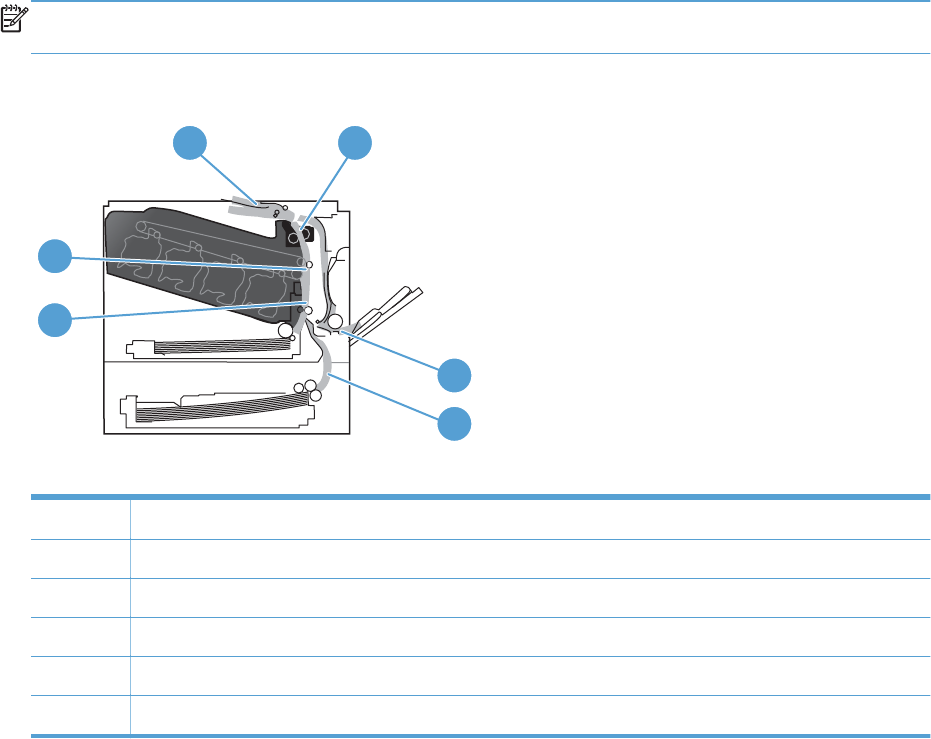
Jam locations
Use this illustration to identify locations of jams. In addition, instructions appear on the control panel to
direct you to the location of jammed paper and how to clear it.
NOTE: Internal areas of the product that might need to be opened to clear jams have green handles
or green labels.
Figure 3-49 Jam locations
1 2
3
4
5
6
1 Output-bin area
2 Fuser area
3Tray 1 area
4 Optional 500-sheet paper and heavy media tray (Tray 3)
5 Registration area
6 Transfer area
472 Chapter 3 Solve problems ENWW
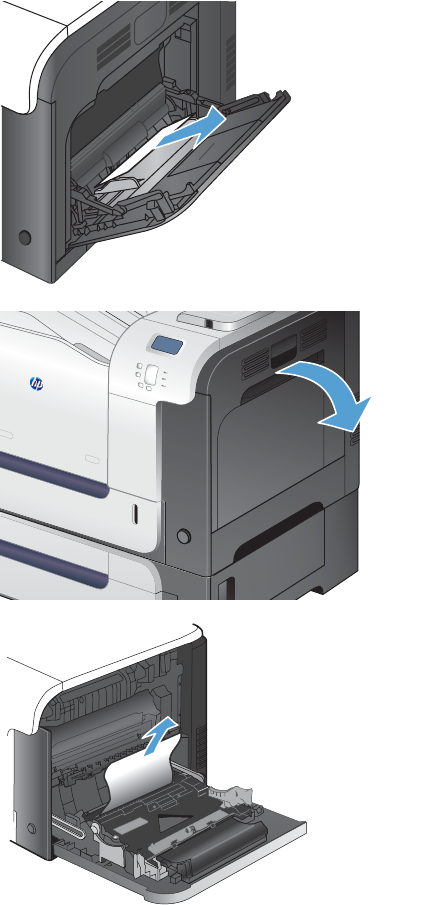
Clear jams in Tray 1
1. If jammed paper is visible in Tray 1, clear the
jam by gently pulling the paper straight out.
Touch the OK button to clear the message.
2. If you cannot remove the paper, or if no
jammed paper is visible in Tray 1, close Tray
1 and open the right door.
3. If paper is visible inside the right door, gently
pull the trailing edge to remove it.
ENWW Clear jams 473
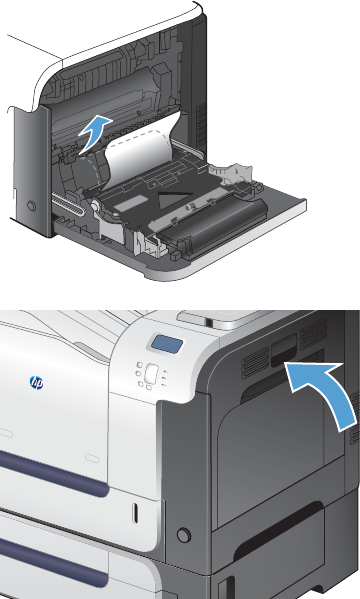
4. Gently pull the paper out of the pick up area.
5. Close the right door.
474 Chapter 3 Solve problems ENWW
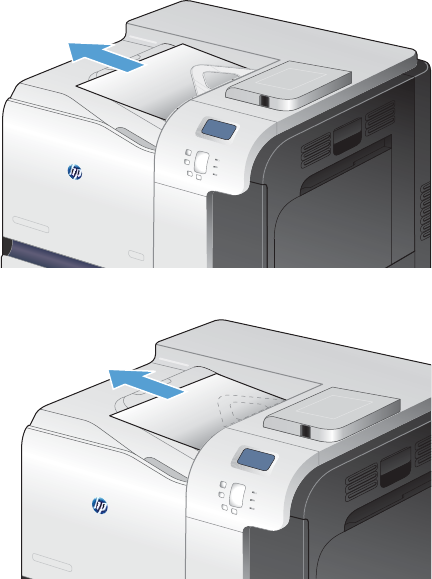
Clear jams in the output bin area
1. If paper is visible from the output bin, grasp
the leading edge and remove it.
2. If jammed paper is visible in the duplex output
area, gently pull it to remove it.
ENWW Clear jams 475
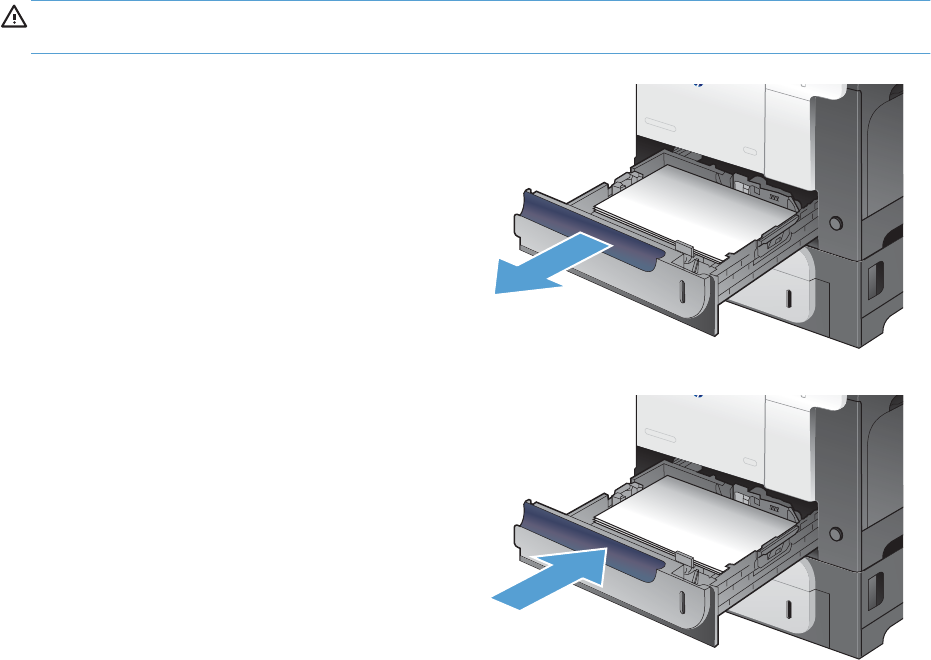
Clear jams in Tray 2
CAUTION: Opening a tray when paper is jammed can cause the paper to tear and leave pieces of
paper in the tray, which might cause another jam. Be sure to clear jams before opening the tray.
1. Open Tray 2 and make sure that the paper is
stacked correctly. Remove any jammed or
damaged sheets of paper.
2. Close the tray.
476 Chapter 3 Solve problems ENWW
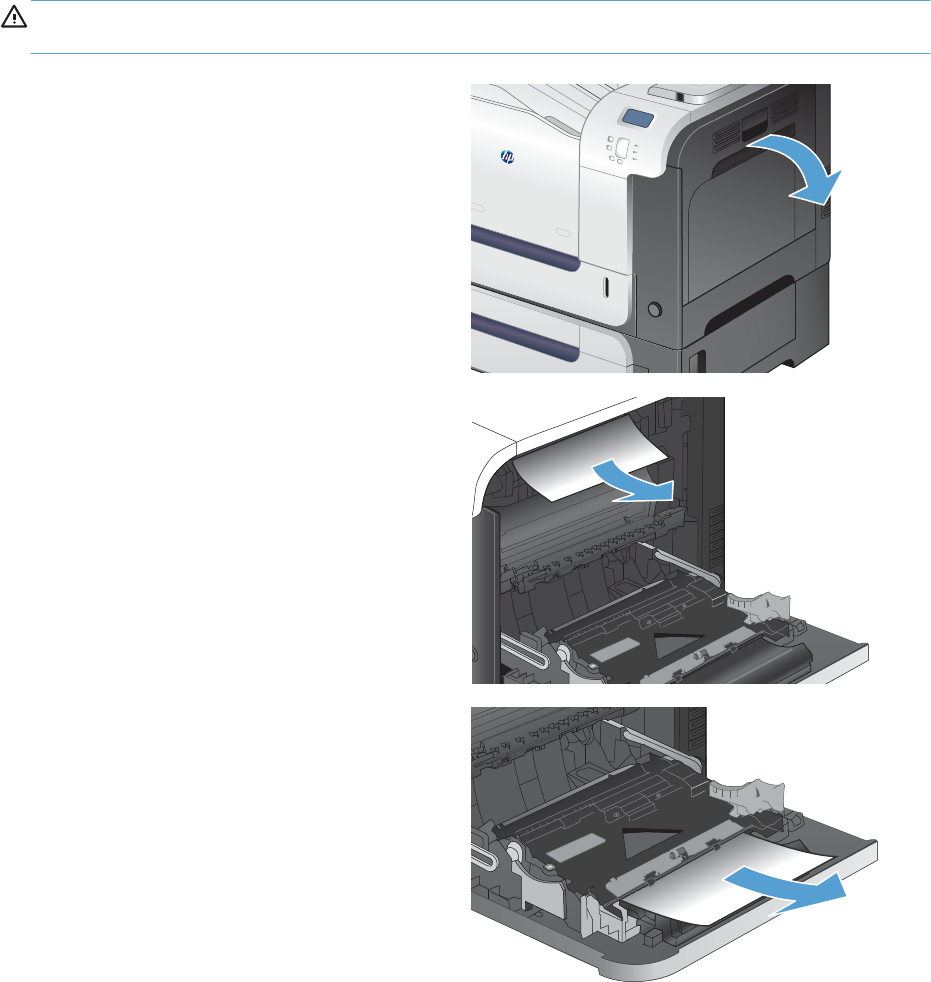
Clear jams in the right door
CAUTION: The fuser can be hot while the product is in use. Wait for the fuser to cool before clearing
jams.
1. Open the right door.
2. If paper is jammed as it enters the output bin,
gently pull the paper downward to remove it.
3. If paper is jammed inside the right door, gently
pull the paper to remove it.
ENWW Clear jams 477
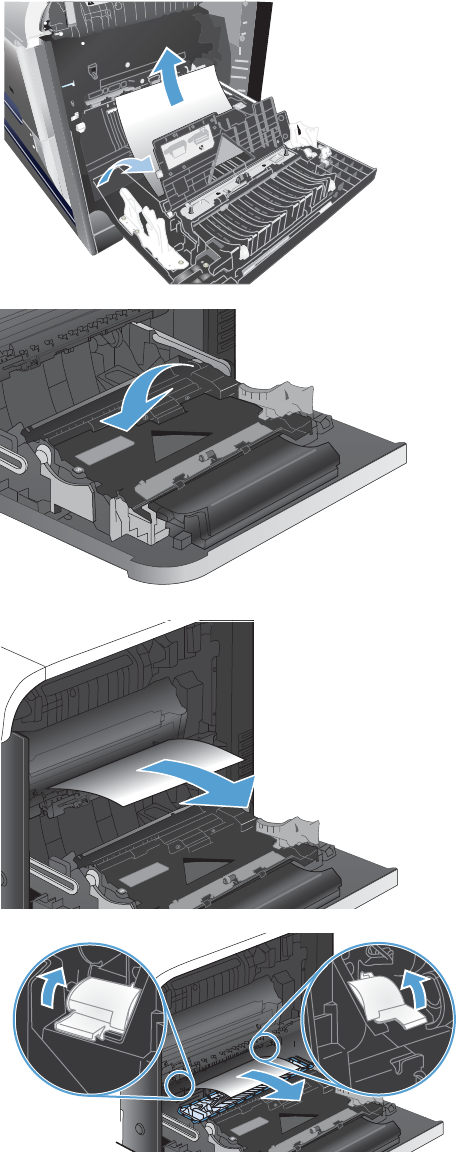
4. Lift the paper-feed cover on the inside of the
right door. If jammed paper is present, gently
pull the paper straight out to remove it.
1
2
5. Close the paper-feed cover.
6. Gently pull the paper out of the pickup area.
7. Look for paper in the Tray 2 roller area. Push
up on the two green levers to release the jam-
access door. Remove any jammed paper, and
close the door.
478 Chapter 3 Solve problems ENWW
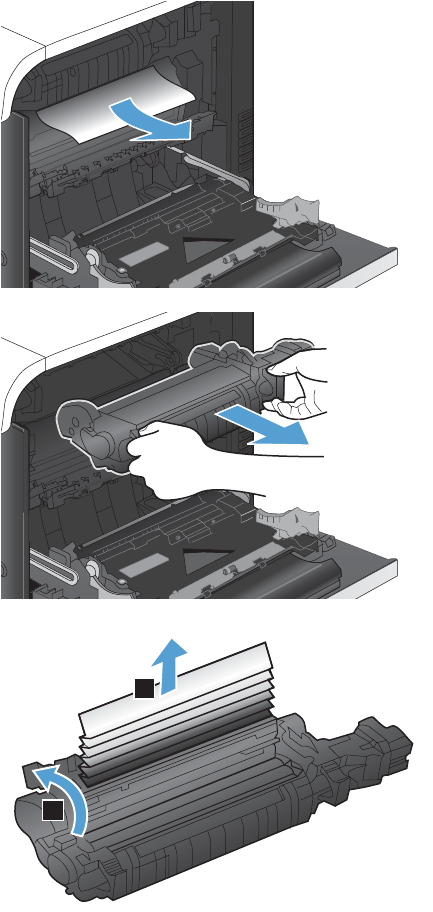
8. If paper is visible entering the bottom of the
fuser, gently pull downward to remove it.
CAUTION: Do not touch the rollers on the
transfer roller. Contaminates can affect print
quality.
9. Paper could be jammed inside the fuser where
it would not be visible. Grasp the fuser
handles, lift up slightly, and pull straight out to
remove the fuser.
CAUTION: The fuser can be hot while the
product is in use. Wait for the fuser to cool
before clearing jams.
10. Open the jam-access door (callout 1). If paper
is jammed inside the fuser, gently pull it
straight up to remove it (callout 2). If the paper
tears, remove all paper fragments.
CAUTION: Even if the body of the fuser has
cooled, the rollers that are inside could still be
hot. Do not touch the fuser rollers until they
have cooled.
1
2
ENWW Clear jams 479
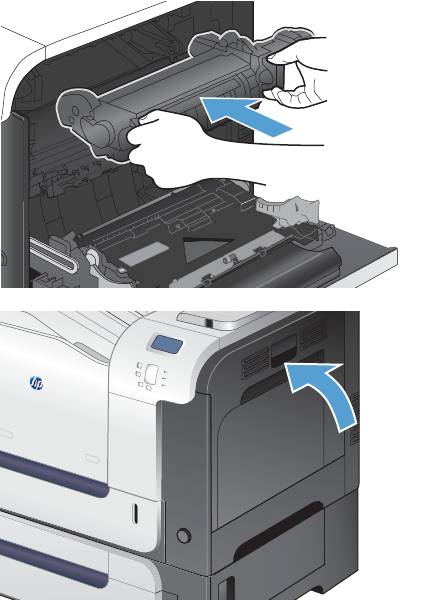
11. Close the jam-access door, and push the fuser
completely into the product.
12. Close the right door.
480 Chapter 3 Solve problems ENWW
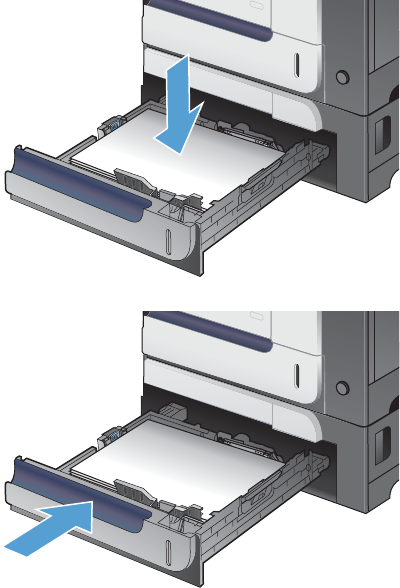
Clear jams in the optional 500-sheet paper and heavy media tray
(Tray 3)
1. Open Tray 3 and make sure that the paper is
stacked correctly. Remove any damaged or
jammed sheets of paper.
2. Close Tray 3.
ENWW Clear jams 481
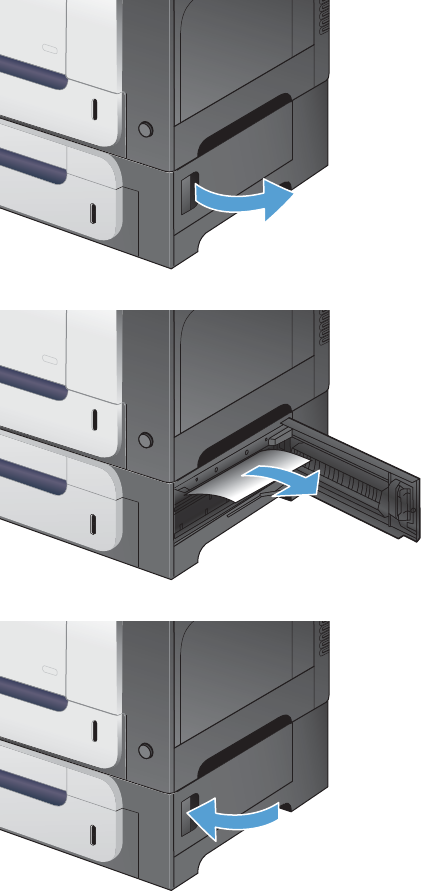
Clear jams in the lower right door (Tray 3)
1. Open the lower right door.
2. If paper is visible, gently pull the jammed
paper up or down to remove it.
3. Close the lower right door.
482 Chapter 3 Solve problems ENWW

Jam causes and solutions
Jams in the output bin
Table 3-33 Causes and solutions for delivery delay jam
Cause Solution
The output-bin media-full sensor lever is
damaged.
Replace the paper delivery assembly. See Delivery assembly on page 228.
Poor contact of the output-bin media-full
sensor connector.
Reconnect the connectors of the output bin full sensor (SR6) (J47) to DCC PCA
(J123).
The output-bin media-full sensor is defective. Check the output-bin full sensor (SR6) by using the manual sensor test. Toggle
the sensor to determine if the value changes for "F." If the value does not
change, replace paper delivery assembly.
Poor contact of the fuser-motor (M2)
connector.
Reconnect the connectors of the fuser motor (J117), (J15), and the DC
controller PCA (J105).
The fuser motor (M2) is defective. Execute the fuser-motor driving test in the actuator-drive mode. If the motor is
defective, replace the fuser motor (M2).
Jams in the fuser and transfer area
Table 3-34 Causes and solutions for fuser delivery delay jams
Cause Solution
The lever for the loop-sensors (loop 1 and
loop 2) is not set correctly.
Check the loop-sensor lever and place it in the correct position. If the jam
persists, replace the fuser.
The spring of the fuser-delivery-sensor lever is
unhooked.
Check the spring of the fuser and right-door sensor levers and place them in
the correct position. If the jam persists, replace the fuser.
The fuser-delivery-sensor lever is damaged Replace the fuser.
Poor contact with the fuser-delivery connector Reconnect the connectors of the fuser output sensor (SR5) (J45), intermediate
(J95) and the DC controller PCA (J123).
The fuser-delivery sensor is defective Check the fuser-delivery sensor with the sensor monitor mode. If the sensor is
defective, replace the sensor (SR5).
Poor contact of the fuser-motor connector (M2) Reconnect the connectors of the fuser motor (J15) and the DC controller PCA
(J117).
The fuser motor is defective Execute the fuser-motor driving test in the actuator-drive mode. If the motor is
defective, replace the fuser motor (M2).
The fuser pressure release sensor (SR7) is
defective.
Execute a manual sensor test to verify the sensor is working by manually
toggling the sensor. Check "H" to see if the value changes. If not, replace the
sensor.
ENWW Clear jams 483

Table 3-35 Causes and solutions for wrapping jams
Cause Solution
The fuser roller or pressure roller is dirty. Execute a fuser roller cleaning.
The guide of the fuser delivery unit is dirty. Clean the guide.
The fuser roller or the pressure roller is worn
or deformed.
Replace the fuser.
Table 3-36 Causes and solutions for fuser delivery stationary jams
Cause Solution
The fuser roller or pressure roller is worn or
deformed.
Replace the fuser.
The fuser delivery roller is deformed.
The gear of the fuser delivery roller is
damaged.
The fuser output sensor lever is set incorrectly
or damaged.
Check the sensor lever to make sure it is set correctly. If it is damaged, replace
the fuser.
The spring of the fuser output sensor lever is
unhooked.
Check the spring and place it in correct position.
Poor contact of the fuser delivery sensor
connector.
Reconnect the intermediate connector (J95) of the fuser output sensor and the
connector (J123) on the DC controller PCA.
The fuser output sensor is defective. Run the sensor test to verify that the fuser output sensor is functioning properly.
If it is not replace the fuser output sensor.
Table 3-37 Causes and solutions for residual media jams
Cause Solution
The fuser loop sensor is defective. Check the fuser loop sensor using the sensor monitor mode. If the sensor is
defective, replace the fuser.
The spring of the fuser-delivery-sensor lever is
unhooked.
Check the spring of the fuser and place it in the correct position.
The fuser-delivery-sensor lever is damaged. Replace the sensor (SR5).
Poor contact of the fuser-delivery-sensor
connector.
Reconnect the connectors of the fuser-delivery media-feed connector (J46),
intermediate (J95) and the DC controller PCA (J123).
The fuser-output sensor is defective. Check the fuser output sensor using the sensor monitor mode. If the sensor is
defective, replace the sensor (SR5).
Poor contact of the duplexing repick sensor
connector.
Reconnect the connectors of the duplexing media-reverse sensor (J8 and J9)
and the duplexing driver PCA (J107).
The duplexer re-feed is defective. Check the duplexer re-feed sensor. If the sensor is defective, replace the right
door.
484 Chapter 3 Solve problems ENWW

Table 3-37 Causes and solutions for residual media jams (continued)
Cause Solution
The sensor detecting a residual media jam is
set incorrectly or damaged.
Run the sensor test to verify which sensor detects the media. Check the sensor
lever to make sure it is set correctly. If it is damaged, replace the following
corresponding part:
●Registration sensor (SR8): Replace the registration assembly.
●Fuser output sensor (SR5): Replace the fuser.
●Fuser loop sensor 1 or 2 (SR14 and SR15): Replace the fuser.
●Duplexer re-feed sensor (SR22): Replace the MP tray pickup assembly.
The spring of the residual media jam detective
sensor lever is unhooked.
Run the sensor test to verify which sensor detects the media. Check the spring
of the sensor lever to make sure it is set correctly.
Poor contact of the residual media jam
detective sensor connector.
Run the sensor test to verify which sensor detects the media. Reconnect the
following corresponding sensor connector:
●Registration sensor (SR8): Connector (J109) on the DC controller PCA
●Fuser output sensor (SR5): Intermediate connector (J95) and connector
(J123) on the DC controller PCA
●Fuser loop sensor 1 or 2 (SR14 and SR15): Connector (J139) on the DC
controller PCA
●Duplexer re-feed sensor (SR22): Connector (J107) on the DC controller
PCA.
The residual media jam detective sensor is
defective.
Run the sensor test to verify which sensor detects the media. Replace the
following corresponding part:
●Registration sensor (SR8): Replace the registration assembly.
●Fuser output sensor (SR5): Replace the fuser.
●Fuser loop sensor 1 or 2 (SR14 and SR15): Replace the fuser.
●Duplexer re-feed sensor (SR22): Replace the MP tray pickup assembly.
Table 3-38 Causes and solutions for pickup delay jams 2
Cause Solution
The registration roller is worn or deformed. Replace the secondary-transfer unit.
The spring of the registration shutter is
unhooked.
Check the spring and place it in correct position.
Poor contact of the pickup motor drive
connector.
Reconnect the connectors of the registration motor (J6), intermediate, and the
DC controller PCA (J131).
The pickup motor is defective. Execute the pickup-motor driving test in the actuator-drive mode. If the motor is
defective, replace the pickup motor.
The cassette pickup roller is worn or
deformed.
Replace the cassette pickup roller.
ENWW Clear jams 485

Table 3-38 Causes and solutions for pickup delay jams 2 (continued)
Cause Solution
The cassette separation roller is worn or
deformed.
Replace the cassette separation roller.
Poor contact of the registration sensor
connector.
Reconnect the connector (J109) on the DC controller PCA.
The registration sensor is defective. Run the sensor test to verify that the registration sensor is functioning properly. If
it is not, replace the registration assembly.
Poor contact of the cassette pickup solenoid
drive connector.
Reconnect the connector (J140) on the DC controller PCA.
The cassette pickup solenoid is defective. Run the solenoid drive test in the actuator drive mode to verify that the cassette
pickup solenoid is functioning properly. If it is not, replace the cassette-pickup
drive assembly.
Poor contact of the pickup motor drive
connector.
Reconnect the connector (J131) on the DC controller PCA.
The pickup motor is defective. Run the pickup motor drive test in the actuator drive mode to verify that the
pickup motor is functioning properly. If it is not, replace the pickup motor.
Table 3-39 Causes and solutions for pickup stationary jams
Cause Solution
Multiple feed of media. Replace any worn or deformed parts (tray separation roller, tray feed roller,
MP-tray pickup roller or MP-tray separation roller).
Check the separation roller and MP-tray separation roller to see if they are
firmly seated and coupled with the torque limiter.
Replace the separation roller and feed roller in Tray 2.
Replace the MP-tray pickup roller and MP-tray separation roller.
The secondary transfer roller is not set
correctly.
Place the secondary-transfer-roller unit in the correct position.
The secondary transfer roller is worn or
deformed.
Replace the secondary-transfer-roller unit.
Poor contact of the drum motor 3 drive
connector.
Reconnect the connectors of the drum motor 3 (J42) and the DC controller PCA
(J121).
The drum motor 3 is defective. Execute the drum motor 3 driving test in the actuator-drive mode. If the motor
is defective, replace the drum motor 3.
The ITB does not rotate smoothly. Replace the ITB.
Multiple-feed of media. If the Tray 2 pickup roller or separation roller are worn or deformed, replace
any defective parts. If the Tray 1 pickup roller or separation pad are worn or
deformed, replace any defective parts.
The registration sensor lever is set incorrectly
or damaged.
Check the sensor lever to make sure it is set correctly. If it is damaged, replace
the registration assembly.
486 Chapter 3 Solve problems ENWW

Table 3-39 Causes and solutions for pickup stationary jams (continued)
Cause Solution
The spring of the registration sensor lever is
unhooked.
Check the spring and place it in correct position.
Poor contact of the registration sensor
connector.
Reconnect the connector (J109) on the DC controller PCA.
The registration sensor is defective. Run the sensor test to verify that the registration sensor is functioning properly.
If it is not, replace the registration assembly.
Jams in the duplex area (duplex models)
Table 3-40 Causes and solutions for duplexing reverse jams
Cause Solution
The duplex reverse roller is worn or deformed. Replace the delivery assembly.
The duplex feed roller is worn or deformed. Replace the duplex feed unit.
Poor contact of the duplex reverse-motor
connector.
Reconnect the connectors (J202 and J201) on the high-voltage power supply
(upper) PCA and connector (J113) on the DC controller PCA.
The duplex reverse motor is defective. Replace the duplex drive assembly.
Poor contact of the duplexing reverse-motor
connector.
Reconnect the connectors of the duplexing reverse motor (J20) and the
duplexing driver PCA (J202).
The duplexing reverse motor is defective. Replace the right door assembly.
Table 3-41 Causes and solutions for duplex repick jams
Cause Solution
The duplexer re-feed sensor lever is set
incorrectly or damaged.
Check the sensor lever to make sure it is set correctly. If it is damaged, replace
the right door assembly.
The spring of the duplexer re-feed sensor lever
is unhooked.
Check the spring and place it in correct position.
Poor contact of the duplexer re-feed sensor
connector.
Reconnect the intermediate connector (J90) and connector (J107) on the DC
controller PCA.
The duplexer re-feed sensor is defective. Run the sensor test to verify that the duplexer re-feed sensor is functioning
properly. If it is not, replace the right door assembly.
The spring of the duplexer-refeed-sensor lever
is unhooked.
Check the spring and place it in the correct position.
The duplexer-refeed-sensor lever is damaged. Replace the duplexer re-feed sensor.
Poor contact of the duplexer-refeed-sensor
connector.
Reconnect the intermediate connector (J90) and connector (J107) on the DC
controller PCA. If the problem persist, replace duplexer re-feed sensor.
The duplexer re-feed sensor is defective. Check the duplexer re-feed sensor. If the sensor is defective, replace the
duplexer re-feed sensor.
ENWW Clear jams 487

Table 3-41 Causes and solutions for duplex repick jams (continued)
Cause Solution
Poor contact of the duplex reverse connector. Reconnect the connectors of the duplex repick motor (J20), intermediate (J202
and J201) and the duplex driver PCA (J113).
The duplex-repick motor is defective. Replace the duplex drive assembly.
Table 3-42 Causes and solutions for residual media jams
Cause Solution
Poor contact of the loop-sensor connector and
fuser loop sensors 1 and 2.
Reconnect the connectors of the fuser loop sensors (1 and 2):
●Loop 1 (J11, J352, J350, J50) and the DC controller (J139)
●Loop 2 (J10, J352, J350, J50) and the DC controller (J139)
The fuser loop sensor is defective. Check the fuser loop sensor. If the sensor is defective, replace fuser.
The spring of the fuser output sensor lever is
unhooked.
Check the spring of the fuser and right door and place it in the correct
position.
The fuser-ouput-sensor lever is damaged. Replace the sensor (SR5).
Poor contact of the fuser-output sensor
connector.
Reconnect the connectors of the fuser-output sensor (J46), intermediate (J95)
and the DC controller PCA (J123).
The fuser-output sensor is defective. Check the fuser-output sensor. If the sensor is defective, replace the fuser.
The spring of the duplexer re-feed sensor lever
is unhooked.
Check the spring and place it in the correct position. The sensor is located in
the right door behind the cover close to the engine side.
The duplexer re-feed sensor lever is damaged. Replace the right door assembly.
Poor contact of the duplexing media-reverse-
sensor connector.
Reconnect the connectors of the duplexing media-reverse sensor (J8) and (J90)
and the duplexing driver PCA (J107).
The duplexer re-feed sensor is defective. Check the duplexer re-feed sensor. If the sensor is defective, replace the
duplexer re-feed sensor.
NOTE: Even if jammed paper is visible in Tray 1, clear the jam from the inside of the product by
opening the right door.
Jams in Tray 1, Tray 2 and internal paper path
Table 3-43 Causes and solutions for pickup delay jam 1: tray pickup
Cause Solution
The MP tray pick up roller or the MP tray
separation pad is worn or deformed.
Replace the MP tray pick up roller and separation pad.
Poor contact of the Tray 1 paper sensor. Reconnect the connectors of the tray media-feed sensor (J7), intermediate
(J85), and DC controller (J107).
The Tray 1 paper sensor is defective (SR21). Check the Tray 1 paper sensor. If the sensor is defective, replace the right
door assembly.
488 Chapter 3 Solve problems ENWW

Table 3-43 Causes and solutions for pickup delay jam 1: tray pickup (continued)
Cause Solution
The arm spring of the MP pickup solenoid is
unhooked.
Check the spring and place it in the correct position.
Poor contact of the MP-pickup-solenoid drive
connector.
Reconnect the connectors of the tray pickup solenoid (J84) and the DC
controller PCA (J107).
The MP-pickup solenoid is defective. Execute the tray-pickup-solenoid driving test in the actuator-drive mode. If the
solenoid is defective, replace the right door assembly.
Poor contact of the pickup-motor drive
connector (M13).
Reconnect the connectors of the pickup motor (J1705), intermediate (J6) and
the DC controller PCA (J131).
The pickup motor (M13) is defective. Execute the pickup-motor driving test in the actuator-drive mode. If the motor is
defective, replace the pickup motor.
Table 3-44 Causes and solutions for pickup stationary jams
Cause Solution
Multiple feed of media. Replace any worn or deformed parts (tray separation pad, tray feed roller, MP
tray pickup roller or MP tray separation pad). If replacing the MP tray
separation pad, you must replace the right door assembly.
Check the separation pad and MP tray separation pad to see if they are firmly
seated and coupled with the torque limiter.
Replace the separation pad and feed roller for Tray 2 and Tray 3.
If the MP tray pickup roller if defective, replace the roller. If the MP tray
separation pad is defective, replace the right door assembly.
The secondary transfer roller is not set
correctly.
Place the secondary-transfer-roller unit in the correct position.
The secondary-transfer roller is worn or
deformed.
Replace the secondary-transfer-roller assembly..
Poor contact of the drum 3 drive connector. Reconnect the connectors of the ITB motor (J42) and the DC controller PCA
(J121).
The drum motor 3 is defective. Execute the drum 3 driving test in the actuator-drive mode. If the motor is
defective, replace the ITB motor.
The ITB does not rotate smoothly. Replace the ITB.
Table 3-45 Causes and solutions for pickup delay jam 1; MP tray pickup
Cause Solution
The MP tray pickup roller or MP tray
separation pad is worn or deformed.
If the MP tray pickup roller if defective, replace the roller. If the MP tray
separation pad is defective, replace the right door assembly.
Poor contact of the MP tray media-presence-
sensor connector.
Reconnect the connectors of the MP tray media-presence sensor (J2007),
intermediate (J85) and the DC controller PCA (J1071).
ENWW Clear jams 489

Table 3-45 Causes and solutions for pickup delay jam 1; MP tray pickup (continued)
Cause Solution
The Tray 1 paper sensor is defective (SR21). Check the Tray 1 paper sensor using the sensor monitor mode. If the sensor is
defective, replace the right-door assembly.
The arm spring of the MP tray pickup solenoid
is unhooked.
Check the spring and place it in the correct position.
Poor contact of the MP tray-pickup-solenoid
drive connector.
Reconnect the connectors of the MP tray pickup solenoid (J84) and the DC
controller PCA (J107).
The MP tray pickup solenoid is defective. Execute the MP tray-pickup-solenoid driving test in the actuator-drive mode. If
the solenoid is defective, replace the right door assembly.
Poor contact of the pickup-motor (M13) drive
connector.
Reconnect the connectors of the pickup motor (J1705), intermediate (J6) and
the DC controller PCA (J131).
The pickup motor (M13) is defective. Execute the pickup-motor (M13) driving test in the actuator-drive mode. If the
motor is defective, replace the pickup motor.
Jams in Tray 3
Table 3-46 Causes and solutions for pickup delay and pickup stationary jams
Cause Solution
The paper-feeder pickup roller is worn or
deformed.
Replace the Tray 3 pickup roller.
The paper-feeder separation roller is worn or
deformed.
Replace the Tray 3 separation roller.
The paper-feeder feed roller 1 is worn or
deformed.
Replace the Tray 3 feed roller.
Poor contact of the Tray 3 feed sensor
connector.
Reconnect the connector (J405) on the paper feeder driver PCA, intermediate
connector (J13) and connector (J20) of the Tray 3 feed sensor.
The Tray 3 feed sensor is defective. Run the sensor test to verify that the Tray 3 feed sensor is functioning properly.
If it is not, replace the paper-feeder feed assembly.
Poor contact of the paper-feeder pickup
solenoid drive connector.
Reconnect the connector (J405) on the paper feeder driver PCA and connector
(J18). Replace the paper feeder assembly.
The paper-feeder pickup solenoid is defective. Run the solenoid drive test in the actuator drive mode to verify that the paper-
feeder pickup solenoid is functioning properly. If it is not, replace the paper
feeder assembly.
Poor contact of paper-feeder pickup motor
drive connector.
Reconnect the connector (J406) on the paper feeder driver PCA and connector
(J14). Replace the paper feeder assembly.
The paper-feeder pickup motor is defective. Run the pickup motor drive test in the actuator drive mode to verify that the
paper-feeder pickup motor is functioning properly. If it is not, replace the
paper-feeder assembly.
Multiple feed of media. If the Tray 3 pickup roller, separation roller or feed roller is worn or deformed,
replace any defective parts.
490 Chapter 3 Solve problems ENWW

Table 3-46 Causes and solutions for pickup delay and pickup stationary jams (continued)
Cause Solution
The Tray 3 feed sensor lever is set incorrectly
or damaged.
Check the sensor lever to make sure it is set correctly. If it is damaged, replace
the paper-feeder assembly.
The spring of the Tray 3 feed sensor lever is
unhooked.
Check the spring and place it in correct position.
Poor contact of the Tray 3 feed sensor
connector.
Reconnect the connector (J405) on the paper feeder driver PCA intermediate
connector (J13) and connector (J20) of the Tray 3 feed sensor.
The Tray 3 feed sensor is defective. Run a sensor test to verify that the Tray 3 feed sensor is functioning properly. If
it is not, replace the paper-feeder assembly.
Change jam recovery
This product provides jam recovery, a feature that you can use to reprint jammed pages. The following
options are available:
●Auto — The product attempts to reprint jammed pages when sufficient memory is available.
●Off — The product does not attempt to reprint jammed pages. Because no memory is used to
store the most recent pages, performance is optimal.
NOTE: When using this option, if the product runs out of paper and the job is being printed on
both sides, some pages can be lost.
●On — The product always reprints jammed pages. Additional memory is allocated to store the
last few pages printed. This might cause overall performance to suffer.
1. At the product control panel, press the Home button.
2. Open the following menus:
●Administration
●General Settings
●Jam Recovery
3. Select the appropriate setting, and then press the OK button.
ENWW Clear jams 491

Solve paper handling problems
Product feeds multiple sheets
Product feeds multiple sheets
Cause Solution
The input tray is overfilled. Open the tray and verify that the
paper stack is below the maximum stack height mark.
Remove excess paper from the input tray.
Print paper is sticking together. Remove paper, flex it, rotate it 180 degrees or flip it over,
and then reload it into the tray.
NOTE: Do not fan paper. Fanning can cause static
electricity, which can cause paper to stick together.
Paper does not meet the specifications for this product. Use only paper that meets HP paper specifications for this
product.
Trays are not properly adjusted. Make sure that the paper guides match the size of paper
being used.
Tray 2 feeds multiple sheets. Make sure Tray 2 is not overfilled. Open the tray and verify
that the paper stack is below the maximum stack height mark.
Remove paper from Tray 2 to avoid jams.
Paper does not feed automatically
Paper does not feed automatically
Cause Solution
Manual feed is selected in the software program. Load Tray 1 with paper, or, if the paper is loaded, press the
OK button.
The correct size paper is not loaded. Load the correct size paper.
The input tray is empty. Load paper into the input tray.
Paper from a previous jam has not been completely removed. Open the product and remove any paper in the paper path.
The paper size is not configured correctly for the input tray. Print a configuration page or use the control panel to
determine the paper size for which the tray is configured.
The guides in the tray are not against the paper. Verify that the rear and width paper guides are touching the
paper.
492 Chapter 3 Solve problems ENWW

Paper does not feed automatically
Cause Solution
The Manually Feed Prompt item is set to Always. The
product always prompts for manual feed, even if the tray is
loaded.
Open the tray, reload the media, and then close the tray.
Or, change the Manually Feed Prompt setting to Unless
loaded, so that the product prompts for manual feed only
when the tray is empty.
The Use Requested Tray setting on the product is set to
Exclusively, and the requested tray is empty. The product
will not use another tray.
Load the requested tray.
Or, change the setting from Exclusively to First on the
Trays menu. The product can use other trays if no media is
loaded in the specified tray.
ENWW Solve paper handling problems 493

Use manual print modes
Try the following manual print modes to see if they solve the image-quality problems.
Select a manual print mode
1. Press the Home button.
2. Open the following menus:
●Administration
●General Settings
●Print Quality
●Adjust Paper Types
3. Press the Down arrow button to highlight a paper type, and then press the OK button.
4. Select a print mode, and then press the OK button.
Table 3-47 Print modes under the Adjust Paper Types sub menu
Print Mode
●Auto sense mode
●Normal mode
●Light mode
●Heavy mode
●Cardstock mode
●Transparency mode
●Transparency 2 mode
●Envelope mode
●Label mode
●Tough mode
●Extra tough mode
●Heavy glossy mode
●Extra heavy mode
●Rough mode
●Card Glossy Mode
●4 mm trans mode
●Light rough mode
NOTE: Not all print modes are available for all paper
types.
494 Chapter 3 Solve problems ENWW

Table 3-47 Print modes under the Adjust Paper Types sub menu (continued)
Resistance Mode Set to Up to resolve print-quality issues caused by poor
secondary transfer in low-humidity environments with resistive
or rough surface media.
Humidity Mode With glossy film, set to High when the product is in a high-
humidity environment and print-quality defects occur on HP
Tough Paper or Opaque film.
With transparencies, set to High when the product is in a
high-humidity environment and print-quality defects occur on
color transparencies on the first page of a print job.
With all other paper types, set to High when the product is in
a high-humidity environment and light density occurs on the
first page of a print job.
Pre-Rotation Mode Set to Alternate 1 when horizontal banding occurs with the
drum pitch.
Set to Alternate 2 when problems like fade finger (trailing
edge toner starvation) occurs after high coverage continuous
printing.
Fuser Temp Mode If you are seeing a faint image of the page repeated at the
bottom of the page or on the following page, first make sure
the paper type (Adjust Paper Types menu) and Print
Mode settings are correct for the type of paper you are
using. If you continue to see ghost images on your print jobs,
set the Fuser Temp feature to one of the settings.
Normal
Up
Down
Paper Curl Mode Use in high-humidity and high-temperature environments. The
Reduced setting decreases fuser temperature and increases
the interpage gap.
Table 3-48 MP modes under the Optimize submenu
Normal Paper Set to Smooth when printing on smooth paper of normal
weight.
Heavy Paper Set to Smooth when printing on smooth, heavy media types.
Envelope Control Use this mode if envelopes are sticking together due to
moisture in the envelope adhisive.
Normal
Reduced Temperature Multipurpose Mode
Environment Set to Low Temp if the product is operating in a low-
temperature environment and you are having problems with
print quality such as blisters in the printed image.
ENWW Use manual print modes 495

Table 3-48 MP modes under the Optimize submenu (continued)
Line Voltage Set to Low Voltage if the product is operating in a low-
voltage environment and you are having problems with print
quality such as blisters in the printed image.
Tray 1 Set to Alternate if you are seeing marks on the back side of
the paper when printing from Tray 1. This sets the product to
initiate a clean sequence every time a job finishes when the
product is set for Any Size and Any Type for Tray 1.
Background Set to Alternate 1 when a background occurs all over the
page. Set to Alternate 2 when thin vertical lines appear on
the page. Set to Alternate 3 when the other alternatives do
not correct the problem.
Uniformity Control Set to Alternate 1 to improve uniformity on any paper type.
Set to Alternate 2 to improve uniformity on normal and light
paper types. Set to Alternate 3 when the other alternatives
do not correct the problem.
Tracking Control The default setting is On. This item is for manufacturing use
only.
Registration Set to Alternate when color misregistration occurs.
Transfer Control Set to Alternate 1 to reduce primary transfer bias and to
resolve low density or blotchy images. Set to Alternate 2 to
resolve ghosting outlines that look like a finger or fingers. Set
to Alternate 3 when the other alternatives do not correct the
problem.
Fuser Temp The default setrting for this item is Normal. Use the
Alternate setting to reduce the occurance of first-page fuser
wrinkle or toner blister.
Restore Optimize Use this item to reset the menu defaults.
496 Chapter 3 Solve problems ENWW
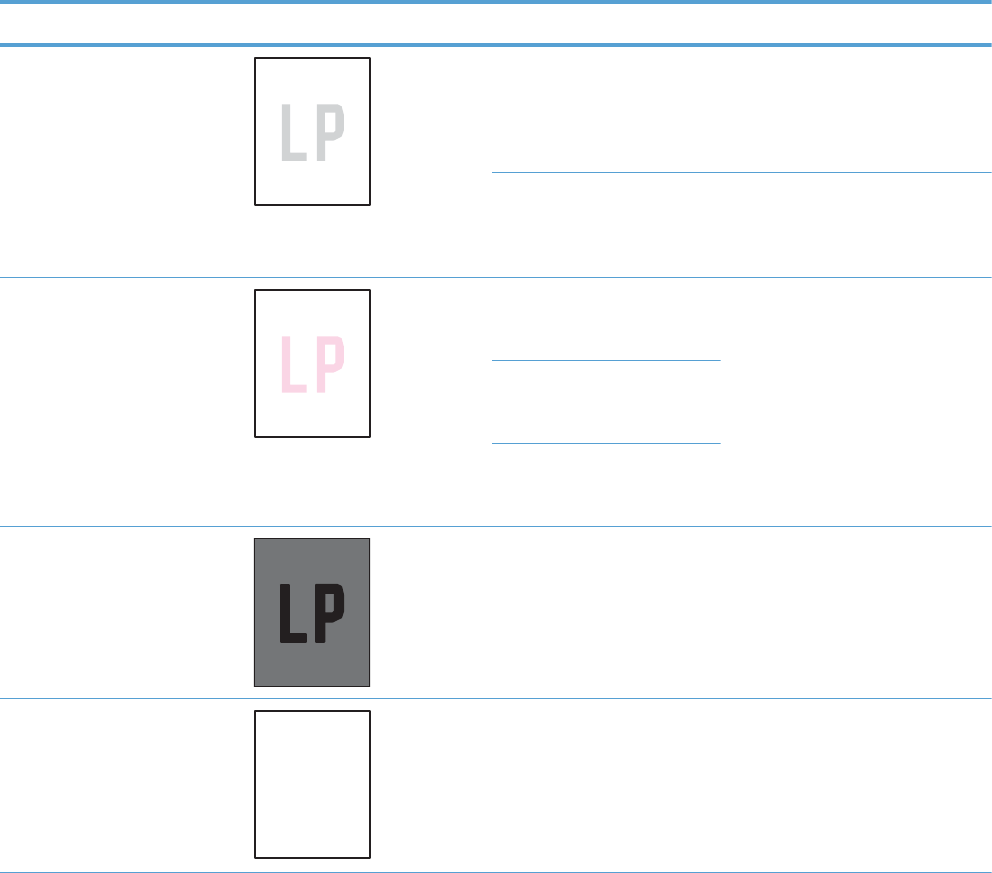
Solve image quality problems
This section helps you define print-quality problems and what to do to correct them. Often print-quality
problems can be handled easily by making sure that the product is maintained, using paper that meets
HP specifications, or running a cleaning page.
Image defects table
The following examples depict letter-size paper that has passed through the product short-edge first.
These examples illustrate problems that would affect all the pages that you print, whether you print in
color or in black only. The topics that follow list the typical cause and solution for each of these
examples.
Table 3-49 Image defects table
Problem Sample Cause Solution
Print is light or faded on entire
page.
Poor contacts exist on the ITB
unit and the product
grounding unit.
Clean the grounding contacts. If the
problem remains after cleaning,
check the contacts for damage.
Replace any deformed or damaged
parts.
Poor secondary transfer
contacts exist on the
secondary transfer roller and
the ITB.
Clean the contacts. If the problem
remains after cleaning, check the
contacts for damage. Replace any
deformed or damaged parts.
Print is light or faded in a
particular color.
Poor primary transfer bias
contacts on the ITB unit and
product.
Clean the contacts of the color that
produces the light print. If the
problem remains after cleaning,
check the contacts for damage.
Replace any deformed or damaged
parts.
Poor primary charging bias
contacts with the print
cartridge and product.
Poor developing bias contacts
with the print cartridge and
product.
Image is too dark. The RD sensor is defective. Replace the RD sensor.
Page is blank. The high-voltage power-supply
lower is defective (no
developing bias output).
Replace the high-voltage power-
supply lower.
ENWW Solve image quality problems 497
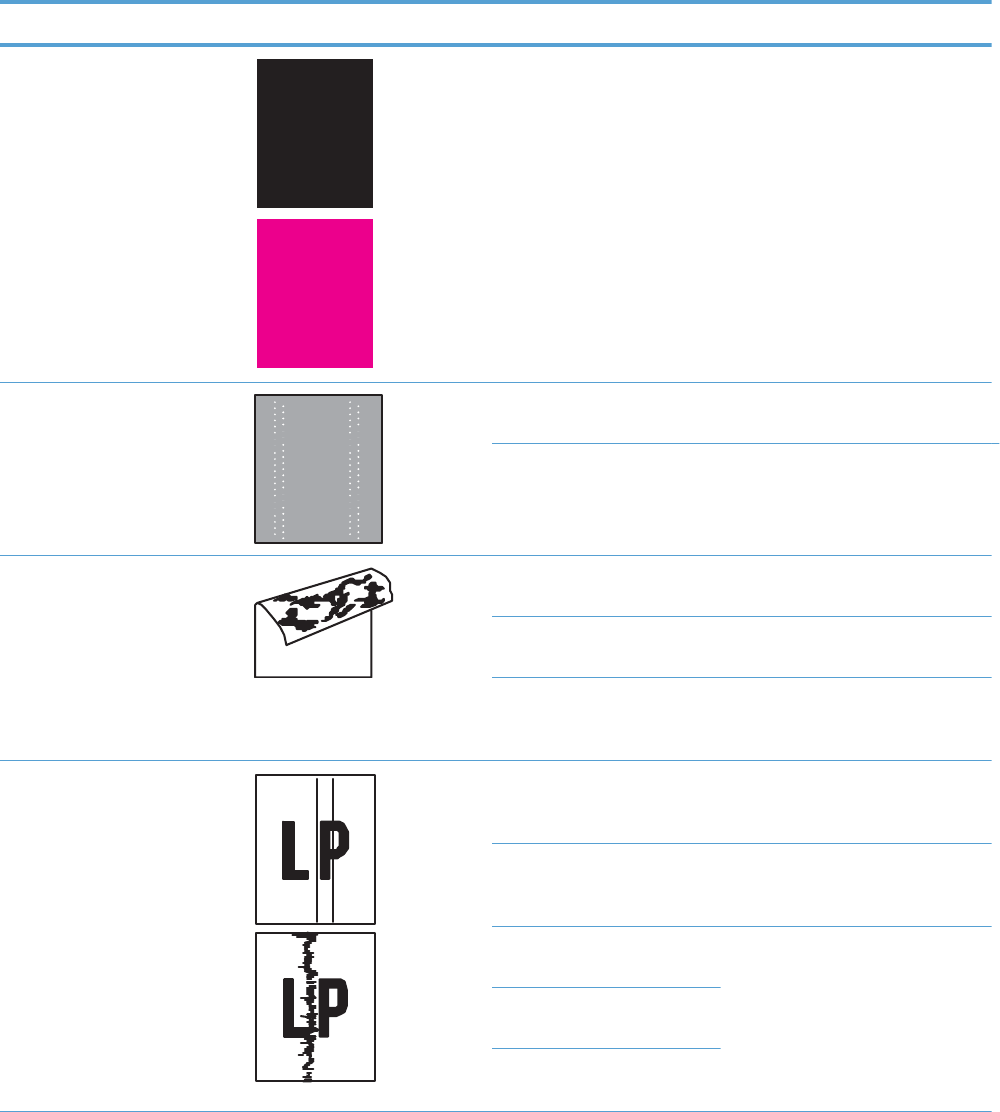
Table 3-49 Image defects table (continued)
Problem Sample Cause Solution
The page is all black or a solid
color.
Poor contact exists in the
primary charging bias or
developing bias contacts
between the print cartridge
and the product.
Clean each contact of the color that
produces the all black or solid color.
If the problem remains after
cleaning, check the contacts for
damage. Replace any deformed or
damaged parts. Replace the
affected print cartridge.
White spots appear in an image The primary transfer roller is
deformed or has deteriorated.
Replace the ITB.
The secondary transfer roller
is deformed or has
deteriorated.
Replace the secondary-transfer-
roller.
The back of the page is dirty. The secondary transfer roller
is dirty.
Replace the secondary transfer
roller.
The fuser inlet guide or
separation guide is dirty.
Clean the dirty parts. If the dirt does
not come off, replace the guide.
The pressure roller is dirty. Run the cleaning page several times.
If the issue persists, replace the
fuser.
Vertical streaks or bands appear
on the page.
Scratches are present on the
circumference of the
photosensitive drum.
Replace the print cartridge of the
color that matches the defect.
Scratches are present on the
circumference of the fuser
roller.
Replace the fuser.
Scratches are present on the
circumference of the ITB.
Replace the ITB.
The ITB drive roller is
deformed or has deteriorated.
The ITB cleaning mechanism is
malfunctioning.
498 Chapter 3 Solve problems ENWW
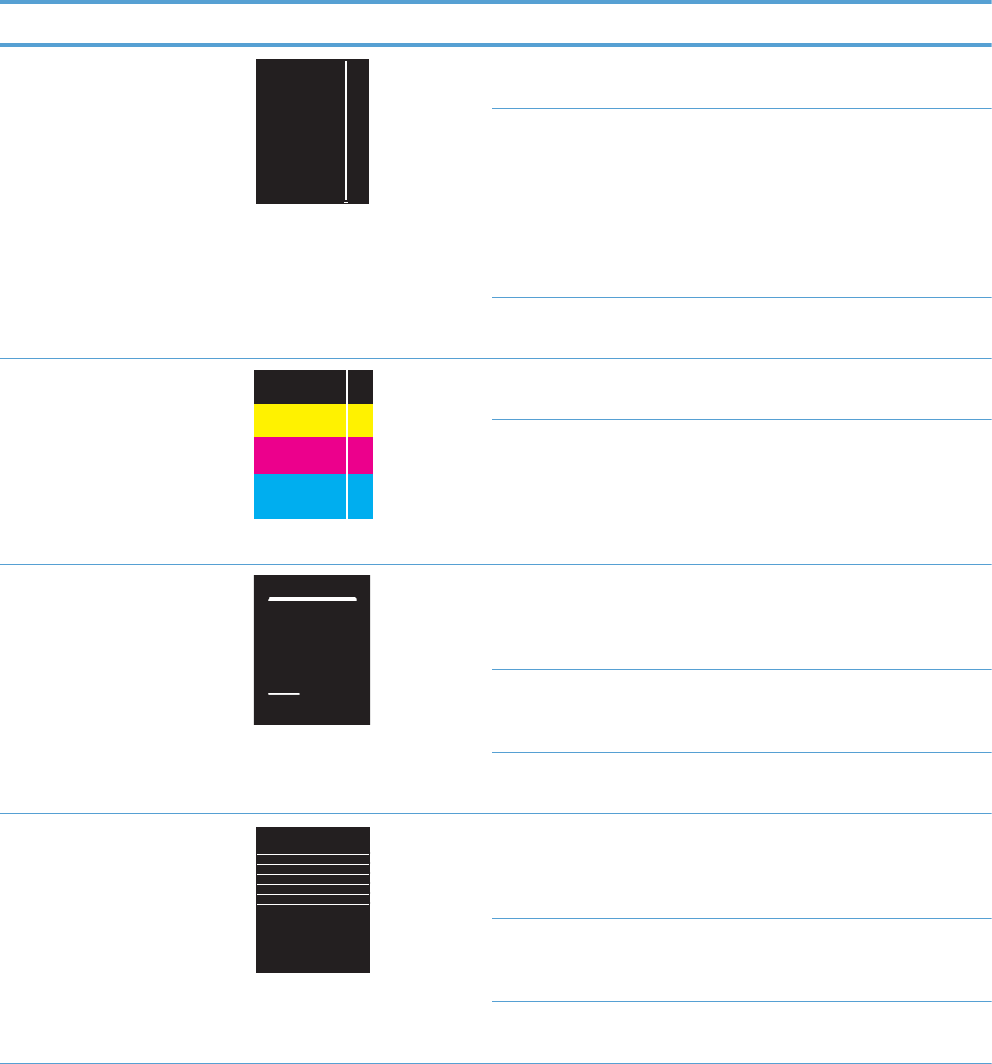
Table 3-49 Image defects table (continued)
Problem Sample Cause Solution
Vertical white lines appear in a
particular color.
The laser beam window is
dirty.
Clean the window and remove any
foreign substances.
Scratches are present on the
circumference of the
developing cylinder or
photosensitive drum.
White scratch down the page
could mean the scanner glass
needs to be cleaned.
Remove the affected print cartridge
and re-install. The PGCs will clean
the glass.
If the problem persists, replace the
affected print cartridge.
The laser/scanner-unit mirror
is dirty.
Replace the laser/scanner assembly.
Vertical white lines appear in all
colors.
Horizontal scratches on the
fuser roller.
Replace the fuser.
Scratches are present on the
circumference of the ITB.
White scratch down the page
could mean the scanner glass
needs to be cleaned.
Remove the affected print cartridge
and re-install. The PGCs will clean
the glass.
Replace the ITB.
Horizontal lines appear on the
page.
Repetitive horizontal lines
appear.
Use the repetitive defects ruler to
identify the dirty roller. Clean the
roller. If the roller cannot be
cleaned, replace the fuser.
Horizontal scratches are
present on the photosensitive
drum.
Replace the print cartridge of the
color that matches the defect.
Horizontal scratches are
present on the fuser roller.
Replace the fuser.
A horizontal white line appears
on the page.
Repetitive horizontal white
lines appear.
Use the repetitive defects ruler to
identify the dirty roller. Clean the
roller. If the roller cannot be
cleaned, replace the roller.
Horizontal scratches are
present on the photosensitive
drum.
Replace the print cartridge of the
color that matches the defect.
Scratches are present on the
circumference of the ITB.
Replace the ITB.
ENWW Solve image quality problems 499
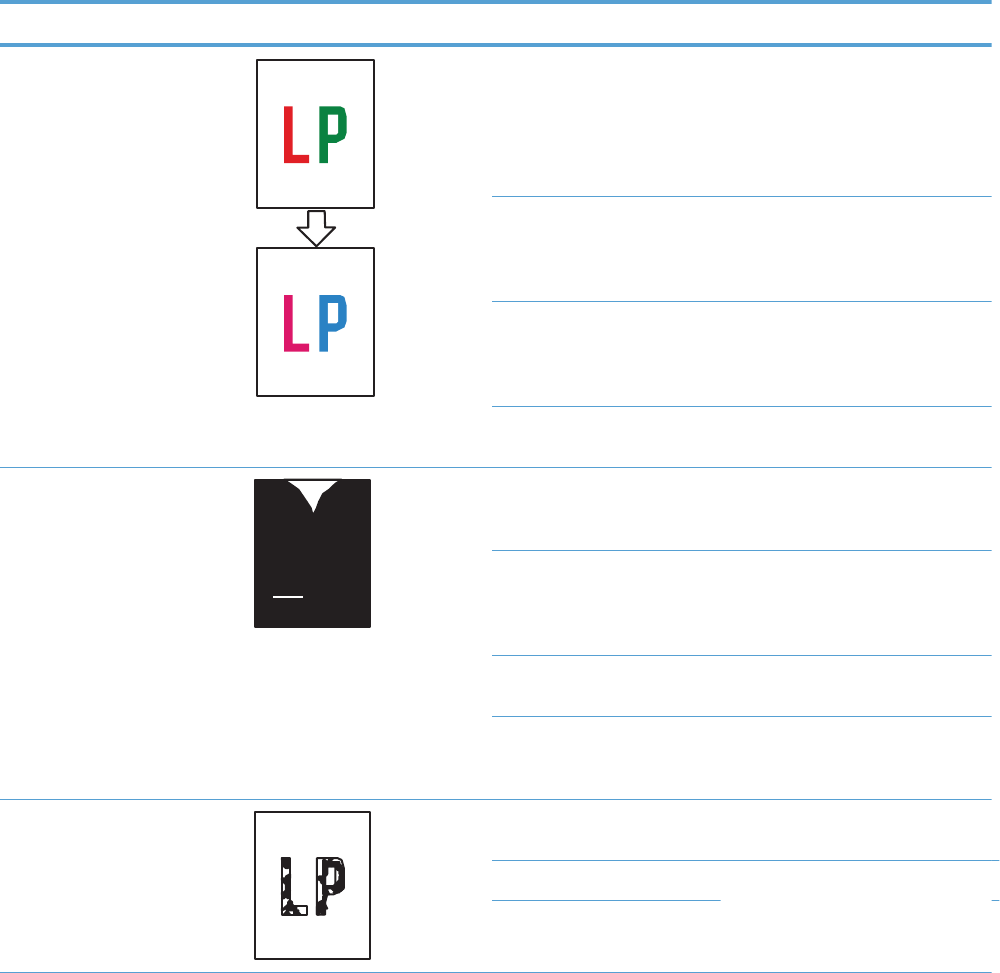
Table 3-49 Image defects table (continued)
Problem Sample Cause Solution
Image in a particular color does
not print in the correct color.
Poor contact exists in the
primary charging bias or
developing bias contacts
between the print cartridge
and the product.
Clean each contact of the color that
produces the missing color. If the
problem remains after cleaning,
check the contacts for damage.
Replace any deformed or damaged
parts.
The print cartridge (primary
charging roller, developing
roller, or photosensitive drum)
is defective.
Replace the print cartridge of the
color that matches the defect.
The high-voltage power-supply
lower is defective (no primary
charging bias or developing
bias output).
Replace the high-voltage power-
supply lower.
The laser/scanner unit is
defective.
Replace the laser/scanner assembly.
Dropouts appear. The secondary transfer roller
is deformed or has
deteriorated.
Replace the secondary-transfer-
roller.
The primary charging roller,
developing roller, or
photosensitive drum is
deformed or has deteriorated.
Replace the print cartridge of the
color that matches the defect.
The fuser roller is deformed or
has deteriorated.
Replace the fuser.
The high-voltage power-supply
T PCA is defective (no transfer
bias output).
Replace the high-voltage power-
supply upper.
The toner is not fully fused to the
paper.
The fuser roller or pressure
roller is scarred or deformed.
Replace the fuser.
The thermistor is defective. Replace the fuser.
The fuser heater is defective.
500 Chapter 3 Solve problems ENWW
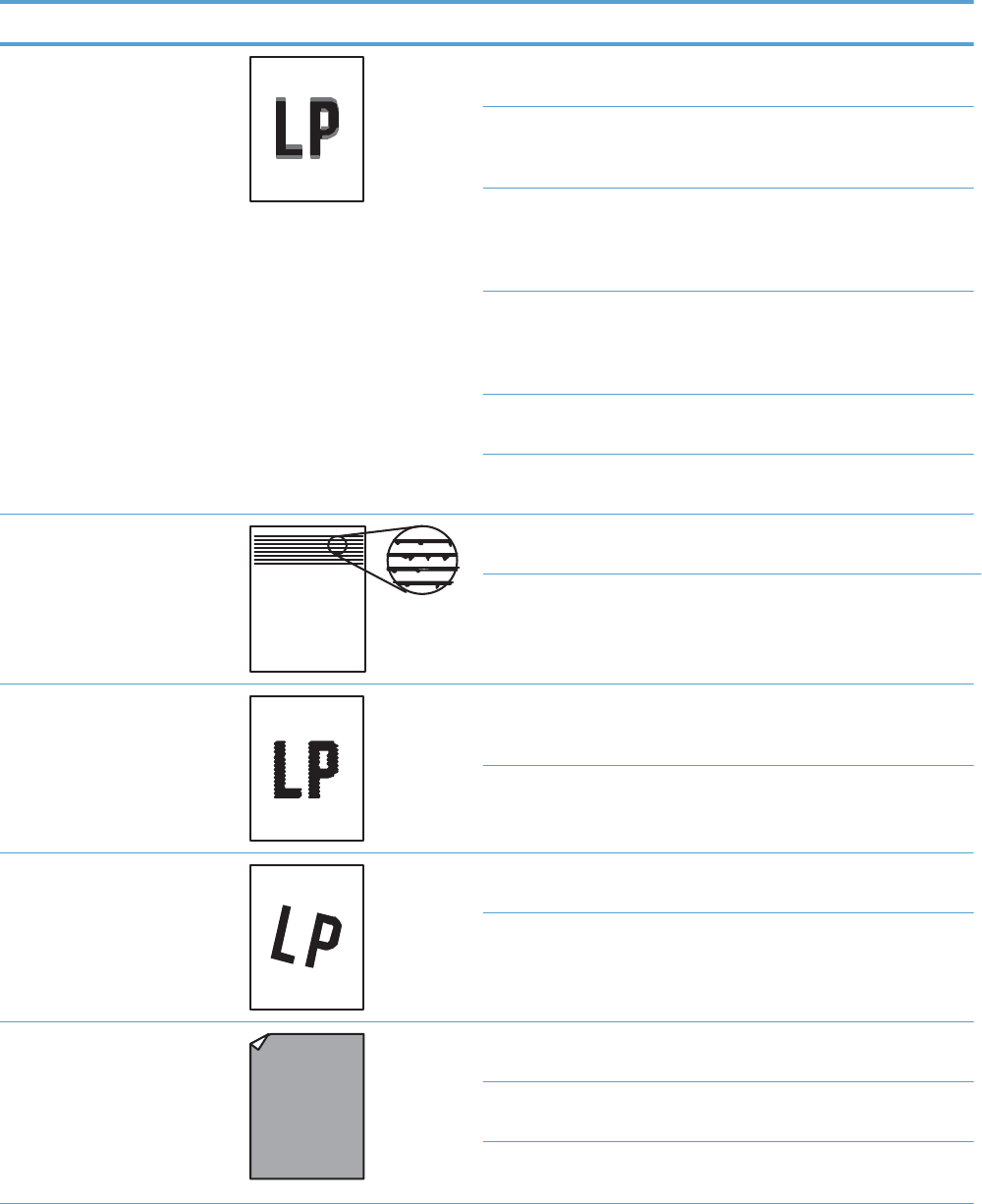
Table 3-49 Image defects table (continued)
Problem Sample Cause Solution
Some color is misregistered. The product is incorrectly
calibrated.
Calibrate the product.
The ITB unit is defective. If the ITB does not rotate smoothly or
a cleaning malfunction occurs (ITB is
dirty), replace the ITB.
The drive gear of the ITB
motor is worn or chipped.
Check each drive gear between the
ITB drive roller and the ITB motor. If
the gear is worn or chipped,
replace the drive unit.
The RD sensor is defective. Open and close the front door
several times to clean the RD sensor.
If the problem persists, replace the
RD sensor.
The laser/scanner unit is
defective.
Replace the laser/scanner assembly.
The print cartridge is
defective.
Replace the print cartridge of the
affected color.
Toner smears appear on the
media.
The product has residual
media.
Remove the residual media.
The fuser inlet guide is dirty. Clean the fuser inlet guide.
The printed page contains
misformed characters.
The product is experiencing
page skew.
See the “Text or graphics are
skewed on the printed page” row in
this table.
The laser/scanner unit is
defective.
Replace the laser/scanner assembly.
Text or graphics are skewed on
the printed page.
The registration shutter spring
is unhooked.
Check the spring and place it in the
correct position.
The registration shutter spring
is deformed.
Replace the secondary transfer
assembly.
The printed page contains
wrinkles or creases.
The roller or media feed guide
is dirty.
Clean any dirty components.
A feed roller is deformed or
has deteriorated.
Replace any deformed or
deteriorated rollers.
The paper feed guide is
damaged.
Replace the paper-feed-guide unit.
ENWW Solve image quality problems 501
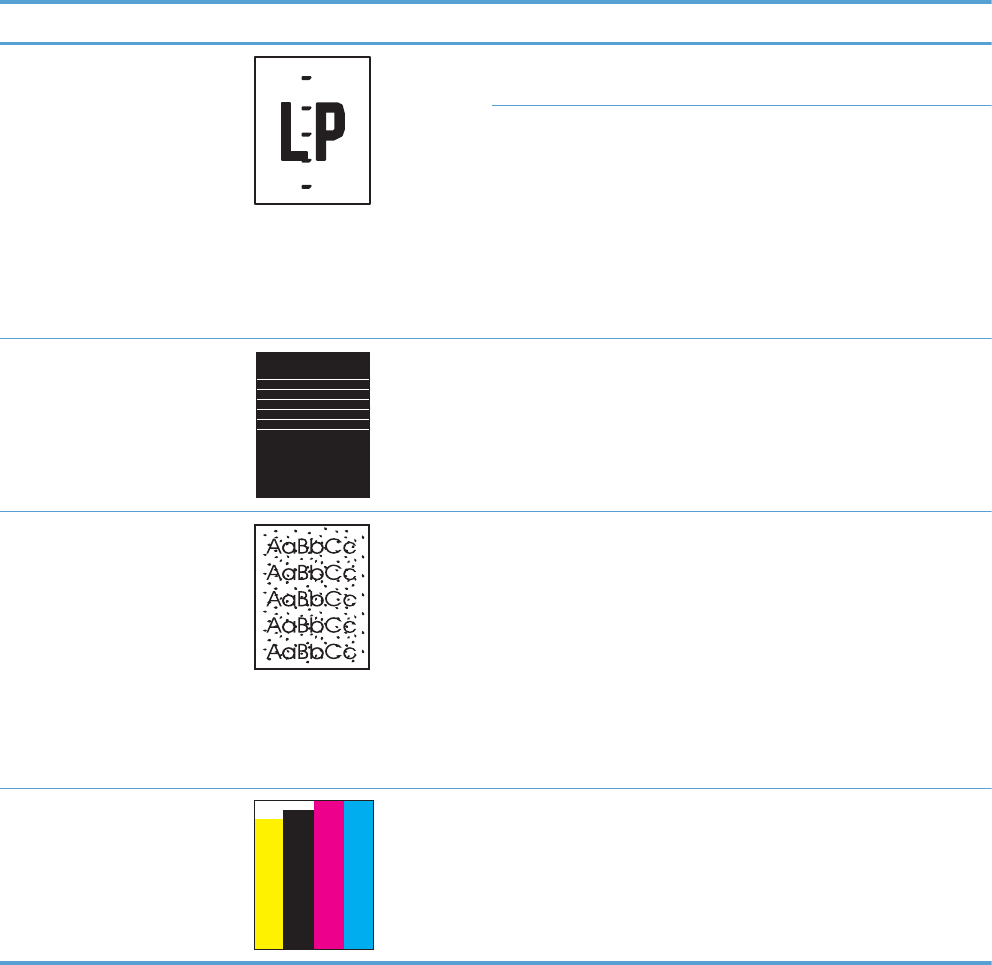
Table 3-49 Image defects table (continued)
Problem Sample Cause Solution
The front of the page is dirty. The photosensitive drum is
dirty.
Replace the print cartridge.
The fuser roller or pressure
roller is dirty.
Execute a Pressure roller clean
mode. If the dirt does not come off,
replace the fuser.
NOTE: Cleaning the fuser with HP
tough paper provides better results
than with plain paper. You might
need to execute the cleaning
process several times to remove all
contaminates on the fuser.
Repetitive horizontal lines See repetitive image defect ruler.
Clean the indicated roller. If the
contaminate does not come off,
replace appropriate roller or
assembly.
Pages have flecks of toner Execute a cleaning page to clean
the contaminate off the fuser. The
cleaning page may need to be run
several time to clean the fuser. Do
not replace the fuser.
NOTE: Cleaning the fuser with HP
tough paper provides better results
than with plain paper. You might
need to execute the cleaning
process several times to remove all
contaminates on the fuser.
Pages have one or more skewed
color planes (can appear on the
right or left side of the page)
Remove, and then reinstall the print
cartridge associated with the defect.
502 Chapter 3 Solve problems ENWW
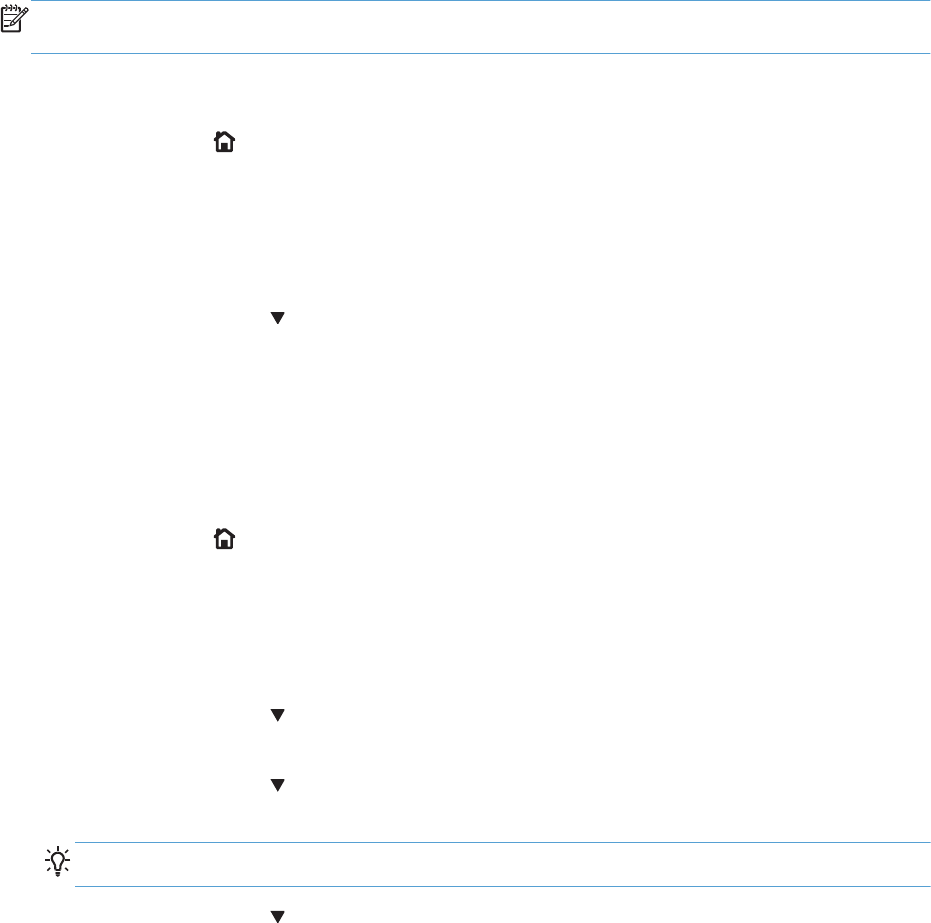
Clean the product
Over time, particles of toner and paper accumulate inside the product. This can cause print-quality
problems during printing. Cleaning the product eliminates or reduces these problems.
Clean the paper path and print-cartridge areas every time that you change the print cartridge or
whenever print-quality problems occur. As much as possible, keep the product free from dust and
debris.
To clean the product exterior, use a soft, water-moistened cloth.
Clean the paper path
NOTE: If you are processing a cleaning page to clean the fuser, repeat the process 1 to 6 times until
the paper comes out clean.
Process a cleaning page
1. Press the Home button.
2. Open the following menus:
●Device Maintenance
●Calibrate/Cleaning
3. Press the Down arrow button to highlight the Print Cleaning Page item, and then press the
OK button.
4. The product prints a cleaning page, and then returns to the main menu. Discard the printed page.
Set up an auto cleaning page
Use the procedure in this section to set up an automatic cleaning page.
1. Press the Home button.
2. Open the following menus:
●Device Maintenance
●Calibrate/Cleaning
3. Press the Down arrow button to highlight the Cleaning Settings item, and then select the
Auto Cleaning item. Select the On item, and then press the OK button.
4. Press the Down arrow button to highlight the Cleaning Interval item, and then use the arrow
buttons to select an interval. Press the OK button.
TIP: HP recommends processing a cleaning page after every 5000 printed pages.
5. Press the Down arrow button to highlight the Auto Cleaning Size item, and then use the
arrow buttons to select the cleaning page size. Press the OK button.
ENWW Clean the product 503

Solve performance problems
Table 3-50 Solve performance problems
Problem Cause Solution
Pages print but are totally blank. The document might contain blank
pages.
Check the document that you are
printing to see if content appears on all
of the pages.
The product might be malfunctioning. To check the product, print a
Configuration page.
Pages print very slowly. Heavier paper types can slow the print
job.
Print on a different type of paper.
Complex pages can print slowly. Proper fusing may require a slower print
speed to ensure the best print quality.
Large batches, narrow paper, and
special paper such as gloss,
transparency, cardstock, and HP Tough
Paper can slow the print job.
Print in smaller batches, on a different
type of paper, or on a different size of
paper.
Pages did not print. The product might not be pulling paper
correctly.
Make sure paper is loaded in the tray
correctly.
The paper is jamming in the product. Clear the jam.
The USB cable might be defective or
incorrectly connected.
●Disconnect the USB cable at both
ends and reconnect it.
●Try printing a job that has printed
in the past.
●Try using a different USB cable.
Other devices are running on your
computer.
The product might not share a USB port.
If you have an external hard drive or
network switchbox that is connected to
the same port as the product, the other
device might be interfering. To connect
and use the product, you must
disconnect the other device or you must
use two USB ports on the computer.
504 Chapter 3 Solve problems ENWW
Solve connectivity problems
Solve direct connect problems
If you have connected the product directly to a computer, check the cable.
●Verify that the cable is connected to the computer and to the product.
●Verify that the cable is not longer than 2 meters (6 feet). Replace the cable if necessary.
●Verify that the cable is working correctly by connecting it to another product. Replace the cable if
necessary.
Solve network problems
Check the following items to verify that the product is communicating with the network. Before
beginning, print a configuration page.
1. Are there any physical connection problems between the workstation or file server and the
product?
Verify that the network cabling, connections, and router configurations are correct. Verify that the
network cable lengths meet network specifications.
2. Are your network cables connected properly?
Make sure that the product is attached to the network using the appropriate port and cable. Check
each cable connection to make sure it is secure and in the right place. If the problem continues, try
a different cable or ports on the hub or transceiver. The amber activity light and the green link
status light next to the port connection on the back of the product should be lit.
3. Are the link speed and duplex settings set correctly?
Hewlett-Packard recommends leaving this setting in automatic mode (the default setting).
4. Can you "ping" the product?
Use the command prompt to ping the product from your computer. For example:
ping 192.168.45.39
Ensure that the ping displays round-trip times.
If you are able to ping the product, verify that the IP address configuration for the product is
correct on the computer. If it is correct, delete and then add the product again.
If the ping command failed, verify that the network hubs are on, and then verify that the network
settings, the product, and the computer are all configured for the same network.
5. Have any software applications been added to the network?
Make sure they are compatible and that they are installed correctly with the correct printer drivers.
ENWW Solve connectivity problems 505
6. Are other users able to print?
The problem may be workstation-specific. Check the workstation network drivers, printer drivers,
and redirection (capture in Novell NetWare).
7. If other users are able to print, are they using the same network operating system?
Check your system for proper network operating system setup.
8. Is your protocol enabled?
Check the status of your protocol on the Configuration page. You can also use the embedded
Web server to check the status of other protocols.
9. Does the product appear in HP Web Jetadmin or other management application?
●Verify network settings on the Network configuration page.
●Confirm the network settings for the product using the product control panel (for products with
control panels).
506 Chapter 3 Solve problems ENWW

Service mode functions
Service menu
The Service menu is PIN-protected for added security. Only authorized service people have access to
the Service menu. When you select Service from the list of menus, the product prompts you to enter
an eight-digit PIN number (Service Access Code). The PIN for the HP LaserJet Enterprise 500 color
M551 is 09055111.
1. Press the Home button.
2. Open the following menus:
●Device Maintenance
●Service
●Service Access Code
3. Enter the eight-digit PIN using the arrow buttons.
NOTE: Only the Service Access Code can be used to access the Service menu. The
message Your user account does not have permission to access the selected item
displays if the correct Service Access Code is not used.
4. Press the OK button to enter the PIN and open the Service menu.
First level Second level Third level Description
User Access Code Only the Service Access
Code can be used to access
the Service menu. The
message Your user
account does not have
permission to access the
selected item displays if the
correct Service Access
Code is not used.
Administrator Access
Code
Only the Service Access
Code can be used to access
the Service menu. The
message Your user
account does not have
permission to access the
selected item displays if the
correct Service Access
Code is not used.
Service Access Code This item allows access to the
Service sub menus.
Print Event Log Use this item to print the
service event log.
ENWW Service mode functions 507

First level Second level Third level Description
View Event Log Use this item to view the
service event log.
Clear Event Log Use this item to clear (erase)
the service event log.
Cycle Counts Mono Cycle Counts Use this item to reset the
mono print job page count.
Color Cycle Count Use this item to reset the color
print job page count.
Refurbish Cycle Count Use this item to reset the
refurbuish print job page
count.
Serial Number Use this item to reset the
product serial number.
Service ID Use this item to reset the
product service identification
number.
Cold Reset Paper Use this item to set the cold
reset paper size.
New Registration Roller Use this item to reset the
registration roller page count.
Media Sensor Value Use this item to record the
media sensor value found on
a replacement paper pickup
assembly.
Manual Laser Glass
Cleaning
Use this item to execute a
manual laser glass cleaning.
The laser shutters are moved
away from the laser glass
windows so that they can be
manually cleaned.
Test Support Continuous Print from
USB
Use this item to test print from
an external USB.
Automatic Calibrations Use this item to enable
automatic calibrations.
508 Chapter 3 Solve problems ENWW

Product resets
Restore factory-set defaults
1. Press the Home button.
2. Open the following menus:
●Administration
●General Settings
●Restore Factory Settings
3. Press the Down arrow button to highlight the select type of reset from a list, and then press the
OK button.
4. Press the Down arrow button to highlight the Reset item, and then press the OK button.
Restore factory-set defaults values
●Calibration
◦Persisted calibration engine data
◦Engine color density data
◦LaserJet engine calibration data
●General
◦Display and sound settings for the control panel
◦Localization settings (for example, clock format and date format)
◦Error and warning log behavior
◦Default media settings
◦Sleep mode and delay setting
◦Internal backup file maximum size
◦Oxp installer solutions, tasks and pending tasks
◦Http job defaults
◦Clears the error, warning and info logs
◦Supported media types
◦Resets JetLink connected external devices
ENWW Service mode functions 509

●Print
◦Print default job, stored job and quick set settings
◦Some print job usage data
◦Print system configuration settings
●General Security
◦Default Authentication agent
◦Authentication agents
◦Policy agents
◦Color access control
Product cold reset
Cold reset using the Preboot menu
1. Turn the product on.
2. Press the Stop button when the Ready, Data, and Attention LEDs are illuminated solid.
3. Use the Down arrow button to highlight Administrator, and then press the OK button.
4. Scroll to the Startup Options item, and then press the OK button.
5. Scroll to the Cold Reset item, and then press the OK button.
6. Press the back arrow button twice to highlight Continue, and then press the OK button.
NOTE: The product will initialize.
Clean Disk and Partial Clean functions
Active and repository firmware locations
The firmware bundle now consists of multiple parts. The main components are the Windows CE
Operating System and the printer/peripheral firmware files.
There are two locations/partitions on the hard drive where the firmware components are stored:
●The Active – where the Operating System and firmware currently are executing
●The Repository – the recovery location
If the Active location is damaged, or a Partial Clean was performed, the product automatically
copies over the OS and firmware files from the Repository location and the product recovers.
If both the Active and Repository locations are damaged, or a Clean Disk was performed, then both
locations are gone and the error message 99.09.67 appears on the control-panel display. The user
must upload the firmware to the product in order for it to function again.
510 Chapter 3 Solve problems ENWW

CAUTION: The Clean Disk option performs a disk initialization for the entire disk. The operating
system, firmware files, and third party files (among other files) will be completely lost. HP does not
recommend this action.
Partial Clean
The Partial Clean option erases all partitions and data on the disk drive, except for the firmware
repository where a backup copy of the firmware file is stored. This allows the disk drive to be
reformatted without having to download a firmware upgrade file to return the product to a bootable
state.
Characteristics of a Partial Clean
●Customer-defined settings, third-party solutions, firmware files, and the operating system are
deleted.
●Rebooting the product restores the firmware files from the Repository location, but does not restore
any customer-defined settings.
●For previous HP products, a Hard Disk Initialization is similar to executing the Partial Clean
function for this product.
CAUTION: HP recommends backing-up product configuration data before executing a Partial
Clean if you need to retain customer-defined settings. See the Backup/Restore item in the Device
Maintenance menu.
Reasons for performing Partial Clean
●The product continually boots up in an error state.
NOTE: Try clearing the error prior to executing a Partial Clean.
●The product will not respond to commands from the control panel.
●Executing the Partial Clean function is helpful for troubleshooting hard disk problems.
●To reset the product by deleting all solutions and customer-defined settings.
●The product default settings are not properly working.
Execute a Partial Clean
1. Turn the product on.
2. When the Ready, Data, and Attention LEDs are illuminated solid, press the Stop button.
3. Press the Down arrow button to highlight Administration, and then press the OK button.
4. Press the Down arrow button to highlight Partial Clean, and then press the OK button.
ENWW Service mode functions 511

5. Press the OK button again.
6. Press the back arrow button to highlight Continue, and then press the OK button.
NOTE: The product initializes.
Clean Disk
The Clean Disk option erases the entire disk drive.
CAUTION: After executing a Clean Disk option, the product is not bootable.
Characteristics of a Partial Clean
●Customer-defined settings, third-party solutions, firmware files, and the operating system are
deleted.
NOTE: Rebooting the product does not restore the firmware files.
●Rebooting the product restores the firmware files from the Repository location, but does not restore
any customer-defined settings.
●After executing the Clean Disk function, the message 99.09.67 displays on the control panel.
●After executing the Clean Disk function, the product firmware must be reloaded.
CAUTION: HP recommends that you do not use the Clean Disk option unless an error occurs and
the solution in the product service manual recommends this solution. After executing the Clean Disk
function, the product is unusable.
HP recommends backing-up product configuration data before executing a Clean Disk if you need to
retain customer-defined settings. See the Backup/Restore item in the Device Maintenance menu.
Reasons for performing Clean Disk
●The product continually boots up in an error state.
NOTE: Try clearing the error prior to executing a Clean Disk.
●The product will not respond to commands from the control panel.
●Executing the Clean Disk function is helpful for troubleshooting hard disk problems.
●To reset the product by deleting all solutions and customer-defined settings.
Execute a Clean Disk
1. Turn the product on.
2. When the Ready, Data, and Attention LEDs are illuminated solid, press the Stop button.
3. Press the Down arrow button to highlight Administration, and then press the OK button.
512 Chapter 3 Solve problems ENWW

4. Press the Down arrow button to highlight Clean Disk, and then press the OK button.
5. Press the OK button again.
NOTE: When the Clean Disk operation is complete, you will need to reload the product
firmware.
ENWW Service mode functions 513

Preboot menu options
If an error occurs while the product is initializing, an error message appears on the control-panel
display. The user can access the Preboot menus. The error menu item will not be seen if an error did
not occur.
Table 3-51 Preboot menu options (1 of 5)
Menu option First level Second level Third level Description
Continue Selecting the Continue item exits the Preboot menu and
continues the normal boot process.
If a selection is not made in the initial menu within 30
seconds, the product returns to a normal boot (the same as
selecting Continue.
If the user navigates to another menu, the timeout does not
apply.
Sign In Enter the administrator PIN or service PIN if one is required
to access the Preboot menu.
514 Chapter 3 Solve problems ENWW

Table 3-51 Preboot menu options (1 of 5) (continued)
Menu option First level Second level Third level Description
Administrator This item navigates to the Administrator sub menus.
If authentication is required (and the user is not already
signed in) the Sign In displays. The user is required to sign
in.
Download This item initiates a preboot firmware download process. A
USB device interface or a Network connection can be used
to download firmware.
Network See the service manual for information about product
updates.
USB <X> See the service manual for information about product
updates.
Clean Disk This item reinitializes the disk and cleans all disk partitions.
CAUTION: Selecting the Clean Disk item removes all
data.
A delete confirmation prompt is not provided.
The system is not bootable after this action—a firmware
download must be performed to return the system to a
bootable state.
Partial Clean This item reinitializes the disk (removing all data except the
firmware repository where the master firmware bundle is
downloaded and saved).
CAUTION: Selecting the Partial Clean item removes all
data except the firmware repository.
A delete confirmation prompt is not provided.
This allows user to reformat the disk by removing the
firmware image from the active directory without having to
download new firmware code (product remains bootable).
Change
Password
Select this item to set or change the administrator password.
Clear
Password
Select the Clear Password item to remove a password
from the Administrator menu. Before the password is
actually cleared, a message will be shown asking to confirm
that the password should be cleared. Press the OK button to
confirm the action.
When the confirmation prompt appears, press the OK
button to clear the password.
ENWW Preboot menu options 515

Table 3-52 Preboot menu options (2 of 5)
Menu option First level Second level Third level Description
Administrator
continued
Manage
Disk
Clear Disk Select the Clear Disk item to enable an external device for
job storage. Job storage is normally enabled only for the
Boot device. This will be grayed out unless the 99.09.68
error is displayed.
Lock Disk Select the Lock Disk item to lock (mate) a new secure disk
to this product.
The secure disk already locked to this product will remain
accessible to this product. Use this function to have more
then one encrypted disk accessible by the product when
using them interchangeably.
The data stored on the secure disk locked to this product
always remains accessible to this product.
Leave
Unlocked
Select the Leave Unlocked item to use a new secure disk
in an unlocked mode for single service event. The secure
disk that is already locked to this product will remain
accessible to this product and uses the old disk's encryption
password with the new disk.
The secure disk that is already locked to this product remains
accessible to this product.
Clear
Password
Select the Clear Password item to continue using the non-
secure disk and clear the password associated with the yet
to be installed secure disk.
CAUTION: Data on the missing secure disk will be
permanently inaccessible.
Retain
Password
Select the Retain Password item to use the non-secure
disk for this session only, and then search for the missing
secure disk in future sessions.
Boot Device Secure Erase Select the Secure Erase item to erase all of the data on the
disk and unlock it if required.
This might take a long time.
NOTE: The system will be unusable until the system files
are reinstalled. ATA secure-erase command one pass over
write. Erases entire disk including firmware. The disk
remains an encrypted disk.
Erase and
Unlock
Select the Erase and Unlock item to cryptographically
erase all data on disk and unlock the disk to allow access to
it from any product.
NOTE: The system will be unusable until the system files
are reinstalled. Erases the crypto key. The disk becomes a
non-encrypted disk.
Get Status This item provides disk status information if any is available.
516 Chapter 3 Solve problems ENWW

Table 3-53 Preboot menu options (3 of 5)
Menu option First level Second level Third level Description
Administrator
continued
Manage Disk
continued
Internal
Device
Select the Internal Device item to erase the internal device
or get status about the internal device.
Secure Erase Select the Secure Erase item to erase all of the data on the
disk and unlock it if required.
This might take a long time.
NOTE: The system will be unusable until the system files
are reinstalled. ATA secure-erase command one pass over
write. Erases the entire disk, including firmware. The disk
remains an encrypted disk.
Erase and
Unlock
Select the Erase and Unlock item to cryptographically
erase all data on disk and unlock the disk to allow access to
it from any product.
NOTE: The system will be unusable until the system files
are reinstalled. Erases the crypto key. The disk becomes a
non-encrypted disk.
Get Status This item provides disk status information if any is available.
External
Device
Select the External Device item to erase the internal
device or get status about the internal device.
Secure Erase Select the Secure Erase item to erase all of the data on the
disk and unlock it if required.
This might take a long time.
NOTE: The system will be unusable until the system files
are reinstalled. ATA secure-erase command one pass over
write. Erases the entire disk, including firmware. The disk
remains an encrypted disk.
Erase and
Unlock
Select the Erase and Unlock item to cryptographically
erase all data on disk and unlock the disk to allow access to
it from any product.
NOTE: The system will be unusable until the system files
are reinstalled. Erases the crypto key. The disk becomes a
non-encrypted disk.
Get Status This item provides disk status information if any is available.
ENWW Preboot menu options 517

Table 3-54 Preboot menu options (4 of 5)
Menu option First level Second level Third level Description
Administrator
continued
Configure
LAN
Select the Configure LAN item to setup the network settings
for the PreBoot menu firmware upgrade.
The network can be configured obtain the network settings
from a DHCP server or as static.
DHCP Use this item for automatic IP address acquisition from the
DHCP server.
Static Use this item to manually assign the network addresses.
IP Address Use this item to manually enter the IP addresses.
Subnet
Mask
Use this item to manually enter the subnet mask.
Default
Gateway
Use this item to manually enter the default gateway.
Save and
Exit
Select the Save and Exit item to save the manual settings.
518 Chapter 3 Solve problems ENWW

Table 3-55 Preboot menu options (5 of 5)
Menu option First level Second level Third level Description
Administrator
continued
Startup
Options
Select the Startup Options item to specify options that can
be set for the next time the product is turned on and initializes
to the to Ready state.
Cold Reset Check the Cold Reset item to clear the IP address and all
customer settings (this item also returns all settings to factory
defaults).
NOTE: Items in the Service menu are not reset.
First Power Not currently functional: This item allows the product initialize
as if it is the first time it has been turned on.
For example, the user is prompted to configure first time
settings like Select Date/Time, Select Language, and other
settings.
Check this item so that it is enabled for the next time the
product power is turned on.
When the product power is turned on the next time, this item
is unchecked so that the pre-configured settings are used
during configuration and the first time setting prompt is not
used.
Skip Plug-ins This item allows the device to be started without loading the
third party applications.
This means that files including Accessible Architecture on the
disk will not be available at bootup. This is useful for
troubleshooting problems with the hard disk without having to
remove the hard disk. It also applies to flash file system disks
on DIMMs.
In this case, this function will cause the printer to configure the
HP firmware first, followed by the third-party applications.
NOTE: The files on the disk will be available after the
printer enters the Ready state.
Skip Cal Select the Skip Cal item to initialize the product the next time
the power is turned on without calibrating.
Show
Revision
Not currently functional: Check the Show Revision item to
allow the product to initialize and show the firmware version
when the device reaches the Ready state.
Once the product power is turned on the next time, the Show
Revision item is unchecked so the firmware revision is not
shown.
Lock Service CAUTION: Select the Lock Service item to lock the
Service menu access (both PreBoot and Device Maintenance
application).
Service personnel must have the Administrator remove the
Lock Service setting before they can enter the Service
menu.
ENWW Preboot menu options 519

Table 3-56 Preboot menu options (5 of 5)
Menu option First level Second level Third level Description
Administrator
continued
Startup Options
continued
Skip Disk Scan Check the Skip Disk Scan item to allow the product
to initialize without scanning the disk.
If the product is crashing on Step 4/8, checking this
item may allow the problem to be isolated.
Once the device is turned on the next time, the Skip
Disk Scan item is unchecked and the disk scan is not
skipped.
Embedded
Jetdirect Off
Check the Embedded Jetdirect Off item to disable
the embedded Jetdirect.
By default this item is unchecked so that Jetdirect is
always enabled.
Service Tools This item requires the Service access code.
Reset Password Use this item to clear the Administrator password.
Subsystems For manufacturing use only. Do not change these
values.
520 Chapter 3 Solve problems ENWW

Product updates
To download the most recent firmware upgrade for the product, go to www.hp.com/support/
cljcp5525 or www.hp.com/go/cljcp5525_firmware.
Determine the installed revision of firmware
Print a configuration page to determine the installed revision of firmware.
On the configuration page, look in the section marked Device Information for the firmware datecode
and firmware revision.
Firmware datecode and firmware revision examples
●20100831 (firmware datecode)
●103067_104746 (firmware revision)
Perform a firmware upgrade
The firmware bundle is a xxxxxxx.bdl file. This file requires an interactive upgrade method. You
cannot upgrade the product using the traditional FTP, LPR or Port 9100 methods of upgrading. Use one
of the following methods to upgrade the firmware for this product.
Embedded Web Server
1. Open an browser window.
2. Enter the product IP address in the URL line.
3. Select the Firmware upgrade link from within the Troubleshooting tab.
NOTE: If you get a warning screen, follow the instructions for setting an administrator password
from the Security tab.
4. Browse to the location that the firmware upgrade file was downloaded to, and then select the
firmware file. Select the Install button to perform the upgrade.
NOTE: Do not close the browser window until the Embedded Web Server (EWS) displays the
confirmation page.
5. Select Restart Now from the EWS confirmation page, or turn the product off, and then on again
using the power switch.
ENWW Product updates 521

USB storage device (Preboot menu)
1. Copy the xxxxxxx.bdl file to a portable USB flash memory storage device (thumb drive).
2. Turn the product on.
3. Press the Stop button when the Ready, Data and Attention LEDs illuminate solid.
4. Press the Down arrow button to highlight Administrator, and then press the OK button.
5. Press the Down arrow button to highlight Download, and then press the OK button.
6. Insert the portable USB storage device with the xxxxxxx.bdl file on it.
NOTE: If the error message No USB Thumbdrive Files Found appears on the control-panel
display, you might need to connect the storage device to the external USB connection on the
formatter or try using a different portable storage device.
7. Press the Down arrow button to highlight USB Thumb Drive, and then press the OK button.
8. Press the Down arrow button to highlight thexxxxxxx.bdl file, and then press the OK button.
NOTE: The upgrade process can take up to 10 minutes to complete.
TIP: If there is more than one xxxxxxx.bdl file on the storage device, make sure that you
select the correct file for this product.
9. When the message Complete appears on the control-panel display, press the back arrow
button 3 times.
10. When the message Continue appears on the control-panel display, press the OK button. The
product will initialize.
11. When the upgrade process is complete, print a configuration page and verify that the upgrade
firmware version was installed.
522 Chapter 3 Solve problems ENWW

USB storage device (control-panel menu)
1. Copy the xxxxxxx.bdl file to a portable USB flash memory storage device (thumbdrive).
2. Turn the product on, and then wait until it reaches the Ready state.
3. Press the Home button or OK button.
4. Press the Down arrow button to highlight Device Maintenance, and then press the OK
button.
5. Press the Down arrow button to highlight USB Firmware Upgrade, and then press the OK
button.
6. Insert the portable USB storage device with the xxxxxxx.bdl file on it into the USB port on the
front of the product, and then press the OK button.
7. Press the Down arrow button to highlight thexxxxxxx.bdl file, and then press the OK button.
TIP: If there is more than one xxxxxxx.bdl file on the storage device, make sure that you
select the correct file for this product.
8. A prompt to upgrade an older, newer, or reinstall the same version appears. Press the Down
arrow button to highlight the desired option, and then press the OK button.
When the upgrade is complete, the product will initialize.
NOTE: The upgrade process can take up to 10 minutes to complete.
9. When the upgrade process is complete, print a configuration page and verify that the upgrade
firmware version was installed.
ENWW Product updates 523
524 Chapter 3 Solve problems ENWW


Order parts, accessories, and supplies
You can obtain the following items directly from HP:
●Replacement parts: To order replacement parts in the U.S., go to www.hp.com/go/hpparts/.
Outside the United States, order parts by contacting your local authorized HP service center.
●Supplies and accessories: To order supplies in the U.S., go to www.hp.com/go/ljsupplies. To
order supplies worldwide, go to www.hp.com/ghp/buyonline.html. To order accessories, go to
www.hp.com/support/lj500colorM551.
526 Chapter 4 Parts and diagrams ENWW

Part numbers
The following list of accessories was current at the time of printing. Ordering information and
availability of the accessories might change during the life of the product.
Accessories
Product name Product number Part number
1 x 500-sheet paper feeder CF084A CF084-67901
Print cartridges and toner collection unit
Product name Cartridge number Part number (service)
HP Color LaserJet standard black print cartridge 507A CE400-67901
HP Color LaserJet high capacity black print cartridge 507X CE400-67902
HP Color LaserJet cyan print cartridge 507A CE401A-67901
HP Color LaserJet yellow print cartridge 507A CE402-67901
HP Color LaserJet magenta print cartridge 507A CE403-67901
Toner collection unit (TCU) CE254A RM1-4989-000CN
Memory
Product name Part number
Memory replacement kit (n and dn models only)
●4GB SSM
●Retainer
●Installation instructions
CF081-67902
Hard drive replacement kit (n and xh model)
●250GB HDD
●Bracket
●Installation instructions
CF083-67901
ENWW Part numbers 527

Customer self repair (CSR) and service kits
Product name Part number
Front-door assembly and name plate
●Front-door assembly
●HP Jewel
●Name plate
●Installation instructions
CF081-67901
1 x 500-sheet paper feeder right door kit
●Right-door assembly
●Right-door stopper
●Right-door link
●Installation instructions
CC468-67906
Toner collection unit (TCU) kit
●Toner collection unit
●Installation instructions
CC468-67910
Pick/feed and separation roller kit (Tray 1/2)
●Separation roller assembly (tray/cassette)
●Pickup roller assembly (tray/casette)
●Pickup roller (MP tray
●Installation instructions
CF081-67903
Pick/feed and separation roller kit (Tray 3)
●Paper feed assembly (tray/cassette)
●Pickup roller assembly (tray/casette)
●Pickup roller (MP tray
●Installation instructions
CF081-67913
ITB kit
●Intermediate transfer belt (ITB)
●Secondary transfer roller assembly
●Installation instructions
CF081-67904
528 Chapter 4 Parts and diagrams ENWW

Product name Part number
Service fuser kit
●Fuser assembly (110 V or 220 V)
●Installation instructions
CAUTION: Make sure that you order the correct kit for the rated voltage of your product.
CF081-67905 (110 V)
CF081-67906 (220 V)
Duplex reverse guide kit
●Duplex reverse guide
●Installation instructions
CC468-67913
Secondary transfer (T2) roller kit
●Secondary transfer roller
●Installation instructions
CF081-67907
Secondary transfer assembly kit
●Secondary transfer assembly (simplex or duplex)
●Installation instructions
NOTE: Make sure that you order the correct kit for your product model (simplex or duplex).
CF081-67908 (simplex)
CF081-67909 (duplex)
Laser scanner assembly kit
●Laser/scanner assembly
●Installation instructions
CC468-67917
Main drive assembly kit
●Main drive assembly
●Installation instructions
CF081-67910
Formatter assembly kit (exchange)
●Formatter PCA
●Formatter tray
●Screw (2)
●Installation instructions
CF081-69001
Formatter assembly kit (China only)
●Formatter PCA
●Formatter tray
●Screw (2)
●Installation instructions
CF081-67912
HDD Replacement Kit (U.S. government only) CF083-67902
ENWW Part numbers 529
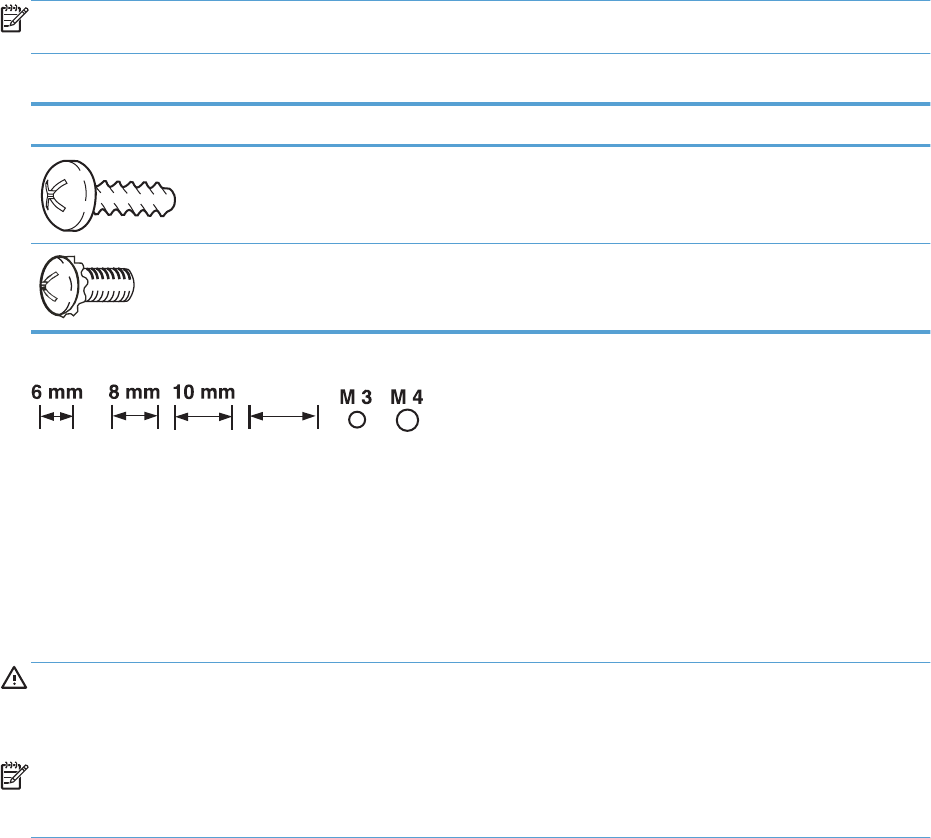
Screws
NOTE: The screw illustrations in the following table are for reference only. Screws might vary in size
and appearance from those shown in this table.
Table 4-1 Common fasteners
Example Description Size Part Number
Screw, tapping, truss head M4X10 XB4-7401-005CN
Screw, D M3X8 XA9-1671-000CN
12 mm
12 mm
How to use the parts lists and diagrams
The figures in this chapter show the major subassemblies in the product and their component parts. A
parts list table follows each exploded view assembly diagram. Each table lists the item number, the
associated part number, and the description of each part. If a part is not listed in the table, then it is not
a field replacement unit (FRU).
CAUTION: Be sure to order the correct part. When looking for part numbers for electrical
components, pay careful attention to the voltage that is listed in the description column. Doing so will
ensure that the part number selected is for the correct all-in-one model.
NOTE: In this manual, the abbreviation “PCA” stands for “printed circuit-board assembly.”
Components described as a PCA might consist of a single circuit board or a circuit board plus other
parts, such as cables and sensors.
530 Chapter 4 Parts and diagrams ENWW
ENWW How to use the parts lists and diagrams 531
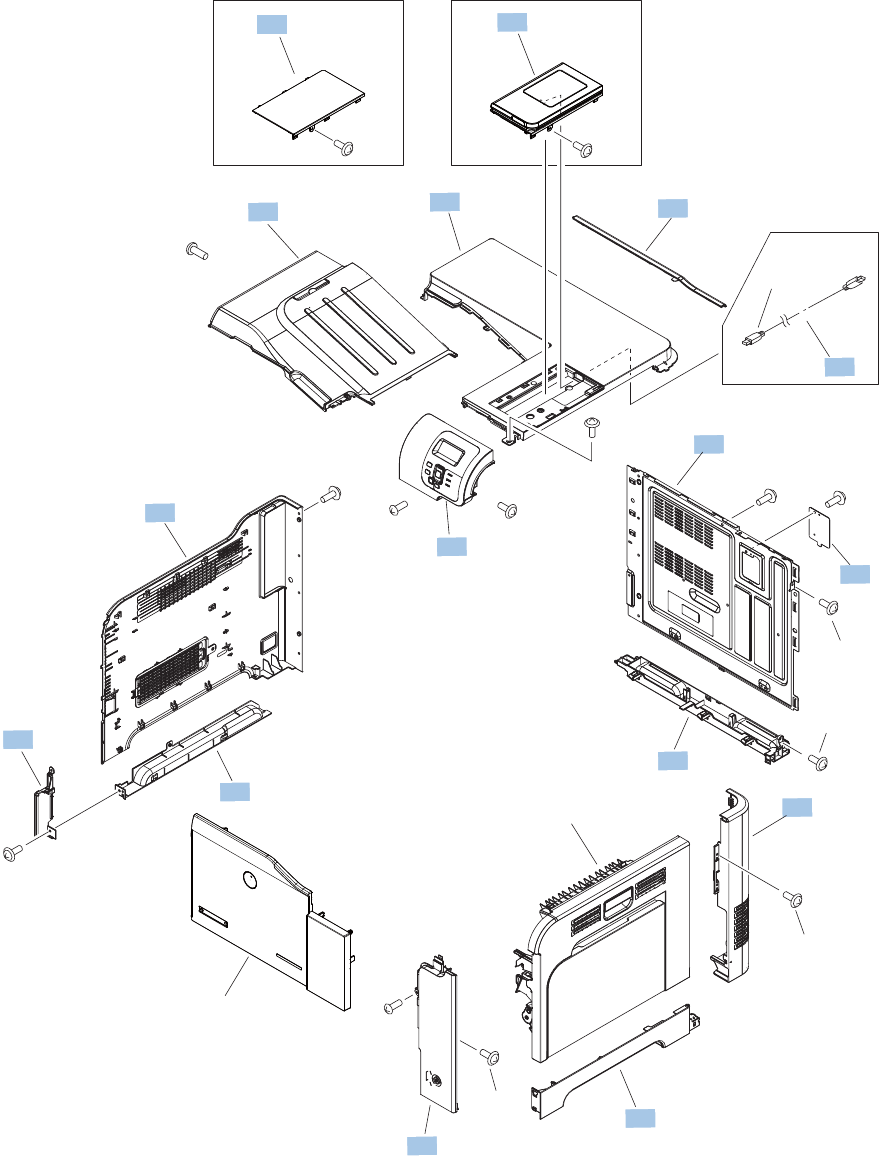
Covers
Figure 4-1 External covers, panels, and doors
See Right-door assembly
Simplex model Duplex model
Duplex model
1
2
3
45
6
7
8
9
10
12
13 13
11
14
15
16
17
532 Chapter 4 Parts and diagrams ENWW

Table 4-2 External covers, panels, and doors
Ref Description Part number Qty
1 Cover, rear upper RC2-5058-000CN 1
2 Plate, blanking RC2-5938-000CN 1
3 Cover, left lower RC3-1112-000CN 1
4 Cover, left front RC3-1113-000CN 1
5 Cover, rear lower RC3-1114-000CN 1
6 Cover, rear RC3-1115-000CN 1
7 Cover, right rear RC3-1116-000CN 1
8 Cover, right lower RC3-1117-000CN 1
9 Cover, upper RC3-1118-000CN 1
11 Tray, paper delivery RL1-1941-030CN 1
12 Operation (control) panel assembly RM1-8096-000CN 1
13 Cover, USB (simplex) RC3-1093-000CN 1
13 Cover, USB (duplex) RM1-8173-000CN 1
15 Cover, left assembly RM1-8159-000CN 1
16 Cover, right-front assembly RM1-8165-000CN 1
ENWW Covers 533
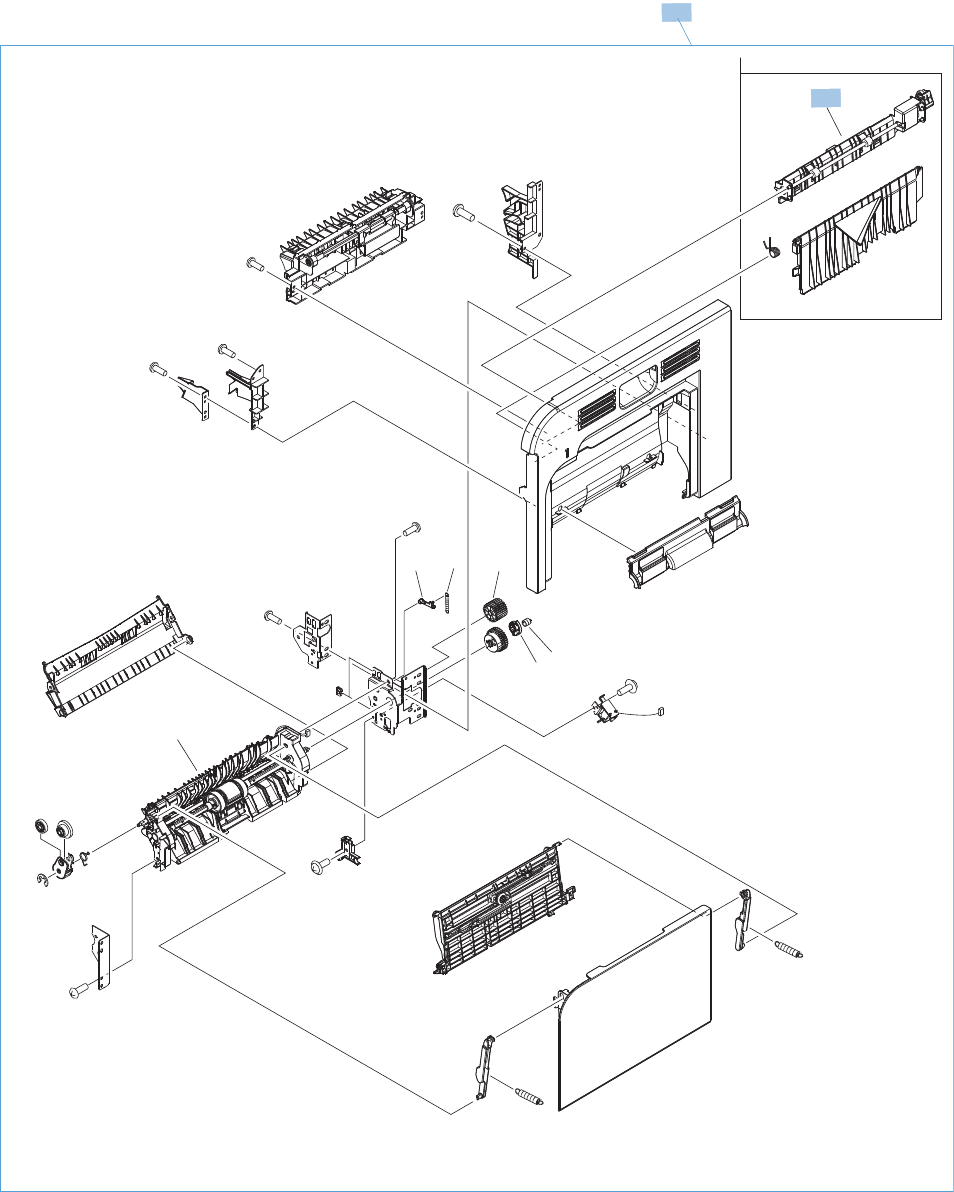
Right-door assembly
Figure 4-2 Right-door assembly
Duplex model
SEE MP PICKUP ASSEMBLY
(SL3)
(J84)
1
2
1
3
4
56
7
534 Chapter 4 Parts and diagrams ENWW

Table 4-3 Right-door assembly
Ref Description Part number Qty
1 Right-door assembly (simplex) RM1-8167-000CN 1
1 Right-door assembly (duplex) RM1-8123-000CN 1
2 Duplexing paper feed assembly RM1-4959-000CN 2
ENWW Right-door assembly 535
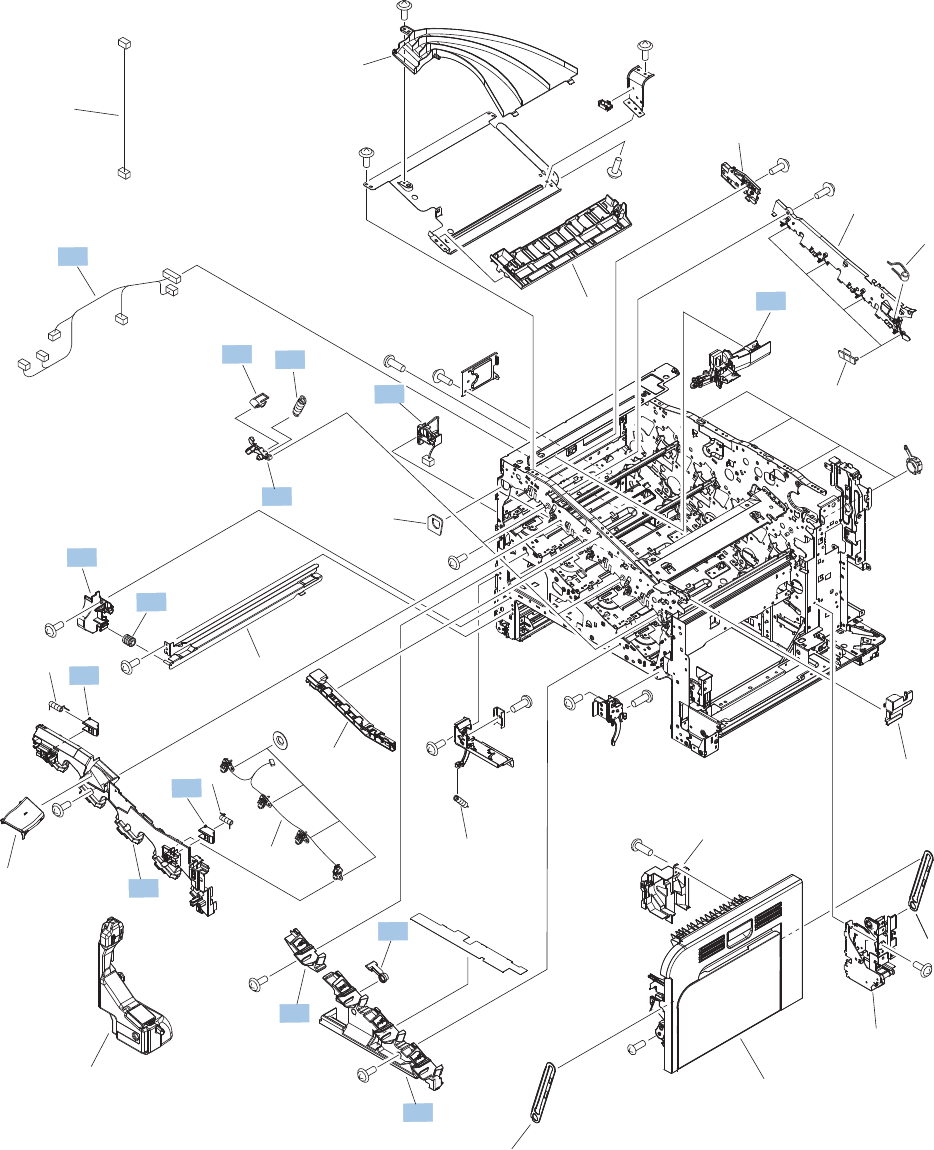
Internal assemblies
Internal assemblies (1 of 5)
Figure 4-3 Internal assemblies (1 of 5)
(J91)
(J98)
(J77)
(J2)
(J91)
(J75)
(J97)
(J25)
(J261)
See right-door assembly
32
33
29
See Print cartridges and
toner collection unit
23
6
2
9
27 24
3
5
21
4
20
19
13
25
17
18
22
1
12
10
7
8
15
30
16
31
32
28
26
11
24
536 Chapter 4 Parts and diagrams ENWW

Table 4-4 Internal assemblies (1 of 5)
Ref Description Part number Qty
1 Left cable assembly RM1-5742-000CN 1
2 Holder, CST positioning RC3-1231-000CN 1
3 Cover, front inner lower unit (CMK) RL1-1914-020CN 1
5 Cover, front inner, upper RC3-1070-000CN 1
6 Cover, front inner lower (Y) RL1-1915-000CN 1
8 Roller, rail RC2-4831-000CN 1
12 Waste toner detect assembly RM1-5696-000CN 1
13 Waste toner duct assembly RM1-8138-000CN 1
17 Spring, tension RU7-2192-000CN 4
18 Spring, ground RU6-2237-000CN 4
19 Lever, cartridge pressure front RC2-3983-030CN 4
24 Lock, door RC2-5937-000CN 2
26 Lever, box presence detect RC2-5951-000CN 1
ENWW Internal assemblies 537
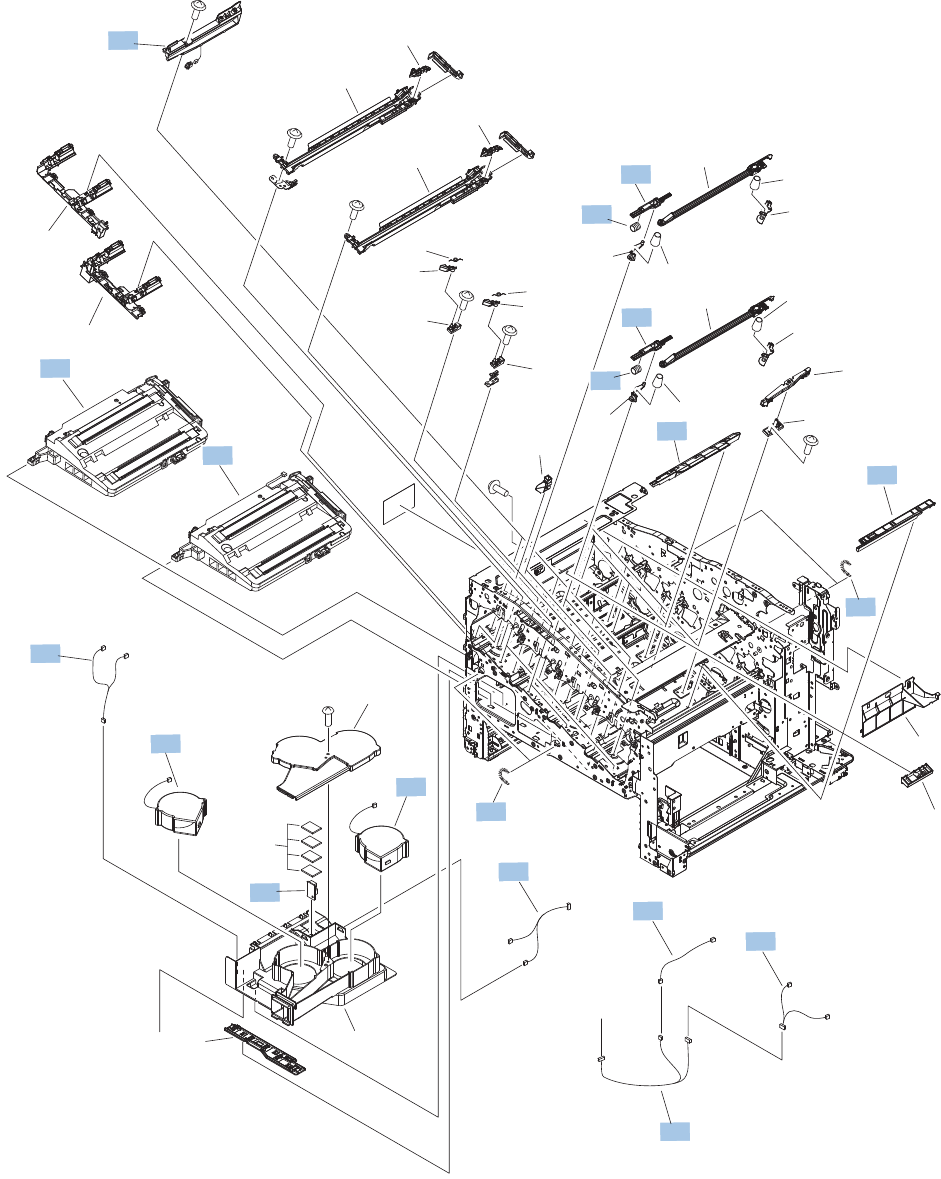
Internal assemblies (2 of 5)
Figure 4-4 Internal assemblies (2 of 5)
(FM3)
(J262)
(J72)
(J96)
(J89)
(J75)
(J71)
(J26)
(J26)
(J27)
(J27)
(J97)
(J96) (J76) (J76)
(J73)
(J74)
(FM2)
A
A
17
16
10
11
33
30
1
27
7
4
3
23
25
36
35
34
20
20
21
29
31
26
59
18
2
30
12
23 25
20
20
21
26
22
22
5
28
13
15
14
19
13
15
24
6
32
8
32
8
538 Chapter 4 Parts and diagrams ENWW

Table 4-5 Internal assemblies (2 of 5)
Ref Description Part number Qty
1 Fan cable assembly RM1-5746-000CN 1
5 Spring, tension RU6-2436-000CN 2
12 Cover RC2-5912-000CN 3
18 Cover RC2-5962-000CN 1
21 Spring, compression RU6-2316-000CN 2
23 Lever, shutter RC2-4415-000CN 2
27 Temperature sensor assembly RK2-3267-000CN 1
29 Toner sensor holder assembly RM1-5700-000CN 4
30 Fan (FM2, FM3) RK2-2418-000CN 2
33 Connecting cable assembly RM1-5749-000CN 1
34 Sensor cable assembly RM1-5740-000CN 1
35 Sensor cable assembly RM1-5741-000CN 1
36 Motor/sensor cable assembly RM1-5752-000CN 1
ENWW Internal assemblies 539
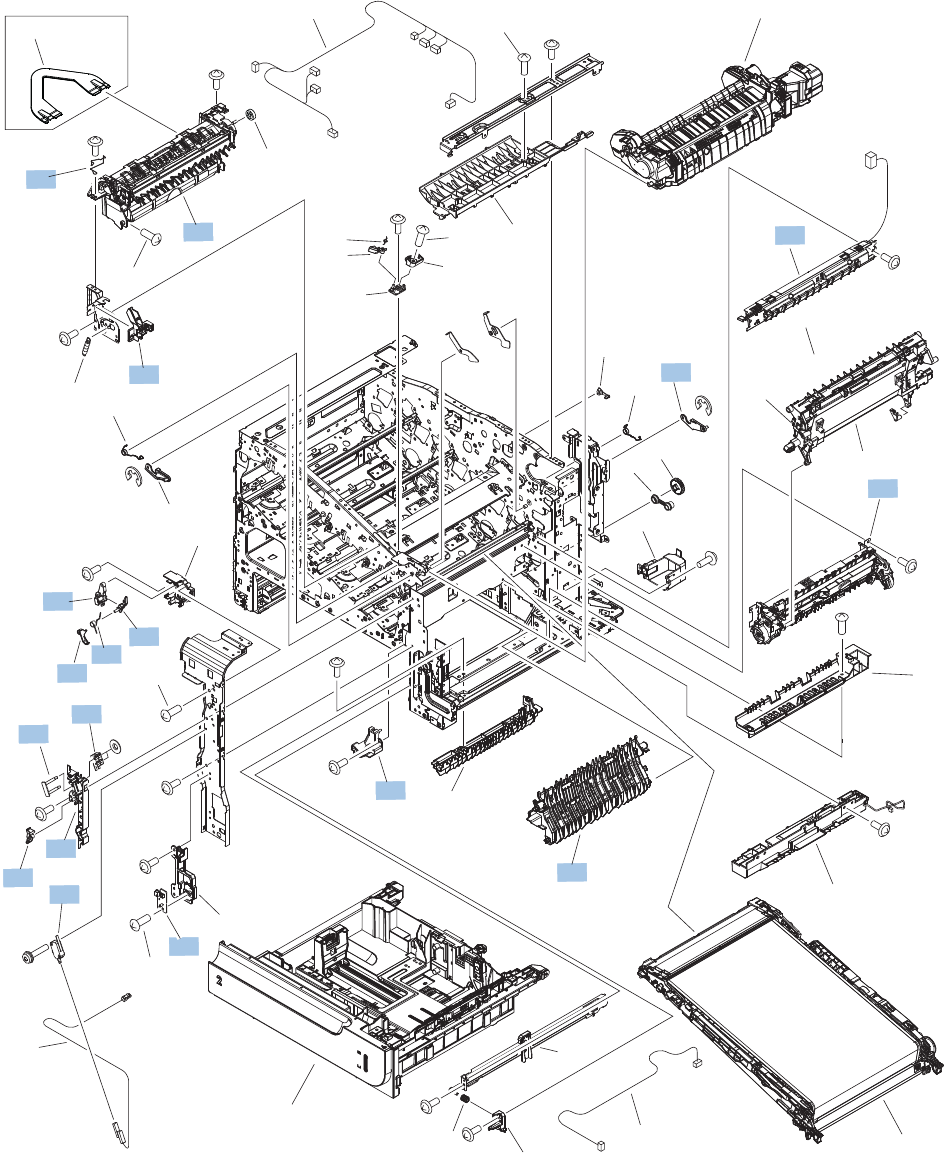
Internal assemblies (3 of 5)
Figure 4-5 Internal assemblies (3 of 5)
(J92) (J47)
(J48)
(J780)
(J95)
(J123)
(J112)
(J63)
(J82)
(J130)
(J61)
See Paper pickup
assembly
See fuser
See cassette
(SW1, SW2)
(J118)
(J30)
(J303)
Duplex model
(SW3)
(J61)
20
21
19
22
4
23
2
36
1
24 45
5
32
43
46
18
6
39
25 7
34
28
35
3
33
8
31
16
12
30
927 13
14
29
15
38
17
10
11
26
37
44
41
40
42
501
501
501
501
501
540 Chapter 4 Parts and diagrams ENWW

Table 4-6 Internal assemblies (3 of 5)
Ref Description Part number Qty
6 Wire, (mech) sensor protect RC2-4828-000CN 1
7 Sensor cable guide assembly RM1-8178-000CN 1
8 Cover, right lower inner RC2-5019-000CN 1
9 Link, interlock RC2-5120-000CN 1
10 Mount, interlock switch RC2-5123-000CN 1
11 Arm, interlock link switch RC2-5121-000CN 1
13 Link, interlock RC2-5119-000CN 1
14 Link, interlock RC2-5118-000CN 1
17 Shaft RC2-5913-000CN 1
27 Link, interlock RC2-5122-000CN 1
29 Microswitch WC4-5171-000CN 1
30 Door switch assembly RM1-5732-000CN 1
31 Switch, PCA assembly RM1-8097-000CN 1
34 Density detect assembly RM1-8163-000CN 1
35 Pick up lower guide assembly RM1-8132-000CN 1
43 Paper delivery assembly (simplex) RM1-5003-050CN 1
43 Paper delivery assembly (duplex) RM1-4970-060CN 1
44 Registration assembly (simplex) RM1-5009-000CN 1
44 Registration assembly (duplex) RM1-4969-000CN 1
45 Rear lock arm assembly RM1-5533-000CN 1
ENWW Internal assemblies 541
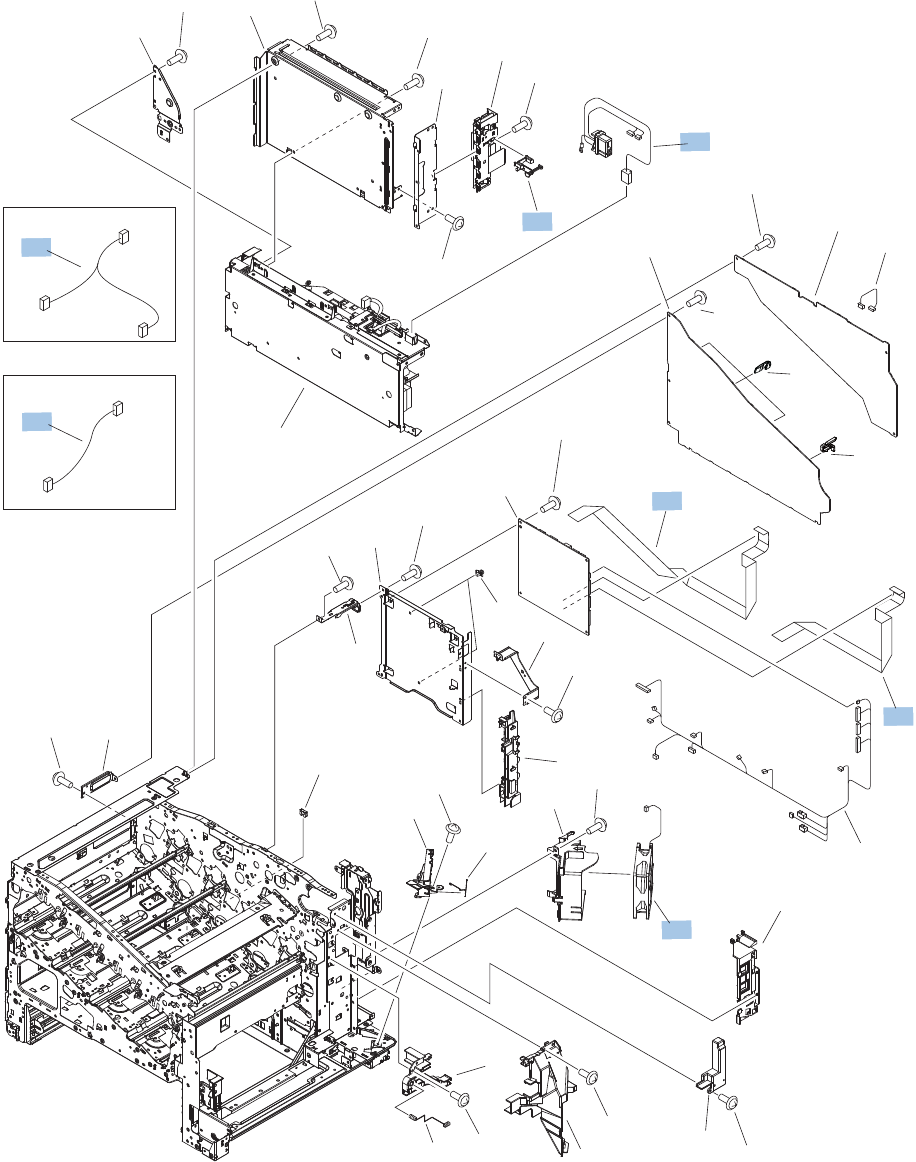
Internal assemblies (4 of 5)
Figure 4-6 Internal assemblies (4 of 5)
(J201)
(J 113)
(FM1)
(J 119)
(J60)
(J 115)
(J50)
(J98)
(J139)
(J 110)
(J108)
(J137)
(J140)
(J106)
(J82)
(J80)
(J79)
(J58)
(J77)
(J70)
(J0)
(J57)
(J251)
(J83)
(J138)
(J501)
(J 111)
(J503)
SEE PCAS
SEE PCAS
SEE PCAS
SEE PCAS
SEE PCAS
(J85)
(J90)
(J107)
(J85s)
(J107s)
DUPLEX MODEL
SIMPLEX MODEL
10
17
3
11
7
16
1
13
12
6
5
4818
9
14
14
15
2
19
*A10
*A10
*A01
*A02
*A10
*A10 *A10
*A10
*A10
*A07
*A08 *A04
*A03
*A10 *A10
*A10
*A10
*A10
*A10
*A09
*A11
*A05
*A02
*A06
*A02
*A10
542 Chapter 4 Parts and diagrams ENWW

Table 4-7 Internal assemblies (4 of 5)
Ref Description Part number Qty
1 Fusing connecting cable assembly RM1-5714-000CN 1
6 Fan (FM1) RK2-2416-000CN 1
7 Cable, flat 2 laser RK2-3943-000CN 1
11 Switch arm RC2-5943-000CN 1
14 MP sensor cable assembly (simplex) RM1-5750-000CN 1
14 MP sensor cable assembly (duplex) RM1-5737-000CN 1
16 Cable, flat 1 scanner RK2-3941-000CN 1
ENWW Internal assemblies 543
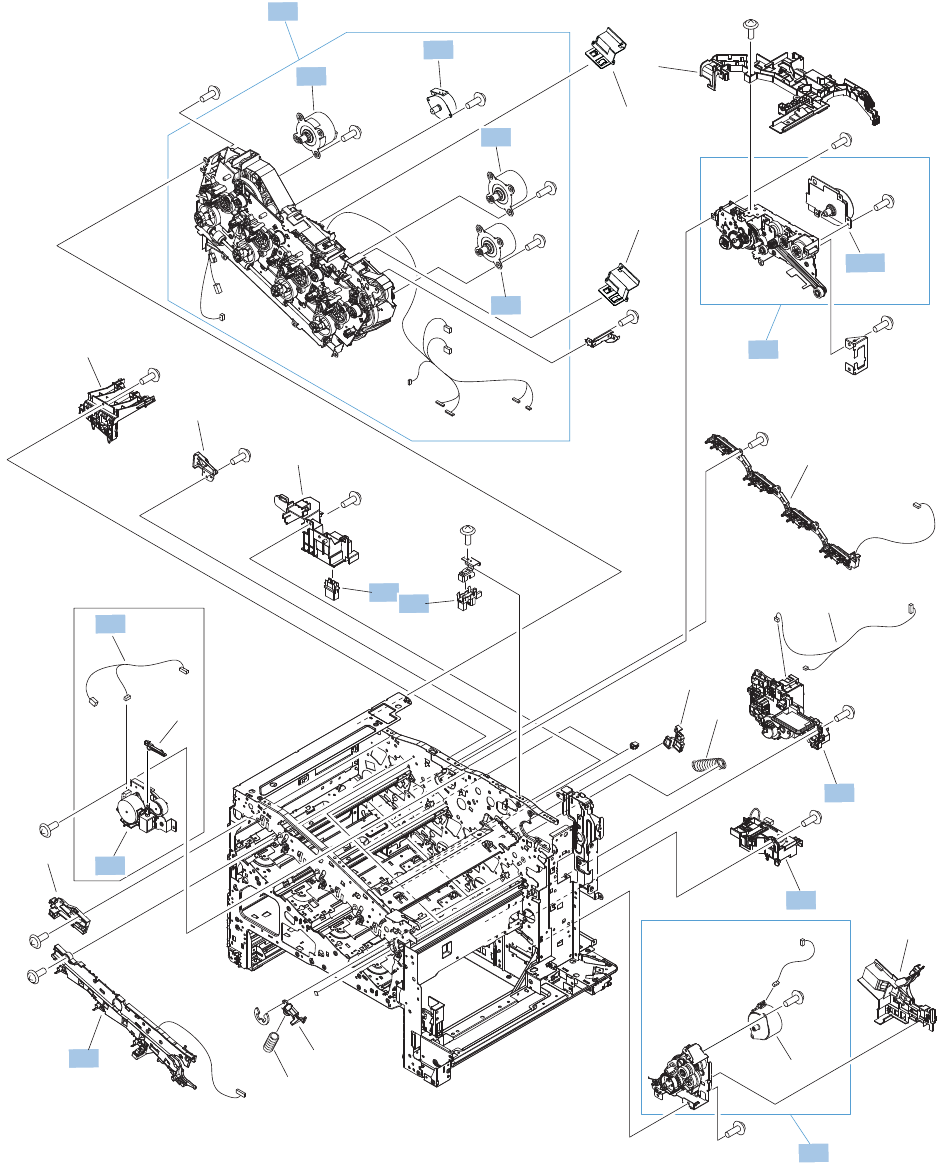
Internal assemblies (5 of 5)
Figure 4-7 Internal assemblies (5 of 5)
(J88)
(J15)
(J70 )
(J261 )
(J127)
(J117 )
(J120)
(J121)
(J87)
(J126)
(J141)
(J78)
(J81)
(J81)
(J88)
(M4)
(J40)
(M3)
(J41)
(M5)
(J42)
(J20)
(J202)
Duplex model
(J131)
(J6)
(J21)
(SR5)
(J46)
(M10)
(J25)
(M2)
(J15)
(M13)
(J6)
20
19
15
11
14
4
12
3
22
8
8
17
16
1
24
23
13
18
5
6
8
21
7
25
9
10
2
21 A
14 A
27
26
544 Chapter 4 Parts and diagrams ENWW

Table 4-8 Internal assemblies (5 of 5)
Ref Description Part number Qty
1 Duplexing unit cable assembly RM1-5730-000CN 1
5 Auto close assembly RM1-8137-000CN 1
7 Lifter drive assembly RM1-8136-000CN 1
8 Main motor unit (M3, M4, M5) RM1-8105-000CN 3
12 Connector, drawer VS1-7258-007CN 1
13 Photo interrupter, TLP1243 WG8-5935-000CN 1
14 Cassette paper pick up drive assembly (M13) RM1-8135-000CN 1
14A Pickup motor assembly (M13) RM1-5773-000CN 1
19 Rear Pre-exposure PCA assembly RM1-5705-000CN 1
21 Fusing (fixing) drive assembly (simplex) RM1-8169-000CN 1
21 Fusing (fixing) drive assembly (duplex) RM1-8134-000CN 1
22A Fusing (fixing) motor assembly (M2) RM1-4983-000CN 1
23 Duplexing drive assembly RM1-4973-000CN 1
25 Stepping motor, DC (developing disengagement; M10) RK2-2415-000CN 1
ENWW Internal assemblies 545
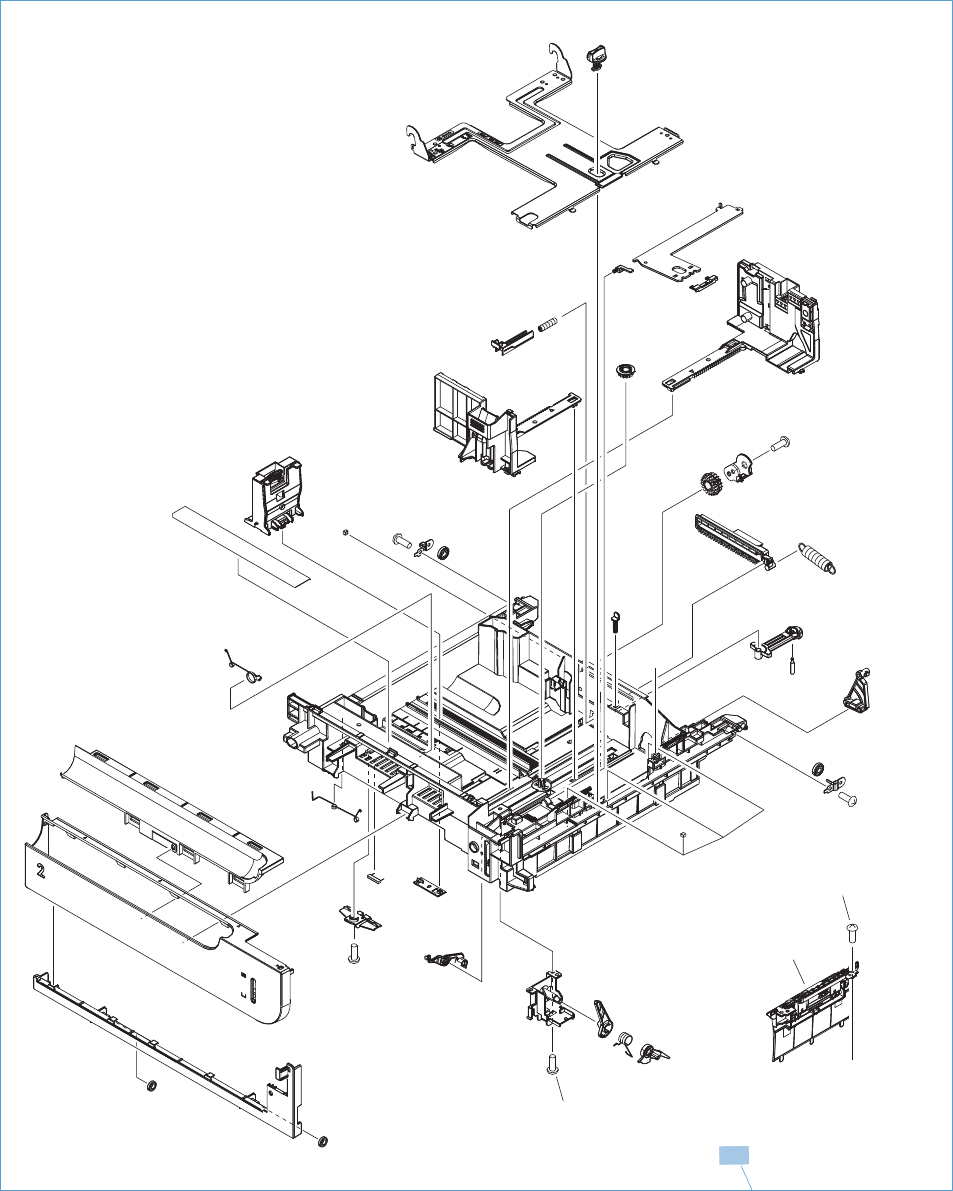
Cassette
Figure 4-8 Cassette
A
A
2
1
546 Chapter 4 Parts and diagrams ENWW

Table 4-9 Cassette
Ref Description Part number Qty
1 Cassette RM1-8125-000CN 1
ENWW Internal assemblies 547
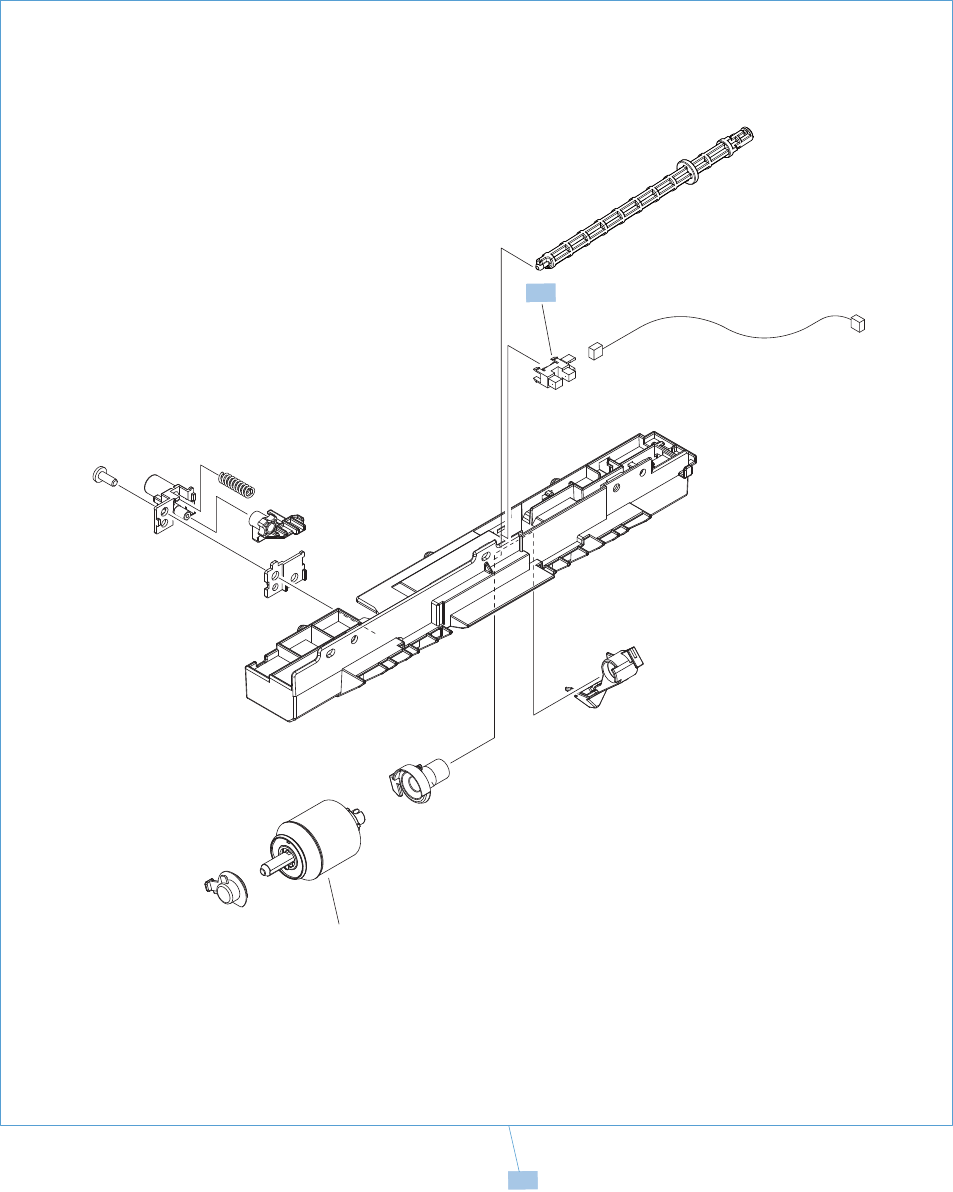
Paper pickup assembly
Figure 4-9 Paper pickup assembly
(J82)
(J5)
(SR20)
(J5)
2
1
3
548 Chapter 4 Parts and diagrams ENWW

Table 4-10 Paper pickup assembly
Ref Description Part number Qty
1 Paper pickup assembly (simplex) RM1-8168-000CN 1
1 Paper pickup assembly (duplex) RM1-8124-000CN 1
3 Photointerrupter WG8-5935-000CN 1
ENWW Internal assemblies 549
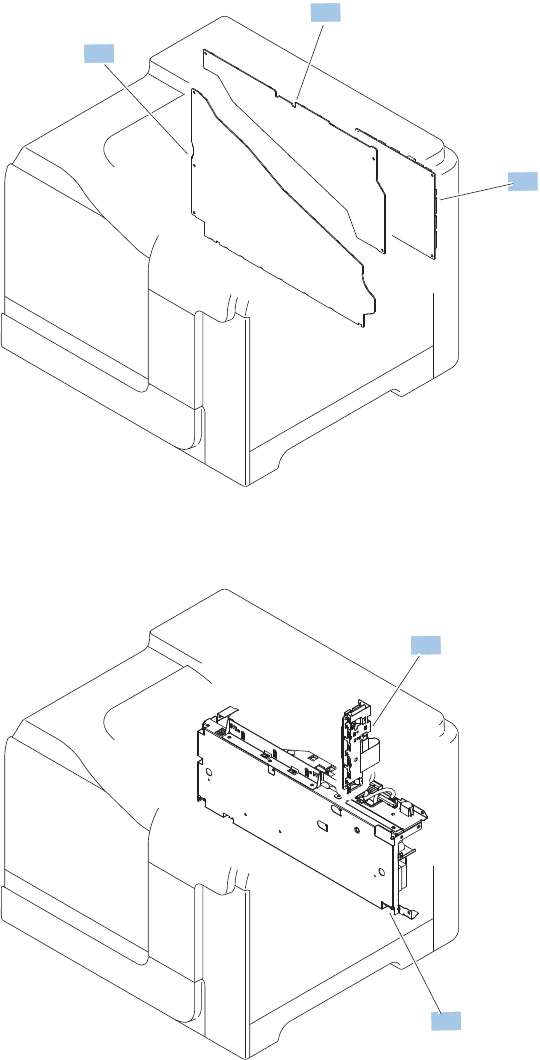
PCAs
Figure 4-10 PCAs
1
2
3
4
5
550 Chapter 4 Parts and diagrams ENWW

Table 4-11 PCAs
Ref Description Part number Qty
1 Lower HVPS-D PCA RM1-8087-000CN 1
2 Upper HVPS-T PCA (simplex) RM1-8089-000CN 1
2 Upper HVPS-T PCA (duplex) RM1-8088-000CN 1
3 DC controller PCA RM1-8104-000CN 1
4 Low-voltage power supply 110V RM1-8091-000CN 1
4 Low-voltage power supply 220V RM1-8093-000CN 1
5 Inner connecting PCA (ICB) RM1-8143-000CN 1
Not shown Formatter assembly kit (exchange) CF081-69001 1
Not shown Formatter assembly kit (China) CF081-67912 1
ENWW Internal assemblies 551
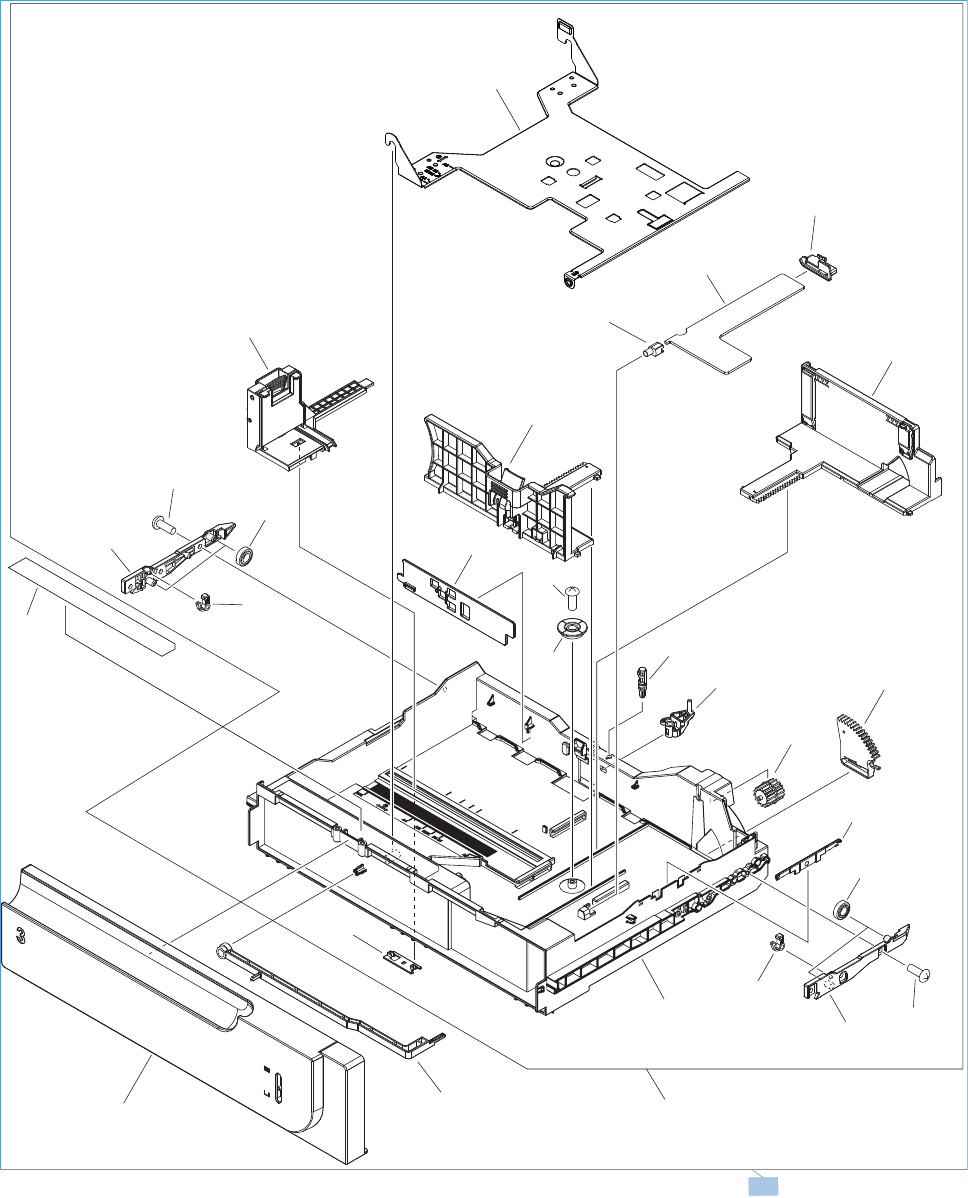
Assessories
1 x 500-sheet paper feeder
Figure 4-11 1 x 500-sheet paper feeder
A11
A19
A18
A09
A07
A08
A10
A25
A24
A22
A12
A20
A16
A21
A15
A14
A04
A03
A06 A17
A17
A05
A03
A04
A02 A01
1
A23
A13
A26
552 Chapter 4 Parts and diagrams ENWW

Table 4-12 1 x 500-sheet paper feeder
Ref Description Part number Qty
1 1 x 500-sheet feeder replacement kit CF084-67901 1
ENWW Assessories 553
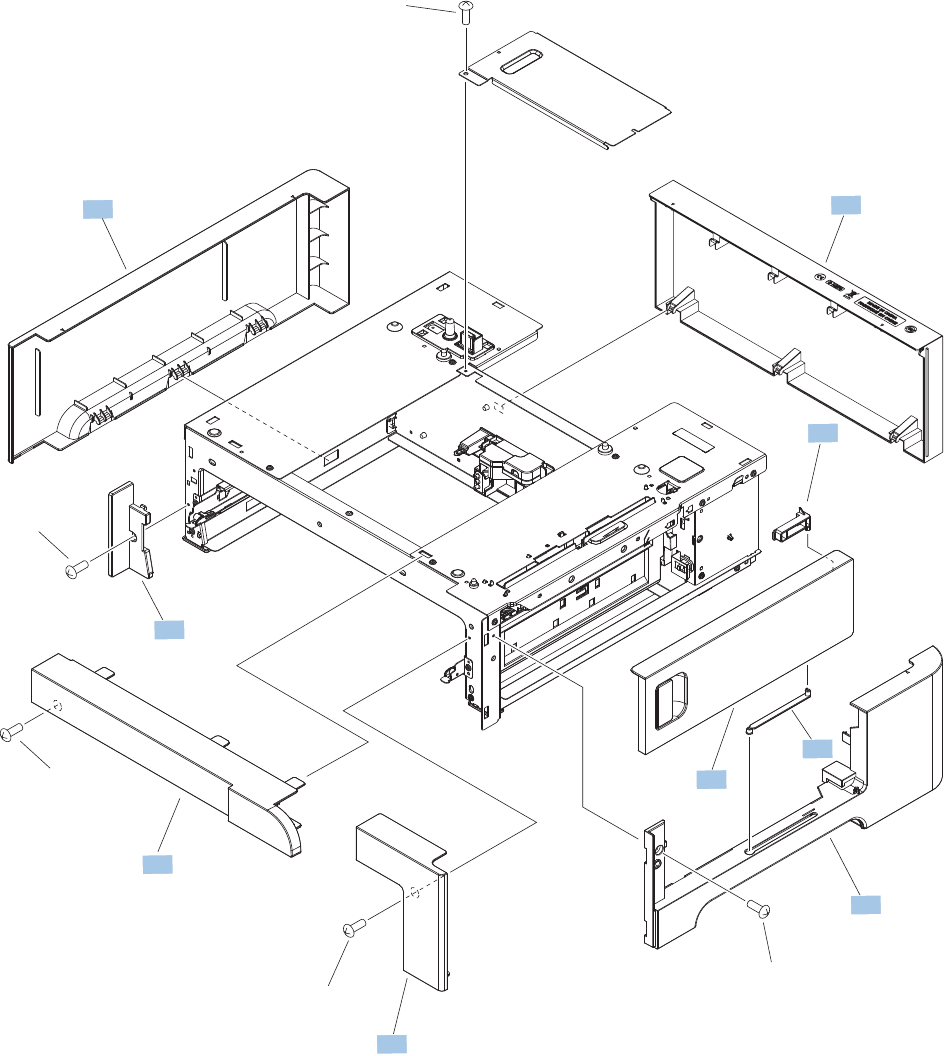
Paper feeder covers
Figure 4-12 Paper feeder covers
10
10
10
10
10 9
6
2
1
8
7
5
4
3
554 Chapter 4 Parts and diagrams ENWW

Table 4-13 Paper feeder covers
Ref Description Part number Qty
1 Cover, left RC2-5428-000CN 1
2 Cover, rear RC2-5429-000CN 1
3 Cover, right RC2-5427-000CN 1
4 Cover, front upper RC2-5425-000CN 1
5 Cover, front right RC2-5426-000CN 1
6 Stopper, door RC2-5417-000CN 1
7 Cover, left front RC2-5430-000CN 1
8 Link, door right RC2-5435-000CN 1
9 Right door assembly RM1-6192-000CN 1
ENWW Assessories 555
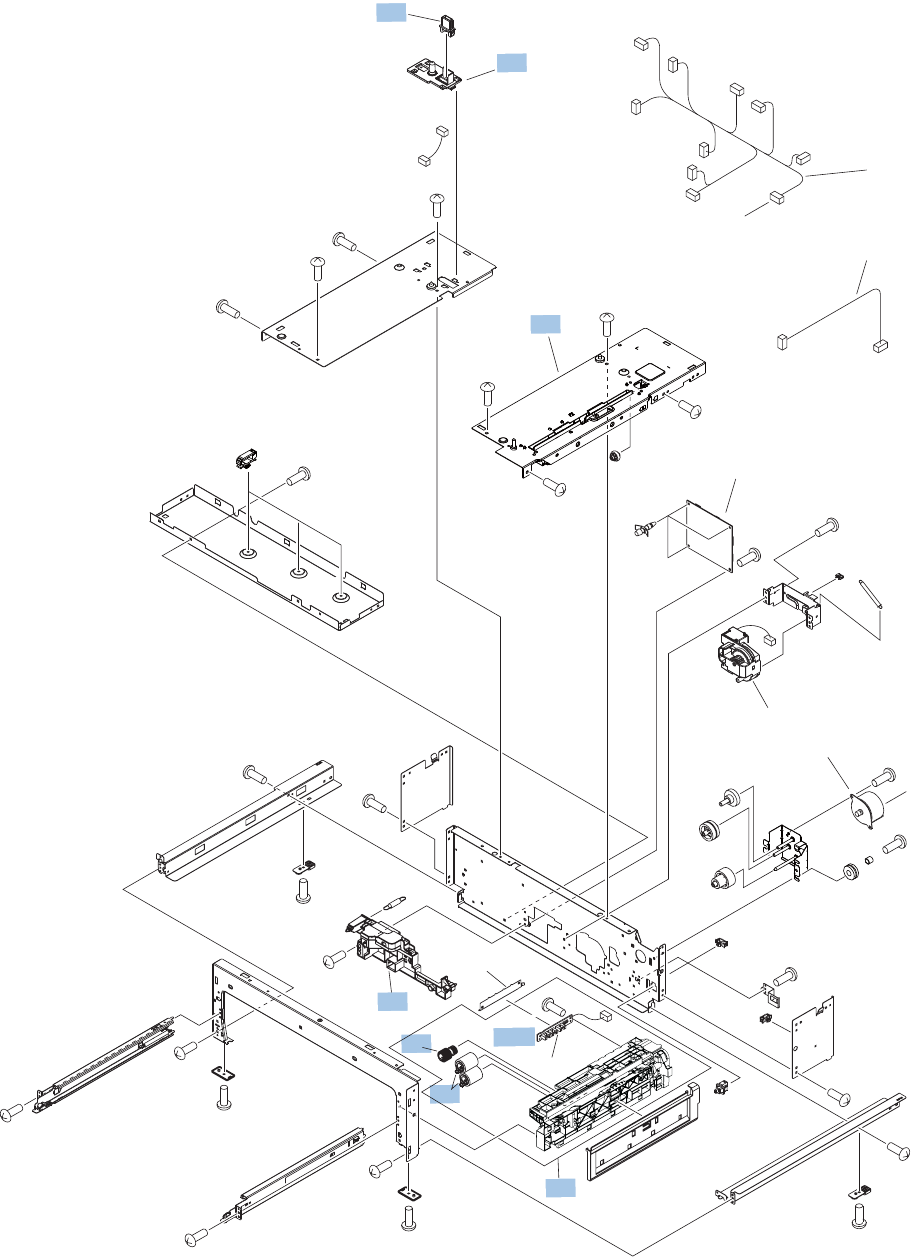
Paper feeder main body
Figure 4-13 Paper feeder main body
(J10)
(J401)
(J406)
(J404)
(J405)
(J15D)
(J21)
(J14)
(J13D)
(J18D)
(J11D)
(J19D)
(J13L)
(J20)
A
A
12
10
8
7
11
2
9
3
1
A04
6
5
4
See Paper feeder PCA
13
14
556 Chapter 4 Parts and diagrams ENWW

Table 4-14 Paper feeder main body
Ref Description Part number Qty
1 Lifter base assembly RM1-5913-000CN 1
2 Paper feed assembly RM1-6194-030CN 1
4 Paper pickup assembly RM1-5919-000CN 1
5 Paper feed roller assembly CF081-67913 1
6 Roller, paper pickup CF081-67913 1
13 Drawer connector holder VS1-7257-007CN 1
14 Holder, drawer connector RC2-5416-000CN 1
A04 Screw, tapping, pan head M4X10 XB4-7401-007CN 1
ENWW Assessories 557
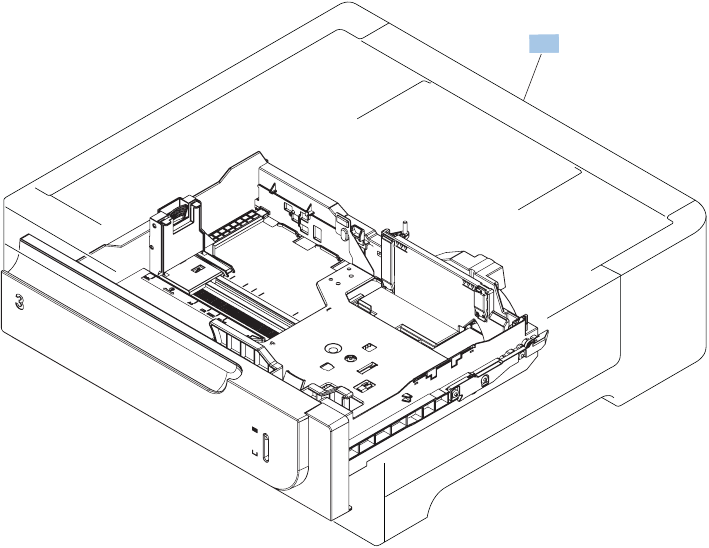
Paper feeder cassette
Figure 4-14 Cassette
1
558 Chapter 4 Parts and diagrams ENWW

Table 4-15 Cassette
Ref Description Part number Qty
1 Cassette assembly (Tray 3) RM1-6198-000CN 1
ENWW Assessories 559
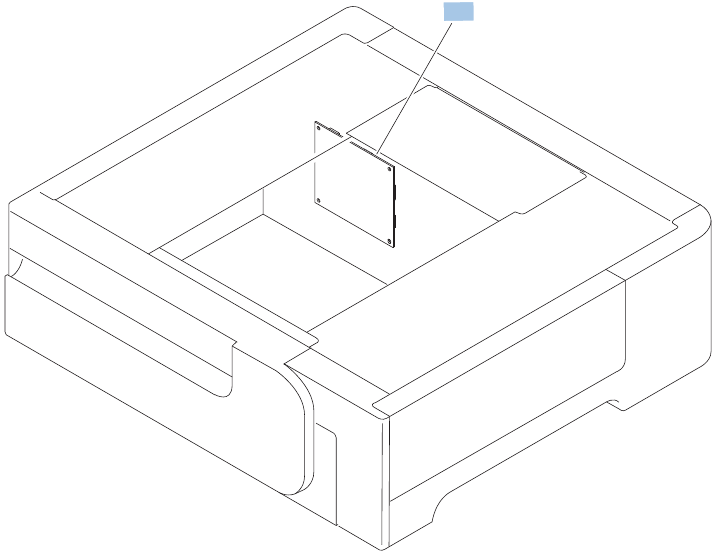
Paper feeder PCA
Figure 4-15 Paper feeder PCA
1
560 Chapter 4 Parts and diagrams ENWW

Table 4-16 Paper feeder PCA
Ref Description Part number Qty
1 PCA, paper feeder driver RM1-5839-000CN 1
ENWW Assessories 561

Alphabetical parts list
Table 4-17 Alphabetical parts list
Description Part number Table and page
1 x 500-sheet feeder replacement kit CF084-67901 1 x 500-sheet paper feeder
on page 553
Arm, interlock link switch RC2-5121-000CN Internal assemblies (3 of 5)
on page 541
Auto close assembly RM1-8137-000CN Internal assemblies (5 of 5)
on page 545
Cable, flat 1 scanner RK2-3941-000CN Internal assemblies (4 of 5)
on page 543
Cable, flat 2 laser RK2-3943-000CN Internal assemblies (4 of 5)
on page 543
Cassette RM1-8125-000CN Cassette on page 547
Cassette assembly (Tray 3) RM1-6198-000CN Cassette on page 559
Cassette paper pick up drive assembly (M13) RM1-8135-000CN Internal assemblies (5 of 5)
on page 545
Connecting cable assembly RM1-5749-000CN Internal assemblies (2 of 5)
on page 539
Connector, drawer VS1-7258-007CN Internal assemblies (5 of 5)
on page 545
Cover RC2-5912-000CN Internal assemblies (2 of 5)
on page 539
Cover RC2-5962-000CN Internal assemblies (2 of 5)
on page 539
Cover, front inner lower (Y) RL1-1915-000CN Internal assemblies (1 of 5)
on page 537
Cover, front inner lower unit (CMK) RL1-1914-020CN Internal assemblies (1 of 5)
on page 537
Cover, front inner, upper RC3-1070-000CN Internal assemblies (1 of 5)
on page 537
Cover, front right RC2-5426-000CN Paper feeder covers
on page 555
Cover, front upper RC2-5425-000CN Paper feeder covers
on page 555
Cover, left RC2-5428-000CN Paper feeder covers
on page 555
Cover, left assembly RM1-8159-000CN External covers, panels, and
doors on page 533
Cover, left front RC3-1113-000CN External covers, panels, and
doors on page 533
562 Chapter 4 Parts and diagrams ENWW

Table 4-17 Alphabetical parts list (continued)
Description Part number Table and page
Cover, left front RC2-5430-000CN Paper feeder covers
on page 555
Cover, left lower RC3-1112-000CN External covers, panels, and
doors on page 533
Cover, rear RC3-1115-000CN External covers, panels, and
doors on page 533
Cover, rear RC2-5429-000CN Paper feeder covers
on page 555
Cover, rear lower RC3-1114-000CN External covers, panels, and
doors on page 533
Cover, rear upper RC2-5058-000CN External covers, panels, and
doors on page 533
Cover, right RC2-5427-000CN Paper feeder covers
on page 555
Cover, right lower RC3-1117-000CN External covers, panels, and
doors on page 533
Cover, right lower inner RC2-5019-000CN Internal assemblies (3 of 5)
on page 541
Cover, right rear RC3-1116-000CN External covers, panels, and
doors on page 533
Cover, right-front assembly RM1-8165-000CN External covers, panels, and
doors on page 533
Cover, upper RC3-1118-000CN External covers, panels, and
doors on page 533
Cover, USB (duplex) RM1-8173-000CN External covers, panels, and
doors on page 533
Cover, USB (simplex) RC3-1093-000CN External covers, panels, and
doors on page 533
DC controller PCA RM1-8104-000CN PCAs on page 551
Density detect assembly RM1-8163-000CN Internal assemblies (3 of 5)
on page 541
Door switch assembly RM1-5732-000CN Internal assemblies (3 of 5)
on page 541
Drawer connector holder VS1-7257-007CN Paper feeder main body
on page 557
Duplexing drive assembly RM1-4973-000CN Internal assemblies (5 of 5)
on page 545
Duplexing paper feed assembly RM1-4959-000CN Right-door assembly
on page 535
ENWW Alphabetical parts list 563

Table 4-17 Alphabetical parts list (continued)
Description Part number Table and page
Duplexing unit cable assembly RM1-5730-000CN Internal assemblies (5 of 5)
on page 545
Fan (FM1) RK2-2416-000CN Internal assemblies (4 of 5)
on page 543
Fan (FM2, FM3) RK2-2418-000CN Internal assemblies (2 of 5)
on page 539
Fan cable assembly RM1-5746-000CN Internal assemblies (2 of 5)
on page 539
Formatter assembly kit (China) CF081-67912 PCAs on page 551
Formatter assembly kit (exchange) CF081-69001 PCAs on page 551
Fusing (fixing) drive assembly (duplex) RM1-8134-000CN Internal assemblies (5 of 5)
on page 545
Fusing (fixing) drive assembly (simplex) RM1-8169-000CN Internal assemblies (5 of 5)
on page 545
Fusing (fixing) motor assembly (M2) RM1-4983-000CN Internal assemblies (5 of 5)
on page 545
Fusing connecting cable assembly RM1-5714-000CN Internal assemblies (4 of 5)
on page 543
Holder, CST positioning RC3-1231-000CN Internal assemblies (1 of 5)
on page 537
Holder, drawer connector RC2-5416-000CN Paper feeder main body
on page 557
Inner connecting PCA (ICB) RM1-8143-000CN PCAs on page 551
Left cable assembly RM1-5742-000CN Internal assemblies (1 of 5)
on page 537
Lever, box presence detect RC2-5951-000CN Internal assemblies (1 of 5)
on page 537
Lever, cartridge pressure front RC2-3983-030CN Internal assemblies (1 of 5)
on page 537
Lever, shutter RC2-4415-000CN Internal assemblies (2 of 5)
on page 539
Lifter base assembly RM1-5913-000CN Paper feeder main body
on page 557
Lifter drive assembly RM1-8136-000CN Internal assemblies (5 of 5)
on page 545
Link, door right RC2-5435-000CN Paper feeder covers
on page 555
Link, interlock RC2-5120-000CN Internal assemblies (3 of 5)
on page 541
564 Chapter 4 Parts and diagrams ENWW

Table 4-17 Alphabetical parts list (continued)
Description Part number Table and page
Link, interlock RC2-5119-000CN Internal assemblies (3 of 5)
on page 541
Link, interlock RC2-5118-000CN Internal assemblies (3 of 5)
on page 541
Link, interlock RC2-5122-000CN Internal assemblies (3 of 5)
on page 541
Lock, door RC2-5937-000CN Internal assemblies (1 of 5)
on page 537
Low-voltage power supply 110V RM1-8091-000CN PCAs on page 551
Low-voltage power supply 220V RM1-8093-000CN PCAs on page 551
Lower HVPS-D PCA RM1-8087-000CN PCAs on page 551
Main motor unit (M3, M4, M5) RM1-8105-000CN Internal assemblies (5 of 5)
on page 545
Microswitch WC4-5171-000CN Internal assemblies (3 of 5)
on page 541
Motor/sensor cable assembly RM1-5752-000CN Internal assemblies (2 of 5)
on page 539
Mount, interlock switch RC2-5123-000CN Internal assemblies (3 of 5)
on page 541
MP sensor cable assembly (duplex) RM1-5737-000CN Internal assemblies (4 of 5)
on page 543
MP sensor cable assembly (simplex) RM1-5750-000CN Internal assemblies (4 of 5)
on page 543
Operation (control) panel assembly RM1-8096-000CN External covers, panels, and
doors on page 533
Paper delivery assembly (duplex) RM1-4970-060CN Internal assemblies (3 of 5)
on page 541
Paper delivery assembly (simplex) RM1-5003-050CN Internal assemblies (3 of 5)
on page 541
Paper feed assembly RM1-6194-030CN Paper feeder main body
on page 557
Paper feed roller assembly CF081-67913 Paper feeder main body
on page 557
Paper pickup assembly RM1-5919-000CN Paper feeder main body
on page 557
Paper pickup assembly (duplex) RM1-8124-000CN Paper pickup assembly
on page 549
Paper pickup assembly (simplex) RM1-8168-000CN Paper pickup assembly
on page 549
ENWW Alphabetical parts list 565

Table 4-17 Alphabetical parts list (continued)
Description Part number Table and page
PCA, paper feeder driver RM1-5839-000CN Paper feeder PCA
on page 561
Photo interrupter, TLP1243 WG8-5935-000CN Internal assemblies (5 of 5)
on page 545
Photointerrupter WG8-5935-000CN Paper pickup assembly
on page 549
Pick up lower guide assembly RM1-8132-000CN Internal assemblies (3 of 5)
on page 541
Pickup motor assembly (M13) RM1-5773-000CN Internal assemblies (5 of 5)
on page 545
Plate, blanking RC2-5938-000CN External covers, panels, and
doors on page 533
Rear lock arm assembly RM1-5533-000CN Internal assemblies (3 of 5)
on page 541
Rear Pre-exposure PCA assembly RM1-5705-000CN Internal assemblies (5 of 5)
on page 545
Registration assembly (duplex) RM1-4969-000CN Internal assemblies (3 of 5)
on page 541
Registration assembly (simplex) RM1-5009-000CN Internal assemblies (3 of 5)
on page 541
Right door assembly RM1-6192-000CN Paper feeder covers
on page 555
Right-door assembly (duplex) RM1-8123-000CN Right-door assembly
on page 535
Right-door assembly (simplex) RM1-8167-000CN Right-door assembly
on page 535
Roller, paper pickup CF081-67913 Paper feeder main body
on page 557
Roller, rail RC2-4831-000CN Internal assemblies (1 of 5)
on page 537
Screw, tapping, pan head M4X10 XB4-7401-007CN Paper feeder main body
on page 557
Sensor cable assembly RM1-5740-000CN Internal assemblies (2 of 5)
on page 539
Sensor cable assembly RM1-5741-000CN Internal assemblies (2 of 5)
on page 539
Sensor cable guide assembly RM1-8178-000CN Internal assemblies (3 of 5)
on page 541
Shaft RC2-5913-000CN Internal assemblies (3 of 5)
on page 541
566 Chapter 4 Parts and diagrams ENWW

Table 4-17 Alphabetical parts list (continued)
Description Part number Table and page
Spring, compression RU6-2316-000CN Internal assemblies (2 of 5)
on page 539
Spring, ground RU6-2237-000CN Internal assemblies (1 of 5)
on page 537
Spring, tension RU7-2192-000CN Internal assemblies (1 of 5)
on page 537
Spring, tension RU6-2436-000CN Internal assemblies (2 of 5)
on page 539
Stepping motor, DC (developing disengagement; M10) RK2-2415-000CN Internal assemblies (5 of 5)
on page 545
Stopper, door RC2-5417-000CN Paper feeder covers
on page 555
Switch arm RC2-5943-000CN Internal assemblies (4 of 5)
on page 543
Switch, PCA assembly RM1-8097-000CN Internal assemblies (3 of 5)
on page 541
Temperature sensor assembly RK2-3267-000CN Internal assemblies (2 of 5)
on page 539
Toner sensor holder assembly RM1-5700-000CN Internal assemblies (2 of 5)
on page 539
Tray, paper delivery RL1-1941-030CN External covers, panels, and
doors on page 533
Upper HVPS-T PCA (duplex) RM1-8088-000CN PCAs on page 551
Upper HVPS-T PCA (simplex) RM1-8089-000CN PCAs on page 551
Waste toner detect assembly RM1-5696-000CN Internal assemblies (1 of 5)
on page 537
Waste toner duct assembly RM1-8138-000CN Internal assemblies (1 of 5)
on page 537
Wire, (mech) sensor protect RC2-4828-000CN Internal assemblies (3 of 5)
on page 541
ENWW Alphabetical parts list 567

Numerical parts list
Table 4-18 Numerical parts list
Part number Description Table and page
CF081-67912 Formatter assembly kit (China) PCAs on page 551
CF081-67913 Paper feed roller assembly Paper feeder main body
on page 557
CF081-67913 Roller, paper pickup Paper feeder main body
on page 557
CF081-69001 Formatter assembly kit (exchange) PCAs on page 551
CF084-67901 1 x 500-sheet feeder replacement kit 1 x 500-sheet paper feeder
on page 553
RC2-3983-030CN Lever, cartridge pressure front Internal assemblies (1 of 5)
on page 537
RC2-4415-000CN Lever, shutter Internal assemblies (2 of 5)
on page 539
RC2-4828-000CN Wire, (mech) sensor protect Internal assemblies (3 of 5)
on page 541
RC2-4831-000CN Roller, rail Internal assemblies (1 of 5)
on page 537
RC2-5019-000CN Cover, right lower inner Internal assemblies (3 of 5)
on page 541
RC2-5058-000CN Cover, rear upper External covers, panels, and
doors on page 533
RC2-5118-000CN Link, interlock Internal assemblies (3 of 5)
on page 541
RC2-5119-000CN Link, interlock Internal assemblies (3 of 5)
on page 541
RC2-5120-000CN Link, interlock Internal assemblies (3 of 5)
on page 541
RC2-5121-000CN Arm, interlock link switch Internal assemblies (3 of 5)
on page 541
RC2-5122-000CN Link, interlock Internal assemblies (3 of 5)
on page 541
RC2-5123-000CN Mount, interlock switch Internal assemblies (3 of 5)
on page 541
RC2-5416-000CN Holder, drawer connector Paper feeder main body
on page 557
RC2-5417-000CN Stopper, door Paper feeder covers
on page 555
RC2-5425-000CN Cover, front upper Paper feeder covers
on page 555
568 Chapter 4 Parts and diagrams ENWW

Table 4-18 Numerical parts list (continued)
Part number Description Table and page
RC2-5426-000CN Cover, front right Paper feeder covers
on page 555
RC2-5427-000CN Cover, right Paper feeder covers
on page 555
RC2-5428-000CN Cover, left Paper feeder covers
on page 555
RC2-5429-000CN Cover, rear Paper feeder covers
on page 555
RC2-5430-000CN Cover, left front Paper feeder covers
on page 555
RC2-5435-000CN Link, door right Paper feeder covers
on page 555
RC2-5912-000CN Cover Internal assemblies (2 of 5)
on page 539
RC2-5913-000CN Shaft Internal assemblies (3 of 5)
on page 541
RC2-5937-000CN Lock, door Internal assemblies (1 of 5)
on page 537
RC2-5938-000CN Plate, blanking External covers, panels, and
doors on page 533
RC2-5943-000CN Switch arm Internal assemblies (4 of 5)
on page 543
RC2-5951-000CN Lever, box presence detect Internal assemblies (1 of 5)
on page 537
RC2-5962-000CN Cover Internal assemblies (2 of 5)
on page 539
RC3-1070-000CN Cover, front inner, upper Internal assemblies (1 of 5)
on page 537
RC3-1093-000CN Cover, USB (simplex) External covers, panels, and
doors on page 533
RC3-1112-000CN Cover, left lower External covers, panels, and
doors on page 533
RC3-1113-000CN Cover, left front External covers, panels, and
doors on page 533
RC3-1114-000CN Cover, rear lower External covers, panels, and
doors on page 533
RC3-1115-000CN Cover, rear External covers, panels, and
doors on page 533
RC3-1116-000CN Cover, right rear External covers, panels, and
doors on page 533
ENWW Numerical parts list 569

Table 4-18 Numerical parts list (continued)
Part number Description Table and page
RC3-1117-000CN Cover, right lower External covers, panels, and
doors on page 533
RC3-1118-000CN Cover, upper External covers, panels, and
doors on page 533
RC3-1231-000CN Holder, CST positioning Internal assemblies (1 of 5)
on page 537
RK2-2415-000CN Stepping motor, DC (developing disengagement; M10) Internal assemblies (5 of 5)
on page 545
RK2-2416-000CN Fan (FM1) Internal assemblies (4 of 5)
on page 543
RK2-2418-000CN Fan (FM2, FM3) Internal assemblies (2 of 5)
on page 539
RK2-3267-000CN Temperature sensor assembly Internal assemblies (2 of 5)
on page 539
RK2-3941-000CN Cable, flat 1 scanner Internal assemblies (4 of 5)
on page 543
RK2-3943-000CN Cable, flat 2 laser Internal assemblies (4 of 5)
on page 543
RL1-1914-020CN Cover, front inner lower unit (CMK) Internal assemblies (1 of 5)
on page 537
RL1-1915-000CN Cover, front inner lower (Y) Internal assemblies (1 of 5)
on page 537
RL1-1941-030CN Tray, paper delivery External covers, panels, and
doors on page 533
RM1-4959-000CN Duplexing paper feed assembly Right-door assembly
on page 535
RM1-4969-000CN Registration assembly (duplex) Internal assemblies (3 of 5)
on page 541
RM1-4970-060CN Paper delivery assembly (duplex) Internal assemblies (3 of 5)
on page 541
RM1-4973-000CN Duplexing drive assembly Internal assemblies (5 of 5)
on page 545
RM1-4983-000CN Fusing (fixing) motor assembly (M2) Internal assemblies (5 of 5)
on page 545
RM1-5003-050CN Paper delivery assembly (simplex) Internal assemblies (3 of 5)
on page 541
RM1-5009-000CN Registration assembly (simplex) Internal assemblies (3 of 5)
on page 541
RM1-5533-000CN Rear lock arm assembly Internal assemblies (3 of 5)
on page 541
570 Chapter 4 Parts and diagrams ENWW

Table 4-18 Numerical parts list (continued)
Part number Description Table and page
RM1-5696-000CN Waste toner detect assembly Internal assemblies (1 of 5)
on page 537
RM1-5700-000CN Toner sensor holder assembly Internal assemblies (2 of 5)
on page 539
RM1-5705-000CN Rear Pre-exposure PCA assembly Internal assemblies (5 of 5)
on page 545
RM1-5714-000CN Fusing connecting cable assembly Internal assemblies (4 of 5)
on page 543
RM1-5730-000CN Duplexing unit cable assembly Internal assemblies (5 of 5)
on page 545
RM1-5732-000CN Door switch assembly Internal assemblies (3 of 5)
on page 541
RM1-5737-000CN MP sensor cable assembly (duplex) Internal assemblies (4 of 5)
on page 543
RM1-5740-000CN Sensor cable assembly Internal assemblies (2 of 5)
on page 539
RM1-5741-000CN Sensor cable assembly Internal assemblies (2 of 5)
on page 539
RM1-5742-000CN Left cable assembly Internal assemblies (1 of 5)
on page 537
RM1-5746-000CN Fan cable assembly Internal assemblies (2 of 5)
on page 539
RM1-5749-000CN Connecting cable assembly Internal assemblies (2 of 5)
on page 539
RM1-5750-000CN MP sensor cable assembly (simplex) Internal assemblies (4 of 5)
on page 543
RM1-5752-000CN Motor/sensor cable assembly Internal assemblies (2 of 5)
on page 539
RM1-5773-000CN Pickup motor assembly (M13) Internal assemblies (5 of 5)
on page 545
RM1-5839-000CN PCA, paper feeder driver Paper feeder PCA
on page 561
RM1-5913-000CN Lifter base assembly Paper feeder main body
on page 557
RM1-5919-000CN Paper pickup assembly Paper feeder main body
on page 557
RM1-6192-000CN Right door assembly Paper feeder covers
on page 555
RM1-6194-030CN Paper feed assembly Paper feeder main body
on page 557
ENWW Numerical parts list 571

Table 4-18 Numerical parts list (continued)
Part number Description Table and page
RM1-6198-000CN Cassette assembly (Tray 3) Cassette on page 559
RM1-8087-000CN Lower HVPS-D PCA PCAs on page 551
RM1-8088-000CN Upper HVPS-T PCA (duplex) PCAs on page 551
RM1-8089-000CN Upper HVPS-T PCA (simplex) PCAs on page 551
RM1-8091-000CN Low-voltage power supply 110V PCAs on page 551
RM1-8093-000CN Low-voltage power supply 220V PCAs on page 551
RM1-8096-000CN Operation (control) panel assembly External covers, panels, and
doors on page 533
RM1-8097-000CN Switch, PCA assembly Internal assemblies (3 of 5)
on page 541
RM1-8104-000CN DC controller PCA PCAs on page 551
RM1-8105-000CN Main motor unit (M3, M4, M5) Internal assemblies (5 of 5)
on page 545
RM1-8123-000CN Right-door assembly (duplex) Right-door assembly
on page 535
RM1-8124-000CN Paper pickup assembly (duplex) Paper pickup assembly
on page 549
RM1-8125-000CN Cassette Cassette on page 547
RM1-8132-000CN Pick up lower guide assembly Internal assemblies (3 of 5)
on page 541
RM1-8134-000CN Fusing (fixing) drive assembly (duplex) Internal assemblies (5 of 5)
on page 545
RM1-8135-000CN Cassette paper pick up drive assembly (M13) Internal assemblies (5 of 5)
on page 545
RM1-8136-000CN Lifter drive assembly Internal assemblies (5 of 5)
on page 545
RM1-8137-000CN Auto close assembly Internal assemblies (5 of 5)
on page 545
RM1-8138-000CN Waste toner duct assembly Internal assemblies (1 of 5)
on page 537
RM1-8143-000CN Inner connecting PCA (ICB) PCAs on page 551
RM1-8159-000CN Cover, left assembly External covers, panels, and
doors on page 533
RM1-8163-000CN Density detect assembly Internal assemblies (3 of 5)
on page 541
RM1-8165-000CN Cover, right-front assembly External covers, panels, and
doors on page 533
572 Chapter 4 Parts and diagrams ENWW

Table 4-18 Numerical parts list (continued)
Part number Description Table and page
RM1-8167-000CN Right-door assembly (simplex) Right-door assembly
on page 535
RM1-8168-000CN Paper pickup assembly (simplex) Paper pickup assembly
on page 549
RM1-8169-000CN Fusing (fixing) drive assembly (simplex) Internal assemblies (5 of 5)
on page 545
RM1-8173-000CN Cover, USB (duplex) External covers, panels, and
doors on page 533
RM1-8178-000CN Sensor cable guide assembly Internal assemblies (3 of 5)
on page 541
RU6-2237-000CN Spring, ground Internal assemblies (1 of 5)
on page 537
RU6-2316-000CN Spring, compression Internal assemblies (2 of 5)
on page 539
RU6-2436-000CN Spring, tension Internal assemblies (2 of 5)
on page 539
RU7-2192-000CN Spring, tension Internal assemblies (1 of 5)
on page 537
VS1-7257-007CN Drawer connector holder Paper feeder main body
on page 557
VS1-7258-007CN Connector, drawer Internal assemblies (5 of 5)
on page 545
WC4-5171-000CN Microswitch Internal assemblies (3 of 5)
on page 541
WG8-5935-000CN Photo interrupter, TLP1243 Internal assemblies (5 of 5)
on page 545
WG8-5935-000CN Photointerrupter Paper pickup assembly
on page 549
XB4-7401-007CN Screw, tapping, pan head M4X10 Paper feeder main body
on page 557
ENWW Numerical parts list 573
574 Chapter 4 Parts and diagrams ENWW

A Service and support
●Hewlett-Packard limited warranty statement
●HP's Premium Protection Warranty: LaserJet print cartridge limited warranty statement
●Color LaserJet Fuser Kit, Toner Collection Unit, and Transfer Kit Limited Warranty Statement
●Data stored on the print cartridge
●End User License Agreement
●OpenSSL
●Customer self-repair warranty service
●Customer support
ENWW 575

Hewlett-Packard limited warranty statement
HP PRODUCT DURATION OF LIMITED WARRANTY
HP LaserJet Enterprise 500 color M551n, M551dn, M551xh One-year on-site warranty
HP warrants to you, the end-user customer, that HP hardware and accessories will be free from defects
in materials and workmanship after the date of purchase, for the period specified above. If HP receives
notice of such defects during the warranty period, HP will, at its option, either repair or replace
products which prove to be defective. Replacement products may be either new or equivalent in
performance to new.
HP warrants to you that HP software will not fail to execute its programming instructions after the date
of purchase, for the period specified above, due to defects in material and workmanship when
properly installed and used. If HP receives notice of such defects during the warranty period, HP will
replace software which does not execute its programming instructions due to such defects.
HP does not warrant that the operation of HP products will be uninterrupted or error free. If HP is
unable, within a reasonable time, to repair or replace any product to a condition as warranted, you
will be entitled to a refund of the purchase price upon prompt return of the product.
HP products may contain remanufactured parts equivalent to new in performance or may have been
subject to incidental use.
Warranty does not apply to defects resulting from (a) improper or inadequate maintenance or
calibration, (b) software, interfacing, parts or supplies not supplied by HP, (c) unauthorized
modification or misuse, (d) operation outside of the published environmental specifications for the
product, or (e) improper site preparation or maintenance.
TO THE EXTENT ALLOWED BY LOCAL LAW, THE ABOVE WARRANTIES ARE EXCLUSIVE AND NO
OTHER WARRANTY OR CONDITION, WHETHER WRITTEN OR ORAL, IS EXPRESSED OR IMPLIED
AND HP SPECIFICALLY DISCLAIMS ANY IMPLIED WARRANTIES OR CONDITIONS OF
MERCHANTABILITY, SATISFACTORY QUALITY, AND FITNESS FOR A PARTICULAR PURPOSE. Some
countries/regions, states or provinces do not allow limitations on the duration of an implied warranty,
so the above limitation or exclusion might not apply to you. This warranty gives you specific legal rights
and you might also have other rights that vary from country/region to country/region, state to state, or
province to province.
HP's limited warranty is valid in any country/region or locality where HP has a support presence for
this product and where HP has marketed this product. The level of warranty service you receive may
vary according to local standards. HP will not alter form, fit or function of the product to make it
operate in a country/region for which it was never intended to function for legal or regulatory reasons.
TO THE EXTENT ALLOWED BY LOCAL LAW, THE REMEDIES IN THIS WARRANTY STATEMENT ARE
YOUR SOLE AND EXCLUSIVE REMEDIES. EXCEPT AS INDICATED ABOVE, IN NO EVENT WILL HP OR
ITS SUPPLIERS BE LIABLE FOR LOSS OF DATA OR FOR DIRECT, SPECIAL, INCIDENTAL,
CONSEQUENTIAL (INCLUDING LOST PROFIT OR DATA), OR OTHER DAMAGE, WHETHER BASED
IN CONTRACT, TORT, OR OTHERWISE. Some countries/regions, states or provinces do not allow the
exclusion or limitation of incidental or consequential damages, so the above limitation or exclusion may
not apply to you.
576 Appendix A Service and support ENWW
THE WARRANTY TERMS CONTAINED IN THIS STATEMENT, EXCEPT TO THE EXTENT LAWFULLY
PERMITTED, DO NOT EXCLUDE, RESTRICT OR MODIFY AND ARE IN ADDITION TO THE
MANDATORY STATUTORY RIGHTS APPLICABLE TO THE SALE OF THIS PRODUCT TO YOU.
ENWW Hewlett-Packard limited warranty statement 577
HP's Premium Protection Warranty: LaserJet print
cartridge limited warranty statement
This HP product is warranted to be free from defects in materials and workmanship.
This warranty does not apply to products that (a) have been refilled, refurbished, remanufactured or
tampered with in any way, (b) experience problems resulting from misuse, improper storage, or
operation outside of the published environmental specifications for the printer product or (c) exhibit
wear from ordinary use.
To obtain warranty service, please return the product to place of purchase (with a written description of
the problem and print samples) or contact HP customer support. At HP's option, HP will either replace
products that prove to be defective or refund your purchase price.
TO THE EXTENT ALLOWED BY LOCAL LAW, THE ABOVE WARRANTY IS EXCLUSIVE AND NO
OTHER WARRANTY OR CONDITION, WHETHER WRITTEN OR ORAL, IS EXPRESSED OR IMPLIED
AND HP SPECIFICALLY DISCLAIMS ANY IMPLIED WARRANTIES OR CONDITIONS OF
MERCHANTABILITY, SATISFACTORY QUALITY, AND FITNESS FOR A PARTICULAR PURPOSE.
TO THE EXTENT ALLOWED BY LOCAL LAW, IN NO EVENT WILL HP OR ITS SUPPLIERS BE LIABLE
FOR DIRECT, SPECIAL, INCIDENTAL, CONSEQUENTIAL (INCLUDING LOST PROFIT OR DATA), OR
OTHER DAMAGE, WHETHER BASED IN CONTRACT, TORT, OR OTHERWISE.
THE WARRANTY TERMS CONTAINED IN THIS STATEMENT, EXCEPT TO THE EXTENT LAWFULLY
PERMITTED, DO NOT EXCLUDE, RESTRICT OR MODIFY AND ARE IN ADDITION TO THE
MANDATORY STATUTORY RIGHTS APPLICABLE TO THE SALE OF THIS PRODUCT TO YOU.
578 Appendix A Service and support ENWW
Color LaserJet Fuser Kit, Toner Collection Unit, and
Transfer Kit Limited Warranty Statement
This HP product is warranted to be free from defects in materials and workmanship until the printer
provides a low-life indicator on the control panel.
This warranty does not apply to products that (a) have been refurbished, remanufactured or tampered
with in any way, (b) experience problems resulting from misuse, improper storage, or operation outside
of the published environmental specifications for the printer product or (c) exhibit wear from ordinary
use.
To obtain warranty service, please return the product to place of purchase (with a written description of
the problem) or contact HP customer support. At HP’s option, HP will either replace products that prove
to be defective or refund your purchase price.
TO THE EXTENT ALLOWED BY LOCAL LAW, THE ABOVE WARRANTY IS EXCLUSIVE AND NO
OTHER WARRANTY OR CONDITION, WHETHER WRITTEN OR ORAL, IS EXPRESSED OR IMPLIED
AND HP SPECIFICALLY DISCLAIMS ANY IMPLIED WARRANTIES OR CONDITIONS OF
MERCHANTABILITY, SATISFACTORY QUALITY, AND FITNESS FOR A PARTICULAR PURPOSE.
TO THE EXTENT ALLOWED BY LOCAL LAW, IN NO EVENT WILL HP OR ITS SUPPLIERS BE LIABLE
FOR DIRECT, SPECIAL, INCIDENTAL, CONSEQUENTIAL (INCLUDING LOST PROFIT OR DATA), OR
OTHER DAMAGE, WHETHER BASED IN CONTRACT, TORT, OR OTHERWISE.
THE WARRANTY TERMS CONTAINED IN THIS STATEMENT, EXCEPT TO THE EXTENT LAWFULLY
PERMITTED, DO NOT EXCLUDE, RESTRICT OR MODIFY AND ARE IN ADDITION TO THE
MANDATORY STATUTORY RIGHTS APPLICABLE TO THE SALE OF THIS PRODUCT TO YOU.
ENWW Color LaserJet Fuser Kit, Toner Collection Unit, and Transfer Kit Limited Warranty Statement 579

Data stored on the print cartridge
The HP print cartridges used with this product contain a memory chip that assists in the operation of the
product.
In addition, this memory chip collects a limited set of information about the usage of the product, which
might include the following: the date when the print cartridge was first installed, the date when the print
cartridge was last used, the number of pages printed using the print cartridge, the page coverage, the
printing modes used, any printing errors that might have occurred, and the product model. This
information helps HP design future products to meet our customers' printing needs.
The data collected from the print cartridge memory chip does not contain information that can be used
to identify a customer or user of the print cartridge or their product.
HP collects a sampling of the memory chips from print cartridges returned to HP's free return and
recycling program (HP Planet Partners: www.hp.com/recycle). The memory chips from this sampling
are read and studied in order to improve future HP products. HP partners who assist in recycling this
print cartridge might have access to this data, as well.
Any third party possessing the print cartridge might have access to the anonymous information on the
memory chip. If you prefer to not allow access to this information, you can render the chip inoperable.
However, after you render the memory chip inoperable, the memory chip cannot be used in an HP
product.
580 Appendix A Service and support ENWW
End User License Agreement
PLEASE READ CAREFULLY BEFORE USING THIS SOFTWARE PRODUCT: This End-User License
Agreement (“EULA”) is a contract between (a) you (either an individual or the entity you represent) and
(b) Hewlett-Packard Company (“HP”) that governs your use of the software product (“Software”). This
EULA does not apply if there is a separate license agreement between you and HP or its suppliers for
the Software, including a license agreement in online documentation. The term “Software” may include
(i) associated media, (ii) a user guide and other printed materials, and (iii) “online” or electronic
documentation (collectively “User Documentation”).
RIGHTS IN THE SOFTWARE ARE OFFERED ONLY ON THE CONDITION THAT YOU AGREE TO ALL
TERMS AND CONDITIONS OF THIS EULA. BY INSTALLING, COPYING, DOWNLOADING, OR
OTHERWISE USING THE SOFTWARE, YOU AGREE TO BE BOUND BY THIS EULA. IF YOU DO NOT
ACCEPT THIS EULA, DO NOT INSTALL, DOWNLOAD, OR OTHERWISE USE THE SOFTWARE. IF
YOU PURCHASED THE SOFTWARE BUT DO NOT AGREE TO THIS EULA, PLEASE RETURN THE
SOFTWARE TO YOUR PLACE OF PURCHASE WITHIN FOURTEEN DAYS FOR A REFUND OF THE
PURCHASE PRICE; IF THE SOFTWARE IS INSTALLED ON OR MADE AVAILABLE WITH ANOTHER
HP PRODUCT, YOU MAY RETURN THE ENTIRE UNUSED PRODUCT.
1. THIRD PARTY SOFTWARE. The Software may include, in addition to HP proprietary software (“HP
Software”), software under licenses from third parties (“Third Party Software” and “Third Party
License”). Any Third Party Software is licensed to you subject to the terms and conditions of the
corresponding Third Party License. Generally, the Third Party License is in a file such as
“license.txt” or a “readme” file. You should contact HP support if you cannot find a Third Party
License. If the Third Party Licenses include licenses that provide for the availability of source code
(such as the GNU General Public License) and the corresponding source code is not included with
the Software, then check the product support pages of HP's website (hp.com) to learn how to
obtain such source code.
2. LICENSE RIGHTS. You will have the following rights provided you comply with all terms and
conditions of this EULA:
a. Use. HP grants you a license to Use one copy of the HP Software. “Use” means installing,
copying, storing, loading, executing, displaying, or otherwise using the HP Software. You
may not modify the HP Software or disable any licensing or control feature of the
HP Software. If this Software is provided by HP for Use with an imaging or printing product
(for example, if the Software is a printer driver, firmware, or add-on), the HP Software may
only be used with such product (“HP Product”). Additional restrictions on Use may appear in
the User Documentation. You may not separate component parts of the HP Software for Use.
You do not have the right to distribute the HP Software.
b. Copying. Your right to copy means you may make archival or back-up copies of the
HP Software, provided each copy contains all the original HP Software’s proprietary notices
and is used only for back-up purposes.
3. UPGRADES. To Use HP Software provided by HP as an upgrade, update, or supplement
(collectively “Upgrade”), you must first be licensed for the original HP Software identified by HP as
eligible for the Upgrade. To the extent the Upgrade supersedes the original HP Software, you may
no longer use such HP Software. This EULA applies to each Upgrade unless HP provides other
terms with the Upgrade. In case of a conflict between this EULA and such other terms, the other
terms will prevail.
ENWW End User License Agreement 581
4. TRANSFER.
a. Third Party Transfer. The initial end user of the HP Software may make a one-time transfer of
the HP Software to another end user. Any transfer will include all component parts, media,
User Documentation, this EULA, and if applicable, the Certificate of Authenticity. The transfer
may not be an indirect transfer, such as a consignment. Prior to the transfer, the end user
receiving the transferred Software will agree to this EULA. Upon transfer of the HP Software,
your license is automatically terminated.
b. Restrictions. You may not rent, lease or lend the HP Software or Use the HP Software for
commercial timesharing or bureau use. You may not sublicense, assign or otherwise transfer
the HP Software except as expressly provided in this EULA.
5. PROPRIETARY RIGHTS. All intellectual property rights in the Software and User Documentation are
owned by HP or its suppliers and are protected by law, including applicable copyright, trade
secret, patent, and trademark laws. You will not remove any product identification, copyright
notice, or proprietary restriction from the Software.
6. LIMITATION ON REVERSE ENGINEERING. You may not reverse engineer, decompile, or
disassemble the HP Software, except and only to the extent that the right to do so is allowed under
applicable law.
7. CONSENT TO USE OF DATA. HP and its affiliates may collect and use technical information you
provide in relation to (i) your Use of the Software or the HP Product, or (ii) the provision of support
services related to the Software or the HP Product. All such information will be subject to HP’s
privacy policy. HP will not use such information in a form that personally identifies you except to
the extent necessary to enhance your Use or provide support services.
8. LIMITATION OF LIABILITY. Notwithstanding any damages that you might incur, the entire liability
of HP and its suppliers under this EULA and your exclusive remedy under this EULA will be limited
to the greater of the amount actually paid by you for the Product or U.S. $5.00. TO THE
MAXIMUM EXTENT PERMITTED BY APPLICABLE LAW, IN NO EVENT WILL HP OR ITS SUPPLIERS
BE LIABLE FOR ANY SPECIAL, INCIDENTAL, INDIRECT, OR CONSEQUENTIAL DAMAGES
(INCLUDING DAMAGES FOR LOST PROFITS, LOST DATA, BUSINESS INTERRUPTION,
PERSONAL INJURY, OR LOSS OF PRIVACY) RELATED IN ANY WAY TO THE USE OF OR
INABILITY TO USE THE SOFTWARE, EVEN IF HP OR ANY SUPPLIER HAS BEEN ADVISED OF THE
POSSIBILITY OF SUCH DAMAGES AND EVEN IF THE ABOVE REMEDY FAILS OF ITS ESSENTIAL
PURPOSE. Some states or other jurisdictions do not allow the exclusion or limitation of incidental
or consequential damages, so the above limitation or exclusion may not apply to you.
9. U.S. GOVERNMENT CUSTOMERS. Software was developed entirely at private expense. All
Software is commercial computer software within the meaning of the applicable acquisition
regulations. Accordingly, pursuant to US FAR 48 CFR 12.212 and DFAR 48 CFR 227.7202, use,
duplication and disclosure of the Software by or for the U.S. Government or a U.S. Government
subcontractor is subject solely to the terms and conditions set forth in this End User License
Agreement, except for provisions which are contrary to applicable mandatory federal laws.
10. COMPLIANCE WITH EXPORT LAWS. You will comply with all laws, rules, and regulations (i)
applicable to the export or import of the Software, or (ii) restricting the Use of the Software,
including any restrictions on nuclear, chemical, or biological weapons proliferation.
11. RESERVATION OF RIGHTS. HP and its suppliers reserve all rights not expressly granted to you in
this EULA.
582 Appendix A Service and support ENWW
© 2009 Hewlett-Packard Development Company, L.P.
Rev. 04/09
ENWW End User License Agreement 583
OpenSSL
This product includes software developed by the OpenSSL Project for use in the OpenSSL Toolkit
(http://www.openssl.org/)
THIS SOFTWARE IS PROVIDED BY THE OpenSSL PROJECT ``AS IS'' AND ANY EXPRESSED OR
IMPLIED WARRANTIES, INCLUDING, BUT NOT LIMITED TO, THE IMPLIED WARRANTIES OF
MERCHANTABILITY AND FITNESS FOR A PARTICULAR PURPOSE ARE DISCLAIMED. IN NO EVENT
SHALL THE OpenSSL PROJECT OR ITS CONTRIBUTORS BE LIABLE FOR ANY DIRECT, INDIRECT,
INCIDENTAL, SPECIAL, EXEMPLARY, OR CONSEQUENTIAL DAMAGES (INCLUDING, BUT NOT
LIMITED TO, PROCUREMENT OF SUBSTITUTE GOODS OR SERVICES;
LOSS OF USE, DATA, OR PROFITS; OR BUSINESS INTERRUPTION) HOWEVER CAUSED AND ON
ANY THEORY OF LIABILITY, WHETHER IN CONTRACT, STRICT LIABILITY, OR TORT (INCLUDING
NEGLIGENCE OR OTHERWISE) ARISING IN ANY WAY OUT OF THE USE OF THIS SOFTWARE,
EVEN IF ADVISED OF THE POSSIBILITY OF SUCH DAMAGE.
This product includes cryptographic software written by Eric Young (eay@cryptsoft.com). This product
includes software written by Tim Hudson (tjh@cryptsoft.com).
584 Appendix A Service and support ENWW
Customer self-repair warranty service
HP products are designed with many Customer Self Repair (CSR) parts to minimize repair time and
allow for greater flexibility in performing defective parts replacement. If during the diagnosis period,
HP identifies that the repair can be accomplished by the use of a CSR part, HP will ship that part
directly to you for replacement. There are two categories of CSR parts: 1) Parts for which customer self
repair is mandatory. If you request HP to replace these parts, you will be charged for the travel and
labor costs of this service. 2) Parts for which customer self repair is optional. These parts are also
designed for Customer Self Repair. If, however, you require that HP replace them for you, this may be
done at no additional charge under the type of warranty service designated for your product.
Based on availability and where geography permits, CSR parts will be shipped for next business day
delivery. Same-day or four-hour delivery may be offered at an additional charge where geography
permits. If assistance is required, you can call the HP Technical Support Center and a technician will
help you over the phone. HP specifies in the materials shipped with a replacement CSR part whether a
defective part must be returned to HP. In cases where it is required to return the defective part to HP,
you must ship the defective part back to HP within a defined period of time, normally five (5) business
days. The defective part must be returned with the associated documentation in the provided shipping
material. Failure to return the defective part may result in HP billing you for the replacement. With a
customer self repair, HP will pay all shipping and part return costs and determine the courier/carrier to
be used.
ENWW Customer self-repair warranty service 585

Customer support
Get telephone support for your country/region
Have the product name, serial number, date of purchase, and
problem description ready.
Country/region phone numbers are on the flyer that was in
the box with your product or at www.hp.com/support/.
Get 24-hour Internet support www.hp.com/support/lj500colorM551
Get support for products used with a Macintosh computer www.hp.com/go/macosx
Download software utilities, drivers, and electronic
information
www.hp.com/go/lj500colorM551_software
Order additional HP service or maintenance agreements www.hp.com/go/carepack
Register your product www.register.hp.com
586 Appendix A Service and support ENWW


Physical specifications
Table B-1 Product dimensions
Product Height Depth Width Weight
HP LaserJet Enterprise 500 color
M551n
389 mm (15.3 in) 489 mm (19.3 in) 514 mm (20.2 in) 36.5 kg (80.5 lb)
HP LaserJet Enterprise 500 color
M551dn
408 mm (16.1 in) 489 mm (19.3 in) 514 mm (20.2 in) 37 kg (81.6 lb)
HP LaserJet Enterprise 500 color
M551xh
575 mm (22.6 in) 489 mm (19.3 in) 514 mm (20.2 in) 44.6 kg (98.3 lb)
Table B-2 Product dimensions, with all doors and trays fully opened
Product Height Depth Width
HP LaserJet Enterprise 500 color M551n 389 mm (15.3 in) 804 mm (31.7 in) 824 mm (32.4 in)
HP LaserJet Enterprise 500 color M551dn 408 mm (16.1 in) 804 mm (31.7 in) 824 mm (32.4 in)
HP LaserJet Enterprise 500 color M551xh 575 mm (22.6 in) 804 mm (31.7 in) 824 mm (32.4 in)
Power consumption, electrical specifications, and
acoustic emissions
See www.hp.com/go/lj500colorM551_regulatory for current information.
CAUTION: Power requirements are based on the country/region where the product is sold. Do not
convert operating voltages. This will damage the product and void the product warranty.
Environmental specifications
Environmental condition Recommended Allowed
Temperature (product and print
cartridge)
17° to 25°C (63° to 77°F) 15° to 27°C (59° to 81°F)
Relative humidity 30% to 70% relative humidity (RH) 10% to 70% RH
Altitude N/A 0 m (0 ft) to 3000 m (9842 ft)
588 Appendix B Product specifications ENWW


FCC regulations
This equipment has been tested and found to comply with the limits for a Class B digital device,
pursuant to Part 15 of the FCC rules. These limits are designed to provide reasonable protection
against harmful interference in a residential installation. This equipment generates, uses, and can
radiate radio frequency energy. If this equipment is not installed and used in accordance with the
instructions, it may cause harmful interference to radio communications. However, there is no guarantee
that interference will not occur in a particular installation. If this equipment does cause harmful
interference to radio or television reception, which can be determined by turning the equipment off and
on, the user is encouraged to try to correct the interference by one or more of the following measures:
●Reorient or relocate the receiving antenna.
●Increase separation between equipment and receiver.
●Connect equipment to an outlet on a circuit different from that to which the receiver is located.
●Consult your dealer or an experienced radio/TV technician.
NOTE: Any changes or modifications to the printer that are not expressly approved by HP could void
the user’s authority to operate this equipment.
Use of a shielded interface cable is required to comply with the Class B limits of Part 15 of FCC rules.
590 Appendix C Regulatory information ENWW

Environmental product stewardship program
Protecting the environment
Hewlett-Packard Company is committed to providing quality products in an environmentally sound
manner. This product has been designed with several attributes to minimize impacts on our
environment.
Ozone production
This product generates no appreciable ozone gas (O
3
).
Power consumption
Power usage drops significantly while in Ready or Sleep or Auto-off mode, which saves natural
resources and saves money without affecting the high performance of this product. Hewlett-Packard
printing and imaging equipment marked with the ENERGY STAR
®
logo is qualified to the U.S.
Environmental Protection Agency's ENERGY STAR specifications for imaging equipment. The following
mark will appear on ENERGY STAR qualified imaging products:
Additional ENERGY STAR qualified imaging product model information is listed at:
www.hp.com/go/energystar
Paper use
This product’s manual/automatic duplex feature (two-sided printing) and N-up printing (multiple pages
printed on one page) capability can reduce paper usage and the resulting demands on natural
resources.
Plastics
Plastic parts over 25 grams are marked according to international standards that enhance the ability to
identify plastics for recycling purposes at the end of the product’s life.
HP LaserJet print supplies
It’s easy to return and recycle your HP LaserJet print cartridges after use—free of charge—with
HP Planet Partners. Multilingual program information and instructions are included in every new
HP LaserJet print cartridge and supplies package. You help reduce the toll on the environment further
when you return multiple cartridges together rather than separately.
ENWW Environmental product stewardship program 591

HP is committed to providing inventive, high-quality products and services that are environmentally
sound, from product design and manufacturing to distribution, customer use and recycling. When you
participate in the HP Planet Partners program, we ensure your HP LaserJet print cartridges are recycled
properly, processing them to recover plastics and metals for new products and diverting millions of tons
of waste from landfills. Since this cartridge is being recycled and used in new materials, it will not be
returned to you. Thank you for being environmentally responsible!
NOTE: Use the return label to return original HP LaserJet print cartridges only. Please do not use this
label for HP inkjet cartridges, non-HP cartridges, refilled or remanufactured cartridges or warranty
returns. For information about recycling your HP inkjet cartridges please go to http://www.hp.com/
recycle.
Return and recycling instructions
United States and Puerto Rico
The enclosed label in the HP LaserJet toner cartridge box is for the return and recycling of one or more
HP LaserJet print cartridges after use. Please follow the applicable instructions below.
Multiple returns (more than one cartridge)
1. Package each HP LaserJet print cartridge in its original box and bag.
2. Tape the boxes together using strapping or packaging tape. The package can weigh up to 31 kg
(70 lb).
3. Use a single pre-paid shipping label.
OR
1. Use your own suitable box, or request a free bulk collection box from www.hp.com/recycle or
1-800-340-2445 (holds up to 31 kg (70 lb) of HP LaserJet print cartridges).
2. Use a single pre-paid shipping label.
Single returns
1. Package the HP LaserJet print cartridge in its original bag and box.
2. Place the shipping label on the front of the box.
Shipping
For US and Puerto Rico HP LaserJet print cartridge recycling returns, use the pre-paid, pre-addressed
shipping label contained in the box. To use the UPS label, give the package to the UPS driver during
your next delivery or pick-up, or take it to an authorized UPS drop-off center. (Requested UPS Ground
pickup will be charged normal pick-up rates) For the location of your local UPS drop-off center, call
1-800-PICKUPS or visit www.ups.com.
If you are returning the package with the FedEx label, give the package to either the U.S. Postal Service
carrier or FedEx driver during your next pick-up or delivery. (Requested FedEx Ground pickup will be
charged normal pick-up rates). Or, you can drop off your packaged print cartridge(s) at any U.S. Post
Office or any FedEx shipping center or store. For the location of your nearest U.S. Post Office, please
592 Appendix C Regulatory information ENWW

call 1-800-ASK-USPS or visit www.usps.com. For the location of your nearest FedEx shipping center/
store, please call 1-800-GOFEDEX or visit www.fedex.com.
For more information, or to order additional labels or boxes for bulk returns, visit www.hp.com/recycle
or call 1-800-340-2445. Information subject to change without notice.
Residents of Alaska and Hawaii
Do not use the UPS label. Call 1-800-340-2445 for information and instructions. The U.S. Postal
Service provides no-cost cartridge return transportation services under an arrangement with HP for
Alaska and Hawaii.
Non-U.S. returns
To participate in HP Planet Partners return and recycling program, just follow the simple directions in
the recycling guide (found inside the packaging of your new product supply item) or visit
www.hp.com/recycle. Select your country/region for information on how to return your HP LaserJet
printing supplies.
Paper
This product is capable of using recycled papers when the paper meets the guidelines outlined in the
HP LaserJet Printer Family Print Media Guide. This product is suitable for the use of recycled paper
according to EN12281:2002.
Material restrictions
This HP product does not contain added mercury.
This HP product contains a battery that might require special handling at end-of-life. The batteries
contained in or supplied by Hewlett-Packard for this product include the following:
HP LaserJet Enterprise 500 color M551
Type Carbon monofluoride lithium
Weight 1.5 g
Location On formatter board
User-removable No
ENWW Environmental product stewardship program 593

For recycling information, you can go to www.hp.com/recycle, or contact your local authorities or the
Electronics Industries Alliance: www.eiae.org.
Disposal of waste equipment by users in private households in the
European Union
This symbol on the product or on its packaging indicates that this product must not be disposed of with
your other household waste. Instead, it is your responsibility to dispose of your waste equipment by
handing it over to a designated collection point for the recycling of waste electrical and electronic
equipment. The separate collection and recycling of your waste equipment at the time of disposal will
help to conserve natural resources and ensure that it is recycled in a manner that protects human health
and the environment. For more information about where you can drop off your waste equipment for
recycling, please contact your local city office, your household waste disposal service or the shop
where you purchased the product.
Chemical substances
HP is committed to providing our customers with information about the chemical substances in our
products as needed to comply with legal requirements such as REACH (Regulation EC No 1907/2006
of the European Parliament and the Council). A chemical information report for this product can be
found at: www.hp.com/go/reach.
Material Safety Data Sheet (MSDS)
Material Safety Data Sheets (MSDS) for supplies containing chemical substances (for example, toner)
can be obtained by accessing the HP Web site at www.hp.com/go/msds or www.hp.com/hpinfo/
community/environment/productinfo/safety.
For more information
To obtain information about these environmental topics:
●Product environmental profile sheet for this and many related HP products
●HP’s commitment to the environment
●HP’s environmental management system
●HP’s end-of-life product return and recycling program
●Material Safety Data Sheets
Visit www.hp.com/go/environment or www.hp.com/hpinfo/globalcitizenship/environment.
594 Appendix C Regulatory information ENWW

Declaration of conformity
Declaration of Conformity
according to ISO/IEC 17050-1 and EN 17050-1
Manufacturer's Name: Hewlett-Packard Company DoC#: BOISB-0802-03-rel.1.0
Manufacturer's Address: 11311 Chinden Boulevard
Boise, Idaho 83714-1021, USA
declares, that the product
Product Name: HP LaserJet Enterprise 500 color M551n
HP LaserJet Enterprise 500 color M551dn
HP LaserJet Enterprise 500 color M551xh
Regulatory Model Number
2)
BOISB-0802-03
Including:
CF084A -- 500 Sheet Input Tray
Product Options: ALL
Print Cartridges: CE400A, CE400X, CE401A, CE402A, CE403A
conforms to the following Product Specifications:
SAFETY: IEC 60950-1:2005 / EN60950-1: 2006+A11
IEC 60825-1:2007 / EN 60825-1:2007 (Class 1 Laser/LED Product)
IEC 62311:2007 / EN62311:2008
GB4943-2001
EMC: CISPR22:2005 +A1 / EN55022:2006 +A1 - Class B
1), 3)
EN 61000-3-2:2006
EN 61000-3-3:2008
EN 55024:1998 +A1 +A2
FCC Title 47 CFR, Part 15 Class B
1), 3)
/ ICES-003, Issue 4
GB9254-2008, GB17625.1-2003
Energy Use: Regulation (EC) No. 1275/2008 (Applies only for Class B products)
ENERGY STAR® Qualified Imaging Equipment Typical Electricity Consumption (TEC) Test Procedure
Supplementary Information:
The product herewith complies with the requirements of the EMC Directive 2004/108/EC, the Low Voltage Directive 2006/95/EC and the
EuP Directive 2005/32/EC carries the CE-Marking accordingly.
ENWW Declaration of conformity 595

This Device complies with Part 15 of the FCC Rules. Operation is subject to the following two Conditions: (1) this device may not cause
harmful interference, and (2) this device must accept any interference received, including interference that may cause undesired operation.
1. The product was tested in a typical configuration with Hewlett-Packard Personal Computer Systems.
2. For regulatory purposes, this product is assigned a Regulatory model number. This number should not be confused with the product
name or the product number(s).
Boise, Idaho USA
September 2011
For Regulatory Topics only, contact:
European Contact: Your Local Hewlett-Packard Sales and Service Office or Hewlett-Packard GmbH, Department HQ-
TRE / Standards Europe, Herrenberger Straße 140, D-71034, Böblingen (FAX: +49-7031-14-3143)
www.hp.eu/certificates
USA Contact: Product Regulations Manager, Hewlett-Packard Company, PO Box 15, Mail Stop 160, Boise, Idaho
83707-0015 (Phone: 208-396-6000)
596 Appendix C Regulatory information ENWW
Certificate of volatility
This is a statement regarding the volatility of customer data stored in memory. It also outlines how to
securely erase data from the product.
Types of memory
Volatile memory
The product utilizes 1024 MB of volatile memory used for temporary storage during the process of
jobs, and for applications running on the operating system. When the printer is powered off, the
memory is erased.
Non-volatile memory
The product utilizes non-volatile memory (EEPROM, Flash) containing the boot code and factory product
configuration data required for the device to function. No customer print data is stored in non-volatile
memory. There are no steps to clear this data.
Mass Storage memory
The product contains an internal Hard Disk Drive (HDD) or Solid State Disk (SSD) to store customer
data, device operating system, applications, digitally signed firmware images, persistent data, and
temporary data used for processing and system functions.
This data can be erased using the device BIOS menu, embedded web server (EWS), and HP Web
Jetadmin with the following commands:
●Erase and Unlock Encrypted Disk - This changes the encryption keys rendering all data unreadable
●Secure Disk Erase - Industry standard ATA Secure Erase. Overwrites all data on the disk
●Secure Storage Erase - Erases temporary files and job data by overwriting information one or
three times (HDD only)
●Secure File Erase - Erases files when jobs finish processing by overwriting them one or three times
(HDD only)
Secure Storage Erase and Secure Disk Erase features comply with U.S. NIST Special Publication
800-88 Guidelines for Media Sanitization.
ENWW Certificate of volatility 597
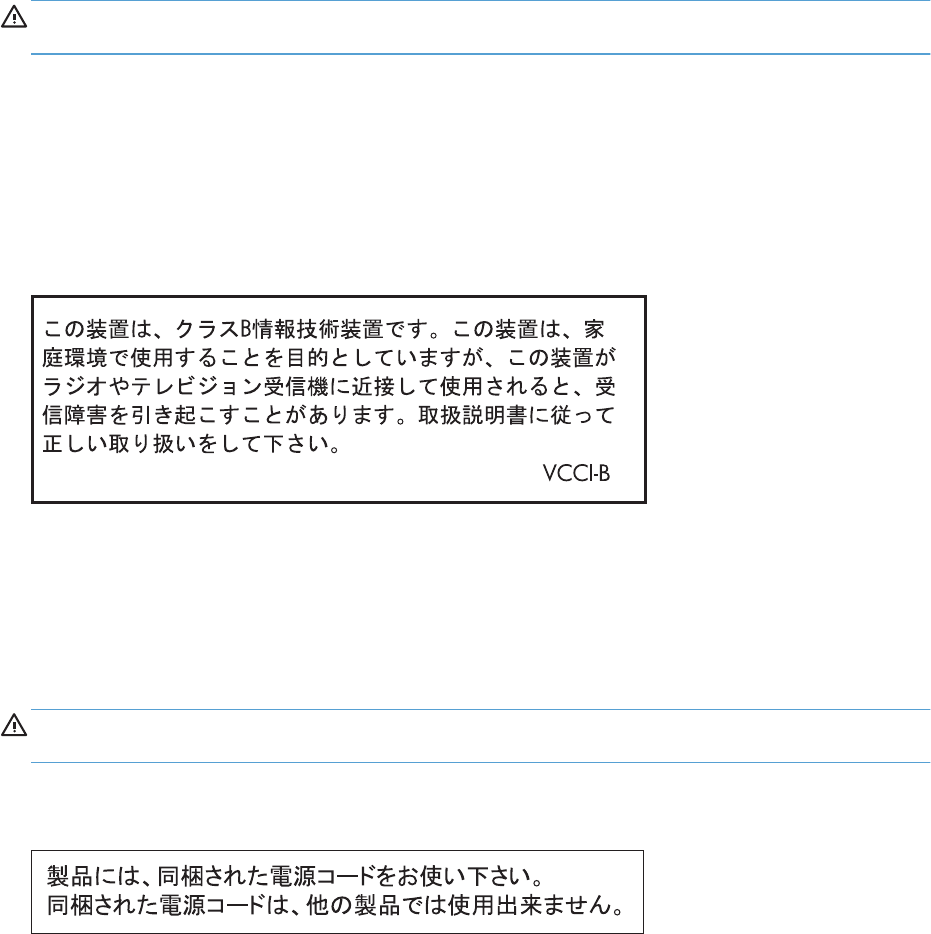
Safety statements
Laser safety
The Center for Devices and Radiological Health (CDRH) of the U.S. Food and Drug Administration has
implemented regulations for laser products manufactured since August 1, 1976. Compliance is
mandatory for products marketed in the United States. The device is certified as a “Class 1” laser
product under the U.S. Department of Health and Human Services (DHHS) Radiation Performance
Standard according to the Radiation Control for Health and Safety Act of 1968. Since radiation
emitted inside the device is completely confined within protective housings and external covers, the
laser beam cannot escape during any phase of normal user operation.
WARNING! Using controls, making adjustments, or performing procedures other than those
specified in this user guide may result in exposure to hazardous radiation.
Canadian DOC regulations
Complies with Canadian EMC Class B requirements.
« Conforme à la classe B des normes canadiennes de compatibilité électromagnétiques. « CEM ». »
VCCI statement (Japan)
Power cord instructions
Make sure your power source is adequate for the product voltage rating. The voltage rating is on the
product label. The product uses either 100-127 Vac or 220-240 Vac and 50/60 Hz.
Connect the power cord between the product and a grounded AC outlet.
CAUTION: To prevent damage to the product, use only the power cord that is provided with the
product.
Power cord statement (Japan)
598 Appendix C Regulatory information ENWW

EMC statement (Korea)
Laser statement for Finland
Luokan 1 laserlaite
Klass 1 Laser Apparat
HP LaserJet Enterprise 500 color M551n, M551dn, M551xh, laserkirjoitin on käyttäjän kannalta
turvallinen luokan 1 laserlaite. Normaalissa käytössä kirjoittimen suojakotelointi estää lasersäteen
pääsyn laitteen ulkopuolelle. Laitteen turvallisuusluokka on määritetty standardin EN 60825-1 (2007)
mukaisesti.
VAROITUS !
Laitteen käyttäminen muulla kuin käyttöohjeessa mainitulla tavalla saattaa altistaa käyttäjän
turvallisuusluokan 1 ylittävälle näkymättömälle lasersäteilylle.
VARNING !
Om apparaten används på annat sätt än i bruksanvisning specificerats, kan användaren utsättas för
osynlig laserstrålning, som överskrider gränsen för laserklass 1.
HUOLTO
HP LaserJet Enterprise 500 color M551n, M551dn, M551xh - kirjoittimen sisällä ei ole käyttäjän
huollettavissa olevia kohteita. Laitteen saa avata ja huoltaa ainoastaan sen huoltamiseen koulutettu
henkilö. Tällaiseksi huoltotoimenpiteeksi ei katsota väriainekasetin vaihtamista, paperiradan puhdistusta
tai muita käyttäjän käsikirjassa lueteltuja, käyttäjän tehtäväksi tarkoitettuja ylläpitotoimia, jotka voidaan
suorittaa ilman erikoistyökaluja.
VARO !
Mikäli kirjoittimen suojakotelo avataan, olet alttiina näkymättömällelasersäteilylle laitteen ollessa
toiminnassa. Älä katso säteeseen.
VARNING !
Om laserprinterns skyddshölje öppnas då apparaten är i funktion, utsättas användaren för osynlig
laserstrålning. Betrakta ej strålen.
Tiedot laitteessa käytettävän laserdiodin säteilyominaisuuksista: Aallonpituus 775-795 nm Teho 5 m W
Luokan 3B laser.
ENWW Safety statements 599
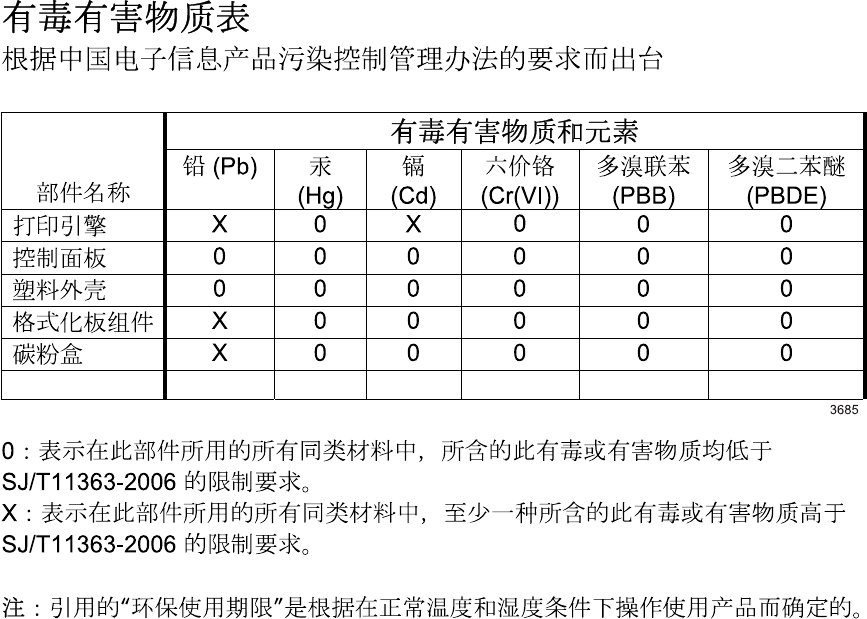
GS statement (Germany)
Das Gerät ist nicht für die Benutzung im unmittelbaren Gesichtsfeld am Bildschirmarbeitsplatz
vorgesehen. Um störende Reflexionen am Bildschirmarbeitsplatz zu vermeiden, darf dieses Produkt
nicht im unmittelbaren Gesichtsfeld platziert warden.
Substances Table (China)
Restriction on Hazardous Substances statement (Turkey)
Türkiye Cumhuriyeti: EEE Yönetmeliğine Uygundur
Restriction on Hazardous Substances statement (Ukraine)
Обладнання відповідає вимогам Технічного регламенту щодо обмеження використання деяких
небезпечних речовин в електричному та електронному обладнанні, затвердженого постановою
Кабінету Міністрів України від 3 грудня 2008 № 1057
600 Appendix C Regulatory information ENWW

Index
A
A3 paper 328, 364
A4 paper - override 328, 364
A4 paper - wide 349
A4/letter override 328, 364
AC to DC conversion 12
accessories
ordering 526
part numbers 527
screws 530
accessories installed, information
306
acoustic specifications 588
adjust color 333
Adjust for Daylight Savings 331
Administration menu, control
panel 329
after service checklist 73
alignment 336
append CR to LF 351
Auto-Continuable Events 356
automatic close assembly
removing 175
B
Backup/Restore menu, control
panel 388
bands, troubleshooting 498
batteries included 593
beam-detect (BD) failure 20
bias generation
high-voltage power supply 10
Black Density 333, 334, 335
black-only printing mode
developing roller state 29
primary transfer roller state 33
blank pages
troubleshooting 504
blank pages - duplex printing 327
blank pages - suppress 352
blank pages, troubleshooting 497
both sides - duplex blank pages
327
C
cables
USB, troubleshooting 504
Calibrate/Cleaning menu, control
panel 388
calibration 36
information, printed 300
Canadian DOC regulations 598
carriage return 351
cartridges
error messages 459
recycling 591
removing 76
replace message 459
warranty 578
cartridges, print
part numbers 527
cassette 49
lift operation 45, 64
media-width detection 47
paper-level detection 46
paper-presence detection 46,
66
pickup assembly, removing
183
pickup drive assembly,
removing 176
pickup operations 43
presence detection 44, 62
tray 2, removing 86
tray 3, removing 86
See also trays
cautions iii
characters, troubleshooting 501
checklists
after service 73
preservice 73
circuit diagrams
fuser temperature-control 16
general 295
high-voltage power supply 10
low-voltage power supply 12
clean the paper path
cleaning page printing 302,
503
cleaning
product 503
cleaning page 388
clearable warnings 356
clutches
DC controller 6
color
calibration 36
diagnostic test 307
disengagement for black-only
printing 29
misregistration control 36
primary transfer roller state 33
troubleshooting 300, 500
Component Test 387
components
DC controller 5
diagnostic tests 280
diagrams of 282
duplexing unit 55
engine-control system 4
fuser 15
image formation, use during
21
intermediate transfer belt (ITB)
31
paper feeder 60
pickup, feed, and delivery 38
ENWW Index 601
print cartridge 27
protection for 14, 16
configuration page 246
configuration pages
information 306
printing 303
connectors
DC controller PCA 284
control panel
Administration menu 329
assembly, removing 116
Backup/Restore menu 388
Calibrate/Cleaning menu 388
Display Settings menu 355
General Settings menu 331
Manage Supplies menu 356
Manage Trays menu 363
messages, troubleshooting
392
Network Settings menu 365
Print Options menu 352
Print Settings menu 349
Reports menu 329
Supplies menu 316
Trays menu 324
Troubleshooting menu 382
USB Firmware Upgrade menu
391
control-panel menus
Retrieve From USB Settings
349
retrieve job from device
memory 312
Retrieve Job From USB 311
Sign In 310
conventions, document iii
cooling
areas and fans 9
copying
quality, troubleshooting 497
Courier font 349
covers
control panel assembly,
removing 116
front door assembly,
removing 103
front top, removing 122
identification and location 102
left bottom, removing 113
left, removing 111
rear top, removing 127
rear, removing 124
right door assembly,
removing 105
right front, removing 118
right rear, removing 109
upper rear, removing 124
creases, troubleshooting 501
crooked pages
troubleshooting 501
current-detection protection circuit
17
customer support
online 586
Cyan Density 333, 334, 335
D
dark image, troubleshooting 497
date
codes for firmware 306
manufacture 305
DC controller
clutches 6
components 5
fans 7
motors 7
PCA, connectors 284
PCA, removing 160
sensors 7
solenoids 6
switches 6
temperature controls 17
voltage detection 14
DC motors 8
DC voltages converted from AC
12
defaults restoring 348
defeating
interlocks 254
defects, repeating 308
delivery assembly
removing 228
demo page 246
density control 37
development process 24
diagnostics 300
component 280
engine 254
LED 246
networks 374
page, printing 300
See also tests; troubleshooting
diagrams 525
DIMMs (dual inline memory
modules)
part numbers 527
Display Settings menu, control
panel 355
disposal, end-of-life 593
document conventions iii
doors. See covers
double-sided printing - duplex blank
pages feature 327
drawer connector
drawer connector, removing
235
drive circuit
power-supply frequency range
18
Duplex Blank Pages 327
duplexing - blank pages 327
duplexing unit 55
components 55
duplex drive assembly,
removing 233
motors 7
pickup operation 56
See also pickup, feed, and
delivery
E
Edge Control 345
electrical specifications 588
electrostatic discharge (ESD) 71
end-of-life disposal 593
Energy Settings 331
engine
diagnostics 254
test page 257
engine-control system
components 4
environment change control 37
environment, specifications 588
Environmental Product Stewardship
Program 591
error messages, control panel
392
ESD (electrostatic discharge) 71
602 Index ENWW
European Union, waste disposal
594
event log 246
clear 470
information 306
print 469
view 470
event-log messages 468
exhaust fans 9
F
faded print 497
failure detection 57
drive circuit 18
fuser 18
lasers and scanners 20
low-voltage power supply 14
motors 8
See also jams
fans
cartridge, removing 131
DC controller 7
delivery, removing 131
exhaust 9
intake 9
power supply fan and fan duct,
removing 147
feed, paper. See pickup, feed, and
delivery
Finnish laser safety statement 599
firmware
date codes 306
version information 305
firmware, downloading new 521
fixing
definition 3
flowcharts
troubleshooting 243
font pitch 351
font point size 351
Form Length 350
formatter
operations 2
PCA, removing 81
formatter lights 246
fuser 15
components 15
control-circuit function 15
discrepancy detection 18
drive assembly, removing 223
failure detection 18
jams 477
motor, removing 210
temperature control 16
See also fusing and delivery unit
fusing
definition 3
fusing and delivery unit 52
operations 52
See also fuser; pickup, feed,
and delivery
G
General Settings menu, control
panel 331
H
halftone control 37
handles
left bottom, removing 114
rear bottom, removing 130
right bottom, removing 129
heat control for fuser 16
heaters, fuser 15
high voltage power supply
removing, lower 167
removing, upper 201
high-voltage power supply 10
bias generation 10
circuits 10
operations 10
See also power supply
HIP, removing 115
HP Customer Care 586
HP Jetdirect print server
configuration page 305
lights 246
humidity requirements 588
humidity values, printed 300
I
I/O Timeout 365
image quality issues
examples and solutions 497
Image Registration 336
Image Rotation 327
image stabilization controls 37
image-formation process 21
imaging drums
color drums disengagement
29
diagnostic test 256
initial rotation period 3
input trays
optional, operations 59
installation
verify for optional accessories
303
intake fans 9
interconnect board (ICB)
removing 158
interlocks
defeating 254
intermediate transfer belt (ITB) 98
components 31
home position 32
operations 31
IPv4 information 305
IPv6 information 305
J
jams 471
common causes of 471
detection in paper feeder 68
detection sensors 57
diagnostic test for 258
fuser 477
lower right door 482
output bin 475
recovery 491
right door 477
Tray 1 473
Tray 2 476
Tray 3 481, 482
types detected 57
Japanese VCCI statement 598
Jetdirect print server
lights 246
K
Korean EMC statement 599
L
language 355
laser safety statements 598, 599
laser/scanner
assembly (C/Bk), removing
193
ENWW Index 603
assembly (Y/M), removing
186
failure conditions 20
operations 19
last rotation period 3
latent image formation 22
LEDs. See lights
left cover, removing 111
letter/A4 override 328, 364
license, software 581
lifter drive assembly
removing 173
light print, troubleshooting 497
lights
formatter 246
troubleshooting with 246
line feed 351
lines, troubleshooting 498
link speed settings 381
loop control 53
loose toner, troubleshooting 500
low voltage power supply
removing 163
low-voltage power supply 12
converted DC voltages 13
failure detection 14
operations 12
protection for components 14
safety provided by 14
stops and interruptions 13
See also power supply
lower right door
jams 482
M
Macintosh
support 586
Magenta Density 333, 334, 335
main drive assembly
removing 212
Manage Supplies menu, control
panel 356
Manage Trays menu, control
panel 363
manual feed - control panel
feature 349
manual print modes 494
manually feed prompt -
multipurpose tray 325, 363
margins 336
material restrictions 593
Material Safety Data Sheet
(MSDS) 594
media source mapping 352
memory
information 303
part numbers 527
supply errors 392
memory chip, print cartridge
description 580
menus, control panel
Administration 329
Backup/Restore 388
Calibrate/Cleaning 388
Display Settings 355
General Settings 331
Manage Supplies 356
Manage Trays 363
Network Settings 365
Print Options 352
Print Settings 349
Reports 329
Supplies 316
Trays 324
Troubleshooting 382
USB Firmware Upgrade 391
menus, control-panel
Retrieve From USB Settings
349
retrieve job from device
memory 312
Retrieve Job From USB 311
Sign In 310
mercury-free product 593
messages, control panel 392
model number 305
motors
DC controller 7
developing disengagement,
removing 170
drum motor 1, removing 206
drum motor 2 or 3, removing
208
failure detection 8
fuser, removing 210
paper feeder 60
pickup, feed, and delivery
0
pickup, removing 172
residual toner feed, removing
138
stepping 7
movement of paper through
product. See pickup, feed, and
delivery
multiple paper feed prevention
48, 67
multipurpose tray. See trays
N
Network Settings menu, control
panel 365
networks
diagnostics 374
HP embedded Jetdirect
configuration page 305
link speed settings 381
security 365
Normal Paper 341
notes iii
Number of Copies 386
O
online support 586
operating environment
specifications 588
operation sequence 3
ordering
part numbers for 527
supplies and accessories 526
output bin
jams 475
overcurrent or overvoltage
protection 14
overhead transparency (OHT)
detection 52
override A4/letter 328, 364
P
pages
blank 504
not printing 504
printing slowly 504
skewed 501
paper
cassette-presence detection
44, 62
jam detection 68
level detection 46
movement sensors 0 , 57
604 Index ENWW
multifeed prevention 67
presence detection 46, 66
size detection 62
stop in path for testing 279
type detection 52
width detection 47
wrinkled 501
paper feeder 38
cassette lift operation 64
electrical components 60
feed operations 50
jam detection 68
multifeed prevention 48, 67
optional 1 x 500-sheet 59
pickup and feed operation 61
skew feed prevention 51
See also pickup, feed, and
delivery
paper jams. See jams
paper path
diagnostic test 258
stop movement for testing 279
paper source mapping 352
paper-path
test, sensors 258
parameters, EP, troubleshooting
300
part numbers
memory 527
print cartridges 527
screws 530
toner collection unit 527
parts 525
parts lists and diagrams
covers 532
HP LaserJet Enterprise 500 color
M551 532
internal assemblies 536, 538,
540, 542, 544
using 530
password
Service menu PIN 507
PCL 350
PDF error page 349
PDF errors 349
periods of the operation
sequence 3
pickup, feed, and delivery 38,
52, 55
components 38
multipurpose tray pickup 49
overview 38
paper-feed operations 50
paper-feeder pickup and feed
61
pickup-and-feed unit
operations 42
See also paper feeder; fusing
and delivery unit; duplexing
unit
pliers, required 72
port configuration information
305
post service tests 73
PostScript errors 349
power
consumption 588
power supply 12
frequency range for drive
circuit 18
troubleshooting 244
See also low-voltage power
supply; high-voltage power
supply
power-off condition
DC controller 15
power-save mode. See sleep
settings
preservice checklist 73
pressure-roller pressurization
control 54
print cartridges
components 27
diagnostic test 256
error conditions 29
error messages 459
memory chips 580
operations 28
part numbers 527
recycling 591
removing 76
replace message 459
warranty 578
Print Mode 338
Print Options menu, control panel
352
print quality 333
built-in troubleshooting pages
297
color misregistration control
36
image stabilization controls 37
manual print modes 494
test 73
test pages 297
troubleshooting 497
Print Quality menu options 494
Print Settings menu, control panel
349
Print Test Page 336
printing
modes, manual 494
period in operation sequence
3
process explained 21
stop for testing 279
troubleshooting 504
problem-solving
event-log messages 468
networks 374
Process Cleaning Page 388
product specifications 587
PS error page 349
PS errors 349
Q
quality. See print quality
Quick Copy Job Held Timeout
347
Quick Copy Job Storage Limit
347
R
recycling 591
HP printing supplies returns and
environmental program 592
registration 336
registration assembly
removing 150
regulatory statements
environmental product
stewardship program 591
removing parts
automatic close assembly 175
cartridge fan 131
cassette pickup assembly 183
cassette pickup drive
assembly 176
cautions for 70
ENWW Index 605
checklists 73
control panel assembly 116
DC controller PCA 160
delivery assembly 228
delivery fan 131
developing disengagement
motor 170
drawer connector 235
drum motor 1 206
drum motor 2 or 3 208
duplex drive assembly 233
environmental sensor 131
formatter PCA 81
front door assembly 103
front top cover 122
fuser 87
fuser drive assembly 223
fuser motor 210
hardware integration pocket
115
high voltage power supply
lower 167
high voltage power supply
upper 201
interconnect board (ICB) 158
intermediate transfer belt 98
laser/scanner assembly (C/
Bk) 193
laser/scanner assembly (Y/
M) 186
left bottom cover 113
left bottom handle 114
left cover 111
lifter drive assembly 173
low voltage power supply 163
main drive assembly 212
pickup motor 172
pickup roller (tray 1) 88
pickup roller (tray 2) 89
power supply fan and fan
duct 147
print cartridges 76
rear bottom handle 130
rear cover 124
rear top cover 127
registration assembly 150
registration density (RD) sensor
assembly 143
residual toner feed motor 138
right bottom handle 129
right door assembly 105
right front cover 118
right rear cover 109
secondary transfer assembly
96
secondary transfer roller 94
separation roller (tray 2) 93
toner collection sensor 136
toner collection unit 79
tools, required 72
tray cassette 86
upper rear cover 124
repeating defects,
troubleshooting 308
replace supplies message 459
replacing
parts 70
Reports menu, control panel 329
resolution
troubleshooting quality 497
Restore All Factory Defaults 348
Retrieve From USB Settings menu
349
retrieve job from device memory
menu 312
Retrieve Job From USB menu 311
reverse and feed control,
duplexer 56
right door
jams 477
roller
pickup roller (Tray 1),
removing 88
pickup roller (Tray 2),
removing 89
rollers
secondary transfer roller,
removing 96
separation roller (Tray 2),
removing 93
ruler, repetitive defect 308
S
safety features
when front door is open 14
safety statements 598, 599
scanner-motor failure 20
screwdrivers, required 72
screws
part numbers 530
replacing 70
secondary transfer roller,
removing 94
security
settings 365
security settings information 305
sensor tests manual
door (front and right) interlock
switches sensor 269
duplexer refeed sensor 264
fuser loop sensors 262
fuser output sensor 263
fuser pressure release sensor
266
ITB alienation sensor 267
output-bin full sensor 265
registration sensor 261
tray 1 paper sensor 272
tray 2 cassette lifter sensor
275
tray 2 cassette sensor 274
tray 2 paper sensor (M) 273
tray 3 empty sensor 276
tray 3 media feed sensor 277
tray 3 media size sensors
279
tray 3 stack surface sensor
278
sensors
DC controller 7
diagnostic tests 258
environmental, removing 131
jam detection 57
paper feeder 60
pickup, feed, and delivery
0
registration density (RD) sensor
assembly, removing 143
tests, manual 260
tests, manual tray/bin 271
toner collection sensor,
removing 136
sequence of operation 3
service
tools, required 72
Service menu options 507
Set Registration 336
Sign In menu 310
606 Index ENWW
Size/Type Prompt 325, 363
skew-feed prevention 51
skewed pages
troubleshooting 501
sleep settings
voltage for 13
voltage too high during 14
Sleep/Auto Off Timer 331
Smart Duplexing 327
smeared toner, troubleshooting
501
software
software license agreement
581
solenoids
DC controller 6
paper feeder 60
pickup, feed, and delivery
0
solve problems 237
solving
direct-connect problems 505
network problems 505
specifications 587
electrical and acoustic 588
operating environment 588
standby period 3
static precautions 71
status page 246
stepping motors 8
stop printing for test 279
streaks, troubleshooting 498
subvoltage
low-voltage power supply
circuit 13
supplies
error messages 459
memory errors 392
ordering 526
part numbers 527
recycling 591
replace message 459
Supplies menu, control panel 316
support
online 586
suppress blank pages 352
switches
DC controller 6
paper feeder 60, 62
pickup, feed, and delivery
0
symbol set 351
T
TCP/IP information 305
TCU
part numbers 527
technical support
online 586
temperature
control for fuser 16
thresholds for fuser
components 17, 18
values, printed 300
temperature requirements 588
test components 387
tests
color band 307
component tests list and
descriptions 280
disable cartridge check 256
engine 257
manual sensor 260
networks 374
paper path 258
paper-path sensors 258
post service 73
print-quality 73
print/stop 279
tray/bin manual sensor 271
text, troubleshooting 501
thermistors
fuser 15, 17
open detection 18
thermopiles
fuser 17
thermoswitches
fuser 15, 17
thresholds
power-supply frequency, drive
circuit 18
temperature, fuser
components 17, 18
timing chart 294
tips iii
toner
image formation, use during
22
loose, troubleshooting 500
patterns for calibration 36
smeared, troubleshooting 501
toner cartridges. See print
cartridges
toner collection unit
part numbers 527
removing 79
tools, required 72
transfer processes 25
Tray 1
jams 473
Tray 2
jams 476
Tray 3
jams 481, 482
Tray >1 Sensing 338
tray closed 325, 363
tray not available 326, 364
tray numbering 352
tray open 325, 363
tray selection - use requested tray
325, 363
trays 49
multipurpose, pickup
operation 49
removing 86
See also cassette
Trays menu, control panel 324
triac-drive circuit
deactivation 17
troubleshooting 237, 300
blank pages 504
checklist 238
clean the paper path 302,
503
color 300
configuration page 246
configuration pages for 303
control panel messages 392
demo page 246
direct-connect problems 505
EP parameters 300
event log 246
flowchart 243
lights, using 246
lines, printed pages 498
network problems 505
pages not printing 504
pages printing slowly 504
ENWW Index 607
power 244
print quality issues 497
process 243
repeating defects 308
reports and tools 246
skewed pages 501
status page 246
text 501
toner smear 501
USB cables 504
wrinkles 501
See also diagnostics
Troubleshooting menu, control
panel 382
two-sided printing - duplex blank
pages 327
U
updates, downloading product
521
USB Firmware Upgrade menu,
control panel 391
USB port
troubleshooting 504
Use Another Tray 326, 364
Use Requested Tray 325, 363
V
version, hardware firmware 305
vertical lines, troubleshooting 498
voltage detection
DC controller 14
W
waiting period 3
warnings iii
warranty
customer self repair 585
license 581
print cartridges 578
product 576
Web sites
customer support 586
Macintosh customer support
586
Material Safety Data Sheet
(MSDS) 594
ordering supplies 526
white spots, troubleshooting 498
Wide A4 349
wrinkles, troubleshooting 501
Y
Yellow Density 333, 334, 335
608 Index ENWW

*CF079-90942*
*CF079-90942*
CF079-90942
