Hp Ux Data Security Software Getting Started Guide Secure Shell
2015-01-05
: Hp Hp-Hp-Ux-Data-Security-Software-Getting-Started-Guide-156058 hp-hp-ux-data-security-software-getting-started-guide-156058 hp pdf
Open the PDF directly: View PDF  .
.
Page Count: 99
- HP-UX Secure Shell Getting Started Guide
- Contents
- About This Document
- 1 Introduction
- 2 Installing HP-UX Secure Shell
- 3 HP-UX Secure Shell Authentication Methods
- 4 Configuring HP-UX Secure Shell Authentication Methods
- Overview
- Configuring Password Authentication
- Configuring Public-Key Authentication
- Configuring Kerberos Authentication
- Configuring Keyboard-Interactive Authentication
- Configuring Host-Based Authentication
- Configuring User-Specific Authentication
- 5 Configuring HP-UX Secure Shell as a SOCKS Proxy
- 6 Enabling HP-UX Secure Shell to Take Advantage of High Speed Networks
- 7 Troubleshooting HP-UX Secure Shell
- A Configuration Files and Directives
- HP-UX Secure Shell Configuration Files
- Server Configuration Directives
- AcceptEnv
- AddressFamily
- AllowAgentForwarding
- AllowGroups
- AllowUsers
- AllowTCPForwarding
- AuthorizedKeysFile
- AuthorizedPrincipalsFile
- Banner
- ChallengeResponseAuthentication
- ChallRespAuthAllowUsers
- ChallRespAuthDenyUsers
- ChrootDirectory
- Ciphers
- ClientAliveCountMax
- ClientAliveInterval
- Compression
- CountKeyAuthBadLogins
- DenyGroups
- DenyUsers
- DisIStrip
- DoubleMaxDisps
- EnforceSecureTTY
- ForceCommand
- GatewayPorts
- GSSAPIAuthentication
- GSSAPICleanupCredentials
- GSSAPIEnableMitmAttack
- HostbasedAuthAllowUsers
- HostbasedAuthDenyUsers
- HostbasedAuthentication
- HostKey
- IgnoreRhosts
- IgnoreUserKnownHosts
- IPQoS
- KerberosAuthAllowUsers
- KerberosAuthDenyUsers
- KerberosAuthentication
- KerberosOrLocalPasswd
- KerberosTicketCleanup
- KexAlgorithms
- KeyRegenerationInterval
- ListenAddress
- LoginGraceTime
- LogLevel
- MACs
- Match
- MaxAuthTries
- MaxSessions
- MaxStartups
- PasswordAuthAllowUsers
- PasswordAuthDenyUsers
- PasswordAuthentication
- PermitEmptyPasswords
- PermitOpen
- PermitRootLogin
- PermitTunnel
- PermitUserEnvironment
- PidFile
- Port
- PrintLastLog
- PrintMotd
- Protocol
- PubkeyAuthAllowUsers
- PubkeyAuthDenyUsers
- PubkeyAuthentication
- RhostsRSAAuthentication
- RSAAuthentication
- ServerKeyBits
- StrictModes
- Subsystem
- SyslogFacility
- TCPKeepAlive
- TrustedUserCAKeys
- UseDNS
- UseLogin
- UsePAM
- UsePrivilegeSeparation
- X11DisplayOffset
- X11Forwarding
- X11UseLocalhost
- XAuthLocation
- Sample HP-UX Secure Shell Server Configuration File
- Client Configuration Directives
- Host
- AddressFamily
- BatchMode
- BindAddress
- ChallengeResponseAuthentication
- CheckHostIP
- Cipher
- Ciphers
- ClearAllForwardings
- Compression
- CompressionLevel
- ConnectionAttempts
- ConnectTimeout
- ControlMaster
- ControlPath
- DynamicForward
- EnableSSHkeysign
- EscapeChar
- ExitOnForwardFailure
- ForwardAgent
- ForwardX11
- ForwardX11Trusted
- GatewayPorts
- GlobalKnownHostsFile
- GSSAPIAuthentication
- GSSAPIDelegateCredentials
- HashKnownHosts
- HostbasedAuthentication
- HostKeyAlgorithms
- HostKeyAlias
- HostName
- IdentityFile
- IdentitiesOnly
- IPQoS
- KbdInteractiveAuthentication
- KbdInteractiveDevices
- KexAlgorithms
- LocalCommand
- LocalForward
- LogLevel
- MACs
- NoHostAuthenticationForLocalhost
- NumberOfPasswordPrompts
- PasswordAuthentication
- PermitLocalCommand
- Port
- PreferredAuthentication
- Protocol
- ProxyCommand
- PubkeyAuthentication
- RekeyLimit
- RemoteForward
- RequestTTY
- RhostsRSAAuthentication
- RSAAuthentication
- SendEnv
- ServerAliveInterval
- ServerAliveCountMax
- StrictHostKeyChecking
- TCPKeepAlive
- UserPrivilegedPort
- User
- UserKnownHostsFile
- VerifyHostKeyDNS
- VisualHostKey
- XAuthLocation
- Sample HP-UX Secure Shell Client Configuration File
- B Sample /etc/krb5.conf File

HP-UX Secure Shell Getting Started Guide
HP-UX 11i v1, HP-UX 11i v2, and HP-UX 11i v3
HP Part Number: 5900-2248
Published: March 2012
Edition: 6
© Copyright 2008, 2012 Hewlett-Packard Development Company, L.P.
Legal Notices
Confidential computer software. Valid license from HP required for possession, use or copying. Consistent with FAR 12.211 and 12.212, Commercial
Computer Software, Computer Software Documentation, and Technical Data for Commercial Items are licensed to the U.S. Government under
vendor’s standard commercial license.
The information contained herein is subject to change without notice. The only warranties for HP products and services are set forth in the express
warranty statements accompanying such products and services. Nothing herein should be construed as constituting an additional warranty. HP shall
not be liable for technical or editorial errors or omissions contained herein.
UNIX is a registered trademark of The Open Group. Intel and Itanium are trademarks or registered trademarks of Intel Corporation or its subsidiaries
in the United States and other countries.

Contents
About This Document ....................................................................................8
Intended Audience....................................................................................................................8
New and Changed Information in This Edition..............................................................................8
Publishing History.....................................................................................................................8
HP-UX Release Name and Release Identifier.................................................................................9
Document Organization............................................................................................................9
Typographic Conventions.........................................................................................................10
Related Documents.................................................................................................................10
HP Encourages Your Comments................................................................................................11
1 Introduction.............................................................................................12
Overview .............................................................................................................................12
Key Features..........................................................................................................................12
Architecture...........................................................................................................................13
How Secure Shell Establishes a Secure Connection.....................................................................14
Protocol Support.....................................................................................................................15
HP-UX Secure Shell Commands................................................................................................15
Keys and Configuration Files....................................................................................................16
2 Installing HP-UX Secure Shell......................................................................19
Prerequisites...........................................................................................................................19
System Requirements..........................................................................................................19
Patch Requirement..............................................................................................................19
Installation and Verification......................................................................................................20
Installing HP-UX Secure Shell from the Media.........................................................................20
Installing HP-UX Secure Shell from the Web...........................................................................20
Verifying HP-UX Secure Shell Installation...............................................................................22
3 HP-UX Secure Shell Authentication Methods.................................................23
Overview..............................................................................................................................23
Password Authentication..........................................................................................................24
Using the /etc/passwd File.................................................................................................24
Using the /etc/pam.conf File..............................................................................................25
Public-Key Authentication.........................................................................................................26
Kerberos Authentication...........................................................................................................27
How Kerberos Works with HP-UX Secure Shell.......................................................................27
Kerberos Authentication Methods.........................................................................................28
Password Authentication Using Kerberos...........................................................................28
GSS-API Authentication Using Kerberos............................................................................28
Keyboard-Interactive Authentication...........................................................................................29
Host-Based Authentication........................................................................................................29
4 Configuring HP-UX Secure Shell Authentication Methods................................31
Overview..............................................................................................................................31
Configuring Password Authentication.........................................................................................31
Configuring Password Authentication Using the/etc/passwd File..............................................31
Configuring Password Authentication Using the /etc/pam.conf File..........................................32
Configuring Public-Key Authentication........................................................................................33
Configuring Kerberos Authentication.........................................................................................34
Configuring Password Authentication Using PAM Kerberos......................................................35
Configuring GSS-API Authentication.....................................................................................36
Configuring Keyboard-Interactive Authentication..........................................................................39
Configuring Host-Based Authentication......................................................................................39
Contents 3
Configuring Host-Based Authentication for Non-Superusers......................................................39
Using Systemwide Configuration.....................................................................................39
Using User-Specific Configuration....................................................................................40
Configuring Host-Based Authentication for Superusers.............................................................41
Configuring User-Specific Authentication....................................................................................41
The Auth Selection Patch.....................................................................................................41
Steps by which the sshd daemon uses the Configuration Directives in the Auth Selection
Patch...........................................................................................................................43
The EnforceSecureTTY Configuration Directive........................................................................44
Behavior of EnforceSecureTTY with the UseLogin Configuration Directive...............................46
Behavioral differences between telnet and ssh logins because of EnforceSecureTTY................46
Behavioral differences between remsh and ssh logins because of EnforceSecureTTY...............47
5 Configuring HP-UX Secure Shell as a SOCKS Proxy.......................................48
SOCKS Overview...................................................................................................................48
Implementations of SOCKS......................................................................................................48
DanteSOCKS....................................................................................................................48
Prerequisites.................................................................................................................48
Usage Examples...........................................................................................................48
Dynamic Port Forwarding ...................................................................................................49
Dynamic Port Forwarding Process....................................................................................49
Prerequisites.................................................................................................................50
Usage Examples...........................................................................................................50
6 Enabling HP-UX Secure Shell to Take Advantage of High Speed Networks.......52
Changes in the ssh Command due to the HPN Patch...................................................................53
7 Troubleshooting HP-UX Secure Shell............................................................54
Overview..............................................................................................................................54
Debugging the HP-UX Secure Shell Server..................................................................................54
Debugging Options...........................................................................................................54
Running sshd in Debug Mode..............................................................................................55
Debugging the HP-UX Secure Shell Client..................................................................................56
Debugging Option.............................................................................................................56
Running ssh in Debug Mode...............................................................................................56
Interpreting the Debug Output..................................................................................................57
Generating Debug Messages Using the LogLevel Configuration Directive.......................................59
The LogLevel Configuration Directive.....................................................................................59
Logging Error and Debug Messages.........................................................................................59
Authentication Problems..........................................................................................................60
Public-Key Authentication Problems.......................................................................................60
Host-Based Authentication Problems.....................................................................................60
Reporting Problems.................................................................................................................60
A Configuration Files and Directives...............................................................62
HP-UX Secure Shell Configuration Files......................................................................................62
Server Configuration Directives.................................................................................................62
AcceptEnv.........................................................................................................................62
AddressFamily...................................................................................................................62
AllowAgentForwarding.......................................................................................................63
AllowGroups.....................................................................................................................63
AllowUsers........................................................................................................................63
AllowTCPForwarding..........................................................................................................63
AuthorizedKeysFile.............................................................................................................63
AuthorizedPrincipalsFile......................................................................................................64
Banner.............................................................................................................................64
ChallengeResponseAuthentication........................................................................................64
4 Contents
ChallRespAuthAllowUsers...................................................................................................64
ChallRespAuthDenyUsers ...................................................................................................65
ChrootDirectory.................................................................................................................65
Ciphers............................................................................................................................65
ClientAliveCountMax..........................................................................................................65
ClientAliveInterval..............................................................................................................66
Compression.....................................................................................................................66
CountKeyAuthBadLogins.....................................................................................................66
DenyGroups......................................................................................................................66
DenyUsers........................................................................................................................67
DisIStrip............................................................................................................................67
DoubleMaxDisps...............................................................................................................67
EnforceSecureTTY...............................................................................................................67
ForceCommand.................................................................................................................68
GatewayPorts....................................................................................................................68
GSSAPIAuthentication.........................................................................................................68
GSSAPICleanupCredentials.................................................................................................68
GSSAPIEnableMitmAttack...................................................................................................68
HostbasedAuthAllowUsers ..................................................................................................69
HostbasedAuthDenyUsers...................................................................................................69
HostbasedAuthentication.....................................................................................................69
HostKey............................................................................................................................69
IgnoreRhosts......................................................................................................................69
IgnoreUserKnownHosts.......................................................................................................70
IPQoS..............................................................................................................................70
KerberosAuthAllowUsers.....................................................................................................71
KerberosAuthDenyUsers......................................................................................................71
KerberosAuthentication.......................................................................................................71
KerberosOrLocalPasswd......................................................................................................71
KerberosTicketCleanup........................................................................................................71
KexAlgorithms...................................................................................................................71
KeyRegenerationInterval......................................................................................................72
ListenAddress....................................................................................................................72
LoginGraceTime.................................................................................................................72
LogLevel............................................................................................................................72
MACs .............................................................................................................................72
Match..............................................................................................................................72
MaxAuthTries....................................................................................................................73
MaxSessions.....................................................................................................................73
MaxStartups......................................................................................................................74
PasswordAuthAllowUsers.....................................................................................................74
PasswordAuthDenyUsers.....................................................................................................74
PasswordAuthentication......................................................................................................74
PermitEmptyPasswords........................................................................................................74
PermitOpen.......................................................................................................................74
PermitRootLogin.................................................................................................................75
PermitTunnel......................................................................................................................75
PermitUserEnvironment........................................................................................................75
PidFile..............................................................................................................................76
Port..................................................................................................................................76
PrintLastLog.......................................................................................................................76
PrintMotd..........................................................................................................................76
Protocol............................................................................................................................76
PubkeyAuthAllowUsers........................................................................................................77
PubkeyAuthDenyUsers.........................................................................................................77
Contents 5
PubkeyAuthentication..........................................................................................................77
RhostsRSAAuthentication.....................................................................................................77
RSAAuthentication..............................................................................................................77
ServerKeyBits....................................................................................................................77
StrictModes.......................................................................................................................77
Subsystem.........................................................................................................................78
SyslogFacility....................................................................................................................78
TCPKeepAlive....................................................................................................................78
TrustedUserCAKeys............................................................................................................78
UseDNS...........................................................................................................................79
UseLogin..........................................................................................................................79
UsePAM...........................................................................................................................79
UsePrivilegeSeparation.......................................................................................................79
X11DisplayOffset...............................................................................................................80
X11Forwarding..................................................................................................................80
X11UseLocalhost................................................................................................................80
XAuthLocation...................................................................................................................80
Sample HP-UX Secure Shell Server Configuration File..............................................................80
Client Configuration Directives..................................................................................................82
Host ................................................................................................................................83
AddressFamily...................................................................................................................83
BatchMode.......................................................................................................................83
BindAddress......................................................................................................................83
ChallengeResponseAuthentication........................................................................................83
CheckHostIP......................................................................................................................83
Cipher..............................................................................................................................84
Ciphers............................................................................................................................84
ClearAllForwardings...........................................................................................................84
Compression.....................................................................................................................84
CompressionLevel..............................................................................................................85
ConnectionAttempts...........................................................................................................85
ConnectTimeout.................................................................................................................85
ControlMaster...................................................................................................................85
ControlPath.......................................................................................................................86
DynamicForward...............................................................................................................86
EnableSSHkeysign.............................................................................................................86
EscapeChar......................................................................................................................86
ExitOnForwardFailure.........................................................................................................86
ForwardAgent...................................................................................................................87
ForwardX11.......................................................................................................................87
ForwardX11Trusted.............................................................................................................87
GatewayPorts....................................................................................................................87
GlobalKnownHostsFile........................................................................................................87
GSSAPIAuthentication.........................................................................................................88
GSSAPIDelegateCredentials................................................................................................88
HashKnownHosts...............................................................................................................88
HostbasedAuthentication.....................................................................................................88
HostKeyAlgorithms.............................................................................................................88
HostKeyAlias.....................................................................................................................89
HostName........................................................................................................................89
IdentityFile........................................................................................................................89
IdentitiesOnly....................................................................................................................89
IPQoS..............................................................................................................................89
KbdInteractiveAuthentication................................................................................................90
KbdInteractiveDevices.........................................................................................................90
6 Contents
KexAlgorithms...................................................................................................................90
LocalCommand.................................................................................................................91
LocalForward....................................................................................................................91
LogLevel............................................................................................................................91
MACs..............................................................................................................................92
NoHostAuthenticationForLocalhost........................................................................................92
NumberOfPasswordPrompts................................................................................................92
PasswordAuthentication......................................................................................................92
PermitLocalCommand.........................................................................................................92
Port..................................................................................................................................93
PreferredAuthentication.......................................................................................................93
Protocol............................................................................................................................93
ProxyCommand.................................................................................................................93
PubkeyAuthentication..........................................................................................................93
RekeyLimit.........................................................................................................................94
RemoteForward.................................................................................................................94
RequestTTY.......................................................................................................................94
RhostsRSAAuthentication.....................................................................................................94
RSAAuthentication..............................................................................................................94
SendEnv...........................................................................................................................95
ServerAliveInterval.............................................................................................................95
ServerAliveCountMax.........................................................................................................95
StrictHostKeyChecking........................................................................................................95
TCPKeepAlive....................................................................................................................96
UserPrivilegedPort..............................................................................................................96
User.................................................................................................................................96
UserKnownHostsFile...........................................................................................................96
VerifyHostKeyDNS.............................................................................................................97
VisualHostKey...................................................................................................................97
XAuthLocation...................................................................................................................97
Sample HP-UX Secure Shell Client Configuration File...............................................................97
B Sample /etc/krb5.conf File........................................................................99
The /etc/krb5.conf Configuration File.......................................................................................99
Contents 7

About This Document
This document describes the HP-UX Secure Shell software. It includes information about installing,
verifying, configuring, and troubleshooting HP-UX Secure Shell on HP-UX platforms. The latest
version of this document is available at:
http://www.hp.com/go/hpux-security-docs
The document printing date and part number indicate the document’s current edition. The printing
date will change when a new edition is printed. Minor changes may be made at reprint without
changing the printing date. The document part number will change when extensive changes are
made.
Document updates can be issued between editions to correct errors or document product changes.
To ensure that you receive the updated or new edition, subscribe to the appropriate product support
service. Contact your HP sales representative for details.
There are two types of administrators, the Secure Shell administrator and the Kerberos administrator.
The Secure Shell administrator and the Kerberos administrator can be different people or the same
person.
Intended Audience
This document is intended for system administrators who use HP-UX Secure Shell.
Administrators must have a basic understanding of the following:
•Cryptography
•Kerberos authentication protocol
New and Changed Information in This Edition
This document is updated to include information about the support of new ECDSA key types. New
client and server configuration directives are also included in this edition.
Publishing History
Table 1 describes the publishing details of this document for various HP-UX releases.
8

Table 1 Publishing History Details
Publication DateOperating Systems SupportedDocument Manufacturing Part
Number
March 20125900–2248 •HP-UX 11i v1
•HP-UX 11i v2
•HP-UX 11i v3
September 20105900–1228 •HP-UX 11i v1
•HP-UX 11i v2
•HP-UX 11i v3
May 20085992-4213 •HP-UX 11i v1
•HP-UX 11i v2
•HP-UX 11i v3
September 2006T1471-90028 •HP-UX 11i v1
•HP-UX 11i v2
•HP-UX 11i v3
June 2006T1471-90024 •HP-UX 11.0
•HP-UX 11i v1
•HP-UX 11i v2
February 20075991-7493 •HP-UX 11i v1
•HP-UX 11i v2
•HP-UX 11i v3
HP-UX Release Name and Release Identifier
Each HP-UX 11i release has an associated release name and release identifier. The uname
command with the -r option returns the release identifier. Table 2 shows the available HP-UX
releases.
Table 2 HP-UX 11i Releases
Supported Processor ArchitectureRelease NameRelease Identifier
PA-RISCHP-UX 11i v1B.11.11
Intel® Itanium®
HP-UX 11i v1.5B.11.20
Intel ItaniumHP-UX 11i v1.6B.11.22
Intel Itanium, PA-RISCHP-UX 11i v2B.11.23
Intel Itanium, PA-RISCHP-UX 11i v3B.11.31
Document Organization
The HP-UX Secure Shell Getting Started Guide is organized as follows:
Chapter 1: Introduction Presents an overview of the HP-UX Secure Shell software
and describes its structure.
Chapter 2: Installing HP-UX Secure
Shell
Describes how to install HP-UX Secure Shell and the required
patches. It also lists the hardware and software requirements
for installing HP-UX Secure Shell.
HP-UX Release Name and Release Identifier 9

Chapter 3: HP-UX Secure Shell
Authentication Methods
Describes the different authentication methods used by HP-UX
Secure Shell.
Chapter 4: Configuring HP-UX Secure
Shell Authentication Methods
Describes how to configure HP-UX Secure Shell to use
different authentication methods, and to optimize
performance.
Chapter 5: Configuring HP-UX Secure
Shell as a SOCKS Proxy
Describes how to configure proxy server support with HP-UX
Secure Shell.
Chapter 6: Enabling HP-UX Secure
Shell to Take Advantage of High
Speed Networks
Describes how to enable HP-UX Secure Shell to take
advantage of high-performance networks.
Chapter 7: Troubleshooting HP-UX
Secure Shell
Describes the HP-UX Secure Shell server and client
debugging options.
Appendix A: Configuration Files and
Directives
Describes the HP-UX Secure Shell server and client
configuration directives.
Appendix B: Sample /etc/krb5.conf
File
Provides a sample /etc/pam.conf file.
Typographic Conventions
This document uses the following conventions:
audit(5) An HP-UX manpage. In this example, audit is the name and 5 is the section in
the HP-UX Reference. On the Web and on the Instant Information CD, it may
be a link to the manpage itself. From the HP-UX command line, you can enter
man audit or man 5 audit to view the manpage. See man(1).
Book Title The title of a book. On the Web and on the Instant Information CD, it may be
a link to the book itself.
KeyCap The name of a keyboard key. Note that Return and Enter both refer to the same
key.
Emphasis Text that is emphasized.
Bold The defined use of an important word or phrase.
ComputerOut Text displayed or generated by the system.
UserInput Commands and other text that you type.
Command A command name or qualified command phrase.
Variable The name of a variable that you can replace in a command or function or
information in a display that represents several possible values.
| Separates list items in a list of choices.
[ ] The contents are optional in formats and command descriptions. If the contents
are a list separated by , you can choose one of the items.
{ } The contents are required in formats and command descriptions. If the contents
are a list separated by , you must choose one of the items.
... The preceding element can be repeated an arbitrary number of times.
Related Documents
Following are the additional documentation available for HP-UX Secure Shell:
•HP-UX Secure Shell Release Notes on the Internet and Security Solutions page at: http://
www.hp.com/go/hpux-security-docs
•The README file at /opt/ssh/README.hp. You must install HP-UX Secure Shell to access
this file.
10

•HP-UX Secure Shell Manpages
•For more information on cryptography, see: http://www.ssh.com/support/cryptography/
•For more information on Kerberos, see to the Kerberos white paper available at: http://
www.hp.com/go/hpux-security-docs
You can obtain general information about Secure Shell technology from the following Web sites:
•Features and FAQ at the OpenSource SSH Web site at: http://www.openssh.org
•Barrett, Daniel J. and Richard E. Silverman, 2001. SSH, The Secure Shell: The Definitive
Guide. California: O’Reilly and Associates Inc., This book is also available at:
http://www.oreilly.com
•SSH Secure Shell FAQs at: http://www.employees.org/~satch/ssh/faq/ssh-faq.html
HP Encourages Your Comments
HP welcomes your comments concerning this document. We are committed to providing
documentation that meets your needs.
Send your comments or suggestions to:docsfeedback@hp.com
Include the document title, manufacturing part number, and any comments, errors found, in this
document. Also, please include what we did right, so we can incorporate it into other documents.
HP Encourages Your Comments 11

1 Introduction
This chapter provides an overview of HP-UX Secure Shell. HP-UX Secure Shell is a program that
enables users to securely access various network services.
This chapter addresses the following topics:
•“Overview ” (page 12)
•“Key Features” (page 12)
•“Architecture” (page 13)
•“How Secure Shell Establishes a Secure Connection” (page 14)
•“Protocol Support” (page 15)
•“HP-UX Secure Shell Commands” (page 15)
•“Keys and Configuration Files” (page 16)
Overview
HP-UX Secure Shell enables you to securely log into another system over a network, to execute
commands on a remote system, and to move files from one system to another. HP-UX Secure Shell
provides a set of commands that replace insecure commands such as rlogin,rsh,rcp,ftp,
and telnet. HP-UX Secure Shell also protects a network from the following security hazards:
IP Spoofing A technique used to gain unauthorized access to computers. An intruder
sends messages to a computer with an IP address indicating that the message
is coming from a trusted host.
Eavesdropping Searching a system for passwords, credit card numbers, or business secrets.
Hijacking A technique used to take over network communication in such a way that
the attacker can inspect and modify data transmitted between the
communicating parties.
HP-UX Secure Shell is based on the open source Secure Shell (OpenSSH) product. OpenSSH is
available in two versions: SSH Protocol Version 1 (SSH-1) and SSH Protocol Version 2 (SSH-2).
HP-UX Secure Shell supports both versions of OpenSSH. However, HP recommends SSH-2, because
it is more secure than SSH-1.
HP-UX Secure Shell establishes a secure connection between a client and a remote server over an
insecure network. The key attributes of this secure connection are the following:
•Strong authentication for both client and the remote system
•Strong encryption and public-key cryptography for communication between a client and the
remote system
•Secure channel that the client uses to execute commands on the remote system
Secure access to the remote host enables you to perform the following actions:
•Execute commands safely on a remote system
•Move files from one system to another over a secure channel
•Securely copy remote files
NOTE: All references to server and client in this document refer to HP-UX Secure Shell server and
HP-UX Secure Shell client, respectively.
Key Features
Following are the key features of HP-UX Secure Shell:
12 Introduction
Strong Encryption All communication between the client and the server is
encrypted using patent-free encryption algorithms such as
Blowfish, Data Encryption Standard (DES), 3DES, Advanced
Encryption Standard (AES), and arcfour. Authentication
information (for example, passwords) is never sent in clear
text over the network. Encryption in conjunction with strong
public-key cryptography also provides protection against a
number of potential security attacks.
Strong Authentication HP-UX Secure Shell supports a strong set of authentication
methods between client and server. HP-UX Secure Shell
supports two-way authentication: the server authenticates
the client and the client authenticates the server. This protects
the session against a variety of security hazards.
Port Forwarding HP-UX Secure Shell supports the redirection of TCP/IP
connections between a client and a remote host. For
example, you can use port forwarding to redirect file transfer
protocol (FTP) traffic between a client and a server. Instead
of the client directly communicating with the server, you can
redirect the traffic to an HP-UX Secure Shell server over a
secure channel. The HP-UX Secure Shell server forwards the
traffic to a designated port on the FTP server.
X11 Forwarding X11 forwarding provides secure X traffic between client and
server. It automatically sets the DISPLAY variable on the
remote system where the sshd daemon is running.
Agent Forwarding HP-UX Secure Shell facilitates and secures key-based
authentication using an authentication agent. This agent
typically runs in the client environment and holds all key
information. The only place in the network where the key
information is stored is the local system. Keys are never
disclosed to any other component of the network.
Integration with HP-UX Security
Features and Services
HP-UX Secure Shell is well integrated with the following
features and services offered by HP-UX:
•The /etc/utmp,/var/adm/wtmp, and /var/adm/
btmp files (similar to the telnet and remsh sessions)
•PAM modules
•The /etc/default/security file
•Shadow passwords
•Trusted HP-UX features
•The /var/adm/syslog/syslog.log file
•Audit Logging
Architecture
HP-UX Secure Shell is based on client-server architecture. An HP-UX Secure Shell daemon (sshd)
runs on a UNIX system and waits for connections from clients. The HP-UX Secure Shell environment
consists of the following distinct components:
Server A program running as a daemon (sshd) that listens for HP-UX Secure Shell
connections.
Client A program that connects a system to the HP-UX Secure Shell server.
Session An ongoing connection between an HP-UX Secure Shell client and a server.
Architecture 13

Key A relatively small amount of data used as a parameter for cryptographic
algorithms, such as encryption or message authentication.
User Key An asymmetric key used by the client to provide a user identity.
Host Key An asymmetric key used by the server to provide a server identity.
Session Key A symmetric key that encrypts the communication between the client and
server.
Key Generator A program that creates persistent keys, such as user keys and host keys.
Agent A program that caches user keys in memory so that users need not retype
their passphrases.
Figure 1 shows how the major HP-UX Secure Shell components interact with one another.
Figure 1 HP-UX Secure Shell Components
Secure Shell
Client
OS TCP Stack
Establish a
Secure Tunnel
Authenticate the
Server
Authenticate the
Client
Encrypted
Session
Arbitrary
TCP Port
Forwarding
Secure Shell
Server
OS TCP Stack
How Secure Shell Establishes a Secure Connection
The client and server must establish a secure connection before any interaction can take place.
The secure connection enables you to share keys, passwords, and data. Establishing a secure
connection between a client and the server includes the following steps:
1. The client contacts the server.
2. The client and server disclose the HP-UX Secure Shell protocol versions they support.
3. The client and server switch to a packet-based protocol.
4. The server identifies itself to the client and provides session parameters.
5. The client sends a session key to the server.
6. Both client and server enable encryption and complete server authentication.
7. The secure connection is established.
Before running the client, you must start the server daemon (sshd). The sshd daemon takes its
initial configuration values from the sshd_config file, located in the/opt/ssh/etc directory
on the server. The most important configuration directives in the sshd_config file are those that
are used to set the authentication methods that sshd supports.
When you run the HP-UX Secure Shell client application, the following events occur:
1. The client application establishes a socket connection with the HP-UX Secure Shell server.
2. The server spawns a child sshd process.
14 Introduction

3. The child sshd process inherits the connection socket and authenticates the client application
based on the selected authentication method. A successful secure client session is established
only upon successful authentication.
4. When a session is created, all subsequent communication occurs directly between the client
application and the child sshd process. The client application can now execute remote
commands on the server. Each command request from the client application causes the child
sshd process to spawn a shell process to execute the command.
NOTE: In HP-UX Secure Shell Versions A.03.81 and earlier, every new client connection caused
the sshd daemon to fork itself. From HP-UX Secure Shell A.03.09 onwards, every new client
connection causes the sshd daemon to re-execute (fork and exec). This default re-execute behavior
is more secure, because it ensures that the each client connection uses a new seed for key
generation. You can revert to the previous behavior by using the sshd command with the -r
option. HP does not recommend changing the default behavior.
A running HP-UX Secure Shell client-server session consists of the following processes:
•A single client process running on the client system.
•The following processes running on the server system:
One parent sshd process and many child sshd processes.◦
◦A shell process for each command execution request from the client. This shell process is
spawned to execute the command, and terminates when the command successfully
completes execution. All communication between the child sshd process and the shell
process is carried out through a UNIX pipe.
Protocol Support
HP-UX Secure Shell supports the SSH-1 and SSH-2 protocols. Table 3 compares the features of the
SSH-1 and SSH-2 protocols.
Table 3 Comparative Analysis of SSH-1 and SSH-2 Protocols
SSH-2SSH-1
Enhanced SSH protocol. Offers better security, portability,
and performance.
Original version of Secure Shell protocol.
Uses only host keys to authenticate systems.Uses server keys and host keys to authenticate systems.
Uses several session keys.Uses only one session key.
Supports RSA, DSA, and ECDSA algorithms.Supports the RSA algorithm only.
Supports both SOCKS and sftp.Does not support SOCKS (SOCKetS) and secure FTP
(sftp).
HP-UX Secure Shell Commands
HP-UX Secure Shell includes a set of commands used to securely access remote systems. For more
information, see the manpages for each command.
Table 4 lists the commands that enable you to securely access remote systems.
Table 4 HP-UX Secure Shell Commands
Equivalent Non-Secure
Components
Runs OnDescriptionCommand
remsh,telnetClientSecure Shell clientssh
remsh,telnetClientSymbolic link to sshslogin
Protocol Support 15

Table 4 HP-UX Secure Shell Commands (continued)
Equivalent Non-Secure
Components
Runs OnDescriptionCommand
remshd,telnetdServerSecure Shell daemonsshd
rcpClient and
Server
Secure file copy for client and serverscp
ftpClientSecure FTP programsftp
ftpdServerThe sftp server subsystem automatically initiated by
the sshd daemon.
sftp-server
Not applicableServerRandom number generator used when the sshd
daemon is unable to find the /dev/random or /dev/
urandom file on the server
prngd
Not applicableClient and
Server
Generates key pairs used in public-key authentication.
Both client and server are required to generate key
ssh-keygen
pairs. The server key pair is required for all HP-UX
Secure Shell client operations regardless of the
authentication method used. The client key pair is used
for public-key authentication only.
Not applicableClientTool for automatic public-key login from client to server.
The ssh-agent binary stores information about the
ssh-agent
private-key passcodes for different client users on the
system. During public-key authentication, the client
prompts the user for the private-key passcode. However,
if ssh-agent is running at the same time, the client
retrieves the passcode from the ssh-agent binary.
Not applicableClientMakes the client key pairs known to ssh-agent.
Useful during public-key authentication if the client’s
private keys are generated with passcodes.
ssh-add
Not applicableClientGathers public keys for a set of systems running the
sshd daemon.
ssh-keyscan
Not applicableClientThe client uses this command to read the server’s private
key. The ssh-keysign binary runs as a superuser
and is not visible to end users.
ssh-keysign
Keys and Configuration Files
A run-time HP-UX Secure Shell environment uses the following files for authentication:
•Configuration files
•Host file lists
•Key files
Table 5 lists the client keys and configuration files for the HP-UX Secure Shell client.
16 Introduction

Table 5 Client Keys and Configuration Files
LocationDescriptionName
/opt/ssh/etc/ssh_configSpecifies the client configuration
file. The client uses this file to
ssh_config
determine the required run-time
parameters. For more information
on the configuration directives in
the ssh_config file, see
Appendix A (page 62).
$HOME/.ssh/known_hostsLists public keys for all sshd
daemons on the client subnet. This
known_hosts
file is required for all HP-UX Secure
Shell operations, regardless of the
authentication method used.
Multiple client users using the same
client system for HP-UX Secure
Shell connections must make
individual known_hosts files,
and place them in their home
directories.
The public and private keys for
client users. The client uses these
Client user key files •RSA-1 keys:
$HOME/.ssh/identity◦
keys for public-key authentication
◦$HOME/.ssh/identity.pub
only. You can generate a key pair
with RSA-1, RSA, DSA, and
•RSA keys:
ECDSA algorithms. The client user
can choose the key type. ◦$HOME/.ssh/id_rsa
◦$HOME/.ssh/id_rsa.pub
•DSA keys
◦$HOME/.ssh/id_dsa
◦$HOME/.ssh/id_dsa.pub
•ECDSA keys
◦$HOME/.ssh/id_ecdsa
◦$HOME/.ssh/id_ecdsa.pub
The public and private keys for
every client system from which
Client host key files •RSA-1 keys:
/opt/ssh/etc/ssh_host_key◦
client users connect to an sshd
◦/opt/ssh/etc/ssh_host_key.pub
instance using host-based
authentication. These key pairs are
•RSA keys:
generated with RSA-1, RSA, DSA,
or ECDSA. ◦/opt/ssh/etc/ssh_host_rsa
◦/opt/ssh/etc/ssh_host_rsa.pub
•DSA keys:
/opt/ssh/etc/ssh_host_dsa◦
◦/opt/ssh/etc/ssh_host_dsa.pub
•ECDSA keys:
◦/opt/ssh/etc/ssh_host_ecdsa
◦/opt/ssh/etc/ssh_host_ecdsa.pub
Table 6 lists the keys and configuration files for the HP-UX Secure Shell server.
Keys and Configuration Files 17

Table 6 Server Keys and Configuration Files
LocationDescriptionName
/opt/ssh/etc/sshd_configConfiguration file for the sshd
daemon. The sshd daemon uses
sshd_config
this file to determine the required
run-time parameters. For more
information on the sshd_config
file directives, see Appendix A
(page 62).
List of public keys for all ssh client
hosts that connect to the sshd
known_hosts and
related files
•/opt/ssh/etc/ssh_known_hosts
•/etc/rhosts.equiv
daemon using host-based
authentication. •/etc/shosts.equiv
$HOME/.ssh/authorized_keysList of public keys for all client
users who connect to an instance
authorized_keys
of the sshd daemon using
public-key authentication. This file
is necessary only if you are using
public-key authentication. One file
is created per client user.
The public and private keys for
every sshd instance. These files
Host key files •RSA-1 keys:
/opt/ssh/etc/ssh_host_key◦
are required for all HP-UX Secure
◦/opt/ssh/etc/ssh_host_key.pub
Shell operations regardless of
authentication type. Host key files
•RSA keys:
can be created with RSA-1, RSA,
DSA, or ECDSA. ◦/opt/ssh/etc/ssh_host_rsa
◦/opt/ssh/etc/ssh_host_rsa.pub
•DSA keys:
/opt/ssh/etc/ssh_host_dsa◦
◦/opt/ssh/etc/ssh_host_dsa.pub
•ECDSA keys:
◦/opt/ssh/etc/ssh_host_ecdsa
◦/opt/ssh/etc/ssh_host_ecdsa.pub
Table 7 lists the configuration files that are common to both the HP-UX Secure Shell client and
server.
Table 7 Common Client and Server Configuration Files
LocationDescriptionName
On the client system:Required for client users who connect
to the server using GSS-API
Kerberos files
•/etc/krb5.conf
authentication. The client user requires
the following files: •/tmp/krb5CC_uid
On the server system:
•krb5.conf file – Required for
both the client and server. •/etc/krb5.conf
•A ticket file specific to each user. •/opt/krb5/v5srvtab
(default location of the ticket file)
18 Introduction

2 Installing HP-UX Secure Shell
This chapter describes how to install HP-UX Secure Shell. This chapter also lists the prerequisites
for installing HP-UX Secure Shell.
The chapter addresses the following topics:
•“Prerequisites” (page 19)
•“Installation and Verification” (page 20)
Prerequisites
This section lists the prerequisites for installing HP-UX Secure Shell.
System Requirements
Table 8 lists the minimum system requirements for installing HP-UX Secure Shell.
Table 8 System Requirements for Installing HP-UX Secure Shell
RequirementComponent
Operating System •HP-UX 11i v1
•HP-UX 11i v2
•HP-UX 11i v3
Hardware •HP/9000 servers and workstations
•HP Integrity servers
22 MB for HP-UX 11i v1Disk Space
31 MB for HP-UX 11i v2
18 MB for HP-UX 11i v3
Memory usage depends on the number of users. The memory used by HP-UX
Secure Shell for a single user is:
Memory
•21 MB on an HP-UX 11i v1 system
•33 MB on an HP-UX 11i v2 system
•18 MB on an HP-UX 11i v3 system
If you are using HP-UX Secure Shell as a SOCKS proxy, you need to download and install the
following additional products:
•DanteSOCKS- DanteSOCKS is a part of the Internet Express suite of products. It is available
for download at: www.software.hp.com
•SOCKS Client product- The SOCKS client product (connect.c) is a simple relaying command
that makes network connections using SOCKS and https proxy. It is available for download
at: http://zippo.taiyo.co.jp/~gotoh/ssh/connect.html
For information on configuring HP-UX Secure Shell as a SOCKS proxy, see Chapter 5 (page 48)
Patch Requirement
The appropriate patches for installing HP-UX Secure Shell can be obtained in the following ways:
•HP-UX 11i v1
The HP-UX 11i v1 (B.11.11) Support Plus release media contains the standard HP-UX patch
bundles. The patch bundles are also available on the HP Support Center (HPSC) website. If
you do not have access to the media, follow these steps:
Prerequisites 19

1. Go to the HPSC website at: http://www.hp.com/go/hpsc
2. Select the appropriate site, for example, Americas/Asia-Pacific or European.
3. Select maintenance and support for hp products in the left navigation bar. The maintenance
and support for hp products page is displayed.
4. Select standard patch bundles - find patch bundles in the patching section. The find
bundles page is displayed.
5. Select HP-UX patch bundles in the Bundles for HP-UX section. The standard HP-UX patch
bundles index page is displayed. This page lists the release dates for the current patch
bundles in the release name section.
6. Select the appropriate patch bundle in the release name section to download the bundle.
NOTE: The standard HP-UX patch bundles are cumulative. If you do not find an older bundle,
such as the patch bundle on the September 05 Support Plus 11.11 media, select the latest
11.11 release and use the latest version of the patch bundle.
•HP-UX 11i v2
The latest patches are available as part of the latest HP-UX 11i v2 operating environment (OE)
media.
•HP-UX 11i v3
No patches are required for installing HP-UX Secure Shell on HP-UX 11i v3.
Installation and Verification
This section describes how to install HP-UX Secure Shell and verify the installation. You can install
HP-UX Secure Shell from either the Application Release (AR) media or the Web.
Installing HP-UX Secure Shell from the Media
To install HP-UX Secure Shell from the AR media, follow these steps:
1. Insert the AR media into the drive.
2. To log in as a superuser, run the following command at the HP-UX prompt:
$ su root
3. To create a directory in which to mount the media, run the following command at the HP-UX
prompt:
# mkdir -p /tmp
Where:
tmp denotes the directory in which the media is mounted.
4. To mount the AR media, run the following command at the HP-UX prompt:
# mount <absolute device-path> /tmp
Where:
<absolute device-path> specifies the device path for the AR media.
5. To verify whether the media is mounted, run the following command at the HP-UX prompt:
# mount
6. Complete Steps 11 – 17 described in “Installing HP-UX Secure Shell from the Web” (page 20)
to install the HP-UX Secure Shell software on your system.
Installing HP-UX Secure Shell from the Web
To install HP-UX Secure Shell from the Web, follow these steps:
1. Go to the HP Software Depot Web page at: www.software.hp.com
20 Installing HP-UX Secure Shell

2. Use the Search button to browse for the product number T1471AA. The product catalog page
is displayed.
3. Select HP-UX Secure Shell in the product catalog. The HP-UX Secure Shell page is displayed.
4. Select the Receive for Free>> option at the bottom right of the page.
5. Select the appropriate release of HP-UX operating system.
6. Enter the registration information. Read and accept the terms and conditions statements.
7. Click Next>>. The Electronic Delivery Receipt page is displayed.
8. Select the HP-UX Secure Shell depot under Download Software.
9. Save the HP-UX Secure Shell depot in a local directory, for example, /tmp.
10. To verify that the HP-UX Secure Shell depot is saved properly in the local directory, run the
following HP-UX MD5 Secure Checksum command:
$ md5sum <depot_name>
The result of this command must match the fingerprint provided in the Electronic Delivery
Receipt. If the result does not match, download the HP-UX Secure Shell depot again.
NOTE: The HP-UX MD5 Secure Checksum software is not installed by default on the system.
It is available at: http://h20293.www2.hp.com/
11. To install the HP-UX Secure Shell depot, run the following command:
# swinstall -s <fully_qualified_depot_source_path>
The swinstall window is displayed.
12. Press the space bar to select the depot name.
13. Select Install in the Action menu. The Install Analysis window is displayed.
14. Select OK when the Status field displays a Ready message. The Install window is displayed.
15. The HP-UX Secure Shell software installation starts. The swinstall command loads the HP-UX
Secure Shell files on to the system in approximately three to five minutes.
16. Select Done when the Status field displays a Completed message.
17. Select File→Exit to exit from the swinstall window.
The sshd daemon is preconfigured and starts after installation. The swinstall command installs
HP-UX Secure Shell in the/opt/ssh/etc directory.
The /opt/ssh/etc directory contains the following files:
•moduli
•ssh_host_key
•ssh_config
•ssh_host_key.pub
•sshd_config
•ssh_host_dsa_key
•ssh_host_ecdsa_key
•ssh_host_rsa_key
•ssh_host_dsa_key.pub
•ssh_host_ecdsa_key.pub
•ssh_host_rsa_key.pub
Installation and Verification 21

Verifying HP-UX Secure Shell Installation
To verify that the installation was successful, take the following actions:
•To verify whether the HP-UX Secure Shell software is successfully installed on your system, run
the following command at the HP-UX prompt:
# swlist | grep T1471AA (HP-UX 11i v1 and HP-UX 11i v2)
# swlist | grep SecureShell (HP-UX 11i v3)
The following output is displayed if the HP-UX Secure Shell software is installed successfully
on your system:
T1471AA A.50.09.001 HP-UX Secure Shell (on HP-UX 11i v1 and HP-UX 11i v2)
SecureShell A.05.90.003 HP-UX Secure Shell (on HP-UX 11i v3)
NOTE: The version number displayed in the output varies according to the version of HP-UX
Secure Shell you installed.
•To verify whether the sshd daemon is running, run the following command:
# ps -ef | grep sshd
The following output is displayed if the sshd daemon is running on the system:
root 743 1 0 Sep 28 ? 0:00 /opt/ssh/sbin/sshd
root 14909 14800 0 20:39:05 pts/0 0:00 grep sshd
•To verify whether the host keys have been generated, run the following command:
# ls /opt/ssh/etc
If host keys were generated, the /opt/ssh/etc directory contains the following files:
◦moduli
◦ssh_host_key
◦ssh_config
◦ssh_host_key.pub
◦sshd_config
◦ssh_host_dsa_key
◦ssh_host_ecdsa_key
◦ssh_host_rsa_key
◦ssh_host_dsa_key.pub
◦ssh_host_ecdsa_key.pub
◦ssh_host_rsa_key.pub
If the HP-UX Secure Shell software is not installed successfully on your system, run the following
command at the HP-UX prompt to view the log file for errors:
# grep -i error /var/adm/sw/swagent.log
For more information on troubleshooting HP-UX Secure Shell, see “Troubleshooting HP-UX Secure
Shell” (page 54).
22 Installing HP-UX Secure Shell

3 HP-UX Secure Shell Authentication Methods
This chapter describes the authentication methods supported by HP-UX Secure Shell.
This chapter addresses the following topics:
•“Overview” (page 23)
•“Password Authentication” (page 24)
•“Public-Key Authentication” (page 26)
•“Kerberos Authentication” (page 27)
•“Keyboard-Interactive Authentication” (page 29)
•“Host-Based Authentication” (page 29)
Overview
Authentication is a means of verifying the identity of a server or client using certain parameters
such as user name, password, and passphrase.
Every HP-UX Secure Shell connection includes server authentication, where the server verifies the
identity of the user requesting access, and client authentication, where the client verifies the identity
of the server.
Server authentication ensures that the HP-UX Secure Shell server is genuine and not an imposter.
Server authentication also guards against a hacker redirecting your network connection to a
different system.
A server authenticates itself to the client using the public-key authentication method. The server
requires the passphrase from the client in order to establish a successful connection.
When a client attempts to connect to a server, the client selects an authentication method and
either presents the appropriate credentials as part of the connection request, or responds to a
prompt sent back by the server. All authentication methods work this way.
HP-UX Secure Shell supports the following authentication methods:
•“Password Authentication” (page 24)
•“Public-Key Authentication” (page 26)
•“Kerberos Authentication” (page 27)
•“Keyboard-Interactive Authentication” (page 29)
•“Host-Based Authentication” (page 29)
Table 9 describes the advantages and disadvantages of the authentication methods supported by
HP-UX Secure Shell.
Table 9 Advantages and Disadvantages of HP-UX Secure Shell Authentication Methods
DisadvantagesAdvantagesAuthentication Method
Users must type passwords every time they
connect to the server. Less secure because
Requires little or no setup.
Convenient for users who travel a lot and
do not like to carry private keys.
Password
the password is transmitted from the client
to the server over the network in clear text.
The password is protected from snooping
while on the network; however, it
Overview 23

Table 9 Advantages and Disadvantages of HP-UX Secure Shell Authentication Methods (continued)
DisadvantagesAdvantagesAuthentication Method
becomes vulnerable if server security is
compromised.
Large management overhead, such as
creating key pairs and sharing public-key
information with clients.
Secure authentication method that does not
require a password for authentication.
Convenient for users who run remote test
scripts, secured automated file transfers,
and run test suite from remote systems.
Public-key
Less secure authentication method because
multiple users can establish connections
Simple and easy to manage.
Convenient for managing a trusted
network, because this method checks only
Host-based
from the same client using the host key
pair.
the hosts. It does not check individual user
logins.
Large management overhead, including
creating and maintaining tickets.
Uses a centrally managed third party Key
Distribution Center (KDC) server that
manages tickets for all clients.
Generic Security Service
Application Programming
Interface (GSS-API)
authentication using Kerberos Secure authentication method.
Convenient for systems that are accessed
by many users and systems that need
centralized user authentication.
Not as secure as GSS-API or public-key
authentication.
Simple and easy to manage.
Convenient for remote administrators and
secure personal use.
Keyboard Interactive
You can combine the authentication methods described in Table 9 or use them separately,
depending on the level of security that you need.
Password Authentication
Password authentication is a simple, convenient method of authentication, because the server and
client do not require any additional setup.
During password authentication, the server takes the following steps to authenticate a client:
1. The user logs in using the user ID and password.
2. The client transmits the password to the server over the network in clear text.
3. The server checks whether the given password matches the target account, and allows the
client to connect to the server.
You can use one of the following files for password authentication:
•“Using the /etc/passwd File” (page 24)
•“Using the /etc/pam.conf File” (page 25)
Using the /etc/passwd File
This authentication method is based on the user login details specified in the /etc/passwd file.
You must use the user ID and password configured in this file when you log into the HP-UX Secure
Shell server. Each entry in the /etc/passwd file contains the following attributes, separated by
a colon (:):
•Login name
•Encrypted password
•Numerical user ID
24 HP-UX Secure Shell Authentication Methods

•Numerical group ID
•Reserved gecos ID
•Initial working directory
•Program to user as shell
Following is a sample entry in the /etc/passwd file:
user1:3Km/o4Cyq84Xc:10:15:System Administrator:/home/user1:/sbin/sh
HP-UX Secure Shell verifies the password that you enter against the password in the /etc/passwd
file and allows access only if the passwords match.
For more information on the attributes in an entry in the /etc/passwd file, see passwd(4)
The /etc/passwd file gets default values such as ABORT_LOGIN_ON_MISSING_HOMEDIR and
BOOT_AUTH,BOOT_USERS from the /etc/default/security file. For more information on
different default values, see security(4).
Using the /etc/pam.conf File
Pluggable Authentication Module (PAM) is a generic framework for authentication, authorization,
and accounting. HP-UX Secure Shell supports the following PAM modules:
•PAM_UNIX
•PAM_LDAP
•PAM_KERBEROS
NOTE: HP-UX Secure Shell supports, but is not tested with PAM modules, such as PAM_DCE and
PAM_NTLM.
A PAM module provides functionality for one or more of the following services:
•Authentication
•Account management
•Session management
•Password management
The /etc/pam.conf PAM configuration file contains a list of these services. Each service is paired
with a corresponding service module. When an application requests a service, the application
invokes the module associated with the service.
Each entry in the /etc/pam.conf file has the following format:
service_name module_type control_flag module_path options
Following is a sample entry in the /etc/pam.conf file for authentication:
login auth required libpam_unix.so.1 debug
For more information on the PAM configuration file, see pam.conf( 4). For information about a
PAM module, see pam_unix(5) and pam_hpsec(5).
The HP-UX Secure Shell server configuration file, /opt/ssh/etc/sshd_config, contains the
UsePAM directive that enables PAM authentication. If you set this directive to yes, HP-UX Secure
Shell looks at the PAM configuration file for password authentication requests from the client. HP-UX
Secure Shell also attempts password authentication through the configured PAM modules in
sequence, until a connection is established. The details of the authentication method employed by
PAM is transparent to HP-UX Secure Shell. The PAM library informs HP-UX Secure Shell whether
the authentication was successful. The default value for the UsePAM directive is yes.
You can set the UsePAM directive to no. With this setting, any password authentication request
from the client causes HP-UX Secure Shell to ignore the PAM configuration settings on the server.
Password Authentication 25

Instead, the server directly reads the user ID and password from the /etc/passwd file. For more
information on the UsePAM directive, see Appendix A (page 62).
Public-Key Authentication
HP-UX Secure Shell uses public-key authentication for strong and secure authentication. Public-key
authentication enables users to connect to a remote server without sending their password over
the network. In this type of authentication, a client system needs a private key and a passphrase
to authenticate itself to the server.
Public-key authentication uses the following types of keys (referred to as a key pair or an asymmetric
key pair):
•Private key – A private key can be used only by its owner and must not be revealed to others.
It can be encrypted with a passphrase to give it an extra layer of security.
•Public key – The public key is placed on the remote server to which users attempt to access.
Following are the important features of a key pair:
•The key pair is asymmetric. Messages encrypted with a public key can be decrypted only by
the matching private key of the pair. Similarly, messages encrypted with a private key can
be decrypted only by the matching public key of the pair.
•It is impossible to derive the private key using the matching public key.
To send a secure message to the server, the client must encrypt the message using the public key
and send the encrypted message over the network. The encrypted message can be decrypted only
by the owner of the matching private key. This enables the client to prove its identity to the server.
Public-key authentication is more secure than password-based authentication.
Following are the steps used in public-key authentication when the server authenticates the client:
1. The server generates a key pair, which includes the public key and the private key.
2. The server shares the public key with the client by copying the public key into the appropriate
directory on the client.
3. The client encrypts a message with the server’s public key.
4. The client sends the encrypted message to the server.
Following are the steps used in public-key authentication when the client authenticates the server:
1. The server encrypts a message using its private key.
2. The server sends the encrypted message and the clear-text message to the client. A clear text
message is a unencrypted message.
3. The client decrypts the encrypted message with the server’s public key and matches the
decrypted message with the clear-text message. If the keys match, the client accepts the server’s
identity.
Table 10 lists the default public key and private key file names generated for different key formats,
and their default locations on the client.
Table 10 Key File Name for RSA and DSA Key Format
Public KeyPrivate KeyKey Format
$HOME/.ssh/identity.pub$HOME/.ssh/identityRSA-1
$HOME/.ssh/id_rsa.pub$HOME/.ssh/id_rsaRSA
$HOME/.ssh/id_dsa.pub$HOME/.ssh/id_dsaDSA
$HOME/.ssh/id_ecdsa.pub$HOME/.ssh/id_ecdsaECDSA
The SSH-1 protocol supports only the RSA-1 algorithm. The SSH-2 protocol supports RSA, RSA1,
DSA, and ECDSA algorithms. You can generate an RSA key pair, a DSA key pair, and an ECDSA
26 HP-UX Secure Shell Authentication Methods

key pair and store all the key pairs in the $HOME/.ssh directory. If you have DSA, ECDSA, and
RSA keys, you can use the HostKeyAlgorithms client configuration directive to set an order of
preference. The HP-UX Secure Shell client selects the keys in the order you set for public-key
authentication.
NOTE: The client cannot pick the correct key pair if there are multiple key pairs of the same type
in the $HOME/.ssh directory, for instance, three RSA key pairs. HP-UX Secure Shell does not have
a configuration directive that can inform the client about multiple key pairs. However, you can
specify a key file name in the HP-UX Secure Shell client using the option. For more information on
the -i option, see ssh(1).
Kerberos Authentication
Kerberos is a network authentication protocol based on RFC 1510, Kerberos Network Authentication
Service (V5). RFC 1510 is designed to provide strong authentication for client and server
applications using shared secret key cryptography. For more information on Kerberos, see the
Kerberos documentation set available at: http://www.hp.com/go/hpux-security-docs
The main component of the Kerberos security is the Key Distribution Center (KDC), which is a
network service that supplies tickets and temporary session keys to clients and servers. The KDC
maintains a database of principal names (users and services) and their associated secret keys.
When the HP-UX Secure Shell server authenticates the client, both the system running the HP-UX
Secure Shell client and the system running the HP-UX Secure Shell server interact with the KDC.
Kerberos is a third party custodian of user (client) and service information. A user is a client
application. A service is a process running on a server that the user is trying to connect to. The
service must authenticate the user.
The following actions take place when the service authenticates the user:
1. The user contacts the Kerberos server to obtain information about itself (client information) and
the service.
2. The user generates information about itself.
3. The user contacts the required service with the Kerberos-generated client information and the
self-generated client information.
4. The service compares its client information with the self-generated client information. If these
two pieces of data match, the service allows the client to access the service.
Using Kerberos with HP-UX Secure Shell offers the following benefits:
•Proven security of Kerberos authentication
•Simplicity and flexibility of HP-UX Secure Shell
How Kerberos Works with HP-UX Secure Shell
Figure 2 illustrates how Kerberos works with HP-UX Secure Shell.
Kerberos Authentication 27
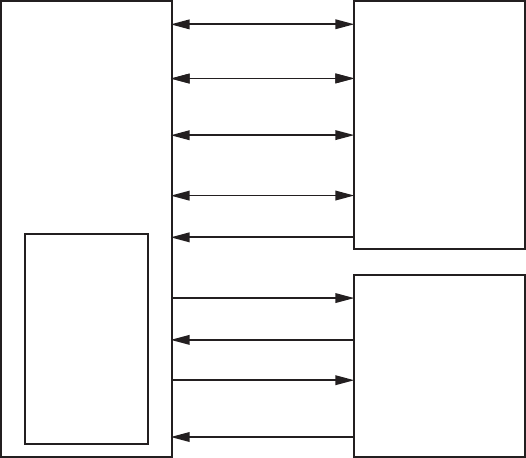
Figure 2 Using Kerberos with HP-UX Secure Shell
Secure Shell
Client
Kerberos
Client
Establish a
Secure Tunnel
Authenticate the
Server
Encrypted
Session
Present ST
Mutual
Authentication
Request ST
Request TGT
Return TGT
Using TGT
Return ST
Secure Shell
Server
KDC
Domain
Controller
The following events occur when HP-UX Secure Shell uses Kerberos for authentication:
1. A secure tunnel is established between the HP-UX Secure Shell client and HP-UX Secure Shell
server.
2. The HP-UX Secure Shell server authenticates itself to the client.
3. The Kerberos client on the HP-UX Secure Shell client system sends a message to the KDC and
requests a ticket granting ticket (TGT).
4. If the KDC decrypts the message successfully, it issues a TGT to the client.
5. The Kerberos client uses the TGT to request a session ticket (ST) from the KDC.
6. If the TGT is valid, the KDC issues an ST.
7. The HP-UX Secure Shell client presents the ST to the HP-UX Secure Shell server.
8. If the credentials in the ST are valid, the HP-UX Secure Shell client is authenticated and a
secure session is initiated.
Kerberos Authentication Methods
Following are methods to authenticate HP-UX Secure Shell using Kerberos:
•“Password Authentication Using Kerberos” (page 28)
•“GSS-API Authentication Using Kerberos” (page 28)
Password Authentication Using Kerberos
HP-UX Secure Shell uses the PAM Kerberos module in the /etc/pam.conf file for password
authentication. If the authentication management of PAM is pointed to the shared, dynamically
loadable PAM Kerberos library /usr/lib/security/libpam_krb5.1, HP-UX Secure Shell
uses PAM Kerberos for user authentication.
GSS-API Authentication Using Kerberos
HP-UX Secure Shell offers GSS-API-based authentication using Kerberos as the underlying security
service. GSS-API is an API used by applications to access a set of security services such as Kerberos
and Windows NT LAN Manager (NTLM).
For GSS-API authentication to work properly, the client must obtain Kerberos credentials in advance
and must also have a Kerberos configuration file present in the appropriate client directory. When
an HP-UX Secure Shell client connects to an sshd daemon, the HP-UX Secure Shell client presents
28 HP-UX Secure Shell Authentication Methods
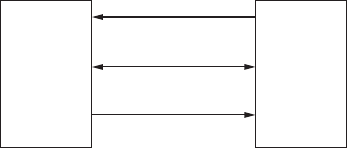
its credentials. The HP-UX Secure Shell server matches these credentials against its copy of credentials
for a specific user. The user is also identified with a password. The server can also optionally
establish the legitimacy of the client host environment.
Keyboard-Interactive Authentication
Keyboard-Interactive Authentication, also known as challenge-response authentication, is a generic
authentication method that can be used to implement authentication methods. This authentication
method is similar to the password authentication method, with some key differences. The Password
authentication also uses the Keyboard-Interactive method to show the response when the users are
logged on to the host.
Most PAM modules deal with a single user name and password. The PAM modules prompt the
HP-UX Secure Shell client for a password, and allow or deny the connection based on the response.
However, certain authentication methods require a longer dialogue with the HP-UX Secure Shell
client. Therefore, HP-UX Secure Shell implements the Keyboard-Interactive Authentication method,
which provides a higher degree of security.
Host-Based Authentication
Host-based authentication is different from the other authentication methods. The HP-UX Secure
Shell server does not directly authenticate users based on passwords or private keys. Instead, it
authenticates the client host and trusts the client host system, which trusts the user of that system.
The HP-UX Secure Shell server uses the /etc/shosts.equiv or $HOME/.shosts file in the
server to determine the account names of the client host that are allowed access to the server.
Figure 3 illustrates how a user Casey on host ABC is authenticated by the user Clay on host DEF
using host-based authentication.
Figure 3 Authenticating a Host Using Host-Based Authentication
ABC
Casey@ABC
Casey
Client Server
1
sshd checks
host ABC
2
Authenticity of
Casey Established
3
Does Casey@ABC exist
in /etc/shosts.equiv or
$HOME/.shosts file for Clay?
Clay
Clay@DEF
DEF
Following are the steps HP-UX Secure Shell follows when Clay authenticates Casey using host-based
authentication:
1. The sshd server checks the identity of host ABC, ensuring that ABC is a trusted host. It does
not check the identity of Casey directly.
2. The sshd server on host DEF checks whether the connection is coming from a trusted program
on ABC, installed by the system administrator that cannot lie about the identity of Casey.
If the connection passes both tests, the authenticity of Casey is established.
3. The sshd daemon checks whether the Casey@ABC account exists in the /etc/shosts.equiv
or $HOME/.shosts configuration file for Clay. If the account exists, Casey@ABC is allowed
access to the accounts of Clay.
This method also uses client and server keys for authentication. While public-key authentication
requires individual client users to generate their own key pairs, host-based authentication requires
only the client host system have a key pair.
The server has knowledge of all the public keys for all client host systems from which users can
attempt host-based authentication. In addition, the server can restrict host-based authentication to
specific user accounts in specific client systems.
Keyboard-Interactive Authentication 29

When an HP-UX Secure Shell user attempts host-based authentication with an HP-UX Secure Shell
server, the following events occur:
1. The server checks whether the user and host combination is allowed for host-based
authentication in the /etc/shosts.equiv or $HOME/.shosts file.
2. If the user and host combination is allowed, the HP-UX Secure Shell server creates a challenge
string, encrypts it with the public key of the client, and sends it to the client.
3. The client uses its private key to decrypt the challenge string, and sends the decrypted message
back to the server.
4. The server matches the decrypted string with the original challenge string. If both strings match,
the client is authenticated.
This method is convenient for client users, because they do not need to generate their own individual
key pairs.
You can configure host-based authentication for both superusers and regular users.
NOTE: You can use host-based authentication in environments that require non-interactive
authentication. If you use only one trusted host, an attacker can get access to all accounts on other
hosts. You can use this method in scripts and automated processes, such as cron jobs.
HP recommends that you do not enable host-based authentication, because it is insecure.
30 HP-UX Secure Shell Authentication Methods

4 Configuring HP-UX Secure Shell Authentication Methods
This chapter describes how to configure HP-UX Secure Shell authentication methods.
This chapter addresses the following topics:
•“Overview” (page 31)
•“Configuring Password Authentication” (page 31)
•“Configuring Public-Key Authentication” (page 33)
•“Configuring Kerberos Authentication” (page 34)
•“Configuring Keyboard-Interactive Authentication” (page 39)
•“Configuring Host-Based Authentication” (page 39)
•“Configuring User-Specific Authentication” (page 41)
Overview
HP-UX Secure Shell supports the following authentication methods:
•Password authentication
•Public-key authentication
•Kerberos authentication
•Keyboard Interactive authentication
•Host-based authentication
Although this is the complete list of supported authentication methods, you can set up sshd to
support only a subset of these methods, based on your requirements.
When a client connects to the server, the server responds with its list of supported authentication
methods. This list represents the authentication methods supported by the server and the order of
preference. The client can omit one or more of the authentication methods and can also change
the sequence in which the methods are attempted. The client makes changes using a configuration
directive in the /opt/ssh/etc/ssh_config client configuration file. The preferred authentication
method is one of the most important configuration parameters of the client.
Configuring Password Authentication
The password authentication method relies on the existence of a user ID and password. You can
configure password authentication using either of the following files:
•/etc/passwd
•/etc/pam.conf
The following sections discuss how to configure password authentication using these files.
Configuring Password Authentication Using the/etc/passwd File
To configure password authentication in HP-UX Secure Shell using the /etc/passwd file, follow
these steps:
Overview 31

1. To ensure that HP-UX Secure Shell is installed on the server and client, run the following
command on the server and client:
$ swlist | grep T1471AA (HP-UX 11i v1 and HP-UX 11i v2)
$ swlist | grep SecureShell (HP-UX 11i v3)
The following output is displayed if HP-UX Secure Shell is installed:
T1471AA A.05.90.001 HP-UX Secure Shell (on HP-UX 11i v1 and HP-UX 11i v2)
SecureShell A.05.90.003 HP-UX Secure Shell (on HP-UX 11i v3)
If HP-UX Secure Shell is not installed on your system, see “Installing HP-UX Secure Shell”
(page 19) for instructions on installing HP-UX Secure Shell on your system.
2. Create a user name in the HP-UX Secure Shell server that the HP-UX Secure Shell client can
use to connect to the HP-UX Secure Shell server.
3. To ensure that the sshd daemon is running, run the following command on the server system:
$ ps -ef | grep sshd
4. To connect to the server, run the following command on the client system:
$ ssh -o “PreferredAuthenticationspassword” user@remotehost
Where:
user Specifies the user name that you will use to connect to the HP-UX Secure
Shell server.
remotehost Specifies the name of the server to which you want to connect.
The server prompts for the password for user.
NOTE: Ensure that the HP-UX Secure Shell server contains the user name (user) you will
use to connect to the HP-UX Secure Shell server.
5. Enter the password for the user.
The server checks whether the given password matches with the password for user1 in the
/etc/passwd file. If the passwords match, the server allows the client to connect to the server.
Configuring Password Authentication Using the /etc/pam.conf File
To configure password authentication in HP-UX Secure Shell using the /etc/pam.conf file, follow
these steps:
1. In the /opt/ssh/etc/sshd_config file in the server, set the following directives:
UsePAM yes
PasswordAuthentication yes
2. In the /etc/pam.conf file, set the authentication method to any PAM module listed in
Table 11.
You must select the PAM module depending on the authentication method that you want to
use with PAM.
Table 11 summarizes the PAM modules and the corresponding library names.
Table 11 PAM Modules and Library Names
LibraryPAM Module
/usr/lib/security/libpam_unix.1PAM_UNIX
/usr/lib/security/libpam_ldap.1PAM_LDAP
/usr/lib/security/libpam_krb5.1PAM_KERBEROS
/usr/lib/security/libpam_dce.1PAM_DCE
/usr/lib/security/libpam_ntlm.1PAM_NTLM
32 Configuring HP-UX Secure Shell Authentication Methods

NOTE: The PAM library for the PA-RISC architecture has a suffix of .1. For the Itanium
architecture, the PAM library has a suffix of .so.1. For example, the PAM_NTLM library for
PA-RISC is libpam_ntlm.1 and for Itanium is libpam_ntlm.so.1.
3. In the /opt/ssh/etc/sshd_config file on the server and the client, set the following
directive:
PasswordAuthentication yes
4. Run the following command on the client system:
$ ssh Clay
Depending on the authentication method that you configure in the /etc/pam.conf file, you are
prompted for the relevant information.
Configuring Public-Key Authentication
To configure public-key authentication, follow these steps:
1. To generate RSA key pairs, run the following command on the client:
# ssh-keygen -t [rsa dsa ecdsa]
The following output is displayed:
Generating public/private rsa key pair.
Enter file in which to save the key (//.ssh/id_rsa): <file name>
Enter passphrase (empty for no passphrase):
Enter same passphrase again:
Your identification has been saved in /tmp/hi.
Your public key has been saved in /tmp/hi.pub.
The key fingerprint is:
84:7d:f5:dd:88:f7:53:88:8a:6e:f7:85:04:28:6e:ed root@<hostname>
HP-UX Secure Shell generates the key pairs id_rsa and id_rsa.pub and stores them in
the $HOME/.ssh directory on the client system.
2. Set the following configuration directive in the /opt/ssh/etc/sshd_config configuration
file on the client system:
PubkeyAuthentication yes
NOTE: For backward compatibility purposes, HP-UX Secure Shell supports the
RSAAuthentication configuration directive in both the client and server configurations.
This directive also enables public-key authentication for the client, but only for the SSH-1
protocol.
3. To ensure that the permissions of the home directory of the client, the $HOME/.ssh directories,
and all files under the $HOME/.ssh directory match the permissions listed in Table 12, run
the following commands:
# ll -d $HOME
# ll -d $HOME/.ssh
#ll $HOME/.ssh/
Table 12 lists the specific permissions for these files and directories.
Table 12 Permissions for the Client Files and Directories
PermissionsFile/Directory
drwx------ or drwxr--r--$HOME (home directory)
drwx------ or drwxr--r--$HOME/.ssh
-rw-r--r-- or -rw------$HOME/.ssh/id_rsa and id_dsa
Configuring Public-Key Authentication 33

Table 12 Permissions for the Client Files and Directories (continued)
PermissionsFile/Directory
-rw-r--r-- or -rw------$HOME/.ssh/id_rsa.pub and id_dsa.pub
-rwx------$HOME/.ssh/config
4. Copy the public key in the client system to the home directory of the server using the following
command:
# cat $HOME/.ssh/id_dsa.pub | ssh remoteuser@remotehost
’cat - >> $HOME/.ssh/authorized_keys’
The following output is displayed:
The authenticity of host ’remoteuser.remotehost (15.70.189.130)’ can’t be established
ECDSA key fingerprint is 2a:c9:77:ad:d5:d3:ef:c3:1e:12:12:9e:3a:9f:c0:38.
Are you sure you want to continue connecting (yes/no)?
5. Enter yes to continue with the connection. The following message is displayed:
Warning: Permanently added ’itanika2.india.hp.com’ (ECDSA) to the list of known hosts.
Enter no if you do not want to continue with the connection.
6. To enable public-key authentication, set the following directive in the server configuration file
/opt/ssh/etc/sshd_config:
PubkeyAuthentication yes
7. Set the directory and file permissions on the server as specified in Table 13.
Table 13 Permissions for the Server Files and Directories
File PermissionFile/Directory
drwx------ or drwxr--r--$HOME (home directory)
drwx------ or drwxr--r--$HOME/.ssh
-rw-r--r-- or -rw------$HOME/.ssh/authorized_keys and $HOME/.ssh/
authorized_keys2
NOTE: The $HOME and $HOME/.ssh directories, and all the files in the $HOME/.ssh
directories must be owned by the respective users whose home directories they are.
8. To connect to the server, run the following command:
$ ssh Clay
Where:
Clay is the name of the server to which you want to connect.
The server does not prompt for the password. The secure connection is established between
the server and the client.
Configuring Kerberos Authentication
Kerberos authentication contains the following entities:
•Application client
•Application server daemon
•Kerberos server
Before you can use HP-UX Secure Shell with Kerberos, you must set up and configure these entities.
These entities must also communicate the Kerberos password to the client and copy the key file
from one system to the other.
To use HP-UX Secure Shell with Kerberos authentication, follow these steps:
34 Configuring HP-UX Secure Shell Authentication Methods

1. Ensure that the Kerberos server is installed and configured correctly. For more information
about installing and configuring the Kerberos server, see the Kerberos Server Version 3.1
Administrator’s Guide available at: http://www.hp.com/go/hpux-security-docs
2. Ensure that your name can be authenticated by the Kerberos server.
3. Ensure that the Kerberos client is installed and configured on the HP-UX Secure Shell client
system.
4. To obtain a local ticket, run the following command:
# kinit <user@realm>
5. To connect to the remote server, run the following command from the client system:
# ssh <server_name>
Where:
<server_name> specifies the name of the remote system to which you want to connect.
The default setting in the /opt/ssh/etc/ssh_config and /opt/ssh/etc/sshd_config
files is set to enable Kerberos authentication. Unless you change the /opt/ssh/etc/ssh_conf
and /opt/ssh/etc/sshd_conf files to deny Kerberos authentication, you can log in remotely
without being prompted for passwords.
You can use the following methods to configure HP-UX Secure Shell to use Kerberos authentication:
•Password authentication using PAM_KERBEROS. For more information, see “Configuring
Password Authentication Using PAM Kerberos” (page 35).
•GSS-API authentication using Kerberos. For more information, see “Configuring GSS-API
Authentication” (page 36).
Configuring Password Authentication Using PAM Kerberos
To enable password authentication using Kerberos, follow these steps:
1. On the HP-UX Secure Shell server and client systems, set the following directives in the /opt/
ssh/etc/sshd_config file:
•PasswordAuthentication yes
•UsePAM yes
2. To configure the /etc/pam.conf file for PAM Kerberos in the HP-UX Secure Shell server,
use the /usr/lib/security/libpam_krb5.1 or /usr/lib/security/
libpam_krb5.so.1 library for the login service in the /etc/pam.conf file.
Following is a sample entry for PAM Kerberos in the /etc/pam.conf file for the HP-UX 11.0
and 11i v1 systems (PA-RISC architecture) :
sshd auth required /usr/lib/security/libpam_krb5.1
Following is a sample entry for PAM Kerberos in the /etc/pam.conf file for the HP-UX 11i
v2 system (Itanium architecture) :
sshd auth required /usr/lib/security/$ISA/libpam_krb5.so.1
3. To ensure that the host service principle and the host service key are available in the /etc/
krb5.keytab file, run the following command on the HP-UX Secure Shell server:
# kinit -k
If the host service principle and host service key are not available in the /etc/krb5.keytab
file, run the following command to extract the host service principle:
# /opt/krb5/admin/kadminl
For information on extracting the host service principle, see Step 4 in “Configuring GSS-API
Authentication” (page 36).
Configuring Kerberos Authentication 35

4. Identify a system where you must install the Kerberos server, and install the Kerberos server
software in that system. If you are installing the Kerberos server on an HP-UX system, see the
latest version of the Kerberos server software is available at: http://www.software.hp.com
Follow these steps to configure the Kerberos server:
a. Configure the Kerberos server. You can configure the Kerberos server either manually or
by using the /opt/krb5/sbin/krbsetup tool. For information about configuring the
Kerberos server, see the chapter “Auto-Configuration of the Security Server” and “Manual
Configuration Of The Kerberos Server” in Kerberos Server Version 3.12 Administrator’s
Guide available at: http://www.hp.com/go/hpux-security-docs
The following Kerberos server daemons are automatically started when you use the
/opt/krb5/sbin/krbsetup tool to configure the Kerberos server:
•/opt/krb5/sbin/kadmind
•/opt/krb5/sbin/kdcd
b. If you manually configured the Kerberos server, and if you have modified the Kerberos
configuration files, or if you have stopped the Kerberos server daemons, run the following
command to start or restart the Kerberos server daemons:
# /sbin/init.d/krbsrv start
To verify that these daemons are running, run the following commands in the Kerberos
Server:
# ps -ef grep kadmind
#ps -ef grep kdcd
The following output is displayed if the /opt/krb5/sbin/kadmind daemon is running:
root 769 1 0 Mar 17 ? 0:50 /opt/krb5/sbin/kadmind
root 4725 4708 1 12:44:20 pts/0 0:00 grep kadmind
The following output is displayed if the /opt/krb5/sbin/kdcd daemon is running:
root 477 1 0 Apr 27 ? 0:00 /opt/krb5/sbin/kdcd
root 26237 26219 2 15:36:39 pts/1 0:00 grep kdcd
c. The Kerberos administrator must create the user information (user ID and password) for
users. The Kerberos server contains the user ID and key created using the user’s password.
The Kerberos administrator must communicate the user information to individual users.
Users must know their Kerberos user ID and password. Based on the security policies of
your organization, the Kerberos administrator can choose any method to communicate
the user IDs and passwords, to users.
For more information about configuring the Kerberos server, see the Kerberos Server V
3.12 Administrator’s Guide available at: http://www.hp.com/go/hpux-security-docs
5. To connect to the HP-UX Secure Shell server, run the following command on the HP-UX Secure
Shell client:
# ssh <server_name> -l user_name
Where:
user_name specifies the name of the user in the HP-UX Secure Shell client system.
The HP-UX Secure Shell prompts for the Kerberos password.
6. Enter the Kerberos password at the password: prompt. If you enter the correct password,
the HP-UX Secure Shell client connects to the HP-UX Secure Shell server.
Configuring GSS-API Authentication
To configure GSS-API authentication, follow these steps:
36 Configuring HP-UX Secure Shell Authentication Methods

1. On the Kerberos server, ensure that the following Kerberos daemons are running:
•/opt/krb5/sbin/kadmind
•/opt/krb5/sbin/kdcd
2. The Kerberos administrator must create user (client) information (user ID and key) for users
using the Kerberos service. The user information is stored on the KDC server and the Kerberos
administrator must communicate the user information to individual users. Users must know
their user ID and password. Kerberos Administrators must use a communication method that
complies with security policies of their organization.
NOTE: The Kerberos administrator can use the following administrative tools to create user
information:
•/opt/krb5/admin/kadminl or /opt/krb5/admin/kadminl_ui if the Kerberos
administrator is local.
•/opt/krb5/admin/kadmin or /opt/krb5/admin/kadmin_ui if the Kerberos
administrator is remote.
For more information about these administrative tools, see the Kerberos Server Version 3.12
Administrator’s Guide available at: http://www.hp.com/go/hpux-security-docs
3. The Kerberos administrator must generate service principals for every service (for example,
/opt/ssh/sbin/sshd) that supports Kerberos authentication. A service principal consists
of a service name, the fully qualified domain name of the host name, and the Kerberos realm
name. By default, the service principals are stored in the /opt/krb5/v5srvtab file on the
Kerberos server.
4. The Kerberos administrator must extract the required service principal.
If you are the Kerberos administrator, use the following command to extract the service
principal:
# /opt/krb5/admin/kadminl
The following output is displayed:
Connecting as: K/M
Connected to krb5v01 in realm casy.india.hp.com.
Command:
Enter the ext command to extract the host service principal.
The /opt/krb5/adm/kadmin command prompts for the service key table file name, as
follows:
Service Key Table File Name (/opt/krb5/v5srvtab):
The default service key table file name is /opt/krb5/v5srvtab. You can specify a different
file name (for example /etc/krb5.keytab) for the service key table because the /opt/
krb5/v5srvtab file is not accessible by services (for example, sshd). The Kerberos
administrator must communicate the location of the service key table file name to the users.
5. Copy the /etc/krb5.keytab file from the Kerberos server to the /etc directory on the
HP-UX Secure Shell server.
6. To ensure that the service principal is copied properly, run the following command on the
HP-UX Secure Shell server:
#klist -k
The following output is displayed:
Keytab name: FILE:/etc/krb5.keytab
KVNO Principal
Configuring Kerberos Authentication 37
----------------------------------------------------------
1 host/pluto.mydomain.com@MYDOMAIN.COM
7. The HP-UX Secure Shell client and server must contain the Kerberos configuration file (/etc/
krb5.conf) that points to the KDC service. The /etc/krb5.conf file is a network
configuration file and does not contain any security-specific information. For a sample /etc/
krb5.conf configuration file, see Appendix B (page 99).
8. In the HP-UX Secure Shell client system, run the following command to invoke the KDC service
to obtain a ticket granting ticket (TGT).
# kinit <user_ID>
The Kerberos client prompts the Kerberos administrator for the Kerberos password:
Password for <user_ID>@krb_mc.realm:
Where:
<user_ID> specifies the user name.
If you enter the correct password, the Kerberos server provides the TGT to the client. By default,
the /usr/bin/kinit utility stores the TGT in the /tmp/krb5cc_<uid> file, which is the
default credentials cache. The <uid> specifies the decimal UID of the user. For more
information on the /usr/bin/kinit utility, see kinit(1).
If you have obtained the ticket, you can view the ticket by running the following command in
the client system:
# klist
Ticket cache: /tmp/krb5cc_01
Default principal: root@KRB_MC.REALM
Valid starting Expires Service principal
01/31/06 17:54:40 02/01/06 03:54:40 krbtgt/KRB_MC.REALM
9. To enable GSS API authentication, set the following directive in the /opt/ssh/etc/
sshd_config file in the HP-UX Secure Shell server and /opt/ssh/etc/ssh_config in
the HP-UX Secure Shell client:
GSSAPIauthentication yes
Set the following directive to yes to automatically destroy the credentials of the user on logout:
GSSAPICleanUpCredentials yes
10. To connect to the HP-UX Secure Shell client, run the following command from the HP-UX Secure
Shell server:
$ ssh user@remotehost -l <user_name> -o “GSSAPIauthentication yes”
Where:
remotehost Specifies the name of the server to which you want to connect.
user Specifies the user name using which you want to connect to the HP-UX Secure
Shell server.
The HP-UX Secure Shell client connects to the HP-UX Secure Shell server.
38 Configuring HP-UX Secure Shell Authentication Methods

11. To verify the connection, run the following /usr/bin/klist command in the HP-UX Secure
Shell client system:
# klist
The following output is displayed:
Ticket cache: /tmp/krb5cc_01
Default principal: root@KRB_MC.REALM
Valid starting Expires Service principal
01/31/06 17:54:40 02/01/06 03:54:40 krbtgt/KRB_MC.REALM
1/31/06 18:20:40 02/01/06 03:54:40 host/sshd_mc.appserverdomain.com@KRB_MC.REALM
This output is different from the previous /usr/bin/klist output. This output shows the
ticket information of the client (1/31/06 18:20:40 02/01/06 03:54:40
host/sshd_mc.appserverdomain.com@KRB_MC.REALM) and indicates that the HP-UX
Secure Shell server has accepted the ticket.
Configuring Keyboard-Interactive Authentication
To configure the Keyboard-Interactive authentication, set either of the following directives in the
/opt/ssh/etc/ssh_config configuration file:
ChallengeResponseAuthentication yes
UsePAM yes
NOTE: If the HP-UX Secure Shell client requests the Keyboard-Interactive authentication method
and the underlying PAM module is a simple one-password function, Keyboard-Interactive
authentication works the same way as password authentication.
Configuring Host-Based Authentication
This section describes how to configure host-based authentication.
Configuring Host-Based Authentication for Non-Superusers
Non-superusers can configure host-based authentication using systemwide configuration or the
user-specific configuration.
Using Systemwide Configuration
To configure host-based authentication for non-superusers using systemwide configuration, follow
these steps:
1. On the client system, set the following directives in the /opt/ssh/etc/ssh_config file:
RhostsRSAAuthentication yes (For SSH-1)
HostbasedAuthentication yes (For SSH-2)
2. On the client system, set the following directive in the /opt/ssh/etc/ssh_config file:
EnableSSHKeysign yes
3. On the server system, set the following directives in the /opt/ssh/etc/sshd_config file:
RhostsRSAAuthentication yes (For SSH-1)
HostBasedAuthentication yes (For SSH-2)
4. Ensure that the /opt/ssh/etc/shosts.equiv file or the /etc/hosts.equiv file on the
server contains an entry for the fully qualified client host name and the user ID of the client,
as shown in the following example:
client.abc.com localuser
Where:
localuser Specifies the user on the client system who is logging into the remote system.
client Specifies the name of the client system.
abc.com Specifies the client domain.
Configuring Keyboard-Interactive Authentication 39

NOTE: HP-UX Secure Shell uses the /etc/hosts.equiv file if the directives
RhostsRSAAuthentication and HostbasedAuthentication are configured in the
HP-UX Secure Shell configuration files. This file is used for host-based authentication with
remotely executed commands (r-commands). The /opt/ssh/etc/shosts.equiv file is
preferred over the /etc/hosts.equiv file, because the /opt/ssh/etc/shosts.equiv
file is used by HP-UX Secure Shell only.
5. To add the public host key of the client to the /opt/ssh/etc/ssh_known_hosts file,
which is the known hosts file of the server, run one of the following commands from the client
system as a superuser for SSH-2:
# cat /opt/ssh/etc/ssh_host_dsa_key.pub | ssh
root@RemoteMachine ’cat >> /opt/ssh/etc/ssh_known_hosts’
Or
# cat /opt/ssh/etc/ssh_host_rsa_key.pub | ssh
root@RemoteMachine ’cat >> /opt/ssh/etc/ssh_known_hosts’
Or
# cat /opt/ssh/etc/ssh_host_ecdsa_key.pub | ssh
root@RemoteMachine ’cat >> /opt/ssh/etc/ssh_known_hosts’
For SSH-1:
# cat /opt/ssh/etc/ssh_host_key.pub | ssh root@RemoteMachine
’cat >> /opt/ssh/etc/ssh_known_hosts’
You can view the /opt/ssh/etc/ssh_known_hosts file on the server and verify that the
public host key of the client is added to this file.
6. In the server system, add the fully qualified host name of the client at the beginning of the key
in the /opt/ssh/etc/ssh_known_hosts file, as shown in the following example:
client.abc.com ssh-dss ssh-dss AAAAB3NzaC1kc3MAAACBAKCJJv/D2
Jo3Qejlhp2Z3OAvWjcQRa0c4e3gwEvYjXGECe/upvromDyNA4ou5n5rkPKBD
e37l3U+PYkKQ3KYQyb7b2+kZ3EkzHOGB0X57hrX0e3kAeHJhSpwdY6KpGQO7
CmVwHbn3R0NFY9c0sPw1rSADY6BsJ4IJXdi5dgakIGLAAAAFQDjKdniF5llT
NwSJZzdjqBDSJvaHwAAAIEAlbtE9eMzjVPSfo/peqerKm2qY/gfBL80kQKcA
wc81kzxdHO8Qisn823KtAlYfQOHCt/UVV6VIvNwD5fbLmhrzFCM39+YLPJre
09CQ41Nxuu+ttqGCIPVggzjp/AwOeuedmkqKyQ7PuErGHTb0UYsXqzv9Nj7s
h+UfRMdIjiVdKQAAACACQE0NxmxqTdFyDZaGnqLmzLcgMqMjr0UlzDGaPGyg
ds2LZ1uotvI4wBGIGteZxvlNiwxMXMvKc5Ej55oiefXCRLqHOp4JWo8sVQdh
VKxa1gpCVNYuGCmN5DGVDhT0bYV3GBs2/PAh1ky2hCCLd6sMAIhVLwIcqtOQ
bK6Hobu2qI= root@client
In this example, client.abc.com is the fully qualified host name of the client that is appended
to the key in the /opt/ssh/etc/ssh_known_hosts file.
7. To connect to the remote server, run the following command from the client system:
# ssh <server_name>
Where:
<server_name> specifies the name of the remote system to which you want to connect.
The HP-UX Secure Shell client connects to the HP-UX Secure Shell server.
Using User-Specific Configuration
To configure host-based authentication for non-superusers using user-specific configuration, follow
the steps specified in “Using Systemwide Configuration” (page 39). However, the host configuration
files that you need to update are user-specific files, not the systemwide files.
Table 14 describes the systemwide configuration files and the corresponding user-specific
configuration files.
40 Configuring HP-UX Secure Shell Authentication Methods

Table 14 Host Configuration Files
Systemwide FilesUser-Specific Files
/opt/ssh/etc/shosts.equiv$HOME/.shosts
/etc/hosts.equiv$HOME/.rhosts
/opt/ssh/etc/ssh_known_hosts$HOME/.ssh/knownhosts
Configuring Host-Based Authentication for Superusers
To configure host-based authentication for superusers, follow the steps described in “Using
Systemwide Configuration” (page 39). For the superuser, HP-UX Secure Shell uses the information
specified in the $HOME/.shosts and $HOME/.rhosts files. It does not use the information
specified in the systemwide configuration files /opt/ssh/etc/shosts.equiv or /etc/
hosts.equiv.
Configuring User-Specific Authentication
You can configure HP-UX Secure Shell to enable different authentication methods for different users.
You can also configure HP-UX Secure Shell to enable users to login as superuser only if their ttys
are listed in the etc/securetty file. To enable these functionalities, HP-UX Secure Shell includes
the Auth Selection patch, and a new configuration directive called EnforceSecureTTY. For
more information on these functions, see the following sections:
•“The Auth Selection Patch.”
•“The EnforceSecureTTY Configuration Directive” (page 44)
The Auth Selection Patch
HP-UX Secure Shell includes a third-party Auth Selection patch, which enables you to configure
different authentication methods for different users. The Auth Selection patch provides a set of 12
configuration directives to implement this feature. These configuration directives can be broadly
classified as Allow and Deny configuration directives. Table 15 lists the 12 configuration directives.
Table 15 Configuration Directives Provided by the Auth Selection Patch
Deny Configuration DirectivesAllow Configuration Directives
KerberosAuthDenyUsersKerberosAuthAllowUsers
KerberosorLocalPasswdAuthDenyUsersKerberosorLocalPasswdAuthAllowUsers
PubkeyAuthDenyUsersPubkeyAuthAllowUsers
HostbasedAuthDenyUsersHostbasedAuthAllowUsers
ChallRespAuthDenyUsersChallRespAuthAllowUsers
PasswordAuthDenyUsersPasswordAuthAllowUsers
These directives are similar to the AllowUsers and DenyUsers configuration directives. However,
these new configuration directives allow or deny users permission to authenticate, using a particular
authentication method. By default, all the “Allow” configuration directives enable all users to
authenticate and all the “Deny” directives deny no user. The following examples show how to use
these configuration directives:
Configuring User-Specific Authentication 41

Example 1 To Enable all Users to Authenticate Using Public key Authentication
Add the following line in the sshd_config file:
PubkeyAuthAllowUsers *
Example 2 To Enable User U1 to Authenticate Using Kerberos Authentication
Add the following line in the sshd_config file:
KerberosAuthAllowUsers U1
You need not set the KerberosAuthDenyUsers configuration directive. Use the configuration
directive that has fewer members.
Example 3 To Enable all Users Except User U1 to Authenticate Using Kerberos Authentication
Add the following line in the sshd_config file:
KerberosAuthDenyUsers U1
NOTE: These configuration directives are commented in the default sshd_config file. To change
the default setting of these configuration directives, you must uncomment the directive in the
sshd_config file and assign a value to it.
Figure 4 illustrates how the sshd daemon uses the Allow and Deny configuration directives to find
out if user U1 is permitted to authenticate using password authentication.
42 Configuring HP-UX Secure Shell Authentication Methods
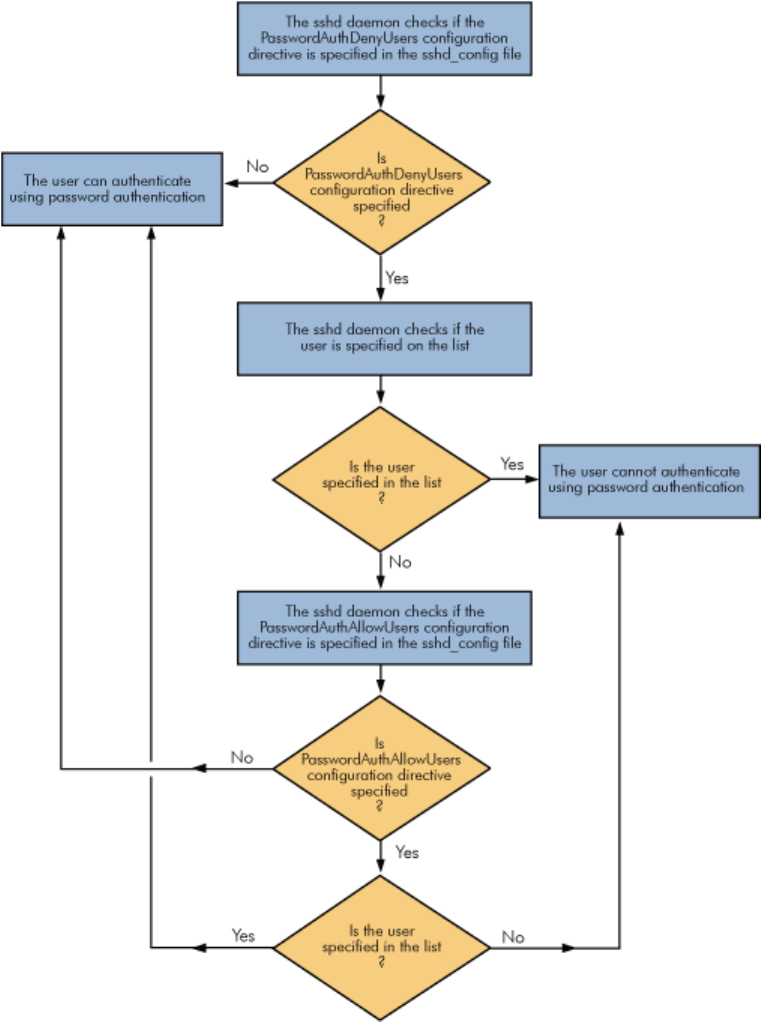
Figure 4 Flowchart Depicting the Usage of the Allow and Deny Configuration Directives
Steps by which the sshd daemon uses the Configuration Directives in the Auth Selection Patch
Following is the sample process outlined in Figure 4 (page 43):
1. The sshd daemon checks if the PasswordAuthDenyUsers configuration directive is specified
in the sshd_config file.
2. If the PasswordAuthDenyUsers configuration directive is specified, then the sshd daemon
checks to see if user U1 is specified in the list. If the PasswordAuthDenyUsers configuration
directive is not specified, the user can authenticate using password authentication.
3. If user U1 is specified in the list, the user cannot authenticate using password authentication.
4. If user U1 is not specified in the list, the sshd daemon checks if the
PasswordAuthAllowUsers configuration directive is specified.
Configuring User-Specific Authentication 43

5. If the PasswordAuthAllowUsers configuration directive is not specified, user U1 can
authenticate using password authentication. If the PasswordAuthAllowUsers configuration
directive is specified, the sshd daemon checks if user U1 is specified in the list.
6. If user U1 is specified in the list, the user can authenticate using password authentication.
7. If user U1 is not specified in the list, then user U1 cannot authenticate using password
authentication.
The EnforceSecureTTY Configuration Directive
This configuration directive honors the settings in the etc/securetty file. Use this configuration
directive to specify whether the sshd daemon must restrict superuser logins to the tty (terminal
types) names listed in the /etc/securetty file. When EnforceSecureTTY is set to no (the
default value), HP-UX Secure Shell ignores the settings in the etc/securetty file.
You can use the EnforceSecureTTY configuration directive in conjunction with the
PermitRootLogin configuration directive. Table 16 describes the behavior of the ssh,scp,
and sftp commands with different combinations of EnforceSecureTTY and
PermitRootLogin.
Table 16 Behavior of the ssh,scp, and sftp commands with Different Combinations of
EnforceSecureTTY and PermitRootLogin
Behavior of the scp and sftp
Commands
Behavior of the sshCommandPermitRootLoginEnforceSecureTTY
Superusers cannot execute the
scp and sftp3commands,
Host login1and host
command2executions are not
allowed for all users
NONO
regardless of the settings in the
etc/securetty file.
Superusers can execute the
scp and sftp commands,
Host login and host command
executions are allowed for all
superusers
YESNO
regardless of the settings in the
etc/securetty file.
Superusers cannot execute the
scp and sftp commands,
Host login and host command
executions are not allowed
for all superusers
NOYES
regardless of the settings in the
etc/securetty file.
Superusers can execute the
scp and sftp commands,
Host login is allowed only for
those superusers whose ttys
YESYES
regardless of the settings in the
etc/securetty file.
are listed in the etc/
securetty file.
Host command execution is
allowed for all superusers,
regardless of the settings in
the etc/securetty file.
Forced-command execution is
allowed for all superusers,
Host login and host command
executions are not allowed
Forced-Command-onlyYES
regardless of the setting in thefor all superusers, regardless
etc/securetty file, and theof the settings in the etc/
securetty file.
Forced-command execution 4
is dictated by the pty or
pty setting in the
authorized_keys file.
However, no pty is allocated
even if it specified in the
authorized_keys file.
44 Configuring HP-UX Secure Shell Authentication Methods

Table 16 Behavior of the ssh,scp, and sftp commands with Different Combinations of
EnforceSecureTTY and PermitRootLogin (continued)
Behavior of the scp and sftp
Commands
Behavior of the sshCommandPermitRootLoginEnforceSecureTTY
IMPORTANT: The scp and
sftp commands, and
forced-command are mutually
exclusive. If forced-command
execution is set, only
forced-command is executed
and no file transfers are
allowed.
no-pty option. This option
is specified in the
authorized_keys file,
located in the home directory
of the superuser on the server.
The default option is pty. If
run with a pty option,
forced-command execution is
allowed only for superusers
whose ptys are listed in the
etc/securetty file. If run
with a no-pty option, then
forced-command execution is
allowed for all superusers,
regardless of the settings in
the etc/securetty file.
NOTE: For
Forced-commands only,
superusers must log in using
public key authentication. This
additional requirement is not
related to
EnforceSecureTTY . This
applies to the scp,ssh, and
sftp commands.
Superusers can execute the
scp and sftp commands,
Host login is allowed only for
superusers whose ptys are
Without PasswordYES
regardless of the settings in thelisted in the etc/securetty
etc/securetty file. These
file. These superusers must
superusers must authenticateauthenticate with a method
with a method other than
password authentication.
other than password
authentication. This additional
requirement is not related to
EnforceSecureTTY.
Host command execution is
allowed for all superusers,
regardless of the settings in
the etc/securetty file.
Forced-command execution is
allowed for all superusers
Host login and host command
executions are not allowed
Forced-Commands-onlyNO
regardless of the settings in thefor all superusers.
etc/securetty file, and theForced-commands execution
is allowed for all superusers.
NOTE: For
Forced-Commands-only,
superusers must authenticate
using public key
authentication. This additional
requirement is not related to
EnforceSecureTTY. This
applies to the ssh,scp, and
sftp commands.
pty setting in the
authorized_keys file.
However, no pty is allocated
even if it specified in the
authorized_keys file.
Configuring User-Specific Authentication 45

Table 16 Behavior of the ssh,scp, and sftp commands with Different Combinations of
EnforceSecureTTY and PermitRootLogin (continued)
Behavior of the scp and sftp
Commands
Behavior of the sshCommandPermitRootLoginEnforceSecureTTY
IMPORTANT: The scp and
sftp commands, and
forced-commands are mutually
exclusive. If forced-command
execution is set, only
forced-command is executed
and no file transfers are
allowed.
Superusers can execute the
scp and sftp commands,
Host login is allowed for all
superusers. Superusers must
authenticate with a method
Without PasswordNO
regardless of the settings in the
other than password etc/securetty file.
authentication. However this Superusers must authenticate
requirement is not related to
EnforceSecureTTY.
Host command execution is
allowed for all users,
with a method other than
password authentication.
regardless of the setting in the
etc/securetty file.
1Host login refers to a client directly logging into a host. Following is an example of host login:
$ ssh hostxyz
2Host command execution refers to a client executing only one command against a server. The client logs into the server,
executes the command, and exits. Following is an example of the host command execution:
$ ssh hostxyz ls /tmp
3The execution of the scp and sftp commands is similar to that of host command. However, no pty is allocated for
scp and sftp, and the /etc/securetty file is not checked. Any combination of EnforceSecureTTY and
PermitRootLogin that allows host command execution for ssh allows scp and sftp execution.
4Forced-command execution refers to a client executing a command predefined in the authorized_keys file of the
client. This file is located in the home directory of the client on the server.
Behavior of EnforceSecureTTY with the UseLogin Configuration Directive
The EnforceSecureTTY configuration directive works in conjunction with the UseLogin
configuration directive. Although the login(1) function has the code to check the etc/securetty
file, this code is part of the authentication. If UseLogin is set to yes, HP-UX Secure Shell invokes
the login(1) function with the do not authenticate option. As a result, the section of the
login(1) code related to the etc/securetty file is ignored. HP-UX Secure Shell reads and
processes the etc/securetty file even if UseLogin is set to yes.
Behavioral differences between telnet and ssh logins because of EnforceSecureTTY
The addition of the EnforceSecureTTY configuration directive modifies the behavior of the ssh
login, causing it to differ from a telnet login. In telnet, a pty is allocated to a user connection
before authentication. In HP-UX Secure Shell, a user must authenticate successfully before the sshd
daemon allocates a pty. Once a user is successfully authenticated, the sshd daemon does not
prompt the user for a password. Table 17 describes the difference between a telnet and an
ssh login.
46 Configuring HP-UX Secure Shell Authentication Methods

Table 17 Difference in Behavior Between telnet and ssh Logins
An ssh LoginA telnet Login
If the EnforceSecureTTY configuration directive is set to
yes, and a superuser attempts an ssh login with a tty
When a superuser tries to login using telnet with a
tty that is not listed in the etc/securetty file, telnet
that is not listed in the etc/securetty file, HP-UX Securecontinues to prompt the user for a password regardless
of whether the user types a valid or invalid password. Shell continues to prompt the user for a password as long
as the user types invalid passwords. Once the user types
the valid password, the sshd daemon does the following:
•Authenticates the user
•Allocates a pty
•Finds out that the pty is not permitted
•Closes the connection
Behavioral differences between remsh and ssh logins because of EnforceSecureTTY
The addition of the EnforceSecureTTY configuration directive modifies the behavior of the ssh
login, causing it to differ from a remsh login. Both remsh and ssh logins allow the
forced-command option for superusers logging in with a tty not listed in the etc/securetty
file. However, in a remsh login, the settings in the etc/securetty file are enforced only if a
user logs in using password authentication. If a remsh user authenticates using host-based
authentication, remsh ignores the settings in the etc/securetty file.
In an ssh login, there is no distinction between authentication methods when enforcing the settings
in the etc/securetty file.
Configuring User-Specific Authentication 47

5 Configuring HP-UX Secure Shell as a SOCKS Proxy
This chapter describes how to configure HP-UX Secure Shell as a SOCKS proxy. This chapter
addresses the following topics:
•“SOCKS Overview.”
•“Implementations of SOCKS.”
•“DanteSOCKS.”
•“Dynamic Port Forwarding ” (page 49)
SOCKS Overview
SOCKS is an Internet protocol that enables client-server applications to transparently use the services
of a network firewall. This protocol enables a client which is behind a firewall to connect to external
servers through a SOCKS proxy server. The SOCKS proxy server determines the eligibility of the
client to access the external server.
Implementations of SOCKS
SOCKS can be implemented in various ways. This section discusses the following implementation
types:
•“DanteSOCKS.”
•“Dynamic Port Forwarding ” (page 49)
DanteSOCKS
DanteSOCKS is a circuit-level firewall or proxy that you can use to provide convenient and secure
network connectivity to a wide range of hosts. However, the server on which DanteSOCKS runs
must be connected to an external network. Once installed, DanteSOCKS can be made transparent
to the clients, while offering detailed access control and logging facilities to the server administrator.
Prerequisites
Download and install the following products to use Dante SOCKS with HP-UX Secure Shell:
•DanteSOCKS- DanteSOCKS is a part of the Internet Express suite of products. It is available
for download at: www.software.hp.com
•SOCKS Client product- The SOCKS client product (connect.c) is a simple relaying command
that makes network connections using SOCKS and https proxy. It is available for download
at: http://www.taiyo.co.jp/~gotoh/ssh/connect.c
Usage Examples
Enter the following command to run the DanteSOCKS daemon in the proxy-server system:
# sockd
Example 4 and Example 5 illustrate how to connect to an external server and transfer data using
a SOCKS proxy.
48 Configuring HP-UX Secure Shell as a SOCKS Proxy

Example 4 Connecting to an External Server Using a DanteSOCKS Proxy
Enter the following command to connect to an external server using a DanteSOCKS proxy:
# ssh -o "ProxyCommand connect -S proxy-server %h %p" external-server
The system is connected to external-server through proxy-server.
Example 5 Data Transfer Using a DanteSOCKS Proxy
Enter the following command to transfer data using a DanteSOCKS proxy:
# scp -o "ProxyCommand connect -S proxy-server %h %p" external-server
:remotefile localfile
or
# sftp -o "ProxyCommand connect -S proxy-server %h %p" external-server
The system is connected to external-server using proxy-server, and remotefile is copied. to
localfile.
Dynamic Port Forwarding
You can configure the dynamic port forwarding feature of HP-UX Secure Shell to serve as a SOCKS
server, instead of forwarding from specific ports on the local and remote servers. The dynamic
port forwarding feature in HP-UX Secure Shell replaces the socks proxy. To connect to a SOCKS
server, you need a socks client, or the actual application client must have the socks client feature.
In local and remote port forwarding, the ssh client statically configures the port to which the
application client will connect. However, in dynamic port forwarding, HP-UX Secure Shell provides
an option that enables the application client to choose the port that must be connected in the remote
system dynamically. For example, enter the following command to specify the port number that
ssh must listen on:
# ssh -D <port number> localhost
In the following command, the port to be connected in the remote machine is picked up by %p .
The SOCKS server on the specified <port number> then connects to the port %p running on the
specified host (%h).
# ssh-o "ProxyCommand connect -S proxy-server:<port number> %h %p"
external-server
NOTE: Currently, both the SOCKS4 and SOCKS5 protocols are supported.
Dynamic Port Forwarding Process
Figure 5 (page 50) illustrates the dynamic port forwarding process.
Implementations of SOCKS 49
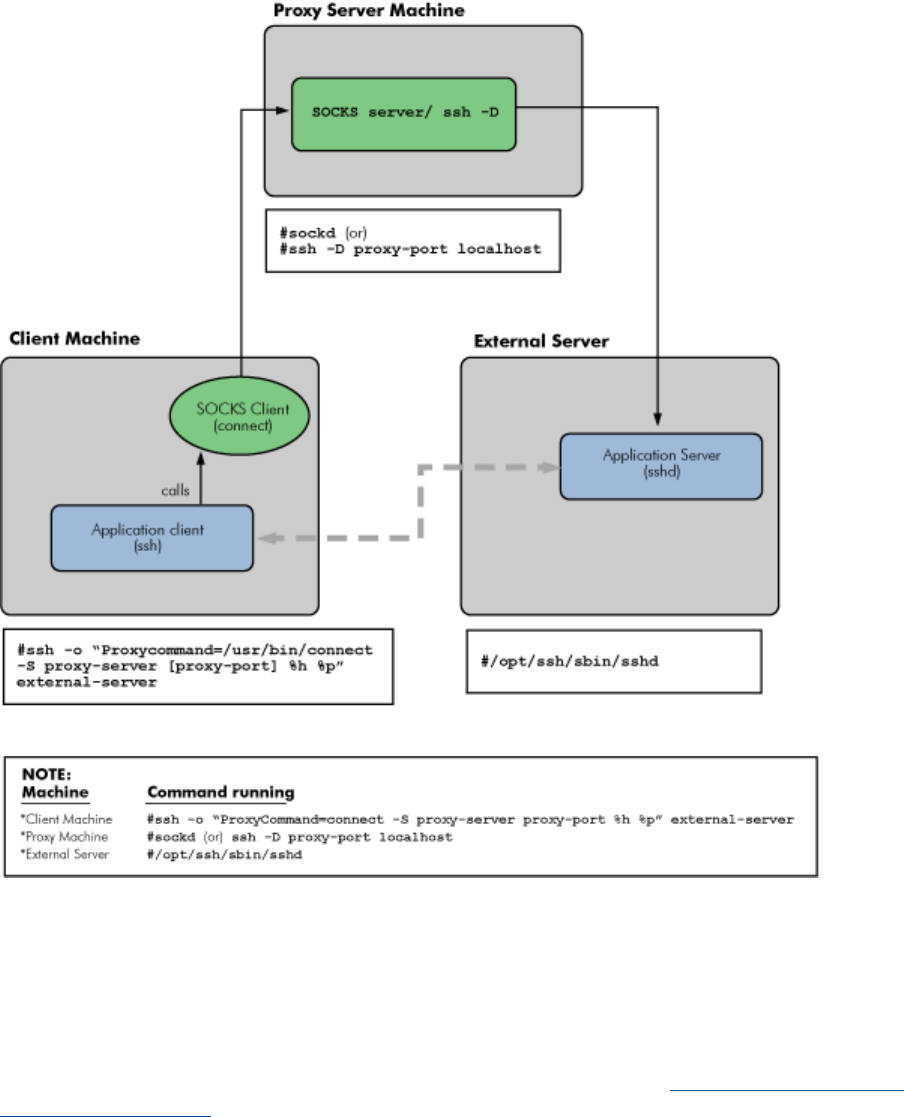
Figure 5 Dynamic Port Forwarding Process
To establish a connection, an application client calls the SOCKS client, which then makes a
connection to the SOCKS server with the following command:
# ssh -o "ProxyCommand=/usr/bin/connect -S proxy-server <proxy-port number>
%h %p" external server
Prerequisites
The SOCKS Client product (connect.c). It is available for download at: http://www.taiyo.co.jp/
~gotoh/ssh/connect.c
Usage Examples
Example 6 (page 51) and Example 7 (page 51) illustrate how to connect to an external server and
transfer data using dynamic port forwarding.
50 Configuring HP-UX Secure Shell as a SOCKS Proxy

Example 6 Connecting to an External Server Using Dynamic Port Forwarding
Enter the following command to connect to an external server using dynamic port forwarding:
# ssh -o "ProxyCommand connect -S proxy-server:<port number> %h %p"
external-server
This establishes a connection to external-server using proxy-server.
Example 7 Data Transfer Using Dynamic Port Forwarding
Enter the following command to transfer data using dynamic port forwarding:
# scp -o "ProxyCommand connect -S proxy-server:<port number> %h %p"
external-server:remotefile localfile
or
# sftp -o "ProxyCommand connect -S proxy-server:<port number> %h %p"
external-server
The system is connected to external-server through proxy-server, and remotefile is copied to
localfile.
Implementations of SOCKS 51

6 Enabling HP-UX Secure Shell to Take Advantage of High
Speed Networks
HP-UX Secure Shell includes a High Performance Enabled SSH/SCP (HPN) patch, which enables
HP-UX Secure Shell to take advantage of the large tcp send and receive buffers that are available
in high bandwidth networks.
In some situations (such as transfers on LANs), the HPN patch can degrade HP-UX Secure Shell
performance. In such cases, you can disable the HPN patch by setting HPNDisabled=no in the
sshd_config and ssh_config files. By default, the HPN patch is turned on.
Table 18 lists configuration directives that you can use to configure the HPN patch.
Table 18 Configuration Directives to Configure the HPN Patch
FunctionalityLocationConfiguration Directive
Use this configuration directive to set
the TCP socket receive buffer to n
Present on clientTcpRcvBuf=[int]KB
Kilobytes. You can set the buffer up to
the maximum socket size allowed by
the system. Use this configuration
directive in situations when the tcp
receive window is set low, but the
maximum buffer size is set higher. The
default value of this directive is the
current systemwide tcp receive buffer
size.
Use this configuration directive to
enable or disable the polling of the tcp
Present on client and serverTcpRcvBufPoll=[yes/no]
receive buffer while the connection is
active. The default value of this directive
is no.
Use this configuration directive to
enable or disable the use of the None
Present on client and serverNoneEnabled=[yes/no]
cipher. The default value of this
directive is no.
IMPORTANT: Enable this directive
with caution, because this allows users
to send unencrypted data through the
network. However, authentication
information remains encrypted.
Use this configuration directive to switch
the encryption cipher to the None
Present on clientNoneSwitch=[yes/no]
cipher after the user is authenticated.
You must enable NoneEnabled on the
client and server before enabling
NoneSwitch. The default value of this
directive is no.
NOTE: You cannot use the None
cipher in interactive Shell sessions. If
you do so, HP-UX Secure Shell fails
without displaying any error messages.
Use this configuration directive to
disable the HPN functionality. You can
Present on client and serverHPNDisabled=[yes/no]
disable HPN if the impact of the HPN
code produces a net decrease in
performance. This can happen
sometimes when there are transfers on
52 Enabling HP-UX Secure Shell to Take Advantage of High Speed Networks

Table 18 Configuration Directives to Configure the HPN Patch (continued)
FunctionalityLocationConfiguration Directive
a local area network. By default
HPNDisabled is set to yes.
Use this configuration directive to set
the buffer size when interacting with
Present on client and serverHPNBufferSize=[int] KB
Secure Shell installations that do not
have the HPN patch. The value of this
directive ranges from 1 KB to 14 MB.
The default value of this directive is 2
MB. If TcpRecvBufPoll is set to yes,
this overrides the value specified in
HPNBufferSize.
CAUTION: Use of oversized or
undersized buffers can cause
performance issues depending on the
length of the network path.
NOTE: A client with the HPN patch can work with a non-HPN-enabled sshd server. However,
the client-server connection does not result in optimal performance. While establishing a connection,
the ssh client checks the server version. If the server version has a -hpn suffix, the client assumes
that the server is HPN-enabled, and dynamically adjusts the window size based on the tcp buffer
size. If the server version does not have a -hpn suffix, the client assumes that the server does not
have the HPN patch, and retains the window size to 128 KB.
Changes in the ssh Command due to the HPN Patch
The following changes are made to the ssh command, because of the inclusion of the HPN patch:
•The -w option is replaced with the TcpRecvBuf configuration directive
•A new -z option is introduced to support the None cipher.
Changes in the ssh Command due to the HPN Patch 53

7 Troubleshooting HP-UX Secure Shell
This chapter discusses methods to troubleshoot problems with HP-UX Secure Shell connections.
This chapter addresses the following topics:
•“Overview” (page 54)
•“Debugging the HP-UX Secure Shell Server” (page 54)
•“Debugging the HP-UX Secure Shell Client” (page 56)
•“Interpreting the Debug Output” (page 57)
•“Generating Debug Messages Using the LogLevel Configuration Directive” (page 59)
•“Logging Error and Debug Messages” (page 59)
•“Authentication Problems” (page 60)
•“Reporting Problems” (page 60)
Overview
HP-UX Secure Shell servers and clients provide built-in debugging. When an HP-UX Secure Shell
client tries to establish a connection with an HP-UX Secure Shell server, the HP-UX Secure Shell
server presents a list of authentication methods that it supports. If the HP-UX Secure Shell client fails
to authenticate itself using one method, it can try the next authentication method on the list. HP-UX
Secure Shell server attempts all supported authentication methods before declining the connection
request from the client.
When you experience a problem during a HP-UX Secure Shell connection, first run the HP-UX
Secure Shell client and server in debug mode. By default, debugging is not enabled on either the
HP-UX Secure Shell server or the HP-UX Secure Shell client. When invoked with appropriate
debugging command-line options, HP-UX Secure Shell server and client display messages about
their progress and failures. You can analyze these messages to identify problems. You can increase
the level of detail displayed in the debug output to obtain more information about the problem.
You can use either command-line options or the configuration directive on the HP-UX Secure Shell
server and client to control the debugging message level.
Depending on how debugging is configured, HP-UX Secure Shell logs error messages to the console
or to the /var/adm/syslog/syslog.log file.
Apart from the debugging options, the HP-UX Secure Shell Frequently Asked Questions (FAQ)
available at the following URL can help you solve some common problems:
nl
http://www.hp.com/go/hpux-security-docs
Debugging the HP-UX Secure Shell Server
The HP-UX Secure Shell server logs debug and error messages in the /var/adm/syslog/
syslog.log file. You can also configure the HP-UX Secure Shell server to log the messages in a
different file.
Debugging Options
The HP-UX Secure Shell server daemon, sshd, provides the following debugging options:
-d Specifies debug mode. The server sends verbose debug output to the system log and
does not put itself in the background. The server does not fork and processes only
one connection at a time. This option is intended only for debugging the server.
54 Troubleshooting HP-UX Secure Shell

NOTE: If you run sshd in debug mode, sshd allows only one client connection at
a time. Additional clients cannot connect to the HP-UX Secure Shell server until the
connected client logs out.
-e Directs sshd to send the output to the standard console instead of the system log.
-p port Specifies the port on which the server listens for connections. The default port is 22.
HP-UX Secure Shell allows multiple port options. If you specify a command-line port,
HP-UX Secure Shell ignores the ports specified in the configuration file.
Running sshd in Debug Mode
If you run sshd in debug mode, log messages display on the standard output and are also logged
in the /var/adm/syslog/syslog.log file.
Following is the syntax to generate debug messages on the HP-UX Secure Shell server:
$ /usr/sbin/sshd -[d dd ddd] -e [-p port] [2> <outputfile>]
Where:
<outputfile> Specifies the file to which the error messages are redirected.
You can use this file to analyze the problem or you can to send the file to HP
support if you are unable to resolve the problem.
You can use multiple -d options to increase the amount and detail of debugging information. The
-d command-line option pertains only to debug messages and does not control the generation of
error messages. Error messages are generated regardless of the command-line option setting.
NOTE: You can use a maximum of three -d options to generate debug messages.
Table 19 lists the information that is displayed for the -d,-dd, and -ddd debug options.
Table 19 Debug Information for -d,-dd, and -ddd Options
Details DisplayedDebug Option
-d •The client protocol and the sshd version number
•The private host key type
-dd •The -d debug messages
•The private key bit set
•The user authentication method request
-ddd •All the -d and -dd messages
•The privileged user and group
The following sample debug messages show the level of detail displayed for the same HP-UX
Secure Shell connection, using the -d,-dd, and -ddd debug command-line options:
•Following is an example of some -d command-line option:
debug1: sshd version OpenSSH_4.4p1-hpn [ HP-UX Secure Shell-A.04.40.005]
debug1: read PEM private key done: type RSA
debug1: private host key: #0 type 1 RSA
debug1: read PEM private key done: type DSA
debug1: private host key: #1 type 2 DSA
debug1: Bind to port 1111 on 0.0.0.0.
Server listening on 0.0.0.0 port 1111.
•Following is the output for the -dd command-line option:
debug2: load_server_config: filename /opt/ssh/etc/sshd_config
debug2: load_server_config: done config len = 270
debug2: parse_server_config: config /opt/ssh/etc/sshd_config len 270
Debugging the HP-UX Secure Shell Server 55

debug1: sshd version OpenSSH_4.4p1-hpn [ HP-UX Secure Shell-A.04.40.005 ]
debug1: read PEM private key done: type RSA
debug1: private host key: #0 type 1 RSA
debug1: read PEM private key done: type DSA
debug1: private host key: #1 type 2 DSA
debug2: fd 4 setting O_NONBLOCK
debug1: Bind to port 1111 on 0.0.0.0.
Server listening on 0.0.0.0 port 1111.
This level of debug output includes the debug1 and debug2 level messages.
•Following is the output for the -ddd command-line option:
debug3: RNG is ready, skipping seeding
debug2: load_server_config: filename /opt/ssh/etc/sshd_config
debug2: load_server_config: done config len = 270
debug2: parse_server_config: config /opt/ssh/etc/sshd_config len 270
debug1: sshd version OpenSSH_4.4p1-hpn [ HP-UX Secure Shell-A.04.40.005 ]
debug3: Not a RSA1 key file /opt/ssh/etc/ssh_host_rsa_key.
debug1: read PEM private key done: type RSA
debug1: private host key: #0 type 1 RSA
debug3: Not a RSA1 key file /opt/ssh/etc/ssh_host_dsa_key.
debug1: read PEM private key done: type DSA
debug1: private host key: #1 type 2 DS
Adebug2: fd 4 setting O_NONBLOCK
debug1: Bind to port 1111 on 0.0.0.0.
Server listening on 0.0.0.0 port 1111.
This level of debug output includes the debug1,debug2, and debug3 level messages.
Debugging the HP-UX Secure Shell Client
One of the best tools for troubleshooting the HP-UX Secure Shell client is the verbose option,-v.
With the -v command-line option, the HP-UX Secure Shell client displays helpful messages such
as the version number of HP-UX Secure Shell, type of authentication methods it is attempting, and
the authentication method that has succeeded.
In addition to the HP-UX Secure Shell client, the -v debugging command-line option is available
for the following HP-UX Secure Shell commands:
•ssh-keyscan
•sftp
•scp
•ssh-keygen
Debugging Option
The HP-UX Secure Shell client provides the following debugging command-line option:
-v Indicates the verbose mode. When ssh is run in the verbose mode, ssh prints debugging
messages about its progress. This is helpful in debugging connection, authentication, and
configuration problems. Multiple -v options increase the verbosity of the debugging messages.
Running ssh in Debug Mode
Following is the syntax to run the HP-UX Secure Shell client in verbose mode:
$ ssh -[v vv vvv] [2> <outputfile>]
Where:
<outputfile> specifies the file to which the error messages are redirected. You can use this file
to analyze the problem or to send the file to HP support if you are unable to solve the problem.
You can use multiple -v options to increase the amount and detail of the debug messages.
NOTE: You can use a maximum of three -v options to generate different levels of debug messages.
56 Troubleshooting HP-UX Secure Shell

Table 20 lists the information that is displayed for the -v,-vv, and -vvv debug options.
Table 20 Debug Information for -v,-vv, and -vvv Options
Details DisplayedDebug Option
-v •The Identity File
•The “Authentication succeeded” message
-vv •All the -v messages
•The private key bit set
-vvv •All the -v and -vv messages
•Details such as authmethod_lookup and authmethod_is_enabled
The following sample debug messages show the level of detail displayed for the same HP-UX
Secure Shell connection, using the -v,-vv, and -vvv debug command-line options.
•Following is the output for the -v command-line option:
debug1: Reading configuration data /opt/ssh/etc/ssh_config
debug1: Connecting to localhost [127.0.0.1] port 1111.
debug1: Connection established.
debug1: permanently_set_uid: 0/3
debug1: identity file /.ssh/id_rsa type 1
debug1: identity file /.ssh/id_dsa type -1
debug1: Remote protocol version 2.0, remote software version OpenSSH_4.4p1-hpn
•Following is the output for the -vv command-line option:
debug1: Reading configuration data /opt/ssh/etc/ssh_config
debug2: ssh_connect: needpriv 0
debug1: Connecting to localhost [127.0.0.1] port 1111.
debug1: Connection established.
debug1: permanently_set_uid: 0/3
debug2: key_type_from_name: unknown key type ’-----BEGIN’
debug2: key_type_from_name: unknown key type ’-----END’
debug1: identity file /.ssh/id_rsa type 1
•Following is the output for the -vvv command-line option:
debug1: Reading configuration data /opt/ssh/etc/ssh_config
debug3: RNG is ready, skipping seeding
debug2: ssh_connect: needpriv 0
debug1: Connecting to localhost [127.0.0.1] port 1111.
debug1: Connection established.
debug1: permanently_set_uid: 0/3
debug3: Not a RSA1 key file /.ssh/id_rsa.
Interpreting the Debug Output
Use the HP-UX Secure Shell debug output to analyze problems. The debug output describes the
various stages of an HP-UX Secure Shell connection.
This section provides sample debug output for an HP-UX Secure Shell client that uses public-key
authentication.
NOTE: Annotations are highlighted in bold and marked with >>>>. HP-UX Secure Shell does
not display these annotations on the console as part of the debug output. Annotations included
here are for your information only.
When an HP-UX Secure Shell client connects to the HP-UX Secure Shell server in verbose mode,
the following output is displayed:
# ssh -v <server_name>
Interpreting the Debug Output 57
OpenSSH_4.4, OpenSSL 0.9.7l 25 Oct 2006
HP-UX Secure Shell-A.04.40.005, HP-UX Secure Shell version
debug1: Reading configuration data /opt/ssh/etc/ssh_config
>>>> Specifies the location of the client
configuration file.
debug1: Connecting to ssh1100 [172.16.1.163] port 22.
>>>> Specifies the remote
machine and port to which the client is trying to connect.
debug1: Connection established. >>>>> Indicates that
a TCP connection is
established between the client and server.
debug1: permanently_set_uid: 0/3
debug1: identity file /.ssh/identity type 0
debug1: identity file /.ssh/id_rsa type -1
debug1: identity file /.ssh/id_dsa type -1
debug1: Remote protocol version 2.0, remote software version
OpenSSH_4.4p1-hpn
>>>> Shows the Secure Shell version of the remote
server.
debug1: match: OpenSSH_4.4p1-hpn pat OpenSSH*
debug1: Enabling compatibility mode for protocol 2.0
debug1: Local version string SSH-2.0-OpenSSH_4.4p1-hpn
debug1: SSH2_MSG_KEXINIT sent >>>> Indicates the
start of the key file exchange.
debug1: SSH2_MSG_KEXINIT received
debug1: kex: server->client aes128-cbc hmac-md5 none
>>>> Indicates the start of
the encryption algorithm negotiation from server to client.
debug1: kex: client->server aes128-cbc hmac-md5 none
>>>> Indicates the start of the encryption algorithm
negotiation from client to server.
debug1: SSH2_MSG_KEX_DH_GEX_REQUEST(1024<1024<8192) sent
debug1: expecting SSH2_MSG_KEX_DH_GEX_GROUP
debug1: SSH2_MSG_KEX_DH_GEX_INIT sent
debug1: expecting SSH2_MSG_KEX_DH_GEX_REPLY
The authenticity of host ’ssh1100 (172.16.1.163)’ can’t be
established. >>>>>
Indicates that the host key of the remote server is not part of the
known_hosts file of the client
RSA key fingerprint is
89:29:ac:b2:0f:7c:3a:60:c4:43:5e:31:13:01:b5:a8.
Are you sure you want to continue connecting (yes/no)? yes
>>>> Prompts for confirmation to add the host key of
the remote server in the known_hosts file of the client.
Warning: Permanently added ’ssh1100,172.16.1.163’ (RSA) to the list
of known hosts. >>>> Indicates that the host key of
the remote server has been added to the known_hosts file of the
client.
debug1: ssh_rsa_verify: signature correct >>>>
Indicates that the host key of the remote server is verified.
debug1: SSH2_MSG_NEWKEYS sent
debug1: expecting SSH2_MSG_NEWKEYS
debug1: SSH2_MSG_NEWKEYS received
debug1: SSH2_MSG_SERVICE_REQUEST sent
debug1: SSH2_MSG_SERVICE_ACCEPT received
debug1: Authentications that can continue: publickey,password,
keyboard-interactive >>>> Displays the list of
authentication methods supported by the remote server.
debug1: Next authentication method: publickey >>>>
Indicates that the client is trying public-key authentication
.
debug1: Trying private key: /.ssh/id_rsa
debug1: Trying private key: /.ssh/id_dsa
debug1: Next authentication method: keyboard-interactive
>>>> Indicates that
public-key authentication has failed and the client is trying the
next authentication on the list.
Password: >>>> Indicates the password prompt in which
you must enter your HP-UX Secure Shell password.
debug1: Authentication succeeded (keyboard-interactive).
>>>> Indicates that the authentication succeeded.
58 Troubleshooting HP-UX Secure Shell

debug1: channel 0: new [client-session]
>>>> Indicates that a new client session is open.
debug1: Entering interactive session.
>>>> Indicates that the client has entered into an
interactive session.
Generating Debug Messages Using the LogLevel Configuration Directive
You can use the LogLevel configuration directive in the HP-UX Secure Shell server and client
configuration files /opt/ssh/etc/sshd_config and /opt/ssh/etc/ssh_config to control
the level of debug information generated during an HP-UX Secure Shell connection.
The LogLevel Configuration Directive
You can set LogLevel to one of the following values:
QUIET Indicates that messages are not logged.
FATAL Indicates that fatal messages are logged.
ERROR Indicates that HP-UX Secure Shell logs all error messages.
INFO Indicates the information that must go to the log.
VERBOSE Indicates that HP-UX Secure Shell logs more detailed messages.
DEBUG Specifies debugging messages that must not be logged during normal operation.
debug1 Specifies the debugging mode level one. This mode is the same as DEBUG. It is also
the same as specifying -d or -v on the command line.
debug2 Specifies debugging level two. It is also the same as specifying -dd or -vv on the
command line.
debug3 Specifies debugging level three. It is also the same as specifying -ddd or -vvv on
the command-line.
Of the different types of messages listed, only FATAL and ERROR values pertain to error messages.
The other values generate messages you can use for informational or debug-trace purposes.
The -d and -v command-line options do not log FATAL or ERROR messages. The LogLevel
directive is more flexible and friendly compared to the command-line options.
The default value for LogLevel is INFO.
Table 21 lists the LogLevel values and the equivalent -d and -v command-line options.
Table 21 LogLevel and Debugging Values
Equivalent Debugging OptionLogLevel Value
-d and -vdebug1
-dd and -vvdebug2
-ddd and -vvvdebug2
IMPORTANT: Be cautious when using debug levels higher than debug1. HP-UX Secure Shell
displays sensitive information at higher levels, such as the private keys of the user or server.
Logging Error and Debug Messages
HP-UX Secure Shell logs error messages in different locations depending on how debugging is
configured.
Following are the different locations in which HP-UX Secure Shell logs error and debug messages:
•The /var/adm/syslog/syslog.log File – If you specify only the LogLevel directive in
the /opt/ssh/etc/sshd_config file and you do not specify the -d or -v command-line
options with sshd, HP-UX Secure Shell logs all the messages (debug and error messages) in
Generating Debug Messages Using the LogLevel Configuration Directive 59

the /var/adm/syslog/syslog.log file. HP-UX Secure Shell error messages are prefixed
with sshd in the /var/adm/syslog/syslog.log file.
Following is a sample error message in the /var/adm/syslog/syslog.log file:
May 12 16:47:39 system_name sshd[2618]: error: PAM: Authentication failed
Where:
PAM Authentication failed is the error message.
•The Standard Output – If you specify the -d or -v option with sshd, HP-UX Secure Shell
sends debug messages to the standard output, whether or not LogLevel is configured in the
HP-UX Secure Shell configuration files. Command-line arguments override the LogLevel
configuration directive.
•The /var/adm/syslog/syslog.log File – Error messages continue to be logged in the
/var/adm/syslog/syslog.log file, regardless of the LogLevel or the command-line
specifications.
•The Standard Error – If you specify the -e command-line option with sshd, the error messages
are logged to standard error instead of the /var/adm/syslog/syslog.log file, regardless
of any LogLevel or other command-line specifications.
Authentication Problems
This section discusses common problems encountered during authentication.
Public-Key Authentication Problems
Following are some common public-key authentication setup mistakes:
•Not moving the public key to the authorized_keys file in the HP-UX Secure Shell server.
•Granting incorrect permissions for the authorized_keys file or one of the parent directories.
•Forgetting the passphrase. Passphrases are not recoverable.
•Generating a key pair and accidentally replacing the public key with an older one.
•Attempting to use a key that is in incorrect format.
Host-Based Authentication Problems
Following are some common host-based authentication configuration mistakes:
•You must ensure that the public host key of the client is in the known_hosts file in the server.
•You must use the correct canonical name of the client so that the server is able to resolve this
canonical name.
•HP recommends that you provide read/write permission for the user for the $HOME/.shosts
file, and no permission for other users.
Reporting Problems
If you are unable to troubleshoot HP-UX Secure Shell yourself, follow these steps:
1. Read the release notes for HP-UX Secure Shell to see if the problem is known. If it is, follow
the instructions offered to solve the problem.
The HP-UX Secure Shell release notes is available at:
nl
http://www.hp.com/go/hpux-security-docs
2. Access http://www.hp.com/go/hpsc and search the technical knowledge databases to
determine if the problem you are experiencing has already been reported. The type of
documentation and resources you have access to depend on your support contract level.
To search the ITRC forum for a solution, follow these steps:
60 Troubleshooting HP-UX Secure Shell

a. Navigate to the ITRC Web site at: http://www.hp.com/go/hpsc
b. Enter keywords for the problem in the search text box.
The search results page displays solutions available in the ITRC forums, training materials,
and manuals.
NOTE: The ITRC forums offer peer-to-peer support and are free after registration.
3. Search the HP-UX Secure Shell FAQ available at: http://www.hp.com/go/hpux-security-docs
4. If this is a new problem or if you are unable to solve the problem using the previously listed
resources, log the problem with the HP Response Center either by calling HP Support or online
through the support case manager at: http://www.hp.com/go/hpsc
When you contact HP support, have the following information available:
•Client debug information
Use the -vvv option to obtain the client debug output.
•Server debug information
Use the -ddd option to obtain the server debug output.
•The swlist output to identify the version of HP-UX Secure Shell.
•A copy of HP-UX Secure Shell client and server configuration files.
•A clear description of the problem.
Reporting Problems 61

A Configuration Files and Directives
This appendix describes the configuration files that are created upon installing HP-UX Secure Shell.
This appendix also describes various configuration directives available in the HP-UX Secure Shell
server and client configuration files.
This chapter addresses the following topics:
•“HP-UX Secure Shell Configuration Files” (page 62)
•“Server Configuration Directives” (page 62)
•“Client Configuration Directives” (page 82)
HP-UX Secure Shell Configuration Files
When you install HP-UX Secure Shell, the configuration files are automatically created on the
system. The configuration files contain the directive settings for both the server and the clients.
Table 22 lists the HP-UX Secure Shell server and client configuration files.
Table 22 Configuration Files
File NameFile
/opt/ssh/etc/sshd_configServer configuration file
/opt/ssh/etc/ssh_configClient configuration file
You can use the default settings listed in these files, or you can modify these values according to
your needs.
Server Configuration Directives
The /etc/ssh/sshd_config file is the systemwide server configuration file for HP-UX Secure
Shell. This configuration file enables you to set options that modify the operation of the sshd
daemon. This file contains configuration directives in the form of keyword-value pairs.
NOTE: The keywords are case insensitive and arguments are case sensitive.
AcceptEnv
Use this directive to specify the environment variables sent by the client that must be copied into
the session environment. Specify variables using their names. Variables can contain the wildcard
characters star (*) and question mark (?). Use white space to separate multiple environment
variables. You can spread multiple environment variables across multiple AcceptEnv directives.
The AcceptEnv directive is available only for the SSH-2 protocol.
By default, HP-UX Secure Shell does not pass any environment variables.
NOTE: Some environment variables can bypass the restricted user environment, so you must be
careful when using the AcceptEnv directive.
For example:
AcceptEnv yes
AddressFamily
Use this directive to specify the address family to be used by sshd(8). Valid arguments are any,
inet (use IPv4 only), or inet6 (use IPv6 only).
The default is any.
For example:
AddressFamily any
62 Configuration Files and Directives

AllowAgentForwarding
Use this directive to specify whether the ssh-agent(1) forwarding is permitted.
The default is yes.
For example:
AllowAgentForwarding no
AllowGroups
Use this directive to enable login only for users whose primary or supplementary group list matches
a specified string. The star (*) and question mark (?) characters can be used as wildcards in the
strings. Enter the AllowGroups directive followed by a list of group name strings, separated by
spaces. Only group names are valid. By default, login is enabled for all groups.
By default, this directive is not specified in the sshd_config file.
NOTE: Numerical group IDs are not recognized.
For example:
AllowGroups root staff users
AllowUsers
Use this directive to allow login for user names that match one of the specified strings. The star (*)
and question mark (?) characters can be used as wildcards in the strings.
NOTE: Only user names are valid; numerical user IDs are not recognized.
Login is allowed for all users by default. If the pattern takes the form USER@HOST, then USER and
HOST are separately checked, and the logins to particular users from particular hosts is restricted.
The allow or deny directives are processed in the following order: DenyUsers,AllowUsers,
DenyGroups and AllowGroups.
For example:
AllowUsers Clay@zin.org Arian
This command allows login to the user Clay, connecting from zin.org. It also allows login from all
addresses to anyone logging in as Arian.
AllowTCPForwarding
Use this directive to enable or disable TCP forwarding.
The default setting is yes.
NOTE: To improve security, disable TCP forwarding and deny users shell access.
For example:
AllowTcpForwarding yes
AuthorizedKeysFile
Use this directive to specify the file to be used for public-key authentication. The
AuthorizedKeysFile can contain tokens in a %T form, where Tis the token. The following
tokens are available:
%% Use this token to specify %.
%h Use this token to specify the home directory of the user being authenticated.
%u Use this token to specify the user name of the user being authenticated.
HP-UX Secure Shell substitutes these tokens with the token values during connection setup. After
this substitution, AuthorizedKeysFile becomes an absolute path or a path relative to the home
directory of the user.
Server Configuration Directives 63

The default setting is the .ssh/authorized_keys .ssh/authorized_keys2.
For example:
#AuthorizedKeysFile %h/.ssh/authorized_keys %h/.ssh/authorized_keys2
If the home directory of the user being authenticated (%h) is /home/user1, then the
AuthorizedKeysFile directive is set to the /home/user1/.ssh/authorized_keys and
/home/user1/.ssh/authorized_keys2 files after substitution.
AuthorizedPrincipalsFile
Use this directive to specify a file that lists principal names that are accepted for certificate
authentication. When using certificates signed by a key listed in TrustedUserCAKeys, this file
lists names, one of which must appear in the certificate for it to be accepted for authentication.
The names are listed one per line preceded by key options (as described in AUTHORIZED_KEYS
FILE FORMAT in sshd(8)). Empty lines and comments starting with # are ignored.
AuthorizedPrincipalsFile may contain tokens of the form %T that are substituted during
connection setup. The following tokens are defined:
%% is replaced by a literal %
%h is replaced by the home directory of the user being authenticated
%u is replaced by the username of that user
The default is not to use a principals file, in this case, the username of the user must appear in a
certificate's principals list for it to be accepted.
NOTE: AuthorizedPrincipalsFile is not used for certification authorities trusted through
$HOME/.ssh/authorized_keys.
For example:
AuthorizedPrincipalsFile /opt/ssh/etc/authorized_principal
Banner
Use this directive to specify whether the contents of the specified file must be sent to the remote
user before authentication is allowed. By default, no banner is displayed.
For example:
Banner none
NOTE: This directive is applicable to protocol version 2 only.
ChallengeResponseAuthentication
Use this directive to enable Challenge-Response (also known as Keyboard-Interactive) authentication.
HP-UX Secure Shell supports all authentication styles from login.conf(5). For more information on
the Keyboard-Interactive authentication, see “Keyboard-Interactive Authentication” (page 29).
The default setting is yes.
For example:
ChallengeResponseAuthentication yes
ChallRespAuthAllowUsers
This configuration directive has been introduced by the 3rd party “Auth Selection” patch. Use this
configuration directive to specify which users can be authenticated using Challenge Response
authentication.
The default setting is to allow all users.
For example:
ChallRespAuthAllowUsers Allow All
64 Configuration Files and Directives

ChallRespAuthDenyUsers
This configuration directive has been introduced by the 3rd party “Auth Selection” patch. Use this
configuration directive to specify which users must be denied authentication using Challenge
Response authentication.
The default setting is to deny no users.
For example:
ChallRespAuthDenyUsers Deny none
ChrootDirectory
Use this directory to specify a path to chroot after authentication. This path, and all its components,
must be root-owned directories that are not writable by any other user or group. The pathname
may contain the following tokens that are expanded at runtime after the connecting user is
authenticated:
%% is replaced by a literal %
%h is replaced by the home directory of the user being authenticated, and
%u is replaced by the username of that user.
The default setting is not to chroot.
For example:
ChrootDirectory not to chroot
NOTE: The ChrootDirectory must contain the necessary files and directories to support the
users session.
Ciphers
Use this directive to specify the ciphers used by SSH-2 in the order of preference. Multiple ciphers
must be separated by commas. The supported ciphers are as follows:
•3des-cbc
•aes128-cbc
•aes192-cbc
•aes256-cbc
•aes128-ctr
•aes192-ctr
•aes256-ctr
•arcfour128
•arcfour256
•arcfour
•blowfish-cbc
•cast128-cbc
The default setting is aes128–cbc,3des-cbc,blowfish-cbc,cast128–cbc,arcfour128,
arcfour256,arcfour,aes192–cbc,aes256–cbc,aes128–ctr,aes192–ctr,aes256–ctr.
For example:
Ciphers aes128-cbc,3des-cbc,blowfish-cbc,cast128-cbc,arcfour,aes192-cbc,aes256-cbc
ClientAliveCountMax
The ClientAliveCountMax directive enables a client or a server to detect an inactive connection.
Use this directive to specify the number of client alive messages that can be sent before sshd
receives messages from the client. If the number of client alive messages reaches the specified
Server Configuration Directives 65

threshold, the sshd daemon disconnects the client and terminates the session. The client alive
messages are sent through an encrypted channel and cannot be spoofed. The default value is
three. If ClientAliveInterval is set to 15, and ClientAliveCountMax is left at the default,
unresponsive SSH clients is disconnected after approximately 45 seconds.
For example:
ClientAliveCountMax 3
NOTE: The ClientAliveCountMax is available for the SSH-2 protocol only. The use of client
alive messages is different from TCPKeepAlive.
ClientAliveInterval
Use this directive to send a request to nonresponsive clients and to expect a reply within a specified
time interval. This directive sets the timeout interval in seconds. If no data is received from the client
after the specified timeout interval, the sshd daemon sends a message through the encrypted
channel requesting a response from the client.
The default value is 0.
ClientAliveInterval 0
NOTE: The ClientAliveInterval is available for the SSH-2 protocol only.
Compression
Use this directive to compress data sent over HP-UX Secure Shell connections before they are
encrypted. It also decompresses the data received by the client after it is decrypted. You can use
the yes,no, or delayed values to enable, enable delayed, or disable compression.
The default setting is delayed. In this setting, the server invokes the zlib compression modules
only after the user is successfully authenticated. Using compression=delayed eliminates the
risk of any zlib vulnerability leading to the server being compromised by unauthenticated users.
For example:
Compression delayed
NOTE: HP-UX Secure SHell client version 3.5 and earlier do not support delayed compression.
The earlier versions of HP-UX Secure Shell cannot connect to a newer version of the server unless
compression is disabled (on the client-side), or the original compression method is enabled on the
server (by setting Compression yes in the sshd_config file).
CountKeyAuthBadLogins
Use this directive to control the logging of bad login attempts to the btmp file when using the
GSS-API, public-key, and host-based authentication methods.
The default setting is no. When CountKeyAuthBadLogins is set to no, failed authentication
attempts for key-based authentication do not generate btmp records.
For example:
CountKeyAuthBadLogins no
NOTE: This configuration directive is specific to HP-UX Secure Shell, and is not available in
OpenSSH base code.
DenyGroups
Use this directive to deny login for users whose primary group or supplementary group list matches
one of the specified strings. This directive must be followed by a list of group name strings separated
by spaces. You can use the star (*) and question mark (?) characters as wildcards in the strings.
NOTE: Only group names are valid; numerical group IDs are not recognized.
By default, login is enabled for all groups.
66 Configuration Files and Directives

For example:
DenyGroups staff
DenyUsers
Use this directive to deny login for user names that match one of the specified strings. This directive
must be followed by a list of user name strings separated by spaces. You can use the star (*) and
question mark (?) characters as wildcards in the strings.
NOTE: Only user names are valid; numerical user IDs are not recognized.
If the pattern takes the form USER@HOST then USER and HOST are checked separately, restricting
logins to particular users from particular hosts.
By default, login is allowed for all users.
For example:
DenyUsers Clay@zin.org Arian
This command denies login to user Clay, connecting from zin.org. It also denies login from all
addresses to anyone logging in as Arian.
DisIStrip
Use this directive to specify whether to disable ISTRIP for tty connections. By default ssh ptys
set ISTRIP. Setting this directive to yes allow users to use multibyte chars.
The default is no.
For example:
DisIStrip yes
NOTE: This configuration directive is specific to HP-UX Secure Shell, and is not available in the
OpenSSH base code. This configuration directive is only applicable on HP-UX Secure Shell A.05.90
and above.
DoubleMaxDisps
Use this directive to specify whether to increase the limit of X window pseudo-displays to 2000.
By default the limit is 1000.
The default is no.
For example:
DoubleMaxDisps yes
NOTE: This configuration directive is specific to HP-UX Secure Shell, and is not available in the
OpenSSH base code. This configuration directive is only applicable on HP-UX Secure Shell A.05.90
and above.
EnforceSecureTTY
Use this directive to specify whether the sshd daemon must restrict root logins to the tty names
listed in the /etc/securetty file only.
The default setting is no.
For example:
EnforceSecureTTY no
NOTE: This configuration directive is specific to HP-UX Secure Shell, and is not available in the
OpenSSH base code.
Server Configuration Directives 67

ForceCommand
Use this directive to force the execution of the command specified by ForceCommand, ignoring
any other command specified by the client. The command originally supplied by the client is
available in the SSH_ORIGINAL_COMMAND environment variable. Previous releases of HP-UX
Secure Shell specified this option in the authorised_keys file.
For example:
ForceCommand pwd
In the above scenario, the pwd is executed regardless of the command specified by the client.
GatewayPorts
Use this directive to ensure that the sshd daemon enables remote port forwardings to bind to
non-loopback IP addresses, and enables other hosts to connect. Use one of the following arguments
with this directive:
no Forces remote port forwardings to be available to the local host only.
yes Forces remote port forwardings to bind to the wildcard addresses.
clientspecified Enables the client to select the address to which the port must be
forwarded. If GatewayPorts is set to clientspecified, the SSH
server honours the binding address specified for remote port forwarding.
The default setting is no.
For example:
GatewayPorts no
GSSAPIAuthentication
Use this directive to specify whether GSS-API can be used to authenticate users.
The default setting is no.
For example:
GSSAPIAuthentication no
GSSAPICleanupCredentials
Use this directive to specify whether the user credentials must be automatically destroyed on logout.
The default setting is yes.
For example:
GSSAPICleanupCredentials yes
GSSAPIEnableMitmAttack
Use this directive to enable GSS-API authentication for the server.
TIP: Set this directive to yes for older versions of HP-UX Secure Shell clients to connect to an
HP-UX Secure Shell A.04.20 server using GSS-API authentication.
The GSSAPI_WITH_MIC authentication method was introduced in HP-UX Secure Shell 3.8, but a
patch was provided to maintain compatibility with the previous GSS-API authentication method.
This patch enables older versions of the client to connect to newer versions of the server using
GSS-API authentication. Similarly, newer versions of the client can connect to older versions of the
server.
To enable the server to support the older GSS-API authentication methods, set this directive to yes.
The default setting is no.
For example:
GSSAPIEnableMitmAttack yes
68 Configuration Files and Directives

NOTE: This directive is available for the SSH-2 protocol only.
HostbasedAuthAllowUsers
This configuration directive has been introduced by the 3rd party Auth Selection patch. Use this
configuration directive to specify which users can authenticate using host based authentication.
The default setting is to allow all users.
For example:
HostbasedAuthAllowUsers Allow All
HostbasedAuthDenyUsers
This configuration directive has been introduced by the 3rd party Auth Selection patch. Use this
configuration directive to specify which users cannot authenticate using host based authentication.
The default setting is to deny no users.
For example:
HostBasedAuthDenyUsers Deny None
HostbasedAuthentication
Use this directive to specify whether host-based authentication combined with successful public-key
authentication is enabled. This directive checks the /etc/ssh_known_hosts and $HOME/.ssh/
known_hosts files for a valid public key.
The default setting is no.
For example:
HostbasedAuthentication no
NOTE: This directive is available for the SSH-2 protocol only.
HostKey
Use this directive to specify the file that contains a private host key that is used by HP-UX Secure
Shell.
NOTE: The sshd daemon does not use a file if that file is accessible to all users or to a group
of users. Use the HostKey directive to specify multiple host key files. Use RSA1 keys if you are
using SSH-1, and ECDSA, DSA or RSA keys if you are using SSH-2.
The following examples display the default values of HostKey for the SSH-1 and SSH-2 protocols.
For example, using SSH-1:
HostKey /opt/ssh/etc/ssh_host_key
For example, using SSH-2:
HostKey /opt/ssh/etc/ssh_host_rsa_key
HostKey /opt/ssh/etc/ssh_host_dsa_key
HostKey /opt/ssh/etc/ssh_host_ecdsa_key
IgnoreRhosts
Use this directive to specify that HP-UX Secure Shell not to use the .rhosts and .shosts files
in RhostsRSAAuthentication and HostbasedAuthentication. With this directive set to
yes, HP-UX Secure Shell continues to use the /etc/hosts.equiv and /opt/ssh/etc/
shosts.equiv files.
The default value is yes.
For example:
IgnoreRhosts yes
Server Configuration Directives 69
IgnoreUserKnownHosts
Use this directive to specify whether the sshd daemon ignores the $HOME/.ssh/known_hosts
files while authenticating the user using RhostsRSAAuthentication or
HostbasedAuthentication.
The default setting is no.
For example:
IgnoreUserKnownHosts no
IPQoS
Use this directive to specify the IPv4 type-of-service or DSCP class for connections. The accepted
values are as follows:
•af11
•af12
•af13
•af14
•af22
•af23
•af31
•af32
•af33
•af41
•af42
•af43
•cs0
•cs1
•cs2
•cs3
•cs4
•cs5
•cs6
•cs7
•ef
•lowdelay
•throughput
•reliability
You can specify more than one argument, separated by whitespace. If one argument is specified,
it is used as the packet class unconditionally. If two values are specified, the first is automatically
selected for interactive sessions and the second for non-interactive sessions.
The default is lowdelay for interactive sessions and throughput for non-interactive sessions.
For example:
IPQoS lowdelay,throughput
70 Configuration Files and Directives

KerberosAuthAllowUsers
This configuration directive has been introduced by the 3rd party “Auth Selection” patch. Use this
configuration directive to specify which users can authenticate using GSSAPI authentication.
The default setting is to allow all users.
For example:
KerberosAuthDenyUsers Allow All
KerberosAuthDenyUsers
This configuration directive has been introduced by the 3rd party “Auth Selection” patch. Use this
configuration directive to specify which users must not be allowed to authenticate using GSSAPI
authentication.
The default setting is to deny no users.
For example:
KerberosAuthDenyUsers Deny none
KerberosAuthentication
Use this directive to specify whether the Kerberos KDC validates the password provided by the
user for password authentication. The server needs a Kerberos servtab to verify the KDC identity.
The default setting is yes.
For example:
KerberosAuthentication yes
KerberosOrLocalPasswd
Use this directive to specify password validation with mechanisms such as /etc/passwd/ when
password authentication through Kerberos fails.
TIP: Use KerberosOrLocalPasswd in an environment where every user does not authenticate
using Kerberos.
The default setting is yes.
For example:
KerberosOrLocalPasswd yes
KerberosTicketCleanup
Use this directive to specify whether the user ticket cache file must be destroyed automatically after
the user logs out.
The default setting is yes.
For example:
KerberosTicketCleanup yes
KexAlgorithms
Use this directive to specify the available KEX (Key Exchange) algorithms. Multiple algorithms must
be separated by commas.
The default is ecdh-sha2–nistp256, ecdh-sha2–nistp384, ecdh-sha2–nistp521,
diffie-hellman-group-exchange-sha256, diffie-hellman-group-exchange-sha1,
diffie-hellman-group14-sha1, diffie-hellman-group1-sha1.
For example:
KexAlgorithms ecdh-sha2-nistp256,ecdh-sha2-nistp384,ecdh-sha2-nistp521
Server Configuration Directives 71

KeyRegenerationInterval
Use this directive to specify the time interval after which the ephemeral server key is automatically
regenerated. If the value is 0, the key is never regenerated.
The default is 3600 (seconds).
For example:
KeyRegenerationInterval 1h
NOTE: This directive is applicable for the protocol version 1 only.
ListenAddress
Use this directive to specify the local addresses that the sshd daemon listens on. You can set one
of the following values for this directive depending on the type of IP address (IPv4 or IPv6) the
system uses:
•host IPv4_addr IPv6_addr
•host IPv4_addr:port
•[host IPv6_addr]:port
If a port is not specified, the sshd daemon listens on the specified address and all prior specified
port options. You can specify multiple ListenAddress options. Port directives must precede
ListenAddress directives for non-port-qualified addresses.
The default setting is 0.0.0.0 (listen on all local addresses).
For example:
ListenAddress 0.0.0.0
LoginGraceTime
Use this directive to specify the period of time that sshd waits for users to log in. The server daemon
disconnects after this period of time elapses. If LoginGraceTime is set to 0, there is no time limit
for users to log in. The time is set in seconds.
The default setting is 120 seconds.
For example:
LoginGraceTime 120
LogLevel
Use this directive to specify the verbosity level for sshd log messages. For more information on
the LogLevel directive, see “Generating Debug Messages Using the LogLevel Configuration
Directive” (page 59).
MACs
Use this directive to specify the available Message Authentication Code (MAC) algorithms. The
MACs directive is used by SSH-2 for data integrity protection. Multiple algorithms must be comma
separated.
The default setting is as follows:
hmac-md5, hmac-sha1, umac-64@openssh.com, hmac-ripemd160, hmac-sha1-96, hmac-md5-96,
hmac-sha2-256, hmac-sha256-96, hmac-sha2-512, hmac-sha2-512-96.
For example:
MACs hmac-md5,hmac-sha1
Match
Use this directive to specify configuration options based on user, group, hostname, or address.
This directive overrides the global option in the sshd_config file. The arguments to Match are
one or more criteria-pattern pairs. The available criteria are User, Group, Host, and Address. The
72 Configuration Files and Directives
match patterns can consist of single entries or comma-separated lists, and can use the wildcard
and negation operators.
The patterns in an Address criteria can additionally contain addresses to match in CIDR address
or masklen format, for example: 192.0.2.0/24 or 3ffe:ffff::/32.
The following keywords can be used on the lines following a Match keyword:
•AllowAgentForwarding
•AllowTcpForwarding
•Banner
•ChrootDirectory
•ForceCommand
•GatewayPorts
•GSSApiAuthentication
•HostbasedAuthentication
•KbdInteractiveAuthentication
•KerberosAuthentication
•MaxAuthTries
•MaxSessions
•PasswordAuthentication
•PermitEmptyPasswords
•PermitOpen
•PermitRootLogin
•PubkeyAuthentication
•RhostsRSAAuthentication
•RSAAuthentication
•X11DisplayOffset
•X11Forwarding
•X11UseLocalHost
For example:
MatchUser xxxx X11DisplayOffset 20
In the above configuration, the criteria User is given as the argument for Match. The
X11DisplayOffset option is set below it. This directive overrides the global section of the
sshd_config file for User xxxx.
MaxAuthTries
Use this directive to specify the maximum number of authentication attempts that are permitted per
connection.
The default value is 6.
For example:
MaxAuthTries 6
MaxSessions
Use this directive to specify the maximum number of open sessions that are permitted per network
connection.
The default is 10.
For example:
Server Configuration Directives 73
MaxSessions 20
MaxStartups
Use this directive to specify the maximum number of concurrent unauthenticated connections to the
sshd daemon. Additional connections are refused until authentication succeeds or the
LoginGraceTime expires.
The default setting is 10.
For example:
MaxStartups 10
PasswordAuthAllowUsers
This configuration directive has been introduced by the 3rd party Auth Selection patch. Use this
configuration directive to specify which users can authenticate using password authentication.
The default setting is to allow all users.
For example:
PasswordAuthAllowUsers Allow All
PasswordAuthDenyUsers
This configuration directive has been introduced by the 3rd party Auth Selection patch. Use this
configuration directive to specify which users cannot authenticate using password authentication.
The default setting is to deny no users.
For example:
PasswordAuthDenyUsers Deny none
PasswordAuthentication
Use this directive to specify whether a password must be accepted as proof of identity at login. If
KerberosAuthentication is disabled, the login password is sufficient. If
KerberosAuthentication is also enabled, the Kerberos server password is accepted as a
proof of identity.
The default setting is yes.
For example:
PasswordAuthentication yes
PermitEmptyPasswords
Use this directive to specify whether the server allows users to login to accounts with empty password
strings. Use this directive when password-based authentication is used.
The default setting is no.
For example:
PermitEmptyPasswords no
PermitOpen
Use this directive to specify the destinations to which TCP port forwarding is permitted. Use one
of the following formats:
PermitOpen host:port
PermitOpen IPv4_addr:port
PermitOpen [IPv6_addr]:port
Multiple forwards can be specified by separating them with whitespace. An argument of any can
be used to remove all restrictions and permit any forwarding requests. All port forwarding requests
by default, are permitted.
74 Configuration Files and Directives

For example:
PermitOpen host 3:23
In the above scenario, HP-UX Secure Shell permits port forwardings only to the host specified by
the PermitOpen directive.
PermitRootLogin
Use this directive to enable users to log in as superuser using ssh. Following are the supported
arguments:
•yes
If this option is set to yes, privileged users are allowed to login.
•without-password
If this option is set to without-password, password authentication is disabled for privileged
user.
NOTE: Other authentication methods (for example, keyboard-interactive or PAM) can still
allow privileged user to log in using a password.
•forced-commands-only
If this option is set to forced-commands-only, privileged users can log in with public key
authentication, if the command option has been specified (which may be useful for taking
remote backups even if a privileged user login is normally not allowed). All other authentication
methods are disabled for a privileged user.
•no
If this option is set to no, privileged users are not allowed to login.
You can use this directive to achieve the following:
•Disable all superuser logins.
•Enable all superuser logins with any authentication method.
•Enable superuser logins with limited authentication methods.
The default setting is yes.
For example:
PermitRootLogin yes
PermitTunnel
Use this directive to specify whether tun device forwarding is allowed. The argument must be yes,
point-to-point (layer 3), ethernet (layer 2), or no. The yes permits both point-to-point
and ethernet.
The default is no.
For example:
PermitTunnel no
PermitUserEnvironment
Use this directive to specify whether $HOME/.ssh/environment and environment=options
in the $HOME/.ssh/authorized_keys file are processed by the sshd daemon to control
environment processing. The $HOME/.ssh/environment file must be writable by the user only;
it need not be readable by anyone else. Environment processing enables users to bypass access
restrictions.
NOTE: This option is automatically disabled when the UseLogin configuration directive is
enabled.
Server Configuration Directives 75

The default setting is no.
For example:
PermitUserEnvironment no
PidFile
Use this directive to specify where to look for the sshd process ID (PID). This file contains the most
recent instance of the running sshd daemon if multiple sshd daemons are running. If an sshd
daemon is not running, this file is empty.
NOTE: This directive is not valid if you start sshd in debug mode.
The default value is/var/run/sshd.pid
For example:
PidFile /var/run/sshd.pid
Port
Use this directive to ensure that the sshd daemon listens on a particular port. The client must
connect to the same port the daemon is listening on.
The default setting is 22.
NOTE: Specify the Port directive before the ListenAddress directive.
For example:
Port 22
PrintLastLog
Use this directive to display the date and time a user last logged in. This information is displayed
when the user logs in.
The default setting is yes.
For example:
PrintLastLog yes
PrintMotd
Use this directive to display information at login time. The sshd daemon displays information from
the /etc/motd file when a user logs in.
The default setting is yes.
For example:
PrintMotd yes
Protocol
Use this directive to specify the version number of the protocol that the sshd daemon supports.
You can specify multiple versions of the protocol with comma-separated values.
NOTE: This directive specifies only the list of protocol versions available for the client. It does
not prioritize protocols. Specifying 2,1 is identical to specifying 1,2.
The default value is 2.
For example:
Protocol 2
76 Configuration Files and Directives

PubkeyAuthAllowUsers
This configuration directive has been introduced by the 3rd party Auth Selection patch. Use this
configuration directive to specify which users can authenticate using Kerberos or local password.
The default setting is to allow all users.
For example:
PubkeyAuthAllowUsers Allow All
PubkeyAuthDenyUsers
This configuration directive has been introduced by the 3rd party “Auth Selection” patch. Use this
configuration directive to specify which users cannot authenticate using Kerberos or local password
authentication.
The default setting of this directive is to deny no users.
For example:
PubkeyAuthDenyUsers Deny none
PubkeyAuthentication
Use this directive to enable public-key authentication. When this directive is enabled, the sshd
daemon uses cryptographic keys to verify the identity of the user.
The default value is yes.
For example:
PubkeyAuthentication yes
RhostsRSAAuthentication
Use this directive to perform RSA host-based authentication in addition to standard .rhosts or
/etc/hosts.equiv authentication.
The default value is no.
For example:
RhostsRSAAuthentication no
NOTE: This directive does not work for outbound connections from privileged ports. This directive
is available for the SSH-1 protocol only.
RSAAuthentication
Use this directive to specify whether RSA authentication is enabled.
The default value is yes.
For example:
RSAAuthentication yes
NOTE: This directive is available for the SSH-1 protocol only.
ServerKeyBits
Use this directive to specify the number of bits in the ephemeral protocol version 1 server key. The
minimum value is 512, and the default is 1024.
For example:
ServerKeyBits 1024
StrictModes
Use this directive to check access rights and permissions for files. The sshd daemon checks the
file modes, user file ownership, and home directory before accepting a user login.
Server Configuration Directives 77

The default value is yes.
TIP: HP recommends setting this directive to yes, because users can accidentally leave their
directories or files world-writable.
For example:
StrictModes yes
Subsystem
Use this directive to configure an external subsystem such as a file transfer daemon. Arguments
must be a subsystem name and a command (with optional arguments) to execute upon subsystem
request. The sftp-server( 8) implements the sftp file transfer subsystem. Alternately the name
internal-sftp implements an in-process sftp server. This may simplify configurations using
the ChrootDirectory directive to force a different file system root on clients. By default no
subsystems are defined.
NOTE: The subsystem directive is available to SSH protocol version-2 only.
SyslogFacility
Use this directive to specify the facility code to be used when logging messages from the sshd
daemon.
The default setting is AUTH.
Table 23 lists the valid values for the SyslogFacility directive.
Table 23 SyslogFacility Values
DescriptionValue
Directs syslog to log sshd messages based on the LOG_DAEMON log facility
specification.
DAEMON
Specifies that messages are logged based on the LOG_USER log facility
specification.
USER
Logs authentication-related messagesAUTH
Specifies that the messages are reserved for local use.LOCAL 0-7
For example:
SyslogFacility AUTH
TCPKeepAlive
Use this directive to control the flow of TCP keep-alive messages. If keep-alive messages are sent,
the connection terminates, or one of the hosts crashes, this directive prevents infinitely hanging
sessions.
However, if keep-alive messages are not sent, sessions can hang indefinitely on the server, resulting
in ghost users and large consumption of server resources.
The default setting is yes.
For example:
TCPKeepAlive yes
TrustedUserCAKeys
Use this directive to specify a file containing public keys of certificate authorities that are trusted
to sign user certificates for authentication. The keys are listed one per line; empty lines and comments
starting with # are allowed. If a certificate is presented for authentication and has its signing CA
78 Configuration Files and Directives

key listed in this file, then it might be used for authentication of any user listed in the certificate's
principals list.
For example:
TrustedUserCAKeys /opt/ssh/etc/user-ca-key.pub
NOTE: Certificates without principals will not be permitted for authentication using
TrustedUserCAKeys.
UseDNS
Use this directive to specify the order in which the sshd daemon must look up the remote host
name, and to check that the resolved host name for the remote IP address maps back to the same
IP address.
The default setting is yes.
For example:
UseDNS yes
UseLogin
Use this directive to specify whether to use login for interactive login sessions. Enabling this option
automatically disables X11 forwarding, because login cannot handle xauth cookies.
NOTE: When you enable UseLogin, the PermitUserEnvironment configuration directive
is automatically disabled.
The default setting is no.
For example:
UseLogin no
UsePAM
Use this directive to enable PAM authentication and session setup.
NOTE: If PasswordAuthentication and UsePAM are set to yes, the user gets three chances
to enter the correct password after which a new prompt is displayed indicating that ssh is using
the password authentication method.
The default setting is yes.
TIP: HP recommends that you disable password authentication when enabling the UsePAM
directive.
For example:
UsePAM yes
UsePrivilegeSeparation
Use this directive to specify whether sshd must separate privileges by creating an unprivileged
child process to handle incoming network traffic. After successfully authenticating the user, the
server creates another process that has the same privileges as the authenticated user. By enabling
the UsePrivilegeSeparation directive, you can prevent privilege escalation by containing
any corruption within the unprivileged processes. If UsePrivilegeSeparation is set to sandbox, then
the pre-authentication unprivileged process is subject to additional restrictions.
The default value is yes.
For example:
UsePrivilegeSeparation yes
Server Configuration Directives 79

X11DisplayOffset
Use this directive to specify the first display number the sshd daemon must use for X11 forwarding.
This prevents the sshd daemon from crashing the X11 servers.
The default value is 10.
For example:
X11DisplayOffset 10
X11Forwarding
Use this directive to enable X11 forwarding. When you enable this directive, there is additional
exposure to the server, and the client displays whether the sshd proxy display is configured to
listen on the wildcard address.
NOTE: Security risks are involved in using this directive, because authentication spoofing,
authentication data verification, and substitution can occur on the client side. HP recommends that
you disable this directive for high security.
The default setting is yes.
For example:
X11Forwarding yes
X11UseLocalhost
Use this directive to bind the X11 forwarding server to the loopback address or the wildcard
address. For a loopback address, the host name part of the DISPLAY environment variable is
localhost. This prevents remote hosts from connecting to the proxy display. However, some
older X11 clients cannot function with this configuration.
Set the X11UseLocalhost directive to no to bind the forwarding server to the wildcard address.
The default setting is no.
For example:
X11useLocalhost no
XAuthLocation
Use this directive to specify the full pathname of the xauth(1) program.
The default is /usr/bin/X11/xauth.
For example:
XAuthLocation usr/bin/X11/xauth
Sample HP-UX Secure Shell Server Configuration File
Following is a sample HP-UX Secure Shell server configuration file:
# $OpenBSD: sshd_config,v 1.73 2005/12/06 22:38:28 reyk Exp $
# This is the sshd server system-wide configuration file. See
# sshd_config(5) for more information.
# This sshd was compiled with PATH=/usr/bin:/bin:/usr/sbin:/sbin:/opt/ssh/bin
# The strategy used for options in the default sshd_config shipped with
# OpenSSH is to specify options with their default value where
# possible, but leave them commented. Uncommented options change a
# default value.
#Port 22
Protocol 2
#AddressFamily any
#ListenAddress 0.0.0.0
#ListenAddress ::
80 Configuration Files and Directives
# HostKey for protocol version 1
#HostKey /opt/ssh/etc/ssh_host_key
# HostKeys for protocol version 2
#HostKey /opt/ssh/etc/ssh_host_rsa_key
#HostKey /opt/ssh/etc/ssh_host_dsa_key
# Lifetime and size of ephemeral version 1 server key
#KeyRegenerationInterval 1h
#ServerKeyBits 768
# Logging
# obsoletes QuietMode and FascistLogging
#SyslogFacility AUTH
#LogLevel INFO
# Authentication:
#LoginGraceTime 2m
#PermitRootLogin yes
#StrictModes yes
#MaxAuthTries 6
#CountKeyAuthBadLogins no
# Auth selection
#HostbasedAuthAllowUsers
#HostbasedAuthDenyUsers
#PubkeyAuthAllowUsers
#PubkeyAuthDenyUsers
#KerberosAuthAllowUsers
#KerberosAuthDenyUsers
#KerberosOrLocalPasswdAllowUsers
#KerberosOrLocalPasswdDenyUsers
#PasswordAuthAllowUsers
#PasswordAuthDenyUsers
#ChallRespAuthAllowUsers [pam] user1 user2 ...
#ChallRespAuthDenyUsers [pam] user1 user2 ...
#ChallRespAuthAllowUsers [bsdauth] user1 user2 ...
#ChallRespAuthDenyUsers [bsdauth] user1 user2 ...
#ChallRespAuthAllowUsers [skey] user1 user2 ...
#ChallRespAuthDenyUsers [skey] user1 user2 ...
#ChallRespAuthAllowUsers [securid] user1 user2 ...
#ChallRespAuthDenyUsers [securid] user1 user2 ...
#GSSAPIAuthAllowUsers
#GSSAPIAuthDenyUsers
#RSAAuthentication yes
#PubkeyAuthentication yes
#AuthorizedKeysFile .ssh/authorized_keys
# For this to work you will also need host keys in /opt/ssh/etc/ssh_known_hosts
#RhostsRSAAuthentication no
# similar for protocol version 2
#HostbasedAuthentication no
# Change to yes if you don't trust ~/.ssh/known_hosts for
# RhostsRSAAuthentication and HostbasedAuthentication
#IgnoreUserKnownHosts no
# Don't read the user's ~/.rhosts and ~/.shosts files
#IgnoreRhosts yes
# To disable tunneled clear text passwords, change to no here!
#PasswordAuthentication yes
#PermitEmptyPasswords no
# Change to no to disable s/key passwords
#ChallengeResponseAuthentication yes
# Kerberos options
KerberosAuthentication yes
#KerberosOrLocalPasswd yes
Server Configuration Directives 81

#KerberosTicketCleanup yes
#KerberosGetAFSToken no
# GSSAPI options
#GSSAPIAuthentication no
#GSSAPICleanupCredentials yes
# Set this to 'yes' to enable PAM authentication, account processing,
# and session processing. If this is enabled, PAM authentication will
# be allowed through the ChallengeResponseAuthentication mechanism.
# Depending on your PAM configuration, this may bypass the setting of
# PasswordAuthentication, PermitEmptyPasswords, and
# "PermitRootLogin without-password". If you just want the PAM account and
# session checks to run without PAM authentication, then enable this but set
# ChallengeResponseAuthentication=no
UsePAM yes
#AllowTcpForwarding yes
#GatewayPorts no
X11Forwarding yes
#X11DisplayOffset 10
X11UseLocalhost no
#PrintMotd yes
#PrintLastLog yes
#TCPKeepAlive yes
#UseLogin no
#EnforceSecureTTY no
#UsePrivilegeSeparation yes
#PermitUserEnvironment no
#Compression delayed
#ClientAliveInterval 0
#ClientAliveCountMax 3
#UseDNS yes
#PidFile /var/run/sshd.pid
#MaxStartups 10
#PermitTunnel no
# no default banner path
#Banner /some/path
#The following are HPN related configuration options
#tcp receive buffer polling. enable in autotuning kernels
#TcpRcvBufPoll no
# allow the use of the none cipher
#NoneEnabled no
# disable hpn performance boosts.
HPNDisabled yes
# buffer size for hpn to non-hn connections
#HPNBufferSize 2048
# override default of no subsystems
Subsystem sftp /opt/ssh/libexec/sftp-server
# Example of overriding settings on a per-user basis
#Match User anoncvs
# X11Forwarding no
# AllowTcpForwarding no
# ForceCommand cvs server
Client Configuration Directives
The /etc/ssh/ssh_config file is the systemwide client configuration file for HP-UX Secure
Shell. This configuration file enables you to set options that modify the operation of the client
programs. The file contains keyword-value pairs.
NOTE: The keywords are case insensitive and arguments are case sensitive.
82 Configuration Files and Directives

Host
Use this directive to specify restricts on the declarations (up to the next Host keyword) to be only
for those hosts that match one of the string pattern given after the keyword. A single * as a pattern
can be used to provide global defaults for all hosts. The host is the hostname argument given on
the command line (that is, the name is not converted to a canonicalized host name before matching).
A pattern entry may be negated by prefixing it with an exclamation mark (!). If a negated entry is
matched, then the Host entry is ignored, regardless of whether any other patterns on the line match.
Negated matches are therefore useful to provide exceptions for wildcard matches.
The default value is *.
For example:
Host *
AddressFamily
Use this directive to specify the address family to be used when connecting to the server. Following
are the valid values:
•any
•inet (IPv4 only)
•inet6(IPv6 only)
The default value is any.
For example:
AddressFamily inet
BatchMode
Use this directive to specify whether passphrase or password querying is disabled. Use this directive
with scripts and other batch jobs where no user is present to supply a password.
The default setting is no.
For example:
BatchMode no
BindAddress
Use this directive to specify the address on the local host as the source address for the connection.
Use this directive on systems with more than one address.
The default setting is the loopback address.
For example:
BindAddress yes
NOTE: The BindAddress directive does not work if the UsePrivilegedPort directive is set
to yes.
ChallengeResponseAuthentication
Use this directive to specify whether to use challenge-response (keyboard-interactive) authentication.
The default setting is yes.
For example:
ChallengeResponseAuthentication yes
CheckHostIP
Use this directive to specify whether to check the host IP address in the known_hosts file. This
enables HP-UX Secure Shell to detect whether a host key was modified because of DNS spoofing.
If the option is set to no, the check is not executed.
Client Configuration Directives 83

The default setting is yes.
For example:
CheckHostIP yes
Cipher
Use this directive to specify the cipher to be used to encrypt SSH-1 sessions.
TIP: The blowfish,3des, and des ciphers are supported. The des cipher is supported only
in the HP-UX Secure Shell client for interoperability with legacy SSH-1 protocol implementations
that do not support 3des. HP does not recommend using des.
The default setting is 3des.
For example:
Ciper 3des
Ciphers
Use this directive to specify the ciphers used by SSH-2 in the order of preference. Multiple ciphers
must be comma separated. The supported ciphers are as follows:
•3des-cbc
•aes128-cbc
•aes192-cbc
•aes256-cbc
•aes128-ctr
•aes192-ctr
•aes256-ctr
•arcfour128
•arcfour256
•arcfour
•blowfish-cbc
•cast128-cbc
The default setting is
aes128-cbc,3des-cbc,blowfish-cbc,cast128-cbc,arcfour128,arcfour256,arcfour,
nl
aes192-cbc,aes256-cbc,aes128-ctr,aes192-ctr,aes256-ctr.
For example:
Ciphers aes128-cbc,3des-cbc,blowfish-cbc,cast128-cbc,arcfour,aes192-cbc,aes256-cbc
ClearAllForwardings
Use this directive to specify that all local, remote, and dynamic port forwardings in the configuration
files or on the command line be cleared. This option can be used to clear port forwarding set in
configuration files. It is automatically set by the scp and sftp commands.
The default is setting no.
For example:
ClearAllForwardings yes
Compression
Use this directive to specify whether to use compression. Setting this directive to yes can improve
speed over slower lines. Compression can also reduce delays because of encryption.
84 Configuration Files and Directives

The default setting is no.
For example:
Compression yes
CompressionLevel
Use this directive to specify the compression level to use if compression is enabled. Valid values
are integers between 1(fast) and 9(slow, best).
The default setting is 6, which is sufficient for most applications.
For example:
CompressionLevel 9
NOTE: The CompressionLevel directive is available for the SSH-1 protocol only.
ConnectionAttempts
Use this directive to specify the number of times a user can attempt to connect to the server (one
per second) before exiting. Valid values must be integers. Use this directive with scripts in case
the connection fails.
The default value is 1.
For example:
ConnectionAttempts 3
ConnectTimeout
Use this directive to specify the timeout (in seconds) when connecting to the HP-UX Secure Shell
server, instead of using the default system TCP timeout. This value is used only when the target
server is down or unreachable.
The default value is 0.
For example:
ConnectTimeout 0
ControlMaster
Use this directive to enable sharing of multiple sessions over a single network connection. Following
are the valid values for the ControlMaster directive:
yes HP-UX Secure Shell listens for connections on a control socket specified using the
control path value.
no HP-UX Secure Shell connects additional sessions to the socket using the same control
path. These sessions reuse the master instance of a network connection than initiating
new ones.
ask HP-UX Secure Shell listens for control connections, but it requires confirmation using
the SSH_ASKPASS program before these connections are accepted. For more
information, see ssh-add(1).
auto HP-UX Secure Shell tries to use a master connection but falls back to create a new
one if one does not already exist.
autoask It is similar to auto but it requires the configuration like the ask.
The default setting is no.
For example:
ControlMaster no
Client Configuration Directives 85

ControlPath
Use this directive to specify the path to the control socket used for connection sharing. To disable
connection sharing, set ControlPath to none. The following substitutions occur for the
ControlPath value:
%L Specifies the first component of the local host name.
%l Specifies the local host name (including domain name).
%h Specifies the target host name.
%n Specifies the original target host name in the command line.
%p Specifies the port.
%r Specifies the remote login user name.
%u Specifies the username of the user running ssh(1).
The default value is null.
For example:
ControlPath /tmp/socket_control
NOTE: HP recommends including all substitutions for connection sharing. This ensures that shared
connections are uniquely identified.
DynamicForward
Use this directive to specify the TCP/IP port on the local system to be forwarded over the secure
channel, and the application protocol to be used. The value for this directive must be a port number.
The SOCKS4 and SOCKS5 protocols are supported, where HP-UX Secure Shell acts as a SOCKS
server. You can specify multiple forwarding and add additional forwardings on the command line.
NOTE: Only a superuser can forward privileged ports.
DynamicForward does not have a default value.
For example:
DynamicForward 8888
EnableSSHkeysign
Use this directive to enable the use of the ssh-keysign(8) helper program during host-based
authentication. This option must be placed in the non-host specific section. For more information,
see the ssh-keysign(8).
The default setting is no.
For example:
EnableSSHkeysign no
EscapeChar
Use this directive to set the escape character. You can also set the escape character on the command
line.
The default value is ~.
For example:
EscapeChar ~
ExitOnForwardFailure
Use this directive to specify whether ssh( 1) must terminate the connection if it cannot set up all
requested dynamic, local, and remote port forwardings. The values for ExitOnForwardFailure
are yes or no. The default value is no.
For example:
86 Configuration Files and Directives

ExitOnForwardFailure no
ForwardAgent
Use this directive to specify whether the connection to the authentication agent is forwarded to the
remote machine.
NOTE: Enable agent forwarding with caution. Users with privileges to bypass file permissions
on the remote host, for the agent’s UNIX domain socket, can access the local agent through the
forwarded connection. Attackers cannot obtain key material from the agent, but they can perform
operations on the keys that enable them to authenticate using the identities loaded into the agent.
The default setting is no.
For example:
ForwardAgent no
ForwardX11
Use this directive to specify whether X11 connections must be automatically redirected over the
secure channel and DISPLAY set.
NOTE: Enable X11 forwarding with caution. Users with privileges to bypass file permissions on
the remote host, for the user’s X11 authorization database, can access the local X11 display
through the forwarded connection. An attacker can perform activities, such as keystroke monitoring,
if the ForwardX11Trusted option is also enabled.
The default setting is no.
For example:
ForwardX11 no
ForwardX11Trusted
Use this directive to specify whether remote X11 clients can access the original X11 display. The
xauth(1) token used for the session is set to expires after 20 minutes. Remote clients are refused
access after the time elapses.
The default setting is no.
For example:
ForwardX11Trusted no
GatewayPorts
Use this directive to specify whether remote hosts are allowed to connect to local forwarded ports.
By default, HP-UX Secure Shell binds local port forwardings to the loopback address. This prevents
other remote hosts from connecting to forwarded ports. Use GatewayPorts to specify that HP-UX
Secure Shell must bind local port forwarding to the wildcard address, and allow remote hosts to
connect to forwarded ports.
The default setting is no.
For example:
GatewayPorts no
GlobalKnownHostsFile
Use this directive to specify one or more files to be used for the global host key database, separated
by whitespace.
The default setting is /opt/ssh/etc/ssh_known_hosts,/opt/ssh/etc/
ssh_known_hosts2.
For example:
GlobalKnownHostsFile /opt/new_known_hosts, /opt/ssh/etc/ssh_known_hosts2
Client Configuration Directives 87

GSSAPIAuthentication
Use this directive to specify whether user authentication based on GSS-API is enabled.
The default setting is no.
For example:
GSSAPIAuthentication no
NOTE: This directive is available for the SSH-2 protocol only.
GSSAPIDelegateCredentials
Use this directive to forward credentials to the server.
The default setting is no.
For example:
GSSAPIDelegateCredentials no
NOTE: This directive is available for the SSH-2 protocol only.
HashKnownHosts
Use this directive to specify that HP-UX Secure Shell must hash host names and addresses when
they are added to $HOME/.ssh/known_hosts. These hashed names are used by ssh and
sshd, but they do not reveal the identity if the file’s contents are disclosed.
NOTE: Hashing of names and addresses are not retrospectively applied to existing known hosts
files. However, you can hash these files using ssh-keygen(1).
The default setting is no.
For example:
HashKnownHosts no
HostbasedAuthentication
Use this directive to specify whether to try rhosts-based authentication with public-key
authentication. This directive is similar to RHostsRSAAuthentication.
The default setting is no.
For example:
HostbasedAuthentication no
NOTE: This directive is available for the SSH-2 protocol only.
HostKeyAlgorithms
Use this directive to specify the SSH-2 protocol host key algorithms that the client uses, in the order
of preference.
The default setting is ecdsa-sha2-nistp256-cert-v01@openssh.com,
ecdsa-sha2-nistp384-cert-v01@openssh.com,
ecdsa-sha2-nistp521-cert-v01@openssh.com,
ssh-rsa-cert-v01@openssh.com,ssh-dss-cert- v01@openssh.com,
ssh-rsa-cert-v00@openssh.com,ssh-dss-cert-v00@openssh.com,
ecdsa-sha2-nistp256,ecdsa-sha2-nistp384,ecdsa-sha2-nistp521,
ssh-rsa,ssh-dss.
For example:
HostKeyAlgorithms ssh-dsa
88 Configuration Files and Directives
HostKeyAlias
Use this directive to specify an alias that must be used, instead of the real host name, when looking
up or saving the host key in the host key database files. This directive can also be used to tunnel
secure connections or for multiple servers running on a single host.
This directive does not have a default value.
For example:
HostKeyAlias server01
HostName
Use this directive to specify the real host name to log in to. This directive can also be used to specify
nicknames or abbreviations for hosts. If the hostname contains the character sequence %h, then
this is replaced with the host name specified on the command line.
Numeric IP addresses are permitted on both the command line and HostName specifications.
The default setting is the name given on the command line.
For example:
HostName john.users.com
IdentityFile
Use this directive to specify a file from which the RSA, DSA or ECDSA authentication identity of
the user is read.
The default setting is as follows:
For SSH-1:
$HOME/.ssh/identity
For SSH-2:
$HOME/.ssh/id_rsa,$HOME/.ssh/id_dsa, and $HOME/.ssh/id_ecdsa
For example:
IdentityFile $HOME/.ssh/id_rsa
IdentitiesOnly
Use this directive to specify that ssh must use only the authentication identity files configured in
the ssh_config file, even if thessh-agent offers more identities.
The default setting is no.
For example:
IdentitiesOnly no
IPQoS
Use this directive to specify the IPv4 type of service or DSCP class for connections.
The accepted values are as follows:
•af11
•af12
•af13
•af14
•af22
•af23
•af31
•af32
Client Configuration Directives 89
•af33
•af41
•af42
•af43
•cs0
•cs1
•cs2
•cs3
•cs4
•cs5
•cs6
•cs7
•ef
•lowdelay
•throughput
•reliability
You can specify more than one arguments, separated by whitespace. If one argument is specified,
it is used as the packet class unconditionally. If two values are specified, the first is automatically
selected for interactive sessions and the second for the non-interactive sessions.
The default is lowdelay for interactive sessions and throughput for non-interactive sessions.
For example:
IPQoS lowdelay,throughput
KbdInteractiveAuthentication
Use this directive to specify whether to use keyboard-interactive authentication.
The default is yes.
For example:
KbdInteractiveAuthentication yes
KbdInteractiveDevices
Use this directive to specify the list of methods to use in keyboard-interactive authentication. Multiple
method names must be comma-separated.
The default is to use the server specified list.
For example:
KbdInteractiveDevices pam
KexAlgorithms
Use this directive to specify the available KEX (Key Exchange) algorithms. Multiple algorithms must
be comma-separated.
The default is ecdh-sha2-nistp256,ecdh-sha2-nistp384,ecdh-sha2-nistp521,
diffie-hellman-group-exchange-sha256,diffie-hellman-group-exchange-sha1,
diffie-hellman-group14-sha1,diffie-hellman-group1-sha1
For example:
KexAlgorithms ecdh-sha2-nistp256,ecdh-sha2-nistp384,ecdh-sha2-nistp521
90 Configuration Files and Directives

LocalCommand
Use this directive to specify a command to execute on the local machine after successful connection
to the server. The following escape character substitutions will be performed:
%d local users home directory
%h remote host name
%l local host name
%n host name as provided on the command line
%p remote port
%r remote user name
%u local user name
For example:
LocalCommand pwd
NOTE: This directive is ignored unless PermitLocalCommand is enabled.
LocalForward
Use this directive to specify that a TCP/IP port on the local host must be forwarded over the secure
channel to the specified host and port of the remote host. The first value must be[bind_address:
]port. The second value must be host:hostport. The IPv6 addresses can be specified by
enclosing addresses in square brackets or by using the following syntax: [bind_address/] port
or host /hostport.
You can specify multiple forwardings on the command line. Only the superuser can forward
privileged ports. By default, the local port is bound in accordance with the GatewayPorts setting.
However, you can use an explicit bind_address to bind the connection to a specific address.
Thebind_address of localhost indicates that the listening port is bound for local use only.
An empty address or star (*) indicates that the port is available for all interfaces.
This directive does not have a default value.
For example:
LocalForward localhost:5001 remotehost:23
LogLevel
Use this directive to specify the verbosity level used when logging messages from ssh.
Table 24 lists the valid values for the LogLevel directive.
Table 24 LogLevelFacility Values
DescriptionValue
Does not log messages. The messages are not displayed on the standard
output.
QUIET
Logs only fatal messages.FATAL
Logs all error messagesERROR
Specifies the information that must be loggedINFO
Logs detailed messagesVERBOSE
Specifies debugging messages that must not be logged during a normal
operation
DEBUG
Specifies a higher degree of debug level than DEBUG. Specifying debug1 is
similar to specifying dor von the command line, while invoking sshd.
DEBUG1
Client Configuration Directives 91

Table 24 LogLevelFacility Values (continued)
DescriptionValue
Specifies a higher degree of debug level than debug1. Specifying DEBUG1
is similar to specifying a -dd or -vv on the command line, while invoking
sshd.
DEBUG2
Specifies a higher degree of debug level than DEBUG2. Specifying DEBUG2
is similar to specifying a -ddd or -vvv on the command line, while invoking
sshd.
DEBUG3
The DEBUG and DEBUG1 arguments are equivalent. The DEBUG2 and DEBUG3 arguments specify
higher levels of verbose output.
The default setting is INFO.
For example:
LogLevel FATAL
MACs
Use this directive to specify the Message Authentication Code (MAC) algorithms in order of
preference. SSH-2 uses the MAC algorithm for data integrity protection. Multiple algorithms must
be comma-separated.
The default setting is hmac-md5,hmac-sha1,umac-64@openssh.com,hmac-ripemd160,
hmac-sha1-96,hmac-md5-96,hmac-sha2-256,
hmac-sha2-256-96,hmac-sha2-512,hmac-sha2-512-96.
For example:
MACs hmac-md5, hmac-md5-96
NoHostAuthenticationForLocalhost
Use this directive to specify whether the home directory is shared across hosts. In this case,
localhost refers to a different host on each of the hosts, and the user receives warnings about
changed host keys. However, this option disables host authentication for localhost.
The default setting is yes.
For example:
NoHostAuthenticationForLocalhost yes
NumberOfPasswordPrompts
Use this directive to specify the number of times HP-UX Secure Shell prompts before it stops trying
to authenticate the users.
The default setting is 3.
For example:
NumberOfPasswordPrompts 3
PasswordAuthentication
Use this directive to specify whether to use password-based authentication.
The default setting is yes.
For example:
PasswordAuthentication yes
PermitLocalCommand
Use this directive to specify whether to allow local command execution through the LocalCommand
option or use the ! Ns command escape sequence in ssh(1).
The default is no.
92 Configuration Files and Directives

For example:
PermitLocalCommand yes
Port
Use this directive to specify the port number to connect to the remote host.
The default setting is 22.
For example:
Port 22
PreferredAuthentication
Use this directive to specify the order in which the client must try SSH-2 authentication methods.
This enables a client to use one method (for example, keyboard-interactive) before another method
(for example, password).
The default setting for this directive is:
gssapi-with-mic,hostbased,publickey,keyboard-interactive,password.
For example:
PreferredAuthentication gssapi-with-mic, hostbased, publickey,keyboard-interactive,password
Protocol
Use this directive to specify the protocol versions ssh must support in order of preference. Valid
values are 1and 2. Multiple versions must be comma-separated. HP-UX Secure Shell attempts to
authenticate using SSH-2 first, and falls back to SSH-1 if SSH-2 is not available.
The default setting is 2,1.
For example:
Protocol 2
ProxyCommand
Use this directive to specify the command to be used to connect to the server.
The command can be any command that reads from the standard input and writes to the standard
output. It must connect to an HP-UX Secure Shell server, or execute sshd -i on a system. Host key
management is done using the host name of the host being connected (defaulting to the name
typed by the user).
This directive does not have a default value.
For example, the following directive connects to the server through an HTTP proxy at the 192.0.2.0
IP address:
ProxyCommand /usr/bin/nc -X connect -x 192.0.2.0:8080 %h %p
This ProxyCommand string is executed with /bin/sh. In the previous command string, the following
substitutions occur:
•The host name substitutes for %h
•The port number substitutes for %p
NOTE: The CheckHostIP directive is not available for connections with a ProxyCommand.
PubkeyAuthentication
Use this directive to specify whether to use public-key authentication.
The default setting is yes.
For example:
PubkeyAuthentication yes
NOTE: This directive is available for the SSH-2 protocol only.
Client Configuration Directives 93

RekeyLimit
Use this directive to specify the maximum amount of data that may be transmitted before the session
key is renegotiated. The argument is the number of bytes, with an optional suffix of K, M, or G to
indicate Kilobytes, Megabytes, or Gigabytes, respectively.
The default is between 1G and 4G, depending on the cipher.
For example:
RekeyLimit 1G
NOTE: This directive is available for the protocol version 2 only.
RemoteForward
Use this directive to specify that a TCP/IP port on the remote system must be forwarded over the
secure channel to the specified host and port from the local system. The first value must be
[bind_address:]port. The second value must be host:hostport. IPv6 addresses can be
specified by enclosing addresses in square brackets or by using the following syntax:
[bind_address/]port and host/hostport. You can also specify multiple forwardings on
the command line. Only the superuser can forward privileged ports.
If the bind_address is not specified, the default is to bind only to loopback addresses. If the
bind_address is a star (*) or an empty string, then the forwarding is requested to listen on all
interfaces. Specifying a remote bind_address succeeds only if the server’s GatewayPorts
directive is enabled. For more information, see sshd_config((5)).
By default, remote forward is not used.
For example:
RemoteForward localhost:5001 remote:23
RequestTTY
Use this directive to specify whether to request a pseudo-tty for the session. The argument may be
one of the following:
no never request a TTY
yes always request a TTY when standard input is a TTY
force always request a TTY
auto request a TTY when opening a login session.
This option is similar to the -t and -T flags for ssh(1).
For example:
RequestTTY auto
RhostsRSAAuthentication
Use this directive to specify whether to use host-based authentication with RSA host authentication.
NOTE: This directive is available for the SSH-1 protocol only.
The default setting is no.
For example:
RhostsRSAAuthentication no
RSAAuthentication
Use this directive to specify whether to use RSA authentication. RSA authentication is attempted
only if the identity file exists, or an authentication agent is running.
The default setting is yes.
For example:
94 Configuration Files and Directives

RSAAuthentication yes
NOTE: This directive is available for the SSH-1 protocol only.
SendEnv
Use this directive to specify which variables from the local environ must be sent to the server.
Variables are specified by name and can contain the wildcard characters (*) and (?). Multiple
environment variables can be separated by spaces or spread across multiple SendEnv directives.
The default is not to send any environment variables.
For example:
SendEnv DISPLAY
Where:
DISPLAY is set as follows on the HP-UX Secure Shell client system:
$ export DISPLAY=john.users.com:0.0
NOTE: Environment passing is available for the SSH-2 protocol only. The server must also support
environment passing, and it must be configured to accept environment variables.
For more information on configuring the server, see “AcceptEnv” (page 62).
ServerAliveInterval
Use this directive to set a timeout interval value (in seconds) for a server. If no data has been
received from the server within the specified time, ssh sends a message through the encrypted
channel to request a response from the server.
NOTE: This directive is available for the SSH-2 protocol only.
The default setting is 0, indicating that no server alive messages are sent to the server.
For example:
ServerAliveInterval 0
ServerAliveCountMax
Use this directive to set the number of server alive messages that can be sent without ssh receiving
any messages back from the server.
Use this directive if the client or server depend on knowing when a connection is inactive.
If the number of server keep alive messages reaches the threshold, HP-UX Secure Shell disconnects
from the server, terminating the session.
The default setting is 3. If, for example, ServerAliveInternal is set to 15 and
ServerAliveCountMax is left at the default, if the server becomes unresponsive, ssh will
disconnect after approximately 45 seconds.
For example:
ServerAliveCountMax 3
NOTE: This directive is available for the SSH-2 protocol only. ServerAliveCountMax is
different from TCPKeepAlive. Server alive messages are sent through an encrypted channel and
are not spoofable. Messages from the TCPKeepAlive directive are spoofable.
StrictHostKeyChecking
Use this directive to specify whether HP-UX Secure Shell must add a new host to the $HOME/.ssh/
known_hosts file. StrictHostKeyChecking protects against Trojan horse attacks.
Client Configuration Directives 95

TIP: HP does not recommend using StrictHostKeyChecking when the /opt/ssh/etc/
ssh_known_hosts file is poorly maintained or connections to new hosts are made frequently.
If you use StrictHostKeyChecking, you must manually add all new hosts.
Following are the valid values of the StrictHostKeyChecking directive:
yes HP-UX Secure Shell does not automatically add host keys to the $HOME/.ssh/known_hosts
file and refuses to connect to hosts whose host key has changed.
no HP-UX Secure Shell automatically adds new host keys to the known_hosts file.
ask HP-UX Secure Shell adds the new host keys to the user’s known_hosts file after confirming
with the user. HP-UX Secure Shell then does not connect to hosts with changed host key.
The host keys of known hosts are verified automatically.
The default setting is ask.
For example:
StrictHostKeyChecking ask
TCPKeepAlive
Use this directive to specify whether the client must send TCP keep alive messages to the server. If
TCP keep alive messages are sent, the client notices termination of the connection or a server crash.
However, HP-UX Secure Shell also terminates connections if the route is down temporarily.
The default setting is yes, which sends TCP keepalive messages. The client notices if the network
goes down or the server terminates. To disable TCP keep alive messages, set TCPKeepAlive to
no.
For example:
TCPKeepAlive yes
UserPrivilegedPort
Use this directive to specify whether to use a privileged port for outgoing connections.
The default setting is no.
For example:
UserPrivilegedPort no
NOTE: This option must be set to yes for RhostsRSAAuthentication with older versions of
HP-UX Secure Shell.
User
Use this directive to specify the user to log in to the system. Use this directive when different user
names are used on different systems. With this directive, you do not have to specify the user name
on the command line.
The default value is null.
For example:
User john
UserKnownHostsFile
Use this directive to specify one or more files to use for the user host key database, separated by
whitespace.
The default values are $HOME/.ssh/known_hosts,$HOME/.ssh/known_hosts2.
For example:
UserKnownHostsFile /home/john/.ssh/new_known_hosts, $HOME/.ssh/known_hosts2
96 Configuration Files and Directives

VerifyHostKeyDNS
Use this directive to specify whether or not to verify the remote key using DNS and SSHFP resource
records.
Following are some valid values for the VerifyHostKeyDNS directive:
yes Specifies that the client implicitly trusts keys that match a secure fingerprint from DNS.
ask Displays information when fingerprints match.
The default setting is no.
For example:
VerifyHostKeyDNS no
NOTE: This directive is available for the SSH-2 protocol only.
VisualHostKey
Use this directive to specify whether an ASCII art representation of the remote host key fingerprint
is printed in addition to the hex fingerprint string at login and for unknown host keys.
The default is no.
For example:
VisualHostKey yes
XAuthLocation
Use this directive to specify the full path name of the xauth utility.
The default setting is /usr/bin/X11/xauth.
For example:
XAuthLocation /usr/bin/X11/xauth
Sample HP-UX Secure Shell Client Configuration File
Following is a sample HP-UX Secure Shell client configuration file:
# $OpenBSD: ssh_config,v 1.21 2005/12/06 22:38:27 reyk Exp $
# This is the ssh client system-wide configuration file. See
# ssh_config(5) for more information. This file provides defaults for
# users, and the values can be changed in per-user configuration files
# or on the command line.
# Configuration data is parsed as follows:
# 1. command line options
# 2. user-specific file
# 3. system-wide file
# Any configuration value is only changed the first time it is set.
# Thus, host-specific definitions should be at the beginning of the
# configuration file, and defaults at the end.
# Site-wide defaults for some commonly used options. For a comprehensive
# list of available options, their meanings and defaults, please see the
# ssh_config(5) man page.
# Host *
# ForwardAgent no
# ForwardX11 no
# RhostsRSAAuthentication no
# RSAAuthentication yes
# PasswordAuthentication yes
# HostbasedAuthentication no
# BatchMode no
# CheckHostIP yes
# AddressFamily any
# ConnectTimeout 0
# StrictHostKeyChecking ask
# IdentityFile ~/.ssh/identity
# IdentityFile ~/.ssh/id_rsa
# IdentityFile ~/.ssh/id_dsa
# GSSAPIAuthentication no
Client Configuration Directives 97
# GSSAPIDelegateCredentials no
# Port 22
Protocol 2
HashKnownHosts yes
HPNDisabled yes
# Cipher 3des
# Ciphers aes128-cbc,3des-cbc,blowfish-cbc,cast128-cbc,arcfour,aes192-cbc,aes256-cbc
# EscapeChar ~
# Tunnel no
# TunnelDevice any:any
# PermitLocalCommand no
98 Configuration Files and Directives

B Sample /etc/krb5.conf File
This appendix provides a sample /etc/krb5.conf file.
The /etc/krb5.conf Configuration File
Following is a sample /etc/krb5.conf Kerberos configuration file /etc/krb5.conf on the
HP-UX Secure Shell client system:
# # Kerberos configuration
#
# See krb5.conf(4) for more details
#
[libdefaults]
default_realm = REALM
default_tkt_enctypes = DES-CBC-CRC
default_tgs_enctypes = DES-CBC-CRC
ccache_type = 2
[realms]
REALM = {
kdc = hostname.domainname.com:88
admin_server = hostname.domainname.com
}
[domain_realm]
.kovaiteam.com = REALM
[logging]
kdc = FILE: /var/log/krb5kdc.log
admin_server = FILE: /var/log/kadmin.log
default = FILE: /var/log/krb5lib.log
For more information on the /etc/krb5.conf file, see krb5.conf(4).
The /etc/krb5.conf Configuration File 99
