Hp Photosmart C4600 Users Manual
C4680 to the manual 30b45e84-d7f5-4180-bddb-cf2663db2964
2015-02-09
: Hp Hp-Photosmart-C4600-Users-Manual-545284 hp-photosmart-c4600-users-manual-545284 hp pdf
Open the PDF directly: View PDF  .
.
Page Count: 136 [warning: Documents this large are best viewed by clicking the View PDF Link!]
- Contents
- HP Photosmart C4600 series Help
- Get to know the HP Photosmart
- Scan
- Copy
- Reprint photos
- Save photos
- Work with cartridges
- Solve a problem
- HP support
- Uninstall and reinstall the software
- Setup troubleshooting
- Print quality troubleshooting
- Wrong, inaccurate, or bleeding colors
- Ink is not filling the text or graphics completely
- The printout has a horizontal band of distortion near the bottom of a borderless print
- Printouts have horizontal streaks or lines
- Printouts are faded or have dull colors
- Printouts seem blurry or fuzzy
- Printouts are slanted or skewed
- Ink streaks on the back of the paper
- The text edges are jagged
- Print troubleshooting
- Memory card troubleshooting
- Copy troubleshooting
- Scan troubleshooting
- Errors
- Technical information
- Index

HP Photosmart C4600 series

Contents
1 HP Photosmart C4600 series Help..........................................................................................3
2 Get to know the HP Photosmart
Printer parts................................................................................................................................5
Control panel features................................................................................................................6
4Print
Print documents........................................................................................................................13
Print photos..............................................................................................................................14
Print envelopes.........................................................................................................................21
Print on specialty media...........................................................................................................21
Print a Web page......................................................................................................................22
5Scan
Scan to a computer..................................................................................................................27
Scan to a memory card............................................................................................................28
6Copy
Copy text or mixed documents.................................................................................................31
7 Reprint photos........................................................................................................................35
8 Save photos............................................................................................................................37
9 Work with cartridges
Check the estimated ink levels.................................................................................................39
Replace the cartridges..............................................................................................................40
Order ink supplies.....................................................................................................................42
Cartridge warranty information.................................................................................................43
10 Solve a problem
HP support................................................................................................................................45
Uninstall and reinstall the software...........................................................................................48
Setup troubleshooting...............................................................................................................49
Print quality troubleshooting.....................................................................................................58
Print troubleshooting.................................................................................................................73
Memory card troubleshooting...................................................................................................77
Copy troubleshooting................................................................................................................81
Scan troubleshooting................................................................................................................85
Errors........................................................................................................................................87
12 Technical information
Notice......................................................................................................................................123
Specifications.........................................................................................................................123
Environmental product stewardship program.........................................................................125
Regulatory notices..................................................................................................................128
Index............................................................................................................................................133
1
Contents

2
Contents

1 HP Photosmart C4600 series Help
For information about the HP Photosmart, see:
•“
Get to know the HP Photosmart” on page 5
•“
Print” on page 13
•“
Scan” on page 27
•“
Copy” on page 31
•“
Reprint photos” on page 35
•“
Save photos” on page 37
•“
Work with cartridges” on page 39
•“
Technical information” on page 123
HP Photosmart C4600 series Help 3
HP Photosmart C4600 series Help

Chapter 1
4 HP Photosmart C4600 series Help
HP Photosmart C4600 series Help
2 Get to know the HP Photosmart
•Printer parts
•Control panel features
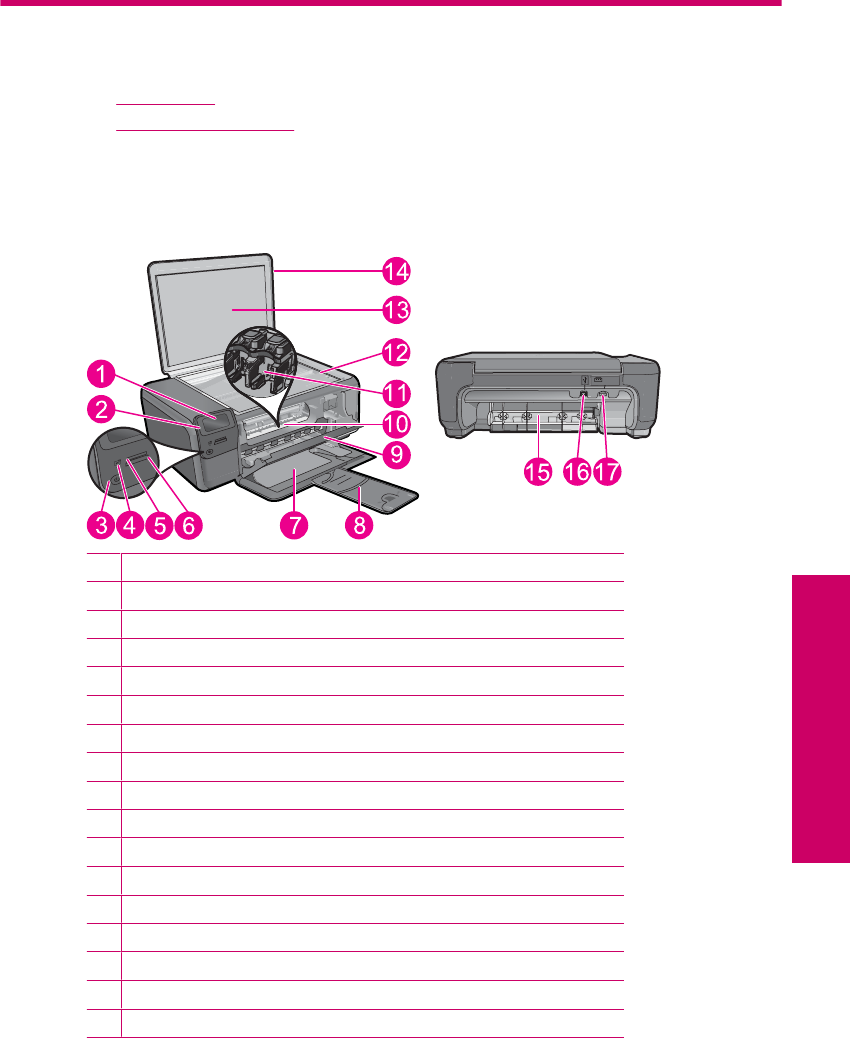
Printer parts
Figure 2-1 Printer parts
1Color graphics display (also referred to as the display)
2Control panel
3On button
4Photo light
5Memory card slot for Memory Stick cards
6Memory card slot for Secure Digital and xD cards
7Paper tray
8Paper tray extender (also referred to as the tray extender)
9Cartridge door
10 Cartridge access area
11 Print carriage
12 Glass
13 Lid-backing
14 Lid
15 Rear door
16 Rear USB port
17 Power connection (Use only with the power adapter supplied by HP.)
Get to know the HP Photosmart 5
Get to know the HP Photosmart
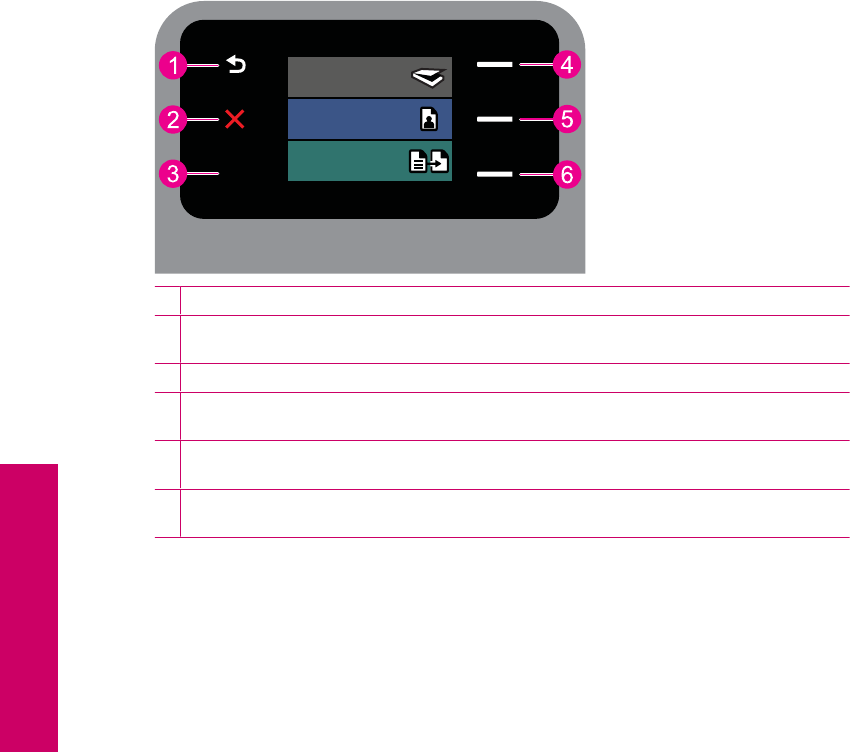
Control panel features
Figure 2-2 Control panel features
Copy
Photo
Scan
2.
1Back: Returns to the previous screen.
2Cancel: Stops the current operation, restores default settings, and clears the current photo
selection.
3OK: Selects a menu setting, value, or photo.
4Scan: From the Home screen, opens the Scan Menu. When viewing screens other than the
Home screen, selects options related to the current display.
5Photo: From the Home screen, opens the Photo Menu. When viewing screens other than the
Home screen, selects options related to the current display.
6Copy: From the Home screen, opens the Copy Menu. When viewing screens other than the
Home screen, selects options related to the current display.
Chapter 2
6 Get to know the HP Photosmart
Get to know the HP Photosmart

3 Paper basics
You can load many different types and sizes of paper in the HP Photosmart, including
letter or A4 paper, photo paper, transparencies, and envelopes.
By default, the HP Photosmart is set to detect the size and type of paper you load in the
input tray automatically and then adjust its settings to generate the highest quality output
for that paper. If you are using special papers, such as photo paper, transparency film,
envelopes, or labels, or if you experience poor print quality using the automatic setting,
you can manually set the paper size and type for print and copy jobs.
This section contains the following topics:
•Recommended papers for photo printing
•Recommended papers for printing
•Load media
Recommended papers for photo printing
If you want the best print quality, HP recommends using HP papers that are specifically
designed for the type of project you are printing.
Depending on your country/region, some of these papers might not be available.
HP Advanced Photo Paper
This thick photo paper features an instant-dry finish for easy handling without smudging.
It resists water, smears, fingerprints, and humidity. Your prints have a look and feel
comparable to a store-processed photo. It is available in several sizes, including A4, 8.5
x 11 inch, 10 x 15 cm (4 x 6 inch) (with or without tabs), 13 x 18 cm (5 x 7 inch), and two
finishes - glossy or soft gloss (satin matte). For longer-lasting photos, it is acid-free.
NOTE: Sensors in your Auto Sense-enabled HP Photosmart scan the Auto Sense
marks and automatically adjust printer settings—including paper type, print quality,
and size—for faster printing and outstanding quality. You will even get an alert if your
paper is loaded incorrectly. When you print using tabbed photo papers, Auto Sense
technology will ensure your printer adjusts to avoid printing on the tab.
To ensure you have HP photo papers with Auto sense look for this symbol on the package:
HP Everyday Photo Paper
Print colorful, everyday snapshots at a low cost, using paper designed for casual photo
printing. This affordable, photo paper dries quickly for easy handling. Get sharp, crisp
images when you use this paper with any inkjet printer. It is available in semi-gloss finish
in several sizes, including A4, 8.5 x 11 inch, and 10 x 15 cm (4 x 6 inch) (with or without
tabs). For longer-lasting photos, it is acid-free.
Paper basics 7
Paper basics

HP Photo Value Pack
HP Photo Value Packs conveniently package original HP cartridges and HP Advanced
Photo Paper to save you time and take the guesswork out of printing affordable
professional photos with your HP Photosmart. Original HP inks and HP Advanced Photo
Paper have been designed to work together so your photos are long lasting and vivid,
print after print. Great for printing out an entire vacation’s worth of photos or multiple prints
to share.
To order HP papers and other supplies, go to www.hp.com/buy/supplies. If prompted,
choose your country/region, follow the prompts to select your product, and then click one
of the shopping links on the page.
NOTE: At this time, some portions of the HP Web site are available in English only.
Recommended papers for printing
If you want the best print quality, HP recommends using HP papers that are specifically
designed for the type of project you are printing.
Depending on your country/region, some of these papers might not be available.
HP Advanced Photo Paper
This thick photo paper features an instant-dry finish for easy handling without smudging.
It resists water, smears, fingerprints, and humidity. Your prints have a look and feel
comparable to a store-processed photo. It is available in several sizes, including A4, 8.5
x 11 inch, 10 x 15 cm (4 x 6 inch) (with or without tabs), 13 x 18 cm (5 x 7 inch), and two
finishes - glossy or soft gloss (satin matte). It is acid-free for longer lasting documents.
HP Everyday Photo Paper
Print colorful, everyday snapshots at a low cost, using paper designed for casual photo
printing. This affordable, photo paper dries quickly for easy handling. Get sharp, crisp
images when you use this paper with any inkjet printer. It is available in semi-gloss finish
in several sizes, including A4, 8.5 x 11 inch, and 10 x 15 cm (4 x 6 inch) (with or without
tabs). For longer-lasting photos, it is acid-free.
HP Brochure Paper or HP Superior Inkjet Paper
These papers are glossy-coated or matte-coated on both sides for two-sided use. They
are the perfect choice for near-photographic reproductions and business graphics for
report covers, special presentations, brochures, mailers, and calendars.
HP Premium Presentation Paper or HP Professional Paper
These papers are heavy two-sided matte papers perfect for presentation, proposals,
reports, and newsletters. They are heavyweight for an impressive look and feel.
HP Bright White Inkjet Paper
HP Bright White Inkjet Paper delivers high-contrast colors and sharp text. It is opaque
enough for two-sided color usage with no show-through, which makes it ideal for
newsletters, reports, and flyers. It features ColorLok Technology for less smearing, bolder
blacks, and vivid colors.
Chapter 3
8 Paper basics
Paper basics

HP Printing Paper
HP Printing Paper is a high-quality multifunction paper. It produces documents that look
and feel more substantial than documents printed on standard multipurpose or copy
paper. It features ColorLok Technology for less smearing, bolder blacks, and vivid colors.
It is acid-free for longer lasting documents.
HP Office Paper
HP Office Paper is a high-quality multifunction paper. It is suitable for copies, drafts,
memos, and other everyday documents. It features ColorLok Technology for less
smearing, bolder blacks, and vivid colors. It is acid-free for longer lasting documents.
HP Iron-On Transfers
HP Iron-on Transfers (for color fabrics or for light or white fabrics) are the ideal solution
for creating custom T-shirts from your digital photos.
HP Premium Inkjet Transparency Film
HP Premium Inkjet Transparency Film make your color presentations vivid and even more
impressive. This film is easy to use and handle and dries quickly without smudging.
HP Photo Value Pack
HP Photo Value Packs conveniently package original HP cartridges and HP Advanced
Photo Paper to save you time and take the guesswork out of printing affordable
professional photos with your HP Photosmart. Original HP inks and HP Advanced Photo
Paper have been designed to work together so your photos are long lasting and vivid,
print after print. Great for printing out an entire vacation’s worth of photos or multiple prints
to share.
ColorLok
HP recommends plain papers with the ColorLok logo for printing and copying of everyday
documents. All papers with the ColorLok logo are independently tested to meet high
standards of reliability and print quality, and produce documents with crisp, vivid color,
bolder blacks, and dry faster than ordinary plain papers. Look for papers with the ColorLok
logo in a variety of weights and sizes from major paper manufacturers.
To order HP papers and other supplies, go to www.hp.com/buy/supplies. If prompted,
choose your country/region, follow the prompts to select your product, and then click one
of the shopping links on the page.
Recommended papers for printing 9
Paper basics
NOTE: At this time, some portions of the HP Web site are available in English only.
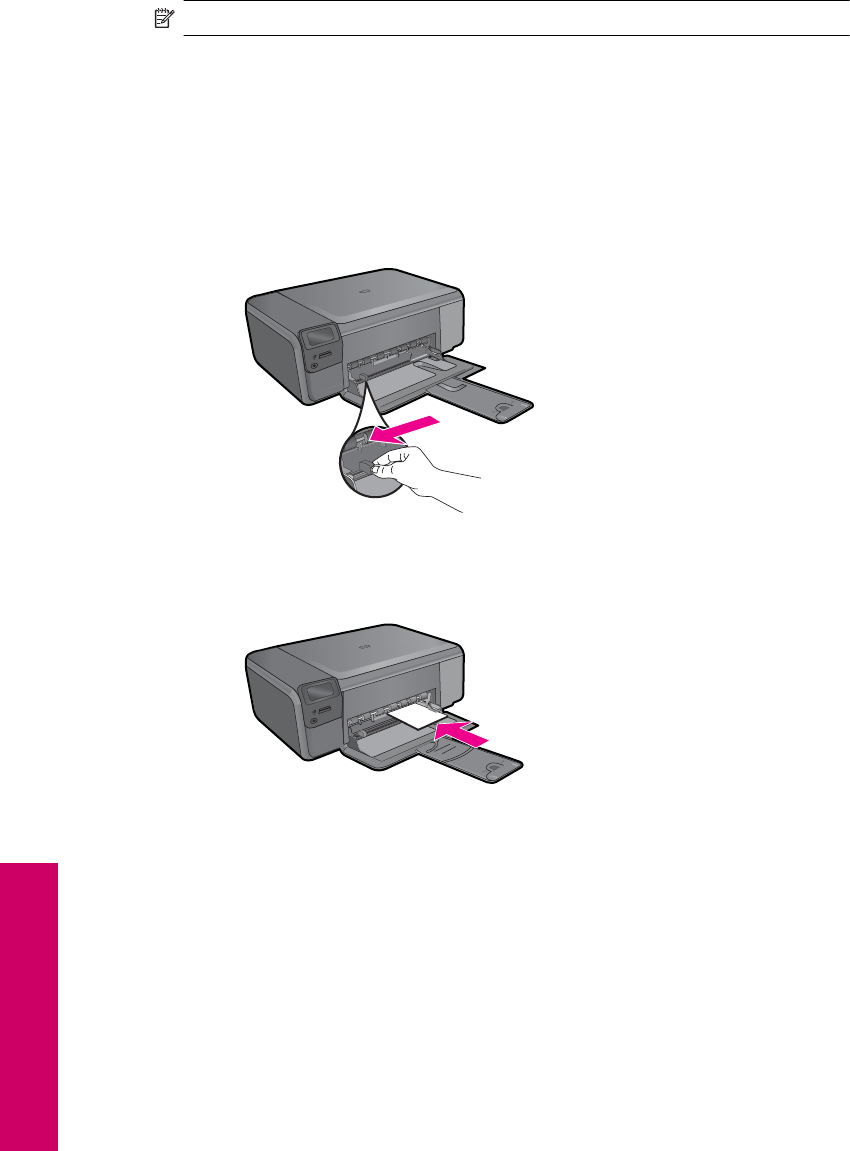
Load media
▲Do one of the following:
Load small-size paper
a. Lower paper tray.
❑Slide paper-width guide outwards.
b. Load paper.
❑Insert stack of photo paper into paper tray with short edge forward and print
side down.
Chapter 3
10 Paper basics
Paper basics
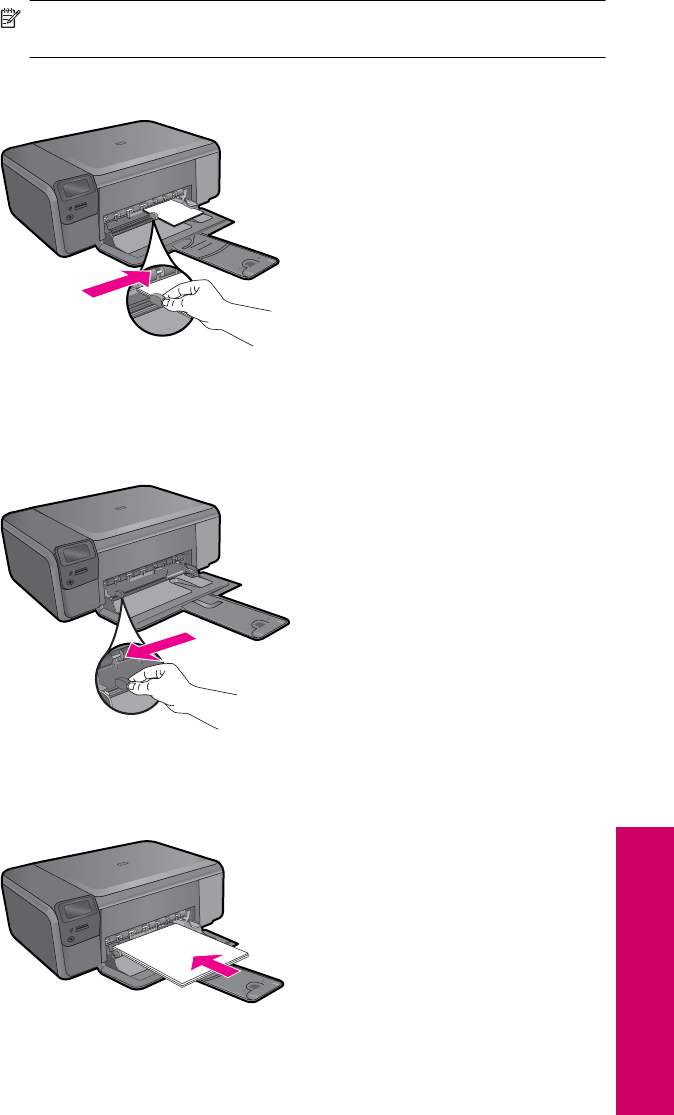
❑Slide stack of paper forward until it stops.
NOTE: If the photo paper you are using has perforated tabs, load photo
paper so that tabs are closest to you.
❑Slide paper-width guide inward until it stops at edge of paper.
Load full-size paper
a. Lower paper tray.
❑Slide paper-width guide outwards.
b. Load paper.
❑Insert stack of paper into paper tray with short edge forward and print side
down.
Load media 11
Paper basics
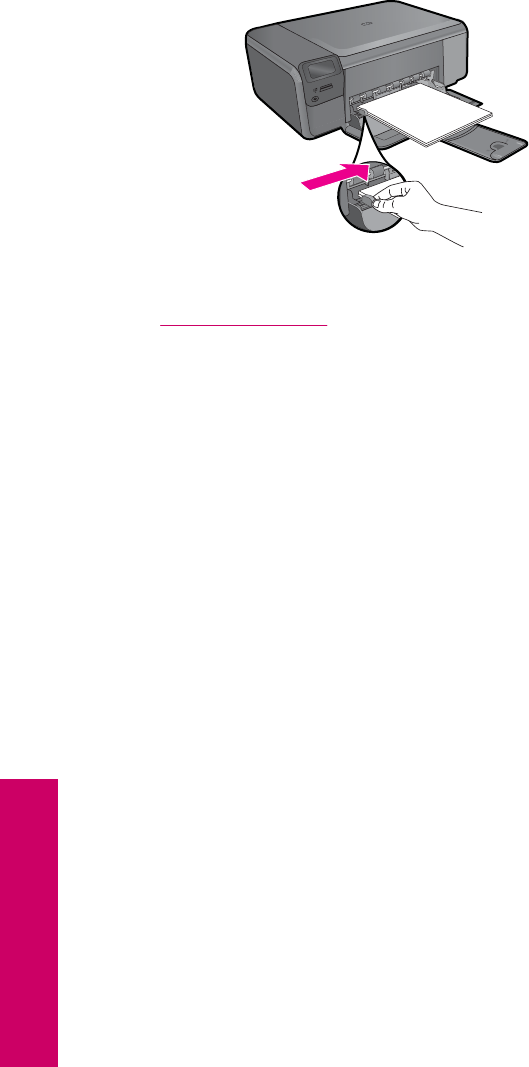
❑Slide stack of paper forward until it stops.
❑Slide paper-width guide inward until it stops at edge of paper.
Related topics
“Information on paper” on page 12
Information on paper
The HP Photosmart is designed to work well with most paper types. Test a variety of
paper types before buying a large quantity. Find a paper type that works well and is easy
to purchase. HP papers are designed for the best quality results. In addition, follow these
tips:
•Do not use paper that is too thin, that has a slick texture, or that stretches easily. It
can feed incorrectly through the paper path, causing paper jams.
•Store photo media in its original packaging inside a resealable plastic bag on a flat
surface in a cool, dry place. When you are ready to print, remove only the paper you
plan to use immediately. When you have finished printing, return any unused photo
paper to the plastic bag.
•Do not leave unused photo paper in the input tray. The paper might start to curl, which
might reduce the quality of your printouts. Curled paper can also cause paper jams.
•Always hold photo paper by the edges. Fingerprints on photo paper can reduce print
quality.
•Do not use paper that is heavily textured. It can cause graphics or text to print
improperly.
•Do not combine different paper types and paper sizes in the input tray; the entire stack
of paper in the input tray must be the same size and type.
•Store printed photos under glass or in a storage book to prevent bleeding over time
from high humidity.
Chapter 3
12 Paper basics
Paper basics

4Print
“Print documents” on page 13
“Print photos” on page 14
“Print envelopes” on page 21
“Print on specialty media” on page 21
“Print a Web page” on page 22
Related topics
•“
Load media” on page 10
•“
Recommended papers for photo printing” on page 7
•“
Recommended papers for printing” on page 8
Print documents
Most print settings are automatically handled by the software application. You need to
change the settings manually only when you change print quality, print on specific types
of paper or transparency film, or use special features.
To print from a software application
1. Make sure you have paper loaded in the input tray.
2. On the File menu in your software application, click Print.
3. Make sure the product is the selected printer.
4. If you need to change settings, click the button that opens the Properties dialog box.
Depending on your software application, this button might be called Properties,
Options, Printer Setup, Printer, or Preferences.
NOTE: When printing a photo, you must select options for the specific photo
paper and photo enhancement.
Print 13
Print
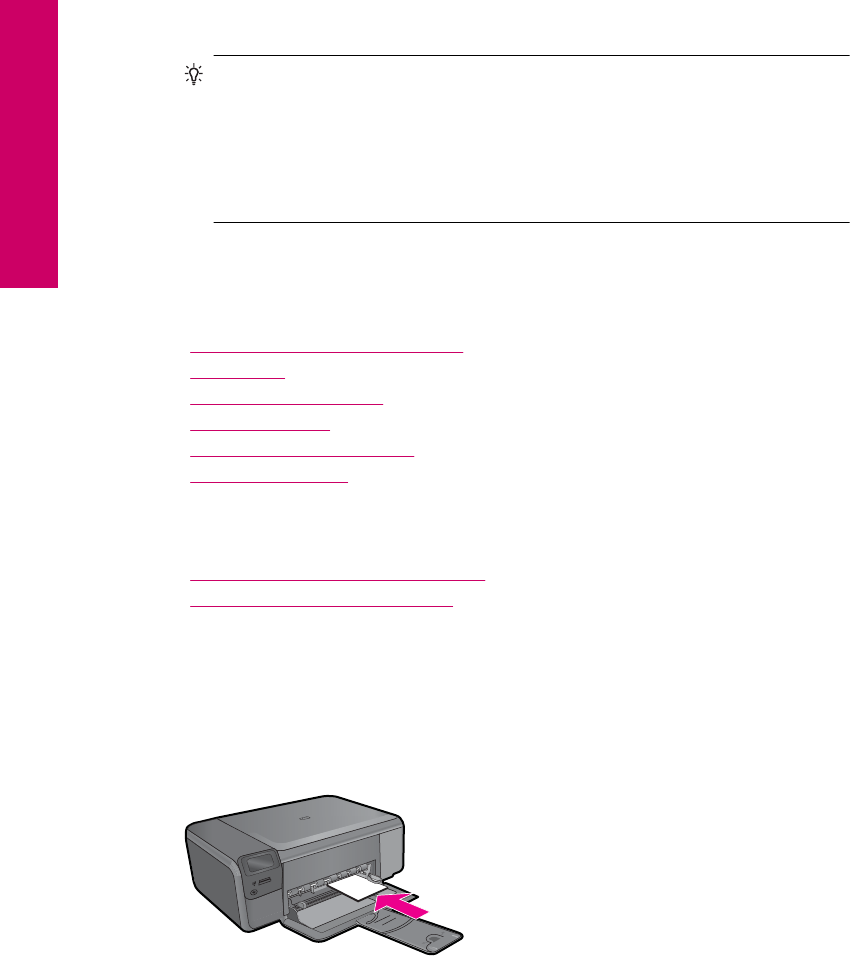
5. Select the appropriate options for your print job by using the features available in the
Advanced, Printing Shortcuts, Features, and Color tabs.
TIP: You can easily select the appropriate options for your print job by choosing
one of the predefined print tasks on the Printing Shortcuts tab. Click a type of
print task in the Printing Shortcuts list. The default settings for that type of print
task are set and summarized on the Printing Shortcuts tab. If necessary, you
can adjust the settings here and save your custom settings as a new printing
shortcut. To save a custom printing shortcut, select the shortcut and click Save
As. To delete a shortcut, select the shortcut and click Delete.
6. Click OK to close the Properties dialog box.
7. Click Print or OK to begin printing.
Related topics
•“
Recommended papers for printing” on page 8
•“
Load media” on page 10
•“
View the print resolution” on page 24
•“
Printing shortcuts” on page 24
•“
Set the default print settings” on page 25
•“
Stop the current job” on page 121
Print photos
•“Print photos saved on your computer” on page 14
•“
Print photos from a memory card” on page 17
Print photos saved on your computer
To print a borderless image
1. Remove all paper from the input tray.
2. Place the photo paper print side down on the right side of the input tray.
3. On the File menu in your software application, click Print.
4. Make sure the product is the selected printer.
5. Click the button that opens the Properties dialog box.
Depending on your software application, this button might be called Properties,
Options, Printer Setup, Printer, or Preferences.
Chapter 4
14 Print
Print
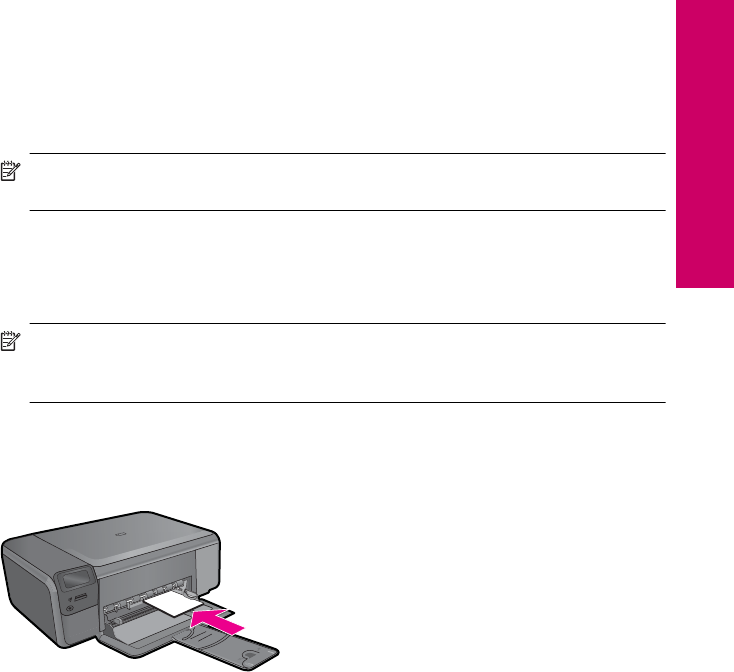
6. Click the Features tab.
7. In the Size list, click the size of photo paper loaded in the input tray.
If a borderless image can be printed on the specified size, the Borderless printing
check box is enabled.
8. In the Paper Type drop-down list, click More, and then select the appropriate paper
type.
NOTE: You cannot print a borderless image if the paper type is set to Plain
paper or to a type of paper other than a photo paper.
9. Select the Borderless printing check box if it is not already checked.
If the borderless paper size and paper type are not compatible, the product software
displays an alert and allows you to select a different type or size.
10. Click OK, and then click Print or OK in the Print dialog box.
NOTE: Do not leave unused photo paper in the input tray. The paper might start
to curl, which could reduce the quality of your printout. Photo paper should be flat
before printing.
To print a photo on photo paper
1. Load paper in the input tray.
2. On the File menu in your software application, click Print.
3. Make sure the product is the selected printer.
4. Click the button that opens the Properties dialog box.
Depending on your software application, this button might be called Properties,
Options, Printer Setup, Printer, or Preferences.
5. Click the Features tab.
6. In the Basic Options area, from the Paper Type drop-down list, select More. Then,
select the appropriate photo paper type.
7. In the Resizing Options area, from the Size drop-down list, select More. Then, select
the appropriate paper size.
If the paper size and paper type are not compatible, the printer software displays an
alert and allows you to select a different type or size.
Print photos 15
Print

8. In the Basic Options area, select a high print quality, such as Best, from the Print
Quality drop-down list.
NOTE: To achieve the highest dpi resolution, you can use the Maximum dpi
setting with supported types of photo paper. If Maximum dpi is not listed in the
Print quality drop-down list, you can enable it from the Advanced tab. For more
information, see “Print using Maximum dpi” on page 23.
9. In the HP Real Life Technologies area, click the Photo fix drop-down list and select
from the following options:
•Off: applies no HP Real Life Technologies to the image.
•Basic: enhances low-resolution images; moderately adjusts image sharpness.
10. Click OK to return to the Properties dialog box.
11. (Optional) If you want to print the photo in black and white, click the Color tab and
select the Print in grayscale check box. From the drop-down list, select one of the
following options:
•High Quality: uses all the available colors to print your photo in grayscale. This
creates smooth and natural shades of gray.
•Black Ink Only: uses black ink to print your photo in grayscale. The gray shading
is created by varying patterns of black dots, which might result in a grainy image.
12. Click OK, and then click Print or OK in the Print dialog box.
NOTE: Do not leave unused photo paper in the input tray. The paper might start to
curl, which could reduce the quality of your printout. Photo paper should be flat before
printing.
Related topics
•“
Recommended papers for photo printing” on page 7
•“
Load media” on page 10
•“
Print using Maximum dpi” on page 23
•“
View the print resolution” on page 24
•“
Printing shortcuts” on page 24
•“
Set the default print settings” on page 25
•“
Stop the current job” on page 121
Chapter 4
16 Print
Print
Print photos from a memory card
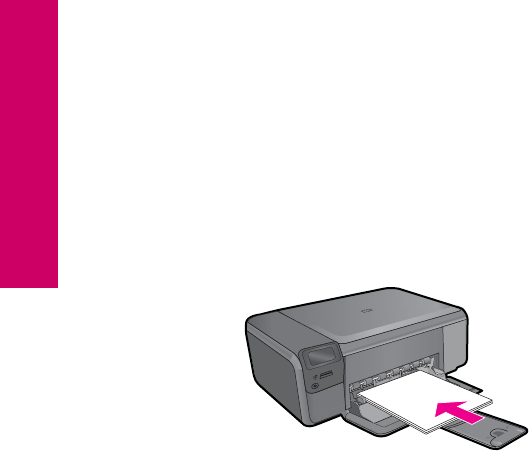
▲Do one of the following:
Print photo on small-size paper
a. Load paper.
❑Load up to 10 x 15 cm (4 x 6 inch) photo paper in paper tray.
b. Select project type.
❑Press button next to Photo on Home screen.
❑Press button next to Memory Card Print.
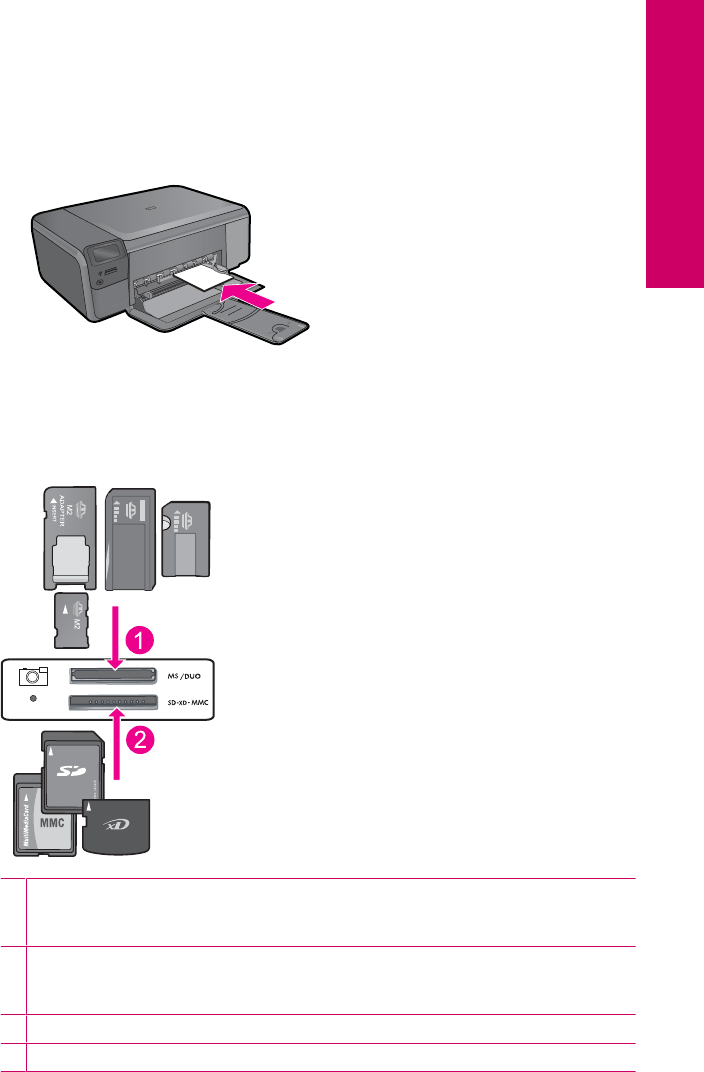
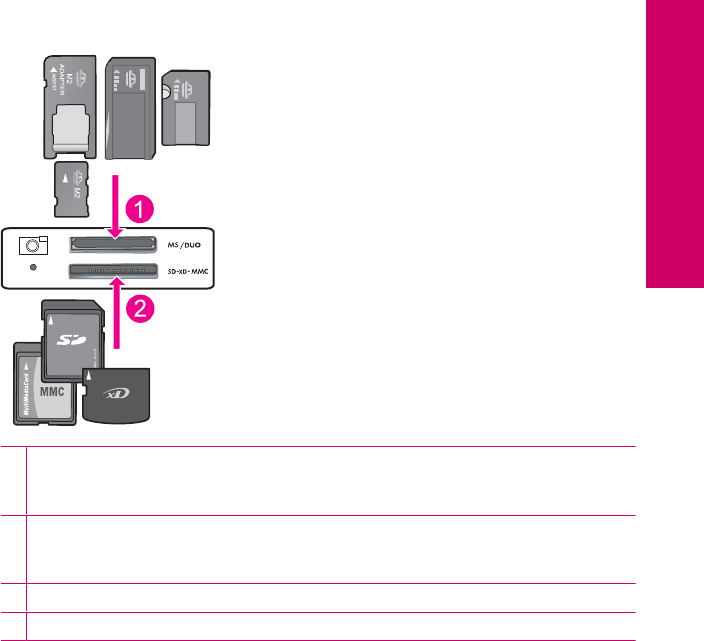
c. Insert memory.
1Memory Stick, Memory Stick Pro, Memory Stick Select, Memory Stick Magic Gate,
Memory Stick Duo or Pro Duo (adapter optional), Memory Stick Pro-HG Duo (adapter
optional), or Memory Stick Micro (adapter required)
2MultiMediaCard (MMC), MMC Plus, Secure MultiMedia Card, MMC Mobile (RS-MMC;
adapter required), Secure Digital (SD), Secure Digital Mini, Secure Digital High
Capacity (SDHC), TransFlash MicroSD Card (adapter required), or xD-Picture card
3CompactFlash (CF) types I and II
4Front USB port (for storage devices)
Print photos 17
Print
d. Select photo.
❑Press button next to Select.
❑Press same button to increase number of copies.
❑Press OK.
e. Print photo.
❑Press OK.
Print photo on full-size paper
a. Load paper.
❑Load full-size photo paper in paper tray.
b. Select project type.
❑Press the button next to Photo on Home screen.
❑Press the button next to Memory Card Print.
Chapter 4
18 Print
Print
c. Insert memory.
1Memory Stick, Memory Stick Pro, Memory Stick Select, Memory Stick Magic Gate,
Memory Stick Duo or Pro Duo (adapter optional), Memory Stick Pro-HG Duo (adapter
optional), or Memory Stick Micro (adapter required)
2MultiMediaCard (MMC), MMC Plus, Secure MultiMedia Card, MMC Mobile (RS-MMC;
adapter required), Secure Digital (SD), Secure Digital Mini, Secure Digital High
Capacity (SDHC), TransFlash MicroSD Card (adapter required), or xD-Picture card
3CompactFlash (CF) types I and II
4Front USB port (for storage devices)
d. Select photo.
❑Press button next to Select.
❑Press same button to increase the number of copies.
❑Press OK.
❑Press button next to Photo Size.
❑Press button next to 8.5 x 11 to change paper size.
e. Print photo.
❑Press Print.
Print photos 19
Print
Print passport photos
a. Load paper.
❑Load full-size photo paper in paper tray.
b. Select project type.
❑Press button next to Photo on Home screen.
❑Press button next to Passport Photo Print.
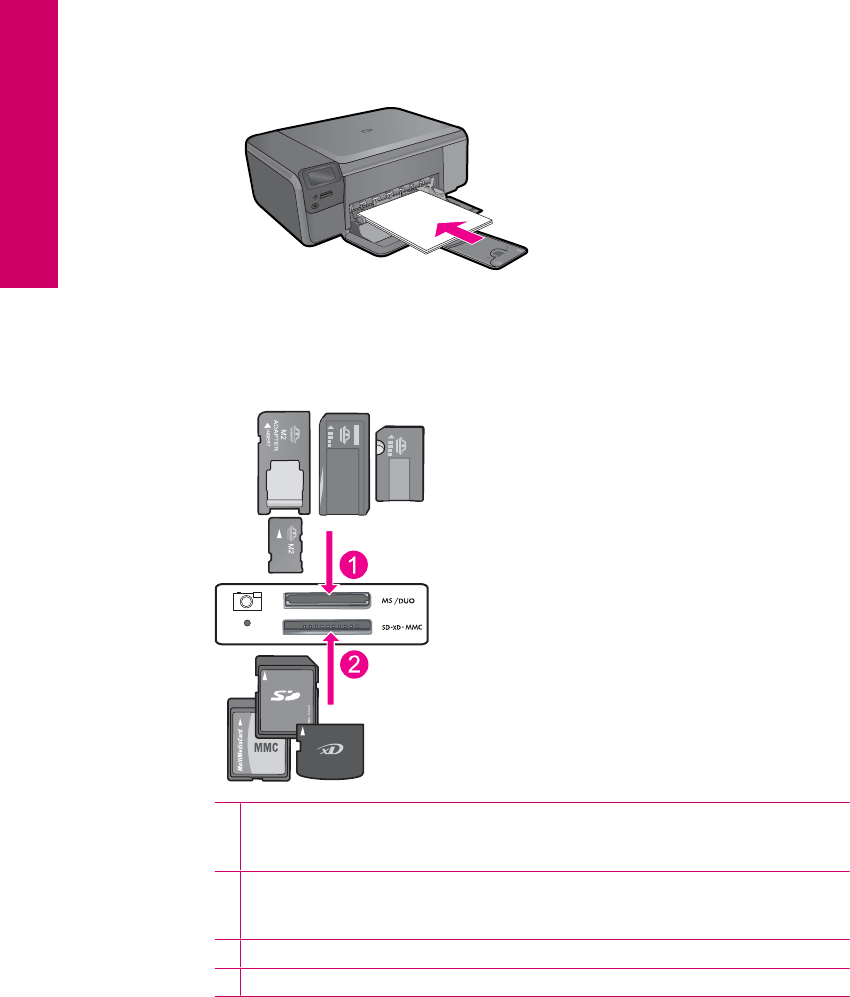
c. Insert memory.
1Memory Stick, Memory Stick Pro, Memory Stick Select, Memory Stick Magic Gate,
Memory Stick Duo or Pro Duo (adapter optional), Memory Stick Pro-HG Duo (adapter
optional), or Memory Stick Micro (adapter required)
2MultiMediaCard (MMC), MMC Plus, Secure MultiMedia Card, MMC Mobile (RS-MMC;
adapter required), Secure Digital (SD), Secure Digital Mini, Secure Digital High
Capacity (SDHC), TransFlash MicroSD Card (adapter required), or xD-Picture card
3CompactFlash (CF) types I and II
4Front USB port (for storage devices)
d. Select photo.
❑Press button next to Select.
❑Press same button to increase number of copies.
Chapter 4
20 Print
Print

❑Press OK.
❑Press button next to 2 x 2 inches to select paper size.
e. Print photo.
❑Press OK.
Related topics
•“
Recommended papers for photo printing” on page 7
•“
Stop the current job” on page 121
Print envelopes
With the HP Photosmart, you can print on a single envelope, a group of envelopes, or
label sheets designed for inkjet printers.
To print a group of addresses on labels or envelopes
1. Print a test page on plain paper first.
2. Place the test page on top of the label sheet or envelope, and hold both up to the
light. Check the spacing for each block of text. Make adjustments as needed.
3. Load the labels or envelopes into the main input tray.
CAUTION: Do not use envelopes with clasps or windows. They can get stuck in
the rollers and cause paper jams.
4. Slide the paper-width guide inward against the stack of labels or envelopes until the
guide stops.
5. If you are printing on envelopes, do the following:
a. Display the print settings, and click the Features tab.
b. In the Resizing Options area, click the appropriate envelope size in the Size list.
6. Click OK, and then click Print or OK in the Print dialog box.
Related topics
•“
Paper basics” on page 7
•“
View the print resolution” on page 24
•“
Printing shortcuts” on page 24
•“
Set the default print settings” on page 25
•“
Stop the current job” on page 121
Print on specialty media
To reverse an image for iron-on transfers
1. On the File menu in your software application, click Print.
2. Make sure the product is the selected printer.
3. Click the button that opens the Properties dialog box.
Depending on your software application, this button might be called Properties,
Options, Printer Setup, Printer, or Preferences.
Print on specialty media 21
Print

4. Click the Features tab.
5. In the Paper Type drop-down list, click More, and then select HP Iron-on Transfer
from the list.
6. If the selected size is not what you want, click an appropriate size in the Size list.
7. Click the Advanced tab.
8. In the Features area, select the Mirror Image check box.
9. Click OK, and then click Print or OK in the Print dialog box.
NOTE: To prevent jams, manually feed the iron-on transfer sheets into the input
tray one sheet at a time.
To print on transparencies
1. Load the transparency into the input tray.
2. On the File menu in your software application, click Print.
3. Make sure the product is the selected printer.
4. Click the button that opens the Properties dialog box.
Depending on your software application, this button might be called Properties,
Options, Printer Setup, Printer, or Preferences.
5. Click the Features tab.
6. In the Basic Options area, from the Paper Type drop-down list, select More. Then
select the appropriate paper type.
TIP: If you want to make notations on the back of the transparencies and erase
them later without scratching the original, click the Advanced tab, and select the
Mirror Image check box.
7. In the Resizing Options area, from the Size drop-down list, select More. Then, select
an appropriate size.
8. Click OK, and then click Print or OK in the Print dialog box.
NOTE: The product automatically waits for transparencies to dry before
releasing them. Ink dries slower on film than on plain paper. Make sure you allow
enough time for the ink to dry before handling the transparency.
Related topics
•“
Paper basics” on page 7
•“
View the print resolution” on page 24
•“
Printing shortcuts” on page 24
•“
Set the default print settings” on page 25
•“
Stop the current job” on page 121
Print a Web page
You can print a Web page from your Web browser on the HP Photosmart.
If you use Internet Explorer 6.0 or higher for Web browsing, you can use HP Smart Web
Printing to ensure simple, predictable web printing with control over what you want and
how you want it printed. You can access HP Smart Web Printing from the toolbar in
Chapter 4
22 Print
Print

Internet Explorer. For more information about HP Smart Web Printing, see the help file
provided with it.
To print a Web page
1. Make sure you have paper loaded in the main input tray.
2. On the File menu in your Web browser, click Print.
The Print dialog box appears.
3. Make sure the product is the selected printer.
4. If your Web browser supports it, select the items on the Web page that you want to
include in the printout.
For example, in Internet Explorer, click the Options tab to select options such as As
laid out on screen, Only the selected frame, and Print all linked documents.
5. Click Print or OK to print the Web page.
TIP: To print Web pages correctly, you might need to set your print orientation to
Landscape.
Print using Maximum dpi
Use maximum dpi mode to print high-quality, sharp images.
To get the most benefit from maximum dpi mode, use it to print high-quality images such
as digital photographs. When you select the maximum dpi setting, the printer software
displays the optimized dots per inch (dpi) that the HP Photosmart printer will print. Printing
in maximum dpi is supported on the following paper-types only:
•HP Premium Plus Photo Paper
•HP Premium Photo Paper
•HP Advanced Photo Paper
•Photo Hagaki cards
Printing in maximum dpi takes longer than printing with other settings and requires a large
amount of disk space.
To print in Maximum dpi mode
1. Make sure you have paper loaded in the input tray.
2. On the File menu in your software application, click Print.
3. Make sure the product is the selected printer.
4. Click the button that opens the Properties dialog box.
Depending on your software application, this button might be called Properties,
Options, Printer Setup, Printer, or Preferences.
5. Click the Advanced tab.
6. In the Features area, select the Enable maximum dpi setting check box.
7. Click the Features tab.
8. In the Paper Type drop-down list, click More, and then select the appropriate paper
type.
Print using Maximum dpi 23
Print

9. In the Print Quality drop-down list, click Maximum dpi.
NOTE: To find out what dpi the product will print based on the paper type and
print quality settings you selected, click Resolution.
10. Select any other print settings that you want, and then click OK.
Related topics
“View the print resolution” on page 24
View the print resolution
The printer software displays the print resolution in dots per inch (dpi). The dpi varies
according to the paper type and print quality that you select in the printer software.
To view the print resolution
1. Make sure you have paper loaded in the input tray.
2. On the File menu in your software application, click Print.
3. Make sure the product is the selected printer.
4. Click the button that opens the Properties dialog box.
Depending on your software application, this button might be called Properties,
Options, Printer Setup, Printer, or Preferences.
5. Click the Features tab.
6. In the Paper Type drop-down list, select the type of paper that you have loaded.
7. In the Print Quality drop-down list, select the appropriate print quality setting for your
project.
8. Click the Resolution button to view the print resolution dpi for the paper type and
print quality combination you selected.
Printing shortcuts
Use printing shortcuts to print with print settings that you use often. The printer software
has several specially designed printing shortcuts that are available in the Printing
Shortcuts list.
NOTE: When you select a printing shortcut the appropriate printing options are
automatically displayed. You can leave them as is, change them, or create your own
shortcuts for commonly used tasks.
Use the Printing Shortcuts tab for the following print tasks:
•General Everyday Printing: Print documents quickly.
•Photo Printing–Borderless: Print to the top, bottom, and side edges of 10 x 15 cm
(4 x 6 inch) and 13 x 18 cm (5 x 7 inch) HP Photo Papers.
•Paper-saving Printing: Print two-sided documents with mutliple pages on same
sheet to reduce paper usage.
•Photo Printing–With White Borders: Print a photo with a white border around the
edges.
Chapter 4
24 Print
Print

•Fast/Economical Printing: Produce draft-quality printouts quickly.
•Presentation Printing: Print high-quality documents, including letters and
transparencies.
•Two-sided (Duplex) Printing: Print two-sided pages with the HP Photosmart
manually.
To create a printing shortcut
1. On the File menu in your software application, click Print.
2. Make sure the product is the selected printer.
3. Click the button that opens the Properties dialog box.
Depending on your software application, this button might be called Properties,
Options, Printer Setup, Printer, or Preferences.
4. Click the Printing Shortcuts tab.
5. In the Printing Shortcuts list, click a printing shortcut.
The print settings for the selected printing shortcut are displayed.
6. Change the print settings to those you want in the new printing shortcut.
7. Click Save as and type a name for the new printing shortcut, and then click Save.
The printing shortcut is added to the list.
To delete a printing shortcut
1. On the File menu in your software application, click Print.
2. Make sure the product is the selected printer.
3. Click the button that opens the Properties dialog box.
Depending on your software application, this button might be called Properties,
Options, Printer Setup, Printer, or Preferences.
4. Click the Printing Shortcuts tab.
5. In the Printing Shortcuts list, click the printing shortcut that you want to delete.
6. Click Delete.
The printing shortcut is removed from the list.
NOTE: Only the shortcuts that you have created can be deleted. The original HP
shortcuts cannot be deleted.
Set the default print settings
If there are settings that you frequently use for printing, you might want to make them the
default print settings so they are already set when you open the Print dialog box from
within your software application.
To change the default print settings
1. In the HP Solution Center, click Settings, point to Print Settings, and then click
Printer Settings.
2. Make changes to the print settings, and click OK.
Set the default print settings 25
Print

Chapter 4
26 Print
Print
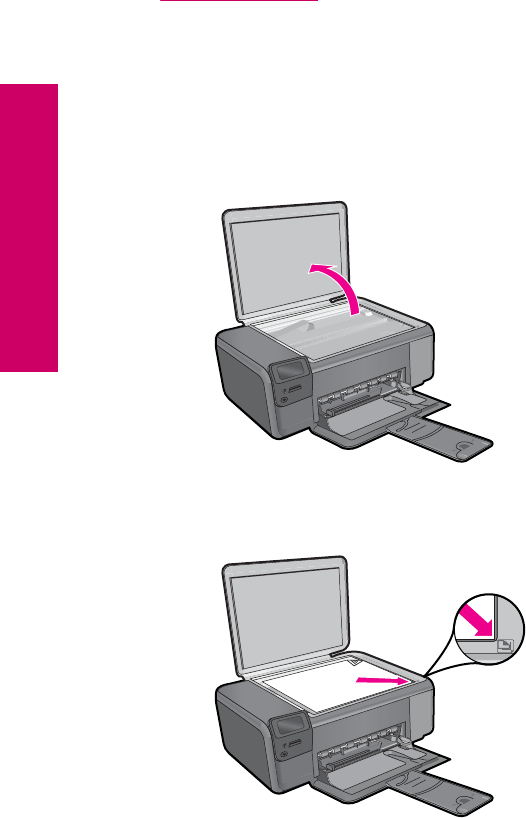
c.Close lid.
2. Connect to computer.
3. Start scan.
a. Press button next to Scan.
b. Press button next to Scan to PC.
Related topics
“Stop the current job” on page 121
Scan to a memory card
To save a scan to a memory card
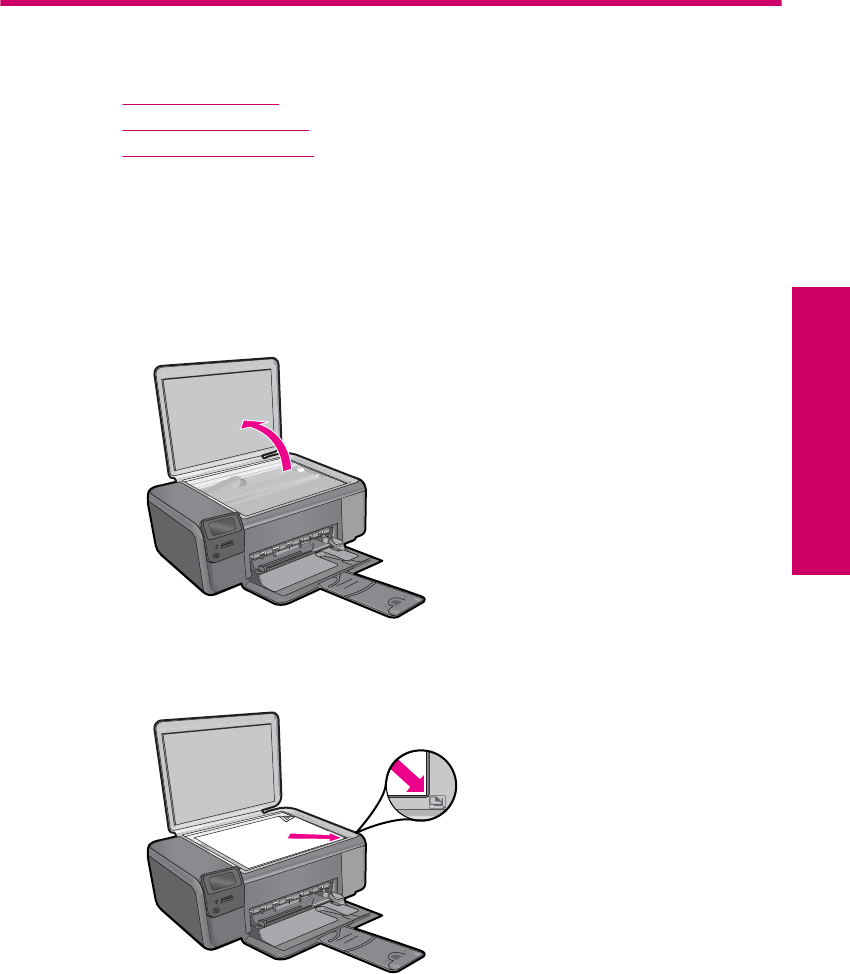
1. Load original.
a. Lift lid on product.
b. Load original print side down on right front corner of glass.
Chapter 5
28 Scan
Scan
c.Close lid.
2. Select Scan.
a. Press button next to Scan.
b. Press button next to Scan to Memory Card.
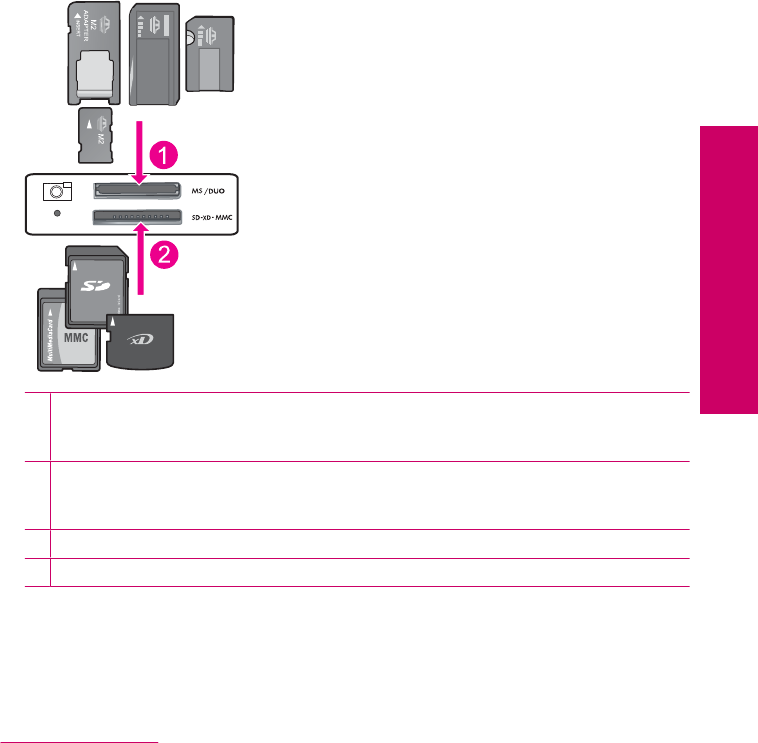
3. Insert memory.
1Memory Stick, Memory Stick Pro, Memory Stick Select, Memory Stick Magic Gate,
Memory Stick Duo or Pro Duo (adapter optional), Memory Stick Pro-HG Duo (adapter
optional), or Memory Stick Micro (adapter required)
2MultiMediaCard (MMC), MMC Plus, Secure MultiMedia Card, MMC Mobile (RS-MMC;
adapter required), Secure Digital (SD), Secure Digital Mini, Secure Digital High Capacity
(SDHC), TransFlash MicroSD Card (adapter required), or xD-Picture card
3CompactFlash (CF) types I and II
4Front USB port (for storage devices)
4. Start scan.
▲Press button next to Scan to Memory Card.
Related topics
“Stop the current job” on page 121
Scan to a memory card 29
Scan

Chapter 5
30 Scan
Scan
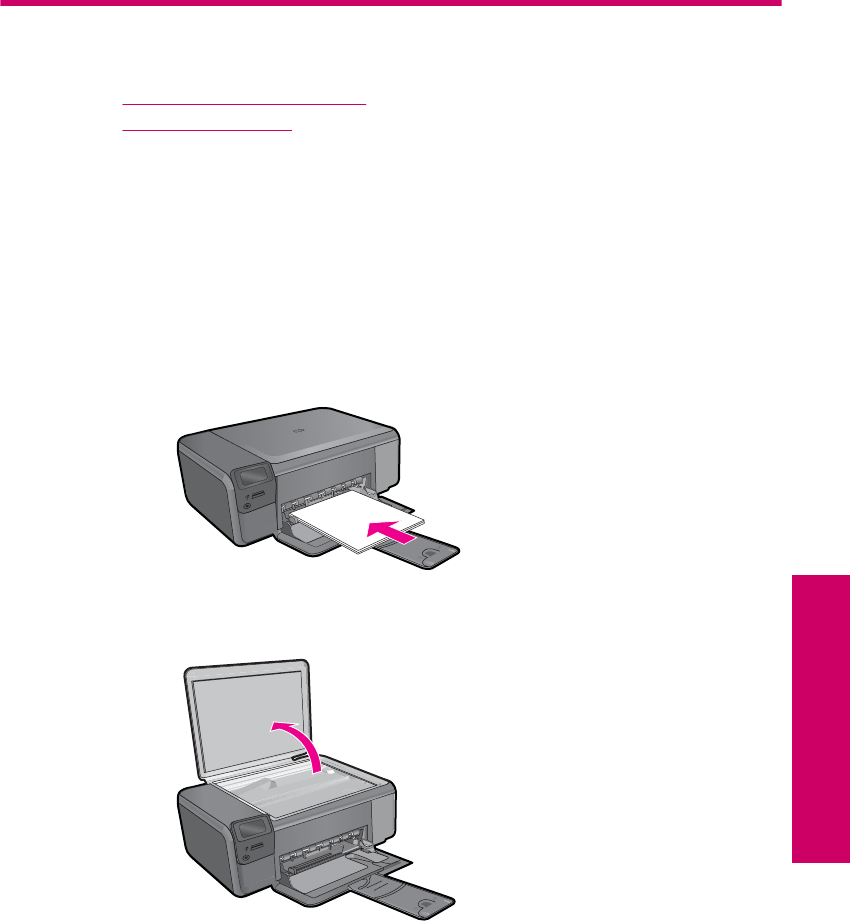
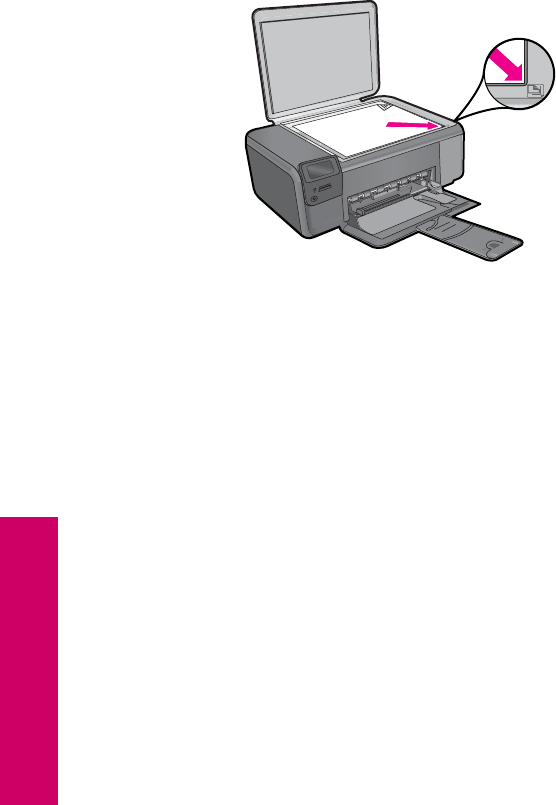
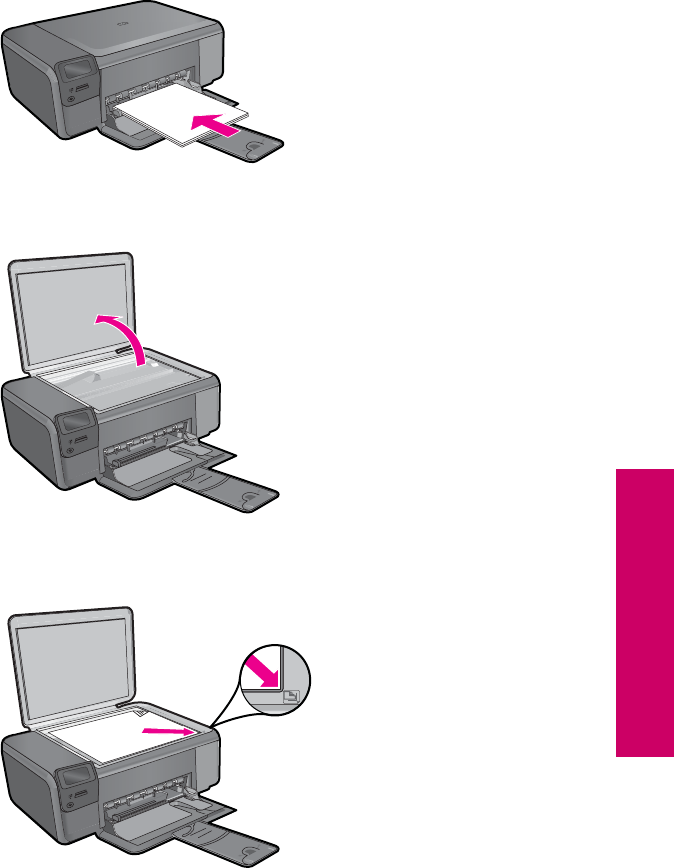
❑Load original print side down on right front corner of glass.
❑Close lid.
c.Select Copy.
❑Press button next to Copy.
❑Press button next to Black Copy .
❑Press button next to Actual Size.
❑Press button next to Copies to increase number of copies to two.
d. Start copy.
❑Press OK.
Chapter 6
32 Copy
Copy
Color copy
a. Load paper.
❑Load full-size paper in paper tray.
b. Load original.
❑Lift lid on product.
❑Load original print side down on right front corner of glass.
❑Close lid.
c. Select Copy.
❑Press button next to Copy.
❑Press button next to Color Copy .
Copy text or mixed documents 33
Copy

❑Press button next to Actual Size.
❑Press button next to Copies to increase number of copies to two.
d. Start copy.
❑Press OK.
Related topics
•“
Change the copy settings” on page 34
•“
Stop the current job” on page 121
Change the copy settings
To set the paper size from the control panel
1. Press the button next to Copy.
2. Select the copy type.
3. Press the button next to 8.5 x 11 Plain.
To set the copy size from the control panel
1. Press the button next to Copy.
2. Select the copy type.
3. Press the button next to Actual Size.
To set the number of copies from the control panel
1. Press the button next to Copy.
2. Select the copy type.
3. Press the button next to Copies to increase the number of copies.
Chapter 6
34 Copy
Copy
7 Reprint photos
To reprint an original photo
1. Load paper.
▲Load up to 13 x 18 cm (5 x 7 inch) photo paper in paper tray.
2. Select project type.
a. Press button next to Photo on Home screen.
b. Press button next to Photo Original Reprint.
c. Press OK.
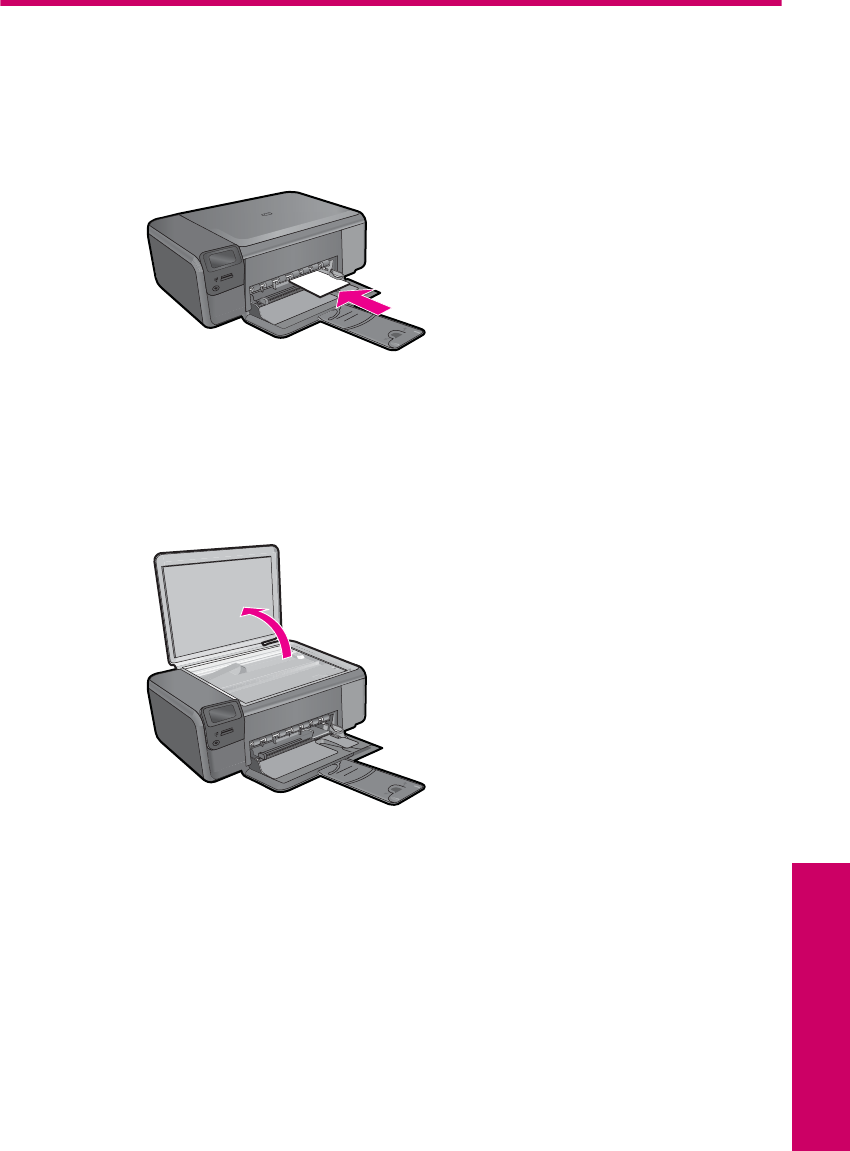
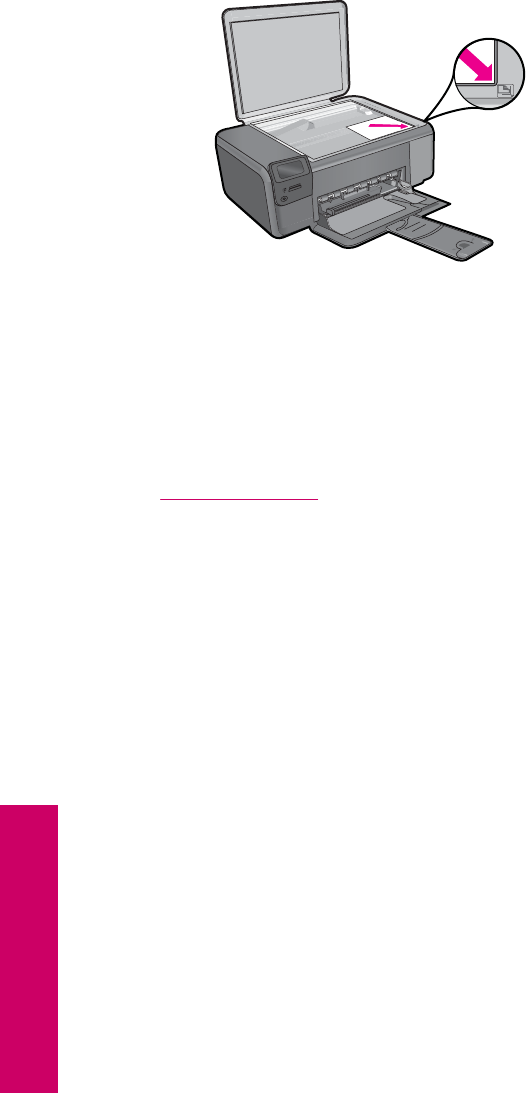
3. Load original.
a. Lift lid on product.
Reprint photos 35
Reprint photos

8 Save photos
You can use the HP Photosmart Software installed on your computer to transfer photos
from a memory card to your computer’s hard drive for advanced photo editing, sharing
photos online, and printing from your computer.
Before transferring photos to your computer, you need to remove the memory card from
your digital camera and insert it in the appropriate memory card slot on the
HP Photosmart.
NOTE: The HP Photosmart must be connected to a computer that has the
HP Photosmart Software installed on it.
To save photos
1. Insert your memory card into the appropriate slot on the product.
The software opens on your computer.
2. Follow the onscreen prompts on your computer to save the photos to your computer.
NOTE: Only images that were not previously saved are copied to your computer.
Save photos 37
Save photos

Chapter 8
38 Save photos
Save photos

9 Work with cartridges
•Check the estimated ink levels
•Replace the cartridges
•Order ink supplies
•Cartridge warranty information
Check the estimated ink levels
You can easily check the ink supply level to determine how soon you might need to
replace a cartridge. The ink supply level shows an estimate of the amount of ink remaining
in the cartridges.
NOTE: If you have installed a refilled or remanufactured cartridge, or a cartridge that
has been used in another printer, the ink level indicator might be inaccurate or
unavailable.
NOTE: Ink level warnings and indicators provide estimates for planning purposes
only. When you receive a low-ink warning message, consider having a replacement
cartridge available to avoid possible printing delays. You do not have to replace the
cartridges until the print quality is unacceptable.
NOTE: Ink from the cartridges is used in the printing process in a number of different
ways, including in the initialization process, which prepares the product and cartridges
for printing, and in printhead servicing, which keeps print nozzles clear and ink flowing
smoothly. In addition, some residual ink is left in the cartridge after it is used. For more
information, see www.hp.com/go/inkusage.
To check the ink levels from the HP Photosmart Software
1. In the HP Solution Center, click Settings, point to Print Settings, and then click
Printer Toolbox.
NOTE: You can also open the Printer Toolbox from the Print Properties dialog
box. In the Print Properties dialog box, click the Features tab, and then click the
Printer Services button.
The Printer Toolbox appears.
2. Click the Estimated Ink Level tab.
The estimated ink levels for the ink cartridges appear.
Related topics
“Order ink supplies” on page 42
Work with cartridges 39
Work with cartridges
Replace the cartridges
To replace the cartridges
1. Check that power is on.
2. Remove cartridge.
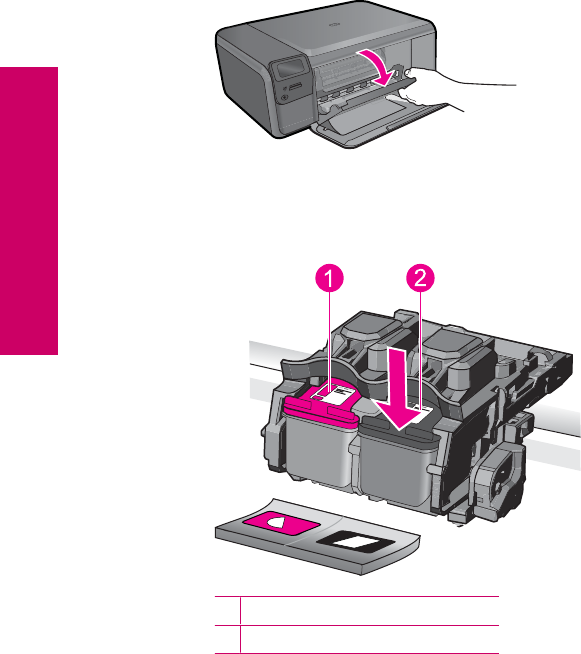
a. Open cartridge access door.
Wait for print carriage to move to center of the product.
b. Lightly press down on the cartridge to release it, then remove it from slot.
1Cartridge slot for tri-color cartridge
2Cartridge slot for black cartridge
Chapter 9
40 Work with cartridges
Work with cartridges
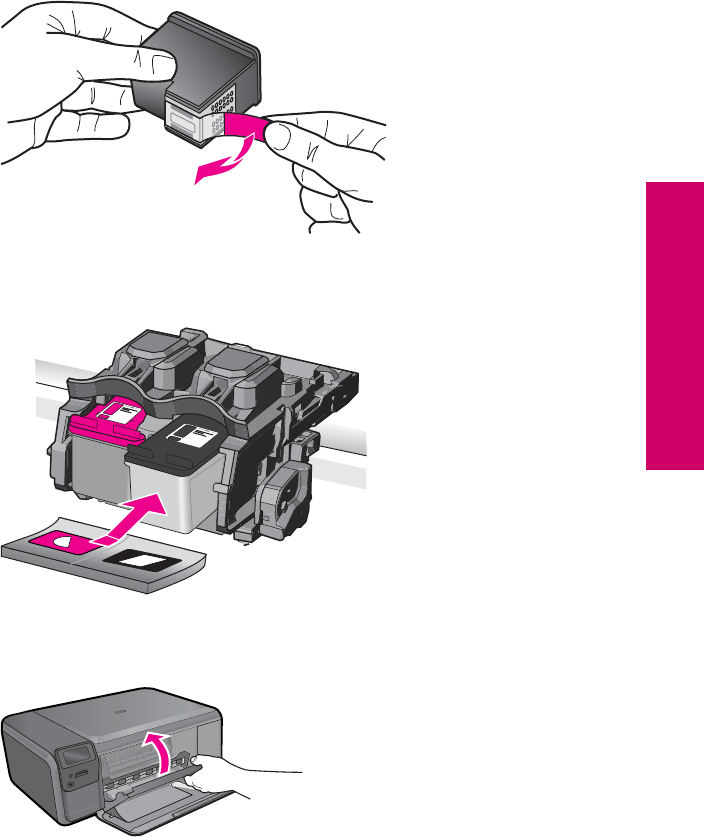
3. Insert new cartridge.
a. Remove cartridge from packaging.
b. Remove plastic tape by using the pink pull tab.
c. Line up colored shaped icons, then slide cartridge into slot until it clicks into place.
d. Close cartridge door.
4. Align cartridges.
a. When prompted, press OK to print a cartridge alignment page.
b. Load page print side down on right front corner of glass, and then press OK to
scan page.
c. Remove alignment page and recycle or discard it.
Replace the cartridges 41
Work with cartridges

Related topics
•“
Order ink supplies” on page 42
•“
Ink-backup mode” on page 42
Order ink supplies
To learn which HP supplies work with your product, order supplies online, or create a
printable shopping list, open HP Solution Center, and select the online shopping feature.
Cartridge information and links to online shopping also appear on ink alert messages. In
addition, you can find cartridge information and order online by visiting www.hp.com/buy/
supplies.
NOTE: Ordering cartridges online is not supported in all countries/regions. If it is not
supported in your country/region, contact a local HP reseller for information about
purchasing cartridges.
Ink-backup mode
Use the ink-backup mode to operate the HP Photosmart with only one print cartridge.
The ink-backup mode is initiated when a print cartridge is removed from the print cartridge
carriage. During ink-backup mode, the product can only print jobs from the computer.
You cannot initiate a print job from the control panel (such as copying or scanning an
original).
NOTE: When the HP Photosmart operates in ink-backup mode, a message is
displayed on screen. If the message is displayed and two print cartridges are installed
in the product, verify that the protective piece of plastic tape has been removed from
each print cartridge. When plastic tape covers the print cartridge contacts, the product
cannot detect that the print cartridge is installed.
For more information about ink-backup mode, see the following topics:
•Ink-backup mode output
•Exit ink-backup mode
Ink-backup mode output
Printing in ink-backup mode slows the HP Photosmart and affects the quality of printouts.
Installed print cartridge Result
Black print cartridge Colors print as grayscale.
Tri-color print cartridge Colors print but black is grayed and is not a true black.
Photo print cartridge Colors print as grayscale.
NOTE: HP does not recommend using the photo print cartridge for ink-backup mode.
Chapter 9
42 Work with cartridges
Work with cartridges
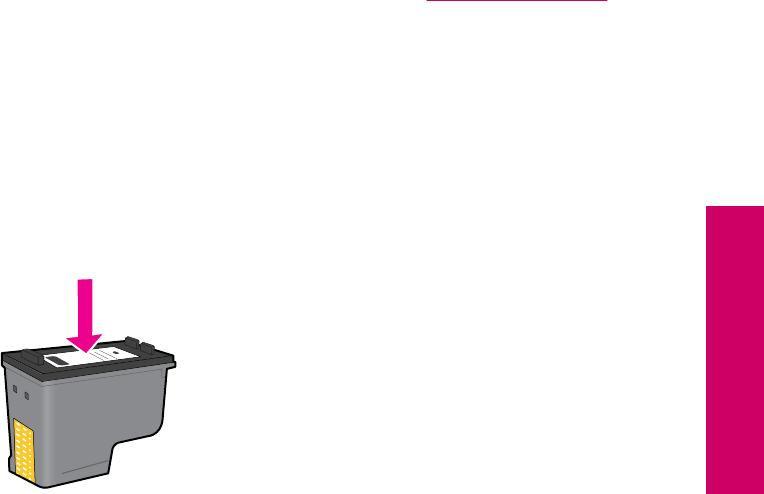
Exit ink-backup mode
Install two print cartridges in the HP Photosmart to exit ink-backup mode.
For information about installing a print cartridge, see “Replace the cartridges”
on page 40.
Cartridge warranty information
The HP cartridge warranty is applicable when the product is used in its designated HP
printing device. This warranty does not cover HP ink products that have been refilled,
remanufactured, refurbished, misused, or tampered with.
During the warranty period the product is covered as long as the HP ink is not depleted
and the end of warranty date has not been reached. The end of warranty date, in YYYY/
MM/DD format, may be found on the product as indicated:
For a copy of the HP Limited Warranty Statement, see the printed documentation that
came with the product.
Cartridge warranty information 43
Work with cartridges

Chapter 9
44 Work with cartridges
Work with cartridges

10 Solve a problem
This section contains the following topics:
•HP support
•Uninstall and reinstall the software
•Setup troubleshooting
•Print quality troubleshooting
•Print troubleshooting
•Memory card troubleshooting
•Copy troubleshooting
•Scan troubleshooting
•Errors
HP support
•Support process
•HP support by phone
•Additional warranty options
Support process
If you have a problem, follow these steps:
1. Check the documentation that came with the product.
2. Visit the HP online support Web site at www.hp.com/support. HP online support is
available to all HP customers. It is the fastest source for up-to-date product
information and expert assistance and includes the following features:
• Fast access to qualified online support specialists
• Software and driver updates for the product
• Valuable product and troubleshooting information for common problems
• Proactive product updates, support alerts, and HP newsgrams that are available
when you register the product
3. Call HP support. Support options and availability vary by product, country/region, and
language.
HP support by phone
Phone support options and availability vary by product, country/region, and language.
This section contains the following topics:
•Phone support period
•Placing a call
•Support phone numbers
•After the phone support period
Solve a problem 45
Solve a problem

Phone support period
One year of phone support is available in North America, Asia Pacific, and Latin America
(including Mexico). To determine the duration of phone support in Europe, the Middle
East, and Africa, go to www.hp.com/support. Standard phone company charges apply.
Placing a call
Call HP support while you are in front of the computer and the product. Be prepared to
provide the following information:
•Product name (HP Photosmart C4600 series)
•Serial number (located on the back or bottom of the product)
•Messages that appear when the situation occurs
•Answers to these questions:
◦Has this situation happened before?
◦Can you re-create it?
◦Did you add any new hardware or software to your computer at about the time
that this situation began?
◦Did anything else occur prior to this situation (such as a thunderstorm, product
was moved, etc.)?
For the list of support phone numbers, see “Support phone numbers” on page 46.
Support phone numbers
The support phone numbers and associated costs listed here are those in effect at the
time of publication and are applicable only for calls made on a land line. Different rates
may apply for mobile phones.
Chapter 10
46 Solve a problem
Solve a problem
For the most current HP list of telephone support numbers and call costs information, see
www.hp.com/support.
$IULFD(QJOLVKVSHDNLQJ
$IULTXHIUDQFRSKRQH
ﺮﺋﺍﺰﺠﻟﺍ
$UJHQWLQD%XHQRV$LUHV ZZZKSFRPODVRSRUWH
$UJHQWLQD ZZZKSFRPODVRSRUWH
$XVWUDOLD
$XVWUDOLDRXWRIZDUUDQW\
VWHUUHLFK ZZZKSFRPVXSSRUW
ﻦﻳﺮﺤﺒﻟﺍ
%HOJL ZZZKSFRPVXSSRUW
%HOJLTXH ZZZKSFRPVXSSRUW
%UDVLO6DR3DXOR ZZZKSFRPODVRSRUWH
%UDVLO ZZZKSFRPODVRSRUWH
&DQDGD
KSLQYHQW
&HQWUDO$PHULFD7KH
&DULEEHDQ
ZZZKSFRPODVRSRUWH
&KLOH ZZZKSFRPODVRSRUWH
Ё
Ё
&RORPELD%RJRW£ ZZZKSFRPODVRSRUWH
&RORPELD ZZZKSFRPODVRSRUWH
&RVWD5LFD ZZZKSFRPODVRSRUWH
ÎHVN£UHSXEOLND
'DQPDUN ZZZKSFRPVXSSRUW
(FXDGRU$QGLQDWHO ZZZKSFRPODVRSRUWH
(FXDGRU3DFLILWHO ZZZKSFRPODVRSRUWH
ﺮﺼﻣ
(O6DOYDGRU ZZZKSFRPODVRSRUWH
(VSD³D ZZZKSFRPVXSSRUW
)UDQFH ZZZKSFRPVXSSRUW
'HXWVFKODQG ZZZKSFRPVXSSRUW
˃˨˨˙ˡ˞˞˭˹˱ˬˢ˫˶˱ˢˮ˦˧˹
˃˨˨˙ˡ˞ˢ˪˱˹˯˃˨˨˙ˡ˞˯
˃˨˨˙ˡ˞˞˭˹̱˺˭ˮˬ
*XDWHPDOD ZZZKSFRPODVRSRUWH
佭␃⡍߹㸠ᬓऔ
0DJ\DURUV]£J
,QGLD
,QGLD
,QGRQHVLD
ﻕﺍﺮﻌﻟﺍ
㡴㦻
㡴㦻
뼑霢
/X[HPERXUJ)UDQ©DLV ZZZ
/X[HPEXUJ'HXWVFK ZZZ
0DOD\VLD
0DXULWLXV
0«[LFR&LXGDGGH0«[LFR ZZZ
0«[LFR ZZZ
0DURF
1HGHUODQG ZZZ
1HZ=HDODQG
1LJHULD
1RUJH ZZZ
3DQDP£ ZZZ
3DUDJXD\ ZZZ
3HU¼ ZZZ
3KLOLSSLQHV
3ROVND
3RUWXJDO ZZZ
3XHUWR5LFR
5HS¼EOLFD'RPLQLFDQD
5HXQLRQ
5RP¤QLD
̷͕͘͘͏̳͕͉͇ͦ͑͘
̷͕͘͘͏̸͇͔͙ͦ͑
̶͙͈͚͌͌͗͗͊
6LQJDSRUH
6ORYHQVNR
6RXWK$IULFD56$
6XRPL ZZZ
6YHULJH ZZZ
6ZLW]HUODQG ZZZ
㟎☷
ࡷࡎ࡙
7ULQLGDG7REDJR ZZZ
7¾UNL\HòVWDQEXO$QNDUD
ò]PLU%XUVD
www.hp.com/support
HP support 47
Solve a problem

After the phone support period
After the phone support period, help is available from HP at an additional cost. Help may
also be available at the HP online support Web site: www.hp.com/support. Contact your
HP dealer or call the support phone number for your country/region to learn more about
support options.
Additional warranty options
Extended service plans are available for the HP Photosmart at additional costs. Go to
www.hp.com/support, select your country/region and language, then explore the services
and warranty area for information about the extended service plans.
Uninstall and reinstall the software
If your installation is incomplete, or if you connected the USB cable to the computer before
prompted by the software installation screen, you might need to uninstall and then
reinstall the software. Do not simply delete the HP Photosmart application files from your
computer. Make sure to remove them properly using the uninstall utility provided when
you installed the software that came with the HP Photosmart.
To uninstall and reinstall the software
1. On the Windows taskbar, click Start, Settings, Control Panel (or just Control
Panel).
2. Double-click Add/Remove Programs (or click Uninstall a program).
3. Select HP Photosmart All-in-One Driver Software, and then click Change/
Remove.
Follow the onscreen instructions.
4. Disconnect the product from your computer.
5. Restart your computer.
NOTE: It is important that you disconnect the product before restarting your
computer. Do not connect the product to your computer until after you have
reinstalled the software.
6. Insert the product CD-ROM into your computer’s CD-ROM drive and then start the
Setup program.
NOTE: If the Setup program does not appear, locate the setup.exe file on the
CD-ROM drive and double-click it.
NOTE: When the computer is turned on, a software group called the Terminate
and Stay Resident (TSR) programs automatically loads. These programs activate
some of the computer utilities, such as the anti-virus software, that are not required
for the computer to function. Occasionally, TSR's prevent the HP software from
loading so that it does not install properly. In Windows Vista and Windows XP,
use the MSCONFIG utility to prevent TSR programs and services from starting
up.
7. Follow the onscreen instructions and the instructions provided in the Setup Guide that
came with the product.
Chapter 10
48 Solve a problem
Solve a problem

When the software installation is complete, the HP Digital Imaging Monitor icon appears
in the Windows system tray.
To verify that the software is properly installed, double-click the HP Solution Center icon
on the desktop. If the HP Solution Center shows the essential icons (Scan Picture and
Scan Document), the software has been properly installed.
Setup troubleshooting
This section contains setup troubleshooting information for the product.
Many issues are caused when the product is connected to the computer using a USB
cable before the HP Photosmart software is installed on the computer. If you connected
the product to your computer before the software installation screen prompts you to do
so, you must follow these steps:
Troubleshooting common setup issues
1. Disconnect the USB cable from the computer.
2. Uninstall the software (if you have already installed it).
3. Restart your computer.
4. Turn off the product, wait one minute, then restart it.
5. Reinstall the HP Photosmart software.
CAUTION: Do not connect the USB cable to the computer until prompted by the
software installation screen.
This section contains the following topics:
•The product will not turn on
•I connected the USB cable, but I am having problems using the product with my
computer
•After setting up the product, it does not print
•When I insert the CD-ROM into my computer’s CD-ROM drive, nothing happens
•The Minimum System Checks screen appears
•I received a message that an Unknown Error has occurred
Setup troubleshooting 49
Solve a problem
•A red X appears on the USB connect prompt
•The registration screen does not appear
The product will not turn on
Try the following solutions if there are no light indications, no noise, and no movement
from the product when you turn it on.
•Solution 1: Make sure you use the power cord that came with the product
•Solution 2: Reset the product
•Solution 3: Press the On button more slowly
•Solution 4: Contact HP to replace the power supply
•Solution 5: Contact HP support for service
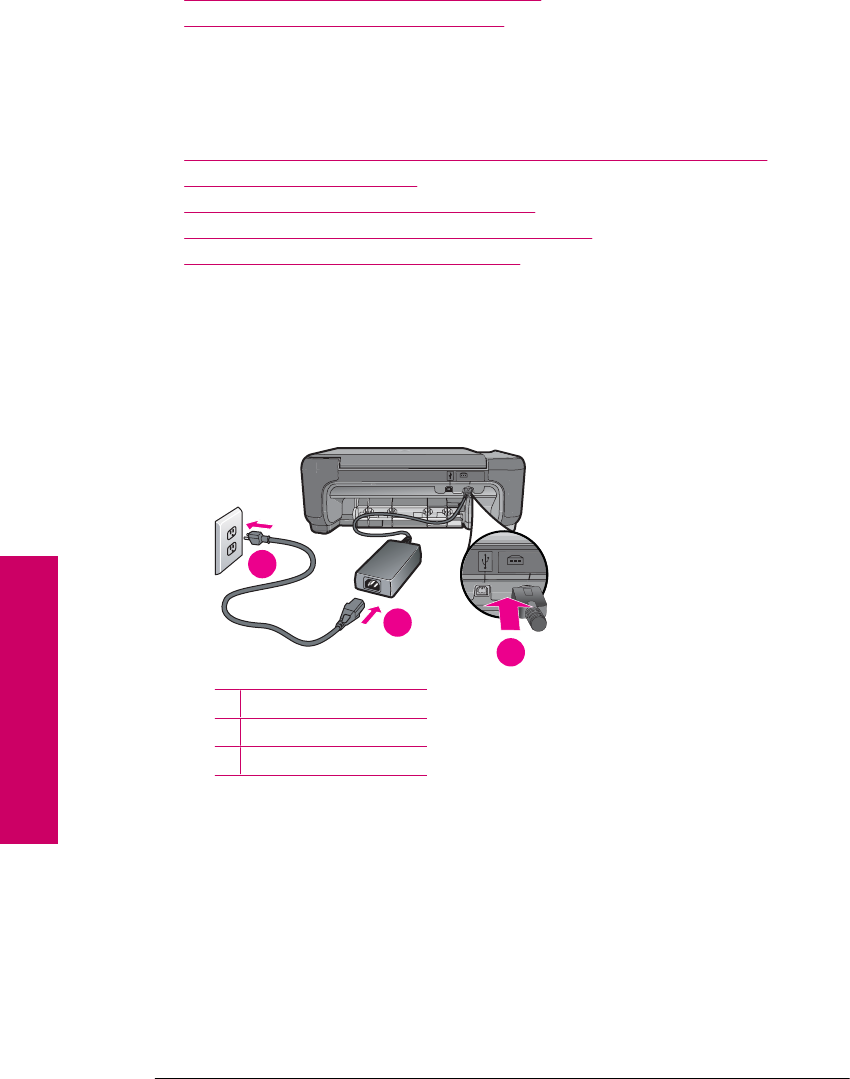
Solution 1: Make sure you use the power cord that came with the product
Solution:
•Make sure the power cord is firmly connected to both the product and the power
adapter. Plug the power cord into a power outlet, surge protector, or power strip.
1Power connection
2Power cord and adapter
3Power outlet
•If you are using a power strip, make sure the power strip is turned on. Or, try
plugging the product directly into a power outlet.
•Test the power outlet to make sure it is working. Plug in an appliance that you
know works, and see if the appliance has power. If not, then there might be a
problem with the power outlet.
•If you plugged the product into a switched outlet, make sure the outlet is switched
on. If it is switched to on but still does not work, then there might be a problem
with the power outlet.
Cause: The product was not being used with the power cord provided.
If this did not solve the issue, try the next solution.
Chapter 10
50 Solve a problem
Solve a problem

Solution 2: Reset the product
Solution: Turn off the product, and then unplug the power cord. Plug the power
cord back in, and then press the On button to turn on the product.
Cause: The product experienced an error.
If this did not solve the issue, try the next solution.
Solution 3: Press the On button more slowly
Solution: The product might not respond if you press the On button too quickly.
Press the On button once. It might take a few minutes for the product to turn on. If
you press the On button again during this time, you might turn the product off.
CAUTION: If the product still does not turn on, it might have a mechanical failure.
Unplug the product from the power outlet.
Contact HP support for service.
Go to: www.hp.com/support. If prompted, choose your country/region, and then
click Contact HP for information on calling for technical support.
Cause: You pressed the On button too quickly.
If this did not solve the issue, try the next solution.
Solution 4: Contact HP to replace the power supply
Solution: Contact HP support to request a power supply for the product.
Go to: www.hp.com/support.
If prompted, choose your country/region, and then click Contact HP for information
on calling for technical support.
Cause: The power supply was not intended for use with this product.
If this did not solve the issue, try the next solution.
Solution 5: Contact HP support for service
Solution: If you have completed all of the steps provided in the previous solutions
and are still having a problem, contact HP support for service.
Go to: www.hp.com/support.
If prompted, choose your country/region, and then click Contact HP for technical
support.
Cause: You might need assistance to enable the product or software to function
properly.
Setup troubleshooting 51
Solve a problem
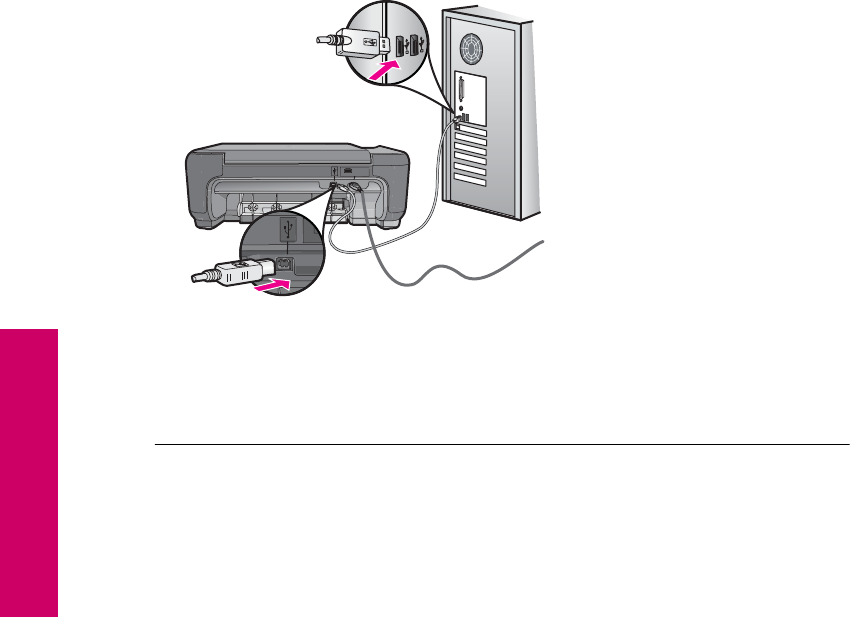
I connected the USB cable, but I am having problems using the product with my
computer
Solution: You must first install the software that came with the product before
connecting the USB cable. During installation, do not plug in the USB cable until
prompted by the onscreen instructions.
Once you have installed the software, connecting your computer to the product with
a USB cable is straightforward. Simply plug one end of the USB cable into the back
of your computer and the other into the back of the product. You can connect to any
USB port on the back of your computer.
For more information on installing the software and connecting the USB cable, see
the Setup Guide that came with the product.
Cause: The USB cable was connected before the software was installed.
Connecting the USB cable before you are prompted can cause errors.
After setting up the product, it does not print
Solution:
•Look at the On button located on the product. If it is not lit, the product is turned
off. Make sure the power cord is firmly connected to the product and plugged into
a power outlet. Press the On button to turn on the product.
•Make sure the print cartridges are installed.
•Make sure you have paper loaded in the input tray.
•Make sure that the product does not have a paper jam.
•Check that the print carriage is not jammed.
Open the front access door to access the print carriage area. Remove any objects
that are blocking the print carriage, including any packing materials. Turn off the
product, and then turn it on again.
•Print a test page to see if the product can print and is communicating with the
computer.
Chapter 10
52 Solve a problem
Solve a problem
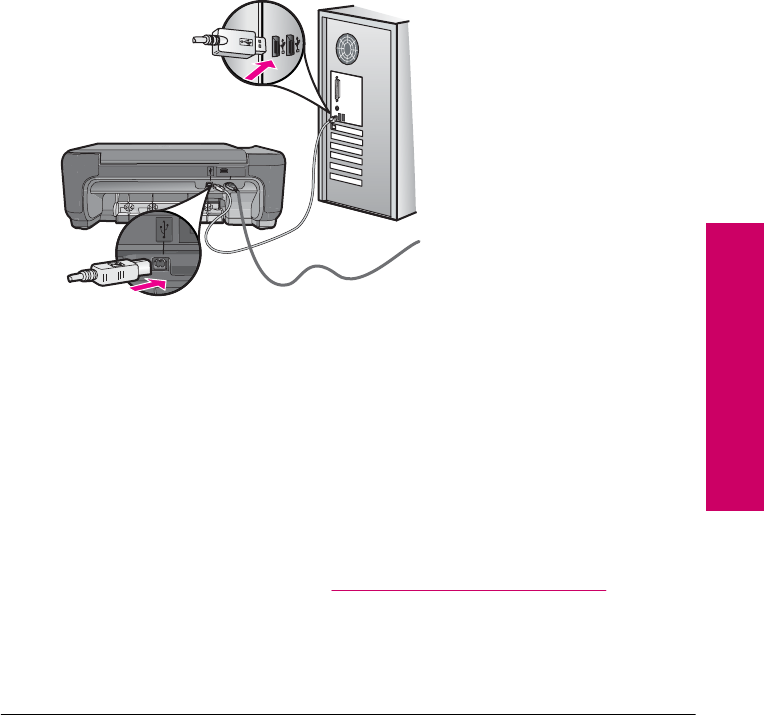
•Make sure that the print queue is not paused. If it is, choose the appropriate setting
to resume printing. For more information about accessing the print queue, see
the documentation that came with the operating system installed on your
computer.
•Check the USB cable. If you are using an older cable, it might not be working
properly. Try connecting it to another product to see if the USB cable works. If
you experience problems, the USB cable might need to be replaced. Also verify
that the cable does not exceed 3 meters (9.8 feet) in length.
•Make sure your computer is USB ready and that you are using a supported
operating system. For more information, see the Readme file.
•Check the connection from the product to your computer. Verify that the USB
cable is securely plugged into the USB port on the back of the product. Make sure
the other end of the USB cable is plugged into a USB port on your computer. After
the cable is connected properly, turn off the product, and then turn it on again.
•If you are connecting the product through a USB hub, make sure the hub is turned
on. If the hub is on, try connecting directly to your computer.
•Check other printers or scanners. You might need to disconnect older products
from your computer.
•Try connecting the USB cable to another USB port on your computer. After you
check the connections, try restarting your computer. Turn off the product, and
then turn it on again.
•After you check the connections, try restarting your computer. Turn off the
product, and then turn it on again.
•If necessary, remove and then install the software you installed with the product
again. For more information, see “Uninstall and reinstall the software”
on page 48.
For more information on setting up the product and connecting it to your computer,
see the Setup Guide that came with the product.
Cause: The product and computer were not communicating with each other.
Setup troubleshooting 53
Solve a problem

When I insert the CD-ROM into my computer’s CD-ROM drive, nothing happens
Solution: If the installation does not run automatically, you can start it manually.
To start the installation from a Windows computer
1. On the Windows taskbar, click Start.
2. Depending on your operating system, do one of the following:
• In Windows Vista: In Start Search, type d:\setup.exe, and then press
Enter.
• In Windows XP: Click Run (or click Accessories, and then Run). When the
Run dialog box appears, type d:\setup.exe, and then click OK.
If your CD-ROM drive is not assigned to drive letter D, enter the appropriate drive
letter.
Cause: The installation failed to run automatically.
The Minimum System Checks screen appears
Solution: Click Details to see what the specific problem is, and then correct the
problem before attempting to install the software.
Cause: Your system did not meet the minimum requirements to install the software.
I received a message that an Unknown Error has occurred
Solution: Uninstall the software completely, and then reinstall it.
To uninstall the software and reset the product
1. Disconnect and reset the product.
To disconnect and reset the product
a. Make sure the product is turned on.
b. Press the On button to turn off the product.
c. Disconnect the power cord from the back of the product.
d. Reconnect the power cord to the back of the product.
e. Press the On button to turn on the product.
2. Uninstall the software completely.
NOTE: It is important that you follow the uninstall procedure carefully to
ensure you have removed the software completely from the computer, before
reinstalling it.
To uninstall the software completely
a. On the Windows taskbar, click Start, Settings, Control Panel, (or just
Control Panel).
b. Double-click Add/Remove Programs (or click Uninstall a program).
Chapter 10
54 Solve a problem
Solve a problem

c. Remove all the items that are related to the HP Photosmart Software.
CAUTION: If the computer is manufactured by HP or Compaq, do not
remove any applications other than those listed below.
• HP Imaging device functions
• HP Document Viewer
• HP Photosmart Essential
• HP Image Zone
• HP Photo and imaging gallery
• HP Photosmart, Officejet, Deskjet (with the product name and software
version number)
• HP Software update
• HP Share to Web
• HP Solution Center
•HP Director
• HP Memories Disk Greeting Card Creator 32
d.Go to C:\Program Files\HP or C:\Program Files\Hewlett-
Packard (for some older products) and delete the Digital Imaging
folder.
e.Go to C:\WINDOWS and rename the twain_32 folder to twain_32 old.
3. Turn off programs that run in the background.
NOTE: When the computer is turned on, a software group called the
Terminate and Stay Resident (TSR) programs automatically loads. These
programs activate some of the computer utilities, such as the anti-virus
software, but are not required for the computer to function. Occasionally,
TSR's prevent the HP software from loading so that it does not install properly.
In Windows Vista and Windows XP, use the MSCONFIG utility to prevent TSR
programs and services from starting up.
To turn off programs that run in the background
a. On the Windows taskbar, click Start.
b. Depending on your operating system, do one of the following:
• In Windows Vista: In Start Search, type MSCONFIG, and then press
Enter.
When the User Account Control dialog box appears, click Continue.
• In Windows XP: Click Run. When the Run dialog box appears, type
MSCONFIG, and then press Enter.
The MSCONFIG utility application appears.
c. Click the General tab.
d. Click Selective Startup.
e. If there is a check mark next to Load Startup Items, click the check mark to
remove it.
f. Click the Services tab, and select the Hide All Microsoft Services box.
g. Click Disable all.
Setup troubleshooting 55
Solve a problem

h. Click Apply, and then click Close.
NOTE: If you receive a message stating Access is denied while making
changes, click OK and continue. The message will not prevent you from
making the changes.
i. Click Restart to apply the changes to the computer during the next restart.
After the computer restarts, the You’ve used system configuration utility
to make changes to the way windows starts message appears.
j. Click the check box next to Do not show this message again.
4. Run the Disk Cleanup utility to delete temporary files and folders.
To run the Disk Cleanup utility
a. On the Windows taskbar, click Start, click Programs or All Programs, and
then click Accessories.
b. Click System Tools, and then click Disk Cleanup.
The Disk Cleanup analyzes the hard drive and then presents a report with a
list of components to delete.
c. Select the appropriate check boxes to remove the unnecessary components.
More information about the Disk Cleanup utility
The Disk Cleanup utility frees hard disk space on your computer by doing the
following:
• Deleting temporary Internet files
• Deleting downloaded program files
• Emptying the Recycle Bin
• Deleting files from your temporary folder
• Deleting files created by other Windows tools
• Removing optional Windows components that you do not use
d. After selecting the components to remove, click OK.
5. Install the software.
To install the software
a. Insert software CD into the CD-ROM drive of the computer.
The software installation will start automatically.
NOTE: If the installation does not run automatically, from the Windows
Start menu, click Start Search (or Run). In the Start Search (or Run
dialog box), type d:\setup.exe, and then press Enter. (If your CD-ROM
drive is not assigned to drive letter D, enter the appropriate drive letter.)
b. Follow the prompts on the computer screen to install the software.
6. Try using the product again.
Cause: The source of the error was unknown.
Chapter 10
56 Solve a problem
Solve a problem
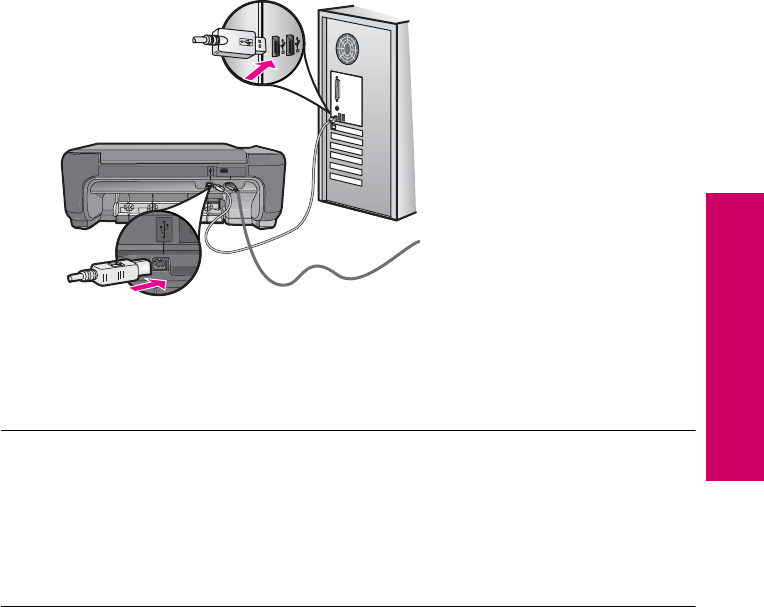
A red X appears on the USB connect prompt
Solution: Check that the product is turned on, and then try the USB connection
again.
To retry the USB connection
1. Verify that the USB cable is set up properly as follows:
• Unplug the USB cable and plug it in again or try plugging the USB cable into
a different USB port.
• Do not attach the USB cable to a keyboard.
• Verify that the USB cable is 3 meters (9.8 feet) or less in length.
• If you have several USB devices attached to your computer, you might want
to unplug the other devices during the installation.
2. Unplug the product power cord, and then plug it in again.
3. Verify that the USB cable and power cord are plugged in.
4. Click Retry to retry the connection.
5. Continue with the installation and restart the computer when prompted.
Cause: The USB connection between the product and the computer failed.
The registration screen does not appear
Solution: You can access the registration (Sign up now) screen from the Windows
taskbar by clicking Start, pointing to Programs or All Programs, HP, Photosmart
C4600 series, and then clicking Product Registration.
Cause: The registration screen did not launch automatically.
57
Solve a problem

Print quality troubleshooting
Use this section to solve these print quality problems:
•Wrong, inaccurate, or bleeding colors
•Ink is not filling the text or graphics completely
•The printout has a horizontal band of distortion near the bottom of a borderless print
•Printouts have horizontal streaks or lines
•Printouts are faded or have dull colors
•Printouts seem blurry or fuzzy
•Printouts have vertical streaks
•Printouts are slanted or skewed
•Ink streaks on the back of the paper
•The text edges are jagged
Wrong, inaccurate, or bleeding colors
If your printout has one of the following print quality problems, try the solutions in this
section for help.
•Colors look different than what you expected.
For example, the colors in your graphic or photo look one way on your computer
screen but print out differently, or magenta was replaced with cyan in your printout.
•Colors run into each other, or look like they are smeared on the page. The edges
might have a feathering appearance instead of being sharp and defined.
Try the following solutions if the colors appear wrong, inaccurate, or bleed into each other.
•Solution 1: Make sure you are using genuine HP print cartridges
•Solution 2: Make sure paper is loaded correctly in the input tray
•Solution 3: Check the paper type
•Solution 4: Check to see if the product is in ink-backup mode
•Solution 5: Check the print settings
•Solution 6: Clean or replace the print catridges
Solution 1: Make sure you are using genuine HP print cartridges
Solution: Check to see if your print cartridges are genuine HP print cartridges.
HP recommends that you use genuine HP print cartridges. Genuine HP print
cartridges are designed and tested with HP printers to help you easily produce great
results, time after time.
NOTE: HP cannot guarantee the quality or reliability of non-HP supplies. Printer
service or repairs required as a result of using a non-HP supply will not be covered
under warranty.
If you believe you purchased genuine HP print cartridges, go to:
www.hp.com/go/anticounterfeit
Cause: Non-HP print cartridges were being used.
Chapter 10
58 Solve a problem
Solve a problem

If this did not solve the issue, try the next solution.
Solution 2: Make sure paper is loaded correctly in the input tray
Solution: Make sure the paper is loaded correctly and that it is not wrinkled or too
thick.
•Load paper with the side you want to print on facing down. For example, if you
are loading glossy photo paper, load the paper with the glossy side down.
•Make sure the paper lays flat in the input tray and is not wrinkled. If the paper is
too close to the print head during printing, the ink might be smeared. This can
happen if the paper is raised, wrinkled, or very thick, such as a mailing envelope.
For more information, see:
“Load media” on page 10
Cause: The paper was loaded incorrectly, or it was wrinkled or too thick.
If this did not solve the issue, try the next solution.
Solution 3: Check the paper type
Solution: HP recommends that you use HP papers or any other paper type that is
appropriate for the product.
Always make sure the paper you are printing on is flat. For best results when printing
images, use HP Advanced Photo Paper.
Store photo media in its original packaging inside a resealable plastic bag on a flat
surface in a cool, dry place. When you are ready to print, remove only the paper you
plan to use immediately. When you have finished printing, return any unused photo
paper to the plastic bag. This will prevent the photo paper from curling.
NOTE: There is no problem with the ink supplies and replacing the print
cartridges is unnecessary.
For more information, see:
•“
Recommended papers for printing” on page 8
•“
Information on paper” on page 12
Cause: The wrong kind of paper was loaded in the input tray.
If this did not solve the issue, try the next solution.
Solution 4: Check to see if the product is in ink-backup mode
Solution: Check to see if the the product is printing in ink-backup mode, with only
one print cartridge installed.
If the product is in ink-backup mode, text and photo quality will differ from those printed
when using both print cartridges.
Print quality troubleshooting 59
Solve a problem

If you are satisfied with the print quality, continue printing in ink-backup mode. Or,
replace the missing print cartridge.
For more information, see:
•“
Ink-backup mode” on page 42
•“
Replace the cartridges” on page 40
Cause: A print cartridge was missing and the product was printing in ink-backup
mode.
If this did not solve the issue, try the next solution.
Solution 5: Check the print settings
Solution: Check the print settings.
•Check the print settings to see if the color settings are incorrect.
For example, check to see if the document is set to print in grayscale. Or, check
to see if advanced color settings such as saturation, brightness, or color tone, are
set to modify the appearance of colors.
•Check the print quality setting and make sure it matches the type of paper loaded
in the product.
You might need to choose a lower print quality setting, if colors are running into
each other. Or, choose a higher setting if you are printing a high-quality photo,
and then make sure photo paper such as HP Premium Photo Papers, is loaded
in the input tray.
NOTE: On some computer screens, colors might appear differently than they do
when printed on paper. In this case, there is nothing wrong with the product, print
settings, or print cartridges. No further troubleshooting is required.
For more information, see:
•“
Recommended papers for printing” on page 8
•“
Recommended papers for photo printing” on page 7
Cause: The print settings were set incorrectly.
If this did not solve the issue, try the next solution.
Solution 6: Clean or replace the print catridges
Solution: Check the estimated ink levels in the print cartridges.
NOTE: Ink level warnings and indicators provide estimates for planning
purposes only. When you receive a low-ink warning message, consider having a
replacement cartridge available to avoid possible printing delays. You do not need
to replace the print cartridges until print quality becomes unacceptable.
If there is ink remaining in the print cartridges, but you are still noticing a problem,
print a self-test report to determine if there is a problem with the print cartridges. If the
Chapter 10
60 Solve a problem
Solve a problem

self-test report shows a problem, clean the print cartridges. If the problem persists,
you might need to replace the print cartridges.
For more information, see:
“Check the estimated ink levels” on page 39
Cause: The print cartridges needed to be cleaned or there was insufficient ink.
Ink is not filling the text or graphics completely
Try the following solutions if the ink is not filling the text or image completely so that it
appears that parts are missing or blank.
•Solution 1: Check the print settings
•Solution 2: Check the paper type
•Solution 3: Make sure you are using genuine HP print cartridges
•Solution 4: Check the print catridges
•Solution 5: Replace the print cartridge
Solution 1: Check the print settings
Solution: Check the print settings.
•Check the paper type setting to make sure it matches the type of paper loaded in
the input tray.
•Check the quality setting. Use a higher quality setting to increase the amount of
ink used for printing.
For more information, see:
“Print using Maximum dpi” on page 23
Cause: The paper type or print quality settings were set incorrectly.
If this did not solve the issue, try the next solution.
Solution 2: Check the paper type
Solution: HP recommends that you use HP papers or any other paper type that is
appropriate for the product.
Always make sure the paper you are printing on is flat. For best results when printing
images, use HP Advanced Photo Paper.
Store photo media in its original packaging inside a resealable plastic bag on a flat
surface in a cool, dry place. When you are ready to print, remove only the paper you
plan to use immediately. When you have finished printing, return any unused photo
paper to the plastic bag. This will prevent the photo paper from curling.
NOTE: There is no problem with the ink supplies and replacing the print
cartridges is unnecessary.
Print quality troubleshooting 61
Solve a problem

For more information, see:
•“
Recommended papers for printing” on page 8
•“
Information on paper” on page 12
Cause: The wrong kind of paper was loaded in the input tray.
If this did not solve the issue, try the next solution.
Solution 3: Make sure you are using genuine HP print cartridges
Solution: Check to see if your print cartridges are genuine HP print cartridges.
HP recommends that you use genuine HP print cartridges. Genuine HP print
cartridges are designed and tested with HP printers to help you easily produce great
results, time after time.
NOTE: HP cannot guarantee the quality or reliability of non-HP supplies. Printer
service or repairs required as a result of using a non-HP supply will not be covered
under warranty.
If you believe you purchased genuine HP print cartridges, go to:
www.hp.com/go/anticounterfeit
Cause: Non-HP print cartridges were being used.
If this did not solve the issue, try the next solution.
Solution 4: Check the print catridges
Solution: Check the estimated ink levels in the print cartridges.
NOTE: Ink level warnings and indicators provide estimates for planning
purposes only. When you receive a low-ink warning message, consider having a
replacement cartridge available to avoid possible printing delays. You do not need
to replace the print cartridges until print quality becomes unacceptable.
If there is ink remaining in the print cartridges, but you are still noticing a problem,
print a self-test report to determine if there is a problem with the print cartridges. If the
self-test report shows a problem, clean the print cartridges. If the problem persists,
you might need to replace the print cartridges.
For more information, see:
“Check the estimated ink levels” on page 39
Cause: The print cartridges needed to be cleaned or there was insufficient ink.
If this did not solve the issue, try the next solution.
Solution 5: Replace the print cartridge
Solution: Replace the indicated print cartridge. You can also remove the indicated
print cartridge and print using ink-backup mode.
Chapter 10
62 Solve a problem
Solve a problem

NOTE: During ink-backup mode, the product can only print jobs from the
computer. You cannot initiate a print job from the control panel (such as printing
a photo from a memory card).
Check to see if your print cartridge is still under warranty and end of warranty date
has not been reached.
•If the end of warranty date has been reached, purchase a new print cartridge.
•If the end of warranty date has not been reached, contact HP support. Go to
www.hp.com/support. If prompted, choose your country/region, and then click
Contact HP for information on calling for technical support.
Cause: The print cartridge was damaged.
The printout has a horizontal band of distortion near the bottom of a borderless
print
Try the following solutions if your borderless print has a blurry band or line on the bottom
of it.
•Solution 1: Check the paper type
•Solution 2: Use a higher print quality setting
•Solution 3: Rotate the image
Solution 1: Check the paper type
Solution: HP recommends that you use HP papers or any other paper type that is
appropriate for the product.
Always make sure the paper you are printing on is flat. For best results when printing
images, use HP Advanced Photo Paper.
Store photo media in its original packaging inside a resealable plastic bag on a flat
surface in a cool, dry place. When you are ready to print, remove only the paper you
plan to use immediately. When you have finished printing, return any unused photo
paper to the plastic bag. This will prevent the photo paper from curling.
NOTE: There is no problem with the ink supplies and replacing the print
cartridges is unnecessary.
For more information, see:
•“
Recommended papers for printing” on page 8
•“
Information on paper” on page 12
Cause: The wrong kind of paper was loaded in the input tray.
If this did not solve the issue, try the next solution.
Solution 2: Use a higher print quality setting
Solution: Check the quality setting. Use a higher quality setting to increase the
amount of ink used for printing.
Print quality troubleshooting 63
Solve a problem

NOTE: For maximum dpi resolution, go to the Advanced tab, and then select
Enabled from the Maximum dpi drop-down list.
For more information, see:
“Print using Maximum dpi” on page 23
Cause: The print quality setting was set too low.
If this did not solve the issue, try the next solution.
Solution 3: Rotate the image
Solution: If the problem persists, use the software you installed with the product or
another software application to rotate your image 180 degrees so that the light blue,
gray, or brown hues in your image do not print at the bottom of the page.
Cause: The photo image had odd hues printed near the bottom of the page.
Printouts have horizontal streaks or lines
Try the following solutions if your printout has lines, streaks, or marks on it that run across
the width of the page.
•Solution 1: Make sure the paper is loaded correctly
•Solution 2: Use a higher print quality setting
•Solution 3: If the print cartridge was dropped, wait for it to recover
•Solution 4: Clean the print cartridge nozzles
•Solution 5: Check the print cartridges
•Solution 6: Replace the print cartridge
Solution 1: Make sure the paper is loaded correctly
Solution: Make sure that the paper is loaded correctly in the input tray.
For more information, see:
“Load media” on page 10
Cause: The paper was not loaded correctly.
If this did not solve the issue, try the next solution.
Solution 2: Use a higher print quality setting
Solution: Check the quality setting. Use a higher quality setting to increase the
amount of ink used for printing.
NOTE: For maximum dpi resolution, go to the Advanced tab, and then select
Enabled from the Maximum dpi drop-down list.
For more information, see:
“Print using Maximum dpi” on page 23
Chapter 10
64 Solve a problem
Solve a problem

Cause: The print quality setting was set too low.
If this did not solve the issue, try the next solution.
Solution 3: If the print cartridge was dropped, wait for it to recover
Solution: Allow 30 minutes for the print cartridge to recover.
Cause: A tri-color or photo print cartridge was jarred or handled roughly during
installation.
If this did not solve the issue, try the next solution.
Solution 4: Clean the print cartridge nozzles
Solution: Check the print cartridges. If it looks as though there are fibers or dust
around the ink nozzles, clean the ink nozzle area of the print cartridge.
Cause: The print cartridge nozzles needed to be cleaned.
If this did not solve the issue, try the next solution.
Solution 5: Check the print cartridges
Solution: Check the estimated ink levels in the print cartridges.
NOTE: Ink level warnings and indicators provide estimates for planning
purposes only. When you receive a low-ink warning message, consider having a
replacement cartridge available to avoid possible printing delays. You do not need
to replace the print cartridges until print quality becomes unacceptable.
If there is ink remaining in the print cartridges, but you are still noticing a problem,
print a self-test report to determine if there is a problem with the print cartridges. If the
self-test report shows a problem, clean the print cartridges. If the problem persists,
you might need to replace the print cartridges.
For more information, see:
“Check the estimated ink levels” on page 39
Cause: The print cartridges needed to be cleaned or there was insufficient ink.
If this did not solve the issue, try the next solution.
Solution 6: Replace the print cartridge
Solution: Replace the indicated print cartridge. You can also remove the indicated
print cartridge and print using ink-backup mode.
NOTE: During ink-backup mode, the product can only print jobs from the
computer. You cannot initiate a print job from the control panel (such as printing
a photo from a memory card).
Print quality troubleshooting 65
Solve a problem

Check to see if your print cartridge is still under warranty and end of warranty date
has not been reached.
•If the end of warranty date has been reached, purchase a new print cartridge.
•If the end of warranty date has not been reached, contact HP support. Go to
www.hp.com/support. If prompted, choose your country/region, and then click
Contact HP for information on calling for technical support.
Cause: The print cartridge was damaged.
Printouts are faded or have dull colors
Try the following solutions if the colors in your printout are not as bright and intense as
you expected.
•Solution 1: Check the print settings
•Solution 2: Check the paper type
•Solution 3: If you are making a copy, place a protective sheet on the glass
•Solution 4: Clean the glass
•Solution 5: Check the print catridges
•Solution 6: Replace the print cartridge
Solution 1: Check the print settings
Solution: Check the print settings.
•Check the paper type setting to make sure it matches the type of paper loaded in
the input tray.
•Check the quality setting. Use a higher quality setting to increase the amount of
ink used for printing.
For more information, see:
“Print using Maximum dpi” on page 23
Cause: The paper type or print quality settings were set incorrectly.
If this did not solve the issue, try the next solution.
Solution 2: Check the paper type
Solution: HP recommends that you use HP papers or any other paper type that is
appropriate for the product.
Always make sure the paper you are printing on is flat. For best results when printing
images, use HP Advanced Photo Paper.
Store photo media in its original packaging inside a resealable plastic bag on a flat
surface in a cool, dry place. When you are ready to print, remove only the paper you
plan to use immediately. When you have finished printing, return any unused photo
paper to the plastic bag. This will prevent the photo paper from curling.
NOTE: There is no problem with the ink supplies and replacing the print
cartridges is unnecessary.
Chapter 10
66 Solve a problem
Solve a problem

For more information, see:
•“
Recommended papers for printing” on page 8
•“
Information on paper” on page 12
Cause: The wrong kind of paper was loaded in the input tray.
If this did not solve the issue, try the next solution.
Solution 3: If you are making a copy, place a protective sheet on the glass
Solution: If you are making a copy, try placing one or more clear plastic sheet
protectors directly on the glass, and then place the original print side down on top of
the sheet protectors.
Cause: The quality of the original was poor.
If this did not solve the issue, try the next solution.
Solution 4: Clean the glass
Solution: Clean the glass and lid backing.
Cause: Debris might be stuck on the glass or on the back of the document lid; this
causes poor copy quality and slows down processing.
If this did not solve the issue, try the next solution.
Solution 5: Check the print catridges
Solution: Check the estimated ink levels in the print cartridges.
NOTE: Ink level warnings and indicators provide estimates for planning
purposes only. When you receive a low-ink warning message, consider having a
replacement cartridge available to avoid possible printing delays. You do not need
to replace the print cartridges until print quality becomes unacceptable.
If there is ink remaining in the print cartridges, but you are still noticing a problem,
print a self-test report to determine if there is a problem with the print cartridges. If the
self-test report shows a problem, clean the print cartridges. If the problem persists,
you might need to replace the print cartridges.
To clean the print cartridges from the HP Photosmart Software
1. Load letter, A4, or legal unused plain white paper into the input tray.
2. In the HP Solution Center, click Settings.
3. In the Print Settings area, click Printer Toolbox.
NOTE: You can also open the Printer Toolbox from the Print Properties
dialog box. In the Print Properties dialog box, click the Features tab, and
then click Printer Services.
The Printer Toolbox appears.
Print quality troubleshooting 67
Solve a problem

4. Click the Device Services tab.
5. Click Clean the Print Cartridges.
6. Follow the prompts until you are satisfied with the quality of the output, and then
click Done.
7. Follow the prompts until you are satisfied with the quality of the output, and then
click Done.
There are three stages of cleaning. Each stage lasts from one to two minutes,
uses one sheet of paper, and uses an increasing amount of ink. After each stage,
review the quality of the printed page. You should only initiate the next phase of
cleaning if the print quality is poor.
If print quality still seems poor after you clean the print cartridges, try cleaning the
print cartridge contacts before replacing the affected print cartridge.
For more information, see:
“Check the estimated ink levels” on page 39
Cause: The print cartridges needed to be cleaned or there was insufficient ink.
If this did not solve the issue, try the next solution.
Solution 6: Replace the print cartridge
Solution: Replace the indicated print cartridge. You can also remove the indicated
print cartridge and print using ink-backup mode.
NOTE: During ink-backup mode, the product can only print jobs from the
computer. You cannot initiate a print job from the control panel (such as printing
a photo from a memory card).
Check to see if your print cartridge is still under warranty and end of warranty date
has not been reached.
•If the end of warranty date has been reached, purchase a new print cartridge.
•If the end of warranty date has not been reached, contact HP support. Go to
www.hp.com/support. If prompted, choose your country/region, and then click
Contact HP for information on calling for technical support.
Cause: The print cartridge was damaged.
Printouts seem blurry or fuzzy
Try the following solutions if your printout is not sharp or unclear.
TIP: After reviewing the solutions in this section, you can go to HP's website to see
if there is additional troubleshooting help. For more information, go to: www.hp.com/
support.
•Solution 1: Check the print settings
•Solution 2: Use a higher quality image
•Solution 3: Print the image in a smaller size
Chapter 10
68 Solve a problem
Solve a problem

Solution 1: Check the print settings
Solution: Check the print settings.
•Check the paper type setting to make sure it matches the type of paper loaded in
the input tray.
•Check the quality setting. Use a higher quality setting to increase the amount of
ink used for printing.
For more information, see:
“Print using Maximum dpi” on page 23
Cause: The paper type or print quality settings were set incorrectly.
If this did not solve the issue, try the next solution.
Solution 2: Use a higher quality image
Solution: Use a higher resolution image.
If you are printing a photo or graphic,and the resolution is too low, it will be blurry or
fuzzy when printed.
If a digital photo or rasterized graphic has been resized, it can be blurry or fuzzy when
printed.
Cause: The resolution of the image was low.
If this did not solve the issue, try the next solution.
Solution 3: Print the image in a smaller size
Solution: Reduce the size of the image and then print it.
If you are printing a photo or graphic, and the print size is set too high, it will be blurry
or fuzzy when printed.
If a digital photo or rasterized graphic has been resized, it can be blurry or fuzzy when
printed.
Cause: The image was printed in a larger size.
Printouts have vertical streaks
Solution: HP recommends that you use HP papers or any other paper type that is
appropriate for the product.
Always make sure the paper you are printing on is flat. For best results when printing
images, use HP Advanced Photo Paper.
Store photo media in its original packaging inside a resealable plastic bag on a flat
surface in a cool, dry place. When you are ready to print, remove only the paper you
plan to use immediately. When you have finished printing, return any unused photo
paper to the plastic bag. This will prevent the photo paper from curling.
Print quality troubleshooting 69
Solve a problem

NOTE: There is no problem with the ink supplies and replacing the print
cartridges is unnecessary.
For more information, see:
•“
Recommended papers for printing” on page 8
•“
Information on paper” on page 12
Cause: The wrong kind of paper was loaded in the input tray.
Printouts are slanted or skewed
Try the following solutions if your printout does not appear straight on the page.
•Solution 1: Make sure the paper is loaded correctly
•Solution 2: Make sure only one type of paper is loaded
•Solution 3: Ensure that the rear door is securely installed
Solution 1: Make sure the paper is loaded correctly
Solution: Make sure that the paper is loaded correctly in the input tray.
For more information, see:
“Load media” on page 10
Cause: The paper was not loaded correctly.
If this did not solve the issue, try the next solution.
Solution 2: Make sure only one type of paper is loaded
Solution: Load only one type of paper at a time.
Cause: More than one type of paper was loaded in the input tray.
If this did not solve the issue, try the next solution.
Solution 3: Ensure that the rear door is securely installed
Solution: Make sure that the rear door is securely installed.
If you removed the rear door to clear a paper jam, replace it. Gently push the door
forward until it snaps into place.
Cause: The rear door was not securely installed.
Chapter 10
70 Solve a problem
Solve a problem

Ink streaks on the back of the paper
Try the following solutions if there is smeared ink on the back of your printout.
•Solution 1: Print on a page of plain paper
•Solution 2: Wait while the ink dries
Solution 1: Print on a page of plain paper
Solution: Print one or several pages of plain paper to soak up any excess ink in
the product.
To remove excess ink using plain paper
1. Load several sheets of plain paper in the input tray.
2. Wait five minutes.
3. Print a document with little or no text.
4. Check the back of the paper for ink. If there is still ink on the back of the paper,
try printing on another page of plain paper.
Cause: Ink accumulated inside the product, where the back of the paper rests
during printing.
If this did not solve the issue, try the next solution.
Solution 2: Wait while the ink dries
Solution: Wait at least thirty minutes for the ink inside the product to dry, then try
the print job again.
Cause: The excess ink in the product needed to dry out.
The text edges are jagged
Try the following solutions if the text in your printouts is not sharp and the edges are rough.
•Solution 1: Use TrueType or OpenType fonts
•Solution 2: Align the print cartridges
Solution 1: Use TrueType or OpenType fonts
Solution: Use TrueType or OpenType fonts to ensure that the product is able to
print smooth fonts. When selecting a font, look for the TrueType or OpenType icon.
TrueType icon OpenType icon
Cause: The font was a custom size.
Print quality troubleshooting 71
Solve a problem

Some software applications offer custom fonts that have jagged edges when enlarged
or printed. Also, if you want to print bitmapped text, it might have jagged edges when
enlarged or printed.
If this did not solve the issue, try the next solution.
Solution 2: Align the print cartridges
Solution: Align the print cartridges.
To align the print cartridges from the HP Photosmart Software
1. Load letter or A4 unused plain white paper into the input tray.
NOTE: If you have colored paper loaded in the input tray when you align the
print cartridges, the alignment will fail. Load unused plain white paper into the
input tray, and then try the alignment again.
2. In the HP Solution Center, click Settings.
3. In the Print Settings area, click Printer Toolbox.
NOTE: You can also open the Printer Toolbox from the Print Properties
dialog box. In the Print Properties dialog box, click the Features tab, and
then click Printer Services.
NOTE: You can also open the Printer Toolbox from the Print Properties
dialog box. In the Print Properties dialog box, click the Features tab, and
then click the Printer Services button.
The Printer Toolbox appears.
4. Click the Device Services tab.
5. Click Align the Print Cartridges.
6. When prompted, ensure plain white letter or A4 paper is loaded in the input tray,
then press the button next to OK.
NOTE: If you have colored paper loaded in the input tray when you align the
print cartridges, the alignment will fail. Load unused plain white paper into the
input tray, and then try the alignment again.
The product prints a print cartridge alignment sheet.
7. Load the page print side down on the right front corner of the glass, and then
press the button next to OK to scan the page.
When the On button stops flashing, the alignment is complete and the page can
be removed. Recycle or discard the page.
Cause: The print cartridges needed to be aligned.
Chapter 10
72 Solve a problem
Solve a problem
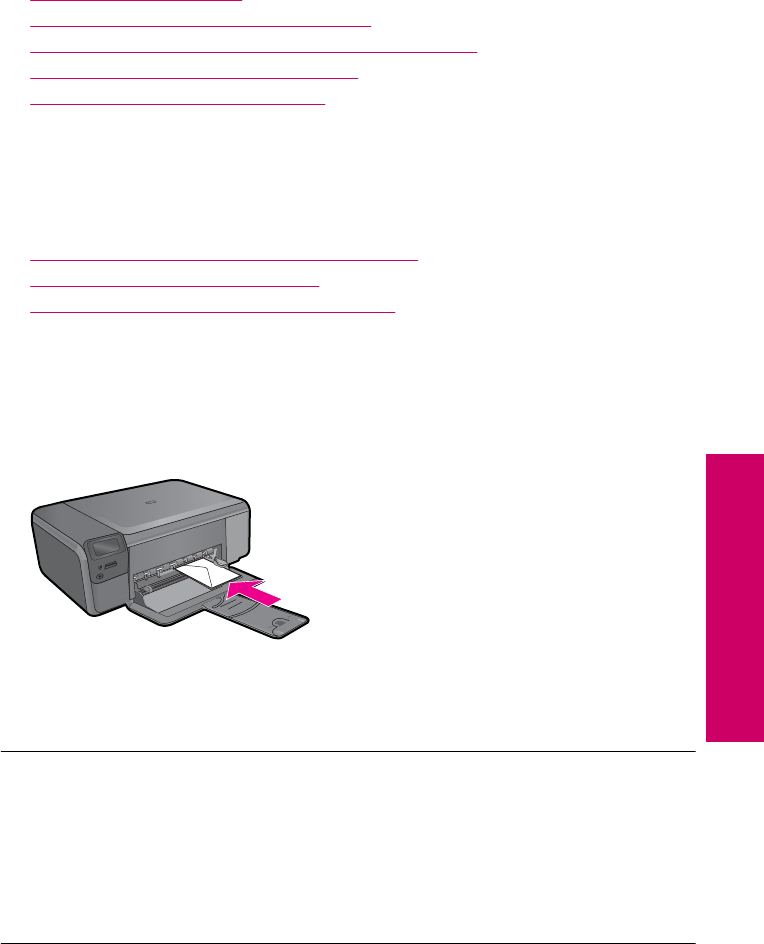
Print troubleshooting
Use this section to solve these printing problems:
•Envelopes print incorrectly
•The product prints meaningless characters
•The pages in my document came out in the wrong order
•The margins are not printing as expected
•A blank page came out while printing
Envelopes print incorrectly
Try the following solutions to resolve the issue. Solutions are listed in order, with the most
likely solution first. If the first solution does not solve the problem, continue trying the
remaining solutions until the issue is resolved.
•Solution 1: Load the stack of envelopes correctly
•Solution 2: Check the envelope type
•Solution 3: Tuck the flaps to avoid paper jams
Solution 1: Load the stack of envelopes correctly
Solution: Load a stack of envelopes in the input tray, with the envelope flaps facing
up and to the left.
Make sure that you remove all paper from the input tray before loading the envelopes.
Cause: A stack of envelopes was loaded incorrectly.
If this did not solve the issue, try the next solution.
Solution 2: Check the envelope type
Solution: Do not use shiny or embossed envelopes or envelopes that have clasps
or windows.
Cause: The wrong type of envelope was loaded.
If this did not solve the issue, try the next solution.
Print troubleshooting 73
Solve a problem

Solution 3: Tuck the flaps to avoid paper jams
Solution: To avoid paper jams, tuck the flaps inside the envelopes.
Cause: The flaps might get caught in the rollers.
The product prints meaningless characters
Try the following solutions to resolve the issue. Solutions are listed in order, with the most
likely solution first. If the first solution does not solve the problem, continue trying the
remaining solutions until the issue is resolved.
•Solution 1: Reset the product
•Solution 2: Print a previously saved version of the document
Solution 1: Reset the product
Solution: Turn off the product and your computer for 60 seconds, then turn them
both on and try printing again.
Cause: There was no available memory in the product.
If this did not solve the issue, try the next solution.
Solution 2: Print a previously saved version of the document
Solution: Try printing another document from the same software application. If this
works, then try printing a previously saved version of the document that is not corrupt.
Cause: The document was corrupt.
The pages in my document came out in the wrong order
Solution: Print the document in reverse order. When the document finishes
printing, the pages will be in correct order.
Cause: The print settings were set to print the first page of your document first.
Because of the way the paper feeds through the product, the first page will be print
side up at the bottom of the stack.
The margins are not printing as expected
Try the following solutions to resolve the issue. Solutions are listed in order, with the most
likely solution first. If the first solution does not solve the problem, continue trying the
remaining solutions until the issue is resolved.
•Solution 1: Check the printer margins
•Solution 2: Verify the paper size setting
•Solution 3: Load the stack of paper correctly
•Solution 4: Load a stack of envelopes correctly in the input tray
Chapter 10
74 Solve a problem
Solve a problem

Solution 1: Check the printer margins
Solution: Check the printer margins.
Make sure the margin settings for the document do not exceed the printable area of
the product.
To check your margin settings
1. Preview your print job before sending it to the product.
In most software applications, click the File menu, and then click Print Preview.
2. Check the margins.
The product uses the margins you have set in your software application, as long
as they are greater than the minimum margins the product supports. For more
information about setting margins in your software application, see the
documentation that came with the software.
3. Cancel the print job if the margins are not satisfactory, and then adjust the margins
in your software application.
Cause: The margins were not set correctly in your software application.
If this did not solve the issue, try the next solution.
Solution 2: Verify the paper size setting
Solution: Verify that you have selected the proper paper size setting for your
project. Make sure that you have loaded the correct paper size in the input tray.
Cause: The paper size setting might not have been set correctly for the project you
were printing.
If this did not solve the issue, try the next solution.
Solution 3: Load the stack of paper correctly
Solution: Remove the stack of paper from the input tray, reload the paper, and then
slide the paper width guide inward until it stops at the edge of the paper.
For more information, see:
“Load media” on page 10
Cause: The paper guides were not positioned correctly.
If this did not solve the issue, try the next solution.
Solution 4: Load a stack of envelopes correctly in the input tray
Solution: Load a stack of envelopes in the input tray, with the envelope flaps facing
up and to the left.
Print troubleshooting 75
Solve a problem
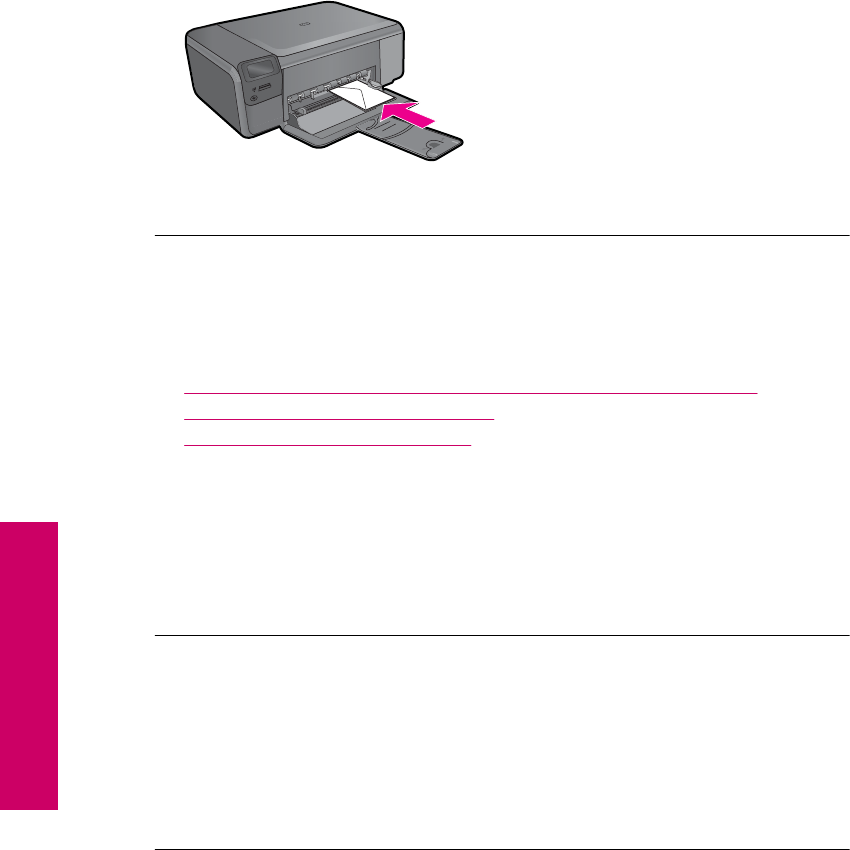
Make sure that you remove all paper from the input tray before loading the envelopes.
Cause: A stack of envelopes was loaded incorrectly.
A blank page came out while printing
Try the following solutions to resolve the issue. Solutions are listed in order, with the most
likely solution first. If the first solution does not solve the problem, continue trying the
remaining solutions until the issue is resolved.
•Solution 1: Remove any extra pages or lines at the end of the document
•Solution 2: Load paper in the input tray
•Solution 3: Check the print cartridge
Solution 1: Remove any extra pages or lines at the end of the document
Solution: Open the document file in your software application and remove any extra
pages or lines at the end of the document.
Cause: The document you were printing contained an additional blank page.
If this did not solve the issue, try the next solution.
Solution 2: Load paper in the input tray
Solution: If the product has only a few sheets remaining, load more paper in the
input tray. If there is plenty of paper in the input tray, remove the paper, tap the stack
of paper against a flat surface, and reload the paper into the input tray.
Cause: The product picked up two sheets of paper.
If this did not solve the issue, try the next solution.
Solution 3: Check the print cartridge
Solution: Check each print cartridge. The tape might have been removed from the
copper-colored contacts, but still might cover the ink nozzles. If the tape is still
Chapter 10
76 Solve a problem
Solve a problem
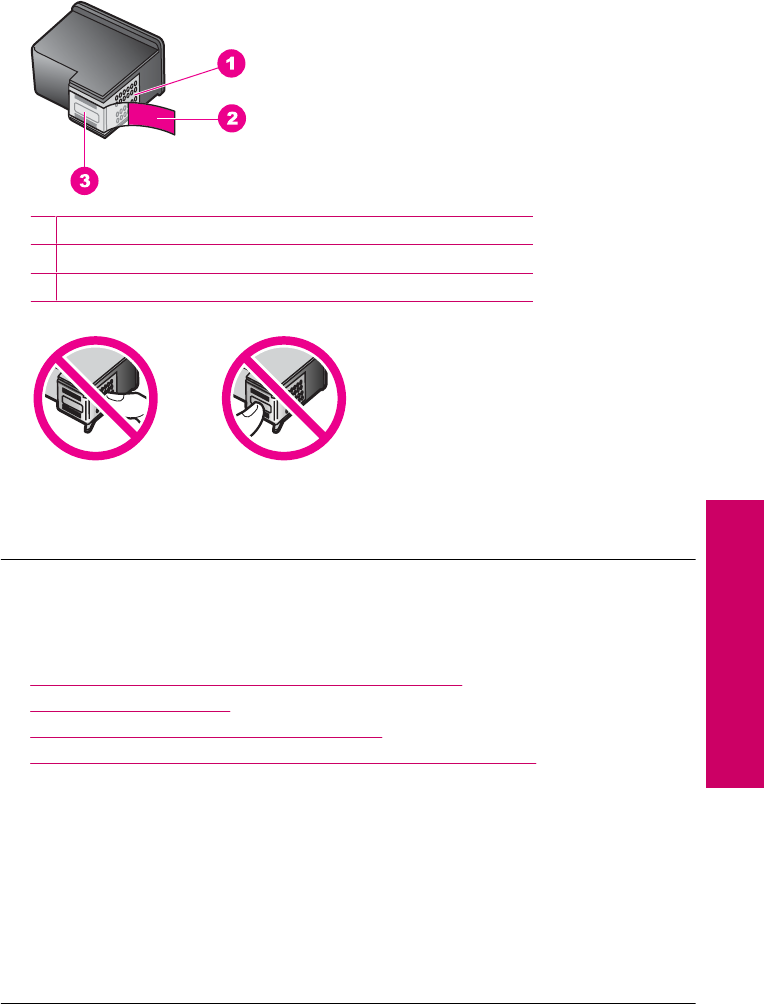
covering the ink nozzles, carefully remove the tape from the print cartridges. Do not
touch the ink nozzles or the copper-colored contacts.
1Copper-colored contacts
2Plastic tape with pink pull tab (must be removed before installing)
3Ink nozzles under tape
Cause: The protective plastic tape was only partially removed from the print
cartridge.
Memory card troubleshooting
Use this section to solve these memory card problems:
•My memory card no longer works in my digital camera
•The On button is blinking
•The product does not read the memory card
•The photos on the memory card do not transfer to my computer
My memory card no longer works in my digital camera
Solution: Reformat your memory card in your camera or format your memory card
on a Windows computer by selecting the FAT format. For more information, see the
documentation that came with your digital camera.
Cause: You formatted the card on a Windows XP computer. By default, Windows
XP formats a memory card of 8 MB or less and 64 MB or more with the FAT32 format.
Digital cameras and other products use the FAT (FAT16 or FAT12) format and cannot
recognize a FAT32 formatted card.
Memory card troubleshooting 77
Solve a problem

The On button is blinking
Try the following solutions to resolve the issue. Solutions are listed in order, with the most
likely solution first. If the first solution does not solve the problem, continue trying the
remaining solutions until the issue is resolved.
•Solution 1: Remove and reinsert the memory card
•Solution 2: Remove the additional memory card
Solution 1: Remove and reinsert the memory card
Solution: Remove and reinsert the memory card. You might have inserted it
incorrectly. Turn the memory card so that the label faces up and the contacts are
facing the product, and then push the card forward into the appropriate slot until the
Photo light turns on.
If the problem continues, the memory card might be defective.
Cause: The product detected an error with the memory card.
If this did not solve the issue, try the next solution.
Solution 2: Remove the additional memory card
Solution: Remove one of the memory cards. You can use only one memory card
at a time.
Cause: You had inserted more than one memory card.
The product does not read the memory card
Try the following solutions to resolve the issue. Solutions are listed in order, with the most
likely solution first. If the first solution does not solve the problem, continue trying the
remaining solutions until the issue is resolved.
•Solution 1: Insert the memory card properly
•Solution 2: Insert the memory card fully into the appropriate slot on the product
•Solution 3: Remove the additional memory card
•Solution 4: Reformat the memory card in your digital camera
Solution 1: Insert the memory card properly
Solution: Turn the memory card so that the label faces up and the contacts are
facing the product, and then push the card forward into the appropriate slot until the
Photo light turns on.
If the memory card is not inserted properly, the product will not respond and the green
Photo light (near the memory card slots) will blink rapidly.
After the memory card has been inserted properly, the Photo light will blink green for
a few seconds, and then remain lit.
Cause: The memory card was inserted backwards or upside down.
If this did not solve the issue, try the next solution.
Chapter 10
78 Solve a problem
Solve a problem

Solution 2: Insert the memory card fully into the appropriate slot on the product
Solution: Make sure you fully insert the memory card into the appropriate slot on
the product.
If the memory card is not inserted properly, the product will not respond and the green
Photo light (near the memory card slots) will blink rapidly.
After the memory card has been inserted properly, the Photo light will blink green for
a few seconds, and then remain lit.
Cause: The memory card was not fully inserted in the appropriate slot on the
product.
If this did not solve the issue, try the next solution.
Solution 3: Remove the additional memory card
Solution: You can insert only one memory card at a time.
If more than one memory card is inserted, the green Photo light (near the memory
card slots) will blink rapidly, and an error message will appear on the computer screen.
Remove the additional memory card to resolve the problem.
Cause: Multiple memory cards were inserted in the product.
If this did not solve the issue, try the next solution.
Solution 4: Reformat the memory card in your digital camera
Solution: Check the computer screen for an error message telling you that the
images on the memory card are corrupted.
If the file system on the card is corrupt, reformat the memory card in your digital
camera. For more information, see the documentation that came with your digital
camera.
CAUTION: Reformatting the memory card will delete any photos stored on the
card. If you have previously transferred the photos from your memory card to a
computer, try printing the photos from the computer. Otherwise, you will need to
retake any photos you might have lost.
Cause: The memory card file system was corrupted.
The photos on the memory card do not transfer to my computer
Try the following solutions to resolve the issue. Solutions are listed in order, with the most
likely solution first. If the first solution does not solve the problem, continue trying the
remaining solutions until the issue is resolved.
•Solution 1: Install the product software
•Solution 2: Turn on the product
•Solution 3: Turn on the computer
•Solution 4: Check the connection from the product to your computer
Memory card troubleshooting 79
Solve a problem
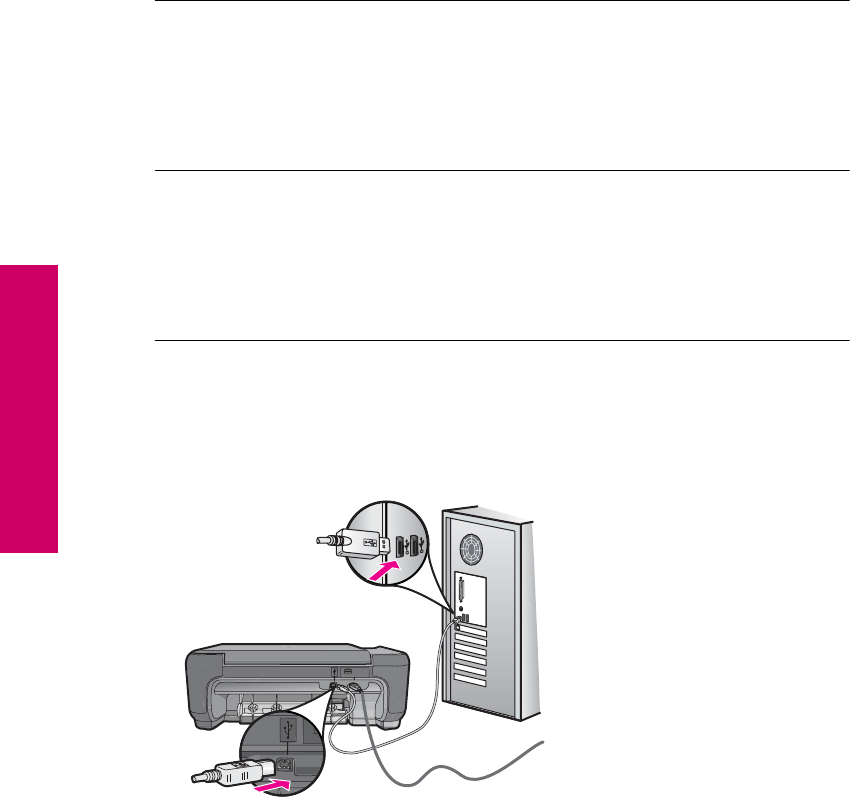
Solution 1: Install the product software
Solution: Install the product software that came with the product. If it is installed,
restart your computer.
To install the product software
1. Insert the product CD-ROM into your computer’s CD-ROM drive and then start
the Setup program.
2. When prompted, click Install More Software to install the product software.
3. Follow the onscreen instructions and the instructions provided in the Setup Guide
that came with the product.
Cause: The product software was not installed.
If this did not solve the issue, try the next solution.
Solution 2: Turn on the product
Solution: Turn on the product.
Cause: The product was turned off.
If this did not solve the issue, try the next solution.
Solution 3: Turn on the computer
Solution: Turn on the computer
Cause: The computer was turned off.
If this did not solve the issue, try the next solution.
Solution 4: Check the connection from the product to your computer
Solution: Check the connection from the product to your computer. Verify that the
USB cable is securely plugged into the USB port on the back of the product. Make
sure the other end of the USB cable is plugged into a USB port on your computer.
After the cable is connected properly, turn off the product and then on again.
Chapter 10
80 Solve a problem
Solve a problem

For more information on setting up the product and connecting it to your computer,
see the Setup Guide that came with the product.
Cause: The product was not properly connected to the computer.
Copy troubleshooting
Use this section to solve these copy problems:
•Nothing happens when I try to copy
•Parts of the original do not appear or are cut off
•Resize to Fit is not working as expected
•The printout is blank
Nothing happens when I try to copy
Try the following solutions to resolve the issue. Solutions are listed in order, with the most
likely solution first. If the first solution does not solve the problem, continue trying the
remaining solutions until the issue is resolved.
•Solution 1: Turn on the product
•Solution 2: Place the original correctly on the glass
•Solution 3: Wait until the product completes the current operation
•Solution 4: The product does not support the paper or envelope
•Solution 5: Clear the paper jam
Solution 1: Turn on the product
Solution: Look at the On button located on the product. If it is not lit, the product is
turned off. Make sure the power cord is firmly connected to the product and plugged
into a power outlet. Press the On button to turn on the product.
Cause: The product was turned off.
If this did not solve the issue, try the next solution.
Copy troubleshooting 81
Solve a problem
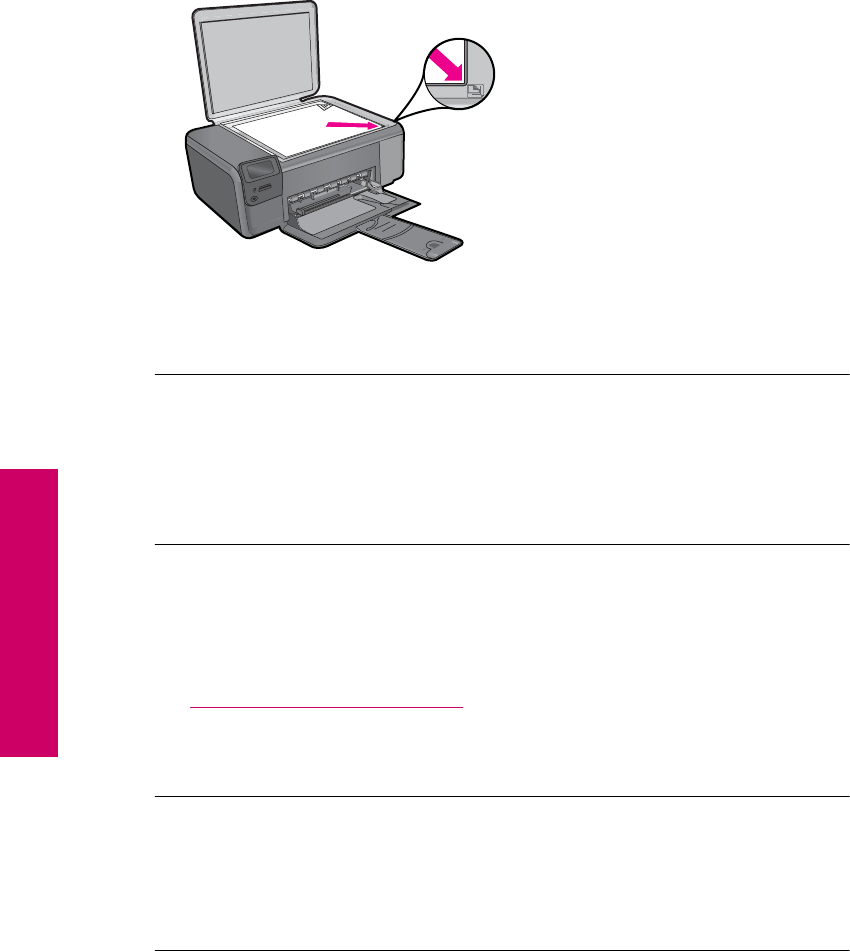
Solution 2: Place the original correctly on the glass
Solution: Load the original print side down on the right front corner of the glass as
shown below.
Cause: The original was placed incorrectly on the glass.
If this did not solve the issue, try the next solution.
Solution 3: Wait until the product completes the current operation
Solution: Check the On button. If it is blinking, the product is busy.
Cause: The product was busy copying or printing.
If this did not solve the issue, try the next solution.
Solution 4: The product does not support the paper or envelope
Solution: Do not use the product to copy onto envelopes or other papers it does
not support.
For more information, see:
“Recommended papers for printing” on page 8
Cause: The product did not recognize the paper type.
If this did not solve the issue, try the next solution.
Solution 5: Clear the paper jam
Solution: Clear the paper jam and remove any torn paper that remains in the
product.
Cause: The product had a paper jam.
Chapter 10
82 Solve a problem
Solve a problem
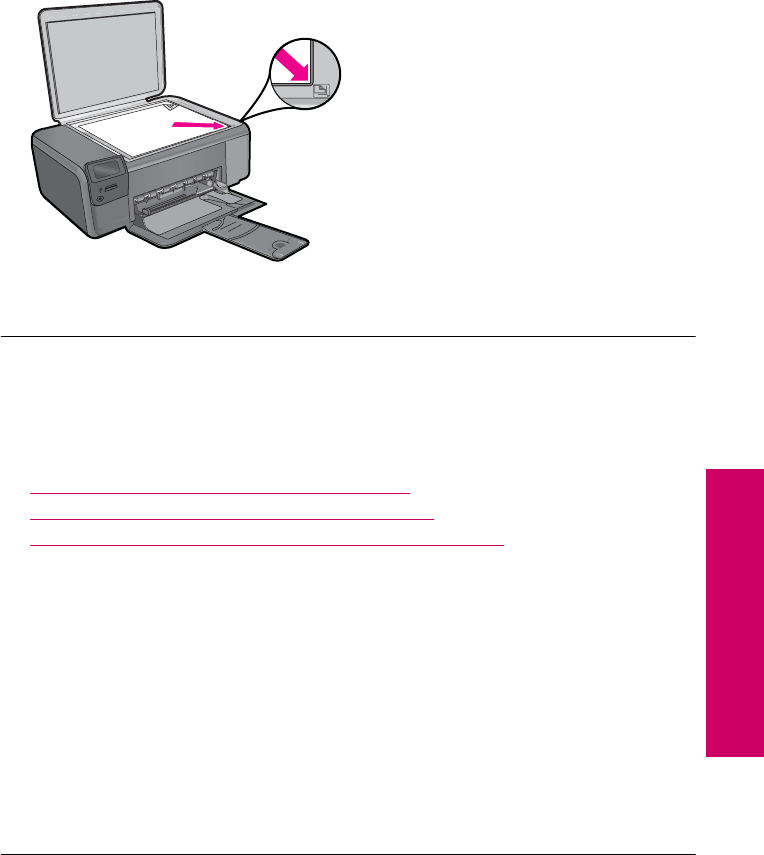
Parts of the original do not appear or are cut off
Solution: Load the original print side down on the right front corner of the glass as
shown below.
Cause: The original was placed incorrectly on the glass.
Resize to Fit is not working as expected
Try the following solutions to resolve the issue. Solutions are listed in order, with the most
likely solution first. If the first solution does not solve the problem, continue trying the
remaining solutions until the issue is resolved.
•Solution 1: Scan, enlarge, and then print a copy
•Solution 2: Place the original correctly on the glass
•Solution 3: Wipe the glass and the back of the document lid
Solution 1: Scan, enlarge, and then print a copy
Solution: Resize to Fit can only enlarge the original up to the maximum percentage
allowed by your model. For example, 200% might be the maximum enlargement
percentage allowed by your model. Enlarging a passport photo by 200% might not
enlarge it enough for it to fit a full-size page.
If you want to make a large copy of a small original, scan the original into the computer,
resize the image in the HP scanning software, and then print a copy of the enlarged
image.
Cause: You were trying to increase the size of an original that was too small.
If this did not solve the issue, try the next solution.
Copy troubleshooting 83
Solve a problem
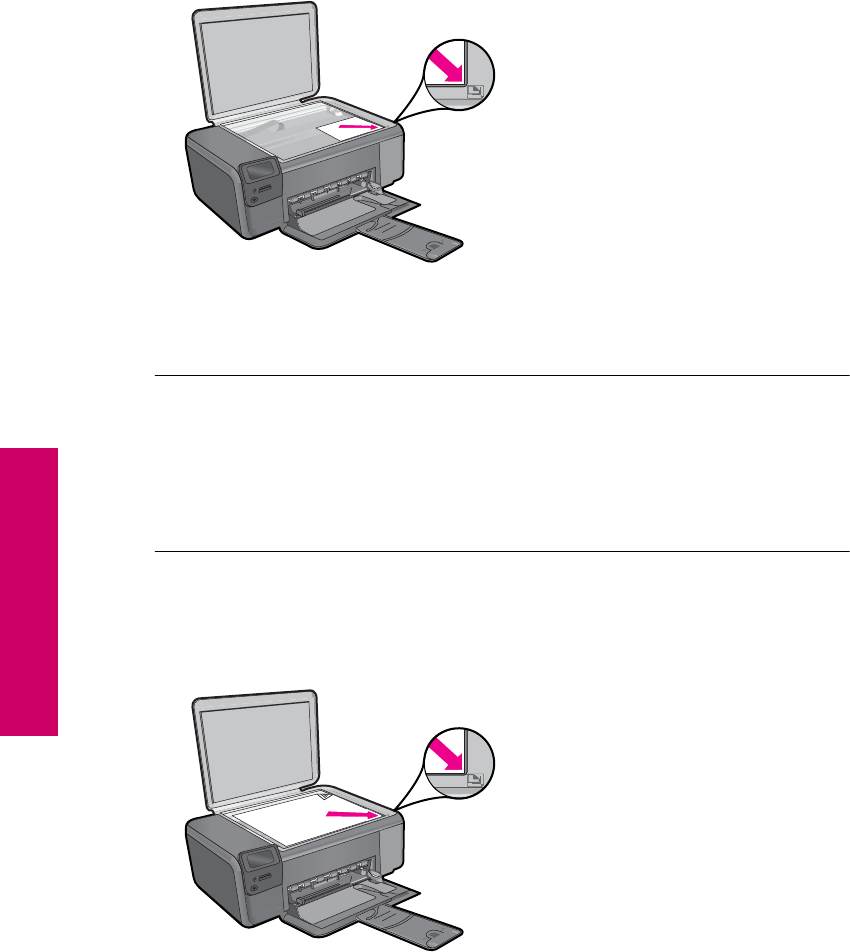
Solution 2: Place the original correctly on the glass
Solution: Load the original print side down on the right front corner of the glass as
shown below. To copy a photo, position the photo on the glass so that the long edge
of the photo is along the front edge of the glass.
Cause: The original was placed incorrectly on the glass.
If this did not solve the issue, try the next solution.
Solution 3: Wipe the glass and the back of the document lid
Solution: Turn off the product, unplug the power cord, and then use a soft cloth to
wipe the glass and the back of the document lid.
Cause: Debris might have been stuck on the glass or on the back of the document
lid. The product interprets anything it detects on the glass as part of the image.
The printout is blank
Solution: Load the original print side down on the right front corner of the glass as
shown below.
Chapter 10
84 Solve a problem
Solve a problem
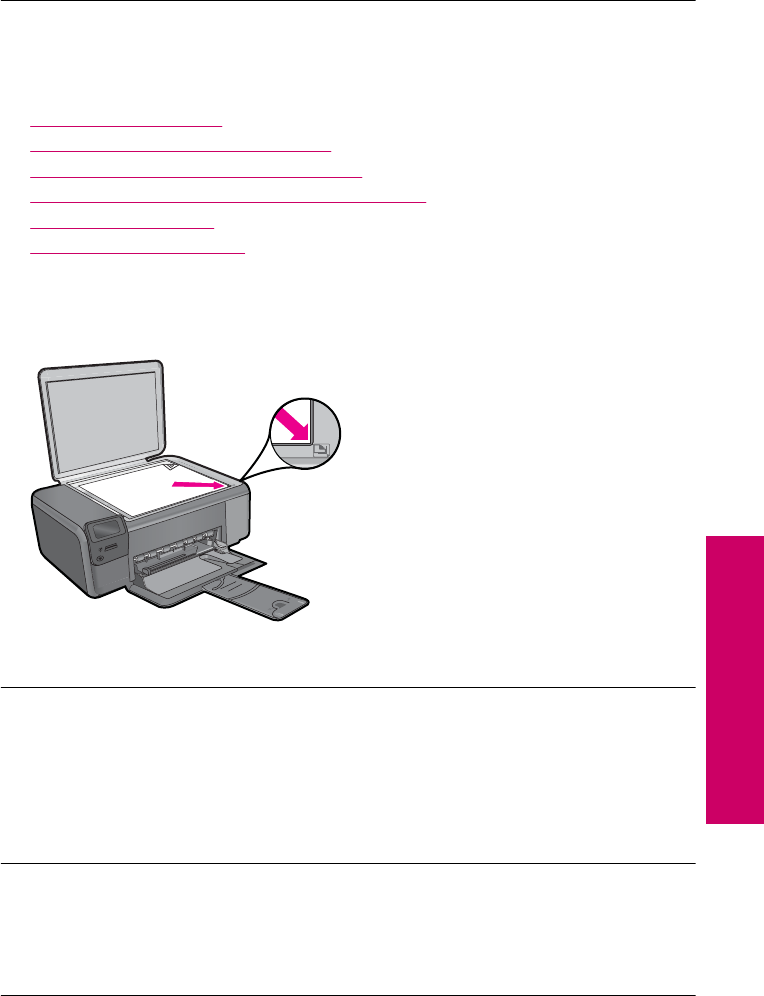
Cause: The original was placed incorrectly on the glass.
Scan troubleshooting
Use this section to solve these scan problems:
•Scanned image is blank
•Scanned image is incorrectly cropped
•Scanned image has incorrect page layout
•Scanned image shows dotted lines instead of text
•Text format is incorrect
•Text is incorrect or missing
Scanned image is blank
Solution: Load your original print side down on the right front corner of the glass.
Cause: The original was placed incorrectly on the glass.
Scanned image is incorrectly cropped
Solution: The autocropping feature in the software crops anything that is not part
of the main image. Sometimes this might not be what you want. In that case, turn off
autocropping in the software and crop the scanned image manually, or not at all.
Cause: The software was set to automatically crop scanned pictures.
Scanned image has incorrect page layout
Solution: Turn off autocropping in the software to retain the page layout.
Cause: Automatic cropping was changing the page layout.
Scanned image shows dotted lines instead of text
Solution: Make a black-and-white copy of the original and then scan the copy.
Scan troubleshooting 85
Solve a problem

Cause: If you used the Text image type to scan text that you planned to edit, the
scanner might not have recognized color text. The Text image type scans at 300 x
300 dpi, in black and white.
If you scanned an original that has graphics or artwork surrounding the text, the
scanner might not have recognized the text.
Text format is incorrect
Solution: Some applications cannot handle framed text formatting. Framed text is
one of the scan document settings in the software. It maintains complex layouts, such
as multiple columns from a newsletter, by putting the text in different frames (boxes)
in the destination application. In the software, select the correct format so that the
scanned text layout and formatting are retained.
Cause: The scan document settings were incorrect.
Text is incorrect or missing
Try the following solutions to resolve the issue. Solutions are listed in order, with the most
likely solution first. If the first solution does not solve the problem, continue trying the
remaining solutions until the issue is resolved.
•Solution 1: Adjust the brightness in the software
•Solution 2: Clean the glass and lid
•Solution 3: Select the correct OCR language
Solution 1: Adjust the brightness in the software
Solution: Adjust the brightness in the software, and then rescan the original.
Cause: The brightness was not set correctly.
If this did not solve the issue, try the next solution.
Solution 2: Clean the glass and lid
Solution: Turn off the product, unplug the power cord, and use a soft cloth to wipe
the glass and the back of the document lid.
Cause: Debris might have been stuck on the glass or on the back of the document
lid. This can cause poor-quality scans.
If this did not solve the issue, try the next solution.
Solution 3: Select the correct OCR language
Solution: Select the correct OCR language in the software.
Chapter 10
86 Solve a problem
Solve a problem
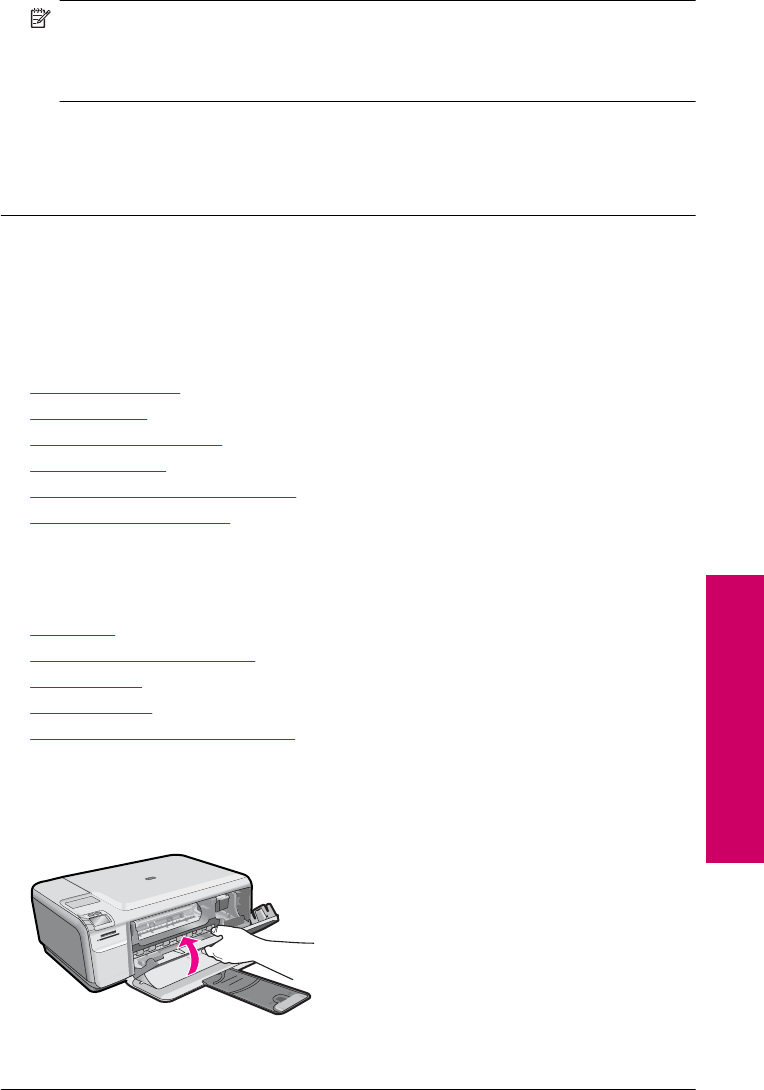
NOTE: If you are using HP Photosmart Essential, the Optical Character
Recognition (OCR) software might not be installed on your computer. To install
the OCR software, you must re-insert the software disk and select OCR under the
Custom installation options.
Cause: The scan document settings were not set to the correct optical character
recognition (OCR) language. The OCR language tells the software how to interpret
the characters it sees in the original image. If the OCR language does not match the
language in the original, the scanned text might be incomprehensible.
Errors
If the product has an error, the lights on the product might flash, or an error message
might appear on your computer screen.
This section contains the following topics:
•Product messages
•File messages
•General user messages
•Paper messages
•Power and connection messages
•Print cartridge messages
Product messages
The following is a list of product-related error messages:
•Door open
•Firmware revision mismatch
•Memory is full
•Scanner failure
•Missing HP Photosmart Software
Door open
Solution: Close the print cartridge door.
Cause: The print cartridge door was open.
Errors 87
Solve a problem

Firmware revision mismatch
Solution: Contact HP support for service.
Go to: www.hp.com/support.
If prompted, choose your country/region, and then click Contact HP for information
on calling for technical support.
Cause: The revision number of the product firmware did not match the revision
number of the software.
Memory is full
Solution: Try making fewer copies at a time.
Cause: The document you were copying exceeded the memory of the product.
Scanner failure
Solution: Turn off the product and then turn it on again. Restart your computer and
then try to scan again.
If the problem persists, try plugging the power cord directly into a power outlet rather
than a surge protector or power strip. If the problem continues, contact HP support.
Go to www.hp.com/support. If prompted, choose your country/region, and then click
Contact HP for information on calling for technical support.
Cause: The product was busy or an unknown cause interrupted your scan.
Missing HP Photosmart Software
Try the following solutions to resolve the issue. Solutions are listed in order, with the most
likely solution first. If the first solution does not solve the problem, continue trying the
remaining solutions until the issue is resolved.
•Solution 1: Install the HP Photosmart Software
•Solution 2: Turn on the product
•Solution 3: Turn on the computer
•Solution 4: Check the connection from the product to your computer
Solution 1: Install the HP Photosmart Software
Solution: Install the HP Photosmart Software that came with the product. If it is
installed, restart your computer.
To install the HP Photosmart Software
1. Insert the product CD-ROM into your computer’s CD-ROM drive and then start
the Setup program.
2. When prompted, click Install More Software to install the HP Photosmart
Software.
3. Follow the onscreen instructions and the instructions provided in the Setup Guide
that came with the product.
Chapter 10
88 Solve a problem
Solve a problem
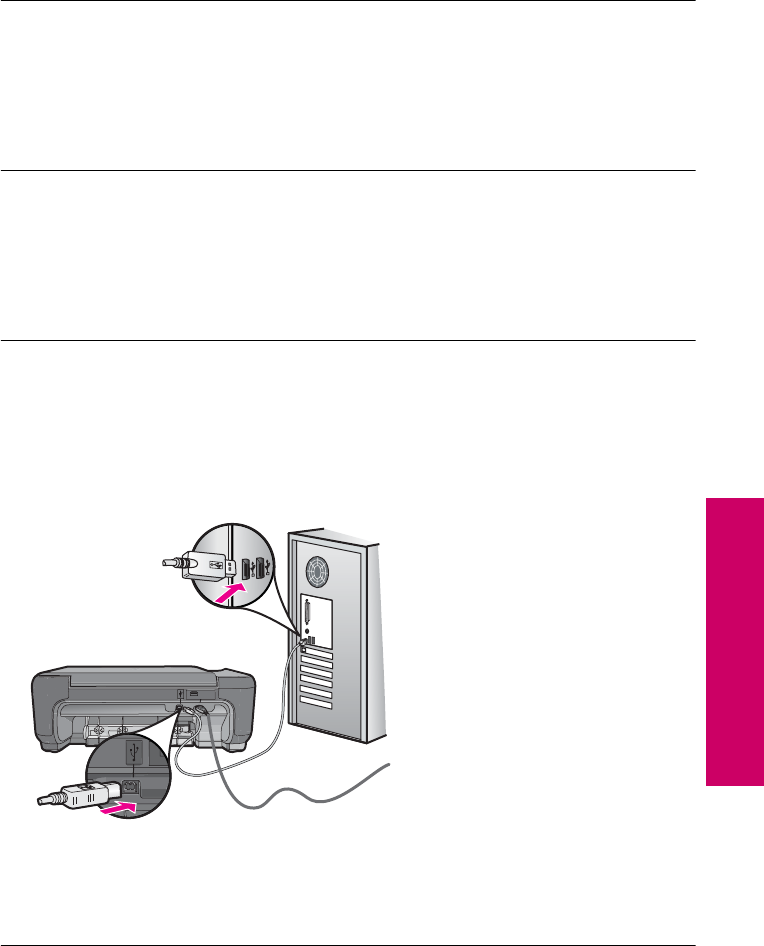
Cause: The HP Photosmart Software was not installed.
If this did not solve the issue, try the next solution.
Solution 2: Turn on the product
Solution: Turn on the product.
Cause: The product was turned off.
If this did not solve the issue, try the next solution.
Solution 3: Turn on the computer
Solution: Turn on the computer
Cause: The computer was turned off.
If this did not solve the issue, try the next solution.
Solution 4: Check the connection from the product to your computer
Solution: Check the connection from the product to your computer. Verify that the
USB cable is securely plugged into the USB port on the back of the product. Make
sure the other end of the USB cable is plugged into a USB port on your computer.
After the cable is connected properly, turn off the product and then on again.
For more information on setting up the product and connecting it to your computer,
see the Setup Guide that came with the product.
Cause: The product was not properly connected to the computer.
Errors 89
Solve a problem

File messages
The following is a list of file-related error messages:
•Error reading or writing the file
•Unreadable files. NN files could not be read
•Photos not found
•File not found
•Invalid file name
•Supported file types for the product
•File corrupted
Error reading or writing the file
Solution: Check to see if you have the right folder and file name.
Cause: The product software could not open or save the file.
Unreadable files. NN files could not be read
Solution: Reinsert the memory card in the product. If this does not work, retake the
photos with your digital camera. If you already transferred the files to your computer,
try printing those files by using the HP Photosmart Software. The copies might not
be damaged.
Cause: Some of the files on the inserted memory card were damaged.
Photos not found
Try the following solutions to resolve the issue. Solutions are listed in order, with the most
likely solution first. If the first solution does not solve the problem, continue trying the
remaining solutions until the issue is resolved.
•Solution 1: Reinsert the memory card
•Solution 2: Print photos from the computer
Solution 1: Reinsert the memory card
Solution: Reinsert the memory card. If this does not work, retake the photos with
your digital camera. If you already transferred the files to your computer, try printing
those files by using the HP Photosmart Software. The copies might not be damaged.
Cause: Some of the files on the inserted memory card were damaged.
If this did not solve the issue, try the next solution.
Solution 2: Print photos from the computer
Solution: Take some photos with your digital camera, or if you previously saved
photos on your computer, you can print them using the HP Photosmart Software.
Cause: No photos were found on the memory card.
Chapter 10
90 Solve a problem
Solve a problem

File not found
Solution: Close some applications and try the task again.
Cause: There was not enough available memory on your computer to create a print
preview file.
Invalid file name
Solution: Make sure that you are not using any invalid symbols in the file name.
Cause: The file name you entered was invalid.
Supported file types for the product
The product software only recognizes JPG and TIF images.
File corrupted
Try the following solutions to resolve the issue. Solutions are listed in order, with the most
likely solution first. If the first solution does not solve the problem, continue trying the
remaining solutions until the issue is resolved.
•Solution 1: Reinsert the memory card in the product
•Solution 2: Reformat the memory card in your digital camera.
Solution 1: Reinsert the memory card in the product
Solution: Reinsert the memory card in the product. If this does not work, retake the
photos with your digital camera. If you already transferred the files to your computer,
try printing those files by using the HP Photosmart Software. The copies might not
be damaged.
Cause: Some of the files on the inserted memory card were damaged.
If this did not solve the issue, try the next solution.
Solution 2: Reformat the memory card in your digital camera.
Solution: Check the computer screen for an error message telling you that the
images on the memory card are corrupted.
If the file system on the card is corrupt, reformat the memory card in your digital
camera.
CAUTION: Reformatting the memory card will delete any photos stored on the
card. If you have previously transferred the photos from your memory card to a
computer, try printing the photos from the computer. Otherwise, you will need to
retake any photos you might have lost.
Cause: The memory card file system was corrupted.
Errors 91
Solve a problem

General user messages
The following is a list of messages related to common user errors:
•Cannot crop
•Borderless printing error
•Memory card error
•Out of disk space
•Card access error
•Use only one card at a time
•Card is inserted incorrectly
•Card is damaged
•Card is not fully inserted
Cannot crop
Try the following solutions to resolve the issue. Solutions are listed in order, with the most
likely solution first. If the first solution does not solve the problem, continue trying the
remaining solutions until the issue is resolved.
•Solution 1: Close some applications or restart your computer
•Solution 2: Empty the Recycle Bin on your desktop
Solution 1: Close some applications or restart your computer
Solution: Close all unnecessary applications. This includes applications that run in
the background, such as screensavers and virus checkers. (If you turn off your virus
checker, remember to turn it back on after you finish.) Try restarting your computer
to clear the memory. You might need to purchase more RAM. Refer to the
documentation that came with your computer.
Cause: The computer did not have enough memory.
If this did not solve the issue, try the next solution.
Solution 2: Empty the Recycle Bin on your desktop
Solution: Empty the Recycle Bin on your desktop. You might also need to remove
files from the hard disk; for example, delete temporary files.
Cause: For scanning, there must be at least 50 MB of space available on your
computer's hard disk.
Borderless printing error
Solution: Borderless printing cannot occur with only the black print cartridge
installed. Install the tri-color print cartridge.
For more information, see:
“Replace the cartridges” on page 40
Chapter 10
92 Solve a problem
Solve a problem

Cause: The product was in ink-backup mode with only the black print cartridge
installed, and a borderless print job was initiated.
Memory card error
Try the following solutions to resolve the issue. Solutions are listed in order, with the most
likely solution first. If the first solution does not solve the problem, continue trying the
remaining solutions until the issue is resolved.
•Solution 1: Remove all but one memory card
•Solution 2: Push the memory card all the way forward
Solution 1: Remove all but one memory card
Solution: Remove all but one memory card. The product reads the remaining
memory card and displays the first photo stored on the memory card.
Cause: There were two or more memory cards inserted into the product at the same
time.
If this did not solve the issue, try the next solution.
Solution 2: Push the memory card all the way forward
Solution: Remove the memory card and reinsert it in the memory card slot until it
stops.
Cause: You had not fully inserted the memory card.
Out of disk space
Solution: Close some applications and try the task again.
Cause: There was not enough available memory on your computer to perform the
task.
Card access error
Try the following solutions to resolve the issue. Solutions are listed in order, with the most
likely solution first. If the first solution does not solve the problem, continue trying the
remaining solutions until the issue is resolved.
•Solution 1: Remove all but one memory card
•Solution 2: Push the memory card all the way forward
Solution 1: Remove all but one memory card
Solution: Remove all but one memory card. The product reads the remaining
memory card and displays the first photo stored on the memory card.
Cause: There were two or more memory cards inserted into the product at the same
time.
Errors 93
Solve a problem

If this did not solve the issue, try the next solution.
Solution 2: Push the memory card all the way forward
Solution: Remove the memory card and reinsert it in the memory card slot until it
stops.
Cause: You had not fully inserted the memory card.
Use only one card at a time
Solution: You can insert only one memory card at a time.
If more than one memory card is inserted, the green Photo light (near the memory
card slots) will blink rapidly, and an error message will appear on the computer screen.
Remove the additional memory card to resolve the problem.
Cause: Multiple memory cards were inserted in the product.
Card is inserted incorrectly
Solution: Turn the memory card so that the label faces up and the contacts are
facing the product, and then push the card forward into the appropriate slot until the
Photo light turns on.
If the memory card is not inserted properly, the product will not respond and the green
Photo light (near the memory card slots) will blink rapidly.
After the memory card has been inserted properly, the Photo light will blink green for
a few seconds, and then remain lit.
Cause: The card was inserted backwards or upside down.
Card is damaged
Solution: Reformat your memory card in your camera or format your memory card
in a Windows XP computer by selecting the FAT format. For more information, see
the documentation that came with your digital camera.
CAUTION: Reformatting the memory card will delete any photos stored on the
card. If you have previously transferred the photos from your memory card to a
computer, try printing the photos from the computer. Otherwise, you will need to
retake any photos you might have lost.
Cause: You formatted the card on a Windows XP computer. By default, Windows
XP will format a memory card of 8 MB or less and 64 MB or more with the FAT32
format. Digital cameras and other devices use the FAT (FAT16 or FAT12) format and
cannot recognize a FAT32 formatted card.
Chapter 10
94 Solve a problem
Solve a problem

Card is not fully inserted
Solution: Make sure you fully insert the memory card into the appropriate slot on
the product.
If the memory card is not inserted properly, the product will not respond and the green
Photo light (near the memory card slots) will blink rapidly.
After the memory card has been inserted properly, the Photo light will blink green for
a few seconds, and then remain lit.
Cause: The memory card was not fully inserted.
Paper messages
The following is a list of paper-related error messages:
•Paper upside down
•Paper orientation error
•Ink is drying
Paper upside down
Solution: Load paper in the input tray print side down.
Cause: Paper in the input tray was upside down.
Paper orientation error
Solution: Insert paper into the input tray with the short edge forward and the print
side down. Slide the paper forward until it stops.
Cause: Paper in the input tray was in landscape orientation.
Ink is drying
Solution: Leave the sheet in the output tray until the message disappears. If it is
necessary to remove the printed sheet before the message disappears, carefully hold
the printed sheet on the underside or the edges, and place it on a flat surface to dry.
Cause: Transparencies and some other media require a drying time that is longer
than normal.
Power and connection messages
The following is a list of power- and connection-related error messages:
•Improper shutdown
Improper shutdown
Solution: Press the On button to turn the product on and off.
Errors 95
Solve a problem

Cause: The last time the product was used, it was not turned off properly. The
product can be damaged if it is turned off by turning off the switch on a power strip or
by using a wall switch.
Print cartridge messages
The following is a list of print cartridge error messages:
•Low on ink
•Need alignment or alignment failed
•Print cartridges incorrectly installed
•Non-HP cartridges installed
•Print cartridge is missing, incorrectly installed, or not intended for your product
•Printing in ink-backup mode
•Print cartridges missing or not detected
•Incompatible print cartridges
•Print cartridge is not intended for use in this product
•Print cartridges in wrong slot
•Print cartridge problem
•Previously used genuine HP cartridge installed
•Original HP ink has been depleted
•General printer error
Low on ink
Solution: Ink level warnings and indicators provide estimates for planning purposes
only. When you receive a low-ink warning message, consider having a replacement
cartridge available to avoid possible printing delays. You do not need to replace the
print cartridges until print quality becomes unacceptable.
If you have installed a refilled or remanufactured cartridge, or a cartridge that has
been used in another product, the ink level indicator may be inaccurate or unavailable.
For HP product return and recycling information, visit us at: www.hp.com/recycle.
Cause: The indicated print cartridges were estimated to be low on ink and might
need to be replaced soon.
Need alignment or alignment failed
Try the following solutions to resolve the issue. Solutions are listed in order, with the most
likely solution first. If the first solution does not solve the problem, continue trying the
remaining solutions until the issue is resolved.
•Solution 1: Incorrect type of paper is loaded in the input tray
•Solution 2: Make sure the protective tape is removed from the print cartridges
•Solution 3: Check if print cartridges are fully inserted
•Solution 4: Align newly installed print cartridges
•Solution 5: Print cartridge might be defective
Chapter 10
96 Solve a problem
Solve a problem
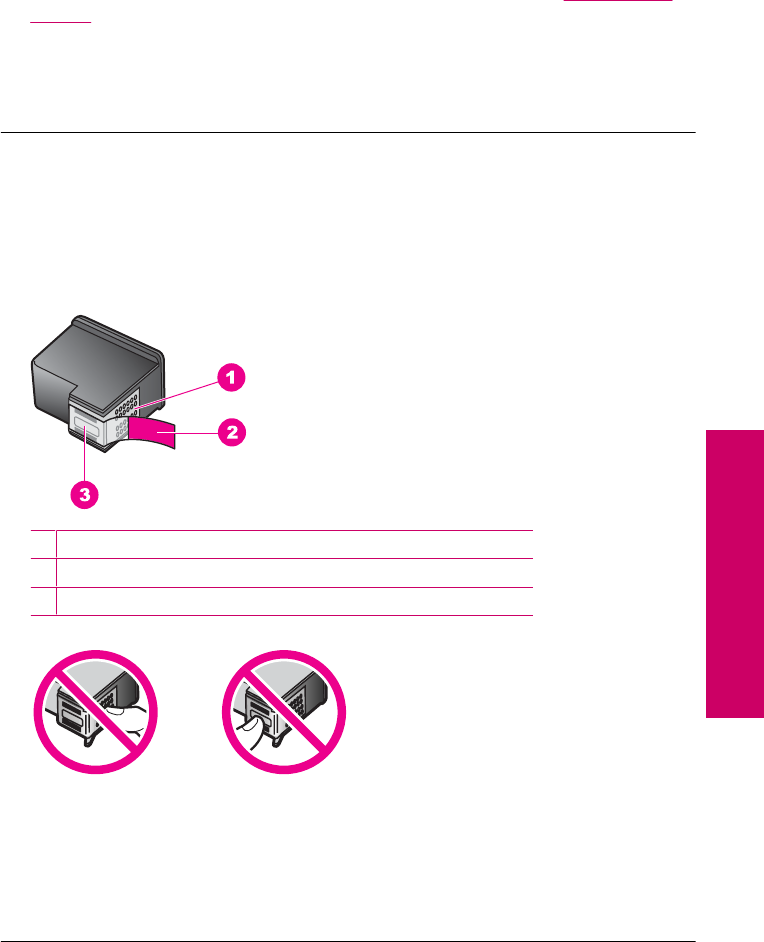
Solution 1: Incorrect type of paper is loaded in the input tray
Solution: If you have colored paper loaded in the input tray when you align the print
cartridges, the alignment fails. Load unused plain white letter or A4 paper into the
input tray, and then try the alignment again. If the alignment fails again, you might
have a defective print cartridge.
To find support and warranty information, go to the HP Web site at www.hp.com/
support. If prompted, choose your country/region, and then click Contact HP for
information on calling for technical support.
Cause: Incorrect type of paper was loaded in the input tray.
If this did not solve the issue, try the next solution.
Solution 2: Make sure the protective tape is removed from the print cartridges
Solution: Check each print cartridge. The tape might have been removed from the
copper-colored contacts, but still might cover the ink nozzles. If the tape is still
covering the ink nozzles, carefully remove the tape from the print cartridges. Do not
touch the ink nozzles or the copper-colored contacts.
1Copper-colored contacts
2Plastic tape with pink pull tab (must be removed before installing)
3Ink nozzles under tape
Remove and then reinsert the print cartridges. Verify that they are fully inserted and
locked in place.
Cause: Protective tape was covering the print cartridges.
If this did not solve the issue, try the next solution.
Errors 97
Solve a problem

Solution 3: Check if print cartridges are fully inserted
Solution: Remove and then reinsert the print cartridges. Verify that they are fully
inserted and locked in place.
Cause: The contacts on the print cartridge were not touching the contacts in the
print carriage.
If this did not solve the issue, try the next solution.
Solution 4: Align newly installed print cartridges
Solution: You must align the print cartridges to ensure excellent print quality.
If the alignment error persists and you cannot clear it, your print cartridge might be
defective. Check to see if your print cartridge is still under warranty and end of
warranty date has not been reached.
•If the end of warranty date has been reached, purchase a new print cartridge.
•If the end of warranty date has not been reached, contact HP support. Go to
www.hp.com/support. If prompted, choose your country/region, and then click
Contact HP for information on calling for technical support.
For more information, see:
•“
Cartridge warranty information” on page 43
•“
Order ink supplies” on page 42
Cause: You installed new print cartridges that needed alignment.
If this did not solve the issue, try the next solution.
Solution 5: Print cartridge might be defective
Solution: Contact HP support for service.
Go to: www.hp.com/support.
If prompted, choose your country/region, and then click Contact HP for information
on calling for technical support.
Cause: The print cartridge was defective.
Print cartridges incorrectly installed
Solution: Remove and reinsert the print cartridges and verify that they are fully
inserted and locked in place.
Chapter 10
98 Solve a problem
Solve a problem
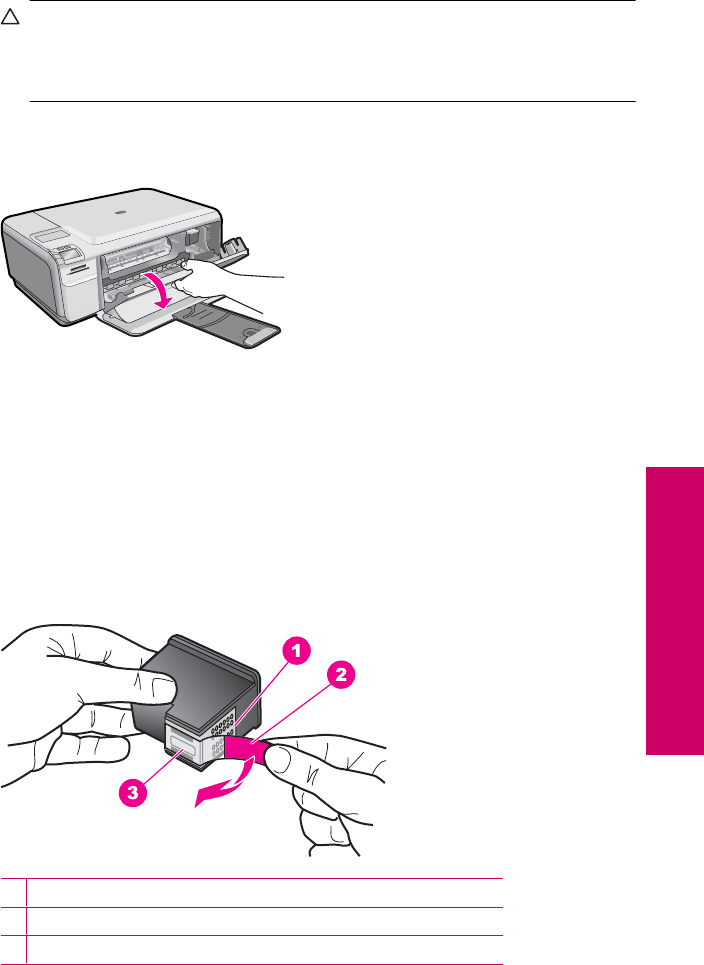
Also, make sure the print cartridges are installed into the correct slots.
To make sure the print cartridges are installed correctly
1. Make sure the product is turned on.
CAUTION: If the product is turned off when you open the print cartridge door
to access the print cartridges, it will not release the cartridges for changing.
You might damage the product if the print cartridges are not docked safely
when you try to remove them.
2. Open the print cartridge door.
The print carriage moves to the far right side of the product.
3. Check to make sure you are using the correct print cartridges for your product.
For a list of compatible print cartridges, see the printed documentation that came
with the product.
4. Remove the black print cartridge from the slot on the right. Do not touch the ink
nozzles or the copper-colored contacts. Check for possible damage to the copper-
colored contacts or ink nozzles.
Make sure the clear plastic tape has been removed. If it is still covering the ink
nozzles, gently remove the clear plastic tape by using the pink pull tab. Make sure
you do not remove the copper colored tape containing the electrical contacts.
1Copper-colored contacts
2Plastic tape with pink pull tab (must be removed before installing)
3Ink nozzles under tape
Errors 99
Solve a problem
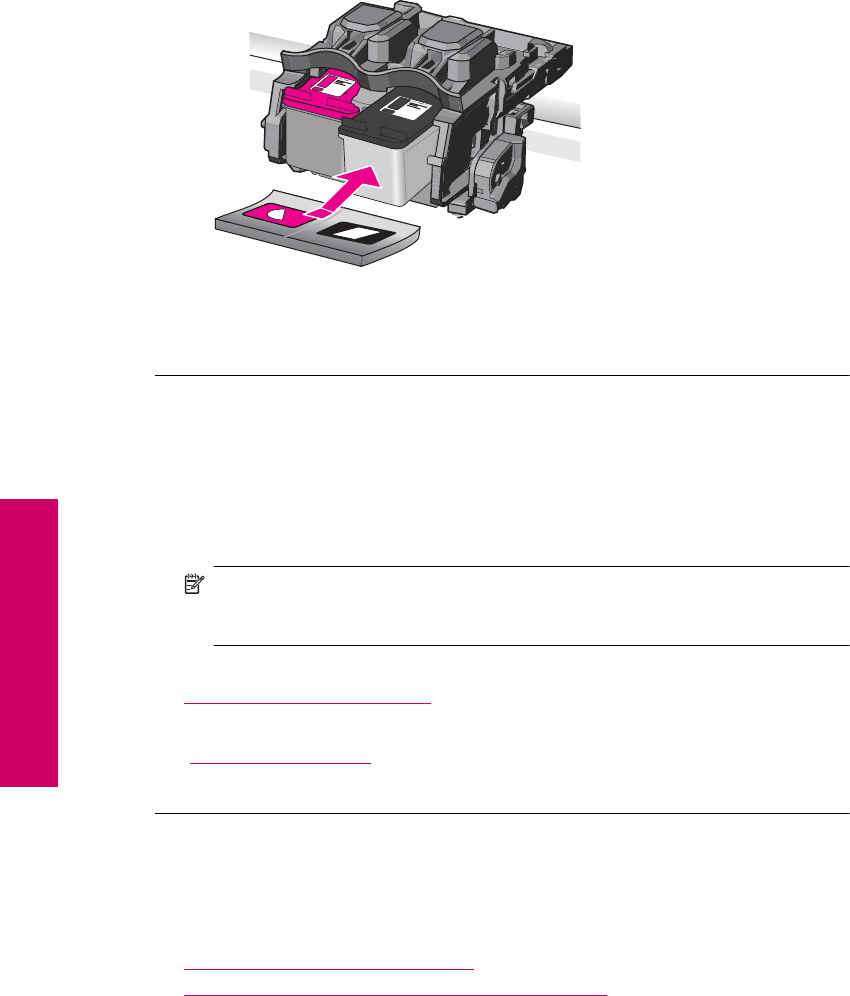
5. Reinsert the print cartridge by sliding it forward into the slot on the right. Then
push the print cartridge forward until it clicks into the socket.
6. Repeat steps 1 and 2 for the tri-color print cartridge on the left side.
Cause: The indicated print cartridges were installed incorrectly.
Non-HP cartridges installed
Solution: Follow the prompts on the display to continue, or replace the indicated
print cartridges with genuine HP cartridges.
HP recommends that you use genuine HP print cartridges. Genuine HP print
cartridges are designed and tested with HP printers to help you easily produce great
results, time after time.
NOTE: HP cannot guarantee the quality or reliability of non-HP supplies. Printer
service or repairs required as a result of using of a non-HP supply will not be
covered under warranty.
If you believe you purchased genuine HP print cartridges, go to:
www.hp.com/go/anticounterfeit
For more information, see:
“Replace the cartridges” on page 40
Cause: The product detected that a non-HP print cartridge was installed.
Print cartridge is missing, incorrectly installed, or not intended for your product
Try the following solutions to resolve the issue. Solutions are listed in order, with the most
likely solution first. If the first solution does not solve the problem, continue trying the
remaining solutions until the issue is resolved.
•Solution 1: Insert the print cartridges
•Solution 2: Remove the tape from the print cartridges
Chapter 10
100 Solve a problem
Solve a problem
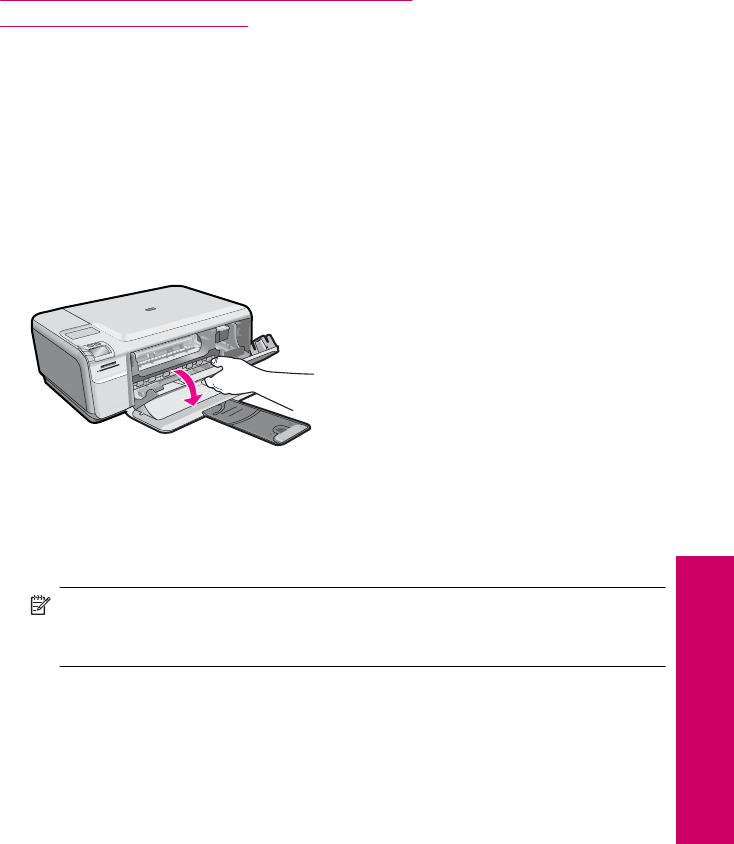
•Solution 3: Remove and reinsert the print cartridges
•Solution 4: Contact HP support
Solution 1: Insert the print cartridges
Solution: One or both of the print cartridges is missing. Remove and reinsert the
print cartridges and verify that they are fully inserted and locked in place. If the
problem persists, clean the contacts of the print cartridges.
To clean the print cartridge contacts
1. Turn on the product and open the print cartridge door.
The print carriage moves to the far right side of the product.
2. Wait until the print carriage is idle and silent, and then unplug the power cord from
the back of the product.
3. Lightly press down on the print cartridge to release it, and then pull it towards you
out of the slot.
NOTE: Do not remove both print cartridges at the same time. Remove and
clean each print cartridge one at a time. Do not leave a print cartridge outside
the HP Photosmart for more than 30 minutes.
4. Inspect the print cartridge contacts for ink and debris buildup.
5. Dip a clean foam rubber swab or lint-free cloth into distilled water, and squeeze
any excess water from it.
6. Hold the print cartridge by its sides.
Errors 101
Solve a problem
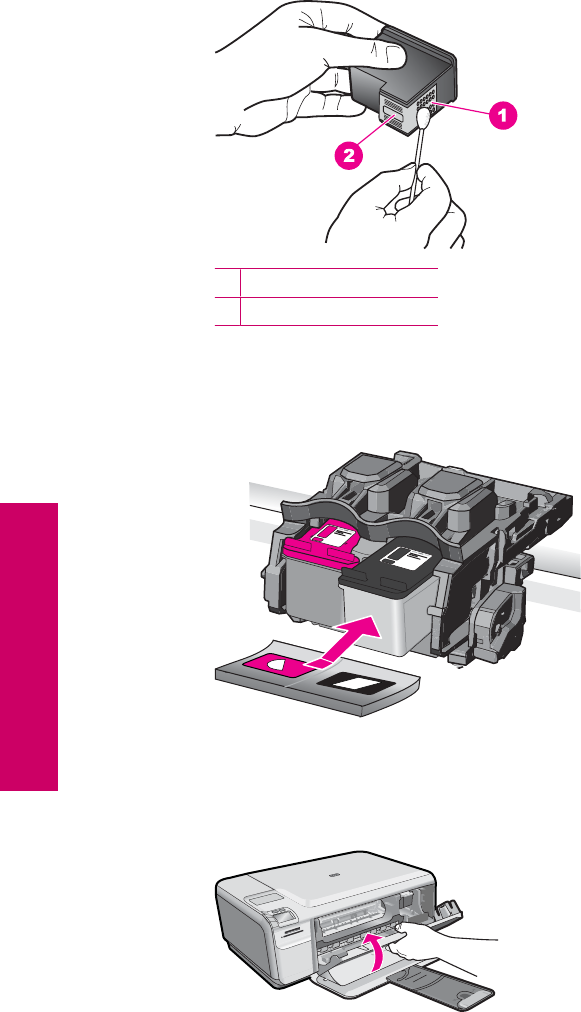
7. Clean only the copper-colored contacts. Allow the print cartridges to dry for
approximately ten minutes.
1Copper-colored contacts
2Ink nozzles (do not clean)
8. Hold the print cartridge with the HP logo on top, and insert the print cartridge back
into the slot. Make sure you push the print cartridge in firmly until it snaps into
place.
9. Repeat if necessary for the other print cartridge.
10. Gently close the print cartridge door and plug the power cord into the back of the
product.
Cause: The print cartridge was missing.
Chapter 10
102 Solve a problem
Solve a problem
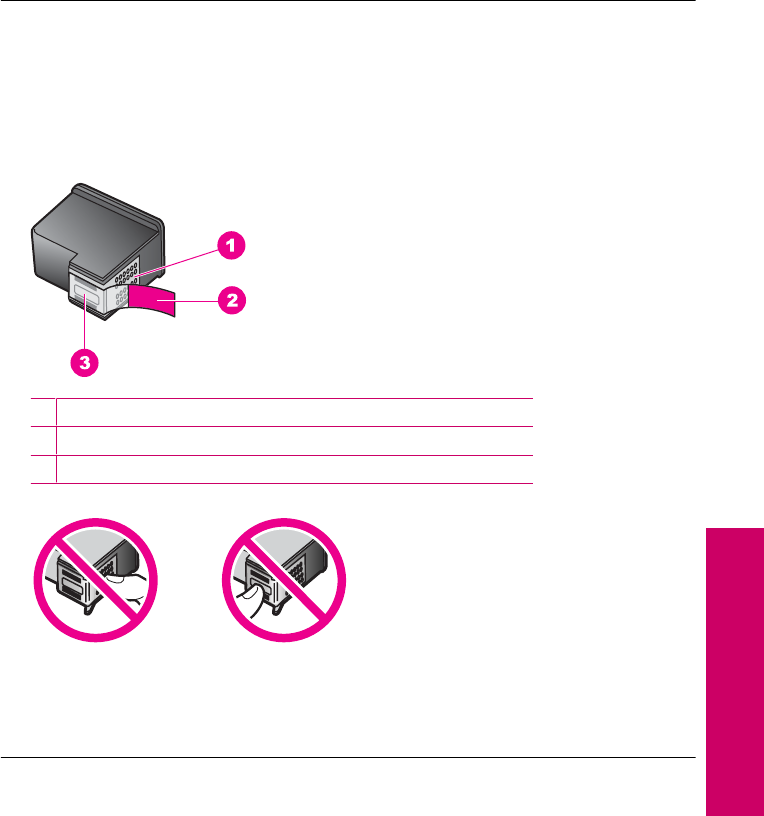
If this did not solve the issue, try the next solution.
Solution 2: Remove the tape from the print cartridges
Solution: Check each print cartridge. The tape might have been removed from the
copper-colored contacts, but still might cover the ink nozzles. If the tape is still
covering the ink nozzles, carefully remove the tape from the print cartridges. Do not
touch the ink nozzles or the copper-colored contacts.
1Copper-colored contacts
2Plastic tape with pink pull tab (must be removed before installing)
3Ink nozzles under tape
Cause: Protective tape was covering the print cartridges.
If this did not solve the issue, try the next solution.
Solution 3: Remove and reinsert the print cartridges
Solution: One or both of the print cartridges are not installed or are installed
incorrectly. Remove and reinsert the print cartridges and verify that they are fully
inserted and locked in place. If the problem persists, clean the copper-colored
contacts of the print cartridges.
To clean the print cartridge contacts
1. Turn on the product and open the print cartridge door.
The print carriage moves to the center of the product.
2. Wait until the print carriage is idle and silent, and then unplug the power cord from
the back of the product.
Errors 103
Solve a problem
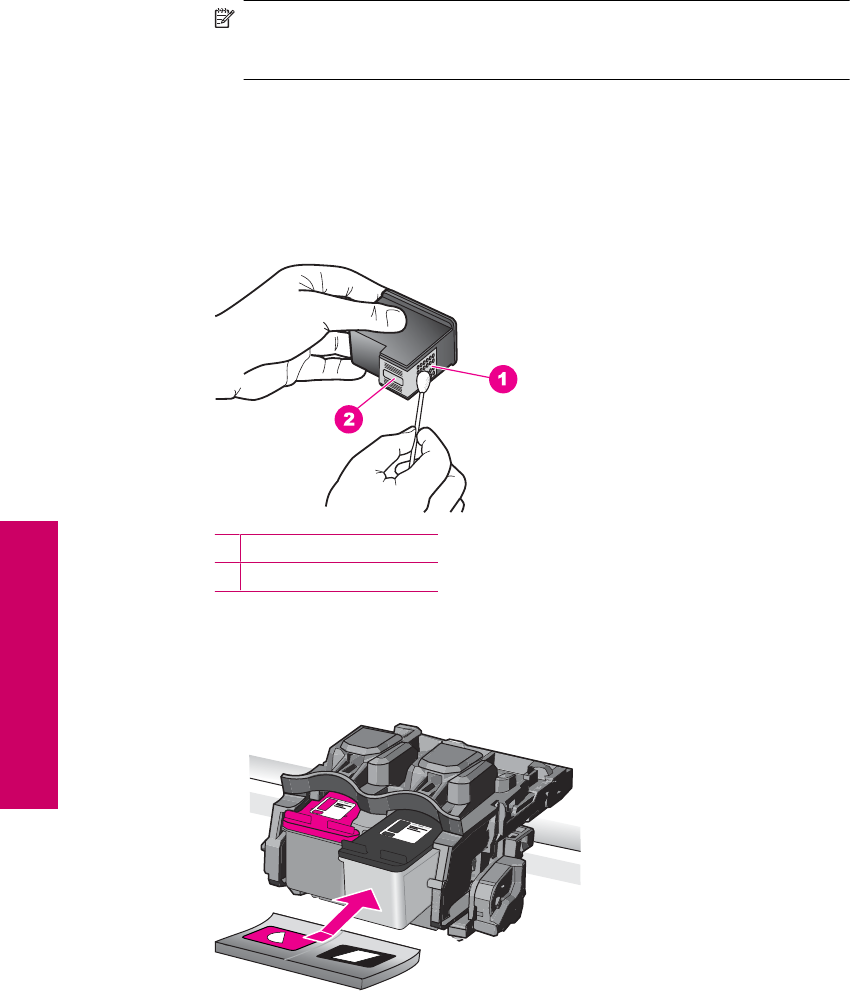
3. Lightly press down on the print cartridge to release it, and then pull it towards you
out of the slot.
NOTE: Do not remove both print cartridges at the same time. Remove and
clean each print cartridge one at a time. Do not leave a print cartridge outside
the HP Photosmart for more than 30 minutes.
4. Inspect the print cartridge contacts for ink and debris buildup.
5. Dip a clean foam rubber swab or lint-free cloth into distilled water, and squeeze
any excess water from it.
6. Hold the print cartridge by its sides.
7. Clean only the copper-colored contacts. Allow the print cartridges to dry for
approximately ten minutes.
1Copper-colored contacts
2Ink nozzles (do not clean)
8. Hold the print cartridge with the HP logo on top, and insert the print cartridge back
into the slot. Make sure you push the print cartridge in firmly until it snaps into
place.
Chapter 10
104 Solve a problem
Solve a problem
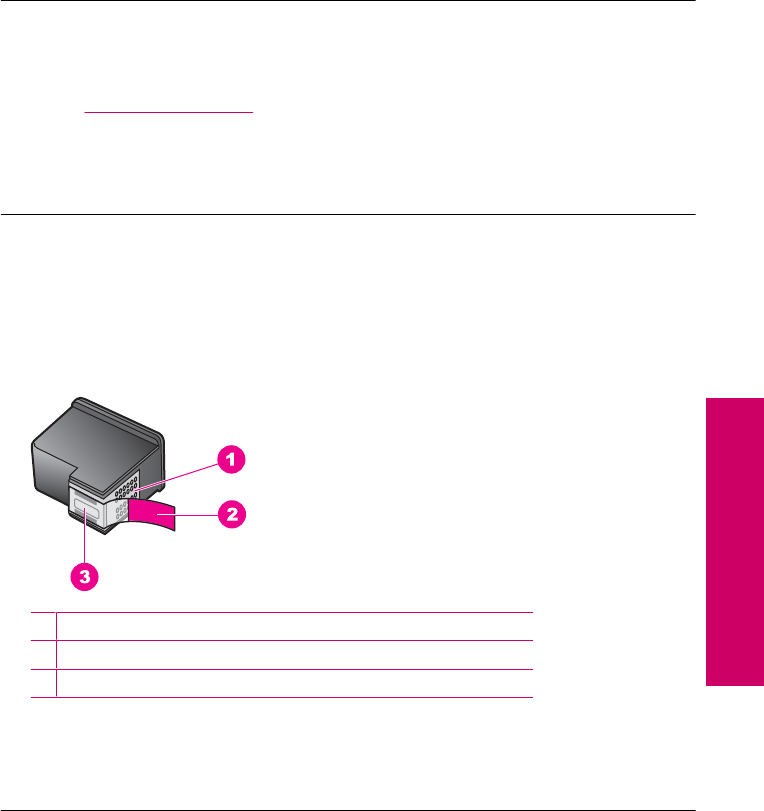
9. Repeat if necessary for the other print cartridge.
10. Gently close the print cartridge door and plug the power cord into the back of the
product.
Cause: One or both of the print cartridges were not installed or were installed
incorrectly.
If this did not solve the issue, try the next solution.
Solution 4: Contact HP support
Solution: Contact HP support for service.
Go to: www.hp.com/support.
If prompted, choose your country/region, and then click Contact HP for information
on calling for technical support.
Cause: The print cartridge was defective or not intended for use in this product.
Printing in ink-backup mode
Solution: If you receive the ink-backup mode message and two print cartridges are
installed in the product, verify that the protective piece of plastic tape has been
removed from each print cartridge. When plastic tape covers the print cartridge
contacts, the product cannot detect that the print cartridge is installed.
1Copper-colored contacts
2Plastic tape with pink pull tab (must be removed before installing)
3Ink nozzles under tape
Cause: When the product detected that only one print cartridge is installed, ink-
backup mode is initiated. This printing mode lets you print with a single print cartridge,
but it slows the product and affects the quality of printouts.
Errors 105
Solve a problem
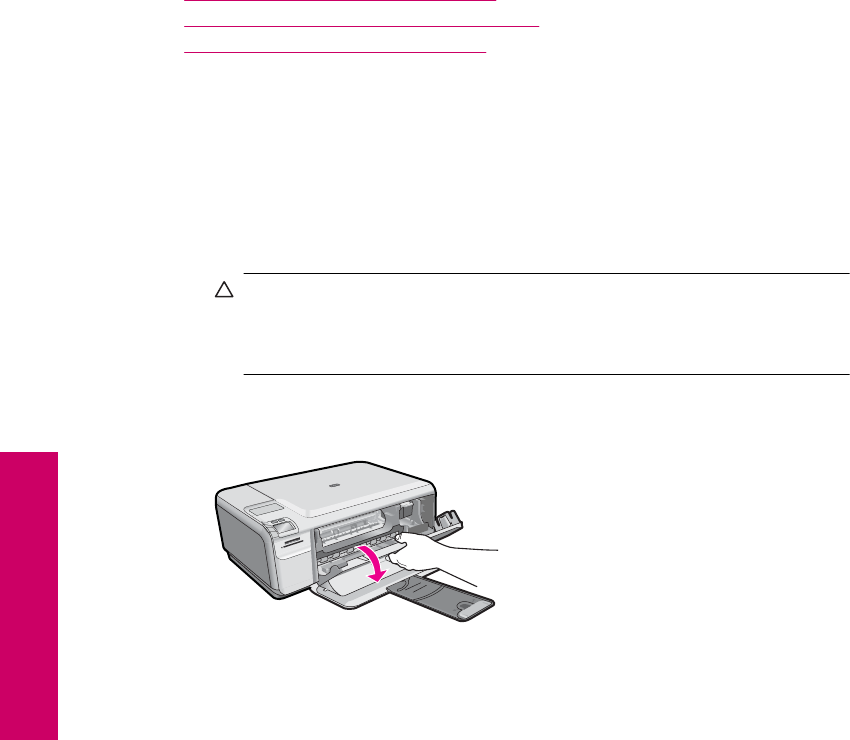
Print cartridges missing or not detected
Try the following solutions to resolve the issue. Solutions are listed in order, with the most
likely solution first. If the first solution does not solve the problem, continue trying the
remaining solutions until the issue is resolved.
•Solution 1: Reinsert the print cartridges
•Solution 2: Clean the print cartridge contacts
•Solution 3: Replace the print cartridge
Solution 1: Reinsert the print cartridges
Solution: Remove and reinsert the print cartridges and verify that they are fully
inserted and locked in place.
Also, make sure the print cartridges are installed into the correct slots.
To make sure the print cartridges are installed correctly
1. Make sure the product is turned on.
CAUTION: If the product is turned off when you open the print cartridge door
to access the print cartridges, it will not release the cartridges for changing.
You might damage the product if the print cartridges are not docked safely
when you try to remove them.
2. Open the print cartridge door.
The print carriage moves to the far right side of the product.
3. Check to make sure you are using the correct print cartridges for your product.
For a list of compatible print cartridges, see the printed documentation that came
with the product.
Chapter 10
106 Solve a problem
Solve a problem
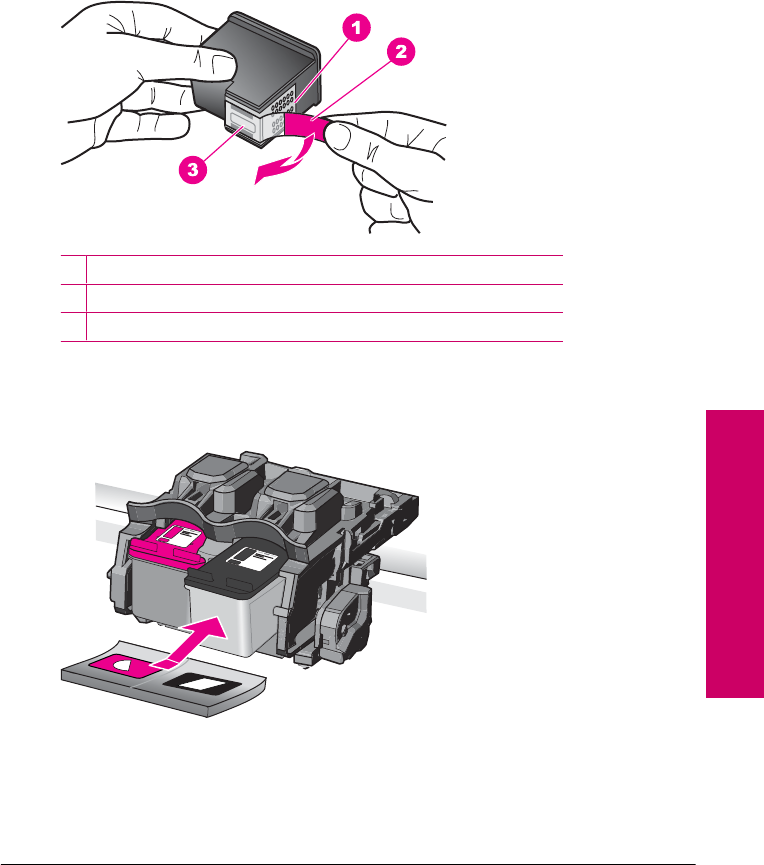
4. Remove the black print cartridge from the slot on the right. Do not touch the ink
nozzles or the copper-colored contacts. Check for possible damage to the copper-
colored contacts or ink nozzles.
Make sure the clear plastic tape has been removed. If it is still covering the ink
nozzles, gently remove the clear plastic tape by using the pink pull tab. Make sure
you do not remove the copper colored tape containing the electrical contacts.
1Copper-colored contacts
2Plastic tape with pink pull tab (must be removed before installing)
3Ink nozzles under tape
5. Reinsert the print cartridge by sliding it forward into the slot on the right. Then
push the print cartridge forward until it clicks into the socket.
6. Repeat steps 1 and 2 for the tri-color print cartridge on the left side.
Cause: The indicated print cartridge were installed incorrectly.
If this did not solve the issue, try the next solution.
Solution 2: Clean the print cartridge contacts
Solution: Clean the print cartridge contacts.
Errors 107
Solve a problem
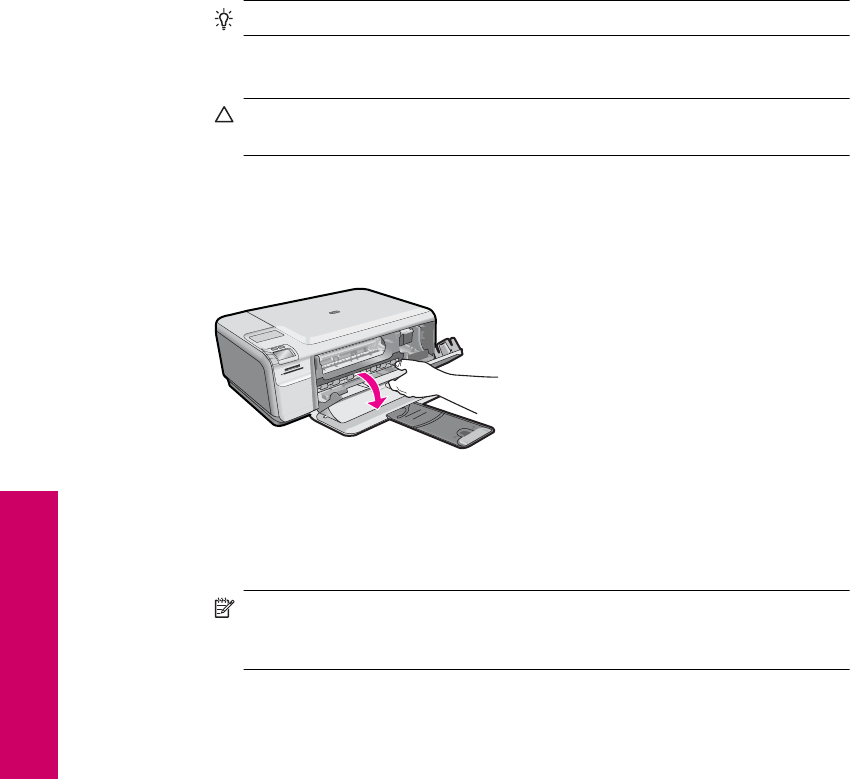
Make sure you have the following materials available:
•Dry foam rubber swabs, lint-free cloth, or any soft material that will not come apart
or leave fibers.
TIP: Coffee filters are lint-free and work well for cleaning print cartridges.
•Distilled, filtered, or bottled water (tap water might contain contaminants that can
damage the print cartridges).
CAUTION: Do not use platen cleaners or alcohol to clean the print cartridge
contacts. These can damage the print cartridge or the product.
To clean the print cartridge contacts
1. Turn on the product and open the print cartridge door.
The print carriage moves to the far right side of the product.
2. Wait until the print carriage is idle and silent, and then unplug the power cord from
the back of the product.
3. Lightly press down on the print cartridge to release it, and then pull it towards you
out of the slot.
NOTE: Do not remove both print cartridges at the same time. Remove and
clean each print cartridge one at a time. Do not leave a print cartridge outside
the HP Photosmart for more than 30 minutes.
4. Inspect the print cartridge contacts for ink and debris buildup.
5. Dip a clean foam rubber swab or lint-free cloth into distilled water, and squeeze
any excess water from it.
6. Hold the print cartridge by its sides.
Chapter 10
108 Solve a problem
Solve a problem
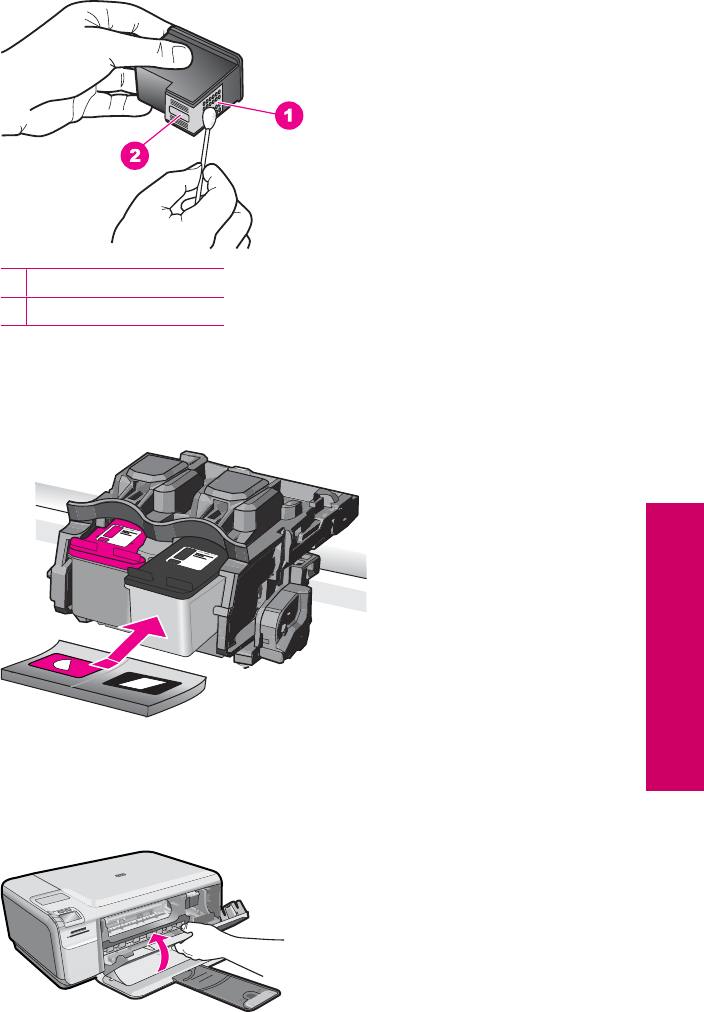
7. Clean only the copper-colored contacts. Allow the print cartridges to dry for
approximately ten minutes.
1Copper-colored contacts
2Ink nozzles (do not clean)
8. Hold the print cartridge with the HP logo on top, and insert the print cartridge back
into the slot. Make sure you push the print cartridge in firmly until it snaps into
place.
9. Repeat if necessary for the other print cartridge.
10. Gently close the print cartridge door and plug the power cord into the back of the
product.
Cause: The print cartridge contacts needed to be cleaned.
Errors 109
Solve a problem

If this did not solve the issue, try the next solution.
Solution 3: Replace the print cartridge
Solution: Replace the indicated print cartridge. You can also remove the indicated
print cartridge and print using ink-backup mode.
NOTE: During ink-backup mode, the product can only print jobs from the
computer. You cannot initiate a print job from the control panel (such as printing
a photo from a memory card).
Check to see if your print cartridge is still under warranty and end of warranty date
has not been reached.
•If the end of warranty date has been reached, purchase a new print cartridge.
•If the end of warranty date has not been reached, contact HP support. Go to
www.hp.com/support. If prompted, choose your country/region, and then click
Contact HP for information on calling for technical support.
For more information, see:
“Cartridge warranty information” on page 43
Cause: The print cartridge was damaged.
Incompatible print cartridges
Try the following solutions to resolve the issue. Solutions are listed in order, with the most
likely solution first. If the first solution does not solve the problem, continue trying the
remaining solutions until the issue is resolved.
•Solution 1: Check the print cartridge
•Solution 2: Contact HP support for service
Solution 1: Check the print cartridge
Solution: Check to make sure you are using the correct print cartridges for your
product. For a list of compatible print cartridges, see the printed documentation that
came with the product.
If you are using print cartridges that are not compatible with the product, replace the
indicated print cartridges with print cartridges that are compatible.
If it appears that you are using the correct print cartridges, proceed to the next
solution.
For more information, see:
“Replace the cartridges” on page 40
Cause: The indicated print cartridges were not compatible with the product.
If this did not solve the issue, try the next solution.
Chapter 10
110 Solve a problem
Solve a problem
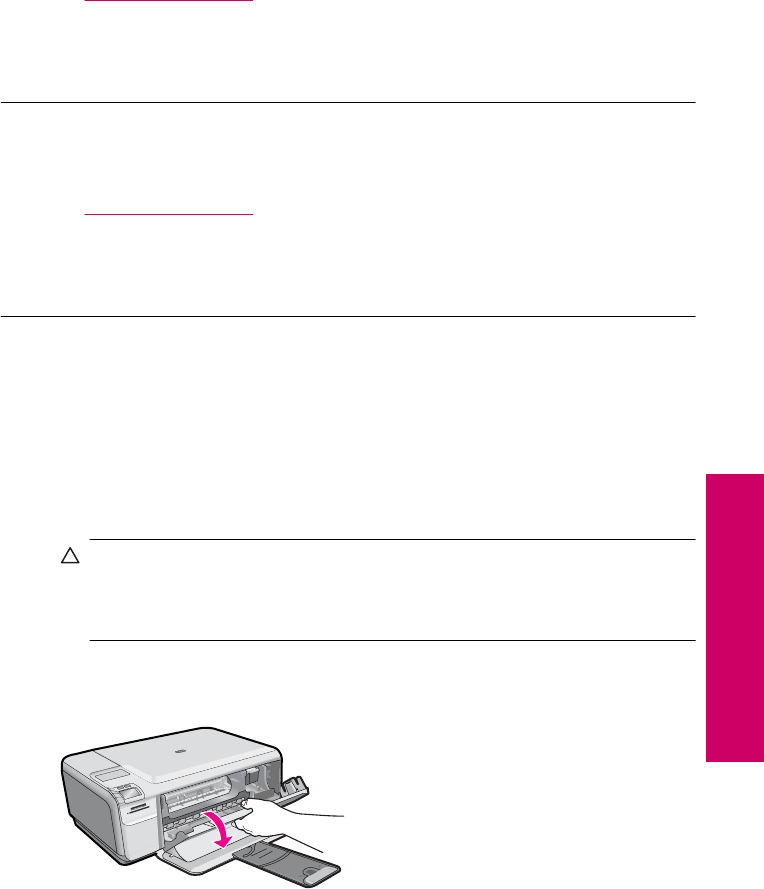
Solution 2: Contact HP support for service
Solution: If you have completed all of the steps provided in the previous solutions
and are still having a problem, contact HP support for service.
Go to: www.hp.com/support.
If prompted, choose your country/region, and then click Contact HP for technical
support.
Cause: The print cartridges were not intended for use in this product.
Print cartridge is not intended for use in this product
Solution: Contact HP support for service.
Go to: www.hp.com/support.
If prompted, choose your country/region, and then click Contact HP for information
on calling for technical support.
Cause: The print cartridge was not intended for use in this product.
Print cartridges in wrong slot
Solution: Remove and reinsert the print cartridges and verify that they are fully
inserted and locked in place.
Also, make sure the print cartridges are installed into the correct slots.
To make sure the print cartridges are installed correctly
1. Make sure the product is turned on.
CAUTION: If the product is turned off when you open the print cartridge door
to access the print cartridges, it will not release the cartridges for changing.
You might damage the product if the print cartridges are not docked safely
when you try to remove them.
2. Open the print cartridge door.
The print carriage moves to the far right side of the product.
3. Check to make sure you are using the correct print cartridges for your product.
For a list of compatible print cartridges, see the printed documentation that came
with the product.
Errors 111
Solve a problem
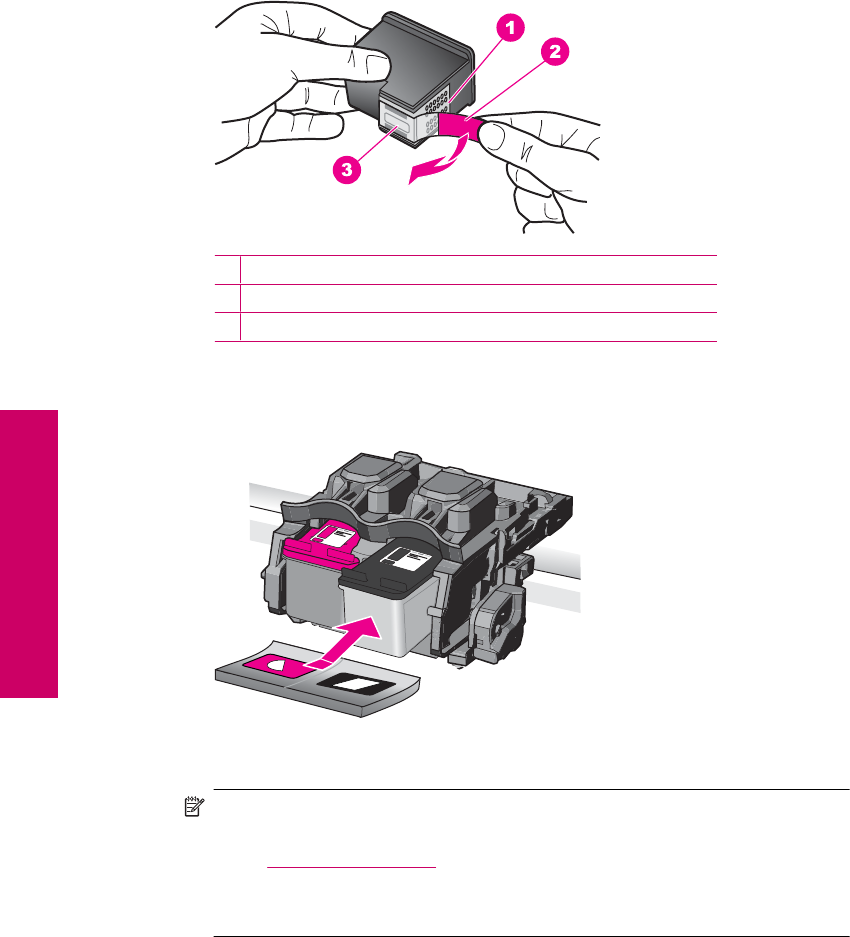
4. Remove the black print cartridge from the slot on the right. Do not touch the ink
nozzles or the copper-colored contacts. Check for possible damage to the copper-
colored contacts or ink nozzles.
Make sure the clear plastic tape has been removed. If it is still covering the ink
nozzles, gently remove the clear plastic tape by using the pink pull tab. Make sure
you do not remove the copper colored tape containing the electrical contacts.
1Copper-colored contacts
2Plastic tape with pink pull tab (must be removed before installing)
3Ink nozzles under tape
5. Reinsert the print cartridge by sliding it forward into the slot on the right. Then
push the print cartridge forward until it clicks into the socket.
6. Repeat steps 1 and 2 for the tri-color print cartridge on the left side.
NOTE: If the print cartridges are installed in the wrong slots and you cannot
remove them from the product, contact HP support for service.
Go to: www.hp.com/support.
If prompted, choose your country/region, and then click Contact HP for
information on calling for technical support.
Chapter 10
112 Solve a problem
Solve a problem
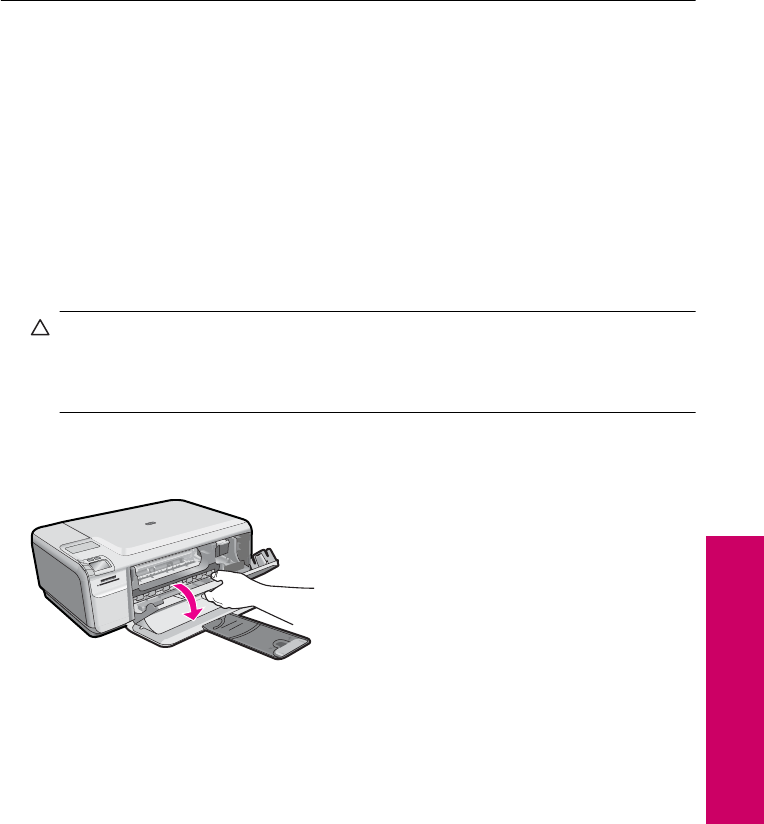
Cause: The indicated print cartridges were installed incorrectly.
Print cartridge problem
The message might indicate which cartridge is causing the problem. If so, try the following
solutions to resolve the issue. Solutions are listed in order, with the most likely solution
first. If the first solution does not solve the problem, continue trying the remaining solutions
until the issue is resolved.
If the message does not indicate which cartridge is causing the problem, follow these
steps to determine which cartridge is the problem cartridge. After you determine which
cartridge is the problem cartridge, continue with the first solution.
To determine which print cartridge is having the problem
1. Make sure the product is on.
CAUTION: If the product is turned off when you open the print cartridge door to
access the print cartridges, it will not release the cartridges for changing. You
might damage the product if the print cartridges are not docked safely when you
try to remove them.
2. Open the print cartridge door.
The print carriage moves to the far right side of the product.
3. Check to make sure you are using the correct print cartridges for your product. For a
list of compatible print cartridges, see the printed documentation that came with the
product.
Errors 113
Solve a problem
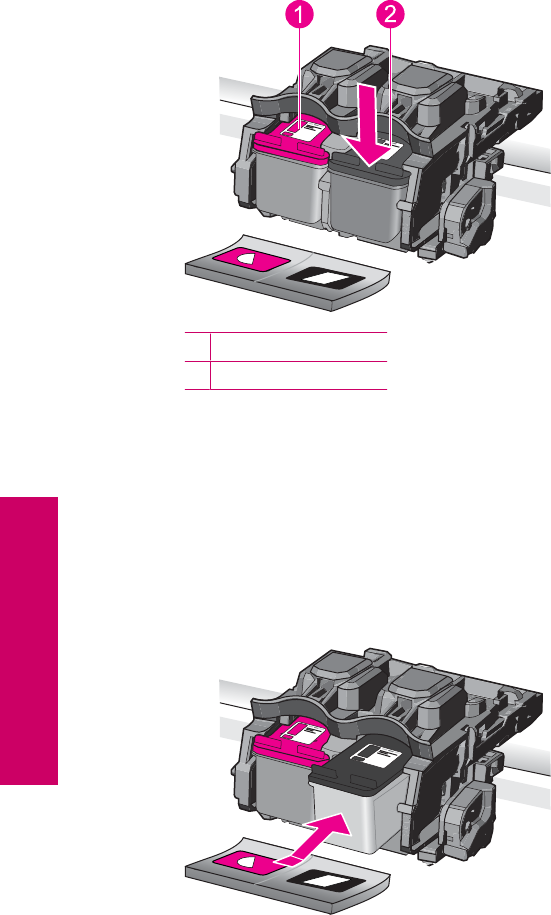
4. Remove the black print cartridge from the slot on the right.
Press down on the cartridge to release it, and then pull it toward you out of the slot.
1Tri-color print cartridge
2Black print cartridge
5. Close the print cartridge door.
6. Check to see if the error has been resolved.
• If the error has been resolved, then there is a problem with the black print
cartridge.
• If the error has not been resolved, continue to the next step.
7. Open the print cartridge door and reinsert the black print cartridge by sliding it forward
into the slot on the right. Then push the print cartridge forward until it clicks into the
slot.
8. Remove the tri-color print cartridge from the slot on the left.
Press down on the cartridge to release it, and then pull it toward you out of the slot.
9. Close the print cartridge door.
Chapter 10
114 Solve a problem
Solve a problem
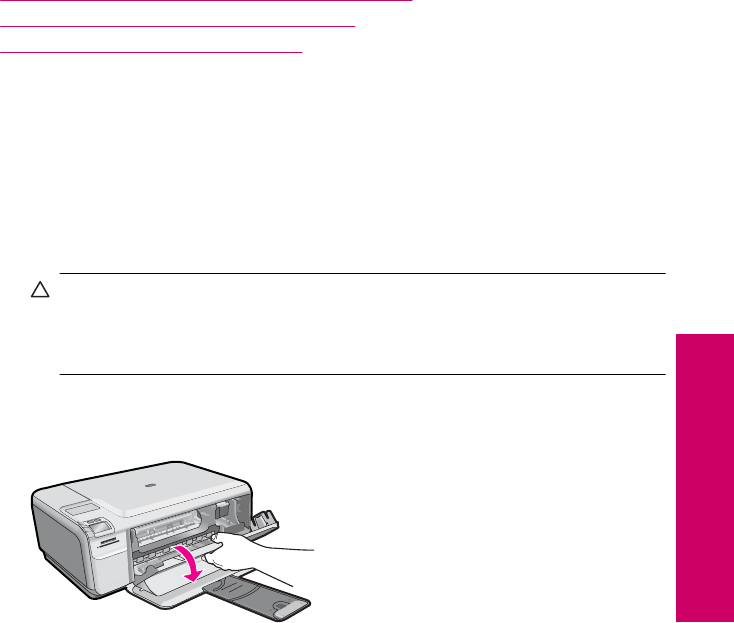
10. Check to see if the error has been resolved.
• If the error has been resolved, then there is a problem with the tri-color print
cartridge.
• If the error has not been resolved, then there is a problem with both print
cartridges.
11. Open the print cartridge door and reinsert the tri-color print cartridge by sliding it
forward into the slot on the left. Then push the print cartridge forward until it clicks into
the slot.
12. Close the print cartridge door.
•Solution 1: Remove and reinsert the print cartridges
•Solution 2: Clean the print cartridge contacts
•Solution 3: Replace the print cartridge
Solution 1: Remove and reinsert the print cartridges
Solution: Remove and reinsert the print cartridges and verify that they are fully
inserted and locked in place.
Also, make sure the print cartridges are installed into the correct slots.
To make sure the print cartridges are installed correctly
1. Make sure the product is turned on.
CAUTION: If the product is turned off when you open the print cartridge door
to access the print cartridges, it will not release the cartridges for changing.
You might damage the product if the print cartridges are not docked safely
when you try to remove them.
2. Open the print cartridge door.
The print carriage moves to the far right side of the product.
3. Check to make sure you are using the correct print cartridges for your product.
For a list of compatible print cartridges, see the printed documentation that came
with the product.
Errors 115
Solve a problem
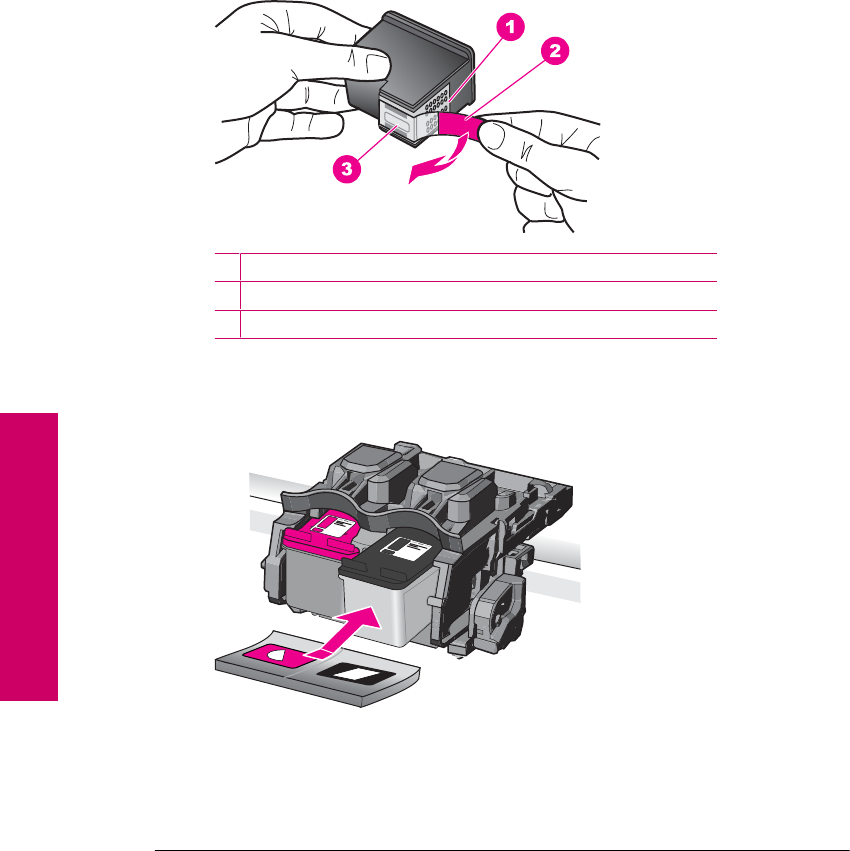
4. Remove the black print cartridge from the slot on the right. Do not touch the ink
nozzles or the copper-colored contacts. Check for possible damage to the copper-
colored contacts or ink nozzles.
Make sure the clear plastic tape has been removed. If it is still covering the ink
nozzles, gently remove the clear plastic tape by using the pink pull tab. Make sure
you do not remove the copper colored tape containing the electrical contacts.
1Copper-colored contacts
2Plastic tape with pink pull tab (must be removed before installing)
3Ink nozzles under tape
5. Reinsert the print cartridge by sliding it forward into the slot on the right. Then
push the print cartridge forward until it clicks into the socket.
6. Repeat steps 1 and 2 for the tri-color print cartridge on the left side.
Cause: The indicated print cartridges were installed incorrectly.
If this did not solve the issue, try the next solution.
Solution 2: Clean the print cartridge contacts
Solution: Clean the print cartridge contacts on the print cartridges that are
experiencing the problem.
Chapter 10
116 Solve a problem
Solve a problem
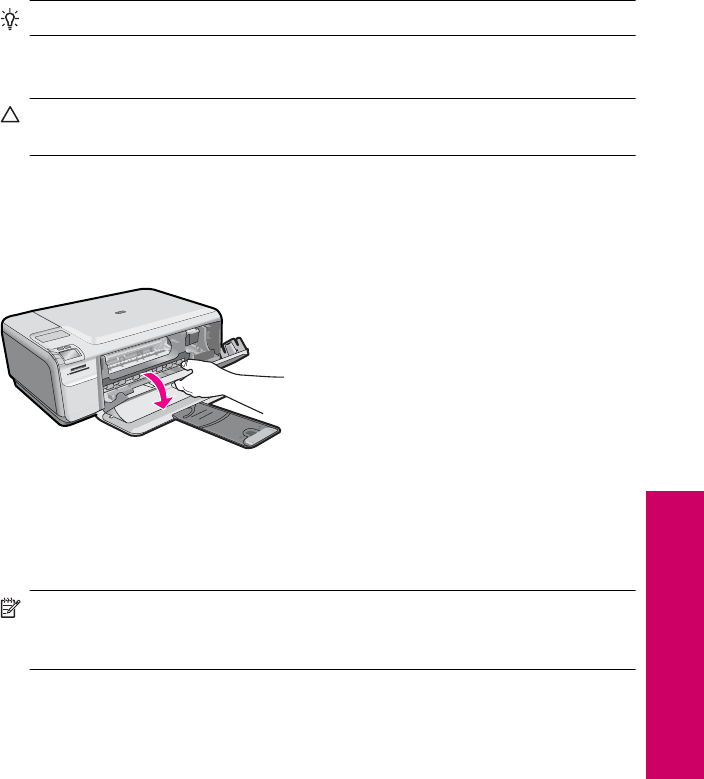
Make sure you have the following materials available:
•Dry foam rubber swabs, lint-free cloth, or any soft material that will not come apart
or leave fibers.
TIP: Coffee filters are lint-free and work well for cleaning print cartridges.
•Distilled, filtered, or bottled water (tap water might contain contaminants that can
damage the print cartridges).
CAUTION: Do not use platen cleaners or alcohol to clean the print cartridge
contacts. These can damage the print cartridge or the product.
To clean the print cartridge contacts
1. Turn on the product and open the print cartridge door.
The print carriage moves to the far right side of the product.
2. Wait until the print carriage is idle and silent, and then unplug the power cord from
the back of the product.
3. Lightly press down on the print cartridge to release it, and then pull it towards you
out of the slot.
NOTE: Do not remove both print cartridges at the same time. Remove and
clean each print cartridge one at a time. Do not leave a print cartridge outside
the HP Photosmart for more than 30 minutes.
4. Inspect the print cartridge contacts for ink and debris buildup.
5. Dip a clean foam rubber swab or lint-free cloth into distilled water, and squeeze
any excess water from it.
6. Hold the print cartridge by its sides.
Errors 117
Solve a problem
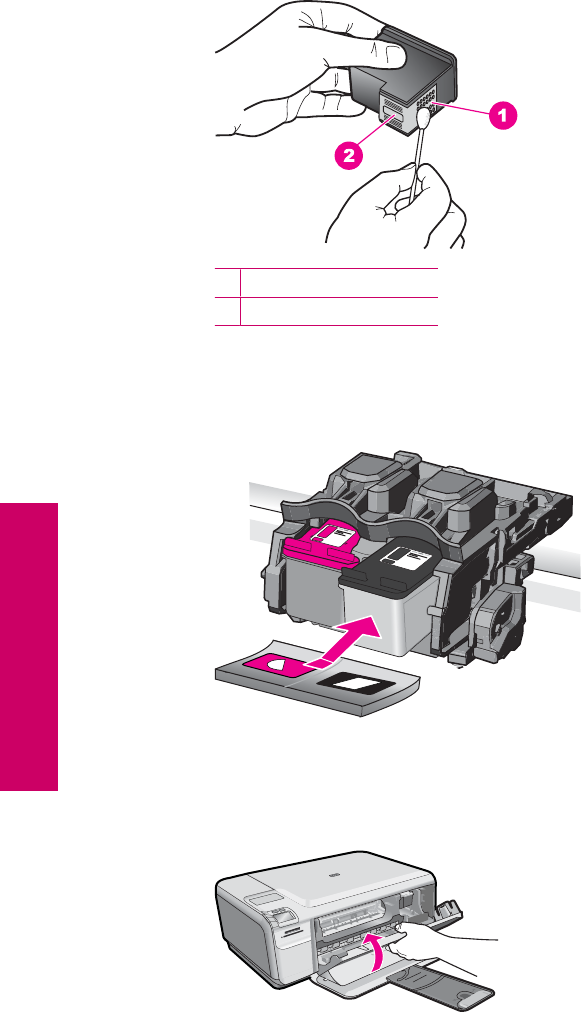
7. Clean only the copper-colored contacts. Allow the print cartridges to dry for
approximately ten minutes.
1Copper-colored contacts
2Ink nozzles (do not clean)
8. Hold the print cartridge with the HP logo on top, and insert the print cartridge back
into the slot. Make sure you push the print cartridge in firmly until it snaps into
place.
9. Repeat if necessary for the other print cartridge.
10. Gently close the print cartridge door and plug the power cord into the back of the
product.
Cause: The print cartridge contacts needed to be cleaned.
Chapter 10
118 Solve a problem
Solve a problem

If this did not solve the issue, try the next solution.
Solution 3: Replace the print cartridge
Solution: Replace the print cartridges that are experiencing the problem. If only one
of the print cartridges is experiencing the problem, you can also remove it and print
using ink-backup mode.
NOTE: During ink-backup mode, the product can only print jobs from the
computer. You cannot initiate a print job from the control panel (such as printing
a photo from a memory card).
Cause: One or both of the print cartridges were having a problem.
Previously used genuine HP cartridge installed
Solution: Check the print quality of the current print job. If it is satisfactory, follow
the prompts on the display to continue.
HP recommends that you have an new print cartridge available, to avoid printing
delays.
NOTE: Ink levels might not be available for the indicated print cartridges.
Cause: The genuine HP ink cartridge was previously used in some other product.
Original HP ink has been depleted
Solution: Follow the prompts on the display to continue, or replace the indicated
print cartridges with genuine HP cartridges.
HP recommends that you use genuine HP print cartridges. Genuine HP print
cartridges are designed and tested with HP printers to help you easily produce great
results, time after time.
NOTE: HP cannot guarantee the quality or reliability of non-HP supplies. Printer
service or repairs required as a result of using of a non-HP supply will not be
covered under warranty.
If you believe you purchased genuine HP print cartridges, go to:
www.hp.com/go/anticounterfeit
For more information, see:
“Replace the cartridges” on page 40
Cause: The original HP ink in the indicated print cartridges had been depleted.
General printer error
Solution: Write down the error code provided in the message, and then contact HP
support. Go to:
Errors 119
Solve a problem


11 Stop the current job
To stop a print job from the product
▲Press Cancel on the control panel. If the print job does not stop, press Cancel again.
It can take a few moments for the print job to be cancelled.
Stop the current job 121
Stop the current job

Chapter 11
122 Stop the current job
Stop the current job

12 Technical information
The technical specifications and international regulatory information for the HP Photosmart are
provided in this section.
For additional specifications, see the printed documentation that came with the HP Photosmart.
This section contains the following topics:
•Notice
•Specifications
•Environmental product stewardship program
•Regulatory notices
Notice
Hewlett-Packard Company notices
The information contained in this document is subject to change without notice.
All rights reserved. Reproduction, adaptation, or translation of this material is prohibited without prior written permission
of Hewlett-Packard, except as allowed under copyright laws. The only warranties for HP products and services are set forth
in the express warranty statements accompanying such products and services. Nothing herein should be construed as
constituting an additional warranty. HP shall not be liable for technical or editorial errors or omissions contained herein.
© 2009 Hewlett-Packard Development Company, L.P.
Windows, Windows 2000, and Windows XP are U.S. registered trademarks of Microsoft Corporation.
Windows Vista is either a registered trademark or trademark of Microsoft Corporation in the United States and/or other
countries.
Intel and Pentium are trademarks or registered trademarks of Intel Corporation or its subsidiaries in the United States and
other countries.
Specifications
Technical specifications for the HP Photosmart are provided in this section. For complete product
specifications, see the Product Data Sheet at www.hp.com/support.
System requirements
Software and system requirements are located in the Readme file.
For information about future operating system releases and support, visit the HP online support Web
site at www.hp.com/support.
Environmental specifications
•Recommended operating temperature range: 15 ºC to 32 ºC (59 ºF to 90 ºF)
•Allowable operating temperature range: 5 ºC to 40 ºC (41 ºF to 104 ºF)
•Humidity: 20% to 80% RH non-condensing (recommended); 28 ºC maximum dewpoint
•Non-operating (Storage) temperature range: –25 ºC to 60 ºC (13 ºF to 140 ºF)
•In the presence of high electromagnetic fields, it is possible the output from the HP Photosmart
may be slightly distorted
•HP recommends using a USB cable less than or equal to 3 m (10 feet) in length to minimize
injected noise due to potential high electromagnetic fields
Technical information 123
Technical information

Paper specifications
Type Paper weight Paper tray*
Plain paper 20 to 24 lb. (75 to 90 gsm) Up to 80 (20 lb. paper)
Legal paper 20 to 24 lb. (75 to 90 gsm) Up to 80 (20 lb. paper)
Index cards 110 lb. index max (200 gsm) Up to 30
Hagaki cards 110 lb. index max (200 gsm) Up to 40
Envelopes 20 to 24 lb. (75 to 90 gsm) Up to 10
5 x 7 inch (13 x 18 cm) Photo paper 145 lb.
(236 gsm)
Up to 30
4 x 6 inch (10 x 15 cm) Photo paper 145 lb.
(236 gsm)
Up to 30
8.5 x 11 inch (216 x 279 mm) Photo
paper
145 lb.
(236 gsm)
Up to 30
* Maximum capacity.
NOTE: For a complete list of supported media sizes, see the printer driver.
Print specifications
•Print speeds vary according to the complexity of the document
•Panorama-size printing
•Method: drop-on-demand thermal inkjet
•Language: PCL3 GUI
Scan specifications
•Image editor included
•Twain-compliant software interface
•Resolution: up to 1200 x 2400 ppi optical; 19200 ppi enhanced (software)
For more information about ppi resolution, see the scanner software.
•Color: 48-bit color, 8-bit grayscale (256 levels of gray)
•Maximum scan size from glass: 21.6 x 29.7 cm (8.5 x 11.7 inches)
Copy specifications
•Digital image processing
•Maximum number of copies varies by model
•Copy speeds vary according to the complexity of the document and model
•Maximum copy enlargement ranging from 200-400% (depends on model)
•Maximum copy reduction ranging from 25-50% (depends on model)
Print resolution
To find out about the printer resolution, see the printer software. For more information, see “View
the print resolution” on page 24.
Cartridge yield
Visit www.hp.com/go/learnaboutsupplies for more information on estimated cartridge yields.
Chapter 12
124 Technical information
Technical information

Environmental product stewardship program
Hewlett-Packard is committed to providing quality products in an environmentally sound manner.
Design for recycling has been incorporated into this product. The number of materials has been kept
to a minimum while ensuring proper functionality and reliability. Dissimilar materials have been
designed to separate easily. Fasteners and other connections are easy to locate, access, and
remove using common tools. High priority parts have been designed to access quickly for efficient
disassembly and repair.
For more information, visit HP’s Commitment to the Environment Web site at:
www.hp.com/hpinfo/globalcitizenship/environment/index.html
This section contains the following topics:
•Eco-Tips
•Paper use
•Plastics
•Material safety data sheets
•Recycling program
•HP inkjet supplies recycling program
•Power consumption
•Disposal of waste equipment by users in private households in the European Union
•Chemical Substances
•Toxic and hazardous substance table
Eco-Tips
HP is committed to helping customers reduce their environmental footprint. HP has provided the
Eco-Tips below to help you focus on ways to assess and reduce the impact of your printing choices.
In addition to specific features in this product, please visit the HP Eco Solutions web site for more
information on HP’s environmental initiatives.
www.hp.com/hpinfo/globalcitizenship/environment/
Your product's Eco features
•Smart Web printing: The HP Smart Web Printing interface includes a Clip Book and Edit
Clips window where you can store, organize, or print clips you have gathered from the Web.
For more information, see “Print a Web page” on page 22.
•Energy Savings information: To determine the ENERGY STAR® qualification status for this
product, see “Power consumption” on page 126.
•Recycled Materials: For more information regarding recycling of HP products, please visit:
www.hp.com/hpinfo/globalcitizenship/environment/recycle/
Paper use
This product is suited for the use of recycled paper according to DIN 19309 and EN 12281:2002.
Plastics
Plastic parts over 25 grams are marked according to international standards that enhance the ability
to identify plastics for recycling purposes at the end of product life.
Material safety data sheets
Material safety data sheets (MSDS) can be obtained from the HP Web site at:
www.hp.com/go/msds
Recycling program
HP offers an increasing number of product return and recycling programs in many countries/regions,
and partners with some of the largest electronic recycling centers throughout the world. HP
Environmental product stewardship program 125
Technical information

conserves resources by reselling some of its most popular products. For more information regarding
recycling of HP products, please visit:
www.hp.com/hpinfo/globalcitizenship/environment/recycle/
HP inkjet supplies recycling program
HP is committed to protecting the environment. The HP Inkjet Supplies Recycling Program is
available in many countries/regions, and lets you recycle used print cartridges and ink cartridges
free of charge. For more information, go to the following Web site:
www.hp.com/hpinfo/globalcitizenship/environment/recycle/
Power consumption
Power usage drops significantly while in Sleep mode, which saves natural resources and saves
money without affecting the high performance of this product. To determine the ENERGY STAR®
qualification status for this product see the Product Data Sheet or Specifications Sheet. Qualified
products are also listed at www.hp.com/go/energystar.
Chapter 12
126 Technical information
Technical information

Disposal of waste equipment by users in private households in the European Union
Disposal of Waste Equipment by Users in Private Households in the European Union
This symbol on the product or on its packaging indicates that this product must not be disposed of with your other household waste. Instead, it is your responsibility to dispose of your waste
equipment by handing it over to a designated collection point for the recycling of waste electrical and electronic equipment. The separate collection and recycling of your waste equipment
at the time of disposal will help to conserve natural resources and ensure that it is recycled in a manner that protects human health and the environment. For more information about where
you can drop off your waste equipment for recycling, please contact your local city office, your household waste disposal service or the shop where you purchased the product.
Évacuation des équipements usagés par les utilisateurs dans les foyers privés au sein de l'Union européenne
La présence de ce symbole sur le produit ou sur son emballage indique que vous ne pouvez pas vous débarrasser de ce produit de la même façon que vos déchets courants.
Au contraire, vous êtes responsable de l'évacuation de vos équipements usagés et, à cet effet, vous êtes tenu de les remettre à un point de collecte agréé pour le recyclage des
équipements électriques et électroniques usagés. Le tri, l'évacuation et le recyclage séparés de vos équipements usagés permettent de préserver les ressources naturelles et de s'assurer
que ces équipements sont recyclés dans le respect de la santé humaine et de l'environnement. Pour plus d'informations sur les lieux de collecte des équipements usagés, veuillez contacter
votre mairie, votre service de traitement des déchets ménagers ou le magasin où vous avez acheté le produit.
Entsorgung von Elektrogeräten durch Benutzer in privaten Haushalten in der EU
Dieses Symbol auf dem Produkt oder dessen Verpackung gibt an, dass das Produkt nicht zusammen mit dem Restmüll entsorgt werden darf. Es obliegt daher Ihrer Verantwortung, das
Gerät an einer entsprechenden Stelle für die Entsorgung oder Wiederverwertung von Elektrogeräten aller Art abzugeben (z.B. ein Wertstoffhof). Die separate Sammlung und das
Recyceln Ihrer alten Elektrogeräte zum Zeitpunkt ihrer Entsorgung trägt zum Schutz der Umwelt bei und gewährleistet, dass sie auf eine Art und Weise recycelt werden, die keine
Gefährdung für die Gesundheit des Menschen und der Umwelt darstellt. Weitere Informationen darüber, wo Sie alte Elektrogeräte zum Recyceln abgeben können, erhalten Sie bei
den örtlichen Behörden, Wertstoffhöfen oder dort, wo Sie das Gerät erworben haben.
Smaltimento di apparecchiature da rottamare da parte di privati nell'Unione Europea
Questo simbolo che appare sul prodotto o sulla confezione indica che il prodotto non deve essere smaltito assieme agli altri rifiuti domestici. Gli utenti devono provvedere allo
smaltimento delle apparecchiature da rottamare portandole al luogo di raccolta indicato per il riciclaggio delle apparecchiature elettriche ed elettroniche. La raccolta e il riciclaggio
separati delle apparecchiature da rottamare in fase di smaltimento favoriscono la conservazione delle risorse naturali e garantiscono che tali apparecchiature vengano rottamate
nel rispetto dell'ambiente e della tutela della salute. Per ulteriori informazioni sui punti di raccolta delle apparecchiature da rottamare, contattare il proprio comune di residenza,
il servizio di smaltimento dei rifiuti locale o il negozio presso il quale è stato acquistato il prodotto.
Eliminación de residuos de aparatos eléctricos y electrónicos por parte de usuarios domésticos en la Unión Europea
Este símbolo en el producto o en el embalaje indica que no se puede desechar el producto junto con los residuos domésticos. Por el contrario, si debe eliminar este tipo de residuo, es
responsabilidad del usuario entregarlo en un punto de recogida designado de reciclado de aparatos electrónicos y eléctricos. El reciclaje y la recogida por separado de estos residuos
en el momento de la eliminación ayudará a preservar recursos naturales y a garantizar que el reciclaje proteja la salud y el medio ambiente. Si desea información adicional sobre los
lugares donde puede dejar estos residuos para su reciclado, póngase en contacto con las autoridades locales de su ciudad, con el servicio de gestión de residuos domésticos o con la
tienda donde adquirió el producto.
Likvidace vysloužilého zařízení uživateli v domácnosti v zemích EU
Tato značka na produktu nebo na jeho obalu označuje, že tento produkt nesmí být likvidován prostým vyhozením do běžného domovního odpadu. Odpovídáte za to, že vysloužilé
zařízení bude předáno k likvidaci do stanovených sběrných míst určených k recyklaci vysloužilých elektrických a elektronických zařízení. Likvidace vysloužilého zařízení samostatným
sběrem a recyklací napomáhá zachování přírodních zdrojů a zajišťuje, že recyklace proběhne způsobem chránícím lidské zdraví a životní prostředí. Další informace o tom, kam můžete
vysloužilé zařízení předat k recyklaci, můžete získat od úřadů místní samosprávy, od společnosti provádějící svoz a likvidaci domovního odpadu nebo v obchodě, kde jste produkt
zakoupili.
Bortskaffelse af affaldsudstyr for brugere i private husholdninger i EU
Dette symbol på produktet eller på dets emballage indikerer, at produktet ikke må bortskaffes sammen med andet husholdningsaffald. I stedet er det dit ansvar at bortskaffe affaldsudstyr
ved at aflevere det på dertil beregnede indsamlingssteder med henblik på genbrug af elektrisk og elektronisk affaldsudstyr. Den separate indsamling og genbrug af dit affaldsudstyr på
tidspunktet for bortskaffelse er med til at bevare naturlige ressourcer og sikre, at genbrug finder sted på en måde, der beskytter menneskers helbred samt miljøet. Hvis du vil vide mere
om, hvor du kan aflevere dit affaldsudstyr til genbrug, kan du kontakte kommunen, det lokale renovationsvæsen eller den forretning, hvor du købte produktet.
Afvoer van afgedankte apparatuur door gebruikers in particuliere huishoudens in de Europese Unie
Dit symbool op het product of de verpakking geeft aan dat dit product niet mag worden afgevoerd met het huishoudelijk afval. Het is uw verantwoordelijkheid uw afgedankte apparatuur
af te leveren op een aangewezen inzamelpunt voor de verwerking van afgedankte elektrische en elektronische apparatuur. De gescheiden inzameling en verwerking van uw afgedankte
apparatuur draagt bij tot het sparen van natuurlijke bronnen en tot het hergebruik van materiaal op een wijze die de volksgezondheid en het milieu beschermt. Voor meer informatie over
waar u uw afgedankte apparatuur kunt inleveren voor recycling kunt u contact opnemen met het gemeentehuis in uw woonplaats, de reinigingsdienst of de winkel waar u het product
hebt aangeschaft.
Eramajapidamistes kasutuselt kõrvaldatavate seadmete käitlemine Euroopa Liidus
Kui tootel või toote pakendil on see sümbol, ei tohi seda toodet visata olmejäätmete hulka. Teie kohus on viia tarbetuks muutunud seade selleks ettenähtud elektri- ja elektroonikaseadmete
utiliseerimiskohta. Utiliseeritavate seadmete eraldi kogumine ja käitlemine aitab säästa loodusvarasid ning tagada, et käitlemine toimub inimeste tervisele ja keskkonnale ohutult.
Lisateavet selle kohta, kuhu saate utiliseeritava seadme käitlemiseks viia, saate küsida kohalikust omavalitsusest, olmejäätmete utiliseerimispunktist või kauplusest, kust te seadme
ostsite.
Hävitettävien laitteiden käsittely kotitalouksissa Euroopan unionin alueella
Tämä tuotteessa tai sen pakkauksessa oleva merkintä osoittaa, että tuotetta ei saa hävittää talousjätteiden mukana. Käyttäjän velvollisuus on huolehtia siitä, että hävitettävä laite
toimitetaan sähkö- ja elektroniikkalaiteromun keräyspisteeseen. Hävitettävien laitteiden erillinen keräys ja kierrätys säästää luonnonvaroja. Näin toimimalla varmistetaan myös,
että kierrätys tapahtuu tavalla, joka suojelee ihmisten terveyttä ja ympäristöä. Saat tarvittaessa lisätietoja jätteiden kierrätyspaikoista paikallisilta viranomaisilta, jäteyhtiöiltä tai tuotteen
jälleenmyyjältä.
Απόρριψη άχρηστων συσκευών στην Ευρωπαϊκή Ένωση
Το παρόν σύμβολο στον εξοπλισμό ή στη συσκευασία του υποδεικνύει ότι το προϊόν αυτό δεν πρέπει να πεταχτεί μαζί με άλλα οικιακά απορρίμματα. Αντίθετα, ευθύνη σας είναι να
απορρίψετε τις άχρηστες συσκευές σε μια καθορισμένη μονάδα συλλογής απορριμμάτων για την ανακύκλωση άχρηστου ηλεκτρικού και ηλεκτρονικού εξοπλισμού. Η χωριστή συλλογή και
ανακύκλωση των άχρηστων συσκευών θα συμβάλει στη διατήρηση των φυσικών πόρων και στη διασφάλιση ότι θα ανακυκλωθούν με τέτοιον τρόπο, ώστε να προστατεύεται η υγεία των
ανθρώπων και το περιβάλλον. Για περισσότερες πληροφορίες σχετικά με το πού μπορείτε να απορρίψετε τις άχρηστες συσκευές για ανακύκλωση, επικοινωνήστε με τις κατά τόπους αρμόδιες
αρχές ή με το κατάστημα από το οποίο αγοράσατε το προϊόν.
A hulladékanyagok kezelése a magánháztartásokban az Európai Unióban
Ez a szimbólum, amely a terméken vagy annak csomagolásán van feltüntetve, azt jelzi, hogy a termék nem kezelhető együtt az egyéb háztartási hulladékkal. Az Ön feladata,
hogy a készülék hulladékanyagait eljuttassa olyan kijelölt gyűjtőhelyre, amely az elektromos hulladékanyagok és az elektronikus berendezések újrahasznosításával foglalkozik.
A hulladékanyagok elkülönített gyűjtése és újrahasznosítása hozzájárul a természeti erőforrások megőrzéséhez, egyúttal azt is biztosítja, hogy a hulladék újrahasznosítása az
egészségre és a környezetre nem ártalmas módon történik. Ha tájékoztatást szeretne kapni azokról a helyekről, ahol leadhatja újrahasznosításra a hulladékanyagokat, forduljon
a helyi önkormányzathoz, a háztartási hulladék begyűjtésével foglalkozó vállalathoz vagy a termék forgalmazójához.
Lietotāju atbrīvošanās no nederīgām ierīcēm Eiropas Savienības privātajās mājsaimniecībās
Šis simbols uz ierīces vai tās iepakojuma norāda, ka šo ierīci nedrīkst izmest kopā ar pārējiem mājsaimniecības atkritumiem. Jūs esat atbildīgs par atbrīvošanos no nederīgās ierīces,
to nododot norādītajā savākšanas vietā, lai tiktu veikta nederīgā elektriskā un elektroniskā aprīkojuma otrreizējā pārstrāde. Speciāla nederīgās ierīces savākšana un otrreizējā pārstrāde
palīdz taupīt dabas resursus un nodrošina tādu otrreizējo pārstrādi, kas sargā cilvēku veselību un apkārtējo vidi. Lai iegūtu papildu informāciju par to, kur otrreizējai pārstrādei var
nogādāt nederīgo ierīci, lūdzu, sazinieties ar vietējo pašvaldību, mājsaimniecības atkritumu savākšanas dienestu vai veikalu, kurā iegādājāties šo ierīci.
Europos Sąjungos vartotojų ir privačių namų ūkių atliekamos įrangos išmetimas
Šis simbolis ant produkto arba jo pakuotės nurodo, kad produktas negali būti išmestas kartu su kitomis namų ūkio atliekomis. Jūs privalote išmesti savo atliekamą įrangą atiduodami ją
į atliekamos elektronikos ir elektros įrangos perdirbimo punktus. Jei atliekama įranga bus atskirai surenkama ir perdirbama, bus išsaugomi natūralūs ištekliai ir užtikrinama, kad įranga
yra perdirbta žmogaus sveikatą ir gamtą tausojančiu būdu. Dėl informacijos apie tai, kur galite išmesti atliekamą perdirbti skirtą įrangą kreipkitės į atitinkamą vietos tarnybą, namų ūkio
atliekų išvežimo tarnybą arba į parduotuvę, kurioje pirkote produktą.
Utylizacja zużytego sprzętu przez użytkowników domowych w Unii Europejskiej
Symbol ten umieszczony na produkcie lub opakowaniu oznacza, że tego produktu nie należy wyrzucać razem z innymi odpadami domowymi. Użytkownik jest odpowiedzialny za
dostarczenie zużytego sprzętu do wyznaczonego punktu gromadzenia zużytych urządzeń elektrycznych i elektronicznych. Gromadzenie osobno i recykling tego typu odpadów
przyczynia się do ochrony zasobów naturalnych i jest bezpieczny dla zdrowia i środowiska naturalnego. Dalsze informacje na temat sposobu utylizacji zużytych urządzeń można
uzyskać u odpowiednich władz lokalnych, w przedsiębiorstwie zajmującym się usuwaniem odpadów lub w miejscu zakupu produktu.
Descarte de equipamentos por usuários em residências da União Européia
Este símbolo no produto ou na embalagem indica que o produto não pode ser descartado junto com o lixo doméstico. No entanto, é sua responsabilidade levar os equipamentos
a serem descartados a um ponto de coleta designado para a reciclagem de equipamentos eletro-eletrônicos. A coleta separada e a reciclagem dos equipamentos no momento do
descarte ajudam na conservação dos recursos naturais e garantem que os equipamentos serão reciclados de forma a proteger a saúde das pessoas e o meio ambiente. Para obter mais
informações sobre onde descartar equipamentos para reciclagem, entre em contato com o escritório local de sua cidade, o serviço de limpeza pública de seu bairro ou a loja em que
adquiriu o produto.
Postup používateľov v krajinách Európskej únie pri vyhadzovaní zariadenia v domácom používaní do odpadu
Tento symbol na produkte alebo na jeho obale znamená, že nesmie by vyhodený s iným komunálnym odpadom. Namiesto toho máte povinnos odovzda toto zariadenie na zbernom
mieste, kde sa zabezpečuje recyklácia elektrických a elektronických zariadení. Separovaný zber a recyklácia zariadenia určeného na odpad pomôže chráni prírodné zdroje a
zabezpečí taký spôsob recyklácie, ktorý bude chráni ľudské zdravie a životné prostredie. Ďalšie informácie o separovanom zbere a recyklácii získate na miestnom obecnom úrade,
vo firme zabezpečujúcej zber vášho komunálneho odpadu alebo v predajni, kde ste produkt kúpili.
Ravnanje z odpadno opremo v gospodinjstvih znotraj Evropske unije
Ta znak na izdelku ali embalaži izdelka pomeni, da izdelka ne smete odlagati skupaj z drugimi gospodinjskimi odpadki. Odpadno opremo ste dolžni oddati na določenem zbirnem
mestu za recikliranje odpadne električne in elektronske opreme. Z ločenim zbiranjem in recikliranjem odpadne opreme ob odlaganju boste pomagali ohraniti naravne vire in zagotovili,
da bo odpadna oprema reciklirana tako, da se varuje zdravje ljudi in okolje. Več informacij o mestih, kjer lahko oddate odpadno opremo za recikliranje, lahko dobite na občini,
v komunalnem podjetju ali trgovini, kjer ste izdelek kupili.
Kassering av förbrukningsmaterial, för hem- och privatanvändare i EU
Produkter eller produktförpackningar med den här symbolen får inte kasseras med vanligt hushållsavfall. I stället har du ansvar för att produkten lämnas till en behörig återvinningsstation
för hantering av el- och elektronikprodukter. Genom att lämna kasserade produkter till återvinning hjälper du till att bevara våra gemensamma naturresurser. Dessutom skyddas både
människor och miljön när produkter återvinns på rätt sätt. Kommunala myndigheter, sophanteringsföretag eller butiken där varan köptes kan ge mer information om var du lämnar
kasserade produkter för återvinning.
EnglishFrançaisDeutschItalianoEspañolČeskyDanskNederlandsEestiSuomiΕλληνικάMagyarLatviskiLietuviškaiPolskiPortuguêsSlovenčinaSlovenščinaSvenska
Chemical Substances
HP is committed to providing our customers with information about the chemical substances in our
products as needed to comply with legal requirements such as REACH (Regulation EC No
1907/2006 of the European Parliament and the Council). A chemical information report for this
product can be found at: www.hp.com/go/reach.
Environmental product stewardship program 127
Technical information
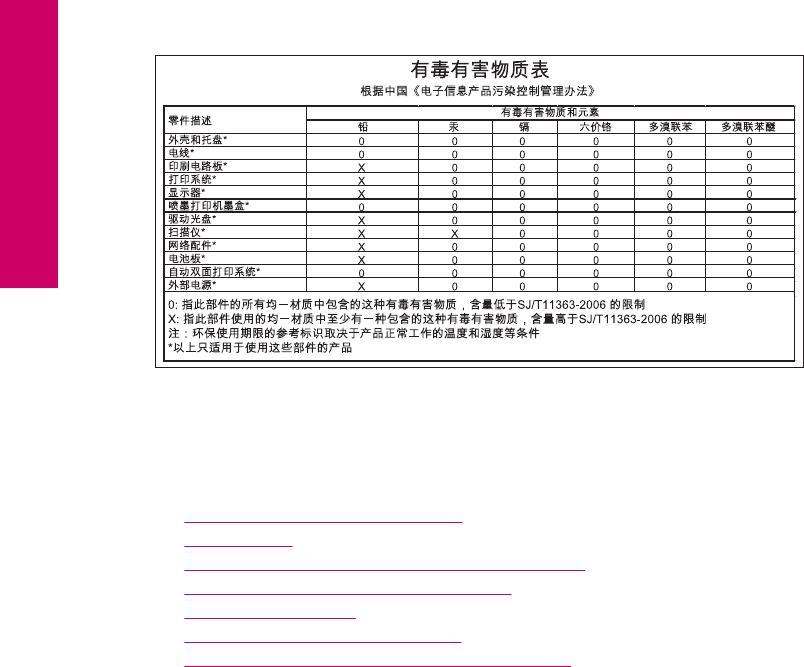
Toxic and hazardous substance table
Regulatory notices
The HP Photosmart meets product requirements from regulatory agencies in your country/region.
This section contains the following topics:
•Regulatory model identification number
•FCC statement
•VCCI (Class B) compliance statement for users in Japan
•Notice to users in Japan about the power cord
•Notice to users in Korea
•Noise emission statement for Germany
•HP Photosmart C4600 series declaration of conformity
Regulatory model identification number
For regulatory identification purposes, your product is assigned a Regulatory Model Number. The
Regulatory Model Number for your product is SNPRH-0803. This regulatory number should not be
confused with the marketing name (HP Photosmart C4600 series, etc.) or product numbers
(Q8418-64001, etc.).
Chapter 12
128 Technical information
Technical information
FCC statement
FCC statement
The United States Federal Communications Commission (in 47 CFR 15.105) has specified
that the following notice be brought to the attention of users of this product.
This equipment has been tested and found to comply with the limits for a Class B digital
device, pursuant to Part 15 of the FCC Rules. These limits are designed to provide reason-
able protection against harmful interference in a residential installation. This equipment
generates, uses and can radiate radio frequency energy and, if not installed and used in
accordance with the instructions, may cause harmful interference to radio communications.
However, there is no guarantee that interference will not occur in a particular installation.
If this equipment does cause harmful interference to radio or television reception, which can
be determined by turning the equipment off and on, the user is encouraged to try to correct
the interference by one or more of the following measures:
• Reorient the receiving antenna.
• Increase the separation between the equipment and the receiver.
• Connect the equipment into an outlet on a circuit different from that to which the
receiver is connected.
• Consult the dealer or an experienced radio/TV technician for help.
For further information, contact:
Manager of Corporate Product Regulations
Hewlett-Packard Company
3000 Hanover Street
Palo Alto, Ca 94304
(650) 857-1501
Modifications (part 15.21)
The FCC requires the user to be notified that any changes or modifications made to this
device that are not expressly approved by HP may void the user's authority to operate the
equipment.
This device complies with Part 15 of the FCC Rules. Operation is subject to the following
two conditions: (1) this device may not cause harmful interference, and (2) this device must
accept any interference received, including interference that may cause undesired
operation.
VCCI (Class B) compliance statement for users in Japan
Notice to users in Japan about the power cord
Regulatory notices 129
Technical information
Notice to users in Korea
Noise emission statement for Germany
Geräuschemission
LpA < 70 dB am Arbeitsplatz im Normalbetrieb nach DIN 45635 T. 19
Chapter 12
130 Technical information
Technical information

HP Photosmart C4600 series declaration of conformity
DECLARATION OF CONFORMITY
according to ISO/IEC 17050-1 and EN 17050-1
DoC #: SNPRH-0803 Rev A
Supplier's Name: Hewlett-Packard Company
Supplier's Address:
declares, that the product
20, Jia Feng Road Waigaoqiao Free Trade Zone Pudong, Shanghai᧨ PRC
200131
Product Name and Model: HP Photosmart C4600 series
Regulatory Model Number: 1) SNPRH-0803
Product Options: All
Conforms to the following Product Specifications and Regulations:
EMC:
CISPR 22: 2005 / EN 55022: 2006 Class B
EN 55024:1998 + A1:2001 + A2:2003
EN 61000-3-2: 2006
EN61000-3-3:1995+A1:2001+A2:2005
FCC CFR 47 Part 15 Class B / ICES-003,Issue 4 Class B
Safety:
EN 60950-1:2001 / IEC 60950-1:2001
EN 60825-1 1994+A1:2002+A2:2001
Environment᧶
᧶
WEEE Directive 2002/96/EC
RoHS Directive 2002/95/EC.
This device complies with part 15 of the FCC Rules. Operation is subject to the following two conditions: (1) This device
may not cause harmful interference, and (2) this device must accept any interference received, including interference
that may cause undesired operation.
The product herewith complies with the requirements of the Low Voltage Directive 2006/95/EC, the EMC Directive
2004/108/EC and WEEE Directive 2002/96/EC and RoHS Directive 2002/95/EC and carries the CE-marking
accordingly.
Additional Information:
1) his product is assigned a Regulatory Model Number which stays with the regulatory aspects of the design. The
Regulatory Model Number is the main product identifier in the regulatory documentation and test reports, this
number should not be confused with the marketing name or the product numbers.
19 Aug 2008
Peng Cong
IPMO (China) Product Re
g
ulations Mana
g
er
Local contact for regulatory topics only:
EMEA: Hewlett-Packard GmbH, HQ-TRE, Herrenberger Strasse 140, 71034 Boeblingen, Germany www.hp.com/go/certificates
U.S.: Hewlett –Packard, 3000 Hanover St., Palo Alto 94304, U.S.A. 650-857-1501
Regulatory notices 131
Technical information

Chapter 12
132 Technical information
Technical information

Index
Symbols/Numerics
10 x 15 cm photo paper
specifications 124
A
after the support period 48
alignment
failed 96
print cartridges 96
B
blank
copy 84
scan 85
buttons, control panel 6
C
color
dull 66
connection problems
HP All-in-One will not turn
on 50
control panel
buttons 6
features 6
copy
blank 84
fit to page fails 83
missing information 83
specifications 124
troubleshooting 81
crop
fails 92
customer support
warranty 48
E
envelopes
specifications 124
environment
Environmental product
stewardship program 125
environmental
specifications 123
error messages
memory cards 93
reading or writing file 90
F
fax
poor quality printouts 61
fax problems
poor print quality 61
file
invalid name 91
supported formats 91
unreadable 90
firmware revision mismatch 88
fit to page fails 83
I
improper shutdown 95
ink
drying time 95
low 76, 96
streaks on the back of
paper 71
ink cartridges
HP ink depleted 119
ink-backup mode 42
invalid file name 91
L
labels
specifications 124
legal paper
specifications 124
letter paper
specifications 124
M
margins
incorrect 74
memory cards
digital camera cannot
read 77
error message 93
file unreadable 90
HP Photosmartcannot
read 78
photos missing 90
troubleshoot 77
missing
information from copy 83
text from scan 86
P
paper
recommended types 8
specifications 124
tips 12
phone support 45
phone support period
period for support 46
photo paper
recommended types 7
specifications 124
photos
missing 90
poor fax printout quality 61
poor printout quality 58
print
blank printout 76
distorted printout 63
envelopes print
incorrectly 73
faded 66
margins incorrect 74
meaningless characters 74
quality, troubleshoot 58, 61,
64, 68
reversed page order 74
specifications 124
troubleshooting 73
vertical streaks 69
Web pages 22
print cartridges
align 96
damaged 106
error message 100, 106
incorrect 100
low ink 76
low on ink 96
missing 106
133
Index

non-HP ink 100
previously used 119
print quality
smeared ink 58
print settings
print quality 58
printing
with one ink cartridge 42
Printing Shortcuts tab 24
problems
copy 81
error messages 87
print 73
scan 85
R
recycle
ink cartridges 126
regulatory notices
regulatory model
identification number 128
reinstall software 48
S
scan
blank 85
crop incorrect 85
fails 88
page layout incorrect 85
scan specifications 124
text appears as dotted
lines 85
text format incorrect 86
text incorrect 86
troubleshooting 85
smeared ink 58
software installation
reinstall 48
uninstall 48
support process 45
system requirements 123
T
technical information
copy specifications 124
environmental
specifications 123
paper specifications 124
print specifications 124
scan specifications 124
system requirements 123
text
dotted lines on scan 85
incorrect format on scan 86
incorrect or missing on
scan 86
jagged 71
meaningless characters 74
not filled in 61
smooth fonts 71
transparencies
specifications 124
troubleshoot
fax problems 61
print quality 58
setup 49
USB cable 52
troubleshooting
copy 81
error messages 87
memory card 77
print 73
scan 85
U
uninstall software 48
USB cable installation 52
W
warranty 48
Web pages, print 22
134
Index
