Huafurui Technology CUBOTF1 SmartWatch User Manual

Shenzhen Huafurui Technology Co., Ltd SmartWatch

User Manual

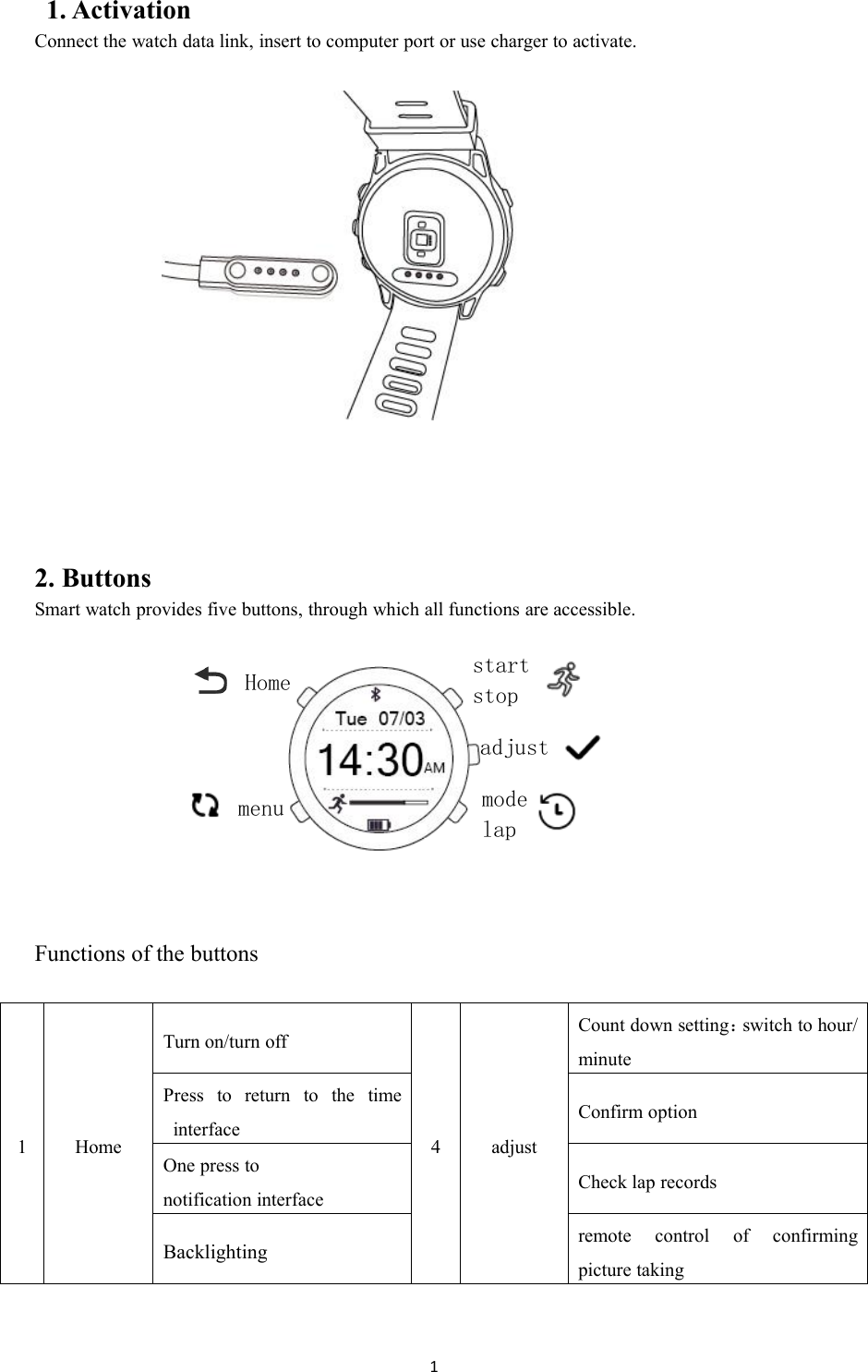
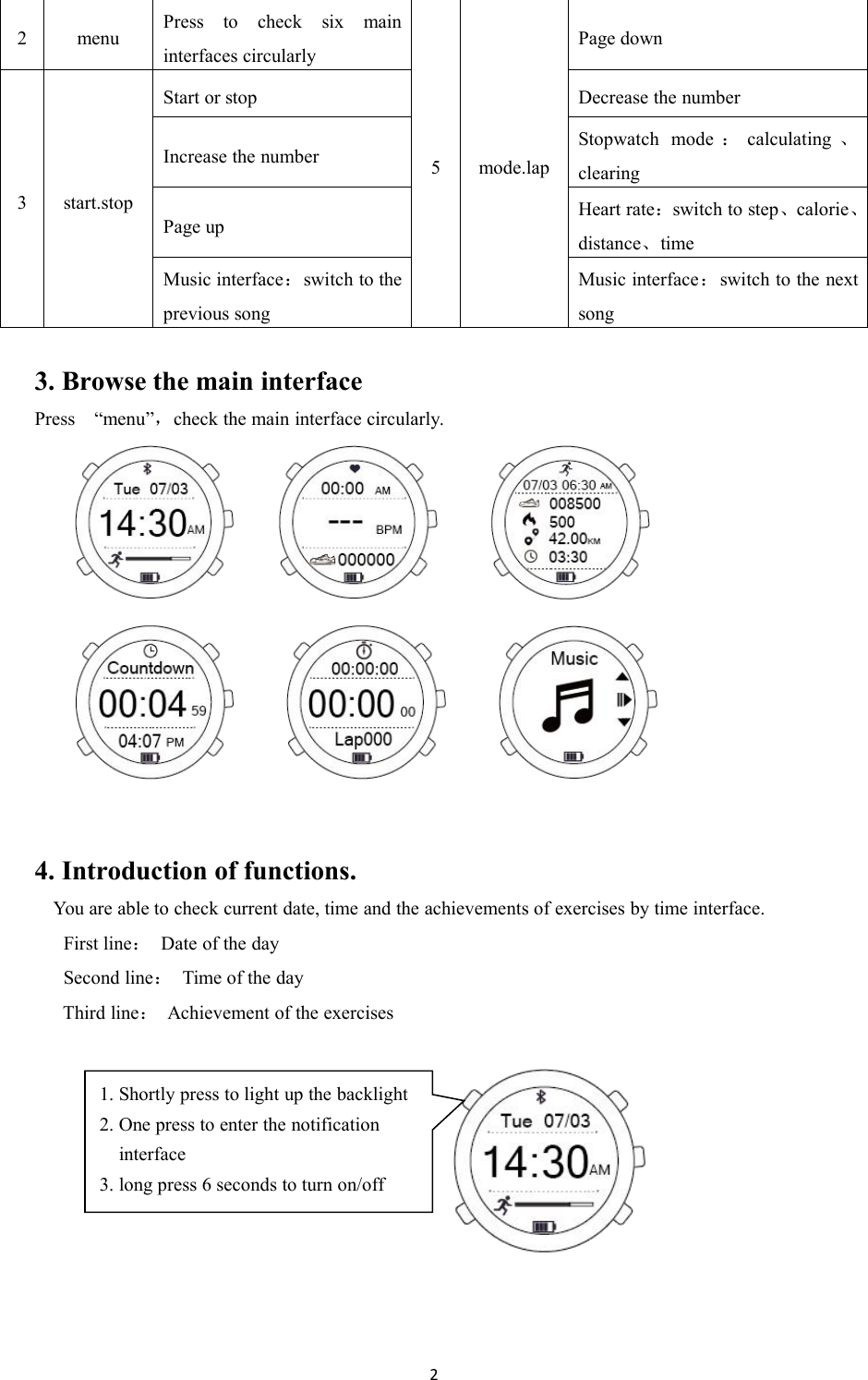
11. ActivationConnect the watch data link, insert to computer port or use charger to activate.2. ButtonsSmart watch provides five buttons, through which all functions are accessible.Functions of the buttons1HomeTurn on/turn off4adjustCount down setting:switch to hour/minutePress to return to the timeinterfaceConfirm optionOne press tonotification interfaceCheck lap recordsBacklightingremote control of confirmingpicture takingHomemenustartstopadjustmodelap
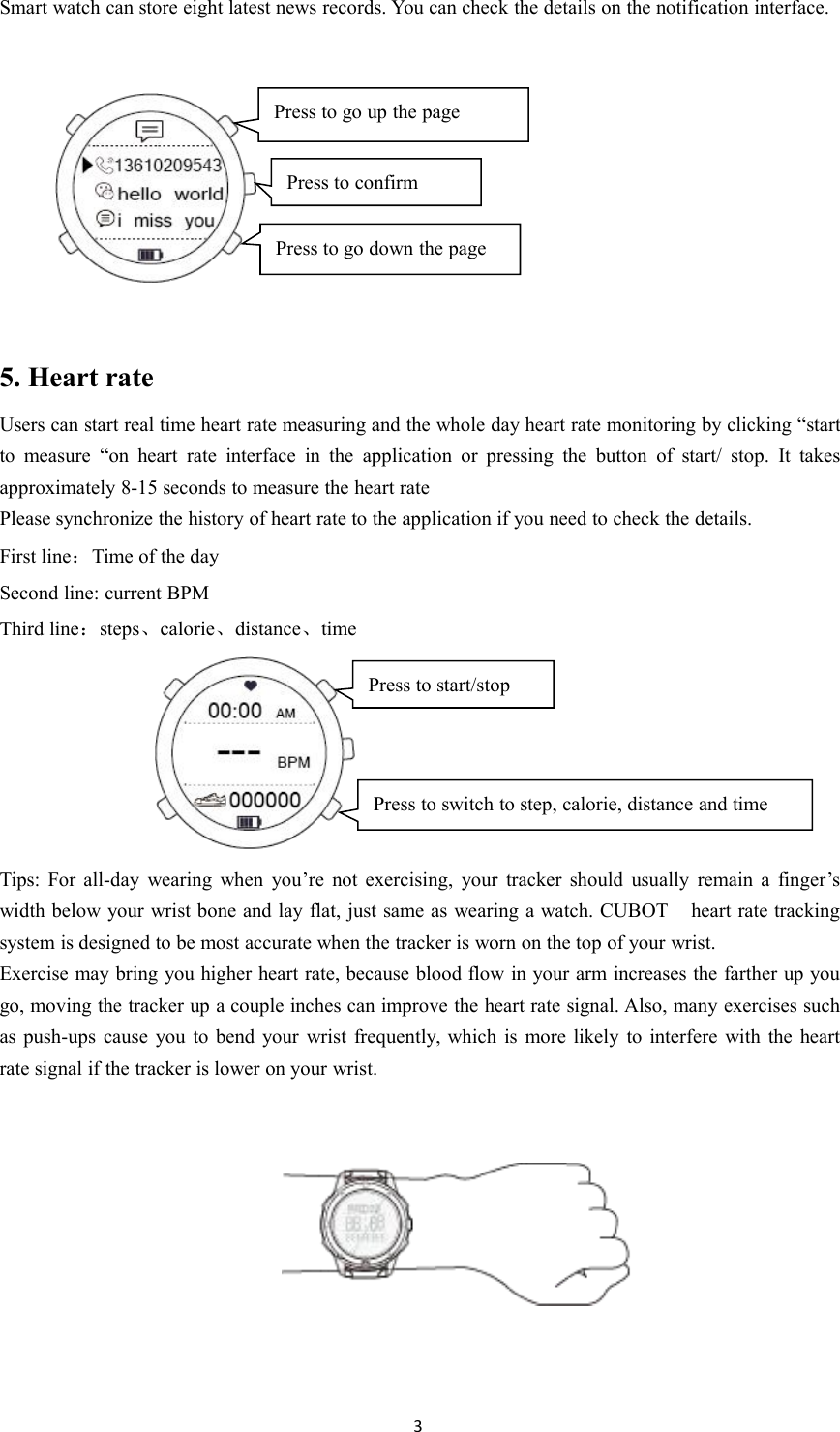
23. Browse the main interfacePress “menu”,check the main interface circularly.4. Introduction of functions.You are able to check current date, time and the achievements of exercises by time interface.First line:Date of the daySecond line:Time of the dayThird line:Achievement of the exercises2menuPress to check six maininterfaces circularly5mode.lapPage down3start.stopStart or stopDecrease the numberIncrease the numberStopwatch mode :calculating 、clearingPage upHeart rate:switch to step、calorie、distance、timeMusic interface:switch to theprevious songMusic interface:switch to the nextsong1. Shortly press to light up the backlight2. One press to enter the notificationinterface3. long press 6 seconds to turn on/off
3Smart watch can store eight latest news records. You can check the details on the notification interface.5. Heart rateUsers can start real time heart rate measuring and the whole day heart rate monitoring by clicking “startto measure “on heart rate interface in the application or pressing the button of start/ stop. It takesapproximately 8-15 seconds to measure the heart ratePlease synchronize the history of heart rate to the application if you need to check the details.First line:Time of the daySecond line: current BPMThird line:steps、calorie、distance、timeTips: For all-day wearing when you’re not exercising, your tracker should usually remain a finger’swidth below your wrist bone and lay flat, just same as wearing a watch. CUBOT heart rate trackingsystem is designed to be most accurate when the tracker is worn on the top of your wrist.Exercise may bring you higher heart rate, because blood flow in your arm increases the farther up yougo, moving the tracker up a couple inches can improve the heart rate signal. Also, many exercises suchas push-ups cause you to bend your wrist frequently, which is more likely to interfere with the heartrate signal if the tracker is lower on your wrist.Press to go up the pagePress to confirmPress to go down the pagePress to switch to step, calorie, distance and timePress to start/stop
46. Monitoring exercisesF1 can automatically monitor the daily activities of the user and immediately check the latest six days’details of the exercises.Please synchronize the details of the exercises to the application if you need to check details for morethan six days.7. CountdownWhen counting down the time, you can count down from preset time to zero; the maximum support forcounting down is 23 hours 59 minutes. The watch will remind users the ending of countdown byvibrating per second in the last countdown ten seconds.You can switch the setting of hour/ minute by pressing the button [adjust] and press the button[start.stop] or [mode.lap] to increase or decrease the number when it’s under stop modeSecond line: countdown time(hour、minute、second)Third line: current system time8. StopwatchYou can check the lap record by stopwatch manual recording when you are exercisingYou can check the single lap record in sequence by pressing button [adjust] and zero clear data bypressing button [mode .lap] when it’s under stop modeFirst line: time of the lapsSecond line: current time of the lapThird line:Lap (support maximum 20 laps)Press to go down the pagePress to go up the pageDecrease the numberIncrease the numberPress to switch to hour orminutePress to start/stopPress to enter settingmode
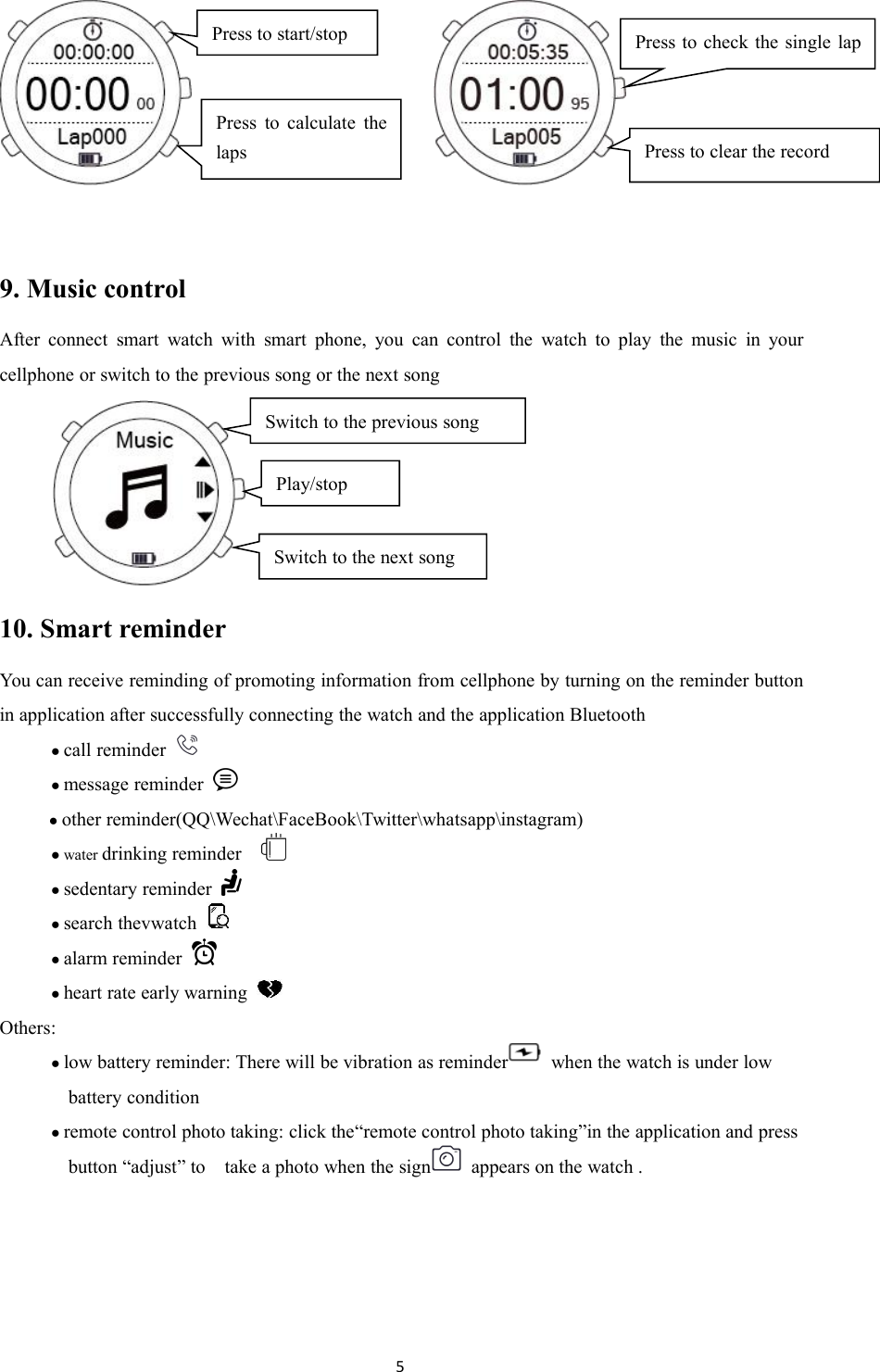
59. Music controlAfter connect smart watch with smart phone, you can control the watch to play the music in yourcellphone or switch to the previous song or the next song10. Smart reminderYou can receive reminding of promoting information from cellphone by turning on the reminder buttonin application after successfully connecting the watch and the application Bluetooth●call reminder●message reminder●other reminder(QQ\Wechat\FaceBook\Twitter\whatsapp\instagram)● water drinking reminder●sedentary reminder●search thevwatch●alarm reminder●heart rate early warningOthers:●low battery reminder: There will be vibration as reminder when the watch is under lowbattery condition●remote control photo taking: click the“remote control photo taking”in the application and pressbutton “adjust” to take a photo when the sign appears on the watch .Press to start/stopPress to calculate thelapsPress to clear the recordPress to check the single laprecordSwitch to the previous songSwitch to the next songPlay/stop
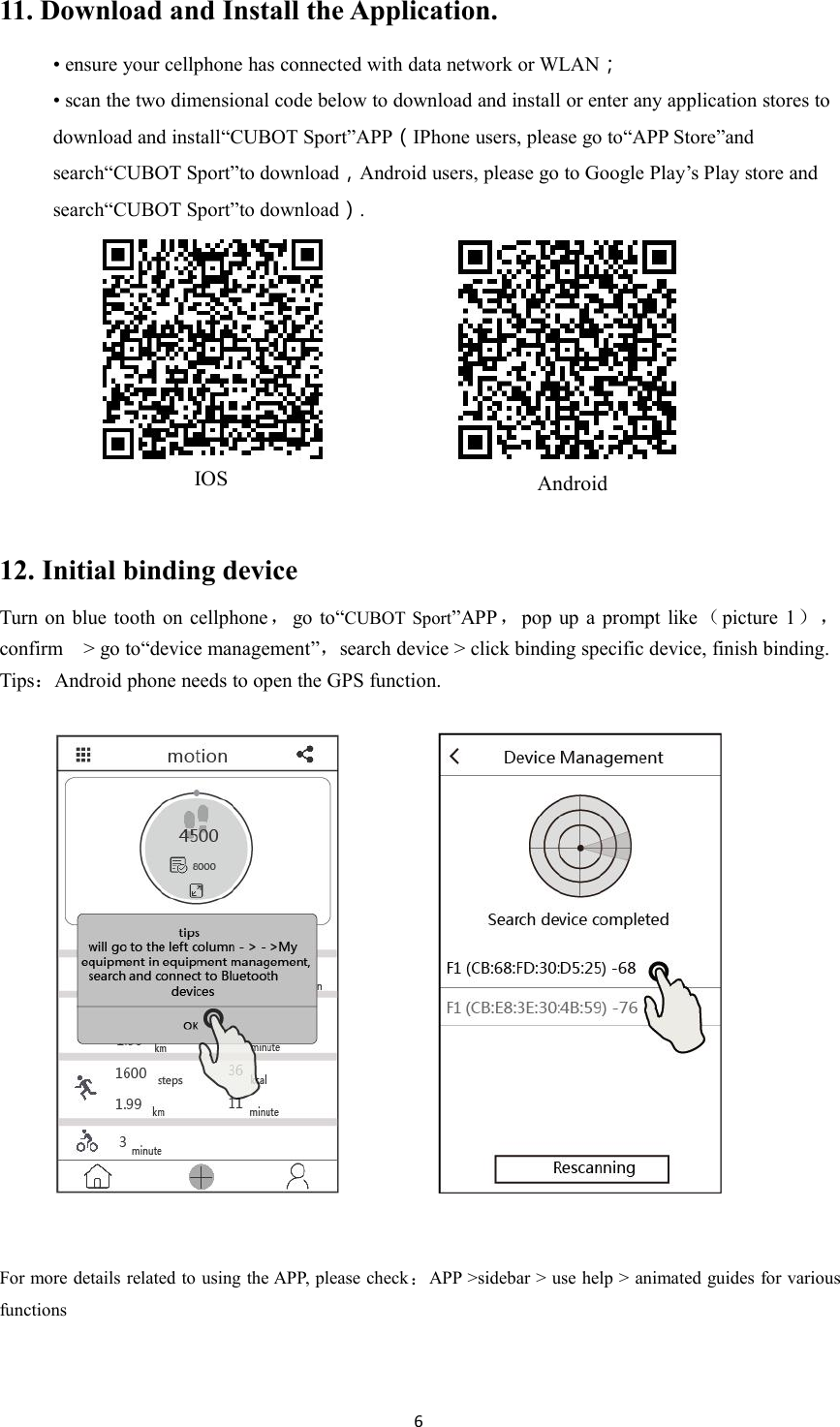
611. Download and Install the Application.• ensure your cellphone has connected with data network or WLAN;• scan the two dimensional code below to download and install or enter any application stores todownload and install“CUBOT Sport”APP(IPhone users, please go to“APP Store”andsearch“CUBOT Sport”to download,Android users, please go to Google Play’s Play store andsearch“CUBOT Sport”to download).12. Initial binding deviceTurn on blue tooth on cellphone ,go to“CUBOT Sport”APP ,pop up a prompt like(picture 1),confirm > go to“device management”,search device > click binding specific device, finish binding.Tips:Android phone needs to open the GPS function.For more details related to using the APP, please check:APP >sidebar > use help > animated guides for variousfunctionsIOSAndroid
7FCC Caution.§ 15.19 Labelling requirements.This device complies with part 15 of the FCC Rules. Operation is subject to the followingtwo conditions: (1) This device may not cause harmful interference, and (2) this devicemust accept any interference received, including interference that may cause undesiredoperation.§ 15.21 Information to user.Any Changes or modifications not expressly approved by the party responsible forcompliance could void the user's authority to operate the equipment.§ 15.105 Information to the user.Note: This equipment has been tested and found to comply with the limits for a Class Bdigital device, pursuant to part 15 of the FCC Rules. These limits are designed to providereasonable protection against harmful interference in a residential installation. Thisequipment generates uses and can radiate radio frequency energy and, if not installedand used in accordance with the instructions, may cause harmful interference to radiocommunications. However, there is no guarantee that interference will not occur in aparticular installation. If this equipment does cause harmful interference to radio ortelevision reception, which can be determined by turning the equipment off and on, theuser is encouraged to try to correct the interference by one or more of the followingmeasures:-Reorient or relocate the receiving antenna.-Increase the separation between the equipment and receiver.-Connect the equipment into an outlet on a circuit different from that to which thereceiver is connected.-Consult the dealer or an experienced radio/TV technician for help.* RF warning for Portable device:The device has been evaluated to meet general RF exposure requirement. The device canbe used in portable exposure condition without restriction.

Navigation menu