Huafurui Technology CUBOTS1 SmartBand User Manual

Shenzhen Huafurui Technology Co., Ltd SmartBand

User manual

 User manual Model: CUBOT S1 Brand: CUBOT
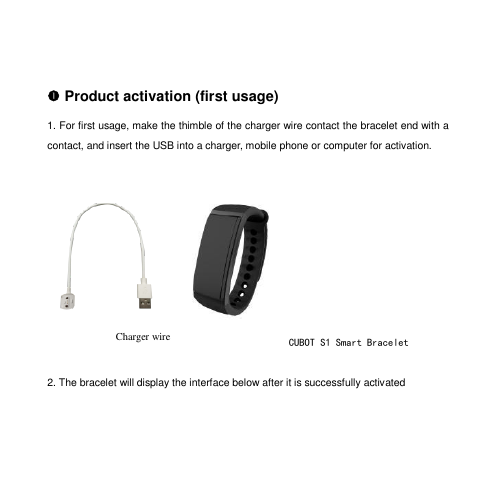
  Product activation (first usage) 1. For first usage, make the thimble of the charger wire contact the bracelet end with a contact, and insert the USB into a charger, mobile phone or computer for activation.      2. The bracelet will display the interface below after it is successfully activated Charger wire  CUBOT S1 Smart Bracelet
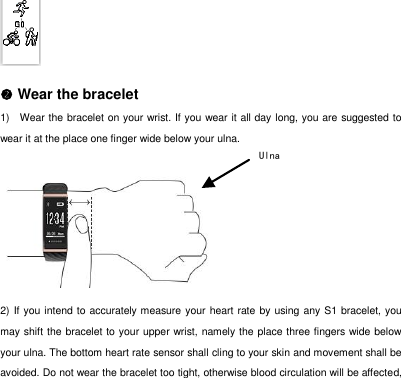
  Wear the bracelet 1)  Wear the bracelet on your wrist. If you wear it all day long, you are suggested to wear it at the place one finger wide below your ulna.     2) If you intend to accurately measure your heart rate by using any S1 bracelet, you may shift the bracelet to your upper wrist, namely the place three fingers wide below your ulna. The bottom heart rate sensor shall cling to your skin and movement shall be avoided. Do not wear the bracelet too tight, otherwise blood circulation will be affected, Ulna
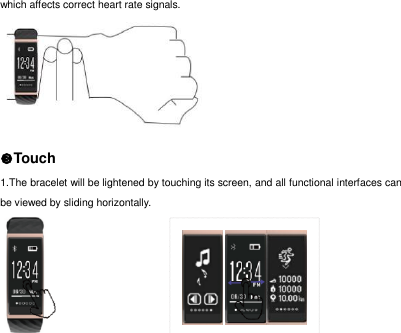
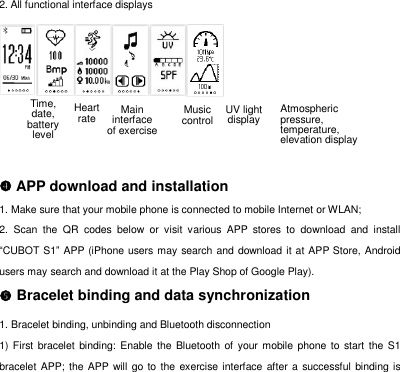
which affects correct heart rate signals.    Touch 1.The bracelet will be lightened by touching its screen, and all functional interfaces can be viewed by sliding horizontally.
2. All functional interface displays     APP download and installation 1. Make sure that your mobile phone is connected to mobile Internet or WLAN; 2.  Scan  the  QR  codes  below  or  visit  various  APP  stores  to  download  and  install “CUBOT S1” APP (iPhone users may search and download it at APP Store, Android users may search and download it at the Play Shop of Google Play).    Bracelet binding and data synchronization 1. Bracelet binding, unbinding and Bluetooth disconnection 1) First  bracelet binding: Enable  the  Bluetooth of  your mobile phone to start the S1 bracelet APP; the APP will go to the exercise  interface  after a  successful binding is Time, date, battery level  Atmospheric pressure, temperature, elevation display UV light display  Music control Heart rate Main interface of exercise
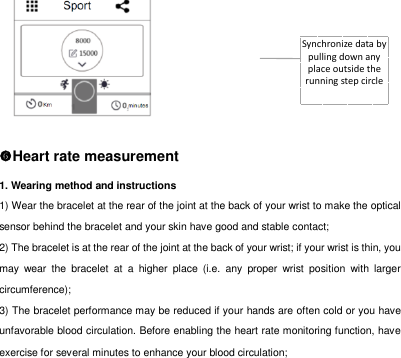
finished. And a Bluetooth icon    will appear on the time interface of the bracelet;   2) In case you have bound any smart bracelet and need to bind another S1 bracelet, you shall unbind other bracelet before binding any S1 bracelet. Press the button   on the APP to pop up a sidebar. Click “Setup management” menu to enter the device management interface. Click “My device” to pop up the device selection interface.     3)  The  bracelet  will  automatically disconnect  if  it  is out of the  effective range of the Bluetooth  of  your  mobile  phone.  It  will  automatically  connect  the  APP  after  it  is disconnected due to non-manual disconnection and it is in effective Bluetooth range again.   4) You may turn off the Bluetooth on the APP, and the bracelet will disconnect with the Bluetooth. The bracelet will connect the APP automatically after the Bluetooth is turned on again.   2. Data synchronization 1)After the binding is successful, the bracelet will have automatic data synchronization with  the  APP.  The  bracelet  time  will  be  calibrated  automatically,  and  data synchronization will be performed automatically when the APP is started each time;   2)  You  may  also  have  manual  data  synchronization  on  the  APP.  Manual  data synchronization can be performed by pulling down the relevant page on the exercise, sleeping or heart rate interfaces. (Normal connection between the bracelet and mobile phone Bluetooth shall be guaranteed during data synchronization)
Synchronize data by pulling down any place outside the running step circle      Heart rate measurement 1. Wearing method and instructions 1) Wear the bracelet at the rear of the joint at the back of your wrist to make the optical sensor behind the bracelet and your skin have good and stable contact;   2) The bracelet is at the rear of the joint at the back of your wrist; if your wrist is thin, you may  wear  the  bracelet  at  a  higher  place  (i.e.  any  proper  wrist  position  with  larger circumference);   3) The bracelet performance may be reduced if your hands are often cold or you have unfavorable blood circulation. Before enabling the heart rate monitoring function, have exercise for several minutes to enhance your blood circulation;
4)The bracelet can be worn as an ordinary one when the heart rate monitoring function is not used;   5) Your heart rate can be viewed and the heart rate monitoring function can be used in exercise mode.   2. Heart rate measurement Each  S1  bracelet  has  two  ways  for  measuring  heart  rates:  real  time  heart  rate measurement and all weather heart rate monitoring: 1)  Real  time  heart  rate  measurement  can  be  simultaneously  controlled  from  the bracelet and the APP. In case real time measurement is started on the APP, it can be turned off on the APP; in case real time measurement is started on the bracelet, it can be turned off by clicking the heart rate icon or it can be turned off on the APP.   a. Horizontally slide on the bracelet to switch to the heart rate interface; click the heart rate icon    to start real time heart rate measurement, and it will display and store real time heart rate values 10 seconds later; the bracelet will transfer the measured heart rate data to the APP in real time after it is connected with the APP; the data will be uploaded to the records for making curves; real time measurement will be stopped by clicking the icon    again; b. Click “Start measurement” after entering the heart rate interface on the APP to start the real time heart rate measurement function of the bracelet; light up the bracelet at the
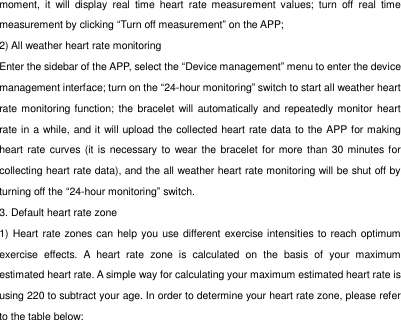
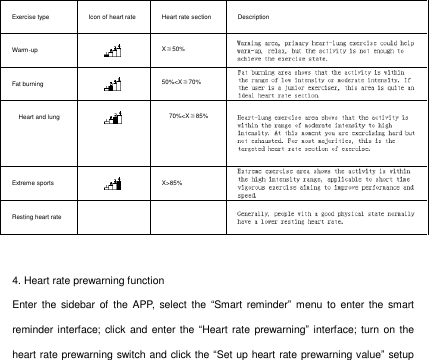
moment,  it  will  display  real  time  heart  rate  measurement  values;  turn  off  real  time measurement by clicking “Turn off measurement” on the APP; 2) All weather heart rate monitoring Enter the sidebar of the APP, select the “Device management” menu to enter the device management interface; turn on the “24-hour monitoring” switch to start all weather heart rate monitoring function;  the  bracelet will automatically and repeatedly monitor heart rate in a while, and it will upload the collected heart rate data to the APP for making heart rate curves (it is necessary  to wear the bracelet for more than 30 minutes for collecting heart rate data), and the all weather heart rate monitoring will be shut off by turning off the “24-hour monitoring” switch. 3. Default heart rate zone 1) Heart rate zones can help  you use different exercise intensities to reach optimum exercise  effects.  A  heart  rate  zone  is  calculated  on  the  basis  of  your  maximum estimated heart rate. A simple way for calculating your maximum estimated heart rate is using 220 to subtract your age. In order to determine your heart rate zone, please refer to the table below:
 4. Heart rate prewarning function Enter  the  sidebar  of  the APP,  select  the  “Smart  reminder”  menu  to  enter  the  smart reminder interface;  click  and  enter the “Heart rate prewarning”  interface;  turn  on  the heart rate prewarning switch and click the “Set up heart rate prewarning value” setup Exercise type Icon of heart rate Heart rate section Description Warm-up  X≦50%  Fat burning  50%<X≦70%  Heart and lung  70%<X≦85%  Extreme sports  X>85%  Resting heart rate
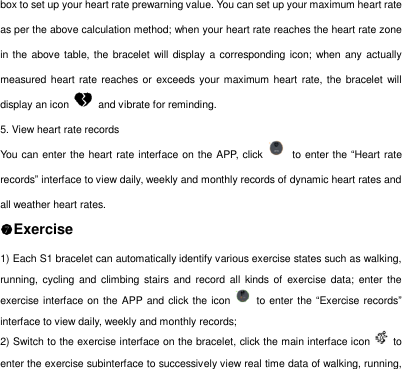
box to set up your heart rate prewarning value. You can set up your maximum heart rate as per the above calculation method; when your heart rate reaches the heart rate zone in the above table, the bracelet will display a corresponding icon; when  any  actually measured heart rate  reaches or exceeds your maximum heart rate, the bracelet will display an icon    and vibrate for reminding.   5. View heart rate records You can enter the heart rate interface on the APP, click    to enter the “Heart rate records” interface to view daily, weekly and monthly records of dynamic heart rates and all weather heart rates.   Exercise 1) Each S1 bracelet can automatically identify various exercise states such as walking, running,  cycling  and  climbing  stairs  and  record  all kinds  of  exercise  data;  enter the exercise interface on the APP and click the icon    to enter the “Exercise records” interface to view daily, weekly and monthly records;   2) Switch to the exercise interface on the bracelet, click the main interface icon    to enter the exercise subinterface to successively view real time data of walking, running,
Exercise   subinterface    Climbing stairs interface  Cycling interface  Running interface  Walking interface  Exercise icon    Stopwatch   Automatic  display  and viewing  of number  of steps,  calorie and distance, etc.   Stop timekeeping   Return  to  exercise  main interface <>  It  means  you  can  horizontally slide to view other subinterfaces    cycling and climbing stairs; if the bracelet is bound with the APP, you can also view real time and historical exercise data on the APP.       Music control Connect your  bracelet  with  your APP and turn  on  the music  player  on  your mobile phone. Switch to the music interface on your bracelet; click the music icon to play/pause the  music  on  your  mobile  phone.  Click  previous  and  next  buttons  to switch  to  any Exercise main interface   Number of steps Calorie Distance  It means there is any submenu
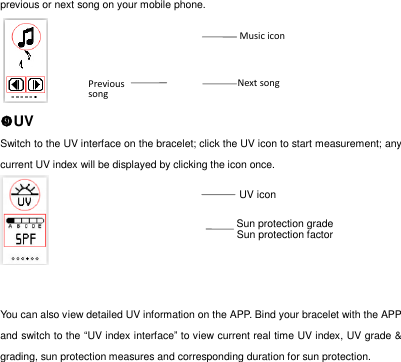
UV icon Next song  previous or next song on your mobile phone.    UV Switch to the UV interface on the bracelet; click the UV icon to start measurement; any current UV index will be displayed by clicking the icon once.     You can also view detailed UV information on the APP. Bind your bracelet with the APP and switch to the “UV index interface” to view current real time UV index, UV grade & grading, sun protection measures and corresponding duration for sun protection.    Previous song Sun protection grade Sun protection factor Music icon
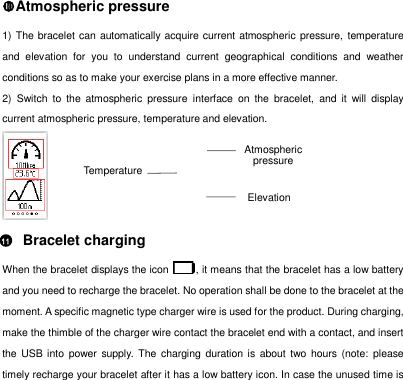
Elevation Temperature Atmospheric pressure 1) The bracelet can automatically acquire current atmospheric  pressure, temperature and  elevation  for  you  to  understand  current  geographical  conditions  and  weather conditions so as to make your exercise plans in a more effective manner.   2)  Switch  to  the  atmospheric  pressure  interface  on  the  bracelet,  and  it  will  display current atmospheric pressure, temperature and elevation.      Bracelet charging When the bracelet displays the icon  , it means that the bracelet has a low battery and you need to recharge the bracelet. No operation shall be done to the bracelet at the moment. A specific magnetic type charger wire is used for the product. During charging, make the thimble of the charger wire contact the bracelet end with a contact, and insert the  USB into  power  supply.  The charging duration is about two hours (note: please timely recharge your bracelet after it has a low battery icon. In case the unused time is Atmospheric pressure 11
quite  long,  the  bracelet  data  may  lose  or  even  have  a  zero  clearing  before  it synchronizes with the data in your mobile phone). Basic parameters Product model: CUBOT S1    Net weight:24g       Display mode:OLED display screen       Battery type: Lithium polymer Battery capacity: 85mAh                                  Synchronization method: Bluetooth 4.0 Ingress protection:IP65                              Operating temperature: -10℃~50℃ Device requirement: mobile phones with IOS8.0 and above versions; mobile phones with Android4.3 and above versions and Bluetooth4.0. Instructions:   1. You can use the bracelet at will when washing your hands and in raining conditions, and the bracelet shall be wiped dry as soon as it is wet;   2. Do not use the bracelet when washing your car, swimming, diving and bathing;   3. You shall follow all required instructions for using the device;   4.  Do  not  attempt  disassembling  the  device;  in  case  of  any  improper  treatment  or disposal, any component or battery inside the product may have adverse impacts on environment or human health;
5. Do not expose the bracelet to any place with high moisture, extremely high or low temperature for a long time;   6. Do not use any corrosive detergent to clean your bracelet;   7. Do not use the bracelet in any environment with strong electromagnetic interference;   8. Do not let your children or pets use the bracelet, or any suffocation may be caused by swallowing any small part;   9. Do not use the bracelet in any sauna or steam bathroom;   10. Do not put the bracelet into fire for the battery may cause explosion.
FCC Caution. This  device  complies  with  part  15  of  the  FCC  Rules.  Operation  is  subject  to  the following two conditions: (1) This device may not cause harmful interference, and (2) this  device  must  accept  any  interference  received,  including  interference  that  may cause undesired operation.  Any  Changes  or  modifications  not  expressly  approved  by  the  party  responsible  for compliance could void the user's authority to operate the equipment.  Note: This equipment has been tested and found to comply with the limits for a Class B digital  device,  pursuant  to  part  15  of  the FCC  Rules.  These  limits  are  designed  to provide reasonable protection against harmful interference in a residential installation. This  equipment  generates  uses  and  can  radiate  radio  frequency  energy  and, if  not installed and used in accordance with the instructions, may cause harmful interference to radio communications. However, there is no guarantee that interference will not occur in a particular installation. If this equipment does cause harmful interference to radio or television reception, which can be determined by turning the equipment off and on, the user is encouraged to try  to  correct the interference by one or more of the following measures:
-Reorient or relocate the receiving antenna. -Increase the separation between the equipment and receiver. -Connect  the  equipment  into  an  outlet  on  a  circuit  different  from  that  to  which  the receiver is connected. -Consult the dealer or an experienced radio/TV technician for help.  The device has been evaluated to meet general RF exposure requirement. The device can be used in portable exposure condition without restriction.

Navigation menu