Huawei HG532s Home Gateway Quick Start 02 EN Ireland O2
2015-12-23
User Manual: Huawei
Open the PDF directly: View PDF  .
.
Page Count: 10
1
HG532s Home Gateway
Quick Start
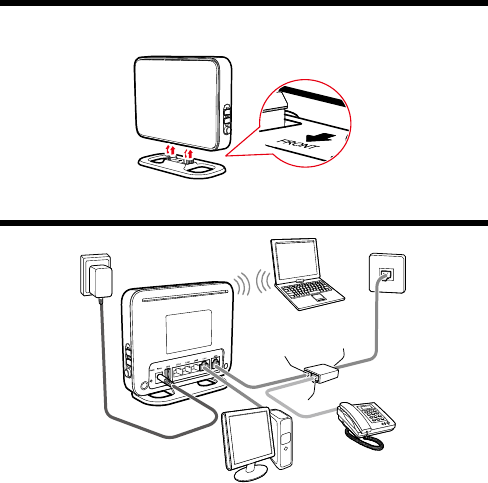
1 Installing the Base
When you install the base, ensure that the arrow on the base points to the front panel of the
HG532s Home Gateway (HG532s for short).
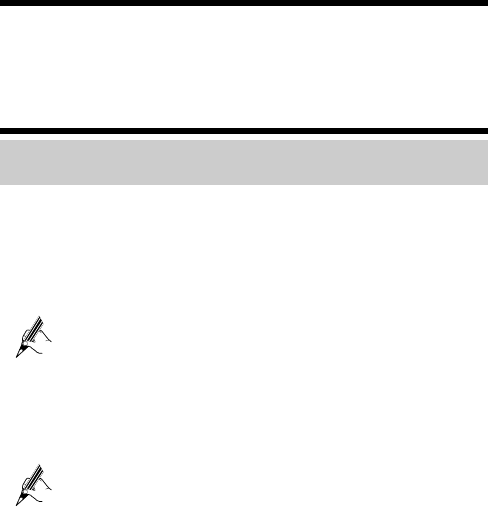
2 Connecting Cables
1
3
2
4
5
6
a
b
c
1. Power adapter 2. Desktop computer 3. Telephone
4. Splitter 5. Telephone wall jack 6. Laptop computer
a. MODEM port b. PHONE port c. LINE port
2
3 Powering On the HG532s
Press the On/Off button on the side panel to power the HG532s on.
The ADSL indicator lights up and starts blinking. This indicates that the asymmetric digital
subscriber line (ADSL) port activation is in progress. The blinking may last from 40 seconds
to 3 minutes. When the ADSL indicator stops blinking and remains on, the HG532s
is working correctly.
4 Setting Network Access Parameters
Accessing the Network Through the Embedded PPP Dial-up
Software on the HG532s
If you select this method for accessing the network, the HG532s starts to set up a dial-up
connection automatically after the startup. You can access the network after you power on
your computer. You do not need to install any special dial-up software on your computer or
perform dial-up operations on your computer. To configure the HG532s and your computer
for the network access, do as follows:
Step 1 Verify the HG532s and the PC have connected properly, and the PC has obtained the
IP address.
By default, the DHCP function of the HG532s is enabled. In this case, the
HG532s assigns an IP address to your computer automatically and you do
not need to configure the IP address of your computer.
Step 2 Log in to the Web-based configuration utility of the HG532s.
1. Launch the Internet Explorer on your computer. Enter http://192.168.1.1 in the
address bar, and then press Enter.
2. In the login dialog box, enter the user name (admin by default) and the password
(admin by default), and then click Login.
If the user name and password have been changed, use the correct user
name and password for login.
After the user name and the password are verified, you can access the Web-based
configuration utility.
Step 3 Enable the embedded dial-up function.
1. In the navigation tree on the left, choose Basic > WAN.
2. Click the connection whose name is O2 Fixed.
3. Select DSL from the Link Type option button.
4. Select Enable for WAN connection.
5. Enter the VPI and VCI parameters that are provided by the network operator in
the VPI/VCI text boxes.
6. Select INTERNET from the Service list option button.

3
7. Select PPP(oE) from the Connection type drop-down combo box.
8. Enter the user name and password that are provided by the network operator in
the User name and Password text boxes, keep the default settings of other
parameters.
9. Click Submit.
After you complete the preceding settings, you can surf the Internet.
You need to perform the preceding operations on a computer once only. The next time when
you power on your computer, you can surf the Internet without any configuration.
Accessing the Network Through the PPP Dial-up Software
on Your Computer
If you select this method for accessing the network, you need to install and configure the
dial-up software on your computer. In addition, you need to perform dial-up operations on
your computer upon each startup. To configure the HG532s and your computer for the
network access, do as follows:
Step 1 Set the working mode of the HG532s to Bridge.
1. Log in to the Web-based configuration utility of the HG532s.
2. In the navigation tree on the left, choose Basic > WAN.
3. Click the connection whose name is O2 Fixed.
4. Select DSL from the Link Type option button.
5. Select Enable for WAN connection.
6. Enter the VPI and VCI parameters that are provided by the network operator in
the VPI/VCI text boxes.
7. Select INTERNET from the Service list option button.
8. Select Bridge from the Connection type drop-down combo box.
9. Click Submit.
Step 2 Install and configure the PPP dial-up software on your computer.
Step 3 The following example uses a computer running the Windows 7 operating system to
describe how to set up a dial-up connection using the system-provided PPP dial-up
software:
1. Choose Start > Control Panel > Network and Sharing Center.
2. Under Change your network settings, click Set up a new connection or
network.
3. In the Set Up a Connection or Network dialog box, select Connect to the
Internet, and click Next.
4. In the Connect to the Internet dialog box, select Set up a new connection
anyway, and click Next.
5. Select Broadband (PPPoE), and click Next.
6. Under Type the information from your Internet service provider (ISP), enter
the user name and password provided by your operator. In Connection name,
enter a name for your connection, and click Connect.
The system then tries to connect to the Internet.
4
The preceding steps need to be performed only once. To verify the connection you just
created, choose Network and Sharing Center > Change adapter settings.
To connect to the Internet, double-click the connection, and click Connect in the dialog box.
5 Setting Up a Wireless Connection
The following example uses a computer running the Windows 7 operating system to describe
how to set up a wireless connection:
Step 1 Start the wireless configuration service of the Windows 7 operating system as
follows:
1. Click Start, enter services.msc in the search box, and press Enter.
2. In the Services window, right-click WLAN AutoConfig to display a shortcut
menu, and choose Properties.
3. Check that Service status is Started. If Service status is not Started, click
Start.
4. Click OK to close the dialog box, and then close the Services window.
Step 2 Find the wireless network name (SSID) and its password (WLAN Key) printed on
the label on the HG532s's rear panel.
If they have been changed, please use the new wireless network name and
password.
Step 3 View and connect to available wireless networks:
1. Open Connect to a Network by clicking the network icon ( or ) in the
notification area.
2. In the list of available wireless networks, click on the wireless connection name
that you got in Step 2, and then click Connect.
3. Enter the WLAN Key when prompted and then click Connect.
After the system verifies the password, Connected appears on the wireless network
icon in the wireless network list, indicating that your computer has established
a wireless connection to the HG532s.

5
6 Safety information
This section contains important information about the operation of your device. It also
contains information about how to use the device safely. Read this information carefully
before using your device.
Electronic Device
Do not use your device if using the device is prohibited. Do not use the device if doing so
causes danger or interference with other electronic devices.
Interference with Medical Equipment
Follow rules and regulations set forth by hospitals and health care facilities. Do not use
your device where prohibited.
Some wireless devices may affect the performance of hearing aids or pacemakers. Consult
your service provider for more information.
Pacemaker manufacturers recommend that a minimum distance of 15 cm be maintained
between a device and a pacemaker to prevent potential interference with the pacemaker. If
using a pacemaker, hold the device on the side opposite the pacemaker and do not carry the
device in your front pocket.
Areas with Flammables and Explosives
Do not use the device where flammables or explosives are stored (in a gas station, oil depot,
or chemical plant, for example). Using your device in these environments increases the risk
of explosion or fire. In addition, follow the instructions indicated in text or symbols.
Do not store or transport the device in containers with flammable liquids, gases, or
explosives.
Operating Environment
Avoid dusty, damp, or dirty environments. Avoid magnetic fields. Using the device in
these environments may result in circuit malfunctions.
Before connecting and disconnecting cables, stop using the device and disconnect it from
the power supply. Ensure that your hands are dry during operation.
Place the device on a stable surface.
Keep the device away from electronic appliances that generate strong magnetic or electric
fields, such as a microwave oven or refrigerator.
During thunderstorms, power off your device and remove all cables connected to it to
protect against lightning strikes.
Do not use your device during thunderstorms to protect your device against any danger
caused by lightning.
Ideal operating temperatures are 0°C to 40°C. Extreme heat or cold may damage your
device or accessories.
Keep the device and accessories in a well-ventilated and cool area away from direct
sunlight. Do not enclose or cover your device with towels or other objects. Do not place the
device in a container with poor heat dissipation, such as a box or bag.
To protect your device or accessories from fire or electrical shock hazards, avoid rain and
moisture.
6
Keep the device away from sources of heat and fire, such as a heater, microwave oven,
stove, water heater, radiator, or candle.
Do not place any object, such as a candle or a water container, on the device. If any foreign
object or liquid enters the device, immediately stop using it, power it off, and remove all
cables connected to it. Then, contact an authorized service center.
Observe local laws and regulations, and respect the privacy and legal rights of others.
Do not block device openings. Reserve a minimum of 10 cm around the device to dissipate
heat.
Stop using your device or applications for a while if the device is overheated. If skin is
exposed to an overheated device for an extended period, low temperature burn symptoms,
such as red spots and darker pigmentation, may occur.
Do not touch the device's antenna. Otherwise, communication quality may be reduced.
Do not allow children or pets to bite or suck the device or accessories. Doing so may result
in damage or explosion.
The device should be installed and operated with a minimum distance of 20 cm between
the radiator and your body.
Keep the device in a place with good reception. The distance between the device and other
metal materials (such as metal brackets or metal doors and windows) should be greater
than 25 cm and the distance between the device should be greater than 30 cm.
Child's Safety
Comply with all precautions with regard to child's safety. Letting children play with the
device or its accessories may be dangerous. The device includes detachable parts that may
present a choking hazard. Keep away from children.
Accessories
Using an unapproved or incompatible power adapter, charger or battery may cause fire,
explosion or other hazards.
Choose only accessories approved for use with this model by the device manufacturer. The
use of any other types of accessories may void the warranty, may violate local regulations
and laws, and may be dangerous. Please contact your retailer for information about the
availability of approved accessories in your area.
Use only the following listed AC Adapters/Power Supplies:
− Adapter 1 model: HW-120100B6W
− I/P:100-240V,50/60Hz,0.5A,O/P 12V, 1.0A
− Adapter 2 model: HW-120100E6W
− I/P:100-240V,50/60Hz,0.5A,O/P 12V, 1.0A
Power Adapter Safety
The power plug is intended to serve as a disconnect device.
For pluggable devices, the socket-outlet shall be installed near the devices and shall be
easily accessible.
Unplug the power adapter from electrical outlets and the device when not in use.
Do not drop or cause an impact to the power adapter. If it is damaged, take it to an
authorized service center for inspection.
96721679_02

7
If the power cable is damaged (for example, the cord is exposed or broken), or the plug
loosens, stop using it at once. Continued use may lead to electric shocks, short circuits, or
fire.
Do not touch the power cord with wet hands or pull the power cord to disconnect the power
adapter.
Do not touch the device or the power adapter with wet hands. Doing so may lead to short
circuits, malfunctions, or electric shocks.
If your power adapter has been exposed to water, other liquids, or excessive moisture, take
it to an authorized service center for inspection.
Ensure that the power adapter meets the requirements of Clause 2.5 in
IEC60950-1/EN60950-1 and has been tested and approved according to national or local
standards.
Cleaning and Maintenance
During storage, transportation, and operation of the device, keep it dry and protect it from
collision.
Keep the device and accessories dry. Do not attempt to dry it with an external heat source,
such as a microwave oven or hair dryer.
Do not expose your device or accessories to extreme heat or cold. These environments may
interfere with proper function and may lead to fire or explosion.
Avoid collision, which may lead to device malfunctions, overheating, fire, or explosion.
If the device is not going to be used for an extended period of time, power it off, and
remove all cables connected to it.
If anything unusual occurs (for example, if the device emits smoke or any unusual sound or
smell), immediately stop using it, power it off, remove all cables connected to it, and
contact an authorized service center.
Do not trample, pull, or excessively bend any cable. Doing so may damage the cable,
causing the device to malfunction.
Before you clean or maintain the device, stop using it, stop all applications, and disconnect
all cables connected to it.
Do not use any chemical detergent, powder, or other chemical agents (such as alcohol and
benzene) to clean the device or accessories. These substances may cause damage to parts
or present a fire hazard. Use a clean, soft, and dry cloth to clean the device and accessories.
Do not place magnetic stripe cards, such as credit cards and phone cards, near the device
for extended periods of time. Otherwise the magnetic stripe cards may be damaged.
Do not dismantle or remanufacture the device and its accessories. This voids the warranty
and releases the manufacturer from liability for damage. In case of damage, contact an
authorized service center for assistance or repair.
Disposal and Recycling Information
This symbol (with or without a solid bar) on the device, batteries (if included),
and/or the packaging, indicates that the device and its electrical accessories (for
example, a headset, adapter, or cable) and batteries should not be disposed of as
household garbage. These items should not be disposed of as unsorted
municipal waste and should be taken to a certified collection point for recycling
or proper disposal.

8
For more detailed information about device or battery recycling, contact your local city office,
household waste disposal service, or retail store.
Disposal of the device and batteries (if included) is subject to WEEE Directive Recast
(Directive 2012/19/EU) and Battery Directive (Directive 2006/66/EC). The purpose of
separating WEEE and batteries from other waste is to minimize the potential environmental
impacts and human health risk of any hazardous substances that may be present.
Reduction of Hazardous Substances
This device is compliant with the REACH Regulation [Regulation (EC) No 1907/2006] and
RoHS Directive Recast (Directive 2011/65/EU). Batteries (if included) are compliant with the
Battery Directive (Directive 2006/66/EC). For up-to-date information about REACH and
RoHS compliance, please visit the web site www.huaweidevice.com/certification.
EU Regulatory Conformance
Statement
Hereby, Huawei Technologies Co., Ltd. declares that this device is in compliance with the
essential requirements and other relevant provisions of Directive 1999/5/EC.
For the declaration of conformity, visit the web site www.huaweidevice.com/certification.
The following marking is included in the product:
This device may be operated in all member states of the EU.
Observe national and local regulations where the device is used.
This device may be restricted for use, depending on the local network.
Restrictions in the 2.4 GHz band:
Norway: This subsection does not apply for the geographical area within a radius of 20 km
from the centre of Ny-Ålesund.
FCC Regulatory Compliance
FCC Statement
This equipment has been tested and found to comply with the limits for a Class B digital
device, pursuant to Part 15 of the FCC Rules. These limits are designed to provide reasonable
protection against harmful interference in a residential installation. This equipment generates,
uses and can radiate radio frequency energy and, if not installed and used in accordance with
the instructions, may cause harmful interference to radio communications. However, there is
no guarantee that interference will not occur in a particular installation. If this equipment does
cause harmful interference to radio or television reception, which can be determined by
turning the equipment off and on, the user is encouraged to try to correct the interference by
one or more of the following measures:
Reorient or relocate the receiving antenna.
Increase the separation between the equipment and receiver.
Connect the equipment into an outlet on a circuit different from that to which the receiver is
connected.
9
Consult the dealer or an experienced radio/TV technician for help.
This device complies with Part 15 of the FCC Rules. Operation is subject to the following two
conditions: (1) this device may not cause harmful interference, and (2) this device must accept
any interference received, including interference that may cause undesired operation.
Caution: Any changes or modifications to this device not expressly approved by Huawei
Technologies Co., Ltd. for compliance could void the user's authority to operate the
equipment.
----------------------------------------------------------------------------------------------------------------------------------
Please visit www.huaweidevice.com/worldwide/support/hotline for recently updated hotline and email
address in your country or region.
---------------------------------------------------------------------------------------------------------------

10
Copyright © Huawei Technologies Co., Ltd. 2013. All rights reserved.
No part of this manual may be reproduced or transmitted in any form or by any means without prior written
consent of Huawei Technologies Co., Ltd. and its affiliates ("Huawei").
The product described in this manual may include copyrighted software of Huawei and possible licensors.
Customers shall not in any manner reproduce, distribute, modify, decompile, disassemble, decrypt, extract,
reverse engineer, lease, assign, or sublicense the said software, unless such restrictions are prohibited by
applicable laws or such actions are approved by respective copyright holders.
Trademarks and Permissions
, , and are trademarks or registered trademarks of Huawei Technologies
Co., Ltd.
Other trademarks, product, service and company names mentioned may be the property of their respective
owners.
Notice
Some features of the product and its accessories described herein rely on the software installed, capacities and
settings of local network, and therefore may not be activated or may be limited by local network operators or
network service providers.
Thus, the descriptions herein may not exactly match the product or its accessories which you purchase.
Huawei reserves the right to change or modify any information or specifications contained in this
manual without prior notice and without any liability.
DISCLAIMER
ALL CONTENTS OF THIS MANUAL ARE PROVIDED “AS IS”. EXCEPT AS REQUIRED BY
APPLICABLE LAWS, NO WARRANTIES OF ANY KIND, EITHER EXPRESS OR IMPLIED,
INCLUDING BUT NOT LIMITED TO, THE IMPLIED WARRANTIES OF MERCHANTABILITY AND
FITNESS FOR A PARTICULAR PURPOSE, ARE MADE IN RELATION TO THE ACCURACY,
RELIABILITY OR CONTENTS OF THIS MANUAL.
TO THE MAXIMUM EXTENT PERMITTED BY APPLICABLE LAW, IN NO EVENT SHALL HUAWEI
BE LIABLE FOR ANY SPECIAL, INCIDENTAL, INDIRECT, OR CONSEQUENTIAL DAMAGES, OR
LOSS OF PROFITS, BUSINESS, REVENUE, DATA, GOODWILL SAVINGS OR ANTICIPATED
SAVINGS REGARDLESS OF WHETHER SUCH LOSSES ARE FORSEEABLE OR NOT.
THE MAXIMUM LIABILITY (THIS LIMITATION SHALL NOT APPLY TO LIABILITY FOR
PERSONAL INJURY TO THE EXTENT APPLICABLE LAW PROHIBITS SUCH A LIMITATION) OF
HUAWEI ARISING FROM THE USE OF THE PRODUCT DESCRIBED IN THIS MANUAL SHALL BE
LIMITED TO THE AMOUNT PAID BY CUSTOMERS FOR THE PURCHASE OF THIS PRODUCT.
Import and Export Regulations
Customers shall comply with all applicable export or import laws and regulations and be responsible to obtain
all necessary governmental permits and licenses in order to export, re-export or import the product mentioned
in this manual including the software and technical data therein.
Privacy Policy
To better understand how we protect your personal information, please see the privacy policy at
http://consumer.huawei.com/en/privacy-policy/index.htm.
