Huawei HG556a Home Gateway User Manual 02 Vodafone Ireland
2015-12-23
User Manual: Huawei
Open the PDF directly: View PDF  .
.
Page Count: 37
User Manual 1
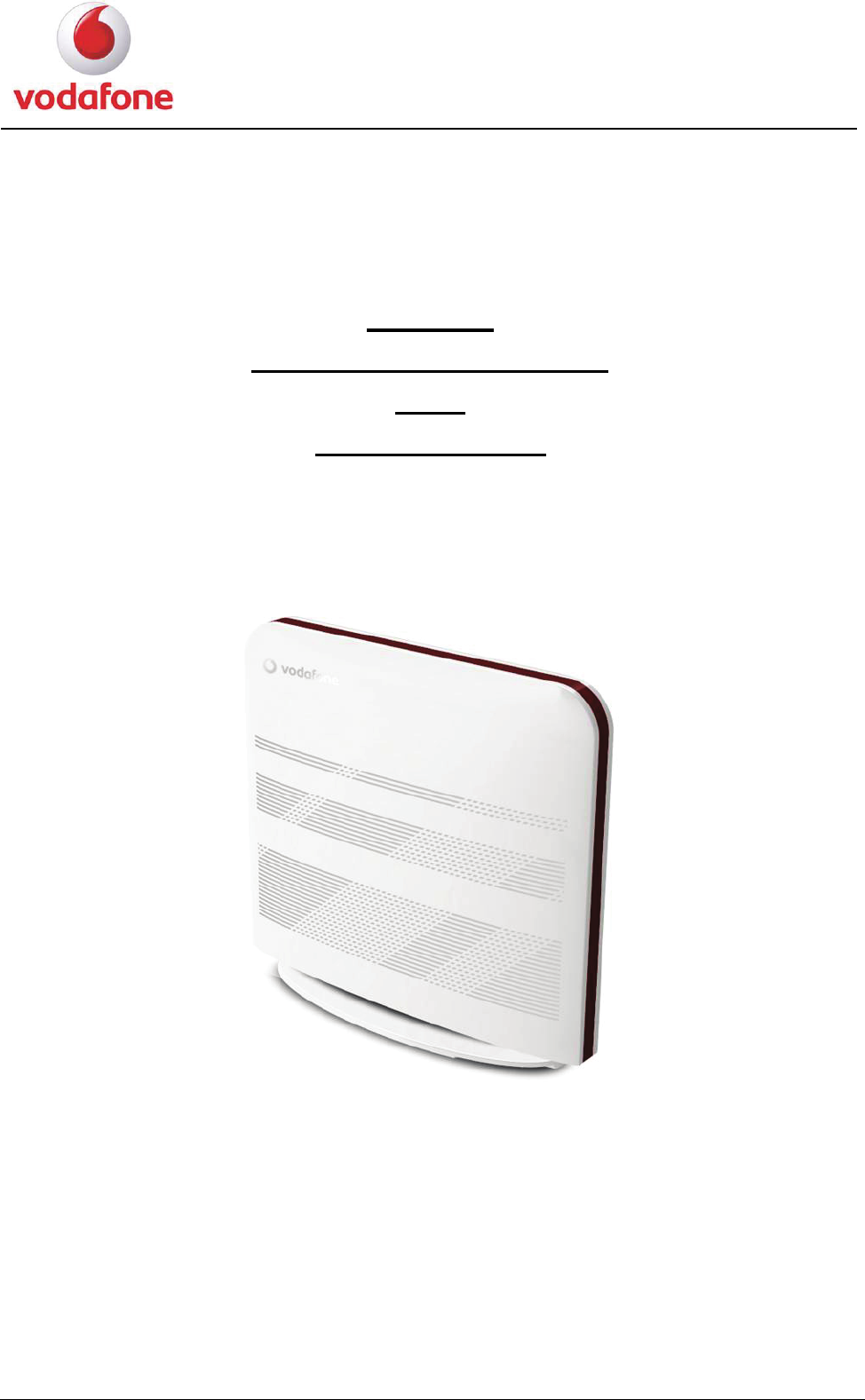
HG556a
INSTALLATION GUIDE
AND
USER MANUAL
User Manual 2
Contents
1 INTRODUCTION ...............................................................................3
1.1 Contents in the Package.......................................................................................................................................................... 3
1.2 The Front Panel of the HG556a.............................................................................................................................................. 4
1.3 The Rear and Side Panels of the HG556a............................................................................................................................... 5
1.4 Description of the Indicators on the Front and Rear Panels.................................................................................................... 6
2 Installation Guide................................................................................7
2.1 Connecting the Telephone ...................................................................................................................................................... 7
2.2 Supplying Power to the HG556a ............................................................................................................................................ 8
2.3 Connecting the PC to the HG556a.......................................................................................................................................... 9
2.4 Connecting the PC to the HG556a Through Wi-Fi............................................................................................................... 10
2.5 Inserting the Vodafone Internet Key..................................................................................................................................... 11
3 User Manual........................................................................................12
3.1 Introduction .......................................................................................................................................................................... 12
3.2 Features of the HG556a........................................................................................................................................................ 12
3.3 Requirements of PC Configuration....................................................................................................................................... 13
3.4 Management of the HG556a................................................................................................................................................. 14
3.4.1 Home Page ............................................................................................................................................................... 14
3.4.2 Applications ............................................................................................................................................................. 15
3.4.3 Router....................................................................................................................................................................... 16
3.4.4 WiFi.......................................................................................................................................................................... 18
3.4.5 HSPA........................................................................................................................................................................ 19
3.4.6 Administration.......................................................................................................................................................... 20
3.4.7 Printer....................................................................................................................................................................... 20
3.4.8 FTP........................................................................................................................................................................... 21
3.4.9 Box Diagnostics ....................................................................................................................................................... 22
3.4.10 ADSL Statistics ...................................................................................................................................................... 24
3.5 Functions .............................................................................................................................................................................. 25
3.5.1 Home Storage Function............................................................................................................................................ 25
3.5.2 USB Printer Function ............................................................................................................................................... 28
3.5.3 Wireless Function..................................................................................................................................................... 32
3.6 Troubleshooting.................................................................................................................................................................... 33
3.7 Glossary................................................................................................................................................................................ 34
User Manual 3
INTRODUCTION
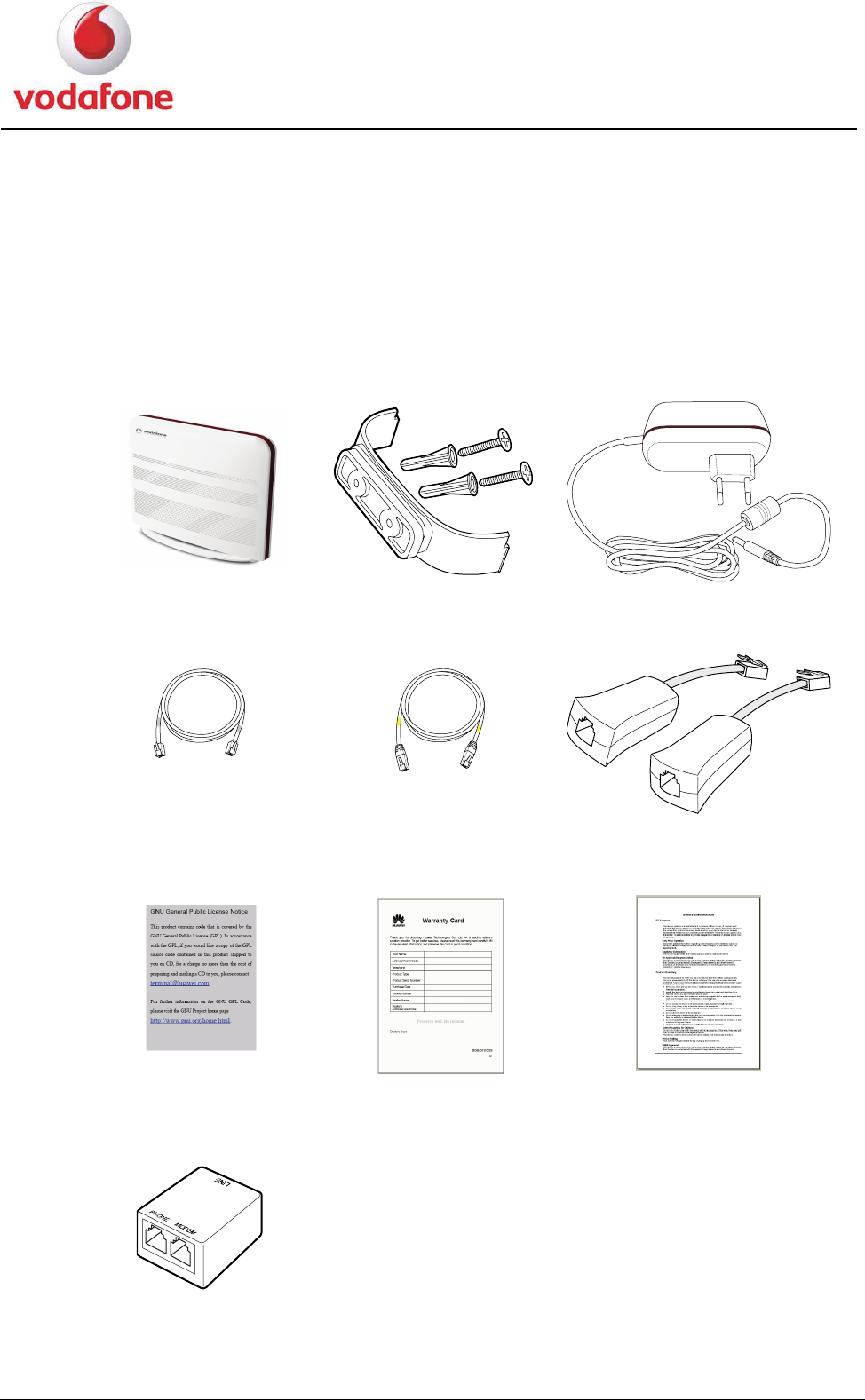
1.1 Contents in the Package
1
Vodafone Station Bracket and Screws Power adapter
DSL cable Ethernet cable Micro-filters
GPL Warranty Card Safety Information
Splitter
User Manual 4
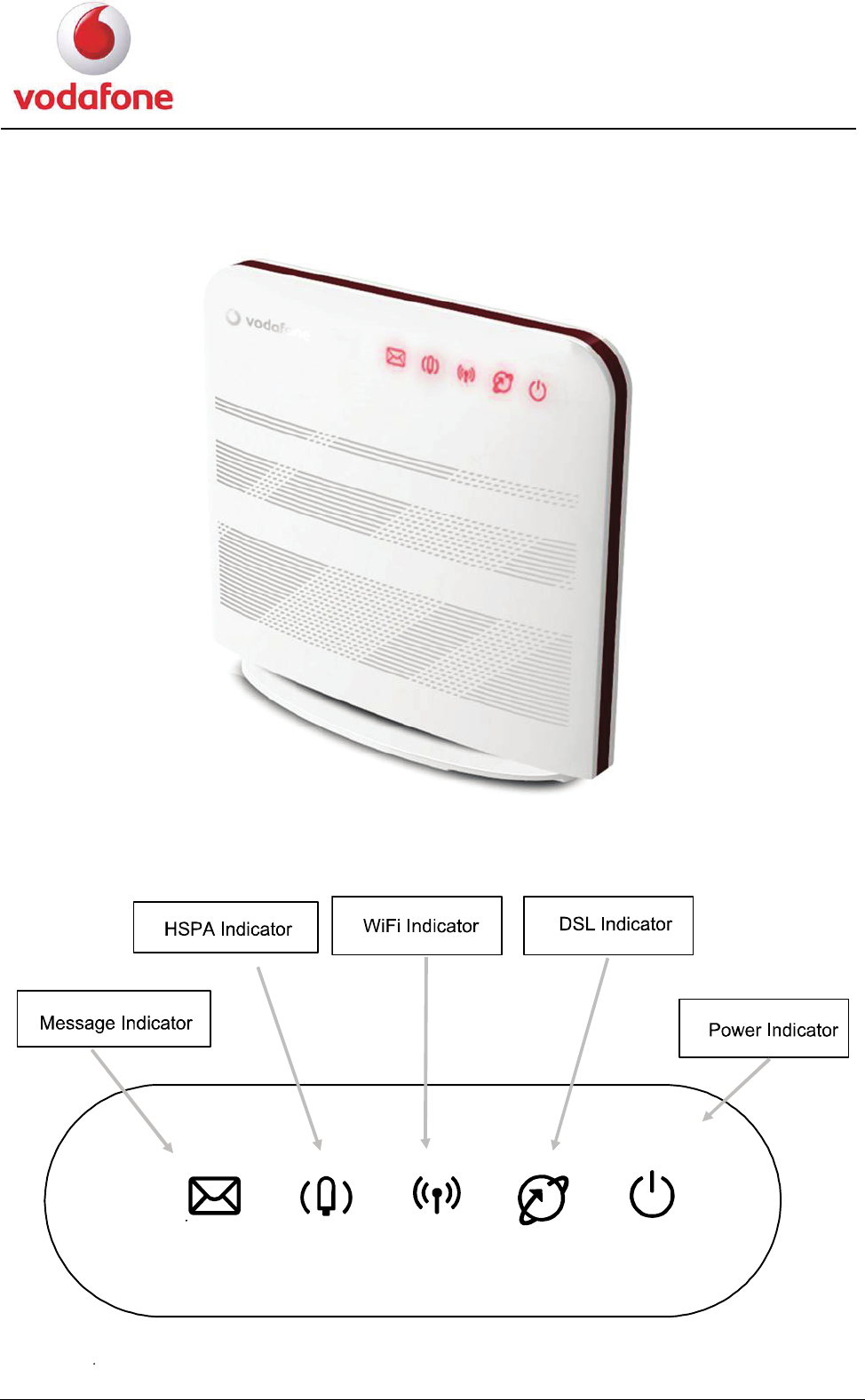
1.2 The Front Panel of the HG556a
Indicators on the front panel of the HG556a Figure 1-1
User Manual 5
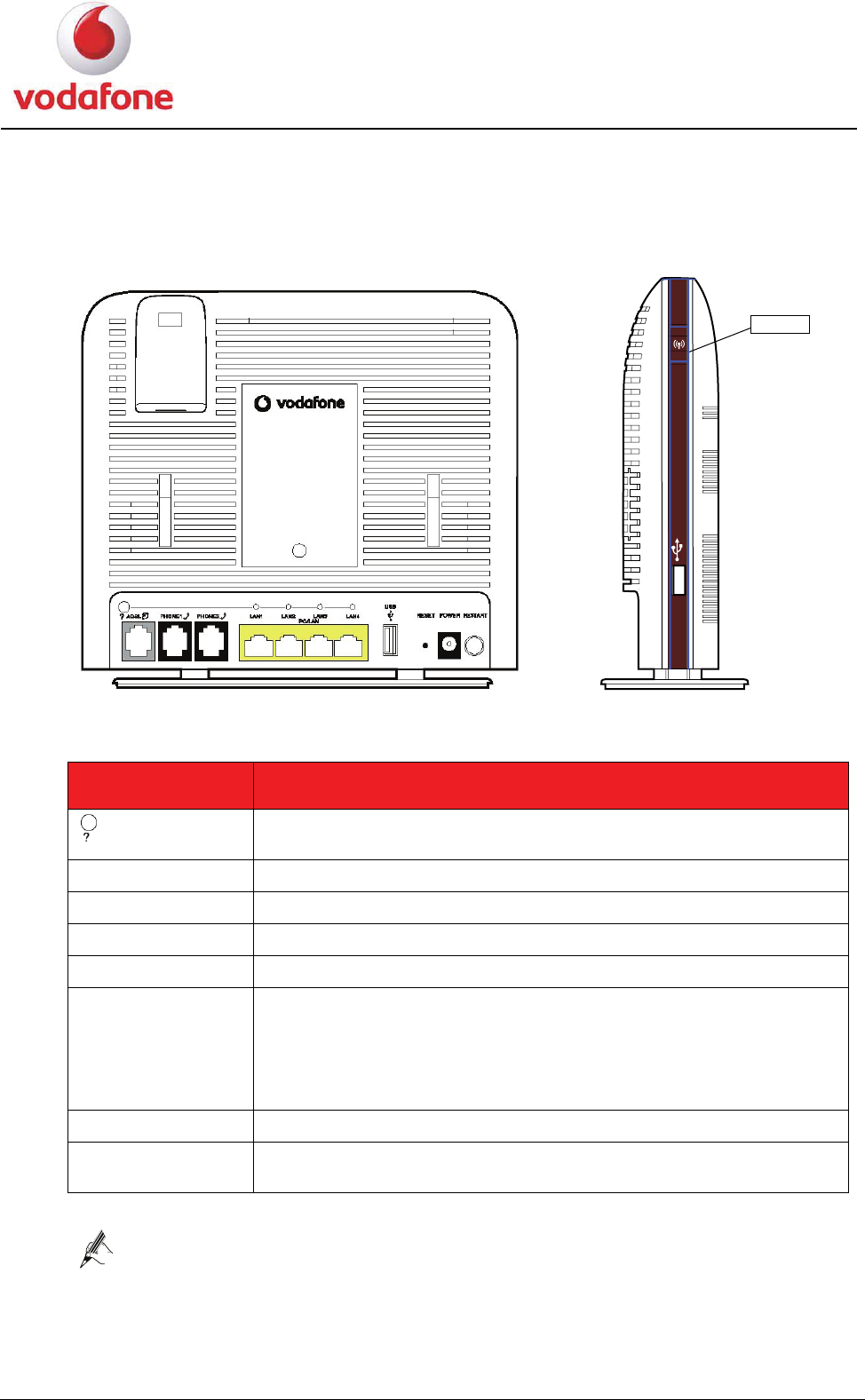
1.3 The Rear and Side Panels of the HG556a
WiFi button
1. The rear panel of the HG556a provides the following interfaces and buttons:
Interface or
Button
Meaning
Diagnostic button, press this button to check the status of the
four LAN indicators.
ADSL Connects the telephone jack on the wall.
PHONE1, PHONE2 Connects a phone.
LAN1–LAN4 Connects PCs, switches, or other equipment.
USB Connects a USB storage device, such as a USB disk, a printer etc.
RESET Restores the factory settings if this button is pressed and hold
more than 5 seconds.
NOTE
After you restore the factory settings, the customized data will be
lost. Therefore, press the RESET button with caution.
POWER Connects a power adapter.
RESTART Restarts the HG556a if this button is pressed and hold more than
0.5 seconds.
Note for the four LAN indicators:
The four LAN indicators are normally off.
When the diagnostic button is pressed, the four LAN indicators turn red or
green, see 1.4 Description of the Indicators on the Front and Rear Panels.
User Manual 6
2. The side panel of the HG556a provides the following interface and button:
z One Wi-Fi button:
Note for the Wi-Fi button:
The initial configuration for the Wi-Fi function of the HG556a is Enabled. Press
and hold the WiFi button for less than four seconds to disable the WiFi function.
Press and hold the Wi-Fi button for more than four seconds to enable the WPS
function.
More details about the Wi-Fi button, see 2.4 Connecting the PC to the HG556a Through
Wi-Fi.
z One USB interface: connects a USB storage device, such as a USB disk, a printer etc.
1.4 Description of the Indicators on the Front and Rear
Panels
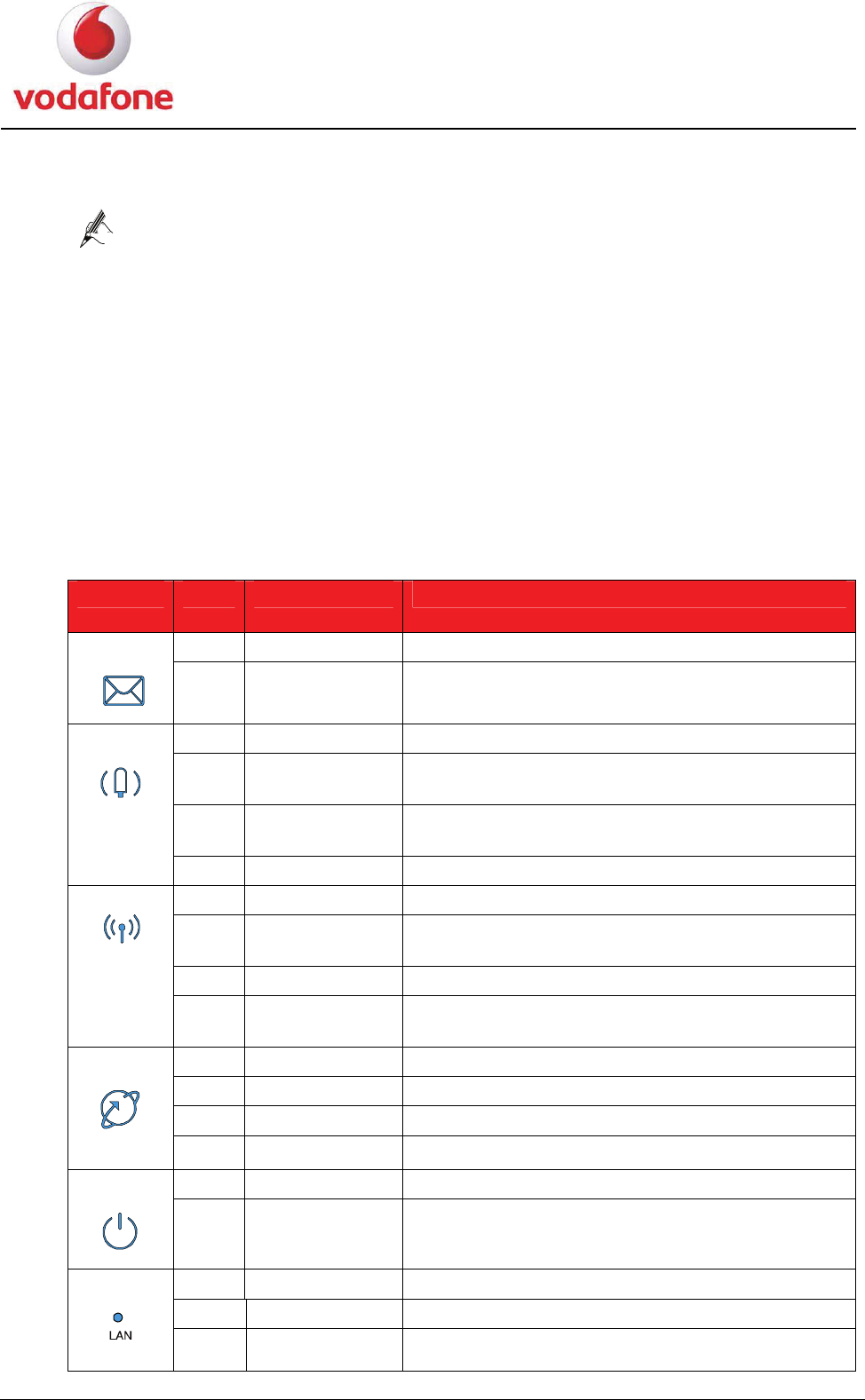
Indicator Color Status Meaning
- Off There is no message. Message
Red On There is an incoming message.
- Off The HSPA module is not connected or used.
Red Blinking slowly
The HSPA connection is normal and data
connection is being established.
Red Blinking quickly
The HSPA connection is normal and voice
connection is being established.
HSPA
Red On The connected HSPA module works normally.
- Off The Wi-Fi network is not activated.
Red Blinking slowly
The Wi-Fi Protected Setup (WPS) process is in
progress.
Red On The Wi-Fi connection is in good condition.
Wi-Fi
Red Blinking quickly
The Wi-Fi connection is normal and data is being
transmitted on the link.
- Off The ADSL connection is not activated.
Red Blinking slowly The ADSL connection is in process.
Red On The ADSL connection is in good condition.
DSL
Red Blinking quickly
DSL synchronization is in progress.
- Off The HG556a is powered off. POWER
Red On The HG556a is powered on.
- Off There is no Ethernet connection.
Green On The Ethernet connection is in good condition.
LAN
Red On The LAN connection is not connected.
User Manual 7
Installation Guide
This chapter describes the procedure for installing the HG556a.
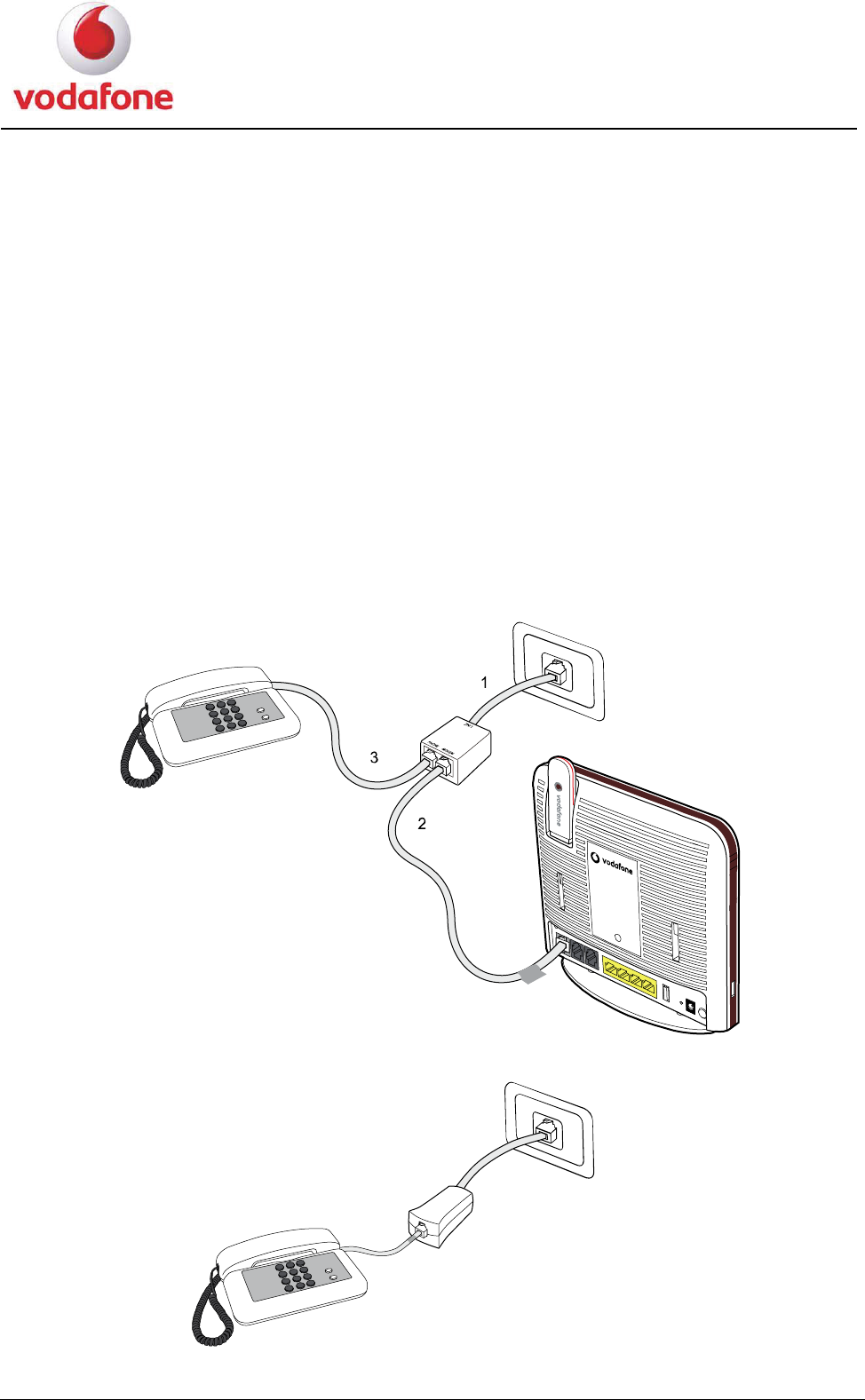
2.1 Connecting the Telephone
with
3. Con L cable.
2
1. Connect the telephone jack on the wall to the LINE interface on the splitter.
2. Connect the ADSL interface on the HG556a to the MODEM interface on the splitter
a DSL cable.
nect the telephone to the PHONE interface on the splitter with a DS
If you have ter to connect the telephone. another telephone, you can use the microfil
User Manual 8
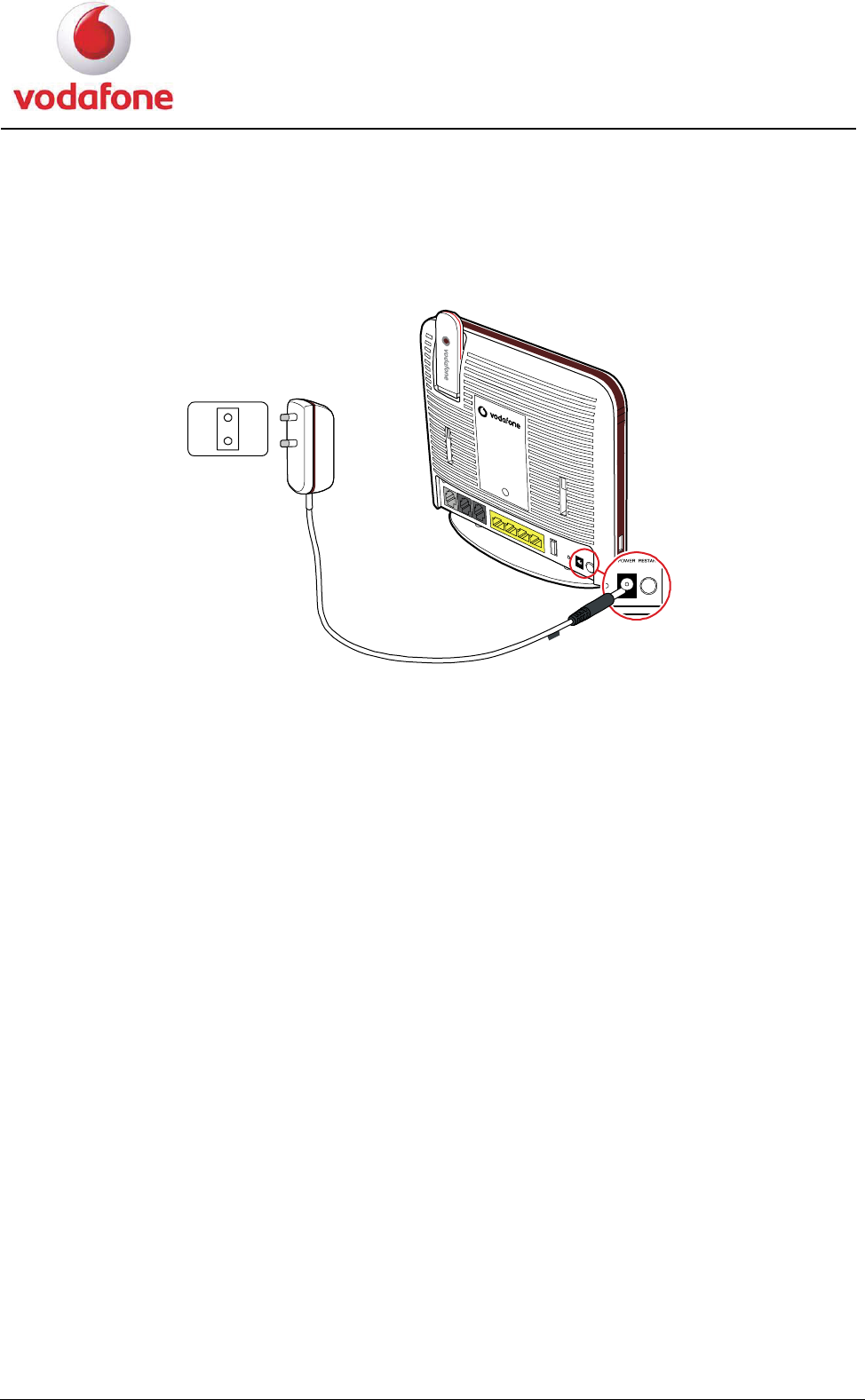
2.2 Supplying Power to the HG556a
1. Connect the power adapter to the power interface on the back of the device and plug
the power adapter into a wall outlet or a power strip.
POWER
2. After you finish the connection, the power indicator turns on, indicating that the
HG556a is being activated and working normally.
User Manual 9
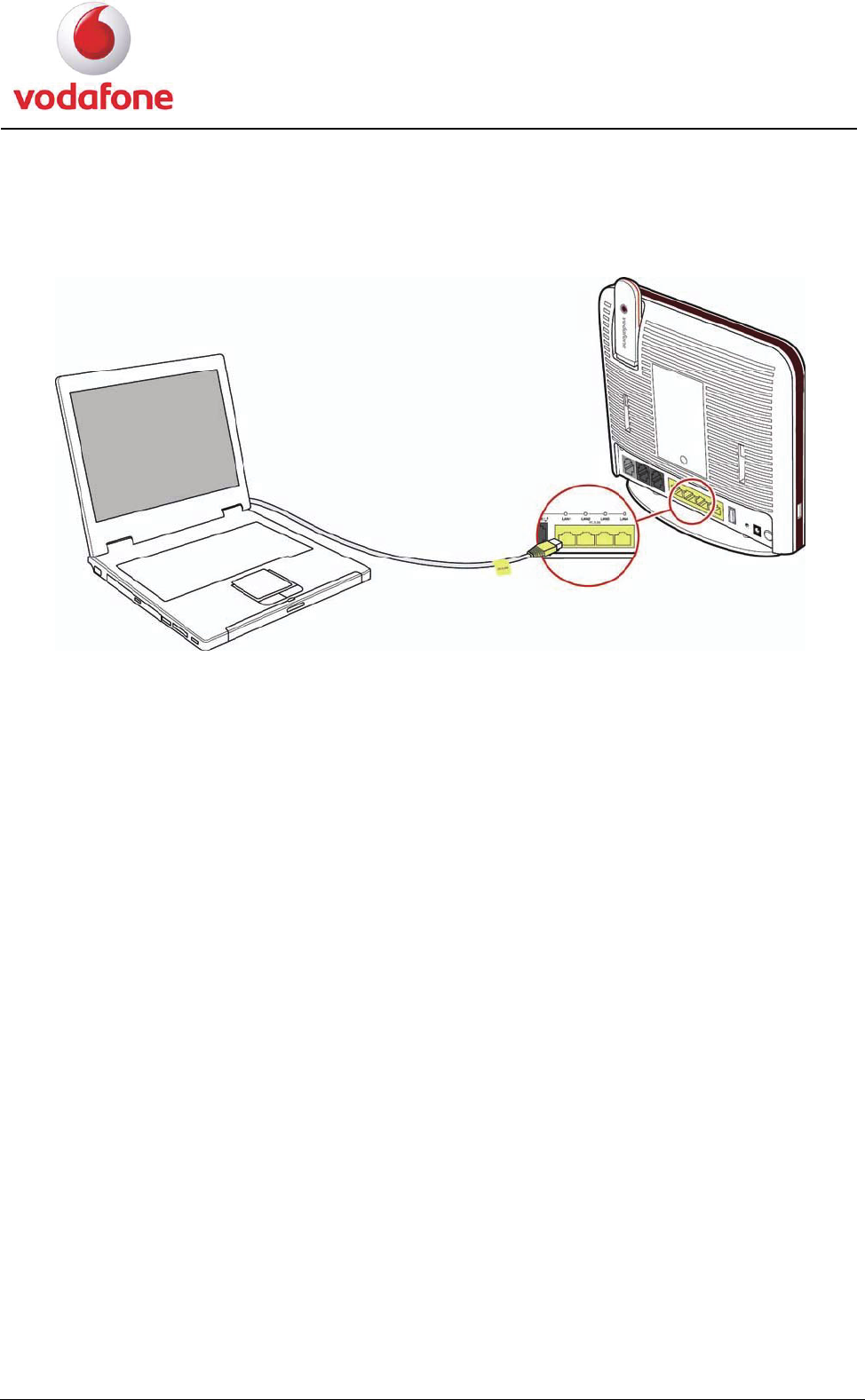
2.3 Connecting the PC to the HG556a
Use the provided Ethernet cable to connect the PC to any of the four LAN interfaces on the
rear panel of HG556a.
User Manual 10
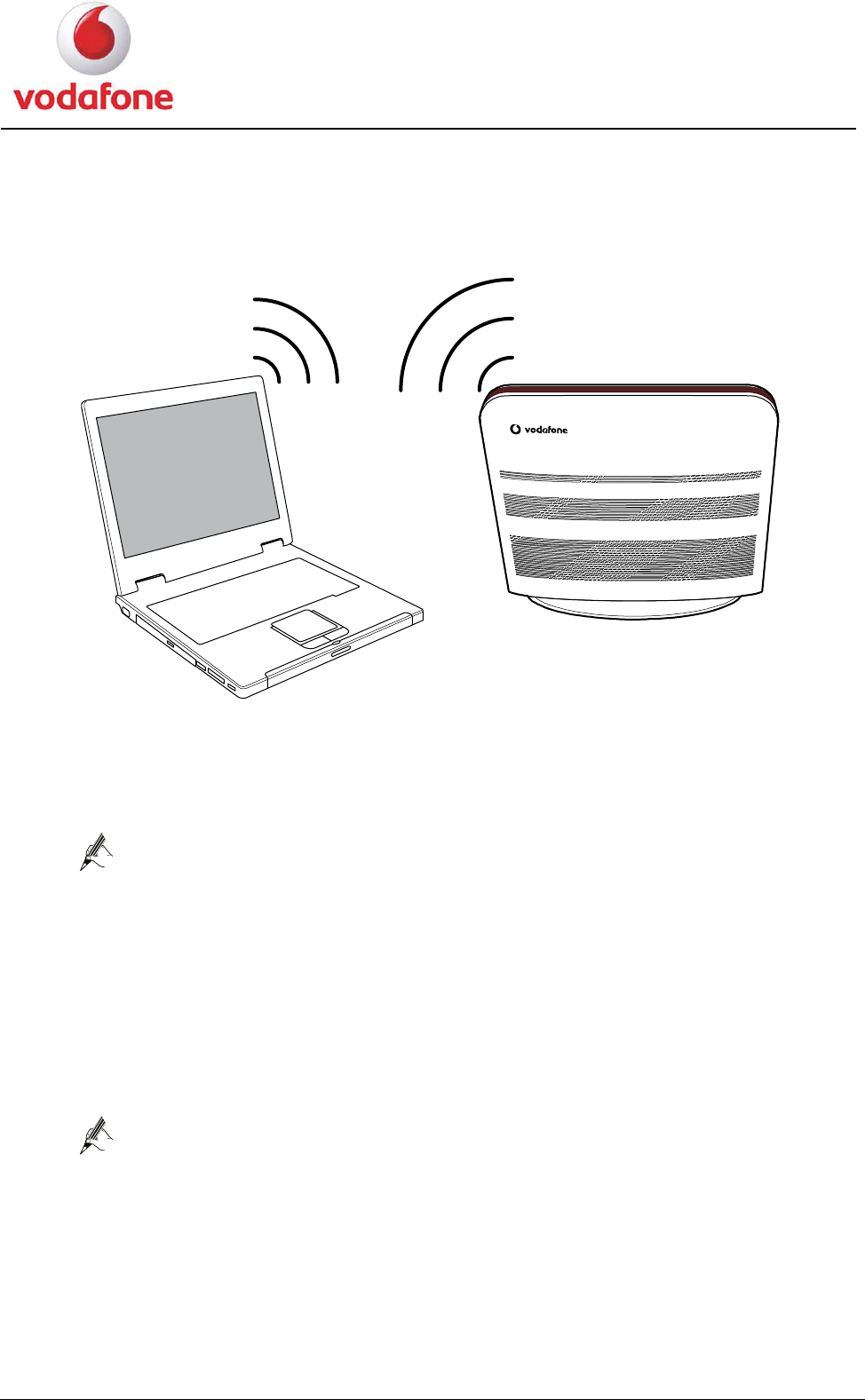
2.4 Connecting the PC to the HG556a Through Wi-Fi
To configure the PC to the HG556a wirelessly, do as follows:
1. Enable the WPS function.
Press the Wi-Fi button on the side panel of the HG556a and hold it for more than four
seconds. The WPS function is then enabled.
Note for pressing the Wi-Fi button:
z Press and hold the Wi-Fi button for more than four seconds to enable the
WPS function.
z Once the button is pressed and held for more than four seconds, the Wi-Fi
indicator start to blink slowly in a few seconds.
2. Access the WLAN through the wireless network adapter on your PC.
After you install a wireless network adapter on your PC and enable the WPS negotiation
function, the wireless network adapter automatically searches for an available wireless
network.
3. Wait for a few seconds, and then you can see the wireless icon on the corner to the
right of the task bar of the PC.
Access the Internet through WLAN, you do not need to connect any Ethernet
cable.
User Manual 11
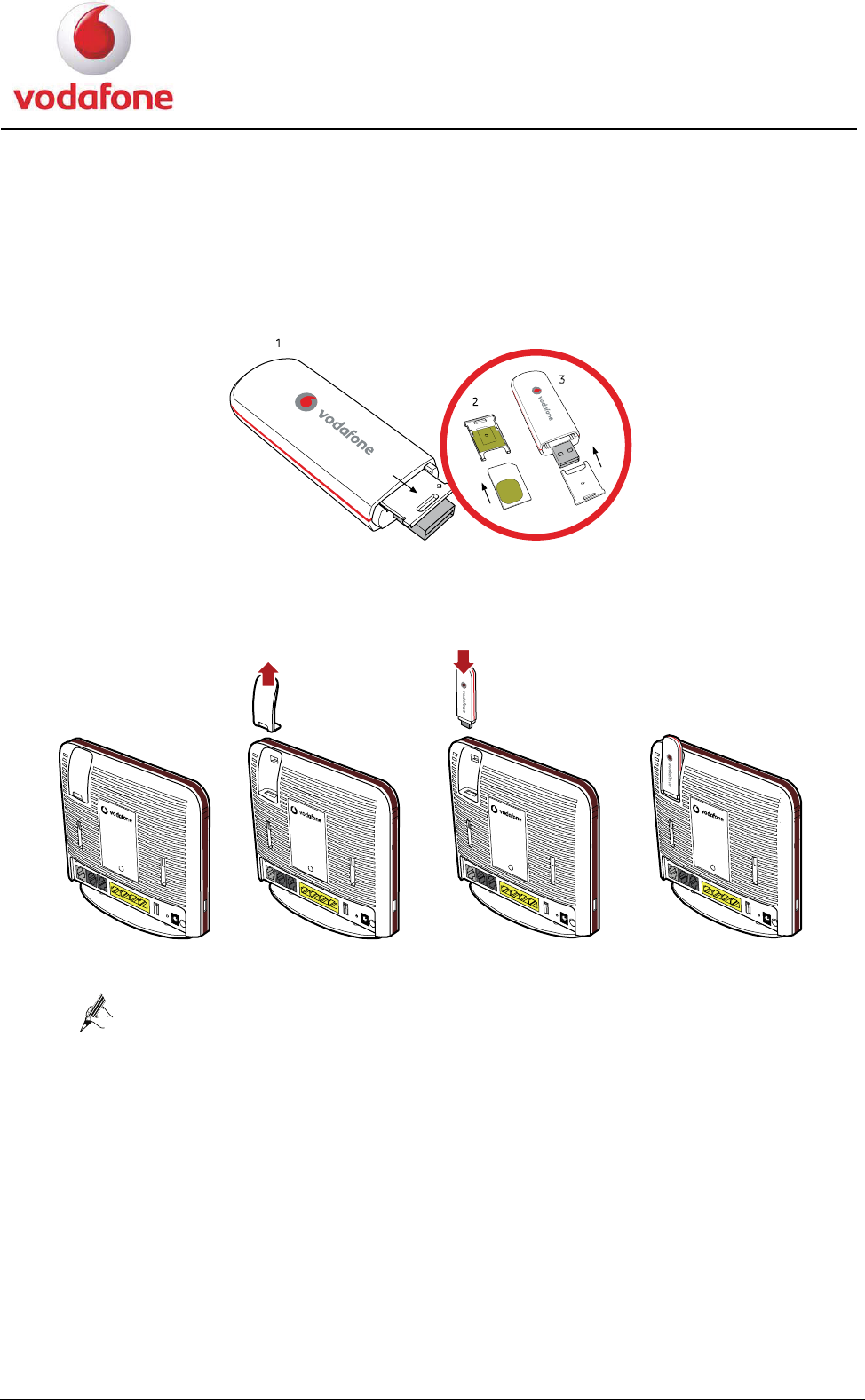
2.5 Inserting the Vodafone Internet Key
1. Remove the SIM card holder from the Vodafone Internet Key.
2. Insert the SIM card into the card holder.
3. Reinsert the SIM card holder into the Vodafone Internet Key.
4. Remove the lid on the back of the Vodafone Station and insert the Vodafone Internet
Key into the slot.
The previous Vodafone Internet Key is just the sample for reference, you
can choose other kind of Internet Key and use the same way to install.

User Manual 12
User Manual
3.1 Introduction
instructions that must be followed to protect the HG556a and the safety of the operator.
3.2 Features of the HG556a
e HG556a are as follows:
, G.992.3 ADSL2 (G.dmt.bis), and G.992.5 ADSL2+
z Supports manual configuration of VPI/VCI parameters
L2+ uplink and USB port uplink
rage device
z Supports USB printer
g Ethernet interfaces
z Supports test of the Ethernet with the diagnostic button
g, and 802.11n
y authorization
3
This manual provides instructions on how to use the product properly. It also provides
The main features of th
1. ADSL2+ interface
z Supports ITU G.992.1 (G.dmt)
Annex A (G.dmt.bitplus)
z
z Supports Annex L (RE ADSL)
Supports ANSI T1.413 Issue 2
z Supports the configuration of eight VPI/VCIs
2.
Supports USB 2.0 host port
USB port
z
Supports Huawei HSPA USB interface link driver
z
z Supports mutual data backup of ADS
z Supports USB mass sto
3.
Provides four 10/100 M auto-sensin
Ethernet interface
z
Supports Ethernet
z switch function
z Supports 802.3u
4.
Supports 802.11b, 802.11
Wi-Fi interface
z
Supports 32 connections
z
z Supports SSID hiding
z Supports channel selection
z Supports Open System/Shared Ke
z Supports WPS
User Manual 13
SK/WPA2-PSK
z Supports WMM
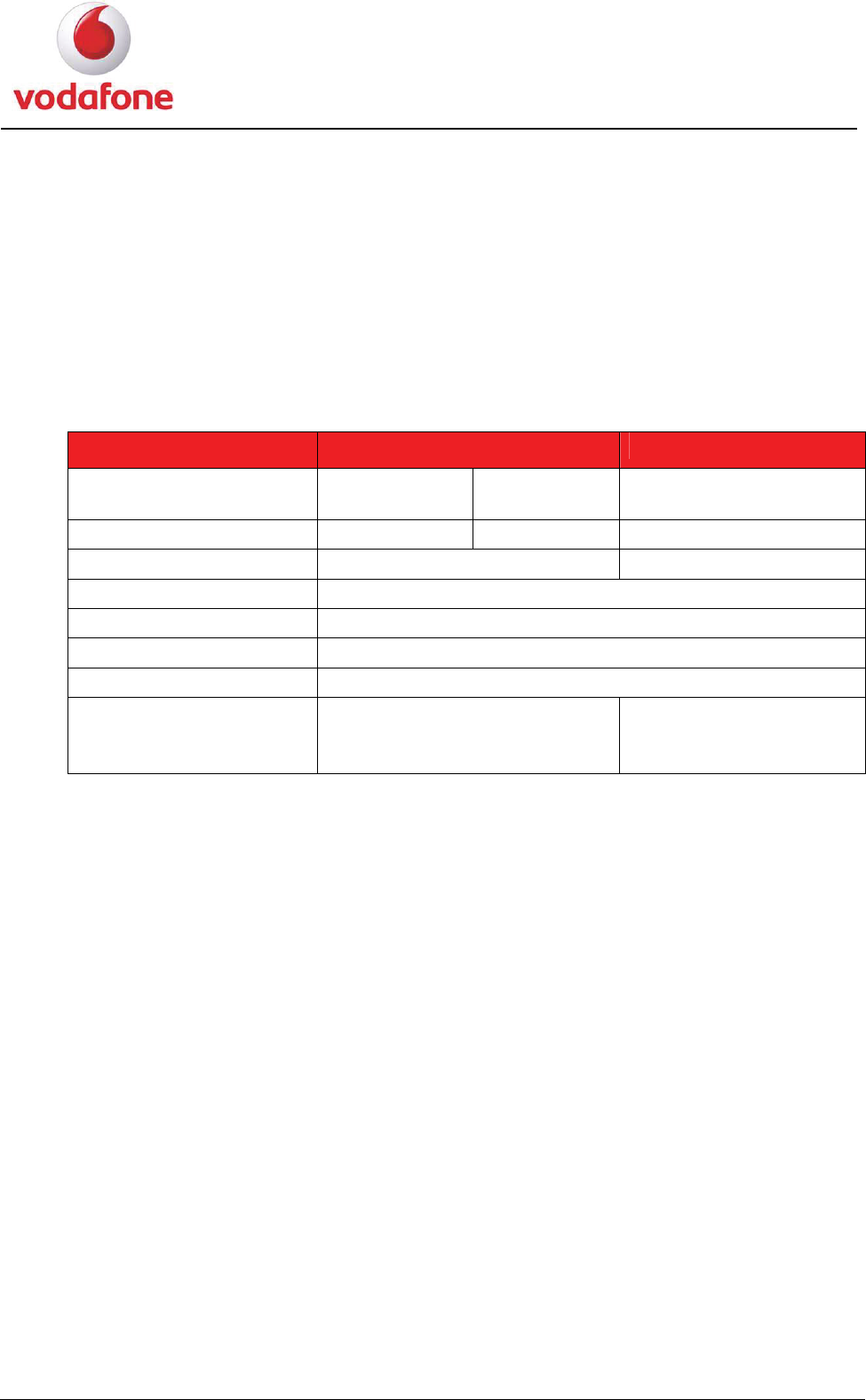
3.3 Requirements of PC Configuration
nts of PC configuration for displaying the management Web pages of the
HG556a are:
z Supports WEP/TKIP/AES
z Supports WPA-P
The requireme
Microsoft® Windows Apple® Mac
Operating system
E /Vista
Windows®
98SE/M
Windows®
2000/XP
Mac OS® 10.1
RAM 32 MB 64 MB 128 MB
Free disk space 40 MB 10 MB
CD-driver/DVD-driver Provided
Display 800 x 600 pixel, 256 color
Ethernet 10/100Base-T n Required for Ethernet connectio
Wi-Fi 802.11b/g Required for Wi-Fi connection
Browser 0, 6.0, 7.0Internet Explorer® 5.
Mozilla© Firefox 1.0
xplorer® 5.0,
Apple Safari® 1.0
Internet E
6.0, 7.0
User Manual 14
3.4 Management of the HG556a
3.4.1 Home Page
To log in to the configuration page, do as follows:
1. Launch the Internet Explorer and enter http://192.168.1.1 (the default LAN IP
address of the HG556a) in the address bar. Then press Enter to display the login
window.
2. Enter the user name (vodafone by default) and password (vodafone by default). Then
you can see the home page of the HG556a.
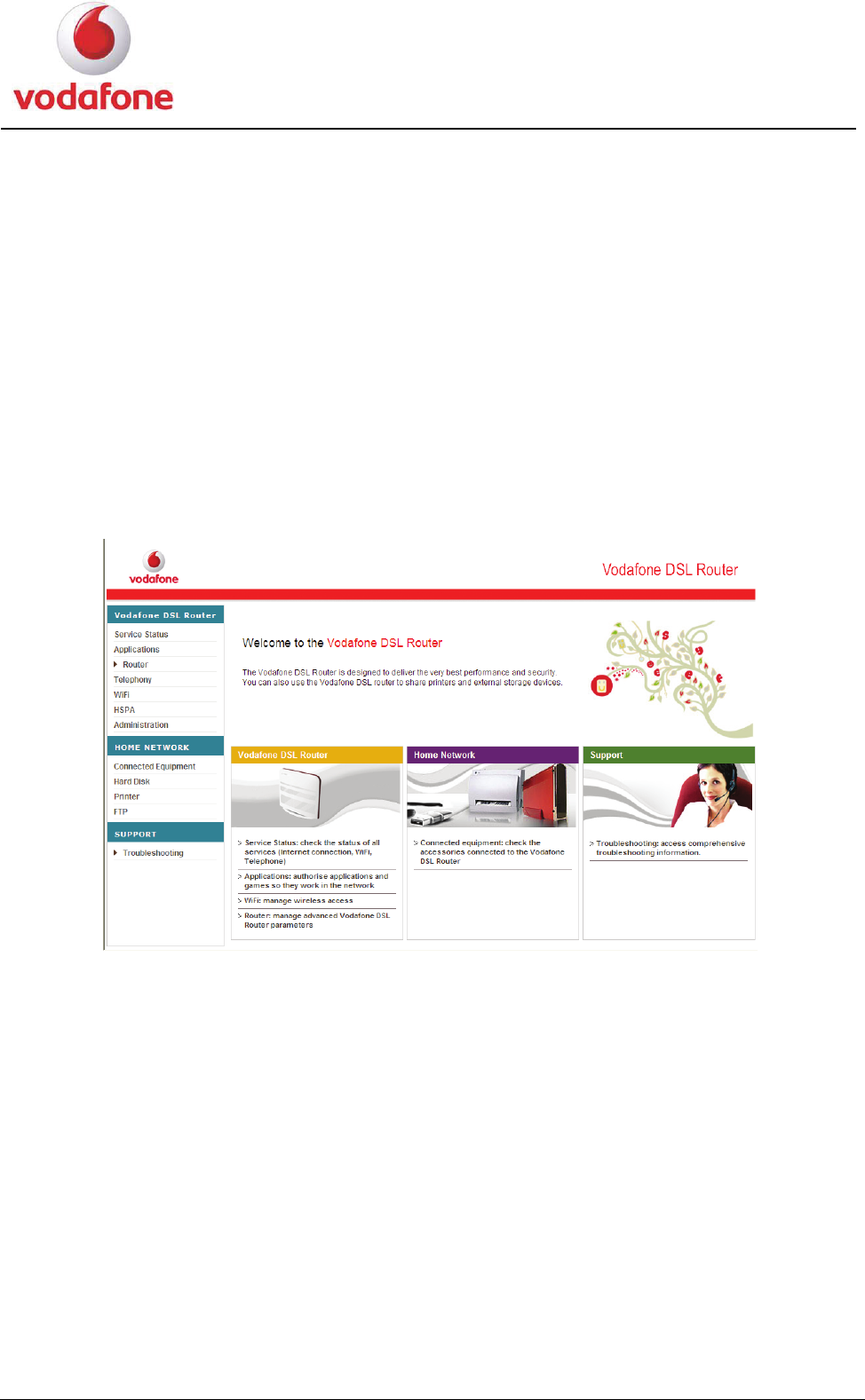
Figure 3-1 shows the Welcome to the Vodafone DSL Router page.
Figure 3-1 Welcome to the Vodafone DSL Router page
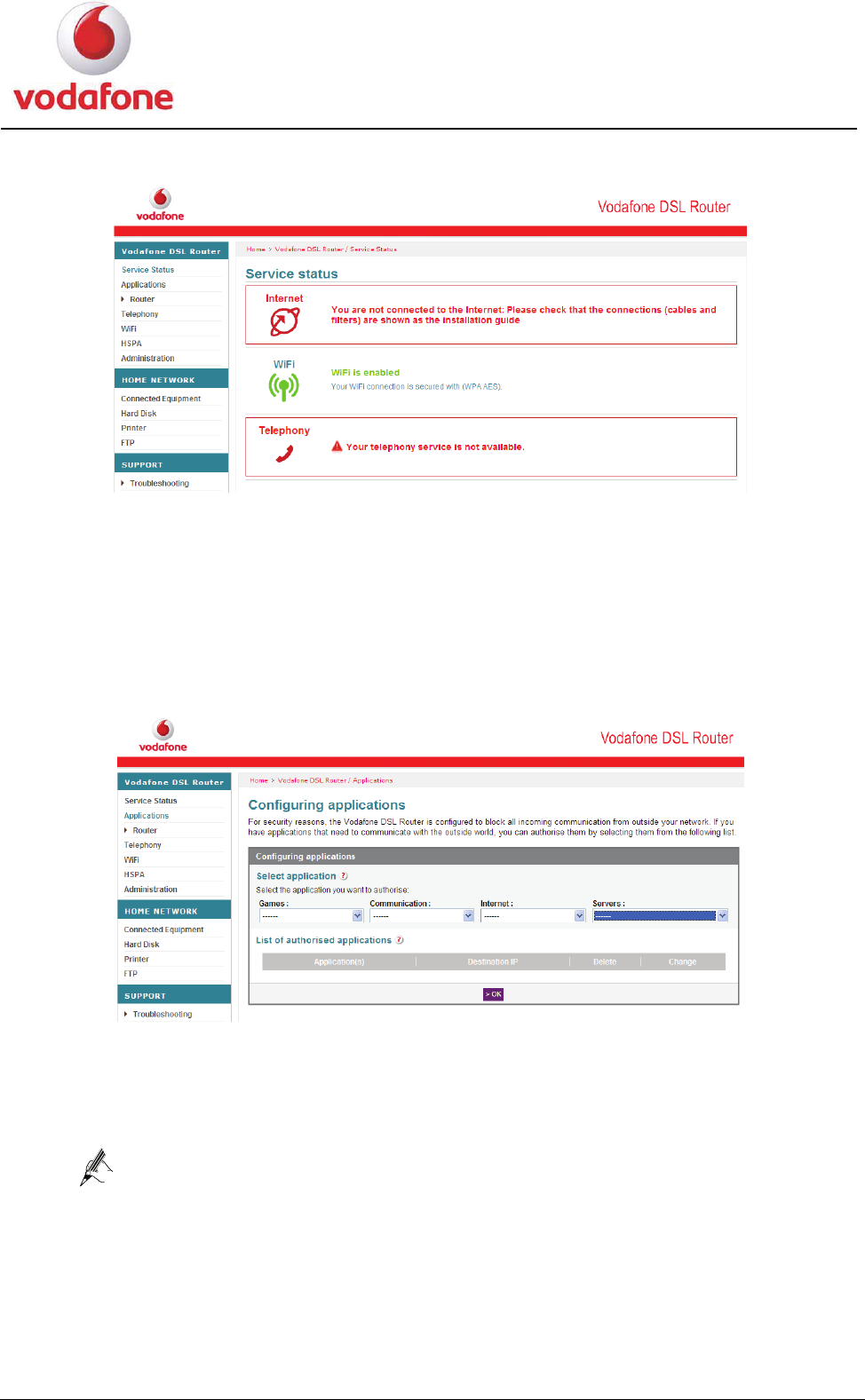
Choose Vodafone DSL Router > Service Status in the navigation tree to display the
status of the HG556a, including:
z Internet: the main information about the connections of the HG556a
z WiFi: the information and status of the Wi-Fi interface
z Telephony: the information about the telephony service
Figure 3-2 shows the Service status page.
User Manual 15
Figure 3-2 Service status page
3.4.2 Applications
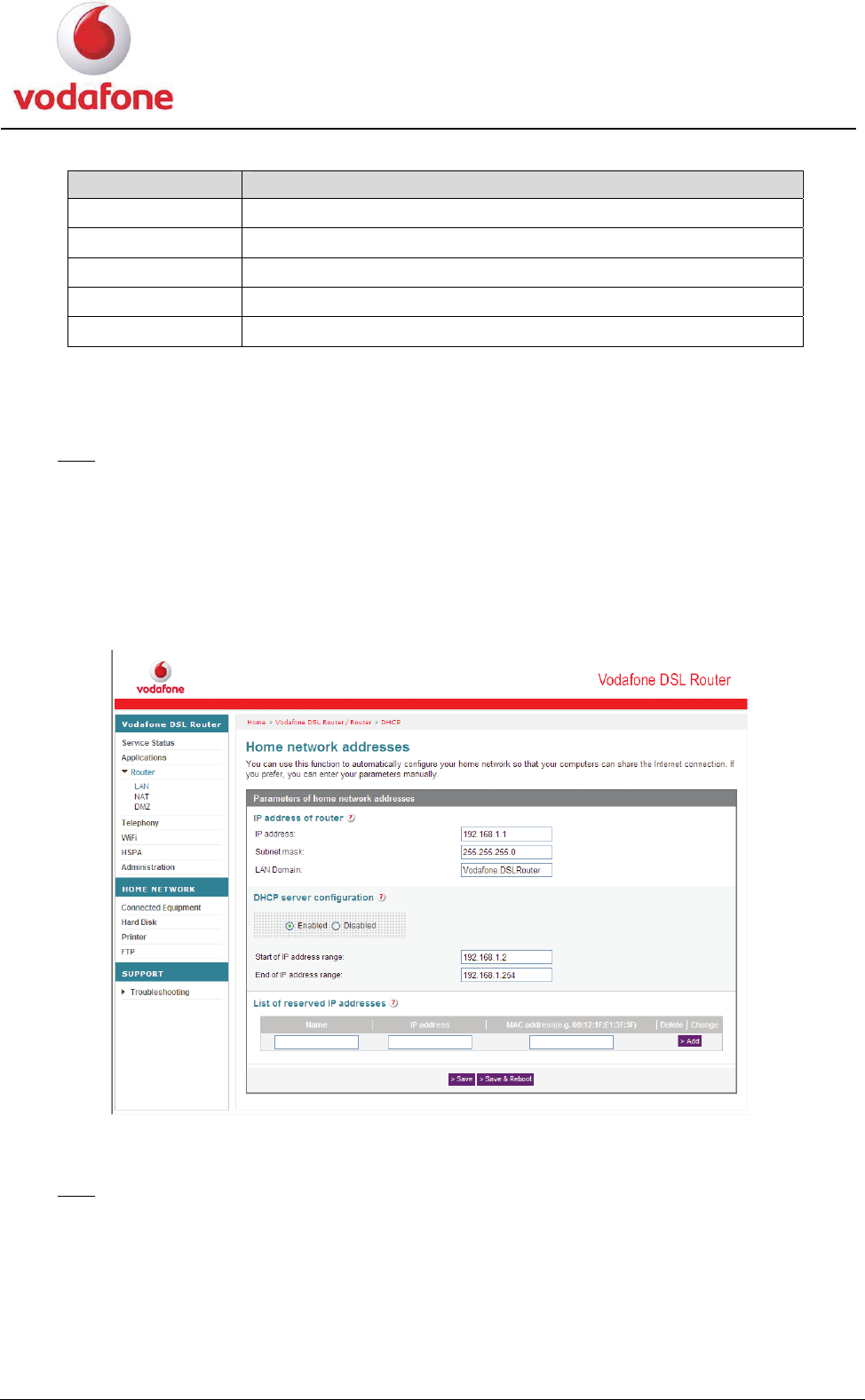
Choose Vodafone DSL Router >Applications in the navigation tree to display the
Configuring applications page.
Figure 3-3 shows the Configuring applications page
Configuring applications page Figure 3-3
When you select an option from the Games, Communications, Internet or Services
drop-down list box, the authorized IP address is displayed in the Destination IP column
in the List of authorised applications area.
If you want to delete the authorized application, click the Delete icon in
the List of authorised applications area and then click the OK
button. If you want to change the destination IP address, just click the
Change icon and then enter the new address in the Destination IP
box, and then click the OK button to save the change.
Tab l e 3 - 1 lists the parameters for the Configuring applications.
User Manual 16
Table 3-1 Parameters for the Configuring applications
Item Description
Games The name of game.
Communication List all types of communications.
Internet The type of Internet application.
Services List all types of services.
Destination IP The destination IP address of the server that the user defined.
3.4.3 Router
LAN
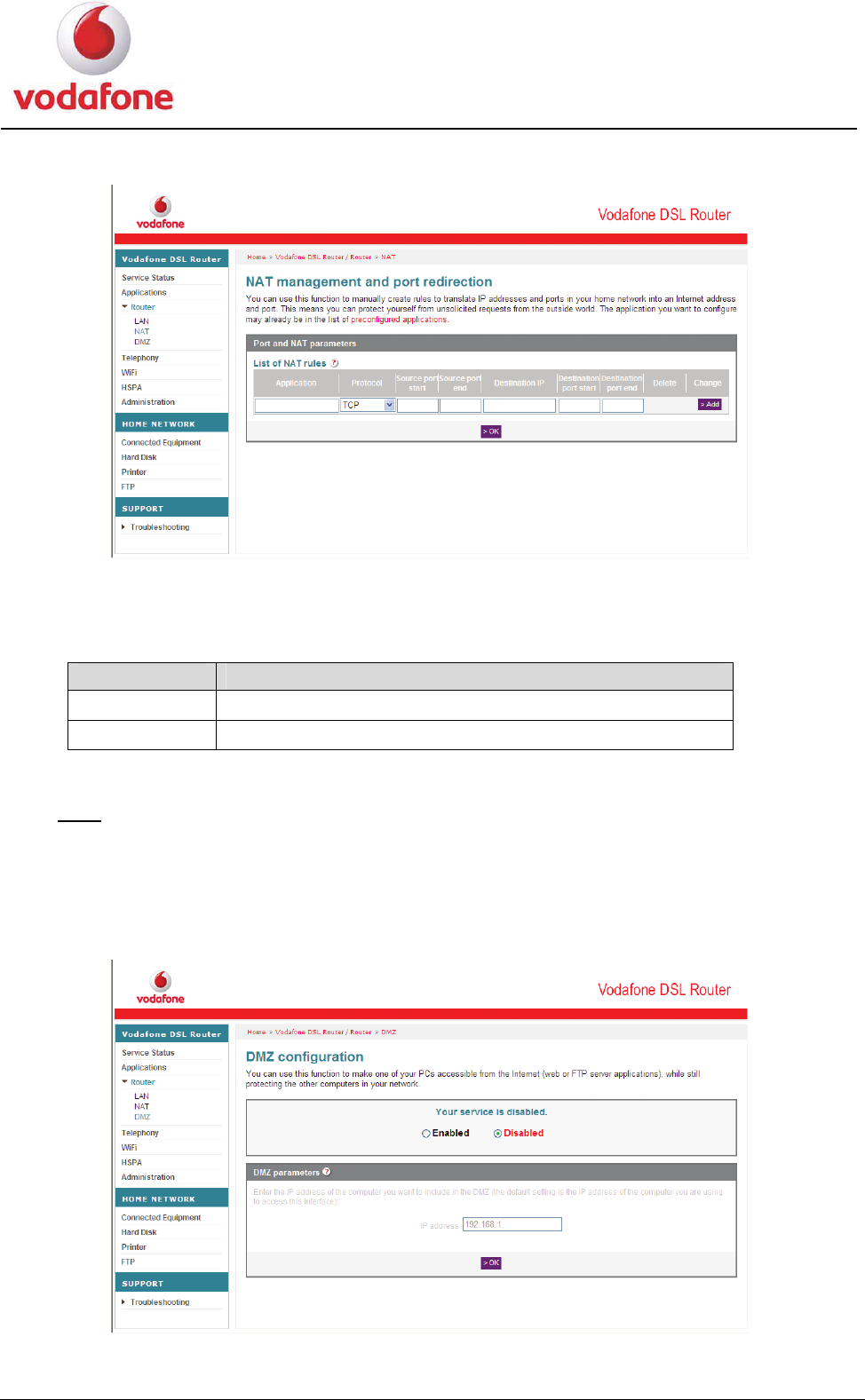
Choose Vodafone DSL Router > Router > LAN in the navigation tree to display the
Home network addresses page.
The HG556a provides a default LAN IP address. You can change the LAN IP address and
subnet mask, and choose whether to activate the DHCP service.
Figure 3-4 shows the Home network addresses page.
Home network addresses page Figure 3-4
NAT
Choose Vodafone DSL Router >Router > NAT in the navigation tree to display the
NAT management and port redirection page.
Figure 3-5 shows the NAT management and port redirection page.
User Manual 17
Figure 3-5 NAT management and port redirection page
Tab l e 3 - 2 lists the parameters for NAT.
Table 3-2 Parameters for NAT
Item Description
Add Create the new NAT rules that you specify.
OK Make the configuration take effect.
DMZ
Choose Vodafone DSL Router >Router > DMZ in the navigation tree to display the
DMZ configuration page.
Figure 3-6 shows the DMZ configuration page.
DMZ configuration page Figure 3-6
User Manual 18
Tab l e 3 - 3 lists the parameters for the DMZ configuration.
Table 3-3 Parameters for the DMZ configuration
Item Description
Enabled Enable the function to make your PC accessible from the
Internet.
Disabled Disable the function to make your PC accessible from the
Internet.
IP address The IP address of the DMZ host computer.
NOTE
DMZ = Demilitarized Zone
3.4.4 WiFi
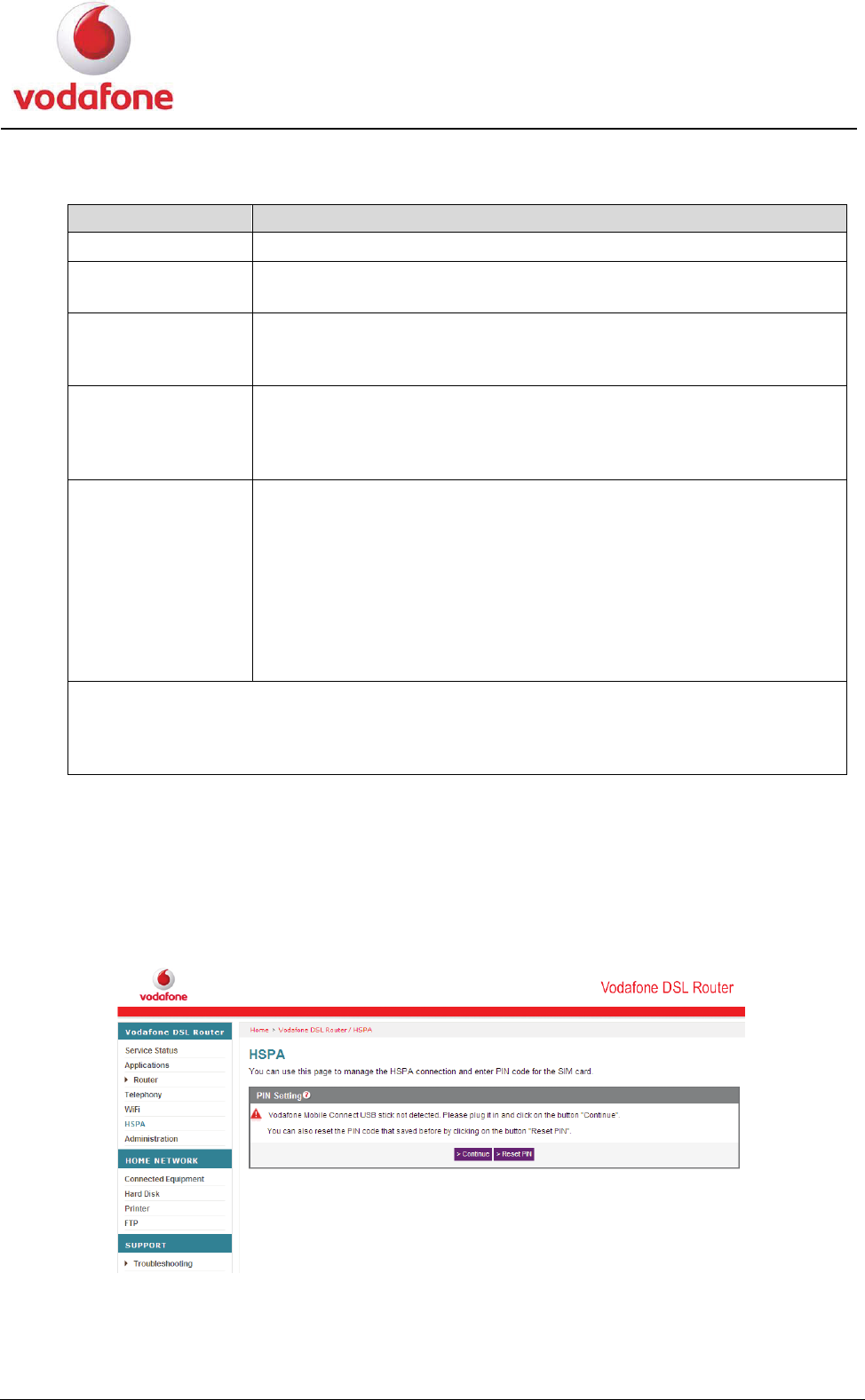
This page allows you to enable or disable Wi-Fi on the Vodafone Station and to hide or
show the wireless network. Choose Vodafone DSL Router > WiFi in the navigation tree
to display the WiFi parameters page.
Figure 3-7 shows the WiFi parameters page.
WiFi parameters page Figure 3-7
User Manual 19
Table 3-4 lists the parameters for WiFi parameters.
Table 3-4 Parameters for WiFi parameters
Item Description
Enabled/Disabled To enable or disable the Wi-Fi function.
Select channel Select a proper channel from the list that conforms to the
network settings.
Name of SSID1
The name of the WLAN. It identifies the different networks.
Wireless clients must have the same SSID as that of the AP to
communicate with each other.
Mask SSID1 It is used to hide or display the AP. If the AP is hidden, the
HG556a does not carry the SSID information when broadcasting
beacon packets. When the wireless client connects to the
HG556a, the SSID needs to be entered manually.
Security It is used to enable or disable the network authentication
function.
z None: Any wireless device can access the WLAN.
z WEP: The simplified Shared authentication mode. The HG556a
encrypts all the communications by using the WEP key.
z WPA-PSK: The simplified WPA authentication mode. The HG556a
encrypts all the communications by using the WPA pre-shared key.
z WPA2-PSK: The simplified WPA2 authentication mode. The HG556a
encrypts all the communications by using the WPA2 pre-shared key.
NOTE
WLAN = Wireless Local Area Network
SSID = Service Set Identifier
AP = Access Point
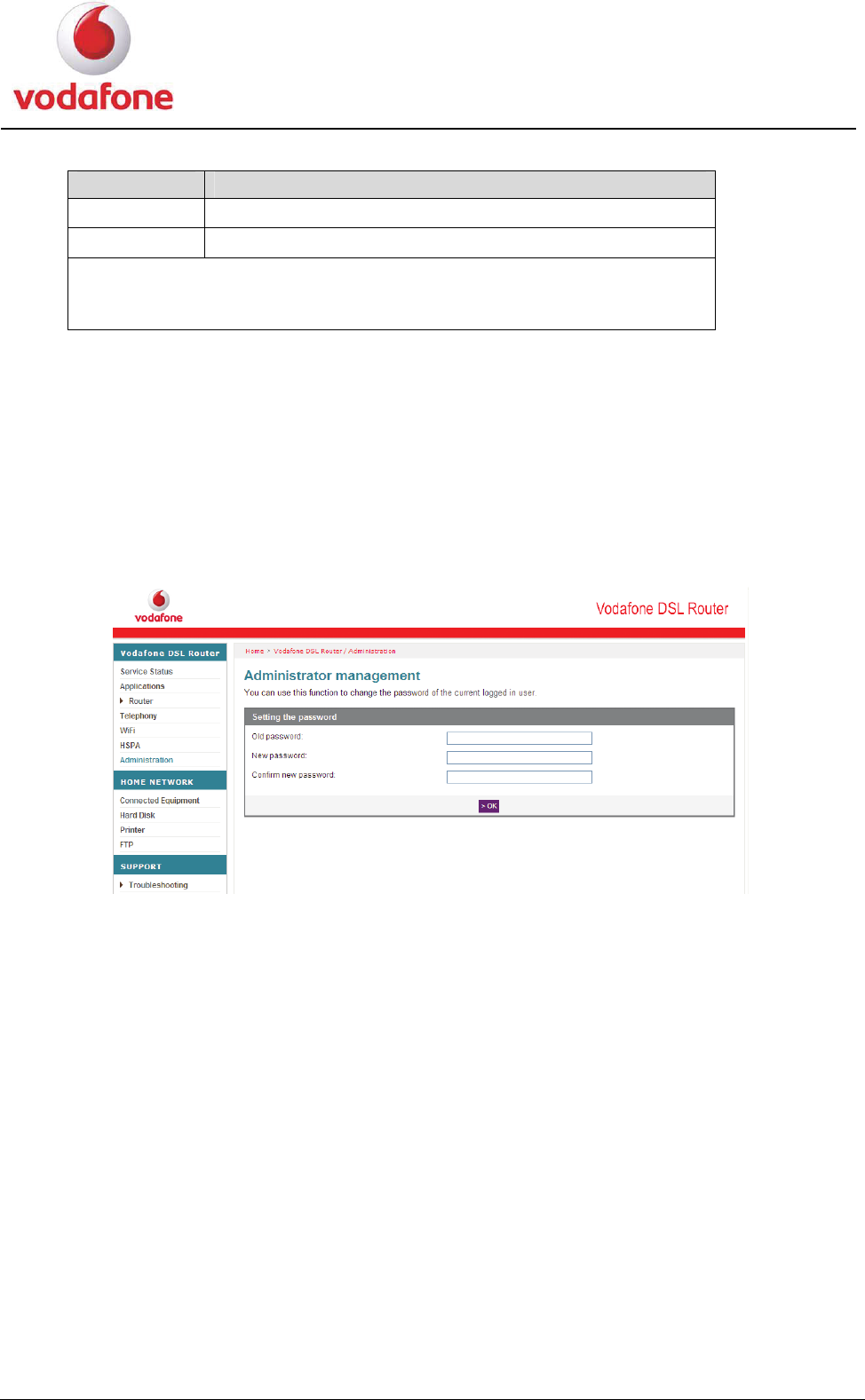
3.4.5 HSPA
Choose Vodafone DSL Router > HSPA in the navigation tree to display the HSPA page.
Figure 3-8 shows the HSPA page.
HSPA page Figure 3-8
Tab l e 3 - 5 lists the parameters for the HSPA.
User Manual 20
Table 3-5 Parameters for the HSPA
Item Description
PIN Code The PIN of your SIM card.
Save PIN Save the PIN code of your SIM card.
NOTE
PIN = Personal Identification Number
SIM = Subscriber Identity Module
3.4.6 Administration
This page allows you to change the password of the user.
Choose Vodafone DSL Router > Administration in the navigation tree to display the
Administrator management page.
Figure 3-9 shows the Administrator management page.
Administrator management page Figure 3-9
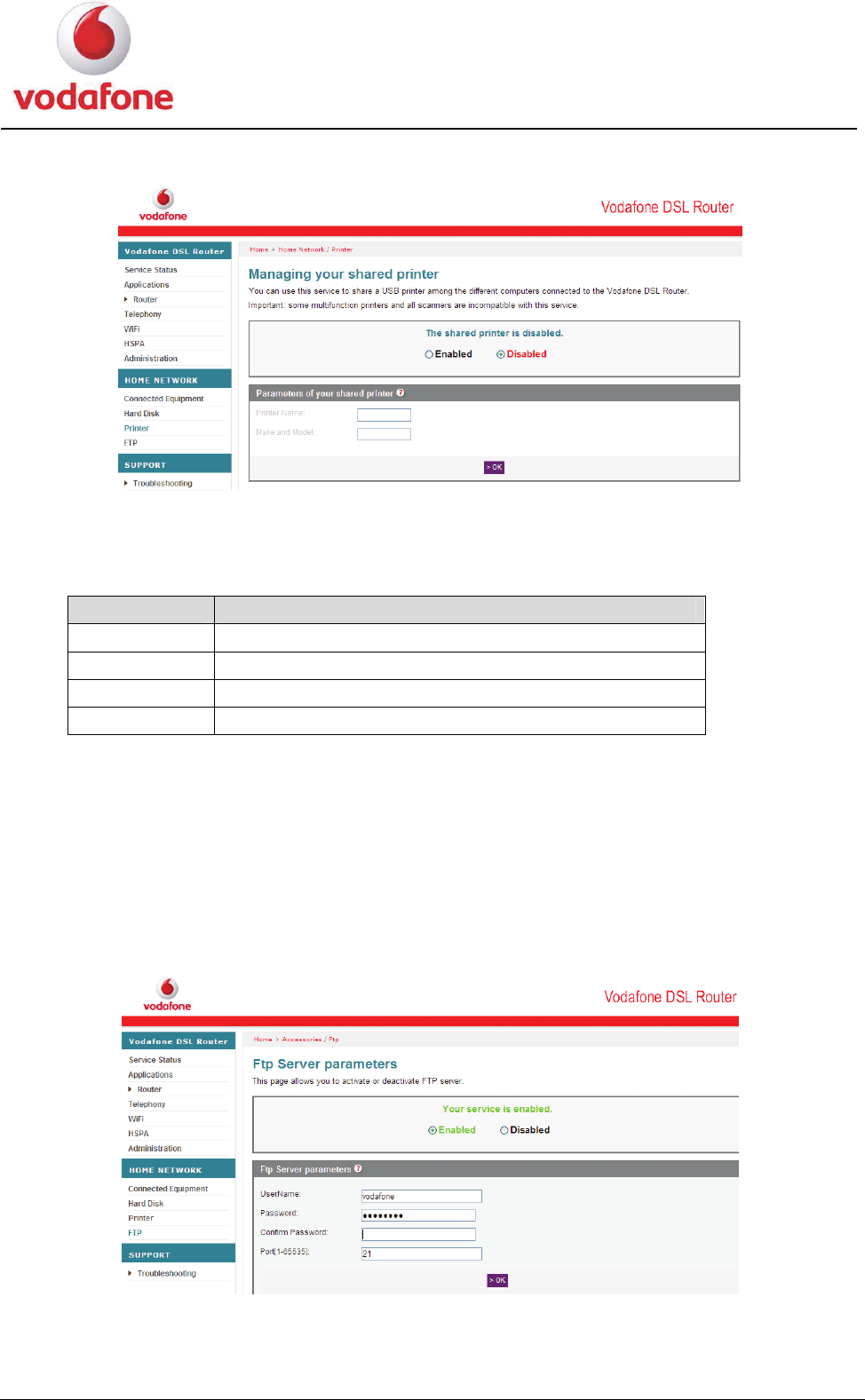
3.4.7 Printer
Choose Vodafone DSL Router > HOME NETWORK > Printer in the navigation tree to
display the Managing your shared printer page.
Figure 3-10 shows the Managing your shared printer page.
User Manual 21
Figure 3-10 Managing your shared printer page
Tab l e 3 - 6 lists the parameters for the printer.
Table 3-6 Parameters for the printer
Item Description
Enabled It is used to enable the print server.
Disabled It is used to disable the print server.
Printer Name The name of the printer.
Mark and Model
The model of the printer.
Click OK to save the settings.
3.4.8 FTP
Choose Vodafone DSL Router > FTP in the navigation tree to display the Ftp Server
parameters page.
Figure 3-11 shows the Ftp Server parameters page.
Ftp Server parameters page Figure 3-11
Tab l e 3 - 7 lists the parameters for the FTP.
User Manual 22
Table 3-7 Parameters for the FTP
Item Description
Enabled It is used to enable the FTP server.
Disabled It is used to disable the FTP server.
UserName The name of the FTP, the default setting is vodafone.
Password The password of the FTP, the default setting is vodafone.
Confirm Password Double confirm the password of the FTP.
Port[1-65535] The port number of the FTP server, the default setting is 21.
3.4.9 Box Diagnostics
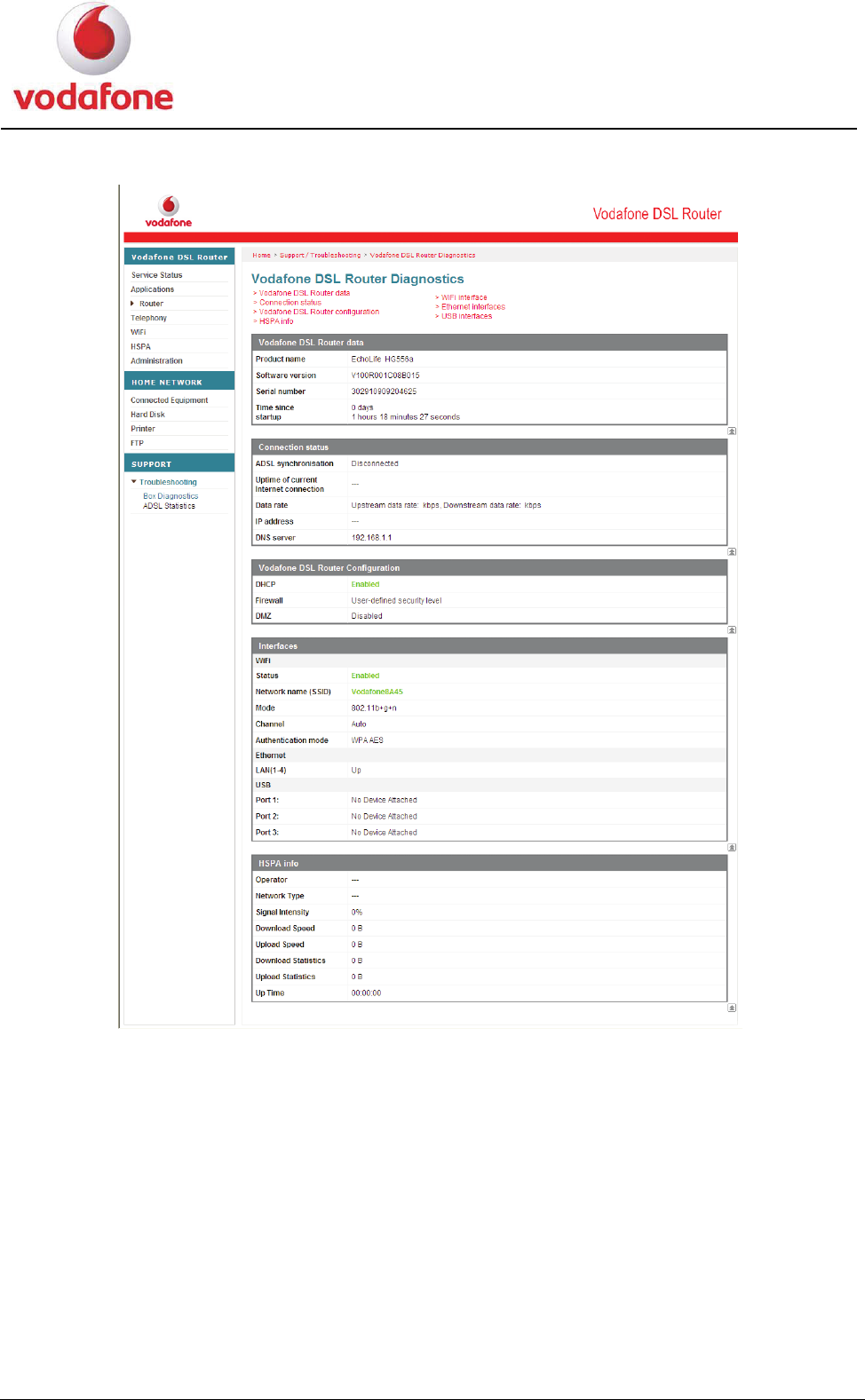
Choose SUPPORT > Troubleshooting > Box Diagnostics in the navigation tree to
display the Vodafone DSL Router Diagnostics page.
Figure 3-12 shows the Vodafone DSL Router Diagnostics page.
User Manual 23
Figure 3-12 Vodafone DSL Router Diagnostics page
On the Vodafone DSL Router Diagnostics page, you can review the basic device
information about HG556a and the status of interfaces.
The basic device information of the HG556a, including:
z Vodafone DSL Router Data: the information about the home gateway versions
(software and hardware)
z Connection status: the information about the current connection status
z Vodafone DSL Router configuration: the current connection status about DHCP,
Firewall and DMZ
z WiFi interface: the information and status of the Wi-Fi interface and the security
configuration parameters
z Ethernet interfaces: the information and status of each LAN interface
z USB interfaces: the information and status of each USB port
User Manual 24
z HSPA info: the information and status of HSPA configuration
3.4.10 ADSL Statistics
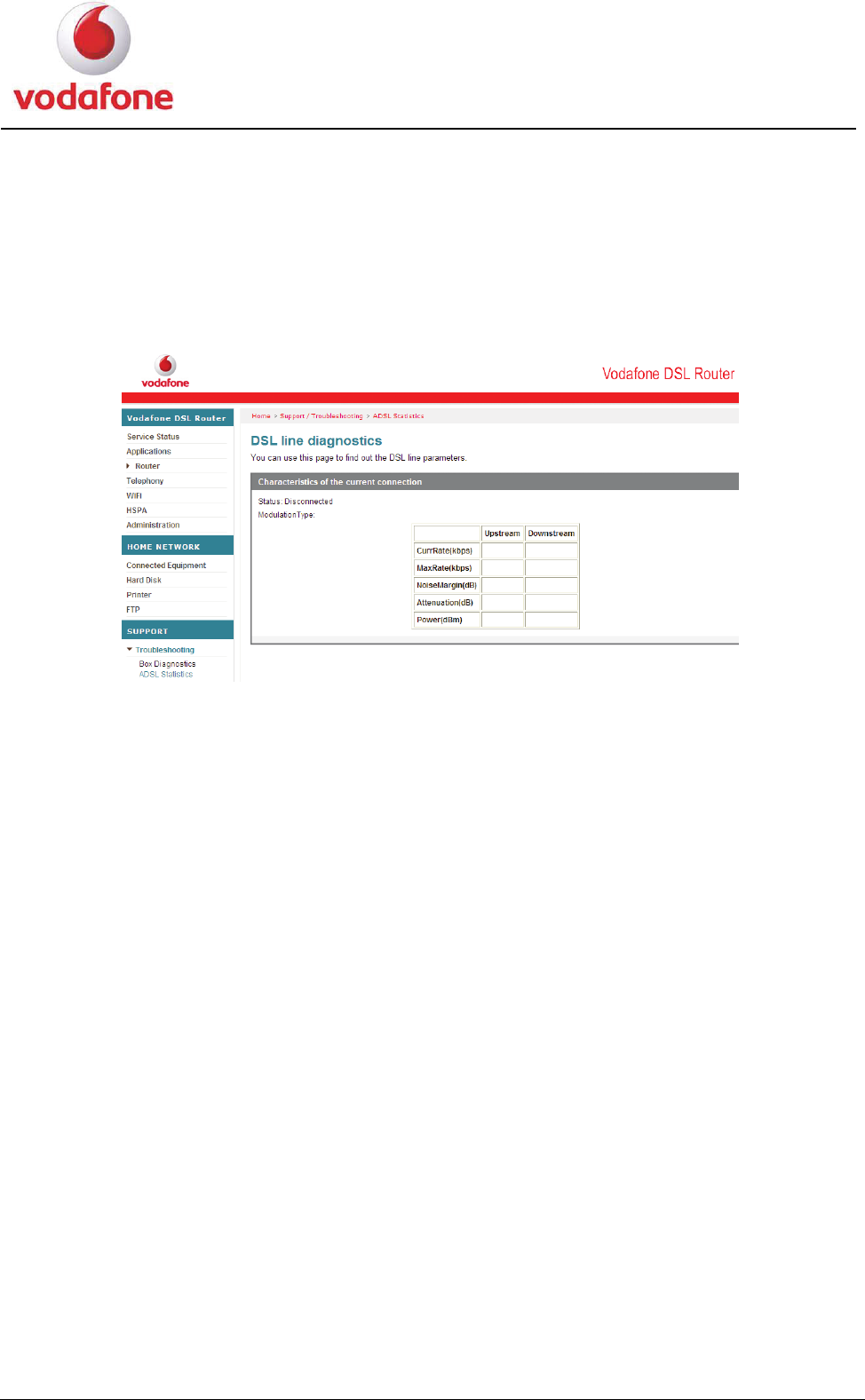
Choose SUPPORT > Troubleshooting > ADSL Statistics in the navigation tree to
display the DSL line diagnostics page.
Figure 3-13 shows the DSL line diagnostics page.
Figure 3-13 DSL line diagnostics page
On the DSL line diagnostics page, you can review the DSL line parameters and the
status of the current connection.
User Manual 25
3.5 Functions
3.5.1 Home Storage Function
The HG556a supports the home storage function. Portable storage devices, such as USB
flash drives and portable hard disks, can be connected to the USB port on the HG556a.
You can access a portable storage device through the HG556a.
If your portable storage device is a card reader, insert the storage card (for
example CF, SD, MMC card) in the card reader, and then connect the card
reader to the USB interface of the HG556a.
To access a portable storage device, do as follows:
1. Enable the FTP server. Then see 3.4.8 FTP to configure parameters of the FTP server.
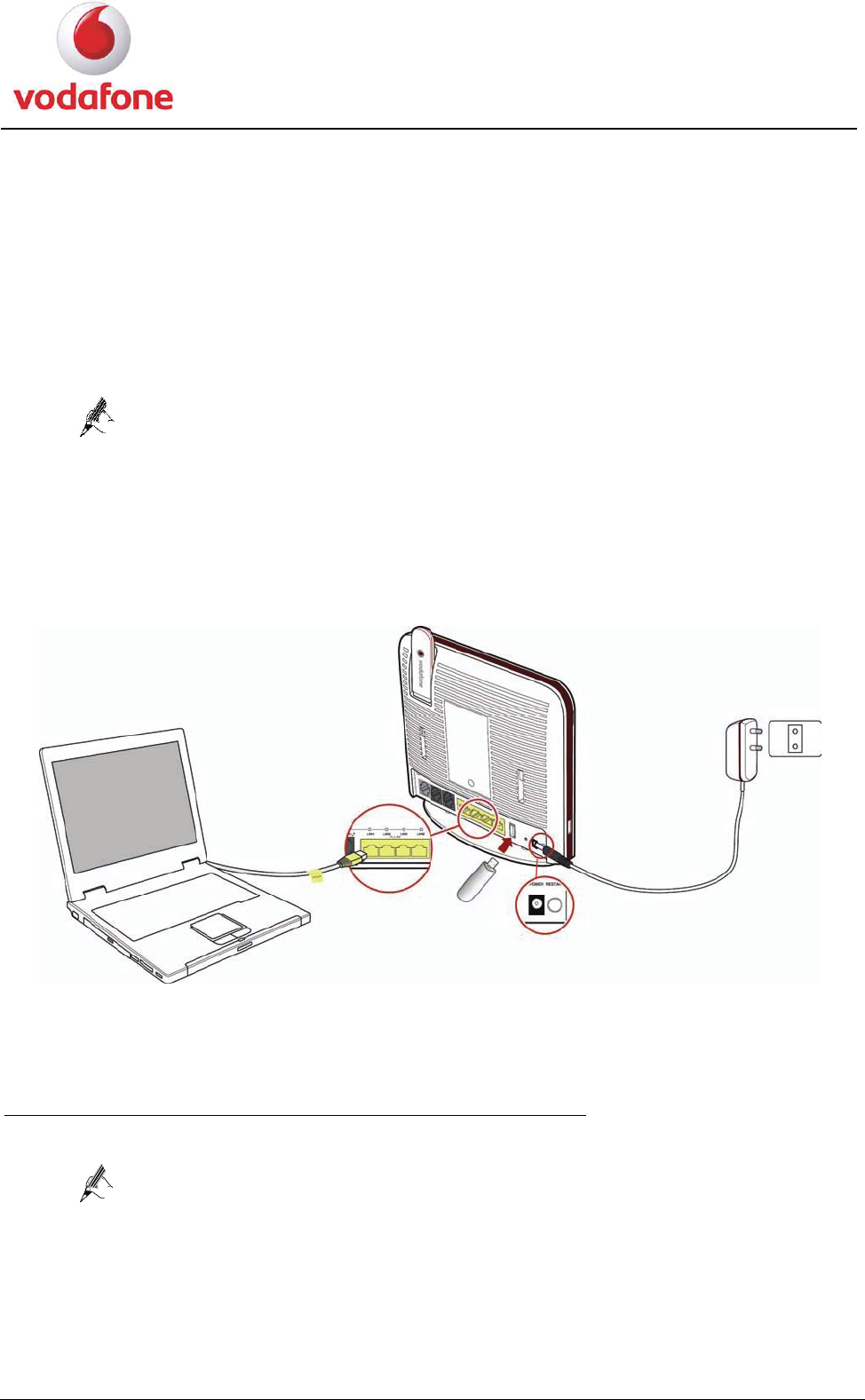
2. Connect a portable storage device to the USB port on the HG556a. For the connection
method, see the following figure.
Home storage connection Figure 3-14
After connecting the cables, you can access the portable storage device through the three
methords as follows.
Accessing the Portable Storage Device Through the FTP Client
1. Start the FTP client and access the LAN IP address of the HG556a through the FTP.
The LAN IP address of the HG556a is 192.168.1.1. To access the LAN IP
address of the HG556a, launch the Internet Explorer and enter
FTP://192.168.1.1.
2. In the Login dialog box, enter the user name and the password for logging in to the
FTP server (the default user name and password are vodafone) and then click Login.
3. After the password is verified, you can read and write the contents on the portable
storage device connected to the HG556a.
User Manual 26
Accessing the Portable Storage Device Through the Samba Function
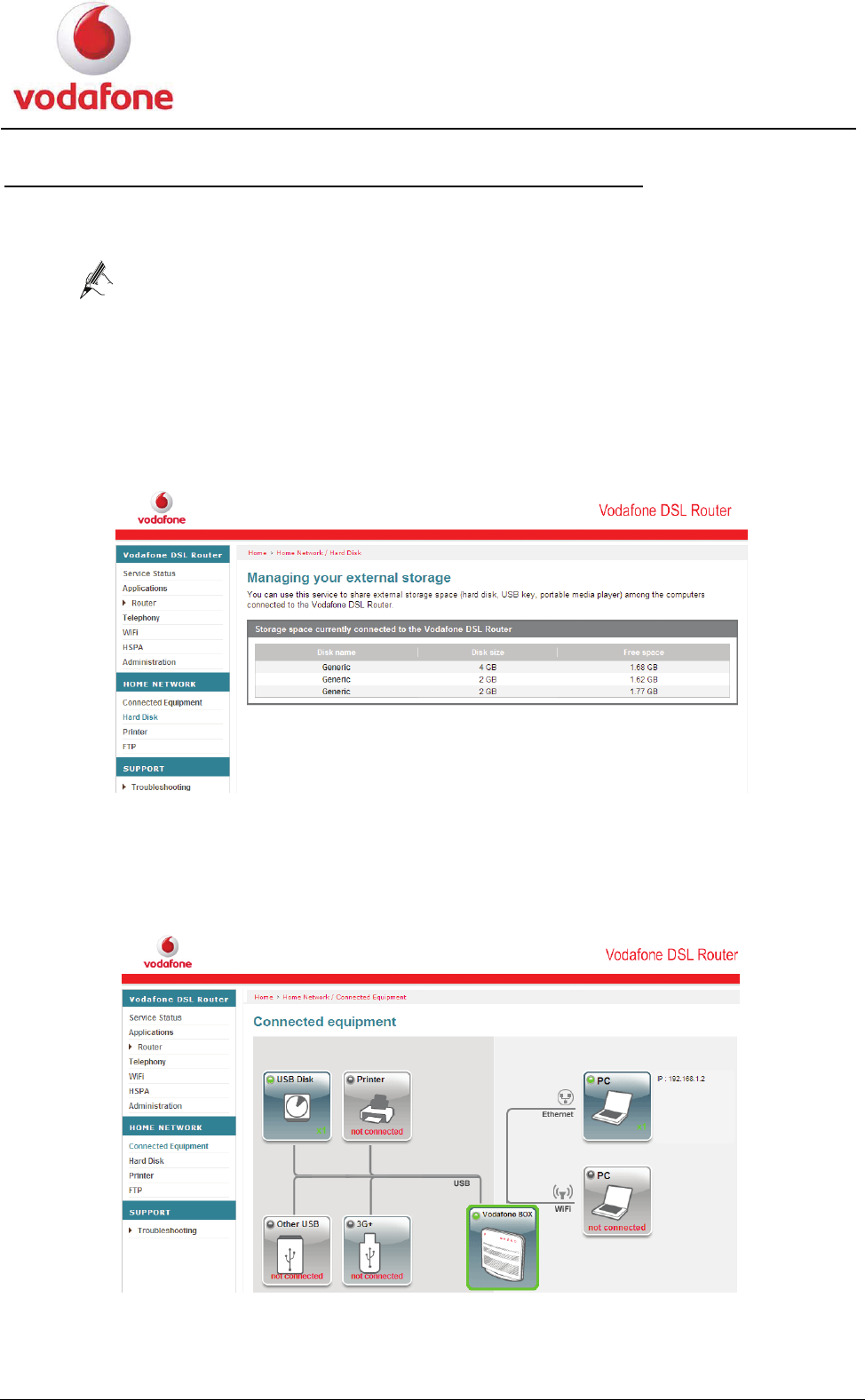
Check the following two Web pages after you finish the cable connection as previously
described.
If you can see the Disk name on Managing your external storage
page and the USB disk is connected on the Connected equipment page
as below, which indicates that you can access the USB disk
successfully.
Choose HOME NETWORK > Hard Disk in the navigation tree to display the Managing
your external storage page. When insert the hard disk on the HG556a, you can see the
information of disk name, disk size and free size on the Managing your external
storage page.
Managing your external storage page Figure 3-15
Choose HOME NETWORK > Connected equipment in the navigation tree to display
the Connected equipment page.
Connected equipment page Figure 3-16
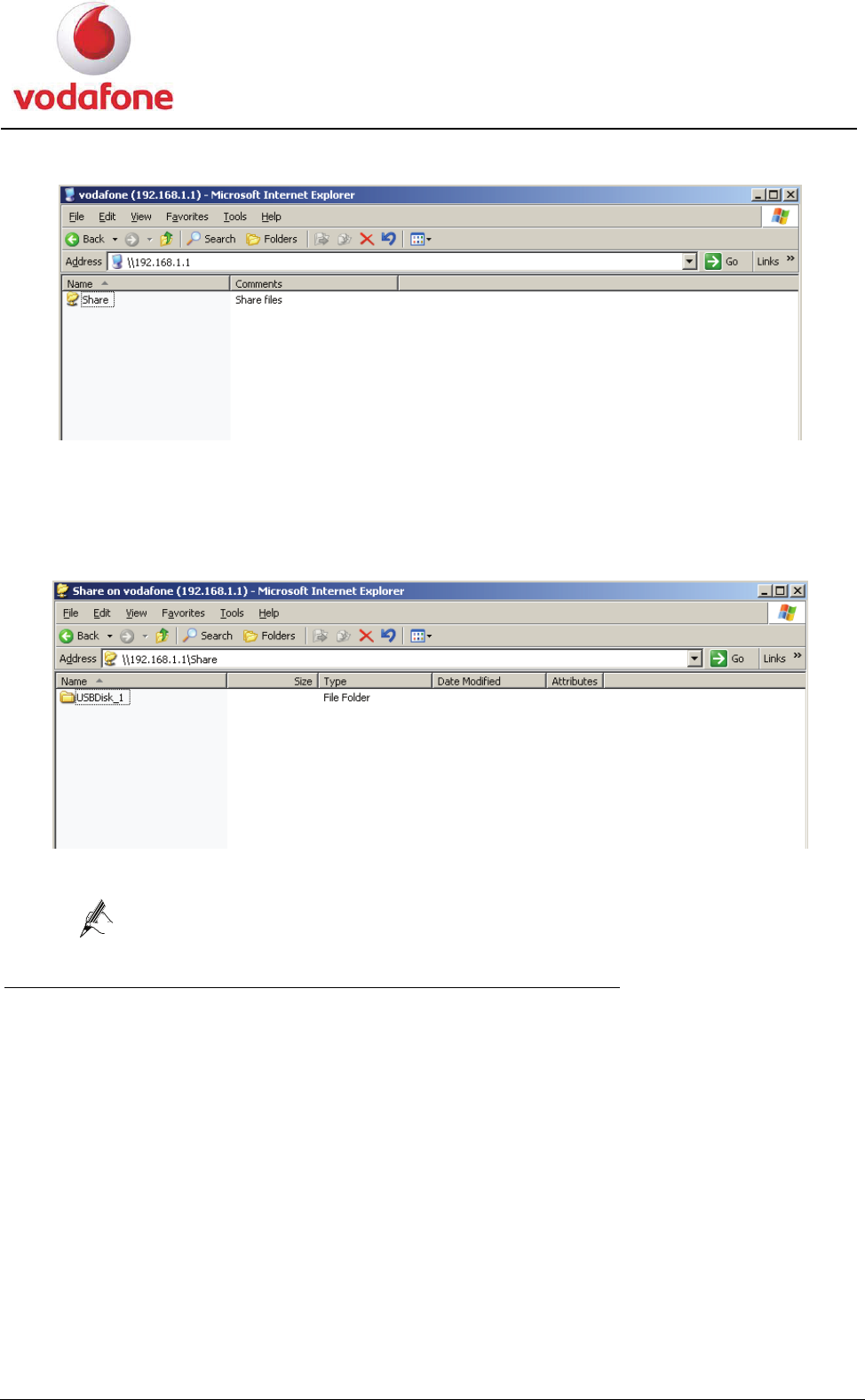
2. Launch the Internet Explorer and enter \\192.168.1.1 in the address bar, then press
Enter to display the Share folder.
User Manual 27
Figure 3-17 Share folder
3. Double-click the Share folder. Then you can share the contents on the portable
storage device.
USBDisk_1 folder Figure 3-18
Double click the USBDisk_1 folder, and then you can see the folder
structure of your portable storage device.
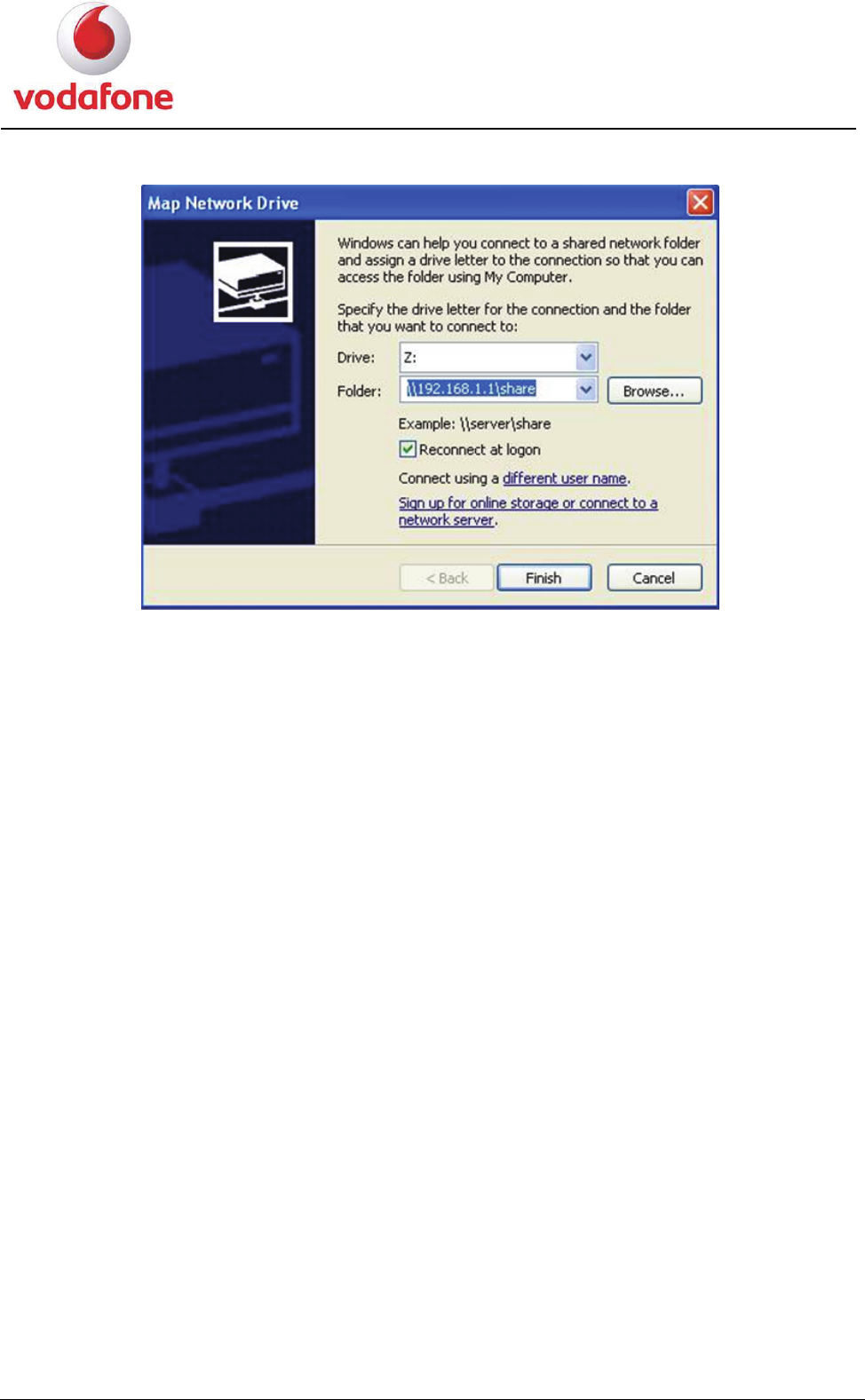
Accessing the Portable Storage Device by Mapping Network Drive
The HG556a allows you to accessing the portable storage device by mapping as a network
drive, do as follows:
1. Right click the My Computer icon on the desktop of your PC.
2. Choose Map Network Drive to display the Map Network Drive page, see Figure
3-19.
3. Specify the drive name (take Z as an example) in the Drive drop-list box.
4. Enter the path of the shared folder: \\192.168.1.1\share.
5. Click finish button.
6. Double click the My Computer icon, then you can see a mapped network drive named
Z.
7. Double click the Z disk, then you can see the content in your portable storage device.
User Manual 28
Figure 3-19 Map Network Drive page
3.5.2 USB Printer Function
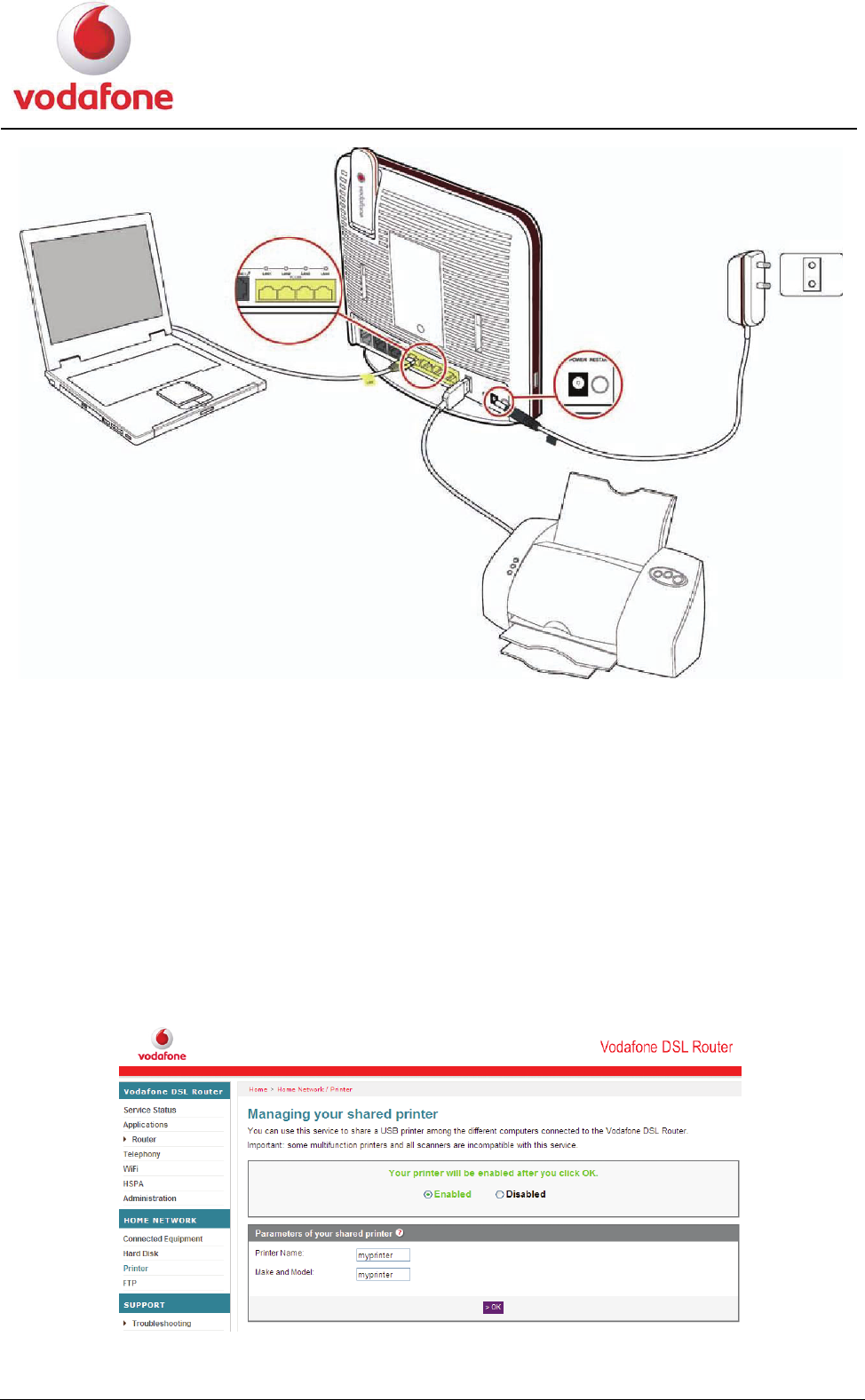
To enable the USB printer function, do as follows:
1. Connect the cables as follows:
Step1 Connect the power adapter to the power interface on the rear panel of the HG556a
and plug the power adapter into a wall outlet or a power strip.
Step2 Connect the PC to any of the four LAN interfaces on the rear panel of the HG556a
by using the provided Ethernet cable. For details, see section 2.2 "Supplying Power to the
HG556a" and section 2.3 "Connecting the PC to the HG556a".
Step3 Connect the USB cable of the printer to the USB port on the HG556a.
USB printer connection Figure 3-20
User Manual 29
2. Configure the web page as follows:
Step1 Launch the Internet Explorer on your computer and enter http://192.168.1.1 in
the address bar.
Step2 Enter the user name and the password in the displayed window, and then click OK.
Step3 Choose HOME NETWORK > Printer in the navigation tree to display the
Managing your shared printer page.
Step4 Select Enabled to enable the printer function. Enter the printer name and the
printer model in the Printer Name and Make and Model text boxes respectively.
For details, see Figure 3-21.
Step5 Click OK to save the settings.
Managing your shared printer page Figure 3-21
User Manual 30
3. Set the printer parameters on the PC.
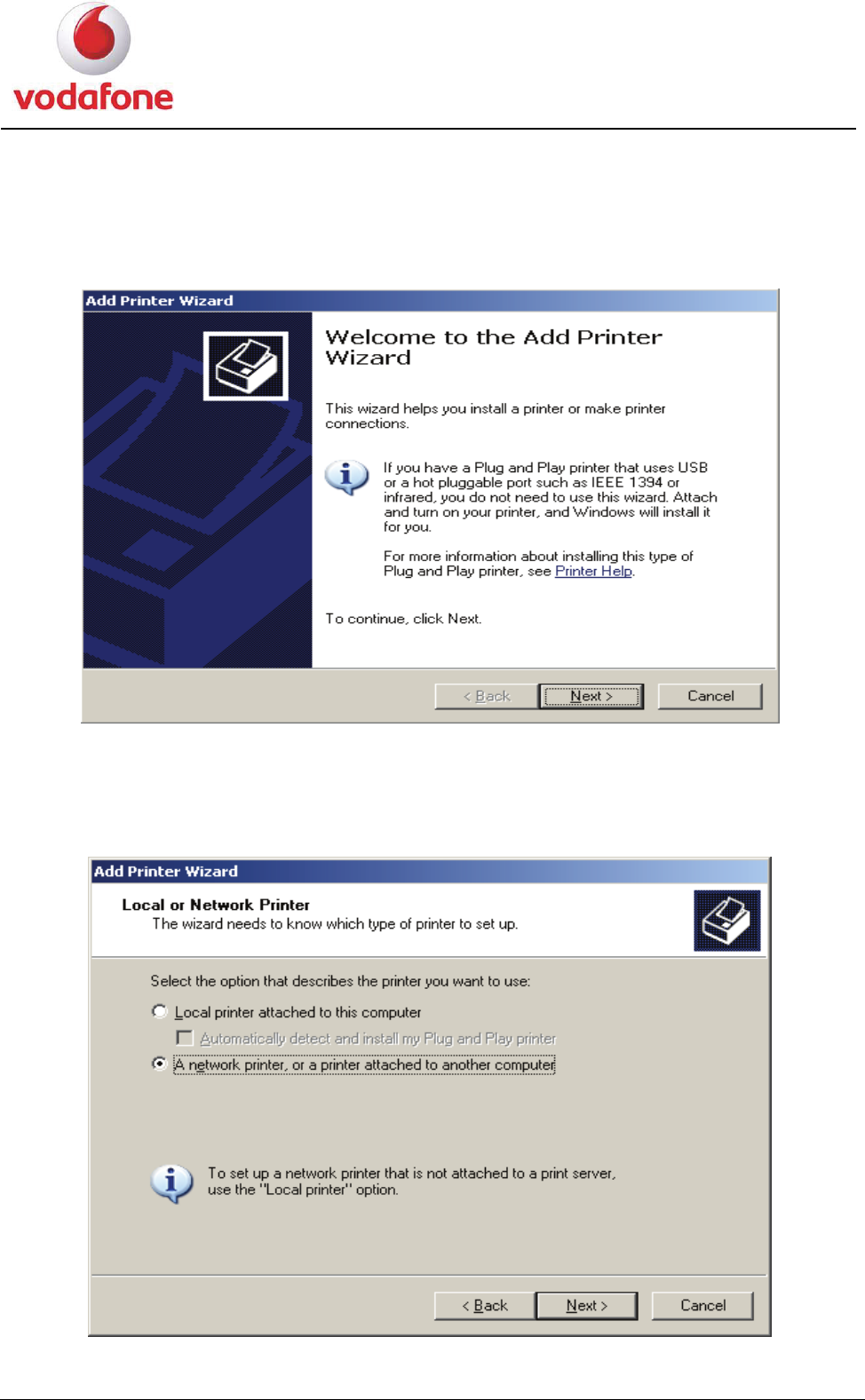
Step1 Choose Start > Printers and Faxes. Then click the Add Printer icon on the left
side of the displayed page.
Step2 Click Next in the Welcome to the Add Printer Wizard page.
Figure 3-22
Figure 3-23
Welcome to the Add Printer Wizard page
Step3 Select A network printer, or a printer attached to another computer and
then click Next.
Add Printer Wizard page
User Manual 31
Step4 Select Connect to a printer on the Internet or on a home or office network.
Step5 Enter http://192.168.1.1:631/printers/myprinter in the URL text box. Then click
Next.
The address 192.168.1.1:631 is preset and cannot be changed,
myprinter is the printer name that is specified on the Managing your
shared printer page.
Step6 Choose the printer model that you want.
If there is no printer model for you to choose, please install the printer driver on your PC
first.
Step7 Click OK to set the current printer as the default printer.
Step8 Click Finish to complete the settings.
4. Open the files you want to print on your PC. Then you can choose the printer just
installed to print your files.

User Manual 32
3.5.3 Wireless Function
Introduction
By using 802.11b/g/n, the HG556a supports wireless networking and interconnection at
home. After enabling the wireless network function, you can access a WLAN through the
HSPA data card on the HG556a. Therefore, you do not need to connect any Ethernet cable
for accessing the Internet.
Configuration Steps
1. Configure the SSIDs of the HG556a. For details, see 3.4.4 WiFi.
2. Enable the WiFi function. For details, see 2.4 Connecting the PC to the HG556a
Through Wi-Fi.
User Manual 33
3.6 Troubleshooting
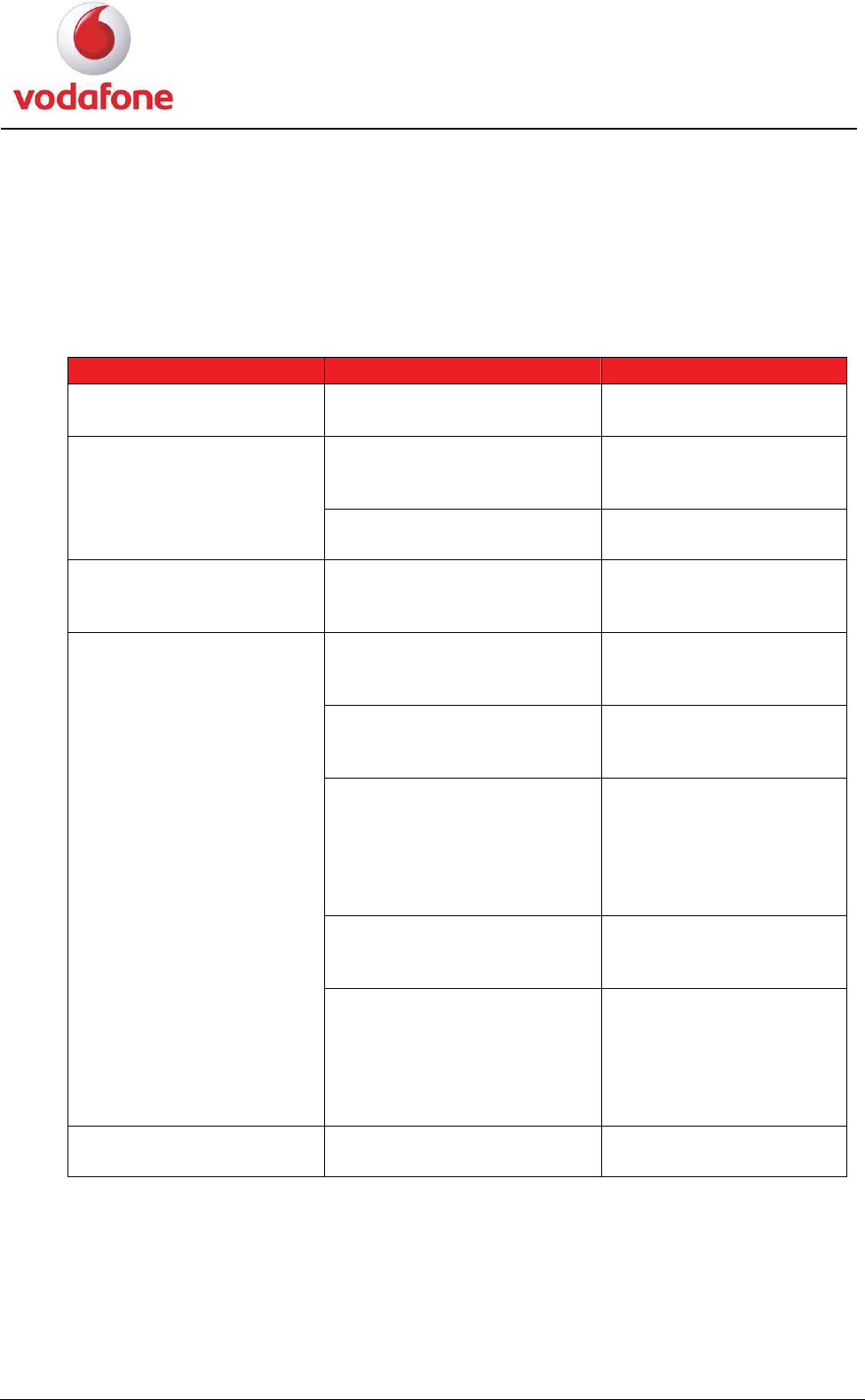
The following table describes solutions to the common problems.
You can also use the auto installation CD-ROM to solve certain connection problems.
If the solutions provided in this document cannot solve the problems you meet, contact
the customer service center of Vodafone.
Phenomenon Possible Cause Solution
The power indicator is off. The HG556a is not connected
to the power supply.
Connect the HG556a to
the power supply.
The Ethernet cable is not
connected to the Ethernet
interface on the HG556a.
Connect the Ethernet
cable to the Ethernet
interface on the HG556a.
The LAN indicator is off.
The Ethernet cable is not
connected to the PC.
Connect the Ethernet
cable to the PC.
The Wi-Fi indicator is off. The Wi-Fi radio channel of
the HG556a is off.
Check whether the Wi-Fi
button on the side panel
of the HG556a is pressed.
The TCP/IP protocol of the
network connection is not
installed.
Install the Ethernet cable
or USB data card.
The browser has set up a
proxy server.
Access the option of the
Internet Explorer and
disable the proxy server.
The SSID or encryption
mode
(WPA/WEP/non-encryption)
of the HG556a is modified or
the configuration of the Wi-Fi
device is incorrect.
Check whether the SSID
or encryption mode of the
HG556a is correct.
The Wi-Fi device is out of the
radio coverage of the
HG556a.
Put the Wi-Fi device
within the radio coverage
of the HG556a.
Unable to access the
Internet.
The Wi-Fi device is not
authorized.
Use the 802.11b or
802.11g authorized
device and check
whether the installation
and configuration are
correct.
The HSPA indicator is off. The HSPA module is not
correctly connected.
Reconnect the HSPA
module.

User Manual 34
3.7 Glossary
ADSL
Asymmetric Digital Subscriber Line
ADSL is a technology for transmitting digital information at a high bandwidth on existing
phone lines to homes and businesses. Unlike regular dial-up phone service, ADSL
provides continuously-available, "always on" connection. ADSL is asymmetric in that it
uses most of the channel to transmit downstream to the user and only a small part to
receive information from the user. ADSL simultaneously accommodates analog (voice)
information on the same line. ADSL is generally offered at downstream data rates from
512 kbit/s to about 6 Mbit/s.
ADSL2+
Asymmetric Digital Subscriber Line 2+
ADSL2plus doubles the bandwidth used for downstream data transmission, effectively
doubling the maximum downstream data rates, and achieving rates of 20 Mbit/s on phone
lines as long at 5,000 feet. ADSL2plus solutions will most commonly be multimode,
interoperating with ADSL and ADSL2, as well as with ADSL2plus chipsets.
Browser
A computer program that allows users to view information from the Internet. To use a
browser, you type in the URL of a website, and the browser then connects your computer
to the website, and shows the information there on your screen.
Client
On a local area network or the Internet, a computer that accesses shared network
resources provided by another computer (called a server).
DHCP
Dynamic Host Configuration Protocol
DHCP is a client-server networking protocol. Most organizations use DHCP. A DHCP server
provides configuration parameters specific to the DHCP client host requesting, generally,
information required by the host to participate on the Internet network. DHCP also
provides a mechanism for allocation of IP addresses to hosts.
DNS
Domain Name System
A hierarchical way of tracking domain names and their addresses, devised in the
mid-1980s. The DNS database does not rely on one file or even one server, but rather is
distributed over several key computers across the Internet to prevent catastrophic failure
if one or a few computers go down. DNS is a TCP/IP service that belongs to the Application
layer of the OSI model.
Ethernet
A local area network (LAN) architecture developed by Xerox Corporation in cooperation
with DEC and Intel in 1976. Ethernet uses a bus or star topology and supports data

User Manual 35
transfer rates of 10 Mbit/s. The Ethernet specification served as the basis for the IEEE
802.3 standard, which specifies the physical and lower software layers. Ethernet uses the
CSMA/CD access method to handle simultaneous demands. It is one of the most widely
implemented LAN standards.
IEEE
Institute of Electrical and Electronics Engineers (IEEE) is a standards organization for
computer and electronic devices. Its senior members are IEEE fellows.
Internet
Largest global internet work, connecting tens of thousands of networks worldwide and
having a "culture" that focuses on research and standardization based on real-life use.
Many leading-edge network technologies come from the Internet community.
The most important using for Internet is:
z The email
z The World Wide Web (WWW)
z The transfer of data
z The forum of discussion
z To transfer data of peer-to-peer
z Chat
z The content of audio/video streaming
IP
Internet Protocol
The set of standards responsible for ensuring that data packets transmitted over the
Internet are routed to their intended destinations.
IP address
An IP address is the logical address of a network adapter. The IP address uniquely
identifies computers on a network. An IP address can be private, for use on a LAN, or
public, for use on the Internet or other WAN.
kbit/s
Kilobit per second
A unit used to express the speed of a network.
LAN
Local Area Network
A computer network covering a small local area, like a home, office, or small group of
buildings such as a home, office, or college. Current LANs are most likely to be based on
switched Ethernet or Wi-Fi technology running at 10, 100 or 1,000 Mbit/s (1,000 Mbit/s is
also known as 1 Gbit/s).
MAC address
It is a hardware address that uniquely identifies each node of a network.

User Manual 36
Mbit/s
Megabit per second
A unit used to express the speed of a network.
NAPT
Network Address Port Translation
NAPT enables a local area network (LAN) to use one set of IP addresses for internal traffic
and a second set of addresses for external traffic.
PPPoE
Point-to-Point Protocol over Ethernet
PPPoE is a network protocol for encapsulating PPP frames in Ethernet frames. It is used
mainly with DSL services. It offers standard PPP features such as authentication,
encryption, and compression.
Protocol
On the Internet, "protocol" usually refers to a set of rules that define an exact format for
communication between systems.
Server
A computer or program that responds to commands from a client. For example, a file
server may contain an archive of data or program files. When a client submits a request
for a file, the server transfers a copy of the file to the client.
Subnet mask
The technique used by the IP protocol to determine which network segment packets are
destined for. The subnet mask is a binary pattern that is stored in the client machine,
server or router, and is matched with the IP address.
TCP
Transmission Control Protocol
The reliable transport protocol within the TCP/IP protocol suite. TCP ensures that all data
arrive accurately and 100% intact at the other end. TCP's unreliable counterpart is UDP,
which is used for streaming media, VoIP and videoconferencing.
TCP/IP
A suite of communications protocols used to connect hosts on the Internet. TCP/IP uses
several protocols, the two main ones being TCP and IP.
UDP
User Datagram Protocol
One of the TCP/IP suite of protocols for data transfer, which allows an application program
on one machine to send a datagram to an application program on another machine.

User Manual 37
URL
Universal Resource Locator
The global address of documents and other resources on the World Wide Web.
USB
Universal Serial Bus
USB is a serial protocol and physical link, which transmits all data differentially on a single
pair of wires. Another pair provides power to downstream peripherals.
Virtual server
A virtual server allows you to direct incoming traffic from the Internet (identified by
protocol and external port) to an internal server with a private IP address on the LAN.
WAN
Wide Area Network
WAN usually refers to a network which covers a large geographical area, and uses
communications circuits to connect the intermediate nodes. A major factor impacting
WAN design and performance is a requirement that they lease communications circuits
from telephone companies or other communications carriers.
Wi-Fi
Wireless Fidelity
A wireless data networking protocol generally used to connect PCs to a network. Also
known as 802.11b and WLAN (Wireless LAN), it is the most common means of wireless
networking and operates at 2.4 GHz.
WPA-PSK
Wi-Fi Protected Access-Pre Shared Key
WPA is an industry standard based on a subset of an early draft of 802.11i. WPA replaces
WEP's keying mechanism with a more robust system, called Temporal Key Integrity
Protocol (although TKIP is still based on RC4 encryption). (See full description of TKIP).
WPA adds a strong message integrity check and allows for authentication using 802.1X.
WEP
Wired Equivalent Privacy
Part of the IEEE 802.11 standard (ratified in September 1999), and is a scheme used to
secure wireless networks (Wi-Fi). Because a wireless network broadcasts messages using
radio, it is particularly susceptible to eavesdropping; WEP was designed to provide
comparable confidentiality to a traditional wired network, hence the name.
Issue: 02(2009-12-08)
Part Number: 202217
