Huawei P30 Lite User Guide(MAR,EMUI9.0.1 01,EN)
2019-04-26
User Manual: Huawei
Open the PDF directly: View PDF  .
.
Page Count: 112 [warning: Documents this large are best viewed by clicking the View PDF Link!]
- 目 录
- Exciting Features
- Featured Usage Tips
- Camera Tips
- AI camera disabled, Intelligent Photo Scene Identification
- Use Portrait Mode to Take Stunning Portraits
- Use 3D Panorama to Take 360-degree Photos
- Use Panorama Mode to Take Panoramic Photos
- Custom Shooting Modes
- Use AR lens to Add Effects to Your Photos
- Use Pro Mode to Take Scenic Photos
- Use Pro Mode to Take Portraits
- More Features
- New Device
- Gestures and Operations
- Home Screen
- Contacts
- Dialing
- Message
- Camera
- Basic Camera Functions
- AI camera disabled, Intelligent Photo Scene Identification
- Use Portrait Mode to Take Stunning Portraits
- Use AR lens to Add Effects to Your Photos
- Use Wide Aperture Mode to Highlight Your Shooting Subjects
- Panorama
- Use 3D Panorama to Take 360-degree Photos
- Pro Mode
- Light Painting Mode
- More Capture Modes
- Gallery
- Phone Manager
- Calendar
- Clock
- Notepad
- Utilities
- Multiple Users
- Device Connection
- Security and Privacy
- Backup and Restoration
- Wi-Fi and Network
- Apps and Notifications
- Sound and Display
- Smart Assistance
- System
- System Update
- Legal Notice

User Guide
目 录
Exciting Features
Featured Usage Tips 1
Camera Tips 2
More Features 7
New Device
New Device Conguration 12
Gestures and Operations
HiVision 15
Record Exciting Moments on Your Screen 16
Home Screen
Navigation Bar 19
Use Shortcut Switches to Quickly Enable Frequently Used Features 20
Notication Panel and Status Bar 20
Screen Lock and Unlock 23
Home Screen Management 24
Contacts
Managing Business Cards 28
Managing Contacts 29
Merging Third-party App Contacts 31
Dialing
Basic Calling Functions 33
VoLTE 34
Use VoWi-Fi for a New Calling Experience 35
Message
Basic Messaging Functions 36
Camera
Basic Camera Functions 38
AI camera disabled, Intelligent Photo Scene Identication 41
Use Portrait Mode to Take Stunning Portraits 42
Use AR lens to Add Effects to Your Photos 42
Use Wide Aperture Mode to Highlight Your Shooting Subjects 43
Panorama 43
Use 3D Panorama to Take 360-degree Photos 44
Pro Mode 44
Light Painting Mode 47
More Capture Modes 51
i
Gallery
Customize Highlights Albums 53
Photo Management 53
Phone Manager
Use Optimize 57
Manage Mobile Data Usage 57
Enable Smart Power Saving Management to Optimize Power
Consumption 57
Email
Add Email Accounts 59
Manage Email Accounts 59
Manage VIP Email Contacts 60
Create Smart Groups 60
Import Important Events to Calendar 60
Set Auto Response for Exchange Email 60
Calendar
Navigate the Calendar 61
Import To-Dos to Keep Your Work Organized 61
View Global Holidays 61
Clock
Use the Clock 63
Notepad
Manage Your Notes to Keep Your Records in Order 65
Utilities
Use Recorder to Make Audio Notes 66
Multiple Users
Set and Use Multiple Users 67
Device Connection
Connect Your Phone to Bluetooth Devices 69
NFC 70
Connecting USB Device 73
Huawei Share 74
Security and Privacy
Enroll Your Facial Information to Enable Face Unlock 79
Fingerprint 79
Enable or Disable Location Services 82
PrivateSpace 82
目 录
ii
Enable App Lock 86
Backup and Restoration
Data Backup: Prevent the Loss of Your Data 87
Reset Your Phone 87
Data Backup by Shared Folders to Your Computer or Home NAS
Devices 88
Wi-Fi and Network
Wi-Fi 89
Connecting to the Internet 91
Share Your Mobile Network with Other Devices 92
Apps and Notications
App Twin: Log In to Two Social Media Accounts at Once 94
Sound and Display
Set Up Do Not Disturb Mode 95
Congure Your Sound Settings 95
Enable Eye Comfort Mode to Prevent Eye Strain 96
More Display Settings 96
Smart Assistance
Access Phone Functions from Anywhere with Navigation Dock 98
System
Change the Input Method 99
Accessibility 99
General Settings 101
System Update
Performing an Online Update 104
Legal Notice
Legal Notice 105
Personal Information and Data Security 107
Obtaining help 107
目 录
iii

Exciting Features
Featured Usage Tips
HiVision: Scan Codes,Identify Objects,Shop,and Translate
Unable to understand foreign logos, road signs, and restaurant menus while traveling abroad? Use
HiVision to quickly solve all these problems.
HiVision can provide you with the following features:
lScan codes: You can scan QR codes or barcodes to add contacts. Based on the identication results
of QR codes and barcodes, you can also view detailed commodity information.
lIdentify objects: Scan and quickly identify road signs and famous paintings, providing you with
information about geographical locations and the author of a famous painting.
lShop: Scan an object to quickly obtain the purchase recommendations for similar items.
lTranslate: You can scan English or foreign language words and phrases for a quick online
translation, allowing you to easily understand foreign languages when traveling abroad.
1Before using the scan feature to shop, scan codes, identify objects, and provide translation
services, ensure that your device is connected to the Internet.
2This feature is only supported in some countries and regions.
Enroll Your Facial Information to Enable Face Unlock
Face unlock allows you to quickly unlock your Phone by holding it up to your face.
lOnly the owner can enable Face unlock. This feature is not available for users or guests, and
not supported in PrivateSpace either.
lFace unlock is not available if the screen unlock password has not been entered for three or
more days in a row, or if your Phone has been remotely locked, or has been restarted.
lWhen using Face unlock to unlock your Phone, keep your eyes open, face yourself directly
towards your Phone, and keep your face at a distance of 20 cm (7.87 in.) to 50 cm (19.69 in.)
from your device. In order to scan your face accurately, avoid using this feature when you are in
a dark environment or when facing direct light.
1Open Settings. Go to Security & privacy > Face recognition and enter your screen unlock
password.
2You can select Enable pick up to wake. In this case, your Phone will turn on the screen and
identify your facial features to unlock the screen automatically whenever you pick up your Phone
and hold it to your face. If you do not wish to use this feature, you can disable this option. Touch
Enroll face and follow the onscreen instructions to enroll your face.
3Methods to set Face unlock:
lDirect unlock: Turn on the screen. Your Phone identies your facial features and unlocks the
screen.
1
lSwipe to unlock: Turn on the screen. After your Phone identies your facial features, swipe
the lock screen to unlock your device.
lSmart display of lock screen notications: Enable Slide to unlock and Smart lock screen
notications. On the lock screen, your Phone hides notication details by default and displays
them only after identifying the device owner's face.
lAccess app lock: Enable Access App lock to access apps and locked apps using Face unlock.
Access Phone Functions from Anywhere with Navigation Dock
In order to close an app or return to the home screen, you must use the navigation bar at the bottom
of your Phone. You can enable the Navigation dock feature on your Phone to avoid using navigation
buttons and to comfortably operate your device with one hand.
Open Settings. Go to System > System navigation > Navigation dock and enable
Navigation dock. The Navigation dock will appear on the screen. You can then drag it to your
preferred location. The Navigation dock can perform the following actions:
lBack: Touch the Navigation dock once to go back one step, or touch it twice to go back two steps.
lHome: Touch and hold the Navigation dock and then release it to go to the home screen.
lView background apps: Touch and hold the Navigation dock and then swipe left or right to view
any apps that are running in the background.
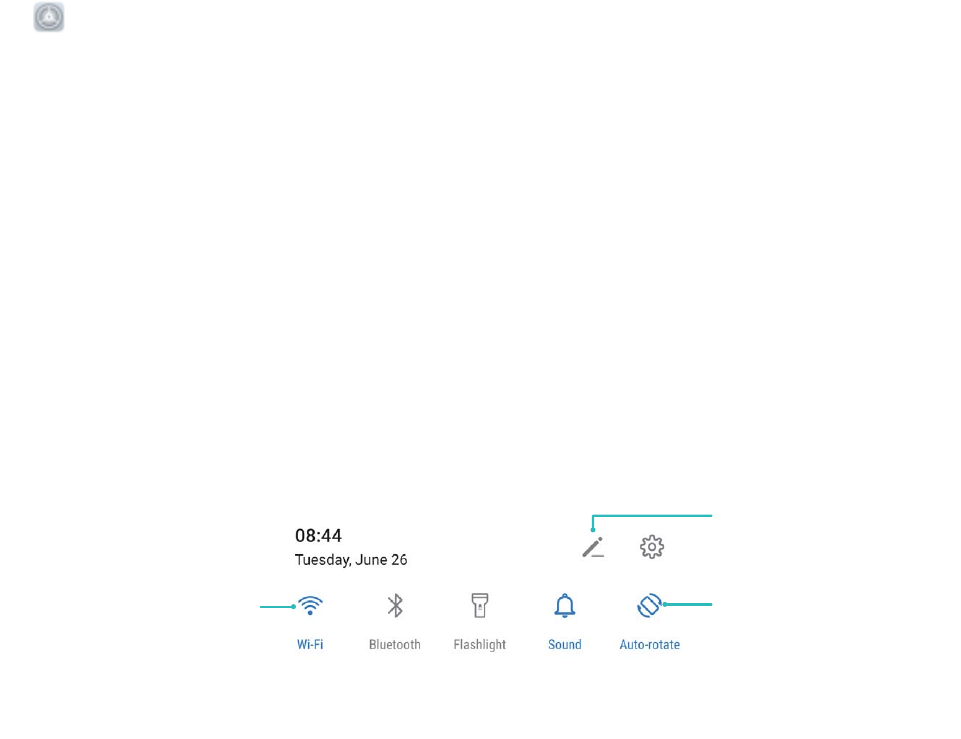
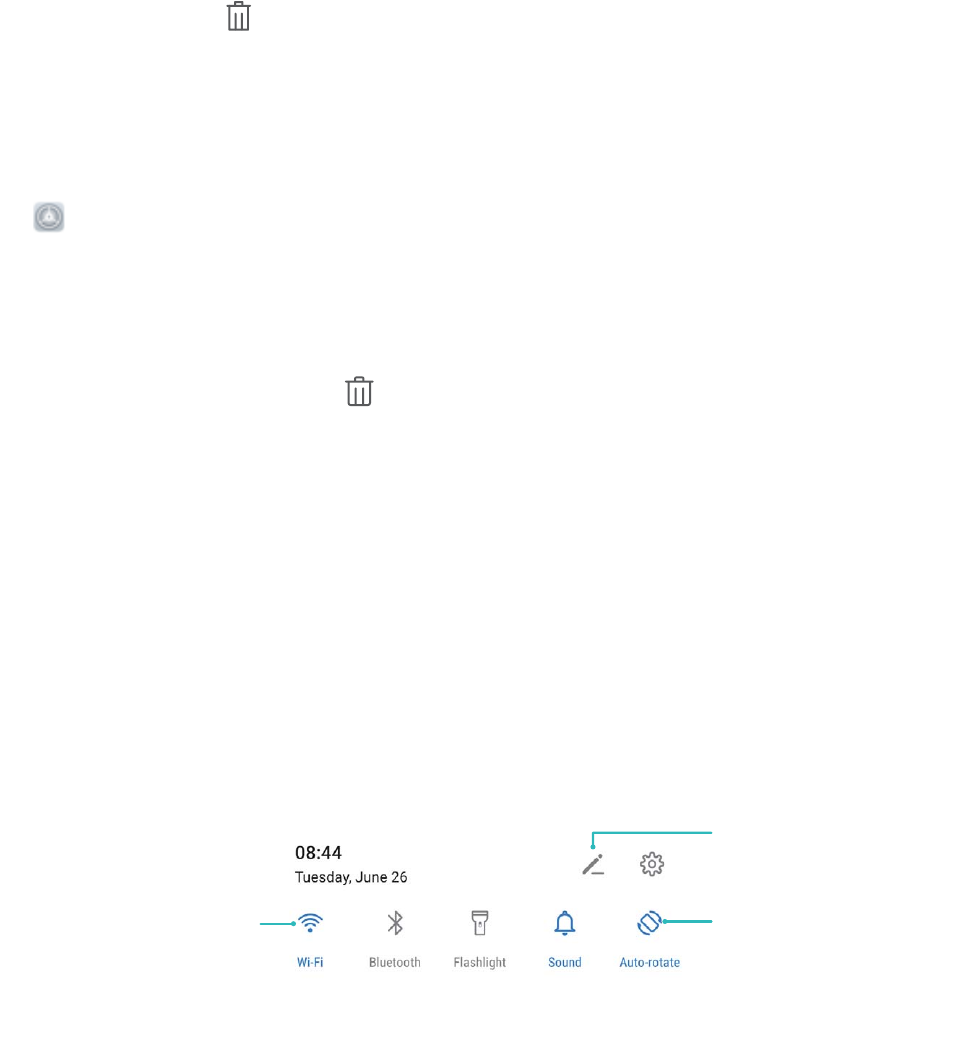
Use Shortcut Switches to Quickly Enable Frequently Used Features
Want to quickly enable or disable mobile data or hotspot? You can enable frequently used features by
using shortcut switches.
Touch to enable
this feature
Touch and hold to
enter Settings
Organize shortcuts
Camera Tips
AI camera disabled, Intelligent Photo Scene Identication
AI camera disabled can automatically identify your current photography scene and intelligently
adjust the color and brightness of the photo, so you don't need to repeatedly adjust your camera for
the perfect shot.
Exciting Features
2

AI camera disabled is a preset camera feature on your Phone that intelligently identies your current
photography scene and automatically adjusts the color and brightness of your photo to help you
achieve better effects.
AI camera disabled provides you with the following features:
lIntelligently identies photographing scenes and improves photo effects: AI camera
disabled supports multiple scenes, such as the stage, beach, blue sky, greenery, and text scenes.
After smart identication, AI camera disabled automatically adjusts the color and brightness of the
camera and recommends an optimal mode (such as the portrait, greenery, or text mode) to improve
photo effects.
lEnables automatically with various preset camera settings ready: When you turn on your
camera and enter Standard camera mode, AI camera disabled will be enabled automatically with
camera settings readily congured according to the photography scene, which saves you the trouble
of repeated manual adjustments.
lAI camera disabled is only available when you take photos using the rear camera.
lAI camera disabled is automatically disabled when you switch to Portrait mode, Wide
aperture mode, or Moving picture mode.
Use Portrait Mode to Take Stunning Portraits
Want to make your seles or group shots even more beautiful? Portrait mode provides you with
customized options to make every photo beautiful and memorable.
Enable Portrait mode and make your photos shine: Open Camera > Portrait, and you can set
the following parameters to make your photos shine. After making the adjustments, touch to
take photos.
lBlurred effect: If there is a light source in the background, touch the icon in the viewnder
and select different blurred effects.
When the ambient light is not low, a light source (such as neon light and street light) in the
background will produce an ideal blurred effect.
llighting effect: Touch the icon in the viewnder and select a stage lighting effect.
Taking a photo from far away will reduce the lighting effect.
lBeauty effect: Touch in the viewnder and drag the slider left or right to adjust the beauty
level. A larger Beauty level value produces more distinct beauty effect.
Use 3D Panorama to Take 360-degree Photos
Try the 3D panorama function to capture a 360-degree view of a scene or person.
lShooting objects: Go to Camera > More > 3D panorama. Touch and hold , then follow
the onscreen prompts to slowly move your Phone around your subject in one direction. Release
Exciting Features
3

to stop shooting. After shooting, touch the camera thumbnail, and then touch
3D
above the
photo to generate a 3D panoramic photo.
lShooting scenery: Go to Camera > More > 3D panorama. Touch and hold , then follow
the onscreen prompts to slowly move your Phone around your subject in one direction. Release
to stop shooting. After shooting, touch the camera thumbnail, and then touch
3D
above the
photo to generate a 3D panoramic photo.
After a 3D panorama has been generated, you can tilt your Phone or drag the photo to view the 3D
effect.
Use Panorama Mode to Take Panoramic Photos
Panoramas provide a wider viewing angle than ordinary photos, letting you take sweeping landscape
shots.
To capture a panorama shot, the camera takes multiple photos of objects within our visual eld and
stitches them together into a single photo.
When taking a panorama, nd a wide, open space that is some distance away from the subject
and try to avoid backgrounds that are all in one color.
1Go to Camera > More > Panorama.
2Touch at the bottom of the screen to congure the shooting direction.
3Hold your Phone steady, and then touch to start shooting. Slowly move the Phone in the
direction indicated, holding the device steady and ensuring that the arrow stays level with the
center line.
4Touch when you are nished. The camera will automatically stitch the photos together to
create a panorama.
Custom Shooting Modes
Want to discover new ways of using your camera besides the preset functions? You can download or
delete shooting modes based on your needs.
Exciting Features
4

Download more shooting modes: Open Camera > More > Download. Select the shooting
modes to download, and touch ADD.
Update shooting modes: To update shooting modes, go to the More screen. The shooting modes
with available updates will have red dots next to them. You can follow the onscreen prompts to
update them.
Delete shooting modes: Go to More > , and touch to delete unneeded shooting modes.
To ensure that Camera works normally, preset shooting modes cannot be deleted.
Use AR lens to Add Effects to Your Photos
Tired of taking boring pictures? You can use AR lens to add a variety of stickers or change the
background of your photos to make them look more interesting.
Open Camera > AR lens.
There are several effects to choose from to make your photos stand out:
l3D Qmoji: Touch 3D Qmoji, and select an animated Qmoji. The Qmoji will then mimic and act out
your facial expressions and actions accordingly. Touch to record, or touch
GIF
and then touch
and hold to create your own personalized Qmoji.
lAdding effects to your photos or videos: Touch Effects and select an animated sticker. Then
touch to take a photo with the selected sticker, or touch to shoot a video with the
selected sticker. Some animated stickers have sound effects that will be automatically added to the
video.
Use Pro Mode to Take Scenic Photos
Want to make your scenic photos more vibrant and interesting? Use Pro mode to take unique and
personalized scenic photos.
Open Camera > More > Pro to enter Pro mode.
Select a metering mode based on the shooting subject: On the Pro mode screen, touch ,
and select a metering mode accordingly.
Metering mode Application scenario
Matrix Broad landscapes and seas
Center The subject is in the center of the picture, and stands out from the
background.
Spot The subject to be highlighted in the picture is relatively small, such as a
ower or a tree.
Adjust brightness based on the shooting environment:
Exciting Features
5

lAdjust ISO: On the Pro mode screen, touch , and swipe left or right on the ISO slider to adjust
its value.
To avoid excessive noises, the recommended ISO is below 400. The recommended ISO for the
daytime is between 100 and 200 and above 400 for night scenes.
lAdjust the shutter speed: On the Pro mode screen, touch (shutter speed), slide on the
shutter speed slider, and drag your desired speed to the center.
The recommended shutter speed for static scenes (such as mountains) is between 1/80 and
1/125; and faster (less than 1 second) for moving subjects (such as waves). For the best result,
using a tripod when shooting a moving subject.
lAdjust EV compensation: On the Pro mode screen, touch
(9
, slide on the EV slider and drag the
selected value to the center.
Adjust AWB: On the Pro mode screen, touch
"8#
, slide on the AWB slider and drag the selected
value to the center.
lWhen shooting under sunlight, you can select . In a weak light environment, you can select
.
lTouch
to adjust the color temperature. If you want to give your photo a cozy, nostalgic
tone, increase the K value. For a cold, calm or futuristic tone, select a lower K value.
Adjust AF based on the shooting subject: On the Pro mode screen, touch
$)
, slide on the AF
slider and drag your desired mode to the center.
AF modes Application scenario
AF-S mode Static scenes (such as mountains).
AF-C mode Moving scenes (such as owing water and sea waves).
MF mode Protruding objects (such as a close-up of a ower).
Hold your device steady when shooting: In Pro mode, touch and enable Horizontal level.
After this feature is enabled, two horizontal guiding lines will appear in the viewnder. When the
dotted line overlaps with the solid line, it indicates that the camera is horizontally aligned.
lSome settings in Pro mode may change after you change a setting. You may adjust them based
on your actual needs.
lThe recommended settings above are for reference only. You may adjust them based on the
actual condition to achieve your desired effect.
Use Pro Mode to Take Portraits
Want to take more professional portraits? Pro mode allows you to adjust your camera settings to
shoot professional-level portraits.
Exciting Features
6
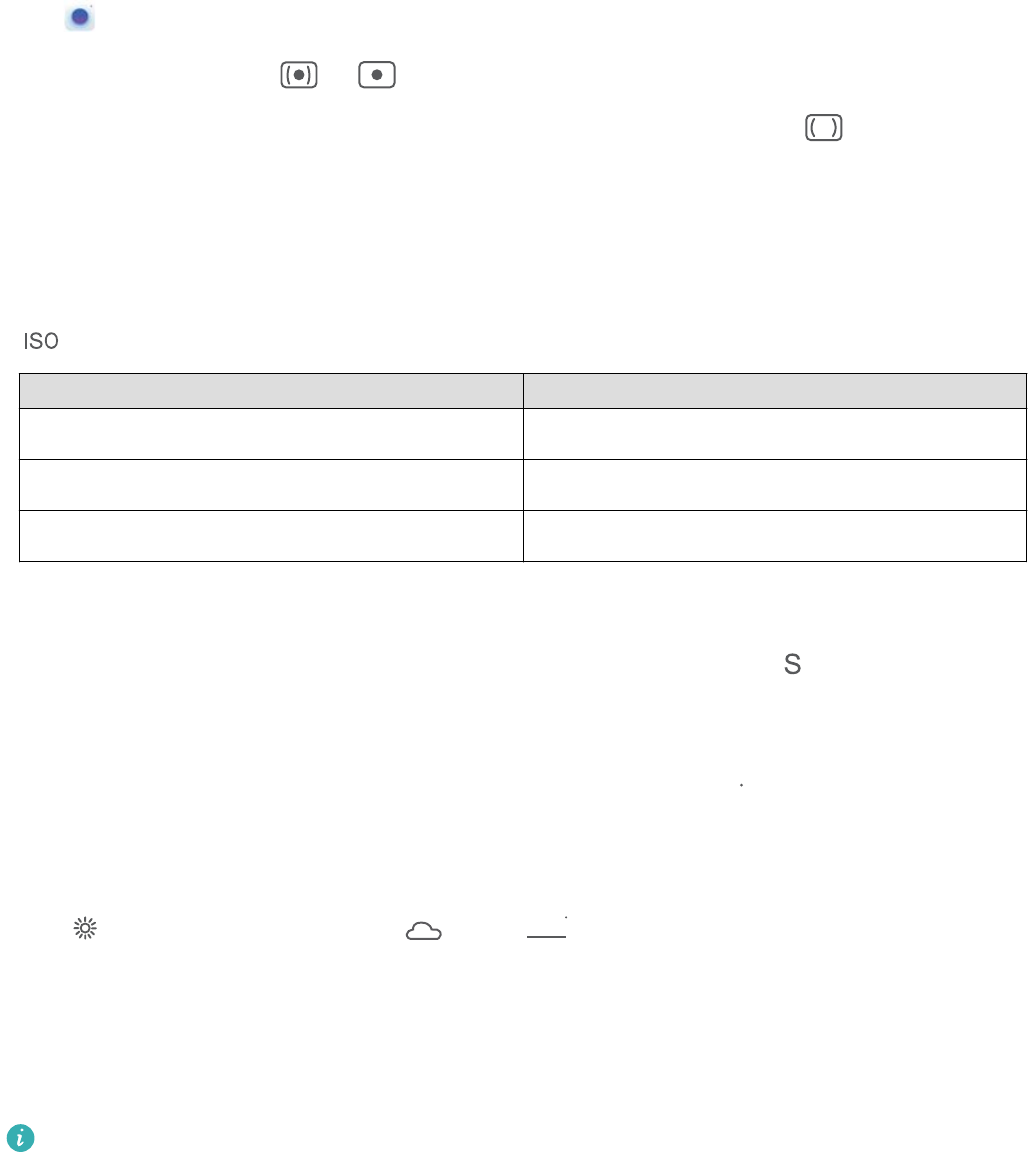
Go to Camera > More > Pro to enable Pro mode.
Select a Metering mode: or is recommended for taking portraits. Line up your subjects
(their faces for example) so they are in the center of the viewnder. Then touch to select your
desired Metering mode.
Adjust brightness based on the ambient light
lAdjust ISO: To avoid excessive noises, it is recommended that you use a lower ISO when taking
portraits. You should also adjust the ISO based on the actual lighting conditions. To do this, touch
, and slide it left or right to adjust the value.
Good for Recommended ISO
Outdoors Between 100 and 200
Indoors Around 400
Night scenes Between 400 and 800
lAdjust shutter speed: Choose a slower shutter speed if the ambient light is low and a faster one
when it's stronger. The recommended shutter speed for static portraits is between 1/80 and 1/125.
To shoot moving subjects, select a shutter speed of 1/125 or above. Touch (shutter speed),
slide until your desired speed is in the center.
lAdjust EV compensation: Increase the EV compensation if the subjects or background is in dim
light, and decrease the EV compensation if the light is strong. Touch
(9
, and slide until the desired
value is in the center.
Adjust AWB: Select AWB depending on the lighting conditions. When shooting in sunlight, you can
select , and for gloomy days, select . Touch
"8#
, and slide until the desired value is in the
center.
Adjust focus: To make your subject stand out, it is recommended that you use manual focus (MF)
when shooting portraits. When taking a close-up shot, touch the focus on the shot in the viewnder
to adjust the focus accordingly.
lSome parameters in Pro mode affect each other, so adjusting one may cause some unwanted
changes. Keep this in mind when setting up for your perfect shot.
lThe recommended settings above are for reference only. You should adjust them based on the
actual scene for best shot.
More Features
Use Password Vault
Password vault saves and lls in your passwords, allowing you to log in to apps on your Phone more
conveniently and securely.
Exciting Features
7

Enable or disable Password vault: Password vault is enabled by default. After you update your
Phone, enable Password vault by performing the following operations:
1Enter the lock screen password to access the Password vault settings. Open Settings, and go
to Security & privacy > Password vault.
2Enter your lock screen password to access the Password vault screen.
3Enable Password vault. When you log in to an app for the rst time or after logging out, select
SAVE, and your username and password will be saved. Next time you log in, use the method you
picked, for example Face unlock, to automatically ll in your username and password to log in to
the app.
4Enable or disable Autoll settings for individual apps. If the autoll feature is enabled for an app,
you can use your face, ngerprint, or lock screen password to ll in the password when you log in.
If this feature is disabled, your username and password must be entered manually.
Enable App Lock
App lock allows you to set a password for your important apps. Once you restart your Phone or
unlock the screen, you will be asked to enter your App lock password when opening these apps. App
lock adds an extra layer of protection for your private information and prevents unauthorized access
to important apps on your Phone.
Enable App lock: Open Settings. Go to Security & privacy > App lock. When you enable App
lock for the rst time, set the password and password protection question then enter App lock. On
the App lock screen, enable App lock for the apps you want to protect. When accessing a locked app
for the rst time, you need to enter your password. If you forget your password, touch Forgot
password, enter the answer to the password protection question, and reset your password. If you
have not set up password protection, the Forgot password option is not available.
If you have set up a ngerprint and facial recognition to unlock your Phone and are opening App
lock for the rst time, follow the onscreen instructions to link your ngerprint and face with App
lock for easier app unlocking.
Modify your App lock password and password protection: Touch on the App lock screen,
then touch Change password or Change password protection to modify your App lock password
or password protection.
If you enter the wrong password ve times in a row while logging in to App lock, your Phone will
remain locked for one minute. Try again after one minute. If you enter the wrong password
another three times in a row, you will need to wait 10 minutes to try unlocking again.
Enable PrivateSpace
Do you worry that potentially embarrassing information might be seen by your friends and co-workers
when you are showing them photos and other things on your Phone? PrivateSpace lets you store
private information in a hidden space within your device that can only be accessed with your
ngerprint or password.
Exciting Features
8

You can add up to three users to Users and PrivateSpace on your Phone. If you have already
added three users under Settings > Users & accounts > Users > Add user, you cannot add
more users to PrivateSpace.
Enable PrivateSpace: If you are using PrivateSpace for the rst time, open Settings, go to
Security & privacy > PrivateSpace > Enable, and follow the onscreen instructions to create your
PrivateSpace.
You can only create one PrivateSpace.
Quickly switch between MainSpace and PrivateSpace: From the lock screen, you can quickly
switch between spaces using your ngerprint or password. After you restart your Phone, you are
required to rst enter the MainSpace using your password. You can then switch between spaces from
your lock screen.
Enter PrivateSpace: You can enter your PrivateSpace directly from the lock screen using your
ngerprint or password. Alternatively, open Settings in MainSpace, and go to Security &
privacy > PrivateSpace > Log in to enter your PrivateSpace.
Exit PrivateSpace: After entering your PrivateSpace, open Settings, and go to Security &
privacy > PrivateSpace > Exit. When you exit your PrivateSpace, all system memory used by the
PrivateSpace will be freed. You can still switch back to your PrivateSpace when you need it.
Delete PrivateSpace: Deleting your PrivateSpace will permanently delete all apps and data stored
within your PrivateSpace and this data will be unable to be restored. You can delete your PrivateSpace
in the following ways:
lFrom the MainSpace, open Settings, then go to Security & privacy > PrivateSpace and
touch > Delete PrivateSpace.
lIn PrivateSpace, open Settings, and go to Security & privacy > PrivateSpace > Delete.
Set Your Home Screen Wallpaper
Tired of default wallpapers? Set a photo you like as your home screen wallpaper to personalize your
home screen.
Open Settings, and then go to Home screen & wallpaper > Wallpaper. You can:
Set a picture as your home screen wallpaper: Touch Gallery or select a preset wallpaper in your
device, and follow the onscreen instructions to select Lock screen, Home screen or Both.
Set a photo as your wallpaper from Gallery: Have a great photo you want to set as your
wallpaper? In Gallery, open the photo that you like, go to > Set as > Wallpaper, and follow
the onscreen instructions to set the photo as your home screen wallpaper.
Exciting Features
9
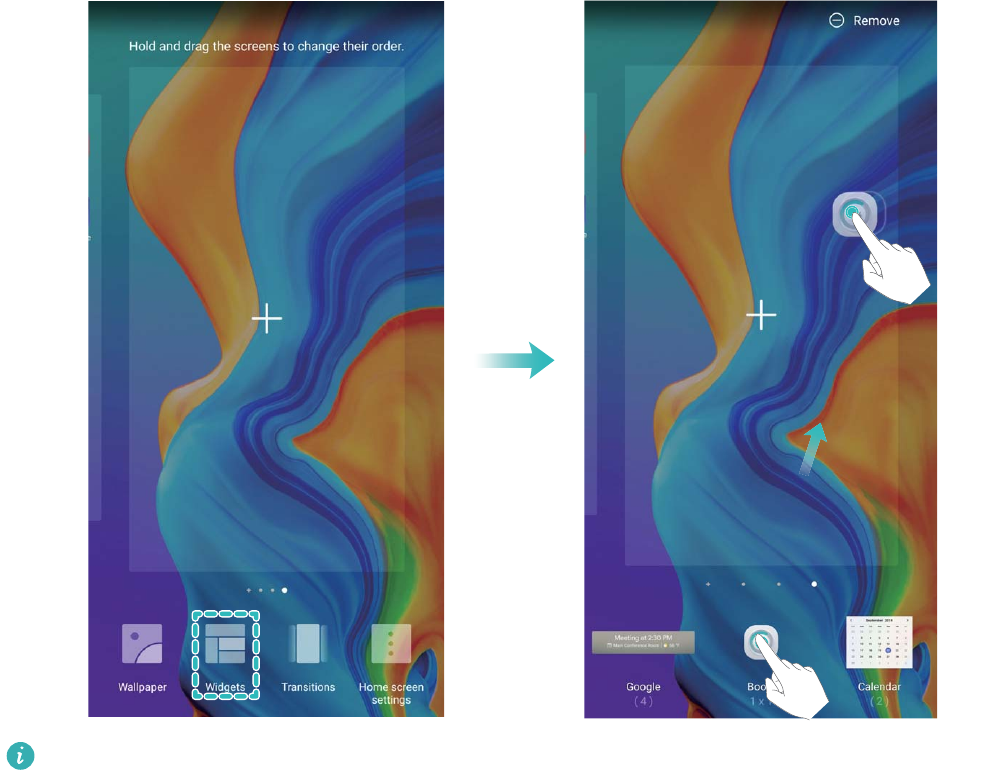
Manage Your Home Screen Widgets
Want to quickly add widgets such as screen lock, weather, notepad, clock, contacts, or calendar to
your home screen? You can add, move or delete home screen widgets to tidy up your home screen
and ease your usage experience.
Add widgets: Touch and hold an empty area on the home screen to enter home screen editing
mode. Touch Widgets, touch and hold a widget and drag it to an empty area on the home screen, or
touch the widget you want.
Check that there are enough empty spaces on the home screen for the widget. If there is not
enough space, add an empty screen page or free up some space on the current home screen
page.
Delete widgets: Touch and hold a widget on the home screen until your Phone vibrates, and then
select Remove.
Move widgets: Touch and hold a widget on the home screen until your Phone vibrates. Drag the
widget to any position on the screen.
Use App Drawer to Store Apps
Want to store your apps in one location on your home screen to make your home screen look
cleaner? You can enable app drawer on your home screen to store all your apps and free up space on
your home screen.
Exciting Features
10

Open Settings, go to Home screen & wallpaper > Home screen style, and select Drawer. If
you want to switch back to a standard home screen, select Standard.
Add an app icon from app drawer to the home screen: After you enable app drawer, touch
on the home screen to enter the app list. From the app list, touch and hold the app icon that
you want to add until your Phone vibrates, and then drag it to the desired position on the home
screen.
Enable TalkBack to Have Onscreen Content Read Aloud
Your Phone reads aloud content on the screen that you touch, select, or activate, helping you interact
with your Phone when you can't read content on your screen clearly.
1Open Settings and go to Smart assistance > Accessibility > TalkBack > to enter the
TalkBack settings screen.
2Enable TalkBack and touch OK. Your device will launch a tutorial when you enable TalkBack for
the rst time. If you need to listen to the tutorial again, touch to enter the TalkBack settings
screen, and launch the tutorial.
3Touch and enable Explore by touch. Your device will read aloud content that you touch.
You may have enabled TalkBack by accident. To disable TalkBack, press and hold the Power button
until your device vibrates, then touch the screen with two ngers for at least three seconds.
Exciting Features
11

New Device
New Device Conguration
Connecting to the Internet
Connect to Wi-Fi networks effortlessly with your device.
Connecting to a Wi-Fi network
1Swipe down from the status bar to open the notication panel.
2Touch and hold to open the Wi-Fi settings screen.
3Switch on Wi-Fi. Your device will list all available Wi-Fi networks at your location.
4Select the Wi-Fi network you want to connect to. If you select an encrypted network, you will also
need to enter the Wi-Fi password.
Connecting using mobile data
Before using mobile data, ensure that you have a data plan with your carrier to avoid incurring
excessive data charges.
1Swipe down from the status bar to open the notication panel.
2Touch to enable mobile data.
To save battery power and reduce data usage, disable your mobile data connection when you
don't need it.
Enroll Your Facial Information to Enable Face Unlock
Face unlock allows you to quickly unlock your Phone by holding it up to your face.
lOnly the owner can enable Face unlock. This feature is not available for users or guests, and
not supported in PrivateSpace either.
lFace unlock is not available if the screen unlock password has not been entered for three or
more days in a row, or if your Phone has been remotely locked, or has been restarted.
lWhen using Face unlock to unlock your Phone, keep your eyes open, face yourself directly
towards your Phone, and keep your face at a distance of 20 cm (7.87 in.) to 50 cm (19.69 in.)
from your device. In order to scan your face accurately, avoid using this feature when you are in
a dark environment or when facing direct light.
1Open Settings. Go to Security & privacy > Face recognition and enter your screen unlock
password.
2You can select Enable pick up to wake. In this case, your Phone will turn on the screen and
identify your facial features to unlock the screen automatically whenever you pick up your Phone
and hold it to your face. If you do not wish to use this feature, you can disable this option. Touch
Enroll face and follow the onscreen instructions to enroll your face.
12

3Methods to set Face unlock:
lDirect unlock: Turn on the screen. Your Phone identies your facial features and unlocks the
screen.
lSwipe to unlock: Turn on the screen. After your Phone identies your facial features, swipe
the lock screen to unlock your device.
lSmart display of lock screen notications: Enable Slide to unlock and Smart lock screen
notications. On the lock screen, your Phone hides notication details by default and displays
them only after identifying the device owner's face.
lAccess app lock: Enable Access App lock to access apps and locked apps using Face unlock.
Enroll a Fingerprint
You can enroll a ngerprint on your Phone and then use your ngerprint to unlock your screen or
access your Safe or App Lock without a password.
lFingerprint unlocking is only available when your unlock method is set to Pattern, PIN or
Password. You will be required to unlock your Phone using the screen unlock password after
the device is restarted or if your ngerprint is not recognized.
lBefore enrolling a ngerprint, make sure your nger is clean and dry.
1Open Settings.
2Go to Security & privacy > Fingerprint ID > Fingerprint management > Change unlock
method, select Pattern, 4-digit PIN, Custom PIN or Password, and then follow the onscreen
instructions to set an unlock password.
3Once you have set an unlock password, touch New ngerprint to enroll a ngerprint.
4Place your ngertip on the ngerprint sensor. Press down lightly on the sensor until your device
vibrates. Repeat this step using different parts of your ngertip.
5After enrollment is complete, touch OK.
To unlock the screen, simply place your ngertip on the ngerprint sensor.
Connect to Wi-Fi
By connecting your device to a Wi-Fi network, you can effectively save mobile data.
To avoid potential security risks (such as unauthorized access to your personal data and nancial
information), please exercise caution when connecting to a public Wi-Fi network.
New Device
13
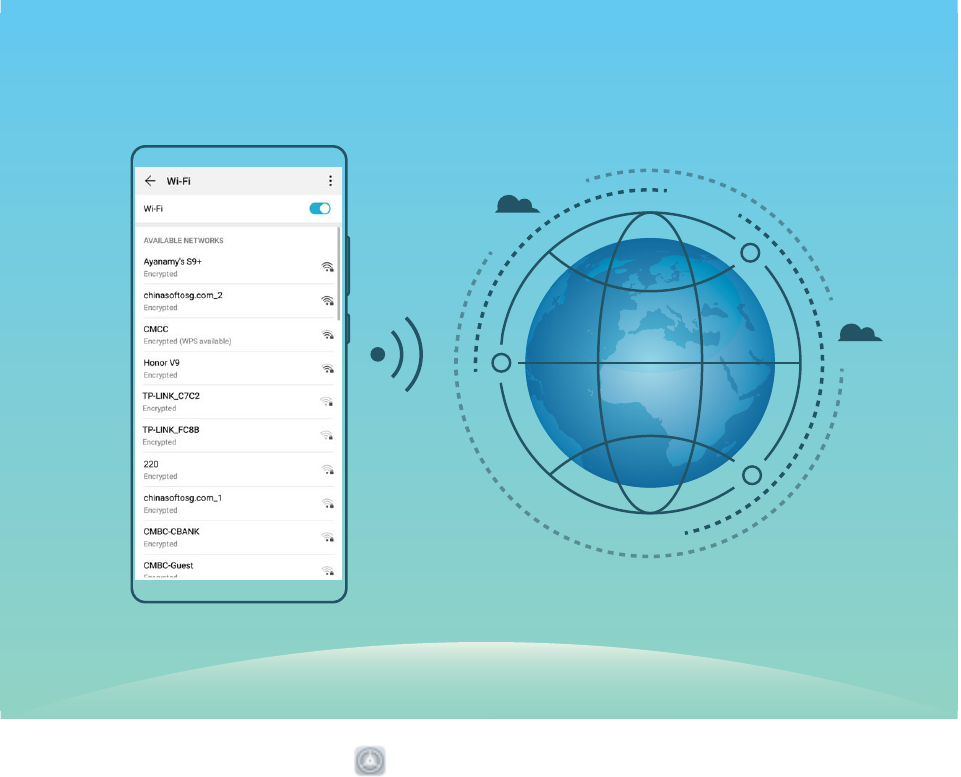
Connect to a Wi-Fi Network: Open Settings, go to Wireless & networks > Wi-Fi, and enable
Wi-Fi. Touch a Wi-Fi network to access it, and enter the network password or complete the
authentication if required. Alternatively, you can scroll to the bottom of the menu, touch Add
network, and follow the onscreen instructions to add a network hotspot by entering its name and
password.
New Device
14
Gestures and Operations
HiVision
HiVision: Scan Codes,Identify Objects,Shop,and Translate
Unable to understand foreign logos, road signs, and restaurant menus while traveling abroad? Use
HiVision to quickly solve all these problems.
HiVision can provide you with the following features:
lScan codes: You can scan QR codes or barcodes to add contacts. Based on the identication results
of QR codes and barcodes, you can also view detailed commodity information.
lIdentify objects: Scan and quickly identify road signs and famous paintings, providing you with
information about geographical locations and the author of a famous painting.
lShop: Scan an object to quickly obtain the purchase recommendations for similar items.
lTranslate: You can scan English or foreign language words and phrases for a quick online
translation, allowing you to easily understand foreign languages when traveling abroad.
1Before using the scan feature to shop, scan codes, identify objects, and provide translation
services, ensure that your device is connected to the Internet.
2This feature is only supported in some countries and regions.
Read QR Codes and Barcodes
Want to quickly read QR code and barcode information? You can use HiVision to quickly read QR
codes or barcodes, and get purchase information, add contacts, and more based on the results.
This feature requires an Internet connection. Connect to a Wi-Fi network to avoid incurring
unnecessary data charges.
Scan QR codes or barcodes: Once your Phone is unlocked, swipe down on the home screen to
open the HiSearch box, and touch . You can also swipe up from the bottom of the lock screen,
and touch to open HiVision. On the HiVision screen, touch and place the QR code or barcode
within the scan frame to acquire information.
lTouch to copy the information to the clipboard.
lIf the QR code contains contact information, touch to add the information to your Contacts.
Scan to Translate Effortlessly
HiVision can help you quickly translate foreign text.
lThis feature requires an Internet connection. Connect to a Wi-Fi network to avoid incurring
unnecessary data charges.
lThis translation feature currently supports Chinese, English, Japanese, Korean, French, Russian,
Spanish, Italian, German, and Portuguese.
15

1Once your Phone is unlocked, swipe down from the center of the home screen and touch to
open HiVision.
2On the HiVision screen, touch , select the source and target languages, frame the text in the
viewnder, and wait for it to be translated.
Scan Products
When you encounter an unknown item, you want to buy but can't nd it. After scanning goods, you
can get the purchase recommendations of similar items, which is convenient for you to buy favorite
things.
This feature requires an Internet connection. Connect to a Wi-Fi network to avoid incurring
unnecessary data charges.
1Once your Phone is unlocked, swipe down from the center of the home screen, and touch to
open HiVision.
2On the HiVision screen, touch to align your device with the item you want to purchase. The
system will automatically scan and recommend similar items.
Scan to Instantly Recognize Objects
Ever just start wondering about key landmarks during a journey and favorite paintings in an
exhibition? Scan a picture or an object in question using HiVision to nd out more.
This feature requires an Internet connection. Connect to a Wi-Fi network to avoid incurring
unnecessary data charges.
HiVision opens your world to limitless information and fun. Using painting scanning as an example,
perform the following to try it out:
1Once your Phone is unlocked, swipe down from the middle part of the home screen, and touch
to open HiVision.
2On the HiVision screen, touch , and make sure the painting is centered in the frame. HiVision
will automatically identify the painting and generate detailed information cards containing painting
name and the author.
Record Exciting Moments on Your Screen
The screen recording feature comes in handy when you are making tutorial videos or if you want to
record your gaming exploits to share with your friends using your Phone.
lScreen recording will end if you make or answer a call.
lIf you are using the sound recording function of your Phone before screen recording, Enable
microphone is disabled by default.
lIf you have enabled Enable microphone, your device will record all ambient sounds in the
recording. It is recommended that you record your screen in a quiet environment.
Gestures and Operations
16
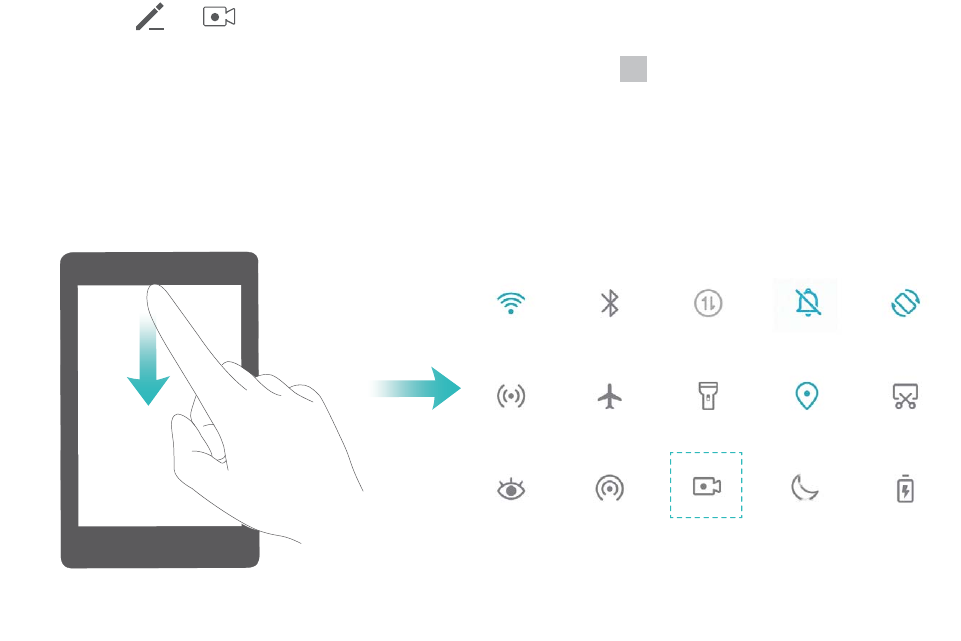
Use shortcut to start recording: Swipe down from the status bar to open the notication panel,
and then touch > to start recording the screen. You can enable or disable Enable
microphone based on your needs. To end the recording, touch in the upper left corner of the
screen.
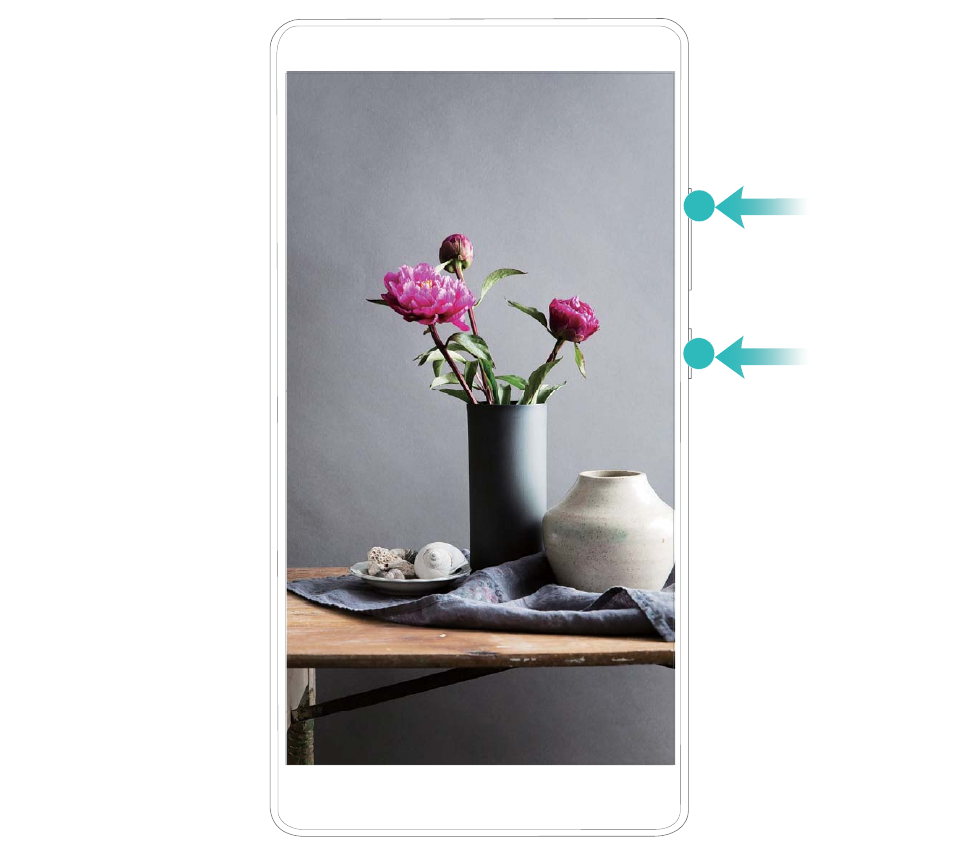
Use key combination to start recording: Simultaneously press and hold the Power button and the
Volume up button to begin recording. You can enable or disable Enable microphone based on your
needs. To end the recording, simultaneously press and hold the Power button and the Volume up
button again.
Gestures and Operations
17
You can view your screen recordings in Gallery.
Gestures and Operations
18
Home Screen
Navigation Bar
Congure Your Navigation Bar Layout
Using the navigation bar, you can conveniently access the home screen, return to the previous page,
exit an app, or view recent apps used.
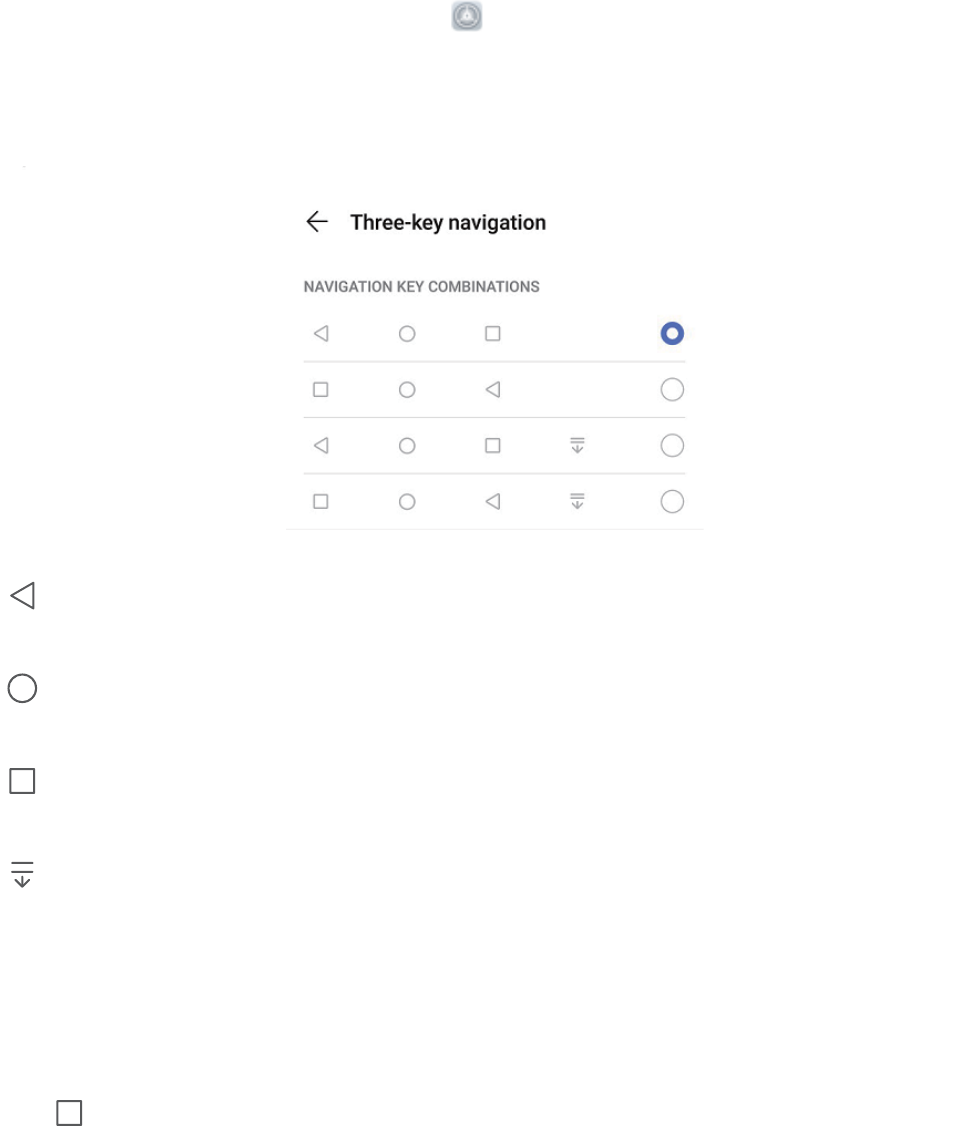
To congure your navigation bar layout, open Settings, then go to System > System
navigation > Three-key navigation > Settings, and select the navigation key combination and
enable or disable Hide navigation keys based on your usage habits.
lBack key: Touch to return to the previous page or exit an app. Touch to close the onscreen
keyboard when inputting text.
lHome key: Touch to return to the home screen. Touch and hold to display the Google Assistant
icon and swipe upwards on the icon to enable Google Assistant.
lRecent key: Touch to open a list of recently used apps. Touch and hold to enable split screen
mode.
lDownward swipe notication key: Touch to open the notication panel.
Use the Recent Key to Manage Background Apps
If you want to quickly switch to a recently used app, you might try using the Recent key. The Recent
key can help you quickly switch between several recently used apps. You can also use it to close your
background apps to increase your Phone's operating speed.
Touch . You can view, switch to, close, or lock recently used background apps:
lView recently used apps: Recently used apps will be displayed on the screen and you can check
them by swiping left or right.
19
lSwitch to a recently used app: Swipe left or right on the screen to nd the app you want to use,
and touch the app tab.
lClose an app: Swipe up on an app tab to close the corresponding app.
lClose all apps: Touch to close all apps.
Navigate with Gestures
Navigate with gestures to quickly go back to the previous screen, return to the home screen, or view
recent tasks.
Open Settings, go to System > System navigation, and select Gestures. From here you can:
lGo back to the previous screen: Swipe inward from one side of the screen.
lReturn to the home screen: Swipe upwards from the bottom of the screen.
lView recent tasks: Swipe upwards from the bottom of the screen and hold. Swipe up on an app's
preview to close the app, or touch to close all apps.
lEnable Google Assistant: Touch Settings, and enable Google Assistant. Swipe upwards from
either bottom corner of the screen to enable Google Assistant.
Use Shortcut Switches to Quickly Enable Frequently
Used Features
Want to quickly enable or disable mobile data or hotspot? You can enable frequently used features by
using shortcut switches.
Touch to enable
this feature
Touch and hold to
enter Settings
Organize shortcuts
Notication Panel and Status Bar
Notication and Status Icons and Descriptions
The icons in the status bar give you a quick view of the overall status of your Phone, including its
network connection, battery level, and any new messages received when your Phone is in Silent
mode.
Status icons: By checking the status icons, you can quickly learn the status of your device, such as
network connection, signal strength, battery level, time, and more.
Home Screen
20
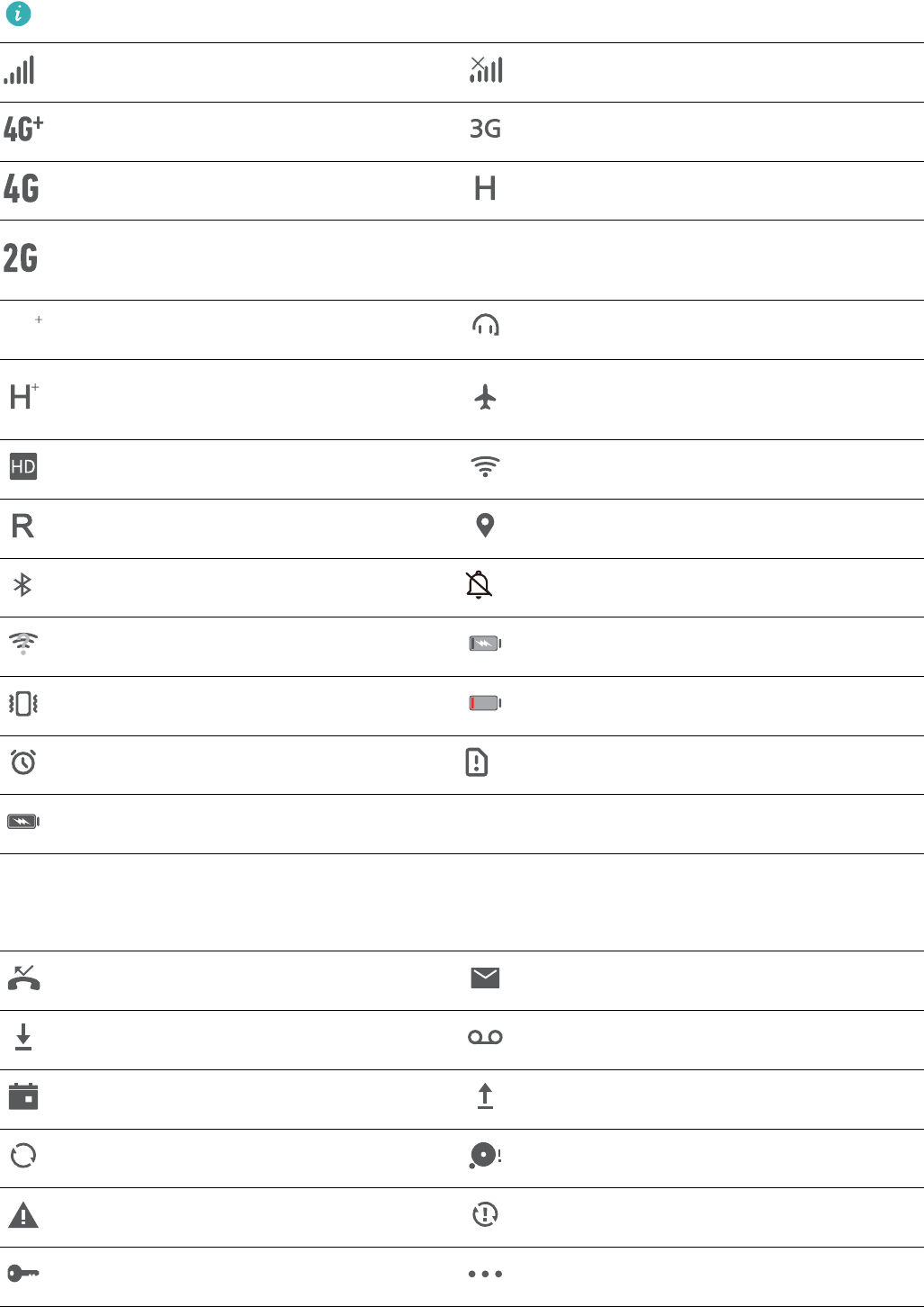
The network status icons may vary by regions and service providers.
Signal strength No signal.
4G+ network connected 3G network connected
4G network connected HSPA network connected
2G network connected
LTE
LTE
Long Term Evolution (LTE) network
connected
LTE
LTE
LTE+ network connected Headset plugged in
Evolved High-Speed Packet Access
(HSPA+) network connected Airplane mode enabled
VoLTE available Wi-Fi network connected
Roaming Receiving location data from GPS
Bluetooth enabled Silent mode enabled
Wi-Fi network detected Charging
Vibration mode enabled Battery level low
Alarm enabled No SIM card detected
Battery fully charged
Notication icons: When there is a new message, notication or reminder on your Phone, the
relevant icon will be displayed in your status bar.
Missed call New emails
Downloading data New voicemails
Event reminder Uploading data
Synchronizing data Phone memory full
Sign-in or synchronization problem Sync failed
VPN connected More notications
Open the Notication Panel to Get Important Information
Check the notications and the operating status of your Phone on the status bar.
Home Screen
21
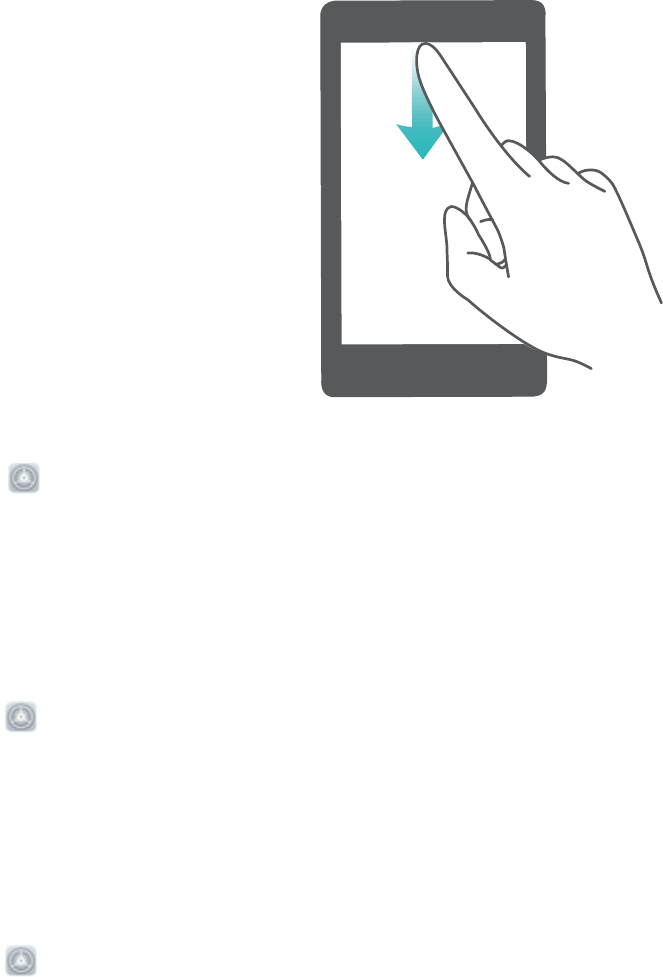
When there is a notication reminder, you can turn on the screen and swipe down from the status bar
to view the notication.
Access notication panel when the screen is unlocked: Swipe down from the status bar to open
the notication panel. You can turn on or off shortcut switches, or touch notications to view the
details.
If you want to display the number of notications or no reminder on the notication and status bar,
touch Settings, and go to Notications > More notication settings > Notication method.
Then select Numbers or None.
Disable App Notications
Is it annoying to receive a variety of application push notications? You can set and disable the
specied notication.
Open Settings, and touch Notications. From here you can:
lBlock notications from an app: Select the app, then disable Allow notications.
lBlock notications from all apps: Select Batch management, then disable All.
Customize Notication Settings
Customize the notication settings to use your device the way you want.
Open Settings, then go to Notications > More notication settings. From here you can:
lEnable Notications turn on screen: Enable Notications turn on screen to set the screen to
turn on when notications are received.
lEnable notication light: Enable Pulse notication light to show a blinking indicator light when
notications are received.
lSet the notication style: Touch Notication method, then select Icons, Numbers, or None.
Home Screen
22

Screen Lock and Unlock
Set a Lock Screen Password to Protect Your Privacy
Your Phone stores a lot of sensitive information, such as personal photos, contact information,
banking apps (for example, Alipay). Set a lock screen password so that a password is required each
time you unlock your Phone. A lock screen password helps to protect your private information if your
Phone is lost or accessed by an unauthorized user.
Set a lock screen password: Open Settings, go to Security & privacy > Lock screen
password, and set the type of lock screen password you prefer.
lSet a PIN: A PIN number is a sequence of digits. Entering a PIN to unlock your Phone is quick and
simple. For better security, use a long sequence of random numbers as your PIN. Go to Set lock
screen password, follow the prompts to set up a PIN. Alternatively, touch Change unlock
method, and set 4-digit PIN or Custom PIN.
lSet a pattern: Unlock your Phone by drawing a preset pattern on the screen. For better security,
use a pattern that includes overlapping line segments. Go to Set lock screen password > Change
unlock method > Pattern and draw the same pattern twice. The pattern must connect at least 4
dots.
lSet a password: A password made up of numbers, letters, and special characters is more secure
than a PIN or pattern. For better security, use a password with 8 or more characters that includes
numbers, letters, and special characters. Be sure to memorize the password so that you don't get
locked out of your Phone if you forget it. Go to Set lock screen password > Change unlock
method > Password, follow the prompts to set up a password.
lUnlock your device using a smart band: If your device supports unlocking with a smart band,
the screen will automatically light up when the band comes within 80 cm of your device. Swiping
on the screen of your Phone will instantly unlock the device. Touch Smart unlock, and follow the
onscreen prompts to complete the setup.
lUnlock your device using a ngerprint: If your device supports ngerprint unlock, this is the
recommended unlock method. Using a ngerprint is a secure and quick way to unlock the
device. After setting a lock screen password, touch Enroll in the dialog box that pops up and
follow the onscreen prompts to enroll your ngerprints.
lFor security reasons, please do not disable the lock screen password: A lock screen
password prevents unauthorized access to your device. For the security of your device, do not
select Disable lock screen password as the screen lock method.
lRegular password prompts help you to remember your password: If you have not
entered your screen lock password for 3 days, the system will require that you enter the
password to unlock your device.
Home Screen
23

Lock the Screen to Quickly Secure Your Phone
If you don't use your Phone for a set period of time, the screen will turn off and lock. As long as the
screen stays on, you can use your Phone without needing to unlock the screen. Lock your screen
when you are not using your Phone to protect your privacy and prevent mistaken inputs.
Set a lock screen password to help protect your privacy. You can lock your device in the following
ways:
Lock the screen instantly with the Power button: Press the Power button to lock the screen at
any time.
Lock the screen with one-touch screen lock: Pinch two ngers together on the home screen to
enter the editing screen. Touch Widgets > Screen Lock and add the Screen Lock widget to your
home screen. This helps reduce wear and tear on your power button. After leaving the home screen
editing mode, touch the Screen Lock widget to instantly lock your screen. To lock your screen this
way, rst switch to the home screen page where the Screen Lock widget is located.
You can swipe up from the bottom of the Magazine unlock screen to display the Magazine unlock
shortcut panel and use widgets such as recorder, calculator, and ashlight.
Home Screen Management
Manage Home Screen Icons
Move and delete app icons from the home screen, or rearrange them in folders so that your home
screen is organized the way you like it.
Move an app icon or folder: On the home screen, touch and hold an app or folder icon until your
Phone vibrates, then drag it to any position on the home screen.
Delete an app icon: On the home screen, touch and hold the icon of the app you want to uninstall
until your Phone vibrates, then touch Uninstall to delete the app.
To ensure that the system runs normally, some pre-installed system apps cannot be uninstalled.
Lock the home screen layout: Open Settings, go to Home screen & wallpaper > Home
screen settings, and enable Lock layout.
Create a folder: On the home screen, touch and hold an app icon until your Phone vibrates, then
drag it on top of another app icon. The two icons will be placed in a new folder.
Home Screen
24
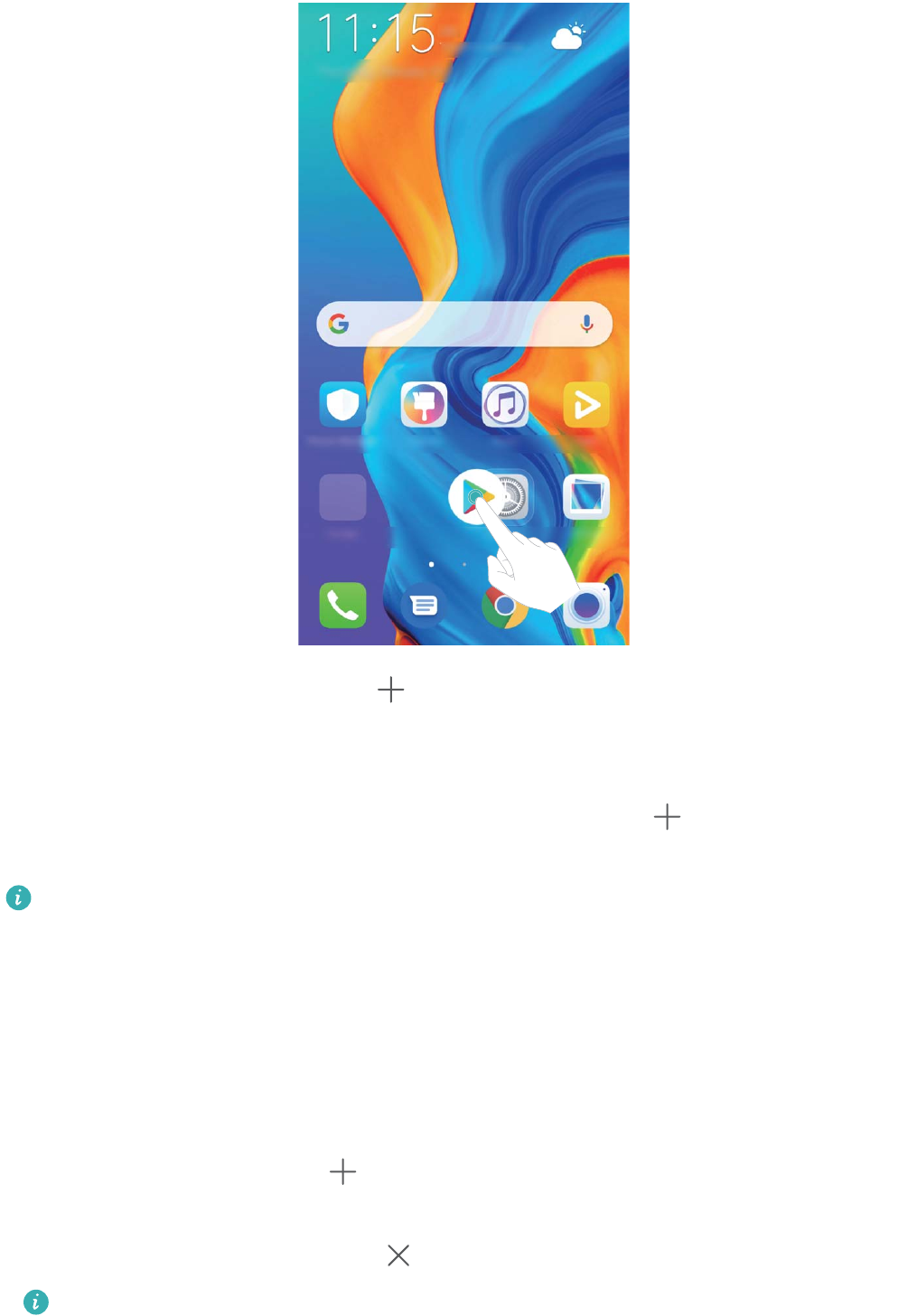
Delete a folder: Open the folder, touch , deselect all the apps, then touch OK. The folder will be
deleted and all app icons in the folder will be moved to your home screen.
Rename a folder: Open the folder and touch the folder name to enter a new name.
Add or remove app icons from a folder: Open the folder and touch . Select the apps you wish
to add to the folder, deselect those you wish to remove, and then touch OK.
Another way to remove an app icon from a folder is to touch and hold the icon in the folder until
your Phone vibrates, then drag it to an empty space on the home screen.
Manage Your Home Screen
Too many icons on your home screen? You can add a new page to your home screen and customize it
to your liking.
Touch and hold an empty area on the home screen to enter home screen editing mode. You can do
the following:
lAdd a new screen page: Touch at the left or right side of the screen to add a new screen
page.
lDelete an empty screen page: Touch to delete the page.
Screen pages with app icons or widgets on them cannot be deleted.
lModify screen page order: Touch and hold the screen page you want to move, then drag it to the
desired position.
Home Screen
25

lSet a default home screen page: Touch in the upper part of the home screen to set the
selected screen page as your default home screen page.
Set Your Home Screen Wallpaper
Tired of default wallpapers? Set a photo you like as your home screen wallpaper to personalize your
home screen.
Open Settings, and then go to Home screen & wallpaper > Wallpaper. You can:
Set a picture as your home screen wallpaper: Touch Gallery or select a preset wallpaper in your
device, and follow the onscreen instructions to select Lock screen, Home screen or Both.
Set a photo as your wallpaper from Gallery: Have a great photo you want to set as your
wallpaper? In Gallery, open the photo that you like, go to > Set as > Wallpaper, and follow
the onscreen instructions to set the photo as your home screen wallpaper.
Manage Your Home Screen Widgets
Want to quickly add widgets such as screen lock, weather, notepad, clock, contacts, or calendar to
your home screen? You can add, move or delete home screen widgets to tidy up your home screen
and ease your usage experience.
Add widgets: Touch and hold an empty area on the home screen to enter home screen editing
mode. Touch Widgets, touch and hold a widget and drag it to an empty area on the home screen, or
touch the widget you want.
Home Screen
26
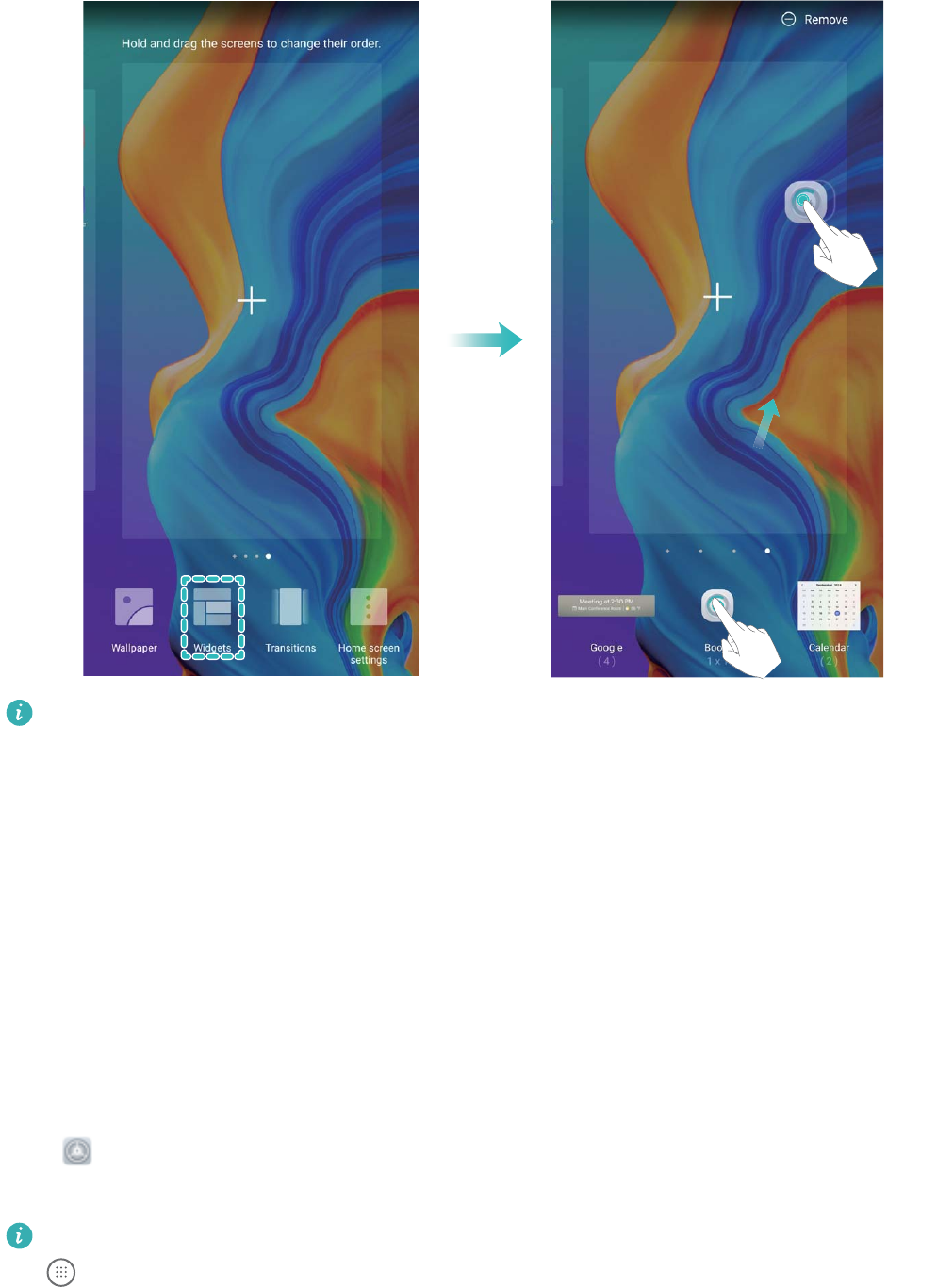
Check that there are enough empty spaces on the home screen for the widget. If there is not
enough space, add an empty screen page or free up some space on the current home screen
page.
Delete widgets: Touch and hold a widget on the home screen until your Phone vibrates, and then
select Remove.
Move widgets: Touch and hold a widget on the home screen until your Phone vibrates. Drag the
widget to any position on the screen.
Use App Drawer to Store Apps
Want to store your apps in one location on your home screen to make your home screen look
cleaner? You can enable app drawer on your home screen to store all your apps and free up space on
your home screen.
Open Settings, go to Home screen & wallpaper > Home screen style, and select Drawer. If
you want to switch back to a standard home screen, select Standard.
Add an app icon from app drawer to the home screen: After you enable app drawer, touch
on the home screen to enter the app list. From the app list, touch and hold the app icon that
you want to add until your Phone vibrates, and then drag it to the desired position on the home
screen.
Home Screen
27
Contacts
Managing Business Cards
Scan Business Cards to Add Them to Contacts
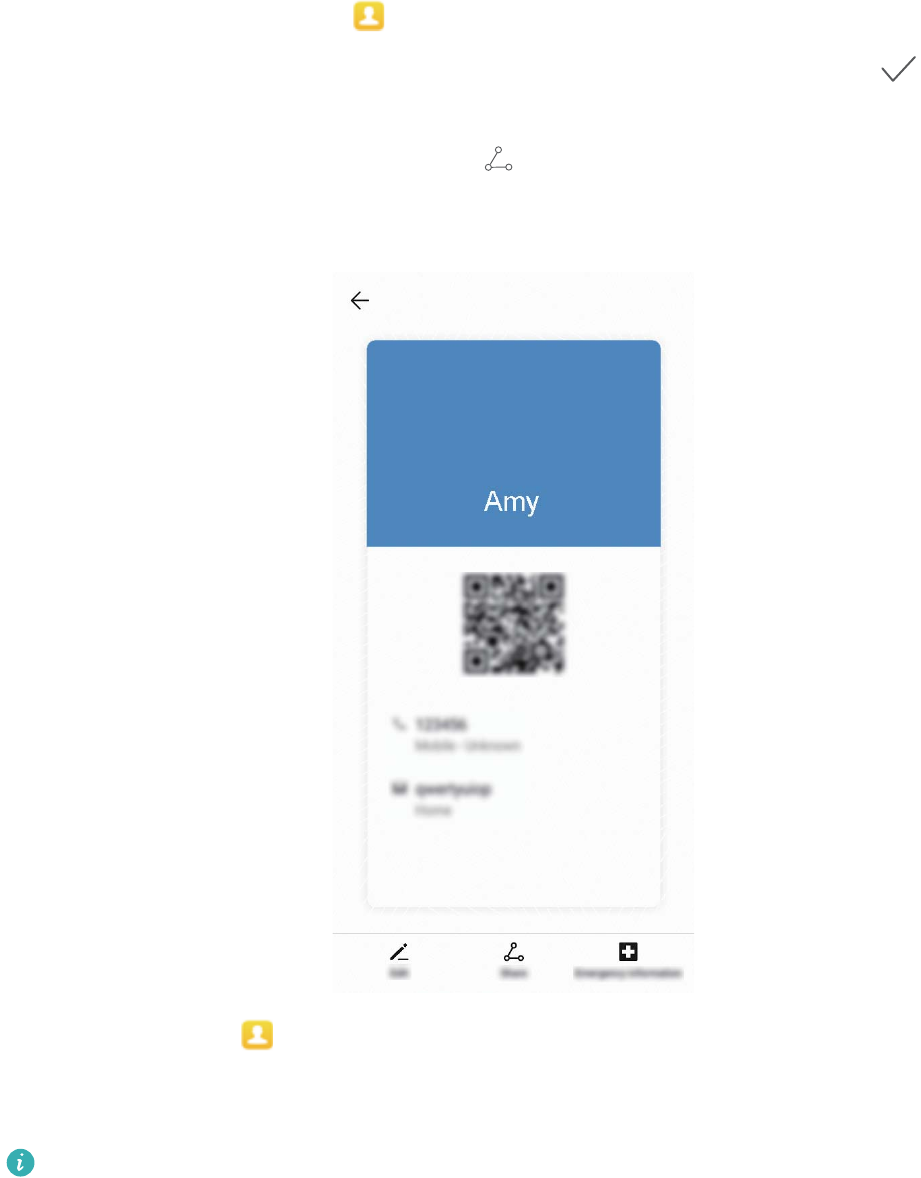
Open Contacts, go to Business cards > Scan, and you can:
lScan a single business card: Place the business card on a at surface and adjust the camera's
focus frame so that the contents on the business card are clearly displayed in the viewnder, then
touch .
lScan multiple business cards: Switch to Multiple mode and follow the onscreen instructions to
capture multiple business cards.
The information on the business cards will be automatically converted into contact information and
saved in Business cards in your Phone.
To view a business card you have saved, open Contacts, select scanned contacts, then go to
Details > View business card.
Share Contacts Using Electronic Business Cards
28
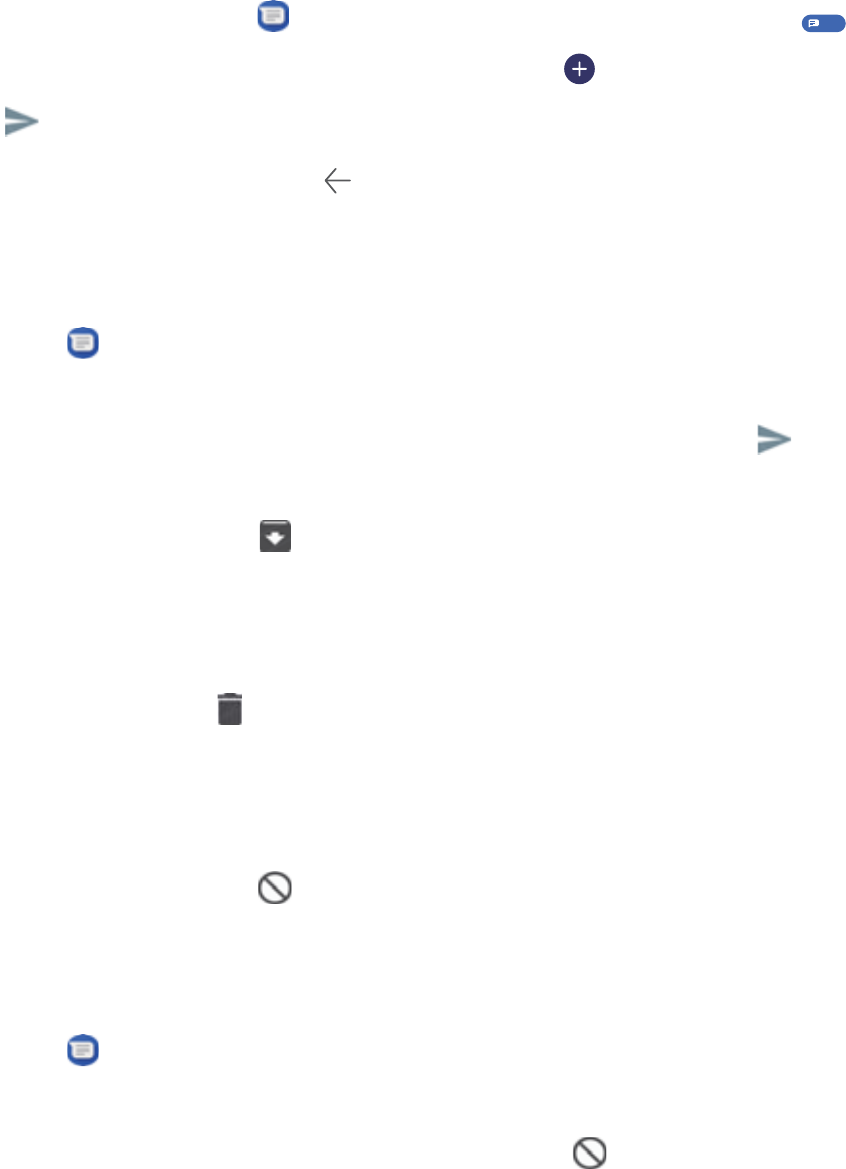
Share your business card: Open Contacts and touch My card to set your prole picture and
enter your name, work address, telephone number, and other information. Then touch and your
device will automatically generate your QR code business card. You can share your business card
directly using the QR code. Alternatively, touch , select a sharing method, and follow the
onscreen instructions to share.
Share contacts: Open Contacts, select the contact you want to share, and touch the QR code
icon in the upper right corner to share the contact using the QR code. You can also touch Share,
select a sharing method, and follow the onscreen instructions to complete the sharing process.
If the other party's device supports QR code analysis, they can directly take pictures of or scan QR
codes to add contacts.
Managing Contacts
Manage Your Contacts
The Contacts app gives you a variety of features for managing your contacts. You can simplify your
contacts list, choose to view contacts only on your Phone or SIM card, and easily nd your frequent
contacts.
Contacts
29

Merge duplicate contacts: If there are duplicate contacts in your contacts list, you can use the
Merge duplicate contacts function to merge them. From the contacts list screen, go to >
Settings > Organize contacts > Merge duplicate contacts, select the contacts you want to merge,
and then touch Merge.
Display contacts for different accounts: Want to view contacts only on your Phone or SIM card?
From the contacts list screen, go to > Settings > Display preferences, and select the accounts
you want to display. You can also:
lEnable Simple layout: Want to hide extra information in the contacts list? From the contacts list
screen, go to > Settings > Display preferences, and enable Simple view.
lView contact storage space: Want to check your contact storage space? From the contacts list
screen, go to > Settings > Display preferences. In the Accounts eld, you can see the
available and total storage space on your SIM card.
Add contacts to Favorites: Tired of constantly searching through your contacts for a particular
entry? You can Favorite your frequent contacts for quick and easy access. From your Contacts list
screen, touch the entry you want to Favorite, then touch Favorite to add it to the Favorites screen.
Manage Contact Groups
Want to send a message to a group of colleagues or host a get-together? Smart groups automatically
groups your contacts by company, city, and most recent contact time, so you can quickly send a group
email or message.
Create a contact group: From the groups list, touch , enter the group name (such as Family or
Friends), and then touch OK. Follow the onscreen instructions to add contacts, and then touch .
Send a message to smart group contacts: From the groups list, from the Smart groups section,
open a group and touch to send a message or to send an email.
Edit a group: From the groups list, select the group you want to edit and touch to add a
contact, or touch for Remove members, Group ringtone, Delete group or Rename.
Delete a group: From the groups list, touch and hold a group, and then touch Delete.
Add Contacts to the Blocklist or Trustlist
Add contacts to the blocklist to avoid receiving nuisance or spam calls. Add contacts to the trustlist to
receive calls only from numbers on this list.
To add a contact to the blocklist, open Contacts, touch the contact, then go to > Block
contact. All calls and messages from this contact will be blocked.
You can also add contacts to the blocklist in Phone Manager. Go to Blocked > > Blocklist,
touch , and add the contacts you want to block.
Contacts
30

To add contacts to the trustlist, open Phone Manager, go to Blocked > > Trustlist, touch ,
and add the desired contacts.
When Block all incoming calls is enabled, all calls, including those from the trustlist, will be
blocked.
View contacts in the blocklist: Open Phone Manager, and go to Blocked > > Blocklist.
View contacts in the trustlist: Open Phone Manager, and go to Blocked > > Trustlist.
Remove a contact from the blocklist: Open Contacts, touch the contact you want to remove
from the blocklist, then go to > Remove from blocklist.
You can also remove a contact from the blocklist in Phone Manager. Go to Blocked > >
Blocklist, then touch and hold the desired contact to remove it.
Remove a contact from the trustlist: Open Phone Manager, go to Blocked > > Trustlist,
then touch and hold the desired contact to remove it.
Erase Call and Message Records
Use Erase traces to erase call and message records for a contact to protect your privacy.
Open Contacts, select a contact with a call record, and go to > Erase traces > Erase. After
that, all of your call and message records for that contact will be erased.
Merging Third-party App Contacts
Link Contact Information with Social Media Accounts
Use third-party social media apps (such as LinkedIn) to nd out more information about your contacts.
Link with LinkedIn accounts: Open Contacts, go to > Settings > Associate LinkedIn
account and follow the onscreen instructions to log in to your LinkedIn account. Once logged in, the
contact information in your Phone will be updated. To sync all your LinkedIn contact information,
from the LinkedIn settings screen in Contacts, go to Sync LinkedIn contacts > All LinkedIn
contacts, and select Sync or Auto-update LinkedIn.
View contact information provided by LinkedIn: Open a LinkedIn contact and touch View
LinkedIn prole online.
Unlink a LinkedIn contact: Open Contacts, go to > Settings > LinkedIn, and select
Disassociate.
View a Sender's Job Description
If you've just started a new job, you'll need to quickly gure out what all of your new colleagues do.
You can associate a social media account (such as LinkedIn) with your email contacts. The job
information of email senders will then be displayed on the email details screen.
Contacts
31

From the Email inbox, open an email you have received. Go to email details, then touch the
sender's prole picture and select View LinkedIn prole.
Contacts
32

Dialing
Basic Calling Functions
Make Calls
On the dialer screen of your Phone, enter part of the phone number, the rst letter of the contact's
name, or the contact's initials to nd a contact.
Open Dialer. From the dialer screen, enter the phone number, the rst letter of the contact's
name, or the contact's initials (for example, enter "jl" for John Lucas) to nd a contact. Touch the
contact you want to call from the list. If you are using a dual-SIM device, touch
1
or
2
to make
the call. Touch to hang up.
You will be prompted to paste recently copied phone numbers when you enter the dialer screen.
Press the Power button to hang up: If a number has been dialed accidentally and the call screen is
hidden, you can still hang up quickly. The Power button ends call feature hangs up the call when
the Power button is pressed. On the Dialer screen, go to > Settings > More, and enable Power
button ends call.
Make Emergency Calls
In an emergency situation, if your Phone is powered on and in service, emergency calls can be made
even if the screen is locked or there is no reception.
The emergency call feature is subject to local regulations and your Internet service provider.
Network or environmental factors may affect emergency call performance. In emergency
situations, do not rely on your Phone as your only method of communication.
Open Dialer or touch Emergency on the lock screen, enter a local emergency number, and touch
. Strong mobile reception and an Internet connection with location services enabled will allow your
location to be displayed on your Phone for reference.
Enable Call Waiting to Never Miss Important Third-Party Calls
Receiving an incoming call while you're already on a call? Call waiting allows you to answer the new
call and then switch between the two calls.
Some carriers may not support this feature.
Open Dialer, go to > Settings > More, and enable Call waiting. When receiving another
call, touch to answer the call and place your rst call on hold. Touch or the call on hold in the
call list to switch between calls.
33

Enable Call Forwarding and Never Miss a Call
If you are unavailable to answer calls, you can set your device to forward calls to another number.
Some carriers may not support this feature.
Open Dialer, and go to > Settings > Call forwarding. If you have a dual-SIM device, in the
SIM 1 or SIM 2 section, touch Call forwarding and select a forwarding method. Enter the number
you want to forward your calls to, then conrm. When call forwarding is enabled, your device will
automatically forward eligible calls to the preset number.
Delete Call Logs
You can delete call logs that you no longer need.
Open Dialer and touch to hide the dialpad. You can now perform one of the following:
lDelete a single record: Touch and hold an entry, then touch Delete entry.
lDelete multiple records: Go to > Delete multiple entries, select the entries you want to
delete or Select all, then touch .
Activate International Roaming for Borderless Communication
When you travel abroad for work or a holiday, you can make calls when your Phone is roaming
without having to dial the country code.
1Contact your carrier to activate the international call or roaming service.
2Open Dialer or Contacts, and make a call.
VoLTE
VoLTE: Make Calls and Use Data at the Same Time
VoLTE (Voice over LTE) allows both call and data services to be carried on the same 4G network, which
means you can use the Internet even while making calls. VoLTE also provides you with shorter call
connection times and higher quality voice and video calls.
Both of your Phone's SIM card slots support 4G, VoLTE, and VoWiFi, so there is no need to switch
SIMs back and forth.
lDual 4G: Both of your Phone's SIM card slots support 4G.
lDual VoLTE: Both of your Phone's SIM card slots support VoLTE, allowing you to use the Internet
while making HD calls.
lDual VoWiFi: Both of your Phone's SIM card slots support VoWiFi, which allows calls to be made
using Wi-Fi. You can use VoWiFi to make calls even in Airplane mode.
Some carriers may not support this feature.
Dialing
34

Enable VoLTE to Enjoy HD Calls
lSome carriers may not support this feature.
lOnly dual-SIM phones support both SIM card slots enabling 4G, VoLTE, and VoWiFi.
Open Settings, and go to Wireless & networks > Mobile network. In the settings section for
SIM 1 or 2 (if supported by your carrier network), you can:
lEnable 4G: Turn on 4G. The 4G switch may be unavailable for your device due to your carrier's
settings. This indicates that the 4G network is enabled by default.
lEnable VoLTE calling: Turn on VoLTE HD calls.
lEnable Wi-Fi calling: Turn on Wi-Fi calling.
Use VoWi-Fi for a New Calling Experience
You can use VoWi-Fi to make voice and video calls in any location that has a Wi-Fi network, even
when there is no mobile network reception.
This feature must be supported by your carrier. Contact your carrier for more information,
including fees and charges.
Open Dialer, go to > Settings > Wi-Fi calling, enable Wi-Fi calling. Touch Mode and
follow the onscreen instructions to set the preferred network.
Dialing
35
Message
Basic Messaging Functions
Send Messages
Text messages give you a quick and easy way to communicate with friends, family and colleagues. In
addition to text, you can also add emojis or insert pictures and audio les to enrich your messages.
Send a message: Open Messages. From the Messaging list screen, touch and select
contacts or groups. Enter your message content, touch to add other types of content, and touch
to send the message.
Save a draft message: Touch Back key to save a message as a draft.
Manage Messages
The Messaging app makes it easy to stay on top of your messages.
Open Messages. In the list of message threads, touch a contact name or phone number to view
the conversation thread.
Reply to messages: Enter the message content in the text box and touch .
Archive a message: Worried about accidentally deleting an important message? Touch and hold a
message and then touch to archive the message.
Delete a message: Tired of the clutter created by too many messages? Delete unneeded
conversations or messages to clean up your Messaging list. To delete conversations or messages,
touch and hold the conversations or messages to enter the editing screen, select the conversation or
message, and touch . Deleted messages cannot be recovered.
Search messages: Want to nd a message quickly? From the Messaging list screen, enter the
keywords in the search bar and the relevant results will be displayed beneath the search bar.
Block a contact: Want to stop someone from sending you spam messages? Touch and hold a
message and then touch to block the contact.
Block Spam Messages
Tired of receiving spam messages? Enable message blocking and say goodbye to spam messages!
Open Messages.
Use the harassment lter to perform the following:
Block messages: Touch and hold a message and touch to block messages and calls from that
number.
36

Unblock messages: Touch and touch Blocked contacts. Touch at the end of the phone
number to unblock the number.
Set MMS Message Automatic Download Rules
Set MMS message automatic download rules to prevent costly mobile data usage.
Open Messages and touch . Go to Settings > Advanced.
From here you can congure the following:
Whether to retrieve MMS messages automatically: Disable Auto-download MMS to prevent
your device from automatically downloading MMS messages.
Whether to retrieve MMS messages automatically when roaming: Disable Auto-download
MMS when roaming to prevent your device from automatically downloading MMS messages in
roaming mode.
Message
37

Camera
Basic Camera Functions
Use Basic Camera Features
Understand your camera's basic functions to help you take better pictures.
Basic photo mode: Open Camera. In the viewnder, touch to take a photo. You can also
set the volume down key as a shutter button for your camera.
Select a camera mode: Open Camera. In the viewnder, choose a camera mode from the
preinstalled ones.
Zoom your camera in or out: From the viewnder, touch the screen with two ngers and pinch
them together to zoom out or move them apart to zoom in. If you zoom in beyond your camera's
optical zoom limit, the image quality will decrease. After you touch the screen with two ngers and
zoom in or out, a zoom bar will appear on the side of the screen, with which you can also zoom your
camera in or out.
Adjust your camera's exposure: Your camera will adjust its exposure automatically depending on
the ambient light level. Increasing the exposure will make pictures appear brighter whereas decreasing
the exposure will make pictures appear darker. You can adjust the exposure manually from the
viewnder by touching the screen and dragging the icon up or down.
Enable or disable ash: Flash is used to provide extra lighting for taking photos in low light
conditions. From the viewnder, touch to select one of the following ash modes:
lAuto: The camera automatically enables or disables ash depending on the ambient light level.
lOff: Disable ash.
lOn: Enable ash.
lAlways on: Flash is always on while you are in the viewnder.
Capture smiles automatically: From the viewnder, touch , and enable Capture smiles. The
camera will now take a photo automatically when it detects a smile in the viewnder.
Mute shooting: From the viewnder, touch , and enable Mute.
Enable geolocation: Your geographic location will be recorded when you take a photo, and this
allows you to search through your pictures by location. From the viewnder, touch , and enable
GPS tag.
Use Camera to Record Videos
Besides taking pictures, you can also use the camera to capture high resolution videos with sound.
38

Record a video: Open Camera > Video, touch to start recording a video.
Take a picture while recording a video: You can touch to take a picture when recording a
video.
Turn on ashlight: When recording a video in low light conditions, you can touch and select
to turn on the ashlight.
Adjust Camera Settings
On the Camera setting screen, you can adjust a variety of camera settings, modes, and specications
to suit your needs.
Open Camera and touch to access the Settings screen. From here you can:
Capture smiles automatically: From Settings, enable Capture smiles. The camera will now take a
picture automatically when it detects a smile in the viewnder.
Mute photography: From the Settings screen, enable Mute.
Adjust the camera resolution: Touch Resolution and select the desired resolution.
This feature is not available in some modes.
Use an Assistive Grid to Compose Your Photos
Avoid skewed and off-center photos. Use your camera's assistive grid feature to help you line up the
perfect shot.
Go to Camera > to enter the Settings screen. Touch Assistive grid and select the type of
grid or lines you want to use.
Rule of Thirds composition method: Use either Grid or Phi grid. The four intersecting points on
the grid are the focus areas of the picture. Place the subject of your photo on one of the intersecting
points to achieve a good composition.
Camera
39
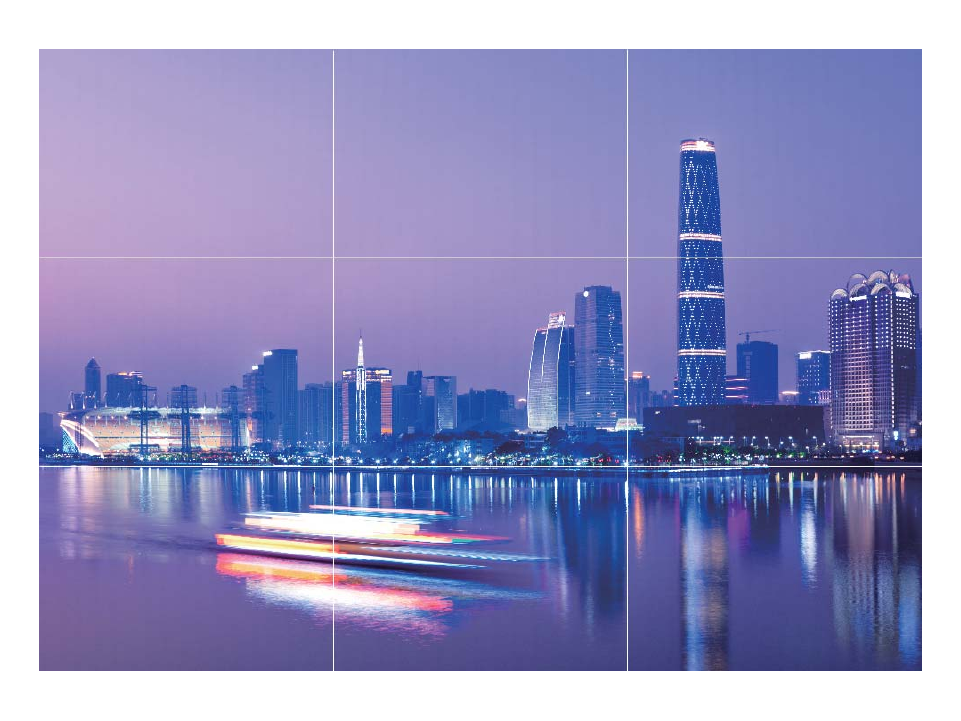
Spiral composition method: Use either the Fibonacci spiral (left) or Fibonacci spiral (right)
assistive lines. Place the subject of your photo within the center of the spiral.
Camera
40

AI camera disabled, Intelligent Photo Scene
Identication
AI camera disabled can automatically identify your current photography scene and intelligently
adjust the color and brightness of the photo, so you don't need to repeatedly adjust your camera for
the perfect shot.
AI camera disabled is a preset camera feature on your Phone that intelligently identies your current
photography scene and automatically adjusts the color and brightness of your photo to help you
achieve better effects.
AI camera disabled provides you with the following features:
lIntelligently identies photographing scenes and improves photo effects: AI camera
disabled supports multiple scenes, such as the stage, beach, blue sky, greenery, and text scenes.
After smart identication, AI camera disabled automatically adjusts the color and brightness of the
camera and recommends an optimal mode (such as the portrait, greenery, or text mode) to improve
photo effects.
lEnables automatically with various preset camera settings ready: When you turn on your
camera and enter Standard camera mode, AI camera disabled will be enabled automatically with
camera settings readily congured according to the photography scene, which saves you the trouble
of repeated manual adjustments.
Camera
41

lAI camera disabled is only available when you take photos using the rear camera.
lAI camera disabled is automatically disabled when you switch to Portrait mode, Wide
aperture mode, or Moving picture mode.
Use Portrait Mode to Take Stunning Portraits
Want to make your seles or group shots even more beautiful? Portrait mode provides you with
customized options to make every photo beautiful and memorable.
Enable Portrait mode and make your photos shine: Open Camera > Portrait, and you can set
the following parameters to make your photos shine. After making the adjustments, touch to
take photos.
lBlurred effect: If there is a light source in the background, touch the icon in the viewnder
and select different blurred effects.
When the ambient light is not low, a light source (such as neon light and street light) in the
background will produce an ideal blurred effect.
llighting effect: Touch the icon in the viewnder and select a stage lighting effect.
Taking a photo from far away will reduce the lighting effect.
lBeauty effect: Touch in the viewnder and drag the slider left or right to adjust the beauty
level. A larger Beauty level value produces more distinct beauty effect.
Use AR lens to Add Effects to Your Photos
Tired of taking boring pictures? You can use AR lens to add a variety of stickers or change the
background of your photos to make them look more interesting.
Open Camera > AR lens.
There are several effects to choose from to make your photos stand out:
l3D Qmoji: Touch 3D Qmoji, and select an animated Qmoji. The Qmoji will then mimic and act out
your facial expressions and actions accordingly. Touch to record, or touch
GIF
and then touch
and hold to create your own personalized Qmoji.
lAdding effects to your photos or videos: Touch Effects and select an animated sticker. Then
touch to take a photo with the selected sticker, or touch to shoot a video with the
selected sticker. Some animated stickers have sound effects that will be automatically added to the
video.
Camera
42

Use Wide Aperture Mode to Highlight Your Shooting
Subjects
Wide aperture mode produces photographs with a shallow depth of eld. This creates a blurred
background that lends greater emphasis to the photo's subject.
Take a wide aperture photo: Go to Camera > More > Aperture. When shooting, touch the
screen to select a focal point, and then touch to take the photo.
lFor optimal results, ensure that the subject is positioned no more than 2 m away from the
camera.
lTouch and swipe left or right on the slider to adjust the aperture level. The smaller the
aperture value, the more blurred the background will appear.
Panorama
Use Panorama Mode to Take Panoramic Seles
Want to t more friends or scenery in a sele? Use Panorama to take seles with a wider eld of view.
1Open Camera and touch to switch to the front-facing camera.
2Go to More > Panorama.
3Hold your Phone steady and touch to take the rst picture.
4Follow the onscreen instructions and pan your Phone horizontally until the blue frame overlaps
with the square screen frame. Your camera will automatically take another picture.
5Follow the onscreen instructions again and pan your Phone in the opposite direction until the blue
frame overlaps with the square screen frame. Your camera will automatically take the last picture.
6Once complete, the camera will automatically combine the three pictures into a panoramic sele.
Use Panorama Mode to Take Panoramic Photos
Panoramas provide a wider viewing angle than ordinary photos, letting you take sweeping landscape
shots.
To capture a panorama shot, the camera takes multiple photos of objects within our visual eld and
stitches them together into a single photo.
When taking a panorama, nd a wide, open space that is some distance away from the subject
and try to avoid backgrounds that are all in one color.
1Go to Camera > More > Panorama.
2Touch at the bottom of the screen to congure the shooting direction.
Camera
43

3Hold your Phone steady, and then touch to start shooting. Slowly move the Phone in the
direction indicated, holding the device steady and ensuring that the arrow stays level with the
center line.
4Touch when you are nished. The camera will automatically stitch the photos together to
create a panorama.
Use 3D Panorama to Take 360-degree Photos
Try the 3D panorama function to capture a 360-degree view of a scene or person.
lShooting objects: Go to Camera > More > 3D panorama. Touch and hold , then follow
the onscreen prompts to slowly move your Phone around your subject in one direction. Release
to stop shooting. After shooting, touch the camera thumbnail, and then touch
3D
above the
photo to generate a 3D panoramic photo.
lShooting scenery: Go to Camera > More > 3D panorama. Touch and hold , then follow
the onscreen prompts to slowly move your Phone around your subject in one direction. Release
to stop shooting. After shooting, touch the camera thumbnail, and then touch
3D
above the
photo to generate a 3D panoramic photo.
After a 3D panorama has been generated, you can tilt your Phone or drag the photo to view the 3D
effect.
Pro Mode
Use Pro Mode to Take Scenic Photos
Want to make your scenic photos more vibrant and interesting? Use Pro mode to take unique and
personalized scenic photos.
Open Camera > More > Pro to enter Pro mode.
Camera
44

Select a metering mode based on the shooting subject: On the Pro mode screen, touch ,
and select a metering mode accordingly.
Metering mode Application scenario
Matrix Broad landscapes and seas
Center The subject is in the center of the picture, and stands out from the
background.
Spot The subject to be highlighted in the picture is relatively small, such as a
ower or a tree.
Adjust brightness based on the shooting environment:
lAdjust ISO: On the Pro mode screen, touch , and swipe left or right on the ISO slider to adjust
its value.
To avoid excessive noises, the recommended ISO is below 400. The recommended ISO for the
daytime is between 100 and 200 and above 400 for night scenes.
lAdjust the shutter speed: On the Pro mode screen, touch (shutter speed), slide on the
shutter speed slider, and drag your desired speed to the center.
The recommended shutter speed for static scenes (such as mountains) is between 1/80 and
1/125; and faster (less than 1 second) for moving subjects (such as waves). For the best result,
using a tripod when shooting a moving subject.
lAdjust EV compensation: On the Pro mode screen, touch
(9
, slide on the EV slider and drag the
selected value to the center.
Adjust AWB: On the Pro mode screen, touch
"8#
, slide on the AWB slider and drag the selected
value to the center.
lWhen shooting under sunlight, you can select . In a weak light environment, you can select
.
lTouch
to adjust the color temperature. If you want to give your photo a cozy, nostalgic
tone, increase the K value. For a cold, calm or futuristic tone, select a lower K value.
Adjust AF based on the shooting subject: On the Pro mode screen, touch
$)
, slide on the AF
slider and drag your desired mode to the center.
AF modes Application scenario
AF-S mode Static scenes (such as mountains).
AF-C mode Moving scenes (such as owing water and sea waves).
MF mode Protruding objects (such as a close-up of a ower).
Camera
45
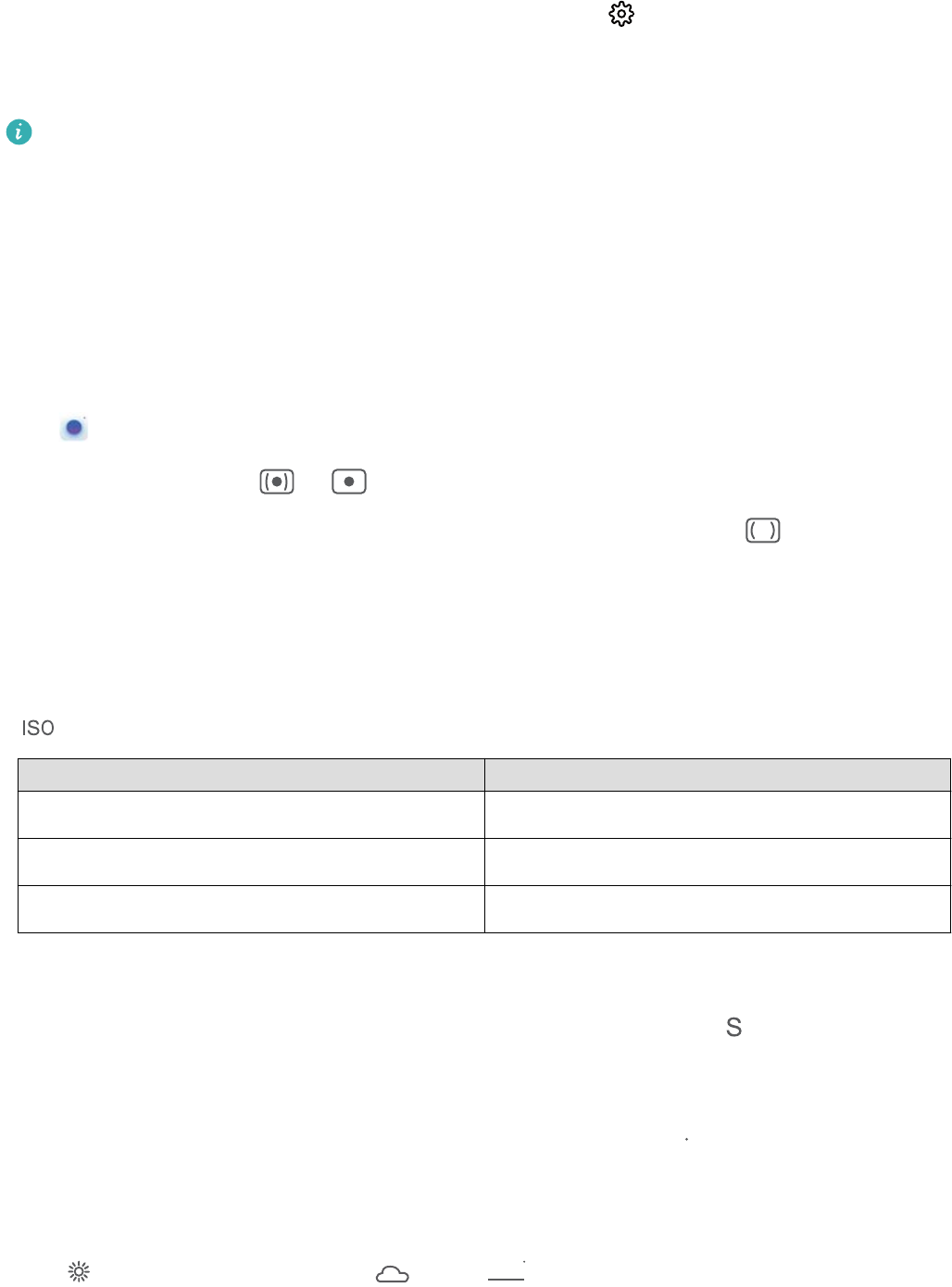
Hold your device steady when shooting: In Pro mode, touch and enable Horizontal level.
After this feature is enabled, two horizontal guiding lines will appear in the viewnder. When the
dotted line overlaps with the solid line, it indicates that the camera is horizontally aligned.
lSome settings in Pro mode may change after you change a setting. You may adjust them based
on your actual needs.
lThe recommended settings above are for reference only. You may adjust them based on the
actual condition to achieve your desired effect.
Use Pro Mode to Take Portraits
Want to take more professional portraits? Pro mode allows you to adjust your camera settings to
shoot professional-level portraits.
Go to Camera > More > Pro to enable Pro mode.
Select a Metering mode: or is recommended for taking portraits. Line up your subjects
(their faces for example) so they are in the center of the viewnder. Then touch to select your
desired Metering mode.
Adjust brightness based on the ambient light
lAdjust ISO: To avoid excessive noises, it is recommended that you use a lower ISO when taking
portraits. You should also adjust the ISO based on the actual lighting conditions. To do this, touch
, and slide it left or right to adjust the value.
Good for Recommended ISO
Outdoors Between 100 and 200
Indoors Around 400
Night scenes Between 400 and 800
lAdjust shutter speed: Choose a slower shutter speed if the ambient light is low and a faster one
when it's stronger. The recommended shutter speed for static portraits is between 1/80 and 1/125.
To shoot moving subjects, select a shutter speed of 1/125 or above. Touch (shutter speed),
slide until your desired speed is in the center.
lAdjust EV compensation: Increase the EV compensation if the subjects or background is in dim
light, and decrease the EV compensation if the light is strong. Touch
(9
, and slide until the desired
value is in the center.
Adjust AWB: Select AWB depending on the lighting conditions. When shooting in sunlight, you can
select , and for gloomy days, select . Touch
"8#
, and slide until the desired value is in the
center.
Camera
46

Adjust focus: To make your subject stand out, it is recommended that you use manual focus (MF)
when shooting portraits. When taking a close-up shot, touch the focus on the shot in the viewnder
to adjust the focus accordingly.
lSome parameters in Pro mode affect each other, so adjusting one may cause some unwanted
changes. Keep this in mind when setting up for your perfect shot.
lThe recommended settings above are for reference only. You should adjust them based on the
actual scene for best shot.
Light Painting Mode
Light Painting: Shoot Light Trails
Light painting mode automatically sets a slow shutter speed to take long-exposure shots of light trails.
This mode produces stunning photos that have an ethereal quality.
Light painting mode offers four creative shooting modes for different subjects and light conditions:
lTrafc trails: Captures light trails created by cars at night.
lLight grafti: Captures trails created by a moving light source in low-light conditions.
lSilky water: Captures silky-smooth photos of waterfalls and owing water.
lStar trails: Captures stunning photos of star trails in the night sky.
Camera
47

Use Tail Light Trails to Capture the Lights of the City
Tail light trails lets you create artistic photos of car tail lights at night.
lShoot from a distance and slightly above your subject for best results. Ensure that car
headlights do not point directly at the camera, as this can overexpose the image.
lPlace your device on a tripod or solid surface so that it does not move during the exposure.
Open Camera > More > Light painting > Trafc trails. Hold your Phone steady, and then touch
to start shooting. A preview of the image is displayed in the viewnder. Touch when you are
nished.
Use Light Grafti to Create Light Patterns
Light grafti lets you create patterns or write words by moving a light source in front of the camera.
lFind a dark location away from other light sources and ensure that the subject's silhouette is
not visible. Choose a suitably bright light source of an appropriate color, such as a small torch
or glow stick.
lPlace your device on a tripod or solid surface so that it does not move during the exposure.
Camera
48

Open Camera > More > Light painting > Light grafti. Hold your Phone steady, and then touch
to start shooting. A preview of the image is displayed in the viewnder. Touch when you are
nished.
Capture Rivers and Waterfalls with Silky Water
The Silky water feature lets you capture silky smooth photos of waterfalls and rivers.
lThis feature works best with a stream or waterfall with lots of water.
lPlace your device on a tripod or solid surface so that it does not move during the exposure.
Go to Camera > More > Light painting > Silky water. Hold your Phone steady, then touch
to start shooting. A preview of the image will be displayed in the viewnder. Touch when you
are nished.
Camera
49

Use Star Track to Capture the Beauty of Stars
Star track allows you to capture the movement of stars in the night sky.
lFor best results, choose a clear night in a location free of light pollution with an unobstructed
view of the sky.
lPlace your device on a tripod or solid surface so that it does not move during the exposure.
Go to Camera > More > Light painting > Star trails. Hold your Phone steady, then touch to
start shooting. A preview of the image will be displayed in the viewnder. Touch when you are
nished.
Camera
50

More Capture Modes
Use Time-Lapse to Create a Short Video
Use Time-lapse mode to capture images over a long period of time and condense them into a short
video. Capture and watch nature in its entirety: blooming owers, drifting clouds, or even star trails
against the night sky.
lRecording a time-lapse video continuously for long period of time may consume battery power
and use up storage space.
lPlace your device on a tripod or at surface to keep it steady while recording.
lBefore you start, ensure that the scene is well lit and the camera is in focus. Position the
camera carefully to t relevant background objects as much as possible.
1Go to Camera > More > Time-lapse, and touch to start recording a time-lapse video.
2Touch to nish recording.
3You can then go to Gallery to play your time-lapse video.
For best and optimal result, the recording and playback speeds are automatically adjusted by
the system.
Camera
51

Custom Shooting Modes
Want to discover new ways of using your camera besides the preset functions? You can download or
delete shooting modes based on your needs.
Download more shooting modes: Open Camera > More > Download. Select the shooting
modes to download, and touch ADD.
Update shooting modes: To update shooting modes, go to the More screen. The shooting modes
with available updates will have red dots next to them. You can follow the onscreen prompts to
update them.
Delete shooting modes: Go to More > , and touch to delete unneeded shooting modes.
To ensure that Camera works normally, preset shooting modes cannot be deleted.
Take Moving Pictures
Make your photos more dynamic and fun by taking moving pictures to prolong life's wonderful
moments.
With moving pictures, you can record a scene approximately one second before and after pressing the
shutter button. When browsing photos in Gallery, view the static picture taken or play a dynamic
moving picture effect and sound.
Take moving pictures: Open Camera, touch on the top of your screen, then touch to
take a moving picture.
View moving pictures: Moving pictures will be saved to Gallery in JPG format. Go to Gallery >
Albums > Camera, touch pictures with the icon, and touch on the top of the picture to
view a dynamic effect. The moving picture automatically stops after a complete playback. You can
also touch the screen to stop the playback.
Share moving pictures: Go to Gallery > Albums > Camera, touch the moving picture you want
to share, then touch to select a sharing method.
Moving pictures can be shared directly through Wi-Fi, Bluetooth, Huawei Share, and more. The
receiving device must be a Huawei device that supports the capture of moving pictures in order to
play the moving picture effect. When you share moving pictures to third-party apps or
incompatible devices, moving pictures will be displayed as static images.
Camera
52

Gallery
Customize Highlights Albums
Highlights creates albums based on time and location information and generates a short video clip so
you can instantly relive the good times. You can make a custom Highlights album by choosing your
favorite photos and videos, then selecting a video template and the background music.
lTo start using Highlights, open Camera, touch , and enable GPS tag.
lCheck that your Phone is connected to the Internet.
lHighlights albums are created automatically when your Phone is charging, the screen is turned
off, and the battery is at least 50% charged. This process may take some time. Highlights
albums will not be created if there are fewer than 7 photos or videos in Gallery.
Open Gallery. From the Highlights tab, touch the Highlights album you want to view or edit.
Now you can do any of the following:
lPlay or edit Highlights: Touch to play the video. Edit the video template or background music
from the options bar at the bottom of the screen.
lAdd or delete photos and videos from Highlights: To add a photo or video, touch , select a
photo or video, then touch . To delete, touch and hold a photo or video, touch , then
touch Move.
Only videos in MP4 format can be added to Highlights.
lShare photos and videos from Highlights: Touch and hold any photo or video in the album,
touch , select a sharing method, and follow the steps to complete the process.
lRename the album: Go to > Rename to enter a new name.
lDelete the album: Go to > Delete, then touch Delete.
Photo Management
Photo Recognition Helps You Sort Photos Intelligently
Is sorting your photos taking too long? Are you having a hard time nding the photo you're looking
for? Photo recognition can automatically sort your photos into categories such as portraits, locations,
scenery, and food in Gallery, so you can quickly nd what you're looking for.
Sort photos intelligently: Gallery will automatically sort the photos you take into categories such as
portraits, locations, scenery, and food, so you can quickly nd what you're looking for.
Customize photo aggregation: After Gallery automatically aggregates different portrait albums for
you, you can manually change the album names of portraits and set the relationship (for example,
53

"Baby" and "Mom"). After the setting is complete, you can view different photo albums by name. You
can also search for a photo by searching for the name and relationship in the Gallery search bar.
Aggregate group photos into albums: After Gallery intelligently identies the categories, you can
name the generated albums. If there are more than 10 group photos, Gallery will cluster them and
generate a group photo album.
Edit Videos
Crop a video: Open Gallery, select the video you want to edit, and touch to enter the video
editing screen. You can drag the slider in the crop area to select the segment you want to keep, and
touch to nish cropping the video.
Adjust the video resolution: As you drag the slider to select the video segment you want to keep,
you can touch to preview the cropped video. You can also touch the video resolution options on
the editing screen to adjust the video resolution.
The higher the resolution, the clearer the video, but also the greater the storage space required.
Choose according to your needs.
Adjust Slow Motion Video Playback
Open Gallery, select the recorded slow motion video, and touch to play. Touch the screen
and drag the slider in the edit area to select the segment you want to play in slow motion.
Edit Photos
Crop, rotate, and apply a variety of effects (such as grafti, custom watermarks, and lters) to your
photos in Gallery.
Open Gallery, select the photo you want to edit, then touch . Edit the photo in the following
ways:
lRotate: Touch and drag the angle wheel to the desired orientation. You can also touch Rotate
to rotate your photo 90 degrees or touch Mirror to ip it.
lCrop: Touch and drag the grid or its corners to make your selection. You can also select a xed
ratio and drag the corners of the grid to crop the photo.
lAdd lter effects: Touch to select a lter.
lColor splash: Touch to select the colors you want to highlight. Other parts of the photo will
be black and white.
lBlur: Touch , select a blur mode, and drag the slider to adjust the blurriness.
lAdjust photo effects: Touch to adjust the brightness, contrast, saturation, and other qualities
of a photo.
Gallery
54

lBeautify a portrait: Beauty is provided for portraits. Touch to apply features such as
Smooth, Blemishes, Thin face, and Enhance eyes to make a portrait more attractive.
lPixelate: Touch to select a mosaic style and size to censor parts of a photo.
lGrafti: Touch to select a brush and color to add grafti.
lAdd watermarks: Touch to select a watermark (such as Time, Location, Weather, or
Mood).
lAdd a text element: Touch to select an element style and font format.
Browse and Share Photos or Videos
All photos and videos are stored in Gallery and can be viewed by time, location, or album.
View photos in full screen: Open Gallery and touch a photo to view it in full screen mode.
Touch the screen again to hide the menu. In full screen mode, you can:
lView basic information about a photo or video: Swipe up on a photo or video to view basic
information.
lZoom in and out: Spread or pinch together two ngers on the screen to zoom in and out. If a
photo has a higher resolution than that of the screen, you can zoom in using two ngers. Once you
take your ngers off the screen, the photo can only be enlarged up to twice its original size.
lView shooting settings: Touch and scroll down to view details about the photo in the pop-
up box, including ISO (sensitivity), EV (exposure compensation), and resolution.
lRename the photo: Touch > Rename to enter a new name.
lSet the photo as a home screen wallpaper or contact picture: Go to > Set as, then select
Wallpaper or Contact photo.
Share a photo or video: Open Gallery. On the Photos tab, touch and hold any item to access
the selection screen. Select the items you want to share, touch , then select a sharing method,
and follow the steps to complete the process.
View by shooting time: On the Photos tab, photos and videos are displayed by when they were
taken. To allow timestamps to be displayed when you browse photos in full screen mode, go to
> Settings and enable Show time and location. To switch between daily and monthly views,
separate or pinch together two ngers on the screen.
View by shooting location: Photos or videos taken while GPS tag is enabled (in Camera settings)
can be viewed in Map view. On the Photos tab, touch . Photos or videos containing location
information will be marked on the map. Separate two ngers on the screen to zoom in on the map
and view details about the shooting location. Touch a photo thumbnail to view all the photos and
videos taken at that location.
Gallery
55

View by album: You can view photos and videos by album. Some photos and videos are stored in
default albums. For example, videos recorded with the camera are saved in the Videos album.
Screenshots and screen recordings are saved in the Screenshots album.
Play slideshows: On the Photos tab, go to > Slideshow to play slideshows. Touch the screen
to pause the playback.
Organize Albums
Add an album: From the Albums tab, touch Add album, name the album, then touch OK. Select
the photos or videos you want to add.
Move photos and videos: Move photos and videos from various albums into the same one for easy
management and browsing. Touch and hold a photo or video you want to move until is
displayed, then select all the photos and videos that you want to move. Touch to select the
desired album. Once the items are moved, they will no longer be in their original albums.
Add photos and videos to favorites: Add photos and videos to favorites for easier viewing. Open
the photo or video that you want to add to the My favorites album, then touch . Favorited
photos and videos will remain in their original albums and have a icon on their thumbnails.
Hide albums: Hide albums that you don't want others to see to ensure personal privacy. On the
Albums tab, go to > Hide albums and toggle the switches on for albums that you want to hide.
Camera, Videos, My favorites and Screenshots albums cannot be hidden.
Delete photos and videos: Touch and hold a photo or album until the icon appears. Select the
items you want to delete, then go to > Delete. Deleted photos and videos will remain for a time
in the Recently deleted album before being permanently deleted. Days remaining before deletion are
marked on the photos. To permanently delete a photo or video manually, touch and hold its
thumbnail, then go to > Delete.
Recover deleted photos and videos: In the Recently deleted album, touch and hold a photo or
video until the icon appears. Select the items you want to recover and touch to restore
them to their original albums. If the original album has been deleted, a new one will be created.
Gallery
56

Phone Manager
Use Optimize
Have you noticed that your Phone has slowed down recently? Do you worry that it might be
vulnerable to malware and other security threats? Use Optimize to make your Phone run smoother
and protect it from security threats.
Open Phone Manager, and touch OPTIMIZE. Your Phone will automatically optimize its overall
performance, security, battery performance, and device management. You can also customize the
optimization options. The system will recommend that you use Optimize. This will help you increase
running speed, check for security risks, optimize power consumption, and monitor and block
unknown phone numbers and harassment calls.
Manage Mobile Data Usage
Manage mobile data usage to avoid incurring extra charges.
Open Phone Manager, and touch Data usage to view data usage statistics or enable Smart
data saver.
lData usage this month: Check the data usage of individual apps.
lNetwork access: Manage Internet access permissions for each app.
lSmart data saver: Enable data saving mode (prevents background apps from using mobile data)
and select the apps that have unrestricted data access.
Enable Smart Power Saving Management to Optimize
Power Consumption
Smart power saving management helps you effectively extend the battery life of your Phone.
Open Phone Manager and touch to perform the following:
lComprehensive power consumption analysis and optimization: Touch Optimize battery
usage to check for power consumption problems and automatically perform optimizations.
lEnable Power saving mode or Ultra power saving mode: Enable Power saving mode or Ultra
power saving mode based on your device's battery level to extend battery life. Once Power
saving mode is enabled, the icon will be displayed in the status bar, depending on the battery
level. Power saving mode reduces power consumption by limiting background app activity, visual
effects and sounds. Ultra power saving mode adopts stricter background app control, allowing
you to disable all features except Wi-Fi, mobile data, and any other specied ones.
57

lView power consumption details: Touch Power consumption details. In the Power
consumption details section, colored bars beneath the Charging graph indicate when your device
was charging. Gaps between the bars mean it was not charging. This feature does not consume
power. Touch Battery usage to view power-intensive apps and hardware.
lEnable smart resolution to save power: Smart resolution is a function that automatically
decreases the resolution of your device to save power. Enable Screen resolution, and select Smart
resolution. Your device will automatically adjust the screen resolution based on the apps that are
currently running to save power. Enabling smart resolution may affect image quality. You can also
manually set the screen resolution to save power when high resolution is unnecessary.
lDisplay remaining battery percentage in the status bar: Enable Battery percentage.
To learn more about power saving settings, open Phone Manager and go to > More
battery settings. From here you can perform the following:
Check power-intensive apps: Touch Power-intensive app history. Disable apps that are not in
use.
Once Performance mode is enabled, device performance can be enhanced and adjusted to
different scenarios. This improves your gaming experience, but also increases power consumption
and may cause your device to heat up.
Phone Manager
58

Email
Add Email Accounts
Add your email account to your Phone for convenient email access at any time. If you have questions
about specic settings while conguring your email, please consult your email account provider.
Add a personal email account: Open , select an email service provider or touch Other, enter
your email address and password, then touch Sign in and follow the onscreen instructions to
congure your account. The system will automatically connect to the server and check server settings.
Add an Exchange account: Exchange is developed by Microsoft and used by companies as their
internal email system. If your company email uses Exchange servers, you can log in to your work email
on your Phone. Go to > Exchange, enter your email address, username, and password, then
touch Sign in and follow the onscreen instructions to congure your account. The system will
automatically connect to the server and check server settings.
After conguration, the system will open the Inbox screen by default.
Manage Email Accounts
You can manage multiple email accounts concurrently on your Huawei Phone.
Open Email. You can:
lCheck emails: On the Inbox screen, touch , and then select an email account to view the list
of your emails. Swipe down to refresh the list of emails. Open an email to read, reply, forward, or
delete it. Swipe left or right on the screen to view the previous or next email. To delete multiple
emails, touch and hold an email to go to the email management screen, select the emails, and
touch .
lSync emails: Swipe down on the Inbox screen to refresh the emails list. Go to > Settings,
touch an account, and then enable Sync email. To sync automatically, touch Sync frequency and
select the syncing time to complete conguration.
lSearch emails: On the emails list screen, touch the search bar, and enter a keyword, such as email
subject and content.
lAdd multiple email accounts: Go to > Settings > Add account, select your email service
provider, and enter your information.
lSwitch between email accounts: On the emails list screen, touch , and then touch an
account name to switch to.
lCongure email accounts: On the emails list screen, go to > Settings, select an account to
set Account name, Default account, and Remove account.
59

Manage VIP Email Contacts
Worried about missing an important contact's email among a sea of emails? You can add important
contacts to the VIP list. Your device will automatically move emails from VIP contacts to the VIP
mailbox.
Open Email, and go to > Settings > VIP contacts. From the VIP list screen, go to Add >
Create or Add from contacts.
Add or remove VIP contacts: On the VIP list screen, touch or to manage VIP contacts.
Create Smart Groups
Tired of having to manually enter multiple recipients when sending emails? Want to send emails to a
xed group of recipients? Use Smart groups to create different email groups.
Open Email and open an email. From the sender or recipient eld, touch Add to group. Select
the sender or recipient that you want to add to the group, and touch OK. On the group selection
screen, touch Create group. Enter a group name and then go to Save.
After creating a group, from the list of contact groups, select the group you want to edit. You can
then:
lAdd members: Touch to add new members to the group.
lSend messages: Touch to send a message or touch to send an email.
Import Important Events to Calendar
Worried about missing an important event among a sea of emails? You can import important events
to Calendar and view them at anytime and anyplace.
Open Email, select the event from the email, and select > Add to calendar.
Set Auto Response for Exchange Email
Unable to reply to emails on vacation? Enable auto responses to automatically reply to emails.
Open Email, go to > Settings, and select your Exchange account. Touch Automatic
replies, enable Automatic replies, set the content and time of your auto reply, and then touch
Done.
Email
60
Calendar
Navigate the Calendar
Want to bring order to your busy life? Try using the app Calendar on your Huawei Phone to manage
your daily schedule.
Create an event: Open Calendar, touch , and enter your event information including title,
location, and start and end times. Go to Add reminder to add a reminder for your event, then touch
.
Search events: On the Calendar page, touch and enter the event keywords, such as title or
location.
Congure Calendar: On the Calendar page, go to > Settings to customize calendar display
and reminders.
Check the exact location of the destination: Open Calendar. In a view or schedule, touch the
event where the destination has been set to view the exact location information about the event.
Query weather: Open Calendar, and touch an event in a view or schedule to view the weather
of the day in the event.
Check conference participants: Open Calendar, and touch the conference reminder to view
the participants.
Import To-Dos to Keep Your Work Organized
Many to-dos cannot be handled in time. What can I do if I forget to handle them? Import each to-do
item to Calendar for easy reference and you will not miss any important events.
Import meeting reminders: Open Calendar, go to > Manage accounts > Add account,
and follow the onscreen prompts to add your work emails (Exchange account) to the calendar to
check meeting reminders.
Share an event: Touch an event on the calendar or under schedule, then touch and follow the
onscreen prompts to share the event using any of the multiple methods.
View Global Holidays
Traveling overseas for work or holiday? Download your destination country's holiday information
ahead of time to better plan your work and schedule.
This feature requires an Internet connection. Connect to a Wi-Fi network to avoid incurring
unnecessary data charges.
61

Open Calendar, go to > Settings > National (Regional) holidays, and enable the
corresponding switch for your destination country. Your device will automatically download the
holiday information.
Calendar
62
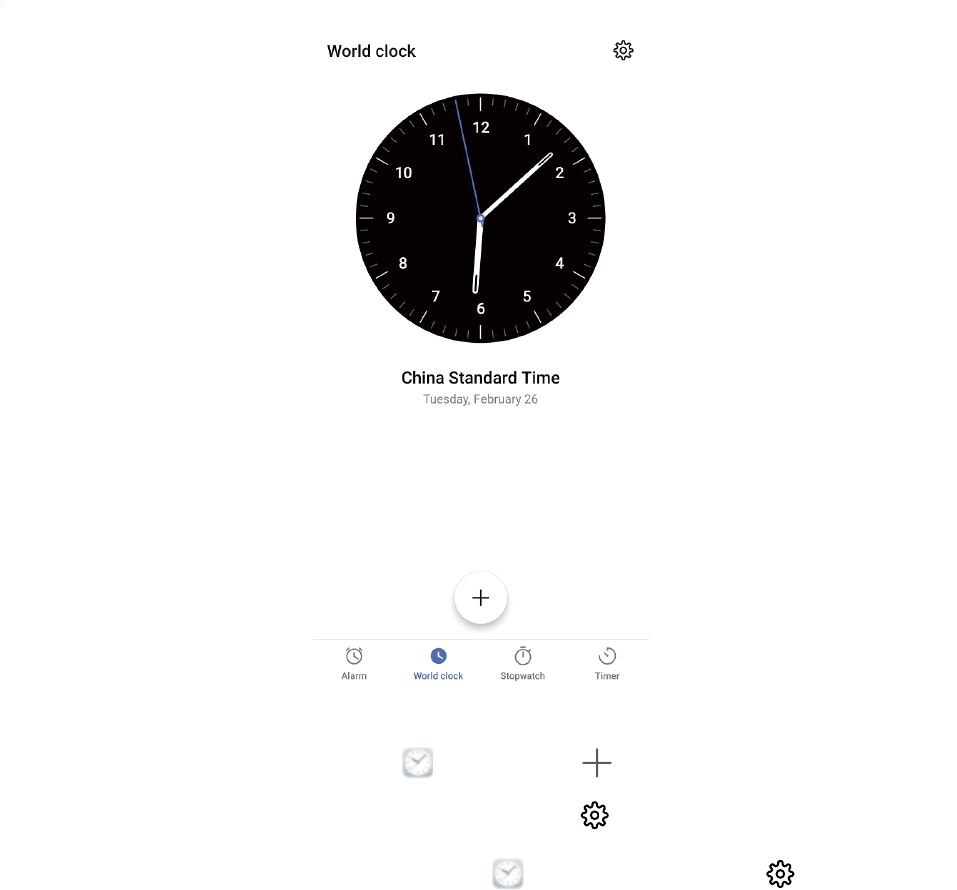
Clock
Use the Clock
You can nd various functions, including alarm, world clock, stopwatch, or timer in Clock.
View the time all over the world: Open Clock, touch on the World clock tab, and enter
the name of a city or select one from the list of cities. Touch to set the date and time.
Display the time in two different regions: Open Clock, and then go to > Date & time
on the World clock tab. Enable Dual clocks, touch Home city, and select your city of residence
from the list.
63

Network-provided
date and time
Time and date
in your selected city
Two times will only be displayed if you are in a different region than the one you selected as your
home city; otherwise you will only see one.
Clock
64

Notepad
Manage Your Notes to Keep Your Records in Order
Want to share important notes or add something to favorites? Manage your notes to keep your
records in order.
Share a note: Want to send your meeting notes to your colleague? On the list page of All notes or
All to-dos, open the note you want to share, then touch to select a sharing method and follow
the onscreen prompts.
Add a note to favorites: Want to add a note to favorites so you can refer to it later? On the list
page of All notes, swipe left on a note and touch . Alternatively, open the note you want to add
to favorites and touch .
Delete a note: Want to delete an outdated note? On the list page of All notes or All to-dos, swipe
left on a note, then touch . Alternatively, touch and hold a note to view options, select the note(s)
you want to delete, and touch .
Search notes: Want to quickly nd a note? Touch the search bar on the list page of All notes and
enter the keywords into the search bar. Alternatively, swipe down on the home screen to access the
search bar, and enter the keywords into the search bar.
Generate a to-do list: Want to create a shopping list? On the page of Notepad, touch > ,
enter an item, and then touch Save. Add multiple items to generate a to-do list.
After completing an item, go to the editing page of All to-dos, and select on the left of the
completed item.
Add a handwritten note: Want to quickly record your drawing or handwriting? Go to Notes > ,
touch , write your notes, and touch to save it. You can write and draw in Notepad.
Add tags to notes: Want to easily view the categories of your notes? On the editing page of Notes,
touch , and use different colored tags to categorize different content for a clearer view of your
notes.
65

Utilities
Use Recorder to Make Audio Notes
Have you ever felt like you do not have enough time to take important notes during a meeting? Do
you need to sort out a pile of notes from an interview or class? Recorder lets you record audio les
that you can conveniently play back later.
Open Recorder, and touch to begin recording. While recording, you can add tags at
important points. Touch to nish recording and save the audio le.
After the recording is completed, you can:
lPlay recording from tag: In the recording le list,touch New recording , and then touch a
recording to go to the play screen. On the play screen, you can then touch a tag that you have
added and play the recording from that point.
lManage recordings: Touch and hold a recording for options such as sharing or deleting the
recording.
In the recording le list, touch and hold a recording le, and then touch > Details to view its
storage location.
66

Multiple Users
Set and Use Multiple Users
Want to have more than one user account on your Phone to keep your work and personal life
separate? You can add multiple users to your Phone and switch between them with a single touch.
Add Users or Guests
A maximum of three users and one guest can be added.
Add a user: Touch Settings, and go to Users & accounts > Users. Touch Add user, enter a
name for the user and touch ADD. After you add a new user, you can switch to the new user and
follow the onscreen instructions to congure the user's account settings.
Add a guest: Touch Settings, and go to Users & accounts > Users. Touch Add guest > ADD
to create a guest.
Set a user account name and prole picture: After adding a user, you can set a user account
name and a prole picture for the user. To do this, switch to the relevant user, and touch . Follow
the onscreen instructions to change the user name and prole picture.
Allow a user to make calls, send messages, and share call records: The basic call functions can
still be used after you switch to a different user mode. The added new user can make calls, send
messages, and share call records with the phone owner. The guest user can make calls and share call
records with the phone owner. To do this, log in with the owner account, and touch Settings,
and then go to Users & accounts > Users. Select the desired user, and touch Allow calls,
messages, and sharing of communication history.
Delete Users or Guests
To delete a user, select one of the following methods:
lLog in with the owner account, touch Settings, and then go to Users & accounts > Users.
Select the desired user, and touch Delete user > Delete.
lLog in with the owner account, swipe down from the status bar, and then go to > More
settings. Select the desired user, and touch Delete user > Delete.
To delete a guest, touch Settings. Go to Users & accounts > Users, and then touch Guest >
Delete guest > DELETE.
Switch Between the Owner Account, User, and Guest Modes
To switch between the owner account, user, and guest modes, select one of the following methods:
lSwipe down from the status bar, and touch . Then, touch the prole picture of the desired user.
67
lTouch Settings, and go to Users & accounts > Users. Then, touch the user name or prole
picture of the desired user.
You will be prompted to enter the password to unlock the screen when switching back to the
owner from another user.
Multiple Users
68
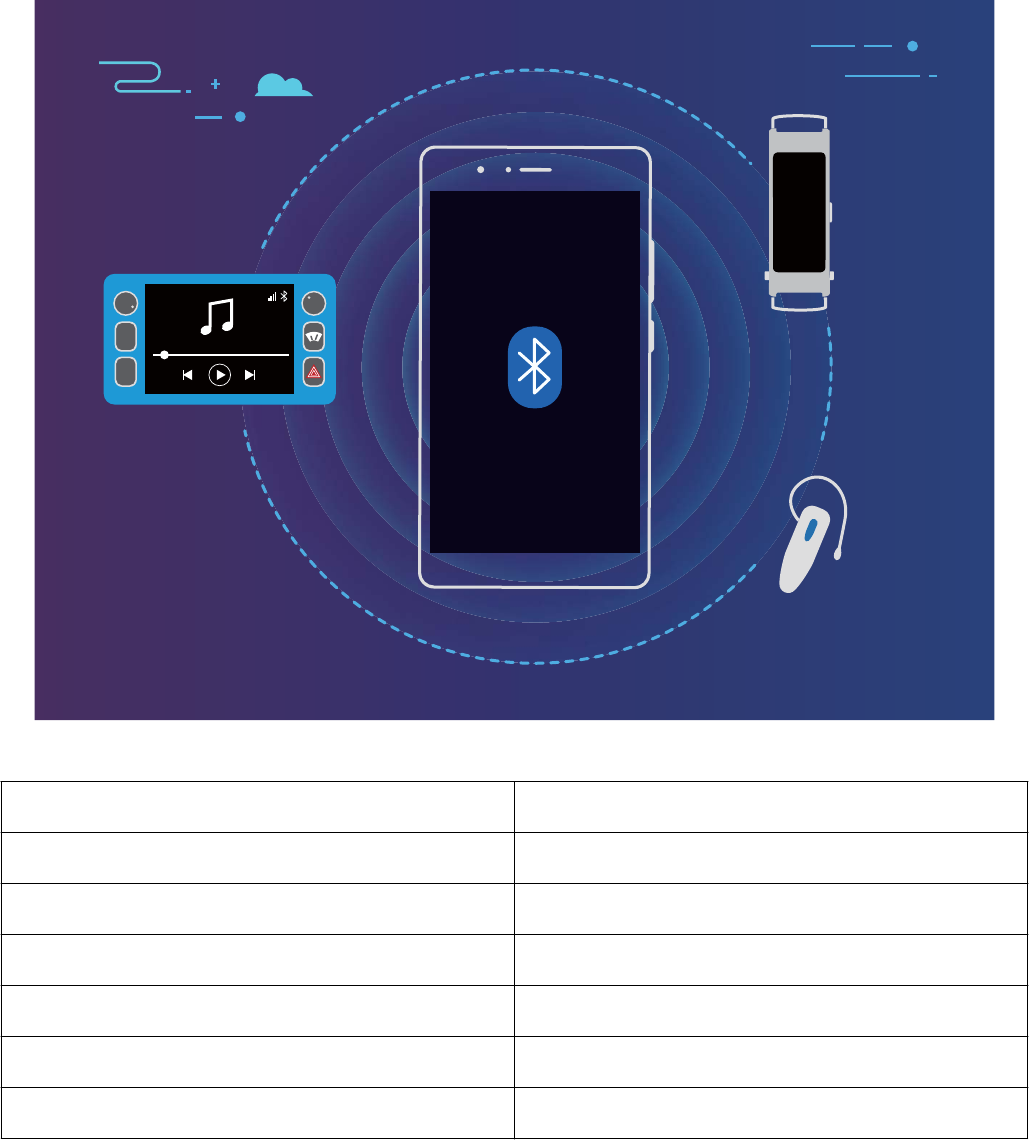
Device Connection
Connect Your Phone to Bluetooth Devices
Use Bluetooth to connect your Phone to Bluetooth headsets and in-car Bluetooth to navigate or listen
to music while you drive. You can also connect your Phone to Bluetooth wearables to record and
manage tness data. Connecting Bluetooth devices to your Phone does not increase power
consumption signicantly.
$0
)0
Bluetooth protocols used by Huawei devices and their functions:
HFP, HSP Make calls
A2DP Play music
AVRCP Control music playback
OPP Transfer les
PBAP Sync contacts
MAP Sync text messages
HID Operate Bluetooth keyboards and mouses
69

PAN Tethering
BLE Connect to Bluetooth Low Energy (BLE) devices
Enable or disable Bluetooth: From the home screen, swipe down from the status bar, open the
shortcuts panel, and then touch to enable or disable Bluetooth. Touch and hold to open the
Bluetooth settings screen.
Pair a Bluetooth device: Enable Bluetooth from the Bluetooth device's settings screen. Check that
the Bluetooth device is set to visible. From Available devices, touch the device you want to pair and
then follow the onscreen instructions to complete pairing.
Unpair a Bluetooth device: Enable Bluetooth from the Bluetooth device's settings screen. Touch
next to the name of the paired device and then touch Unpair.
Change Bluetooth device name: From the Bluetooth settings screen, enable Bluetooth. Touch
Device name, enter a new name for the device, and then touch Save.
View Bluetooth help: From the Bluetooth settings screen, touch to view information on how to
establish Bluetooth connections with in-car systems, headsets, speakers, wearables, Phone, tablets,
and computers.
NFC
Introduction to NFC
NFC (Near Field Communication) is a technology that enables short-distance wireless communication.
Through NFC's point-to-point mode, two devices can transfer data in real time when they are within
10 cm (4 inches) of each other. Photos, networks, and apps can all be quickly shared using this
method. NFC read/write mode lets you check product information contained in NFC tags. NFC card
emulation mode allows your device to act as a bank card for quick and easy payments.
Only MAR-LX1A and MAR-LX1M support NFC. Please keep the NFC area close to other devices or
objects while using the NFC function.
Device Connection
70
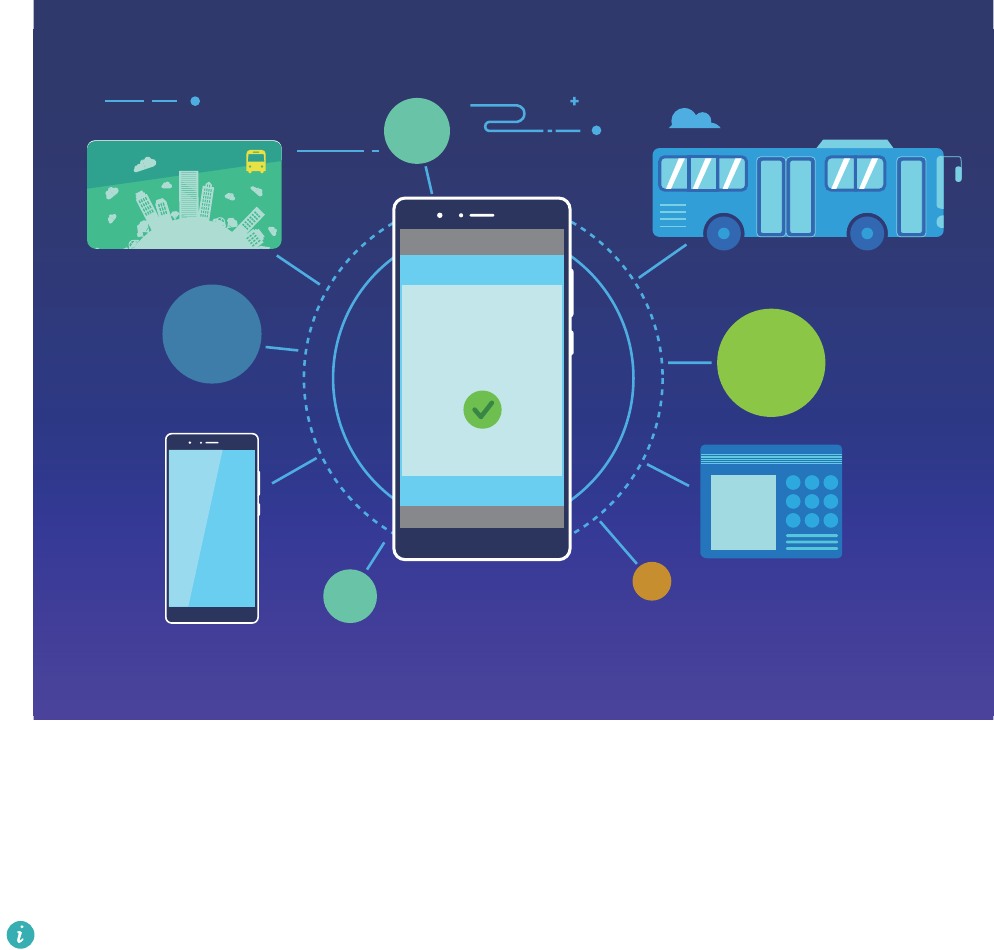
NFC
123
456
789
Use NFC to Share Data Quickly
NFC lets you share data across two devices quickly without the hassle of pairing. Simply place the NFC
detection areas of both your devices in close proximity to each other, and then you can transfer les
and other data quickly between the two NFC-enabled devices.
Only MAR-LX1A and MAR-LX1M support NFC. Please keep the NFC area close to other devices or
objects while using the NFC function.
Device Connection
71
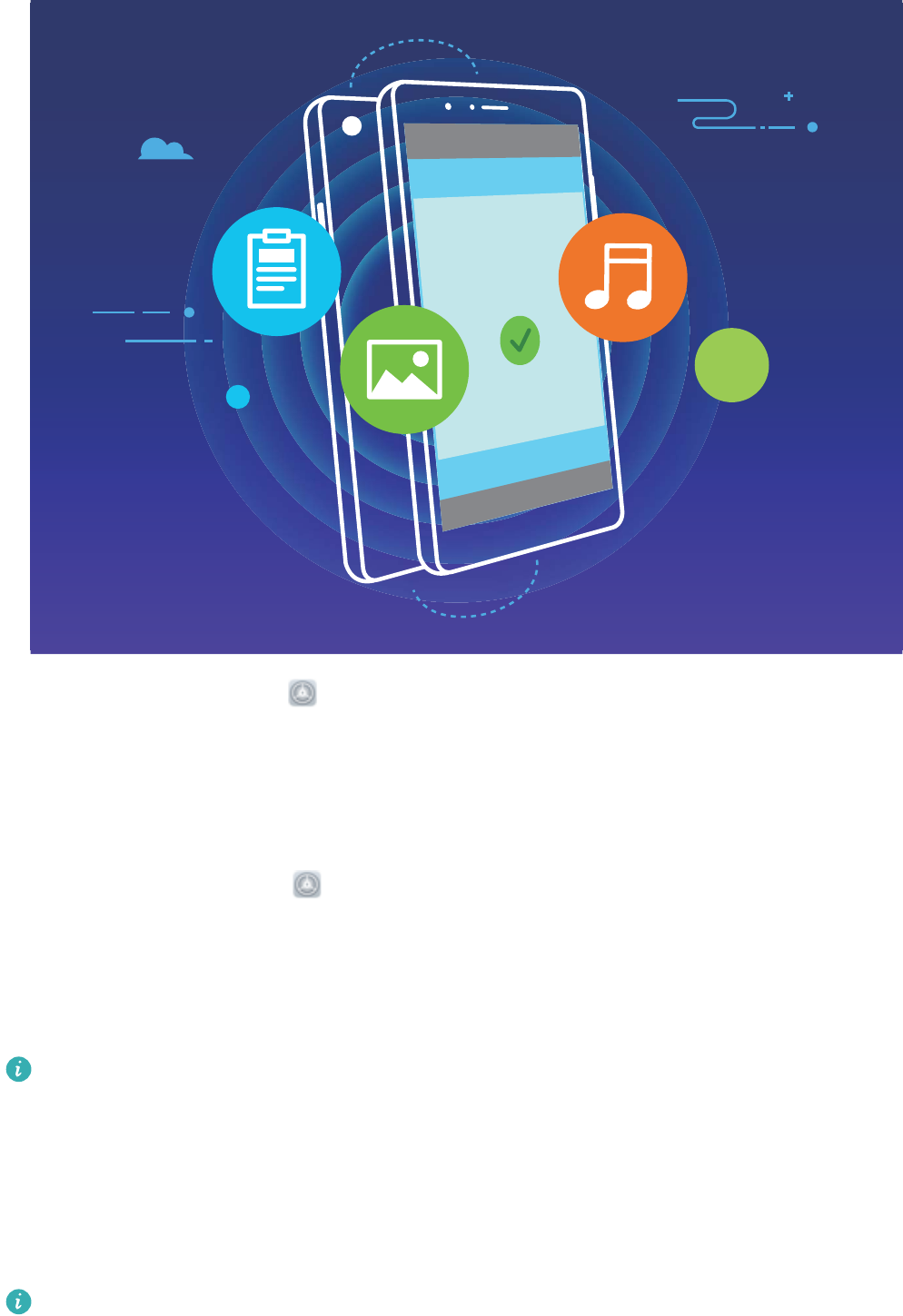
NFC
Use NFC to send data: Open Settings, touch Device connectivity and enable NFC and
Huawei Beam. Select the les you want to send and touch Share > Huawei Beam. Keep your
Phone unlocked and the screen on. Place the NFC detection areas of both devices close together.
Once a connection is established, the transmitting device will play an audio alert and minimize the
sharing screen. Touch the transmitting device's screen to send les.
Receive les over NFC: Open Settings, then touch Device connectivity and enable NFC and
Huawei Beam. Keep your Phone unlocked and the screen on. Place the NFC detection areas of both
devices close together. Once a connection is established, the transmitting device will play an audio
prompt. After the prompt, please wait for the le transfer to complete. Received les are saved by
default to the Beam folder of your Files.
If there is an option to enable Read and write/P2P on the NFC screen, ensure that it is enabled.
Features may vary depending on your carrier.
Use NFC to Quickly Establish Connections between Devices.
Place the NFC detection areas of two devices close together to quickly establish a Bluetooth or Wi-Fi
connection between them. You can also use this method to establish a Wi-Fi Direct connection or
share a Wi-Fi hotspot without searching for devices, pairing and entering connection details manually.
Only MAR-LX1A and MAR-LX1M support NFC. Please keep the NFC area close to other devices or
objects while using the NFC function.
Device Connection
72
NFC
Using Bluetooth pairing as an example, enable NFC, Huawei Beam, and Bluetooth on both devices.
Open the Bluetooth pairing screen on both devices and place the NFC detection areas of devices close
together. When the sending device plays an audio prompt and content on the screen shrinks, follow
the onscreen instructions and touch the screen on the sending device to establish a Bluetooth
connection
If there is a Read and write/P2P switch on the NFC screen, ensure it is also enabled. Features
may vary depending on your carrier.
Connecting USB Device
Transfer Data between Your Phone and Computer
Use a USB cable to connect your Phone to your computer and transfer data.
Select USB connection mode
Use a USB cable to connect your Phone to the computer, you can then select a default connection
method. You can transfer photos and les between your Phone and computer, or charge your Phone
through the USB connection to your computer.
Swipe down from the status bar to open the notication panel, then touch Settings > Touch for
more options and select a method for connecting your device and your computer.
lTransfer photos: Transfer photos between your Phone and computer.
lTransfer les: Transfer les between your Phone and computer.
Device Connection
73
lCharge only: Charge your Phone with just a USB cable.
lReverse charge: Connect your Phone to another device with a USB Type-C cable to charge the
other device.
lInput MIDI: Use your Phone as a MIDI input device and play music on your computer.
Transfer data over a USB port
Connect your Phone to your Computer using a USB cable to transfer data and perform other tasks.
lTransfer les: Media Transfer Protocol (MTP) is a type of transmission protocol for media les. You
can transfer les between your Phone and computer using this connection method. First, install
Windows Media Player 11 or later on your computer.
Swipe down from the status bar to open the notication panel, and then set your USB connection
method to Transfer les. Your computer will automatically install the necessary drivers. After the
installation is complete, click the new drive icon named Phone on the computer to view the les on
your Phone. You can use Windows Media Player to view the media les on your Phone.
lTransfer images: Picture Transfer Protocol (PTP) is a protocol that allows you to transfer images.
You can upload and share photos between your Phone and computer using this connection
method.
Swipe down from the status bar to open the notication panel, and then set your USB connection
method to Transfer photos. Your computer will automatically install the necessary drivers. After
the installation is complete, click the new drive icon named Phone on the computer to view the
images on your Phone.
lTransfer MIDI data to your Phone: MIDI (Musical Instrument Digital Interface) is an industry
standard audio format for composing music established by electronic instrument manufacturers.
Swipe down from the status bar to open the notication panel, and then set your USB connection
method to Input MIDI. You can then use Phone to receive and process MIDI messages transmitted
by other devices.
Huawei Share
Introduction to Huawei Share
How do I quickly share apps, transfer pictures and les between my Phone and other mobile devices,
or between my Phone and computers? Huawei Share allows you to quickly share apps and wirelessly
transfer les between your phone, tablet, and computer.
Huawei Share supports data transfers between the following devices:
lBetween mobile phones and tablets: You can use Huawei Share to share photos and les on your
Phone with other phones or tablets. Touch and hold the apps, photos, and les you want to share,
and then select Huawei Share to enjoy a simple and easy sharing process that doesn't consume your
mobile data.
lBetween your Phone and computer (PC or Mac): You can use Huawei Share to share photos and
les on your Phone with your computer, and you can also edit these photos on your computer.
Device Connection
74
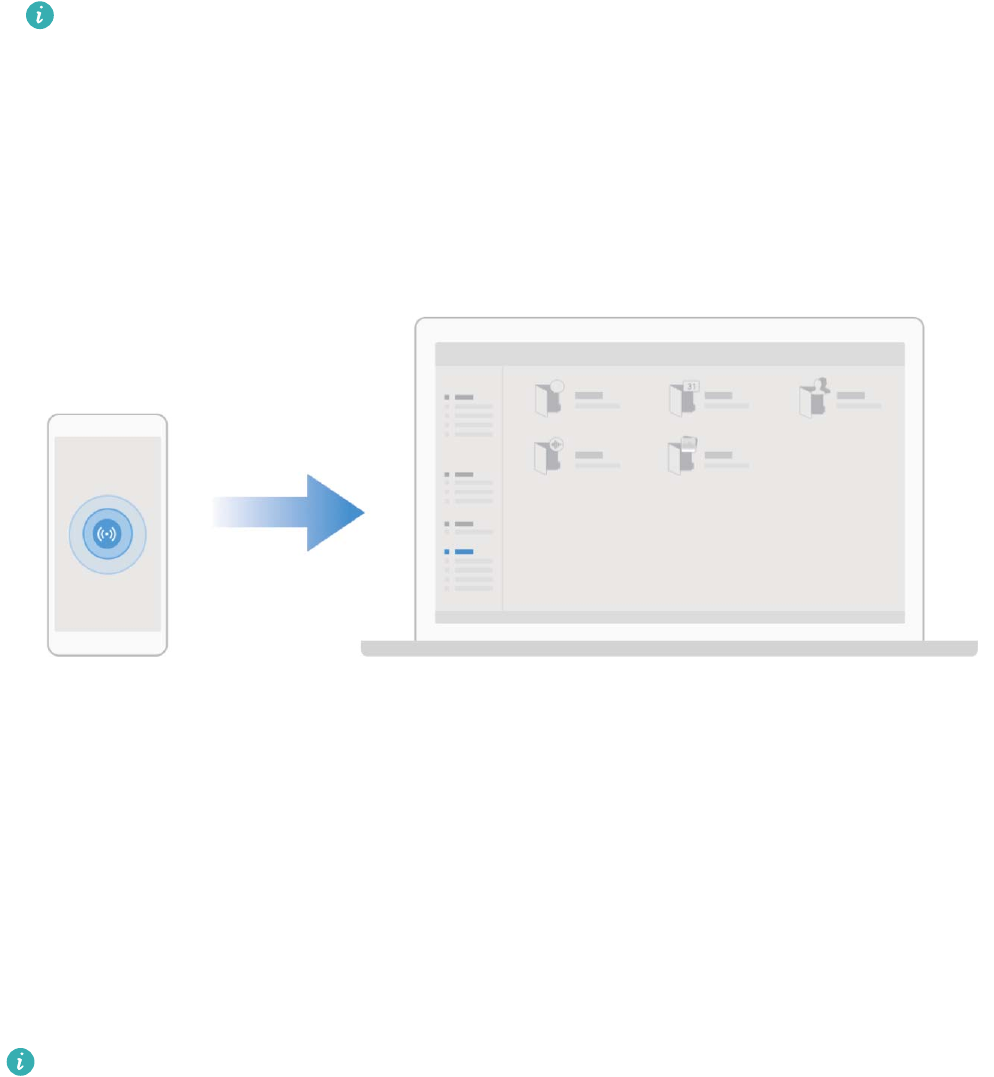
Thanks to Huawei Share, you don't even need a USB cable for data transfer between your Phone
and computer.
lBoth your Phone and computer must be connected to the same network (for example, to the
same Wi-Fi network).
Use Huawei Share to Quickly Share Files Between Huawei Devices
You can use Huawei Share to quickly transfer photos, videos and other les between Huawei devices.
Huawei Share uses Bluetooth to detect other nearby Huawei devices and then uses Wi-Fi Direct to
quickly transfer les without using mobile data.
Huawei Share uses Wi-Fi and Bluetooth to transfer data. When Huawei Share is enabled, both Wi-
Fi and Bluetooth are automatically enabled.
Device Connection
75
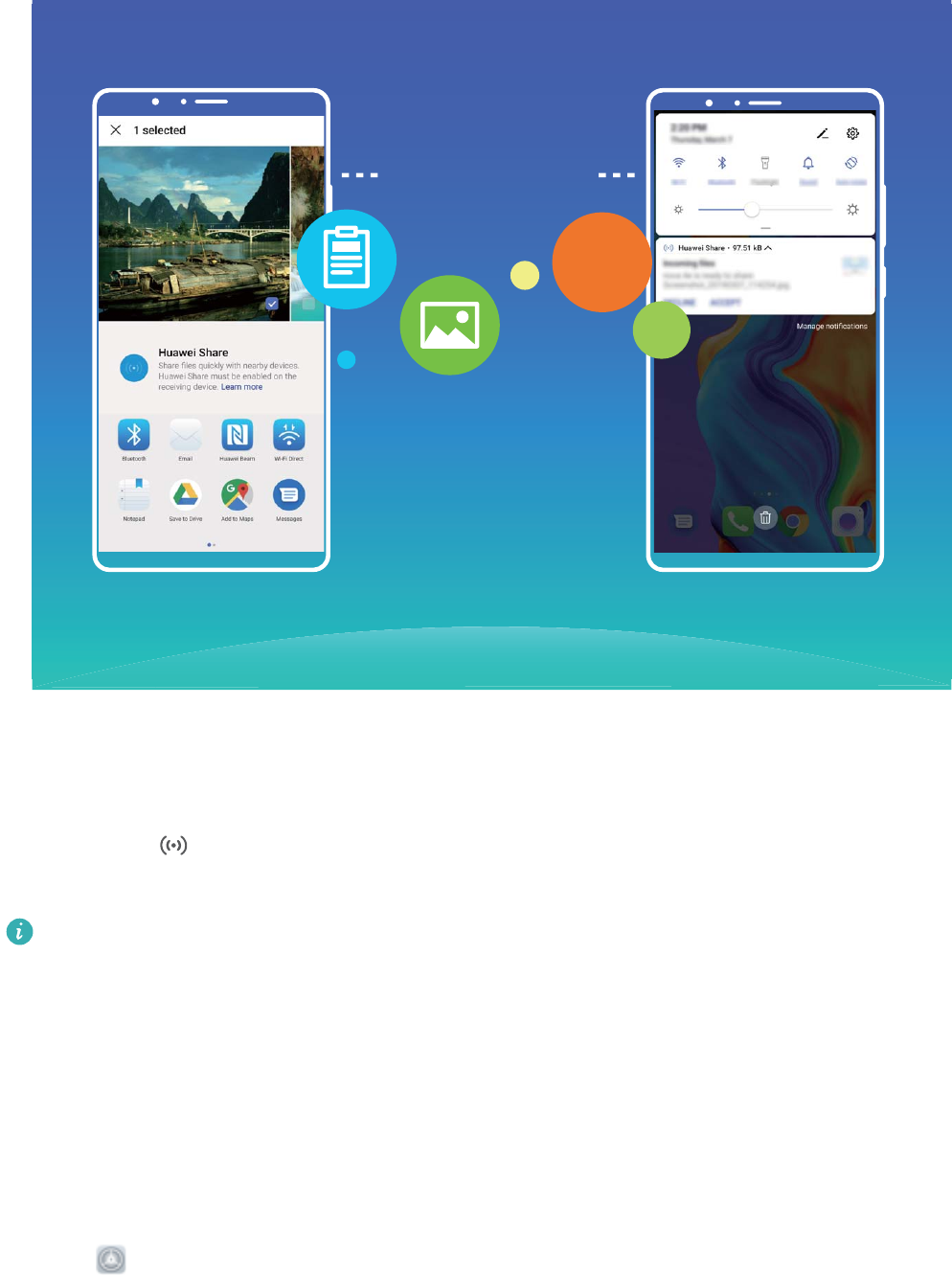
Huawei Share
Use Huawei Share to send les: Select the les you want to share and then touch Share. To send
les, select a receiving device from the list of nearby devices and conrm.
Use Huawei Share to receive les: Swipe down from the status bar to open the notication panel,
and then touch to enable Huawei Share. Touch ACCEPT when the le transfer notication is
displayed. Received les are saved by default to your Huawei Share folder in Files.
No conrmation is required if the two Huawei devices have been logged in using the same
HUAWEI ID.
Transfer Files Between Your Phone and Computer with Huawei Share
Want to quickly transfer pictures and videos from your Phone to computer (Windows PC or Mac)?
Huawei Share makes it simpler than before, without even needing a USB cable.
From your Phone to your Windows PC
1To start, make sure your Phone is connected to the same network (for example, the same Wi-Fi
network) as your computer.
2Open Settings on your Phone, go to Device connectivity > Huawei Share, then enable
Huawei Share and Computer share.
3On the same screen, check and record the Name shown on computers, then touch Verication
on computers to view and record the username and password.
4On your Windows PC, go to Computer > Network, double click Name shown on computers,
and enter the username and password you recorded in the previous step. The Internal storage or
Albums folders on your Phone are then displayed on your computer.
Device Connection
76

The content of these folders is not automatically saved to your Windows PC, but can be
accessed, copied, and saved locally as needed on the computer.
5You can also edit the les or photos in Internal storage or Albums on your Windows PC, and the
changes will be synced to your Phone automatically. Similarly, if you edit any les or photos on
your Phone, the changes will be synced to your computer as well.
From your Phone to Mac
1To start, make sure your Phone is connected to the same network (for example, the same Wi-Fi
network) as your computer.
2Open Settings on your Phone, go to Device connectivity > Huawei Share, then enable
Huawei Share and Computer share.
3On the same screen, check and record the Name shown on computers, then touch Verication
on computers to view and record the username and password.
4On the Mac, go to Finder > Go to > Network, double-click Name shown on computers,
choose to register a user account, and enter the username and password you recorded in the
previous step. The Internal storage or Albums folders are then displayed on your Mac.
The content in these folders is not automatically saved to your Mac, but can be accessed,
copied, and saved locally as needed on your computer.
5You can also edit the les or photos in Internal storage or Albums on your Mac, and the changes
will be synced to your Phone automatically. Similarly, if you edit any les or photos on your Phone,
the changes will be synced to your Mac as well.
This function is supported on Mac computers running iOS 10.8 or later.
One-Touch Printing with Huawei Share
How do I quickly print travel photos, work les, or my children's homework from my Phone?
Experience the ease of one-touch printing with Huawei Share.
Huawei Share's one-touch printing feature is convenient and easy to use. To start using it, swipe
down from the status bar to display all shortcuts, and enable Huawei Share. Select the le you want
to print, and then touch Share. If a supported printer is nearby, your Phone can easily detect it. Just
touch the printer's name, adjust any specications on the preview screen, and then touch PRINT.
lHuawei Share now supports one-touch printing for images and PDF les.
lFor a list of supported printers, touch Learn more in the Huawei Share section (access this
section by touching the Share icon on the picture or PDF you want to share), swipe left on the
screen, then touch What printers are supported? to see the list.
Device Connection
77
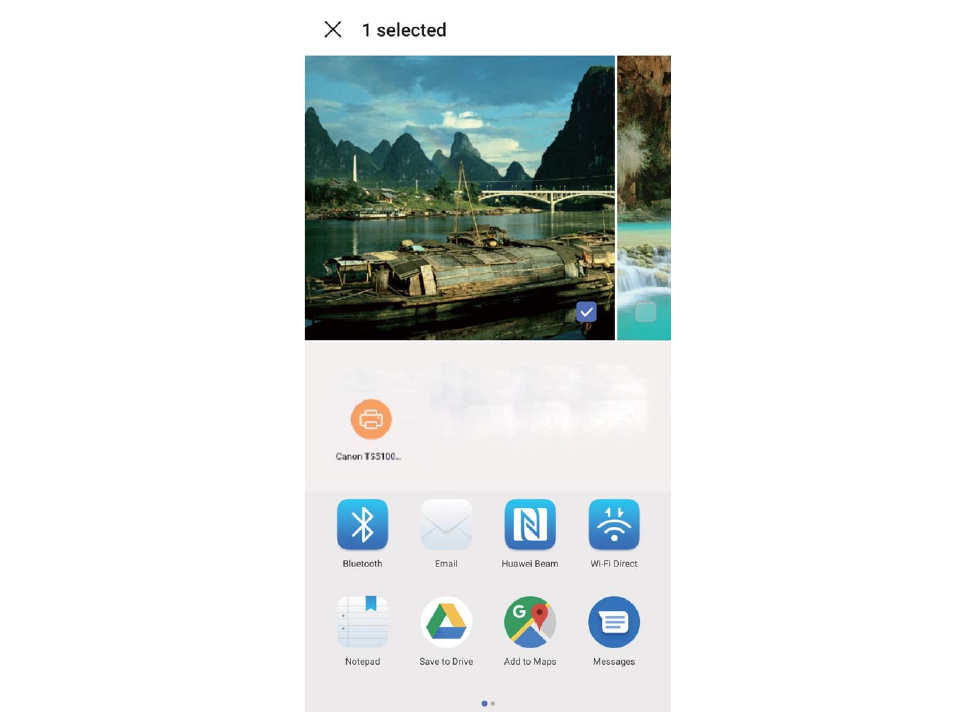
Device Connection
78

Security and Privacy
Enroll Your Facial Information to Enable Face Unlock
Face unlock allows you to quickly unlock your Phone by holding it up to your face.
lOnly the owner can enable Face unlock. This feature is not available for users or guests, and
not supported in PrivateSpace either.
lFace unlock is not available if the screen unlock password has not been entered for three or
more days in a row, or if your Phone has been remotely locked, or has been restarted.
lWhen using Face unlock to unlock your Phone, keep your eyes open, face yourself directly
towards your Phone, and keep your face at a distance of 20 cm (7.87 in.) to 50 cm (19.69 in.)
from your device. In order to scan your face accurately, avoid using this feature when you are in
a dark environment or when facing direct light.
1Open Settings. Go to Security & privacy > Face recognition and enter your screen unlock
password.
2You can select Enable pick up to wake. In this case, your Phone will turn on the screen and
identify your facial features to unlock the screen automatically whenever you pick up your Phone
and hold it to your face. If you do not wish to use this feature, you can disable this option. Touch
Enroll face and follow the onscreen instructions to enroll your face.
3Methods to set Face unlock:
lDirect unlock: Turn on the screen. Your Phone identies your facial features and unlocks the
screen.
lSwipe to unlock: Turn on the screen. After your Phone identies your facial features, swipe
the lock screen to unlock your device.
lSmart display of lock screen notications: Enable Slide to unlock and Smart lock screen
notications. On the lock screen, your Phone hides notication details by default and displays
them only after identifying the device owner's face.
lAccess app lock: Enable Access App lock to access apps and locked apps using Face unlock.
Fingerprint
Fingerprint Recognition: Enjoy Faster Navigation and Enhanced Security
Fingerprint recognition not only allows you to unlock your Phone faster, it also provides added
security to your personal information.
You can use your ngerprint to:
lUnlock your screen with a single touch: Want to avoid the hassle of using PIN codes and
patterns to unlock your screen? Use your ngerprint to quickly and securely unlock your screen with
a single touch.
79
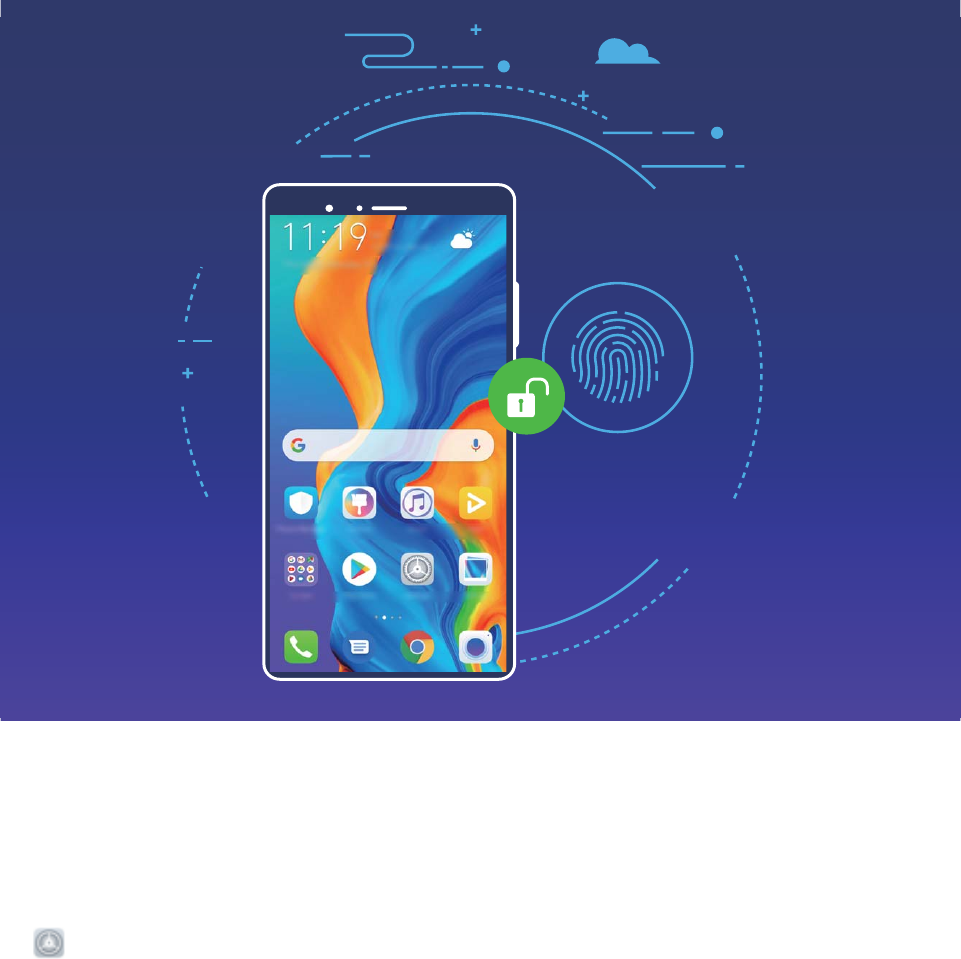
lAccess your private les: Afraid of forgetting your password for the Safe or app lock, or having it
fall into the hands of someone you don't trust? Set ngerprint access for the Safe and app lock to
keep your les and apps secure and accessible by only you.
Use Fingerprint Shortcuts for Faster Device Operation
Can't reach the shutter button to take a photo, or want a faster way to answer a call or turn off an
alarm? You can use any of your ngertips to quickly take photos and answer calls with the ngerprint
sensor. No ngerprint verication is required.
Open Settings, and go to Security & privacy > Fingerprint ID. From here, you can enable
ngerprint shortcuts for the following features:
lTake a photo or video: From the viewnder screen of Camera, touch and hold the ngerprint
sensor to take a photo or video.
lAnswer a call: Touch and hold the ngerprint sensor to answer a call.
lTurn off an alarm: Touch and hold the ngerprint sensor to turn off an alarm.
lShow the notication panel: When your screen is in portrait mode, swipe down on the
ngerprint sensor to display the notication panel, touch twice to clear notications, and swipe up
to close the notication panel.
lBrowse pictures: When viewing pictures in full-screen mode, swipe left or right on the ngerprint
sensor to browse through your pictures.
Security and Privacy
80

Enroll a Fingerprint
You can enroll a ngerprint on your Phone and then use your ngerprint to unlock your screen or
access your Safe or App Lock without a password.
lFingerprint unlocking is only available when your unlock method is set to Pattern, PIN or
Password. You will be required to unlock your Phone using the screen unlock password after
the device is restarted or if your ngerprint is not recognized.
lBefore enrolling a ngerprint, make sure your nger is clean and dry.
1Open Settings.
2Go to Security & privacy > Fingerprint ID > Fingerprint management > Change unlock
method, select Pattern, 4-digit PIN, Custom PIN or Password, and then follow the onscreen
instructions to set an unlock password.
3Once you have set an unlock password, touch New ngerprint to enroll a ngerprint.
4Place your ngertip on the ngerprint sensor. Press down lightly on the sensor until your device
vibrates. Repeat this step using different parts of your ngertip.
5After enrollment is complete, touch OK.
To unlock the screen, simply place your ngertip on the ngerprint sensor.
Add or Modify a Fingerprint
You can enroll a maximum of ve ngerprints on your device. You can also delete or rename your
ngerprints.
1Open Settings.
2Go to Security & privacy > Fingerprint ID > Fingerprint management.
3Enter the screen unlock password and then follow the onscreen instructions to enter the
ngerprint conguration screen.
4In the Fingerprint list section, you can:
lEnroll a new ngerprint: Touch New ngerprint to enroll a new ngerprint.
lRename or delete a ngerprint: Touch a previously enrolled ngerprint to rename or delete
it.
lIdentify a ngerprint: Touch Identify ngerprint to identify and highlight enrolled
ngerprints.
Use a Fingerprint to Quickly Access Private Information
Tired of having to enter a password each time you want to access private information in your Safe or
a locked app? You can use your ngerprint to quickly access your private information. This method is
convenient and safe.
1Open Settings.
2Go to Security & privacy > Fingerprint ID > Fingerprint management.
Security and Privacy
81

3Enter the screen unlock password and then follow the onscreen instructions to enter the
ngerprint conguration screen. Enable Access safe and Access App lock, and then follow the
onscreen instructions to enter the passwords.
Now you can:
lUse a ngerprint to access the Safe: Open Files and touch Safe, you can then access the
Safe using your ngerprint.
lUse a ngerprint to access apps locked by App lock: You can now open locked apps on your
home screen using your ngerprint.
Enable or Disable Location Services
After obtaining the location information permission, apps can obtain your location at any time. If your
location information is obtained by a malicious app, you may be at risk of harm or fraud. You can
enable or disable location services as needed and regularly monitor and manage the allowed
permissions for your apps to protect your privacy and security.
Enable or disable location services: Open Settings, go to Security & privacy > Location
access, and enable or disable Access my location. When location services are disabled, aside for
pre-installed software, your Phone will stop all apps and services from collecting and using your
location information. The system will ask you to enable location services when you attempt to use
these apps.
lFeatures may vary depending on your carrier.
lHuawei only uses location data to provide you with necessary functions and services, not for
the purpose of identifying and collecting your private information.
Set indoor positioning assistance: Open Settings, go to Security & privacy > Location
access > Advanced settings, and enable or disable Wi-Fi and Bluetooth scanning. Scanning Wi-Fi
networks and Bluetooth devices will improve the accuracy of indoor positioning.
PrivateSpace
PrivateSpace: Keep Your Private Information Hidden
PrivateSpace is a feature that allows you to create an independent space on your Phone to store your
private information. Files and apps stored in PrivateSpace cannot be accessed from the MainSpace.
Security and Privacy
82
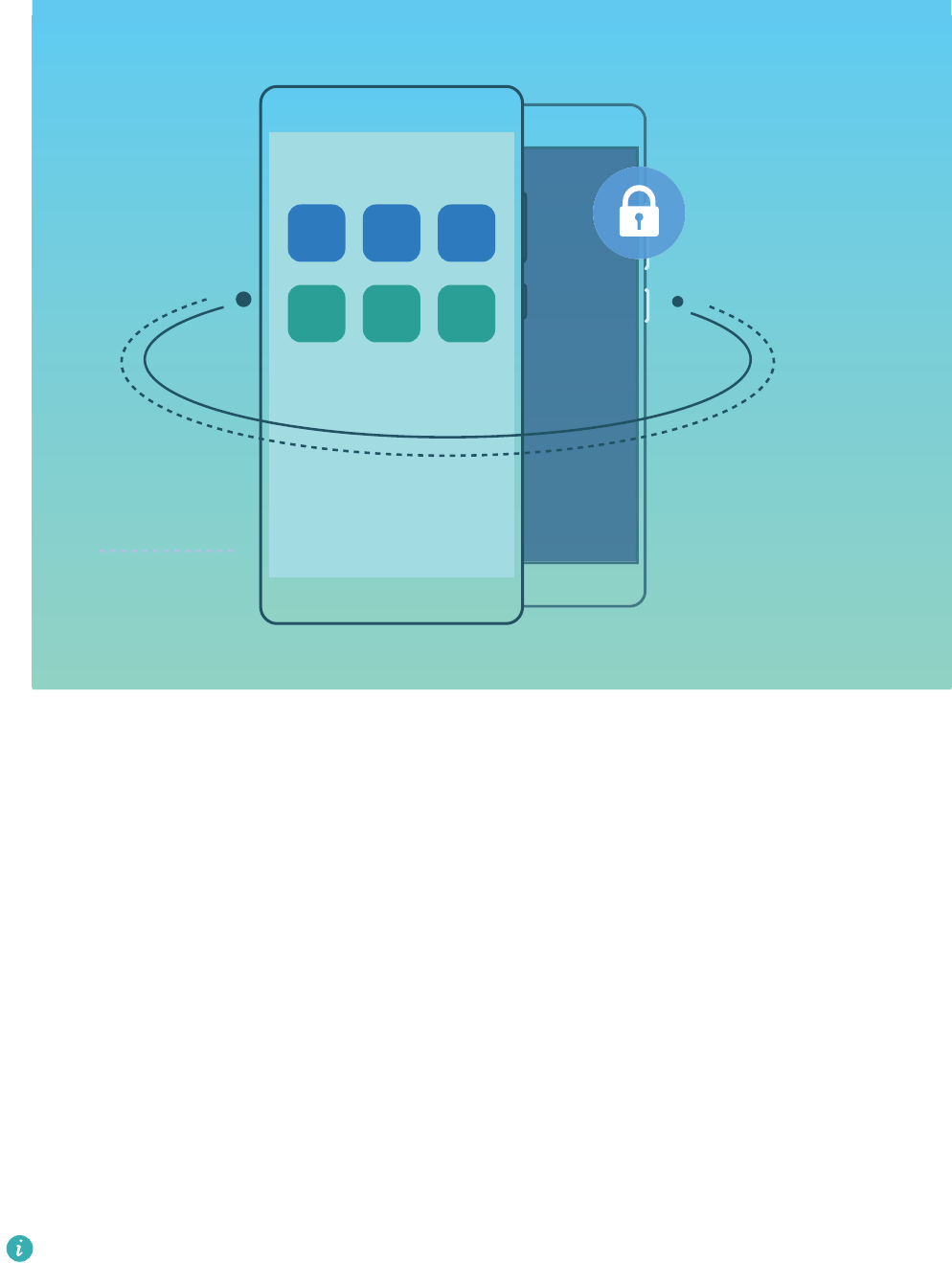
PrivateSpace provides you with the following features:
lHide access to your PrivateSpace: Want to keep your PrivateSpace hidden from other people?
You can hide access to your PrivateSpace in the MainSpace to keep your PrivateSpace out of sight.
lQuickly switch between MainSpace and PrivateSpace: From the lock screen, you can quickly
switch between spaces using different ngerprints or passwords. The Wi-Fi and Bluetooth
information set in the MainSpace or PrivateSpace can be automatically identied and connected in
other spaces.
lTransfer les between MainSpace and PrivateSpace: You can transfer private les (such as
pictures and videos) between MainSpace and PrivateSpace.
lReset the PrivateSpace password: It is understandable to forget passwords occasionally. To reset
your PrivateSpace password, you can enable password protection function by entering your
MainSpace password and answering security questions.
lPrivateSpace data backup: Use the space clone function in the PrivateSpace to copy your
PrivateSpace to another device.
If you want to switch directly to PrivateSpace from the lock screen using a password or
ngerprint, the PrivateSpace password must be of the same type as your MainSpace password
with a different content, or else you will not be able to access PrivateSpace from the lock screen.
Enable PrivateSpace
Do you worry that potentially embarrassing information might be seen by your friends and co-workers
when you are showing them photos and other things on your Phone? PrivateSpace lets you store
Security and Privacy
83

private information in a hidden space within your device that can only be accessed with your
ngerprint or password.
You can add up to three users to Users and PrivateSpace on your Phone. If you have already
added three users under Settings > Users & accounts > Users > Add user, you cannot add
more users to PrivateSpace.
Enable PrivateSpace: If you are using PrivateSpace for the rst time, open Settings, go to
Security & privacy > PrivateSpace > Enable, and follow the onscreen instructions to create your
PrivateSpace.
You can only create one PrivateSpace.
Quickly switch between MainSpace and PrivateSpace: From the lock screen, you can quickly
switch between spaces using your ngerprint or password. After you restart your Phone, you are
required to rst enter the MainSpace using your password. You can then switch between spaces from
your lock screen.
Enter PrivateSpace: You can enter your PrivateSpace directly from the lock screen using your
ngerprint or password. Alternatively, open Settings in MainSpace, and go to Security &
privacy > PrivateSpace > Log in to enter your PrivateSpace.
Exit PrivateSpace: After entering your PrivateSpace, open Settings, and go to Security &
privacy > PrivateSpace > Exit. When you exit your PrivateSpace, all system memory used by the
PrivateSpace will be freed. You can still switch back to your PrivateSpace when you need it.
Delete PrivateSpace: Deleting your PrivateSpace will permanently delete all apps and data stored
within your PrivateSpace and this data will be unable to be restored. You can delete your PrivateSpace
in the following ways:
lFrom the MainSpace, open Settings, then go to Security & privacy > PrivateSpace and
touch > Delete PrivateSpace.
lIn PrivateSpace, open Settings, and go to Security & privacy > PrivateSpace > Delete.
Hide the Entrance to Your PrivateSpace
Want to keep all traces of your PrivateSpace hidden from other people? You can hide the entrance to
your PrivateSpace in the MainSpace, keeping your PrivateSpace hidden and secret.
After entering your PrivateSpace, open Settings, go to Security & privacy > PrivateSpace, and
enable Hide PrivateSpace. After you hide the entrance to your PrivateSpace, you can only enter the
space by using your ngerprint or password on the lock screen.
Transfer Files Between PrivateSpace and MainSpace
Quickly transfer private photos, music, or videos between your PrivateSpace and your MainSpace.
1In PrivateSpace, open Settings and go to Security & privacy > PrivateSpace.
Security and Privacy
84

2Touch MainSpace to PrivateSpace or PrivateSpace to MainSpace.
3Follow the onscreen instructions to select les and transfer them to the target location.
Files stored on your device or memory card can be transferred from your MainSpace to your
PrivateSpace. Only les stored locally on your device can be transferred from your PrivateSpace
to your MainSpace. Files stored in the cloud cannot be transferred between your PrivateSpace
and MainSpace. Not all devices support memory cards.
By default, transferred image les are stored in Gallery > Shared images, video les are stored in
Gallery > Shared videos, and audio les are stored in Files > Internal storage > Move les >
Shared audio.
Transfer Your PrivateSpace Data to Your New Device
You can clone your PrivateSpace to quickly transfer your private les to another device.
lBefore transferring your data, ensure that the new device has enough storage space remaining.
lYou can transfer the following data from one device to another: pictures, audio les and
videos.
1Enter PrivateSpace on your new device and open Settings. Go to Security & privacy >
PrivateSpace > Space Clone > THIS IS THE NEW PHONE to generate a QR code.
2Enter PrivateSpace on your old device and open Settings. Go to Security & privacy >
PrivateSpace > Space Clone > THIS IS THE OLD PHONE. Follow the onscreen instructions to
scan the QR code displayed on your new device. Alternatively, connect your old device to your
new device's Wi-Fi hotspot manually. After establishing a connection, select and transfer data from
your old device to your new device.
You can cancel the le transfer anytime during the transfer process and continue your progress
when you re-establish a connection.
Reset Your PrivateSpace Password
Too many passwords to remember? Can't enter my PrivateSpace without a password? Set a security
question so that when you forget your PrivateSpace password, you can answer the security question
to quickly reset your PrivateSpace password.
Enable the security question feature: After entering your PrivateSpace, open Settings, and go
to Security & privacy > PrivateSpace. Touch Password protection and follow the onscreen
instructions to enter your MainSpace and PrivateSpace passwords to enter the password security
question screen.
Set your security question: Touch the security question and either select one of the preset security
questions or create your own. Enter the answer to the security question and touch Finish to enable
the security question feature.
After you enable the security question feature, you can also modify the security question and its
answer.
Security and Privacy
85

Modify your PrivateSpace password: Enter the MainSpace, open Settings, and go to Security
& privacy > PrivateSpace. Touch > Reset password. Follow the onscreen instructions to enter
your MainSpace password and the answer to the security question, and then set your PrivateSpace
password.
You can reset the PrivateSpace password in the MainSpace only after you set the password
security question in your PrivateSpace.
In case the entrance to PrivateSpace is hidden and you cannot enter the reset
PrivateSpace screen: Enter the MainSpace and open Settings. Go to Security & privacy >
More settings > Show all settings and touch OK to display the entrance to PrivateSpace.
Enable App Lock
App lock allows you to set a password for your important apps. Once you restart your Phone or
unlock the screen, you will be asked to enter your App lock password when opening these apps. App
lock adds an extra layer of protection for your private information and prevents unauthorized access
to important apps on your Phone.
Enable App lock: Open Settings. Go to Security & privacy > App lock. When you enable App
lock for the rst time, set the password and password protection question then enter App lock. On
the App lock screen, enable App lock for the apps you want to protect. When accessing a locked app
for the rst time, you need to enter your password. If you forget your password, touch Forgot
password, enter the answer to the password protection question, and reset your password. If you
have not set up password protection, the Forgot password option is not available.
If you have set up a ngerprint and facial recognition to unlock your Phone and are opening App
lock for the rst time, follow the onscreen instructions to link your ngerprint and face with App
lock for easier app unlocking.
Modify your App lock password and password protection: Touch on the App lock screen,
then touch Change password or Change password protection to modify your App lock password
or password protection.
If you enter the wrong password ve times in a row while logging in to App lock, your Phone will
remain locked for one minute. Try again after one minute. If you enter the wrong password
another three times in a row, you will need to wait 10 minutes to try unlocking again.
Security and Privacy
86

Backup and Restoration
Data Backup: Prevent the Loss of Your Data
Worried about losing important data on your Phone? Protect yourself against data loss with regular
data backups.
You can back up the data in your Phone in the following ways:
lTo an NM card: If your Phone supports an NM card (nano memory card), you can back up your
data to the NM card at any time to prevent data loss.
lNot all devices support nano memory (NM) cards.
lInsert the NM card (nano memory card) into slot 2. If necessary, you can purchase it from
Vmall or an authorized Huawei store.
lTo a USB storage device: Using a USB OTG cable, you can connect your Phone and back up your
important data to a USB storage device.
lTo your computer or home NAS devices: Using Wi-Fi scanning to detect shared folders on the
same Wi-Fi network, you can back up all your Phone's important data, such as pictures and large
les, to your computer or home NAS devices to prevent data loss and free up storage space on your
Phone.
Reset Your Phone
If the operating speed of your Phone starts to slow down due to long-term accumulation of caches
and residual les, you can reset your Phone to erase these cached les completely and restore your
device's factory settings.
Reset network settings: This will restore your Wi-Fi, mobile data network, and Bluetooth settings,
including hotspot tethering and Bluetooth pairing information. It won't change other settings on your
Phone, or delete any data or les.
Open Settings, go to System > Reset > Reset network settings, touch RESET NETWORK
SETTINGS, and follow the onscreen instructions to reset the settings.
Restore all settings: This will restore your device's initial network settings, ngerprint data, face
data, and lock screen passwords. It won't reset settings for Find my Phone or HUAWEI ID, nor will it
delete any data or les.
Open Settings, go to System > Reset > Reset all settings, touch Reset all settings, and
follow the onscreen instructions to reset the settings.
Restore factory settings: This will delete all data in your device's memory and storage, including
your account settings, system settings, app data, installed apps, music, images, and documents, and
restore your Phone to its original factory settings. Back up your data before restoring your device to its
factory settings.
87

Open Settings, go to System > Reset > Reset phone, touch Reset phone, enter the screen
unlock password (if any), and follow the onscreen instructions to reset the settings.
Data Backup by Shared Folders to Your Computer or
Home NAS Devices
Did you store important data, pictures, or large les on your Phone? You can back up your data to a
computer or home NAS device by using a shared folder to prevent data loss and free up storage space
on your Phone.
Open Settings, go to System > Backup & restore > External storage > Shared folder, and
touch Scan for shared folders. After your Phone detects PCs or NAS devices on the same network
through Wi-Fi scanning, touch to access a device and add its shared folder. Then touch BACK UP,
select the data you want to back up in Select data and touch Back up.
You can touch > Backup encryption > Encrypt backups to enable Backup encryption on
the backup page, and then set a password when prompted. The password will be used when you
want to restore les later. Always remember your backup password or set security questions to
help remember the password as you will not be able to retrieve your backup les without it.
Backup and Restoration
88
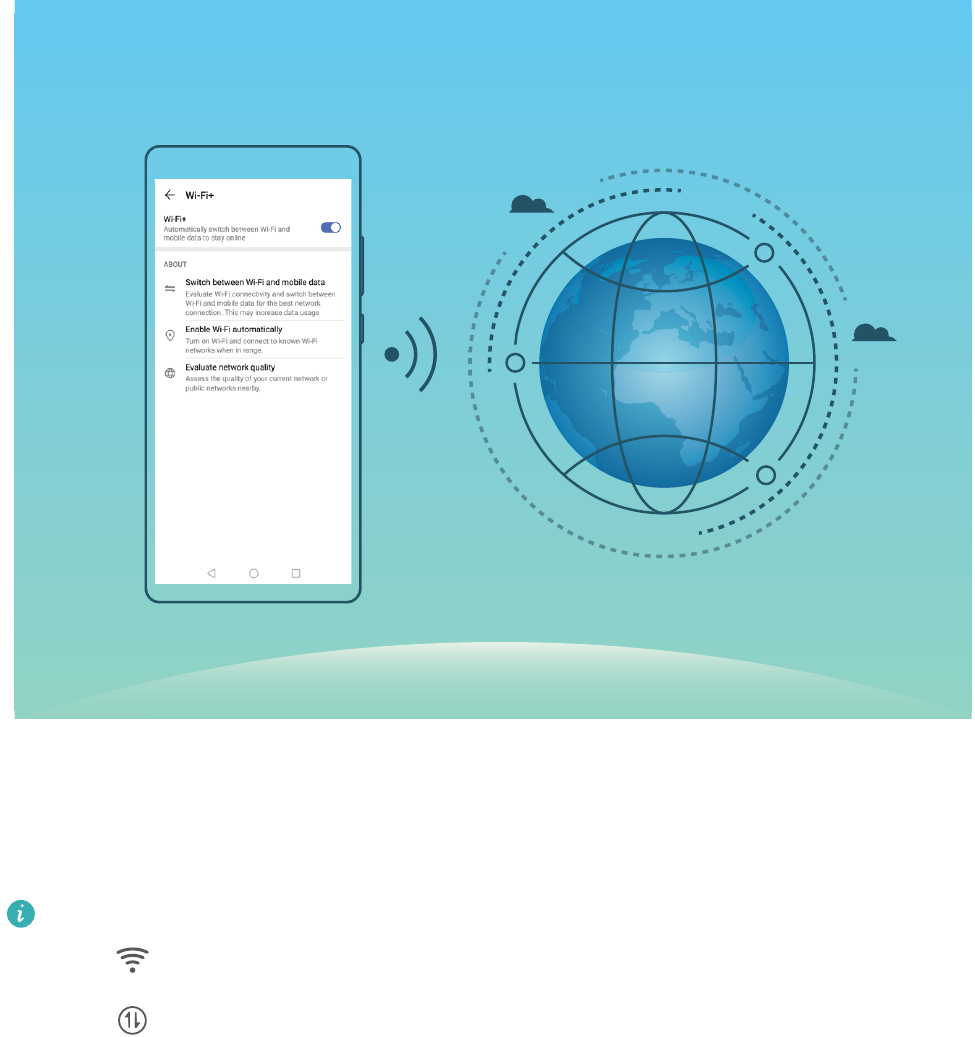
Wi-Fi and Network
Wi-Fi
Introduction to Wi-Fi+
Wi-Fi+ intelligently connects to Wi-Fi networks to save mobile data consumption. When your device
detects a known or free Wi-Fi network, it will automatically turn on Wi-Fi and connect to the network.
Your device will also automatically select the optimal network in the area for the best Internet
connection.
Once you have enabled Wi-Fi+, your device will:
lAutomatically select and connect to the optimal network: Automatically select and connect to
Wi-Fi networks you've previously connected to, free networks, or your mobile data network,
depending on the signal strength at your current location.
You can view the connection status by checking the icons in the status bar:
lThe icon indicates that your device is connected to the Internet over Wi-Fi.
lThe icon in the bottom left of the signal bar indicates that your device is connected to
the Internet over mobile data.
89
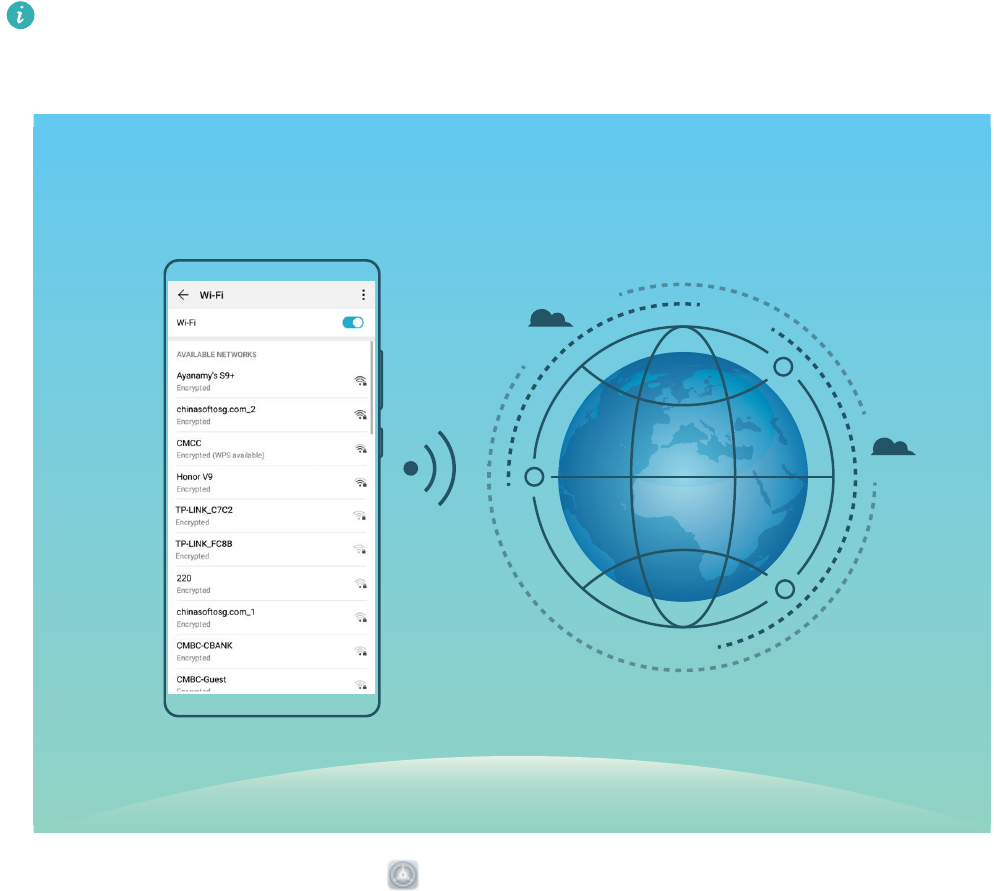
lAutomatically turn Wi-Fi on: Depending on the Wi-Fi networks you have connected to previously,
Wi-Fi will be automatically enabled in specic locations. This will prevent your device from
constantly searching for new networks.
lAssess the quality of available networks: Evaluate currently available network hotspots and
prevent your device from automatically connecting to networks with no Internet connection.
Connect to Wi-Fi
By connecting your device to a Wi-Fi network, you can effectively save mobile data.
To avoid potential security risks (such as unauthorized access to your personal data and nancial
information), please exercise caution when connecting to a public Wi-Fi network.
Connect to a Wi-Fi Network: Open Settings, go to Wireless & networks > Wi-Fi, and enable
Wi-Fi. Touch a Wi-Fi network to access it, and enter the network password or complete the
authentication if required. Alternatively, you can scroll to the bottom of the menu, touch Add
network, and follow the onscreen instructions to add a network hotspot by entering its name and
password.
Transfer Data Using Wi-Fi Direct
Wi-Fi Direct allows you to rapidly transfer data between Huawei devices. Wi-Fi Direct is faster than
Bluetooth and does not require devices to be paired. It is better suited to transferring large les over
short distances.
Wi-Fi and Network
90
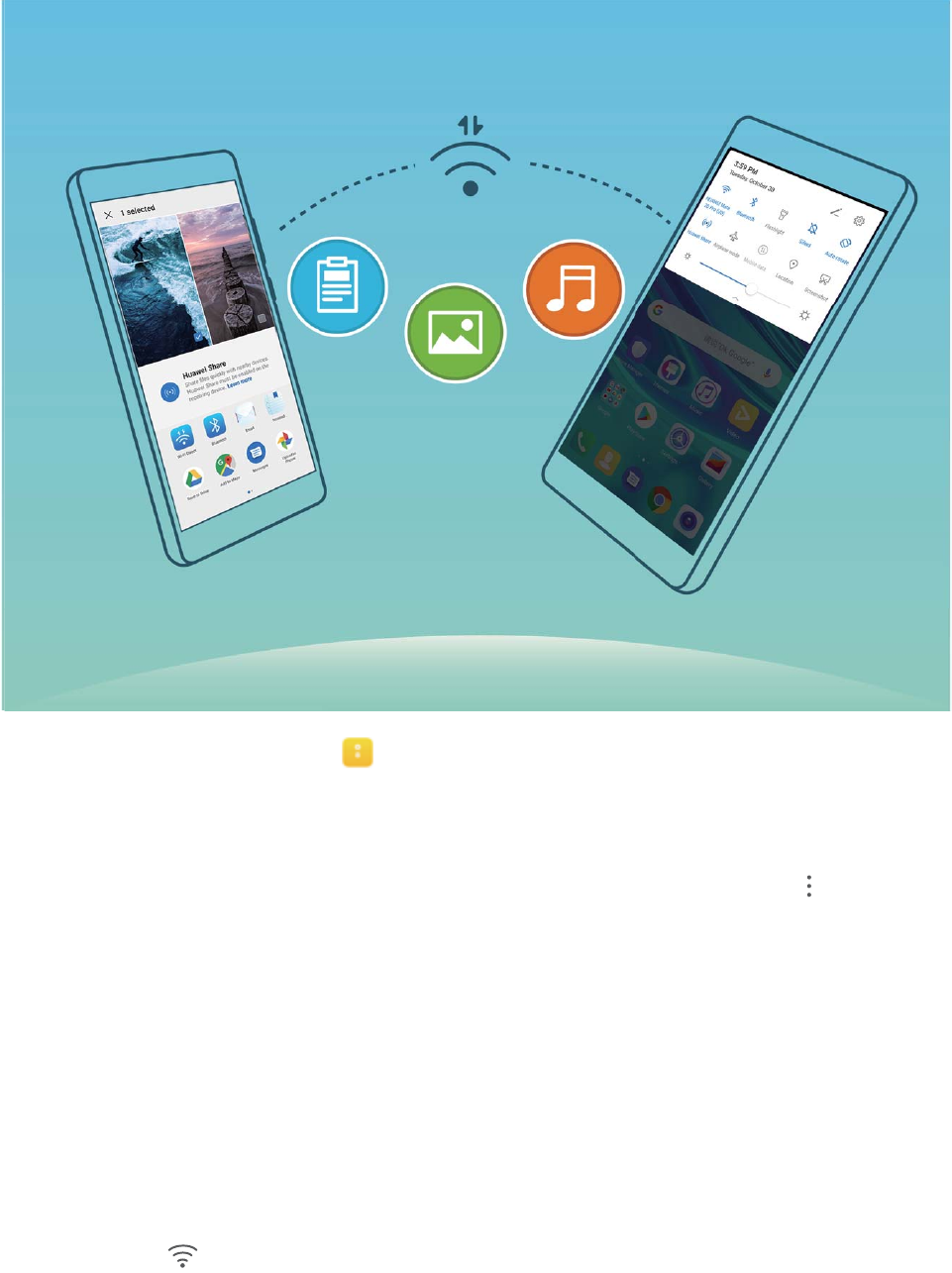
Send les with Wi-Fi Direct: Open Files, touch and hold a le you want to send, and go to
More > Share > Wi-Fi Direct. When another device is detected, touch its name to establish the
connection and begin le transfer.
Receive les with Wi-Fi direct: Enable Wi-Fi. In the Wi-Fi settings screen, touch > Wi-Fi Direct
to enable detection. When you receive an incoming le prompt, touch Accept to begin the transfer.
The received le will be saved under Files in the Wi-Fi Direct folder by default.
Connecting to the Internet
Connect to Wi-Fi networks effortlessly with your device.
Connecting to a Wi-Fi network
1Swipe down from the status bar to open the notication panel.
2Touch and hold to open the Wi-Fi settings screen.
3Switch on Wi-Fi. Your device will list all available Wi-Fi networks at your location.
4Select the Wi-Fi network you want to connect to. If you select an encrypted network, you will also
need to enter the Wi-Fi password.
Wi-Fi and Network
91
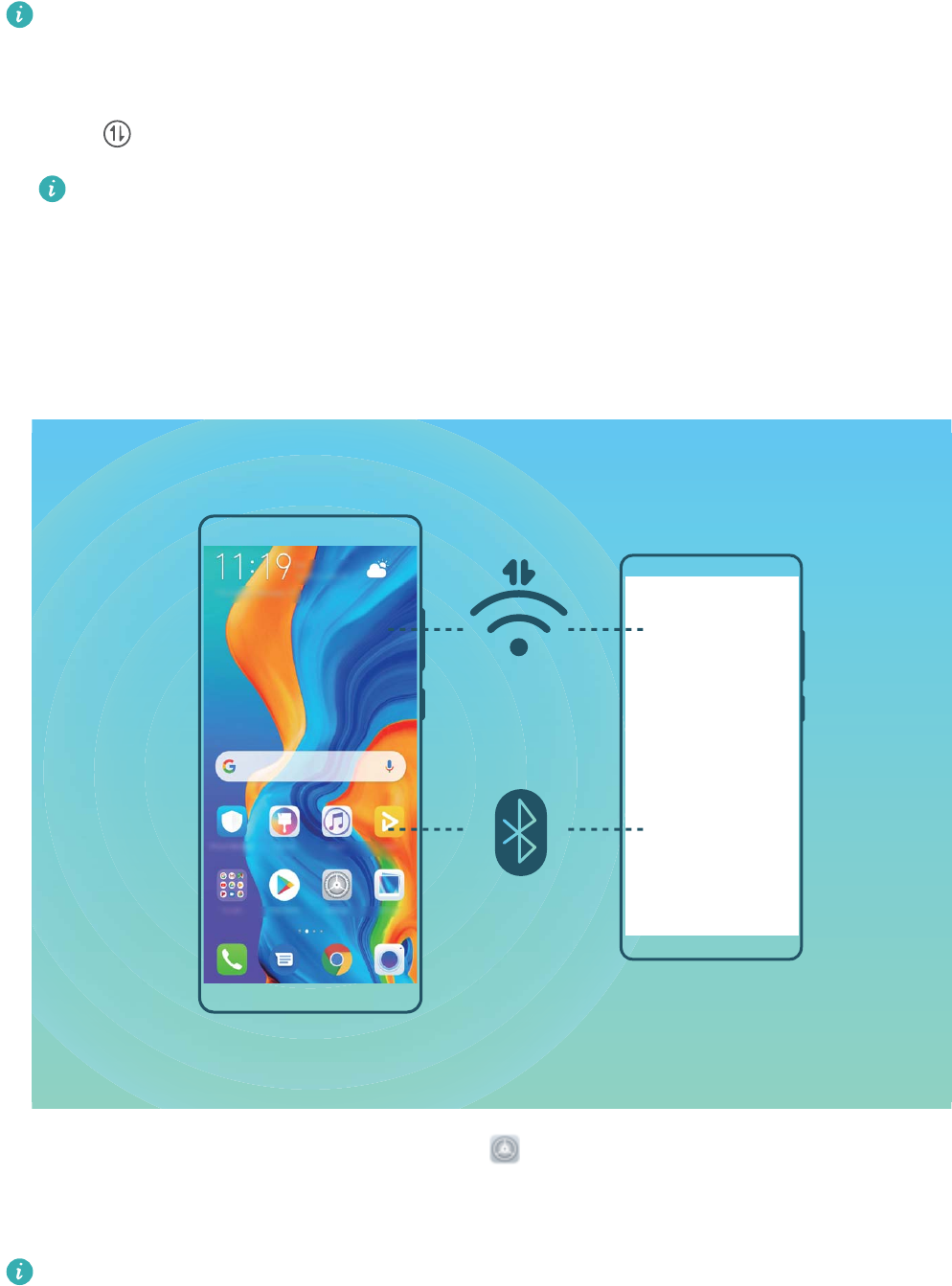
Connecting using mobile data
Before using mobile data, ensure that you have a data plan with your carrier to avoid incurring
excessive data charges.
1Swipe down from the status bar to open the notication panel.
2Touch to enable mobile data.
To save battery power and reduce data usage, disable your mobile data connection when you
don't need it.
Share Your Mobile Network with Other Devices
You can share your mobile data with your friends.
-
Use Wi-Fi hotspot to share mobile data: Open Settings and go to Wireless & networks >
Tethering & portable hotspot > Portable Wi-Fi hotspot > Congure hotspot. Set the Wi-Fi
hotspot name, encryption type, and password, then touch Save and enable the hotspot to use it.
Set data limit for shared mobile data: Go to Settings > Wireless & networks > Portable
Wi-Fi hotspot, and touch Data limit to set the data limit for a single session. When this limit is
reached, your device will automatically disable the hotspot.
Wi-Fi and Network
92

Use Bluetooth to share mobile data: Connect your device to another device using Bluetooth, then
enable Bluetooth tethering to share your mobile data. Open Settings, go to Wireless &
networks > Tethering & portable hotspot, and enable Bluetooth tethering. On the Bluetooth
settings screen of the paired device, touch next to the paired device, then enable Internet
access to establish an Internet connection and share your mobile data.
Use USB to share mobile data: Use a USB cable to connect your device to a computer. Open
Settings, go to Wireless & networks > Tethering & portable hotspot, and enable USB tethering
to start sharing your mobile data.
Depending on your computer's operating system, you may need to install device drivers or
establish the relevant network connection on your computer before using this feature. Refer to
your computer's operating system guide for more information.
Wi-Fi and Network
93

Apps and Notications
App Twin: Log In to Two Social Media Accounts at
Once
Have you ever wished you could log in to two WeChat and Facebook accounts on your Phone
without the hassle of constantly switching between them? App twin lets you log in to two WeChat
and Facebook accounts at the same time, allowing you to keep your work and private life separate.
The App twin feature is currently limited to WeChat, QQ Messenger, LINE, Facebook, Snapchat,
WhatsApp, and Messenger. Please download and install the latest version of these apps before
using the App twin feature.
Touch Settings, and go to Apps > App twin. Enable App twin as required.
When App twin is enabled for an app, two app icons are displayed for the app on the home screen.
This means that you can log in to two accounts at the same time. Touch and hold the twinned app
icon on the home screen to quickly disable App twin.
94

Sound and Display
Set Up Do Not Disturb Mode
Do not disturb mode blocks calls from strangers and only noties you when you receive calls and
messages from chosen contacts.
Open Settings, go to Sounds > Do not disturb, enable Do not disturb, then touch Do not
disturb mode to select one of the following options:
lAllow calls and messages from important contacts: Select Allow priority interruptions only,
then touch Dene priority interruptions to congure which contacts can call or message you.
lAllow alarm notications: Select Alarms only to allow interruptions from alarms.
lDisable all interruptions: Select Don't interrupt to disable all ringtones, vibrations, and alarms as
well as to prevent the screen from turning on for incoming calls, messages, and alarms.
lSome third-party apps may continue to ring when priority interruptions and alarms are allowed
in Do not disturb mode. Use the in-app settings to mute notications from these apps.
Schedule rule: Prevent interruptions at set times, such as weekends or evenings. Touch Time to set
the time period and repeat cycle, then enable Time.
Event rule: Prevent interruptions during meetings or events. Touch Event, set the calendar events,
then enable Event.
Congure Your Sound Settings
When you are watching movies or playing games, your device will automatically switch to stereo
sound to enhance your audio experience. You can also set ringtones and audio reminders for a variety
of different scenarios.
Stereo sound in landscape mode: Want to enjoy stereo sound when watching movies or playing
games? The Stereo+ feature automatically enables stereo sound when your Phone's screen is in
landscape mode. This feature is enabled by default. To disable this feature, open Settings, touch
Sounds > More sound settings and disable Stereo+.
Adjust system volume: Press a volume button or move the slider to quickly adjust the media
volume. Touch to display the sound settings screen. You can then adjust the volume of the
ringtone, media, and alarm.
You can also adjust volume in your system settings. Open Settings, touch Sounds and drag
the volume slider to adjust your volume.
Switch between sound, vibration, and silent mode: Swipe down from the status bar and open
the shortcuts panel. Touch to switch quickly between Sound, Silent and Vibration mode.
95

Enable keypad and notication tones: Open Settings, and go to Sounds > More sound
settings to enable or disable keypad and notication tones and vibration on touch.
Set your Phone to Silent mode: From the Sounds screen, enable Silent mode. After you enable
Silent mode, enable Vibrate in silent mode. Now when you receive an incoming call, your screen
will light up and your device will vibrate.
Customize your ringtone and notication tone: From the Sounds screen, select a custom
ringtone or use the Notication.
Enable Eye Comfort Mode to Prevent Eye Strain
Do your eyes get tired and sore after looking at your Phone for a long time? Eye comfort mode can
effectively reduce blue-light and adjust the screen to warmer colors, relieving eye fatigue and
protecting your eyesight.
Enable Eye comfort mode: Open Settings, go to Display > Eye comfort, and enable Eye
comfort. The Eye comfort mode icon will be displayed in the status bar. Once Eye comfort mode
is enabled, blue light will be ltered out and the screen will take on a yellow tint.
Quickly enable or disable Eye comfort mode: Swipe down from the status bar to open the
notication panel. From the notication panel, expand the shortcuts panel, then enable or disable
.
Enable Eye comfort mode at set times: You can congure your Phone to enable Eye comfort mode
for a set period of time each day. When Eye comfort mode is disabled, open Settings, go to
Display > Eye comfort, and enable Scheduled, then set your desired Start and End.
Adjust the color temperature in Eye comfort mode: Once Eye comfort mode is enabled, blue
light will be ltered out and the screen will take on a mild yellow tint. This is normal and does not
indicate an issue of your device. You can adjust the color temperature as needed. After you have
enabled Eye comfort, you can adjust the color temperature slider for a cooler or warmer screen
color.
lAfter using your mobile phone for half an hour, rest your eyes for 10 minutes.
lWhile you are resting, look into the distance to adjust the focusing muscles of your eyes and
avoid eye fatigue.
lCultivating good eye care habits will protect your vision and prevent near-sightedness.
More Display Settings
Use Shortcuts to Access Frequently Used Features
You can touch and hold an app icon to display a menu of frequently used features for quick access.
You can also touch and hold a feature and drag it to your home screen to create a shortcut.
Sound and Display
96

If you touch and hold an app icon and no shortcut is created, the app does not support home
screen shortcuts.
Quickly access frequently used app features: Touch and hold an app icon on your home screen,
and then touch a frequently used feature to access it. Each app supports up to four frequently used
features. These are preset by the app and cannot be changed. For example, to take a sele, touch and
hold the camera icon, and then touch Sele in the pop-up menu to create a sele shortcut.
Add shortcuts to your home screen: Touch and hold an app icon on your home screen to bring up
the menu. Touch and hold the desired feature, and then drag it to your home screen to create a
shortcut. For example, you can add a shortcut for the camera's sele feature for quick access to the
sele feature.
Change the Display Settings
Change the font size and adjust the screen brightness on your Phone to suit your needs.
Open Settings, touch Display, and you can:
lDisplay full screen: Go to More display settings > Full screen display to display the app in full
screen mode as needed.
lCongure the notch display settings: Touch More display settings > Notch to congure the
notch display settings.
lChange the image and font size: Touch Text and display size and drag the sliders to suit your
needs.
lAutomatically switch between portrait and landscape screens: Go to More display settings
> Auto-rotate screen and toggle on the switch. Alternatively, swipe down the notication panel,
and then enable .
lAdjust the color temperature: Go to Color & eye comfort > Color mode & temperature. You
can select the Default, Warm or Cool option recommended by the system. Alternatively, touch
anywhere on the circle or drag the spot to manually adjust the color temperature.
lAutomatically adjust the screen resolution: Touch Screen resolution and enable Smart
resolution. Your Phone will automatically adjust the screen resolution to save power consumption.
lPlay screen savers while charging in Sleep mode: Go to More display settings > Screen
saver, and enable Screen saver. Then set Picture source and Playback duration. After the
setting is complete, your Phone will display a slideshow of your photos when it is being charged and
enters Sleep mode.
lDisplay more information on the status bar: Touch More display settings, then enable
Display carrier name or Display network speed based on your preferences.
Sound and Display
97

Smart Assistance
Access Phone Functions from Anywhere with
Navigation Dock
In order to close an app or return to the home screen, you must use the navigation bar at the bottom
of your Phone. You can enable the Navigation dock feature on your Phone to avoid using navigation
buttons and to comfortably operate your device with one hand.
Open Settings. Go to System > System navigation > Navigation dock and enable
Navigation dock. The Navigation dock will appear on the screen. You can then drag it to your
preferred location. The Navigation dock can perform the following actions:
lBack: Touch the Navigation dock once to go back one step, or touch it twice to go back two steps.
lHome: Touch and hold the Navigation dock and then release it to go to the home screen.
lView background apps: Touch and hold the Navigation dock and then swipe left or right to view
any apps that are running in the background.
98

System
Change the Input Method
You can change the input method on your Phone as desired.
Switch the input method: Open Settings, go to System > Language & input > Default
keyboard, and select an input method.
Accessibility
Enable TalkBack to Have Onscreen Content Read Aloud
Your Phone reads aloud content on the screen that you touch, select, or activate, helping you interact
with your Phone when you can't read content on your screen clearly.
1Open Settings and go to Smart assistance > Accessibility > TalkBack > to enter the
TalkBack settings screen.
2Enable TalkBack and touch OK. Your device will launch a tutorial when you enable TalkBack for
the rst time. If you need to listen to the tutorial again, touch to enter the TalkBack settings
screen, and launch the tutorial.
3Touch and enable Explore by touch. Your device will read aloud content that you touch.
You may have enabled TalkBack by accident. To disable TalkBack, press and hold the Power button
until your device vibrates, then touch the screen with two ngers for at least three seconds.
Learn TalkBack Gestures
TalkBack uses a special set of gestures. When TalkBack is enabled, these gestures are required to
interact with your device.
To disable TalkBack, press and hold the Power button until your device vibrates, then touch the
screen with two ngers for at least three seconds.
Navigate the screen: Swipe up or down with two ngers to scroll through menu lists. Swipe left or
right to move between pages and screens.
99
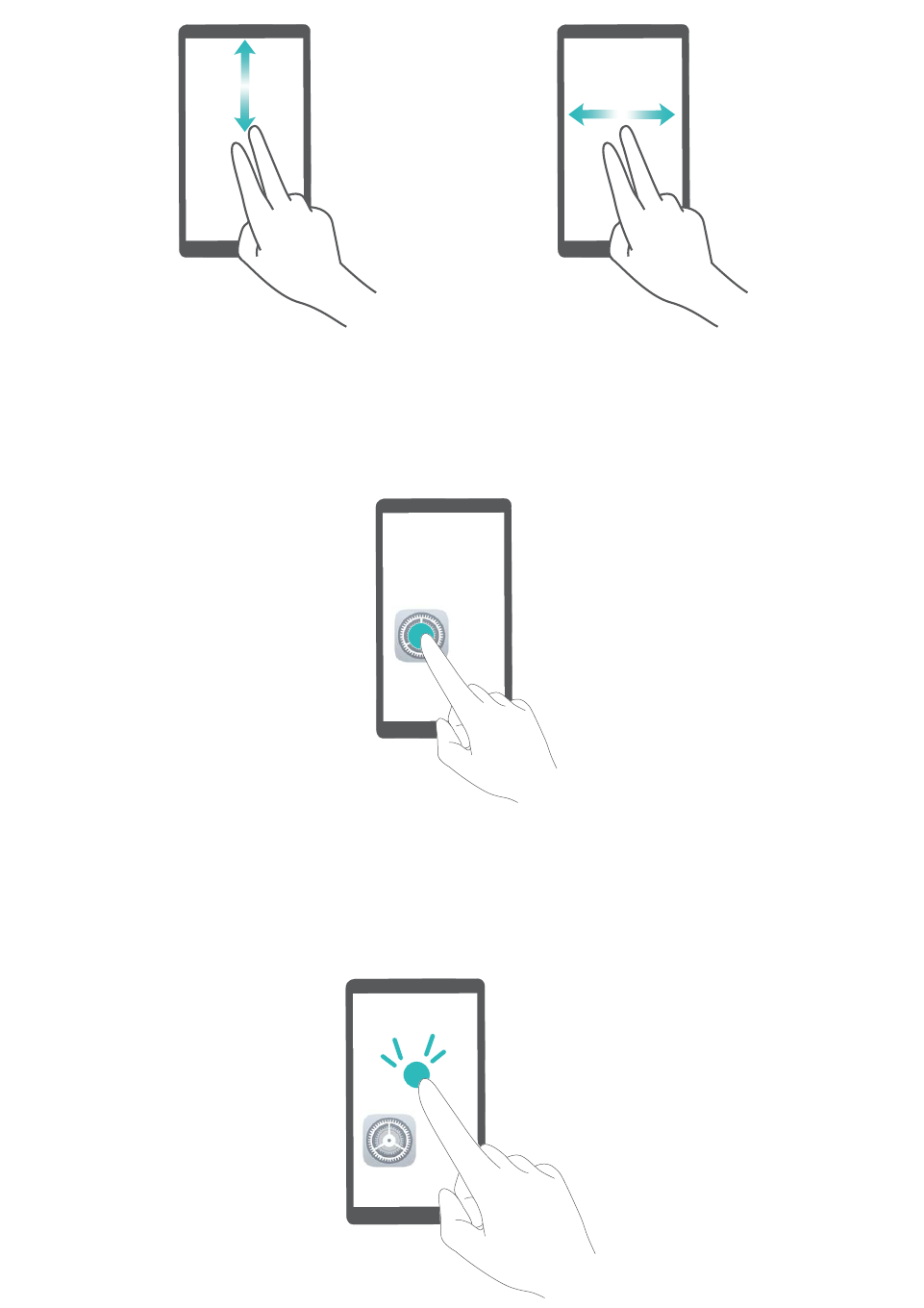
Select an item: Touch an item with one nger to select it (not open it). Your device will read out the
content of the selected item.
Open an item: Double-tap any part of the screen using one nger to conrm your selection from the
previous step.
For example, if you want to open Settings, touch the Settings icon once with one nger, then touch
twice anywhere on the screen.
System
100

Use Text-to-Speech Output with TalkBack
The text-to-speech feature can read aloud texts on the screen of your Phone. It can also be used with
TalkBack to help you interact with your Phone when you can't read content on your screen clearly.
Open Settings, go to Smart assistance > Accessibility, and enable Text-to-speech. Congure
your preferred engine and speech rate.
Enable Color Correction
Color correction enables your device to compensate for color blindness.
When color correction is enabled, users with normal color vision may have difculty viewing some
colors.
Open Settings, go to Smart assistance > Accessibility > Color correction, then enable Color
correction. Touch Correction mode to select the required color correction mode.
General Settings
Change Your System Language
You can change the system language on your Phone as needed.
Open Settings, go to System > Language & input > Language, then select the language you
want to use. If the language you want to use is not listed, touch Add language to search for
additional languages.
In Add language > Added, the displayed language does not indicate an afliation between the
language and region. The system interface is displayed according to the local habits of the selected
region. For example, if you add English (Vietnam), the language will be English but the calendar will
show Monday as the rst day of the week according to Vietnamese habits, instead of showing
Sunday as the rst day, like is common in the United Kingdom or the United States of America.
Set the System Date and Time
If you travel abroad or change your SIM card, your Phone will automatically display the date and time
provided by the local mobile network. You can also adjust the date and time manually, change the
time format, or set dual clocks on your lock screen.
Open Settings, and go to System > Date & time. From here you can:
lChange the date and time: Enable Set automatically to sync your device's date and time with
that of your mobile network. Disable Set automatically to set your date and time manually.
lChange the time zone: Enable Set automatically to sync your device's time zone with that of
your mobile network. Disable Set automatically to set your time zone manually.
lChange the time format: Enable 24–hour time to set your time format to 24 hours. Disable 24–
hour time to set your time format to 12 hours.
System
101
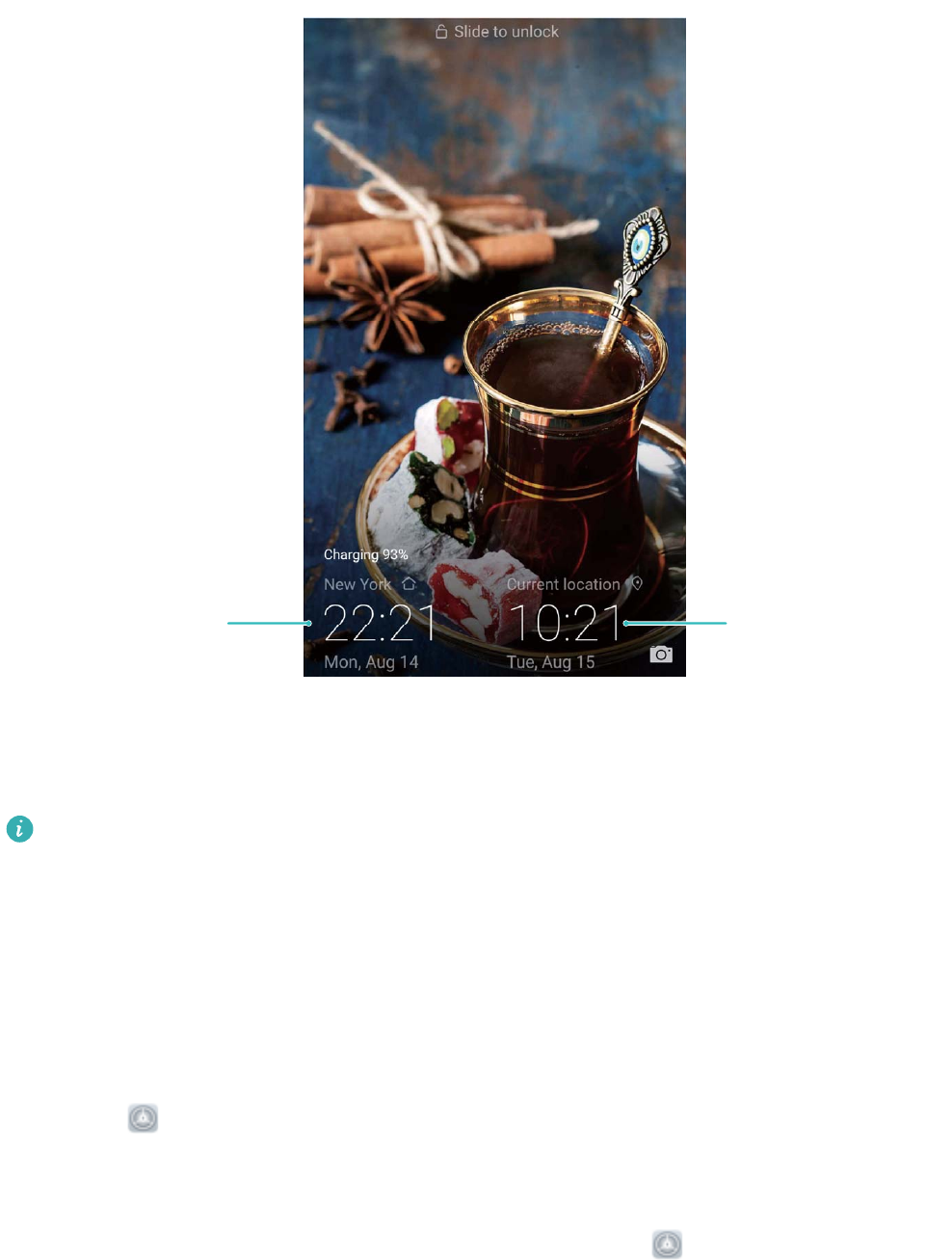
lSet dual clocks on your lock screen: When you are roaming outside of your home country, your
Phone will automatically display the local date and time provided by the local mobile network.
Enable Dual clocks and set Home city to display dual clocks on your lock screen. One clock will
display the local time and the other clock will display the time in your home country.
Network-provided
date and time
Time and date
in your selected city
Print Documents and Photos from Your Phone
Connect your Phone to a printer over Wi-Fi to print out documents and photos with ease.
lMopria allows you to print directly from your Phone to a Mopria-certied printer. The printer
connects to your Phone over Wi-Fi.
lIf your printer is not Mopria-certied, contact the printer manufacturer to obtain a plug-in for
your model.
1Connect your Phone and printer to the same Wi-Fi network.
lConnect to your printer's hotspot: If your printer has a wireless hotspot, follow the
instructions in the printer manual to enable the hotspot and set a password. On your Phone,
open Settings and go to Wireless & networks > Wi-Fi. Enable Wi-Fi, select the printer
hotspot, and then follow the onscreen instructions to establish the connection.
lConnect with Wi-Fi Direct: If your printer supports Wi-Fi Direct, follow the instructions in the
printer manual to enable this feature. On your Phone, open Settings, and go to Wireless
System
102

& networks > Wi-Fi. Enable Wi-Fi, touch > Wi-Fi Direct, and then select your printer
from the list of detected devices.
lConnect to your router: On your printer, enable Wi-Fi and connect to your home router. On
your Phone, open Settings and go to Wireless & networks > Wi-Fi > Wi-Fi. Enable Wi-
Fi, select your router, and then follow the onscreen instructions to complete the settings.
2Open Settings, go to Device connectivity > Printing > default print service, and check
that default print service is enabled. Select a printer from the search results and follow the
onscreen instructions to manually add the printer.
3You can now print directly from your Phone:
lPrint an image: Go to Gallery. Open the image that you want to print, go to More > Print
or export to PDF, and then follow the onscreen instructions to send the image to the printer.
lPrint a webpage: In your browser, open the webpage that you want to print, and then select
the print option from the menu.
lPrint a document: Open the document that you want to print in a productivity app and select
the print option from the menu.
lPrint a note: Open Notepad. Open the note that you want to print, touch Print, and
then follow the onscreen instructions to send the note to the printer.
View Memory and Storage Status
Unsure of how much memory and storage you have left after using your Phone for a long time? You
can view your Phone's memory and storage information to help you monitor your memory and
storage use and decide whether to perform a cleanup.
Not all devices support memory cards.
Open Settings, and touch Storage to view the memory usage, and free up more space in a
timely manner based on the available storage space.
Clean up space: Select CLEAN UP, you can view the usage details of apps. Based on the scan result,
you can also manually clean up the system as recommended or specify items to clean up.
System
103

System Update
Performing an Online Update
Your Phone will prompt you to download and install a system update when a new version is available.
The online update feature allows you to update your Phone quickly and securely.
lBefore performing an online update, ensure that your Phone is connected to the Internet.
Online updates require an Internet connection. Update your Phone over a Wi-Fi network to
avoid incurring unnecessary data charges.
lEnsure that your Phone is at least 30% charged during the update process.
lAvoid using unauthorized third-party software to install rmware and system updates. These
may cause your Phone to cease functioning or disclose your personal information. For best
results, update your system using the online update feature, or take your Phone to your nearest
Huawei service center.
lAlways back up your data before updating your Phone to avoid potential data loss.
lSome third-party apps may be incompatible with the new system version (such as online
banking apps or games). Please wait for a new version of the third-party app to be released.
1Open Settings.
2Go to System > Software update.
System updates may take a while to complete. Avoid using your Phone during this time. Your Phone
will automatically restart when the update is complete.
104
Legal Notice
Legal Notice
Copyright © Huawei Technologies Co., Ltd. 2019. All rights reserved.
No part of this manual may be reproduced or transmitted in any form or by any means without prior
written consent of Huawei Technologies Co., Ltd. and its afliates ("Huawei").
The product described in this manual may include copyrighted software of Huawei and possible
licensors. Customers shall not in any manner reproduce, distribute, modify, decompile, disassemble,
decrypt, extract, reverse engineer, lease, assign, or sublicense the said software, unless such
restrictions are prohibited by applicable laws or such actions are approved by respective copyright
holders.
Trademarks and Permissions
, , and are trademarks or registered trademarks of Huawei Technologies Co., Ltd.
Android™ is a trademark of Google Inc.
The Bluetooth® word mark and logos are registered trademarks owned by Bluetooth SIG, Inc. and any
use of such marks by Huawei Technologies Co., Ltd. is under license.
and are registered trademarks of Qualcomm Inc.
(NASDAQ: QCOM).
MAR-LX1A, MAR-LX1M: The N-Mark is a trademark or registered trademark of NFC Forum, Inc.
in the United States and in other countries.
Other trademarks, product, service and company names mentioned may be the property of their
respective owners.
Notice
Some features of the product and its accessories described herein rely on the software installed,
capacities and settings of local network, and therefore may not be activated or may be limited by
local network operators or network service providers.
Thus, the descriptions herein may not exactly match the product or its accessories which you
purchase.
Huawei reserves the right to change or modify any information or specications contained in this
manual without prior notice and without any liability.
Third-Party Software Statement
Huawei does not own the intellectual property of the third-party software and applications that are
delivered with this product. Therefore, Huawei will not provide any warranty of any kind for third
105
party software and applications. Neither will Huawei provide support to customers who use third-
party software and applications, nor be responsible or liable for the functions or performance of third-
party software and applications.
Third-party software and applications services may be interrupted or terminated at any time, and
Huawei does not guarantee the availability of any content or service. Third-party service providers
provide content and services through network or transmission tools outside of the control of Huawei.
To the greatest extent permitted by applicable law, it is explicitly stated that Huawei shall not
compensate or be liable for services provided by third-party service providers, or the interruption or
termination of third-party contents or services.
Huawei shall not be responsible for the legality, quality, or any other aspects of any software installed
on this product, or for any uploaded or downloaded third-party works in any form, including but not
limited to texts, images, videos, or software etc. Customers shall bear the risk for any and all effects,
including incompatibility between the software and this product, which result from installing software
or uploading or downloading the third-party works.
This product is based on the open-source Android™ platform. Huawei has made necessary changes to
the platform. Therefore, this product may not support all the functions that are supported by the
standard Android platform or may be incompatible with third-party software. Huawei does not
provide any warranty or representation in connect with any such compatibility and expressly excludes
all liability in connection with such matters.
DISCLAIMER
ALL CONTENTS OF THIS MANUAL ARE PROVIDED "AS IS". EXCEPT AS REQUIRED BY APPLICABLE
LAWS, NO WARRANTIES OF ANY KIND, EITHER EXPRESS OR IMPLIED, INCLUDING BUT NOT LIMITED
TO, THE IMPLIED WARRANTIES OF MERCHANTABILITY AND FITNESS FOR A PARTICULAR PURPOSE,
ARE MADE IN RELATION TO THE ACCURACY, RELIABILITY OR CONTENTS OF THIS MANUAL.
TO THE MAXIMUM EXTENT PERMITTED BY APPLICABLE LAW, IN NO EVENT SHALL HUAWEI BE
LIABLE FOR ANY SPECIAL, INCIDENTAL, INDIRECT, OR CONSEQUENTIAL DAMAGES, OR LOSS OF
PROFITS, BUSINESS, REVENUE, DATA, GOODWILL SAVINGS OR ANTICIPATED SAVINGS REGARDLESS
OF WHETHER SUCH LOSSES ARE FORSEEABLE OR NOT.
THE MAXIMUM LIABILITY (THIS LIMITATION SHALL NOT APPLY TO LIABILITY FOR PERSONAL INJURY
TO THE EXTENT APPLICABLE LAW PROHIBITS SUCH A LIMITATION) OF HUAWEI ARISING FROM THE
USE OF THE PRODUCT DESCRIBED IN THIS MANUAL SHALL BE LIMITED TO THE AMOUNT PAID BY
CUSTOMERS FOR THE PURCHASE OF THIS PRODUCT.
Import and Export Regulations
Customers shall comply with all applicable export or import laws and regulations and be responsible
to obtain all necessary governmental permits and licenses in order to export, re-export or import the
product mentioned in this manual including the software and technical data therein.
Legal Notice
106
Personal Information and Data Security
The use of some functions or third-party applications on your device could result in your personal
information and data being lost or becoming accessible to others. Use the following measures to help
you protect your personal information:
lPut your device in a safe place to prevent unauthorized use.
lSet your device screen to lock and set a password or unlock pattern.
lPeriodically back up personal information stored on your SIM card, memory card, or your device
memory. If you change to a different device, be sure to move or delete any personal information on
your old device.
lDo not open messages or emails from strangers to prevent your device from becoming infected
with a virus.
lWhen using your device to browse the Internet, do not visit websites that might pose a security risk
to avoid your personal information from being stolen.
lIf you use services such as the portable Wi-Fi hotspot or Bluetooth, set passwords for these services
to prevent unauthorized access. Turn these services off when they are not in use.
lInstall device security software and regularly scan for viruses.
lBe sure to obtain third-party applications from a legitimate source. Downloaded third-party
applications should be scanned for viruses.
lInstall security software or patches released by Huawei or authorized third-party application
providers.
lUsing unauthorized third-party software to update your device may damage your device or put your
personal information at risk. It is recommended that you update through your device's online
update feature or download ofcial update packages for your device model from Huawei.
lSome applications require and transmit location information. As a result, a third-party may be able
to share your location information.
lSome third-party application providers may collect detection and diagnostic information on your
device to improve their products and services.
Obtaining help
Read the Quick Start Guide included with your phone.
Touch Settings > System > About phone > Legal to read the legal information.
Visit http://consumer.huawei.com/en/ for more information.
Legal Notice
107

Please visit http://consumer.huawei.com/en/support/hotline for recent updated
hotline and email address in your country or region.
Model: MAR-LX1A
EMUI 9.0.1_01
MAR-LX1M
MAR-LX2
MAR-LX2J
MAR-LX3A
Note: Remember the Google account your phone last logged in to.
During an untrusted factory settings restoration or microSD card–based update,
Google's anti-theft mechanism requires you to enter the Google account your phone
last logged in to on the startup navigation screen for identity authentication. Your
phone can properly power on only after the identity authentication passes.
This guide is for reference only. The actual product, including but not limited to the
color, size, and screen layout, may vary. All statements, information, and
recommendations in this guide do not constitute a warranty of any kind, express or
implied.
