Huawei TRT Mobile Phone User Guide (V100R001_01,EN,Normal,HUAWEI Y7 Prime) Prime (TRT L21A, 01, English)
2017-06-20
User Manual: Huawei
Open the PDF directly: View PDF  .
.
Page Count: 138 [warning: Documents this large are best viewed by clicking the View PDF Link!]
- emui_ug_pdf_TRT_English.pdf
- Contents
- Foreword
- Unboxing your Phone
- Getting Started
- Screen and Display
- Home screen
- Locking and unlocking the screen
- Notification panel and status bar
- Navigation bar
- Themes
- Global search
- Screenshot
- Screen recording
- Split-screen mode
- Using motion gestures
- Eye comfort mode
- Display settings
- Network and Sharing
- Security and Backup
- Camera and Gallery
- Calls and ContactsCalls and Contacts(Applicable to selected models)
- Making calls
- Answering calls
- Making a conference call
- In-call options
- Managing call logs
- Call settings
- Creating a contact card
- Creating a new contact
- Importing and exporting contacts
- Managing contacts
- Searching for contacts
- Sharing contacts
- Adding a contact to your favorites
- Changing contact photos
- Viewing call records for individual contacts
- Assigning a ringtone to a contact
- Contact groups
- Messaging and Email
- Sending a message
- Replying to a message
- Using RCS instant messaging
- Searching for messages
- Deleting message threads
- Managing messages
- Returning to the top of the message list
- Pinning messages to the top of the list
- Marking messages as read
- Blocking spam messages
- Adding a message signature
- Configuring the message ringtone
- Identifying malicious URLs in text messages
- Adding an email account
- Sending emails
- Replying to emails
- Managing emails
- Searching emails
- Managing VIP contacts
- Managing email accounts
- Configuring Mail
- Calendar and Notepad
- Music and Video
- Phone Manager
- Tools
- System Features and Settings
- Power on and off timer
- Restarting your device
- Changing the system language
- Changing the input method
- Input method settings
- Editing text
- Airplane mode
- Configuring the sound settings
- One-hand mode
- Gloves mode
- Do not disturb mode
- Setting up an account
- Viewing memory and storage information
- Setting the date and time
- Enabling location access
- Restoring factory settings
- OTA updates
- Viewing product information
- Accessibility features
- Obtaining help
- Personal Information and Data Security
- List of safety features
- Legal Notice

User Guide
Y7 Prime
Contents
Foreword
Unboxing your Phone
Inserting a SIM card and microSD card 2
Charging your device 2
Viewing the battery status 4
Getting Started
Initial setup 5
Naming a SIM card 5
Selecting the default mobile data SIM 6
Setting the default SIM card 6
Connecting to the Internet 6
Transferring data from another device 7
Screen and Display
Home screen 9
Locking and unlocking the screen 18
Notification panel and status bar 20
Navigation bar 23
Themes 24
Global search 25
Screenshot 26
Screen recording 29
Split-screen mode 31
Using motion gestures 34
Eye comfort mode 34
Display settings 35
Network and Sharing
Mobile Internet 38
Wi-Fi 40
Bluetooth 42
Multi-screen 43
VPNs 44
HiSuite 45
Using Huawei Share to transfer files between two Huawei
devices 46
Using a USB port to transfer data 46
Security and Backup
Fingerprint recognition 48
i
Security settings 49
Backing up and restoring data 50
File management 52
Camera and Gallery
Camera options 56
Photos and video recordings 56
Object recognition and Pro camera mode 60
Slow motion recording 61
Time-lapse mode 62
Audio notes 62
Managing shooting modes 62
Configuring the camera settings 63
Viewing photos and videos 64
Organizing albums 65
Sharing photos and videos 66
Editing a photo 67
Editing Videos 69
Configuring Gallery 70
Calls and ContactsCalls and Contacts(Applicable to selected
models)
Making calls 71
Answering calls 74
Making a conference call 75
In-call options 76
Managing call logs 78
Call settings 79
Creating a contact card 81
Creating a new contact 82
Importing and exporting contacts 83
Managing contacts 84
Searching for contacts 86
Sharing contacts 87
Adding a contact to your favorites 87
Changing contact photos 88
Viewing call records for individual contacts 88
Assigning a ringtone to a contact 88
Contact groups 88
Messaging and Email
Sending a message 90
Replying to a message 90
Using RCS instant messaging 91
Contents
ii
Searching for messages 91
Deleting message threads 91
Managing messages 92
Returning to the top of the message list 92
Pinning messages to the top of the list 92
Marking messages as read 92
Blocking spam messages 93
Adding a message signature 93
Configuring the message ringtone 93
Identifying malicious URLs in text messages 93
Adding an email account 94
Sending emails 94
Replying to emails 94
Managing emails 95
Searching emails 95
Managing VIP contacts 96
Managing email accounts 96
Configuring Mail 97
Calendar and Notepad
Changing the calendar view 98
Viewing global holidays 98
Birthday reminders 98
Syncing events 99
Creating an event 99
Sharing events 99
Deleting an event 100
Searching for events 100
Sending event invitations 100
Creating a note 100
Backing up notes 101
Music and Video
Listening to music 102
Searching for music 102
Deleting songs 103
Creating a playlist 103
Playing a playlist 103
Playing a video 103
Phone Manager
Optimizing performance 105
Enhancing speed 105
Managing data usage 105
Contents
iii
Harassment filter 106
Battery Management 107
Managing app permissions 108
Virus scanner 108
Encrypting apps 108
Setting apps to close automatically when the screen is locked 109
Configuring Phone Manager 109
Tools
Clock 110
Sound recorder 112
System Features and Settings
Power on and off timer 114
Restarting your device 114
Changing the system language 114
Changing the input method 114
Input method settings 115
Editing text 115
Airplane mode 116
Configuring the sound settings 116
One-hand mode 118
Gloves mode 119
Do not disturb mode 119
Setting up an account 120
Viewing memory and storage information 121
Setting the date and time 121
Enabling location access 121
Restoring factory settings 122
OTA updates 122
Viewing product information 123
Accessibility features 124
Obtaining help
Personal Information and Data Security
List of safety features
Legal Notice
Contents
iv
Foreword
Read this guide carefully before using your device.
All pictures and illustrations in this document are for your reference only and may differ from the
final product.
Some features in this guide may not be supported by certain devices or carriers.
Symbols and definitions
Description Highlights important information and tips, and provides
additional information.
Reminder Indicates potential problems that may arise if proper care or
attention is not given, such as device damage or data loss.
Warning Warns you about potential hazards that could cause serious
injury.
1
Unboxing your Phone
Inserting a SIM card and microSD card
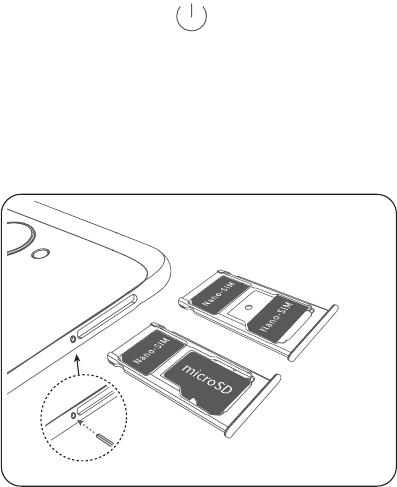
Your phone features a 2-in-1 SIM card slot. You can insert two nano-SIM cards, or one nano-SIM
card and one microSD card.
lThe SIM card slot only supports nano-SIM cards. Contact your carrier for a new or
replacement nano-SIM card.
lOnly use standard nano-SIM cards to avoid damaging the SIM card tray.
lEnsure that the card is in the correct position and keep the card tray level when inserting it into
your device.
lBe careful not to hurt yourself or damage your device when using the SIM eject pin.
lStore the SIM eject pin out of the reach of children to prevent accidental swallowing or injury.
lThe SIM eject pin should only be used to eject the SIM card tray. Inserting the SIM eject pin
into other holes may damage your device.
1Touch and hold the power button and touch to turn off your device.
2To remove the card tray, insert the SIM eject pin included with your device into the small hole
next to the card tray.
Or
3Insert a SIM card or microSD card into the card tray.
4Insert the card tray back into your phone in the correct orientation.
Charging your device
Your device displays a low battery warning when the battery is nearly empty. Charge your device
immediately to prevent it from switching off automatically.
Using a charger to charge your device
Connect your device to a socket using the factory-provided charger and USB cable.
2

You must use the charger and USB cable that came with your device for quicker charging
speeds. Using other chargers or USB cables may cause your device to continuously restart
or increase the charging time. It may also cause the charger to overheat, or even damage
your device.
lIf your device does not respond when you press the power button, the battery is probably
empty. Charge your battery for at least 10 minutes (use the charger that came with your
device), and then restart your device.
lYour device automatically conducts a safety check when you connect it to a charger or
other devices. If your device detects that the USB port is wet, it will automatically stop
charging and display a safety message. If this message is displayed, unplug the USB
cable from your device and allow the USB port to dry out completely to avoid damaging
your device or battery.
Using a USB port to charge your device
If you do not have access to a charger, you can charge your device by connecting it to a
computer with a USB cable.
1When you use a USB cable to connect your device to a computer or another device, Allow
access to device data? will be displayed in a popup dialog.
2Touch No, charge only.
If another USB connection mode has been selected, swipe down from the status bar to open the
notification panel. Touch Charging via USB, and then select Charge only.
Safety information
lOnly use genuine Huawei batteries, chargers, and USB cables to charge your device. Third-
party accessories are a potential safety hazard and may impair your device's performance.
lYou can recharge your battery many times, but all batteries have a limited lifespan. If you
notice a significant deterioration in your device's battery life, purchase a genuine Huawei
replacement battery. Do not attempt to remove built-in batteries. If your device has a built-in
battery, contact an authorized Huawei service center for a replacement. If the battery is
removable, replace it with a genuine Huawei battery.
lYour device may become warm after prolonged use or when exposed to high ambient
temperatures. If your device becomes hot to the touch, stop charging it and disable
unnecessary features. Place your device in a cool location and allow it to cool down to room
temperature. Avoid touching the surface of your device for prolonged periods when it becomes
hot.
lCharging times may vary depending on the ambient temperature and the remaining battery
level.
lAvoid using your device when it is charging. Do not cover your device or the charger.
For more information on charging and battery care, visit http://consumer.huawei.com/ and
search for your device's user guide.
Unboxing your Phone
3
Battery status information
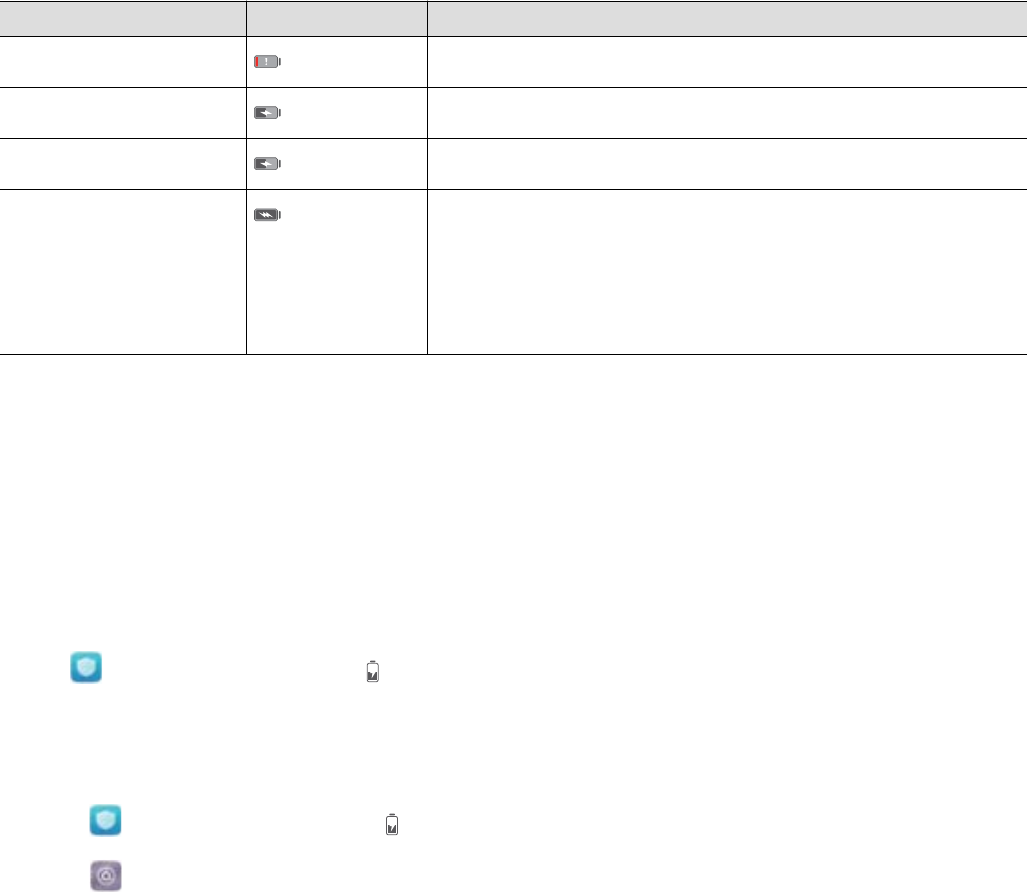
The battery status is indicated by your device's indicator light and the battery icon in the status
bar.
Status indicator Battery icon Battery status
Blinking or steady red Less than 5% remaining
Red Charging, less than 10% remaining
Orange Charging, 10–90% remaining
Green Charging, at least 90% remaining. If 100% is displayed
next to the battery icon in the status bar, or a charging
complete message is displayed on the lock screen, this
indicates that charging is complete.
Viewing the battery status
You can view the battery status and configure the status bar to display the remaining battery
percentage.
Viewing the battery status
The battery status is indicated by the battery icon in the status bar.
Open Phone Manager.Touch to view the remaining battery percentage and usage time.
Displaying the remaining battery percentage in the status bar
You can display the remaining battery percentage in the status bar in two ways:
lOpen Phone Manager.Touch and switch on Remaining battery percentage.
lOpen Settings. Touch Notification & status bar > Battery percentage. Select Next to
icon or In icon to display the remaining battery percentage in the chosen location. Select Do
not show if you do not want the remaining battery percentage to be displayed.
Unboxing your Phone
4

Getting Started
Initial setup
lEnsure that the SIM card is inserted correctly before using your phone for the first time.
Read the Quick Start Guide for more information on how to set up your phone.
lPress and hold the power button to turn on your device. Follow the onscreen instructions
to complete the initial setup.
1Select your language and region and touch NEXT.
2Read the content carefully, accept the user terms and conditions, and then touch AGREE >
AGREE.
3Read the service policy. Select AGREE and touch NEXT.
4Your device will automatically search for available Wi-Fi networks. Follow the onscreen
instructions to connect to a network.
5Read the Google terms and conditions and touch NEXT.
6You can configure your device in two ways:
lFollow the onscreen instructions to restore a backup.
lFollow the onscreen instructions to copy data from another device, or touch SKIP > OK to
skip this step.
If you choose to skip this step, you can still import data from another device later by
touching Settings > Advanced settings > Data transmission.
7Your device has a fingerprint sensor. Follow the onscreen instructions to add your fingerprint.
Before adding your fingerprint, you will be prompted to create a PIN or password which you
can use to unlock the screen if fingerprint recognition fails.
8Touch GET STARTED to complete the settings. Your device is now ready to use.
Naming a SIM card
By default, each SIM card is named after the carrier. You can rename your SIM card to make it
easier to identify.
lThis feature is only available on dual SIM phones.
lFeatures may vary depending on your carrier.
1Open Settings.
2Touch Dual SIM management.
3Select a SIM card name. Enter a name and touch OK.
5

Selecting the default mobile data SIM
You can select a default SIM card for mobile data services.
lThis feature is only available on dual SIM phones.
lFeatures may vary depending on your carrier.
1Open Settings.
2Touch Dual SIM management.
3Toggle the switch Default mobile data next to the selected SIM card.
Setting the default SIM card
You can select a default SIM card for outgoing calls.
This feature is only available on dual SIM phones.
1Open Settings.
2Touch Dual SIM management.
3Touch Default calling SIM and select your desired SIM card.
After you have selected the default SIM card, SIM 1 and SIM 2 will no longer be displayed on the
dialer.
Connecting to the Internet
Connect to Wi-Fi networks effortlessly with your device.
Connecting to a Wi-Fi network
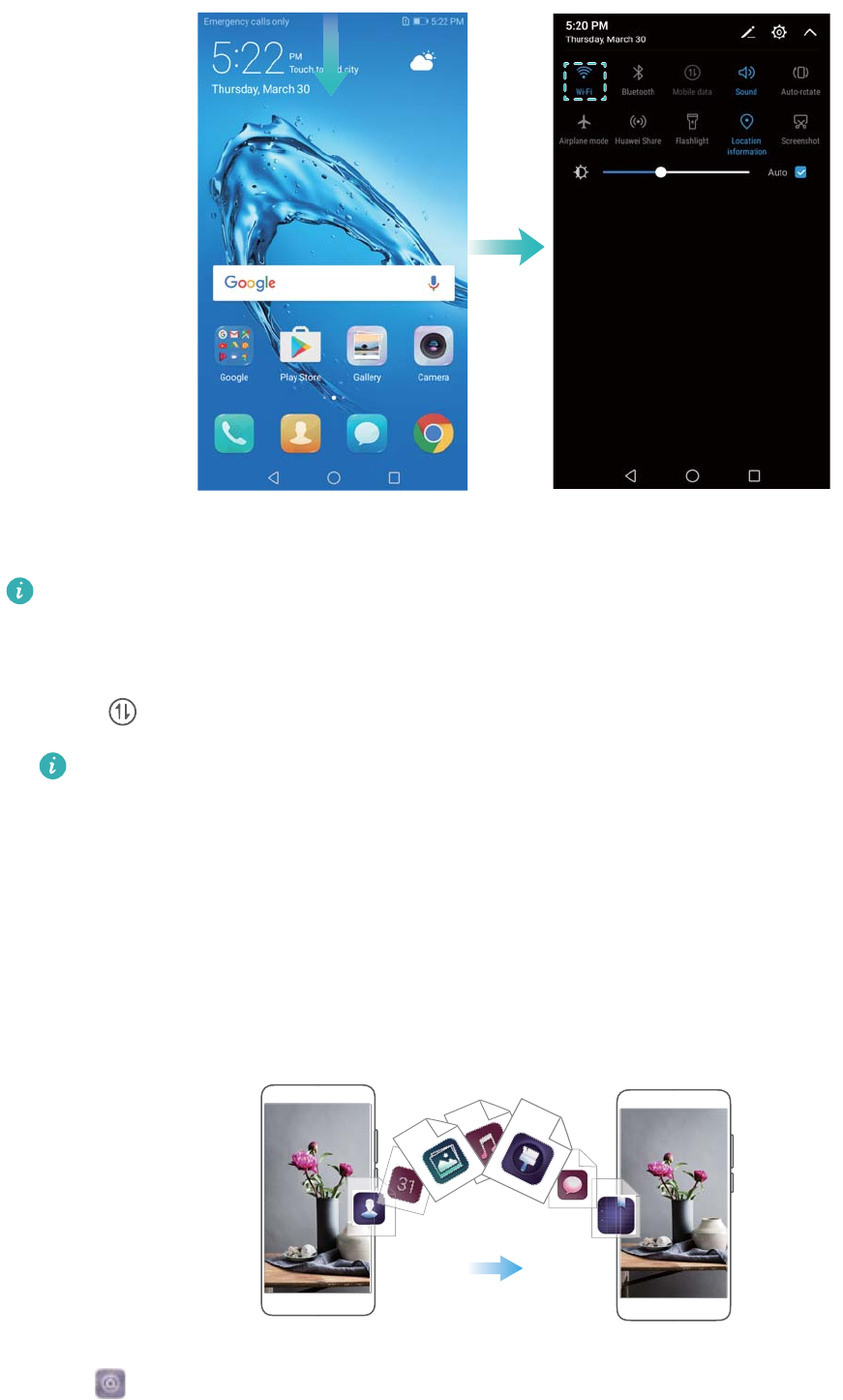
1Swipe down from the status bar to open the notification panel.
2Touch and hold to open the Wi-Fi settings screen.
3Switch on Wi-Fi. Your device will list all available Wi-Fi networks at your location.
4Select the Wi-Fi network you want to connect to. If you select an encrypted network, you will
also need to enter the Wi-Fi password.
Getting Started
6
Connecting using mobile data
Before using mobile data, ensure that you have a data plan with your carrier to avoid
incurring excessive data charges.
1Swipe down from the status bar to open the notification panel.
2Touch to enable mobile data.
Disable mobile data when not required so as to save battery power and reduce data
usage.
Transferring data from another device
Import data from another phone in a few simple steps.
Copying data to your new device
1Open Settings.
2Touch Advanced settings > Data transmission.
Getting Started
7

Using Phone Clone to import data
Phone Clone is an app developed by Huawei that allows you to transfer data between devices
without a computer or Internet connection.
1On your old device, install Phone Clone.
2On your new device, open Settings.
3Touch Advanced settings > Data transmission > Phone Clone.
4Select the device from which you want to import data and touch Continue.
5On your old device, open Phone Clone and touch send. Scan the QR code on the new
device or manually connect to the new device's Wi-Fi hotspot.
To install Phone Clone on your old device, touch Touch here to generate a QR code on
your new device and scan the QR code.
6Once connected, select the data you want to send on your old device and touch send.
Using HiSuite to import data
Use HiSuite to back up data on your old device to a computer and import it to your new device.
1Install HiSuite on your computer.
2Use a USB cable to connect your device to your computer. HiSuite will launch automatically.
3Go to the backup screen in HiSuite. Select the data that you want to back up and follow the
onscreen instructions to back up the data.
4Connect your new device to your computer with a USB cable. Go to the data restore screen
in HiSuite.
5Choose which backup you want to restore and follow the onscreen instructions to restore the
data.
Getting Started
8
Screen and Display
Home screen
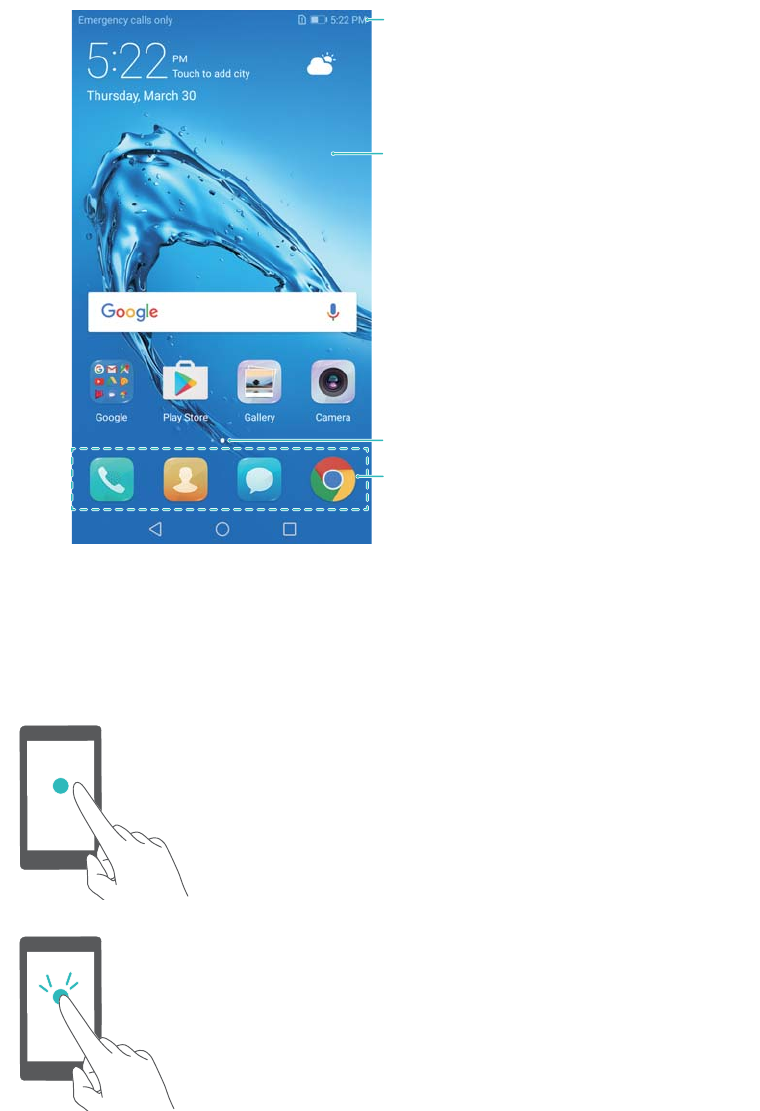
About the home screen
Use the home screen to access your apps and widgets.
Status bar:
Displays notifications and status icons
Display area:
Displays app icons, folders, and widgets
Screen position indicator:
Indicates which home screen is displayed
Dock bar: Displays frequently used apps
Basic screen gestures
Use simple touchscreen gestures to perform a variety of tasks, such as launch apps, scroll
through lists, and enlarge images.
Touch: Touch an item once. For example, touch to select
an option or open an app.
Double touch: Touch the target area of the screen twice
in quick succession. For example, double touch an
image in full screen mode to zoom in or out.
9

Touch and hold: Touch and hold the target area of the
screen for at least 2 seconds. For example, touch and
hold a blank area on the home screen to access the
home screen editor.
Swipe: Swipe your fingers on the screen. Swipe
vertically or horizontally to browse other home screens,
scroll through a document, and more.
Drag: Touch and hold an item, and then move it to
another position. For example, use this gesture to
rearrange apps and widgets on the home screen.
Spread fingers apart: Spread two fingers apart on the
screen. For example, spread two fingers apart to zoom in
on a picture or web page.
Pinch fingers together: Pinch two fingers together on
the screen. For example, pinch two fingers together to
zoom out on an image.
Enabling the Drawer home screen
Use the Drawer home screen to store app icons in a separate app drawer.
Enabling the Drawer home screen
1Open Settings.
2Touch Home screen style > Drawer.
Adding app shortcuts to the home screen
Add frequently used apps to the home screen for quick access.
1On the home screen, touch to view the list of apps.
2Touch and hold an app icon until your device vibrates, and then drag the app icon to the
desired location on the home screen.
Screen and Display
10
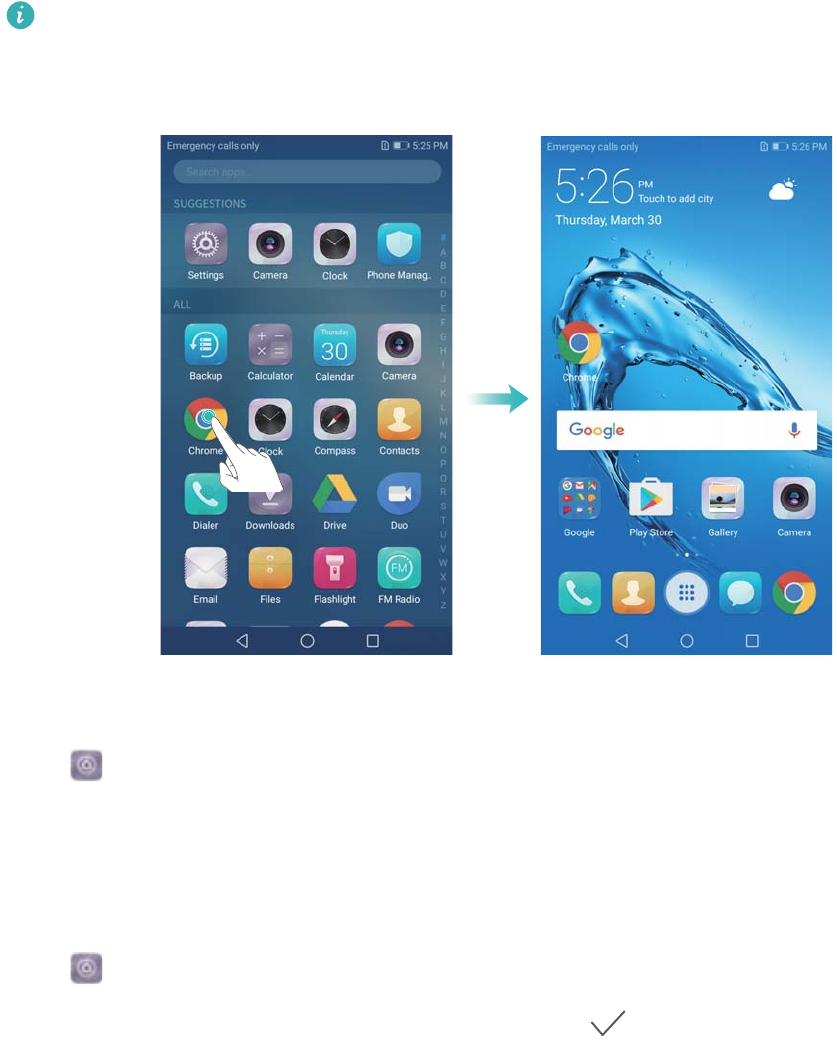
You must have enough space on the home screen. If there is not enough space, add
another home screen or free up some space.
Reverting to the standard home screen
1Open Settings.
2Touch Home screen style > Standard.
Switching to simple home screen
Simple home screen uses a simple layout and large icons for easier use.
1Open Settings.
2Touch Advanced settings > Simple mode, and touch .
Screen and Display
11
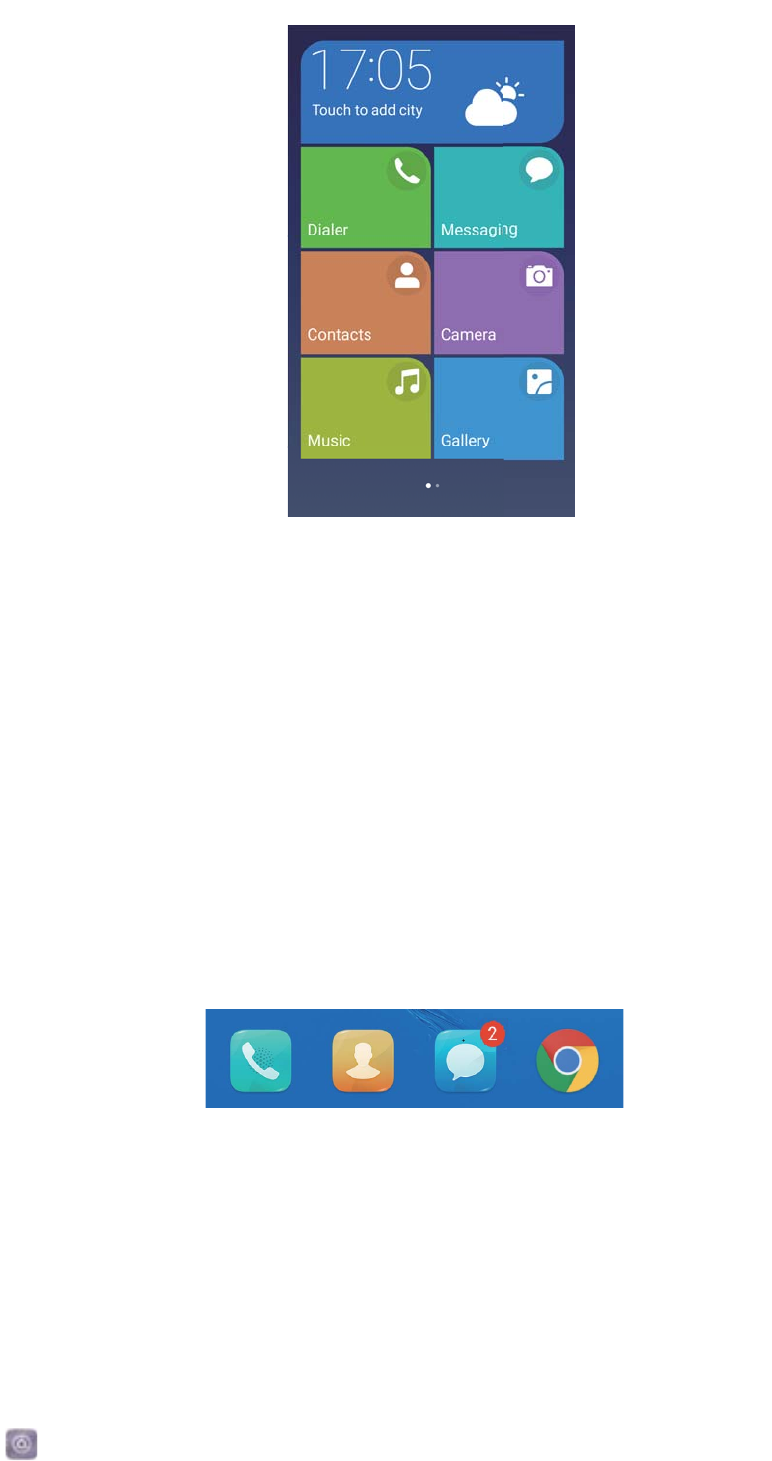
3On the simple home screen, you can:
lTouch app icons to open them.
lTouch and hold an icon to enter the home screen editor mode. In this mode you can add or
delete apps.
lTouch Others to open the app list and view or open more apps.
lTouch Standard mode to switch back to the standard home screen.
Displaying or hiding notification badges
Notification badges appear in the top-right corner of app icons. The badge number indicates the
number of new notifications. Open the corresponding app to view notification details.
1On the home screen, pinch two fingers together to open the home screen editor.
2Touch Settings > Badge app icons.
3Toggle the corresponding switch to enable or disable notification badges.
Setting the home screen wallpaper
Choose from a wide range of themes and wallpapers to personalize your device.
Changing the wallpaper
1Open Settings.
2Touch Display > Wallpaper > Set wallpaper.
Screen and Display
12
3Select the desired wallpaper and follow the onscreen instructions to set it as the home screen
or lock screen wallpaper (or both).
Changing the wallpaper automatically
1Open Settings.
2Touch Display > Wallpaper.
3Switch Randomly change home screen wallpaper on or off.
When Randomly change of home screen wallpaper is enabled, you can configure the
Interval and Album to display so that your wallpaper can change automatically at the
specified interval.
Managing home screen icons
You can easily move or uninstall apps on the home screen.
Moving home screen icons
On the home screen, touch and hold an app icon or widget until your device vibrates. You can
then drag the app icon or widget to the desired location.
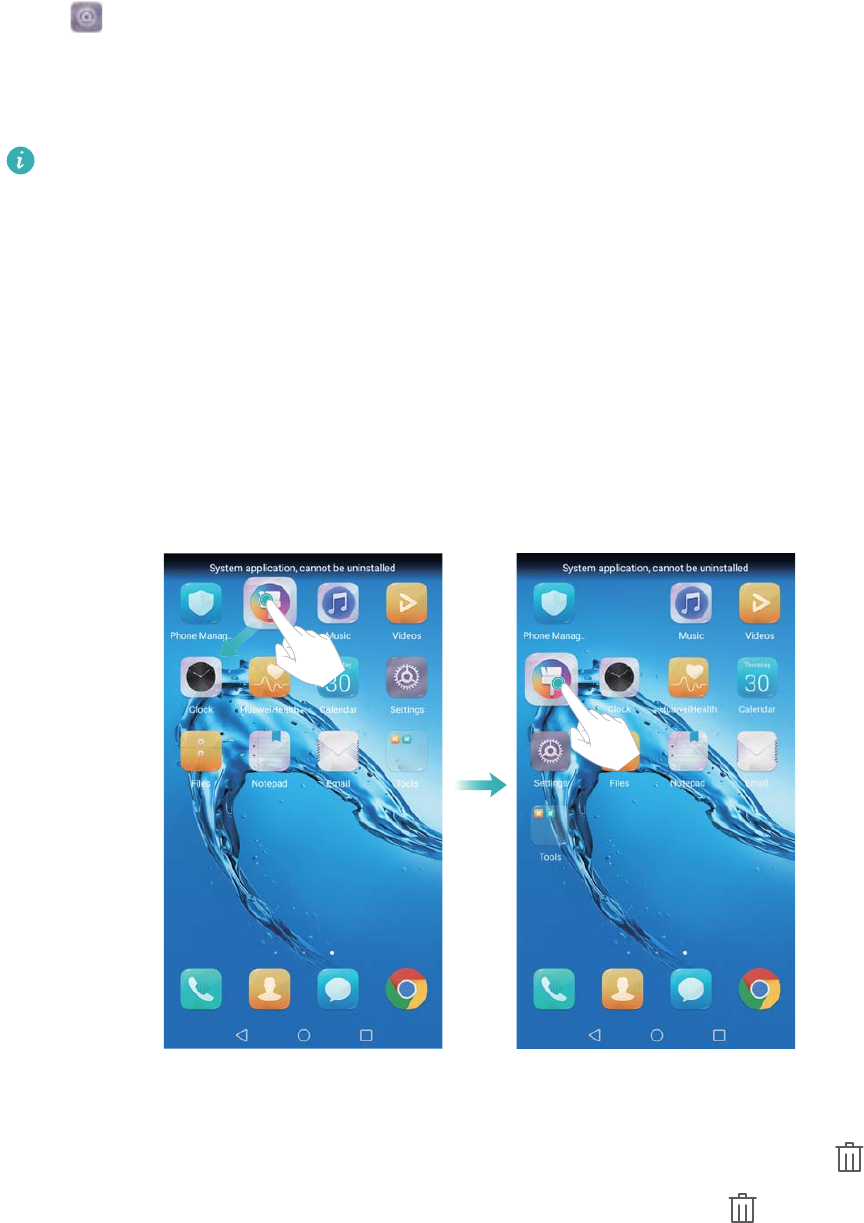
Uninstalling apps from the home screen
On the home screen, touch and hold the app or widget you want to uninstall until is
displayed at the top of the screen. Drag the unwanted app or widget to , and follow the
onscreen instructions.
Screen and Display
13
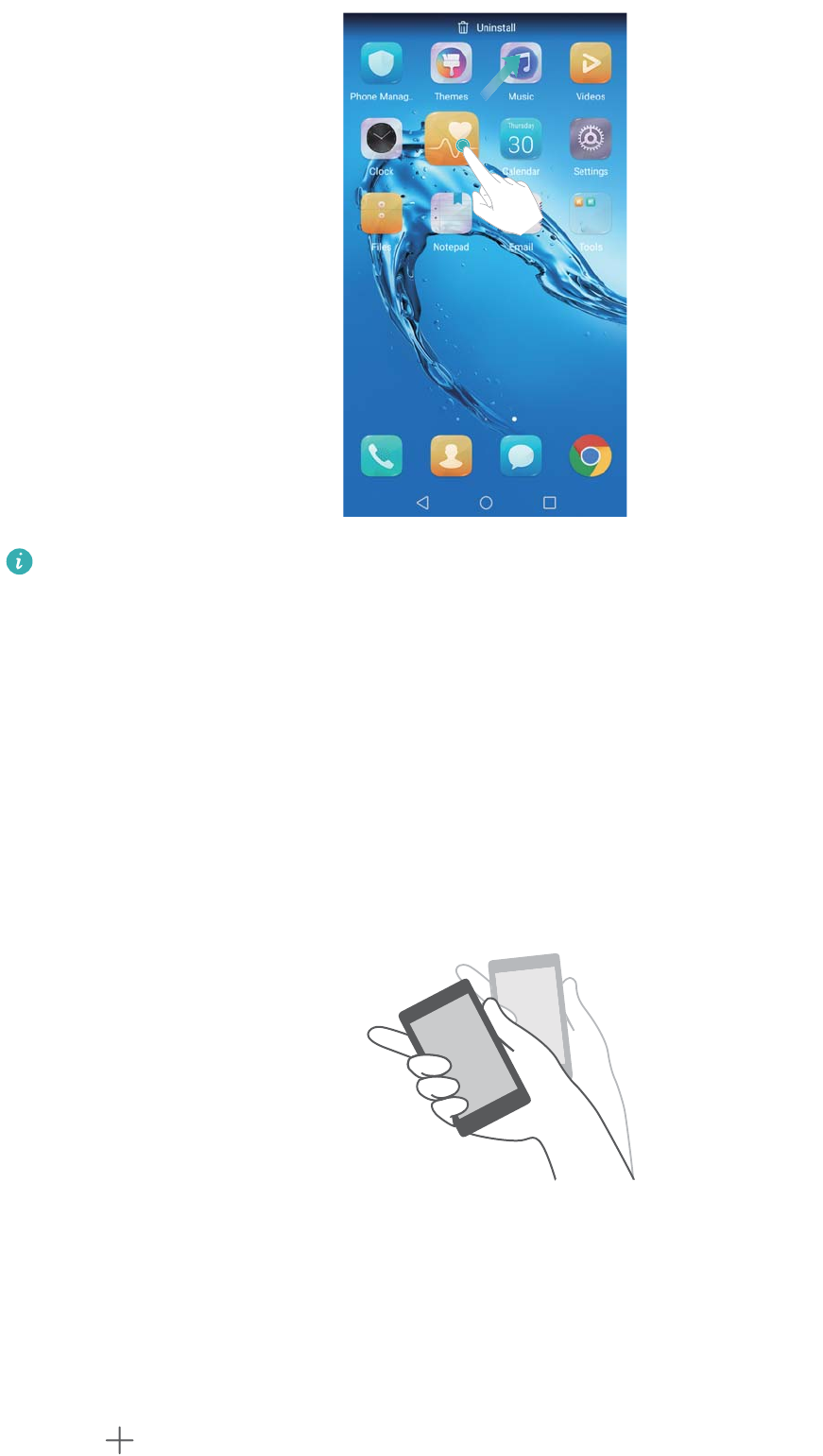
Some pre-installed apps cannot be uninstalled for the proper running of the system.
Shaking your device to auto-align icons
Gaps may appear on the home screen after you uninstall apps or move them into folders. You
may use the following feature to arrange apps neatly on the home screen.
1On the home screen, pinch two fingers together to open the home screen editor.
2Touch Settings and switch on Shake.
3Return to the home screen and open the home screen editor again. Shake your device to
rearrange apps so that gaps are filled.
Managing home screens
You can customize home screens to your liking.
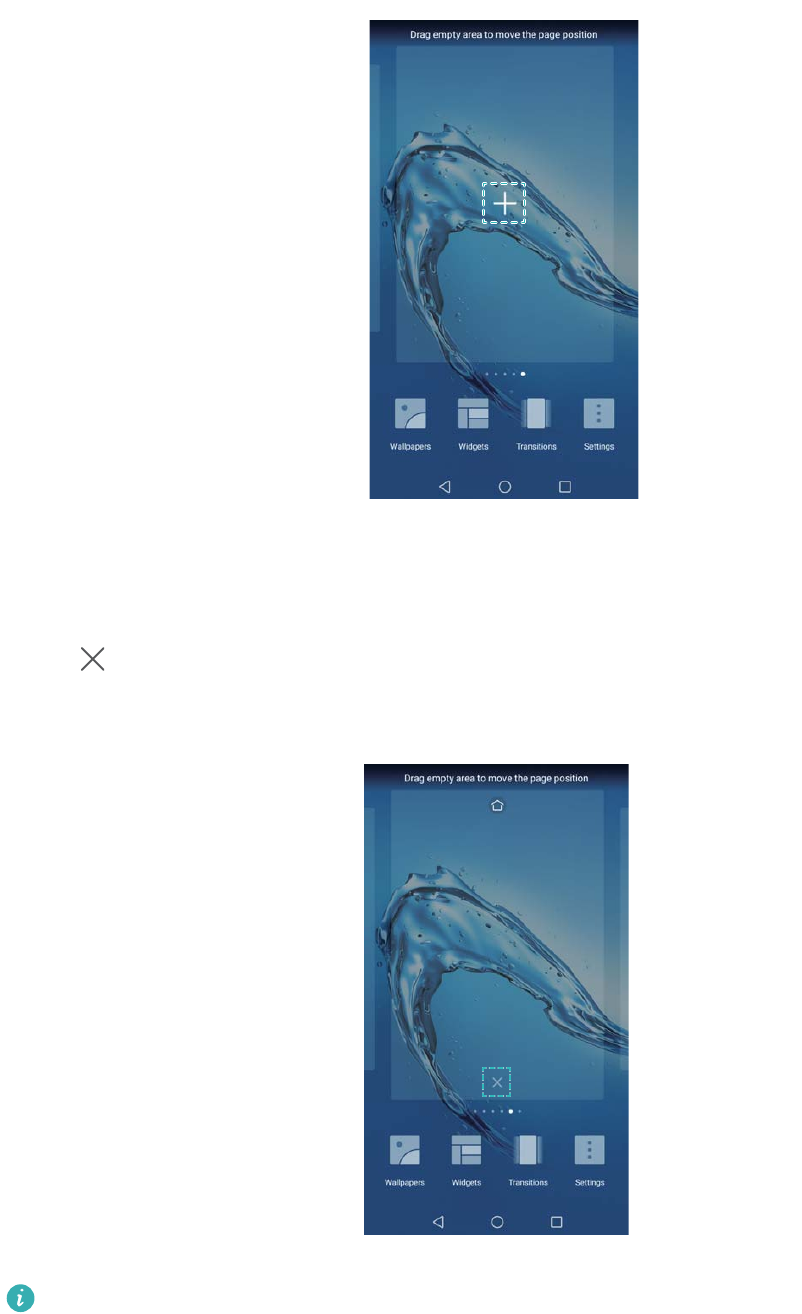
Adding home screens
1On the home screen, pinch two fingers together to open the home screen editor.
2Touch on the home screen furthest to the left or right to add a new screen.
Screen and Display
14
Deleting home screens
1On the home screen, pinch two fingers together to open the home screen editor.
2Touch on a blank screen to delete it.
You cannot delete a home screen if it contains apps or widgets.
Moving home screens
1On the home screen, pinch two fingers together to open the home screen editor.
2Touch and hold the home screen you want to move and drag it to the desired location.
Screen and Display
15
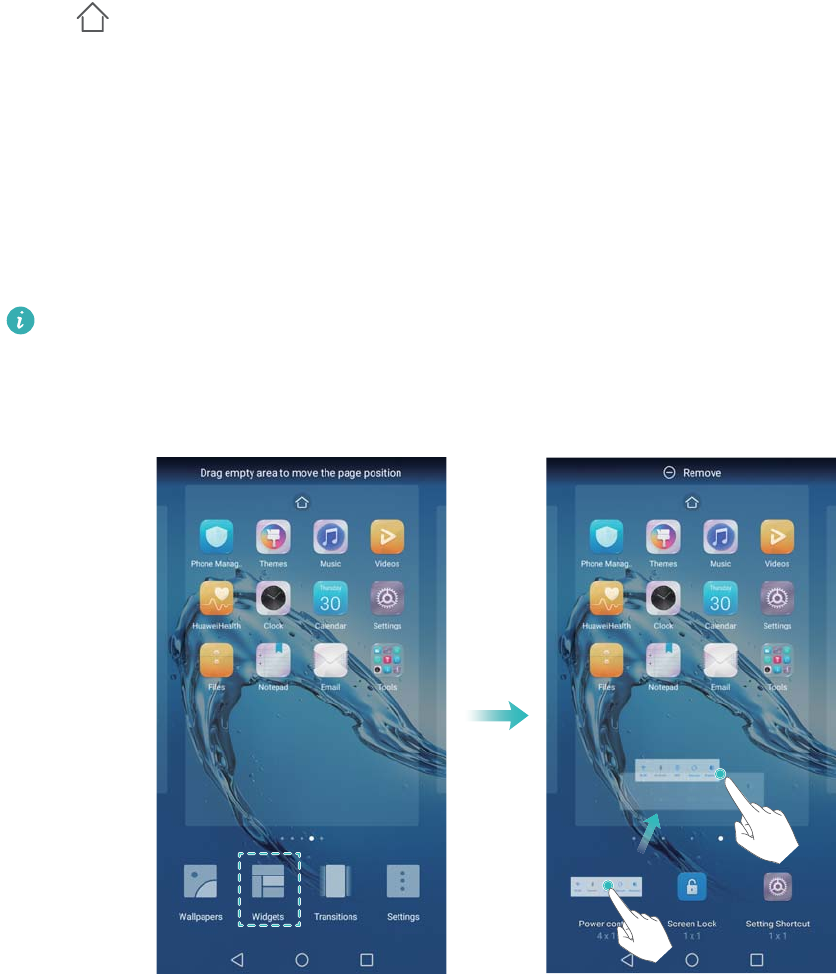
Setting the default home screen
1On the home screen, pinch two fingers together to open the home screen editor.
2Touch at the top of a home screen to set the chosen home screen as default.
Managing home screen widgets
Add, move, or delete widgets from the home screen.
Adding widgets
1On the home screen, pinch two fingers together to open the home screen editor.
2Touch Widgets. Select a widget and drag it to a blank area on the home screen.
You must have enough space on the home screen. If there is not enough space, add
another home screen or free up some space.
Moving widgets
On the home screen, touch and hold a widget until your device vibrates, and then drag the
widget to the desired location.
Deleting widgets
On the home screen, touch and hold a widget until your device vibrates, and then drag the
widget to Remove at the top of the screen.
Managing home screen folders
Organize your apps into folders so that you can find them more easily.
Screen and Display
16
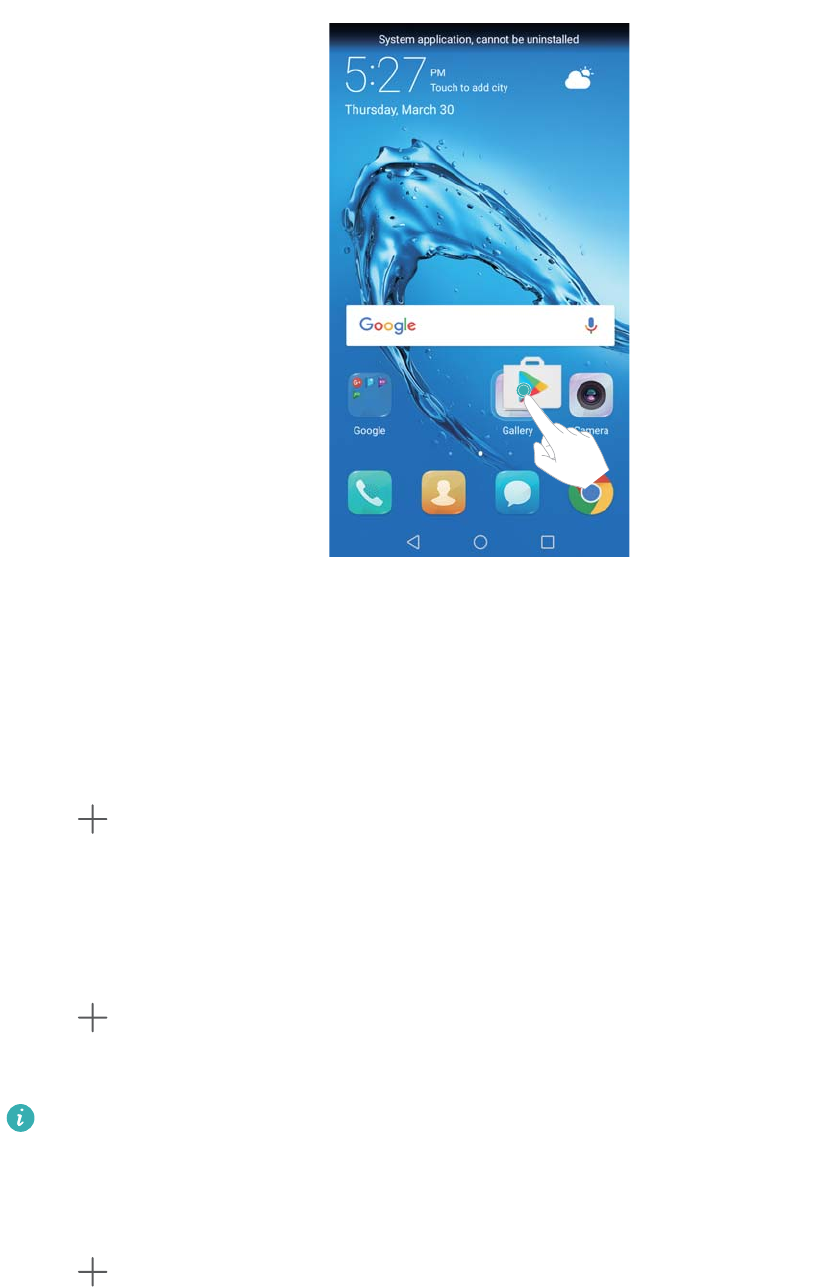
Creating a folder
Group your apps into categorized folders to make them easier to find. For example, you could
create a Social folder for your social media apps.
On the home screen, drag an icon onto another icon to create a folder containing both apps.
Renaming folders
To rename a folder, open it and touch the folder name.
Adding apps to a folder
1Open the folder.
2Touch .
3Select the apps you want to add and touch OK.
Removing apps from a folder
1Open the folder.
2Touch .
3Deselect the apps you want to remove and touch OK.
You can also touch and hold an icon and drag it outside a folder to remove it.
Deleting folders
1Open the folder.
2Touch .
3Deselect all of the apps and touch OK. The folder will be deleted automatically.
Screen and Display
17

Locking and unlocking the screen
Changing the lock screen style
Set a screen lock password to prevent unauthorized access to your device.
Changing the screen lock method
Magazine Unlock is set as the default lock screen style. To change the lock screen style, touch
Settings > Screen lock & passwords > Screen lock style and select a style.
Setting the screen lock password
1Open Settings.
2Touch Screen lock & passwords > Password
3You can choose to unlock the screen with an unlock pattern, PIN, or password:
lTouch Pattern and connect at least four dots twice to create a screen unlock pattern.
lTouch PIN. Follow the onscreen instructions to create a PIN containing at least four digits,
and then touch OK.
lTouch Password. Follow the onscreen instructions to create a password containing at least
four characters, and then touch OK.
lYou can also use your fingerprint to unlock the screen. Touch Enroll in the popup
dialog to add your fingerprint. For more information on using your fingerprint to unlock
the screen, see Set fingerprint.
lTo remove the screen lock password, touch None and follow the onscreen instructions.
Locking the screen
Lock the screen to reduce power consumption and prevent unintended presses or unauthorized
access to your data.
lManual lock: Press the Power button to manually lock the screen.
lAutomatic lock: The screen will lock automatically and enter sleep mode after the preset
sleep time to reduce power consumption and prevent unintended operations.
To change the screen sleep time, touch Settings > Display > Sleep and select a time.
Unlocking the screen
1Press the Power button to turn on the screen.
2Swipe on the screen in any direction.
Screen and Display
18
lIf you have set a screen unlock pattern, PIN, or password, you will need to draw the
unlock pattern or enter your PIN/password to unlock the screen.
lIf your device has a fingerprint sensor, you can unlock the screen by placing your finger
on the fingerprint sensor.
Configuring Magazine Unlock images
Configure Magazine Unlock to customize your lock screen wallpapers.
Adding online wallpapers to the viewing list
Swipe up from the bottom of the lock screen to display the Magazine Unlock options.
Touch . Touch and select the wallpapers that you want to add to the viewing list.
Sharing Magazine Unlock wallpapers
Swipe up from the bottom of the lock screen to display the Magazine Unlock options, and then
touch . Select how you want to share the wallpaper and follow the onscreen instructions.
Adding offline wallpapers to the viewing list
1Swipe up from the bottom of the lock screen to display the Magazine Unlock options.
2Touch to access the viewing list.
3Touch Added by me and select .
4Select the desired images and touch .
Updating Magazine Unlock covers
1Open Settings.
2Touch Screen lock & passwords > Magazine unlock.
3Touch Subscriptions > Downloaded and select Update to manually update your Magazine
Unlock wallpapers.
This feature requires an Internet connection. Connect to a Wi-Fi network to avoid
incurring unnecessary data charges.
Accessing tools from the lock screen
Launch apps directly from the lock screen.
1Swipe up from the bottom of the lock screen to display lock screen features and tools.
2Touch the shortcut icon on the bottom of the screen to launch the app you want to access.
Screen and Display
19
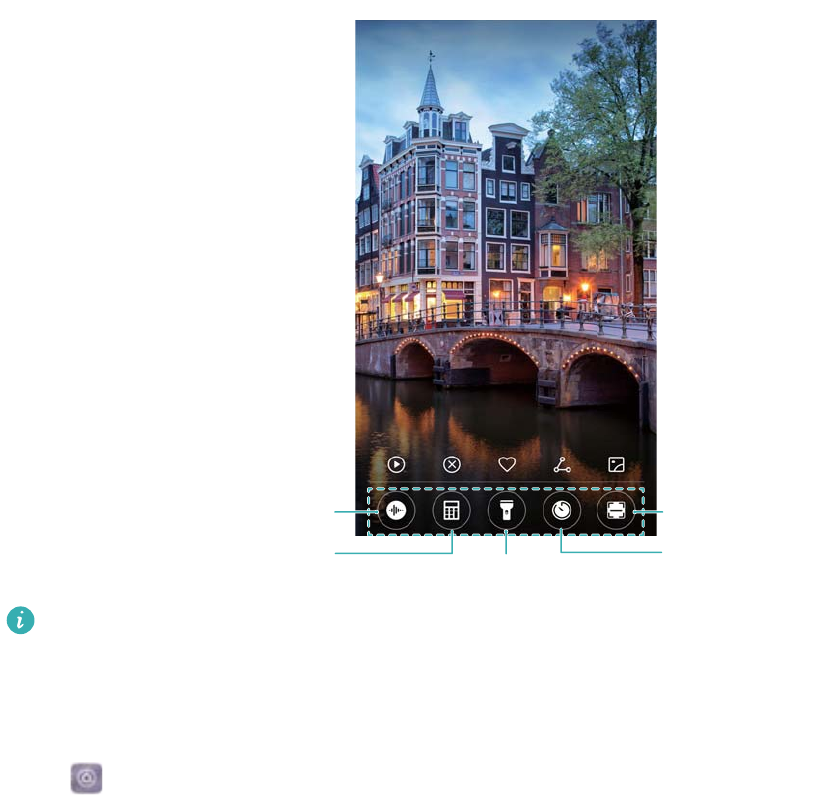
Recorder
Calclator Flashlight
Scanner
Clock
Swipe up on the camera icon on the lock screen to directly open the camera.
Configuring your lock screen signature
Configure a lock screen signature to personalize your lock screen.
1Open Settings.
2Touch Screen lock & passwords > Lock screen signature.
3Enter your lock screen signature and touch Save.
Your lock screen signature will be displayed on the lock screen.
Notification panel and status bar
About the status bar
Use the status bar to access the notification panel and check your device's status.
Opening the notification panel and status bar
Opening the notification panel and status bar from the lock screen
Turn on the screen and swipe down from the status bar to open the notification panel. Then you
can switch on or off shortcut switches, or view notification messages.
Opening the notification panel and status par when the screen is unlocked
Swipe down from the status bar to open the notification panel. Then you can switch on or off
shortcut switches, or view notification messages.
Screen and Display
20
About notification and status icons
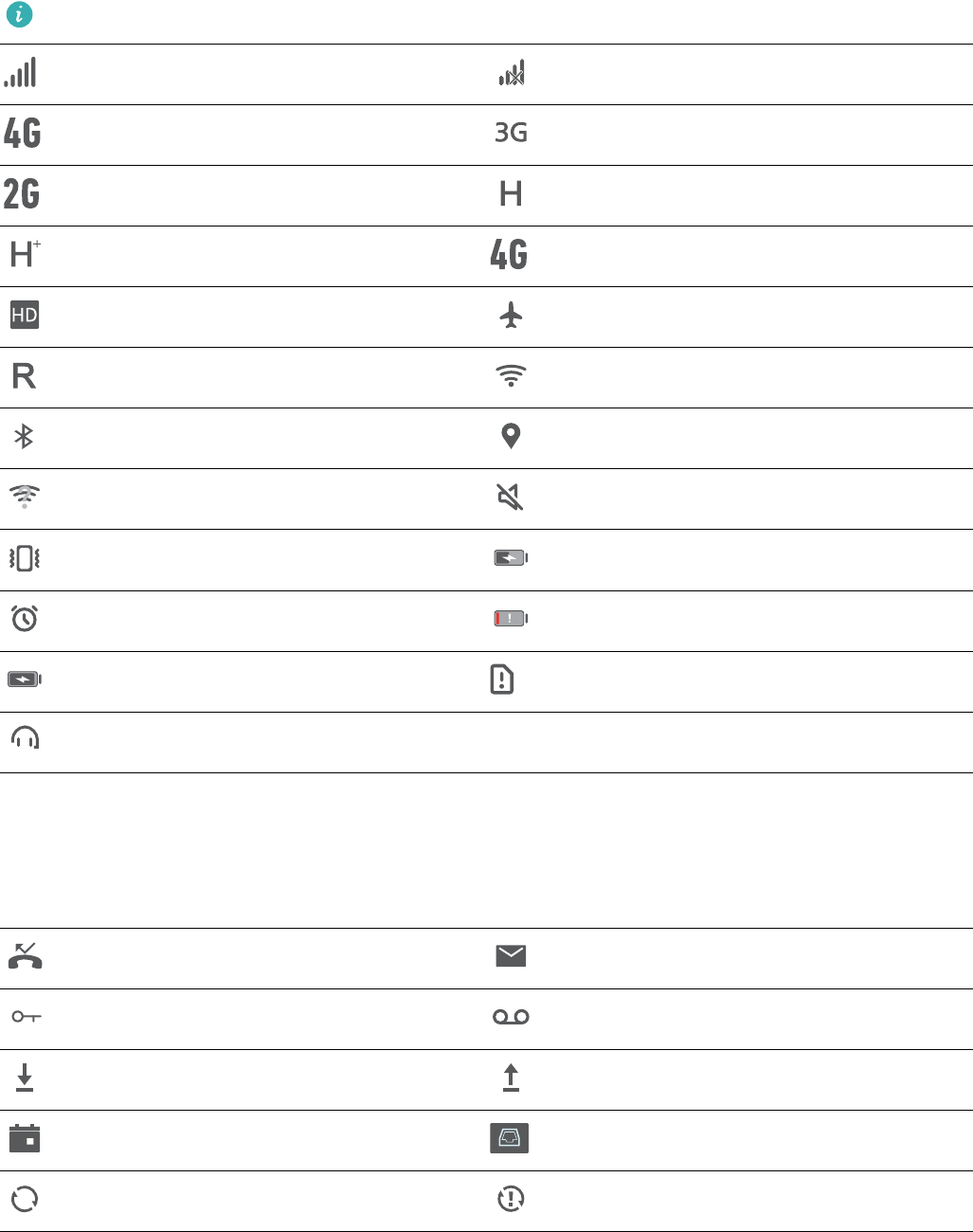
Status icons
Status icons are displayed on the right-hand side of the notification bar and tell you about your
device's status, including network connections, signal strength, battery, and time.
Status icons may vary according to your region or carrier.
Signal strength No signal
Connected over 4G Connected over 3G
Connected over 2G Connected over HSPA
Connected over HSPA+ Connected over LTE
VoLTE enabled Airplane mode enabled
Roaming Connected over Wi-Fi
Bluetooth enabled Receiving location data from GPS
Wi-Fi network available Silent mode enabled
Vibration mode enabled Charging
Alarm enabled Battery low
Battery full No SIM card found
Headset inserted
Notification icons
Notification icons are displayed on the left-hand side of the status bar when you receive a new
message, notification, or reminder.
Missed calls New emails
Connected to a VPN New voicemail
Downloading data Uploading data
Upcoming events Device memory full
Synchronizing data Synchronization failed
Screen and Display
21
Login or synchronization issue More notifications
Configuring notifications
You can configure the notification settings for each app.
1Open Settings.
2Touch Notification & status bar > Notifications management.
3Select the app that you want to configure and enable or disable notifications as desired.
Configuring the screen to turn on when you receive a notification
Configure the screen to turn on when you receive a new notification to avoid missing important
information.
1Open Settings.
2Touch Notification & status bar.
3Toggle the Notifications turn on screen switch.
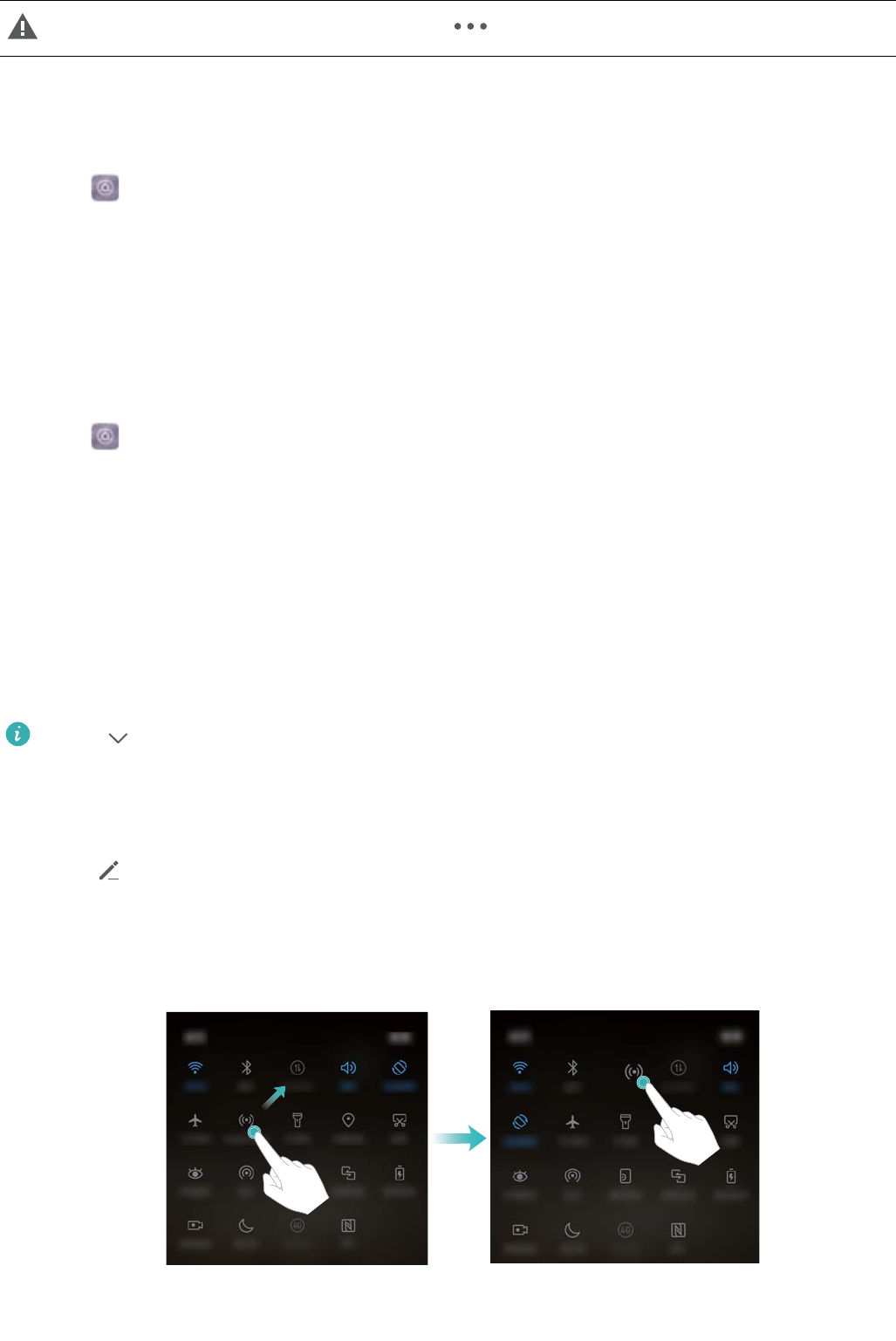
Using shortcut switches to access settings
Use shortcut switches to quickly enable or disable frequently-used features.
Accessing shortcut switches
Swipe down from the status bar to open the notification panel.
Touch to display all of the shortcut switches.
Configuring shortcut switches
1Swipe down from the status bar to open the notification panel.
2Touch . Touch and hold a switch and drag it to the desired position.
Screen and Display
22
3Touch a switch to enable the corresponding feature. If the switch supports touch and hold
gestures, touch and hold the switch to access the settings for the corresponding feature.
Some switches do not support touch and hold gestures.
Navigation bar
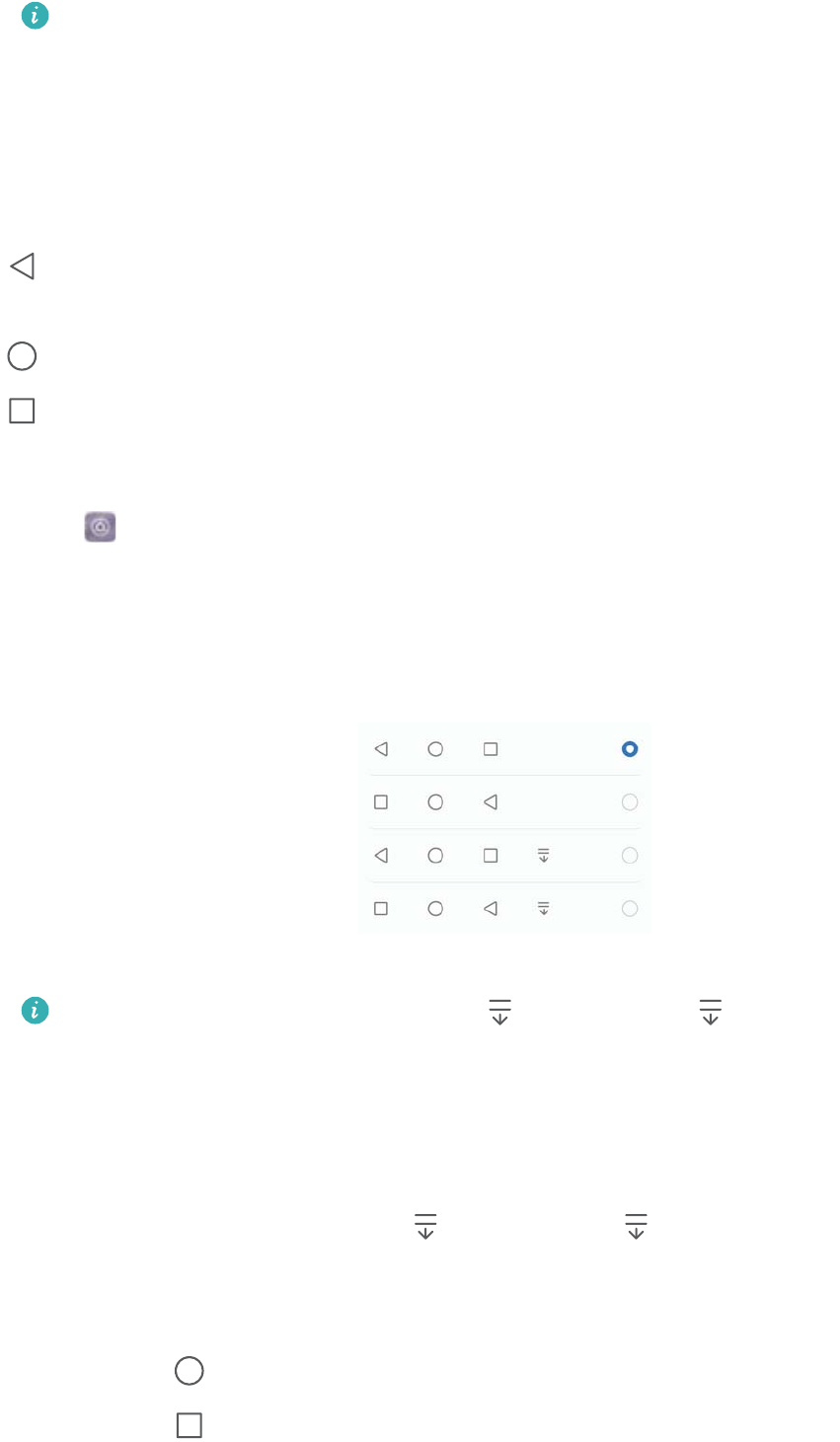
About the navigation bar
The navigation bar contains three virtual keys: Back, Home, and Recent.
lBack: Touch to return to the previous screen or close an app. When entering text, touch to
close the onscreen keyboard.
lHome: Touch to return to the home screen.
lRecent: Touch to display recently used apps.
Changing the navigation bar style
1Open Settings.
2Touch Navigation key.
3Select the desired layout.
If you select a navigation bar containing , you can touch to pull down the
notification panel.
Using the navigation bar
Opening the notification panel
If you select a navigation bar containing , you can touch to pull down the notification
panel.
Accessing Google Search and split screen mode
lTouch and hold Home to access Google Search.
lTouch and hold Recent to enable split screen mode.
Screen and Display
23
Managing recent tasks
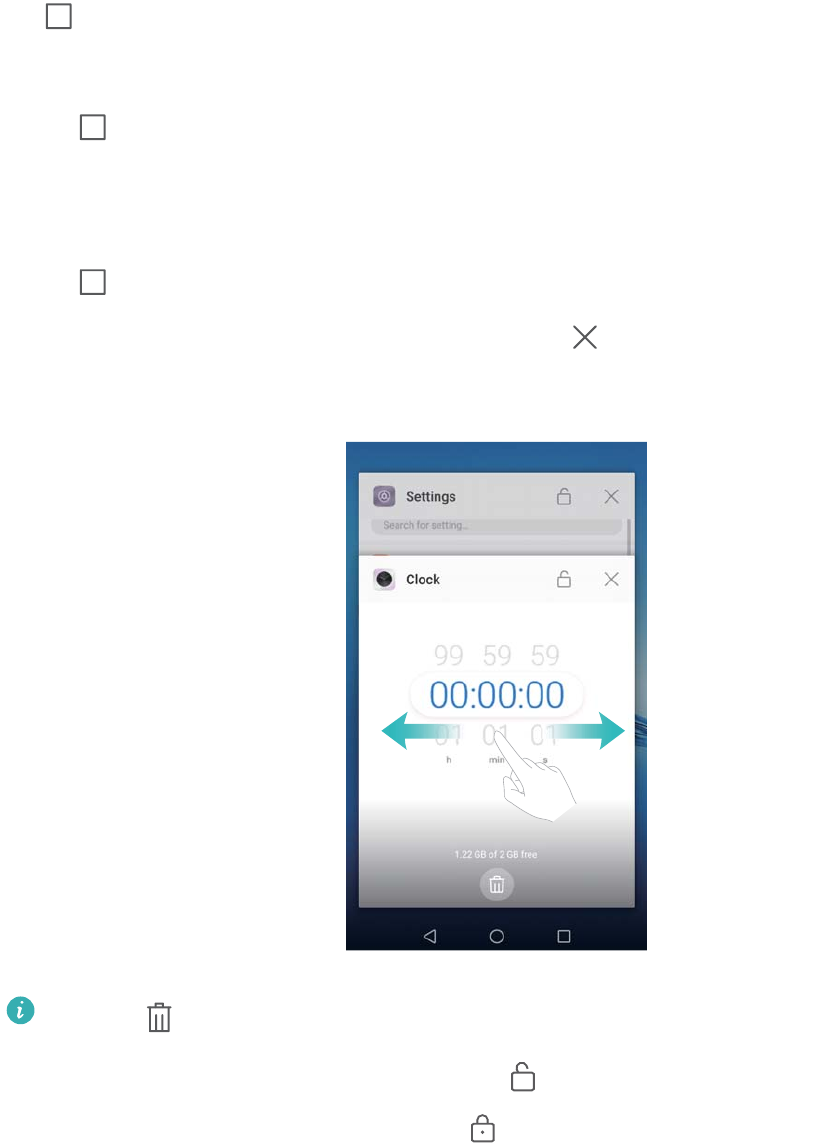
Viewing recent tasks
Touch Recent to display recent tasks. Swipe up and down to browse them.
Switching between recent tasks
1Touch Recent.
2Swipe up or down to find the task you want to switch to and select it.
Ending recent tasks
1Touch Recent.
2To end a task, swipe it to the left or right or touch the icon in the top-right corner.
lTouch to end all tasks.
lTo prevent a task from ending, touch the icon in the top-right corner. This will lock
that task. To unlock a task, touch the icon in the top-right corner.
Themes
About themes
Themes help you to personalize your home screen by changing the wallpaper, app icons, and
more.
Screen and Display
24
Changing the theme
1Open Themes.
2You can:
lSelect a theme and follow the onscreen instructions to configure the settings.
lTouch Customize to mix and match lock screen methods, wallpapers, app icons, and
more.
Global search
About global search
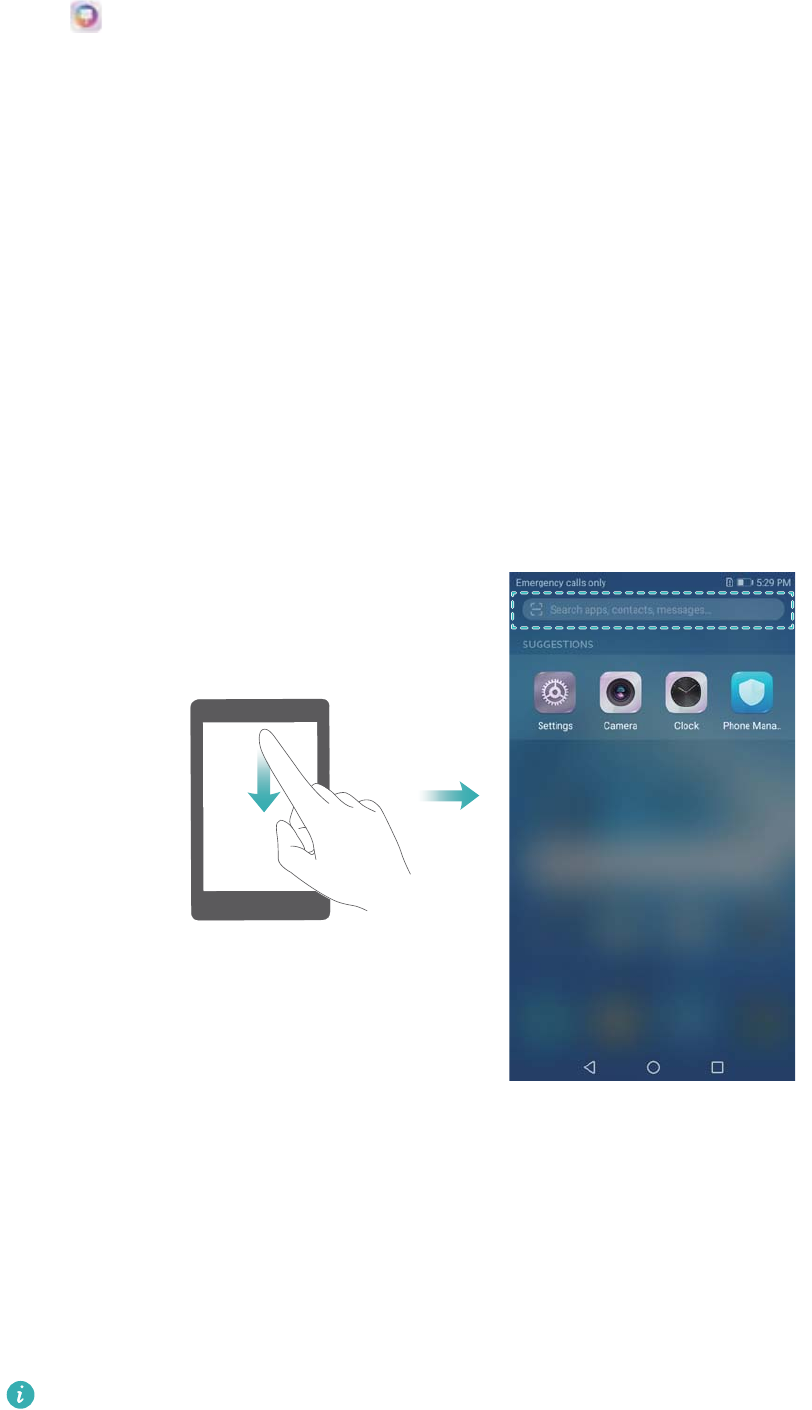
Use global search to find apps, contacts and messages on your device.
Swipe down on the home screen to open the global search window, and then enter your search
terms.
Searching for content on your device
Searching for contacts
1Swipe down on the home screen to display the search bar.
2Touch the search bar and enter the contact name, initials, phone number, email address, or
other information. Matching results will be displayed underneath.
To improve the accuracy of search results, enter more than one keyword. Each keyword
should be separated by a space (for example "John Smith New York").
Screen and Display
25

Searching for SMS messages
1Swipe down on the home screen to display the search bar.
2Enter one or more keywords. The results will be displayed underneath the search bar.
Alternatively, open Messaging and enter one or more keywords in the search bar.
Searching for emails
1Swipe down on the home screen to display the search bar.
2Enter one or more keywords (such as the email subject). The results will be displayed
underneath the search bar.
Searching for apps
1Swipe down on the home screen to display the search bar.
2Enter one or more keywords. The results will be displayed underneath the search bar.
When using the Drawer home screen layout, you can also search for apps by touching
and entering the app name in the search bar.
Searching for settings
1Swipe down on the home screen to display the search bar.
2Enter one or more keywords. Matching menu options from Settings will be displayed under
the search bar.
Screenshot
Capturing the entire screen
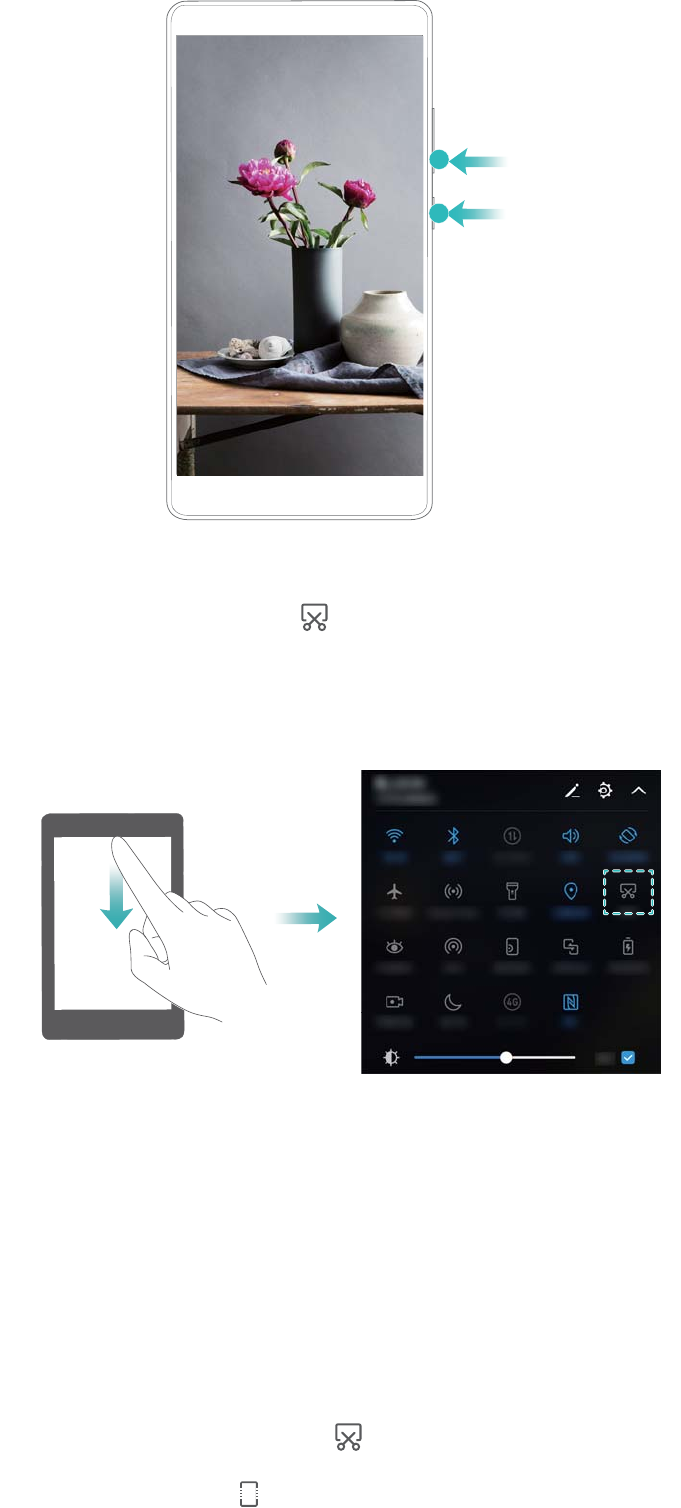
Taking a screenshot with the power and volume down buttons
Press the Power button and Volume down button to take a full screenshot.
Screen and Display
26
Screenshot shortcut
Open the notification panel, and then touch in the Shortcuts tab to take a full screenshot.
Taking scrolling screenshots
Use scrolling screenshots to capture content that does not fit on the screen. This is useful for
sharing chat conversations, web pages, or large images.
Using the shortcuts tab
1Open the notification panel, and then touch to take a standard screenshot.
2After taking the screenshot, touch to take a scrolling screenshot.
3The screen will scroll down automatically as your device captures a screenshot.
Screen and Display
27
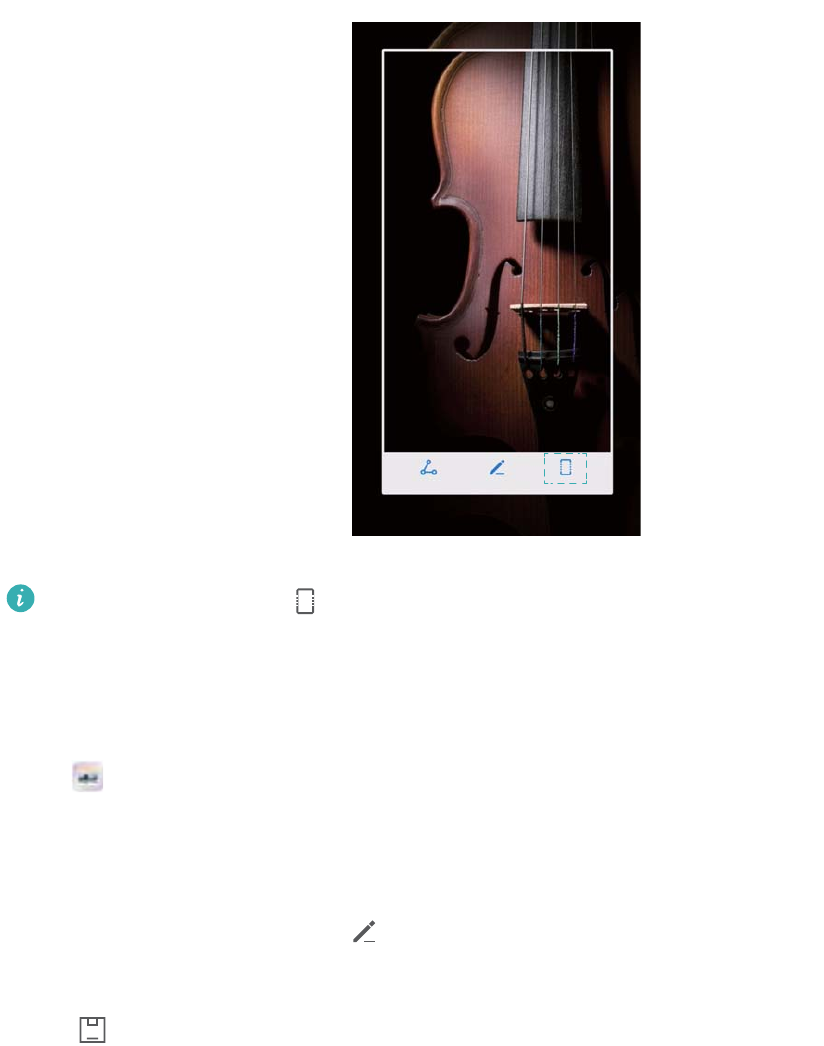
Ensure that you touch within 3 seconds of taking the screenshot.
Viewing, editing, deleting, and sharing screenshots
Viewing screenshots
1Open Gallery.
2On the Albums tab, touch Screenshots to view your screenshots.
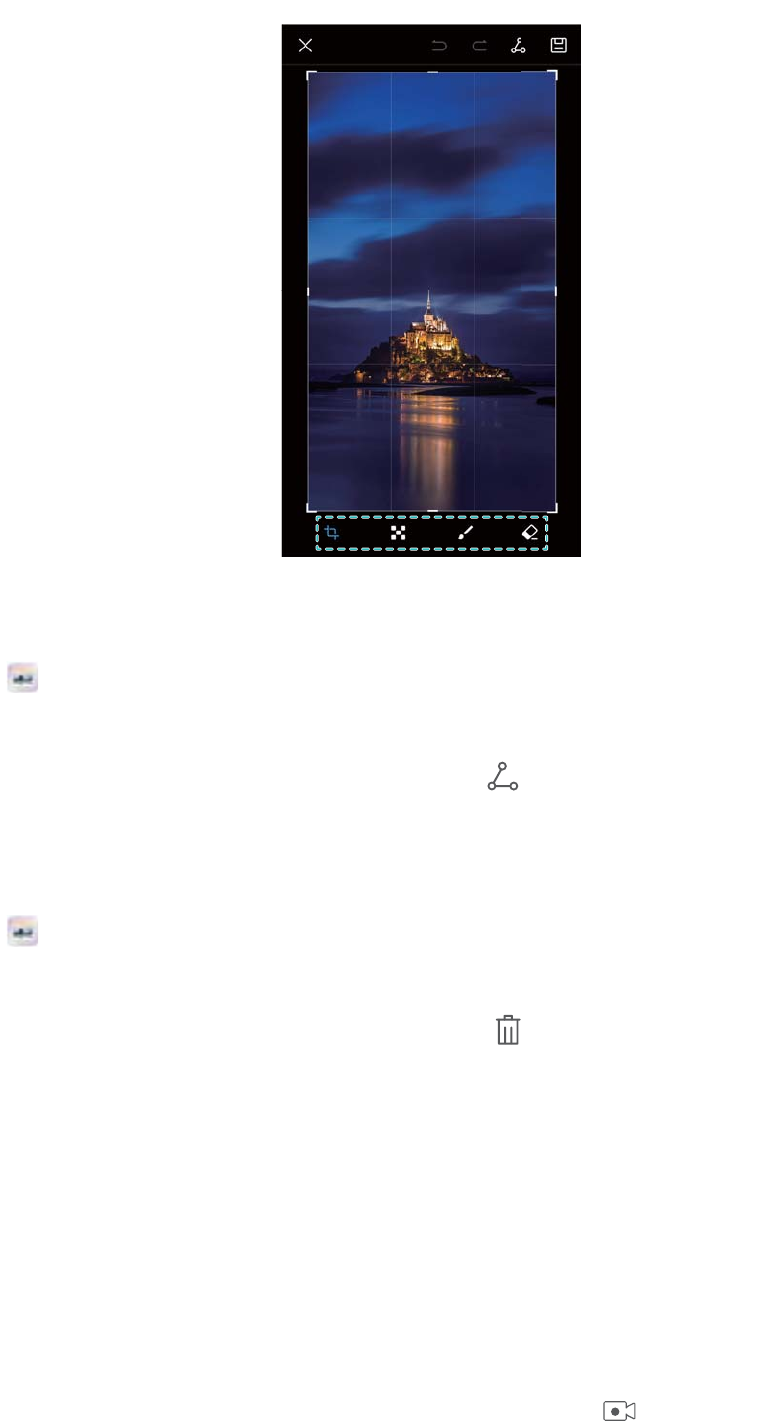
Editing a screenshot
1After taking a screenshot, touch .
2Choose the desired options to edit the image.
3Touch to save the changes.
Screen and Display
28
Sharing a screenshot
1Open Gallery.
2On the Albums tab, touch Screenshots.
3Select the screenshot you want to share and touch .
4Choose how you want to share the screenshot and follow the onscreen instructions.
Deleting a screenshot
1Open Gallery.
2On the Albums tab, touch Screenshots.
3Select the screenshot you want to delete and touch .
Screen recording
About screen recordings
Use the screen recording feature to record footage and share it with friends.
Screen recorder
Using the screen recorder shortcut switch
To start a screen recording, open the notification panel and touch .
Screen and Display
29
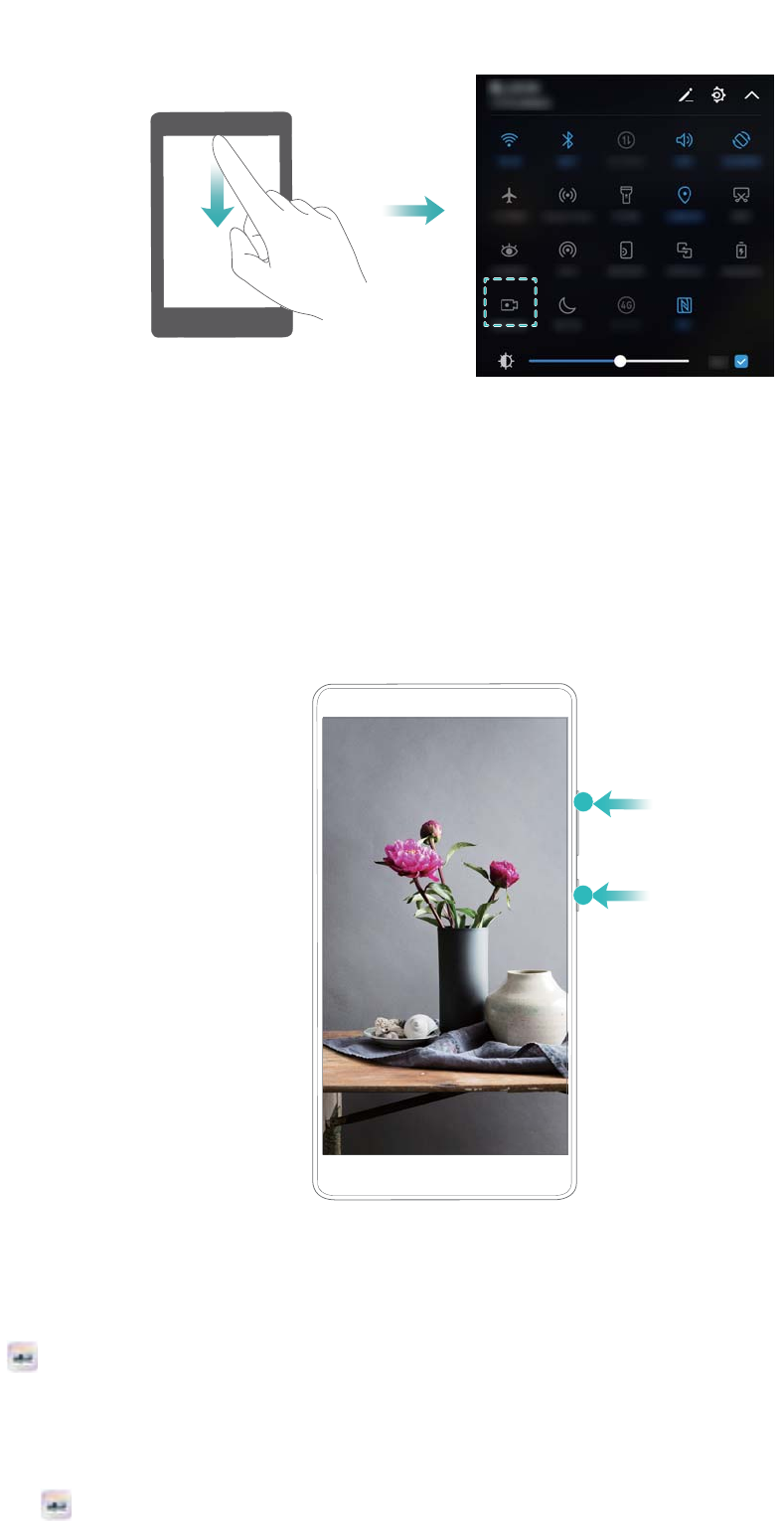
Pressing buttons to record
Press the Volume up button and Power button simultaneously.
Viewing, sharing, and deleting screen recordings
Viewing screen recordings
Open Gallery and go to Screenshots or Screen recordings to view your screen
recordings.
Sharing screen recordings
1Open Gallery.
Screen and Display
30

2On the Albums tab, touch Screenshots or Screen recordings.
3Select the screen recording you want to share and touch .
4Choose how you want to share the recording and follow the onscreen instructions.
Deleting screen recordings
1Open Gallery.
2On the Albums tab, touch Screenshots or Screen recordings.
3Touch and hold the screen recording that you want to delete and select .
4Touch Delete.
Configuring the default storage location for screen recordings
Not all devices support microSD cards.
1Insert a microSD card into your device.
2Open Settings.
3Touch Memory & storage > Default location to set the default storage location to Internal
storage or SD card.
Split-screen mode
About split-screen mode
Use split-screen mode to use two apps at once.
Enabling split screen mode
Split screen mode is not available for all apps. Some apps may not function properly in split
screen mode.
Using the Recent key to enable split screen mode
Open an app that supports split-screen mode, and then touch and hold .
Using swipe gestures to enable split screen mode
Open an app that supports split screen mode, and then swipe up from the bottom of the screen
with two fingers.
Screen and Display
31
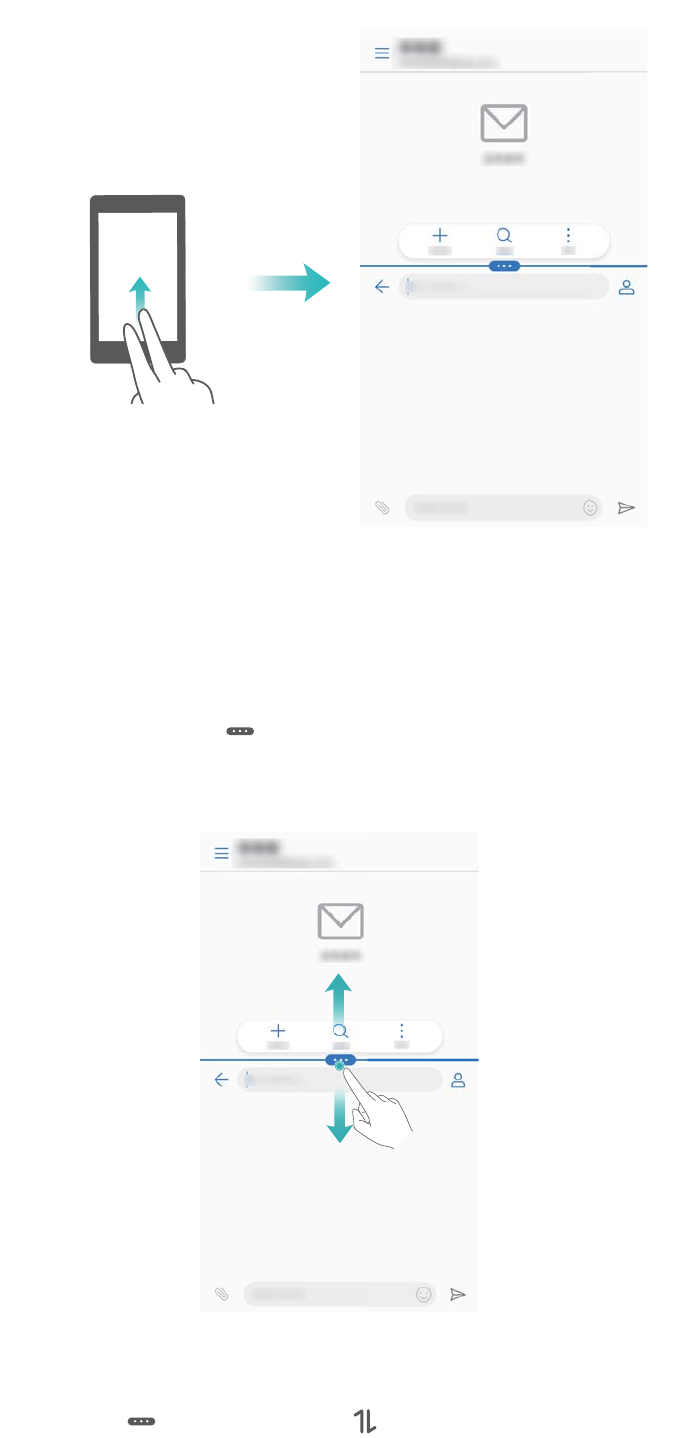
Using split screen mode
Switching to full screen mode
In split screen mode, touch and hold and swipe up or down to switch to full screen mode.
Moving screens
In split screen mode, touch , and then touch to switch the position of the screens.
Screen and Display
32
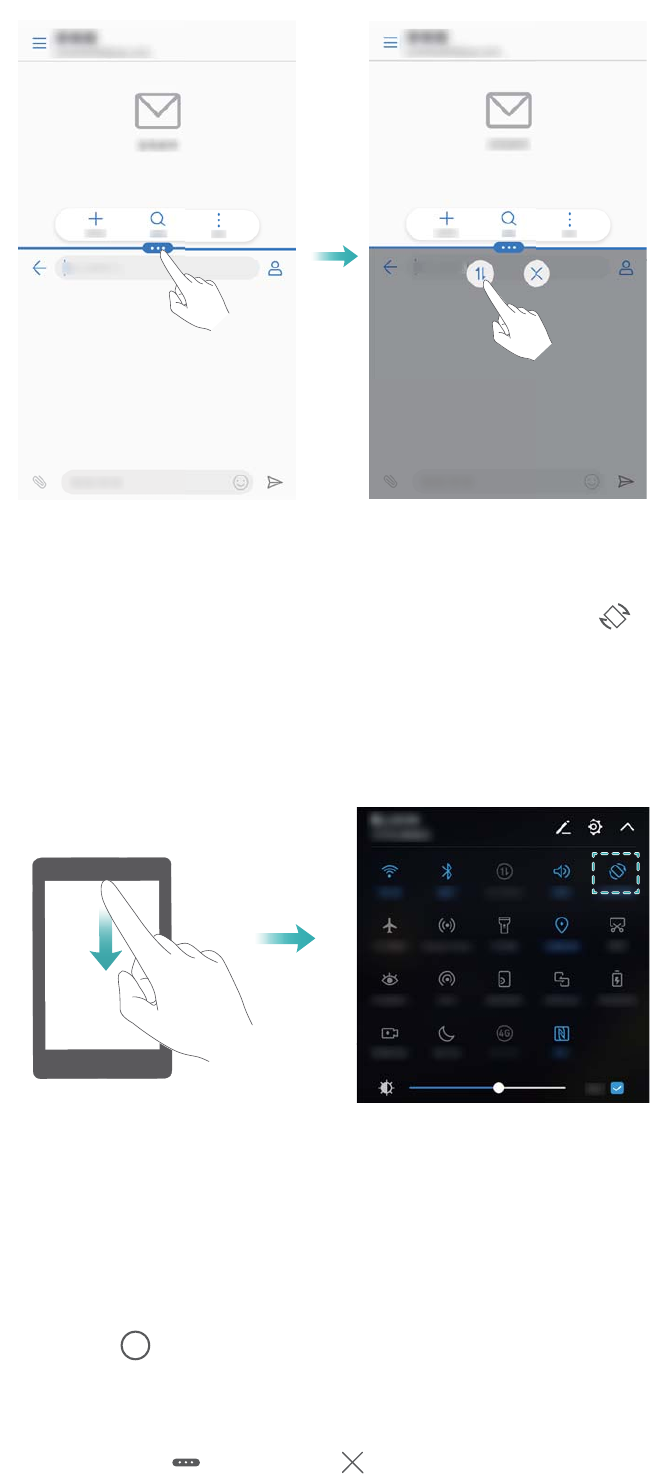
Changing the screen orientation
Swipe down from the status bar to open the notification panel. Touch the switch to enable
automatic screen rotation.
Accessing the home screen
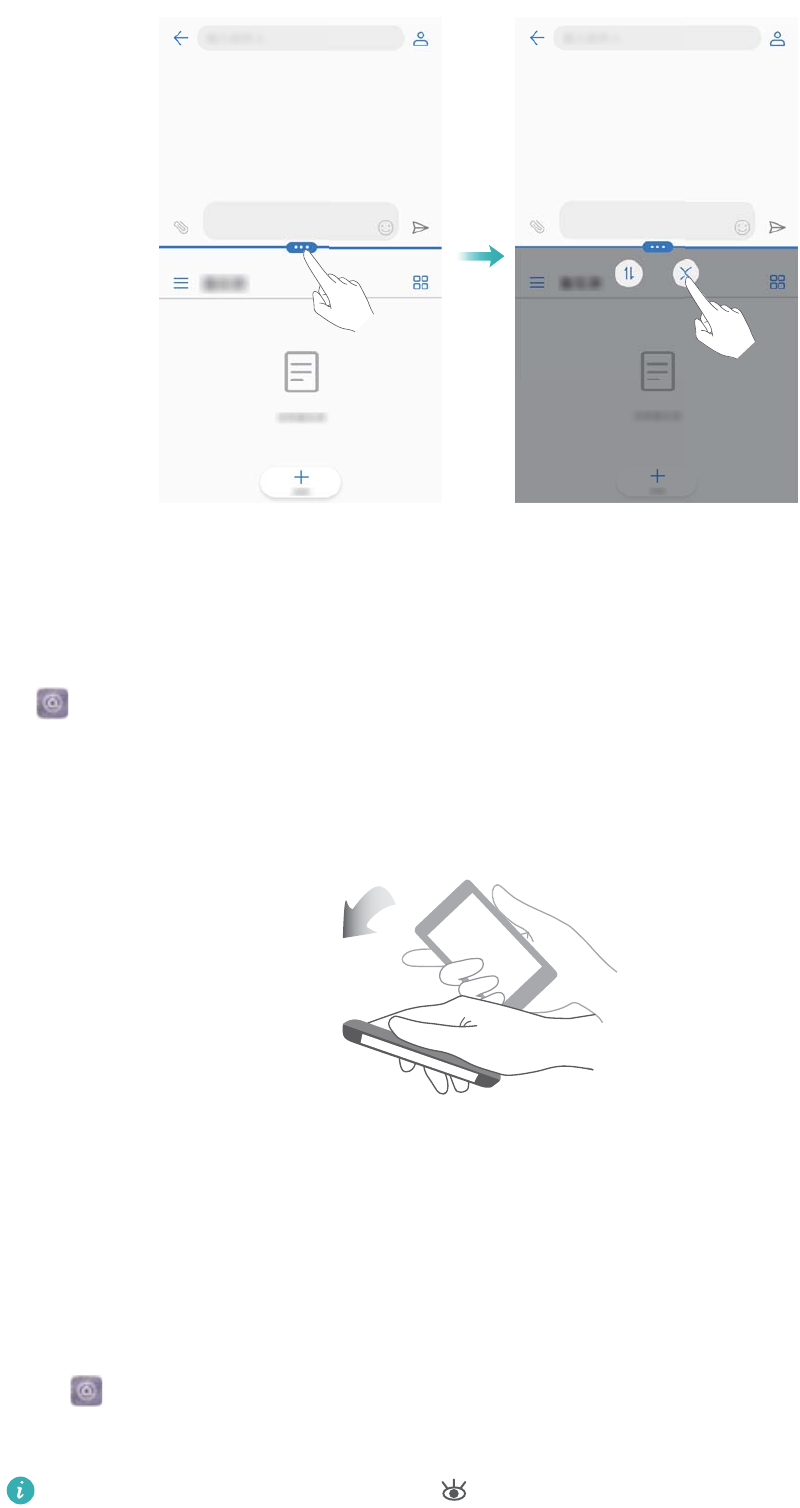
In split screen mode, touch to access the home screen.
Exiting split-screen mode
To exit split-screen mode, touch and select .
Screen and Display
33
Using motion gestures
Motion gestures make it easier to control your device.
Open Settings. Touch Smart assistance > Motion control and select the motions you
want to enable.
Flip: Mute sounds and disable vibrations for incoming calls, alarms, and timers.
Eye comfort mode
Eye comfort mode decreases the amount of blue light emitted from the screen to reduce eye
strain.
Eye comfort mode
1Open Settings.
2Touch Display > Eye comfort and switch on Eye comfort.
When eye comfort mode is enabled, will be displayed in the status bar.
Screen and Display
34
Adjusting the color temperature
Eye comfort mode reduces the amount of blue light emitted from the screen, which may give the
screen a slightly yellow hue. You can adjust the color temperature to control the amount of blue
light.
When Eye comfort is enabled, swipe left or right on the color temperature slider to make the
screen hue cooler or warmer.
Enabling and disabling eye comfort mode
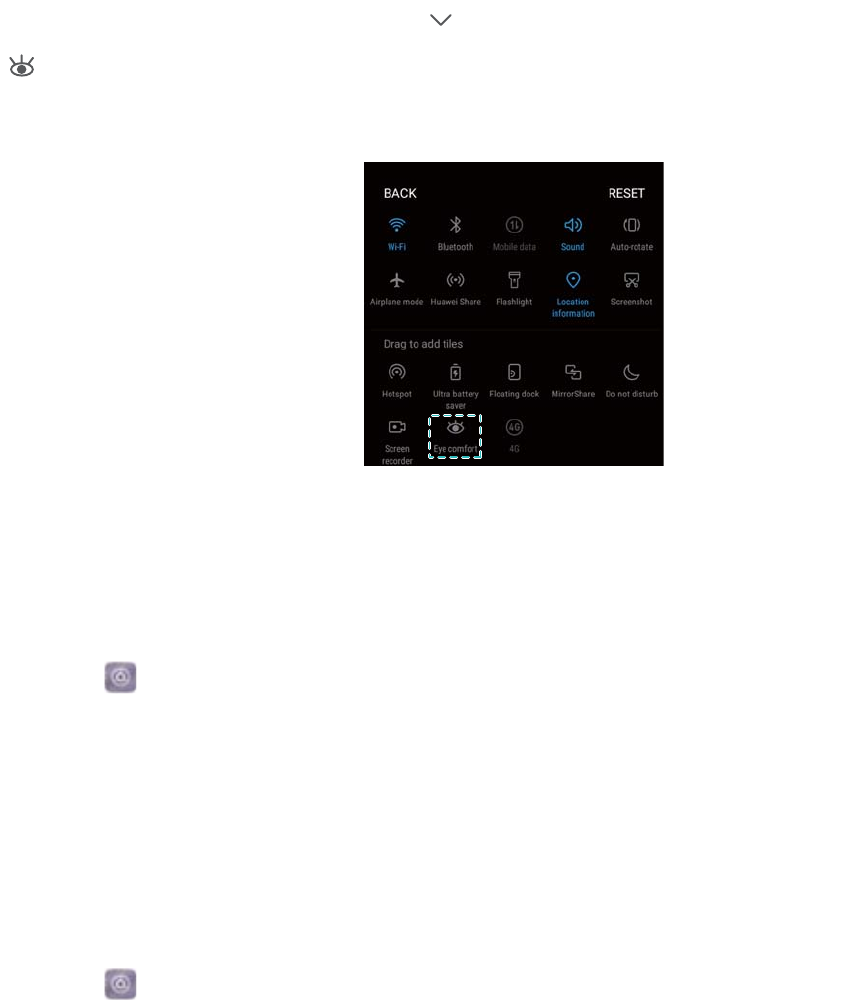
You can use the shortcut switch in the notification panel to enable or disable eye comfort mode.
Swipe down from the status bar. Touch to display all shortcut switches, and then toggle the
switch.
Configuring the timer
Configure the timer to enable eye comfort mode automatically at a preset time, such as when
you finish work or before you go to bed.
1Open Settings.
2Touch Display > Eye comfort.
3Switch on Schedule and configure the Start time and End time.
Display settings
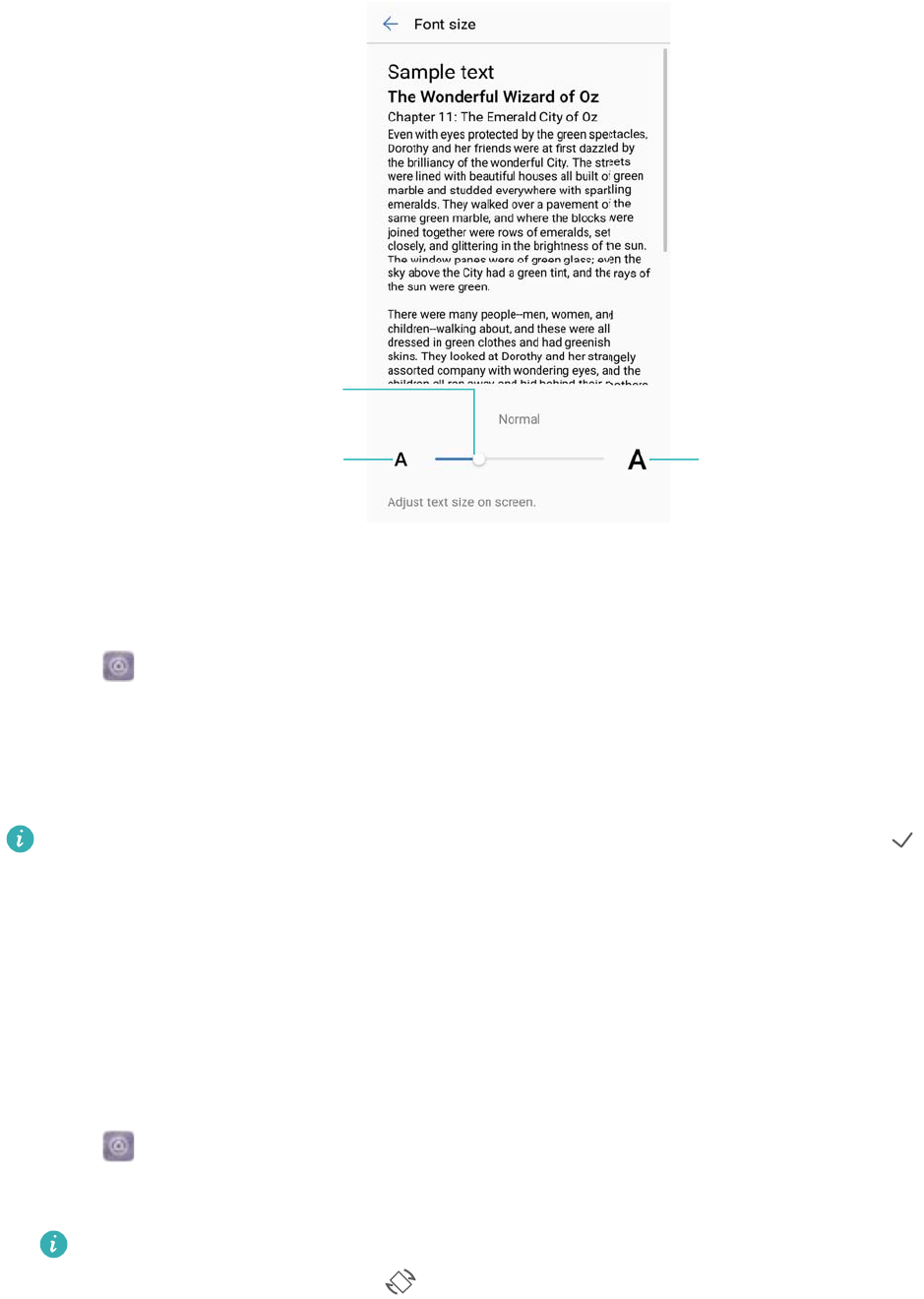
Changing the font size
1Open Settings.
2Touch Display > Font size and choose a font size.
Screen and Display
35
Touch to decrease
font size
Touch to increase
font size
Drag slider to
adjust font size
Adjusting the screen brightness
Adjust the screen brightness to suit your needs.
1Open Settings.
2Touch Display > Brightness and switch on Automatic brightness.
When automatic screen brightness is enabled, the brightness of the screen will automatically
adjust based on the light conditions.
Adjust the screen brightness quickly: Swipe down from the status bar. Touch .
Enable or disable automatic screen brightness. You can also manually adjust the screen
brightness by dragging the slider. The screen brightness will not change in different lighting
conditions if automatic mode is not enabled.
Configuring the screen rotation settings
When you rotate your device, some apps will automatically adjust the screen orientation to make
them easier to use.
1Open Settings.
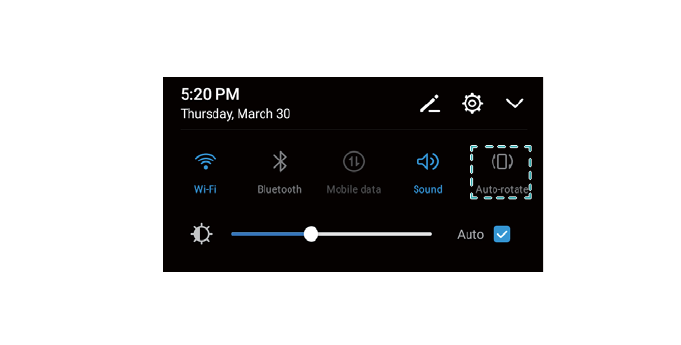
2Touch Display and switch on Auto-rotate screen.
Quickly enable auto-rotation: Swipe down from the status bar and open the shortcut
switches tab, and then touch .
Screen and Display
36
Screen and Display
37

Network and Sharing
Mobile Internet
Using mobile data
Enabling mobile data
Before enabling mobile data, ensure that you have activated mobile data services with your
carrier.
1Open Settings.
2Touch More > Mobile network.
3Switch on Mobile data to enable mobile data.
Disable mobile data when not required so as to save battery power and reduce data
usage.
Enabling VoLTE
Enable VoLTE (Voice over LTE) to make high-quality audio and video calls over 4G networks.
lSwitch on 4G before enabling VoLTE.
lMake sure your device supports VoLTE and you have activated this feature from your
carrier.
1Open Settings.
2Touch More > Mobile network.
3Switch on VoLTE calls.
Enabling data roaming
Enable data roaming to access the Internet when you travel abroad.
You may incur roaming charges when data roaming is enabled. Contact your carrier for
details.
1Open Settings.
2Touch More > Mobile network.
3Switch on Data roaming.
Sharing your mobile Internet with other devices
Setting up a portable Wi-Fi hotspot
38
1Open Settings.
2Touch More > Tethering & portable hotspot.
3Touch Portable Wi-Fi hotspot and switch on the hotspot.
4Touch Configure Wi-Fi hotspot. Set the Wi-Fi hotspot name, encryption mode, and
password, and then touch Save.
Limit the amount of data that other devices can use: Touch Data limit on the
Settings screen, and then follow the onscreen instructions to set the data limit. Your
device will automatically disable the Wi-Fi hotspot when connected devices exceed this
limit.
Using USB tethering
Depending on your computer's operating system, you may need to install drivers on the
computer or establish a network connection in order to use USB tethering. Refer to your
operating system instructions.
1Use a USB cable to connect your device to the computer.
2Open Settings.
3Touch More > Tethering & portable hotspot.
4Switch on USB tethering to share your mobile Internet.
Using Bluetooth tethering
Network and Sharing
39
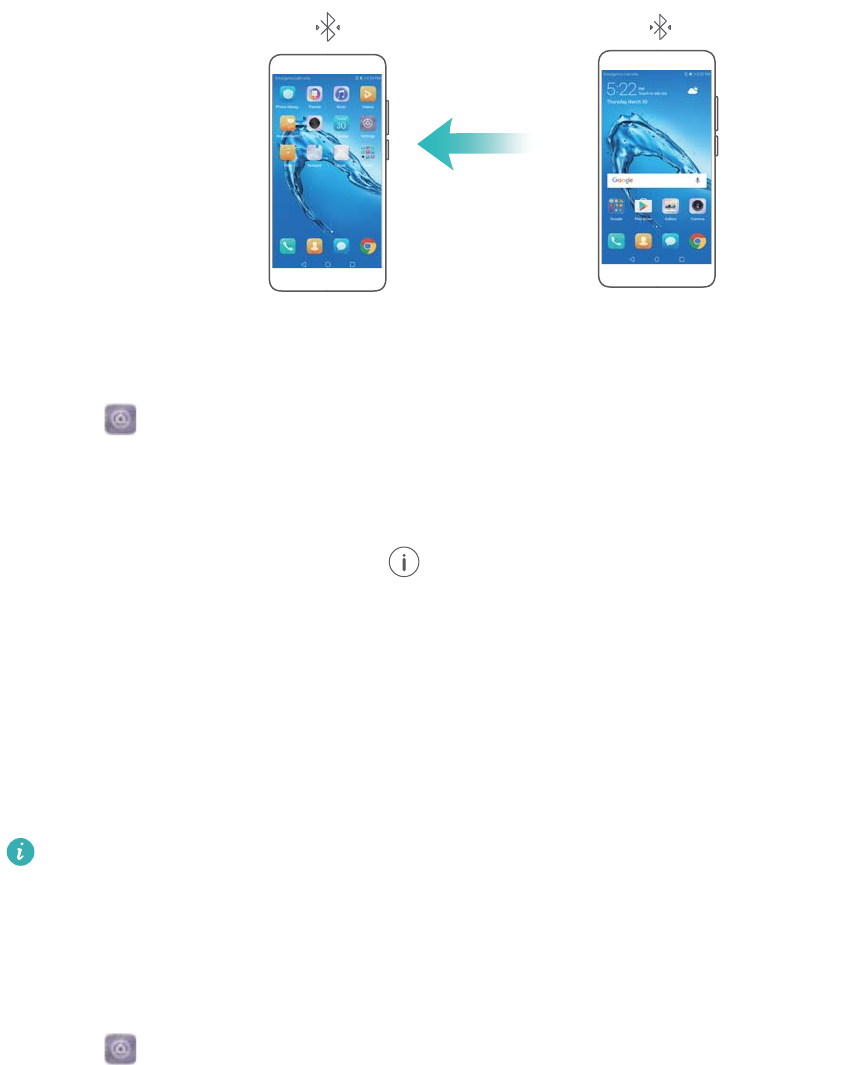
Before using Bluetooth tethering, pair your device with those that want to use your mobile
Internet. For more information, refer to Connecting to other devices using Bluetooth.
1Open Settings.
2Touch More > Tethering & portable hotspot.
3Switch on Bluetooth tethering to share your mobile Internet.
4On the Bluetooth screen, touch next to the paired device,and then switch on Internet
access to share your mobile Internet.
Wi-Fi
About Wi-Fi
Connect to a Wi-Fi network to access the Internet on your device.
To prevent unauthorized access to your personal data and financial information, always
exercise caution when connecting to public Wi-Fi networks.
Connecting to the Internet using Wi-Fi
Connecting to a Wi-Fi network
1Go to Settings.
2Touch Wi-Fi and turn on the Wi-Fi switch. Your device will display a list of available Wi-Fi
networks.
lRefresh the list: Touch Scan to refresh the list of available Wi-Fi networks.
lManually add a network: Swipe down to the bottom of the menu and touch Add
network…. Follow the onscreen instructions to enter the network name and password
manually.
3Select the Wi-Fi network you want to connect to:
lIf the Wi-Fi network does not require a password, your device will connect automatically.
lIf the network is protected, enter the password when prompted and touch Connect.
Connecting to a Wi-Fi network using Wi-Fi Protected Setup (WPS)
WPS allows your device to connect to a WPS-enabled router without entering a password.
Network and Sharing
40

1Go to Settings.
2Touch Wi-Fi and switch on Wi-Fi.
3Touch > Advanced Wi-Fi settings. There are two options:
lTouch WPS connection and press the router's WPS button.
lTouch WPS PIN connection to generate a PIN, and then enter the PIN on the router.
Using Wi-Fi+
When Wi-Fi+ is enabled, your device will automatically enable or disable Wi-Fi and connect to
the Wi-Fi network with the best signal.
You may incur additional data charges when downloading large files or watching online
videos over mobile data. To avoid incurring excessive data charges, purchase a data plan.
Contact your carrier for details.
1Open Settings.
2Touch Wi-Fi > Wi-Fi+ and turn on the Wi-Fi+ switch.
When Wi-Fi+ is enabled, your device will record your Wi-Fi connection history and monitor your
signal strength and location. This information is then used to enable or disable Wi-Fi and
connect to the Wi-Fi network with the strongest signal.
Using a QR code to share your Wi-Fi hotspot
Create a QR code to share your device's Wi-Fi hotspot with friends.
lQR codes can be generated for the following wireless encryption methods: WPA, WPA2,
WEP, WPA-PSK, and WPA2-PSK. You cannot use a QR code to connect to WLAN
networks that are encrypted using the EAP protocol.
lEnsure that the connecting device supports using QR codes to import Wi-Fi network
credentials.
1Go to Settings.
2Select Wi-Fi and turn on the Wi-Fi switch.
3Once connected, touch the name of the network to generate a QR code.
4On the connecting device, touch the center of the screen and swipe down. Touch , scan
the QR code, and then follow the onscreen instructions to connect to the Wi-Fi hotspot.
Transferring data using Wi-Fi Direct
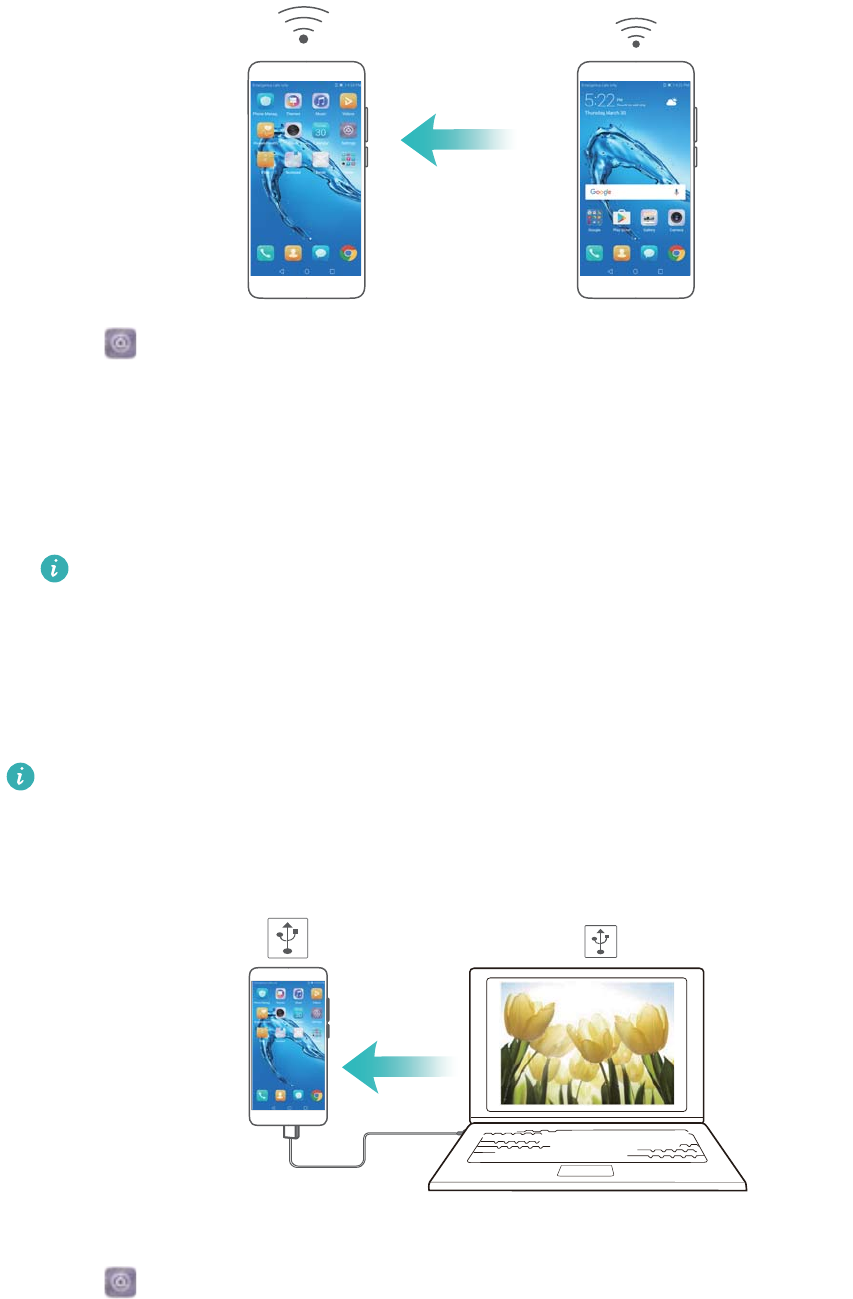
Wi-Fi Direct lets you transfer data directly between two Huawei devices without connecting to a
Wi-Fi network. Wi-Fi Direct is similar to Bluetooth, but offers faster transfer speeds, making it
suitable for sharing larger files.
Enabling or disabling Wi-Fi Direct
1Go to Settings.
Network and Sharing
41

2Touch Wi-Fi. Turn on the Wi-Fi switch and then touch .
3Your device will list available Wi-Fi Direct devices. Select the device you want to share files
with and then follow the onscreen instructions to connect.
To disconnect from the receiving device, touch and go to the Wi-Fi direct screen. Select
the receiving device and touch OK.
Using Wi-Fi Direct to send and receive files
First ensure that Wi-Fi Direct is enabled on both devices.
1Go to Files and touch and hold the image that you want to share.
2Touch More > Share > Wi-Fi Direct. Your device will list nearby Wi-Fi Direct devices. Select
the receiving device.
3On the receiving device, select Accept from the popup dialog to accept the file transfer
request.
Open the notification panel to view file transfer progress.
By default, received files are saved to the Wi-Fi Direct folder in Files.
Bluetooth
Connecting to other devices using Bluetooth
Enabling Bluetooth and pairing with other devices
1Go to Settings.
2Touch Bluetooth and switch on Turn on Bluetooth.
Ensure that the device you want to pair with is visible.
3Select the device you want to pair with and follow the onscreen instructions.
Unpairing Bluetooth devices
1Go to Settings.
2Touch Bluetooth and switch on Turn on Bluetooth.
3Touch the icon next to the device name and select Unpair.
Transferring data using Bluetooth
Using Bluetooth to share files
Ensure that Bluetooth is enabled on both devices and that both devices are visible.
1Select the file(s) you want to share and touch Share > Bluetooth. Your device will search for
available Bluetooth devices.
2Select the receiving device.
Network and Sharing
42

3On the receiving device, select Accept from the popup dialog to accept the file transfer
request. Open the notification panel to view the file transfer progress.
By default, received files are saved to the Bluetooth folder in Files.
Sharing photos and videos with Bluetooth
When viewing photos or videos in full screen, you can share content rapidly using Bluetooth.
Ensure that Bluetooth is enabled on both devices and that both devices are visible.
1Go to Gallery.
2Select the photo or video you want to share and open it in full screen view. Touch Share >
Transfer > Start to share the file. Your device will search for nearby available Bluetooth
devices.
3Select the receiving device.
4On the receiving device, select Accept from the popup dialog to accept the file transfer
request. Open the notification panel to view file transfer progress.
By default, received files are saved to the Bluetooth folder in Files.
Bluetooth settings
Renaming your device
When you enable Bluetooth, your device model is used as the default device name. To make
your device easier to identify, you can change the device name.
1Go to Settings.
2Touch Bluetooth > Device name.
3Enter a new name, and then touch Save.
Making your device visible
1Go to Settings.
2Touch Bluetooth and then switch on Visibility to make your device visible to other Bluetooth
devices.
3Touch More > Visibility timeout and configure the visibility timeout.
After the visibility timeout elapses, Visibility is disabled automatically and your device will
no longer be visible.
Multi-screen
Using multi-screen
Use multi-screen to display your device's screen on a TV, projector, or other display.
Network and Sharing
43
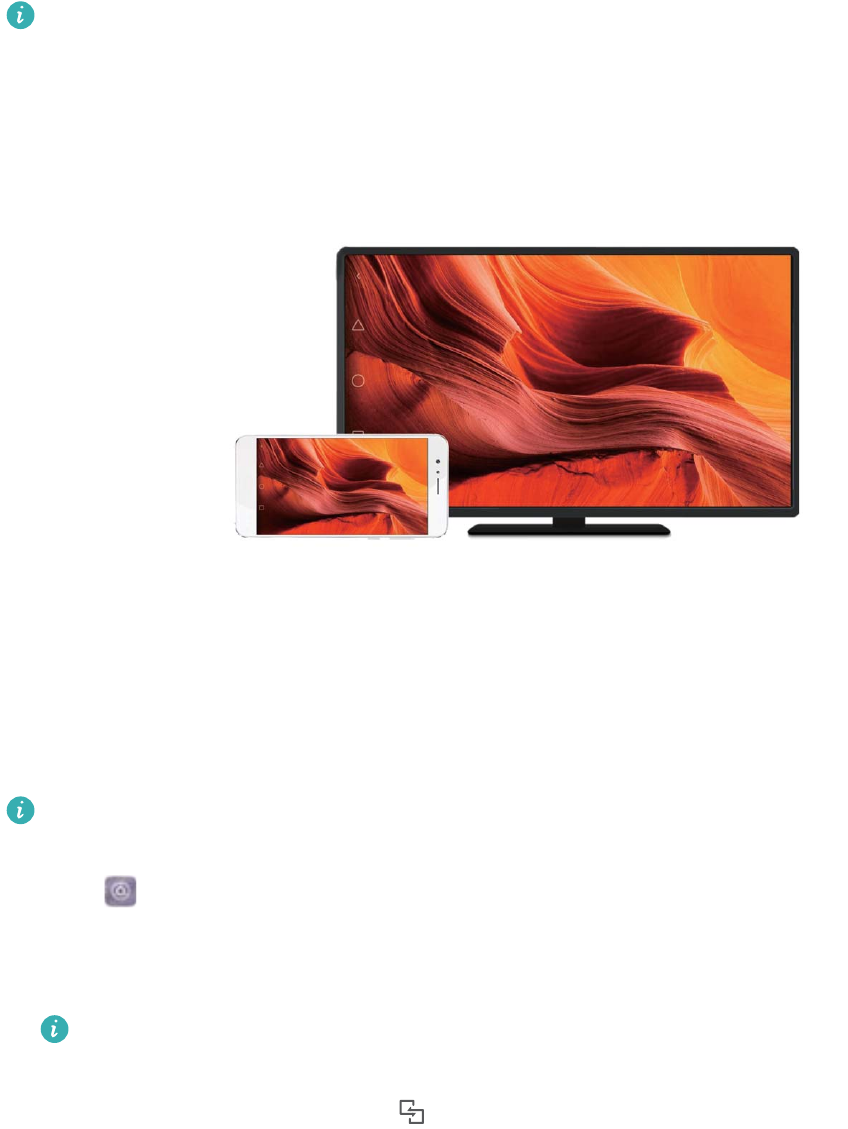
To use multi-screen, your display device must support Miracast. If your display device does
not support the above, you can buy an Android set-top box and connect it to your display
device.
Mirroring your screen to a display device
Mirror your screen to a larger display device when playing games or sharing content with others.
Ensure that your device is connected to the same Wi-Fi network as your display device or
set-top box.
1Go to Settings.
2Touch Smart assistance > MirrorShare. Select your display device or set-top box from
those listed. Your device's screen will be mirrored to that device.
To use this feature, you must first enable the Miracast feature on your display device or
set-top box. For more information, see the manual for your device.
To stop mirroring your screen, touch > Disconnect.
VPNs
About VPNs
A VPN (virtual private network) is a secure connection that allows you to send and receive data
across shared or public networks. You can use a VPN to connect to your company network and
email server.
Network and Sharing
44

Connecting to a VPN
Use a virtual private network (VPN) for secure, remote access to company data and other
network resources.
Contact your VPN administrator to obtain the server information.
1Open Settings.
2Touch More > VPN.
3Touch Add VPN network. When prompted, enter the server name, select the server type,
and then enter the server address. Touch Save to save the server settings.
4To connect to the VPN, touch the VPN name, enter your username and password, and then
touch Connect.
Contact your VPN administrator to obtain your username and password.
HiSuite
Using HiSuite
Use HiSuite to manage your phone's apps and data from your computer. Download and install
apps with a single click and get the most out of your smartphone.
lManage apps and data: Use HiSuite to manage contacts, messages, multimedia files, and to
sync your calendar and contacts.
lBack up and restore data: Back up data from your phone to your computer, or restore data to
any Huawei phone.
lRepair or update the system: If your phone won't turn on or boot properly, use HiSuite to
perform a factory reset. You can also check for software updates and install them on your
phone.
lScreen mirroring: Use HiSuite to display your phone screen on your computer and take
screenshots.
Installing HiSuite
Visit http://consumer.huawei.com/minisite/HiSuite_en/index.html on your computer to download
and install HiSuite. Check that your system meets the minimum requirements.
1Use a USB cable to connect your device to the computer. HiSuite will launch automatically.
2If the Allow access to device data? dialog appears on your device, touch Yes, allow
access.
3On your computer, follow the onscreen instructions to accept the connection request sent
from the receiving device. Once the connection has been established, your device screen
and model will be displayed on your computer.
If you can't establish a connection automatically, touch Settings > Security & privacy >
Additional settings on your device and switch on Allow HiSuite to use HDB.
Network and Sharing
45

Using Huawei Share to transfer files between two
Huawei devices
Huawei Share provides a quick and easy method to share files between two Huawei devices. It
combines the convenience of Bluetooth sharing with the speed of Wi-Fi transfers.
Enabling Huawei Share
1Swipe down from the status bar to open the notification panel.
2Touch Huawei Share.
lTouch the Huawei Share switch. This enables Wi-Fi and Bluetooth automatically.
lIf you disable Wi-Fi or Bluetooth, the Huawei Share switch will turn off automatically.
Using Huawei Share to transfer files
Ensure that Huawei Share is supported on both devices. Huawei Share must be enabled on
the receiving device and the screen must be switched on.
1On your device, select the file(s) you want to share. Touch Share.
2Select the receiving device from those listed.
3On the receiving device, select ACCEPT from the popup dialog to accept the file transfer
request. Open the notification panel to view file transfer progress.
To cancel sending, touch the name of the receiving device on your device.
By default, received files are saved to the Huawei Share folder in Files.
Using a USB port to transfer data
Selecting the USB connection mode
1When you use a USB cable to connect your phone to a computer or another device, Allow
access to device data? will be displayed in a popup dialog.
2Touch No, charge only.
3Swipe down from the status bar to open the notification panel, and then touch Charging via
USB. You can choose from the following USB connection modes:
lCharge only: Charge your phone only.
lReverse charging: Use your phone to charge another device with a USB Type-C cable.
lDevice file manager (MTP): Transfer files between your phone and a computer.
lCamera (PTP): Transfer images between your phone and a computer. If your phone does
not support MTP, the PTP protocol will be used to transfer files and images between your
phone and computer.
lMIDI: Use your phone as a MIDI input device and play MIDI files on your computer.
Network and Sharing
46
Transferring data between your phone and a computer
Use a USB cable to connect your phone to a computer and transfer data between the two
devices.
Transfer files
MTP (media transfer protocol) is a protocol for transferring media files. You can use MTP to
transfer files between your phone and a computer. Before using MTP, ensure that you have
Windows Media Player 11 or later installed on your computer.
Swipe down from the status bar to open the notification panel, and then set the USB connection
mode to Device file manager (MTP). Your computer will automatically install the necessary
drivers. To view files stored on your phone, wait until the drivers have been installed, and then
click the new drive icon that appears on your computer (the drive is named after your phone
model). If you are using a Windows computer, use Windows Media Player to browse multimedia
content on your phone.
Transferring images
PTP (picture transfer protocol) is an image transfer protocol. Use PTP to transfer images
between your phone and a computer.
Swipe down from the status bar to open the notification panel, and then set the USB connection
mode to Camera (PTP). Your computer will automatically install the necessary drivers. To view
images stored on your phone, wait until the drivers have been installed, and then click the new
drive icon that appears on your computer (the drive is named after your phone model).
Transferring MIDI data to your phone
MIDI (Musical Instrument Digital Interface) is a music technology protocol that allows digital
music instruments to communicate with each other.
Swipe down from the status bar to open the notification panel, and then set the USB connection
mode to MIDI. You can use your phone to receive or process MIDI data from other devices.
Network and Sharing
47

Security and Backup
Fingerprint recognition
Adding a fingerprint for the first time
You can use a fingerprint to unlock your screen, access locked apps and the safe, and make
secure payments.
To better protect your privacy, you can only use the fingerprint screen unlock feature when the
unlock method is set to PIN or Password.
Features may vary depending on your product.
1Touch Settings.
2Touch Fingerprint ID > Fingerprint management > PIN or Password, and set an unlock
password by following the on-screen instructions.
3Once you have set a password, touch New fingerprint to add your fingerprint.
4Place your fingertip on the fingerprint sensor. Press down lightly on the sensor until your
device vibrates. Repeat this step using different parts of your fingertip.
5Touch OK.
To unlock the screen, place your fingertip on the fingerprint sensor.
You will be asked to enter your backup PIN or password when you restart your device or if
fingerprint recognition fails.
Adding, deleting, or renaming a fingerprint
You can add five fingerprints. You can also delete or rename fingerprints.
Features may vary depending on your product.
1Touch Settings.
2Touch Fingerprint ID > Fingerprint management.
3Enter the screen lock password and touch Next.
4In the Fingerprint list section, you can:
lTouch New fingerprint to add other fingerprints.
lTouch a previously added fingerprint to rename or delete it.
lTouch Fingerprint recognition to identify and highlight registered fingerprints.
Accessing Safe with your fingerprint
Use your fingerprint to access your Safe without entering the password.
Features may vary depending on your product.
1Open Settings.
48

2Touch Fingerprint ID > Fingerprint management.
3Enter the screen lock password and touch Next.
4Touch Access safe, and then follow the onscreen instructions to enter your Safe password
and enable fingerprint recognition.
Once you have completed the settings, touch Files > Safe. You can now use your fingerprint to
access your Safe.
Accessing App Lock with your fingerprint
Use your fingerprint for quick access to apps in your App Lock. You do not need to enter the App
Lock password.
Features may vary depending on your product.
1Open Settings.
2Touch Fingerprint ID > Fingerprint management.
3Enter the screen lock password and touch Next.
4Touch Access app lock. Follow the onscreen instructions to enter your App Lock password
and enable fingerprint recognition.
To view the App Lock status, touch Phone Manager > App lock once you have completed the
settings, and then place your finger on the fingerprint sensor. To access a locked app from the
home screen, touch the app icon and place your fingertip on the fingerprint sensor.
Security settings
Setting your SIM card PIN
Enable the SIM lock to prevent others from using your SIM card. You will need to enter your SIM
card PIN each time you turn on your device or insert your SIM card into another device.
Make sure you have received a SIM card PIN from your carrier before enabling the SIM lock.
1Open Settings.
2Touch Security & privacy > Additional settings and select card lock to access the SIM lock
settings.
3Switch on Lock SIM card. Enter your SIM card PIN and touch OK.
To change your SIM card PIN, touch Change SIM PIN and follow onscreen instructions.
lYou will need to enter the PUK code if you exceed the maximum number of incorrect PIN
attempts. The SIM card will be permanently locked if you enter the PUK code incorrectly
too many times.
lFor details about these limits, contact your carrier.
Security and Backup
49

Setting microSD card password
Encrypt your microSD card to prevent unauthorized access to your data. You will be prompted to
enter a password when the microSD card is inserted into another device.
lNot all microSD cards can be encrypted. An error message may be displayed when you
attempt to encrypt or unlock unsupported cards. Remember to back up important data
before encrypting your microSD card.
lEncrypted microSD cards will not be recognized by devices that do not support microSD
card encryption.
lIf you forget the microSD card password, you will have to clear all the data on the card.
lNot all devices support microSD cards.
1Open Settings.
2Touch Security & privacy > Additional settings > Set SD card password and follow
onscreen instructions to set a password.
Once you have set your password, you can change or remove the password:
lTouch Change SD card password to change the password.
lTouch Clear SD card password to remove the microSD card password and disable
encryption.
Backing up and restoring data
Backing up data to a microSD card
lNot all devices support microSD cards.
lThe feature may vary depending on the carrier you use.
Back up data on your old device to a microSD to avoid losing your files.
1Open Backup on your old device.
2Select Backup > SD card > Next.
3Select the data you want to back up and touch Back up. When prompted, enter a backup
password. No backup password is required for photos, audio files, videos, or documents.
lSet a password reminder to help you remember your password and prevent you from
losing access to your files.
lBy default, backup files are saved to the HuaweiBackup folder in Files.
Backing up data to your device's internal storage
Back up data to your device's internal storage to avoid losing your files. Only back up smaller
files.
1Open Backup.
Security and Backup
50
2Touch Backup > Internal storage > Next.
3Select the data you want to back up and touch Back up. When prompted, enter a backup
password. No backup password is required for photos, audio files, videos, or documents.
lSet a password reminder to ensure you don't lose access to your files.
lBy default, backup files are saved to the HuaweiBackup folder in Files.
Backing up data to a USB storage device
Use a USB On-The-Go (OTG) cable to connect your device to a USB storage device and back
up your files. Compatible USB storage devices include USB flash drives, card readers, and
device with a microSD card.
1Open Backup.
2Touch Backup > USB storage > Next.
3Select the data you want to back up and touch Back up. When prompted, enter a backup
password. No backup password is required for photos, audio files, videos, or documents.
lSet a password reminder to help you remember your password and prevent you from
losing access to your files.
lBy default, backup data is saved to the HuaweiBackup folder on the USB storage
device.
Transferring data using a computer
Back up data on your device to a computer to avoid losing your files.
Install HiSuite before using your computer to back up and restore data. For more information,
see Installing HiSuite.
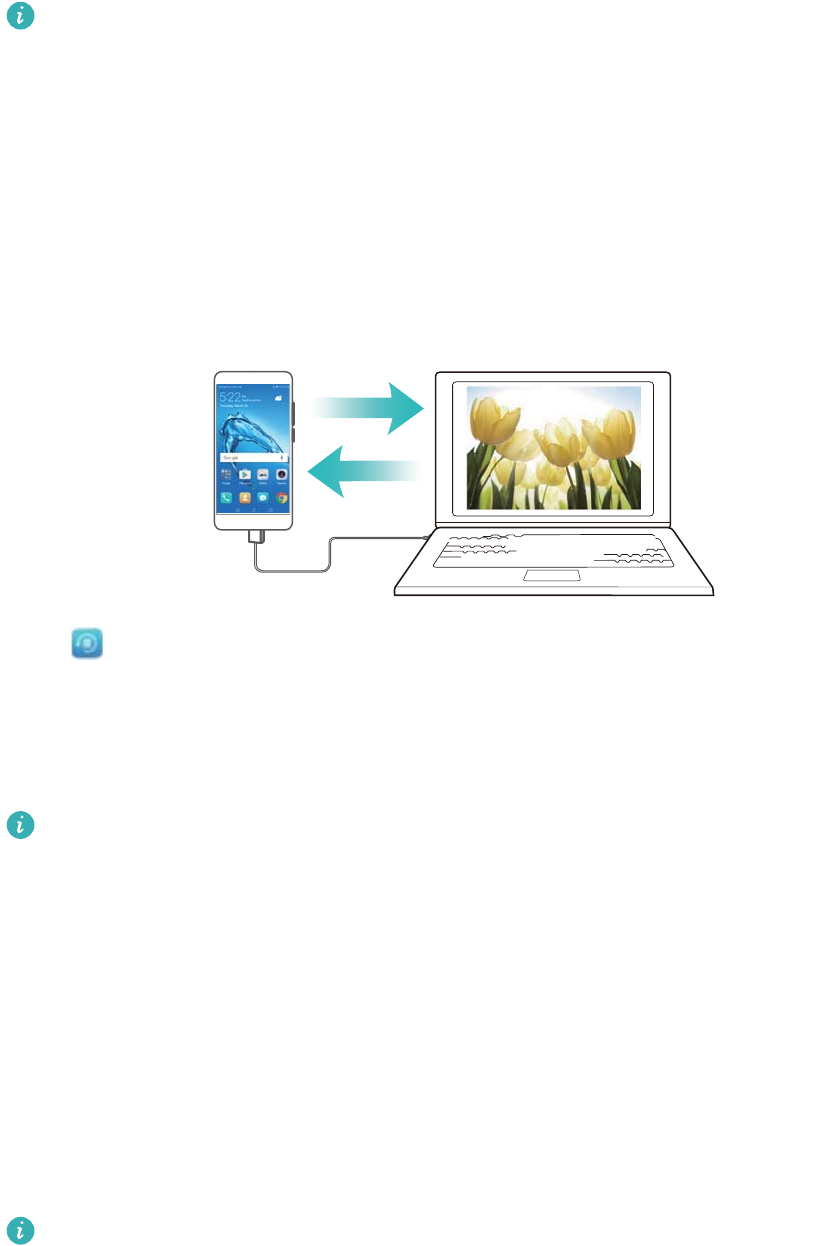
1Connect your device to a computer using a USB cable. HiSuite will launch automatically.
If your old device is not a Huawei device, use manufacturer-provided software to back up
data to your computer, and then proceed directly to step 4.
2Go to the backup screen in HiSuite. Select the data that you want to back up and follow the
onscreen instructions to back up the data.
Security and Backup
51
Follow the onscreen instructions to set a password reminder to help you remember your
password and prevent you from losing access to your files.
3Use a USB cable to connect your new device to the computer.
4Go to the data restore screen in HiSuite. Choose which backup you want to restore and
follow the onscreen instructions to restore the data. If the backup files are encrypted, you will
need to enter the encryption password when you are prompted to recover data.
File management
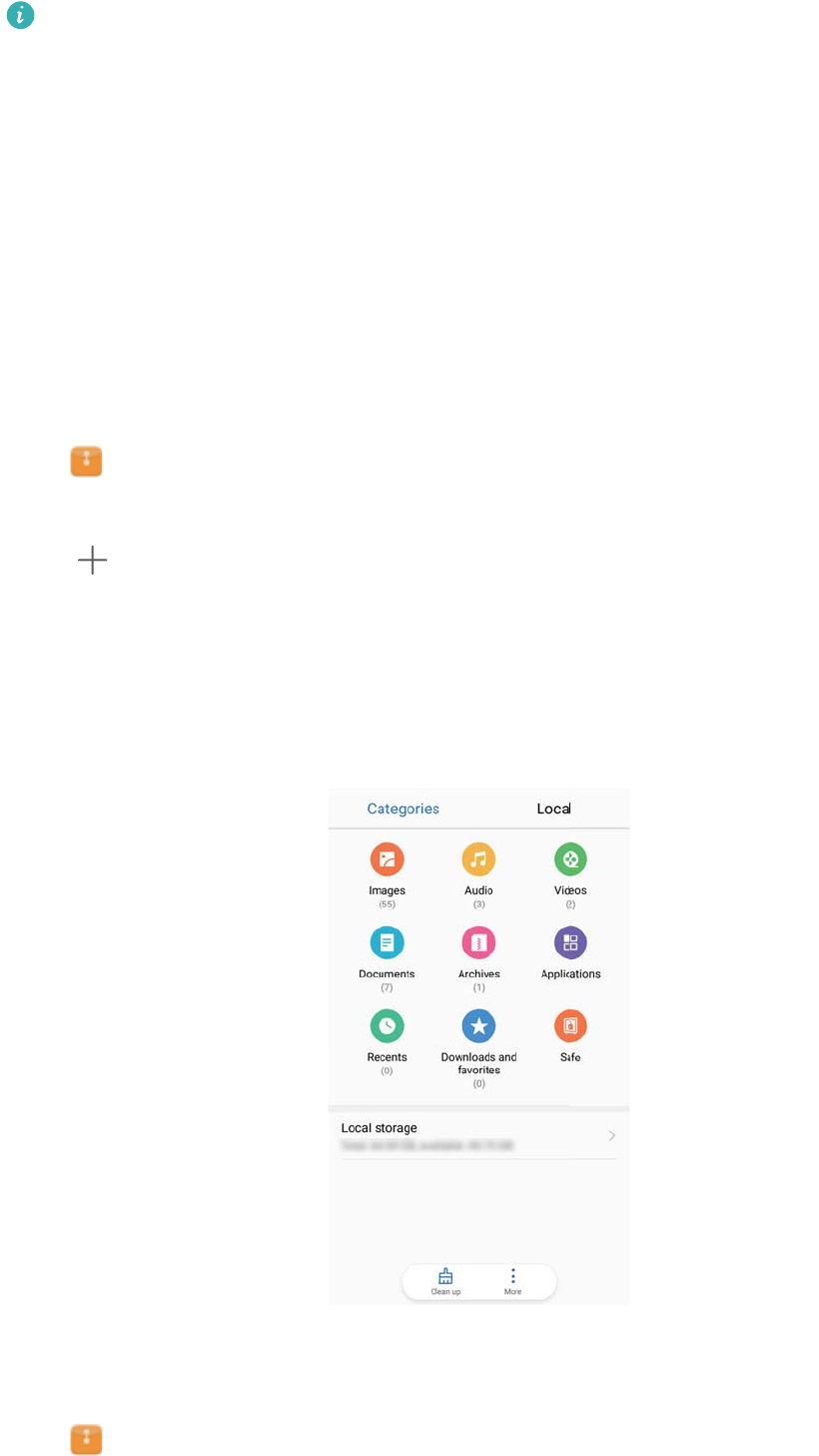
Creating folders
Keep your device organized by creating folders for your files.
1Open Files.
2In the Local tab, touch Internal storage.
3Touch . Enter the name of the new folder and touch Save.
Viewing files
Viewing files by category
Open Files. Select the Categories tab to view your files by category.
Finding files quickly
Locate files quickly using the file search feature.
1Open Files.
2On the Local tab, touch Internal storage.
Security and Backup
52

3Touch and enter the file name or keywords. Search results will be displayed beneath the
search bar.
Sorting files
Use the sort feature to arrange your files by type, name, size, or date.
1Open Files.
2On the Local tab, touch Internal storage.
3Touch and then sort files by type, name, size, or date.
Viewing downloads
1Open Files.
2On the Categories tab, touch Downloads and favorites to view files you have downloaded
or received from other devices.
Adding and viewing favorites
1Open Files.
2On the Local tab, touch Internal storage.
3Touch and hold the file or folder you want to add and touch > Add to favorites.
4On the Categories tab, touch Downloads and favorites to view favorites.
Creating file shortcuts on the home screen
Create a shortcut to frequently-used files on the home screen for easy access.
1Open Files.
2On the Local tab, touch Internal storage.
3Touch and hold the file or folder you want to add and touch > Create desktop shortcut.
Sharing files
Use the file sharing feature to share files, photos, and videos.
1Open Files.
2On the Local tab, touch Internal storage.
3Touch and hold the files you want to share and touch > Share.
4Choose a sharing method and follow the onscreen instructions to share your files.
Renaming files
Give your files memorable names so that you can find them quickly.
1Open Files.
2On the Local tab, touch Internal storage.
Security and Backup
53

3Touch and hold the file or folder you want to rename and then touch > Rename.
4Enter a new name and touch OK.
Copying, moving, or deleting files
1Open Files.
2On the Local tab, touch Internal storage.
3Touch and hold the files and folders you want to copy, move, or delete. You can:
lCopy files to a destination folder: Touch . Select a destination folder and touch .
lMove files to a destination folder: Touch . Select a destination folder and touch .
lDelete files or folders: Touch > Delete.
Creating or extracting archives
Compress files in a zip archive to free up space and share files more easily.
1Open Files.
2On the Local tab, touch Internal storage.
3Touch and hold the file or folder you want to compress, and then touch > Compress.
4Choose the archive destination. The selected files will be compressed into a zip file, which
will be named automatically.
To extract an archive, touch and hold the archive file. Touch > Extract to and select
where the contents of the archive should be extracted to.
Hiding small image files
When you browse your images in Files, you might also see some cached images from websites.
You can prevent these images from being displayed as follows:
1Open Files.
2Touch > Settings and switch on Filter small pictures to hide files that are smaller than
30 KB. This should hide most cached images.
Storing files securely
Enable Safe, set a password, and move files into a safe to encrypt them. You can remove files
from a safe at any time.
You can add images, audio files, videos, and documents to a safe.
1Open Files.
2In the Local or Categories tab, touch Safe.
3Touch Enable.
4Set the safe storage location.
Security and Backup
54

5Follow the onscreen instructions to set a password and security question, and then touch
Done to open Safe.
6Touch .
7Follow the onscreen instructions to select files, and then touch to add your files to the
safe.
In Safe, you can also:
lRemove files from a safe: In Safe, open a folder and touch and hold the files you want to
remove, and then touch .
lDestroy a safe: In Safe, touch Settings > Destroy Safe. Follow the onscreen instructions to
remove files from the safe and destroy it.
lChange the safe password: In Safe, touch Settings > Change password. Follow the
onscreen instructions to change the password.
lChange the security question: In Safe, touch Settings > Change security question. Follow
the onscreen instructions to change the security question.
lSwitch to another safe: In Safe, touch Settings > Switch Safe. Follow the onscreen
instructions to select another safe.
lView the storage location: In Safe, touch Settings > Safe location to view the safe's storage
location.
Don't change the storage location folder, otherwise you may not be able to access your
files.
Security and Backup
55
Camera and Gallery
Camera options
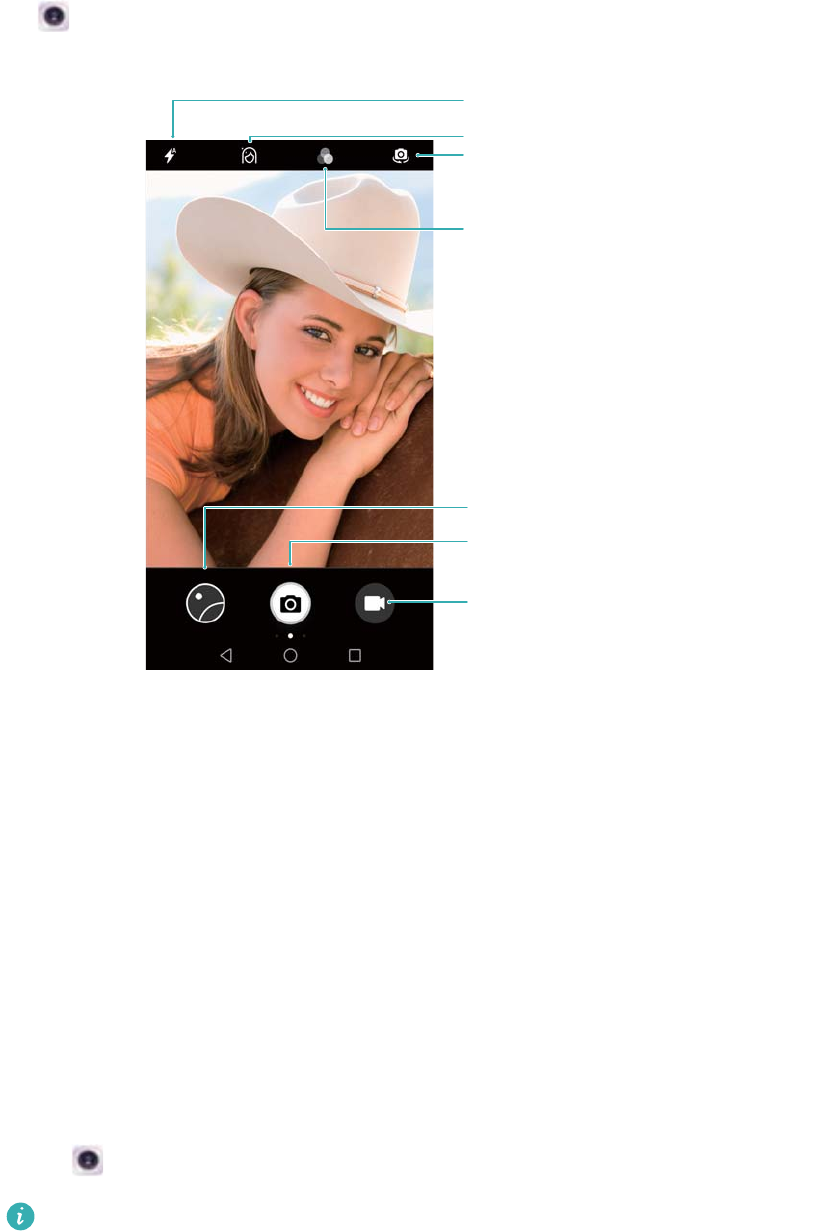
Open Camera to display the viewfinder.
Switch flash modes
View photos or videos
Switch video modes
Take a photo
Toggle rear and front camera
Switch color modes
Toggle beauty mode
Swipe right on the viewfinder to display the list of shooting modes.
Swipe left on the viewfinder to access the camera settings.
Photos and video recordings
Taking a photo
Geotagging photos
Enable geotagging to record the location of photos and video recordings. In Gallery you can
view the shooting location of photos and videos. In Gallery, you can display all photos and
videos on a map.
1Open Camera.
When opening Camera for the first time, enable location services in the popup dialog.
2Swipe left on the screen and switch on GPS tag.
56

Zooming in and out
Spread two fingers apart to zoom in, or pinch them together to zoom out. The image quality may
be affected if you continue to zoom in after the maximum optical zoom has been reached. You
can also zoom in or out by adjusting the slider that appears in the viewfinder after you perform
the zoom in or zoom out functions with your two fingers.
Adjusting the exposure
The camera automatically adjusts the exposure according to the ambient brightness. A higher
exposure produces brighter images.
Manually adjust the exposure: In the viewfinder, touch the screen and swipe up or down
to adjust the exposure.
Turning on the flash
Touch the flash icon in the top-left corner of the viewfinder to turn on the flash. Touch to
display the four options:
l: Automatically enables or disables the flash based on the ambient brightness.
l: Disables the flash.
l: Enables the flash.
l: Keeps the flash on when you open Camera.
Using filters to enhance images
The camera comes with a number of image filters to give your photos a unique look. In the
viewfinder, you can:
Touch , and then select a filter.
Ultra Snapshot
Press the volume down button twice to take a photo when the screen is off.
Camera and Gallery
57

This feature is not available during music playback.
1Open Camera.
2Swipe left and touch Ultra snapshot > Open camera and take quick snapshot.
3When the screen is off, point the camera at the desired object and press the volume down
button twice in quick succession to take a photo. The camera will automatically take a photo
and display the capture time.
Disable Ultra Snapshot: Touch Ultra snapshot > Off in the camera settings.
Burst shooting
Use burst shooting when you want to take a photo of a moving subject, such as during a football
match. The camera will capture several images in quick succession and automatically select the
best photo.
This feature is not available in HDR mode, Panorama mode.
1Open Camera.
2Touch and hold to start the burst sequence. The number of captured photos will be
displayed above .
3Release to stop the burst shooting.
You can take up to 20 photos in one burst sequence, provided that there is enough storage
space on your phone.
Select the best shot: Touch the image thumbnail to view the image in Gallery, and then
touch to select a photo. Touch and follow the onscreen instructions to save the photo.
Camera and Gallery
58

Self timer
Use a self timer to include yourself in shots.
1Open Camera. Swipe left on the screen to access the camera settings.
2Touch Timer to set the countdown time.
3Return to the viewfinder. Rest your device on a stable surface and frame the scene you want
to capture.
4Touch to start the countdown timer. Your device will automatically take a photo when the
countdown time has elapsed.
Audio-controlled shooting
Use voice commands to control the camera remotely, or set the camera to take a photo when it
detects a loud sound.
1Open Camera.
2Swipe left on the screen to access the camera settings.
3Touch Audio control and switch on Audio control.
4You can then:
lSay Cheese to take photos: Set the camera, so that it will take a photo when you issue a
voice command.
The camera will only take photos when default voice command Cheese is detected.
You cannot configure custom voice commands.
lTake photos when your voice reaches a certain decibel level: Set the camera to take a
photo when the surrounding noise reaches a certain decibel level.
5Frame the scene you want to capture. Your device will take a photo automatically when you
issue a voice command or the device detects a loud sound.
Shooting a video
Shooting a video
1Open Camera.
2Touch to switch to recording mode.
3Touch to start recording.
4In the process, you can perform the following:
lTouch to pause recording. Touch to continue recording.
lTouch to save the current scene as a photo.
5Touch to complete recording.
Camera and Gallery
59
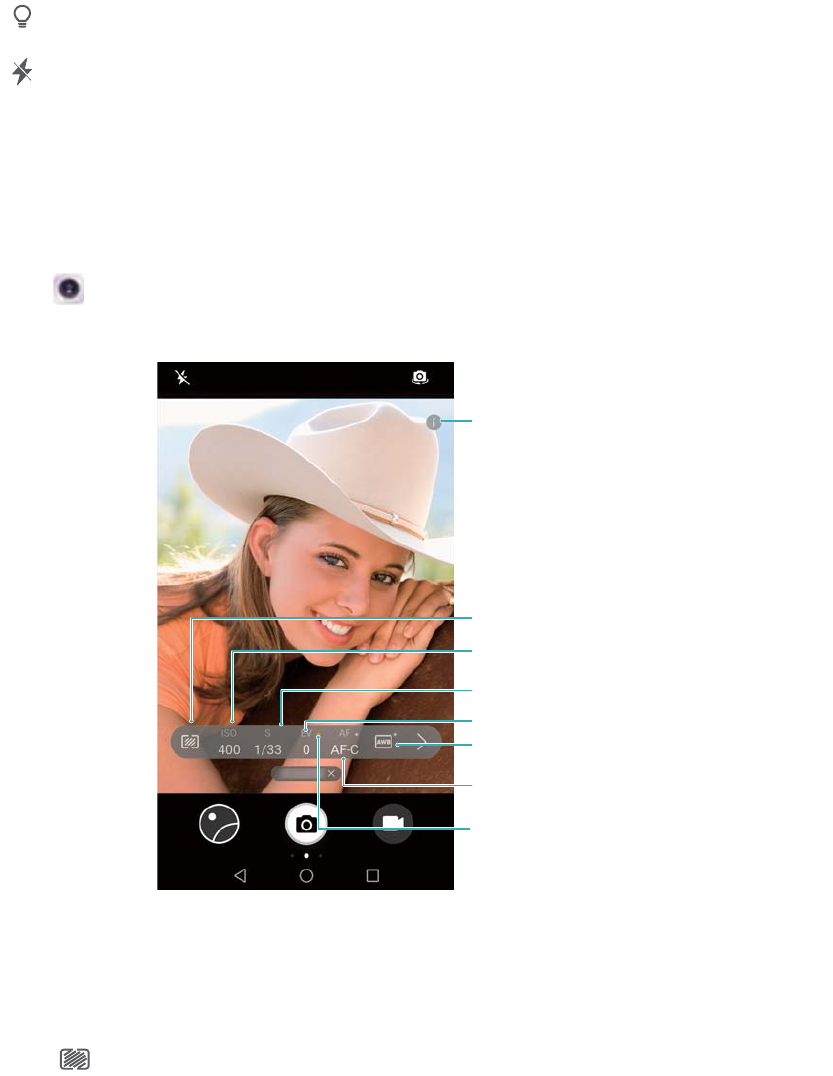
Zooming in and out
Spread two fingers apart to zoom in, or pinch them together to zoom out. The image quality may
be affected if you continue to zoom in after the maximum optical zoom has been reached.
Turning on the flash
Touch the flash icon in the top-left corner of the viewfinder. There are two options:
l: Keep the flash on when you are recording.
l: Disable the flash.
Object recognition and Pro camera mode
Pro camera options
Open Camera, swipe right on the screen and touch Pro photo to enter Pro camera mode.
Pro mode help
Select metering mode
Adjust ISO
Adjust shutter speed
Adjust exposure compensation
Set white balance
Change focus mode
Locked symbol
Pro camera settings
Selecting the metering mode
Touch to select the metering mode. The metering mode affects how your camera
determines the exposure. You can select matrix metering, center-weighted metering, or spot
metering.
Adjusting the ISO
The ISO determines the camera's sensitivity to light. Increasing the ISO will create a brighter
image, but there will be a noticeable increase in noise. Touch ISO and drag the slider to change
Camera and Gallery
60
the ISO settings. You can configure the camera to adjust the ISO automatically, or you can
adjust it manually.
Adjusting the shutter speed
Touch S and drag the slider to set the shutter speed. By default, the shutter speed is set to Auto.
Adjusting the exposure compensation
Touch EV to set the exposure compensation. Select an exposure setting to increase or decrease
the brightness. Touch and hold the icon to lock the current exposure setting.
The camera will automatically determine the ambient brightness. If the current exposure setting
is too high or too low, or will be displayed.
Changing the focus mode
Touch AF to set the focus mode. You can select touch to focus (AF-S), continuous autofocus
(AF-C), or manual focus (MF). Continuous autofocus is set by default. When continuous
autofocus is selected, touch and hold AF-C to enable the focus lock.
Setting the white balance
Touch AWB to select a white balance according to the ambient light conditions. You can choose
from daylight, tungsten bulb, fluorescent lamp, and more. You can also adjust the color
temperature. Touch and hold AWB to lock the white balance.
Using the spirit level
Enable the spirit level to ensure that the camera is level.
In the Pro camera viewfinder, swipe left and switch on Horizontal level. When this feature is
enabled, a spirit level will appear on the viewfinder. Ensure that the solid line covers the dotted
line.
Slow motion recording
Record videos in slow motion to watch fast-moving scenes in detail.
1Open Camera.
2Swipe right on the screen and touch Slow-mo.
3Touch to start a video recording. Touch the screen to focus on an object or area during
recording.
4Touch to end the recording.
Slow motion recording works best in bright surroundings. To select the video clip portion to
be played in slow motion, refer to Cropping slow-motion videos.
Camera and Gallery
61

Time-lapse mode
Time-lapse mode allows you to capture and speed up subtle changes in the natural world. For
example, you can record the opening of a flower or the movement of clouds.
1Open Camera. Swipe right and touch Time-lapse.
2Place your device on a stable surface or use a tripod. Touch to start a video recording.
The camera will automatically select a suitable frame rate according to the length of the
recording. The zoom cannot be adjusted during recording.
3Touch to end the recording.
When you play the video in Gallery, it will be played back at a higher frame rate. The frame rate
is determined automatically by the camera and cannot be adjusted.
Audio notes
Add audio notes to bring your photos to life.
1Open Camera.
2Swipe right and touch Audio note.
3Frame the scene you want to capture. Touch to take a photo with an audio note.
4The camera will record a short audio clip of up to 10 seconds to add to your photo. Touch
to stop recording.
Photos with audio notes are indicated by the icon in Gallery.
When viewing a photo with an audio note, touch to play the audio note.
Managing shooting modes
Rearranging the shooting mode list
Move your favorite shooting modes to the top of the list to make them easier to find.
1Open Camera.
2Swipe right to display the list of shooting modes.
3Touch .
4Drag mode icons to the desired position. Touch to save the settings.
Updating shooting modes
Update your camera's shooting modes to the latest version for enhanced features and better
image quality.
Camera and Gallery
62

Open Camera and go to the list of shooting modes. A red dot will be displayed on the
icon when an update is available. Touch and select the shooting mode that you want to
update. Your phone will download and install the latest version.
Deleting shooting modes
Delete unwanted shooting modes to free up storage space.
Pre-installed shooting modes cannot be deleted.
1Open Camera.
2Swipe right to display the list of shooting modes and touch .
3Shooting modes that can be deleted are indicated by the icon. Just touch .
4Touch to delete the selected modes.
Configuring the camera settings
Configure the camera settings to suit your needs.
Setting the photo and video resolutions
Increase the resolution for higher quality images and videos. Larger resolution images take up
more space on your device. Changing the resolution will also change the image dimensions.
Some resolutions may not be supported in certain shooting modes.
Open Camera. Swipe left and touch Resolution to change the resolution.
Configuring the default storage location for photos and videos
Not all devices support microSD cards.
Open Camera. Swipe left and switch on Priority save in SD cardto change the default
storage location to the microSD card.
This option is only available when the device supports microSD card and a microSD card is
inserted. If the microSD card is full, photos will be saved to your device's internal storage.
Adding an overlay
Add a grid or spiral overlay to the viewfinder to help you compose your image.
Overlays may not be available in some shooting modes.
Open Camera. Swipe left on the screen, touch Assistive grid, and then select an overlay.
To disable the overlay, touch Off.
Configuring the volume button function
By default, the volume button functions as the shutter button. You can change the function of the
volume button to adjust the zoom or focus.
Camera and Gallery
63

Open Camera. Swipe left on the screen. Touch Volume button function and select
Shutter, Zoom, or Focus as desired.
Configuring the touch and hold settings for the shutter
By default, touch and hold the shutter to take burst shots. You can change the function of the
shutter to adjust the focus.
Open Camera. Swipe left on the screen. Touch Touch & hold shutter icon and select
Burst shoot or Focus as desired.
Other camera settings
Your camera also comes with a number of other settings to help you shoot high-quality images in
a variety of different shooting scenarios.
Some settings may not be available in certain shooting modes.
Swipe left on the viewfinder to configure the following settings:
lTouch to capture: Touch the viewfinder to take a photo.
lCapture smiles: The camera will automatically take a photo when it detects a smile.
lImage adjustment: Adjust saturation, contrast, and brightness.
Viewing photos and videos
Viewing photos in full screen mode
Open Gallery and touch a photo to view it in full screen. Touch the screen to show or hide
the menu.
When viewing photos in full-screen mode, you can:
lZoom in or out: Spread two fingers apart to zoom in, or pinch two fingers together to zoom
out.
lView image details: Touch to view the image details, such as the ISO, exposure
compensation, and resolution.
lRename photos: Touch > Rename. Enter a new name and select OK.
lSet photo as the home screen wallpaper, or assign the photo to a contact: Touch >
Set as > Wallpaper or Contact photo.
lEnable auto-rotation: In Gallery, touch > Settings > Photo orientation > Always
rotate to rotate photos when you change the screen orientation.
Viewing photos and videos in chronological order
Go to the Photos tab. Photos and videos are automatically displayed in chronological order.
Touch > Settings and switch on Show time to display the date when the photo was taken.
Camera and Gallery
64

In the Photos tab, zoom in or out to switch between month and day view.
Viewing photos and videos by location
If GPS tag is switched on in Camera, you can view photos and videos by location in Gallery.
Go to the Photos tab and touch to view your geotagged photos or videos on a map.
Viewing photos and videos by album
Go to the Albums tab. Photos and videos are automatically sorted into default folders. For
example, videos that you take with the camera are automatically added to the Camera videos
folder, and screenshots are added to the Screenshots folder.
Touch > Hide albums and turn on the switch next to albums that you want to hide.
These albums will not appear in the album list.
Viewing photos as a slideshow
Go to the Photos tab and touch > Slideshow. Touch the screen to stop the slideshow.
Organizing albums
Adding photos or videos to a new album
1Open Gallery.
2On the Albums tab, touch . Enter the album name and touch OK.
3Select the images or videos that you want to add to the new album and touch .
4Touch Copy or Move to add selected files to the new album.
If you copy the files to a new album, the original files will be saved. If you move the files
to a new album, the original files will be deleted.
Moving photos and videos
Combine photos and videos from separate albums.
1Open Gallery.
2Go to the Albums tab and open the desired photo album. Touch and hold the photo or video
that you want to move until appears, and then select the files that you want to move.
3Touch .
4Select the destination album.
Files are deleted from their original album after they have been moved.
Moving albums
De-clutter your photo collection by moving and merging less important albums into one album.
Camera and Gallery
65

lThe Camera, Camera videos, and Screenshots albums cannot be moved to Others.
lMoving an album created by a third-party app to Others will not prevent the app from
functioning.
1Open Gallery.
2On the Albums tab, touch and hold the target album, and then select the albums to be
moved in.
3Touch to move the selected album or albums to Others.
In Others, touch and hold an album, and then touch to restore the album to its original
location.
Rearranging albums
Change the order in which albums are displayed so you can always find your favorite photos.
You cannot rearrange Camera or Screenshots.
1Open Gallery.
2Go to the Albums tab, and then touch and hold an album until appears on the left of all
your albums.
3Touch and hold next to the album that you want to move, and drag it to the desired
position. Exit to save the modifications.
Deleting photos and videos
1Open Gallery.
2Touch and hold an image or album to open the file selection interface, and then select the
files that you want to delete.
3Touch > Delete.
Sharing photos and videos
Use the sharing feature in Gallery to share photos and videos.
Sharing photos and videos stored on your device's internal storage or microSD card
1Open Gallery.
2Touch and hold file to open the file selection interface, and then select the files you want to
share.
3Touch . Select a sharing method and follow the onscreen instructions to share the
selected file(s).
Camera and Gallery
66
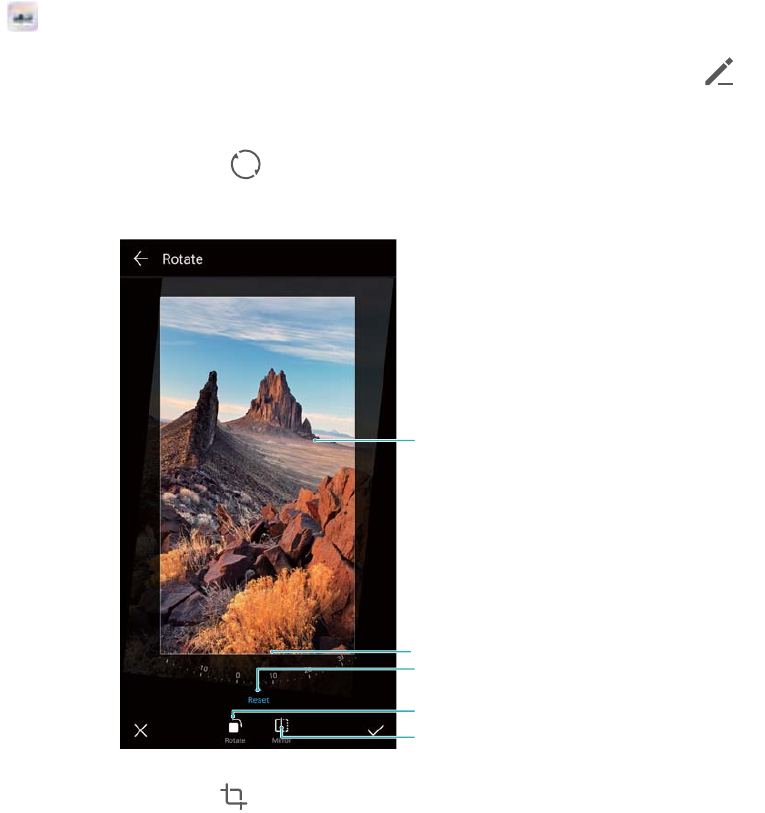
Editing a photo
The Gallery app features powerful image editing tools that you can use to draw graffiti, add
watermarks, or apply filters.
1Open Gallery.
2Touch an image to view it in full-screen mode. In full-screen view, touch to open the
photo editor and edit your photo using the available tools.
lRotate an image: Touch and swipe the screen to adjust the angle of rotation.
Undo changes
Rotate vertically
Mirror image
Swipe screen to rotate image
Portion of image to preserve after rotation
lCrop an image : Touch to select the crop ratio . Drag the dotted edges to crop the
image to the desired size.
Camera and Gallery
67
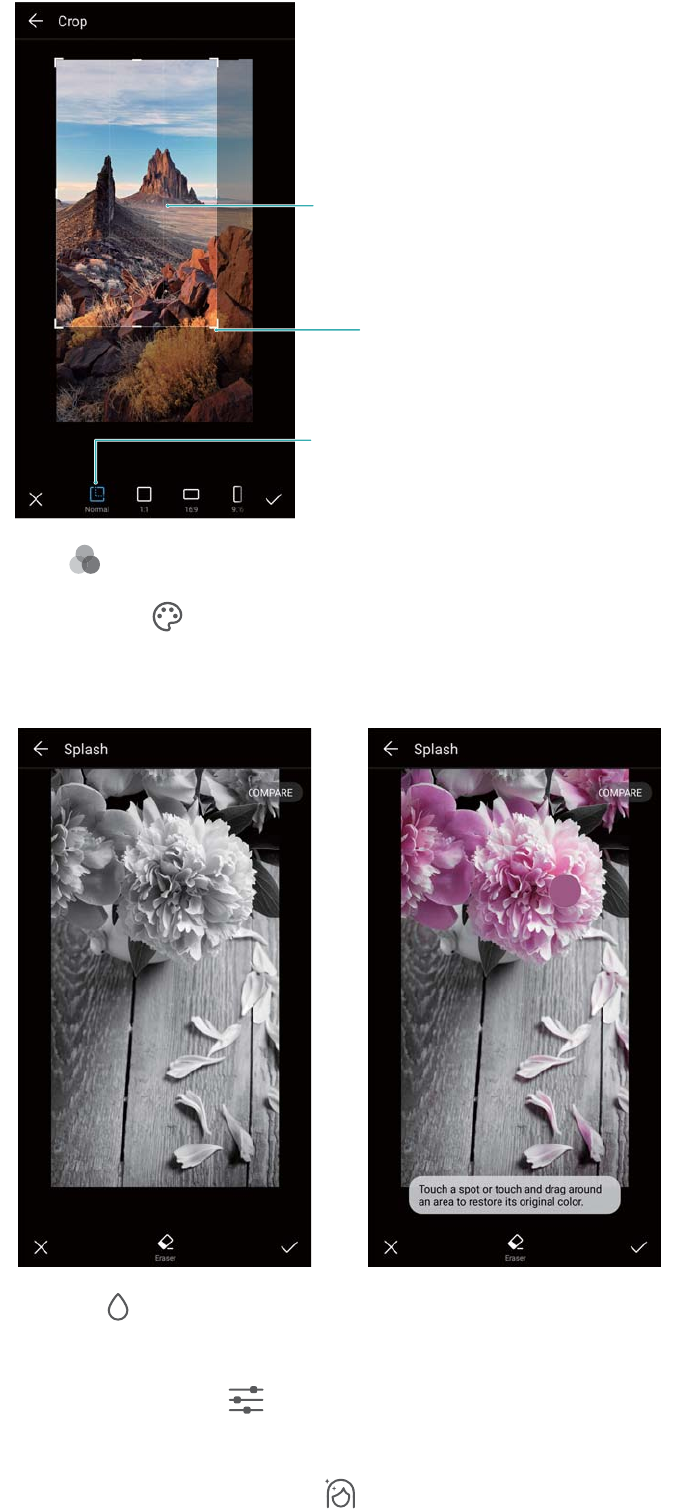
Crop proportions
Crop selection
Crop grid corner
lAdd a filter: Touch and select the desired filter.
lAccentuate colors: Touch . Select an area of the image to accentuate the color. All
other areas will be displayed as black and white.
lBlur an image: Touch . Drag the slider to adjust the amount of blur. Drag the circle to
the part of the image that you do not want to blur.
lAdjust image parameters: Touch . You can adjust the brightness, contrast, saturation,
and more to make your image look more vivid.
lApply facial enhancement effects: Touch to apply facial enhancement effects to
people in an image. You can choose from various skin and eye enhancement effects.
Camera and Gallery
68
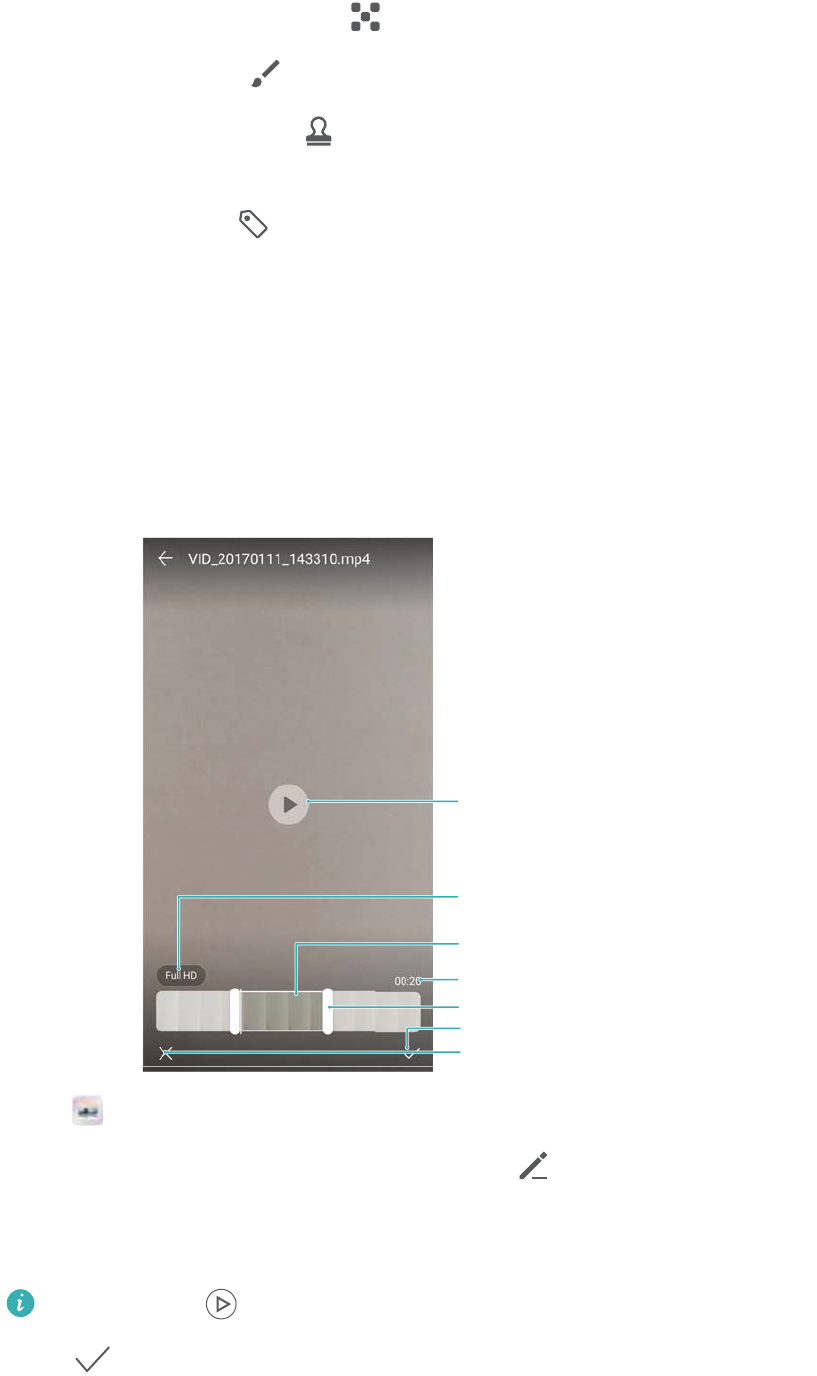
lApply mosaic effects: Touch and select the desired mosaic effect.
lDraw graffiti: Touch to select the brush and color.
lAdd a watermark: Touch to add a watermark and personalize your photo. You can
choose from time, location, weather, activity, and other watermarks.
lAdd a label: Touch , and then select the desired label type and font. You can use
labels to record your mood or thoughts.
Editing Videos
Editing a video
Select highlights from videos and save them as separate files.
Length of trimmed video
Abandon changes
Save changes
Play/pause key
Resolution settings
Trimmed video
Video trim slider
1Open Gallery.
2Select the video that you want to edit and touch .
3On the video editing screen, drag the sliders to select the portion of the video that you want to
keep.
You can touch to preview the video.
4Touch to crop and save the video.
To change the resolution, select a resolution on the video editing screen. Videos with higher
resolution occupy more space of your device.
Camera and Gallery
69

Cropping slow-motion videos
Use the video editing tool in Gallery to crop slow-motion videos.
1Open Gallery.
2Touch the slow-motion video that you want to edit, and touch to start playback.
3Touch the screen to display the slow-motion editing interface. Drag the sliders to select the
portion you want to view in slow motion.
Features may vary depending on your product.
To save the edited slow-motion video as a separate video, touch > Save slow-mo
file on the editing interface.
Configuring Gallery
Displaying the capture time and location
You can see the capture time and location when viewing the photos.
1Open Gallery.
2Touch > Settings.
3You can configure the following two settings:
lSwitch on Show location. When viewing a geotagged photo, the photo's location will be
displayed.
lSwitch on Show time. When viewing a photo, the date and time at which the photo was
taken will be displayed.
Camera and Gallery
70
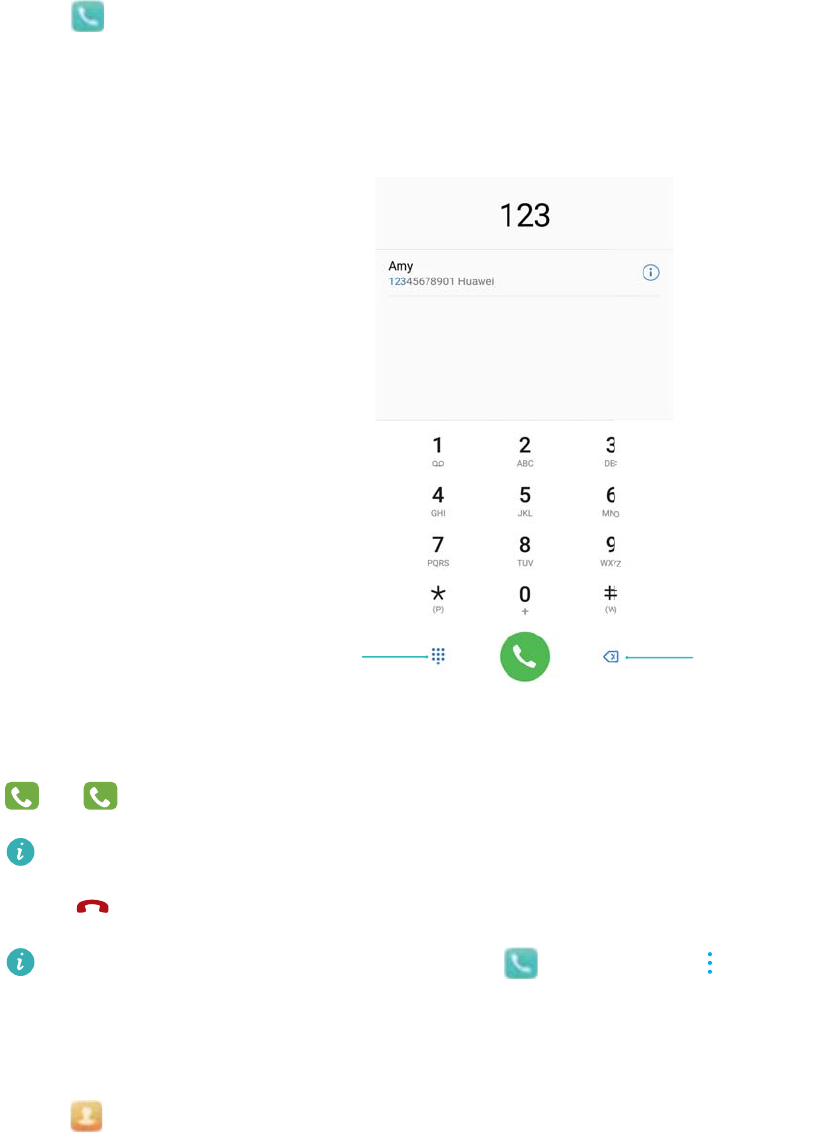
Calls and ContactsCalls and
Contacts(Applicable to selected models)
Making calls
Smart dialing
Enter the name, initials, or number of a contact in the dialer. Your device will display matching
contacts.
1Open Dialer.
2Enter the name, initials, or number of a contact in the dialer (for example, John Smith or JS).
Your device will search your contacts and call log and list the results above the dialer.
Hide dialer Backspace
3Select the contact you want to call from the list. If your device has dual SIM support, touch
1
or
2
to make a call.
The call status will be displayed on the screen (for example, ringing or call forwarding).
4Touch to end the call.
To end a call using the power button, go to Dialer, touch > Settings, and then
switch on Power button ends call.
Making a call from Contacts
1Open Contacts.
71
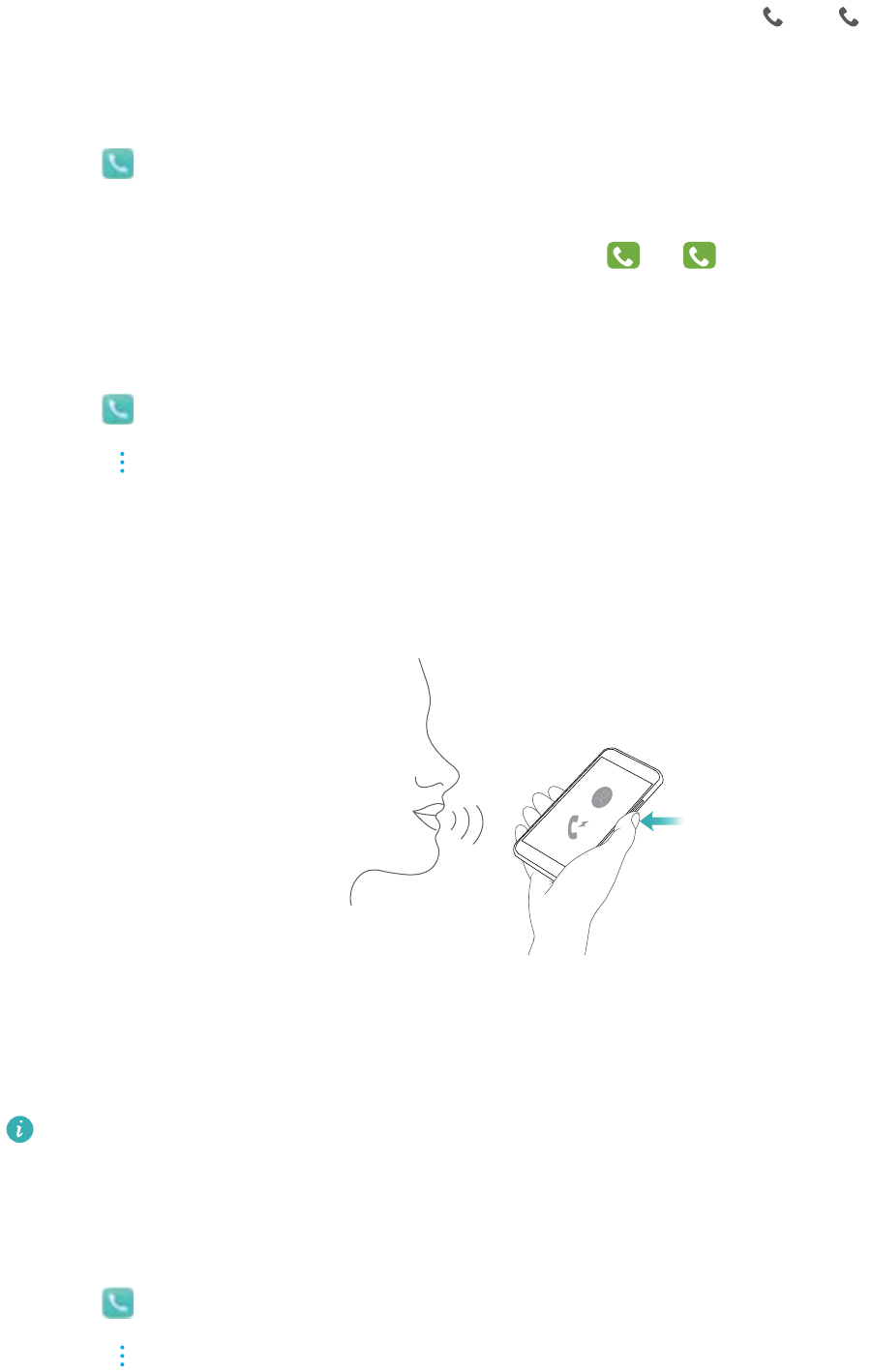
2Touch the search bar and enter the name or initials of the person you want to call.
3Touch the contact number. If your device has dual SIM support, touch
1
or
2
to make a
call.
Making a call from the call log
1Open Dialer.
2Slide the list up and down to view all calls. Touch the name or number of the person that you
want to call. If your device has dual SIM support, touch
1
or
2
to make a call.
Calling contacts when the screen is off
Call people when the screen is switched off.
1Open Dialer.
2Touch > Settings > Quick calling and switch on Quick calling.
Press and hold the volume down button for one second when the screen is off. When you hear
the alert sound, release the volume down button and say the name of the contact you want to
call. The device will dial their number.
Making RCS calls
RCS (Rich Communication Suite) provides a range of enhanced communication services
including phonebook services, voice calls, instant messaging, and file sharing.
Features may vary depending on your product.
lBefore making an RCS call, check that you and the recipient have enabled RCS and
logged in to your RCS accounts.
lThis feature may not be supported by all carriers.
1Open Dialer.
2Touch > Settings, and then turn on the Rich communications switch.
Calls and ContactsCalls and Contacts(Applicable to selected models)
72

3Open the dialer and enter the number you want to call, or open Contacts and select the
desired contact.
4Configure the call priority settings and enter the call details, and then touch
RCS
to initiate the
call.
If the call fails to connect, follow the onscreen instructions to send a voice or text
message.
5During calls you can send and receive messages and share your location and drawings.
Text, files, and other content that you send during calls will be saved to the call log.
Making an emergency call
In the event of an emergency, you can make emergency calls from your device, even without a
SIM card. However, you must be in an area with cellular coverage.
1Open Dialer.
You can also touch Emergency from the lock screen.
2Enter the emergency number for your location in the dialer, and then touch .
If you are in an area with good cellular reception, your device will automatically obtain your
location and display it on the screen.
The ability to make emergency calls depend on local regulations and carriers in your area.
Poor network coverage or environmental interference may prevent your call from being
connected. Never rely solely on your device for essential communication during
emergencies.
Making international calls
Before making a long-distance call, contact your carrier to activate international calling or
roaming services.
1Open Dialer.
2On the dialer screen, touch and hold the 0 key to enter a + symbol, and then enter the
country code, area code, and phone number.
3Touch to make a call. If your device has dual SIM support, touch
1
or
2
to make a
call.
Making a call while roaming
Use Contacts to call a contact when you're roaming.
Before using this feature, make sure you have activated international call or roaming service.
For more details, contact your carrier.
Open Contacts. To initiate a call, select the contact you want to call, and then touch the
contact's number.
Calls and ContactsCalls and Contacts(Applicable to selected models)
73
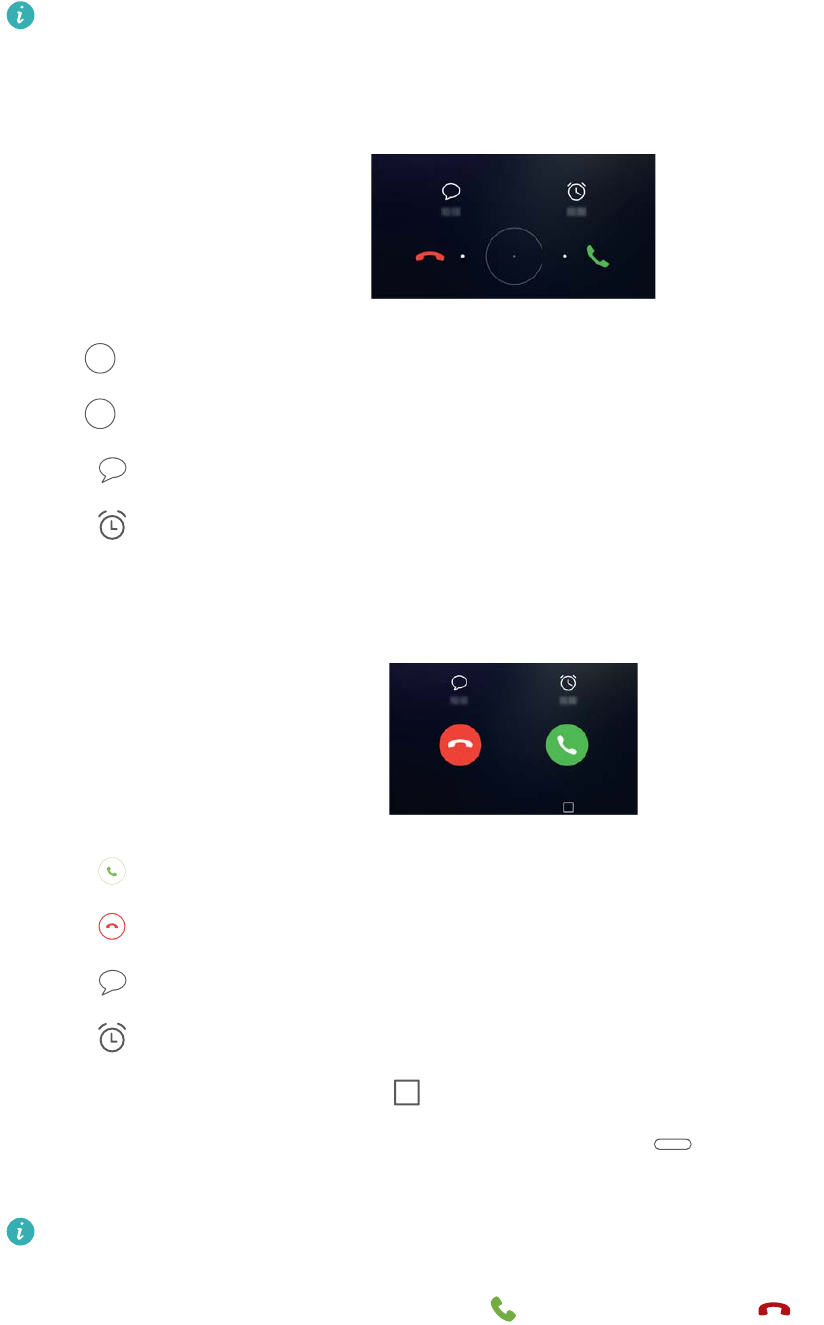
Answering calls
Answering or rejecting a call
When a call comes in, press the volume button to mute the ringtone.
If the screen is locked:
lDrag right to answer the call.
lDrag left to reject the call.
lTouch to reject the call and send an SMS.
lTouch to configure a callback reminder.
If the screen is unlocked:
lTouch to answer the call.
lTouch to reject the call.
lTouch to reject the call and send an SMS.
lTouch to configure a callback reminder.
lTo use an app during a call, touch Recent to open the list of recently used apps. You can
also swipe left or right on the front-facing fingerprint sensor , if it is available on your
phone. Touch the desired app. The Dialer app will continue to run in the background.
If you receive a call when you are entering text or using full-screen mode (for example, when
you are viewing an image or playing a game), the incoming call will be displayed at the top
of the screen in a floating window. Touch to answer the call or to decline the call.
Calls and ContactsCalls and Contacts(Applicable to selected models)
74
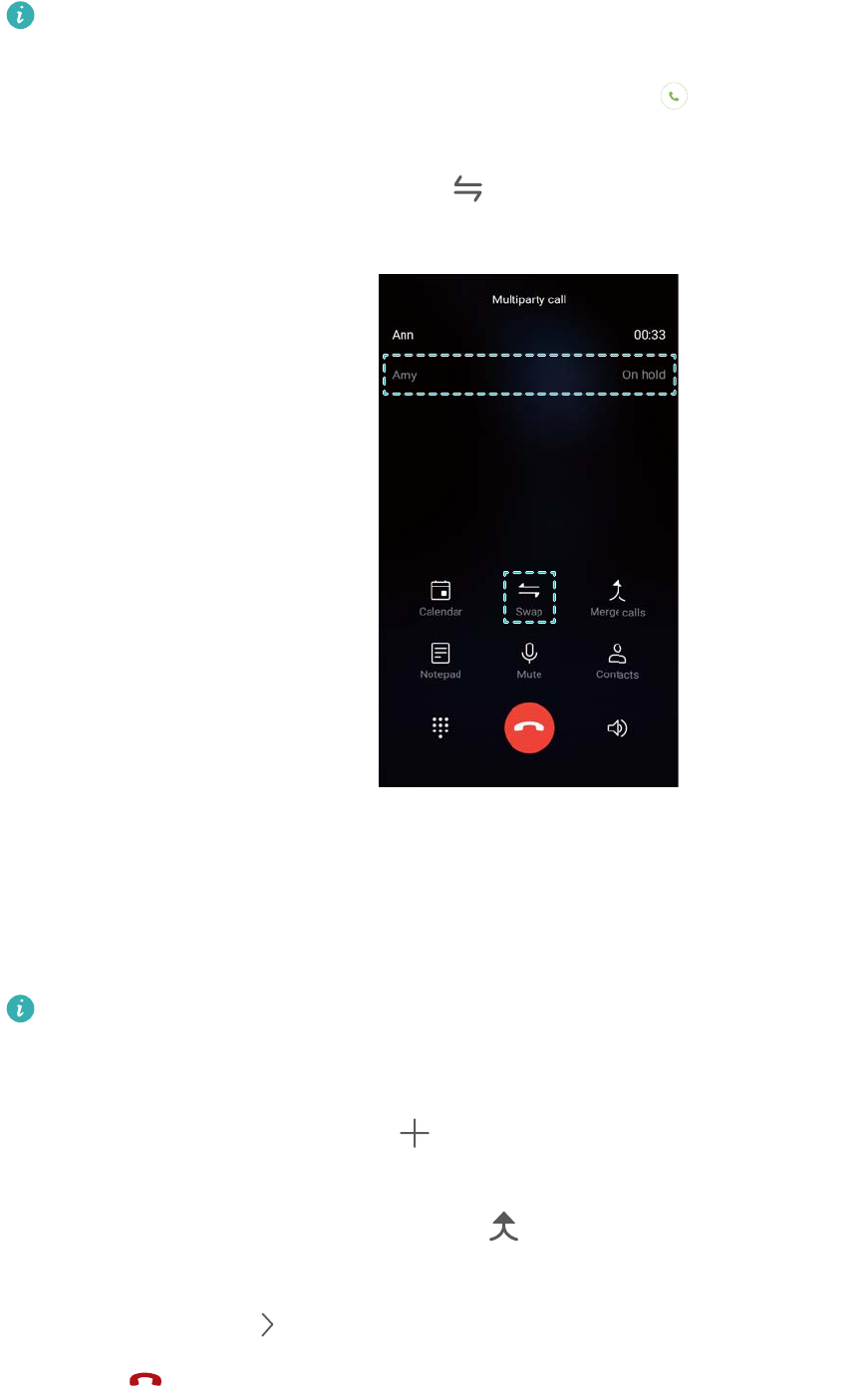
Switching between calls
Ensure that you have turned on call waiting before using this feature. For details, contact
your carrier.
1If you receive an incoming call when in another call, touch . You can then answer the
incoming call and hold the other line.
2To switch between the two calls, touch or select the call that is on hold.
Making a conference call
Set up a conference call using the multi-party call feature. Call one contact's number (or receive
a call), and then call another number to add it to the conference call.
Conference calling must be supported by your carrier. Please ensure you have activated this
service. For details, contact your carrier.
1Call the first participant.
2Once the call is connected, touch , and then dial the second participant's number. The
first participant will be placed on hold.
3When the second call is connected, touch to start a conference call.
4Repeat steps 2 and 3 to add more people to the conference.
5During a call, touch to view the list of participants. You can:
lTouch next to a contact to remove the contact from the call.
Calls and ContactsCalls and Contacts(Applicable to selected models)
75
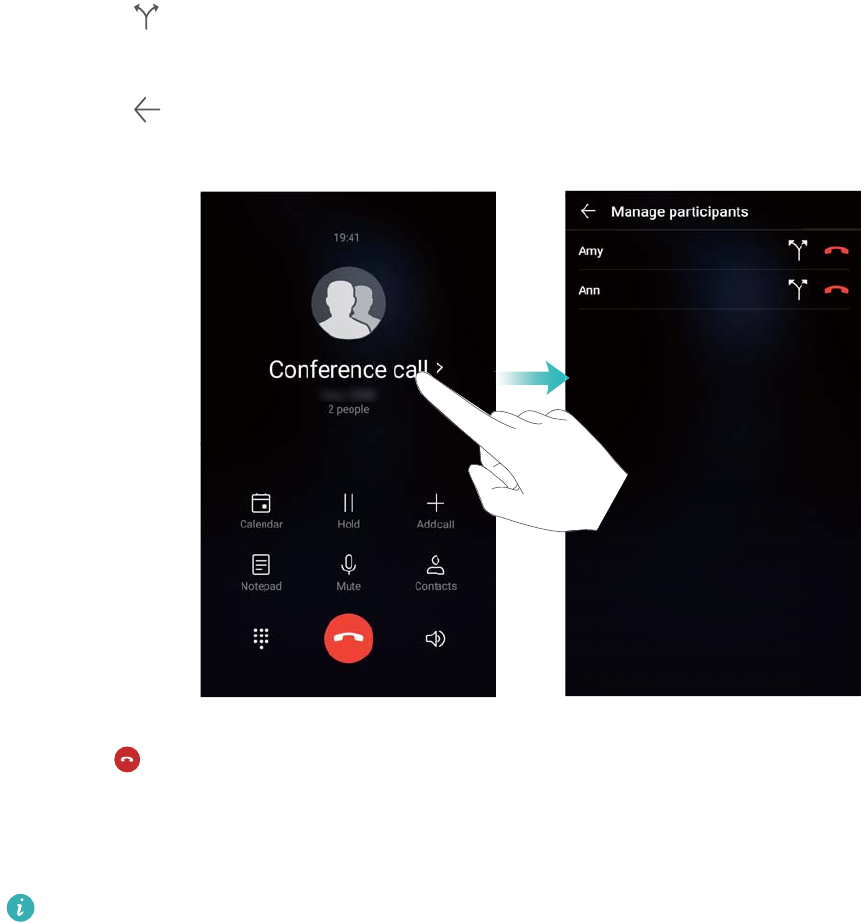
lTouch next to a contact to remove the contact from the conference call and keep them
in a separate call.
lTouch to return to the main call screen.
6Touch to end the conference call.
In-call options
Do not cover the microphone during a call.
During a call, your device will display an in-call menu.
Calls and ContactsCalls and Contacts(Applicable to selected models)
76
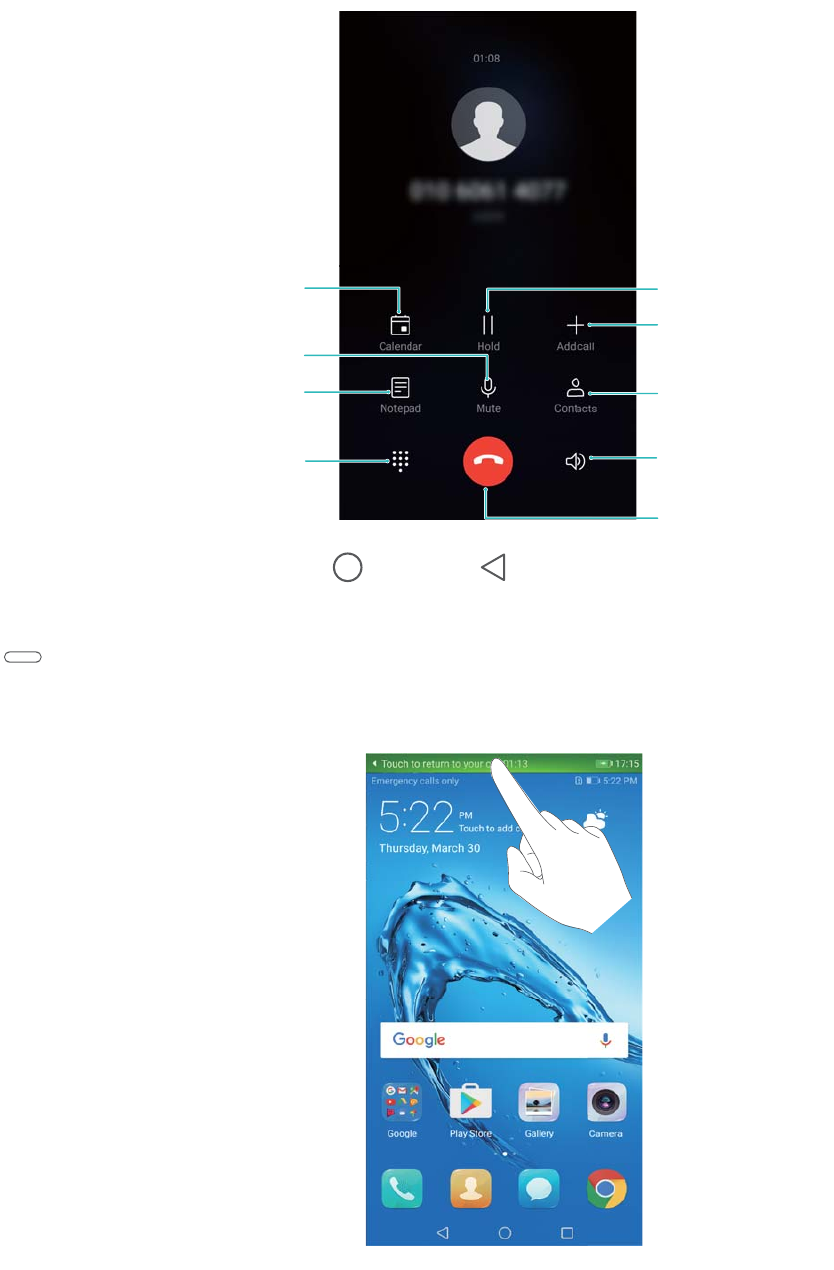
Mute the call
Start a three-way call
Show/hide dialer
End call
Display your contacts
View your notes
View your
calendar
Place the current
call on hold
Enable hands-free
mode
lHide the in-call menu: Touch Home or Back. If the front-facing fingerprint sensor is
available on your device, where the navigation bar is hidden by default, you can also touch
. Touch the green status bar at the top of the screen to return to the in-call menu.
lStart a three-way call: Contact your carrier to find out how to use this feature.
lAdjust the volume: Press the volume up button to increase the volume, or the volume down
button to decrease the volume.
Calls and ContactsCalls and Contacts(Applicable to selected models)
77

Managing call logs
Viewing missed calls
1Open Dialer.
2To display all missed calls, touch the Missed tab and swipe down in the call log.
You can also view missed calls in the All tab. Missed calls are marked in red.
3Touch next to a call log to return the call, send a message, and more.
Managing unknown numbers in the call log
1Open Dialer.
2Touch Unknown.
3Select a number and touch . You can:
lAdd the number to your contacts: Touch to create a new contact, or touch to
add the number to an existing contact.
lAdd the number to the blacklist: Touch > Add to blacklist.
lShare the number: Touch > "Send number" to send the number as a text message.
Merging call logs
Merge call logs belonging to the same contact or number to keep your call log organized.
1Open Dialer.
2Touch > Settings > Merge call log.
3Touch By contact. Your device will automatically merge call logs belonging to the same
contact or number. Touch next to a call log to view detailed call log information.
Clearing the call log
Open Dialer. You can clear the call log in two ways:
lDelete one entry: Touch and hold a log entry, and then touch Delete entry.
lDelete multiple entries: Touch . Select the entries you want to delete, and then touch
.
Backing up the call log
1Open Backup.
2Touch Backup > SD card or Internal storage to back up the call log to a microSD card or
your phone's internal storage.
Calls and ContactsCalls and Contacts(Applicable to selected models)
78

3Select Call log and touch Back up.
4Follow the onscreen instructions to configure a password.
Call settings
Enabling call forwarding
If you are unavailable to take a call, you can configure your device to forward calls to another
number.
1Open Dialer.
2Touch > Settings.
3Touch Call forwarding. If your device has dual SIM support, touch SIM 1 or SIM 2, and then
touch Call forwarding.
4Select a method of forwarding the call. Enter the destination number and touch Enable.
When call forwarding is enabled, your device will forward certain calls (such as unanswered
calls) to the number you specified.
Enabling call waiting
Call waiting allows you to take an incoming call when you are already in a call and switch
between the two conversations.
You may need to contact your carrier to enable this feature.
1Open Dialer.
2Touch > Settings.
3Touch Additional settings and switch on Call waiting. If your device has dual SIM support,
touch SIM 1 or SIM 2, then Additional settings, and switch on Call waiting.
When you receive an incoming call while already in a call, touch to answer the new call, and
to switch between the two calls.
Enabling VoWi-Fi
Enable Voice over Wi-Fi (VoWi-Fi) to make calls over a mobile data or Wi-Fi network.
This feature may not be supported by all carriers.
1Open Dialer.
2Touch > Settings > Wi-Fi calling.
3Switch on Wi-Fi calling and select Turn on.
4Touch Mode and follow the onscreen instructions to select a preferred network.
Calls and ContactsCalls and Contacts(Applicable to selected models)
79
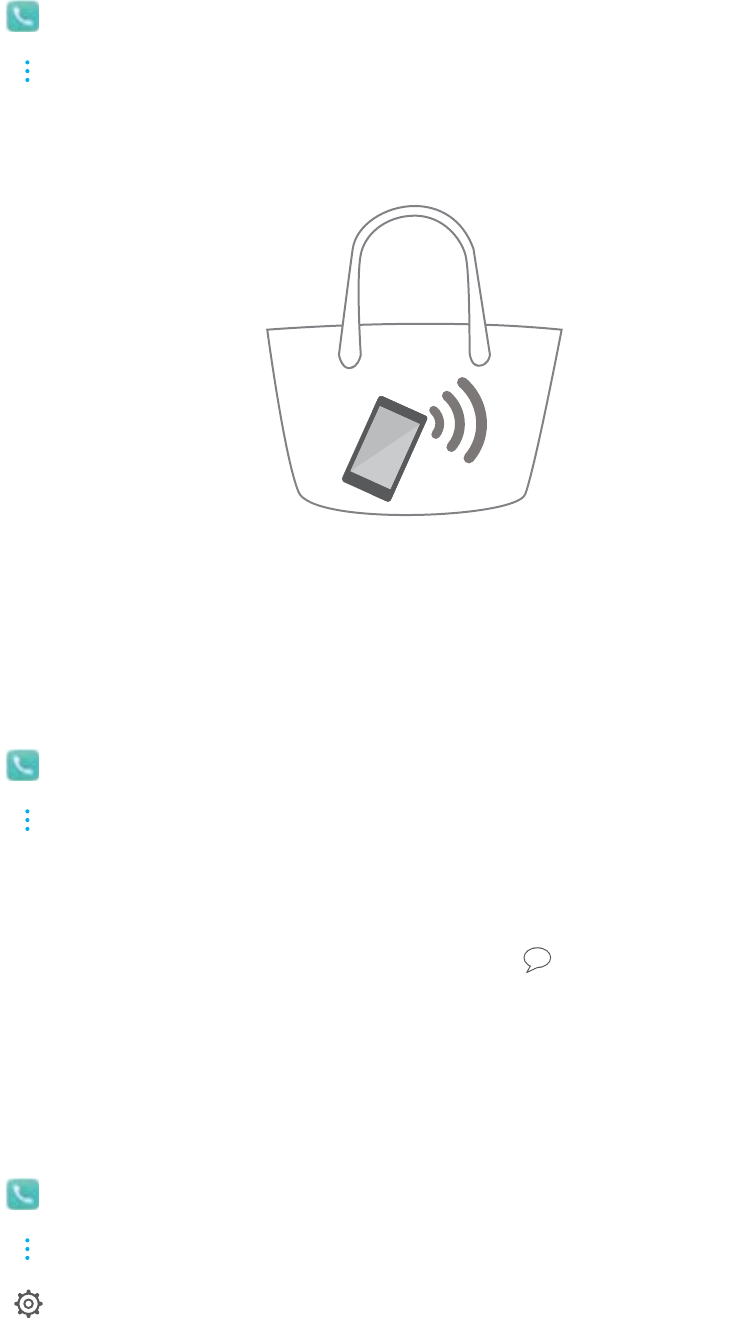
Enabling pocket mode
Enable pocket mode to make sure you don't miss calls when your device is in your pocket. The
ringtone volume will gradually increase when you receive a call.
1Open Dialer.
2Touch > Settings.
3Switch on Pocket mode.
When pocket mode is enabled, the ringtone volume will gradually increase when you receive a
call and your device is in your pocket or bag.
Rejecting calls with a text message
Send a predefined text message when you're not available to take a call.
1Open Dialer.
2Touch > Settings > Reject calls with SMS.
3Touch a predefined text message to edit the message content. Once you have finished, touch
OK to save the message.
When you are unavailable to take an incoming call, touch and select a predefined message
to send to the caller.
Configuring the harassment filter
The harassment filter automatically blocks calls and messages from unknown or blacklisted
numbers.
1Open Dialer.
2Touch > Blocked.
3Touch to configure the harassment filter settings and the blacklist.
Calls and ContactsCalls and Contacts(Applicable to selected models)
80
You can also configure the harassment filter settings and the blacklist in Phone Manager >
Blocked > .
Configuring the call ringtone
Choose from a selection of system ringtones or pick a song from your music library.
Features may vary depending on your carrier.
1Open Dialer.
2Go to > Settings > Phone ringtone. Choose a system ringtone or select a song from
your music library.
Alternatively, go to Settings > Sound, touch Call ringtone & vibration, and then configure
the ringtone settings.
Configuring voicemail
Divert calls to your voicemail when your device is switched off or when there is no cellular
coverage. Callers can leave a voice message that you can listen to later.
Voicemail must be supported by your carrier. Please ensure that you have subscribed to this
service. Contact your carrier for information about their voicemail service.
1Open Dialer.
2Touch > Settings.
3Touch Additional settings. If your device has dual SIM support, touch SIM 1 or SIM 2, and
then touch Additional settings.
4Touch Voicemail > Voicemail number and enter your voicemail number.
Creating a contact card
Create a contact card to quickly share your contact information. You can share your contact
information by scanning the QR code or by sending the contact card using an instant messaging
service such as WhatsApp.
1Open Contacts.
2Touch Me.
3Set your profile picture. Enter your name, company, telephone number and other contact
information, and then touch . Your device will automatically create a contact card with a
QR code.
Calls and ContactsCalls and Contacts(Applicable to selected models)
81
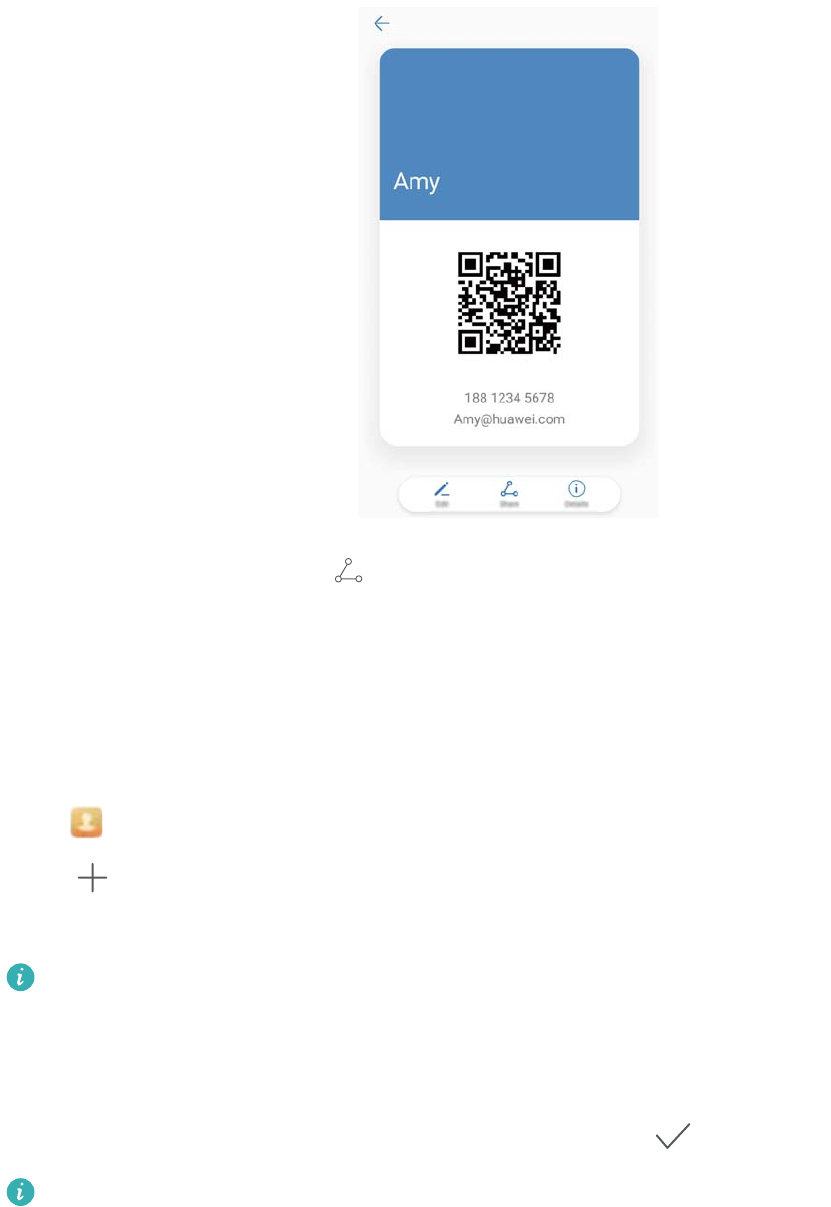
Share your contact card: Touch . Select the card format and sharing method, and then
follow the onscreen instructions.
Creating a new contact
Creating a contact
1Open Contacts.
2Touch . If you are creating a contact for the first time, touch Create a new contact.
3In the options menu, select a location to save the contact.
The number of contacts you can store on your device depends on the size of your
device's internal storage. The number of SIM card contacts you can store depends on
your SIM card's storage capacity.
4Touch the contact's profile picture to choose a photo. Enter the contact's name, company,
phone number and other contact information, and then touch .
lIf you add the contact's birthday, your device will automatically create a birthday
reminder in Calendar.
lThe contact's photo will be displayed when the contact calls you. Other contact
information such as company name and job title will also be displayed.
You can also add phone numbers, email addresses, and other contact information in to your
contacts in call log, Messaging or Email.
Calls and ContactsCalls and Contacts(Applicable to selected models)
82
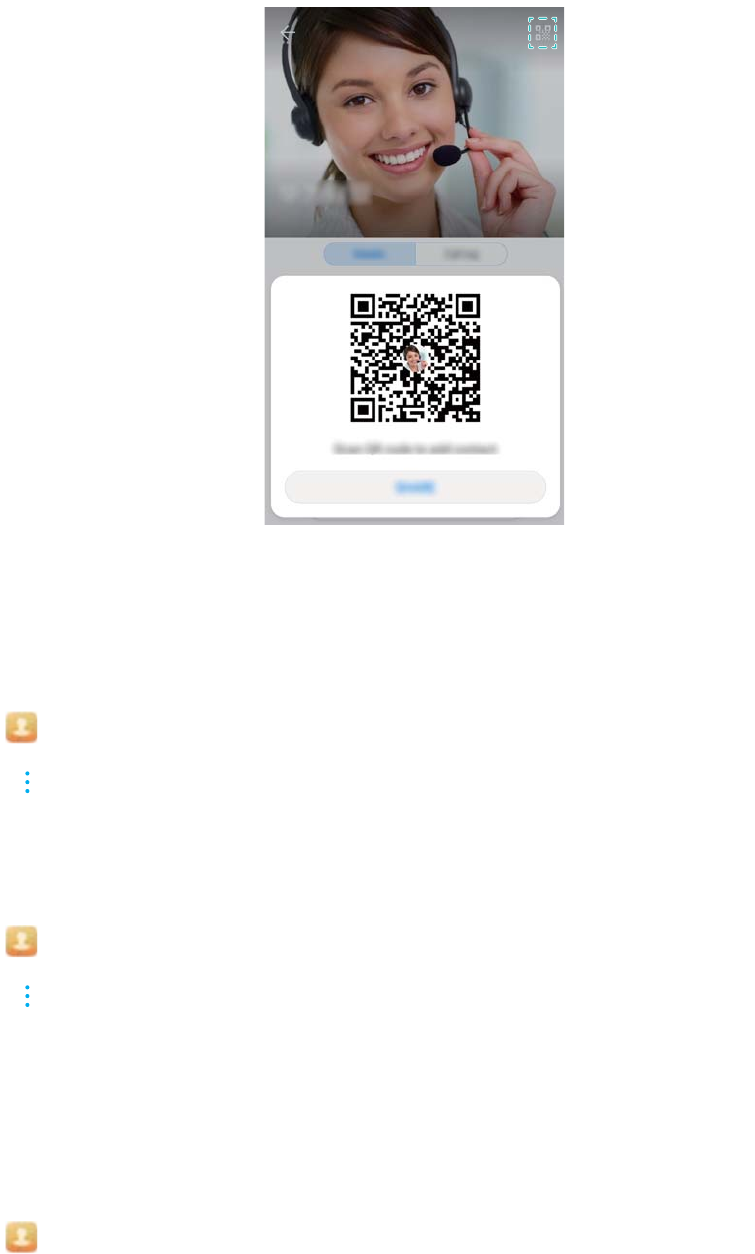
Sharing your QR code
Share your QR code with your friends so that they can add you to their contacts quickly. On the
contact details screen, touch the QR code at the top of the screen to display your personal QR
code.
Importing and exporting contacts
Importing contacts from a storage device
1Open Contacts.
2Touch > Import/Export > Import from storage.
3Select one or more .vcf files, and then touch OK.
Exporting contacts to a storage device
1Open Contacts.
2Touch > Import/Export > Export to storage > Export.
3Choose where you want to export the contacts from and touch OK.
By default, the exported .vcf file is saved to the root directory of your device's internal storage.
Open Files to view the exported file.
Importing contacts from a SIM card
1Open Contacts.
Calls and ContactsCalls and Contacts(Applicable to selected models)
83

2Touch > Import/Export > Import from SIM. If your device has dual SIM support, touch
> Import/Export and choose the SIM card you want to import your contacts from.
3Select the contacts you want to import and touch .
4Choose the location. The device will automatically import the contacts.
Exporting contacts to a SIM card
1Open Contacts.
2Touch > Import/Export > Export to SIM. If your device has dual SIM support, touch
> Import/Export, and choose the SIM card you want to export your contacts to.
3Select the contacts you want to export and touch .
4Touch Continue.
Using the Huawei Backup app to import contacts
1Open Backup.
2Touch Restore > Restore from internal storage and select Next.
3Select the backup you want to restore.
If the backup data is encrypted, enter the encryption password when prompted.
4Select Contacts and touch Restore.
Using the Huawei Backup app to back up your contacts
1Open Backup.
2Go to Backup > Internal storage, and then touch Next.
3Select Contacts. Touch Back up and follow the onscreen instructions to set a password.
By default, backup data is saved to the HuaweiBackup folder in Files.
Managing contacts
Editing a contact
After creating a contact, you can edit their contact information at any time. This includes adding
or deleting default information such as phone numbers or email addresses. You can also choose
a custom ringtone and add a birthday, nickname, or photo.
Contact photos cannot be added for contacts stored on your SIM card.
1Open Contacts.
2Touch and hold the contact you want to edit, and then touch Edit.
Calls and ContactsCalls and Contacts(Applicable to selected models)
84

3Touch the contact's portrait to choose another image. Update the contact's information, and
then touch .
Add multiple numbers for one contact: Select a contact from the contact list and touch
Edit > Add phone number.
Merging duplicate contacts
When you add contacts to your device from different sources, you may end up with duplicate
entries. These duplicate entries can be merged into one to help keep your contacts organized.
1Open Contacts.
2Touch > Organize contacts > Merge duplicate contacts.
3Select the contacts you want to merge and touch .
Deleting contacts
1Open Contacts.
2Touch > Organize contacts > Delete contacts by batch.
3Select the contacts you want to delete, and then touch .
4Touch Delete.
Alternatively, touch and hold a contact until a popup menu appears. From here, select
Delete to delete the contact.
Deleting contact history
Delete call records and text messages by contact to protect your privacy.
1Open Contacts.
2Select a contact and touch > Erase traces > Erase.
Your device will delete all call records and text messages for the selected contact.
Adding contacts to the blacklist
1Open Contacts.
2Touch and hold the contact that you want to add to the blacklist, and then touch Add to
blacklist.
Your device will automatically block incoming calls and messages from blacklisted contacts.
lView blacklisted contacts: Open Phone Manager and touch Blocked > . Touch
Numbers blacklist to view blacklisted contacts.
lRemove contacts from the blacklist: Open Contacts. Touch and hold the contact
that you want to remove from the blacklist, and then touch Remove from blacklist.
Calls and ContactsCalls and Contacts(Applicable to selected models)
85

Identifying contacts with incomplete information
1Open Contacts.
2Touch > Organize contacts > Contacts with incomplete info.
3Your device will display a list of contacts with incomplete information. You can then choose to
add missing information or delete unwanted contacts.
Viewing contacts from different accounts
1Open Contacts.
2Touch > Display preferences.
3Select the account you want to display, or customize the display options.
lHide contact photos, company information, and job title: Touch > Display
preferences on the contacts screen and switch on Simple layout.
lView storage information: Touch > Display preferences on the contacts screen.
Go to Accounts to view the available and total storage space on your device or SIM card.
Searching for contacts
Search contacts stored on the device, SIM card, or linked to an online account.
Finding contacts
1Open Contacts.
For more complete search results, ensure that Contacts is configured to display all of
your contacts. On the contacts screen, touch > Display preferences and select All
contacts.
2On the contact list, you can:
lSwipe the contact list up or down.
lSlide your finger up or down the index on the right-hand side of the screen to scroll through
your contacts.
lEnter the contact name, initials, phone number, email address, or other information in the
search bar at the top of the contact list. Search results will be displayed underneath.
You can enter multiple keywords, such as "Tom New York". The system will find the
contacts that meet the search criteria.
3Select a contact. You can call them, send a text message, or edit their contact information.
If an error message is displayed or you are unable to search for a contact, touch >
Organize contacts and select Rebuild index data.
Calls and ContactsCalls and Contacts(Applicable to selected models)
86

Searching for a contact from the home screen
1Swipe down on the home screen to display the search bar.
2Enter one or more keywords (such as the contact's name or email address). The search
results will be displayed beneath the search bar.
You can enter multiple keywords, such as "Tom New York". The system will find contacts
that meet the search criteria.
3Select a contact. You can then choose to call them, send them a text message, or edit their
contact information.
Sharing contacts
Share a contact's vCard
1Open Contacts.
2Touch > Import/Export > Share contact.
3Select the contacts you want to share, or touch "Select all" to select all contacts, and then
touch Share contact.
4Choose your sharing method and follow the onscreen instructions.
Share a contact's QR code
1Open Contacts
2Select the contact you want to share. Touch the QR code and select Share.
3Choose your sharing method and follow the onscreen instructions.
If the other device has a camera that can scan QR codes, you can also share a contact
by scanning the contact's QR code.
Adding a contact to your favorites
Add frequently contacted people to your favorites to make them easier to find.
1Open Contacts.
2Touch and hold the contact you want to add to your favorites, and then touch Add to
favorites.
When viewing contact details, touch to add the contact to your favorites.
lAdd contacts to your favorites in batch : Touch Add on the favorites screen, and choose
the contact you want to add, and then touch . If the contact has already been added, touch
to add the contact to your favorites.
Calls and ContactsCalls and Contacts(Applicable to selected models)
87
lEdit your favorites: Touch Edit on the favorites screen. Drag next to a contact to adjust
the position of the contact in your favorites list.
lRemove contacts from your favorites: Touch Edit on the favorites screen. Select the
contacts that you want to remove from your favorites, and then touch Remove.
Changing contact photos
Contact photos cannot be added for contacts stored on your SIM card.
1Open Contacts.
2Touch and hold the contact you want to edit, and then touch Edit.
3Touch the contact's photo. You can choose to select a photo from Gallery or take a photo with
the camera.
4Touch .
The contact's photo will be displayed when you receive a call from them.
Viewing call records for individual contacts
1Open Contacts.
2Select the desired contact and touch Call log.
3Swipe up on the list to view all entries. You can:
lTouch an entry to call the contact.
lTouch > Delete to delete all entries.
lTouch and hold an entry to delete it or edit it before calling.
Assigning a ringtone to a contact
Assign a unique ringtone to frequently used contacts so that you can easily tell who is contacting
you.
1Open Contacts.
2Select the desired contact and touch Phone ringtone.
3Select the desired ringtone or music file, and then touch .
Contact groups
Creating a group
1Open Contacts.
Calls and ContactsCalls and Contacts(Applicable to selected models)
88

2Touch Groups and select .
3Enter the group name (for example, Family or Friends) and touch OK.
4Touch . Select the contacts you want to add to the group and touch .
Using smart groups
Use smart groups to automatically group contacts by company, location, or contact frequency.
1Open Contacts.
2Touch Groups.
3Under Smart groups, open a group, and then touch to send a group message or to
send a group email.
Editing a group
Add or remove people from a group, or change the group name.
1Open Contacts.
2Touch Groups and select the group you want to edit.
3Touch and add new members to the group.
4Touch . There are three options:
lTouch Remove members to remove members from the group.
lTouch Delete group to delete the group.
lTouch Rename to edit the group name.
Sending a group text message or email
1Open Contacts.
2Touch Groups and select which group you want to send a message or email to.
3Touch to send a message or to send an email.
Deleting a group
1Open Contacts.
2Touch Groups.
3Touch and hold the group you want to delete, and then touch Delete.
4Touch Delete.
Deleting a group will not remove the contacts in the group from your device.
Calls and ContactsCalls and Contacts(Applicable to selected models)
89
Messaging and Email
Sending a message
You can add a range of different content to messages, such as emoticons, images, and
recordings.
1Open Messaging.
2In the list of message threads, touch .
3Select the recipient box and enter the contact name or phone number. You can also touch
to open your contact list and choose a contact or contact group.
4Select the text field to begin composing your message. If you enter more than two lines of
text, touch to switch to full screen mode.
lTouch to add an attachment to your message.
lTouch Back to save the message as a draft. For device with the front facing
fingerprint sensor, the navigation bar is turned off by default. In this case, you can
touch to save the message as a draft.
5Touch . If your device has dual SIM support, touch
1
1
or
2
2
.
Cancel a message: Touch > Settings in the message list, and then turn on Cancel
sending. Your can cancel a message up to 6 seconds after it was sent.
Replying to a message
1Open Messaging.
2Touch a message to view the message content. Your device will automatically highlight
phone numbers, web addresses, email addresses, times, and other information. Touch
highlighted information to access a range of shortcuts. You can also:
lSave message attachments: Touch and hold the attachment that you want to save,
then touch Save.
lCall the sender: Touch at the top of the message.
lAdd the caller's number to your contacts: Touch > Create new contact or
Save to existing contact at the top of the message.
3To send a reply, select the text field and enter your message, and then touch . If your
device has dual SIM support, touch
1
1
or
2
2
.
90

Quickly reply to message: New messages will be displayed in the notification bar. Touch
the button to compose a reply.
Using RCS instant messaging
lFeatures may vary depending on your product.
lBefore using RCS instant messaging, check that you and the recipient have enabled RCS
and have logged in to your RCS accounts.
lSome carriers may not support this feature.
1Open Messaging.
2Touch > Settings, and turn on Rich communications.
3In the list of message threads, touch .
4Touch to open your contact list and choose an RCS contact.
Start a group chat: Touch > Group chat to add RCS contacts.
5You can send text or attachments.
If the RCS message cannot be sent, you can choose to send the message as an SMS or an
MMS.
Searching for messages
There are two ways to search for messages:
lIn the list of message threads, touch the search bar at the top of the screen and enter one or
more keywords. The results will be displayed beneath the search bar.
lSwipe down on the home screen to display the search bar. Touch the search bar and enter one
or more keywords. The results will be displayed beneath the search bar.
Deleting message threads
Delete unwanted or old threads to tidy up your message list.
Deleted threads cannot be retrieved, so please proceed with caution.
You can delete a message thread in two ways:
lTo delete a single thread, swipe left on the thread that you want to delete and touch .
lTo delete multiple threads, touch and hold one of the threads that you want to delete. Select
the other threads and touch > Delete.
Messaging and Email
91

Managing messages
Delete unwanted messages, forward messages to other contacts, copy and paste message
content, and lock messages or add them to your favorites to prevent them from being deleted by
accident.
1Open Messaging.
2In the list of message threads, touch a contact name or phone number to view your
conversations.
3Touch and hold a message, and then follow the onscreen instructions to forward, archive,
lock, or share the message.
Returning to the top of the message list
If you have a long list of messages, use a shortcut to return to the top of list without swiping the
screen.
1Open Messaging.
2In the list of message threads, double touch the bar at the top of the screen. Your device will
automatically return to the top of the list or display unread messages.
Pinning messages to the top of the list
Pin important messages to the top of your message list so that you can access them quickly.
1Open Messaging.
2In the list of message threads, touch and hold the message that you want to pin to the top.
3Select the desired message and touch . Pinned messages will be displayed below text
message alerts.
Marking messages as read
Mark unwanted messages as read to keep your inbox organized.
Open Messaging. In the list of message threads, you can:
lMark all messages as read: Touch > Mark all as read.
lMark a message as read: Swipe left on the message that you want to mark as read, and then
touch .
Messaging and Email
92

Blocking spam messages
1Open Messaging.
2In the list of message threads, touch > Blocked.
3Touch to configure the harassment filter settings and the blacklist.
Alternatively, open Phone Manager and touch Blocked > to configure the harassment
filter settings and the blacklist.
Adding a message signature
Add a message signature to save you time when sending messages.
1Open Messaging.
2Touch > Settings > Advanced > Signature in the list of message threads, and then
switch on Attach signature.
3Touch Edit signature. Enter your signature and select OK.
Configuring the message ringtone
1Open Messaging.
2In the list of message threads, touch > Settings > Ringtones and vibration.
3Touch Notification tone. If your device has dual SIM support, select SIM 1 notification tone
or SIM 2 notification tone. You can then choose a system ringtone or music file.
Identifying malicious URLs in text messages
Set your device to automatically identify malicious URLs to protect your personal data and
financial information.
Ensure that your device is connected to the Internet before enabling this feature.
1Open Messaging.
2In the list of message threads, open > Settings.
3Switch on Malicious website identification.
After receiving the message, the system will automatically identify malicious URLs. This service
is provided by Avast. The result is for your reference only.
Messaging and Email
93

Adding an email account
If you don't know your account settings, please consult your email service provider.
Adding a personal email account
1Open Email.
2Choose an email service provider or touch Others.
3Enter you email address and password, and then touch Sign in.
4Follow the onscreen instructions to configure your account. The system will automatically
connect to the server and check your settings.
Your Inbox will be displayed once the account has been set up.
Adding an Exchange account
Microsoft Exchange is a corporate email management solution. Some email service providers
also provide individual and family Exchange accounts.
1Open Email.
2Touch Exchange.
3Enter your email address, user name, and password. Touch Sign in.
4Follow the onscreen instructions to configure your account. The system will automatically
connect to the server and verify your settings.
Your Inbox will be displayed once the account has been set up.
Sending emails
1Open Email.
2Touch .
3In To:, enter one or more recipients.
4Touch Cc/Bcc, From: to add Cc and Bcc recipients, and select the email account to use.
5Enter the email subject and body. Touch to add an attachment.
6Touch to send the email.
Your email service provider may have an attachment size limit. If attachments exceed the
limit, you can send them in separate emails.
To save your email as a draft and send it later, touch , and then touch Save.
Replying to emails
1Open Email.
Messaging and Email
94

2Open the email you want to reply to and touch .
To reply to all recipients of the original email, touch .
3After drafting your message, touch to send the email.
Configuring fast responses: Touch > Settings. Select an account and touch Quick
responses to create or edit a fast response.
Managing emails
Viewing emails
You can check, reply, forward or delete your emails after you create a personal email account.
1Open Email.
2On the Inbox screen, touch and select the account you want to use. Swipe down to
refresh your inbox and download new emails.
On the inbox, touch to star the email.
3You can check, reply, forward or delete your emails. Open an email and swipe left or right on
the screen to view the previous or next email.
To delete multiple emails, go to the Inbox screen. Select a contact picture or touch and
hold an email to activate the email management interface. Select the emails you want to
delete and touch .
Saving email attachments
Open an email and touch to preview the attachment. Touch to save the attachment to
your device.
For large attachments, open the link provided in the email to download.
Syncing emails
On the Inbox screen, swipe down to refresh your inbox.
1Open Email.
2Touch > Settings.
3Select the account you want to configure. Switch on Sync email.
To sync your emails automatically, touch Sync schedule and select a sync interval.
Searching emails
You can search for emails in two ways:
Messaging and Email
95

lOn the inbox screen, enter one or more keywords in the search bar, such as the email title,
content, or the attachment filename.
lOn the home screen, swipe down to open the search bar. Enter search keywords, such as the
email title, content, or the attachment filename.
Managing VIP contacts
If you want to make sure you never miss messages from important contacts, you can add them
to your VIP contact list. Your device will automatically place emails from these contacts in your
VIP inbox.
1Open Email.
2Touch > Settings > VIP contacts.
3From VIP list, touch Add > Create or Add from contacts.
You can also open an email, touch the sender's profile picture, and then touch Add to
VIP list from the popup menu.
Add or delete VIP contacts: On VIP list touch or to manage your VIP contacts.
Configure VIP contact email notifications: On the inbox screen, touch > Settings > VIP
notifications.
Managing email accounts
Adding an email account
1Open Email.
2Touch > Settings > .
Alternatively, On the inbox screen, touch . Touch add account.
3Select a service provider and enter your details to add an account. For more information on
how to add an account, see Adding an email account.
Switching between email accounts
On the inbox screen, touch . Touch the account image to switch to that account.
Configuring an email account
On the inbox screen, touch > Settings and select an account. You can perform the
following operations:
lRename the account: Touch Account name and enter an account name in the popup dialog
box.
lSet as default: Switch on Default account to make the account the default account.
Messaging and Email
96

lDelete the account: Touch Remove account to delete the account.
Configuring Mail
Configuring automatic replies
Configure automatic replies when you are out of office.
You must log in to your Exchange account to use this feature.
1Open Email.
2Touch > Settings.
3Choose the Exchange account you want to configure and switch Automatic replies on.
4Switch on Automatic replies to configure a message and set the start and end time.
5Touch Done.
Configuring an email signature
1On the inbox screen, touch > Settings.
2Select the account you want to configure and touch Signature.
3Enter a signature and touch OK.
Configuring email notifications
1On the inbox screen, touch > Settings.
2Select the account you want to configure and switch Email notifications on.
3Select a notification sound or enable vibration alerts.
Configuring the email view
On the inbox screen, touch > Settings > General. You can configure the following:
lOnly download attachments over Wi-Fi: Switch Don't download images over mobile
network on.
lGroup emails with the same title: Switch Organize by subject on.
lDisplay contact images: Switch Sender profile picture on to display contact images next to
emails.
Configuring how emails are sorted
On the inbox screen, touch > Sort by and select a sort method.
Messaging and Email
97
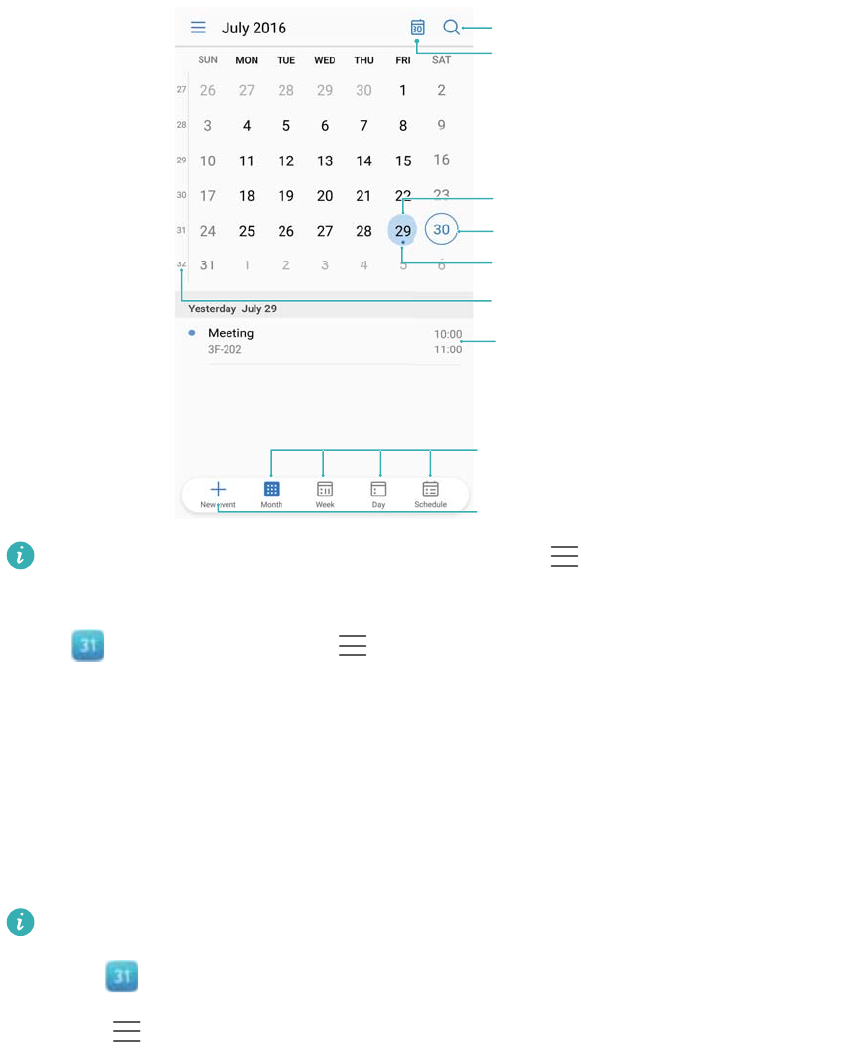
Calendar and Notepad
Changing the calendar view
Go to today
Search calendar
Week number
Today
Current day
Event
Show events for current day
Toggle between month, week, and day view
Add event
To view your schedule for a specific day, touch > Go to, select a date, and then touch
Done.
Open Calendar and touch > Settings. You can:
lConfigure the weekend settings: Touch Customize weekend and configure the settings.
lConfigure the first day of the week: Touch Week starts on and configure the settings.
Viewing global holidays
Enable global holidays to view public holiday information for different countries.
This feature requires an Internet connection.
1Open Calendar.
2Touch > Settings > Global holidays.
3Turn on the switch next to the country whose holidays you want to view. Your phone will
automatically download the country's holiday information.
Birthday reminders
Configure Calendar to import birthday information from your contacts and automatically create
birthday reminders.
98
Before using this feature, ensure that you have added birthday information to your contacts.
For more information, see Creating a contact.
1Open Calendar.
2Touch and select Contacts' birthdays.
Once you have enabled this feature, Calendar will automatically import birthday information from
your contacts and send you birthday reminders.
Syncing events
Syncing events from your Exchange account
Ensure that you have enabled the Exchange calendar sync feature in the email account
settings.
1Open Calendar.
2Touch . Select an Exchange account to sync events to your device.
Creating an event
Add events and set reminders to help you plan ahead.
1Open Calendar.
2Touch .
3Enter the event name, location, and start and end time. Touch More > Remind to create a
reminder.
4Touch to save the event.
lYou can add up to 5 reminders for an event. To add a reminder, touch Add reminder.
lIn week or daily view, touch and hold an area on the screen to create an event for the
corresponding date and time.
Sharing events
You can share events with your contacts.
1Open Calendar.
2Open the event that you want to share and touch .
3Choose how you want to share the event and follow the onscreen instructions.
You cannot share birthday reminders that are created automatically. To share birthday
information, manually create an event, and then share the event with your friends.
Calendar and Notepad
99

Deleting an event
Open Calendar. You can delete an event in two ways:
lDelete a single event: Open the event that you want to delete and touch .
lDelete multiple events: Touch , and then touch and hold an event to activate the event
management interface. Select the events that you want to delete and touch .
To delete a birthday reminder, go to Contacts, and then delete the contact's birthday
information, or delete the corresponding contact.
Searching for events
You can search for events in two ways:
lIn Calendar, touch . Enter one or more keywords in the search bar, such as the event
name or location.
lSwipe down on the home screen to display the search bar. Enter one or more keywords, such
as the event name or location.
Sending event invitations
Send event invitations to your friends or colleagues to keep track of who is attending.
Before using this feature, log in to your Exchange account.
1Open Calendar.
2Touch . Enter the event name, location, and start and end time.
3Touch More. Under Guests, enter the exchange accounts of the people that you want to
invite.
4Touch to save the event and send the invitations.
Event invitations are displayed in the notification panel. To respond to an invitation, touch
Email guests.
Creating a note
1Open Notepad.
2Touch and enter your note.
Calendar and Notepad
100
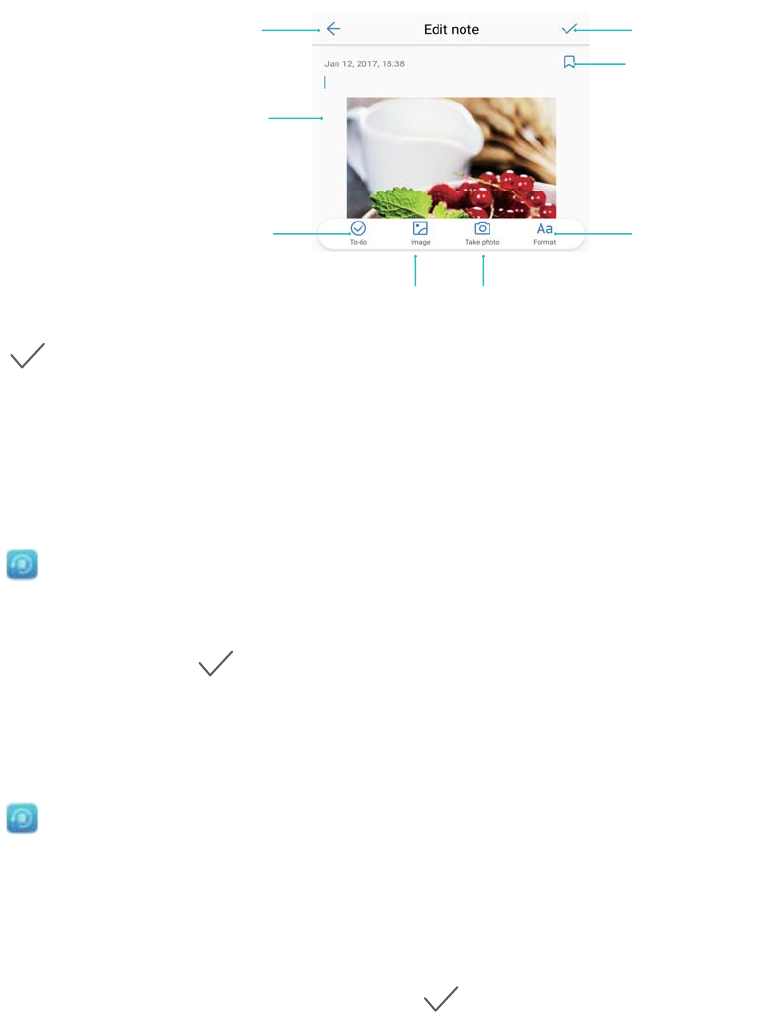
Editing text
Add tag
Save note
Edit note
Close note
Add task
Insert image Take a photo
3Touch to save the note.
Backing up notes
Backing up notes
1Open Backup.
2Touch Backup > Internal storage > Next > System data.
3Select Notes and touch .
4Touch Back up and follow the onscreen instructions to configure a password.
Importing notes
1Open Backup.
2Touch Restore > Restore from internal storage > Next.
3Select the notes that you want to restore. In the popup dialog, enter the password and touch
OK.
4Touch System data. Select Notes and touch .
5Touch Restore.
Calendar and Notepad
101
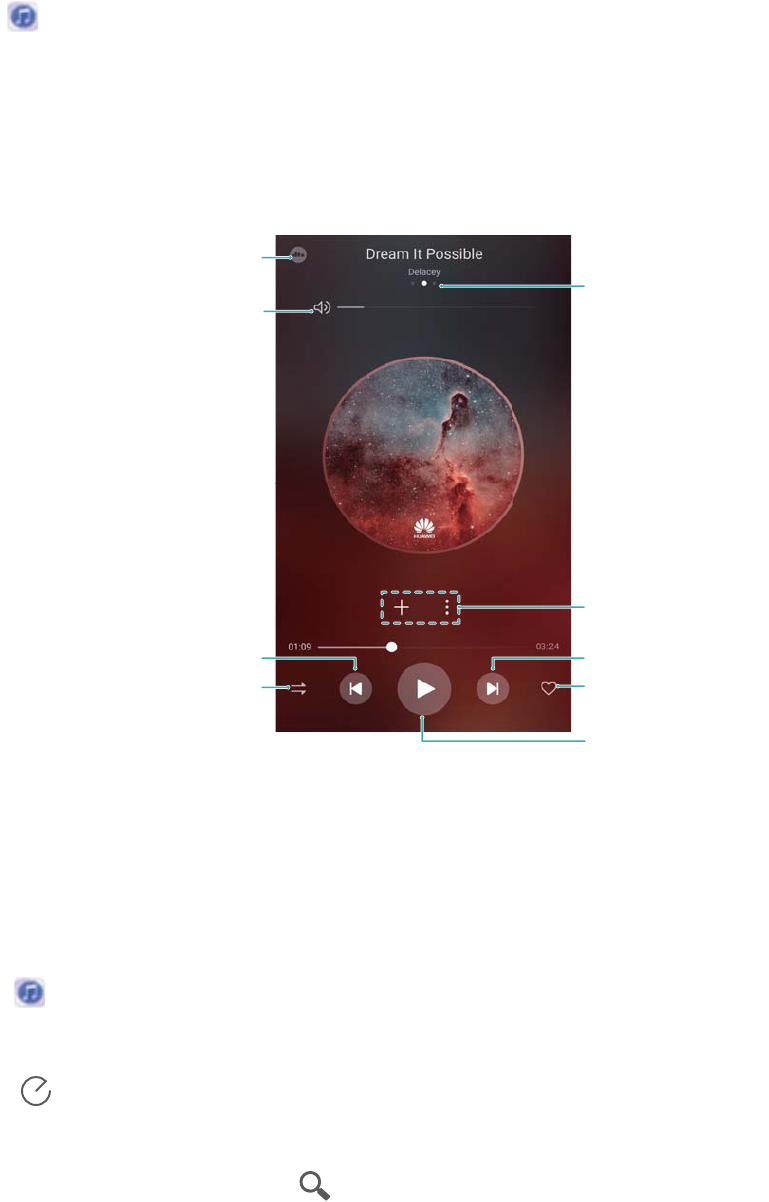
Music and Video
Listening to music
You can choose to listen to your favorite local songs .
1Open Music.
2You can then play music stored on your device, add a song to the personal song book, play a
song in the personal playlist, or listen to recently played songs.
3You can play, pause, or change songs during the process.
&OBCMF%54
%SBHMFGUPSSJHIUUP
BEKVTUQMBZCBDLWPMVNF
$IBOHFQMBZCBDL
PSEFS
5PHHMFCFUXFFOQMBZ
BOEQBVTF
"EEUPGBWPSJUFT
/FYUTPOH
1SFWJPVTTPOH
"EEUPQMBZMJTU
%SBHMFGUPSSJHIUUPTXJUDI
CFUXFFOQMBZMJTUPSMZSJDT
TDSFFOT
Searching for music
Searching for music on your internal storage or microSD card
Sort your music by category or search with a keyword to find your music files quickly.
1Open Music.
2Touch All songs.
3Touch to search for and view music stored on your device.
4You can choose to organize your music by song name, artist, album name, or folder. To
search for a specific song, touch and enter the song name, artist, or album in the search
bar.
102

Deleting songs
Delete unwanted songs to free up storage space.
1Open Music.
2Touch All songs.
3Go to the Songs tab. Touch and hold the list of songs and select the songs that you want to
delete.
4Touch > Delete.
5Touch Delete.
Creating a playlist
Organize your music by creating customized playlists that contain your favorite songs.
1Open Music
2Touch Playlists > Create new playlist.
3Name the playlist and touch Save.
4Touch Add in the dialog box.
5Select the songs you want to add and touch .
Touch next to the playlist to Rename or Delete the playlist.
Playing a playlist
My playlists
1Open Music.
2Touch Playlists .
3Select the desired playlist. Touch a song to start playback, or touch Shuffle all to shuffle all
songs.
Playing a video
Playing a video
1Open Videos.
2Touch the thumbnail to start the video.
During playback, you can:
lAdjust the playback speed: Touch 1.0X and drag the speed slider.
Music and Video
103
lAdjust the screen brightness: Swipe up or down on the left-hand side of the screen.
Swipe up to increase the brightness, or swipe down to decrease the brightness.
lAdjust the volume: Swipe up or down on the right-hand side of the screen. Swipe up to
increase the volume, or swipe down to decrease the volume.
lRewind or fast-forward: Drag the progress bar left to rewind, or right to fast-forward.
Music and Video
104

Phone Manager
Optimizing performance
Use Phone Manager to make your phone run faster and optimize performance.
Open Phone Manager and touch OPTIMIZE. Your phone will automatically optimize
performance, enhance security, and reduce power consumption.
Enhancing speed
Clear the app cache and delete residual files and system trash to optimize performance.
1Open Phone Manager.
2Touch Cleanup to clear the app cache and system trash.
To free up more storage space, you can:
lTouch Storage manager to clear large files, images, and app data.
lRestore an app to its default settings. Touch Application restore. Select the app you
want to restore and touch > Delete. The app will be restored to its default
settings, and all app-specific data will be deleted.
3Touch Finish to exit.
Managing data usage
Phone Manager comes with a data management feature that you can use to monitor data usage
and avoid exceeding your monthly allowance.
Open Phone Manager and touch Mobile data. You can view detailed data usage statistics
or configure the following settings:
105
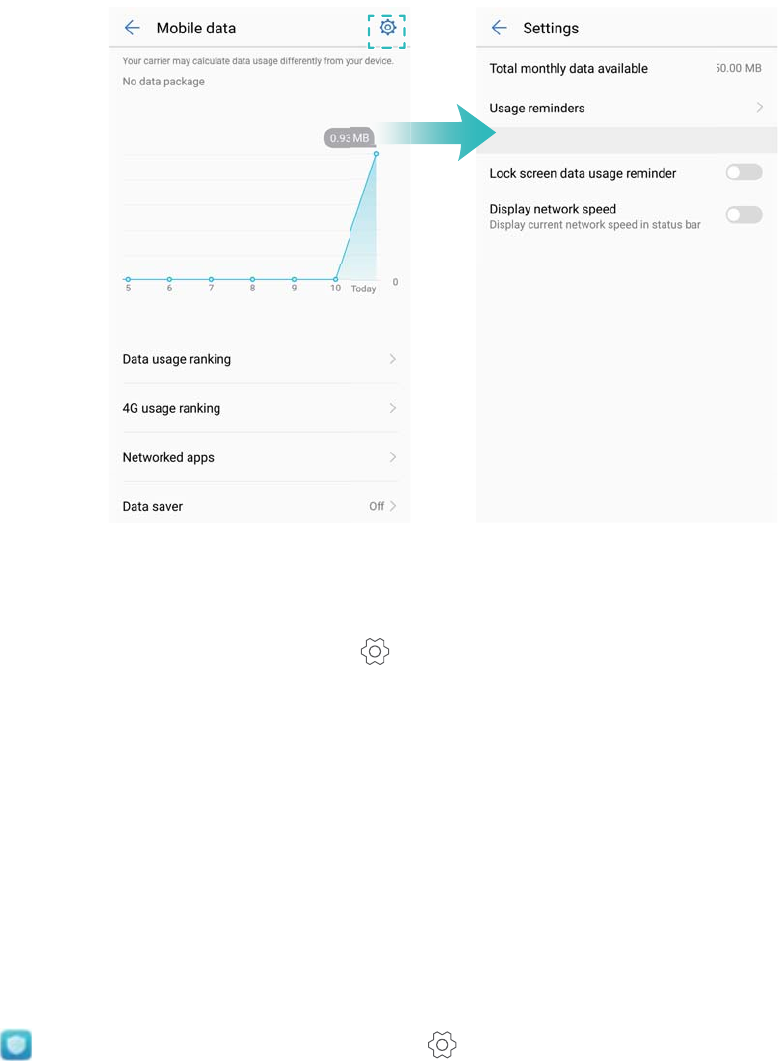
lData usage ranking: View data usage for each app.
lNetworked apps: Manage Internet access permissions for each app.
lTotal monthly data available: Touch > Total monthly data available to configure your
data plan settings and data usage reminders. Your phone will calculate your mobile data usage
and remaining data allowance for the billing period you specify. When you have used up your
monthly allowance, you will receive a reminder, or your phone will disable mobile data.
lData saver: Enable data saver and choose the apps that you do not want to restrict data for.
Harassment filter
Phone Manager comes with a harassment filter feature, which can help you block unwanted
calls and messages.
Open Phone Manager. Touch Blocked > and follow the onscreen instructions to
configure the blacklist and the whitelist, blacklisted keywords, and spam settings.
Phone Manager
106
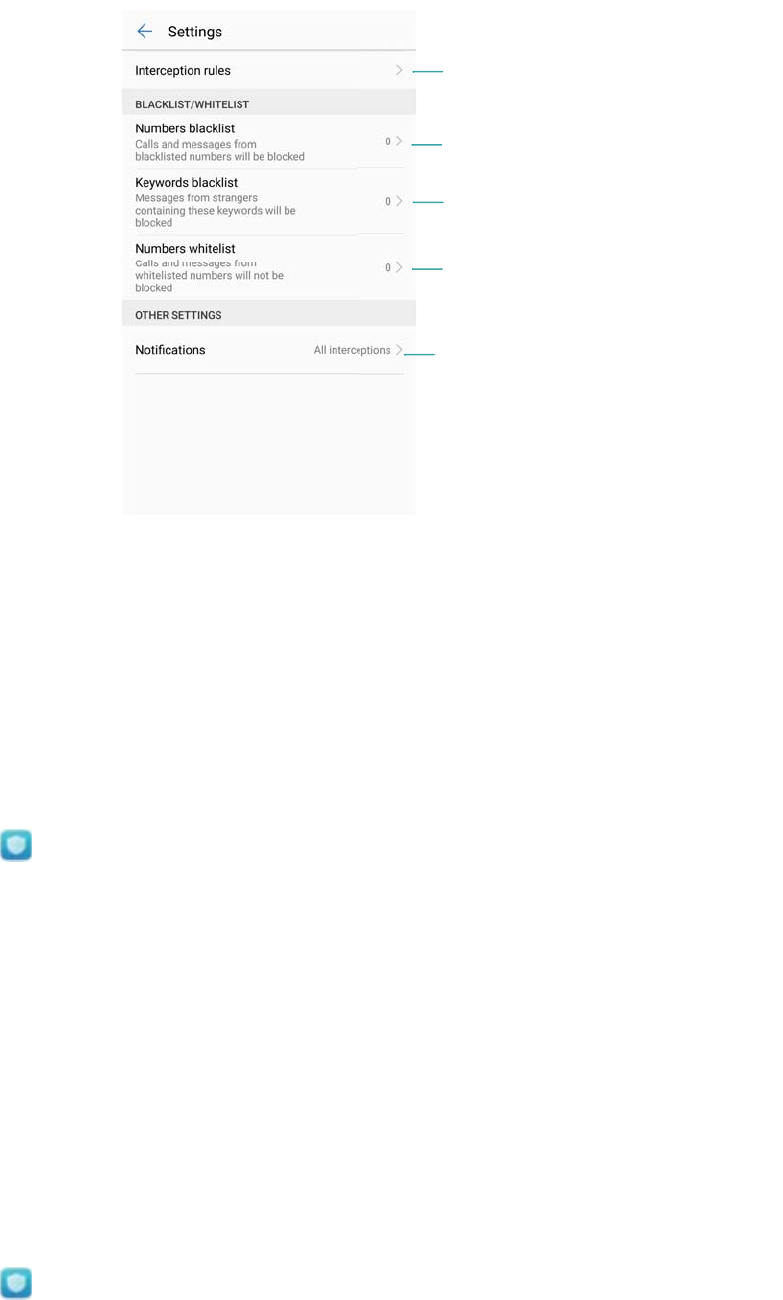
Configure filter rules
Configure filter notifications
Messages from strangers that contain
blacklisted keywords will be blocked
Calls and messages from blacklisted
numbers will be blocked
Calls and messages from whitelisted
numbers will not be blocked
Battery Management
Viewing battery usage statistics
My device's battery is draining very fast, which apps are draining my battery? How can I reduce
my power consumption? Use Phone Manager to view detailed battery usage statistics for each
app.
Open Phone Manager. Touch remaining to enter the battery management screen. Here
you can:
lTouch Battery usage details to view detailed battery usage statistics.
lTouch Consumption level to view the hardware and software using the most power.
lTouch Optimize to check for power consumption problems and optimize performance.
lSwitch on Remaining battery percentage to display the remaining battery percentage in the
status bar.
Reducing power consumption
How can I effectively reduce my device's power consumption? Use Phone Manager to optimize
performance and reduce power consumption.
Open Phone Manager and touch remaining to:
lOptimize performance: Touch Optimize. Your device will check for power consumption
problems and optimize performance. To further reduce power consumption, refer to items
need to be optimized manually, touch View or Optimize to adjust power settings manually.
lRestrict background apps: Touch Lock screen cleanup, and toggle off the switches next to
the apps that you do not want to run in the background when the screen is locked.
Phone Manager
107

lClose power-intensive apps: Touch Power-intensive apps and select the apps that you
want to close.
A message will appear in the notification panel if power-intensive apps are running in the
background. If you don't want to receive these notifications, touch and switch off
Power-intensive prompt.
lReduce the screen resolution: Switch on Low resolution power saving to reduce the
screen resolution and lower power consumption.
lAutomatically close power-intensive apps: Touch and switch on Close excessively
power-intensive apps.
Managing app permissions
Phone Manager comes with a permission manager that you can use to restrict app permissions
and protect your personal data.
1Open Phone Manager.
2Touch Permissions and configure the desired permissions.
Virus scanner
Phone Manager comes with a virus scanner feature that helps you remove malware.
1Open Phone Manager.
2Touch Virus scan. Your device will automatically identify and remove malware.
Touch . You can:
lEnable Cloud scan to scan your device using the latest antivirus database. An Internet
connection is required to access the online database.
lEnable Scan reminder to receive a notification when you have not conducted a virus
scan for 30 days.
lSelect a scan mode. The Quick scan only scans important files and installed apps.
The Full scan takes longer and scans for malicious files.
lSwitch on Auto-update and Only update over Wi-Fi to automatically update the
antivirus database when you have a Wi-Fi connection.
Encrypting apps
Use App Lock to encrypt apps and prevent unauthorized access.
1Open Phone Manager.
2Touch App lock. When you access App Lock for the first time, follow the onscreen
instructions to set a four-digit PIN and password reminder.
Phone Manager
108
3Turn on the switch next to the apps that you want to encrypt. You will need to enter the PIN
each time you open an encrypted app.
On the App Lock screen, touch to change password or disable App Lock.
Setting apps to close automatically when the screen
is locked
Choose which apps you want to close when the screen is locked to reduce power consumption
and mobile data usage.
1Open Phone Manager.
2Touch Lock screen cleanup.
3Turn on the switch next to the apps that you want to close.
The selected apps will close automatically when the screen is locked. You may not
receive new messages from email, messaging, and social networking apps after they are
closed.
Configuring Phone Manager
Adding shortcut for Phone Manager
Create home screen shortcuts for frequently-used device management features.
1Open Phone Manager.
2Touch > Shortcuts and switch on the feature that you want to add to the home screen.
Phone Manager
109

Tools
Clock
Managing alarms
Set an alarm to wake you up or remind you about important events.
Open Clock. From the Alarm tab, you can:
lAdd an alarm: Touch and set the alarm time, ringtone, repeat settings, and more. Touch
to apply the settings.
lEnable or disable an alarm: Touch the switch next to an alarm.
lConfigure the alarm settings: Touch and go to ALARM to configure the snooze
duration, silent mode settings, and volume button behavior.
lDelete an alarm: Touch and hold the alarm you want to delete. Touch next to the clock,
and then touch .
lTurn off an alarm: Touch Slide to turn off alarm at the bottom of the lock screen.
lMute an alarm: Press the volume down button.
lSnooze for 10 minutes: Press the power button. The alarm will go off again after 10 minutes.
To turn off the alarm, swipe down from the top of the screen to open the notification panel, and
then touch the alarm notification.
lEnable alarms when your device is powered off: Select Keep alarm active, will ring in .
Alarms will still go off when your device is switched off.
Configuring the world clock
Add multiple clocks to view the time in various cities around the world.
1Open Clock.
2From the World clock tab, you can:
lAdd a city: Touch . Enter a city name or select a city from the list.
lSet the system date and time: Touch > Date & time and configure the settings.
lDelete a city: Touch and hold the city you want to delete. Touch next to the city, and
then touch .
110
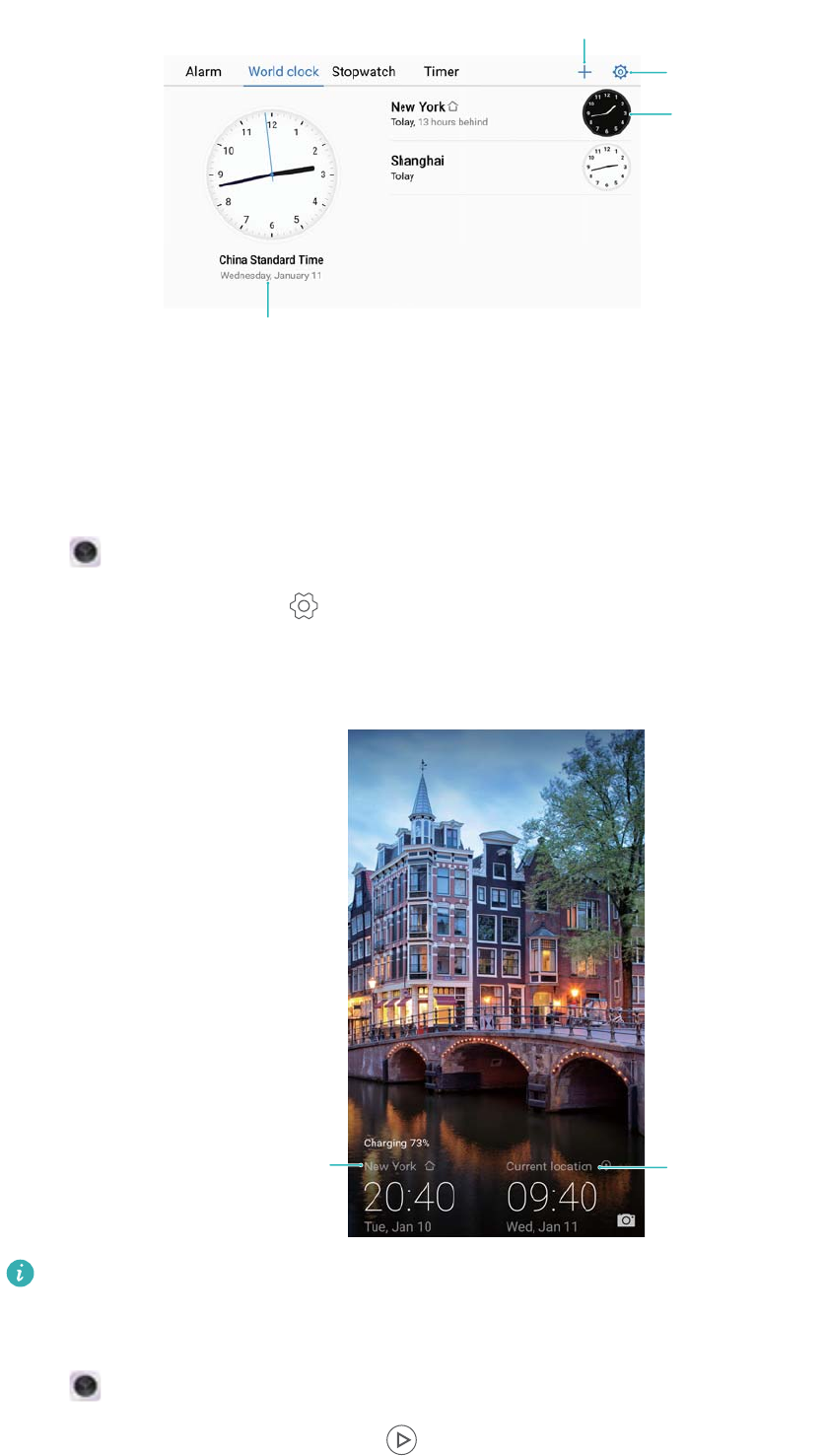
Home time
Add city
My cities
Set date, time, and
home time zone
Enabling dual clocks
By default, your device displays the network time. Enable dual clocks to display the time in your
current time zone and your home time zone on the lock screen.
1Open Clock.
2Under World clock, touch > Date & time .
3Switch on Dual clocks. Touch Home city and select your home time zone from the list of
cities.
Current network
time zone
Home time zone
Only one clock is displayed when the local time zone is the same as the home time zone.
Stopwatch
1Open Clock.
2Go to the Stopwatch tab and touch to start the stopwatch.
Tools
111

While the stopwatch is running, touch to count laps. Swipe up on the timer in the
middle of the screen to view your lap data.
3Touch to pause the stopwatch.
4Touch to reset the stopwatch, or to resume the stopwatch.
The screen will stay on when the stopwatch is running.
Timer
1Open Clock.
2Go to the Timer tab and swipe up or down to set the countdown time.
3Touch to start the timer.
4When the timer goes off, swipe the screen to silence the ringtone.
When the timer is counting down, touch to pause the countdown, or to reset the
timer.
Sound recorder
Recording sound
1Open Recorder.
2Touch Start to start recording.
3Touch Pause or Resume to pause or resume the recording.
Add a tag: Add a Quick tag or Photo tag for easy reference.
4Touch Stop, and enter the name. Then touch Save.
When the Recorder app is recording sound in the background, use the controller in the
notification panel to Pause, Resume, or Stop the recording.
Playing a recording
Play sound from a particular direction, or start playback from a tagged location.
1Open Recorder.
2Select Recordings.
3Select a recording. On the playback screen, you can:
lSelect a tag: Swipe left on the playback screen to view recording tags, and then select a
tag to start playback from the corresponding location.
lChange the playback mode: Switch between Earpiece and Speaker.
When the Recorder app is playing a recording in the background, use the controller in the
notification panel to play, pause, or cancel the recording.
Tools
112
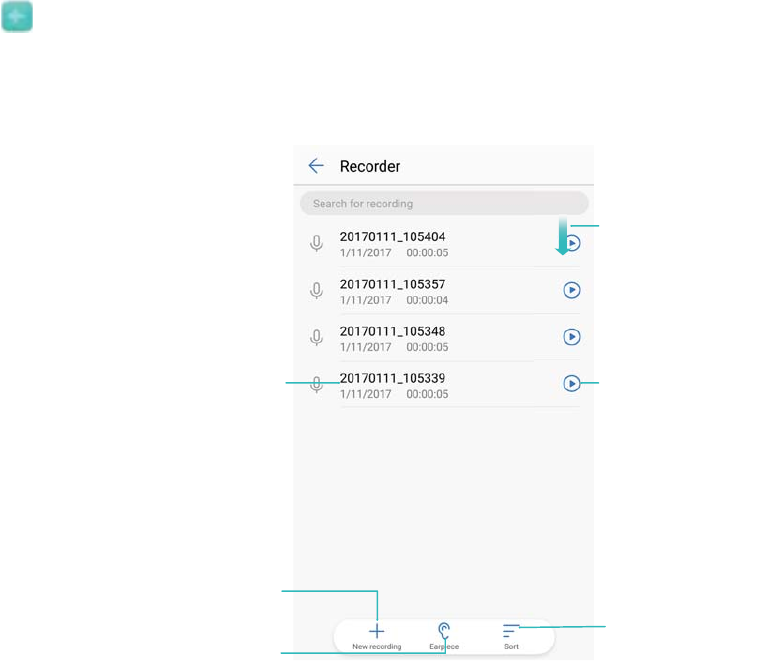
Managing recordings
Share, rename, and sort recordings.
1Open Recorder.
2Select Recordings.
3On the file management screen, you can sort, share, and rename recordings.
Sort audio recordings
Swipe down to
open search box
Touch to toggle speaker
and earpiece playback
Touch to play
recording
Touch to create
new recording
Touch and hold to
manage recordings
Tools
113

System Features and Settings
Power on and off timer
Use the power on and off timer to reduce power consumption and prevent disturbances when
you're asleep.
Open Settings, touch Smart assistance > Scheduled power on/off. Switch on Scheduled
power off and Scheduled power on, and then configure the power on and off time and repeat
settings. Your device will automatically turn on or off at the preset time.
To disable the timer, switch off Scheduled power off and Scheduled power on.
Restarting your device
You may notice a drop in performance when your device has been powered on for a long time.
Restart your device regularly to clear cached files and ensure optimal performance.
To restart your device, press and hold the power button for 3 seconds, and then touch Restart.
To force your device to restart, press and hold the power button until your device vibrates.
Changing the system language
1Open Settings.
2Touch Advanced settings > Language & input.
3Touch Language and select the desired language.
If the language you are looking for is not listed, touch Add language to search for a
language and add it to the list.
Changing the input method
Switch between text input methods as desired.
1On the text input screen, swipe down from the status bar to open the notification panel.
2Touch Select input method and select the desired input method.
To add an input method, open Settings. Touch Advanced settings > Language &
input > Default keyboard > Configure input methods and switch on the desired input
method.
114
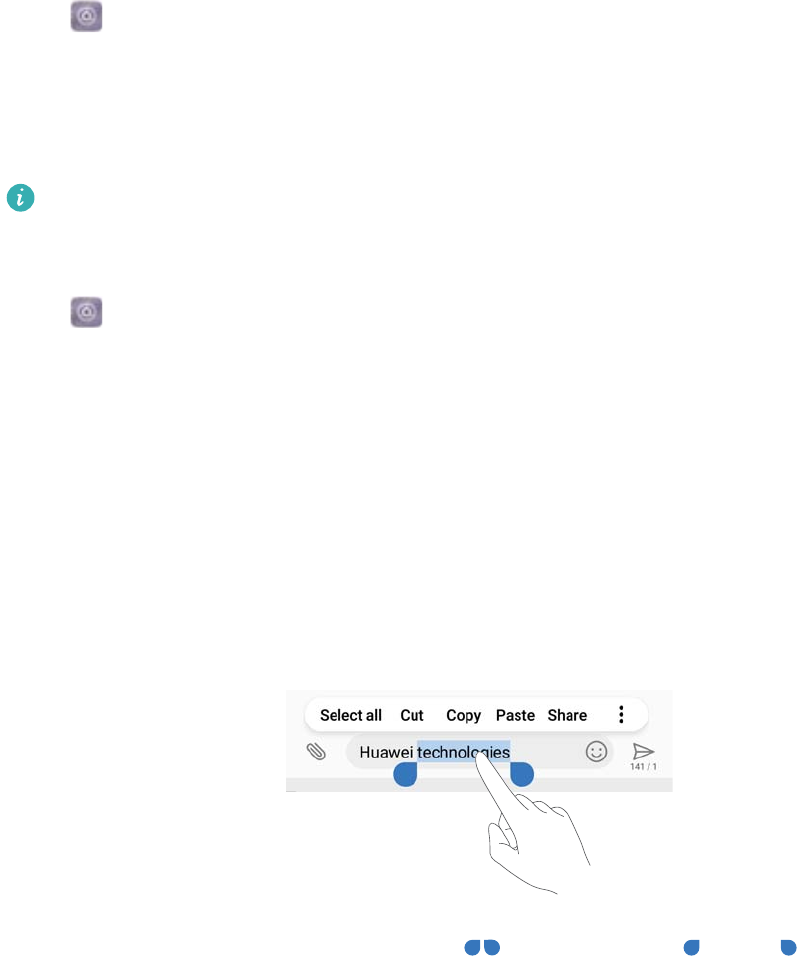
Input method settings
Adding a keyboard
1Open Settings.
2Touch Advanced settings > Language & input and select Virtual keyboard under
Keyboard & input methods.
3Touch Add virtual keyboard and switch on the keyboard that you want to add.
After adding a keyboard, you can configure the keyboard settings to suit your needs.
Selecting the default input method
1Open Settings.
2Touch Advanced settings > Language & input. Under Keyboard & input methods, touch
Default keyboard and select the desired input method. Your device will automatically enable
the default input method when you enter text.
Editing text
Select, cut, copy, paste, and share text.
lSelecting text: Touch and hold the text until appears. Drag and to select a
section of text, or touch Select all to select all text.
lCopying text: Select the text you want to copy and touch Copy to copy it to the clipboard.
lCutting text: Select the text you want to cut and touch Cut to move it to the clipboard.
lPasting text: Touch and hold where you want to insert the text, and then touch Paste.
System Features and Settings
115
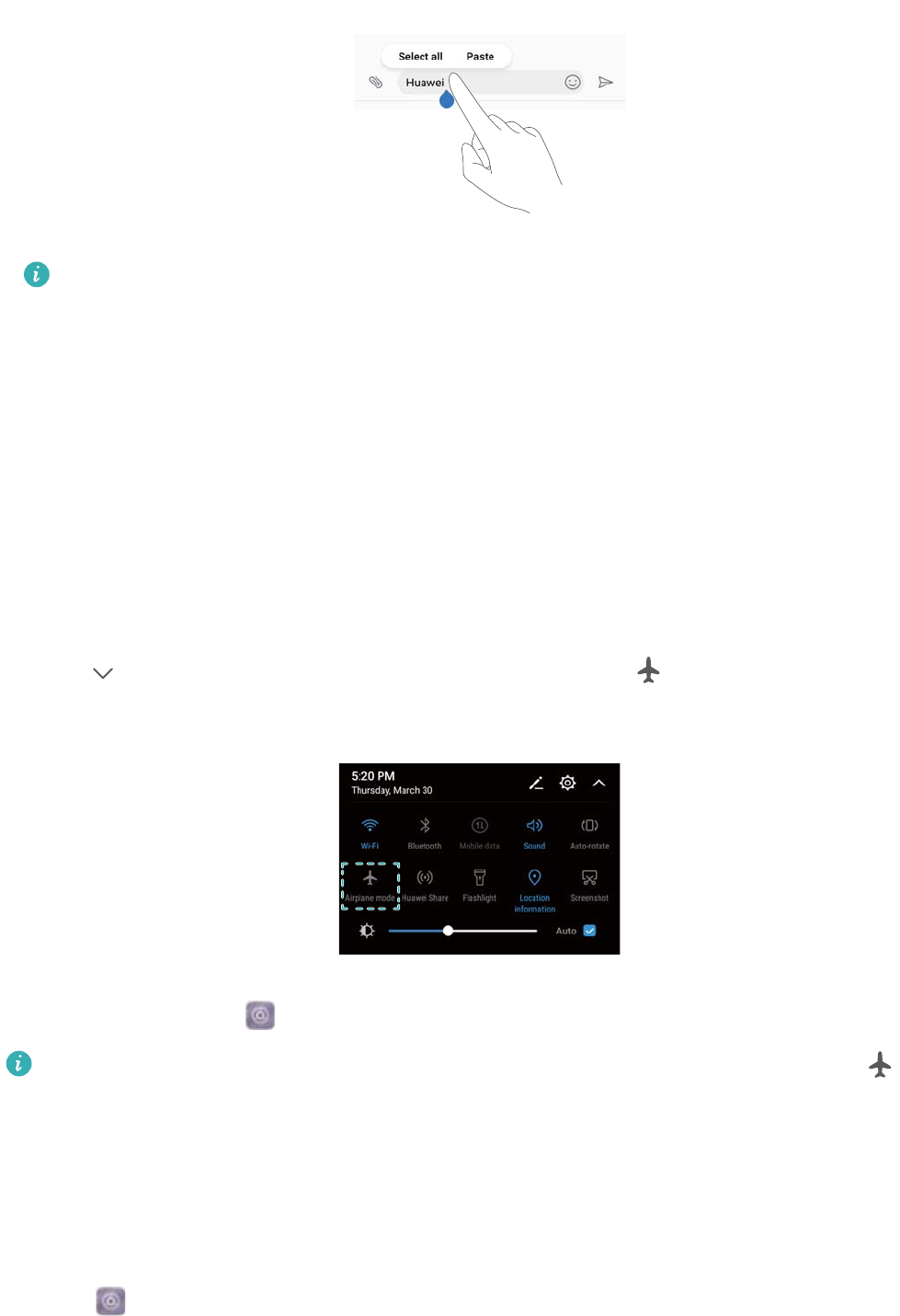
The pasted text will remain available in the clipboard until you cut or copy other content.
lSharing text: Select the text you want to share and touch Share. Choose how you want to
share the text and follow the onscreen instructions.
Airplane mode
To avoid interference, please enable airplane mode when you are on board a plane. When
enabled, call, mobile data, Bluetooth, and Wi-Fi will be disabled. You can enable Bluetooth and
Wi-Fi manually.
Use any of the following methods to enable or disable airplane mode:
lUse the shortcut switch: Swipe down from the status bar to open the notification panel.
Touch to display all shortcut switches, and then switch on .
lGo to Settings: Open Settings and toggle the Airplane mode switch.
When airplane mode is enabled, the airplane mode icon will display in the status bar .
Configuring the sound settings
Adjusting the system volume
Adjust the ringtone, media, alarm, and call volume to suit your needs.
1Open Settings.
2Touch Sound > Volume to adjust the ringtone, media, alarm, and call volume.
System Features and Settings
116
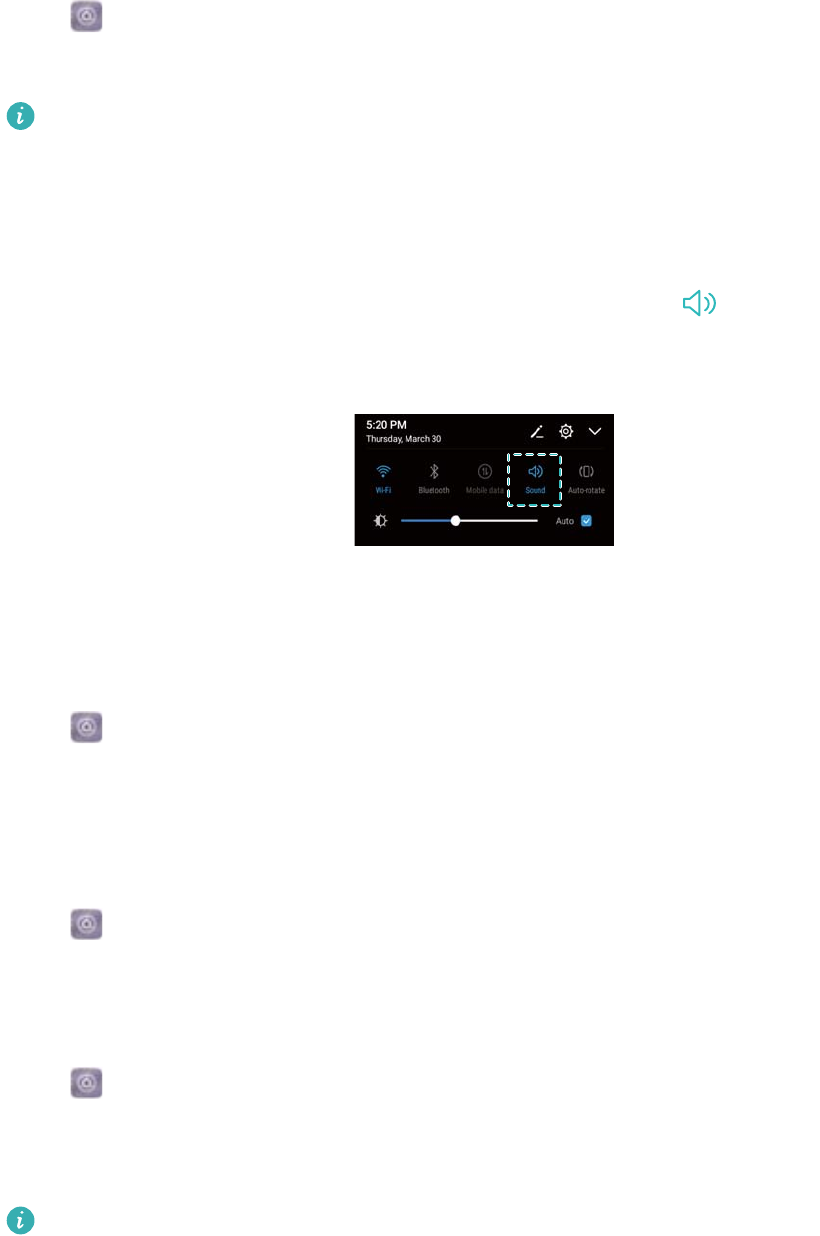
Enabling silent mode
Enable silent mode to avoid disturbing others in quiet surroundings, such as when you are in a
meeting.
1Open Settings.
2Touch Sound and switch on Silent mode.
Vibrate in silent mode: When Silent mode is enabled and Vibrate in silent mode is
switched on, your device will vibrate when you receive an incoming call or message.
Quickly switch between Silent mode, Vibration, Sound mode
Quickly switch between Silent mode, Vibration, Sound mode from the status bar.
Swipe down from the status bar and open the shortcuts tab. Touch to switch between
Sound, Silent, and Vibration mode.
Setting the default notification tone
Choose a preset ringtone or a music file as the notification tone for messages, emails, and other
notifications.
1Open Settings.
2Touch Sound > Default notification sound and choose a new notification Ringtone or a
Music file.
Configuring dialpad touch tones
1Open Settings.
2Touch Sound > Dialer touch tones and select Default, Melody or None.
Enabling or disabling system alert sounds and haptic feedback
1Open Settings.
2Touch Sound. You can enable or disable Touch sounds, Screen lock sound, Screenshot
sound, and Vibrate on touch.
When Vibrate on touch is enabled, your device will vibrate when you touch a key on the
navigation bar or unlock the screen.
System Features and Settings
117

One-hand mode
Enable mini screen view or the shifting keyboard to make it easier to use your device with one
hand.
1Open Settings.
2Touch Smart assistance > One-handed UI. You can:
lShrink the screen: Switch on Mini screen view. The mini screen view will display texts
and images in smaller sizes for easier operation. You can switch between mini screen and
normal screen by swiping left or right on the virtual navigation bar.
Navigation bar is turned off by default for devices with a front-facing fingerprint sensor
navigation button. You can switch between mini screen and normal screen by swiping
on the screen from the bottom left or bottom right corner.
System Features and Settings
118
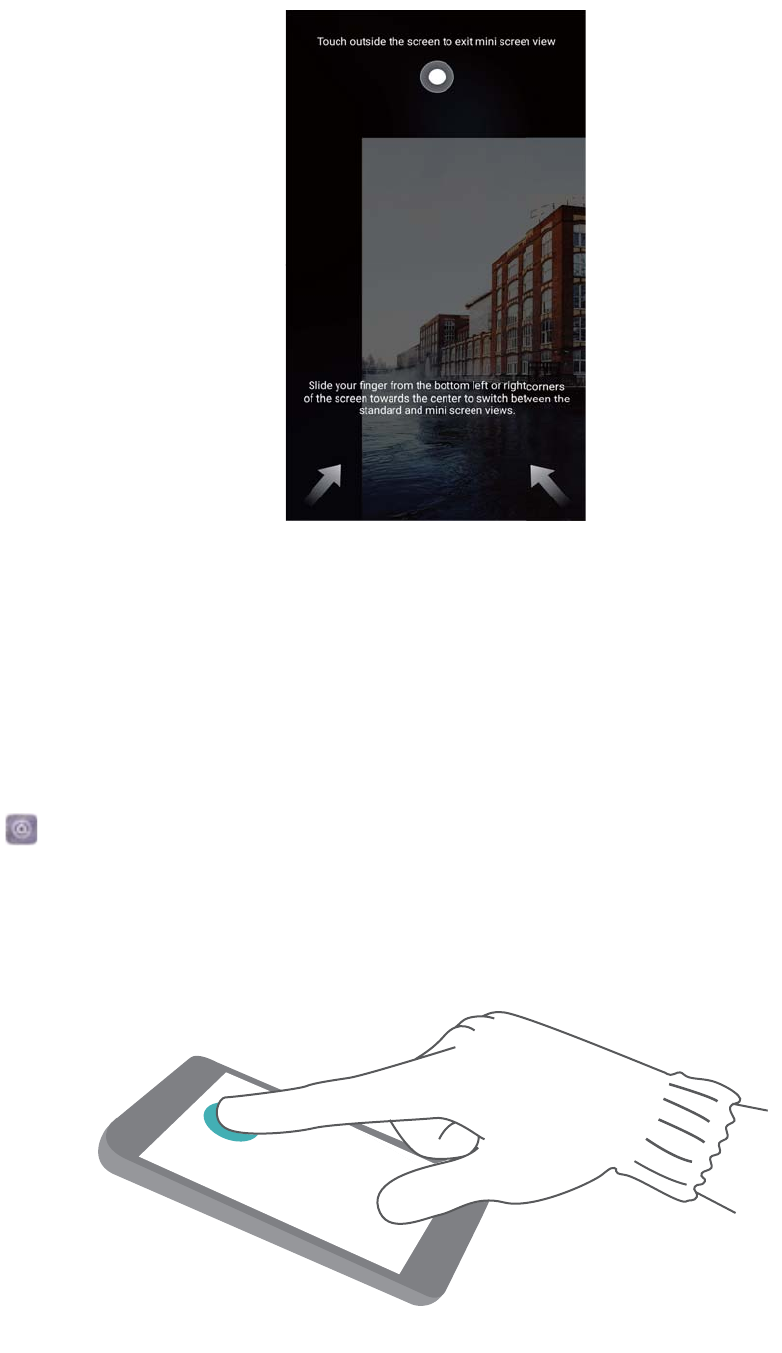
lEnable the shifting keyboard: Switch on Shifting keyboard. The dialer, in-call menu, and
lock screen dialpad will shrink to the corner of the screen for easier one-handed typing.
Touch the arrow next to the keyboard to move the keyboard to the other side of the screen.
Gloves mode
Enable gloves mode so that you can continue to use your device when wearing gloves.
1Open Settings.
2Touch Smart assistance and switch on Gloves mode.
Do not disturb mode
Do not disturb mode allows you to work or relax in peace and quiet. Your device will only notify
you about important calls or messages.
System Features and Settings
119

1Open Settings.
2Touch Do not disturb and switch on Enable now.
3Touch Do not disturb mode. You can:
lConfigure the incoming call and message settings: Select Allow only priority
interruptions. Touch Define priority interruptions, and then touch Calls and Messages
to set the contact range from whom you want to receive calls or messages.
Selecting Whitelist only only sets the contact range. Select Call/message whitelist to
set specific contacts.
lEnable alarm ringtones in do not disturb mode: Select Alarms only to only allow alarm
ringtones.
lDisable all inruptions: Select Don't interrupt to disable all ringtones and vibrations. The
screen will not turn on for incoming calls messages, or alarms.
lTo enable do not disturb mode for a specific period, touch Time.
lTo enable do not disturb mode for a specific event, touch Event.
Setting up an account
Adding an account
Add an email or social media account to sync your emails and messages to your device.
1Open Settings.
2Touch Accounts > Add account. Select an account type and follow the onscreen
instructions to enter the account information.
lYou must install the corresponding app before you can add a third-party account.
lFor more information on adding email and company accounts, see Adding an email account.
Deleting an account
1Open Settings.
2Touch Accounts and select an account type.
3Select the account that you want to delete and follow the onscreen instructions.
Syncing data with your device
Enable the sync feature to keep all of your device's data up-to-date and prevent data loss. You
can sync emails, and other data from your old device.
The type of data that can be synced depends on the account type.
1Open Settings.
2Select Accounts.
System Features and Settings
120

3Touch in the top-right corner of the screen. Select Auto-sync data and follow the
onscreen instructions.
If the data sync switch is turned off, you can sync data manually by selecting an account
and touching .
Viewing memory and storage information
View storage and memory information, change the default storage location, and format the
microSD card.
Not all devices support microSD cards.
1Open Settings.
2Touch Memory & storage to view storage information for your internal storage and microSD
card.
3From there, you can:
lFormat the microSD card: Touch SD card > Format > Erase & format to clear all data
from the microSD card. Back up your files before formatting the card to avoid losing your
data.
lSet the default storage location: Touch Default location and set the default storage
location to the internal storage or microSD card.
Setting the date and time
Your device automatically sets the date and time using network-provided values. You can also
set the time manually and display it in 12–hour or 24-hour formats.
1Open Settings.
2Touch Advanced settings > Date & time. You can:
lSet the time and date automatically using network-provided values: Switch on
Automatic date & time.
lSet the time zone automatically using network-provided values: Switch on Automatic
time zone.
lSet time format: Switch on the 24–hour format to display the time in 24–hour format. By
default, the time is displayed in 12–hour format.
Enabling location access
Enable location-based services to ensure that map, navigation, and weather apps can access
your location information.
System Features and Settings
121

Configuring the location settings
Features may vary depending on your carrier.
1Open Settings.
2Touch Security & privacy > Location access.
3Switch on Access my location, you can
lUse GPS, Wi-Fi, and mobile networks: Uses GPS and your device's Internet connection.
Enable this option for highly accurate positioning.
lUse Wi-Fi and mobile networks: Only uses your device's Internet connection. Enable this
option for reduced power consumption and longer standby times.
lUse GPS only: Does not require an Internet connection. Enable this option to reduce
mobile data usage.
Increasing indoor positioning accuracy
Your device uses Wi-Fi and Bluetooth for more accurate positioning when you are indoors.
1Open Settings.
2Touch Security & privacy > Location access.
3Touch > Scan settings, you can:
lSwitch on Wi-Fi scanning. Location apps and services will continually scan for Wi-Fi
networks for more accurate positioning.
lSwitch on Bluetooth scanning. Location apps and services will search for Bluetooth
devices for more accurate positioning.
Restoring factory settings
Restore factory settings if your device crashes or is slow to respond.
Restoring factory settings will erase your personal data from your device, including account
information, downloaded apps, and system settings. Back up important data on your device
before restoring factory settings.
1Open Settings.
2Touch Advanced settings > Backup & reset.
3Touch Factory data reset and choose whether to format your internal storage.
Selecting Erase internal storage will delete all files on your internal storage, such as
music and images. Proceed with caution.
4Touch Reset phone to restore your device to its factory settings.
OTA updates
Update your device's system to the latest version to enhance performance.
System Features and Settings
122

This feature requires an Internet connection. Connect to a Wi-Fi network to avoid incurring
unnecessary data charges.
lUsing unauthorized third-party software to update your device may render your device
unusable or put your personal information at risk. For optimum results, use the OTA
update feature or take your device to your nearest Huawei service center.
lYour personal data may be erased during a system update. Always back up important
data before updating your device.
lWhen updating, ensure that your device has at least 20% battery power remaining.
lAfter updating, you may find that some third-party apps are incompatible with your
system, such as Internet banking applications and games. This is because it takes a while
for third-party application developers to release updates for new Android releases. Please
wait until a new version of the application is released.
Touch Settings > About phone > Build number to view your device's version number.
1Open Settings.
2Touch System update. Your device will automatically check for updates.
3Select the latest version to download the update package.
4Once the download is complete, touch QUICK UPDATE. The update process may take a
while to complete. Do not use your device before it has finished updating. Your device will
restart automatically when it has finished updating.
Viewing product information
Renaming your device
Rename your device to make it easier to find when connecting other devices to your portable
Wi-Fi hotspot, or when pairing other devices over Bluetooth.
1Open Settings.
2Touch About phone > Device name and rename your device.
Viewing your model number and version information
View your model number and system version information.
1Open Settings.
2Touch About phone to view your model number, Build number, EMUI version, and Android
version.
Viewing your IMEI
All devices have a unique 15-digit IMEI that you can use to verify if your device is genuine.
1Open Settings.
System Features and Settings
123

2Touch About phone to view the IMEI.
Dual-SIM devices have two IMEIs.
Viewing your device's specifications
View your device's specifications using a few simple steps. You can view information about your
processor, memory, screen resolution, and more.
1Open Settings.
2Touch About phone. Swipe up or down on the screen to view information about the
processor, RAM, internal storage, screen resolution, and more.
Accessibility features
Enabling TalkBack
TalkBack provides audible prompts and captions to help visually impaired users. When TalkBack
is enabled, your device will issue audible prompts for all content that you touch, select, or
enable.
Audible prompts are not available for all languages. If your language is not available, you
can download a third-party speech synthesis engine. For more information, see Text To
Speech (TTS) output.
1Open Settings.
2Touch Advanced settings > Accessibility > TalkBack.
3Switch on TalkBack and touch OK.
A tutorial will be played when you enable TalkBack for the first time. To replay the tutorial,
touch to access TalkBack Settings, and then select the tutorial.
4Touch and switch on Explore by touch.
When Explore by touch is enabled, your device will issue audible prompts for content
that you touch.
Disable TalkBack: Press the power button until your device vibrates, and then touch and hold
the screen with two fingers for more than 3 seconds.
Using TalkBack to control your device
After you have enabled TalkBack, use gestures to:
Browse the screen: Swipe up or down with two fingers to scroll through menu lists. Swipe left
or right to move between screens.
System Features and Settings
124
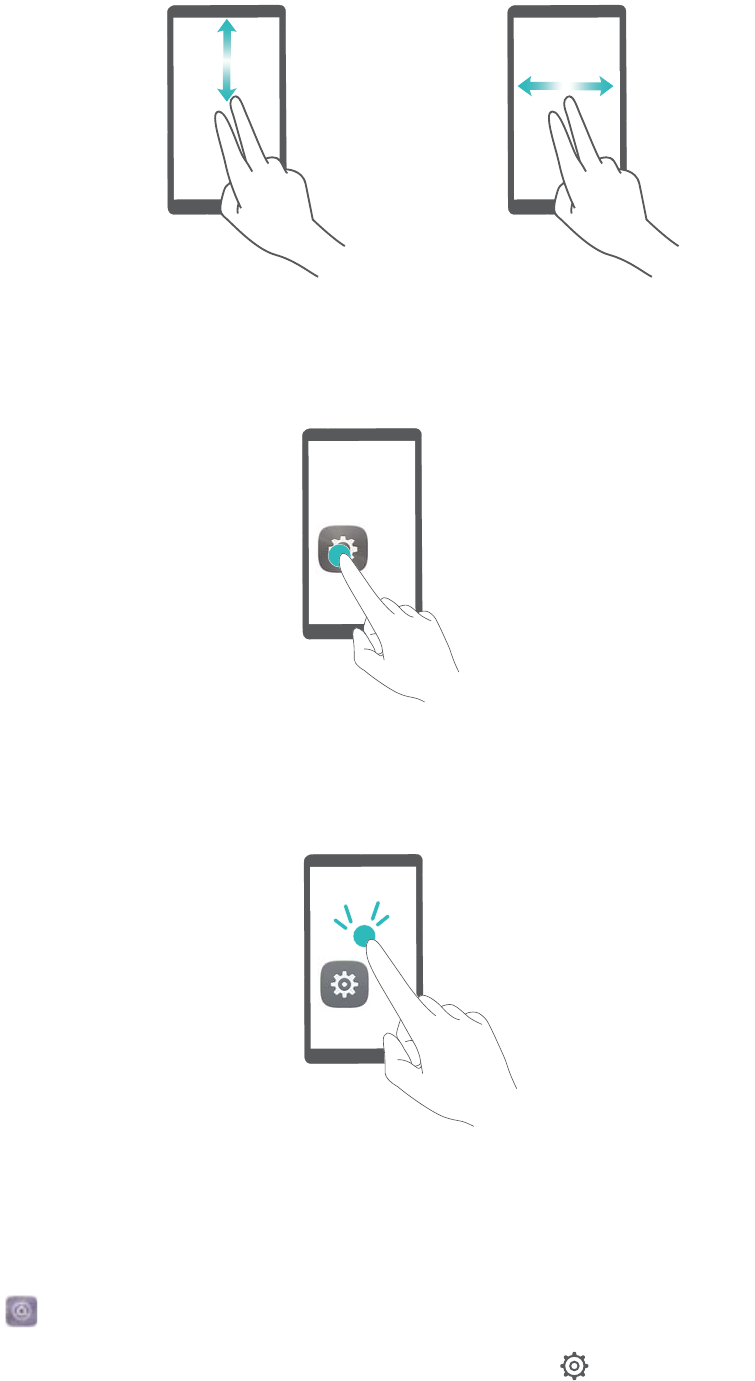
Select an item: Touch an item with one finger to select it (it will not open). Your device will read
out the content of the selected item.
Open an item: Double touch any part of the screen using one finger to confirm your selection
from the previous step.
For example, if you want to open Settings, touch the Settings icon once using one finger, and
then touch twice on any part of the screen.
Configuring the TalkBack settings
1Open Settings.
2Touch Advanced settings > Accessibility > TalkBack > .
3Follow the onscreen instructions to adjust the feedback volume, audible feedback settings,
control gestures, and more.
System Features and Settings
125

Text To Speech (TTS) output
This feature converts text into speech for visually impaired users. Text To Speech (TTS) output
requires TalkBack to be enabled.
1Open Settings.
2Touch Advanced settings > Accessibility. Switch on Text-to-speech output, and then
select the desired speech synthesis engine and voice speed.
Color correction
Color correction mode adjusts colors to make it easier for color vision impaired users to
distinguish between different parts of the screen.
Enable this mode with caution, as it may affect your device's performance.
1Open Settings.
2Touch Advanced settings > Accessibility > Color correction, and switch on Color
correction.
3Touch Correction mode, and select the desired color correction mode.
System Features and Settings
126
Obtaining help
Read the Quick Start Guide included with your phone.
Touch Settings > About phone > Legal information to read the legal information.
Visit http://consumer.huawei.com/en/ for more information.
127
Personal Information and Data Security
The use of some functions or third-party applications on your device could result in your
personal information and data being lost or becoming accessible to others. Use the following
measures to help you protect your personal information:
lPut your device in a safe place to prevent unauthorized use.
lSet your device screen to lock and set a password or unlock pattern.
lPeriodically back up personal information stored on your SIM card, memory card, or your
device memory. If you change to a different device, be sure to move or delete any personal
information on your old device.
lPeriodically back up personal information stored on your memory card, or your device memory.
If you change to a different device, be sure to move or delete any personal information on your
old device.
lDo not open messages or emails from strangers to prevent your device from becoming
infected with a virus.
lWhen using your device to browse the Internet, do not visit websites that might pose a security
risk to avoid your personal information from being stolen.
lIf you use services such as the portable Wi-Fi hotspot or Bluetooth, set passwords for these
services to prevent unauthorized access. Turn these services off when they are not in use.
lInstall device security software and regularly scan for viruses.
lBe sure to obtain third-party applications from a legitimate source. Downloaded third-party
applications should be scanned for viruses.
lInstall security software or patches released by Huawei or authorized third-party application
providers.
lUsing unauthorized third-party software to update your device may damage your device or put
your personal information at risk. It is recommended that you update through your device's
online update feature or download official update packages for your device model from
Huawei.
lSome applications require and transmit location information. As a result, a third-party may be
able to share your location information.
lSome third-party application providers may collect detection and diagnostic information on
your device to improve their products and services.
128

List of safety features
Huawei phones come with a number of security features to keep your data secure.
Lock screen style and
password
Set a screen lock password to prevent unauthorized access to your
phone. For more information, see Changing the lock screen style.
Fingerprint recognition
Use a fingerprint to unlock your screen, open encrypted files, unlock
apps, and make secure payments. For more information, see
Fingerprint recognition.
Encrypting a microSD
card
Encrypt your microSD card to prevent unauthorized access to your
data. A password must be entered when the microSD card is inserted
into another phone. For more information, see Setting microSD card
password.
Setting your SIM card
PIN
Enable the SIM lock to prevent others from using your SIM card. You
will need to enter your SIM card PIN each time you turn on your phone
or insert your SIM card into another phone. For more information, see
Setting your SIM card PIN.
Blocking spam
messages
Use the harassment filter and blacklist in Phone Manager to block
spam calls and messages. For more information, see Blocking spam
messages.
Identifying malicious
URLs in messages
Enable URL recognition to receive warnings about malicious URLs. For
more information, see Identifying malicious URLs in text messages.
VPNs You can use a VPN to connect to your company network and email
server. For more information, see VPNs.
Harassment filter Use the harassment filter and blacklist in Phone Manager to block
spam calls and messages. For more information, see Harassment filter.
App Lock
Use the App Lock in Phone Manager to lock apps and prevent
unauthorized access. The App Lock password is required to open
locked apps. For more information, see Encrypting apps.
Managing data usage
Use the data management feature in Phone Manager to keep track of
your mobile data usage. Mobile data will be automatically disabled
when you exceed the preset limit to prevent you from incurring
excessive data charges. For more information, see Managing data
usage.
Virus scanner Use the virus scanner in Phone Manager to remove malware. For more
information, see Virus scanner.
129

Adding a secure
storage space
Create a secure storage space in which you can install private apps
that other users cannot see or access. For more information, see Using
PrivateSpace.
List of safety features
130

Legal Notice
Copyright © Huawei Technologies Co., Ltd. 2017. All rights reserved.
No part of this manual may be reproduced or transmitted in any form or by any means without
prior written consent of Huawei Technologies Co., Ltd. and its affiliates ("Huawei").
The product described in this manual may include copyrighted software of Huawei and possible
licensors. Customers shall not in any manner reproduce, distribute, modify, decompile,
disassemble, decrypt, extract, reverse engineer, lease, assign, or sublicense the said software,
unless such restrictions are prohibited by applicable laws or such actions are approved by
respective copyright holders.
Trademarks and Permissions
, , and are trademarks or registered trademarks of Huawei Technologies Co., Ltd.
Android™ is a trademark of Google Inc.
The Bluetooth® word mark and logos are registered trademarks owned by Bluetooth SIG, Inc.
and any use of such marks by Huawei Technologies Co., Ltd. is under license.
Other trademarks, product, service and company names mentioned may be the property of their
respective owners.
Notice
Some features of the product and its accessories described herein rely on the software installed,
capacities and settings of local network, and therefore may not be activated or may be limited by
local network operators or network service providers.
Thus, the descriptions herein may not exactly match the product or its accessories which you
purchase.
Huawei reserves the right to change or modify any information or specifications contained in this
manual without prior notice and without any liability.
Third-Party Software Statement
Huawei does not own the intellectual property of the third-party software and applications that
are delivered with this product. Therefore, Huawei will not provide any warranty of any kind for
third party software and applications. Neither will Huawei provide support to customers who use
third-party software and applications, nor be responsible or liable for the functions or
performance of third-party software and applications.
Third-party software and applications services may be interrupted or terminated at any time, and
Huawei does not guarantee the availability of any content or service. Third-party service
providers provide content and services through network or transmission tools outside of the
control of Huawei. To the greatest extent permitted by applicable law, it is explicitly stated that
131
Huawei shall not compensate or be liable for services provided by third-party service providers,
or the interruption or termination of third-party contents or services.
Huawei shall not be responsible for the legality, quality, or any other aspects of any software
installed on this product, or for any uploaded or downloaded third-party works in any form,
including but not limited to texts, images, videos, or software etc. Customers shall bear the risk
for any and all effects, including incompatibility between the software and this product, which
result from installing software or uploading or downloading the third-party works.
This product is based on the open-source Android™ platform. Huawei has made necessary
changes to the platform. Therefore, this product may not support all the functions that are
supported by the standard Android platform or may be incompatible with third-party software.
Huawei does not provide any warranty or representation in connect with any such compatibility
and expressly excludes all liability in connection with such matters.
DISCLAIMER
ALL CONTENTS OF THIS MANUAL ARE PROVIDED "AS IS". EXCEPT AS REQUIRED BY
APPLICABLE LAWS, NO WARRANTIES OF ANY KIND, EITHER EXPRESS OR IMPLIED,
INCLUDING BUT NOT LIMITED TO, THE IMPLIED WARRANTIES OF MERCHANTABILITY
AND FITNESS FOR A PARTICULAR PURPOSE, ARE MADE IN RELATION TO THE
ACCURACY, RELIABILITY OR CONTENTS OF THIS MANUAL.
TO THE MAXIMUM EXTENT PERMITTED BY APPLICABLE LAW, IN NO EVENT SHALL
HUAWEI BE LIABLE FOR ANY SPECIAL, INCIDENTAL, INDIRECT, OR CONSEQUENTIAL
DAMAGES, OR LOSS OF PROFITS, BUSINESS, REVENUE, DATA, GOODWILL SAVINGS OR
ANTICIPATED SAVINGS REGARDLESS OF WHETHER SUCH LOSSES ARE FORSEEABLE
OR NOT.
THE MAXIMUM LIABILITY (THIS LIMITATION SHALL NOT APPLY TO LIABILITY FOR
PERSONAL INJURY TO THE EXTENT APPLICABLE LAW PROHIBITS SUCH A LIMITATION)
OF HUAWEI ARISING FROM THE USE OF THE PRODUCT DESCRIBED IN THIS MANUAL
SHALL BE LIMITED TO THE AMOUNT PAID BY CUSTOMERS FOR THE PURCHASE OF
THIS PRODUCT.
Import and Export Regulations
Customers shall comply with all applicable export or import laws and regulations and be
responsible to obtain all necessary governmental permits and licenses in order to export, re-
export or import the product mentioned in this manual including the software and technical data
therein.
Legal Notice
132
Model:TRT-L21A
TRT-L53
V100R001_01
This guide is for reference only. The actual product, including but not limited to
the color, size, and screen layout, may vary. All statements, information, and
recommendations in this guide do not constitute a warranty of any kind, express
or implied.
Please visit http://consumer.huawei.com/en/support/hotline for recently updated
hotline and email address in your country or region.
