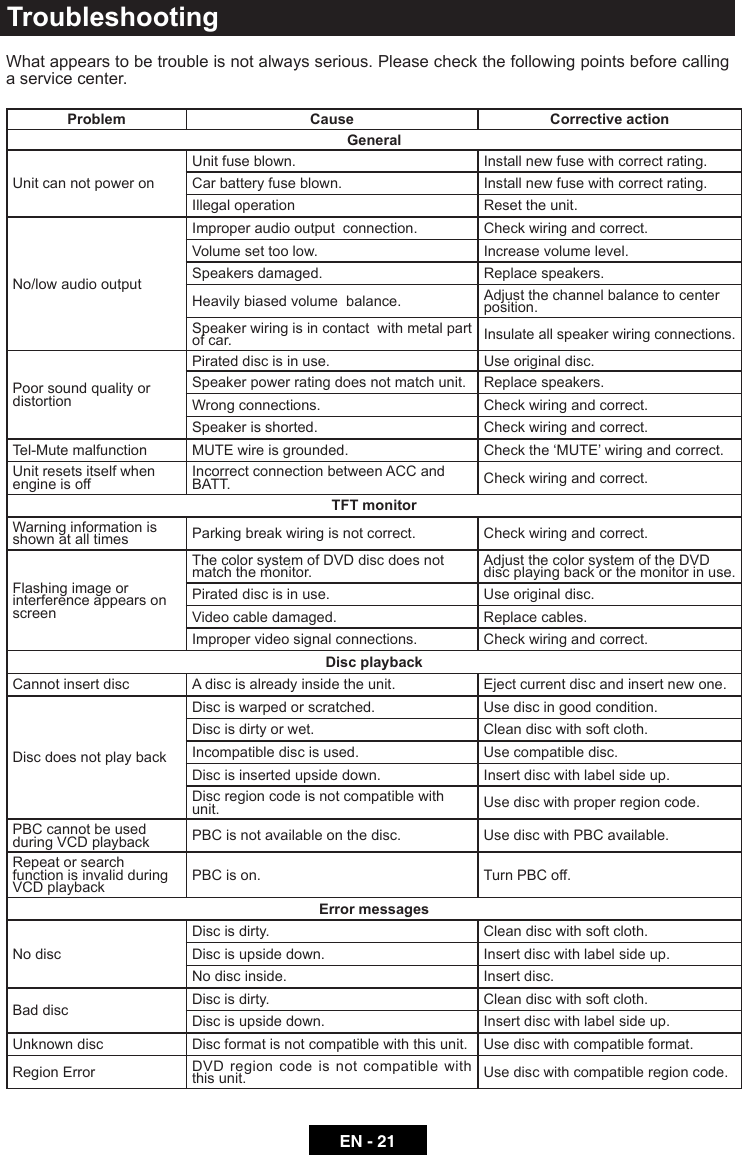
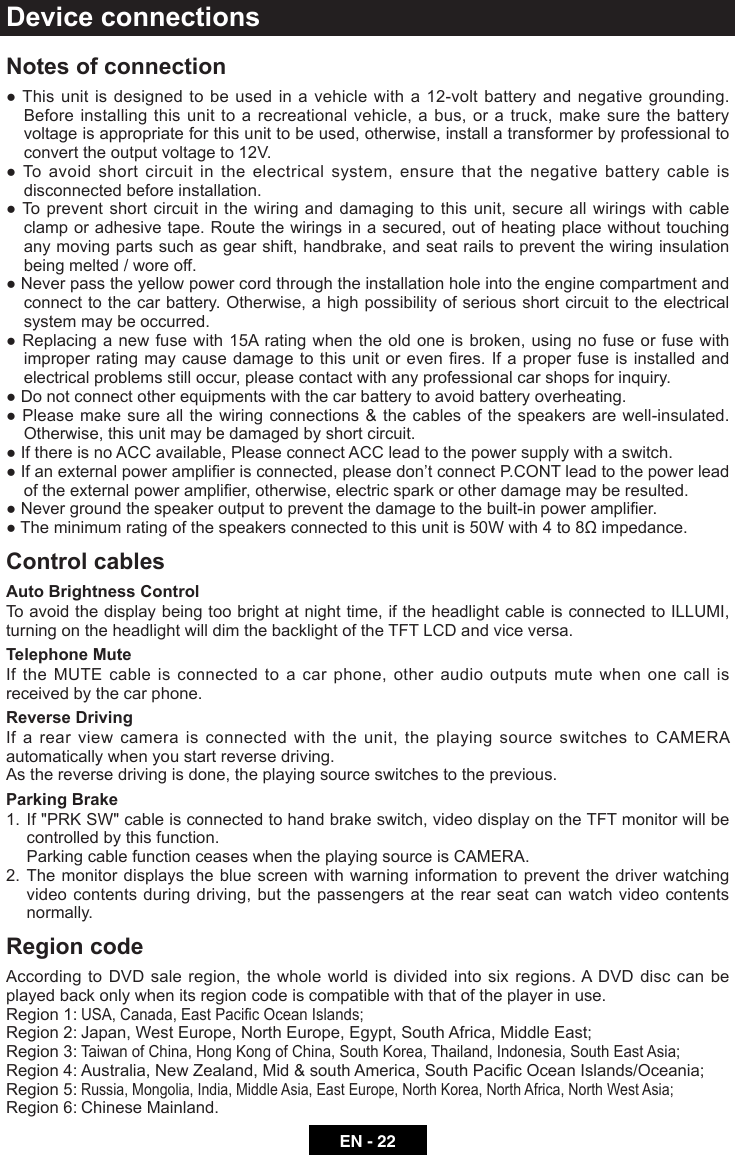
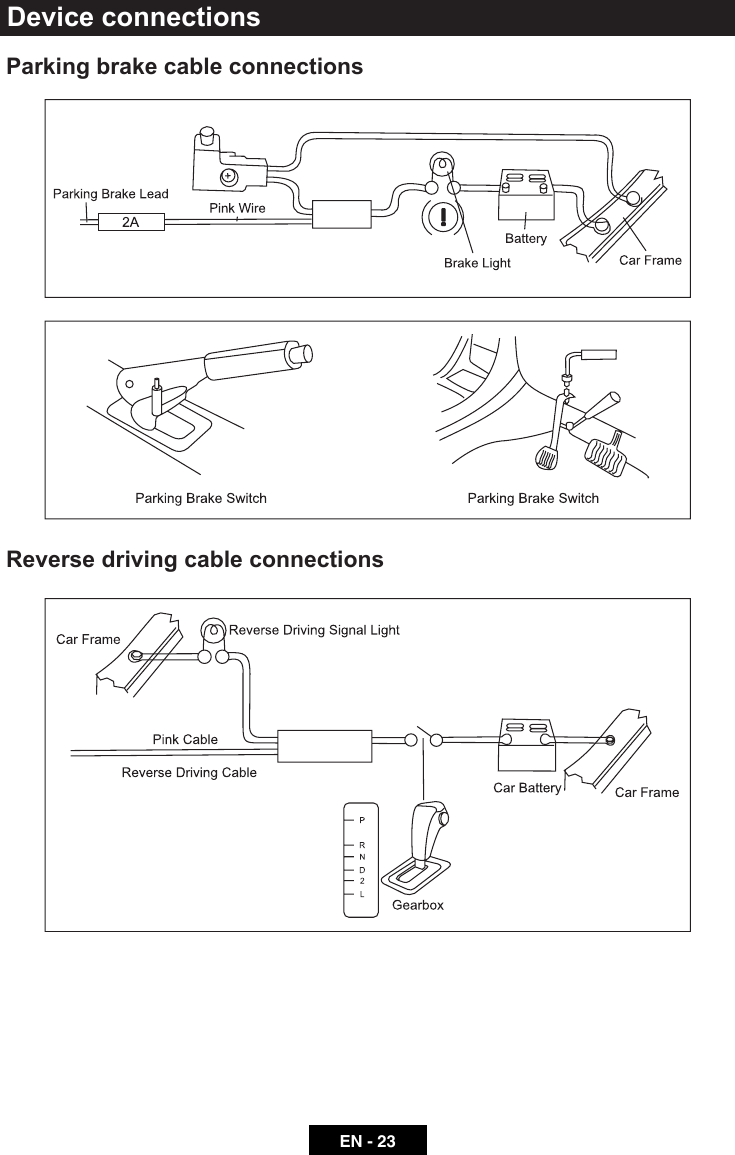
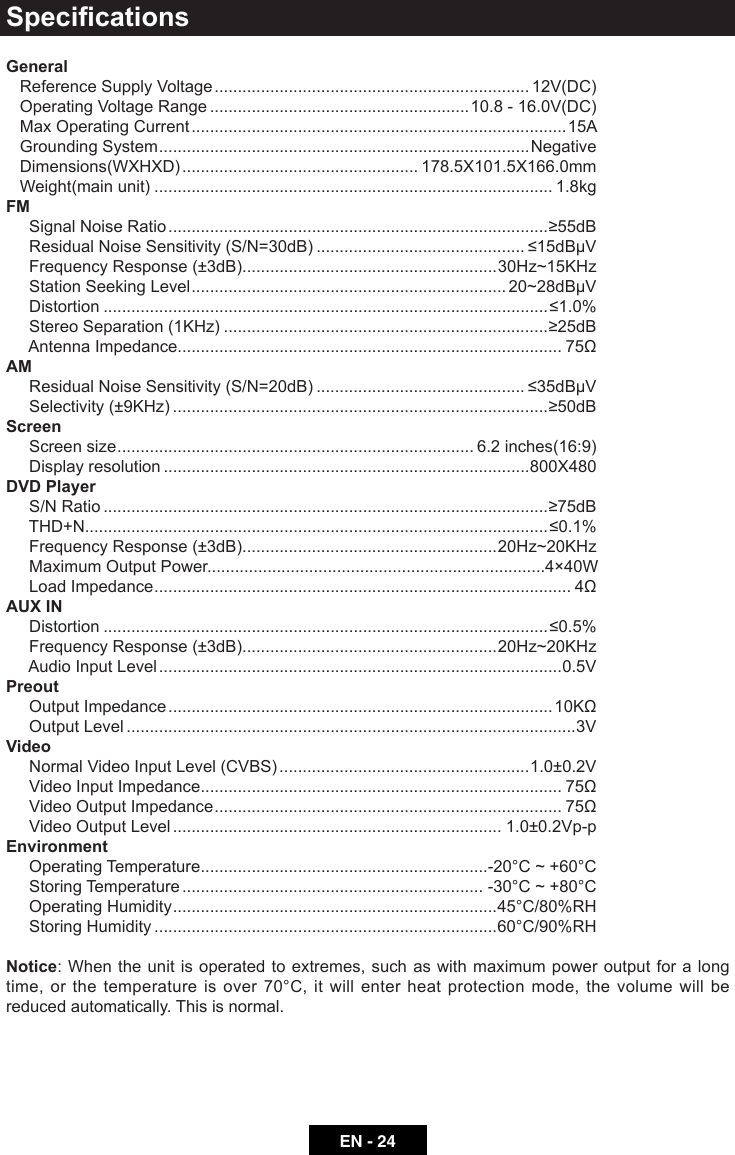
HUIZHOU FORYOU GENERAL ELECTRONICS NV17 Car Audio PLAYER User Manual
HUIZHOU FORYOU GENERAL ELECTRONICS CO.,LTD. Car Audio PLAYER
UserManual.wiki
>
HUIZHOU FORYOU GENERAL ELECTRONICS
>
NV17 User Manual
User Manual
Navigation menu
Upload a User Manual
Namespaces
Wiki Guide
HTML
PDF
Info
Views
User Manual
Discussion / Help
Navigation
![Precautions1. Never disassemble or adjust the unit without any professional guidance. For details, please consult any professional car shop / dealer for inquiry.2. If the front panel or TFT monitor is dirty, please use a clean silicone cloth and neutral detergent to wipe off the spot. Using a rough cloth and non-neutral detergent such as alcohol for cleaning may result in scratching or decoloration to the monitor.3. If any abnormal behavior of the unit is found, please refer to trouble shooting guide of this manual. If no relevant information is found, please press the [RESET] key on the front panel to resume factory default.4. If you have parked the car in hot or cold weather for a long time, please wait until the temperature in the car becomes normal before operating the unit.5. Using the car heater in low temperature environment may result in moisture inside the unit, DO NOT use the unit in this situation. Eject the disc and wipe off the moisture on the disc. If the unit still doesn't work after a few hours, please contact the service center.6. Do not impact the LCD monitor which could cause damage.7. To prevent damage to the screen, avoid touching it with sharp objects.8. To provide a clear demonstration and an alternative for easy understanding to the operation of this unit, graphic illustrations are used. However, some illustrations are different from the actual images displayed on the screen.9. Operate the unit correctly according to this manual to prevent unnecessary problem. The guarantee won't be valid if the problem is caused by inappropriate operation.FCC Statement1. This device complies with Part 15 of the FCC Rules.Operation is subject to the following two conditions: 1) This device may not cause harmful interference.(2) This device must accept any interference received, including interference that may cause undesired operation.2. Changes or modifi cations not expressly approved by the party responsible for compliance could void the user’s authority to operate the equipment.NOTE: This equipment has been tested and found to comply with the limits for a Class B digital device, pursuant to Part 15 of the FCC Rules. These limits are designed to provide reasonable protection against harmful interference in a residential installation.This equipment generates uses and can radiate radio frequency energy and, if not installed and used in accordance with the instructions, may cause harmful interference to radio communications. However, there is no guarantee that interference will not occur in a particular installation.If this equipment does cause harmful interference to radio or television reception, which can be determined by turning the equipment off and on, the user is encouraged to try to correct the interference by one or more of the following measures:• Reorientorrelocatethereceivingantenna.• Increasetheseparationbetweentheequipment and receiver.• Connecttheequipment into anoutlet ona circuit different from that to which the receiver is connected.• Consultthedealeroranexperiencedradio/TV technician for help.FCC Radiation Exposure StatementThis equipment complies with FCC radiation exposure limits set forth for an uncontrolled environment. This equipment should be installed and operated with minimum distance of 20 centimeters between the radiator and your body.](https://usermanual.wiki/HUIZHOU-FORYOU-GENERAL-ELECTRONICS/NV17/User-Guide-2700758-Page-3.png)
![EN - 1MENU21014357689Before using1. [ ] Button Press to eject a disc.2. [MENU] Button Press to display the main menu 3. [ ] Button Adjust the brightness of screen. 4. [ / ] Power/Volume knob Rotate to adjust volume. PressbrieytoactivatetheMUTEfunction.Pressagaintoresumenormalsound. Press and hold to turn the unit OFF. 5. Microphone6. Reset Hole7. A/V IN Socket8. USB Socket9. MicroSD card reader for media / map10. Disc slotNotice:The graphics in this manual are for reference purposes only and may differ somewhat from the actual unit.Front PanelMEDIAMAP](https://usermanual.wiki/HUIZHOU-FORYOU-GENERAL-ELECTRONICS/NV17/User-Guide-2700758-Page-5.png)
![EN - 2Basic operationsPower on / offPress the [ / ] knob to turn the unit on. The buttons on the front of the unit light up for a moment and the current mode status appears on the LCD. Press and hold the [ / ] knob more than 2 seconds to power off the unit.Parking Brake Inhibit• Whenthe“BRAKE”cableisconnectedtothe brake switch, the video playback will be controlled by driving status, system setup and input video sources.• Parkingbrakefunctionisoverriddenwhenthe video source is set to REVERSE.• When the car ismovingahead,ifvideois played, the screen appears WARNING information and blank screen to prevent the driver watching images.MuteWhen on, press the [ / ] knob on the front panel shortly to mute the volume from the unit.To resume the volume, press the knob shortly again.Audible beep conrmationAnaudiblebeeptoneconrmseachfunctionselection. The Beep tone can be disabled through the Setup menu. Open SOURCE MENUPress [MENU] button on the front panel or touch the [ ] icon on the top left of the screen to open the SOURCE MENU. Press [MENU] button again to return to the previous source.Playing source selectionTouch [ ] or [ ] on the source menu to view the previous or next page of playing sources, and then select the source you desired.Volume adjustmentVolume Increase/DecreaseTo increase or decrease the volume level, turn the rotary encoder on the front panel. The volume range is from "0" to "50". After adjust, the TFT screen displays the volume level for 3 seconds.EQ MenuThe Audio Control feature allows you to easily adjust your audio system to meet the acoustical characteristics of your vehicle, which vary depending on the type of vehicle and its measurements. Proper setting of the Fader and Balance boosts the effects of the cabin equalizer. To enter EQ setting menu, touch [Custom] on the bottom of source menu.System resetTo correct a system halt or other illegal operation, use the tip of a pen to press the [RESET] key located on the panel. After a system reset, the unit restores all factory default settings.Set Date /Time1. Touch [ ] icon on the playing source menu.2. Touch [ Clock ]. The date/time setup menu is displayed.Set Date1. Touch [ Date ].2. Touch the date information on the screen . A submenu is displayed.3. Touch [ ] or [ ] to set year, month and day.Set Clock Mode1. Touch [Clock mode].2. Touch [12Hr] or [24Hr] to switch clock mode.Set Time1. Touch [ Time ].2. Touch the time on the screen, a submenu is displayed.3. Touch [ ] or [ ] to set hour and minute.Tip:When date/time is set, touch [ Save ] to conrmor[Cancel]toexit.](https://usermanual.wiki/HUIZHOU-FORYOU-GENERAL-ELECTRONICS/NV17/User-Guide-2700758-Page-6.png)
![EN - 3Radio modeTuner Menu14 15 16131213287 9 10 114561. Touch to view the SOURCE MENU.2. To view all the stored stations3. Preset stations list of current band4. Clock5. Current station frequency6. Current radio band7. Touch to view more buttons8. Tune backward(short press) Seek backward(long press, then short pressbriey)9. Search stations automatically10. Tune forward(short press) Seek forward(long press, then short press briey)11. Touch to change band12. Show RDS options13. Save the desired radio station14. Touch to receive Local or Distant stations15. Enter frequency directly16. Touch to access Equalizer settings menuSelect Radio as Playing SourceTouch [Radio] on the main source menu.Select One Radio BandTouch the [ ] icon on the user interface to select one radio band among FM1, FM2, FM3, AM1 and AM2.TuneAuto TuningPress and hold [ ] / [ ] icon on the user interface more than 1 second to seek a higher / lower station.To stop searching, repeat the operation above or press other keys having radio functions.Note:When a station is received, searching stops and the station is played.Manual TuningMethod 1:During manual tuning, the frequency will be changed in steps. Touch the [ ] / [ ] icon on the user interface to tune in a higher / lower station.Method 2: 1. Touch the numeric keypad icon [ ]. Numeric keyboard is displayed, touch numbers to input frequency. 2. Touch [ ] to delete the input numbers step by step.3. Touch[OK]toenter.](https://usermanual.wiki/HUIZHOU-FORYOU-GENERAL-ELECTRONICS/NV17/User-Guide-2700758-Page-7.png)
![EN - 4Preset StationThe unit has 5 bands, such as FM1, FM2, FM3, AM1, AM2, and each band can store 6 stations; hence the unit can store 30 stations in total.Search Stations AutomaticallyTouch [ ] to search and store 6 strongest stations in current band automatically.Manual Store1. Tune to a station manually.2. Touch [ ].3. Touch one of the channels P1 to P6 to save the select station. Tune to a Preset Station1. Touch [ ].2. Select the desired band.3. Touch one of the preset channels (P1 to P6) on the screen.Local SeekingTouch the [ ] icon and choose the Radio Local or Distance.When the [ ] icon turns bright, only stations with a strong signal strength will be detected.Defaultis“Distance”.EQ SelectionPress the [ ] icon to enter the EQ setup menu.(See“EQ”chapterfordetails.)Radio modeRBDSRBDS (Radio Broadcast Data System) transmits data to the radio which displays information such as station identification, song artist, and song title.RBDS service availability varies with areas. If RBDS service is not available in your area, the following service is not available.CT (Clock Time)Some stations broadcast the time and date within the encoded RBDS signal. The clock time is automatically adjusted when ‘CT’ is set to ‘ON’.NOTE: Stations broadcasting close to time zones may not broadcast the correct time in your particular area. In this case, turn CT Off and manually set the time.PTY Function PTY is the abbreviation for Program Type whichisacodedeningthetypeofprogrambeing broadcast (e.g. News or Rock). Then PTY options will display on the screen. To view more PTY options, touch the scroll bar and arrows on the screen. When one PTY option is touched (e.g. News), auto search for next available PTY by increasing tuning frequency until the PTY of the next station matches the current. If no matched PTY has been found, the unit will return to the original radio frequency.](https://usermanual.wiki/HUIZHOU-FORYOU-GENERAL-ELECTRONICS/NV17/User-Guide-2700758-Page-8.png)
![EN - 6Bluetooth modeDisconnecting a Bluetooth DeviceTo disconnect one device, touch [Disconnect] icon. After "Disconnect", the radio will display a screen listing paired devices. Pressing the Green "Plug" icon will reconnect a previously paired phone to the BT radio. Pressing the "Wastebin" icon next to a device's name will unpair the phone from the radio.Notes:•Thedevicewillbedisconnectedwhenthedevice is moved beyond the operational range.•Ifyouwanttoreconnectthedevicetotheunit, place it within the operational range.•Ifyoudonotwanttoreconnectthedeviceto the unit automatically, touch [Options], thenset[Autoconnect]to[OFF].Fordetails,seethe“AdjustBluetoothSettings”section.Making a Call1. Select Bluetooth function in the home menu.2. On Option page, see the "Phone Synch" item, and press "Synch" to synchronize the phone book with the BT. If you have many contacts, this may take up to 3-4 minutes.3. Search for phone number from [Phone Book] or [Call Log].Or touch the number pad directly to input the numbers, then touch the green icon [ ] to dial.Receiving a Call1. If there is an incoming call, the screen will display“Incoming...”.2. Touch the screen to select [hang up] or [Answer]. Speak into the Bluetooth microphone.Tip• Youcanselecttoreceivecallsautomaticallyby setting [Auto answer] to [On].](https://usermanual.wiki/HUIZHOU-FORYOU-GENERAL-ELECTRONICS/NV17/User-Guide-2700758-Page-10.png)
![EN - 7Bluetooth modeAdjust Bluetooth Settings1. In Bluetooth menu, touch [ Options ]. The option menu is displayed.2. Touch on the selected option to change the setting.• [Bluetooth]: Toturnthe“Bluetooth” function ON orOFF.• [Auto connect]: Toturnthe“AutoConnect”functionONorOFF .• [Auto answer]: Toturnthe“AutoAnswer”functionONorOFF .• [Pairing code]: To set the paring code.• [Phone synch]: Tosynchronizephonebook,touch[OK ] on the sub-menu Phonebook Synch may take several minutes to load on initial setup.Note:•YoucanalsoadjustBluetoothsettingsinthe“Settings”menu. Music Mode1. Pair your mobile phone to the unit.2. Touch [BT Audio] on the main menu.3. Touch the [ ] to start playback. Touch [ ] / [ ] to select track.A2DPA2DP is short for Advanced Audio Distribution Profile. The mobile phones supporting this function can transmit stereo audio, whereasthe ones not supporting this function can transmit mono audio only.AVRCPAVRCP is short for Audio/Video Remote ControlProle.Themobilephonessupportingthis function can control the playback of a Bluetooth audio player.In the mode of the music player working, if you want to make a phone call, you can press the number keys on the mobile phone.At the same time the music player will stop. TheTFTscreenwilldisplay “Calling”, afterthe call received, the voice will be transferred to the unit. When the call ends, the screen will display music playing menu.If there is an incoming phone call, the music player will stop, and the screen will display “Incoming”.Whenthecallends,thescreenwill display music playing menu.](https://usermanual.wiki/HUIZHOU-FORYOU-GENERAL-ELECTRONICS/NV17/User-Guide-2700758-Page-11.png)
![EN - 8PlaybackLoad a DiscYou can play video, audio or images stored on the following discs:•DVDVideo,DVD-R,DVD-RW•VCD•AudioCD,CD-R,CD-RW Note:Ensure that the disc contains playable content.Eject the discPress the [ ] key on the front panel to eject the disc. When the disc is ejected, the unit switches to the previous source.Touch screen controlsThe touch key areas for DVD playback are outlined below:A: Return to the main menuB: Play the video and display playback informationC: Display onscreen control menuD: Time display BCAControlling playbackTo access the on-screen controls, touch the screen anywhere except for the upper left corner and touch again to cancel display. Touch [ ] to view hiden function icons.Connect an USB device1. Open the USB door on the bottom left of the front panel.2. Connect an USB device into the USB connector. Play starts automatically.Insert a MicroSD card1. Open the SD card door on the top right of the front panel.2. Insert a MicroSD card into the lower card slot. Play starts automatically.Notes:1.IfthereareaudiofilessupportedintheUSBstick/SDcard,thesystemwillentertheaudiolesmenuautomatically.Iftherearenoaudiofiles,buttherearevideolessupportedintheUSBstick/SDcard, the system will enter the video files menu automatically.Iftherearenoaudioorvideofiles,buttherearepicturelessupportedintheUSBstick/SDcard,thesystemwillenterthepicturelesmenuautomatically.Iftherenoaboveaudio/video/picturelessupportedintheUSBstick/SDcard,thescreenwilldisplay:Therearenoaudio/video/picturelessupported.2. NotallkindsofUSBdevices/SDcardarecompatible with the unit.Play/Pause1. Once a disc, USB or MicroSD card is inserted, play starts automatically. For DVD movie, if a menu appears, press [ ] to start play.2. To pause, touch [ ]. To resume play, touch [ ].Previous/NextTouch [ ] / [ ] key on the screen to skip to previous / next track / chapter.Search for a FolderSearch for a FolderWhen playback, touch [ ] icon to show folder/lelist.For Video Files1. Touch [ ] to display all available video folders.2. Touchafolder,thentouchthedesiredle.3. Touchtheleagaintostartplay.For Audio Files1. Touch [ ] to display all available audio folders.](https://usermanual.wiki/HUIZHOU-FORYOU-GENERAL-ELECTRONICS/NV17/User-Guide-2700758-Page-12.png)
![EN - 9Playback2. Selectafolder,thentouchthedesiredle.3. Touchtheleagaintostartplay.For Picture Files1. Touch [ ] to display all available picture folders.2. Selectafolder,thentouchthedesiredle.3. Touchtheleagaintostartplay.For Folder Control1. Touch [ ] to display all available folders.2. Selectafolder,thentouchthedesiredle.3. Touchtheleagaintostartplay.RepeatFor DVD/VCD movie disc:1. Touch bottom half of the screen to display menu on the screen, if necessary.2. Touch [ ] to display the 2nd menu.3. Touch [ ] repeatedly to select:DVD [ ] Repeat chapter: Play the current chapter repeatedly. [ ] Repeat title: Play all chapters in the title repeatedly. [ ] Repeat all: Play all in the disc repeatedly. [ ] Repeat off: Cancel repeat play.VCD [ 1 ] Repeat single: Play the current single chapter repeatedly. [ ] Repeat all: Play all chapters in the disc repeatedly. [ ] Repeat off: cancel repeat play. For CD/MP3 les:1. Touch anywhere except the upper left corner to display menu on the screen, if necessary.2. Touch [ ] repeatedly: [ 1 ] Repeat single: Play the current single track repeatedly. [ ] Repeat all: Play all in the disc or storage repeatedly. [ ] Repeat off: Cancel repeat play.Repeat A-BYoucanrepeataspecicofvideole(repeatA-B).1. Touch the screen to display control menu, if necessary.2. Touch [ ] to display the 2nd menu, if necessary.3. Touch [ A-B ] repeatedly to mark: Repeat A-: the start of the section to repeat. Repeat A-B: the end of the section to repeat. The selected section plays repeatedly.4. To exit A-B repeat mode, touch A-B repeatedly, [Repeat A-B off] is displayed. Shufe (Random) PlayYou can play audio tracks/files in random order.1. Touch the screen to display control menu, if necessary.2. Touch [ ] to display the 2nd menu, if necessary.3. Touch [ ] on the screen repeatedly to turn random play on or off.Select Audio ModeWhen you play VCDs, you can select an audio mode (R/L/Stereo).1. During play, touch bottom half of the screen to display menu on the screen, if necessary.2. Touch [ ] to display the 2nd menu. Touch [ ] repeatedly until the audio mode is selected.Select Subtitle LanguageFor DVD or Divx discs that contain two or more subtitle languages.1. During play, touch the screen to display menu on the screen, if necessary.2. Touch [ ] to display the 2nd menu.3. Touch [ ] repeatedly to select a language. The selected language is displayed.](https://usermanual.wiki/HUIZHOU-FORYOU-GENERAL-ELECTRONICS/NV17/User-Guide-2700758-Page-13.png)
![EN - 10PlaybackPlayback InformationTouch the screen when playing back DVD and VCD discs and the playback information will be displayed on the top area of the TFT.For DVD12 3DVD T:01/08 C:005/012 1. Disc type.2. DVDTitleinformation.“01/08”indicatesthat this DVD has 8 titles and the title playingbacknowisthersttitle.3. DVDChapterinformation.“005/012”indicates that current title has 12 chapters and the chapter playing back now is the fthchapter.For VCD12VCD Track:01/08 1. Disc type.2. VCDTrackinformation.“01/08”indicatesthat this VCD has 8 tracks and the track playingbacknowisthersttitle.Elapsed Time1200:01:20 00:30:17 1. Elapsed time of the current track.2. Total time of the current track.Direct Track EntryTo select a track directly, touch the [ ] icon on screen control to displaythe direct entry menu. Enter the desired track using the on-screennumberpad.Press[OK]totheselected track. Rotate Pictures1. When you view pictures, touch the screen to display menu on the screen, if necessary. 2. Touch [ ] to display the 2nd menu.3. Touch [ ] repeatedly to rotate the picture. ZoomYou can zoom in pictures for a close view.1. When you view pictures, touch the screen to display menu on the screen, if necessary.2. Touch [ ] to display the 2nd menu.3. Touch [ ] repeatedly to zoom in the picture.](https://usermanual.wiki/HUIZHOU-FORYOU-GENERAL-ELECTRONICS/NV17/User-Guide-2700758-Page-14.png)
![EN - 11iPod/iPhone OperationsAccessing iPod modeConnect an iPod or iPhone to the USB connector via an iPod cable.Touch [iPod] on the main menu to enter iPod menu.Pausing play1. Touch the [ ] icon on the bottom of the screen to pause play. [ ] appears on the screen.2. Touch [ ] icon again to resume play.Selecting a trackTrack-up Touch the [ ] icon to move to the beginning of the next track.Track-down1. Touch the [ ] icon to move back to the beginning of the current track.2. Touch the [ ] icon twice to move back to the beginning of the previous track.Fast forward/Fast backwardFast forwardTouch and hold the [ ] icon .Fast backward Touch and hold the [ ] icon .Repeat playThis function allows you to play the track repeatedly.Touch the [ ] icon to select Repeat one or Repeat all.If the icon isn’t on current screen, touch [ ]buttontondit.Random playThis function allows you to play all tracks recorded in a random order.Touch the [ ] icon to perform random play.If the icon isn’t on current screen, touch [ ]buttontondit.Search function1. Touch the [ ] icon to enter search menu. 2 Inputnumber,thentouch[OK]tobeginsearching. Touch [ ] icon to delete inputted number.File ListTouch [ ]icontoshowfolder/lelist.This unit supports only the following iPod/iPhone models:· iPhone 5s· iPhone 5c· iPhone 5· iPhone 4s· iPhone 4· iPod touch (5th generation)· iPod touch (4th generation)· iPod classic· iPod nano (7th generation)· iPod nano (6th generation)· iPod nano (5th generation)“MadeforiPod,”and“MadeforiPhone”mean that an electronic accessory has been designed to connect specifically to iPod, or iPhone, respectively, and has been certified by the developer to meet Apple performance standards.Apple is not responsible for the operation of this device or its compliance with safety and regulatory standards. Please note that the use of this accessory with iPod or iPhone may affect wireless performance. iPhone and iPod are trademarks of Apple Inc., registered in the U.S. and other countries.](https://usermanual.wiki/HUIZHOU-FORYOU-GENERAL-ELECTRONICS/NV17/User-Guide-2700758-Page-15.png)
![EN - 12SmartLinkOpen the Source Menu and then touch [ SmartLink ] to enter SmartLink menu.About SmartLinkBy this function, you can synchronize the screen from your smart phone to the car device. And you can also control your phone by the car device, such as receiving calls, dialing calls, listening to the music and watching movies or pictures from your phone, as well using navigation from the smart phone to the screen of the car device.Thefunctiondependsonthecongurationofyour smart phone.To active the SmartLink function, you need to connect your smart phone to the car device’s SmartLink connector via appropriative cable(sold separately).Connect with Android Phone1. How to get SmartLink APP Download and install SmartLink Connect App from Google Play onto your smart phone.2. Cable connection Connect your Smartphone with this system via SmartLink cable(sold separately). (Some Samsung phones adaptor cable interface is different to others)3. BT Connection Scan for Bluetooth devices and select this system for connection.4. Touch panel calibration Launch the SmartLink Connect App on your smart phone. Select “Touch Screen Calibration” in the setting menu of the App in the car device touch screen. Once the touch screen is calibrated, press “System settings” to return to the main SmartLink Connect page. Press “Mobile Home Page” to access your smart phone from the touch screen of the car device. This calibration is performed once per phone when initially set-up.Connect with iPhoneConnect your iPhone with this system via Apple Lightning Digital AV Adapter.After connect successfully, the screen of your iPhone will synchronize to the car device.Note: Your iPhone can’t be controlled by car device.Limitations1. SmartLink can’t work if car-unit or phone is Off or in inappropriate operation. 2. SmartLink can’t work if operated in a wrong way or without specied adaptor or wiring.3. Wireless communication could be shortly influenced for some phones which can cause impact on SmartLink.4. Inappropriate phones or systems can cause impact on SmartLink.5. If no specied versions of app in phone or can’t match with the versions of app in car-unit can cause impact on SmartLink.6. SmartLink can limited to third-party software. (IOS or Android systems upgrade, treaty of phone port changed, navigation systems upgrade or the treaty changed.) 7. SmartLink can’t work if PIN code is needed when starting Wi-Fi. 8. Wire or wireless communication is upset by weather, busy lines, capacitance, device, and so on, which may cause inuence on SmartLink. 9. Power system and the structure of your car, car-unit, phone, or damaged wiring can cause impact on SmartLink.10. SmartLink can’t work without available signal or normal system. 11. The dpi of phone may cause little deviation when you control phone with car-unit. NOTE: No liability shall be assumed for cases described above.](https://usermanual.wiki/HUIZHOU-FORYOU-GENERAL-ELECTRONICS/NV17/User-Guide-2700758-Page-16.png)
![EN - 13SiriusXM® RADIO OPERATIONOnly SiriusXM® brings you more of what you love to listen to, all in one place.Get over 140 channels, including commercial-free music plus the best sports, news, talk, comedy and entertainment. Welcome to the world of satellite radio. A SiriusXM Vehicle Tuner and Subscription are required. For more information, visit www.siriusxm.com.Activating SiriusXM® RadioAfter installing your SiriusXM Connect Vehicle Tuner and antenna, power on your car device and select [SXM] mode. You should be able to hear the SiriusXM preview channel on Channel 1.After you can hear the Preview channel, tune to Channel 0 to find the Radio ID of your tuner.Note:TheSiriusXMRadioIDdoesnotincludethelettersI,O,SorF.In the USA, you can activate online or by calling SiriusXM Listener care:• Visitwww.siriusxm.com/activatenow• CallSiriusXMListenerCareat1-866-635-2349For Canadian Subscriptions, please contact:• Visitwww.siriusxm.ca/activatexm• CallXMcustomerCareat1-877-438-9677Activation typically takes 10-15 minutes, but may take up to one hour. It is recommended toleaveyourvehicleonuntilthe“SubscriptionUpdated”messageappears.SiriusXM® User InterfaceThe on-screen indicators and touch key areas for SiriusXM® functions are outlined below.HOME Icon [ ] - Touch to return to the unit’s Main Menu Screen.Band indicator (SXM1 icon) - Displays SiriusXM® radio band currently selected.Three bands are available: SXM1, SXM2, and SXM3.Time Display - This indicator displays the time as entered by the user in the Settings Menu.List Icon [ ] - Touch to select a channel search criteria. Presets lists preset channelsstored by the user. Channels lists all SXM channels. Category lists SXM channels by categories.More Icon [ ] - Touch to go to SiriusXM® Menu Page 2.Previous [ ] Icon - Touch to tune to the previous channel.Channel/Category Icon - Touch to toggle the icon displayed between Categoryand Channel. When Channel is displayed, touching or tunes channels up or down. When Category is displayed, touching or tunes channels within a category up or down.Next [ ] Icon - Touch to tune to the next channel.Scan Icon [ ] - Touch to scan all channels starting at channel 1. The tuner will pause for approximately five seconds at that channel. Touch scan again to listen to that channel. If scan is not touched, the tuner will automatically seek the next channel.Band Icon [ ] - Touch to select a band of preset channels. Three bands are available:SXM1, SXM2, and SXM3. Each band can store up to ten preset channels. (Preset channels are accessed from the List icon.)More Icon [ ] - Touch to go to SiriusXM® Menu Page 1.Save Icon [ ] - Touch to display screen used to enter current channel into presetmemory.SiriusXM Satellite Radio Operations](https://usermanual.wiki/HUIZHOU-FORYOU-GENERAL-ELECTRONICS/NV17/User-Guide-2700758-Page-17.png)
![EN - 14Lock Icon - Touch to display the SXM Lock Screen.CHG PWD Icon - Touch to go to the change password screen.Direct Entry Icon - Touch to display the Direct Entry Menu.EQ Icon - Touch to access the Equalizer level settings menu.Switching to SiriusXM® RadioTouch the top left corner of the screen or press the [MENU] button on the front panel to view the Main Menu screen. From the Main menu screen, touch the [ SXM ] icon.Selecting the SiriusXM® BandTouch the Band icon [ ] on the SXM Menu screen to change between the following bands: SXM1, SXM2, and SXM3.Seek Tuning• Tofastseekthenexthigherchannel,touch and hold the icon [ ].• Tofastseekthenextlowerchannel,touchand hold the icon [ ].Direct TuningTo enter a SiriusXM® radio channel directly:1. On the SiriusXM® menu page 2, touch the Direct Entry icon to display the Direct Entry Menu.2. Enter the desired SiriusXM® radio channel using the on-screen number pad then touch the Ok icon. If you wish to delete an entry number touch the X icon.3. To exit the screen without changing the channel, touch the Back icon.Using Preset ChannelsA preset is a channel name that is stored for instant access to that channel. Ten numbered preset buttons store and recall channels for each band.Storing a Channel1. Select a band (if needed), then select a channel.2. On the SiriusXM® menu page 2, touch the Save icon [ ] to access the Preset Channel Screen.3. Touch the preset number (P1 through P10) in which you would like to store the current channel (or touch the Back icon to cancel and close the menu). The channel will be stored and displayed in that preset. Touch the or icon to scroll up or down the list.4. Touch the Back icon to return to the SXM Menu screen.Recalling a Channel1. Touch the List icon [ ].2. Touch the Preset icon to access the Recall Preset Channel Screen.3. Touch a channel on the preset channel list to select the corresponding stored channel. Touch the or icon to scroll up or down the list.Searching for a ChannelSearch by Channel1. On the SirusXM® menu page 1, touch the Category/Channel icon (if needed) to select Channel.2. Touch List to display the Channel Search Screen:3. Touch a channel to tune to that channel. Touch the or icon to scroll up or down the list.Search by CategoryCategories group music by type such as jazz, rock, classical, etc. To search by category:1. On the SirusXM® menu page 1, touch the Category/Channel icon (if needed) to select Category.2. Touch List to display the Category Search Screen:SiriusXM Satellite Radio Operations](https://usermanual.wiki/HUIZHOU-FORYOU-GENERAL-ELECTRONICS/NV17/User-Guide-2700758-Page-18.png)
![EN - 16Listen to other devicesYou can connect an external audio/video device to the unit.1. Connect the external device with the supplied AV cable.2. Touch the upper left corner to display the main menu.3. Touch [AV-IN 1] or [AV-IN 2] to access external device.ResetWhen the unit hangs up, you can reset it.Press [ RESET ] with a ball-point pen or similar tool.TipWhen the unit has been reset, all the settings will return to default settings.Replace a FuseIf there is no power, the fuse may be damaged and need to be replaced.1. Take out the unit from dashbpard.2. Check all electrical connections.3. Buy a fuse that matches the amperage of the damaged fuse.4. Replace the fuse while the unit’s power is off.GPS1. Touch the upper left corner to display home menu.2. Touch [Navigation], the navigation menu will display.3. Refer to the map manual to operate the navigation tool.Steering Wheel Control Programming1. Touch the upper left corner to display home menu.2. Touch [Settings] on the bottom of the menu.3. Slide down the General setting list and select [ SWC ].4. Touch [On] to show the SWC menu.5. Adjust each key with a individual function.6. Touch [ Pair ] to program.7. Press each individual steering wheel control button for each corresponding function.8. Oncethenalsteeringwheelcontrolbuttonisprogrammed,the functions are saved and the programming will end. 9. Touch [ Reset ] to reset the programming.Other modesReset](https://usermanual.wiki/HUIZHOU-FORYOU-GENERAL-ELECTRONICS/NV17/User-Guide-2700758-Page-20.png)
![EN - 17SetupDisplay system1. Touch the upper left corner to display the main menu. 2. Touch [ ]. The settings menu is displayed.Adjust general settings1. Touch [ General ], if necessary.2. Touch to highlight a setting.3. Touch to display/select an option.4. Touch blank area of the screen to exit. General settings Options DescriptionRadio region USA/China/Japan/Europe/Eur LW/OIRT Select one that matches your location.Sensitivity Local Select Local to receive only stations with extremely strong signal.DistanceBlackout Off/120s/20s Set the blackout status.Dimmer mode Night/Dark/Normal/Bright Set the backlight dimmer of the screen.OSD Select on-screen display language.Beep On Turn on the beep sound. Each time you press a button, the unit beeps.Off Turn off the beep sound.Calibration Start Calibrate the touch screen.Key Color Select the backlight color of the buttons.GPS path setup Set the path of GPS map.CalibrationWhen the touch operation is not sensitive or valid, you should calibrate the touch screen through calibration setting function.Adjust the response positions of the touch panel as followings:1. Press the [ Calibration ] option on the setup menu to enter.2. Touch [ Start ] to enter.3. Press and hold the center of [ + ] for 2 seconds, the [ + ] will move automatically.4. Aim at center of [ +],followthepathasshownofthegure,afterstepsfrom1to5,thesystem will exit calibrating automatically.](https://usermanual.wiki/HUIZHOU-FORYOU-GENERAL-ELECTRONICS/NV17/User-Guide-2700758-Page-21.png)
![EN - 18Adjust video settings1. Touch [Video].2. Touch the option to setup.Video settings Options DescriptionParking On Disable video when driving.Off Enable video when driving.WheninPark“On”mode,thescreenwilldisplayWARNINGinformationifyouplaythevideo.Thewarning screen will prevent the driver from watching videos for safety.Adjust time settings1. Touch [ Time ].2. Touch an option repeatedly to select:3. Touch blank area of the screen to exit.Time settings Options DescriptionDate Year / Mon / Day Touch [ ] or [ ] to set year, month and day.Clock mode 12Hr/24Hr Touch [12Hr] or [24Hr] to switch clock mode.Time Hour / Min / AM / PM Touch [ ] or [ ] to set hour and minutes.Touch [ ] or [ ] to set AM/PM (only for 12Hr).Adjust DVD rating1. Touch [ DVD ].2. Touch an option repeatedly to select.3. Touch blank area of the screen to exit. DVD rating Options DescriptionSet password Set password to restrict the play of discs. The default password is 1234.Rating levelKidsafe Acceptable for children.G Acceptable for general viewers.PG Parental guidance suggested.PG-13 Unsuitable for children under age 13.PG-R Recommend parents to restrict viewing for children under 17.R Restricted re-parental guidance is advised for children under the age of 17.NC-17 Unsuitable for children under age 17.Adult Acceptable for adults only.Adjust bluetooth settings1. Touch [ Bluetooth ].2. Touch an option repeatedly to select:3. Touch blank area of the screen to exit.Sound settings Options DescriptionBluetooth On/Off Touch [ ] or [ ] to set year, month and day.Auto connect 12Hr/24Hr Touch [12Hr] or [24Hr] to switch clock mode.Auto answer Hour / Min / AM / PM Touch [ ] or [ ] to set hour and minutes.Touch [ ] or [ ] to set AM/PM (only for 12Hr).Pairing code Set the pairing code.Microphone Internal/External Choose the microphone.Setup](https://usermanual.wiki/HUIZHOU-FORYOU-GENERAL-ELECTRONICS/NV17/User-Guide-2700758-Page-22.png)
![EN - 19Adjust sound settings1. Touch [ Sound ].2. Touch an option repeatedly to select.3. Touch blank area of the screen to exit. Audio settings Options DescriptionSub woofer On Turn on or off the subwoofer.OffSubwooferlter80Hz Select a crossover frequency to set a cut-off frequency for the subwoofer’s LPF (low-passlter).120Hz160HzDRC On Turn on or off the Dynamic range control.OffAdjust volume settingsYou can set different volumes for different modes. 1. Touch [Volume]. The volume setting sub-menu is displayed.2. Touch to select a source.3. Select a volume value from 0 to 12. When switching to the source, the volume increases automatically.4. Touch blank area to close the sub-menu and touch top left of the screen to exit setting menu.Adjust system settings1. Touch [ System ].2. Touch an option repeatedly to select.3. Touch blank area of the screen to exit. System settings DescriptionLoad factory Restore to default settings.Version Info The Version Sub-menu is used to identify the model and resident operation system as well as the hardware and software versions.Setup](https://usermanual.wiki/HUIZHOU-FORYOU-GENERAL-ELECTRONICS/NV17/User-Guide-2700758-Page-23.png)
![EN - 20Select preset equalizer 1. Enter the EQ setup mode Touch the [ ] icon in the user interface and the EQ setup interface will display on the screen. 2. Select EQ mode Touch to select a desired acoustical preset option ( User / Flat / Classic / Rock / Jazz / Techno / Pop ). Adjust EQ ParametersTo adjust EQ parameters, touch and drag the parameters adjustment bar.[ User ]: Set the desired audio effect.[ Reset ]: Cancel the equalizer function settings.[ Loud: On/Off ]: When listening to music at low volumes, this feature will selectively boost certain bass and treble frequencies.Adjust FAD BALYou can adjust front/back/left/right balance of the speaker and the subwoofer volume to get balanced listening effect according to the surroundings and your interest. 1. Enter the EQ setup mode Touch the [ ] icon in the EQ interface.2. Adjust subwoofer volume Touch [ ] / [ ] “SUB VOL” to adjust subwoofer volume from -12 to +12.3. Adjust fader / balance value Touch [ ] / [ ] / [ ] / [ ] to adjust fader / balance value from -12 to +12. [ ]: Front speaker [ ]: Rear speaker [ ]: Left speaker [ ]: Right speakerNotes:1.TheEQmodewillchangeto‘User’automaticallywhenyouadjustthefrequencyvalueinallmodes besides ‘User’.2.ThevalueofSubisindependentofEQmodeandcanbeadjustedseparately.EQ](https://usermanual.wiki/HUIZHOU-FORYOU-GENERAL-ELECTRONICS/NV17/User-Guide-2700758-Page-24.png)