Humax Hdci 2000 Users Manual
HDCI-2000 to the manual 605f77c8-d54f-4d06-bdef-35d036c29887
2015-01-21
: Humax Humax-Hdci-2000-Users-Manual-351540 humax-hdci-2000-users-manual-351540 humax pdf
Open the PDF directly: View PDF  .
.
Page Count: 86

Copyright (Copyright © 2007 HUMAX Corporation)
Not to be copied, used or translated in part or whole without HUMAX's prior consent in writing except approval of
ownership of copyright and copyright law.
**
Warranty
This warranty does not cover parts which may become defective due to misuse of the information contained in this
manual.
**
Trademarks
VIACCESS™ is a trademark of France Telecom.
CryptoWorks™ is a trademark of Philips Electronics N.V.
Irdeto is a trademark of Mindport BV.
Nagravision is a registered trademark of KUDELSKI S.A.
Conax is a trademark of Telenor Conax AS.
Manufactured under license from Dolby Laboratories.
'Dolby' and the double-D symbol are trademarks of Dolby Laboratories.
**
This product incorporates copyright protection technology that is protected by U.S. patents and other intellectual
property rights.
Use of this copyright protection technology must be authorized by Macrovision, and is intended for home and other
limited viewing uses only unless otherwise authorized by Macrovision. Reverse engineering or disassembly is
prohibited. The information in this document is subject to change without notice.
Notice
GB 1
Read this manual carefully and make sure you understand the instructions provided. For your safety, be aware of the
following precautions.
**
Warnings, Cautions and Notes
Throughout the whole manual, pay special attention to the following marks that indicate hazardous situations.
**
•Warning
**
Indicates a hazardous situation which could result in serious injury.
**
•Caution
**
Indicates a situation which could damage the equipment or other apparatus.
**
•Note
**
Indicates additional information to make the user aware of possible problems and information of any importance
to help understand, use, and maintain the installation.
**
Meaning of Symbols
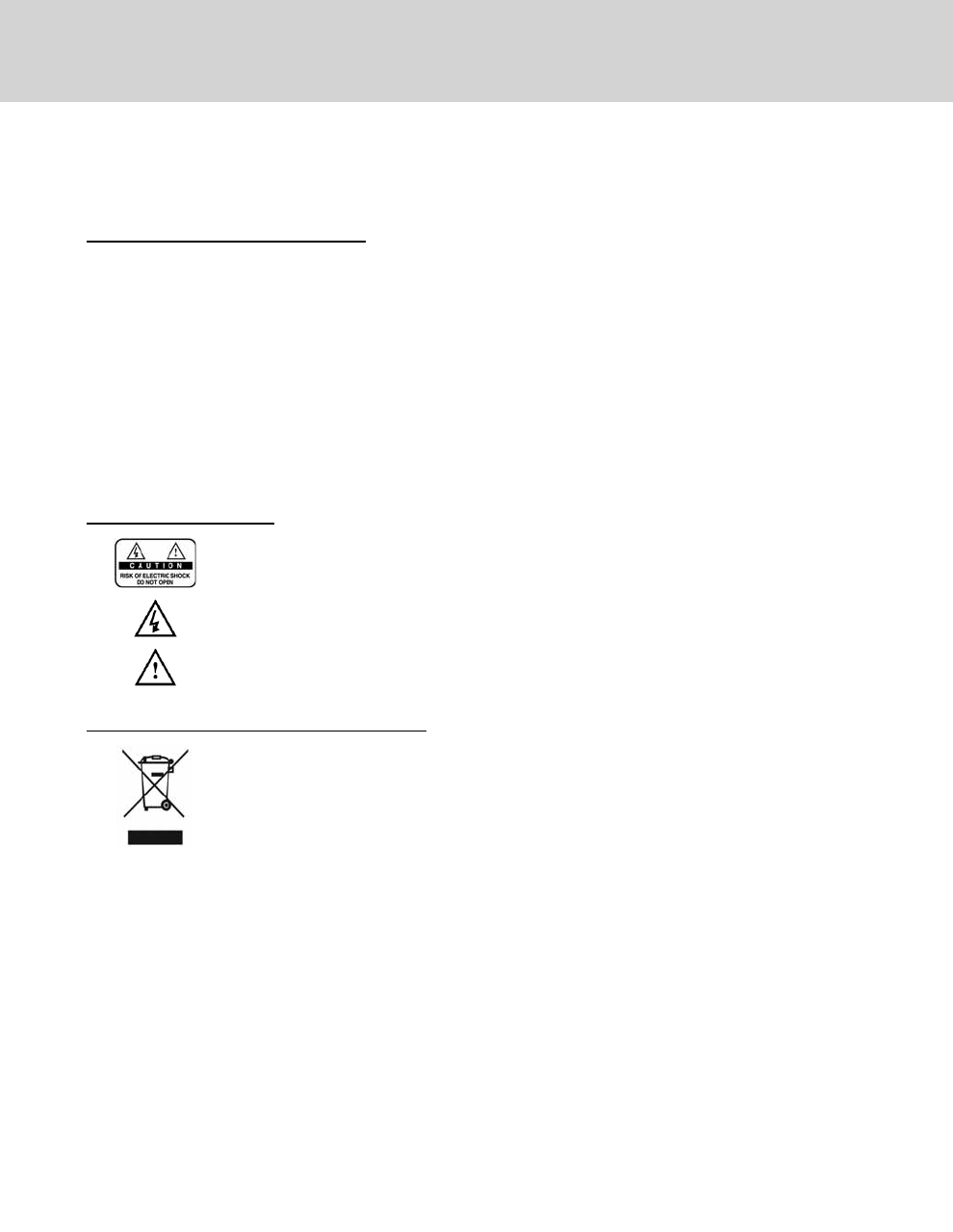
To reduce the risk of electric shock, do not remove cover(or back). No user serviceable
parts inside. Refer servicing to qualified service personnel.
This symbol indicates dangerous voltage inside the product that presents a risk of electric
shock or personal injury.
This symbol indicates important instructions accompanying the product.
**
Instruction about the ‘WEEE’ Symbol
This product should not be disposed with other household wastes at the end of its working
life. Please separate this from other types of wastes and recycle it responsibly to promote
the sustainable reuse of material resources. This will prevent possible harm to the
environment or human health from uncontrolled waste disposal.
Domestic users: Please contact either the retailer where you purchased this product or their local government office for
details of where and how they can take this item for environmentally safe recycling. Business users: Contact your supplier
and check the terms and conditions of the purchase contract. This product should not be mixed with other commercial
wastes for disposal.
Business users: Contact your supplier and check the terms and conditions of the purchase contract. This product should not
be mixed with other commercial wastes for disposal.
Notice
GB 2

This product has been manufactured to comply with international safety standards. Please read the following safety
precautions carefully.
**
Safety Instructions and Precautions
**
1. MAINS SUPPLY
**
90 - 250V AC 50/60Hz
• Operate this product only from the type of power supply indicated on the marking label. If you are not sure of
the type of power supplied to your home, consult your local power company.
• Disconnect the product from the mains before you start any maintenance or installation procedures.
**
2. OVERLOADING
**
• Do not overload a wall outlet, extension cord or adapter as this may result in electric fire or shock.
**
3. LIQUIDS
**
• The product should not be exposed to liquid of any kind. In addition, no objects filled with liquid should be
placed on the apparatus.
**
4. CLEANING
**
• Disconnect the product from the wall outlet before cleaning.
• Use a light damp cloth (no solvents) to dust the product.
**
5. VENTILATION
**
• The slots on top of the product must be left uncovered to allow proper airflow into the unit.
• Do not stand the product on soft furnishings or carpets.
• Do not stack electronic equipments on top of the product.
**
6. ATTACHMENTS
**
• Do not use any unsupported attachments as these may be hazardous or cause damage to the product.
**
7. CONNECTION TO THE SATELLITE DISH LNB
**
• Disconnect the product from the mains before connecting or disconnecting the cable from the satellite dish.
Failure to do so can damage the LNB.
**
8. CONNECTION TO THE TV
**
• Disconnect the product from the mains before connecting or disconnecting the cable from the TV. Failure to do
so can damage the TV.
**
9. EARTHING
**
• The LNB cable must be earthed to the system earth for the satellite dish.
**
Safety and Warning
GB 3

10.LOCATION
**
• Place the product indoors to avoid exposing it to lightning, rain or sun.
• Do not place it near a radiator or heat register.
• Make sure it has more than 10 cm clearance from any appliances susceptible to electromagnetic influences,
such as a TV or a VCR.
• Do not block the openings with any object, and do not place the product on a bed, sofa, rug, or other similar
surface.
• If you place the product on a rack or a bookcase, ensure that there is adequate ventilation and that you have
followed the manufacturer’s instructions for mounting.
• Do not place the product on an unstable cart, stand, tripod, bracket, or table where it can fall.
• A falling product can cause serious injury to a child or adult, and serious damage to the appliance.
11.LIGHTNING, STORM, or NOT IN USE
**
• Unplug the product from the wall outlet and disconnect the antenna during a thunderstorm or when left
unattended and unused for long periods of time. This will prevent damage to the unit due to lightning and
power-surges.
**
12.EXTRANEOUS OBJECTS
**
• Do not insert anything through the openings in the unit, where they can touch dangerous voltage points or
damage parts.
**
13.REPLACEMENT of PARTS
**
• When replacement of parts is required, be sure the service technician uses replacement parts specified by the
manufacturer or those that have the same characteristics as the original part. Unauthorized substitution may
result in additional damage to the unit.
**
Warning
**
1. To avoid damage of the power cord or plug;
• Do not modify or process the power cord or plug arbitrarily.
• Do not bend or twist the power cord.
• Make sure to disconnect the power cord holding the plug.
• Keep heating appliances as far as possible from the power cord in order to prevent the cover vinyl from
melting.
• The mains plug, as a disconnection device, shall remain readily accessible by the user.
2. To avoid electrical shock;
• Do not open the main body.
• Do not insert metal or inflammable objects inside the product.
• Do not touch the power plug with wet hands.
• Disconnect the power cord in case of lightning.
3. To avoid damage of product;
• Do not use the product when it is out of order. If you continue to use the product when defective, serious
damage can be caused to it. Make sure to contact your local product distributor if the product is out of order.
• Do not insert metal or alien substance into the slots for the modules or Smartcards. It may cause damage to
the product and reduce its life span.
Safety and Warning
GB 4

1. Before Using the Product ............................................................... 7
1.1 Package Contents ............................................................... 7
1.2 Front Panel ..................................................................... 8
1.3 Conditional Access ............................................................... 9
1.4 Rear Panel ...................................................................... 10
1.5 Remote Control .................................................................. 11
2. Setup.................................................................................. 13
2.1 Using HDMI Connector ........................................................... 13
2.2 Using DVI Connector ............................................................. 14
2.3 Using Component Cable .......................................................... 16
2.4 Using SCART Cable.............................................................. 17
2.5 Powering On .................................................................... 18
3. Installation Wizard...................................................................... 19
3.1 Language ....................................................................... 19
3.2 Search Channel ................................................................. 19
3.3 Time ........................................................................... 21
3.4 Software Update ................................................................. 21
4. Basic Operation ........................................................................ 22
4.1 Switching Channel ............................................................... 22
4.2 Volume Control .................................................................. 22
4.3 Lip-Sync ........................................................................ 22
4.4 Resolution ...................................................................... 23
4.5 Option List ...................................................................... 23
4.6 Programme Information (i- plate) ................................................... 25
5. Channel List ........................................................................... 27
5.1 All Channel List .................................................................. 27
5.2 Favourite List .................................................................... 30
5.3 Satellite List ..................................................................... 31
5.4 Scramble List.................................................................... 31
6.EPG................................................................................... 32
6.1 EPG Main....................................................................... 32
6.2 EPG Table ...................................................................... 34
6.3 Schedule List .................................................................... 34
6.4 Find Programme ................................................................. 35
7. System ................................................................................ 38
7.1 CI-Module....................................................................... 38
7.2 System Status ................................................................... 38
7.3 Picture.......................................................................... 39
7.4 Dolby Digital..................................................................... 40
7.5 Startup-Channel ................................................................. 41
8. Setting ................................................................................ 42
8.1 Parental Control ................................................................. 42
8.2 Language Setting ................................................................ 44
8.3 Time Setting..................................................................... 45
8.4 A/V Setting ...................................................................... 47
8.5 Other Settings ................................................................... 48
Contents
GB 5

9. Edit Channels .......................................................................... 49
9.1 Edit Channels ................................................................... 49
9.2 Edit Favourite List ................................................................ 52
10. Installation............................................................................ 55
10.1 Search Channels ............................................................... 55
10.2 Advanced Search ............................................................... 67
10.3 SMATV Search ................................................................. 69
10.4 Software Update ................................................................ 71
10.5 Default Setting.................................................................. 73
11. Software Update ...................................................................... 74
11.1 OTA (Over the Air) .............................................................. 74
12. Menu Map ............................................................................ 76
13. Trouble Shooting...................................................................... 77
13.1 Trouble Shooting ............................................................... 77
13.2 Error Message.................................................................. 79
14. Specification.......................................................................... 80
15. Glossary.............................................................................. 82
16. Service and Support................................................................... 84
Contents
GB 6
1. Before Using the Product
This chapter provides detailed instructions on the product and its accessories.
1.1 Package Contents
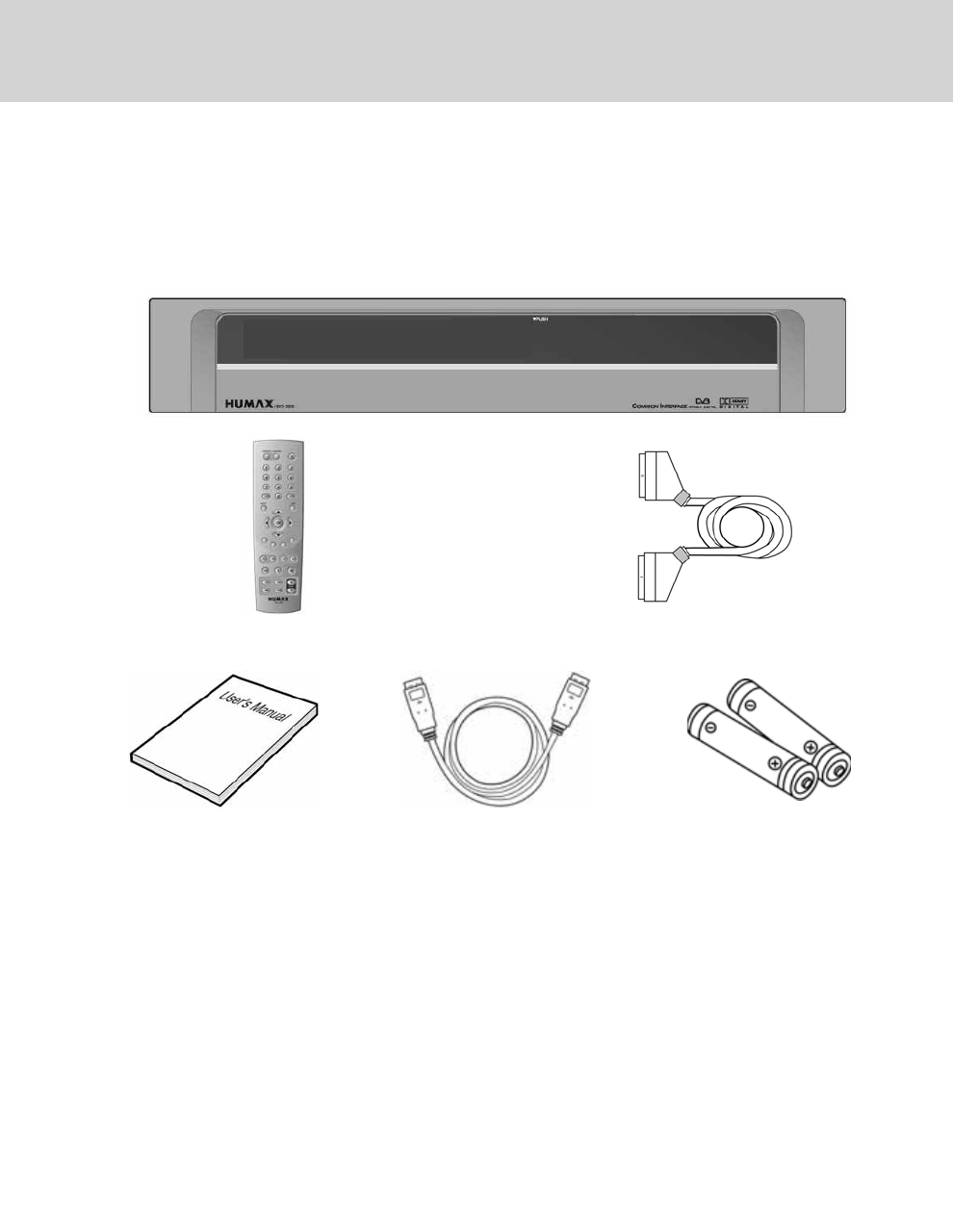
Please check all package contents before using your product.
**
**
Remote Control SCART-Cable
**
User's Manual HDMI-Cable Batteries
**
Note:
• Faults may occur if the remote control is left without battery for a long time. Always keep the battery inserted in
the remote control.
• Package contents may vary according to area.
1. Before Using the Product
GB 7

1.2 Front Panel
**
**
1. STANDBY BUTTON
**
Switches between operation and standby modes.
2. TV/RADIO BUTTON
**
Switches between TV and radio modes.
3. P-/P + BUTTON
**
Moves the TV/radio channel up or down.
4. VOL-/VOL+ BUTTON
**
Adjusts the audio volume.
5. VIDEO FORMAT
**
Changes the resolution of video.
6. CI-MODULE SLOT
**
A slot for two CI modules
1. Before Using the Product
GB 8
1.3 Conditional Access
Although some TV and radio channels are free to air, most TV and radio/music channels are available on a subscription
basis and can only be enjoyed via a Conditional Access component.
1. Inserting a CI (with Smartcard)
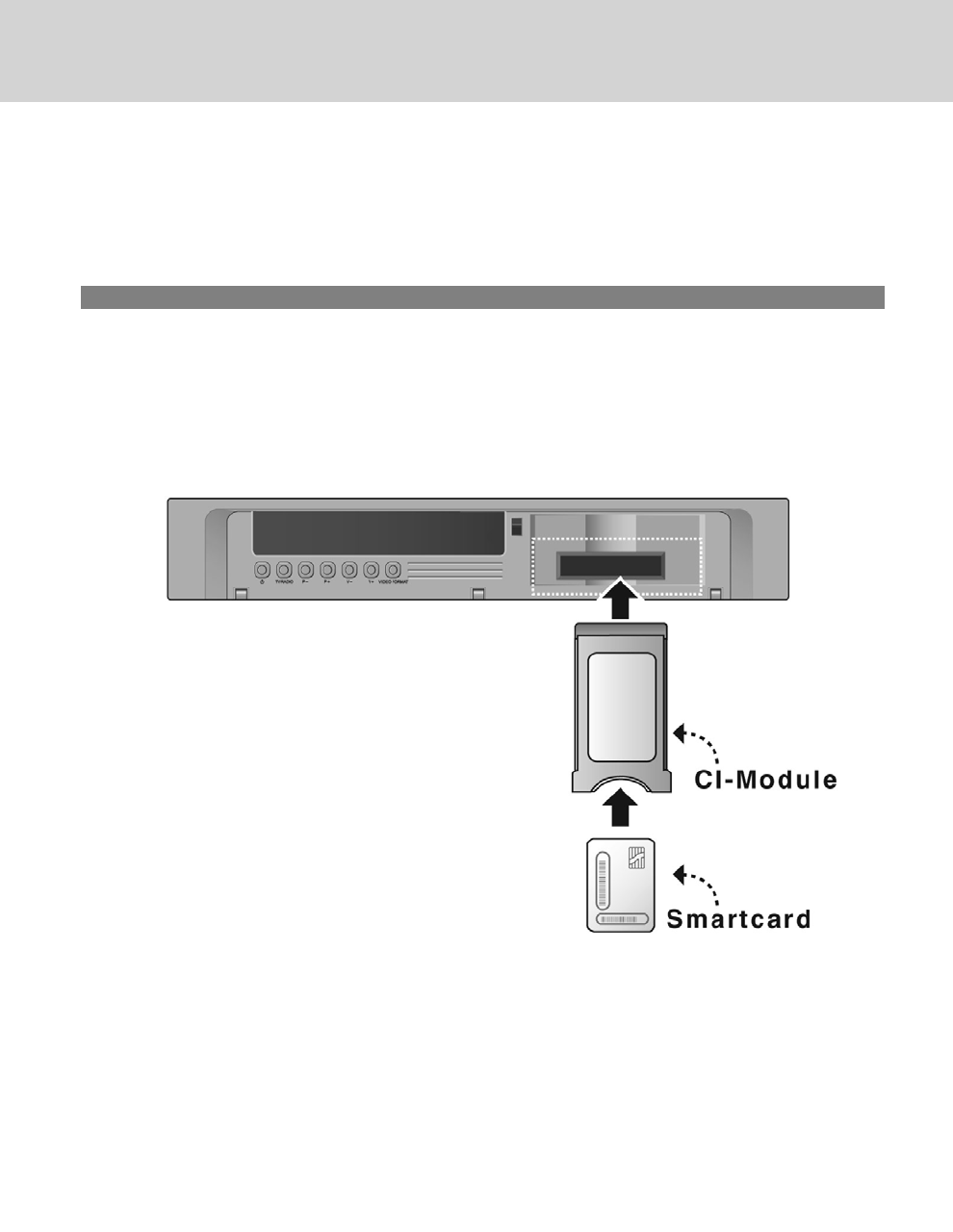
A CI module looks like a PC map (PCMCIA) for laptops. There are different kinds of CI Modules, suitable for different
coding systems; Irdeto, Conax and more. Additionally to the CI module, a Smartcard is needed to decode the channels.
1. Open the right-hand flap on the front of the product.
2. Follow the instructions of the module and insert the Smartcard into the CI module.
3. Keep the CI module (with the Smartcard) horizontal.
4. Insert the CI module into the slot.
**
GB 9
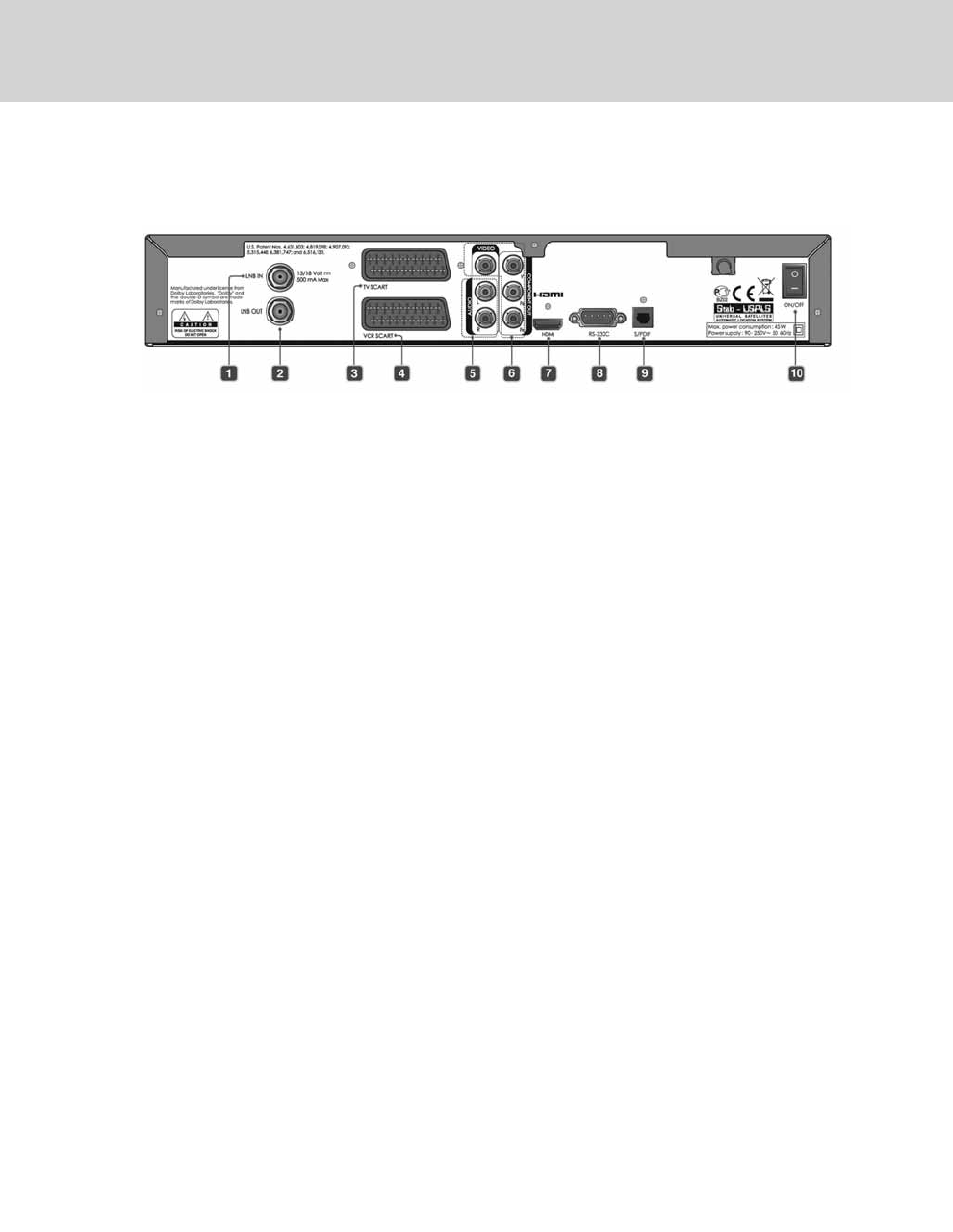
1.4 Rear Panel
**
1. LNB IN
**
Connects a satellite antenna cable.
**
2. LNB OUT
**
Connects to another digital satellite receiver.
**
3. TV SCART
**
Connects to the TV set using a TV SCART cable.
4. VCR SCART
**
Connects to the VCR/DVD using a VCR SCART cable.
5. AUDIO L/R
**
Connects to the TV or VCR and outputs audio signals.
6. VIDEO
**
Connects to the TV or VCR and outputs video signals.
7. HDMI
**
Connects to the TV using HDMI connector.
8. RS-232C
**
Connects to the PC to update software.
9. S/PDIF
**
Outputs the digital audio signals.
10.ON/OFF
**
Powers on/off.
1. Before Using the Product
GB 10

1.5 Remote Control
**
GB 11

1. SOURCE
**
Controls the input of TV.
**
2. TV/RADIO
**
Switches between TV and radio modes.
**
3. NUMERIC(0-9) BUTTONS
**
Enters a TV/radio channel number or
menu option number.
4. EPG
**
Displays the EPG. (electronic programme
guide)
**
5. BACK
**
Closes and returns to the previous menu
and screen.
**
6. ARROW BUTTONS
**
Changes the channel or moves the
cursor up, down, left or right.
**
7. COLOUR BUTTONS (R/G/Y/B)
**
Select colour keys for interactive
applications.
**
8. P- / P+
**
Changes the channel.
**
9. MENU
**
Displays the main menu.
**
10.TEXT
**
Enters the digital text service.
**
11.LIST
**
Displays the channel list.
**
12.WIDE
**
Sets the display format.
**
13.STANDBY
**
Switches between operation and standby
modes.
**
14.OPT+ (OPTION)
**
Displays the audio, teletext and subtitle
language services.
**
15.LAST
**
Returns to the previous channel.
16.OK
**
Selects a menu, or confirms the selected
operation. Also displays the channel list
while watching a programme.
**
17.V- / V+
**
Adjusts the audio volume.
**
18.i (INFORMATION)
**
Displays the channel and programme
information.
**
19.MUTE
**
Mutes or unmutes the audio temporarily.
**
20.PAGE
**
Changes the page.
**
21.V-FORMAT
**
Change the resolution of video.
**
1. Before Using the Product
GB 12
2. Setup
This chapter describes how to connect your product to the TV with the particular equipments for gaining optimum signal
quality. The product provides various interfaces to connect to the TV, VCR or other devices. Select the most appropriate
procedure depending on the equipment you have.
**
Note: If you encounter any problems setting up your product, please contact your local product distributor.
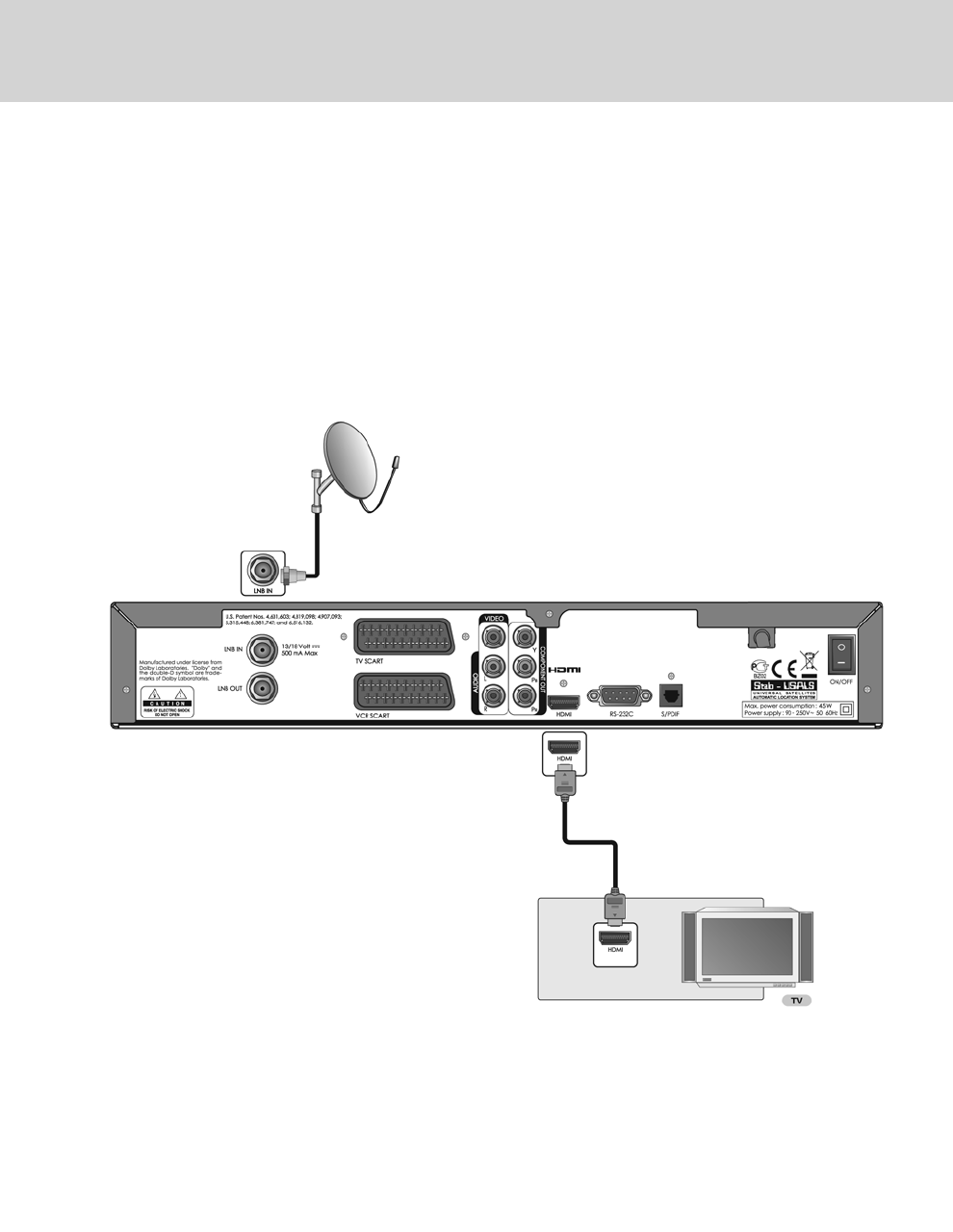
2.1 Using HDMI Connector
The HDMI connection is recommended for Digital TV. In case the TV has a HDMI input connector, a special all-digital
interface that provides the highest picture quality, connect the product to the TV with the HDMI cable as follows.
**
2. Setup
GB 13
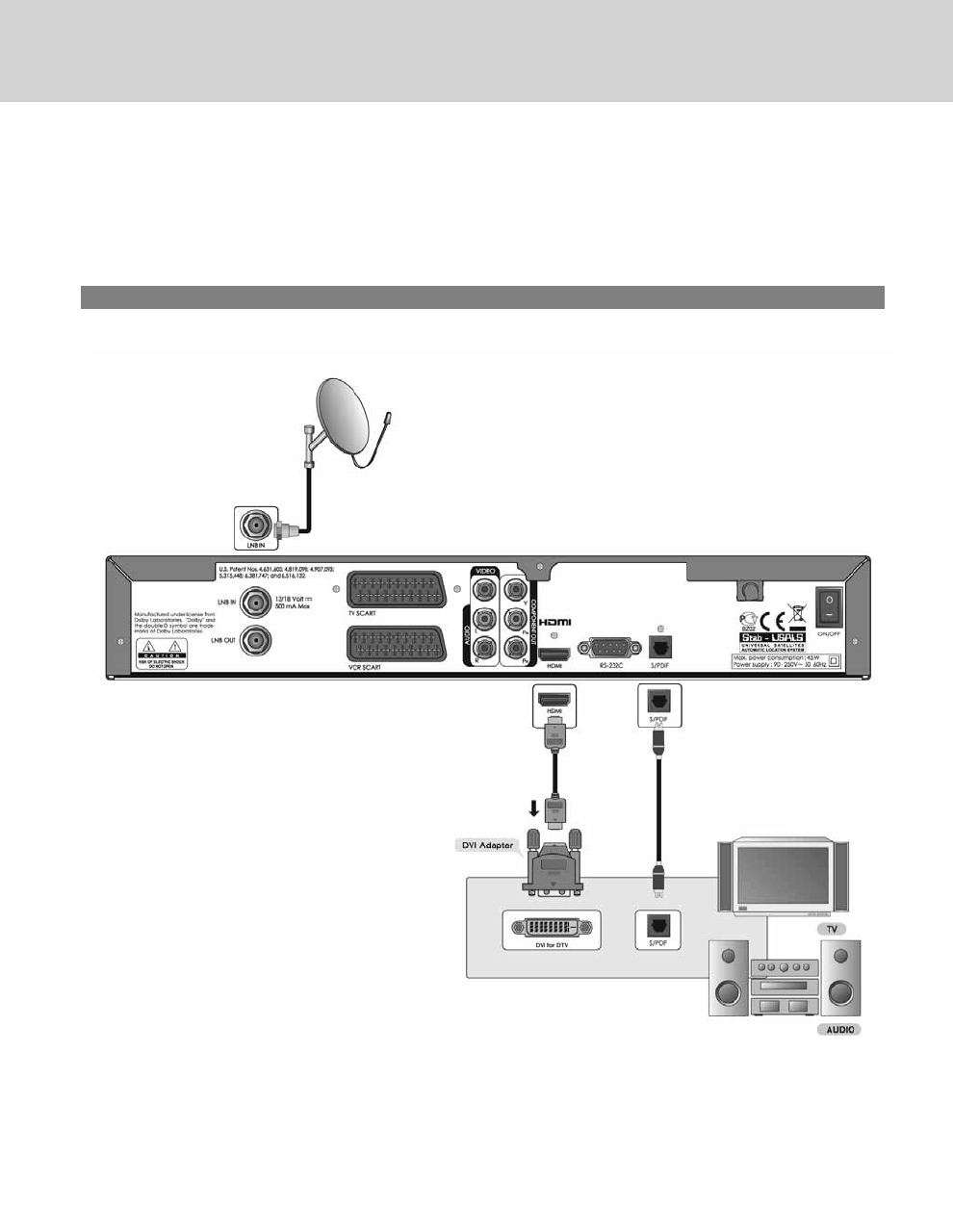
2.2 Using DVI Connector
The DVI connection using a HDMI to DVI converter is recommended for Digital TV. In case the TV has a DVI input
connector, connect the product to the TV with the HDMI cable using a HDMI to DVI converter as follows.
1. When equipped with an A/V receiver
**
2. Setup
GB 14
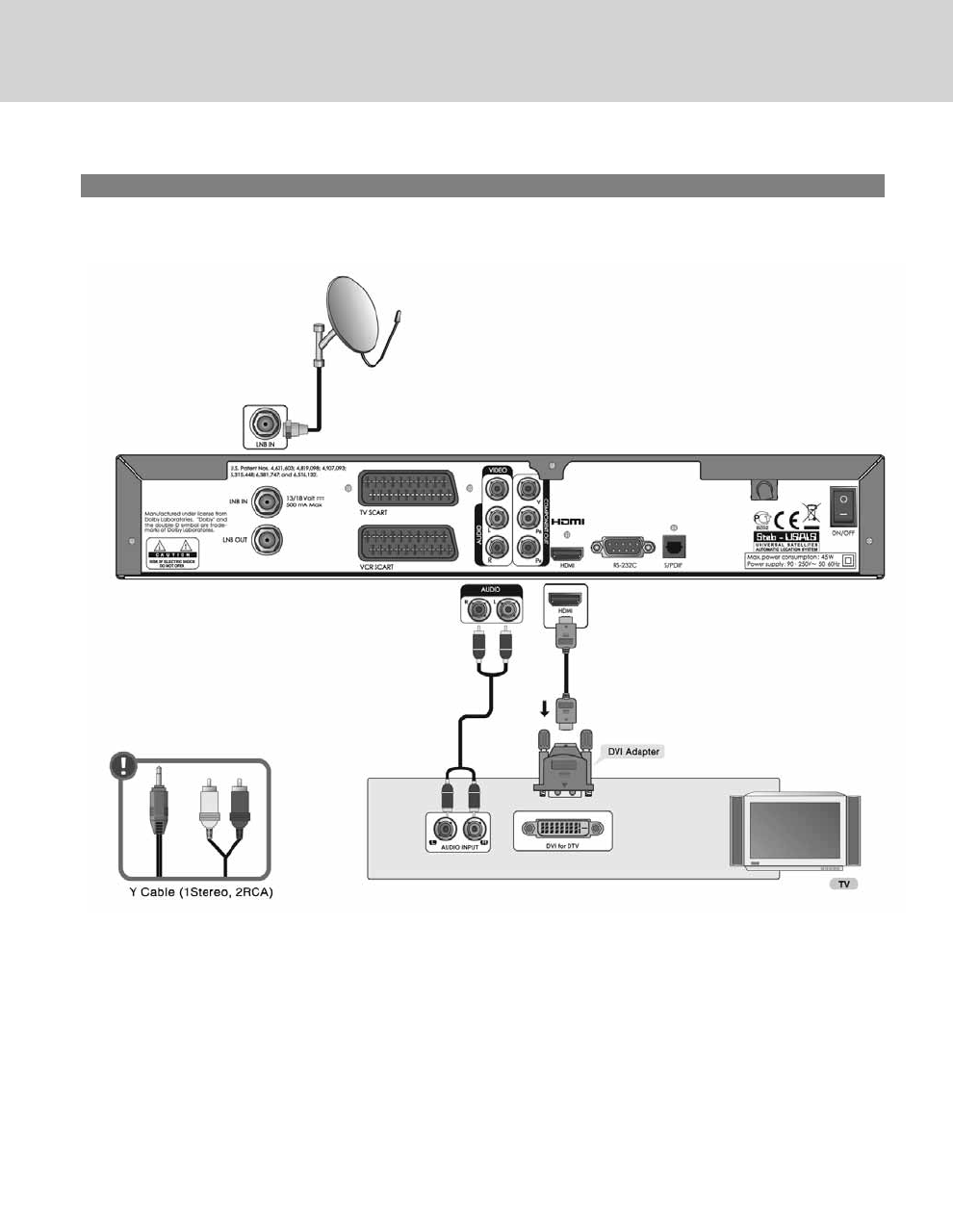
2. When there is no A/V receiver available
In case you are not equipped with an A/V receiver, connect the product to the TV using the audio cable as follows.
**
Note: You can also connect the product to the audio input jack of your TV set using the 3.5 Stereo Jack Cable to
2 RCA Y Cable.
GB 15
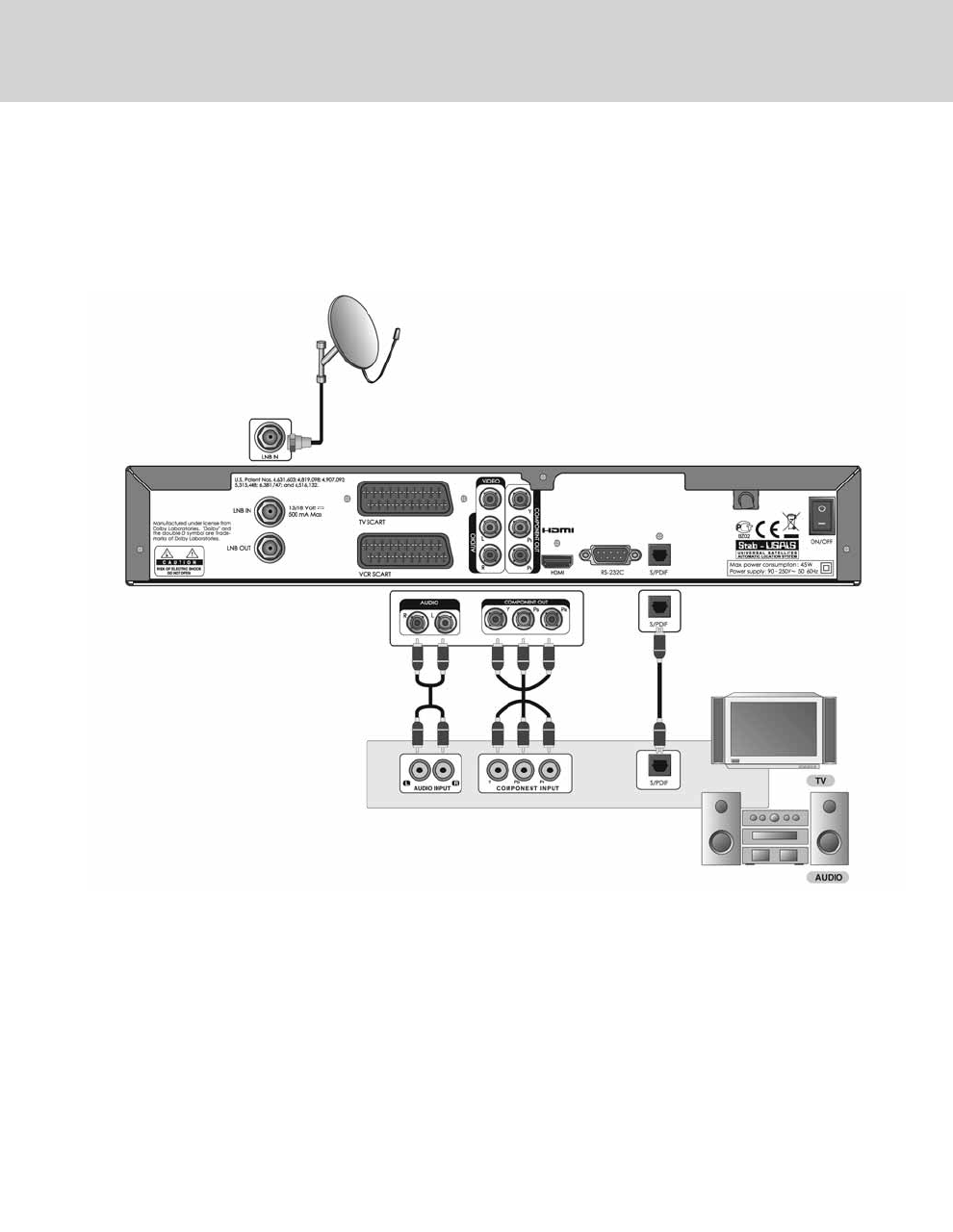
2.3 Using Component Cable
The Component connection is recommended for Digital TV. Connect the product to the TV with the Component cable as
follows.
**
2. Setup
GB 16
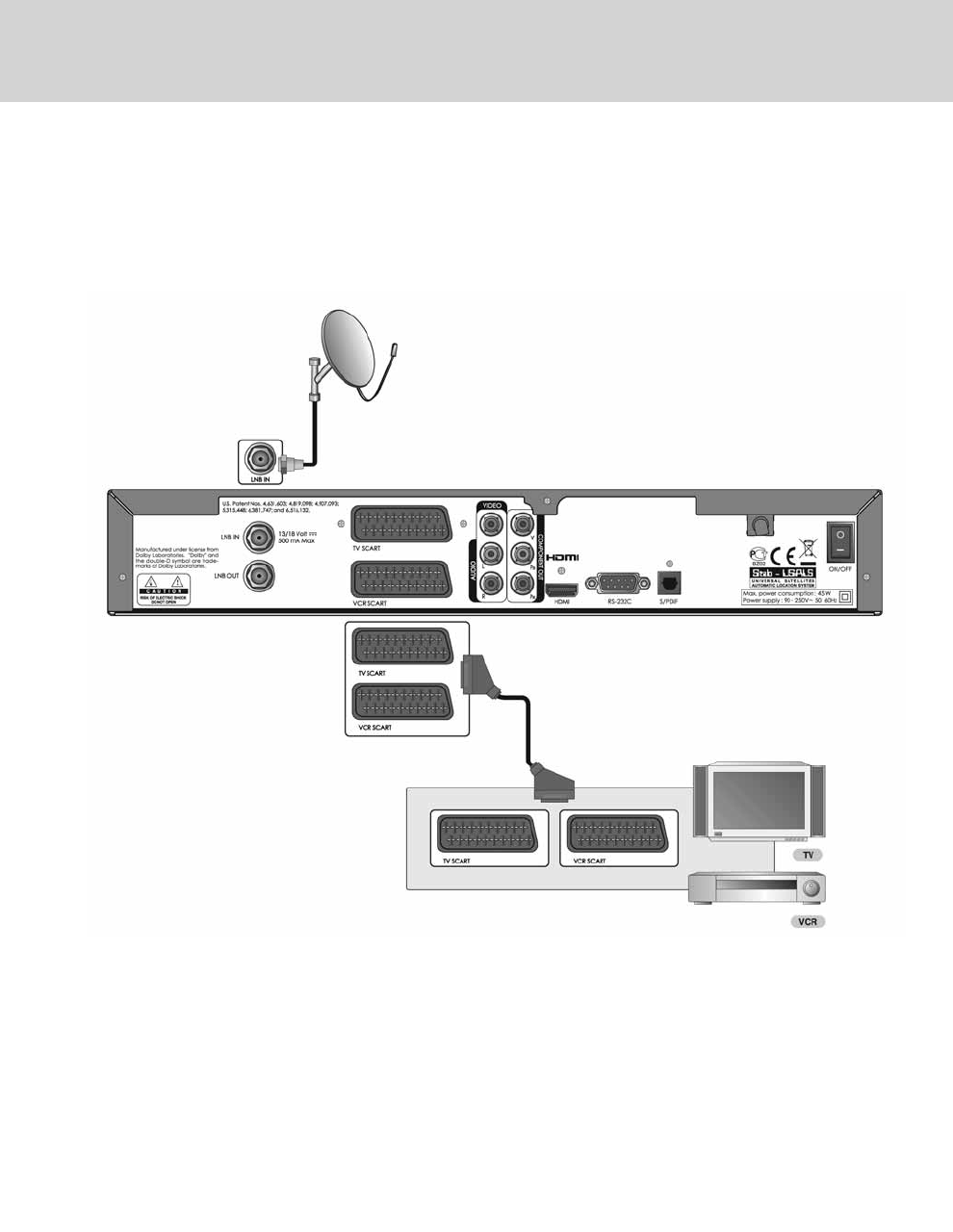
2.4 Using SCART Cable
The SCART cable connection is recommended for Analog TV or VCR. Connect the product to the TV with the SCART
cable as follows.
**
**
Note: Connecting your TV directly to the Audio/Video output of the product will assure a more vivid picture and
enhance your viewing enjoyment.
GB 17
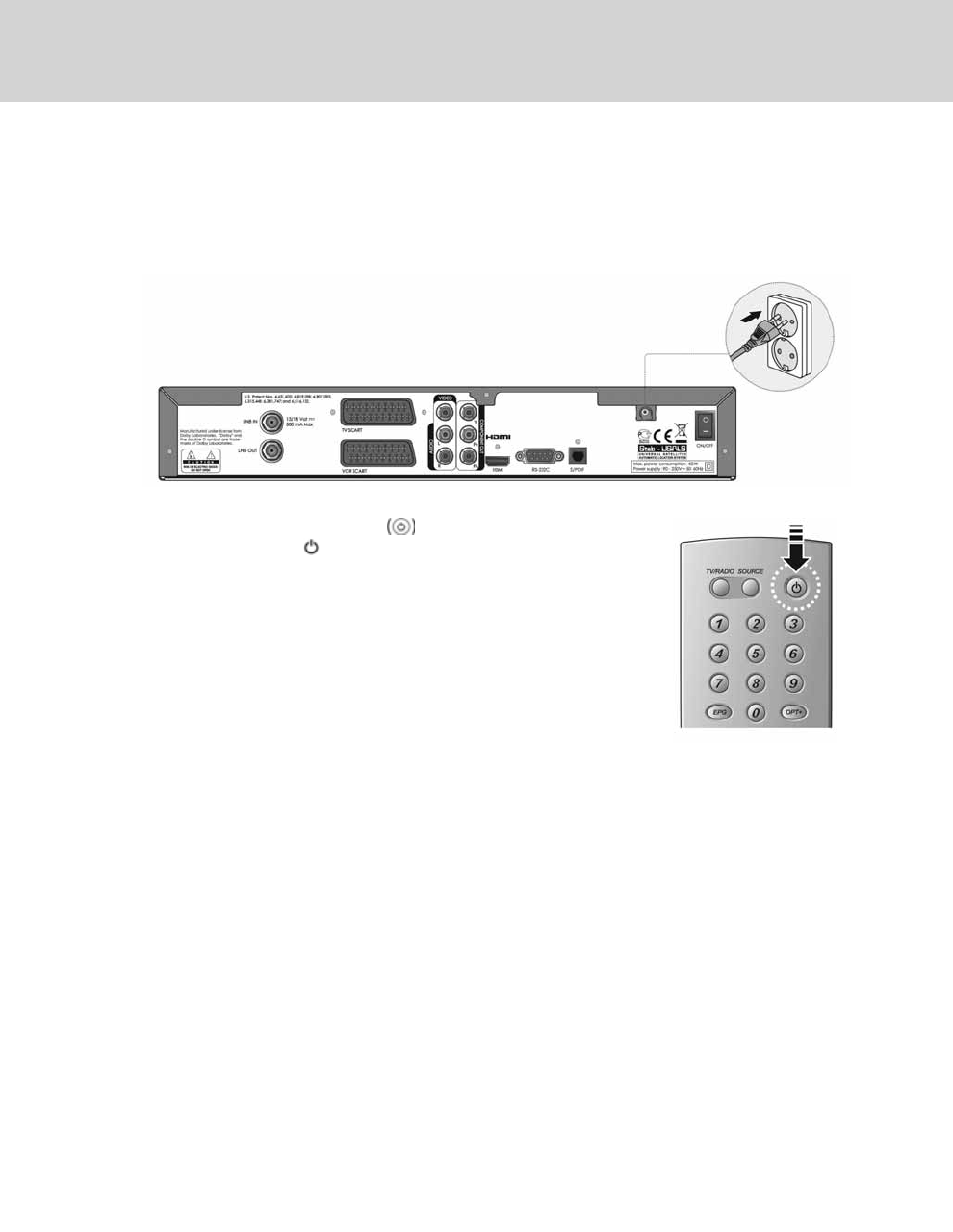
2.5 Powering On
1. Connect the power cord of the product to a wall outlet.
2. Turn on the power switch located at the left side on the back of the product.
**
3. Power on by pressing the STANDBY button of the remote
control or the STANDBY button at the front of the product.
2. Setup
GB 18
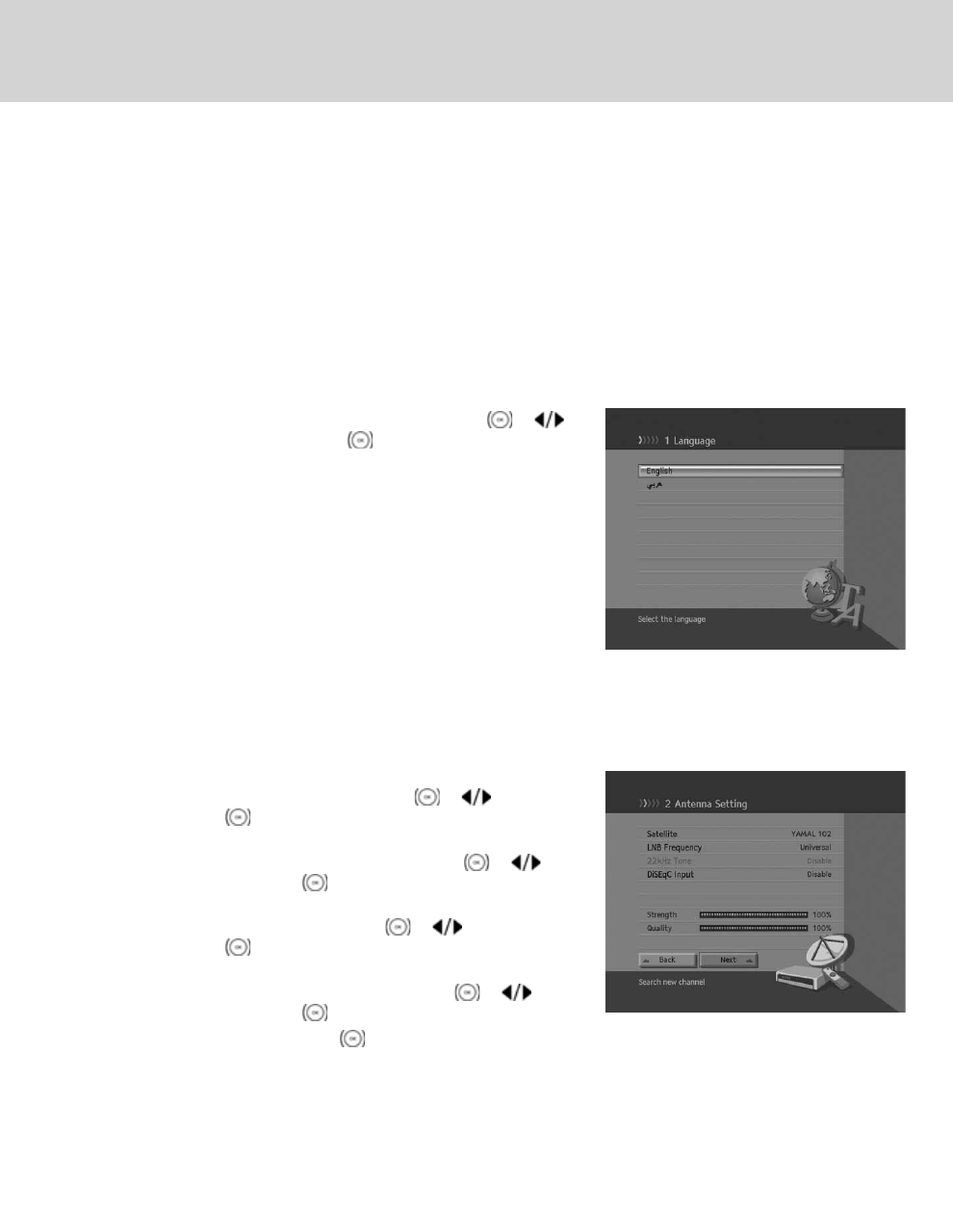
3. Installation Wizard
When powering on your product for the first time after purchase, the installation wizard will operate automatically. This
chapter includes the first time setup of the language, time, search channel and software update which will show you how
to start the initial installation.
**
Note:
• The default password is 0000.
• If you have forgotten your password, please contact your local product distributor.
3.1 Language
Language allows you to select the main language.
Select the appropriate language from the list using the OK or
button. Select Next and press the OK button to save the selected
language as default language.
**
Note: The display language may differ according to country.
3.2 Search Channel
Search Channel enables you to enter the values such as Satellite, LNB Frequency, 22kHz Tone and DiSEqC Input
of each item and start channel search.
1. Satellite:
Select the required satellite using the OK or button and
press the OK button.
2. LNB Frequency:
Select the required LNB frequency using the OK or
button and press the OK button.
3. 22kHz Tone:
Select Enable/Disable using the OK or button and
press the OK button.
4. DiSEqC Input:
Select the required DiSEqC input using the OK or
button and press the OK button.
5. Select Next and press the OK button to proceed.
3. Installation Wizard
GB 19
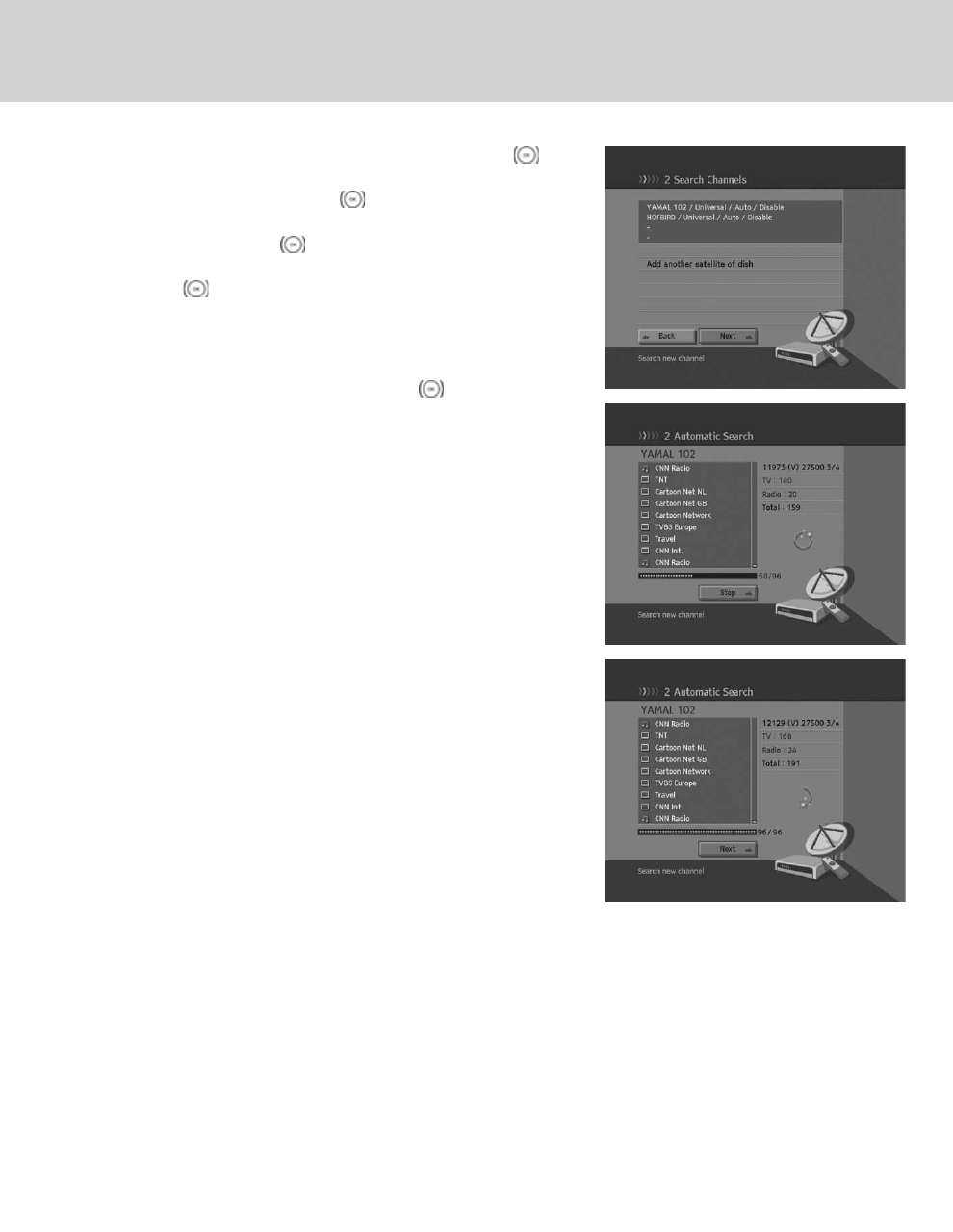
**
6. Select Add another satellite of dish and press the OK
button to add another satellite. You can add up to four satellites.
7. Select Next and press the OK button to start channel search.
8. Please wait while the search continues. If you want to stop the
search, press the OK button.
9. When channel search is complete, the results will appear. Press
the OK button to proceed to the next step.
**
Note:
• If you cannot find the required LNB frequency from the list, select
User Define and manually enter the frequency using the
NUMERIC(0-9) buttons and press the OK button.
• When using universal LNB, select Universal. The 22kHz tone
value will be disabled.
**
**
3. Installation Wizard
GB 20
**
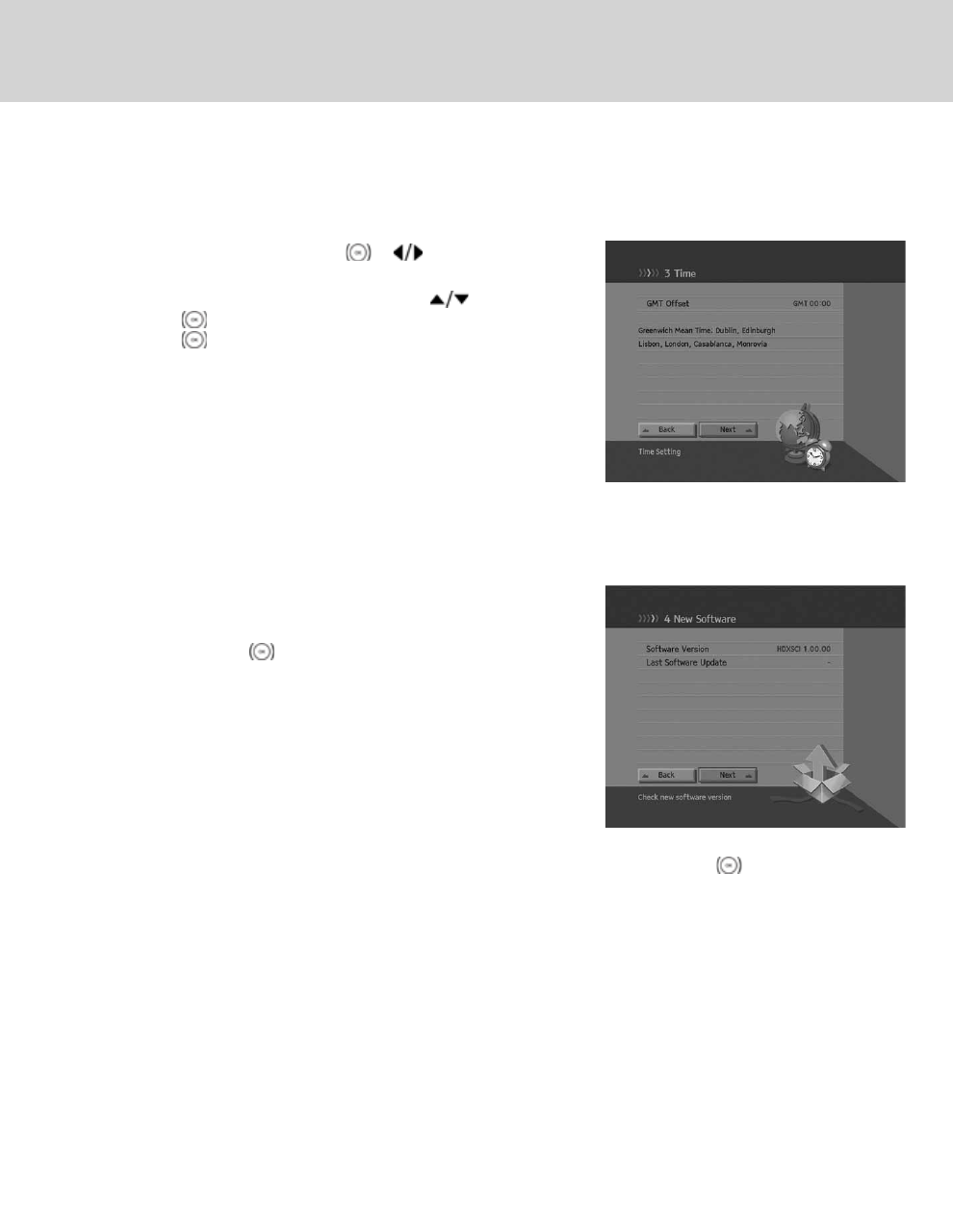
3.3 Time
You can set the current time.
Select GMT Offset and press the OK or button to display the
values for GMT offset.
Select the appropriate GMT offset value using the button and
press the OK button to set the current time. Then select Next and
press the OK button.
**
Note: If GMT offset is Auto, it is automatically set depending on your
country. However, if the time is not set properly, you can
change GMT offset to fit your local time.
3.4 Software Update
Software Update displays the software version and lets you choose to update the new software.
When new software is detected, you can choose to download the
software immediately or save for later. You can refuse software update
if not needed. In case there is no software currently available, select
Next and press the OK button to proceed to the next step.
**
Note:
• When there is no new software to update, a pop-up will appear.
• For more information about software update, refer to 11.
Software Update.
**
After all setting is complete, you can view the result screen. Select Finish and press the OK button to complete the
installation wizard.
GB 21

4. Basic Operation
This chapter describes the basic functions of the product such as switching channel, volume control, lip-sync, option list
and programme information. You can check or change the settings.
4.1 Switching Channel
Switching Channel allows you to switch the current channel using one of the following methods.
1. Press the P-/P+ button.
2. Enter the channel number using the NUMERIC(0-9) buttons to move to the channel directly.
3. Press the TV/RADIO button to switch between TV channels and radio channels.
**
Note: You can switch channels using the channel list or EPG.
To return to the previous channel, press the LAST button.
4.2 Volume Control
Volume Control allows you to adjust the audio volume.
1. Press the V-/V+ button to adjust the audio volume.
2. Press the MUTE button to stop the audio temporarily.
**
Note: The mute function remains set while you switch channels.
4.3 Lip-Sync
Lip-Sync allows you to adjust the sound difference of video and audio.
1. Press the MUTE button for 3 seconds.
2. Adjust the Lip-Sync and save the setting for each channel.
**
Note: Lip-Sync is activated only when the programme is broadcast in
Dolby Digital .
4. Basic Operation
GB 22
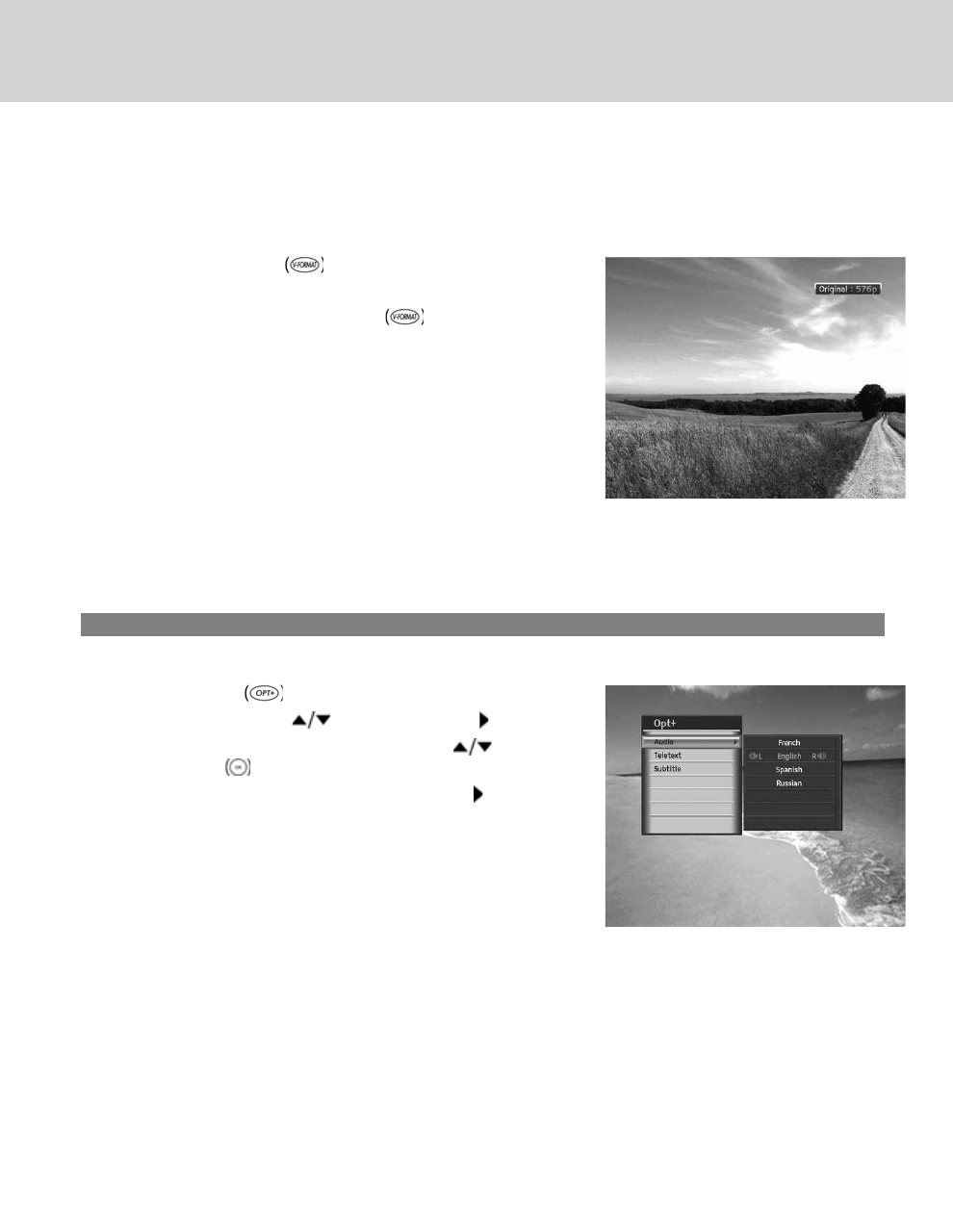
4.4 Resolution
Resolution allows you to set the resolution of the screen.
1. Press the V-FORMAT button.
2. The current resolution will be displayed.
3. Each time you press the V-FORMAT button, the resolution
changes in the following sequence: 576p -> 720p -> 1080i.
4.5 Option List
Option List allows you to set options such as audio, teletext and subtitle language.
1. Audio
You can select the language you prefer in Audio if the current programme is available in multiple audio languages.
1. Press the OPT+ button.
2. Select Audio using the button and press the button.
3. Select the audio language you prefer using the button and
press the OK button.
4. Select audio direction (left, right, stereo) using the button.
**
Note:
• You can select the required audio language in 8.2 Language
Setting.
• If the programme is broadcast in Dolby Digital, you cannot set the
audio direction.
GB 23
2. Teletext
You can use your TV remote control unit to control the teletext service. All teletext supporting channels have the teletext
icon on the i-plate.
1. Press the OPT+ button.
2. Select Teletext using the button and press the the button.
**
Note: You can also use the TEXT button on your remote control to view teletext.
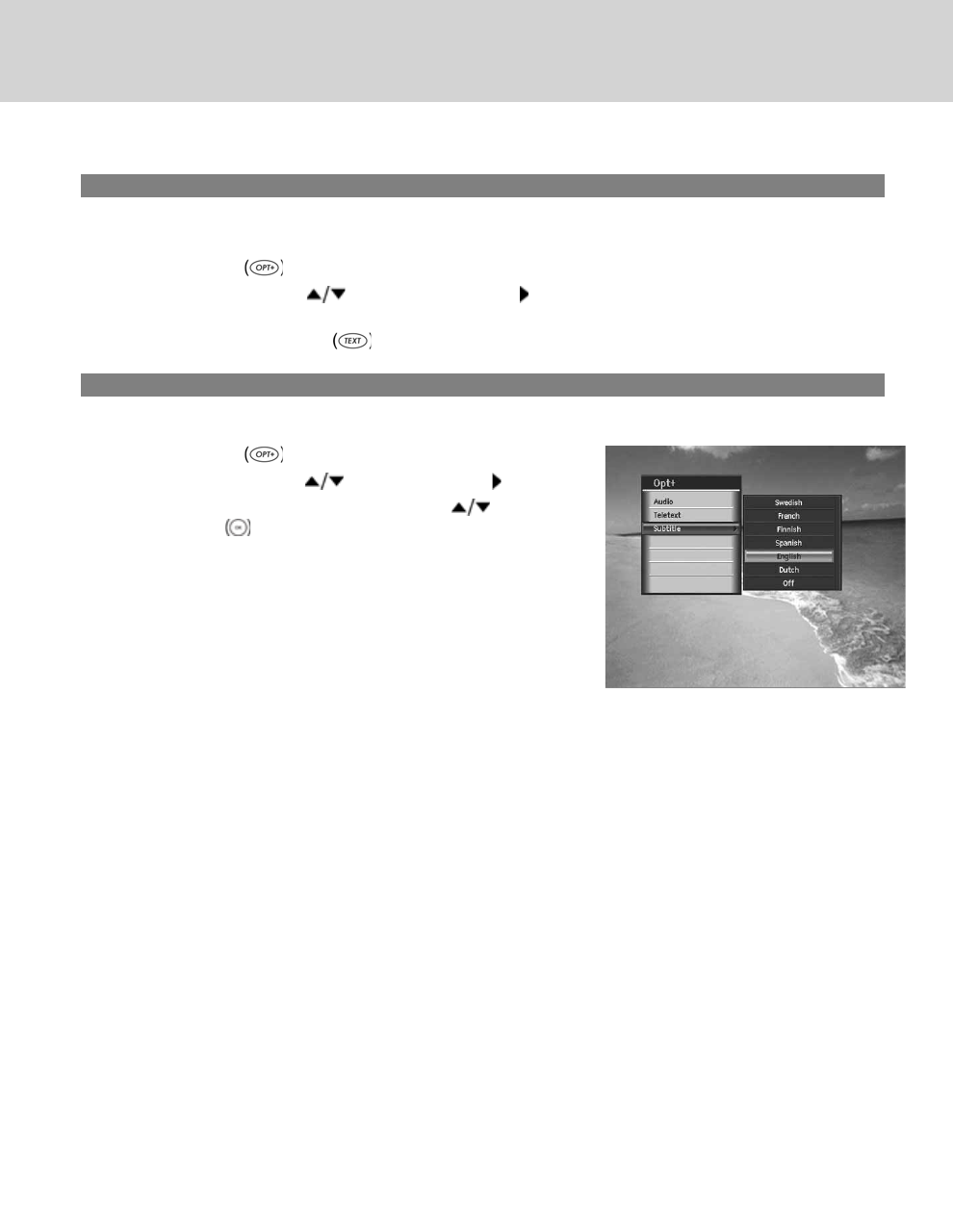
3. Subtitle
You can select the language for the subtitle if the programme provides subtitle information.
1. Press the OPT+ button.
2. Select Subtitle using the button and press the button.
3. Select the required subtitle language using the button and
press the OK button. The subtitle will be displayed in the
selected language at the bottom of the screen.
4. Select Off from the subtitle language list to hide subtitle from the
screen.
4. Basic Operation
GB 24
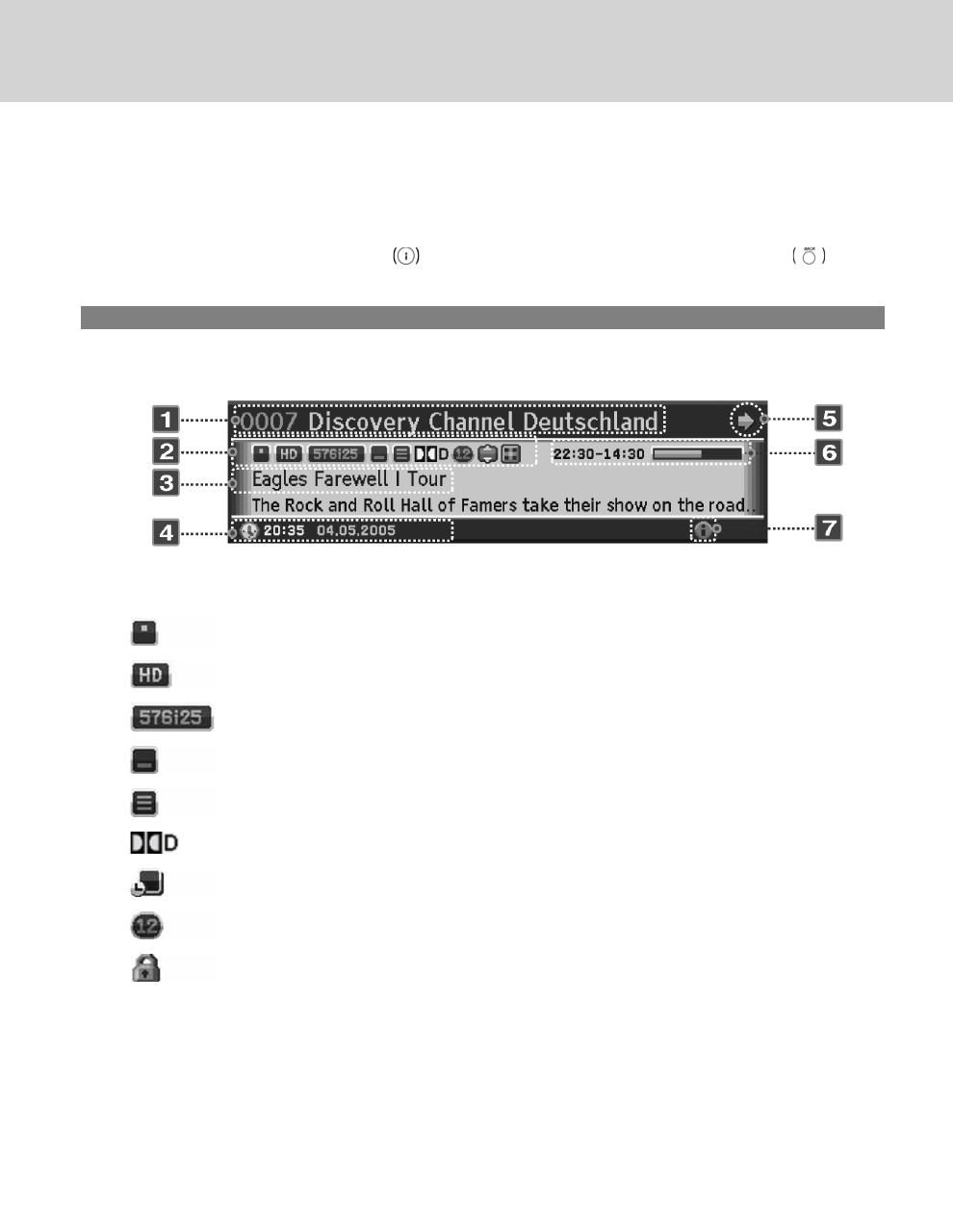
4.6 Programme Information (i- plate)
Programme information is always displayed for a certain period of time whenever you switch channels. You can view
the programme information by pressing the ibutton while watching a programme. Press the BACK button to
hide the i-plate.
1. General Information
The general information is displayed on the screen as the following.
**
1. Channel number and name
2. Icons
**
Displayed only when the channel is a scrambled channel.
**
**
Displayed only when the channel provides HD programmes.
**
**
Displays the resolution of the current programme.
**
**
Displayed only when subtitle information is available.
**
**
Displayed only when there is any teletext information.
**
**
Displayed only when the programme is broadcast in Dolby Digital.
**
**
Displayed only if this programme is reserved.
**
**
Represents parental level. Indicates the minimum level of age for viewing the programme.
**
**
Displayed only when the channel is a locked channel.
**
GB 25

3. Programme name.
4. Current time & date
5. Next programme information: Displayed if next programme information is provided. Press the button to display
next programme information.
6. Programme broadcasting time and progress bar: Displays programme playing time and progress bar.
7. Detailed programme information: Displayed if detailed programme information is provided.
**
Note: If there is no programme information available, programme information is not displayed.
2. Detailed Programme Information
**
You can see the detailed information about the current programme.
Press the ibutton where the i-plate is displayed to view detailed
information.
**
Note:
• Press the ibutton again to hide the information box.
• If the detailed programme information is over one page, use the
PAGE button to move to the previous or next page.
4. Basic Operation
GB 26
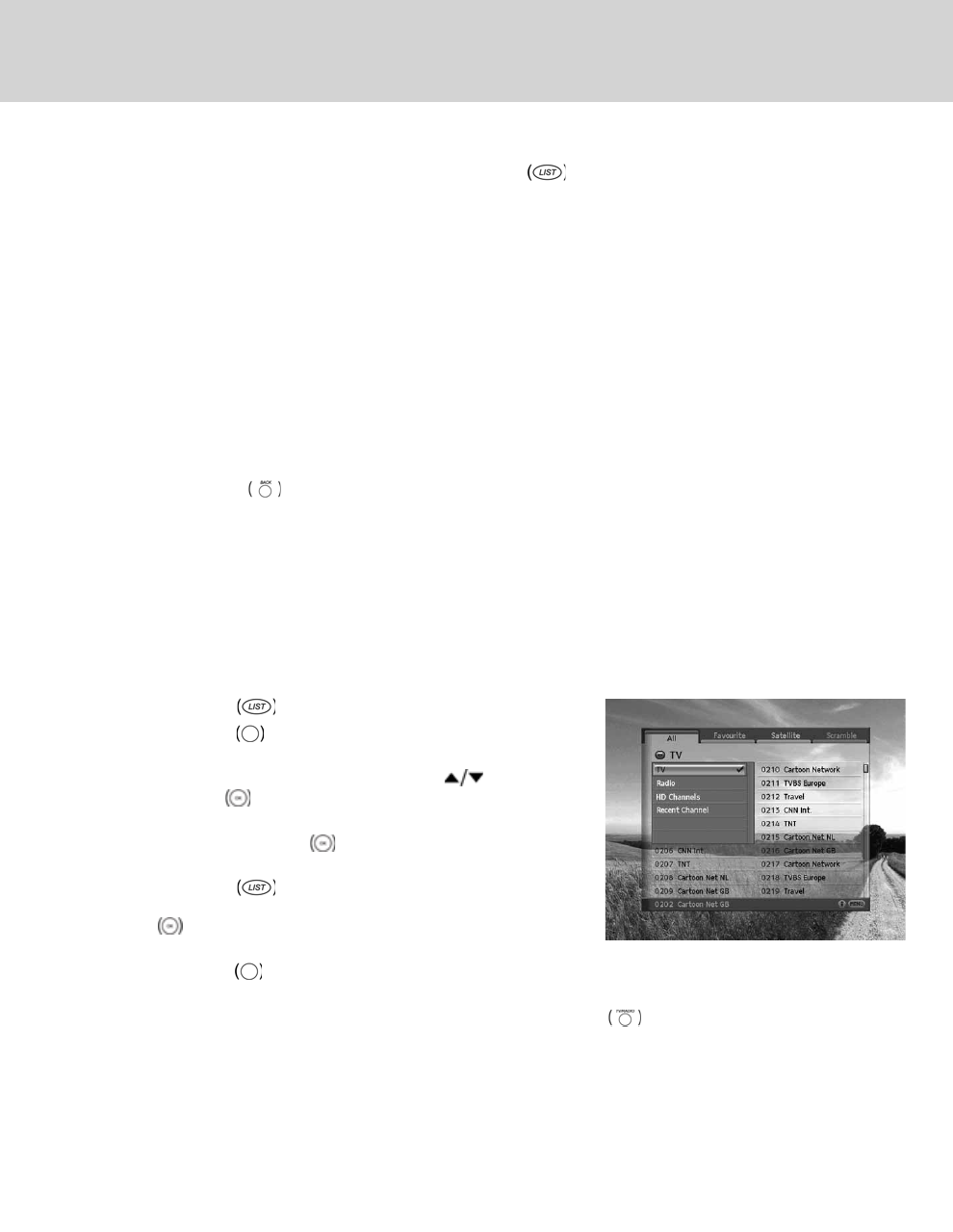
5. Channel List
This chapter will help you display the channel list using the LIST button and switch to another channel in the
channel list.
**
Seven types of channel lists are provided for quick and easy channel search.
TV The list of all TV channels
Radio The list of all radio channels
HD Channels The list of all HD TV channels.
Recent Channels The list of the recently viewed channels
Favourite The list of the favourite channels in five groups
Satellite The lists of channels classified by satellites
Scramble The lists of channels classified by CAS types
**
Note:
• Press the BACK button to exit the Channel List.
• The channel list is updated automatically when changes occur.
• The predefined channel list may return to default setting after OTA has been performed.
•HD Channels may or may not be available depending on the version of the software.
5.1 All Channel List
All Channels List allows you to delete, rename or include the channels in Favourite. You can also use lock/unlock
functions or configure the menu.
1. Press the LIST button while watching a programme.
2. Press the RED button on the remote control while the
channel list is displayed.
3. Select the channel you wish to view using the button and
press the OK button.
4. You can also enter the channel number using the NUMERIC(0-9)
buttons and press the OK button to change to a certain
channel.
5. Press the LIST button again and select one option among
TV, Radio, HD Channels and Recent Channels, and press the
OK button.
6. To switch to TV, Radio, HD Channels or Recent Channels,
press the RED button again.
**
Note: You can switch between TV/radio by simply pressing the TV/RADIO button on the remote control.
5. Channel List
GB 27
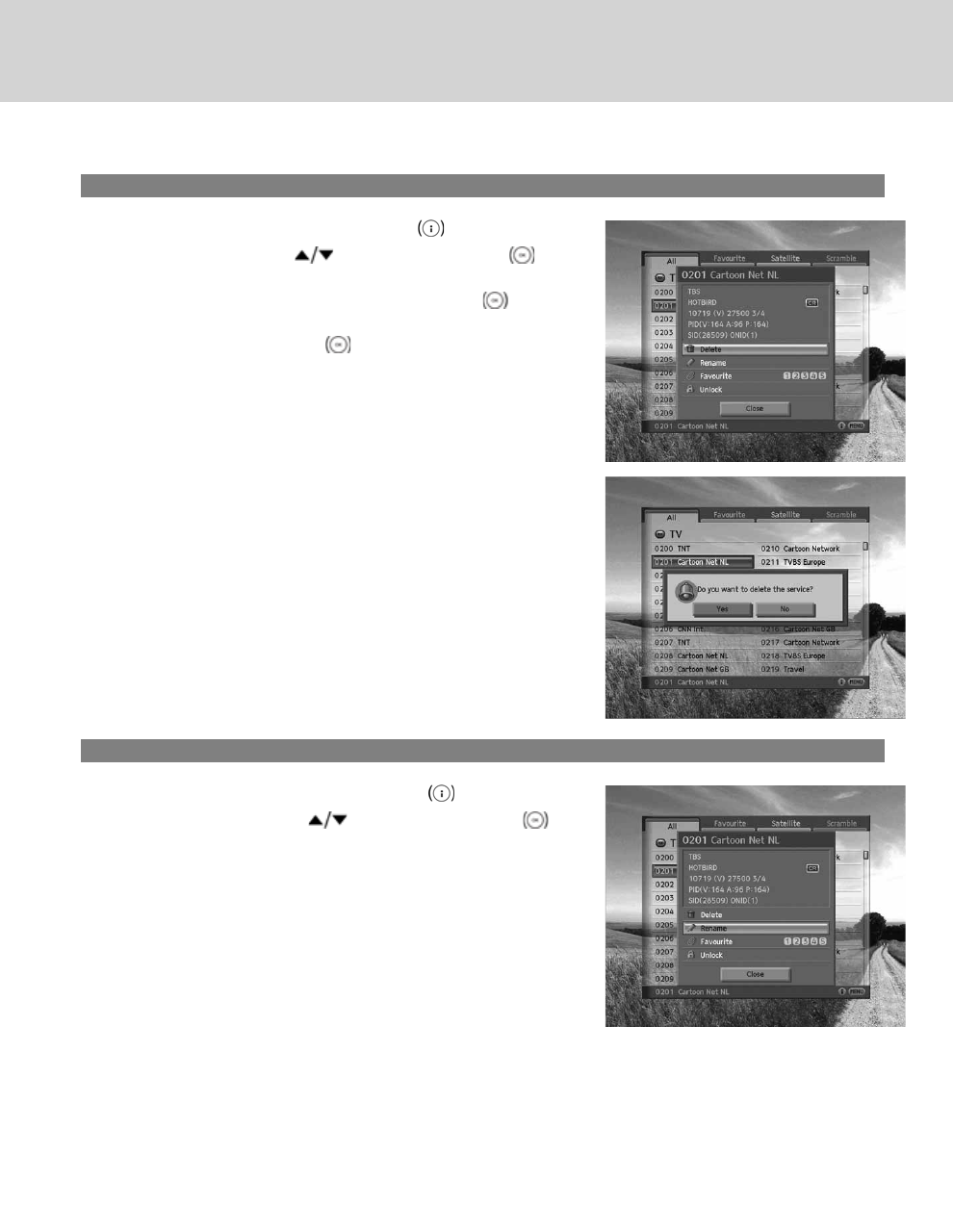
1. Deleting Channels
1. Select a channel to delete and press the ibutton.
2. Select Delete using the button and press the OK
button.
3. A pop-up will appear. Select Yes and press the OK button.
4. You will be prompted to enter your password. Enter your
password and press the OK button.
**
Note:
• You cannot delete items from Recent channel list or Favourite
channel list.
• The default password is 0000.
**
2. Renaming Channels
1. Select a channel to rename and press the ibutton.
2. Select Rename using the button and press the OK
button.
5. Channel List
GB 28
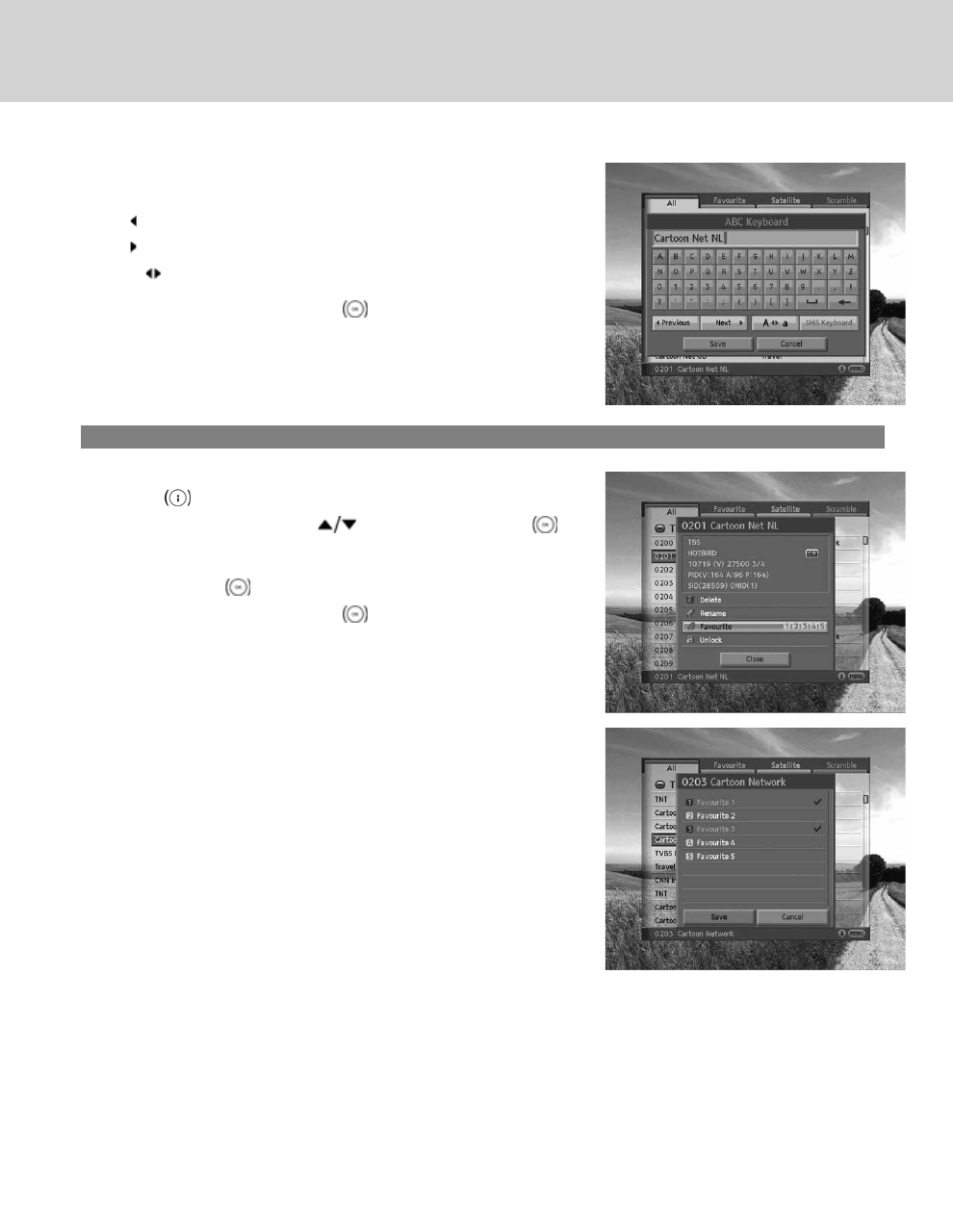
3. A keyboard will appear. Enter the name of the channel you wish
to rename.
Previous Switch to the previous keyboard.
Next Switch to the next keyboard.
A a Change to upper case/lower case keyboard.
**
4. Select Save and press the OK button to confirm your choice.
3. Including Channels in Favourite Group
1. Select a channel to put into the favourite channel list and press
the ibutton.
2. Select Favourite using the button and press the OK
button.
3. Select one or more groups from the five favourite groups and
press the OK button.
4. Select Save and press the OK button.
**
GB 29
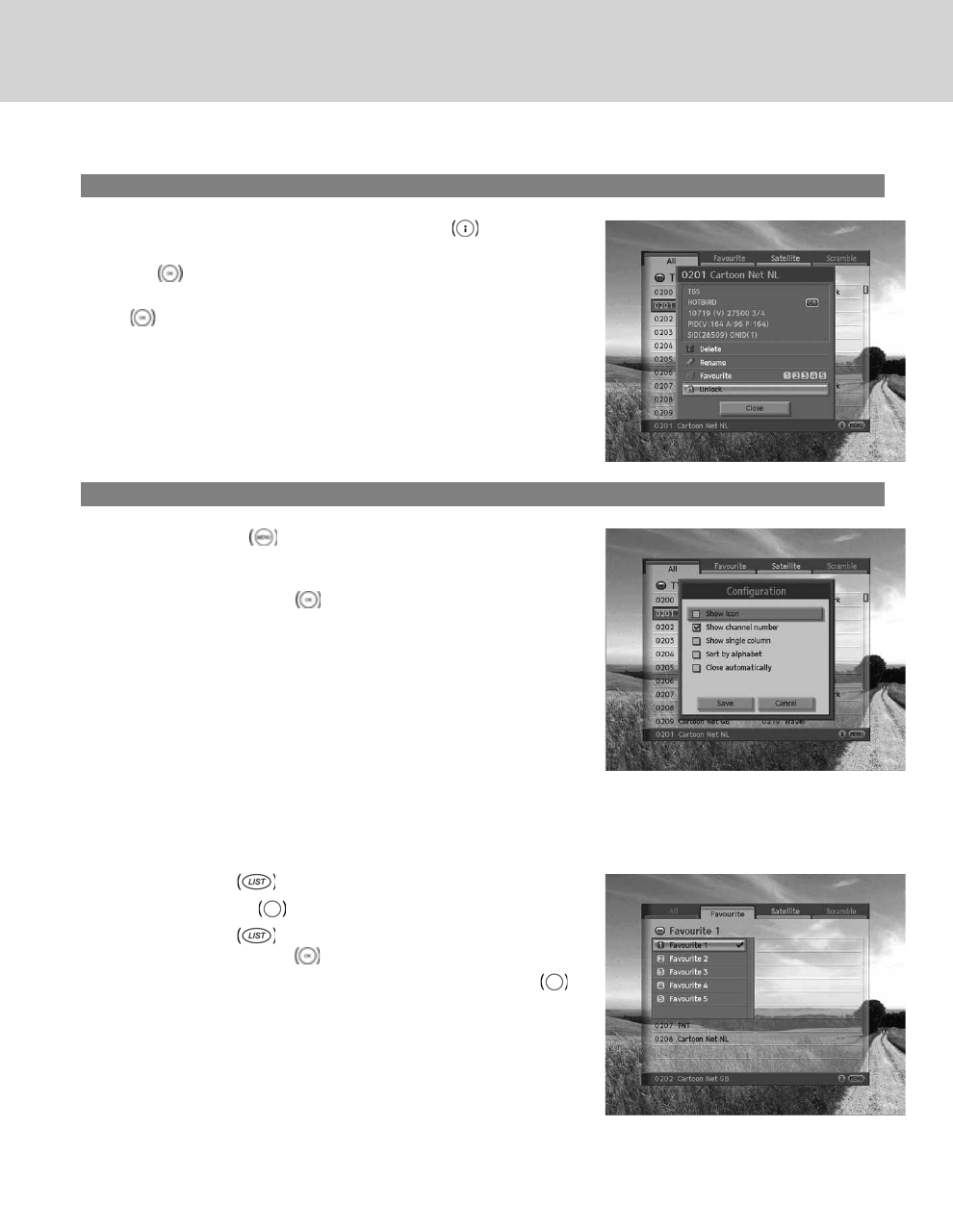
4. Using Lock/Unlock
1. Select a channel to lock/unlock and press the ibutton.
2. When locking an unlocked channel, select Unlock and press the
OK button. Unlock will become Lock.
3. When unlocking a locked channel, select Lock and press the OK
button. A pop-up requiring your password will appear. Enter
your password and Lock will become Unlock.
**
Note: The default password is 0000.
5. Configuring Menu
1. Press the MENU button on the remote control while the
channel list is displayed.
2. A list of options will show. Mark the required items and select
Save and press the OK button.
5.2 Favourite List
Favourite List is the list of the favourite channels the user has selected. There are five favourite groups in total.
1. Press the LIST button while watching a programme.
2. Press the GREEN button on the remote control.
3. Press the LIST button again and select a favourite group to
view, and press the OK button.
4. To change the favourite group displayed, press the GREEN
button again.
5. Channel List
GB 30
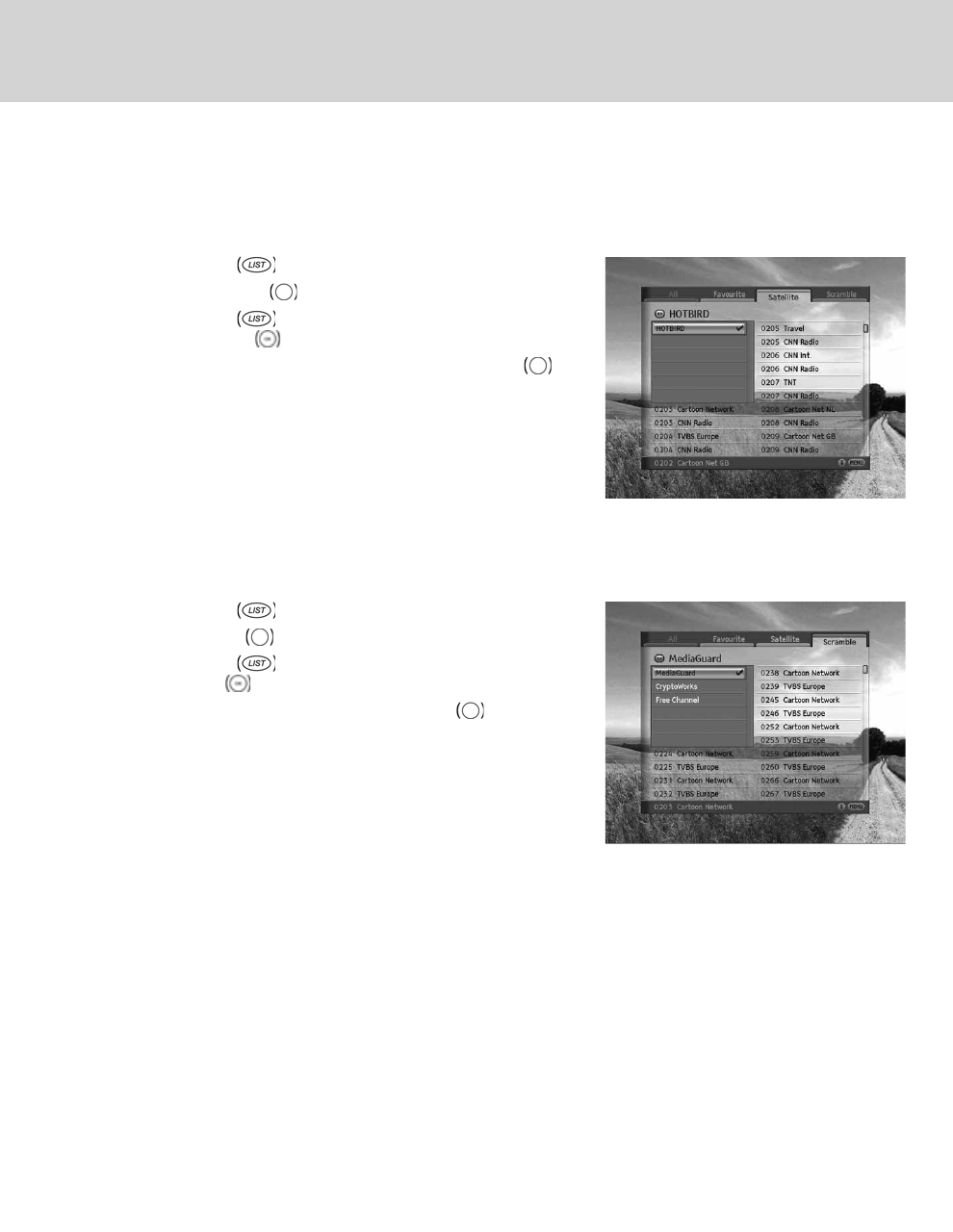
5.3 Satellite List
Satellite List displays the list of channels included in the satellite the user selects.
1. Press the LIST button while watching a programme.
2. Press the YELLOW button on the remote control.
3. Press the LIST button again and select a satellite to view,
and press the OK button.
4. To change the satellite list displayed, press the YELLOW
button again.
5.4 Scramble List
Scramble List is the list of channels included in the CAS the user selects.
1. Press the LIST button while watching a programme.
2. Press the BLUE button on the remote control.
3. Press the LIST button again and select a CAS to view, and
press the OK button.
4. To change the CAS displayed, press the BLUE button again.
GB 31
6. EPG
The EPG (Electronic Programme Guide) displays the detailed programme information of each channel, in time and
date order. You can customize your own programme guide to list the channels or programmes of interest to you and
schedule your viewing using the programme information.
**
Note: Press the EPG or BACK button to exit the EPG screen.
6.1 EPG Main
EPG Main enables you to view the programme information of a certain channel in time and date order. You can reserve
programmes, view contents information or view the channel list by date.
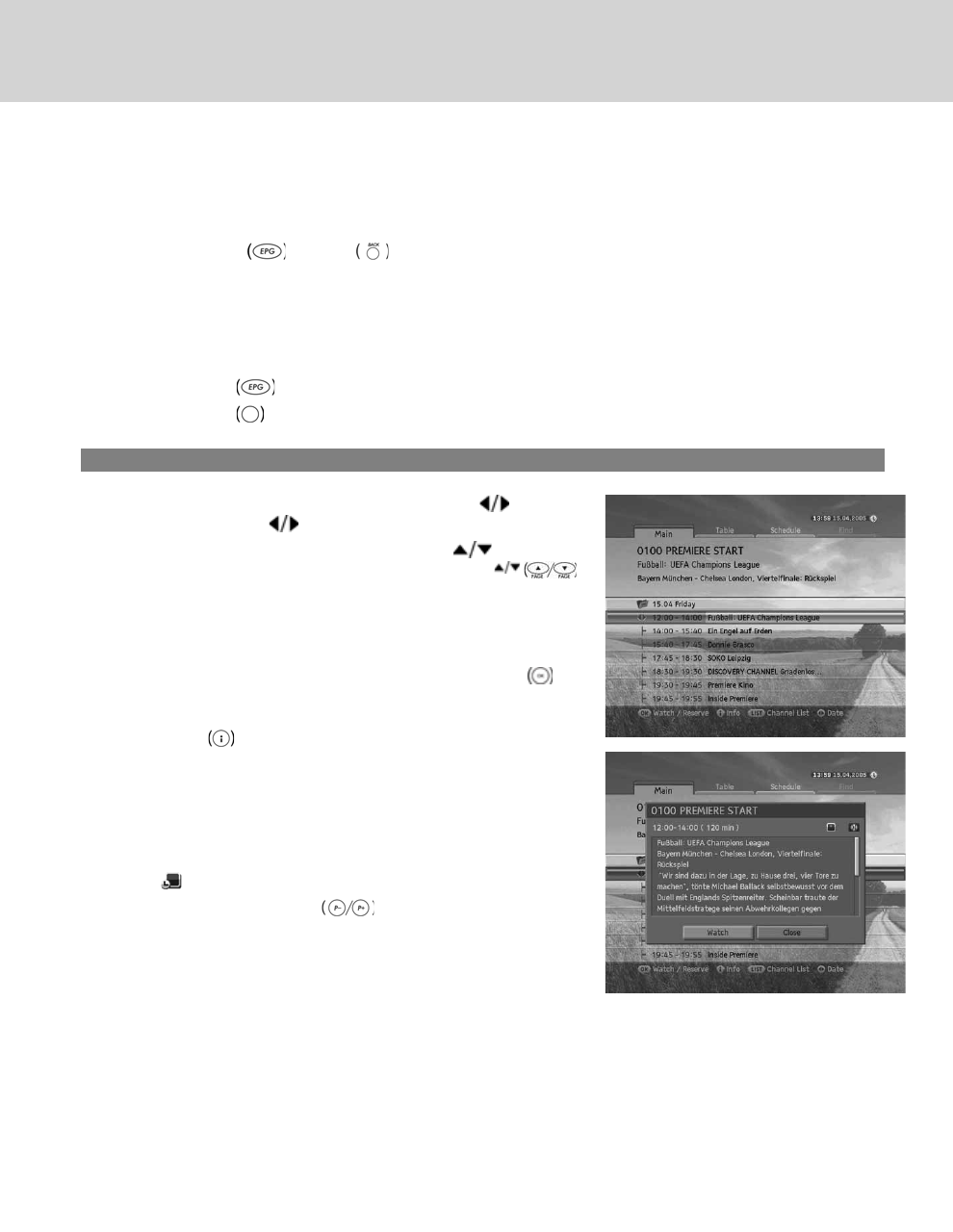
1. Press the EPG button.
2. Press the RED button on the remote control.
1. Using EPG
1. To view all programmes of a certain day, press the button.
To return, press the button.
2. To move to previous/next programmes use the button. If
the contents are more than one page, use the PAGE
button to skip to the next page.
3. You can enter the number of the channel using the
NUMERIC(0-9) buttons on the remote control to switch to a
certain channel.
4. Select the programme you wish to view and press the OK
button. You can watch the programme if it is currently on air or
reserve it if it is a future programme.
5. Press the ibutton to view detailed information of the chosen
programme.
**
Note:
• You can reserve the programme after viewing the programme
information. When the programme is currently on air,
Reservation is replaced by Watch.
• The icon indicates reserved programmes.
• You can also use the P-/P+ button or the channel list to
switch channels.
**
6. EPG
GB 32

2. Reserving Programmes
You can make reservations for the future programmes you wish to watch automatically.
1. Select the programme you want to reserve and press the OK
button. A pop-up will appear.
2. To change Channel, press the button. You can also enter
the channel number using the NUMERIC(0-9) buttons.
3. To change Start Time and End Time, enter the time using the
NUMERIC(0-9) buttons.
4. To change Date, press the button. You can also enter the
date using the NUMERIC(0-9) buttons.
5. To change Repeat frequency, press the button to choose
from Once, Daily and Weekly.
6. To change Programme Name, enter the name of the programme
in the screen keyboard. Select Save and press the OK
button.
**
Note: The default password is 0000.
**
3. Channel List
You can change the channel using the channel list.
1. Press the LIST button to view the channel list.
2. Select the channel you want using the button and press the
OK button. If the contents are more than one page, use
PAGE button to skip to the next page.
3. The EPG for the selected channel is displayed.
**
Note: You can switch between TV/radio by simply pressing the
TV/RADIO button on the remote control.
GB 33

6.2 EPG Table
EPG Table displays the programme information of each channel based on the date and time. You can look up the
programmes and make reservations.
1. Press the EPG button.
2. Press the GREEN button to display EGP table.
3. Move to the previous/next programme within the same channel
using the button.
4. Move to another channel using the button. If the contents
are more than one page, use PAGE button to skip to
the next page. You can enter the channel number you wish to
view using the NUMERIC(0-9) buttons.
5. Press the OK button to view the programme now or reserve
if it is a future programme.
6.3 Schedule List
Schedule List displays the list of the programmes reserved. You can modify, delete or make new reservations.
1. Press the EPG button.
2. Press the YELLOW button to display the schedule list.
3. The reserved programmes will be displayed in time order.
4. Select the programme you want to edit using the button
and press the OK button.
**
Note: Press the ibutton to view detailed programme information.
1. Modifying Schedule
1. Select Modify using the button and press the OK
button.
2. Reservation pop-up will appear. Enter the modified values and
press the OK button.
6. EPG
GB 34

2. Deleting Schedule
1. Select Delete using the button and press the OK button.
2. A pop-up will appear. Select Yes and press the OK button.
3. New Reservation
1. Select a blank space using the button and press the OK button.
2. Reservation pop-up will appear. Enter the channel number, start/end time, date, repeat frequency and
programme name and press the OK button. (Refer to 2. Reserving Programmes in EPG Main.)
**
Note:
• Reservations for deleted channels or past programmes are automatically deleted.
• In case the channel number has changed, reservation has to be done again.
6.4 Find Programme
Find Programme enables you to find the programme you want by entering the genre, name, time and the day of the
programme.
1. Press the EPG button.
2. Press the BLUE button to find programme.
3. Enter the genre, name, time and day of the programme.
**
Note: If you select Reset and press the OK button, the default
value will appear.
1. Choosing Genre
1. Select Genre using the button and press the OK
button.
2. Select the applicable genre using button and press
the OK button.
3. Select Save and press the OK button to complete.
**
Note: You can select up to three types of genres.
GB 35
**
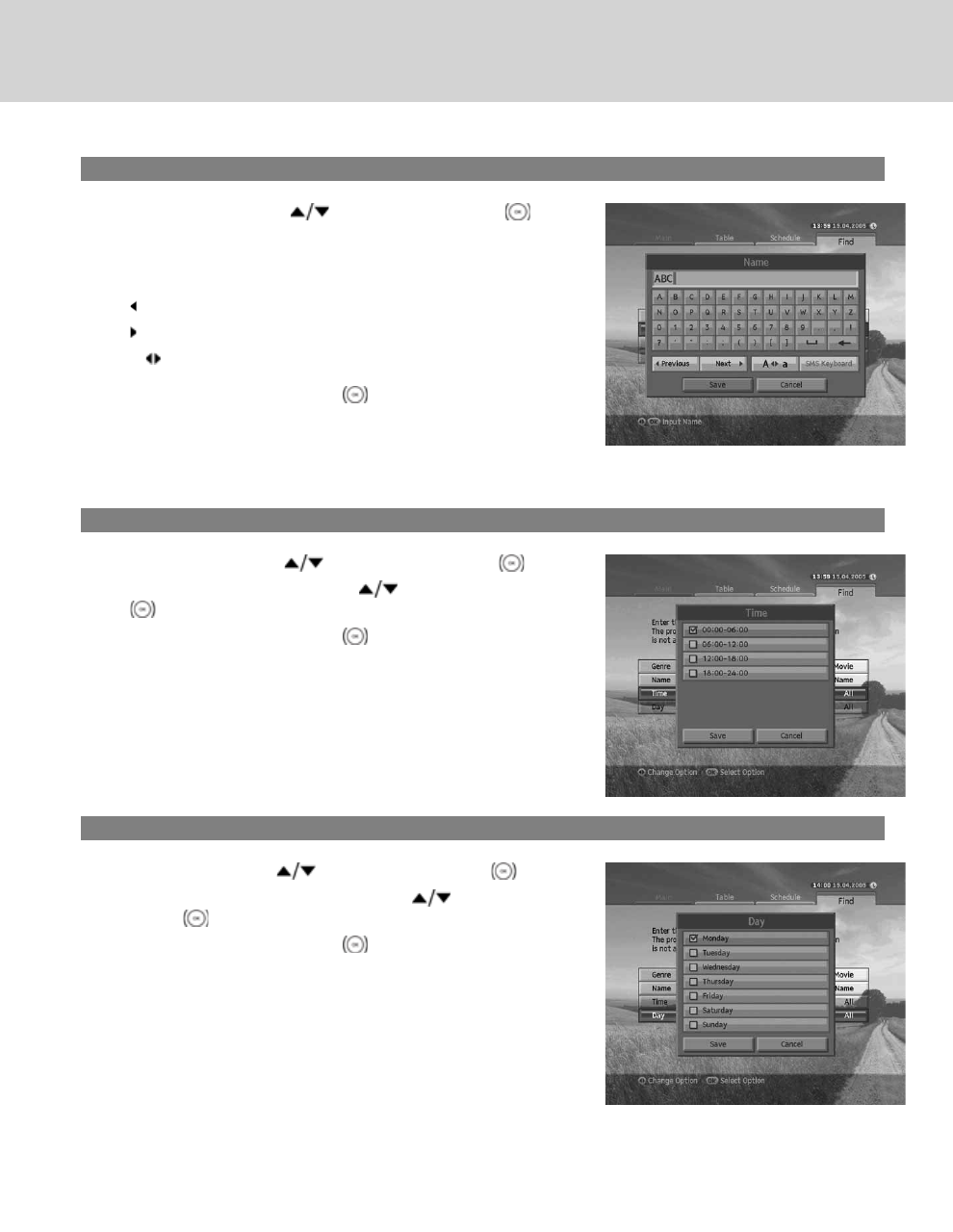
2. Entering Programme Name
1. Select Name using the button and press the OK
button.
2. Keyboard will appear. Enter the programme name on the
keyboard screen.
Previous Switch to the previous keyboard.
Next Switch to the next keyboard.
A a Change to upper case/lower case keyboard.
**
3. Select Save and press the OK button to complete.
**
Note: You have to enter more than three letters. However, entering too many letters may cause error.
3. Search by Time
1. Select Time using the button and press the OK button.
2. Select the specific time using the button and press the OK
button.
3. Select Save and press the OK button to complete.
4. Search by Day of Week
1. Select Day using the button and press the OK button.
2. Select the specific day of week using the button and press
the OK button.
3. Select Save and press the OK button to complete.
6. EPG
GB 36
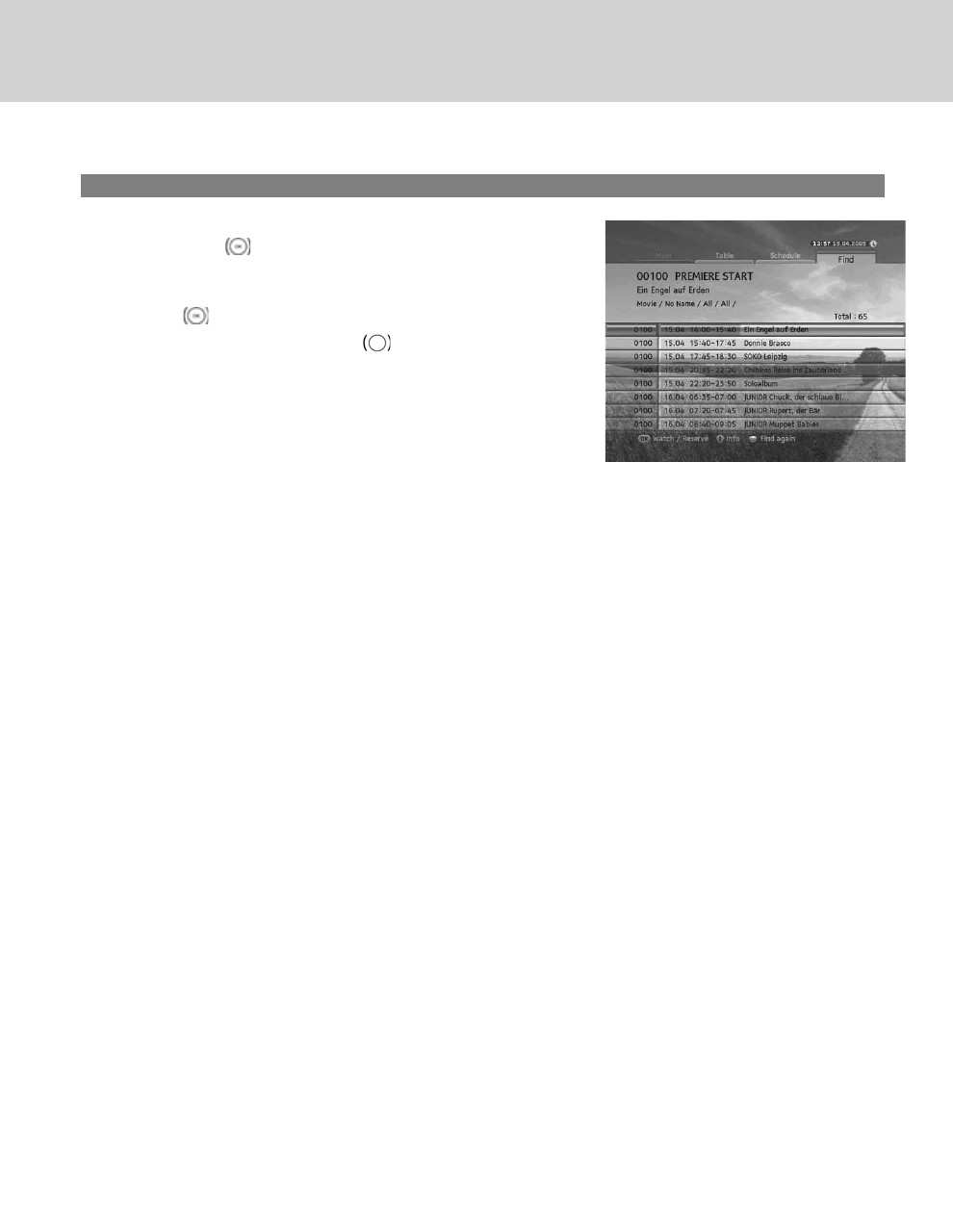
5. Search Result
1. After setting more than one required value, select Start and
press the OK button to proceed.
2. The search result of the entered values will appear.
3. To reserve a programme, select a future programme and press
the OK button.
4. To search again, press the BLUE button.
GB 37
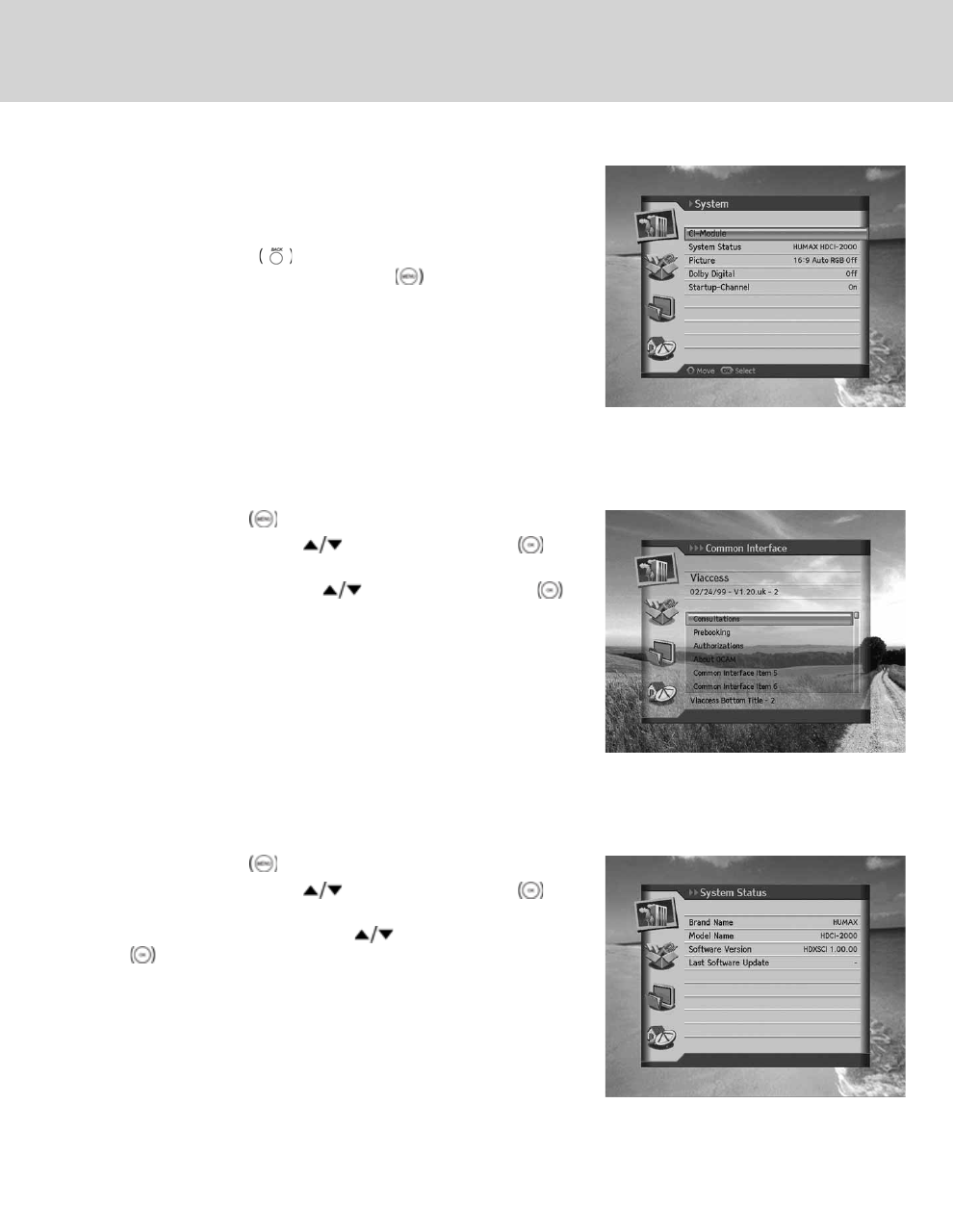
7. System
In this chapter you can easily access the service features of the
product. options such as CI-Module, system status, picture, Dolby
Digital and startup-channel are included in System.
**
Note: Press the BACK button to save the changes and return to
the previous menu. Press the MENU button to exit the
Menu screen.
7.1 CI-Module
CI-Module shows you the current status of the Common Interface module.
1. Press the MENU button.
2. Select System using the button and press the OK
button.
3. Select CI-Module using the button and press the OK
button.
4. The CI-Module information will be displayed.
**
Note: The displayed information about each Common Interface may
differ depending on the type of Common Interface.
7.2 System Status
System Status allows you to view the system information of the product.
1. Press the MENU button.
2. Select System using the button and press the OK
button.
3. Select System Status using the button and press the OK
button.
4. The system information of the product will be displayed.
**
Note: The information displayed may differ.
7. System
GB 38
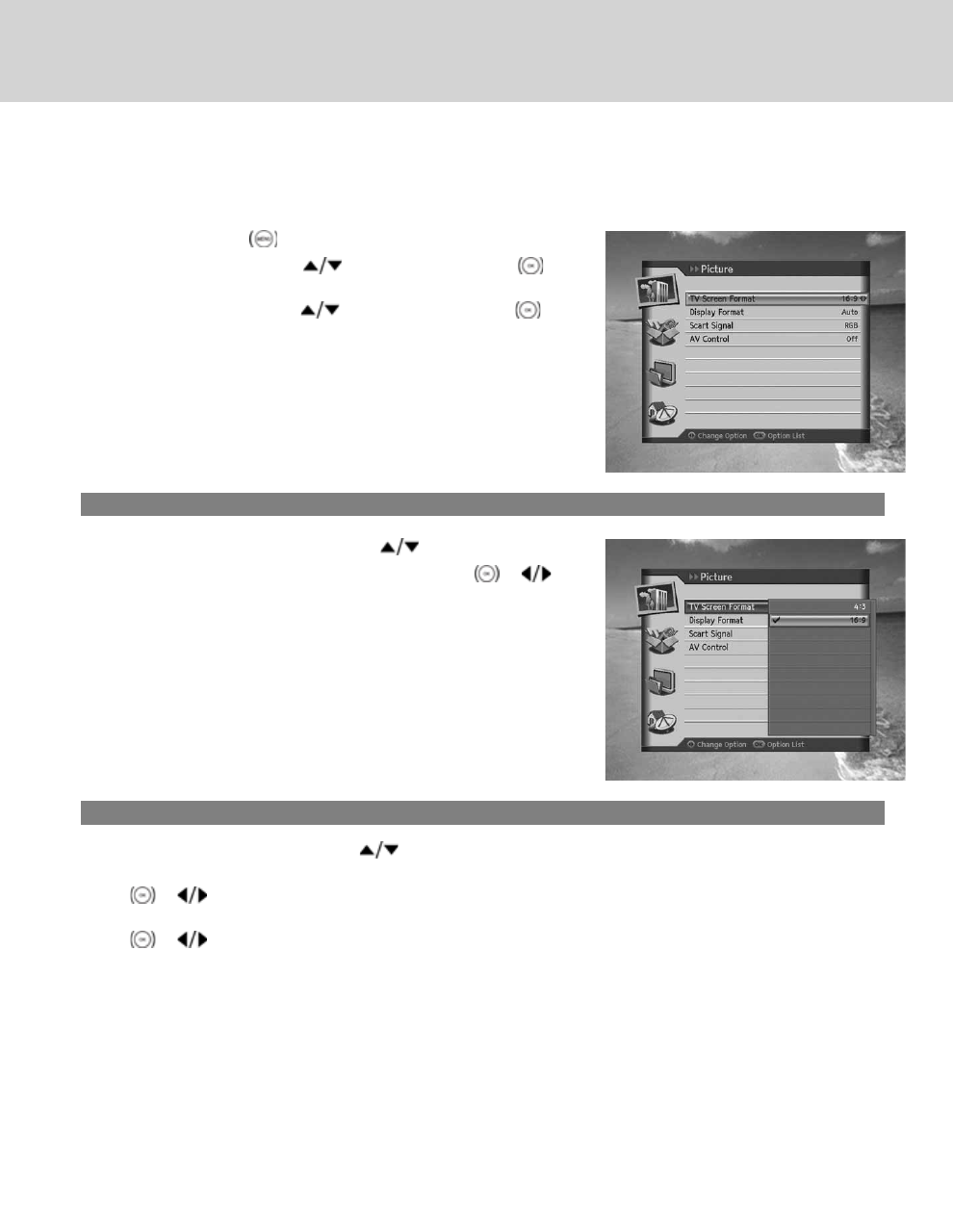
7.3 Picture
1. Press the MENU button.
2. Select System using the button and press the OK
button.
3. Select Picture using the button and press the OK
button.
1. TV Screen Format
1. Select TV Screen Format using the button.
2. Select one option from 4:3 and 16:9 using the OK or
button.
2. Display Format
1. Select Display Format using the button.
2. When choosing 4:3 as picture format, select one option among Auto, Letter Box and Center Mode using the OK
or button.
3. When choosing 16:9 as picture format, select one option among Auto, Pillar Box and Full Mode using the OK
or button.
GB 39
3. Scart Signal
1. Select Scart Signal using the button.
2. Select one option among CVBS, RGB and S-Video using the OK or button.
4. AV Control
1. Select AV Control using the button.
2. Select On/Off using the OK or button.
3. When you select Off, a notice will appear. Read carefully and select Yes.
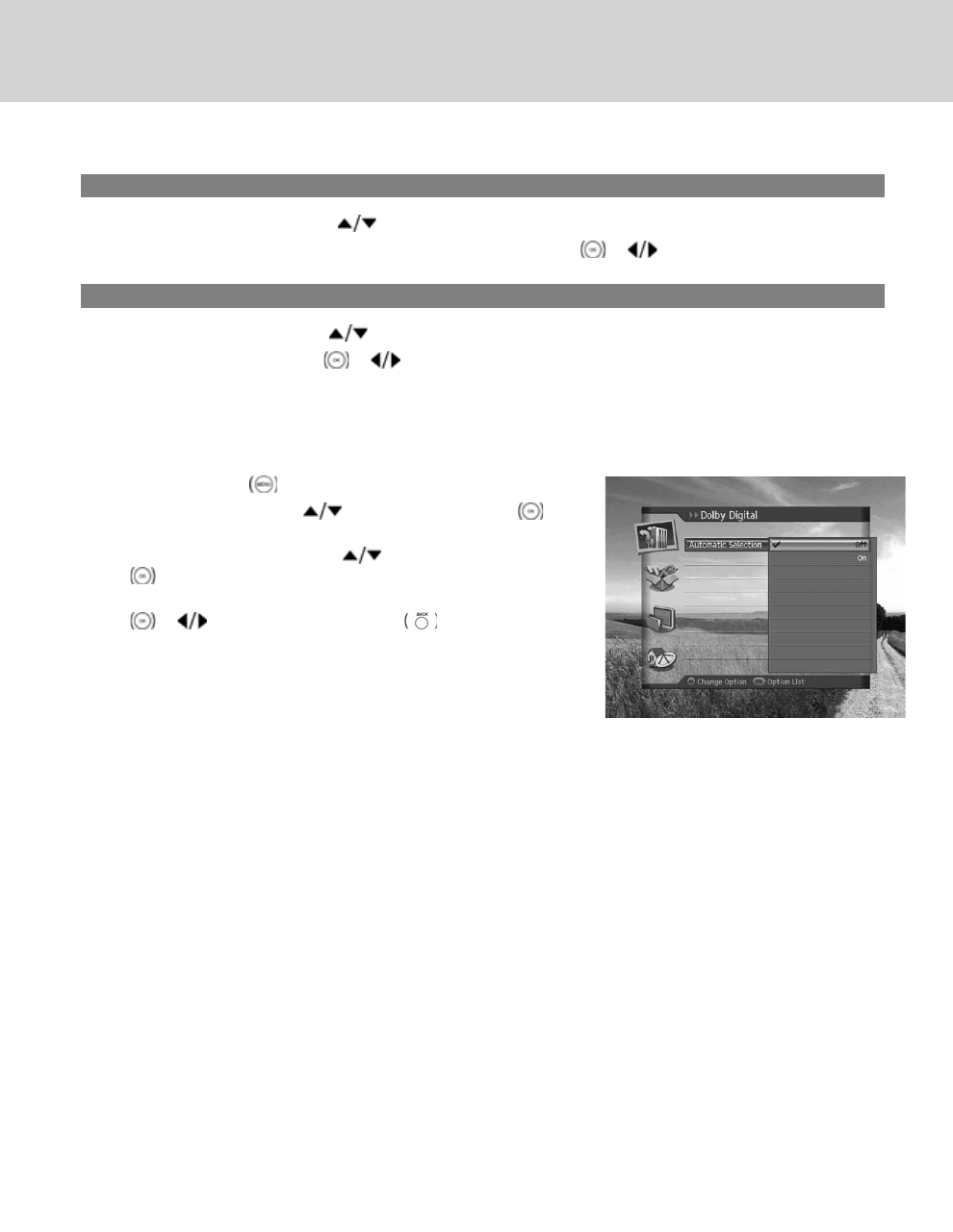
7.4 Dolby Digital
1. Press the MENU button.
2. Select System using the button and press the OK
button.
3. Select Dolby Digital using the button and press the OK
button.
4. Automatic Selection will appear. Select On/Off using the OK
or button and press the BACK button to set the
value.
7. System
GB 40
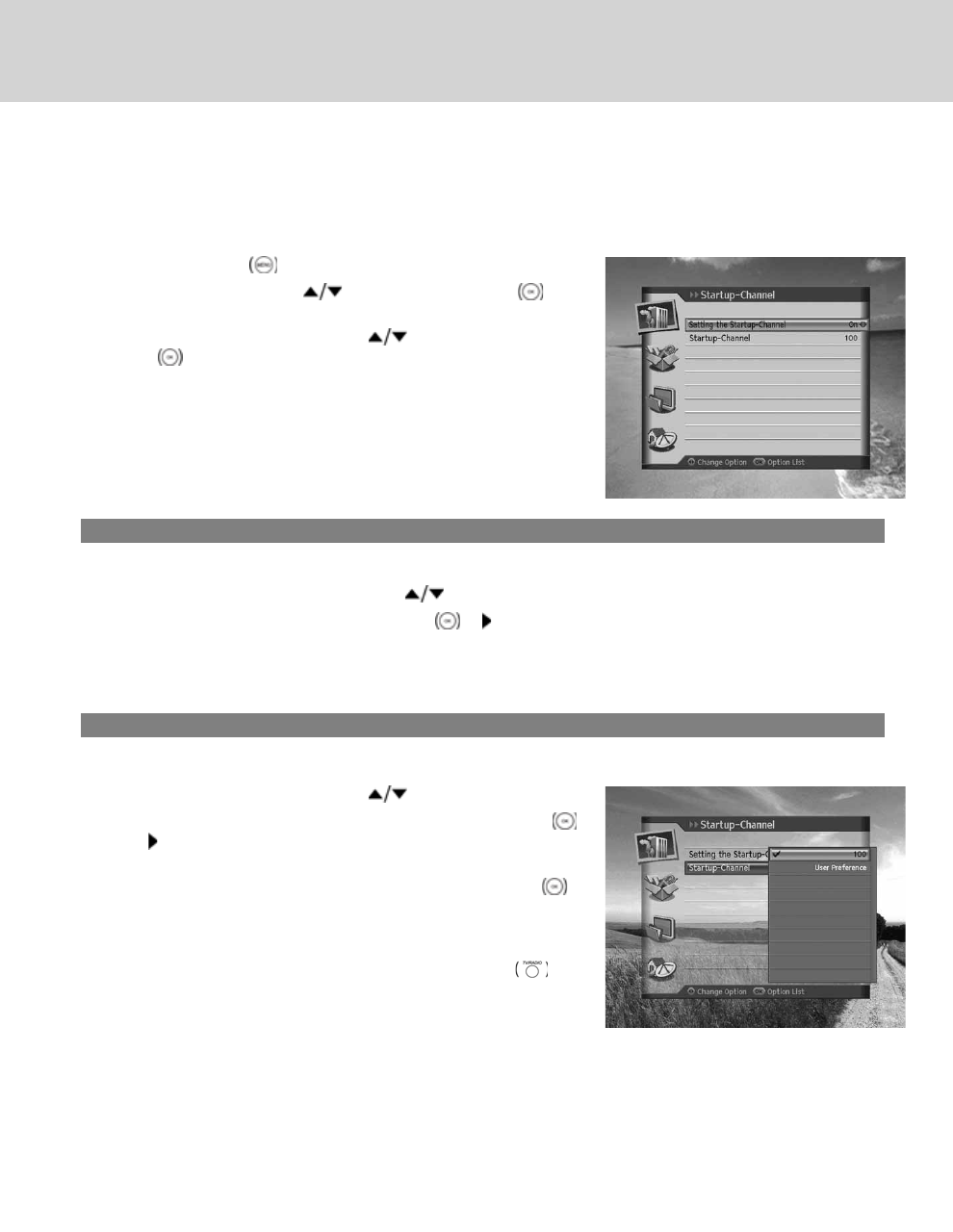
7.5 Startup-Channel
You can assign a certain channel to be displayed when the product is turned on.
1. Press the MENU button.
2. Select System using the button and press the OK
button.
3. Select Startup-Channel using the button and press the
OK button.
1. Setting the Startup-Channel
You can choose to assign a certain channel to be displayed when powering on.
1. Setting the Startup-Channel using the button.
2. Select one option from On/Off using the OK or button.
On The assigned channel will be displayed when powering on.
Off The last channel you have watched will be displayed when powering on.
2. Startup-Channel
You can assign a preferred channel as the start channel.
1. Select Startup-Channel using the button.
2. Select one option from 100 or User preference using the OK
or button.
3. When you have selected User preference, enter the channel
number using the NUMERIC(0-9) buttons and press the OK
button.
**
Note: When Off is selected, Start Channel Number is inactivated.
You can switch to TV/radio by pressing the TV/RADIO
button on the remote control.
GB 41
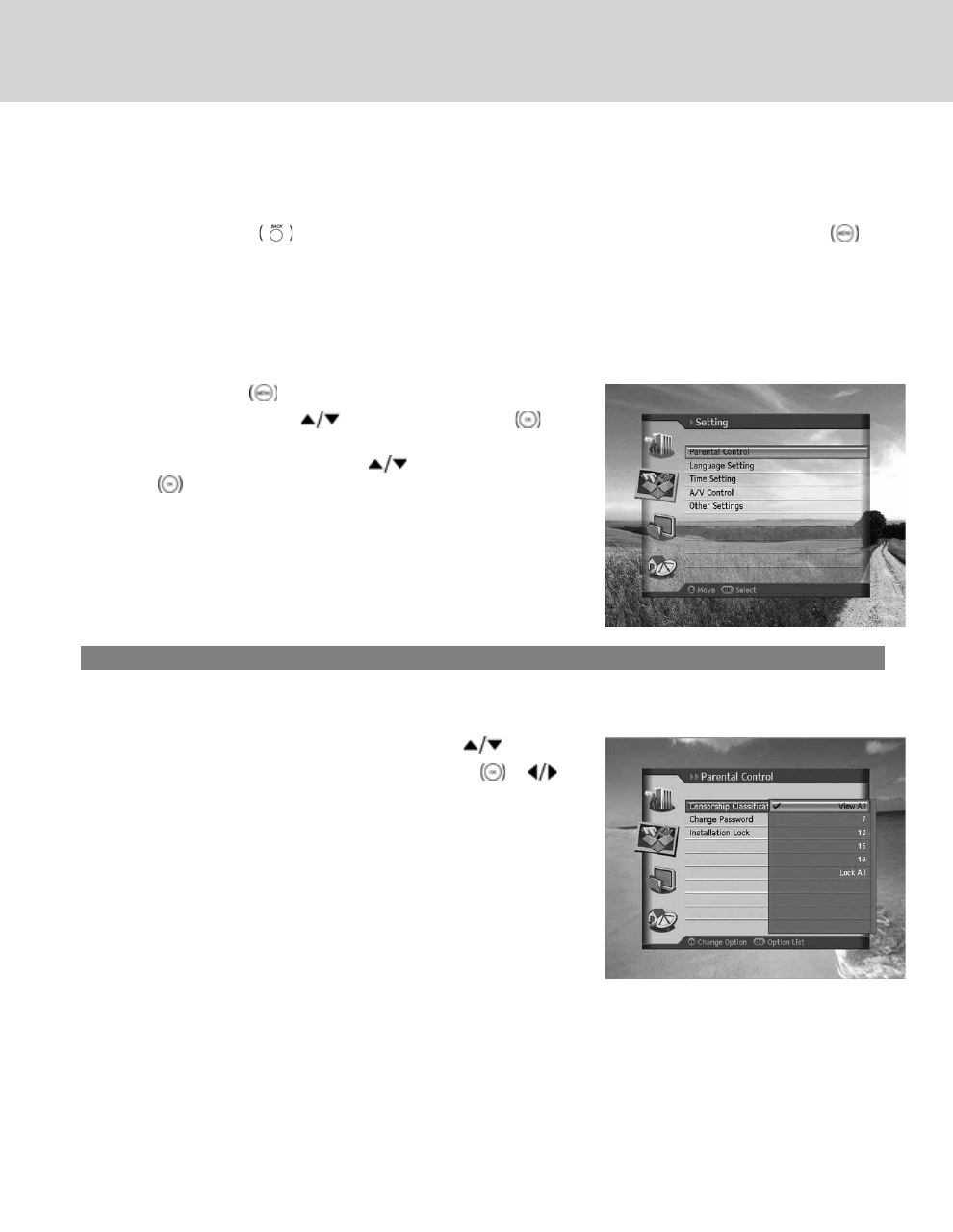
8. Setting
In this chapter you can set parental control, language setting, time setting, A/V setting and other configuration items to
keep limitations where you want them for the viewers.
**
Note: Press the BACK button to save the changes and return to the previous menu. Press the MENU
button to exit the menu screen.
8.1 Parental Control
Parental Control allows you to set rating limits for each programme according to the age of the viewer or change your
previous password. You can also lock the changes you have made by operating installation lock.
1. Press the MENU button.
2. Select Setting using the button and press the OK
button.
3. Select Parental Control using the button and press the
OK button.
4. You will be prompted to enter a password. Enter the password
using the NUMERIC(0-9) buttons.
**
Note: The default password is 0000.
1. Censorship Classification
Censorship Classification enables you to place certain restrictions on the viewers by setting age limits and require a
password to view the blocked programmes.
1. Select the Censorship Classification using the button.
2. Select the Age Level you wish to set using the OK or
button.
View All All programmes can be watched because there is no
age limitation.
7Programmes are blocked for those under the age 7.
12 Programmes are blocked for those under the age 12.
15 Programmes are blocked for those under the age 15.
18 Programmes are blocked for those under the age 18.
Lock All All Programmes are blocked.
**
Note:
• You have to enter your password to watch the programme blocked by the age restriction.
• The default password is 0000.
8. Setting
GB 42
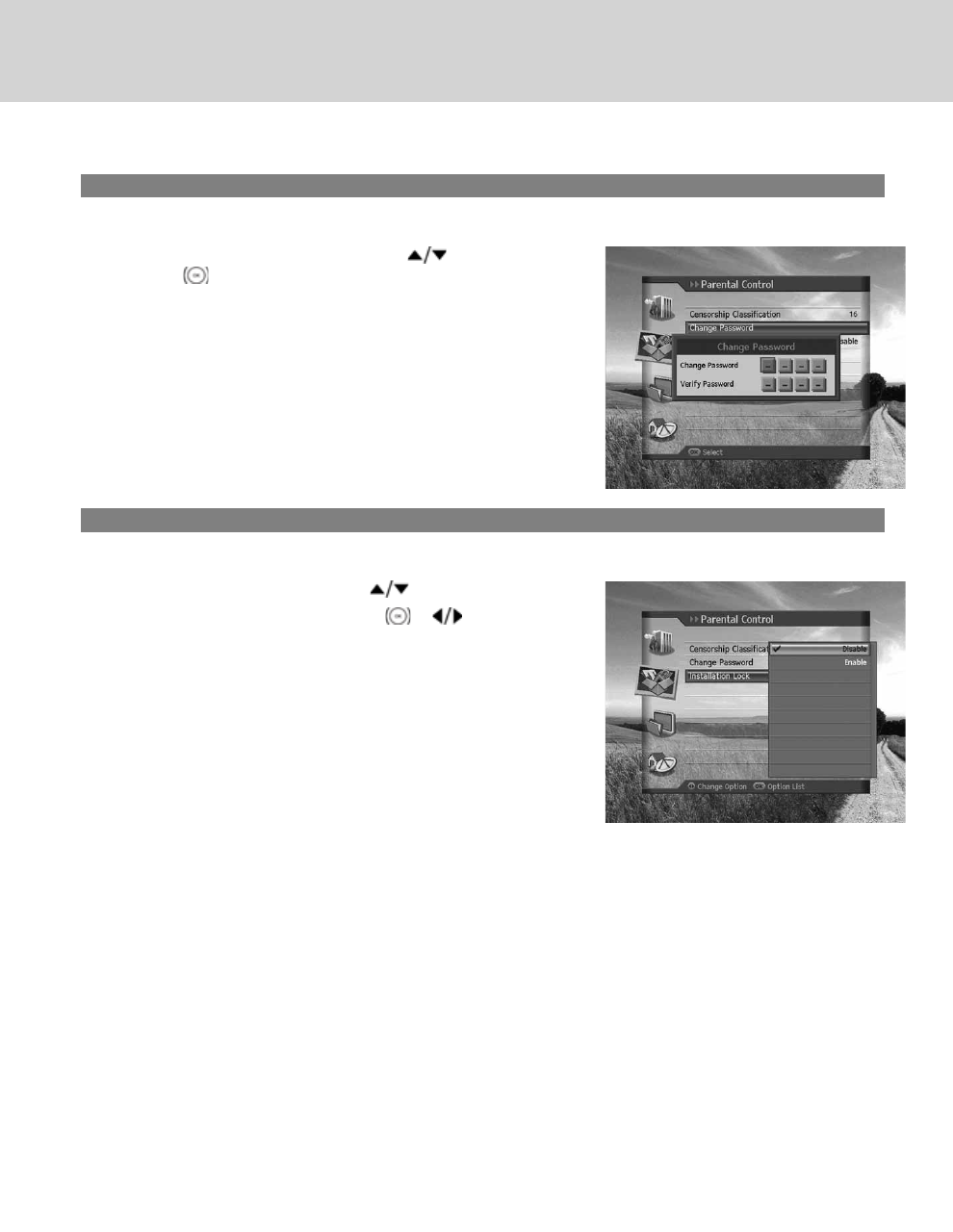
2. Change Password
Change Password allows you to change the current password.
1. Select the Change Password using the button and press
the OK button.
2. Enter New Password using the NUMERIC(0-9) buttons.
3. Enter New Password again to confirm Verify Password.
**
Note: The default password is 0000.
3. Installation Lock
Installation Lock allows you to block access to the installation menu settings you have previously made.
1. Select Installation Lock using the button.
2. Select Enable/Disable using the OK or button.
Enable Password is necessary when accessing installation
menu.
Disable Access to installation menu is permitted without
password.
GB 43
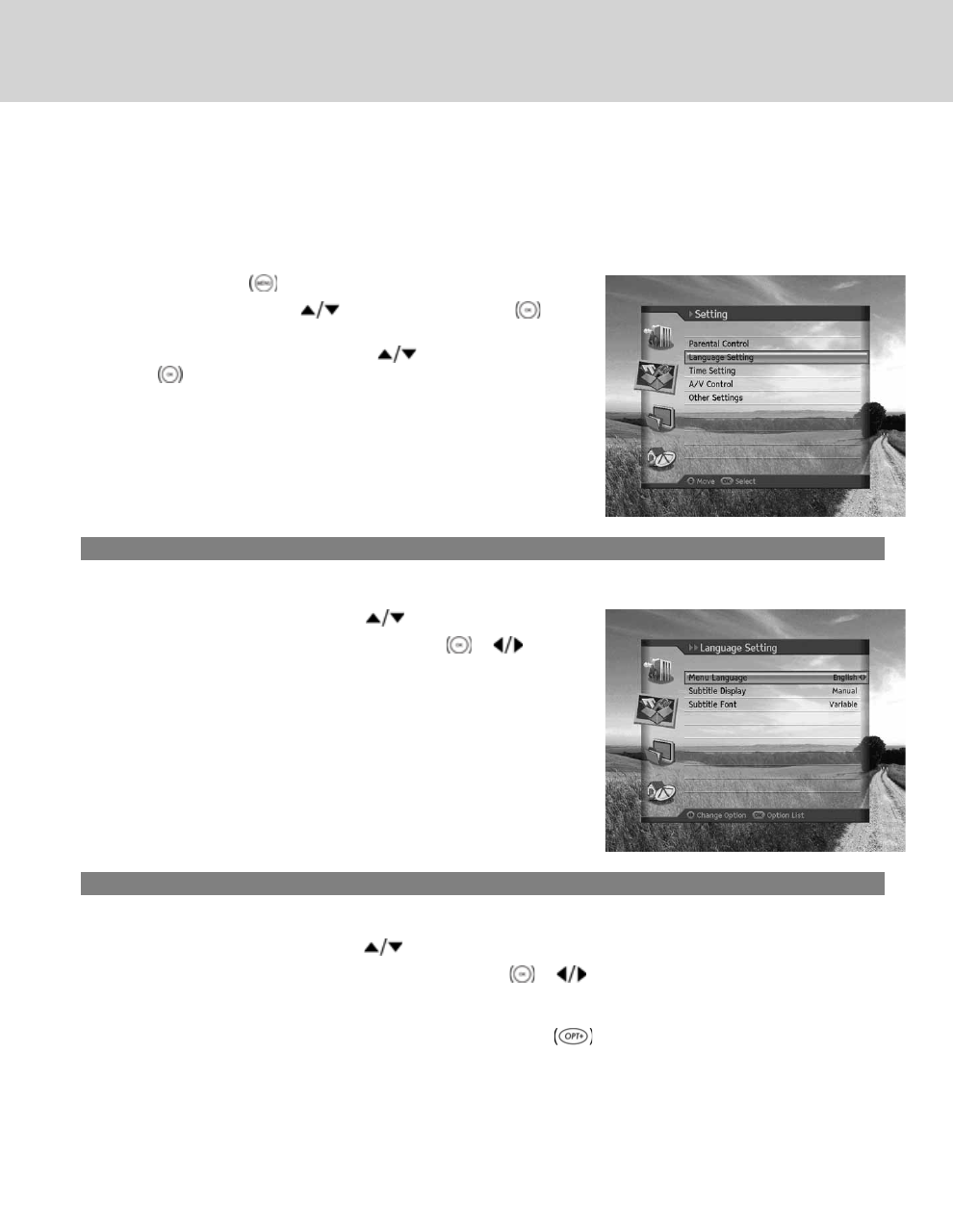
8.2 Language Setting
Language Setting enables you to set the basic language options such as menu language, subtitle display and subtitle
font.
1. Press the MENU button.
2. Select Setting using the button and press the OK
button.
3. Select Language Setting using the button and press the
OK button.
1. Menu Language
Menu Language allows you to choose from the given language options and set the language for the menu.
1. Select Menu Language using the button.
2. Select the language you require using the OK or button.
2. Subtitle Display
Subtitle Display allows you to show the subtitles automatically. This service is provided when subtitles are available.
1. Select Subtitle Display using the button.
2. Select one option from Auto and Manual using the OK or button.
Auto Subtitles are displayed automatically in the predefined subtitle language.
Manual Subtitles are displayed when you press the OPT+ button on the remote control and set subtitle.
8. Setting
GB 44
3. Subtitle Font
Subtitle Font enables you to select the font of the subtitle.
1. Select Subtitle Font using the button.
2. Select one option from Variable and Fixed using the OK or button.
Variable Uses the horizontally variable subtitle font.
Fixed Uses the fixed subtitle font.
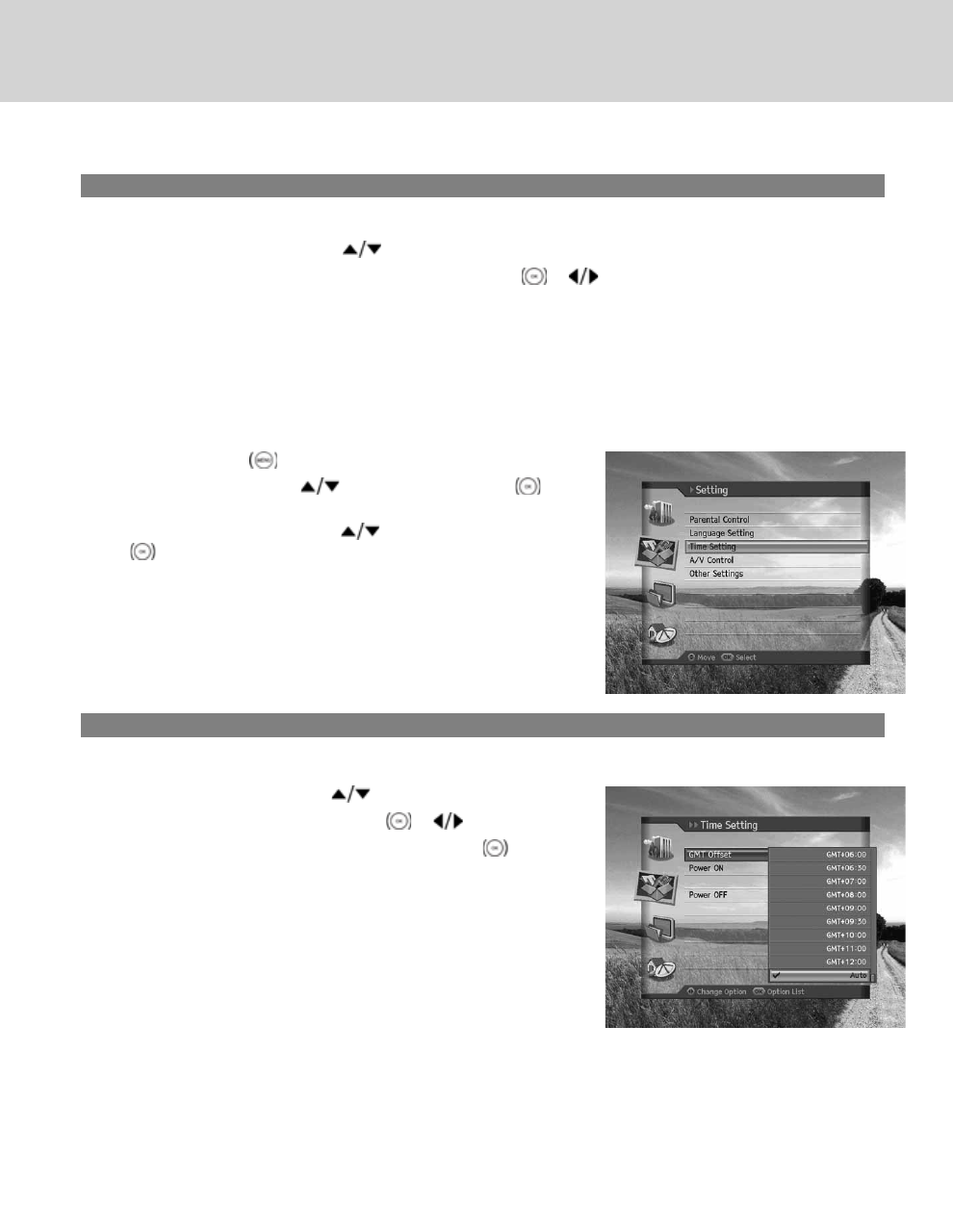
8.3 Time Setting
Time Setting allows you to set the current time or set the time you want to turn on/off the product.
1. Press the MENU button.
2. Select Setting using the button and press the OK
button.
3. Select Time Setting using the button and press the OK
button.
1. GMT Offset
You can set the current time using GMT Offset.
1. Select GMT Offset using the button.
2. Select your GMT offset using the OK or button.
3. A pop-up will appear. Select Yes and press the OK button.
**
Note:
• The current time is set automatically whenever GMT offset
changes.
• GMT can be changed in 30 minutes/1 hour units.
GB 45
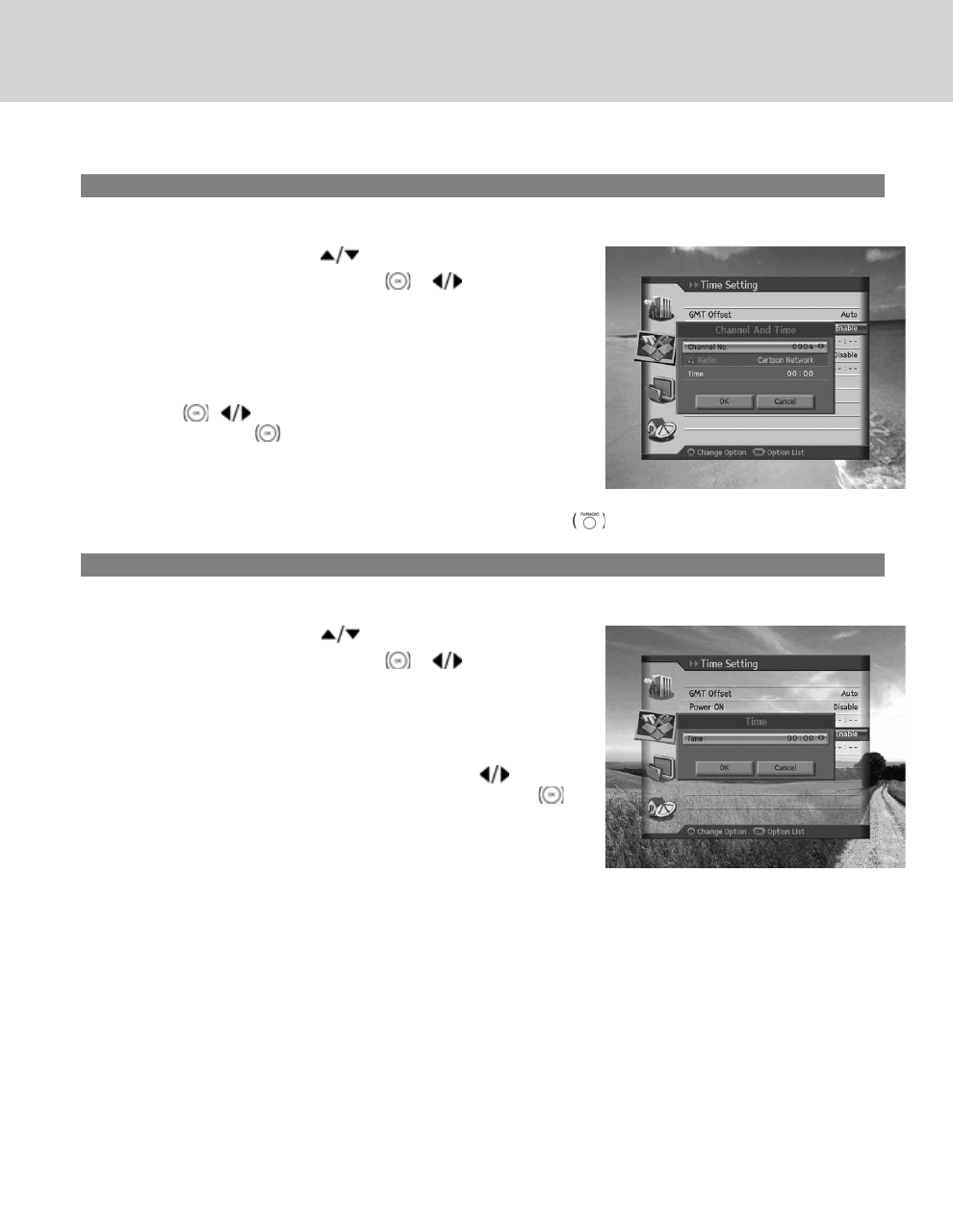
2. Power On
You can set the time you want the product to be automatically turned on.
1. Select Power On using the button.
2. Select Enable/Disable using the OK or button.
Enable Uses Power On and sets the time the product should
be turned on.
Disable Does not use Power On.
**
3. When you select Enable, enter the Channel No. and Time using
the OK , or NUMERIC(0-9) buttons. Then, select OK
and press the OK button.
**
Note: To enter a radio channel in Channel No., press the TV/RADIO button to switch to radio.
3. Power Off
You can set the time you want the product to be automatically turned off.
1. Select Power Off using the button.
2. Select Enable/Disable using the OK or button.
Enable Uses Power Off and sets the time the product should
be turned off.
Disable Does not use Power Off.
**
3. When you select Enable, enter the Time using the or
NUMERIC(0-9) buttons. Then, select OK and press the OK
button.
**
Note: Once Power On/Off has been set, it is repeated everyday.
8. Setting
GB 46
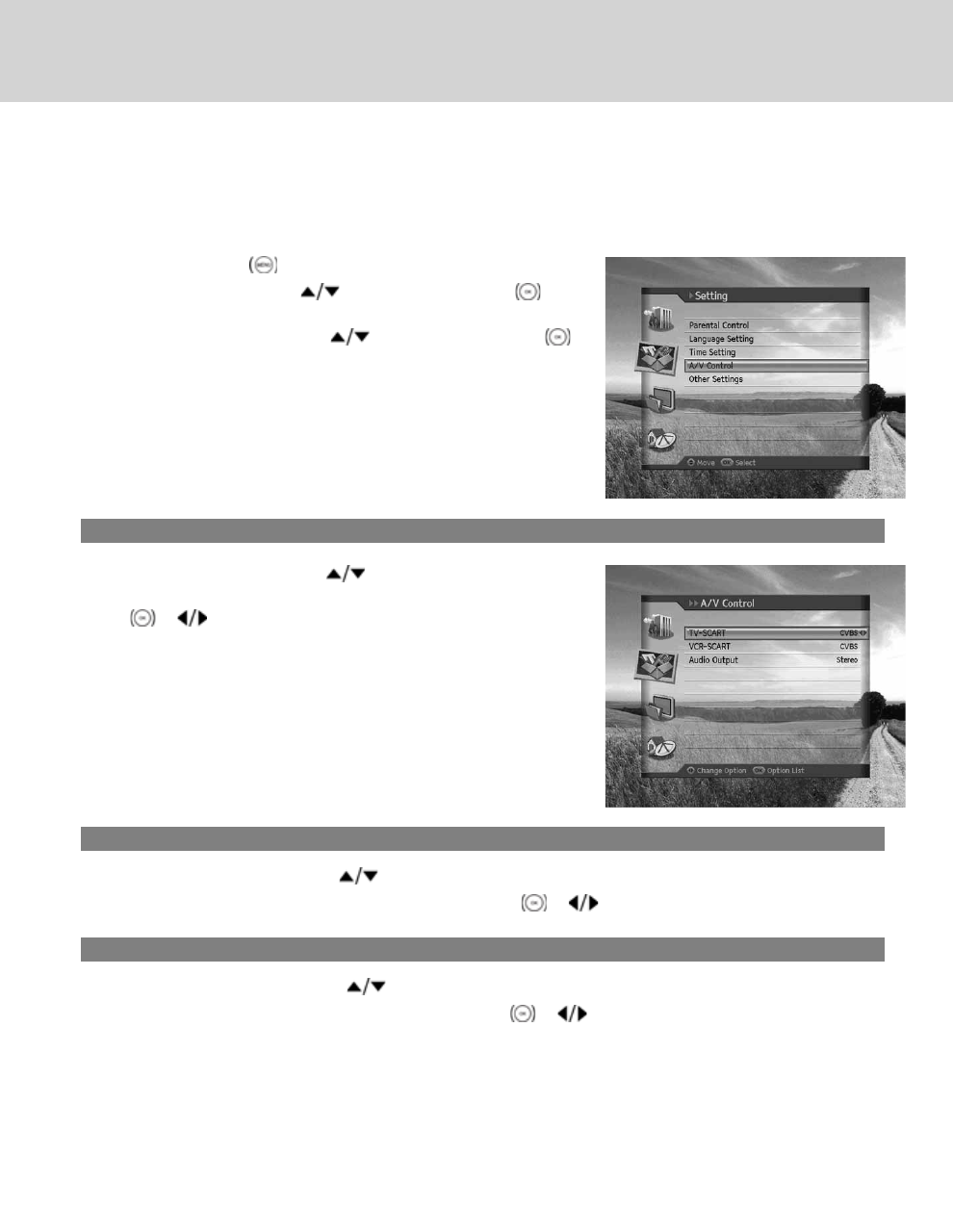
8.4 A/V Setting
You can set the output of the audio or video.
1. Press the MENU button.
2. Select Setting using the button and press the OK
button.
3. Select A/V Setting using the button and press the OK
button.
1. TV-SCART
1. Select TV-SCART using the button.
2. Select one option among CVBS, RGB and S-Video using the OK
or button.
2. VCR-SCART
1. Select VCR-SCART using the button.
2. Select one option from CVBS and S-Video using the OK or button.
3. Audio Output
1. Select Audio Output using the button.
2. Select one option from Mono and Stereo using the OK or button.
GB 47
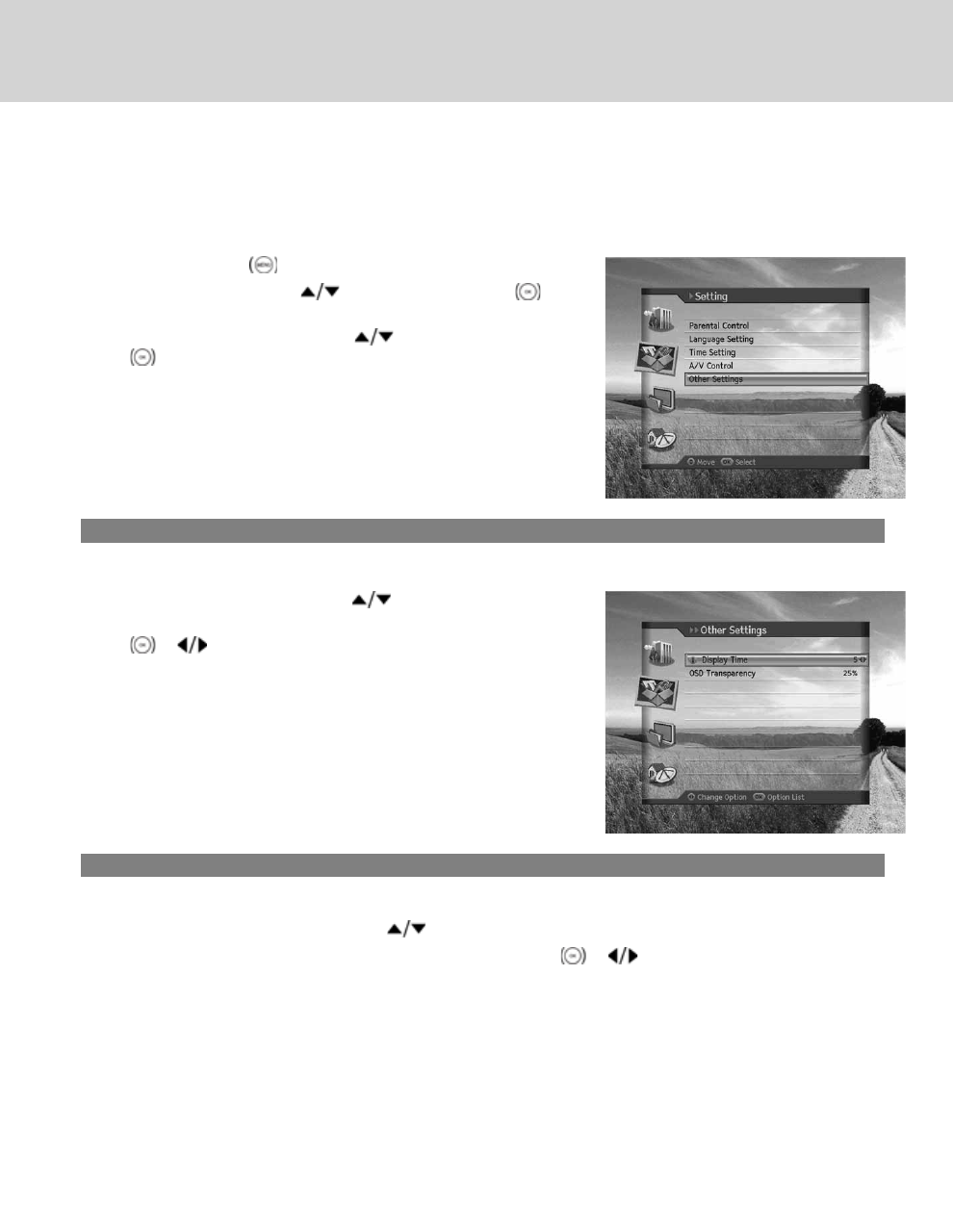
8.5 Other Settings
You can configure other settings.
1. Press the MENU button.
2. Select Setting using the button and press the OK
button.
3. Select Other Settings using the button and press the OK
button.
1. i Display Time
You can set the automatic display time of the information box when the channel is switched.
1. Select i Display Time using the button.
2. Select a value between Disable ,1~ 20 seconds using the OK
or button.
**
Note: When set to Disable, the i-plate will not be displayed when you
switch the channel.
2. OSD Transparency
You can set the transparency of On Screen Display.
1. Select OSD Transparency using the button.
2. Select one option among Disable, 25, 50 and 75 using the OK or button.
Disable Fully opaque screen
25, 50, 75 The bigger the number, the more transparent the screen.
8. Setting
GB 48
9. Edit Channels
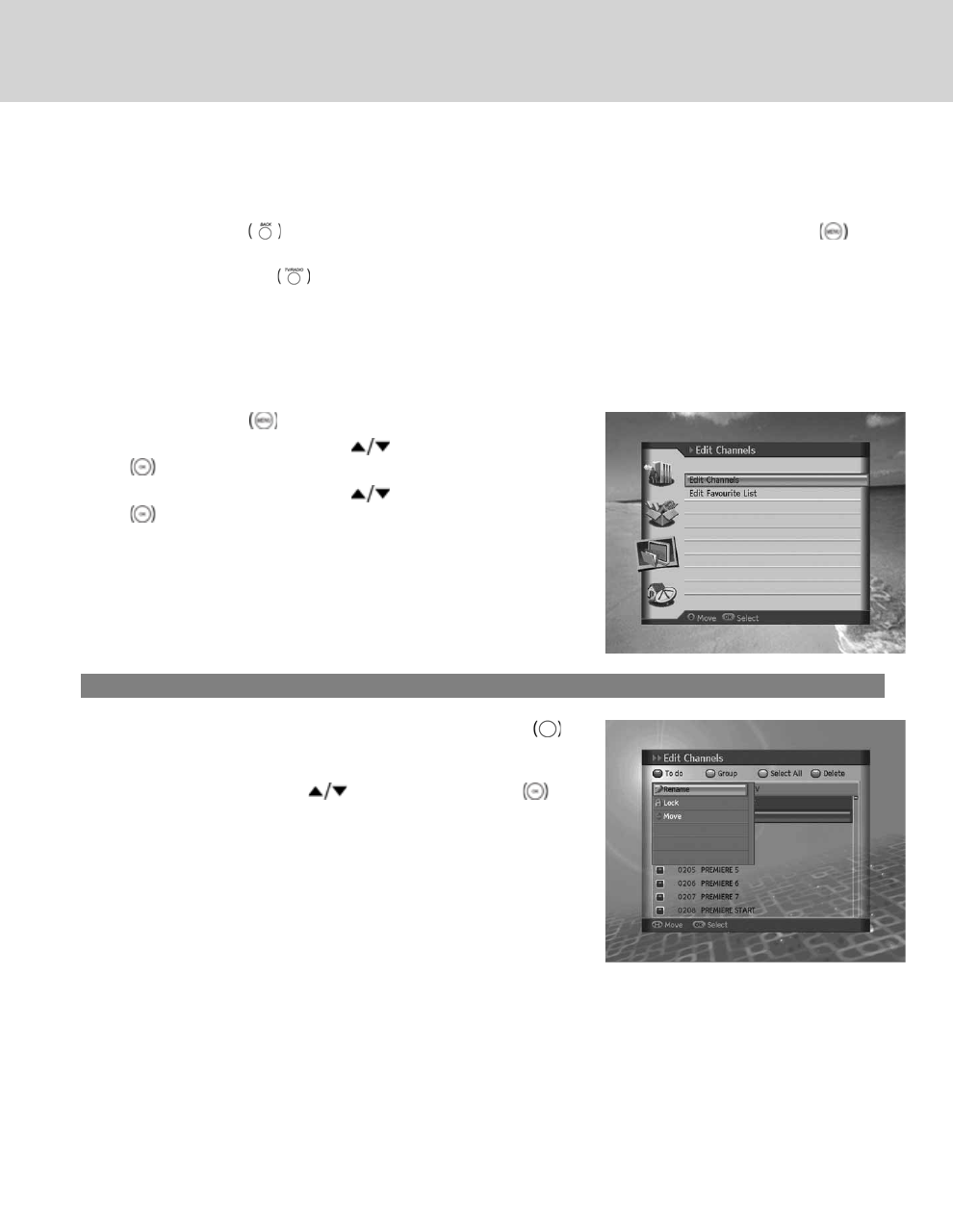
In this chapter you can edit all channels or make changes to the favourite lists of the channels you have chosen.
**
Note:
• Press the BACK button to save the changes and return to the previous menu. Press the MENU button
to exit the menu screen.
• Press the TV/RADIO button on the remote to move to TV or radio channel list directly.
9.1 Edit Channels
Edit Channels enables you to rename, lock/unlock, move the channels and select channel group, select all or delete
the channels.
1. Press the MENU button.
2. Select Edit Channels using the button and press the OK
button.
3. Select Edit Channels using the button and press the OK
button.
**
Note: The default password is 0000.
1. Renaming Channels
1. Select the channel you wish to rename and press the RED
button on the remote control. You can select one channel at a
time.
2. Select Rename using the button and press the OK
button.
9. Edit Channels
GB 49
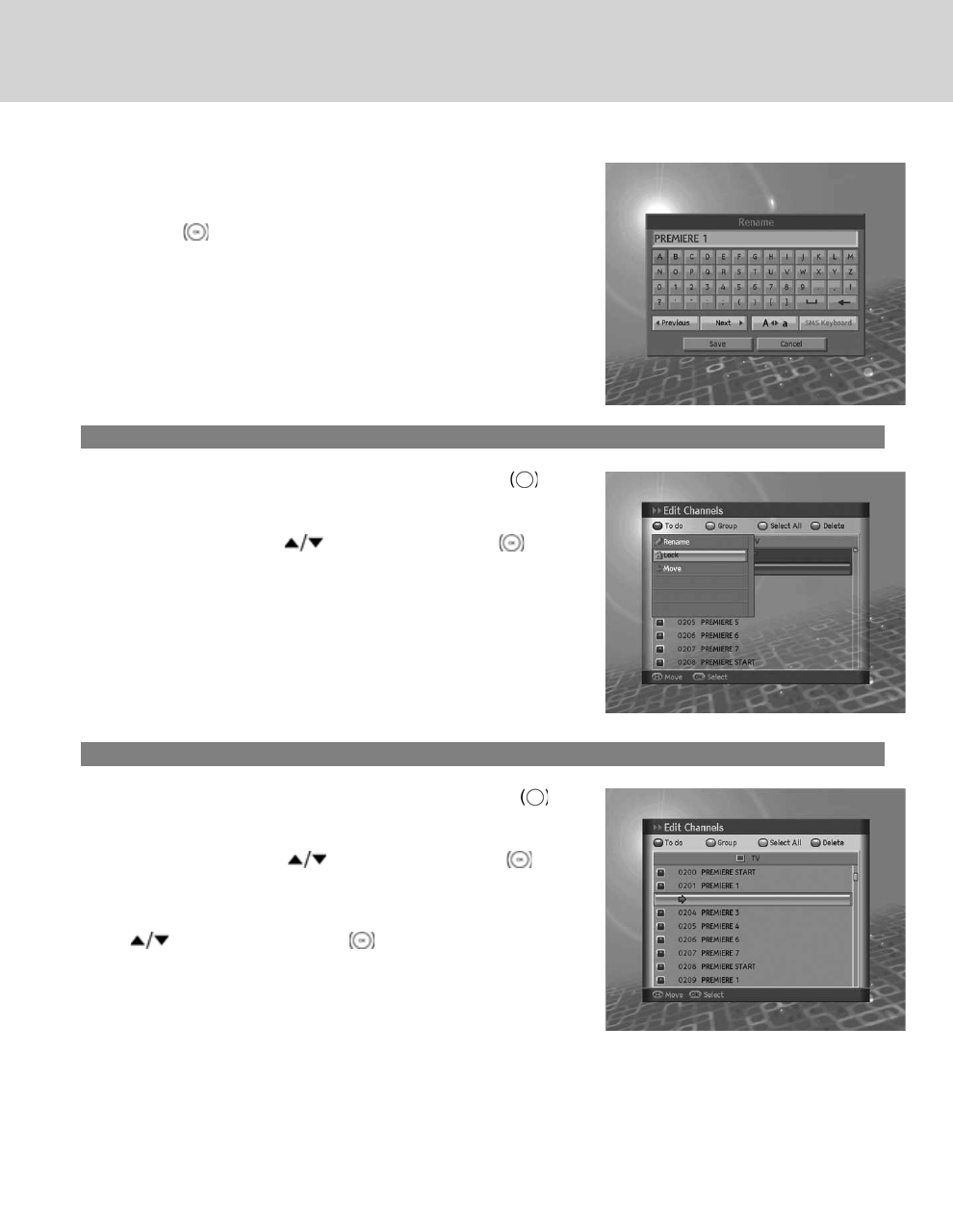
3. Enter a channel name directly using the keyboard displayed on
the screen.
4. When entering channel name is complete, select Save and press
the OK button.
**
Note: For detailed information on using the keyboard, refer to 5.1.2
Renaming Channels.
2. Locking/Unlocking Channels
1. Select the channel you want to lock and press the RED
button on the remote control. You can select more than one
channel.
2. Select Lock using the button and press the OK button.
**
Note:
• When all selected channels are locked, Lock is switched into
Unlock. When you press Unlock, the locked channel is switched
into an unlocked channel.
• To watch locked channels, you must enter the password using
the NUMERIC(0-9) buttons.
• The default password is 0000.
3. Moving Channels
1. Select the channel you want to move and press the RED
button on the remote control. You can select more than one
channel.
2. Select Move using the button, and press the OK
button. The selected channel disappears from the channel list
temporarily.
3. Move the cursor to the destination in the channel list using the
button, and press the OK button.
4. The selected channel(s) is moved to the selected location in the
given order.
**
Note:
•Move is available only for TV or radio channel lists.
• The channel number is changed by using Move function.
9. Edit Channels
GB 50
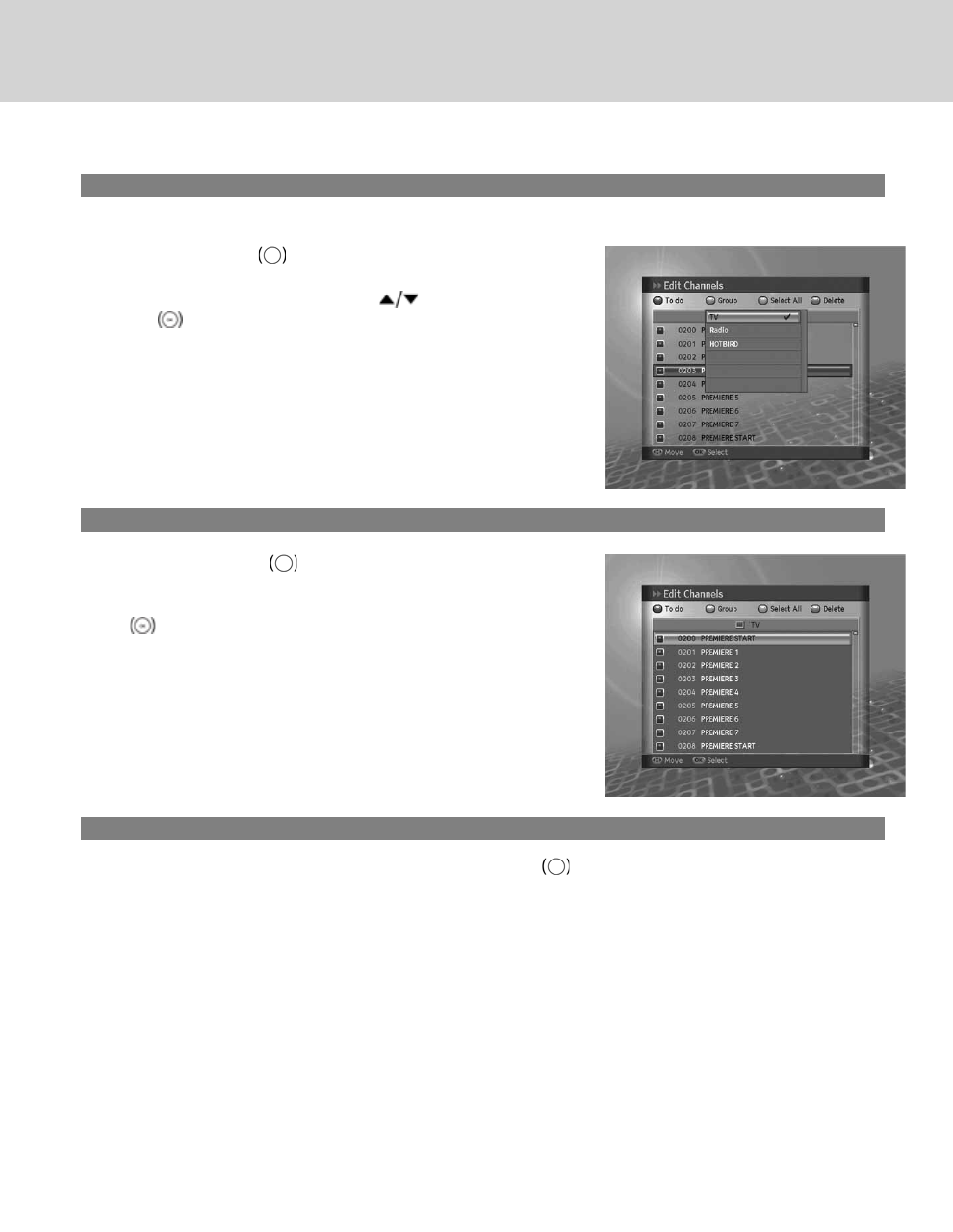
4. Selecting a Channel Group
You can select the channel list group to edit.
1. Press the GREEN button on the remote control to display the
group of channel lists.
2. Select the group you want using the button and press the
OK button.
5. Select/Unselect All Channels
1. Press the YELLOW button on the remote control to select all
channels.
2. To release one or more channels from select all, press the OK
button while the cursor is on the selected channel.
**
Note: Up to 100 channels can be saved in Favourite group.
6. Deleting Channels
1. Select the channels you want to delete and press the BLUE button on the remote control. You can select
more than one channel.
2. The chosen channel(s) will be deleted.
GB 51
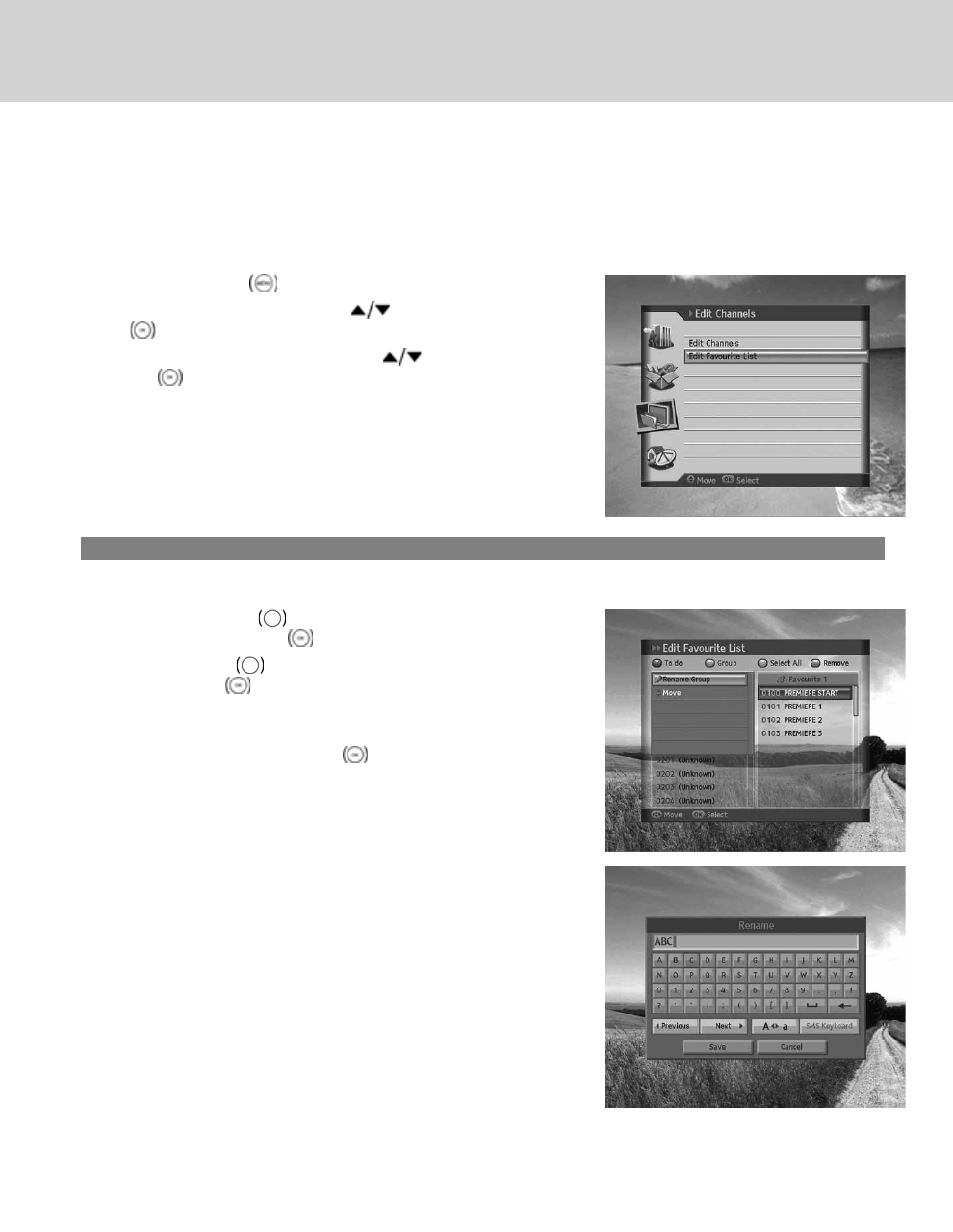
9.2 Edit Favourite List
You can rename favourite groups, move favourite channels, select favourite groups, select/unselect all channels, add or
remove channels from the favourite channel list.
1. Press the MENU button.
2. Select Edit Channels using the button and press the OK
button.
3. Select Edit Favourite List using the button and press the
OK button.
1. Renaming Favourite Groups
You can rename your favourite group.
1. Press the GREEN button and select the favourite group to
rename. Press the OK button.
2. Press the RED button and select Rename Group and then,
press the OK button.
3. Keyboard will appear. Enter the name of the favourite group
using the keyboard.
4. Select Save and press the OK button to complete.
**
Note:
•Rename Group becomes activated only when the cursor is
placed on the right column.
• For detailed information on using the keyboard, refer to 6.1.2
Renaming Channels.
**
9. Edit Channels
GB 52
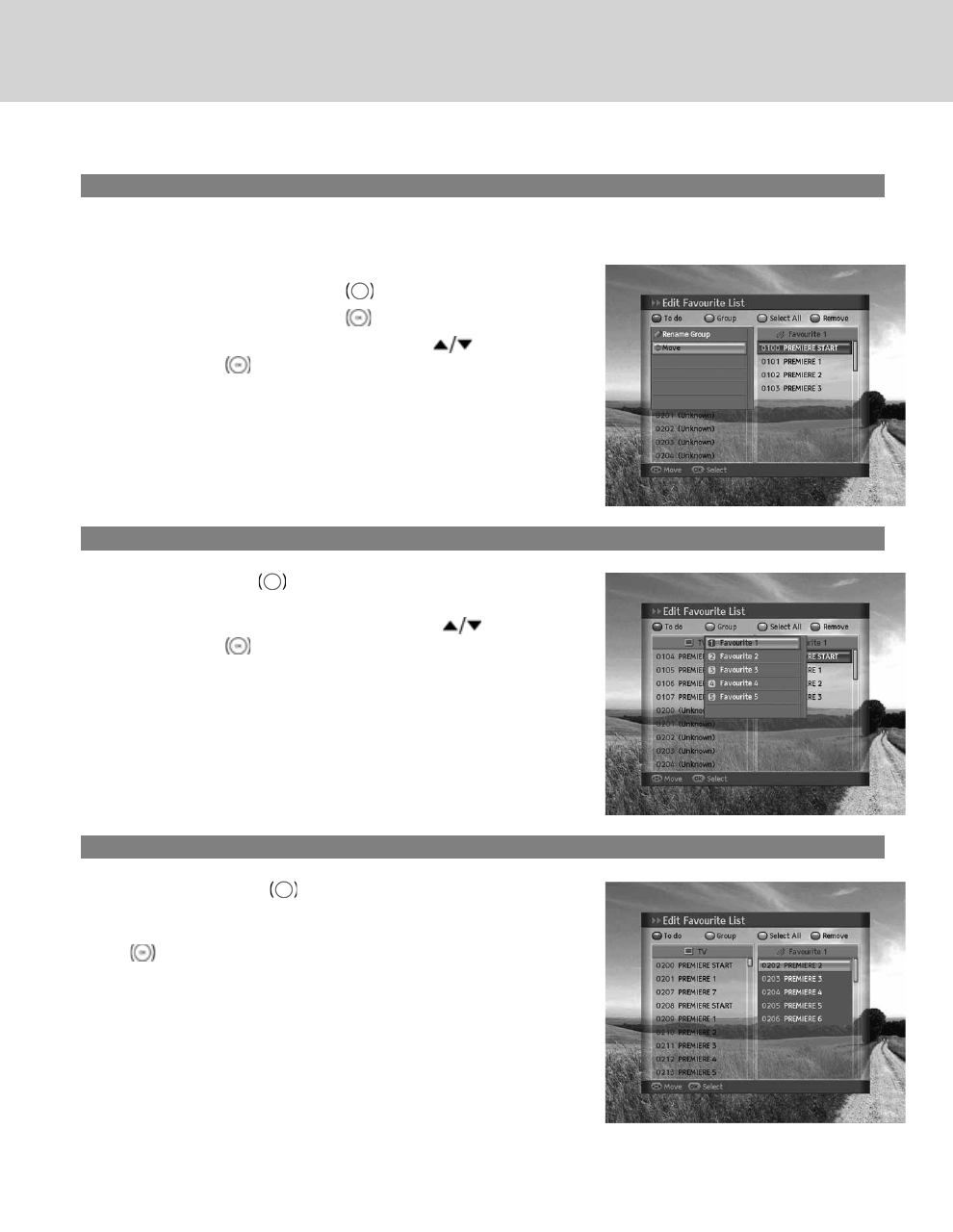
2. Moving Favourite Channels
You can move the favourite channels to a different location within the favourite channel list. This function changes the
location only and does not affect the number of the channel.
1. Select the favourite channels to move within the favourite
channel list and press the RED button on the remote control.
2. Select Move and press the OK button.
3. Move the cursor to the destination using the button, and
press the OK button.
4. The selected channel is moved to the new location.
3. Selecting Favourite Groups
1. Press the GREEN button on the remote control to display the
group of favourite channels.
2. Select the favourite group you want using the button and
press the OK button.
4. Selecting/Unselecting All Channels
1. Press the YELLOW button on the remote control to select all
channels.
2. To release one or more channels from select all, press the OK
button while the cursor is on the selected channel.
**
Note: Up to 100 channels can be saved in favourite group.
GB 53
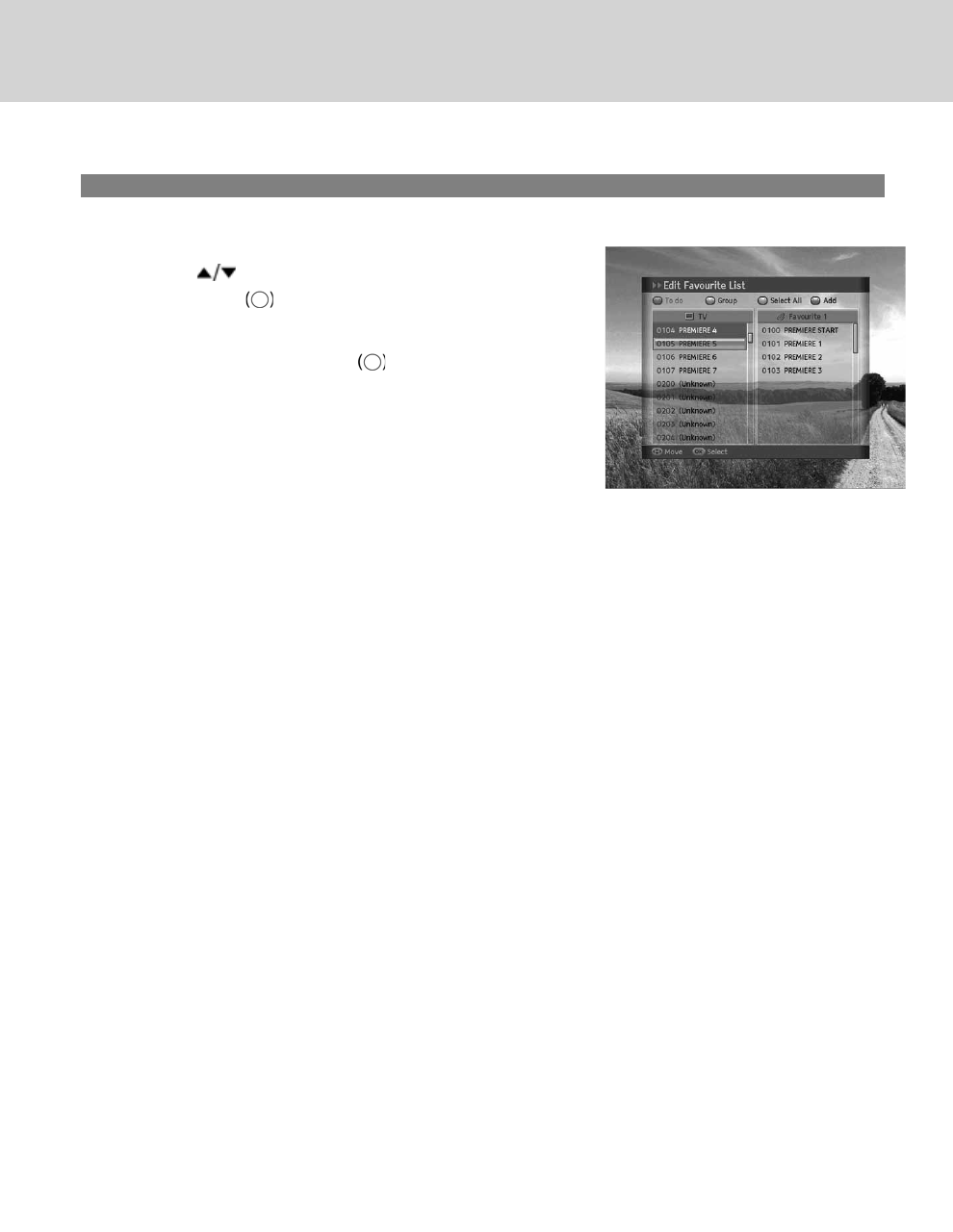
5. Adding/Removing Channels
You can add a channel to the favourite group or remove a channel from the list.
1. Select the channels you want to add to the favourite channel list
using the button.
2. Press the BLUE button on the remote control to add the
channels to the favourite list you have chosen.
3. To remove channels from the favourite list, select the channels
from the list and press the BLUE button on the remote
control.
**
Note: When the cursor is on the left column, the blue button is marked
Add; when the cursor moves to the right column, it becomes
Remove.
9. Edit Channels
GB 54
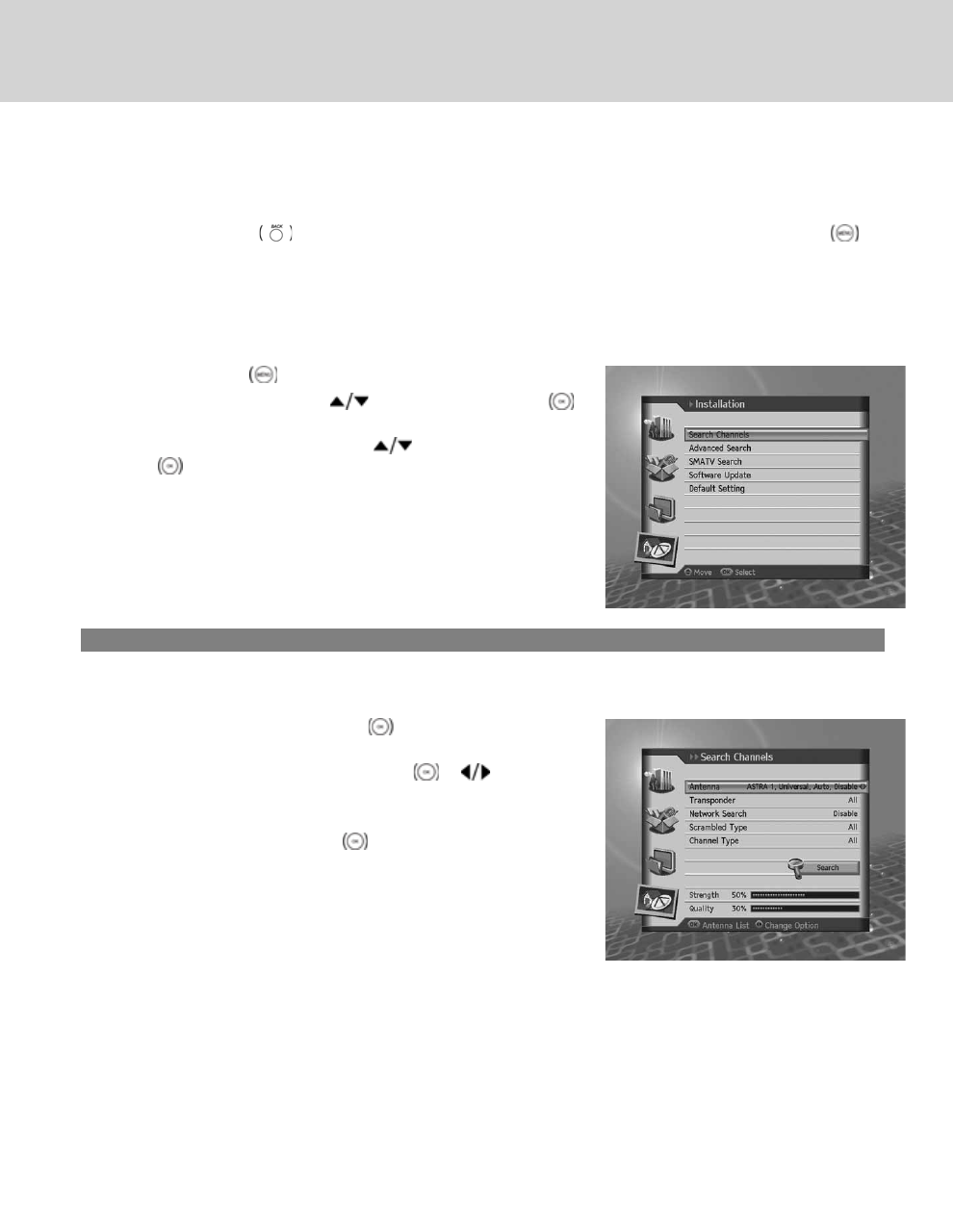
10. Installation
In this chapter you can configure installation settings such as search channels, advanced search, SMATV search,
software update and default setting.
**
Note: Press the BACK button to save the changes and return to the previous menu. Press the MENU
button to exit the menu screen.
10.1 Search Channels
Search Channels enables you to configure the installation settings.
1. Press the MENU button.
2. Select Installation using the button, and press the OK
button.
3. Select Search Channels using the button and press the
OK button.
1. Fixed Antenna
You can set the antenna and LNB information for channel search. If the antenna is not properly set, channel search
cannot be activated which means you cannot watch any of the programmes on air.
1. Select Antenna and press the OK button to view the list of
antennas.
2. Select a value for Antenna using the OK or button.
3. Enter the value for Satellite, LNB Frequency, 22kHz Tone,
DiSEqC Input and LNB Voltage.
4. Select Save and press the OK button to complete.
10. Installation
GB 55
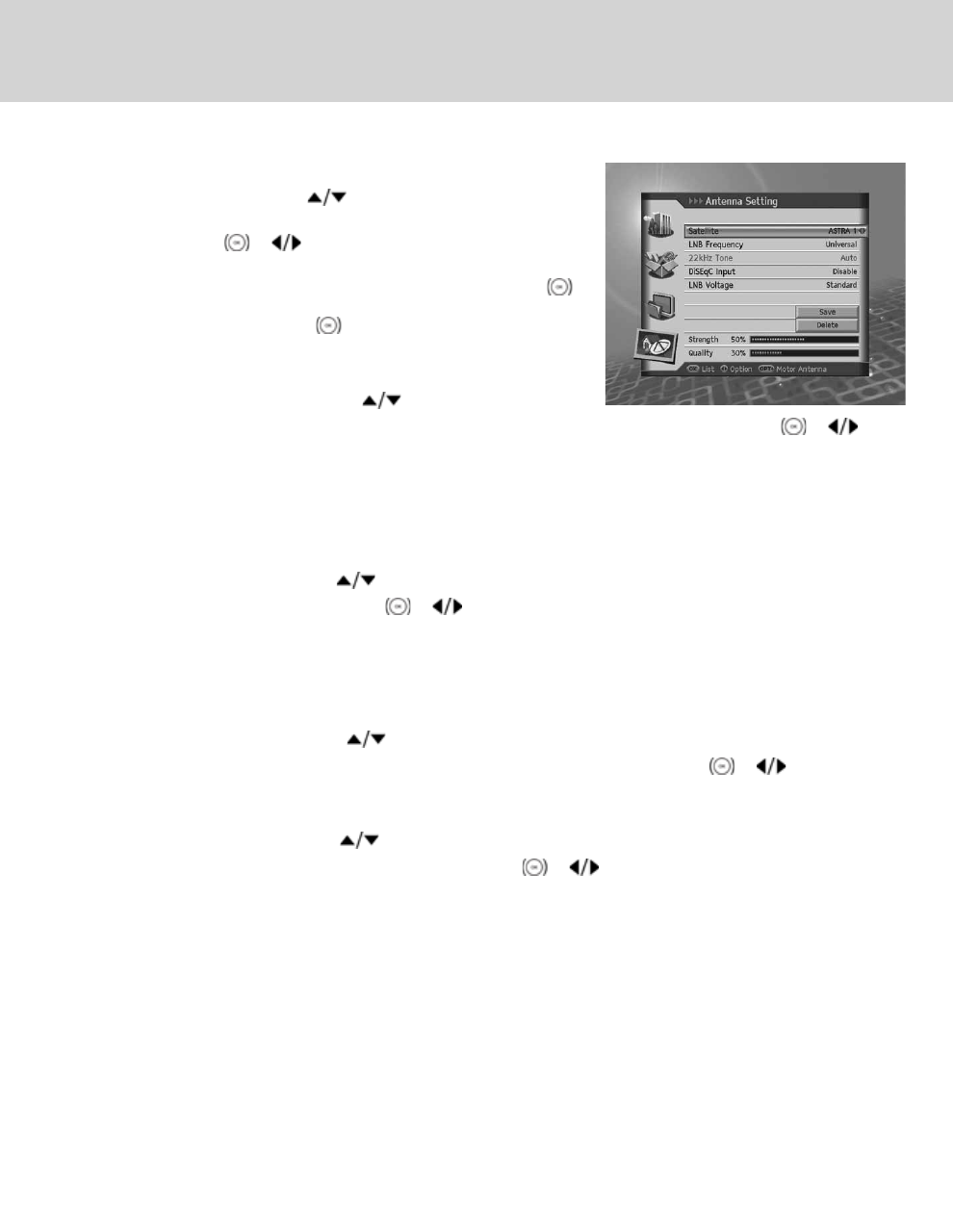
Satellite
1. Select Satellite using the button.
2. Select the satellite the antenna is pointing to from the options
using the OK or button.
3. If the required satellite is not available in the list, select User
Define. When pop up appears, select Yes and press the OK
button to view keyboard. Enter the name of the satellite and
select Save. Press the OK button to complete.
**
LNB Frequency
1. Select LNB Frequency using the button.
2. Select one option among Universal,9750,10600,5150,11475 and User Define using the OK or
button.
If the required value does not exist, select User Define and enter the LNB frequency directly.
**
Note: If you select Universal, the 22KHz Tone value is set to Disabled.
**
22KHz Tone
1. Select 22KHz Tone using the button.
2. Select Enable/Disable using the OK or button.
Enable Dual LNB is used or two antennas are connected to the 22KHz tone switch box.
Disable 22KHz is not in use.
**
DiSEqC Input
1. Select DiSEqC Input using the button.
2. Select one option among Disable,DiSEqC A~D and Tone Burst A, B using the OK or button.
**
LNB Voltage
1. Select LNB Voltage using the button.
2. Select one option from Standard and High using the OK or button.
**
Note: When LNB Voltage is set as High, a pop-up appears. "Only for LNB cable over 60m, Set LNB power High."
10. Installation
GB 56
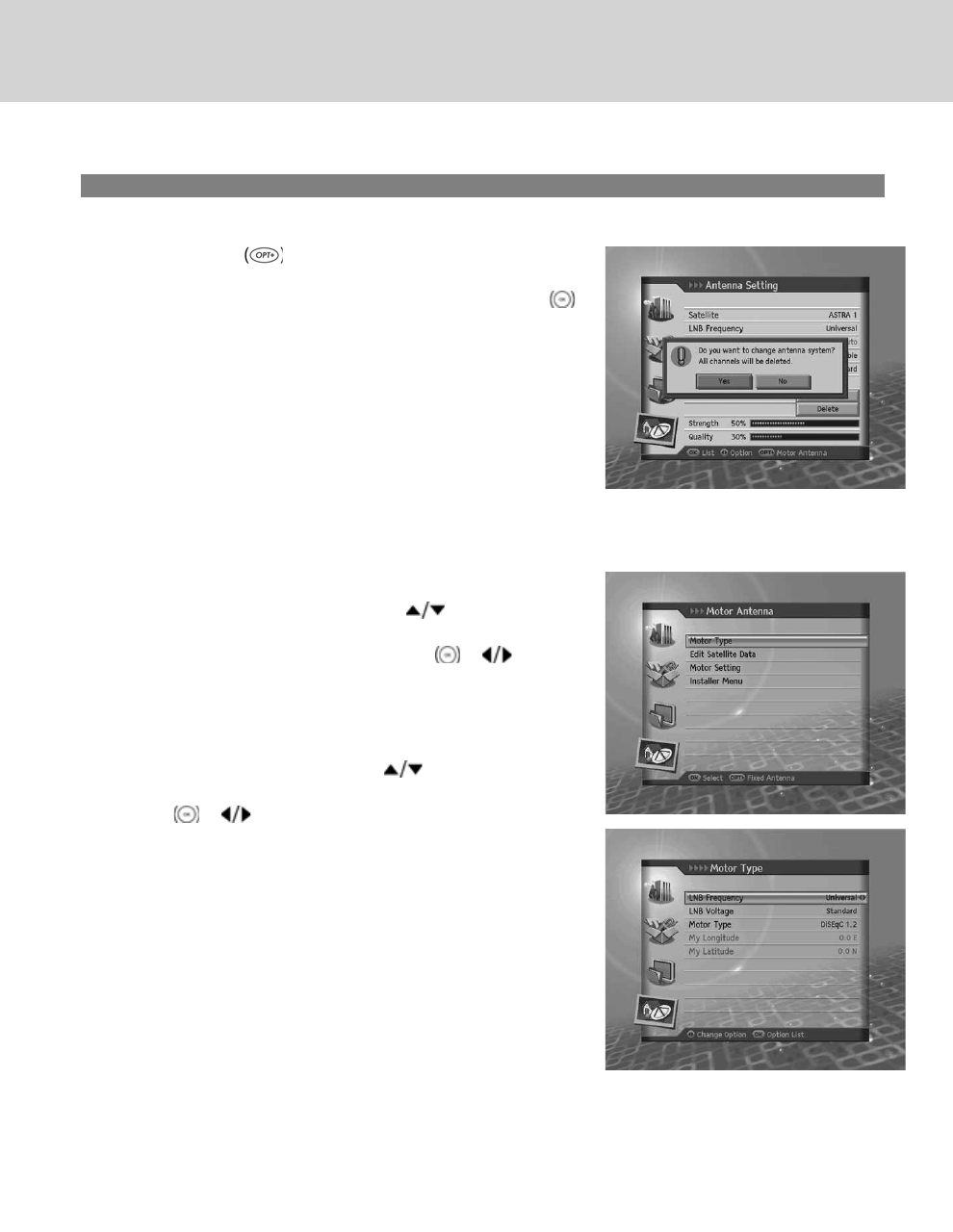
2. Motor Antenna
When using a motor antenna, set the antenna to Motor before performing channel search.
1. Press the OPT+ button to switch to motor antenna in
Antenna Setting mode.
2. A pop-up message will appear. Select Yes and press the OK
button.
**
Motor Type
You should set the motor type before motor antenna setting.
•LNB Frequency
1. Select LNB Frequency using the button.
2. Select one option among Universal, 9750, 10600, 5150,
11475 and User Define using the OK or button. If
the required value does not exist, select User Define and
enter the LNB frequency directly.
**
•LNB Voltage
1. Select LNB Voltage using the button.
2. Select one option from Standard and High using the OK
or button.
Note: When LNB Voltage is set as High, a pop-up appears.
"Only for LNB cable over 30m, Set LNB power High."
**
GB 57
**
•Motor Type
1. Select Motor Type using the button.
2. Select one option from DiSEqC1.2 and USALS using the OK or button.
DiSEqC1.2 General motor antenna using DiSEqC1.2
USALS Motor antenna using USALS
Note: When Motor Type is set as DiSEqC 1.2, both My Longitude and My Latitude are set to Disabled.
**
•My Longitude
1. Select My Longitude using the button.
2. Enter my longitude value using the NUMERIC(0-9) buttons.
3. Select from East/West using the OK or button.
4. Press the OK button to complete.
**
•My Latitude
1. Select My Latitude using the button.
2. Enter my latitude value using the NUMERIC(0-9) buttons.
3. Select from North/South using the OK or button.
4. Press the OK button to complete.
10. Installation
GB 58
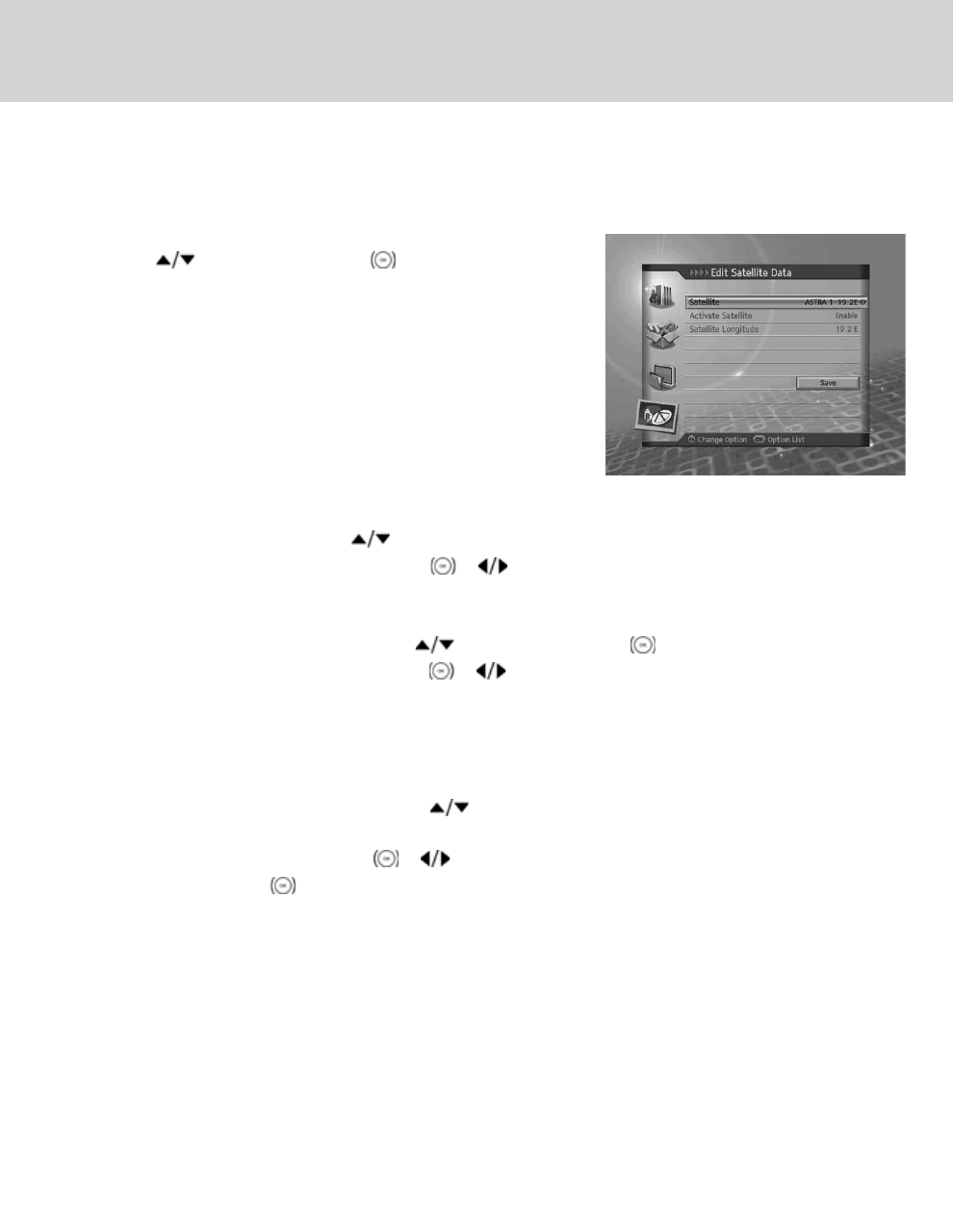
Edit Satellite Data
You can set the position of the satellite, which the motor antenna heads for, and decide whether or not to use the
satellite.
1. Select Edit Satellite Data from Motor Antenna Setting using
the button and press the OK button.
2. Enter the appropriate value for Satellite, Activate Satellite and
Satellite Longitude.
**
•Satellite
1. Select Satellite using the button.
2. Select a satellite to edit using the OK or button.
**
•Activate Satellite
1. Select Activate Satellite using the button and press the OK button.
2. Select Enable/Disable using the OK or button.
Enable Channel search is available.
Disable Current channel does not exist. Channel search unavailable.
**
•Satellite Longitude
1. Select Satellite Longitude using the button.
2. Enter satellite longitude value using the NUMERIC(0-9) buttons.
3. Set East/West using the OK or button.
4. Press the OK button to complete.
Note: Satellite Longitude is editable for User Define Satellite only.
GB 59
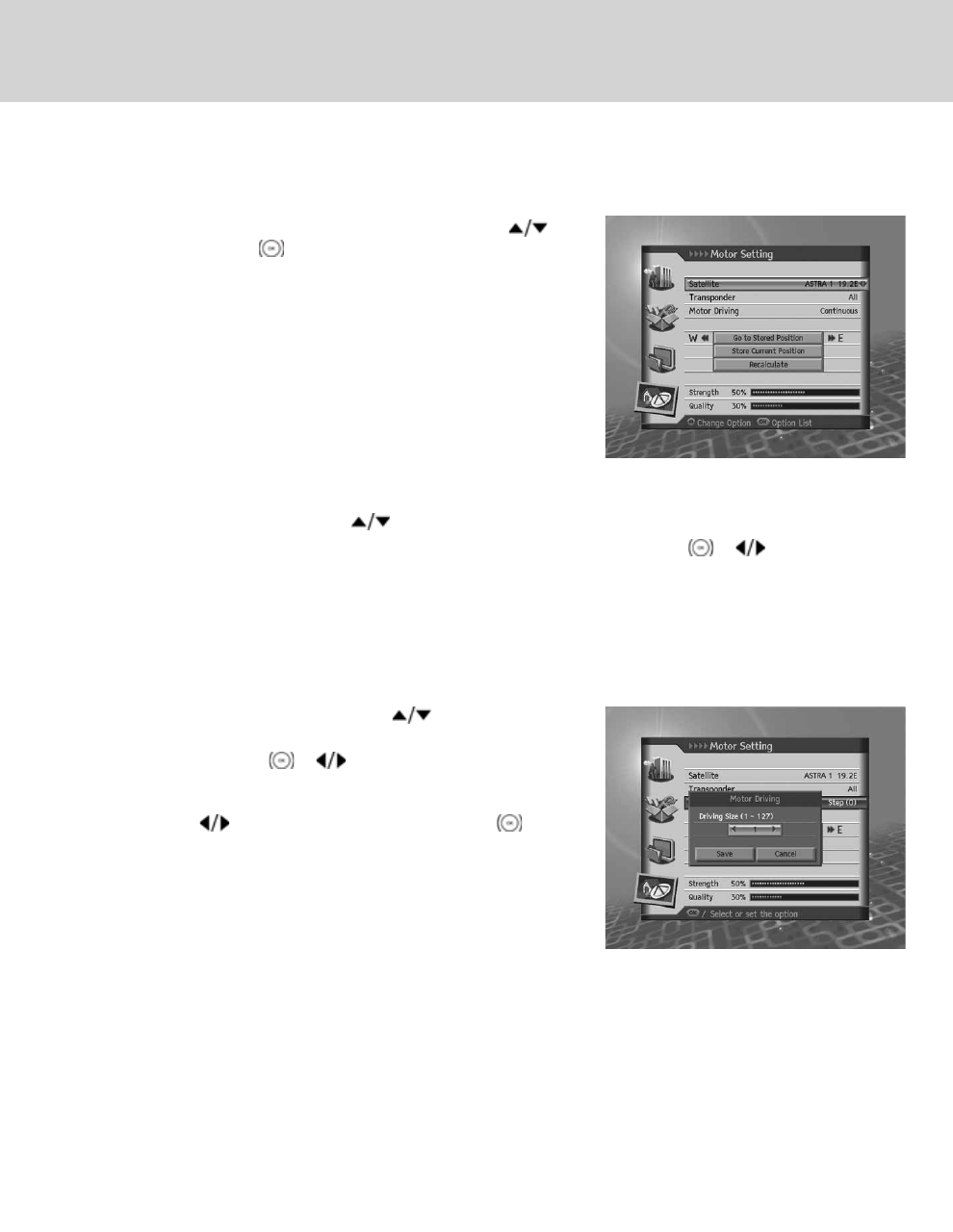
Motor Setting
You can set the motor antenna for more efficient channel search.
Select Motor Setting from Motor Antenna Setting using the
button and press the OK button.
**
•Satellite
1. Select Satellite using the button.
2. Select the satellite the antenna is pointing to from the options using the OK or button.
**
•Transponder
Note: Go to 10.1.3 Transponder for detailed information.
**
•Motor Driving
1. Select Motor Driving using the button.
2. Select one option among Continuous, Step and Time and
press the OK or button.
3. When motor driving is set as Step or Time, a pop up will
appear to set the driving size. Select the driving size using
the button. Select Save and press the OK button.
Continuous Motor moves continuously.
Step Motor moves by specified unit.
Time Motor moves during specified
time.
10. Installation
GB 60

•Go to Stored Position
Move the antenna to the position of the selected satellite.
1. Select Go to Stored Position using the button and press the OK button.
2. Wait till the antenna moves to the position of the satellite.
3. Confirm signal strength and quality level and fine-tune the antenna direction. Select Go to Stored Position
using the button. Move the antenna East/West by pressing the button. Adjust Signal Level to
maximum.
**
•Store Current Position
Save the adjusted position of the satellite.
1. Select Store Current Position using the button and press the OK button.
2. The position of the antenna headed for the certain satellite will be saved.
Note: You can set the antenna position by repeating the procedure above.
**
•Recalculate
You can recalculate the position of all satellites based on one satellite. Adjust the antenna position of a certain
satellite.
1. Select Recalculate using the button and press the OK button.
2. To readjust all positions, select Yes and press the OK button.
Note: When Motor Type is set as USALS, Motor Driving, Store Current Position, Recalculate is set to
Disabled.
GB 61
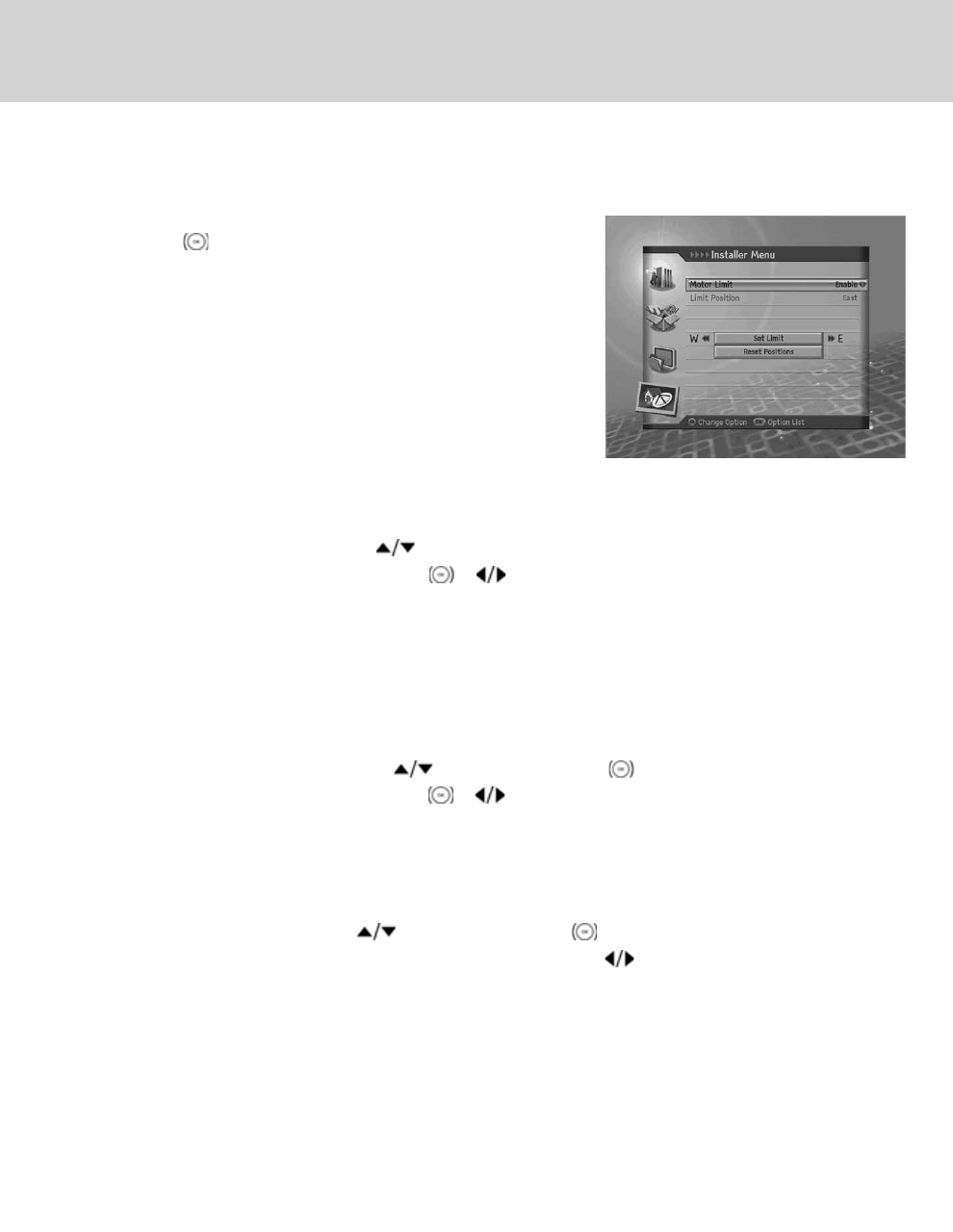
Installer Menu
You can set default setting and operation limit for motor antenna.
1. Select Installer Menu from Motor Antenna Setting and press
the OK button.
2. To save the present location, change the Motor Limit to Enable.
**
Note: When Motor Limit is set to Enable, Limit Position and Set
Limits are set to Disabled.
**
•Motor Limit
You can set the maximum motor limit both East and West to prevent damage to the antenna.
1. Select Motor Limit using the button.
2. Select Enable/Disable using the OK or button.
Enable Motor limit is set. motor does not exceed the limit.
Disable Setting is released.
Note: When setting new motor limit, set to Disable.
**
•Limit Position
You can set the maximum motor limit both East and West to prevent damage to the antenna.
1. Select Limit Position using the button and press the OK button.
2. Select from East/West using the OK or button.
East Sets East limit.
West Sets West limit.
**
•Set Limit
1. Select Set Limit using the button and press the OK button.
2. Move the antenna to the Limit Position to set using the OK or button.
Note: When limit is set, Motor Limit is automatically set to Enable.
10. Installation
GB 62
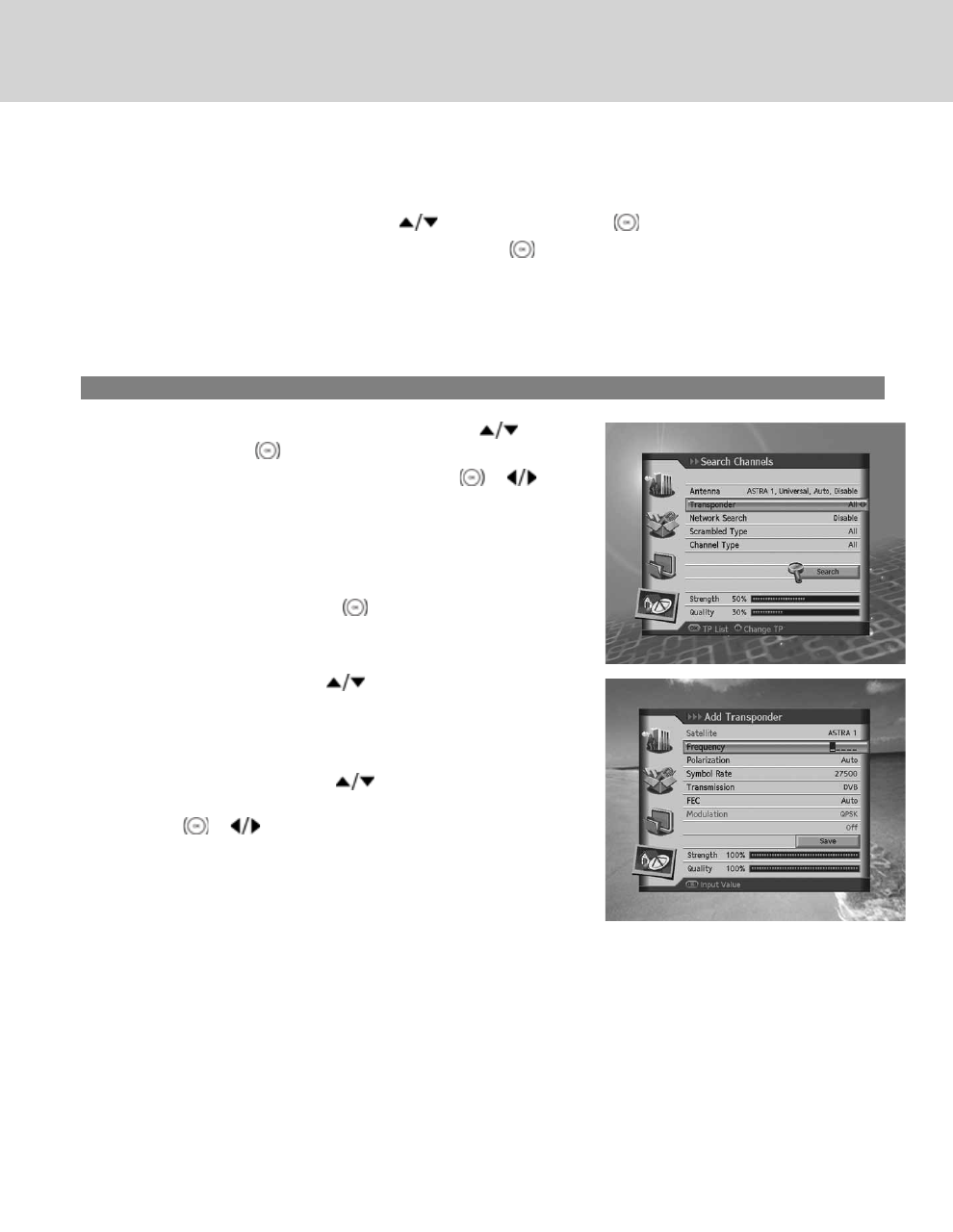
•Reset Position
You can restore the position saved at motor antenna to the default setting.
1. Select Reset Position using the button and press the OK button.
2. Pop-up will appear. Select OK and press the OK button to restore all values saved at motor antenna to
default setting.
3. Please wait during the motor antenna is restored.
Note: Reset may not be activated depending on the condition of the antenna. Repeat the procedure above if
necessary.
3. Transponder
1. Select Transponder in Search Channel using the button
and press the OK button.
2. Select an option for Transponder using the OK or
button.
3. To add another transponder, select User Define from the list.
4. Add Transponder screen will appear. Enter the values for
Frequency, Polarization, Symbol Rate, Transmission, FEC
and Modulation.
5. Select Save and press the OK button to complete.
**
Frequency
1. Select Frequency using the button.
2. Enter the frequency using the NUMERIC(0-9) buttons.
**
Polarization
1. Select Polarization using the button.
2. Select one option among Auto,Horizontal and Vertical using
the OK or button.
**
**
10. Installation
GB 63
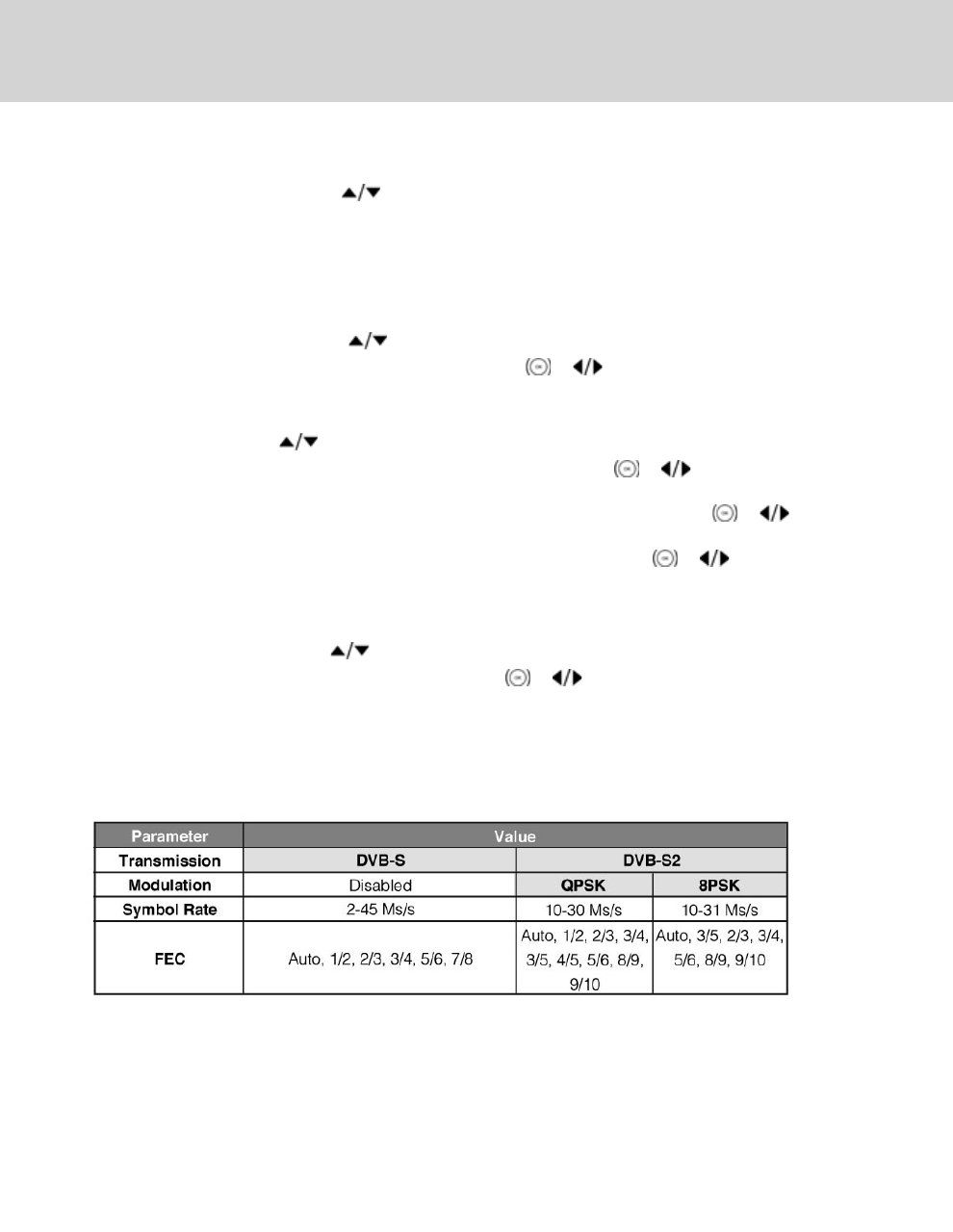
Symbol Rate
1. Select Symbol Rate using the button.
2. Enter the symbol rate from 2 to 45 Ms/s in DVB-S (Transmission) setting.
3. Enter the symbol rate from 10 to 30 Ms/s in DVB-S2(Transmission) and QPSK(Modulation) setting.
4. Enter the symbol rate from 10 to 31 Ms/s in DVB-S2(Transmission) and 8PSK(Modulation) setting.
**
Transmission
1. Select Transmission using the button.
2. Select one option form DVB-S and DVB-S2 using the OK or button.
**
FEC
1. Select FEC using the button.
2. Select one option among Auto, 1/2, 2/3, 3/4, 5/6 and 7/8 using the OK or button in
DVB-S(Transmission) setting.
3. Select one option among Auto, 1/2, 2/3, 3/4, 3/5, 4/5, 5/6, 8/9 and 9/10 using the OK or button in
DVB-S2(Transmission) and QPSK(Modulation) setting.
4. Select one option among Auto, 3/5, 2/3, 3/4, 5/6, 8/9 and 9/10 using the OK or button in
DVB-S2(Transmission) and 8PSK(Modulation) setting.
**
Modulation
1. Select Modulation using the button.
2. Select one option form QPSK and 8PSK using the OK or button.
**
Note: When Transmission is set to DVB-S, Modulation is disabled. The values for Symbol Rate and FEC
differ depending on the value of Modulation.
**
Refer to the table below.
10. Installation
GB 64
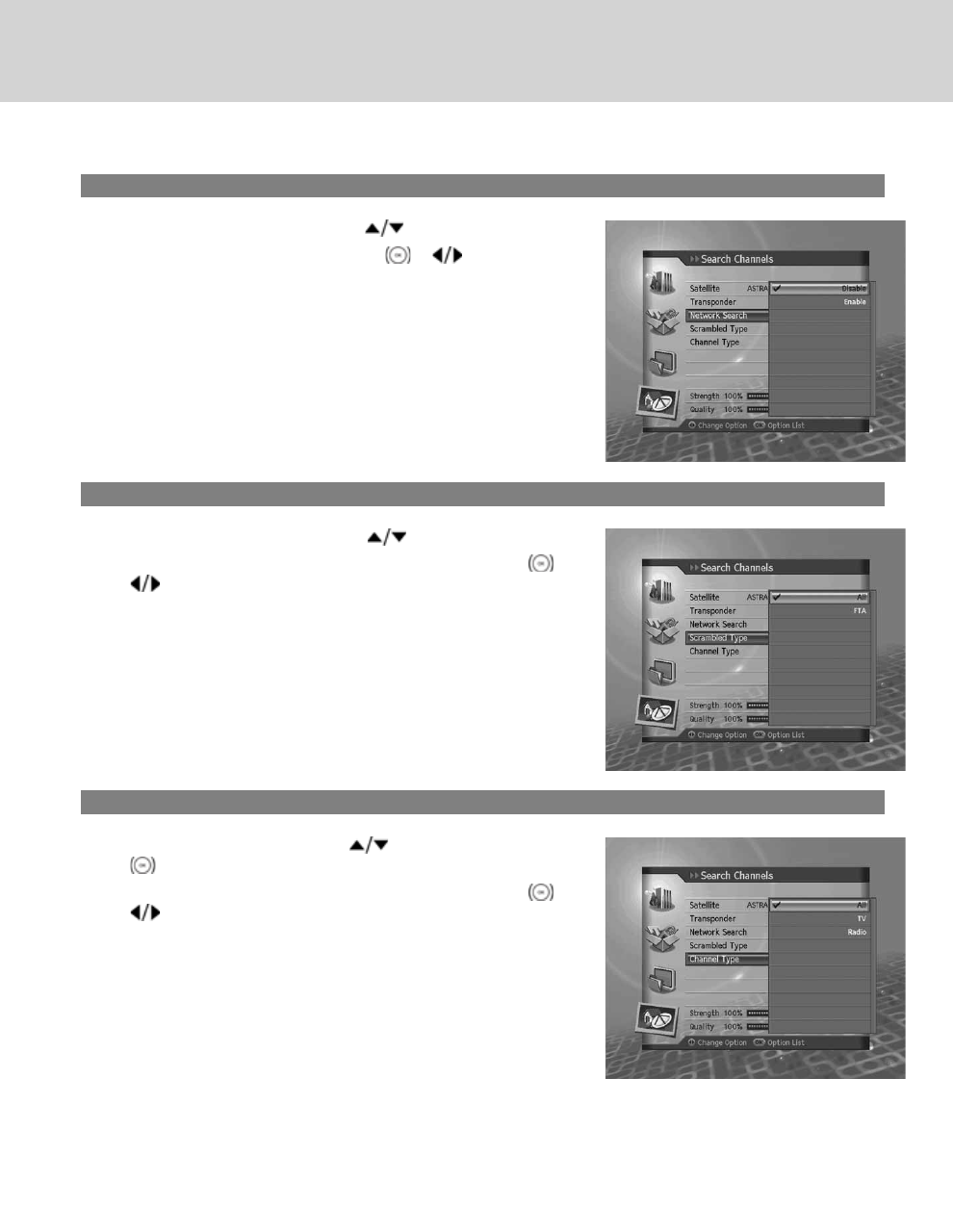
4. Network Search
1. Select Network Search using the button.
2. Select Enable/Disable using the OK or button.
5. Scrambled Type
1. Select Scrambled Type using the button.
2. Select one option among All, FTA and CAS using the OK or
button.
6. Channel Type
1. Select Channel Type using the button and press the OK
button.
2. Select one option among All,TV and Radio using the OK or
button.
GB 65
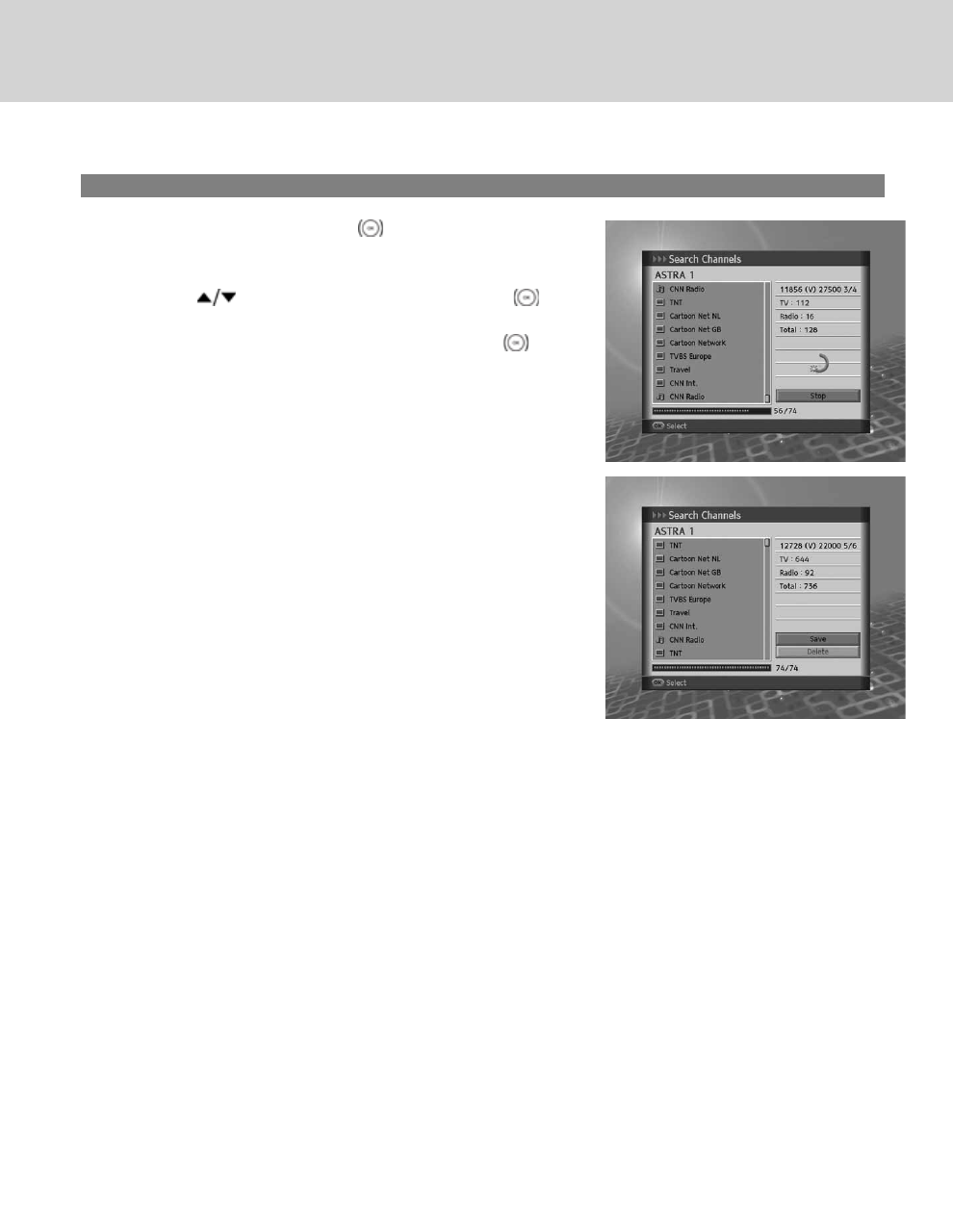
7. Search Result
1. Select Search and press the OK button.
2. Channel search will activate.
3. To delete search results, select the channels you wish to delete
using the button. Select Delete and press the OK
button.
4. To save search results, select Save and press the OK
button.
**
Note:
• When you select Stop during channel search, the search will be
discontinued and the accumulated search results will show.
• If there are no channels available, a message indicating the
result will pop up.
**
10. Installation
GB 66
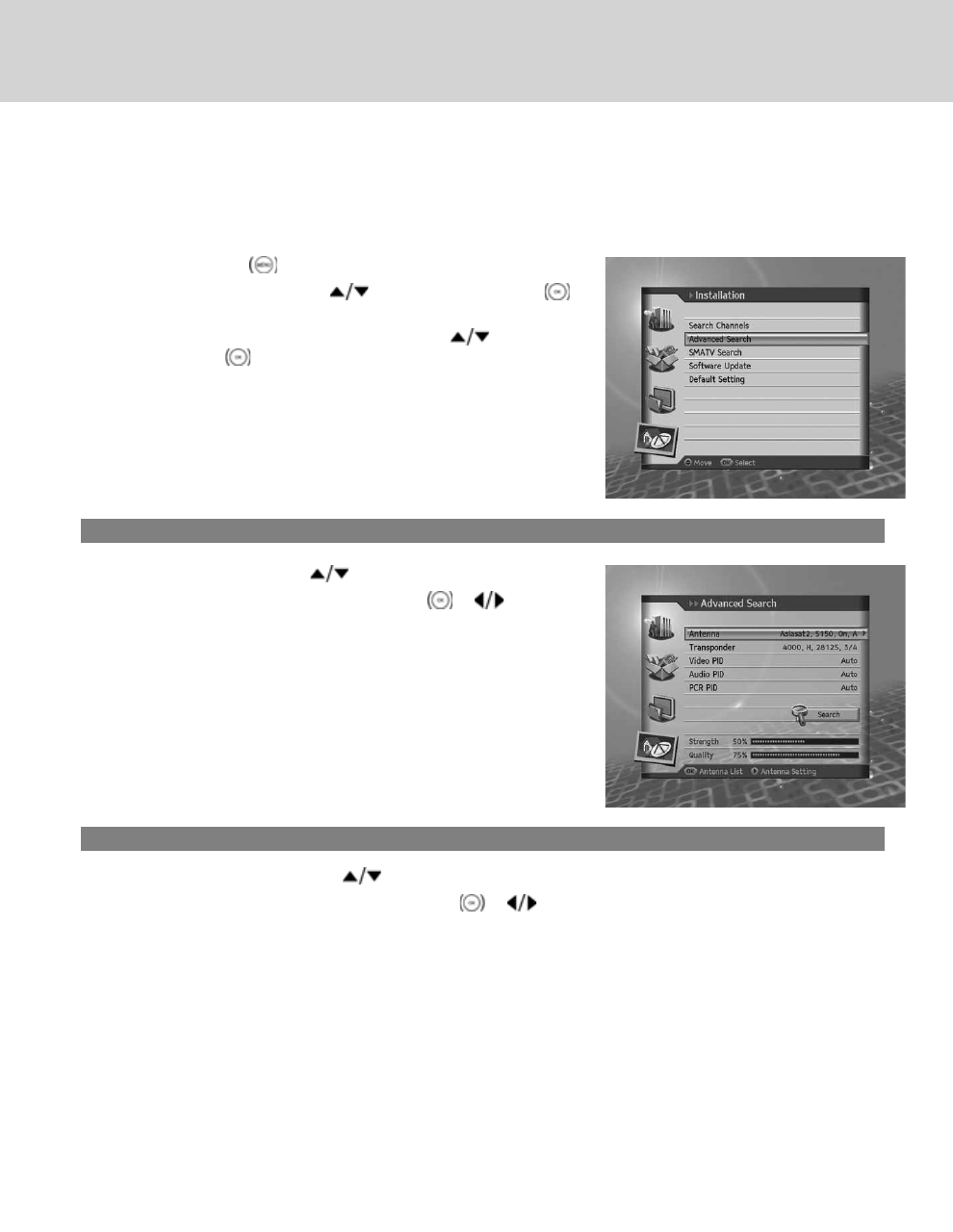
10.2 Advanced Search
Advanced Search allows you to search channels using the PID information.
1. Press the MENU button.
2. Select Installation using the button and press the OK
button.
3. Select Advanced Search using the using the button, and
press the OK button.
1. Antenna
1. Select Antenna using the button.
2. Select an option for Antenna using the OK or button.
2. Transponder
1. Select Transponder using the button.
2. Select an option for Transponder using the OK or button.
GB 67
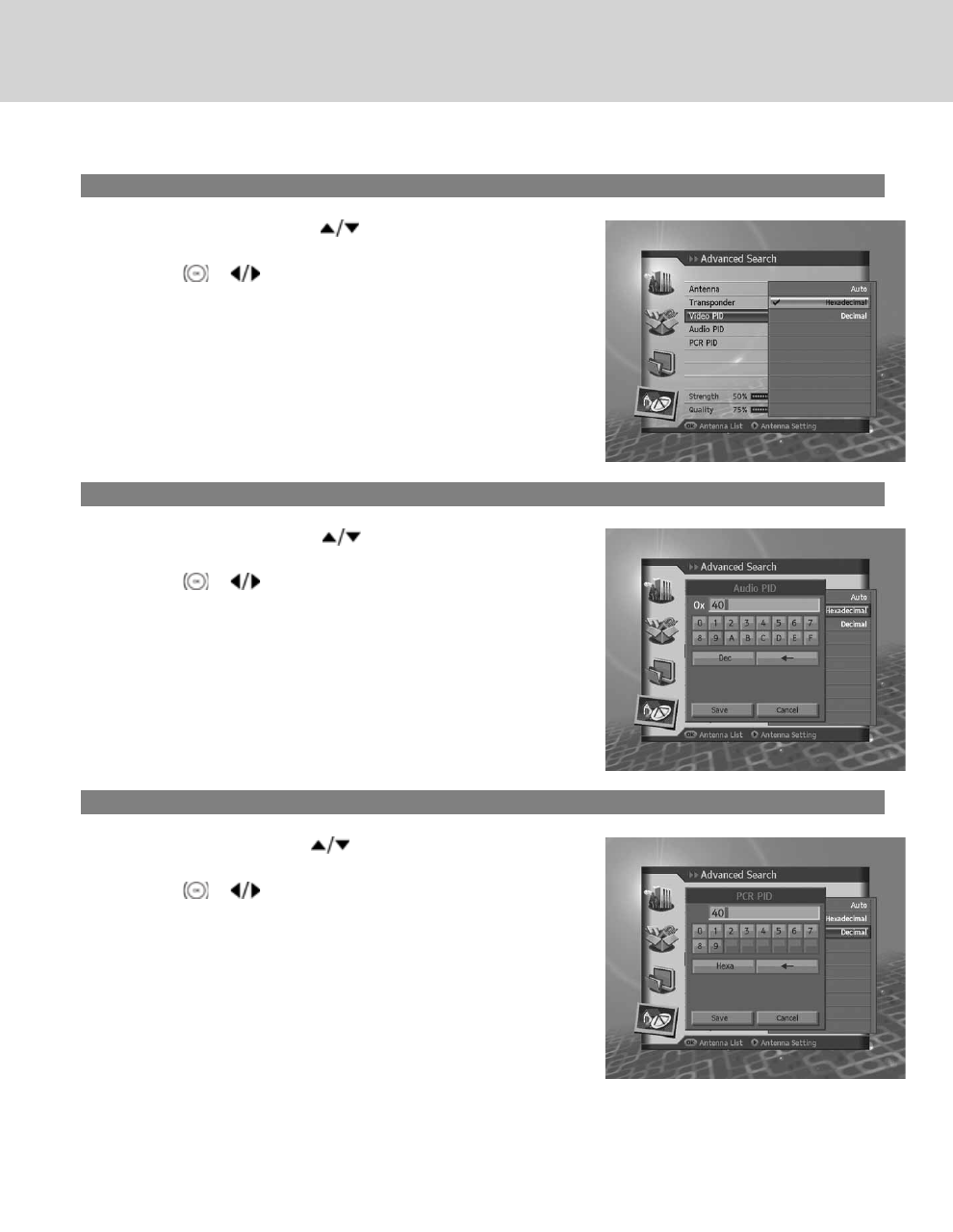
3. Video PID
1. Select Video PID using the button.
2. Select and option from Auto, Hexadecimal and Decimal using
the OK or button.
4. Audio PID
1. Select Audio PID using the button.
2. Select and option from Auto, Hexadecimal and Decimal using
the OK or button.
5. PCR PID
1. Select PCR PID using the button.
2. Select and option from Auto, Hexadecimal and Decimal using
the OK or button.
10. Installation
GB 68
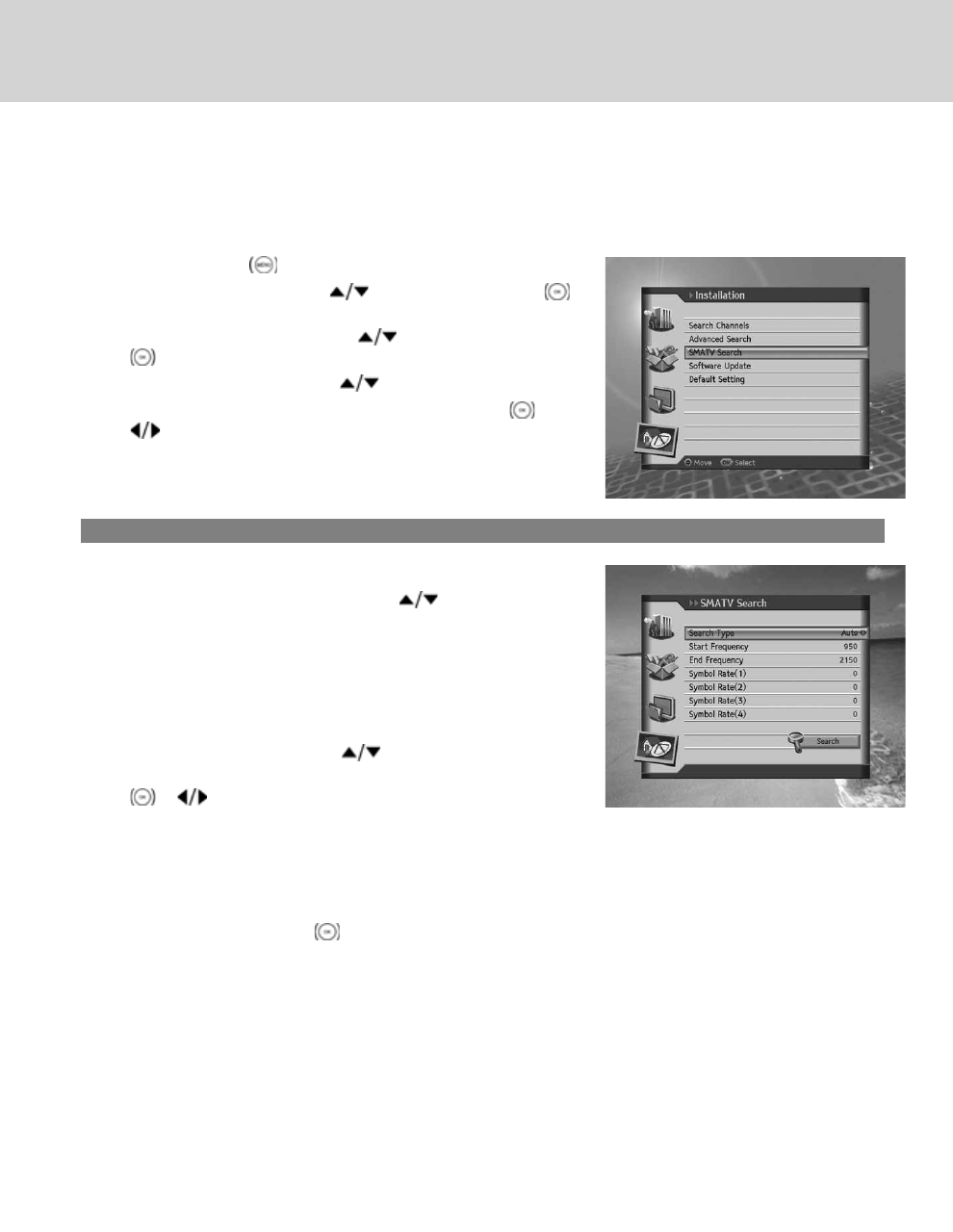
10.3 SMATV Search
SMATV Search allows you to perform channel search regardless of the setting value in antenna setting.
1. Press the MENU button.
2. Select Installation using the button and press the OK
button.
3. Select SMATV Search using the button, and press the OK
button.
4. Select Search Type using the button.
5. Select one option from Auto and Manual using the OK or
button.
1. SMATV Automatic Search
Start/End Frequency
1. Select Start/End Frequency using the button.
2. Enter the frequency using the NUMERIC(0-9) buttons.
Note: Enter the frequency from 950 to 2150 MHz.
**
Symbol Rate
1. Select Symbol Rate using the button.
2. Select one option among 27500, 26000 and 22000 using the OK
or button. If the required value does not exist, select
User Define and enter the symbol rate directly.
**
Note: You can enter up to four symbol rates.
**
Select Search and press the OK button.
GB 69
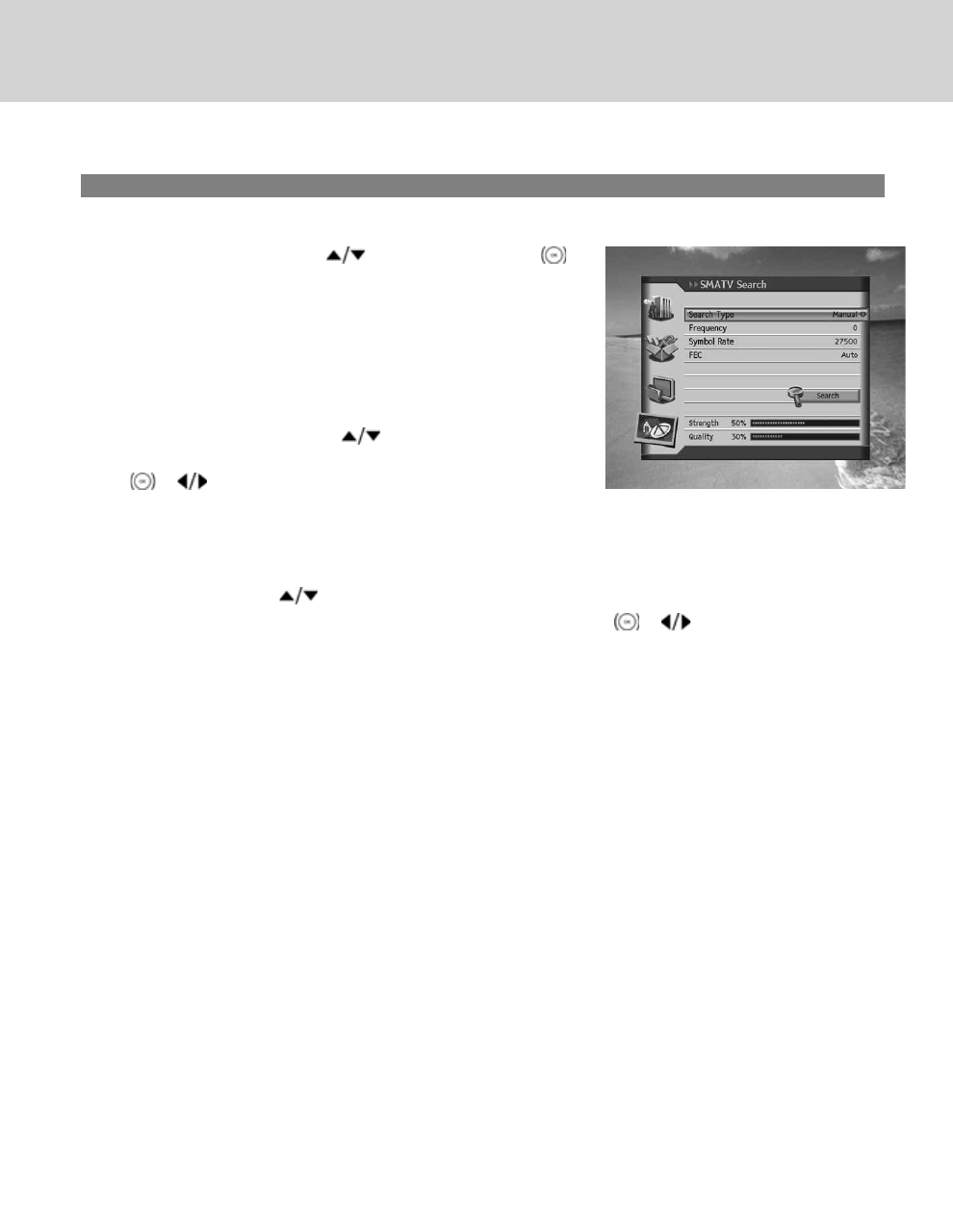
2. SMATV Manual Search
Frequency
1. Select Frequency using the button and press the OK
button.
2. Enter the frequency using the NUMERIC(0-9) buttons.
**
Note: Enter the frequency from 950 to 2150 MHz.
**
Symbol Rate
1. Select Symbol Rate using the button.
2. Select one option among 27500, 26000 and 22000 using the OK
or button. If the required value does not exist, select
User Define and enter the symbol rate directly.
**
FEC
1. Select FEC using the button.
2. Select one option among Auto, 1/2, 2/3, 3/4, 5/6 and 7/8 using the OK or button.
10. Installation
GB 70
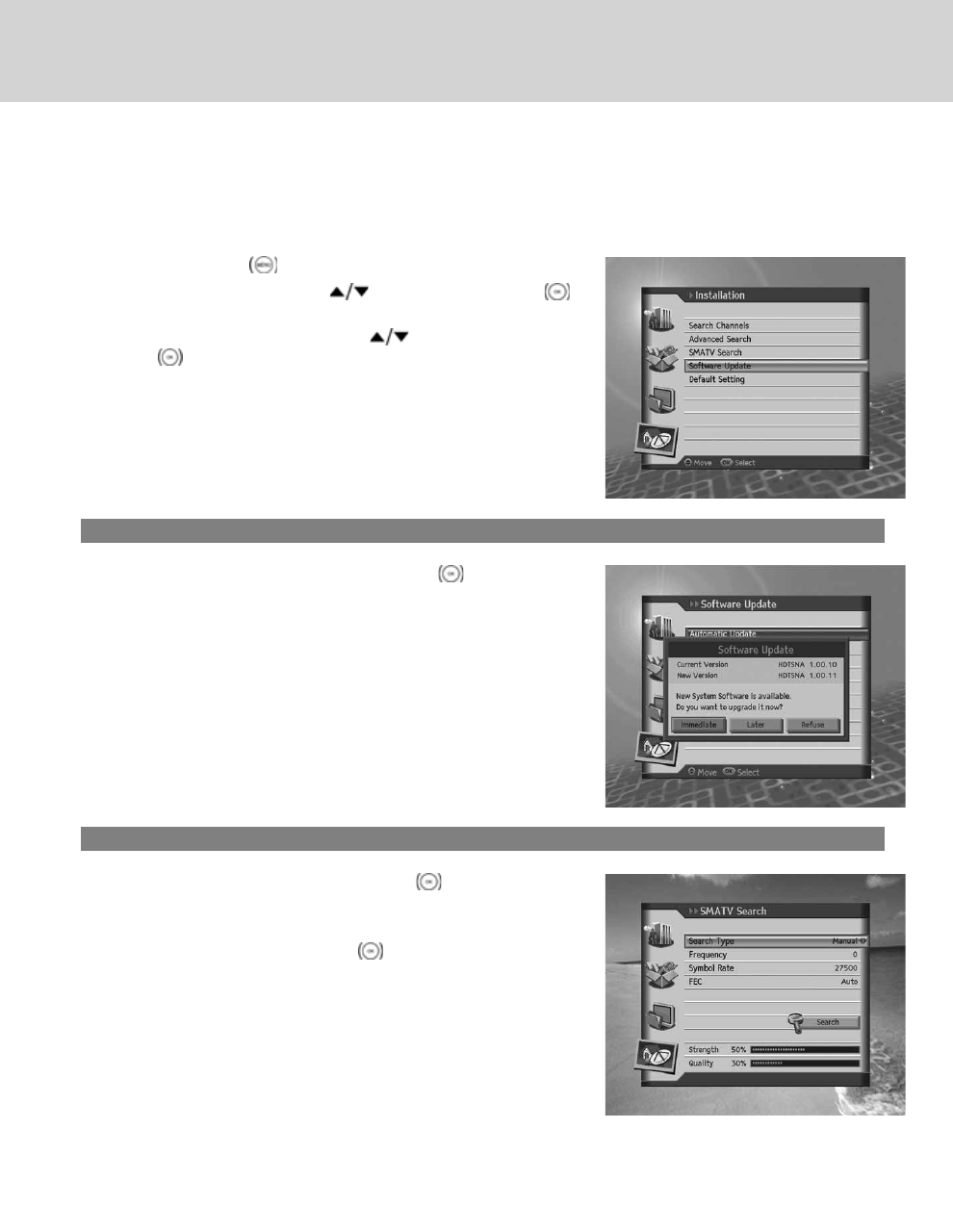
10.4 Software Update
Software Update allows you to update the system software.
1. Press the MENU button.
2. Select Installation using the button and press the OK
button.
3. Select Software Update using the button and press the
OK button.
1. Automatic Update
1. Select Automatic Update and press the OK button.
2. When new software is detected, you can choose to download the
software immediately or save for later. You can refuse software
update if not needed.
3. When there is no new software to update, a pop-up will appear.
2. Manual Update
1. Select Manual Update and press the OK button.
2. Enter the values for Satellite, Frequency, Polarisation, Symbol
Rate and FEC.
3. Select Search and press the OK button.
4. When new software is detected, you can choose to download the
software immediately or save for later. You can refuse software
update if not needed.
5. When there is no new software to update, a pop-up will appear.
GB 71

Satellite
1. Select Satellite using the button.
2. Select the satellite the antenna is pointing to from the options using the OK or button.
**
Frequency
1. Select Frequency using the button.
2. Enter the frequency using the NUMERIC(0-9) buttons.
**
Polarisation
1. Select Polarisation using the button.
2. Select one option among Auto, Horizontal and Vertical using the OK or button.
**
Symbol Rate
1. Select Symbol Rate using the button.
2. Select one option among 27500, 26000 and 22000 using the OK or button. If the required value does
not exist, select User Define and enter the symbol rate directly.
**
FEC
1. Select FEC using the button.
2. Select one option among Auto, 1/2, 2/3, 3/4, 5/6 and 7/8 using the OK or button.
10. Installation
GB 72
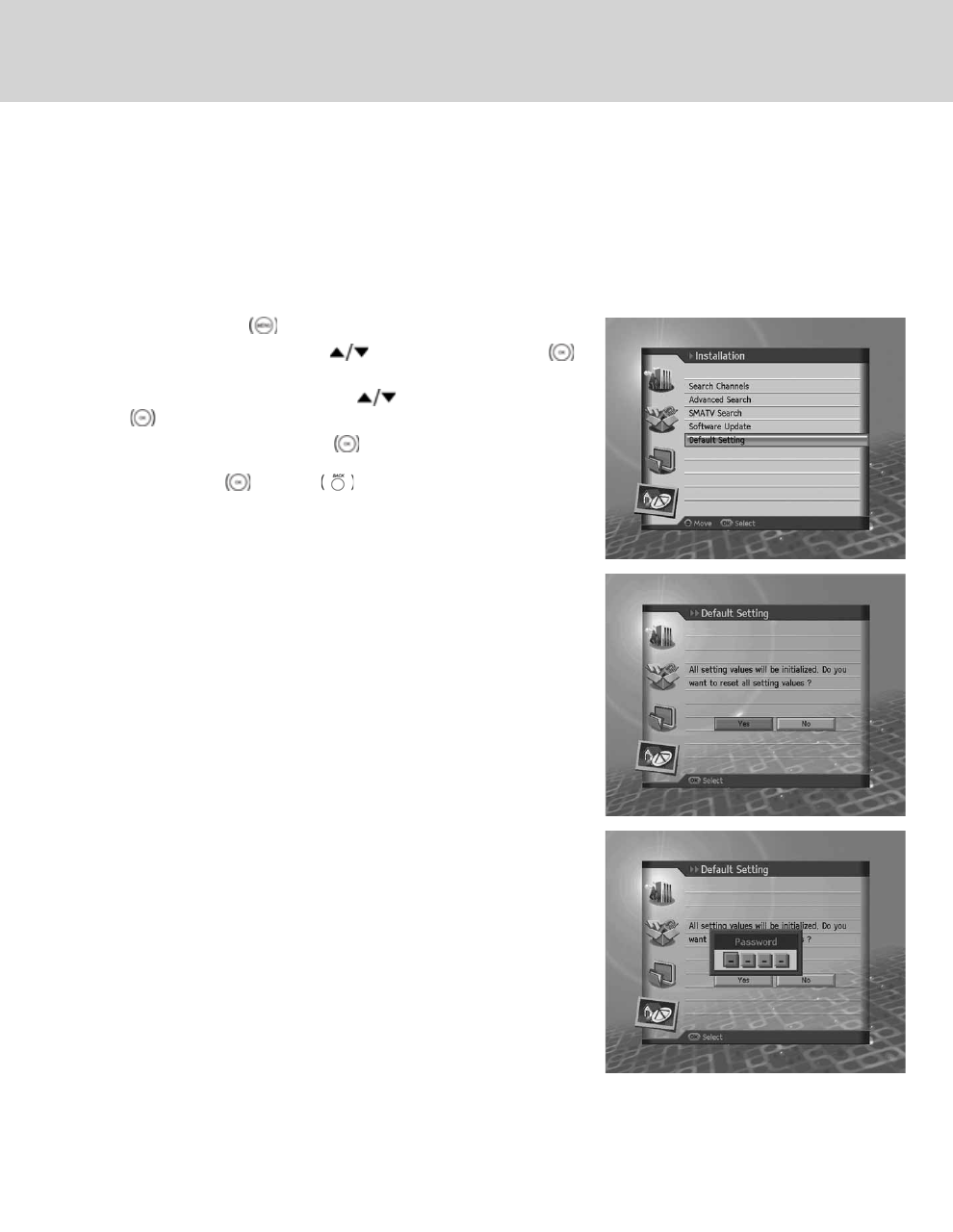
10.5 Default Setting
Default Setting enables you to restore the product to the factory default.
**
Warning: Please note that once you perform Default Setting, all data such as antenna setting information, channel
list, and all user configured data will be deleted.
1. Press the MENU button.
2. Select Installation using the button, and press the OK
button.
3. Select Default Setting using the button and press the OK
button.
4. Select Yes and press the OK button to restore all setting to
factory default. To return to the previous menu, select No and
press the OK or BACK button.
5. You will be prompted to enter your password again before
starting to load default setting. Enter the password to proceed.
6. When default setting is completed, installation wizard pops up
automatically and assists channel search. For detailed
information about installation wizard, refer to Chapter 3.
**
Note: The default password is 0000.
**
**
GB 73

11. Software Update
In order to maintain proper performance of the product, it is essential to have the most up-to-date software. Visit the
Humax website to check the latest news and newly released software versions.
**
http://www.humaxdigital.com.
**
It is recommended that you periodically check for the availability of software update.
11.1 OTA (Over the Air)
OTA, an abbreviation of Over–the-Air, is a standard for the transmission of software for equipment through a broadcast
system. OTA is simply an alternative method for downloading software versions. However, the manufacturers reserve
the right for deciding the release of the software for their products by beaming the latest software versions over the air
via satellite. Note that OTA is only limited to certain geographical regions mainly due to different antennas having
different footprints(area where the signal can be received). The software update via satellite system will only occur
under the following circumstances.
1. The equipment should have appropriate loader software.
Caution Please note that if normal loader software is not equipped, the product may not be updated or
operate properly after software update.
**
2. The manufacturer decides to release the software via a designated antenna system.
3. The equipment must be tuned properly to the same antenna equivalent to that of the manufacturer.
4. Update software when the signal strength quality is high. If the weather is not favorable and the signal strength
quality is not recommendable, perform the software update later.
Caution:
• Please be careful to keep the power on and the power cord plugged in during software update. If the power
is off during software update, fatal damage may be caused to the product.
• Please be careful not to pull out the signal line (LNB cable) during software update. Update may be
interrupted and the product may not operate.
Note:
• The predefined channel list may return to default setting after OTA has been performed.
• Other functions will not activate while software update takes place.
• It may take 5 ~10 minutes to update software.
• Scheduling operation cannot work during software update.
11. Software Update
GB 74

1. New software is found when powering on
1. A message will pop up to notify that a new software is found.
2. Select Immediate and press the OK button to start updating immediately. Select Later and press the OK
button to update later(stand-by). Select Refuse and press the OK button to return to the previous menu
without updating.
3. Software download starts. Please wait until the update is completed.
4. When software update is complete, the equipment is automatically powered off and on again.
**
Note: You can delay the software update up to 10 times when you select Refuse.
2. Mandatory Update
1. A message will pop up to notify updating.
2. Press the OK button to start updating immediately.
**
Note: You cannot operate any buttons except for the OK button.
GB 75
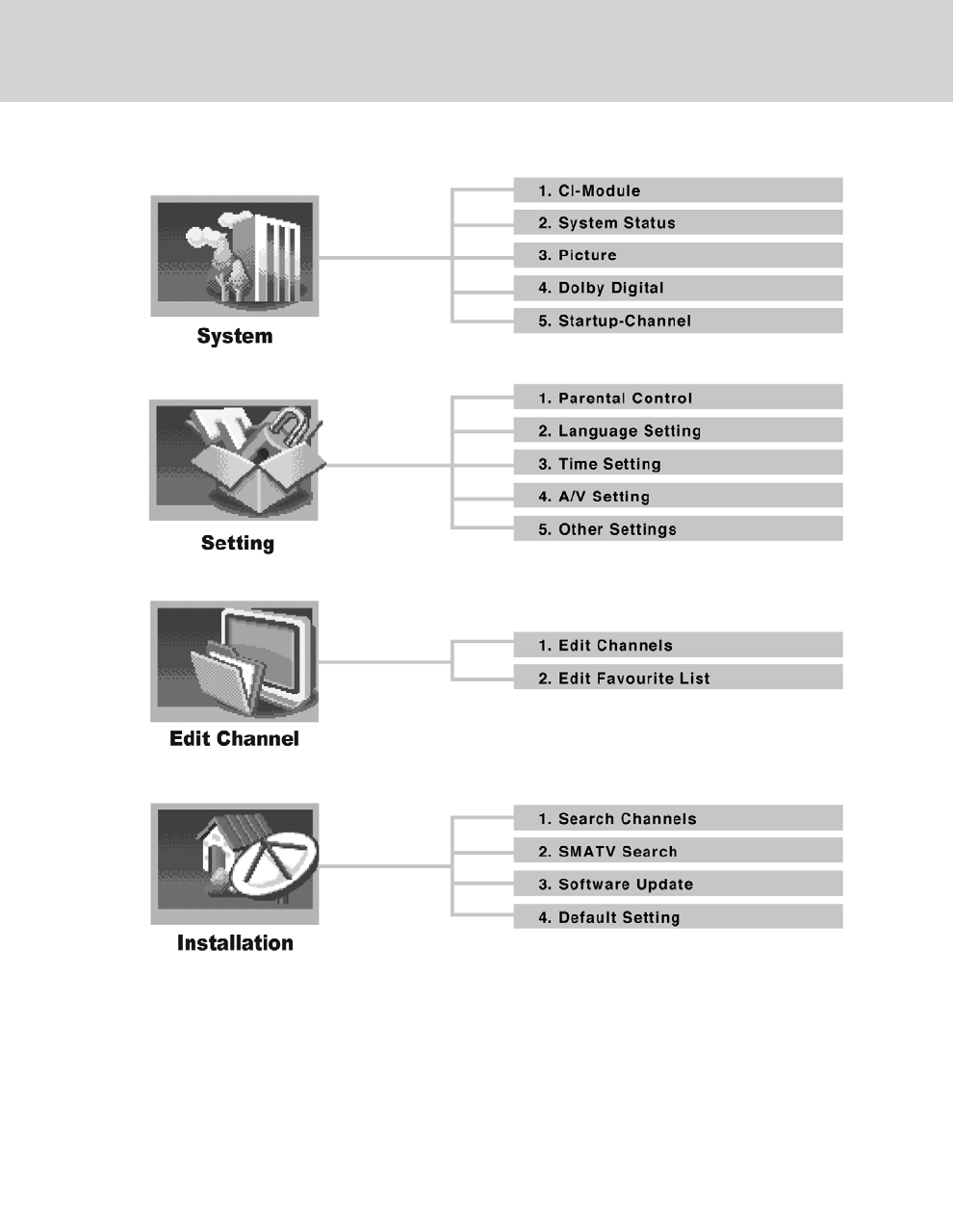
12. Menu Map
12. Menu Map
GB 76

13. Trouble Shooting
13.1 Trouble Shooting
Before contacting your local service centre, please read the tips below carefully. If the problem persists after completing
the following procedure, please contact your local product distributor or service centre for further instructions.
**
1. No message displayed on the front panel. (The product will not switch on.)
- Check the main power cable and make sure it is plugged into a suitable power outlet.
- Check that the mains supply is switched on.
- Check that the power switch is on at the rear of the product. (where applicable)
- Connect the power cable to a different power outlet.
**
2. No picture on TV set
- Make sure that the product is powered on and in operation mode. (Press the STANDBY button)
- Make sure that the AV cable is firmly connected to the TV.
- Make sure that the antenna cable is properly connected to the product.
- Make sure that the antenna setting in the menu is correct.
- Check the brightness level of the TV.
- Check if the channel is currently on air. Contact the broadcaster to ensure that the channel is running.
- Press the SOURCE button if the product is in external input mode.
**
3. Poor picture/sound quality
- Install the antenna in an obstacle-free place.
- Make sure there is no mobile phone or microwave oven near the product.
- Keep the power and the antenna cable for the satellite apart from each other.
- Check the signal levels and adjust your antenna if the level is too low. The signal level may be effected by
weather conditions.
Note: If the antenna is covered with snow or the RF is weakened by heavy rain, the condition of the sound
and picture may temporarily be poor. However, the poor sound and picture quality due to weather
conditions cannot be accepted as a malfunction of product.
**
• Check that your dish alignment is correct.
• Change the satellite dish for a larger one as this will increase the signal levels received.
• Replace the LNB with a lower noise factor in cases where the noise factor is too high.
• Replace the LNB with a new one in case it is damaged or out of order.
**
13. Trouble Shooting
GB 77

4. No or poor sound
- Check that your AV cable is connected correctly.
- Check the volume levels of your TV set and the product.
- Check if the product or TV is on mute.
- Check audio type or soundtrack option in the AV menu.
**
5. Remote control does not operate.
- To control the product, the top end of the remote control should point directly towards the receiving part of
the product.
- Remove and reinsert the batteries in the remote control.
- Replace the batteries in the remote control for a new set.
**
6. Cannot make reservations.
- Check that no previous reservations are conflicting with the new reservation.
- Check that the product is switched on at the time of the reservation.
**
7. No password information is given.
- The default password is always 0000.
**
8. Channel search does not work.
- Make sure that the antenna setting in the menu is correct.
**
9. Cannot update new software.
- You can get an update. If the product does not show a message requesting update, that means no
software is available.
**
10.Cannot watch scrambled channels.
- Check that you have the appropriate Smartcard and CI-Module. Reinsert the Smartcard and CI-Module and
make sure it initializes correctly.
- Check in the menu that the product is detecting the Smartcard and CI-Module.
- Check in the menu that you have a valid and working subscription to the channels you wish to view.
- Ensure that the Smartcard or CI-Module is not damaged.
**
11.Cannot watch pay channels.
- Check in the menu that you have a valid and working subscription to the channels you wish to view.
- Contact your network operator for more information.
13. Trouble Shooting
GB 78
13.2 Error Message
Error message Possible causes What to do
No or bad signal The satellite dish is not pointing at the
satellite.
Adjust dish alignment.
Signal is too weak. Increase the LNB voltage or connect a signal
amplifier.
Satellite dish is too small.
Problem with LNB.
Wrong antenna setting.
Change to a larger dish.
Change the LNB.
Set the antenna correctly.
The channel is
scrambled or not
available.
The channel has a signal, but no audio or
video is provided.
The channel has not been deleted by
broadcasting company.
The channel is for data broadcasting.
Confirm if the channel is currently on air.
**
Remove the channel from the channel list and
check for new transponder details.
The channel cannot be viewed with the
appropriate model that supports data
channels.
Audio not
available.
The channel has a video signal, but no audio
is provided.
Press the audio button on your remote control
to confirm that the channel has audio options.
CI module not
installed.
CI module is not installed.
CI module is not inserted correctly.
CI module is not recognized.
Insert CI module.
Reinsert CI module.
Insert a different CI module to check if your
existing module is working.
Invalid CI module Wrong CI module.
CI module is not inserted correctly.
CI module is damaged.
Insert the correct CI module.
Remove and reinsert the CI module.
Replace CI module.
Short LNB LNB cable is short.
LNB is internally short.
Alien substance is inserted in LNB IN port and
port may be damaged.
Replace LNB Cable.
Replace LNB.
Remove the alien substance and contact local
service center in case damaged has occurred.
GB 79
14. Specification
Tuner & Channel
Input Connector F-Type, IEC 169-24, Female
Frequency Range 950MHz to 2150MHz
Signal Level -25 to 75dBm
LNB Power & Polarisation Vertical: +13.5V (+14.5V at high voltage)
Horizontal: +18V (+18.5V at high voltage)
Current: Max. 500mA (Overload protection)
22KHz Tone Frequency: 22 ± 4KHz
Amplitude: 0.7 ± 0.2V
DiSEqC Control Version 1.0, 1.2, USALS compatible
Demodulation QPSK, 8PSK
Input Symbol Rate DVB-S : 2–45 Ms/s
DVB-S2 : 10-30 Ms/s (QPSK), 10-31 Ms/s (8PSK)
FEC mode DVB-S : Auto, 1/2, 2/3, 3/4, 5/6, 7/8
DVB-S2 : Auto, 1/2, 3/5, 2/3, 3/4, 4/5, 5/6, 8/9, 9/10 (QPSK)
Auto, 3/5, 2/3, 3/4, 5/6, 8/9, 9/10 (8PSK)
**
MPEG Transport Stream A/V Decoding
Transport Stream MPEG-2 ISO/IEC 13818
Transport Stream Specification
Profile Level MPEG-2MP@ML, MPEG-2 MP@HL, MPEG-4 AVC/H.264 HP@L4
Input Rate 15 MB/s Max
Aspect Ratio 4:3, 16:9 Letter Box
Video Resolution 720x576, 1920x1080i, 1280x720P
Audio Decoding MPEG/MusiCam LayerI&II
Audio Mode Single channel/Dual channel/Joint
Stereo/Stereo
14. Specification
GB 80
Audio/Video/Data In/Out
Video TV-SCART (FBAS, S-Video, RGB)
VCR-SCART (FBAS, S-Video)
RCA-Typ (FBAS) , Component (YPbPr), HDMI
Audio TV-SCART, VCR-SCART, Audio L/R, SPDIF (Digital Audio Output)
Data RS-232C( 9pin plug)
**
Power Supply
Input Voltage AC 90~ 250 V, 50/60 Hz
Type SMPS
Power Consumption Max 45W
Protection Separate internal fuse.
The input should be protected against lighting.
**
Physical Specification
Size 370mm x 60mmx262mm (WxHxD)
Weight (Net) 2.5kg
Operating Temperature 0 to +45
Storage Temperature -10 to +70
14. Specification
GB 81

15. Glossary
DiSEqC (Digital Satellite Equipment Control)
A DiSEqC compatible product relies on a switching box which detects the 22kHz tone pulsing rapidly on and off. In this
way, a specially designed product can control numerous LNBs through a DiSEqC switching box.
**
EPG(Electronic Programme Guide)
An electronic equivalent to a printed television listings magazine; it is an application used with digital receivers and
digital television sets to list current and scheduled programs that are or will be available on each channel, including a
short summary or commentary for each program. The information supplied in the EPG is sent and updated by the
channel broadcaster.
**
FEC (Forward Error Correction)
A technique for error control of data transmission.
**
Frequency
The property of a signal measured in cycles per second (=Hz).
**
FTA (Free- To-Air)
An unscrambled broadcaster allowing customers to view channels or services without paying any subscription.
**
HDMI (High-Definition Multimedia Interface)
An all-digital audio/video interface that supports standard, enhanced, or high-definition video, plus multi-channel digital
audio on a single cable. It transmits all ATSC HDTV standards and supports 8-channel digital audio.
**
Hi-Fi (High Fidelity)
The characteristics of audio devices that can play back all the audio frequencies a person can detect, which is the range
of 16Hz and 20KHz. Sometimes it is used to indicate good quality of audio devices such as stereo tape products.
**
LNB (Low Noise Block)
A device that is mounted on an arm facing your satellite dish, focusing on satellite signals. A LNB converts signals
received from satellite to a lower frequency and sends them to a satellite product via coaxial cable.
**
OSD (On Screen Display)
OSD displays the basic information necessary for the users to configure monitor or TV settings. OSD information may
include brightness, contrast, tuning, RGB adjustment, and screen size and position.
**
OTA (Over The Air)
A standard for the transmission of software for equipment, through a broadcast system. Manufacturers reserve the right
for deciding the release of the software for their products.
15. Glossary
GB 82

Polarization
The direction of the electrical and magnetic fields of a signal. Satellites use both vertical and horizontal polarisation.
Means that a frequency can be used twice.
**
PID (Packet Identifier)
A set of numbers identifying stream packets contained within a single data stream.
**
QPSK (Quaternary Phase Shift Keying)
Digital modulation technique in which the carrier phase can have one of four possible values.
**
SCART
A 21-pin connector standard to connect two pieces of Audio-Visual equipment such as a TV and a VCR. Each device
will have a 21-pin female connection; a cable with male connection at both ends is used for connecting the devices.
**
Smartcard
A chipcard the same size as a credit card which must be inserted into the digital receiver in order to descramble the TV
signals.
**
S/PDIF (Sony/Philips Digital Interface format)
A standard format for the transfer of digital audio signals. It allows the transfer of digital audio between two devices
without any conversion to and from analogue, which could degrade the signal quality.
**
S-Video (Super-Video)
Sometimes referred to as Y/C video; a technology for transmitting video signals via a cable. It is a video signal
transmission in which the luminance (brightness) and the chrominance (colour) signals are transmitted separately to
achieve superior picture clarity.
**
Transponder
A satellite is divided up in parts called transponders. A transponder is one distribution section of the satellite. Each
transponder can be used for distribution of several channels or services.
**
GB 83

16. Service and Support
Information concerning troubleshooting, software upgrade and product support is provided in the following websites and
call centers. Should your product require warranty service, please contact HUMAX to obtain the appropriate
authorization.
Germany
Tel: 01805-778870 (€0,12/min)
Opening Hours: Mon-Sat 8:00-20:00
E-mail: techinfo@humax-digital.de
Website: www.humax-digital.de
Language: Deutsch/English/Turkish
**
UK
Tel: 0870 247 8800
Opening Hours: Mon-Fri 8:30-18:00
E-mail: uksupport@humax-digital.co.uk
Website: www.humax-digital.co.uk
Language: English
**
Middle East (Dubai, UAE)
Tel: +971 (0)4 359 2323
Opening Hours: Sat-Thurs 9:00-20:00(Closed on Fri)
E-mail: callcenterME@humaxdigital.com
Website: www.humaxarabia.com
Language: Arabic/English
**
Australia
Tel: 1800 613 011
Opening Hours: Mon- Fri 9:00- 17:30
E-mail: techinfoau@humaxdigital.com
Website: www.humaxdigital.com/australia
Language: English
16. Service and Support
GB 84

Italy
Tel: 899 100 080 (€1+ VAT/min)
Opening Hours: Mon- Fri 8:00 – 18:00
Local time in Italy (GMT+1)
Language: Italian
**
Sweden
Tel: +46 (0)550 85527
Opening Hours: Mon-Fri 8:00-16:30
Language: Swedish/English
**
Finland
Tel: 09 56186366
Opening Hours: Mon-Fri 8:00-16:00
Language: Finnish/English
**
Austria
Tel: 01805-778870 (€0,12/min)
Opening Hours: Mon-Sun 8:00-23:00
E-mail: support@humax-digital.de
Website: www.humax-digital.de
Language: Deutsch/English/Turkish
**
Note: For hardware repair, please visit our website.
GB 85
