Hunt Electronic HLC830W WEB CAMERA User Manual

Hunt Electronic Co., Ltd. WEB CAMERA

USERS MANUAL

***  USER’S MANUAL  ***FCC ID : UTBHLC830W
The Federal Communication Commission StatementThis equipment has been tested and found to comply with the limits for a Class B Digital Device,pursuant to Part 15 of the FCC rules.  These limits are designed to provide reasonable protection against harmful interference in a residential installation.  This equipment generates, uses and canradiate radio frequency energy and, if not installed and used in accordance with the instruction, may cause harmful interference to radio communication.  However, there is no guarantee thatinterference will not occur in a particular installation.  If this equipment does cause harmfulinterference to radio or television reception, which can be determined by turning the equipment off and on, the user is encouraged to try to correct the interference by one of more of the following measures: --Reorient or relocate the receiving antenna.-Increase the separation between the equipment and receiver.-Connect the equipment into an outlet on a circuit different from that to which the receiveris connected.-Consult the dealer or an experienced Radio/TV technician for help.Use only shielded cables to connect I/O devices to this equipment.  You are cautioned that change or modifications not expressly approved by the party responsible for compliance could void yourauthority to operate the equipment.THIS DEVICE COMPLIES WITH PART 15 OF THE FCC RULES. OPERATION IS SUBJECT TO THE FOLLOWING TWO CONDITIONS: (1) THIS DEVICE MAY NOT CAUSE HARMFULINTERFERENCE, AND (2) THIS DEVICE MUST ACCEPT ANY INTERFERECE RECEIVED,INCLUDING INTERFERENCE THAT MAY CAUSE UNDESIRED OPERATION.1. This device may not cause harmful interference and2. This device must accept any interference received, including interference that may causeundesired operation.
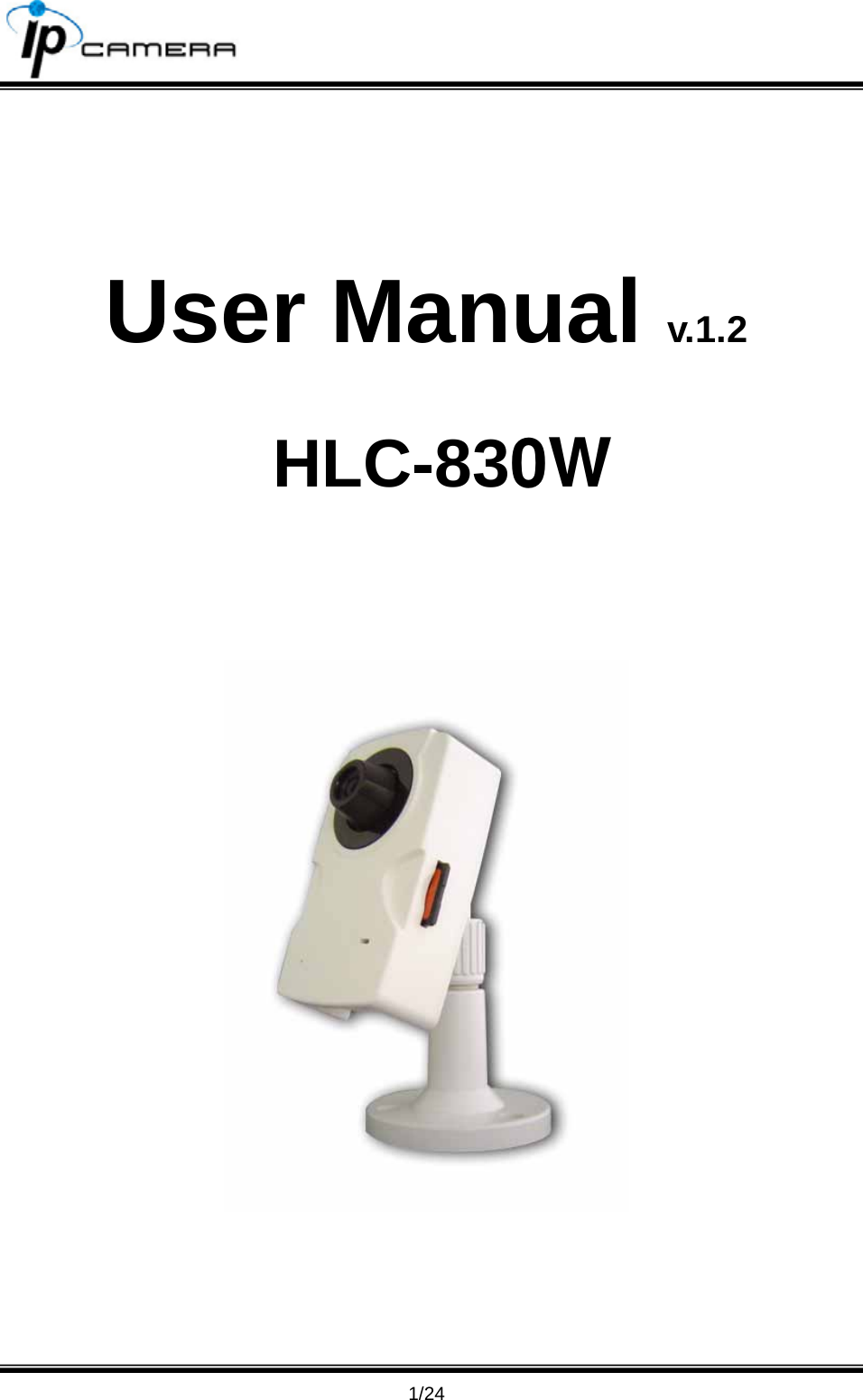
                                      1/24  User Manual v.1.2  HLC-830W
                                      2/24 Content I. PREFACE....................................................................................................................................... 3 II. PRODUCT SPECIFICATIONS....................................................................................................... 3 III. PRODUCT INSTALLATION....................................................................................................... 5 A. HARDWARE INSTALLATION ............................................................................................................. 5 B. IP ASSIGNMENT ............................................................................................................................ 5 C. INSTALL ACTIVEX CONTROL:.......................................................................................................... 7 IV. LIVE VIDEO ............................................................................................................................... 9 V. HLC-83 CONFIGURATION...........................................................................................................11 A. SYSTEM ......................................................................................................................................11 B. NETWORK .................................................................................................................................. 14 C. MULTIMEDIA ............................................................................................................................... 16 D. EVENT ....................................................................................................................................... 19 VI. NETWORK CONFIGURATION................................................................................................ 22 VII. PACKAGE CONTENTS........................................................................................................... 24
                                      3/24 I. Preface HLC-83 is a CMOS IP camera. It builds in web server. User views real-time video via IE browser. HLC-83 supports MPEG-4 video compression which provides smooth and high quality video. The video can be stored in the SD card, and can be playback remotely. HLC-83 is an easy-to-use IP camera which is designed for home security application.  II. Product  Specifications z MPEG4 compression z  Supports SD card for local recording z  Wireless network connection﹝Optional﹞ z 2-way audio z  Online firmware upgrade z  Real-time video recording z  Compatible with Microsoft Windows Media Player
                                      4/24  Hardware CPU  ARM 9 ,32 bit RISC RAM 64MB ROM 8MB Image sensor  1/4” CMOS Microphone Built-in Network Ethernet  10/ 100 Base-T Network Protocol  HTTP, TCP/ IP, SMTP, FTP, PPPoE, DHCP, DDNS, NTP Wireless (Optional) Wireless 802.11b/g  WEP  64/ 128 bit System Video Resolution  640x480, 320x240, 160x120 Video adjust  Brightness, Contrast, Saturation, Hue Image snapshot  Yes Full screen monitoring  Yes Compression format  MPEG-4 Video bitrate adjust  CBR, VBR Motion Detection  Yes, 3 different areas Triggered action  Mail, FTP, Save to SD card Pre/ Post alarm  Yes, configurable Security Password protection Firmware upgrade  HTTP mode, can be upgraded remotely Simultaneous connection  Up to 10 Audio Yes, 2-way SD card management Recording trigger  Motion Detection, Network break down Video format  AVI Video playback  Yes Delete files  Yes Web browsing requirement OS  Windows 2000, XP, 2003 Internet browser  Microsoft IE 6.0 or above
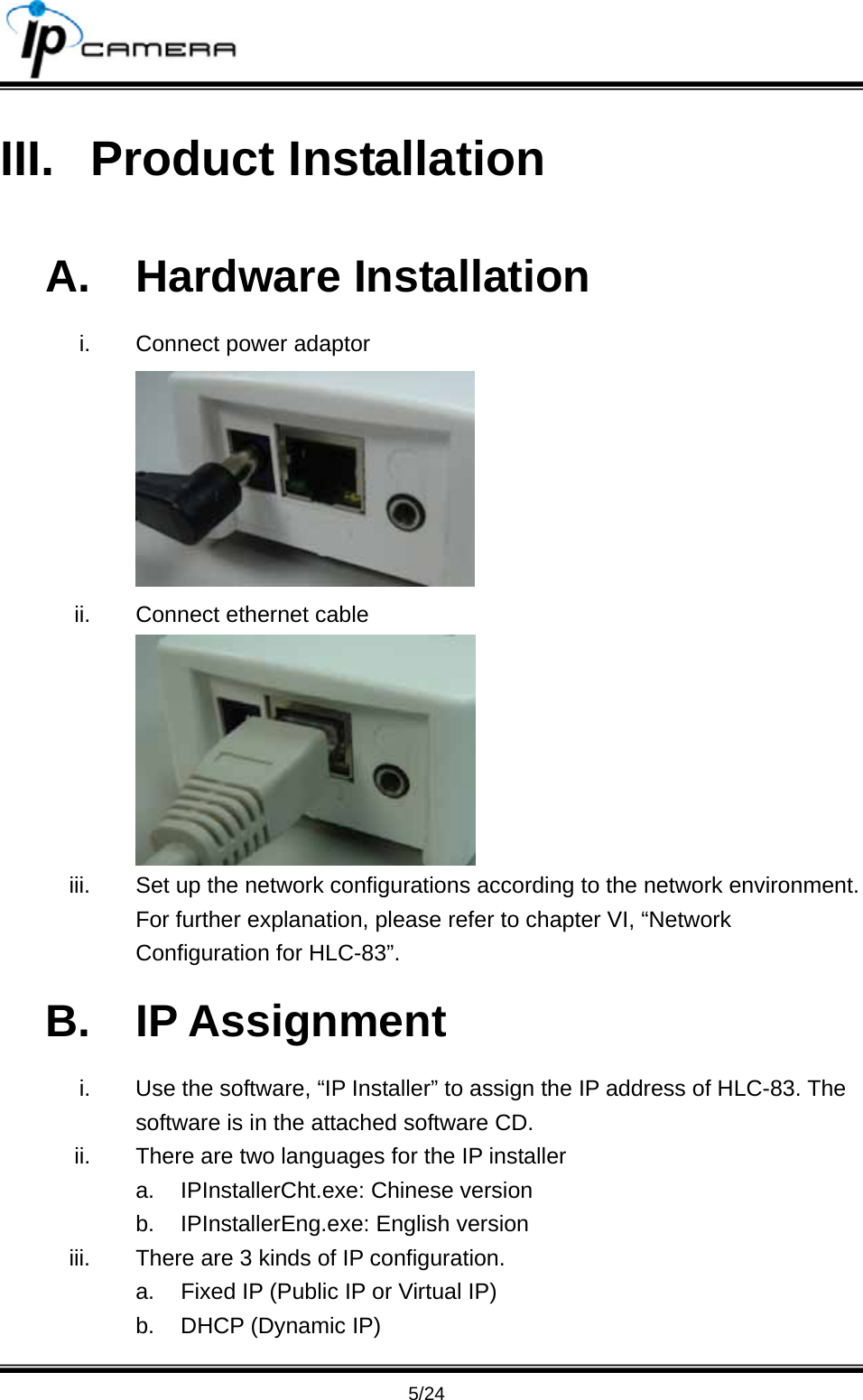
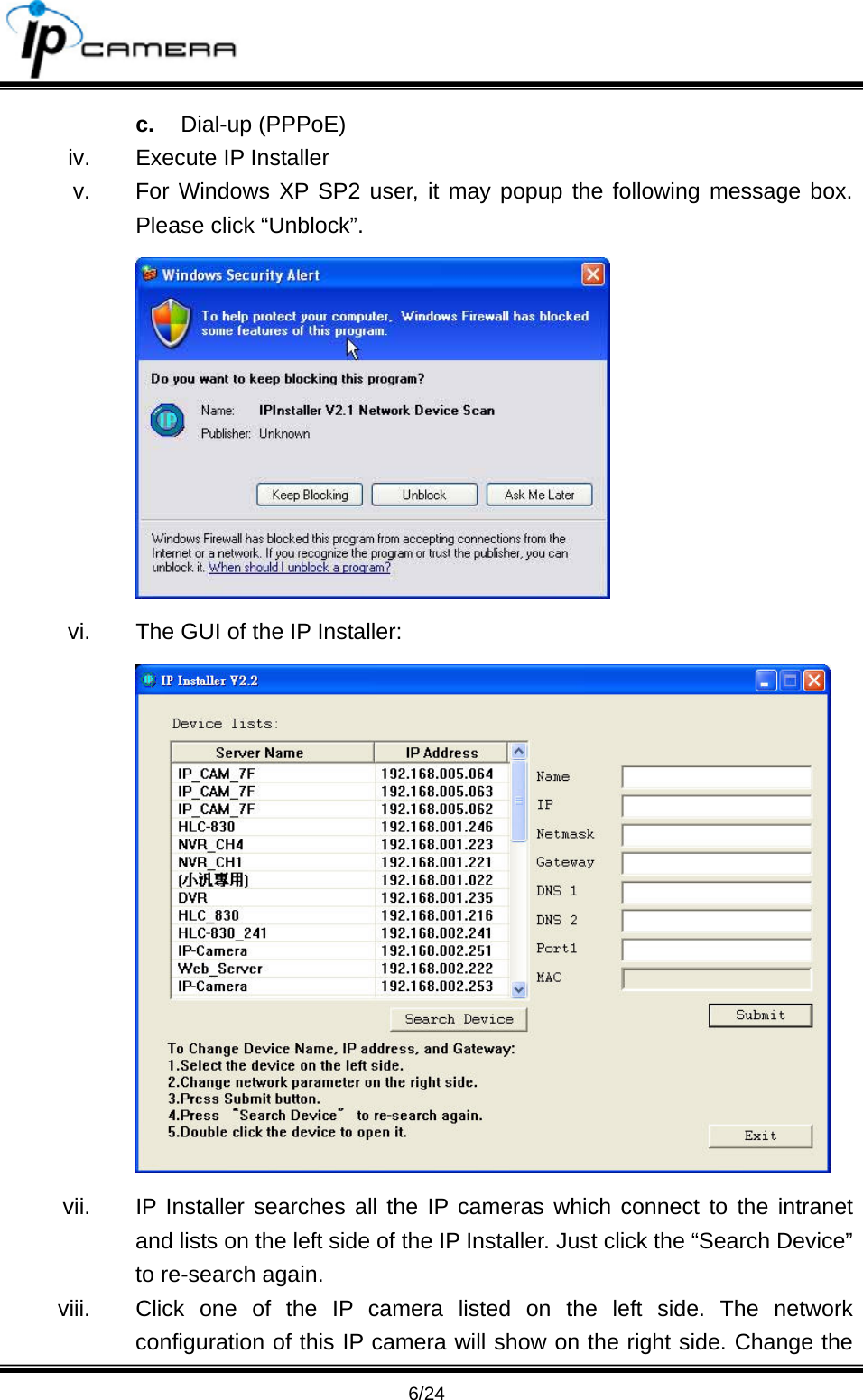
                                      5/24 III. Product Installation A. Hardware Installation i.  Connect power adaptor  ii.  Connect ethernet cable  iii.  Set up the network configurations according to the network environment. For further explanation, please refer to chapter VI, “Network Configuration for HLC-83”. B. IP Assignment i.  Use the software, “IP Installer” to assign the IP address of HLC-83. The software is in the attached software CD. ii.  There are two languages for the IP installer a.  IPInstallerCht.exe: Chinese version b.  IPInstallerEng.exe: English version iii.  There are 3 kinds of IP configuration. a.  Fixed IP (Public IP or Virtual IP) b.  DHCP (Dynamic IP)
                                      6/24 c.  Dial-up (PPPoE) iv.  Execute IP Installer v.  For Windows XP SP2 user, it may popup the following message box. Please click “Unblock”.  vi.  The GUI of the IP Installer:  vii.  IP Installer searches all the IP cameras which connect to the intranet and lists on the left side of the IP Installer. Just click the “Search Device” to re-search again. viii.  Click one of the IP camera listed on the left side. The network configuration of this IP camera will show on the right side. Change the
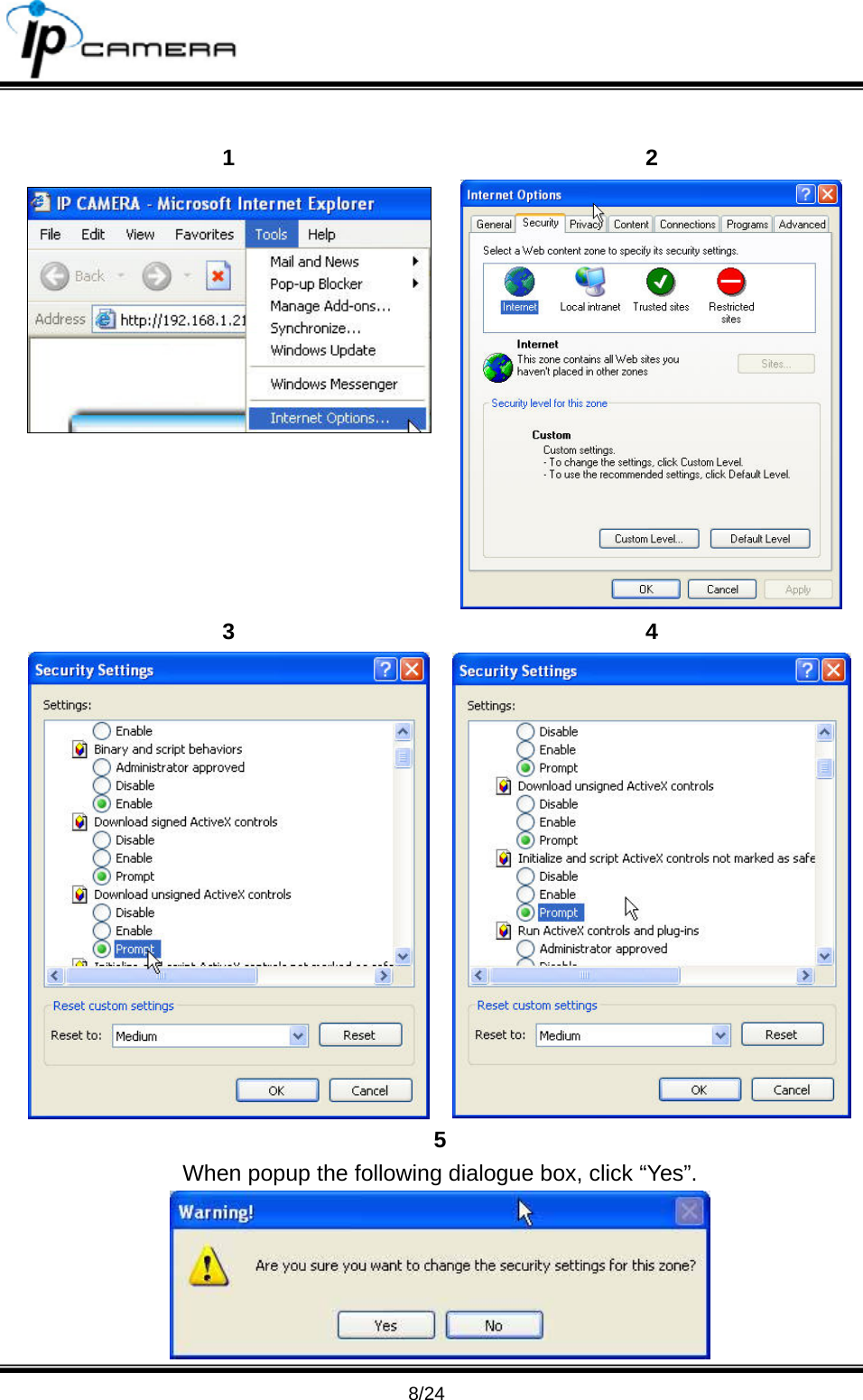
                                      7/24 parameter and click “Submit”. The following dialogue box will show. Just click “OK”. It will the change the IP and reboot the camera.    ix.  Click “Search Device” to research the IP camera. Double click the IP camera listed on the left side. It will open an IE browser and connect to this IP camera directly. C. Install ActiveX control: For the first time to view the camera video via IE, it will ask you to install the ActiveX component.   If the installation failed, please check the security setting for the IE browser. i. IE Æ Tools Æ Internet Options… Æ Security Tab Æ Custom Level… Æ Security Settings Æ Download unsigned ActiveX controlsÆ Select “Enable” or Prompt. ii. IE Æ Tools Æ Internet Options… Æ Security Tab Æ Custom Level… ÆInitialize and script ActiveX controls not marked as safe Æ Select “Enable” or Prompt.
                                      8/24  1 2  3 4 5 When popup the following dialogue box, click “Yes”.
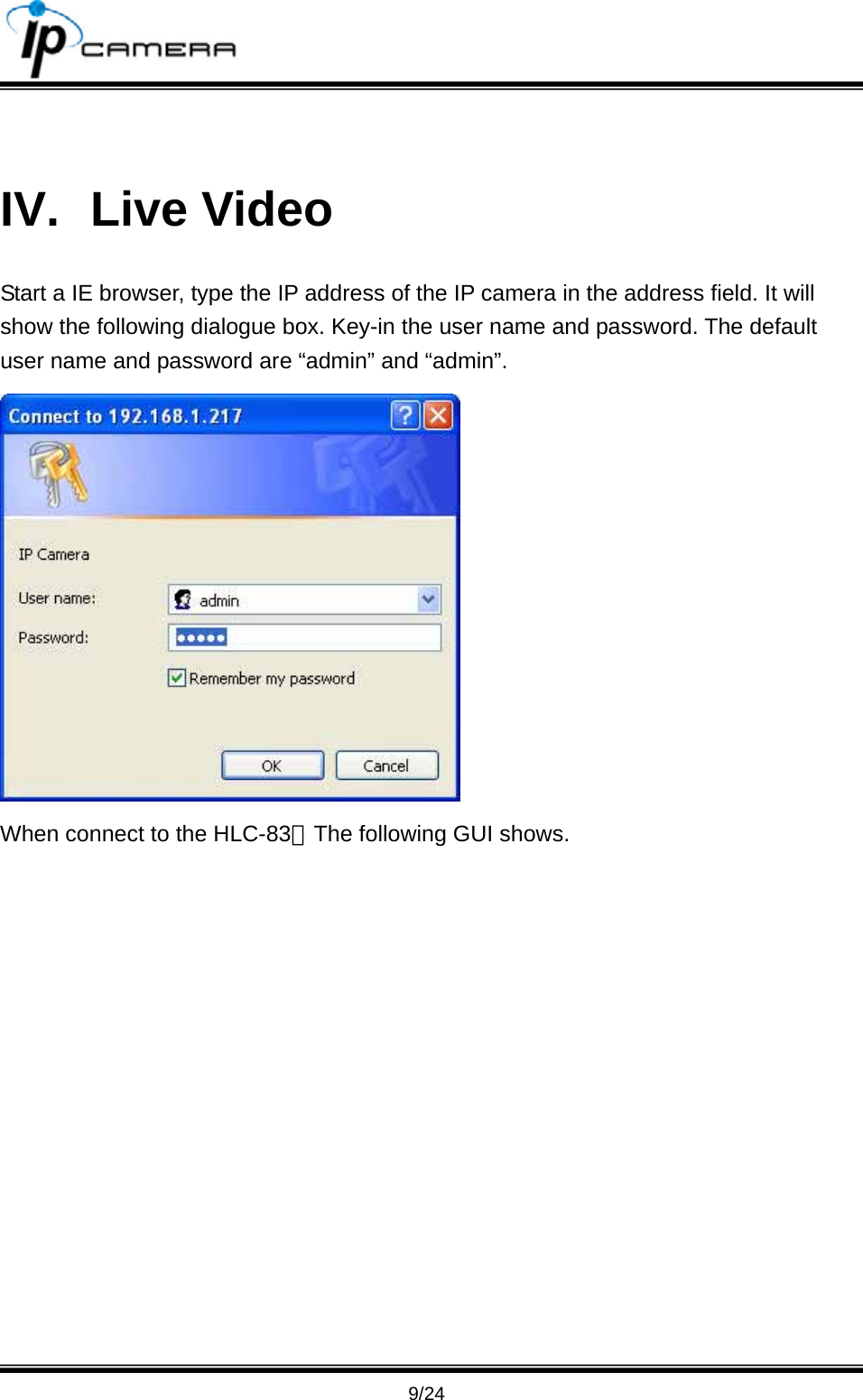
                                      9/24  IV. Live Video Start a IE browser, type the IP address of the IP camera in the address field. It will show the following dialogue box. Key-in the user name and password. The default user name and password are “admin” and “admin”.  When connect to the HLC-83。The following GUI shows.
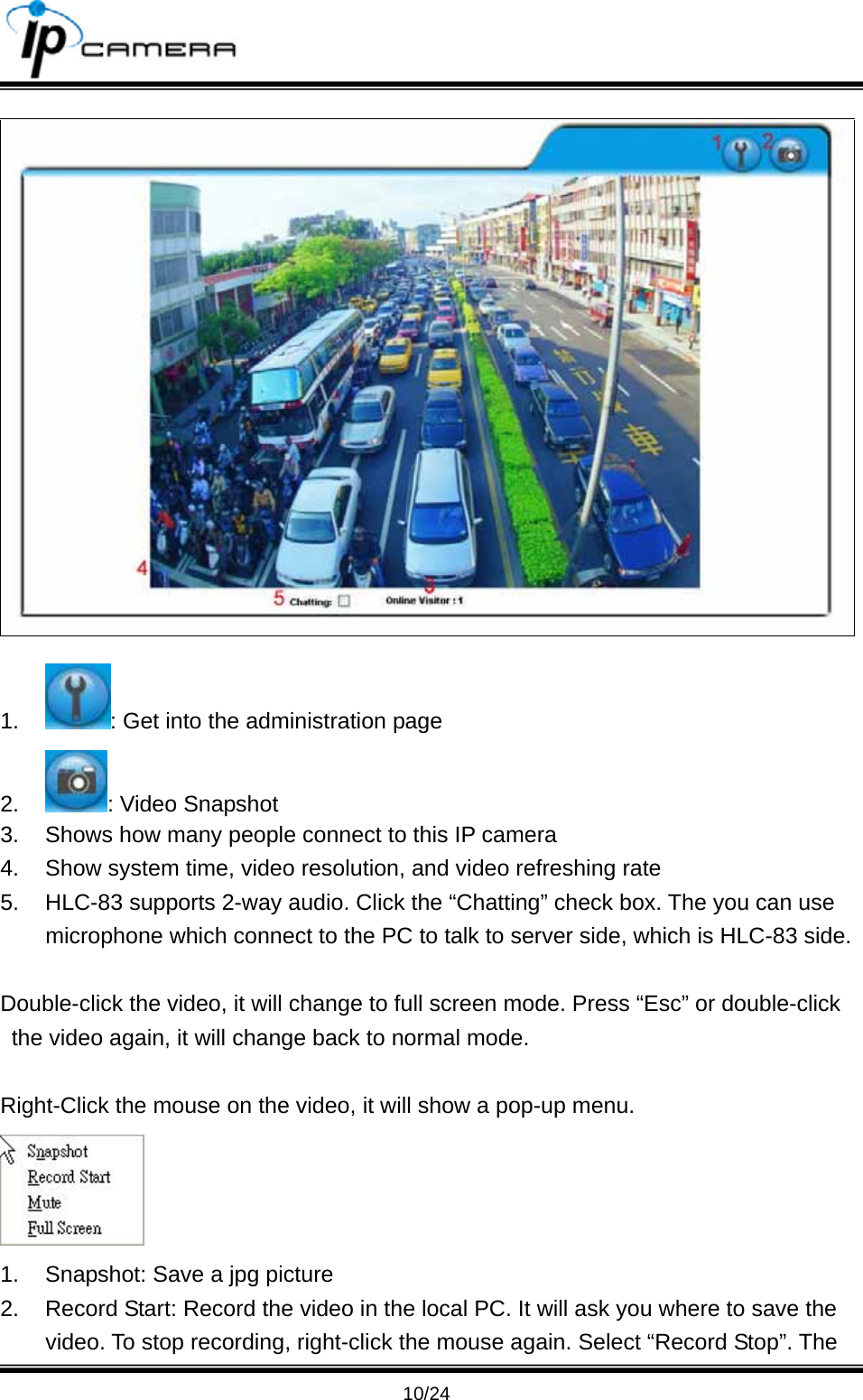
                                      10/24  1.  : Get into the administration page 2.  : Video Snapshot 3.  Shows how many people connect to this IP camera 4.  Show system time, video resolution, and video refreshing rate 5.  HLC-83 supports 2-way audio. Click the “Chatting” check box. The you can use microphone which connect to the PC to talk to server side, which is HLC-83 side.  Double-click the video, it will change to full screen mode. Press “Esc” or double-click the video again, it will change back to normal mode.    Right-Click the mouse on the video, it will show a pop-up menu.    1.  Snapshot: Save a jpg picture 2.  Record Start: Record the video in the local PC. It will ask you where to save the video. To stop recording, right-click the mouse again. Select “Record Stop”. The
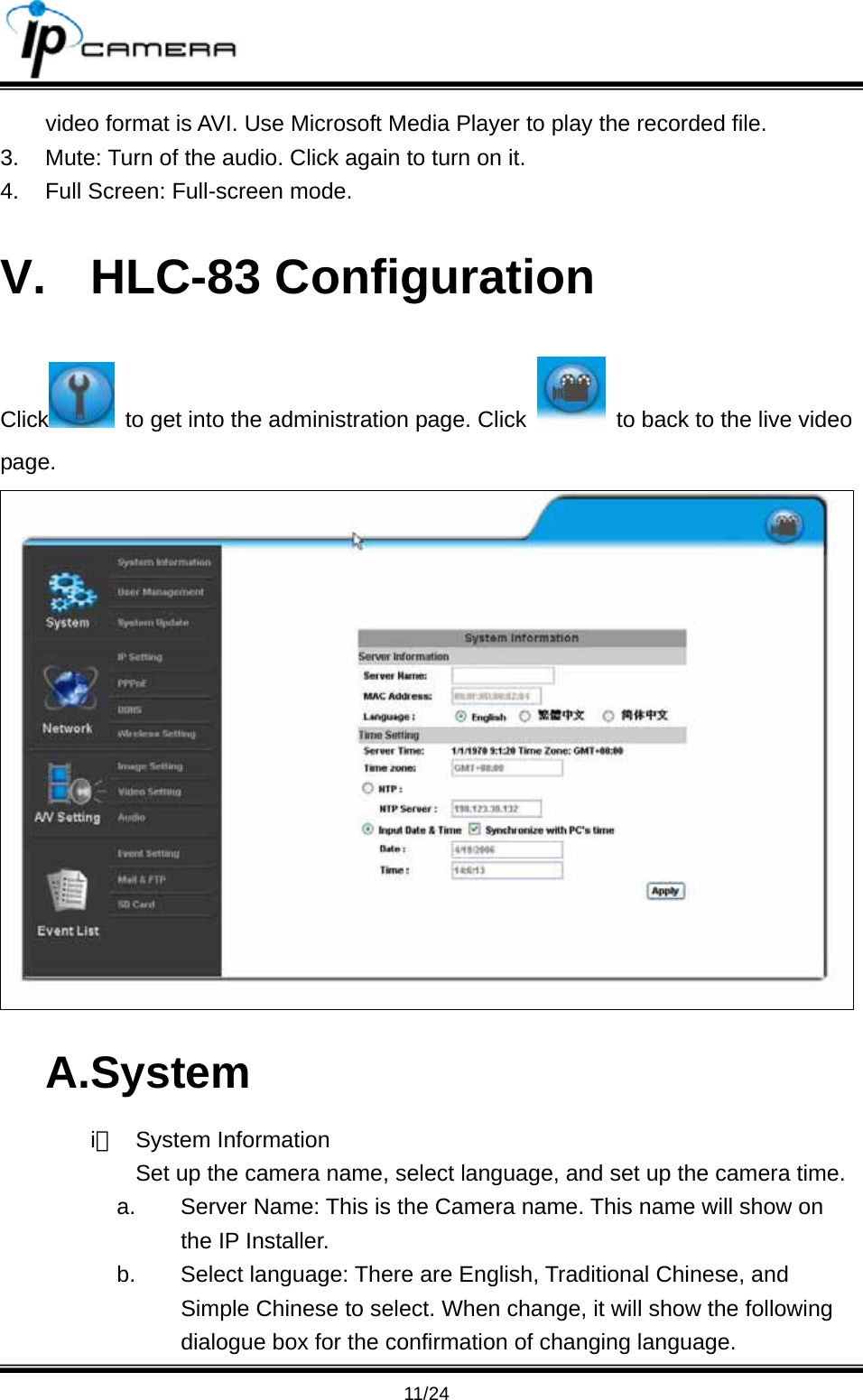
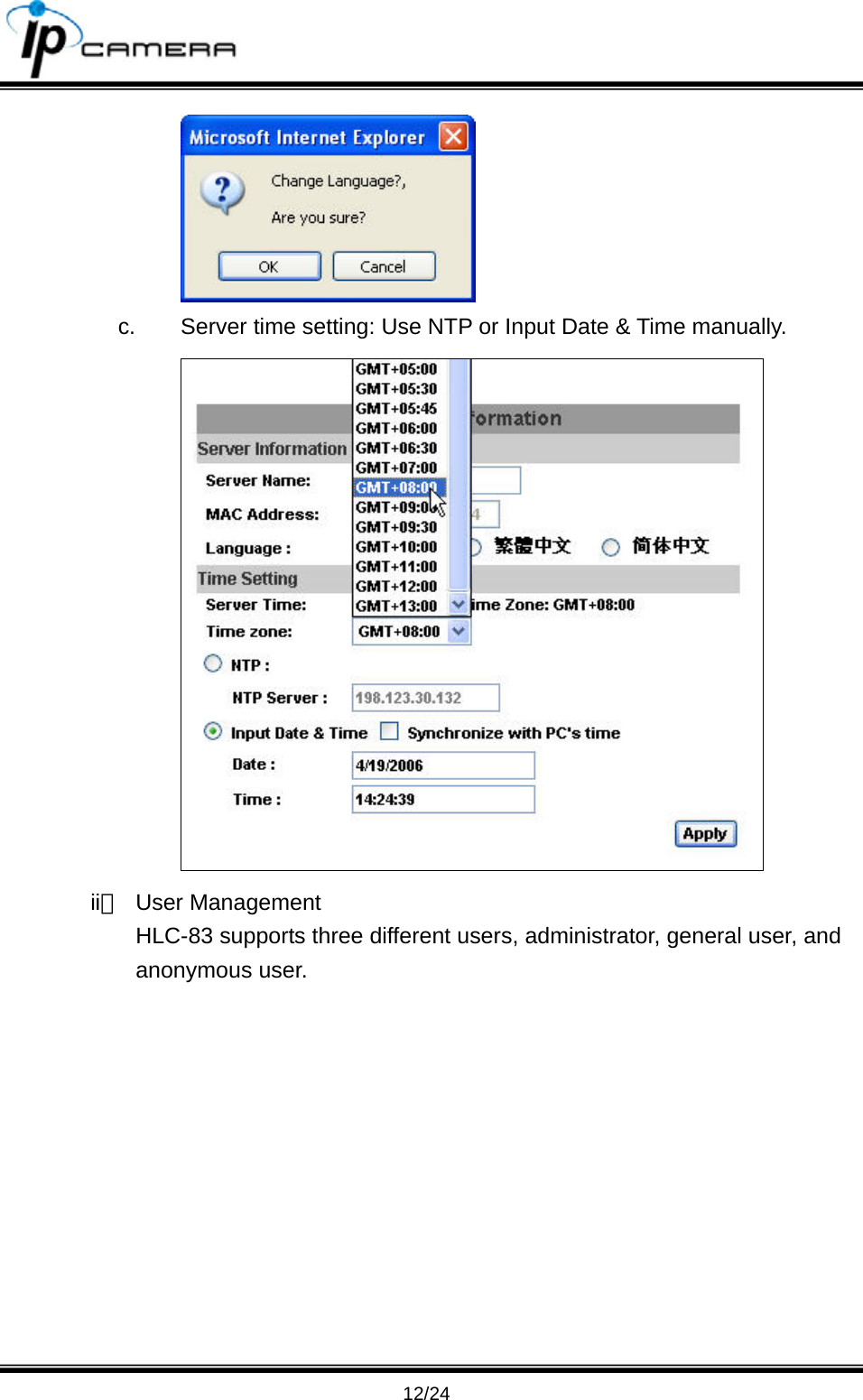
                                      11/24 video format is AVI. Use Microsoft Media Player to play the recorded file.   3.  Mute: Turn of the audio. Click again to turn on it.   4.  Full Screen: Full-screen mode. V. HLC-83 Configuration Click   to get into the administration page. Click    to back to the live video page.  A.System i、 System Information Set up the camera name, select language, and set up the camera time. a.  Server Name: This is the Camera name. This name will show on the IP Installer. b.  Select language: There are English, Traditional Chinese, and Simple Chinese to select. When change, it will show the following dialogue box for the confirmation of changing language.
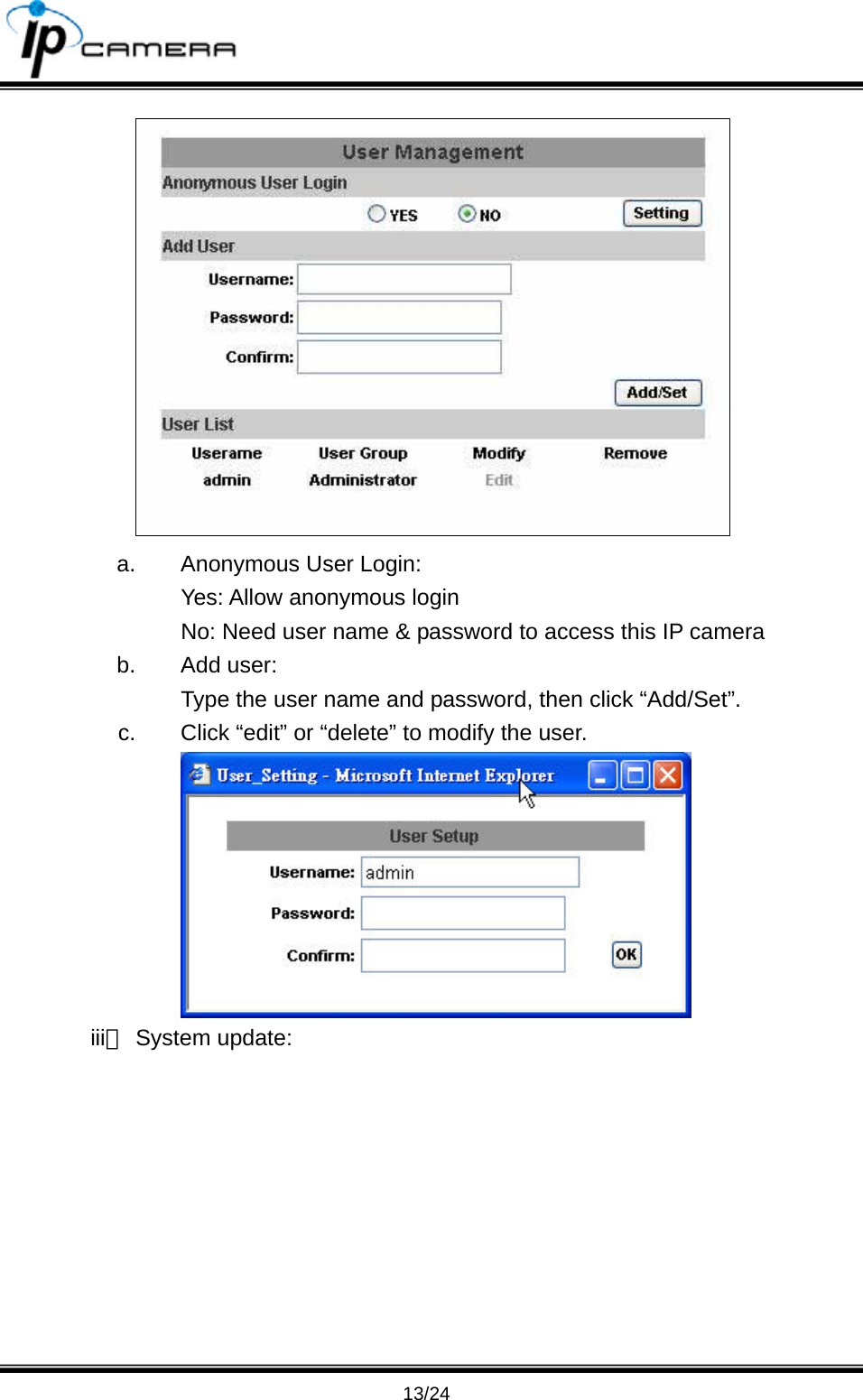
                                      12/24  c.  Server time setting: Use NTP or Input Date & Time manually.  ii、 User Management HLC-83 supports three different users, administrator, general user, and anonymous user.
                                      13/24  a.  Anonymous User Login: Yes: Allow anonymous login No: Need user name & password to access this IP camera b. Add user: Type the user name and password, then click “Add/Set”. c.  Click “edit” or “delete” to modify the user.  iii、 System update:
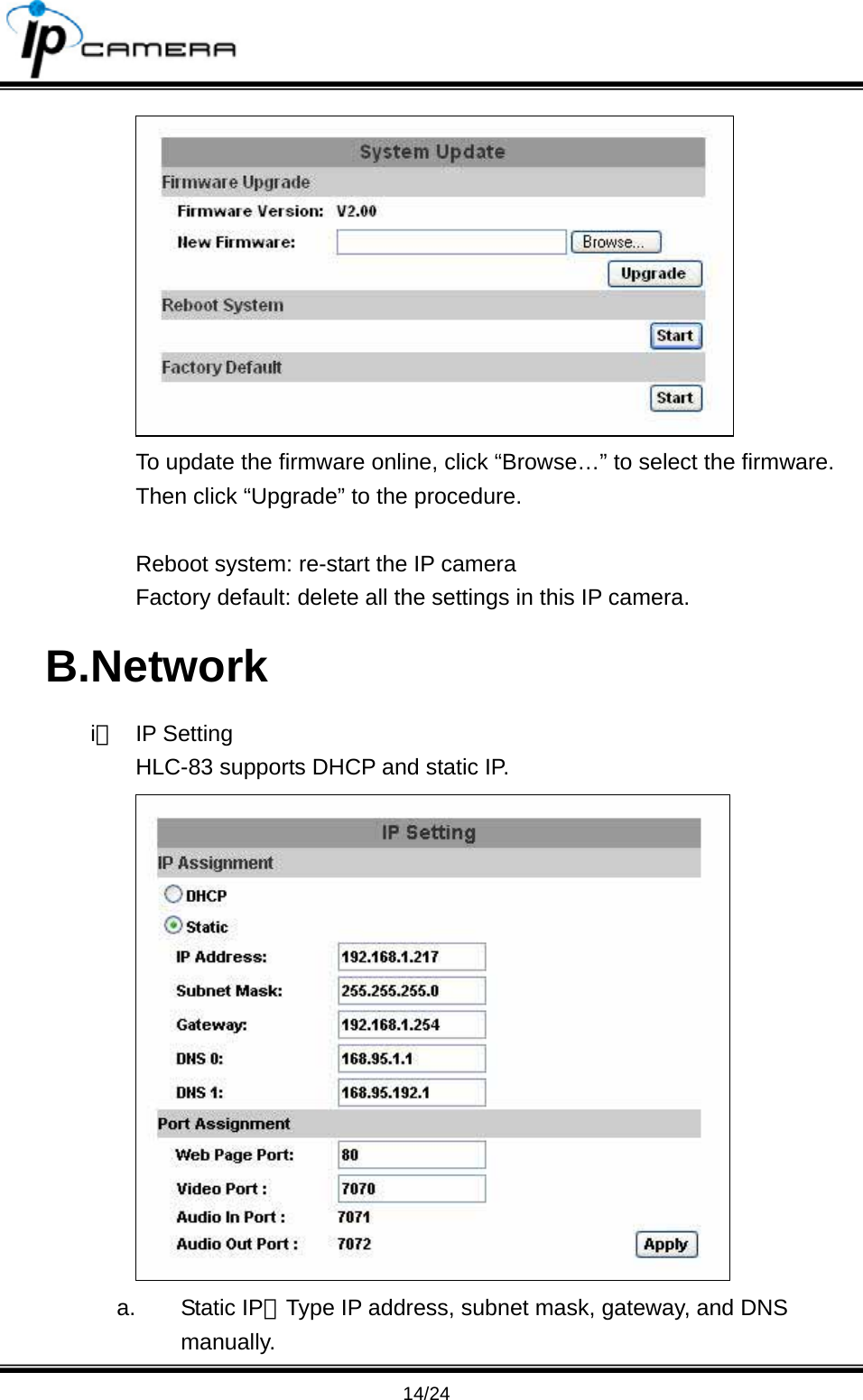
                                      14/24  To update the firmware online, click “Browse…” to select the firmware. Then click “Upgrade” to the procedure.  Reboot system: re-start the IP camera Factory default: delete all the settings in this IP camera. B.Network i、 IP Setting HLC-83 supports DHCP and static IP.  a. Static IP:Type IP address, subnet mask, gateway, and DNS manually.
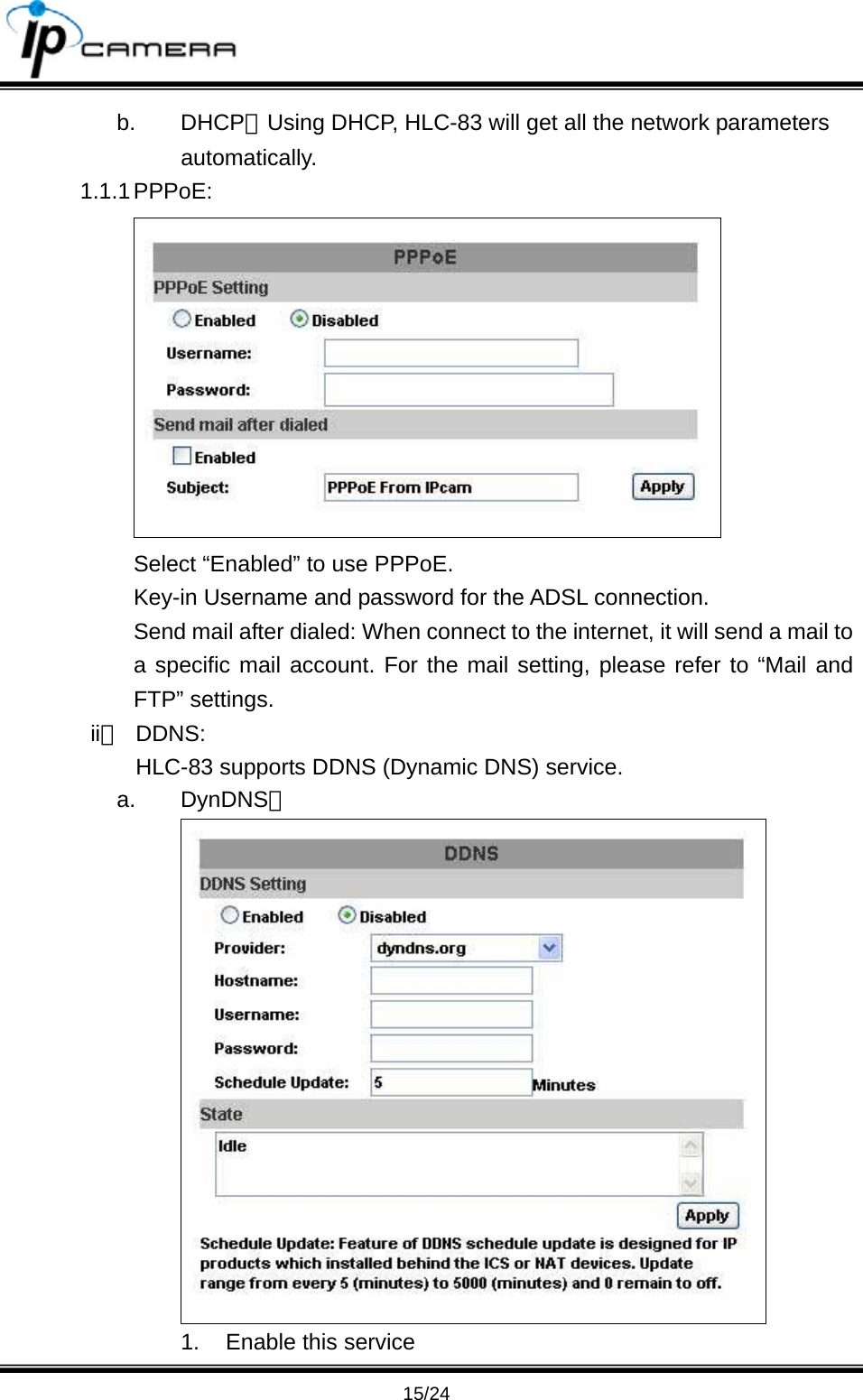
                                      15/24 b. DHCP:Using DHCP, HLC-83 will get all the network parameters automatically.  1.1.1 PPPoE:    Select “Enabled” to use PPPoE. Key-in Username and password for the ADSL connection. Send mail after dialed: When connect to the internet, it will send a mail to a specific mail account. For the mail setting, please refer to “Mail and FTP” settings.   ii、 DDNS: HLC-83 supports DDNS (Dynamic DNS) service.   a. DynDNS;  1.  Enable this service
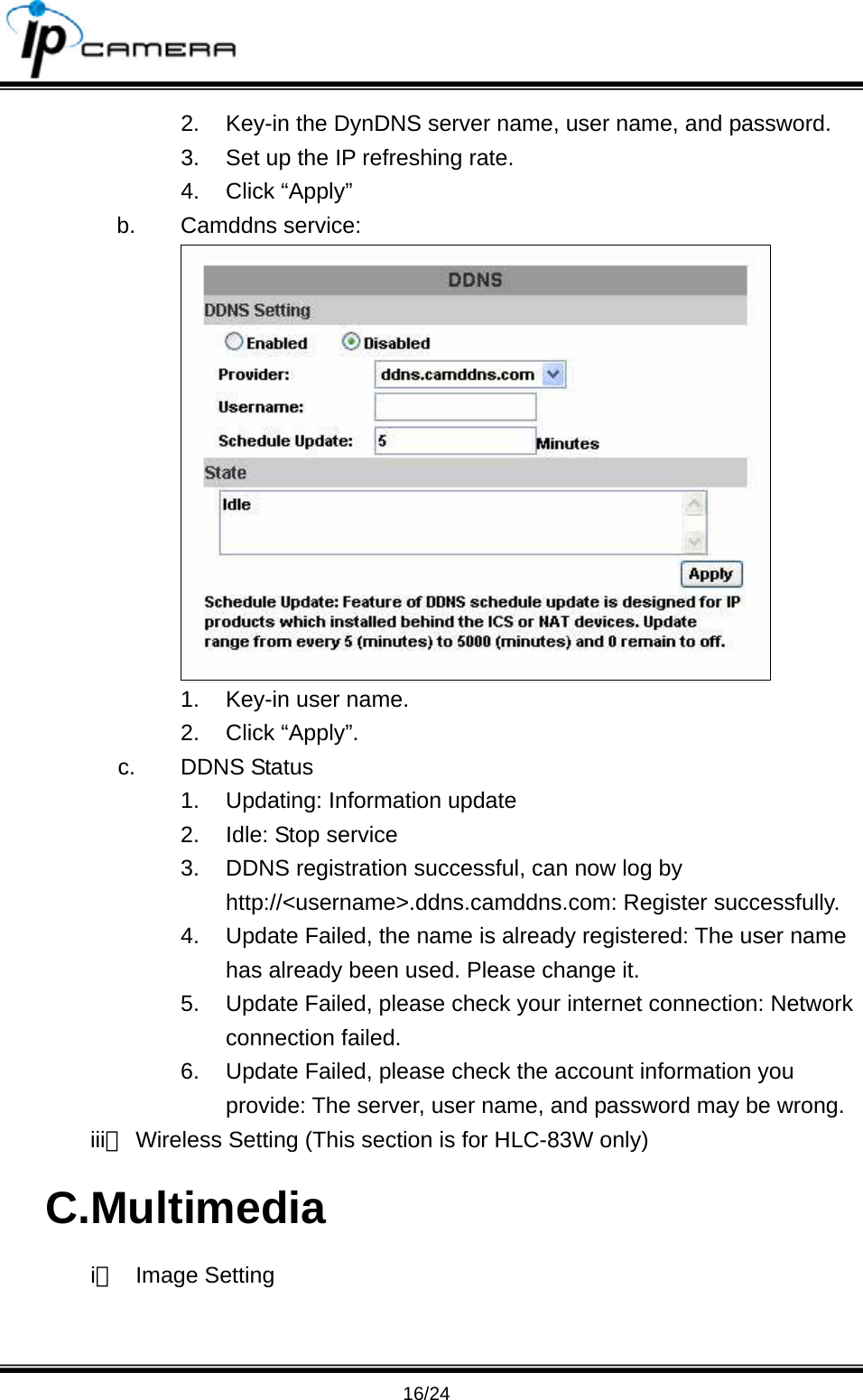
                                      16/24 2.  Key-in the DynDNS server name, user name, and password. 3.  Set up the IP refreshing rate. 4. Click “Apply” b. Camddns service:  1.  Key-in user name. 2. Click “Apply”. c. DDNS Status 1. Updating: Information update 2.  Idle: Stop service 3.  DDNS registration successful, can now log by http://<username>.ddns.camddns.com: Register successfully.   4.  Update Failed, the name is already registered: The user name has already been used. Please change it. 5.  Update Failed, please check your internet connection: Network connection failed. 6.  Update Failed, please check the account information you provide: The server, user name, and password may be wrong. iii、 Wireless Setting (This section is for HLC-83W only) C.Multimedia i、 Image Setting
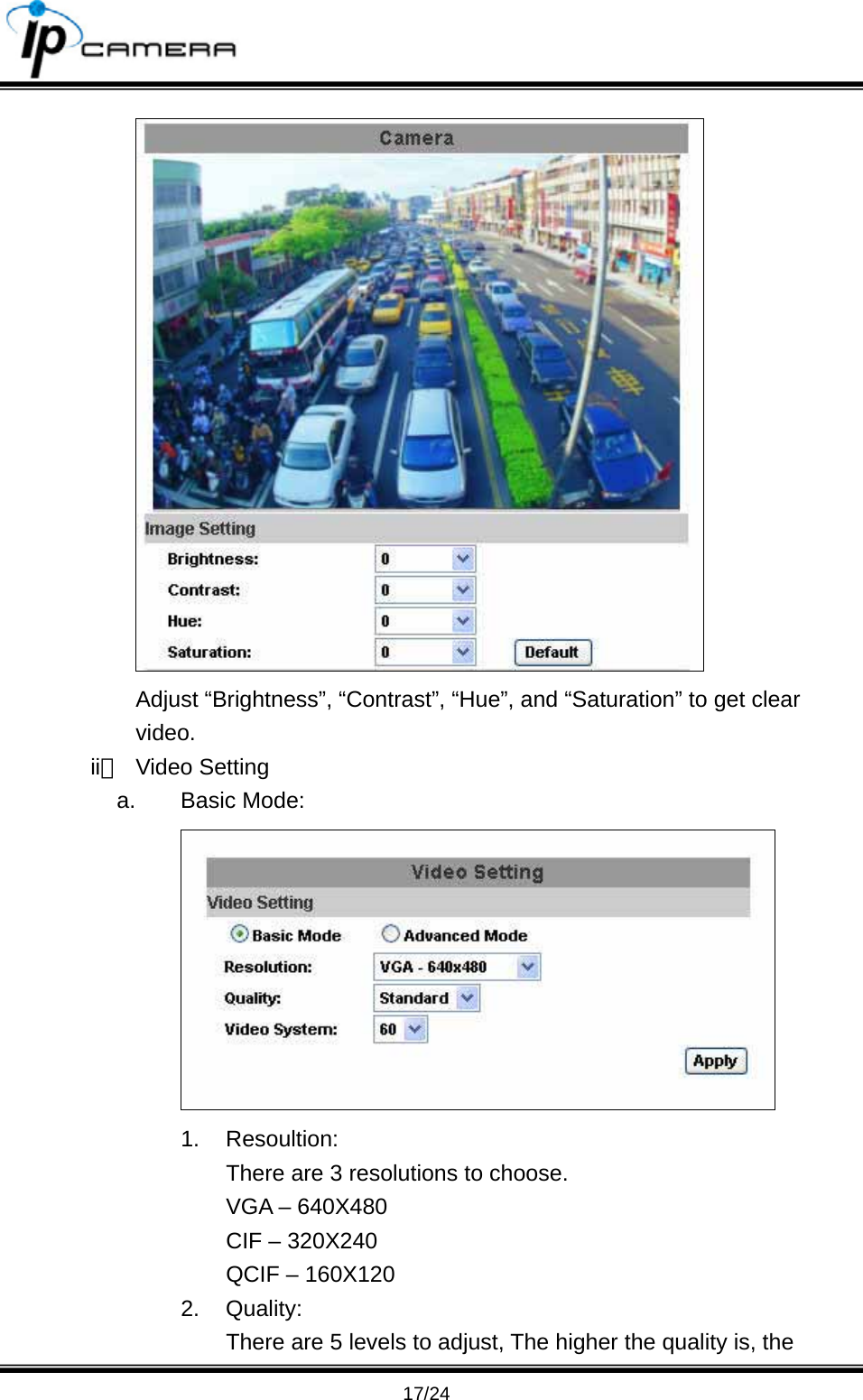
                                      17/24  Adjust “Brightness”, “Contrast”, “Hue”, and “Saturation” to get clear video. ii、 Video Setting a. Basic Mode:  1. Resoultion: There are 3 resolutions to choose. VGA – 640X480 CIF – 320X240 QCIF – 160X120 2. Quality: There are 5 levels to adjust, The higher the quality is, the
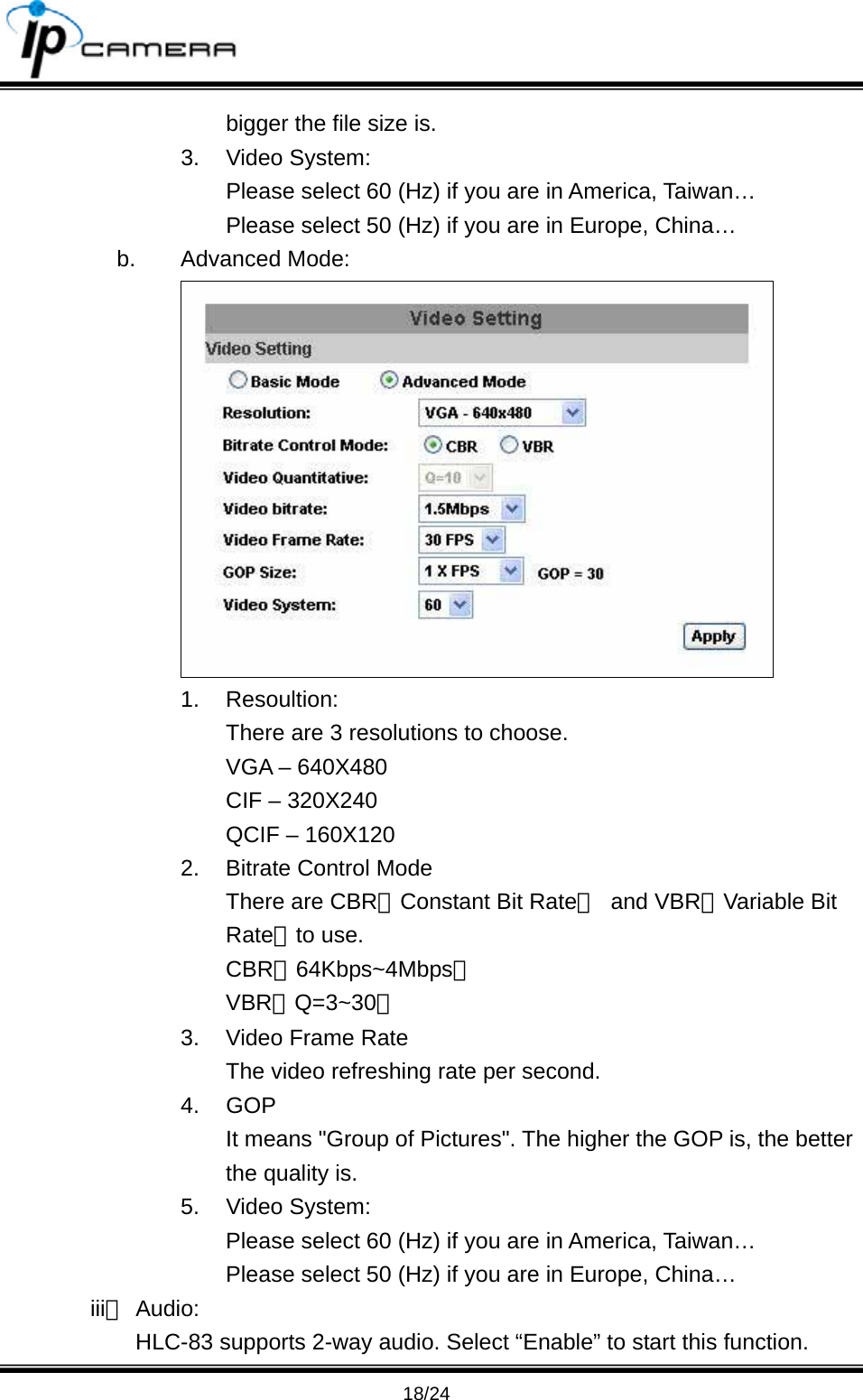
                                      18/24 bigger the file size is. 3. Video System: Please select 60 (Hz) if you are in America, Taiwan… Please select 50 (Hz) if you are in Europe, China… b. Advanced Mode:  1. Resoultion: There are 3 resolutions to choose. VGA – 640X480 CIF – 320X240 QCIF – 160X120 2.  Bitrate Control Mode There are CBR﹝Constant Bit Rate﹞ and VBR﹝Variable Bit Rate﹞to use. CBR;64Kbps~4Mbps。 VBR:Q=3~30。 3.  Video Frame Rate The video refreshing rate per second. 4. GOP  It means "Group of Pictures". The higher the GOP is, the better the quality is. 5. Video System: Please select 60 (Hz) if you are in America, Taiwan… Please select 50 (Hz) if you are in Europe, China… iii、 Audio: HLC-83 supports 2-way audio. Select “Enable” to start this function.
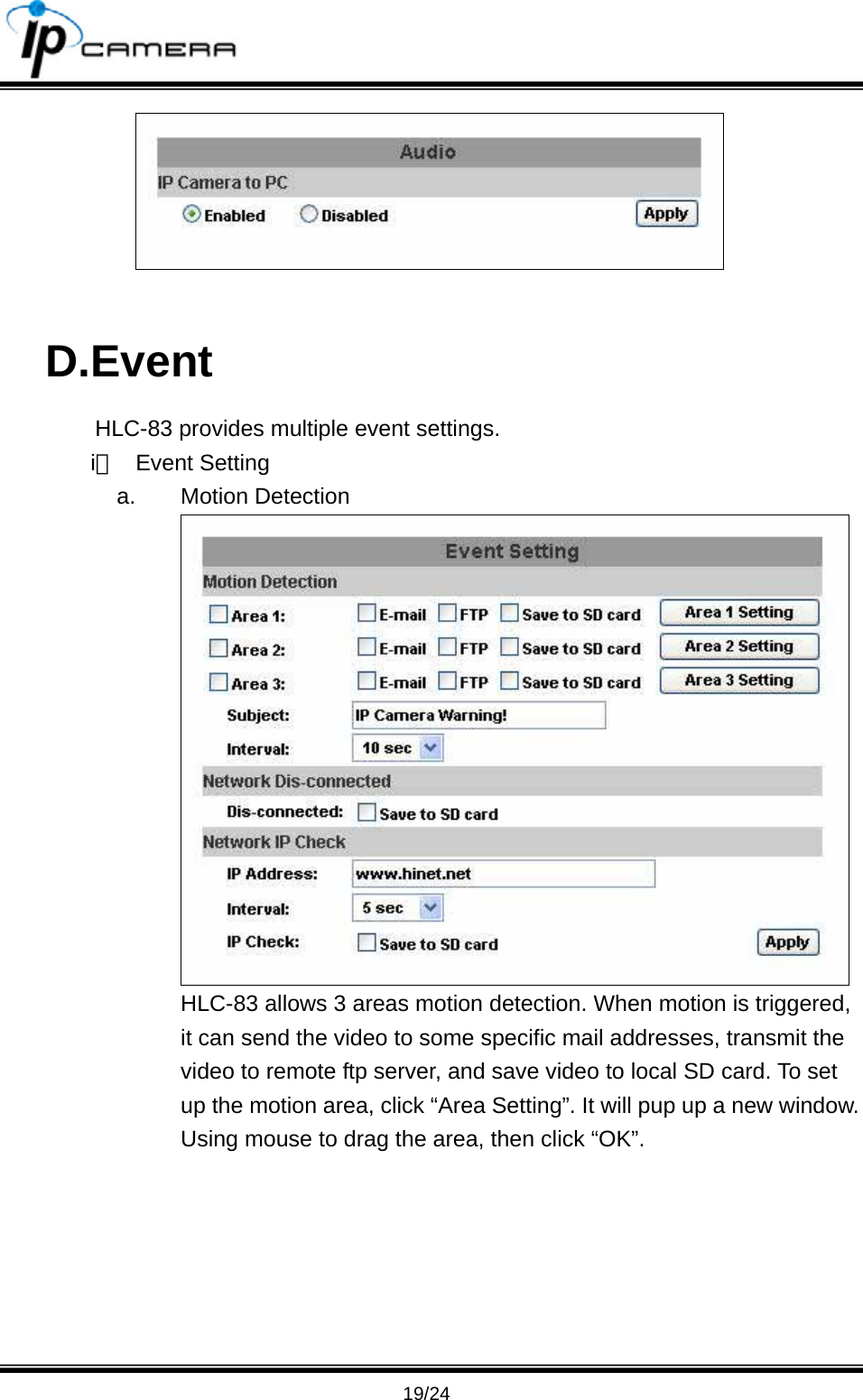
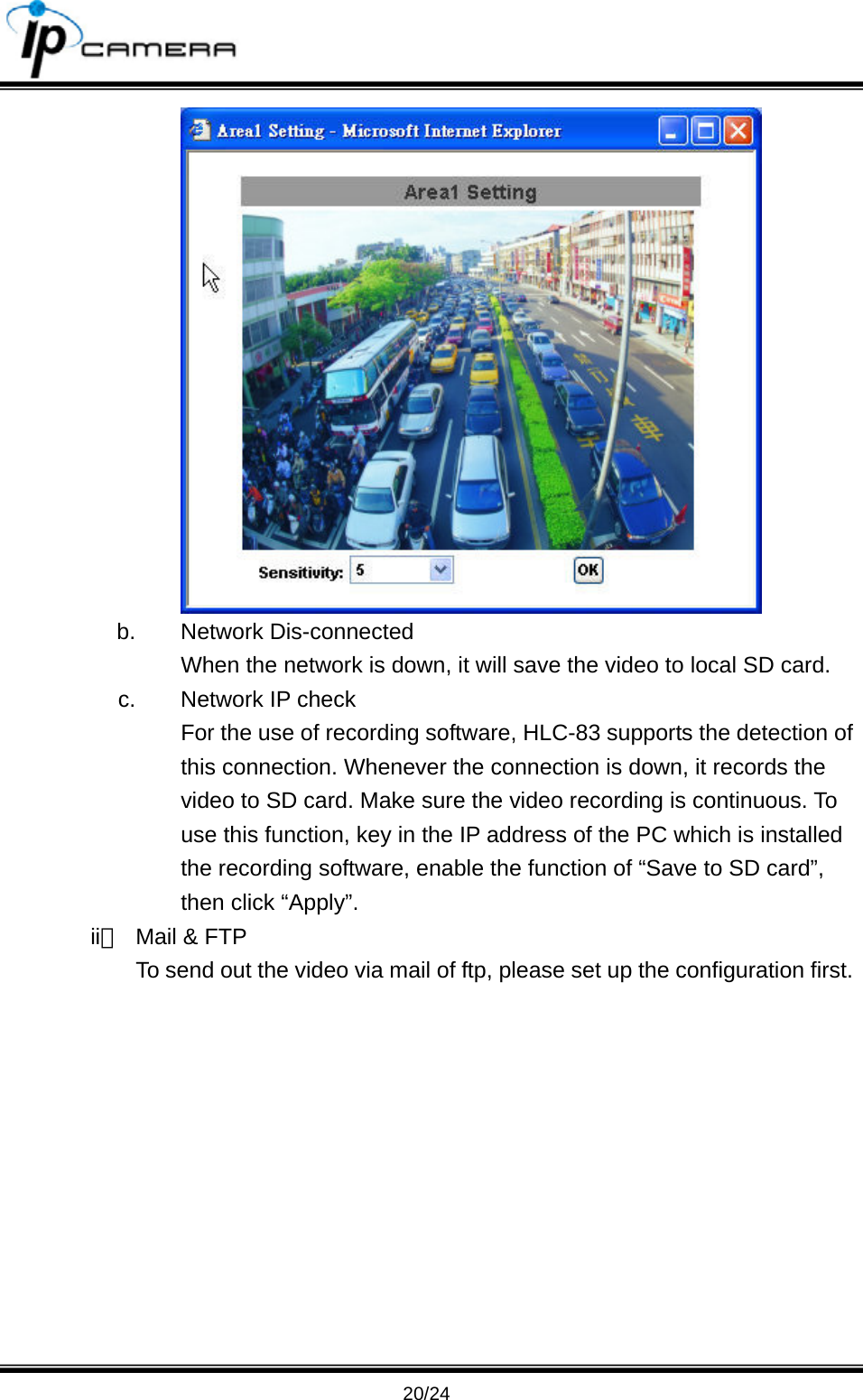
                                      19/24   D.Event HLC-83 provides multiple event settings. i、 Event Setting a. Motion Detection  HLC-83 allows 3 areas motion detection. When motion is triggered, it can send the video to some specific mail addresses, transmit the video to remote ftp server, and save video to local SD card. To set up the motion area, click “Area Setting”. It will pup up a new window. Using mouse to drag the area, then click “OK”.
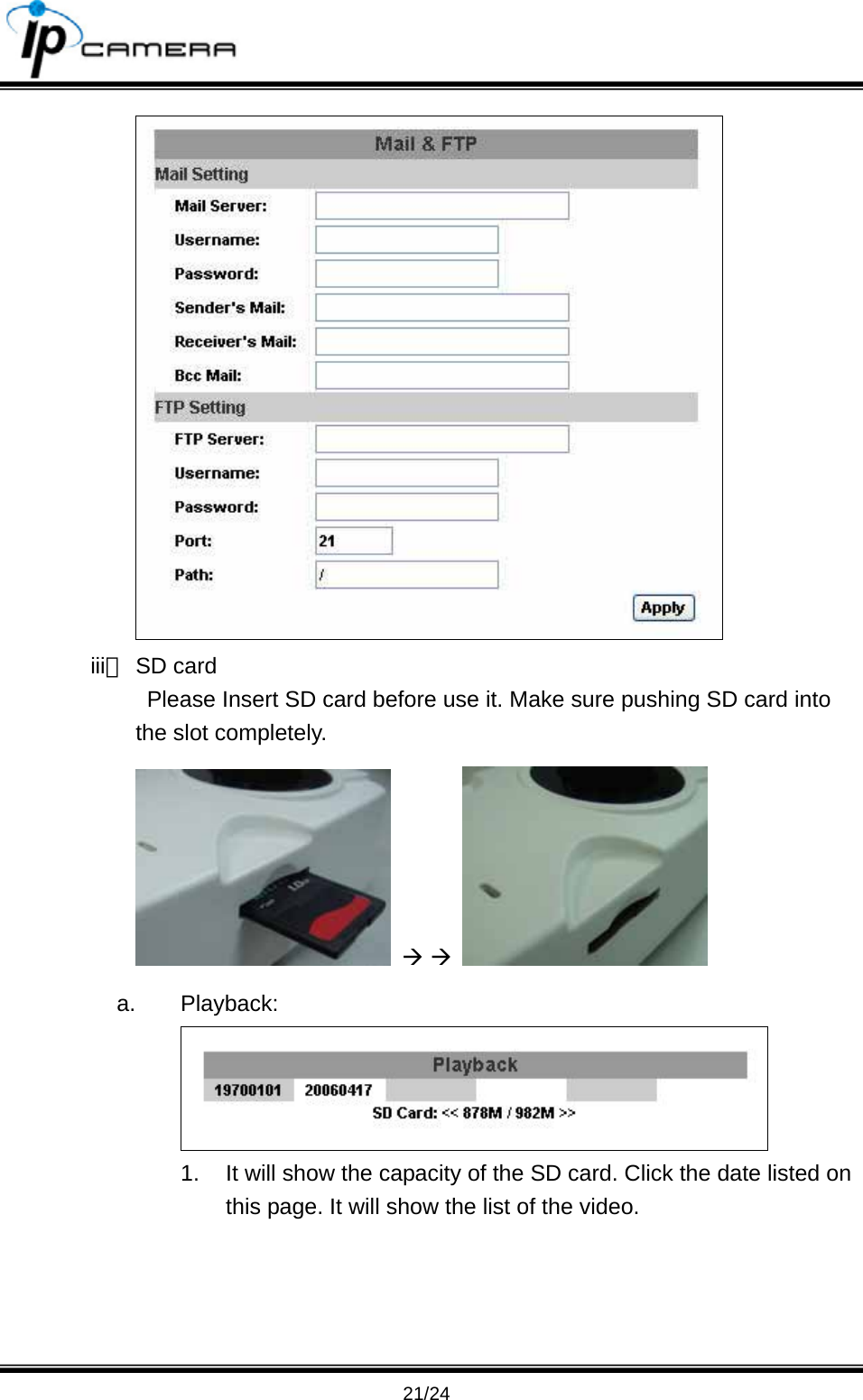
                                      20/24  b. Network Dis-connected When the network is down, it will save the video to local SD card. c.  Network IP check For the use of recording software, HLC-83 supports the detection of this connection. Whenever the connection is down, it records the video to SD card. Make sure the video recording is continuous. To use this function, key in the IP address of the PC which is installed the recording software, enable the function of “Save to SD card”, then click “Apply”. ii、  Mail & FTP To send out the video via mail of ftp, please set up the configuration first.
                                      21/24  iii、 SD card   Please Insert SD card before use it. Make sure pushing SD card into the slot completely.  Æ Æ   a. Playback:  1.  It will show the capacity of the SD card. Click the date listed on this page. It will show the list of the video.
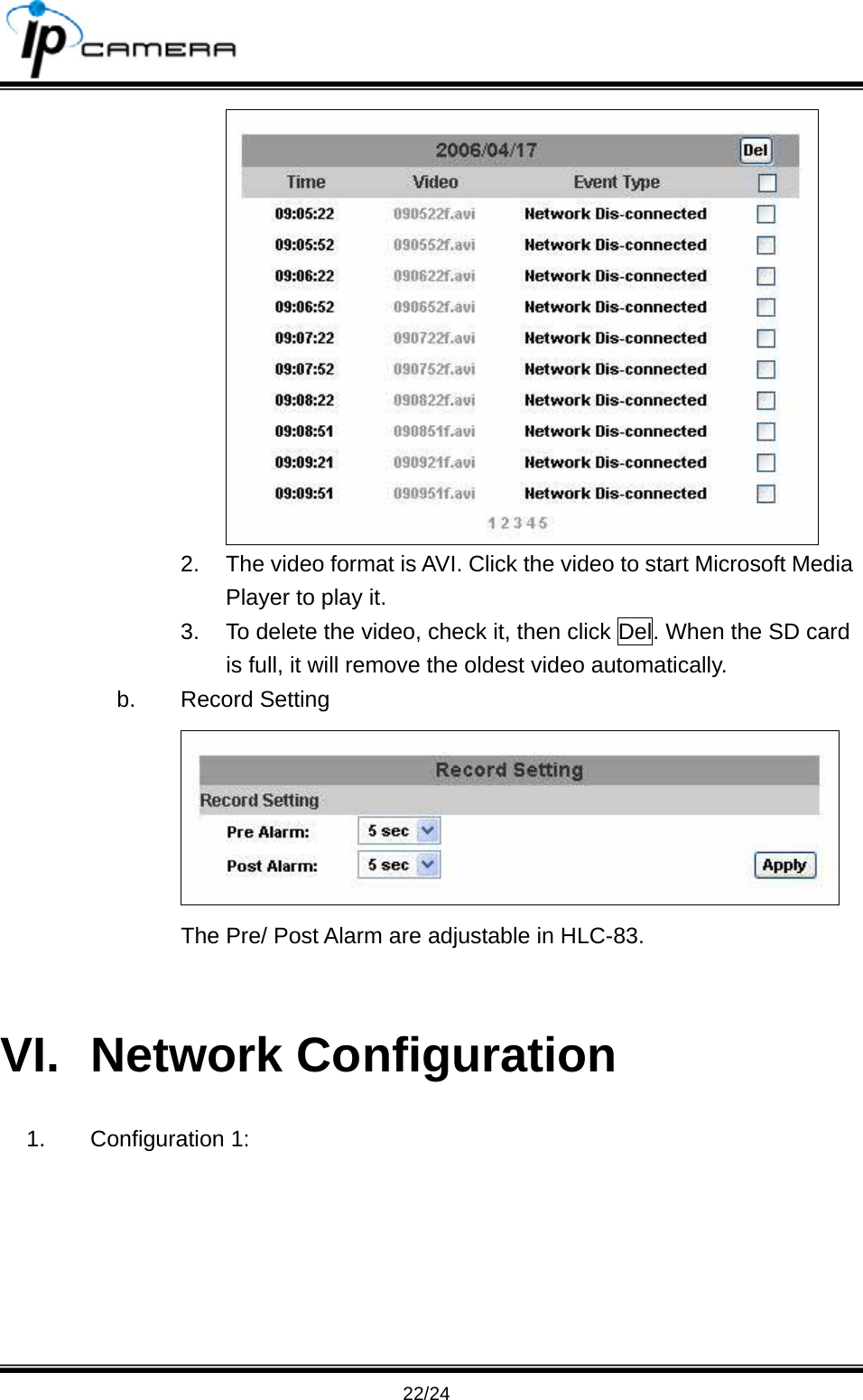
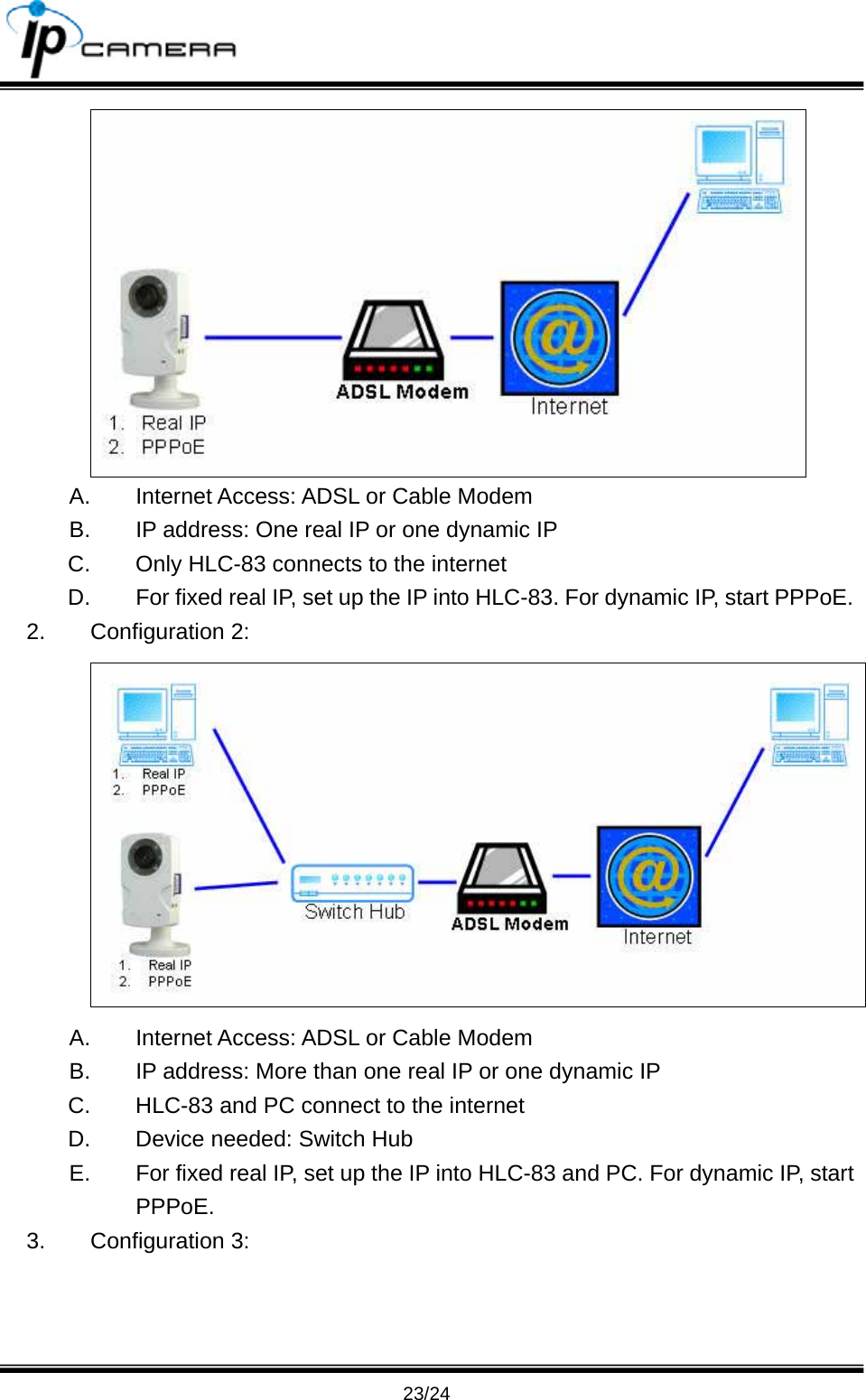
                                      22/24  2.  The video format is AVI. Click the video to start Microsoft Media Player to play it. 3.  To delete the video, check it, then click Del. When the SD card is full, it will remove the oldest video automatically. b. Record Setting  The Pre/ Post Alarm are adjustable in HLC-83.    VI. Network Configuration 1. Configuration 1:
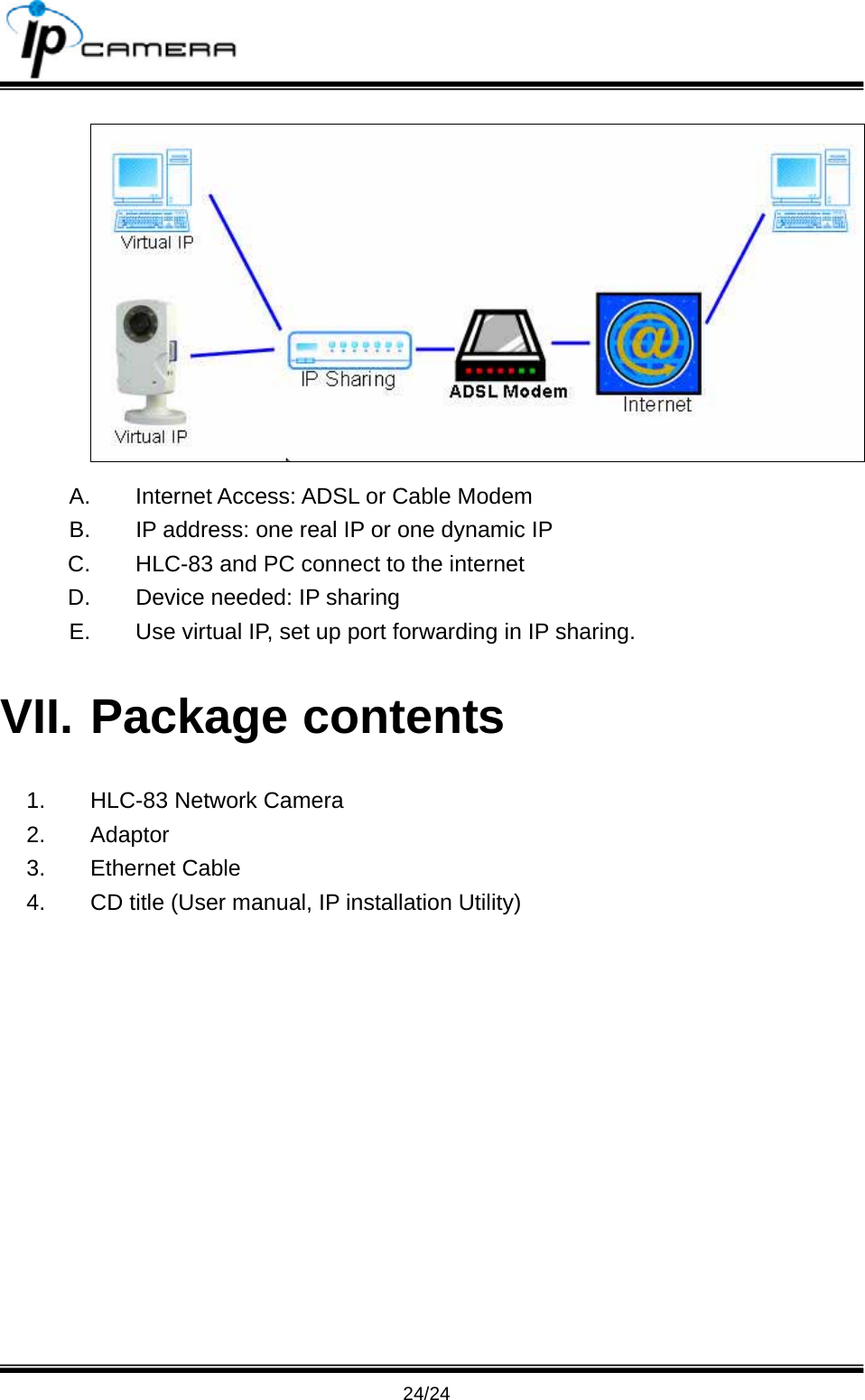
                                      23/24  A.  Internet Access: ADSL or Cable Modem B.  IP address: One real IP or one dynamic IP C.  Only HLC-83 connects to the internet D.  For fixed real IP, set up the IP into HLC-83. For dynamic IP, start PPPoE. 2. Configuration 2:  A.  Internet Access: ADSL or Cable Modem B.  IP address: More than one real IP or one dynamic IP C.  HLC-83 and PC connect to the internet D.  Device needed: Switch Hub E.  For fixed real IP, set up the IP into HLC-83 and PC. For dynamic IP, start PPPoE. 3. Configuration 3:
                                      24/24  A.  Internet Access: ADSL or Cable Modem B.  IP address: one real IP or one dynamic IP C.  HLC-83 and PC connect to the internet D.  Device needed: IP sharing E.  Use virtual IP, set up port forwarding in IP sharing. VII. Package contents 1.  HLC-83 Network Camera 2. Adaptor 3. Ethernet Cable 4.  CD title (User manual, IP installation Utility)

Navigation menu