Hunter Engineering 45-1443 Hunter Model 45-1443 - Automotive tire tread depth gauge User Manual CERTIFICATE OF COMPLIANCE

Hunter Engineering Company Hunter Model 45-1443 - Automotive tire tread depth gauge CERTIFICATE OF COMPLIANCE

User Manual

Rhein Tech Laboratories, Inc.  Client:  Hunter Engineering Company 360 Herndon Parkway  Model:  45-1443 Suite 1400  Standards:  FCC 15.247/IC RSS-210 Herndon, VA 20170  ID’s:  LS3-45-1443/2938A-451443 http://www.rheintech.com  Report #:  2013040    Page 42 of 53  Appendix M:  Manual  Please refer to the following pages.
©2013 Copyright Hunter Engineering CompanyForm 3850-T, 02-13Supersedes Form 3850-T, 03-11WinAlign® Alignment SoftwareOperation Manual  Version 14.1
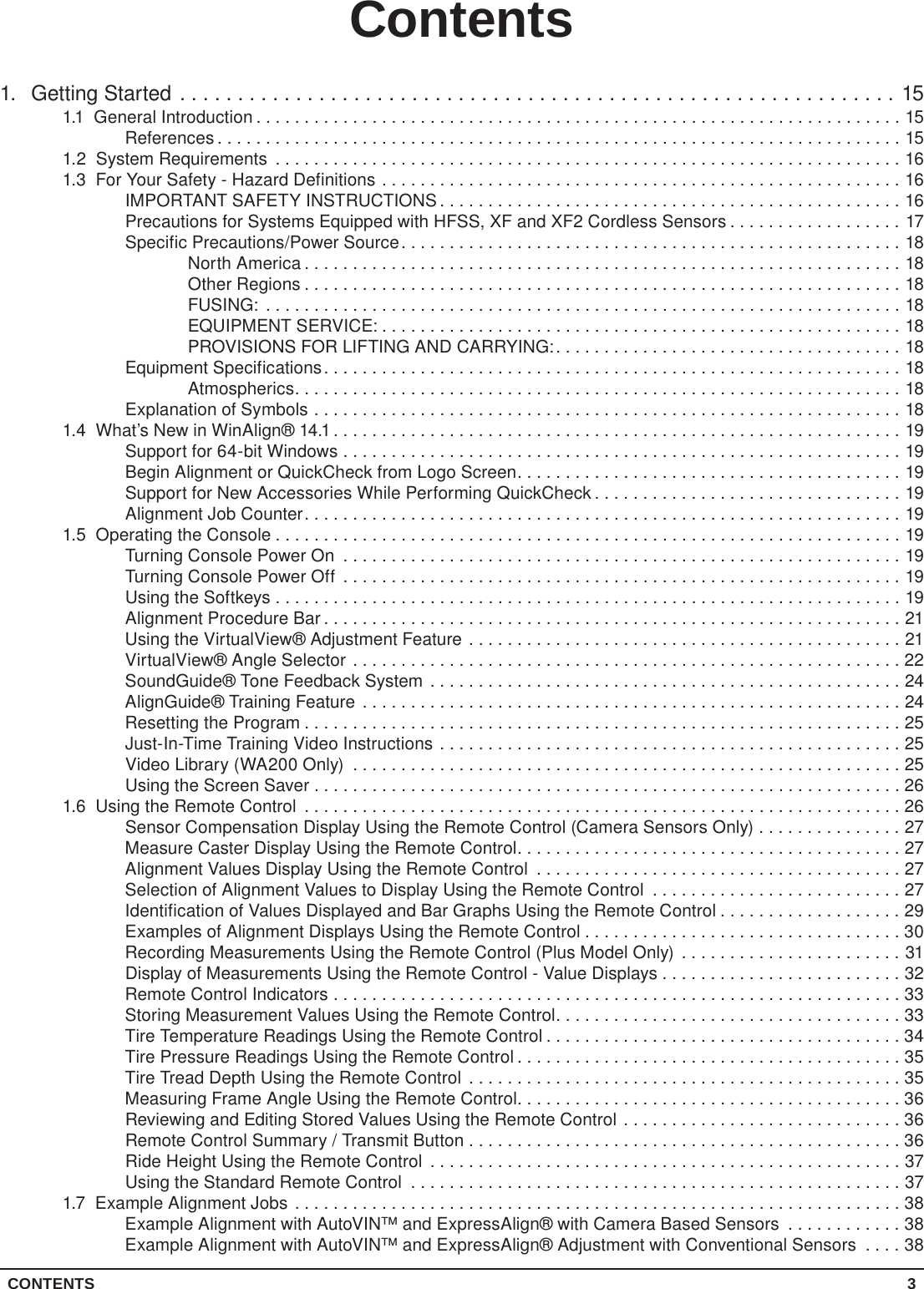
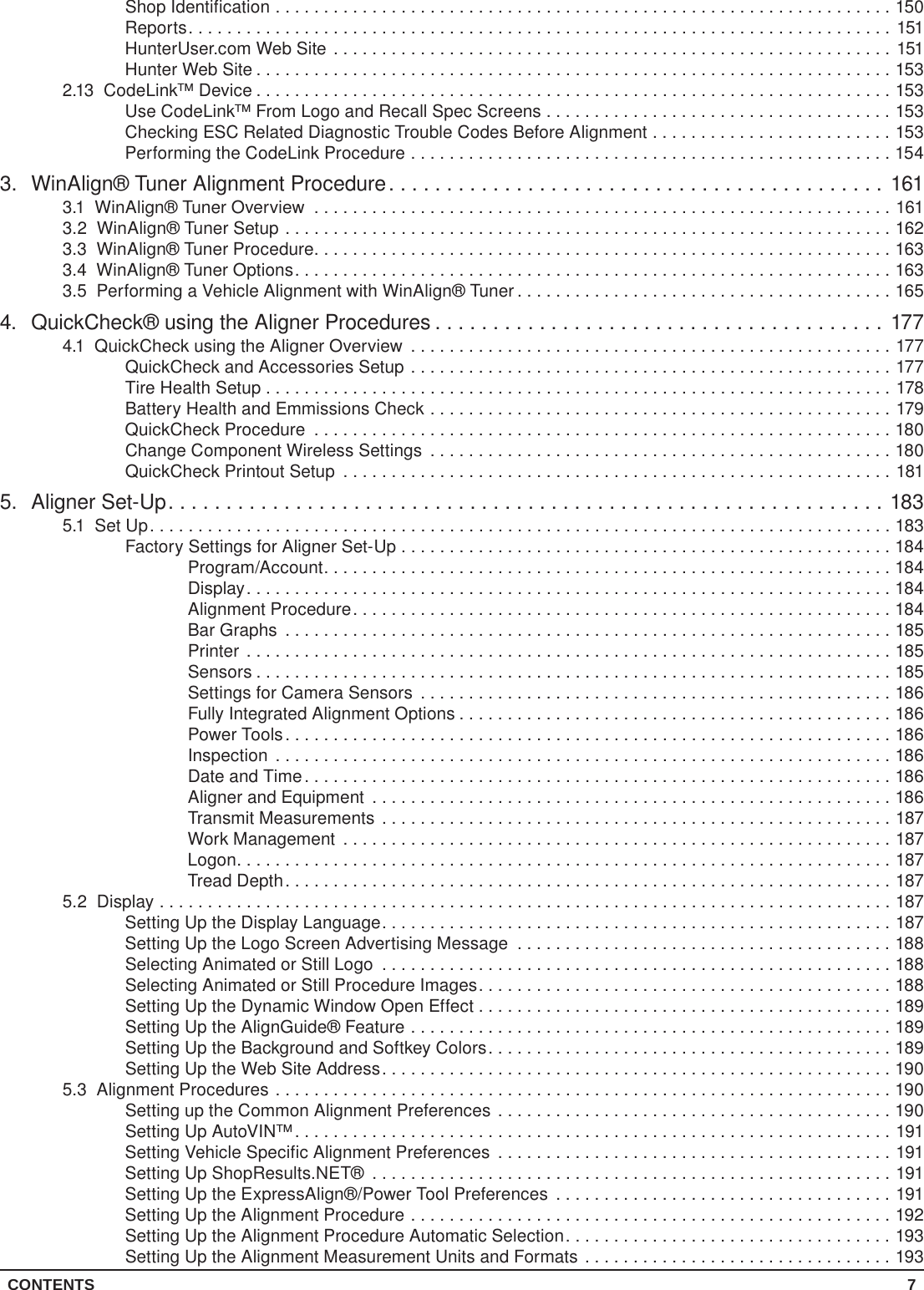
CONTENTS 3Contents1.  Getting Started ..............................................................151.1  General Introduction ...................................................................15References .......................................................................151.2  System Requirements .................................................................161.3  For Your Safety - Hazard Definitions ......................................................16IMPORTANT SAFETY INSTRUCTIONS................................................16Precautions for Systems Equipped with HFSS, XF and XF2 Cordless Sensors ..................17Specific Precautions/Power Source....................................................18North America ..............................................................18Other Regions ..............................................................18FUSING: ..................................................................18EQUIPMENT SERVICE: ......................................................18PROVISIONS FOR LIFTING AND CARRYING:....................................18Equipment Specifications............................................................18Atmospherics...............................................................18Explanation of Symbols .............................................................181.4  What’s New in WinAlign® 14.1...........................................................19Support for 64-bit Windows ..........................................................19Begin Alignment or QuickCheck from Logo Screen........................................19Support for New Accessories While Performing QuickCheck ................................19Alignment Job Counter..............................................................191.5  Operating the Console .................................................................19Turning Console Power On ..........................................................19Turning Console Power Off ..........................................................19Using the Softkeys .................................................................19Alignment Procedure Bar ............................................................21Using the VirtualView® Adjustment Feature .............................................21VirtualView® Angle Selector .........................................................22SoundGuide® Tone Feedback System .................................................24AlignGuide® Training Feature ........................................................24Resetting the Program ..............................................................25Just-In-Time Training Video Instructions ................................................25Video Library (WA200 Only) .........................................................25Using the Screen Saver . . . . . . . . . . . . . . . . . . . . . . . . . . . . . . . . . . . . . . . . . . . . . . . . . . . . . . . . . . . . . 261.6  Using the Remote Control ..............................................................26Sensor Compensation Display Using the Remote Control (Camera Sensors Only) ...............27Measure Caster Display Using the Remote Control........................................27Alignment Values Display Using the Remote Control ......................................27Selection of Alignment Values to Display Using the Remote Control ..........................27Identification of Values Displayed and Bar Graphs Using the Remote Control ...................29Examples of Alignment Displays Using the Remote Control .................................30Recording Measurements Using the Remote Control (Plus Model Only) .......................31Display of Measurements Using the Remote Control - Value Displays . . . . . . . . . . . . . . . . . . . . . . . . . 32Remote Control Indicators ...........................................................33Storing Measurement Values Using the Remote Control....................................33Tire Temperature Readings Using the Remote Control .....................................34Tire Pressure Readings Using the Remote Control ........................................35Tire Tread Depth Using the Remote Control .............................................35Measuring Frame Angle Using the Remote Control........................................36Reviewing and Editing Stored Values Using the Remote Control .............................36Remote Control Summary / Transmit Button . . . . . . . . . . . . . . . . . . . . . . . . . . . . . . . . . . . . . . . . . . . . . 36Ride Height Using the Remote Control .................................................37Using the Standard Remote Control ...................................................371.7  Example Alignment Jobs ...............................................................38Example Alignment with AutoVIN™ and ExpressAlign® with Camera Based Sensors ............38Example Alignment with AutoVIN™ and ExpressAlign® Adjustment with Conventional Sensors ....38
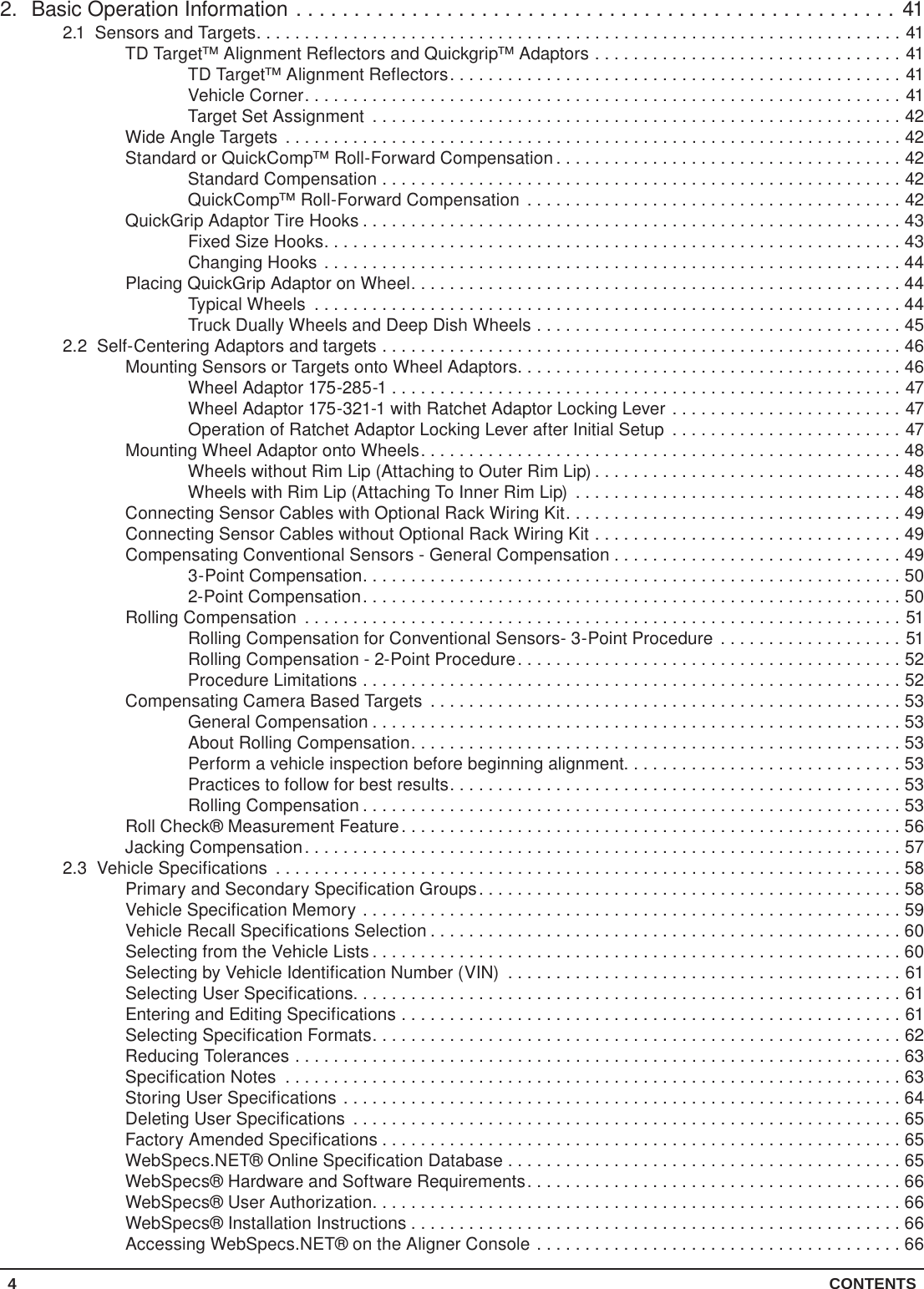
4 CONTENTS2.  Basic Operation Information ....................................................412.1  Sensors and Targets...................................................................41TD Target™ Alignment Reflectors and Quickgrip™ Adaptors ................................41TD Target™ Alignment Reflectors...............................................41Vehicle Corner..............................................................41Target Set Assignment .......................................................42Wide Angle Targets ................................................................42Standard or QuickComp™ Roll-Forward Compensation ....................................42Standard Compensation ......................................................42QuickComp™ Roll-Forward Compensation .......................................42QuickGrip Adaptor Tire Hooks ........................................................43Fixed Size Hooks............................................................43Changing Hooks ............................................................44Placing QuickGrip Adaptor on Wheel...................................................44Typical Wheels .............................................................44Truck Dually Wheels and Deep Dish Wheels ......................................452.2  Self-Centering Adaptors and targets ......................................................46Mounting Sensors or Targets onto Wheel Adaptors........................................46Wheel Adaptor 175-285-1 .....................................................47Wheel Adaptor 175-321-1 with Ratchet Adaptor Locking Lever ........................47Operation of Ratchet Adaptor Locking Lever after Initial Setup ........................47Mounting Wheel Adaptor onto Wheels..................................................48Wheels without Rim Lip (Attaching to Outer Rim Lip) ................................48Wheels with Rim Lip (Attaching To Inner Rim Lip) ..................................48Connecting Sensor Cables with Optional Rack Wiring Kit...................................49Connecting Sensor Cables without Optional Rack Wiring Kit ................................49Compensating Conventional Sensors - General Compensation ..............................493-Point Compensation........................................................502-Point Compensation........................................................50Rolling Compensation ..............................................................51Rolling Compensation for Conventional Sensors- 3-Point Procedure ...................51Rolling Compensation - 2-Point Procedure........................................52Procedure Limitations ........................................................52Compensating Camera Based Targets .................................................53General Compensation .......................................................53About Rolling Compensation...................................................53Perform a vehicle inspection before beginning alignment.............................53Practices to follow for best results...............................................53Rolling Compensation ........................................................53Roll Check® Measurement Feature....................................................56Jacking Compensation..............................................................572.3  Vehicle Specifications .................................................................58Primary and Secondary Specification Groups............................................58Vehicle Specification Memory ........................................................59Vehicle Recall Specifications Selection .................................................60Selecting from the Vehicle Lists .......................................................60Selecting by Vehicle Identification Number (VIN) .........................................61Selecting User Specifications.........................................................61Entering and Editing Specifications ....................................................61Selecting Specification Formats.......................................................62Reducing Tolerances ...............................................................63Specification Notes ................................................................63Storing User Specifications ..........................................................64Deleting User Specifications .........................................................65Factory Amended Specifications ......................................................65WebSpecs.NET® Online Specification Database . . . . . . . . . . . . . . . . . . . . . . . . . . . . . . . . . . . . . . . . . 65WebSpecs® Hardware and Software Requirements.......................................66WebSpecs® User Authorization.......................................................66WebSpecs® Installation Instructions ...................................................66Accessing WebSpecs.NET® on the Aligner Console ......................................66
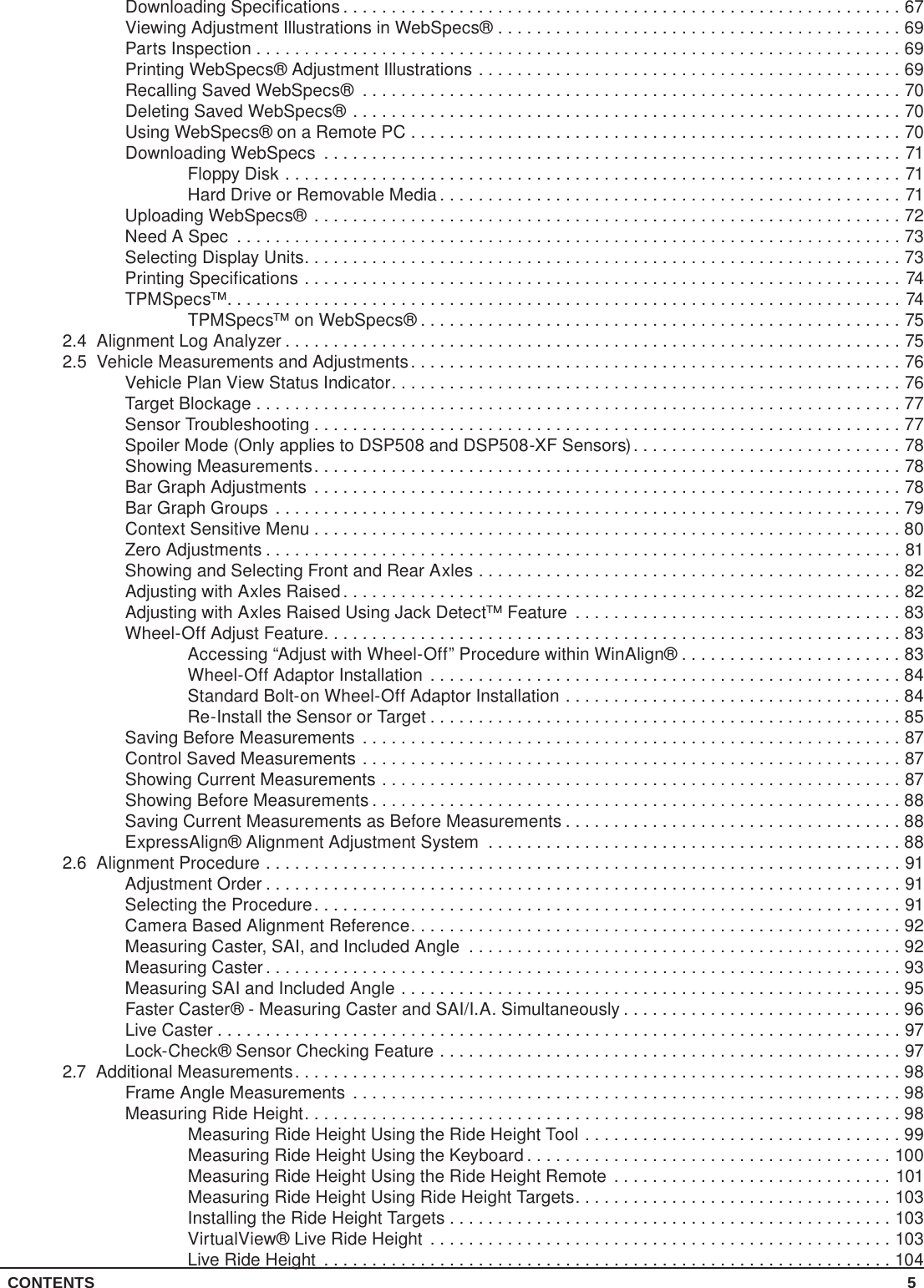
CONTENTS 5Downloading Specifications ..........................................................67Viewing Adjustment Illustrations in WebSpecs® ..........................................69Parts Inspection . . . . . . . . . . . . . . . . . . . . . . . . . . . . . . . . . . . . . . . . . . . . . . . . . . . . . . . . . . . . . . . . . . . 69Printing WebSpecs® Adjustment Illustrations ............................................69Recalling Saved WebSpecs® ........................................................70Deleting Saved WebSpecs® .........................................................70Using WebSpecs® on a Remote PC ...................................................70Downloading WebSpecs ............................................................71Floppy Disk ................................................................71Hard Drive or Removable Media ................................................71Uploading WebSpecs® .............................................................72Need A Spec .....................................................................73Selecting Display Units..............................................................73Printing Specifications ..............................................................74TPMSpecs™......................................................................74TPMSpecs™ on WebSpecs® ..................................................752.4  Alignment Log Analyzer ................................................................752.5  Vehicle Measurements and Adjustments...................................................76Vehicle Plan View Status Indicator.....................................................76Target Blockage ...................................................................77Sensor Troubleshooting .............................................................77Spoiler Mode (Only applies to DSP508 and DSP508-XF Sensors)............................78Showing Measurements.............................................................78Bar Graph Adjustments .............................................................78Bar Graph Groups .................................................................79Context Sensitive Menu .............................................................80Zero Adjustments ..................................................................81Showing and Selecting Front and Rear Axles ............................................82Adjusting with Axles Raised ..........................................................82Adjusting with Axles Raised Using Jack Detect™ Feature ..................................83Wheel-Off Adjust Feature............................................................83Accessing “Adjust with Wheel-Off” Procedure within WinAlign® .......................83Wheel-Off Adaptor Installation .................................................84Standard Bolt-on Wheel-Off Adaptor Installation ...................................84Re-Install the Sensor or Target .................................................85Saving Before Measurements ........................................................87Control Saved Measurements ........................................................87Showing Current Measurements ......................................................87Showing Before Measurements .......................................................88Saving Current Measurements as Before Measurements ...................................88ExpressAlign® Alignment Adjustment System ...........................................882.6  Alignment Procedure ..................................................................91Adjustment Order ..................................................................91Selecting the Procedure.............................................................91Camera Based Alignment Reference...................................................92Measuring Caster, SAI, and Included Angle .............................................92Measuring Caster ..................................................................93Measuring SAI and Included Angle ....................................................95Faster Caster® - Measuring Caster and SAI/I.A. Simultaneously .............................96Live Caster .......................................................................97Lock-Check® Sensor Checking Feature ................................................972.7  Additional Measurements...............................................................98Frame Angle Measurements .........................................................98Measuring Ride Height..............................................................98Measuring Ride Height Using the Ride Height Tool .................................99Measuring Ride Height Using the Keyboard ......................................100Measuring Ride Height Using the Ride Height Remote .............................101Measuring Ride Height Using Ride Height Targets.................................103Installing the Ride Height Targets ..............................................103VirtualView® Live Ride Height ................................................103Live Ride Height ...........................................................104
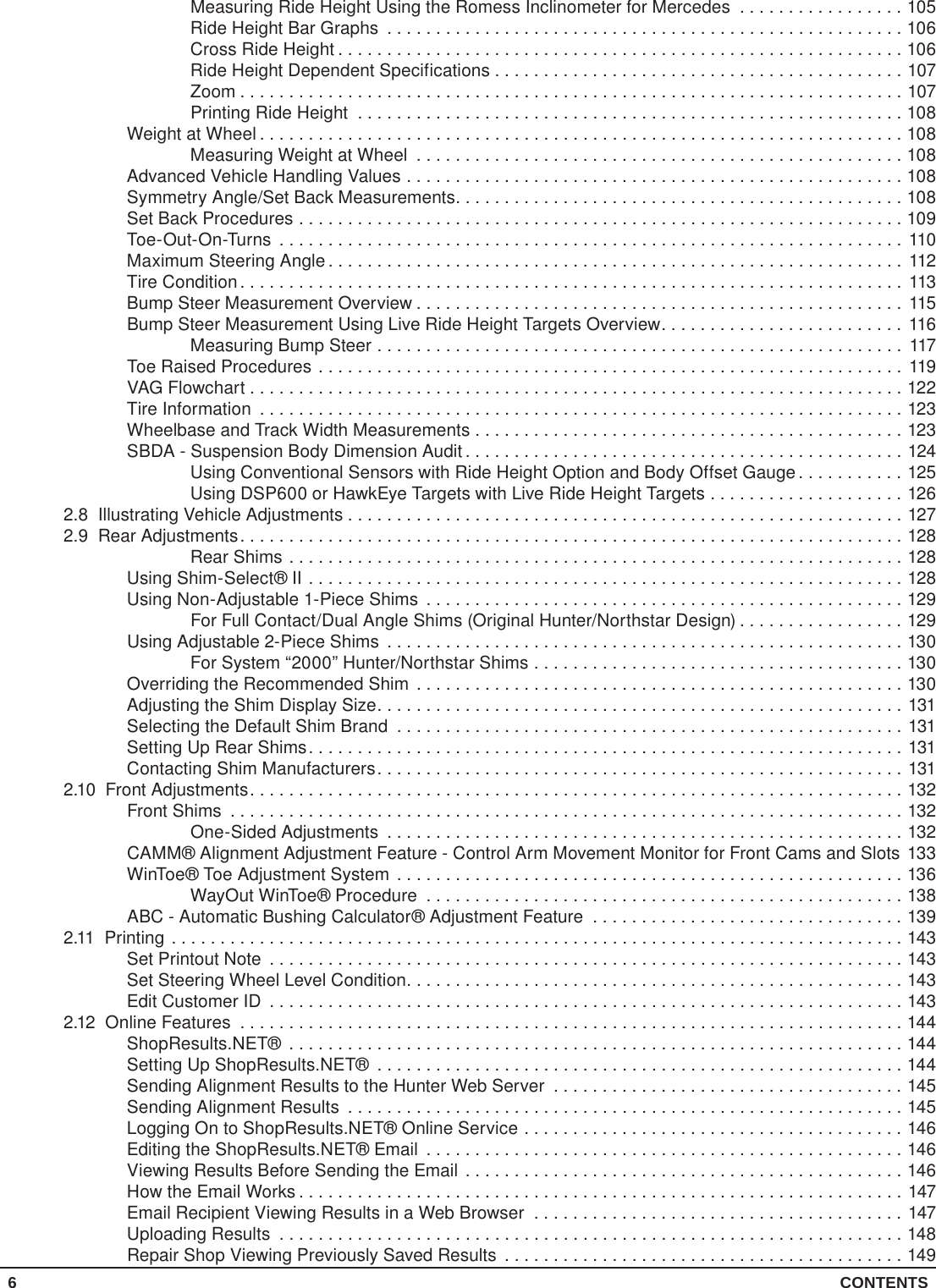
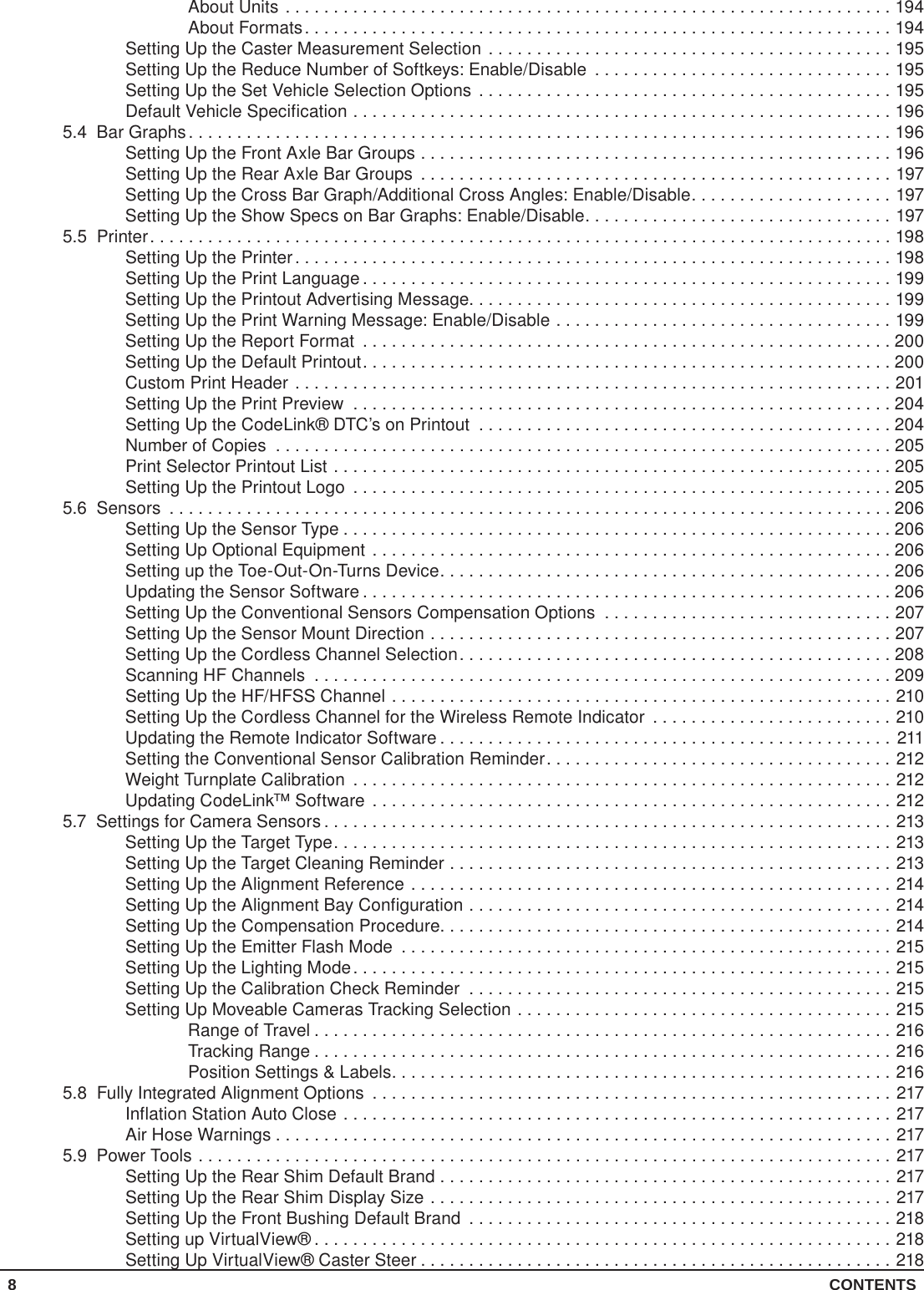
6 CONTENTSMeasuring Ride Height Using the Romess Inclinometer for Mercedes .................105Ride Height Bar Graphs .....................................................106Cross Ride Height ..........................................................106Ride Height Dependent Specifications . . . . . . . . . . . . . . . . . . . . . . . . . . . . . . . . . . . . . . . . . . 107Zoom ....................................................................107Printing Ride Height ........................................................108Weight at Wheel ..................................................................108Measuring Weight at Wheel ..................................................108Advanced Vehicle Handling Values ...................................................108Symmetry Angle/Set Back Measurements..............................................108Set Back Procedures ..............................................................109Toe-Out-On-Turns ................................................................110Maximum Steering Angle ...........................................................112Tire Condition.................................................................... 113Bump Steer Measurement Overview ..................................................115Bump Steer Measurement Using Live Ride Height Targets Overview.........................116Measuring Bump Steer ...................................................... 117Toe Raised Procedures ............................................................119VAG Flowchart ...................................................................122Tire Information ..................................................................123Wheelbase and Track Width Measurements ............................................123SBDA - Suspension Body Dimension Audit .............................................124Using Conventional Sensors with Ride Height Option and Body Offset Gauge ...........125Using DSP600 or HawkEye Targets with Live Ride Height Targets ....................1262.8  Illustrating Vehicle Adjustments .........................................................1272.9  Rear Adjustments....................................................................128Rear Shims ...............................................................128Using Shim-Select® II .............................................................128Using Non-Adjustable 1-Piece Shims .................................................129For Full Contact/Dual Angle Shims (Original Hunter/Northstar Design) .................129Using Adjustable 2-Piece Shims .....................................................130For System “2000” Hunter/Northstar Shims ......................................130Overriding the Recommended Shim ..................................................130Adjusting the Shim Display Size......................................................131Selecting the Default Shim Brand ....................................................131Setting Up Rear Shims.............................................................131Contacting Shim Manufacturers......................................................1312.10  Front Adjustments...................................................................132Front Shims .....................................................................132One-Sided Adjustments .....................................................132CAMM® Alignment Adjustment Feature - Control Arm Movement Monitor for Front Cams and Slots 133WinToe® Toe Adjustment System ....................................................136WayOut WinToe® Procedure .................................................138ABC - Automatic Bushing Calculator® Adjustment Feature ................................1392.11 Printing ...........................................................................143Set Printout Note .................................................................143Set Steering Wheel Level Condition...................................................143Edit Customer ID .................................................................1432.12  Online Features ....................................................................144ShopResults.NET® ...............................................................144Setting Up ShopResults.NET® ......................................................144Sending Alignment Results to the Hunter Web Server ....................................145Sending Alignment Results .........................................................145Logging On to ShopResults.NET® Online Service .......................................146Editing the ShopResults.NET® Email .................................................146Viewing Results Before Sending the Email .............................................146How the Email Works ..............................................................147Email Recipient Viewing Results in a Web Browser ......................................147Uploading Results ................................................................148Repair Shop Viewing Previously Saved Results .........................................149
CONTENTS 7Shop Identification ................................................................150Reports.........................................................................151HunterUser.com Web Site ..........................................................151Hunter Web Site ..................................................................1532.13  CodeLink™ Device ..................................................................153Use CodeLink™ From Logo and Recall Spec Screens ....................................153Checking ESC Related Diagnostic Trouble Codes Before Alignment .........................153Performing the CodeLink Procedure ..................................................1543.  WinAlign® Tuner Alignment Procedure...........................................1613.1  WinAlign® Tuner Overview ............................................................1613.2  WinAlign® Tuner Setup ...............................................................1623.3  WinAlign® Tuner Procedure............................................................1633.4  WinAlign® Tuner Options..............................................................1633.5  Performing a Vehicle Alignment with WinAlign® Tuner .......................................1654.  QuickCheck® using the Aligner Procedures .......................................1774.1  QuickCheck using the Aligner Overview ..................................................177QuickCheck and Accessories Setup ..................................................177Tire Health Setup . . . . . . . . . . . . . . . . . . . . . . . . . . . . . . . . . . . . . . . . . . . . . . . . . . . . . . . . . . . . . . . . . 178Battery Health and Emmissions Check ................................................179QuickCheck Procedure ............................................................180Change Component Wireless Settings ................................................180QuickCheck Printout Setup .........................................................1815.  Aligner Set-Up..............................................................1835.1  Set Up.............................................................................183Factory Settings for Aligner Set-Up ...................................................184Program/Account...........................................................184Display...................................................................184Alignment Procedure........................................................184Bar Graphs ...............................................................185Printer ...................................................................185Sensors ..................................................................185Settings for Camera Sensors .................................................186Fully Integrated Alignment Options .............................................186Power Tools ...............................................................186Inspection ................................................................186Date and Time.............................................................186Aligner and Equipment ......................................................186Transmit Measurements .....................................................187Work Management .........................................................187Logon....................................................................187Tread Depth...............................................................1875.2 Display ............................................................................187Setting Up the Display Language.....................................................187Setting Up the Logo Screen Advertising Message .......................................188Selecting Animated or Still Logo .....................................................188Selecting Animated or Still Procedure Images...........................................188Setting Up the Dynamic Window Open Effect . . . . . . . . . . . . . . . . . . . . . . . . . . . . . . . . . . . . . . . . . . . 189Setting Up the AlignGuide® Feature ..................................................189Setting Up the Background and Softkey Colors..........................................189Setting Up the Web Site Address.....................................................1905.3  Alignment Procedures ................................................................190Setting up the Common Alignment Preferences .........................................190Setting Up AutoVIN™..............................................................191Setting Vehicle Specific Alignment Preferences .........................................191Setting Up ShopResults.NET® ......................................................191Setting Up the ExpressAlign®/Power Tool Preferences ...................................191Setting Up the Alignment Procedure ..................................................192Setting Up the Alignment Procedure Automatic Selection..................................193Setting Up the Alignment Measurement Units and Formats ................................193
8 CONTENTSAbout Units ...............................................................194About Formats.............................................................194Setting Up the Caster Measurement Selection ..........................................195Setting Up the Reduce Number of Softkeys: Enable/Disable ...............................195Setting Up the Set Vehicle Selection Options ...........................................195Default Vehicle Specification ........................................................1965.4  Bar Graphs.........................................................................196Setting Up the Front Axle Bar Groups .................................................196Setting Up the Rear Axle Bar Groups .................................................197Setting Up the Cross Bar Graph/Additional Cross Angles: Enable/Disable.....................197Setting Up the Show Specs on Bar Graphs: Enable/Disable................................1975.5 Printer.............................................................................198Setting Up the Printer..............................................................198Setting Up the Print Language .......................................................199Setting Up the Printout Advertising Message............................................199Setting Up the Print Warning Message: Enable/Disable ...................................199Setting Up the Report Format .......................................................200Setting Up the Default Printout.......................................................200Custom Print Header ..............................................................201Setting Up the Print Preview ........................................................204Setting Up the CodeLink® DTC’s on Printout ...........................................204Number of Copies ................................................................205Print Selector Printout List ..........................................................205Setting Up the Printout Logo ........................................................2055.6 Sensors ...........................................................................206Setting Up the Sensor Type .........................................................206Setting Up Optional Equipment ......................................................206Setting up the Toe-Out-On-Turns Device...............................................206Updating the Sensor Software .......................................................206Setting Up the Conventional Sensors Compensation Options ..............................207Setting Up the Sensor Mount Direction ................................................207Setting Up the Cordless Channel Selection.............................................208Scanning HF Channels ............................................................209Setting Up the HF/HFSS Channel ....................................................210Setting Up the Cordless Channel for the Wireless Remote Indicator .........................210Updating the Remote Indicator Software ...............................................211Setting the Conventional Sensor Calibration Reminder....................................212Weight Turnplate Calibration ........................................................212Updating CodeLink™ Software ......................................................2125.7  Settings for Camera Sensors ...........................................................213Setting Up the Target Type..........................................................213Setting Up the Target Cleaning Reminder ..............................................213Setting Up the Alignment Reference ..................................................214Setting Up the Alignment Bay Configuration ............................................214Setting Up the Compensation Procedure...............................................214Setting Up the Emitter Flash Mode ...................................................215Setting Up the Lighting Mode........................................................215Setting Up the Calibration Check Reminder ............................................215Setting Up Moveable Cameras Tracking Selection .......................................215Range of Travel ............................................................216Tracking Range ............................................................216Position Settings & Labels....................................................2165.8  Fully Integrated Alignment Options ......................................................217Inflation Station Auto Close .........................................................217Air Hose Warnings ................................................................2175.9  Power Tools ........................................................................217Setting Up the Rear Shim Default Brand ...............................................217Setting Up the Rear Shim Display Size ................................................217Setting Up the Front Bushing Default Brand ............................................218Setting up VirtualView® ............................................................218Setting Up VirtualView® Caster Steer .................................................218
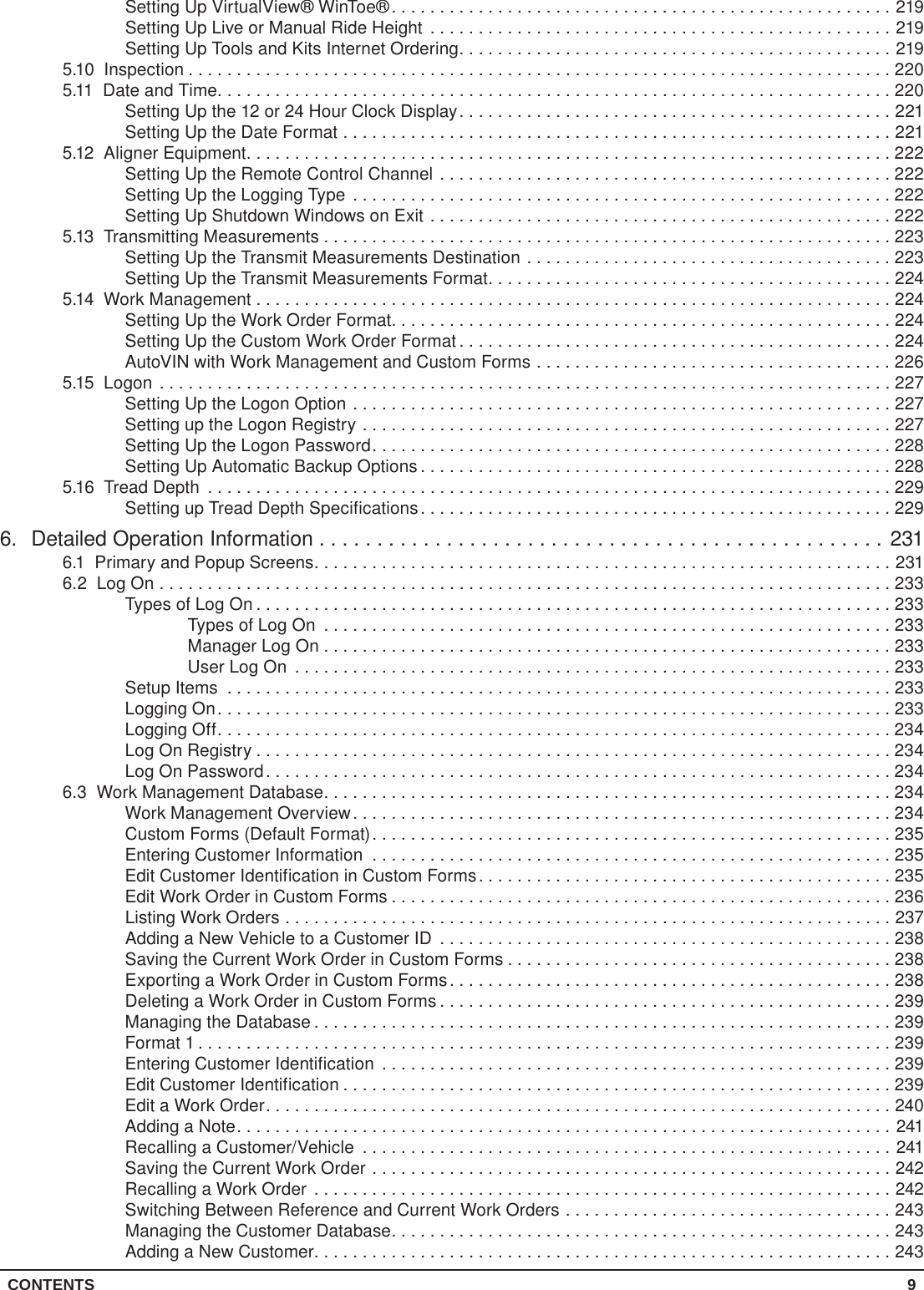
CONTENTS 9Setting Up VirtualView® WinToe®....................................................219Setting Up Live or Manual Ride Height ................................................219Setting Up Tools and Kits Internet Ordering.............................................2195.10 Inspection .........................................................................2205.11  Date and Time......................................................................220Setting Up the 12 or 24 Hour Clock Display.............................................221Setting Up the Date Format .........................................................2215.12  Aligner Equipment...................................................................222Setting Up the Remote Control Channel ...............................................222Setting Up the Logging Type ........................................................222Setting Up Shutdown Windows on Exit ................................................2225.13  Transmitting Measurements ...........................................................223Setting Up the Transmit Measurements Destination ......................................223Setting Up the Transmit Measurements Format..........................................2245.14  Work Management ..................................................................224Setting Up the Work Order Format....................................................224Setting Up the Custom Work Order Format .............................................224AutoVIN with Work Management and Custom Forms .....................................2265.15 Logon ............................................................................227Setting Up the Logon Option ........................................................227Setting up the Logon Registry .......................................................227Setting Up the Logon Password......................................................228Setting Up Automatic Backup Options .................................................2285.16  Tread Depth .......................................................................229Setting up Tread Depth Specifications.................................................2296.  Detailed Operation Information .................................................2316.1  Primary and Popup Screens............................................................2316.2  Log On ............................................................................233Types of Log On ..................................................................233Types of Log On ...........................................................233Manager Log On . . . . . . . . . . . . . . . . . . . . . . . . . . . . . . . . . . . . . . . . . . . . . . . . . . . . . . . . . . . 233User Log On ..............................................................233Setup Items .....................................................................233Logging On......................................................................233Logging Off......................................................................234Log On Registry ..................................................................234Log On Password.................................................................2346.3  Work Management Database...........................................................234Work Management Overview........................................................234Custom Forms (Default Format)......................................................235Entering Customer Information ......................................................235Edit Customer Identification in Custom Forms...........................................235Edit Work Order in Custom Forms ....................................................236Listing Work Orders ...............................................................237Adding a New Vehicle to a Customer ID ...............................................238Saving the Current Work Order in Custom Forms ........................................238Exporting a Work Order in Custom Forms..............................................238Deleting a Work Order in Custom Forms ...............................................239Managing the Database ............................................................239Format 1 ........................................................................239Entering Customer Identification .....................................................239Edit Customer Identification .........................................................239Edit a Work Order.................................................................240Adding a Note....................................................................241Recalling a Customer/Vehicle .......................................................241Saving the Current Work Order ......................................................242Recalling a Work Order ............................................................242Switching Between Reference and Current Work Orders ..................................243Managing the Customer Database....................................................243Adding a New Customer............................................................243
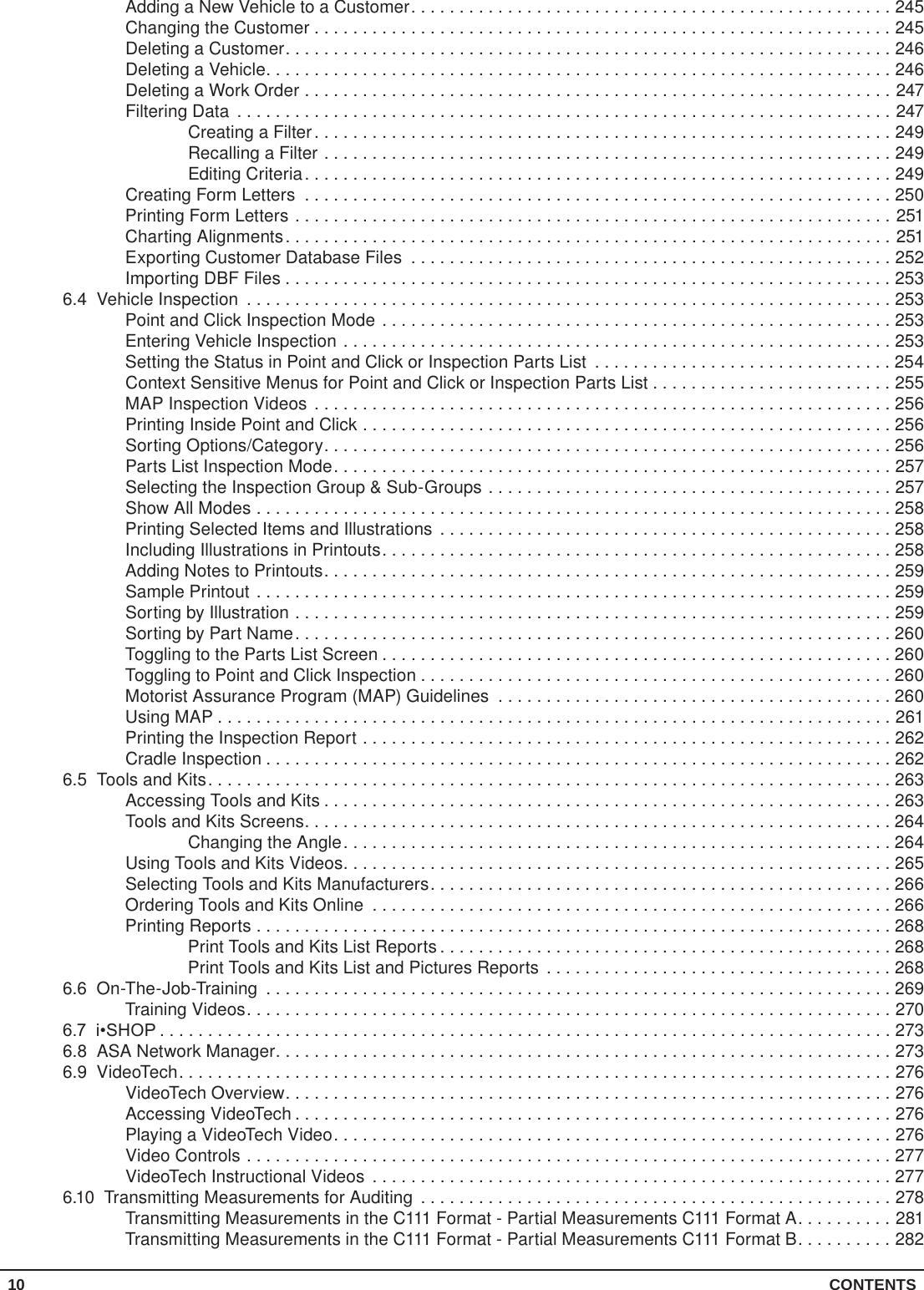
10 CONTENTSAdding a New Vehicle to a Customer..................................................245Changing the Customer . . . . . . . . . . . . . . . . . . . . . . . . . . . . . . . . . . . . . . . . . . . . . . . . . . . . . . . . . . . . 245Deleting a Customer...............................................................246Deleting a Vehicle.................................................................246Deleting a Work Order .............................................................247Filtering Data ....................................................................247Creating a Filter............................................................249Recalling a Filter ...........................................................249Editing Criteria.............................................................249Creating Form Letters .............................................................250Printing Form Letters ..............................................................251Charting Alignments...............................................................251Exporting Customer Database Files ..................................................252Importing DBF Files . . . . . . . . . . . . . . . . . . . . . . . . . . . . . . . . . . . . . . . . . . . . . . . . . . . . . . . . . . . . . . . 2536.4  Vehicle Inspection ...................................................................253Point and Click Inspection Mode .....................................................253Entering Vehicle Inspection .........................................................253Setting the Status in Point and Click or Inspection Parts List ...............................254Context Sensitive Menus for Point and Click or Inspection Parts List . . . . . . . . . . . . . . . . . . . . . . . . . 255MAP Inspection Videos ............................................................256Printing Inside Point and Click .......................................................256Sorting Options/Category...........................................................256Parts List Inspection Mode..........................................................257Selecting the Inspection Group & Sub-Groups ..........................................257Show All Modes ..................................................................258Printing Selected Items and Illustrations ...............................................258Including Illustrations in Printouts.....................................................258Adding Notes to Printouts...........................................................259Sample Printout ..................................................................259Sorting by Illustration ..............................................................259Sorting by Part Name..............................................................260Toggling to the Parts List Screen .....................................................260Toggling to Point and Click Inspection .................................................260Motorist Assurance Program (MAP) Guidelines .........................................260Using MAP ......................................................................261Printing the Inspection Report .......................................................262Cradle Inspection .................................................................2626.5  Tools and Kits.......................................................................263Accessing Tools and Kits ...........................................................263Tools and Kits Screens.............................................................264Changing the Angle.........................................................264Using Tools and Kits Videos.........................................................265Selecting Tools and Kits Manufacturers................................................266Ordering Tools and Kits Online ......................................................266Printing Reports ..................................................................268Print Tools and Kits List Reports ...............................................268Print Tools and Kits List and Pictures Reports ....................................2686.6 On-The-Job-Training .................................................................269Training Videos...................................................................2706.7  i•SHOP ............................................................................2736.8  ASA Network Manager................................................................2736.9 VideoTech..........................................................................276VideoTech Overview...............................................................276Accessing VideoTech ..............................................................276Playing a VideoTech Video..........................................................276Video Controls ...................................................................277VideoTech Instructional Videos ......................................................2776.10  Transmitting Measurements for Auditing .................................................278Transmitting Measurements in the C111 Format - Partial Measurements C111 Format A..........281Transmitting Measurements in the C111 Format - Partial Measurements C111 Format B..........282
CONTENTS 117.  Equipment Information .......................................................2837.1  Conventional Sensors.................................................................283Care and Cleaning of Conventional Sensors ............................................283HF Pod .........................................................................283XF Pod (DSP506XF and DSP508XF Sensors Only) ......................................284XF2 Pod (DSP506XF and DSP508XF Sensors Only) .....................................284Precautions for Systems Equipped with XF Cordless Sensors . . . . . . . . . . . . . . . . . . . . . . . . . . . . . . 284Charging Conventional Sensor Batteries (RF and HF/HFSS Sensors Only)....................284Charging Information........................................................285When is it time to replace the batteries? .........................................285Additional Information:.......................................................285Charging Conventional Sensor Batteries (XF Sensors Only) ...............................286Charging Information........................................................286In a shop with extended service hours, there are some things you can do to prolong battery life: ......................................................................287When is it time to replace the batteries? .........................................287Additional information:.......................................................287Charging the Wireless Remote Indicator Battery.........................................288Battery Indicator: ...........................................................288Charging information: .......................................................288Charge indicator: ...........................................................288When is it time to replace the batteries? .........................................289Additional information:.......................................................2897.2  Camera Based and Ride Height Targets Care and Maintenance ...............................289Target Maintenance ...............................................................289Target Image Viewer ..............................................................289Care and Cleaning of the Targets.....................................................291Ride Height Target Maintenance .....................................................291Dirty Targets can Hinder Sensor Performance ..........................................291Target Face Cleaning Instructions ....................................................291Target Mounting Surface Cleaning Instructions ..........................................292DSP400L/600L Vertical Lift Control Unit . . . . . . . . . . . . . . . . . . . . . . . . . . . . . . . . . . . . . . . . . . . . . . . 292Operation.................................................................292Preset Keys ...............................................................292Safety Switches............................................................292DSP600LP Lift Controls ............................................................293Operation.................................................................293Moveable Cameras ...............................................................293Basic Operation............................................................293Manual...................................................................293Target Tracking ............................................................294Rack Tracking (FIA Only).....................................................294Customizing .....................................................................294Setup ..........................................................................2947.3  Remote Indicator ....................................................................294LED............................................................................294Remote Indicator Models 30-418-1, 30-419-1, and 30-421-1 ...............................2947.4  Digital-PHOTO Option ................................................................2957.5  CD/DVD-ROM Handling Instructions .....................................................295Replacing the CD/DVD-ROM in Systems That Have Tray Type Players .......................2957.6 Mouse.............................................................................2967.7  Remote Control Transmitter ............................................................2967.8  Program Shell.......................................................................297Customizing with Program Shell .....................................................297Program Shell Command Lines ...............................................2977.9  WinAlign® Multi-Disk Backup/Restore....................................................299Backup and Restore Procedures .....................................................299Backup Procedure ................................................................299Restore Procedure ................................................................3007.10  Electronic Keys .....................................................................301
12 CONTENTS7.11  Conventional Sensor Calibration........................................................302Calibration General Information ......................................................302Mounting DSP Sensors ............................................................303Leveling the Calibration Fixture ......................................................304Starting the Calibration Procedure....................................................304Procedure Basics .................................................................304Selecting What to Calibrate .........................................................305Performing the Calibration (Conventional Sensors).......................................306Mounting Spacers for Camber and Caster Adjust Transducers (All Sensors) ...................307Zero Calibration ..................................................................307Storing Calibration Results..........................................................307Finishing Calibration...............................................................307Calibration Fixture Adjustments ......................................................307Mounting the Sensors on the Calibration Fixture.........................................307Leveling the Top Casting ...........................................................308Zero Calibration Using the Long Calibration Bar .........................................308Software Requirements......................................................308DSP Sensor Preparation ...........................................................308Installing the Calibration Bar and Stands ...............................................308Stabilizing the Calibration Stand .....................................................310Mounting the DSP Sensors .........................................................310Rotating the Calibration Bar ......................................................... 311Raising the End of the Calibration Bar (DSP500 Series Sensors)............................312Performing the Zero Calibration......................................................312Reverse Sensor Test ..............................................................3127.12  Camera Based Sensor Calibration ......................................................314Reverse Target Test ...............................................................3167.13  Inflation Station .....................................................................3178.  Additional Information ........................................................3198.1  Cradle Adjustment ...................................................................319Why Has the Cradle Become an Alignment Issue? .......................................319Is it Possible to Reposition a Cradle without Frame Equipment?.............................319What are the Procedures for Properly Positioning a Cradle Assembly? .......................320Definition of Cradle................................................................320Why are Cradle Assemblies Used? ...................................................320What is the Proper Position for the Cradle? .............................................320What Happens if the Cradle is Out of Position?..........................................320Vehicles with Adjustable Cradle by Manufacturer ........................................321Front Adjustable Cradles.....................................................321Buick ....................................................................321Cadillac ..................................................................321Chevrolet .................................................................321Chrysler ..................................................................321Dodge ...................................................................321Ford .....................................................................321Lincoln-Mercury............................................................321Oldsmobile................................................................321Plymouth .................................................................321Pontiac...................................................................321Saturn ...................................................................321Vehicles with Adjustable Rear Cradles ..........................................321Camber and Steering Axis Inclination (S.A.I.) Angles .....................................322How Does the Cradle Position Effect Camber and S.A.I.? .................................322What are the Effects of an Improperly Positioned Cradle? .................................322Caster and Setback Angles .........................................................322How Does the Cradle Position Effect Caster and Setback Angles? ..........................3238.2  Ride Height Specifications.............................................................324Toe Change .....................................................................324Camber (Side-Slip)................................................................324Shocks and Struts ................................................................324
CONTENTS 13Rear Springs.....................................................................3249. Glossary ..................................................................3259.1  Alignment Types .....................................................................325Geometric Centerline Alignment .....................................................325Thrust Line Alignment .............................................................325Total Four-Wheel Alignment.........................................................3269.2  Alignment Angles and Measurements ....................................................326Camber.........................................................................326Caster..........................................................................326Frame Angle.....................................................................327Geometric Center Line .............................................................327Included Angle (I.A.)...............................................................327Individual Toe ....................................................................327Ride Height......................................................................327Steering Axis Inclination (S.A.I.)......................................................328Thrust Angle and Thrust Line........................................................328Total Toe ........................................................................328Turning Angle ....................................................................3289.3  Symmetry Angle/Set Back Definitions ....................................................329Front Set Back ...................................................................329Wheelbase Difference .............................................................329Right Lateral Offset ...............................................................329Left Lateral Offset.................................................................329Track Width Difference.............................................................330Axle Offset ......................................................................3309.4  Advanced Vehicle Handling Values ......................................................332Body Center Line Angle ............................................................332Description: ...............................................................332What can change it:.........................................................333Vehicle characteristics it effects:...............................................333Body Center Line Offset............................................................333Description: ...............................................................334What can change it:.........................................................334Vehicle characteristics it effects:...............................................334Body Overhang ..................................................................334Description: ...............................................................334What can change it:.........................................................334Vehicle characteristics it effects:...............................................335Body Roll Angle ..................................................................335Description: ...............................................................335What can change it:.........................................................335Vehicle characteristics it effects:...............................................336Curb-to-Curb Distance.............................................................336Description: ...............................................................336What can change it:.........................................................336Vehicle characteristics it effects:...............................................336Rolling Force Lever ...............................................................337Description: ...............................................................337What can change it:.........................................................337Vehicle characteristics it effects:...............................................337Turning Circle ....................................................................338Description: ...............................................................338What can change it:.........................................................338Vehicle characteristics it effects:...............................................338
THIS PAGE INTENTIONALLY LEFT BLANK14
GETTING STARTED 151.  Getting Started 1.1  General IntroductionThis manual provides operation instructions and information required to operate the WA Series aligner with WinAlign® software. WinAlign software version 14.x is a 64-bit program and is compatible only with Windows® Vista or Windows® 7.With HawkEye Elite HE421 Series Sensors, every alignment is a Picture Perfect® alignment. HawkEye Elite HE421 Series Sensors use four stationary, high-resolution cameras, each with a designated Digital Signal Processor, which continuously measure the position and orientation of targets.The owner of the Series WA Series aligner is solely responsible for arranging technical training. Only a qualified trained technician should operate the WA Series aligner. Maintaining records of personnel trained on this equipment is solely the responsibility of the owner and management.ReferencesThis manual assumes the user is already familiar with the basics of wheel alignment. Italics are used to refer to specific parts of this manual that provide additional information or explanation. For example, refer to “Operating the Console.” These references should be read for additional information to the instructions being presented.
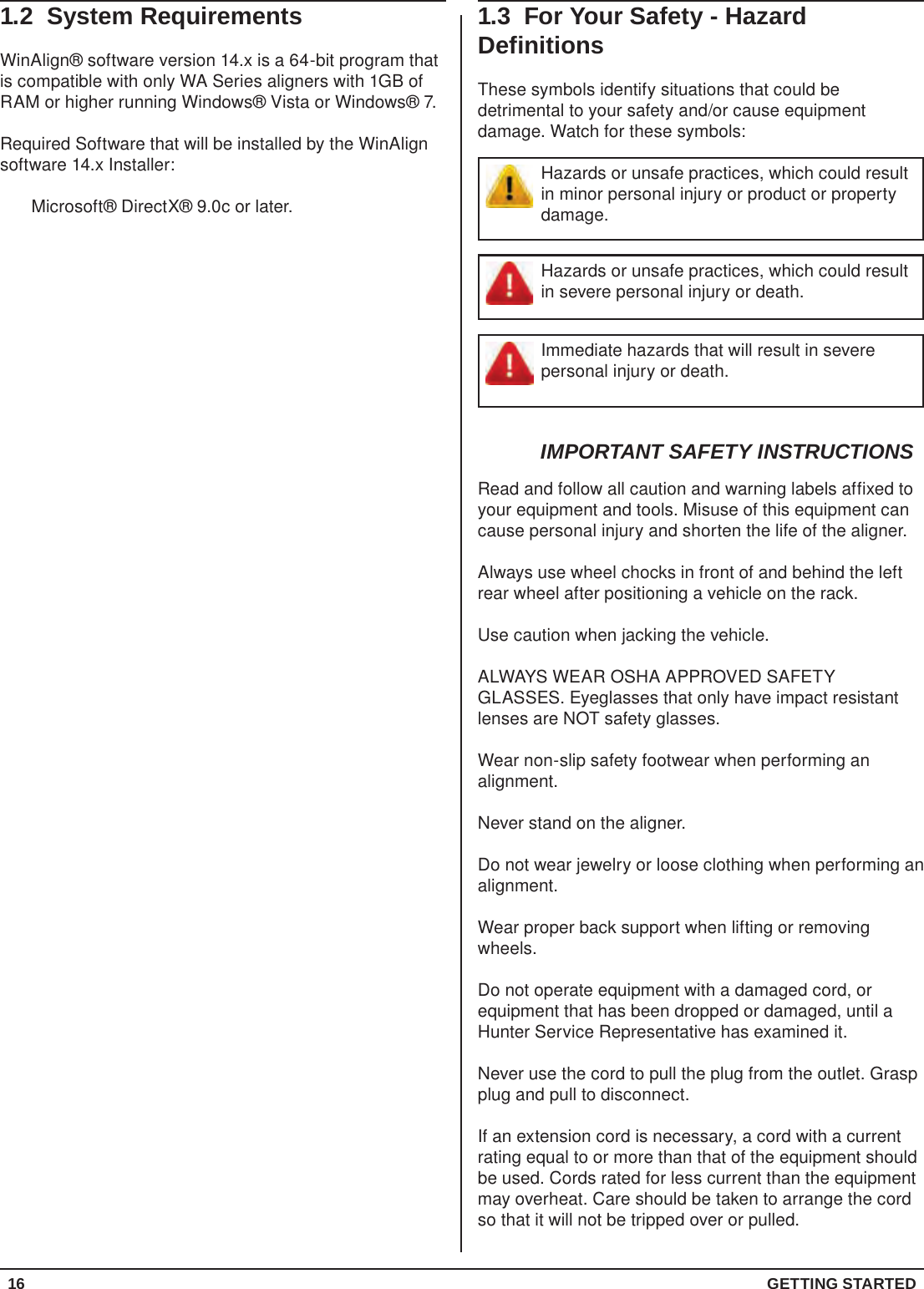
16  GETTING STARTED1.3  For Your Safety - Hazard DefinitionsThese symbols identify situations that could be detrimental to your safety and/or cause equipment damage. Watch for these symbols:Hazards or unsafe practices, which could result in minor personal injury or product or property damage.Hazards or unsafe practices, which could result in severe personal injury or death.Immediate hazards that will result in severe personal injury or death.IMPORTANT SAFETY INSTRUCTIONSRead and follow all caution and warning labels affixed to your equipment and tools. Misuse of this equipment can cause personal injury and shorten the life of the aligner.Always use wheel chocks in front of and behind the left rear wheel after positioning a vehicle on the rack.Use caution when jacking the vehicle.ALWAYS WEAR OSHA APPROVED SAFETY GLASSES. Eyeglasses that only have impact resistant lenses are NOT safety glasses.Wear non-slip safety footwear when performing an alignment.Never stand on the aligner.Do not wear jewelry or loose clothing when performing an alignment.Wear proper back support when lifting or removing wheels.Do not operate equipment with a damaged cord, or equipment that has been dropped or damaged, until a Hunter Service Representative has examined it.Never use the cord to pull the plug from the outlet. Grasp plug and pull to disconnect.If an extension cord is necessary, a cord with a current rating equal to or more than that of the equipment should be used. Cords rated for less current than the equipment may overheat. Care should be taken to arrange the cord so that it will not be tripped over or pulled.1.2  System RequirementsWinAlign® software version 14.x is a 64-bit program that is compatible with only WA Series aligners with 1GB of RAM or higher running Windows® Vista or Windows® 7.Required Software that will be installed by the WinAlign software 14.x Installer:Microsoft® DirectX® 9.0c or later.
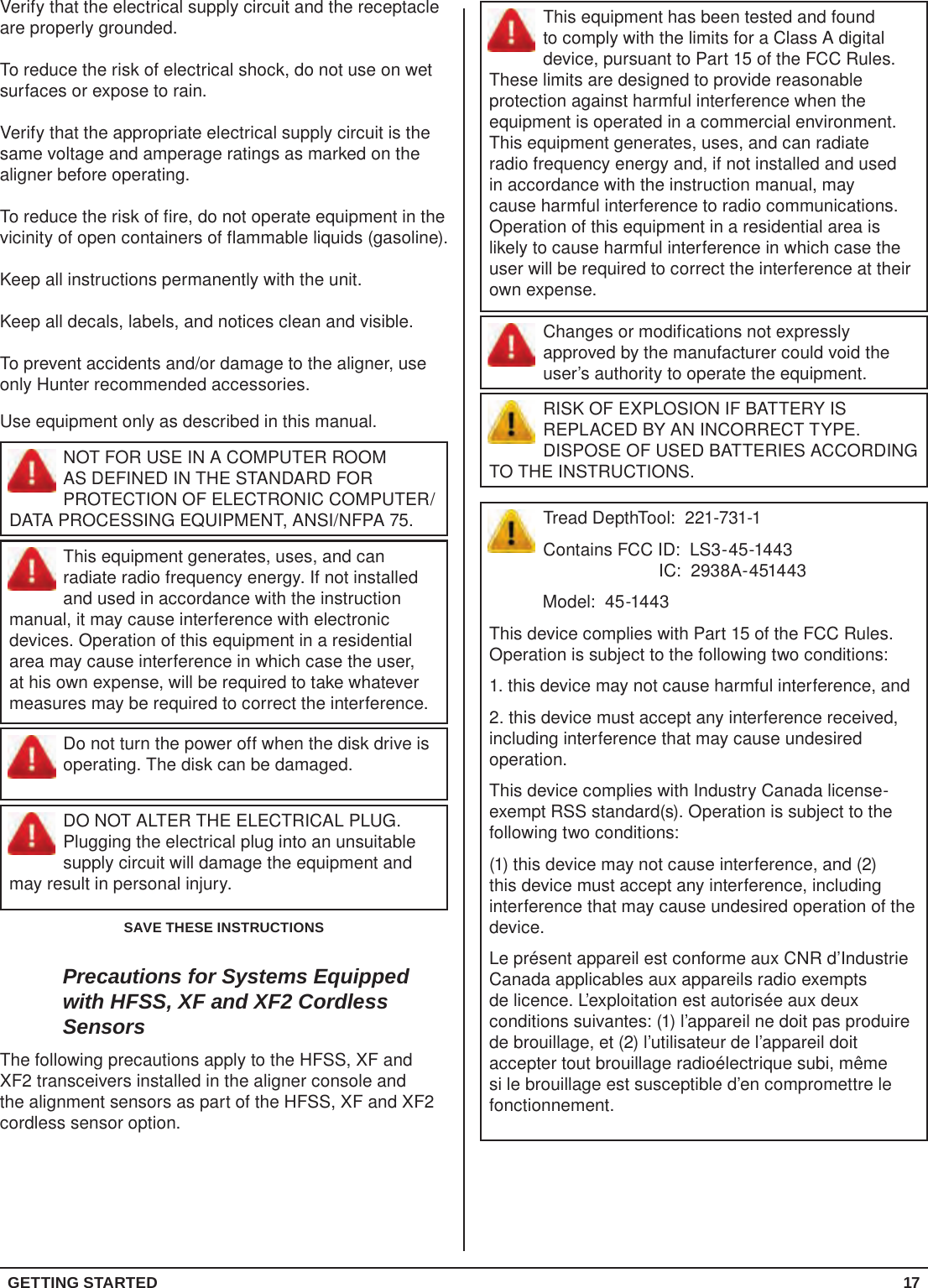
GETTING STARTED 17This equipment has been tested and found to comply with the limits for a Class A digital device, pursuant to Part 15 of the FCC Rules. These limits are designed to provide reasonable protection against harmful interference when the equipment is operated in a commercial environment. This equipment generates, uses, and can radiate radio frequency energy and, if not installed and used in accordance with the instruction manual, may cause harmful interference to radio communications. Operation of this equipment in a residential area is likely to cause harmful interference in which case the user will be required to correct the interference at their own expense.Changes or modifications not expressly approved by the manufacturer could void the user’s authority to operate the equipment.RISK OF EXPLOSION IF BATTERY IS REPLACED BY AN INCORRECT TYPE. DISPOSE OF USED BATTERIES ACCORDING TO THE INSTRUCTIONS.Tread DepthTool:  221-731-1Contains FCC ID:  LS3-45-1443                                            IC:  2938A-451443           Model:  45-1443This device complies with Part 15 of the FCC Rules.  Operation is subject to the following two conditions:1. this device may not cause harmful interference, and2. this device must accept any interference received, including interference that may cause undesired operation.This device complies with Industry Canada license-exempt RSS standard(s). Operation is subject to the following two conditions: (1) this device may not cause interference, and (2) this device must accept any interference, including interference that may cause undesired operation of the device.Le présent appareil est conforme aux CNR d’Industrie Canada applicables aux appareils radio exempts de licence. L’exploitation est autorisée aux deux conditions suivantes: (1) l’appareil ne doit pas produire de brouillage, et (2) l’utilisateur de l’appareil doit accepter tout brouillage radioélectrique subi, même si le brouillage est susceptible d’en compromettre le fonctionnement.Verify that the electrical supply circuit and the receptacle are properly grounded.To reduce the risk of electrical shock, do not use on wet surfaces or expose to rain.Verify that the appropriate electrical supply circuit is the same voltage and amperage ratings as marked on the aligner before operating.To reduce the risk of fire, do not operate equipment in the vicinity of open containers of flammable liquids (gasoline).Keep all instructions permanently with the unit.Keep all decals, labels, and notices clean and visible.To prevent accidents and/or damage to the aligner, use only Hunter recommended accessories.Use equipment only as described in this manual.NOT FOR USE IN A COMPUTER ROOM AS DEFINED IN THE STANDARD FOR PROTECTION OF ELECTRONIC COMPUTER/DATA PROCESSING EQUIPMENT, ANSI/NFPA 75.This equipment generates, uses, and can radiate radio frequency energy. If not installed and used in accordance with the instruction manual, it may cause interference with electronic devices. Operation of this equipment in a residential area may cause interference in which case the user, at his own expense, will be required to take whatever measures may be required to correct the interference.Do not turn the power off when the disk drive is operating. The disk can be damaged.DO NOT ALTER THE ELECTRICAL PLUG. Plugging the electrical plug into an unsuitable supply circuit will damage the equipment and may result in personal injury.SAVE THESE INSTRUCTIONSPrecautions for Systems Equipped with HFSS, XF and XF2 Cordless SensorsThe following precautions apply to the HFSS, XF and XF2 transceivers installed in the aligner console and the alignment sensors as part of the HFSS, XF and XF2 cordless sensor option.
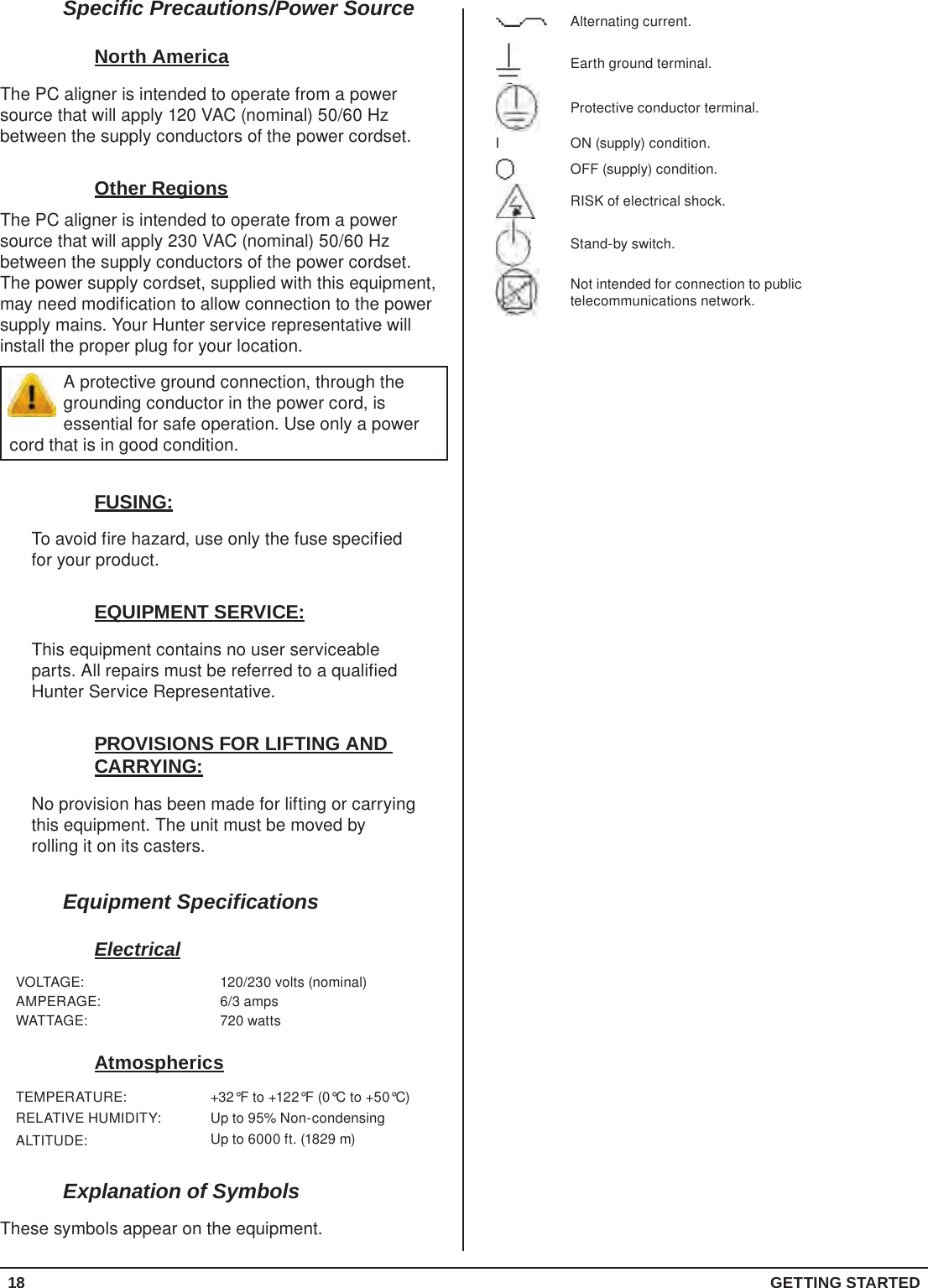
18  GETTING STARTEDAlternating current.Earth ground terminal.Protective conductor terminal.I ON (supply) condition.OFF (supply) condition.RISK of electrical shock.Stand-by switch.Not intended for connection to public telecommunications network.Specific Precautions/Power SourceNorth AmericaThe PC aligner is intended to operate from a power source that will apply 120 VAC (nominal) 50/60 Hz between the supply conductors of the power cordset.Other RegionsThe PC aligner is intended to operate from a power source that will apply 230 VAC (nominal) 50/60 Hz between the supply conductors of the power cordset. The power supply cordset, supplied with this equipment, may need modification to allow connection to the power supply mains. Your Hunter service representative will install the proper plug for your location.A protective ground connection, through the grounding conductor in the power cord, is essential for safe operation. Use only a power cord that is in good condition.FUSING:To avoid fire hazard, use only the fuse specified for your product.EQUIPMENT SERVICE:This equipment contains no user serviceable parts. All repairs must be referred to a qualified Hunter Service Representative.PROVISIONS FOR LIFTING AND CARRYING:No provision has been made for lifting or carrying this equipment. The unit must be moved by rolling it on its casters.Equipment SpecificationsElectricalVOLTAGE: 120/230 volts (nominal)AMPERAGE: 6/3 ampsWATTAGE: 720 wattsAtmosphericsTEMPERATURE: +32°F to +122°F (0°C to +50°C)RELATIVE HUMIDITY: Up to 95% Non-condensingALTITUDE: Up to 6000 ft. (1829 m)Explanation of SymbolsThese symbols appear on the equipment.

Navigation menu