INNOMEDIA TECHNOLOGY HG-W-B03-0001 Smart Speakerphone User Manual

INNOMEDIA TECHNOLOGY INC Smart Speakerphone Users Manual

Contents

Users manual

       January, 2019                      InnoMedia  HG8328-1W  Administrative Guide INNOMEDIA CONFIDENTIAL This document contains proprietary information of InnoMedia Inc., and its receipt or possession does not convey any rights to reproduce, disclose its contents, or to manufacture, use or sell anything it may describe.  It may not be reproduced, disclosed or used without specific written authorization of InnoMedia Inc.
InnoMedia HG8328-1W Administrative Guide      Page 2            Copyright © 2019 InnoMedia. All rights reserved.         Federal Communication Commission Interference Statement  The HG8328-1W series of products have been tested and found to comply with the limits for a Class B digital device, pursuant to Part 15 of the FCC Rules. These limits are designed to provide reasonable protection against harmful interference in a residential installation. This equipment generates, uses and can radiate radio frequency energy and, if not installed and used in accordance with the instructions, may cause harmful interference to radio communications. However, there is no guarantee that interference will not occur in a particular installation. If this equipment does cause harmful interference to radio or television reception, which can be determined by turning the equipment off and on, the user is encouraged to try to correct the interference using one of the following measures: ●  Reorient or relocate the receiving antenna. ●  Increase the separation between the equipment and receiver. ●  Connect the equipment into an outlet on a circuit different from that to which the receiver is connected. ●  Consult the dealer or an experienced radio/TV technician for help.  FCC Caution: Any changes or modifications not expressly approved by the party responsible for compliance could void the user’s authority to operate this equipment.  This device complies with Part 15 of the FCC Rules. Operation is subject to the following two conditions: (1) This device may not cause harmful interference, and (2) this device must accept any interference received, including interference that may cause undesired operation.   IMPORTANT NOTE: FCC Radiation Exposure Statement: This equipment complies with FCC radiation exposure limits set forth for an uncontrolled environment. This equipment should be installed and operated with a minimum distance of 20cm between the radiator & your body.
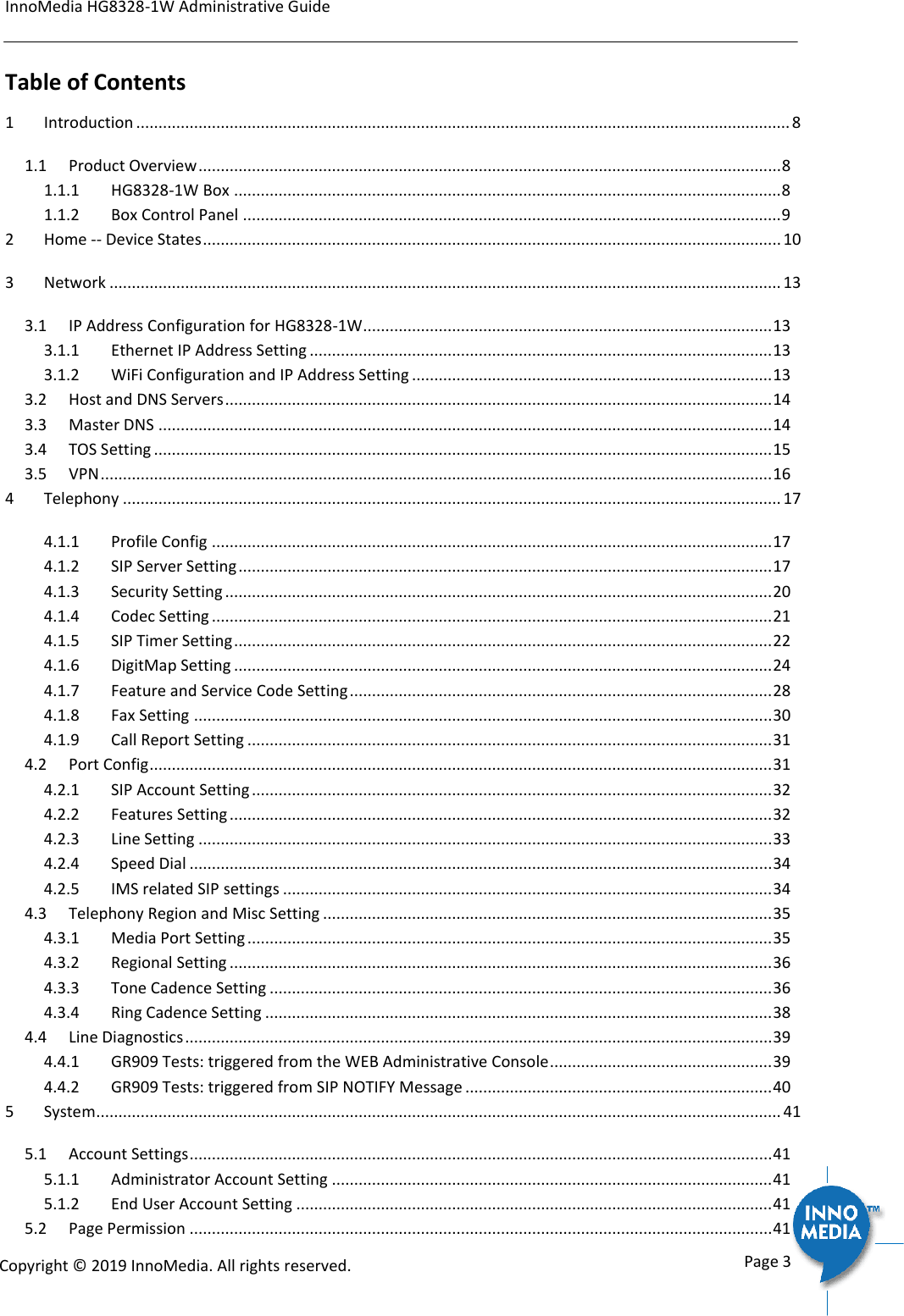
InnoMedia HG8328-1W Administrative Guide      Page 3            Copyright © 2019 InnoMedia. All rights reserved.         Table of Contents 1 Introduction ................................................................................................................................................... 8 1.1 Product Overview ................................................................................................................................... 8 1.1.1 HG8328-1W Box ........................................................................................................................... 8 1.1.2 Box Control Panel ......................................................................................................................... 9 2 Home -- Device States .................................................................................................................................. 10 3 Network ....................................................................................................................................................... 13 3.1 IP Address Configuration for HG8328-1W ............................................................................................ 13 3.1.1 Ethernet IP Address Setting ........................................................................................................ 13 3.1.2 WiFi Configuration and IP Address Setting ................................................................................. 13 3.2 Host and DNS Servers ........................................................................................................................... 14 3.3 Master DNS .......................................................................................................................................... 14 3.4 TOS Setting ........................................................................................................................................... 15 3.5 VPN ....................................................................................................................................................... 16 4 Telephony .................................................................................................................................................... 17 4.1.1 Profile Config .............................................................................................................................. 17 4.1.2 SIP Server Setting ........................................................................................................................ 17 4.1.3 Security Setting ........................................................................................................................... 20 4.1.4 Codec Setting .............................................................................................................................. 21 4.1.5 SIP Timer Setting ......................................................................................................................... 22 4.1.6 DigitMap Setting ......................................................................................................................... 24 4.1.7 Feature and Service Code Setting ............................................................................................... 28 4.1.8 Fax Setting .................................................................................................................................. 30 4.1.9 Call Report Setting ...................................................................................................................... 31 4.2 Port Config ............................................................................................................................................ 31 4.2.1 SIP Account Setting ..................................................................................................................... 32 4.2.2 Features Setting .......................................................................................................................... 32 4.2.3 Line Setting ................................................................................................................................. 33 4.2.4 Speed Dial ................................................................................................................................... 34 4.2.5 IMS related SIP settings .............................................................................................................. 34 4.3 Telephony Region and Misc Setting ..................................................................................................... 35 4.3.1 Media Port Setting ...................................................................................................................... 35 4.3.2 Regional Setting .......................................................................................................................... 36 4.3.3 Tone Cadence Setting ................................................................................................................. 36 4.3.4 Ring Cadence Setting .................................................................................................................. 38 4.4 Line Diagnostics .................................................................................................................................... 39 4.4.1 GR909 Tests: triggered from the WEB Administrative Console .................................................. 39 4.4.2 GR909 Tests: triggered from SIP NOTIFY Message ..................................................................... 40 5 System .......................................................................................................................................................... 41 5.1 Account Settings ................................................................................................................................... 41 5.1.1 Administrator Account Setting ................................................................................................... 41 5.1.2 End User Account Setting ........................................................................................................... 41 5.2 Page Permission ................................................................................................................................... 41
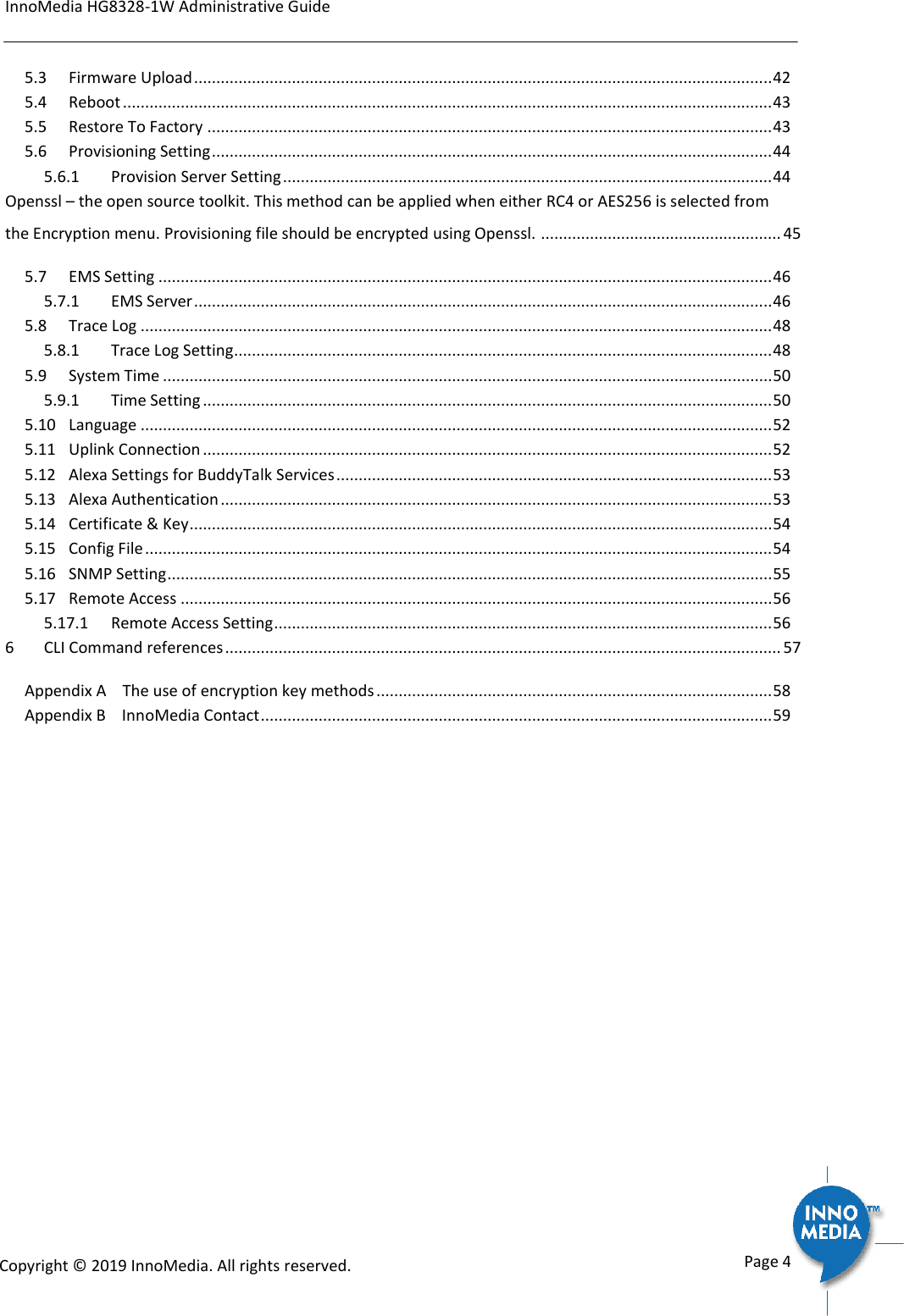
InnoMedia HG8328-1W Administrative Guide      Page 4            Copyright © 2019 InnoMedia. All rights reserved.         5.3 Firmware Upload .................................................................................................................................. 42 5.4 Reboot .................................................................................................................................................. 43 5.5 Restore To Factory ............................................................................................................................... 43 5.6 Provisioning Setting .............................................................................................................................. 44 5.6.1 Provision Server Setting .............................................................................................................. 44 Openssl – the open source toolkit. This method can be applied when either RC4 or AES256 is selected from the Encryption menu. Provisioning file should be encrypted using Openssl. ...................................................... 45 5.7 EMS Setting .......................................................................................................................................... 46 5.7.1 EMS Server .................................................................................................................................. 46 5.8 Trace Log .............................................................................................................................................. 48 5.8.1 Trace Log Setting......................................................................................................................... 48 5.9 System Time ......................................................................................................................................... 50 5.9.1 Time Setting ................................................................................................................................ 50 5.10 Language .............................................................................................................................................. 52 5.11 Uplink Connection ................................................................................................................................ 52 5.12 Alexa Settings for BuddyTalk Services .................................................................................................. 53 5.13 Alexa Authentication ............................................................................................................................ 53 5.14 Certificate & Key ................................................................................................................................... 54 5.15 Config File ............................................................................................................................................. 54 5.16 SNMP Setting ........................................................................................................................................ 55 5.17 Remote Access ..................................................................................................................................... 56 5.17.1 Remote Access Setting ................................................................................................................ 56 6 CLI Command references ............................................................................................................................. 57 Appendix A    The use of encryption key methods ......................................................................................... 58 Appendix B    InnoMedia Contact ................................................................................................................... 59
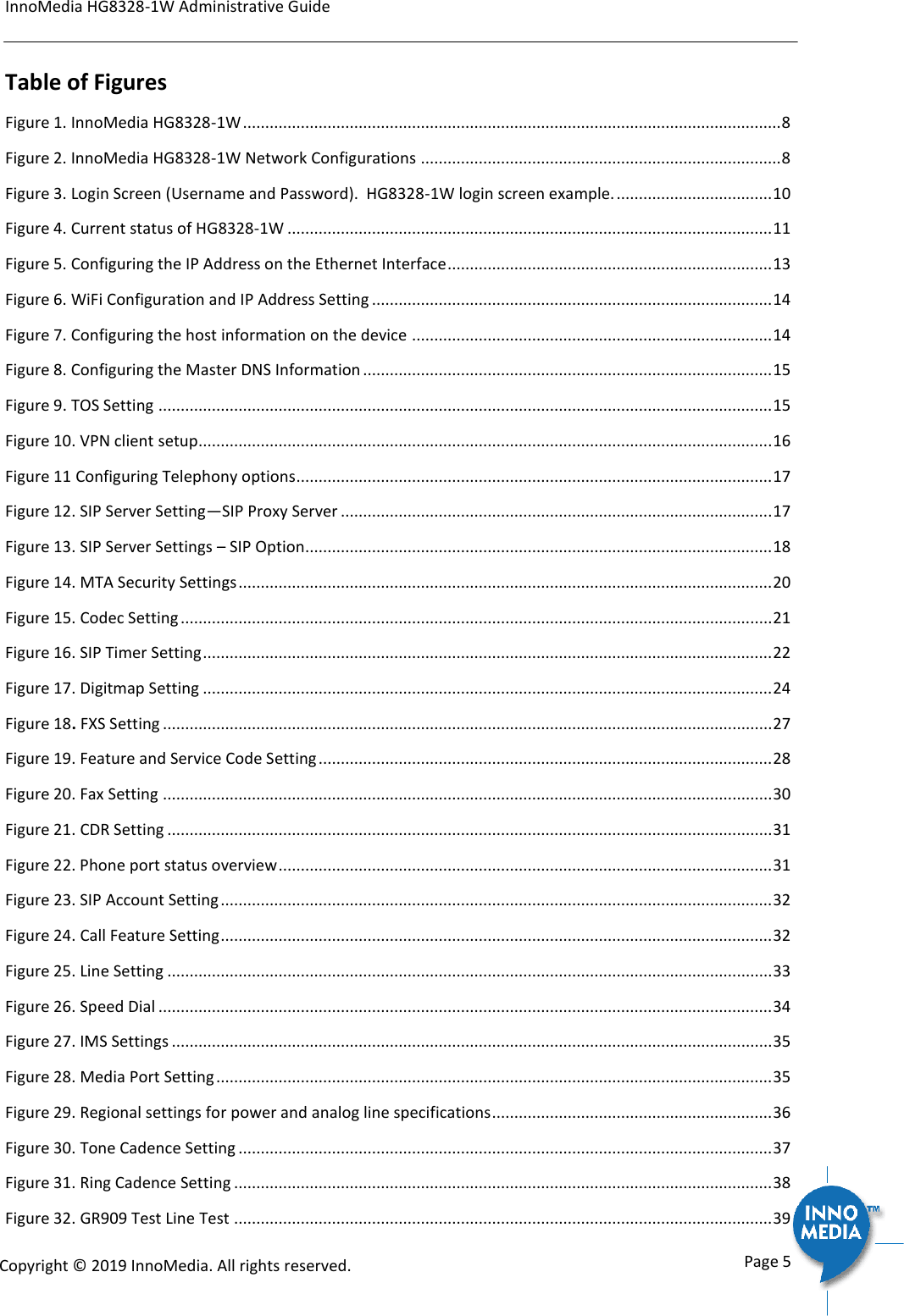
InnoMedia HG8328-1W Administrative Guide      Page 5            Copyright © 2019 InnoMedia. All rights reserved.         Table of Figures Figure 1. InnoMedia HG8328-1W ......................................................................................................................... 8 Figure 2. InnoMedia HG8328-1W Network Configurations ................................................................................. 8 Figure 3. Login Screen (Username and Password).  HG8328-1W login screen example. ................................... 10 Figure 4. Current status of HG8328-1W ............................................................................................................. 11 Figure 5. Configuring the IP Address on the Ethernet Interface ......................................................................... 13 Figure 6. WiFi Configuration and IP Address Setting .......................................................................................... 14 Figure 7. Configuring the host information on the device ................................................................................. 14 Figure 8. Configuring the Master DNS Information ............................................................................................ 15 Figure 9. TOS Setting .......................................................................................................................................... 15 Figure 10. VPN client setup................................................................................................................................. 16 Figure 11 Configuring Telephony options ........................................................................................................... 17 Figure 12. SIP Server Setting—SIP Proxy Server ................................................................................................. 17 Figure 13. SIP Server Settings – SIP Option ......................................................................................................... 18 Figure 14. MTA Security Settings ........................................................................................................................ 20 Figure 15. Codec Setting ..................................................................................................................................... 21 Figure 16. SIP Timer Setting ................................................................................................................................ 22 Figure 17. Digitmap Setting ................................................................................................................................ 24 Figure 18. FXS Setting ......................................................................................................................................... 27 Figure 19. Feature and Service Code Setting ...................................................................................................... 28 Figure 20. Fax Setting ......................................................................................................................................... 30 Figure 21. CDR Setting ........................................................................................................................................ 31 Figure 22. Phone port status overview ............................................................................................................... 31 Figure 23. SIP Account Setting ............................................................................................................................ 32 Figure 24. Call Feature Setting ............................................................................................................................ 32 Figure 25. Line Setting ........................................................................................................................................ 33 Figure 26. Speed Dial .......................................................................................................................................... 34 Figure 27. IMS Settings ....................................................................................................................................... 35 Figure 28. Media Port Setting ............................................................................................................................. 35 Figure 29. Regional settings for power and analog line specifications ............................................................... 36 Figure 30. Tone Cadence Setting ........................................................................................................................ 37 Figure 31. Ring Cadence Setting ......................................................................................................................... 38 Figure 32. GR909 Test Line Test ......................................................................................................................... 39
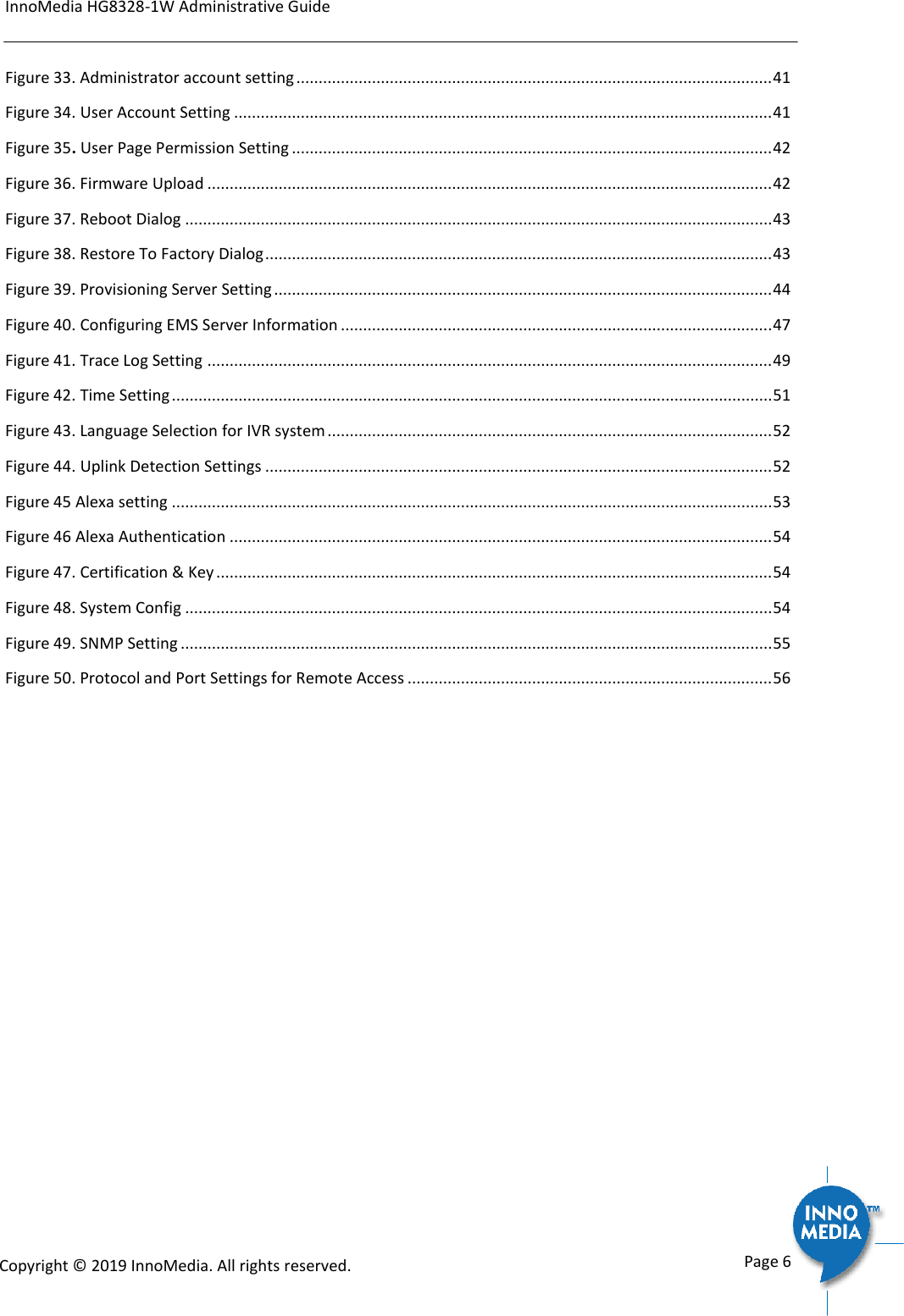
InnoMedia HG8328-1W Administrative Guide      Page 6            Copyright © 2019 InnoMedia. All rights reserved.         Figure 33. Administrator account setting ........................................................................................................... 41 Figure 34. User Account Setting ......................................................................................................................... 41 Figure 35. User Page Permission Setting ............................................................................................................ 42 Figure 36. Firmware Upload ............................................................................................................................... 42 Figure 37. Reboot Dialog .................................................................................................................................... 43 Figure 38. Restore To Factory Dialog .................................................................................................................. 43 Figure 39. Provisioning Server Setting ................................................................................................................ 44 Figure 40. Configuring EMS Server Information ................................................................................................. 47 Figure 41. Trace Log Setting ............................................................................................................................... 49 Figure 42. Time Setting ....................................................................................................................................... 51 Figure 43. Language Selection for IVR system .................................................................................................... 52 Figure 44. Uplink Detection Settings .................................................................................................................. 52 Figure 45 Alexa setting ....................................................................................................................................... 53 Figure 46 Alexa Authentication .......................................................................................................................... 54 Figure 47. Certification & Key ............................................................................................................................. 54 Figure 48. System Config .................................................................................................................................... 54 Figure 49. SNMP Setting ..................................................................................................................................... 55 Figure 50. Protocol and Port Settings for Remote Access .................................................................................. 56
InnoMedia HG8328-1W Administrative Guide      Page 7            Copyright © 2019 InnoMedia. All rights reserved.          About This Document This document provides details of the features available on the InnoMedia HG8328-1W as well as feature descriptions and the configurations required.  Revision History Date Version Notes September 10, 2018 1.0 creation
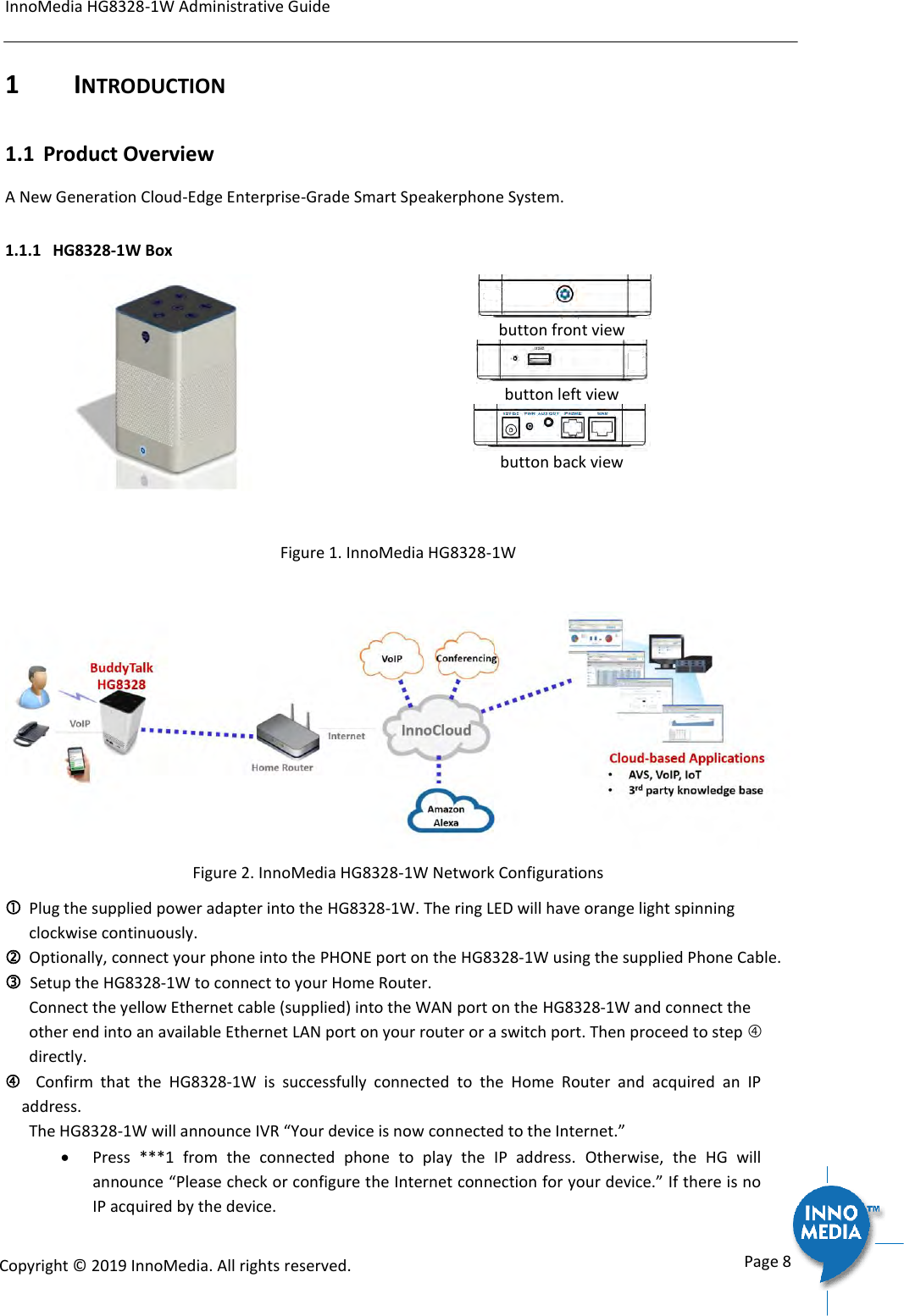
InnoMedia HG8328-1W Administrative Guide      Page 8            Copyright © 2019 InnoMedia. All rights reserved.         1  INTRODUCTION 1.1 Product Overview A New Generation Cloud-Edge Enterprise-Grade Smart Speakerphone System.  1.1.1 HG8328-1W Box       button front view  button left view  button back view  Figure 1. InnoMedia HG8328-1W    Figure 2. InnoMedia HG8328-1W Network Configurations   Plug the supplied power adapter into the HG8328-1W. The ring LED will have orange light spinning clockwise continuously.  Optionally, connect your phone into the PHONE port on the HG8328-1W using the supplied Phone Cable.   Setup the HG8328-1W to connect to your Home Router.  Connect the yellow Ethernet cable (supplied) into the WAN port on the HG8328-1W and connect the other end into an available Ethernet LAN port on your router or a switch port. Then proceed to step  directly.    Confirm  that  the  HG8328-1W  is  successfully  connected  to  the  Home  Router  and  acquired  an  IP address.   The HG8328-1W will announce IVR “Your device is now connected to the Internet.”   Press  ***1  from  the  connected  phone  to  play  the  IP  address.  Otherwise,  the  HG  will announce “Please check or configure the Internet connection for your device.” If there is no IP acquired by the device.
InnoMedia HG8328-1W Administrative Guide      Page 9            Copyright © 2019 InnoMedia. All rights reserved.           Once the HG8328-1W connects to the voice service provider network, and completes the registration and service provision process, the phone connected to the unit will receive a dial tone and can make calls. 1.1.2 Box Control Panel  Ring LED State description Ring LED State description  Not lit.   Idle state and Ready to take voice commands.   MIC off (red)  Purple. Do not disturb on. Single flash.   Yellow. Notifications.   Blue-Cyan.   Thinking. Altering at 620 ms  Speaking. Altering at 1260 ms  Yellow-Red  Notification queued and MIC off.   Cyan. Listening.  Orange.    Spinning clockwise. While connecting to the Internet during initialization.    Fading blinking. Fail to connect to Internet, or system error.   icon State description icon State description  Phone. Not-lit.  Ready to take command. Tap to make a call.  Phone. Green. [Ongoing call|Ringing] mode. No voice mail.  Phone. Yellow. Voice mails and registered.  Phone. Red [BuddyTalk not setup|DND|Not registered] mode  Unmute. Not lit. Tap to mute.  Mute. Red. [BuddyTalk not setup|Mute] mode. Tap to unmute.   Flash key. Not lit. Tap to merge calls, transfer a call, call waiting …  Flash. Green for being tapped.   Buddytalk not setup. Red.     Volume down. Not lit.  Tap to lower volume  When speaker is muted. Red.   Volume up. Not Lit. Tap to increase volume  When speaker is muted. Red.   MIC. Not lit. Unmute. Tap to mute.  MIC mute. Red.  Tap to unmute.  Press for 3 seconds. Cyan. [Listening|Speaking] mode. Tap to stop.
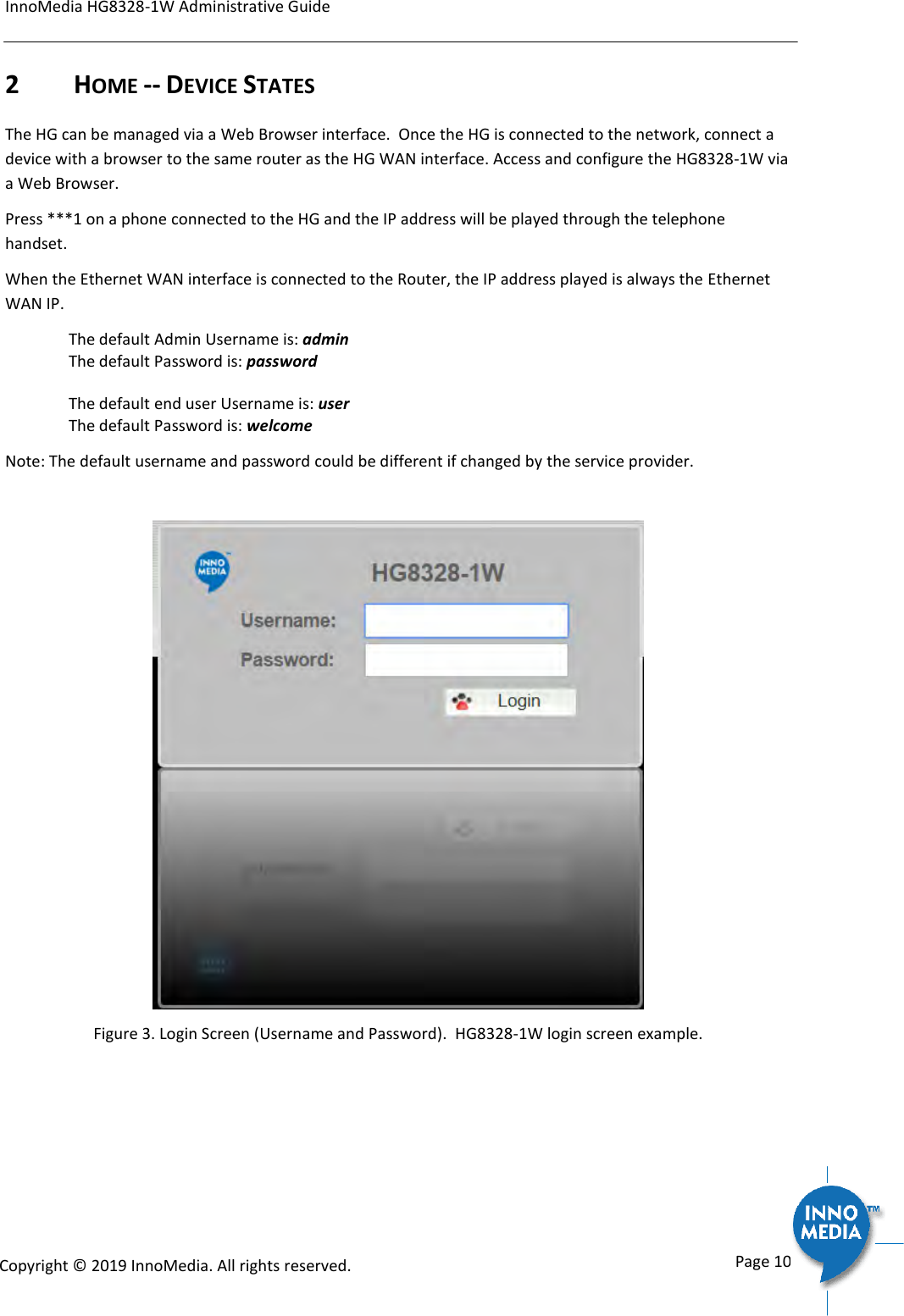
InnoMedia HG8328-1W Administrative Guide      Page 10            Copyright © 2019 InnoMedia. All rights reserved.         2  HOME -- DEVICE STATES The HG can be managed via a Web Browser interface.  Once the HG is connected to the network, connect a device with a browser to the same router as the HG WAN interface. Access and configure the HG8328-1W via a Web Browser.  Press ***1 on a phone connected to the HG and the IP address will be played through the telephone handset. When the Ethernet WAN interface is connected to the Router, the IP address played is always the Ethernet WAN IP.   The default Admin Username is: admin   The default Password is: password    The default end user Username is: user     The default Password is: welcome Note: The default username and password could be different if changed by the service provider.   Figure 3. Login Screen (Username and Password).  HG8328-1W login screen example.
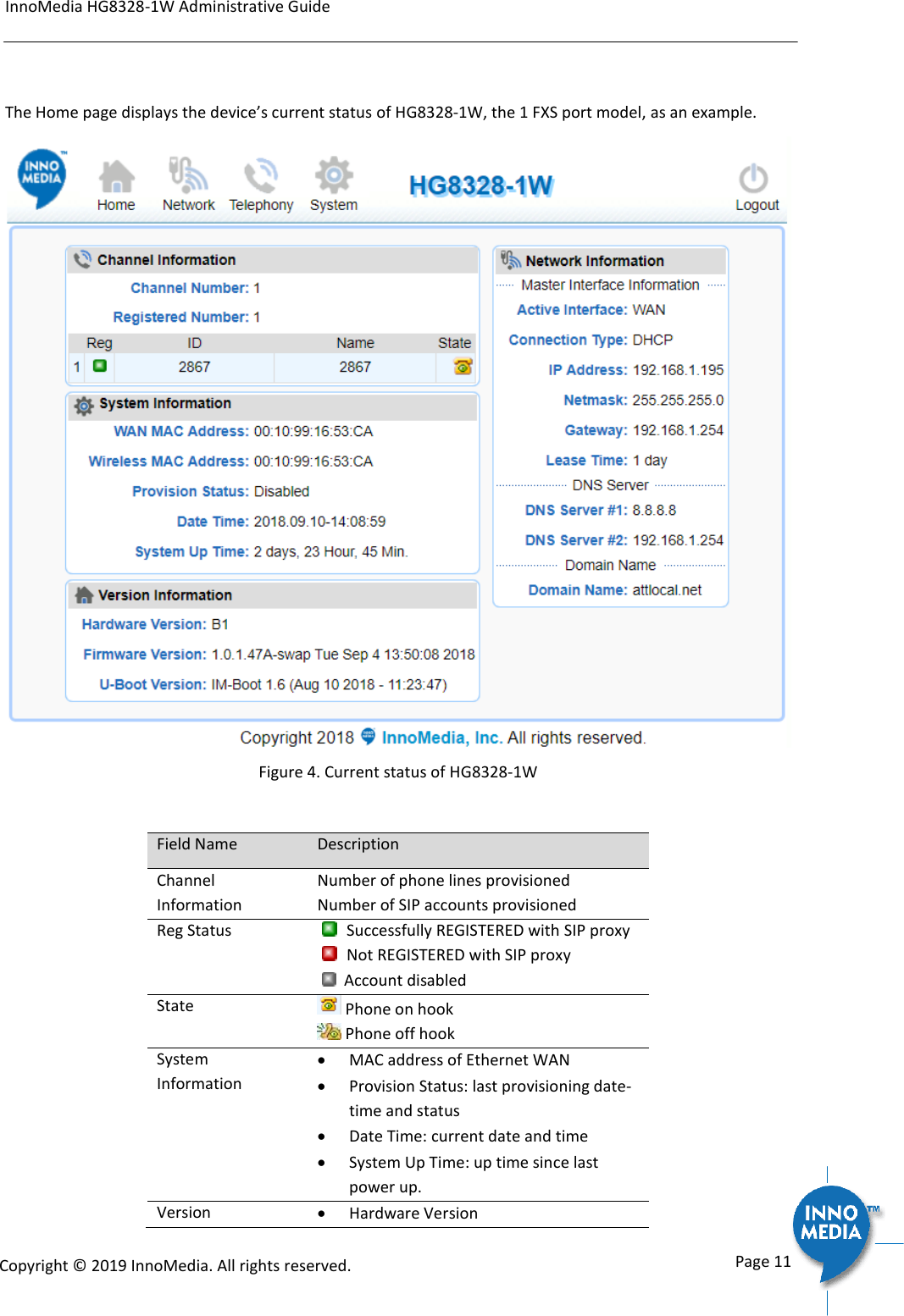
InnoMedia HG8328-1W Administrative Guide      Page 11            Copyright © 2019 InnoMedia. All rights reserved.          The Home page displays the device’s current status of HG8328-1W, the 1 FXS port model, as an example.   Figure 4. Current status of HG8328-1W  Field Name Description Channel Information Number of phone lines provisioned Number of SIP accounts provisioned Reg Status   Successfully REGISTERED with SIP proxy   Not REGISTERED with SIP proxy   Account disabled State  Phone on hook  Phone off hook System Information  MAC address of Ethernet WAN  Provision Status: last provisioning date-time and status  Date Time: current date and time  System Up Time: up time since last power up. Version  Hardware Version
InnoMedia HG8328-1W Administrative Guide      Page 12            Copyright © 2019 InnoMedia. All rights reserved.         Information  Firmware Version  Boot Loader Version Network Information  Master Interface Information: Current active (in use) network.   DNS Server: all DNS server IP addresses configured on the MTA devices. The priority order of DNS servers (in order of decreasing priority) used is: Master DNS server(s) > those obtained from the DHCP server > user configured DNS server(s).  See section 3.3 for details on Master DNS.  Domain Name: the domain name obtained from DHCP Option 15 or the configured value described in section 3.2. The value obtained from DHCP has higher priority than any manually configured domain name.
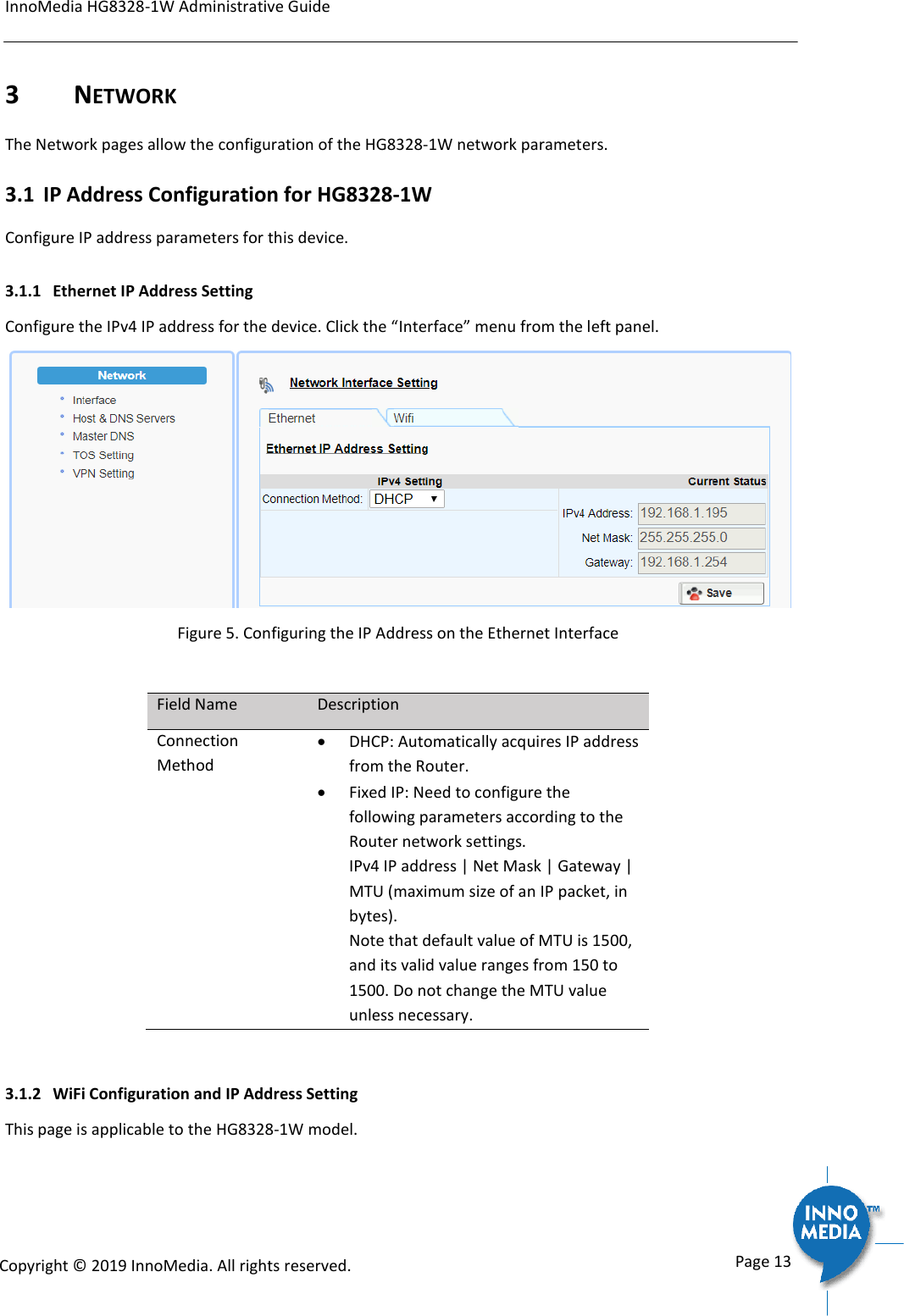
InnoMedia HG8328-1W Administrative Guide      Page 13            Copyright © 2019 InnoMedia. All rights reserved.         3  NETWORK The Network pages allow the configuration of the HG8328-1W network parameters.  3.1 IP Address Configuration for HG8328-1W Configure IP address parameters for this device.  3.1.1 Ethernet IP Address Setting Configure the IPv4 IP address for the device. Click the “Interface” menu from the left panel.   Figure 5. Configuring the IP Address on the Ethernet Interface  Field Name Description Connection Method  DHCP: Automatically acquires IP address from the Router.    Fixed IP: Need to configure the following parameters according to the Router network settings. IPv4 IP address | Net Mask | Gateway | MTU (maximum size of an IP packet, in bytes).  Note that default value of MTU is 1500, and its valid value ranges from 150 to 1500. Do not change the MTU value unless necessary.  3.1.2 WiFi Configuration and IP Address Setting This page is applicable to the HG8328-1W model.
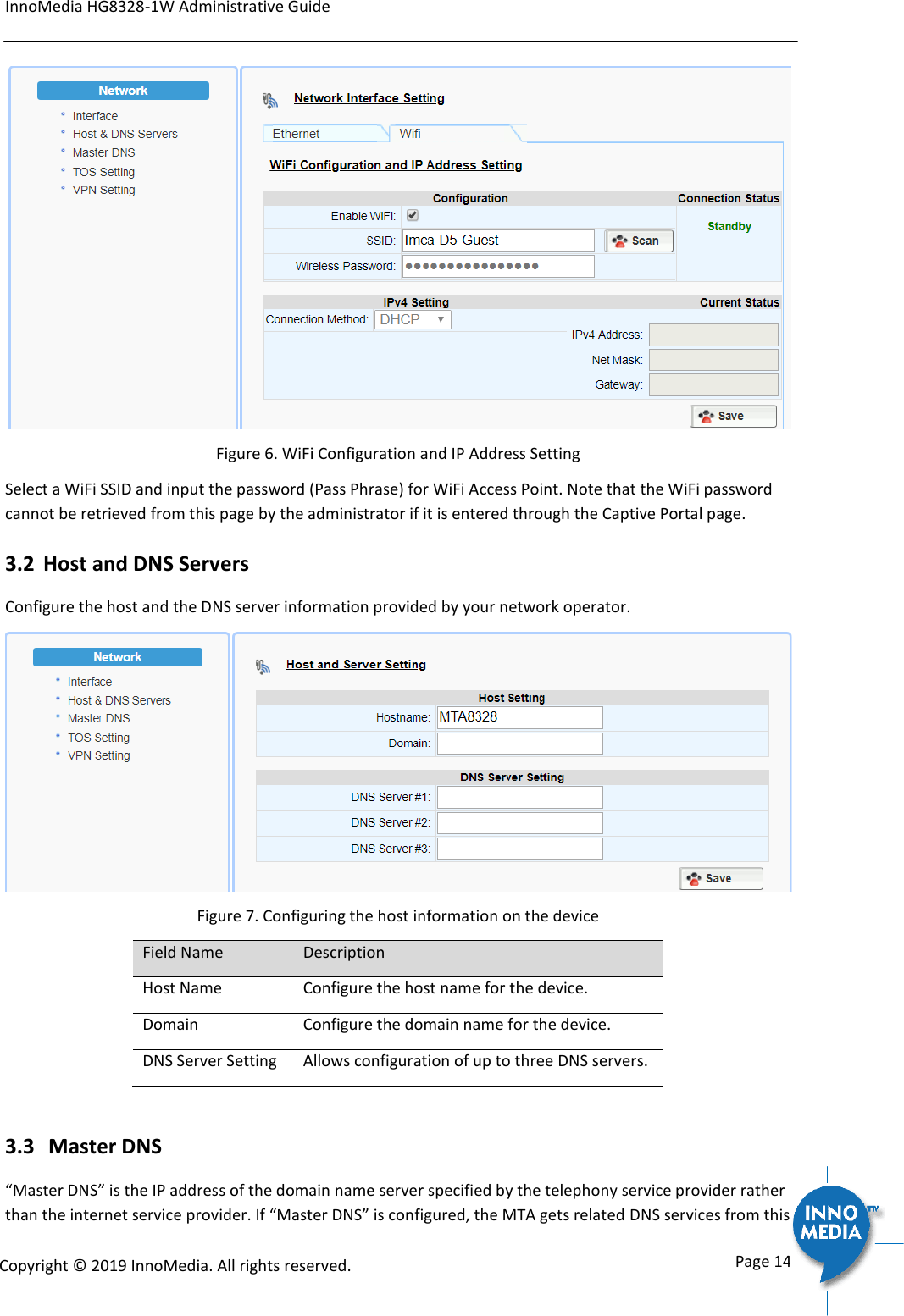
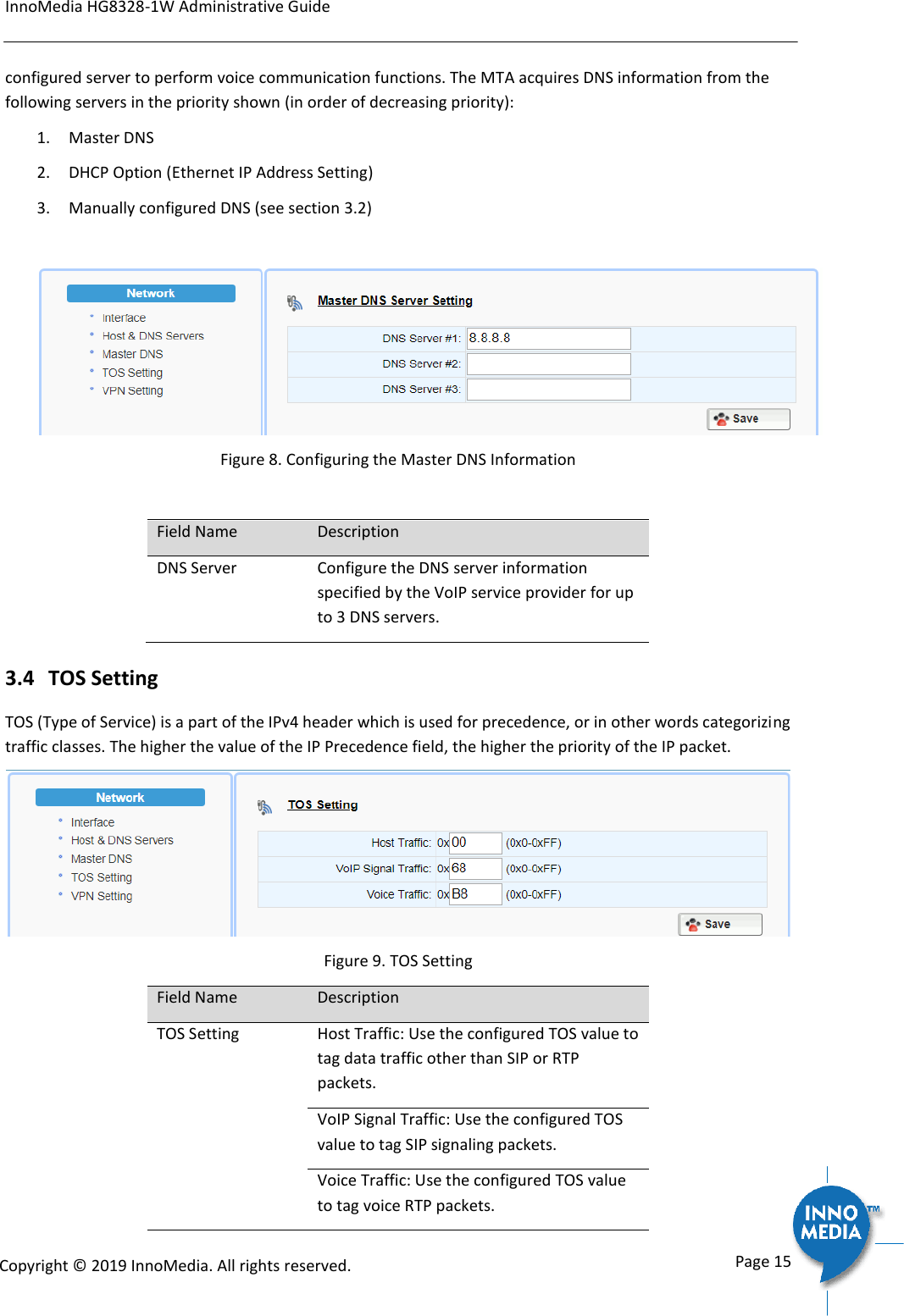
InnoMedia HG8328-1W Administrative Guide      Page 14            Copyright © 2019 InnoMedia. All rights reserved.          Figure 6. WiFi Configuration and IP Address Setting Select a WiFi SSID and input the password (Pass Phrase) for WiFi Access Point. Note that the WiFi password cannot be retrieved from this page by the administrator if it is entered through the Captive Portal page. 3.2 Host and DNS Servers Configure the host and the DNS server information provided by your network operator.  Figure 7. Configuring the host information on the device Field Name Description Host Name Configure the host name for the device.  Domain Configure the domain name for the device. DNS Server Setting Allows configuration of up to three DNS servers.  3.3  Master DNS “Master DNS” is the IP address of the domain name server specified by the telephony service provider rather than the internet service provider. If “Master DNS” is configured, the MTA gets related DNS services from this
InnoMedia HG8328-1W Administrative Guide      Page 15            Copyright © 2019 InnoMedia. All rights reserved.         configured server to perform voice communication functions. The MTA acquires DNS information from the following servers in the priority shown (in order of decreasing priority): 1. Master DNS 2. DHCP Option (Ethernet IP Address Setting) 3. Manually configured DNS (see section 3.2)   Figure 8. Configuring the Master DNS Information  Field Name Description DNS Server Configure the DNS server information specified by the VoIP service provider for up to 3 DNS servers.  3.4  TOS Setting TOS (Type of Service) is a part of the IPv4 header which is used for precedence, or in other words categorizing traffic classes. The higher the value of the IP Precedence field, the higher the priority of the IP packet.   Figure 9. TOS Setting Field Name Description TOS Setting  Host Traffic: Use the configured TOS value to tag data traffic other than SIP or RTP packets. VoIP Signal Traffic: Use the configured TOS value to tag SIP signaling packets. Voice Traffic: Use the configured TOS value to tag voice RTP packets.
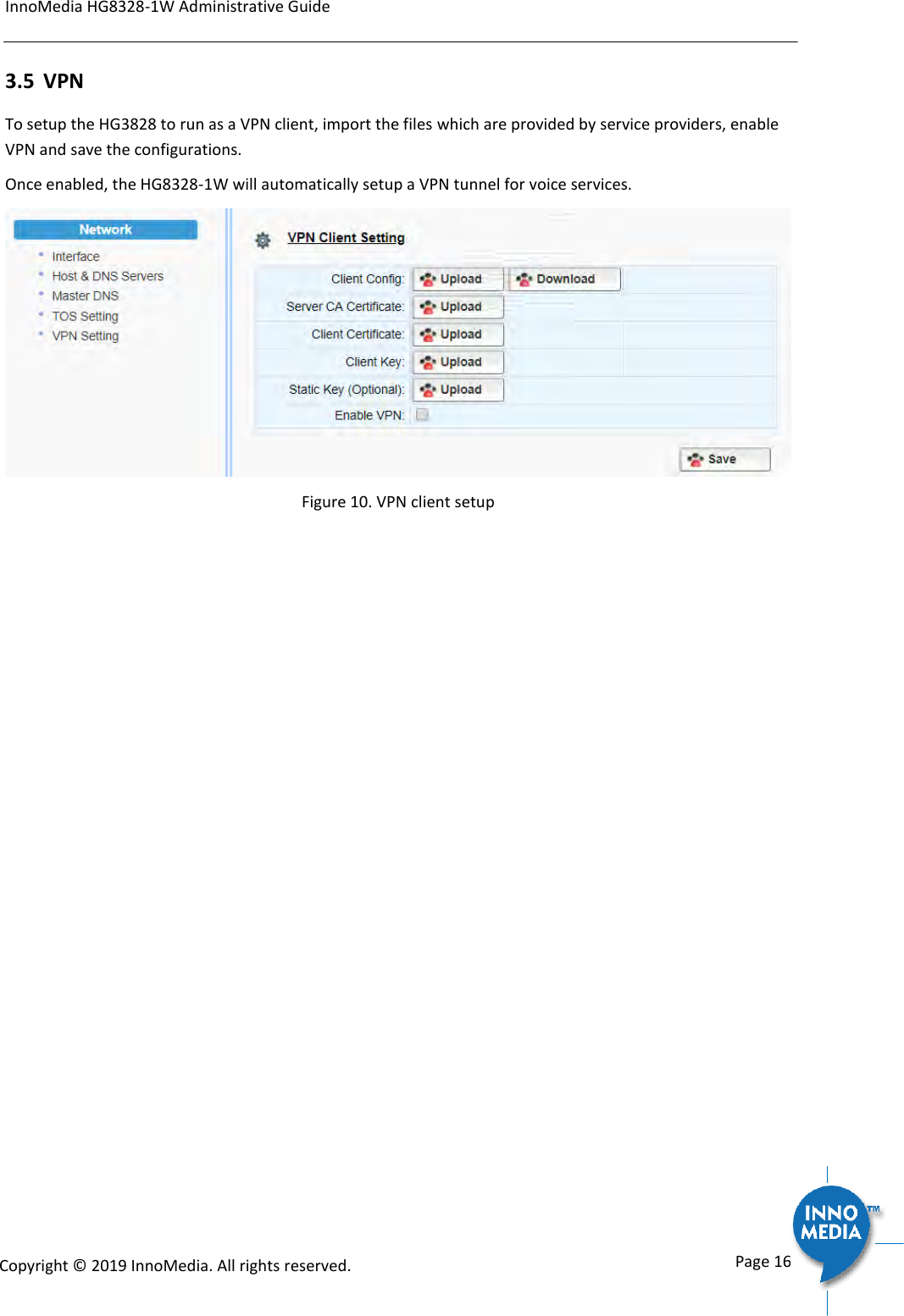
InnoMedia HG8328-1W Administrative Guide      Page 16            Copyright © 2019 InnoMedia. All rights reserved.         3.5 VPN To setup the HG3828 to run as a VPN client, import the files which are provided by service providers, enable VPN and save the configurations.  Once enabled, the HG8328-1W will automatically setup a VPN tunnel for voice services.    Figure 10. VPN client setup
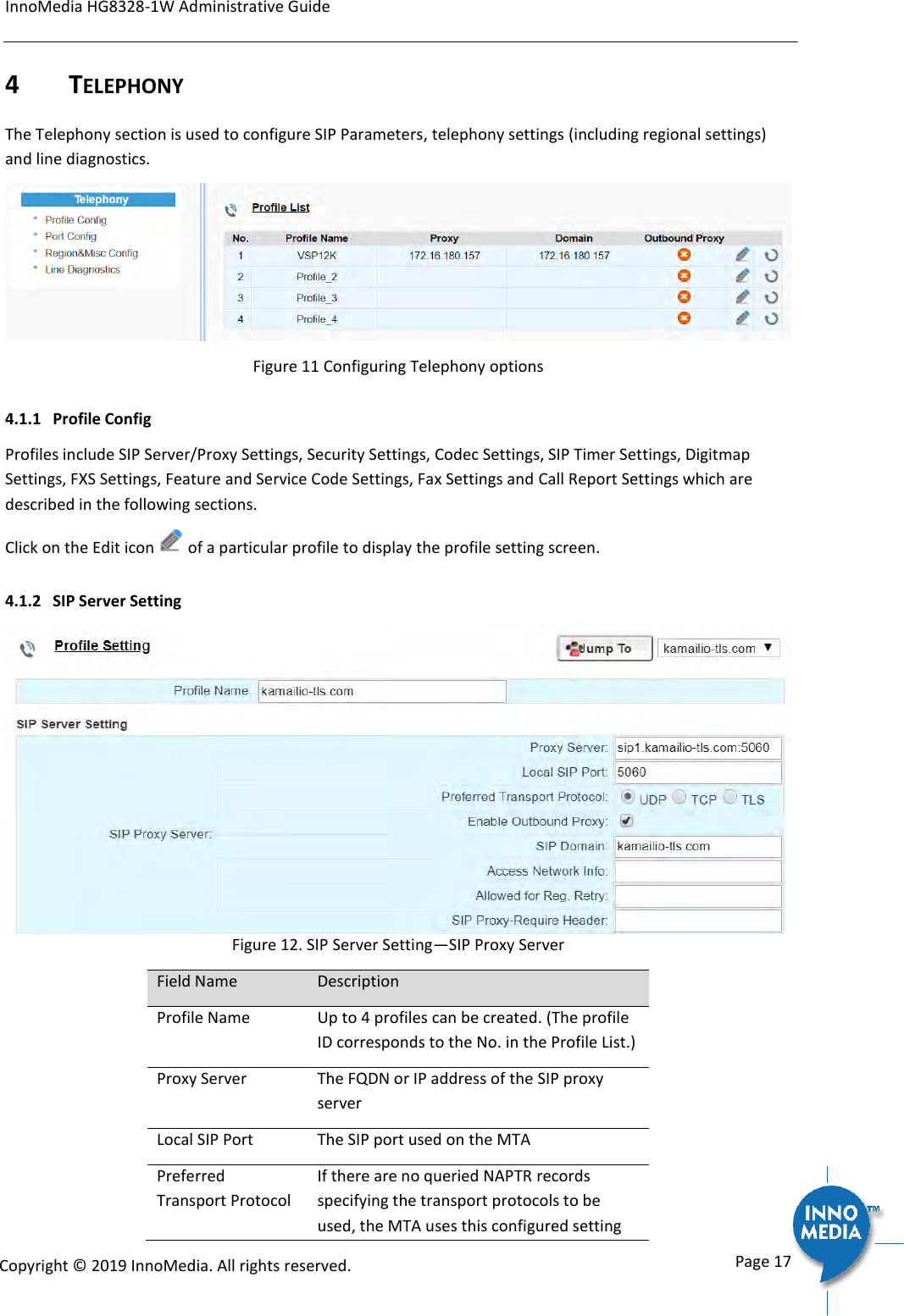
InnoMedia HG8328-1W Administrative Guide      Page 17            Copyright © 2019 InnoMedia. All rights reserved.         4 TELEPHONY The Telephony section is used to configure SIP Parameters, telephony settings (including regional settings) and line diagnostics.  Figure 11 Configuring Telephony options 4.1.1 Profile Config Profiles include SIP Server/Proxy Settings, Security Settings, Codec Settings, SIP Timer Settings, Digitmap Settings, FXS Settings, Feature and Service Code Settings, Fax Settings and Call Report Settings which are described in the following sections. Click on the Edit icon   of a particular profile to display the profile setting screen. 4.1.2 SIP Server Setting  Figure 12. SIP Server Setting—SIP Proxy Server Field Name Description Profile Name Up to 4 profiles can be created. (The profile ID corresponds to the No. in the Profile List.) Proxy Server The FQDN or IP address of the SIP proxy server Local SIP Port The SIP port used on the MTA Preferred Transport Protocol If there are no queried NAPTR records specifying the transport protocols to be used, the MTA uses this configured setting
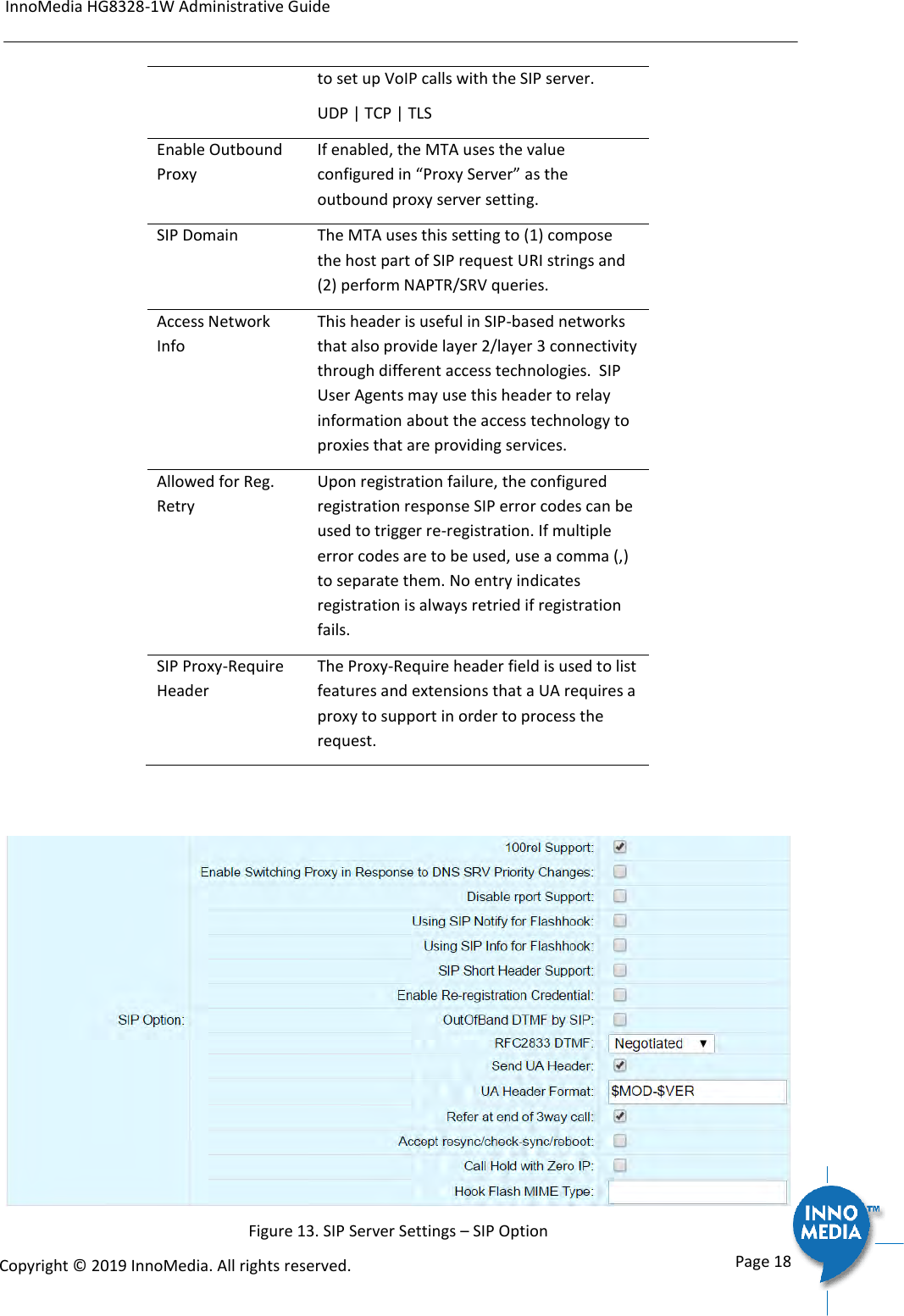
InnoMedia HG8328-1W Administrative Guide      Page 18            Copyright © 2019 InnoMedia. All rights reserved.         to set up VoIP calls with the SIP server. UDP | TCP | TLS Enable Outbound Proxy If enabled, the MTA uses the value configured in “Proxy Server” as the outbound proxy server setting. SIP Domain The MTA uses this setting to (1) compose the host part of SIP request URI strings and  (2) perform NAPTR/SRV queries.  Access Network Info This header is useful in SIP-based networks that also provide layer 2/layer 3 connectivity through different access technologies.  SIP User Agents may use this header to relay information about the access technology to proxies that are providing services. Allowed for Reg. Retry Upon registration failure, the configured registration response SIP error codes can be used to trigger re-registration. If multiple error codes are to be used, use a comma (,) to separate them. No entry indicates registration is always retried if registration fails. SIP Proxy-Require Header  The Proxy-Require header field is used to list features and extensions that a UA requires a proxy to support in order to process the request.    Figure 13. SIP Server Settings – SIP Option
InnoMedia HG8328-1W Administrative Guide      Page 19            Copyright © 2019 InnoMedia. All rights reserved.          Field Name Description 100rel Support Enable 100rel response support. Enable Switching Proxy in Response to DNS SRV Priority Change When this item is enabled, whenever the MTA is ready to send a REGISTER request and the SRV TTL has expired, it performs an SRV query and the MTA will switch to the most preferred SIP server (lowest priority) in the SRV query response.  If this item is disabled, the MTA stays with the currently registered SIP proxy and only saves the SRV query results. However, if the current SIP proxy is unreachable, or the MTA reboots and starts a new DNS query process, the MTA will then register to the most preferred SIP server (lowest priority) in the SRV query response. Disable rport Support Do not append rport (response port number) in the Via header. Using SIP Notify for Flashhook Support Send a SIP NOTIFY hook flash event message during the call when a hook flash is detected. Using SIP Info for Flashhook Support Send a SIP INFO hook-flash event message during the call when a hook flash is detected. SIP Short Header Support Send SIP Headers in short format (compact form) to reduce message packet size. Enable Re-registration Credential Enable Re-registrations to carry the previous successful authentication credentials. OutOfBand DTMF by SIP Use SIP INFO to send DTMF. RFC2833 DTMF Use RFC2833 for sending DTMF digits. Available options:  Negotiated – MTA and SIP Server negotiate if RFC2833 is enabled or not.  Always off – RFC2833 is never used.  Always on – RFC2833 is always used. Send UA Header Allow MTA to send User-Agent Header in SIP message. UA Header Format User-Agent Header sent out is modifiable.
InnoMedia HG8328-1W Administrative Guide      Page 20            Copyright © 2019 InnoMedia. All rights reserved.         (Note: If “SIP Short Header Support” is enabled, there will be no UA Header in SIP messages.)  Available parameters:  Model name ($MOD)  MAC ($MAC)  Version ($VER)  Example Syntax: $MOD $MAC $VER. Output: SIP User-Agent: MTA-8328-1N 001099112233 V1.0.0.0  Refer at End of 3way Call Send REFER when mixer (local MTA) hangs up, so the other two parties can continue the conversation.  Accept resync/check-sync/reboot When enabled, the MTA device supports events triggered by SIP NOTIFY messages sent to the MTA from the SIP server.  Event types are: (1) check-sync. MTA reboots itself and starts provisioning process. (2) reboot. MTA reboots itself (and starts provisioning process). (3) resync. MTA starts provisioning process only.  Call Hold with Zero IP Use 0.0.0.0 in SDP for call hold. Hook Flash MIME Type Input the MIME type string for Flash hook events. 4.1.3  Security Setting  Figure 14. MTA Security Settings Field Name Description Enable SIP Server List When this feature is enabled, the MTA checks all incoming SIP request messages for their source IP addresses. If the source IP is not in the “SIP Server list”, the MTA rejects or drops this message.
InnoMedia HG8328-1W Administrative Guide      Page 21            Copyright © 2019 InnoMedia. All rights reserved.         The MTA initially creates a “SIP Server list” which contains the IP addresses resolved from the settings of “Proxy Server”, “SIP Domain” and the “EMS Server”.  See also below for adding additional Trusted SIP entities. Action on Failed Validation Drop silently. The MTA simply drops the incoming SIP request messages. Reject with 400. The MTA replies with an error SIP response code of 400 to the sender. Additional Trusted SIP Entities Input one or more addresses (IP or FQDN) for additional servers from which the MTA will accept incoming SIP messages. These servers are in addition to those in the “SIP Server List” which the MTA automatically creates (see above).  4.1.4 Codec Setting Configure voice codecs allowed by service providers for telephony services.   Figure 15. Codec Setting Field Name Description Preferred Codec List List the Codecs to be enabled for this profile and their order of importance. Available Codecs:  PCMU/8000 – Set Ptime  PCMA/8000 – Set Ptime  G729/8000 – Set Ptime and annexb on or off  G722/8000 – Set Ptime  iLBC/8000 – Set Ptime, dynamic payload type, and mode (codec frame size, 20ms
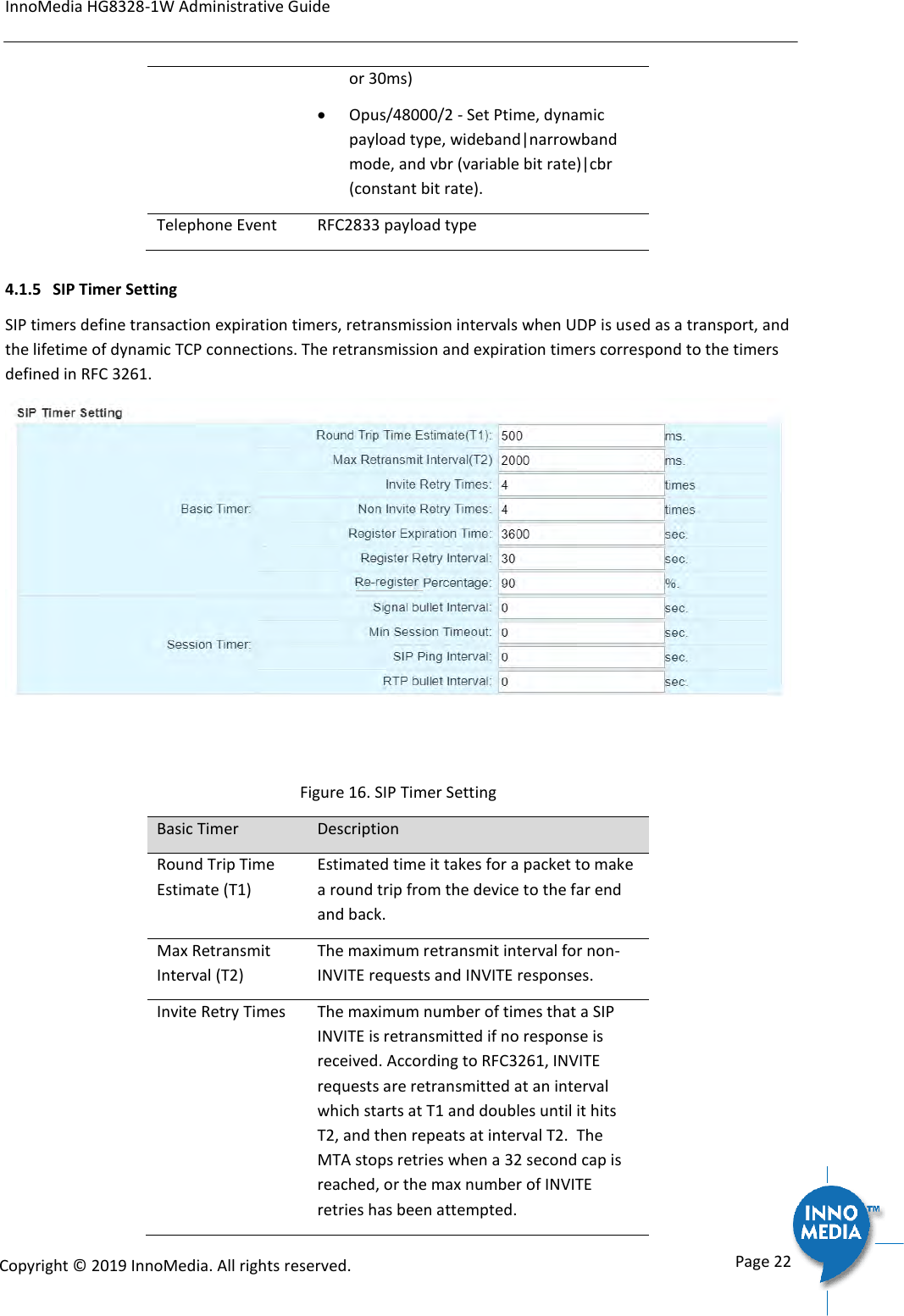
InnoMedia HG8328-1W Administrative Guide      Page 22            Copyright © 2019 InnoMedia. All rights reserved.         or 30ms)  Opus/48000/2 - Set Ptime, dynamic payload type, wideband|narrowband mode, and vbr (variable bit rate)|cbr (constant bit rate).  Telephone Event RFC2833 payload type 4.1.5 SIP Timer Setting SIP timers define transaction expiration timers, retransmission intervals when UDP is used as a transport, and the lifetime of dynamic TCP connections. The retransmission and expiration timers correspond to the timers defined in RFC 3261.    Figure 16. SIP Timer Setting Basic Timer Description Round Trip Time Estimate (T1) Estimated time it takes for a packet to make a round trip from the device to the far end and back. Max Retransmit Interval (T2) The maximum retransmit interval for non-INVITE requests and INVITE responses. Invite Retry Times The maximum number of times that a SIP INVITE is retransmitted if no response is received. According to RFC3261, INVITE requests are retransmitted at an interval which starts at T1 and doubles until it hits T2, and then repeats at interval T2.  The MTA stops retries when a 32 second cap is reached, or the max number of INVITE retries has been attempted.
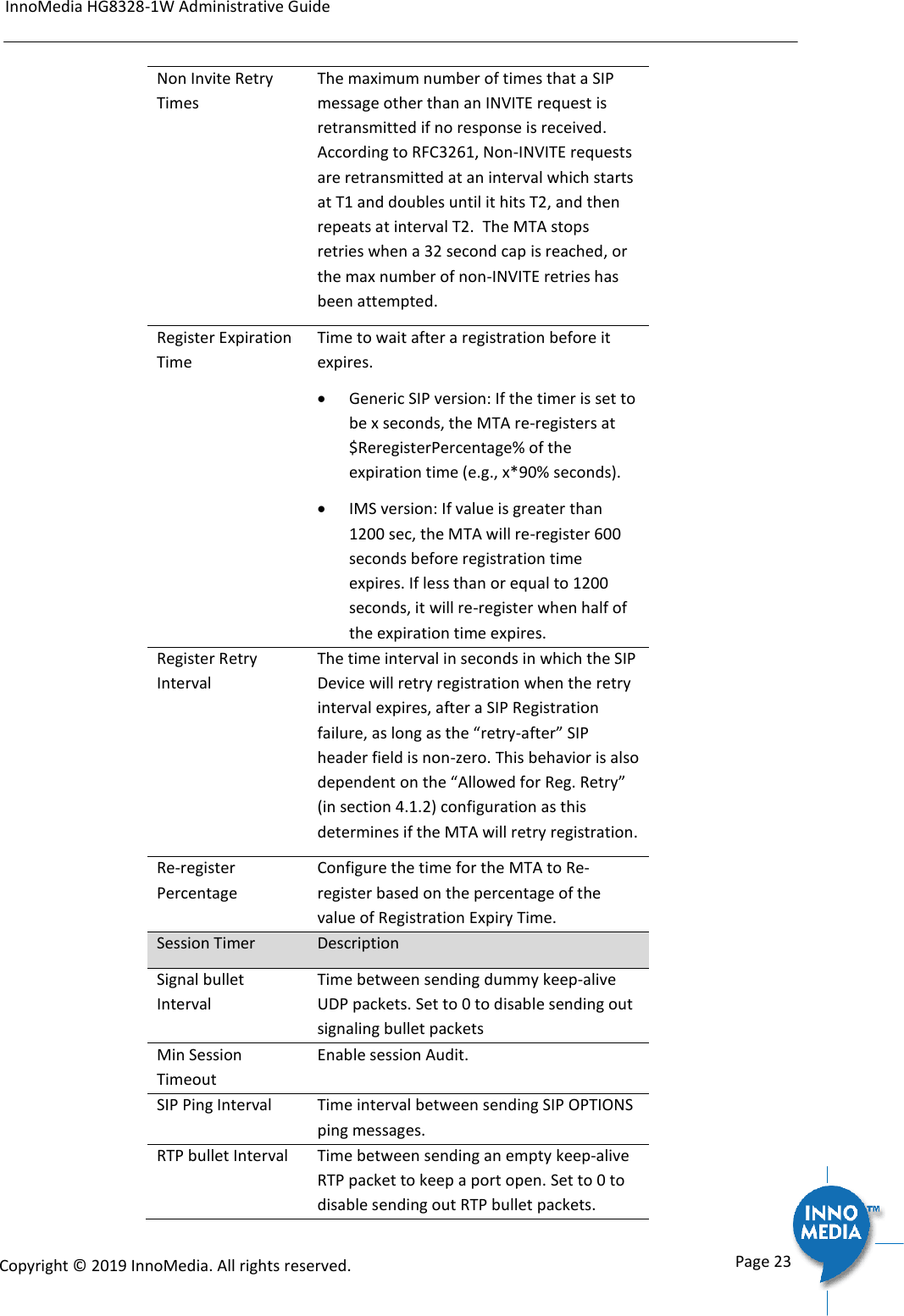
InnoMedia HG8328-1W Administrative Guide      Page 23            Copyright © 2019 InnoMedia. All rights reserved.         Non Invite Retry Times The maximum number of times that a SIP message other than an INVITE request is retransmitted if no response is received. According to RFC3261, Non-INVITE requests are retransmitted at an interval which starts at T1 and doubles until it hits T2, and then repeats at interval T2.  The MTA stops retries when a 32 second cap is reached, or the max number of non-INVITE retries has been attempted. Register Expiration Time Time to wait after a registration before it expires.  Generic SIP version: If the timer is set to be x seconds, the MTA re-registers at $ReregisterPercentage% of the expiration time (e.g., x*90% seconds).  IMS version: If value is greater than 1200 sec, the MTA will re-register 600 seconds before registration time expires. If less than or equal to 1200 seconds, it will re-register when half of the expiration time expires. Register Retry Interval The time interval in seconds in which the SIP Device will retry registration when the retry interval expires, after a SIP Registration failure, as long as the “retry-after” SIP header field is non-zero. This behavior is also dependent on the “Allowed for Reg. Retry” (in section 4.1.2) configuration as this determines if the MTA will retry registration.  Re-register Percentage Configure the time for the MTA to Re-register based on the percentage of the value of Registration Expiry Time. Session Timer Description Signal bullet Interval Time between sending dummy keep-alive UDP packets. Set to 0 to disable sending out signaling bullet packets Min Session Timeout Enable session Audit. SIP Ping Interval Time interval between sending SIP OPTIONS ping messages. RTP bullet Interval Time between sending an empty keep-alive RTP packet to keep a port open. Set to 0 to disable sending out RTP bullet packets.
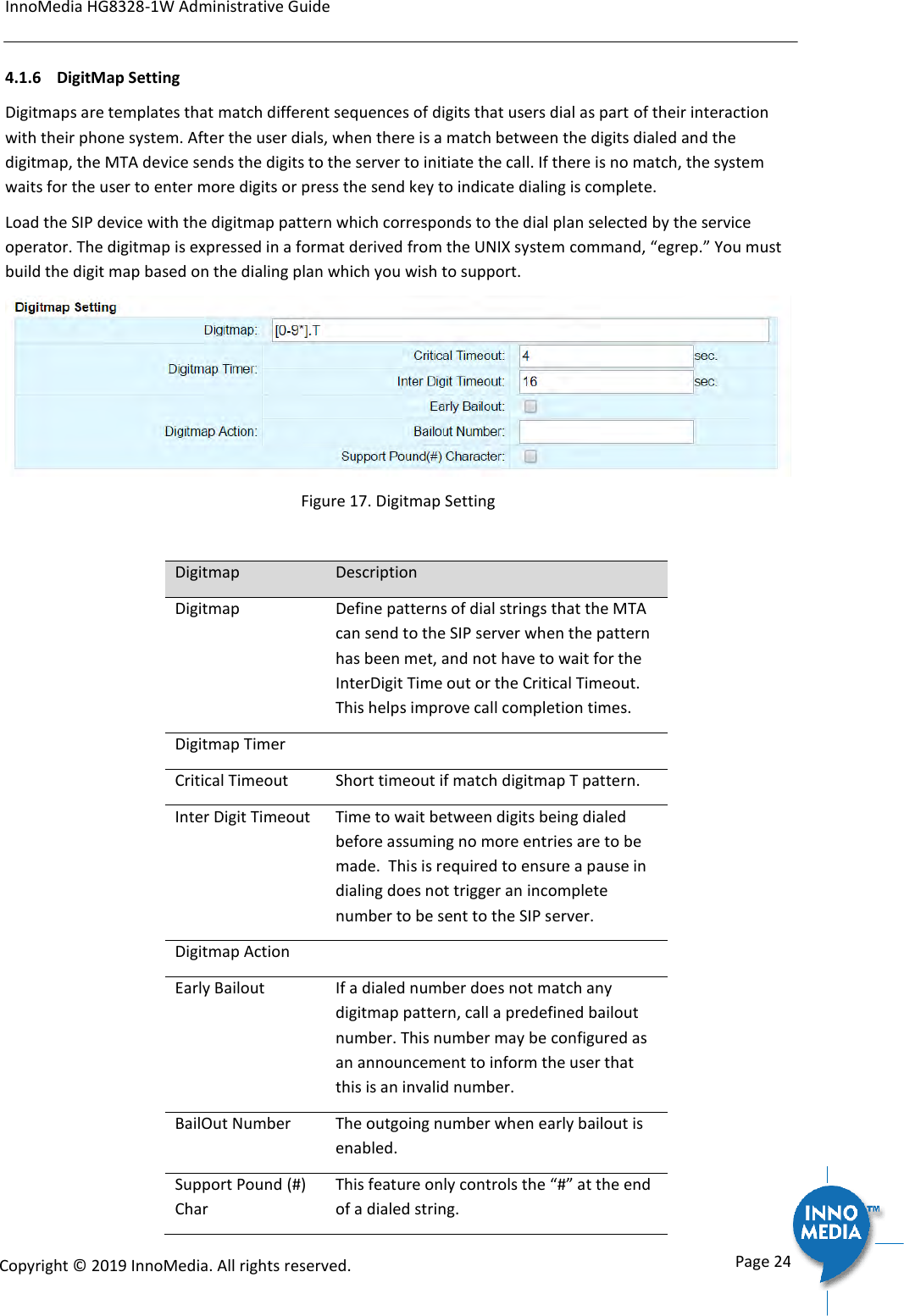
InnoMedia HG8328-1W Administrative Guide      Page 24            Copyright © 2019 InnoMedia. All rights reserved.         4.1.6  DigitMap Setting Digitmaps are templates that match different sequences of digits that users dial as part of their interaction with their phone system. After the user dials, when there is a match between the digits dialed and the digitmap, the MTA device sends the digits to the server to initiate the call. If there is no match, the system waits for the user to enter more digits or press the send key to indicate dialing is complete.  Load the SIP device with the digitmap pattern which corresponds to the dial plan selected by the service operator. The digitmap is expressed in a format derived from the UNIX system command, “egrep.” You must build the digit map based on the dialing plan which you wish to support.  Figure 17. Digitmap Setting  Digitmap Description Digitmap Define patterns of dial strings that the MTA can send to the SIP server when the pattern has been met, and not have to wait for the InterDigit Time out or the Critical Timeout.  This helps improve call completion times. Digitmap Timer  Critical Timeout Short timeout if match digitmap T pattern. Inter Digit Timeout Time to wait between digits being dialed before assuming no more entries are to be made.  This is required to ensure a pause in dialing does not trigger an incomplete number to be sent to the SIP server. Digitmap Action  Early Bailout If a dialed number does not match any digitmap pattern, call a predefined bailout number. This number may be configured as an announcement to inform the user that this is an invalid number. BailOut Number The outgoing number when early bailout is enabled. Support Pound (#) Char This feature only controls the “#” at the end of a dialed string.
InnoMedia HG8328-1W Administrative Guide      Page 25            Copyright © 2019 InnoMedia. All rights reserved.             If this feature is enabled, pressing pound (#) after dialing numbers will cause the MTA to dial out immediately without waiting for the expirations of associated timers, e.g., “Critical Timeout” and “Inter Digit Timeout”. If this feature is disabled, and there are associated digitmap rules ended with a “#” sign, the MTA sends out “%23”, which is equivalent to “#”.
InnoMedia HG8328-1W Administrative Guide      Page 26            Copyright © 2019 InnoMedia. All rights reserved.         4.1.6.1 A Digitmap Example 0 Local operator 00 Long distance operator [1-7]xxx Local extension number 8xxxxxxx Local number #xxxxxxx Shortcut to local number at other corporate sites [0-9*].# Any dialed numbers followed by a “#” sign *xx Star services 91xxxxxxxxxx Long distance number 9011 + up to 15 digits International number The dial plan described above results in the following digit map:  (0| 00|[1-7]xxx|8xxxxxxx|#xxxxxxx|*xx|91xxxxxxxxxx|9011x.T|[0-9*].#) 4.1.6.2 Digitmap syntax A DigitMap, according to this syntax, is defined either by a (case insensitive) “String” or by a “list of strings” over which the SIP Device will attempt to find a shortest possible match. Regardless of the above syntax, a timer is currently only allowed if it appears in the last position in a string. Each string in the list is an alternate numbering scheme. The formal syntax of the digit map is described by the following notation:  Digit ::= “0” | “1” | “2” | “3” | “4” | “5” | “6” | “7” | “8” | “9”  Timer ::= “T” | “t” -- matches the detection of a timer  Letter ::= Digit | Timer | “#” | “*” | “A” | “a” | “B” | “b” | “C” | “c” | “D” | “d”  Range ::= “X” | “x” -- matches any single digit  | “[“ Letters “]” -- matches any of the specified letters  Letters ::= Subrange | Subrange Letters  Subrange ::= Letter -- matches the specified letter  | Digit “-” Digit -- matches any digit between first and last  Position ::= Letter | Range  StringElement ::= Position -- matches an occurrence of the position  | Position “.” -- matches an arbitrary number of occurrences of the position, including 0  String ::= StringElement | StringElement String  StringList ::= String | String “|” StringList  DigitMap ::= String | “(“ StringList “)"
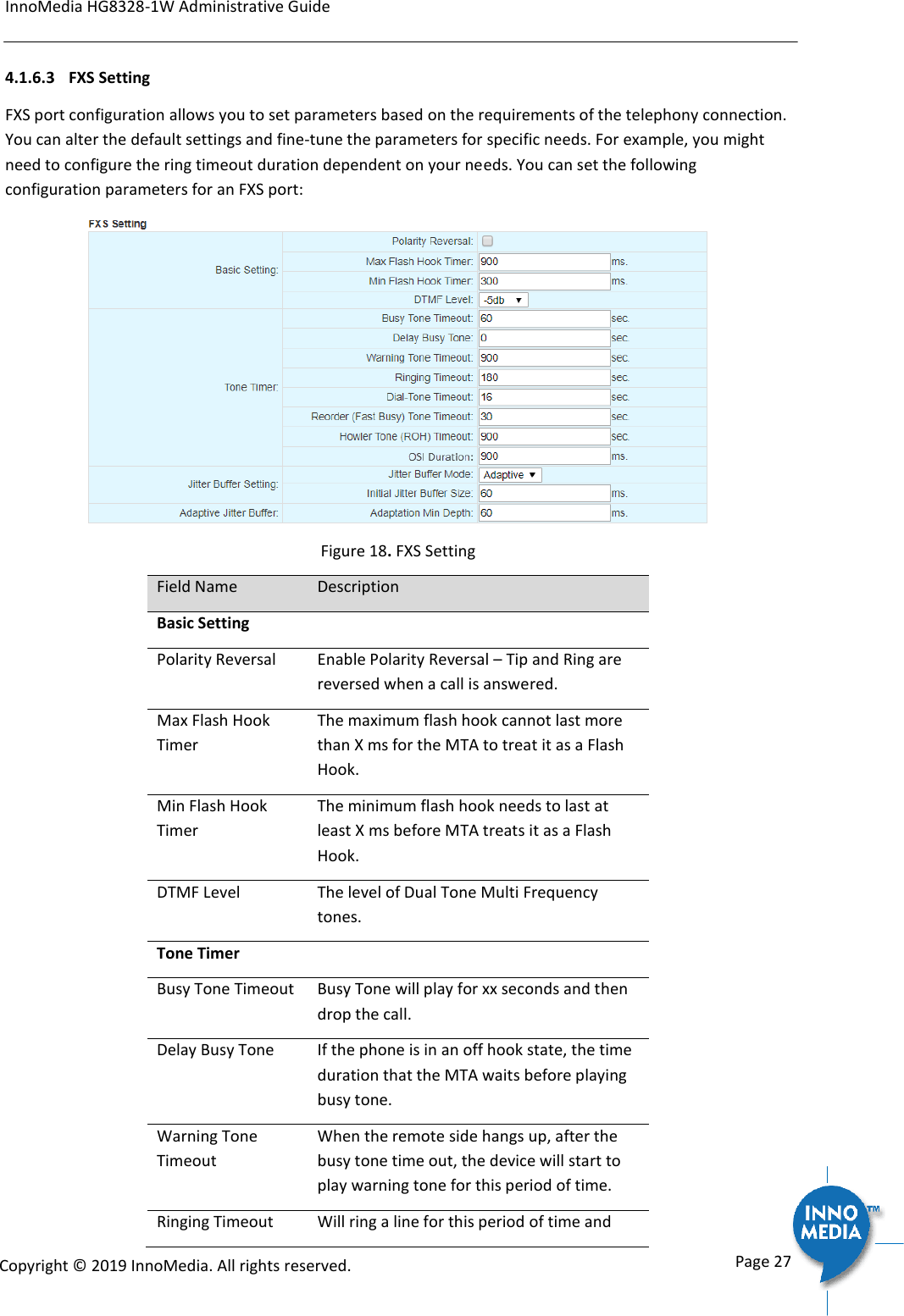
InnoMedia HG8328-1W Administrative Guide      Page 27            Copyright © 2019 InnoMedia. All rights reserved.         4.1.6.3 FXS Setting FXS port configuration allows you to set parameters based on the requirements of the telephony connection. You can alter the default settings and fine-tune the parameters for specific needs. For example, you might need to configure the ring timeout duration dependent on your needs. You can set the following configuration parameters for an FXS port:  Figure 18. FXS Setting Field Name Description Basic Setting  Polarity Reversal Enable Polarity Reversal – Tip and Ring are reversed when a call is answered. Max Flash Hook Timer The maximum flash hook cannot last more than X ms for the MTA to treat it as a Flash Hook. Min Flash Hook Timer The minimum flash hook needs to last at least X ms before MTA treats it as a Flash Hook. DTMF Level The level of Dual Tone Multi Frequency tones. Tone Timer  Busy Tone Timeout Busy Tone will play for xx seconds and then drop the call. Delay Busy Tone If the phone is in an off hook state, the time duration that the MTA waits before playing busy tone. Warning Tone Timeout When the remote side hangs up, after the busy tone time out, the device will start to play warning tone for this period of time. Ringing Timeout Will ring a line for this period of time and
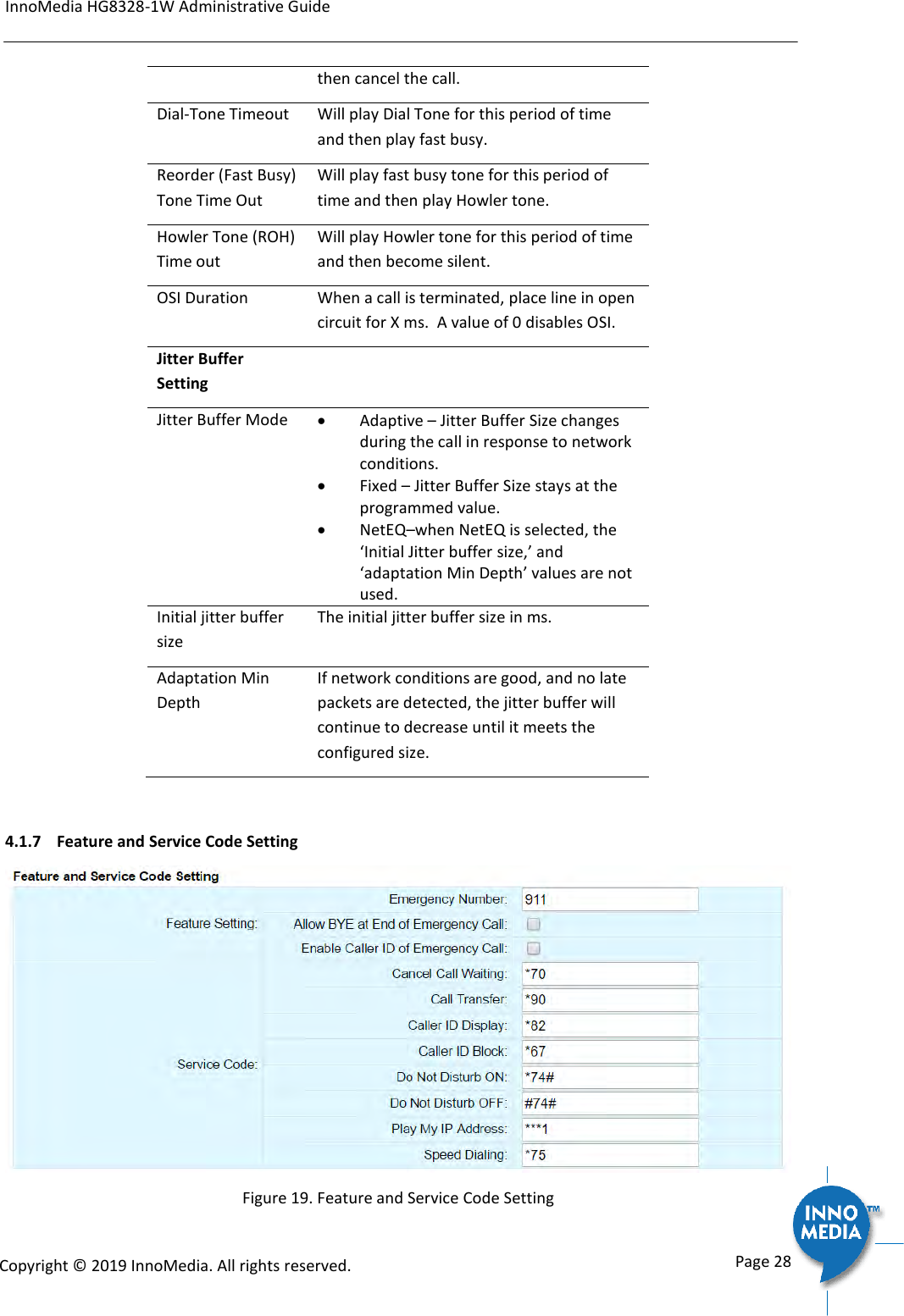
InnoMedia HG8328-1W Administrative Guide      Page 28            Copyright © 2019 InnoMedia. All rights reserved.         then cancel the call. Dial-Tone Timeout Will play Dial Tone for this period of time and then play fast busy. Reorder (Fast Busy) Tone Time Out Will play fast busy tone for this period of time and then play Howler tone. Howler Tone (ROH) Time out Will play Howler tone for this period of time and then become silent. OSI Duration  When a call is terminated, place line in open circuit for X ms.  A value of 0 disables OSI. Jitter Buffer Setting  Jitter Buffer Mode  Adaptive – Jitter Buffer Size changes during the call in response to network conditions.  Fixed – Jitter Buffer Size stays at the programmed value.  NetEQ–when NetEQ is selected, the ‘Initial Jitter buffer size,’ and ‘adaptation Min Depth’ values are not used. Initial jitter buffer size The initial jitter buffer size in ms.  Adaptation Min Depth If network conditions are good, and no late packets are detected, the jitter buffer will continue to decrease until it meets the configured size.   4.1.7  Feature and Service Code Setting  Figure 19. Feature and Service Code Setting
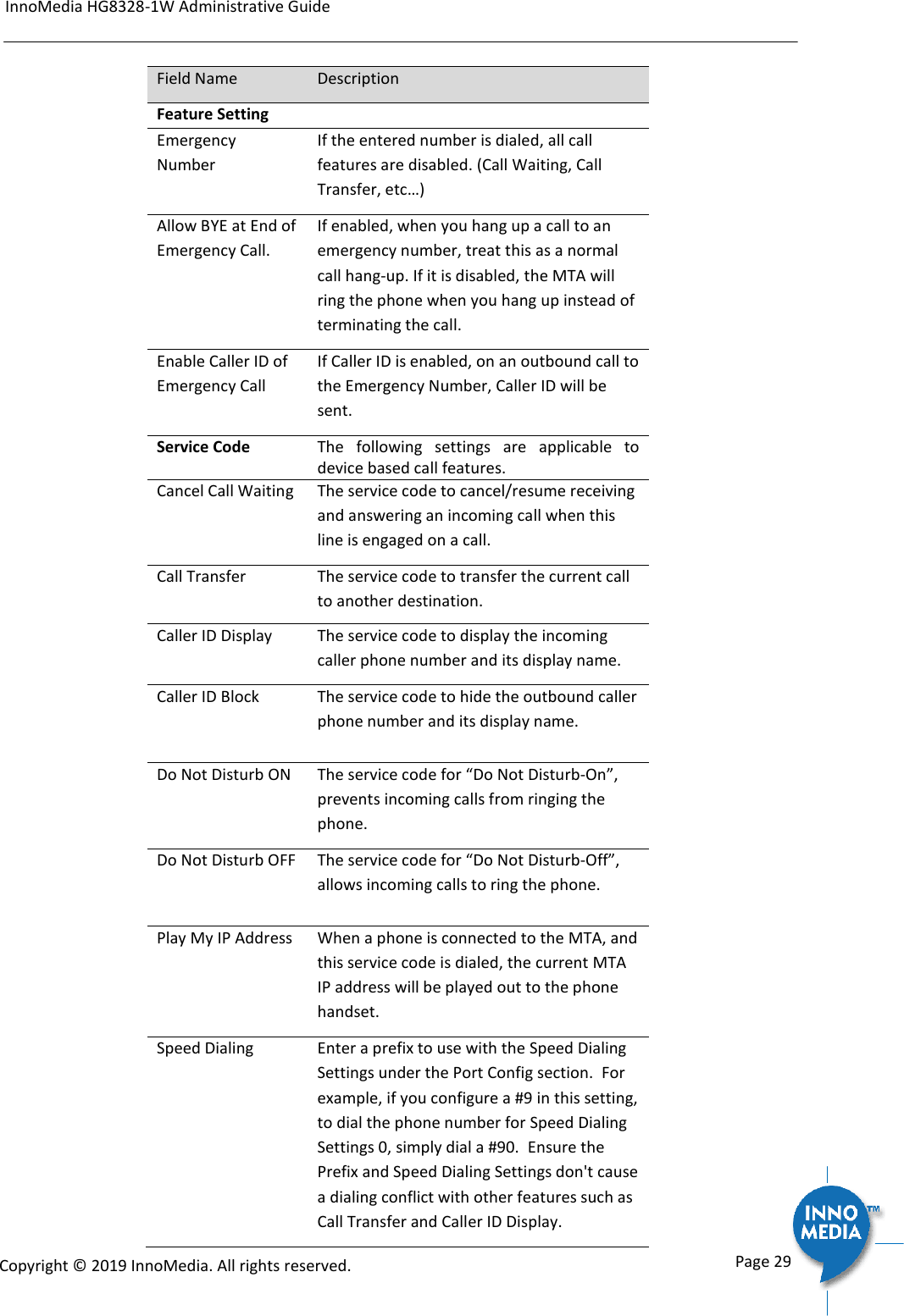
InnoMedia HG8328-1W Administrative Guide      Page 29            Copyright © 2019 InnoMedia. All rights reserved.         Field Name Description Feature Setting  Emergency Number If the entered number is dialed, all call features are disabled. (Call Waiting, Call Transfer, etc…) Allow BYE at End of Emergency Call. If enabled, when you hang up a call to an emergency number, treat this as a normal call hang-up. If it is disabled, the MTA will ring the phone when you hang up instead of terminating the call. Enable Caller ID of Emergency Call If Caller ID is enabled, on an outbound call to the Emergency Number, Caller ID will be sent. Service Code The  following  settings  are  applicable  to device based call features. Cancel Call Waiting The service code to cancel/resume receiving and answering an incoming call when this line is engaged on a call.  Call Transfer The service code to transfer the current call to another destination. Caller ID Display The service code to display the incoming caller phone number and its display name. Caller ID Block The service code to hide the outbound caller phone number and its display name. Do Not Disturb ON The service code for “Do Not Disturb-On”, prevents incoming calls from ringing the phone.  Do Not Disturb OFF The service code for “Do Not Disturb-Off”, allows incoming calls to ring the phone. Play My IP Address When a phone is connected to the MTA, and this service code is dialed, the current MTA IP address will be played out to the phone handset. Speed Dialing Enter a prefix to use with the Speed Dialing Settings under the Port Config section.  For example, if you configure a #9 in this setting, to dial the phone number for Speed Dialing Settings 0, simply dial a #90.  Ensure the Prefix and Speed Dialing Settings don't cause a dialing conflict with other features such as Call Transfer and Caller ID Display.
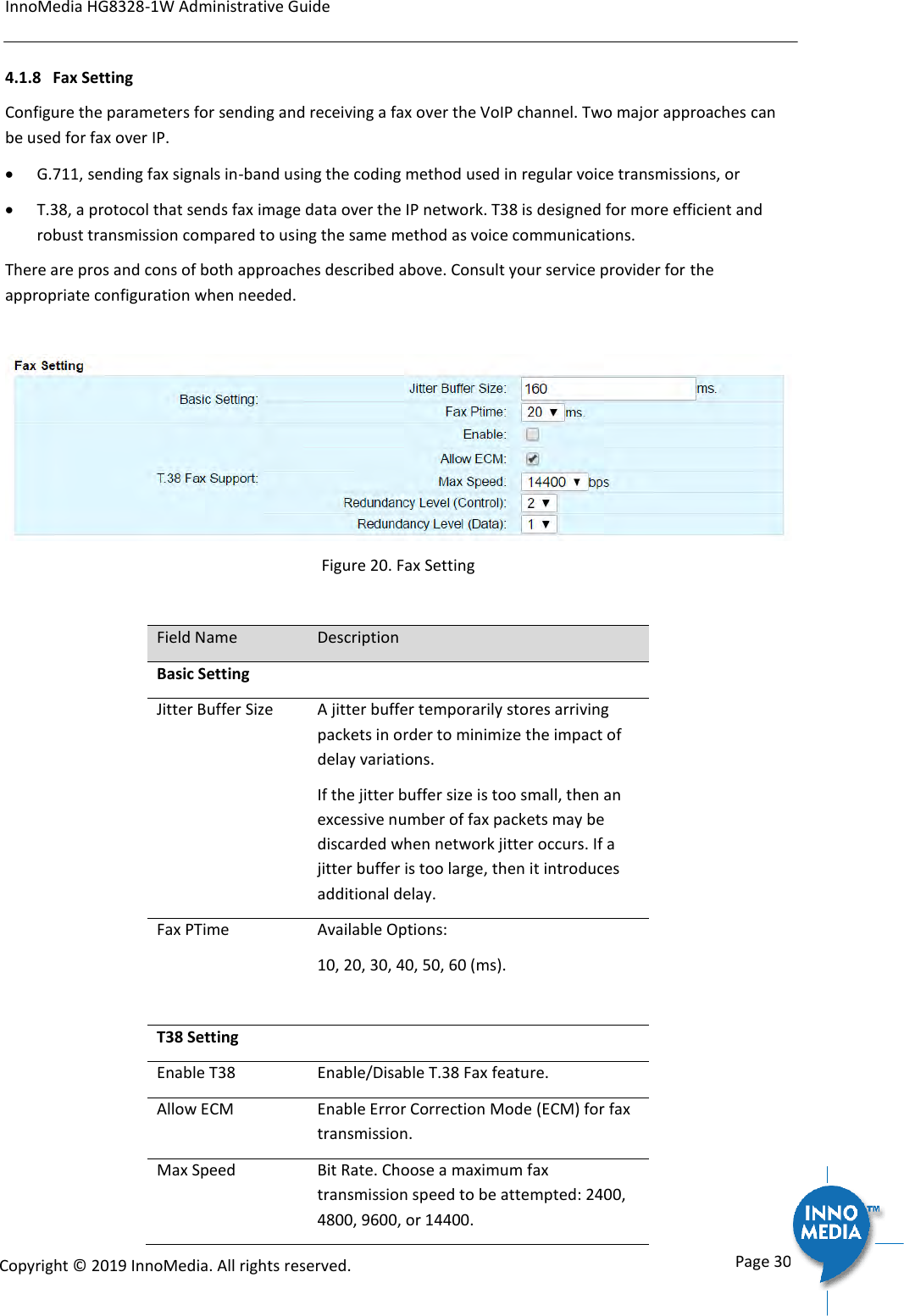
InnoMedia HG8328-1W Administrative Guide      Page 30            Copyright © 2019 InnoMedia. All rights reserved.         4.1.8 Fax Setting Configure the parameters for sending and receiving a fax over the VoIP channel. Two major approaches can be used for fax over IP.   G.711, sending fax signals in-band using the coding method used in regular voice transmissions, or  T.38, a protocol that sends fax image data over the IP network. T38 is designed for more efficient and robust transmission compared to using the same method as voice communications.  There are pros and cons of both approaches described above. Consult your service provider for the appropriate configuration when needed.   Figure 20. Fax Setting  Field Name Description Basic Setting  Jitter Buffer Size A jitter buffer temporarily stores arriving packets in order to minimize the impact of delay variations.  If the jitter buffer size is too small, then an excessive number of fax packets may be discarded when network jitter occurs. If a jitter buffer is too large, then it introduces additional delay. Fax PTime Available Options: 10, 20, 30, 40, 50, 60 (ms).  T38 Setting  Enable T38 Enable/Disable T.38 Fax feature. Allow ECM Enable Error Correction Mode (ECM) for fax transmission. Max Speed Bit Rate. Choose a maximum fax transmission speed to be attempted: 2400, 4800, 9600, or 14400.
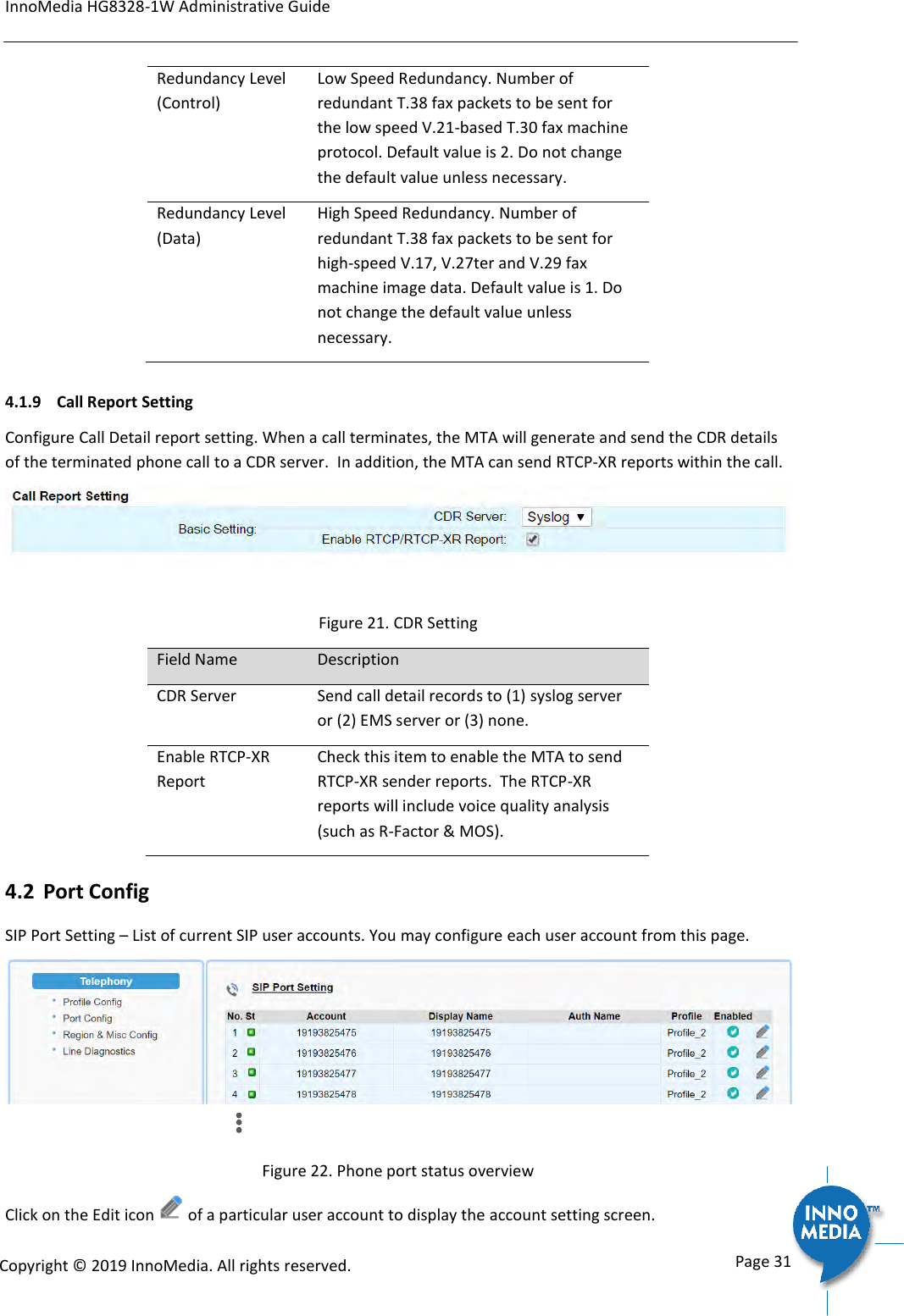
InnoMedia HG8328-1W Administrative Guide      Page 31            Copyright © 2019 InnoMedia. All rights reserved.         Redundancy Level (Control) Low Speed Redundancy. Number of redundant T.38 fax packets to be sent for the low speed V.21-based T.30 fax machine protocol. Default value is 2. Do not change the default value unless necessary. Redundancy Level (Data) High Speed Redundancy. Number of redundant T.38 fax packets to be sent for high-speed V.17, V.27ter and V.29 fax machine image data. Default value is 1. Do not change the default value unless necessary. 4.1.9  Call Report Setting Configure Call Detail report setting. When a call terminates, the MTA will generate and send the CDR details of the terminated phone call to a CDR server.  In addition, the MTA can send RTCP-XR reports within the call.   Figure 21. CDR Setting Field Name Description CDR Server Send call detail records to (1) syslog server or (2) EMS server or (3) none. Enable RTCP-XR Report Check this item to enable the MTA to send RTCP-XR sender reports.  The RTCP-XR reports will include voice quality analysis (such as R-Factor & MOS). 4.2 Port Config SIP Port Setting – List of current SIP user accounts. You may configure each user account from this page.  Figure 22. Phone port status overview Click on the Edit icon   of a particular user account to display the account setting screen.
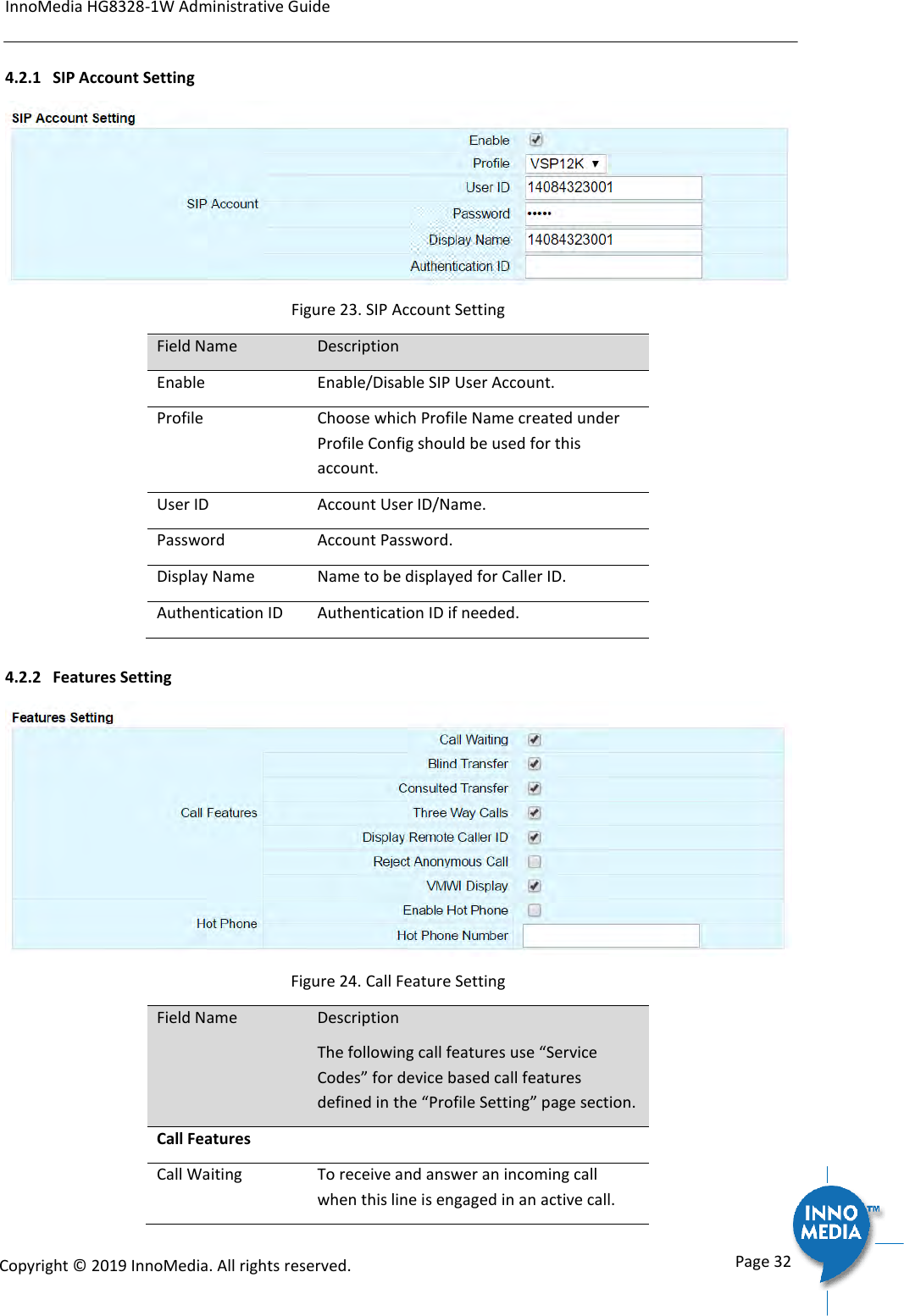
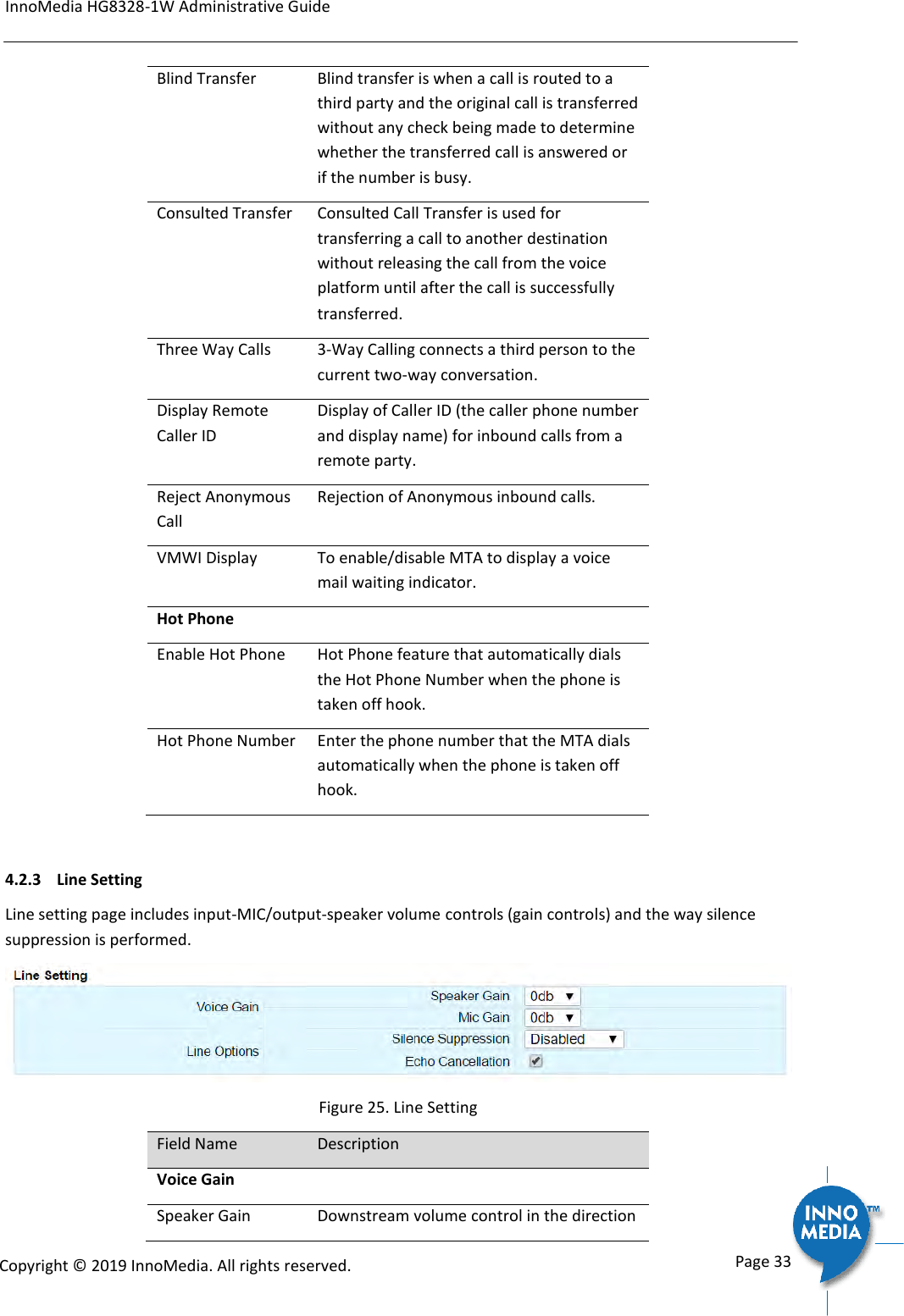
InnoMedia HG8328-1W Administrative Guide      Page 32            Copyright © 2019 InnoMedia. All rights reserved.         4.2.1 SIP Account Setting  Figure 23. SIP Account Setting Field Name Description Enable Enable/Disable SIP User Account.  Profile Choose which Profile Name created under Profile Config should be used for this account. User ID Account User ID/Name. Password Account Password. Display Name Name to be displayed for Caller ID. Authentication ID Authentication ID if needed. 4.2.2 Features Setting  Figure 24. Call Feature Setting Field Name Description The following call features use “Service Codes” for device based call features defined in the “Profile Setting” page section. Call Features  Call Waiting To receive and answer an incoming call when this line is engaged in an active call.
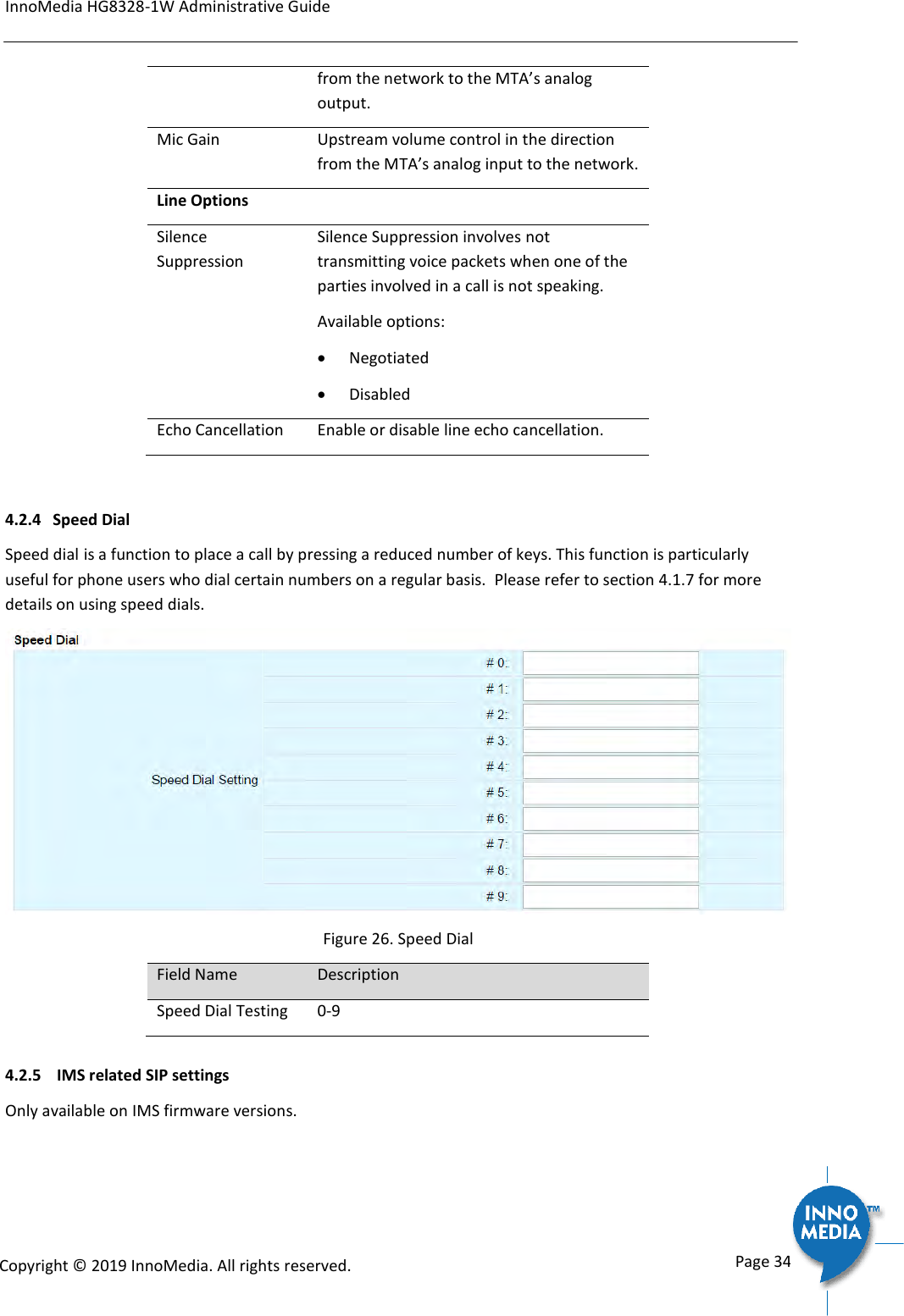
InnoMedia HG8328-1W Administrative Guide      Page 33            Copyright © 2019 InnoMedia. All rights reserved.         Blind Transfer Blind transfer is when a call is routed to a third party and the original call is transferred without any check being made to determine whether the transferred call is answered or if the number is busy. Consulted Transfer Consulted Call Transfer is used for transferring a call to another destination without releasing the call from the voice platform until after the call is successfully transferred.  Three Way Calls 3-Way Calling connects a third person to the current two-way conversation. Display Remote Caller ID Display of Caller ID (the caller phone number and display name) for inbound calls from a remote party. Reject Anonymous Call Rejection of Anonymous inbound calls. VMWI Display To enable/disable MTA to display a voice mail waiting indicator. Hot Phone    Enable Hot Phone Hot Phone feature that automatically dials the Hot Phone Number when the phone is taken off hook. Hot Phone Number Enter the phone number that the MTA dials automatically when the phone is taken off hook.  4.2.3  Line Setting Line setting page includes input-MIC/output-speaker volume controls (gain controls) and the way silence suppression is performed.  Figure 25. Line Setting Field Name Description Voice Gain  Speaker Gain Downstream volume control in the direction
InnoMedia HG8328-1W Administrative Guide      Page 34            Copyright © 2019 InnoMedia. All rights reserved.         from the network to the MTA’s analog output. Mic Gain Upstream volume control in the direction from the MTA’s analog input to the network. Line Options  Silence Suppression Silence Suppression involves not transmitting voice packets when one of the parties involved in a call is not speaking. Available options:  Negotiated  Disabled Echo Cancellation Enable or disable line echo cancellation.   4.2.4 Speed Dial Speed dial is a function to place a call by pressing a reduced number of keys. This function is particularly useful for phone users who dial certain numbers on a regular basis.  Please refer to section 4.1.7 for more details on using speed dials.  Figure 26. Speed Dial Field Name Description Speed Dial Testing 0-9 4.2.5  IMS related SIP settings Only available on IMS firmware versions.
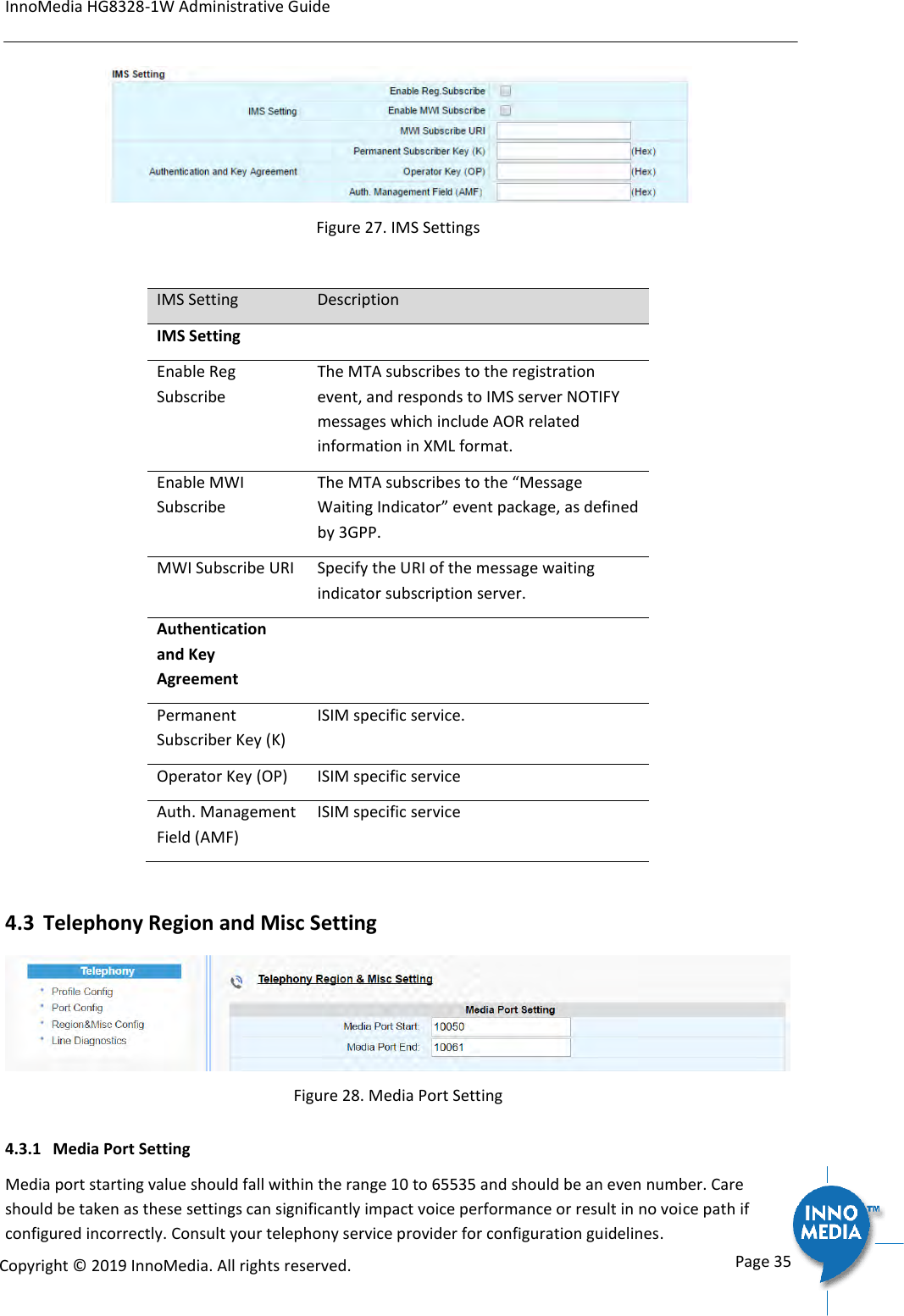
InnoMedia HG8328-1W Administrative Guide      Page 35            Copyright © 2019 InnoMedia. All rights reserved.          Figure 27. IMS Settings  IMS Setting Description IMS Setting  Enable Reg Subscribe The MTA subscribes to the registration event, and responds to IMS server NOTIFY messages which include AOR related information in XML format. Enable MWI Subscribe The MTA subscribes to the “Message Waiting Indicator” event package, as defined by 3GPP.  MWI Subscribe URI Specify the URI of the message waiting indicator subscription server.  Authentication and Key Agreement   Permanent Subscriber Key (K) ISIM specific service. Operator Key (OP) ISIM specific service Auth. Management Field (AMF) ISIM specific service  4.3 Telephony Region and Misc Setting  Figure 28. Media Port Setting 4.3.1 Media Port Setting Media port starting value should fall within the range 10 to 65535 and should be an even number. Care should be taken as these settings can significantly impact voice performance or result in no voice path if configured incorrectly. Consult your telephony service provider for configuration guidelines.
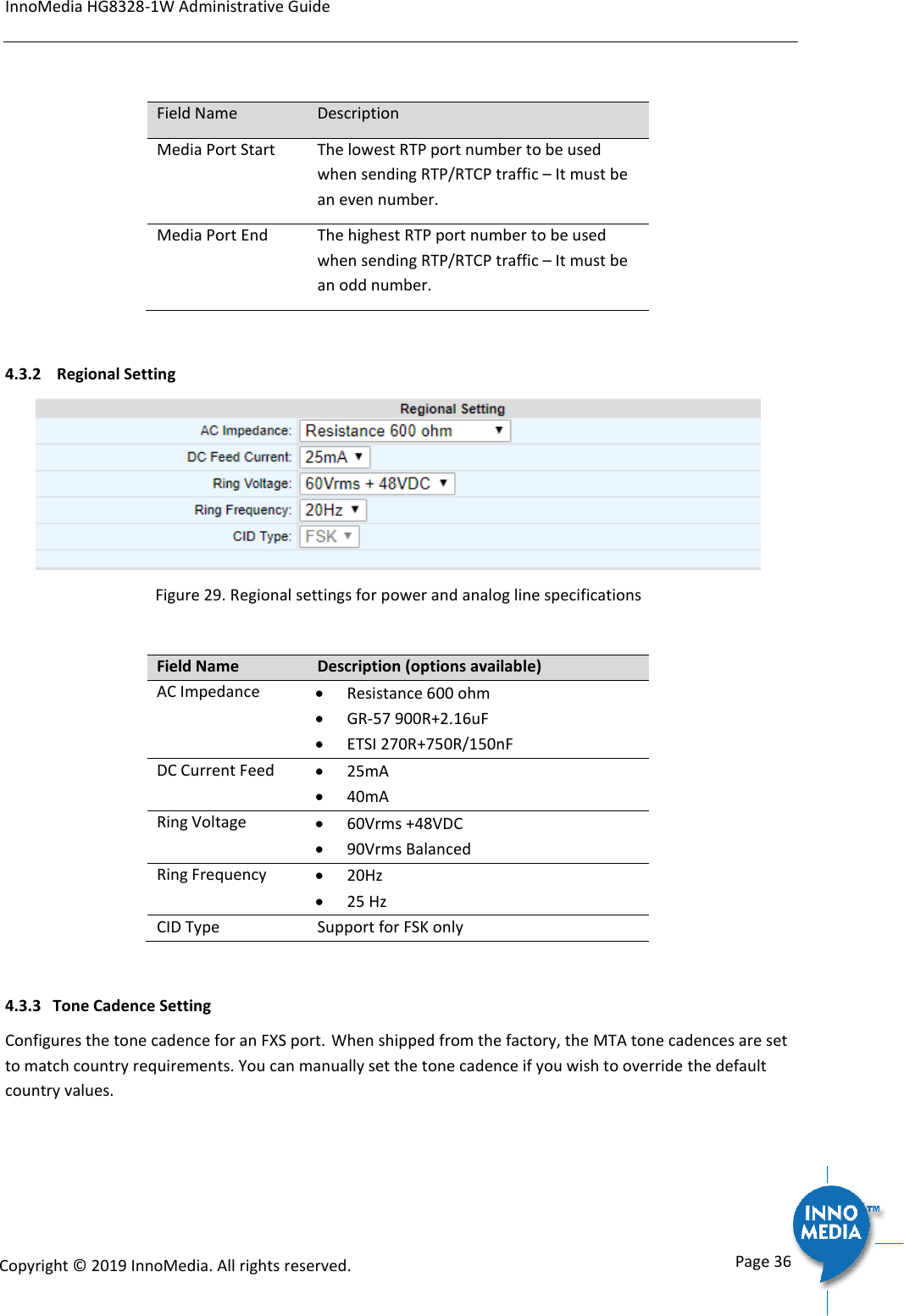
InnoMedia HG8328-1W Administrative Guide      Page 36            Copyright © 2019 InnoMedia. All rights reserved.          Field Name Description Media Port Start The lowest RTP port number to be used when sending RTP/RTCP traffic – It must be an even number. Media Port End The highest RTP port number to be used when sending RTP/RTCP traffic – It must be an odd number.  4.3.2  Regional Setting  Figure 29. Regional settings for power and analog line specifications   Field Name Description (options available) AC Impedance  Resistance 600 ohm  GR-57 900R+2.16uF  ETSI 270R+750R/150nF DC Current Feed  25mA  40mA Ring Voltage  60Vrms +48VDC  90Vrms Balanced Ring Frequency  20Hz  25 Hz CID Type Support for FSK only  4.3.3 Tone Cadence Setting Configures the tone cadence for an FXS port. When shipped from the factory, the MTA tone cadences are set to match country requirements. You can manually set the tone cadence if you wish to override the default country values.
InnoMedia HG8328-1W Administrative Guide      Page 37            Copyright © 2019 InnoMedia. All rights reserved.          Figure 30. Tone Cadence Setting Tone Cadence Setting  Format – freq1, freq2,vol,+[on1,off1,on2,off2,…]  frequency 1, frequency 2, volume level in dBm  + : loop the tone(s) forever  [ on1 duration in ms, off1 duration in ms…].  If the duration value is 65535, keep playing the last tone.   Field Name Description Dial Tone A dial tone indicates that the MTA is ready to accept calls. Busy Tone A busy signal indicates a failure to complete the requested call. Reasons could be:  The called number is occupied, or   The other party has hung up at the end of a call. Ringback Tone A ring back tone (or ringing tone) is heard by the caller while the phone they are calling is being rung. Reorder Tone Reorder tone, also known as fast busy tone, is the congestion tone or all trunks busy tone of a PSTN network. It varies from country to country. Stutter Tone A "stuttered" or interrupted dial tone is often used to indicate a Calling feature such as Call forwarding has been activated. (The voice mail waiting tone is represented by
InnoMedia HG8328-1W Administrative Guide      Page 38            Copyright © 2019 InnoMedia. All rights reserved.         VMWI Tone below.) VMWI Tone Voice Mail Waiting Indication, indicating that voice mail is waiting. Confirmation Tone Confirmation Tone is used to acknowledge receipt for special services, such as:  Speed dialing, dial number has been recorded.  Call forwarding activation and de-activation, etc.  Call Waiting Tone 1-4 Call waiting tones are used for call waiting conditions. Howler (ROH) Tone Receiver off hook tone 4.3.4 Ring Cadence Setting For a telephone receiving an incoming call, ring cadence settings control the timing of the incoming ring-signal. This varies from country to country and may consist, for instance, of the ring voltage being applied for two seconds, followed by four seconds off, then back on for two seconds, and so on, until the phone is answered or the calling party hangs up, or a maximum number of rings is reached. Note that HG8328-1W supports multiple ring cadence profiles for different countries. When shipped from the factory, the MTA’s ring cadence is set to match country requirements. You can manually set the ring cadence if you wish to override the default country values.  Ring Cadence Setting (Format  +[on1,off1,on2,off2,…])  +  : loop the tone(s) forever  [ on1 duration in ms, off1 duration in ms…].  If the duration value is 65535, keep playing the last tone.   Figure 31. Ring Cadence Setting Field Name Description Default Ring Cadence For a telephone receiving an incoming call, the default timing pattern of the incoming
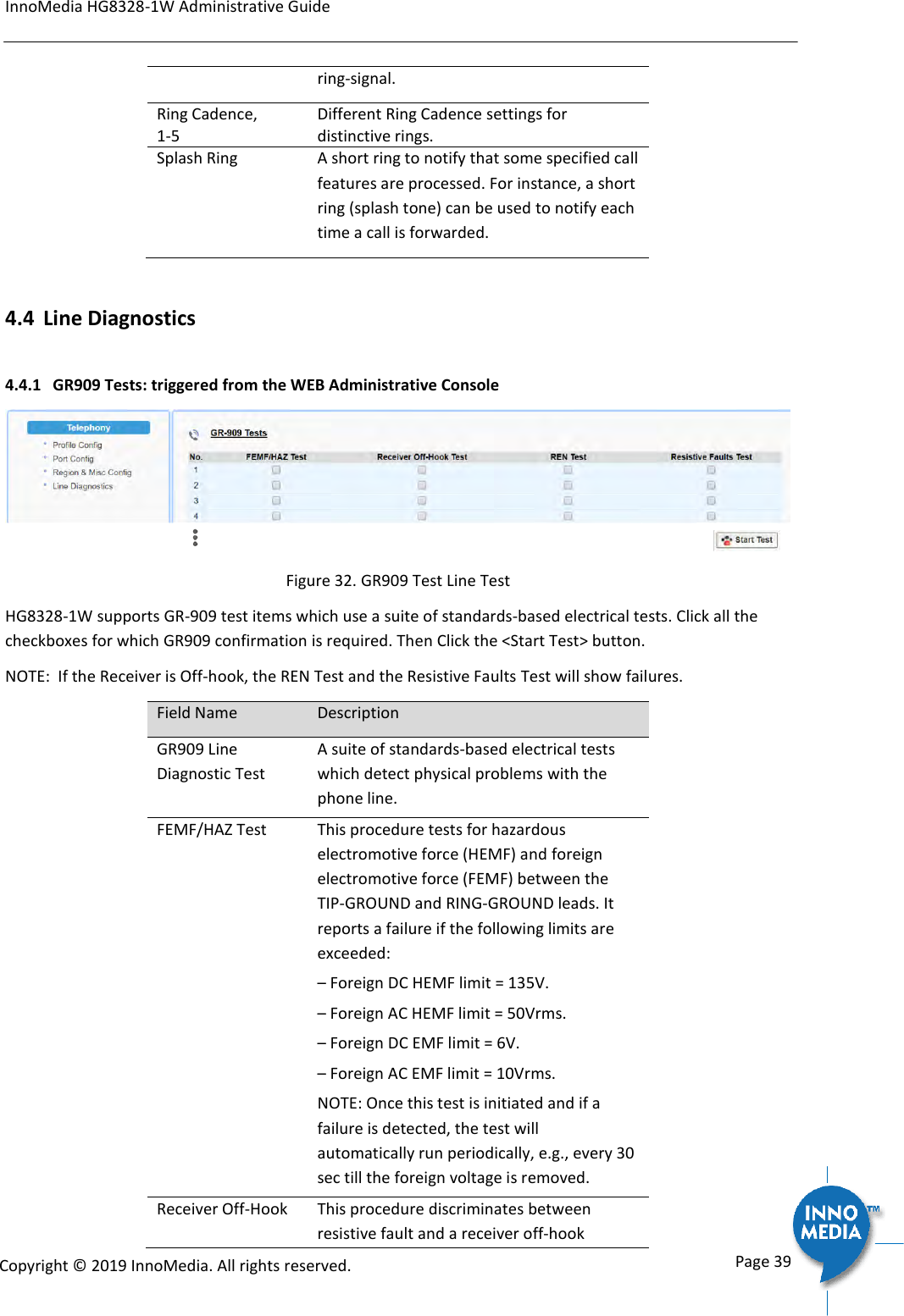
InnoMedia HG8328-1W Administrative Guide      Page 39            Copyright © 2019 InnoMedia. All rights reserved.         ring-signal. Ring Cadence, 1-5 Different Ring Cadence settings for distinctive rings. Splash Ring A short ring to notify that some specified call features are processed. For instance, a short ring (splash tone) can be used to notify each time a call is forwarded.  4.4 Line Diagnostics 4.4.1 GR909 Tests: triggered from the WEB Administrative Console  Figure 32. GR909 Test Line Test HG8328-1W supports GR-909 test items which use a suite of standards-based electrical tests. Click all the checkboxes for which GR909 confirmation is required. Then Click the <Start Test> button. NOTE:  If the Receiver is Off-hook, the REN Test and the Resistive Faults Test will show failures. Field Name Description GR909 Line Diagnostic Test A suite of standards-based electrical tests which detect physical problems with the phone line.  FEMF/HAZ Test This procedure tests for hazardous electromotive force (HEMF) and foreign electromotive force (FEMF) between the TIP-GROUND and RING-GROUND leads. It reports a failure if the following limits are exceeded: – Foreign DC HEMF limit = 135V. – Foreign AC HEMF limit = 50Vrms. – Foreign DC EMF limit = 6V. – Foreign AC EMF limit = 10Vrms. NOTE: Once this test is initiated and if a failure is detected, the test will automatically run periodically, e.g., every 30 sec till the foreign voltage is removed. Receiver Off-Hook This procedure discriminates between resistive fault and a receiver off-hook
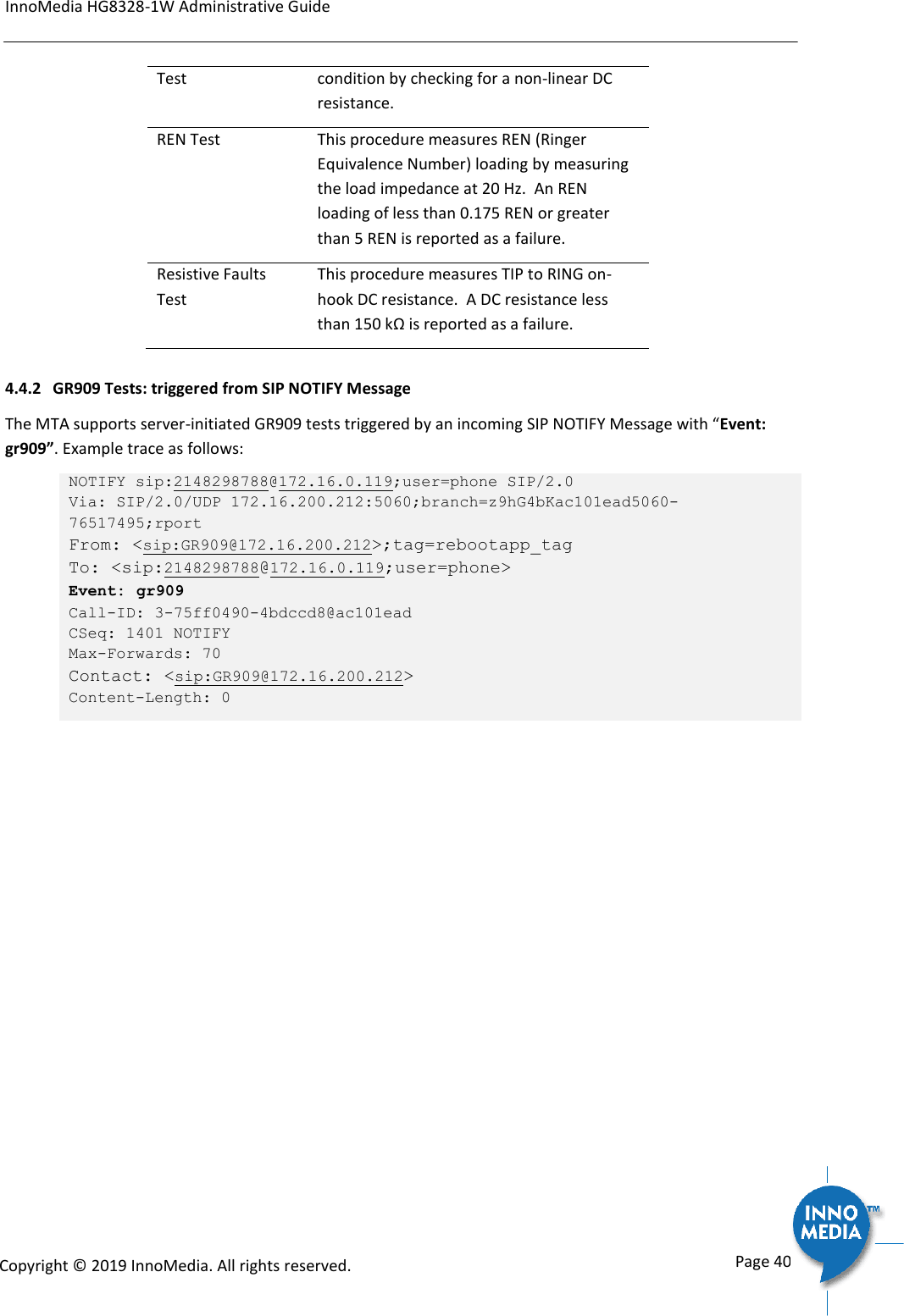
InnoMedia HG8328-1W Administrative Guide      Page 40            Copyright © 2019 InnoMedia. All rights reserved.         Test condition by checking for a non-linear DC resistance.  REN Test This procedure measures REN (Ringer Equivalence Number) loading by measuring the load impedance at 20 Hz.  An REN loading of less than 0.175 REN or greater than 5 REN is reported as a failure. Resistive Faults Test This procedure measures TIP to RING on-hook DC resistance.  A DC resistance less than 150 kΩ is reported as a failure. 4.4.2 GR909 Tests: triggered from SIP NOTIFY Message The MTA supports server-initiated GR909 tests triggered by an incoming SIP NOTIFY Message with “Event: gr909”. Example trace as follows:  NOTIFY sip:2148298788@172.16.0.119;user=phone SIP/2.0 Via: SIP/2.0/UDP 172.16.200.212:5060;branch=z9hG4bKac101ead5060-76517495;rport From: <sip:GR909@172.16.200.212>;tag=rebootapp_tag To: <sip:2148298788@172.16.0.119;user=phone> Event: gr909 Call-ID: 3-75ff0490-4bdccd8@ac101ead CSeq: 1401 NOTIFY Max-Forwards: 70 Contact: <sip:GR909@172.16.200.212> Content-Length: 0
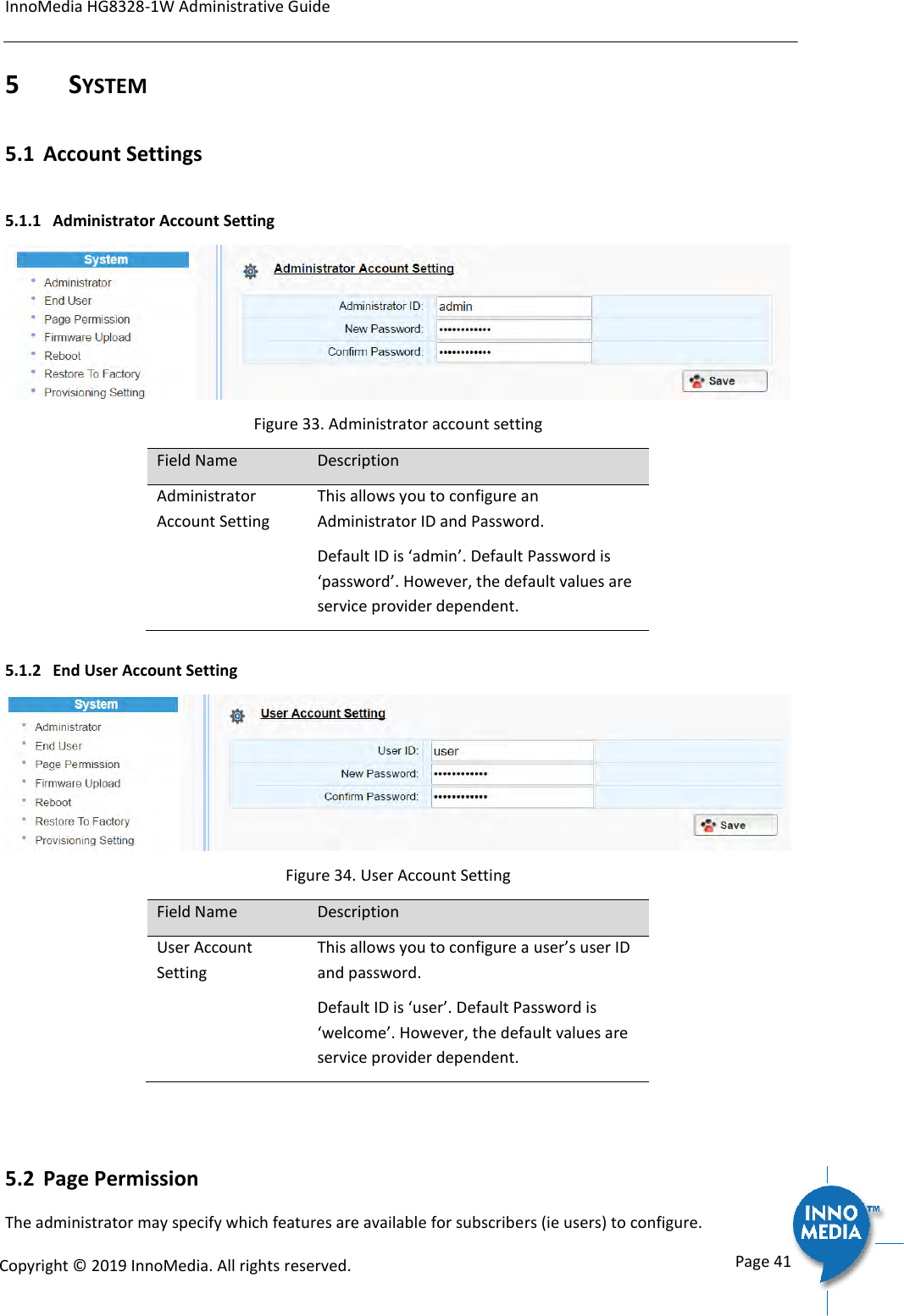
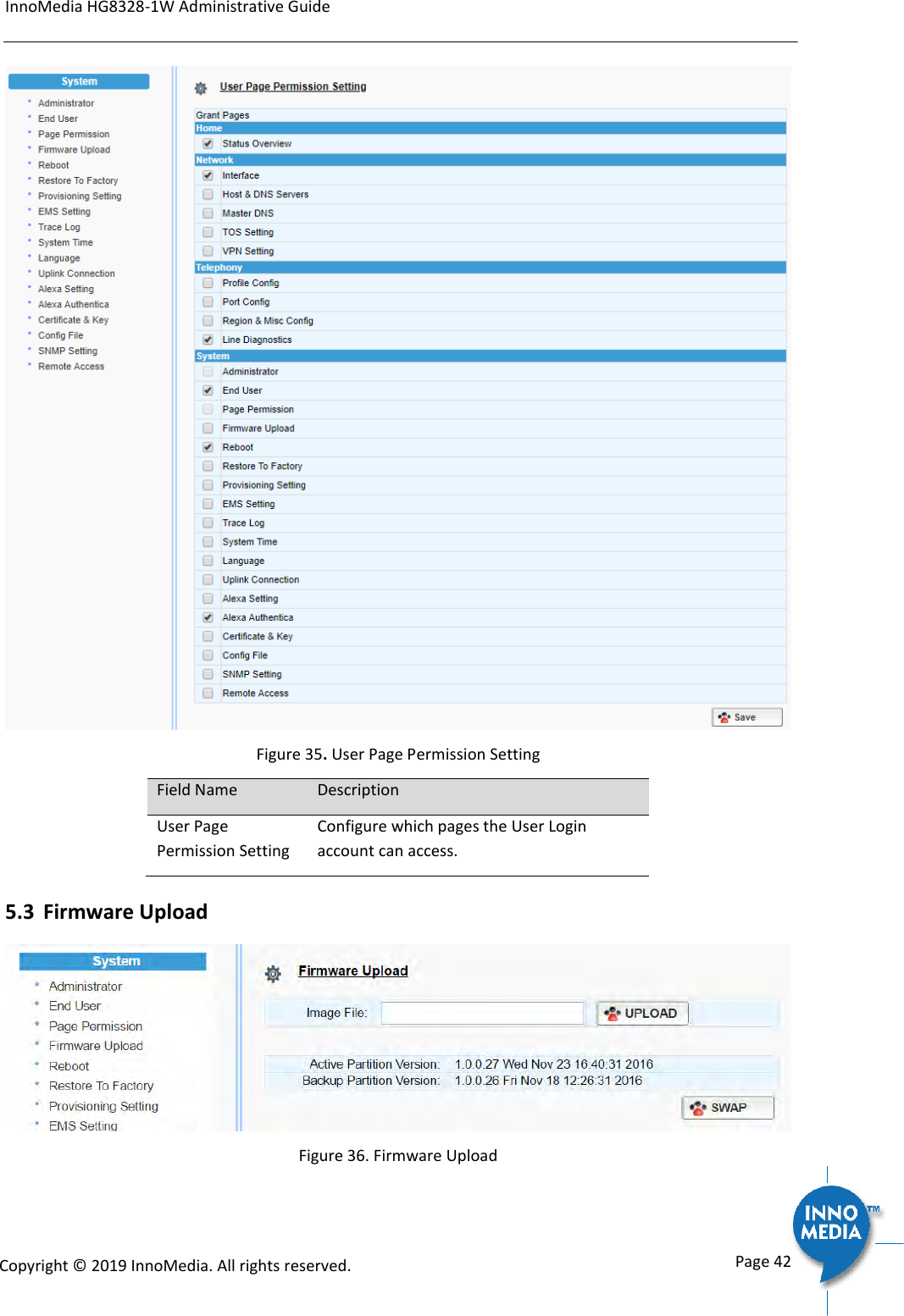
InnoMedia HG8328-1W Administrative Guide      Page 41            Copyright © 2019 InnoMedia. All rights reserved.         5 SYSTEM 5.1 Account Settings 5.1.1 Administrator Account Setting  Figure 33. Administrator account setting Field Name Description Administrator Account Setting This allows you to configure an Administrator ID and Password. Default ID is ‘admin’. Default Password is ‘password’. However, the default values are service provider dependent. 5.1.2 End User Account Setting  Figure 34. User Account Setting Field Name Description User Account Setting This allows you to configure a user’s user ID and password.  Default ID is ‘user’. Default Password is ‘welcome’. However, the default values are service provider dependent.   5.2 Page Permission The administrator may specify which features are available for subscribers (ie users) to configure.
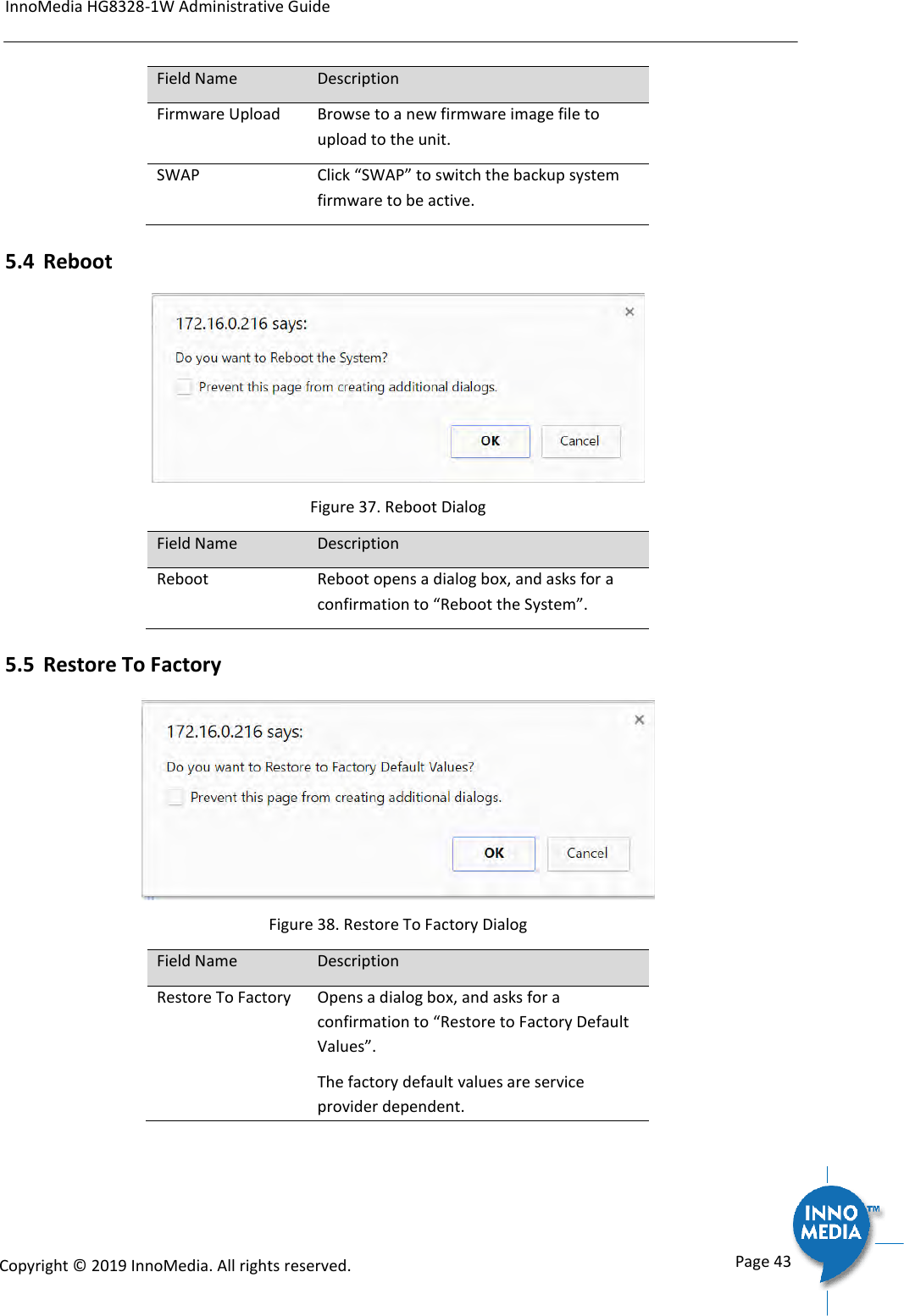
InnoMedia HG8328-1W Administrative Guide      Page 42            Copyright © 2019 InnoMedia. All rights reserved.          Figure 35. User Page Permission Setting Field Name Description User Page Permission Setting Configure which pages the User Login account can access. 5.3 Firmware Upload  Figure 36. Firmware Upload
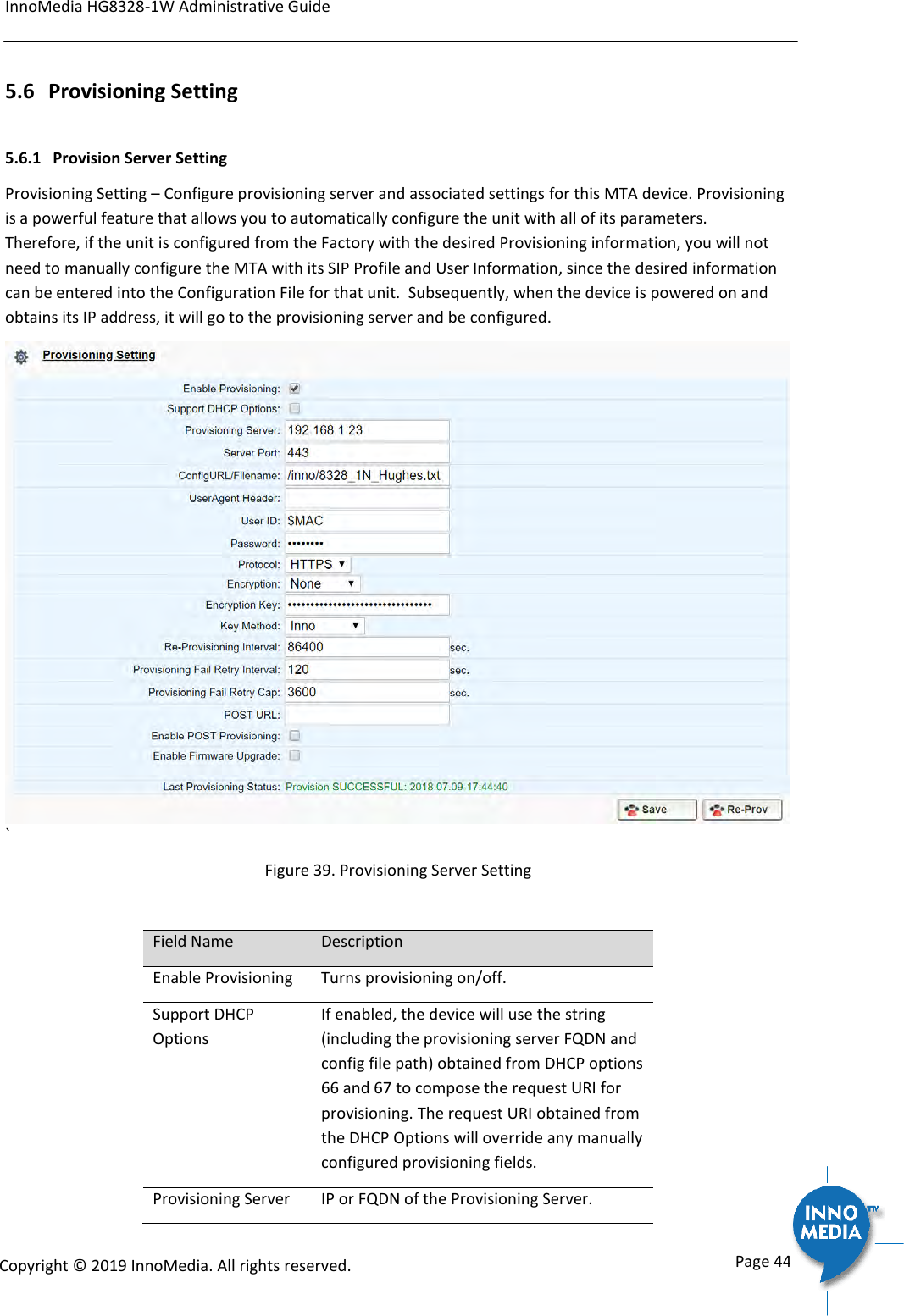
InnoMedia HG8328-1W Administrative Guide      Page 43            Copyright © 2019 InnoMedia. All rights reserved.         Field Name Description Firmware Upload Browse to a new firmware image file to upload to the unit. SWAP Click “SWAP” to switch the backup system firmware to be active. 5.4 Reboot  Figure 37. Reboot Dialog Field Name Description Reboot Reboot opens a dialog box, and asks for a confirmation to “Reboot the System”. 5.5 Restore To Factory  Figure 38. Restore To Factory Dialog Field Name Description Restore To Factory Opens a dialog box, and asks for a confirmation to “Restore to Factory Default Values”. The factory default values are service provider dependent.
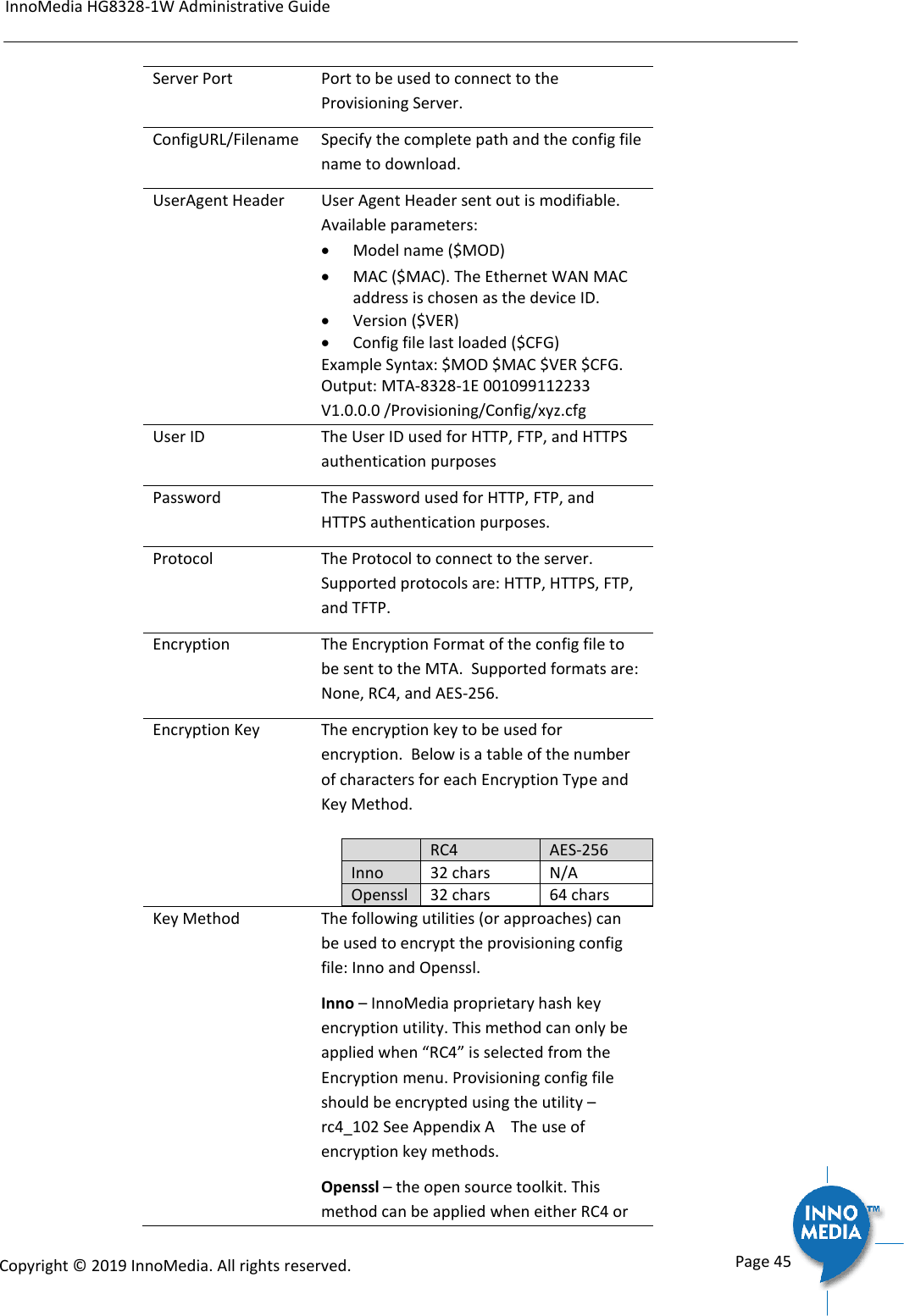
InnoMedia HG8328-1W Administrative Guide      Page 44            Copyright © 2019 InnoMedia. All rights reserved.         5.6  Provisioning Setting 5.6.1 Provision Server Setting Provisioning Setting – Configure provisioning server and associated settings for this MTA device. Provisioning is a powerful feature that allows you to automatically configure the unit with all of its parameters.  Therefore, if the unit is configured from the Factory with the desired Provisioning information, you will not need to manually configure the MTA with its SIP Profile and User Information, since the desired information can be entered into the Configuration File for that unit.  Subsequently, when the device is powered on and obtains its IP address, it will go to the provisioning server and be configured. ` Figure 39. Provisioning Server Setting  Field Name Description Enable Provisioning Turns provisioning on/off. Support DHCP Options If enabled, the device will use the string (including the provisioning server FQDN and config file path) obtained from DHCP options 66 and 67 to compose the request URI for provisioning. The request URI obtained from the DHCP Options will override any manually configured provisioning fields. Provisioning Server IP or FQDN of the Provisioning Server.
InnoMedia HG8328-1W Administrative Guide      Page 45            Copyright © 2019 InnoMedia. All rights reserved.         Server Port Port to be used to connect to the Provisioning Server.   ConfigURL/Filename Specify the complete path and the config file name to download. UserAgent Header User Agent Header sent out is modifiable.  Available parameters:  Model name ($MOD)  MAC ($MAC). The Ethernet WAN MAC address is chosen as the device ID.  Version ($VER)  Config file last loaded ($CFG) Example Syntax: $MOD $MAC $VER $CFG. Output: MTA-8328-1E 001099112233 V1.0.0.0 /Provisioning/Config/xyz.cfg User ID The User ID used for HTTP, FTP, and HTTPS authentication purposes Password The Password used for HTTP, FTP, and HTTPS authentication purposes. Protocol The Protocol to connect to the server. Supported protocols are: HTTP, HTTPS, FTP, and TFTP. Encryption The Encryption Format of the config file to be sent to the MTA.  Supported formats are: None, RC4, and AES-256. Encryption Key The encryption key to be used for encryption.  Below is a table of the number of characters for each Encryption Type and Key Method.     RC4 AES-256 Inno 32 chars N/A Openssl 32 chars 64 chars Key Method The following utilities (or approaches) can be used to encrypt the provisioning config file: Inno and Openssl.  Inno – InnoMedia proprietary hash key encryption utility. This method can only be applied when “RC4” is selected from the Encryption menu. Provisioning config file should be encrypted using the utility – rc4_102 See Appendix A    The use of encryption key methods. Openssl – the open source toolkit. This method can be applied when either RC4 or
InnoMedia HG8328-1W Administrative Guide      Page 46            Copyright © 2019 InnoMedia. All rights reserved.         AES256 is selected from the Encryption menu. Provisioning file should be encrypted using Openssl.  Re-Provisioning Interval Time to next Re-Provision after a successful Provision.  Provisioning Fail Retry Interval Provisioning Fail Retry Cap There are 2 associated timers: Provisioning Fail Retry Interval : T1 Provisioning Fail Retry Cap: T2 If provisioning fails, the MTA initially retries at T1 interval, and then doubles T1 each time until it reaches T2, and then continues at this interval until the system reboots or there is a successful provisioning. POST URL Send HTTP POST messages to inform the provisioning server of provisioning success or failure. Enter the URL to which the MTA sends HTTP POST messages. Enable POST Provisioning Send HTTP POST messages to inform the provisioning server of provisioning success or failure. This setting only applies when using InnoMedia’s EMS provisioning server. Enable Firmware Upgrade When enabled, firmware will be downloaded when a new version is available. When disabled, firmware will not download even if a new version is available. 5.7 EMS Setting 5.7.1  EMS Server The InnoMedia EMS server is a powerful provisioning and management platform for service providers to perform device configuration/firmware management, to be able to see Call Statistics, Voice Quality information, and to provide the ability to connect to devices behind NAT routers for diagnostics purposes.
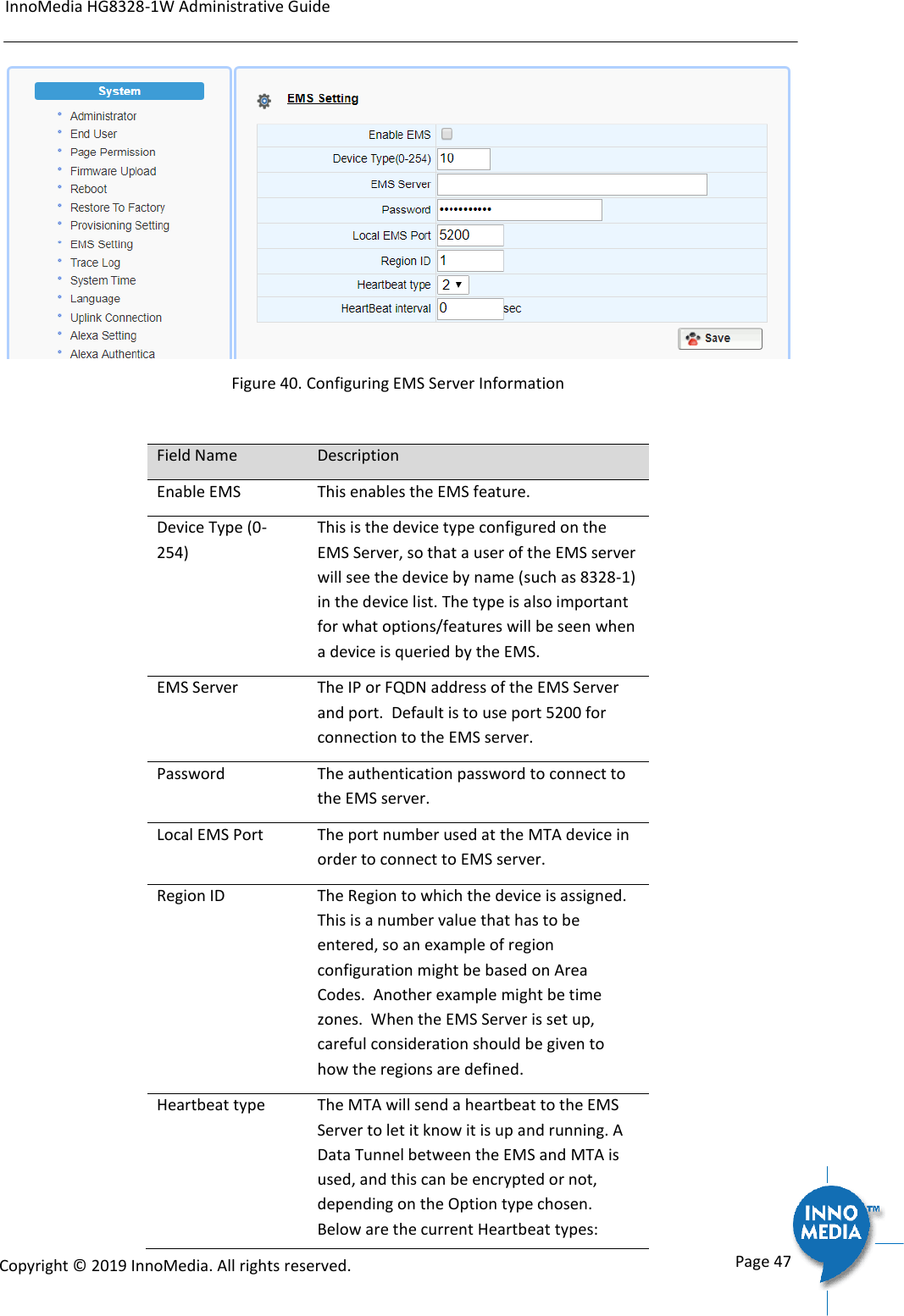
InnoMedia HG8328-1W Administrative Guide      Page 47            Copyright © 2019 InnoMedia. All rights reserved.          Figure 40. Configuring EMS Server Information  Field Name Description Enable EMS This enables the EMS feature. Device Type (0-254) This is the device type configured on the EMS Server, so that a user of the EMS server will see the device by name (such as 8328-1) in the device list. The type is also important for what options/features will be seen when a device is queried by the EMS. EMS Server The IP or FQDN address of the EMS Server and port.  Default is to use port 5200 for connection to the EMS server. Password The authentication password to connect to the EMS server. Local EMS Port The port number used at the MTA device in order to connect to EMS server. Region ID The Region to which the device is assigned. This is a number value that has to be entered, so an example of region configuration might be based on Area Codes.  Another example might be time zones.  When the EMS Server is set up, careful consideration should be given to how the regions are defined. Heartbeat type The MTA will send a heartbeat to the EMS Server to let it know it is up and running. A Data Tunnel between the EMS and MTA is used, and this can be encrypted or not, depending on the Option type chosen.  Below are the current Heartbeat types:
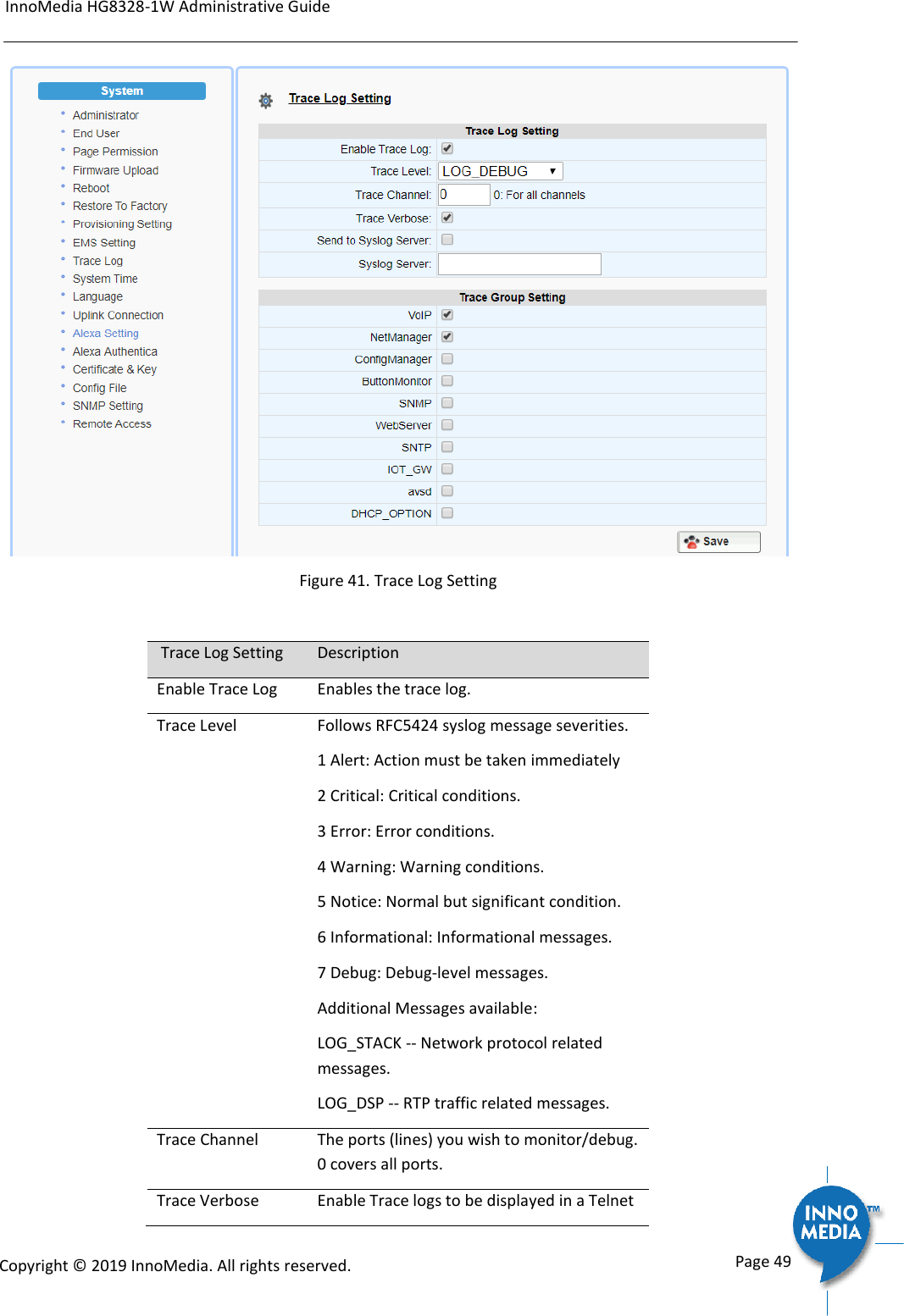
InnoMedia HG8328-1W Administrative Guide      Page 48            Copyright © 2019 InnoMedia. All rights reserved.         2 = Plain text tunnel formatted. 3 = Encrypted text using a shared secret key 4 = Plain text and carrying SIP registration status 5= Encrypted text and carrying SIP registration status Heartbeat interval The interval at which to send heartbeat packets to the EMS server, in seconds. The MTA uses this HB interval unless instructed by EMS for a new HB interval 5.8 Trace Log 5.8.1  Trace Log Setting Configure the MTA device to display debugging messages according to the trace level parameters. Note: Trace Level “LOG_DEBUG” will have a significant performance impact on the MTA device. It is recommended to use this feature only when debugging is needed. An example is described as follows. On WEB GUI: 1. Check “Enable Trace Log” 2. Trace Level menu, choose “LOG_DEBUG” 3. Check “Trace Verbose” 4. Configure “Trace Channel” to be “0” to monitor all ports of the system. 5. Check whatever items to be monitored from the “Trace Group Setting” table.
InnoMedia HG8328-1W Administrative Guide      Page 49            Copyright © 2019 InnoMedia. All rights reserved.          Figure 41. Trace Log Setting   Trace Log Setting Description Enable Trace Log Enables the trace log. Trace Level Follows RFC5424 syslog message severities. 1 Alert: Action must be taken immediately 2 Critical: Critical conditions. 3 Error: Error conditions. 4 Warning: Warning conditions. 5 Notice: Normal but significant condition. 6 Informational: Informational messages. 7 Debug: Debug-level messages. Additional Messages available:  LOG_STACK -- Network protocol related messages. LOG_DSP -- RTP traffic related messages. Trace Channel The ports (lines) you wish to monitor/debug. 0 covers all ports. Trace Verbose Enable Trace logs to be displayed in a Telnet
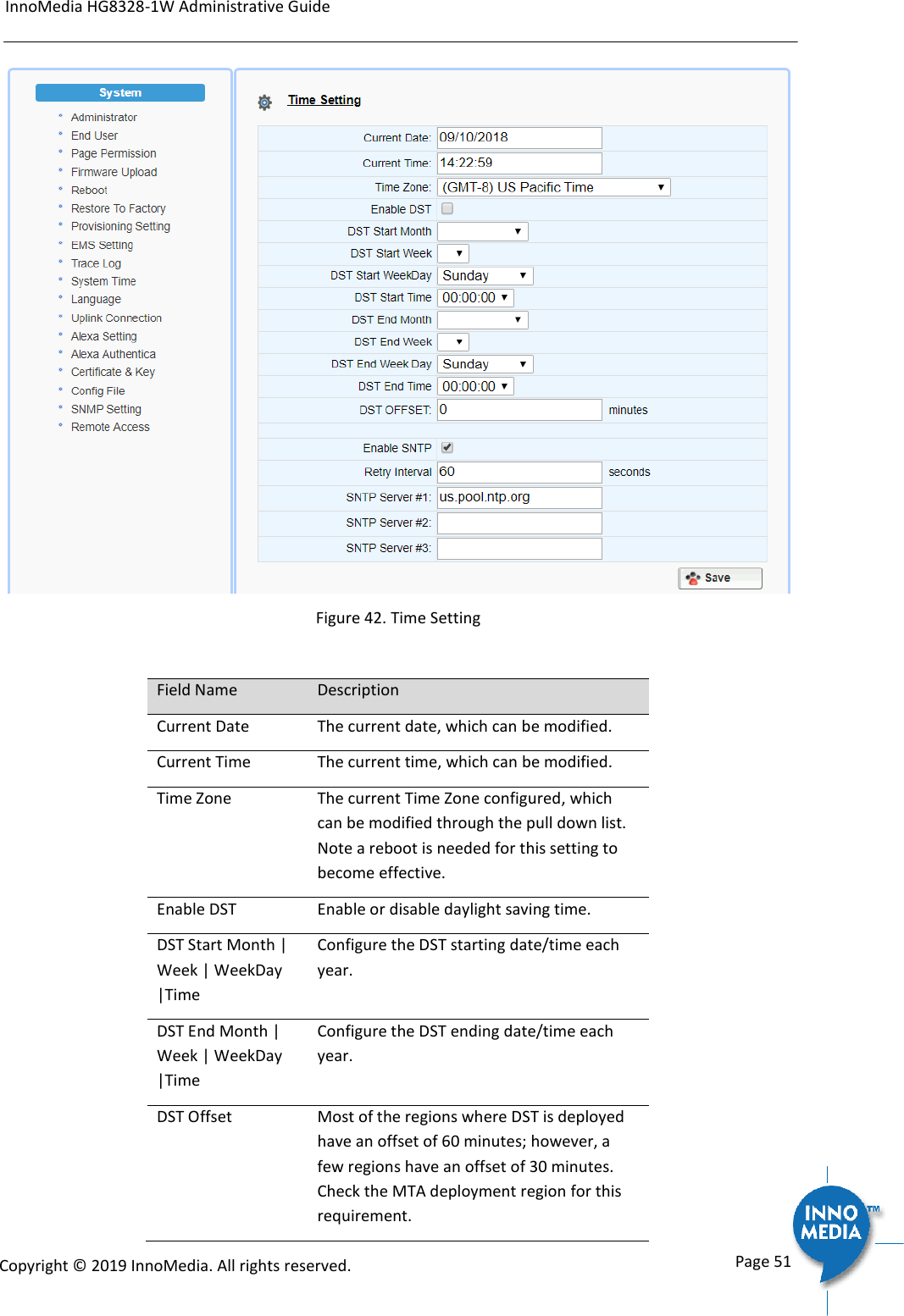
InnoMedia HG8328-1W Administrative Guide      Page 50            Copyright © 2019 InnoMedia. All rights reserved.         session. Send to Syslog Server When checked, will send out messages to a configured Syslog Server. Syslog Server Syslog server IP address or FQDN.  Trace Group Setting Description  Item list Select items to monitor and display associated messages. These messages can be displayed on the CLI console or the specified syslog server. Note that some particular items will only be displayed on the GUI when they are enabled. 5.9 System Time 5.9.1  Time Setting Configure the SNTP time server IP/FQDN and time zone with which the MTA device synchronizes. Accurate time information is important for ensuring reliable telephony services.
InnoMedia HG8328-1W Administrative Guide      Page 51            Copyright © 2019 InnoMedia. All rights reserved.          Figure 42. Time Setting  Field Name Description Current Date The current date, which can be modified. Current Time The current time, which can be modified. Time Zone The current Time Zone configured, which can be modified through the pull down list. Note a reboot is needed for this setting to become effective. Enable DST Enable or disable daylight saving time. DST Start Month | Week | WeekDay |Time Configure the DST starting date/time each year. DST End Month | Week | WeekDay |Time Configure the DST ending date/time each year. DST Offset Most of the regions where DST is deployed have an offset of 60 minutes; however, a few regions have an offset of 30 minutes. Check the MTA deployment region for this requirement.
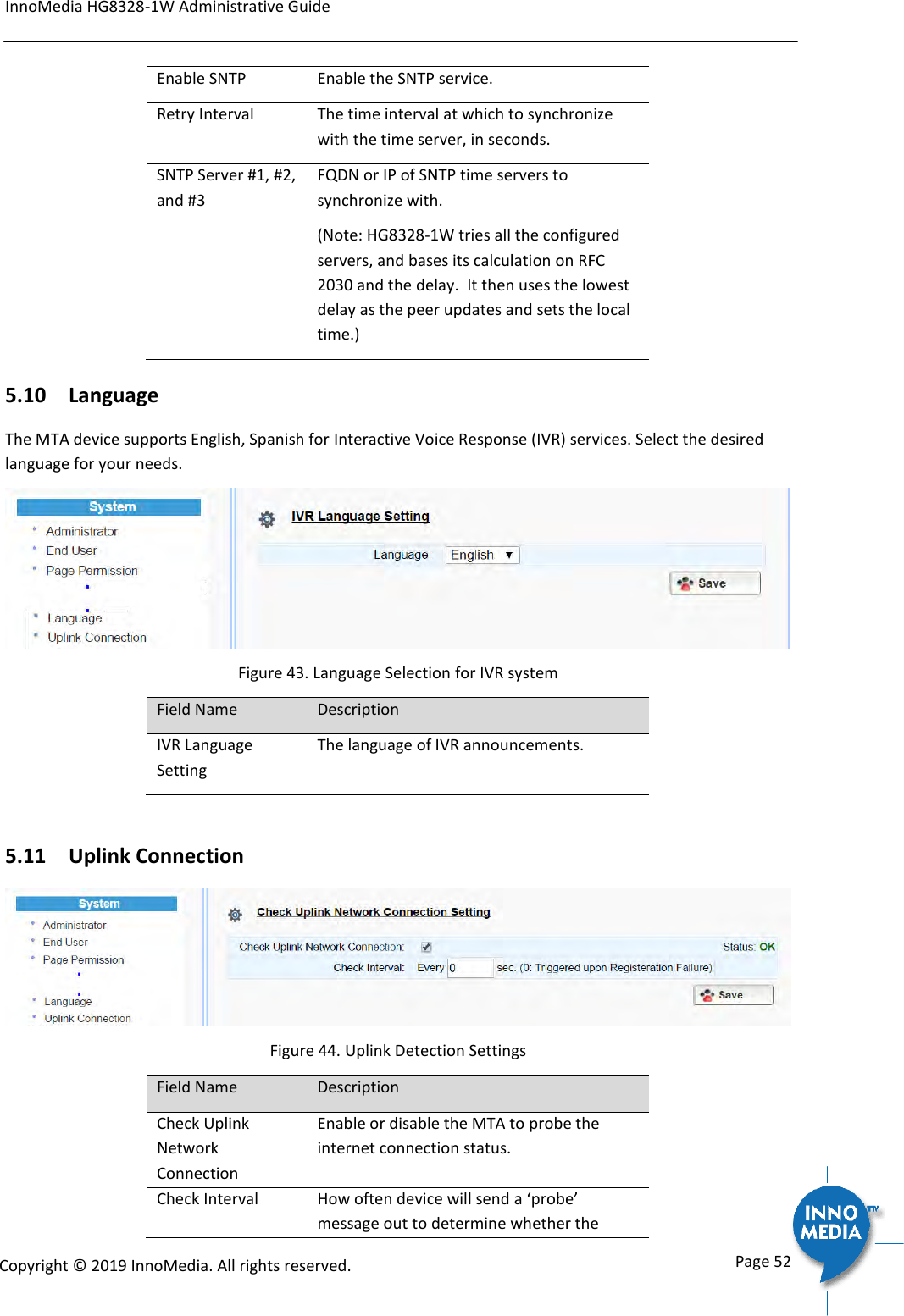
InnoMedia HG8328-1W Administrative Guide      Page 52            Copyright © 2019 InnoMedia. All rights reserved.         Enable SNTP Enable the SNTP service. Retry Interval The time interval at which to synchronize with the time server, in seconds.  SNTP Server #1, #2, and #3 FQDN or IP of SNTP time servers to synchronize with. (Note: HG8328-1W tries all the configured servers, and bases its calculation on RFC 2030 and the delay.  It then uses the lowest delay as the peer updates and sets the local time.) 5.10 Language The MTA device supports English, Spanish for Interactive Voice Response (IVR) services. Select the desired language for your needs.  Figure 43. Language Selection for IVR system Field Name Description IVR Language Setting The language of IVR announcements.  5.11 Uplink Connection  Figure 44. Uplink Detection Settings Field Name Description Check Uplink Network Connection Enable or disable the MTA to probe the internet connection status. Check Interval How often device will send a ‘probe’ message out to determine whether the
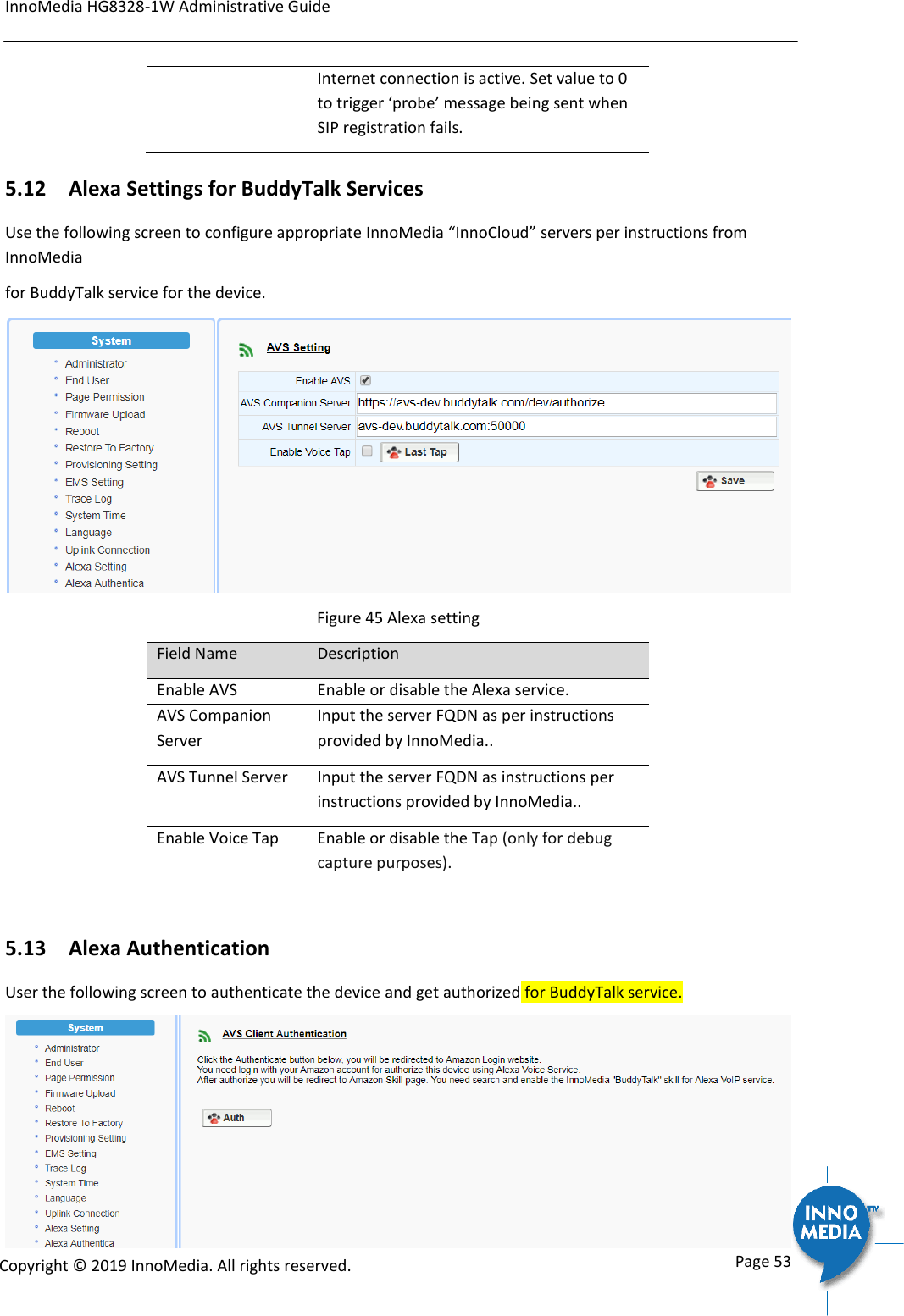
InnoMedia HG8328-1W Administrative Guide      Page 53            Copyright © 2019 InnoMedia. All rights reserved.         Internet connection is active. Set value to 0 to trigger ‘probe’ message being sent when SIP registration fails. 5.12 Alexa Settings for BuddyTalk Services Use the following screen to configure appropriate InnoMedia “InnoCloud” servers per instructions from InnoMedia for BuddyTalk service for the device.   Figure 45 Alexa setting Field Name Description Enable AVS Enable or disable the Alexa service. AVS Companion Server Input the server FQDN as per instructions provided by InnoMedia..  AVS Tunnel Server Input the server FQDN as instructions per instructions provided by InnoMedia.. Enable Voice Tap Enable or disable the Tap (only for debug capture purposes).   5.13 Alexa Authentication User the following screen to authenticate the device and get authorized for BuddyTalk service.
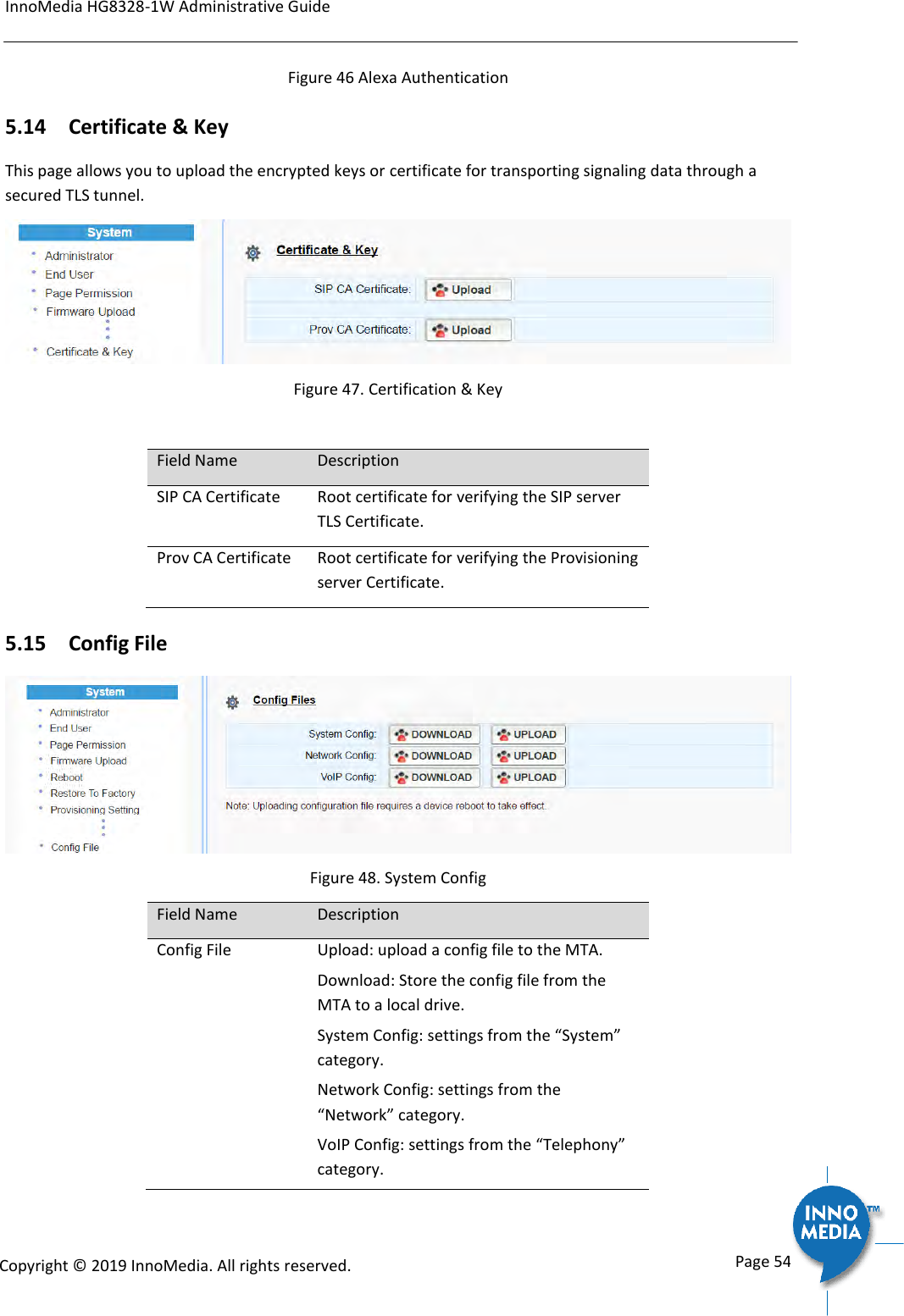
InnoMedia HG8328-1W Administrative Guide      Page 54            Copyright © 2019 InnoMedia. All rights reserved.         Figure 46 Alexa Authentication 5.14 Certificate & Key This page allows you to upload the encrypted keys or certificate for transporting signaling data through a secured TLS tunnel.  Figure 47. Certification & Key  Field Name Description SIP CA Certificate Root certificate for verifying the SIP server TLS Certificate. Prov CA Certificate Root certificate for verifying the Provisioning server Certificate. 5.15 Config File  Figure 48. System Config Field Name Description Config File Upload: upload a config file to the MTA. Download: Store the config file from the MTA to a local drive. System Config: settings from the “System” category. Network Config: settings from the “Network” category. VoIP Config: settings from the “Telephony” category.
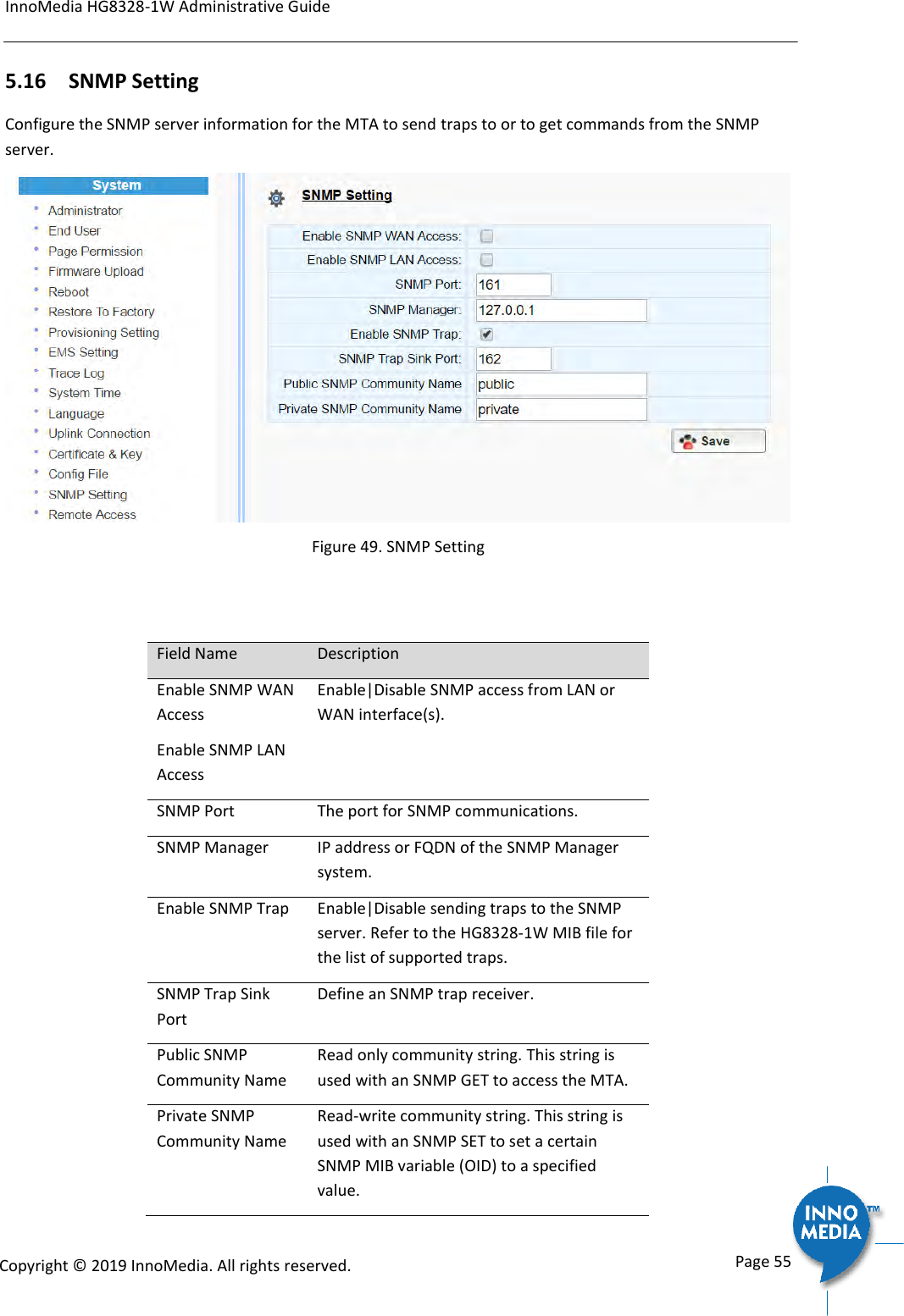
InnoMedia HG8328-1W Administrative Guide      Page 55            Copyright © 2019 InnoMedia. All rights reserved.         5.16 SNMP Setting Configure the SNMP server information for the MTA to send traps to or to get commands from the SNMP server.  Figure 49. SNMP Setting   Field Name Description Enable SNMP WAN Access Enable SNMP LAN Access Enable|Disable SNMP access from LAN or WAN interface(s). SNMP Port The port for SNMP communications. SNMP Manager IP address or FQDN of the SNMP Manager system. Enable SNMP Trap Enable|Disable sending traps to the SNMP server. Refer to the HG8328-1W MIB file for the list of supported traps. SNMP Trap Sink Port Define an SNMP trap receiver.  Public SNMP Community Name  Read only community string. This string is used with an SNMP GET to access the MTA. Private SNMP Community Name  Read-write community string. This string is used with an SNMP SET to set a certain SNMP MIB variable (OID) to a specified value.
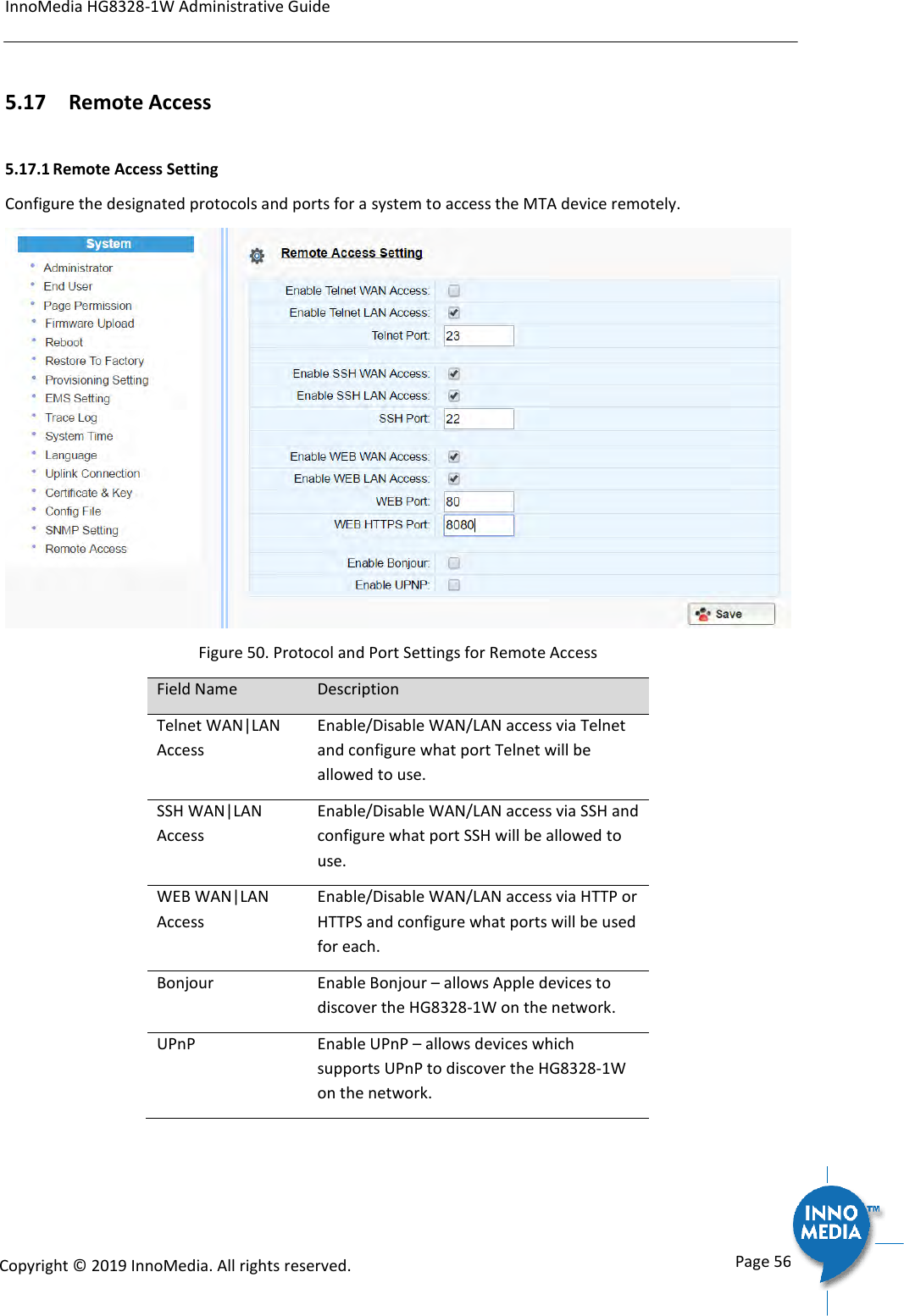
InnoMedia HG8328-1W Administrative Guide      Page 56            Copyright © 2019 InnoMedia. All rights reserved.         5.17 Remote Access 5.17.1 Remote Access Setting Configure the designated protocols and ports for a system to access the MTA device remotely.  Figure 50. Protocol and Port Settings for Remote Access Field Name Description Telnet WAN|LAN Access Enable/Disable WAN/LAN access via Telnet and configure what port Telnet will be allowed to use. SSH WAN|LAN Access Enable/Disable WAN/LAN access via SSH and configure what port SSH will be allowed to use. WEB WAN|LAN Access Enable/Disable WAN/LAN access via HTTP or HTTPS and configure what ports will be used for each. Bonjour Enable Bonjour – allows Apple devices to discover the HG8328-1W on the network. UPnP Enable UPnP – allows devices which supports UPnP to discover the HG8328-1W on the network.
InnoMedia HG8328-1W Administrative Guide      Page 57            Copyright © 2019 InnoMedia. All rights reserved.         6 CLI COMMAND REFERENCES Only the Administrator user is allowed to access the HG CLI console. The login ID and password are identical to those for WEB console login. The CLI command hierarchy is designed similarly to that of the WEB console.   Once logged in successfully, the command menu is displayed.  [v]voip                 VoIP Configuration  [n]net                  Network Configuration  [s]system               System  [f]factory              Factory  [d]restore              Restore to Default Setting   Type the char enclosed in the square bracket [] to enter that particular section.  Type question mark “?” at any level to display available commands.  Type “cd ..” to go back to the upper level.   [f] factory sub-menu is password protected.   Type command “save” or “write” whenever the MTA configurations being updated through CLI commands. Under any level, to show debug messages on the CLI console, type “debug on”; to stop debug messages being displayed, simply type “debug off”.
InnoMedia HG8328-1W Administrative Guide      Page 58            Copyright © 2019 InnoMedia. All rights reserved.          Appendix A    The use of encryption key methods Inno rc4_102 Use utility “rc4_102” to encrypt the plaintext config file (e.g., MTA6328_$MAC.cfg) with a 32-char-long key. Syntax:  rc4_102 mac key input-file ['out-prefix'] [logfile] Example: rc4_102 001099001122 1234567890qwertyuiop1234567890as MTA_sample_config.txt MTA Output: Encrypted config file: MTA001099001122.cfg is created.  Openssl command example Provisioning config file should be encrypted using the following command at the provisioning server when AES-256 is selected from the encryption menu.  $ openssl enc –aes-256-cbc –k password –in infile –out outfile
InnoMedia HG8328-1W Administrative Guide      Page 59            Copyright © 2019 InnoMedia. All rights reserved.         Appendix B    InnoMedia Contact InnoMedia Incorporated 1901 McCarthy Boulevard  Milpitas, CA 95035 U.S.A Phone: 1-408-432-5400 Fax: 1-408-943-8604 www.innomedia.com Technical support email: techNA@innomedia.com      <End of Document>

Navigation menu