INTELLIGENT SYSTEMS ISNWIRE Module for Three DS Development Support Tool User Manual ISnitrodebuggerMANUALwmarkup1
INTELLIGENT SYSTEMS Co.,Ltd. Module for Three DS Development Support Tool ISnitrodebuggerMANUALwmarkup1
Users Manual

Copyright 2004 INTELLIGENT SYSTEMS Co., Ltd. NTR-06-0121-001-A1
Copyright 2004 Nintendo of America Inc. Released: September 10, 2004
IS-NITRO-DEBUGGER
Setup Manual
Version 01/10/2005

IS-NITRO-DEBUGGER Setup Manual
NTR-06-0121-001-A1
2
Copyright 2004 INTELLIGENT SYSTEMS Co., Ltd.
Released: September 10, 2004 Copyright 2004 Nintendo of America Inc.
IS-NITRO-DEBUGGER Setup Manual
Copyright 2004 INTELLIGENT SYSTEMS Co., Ltd NTR-06-0121-001-A1
Copyright 2004 Nintendo of America Inc.
3
Released: September 10, 2004
Table of Contents
Version 01/10/2005
...........................................................................................................................................................1
1
Preface .............................................................................................................................................................................5
2
Using This Product Safely.................................................................................................................................................6
3
Note ..................................................................................................................................................................................9
4
Setup ..............................................................................................................................................................................10
4.1
Setting up the IS-NITRO-EMULATOR ...................................................................................................................10
4.2
Installing the Device Driver ....................................................................................................................................10
4.2.1
Installing the IS-NITRO-DEBUGGER Software .................................................................................................13
4.2.2
Uninstalling the IS-NITRO-DEBUGGER Software .............................................................................................13
5
Startup and Shutdown.....................................................................................................................................................14
5.1.1
Starting up IS-NITRO-DEBUGGER ...................................................................................................................14
5.1.2
Selecting an IS-NITRO-EMULATOR..................................................................................................................14
5.1.3
Updating the Firmware.......................................................................................................................................14
5.1.4
Recovering the Firmware...................................................................................................................................15
5.1.5
Shutting Down the IS-NITRO-DEBUGGER .......................................................................................................15

IS-NITRO-DEBUGGER Setup Manual
NTR-06-0121-001-A1
4
Copyright 2004 INTELLIGENT SYSTEMS Co., Ltd.
Released: September 10, 2004 Copyright 2004 Nintendo of America Inc.

IS-NITRO-DEBUGGER Setup Manual
Copyright 2004 INTELLIGENT SYSTEMS Co., Ltd NTR-06-0121-001-A1
Copyright 2004 Nintendo of America Inc.
5
Released: September 10, 2004
1 Preface
Thank you for purchasing the IS-NITRO-DEBUGGER kit. Before using the software, please read this
manual and set up the software according to the proper procedures. Please keep this manual in a secure
place so that you can easily refer to it as needed.

IS-NITRO-DEBUGGER Setup Manual
NTR-06-0121-001-A1
6
Copyright 2004 INTELLIGENT SYSTEMS Co., Ltd.
Released: September 10, 2004 Copyright 2004 Nintendo of America Inc.
2 Using This Product Safely
To use the IS-NITRO-DEBUGGER safely, please read the following items carefully to insure the unit
does not malfunction and possibly cause a safety hazard.
Do not modify or take apart the unit.
If you notice a problem, immediately stop using the unit.
Do not allow liquids or foreign objects to enter the unit.
Do not store the unit in a humid or dusty location.
Never cover the unit or block ventilation.
Do not bend, pull, or twist the cables.
Protect the unit from strong impact.
.Do not use the unit in locations where the temperature is below 0 C or above 40 C.
Do not use the unit during an electrical storm. If you hear thunder, stop using the unit immediately
and do not touch it. A lightning strike could cause electric shock.
Regulatory Statement
This equipment has been tested and found to comply with the limits for a Class A digital device,
pursuant to Part 15 of the FCC Rules. These limits are designed to provide reasonable protection
against harmful interference when the equipment is operated in a commercial environment.
This equipment generates, uses, and can radiate radio frequency energy and, if not installed and
used in accordance with the instructions, may cause harmful interference to radio communications.
Operation of this equipment in a residential area is likely to cause harmful interference in which
case the user will be required to correct the interference at their own expense.
This equipment complies with FCC radiation exposure limits set forth for an uncontrolled
environment.
This equipment should be installed and operated with minimum distance 20 cm between the
radiator and body. This transmitter must not be co-located or operating in conjunction with any
antenna or transmitter.
This Class A digital apparatus complies with Canadian ICES-003. The term “IC” before the
equipment certification number only signifies that the Industry Canada technical specifications
were met.
Cet appareil numerique de la classe A est conforme a la norme NMB-003 du Canada.
Le terme “IC” avant le numero d’homologation ne signifie seulement que les normes d’Industrie
Canada ont ete respectees."
IS-NITRO-DEBUGGER Setup Manual
Copyright 2004 INTELLIGENT SYSTEMS Co., Ltd NTR-06-0121-001-A1
Copyright 2004 Nintendo of America Inc.
7
Released: September 10, 2004
English Hereby, [Name of manufacturer], declares that this [type of equipment] is in
compliance with the essential requirements and other relevant provisions of
Directive 1999/5/EC.
Finnish [Valmistaja = manufacturer] vakuuttaa täten että [type of equipment =laitteen
tyyppimerkintä] tyyppinen laite on direktiivin 1999/5/EY oleellisten vaatimusten ja
sitä koskevien direktiivin muiden ehtojen mukainen.
Hierbij verklaart [Naam van de fabrikant] dat het toestel [type van toestel] in
overeenstemming is met de essentiële eisen en de andere relevante bepalingen van
richtlijn 1999/5/EG
Dutch
Bij deze verklaart [Naam van de fabrikant] dat deze [naam /type van het apparaat]
voldoet aan de essentiële eisen en aan de overige relevante bepalingen van
Richtlijn 1999/5/EC.
Par la présente [Nom du fabricant] déclare que l'appareil [type d'appareil] est
conforme aux exigences essentielles et aux autres dispositions pertinentes de la
directive 1999/5/CE
French
Par la présente, [nom du constructeur] déclare que ce [type d'équipement] est
conforme aux exigences essentielles et aux autres dispositions de la directive
1999/5/CE qui lui sont applicables
Swedish Härmed intygar [företag] att denna [utrustningstyp] står I överensstämmelse med
de väsentliga egenskapskrav och övriga relevanta bestämmelser som framgår av
direktiv 1999/5/EG.
Danish Undertegnede [fabrikantens navn] erklærer herved, at følgende udstyr [udstyrets
typebetegnelse] overholder de væsentlige krav og øvrige relevante krav i direktiv
1999/5/EF
Hiermit erklärt [Name des Herstellers], dass sich dieser/diese/dieses [Gerätetyp]
in Übereinstimmung mit den grundlegenden Anforderungen und den anderen
relevanten Vorschriften der Richtlinie 1999/5/EG befindet". (BMWi)
German
Hiermit erklärt [Name des Herstellers] die Übereinstimmung des Gerätes [Type
des Gerätes] mit den grundlegenden Anforderungen und den anderen relevanten
Festlegungen der Richtlinie 1999/5/EG. (Wien)
Greek [Name of manufacturer] [type of equipment]
1999/5/
IS-NITRO-DEBUGGER Setup Manual
NTR-06-0121-001-A1
8
Copyright 2004 INTELLIGENT SYSTEMS Co., Ltd.
Released: September 10, 2004 Copyright 2004 Nintendo of America Inc.
Italian Con la presente (nome del costruttore) dichiara che questo (tipo di apparecchio) è
conforme ai requisiti essenziali ed alle altre disposizioni pertinenti stabilite dalla
direttiva 1999/5/CE.
Spanish Por medio de la presente (nombre del fabricante) declara que el (clase de equipo)
cumple con los requisitos esenciales y cualesquiera otras disposiciones aplicables o
exigibles de la Directiva 1999/5/CE
Portuguese [Nome do fabricante] declara que este [tipo de equipamento] está conforme com os
requisitos essenciais e outras disposições da Directiva 1999/5/CE.
Malti Hawnhekk, [Isem tal-Manifattur], jiddikjara li dan [il-mudel tal-prodott]
jikkonforma mal-tiijiet essenzjali u ma provvedimenti orajn relevanti li hemm
fid-Dirrettiva 1999/5/EC
Estonian Käesolevaga kinnitab (tootja nimi = Name of manufacturer) seadme (seadme tüüp
= type of equipment) vastavust direktiivi 1999/5/EÜ põhinõuetele ja nimetatud
direktiivist tulenevatele teistele asjakohastele sätetele.
Hungarian Alulírott, (gyártó neve) nyilatkozom, hogy a (... típus) megfelel a vonatkozó
alapvetõ követelményeknek és az 1999/5/EC irányelv egyéb elõírásainak.
Slovak [Meno výrobcu] týmto vyhlasuje, že [typ zariadenia] spa základné požiadavky a
všetky príslušné ustanovenia Smernice 1999/5/ES.
Czech [ Jméno výrobce ] tímto prohlašuje, že tento [ typ zaízení ] je ve shod se
základními požadavky a dalšími píslušnými ustanoveními smrnice 1999/5/ES.
Slovene Šiuo [gamintojo pavadinimas] deklaruoja, kad šis [aparato tipas] atitinka esminius
reikalavimus ir kitas 1999/5/EB Direktyvos nuostatas.
Lithuanian
Šiuo [manufacturer name] deklaruoja, kad šis [equipment type] atitinka esminius
reikalavimus ir kitas 1999/5/EB Direktyvos nuostatas.
Latvian Ar šo [Name of manufacturer / izgatavotja nosaukums] deklar, ka [type of
equipment / iekrtas tips] atbilst Direktvas 1999/5/EK btiskajm prasbm un
citiem ar to saisttajiem noteikumiem.

IS-NITRO-DEBUGGER Setup Manual
Copyright 2004 INTELLIGENT SYSTEMS Co., Ltd NTR-06-0121-001-A1
Copyright 2004 Nintendo of America Inc.
9
Released: September 10, 2004
3 Note
When using IS-NITRO-DEBUGGER, please note the following:
If you purchase the wireless option after you have purchased the IS-NITRO-DEBUGGER, you must
return the IS-NITRO-EMULATOR to the place where you purchased it. During the installation of
the wireless option, the top cover will be replaced. Do not attach asset control labels to this cover.
IS-NITRO-DEBUGGER Setup Manual
NTR-06-0121-001-A1
10
Copyright 2004 INTELLIGENT SYSTEMS Co., Ltd.
Released: September 10, 2004 Copyright 2004 Nintendo of America Inc.
4 Setup
4.1 Setting up the IS-NITRO-EMULATOR
The following explain how to connect the IS-NITRO-EMULATOR.
(1) Check to confirm that the IS-NITRO-EMULATOR power switch is in the OFF setting.
(2) Connect the computer to the IS-NITRO-EMULATOR using a USB cable
(3) When using video output, connect the video image output connector and the television with the
optional cable. Use one of the following optional cables sold by Nintendo.
Monaural AV cable (SHVC-007)
Stereo AV cable (SHVC-008)
S-Video cable (SHVC-009)
(4) When performing wired DS network communications (tentative name), connect to the wireless
connector with the cable. Use a cross LAN cable that is under 5 meters and category 5 or higher.
(5) Connect the DC plug of the AC adapter to the DC connector (DC IN) on the back of the IS-NITRO-
EMULATOR.
(6) Connect the AC plug of the AC adapter to the outlet (AC 120 Volts).
4.2 Installing the Device Driver
When connecting the IS-NITRO-EMULATOR to the computer for the first time or when connecting to a
different USB port, the device driver must be installed.
(1) Turn on the power to the IS-NITRO-EMULATOR
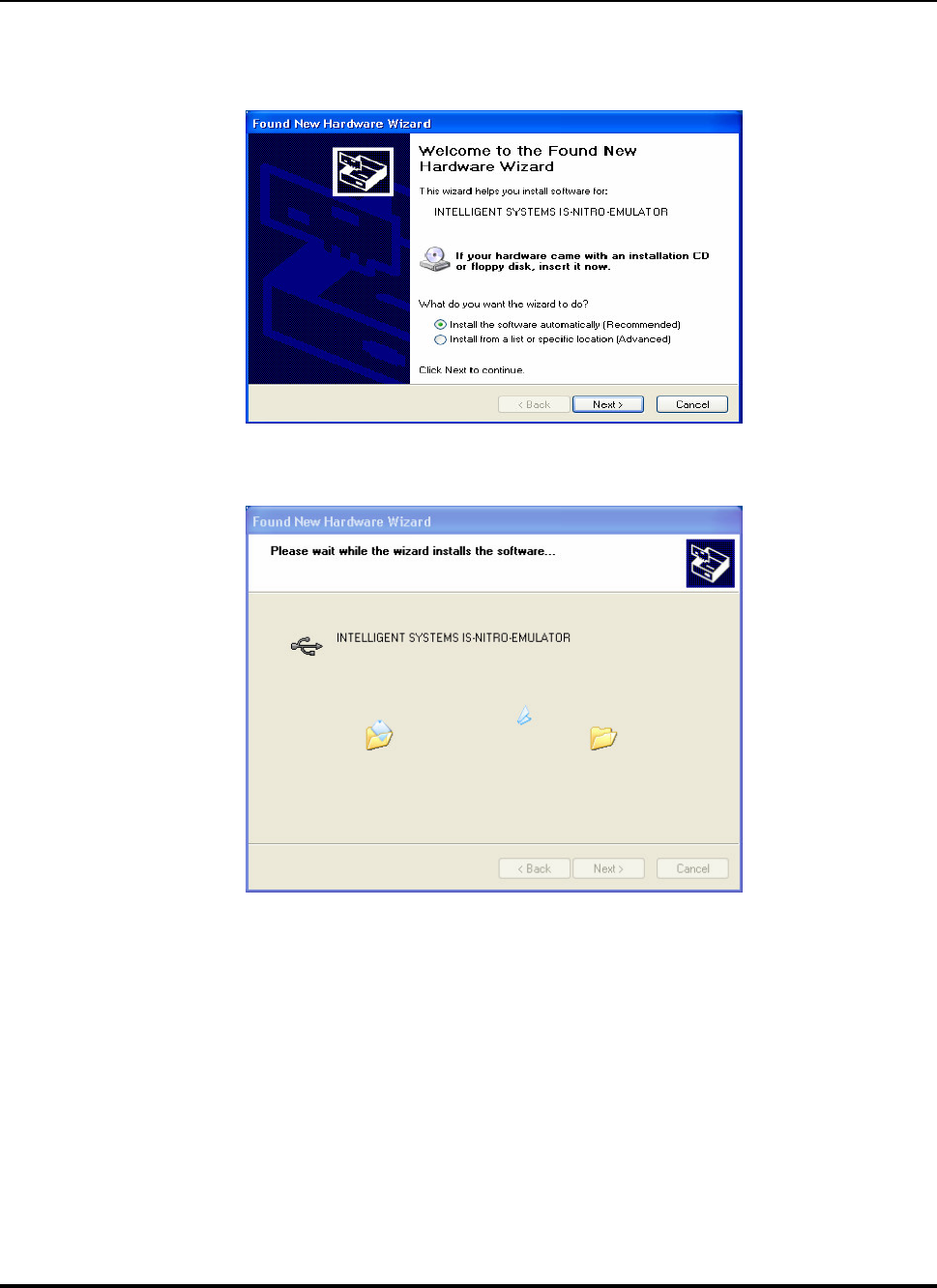
(2) When the IS-NITRO-EMULATOR is first connected to the computer and the power is turned ON,
the "Find New Hardware Wizard" dialog will be displayed, prompting the installation of the device
drivers.
(3) Insert the “INTELLIGENT SYSTEMS Development Kit for NITRO” CD-ROM into the CD-ROM
drive.
IS-NITRO-DEBUGGER Setup Manual
Copyright 2004 INTELLIGENT SYSTEMS Co., Ltd NTR-06-0121-001-A1
Copyright 2004 Nintendo of America Inc.
11
Released: September 10, 2004
(4) Select “Automatically Install Software (Recommended)”, and click the “Next” button.
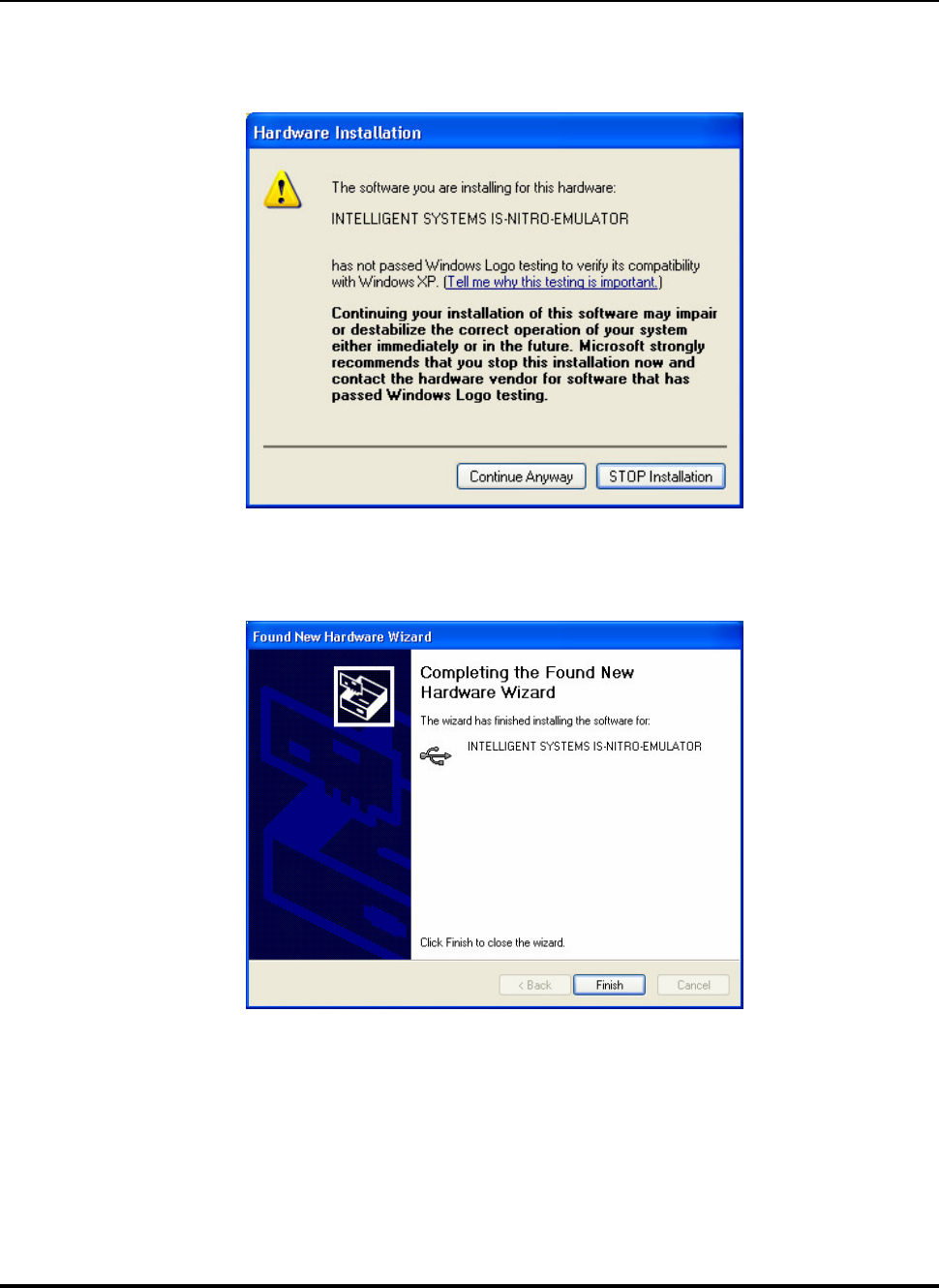
(5) When the installation of the software begins, the following display will appear. Please be patient.
IS-NITRO-DEBUGGER Setup Manual
NTR-06-0121-001-A1
12
Copyright 2004 INTELLIGENT SYSTEMS Co., Ltd.
Released: September 10, 2004 Copyright 2004 Nintendo of America Inc.
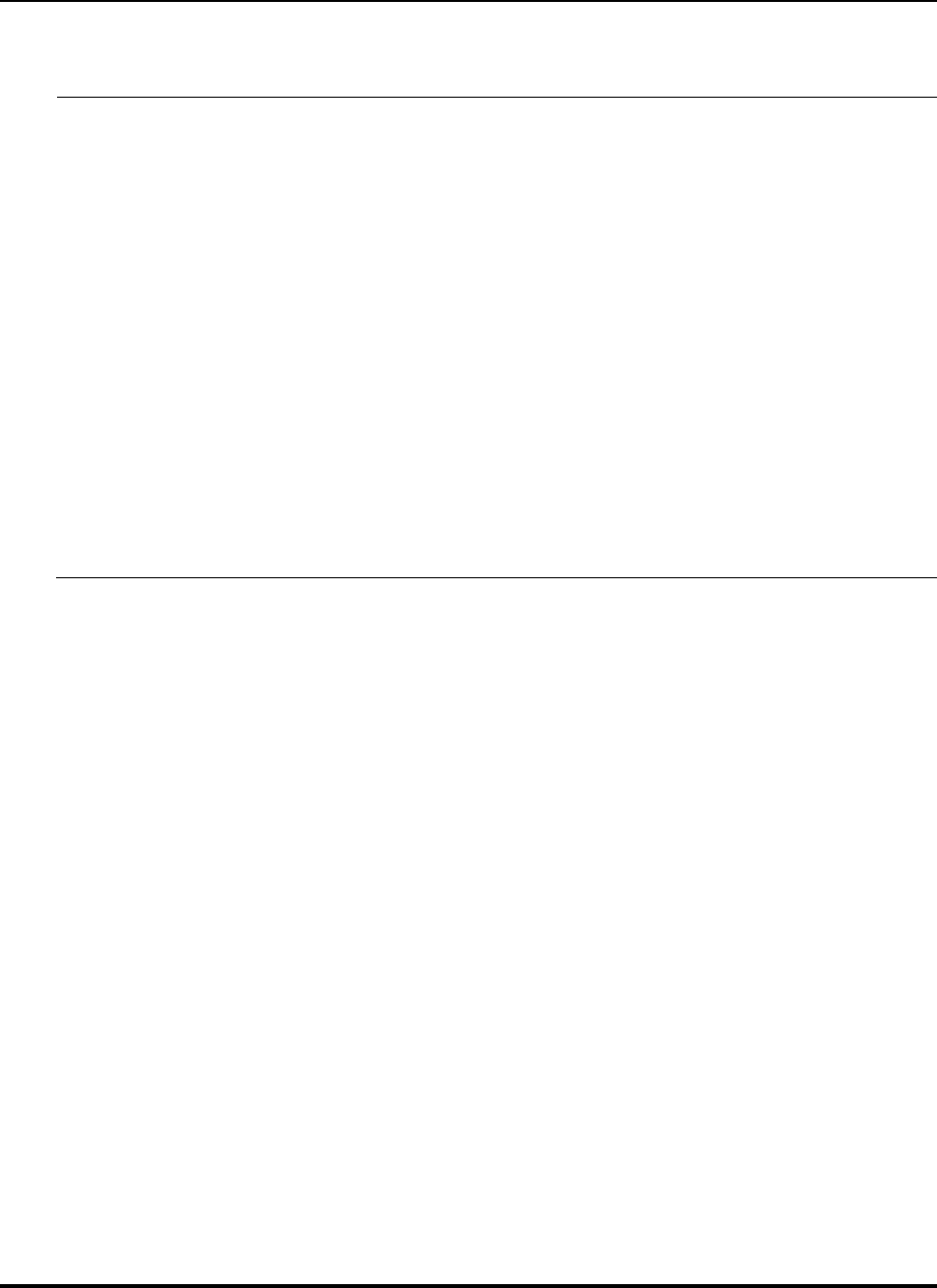
(6) The following dialog box will be displayed during installation. Click the “Continue” button to proceed.
(7) If the hardware update wizard finishes as expected, the following dialog will be displayed. Click the
“Finish” button to close the wizard.
IS-NITRO-DEBUGGER Setup Manual
Copyright 2004 INTELLIGENT SYSTEMS Co., Ltd NTR-06-0121-001-A1
Copyright 2004 Nintendo of America Inc.
13
Released: September 10, 2004
4.2.1 Installing the IS-NITRO-DEBUGGER Software
Install the IS-NITRO-DEBUGGER software (IS-NITRO-DEBUGGER below) onto the computer according
to the following procedure:
(1) Log on to Windows with an account that has administrator privileges.
(2) Shut down all programs which are currently operating.
(3) Insert the “INTELLIGENT SYSTEMS Development Kit for NITRO” CD-ROM into a CD-ROM drive.
(4) Open the “INTELLIGENT SYSTEMS Developmental Kit for NITRO” CD-ROM using Windows
Explorer.
(5) Open the IS-NITRO-DEBUGGER folder, and double-click the file IS-NITRO-DEBUGGER-
XXX.EXE (where XXX indicates the version number) to execute the installation program.
(6) Proceed according to the onscreen instructions.
(7) Once the installation program has finished, you may need to restart the computer when prompted.
4.2.2 Uninstalling the IS-NITRO-DEBUGGER Software
The following is an explanation of the procedure to uninstall the IS-NITRO-DEBUGGER software from the
computer:
(1) Log on to Windows with an account that has administrative privileges.
(2) Shut down IS-NITRO-DEBUGGER if it is running.
(3) In the Control Panel, click “Add and Remove Programs” to open the "Add and Remove Programs"
dialog. (Under Windows 2000, click “Add and Remove Applications” to open the “Add and Remove
Applications” dialog).
(4) Select “IS-NITRO-DEBUGGER” from the list of installed programs.
(5) Click the “Remove” button to delete the IS-NITRO-DEBUGGER.
The optional settings, window position information, etc. will not be deleted via this removal process. If
any installation or removals performed with an update of the IS-NITRO-DEBUGGER, the program can be
used in the same state as before. If there is a need to change the settings mentioned above, follow the
procedure below. The user assumes full responsibility when editing.
(1) Back up the registry files.
(2) Provide system recovery points, as described by the Windows XP documentation.
(3) Ensure that the IS-NITRO-DEBUGGER is not running.
(4) Enter the command indicated below into the registry editor:
HKEY_CURRENT_USER\Software\INTELLIGENT SYSTEMS\IS-NITRO-DEBUGGER
IS-NITRO-DEBUGGER Setup Manual
NTR-06-0121-001-A1
14
Copyright 2004 INTELLIGENT SYSTEMS Co., Ltd.
Released: September 10, 2004 Copyright 2004 Nintendo of America Inc.
5 Startup and Shutdown
5.1.1 Starting up IS-NITRO-DEBUGGER
To start up the IS-NITRO-DEBUGGER, click the “Start” button, select “All Programs” (under Windows
2000 “Programs”), then “IS-NITRO-DEBUGGER”, and “IS-NITRO-DEBUGGER”.
If more than one IS_NITRO_EMULATOR device was found, make the appropriate selection. Check the
versions of the IS-NITRO-DEBUGGER and the IS-NITRO-EMULATOR firmware.
5.1.2 Selecting an IS-NITRO-EMULATOR
If there is only one usable IS-NITRO-DEBUGGER device found, IS-NITRO-DEBUGGER will start up
immediately. However, should more than one IS-NITRO-EMULATOR device be found, the “Connecting
Hardware Selection” dialog for selecting the IS-NITRO-EMULATOR to be used will be displayed.
The serial numbers of each IS-NITRO-EMULATOR are listed in this dialog. (The serial numbers can be
found on the stickers at the bottom of each IS-NITRO-EMULATOR device. Selecting an IS-NITRO-
EMULATOR to use and clicking on the “OK” button will allow IS-NITRO-DEBUGGER to start up on the
selected IS-NITRO-EMULATOR.
5.1.3 Updating the Firmware
When IS-NITRO-DEBUGGER starts up, the IS-NITRO-DEBUGGER version and the IS-NITRO-
EMULATOR firmware version is checked. If these versions differ, one of the following messages will
appear prompting an operation to make the version numbers the same.
The IS-NITRO-EMULATOR firmware needs to be upgraded. . .
This message appears when the IS-NITRO-EMULATOR firmware version is older than the IS-NITRO-
DEBUGGER version.
Sometimes this message will display when updating IS-NITRO-DEBUGGER. In this case, click the
“Update” button to update the IS-NITRO-EMULATOR firmware.
While firmware is being updated, do not turn OFF the power to the IS-NITRO-EMULATOR, reset the
computer, or perform any operations on the IS-NITRO-EMULATOR or the computer.
If this dialog closes and IS-NITRO-DEBUGGER starts up as normal, the update has succeeded, and IS-
NITRO-DEBUGGER can be used. If IS-NITRO-DEBUGGER does not start up as expected, there is the
possibility that the IS-NITRO-EMULATOR firmware has failed to update. In this case, refer to
"Recovering the Firmware" and attempt to recover the IS-NITRO-EMULATOR firmware.
IS-NITRO-DEBUGGER Setup Manual
Copyright 2004 INTELLIGENT SYSTEMS Co., Ltd NTR-06-0121-001-A1
Copyright 2004 Nintendo of America Inc.
15
Released: September 10, 2004
Be aware that if the "Do Not Update" button is clicked, there will be no update and the program will start,
but it will not be usable.
Software that is incompatible with the IS-NITRO-EMULATOR firmware is in use. . .
This message appears when the IS-NITRO-EMULATOR firmware version is newer than the IS-NITRO-
DEBUGGER version.
IS-NITRO-DEBUGGER cannot be used if this message is displayed. Either use a new version of IS-
NITRO-DEBUGGER, or attempt a firmware recovery.
If the IS-NITRO-DEBUGGER version and the IS-NITRO-EMULATOR version are the same, these
messages will not display and the program will immediately start up.
5.1.4 Recovering the Firmware
If the firmware update fails, the IS-NITRO-EMULATOR firmware may be damaged, and the IS-NITRO-
EMULATOR may not be recognized as a USB device and will not start up normally. In such an event,
follow the procedure below to recover the damaged IS-NITRO-EMULATOR firmware.
(1) Turn off the power to the IS-NITRO-EMULATOR.
(2) Set the number 4 DIP switch to its ON position.
(3) Turn on the power to the IS-NITRO-EMULATOR.
(4) Once the System LED at the front of the IS-NITRO-EMULATOR goes out, turn off the power to the
IS-NITRO-EMULATOR.
(5) Set the number 4 DIP switch to its OFF position.
If the operation above is carried out and the IS-NITRO-EMULATOR is still unable to start normally, the
IS-NITRO-EMULATOR may be in need of repair. In such an event, please contact Nintendo of America
Inc developer support.
5.1.5 Shutting Down the IS-NITRO-DEBUGGER
To shut down the IS-NITRO-DEBUGGER, perform one of the following operations:
Select “Shut Down Application” from the “File” menu.
Click the title bar icon and select “Close” from the displayed menu.
Double-click the title bar icon.
Click the close button on the title bar.
Hold down the Alt key and press F4.
Even if IS-NITRO-DEBUGGER is shut down, currently running user programs will continue to execute.

IS-NITRO-DEBUGGER Setup Manual
NTR-06-0121-001-A1
16
Copyright 2004 INTELLIGENT SYSTEMS Co., Ltd.
Released: September 10, 2004 Copyright 2004 Nintendo of America Inc.