INTELLIGENT SYSTEMS SZK001 IS-SNAKE-BOX User Manual Manual

INTELLIGENT SYSTEMS Co.,Ltd. IS-SNAKE-BOX Manual

Manual

  2014 Nintendo    CTR-XX-XXXX-XXX-X CONFIDENTIAL  Released: August 7, 2014  IS-SNAKE DevKit Setup Manual  2014/08/07 Version 1.0  The content of this document is highly confidential and should be handled accordingly.
 IS-SNAKE DevKit Setup Manual CTR-XX-XXXX-XXX-X 2   2014 Nintendo Released:  August 7, 2014    CONFIDENTIAL Confidential These coded instructions, statements, and computer programs contain proprietary information of Nintendo and/or its licensed developers and are protected by national and international copyright laws. They may not be disclosed to third parties or copied or duplicated in any form, in whole or in part, without the prior written consent of Nintendo.
IS-SNAKE DevKit Setup Manual    2014 Nintendo  3  CTR-XX-XXXX-XXX-X CONFIDENTIAL    Released: August 7, 2014 Table of Contents 1Introduction .................................................................................................................................................. 42Health and Safety Information ..................................................................................................................... 53Notes ............................................................................................................................................................ 74Operating Environment ................................................................................................................................ 85Setup ............................................................................................................................................................ 95.1Downloading the Software .................................................................................................................... 95.2Software Installation ............................................................................................................................. 95.3Uninstalling the Software ...................................................................................................................... 95.4Fastening the IS-SNAKE-BOX Stand ................................................................................................. 105.5Attaching the Ferrite Cores .................................................................................................................. 115.6Installing Batteries .............................................................................................................................. 125.7Replacing the Batteries ...................................................................................................................... 135.8Connecting the Hardware ................................................................................................................... 135.9Turning the Power On and Off ............................................................................................................ 155.10Activating the License ......................................................................................................................... 166Support ...................................................................................................................................................... 176.1Website ............................................................................................................................................... 176.2Email Support ..................................................................................................................................... 177FCC and Industry Canada Information ...................................................................................................... 18Revision History ................................................................................................................................................ 20
 IS-SNAKE DevKit Setup Manual CTR-XX-XXXX-XXX-X 4   2014 Nintendo Released:  August 7, 2014    CONFIDENTIAL 1 Introduction Thank you very much for purchasing the IS-SNAKE DevKit. This manual provides important information for you to read before using the IS-SNAKE DevKit and setup procedures. Be sure to read this manual before using the product. Keep this manual in a safe place so it can be readily accessed after setup is complete.
IS-SNAKE DevKit Setup Manual    2014 Nintendo  5  CTR-XX-XXXX-XXX-X CONFIDENTIAL    Released: August 7, 2014 2  Health and Safety Information To use IS-SNAKE DevKit safely, please read the following items carefully to ensure the unit does not malfunction and possibly cause a safety hazard.   Do not modify or take apart the device. Doing so may result in electrocution, fire, or damage to the product or other objects.   If you notice a problem, immediately stop using the unit. If the device emits any smoke, odors, or unusual sounds, promptly turn off the power switch, unplug the AC Adapter from the wall, and stop using the device.   Do not allow liquids or foreign objects to enter the unit. Doing so may result in electrocution, fire, or damage to the product or other objects.   Do not use the product while your hands are wet. Doing so may result in electrocution or burns.   Never cover the unit or block ventilation. Doing so may result in fire.   Make sure the controller is securely connected. Make sure the controller is securely connected to the controller cable. The connector could become damaged if it is loose.   Do not damage the cables. Do not crimp, pull, or twist the cables. Doing so may result in electrocution.   Do not subject the unit to strong impact. Do not hit the unit with anything or drop anything on it. Doing so may result in malfunction or damage.   Do not place the unit in a humid or dusty location. Do not use or store the unit in a humid or dusty location. Doing so may result in electrocution.   Do not use the unit in locations where the temperature is below 0° C or above 40° C. Do not use the unit areas with high temperatures and humidity, or where condensation may occur. Doing so may result in damage or malfunction of the hardware.   Do not use the unit during an electrical storm. If you hear thunder, promptly stop use and avoid touching the device. There is a danger of electrocution by lightning.   Connect the power cord to a grounded outlet. Failure to do so may result in electrocution when the product is damaged or has a short.   Always use the supplied AC adapter to power this product.
 IS-SNAKE DevKit Setup Manual CTR-XX-XXXX-XXX-X 6   2014 Nintendo Released:  August 7, 2014    CONFIDENTIAL Use of any other AC adapter may result in damage to the product.   Install batteries in the correct direction. Make sure the positive and negative terminals are correctly oriented. Do not use a mix of different kinds of batteries at the same time. This could cause battery leakage, overheating, or breakage, which could damage the product.
IS-SNAKE DevKit Setup Manual    2014 Nintendo  7  CTR-XX-XXXX-XXX-X CONFIDENTIAL    Released: August 7, 2014 3 Notes Read the following items carefully to use the IS-SNAKE DevKit unit safely and ensure the unit does not malfunction and possibly cause a safety hazard.   Do not turn off the IS-SNAKE-BOX during firmware updates. The IS-SNAKE-BOX may not function properly afterward.   After turning off the power, do not immediately turn it back on again. The IS-SNAKE-BOX may not function properly afterward. After turning off the power, wait at least 10 seconds before turning it on again.   The liquid crystal display on the controller may develop pixels that are always illuminated or that do not illuminate. Also, you might observe irregularity in color or brightness, depending on the angle of view. These are properties of the liquid crystal display and are not defects.   Note that we do not guarantee that video can be captured without dropping any frames. Some frames may be dropped, depending on your computer environment.    Be aware of possible rights infringement when using audio or video captured using IS-SNAKE DevKit, such as copyright or portrait rights. Note that Nintendo accepts absolutely no responsibility in the event that copyright, portrait rights, or any other rights have been infringed, or a third party’s privacy, character, or reputation has been damaged by the distributing, copying, or modifying of captured audio or video.    Use AA alkaline batteries. Use of any other type of battery may result in leakage or other problems that could damage the device.   Promptly replace the batteries after they have been used up.   Follow the battery disposal guidelines for your area of residence when discarding used batteries.   The ground line must be no longer than 3 meters.   Use the included USB cables for USB connections.   We recommend using a Nintendo Genuine HDMI cable (WUP-008).
 IS-SNAKE DevKit Setup Manual CTR-XX-XXXX-XXX-X 8   2014 Nintendo Released:  August 7, 2014    CONFIDENTIAL 4 Operating Environment This section details system requirements for IS-SNAKE DevKit. Item  Description Computer x86–compatible Operating System Runs on the following operating systems.   Microsoft Windows 8.1 (64-bit edition)   Microsoft Windows 7, Service Pack 1 or later (32-bit and 64-bit editions) Memory The PC must have at least the minimum amount of memory recommended for the operating system. Depending on the size of the project under development, more memory may be required. Disk Space  At least 1 GB of free disk space Display  XGA display with a minimum resolution of 1024x768 USB Interface  Two USB 2.0 ports
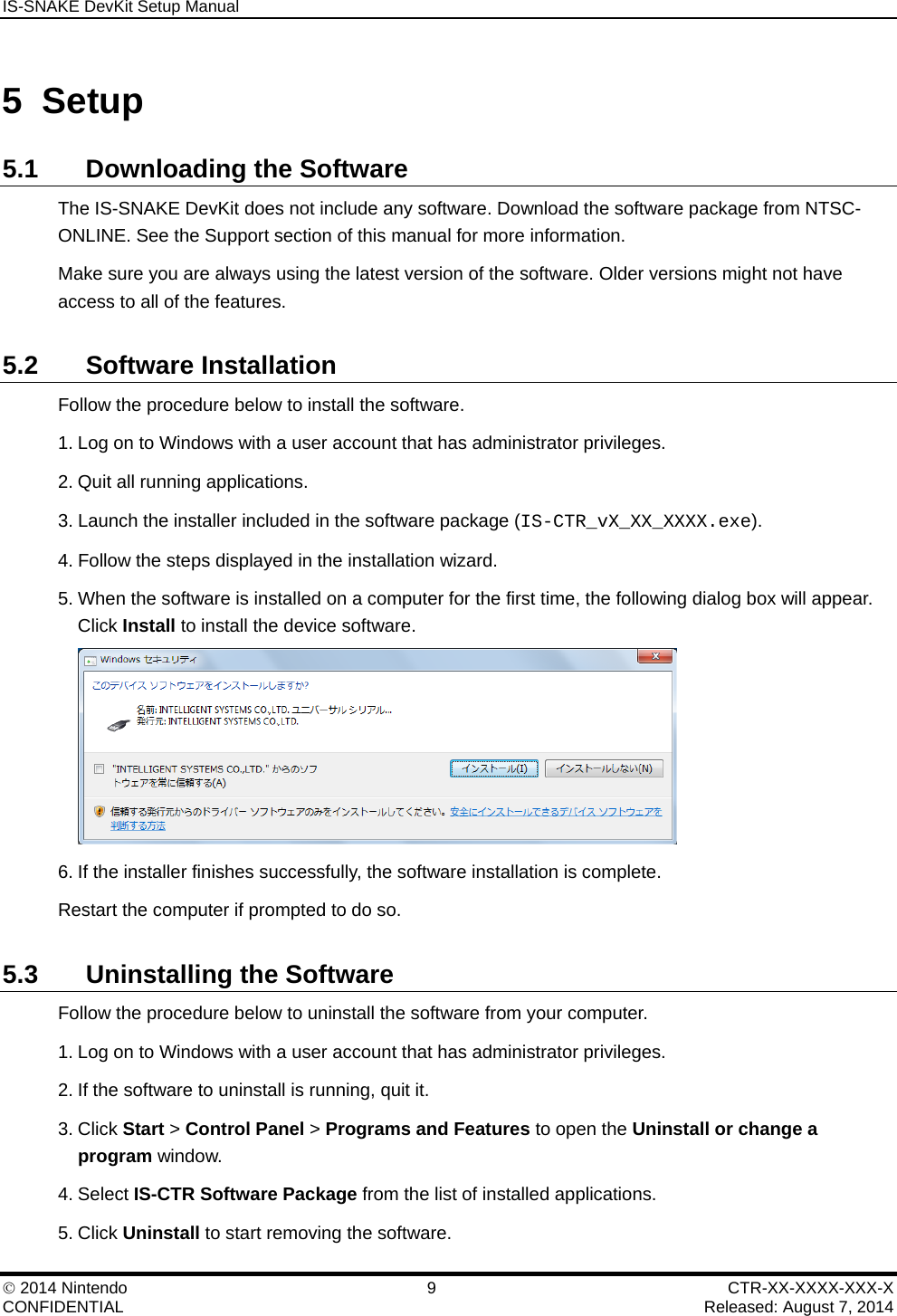
IS-SNAKE DevKit Setup Manual    2014 Nintendo  9  CTR-XX-XXXX-XXX-X CONFIDENTIAL    Released: August 7, 2014 5 Setup 5.1 Downloading the Software The IS-SNAKE DevKit does not include any software. Download the software package from NTSC-ONLINE. See the Support section of this manual for more information. Make sure you are always using the latest version of the software. Older versions might not have access to all of the features. 5.2 Software Installation Follow the procedure below to install the software. 1. Log on to Windows with a user account that has administrator privileges. 2. Quit all running applications. 3. Launch the installer included in the software package (IS-CTR_vX_XX_XXXX.exe). 4. Follow the steps displayed in the installation wizard. 5. When the software is installed on a computer for the first time, the following dialog box will appear. Click Install to install the device software.  6. If the installer finishes successfully, the software installation is complete. Restart the computer if prompted to do so. 5.3  Uninstalling the Software Follow the procedure below to uninstall the software from your computer. 1. Log on to Windows with a user account that has administrator privileges. 2. If the software to uninstall is running, quit it. 3. Click Start > Control Panel > Programs and Features to open the Uninstall or change a program window. 4. Select IS-CTR Software Package from the list of installed applications. 5. Click Uninstall to start removing the software.
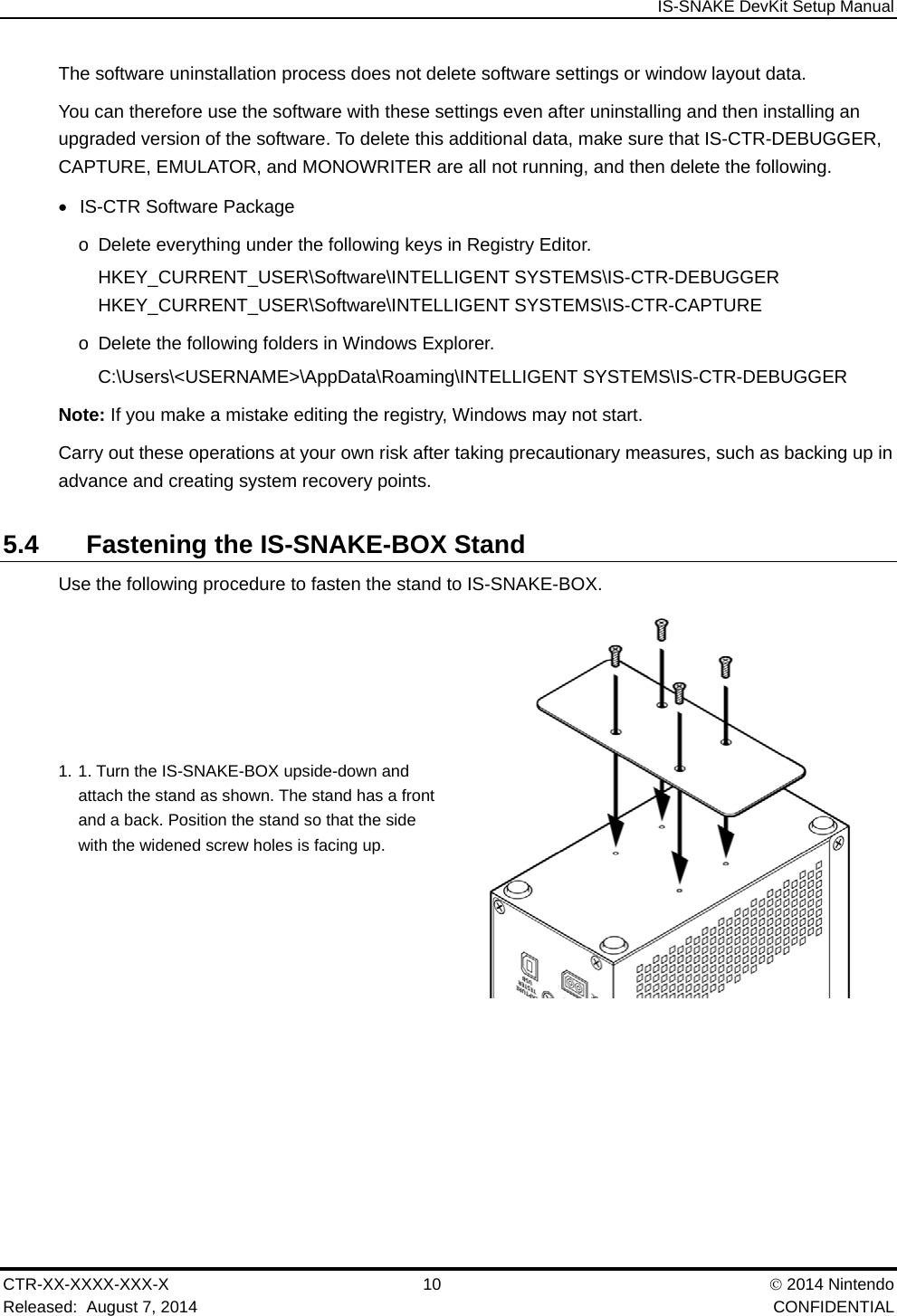
 IS-SNAKE DevKit Setup Manual CTR-XX-XXXX-XXX-X 10   2014 Nintendo Released:  August 7, 2014    CONFIDENTIAL The software uninstallation process does not delete software settings or window layout data. You can therefore use the software with these settings even after uninstalling and then installing an upgraded version of the software. To delete this additional data, make sure that IS-CTR-DEBUGGER, CAPTURE, EMULATOR, and MONOWRITER are all not running, and then delete the following.    IS-CTR Software Package o  Delete everything under the following keys in Registry Editor. HKEY_CURRENT_USER\Software\INTELLIGENT SYSTEMS\IS-CTR-DEBUGGER HKEY_CURRENT_USER\Software\INTELLIGENT SYSTEMS\IS-CTR-CAPTURE o  Delete the following folders in Windows Explorer. C:\Users\<USERNAME>\AppData\Roaming\INTELLIGENT SYSTEMS\IS-CTR-DEBUGGER Note: If you make a mistake editing the registry, Windows may not start. Carry out these operations at your own risk after taking precautionary measures, such as backing up in advance and creating system recovery points. 5.4  Fastening the IS-SNAKE-BOX Stand Use the following procedure to fasten the stand to IS-SNAKE-BOX. 1. 1. Turn the IS-SNAKE-BOX upside-down and attach the stand as shown. The stand has a front and a back. Position the stand so that the side with the widened screw holes is facing up.
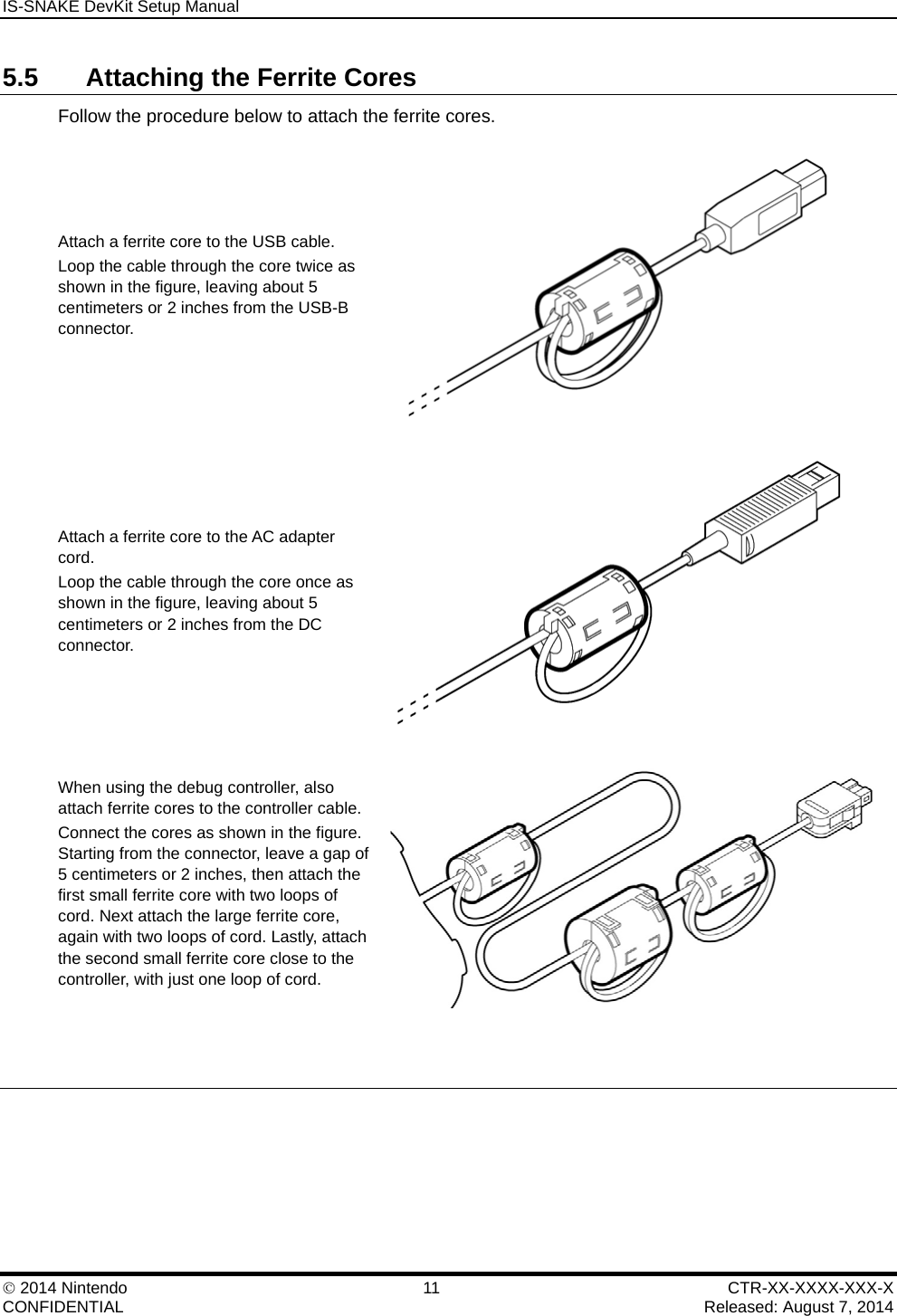
IS-SNAKE DevKit Setup Manual    2014 Nintendo  11  CTR-XX-XXXX-XXX-X CONFIDENTIAL    Released: August 7, 2014 5.5  Attaching the Ferrite Cores Follow the procedure below to attach the ferrite cores. Attach a ferrite core to the USB cable. Loop the cable through the core twice as shown in the figure, leaving about 5 centimeters or 2 inches from the USB-B connector.  Attach a ferrite core to the AC adapter cord. Loop the cable through the core once as shown in the figure, leaving about 5 centimeters or 2 inches from the DC connector.  When using the debug controller, also attach ferrite cores to the controller cable. Connect the cores as shown in the figure. Starting from the connector, leave a gap of 5 centimeters or 2 inches, then attach the first small ferrite core with two loops of cord. Next attach the large ferrite core, again with two loops of cord. Lastly, attach the second small ferrite core close to the controller, with just one loop of cord.
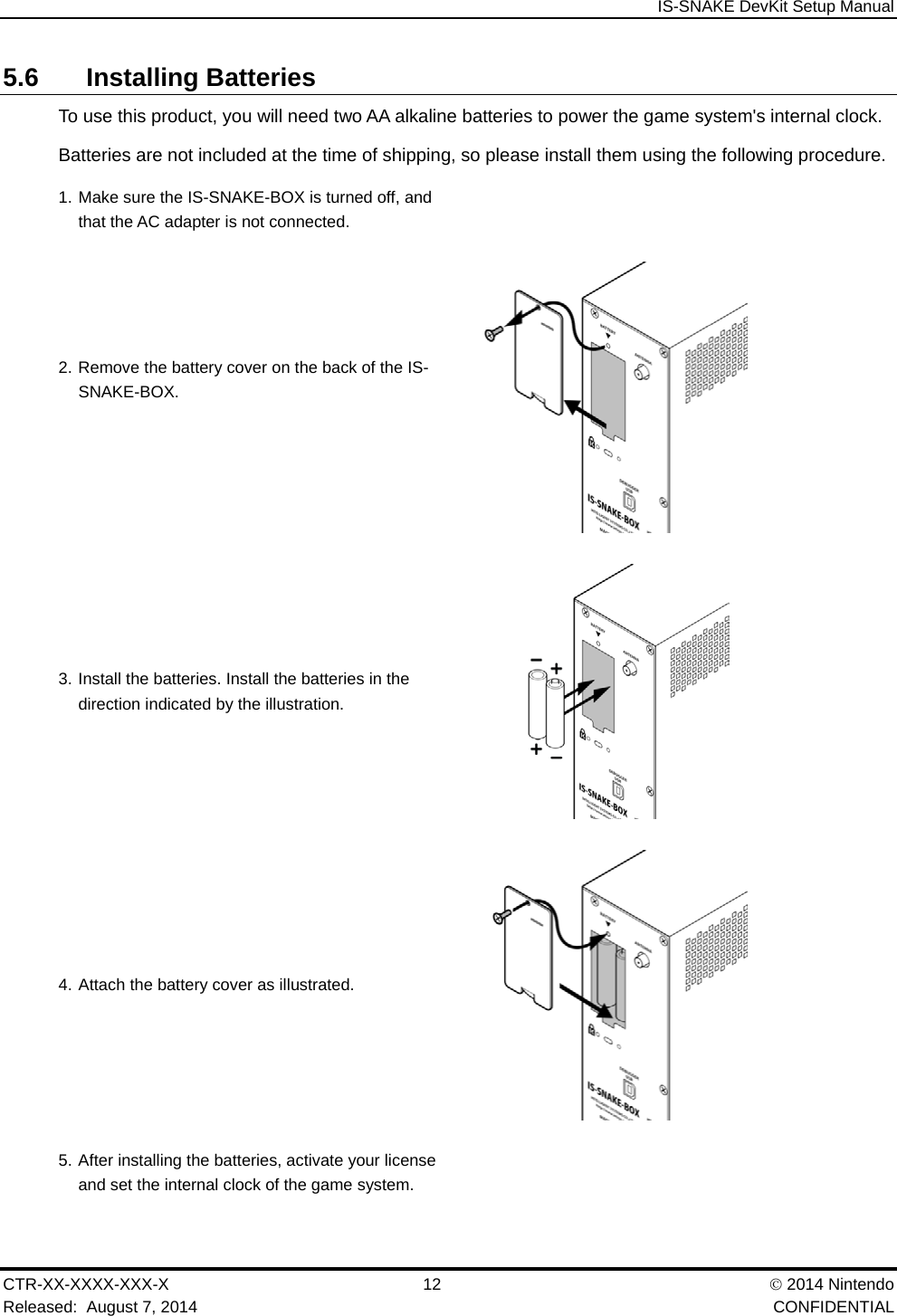
 IS-SNAKE DevKit Setup Manual CTR-XX-XXXX-XXX-X 12   2014 Nintendo Released:  August 7, 2014    CONFIDENTIAL 5.6 Installing Batteries To use this product, you will need two AA alkaline batteries to power the game system's internal clock. Batteries are not included at the time of shipping, so please install them using the following procedure. 1. Make sure the IS-SNAKE-BOX is turned off, and that the AC adapter is not connected.   2. Remove the battery cover on the back of the IS-SNAKE-BOX.   3. Install the batteries. Install the batteries in the direction indicated by the illustration.  4. Attach the battery cover as illustrated.  5. After installing the batteries, activate your license and set the internal clock of the game system.
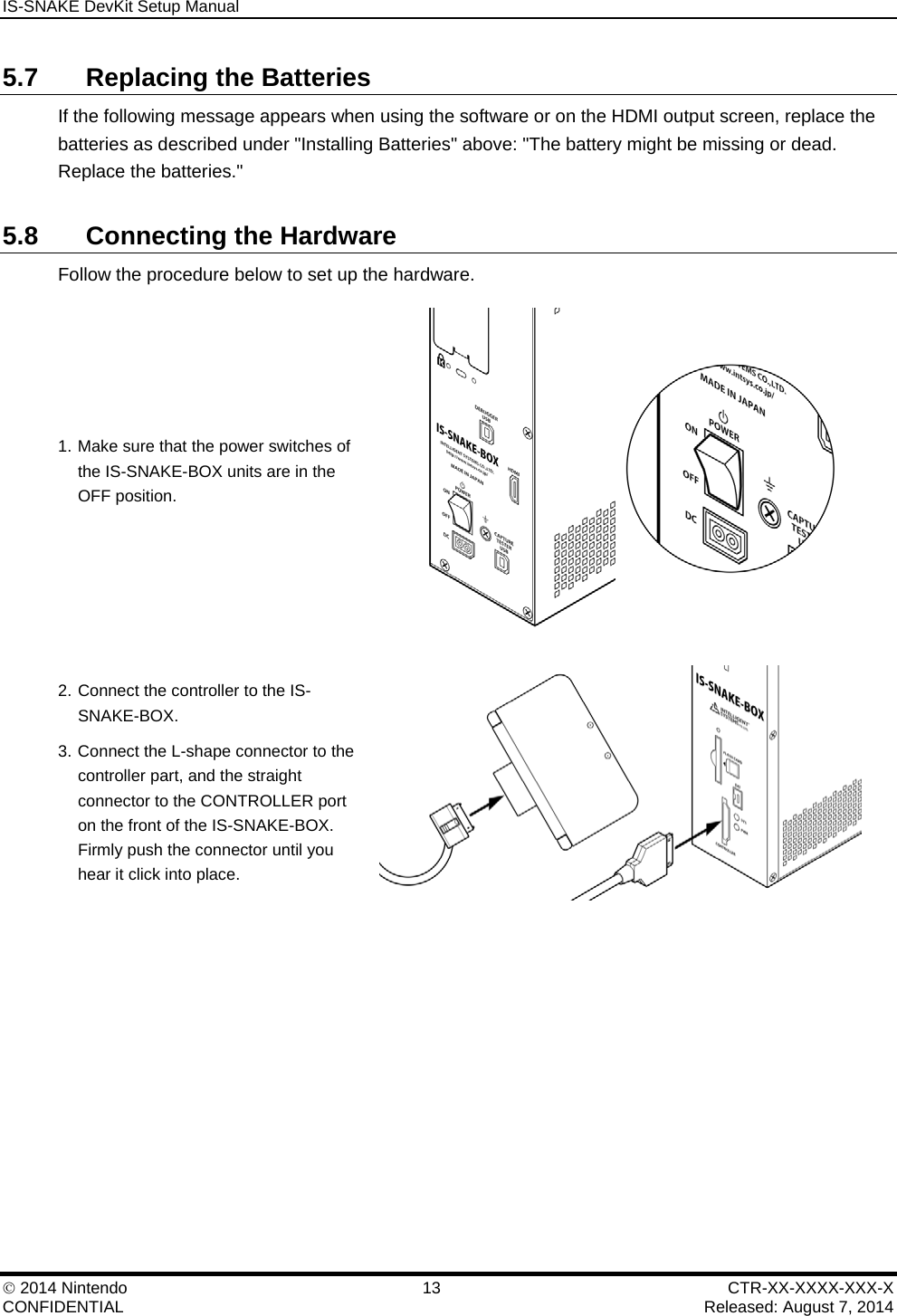
IS-SNAKE DevKit Setup Manual    2014 Nintendo  13  CTR-XX-XXXX-XXX-X CONFIDENTIAL    Released: August 7, 2014 5.7  Replacing the Batteries If the following message appears when using the software or on the HDMI output screen, replace the batteries as described under "Installing Batteries" above: "The battery might be missing or dead. Replace the batteries." 5.8  Connecting the Hardware Follow the procedure below to set up the hardware. 1. Make sure that the power switches of the IS-SNAKE-BOX units are in the OFF position.  2. Connect the controller to the IS-SNAKE-BOX. 3. Connect the L-shape connector to the controller part, and the straight connector to the CONTROLLER port on the front of the IS-SNAKE-BOX. Firmly push the connector until you hear it click into place.
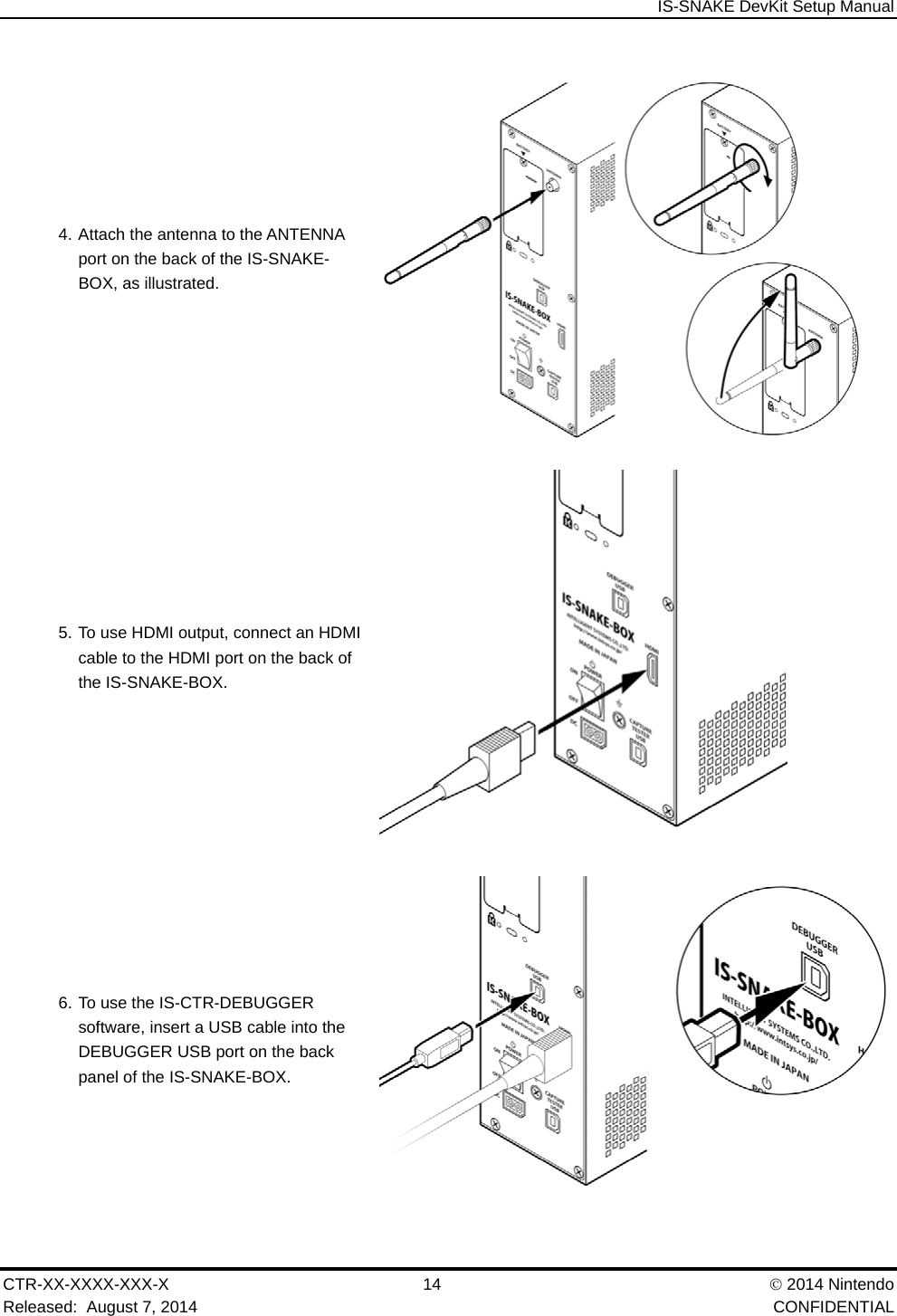
 IS-SNAKE DevKit Setup Manual CTR-XX-XXXX-XXX-X 14   2014 Nintendo Released:  August 7, 2014    CONFIDENTIAL 4. Attach the antenna to the ANTENNA port on the back of the IS-SNAKE-BOX, as illustrated.  5. To use HDMI output, connect an HDMI cable to the HDMI port on the back of the IS-SNAKE-BOX.  6. To use the IS-CTR-DEBUGGER software, insert a USB cable into the DEBUGGER USB port on the back panel of the IS-SNAKE-BOX.
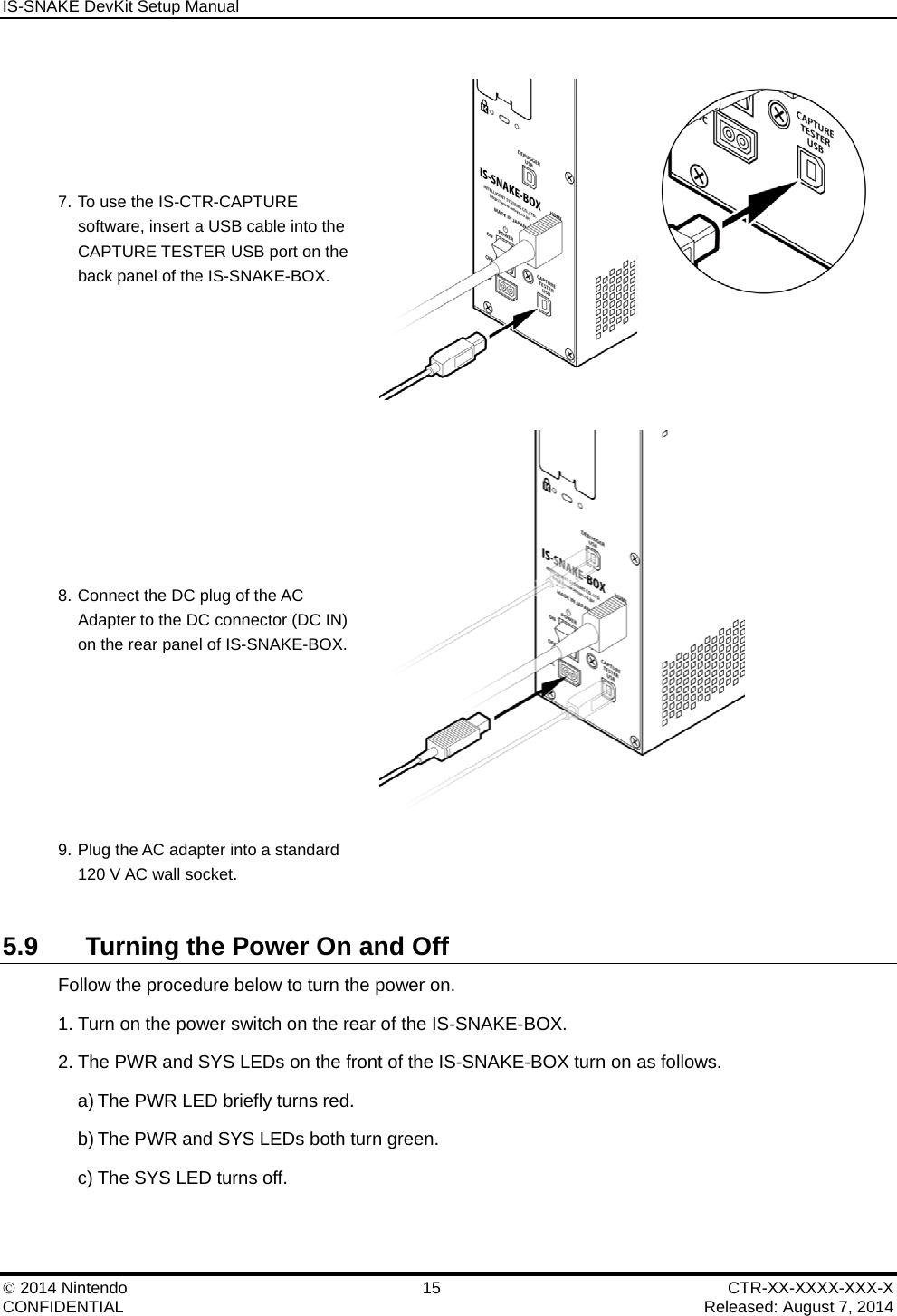
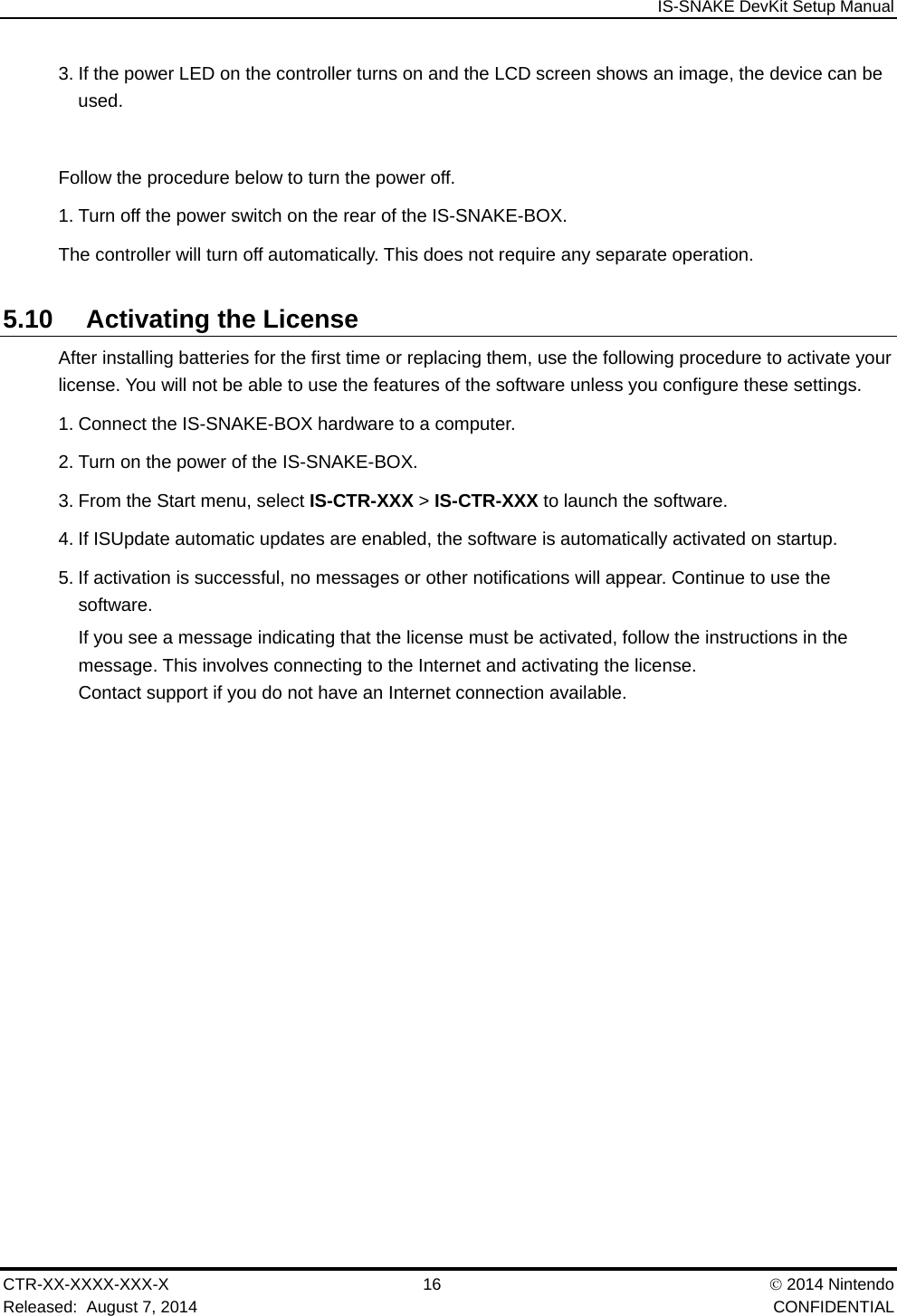
IS-SNAKE DevKit Setup Manual    2014 Nintendo  15  CTR-XX-XXXX-XXX-X CONFIDENTIAL    Released: August 7, 2014 7. To use the IS-CTR-CAPTURE software, insert a USB cable into the CAPTURE TESTER USB port on the back panel of the IS-SNAKE-BOX.  8. Connect the DC plug of the AC Adapter to the DC connector (DC IN) on the rear panel of IS-SNAKE-BOX.  9. Plug the AC adapter into a standard 120 V AC wall socket.   5.9  Turning the Power On and Off Follow the procedure below to turn the power on. 1. Turn on the power switch on the rear of the IS-SNAKE-BOX. 2. The PWR and SYS LEDs on the front of the IS-SNAKE-BOX turn on as follows. a) The PWR LED briefly turns red. b) The PWR and SYS LEDs both turn green. c) The SYS LED turns off.
 IS-SNAKE DevKit Setup Manual CTR-XX-XXXX-XXX-X 16   2014 Nintendo Released:  August 7, 2014    CONFIDENTIAL 3. If the power LED on the controller turns on and the LCD screen shows an image, the device can be used.  Follow the procedure below to turn the power off. 1. Turn off the power switch on the rear of the IS-SNAKE-BOX. The controller will turn off automatically. This does not require any separate operation. 5.10 Activating the License After installing batteries for the first time or replacing them, use the following procedure to activate your license. You will not be able to use the features of the software unless you configure these settings. 1. Connect the IS-SNAKE-BOX hardware to a computer. 2. Turn on the power of the IS-SNAKE-BOX. 3. From the Start menu, select IS-CTR-XXX > IS-CTR-XXX to launch the software. 4. If ISUpdate automatic updates are enabled, the software is automatically activated on startup. 5. If activation is successful, no messages or other notifications will appear. Continue to use the software. If you see a message indicating that the license must be activated, follow the instructions in the message. This involves connecting to the Internet and activating the license. Contact support if you do not have an Internet connection available.
IS-SNAKE DevKit Setup Manual    2014 Nintendo  17  CTR-XX-XXXX-XXX-X CONFIDENTIAL    Released: August 7, 2014 6 Support 6.1 Website For information on IS-SNAKE DevKit and the latest version of IS-CTR SoftwarePackage, visit the following website. http://www.warioworld.com/     6.2 Email Support Direct inquiries on IS-SNAKE DevKit to the following. INTELLIGENT SYSTEMS CO.,LTD. 10 Daimotsu-cho Kamitoba Minami-ku Kyoto-shi Kyoto-fu 601-8121 JAPAN TEL: +81-75-671-3100 FAX: +81-75-671-3105 E-mail:  CTR_Support@intsys.co.jp
 IS-SNAKE DevKit Setup Manual CTR-XX-XXXX-XXX-X 18   2014 Nintendo Released:  August 7, 2014    CONFIDENTIAL 7  FCC and Industry Canada Information In order to comply with FCC radio-frequency radiation exposure guidelines for an uncontrolled exposure, this device and its antenna must not be co-located or operating in conjunction with any other antenna or transmitter. This device complies with Part 15 of the FCC Rules and RSS-210 of Industry Canada. Operation is subject to the following two conditions: (1) This device may not cause harmful interference, and (2) this device must accept interference received, including interference that may cause undesired operation. Changes or modifications not expressly approved by the manufacturer could void the user’s authority to operate this device.  This equipment has been tested and found to comply with the limits for a Class A digital device, pursuant to part 15 of the FCC Rules. These limits are designed to provide reasonable protection against harmful interference when the equipment is operated in a commercial environment. This equipment generates, uses, and can radiate radio frequency energy and, if not installed and used in accordance with the instruction manual, may cause harmful interference to radio communications. Operation of this equipment in a residential area is likely to cause harmful interference in which case the user will be required to correct the interference at his own expense. If this equipment does cause harmful interference to radio or television reception, which can be determined by turning the equipment off and on, the user is encouraged to try to correct the interference by one or more of the following measures:    Reorient or relocate the receiving antenna.   Increase the separation between the equipment and receiver.   Connect the equipment into an outlet on a circuit different from that to which the receiver is connected.  Under Industry Canada regulations, this radio transmitter may only operate using an antenna of a type and maximum (or lesser) gain approved for the transmitter by Industry Canada. To reduce potential radio interference to other users, the antenna type and its gain should be so chosen that the equivalent isotropically radiated power (e.i.r.p.) is not more than that necessary for successful communication.  Conformément à la réglementation d'Industrie Canada, le présent émetteur radio peut fonctionner avec une antenne d'un type et d'un gain maximal (ou inférieur) approuvé pour l'émetteur par Industrie Canada. Dans le but de réduire les risques de brouillage radioélectrique à l'intention des autres utilisateurs, il faut choisir le type d'antenne et son gain de sorte que la puissance isotrope rayonnée équivalente (p.i.r.e.) ne dépasse pas l'intensité nécessaire à l'établissement d'une communication satisfaisante.
IS-SNAKE DevKit Setup Manual    2014 Nintendo  19  CTR-XX-XXXX-XXX-X CONFIDENTIAL    Released: August 7, 2014 This radio transmitter IC: 5567A-FULLW001 has been approved by Industry Canada to operate with the antenna types listed below with the maximum permissible gain and required antenna impedance for each antenna type indicated. Antenna types not included in this list, having a gain greater than the maximum gain indicated for that type, are strictly prohibited for use with this device. Antenna type: 1/2 lambda type Gain: 2.14 dBi  Impedance: 50 ohms  Le présent émetteur radio IC: 5567A-FULLW001 a été approuvé par Industrie Canada pour fonctionner avec les types d'antenne énumérés ci-dessous et ayant un gain admissible maximal et l'impédance requise pour chaque type d'antenne. Les types d'antenne non inclus dans cette liste, ou dont le gain est supérieur au gain maximal indiqué, sont strictement interdits pour l'exploitation de l'émetteur. Type d'antenne: Type 1/2 lambda  Gain: 2.14 dBi  Impédance: 50 ohms  This device complies with Industry Canada licence-exempt RSS standard(s). Operation is subject to the following two conditions: 1. this device may not cause interference, and 2. this device must accept any interference, including interference that may cause undesired operation of the device.  Le présent appareil est conforme aux CNR d'Industrie Canada applicables aux appareils radio exempts de licence. L'exploitation est autorisée aux deux conditions suivantes: 1. l'appareil ne doit pas produire de brouillage, et 2. l'utilisateur de l'appareil doit accepter tout brouillage radioélectrique subi, même si le brouillage est susceptible d'en compromettre le fonctionnement.
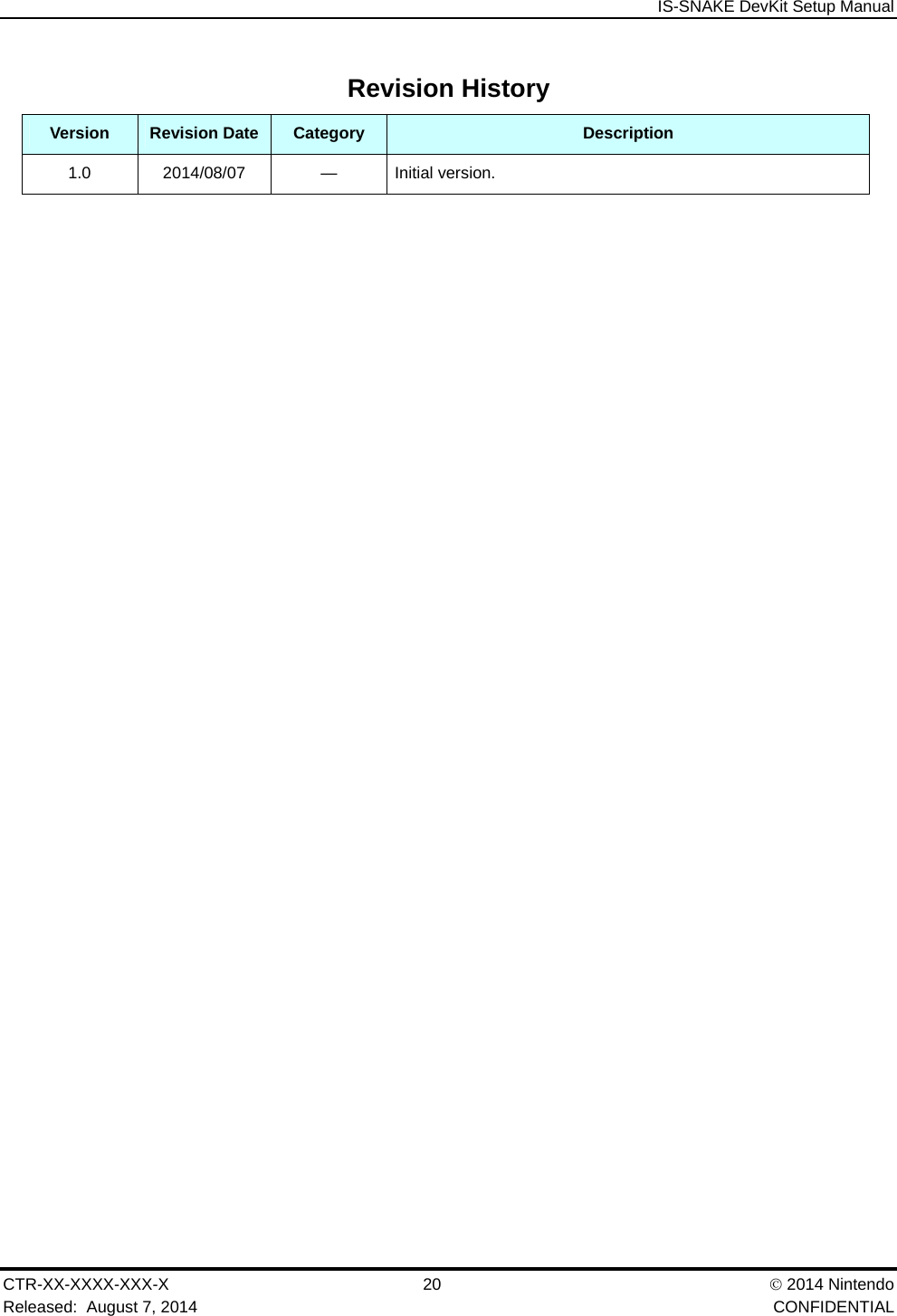
 IS-SNAKE DevKit Setup Manual CTR-XX-XXXX-XXX-X 20   2014 Nintendo Released:  August 7, 2014    CONFIDENTIAL Revision History Version  Revision Date  Category  Description 1.0 2014/08/07  — Initial version.
IS-SNAKE DevKit Setup Manual    2014 Nintendo  21  CTR-XX-XXXX-XXX-X CONFIDENTIAL    Released: August 7, 2014 All company and product names in this document are the trademarks or registered trademarks of their respective companies.  © 2014 Nintendo  The contents of this document cannot be duplicated, copied, reprinted, transferred, distributed, or loaned, in whole or in part, without the prior approval of Nintendo.

Navigation menu