IZZO GOLF SPORT SWAMI SPORT User Manual SwamiSport QuickGuide Final FCC

IZZO Golf SWAMI SPORT SwamiSport QuickGuide Final FCC

User manual

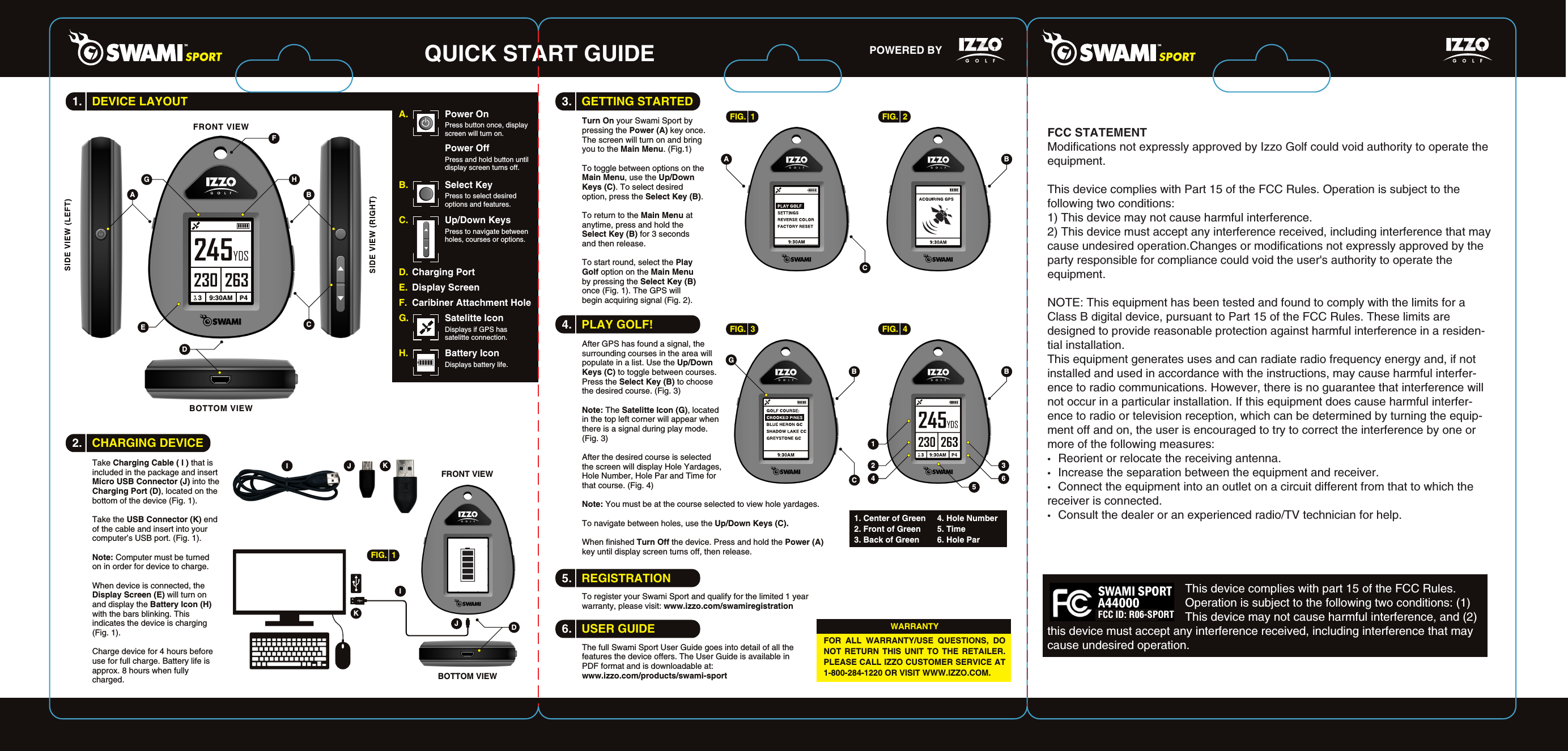
QUICK START GUIDE POWERED BY 3.   GETTING STARTED4.   PLAY GOLF!5.   REGISTRATION6.   USER GUIDETake Charging Cable ( I ) that is included in the package and insert Micro USB Connector (J) into the Charging Port (D), located on the bottom of the device (Fig. 1).Take the USB Connector (K) end of the cable and insert into your computer’s USB port. (Fig. 1).Note: Computer must be turned on in order for device to charge.When device is connected, the Display Screen (E) will turn on and display the Battery Icon (H) with the bars blinking. This indicates the device is charging (Fig. 1). Charge device for 4 hours before use for full charge. Battery life is approx. 8 hours when fully charged.DEFBCABOTTOM VIEWFRONT VIEWA.  Power OnPress button once, display screen will turn on.Power OffPress and hold button until display screen turns off.B.  Select KeyPress to select desired options and features.G.  Satelitte IconDisplays if GPS has satelitte connection.H.  Battery IconDisplays battery life.C.  Up/Down KeysPress to navigate between holes, courses or options.D.  Charging PortE.  Display ScreenF.  Caribiner Attachment HoleHGDBOTTOM VIEWFRONT VIEWJIFIG.  1KJKITurn On your Swami Sport by pressing the Power (A) key once. The screen will turn on and bring you to the Main Menu. (Fig.1) To toggle between options on the Main Menu, use the Up/Down Keys (C). To select desired option, press the Select Key (B). To return to the Main Menu at anytime, press and hold the Select Key (B) for 3 seconds and then release.To start round, select the Play Golf option on the Main Menu by pressing the Select Key (B) once (Fig. 1). The GPS will begin acquiring signal (Fig. 2).FIG.  1 FIG.  2BCA245YDS230 2633    9:30AM   P4FIG.  3 FIG.  4BCBAfter GPS has found a signal, the surrounding courses in the area will populate in a list. Use the Up/Down Keys (C) to toggle between courses. Press the Select Key (B) to choose the desired course. (Fig. 3)Note: The Satelitte Icon (G), located in the top left corner will appear when there is a signal during play mode. (Fig. 3) After the desired course is selected the screen will display Hole Yardages, Hole Number, Hole Par and Time for that course. (Fig. 4)Note: You must be at the course selected to view hole yardages.To navigate between holes, use the Up/Down Keys (C).When finished Turn Off the device. Press and hold the Power (A) key until display screen turns off, then release.To register your Swami Sport and qualify for the limited 1 year warranty, please visit: www.izzo.com/swamiregistrationThe full Swami Sport User Guide goes into detail of all the features the device offers. The User Guide is available in PDF format and is downloadable at: www.izzo.com/products/swami-sportG2 34 6511. Center of Green2. Front of Green3. Back of Green4. Hole Number5. Time6. Hole Par  FOR ALL WARRANTY/USE QUESTIONS, DO NOT RETURN THIS UNIT TO THE RETAILER. PLEASE CALL IZZO CUSTOMER SERVICE AT 1-800-284-1220 OR VISIT WWW.IZZO.COM.WARRANTY2.   CHARGING DEVICE1.   DEVICE LAYOUTFCC STATEMENTModifications not expressly approved by Izzo Golf could void authority to operate the equipment.This device complies with Part 15 of the FCC Rules. Operation is subject to the following two conditions:1) This device may not cause harmful interference.2) This device must accept any interference received, including interference that may cause undesired operation.Changes or modifications not expressly approved by the party responsible for compliance could void the user's authority to operate the equipment.NOTE: This equipment has been tested and found to comply with the limits for a Class B digital device, pursuant to Part 15 of the FCC Rules. These limits are designed to provide reasonable protection against harmful interference in a residen-tial installation.This equipment generates uses and can radiate radio frequency energy and, if not installed and used in accordance with the instructions, may cause harmful interfer-ence to radio communications. However, there is no guarantee that interference will not occur in a particular installation. If this equipment does cause harmful interfer-ence to radio or television reception, which can be determined by turning the equip-ment off and on, the user is encouraged to try to correct the interference by one or more of the following measures:•   Reorient or relocate the receiving antenna.•   Increase the separation between the equipment and receiver.•   Connect the equipment into an outlet on a circuit different from that to which the receiver is connected.•   Consult the dealer or an experienced radio/TV technician for help.                                          This device complies with part 15 of the FCC Rules.                                           Operation is subject to the following two conditions: (1)                                           This device may not cause harmful interference, and (2) this device must accept any interference received, including interference that may cause undesired operation. FCC ID: R06-SPORT

Navigation menu