IceRobotics COWALERT CowAlert System User Manual CowAlert User Guide FCCx

IceRobotics Limited CowAlert System CowAlert User Guide FCCx

Contents

User Manual 2

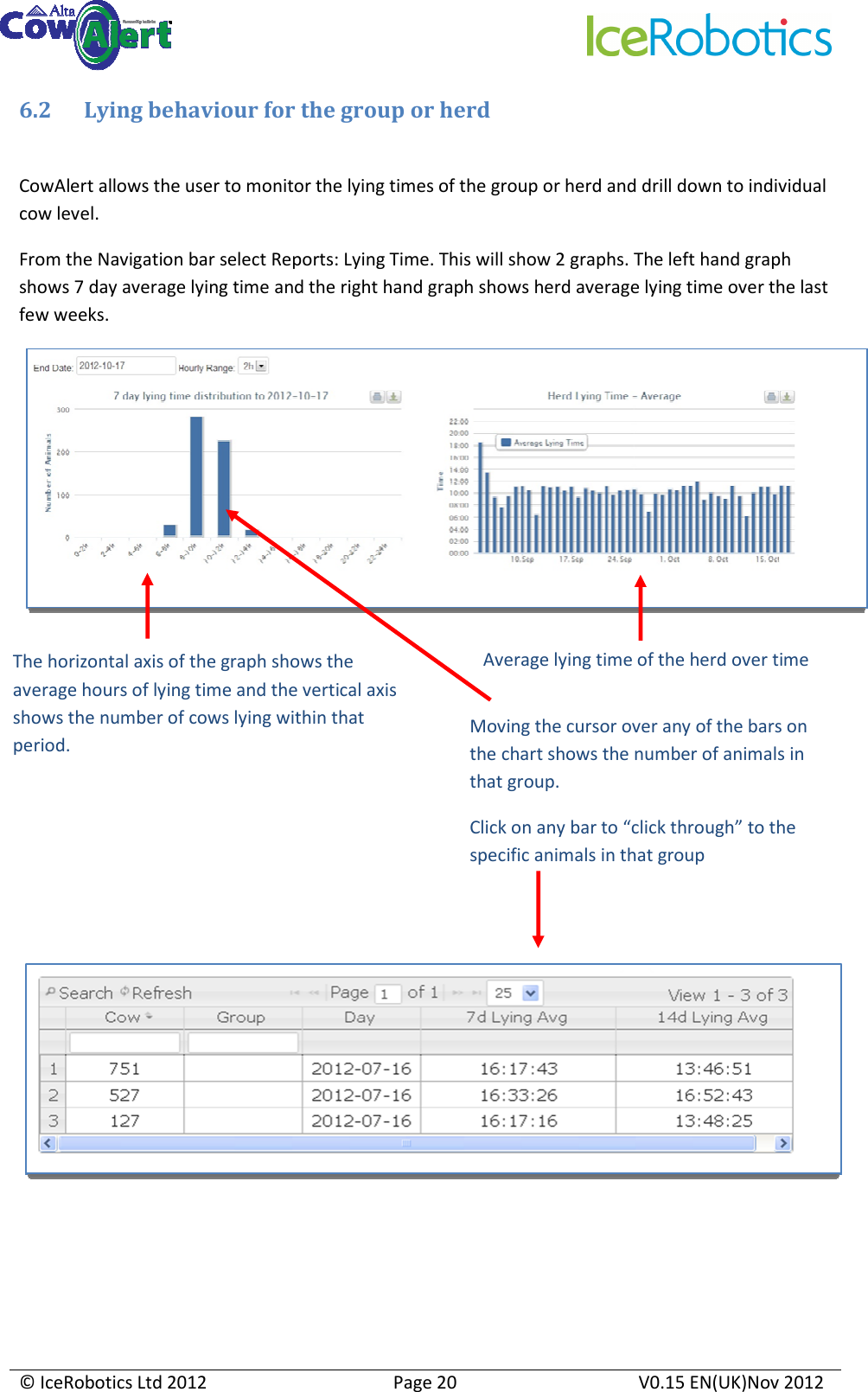
    © IceRobotics Ltd 2012  Page 20  V0.15 EN(UK)Nov 2012  6.2 Lying behaviour for the group or herd  CowAlert allows the user to monitor the lying times of the group or herd and drill down to individual cow level. From the Navigation bar select Reports: Lying Time. This will show 2 graphs. The left hand graph shows 7 day average lying time and the right hand graph shows herd average lying time over the last few weeks.             The horizontal axis of the graph shows the average hours of lying time and the vertical axis shows the number of cows lying within that period. Moving the cursor over any of the bars on the chart shows the number of animals in that group. Click on any bar to “click through” to the specific animals in that group Average lying time of the herd over time
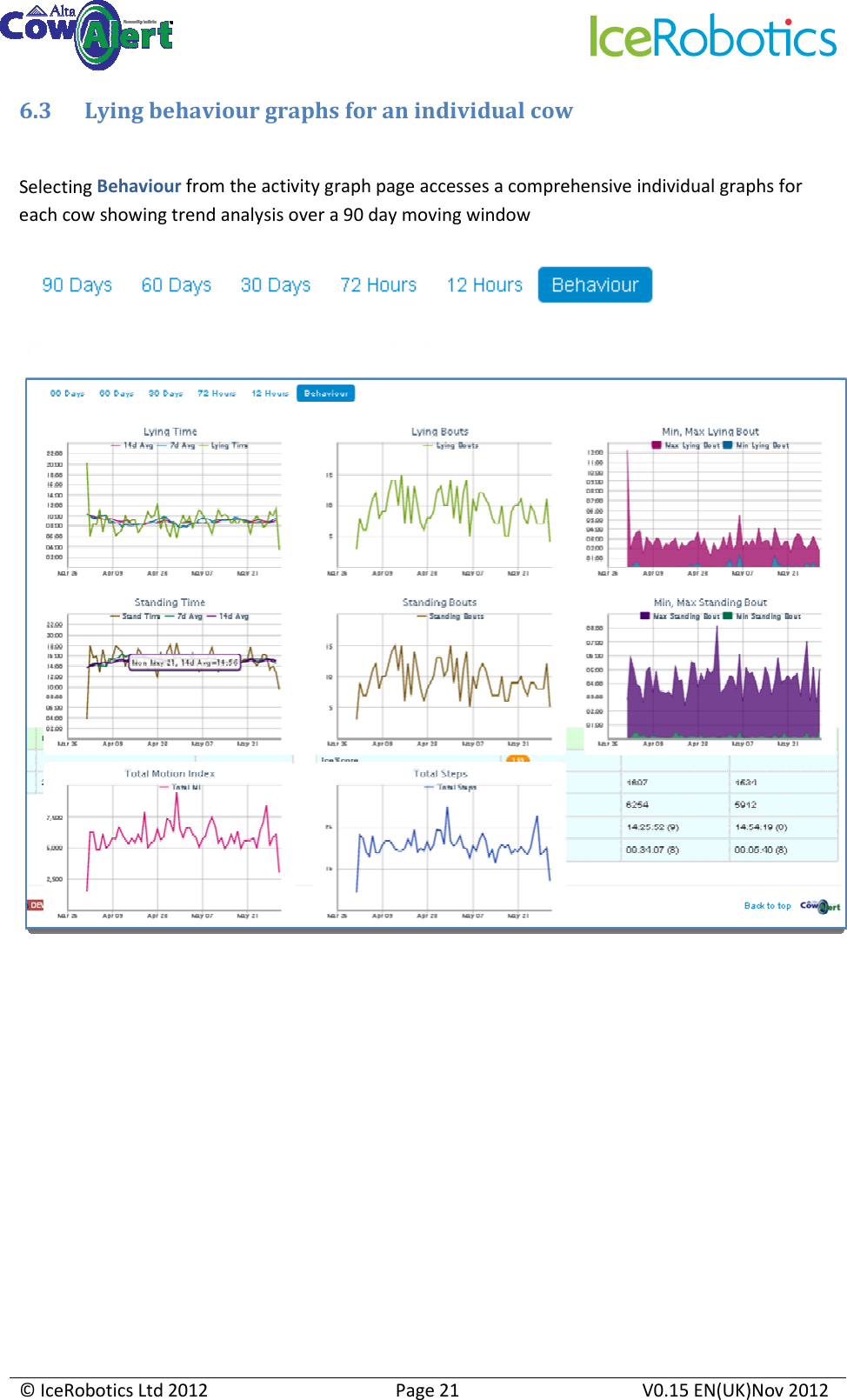
    © IceRobotics Ltd 2012  Page 21  V0.15 EN(UK)Nov 2012  6.3 Lying behaviour graphs for an individual cow  Selecting Behaviour from the activity graph page accesses a comprehensive individual graphs for each cow showing trend analysis over a 90 day moving window
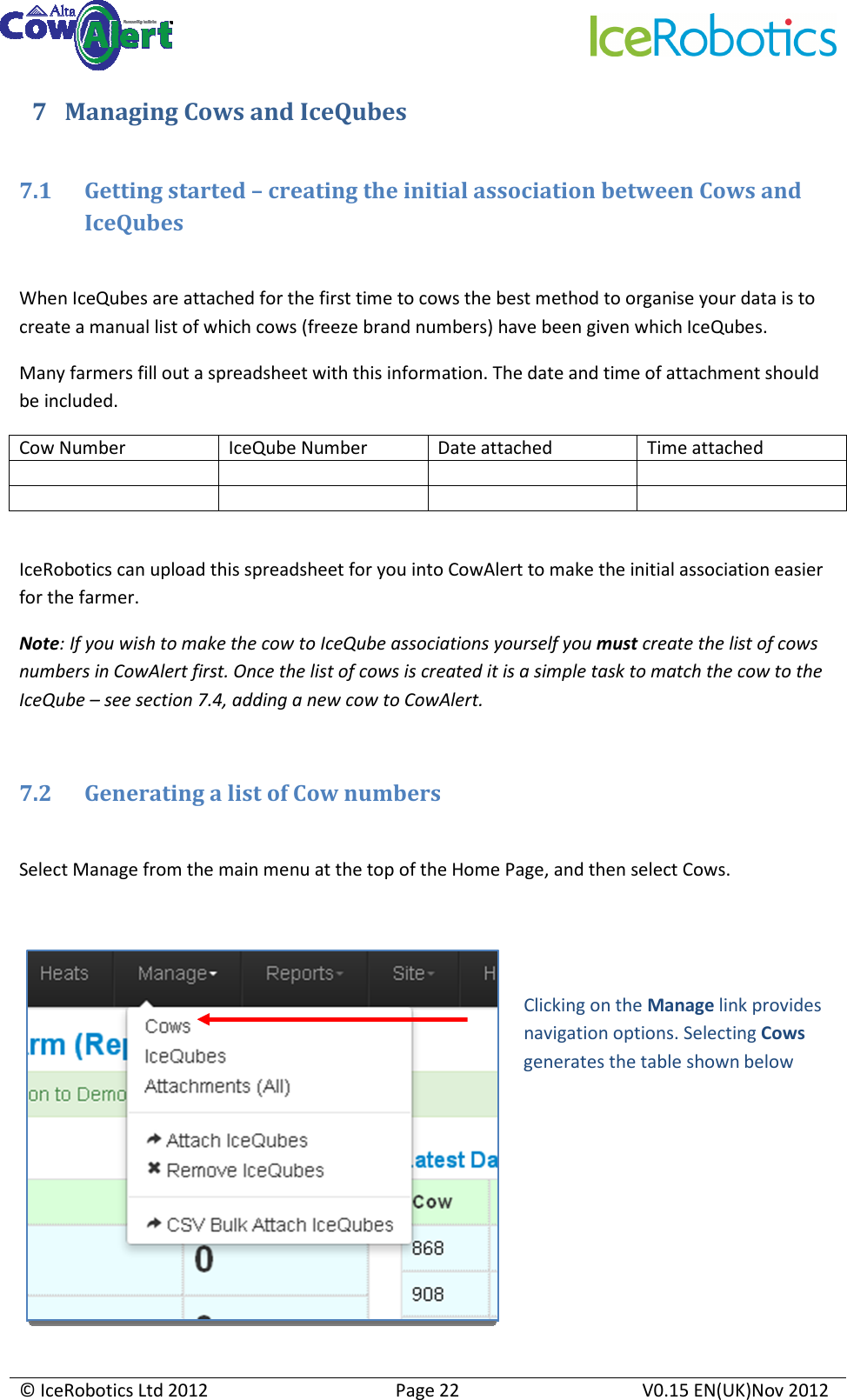
    © IceRobotics Ltd 2012  Page 22  V0.15 EN(UK)Nov 2012  7 Managing Cows and IceQubes  7.1 Getting started – creating the initial association between Cows and IceQubes  When IceQubes are attached for the first time to cows the best method to organise your data is to create a manual list of which cows (freeze brand numbers) have been given which IceQubes. Many farmers fill out a spreadsheet with this information. The date and time of attachment should be included. Cow Number  IceQube Number  Date attached  Time attached                IceRobotics can upload this spreadsheet for you into CowAlert to make the initial association easier for the farmer. Note: If you wish to make the cow to IceQube associations yourself you must create the list of cows numbers in CowAlert first. Once the list of cows is created it is a simple task to match the cow to the IceQube – see section 7.4, adding a new cow to CowAlert.  7.2 Generating a list of Cow numbers  Select Manage from the main menu at the top of the Home Page, and then select Cows.   Clicking on the Manage link provides navigation options. Selecting Cows generates the table shown below
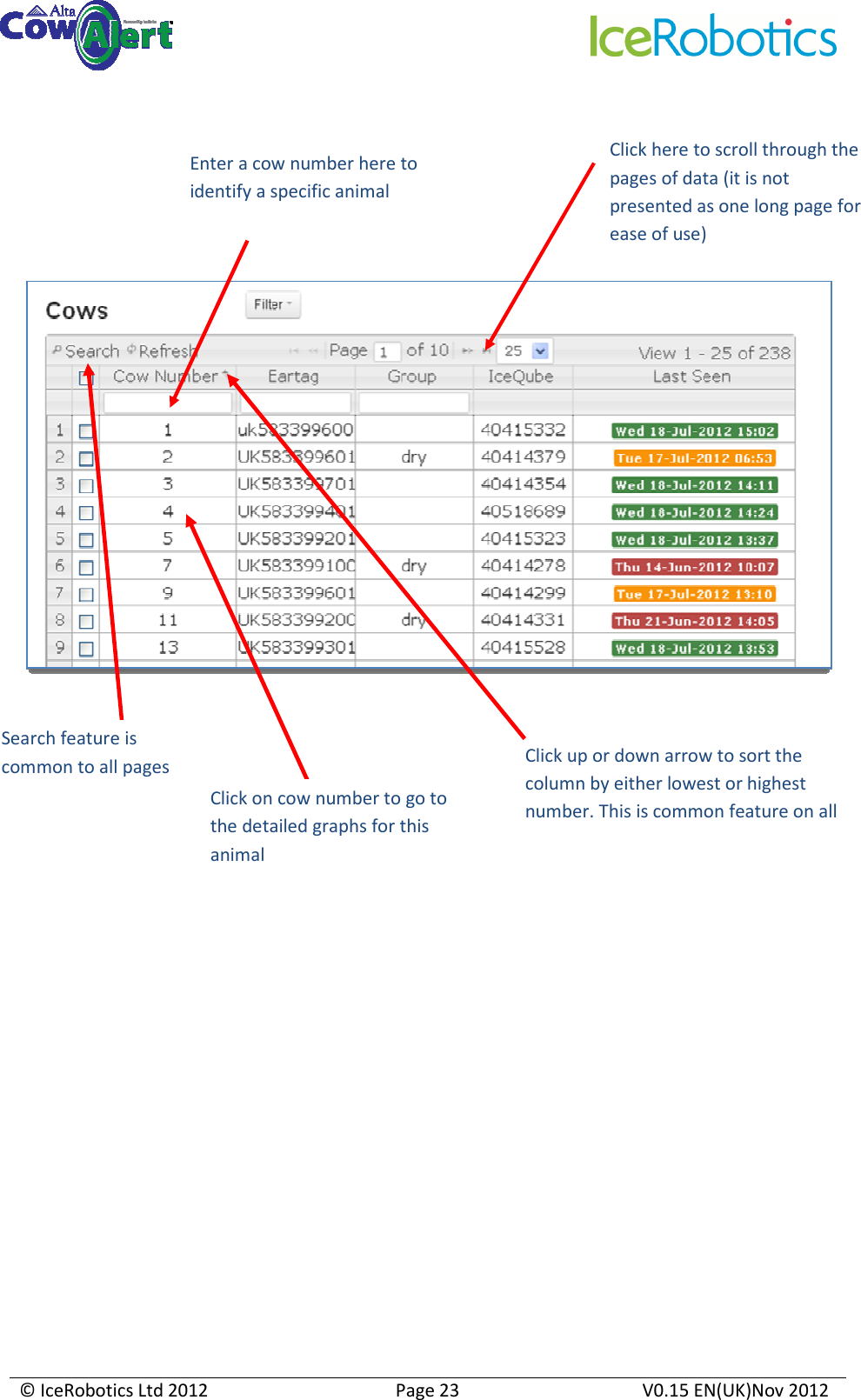
    © IceRobotics Ltd 2012  Page 23  V0.15 EN(UK)Nov 2012           Enter a cow number here to identify a specific animal Click up or down arrow to sort the column by either lowest or highest number. This is common feature on all pages Search feature is common to all pages Click on cow number to go to the detailed graphs for this animal Click here to scroll through the pages of data (it is not presented as one long page for ease of use)
    © IceRobotics Ltd 2012  Page 24  V0.15 EN(UK)Nov 2012   7.3 Generating a list of IceQubes  Select Manage from the main menu at the top of the HomePage, and then select IceQubes. This list shows all IceQubes on site and the associated Cow to which they are attached.  Various reports are accessible via the pull down menu.            Date and time the IceQube was last seen Click here to see list of unattached IceQubes  Click here to see list of IceQubes last seen (drop down menu provides options for the time period)
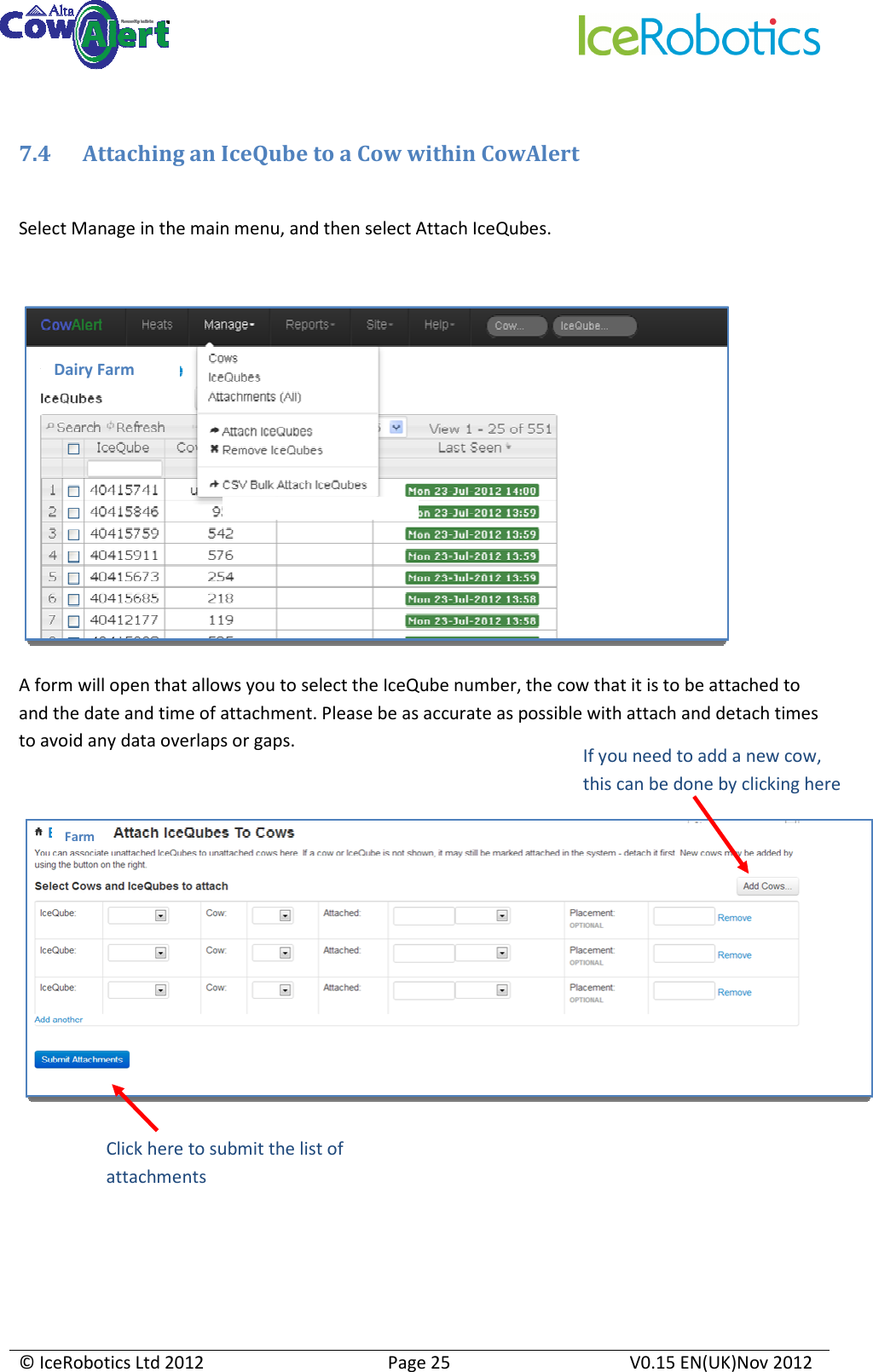
    © IceRobotics Ltd 2012  Page 25  V0.15 EN(UK)Nov 2012   7.4 Attaching an IceQube to a Cow within CowAlert   Select Manage in the main menu, and then select Attach IceQubes.   A form will open that allows you to select the IceQube number, the cow that it is to be attached to and the date and time of attachment. Please be as accurate as possible with attach and detach times to avoid any data overlaps or gaps.    Dairy Farm  Farm If you need to add a new cow, this can be done by clicking here  Click here to submit the list of attachments
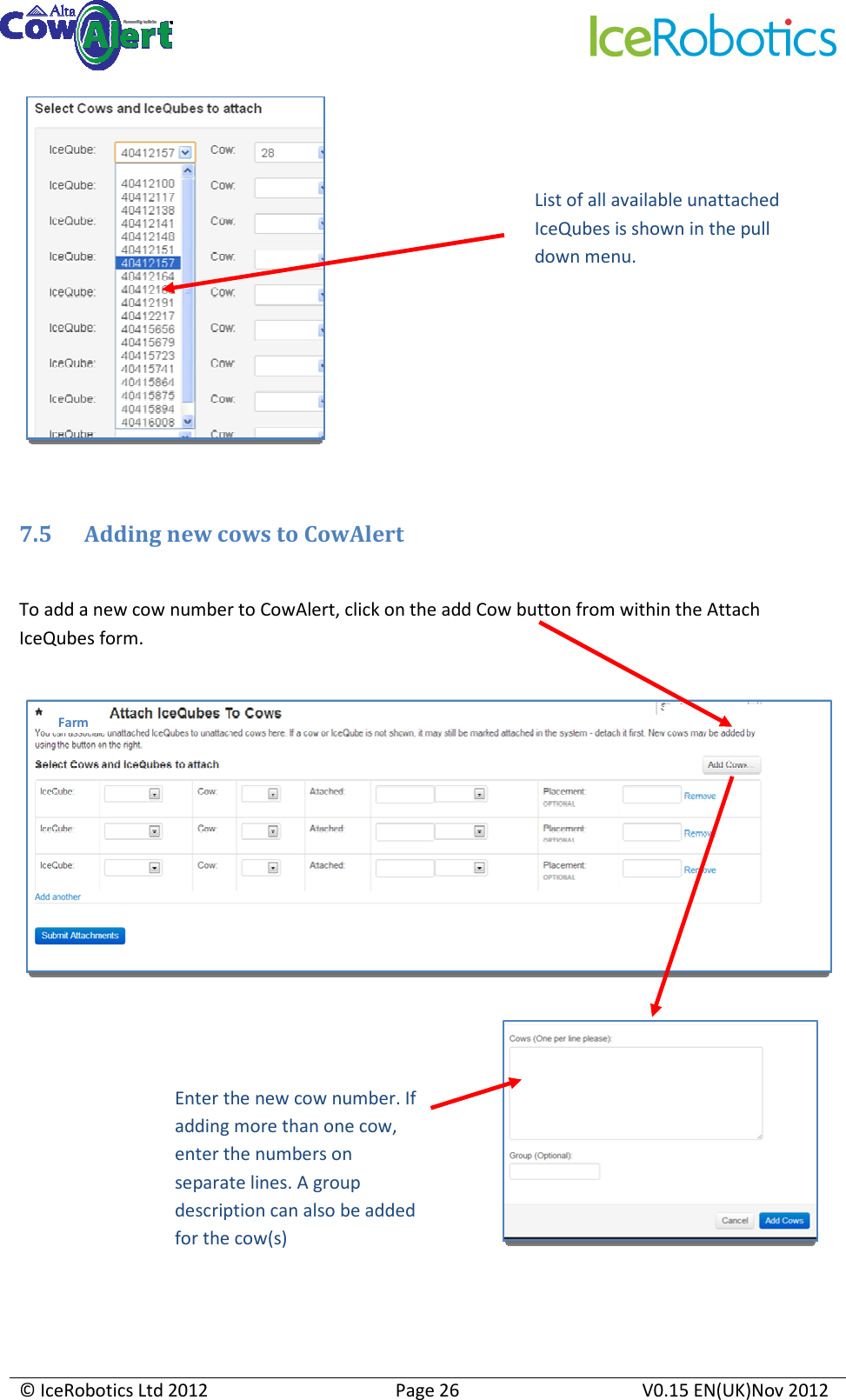
    © IceRobotics Ltd 2012  Page 26  V0.15 EN(UK)Nov 2012    7.5 Adding new cows to CowAlert  To add a new cow number to CowAlert, click on the add Cow button from within the Attach IceQubes form.           List of all available unattached IceQubes is shown in the pull down menu.  Farm Enter the new cow number. If adding more than one cow, enter the numbers on separate lines. A group description can also be added for the cow(s)
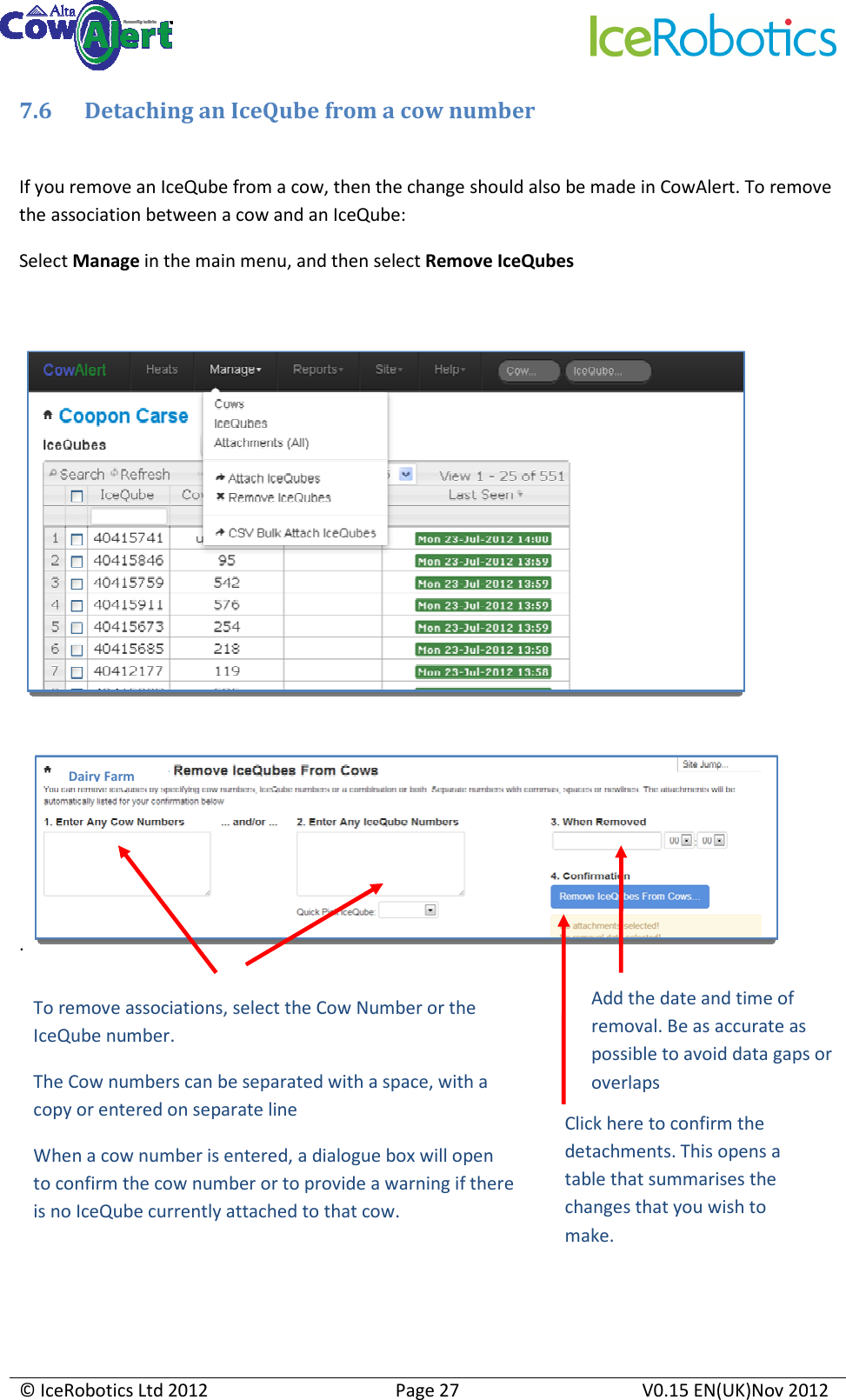
    © IceRobotics Ltd 2012  Page 27  V0.15 EN(UK)Nov 2012  7.6 Detaching an IceQube from a cow number  If you remove an IceQube from a cow, then the change should also be made in CowAlert. To remove the association between a cow and an IceQube: Select Manage in the main menu, and then select Remove IceQubes           .           To remove associations, select the Cow Number or the IceQube number. The Cow numbers can be separated with a space, with a copy or entered on separate line  When a cow number is entered, a dialogue box will open to confirm the cow number or to provide a warning if there is no IceQube currently attached to that cow. Add the date and time of removal. Be as accurate as possible to avoid data gaps or overlaps Dairy Farm Click here to confirm the detachments. This opens a table that summarises the changes that you wish to make.
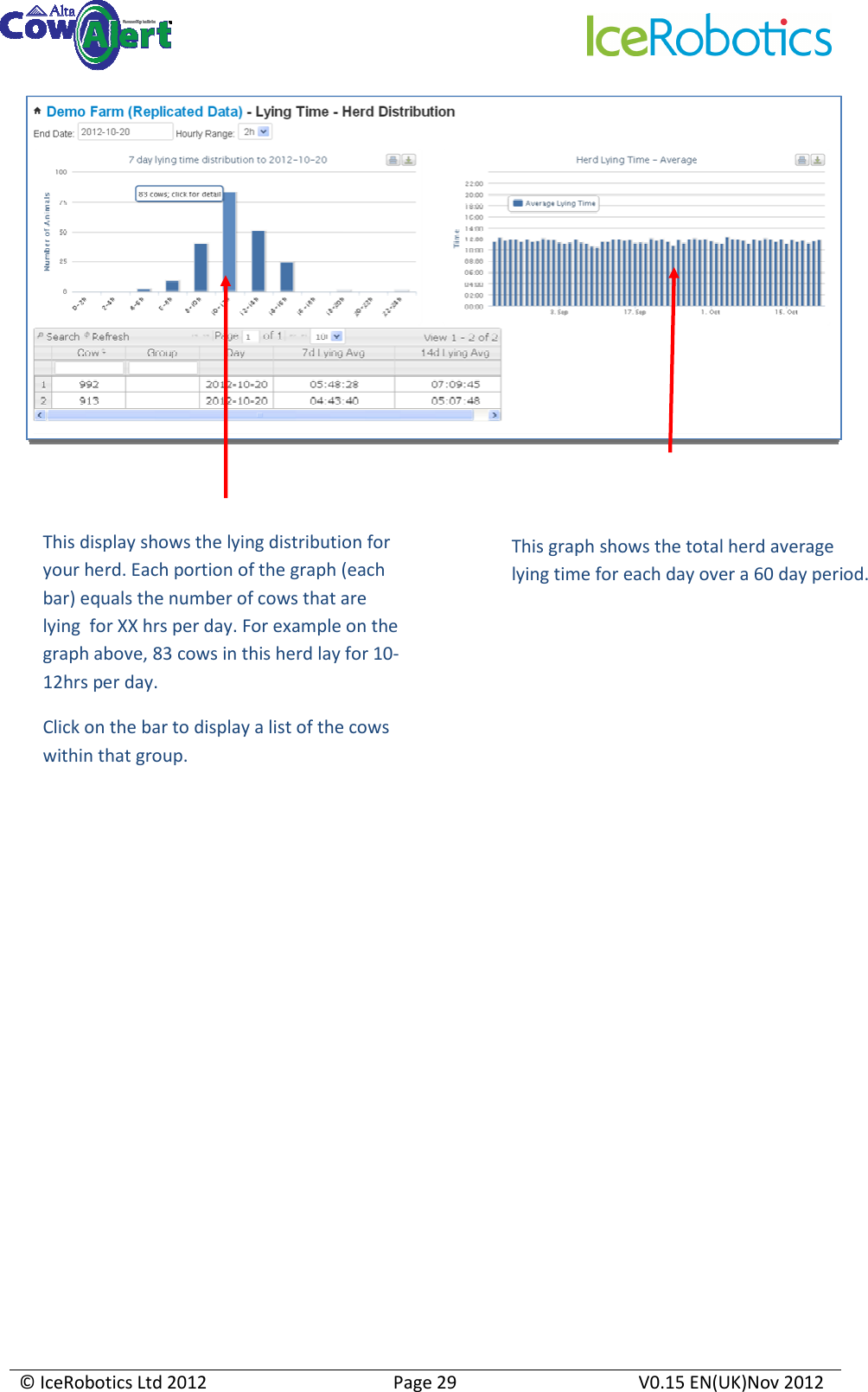
    © IceRobotics Ltd 2012  Page 28  V0.15 EN(UK)Nov 2012  7.7 Deleting a Cow and its record from CowAlert  It is possible to delete a Cow completely from CowAlert. Note that this will delete all the data associated with that cow. Once the Cow has been deleted, the data can not be recovered. This function should be used with caution. To delete a cow, select the cow from the cow list to open the activity and behaviour information for that cow. In the table to the left of the graph is a Delete option.       8 Reports  A variety of reports are available to farmers. These can be accessed from the Reports option on the main menu bar:- • Lying time (see also section 6) • IceScore and IceScore historic performance(see also section 4.4) • 60 Day IceQube Visibility 8.1 Lying Time  Selecting lying time will show the lying herd distribution, similar to the graph example below. Delete a cow by clicking here.  Note that this will permanently remove the animal from the cow list along with all its data. The data can not be recovered.
    © IceRobotics Ltd 2012  Page 29  V0.15 EN(UK)Nov 2012   This display shows the lying distribution for your herd. Each portion of the graph (each bar) equals the number of cows that are lying  for XX hrs per day. For example on the graph above, 83 cows in this herd lay for 10-12hrs per day. Click on the bar to display a list of the cows within that group. This graph shows the total herd average lying time for each day over a 60 day period.
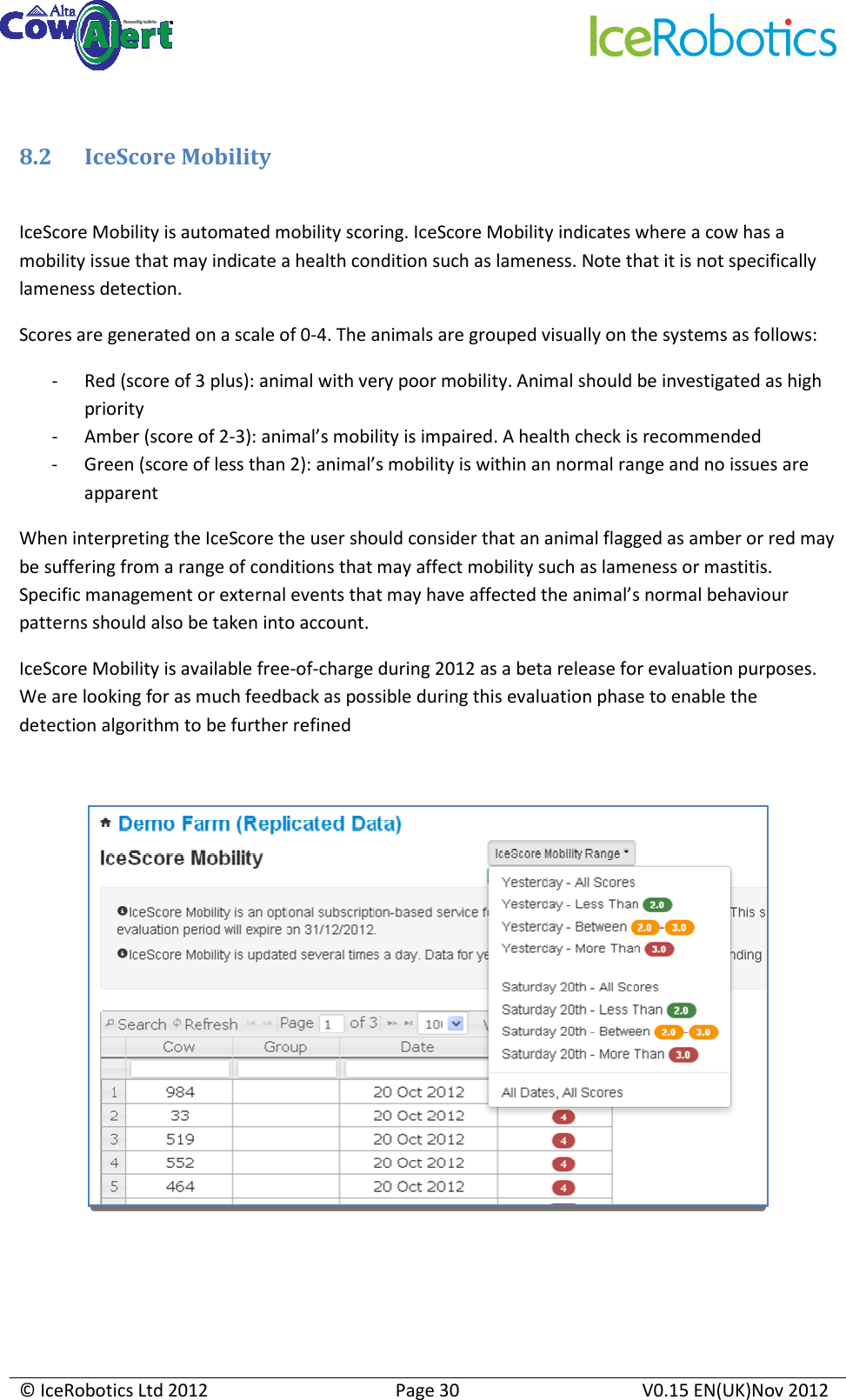
    © IceRobotics Ltd 2012  Page 30  V0.15 EN(UK)Nov 2012   8.2 IceScore Mobility  IceScore Mobility is automated mobility scoring. IceScore Mobility indicates where a cow has a mobility issue that may indicate a health condition such as lameness. Note that it is not specifically lameness detection. Scores are generated on a scale of 0-4. The animals are grouped visually on the systems as follows: - Red (score of 3 plus): animal with very poor mobility. Animal should be investigated as high priority - Amber (score of 2-3): animal’s mobility is impaired. A health check is recommended - Green (score of less than 2): animal’s mobility is within an normal range and no issues are apparent When interpreting the IceScore the user should consider that an animal flagged as amber or red may be suffering from a range of conditions that may affect mobility such as lameness or mastitis. Specific management or external events that may have affected the animal’s normal behaviour patterns should also be taken into account. IceScore Mobility is available free-of-charge during 2012 as a beta release for evaluation purposes. We are looking for as much feedback as possible during this evaluation phase to enable the detection algorithm to be further refined
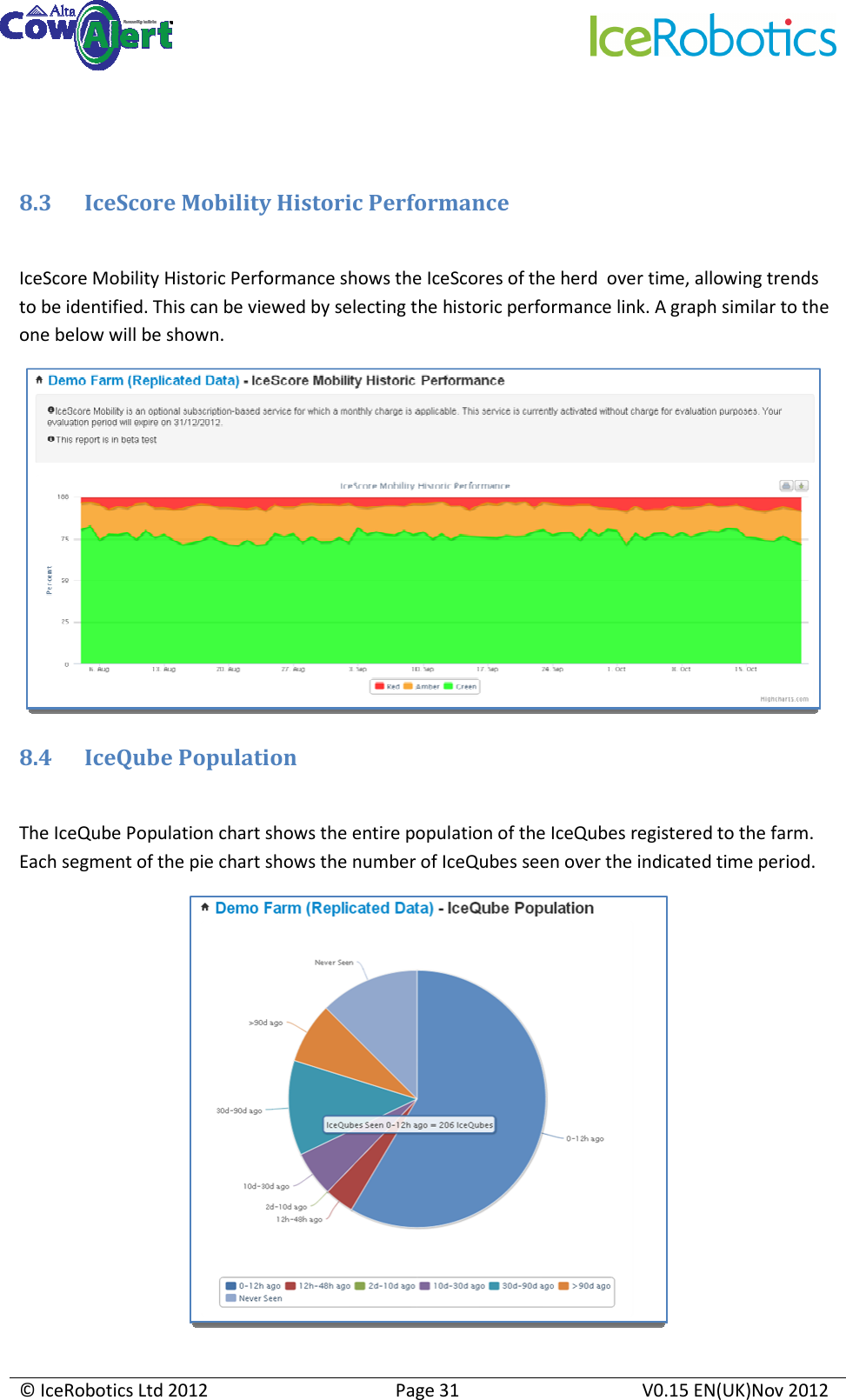
    © IceRobotics Ltd 2012  Page 31  V0.15 EN(UK)Nov 2012    8.3 IceScore Mobility Historic Performance  IceScore Mobility Historic Performance shows the IceScores of the herd  over time, allowing trends to be identified. This can be viewed by selecting the historic performance link. A graph similar to the one below will be shown.  8.4 IceQube Population  The IceQube Population chart shows the entire population of the IceQubes registered to the farm. Each segment of the pie chart shows the number of IceQubes seen over the indicated time period.
    © IceRobotics Ltd 2012  Page 32  V0.15 EN(UK)Nov 2012  9      Site Information  The Site option from the main menu bar provides: - Summary information on the farm and its location - Settings information that the user can edit  9.1 User Settings  This section contains settings that the user can edit according to their preferences: • Set the country code and timezone (these should be preset) • Set the start and end times for the AI window • Select the default data views for the activity graphs    Values in this table can be edited by the user Save or cancel the changes made
    © IceRobotics Ltd 2012  Page 33  V0.15 EN(UK)Nov 2012   10      Help and Support  If you require assistance or have questions on CowAlert, the Support team can be contacted in 3 ways: 1. Select the  Help option from the main menu. This will open up a web form which is shown below. Fill in the required details and follow the on screen instructions. An email will be set to support@icerobotics.com             2. Email:    support@cowalert.com  3. Telephone :   0131 541 2010 and select “Support” (option 2) Telephone support is available between 0900 and 1700, Monday to Friday. Messages can be left on this number at any time. Any support requests will be dealt with as quickly as possible.   11  Feedback We welcome feedback on the systems and suggestions for future releases. Please use the webform above to submit these.  Note that the email address can be edited
    © IceRobotics Ltd 2012  Page 34  V0.15 EN(UK)Nov 2012  12  Attaching an IceQube to a cow’s leg
    © IceRobotics Ltd 2012  Page 35  V0.15 EN(UK)Nov 2012  13 Removing an IceQube from a cow’s leg  The IceQube should be removed from the cows leg by cutting off the Velcro strap.  FCC Compliance Statement  This device complies with part 15 of the FCC rules. Operation is subject to the following two conditions: (1) This device may not cause harmful interference, and (2) this device must accept any interference received, including interference that may cause undesired operation. Any changes or modifications not expressly approved by manufacturer could void the user’s authority to operate the equipment. IMPORTANT! Any changes or modifications not expressly approved by the party responsible for compliance could void the user’s authority to operate this equipment. NOTE: This equipment has been tested and found to comply with the limits for a Class B digital device, pursuant to part 15 of the FCC Rules. These limits are designed to provide reasonable protection against harmful interference in a residential installation. This equipment generates, uses and can radiate radio frequency energy and, if not installed and used in accordance with the instructions, may cause harmful interference to radio communications. However, there is no guarantee that interference will not occur in a particular installation. If this equipment does cause harmful interference to radio or television reception, which can be determined by turning the equipment off and on, the user is encouraged to try to correct the interference by one or more of the following measures: • Reorient or relocate the receiving antenna. • Increase the separation between the equipment and receiver. • Connect the equipment into an outlet on a circuit different from that to which the receiver is connected. • Consult the dealer or an experienced radio/ TV technician for  Disposal and Recycling Information  Your IceQube and associated equipment must be disposed of properly according to local laws and regulations. Because the IceQube contains a battery, IceQube must be disposed of separately from general waste. When an IceQube reaches its end of life, contact IceRobotics Ltd. or your local authorities to learn about recycling options.

Navigation menu