IceRobotics ICE3DST3 IceTag3D Motion Sensor User Manual TABLE OF CONTENTS

IceRobotics Limited IceTag3D Motion Sensor TABLE OF CONTENTS

Users Manual

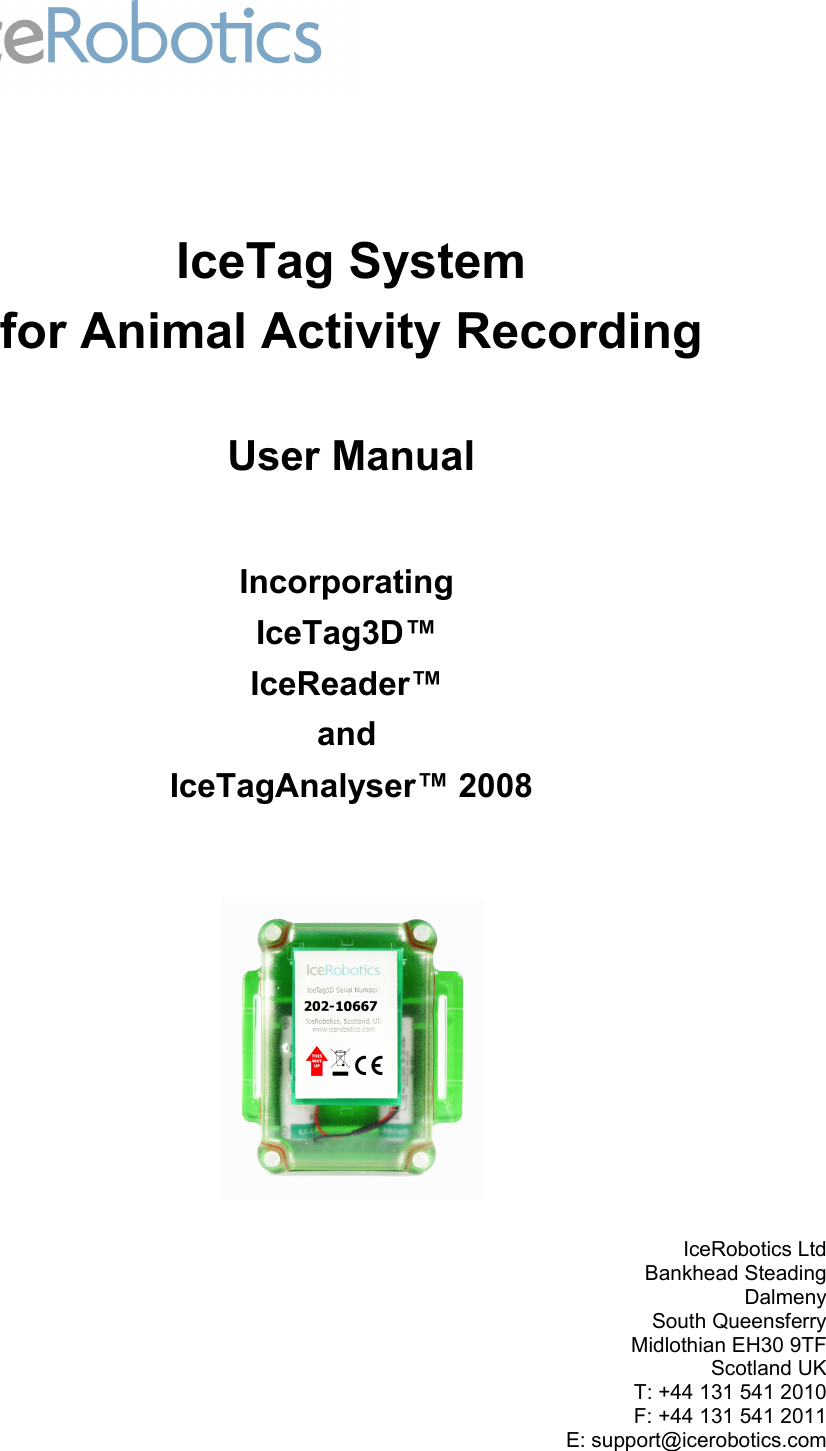
IceTag Systemfor Animal Activity RecordingUser ManualIncorporating IceTag3D™ IceReader™ and IceTagAnalyser™ 2008IceRobotics LtdBankhead SteadingDalmenySouth QueensferryMidlothian EH30 9TFScotland UKT: +44 131 541 2010F: +44 131 541 2011E: support@icerobotics.com
IceTagAnalyser™ 2008 © IceRobotics Ltd 2008TABLE OF CONTENTSTable of figures                                                                                                                             .......................................................................................................................   3  Foreword                                                                                                                                        ..................................................................................................................................   4  1. Introduction                                                                                                                               .........................................................................................................................   5  1.1 IceTag3D, IceReader & IceTagAnalyser 2008 Key Features                                               .........................................   5  1.2 Recommended Minimum System Requirements                                                                  ............................................................   5  2. IceTag3D System Contents                                                                                                      ................................................................................................   6  2.1 Hardware                                                                                                                              ........................................................................................................................   6  2.2 Software and Documentation                                                                                                ..........................................................................................   6  3. Installation                                                                                                                                 ...........................................................................................................................   7  3.1 Installing the IceTagAnalyser 2008 Software                                                                        ..................................................................   7  3.2 Connecting the IceReader                                                                                                    .............................................................................................   7  3.3 Communicating with an IceTag3D Motion Sensor Device                                                    ..............................................   7  3.4 Attaching an IceTag3D Device to an Animal                                                                        ..................................................................   7  3.5 Removing an IceTag3D from an Animal                                                                               .........................................................................   8  4. IceTagAnalyser 2008                                                                                                                 ...........................................................................................................   9  4.1 Introducing the IceTagAnalyser 2008                                                                                   .............................................................................   9  4.2 Getting IceTag3D Device Information                                                                                   .............................................................................   9  4.3 Activating an IceTag3D                                                                                                       .................................................................................................   10   4.4 Downloading Data from an IceTag3D Device                                                                     ...............................................................   11   4.5 Viewing Recorded Data                                                                                                      ................................................................................................   13   4.5.1 Changing Session Header Information                                                                        .................................................................   13   4.5.2 Changing Session Start Time/Date                                                                             .......................................................................   14   4.5.3 Graphical View                                                                                                            .....................................................................................................   15   4.6 Creating Reports                                                                                                                 ...........................................................................................................   15   4.7 Exporting Data                                                                                                                    ..............................................................................................................   16   4.7.1 Exporting Open Session Files                                                                                     ...............................................................................   16   4.7.2 Exporting multiple files with Explorer                                                                           .....................................................................   17   4.7.3 Exporting from a Command Prompt or a Batch File                                                    ..............................................   17   4.8 Options                                                                                                                               .........................................................................................................................   17   5. Interpreting the recorded data                                                                                               .........................................................................................   19   6. Using IceTagAnalyser 2008 with IceTag 1.x and 2.x devices                                              ........................................   20   A.1 Connecting the IceReader to your computer                                                                      ................................................................   21   A.2 Swiping an IceTag3D                                                                                                         ...................................................................................................   21   A.3 Downloading Data                                                                                                              ........................................................................................................   21   A.4 Attaching Devices                                                                                                               .........................................................................................................   21   B.1 Exporting a single file to CSV                                                                                             .......................................................................................   22   B.2 Exporting all files in a directory to CSV                                                                              ........................................................................   22   User Manual Ref: UM3D-001-002 Page 2/24
TABLE OF FIGURESFigure 1. Attaching an IceTag3D to an animal......................................................................8Figure 2. IceTagAnalyser Interface Window.........................................................................9Figure 3. The pull-down menu for displaying IceTag3D device info..................................9Figure 4. IceTag3D Device Info dialogue box.....................................................................10Figure 5. IceTag3D device activation dialogue box...........................................................11Figure 6. The Download IceTag3D Session Data dialogue box........................................11Figure 7. The Open file dialogue box..................................................................................12Figure 8. Viewing recorded session data............................................................................13Figure 9. The View menu options........................................................................................13Figure 10. Changing session header information..............................................................14Figure 11. Changing the session start time and date........................................................14Figure 12. Graphical data view.............................................................................................15Figure 13. Create Report dialogue box...............................................................................15Figure 14. Add Session dialogue box.................................................................................16Figure 15. Default directory settings...................................................................................17Figure 16. Export options.....................................................................................................18Figure 17. Device Probing with only IceTag3D enabled....................................................18Figure 18. Extract from example recording........................................................................19Figure 19. Device Probing with IceTag3D disabled............................................................20Figure 20.Tools pull-down menu showing only IceTag2 (cable device)...........................20
FOREWORDThis manual provides  user information on the IceTag3D™ motion sensor for animal activity recording, including IceTagAnalyser 2008 software and IceReader™ desktop reader unit. The system is designed by IceRobotics Ltd, Logan Building, Roslin BioCentre, Roslin, Midlothian, Scotland, UK, EH25 9TT. The content includes detailed installation and operating instructions. SOFTWARE LICENCE AGREEMENTThis is a legal agreement between you, the end user, and IceRobotics Ltd. Read this agreement very carefully. If you do not wish to accept this agreement, do not install or use the software product.1. Grant of Licence: Each grant of licence permits you to install and use the associated version of the IceTagAnalyser™ 2008 software on multiple computers, with no more than one copy in use at any time.2. Copyright: The software is owned by IceRobotics Ltd and is protected by United Kingdom copyright laws, international treaty provisions, and all other applicable national laws. Title, ownership rights, and intellectual property rights in and to the software shall remain with IceRobotics Ltd. You may not modify, adapt, translate, reverse engineer, decompile, disassemble or otherwise attempt to discover the code and algorithms of the software.3. Other restrictions : Except as expressly permitted in this licence agreement or with written permission from IceRobotics Ltd, the software may not be used, copied, redistributed, retransmitted, published, sold, rented, leased, marketed, sublicenced, assigned, transferred, altered or modified.4. No Warranty: The software is delivered as is and IceRobotics Ltd makes no warranty as to its use or performance. IceRobotics  Ltd  does   not, and cannot  warrant  the performance  or  results  you may obtain by using the Software or its documentation. IceRobotics Ltd makes no warranties, expressed or implied, as to non-infringement of third party rights, merchantability, or fitness for any particular purpose. In no event will IceRobotics Ltd be liable to you for any consequential, incidental or special damages, or for any claim by any third party.FCC STATEMENT“This device complies with part 15 of the FCC Rules. Operation is subject to the condition that this device does not cause harmful interference”USER STATEMENTSThe user is cautioned that changes / modifications not approved by the responsible party could void the user’s authority to operate the equipment. NOTE: This equipment has been tested and found to comply with the limits for a Class A digital device, pursuant  to  part   15  of  the   FCC Rules.   These   limits  are   designed   to  provide  reasonable   protection against   harmful   interference   when   the   equipment   is   operated   in   a   commercial   environment.   This equipment generates, uses, and can radiate radio frequency energy and, if not installed and used in accordance   with   the   instruction   manual,   may   cause   harmful  interference   to   radio   communications. Operation of this equipment in a residential area is likely to cause harmful interference in which case the user will be required to correct the interference at his own expense.
1. INTRODUCTIONThe IceTag3D motion sensor, IceReader download unit and IceTagAnalyser 2008 software together   provide   a   powerful   tool   enabling   animal   researchers   and   institutions   to   closely monitor, record and report animal activity.Mounted   on   the   hind   leg   of   an   animal,   the   IceTag3D   motion   sensor   incorporates accelerometer technology to monitor lying and standing/stepping behaviour. The device has a tough   plastic   housing   designed   to   withstand   the   farm   environment,   and   a   simple   strap mechanism for easy attachment and removal.The package comes complete with an IceReader for the purposes of wireless activation, data download   and   IceTag3D   status   reporting   on   your   PC   using   the   IceTagAnalyser   2008 software. This user manual describes the installation and use of the IceTag3D device, IceReader and IceTagAnalyser 2008.1.1 IceTag3D, IceReader & IceTagAnalyser 2008 Key Features•MS Windows application for downloading data from IceTag3D devices•Wireless activation and desk top download using portable IceReader unit attached to PC or Laptop•Stores up to 60 days of activity between downloads•Tough IceTag3D housing, designed to withstand the farm environment•Replaceable strap •12 month international replacement guarantee* 1.2 Recommended Minimum System Requirements•IBM compatible PC with Windows•Windows  98 Operating System or later version•CD-ROM drive for CD installation•USB port•Adobe Acrobat Reader softwareThe IceTag3D motion sensor system has been specifically calibrated with dairy cows.  Use of the system with other animals is easily applicable but will require validation and may require revised calibration, which on request will normally be provided free-of-charge by IceRobotics. For   details   of   the   animal   calibration   process,   please   contact   IceRobotics   at support@icerobotics.com.*Note:  The  IceReader wireless  download unit is  designed for  desktop  use only.   It  is not designed to withstand the farm environment.  Outdoor use of the IceReader, or its use within the farm environment, may invalidate your product warranty.
2. ICETAG3D SYSTEM CONTENTSThe IceTag3D system comprises the following components:2.1 Hardware•IceTag3D motion sensor•IceReader wireless download unit•USB interface cable•Velcro leg straps for one-time use•Velcro strap cutter 2.2 Software and DocumentationThis system  is provided with a CDROM disk containing the following software and off-line documentation:•IceTagAnalyser 2008 software program •User manual in pdf format•USB drivers
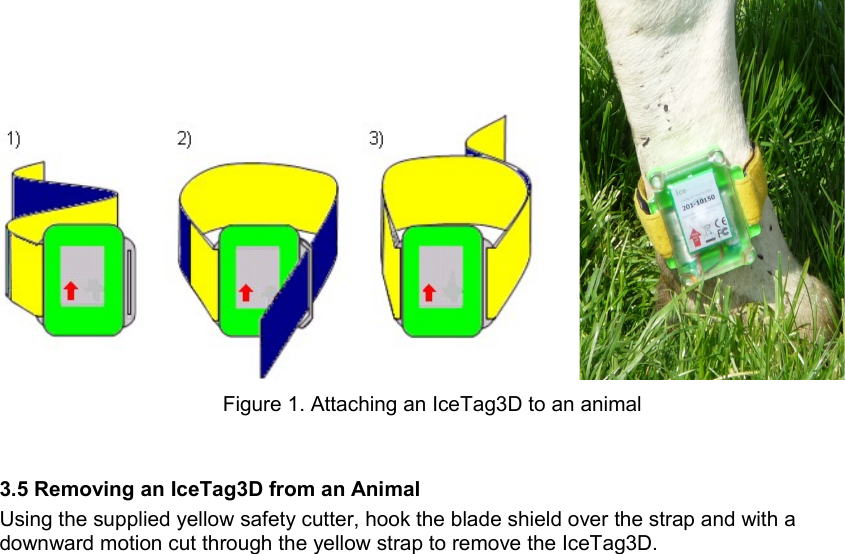
3. INSTALLATIONThis  section  contains step-by-step  instructions on how to install  the  IceTagAnalyser 2008 software  onto your  PC, how to  activate  and  communicate   with IceTag3D motion  sensors using IceReader and how to attach and remove an IceTag3D device to an animal.  3.1 Installing the IceTagAnalyser 2008 SoftwareInsert the IceTagAnalyser 2008 CD into the CD-ROM drive on your PC and follow the step-by-step guide to run the setup program on the IceTagAnalyser 2008 CD.3.2 Connecting the IceReader Using the USB cable provided connect the IceReader to any USB port on your PC.  The first time the IceReader is connected, the operating system may prompt for a driver installation. On most versions  of Microsoft Windows the drivers for the IceReader are included in  the Microsoft Windows operating system.  Therefore no driver installation should be necessary.The green LED on the IceReader will be illuminated if the IceReader is being powered.  The amber LED will  illuminate on the IceReader  when the  IceTagAnalyser 2008 software has recognised the IceReader and is ready for use. If   the   amber   LED   on   the   IceReader   does   not   illuminate,   then   driver   installation   may   be required. These can be installed from the IceTagAnalyser 2008 software CD. Simply re-run the setup application for IceTagAnalyser 2008 and select the ‘Full’ installation option instead of ‘Typical’ installation. A ‘Typical’ installation will not install the drivers as most versions of Windows XP already have the required drivers pre-installed. The setup program will install the drivers   in   a   sub-directory   alongside   IceTagAnalyser;   this   is   typically   C:\Program Files\IceRobotics\IceTagAnalyser\USB  Drivers.  A  document   called   ‘DriverInstallation   DI3D-001-001.pdf’, found in the ‘USB Drivers’ folder, details how to register the installed drivers with your system. 3.3 Communicating with an IceTag3D Motion Sensor DeviceTo   activate   or   communicate   with   an   IceTag3D   device   swipe   the   IceTag3D   over   the IceReader.   The amber LED on the IceTag3D will flash to indicate that the IceTag3D has been   read.     To   verify   that   the   system   is   functioning   correctly   check   that   the   IceTag3D information is displayed on the screen.  This section describes IceTagAnalyser and its use.3.4 Attaching an IceTag3D Device to an AnimalThe  IceTag3D   is   attached   to   an   animal’s  hind   leg   using   the   Velcro   strap   provided.   The IceTag3D  should   be   mounted   with  the   red arrow   pointing   upwards.  Figure  1   shows   a correctly attached IceTag3D and illustrates the attachment in three steps:1. Thread one end of the Velcro strap through the smaller, left hand side lug.  The smooth, yellow side of the Velcro should face inwards against the animal’s leg. Press the Velcro back onto itself to fasten.2. Loop the strap around the animal’s leg and through the bigger, right hand side lug.3. Press the Velcro back onto  itself to fasten.   Check the attachment is loose enough to allow two to three of your fingers to be inserted between the strap and the animal’s leg.
         Figure 1. Attaching an IceTag3D to an animal3.5 Removing an IceTag3D from an AnimalUsing the supplied yellow safety cutter, hook the blade shield over the strap and with a downward motion cut through the yellow strap to remove the IceTag3D.
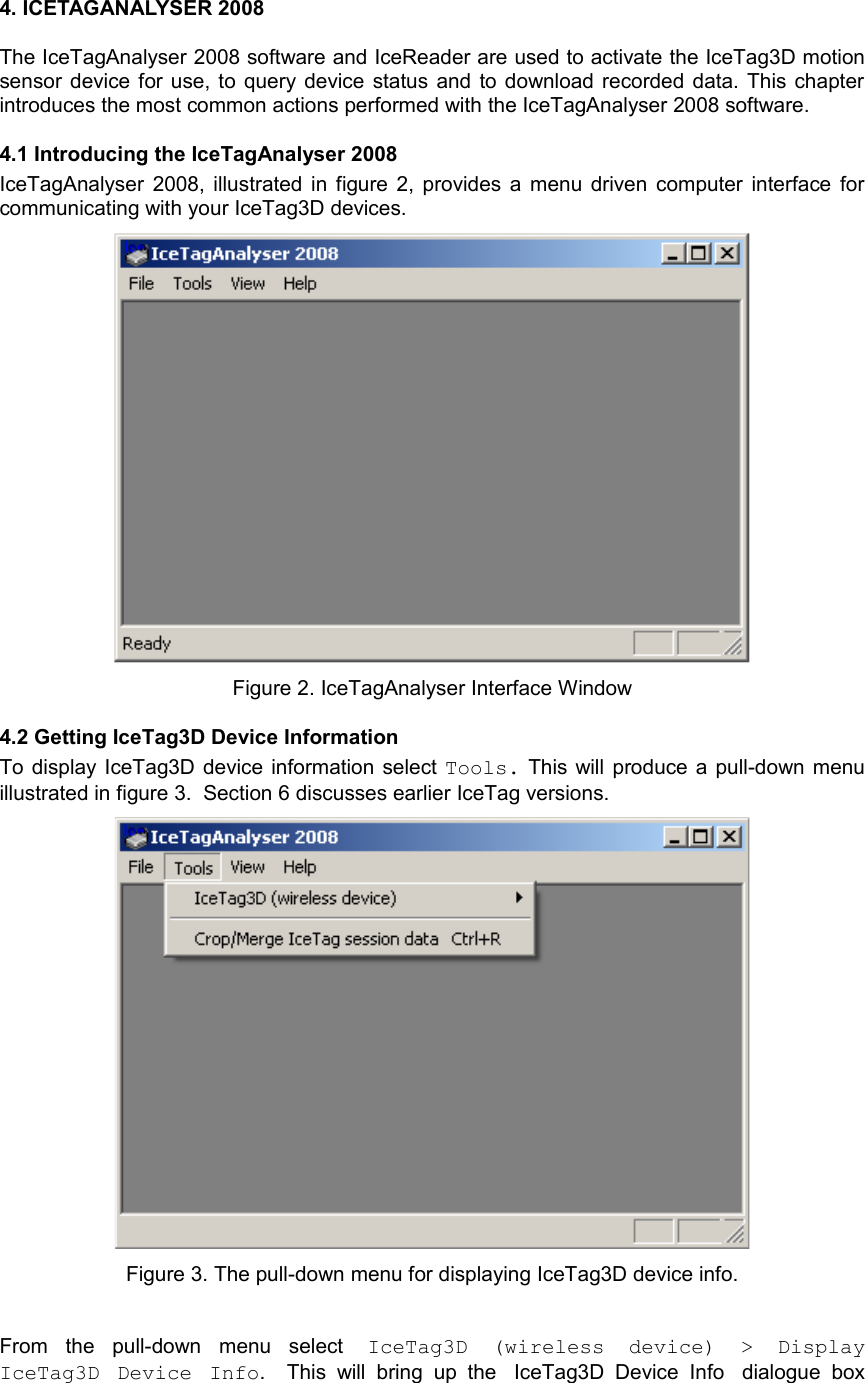
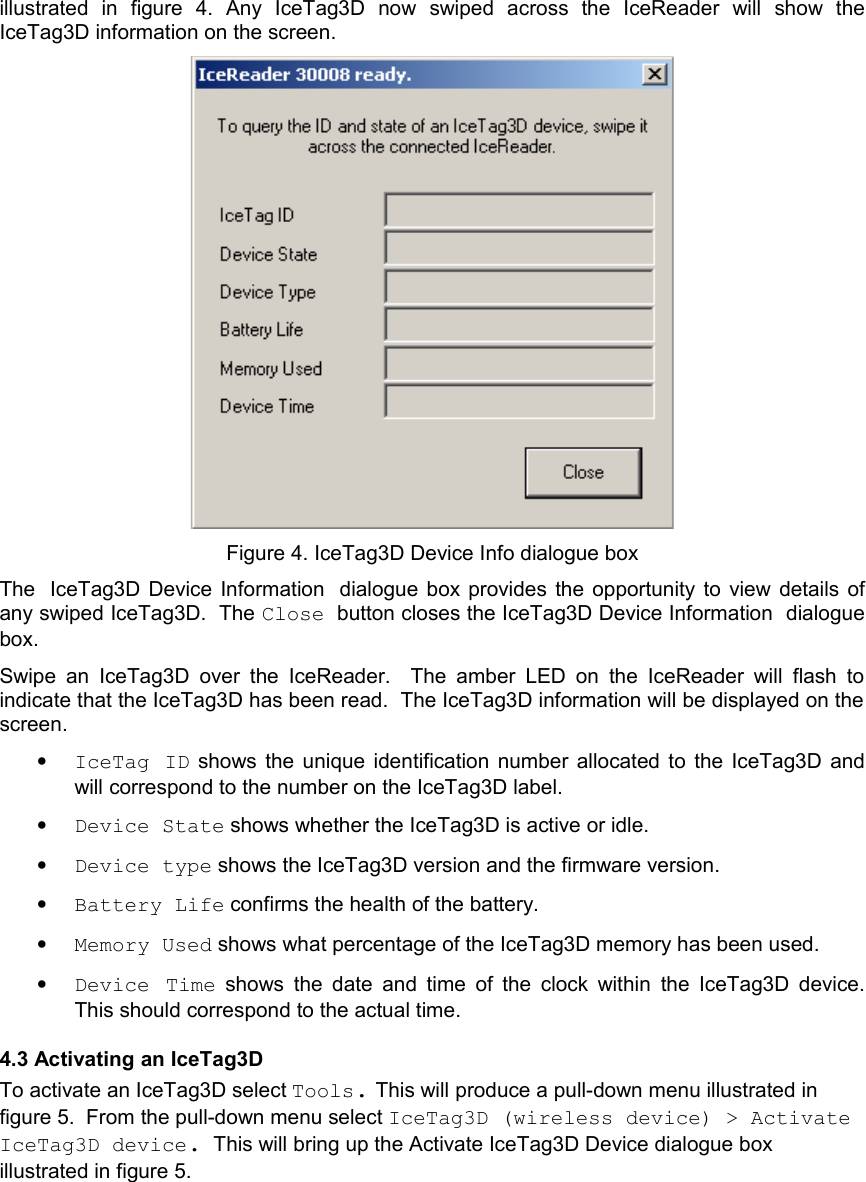
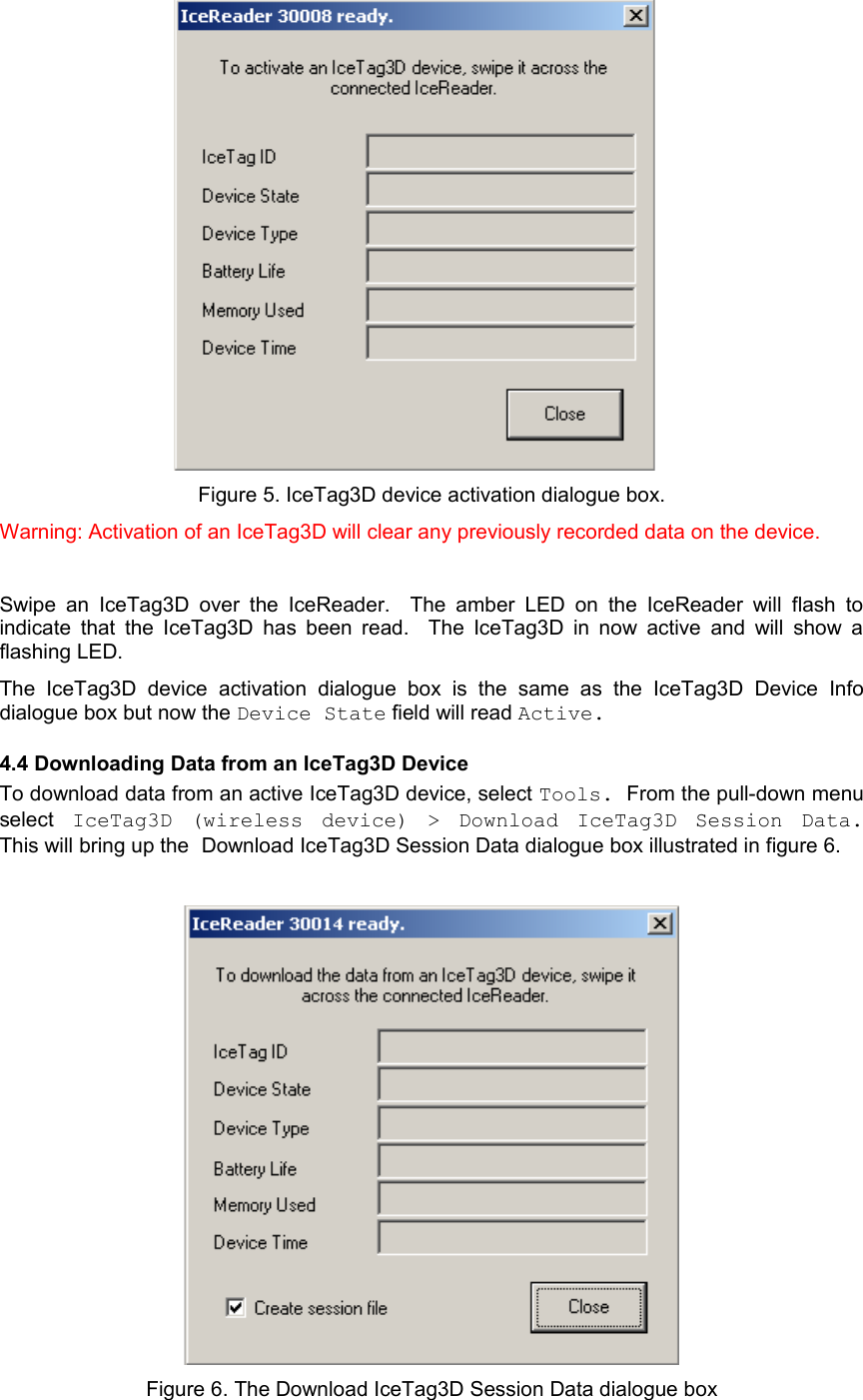
4. ICETAGANALYSER 2008The IceTagAnalyser 2008 software and IceReader are used to activate the IceTag3D motion sensor device for use, to query device status and to download recorded data. This chapter introduces the most common actions performed with the IceTagAnalyser 2008 software.4.1 Introducing the IceTagAnalyser 2008IceTagAnalyser  2008, illustrated in figure 2, provides a menu driven computer interface for communicating with your IceTag3D devices. Figure 2. IceTagAnalyser Interface Window4.2 Getting IceTag3D Device InformationTo display  IceTag3D device information select Tools. This will produce a pull-down menu illustrated in figure 3.  Section 6 discusses earlier IceTag versions.Figure 3. The pull-down menu for displaying IceTag3D device info.From   the   pull-down   menu   select  IceTag3D   (wireless   device)   >   Display IceTag3D   Device   Info.     This   will   bring   up   the IceTag3D Device   Info dialogue   box
illustrated   in   figure   4.  Any   IceTag3D   now   swiped   across   the   IceReader   will   show   the IceTag3D information on the screen. Figure 4. IceTag3D Device Info dialogue boxThe IceTag3D Device Information dialogue box provides the opportunity to  view details of any swiped IceTag3D.  The Close button closes the IceTag3D Device Information dialogue box.Swipe an  IceTag3D  over  the  IceReader.   The amber LED on  the IceReader will  flash  to indicate that the IceTag3D has been read.  The IceTag3D information will be displayed on the screen.  •IceTag ID  shows the unique identification number allocated to the IceTag3D and will correspond to the number on the IceTag3D label.  •Device State shows whether the IceTag3D is active or idle. •Device type shows the IceTag3D version and the firmware version. •Battery Life confirms the health of the battery.•Memory Used shows what percentage of the IceTag3D memory has been used.•Device Time  shows  the date and time of the clock within the IceTag3D device. This should correspond to the actual time.4.3 Activating an IceTag3DTo activate an IceTag3D select Tools. This will produce a pull-down menu illustrated in figure 5.  From the pull-down menu select IceTag3D (wireless device) > Activate IceTag3D device.  This will bring up the Activate IceTag3D Device dialogue box illustrated in figure 5.
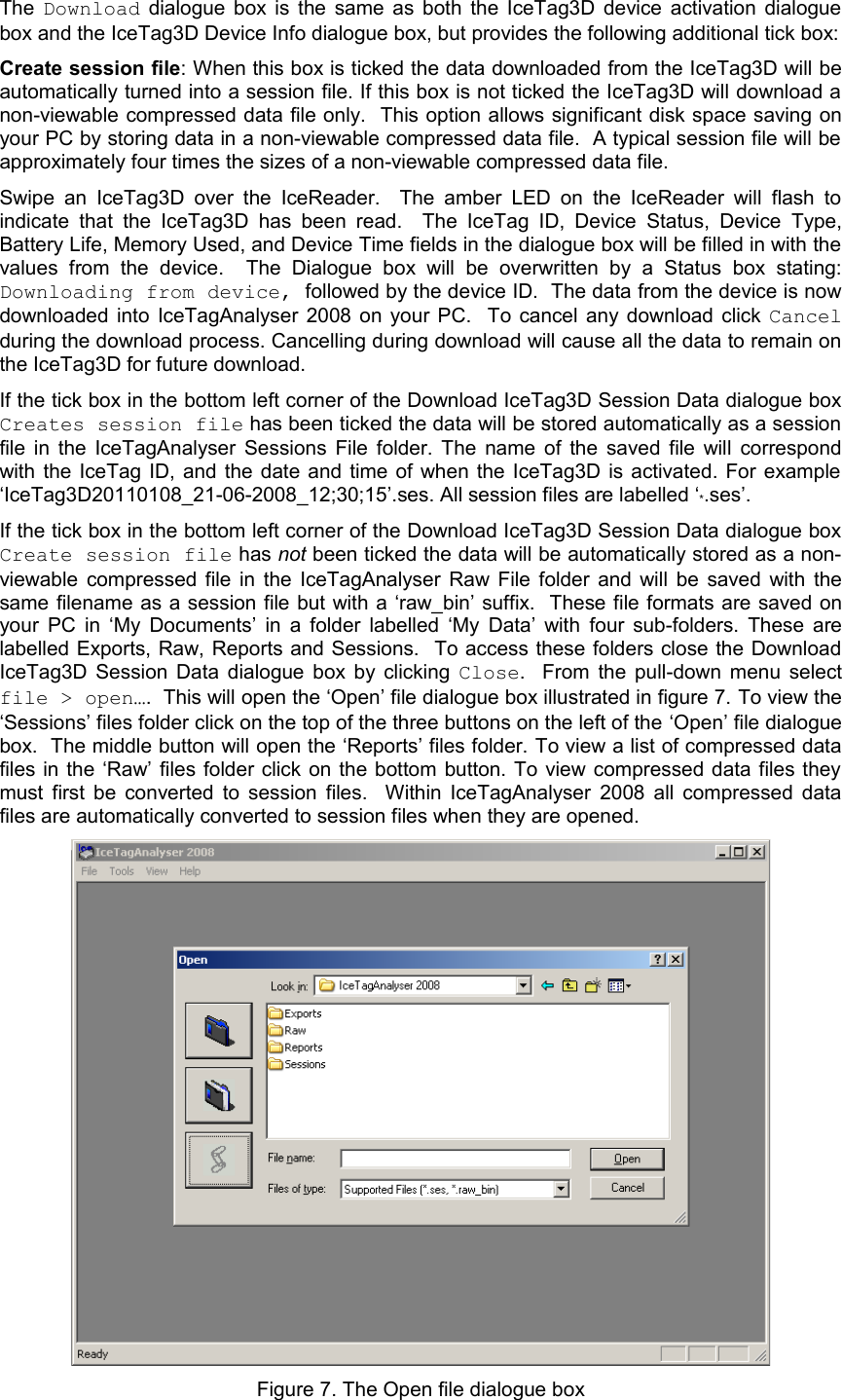
      Figure 5. IceTag3D device activation dialogue box.Warning: Activation of an IceTag3D will clear any previously recorded data on the device.Swipe an  IceTag3D  over  the  IceReader.   The amber LED on  the IceReader will  flash  to indicate that the IceTag3D has been read.   The IceTag3D in now active and will show a flashing LED.  The   IceTag3D   device   activation   dialogue   box  is   the   same   as   the   IceTag3D   Device   Info dialogue box but now the Device State field will read Active. 4.4 Downloading Data from an IceTag3D DeviceTo download data from an active IceTag3D device, select Tools. From the pull-down menu select  IceTag3D   (wireless   device)   >   Download   IceTag3D   Session   Data. This will bring up the Download IceTag3D Session Data dialogue box illustrated in figure 6.Figure 6. The Download IceTag3D Session Data dialogue box
The  Download  dialogue box is the same as both the IceTag3D device activation dialogue box and the IceTag3D Device Info dialogue box, but provides the following additional tick box:Create session file: When this box is ticked the data downloaded from the IceTag3D will be automatically turned into a session file. If this box is not ticked the IceTag3D will download a non-viewable compressed data file only.  This option allows significant disk space saving on your PC by storing data in a non-viewable compressed data file.  A typical session file will be approximately four times the sizes of a non-viewable compressed data file. Swipe an  IceTag3D  over  the  IceReader.   The amber LED on  the IceReader will  flash  to indicate  that the  IceTag3D has been  read.    The  IceTag   ID,  Device   Status,  Device Type, Battery Life, Memory Used, and Device Time fields in the dialogue box will be filled in with the values   from   the   device.     The   Dialogue   box   will   be   overwritten   by   a   Status   box   stating: Downloading from device, followed by the device ID.  The data from the device is now downloaded into IceTagAnalyser 2008 on your PC.   To cancel any download click  Cancel during the download process. Cancelling during download will cause all the data to remain on the IceTag3D for future download.  If the tick box in the bottom left corner of the Download IceTag3D Session Data dialogue box Creates session file has been ticked the data will be stored automatically as a session file in the IceTagAnalyser Sessions File folder. The name of the saved file will correspond with the IceTag ID, and the date and time of when the IceTag3D is activated. For example ‘IceTag3D20110108_21-06-2008_12;30;15’.ses. All session files are labelled ‘*.ses’. If the tick box in the bottom left corner of the Download IceTag3D Session Data dialogue box Create session file has not been ticked the data will be automatically stored as a non-viewable compressed file in the IceTagAnalyser Raw File folder and will be saved with the same filename as a session file but with a ‘raw_bin’ suffix.  These file formats are saved on your PC in ‘My Documents’ in a folder labelled ‘My Data’ with  four sub-folders. These are labelled Exports, Raw, Reports and Sessions.   To access these folders close the Download IceTag3D Session Data dialogue box by clicking  Close.   From the pull-down menu select file > open….  This will open the ‘Open’ file dialogue box illustrated in figure 7. To view the ‘Sessions’ files folder click on the top of the three buttons on the left of the ‘Open’ file dialogue box.  The middle button will open the ‘Reports’ files folder. To view a list of compressed data files in the ‘Raw’ files folder click on the bottom button. To view compressed data files they must first be converted to session files.   Within IceTagAnalyser 2008 all compressed data files are automatically converted to session files when they are opened.  Figure 7. The Open file dialogue box
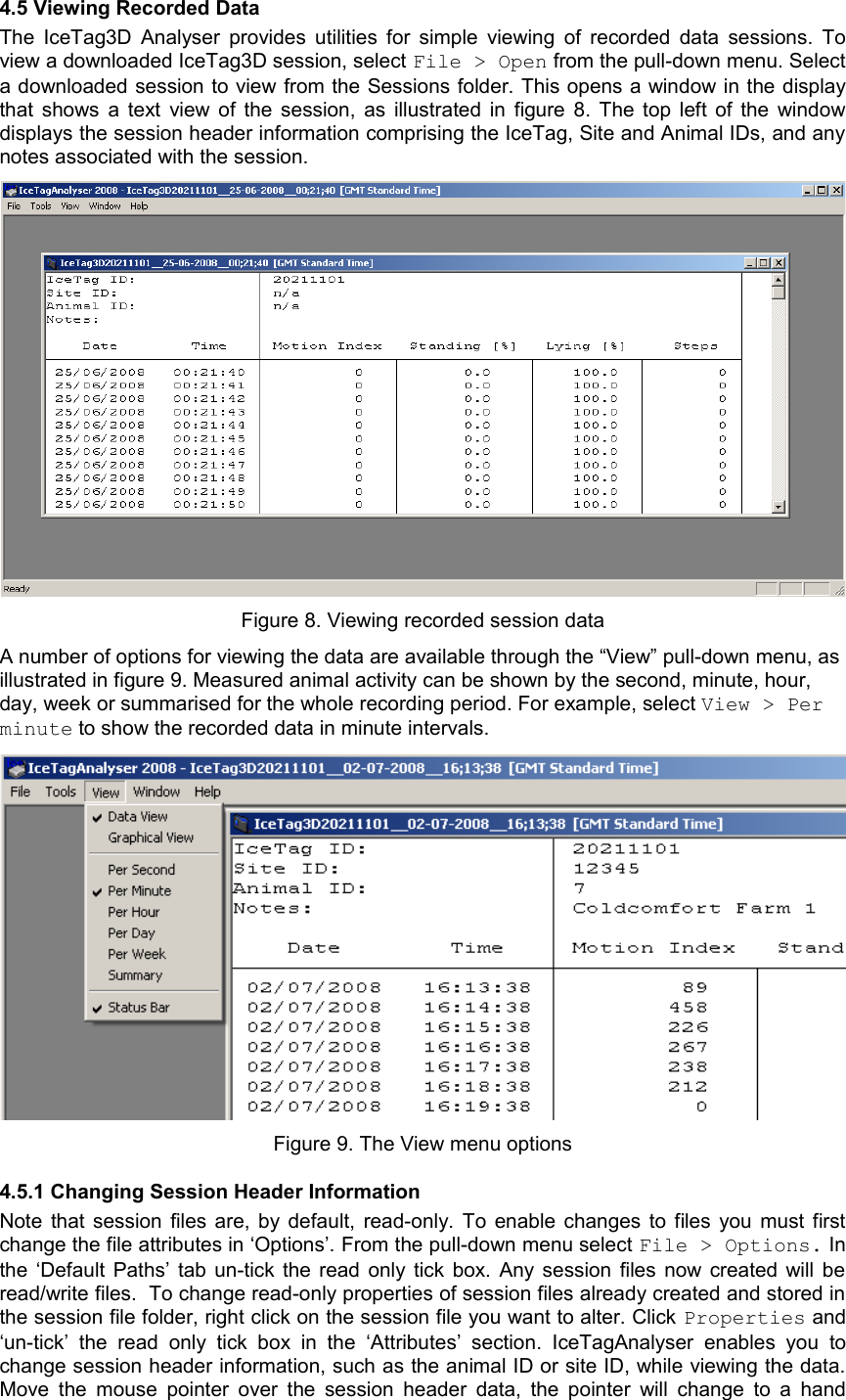
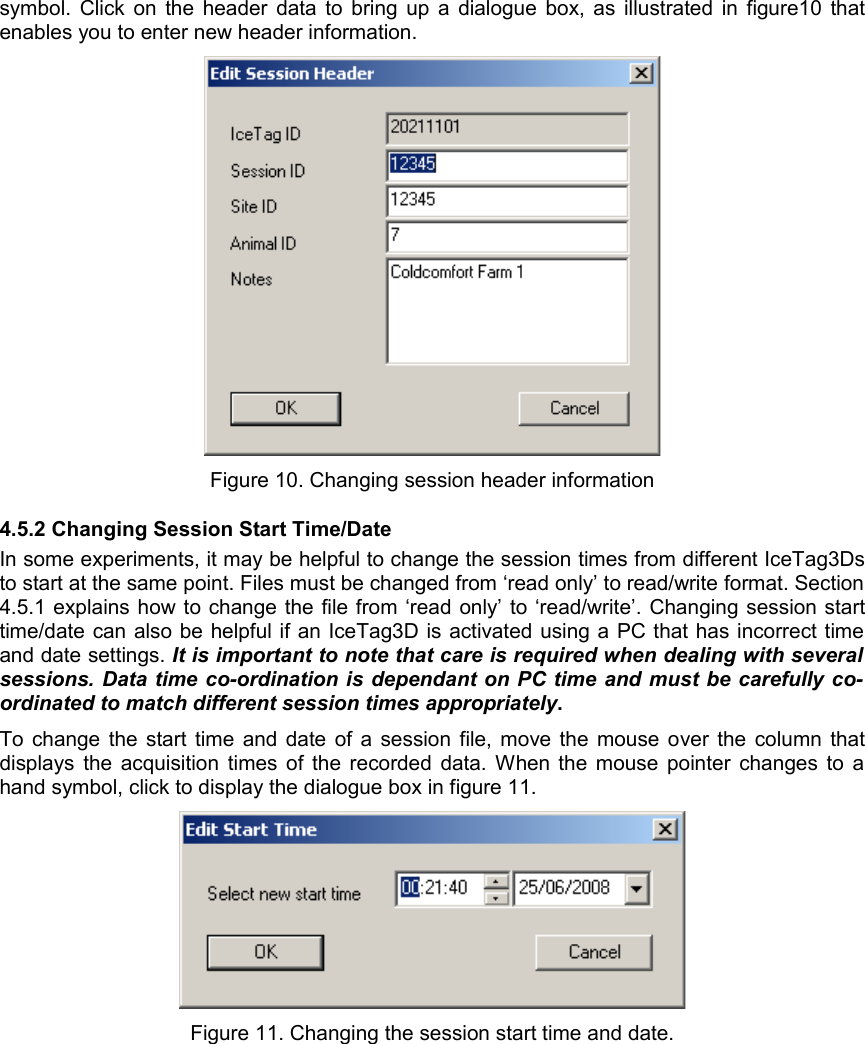
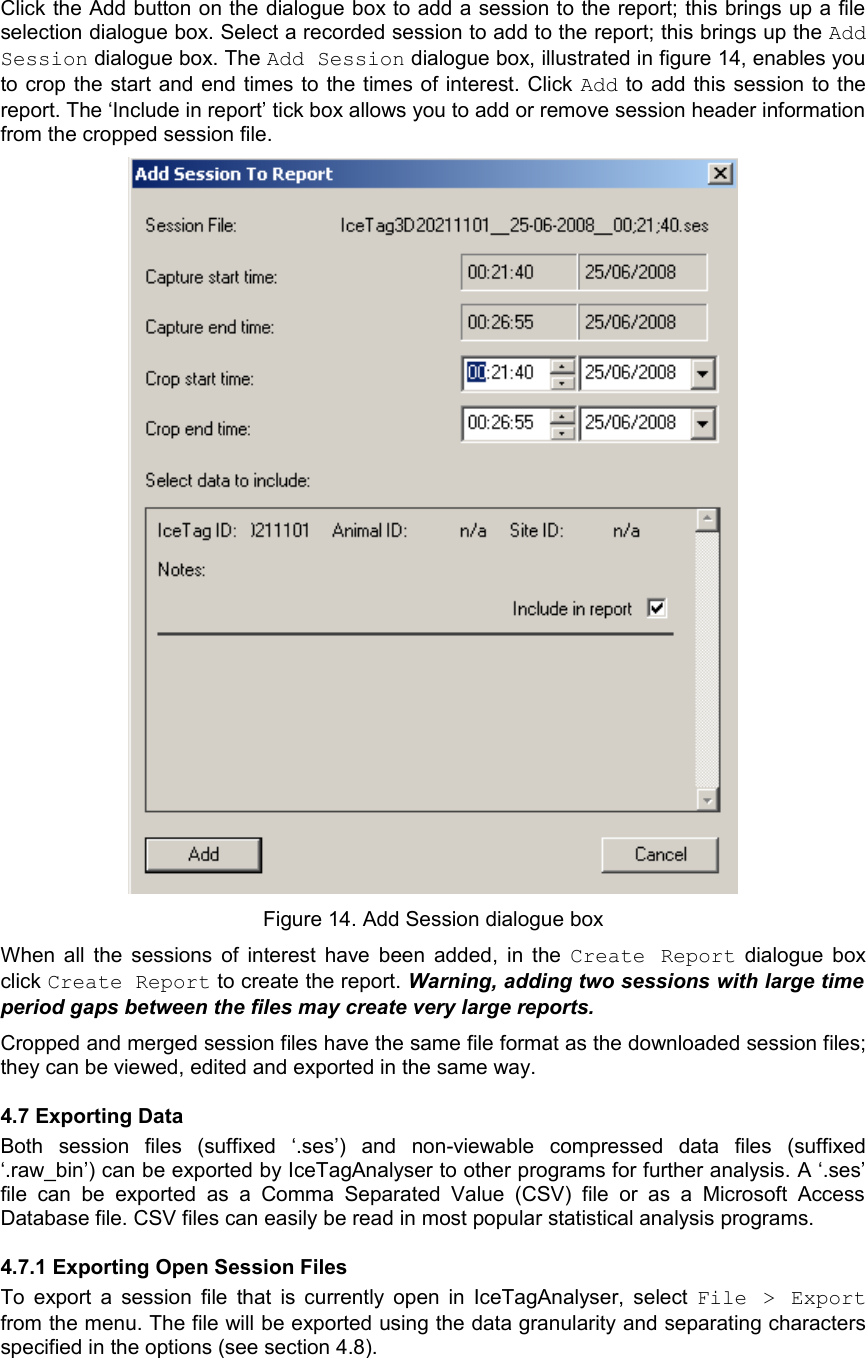
4.5 Viewing Recorded DataThe  IceTag3D Analyser provides utilities for simple viewing of recorded data sessions. To view a downloaded IceTag3D session, select File > Open from the pull-down menu. Select a downloaded session to view from the Sessions folder. This opens a window in the display that shows a text view of the session, as illustrated in figure 8. The top left of the window displays the session header information comprising the IceTag, Site and Animal IDs, and any notes associated with the session.Figure 8. Viewing recorded session dataA number of options for viewing the data are available through the “View” pull-down menu, as illustrated in figure 9. Measured animal activity can be shown by the second, minute, hour, day, week or summarised for the whole recording period. For example, select View > Per minute to show the recorded data in minute intervals.Figure 9. The View menu options4.5.1 Changing Session Header Information Note that session files are, by default, read-only. To enable changes to files you must first change the file attributes in ‘Options’. From the pull-down menu select File > Options. In the ‘Default Paths’ tab un-tick the read only tick box. Any session files now created will be read/write files.  To change read-only properties of session files already created and stored in the session file folder, right click on the session file you want to alter. Click Properties and ‘un-tick’  the   read   only  tick  box  in   the   ‘Attributes’   section.   IceTagAnalyser   enables   you   to change session header information, such as the animal ID or site ID, while viewing the data. Move the mouse pointer over the session header data, the pointer will change to a hand
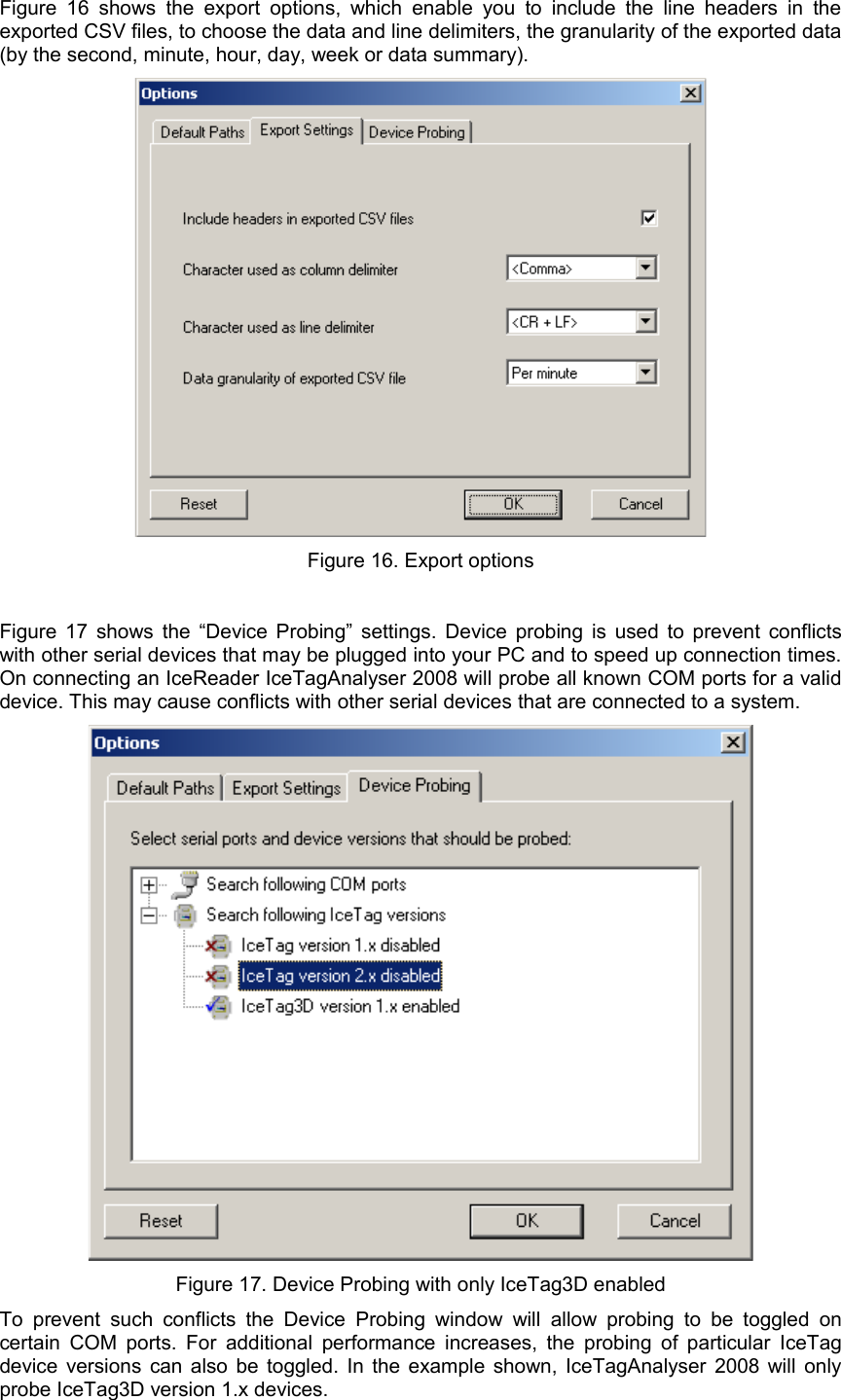
symbol. Click on the header data to bring up a dialogue box, as illustrated in figure10 that enables you to enter new header information. Figure 10. Changing session header information4.5.2 Changing Session Start Time/DateIn some experiments, it may be helpful to change the session times from different IceTag3Ds to start at the same point. Files must be changed from ‘read only’ to read/write format. Section 4.5.1 explains how to change the file from ‘read only’ to ‘read/write’. Changing session start time/date can also be helpful if an IceTag3D is activated using a PC that has incorrect time and date settings. It is important to note that care is required when dealing with several  sessions. Data time co-ordination is dependant on PC time and must be carefully co-ordinated to match different session times appropriately.  To change the start time and date of a session file, move the mouse over the column that displays the acquisition times of the recorded data. When the mouse pointer changes to a hand symbol, click to display the dialogue box in figure 11. Figure 11. Changing the session start time and date.
4.5.3 Graphical View Select View > Graphical View from the pull-down menu to view the recorded data in a graphical format. As with the Data View, the activity can be shown by the second, minute, hour, day, week or as a total. Figure 12 shows a screen shot of data in graphical view. Figure 12. Graphical data viewMove the mouse pointer over the “Standing [%]” in the left section of the window. The mouse pointer changes to a hand to show that this area of the screen is clickable. Click on “Standing [%]” to hide the standing information in the graphical view. Active and lying information can also be hidden in this way. This is a useful tool for finding times of interest in the recorded session.    The   motion   index  is   represented   on  a   logarithmic scale   to   improve   visibility  of motion.  All other values are on a linear scale. 4.6 Creating ReportsWhen an experiment requires that data be collected from multiple animals at the same time, it can be useful to collate the multiple session data into a single session. It may also be useful to truncate the recorded data to remove recordings before the IceTag3D was attached and after   it   was   removed.   The  Create   Report  tool   enables   you   to   do   this.   Select  Tools   > Crop/Merge   IceTag   session   data  to   open   the  Create   Report  dialogue   box, illustrated in figure 13.Figure 13. Create Report dialogue box
Click the Add button on the dialogue box to add a session to the report; this brings up a file selection dialogue box. Select a recorded session to add to the report; this brings up the Add Session dialogue box. The Add Session dialogue box, illustrated in figure 14, enables you to crop the start and end times to the times of interest. Click Add to add this session to the report. The ‘Include in report’ tick box allows you to add or remove session header information from the cropped session file.Figure 14. Add Session dialogue boxWhen all the sessions of interest have been added, in the  Create Report  dialogue box click Create Report to create the report. Warning, adding two sessions with large time  period gaps between the files may create very large reports.Cropped and merged session files have the same file format as the downloaded session files; they can be viewed, edited and exported in the same way. 4.7 Exporting DataBoth   session   files  (suffixed   ‘.ses’)   and   non-viewable   compressed   data   files   (suffixed ‘.raw_bin’) can be exported by IceTagAnalyser to other programs for further analysis. A ‘.ses’ file can  be  exported as a  Comma Separated Value (CSV)   file   or   as   a   Microsoft   Access Database file. CSV files can easily be read in most popular statistical analysis programs.4.7.1 Exporting Open Session FilesTo export a session  file that is currently open in IceTagAnalyser, select  File > Export from the menu. The file will be exported using the data granularity and separating characters specified in the options (see section 4.8).
4.7.2 Exporting multiple files with ExplorerBoth ‘.ses’ files and ‘.raw_bin’ files can be exported using Windows Explorer. In the Session file folder right click on the session file you want to export and select Export. The file will be exported using the data granularity and separating characters specified in the options (see section 4.8). NB: More than one session file can be selected at once.  Exporting multiple files with Explorer also applies to ‘.raw_bin’ files in the Raw file folder.4.7.3 Exporting from a Command Prompt or a Batch FileIceTagAnalyser 2008 supports a number of command line options that can be used to open or export session files. This can be useful, should scripted/batch file exporting be required. IceTagAnalyser 2008 supports the following command line options:IceTagAnalyser.exe [/exp [/format:csv/mdb] [/force]] <filename>where<filename> Full path and name of a .ses file/exp Option will export file to csv or mdb. If omitted, file will be opened in IceTagAnalyser./format:csv Exports file as csv (output file name will not be prompted)/format:mdb Exports file as mdb (output file name will not be prompted)/force Export will overwrite existing files without promptingFor command-line exports, the output path and output format (time granularity and delimiters) are taken from the current IceTagAnalyser settings. Appendix B contains some command-line examples.4.8 OptionsSelect  File >   Options  from  the pull-down menu  to  set  the application options for the IceTagAnalyser 2008 software. The options that are configurable include the default path for Raw, Session, Report and Export file storage settings; export settings for the CSV files and Device Probing COM settings. Figure 15 shows the ‘default paths’ tab. Downloaded session files are, by default, set as read-only. The ‘read only’ tick boxes on the ‘default Paths’ tab allow this safety feature to be overridden.  Figure 15. Default directory settings
Figure 16 shows  the  export options,  which  enable  you to include the  line headers in the exported CSV files, to choose the data and line delimiters, the granularity of the exported data (by the second, minute, hour, day, week or data summary).  Figure 16. Export optionsFigure 17 shows the “Device Probing” settings. Device probing is used to prevent conflicts with other serial devices that may be plugged into your PC and to speed up connection times. On connecting an IceReader IceTagAnalyser 2008 will probe all known COM ports for a valid device. This may cause conflicts with other serial devices that are connected to a system. Figure 17. Device Probing with only IceTag3D enabledTo  prevent  such  conflicts  the  Device Probing  window  will allow  probing  to  be  toggled  on certain COM ports. For additional performance increases, the probing of particular IceTag device versions can also be toggled. In the example shown, IceTagAnalyser 2008 will only probe IceTag3D version 1.x devices.
5. INTERPRETING THE RECORDED DATAThe IceTag3D analyses the movement of an animal’s leg and defines standing, lying and step with a Motion Index. The Motion Index provides detail on how active the animal has been. For each second the Motion Index is typically a value between 0 and 30, with 0 indicating no movement and 30 indicating vigorous motion of the leg that second. Viewing the data per-minute, per-hour or per-day, the program sums the Motion Index for each second of the given time period.Where the animal is active, a step count indicates the number of steps taken by the animal during that time. The reported step count is the number of steps taken by the leg on which the IceTag3D is located. Figure 18 shows an extract of an exported CSV file from an IceTag3D which was recording the activity of an animal. The Export Options were set to report the activity minute by minute. The data  shows  the  date  and  time  interval and  the percentage  of  time  spent  during  that interval standing or lying, a step count and an indication of activity from the Motion Index.Tag ID: 155891Site ID: ColdcomfortAnimal ID: #218Date Time Motion Index  Standing [%] Lying [%] Steps20/09/2008 16:41:24 20.4 79.6 0 920/09/2008 16:42:24 58.3 41.7 0 2520/09/2008 16:43:24 61.3 38.7 0 2620/09/2008 16:44:24 30.4 69.6 0 1320/09/2008 16:45:24 33.5 66.5 0 1320/09/2008 16:46:24 80.8 19.2 0 3720/09/2008 16:47:24 45.2 54.8 0 1920/09/2008 16:48:24 4.8 95.2 0 220/09/2008 16:49:24 5 95 0 220/09/2008 16:50:24 8.3 91.7 0 420/09/2008 16:51:24 9.2 90.8 0 320/09/2008 16:52:24 0 100 0 020/09/2008 16:53:24 0 100 0 020/09/2008 16:54:24 0 100 0 020/09/2008 16:55:24 2.7 97.3 0 120/09/2008 16:56:24 0 100 0 020/09/2008 16:57:24 0 100 0 020/09/2008 16:58:24 2.9 97.1 0 120/09/2008 16:59:24 0 100 0 020/09/2008 17:00:24 2.7 97.3 0 120/09/2008 17:01:24 0 100 0 020/09/2008 17:02:24 0 100 0 020/09/2008 17:03:24 2.3 97.7 0 120/09/2008 17:04:24 0 100 0 020/09/2008 17:05:24 3 97 0 020/09/2008 17:06:24 2.9 97.1 0 120/09/2008 17:07:24 13.1 86.9 0 620/09/2008 17:08:24 13.5 86.5 0 520/09/2008 17:09:24 1.7 98.3 0 120/09/2008 17:10:24 44.2 55.8 0 1620/09/2008 17:11:24 21 79 0 8Figure 18. Extract from example recordingNote that an animal may be recorded as being active, but have taken no steps. This can occur,  for example,  when   an   animal is  standing  and shuffling  its feet, but  is  not actually stepping; this can be a useful measure of restlessness. In figure 18, at 17:05 the animal is measured to be slightly active (3) but no steps have been measured, a manual observation taken at this time showed that the animal was standing at a food trough and shuffling its feet. A ‘Step’ requires that the animal lift the tagged leg and move it forwards.
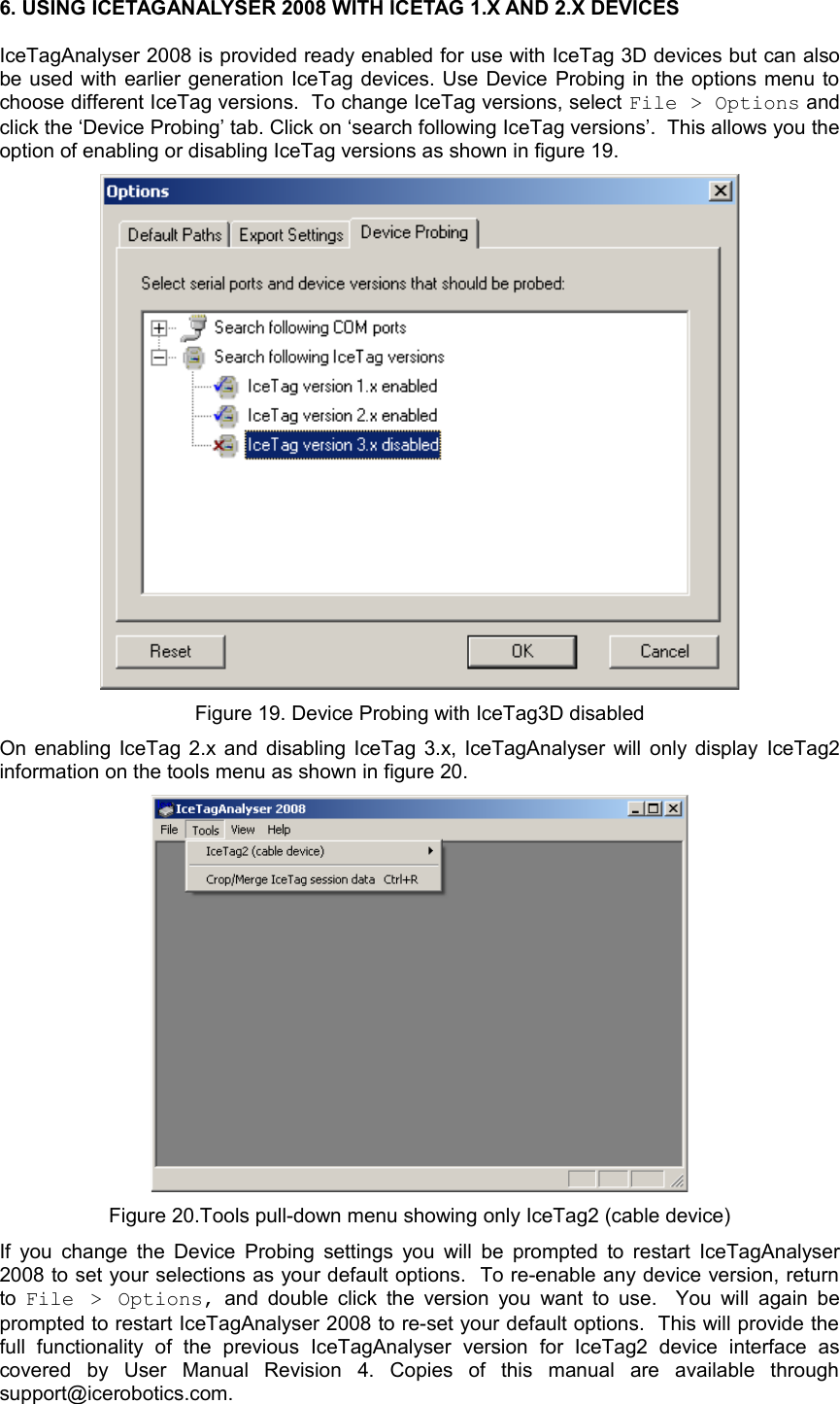
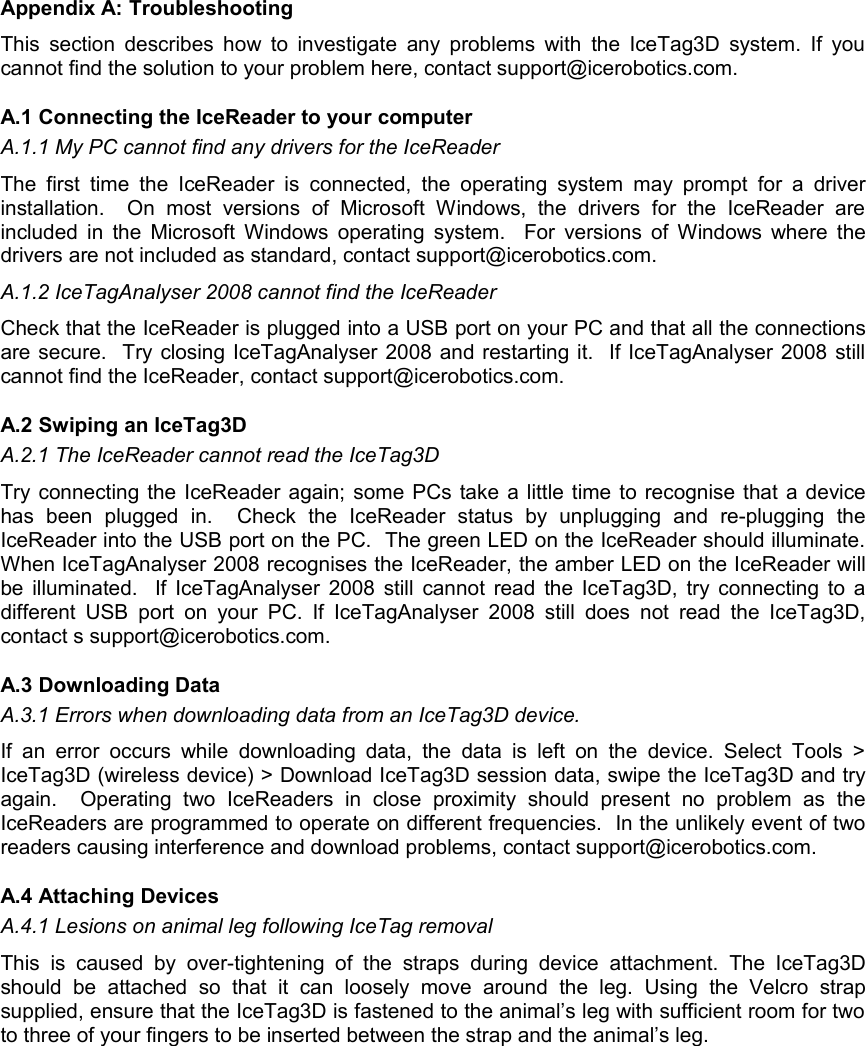
6. USING ICETAGANALYSER 2008 WITH ICETAG 1.X AND 2.X DEVICESIceTagAnalyser 2008 is provided ready enabled for use with IceTag 3D devices but can also be used with earlier generation IceTag devices. Use Device Probing in the options menu to choose different IceTag versions.  To change IceTag versions, select File > Options and click the ‘Device Probing’ tab. Click on ‘search following IceTag versions’.  This allows you the option of enabling or disabling IceTag versions as shown in figure 19. Figure 19. Device Probing with IceTag3D disabledOn enabling IceTag 2.x and disabling IceTag 3.x, IceTagAnalyser will only display  IceTag2 information on the tools menu as shown in figure 20. Figure 20.Tools pull-down menu showing only IceTag2 (cable device)If you change the Device Probing settings you will be prompted to restart IceTagAnalyser 2008 to set your selections as your default options.  To re-enable any device version, return to  File  > Options,  and double click the version you  want to use.   You will again be prompted to restart IceTagAnalyser 2008 to re-set your default options.  This will provide the full   functionality   of   the   previous   IceTagAnalyser   version   for   IceTag2   device   interface   as covered   by   User   Manual   Revision   4.   Copies   of   this   manual   are   available   through support@icerobotics.com.
Appendix A: TroubleshootingThis section describes how to investigate any problems with the IceTag3D system. If you cannot find the solution to your problem here, contact support@icerobotics.com. A.1 Connecting the IceReader to your computerA.1.1 My PC cannot find any drivers for the IceReaderThe first  time  the  IceReader  is connected,  the  operating  system  may  prompt  for a  driver installation.     On   most   versions   of   Microsoft   Windows,  the   drivers   for   the   IceReader   are included in the Microsoft Windows operating system.   For versions of Windows where the drivers are not included as standard, contact support@icerobotics.com. A.1.2 IceTagAnalyser 2008 cannot find the IceReaderCheck that the IceReader is plugged into a USB port on your PC and that all the connections are secure.  Try closing IceTagAnalyser 2008 and restarting it.  If IceTagAnalyser 2008 still cannot find the IceReader, contact support@icerobotics.com.A.2 Swiping an IceTag3DA.2.1 The IceReader cannot read the IceTag3DTry connecting the IceReader again; some PCs take a little time to recognise that a device has   been   plugged   in.     Check   the   IceReader   status   by   unplugging   and   re-plugging   the IceReader into the USB port on the PC.  The green LED on the IceReader should illuminate. When IceTagAnalyser 2008 recognises the IceReader, the amber LED on the IceReader will be illuminated.   If IceTagAnalyser 2008 still cannot read the IceTag3D, try connecting to a different USB  port  on  your  PC. If  IceTagAnalyser 2008  still   does not  read  the  IceTag3D, contact s support@icerobotics.com.A.3 Downloading DataA.3.1 Errors when downloading data from an IceTag3D device.If  an  error  occurs while   downloading data,   the  data   is left on the   device.  Select   Tools > IceTag3D (wireless device) > Download IceTag3D session data, swipe the IceTag3D and try again.     Operating   two   IceReaders   in   close   proximity   should   present   no   problem   as   the IceReaders are programmed to operate on different frequencies.  In the unlikely event of two readers causing interference and download problems, contact support@icerobotics.com.A.4 Attaching DevicesA.4.1 Lesions on animal leg following IceTag removalThis  is   caused  by  over-tightening   of  the  straps   during  device   attachment.  The   IceTag3D should   be   attached   so   that   it   can   loosely   move   around   the   leg.  Using   the   Velcro   strap supplied, ensure that the IceTag3D is fastened to the animal’s leg with sufficient room for two to three of your fingers to be inserted between the strap and the animal’s leg.
Appendix B: Example command line exportsUsing the IceTagAnalyser 2008 command line options can be a quick way of exporting a whole directory of session files to CSV or MDP format, without having to manually open each file individually. This appendix contains some simple examples.B.1 Exporting a single file to CSVOpen a command line window by clicking the windows Start button and selection Run… from the menu. Type cmd.exe into the edit-box and click OK. This should open a command line window.Change to the directory that contains the session file using the cd command. For example:cd \Program Files\IceRobotics\IceTagAnalyser\SessionsThe following example shows  how to export a file called  test.ses  to csv format, where <path>  would   be   replaced   with   the   full   path   to   IceTagAnalyser   (typically  \Program Files\IceRobotics\IceTagAnalyser):“C:\<path>\IceTagAnalyser.exe” /exp /format:csv test.sesThe  above  example  will   prompt  for  an  output   name.  To  force  the   file   to   be  exported  as test.csv or test.mdb, simply add in the /force option:“C:\<path>\IceTagAnalyser.exe” /exp /format:csv /force test.sesB.2 Exporting all files in a directory to CSVThe following example can be used to export all files in the current directory to CSV, where again <path> should be replaced with the actual path of IceTagAnalyser.exe:for %f in (*.ses) do “C:\<path>\IceTagAnalyser.exe” /exp /format:csv /force %fNB: If this line is used in a batch file, the two % characters need to be doubled; change %f  to %%f.
Regulatory Compliance InformationFCC Compliance Statement This device complies with Part 15 of the FCC Rules. Operation is subject to the following two conditions: (1) this device may not cause harmful interference, and (2) this device must accept any interference received, including interference that may cause undesired operation.NOTE: This equipment has been tested and found to comply with the limits for a Class A digital device, pursuant to Part 15 of the FCC Rules. These limits are designed to provide reasonable protection against harmful interference when  the equipment is operated in a commercial environment. This equipment generates, uses, and can radiate radio frequency energy and, if not installed and used in accordance with the instruction manual, may cause harmful interference to radio communications. Operation of this equipment in a residential area is likely to cause harmful interference in which case the user will be required to correct the interference at his own expense.Important: Changes or modifications to this product not authorized by IceRobotics Ltd. could void the EMC compliance and negate your authority to operate the equipment.Disposal and Recycling Information Your IceTag3D and associated equipment must be disposed of properly according to local laws and regulations. Because the IceTag3D contains a battery, IceTag3D must be disposed of separately from general waste. When an IceTag3D reaches its end of life, contact IceRobotics Ltd. or your local authorities to learn about recycling options.

Navigation menu