ImGATE IG302 Digital Door Lock User Manual

CHAHOO Limited Digital Door Lock

User Manual

ImGATE Manual-Mobile
ImGATE System Manual•Account Information  :  •Hotel name :•Installation Account (To install Doorlock Hardware) ID :PW :•Staff Account (To send mobile Key)ID:PW:•Guest Account (Booking/ Receiving Mobile Key)ID:PW:•Only authorized worker(account) can  install the doorlock.
APP Manual_Installation<Installation>1. Launch ImGATE setup application.2. Touch Sign. (ID: / PW:)3. Type Email address and password. Touch Installation.4. Choose hotel [HOTEL NAME].5. Then you need to make door lock setting mode. (DO NOT SELECT ROOM NUMBER YET)Hotel name
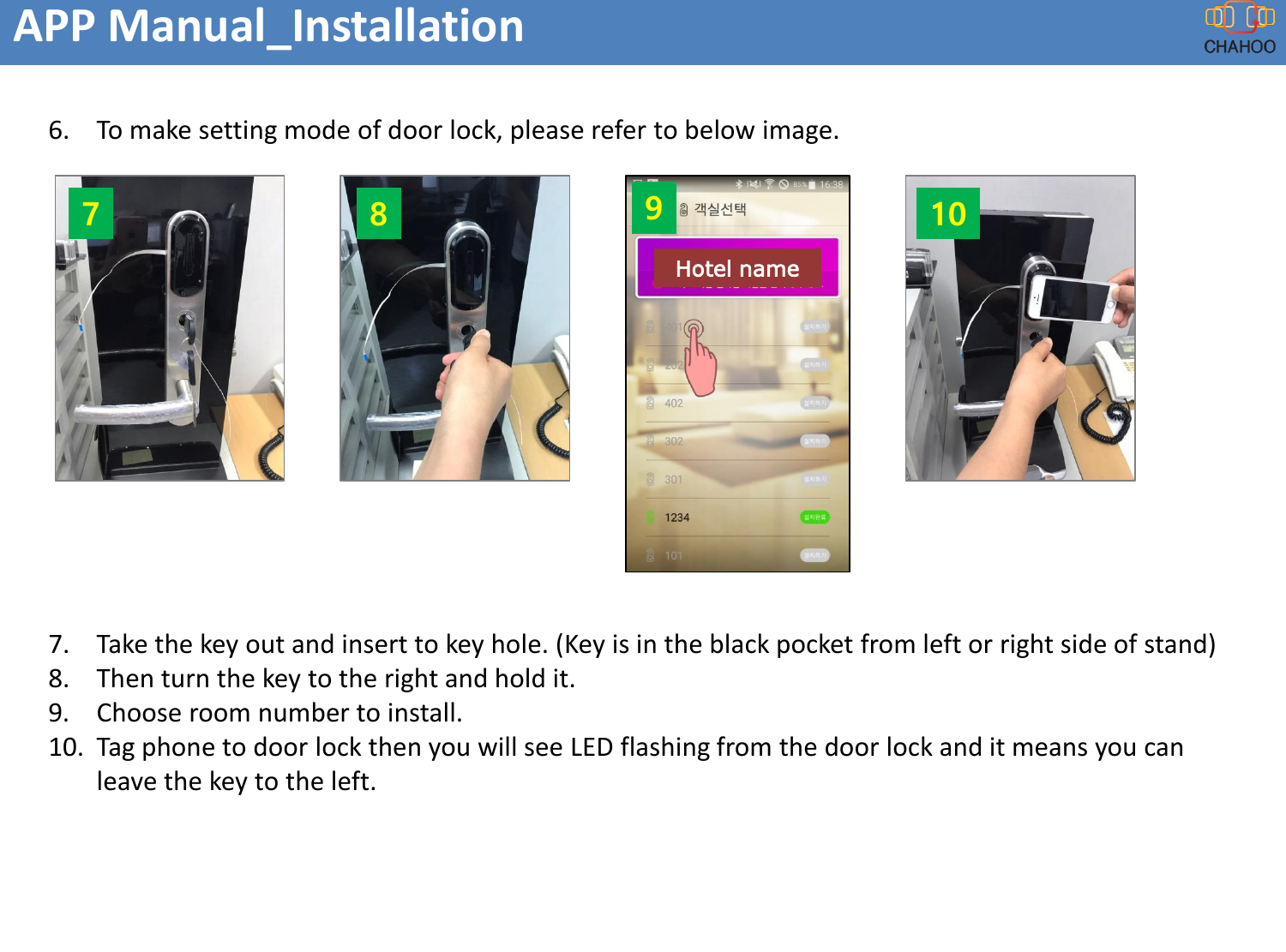
6. To make setting mode of door lock, please refer to below image.7. Take the key out and insert to key hole. (Key is in the black pocket from left or right side of stand)8. Then turn the key to the right and hold it.9. Choose room number to install.10. Tag phone to door lock then you will see LED flashing from the door lock and it means you can leave the key to the left.APP Manual_Installation7 8 10Hotel name9
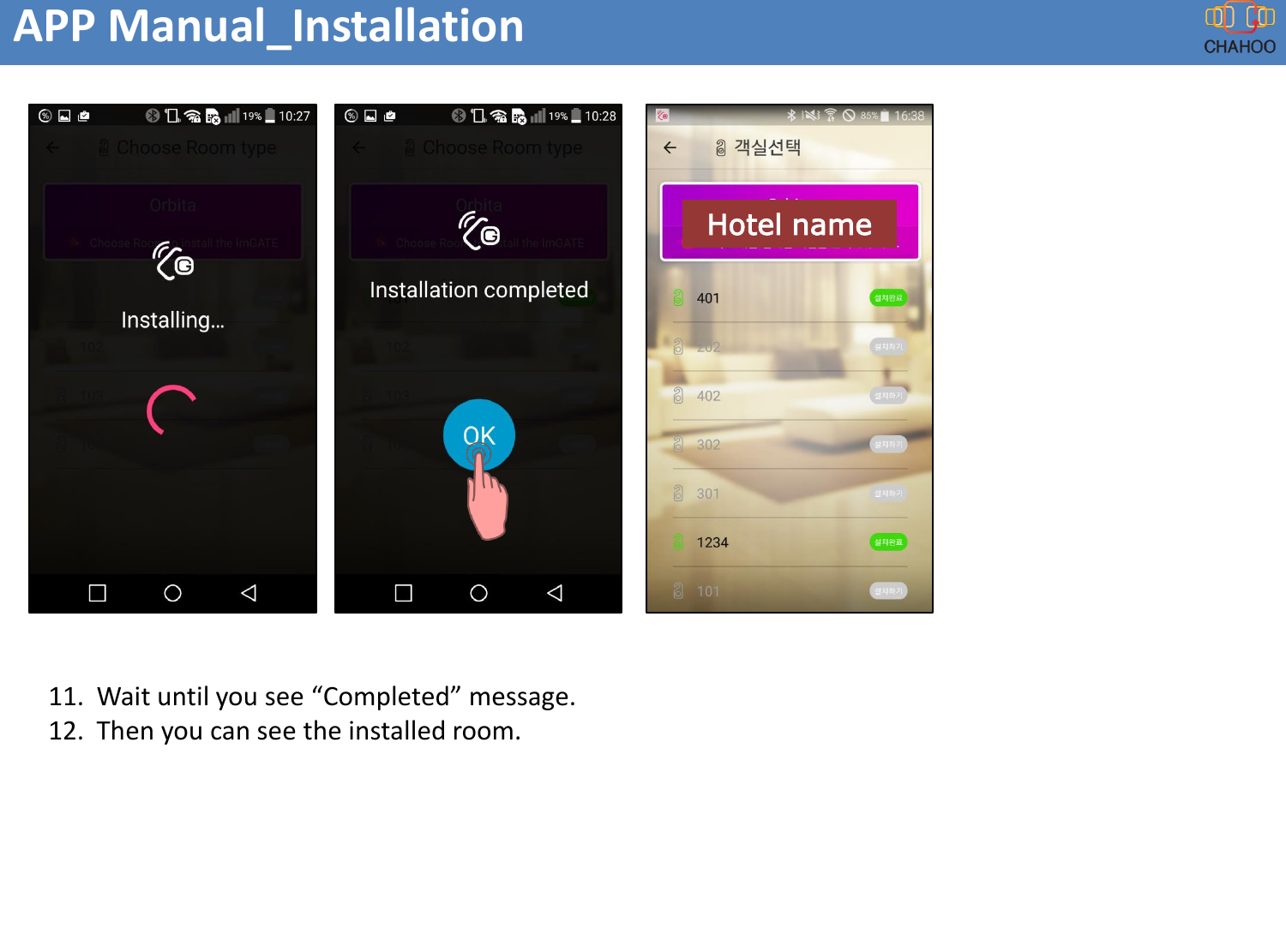
APP Manual_Installation11. Wait until you see “Completed” message.12. Then you can see the installed room.Hotel name
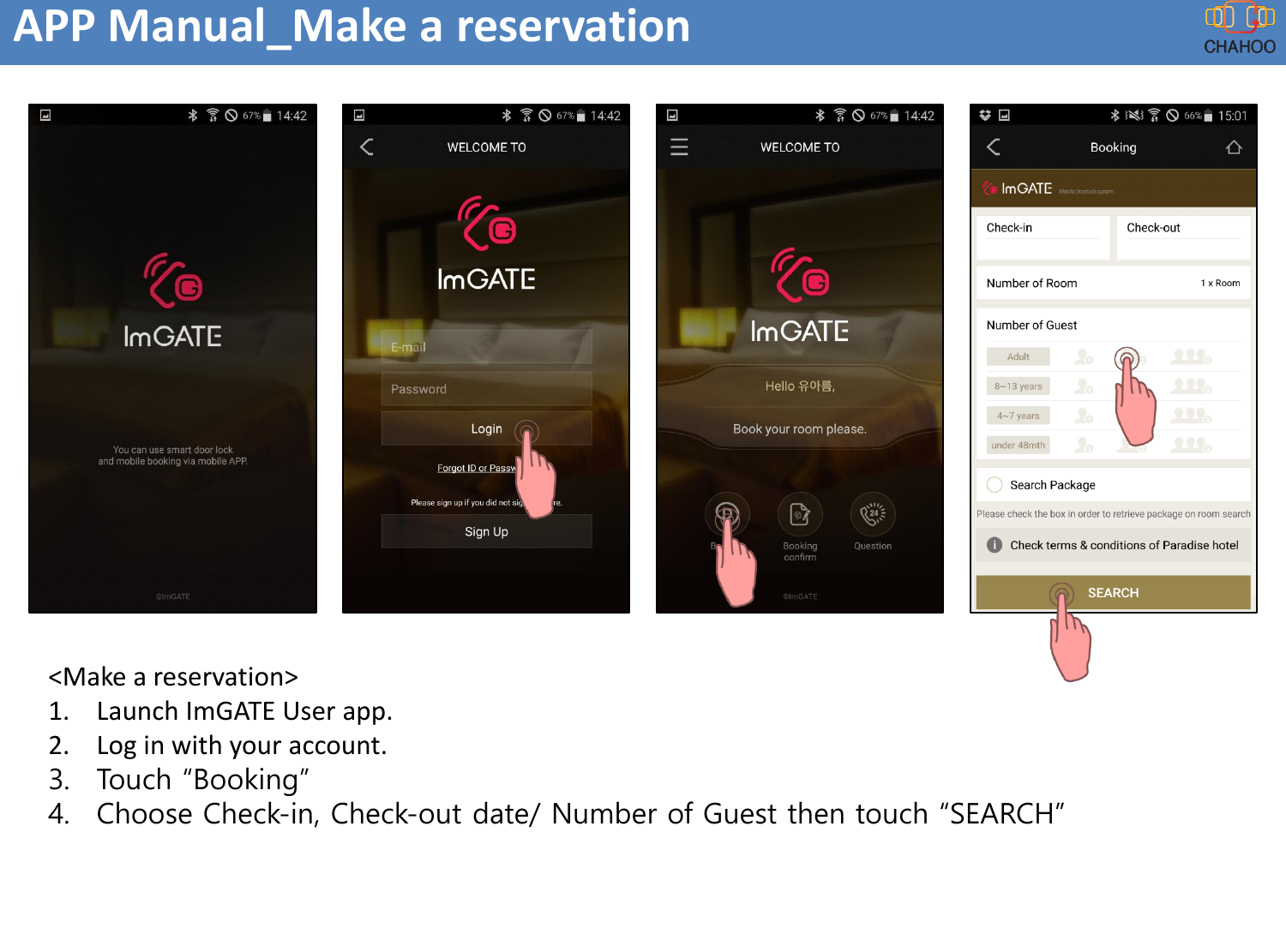
APP Manual_Make a reservation<Make a reservation>1. Launch ImGATE User app.2. Log in with your account. 3. Touch “Booking”4. Choose Check-in, Check-out date/ Number of Guest then touch “SEARCH”
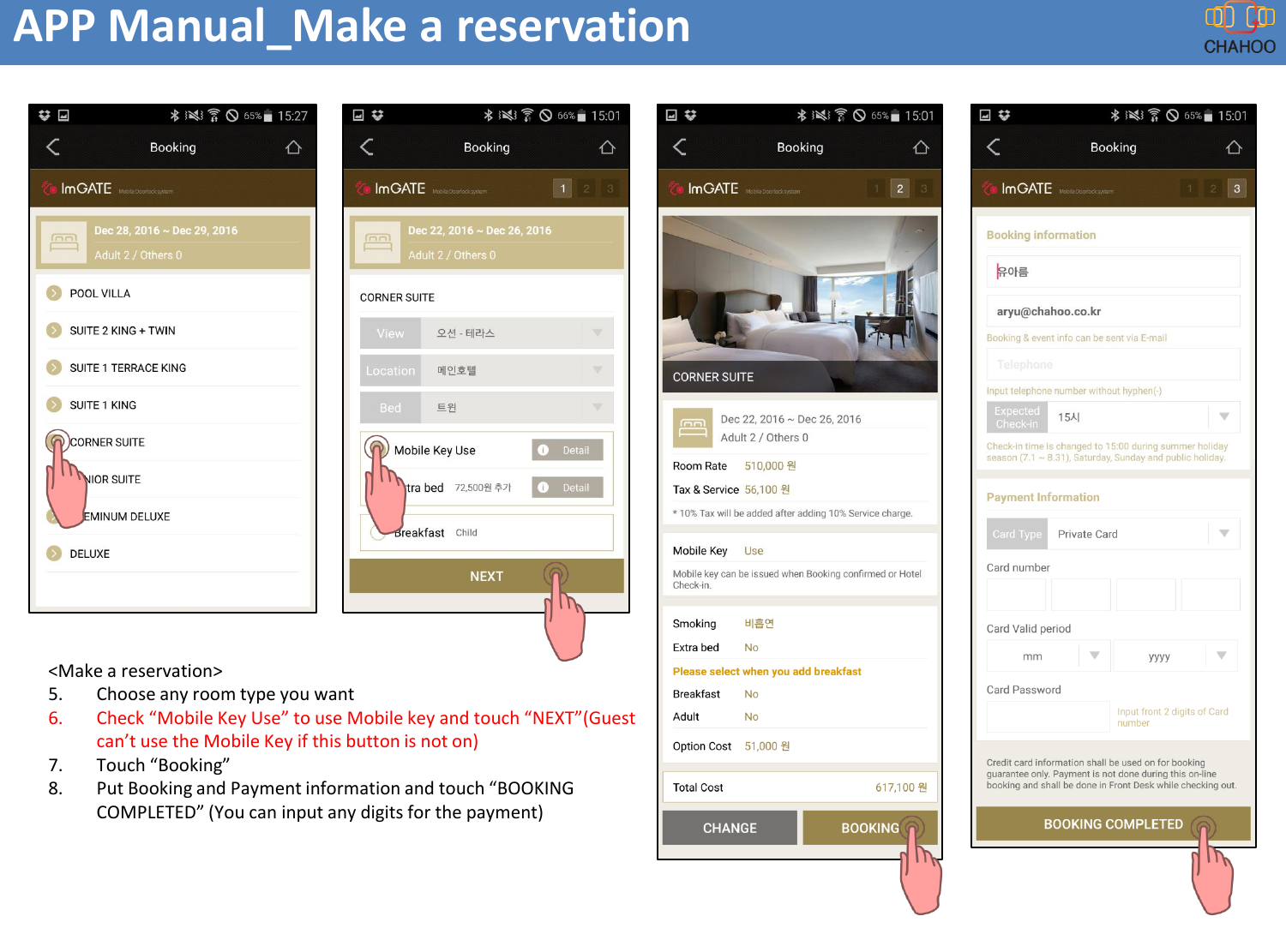
APP Manual_Make a reservation<Make a reservation>5. Choose any room type you want6. Check “Mobile Key Use” to use Mobile key and touch “NEXT”(Guest can’t use the Mobile Key if this button is not on)7. Touch “Booking”8. Put Booking and Payment information and touch “BOOKING COMPLETED” (You can input any digits for the payment)
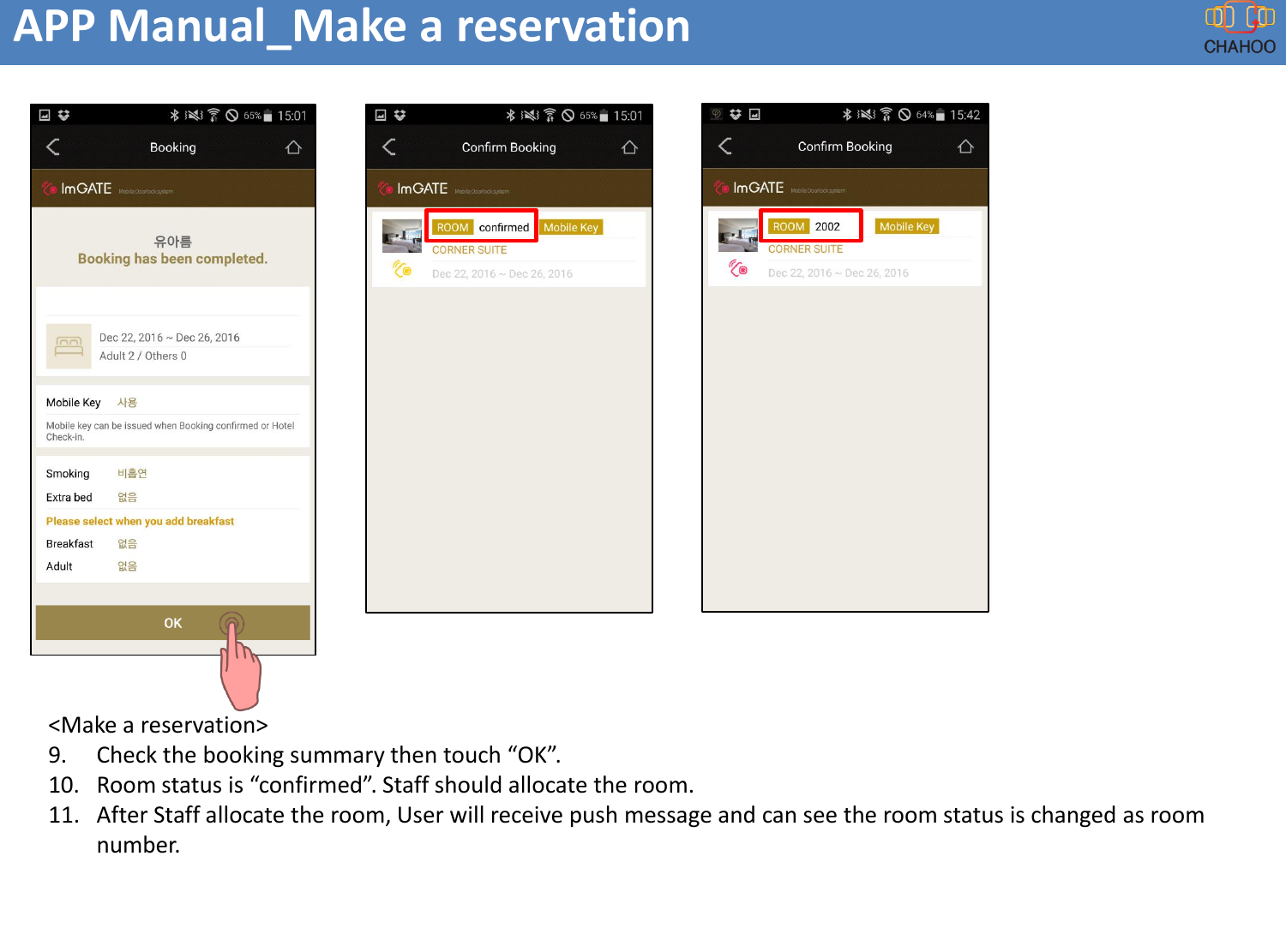
APP Manual_Make a reservation<Make a reservation>9. Check the booking summary then touch “OK”.10. Room status is “confirmed”. Staff should allocate the room.11. After Staff allocate the room, User will receive push message and can see the room status is changed as room number.
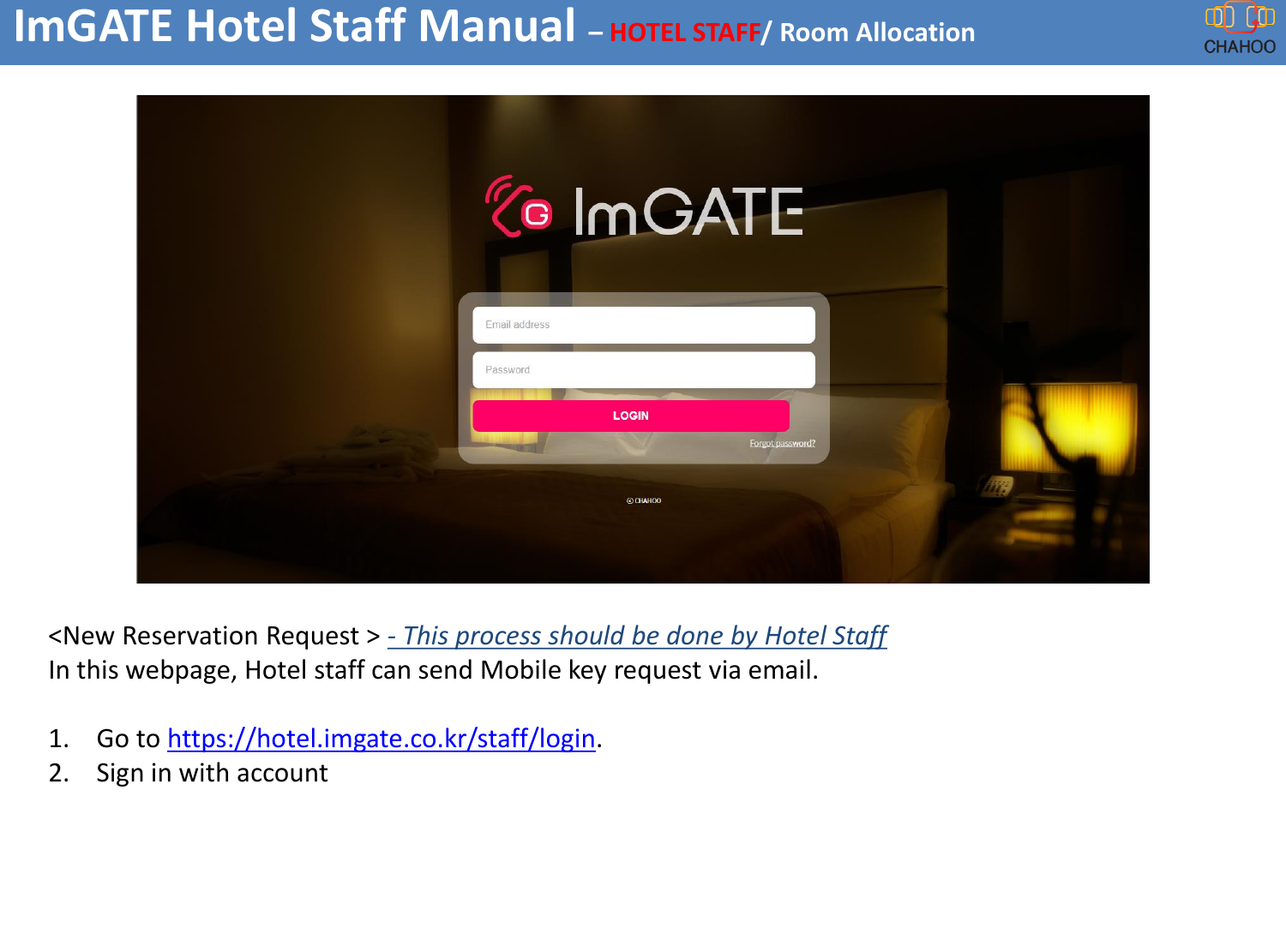
<New Reservation Request > - This process should be done by Hotel StaffIn this webpage, Hotel staff can send Mobile key request via email.1. Go to https://hotel.imgate.co.kr/staff/login. 2. Sign in with accountImGATE Hotel Staff Manual –HOTEL STAFF/ Room Allocation
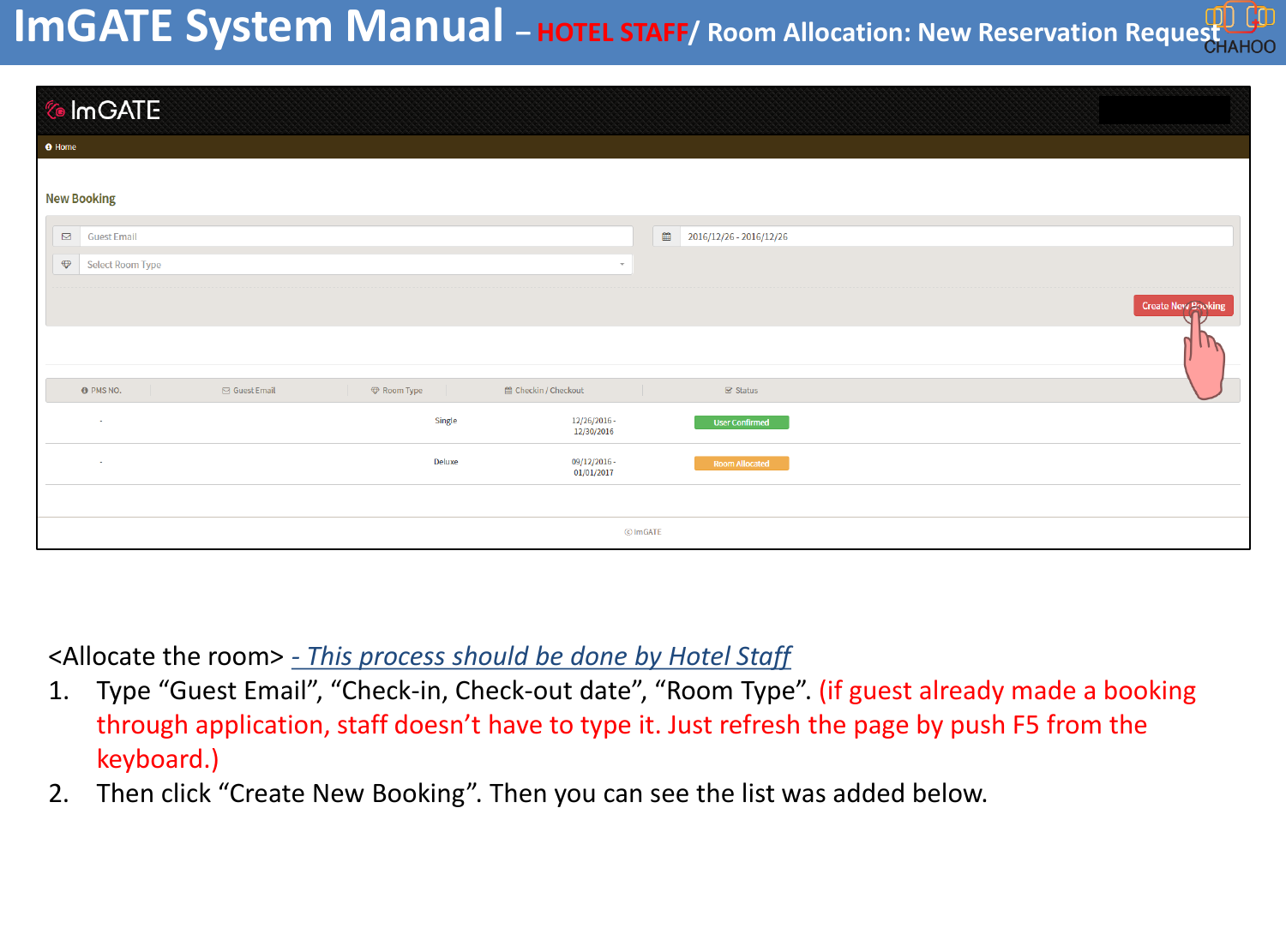
<Allocate the room> - This process should be done by Hotel Staff1. Type “Guest Email”, “Check-in, Check-out date”, “Room Type”. (if guest already made a booking through application, staff doesn’t have to type it. Just refresh the page by push F5 from the keyboard.)2. Then click “Create New Booking”. Then you can see the list was added below.ImGATE System Manual –HOTEL STAFF/ Room Allocation: New Reservation Request
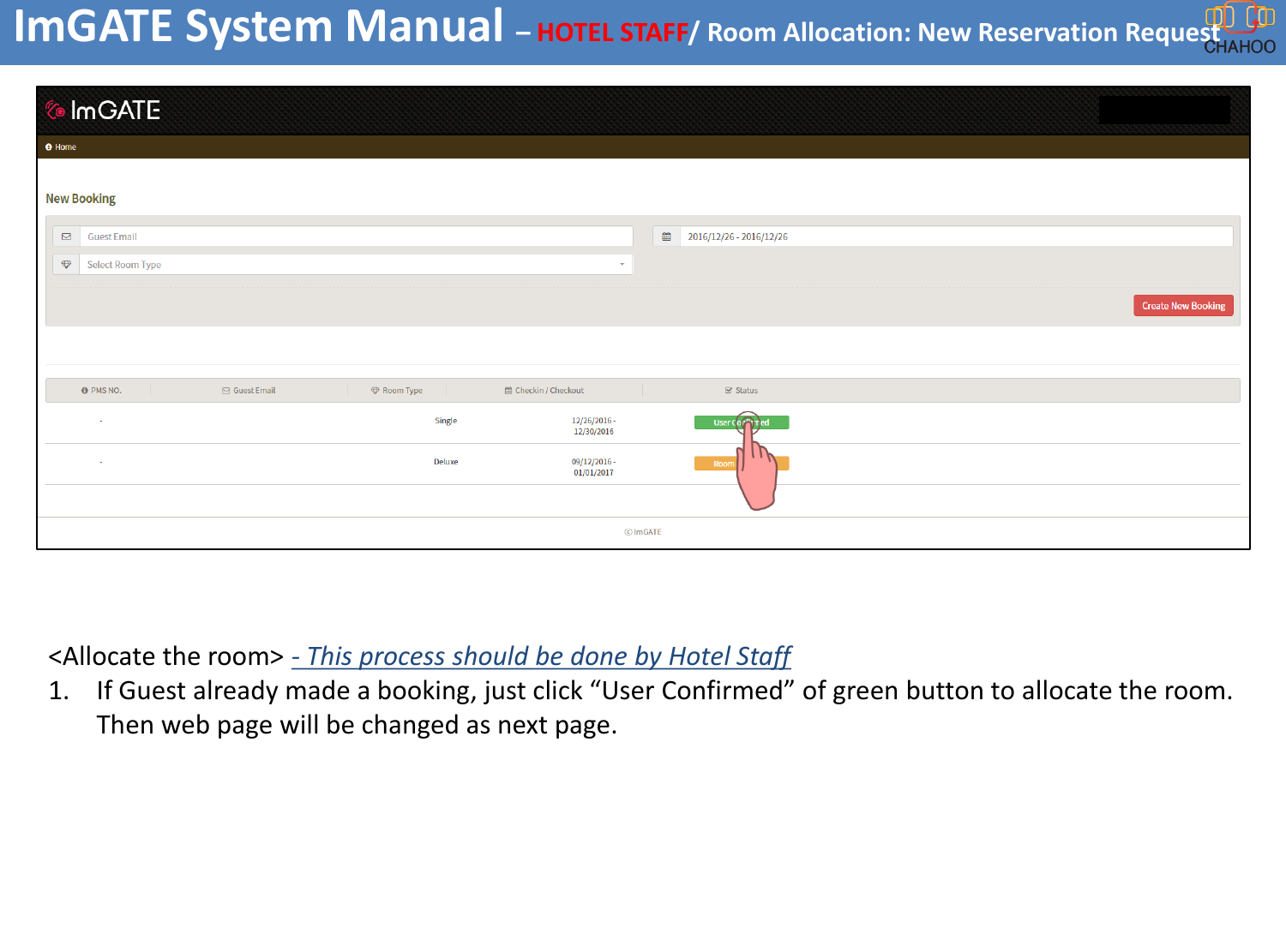
<Allocate the room> - This process should be done by Hotel Staff1. If Guest already made a booking, just click “User Confirmed” of green button to allocate the room. Then web page will be changed as next page.ImGATE System Manual –HOTEL STAFF/ Room Allocation: New Reservation Request
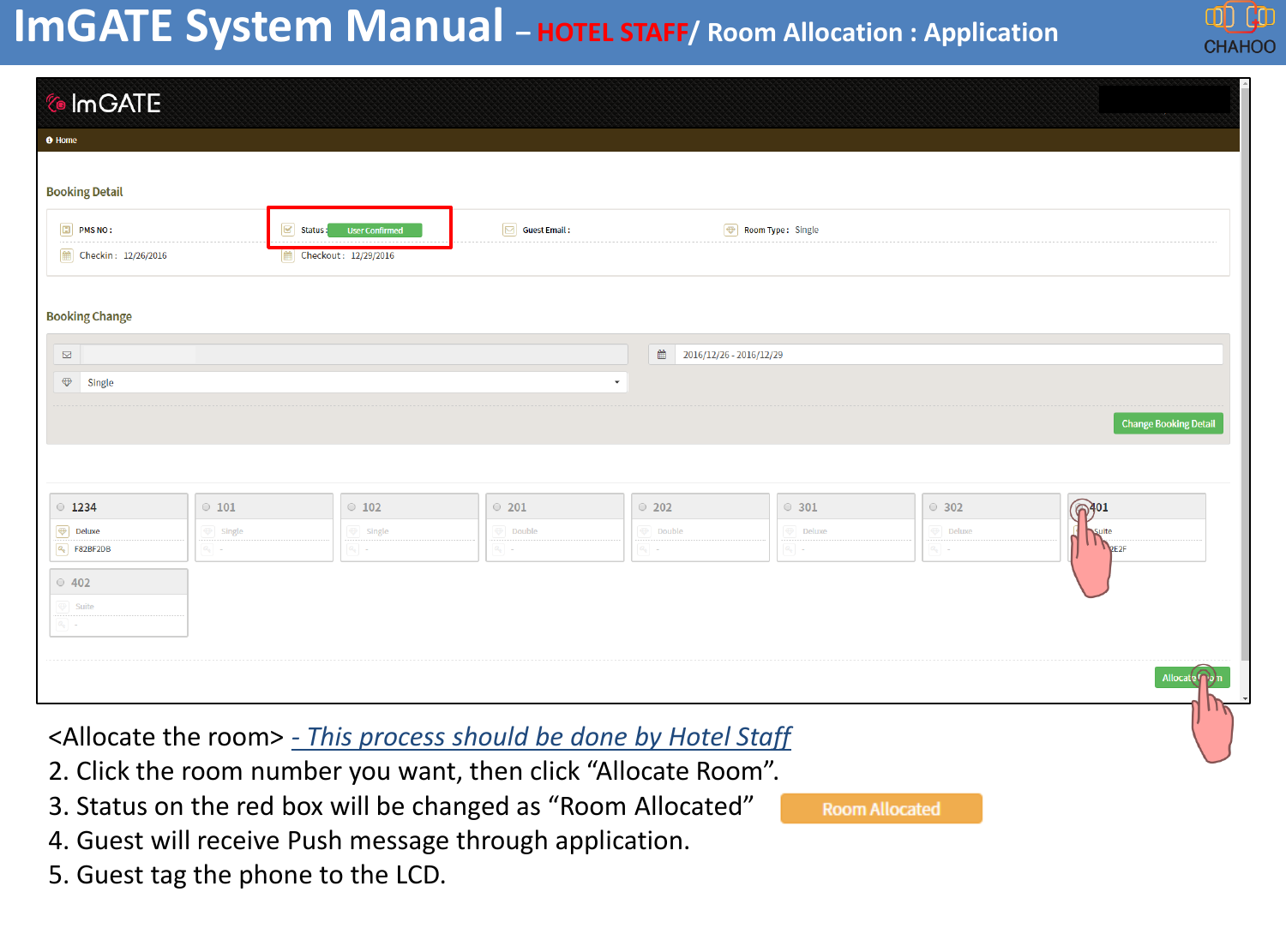
ImGATE System Manual –HOTEL STAFF/ Room Allocation : Application  <Allocate the room> - This process should be done by Hotel Staff2. Click the room number you want, then click “Allocate Room”.3. Status on the red box will be changed as “Room Allocated”4. Guest will receive Push message through application.5. Guest tag the phone to the LCD.
ImGATE Manual-RF card
ImGATE System Manual –RF card<How to use RF card to open the door>1. STAFF: Check room number to allocate for Guest.2. STAFF: Using PC program, write allocated room in RF card.3. STAFF: Give to Guest.4. Guest: Go to reserved room and tag the RF card to door lock.5. Guest: Get inside.
FCC Information to User This equipment has been tested and found to comply with the limits for a Class B digital device, pursuant to Part 15 of the FCC Rules. These limits are designed to provide reasonable protection against harmful interference  in  a  residential  installation.  This  equipment  generates,  uses  and  can  radiate  radio frequency energy and, if not installed and used in accordance with the instructions, may cause harmful interference to radio communications. However, there is no guarantee that interference will not occur in a particular installation. If this equipment does cause harmful interference to radio or television reception, which can be determined by turning the equipment off and on, the user is encouraged to try to correct the interference by one of the following measures: • Reorient or relocate the receiving antenna. • Increase the separation between the equipment and receiver. • Connect the equipment into an outlet on a circuit different from that to which the receiver is con-nected. • Consult the dealer or an experienced radio/TV technician for help.  Caution Modifications  not  expressly  approved  by  the  party  responsible  for  compliance  could  void  the  user’s authority to operate the equipment.  FCC Compliance Information : This device complies with Part 15 of the FCC Rules. Operation is subject to the following two conditions: (1) This device may not cause harmful interference, and (2) this device  must  accept  any  interference  received,  including  interference  that  may  cause  undesired operation.   IMPORTANT NOTE: FCC RF Radiation Exposure Statement: This  equipment  complies  with  FCC  RF  radiation  exposure  limits  set  forth  for  an  uncontrolled environment.  This  equipment  should  be  installed  and  operated  with  a  minimum  distance  of  20 centimeters between the radiator and your body. This transmitter must not be co-located or operating in conjunction with any other antenna or transmitter.

Navigation menu