Imagination Technologies 0063 Airplay and Docking Music Player for iPod/iPhone/iPad User Manual
Imagination Technologies Ltd Airplay and Docking Music Player for iPod/iPhone/iPad Users Manual
Users Manual
Owner’s manual

Safety instructions
1. Read these instructions – All the safety and operating instructions should
be read before this product is operated.
2. Keep these instructions – The safety and operating instructions should be
retained for future reference.
3. Heed all warnings – All warnings on the appliance and in the operating
instructions should be adhered to.
4. Follow all instructions – All operating and use instructions should be
followed.
5. Do not use this apparatus near water – The appliance should not be
used near water or moisture – for example, in a wet basement or near a
swimming pool.
6. Clean only with dry cloth.
7. Do not block any ventilation openings. Install in accordance with the
manufacturer’s instructions.
8. Do not install near any heat sources such as radiators, heat registers,
stoves, or other apparatus (including amplifiers) that produce heat.
9. Do not defeat the safety purpose of the polarized or grounding plug. A
polarized plug has two blades with one wider than the other. A grounding
plug has two blades and a third grounding prong. The wide blade or the
third prong is provided for your safety. If the provided plug does not fit into
your outlet, consult an electrician for replacement of the obsolete outlet.
10. Only use attachments/accessories specified by the manufacturer.
11. Unplug the apparatus during lightning storms or when unused for long
periods of time.
12. Refer all servicing to qualified personnel. Servicing is required when the
apparatus has been damaged in any way,such as power supply cord
or plug is damaged, liquid has been spilled or objects have fallen into
the apparatus has been exposed to rain or moisture, does not operate
normally, or has been dropped.
13. Do not install this equipment in a confined or building-in space such
as a book case or similar unit. The ventilation should not be impeded
by covering the ventilation openings with items such as newspaper,
tablecloths, curtains etc.
14. WARNING: To reduce the risk of fire or electric shock, do not expose this
apparatus to rain or moisture. The apparatus shall not be exposed to
dripping or splashing and that objects filled with liquids, such as vases,
shall not be placed on apparatus.
15. The mains plug and appliance coupler are used as disconnect device, the
disconnect device shall remain readily operable
16. WARNING: The remote batteries shall not be exposed to excessive heat
such as sunshine, fire or the like.
17. This equipment is a Class II or double insulated electrical
appliance. It has been designed in such a way that it does not
require a safety connection to electrical earth.
18. Separation distance of at least 20cm must be maintained between the
antenna of the product and all persons.
19. The socket-outlet shall be installed near the equipment and shall be
easily accessible.
FCC NOTICE TO A USER IN THE UNITED
STATES
This equipment has been tested and found to comply with the limits for a Class
B digital device, pursuant to Part 15 of the FCC Rules. These limits are designed
to provide reasonable protection against harmful interference in a residential
installation. This equipment generates, uses, and can radiate radio frequency
energy and, if not installed and used in accordance with the instructions, may
cause harmful interference to radio communications. However, there is no
guarantee that interference will not occur in a particular installation. If this
equipment does cause harmful interference to radio or television reception, which
can be determined by turning the equipment off and on, the user is encouraged
to try to correct the interference by one or more of the following measures:
• Reorient or relocate the receiving antenna.
• Increase the separation between the equipment and receiver.
• Connect the equipment into an outlet on a circuit different from that to
which the receiver is connected.
• Consult the dealer or an experienced radio/TV technician for help.
Warning! Any modification or changes to this device, unless explicitly
approved by PURE, will invalidate the authorisation of the device.
Operation of an unauthorized device is prohibited under Section 302 of
the Communications Act of 1934, as amended, and Subpart 1 of Part 2 of
Chapter 47 of the Code of Federal Regulations.
This device complies with part 15 of the FCC rules. Operation is subject to the
following two conditions: (1) This device may not cause harmful interference,
and (2) this device must accept any interference received, including
interference that may cause undesired operation.
This Class B digital apparatus complies with Canadian ICES-003.
Copyright
Copyright 2011 by Imagination Technologies Limited. All rights reserved. No part
of this publication may be copied or distributed, transmitted, transcribed, stored
in a retrieval system, or translated into any human or computer language, in any
form or by any means, electronic, mechanical, magnetic, manual or otherwise, or
disclosed to third parties without the express written permission of Imagination
Technologies Limited.
Trademarks
Contour 200i Air, PURE, the PURE logo, PURE, the PURE logo, EcoPlus, the EcoPlus
logo, Imagination Technologies, and the Imagination Technologies logo are
trademarks or registered trademarks of Imagination Technologies Limited. iPad, iPod
and iPhone are trademarks of Apple Inc., registered in the U.S. and other countries.
“Made for iPod”, “Made for iPhone”, and “Made for iPad” mean that an electronic
accessory has been designed to connect specifically to iPod, iPad or iPhone,
respectively, and has been certified by the developer to meet Apple performance
standards. Apple is not responsible for the operation of this device or its compliance
with safety and regulatory standards. Please note that the use of this accessory
with iPod, iPad or iPhone may affect wireless performance. All other product
names ar e tr a d ema r k s of t hei r respec tive comp ani e s . Ver si on 1 De c e mber 2011.
3
Contents
Getting started ............................................................................ 4
Remote control setup......................................................................................................4
Network setup.................................................................................................................4
Wireless setup ................................................................................................................5
Wired setup ....................................................................................................................6
Connection methods .......................................................................................................7
Switching between Sleep, Standby and On......................................................................7
Controls and connectors .................................................................................................8
Remote control ...............................................................................................................9
Front panel Status LED ................................................................................................ 10
Setting up AirPlay ...................................................................... 11
Introduction ................................................................................................................. 11
Stage 1: Connecting your setup device to Contour 200i Air .......................................... 11
Stage 2: Adding Contour 200i Air to your wireless network ........................................... 12
Stage 3: Checking your Contour 200i Air is visible ........................................................ 17
Using AirPlay to play audio ......................................................... 18
Using AirPlay ................................................................................................................ 18
Selecting the AirPlay source ......................................................................................... 18
Playing audio from iTunes............................................................................................. 18
Playing audio from an iPod touch, iPhone or iPad ......................................................... 18
Listening to a docked iPod/iPhone/iPad ..................................... 19
Compatibility ............................................................................................................... 19
Docking your device ..................................................................................................... 19
Selecting the dock ....................................................................................................... 19
Controlling your device ................................................................................................. 19
Using the digital output .............................................................. 20
Using an external digital output device ......................................................................... 20
Connecting an external digital output device ................................................................ 20
Using the auxiliary input ............................................................. 20
Connecting an auxiliary device ..................................................................................... 20
Selecting the auxiliary input ......................................................................................... 20
Updating the firmware ................................................................ 21
Help .......................................................................................... 22
Hints and tips .............................................................................................................. 22
Specifications ............................................................................ 23
PURE Warranty Statement for Australia ........................................ 24
4
Getting started
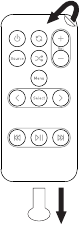
Remote control setup
Pull the plastic tab from the remote control battery compartment and remove the protective film
from remote buttons.
Network setup
Contour 200i Air can be connected to your network by using a wireless or wired connection.
The wireless connection method is very flexible as it does not require an Ethernet cable to be run
between Contour 200i Air and your wireless router, allowing you to position your Contour 200i Air
anywhere within range of your wireless connection. We recommend using the wireless connection
method. Refer to “Wireless setup” on page 5 for more information.
When using the wired connection method, an Ethernet cable needs to be connected between
the Ethernet port on the back of Contour 200i Air and one of the available Ethernet ports on your
router. With this setup method, your iPad, iPod or iPhone connects to Contour 200i Air via the
wireless router. Refer to “Wired setup” on page 6 for more information.
5
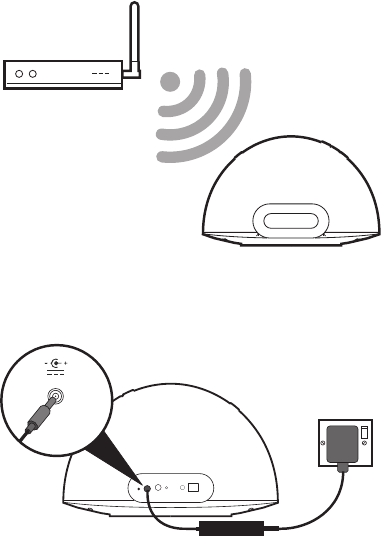
1. Position Contour 200i Air in range
of your wireless network.
2. Insert the connector of the mains
power adapter into the socket on
the rear of Contour 200i Air.
3. Plug in to the mains supply.
4. A network connection between your computer and Contour 200i Air will then be established
automatically. When the red Status LED on the front has stopped flashing, Contour 200i Air is
in Standby.
5. Refer to “Connection methods” on page 7 for the next setup steps.
Wireless setup
18V DC
6
Wired setup
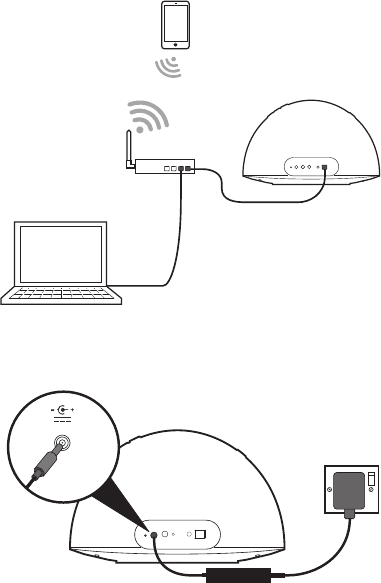
1. Connect an Ethernet cable from
the Ethernet port on the back of
Contour 200i Air to your router.
2. Insert the connector of the mains
power adapter into the DC In
socket on the rear of Contour 200i
Air.
3. Plug in to the mains supply.
4. A network connection between your computer and Contour 200i Air will then be established
automatically. When the red Status LED on the front has stopped flashing, Contour 200i Air is
in Standby.
5. Refer to”Connection methods” on page 7 for the next setup steps.
18V DC
7
Connection methods
Contour 200i Air can be connected and used in different ways:
• As a docking station for an iPod, iPhone or iPad. See page 19
• As an AirPlay device for playing audio from iTunes on your computer or an iPod touch,
iPhone or iPad with AirPlay, via your wireless network. See page 11.
• As a speaker for an audio device connected via the Aux In connector. See page 20.
Switching between Sleep, Standby and On
Contour 200i Air has three power states, Standby, Sleep and On. In Standby, Contour 200i Air
uses minimal power (Status LED is bright red). In Sleep, Contour 200i Air remains connected to
the wireless network (once attached) and is waiting for a source to be selected (the Status LED is
dimmed red). Refer to page 10 for more information on the Status LED.
To enter Standby, press and hold Standby for four seconds on Contour 200i Air, or the remote
until the Status LED is bright red.
To exit Standby, press Standby to switch to Sleep. The Status LED will flash and will return to the
state that the Contour 200i Air was in before Standby.
Once in Sleep, press Standby to switch to On.
Once in On, press Source to switch between AirPlay, iPod and Auxiliary input.
8
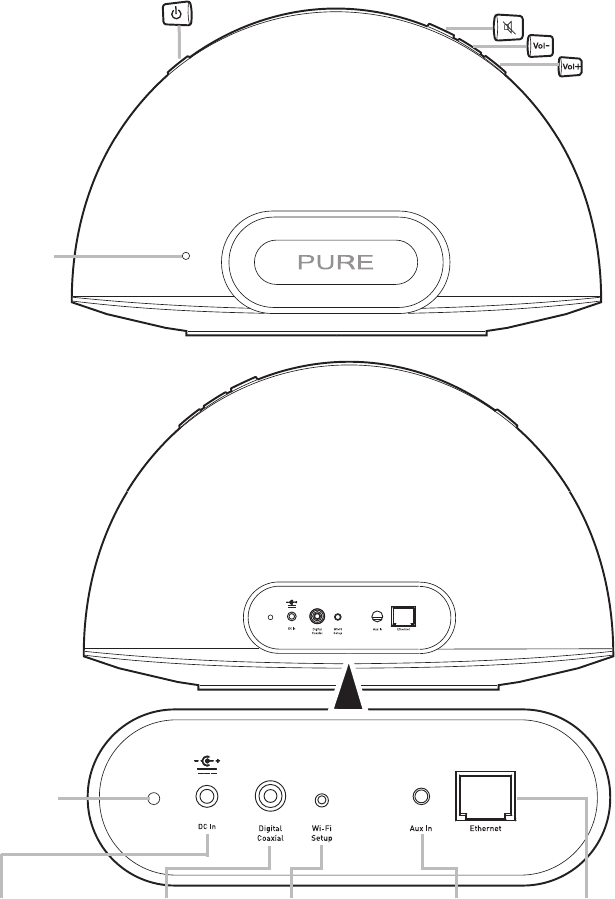
Controls and connectors
Standby
Press to switch between
Sleep, Standby and On.
See page 7.
Press repeatedly to
cycle between
sources.
Mute
Volume down
Volume up
DC In
Connector for
supplied mains
power adapter.
Aux In
Connector for
analogue stereo
input for MP3
player or similar.
See page 20.
Ethernet
Connector for
network cable. Use
as an alternative to
Wi-Fi for setup. See
page 6.
Digital Coaxial
Connector for
output of digital
audio signal.
See page 20.
Wi-Fi Setup
Button used when
setting up a wireless
network. See page 11.
Fault
LED
Status
LED

9
Remote control
Mode:
On
Hold to enter Standby
Press once to exit Standby/Sleep
Sleep
Hold button to enter Standby
Press button once to return to last active state.
Standby
Press to enter last active state.
Source Once in On, press to switch between AirPlay, iPod
and Auxiliary input.
Shuffle the track playback order.
Toggle to repeat current track , repeat all or no
repeat.
Vol
Menu Press to access the menu on a docked iPod
or iPhone. Also steps back through menus if
connected to an iPod.
< Select > Select tracks and menu options on your iPod/
iPhone or iPad.
and Skip to beginning of current track or go to previous
or next track. Hold to fast rewind or fast forward.*
Play/pause current track.
Volume up/Volume down.
+
-
*The remote control cannot be used to scan within a track when being used in Airplay.
10
Front panel Status LED
When Contour 200i Air is powered on, the Status LED is visible through the front speaker mesh.
This LED indicates the various states of the Contour 200i Air, by colour. These states are as
follows:
Red Standby / Starting up (flashing) / Sleep (dimmed)
Blue iPod/iPhone/iPad dock is active (flashing indicates dock remote
activity)
White AirPlay is active (fast flashing indicates AirPlay remote activity) (slow
flashing indicates network connectivity problems)
Purple Aux In is active (fast flashing indicates Aux remote activity)
Blue/Green (Alternate flashing) Temporary wireless network setup
Red/Green/Blue/White (Alternate flashing) Updating firmware
Cyan Flashing indicates a firmware problem
11
Setting up AirPlay
Introduction
There are three stages in setting up Contour 200i Air to use AirPlay:
1. Create a connection between Contour 200i Air and your setup device (any device with Wi-Fi
and a browser, such as an iPhone or laptop), by using a temporary wireless network. (To
connect Contour 200i Air using a network cable see page 6).
2. Add Contour 200i Air to your wireless network using a configuration web page that you can
now access on your setup device.
3. Configure iTunes, or your iPod touch, iPhone or iPad, to use Contour 200i Air as an AirPlay
device, i.e. a device you can stream audio to.
Stage 1: Connecting your setup device to Contour 200i Air
The first stage of the setup procedure is to establish a temporary connection between your setup
device and Contour 200i Air. The connection can be established by creating a temporary wireless
network to connect to an iPod Touch, iPhone, iPad, laptop or smartphone.
Connecting using a temporary wireless network
1. Ensure that Contour 200i Air is in Sleep or On.
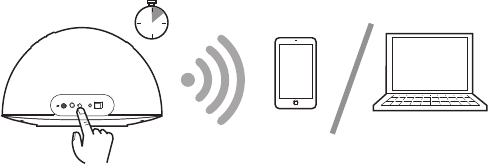
2. Press the Wi-Fi Setup button on the back of the Contour 200i Air for five seconds. This will
turn on Contour 200i Air’s temporary wireless network. The Status LED will flash red while the
temporary wireless network starts up.
20 secs
After around twenty seconds, the Status LED will then flash green and blue until the
connection to the setup device is established.
3. On your setup device (iPhone, laptop etc), the Contour 200i Air xxxxxx* wireless network
should now be visible. Select this network. No password is required.
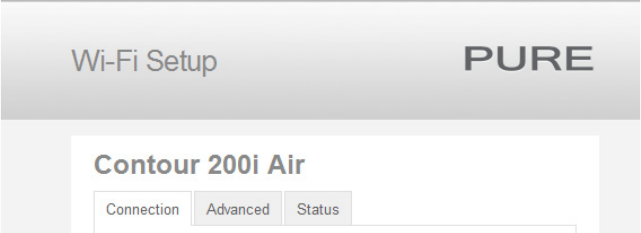
4. Once you have connected to the Contour 200i Air xxxxxx* wireless network, you can access
the configuration screen on your setup device’s web browser. Use this configuration web page
to add Contour 200i Air to your own wireless network. See Stage 2.
*xxxxxx represents a six digit code that will be unique to each Contour 200i Air.
12
Stage 2: Adding Contour 200i Air to your wireless network
Once you have established the temporary connection between your setup device and Contour
200i Air, you can add it to your wireless network as follows:
1. In your setup device’s web browser, enter the following in the address bar:
http://192.168.1.12
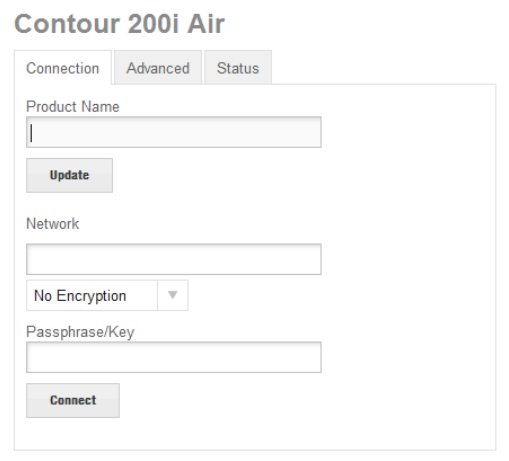
2. The main configuration web page will display:
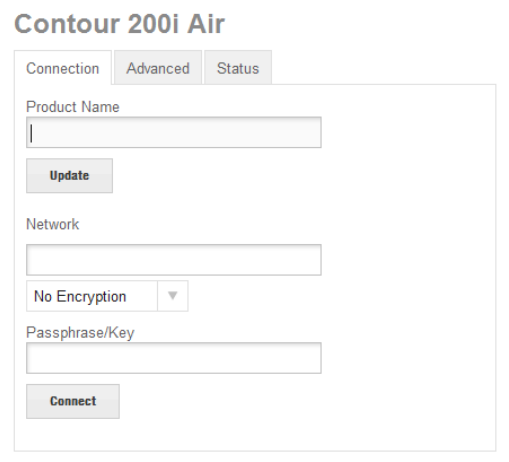
3. The Contour 200i Air main configuration page features three tabs. In most cases, you only
need to configure the settings on the Connection tab. The other available tabs are:
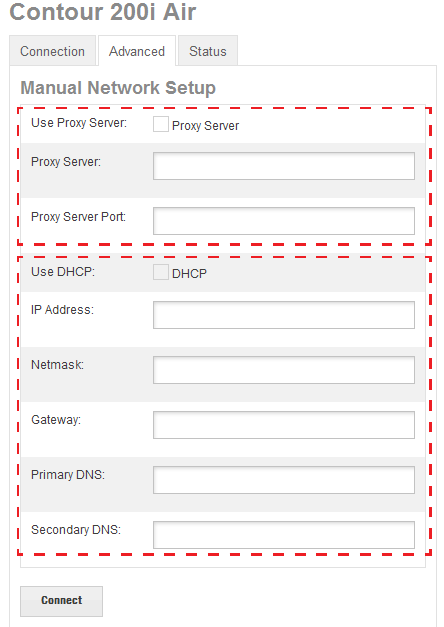
Advanced The Advanced tab opens the Manual Network Setup page.
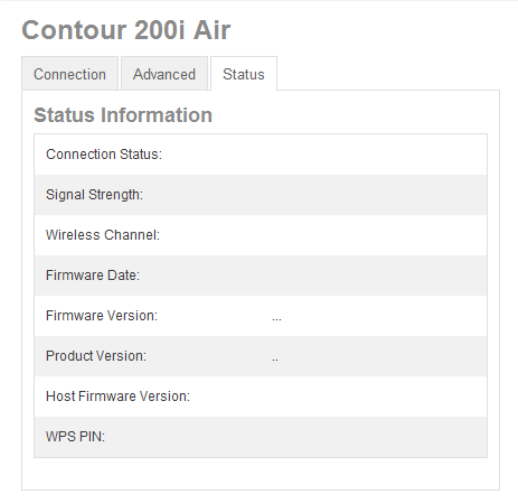
Status The Status tab opens the Status information page. This page displays
information about the firmware and the wireless connection status.
13
Automatic wireless setup
1. If you prefer, you can change the name of your Contour 200i Air by typing the name (e.g.
‘Lounge Contour’) in the Product Name box and clicking Update. This is this name that you
will see on your network and in iTunes or on your Apple device.
2. Select the name of your own wireless network from the Network drop-down list. The
encryption method will automatically be determined by Contour 200i Air.
3. If required, enter the security key used by your network in the box below.
4. Click Connect. The Status LED will then flash red to indicate that Contour 200i Air is
resetting. If Contour 200i Air connects to the network successfully, the Status LED will be
solid White after it has finished rebooting.
Connection tab
The wireless settings on the Contour 200i Air can be configured automatically or manually. We
recommend trying the automatic configuration first as this should work for the majority of home
Wi-Fi networks.
Note: We recommend that you contact your IT department before attempting to connect Contour
200i Air to a corporate wireless network.
14
1. Select ‘Configure Manually’ from the Network drop-down list and select the encryption type of
your wireless network from the drop-down list below. Contour 200i Air supports the following
encryption types:
• No Encryption Select this option if your wireless network is not being secured with any
type of encryption.
• WEP Select this option if your wireless network is being secured using the
Wired Equivalent Privacy (WEP) method.
• WPA Select this option if your wireless network is being secured using the
Wi-Fi Protected Access (WPA) method.
• WPA2 Select this option if your wireless network is being secured using the
Wi-Fi Protected Access II (WPA2) method.
Note: Please check your wireless router configuration to find out the type of encryption that
is being used on your wireless network.
2. Enter the passphrase/key needed to connect to your network in the box below, if one is
required.
3. Click Connect. The Status LED will then flash red to indicate that Contour 200i Air is
resetting. If Contour 200i Air connects to the network successfully, the Status LED will be
solid White after it has finished rebooting.
Manual wireless setup
15
Advanced tab
The Advanced tab is divided into two main sections, Proxy Server settings and IP address settings.
Proxy Server
Settings
IP Address
Settings
Configuring Proxy Server settings
Carry out the following if the Contour 200i Air will connect to the internet via a proxy server.
1. Tick the Use Proxy Server checkbox.
2. Enter the IP address of your Proxy Server into the Proxy Server box.
3. Enter the port number being used by your Proxy Server into the Proxy Server Port box.
4. Click Connect at the bottom of the window to save any changes made.
Configuring IP Address settings
Contour 200i Air supports both DHCP and static IP address configuration. To use DHCP, tick the
DHCP checkbox and click Connect. To use a static IP address carry out the following.
1. Enter the IP address that you want to assign to the Contour 200i Air into the IP Address box.
2. Enter the subnet mask that you want to assign to the Contour 200i Air into the Netmask box.
3. Enter the IP address of your network’s default gateway into the Gateway box.
4. Enter the IP address of the Primary DNS server being used on your network.
5. Enter the IP address of the Secondary DNS server being used on your network.
6. Click Connect to save any changes made.
16
Status tab
The Status tab displays a summary of Contour 200i Air’s firmware/hardware information and also
displays information about the state of the wireless connection.
Connection
Status
Indicates if Contour 200i Air is connected to a wireless network or not. Also
indicates the wireless LAN type, i.e. Basic Service Set, Extended Service Set.
Signal
Strength
Displays the strength of the wireless connection between Contour 200i Air
and the peer network device.
Wireless
Channel
Displays the channel being used by the wireless connection.
Firmware
Date
Displays the date that the firmware was created on.
Firmware
Version
Displays the version of firmware that is loaded on Contour 200i Air.
Product
Version
Displays the product version of Contour 200i Air.
Host
Firmware
Version
Displays the host firmware version.
WPS PIN Displays the Wi-Fi Protected Setup (WPS) pin number that has been
configured on the Contour 200i Air (only required if your wireless network
supports WPS).
17
Stage 3: Checking your Contour 200i Air is visible
Once you have successfully added Contour 200i Air to the same network as your iTunes computer,
iPod touch, iPhone or iPad, it should be automatically detected.
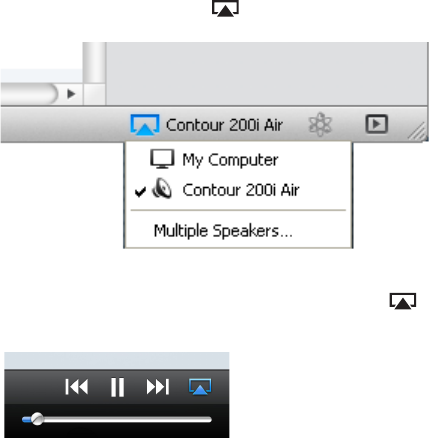
In iTunes, the AirPlay symbol is located in the bottom status bar of the iTunes window.
On an iPod Touch, iPhone or iPad, the AirPlay symbol is located at the bottom of the screen
when playing music.
The AirPlay symbol will be white when any AirPlay device is available on the network. When
Contour 200i Air is connected and streaming to an AirPlay device, the AirPlay symbol will turn
blue.
18
Using AirPlay to play audio
Using AirPlay
AirPlay allows you to stream audio from iTunes to one or more Contour 200i Air devices. AirPlay
also allows you to stream audio from an iPod touch, iPhone or iPad to a single Contour 200i Air.
Selecting the AirPlay source
If you wish to select AirPlay as the source, press Source until the Status LED is white.
Note: When an AirPlay connection is established, it will always take control of Contour 200i Air
and override any other modes.
Playing audio from iTunes
In iTunes, click the AirPlay symbol and select your Contour 200i Air from the AirPlay list at the
bottom of the screen (it will be listed with the name given to it when it was configured).
Select the track you wish to play. If Contour 200i Air is in sleep, it will wake up and switch the
source to AirPlay. The Status LED will change to white when AirPlay is active.
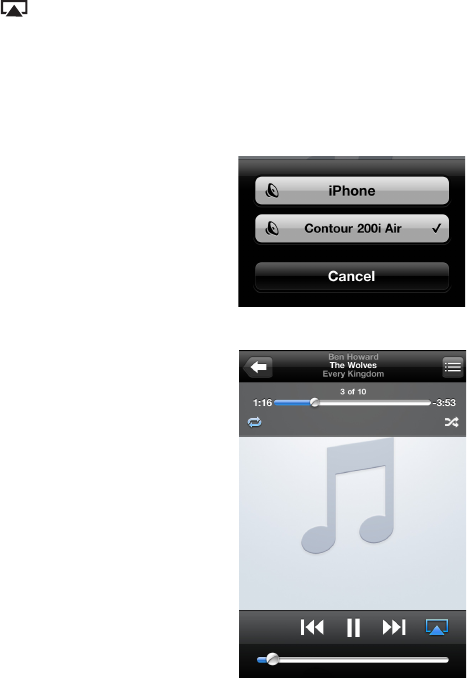
Playing audio from an iPod touch, iPhone or iPad
On your iPod touch, iPhone or iPad, ensure you are connected to
the same wireless network as the Contour 200i Air. You should
then be able to select your Contour 200i Air from the list of
AirPlay devices (it will be listed with the name given to it when it
was configured).
Select the track you wish to play. If Contour 200i Air is in sleep,
it will wake up and switch the source to AirPlay. The Status LED
will change to white when AirPlay is active.

19
Listening to a docked iPod/
iPhone/iPad
Compatibility
The dock on Contour 200i Air is compatible with most iPod, iPhone and iPad models. For the
latest information, check the compatibility table on our website: www.pure.com/products/ipod-
compatibility.
Docking your device
Dock your device onto the connector.
Your device will start charging as soon as it is docked and will continue charging whether Contour
200i Air is playing, or in Standby or Sleep.
Selecting the dock
Press Source until the Status LED is blue. Contour 200i Air also switches to this mode
automatically when docking an iPod that is playing.
Controlling your device
When the iPod source is selected, your device will start playing the last track you were listening to.
Use the remote, or the controls on your device, to navigate menus and control playback.
20
Using the digital output
Using an external digital output device
You can connect Contour 200i Air to a digital output device, such as compatible hi-fi system. Any
audio playing through Contour 200i Air will also be sent to the attached device.
Note: The volume controls on Contour 200i Air will not change the volume on the digital device.
Connecting an external digital output device
Connect Contour 200i Air to your digital output device using a suitable coaxial cable to connect
to the Digital Coaxial connector.
Using the auxiliary input
Connecting an auxiliary device
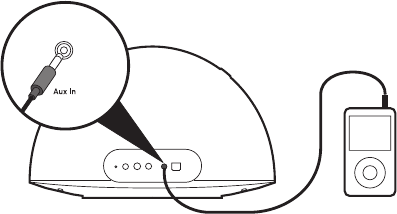
Connect the line out or headphone socket of your auxiliary device to the Aux In socket on your
Contour 200i Air using a suitable cable.
Selecting the auxiliary input
Press Source until the Status LED is purple.
21
Updating the firmware
Firmware updates for your Contour 200i Air will automatically be delivered via the Wi-Fi
connection when Contour 200i Air initially boots up. If there is a new version of firmware
available, the Status LED will alternately flash red/green/blue/white while the firmware is being
installed. A firmware update takes between six to eight minutes.
Note: Do not power off Contour 200i Air while a firmware update is taking place!
22
Help
Hints and tips
I cannot connect to my wireless network
Ensure that your Contour 200i Air is within range of your wireless base station and that you are
not located in a dead spot.
The Status LED is flashing white
Your Contour 200i Air has Airplay selected as the source but does not currently have a connection
to a wireless network. Follow the instructions in Setting up AirPlay on page 7.
There is a red light on the back of Contour 200i Air
This red LED indicates an internal fault. Disconnect the power for a few minutes and then try
again. If this does not resolve the problem, please contact PURE technical support.

100-240V, 50/60Hz 18V DC 3.61A external power adapter.
370mm wide x220mm high x170mm deep.
23
Specifications
Dock compatibility Supports most iPod, iPhone and iPad* models. For the latest information,
check the compatibility table on our website: www.pure.com/products/ipod-
compatibility.
Speakers 2 full-range 3.5” drive units with twin downward firing bass ports.
Audio output 2 x 18W RMS.
Input connectors 18V DC power adapter socket. iPod/iPhone/iPad dock connector. 3.5mm
Aux-in for auxiliary devices. Ethernet socket.
Output connectors Digital coaxial socket for digital audio.
Remote control Infrared remote control. CR2025 button cell battery included.
Mains power supply
Dimensions
Approvals CE marked. Compliant with the EMC and Low Voltage Directives (2004/108/
EC and 2006/95/EC). ETSI EN 300 401 compliant.
Hereby, PURE Digital declares that this Band II LPD device is in compliance
with the essential requirements and other provisions of the Directive
1999/5/EC.
Please go the www.pure.com for the full Declaration of Conformity
Suitable for use in the following markets:- A, B, BG, CY, CZ, DK, EE, FIN, F, D,
EL, HU, IRL, I, LV, LT, L, MT, NL, PL, P, RO, SK, SL, E, S, GB, ISL, LIE, NOR, CHE
Disposal of Waste Electrical & Electronic Equipment
This symbol on the product or on its packaging indicates that this product should not be
treated as household waste. Instead it should be handed over to a suitable collection point for
the recycling of electrical and electronic equipment. By ensuring this product is disposed of
correctly, you will help prevent potential negative consequences for the environment and human
health, which could otherwise be caused by inappropriate waste handling of this product. The
recycling of materials will help to conserve natural resources. For more detailed information
about recycling of this product, please contact your local council office, your household waste
disposal service or the shop where you purchased the product.
24
PURE Warranty Statement for Australia
This statement replaces any reference to warranty which may be contained elsewhere within this manual
What do you need to do now?
Option 1: You can register your purchase on-line at https://www.pure.com/au/register/register.asp
Option 2: Or you can do nothing other than keep your proof of purchase as evidence of your purchase date.
This proof of purchase would need to be presented if warranty service was ever required.
If you have any questions about your warranty you can call us toll free .... 1800 988 268
What’s covered by this warranty?
• PUREagreestorefund,repairorreplace,atyourelection,withoutchargetoyou,anypartfoundtobe
defective during the warranty period.
• Ifequipmenthasbeenusedaccordingtoitsaccompanyinginstructionmanualandisusedinadomestic
situation, a two year warranty period applies.
How do you make your claim?
Call 1800 988 268 for instructions on how to return your PURE product for warranty service or go to
http://support.pure.com/au/ and complete the contact us form.
What’s NOT covered by this warranty?
Under this express warranty PURE will not be liable for loss or damage of any kind whatsoever, whether direct,
indirect, incidental, consequential or otherwise.
• Replacementofpartsduetonormalwearandtear
• Productswithserialnumberdefacement,modicationorremoval
• Waterdamageorcorrosioncausedbydampness
• Anydamageordeteriorationduetoshipment
• Anyproductwhichhasbeensubjectedtomisuse,abuseoraccident
Australian consumers — The benefits to the consumer given by this express warranty are in addition
to other rights and remedies of the consumer under a law in relation to the goods or services to which this
warranty relates. Our goods come with guarantees that cannot be excluded under the Australian Consumer Law,
You are entitled to a replacement or refund for a major failure and for compensation for any other reasonably
foreseeable loss or damage. You are also entitled to have the goods repaired or replaced if the goods fail to be
of acceptable quality and the failure does not amount to a major failure.
PURE is proudly distributed and supported in Australia by...PIONEER ELECTRONICS AUSTRALIA PTY LTD, 5 ARCO
LANE, HEATHERTON, VICTORIA, 3202
Warranty information
Imagination Technologies Ltd. warrants to the end user that this product will be free from
defects in materials and workmanship in the course of normal use for a period of two years
from the date of purchase. This guarantee covers breakdowns due to manufacturing or
design faults; it does not apply in cases such as accidental damage, however caused, wear
and tear, negligence, adjustment, modification or repair not authorised by us. Please visit
www.pure.com/register to register your product with us. Should you have a problem with
your unit please contact your supplier or contact PURE Support at the address shown on
the rear of this manual. If you need to return your product please use the original packaging
and include all parts and accessories. We reserve the right to refuse incomplete or badly
packaged returns.
Disclaimer
Imagination Technologies Limited makes no
representation or warranties with respect to the content
of this document and specifically disclaims any implied
warranties of merchantability or fitness for any particular
purpose. Further, Imagination Technologies Limited
reserves the right to revise this publication and to make
changes in it from time to time without obligation of
Imagination Technologies Limited to notify any person or
organization of such revisions or changes.
www.pure.com
102YL
EcoPlus
Contour 200i Air is a member of the PURE EcoPlus™ product
family. All EcoPlus products are designed and manufactured
to minimise their environmental impact.
Documentation is printed on 100% recycled paper using
soya-based ink.
The retail carton protecting your product is printed on at
least 70% recycled card finished using a water-based
varnish and sized for maximum transport efficiency.
For more information please visit www.pure.com/ecoplus
100%
Printed on 100% recycled paper
100%
PURE
Imagination Technologies Ltd.
Home Park Estate
Kings Langley
Herts, WD4 8LZ
United Kingdom
http://support.pure.com
PURE
Karl-Marx Strasse 6
64589 Stockstadt/Rhein
Alemania
sales_gmbh@pure.com
http://support.pure.com/de
PURE - Vertrieb über:
TELANOR AG
Unterhaltungselektronik
Bachstrasse 42
4654 Lostorf
Suiza
info@telanor.ch
www.telanor.ch
PURE Australasia Pty Ltd
PO Box 5049
Wonga Park
Victoria 3115
Australia
sales.au@pure.com
http://support.pure.com/au