InFocus PBM PBM User Manual IN3902LB IN3904LB RG EN
InFocus Corporation PBM IN3902LB IN3904LB RG EN
InFocus >
Contents
- 1. UserManual part 1 of 2
- 2. User Manual part 2 of 2
- 3. Users GUide part 1 of 3
- 4. Users Guide part 2 of 3
- 5. Users Guide part 3 of 3
Users Guide part 2 of 3
20
Shutting down the projector
The projector automatically displays a black screen after no active source is
detected for 30 minutes. This black screen helps preserve the life of the
projector. The image returns when an active source is detected or a remote
or keypad button is pressed.
Screen Save Time
You can make the black screen appear after a preset number of minutes by
turning on the Screen Save Time feature in the Setup menu. See page 36.
Auto Off Time
The projector also has an Auto Off Time feature that automatically turns the
projector off after no active sources are detected and no user interaction
with the projector is performed for 30 minutes. By default, this feature is off.
You can change the length of time, see page 36.
Turning off the projector
To turn the projector off, press the Power button on the remote or keypad.
The lamp turns off and the LED blinks amber for 1 minute while the fans
continue to run to cool the lamp. When the lamp has cooled, the LED lights
amber and the fans stop. Unplug the power cable to completely power off
the projector.
Troubleshooting your setup
If your image appears correctly on the screen, skip to the next section. If it
does not, troubleshoot the setup.
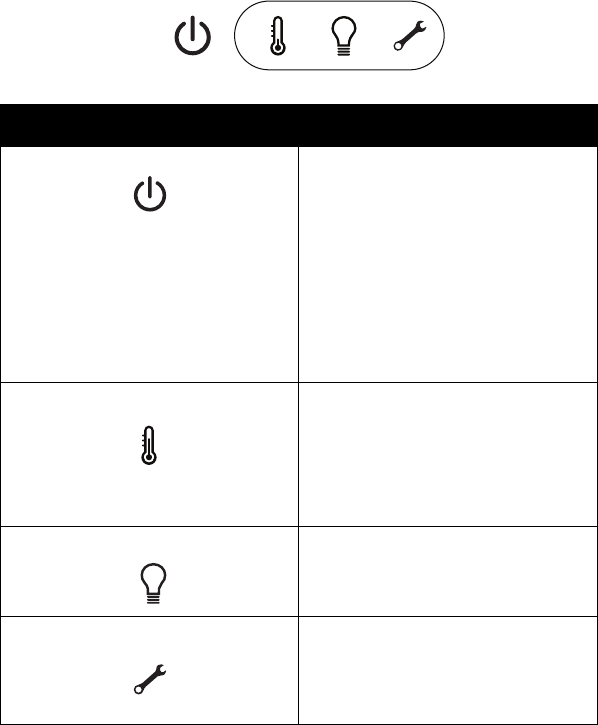
The Status Indicator Panel on top of the projector indicates the state of the
projector and can help you troubleshoot.
Table 3: Status indicator light behavior and meaning
Icon Meaning
Power, solid amber
Power, blinking green
Power, solid green
Power, blinking amber
The projector is plugged in.
The power button has been pressed and
the software is initializing.
The projector is on and initialized.
The power button has been pressed to
turn the projector off and the fans are
running to cool the projector.
Thermometer The projector is too hot. Make sure the
vents aren’t blocked (see page 26). Turn
off the projector and wait one minute,
then turn the projector on again. Contact
Technical Support if the problem persists.
Visit www.infocus.com/support to contact
service.
Lamp Turn off the projector and wait one
minute, then turn the projector on again.
If the lamp light turns on again, replace the
lamp and reset the lamp timer.
Wrench/Service Turn off the projector and wait one
minute, then turn the projector on again.
If the service lamp turns on again, service
is required. Visit www.infocus.com/
support to contact service.
21
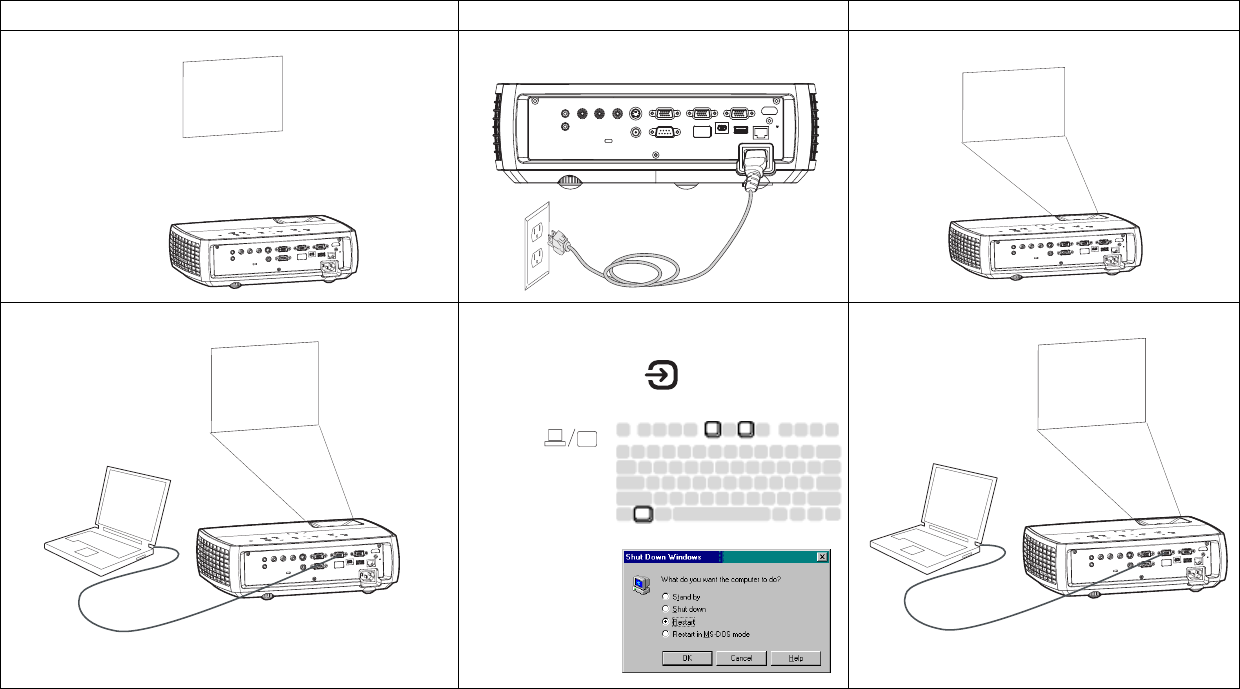
Problem Solution Result
No start up screen Plug power cord into the projector
press power button
Correct image
Only start up screen appears If your computer is using the projector's DisplayLink
connector, see the DisplayLink Software User's
Guide for troubleshooting information.
Press the Source button
activate laptop’s external port
Computer image projected
A
Startup
Screen
Startup
Screen
A
Restart laptop
A
A
22
Prolem Solution Result
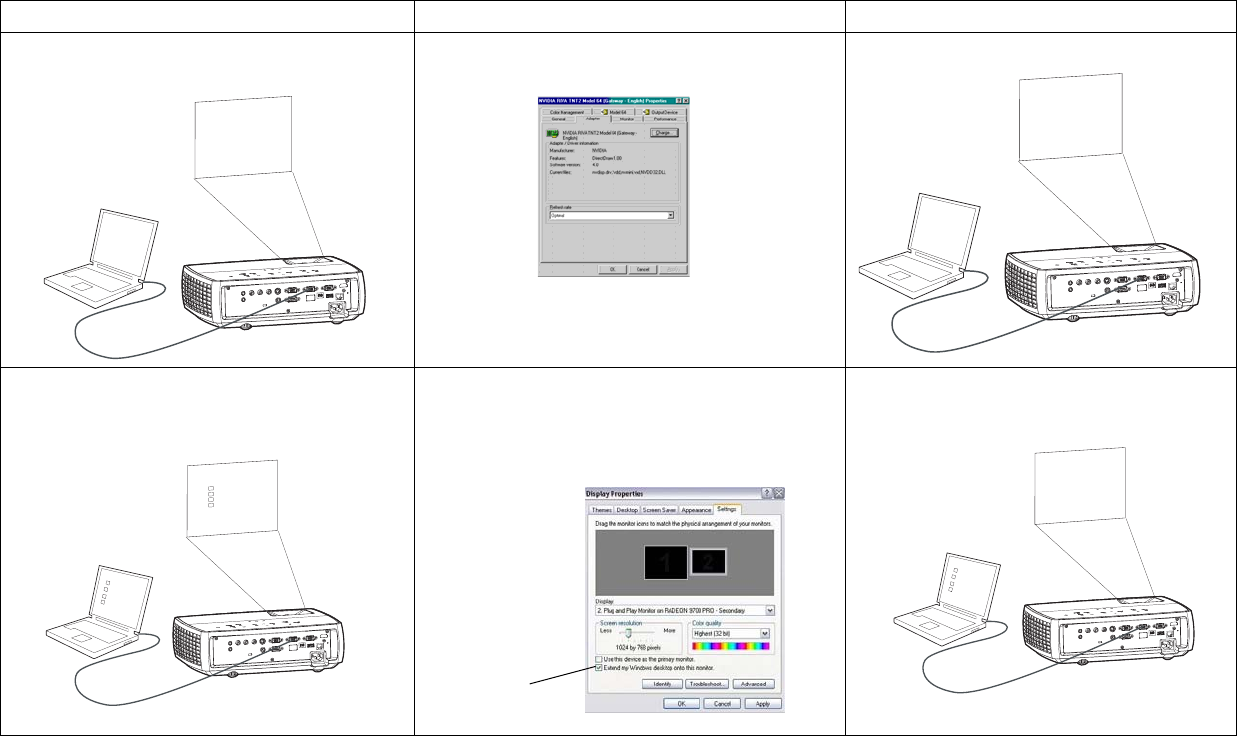
No computer image, just the words “Signal out of
range”
Press the Auto Image button on keypad adjust computer
refresh rate in Control Panel > Display > Settings > Advanced
> Adapter (location varies by operating system)
You may also need to set a different resolution on your
computer, as shown in the following problem, “image fuzzy or
cropped”
Computer image projected
Only my laptop’s background appears, not the
Desktop icons
DisplayLink - Use DisplayLink software to change the display
mode from Extended Desktop to Duplicated Desktop.
Windows - Disable "Extend my Windows Desktop" in Control
Panel > Display > Settings > Display 2 (location varies by
operating system)
Background and Desktop projected
Signal out of
the range
A
A
A
A
A
Uncheck this
option, then
click Apply
A
A
23
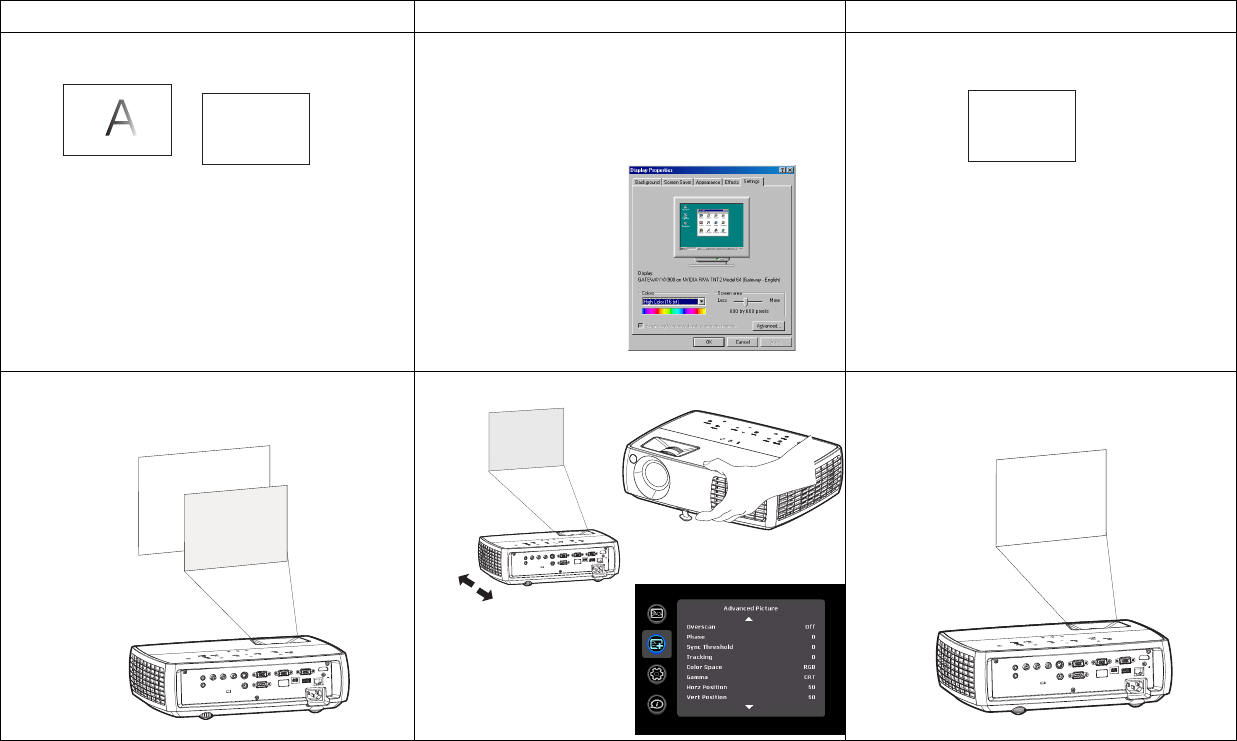
Image fuzzy or cropped Set your computer’s display resolution to the native
resolution of the projector (Start > Settings > Control
Panel > Display > Settings tab)
Image clear and not cropped
Image not centered on screen Move projector, adjust zoom, adjust height Correct image
Prolem Solution Result
A
A
For a laptop,
disable laptop
monitor or turn-
on dual-display
mode
A
A
Adjust horizontal or
vertical position in
Advanced Picture
menu
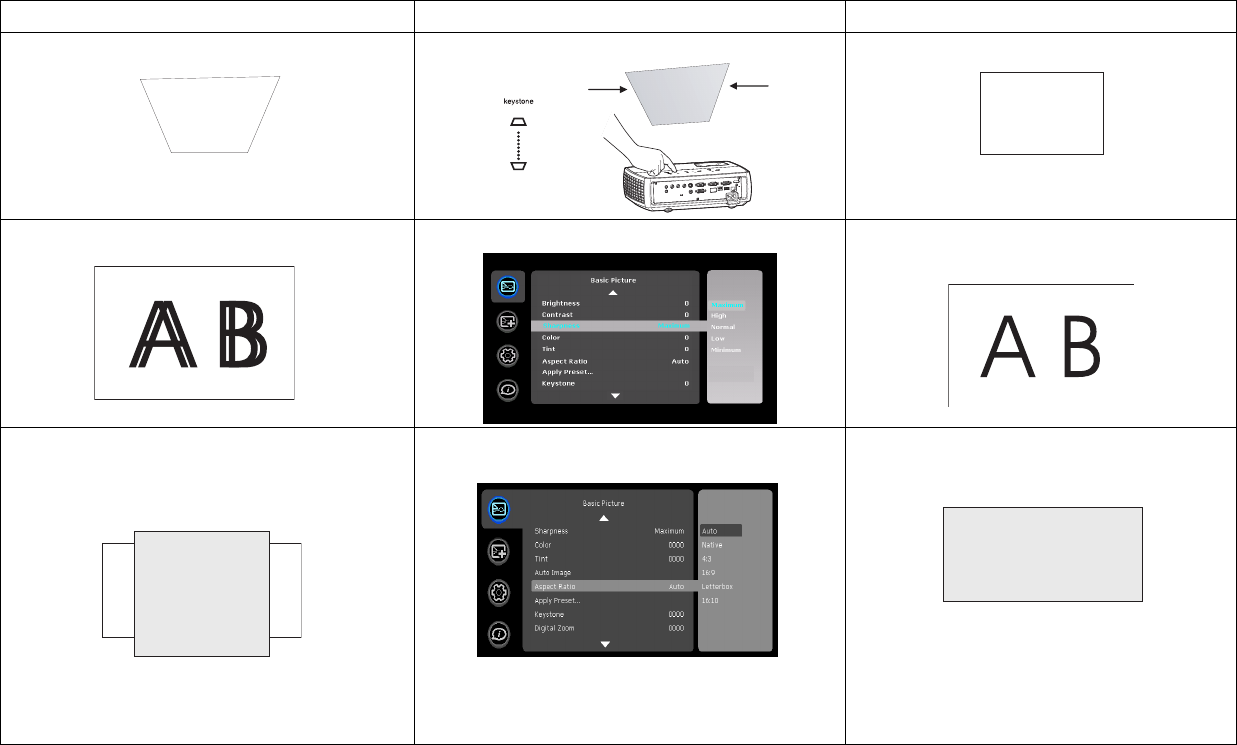
24
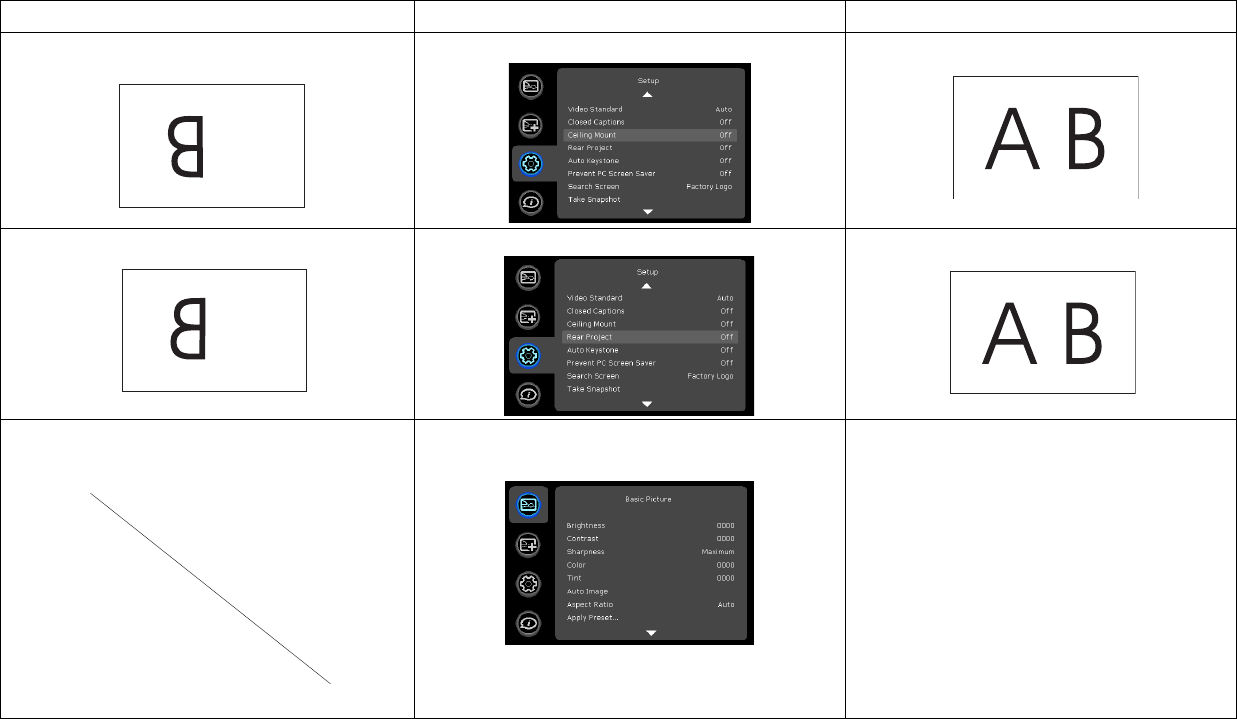
Image not square Adjust Keystone on keypad Square image
Image not sharp Adjust Sharpness in the Basic Picture menu Correct image
Image does not fit 4:3 or 16:9 screen Change aspect ratio to 4:3 or 16:9 in Basic
Picture>Aspect ratio menu
Correct image
Prolem Solution Result
25
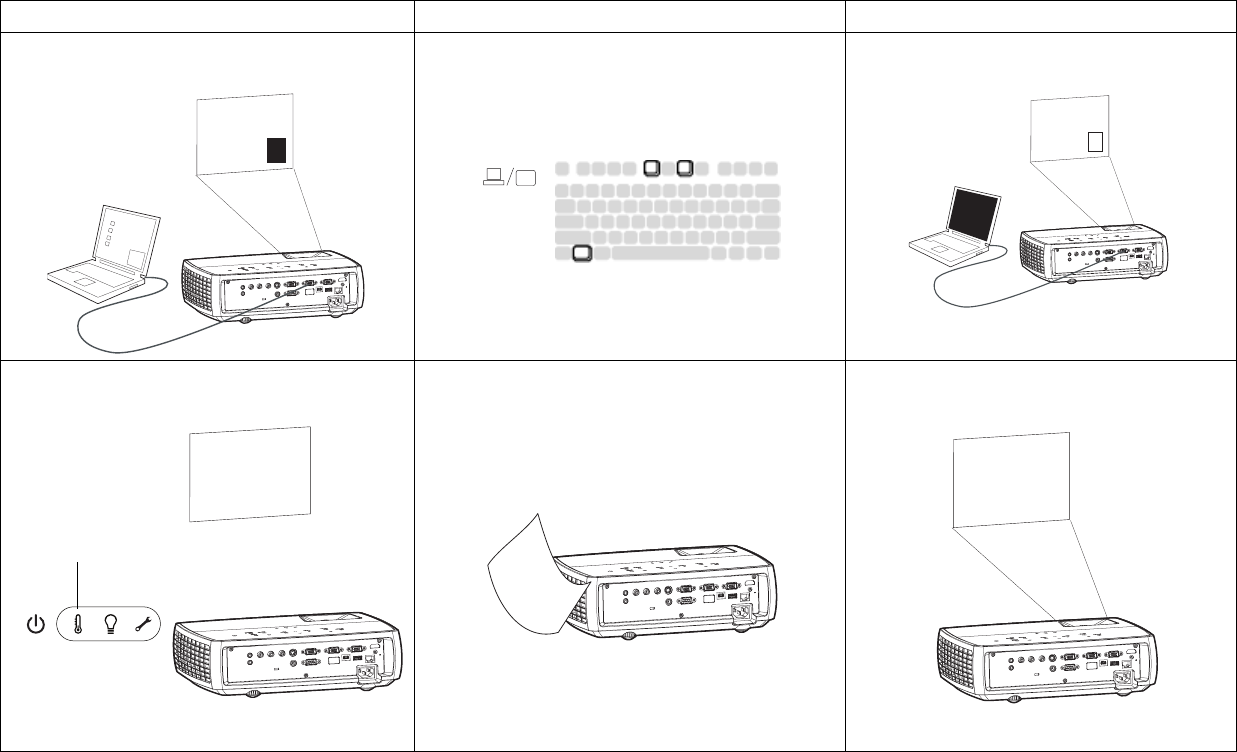
Image upside down Turn off Ceiling Mount in Setup menu Correct image
Image reversed left to right Turn off Rear Project in Setup menu Correct image
Projected colors don’t match source Adjust color, tint, brightness, contrast in the Basic
Picture menu
Correct image
Prolem Solution Result
A
A
COLOR COLOR
26
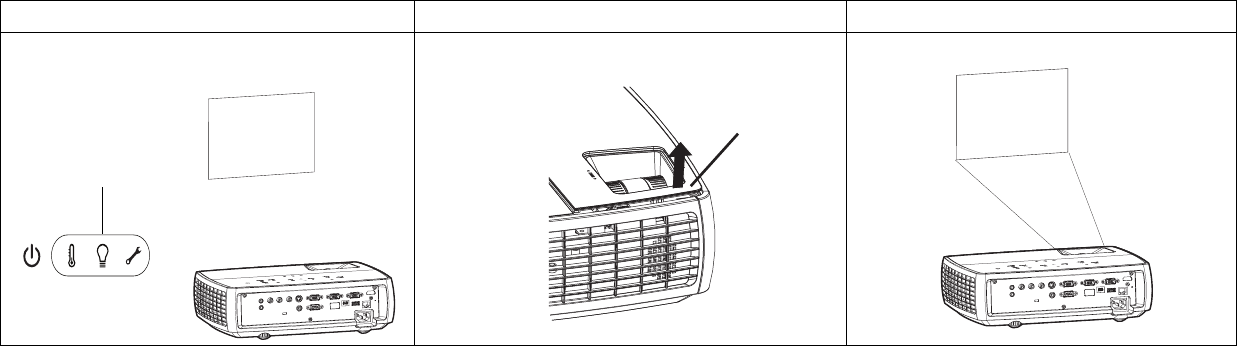
The video embedded in my PowerPoint presentation
does not play on the screen
If your computer is using the projector's DisplayLink
connector, see the DisplayLink User's Guide for video
troubleshooting information.
Turn off the internal LCD display on your laptop
Embedded video plays correctly
Lamp won’t turn on, Temperature light is on Make sure vents aren’t blocked, turn off the projector
and allow it to cool for one minute
Lamp turns on
Prolem Solution Result
A
A
B
A
A
B
B
A
Temperature light
Startup
Screen
27
Still need assistance?
If you need assistance, visit our website at www.infocus.com/service or call us.
Check out our HOW TO section there for additional information on using
this projector for home theater or gaming applications. See the Quick Start
Poster/Booklet for support contact information.
This product is backed by a limited warranty. An extended warranty plan
may be purchased from your dealer. When sending the projector in for
repair, we recommend shipping the unit in its original packing material, or
having a professional packaging company pack the unit. Please insure your
shipment for its full value.
“Replace lamp” message appears at startup, lamp
won’t turn on, Lamp light is turned on Lamp must be replaced (see page 47)Lamp turns on
Prolem Solution Result
A
Lamp light
lamp door
replace lamp
Startup
Screen
28
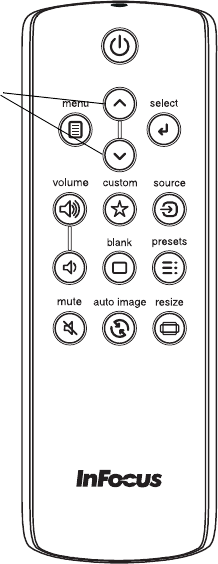
Using the remote control
The remote uses two (2) provided AA batteries. They are easily installed by
removing the cover from the remote’s back, aligning the + and - ends of the
batteries, sliding them into place, and then replacing the cover.
Caution: When replacing the batteries, be aware that using batteries other
than the type provided with the projector may risk severe damage to the
remote. When disposing of the batteries, be sure to do so in an
environproper manner.
If the remote control gets wet, wipe it dry immediately.
Avoid excessive heat and humidity.
Ensure the batteries' polarity (+/-) is aligned correctly.
Do not mix new and old batteries together, or mix different types of
battertogether.
Replace the batteries as soon as they run out.
Remove batteries from the remote control when storing or not in use for a
prolonged period.
The remote also has:
•Volume buttons to adjust the sound.
•Custom button that can be assigned to a special function, like Blank
Screen or Freeze (see page 36).
•Source button to switch between sources.
•Blank button to blank the screen.
•Presets button to select stored settings (see page 34).
•Mute button to silence the audio.
•Auto Image button to resynch the projector to the source
•Resize button to switch among aspect ratios (see page 34).
Troubleshooting the remote
• Make sure the batteries are installed in the proper orientation and are
not dead.
• Make sure you’re pointing the remote at the projector or the screen, not
the computer, and are within the remote range of 15 feet (4.5m). For
best results, point the remote at the projector.
navigation
buttons
29
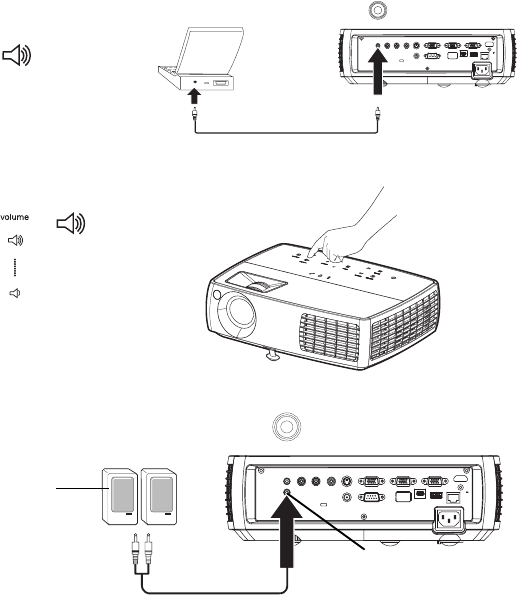
Using the audio
Using the projector’s speakers
When the computer is using the DisplayLink or HDMI connector, both
audio and video are sent over the USB cable to the projector and audio will
play from the projector's speakers.
For inputs other than DisplayLink and HDMI, to use the projector's
speakers, connect the audio source to the Audio In Computer or Video
connectors.
To adjust the volume, press the Volume buttons on the keypad or remote.
Troubleshooting Audio
If you aren’t hearing the audio, check the following:
• If your computer is using the projector's DisplayLink or HDMI
connector, see the InFocus DisplayLink Software User's Guide on the
website at www.infocus.com/displaylink for audio troubleshooting
information.
• Make sure the audio cable is connected to the correct Audio In
connector, Computer or Video.
• Make sure the volume is turned up enough. Press the Volume button on
the keypad or remote.
• Make sure you are connected to the corresponding audio in for your
source. By default, audio in VGA 1/2 corresponds to VGA 1, VGA 2
and LitePort, audio in composite s-video corresponds to S-video and
Composite. You can changes these assignments, see page 36.
• Make sure that you are connected to an “audio out” connector on the
source as opposed to a “line-in” or “microphone” connector.
• Adjust the audio source.
• If playing a video, make sure the playback has not been paused.
Connecting external speakers
The projector can be attached to external amplified speakers by connecting
a 3.5mm stereo audio cable from the Audio Out connector on the projector to
the amplified speakers. Alternatively, you can bypass the projector’s audio
system and connect the audio directly from your source to a stereo or home
theater system.
NOTE: DisplayLink and HDMI audio is passed to the Audio Out connector.
connect audio cable
adjust volume
external speakers
with own power
source
speaker
cable
audio out
30
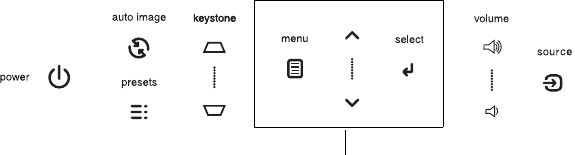
Using the keypad buttons
Most buttons are described in detail in other sections, but here is an
overview of their functions:
Power–turns the projector on and off (page 11).
Auto Image–resets the projector to the source.
Presets–cycles through the available preset settings (page 34).
Keystone–adjusts squareness of the image (page 13).
Menu–opens the on-screen menus (page 33).
Select–confirms choices made in the menus (page 33).
Up/Down arrows–navigates to and adjusts settings in the menus (page 33).
Volume–adjusts sound (page 29).
Source–changes the active source (page 11).
menu navigation
buttons
31
Optimizing computer images
After the projector is running and the image is on the screen, you can
optimize the image using the onscreen menus. For general information on
using the menus, see page 33.
• Adjust the Keystone, Contrast, or Brightness in the Basic Picture menu
(page 34).
• Change the Aspect Ratio. Choose the option that best fits your input
source (page 34).
• Adjust the Color Temperature in the Advanced Picture menu
(page 34).
• Adjust the Phase, Tracking, or Horizontal or Vertical position in the
Advanced Picture menu (page 35).
• Once you have optimized the image for a particular source, you can
save the settings using Presets. This allows you to quickly recall these
settings later (page 34).
• If your computer is using the projector's DisplayLink connector, see the
InFocus DisplayLink Manager User's Guide for information about
optimizing images.
NOTE: To achieve maximum contrast, you can disable LiteBoard pen use.
To do this, set Enabled to No in the LiteBoard Pen submenu in the Setup
menu. See page 16 for help with this menu adjustment.
Presentation features
Several features are provided to make giving presentations easier. Here is
an overview, details are found in the menu section.
• The Custom key allows you to assign various features to the button.
The default effect is Source Info, which displays information about the
projector and current source. See page 36 for details.
• The Search Screen option lets you change the appearance of the blank
screen and start up screen (page 37).
• Two options, Auto Off and Screen Save Time, are provided to
automatically shut down the projector after several minutes of
inactivity or display a black screen. This helps preserve lamp life
(page 36).
32
Optimizing video images
After your video device is connected properly and the image is on the
screen, you can optimize the image using the onscreen menus. For general
information on using the menus, see page 33.
• Adjust the Keystone, Contrast, Brightness, Color, or Tint in the Basic
Picture menu (page 34).
• Change the Aspect Ratio. Choose the option that best fits your input
source (page 34).
• Select a Sharpness setting (page 34).
• Adjust the Color Temperature. Select a listed warmth value (page 35).
• Turn on Overscan to remove noise on the edges of the image (page 35).
NOTE: To achieve maximum contrast, you can disable LiteBoard pen use.
To do this, set Enabled to No in the LiteBoard Pen submenu in the Setup
menu. See page 16for help with this menu adjustment.
Customizing the projector
You can customize the projector for your specific setup and needs. See
page 36 to page 37 for details on these features.
• For rear projection, turn Rear Project on in the Setup menu.
• For ceiling mounted projection, turn Ceiling Mount on in the Setup
menu.
• Specify which source the projector checks first for active video during
power-up.
• Specify the function of the Custom key on the remote.
• Turn the projector’s display messages on and off.
• Turn on power saving features.
• Specify appearance of blank screen and startup screen.
• Specify the language viewed on the menus.
• Save settings for the active source as a preset.
Dynamic Messaging
Using command codes, text messages can be sent for display by the
projector over a network or serial connection. Text is shown on top of
whatever else is being displayed, and can be shown in ticker tape format or
in a box, with optional beep tone alert. This is a great way to display urgent
alert messages to employees, and simply requires a connection to the
projector's RS-232 serial control or LAN connector. Command codes for
executing Dynamic Messaging are in the Appendix and available on our
website at www.infocus.com/support.
33
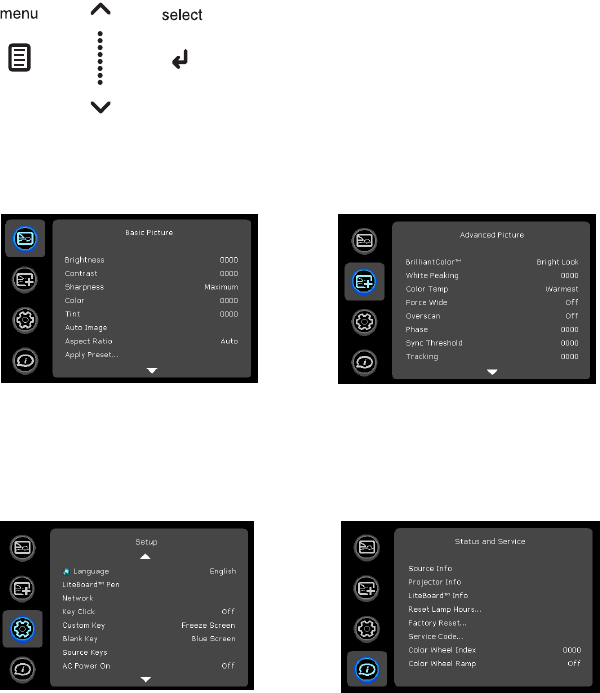
Using the menus
To open the menus, press the Menu button on the keypad or remote. (The
menus automatically close after 60 seconds if no buttons are pressed.) Use
the arrow buttons to move up and down to highlight the desired menu,
then press the Select button.
To change a menu setting, highlight it, press Select, then use the up and
down arrow buttons to adjust the value or select an option or turn the
feature on or off. Press Select to confirm your changes. Use the arrows to
navigate to another setting. When your adjustments are complete, press
Menu to access a different menu; press the Menu button at any time to
navigate to the higher-level menu and ultimately close the menus.
The menus are grouped by usage:
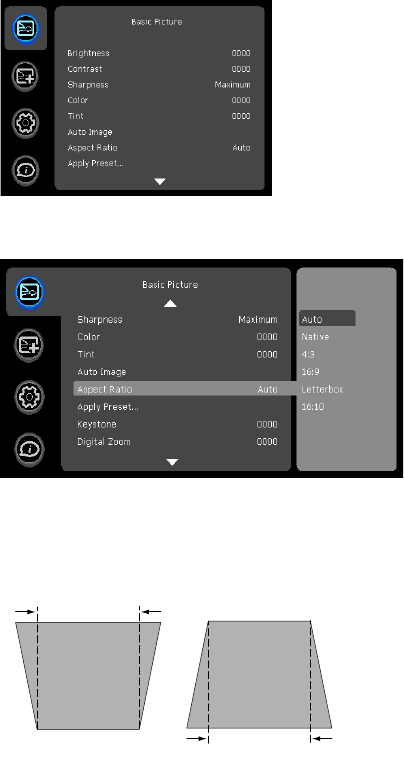
• The Basic Picture menu provides common image adjustments.
• The Advanced Picture menu provides more complex image
adjustments.
• The Setup menu provides set-up type adjustments that are not changed
often.
• The Status and Service menu provides information about the projector
and source.
keypad navigation
buttons
Basic Picture menu Advanced Picture menu
Setup menu Status and Service menu
34
Basic Picture menu
To adjust the following settings, highlight the setting, press Select, use the
up and down arrows to adjust the values, then press Select to confirm the
changes.
Brightness: changes the intensity of the image.
Contrast: controls the degree of difference between the lightest and darkest
parts of the picture and changes the amount of black and white in the
image.
Sharpness: (video sources only) changes the clarity of the edges of a video
image. Select a sharpness setting.
Color: adjusts a video image from black and white to fully saturated color.
The color setting applies to video sources only.
Tint: adjusts the red-green color balance in the image of NTSC video images.
The tint setting applies to NTSC video sources only.
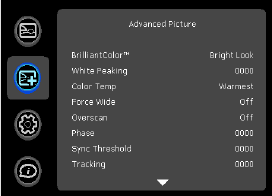
Aspect Ratio: Aspect ratio is the ratio of the image width to image height. TV
screens are usually 4:3. HDTV and most DVDs are 16:9.
Select Auto to have the projector choose the ratio. Choose Native to see the
unmodified input with no resizing by the projector. Select 16:9 to watch
enhanced widescreen DVDs.
For more information regarding Aspect Ratio, see page 14.
Apply Preset...: Presets are provided that optimize the projector for
displaying computer presentations and video images under certain
conditions.
There is also a user-definable preset. To set this preset, adjust the image and
select Save User in the Presets menu. You can recall these settings in the
future by selecting the User preset.
Keystone: adjusts the image vertically and makes a squarer image. You can
also adjust keystone from the keypad.
Digital Zoom: changes the size of projector’s display area. If the display area
has been resized by this setting, it can be moved by changing the Horz Shift
and Vert Shift settings.
Horz Shift/Vert Shift: moves the display area horizontally or vertically if its
size has been changed by the Digital Zoom setting.
Basic Picture menu
Aspect ratio
increasing keystone decreasing keystone
35
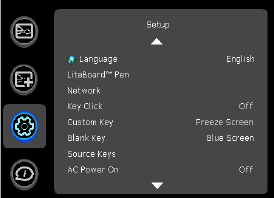
Advanced Picture menu
BrilliantColor™: produces an expanded on-screen color spectrum that
delivers enhanced color saturation for bright, true-to-life images. Choose
Normal Look for most video sources and Bright Look for most computer
sources.
White Peaking: (video sources only) increases the brightness of whites that
are near 100%.
Color Temperature: changes the intensity of the colors. Select a listed relative
warmth value.
Force wide: when this is off, the analog locking algorithms choose the
standard mode resolution (4:3) as the preferred default resolution. When
this is on, the analog locking algorithms choose wide mode resolution
(16:10) as the preferred default resolution.
Overscan: removes noise around the video image.
Phase: adjusts the horizontal phase of a computer source.
Sync Threshold: (progressive signals only) If a hardware device, such as a
DVD player, is not syncing properly with the projector, select this option to
help it to sync when connected to the projector.
Tracking: adjusts the vertical scan of a computer source.
Color Space: This option applies to computer and component video sources.
It allows you to select a color space that has been specifically tuned for the
input signal. When Auto is selected, the projector automatically determines
the standard. To choose a different setting, turn off Auto, then choose RGB
for computer sources or choose either REC709 or REC601 for component
video sources.
Gamma: select the appropriate gamma from among Video, Film, Bright, and
CRT.
Horizontal/Vertical Position: adjusts the position of a computer source.
Advanced Picture menu
36
Setup menu
Language: allows you to select a language for the onscreen display.
LiteBoard Pen: allows you to control the operation of the LiteBoard pen. See
page 16 for more information.
Key Click: turns the key click sound on or off. When this setting is on,
pressing keys on the keypad causes the projector’s speaker to play a “click”
sound.
Custom Key: allows you to assign a different function to the Custom button,
allowing you to quickly and easily use the effect. Highlight an effect and
press Select to choose a different one.
•Source Info: the default action. Shows the Source Info menu.
•Projector Info: Shows the Projector Info menu.
•Aspect Ratio: toggles among 4:3, 16:9, and Native (see page 14 and
page 34).
•Auto Image: resets the projector to the source (page 30).
•Overscan: removes noise around the image.
•Blank Screen: displays an empty screen.
•Freeze Screen: pauses the projected image.
•Mute: turns off all sound.
•Source: cycles through available sources.
Blank Key: Select what to display when the blank key on the remote is
depressed: your custom snapshot, a solid color screen (blue, black or white),
the factory logo screen, a timer, or test patterns. The timer option is useful
for classroom tests or break times during meetings.
AC Power On: When this feature is on, the projector automatically turns on
when electrical power is connected. This allows control of ceiling mounted
projectors with a wall power switch.
Auto Off Time: automatically turns the projector off after no signals are
detected for a preset number of minutes. If an active signal is received
before the projector powers down, the image will be displayed.
Screen Save Time: automatically blanks the screen with a black color after no
signals are detected for a preset number of minutes. The image returns
when an active source is detected or a remote or keypad button is pressed.
Lamp Low Power: toggles between on and off. Turn it on to lower the light
output of the lamp. This also lowers the fan speed, making the projector
quieter.
Power Sounds: controls whether the projector makes a sound when powered
on and off.
Auto Source: When this feature is On, the projector automatically finds the
active source, checking the selected Power-up Source first. When this
feature is Off, the projector defaults to the source selected in Power-up
Source. To display another source, you must manually select one by
pressing the Source button on the remote or keypad.
Power-up Source: determines which source the projector checks first for
active video during power-up.
HDMI DDC: When this feature is set to On, the projector will support an
older DVD player for HDMI port.
Video Standard: When this feature is set to Auto, the projector attempts to
automatically pick the video standard based on the input signal it receives.
(The video standard options may vary depending on your region of the
world.) If the projector is unable to detect the correct standard, the colors
may not look right or the image may appear “torn.” If this happens,
Setup menu
37
manually select a video standard by selecting NTSC, PAL, or SECAM from
the Video Standard menu.
Closed Captions: controls closed caption display while audio is not muted. If
this setting is not off, and audio is not muted, and the source is NTSC and
contains captions on the selected channel, then the projector must display
caption text overlaid on the image.
Ceiling Mount: turns the image upside down for ceiling-mounted projection.
Rear Project: reverses the image so you can project from behind a
translucent screen.
Auto Keystone: automatically adjusts vertical image.
Prevent PC Screen Saver: prevents your computer from going into Screen
Save mode. The projector must be connected to the PC via a USB cable for
this feature to work.
Search Screen: allows you to display a blank screen instead of the default
screen at startup, and when no source is detected.
Take Snapshot...: Captures the current image and allows it to be used as the
search screen image.
Show Messages: displays status messages (such as “Searching”) in the lower-
left corner of the screen.
Menu Offset: allows you to change the position of the On Screen Display
items.
Menu Transparency: allows you to change how much of the projected image
behind the menu you can see. As the value increases, more of the image
behind the menu is visible.
Magnify Controls: determines whether the select key can be used to change
magnify settings when the OSD menu is not visible.
PIN Protect: The PIN (personal identification number) feature allows you to
password protect your projector. Once you enable the PIN feature, you
must enter the PIN before you can project an image. The default PIN on this
projector is Menu-Up-Down-Select-Source. Use the navigation buttons on the
remote or keypad to enter the correct 5-button press sequence. When all 5
numbers are entered correctly, press the Select button on the remote or
keypad to select OK. If the message “Wrong PIN” appears, verify the code
and re-enter it. If you mis-enter a number, you must enter 5 numbers and
press the Select button in order to access the “Wrong PIN” message and re-
enter the code.
To enter the PIN at projector startup:
Power up the projector. The “Enter PIN” dialog box appears after the
startup screen. Enter the PIN. Use the navigation buttons on the remote or
keypad to enter the correct button press sequence. See the description above
for instructions.
To change the PIN:
Select “Change PIN...” in the Setup menu. Enter the existing PIN. Enter the
new PIN. You can navigate between OK and Cancel by pressing the up and
down buttons on the keypad. Select OK or Cancel by pressing the Select
button. Verify the new PIN.
If you lose or forget your custom PIN:
Contact InFocus support. Go to www.infocus.com/support
VGA 1: Selects SCART connection type between RGB and composite.
Serial Port, Baud Rate: selects the serial port and baud rate.
Serial Port Echo: controls whether the serial port echoes characters.
38
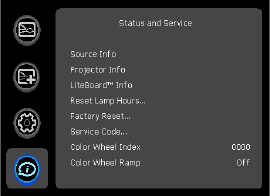
Status and Service menu
Source Info: a read-only display of current source settings.
Projector Info: a read-only display of current projector settings.
Reset Lamp Hours: resets the lamp hours used counter in the Projector Info
menu to zero. Do this only after changing the lamp.
Factory Reset: restores all settings to their default.
Service Code: only used by authorized service personnel.
Status and Service menu

39
Using Network Functions
IMPORTANT: To enable network functions at all times (even when the
projector is powered off), the Standby Power Save setting in the projector’s
Setup menu must be set to Normal (not Maximum).
Projector network functions include:
• Configuring and controlling the projector via a web browser.
• Failure and warning alerts via email.
• Projector Management via SNMP.
• Controlling the projector via Scheduling.
NOTE: Projector web pages and emails sent by the projector are always
displayed in English language.
Before using the network functions
To use the network functions of the projector, the projector must be
configured to suit your network. Consult with your network administrator
before connecting the projector to your network; incorrect network
configuration of the projector may cause problems on your network.
Connect the Network Cable
Properly connect projector to the network, then configure the following
settings.
If Using a Network with DHCP Enabled:
3Use the projector's remote control or keypad to select the Network item
in the projector's Setup menu.
4If DHCP is off, select it to turn it on.
If Using a Network that Does Not have DHCP Enabled:
1Use the projector's remote control or keypad to select the Network item
in the projector's Setup menu.
2If DHCP is on, select it to turn it off.
3Select IP Address. This will highlight the first of the four octets in the IP
address. Press Up or Down to change the value, then press Select or
Right when done to move to the next octet. Repeat until you have
changed all four octets in the IP address.
4Repeat the above for Subnet Mask, Default Gateway, and other settings
that are in IP address format (to assign or change the Host Name, see
Network Settings Page below).
Configuring and Controlling the Projector via a Web Browser
You can adjust or control the projector via a network from a web browser on
a computer that is connected to the same network as the projector.
NOTES:
• To access the projector's web pages, the projector must be connected to
the network and connected to AC power (and if you want to access the
web pages even when the projector is powered off, make sure the
Standby Power Save setting in the projector’s Setup menu is set to Nor-
mal).
• If the projector's Standby Power Save setting (in its Setup menu) is set
to Maximum, then the web interface (and other network functions) will
only be available when the projector is powered on.
• JavaScript must be enabled in your browser to use the projector web
pages properly. If JavaScript is disabled, see the Help files for your web
browser for details on how to enable it.
• If no operations are performed in the web browser for approximately
ten minutes, the system will automatically log you off.
Logging in
To log into the projector web pages, follow these steps:
1Make sure the projector is connected to the network and connected to
AC power.
2If you don't know the projector's IP
address, turn on the projector. After the
projector starts up, if its IP address is not
shown, press the Source button to view the IP address.