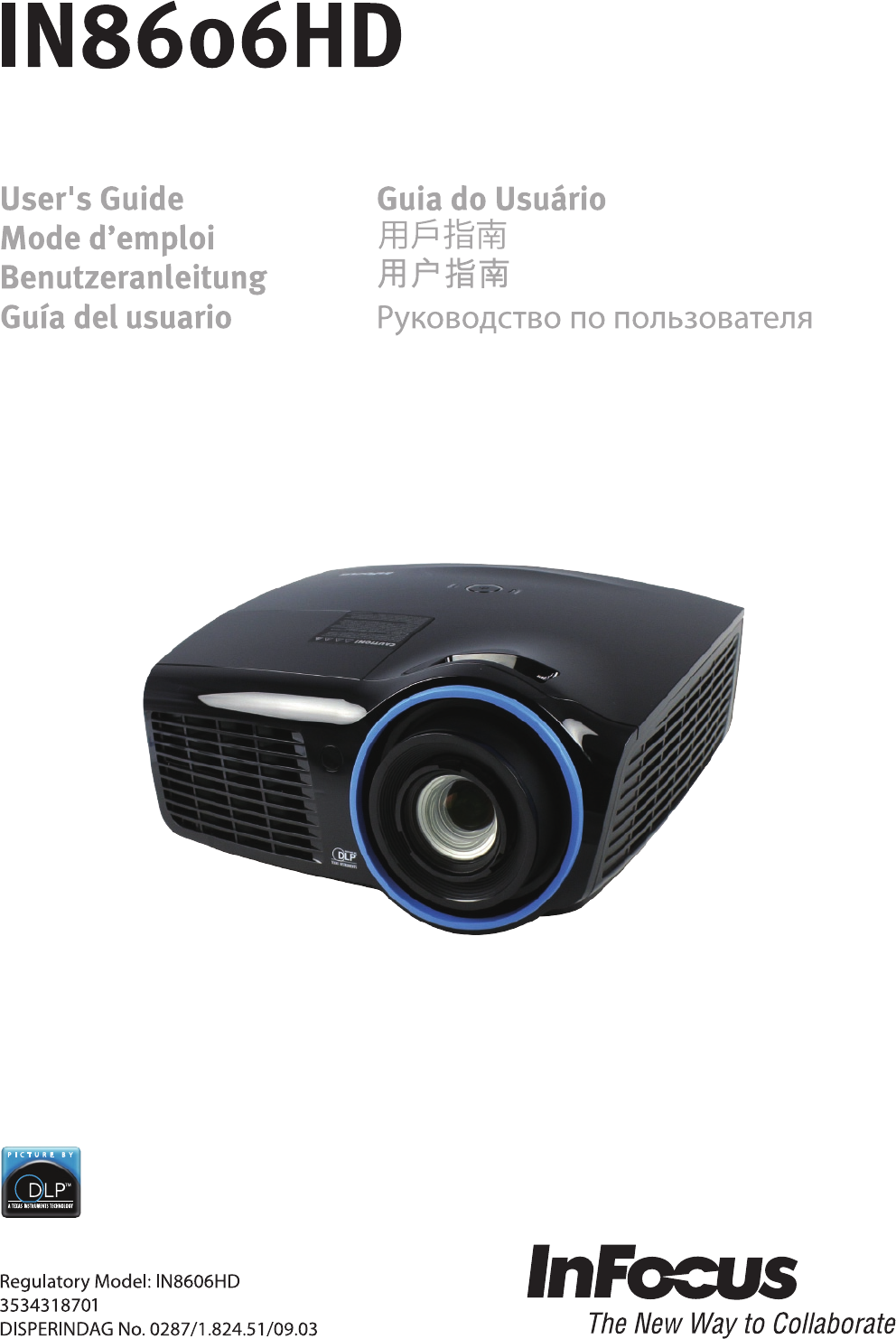
Infocus In8606Hd Users Manual
IN8606HD to the manual bd924284-2c2c-4a02-99a5-c316010d78a8
2015-02-05
: Infocus Infocus-In8606Hd-Users-Manual-393637 infocus-in8606hd-users-manual-393637 infocus pdf
Open the PDF directly: View PDF  .
.
Page Count: 62

Copyright
This publication, including all photographs, illustrations and software, is protected under international
copyright laws, with all rights reserved. Neither this manual, nor any of the material contained herein, may
be reproduced without written consent of the author.
© Copyright 2013
Disclaimer
The information in this document is subject to change without notice. The manufacturer makes no
representations or warranties with respect to the contents hereof and specifically disclaims any implied
warranties of merchantability or fitness for any particular purpose. The manufacturer reserves the right to
revise this publication and to make changes from time to time in the content hereof without obligation of
the manufacturer to notify any person of such revision or changes.
Trademark Recognition
Kensington is a U.S. registered trademark of ACCO Brand Corporation with issued registrations
and pending applications in other countries throughout the world.
HDMI, the HDMI Logo, and High-Definition Multimedia Interface are trademarks or
registered trademarks of HDMI Licensing LLC in the United States and other countries.
is a trademark of SRS Labs, Inc. WOW technology is incorporated under license from
SRS Labs, Inc.
WOW® significantly improves the playback quality of audio, delivering a dynamic 3D
entertainment experience with deep rich bass.
Apple, Macintosh, and PowerBook are trademarks or registered trademarks of Apple Computer, Inc. IBM
is a trademark or registered trademark of International Business Machines, Inc. Microsoft, PowerPoint,
and Windows are trademarks or registered trademarks of Microsoft Corporation. Adobe and Acrobat are
trademarks or registered trademarks of Adobe Systems Incorporated. DLP®, DLP Link and the DLP logo
are registered trademarks of Texas Instruments and BrilliantColor™ is a trademark of Texas Instruments.
InFocus, In Focus, and INFOCUS (stylized) are either registered trademarks or trademarks of InFocus
Corporation in the United States and other countries.
All other product names used in this manual are the properties of their respective owners and are
acknowledged.
— i —
IN8606HD User’s Manual
–ii –
Important Safety Information
Important:
It is strongly recommended that you read this section carefully before using the projector. These
safety and usage instructions will ensure that you enjoy many years of safe use of the projector.
Keep this manual for future reference.
Symbols Used
Warning symbols are used on the unit and in this manual to alert you of hazardous situations.
The following styles are used in this manual to alert you to important information.
Note:
Provides additional information on the topic at hand.
Important:
Provides additional information that should not be overlooked.
Caution:
Alerts you to situations that may damage the unit.
Warning:
Alerts you to situations that may damage the unit, create a hazardous environment, or cause
personal injury.
Throughout this manual, component parts and items in the OSD menus are denoted in bold font as in this
example:
“Push the Menu button on the remote control to open the Main menu.”
General Safety Information
Do not open the unit case. Aside from the projection lamp, there are no user-serviceable parts in
the unit. For servicing, contact qualified service personnel.
Follow all warnings and cautions in this manual and on the unit case.
The projection lamp is extremely bright by design. To avoid damage to eyes, do not look into the
lens when the lamp is on.
Do not place the unit on an unstable surface, cart, or stand.
Avoid using the system near water, in direct sunlight, or near a heating device.
Do not place heavy objects such as books or bags on the unit.
Preface
Projector Installation Notice
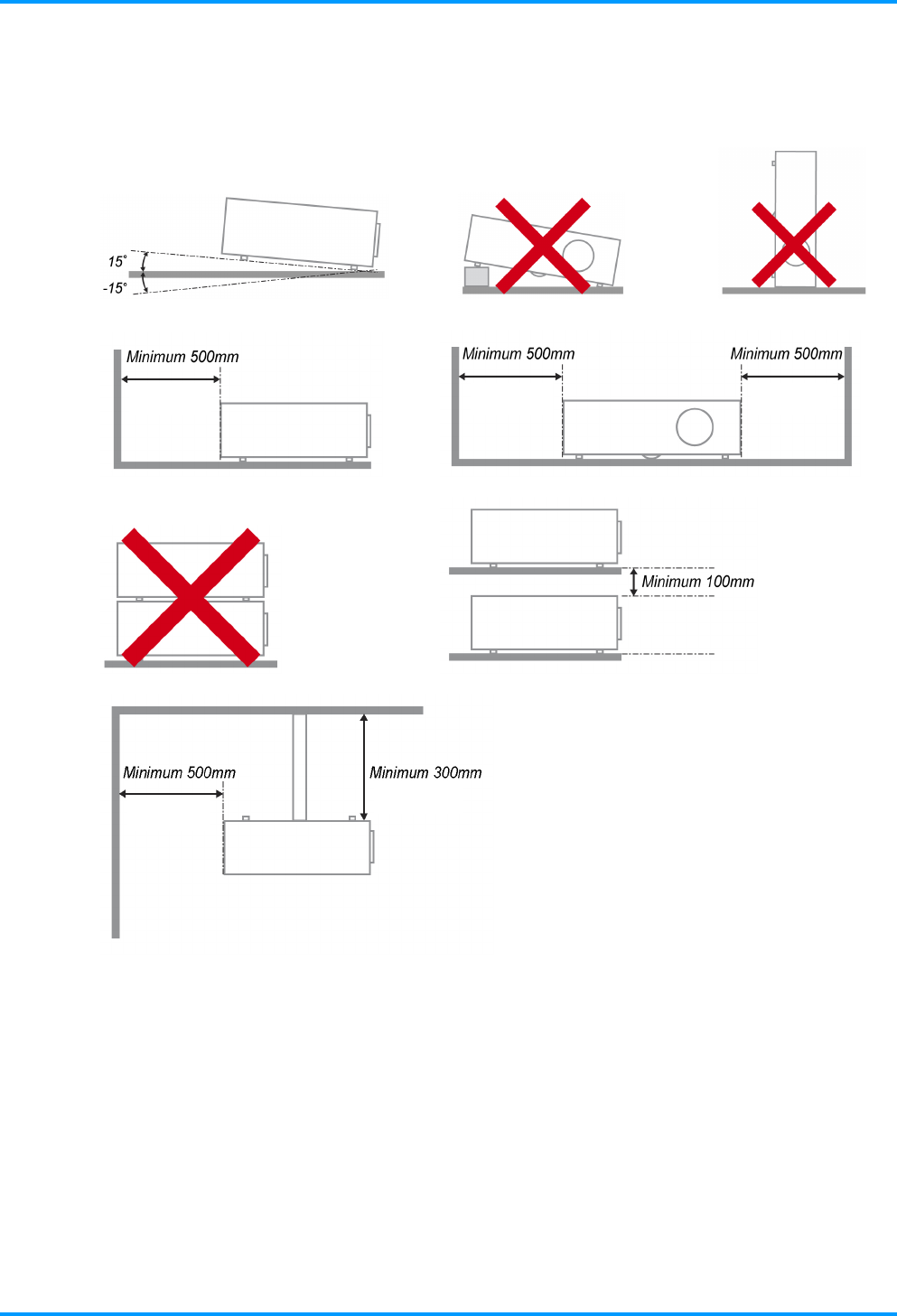
Place the projector in a horizontal position
The tilt angle of the projector should not exceed 15 degrees. In addition, the projector should
not be installed in any other way except desktop and ceiling mount positions. Otherwise lamp life
could decrease dramatically, and may lead to other unpredictable damage.
Allow at least 50 cm (16.69 inch) clearance around the exhaust vent.
(19.69 inch) (19.69 inch) (19.69 inch)
(3.94 inch)
(11.81 inch)
(19.69 inch)
Ensure that the intake vents do not recycle hot air from the exhaust vent.
When operating the projector in an enclosed space, ensure that the surrounding air temperature
within the enclosure does not exceed operation temperature while the projector is running, and the
air intake and exhaust vents are unobstructed.
All enclosures should pass a certified thermal evaluation to ensure that the projector does not
recycle exhaust air, as this may cause the device to shutdown even if the enclosure temperature is
with the acceptable operation temperature range.
–iii –
IN8606HD User’s Manual
Power Safety
Only use the supplied power cord.
Do not place anything on the power cord. Place the power cord where it will not be in the way of
foot traffic.
Remove the batteries from the remote control when storing or not in use for a prolonged period.
Replacing the Lamp
Replacing the lamp can be hazardous if done incorrectly. See Replacing the Projection Lamp on page 36
for clear and safe instructions for this procedure. Before replacing the lamp:
Unplug the power cord.
Allow the lamp to cool for about one hour.
Cleaning the Projector
Unplug the power cord before cleaning. See Cleaning the Projector page 39.
Allow the lamp to cool for about one hour.
Regulatory Warnings
Before installing and using the projector, read the regulatory notices in the Regulatory Compliance on
page 51.
Important Recycle Instructions:
Hg
Lamp(s) inside this product contain mercury. This product may contain other electronic waste that
can be hazardous if not disposed of properly. Recycle or dispose in accordance with local, state, or federal
Laws. For more information, contact the Electronic Industries Alliance at WWW.EIAE.ORG. For lamp
specific disposal information check WWW.LAMPRECYCLE.ORG.
Symbol Explanations
DISPOSAL: Do not use household or municipal waste collection services for
disposal of electrical and electronic equipment. EU countries require the use
of separate recycling collection services.
About this Manual
This manual is intended for end users and describes how to install and operate the DLP projector.
Wherever possible, relevant information—such as an illustration and its description—has been kept on
one page. This printer-friendly format is both for your convenience and to help save paper, thereby
protecting the environment. It is suggested that you only print sections that are relevant to your needs.
–iv –

Preface
–v –
Table of Contents
GETTING STARTED........................................................................................................................................................... 1
PACKING CHECKLIST ........................................................................................................................................................... 1
VIEWS OF PROJECTOR PARTS............................................................................................................................................... 2
Front-right View ............................................................................................................................................................ 2
Top view—On-screen Display (OSD) buttons and LEDs....................................................................................... 3
Rear view....................................................................................................................................................................... 4
Bottom view................................................................................................................................................................... 6
REMOTE CONTROL PARTS ................................................................................................................................................... 7
REMOTE CONTROL OPERATING RANGE............................................................................................................................... 9
PROJECTOR AND REMOTE CONTROL BUTTONS.................................................................................................................... 9
SETUP AND OPERATION............................................................................................................................................... 10
INSERTING THE REMOTE CONTROL BATTERIES ................................................................................................................. 10
TURNING THE PROJECTOR ON AND OFF .............................................................................................................................. 11
SETTING AN ACCESS PASSWORD (SECURITY LOCK).......................................................................................................... 13
ADJUSTING THE PROJECTOR LEVEL ................................................................................................................................... 15
ADJUSTING THE ZOOM, FOCUS AND KEYSTONE ................................................................................................................ 16
ADJUSTING THE VOLUME .................................................................................................................................................. 16
ON-SCREEN DISPLAY (OSD) MENU SETTINGS ...................................................................................................... 17
OSD MENU CONTROLS ..................................................................................................................................................... 17
Navigating the OSD ................................................................................................................................................... 17
SETTING THE OSD LANGUAGE .......................................................................................................................................... 18
OSD MENU OVERVIEW ..................................................................................................................................................... 19
IMAGE MENU..................................................................................................................................................................... 20
Computer Menu.......................................................................................................................................................... 21
Advanced Features.................................................................................................................................................... 22
White Balance............................................................................................................................................................. 23
Color Manager ............................................................................................................................................................ 24
SETTINGS 1 MENU ............................................................................................................................................................. 25
Audio ............................................................................................................................................................................ 26
Advanced 1 Features................................................................................................................................................. 27
Advanced 2 Features................................................................................................................................................. 29
SETTINGS 2 MENU ............................................................................................................................................................. 30
Status ........................................................................................................................................................................... 31
Advanced 1 Features................................................................................................................................................. 32
Advanced 2 Features................................................................................................................................................. 34
MAINTENANCE AND SECURITY .................................................................................................................................. 36
REPLACING THE PROJECTION LAMP................................................................................................................................... 36
Resetting the Lamp Timer......................................................................................................................................... 38
CLEANING THE PROJECTOR................................................................................................................................................ 39
Cleaning the Lens ...................................................................................................................................................... 39
Cleaning the Case...................................................................................................................................................... 39
USING THE CABLE LOCK SYSTEM AND SECURITY BAR ..................................................................................................... 40
Using the Cable Lock................................................................................................................................................. 40
Using the Security Bar............................................................................................................................................... 40
TROUBLESHOOTING...................................................................................................................................................... 41
COMMON PROBLEMS AND SOLUTIONS ............................................................................................................................... 41
TIPS FOR TROUBLESHOOTING ............................................................................................................................................ 41
LED ERROR MESSAGES..................................................................................................................................................... 42
IMAGE PROBLEMS.............................................................................................................................................................. 42
LAMP PROBLEMS ............................................................................................................................................................... 43
REMOTE CONTROL PROBLEMS .......................................................................................................................................... 43
AUDIO PROBLEMS ............................................................................................................................................................. 44
HAVING THE PROJECTOR SERVICED .................................................................................................................................. 44
HDMI Q & A.................................................................................................................................................................... 45

IN8606HD User’s Manual
–vi –
SPECIFICATIONS............................................................................................................................................................. 46
SPECIFICATIONS................................................................................................................................................................. 46
PROJECTION DISTANCE VS. PROJECTION SIZE.................................................................................................................... 47
Projection Distance and Size Table......................................................................................................................... 47
TIMING MODE TABLE ........................................................................................................................................................ 48
PROJECTOR DIMENSIONS ................................................................................................................................................... 50
REGULATORY COMPLIANCE....................................................................................................................................... 51
FCC WARNING .................................................................................................................................................................. 51
CANADA ............................................................................................................................................................................ 51
SAFETY CERTIFICATIONS ................................................................................................................................................... 51
APPENDIX I........................................................................................................................................................................ 52
SERIAL COMMUNICATION.................................................................................................................................................. 52
IN8606HD User’s Manual
– 1 –
GETTING STARTED
Packing Checklist
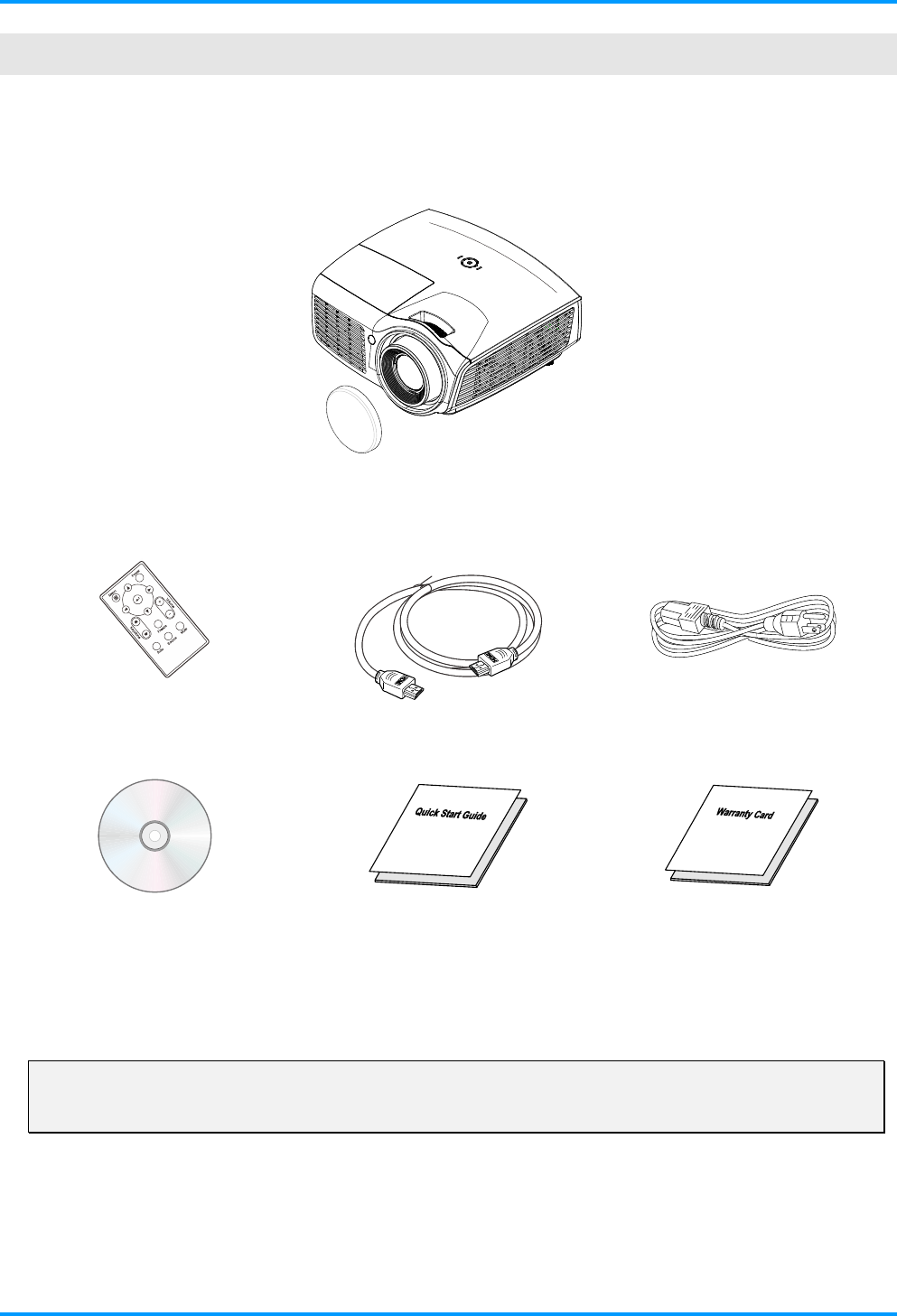
Carefully unpack the projector and check that the following items are included:
DLP PROJECTOR WITH LENS CAP
REMOTE CONTROL
(B
ATTERIES NOT INCLUDED
)
HDMI CABLE POWER CORD
CD-ROM
(THIS USER’S MANUAL)
QUICK START GUIDE WARRANTY CARD
Contact your dealer immediately if any items are missing, appear damaged, or if the unit does not work. It
is recommended that you keep the original packing material in case you ever need to return the
equipment for warranty service.
Caution:
Do not place the project in direct sunlight, humid, greasy or dusty places or in places where the
projector may come into contact with smoke or steam.
IN8606HD User’s Manual
Views of Projector Parts
Front-right View
12
3
4
5
ITEM LABEL DESCRIPTION SEE PAGE
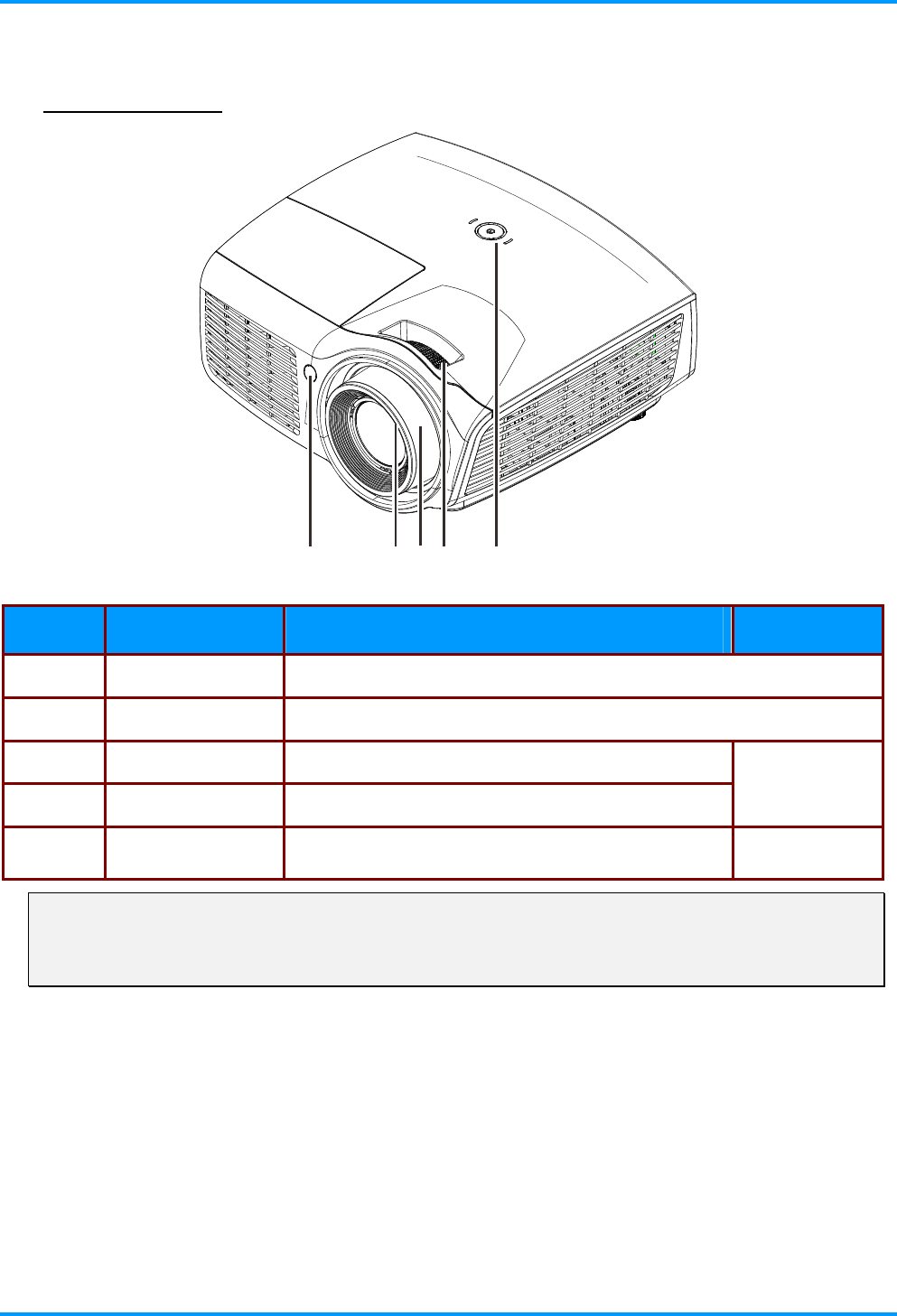
1. IR receiver Receive IR signal from remote control
2. Lens Projection Lens
3. Focus ring Focuses the projected image
4. Zoom ring Enlarges the projected image
16
5. Function keys See Top view—On-screen Display (OSD) buttons
and LEDs. 3
Important:
Do not block ventilation openings. Locate the projector in a well-ventilated area without obstructions
to intake or exhaust vents. Do not place the projector on a tablecloth or other soft covering that may
block the vents. Ventilation openings on the projector allow for good air circulation.
–2 –
IN8606HD User’s Manual
Top view—On-screen Display (OSD) buttons and LEDs
3
1
2
ITEM LABEL DESCRIPTION SEE PAGE
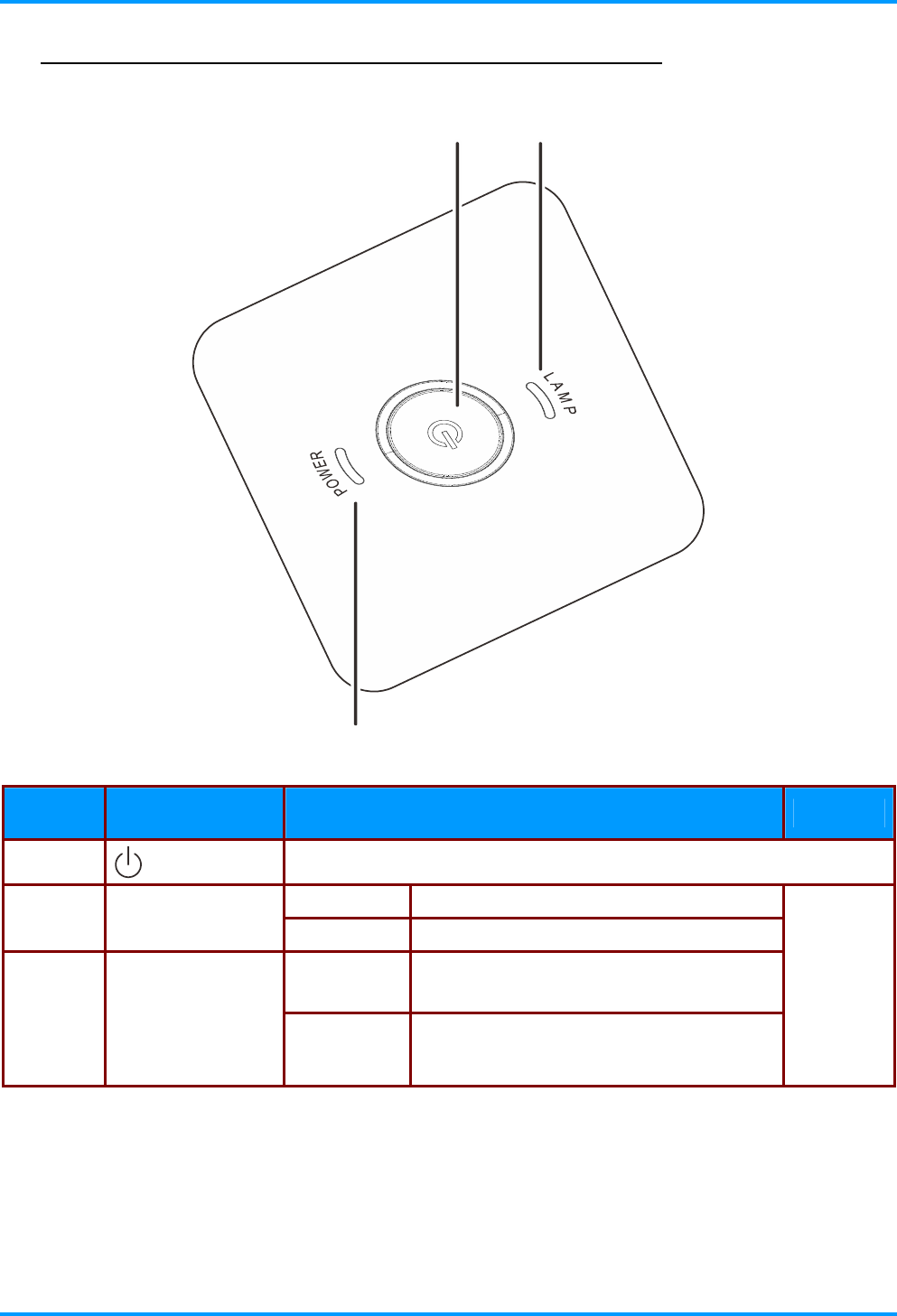
1. Turns the projector On and Off
Red Lamp Failure
2. LAMP LED
Blinking Red Error code
Blue Projector is in standby or is fully
powered on (lamp is lit).
3. POWER LED
Blinking Blue
Projector is initializing or cooling down. It
can also indicate an error code when
blinking in conjunction with the Lamp LED.
42
– 3 –
IN8606HD User’s Manual
Rear view
12
10
3456 7 9
11
12
13
14
1516
8
ITEM LABEL DESCRIPTION SEE PAGE
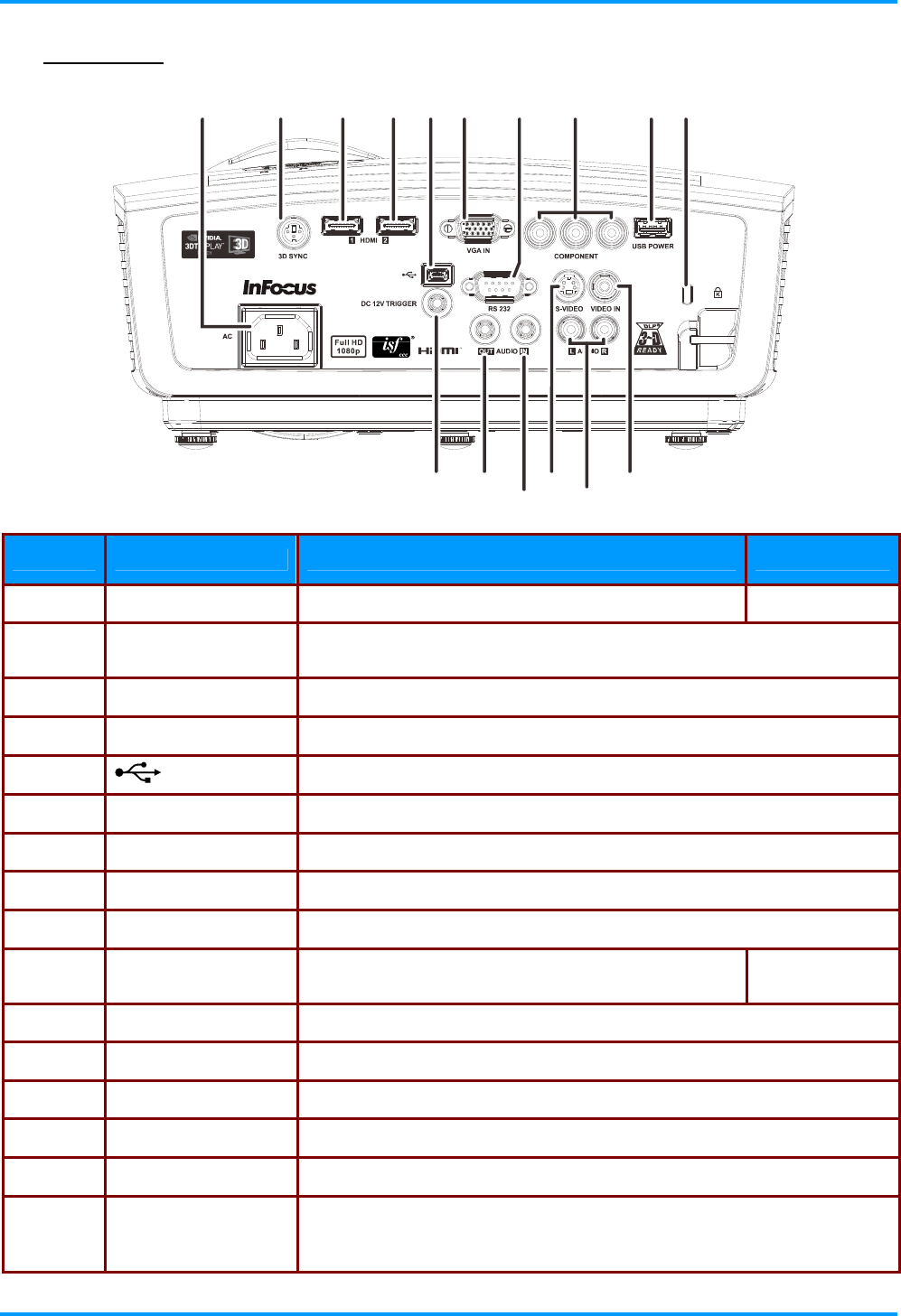
1. AC IN Connect a POWER cable 11
2. 3D SYNC Connect the 3D IR glasses transmitter
(Note: For Specific 3D IR glasses only)
3. HDMI 1 Connect an HDMI cable from a HDMI device
4. HDMI 2 Connect an HDMI cable from a HDMI device
5. (USB) Service use only.
6. VGA IN Connect a RGB cable from a computer
7. RS-232C Connect a RS-232 serial port cable for remote control
8. COMPONENT Connect a Component cable from a component device
9. USB POWER This USB Type A connector provides 5V DC power support.
10. Kensington Lock Secure to a permanent object with a Kensington®
Lock system 40
11. VIDEO IN Connect a COMPOSITE cable from a video device
12. AUDIO IN (L and R) Connect an AUDIO cable from an audio device
13. S-VIDEO Connect a S-VIDEO cable from a video device
14. AUDIO IN Connect an AUDIO cable from an audio device
15. AUDIO OUT Connect an AUDIO cable to an audio amplifier
16. DC 12V TRIGGER
When connected to the screen through a commercially available cable,
the screen deploys automatically on start up of the projector. The screen
retracts when the projector is powered off (see notes on next page).
–4 –

IN8606HD User’s Manual
– 5 –
DC12V Trigger Note:
To use this feature, you must plug in the connector before turn on/off the projector.
Screen controllers are supplied and supported by screen manufacturers.
Do not use this jack for anything other than intended use.
Connectivity Note:
If your video equipment has multiple connection options, please note that HDMI provides the
highest quality image, followed by Component and then S-video. Composite provides the least
quality image.
Warning:
As a safety precaution, disconnect all power to the projector and connecting devices before making
connections.
IN8606HD User’s Manual
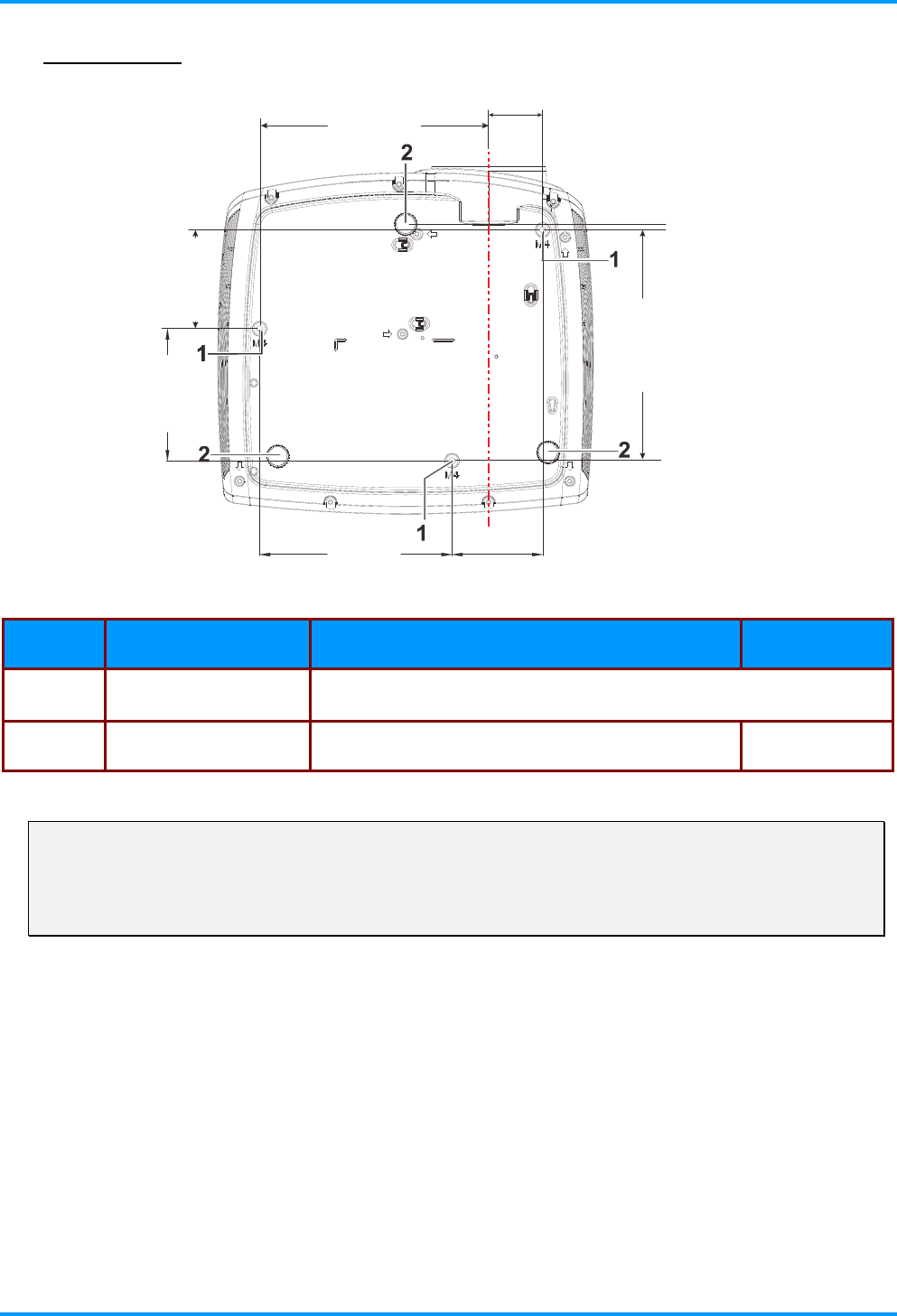
Bottom view
100.0mm
146.0mm
68.7mm
75.0mm
175.0mm
173.9mm
40.8mm
4.5mm
(6.89inch)
(3.94inch)
(2.95inch)
(0.18inch
)
(5.75inch)
(
2.70inch
)
(6.85inch)
(1.61inch)
ITEM LABEL DESCRIPTION SEE PAGE
1. Ceiling support holes Contact your dealer for information on mounting the projector on a
ceiling
2. Tilt adjustor Rotate adjuster lever to adjust angle position. 15
Note:
If you are installing the projector on the ceiling, we strongly recommend using InFocus approved
ceiling mounts for proper fitting, ventilation and installation. Refer to the installation guide that
comes with the InFocus Ceiling Mount kit for more information. The warranty does not cover any
damage caused by use of non-approved ceiling mount kits or by installing in an improper location.
–6 –
IN8606HD User’s Manual
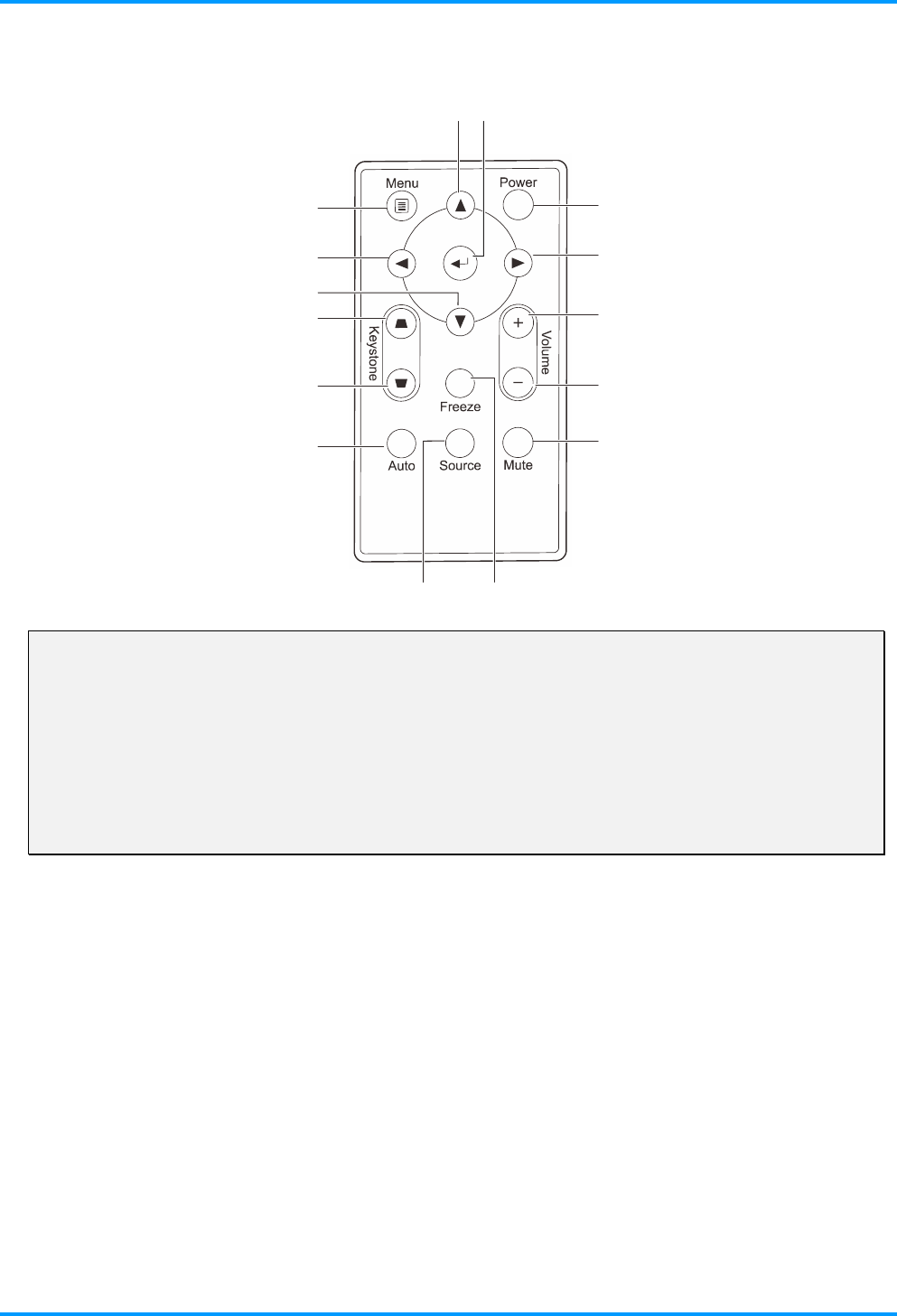
Remote Control Parts
12
3
4
5
6
7
89
10
11
12
13
14
15
Important:
1. Avoid using the projector with bright fluorescent lighting turned on. Certain high-frequency
fluorescent lights can disrupt remote control operation.
2. Be sure nothing obstructs the path between the remote control and the projector. If the path
between the remote control and the projector is obstructed, you can bounce the signal off certain
reflective surfaces such as projector screens.
3. The buttons and keys on the projector have the same functions as the corresponding buttons on
the remote control. This user’s manual describes the functions based on the remote control.
– 7 –
IN8606HD User’s Manual
–8 –
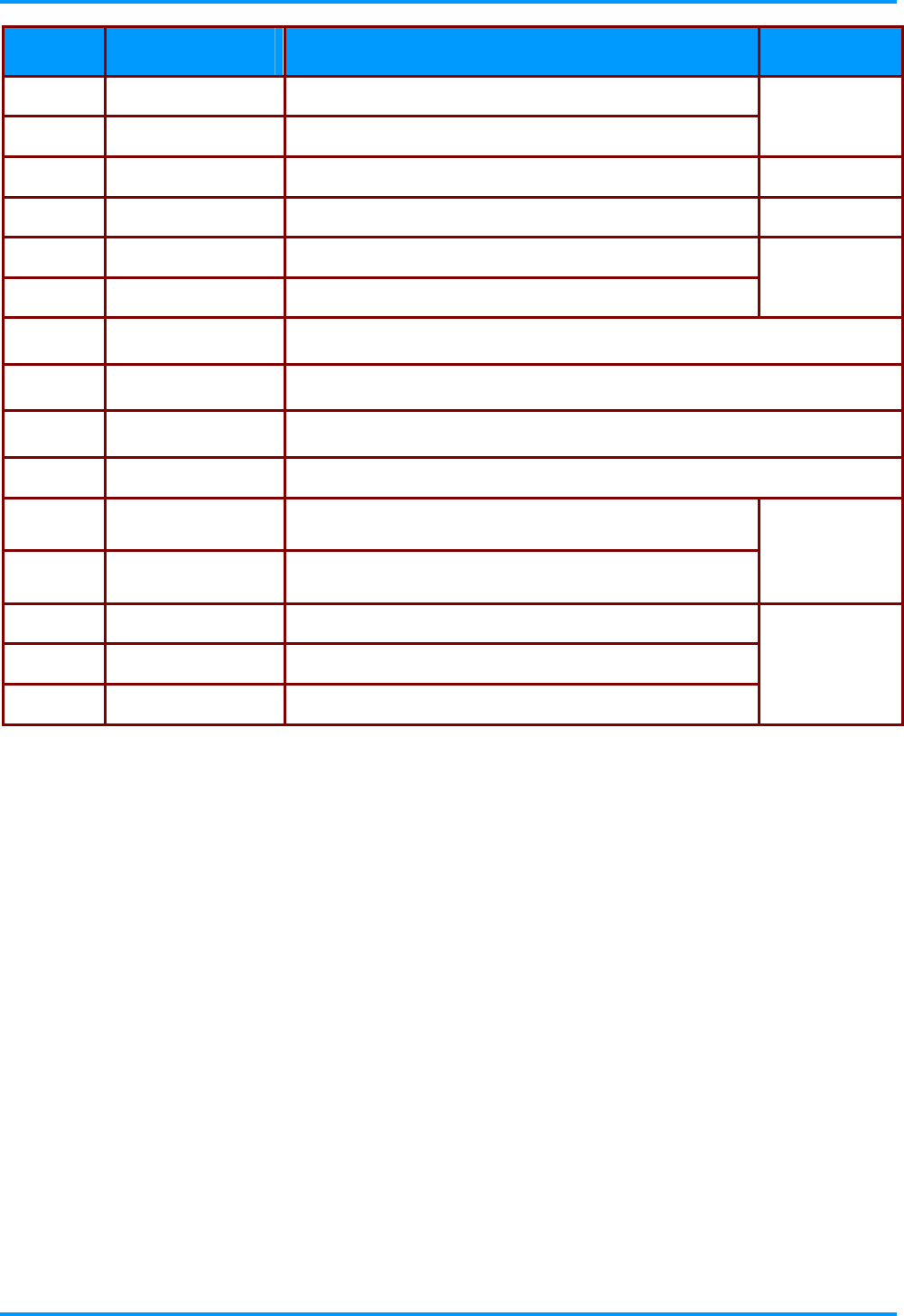
ITEM LABEL DESCRIPTION SEE PAGE:
1. Up Navigates up and changes settings in the OSD
2. Enter Changes settings in the OSD
17
3. Power Turns the projector on or off 11
4. Right Navigates to the right and changes settings in the OSD
5. Volume + Increases volume
6. Volume - Decreases volume
16
7. Mute Mutes the built-in speaker
8. Freeze Freeze/unfreezes the on-screen picture
9. Source Selects the input device
10. Auto Auto adjustment for frequency, tracking, size, position (RGB only)
11. Keystone top Corrects keystoning of the image (when it is wider on
top)
12. Keystone bottom Corrects keystoning of the image (when it is wider on
the bottom)
16
13. Down Navigates down and changes settings in the OSD
14. Left Navigates to the left and changes settings in the OSD
15. Menu Opens and exits the OSD
17

IN8606HD User’s Manual
– 9 –
Remote Control Operating Range
The remote control uses infrared transmission to control the projector. It is not necessary to point the
remote directly at the projector. Provided you are not holding the remote perpendicular to the sides or
the rear of the projector, the remote will function well within a radius of about 7 meters (23 feet) and
15 degrees above or below the projector level. If the projector does not respond to the remote control,
move a little closer.
Projector and Remote Control Buttons
The projector can be operated using the remote control. All operations can be carried out with the
remote control.
IN8606HD User’s Manual
–10 –
SETUP AND OPERATION
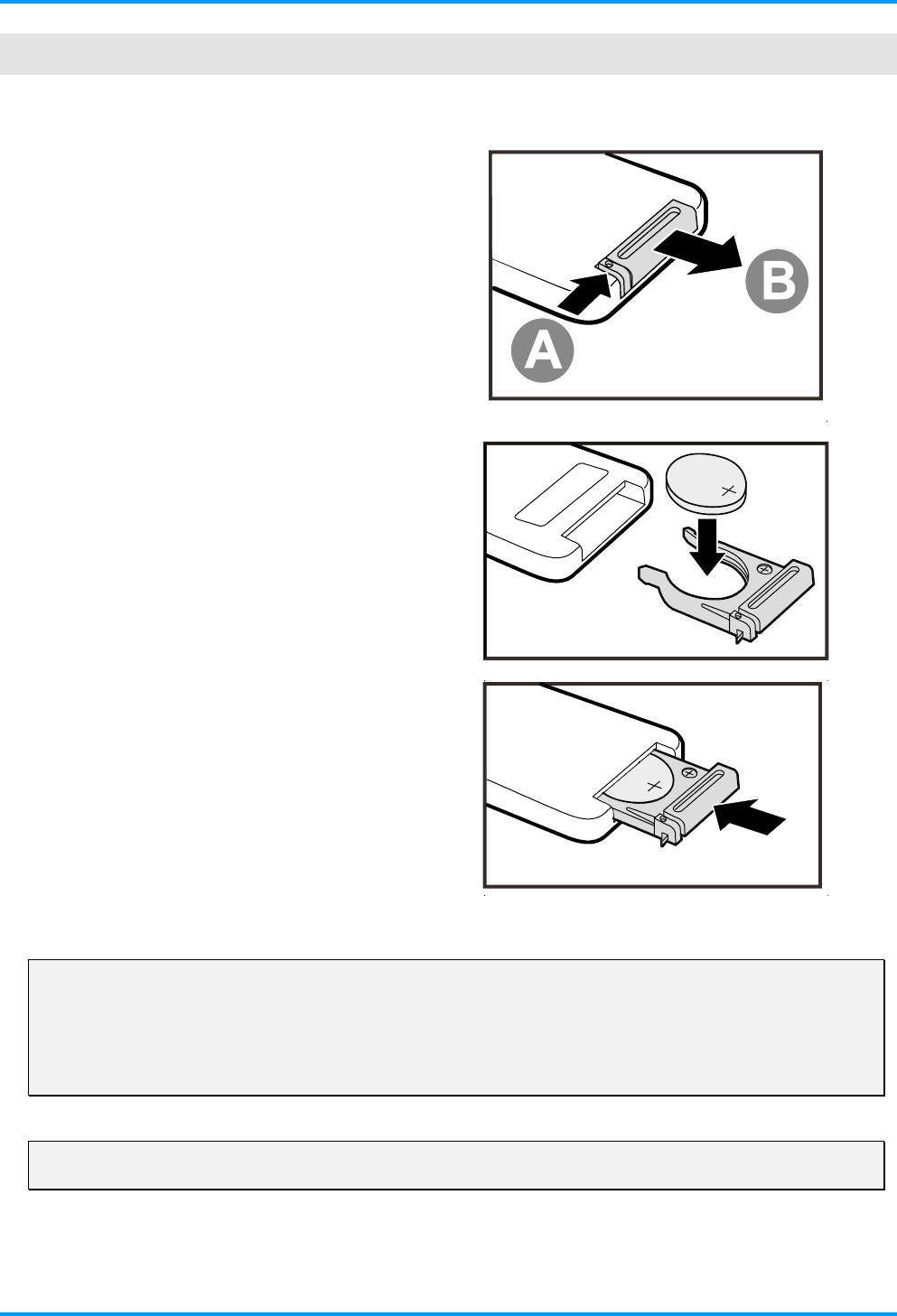
Inserting the Remote Control Batteries
1. Remove the battery compartment
cover by sliding the cover in the
direction of the arrow (A). Pull out the
cover (B).
2. Insert the battery with the positive
side facing up.
3. Replace the cover.
Caution:
1. Only use a 3V lithium battery (CR2025).
2. Dispose of used batteries according to local ordinance regulations.
3. Remove the batteries when not using the projector for prolonged periods.
Note:
Batteries are not normally included with InFocus projectors.
IN8606HD User’s Manual
Turning the projector on and off
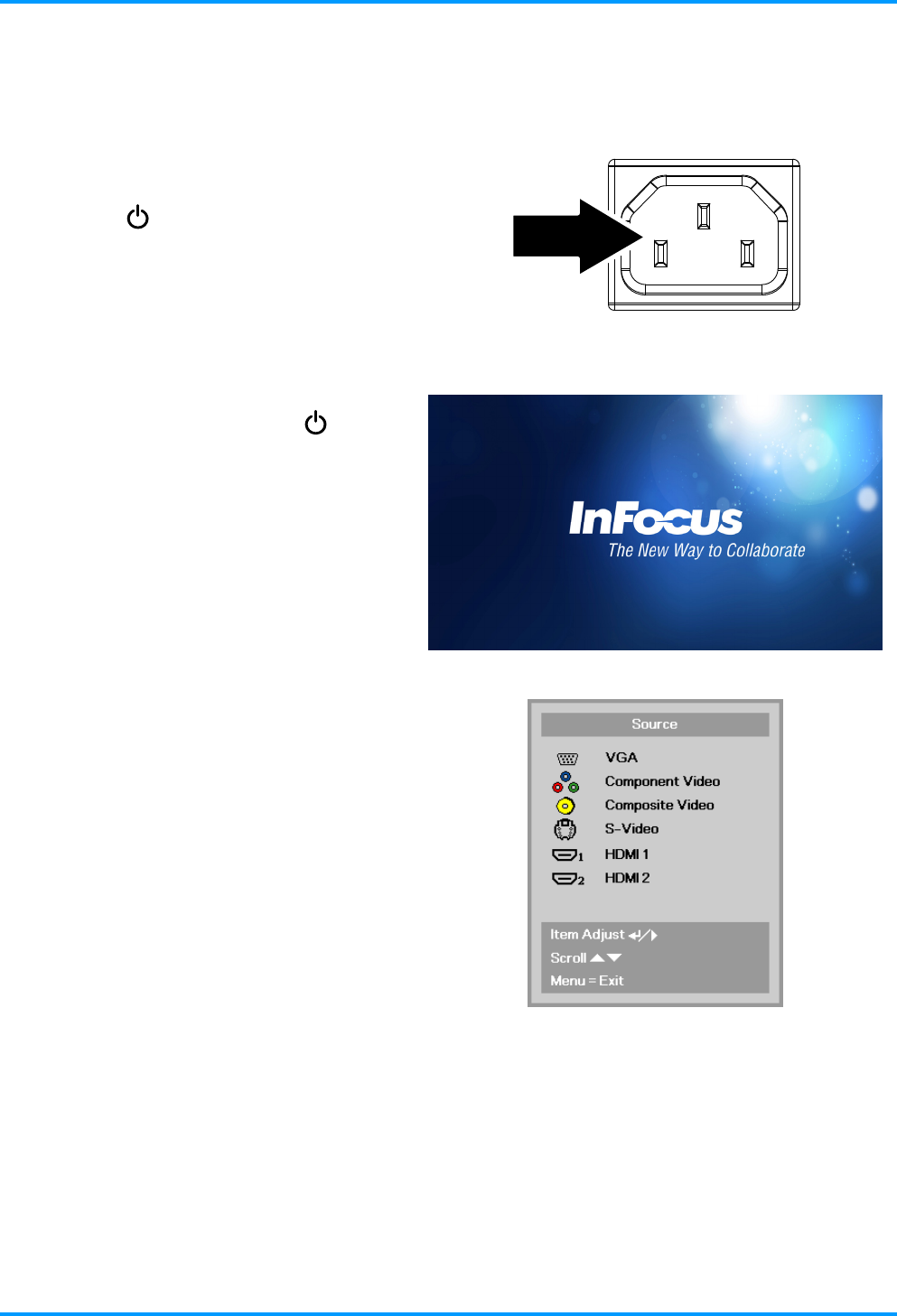
1. Connect the power cord to the
projector. Connect the other end to
a wall outlet.
The POWER LED on the
projector light.
2. Turn on the connected devices.
3. Ensure the POWER LED is not
flashing. Then press the POWER
button to turn on the projector.
The projector splash screen displays
and connected devices are
detected.
See Setting an Access Password
(Security Lock) on page 13 if the
security lock is enabled.
4. If more than one input device is
connected, press the SOURCE
button and use ▲▼ to scroll among
the devices.
(Component is supported using a
RGB to COMPONENT ADAPTER.)
VGA: Analog RGB
Component Video: Traditional component video
Composite Video: Traditional composite video
S-Video: Super video (Y/C separated)
HDMI 1 / HDMI 2: High-Definition Multimedia
Interface
– 11 –

IN8606HD User’s Manual
5. To turn the projector off, press the
POWER button. When the “Power
Off? Press Power again” message
appears, press the POWER button.
The projector turns off.
Caution:
1. Be sure to remove the lens cap before starting projector.
2. Do not unplug the power cord until the POWER LED stops flashing–indicating the projector has
cooled down.
–12 –
IN8606HD User’s Manual
Setting an Access Password (Security Lock)
You can use the four arrow buttons on the remote to set a password and prevent unauthorized
use of the projector. When enabled, the password must be entered after you power on the projector.
(See Navigating the OSD on page 17 and Setting the OSD Language on page 18 for help on using
OSD menus.)
Important:
Keep the password in a safe place. Without the password, you will not be able to use the projector.
If you lose the password, contact InFocus Support for information on clearing the password.
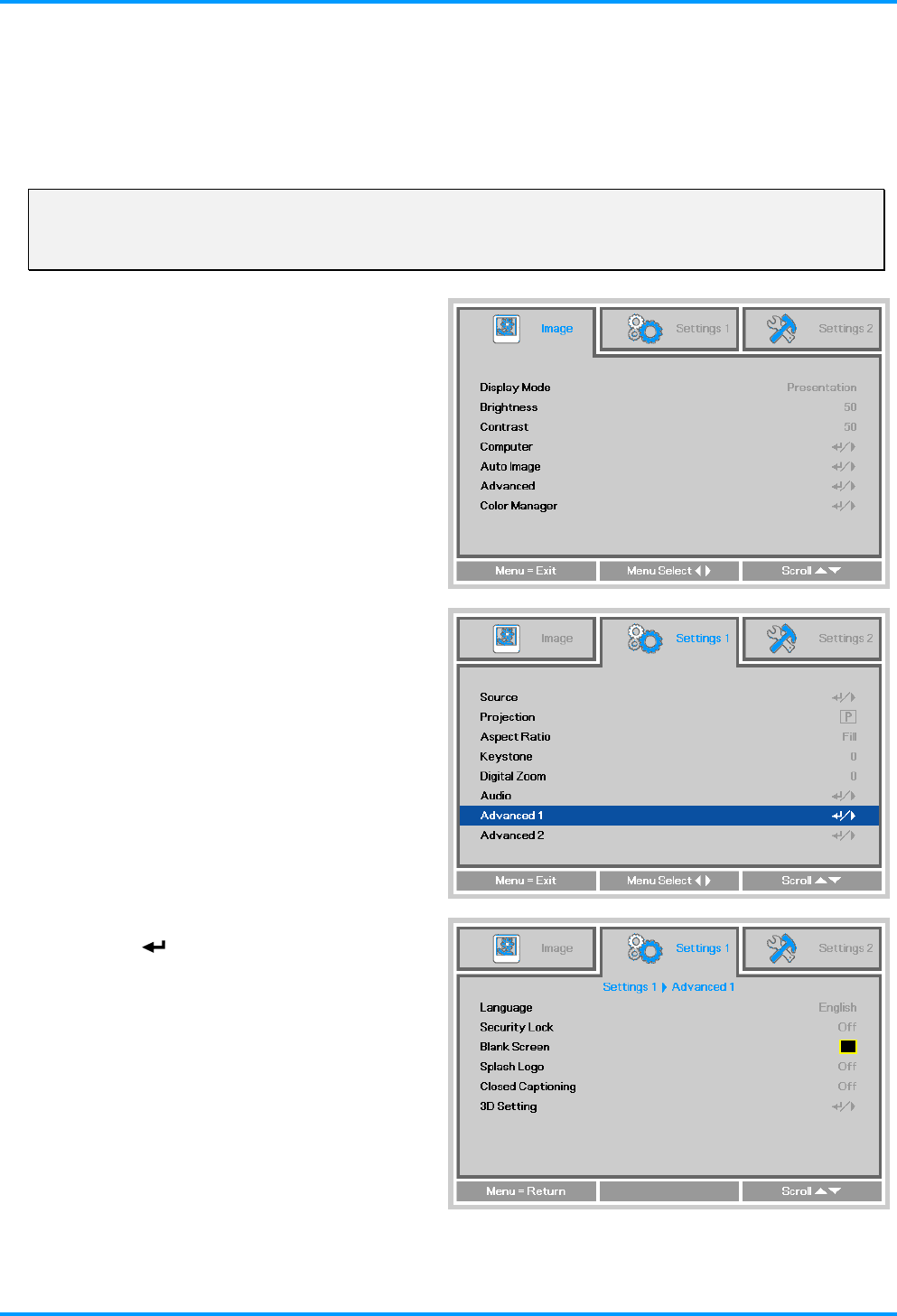
1. Press the MENU button to open the
OSD menu.
2. Press the ◄► buttons to move to the
Settings 1 menu. Press the ▲▼
buttons to select Advanced 1.
3. Press (Enter) or ► to enter the
Advanced 1 sub menu. Press the
▲▼ buttons to select Security Lock.
4. Press the ◄► buttons to enter and
enable or disable security lock
function.
A password dialog box automatically
appears.
– 13 –
IN8606HD User’s Manual
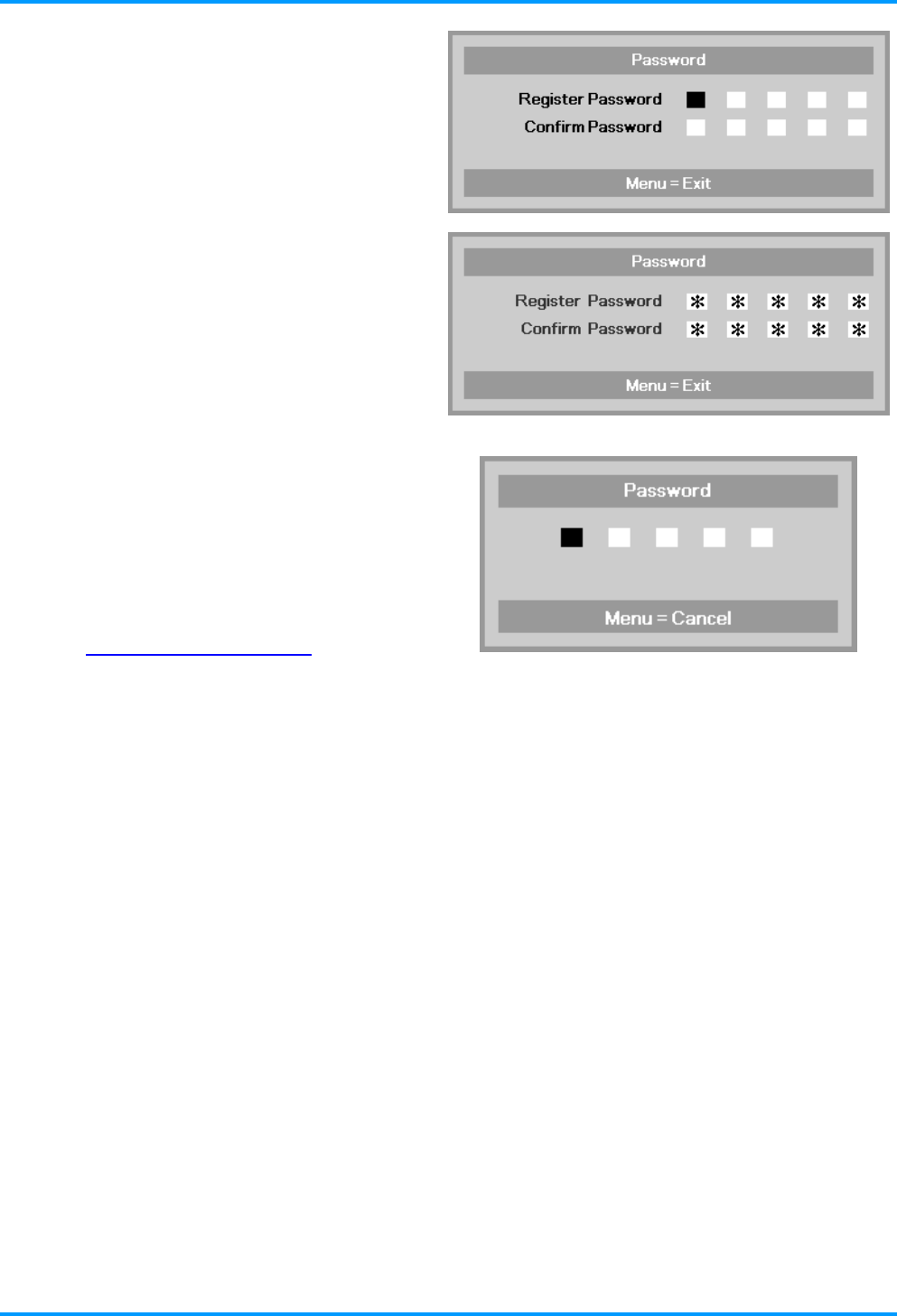
5. You can use the arrow buttons
▲▼◄►
either on keypad or IR remote control
for password entry. You can use any
combination including the same arrow
five times, but five characters must be
used..
Press the arrow buttons in any order to
set the password. Push the MENU
button to exit the dialog box.
6. If the Security Lock is enabled, the
user will be prompted to enter a
password when the projector's power
button is pressed.
Enter the password in the order you
set it on step 5. If you forget the
password, please contact InFocus.
Visit our website at
www.infocus.com/support or call us.
–14 –
IN8606HD User’s Manual
Adjusting the Projector Level
Take note of the following when setting up the projector:
The projector table or stand should be level and sturdy.
Position the projector so that it is perpendicular to the screen.
Ensure the cables are in a safe location. You could trip over them.
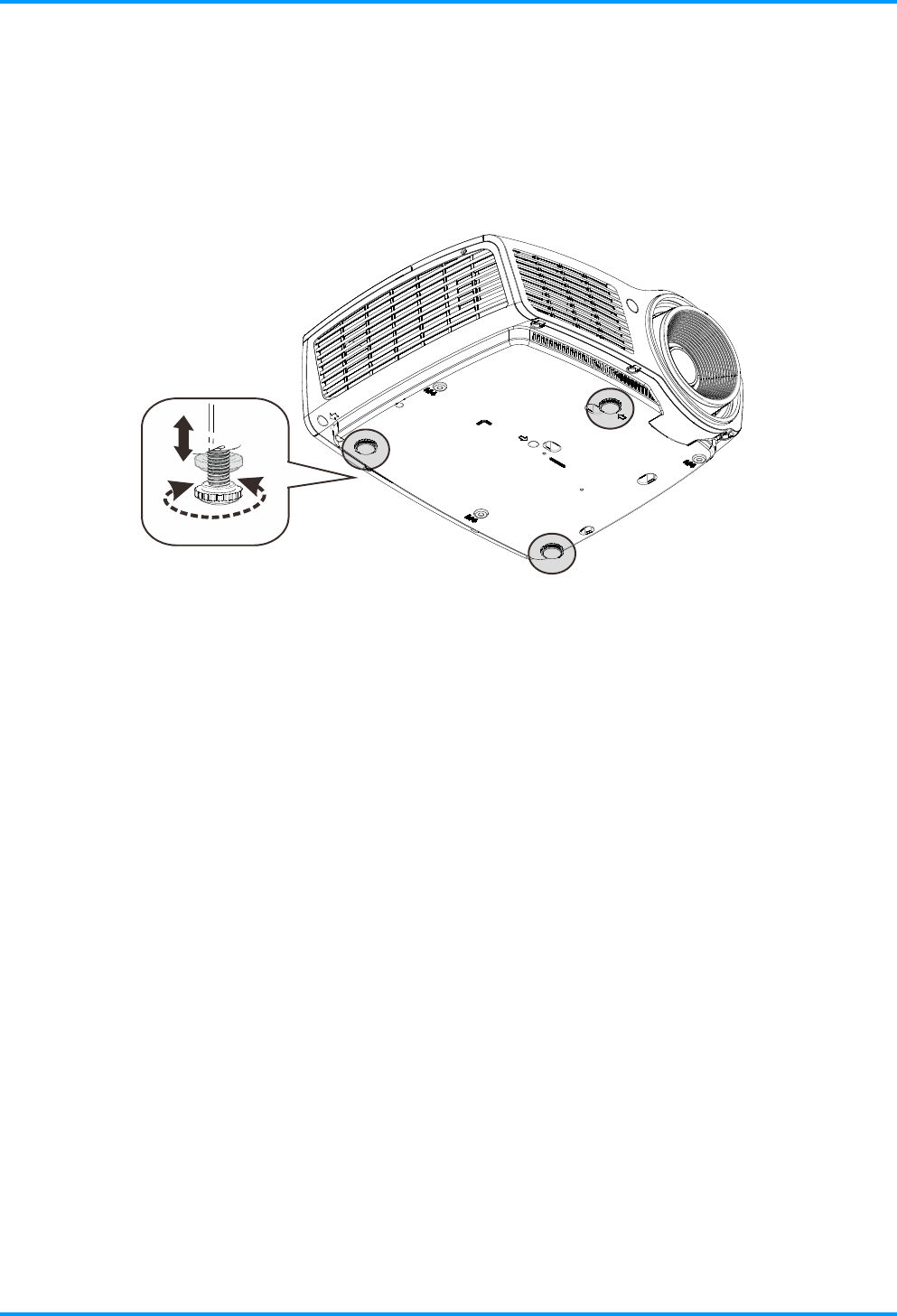
To adjust the angle of the picture, turn the tilt-adjuster right or left until the desired
angle has been achieved.
– 15 –
IN8606HD User’s Manual
Adjusting the Zoom, Focus and Keystone
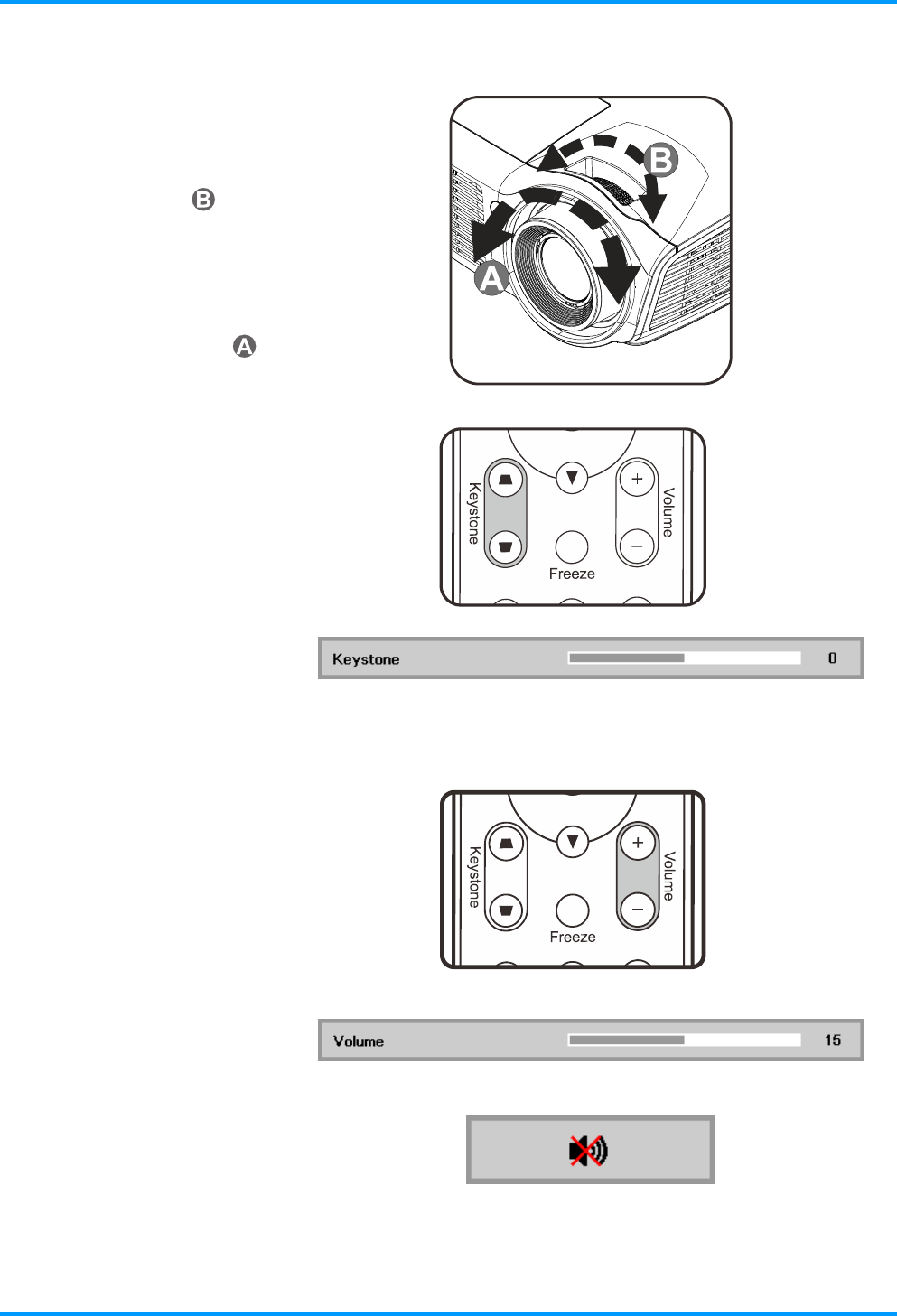
1. Use the Image-zoom
control (on the projector
only) to resize the
projected image and
screen size .
2. Use the Image-focus
control (on the projector
only) to sharpen the
projected image .
3. Use the KEYSTONE
buttons on the remote
control to correct
trapezoid image issues
(wider top or bottom).
4. The keystone control
appears on the display.
Adjusting the Volume
1. Press the Volume +/-
buttons on the remote
control.
The volume control
appears on the display.
2. Press the MUTE button
on the remote control to
turn off the volume.
–16 –
IN8606HD User’s Manual
– 17 –
ON-SCREEN DISPLAY (OSD) MENU SETTINGS
OSD Menu Controls
The projector has an OSD that lets you make image adjustments and change various settings.
Navigating the OSD
You can use the remote control arrow buttons to navigate and make changes to the OSD.
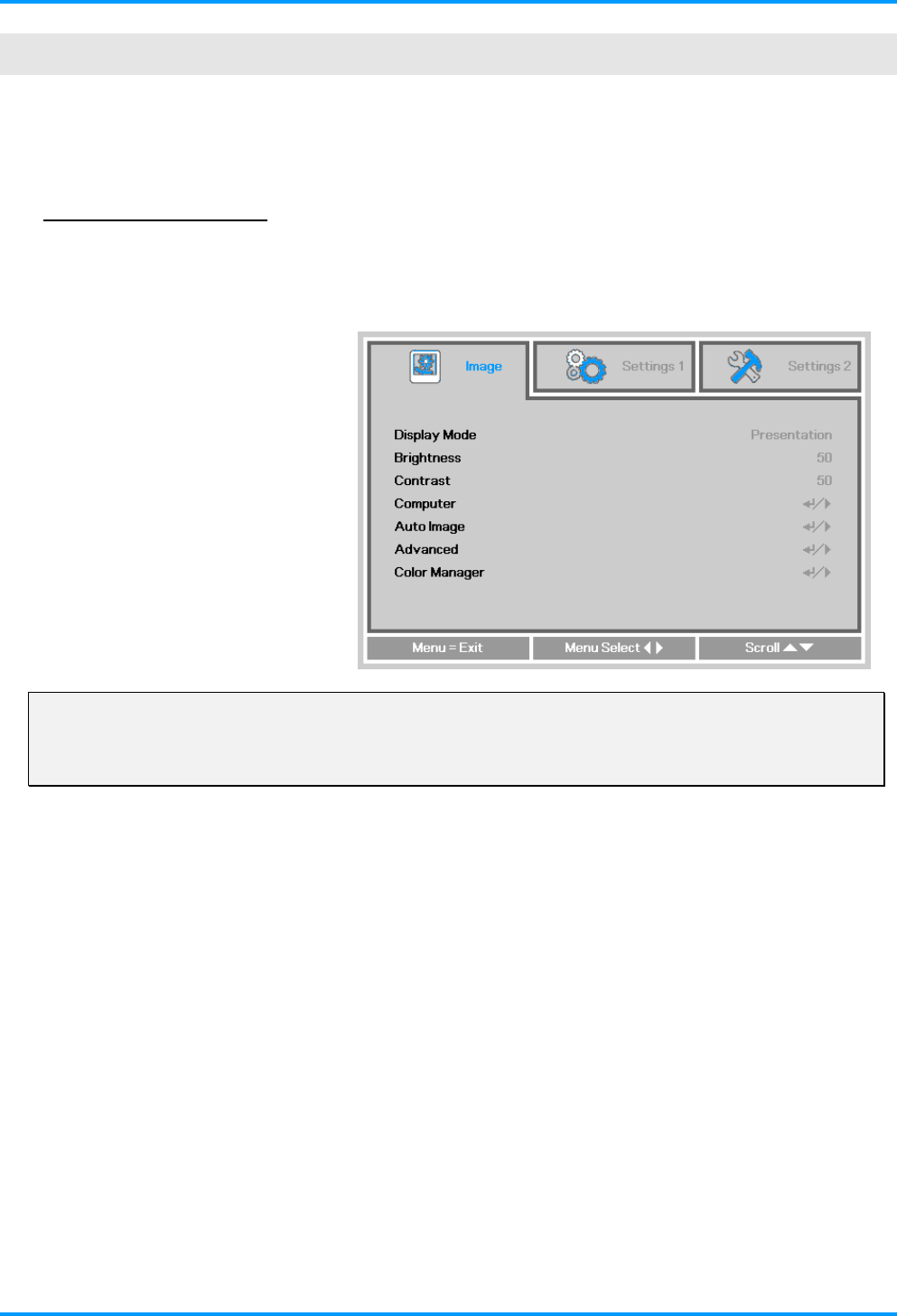
1. To enter the OSD, press the
MENU button.
2. There are three menus.
Press the ◄► buttons to
move through the menus.
3. Press the ▲▼ buttons to
move up and down in a
menu.
4. Press the ◄► buttons to
change setting values.
5. Press the MENU button to
close the OSD or leave a
submenu.
Note:
Depending on the video source, not all items in the OSD are available. For example, the
Horizontal/Vertical Position items in the Computer menu can only be modified when connected
to a PC. Items that are not available cannot be accessed and are grayed out.
IN8606HD User’s Manual
Setting the OSD Language
Set the OSD language to your preference before continuing.
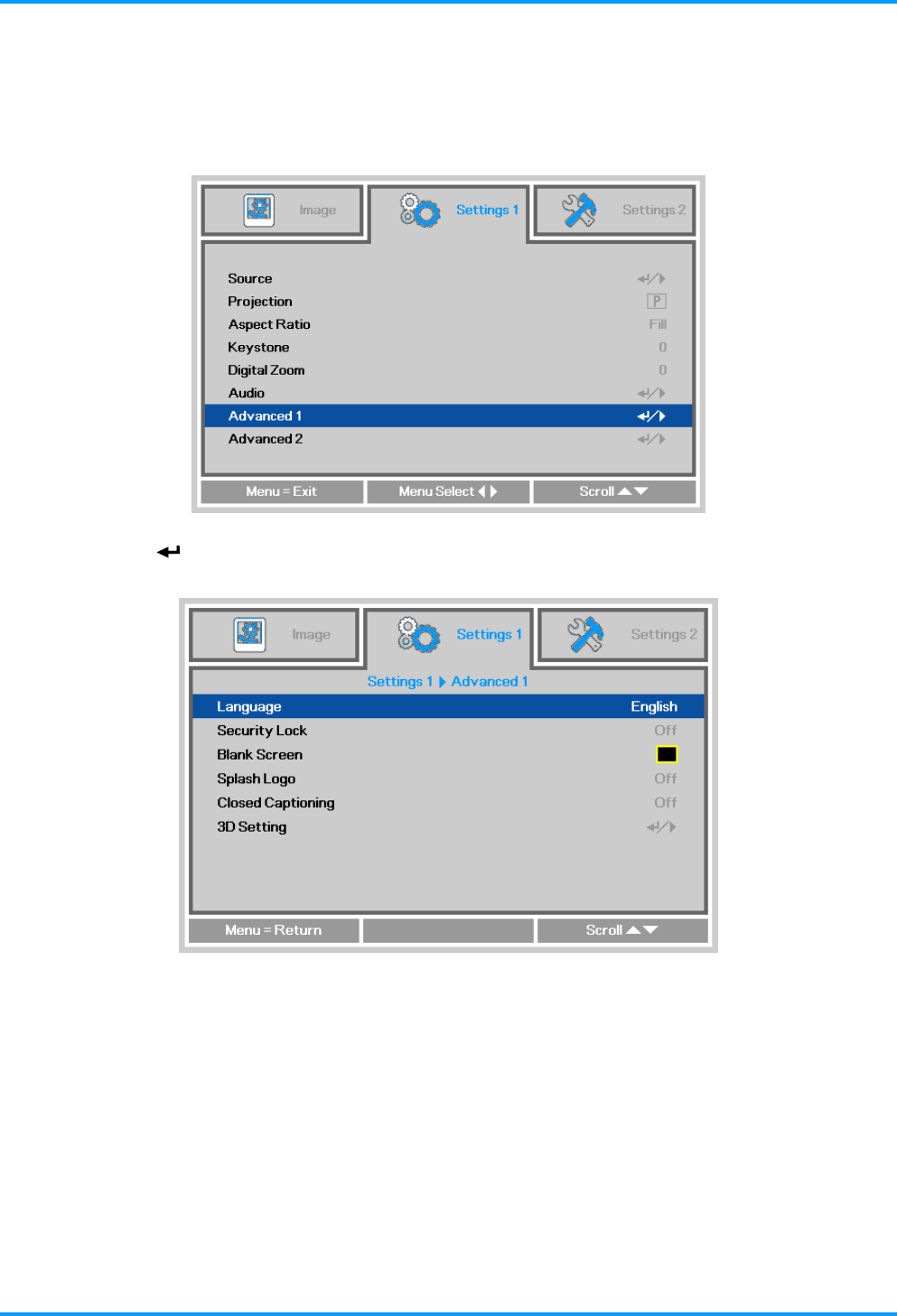
1. Press the MENU button. Press the ◄► buttons to navigate to Settings 1. Press the ▲▼
buttons to move to the Advanced 1 menu.
2. Press (Enter) or ► to enter the Advanced 1 sub menu. Press the ▲▼ buttons until
Language is highlighted.
3. Press the arrow buttons until the language you want is highlighted.
4. Press the MENU button four times to close the OSD.
–18 –
IN8606HD User’s Manual
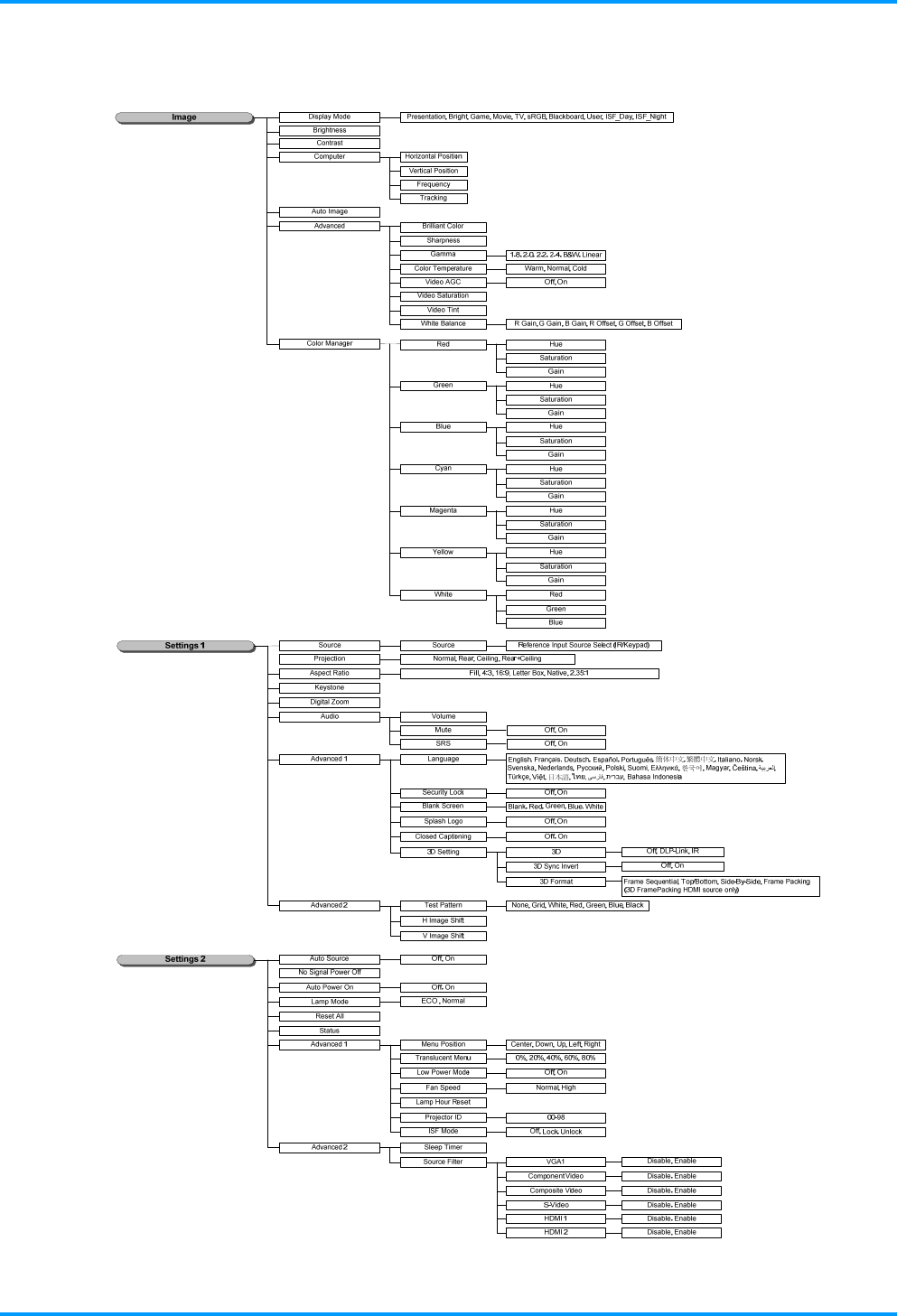
OSD Menu Overview
Use the following illustration to quickly find a setting or determine the range for a setting.
– 19 –
IN8606HD User’s Manual
–20 –
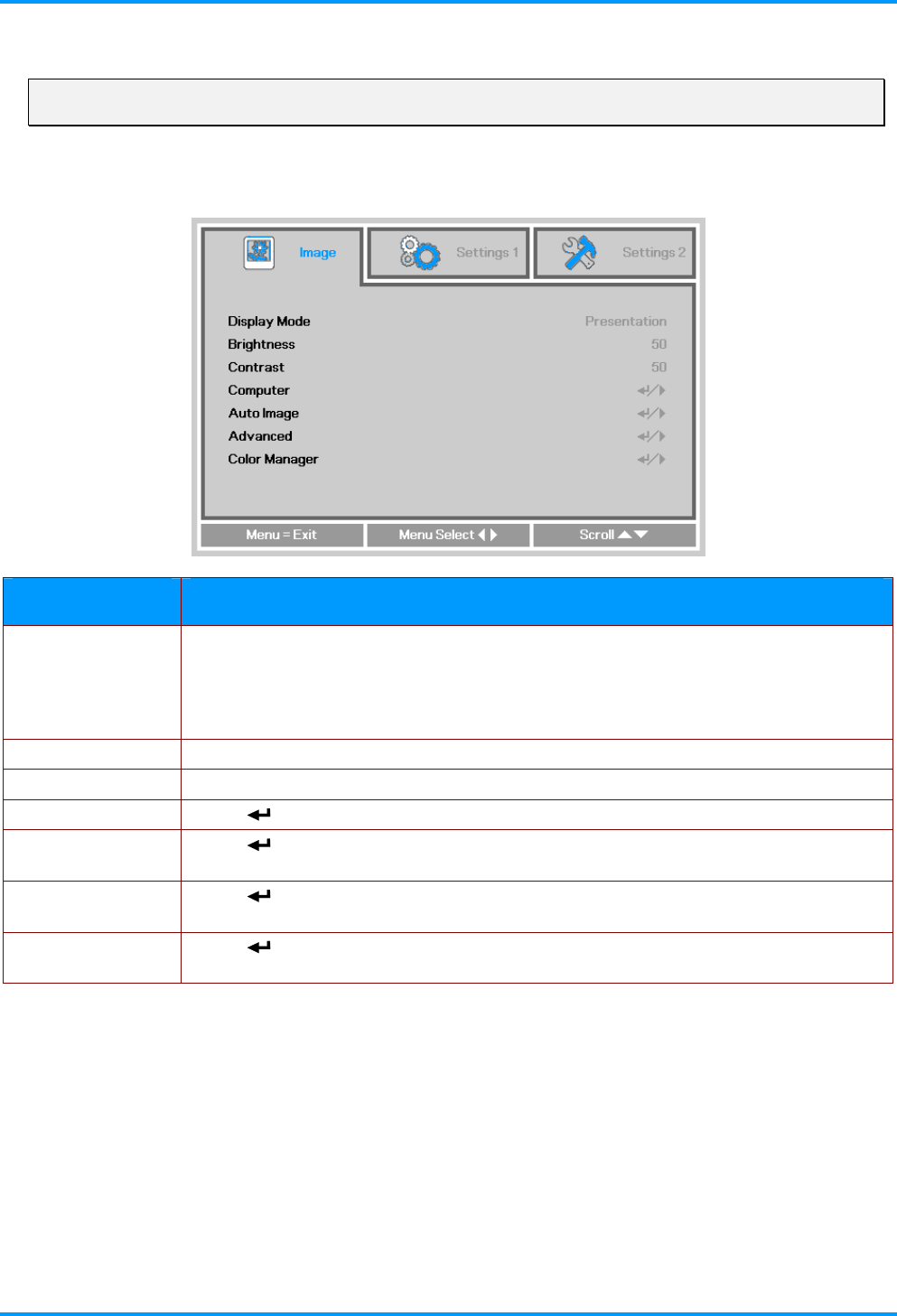
Image Menu
Attention !
When image options are changed, the Display Mode changes to User.
Press the MENU button to open the OSD menu. Press the ◄► buttons to move to the Image Menu.
Press the ▲▼ buttons to move up and down in the Image menu. Press the ◄► buttons to enter and
change setting values.
ITEM DESCRIPTION
Display Mode
Press the ◄► buttons to enter and set the Display Mode.
Note:
1. Display Mode must be set to User in order to access the other Image menu items.
2. ISF Day and ISF Night items only display when the ISF feature has been activated
by your ISF technician.
Brightness Press the ◄► buttons to enter and adjust the display brightness.
Contrast Press the ◄► buttons to enter and adjust the display contrast.
Computer Press (Enter) or ► to enter the Computer menu. See Computer Menu on page 21.
Auto Image Press (Enter) or ► to automatically adjustment for phase, tracking, size and
position.
Advanced Press (Enter) or ► to enter the Advanced menu. See Advanced Feature on page
22.
Color Manager Press (Enter) or ► to enter the color manager menu. See page 24 for more
information on Color Manager.
IN8606HD User’s Manual
Computer Menu
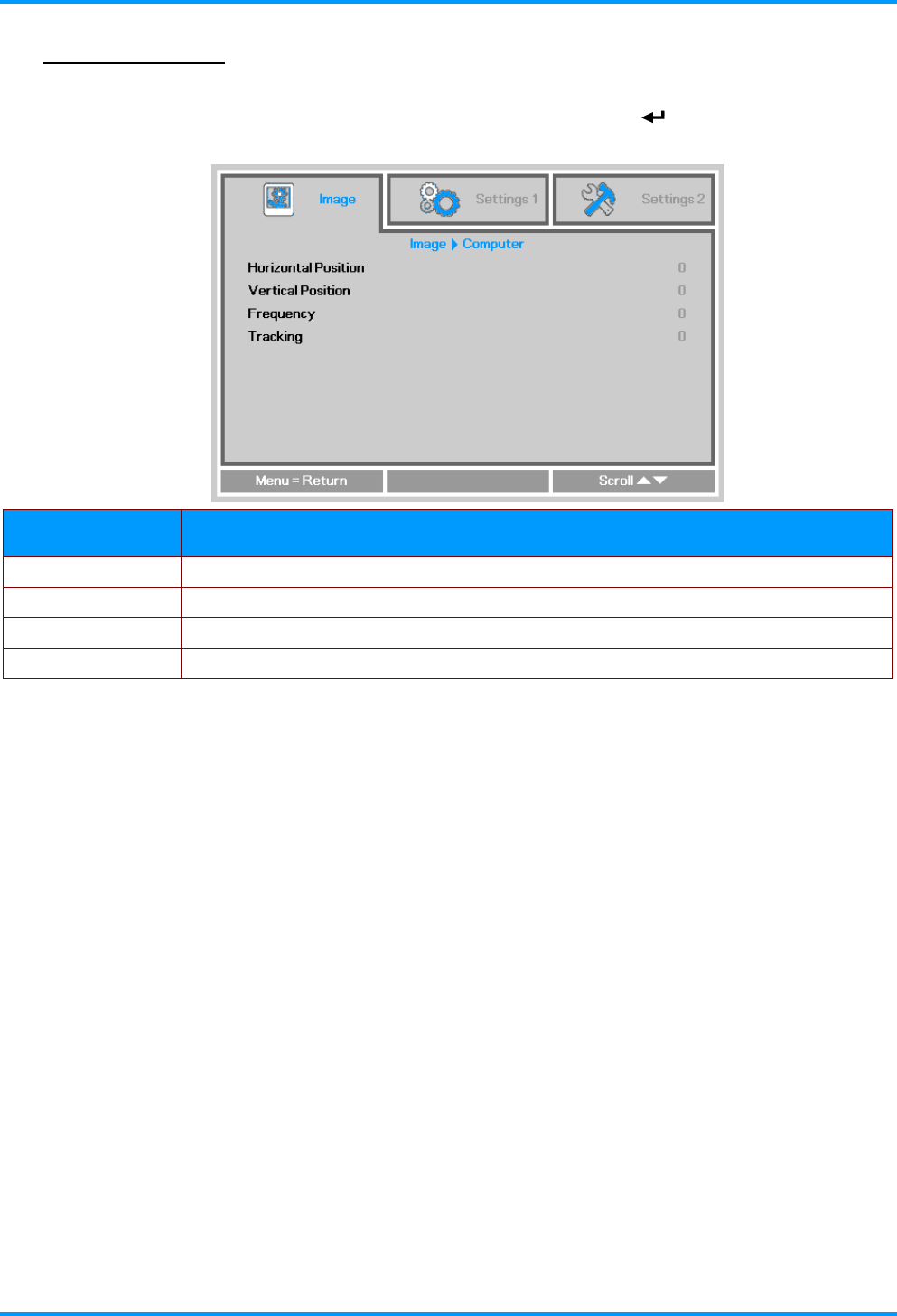
Press the MENU button to open the OSD menu. Press the ◄► buttons to move to the Image menu.
Press the ▲▼ buttons to move to the Computer menu and then press (Enter) or ►. Press the
▲▼ buttons to move up and down in the Computer menu.
ITEM DESCRIPTION
Horizontal Position Press the ◄► buttons to enter and adjust the display position to left or right.
Vertical Position Press the ◄► buttons to enter and adjust the display position to up or down.
Frequency Press the ◄► buttons to enter and adjust the A/D sampling clock.
Tracking Press the ◄► buttons to enter and adjust the A/D sampling dot.
– 21 –
IN8606HD User’s Manual
Advanced Features
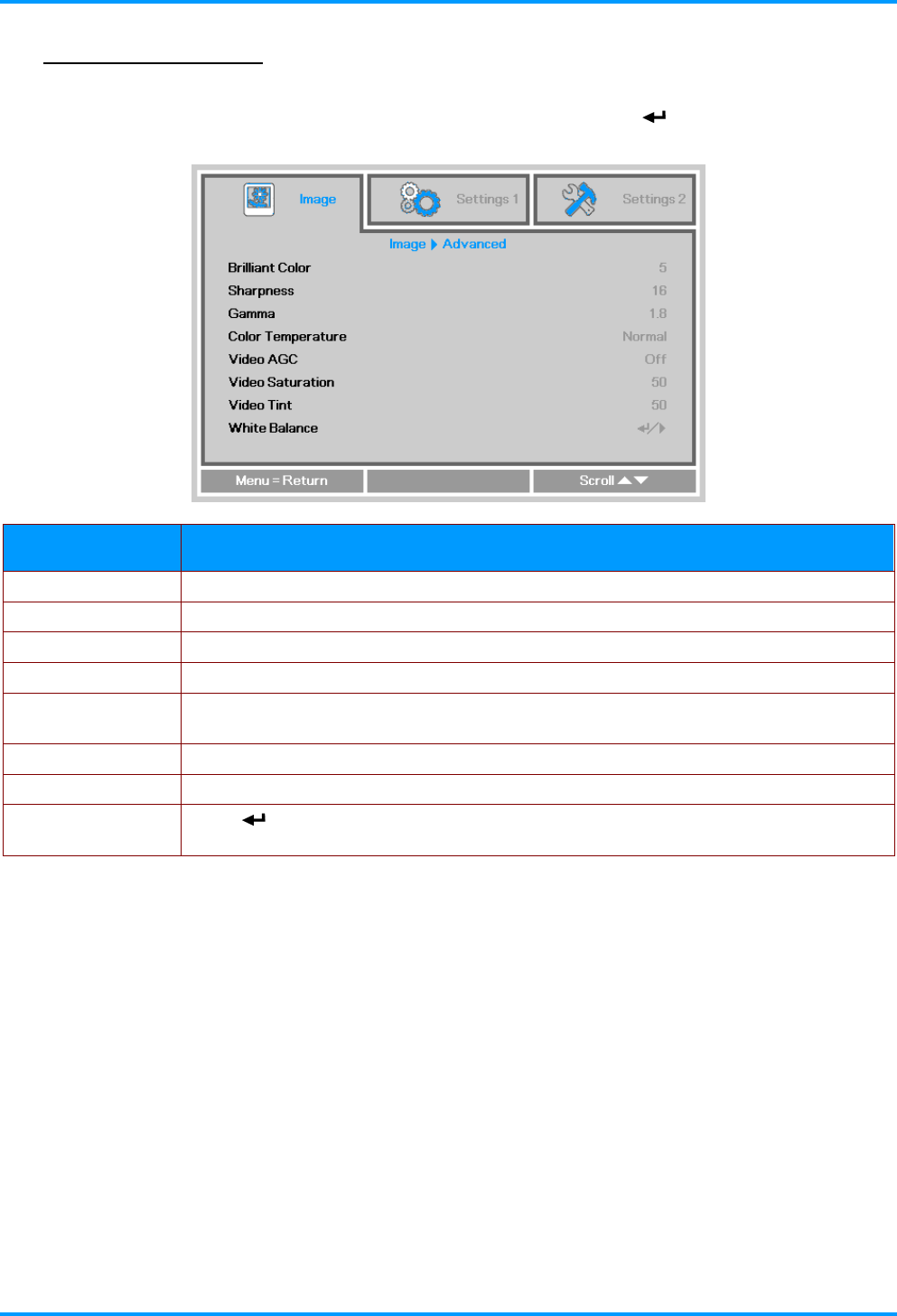
Press the Menu button to open the OSD menu. Press the ◄► buttons to move to the Image menu.
Press the ▼▲ buttons to move to the Advanced menu and then press (Enter) or ►. Press the
▼▲ buttons to move up and down in the Advanced menu.
ITEM DESCRIPTION
Brilliant Color Press the ◄► buttons to enter and adjust the Brilliant Color value.
Sharpness Press the ◄► buttons to enter and adjust the display sharpness.
Gamma Press the ◄► buttons to enter and adjust the gamma correction of the display.
Color Temperature Press the ◄► buttons to enter and adjust the color temperature.
Video AGC Press the ◄► buttons to enter and enable or disable the Automatic Gain Control for
video source.
Video Saturation Press the ◄► buttons to enter and adjust the video saturation.
Video Tint Press the ◄► buttons to enter and adjust the video tint/hue.
White Balance Press (Enter) or ► to enter the White Balance sub menu.
See White Balance on page 23
–22 –
IN8606HD User’s Manual
White Balance
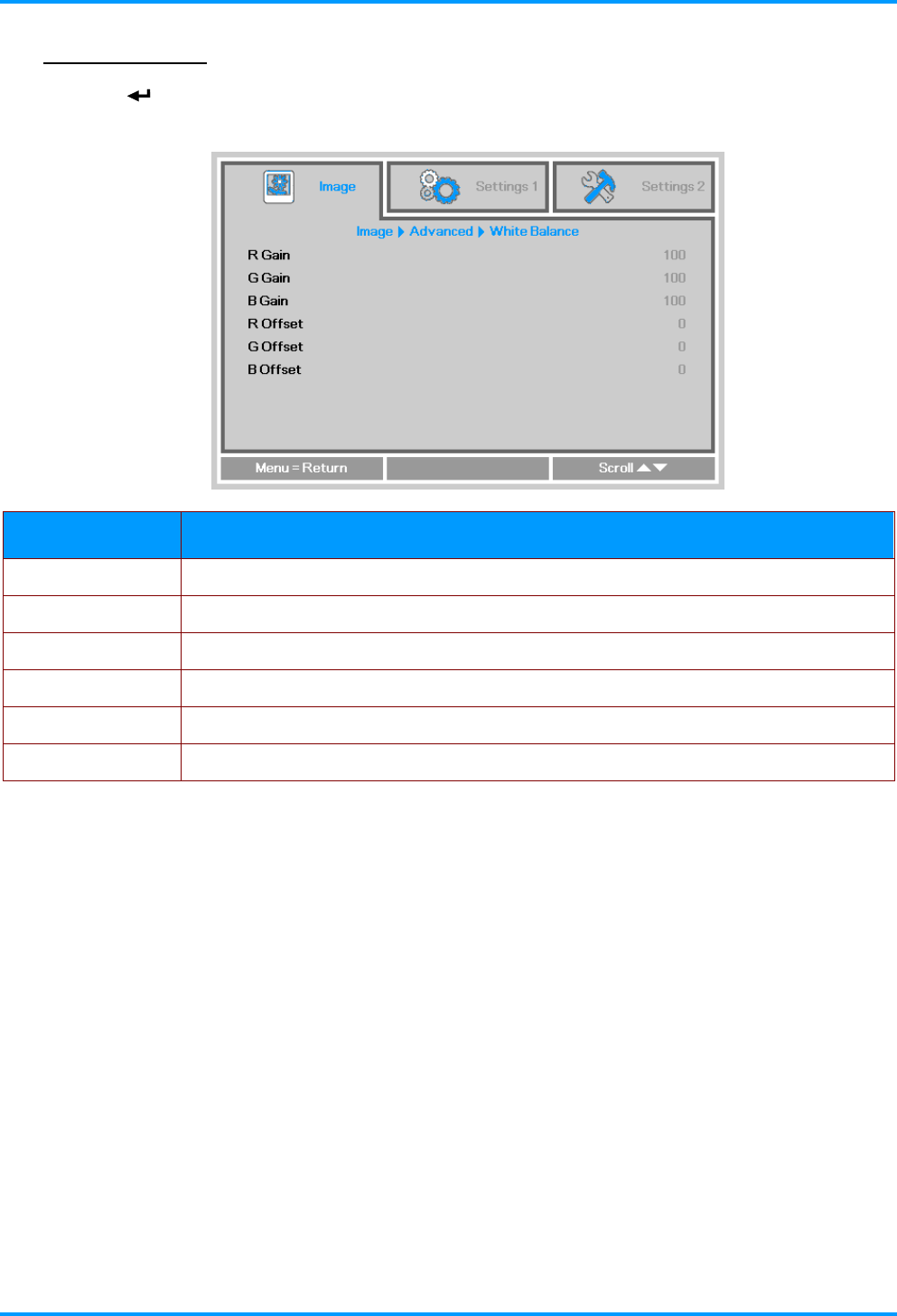
Press the (Enter) or ► button to enter the White Balance sub menu. Press ▼▲ to move up and
down in the White Balance menu.
ITEM DESCRIPTION
R Gain Press the ◄► buttons to adjust the Red Gain.
G Gain Press the ◄► buttons to adjust the Green Gain.
B Gain Press the ◄► buttons to adjust the Blue Gain.
R Offset Press the ◄► buttons to adjust the Red Offset.
G Offset Press the ◄► buttons to adjust the Green Offset.
B Offset Press the ◄► buttons to adjust the Blue Offset.
– 23 –
IN8606HD User’s Manual
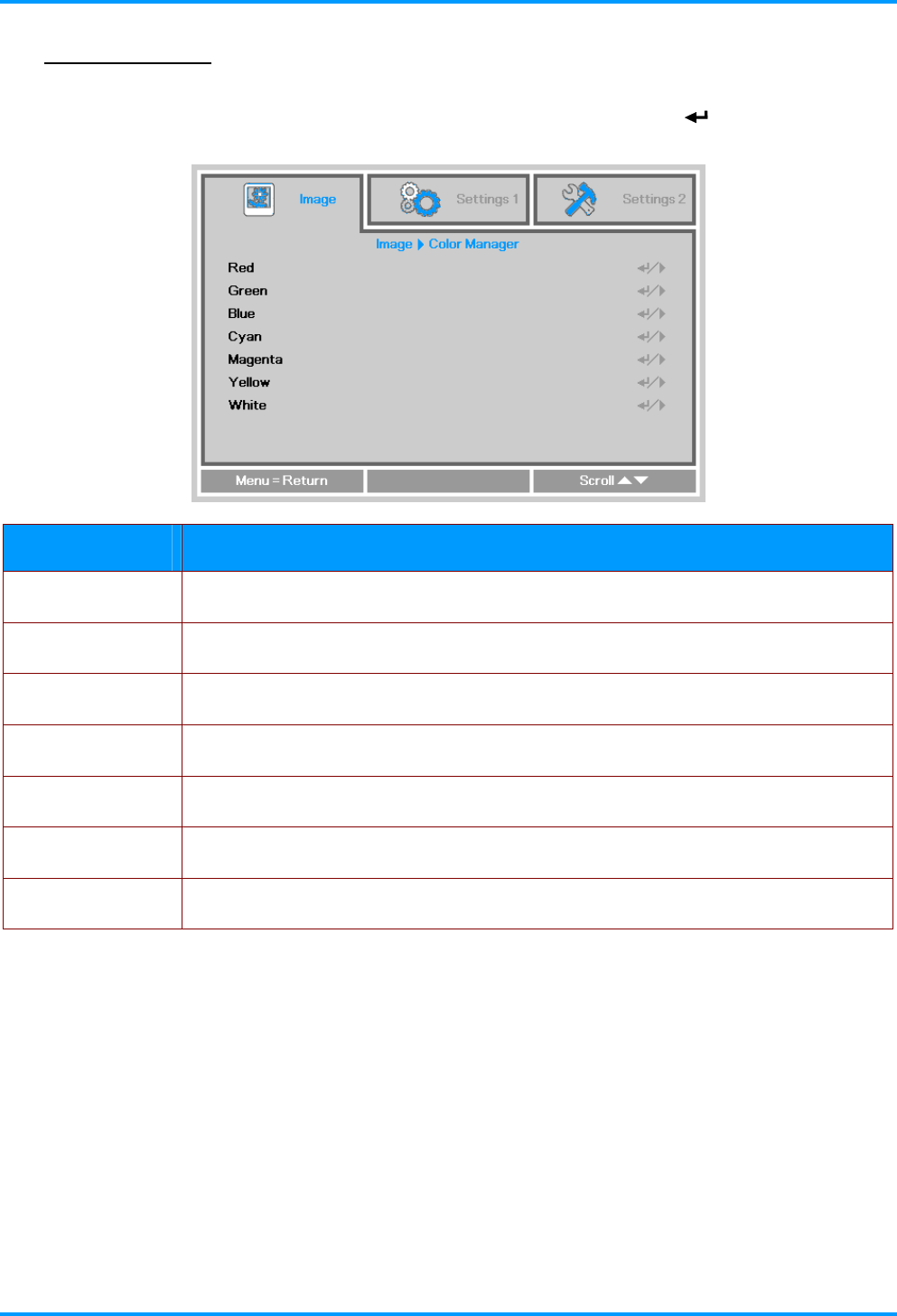
Color Manager
Press the Menu button to open the OSD menu. Press the ◄► buttons to move to the Image menu.
Press the ▼▲ buttons to move to the Color Manager menu and then press (Enter) or ►. Press
the ▼▲ buttons to move up and down in the Color Manager menu.
ITEM DESCRIPTION
Red Select to enter the Red Color Manager.
Press the ◄► buttons to adjust the Hue, Saturation, and Gain.
Green Select to enter the Green Color Manager.
Press the ◄► buttons to adjust the Hue, Saturation, and Gain.
Blue Select to enter the Blue Color Manager.
Press the ◄► buttons to adjust the Hue, Saturation, and Gain.
Cyan Select to enter the Cyan Color Manager.
Press the ◄► buttons to adjust the Hue, Saturation, and Gain.
Magenta Select to enter the Magenta Color Manager.
Press the ◄► buttons to adjust the Hue, Saturation, and Gain.
Yellow Select to enter the Yellow Color Manager.
Press the◄► buttons to adjust the Hue, Saturation, and Gain.
White Select to enter the White Color Manager.
Press the ◄► buttons to adjust the Red, Green, and Blue.
–24 –
IN8606HD User’s Manual
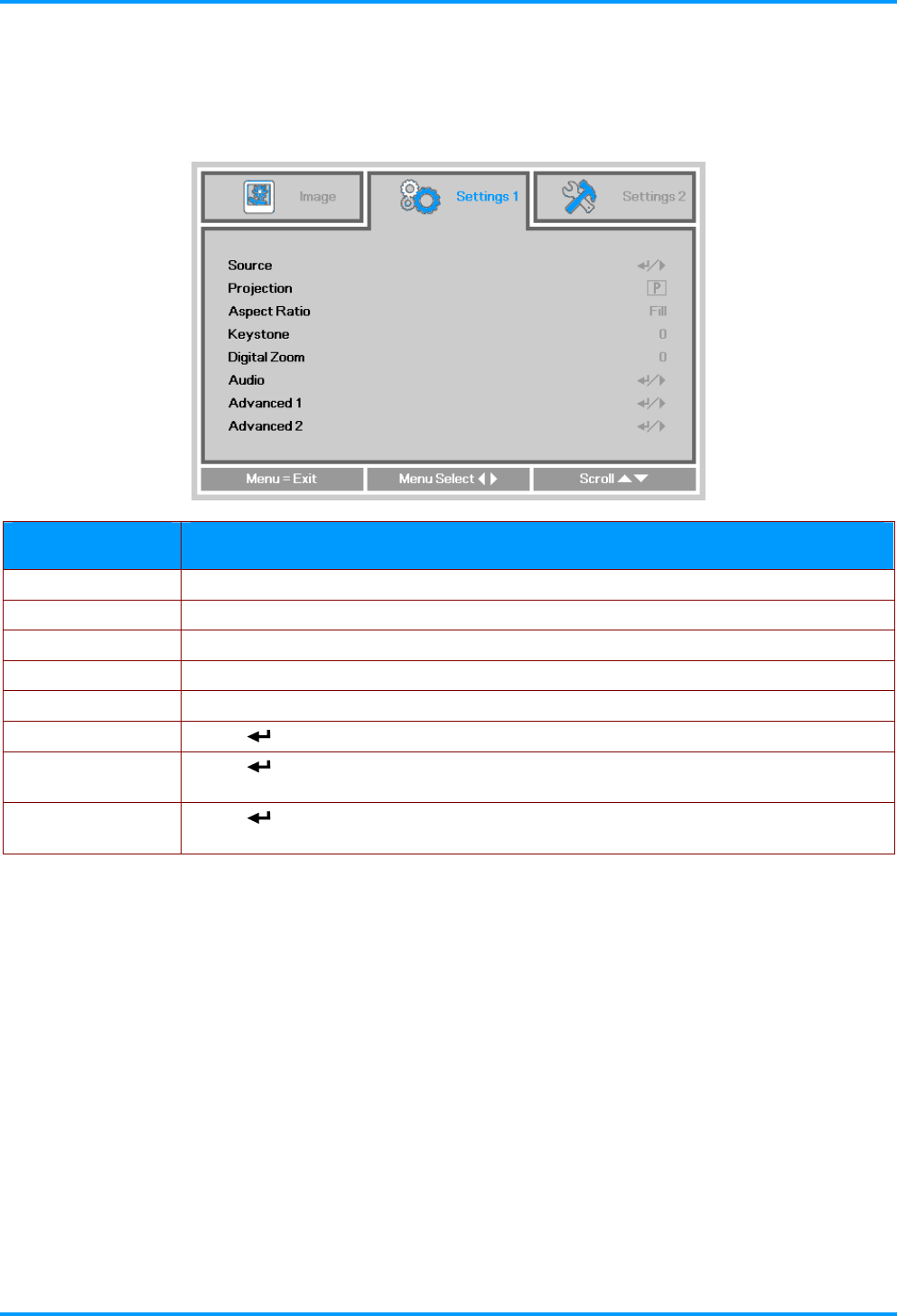
Settings 1 Menu
Press the MENU button to open the OSD menu. Press the ◄► buttons to move to the Settings 1
menu. Press the ▲▼ buttons to move up and down in the Settings 1 menu. Press the ◄► buttons
to enter and change setting values.
ITEM DESCRIPTION
Source Press the ◄► buttons to enter the Source and select a source.
Projection Press the ◄► buttons to enter and choose from four projection methods.
Aspect Ratio Press the ◄► buttons to enter and adjust the video aspect ratio.
Keystone Press the ◄► buttons to enter and adjust the display keystone.
Digital Zoom Press the ◄► buttons to enter and adjust the Digital Zoom menu.
Audio Press (Enter) or ► to enter the Audio menu. See Audio on page 26.
Advanced 1 Press (Enter) or ► to enter the Advanced 1 menu. See Advanced 1 Features on
page 27.
Advanced 2 Press (Enter) or ► to enter the Advanced 2 menu. See Advanced 2 Features on
page 29.
– 25 –
IN8606HD User’s Manual
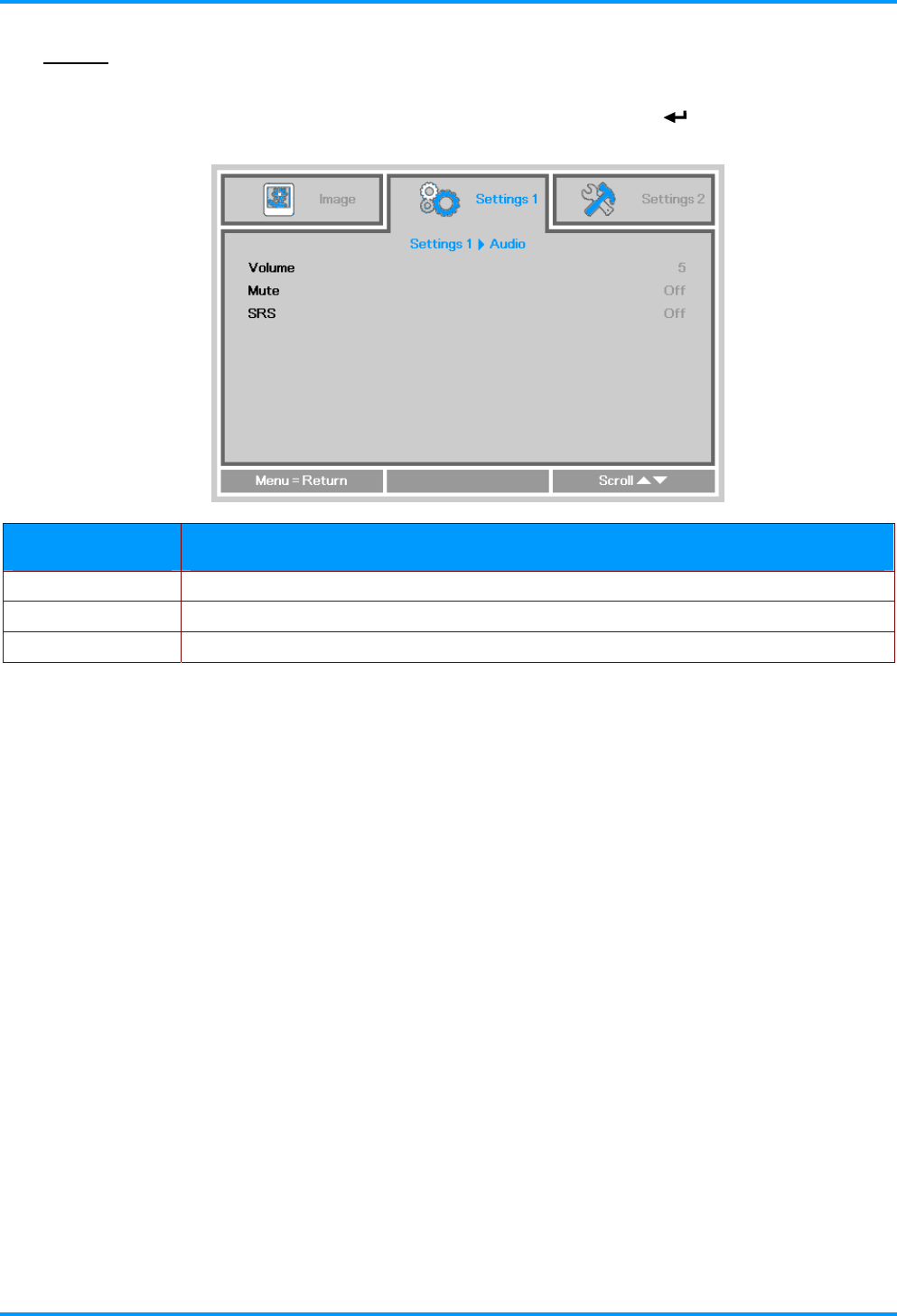
Audio
Press the Menu button to open the OSD menu. Press the ◄► buttons to move to the Settings 1
menu. Press the ▼▲ buttons to move to the Audio menu and then press (Enter) or ►. Press the
▼▲ buttons to move up and down in the Audio menu.
ITEM DESCRIPTION
Volume Press the ◄► buttons to enter and adjust the audio volume.
Mute Press the ◄► buttons to enter and turn on or off the speaker.
SRS Press the ◄► buttons to enter and turn on or off the audio surround.
–26 –
IN8606HD User’s Manual
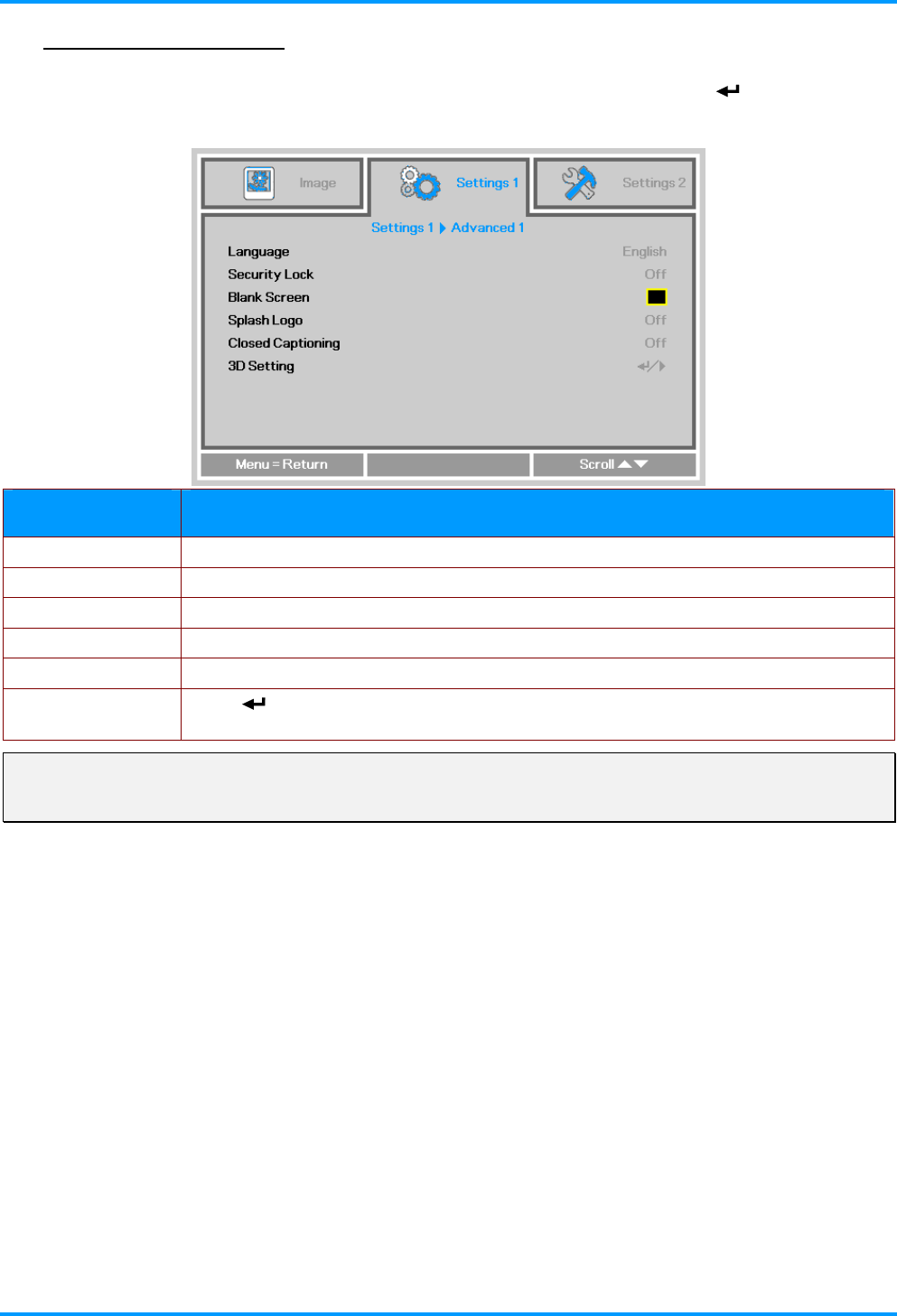
Advanced 1 Features
Press the Menu button to open the OSD menu. Press the ◄► buttons to move to the Settings 1
menu. Press the ▲▼ buttons to move to the Advanced 1 menu and then press (Enter) or ►.
Press the ▲▼ buttons to move up and down in the Advanced 1 menu. Press the ◄► buttons to
enter and change setting values.
ITEM DESCRIPTION
Language Press the ◄► buttons to enter and select a different localization Menu.
Security Lock Press the ◄► buttons to enter and enable or disable security lock function.
Blank Screen Press the ◄► buttons to enter and select different color to blank the screen.
Splash Logo Press the ◄► buttons t enter and o select splash logo on or off.
Closed Captioning Press the ◄► buttons to enter and enable or disable Closed Captioning
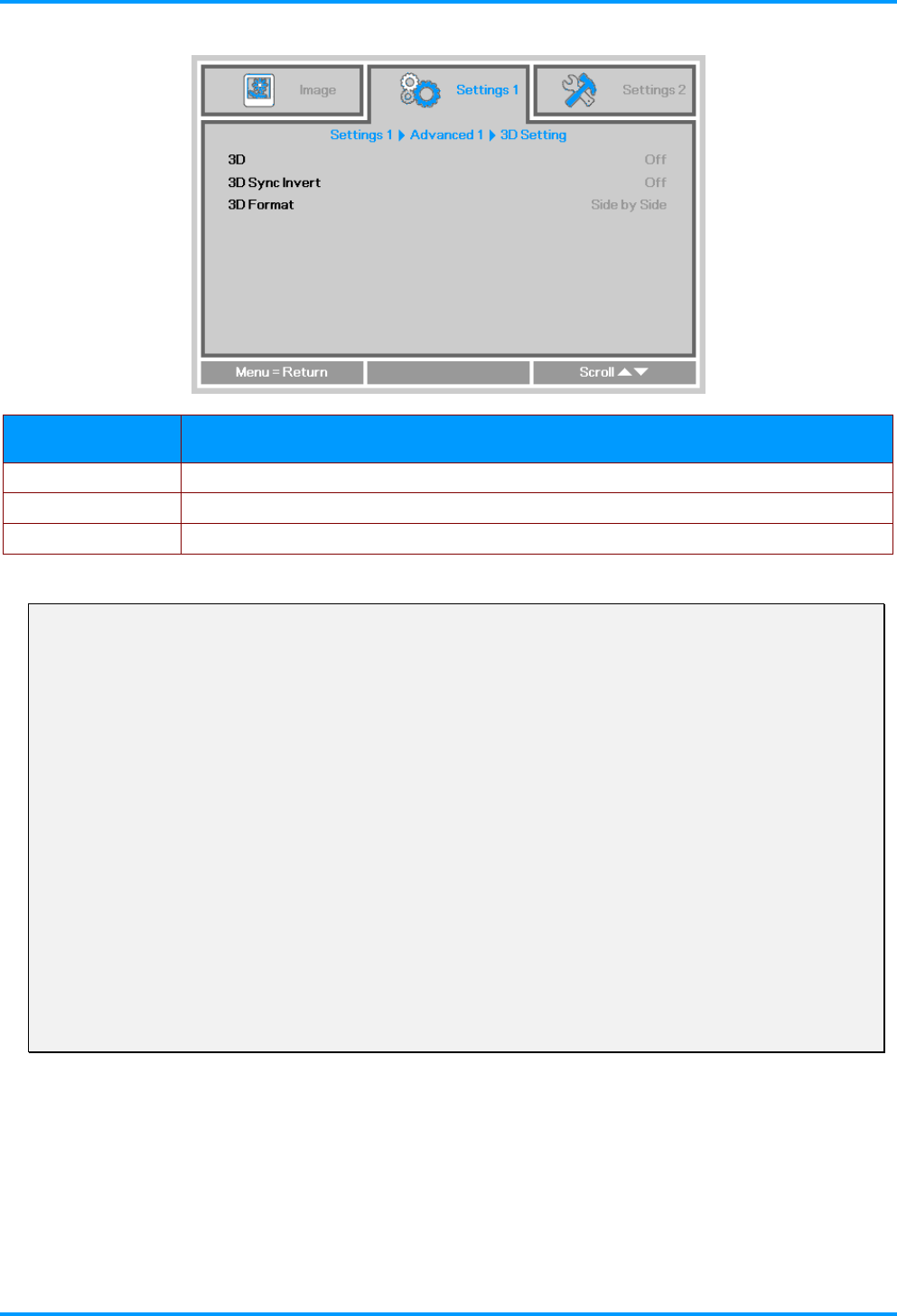
3D Setting Press (Enter) or ► to enter the 3D menu. See page 28 for more information on the
3D Setting.
Note:
To enjoy the 3D function, first enable the Play Movie in 3D setting found in your DVD device under the
3D Disc Menu.
– 27 –
IN8606HD User’s Manual
3D Setting
ITEM DESCRIPTION
3D Press the ◄► buttons to enter and select different 3D modes.
3D Sync Invert Press the ◄► buttons to enter and enable or disable 3D Sync Invert.
3D Format Press the ◄► buttons to enter and enable or disable different 3D Format.
Note:
1. By default, if no 3D source is detected, the 3D OSD menu items will not be available.
2. When the projector is connected to an appropriate 3D source, the 3D OSD menu items are available
for selection.
3. Use 3D glasses to view a 3D image.
4. You need 3D content from a 3D DVD or 3D media file.
5. You need to enable the 3D source (some 3D DVD content may have a 3D on-off selection feature).
6. You need DLP link 3D or IR 3D shutter glasses. With IR 3D shutter glasses, you need to install a
driver on your PC and connect a USB emitter.
7. The OSD 3D mode needs to match the type of glasses (DLP link or IR 3D).
8. Power on the glasses. Glasses normally have a power on -off switch.
Each type of glasses has their own configuration instructions. Please follow the configuration
instructions that come with your glasses to finish the setup process.
–28 –
IN8606HD User’s Manual
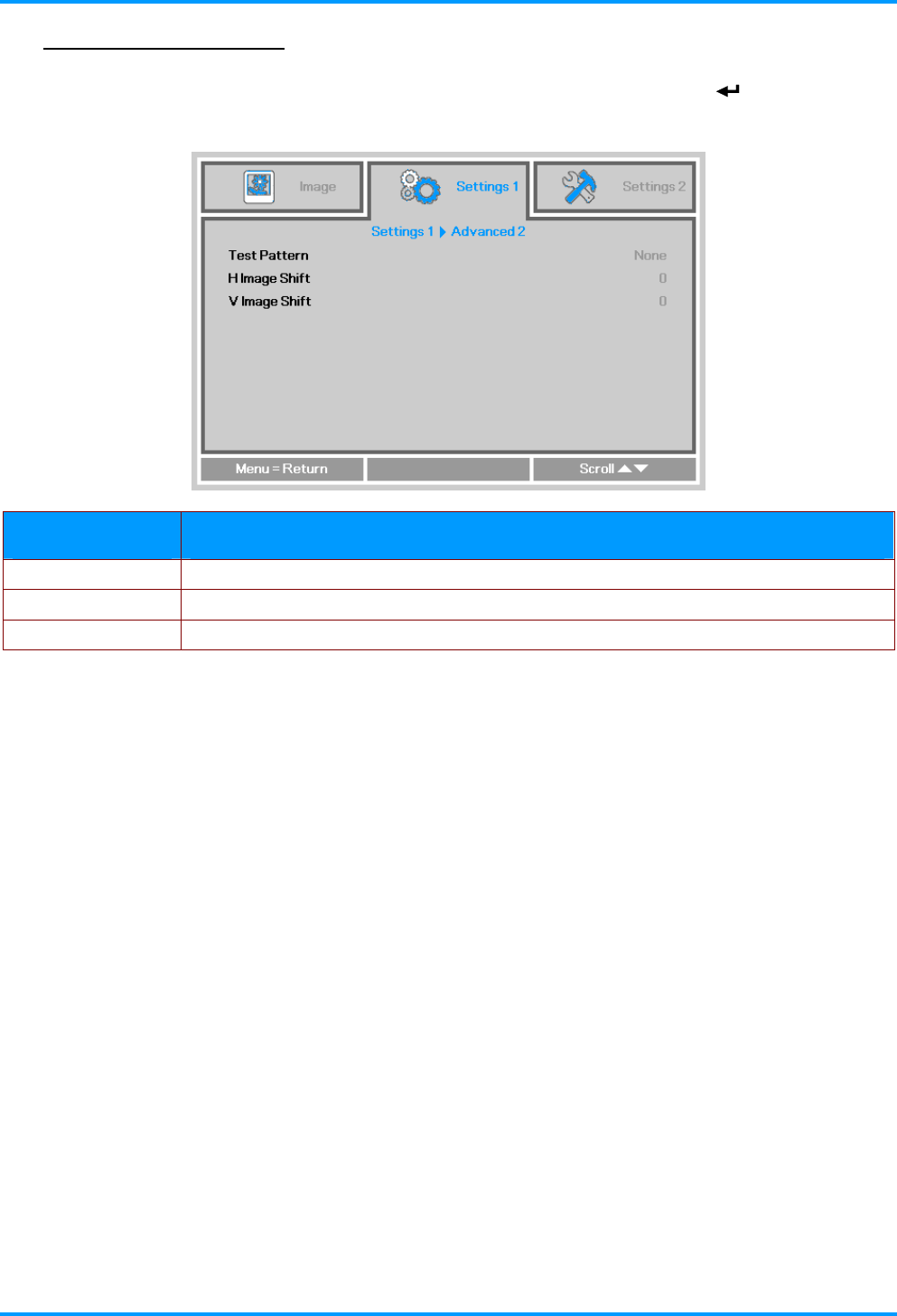
Advanced 2 Features
Press the Menu button to open the OSD menu. Press the ◄► buttons to move to the Settings 1
menu. Press the ▲▼ buttons to move to the Advanced 2 menu and then press (Enter) or ►.
Press the ▲▼ buttons to move up and down in the Advanced 2 menu. Press the ◄► buttons to
enter and change setting values.
ITEM DESCRIPTION
Test Pattern Press the ◄► buttons to enter and select internal test pattern.
H Image Shift Press the ◄► buttons to enter and select H Image Shift.
V Image Shift Press the ◄► buttons to enter and select V Image Shift.
– 29 –
IN8606HD User’s Manual
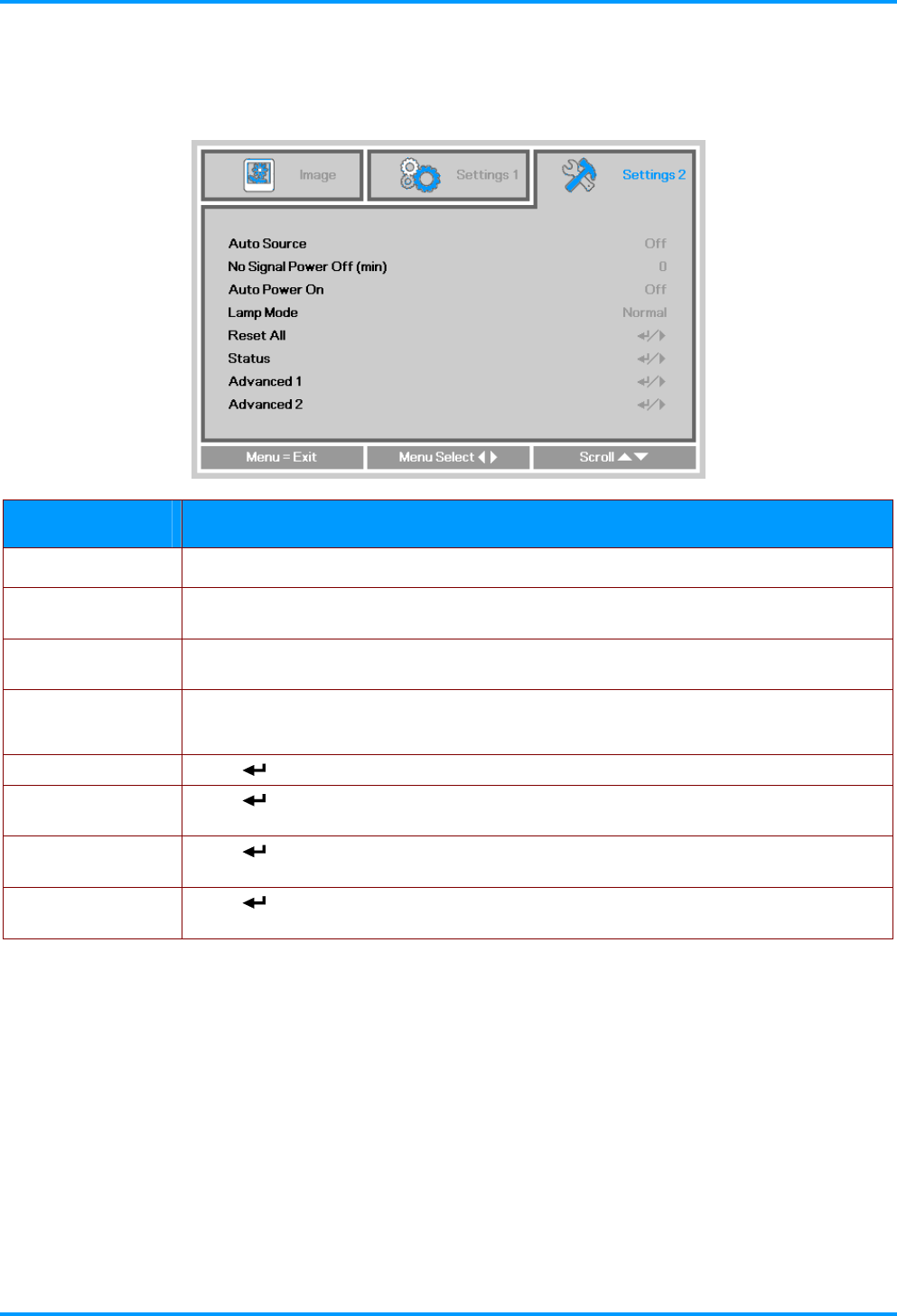
Settings 2 Menu
Press the MENU button to open the OSD menu. Press the ◄► buttons to move to the Settings 2
menu. Press the ▲▼ buttons to move up and down in the Settings 2 menu.
ITEM DESCRIPTION
Auto Source Press the ◄► buttons to enter and enable or disable automatic source detection.
No Signal Power
Off (min.)
Press the ◄► buttons to enter and enable or disable automatic shutdown of lamp
when no signal is detected.
Auto Power On Press the ◄► buttons to enter and enable or disable automatic power On when AC
power is supplied.
Lamp Mode Press the ◄► buttons to enter and select the lamp mode for higher brightness or
lower brightness to save lamp life.
Reset All Press (Enter) or ► to reset all settings to default values.
Status Press (Enter) or ► to enter the Status menu. See page 31 for more information on
Status.
Advanced 1 Press (Enter) or ► to enter the Advanced 1 menu. See Advanced 1 Features on
page 32.
Advanced 2 Press (Enter) or ► to enter the Advanced 2 menu. See Advanced 2 Features on
page 34.
–30 –
IN8606HD User’s Manual
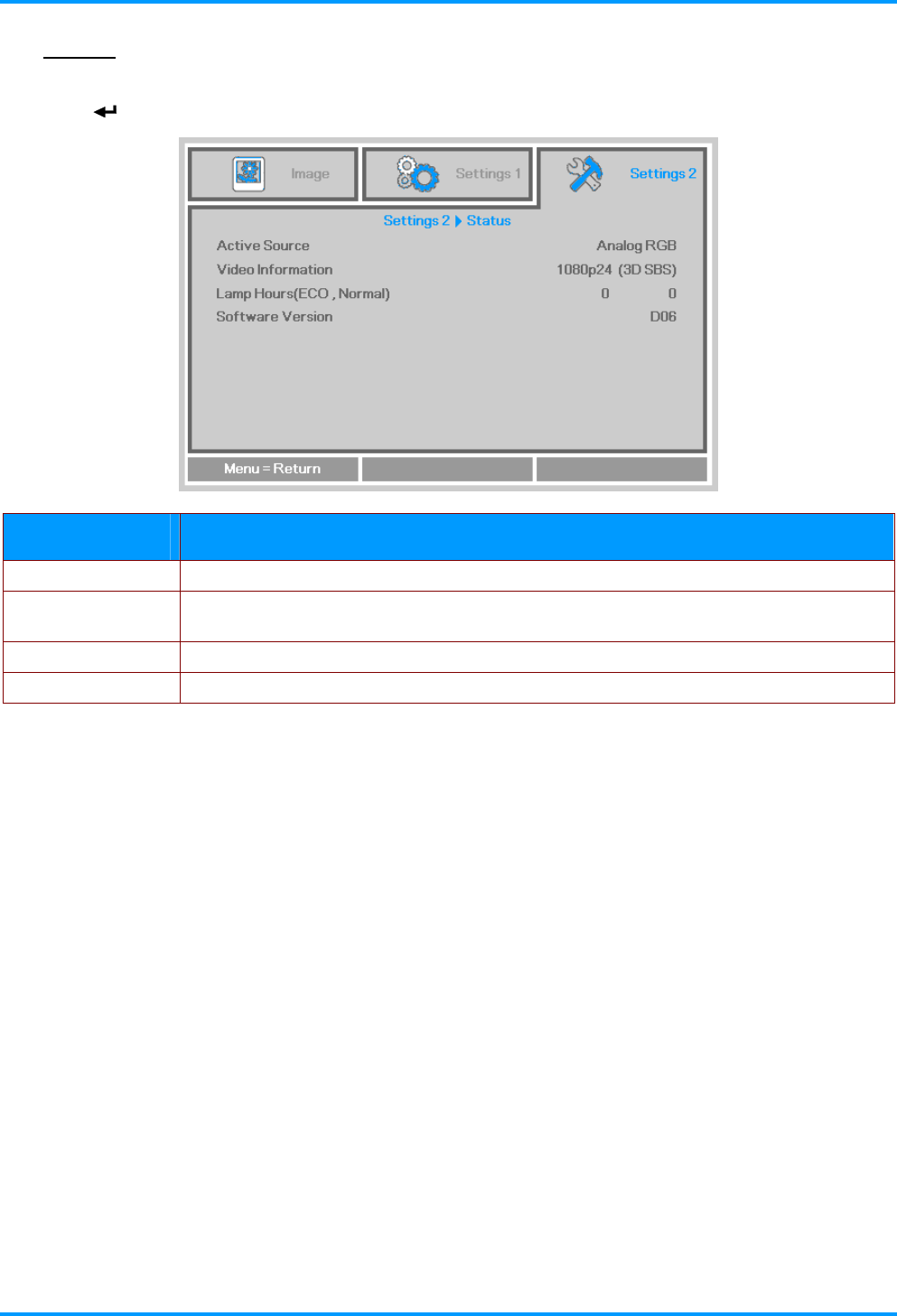
Status
Press the ▲▼ buttons to move up and down in the Settings 2 menu. Select the Status menu and
press (Enter) or ► to enter.
ITEM DESCRIPTION
Active Source Displays the current active source type.
Video Information Displays resolution/video information for RGB sources and color standard for Video
sources.
Lamp Hours Lamp hour usage information is displayed. (ECO. and Normal)
Software version Showing system software version.
– 31 –
IN8606HD User’s Manual
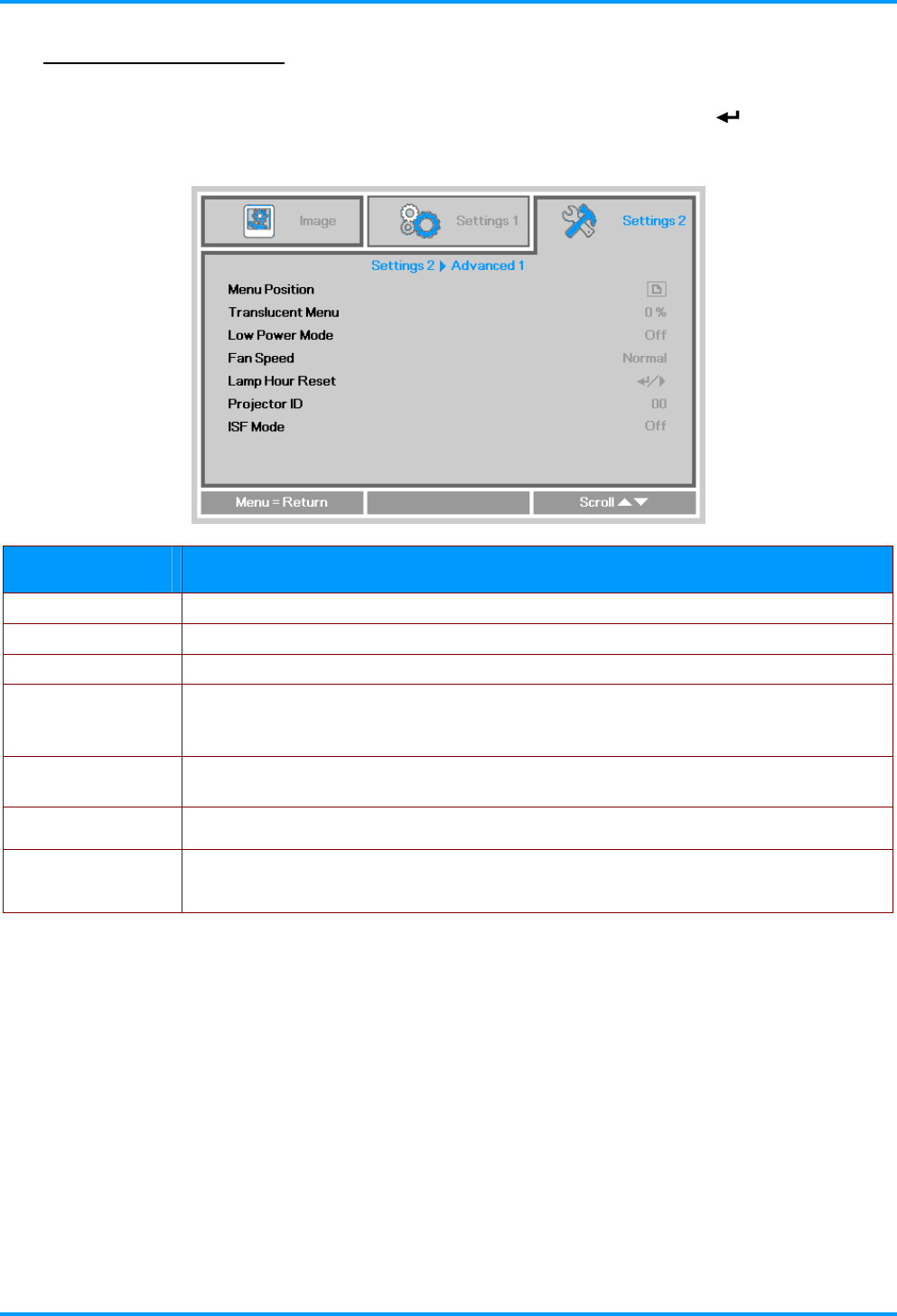
Advanced 1 Features
Press the Menu button to open the OSD menu. Press the ◄► buttons to move to the Settings 2
menu. Press the ▲▼ buttons to move to the Advanced 1 menu and then press (Enter) or ►.
Press the ▲▼ buttons to move up and down in the Advanced 1 menu. Press the ◄► buttons to
enter and change setting values.
ITEM DESCRIPTION
Menu Position Press the ◄► buttons to enter and select different OSD location.
Translucent Menu Press the ◄► buttons to enter and select OSD background translucent level.
Low Power Mode Press the ◄► buttons to enter and turn Low Power Mode on or off.
Fan Speed
Press the ◄► buttons to enter and toggle between Normal and High fan speeds.
Note: We recommend selecting high speed in high temperatures, high humidity, or
high altitude (higher than 1500m/4921ft) areas.
Lamp Hour Reset After replacing the lamp, this item should be reset. See page 33 for more information
on Lamp Hour Reset.
Projector ID Press the ◄► buttons to enter and adjust the two digit projector ID from 00 through
98.
ISF Mode
Press the ◄► buttons to enter and adjust ISF parameters.
Note: This feature does not display in the menu system unless a IFS technician has
enabled this feature.
–32 –

IN8606HD User’s Manual
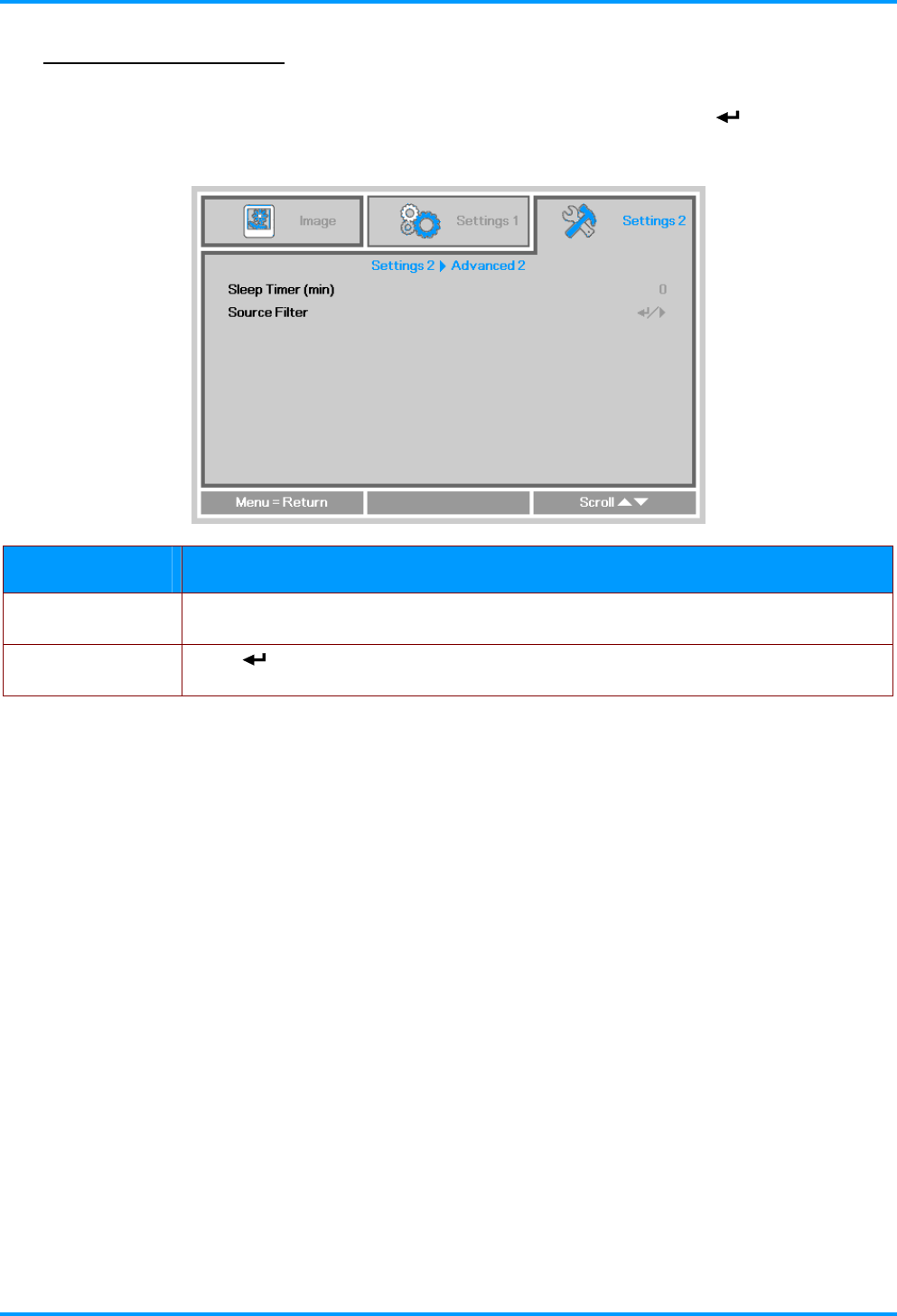
Advanced 2 Features
Press the Menu button to open the OSD menu. Press the ◄► buttons to move to the Settings 2
menu. Press the ▲▼ buttons to move to the Advanced 2 menu and then press (Enter) or ►.
Press the ▲▼ buttons to move up and down in the Advanced 2 menu. Press the ◄► buttons to
enter and change setting values.
ITEM DESCRIPTION
Sleep Timer Press the ◄► buttons to enter and set the Sleep timer. The projector automatically
turns off after the preset period of time.
Source Filter Press (Enter) or ► to enter the Source Filter menu. See page 35 for more
information on Source Filter.
–34 –
IN8606HD User’s Manual
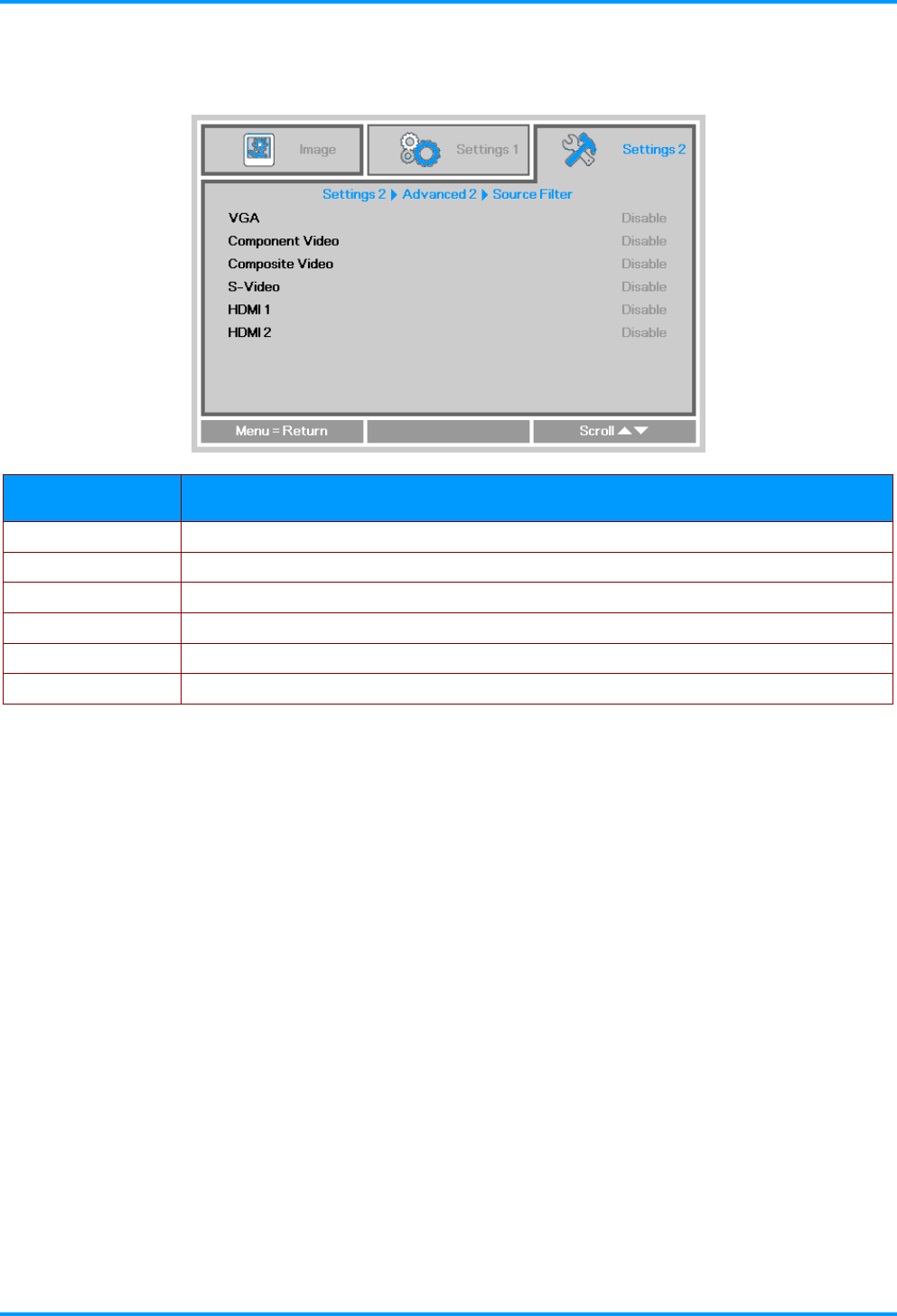
Source Filter
Press the ENTER button to enter the Source Filter sub menu. This sub menu allows you to enable
and disable source inputs.
ITEM DESCRIPTION
VGA Press the ◄► buttons to enter and enable or disable the VGA1 source.
Component Video Press the ◄► buttons to enter and enable or disable the Component Video source.
Composite Video Press the ◄► buttons to enter and enable or disable the Composite Video source.
S-Video Press the ◄► buttons to enter and enable or disable the S-Video source.
HDMI 1 Press the ◄► buttons to enter and enable or disable the HDMI 1 source.
HDMI 2 Press the ◄► buttons to enter and enable or disable the HDMI 2 source.
– 35 –
IN8606HD User’s Manual
–36 –
MAINTENANCE AND SECURITY
Replacing the Projection Lamp
The projection lamp should be replaced when it burns out. It should only be replaced with a certified
replacement part, which you can order from your local dealer.
Important:
a. The projection lamp used in this product contains a small amount of mercury.
b. Do not dispose this product with general household waste.
c. Disposal of this product must be carried out in accordance with the regulations of your local
authority.
Warning:
Be sure to turn off and unplug the projector at least 60 minutes before replacing the lamp. Failure to
do so could result in a severe burn.
Caution:
In rare cases the lamp bulb may burn out during normal operation and cause glass dust or shards
to be discharged outward from the rear exhaust vent.
Do not inhale or touch glass dust or shards. Doing so could result in injury.
Always keep your face away from the exhaust vent so that you do not suffer from the gas and
broken shards of the lamp.
When removing the lamp from a ceiling-mounted projector, make sure that no one is under the
projector. Glass fragments could fall if the lamp has burned out.
!
IF A LAMP RUPTURES
If a lamp ruptures, the gas and broken shards may scatter inside the projector and may come out of
the exhaust vent. The gas contains toxic mercury.
Open windows and doors for ventilation.
If you inhale the gas or the shards of the broken lamp enter your eyes or mouth, consult a doctor
immediately.
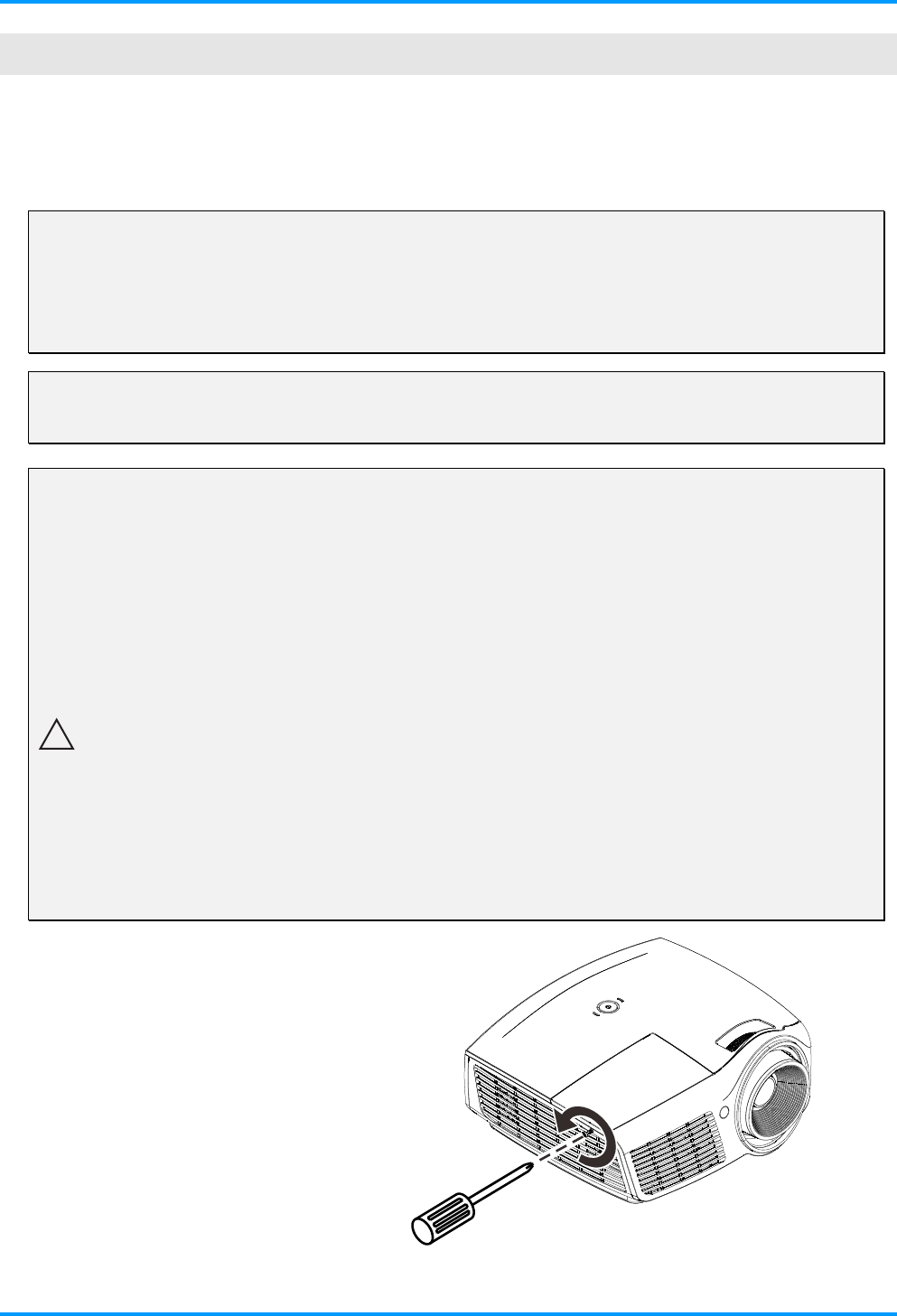
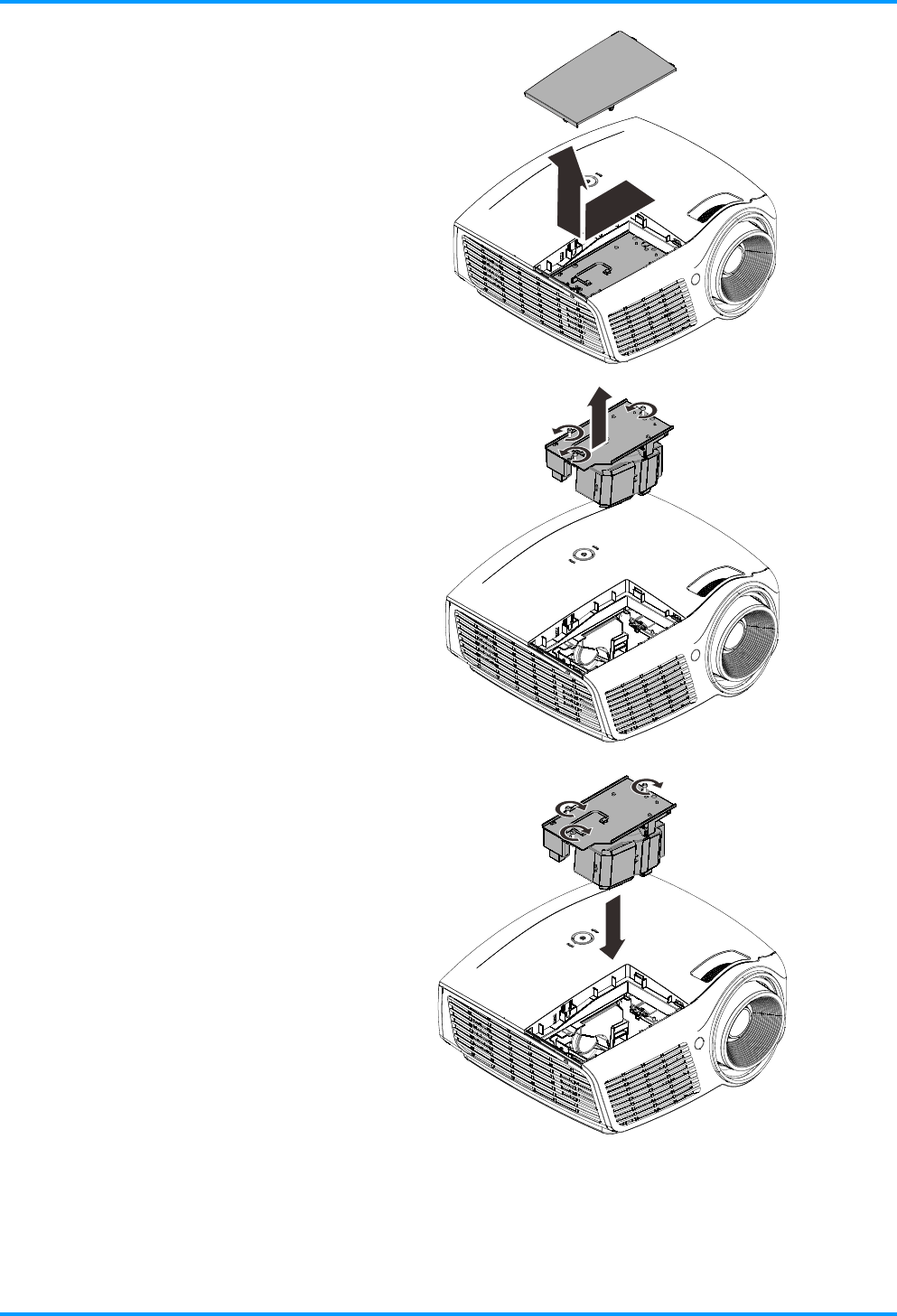
1. Loosen the single screw
on the lamp compartment
cover.
IN8606HD User’s Manual
2. Remove the lamp
compartment cover.
3. Remove the three screws
from the lamp module.
4. Lift the module handle up.
5. Pull firmly on the module
handle to remove the lamp
module.
6. Reverse steps 1 to 5 to
install the new lamp
module.
While installing, align the
lamp module with the
connector and ensure it is
level to avoid damage.
Note:
The lamp module must sit
securely in place and the
lamp connector must be
connected properly before
tightening the screws.
– 37 –
IN8606HD User’s Manual
Resetting the Lamp Timer
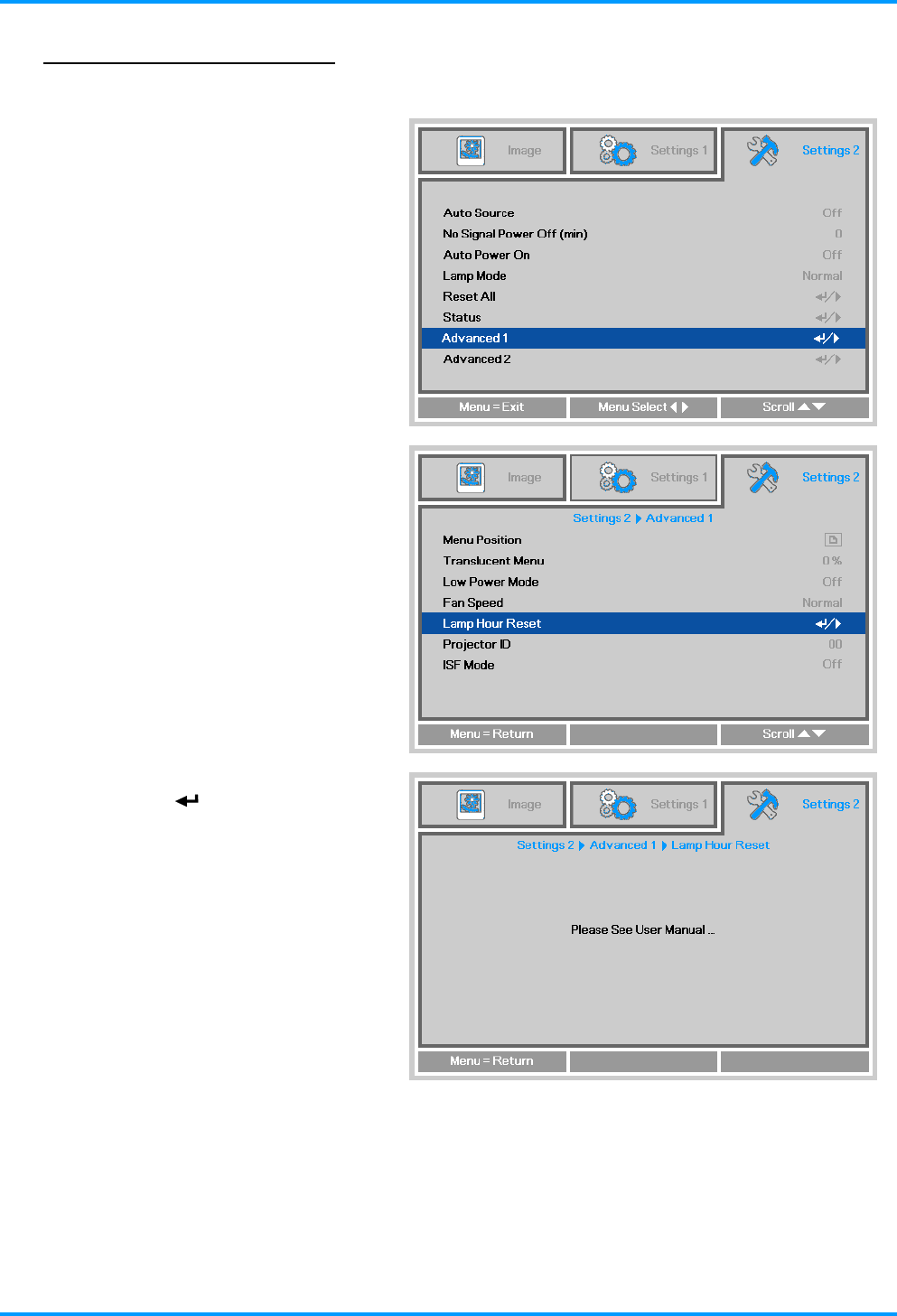
After replacing the lamp, you should reset the lamp hour timer to zero. Refer to the following:
1. Press the MENU button to open
the OSD menu.
2. Press the ◄► buttons to move to
the Settings 2 menu. Press the ▼
button to move down to
Advanced 1 and press enter.
3. Press the ▼▲ buttons to move
down to Lamp Hour Reset.
4. Press the (Enter) or ► button.
A message screen appears.
5. Press the ▼▲◄► buttons in
sequence to reset the lamp timer.
6. Press the MENU button to return
to Settings 2.
–38 –
IN8606HD User’s Manual
– 39 –
Cleaning the Projector
Cleaning the projector to remove dust and grime will help ensure trouble-free operation.
Warning:
1. Be sure to turn off and unplug the projector at least 30 minutes before cleaning. Failure to do so
could result in a severe burn.
2. Only use a dampened cloth when cleaning. Do not allow water to enter the ventilation openings
on the projector.
3. If a little water gets into the projector interior while cleaning, leave the projector unplugged in a
well-ventilated room for several hours before using.
4. If a lot of water gets into the projector interior when cleaning, have the projector serviced.
Cleaning the Lens
You can purchase optic lens cleaner from most camera stores. Refer to the following to clean the
projector lens.
1. Apply a little optic lens cleaner to a clean soft cloth. (Do not apply the cleaner directly to
the lens.)
2. Lightly wipe the lens in a circular motion.
Caution:
1. Do not use abrasive cleaners or solvents.
2. To prevent discoloration or fading, avoid getting cleaner on the projector case.
Cleaning the Case
Refer to the following to clean the projector case.
1. Wipe off dust with a clean dampened cloth.
2. Moisten the cloth with warm water and mild detergent (such as used to wash dishes), and
then wipe the case.
3. Rinse all detergent from the cloth and wipe the projector again.
Caution:
To prevent discoloration or fading of the case, do not use abrasive alcohol-based cleaners.
IN8606HD User’s Manual
Using the Cable Lock System and Security Bar
Using the Cable Lock
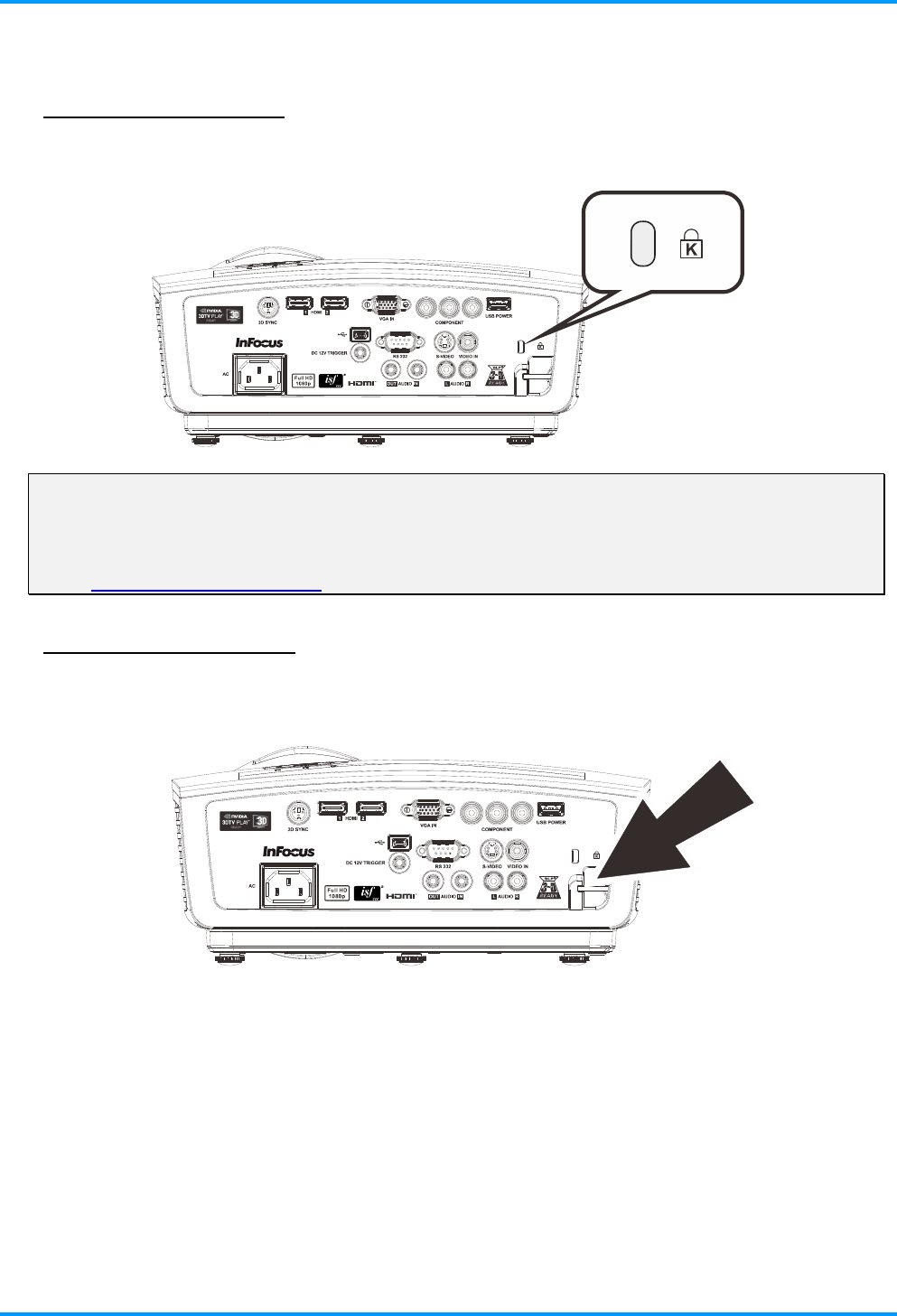
If you are concerned about security, attach the projector to a permanent object with the Kensington
slot and a security cable.
Note:
A Cable Lock System can be purchased from InFocus or your dealer. Refer to the information that
comes with the lock for instructions on how to use it.
The security lock slot corresponds to Kensington’s MicroSaver Security System. If you have any
comment, contact: Kensington, 2853 Campus Drive, San Mateo, CA 94403, U.S.A. Tel: 800-535-
4242, http://www.Kensington.com.
Using the Security Bar
In addition to the password protection function and the Kensington lock, the Security Bar helps
protect the projector from unauthorized removal. See the following picture.
–40 –

IN8606HD User’s Manual
– 41 –
TROUBLESHOOTING
Common problems and solutions
These guidelines provide tips to deal with problems you may encounter while using the projector. If
the problem remains unsolved, contact your dealer for assistance.
After spending time troubleshooting, the problem can often be traced to something as simple as a
loose connection. Check the following before proceeding to the problem-specific solutions.
Use some other electrical device to confirm that the electrical outlet is working.
Ensure the projector is turned on.
Ensure all connections are securely attached.
Ensure the attached device is turned on.
Ensure a connected PC is not in a suspended mode.
Ensure a connected notebook computer is configured for an external display.
(This is usually done by pressing an Fn-key combination on the notebook.)
Tips for Troubleshooting
In each problem-specific section, try the steps in the order suggested. This may help you to solve the
problem more quickly.
Try to pin point the problem and thus avoid replacing non-defective parts.
For example, if you replace batteries and the problem remains, put the original batteries back and go
to the next step.
Keep a record of the steps you take when troubleshooting. The information may be useful when
calling for technical support or for passing on to service personnel.
IN8606HD User’s Manual
–42 –
LED Error Messages
ERROR CODE MESSAGES POWER LED
BLUE
LAMP LED
RED
System initialization Flashing OFF
Ready to power on (Standby) ON OFF
System powering up Flashing OFF
Lamp lit, normal operation ON OFF
Cooling Flashing OFF
Overheating 3 blinks OFF
Thermal break sensor error 4 blinks OFF
Lamp failure 5 blinks ON
Lamp temperature shut down 5 blinks 1 blink
Short circuit in lamp output detected 5 blinks 2 blinks
End of lamp life detected 5 blinks 3 blinks
Lamp did not ignite 5 blinks 4 blinks
Lamp extinguished during normal operation 5 blinks 5 blinks
Lamp extinguished during power-up phase 5 blinks 6 blinks
Lamp voltage error 5 blinks 7 blinks
Lamp ballast error 5 blinks 8 blinks
Ballast watt value is out of range
(Lamp Normal & Eco mode) 5 blinks 9 blinks
Lamp ballast communication error 5 blinks 10 blinks
Fan-1 error 6 blinks 1 blink
Fan-2 error 6 blinks 2 blinks
Fan-3 error 6 blinks 3 blinks
The projector case is open 7 blinks OFF
DAD1000 error 8 blinks OFF
Color wheel error 9 blinks OFF
In the event of an error, please disconnect the AC power cord and wait for one (1) minute before restarting
the projector. If the Power or Lamp LEDs are still blinking or any other situation that isn't listed in the chart
above, please contact InFocus Support.
Image Problems
Problem: No image appears on the screen
1. Verify the settings on your notebook or desktop PC.
2. Turn off all the equipment and power everything up again. The projector should be turned
on last.
Problem: The image is blurred
1. Adjust the Focus on the projector.
2. Press the Auto button on the remote control.
3. Ensure the projector-to-screen distance is within the specified range.
4. Check that the projector lens is clean.

IN8606HD User’s Manual
– 43 –
Problem: The image is wider at the top or bottom (trapezoid effect)
1. Position the projector so it is as perpendicular to the screen as possible.
2. Use the Keystone button on the remote control to correct the problem.
Problem: The image is reversed
Check the Projection setting on the Settings 1 menu of the OSD.
Problem: The image is streaked
1. Set the Frequency and Tracking settings on the Image->Computer menu of the OSD to
the default settings.
2. To ensure the problem is not caused by a connected PC’s video card, connect to another
computer.
Problem: The image is flat with no contrast
Adjust the Contrast setting on the Image menu of the OSD.
Problem: The color of the projected image does not match the source image.
Adjust the Color Temperature and Gamma settings on the Image->Advanced menu of the
OSD.
Lamp Problems
Problem: There is no light from the projector
1. Check that the power cable is securely connected.
2. Ensure the power source is good by testing with another electrical device.
3. Restart the projector in the correct order and check that the Power LED is on.
4. If you have replaced the lamp recently, try resetting the lamp connections.
5. Replace the lamp module.
6. Put the old lamp back in the projector and have the projector serviced.
Problem: The lamp goes off
1. Power surges can cause the lamp to turn off. Re-plug power cord. When the Power LED
is on, press the power button.
2. Replace the lamp module.
3. Put the old lamp back in the projector and have the projector serviced.
Remote Control Problems
Problem: The projector does not respond to the remote control
1. Direct the remote control towards remote sensor on the front of the projector.
2. Ensure the path between remote and sensor is not obstructed.
3. Turn off any fluorescent lights in the room.
4. Check the battery polarity.
5. Replace the battery.
6. Turn off other infrared-enabled devices in the vicinity.
7. Replace the remote control.

IN8606HD User’s Manual
–44 –
Audio Problems
Problem: There is no sound
1. Adjust the volume on the remote control.
2. Adjust the volume of the audio source.
3. Check the audio cable connection.
4. Test the source audio output with other speakers.
5. Have the projector serviced.
Problem: The sound is distorted
1. Check the audio cable connection.
2. Test the source audio output with other speakers.
3. Have the projector serviced.
Having the Projector Serviced
If you are unable to solve the problem, you should have the projector serviced. Pack the projector in
the original carton and contact InFocus Support at www.infocus.com/support or call us.

IN8606HD User’s Manual
– 45 –
HDMI Q & A
Q. What is the difference between a “Standard” HDMI cable and a “High-Speed” HDMI
cable?
Recently, HDMI Licensing, LLC announced that cables would be tested as Standard or High-
Speed cables.
˙Standard (or “category 1”) HDMI cables have been tested to perform at speeds of 75Mhz or
up to 2.25Gbps, which is the equivalent of a 720p/1080i signal.
˙High Speed (or “category 2”) HDMI cables have been tested to perform at speeds of 340Mhz
or up to 10.2Gbps, which is the highest bandwidth currently available over an HDMI cable
and can successfully handle 1080p signals including those at increased color depths and/or
increased refresh rates from the Source. High-Speed cables are also able to accommodate
higher resolution displays, such as WQXGA cinema monitors (resolution of 2560 x 1600).
Q. How do I run HDMI cables longer than 10 meters(32.81ft)?
There are many HDMI Adopters working on HDMI solutions that extend a cable’s effective
distance from the typical 10 meter(32.81ft) range to much longer lengths. These companies
manufacture a variety of solutions that include active cables (active electronics built into
cables that boost and extend the cable’s signal), repeaters, amplifiers as well as CAT5/6 and
fiber solutions.
Q. How can I tell if a cable is an HDMI certified cable?
All HDMI products are required to be certified by the manufacturer as part of the HDMI
Compliance Test Specification. However, there may be instances where cables bearing the
HDMI logo are available but have not been properly tested. HDMI Licensing, LLC actively
investigates these instances to ensure that the HDMI trademark is properly used in the
market. We recommend that consumers buy their cables from a reputable source and a
company that is trusted.
For more details, go to the HDMI website at: http://www.hdmi.org/learningcenter/faq.aspx#49
IN8606HD User’s Manual
–46 –
SPECIFICATIONS
Specifications
Model IN8606HD
Display type 0.65 DMD 1080P, DC3,S600 with DDP4422 ASIC
Resolution 1080p 1920x1080
Projection distance 1.2 ~ 10 m ( 3.94ft ~ 32.81ft )
Projection screen size 25.9" ~ 324.9" ( 65.79cm ~ 825.25cm )
Projection lens Manual Focus/Manual Zoom
Zoom ratio 1.5x
Vertical keystone
ti
+/- 40 degrees
Projection methods Front, Rear, Desktop/Ceiling (Rear, Front)
Data compatibility VGA, SVGA, XGA, WXGA, SXGA, SXGA+, UXGA, WUXGA, Mac
SDTV/EDTV/ HDTV 480i, 480p, 576i, 576p, 720p, 1080i, 1080p
Video compatibility NTSC, PAL, SECAM
H-Sync 15, 31~91.4KHz
V-Sync 24~30Hz, 47~120Hz
Safety certification FCC-B, cUL, UL, CB, CE, C-tick, CCC, PSB, PCT, TUV-GS, UL-S
Operation temperature 5° ~ 35°C ( 41° ~ 95°F)
Dimensions 285.1 mm (W) x 264.1 mm (D) x 130.4 mm (H) (11.22” x 10.40” x 5.13”)
AC Input AC Universal 100-240V
Power consumption Normal:300W, <0.5W(Stand By) / ECO:250W, <0.5W(Stand By
Lamp 240W (Boost) / 190W (Std)
Audio speaker 10W mono speaker
VGA x 1
Component (YPbPr RCAx3) x 1
Composite x 1
S-Video x 1
HDMI x 2
PC Audio jack(3.5mm) x 1
Input Terminals
RCA Stereo Audio LR x 1
Output Terminals PC Audio jack(3.5mm) x 1
RS-232C
3D sync
Screen trigger: DC Jack x 1 (DC12V 200mA output function)
USB (Type mini B) - service only
Control Terminals
USB (type A) support DC 5V
Security Kensington lock / Security Bar
Note: InFocus reserves the right to alter product offerings and specifications at any time without notice.
IN8606HD User’s Manual
– 47 –
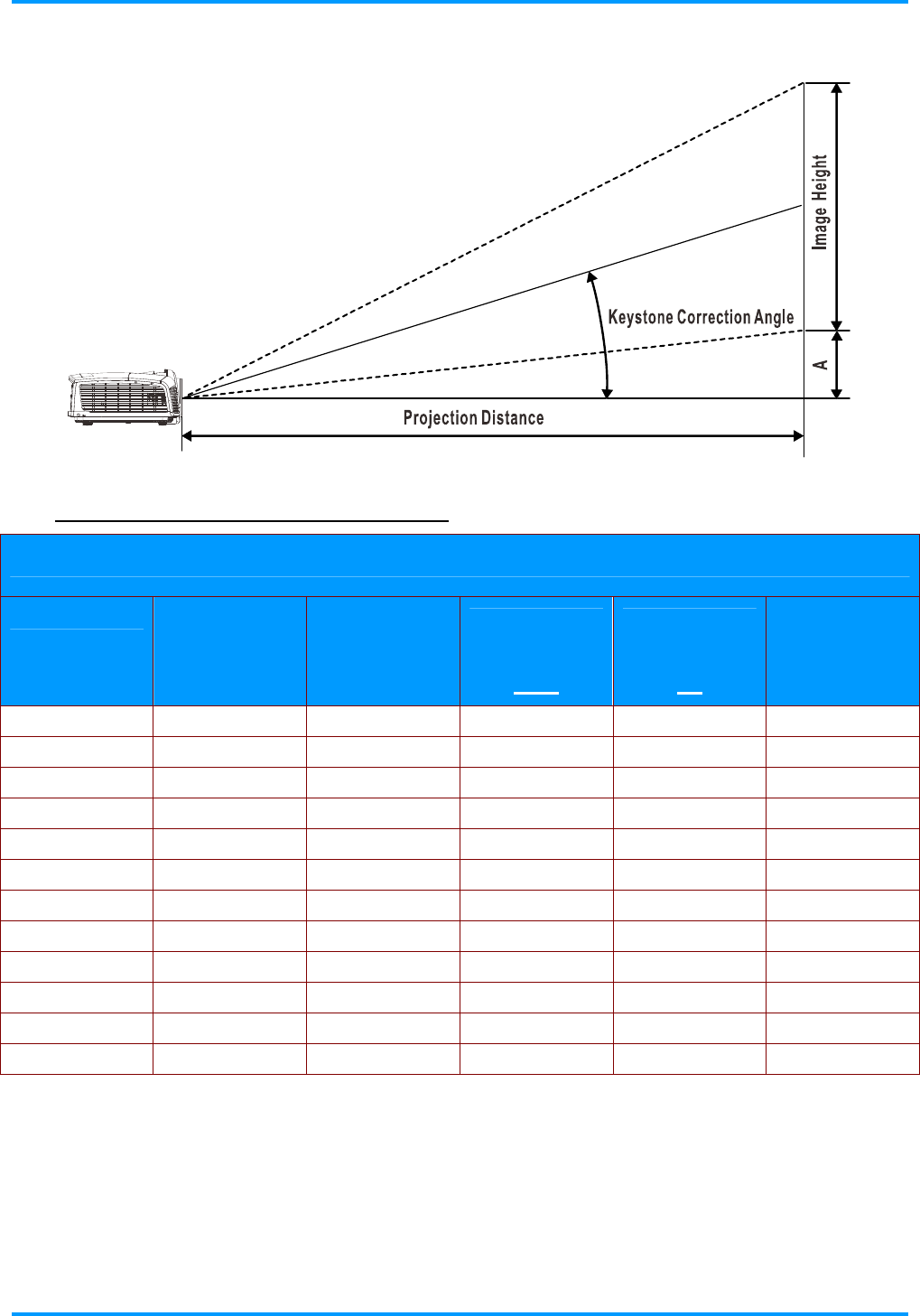
Projection Distance vs. Projection Size
Projection Distance and Size Table
IN8606HD
IMAGE DIAGONAL
(MM/INCH) IMAGE WIDTH
(MM/INCH) IMAGE HEIGHT
(MM/INCH)
PROJECTION
DISTANCE
(MM/INCH)
FROM
PROJECTION
DISTANCE
(MM/INCH)
TO
OFFSET-A
( MM/INCH )
1524 / 60 1328.2 / 52.29 747.3 / 29.42 1846.3 / 72.7 2776.1 / 109.3 112.1 / 4.4
1778 / 70 1549.7 / 61.01 871.7 / 34.32 2154 / 84.8 3238.8 / 127.5 130.8 / 5.1
1828.8 / 72 1593.9 / 62.75 896.6 / 35.3 2215.6 / 87.2 3331.3 / 131.2 134.5 / 5.3
2032 / 80 1771.1 / 69.73 996.2 / 39.22 2461.7 / 96.9 3701.5 / 145.7 149.4 / 5.9
2133.6 / 84 1859.5 / 73.21 1046 / 41.18 2584.8 / 101.8 3886.6 / 153 156.9 / 6.2
2286 / 90 1992.4 / 78.44 1120.6 / 44.12 2769.5 / 109 4164.2 / 163.9 168.1 / 6.6
2438.4 / 96 2125.2 / 83.67 1195.6 / 47.07 2954.1 / 116.3 4441.8 / 174.9 179.3 / 7.1
2540 / 100 2213.9 / 87.16 1245.4 / 49.03 3077.2 / 121.1 4626.8 / 182.2 186.8 / 7.4
3048 / 120 2656.6 / 104.59 1494.3 / 58.83 3692.6 / 145.4 5552.2 / 218.6 224.1 / 8.8
3429 / 135 2988.6 / 117.66 1681.2 / 66.19 4154.2 / 163.6 6246.2 / 245.9 252.2 / 9.9
3810 / 150 3320.8 / 130.74 1867.9 / 73.54 4615.8 / 181.7 6940.3 / 273.2 280.2 / 11
5080 / 200 4427.7 / 174.32 2490.5 / 98.05 6154.4 / 242.3 9253.7 / 364.3 373.6 / 14.7
IN8606HD User’s Manual
–48 –
Timing Mode Table
SIGNAL RESOLUTION H-SYNC
( KHZ )
V-SYNC
( HZ )
COMPOSITE
S_VIDEO COMPONENT RGB
(ANALOG)
HDMI
(DIGITAL)
NTSC - 15.734 60 ○ - - -
PAL/SECAM - 15.625 50 ○ - - -
640 x 400 37.9 85.08 - - ○ ○
720 x 400 31.5 70.1 - - ○ ○
720 x 400 37.9 85.04 - - ○ ○
640 x 480 31.5 60 - - ○ ○
640 x 480 37.9 72.8 - - ○ ○
640 x 480 37.5 75 - - ○ ○
640 x 480 43.3 85 - - ○ ○
800 x 600 35.2 56.3 - - ○ ○
800 x 600 37.9 60.3 - - ○ ○
800 x 600 46.9 75 - - ○ ○
800 x 600 48.1 72.2 - - ○ ○
800 x 600 53.7 85.1 - - ○ ○
800 x 600 76.3 120 - - ○ ○
1024 x 576 35.8 60 - - ○ ○
1024 x 600 37.3 60 - - ○ ○
1024 x 600 41.5 65 - - ○ ○
1024 x 768 48.4 60 - - ○ ○
1024 x 768 56.5 70.1 - - ○ ○
1024 x 768 60 75 - - ○ ○
1024 x 768 68.7 85 - - ○ ○
1024 x 768 97.6 120 - - ○ ○
1024 x 768 99 120 - - ○ ○
1152 x 864 67.5 75 - - ○ ○
1280 x 720 45 60 - - ○ ○
1280 x 720 90 120 - - ○ ○
1280 x 768 47.4 60 - - ○ ○
1280 x 768 47.8 59.9 - - ○ ○
1280 x 800 49.7 59.8 - - ○ ○
1280 x 800 62.8 74.9 - - ○ ○
1280 x 800 71.6 84.9 - - ○ ○
1280 x 800 101.6 119.9 - - ○ ○
1280 x 1024 64 60 - - ○ ○
VESA
1280 x 1024 80 75 - - ○ ○

IN8606HD User’s Manual
– 49 –
SIGNAL RESOLUTION H-SYNC
( KHZ )
V-SYNC
( HZ )
COMPOSITE
S_VIDEO COMPONENT RGB
(ANALOG)
HDMI
(DIGITAL)
1280 x 1024 91.1 85 - - ○ ○
1280 x 960 60 60 - - ○ ○
1280 x 960 85.9 85 - - ○ ○
1360 x 768 47.7 60 - - ○ ○
1400 x 1050 65.3 60 - - ○ ○
1440 x 900 55.5 59.9 - - ○ ○
1440 x 900 55.9 59.9 - - ○ ○
1440 x 900 70.6 75 - - ○ ○
1600 x1200 75 60 - - ○ ○
1680 x 1050 64.7 59.9 - - ○ ○
1680 x 1050 65.3 60 - - ○ ○
1920 x 1200 74 60 - - ○ ○
1920 x 1080 67.5 60 - - ○ ○
640 x 480 35 66.7 - - ○ ○
832 x 624 49.7 74.5 - - ○ ○
1024 x 768 60.2 74.9 - - ○ ○
Apple
Macintosh
1152 x 870 68.7 75.1 - - ○ ○
480i 15.734 60 - ○ - ○
SDTV 576i 15.625 50 - ○ - ○
576p 31.3 50 - ○ - ○
EDTV 480p 31.5 60 - ○ - ○
720p 37.5 50 - ○ - ○
720p 45 60 - ○ - ○
1080i 33.8 60 - ○ - ○
1080i 28.1 50 - ○ - ○
1080p 27 24 - ○ - ○
1080p 28 25 - ○ - ○
1080p 33.7 30 - ○ - ○
1080p 56.3 50 - ○ - ○
HDTV
1080p 67.5 60 - ○ - ○
O:Frequency supported
—:Frequency not supported
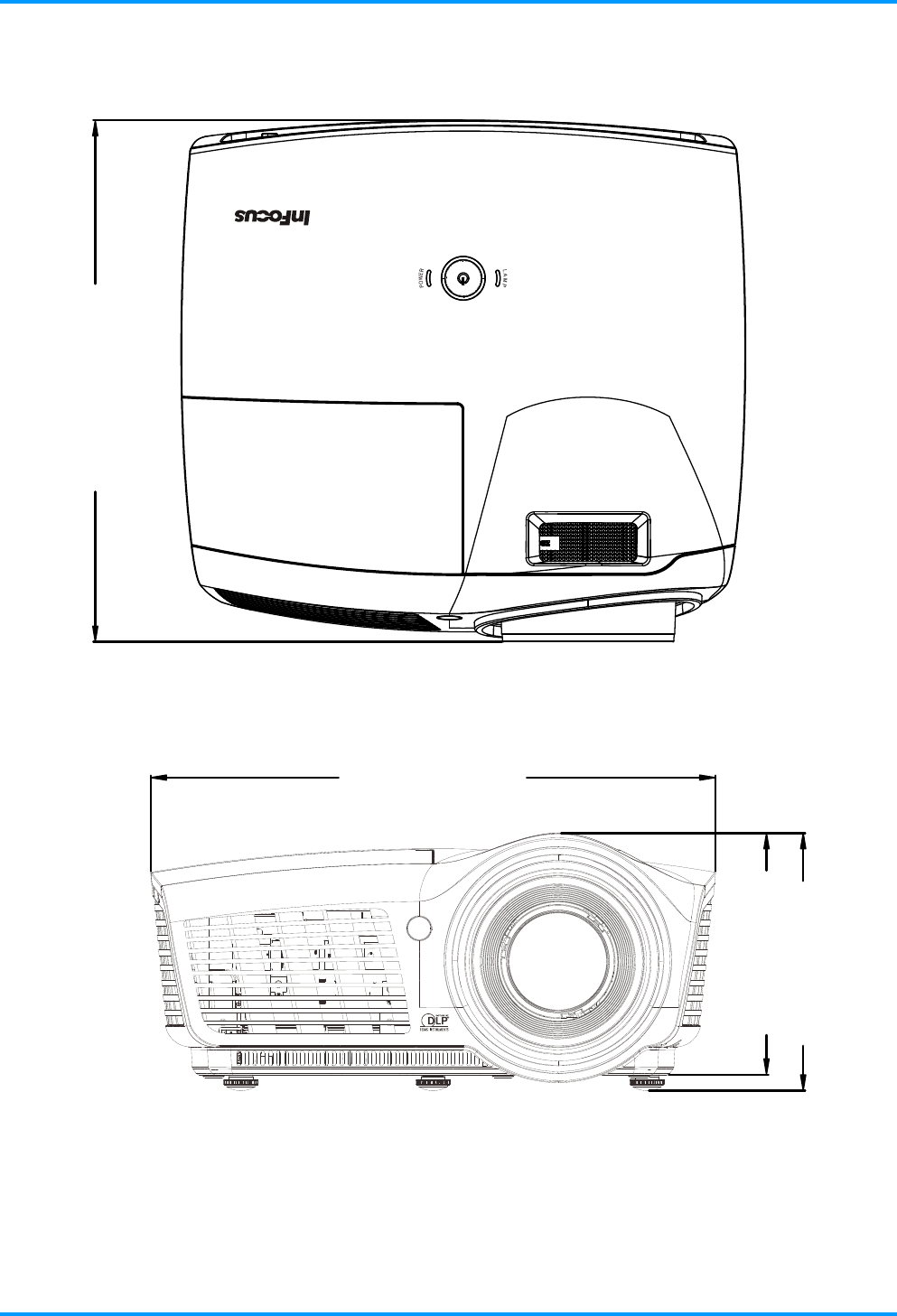
The native resolution of the panel is 1920x1080
Resolutions listed above other than 1920 x 1080 (the native resolution of the projector) will be resized and displayed,
however they may contain lines or uneven looking text. This is normal.
A yellow background means that the resolution will be displayed in a 4:3 aspect ratio.
A blue background means that these resolutions may display some video noise. This is normal.
IN8606HD User’s Manual
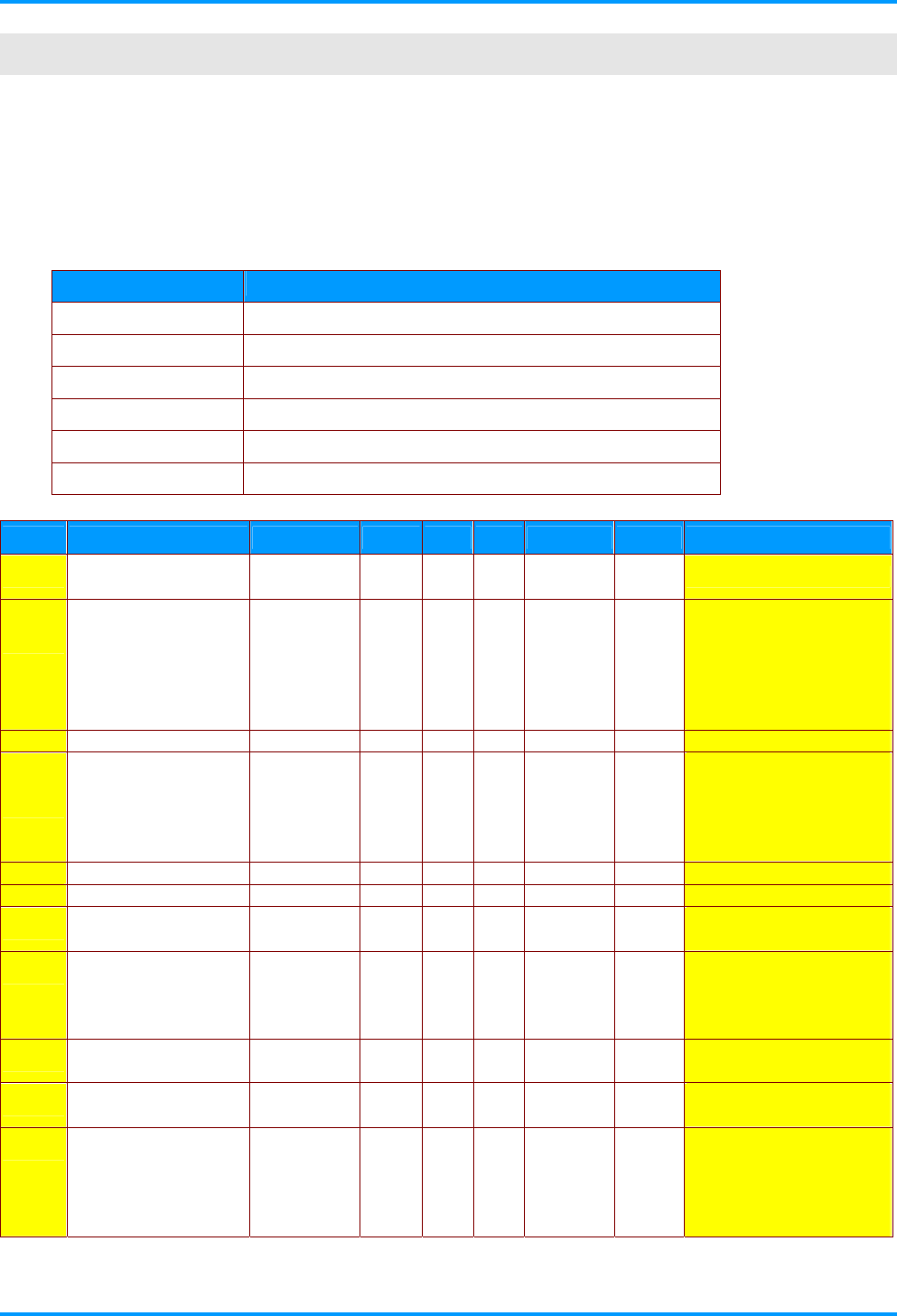
Projector Dimensions
264.1mm [10.40"]
285.1mm [11.22"]
130.4mm [5.13"]
122.3mm [4.81"]
–50 –

IN8606HD User’s Manual
– 51 –
REGULATORY COMPLIANCE
FCC Warning
This equipment has been tested and found to comply with the limits for a Class B digital device
pursuant to Part 15 of the FCC Rules. These limits are designed to provide reasonable protection
against harmful interference when the equipment is operated in a commercial environment.
This equipment generates, uses, and can radiate radio frequency energy and, if not installed and
used in accordance with the instruction manual, may cause harmful interference to radio
communications. Operation of this equipment in a residential area is likely to cause harmful
interference in which case the user will be required to correct the interference at his/her own expense.
Changes or modifications not expressly approved by the parties responsible for compliance could
void the user’s authority to operate the equipment.
Canada
This class B digital apparatus complies with Canadian ICES-003.
Safety Certifications
FCC-B, cUL, UL, CB, CE, C-tick, CCC, PSB, PCT, TUV-GS, UL-S
IN8606HD User’s Manual
–52 –
APPENDIX I
Serial Communication
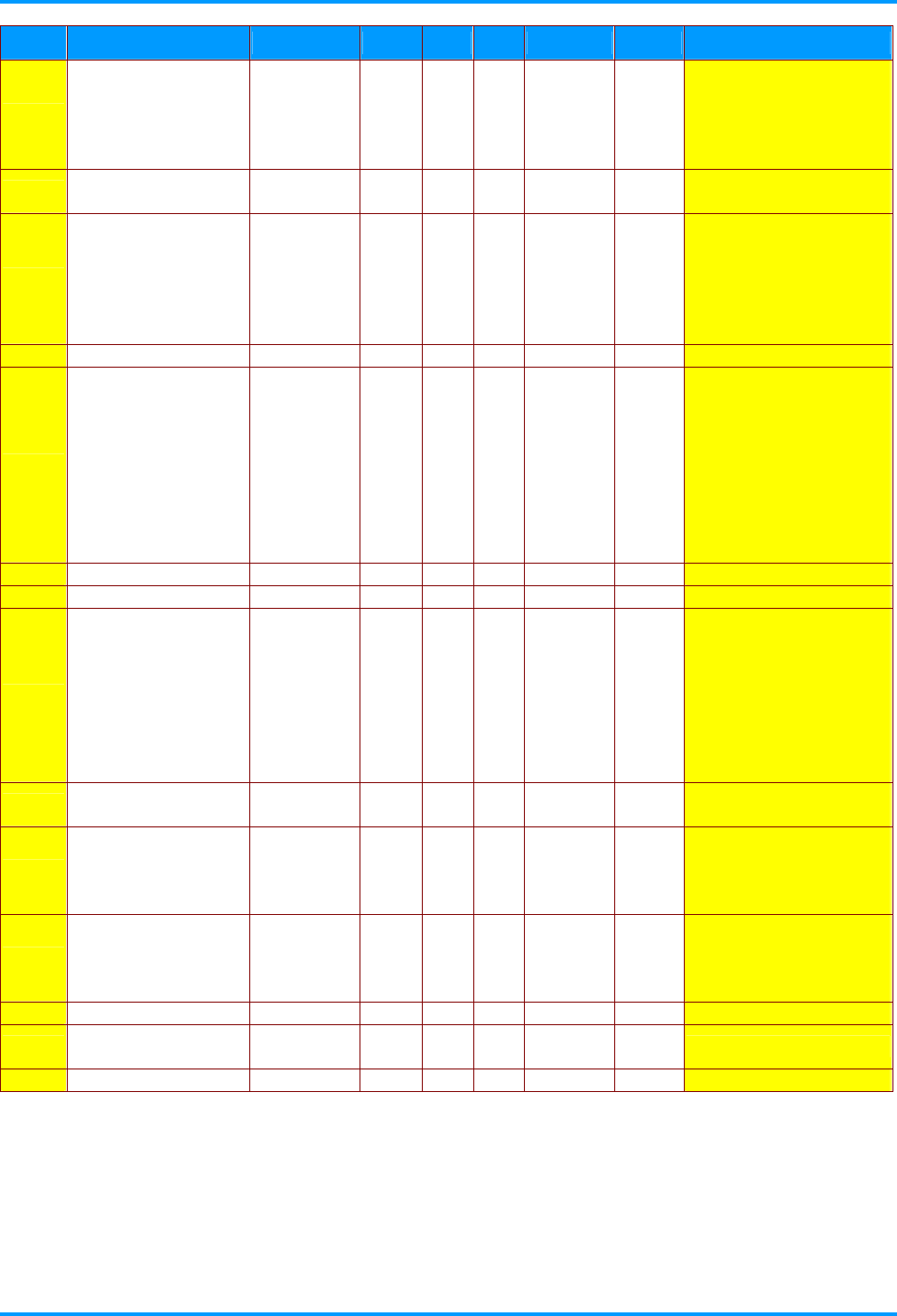
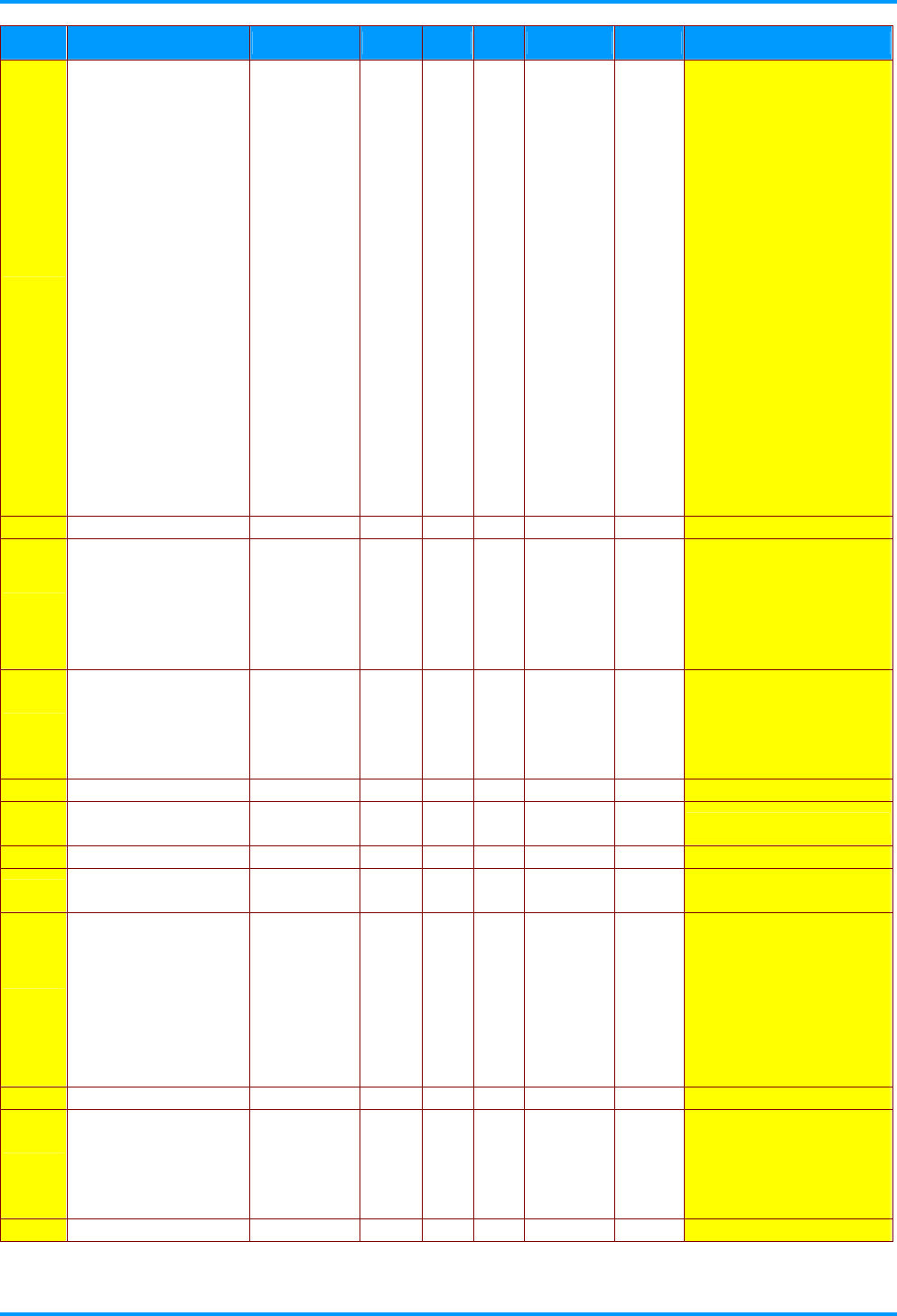
The following table describes the serial communication configuration that should be used when
interfacing to CLI via the serial port.
Windows HyperTerminal or ProComm are two tools that can be used to send CLI commands across
the serial port.
Setting Value
Bits per second 19200
Data bits 8
Parity None
Stop bits 1
Flow control None
Emulation VT100
No Function Command RW Min Max Default Step Parameter
1V AC Power On
(Auto power on) APO RW 0 1 0 1
0:Disable; 1:Enable
3V Aspect Ratio ARZ RW 0 5 0 1
0:Fill
1:4:3
2:16:9
3:Letterbox
4:Native
5:2.35:1
4V Auto Image AIM W n/a 1 1 1 1:Enable
5V Auto Off Time AOT RW 0 36 6 1
0:Never
1~36 * 5 = ? min
1:5min
6:30min (Default)
36:180min
6V Auto Source ASC RW 0 1 1 1 0:Disable; 1:Enable
7V Blank Screen BLK RW 0 1 0 1 0:Disable; 1:Enable
9V Brightness BRT RW 0 100 50 1 Valid only when Display
Mode = User
11V Projection
(Ceiling mode) CEL RW 0 3 0 1
0:Front
1:Rear
2:Ceiling
3:Ceiling+Rear
12V Closed Captions: Non-
Muted CLC RW 0 1 0 1
Off
On (CC1)
14V Color CLR RW 0 100 50 1 Video S-Video only = satu-
ration
15
(None) Color Space CSM RW 0 2 0 1
Valid only when Display
Mode = User
0:Auto
1:RGB
2:YUV
IN8606HD User’s Manual
– 53 –
No Function Command RW Min Max Default Step Parameter
16V Color Temp TMP RW 0 2 Source
Specific 1
Valid only when Display
Mode = User
0:Warm
1:Normal
2:Cold
17V Contrast CON RW 0 100 50 1 Valid only when Display
Mode = User
18V Current Source SRC RW 0 13 0 1
0:VGA1
5:HDMI-1
6:HDMI-2
10:Component
12:Video
13:S-Video
21V Digital Zoom DZM RW -10 10 0 1 -10~10
27V Error Condition ERR R n/a n/a n/a n/a
0:No error
1:Lamp not lit after 5 At-
tempts
3:Lamp went out unexpect-
edly
4:Fan failure
5:Over- heating
8:DMD error
9:Color wheel
28V Factory Reset RST W n/a 1 1 1 1:reset
32V Freeze Screen FRZ RW 0 1 0 1 0:Disable
34V Gamma GTB RW 0 5 Source
Specific 1
Valid only when Display
Mode = User
0:1.8
1:2.0
2:2.2
3:2.4
4:B&W
5:Linear
40V Horz. Position HPS RW x x 0 1 RGB source only
(HPS?) to get range
45V Lamp Hours in High
Power Mode LMO R 0 9999
Displays the number of
hours that the current lamp
has run in High Power
(Normal) mode.
46V Lamp Hours in Low
Power Mode LME R 0 9999
Displays the number of
hours that the current lamp
has run in Low Power (Eco)
mode.
47V Lamp Life LIF R n/a 4000 240W lamp life 4000
49V Lamp Resets (Total
number) LMR R 0 9999 0 1
62V Lamp Low Power IPM RW 0 1 0 1 1=ECO, 0=Normal
IN8606HD User’s Manual
–54 –
No Function Command RW Min Max Default Step Parameter
63V Language LAN RW 0 20 0 1
0:English
1:French
2:German
3:Spanish
4:Portuguese
5:Simplified Chinese
6:Traditional Chinese
7:Italian
8:Norwegian
9:Swedish
10:Dutch
11:Russian
12:Finnish
13:Korean
14:Arabic
15:Turkish
16:Japanese
17:Brazilian Portuguese
18:Kazakh
19:Vietnamese
20:Danish
77V Menu MNU RW 0 1 0 1 0:Clear; 1:Display
79V Menu Navigation NAV W 0 5 n/a 1
0:Menu Key
1:Up Key
2:Down Key
3:Select Key
4:Left Key
5:Right Key
81V Menu Transparency TOE RW 0 4 0 5
0:0%
1:20%
2:40%
3:60%
4:80%
91V Mute MTE RW 0 1 0 1 0:disable; 1:enable
103
(None) Overscan OVS RW 0 1 0 1
0:disable; 1:enable
104V Frequency (Phase) MSS RW 0 31 x 1 RGB source only
108V Power PWR RW 0 1 0 1 0:Turn Off
1:Turn On
111V Presets PST RW 0 7 source
Specific 1
0:Presentation
1:Bright
2:Game
3:Movie
4:TV
5:sRGB
6:Blackboard
7:User
114V Projector Firmware Ver. FVS R string HT186-495IF-DPXXX
115 Projector High Power
Hours LTO R 0 9999
Displays the numbers of
hours that the projector has
run in High Power (Normal)
mode over its life (including
all lamps).
116V Projector Info menu PRI W 1 1 Display Projector Info menu
IN8606HD User’s Manual
– 55 –
No Function Command RW Min Max Default Step Parameter
117 Projector Low Power
Hours LTE R 0 9999
Displays the numbers of
hours that the projector has
run in Low Power (Eco)
mode over its life (including
all lamps).
118V Projector Model MDL R string IN8606HD
119V Projector Resolution NRS R string 1080p
121V Projector Total Hours LMT R 0 9999 1
123V Lamp Hour Reset LRT RW n/a 1 n/a 1 Reset Lamp Hour
(OSD:Status)
126V Search Screen DSU RW 0 4 0 1
0:Gray
1:Red
2:Black
3:Blue
4:White
130V Sharpness SHP RW 0 100 50 1
155V System State SYS R 0 18 0 1
0:Standby
2:Start Up
12:Cooling
18:Error
158V Tint TNT RW 0 100 50 1
160V Tracking MTS RW -5 5 0 1 RGB source only
-5~5
162V Vert. Keystone DKV RW -40 40 0 1
164V Vert. Position VPS RW x x 0 1
RGB source only
(VPS?) to get range
(VPS+)
(VPS-)
167V Volume VOL RW 0 30 4 1 0~30
