Innostream INNO-A21 GSM/GPRS 850/1800/1900 MHz Mobile Phone User Manual INNO A21
Innostream Inc. GSM/GPRS 850/1800/1900 MHz Mobile Phone INNO A21
Users Manual

INNO-A21 User’s Guide INNOSTREAM Confidential
PAGE : 1 of 130
INNO-A21 User manual
GPRS MEGA PIXEL CAMERA & MUSIC PHONE SERIES
COMPACT SIZE INTENNA TWIST CLAMSHELL TYPE
TFT 262,000 MAIN SCREEN
2.0 MEGA PIXEL DIGITAL CAMERA
MP3 MUSIC PLAYER
MPEG4 PLAYER
WAP 2.0 / JAVA / MMS
VIS / MSF

INNO-A21 User’s Guide INNOSTREAM Confidential
PAGE : 2 of 130
Contents
1.BEFORE YOU START
1.1 PHONE LAYOUT AND ICONS ...................................................................................
1.2 QUICK SILENCE MODE ........................................................................................
1.3 USING THE NAVIGATION KEYS .................................................................................
1.4 USING THE EARPHONE ........................................................................................
1.5 DISPLAY IN THE IDLE SCREEN .................................................................................
2.GETTING STARTED.............................................................................................
2.1 HOW TO ATTACH THE BATTERY ...............................................................................
2.2 HOW TO REMOVE THE BATTERY...............................................................................
2.3 HOW TO CHARGE THE BATTERY ..............................................................................
2.4 HOW TO PLACE THE SIM CARD................................................................................
2.5 HOW TO REMOVE THE SIM CARD ..............................................................................
2.6 HOW TO PLACE THE MEMORY CARD..................................................................
2.7 HOW TO REMOVE THE MEMORY CARD ...............................................................
2.8 HOW TO SWITCH YOUR PHONE ON AND OFF..................................................................
2.9 HOW TO USING MASS STORAGET ......................................................................
3. SECURITY CODES .............................................................................................
3.1 PIN ...........................................................................................................
3.2 PUK ...........................................................................................................
3.3 PIN2 ..........................................................................................................
3.4 PUK2 .........................................................................................................
3.5 SIM LOCK CODE...............................................................................................
3.6 LOCK CODE ...................................................................................................
3.7 PASSWORD ...................................................................................................
4. MAKING AND RECEIVING A CALL...........................................................................
4.1 MAKING A CALL ...............................................................................................
4.2 ANSWERING A CALL ...........................................................................................
4.3 MAKING THE EMERGENCY CALL ...............................................................................
4.4 MAKING AN INTERNATIONAL CALL .............................................................................
4.5 ENTERING A "PAUSE" CHARACTER IN A DIAL STRING .........................................................
4.6 NOTIFICATION OF MISSED CALL ...............................................................................
5. IN-CALL OPTIONS.............................................................................................
5.1 PUTTING A CALL ON HOLD/UNHOLD ..........................................................................
5.2 MAKING A SECOND CALL......................................................................................
5.3 SWAPPING BETWEEN ACTIVE CALLS AND HELD CALLS........................................................
5.4 ANSWERING A SECOND INCOMING CALL ......................................................................
5.5 ADJUSTING THE EARPIECE VOLUME...........................................................................
5.6 MUTING THE MICROPHONE....................................................................................
5.7 SENDING DTMF................................................................................................
5.8 STORING A NUMBER ON THE SCRATCHPAD ...................................................................
5.9 USING THE SMS FUNCTION....................................................................................
5.10 USING THE LOUDSPEAKER ..................................................................................
5.11 MAKING A CONFERENCE CALL .......................................................................
5.12 RECORD SPEECH........................................................................................
6. PHONEBOOK ...................................................................................................

INNO-A21 User’s Guide INNOSTREAM Confidential
PAGE : 3 of 130
6.1 STORING A PHONE NUMBER WITH A NAME ....................................................................
6.2 QUICK SEARCHING FOR A NUMBER IN THE PHONEBOOK......................................................
6.3 STORING A NUMBER OF THE RECENT CALLS TO THE PHONEBOOK ...........................................
6.4 SPEED DIALS ................................................................................................
6.5 USING THE PHONEBOOK OPTIONS ............................................................................
7. MULTIMEDIA MENU & CAMERA MENU ……………………………………………………………………
8. TEXT EDITING ..................................................................................................
8.1 INPUT MODE.................................................................................................
8.2 T9 ABC INPUT MODE .......................................................................................
8.3 DICTIONARY OFF INPUT MODE ..............................................................................
8.4 NUMERIC INPUT MODEF .....................................................................................
8.5 SYMBOLS INPUT MODE ......................................................................................
8.6 DICTIONARY LANGUAGE INPUT MODE .................................................................
8.7 TEMPLATE INPUT MODE ...............................................................................
9. THE MENU MAP................................................................................................
10. THE MENU FUNCTIONS .....................................................................................
10.1 CALL LOG
(DIALLED CALLS, RECEIVED CALLS, MISSED CALLS, DELETE RECORDS, COST & DURATION, DATA
COUNTER)
10.2 MP3 ........................................................................................................
(MP3 PLAYER, MP3 PLAY LIST, PLAYER SETTING)
10.3 INTERNET
(HOME, RESUME, BOOKMARKS, PUSH MESSAGES, SETTINGS, HISTORY, GO TO ADDRESS)
10.4 CONTACTS
(PHONEBOOK, NEW CONTACT, SPEED DIALS, GROUP SETTING, COPY ALL, DELETE ALL, MEMORY STATUS)
10.5 MESSAGES
(SMS, MMS, E-MAIL, VOICEMAIL, BROADCAST)
10.6 ORGANISER
(MORNING ALARM, GENERAL ALARMS, CALENDAR, VIEW TODAY REPORT, MEMO, TEMPLATE)
10.7 APPLICATION
(SIM AT SERVICE, JAVA, FILE MANAGER, GAMES, CALCULATOR, STOPWATCH, VOICE MEMO, WORLD
TIME, ELECTRONIC DICTIONARY)
10.8 CAMERA
(STILL SHOT, SELF SHOT, CAMCORDER, PHOTO ALBUM, CAMCORDER ALBUM, CAMERA SETTING)
10.9 SETTING
(OWN NUMBERS, SOUND SETTING, DISPLAY SETTING, CLOCK SETTING, CALL SETTING, DATA
CONNECTIONS, IRDA, SECURITY SETTING, NETWORK SERVICE, NAVI-KEY SETTING)
11. VIS
12. DATA AND FAX ...............................................................................................
13. PHONE AND BATTERY CARE ..............................................................................
14. TROUBLE SHOOTING........................................................................................
15. GLOSSARY ....................................................................................................
16. SAFETY INFORMATION......................................................................................
17. INDEX ..........................................................................................................
INNO-A21 User’s Guide INNOSTREAM Confidential
PAGE : 4 of 130
1. Before You Start
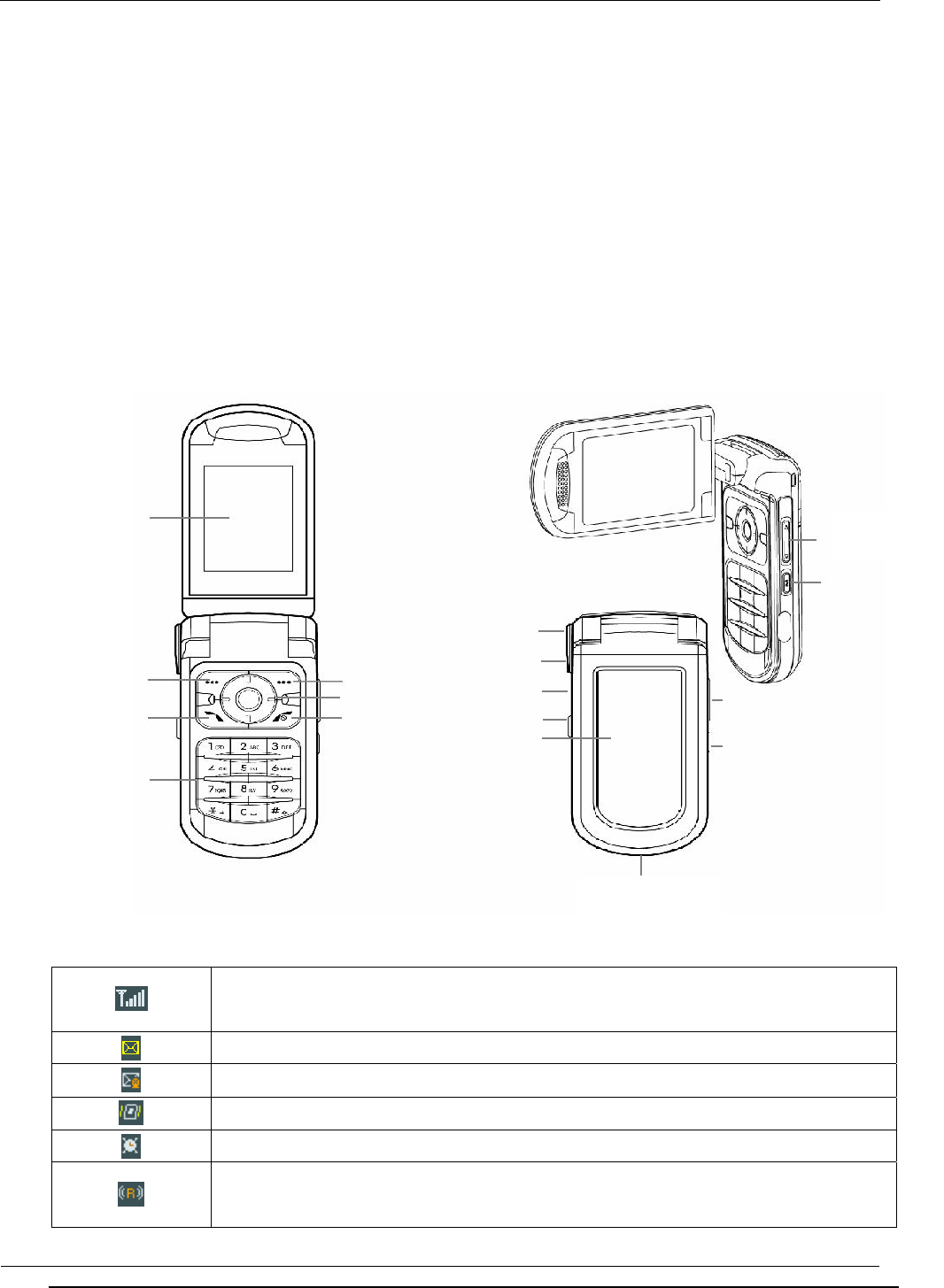
1.1 Phone Layout and Icons
The following illustration shows the main elements of your phone.
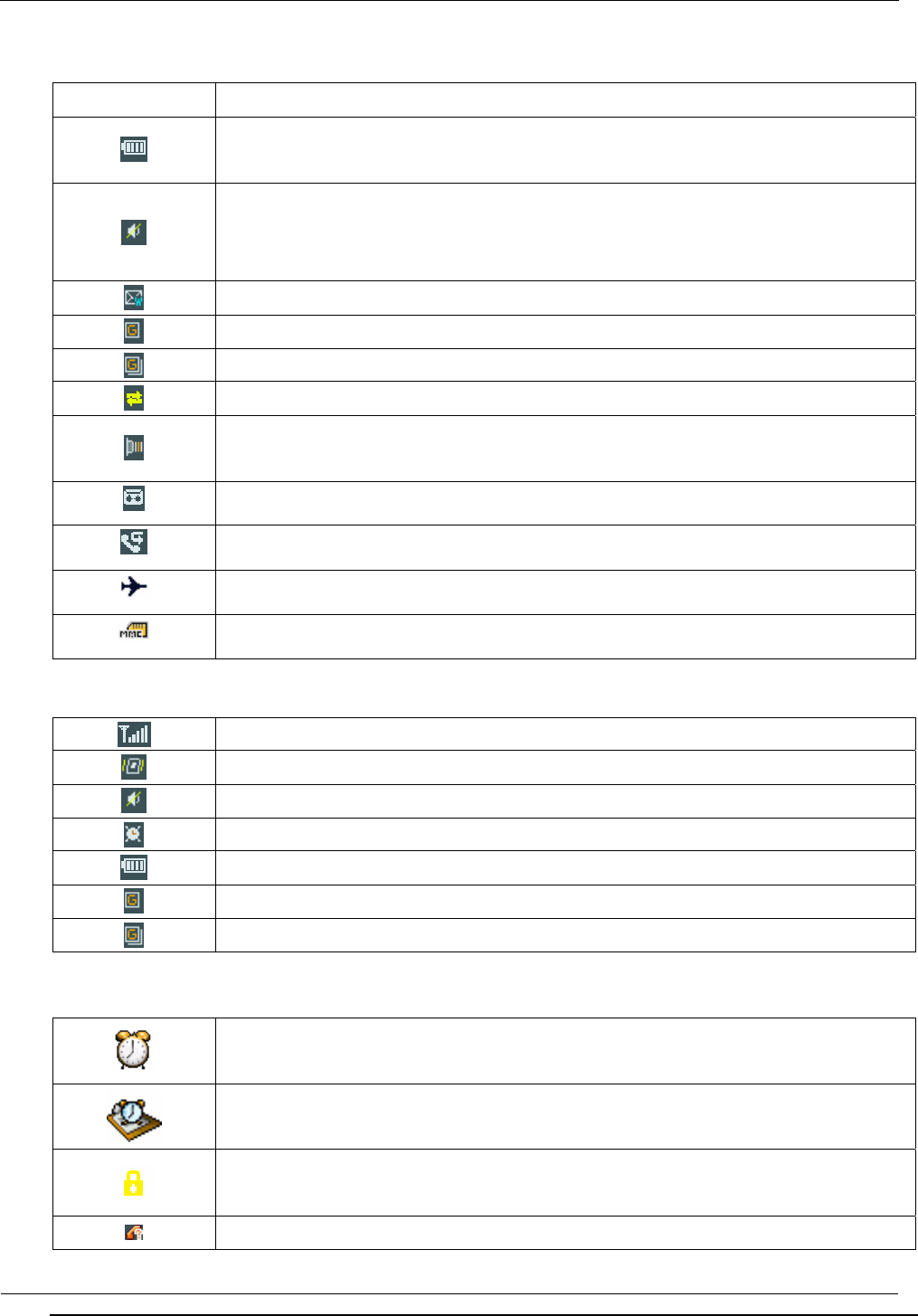
< Icons in the main display screen >
Shows the received signal strength. The larger the number of bars, the better
the signal strength.
Appears when a new text message has been received
Appears when you have messages waiting in voicemail
Appears when vibrator is selected as ring tone type.
Appears when an alarm clock is enabled.
Appears when the phone is out of your home network area and the phone is
registered to the network other than its home service (i.e. when travelling in
Main Display
Screen
Soft Key (left)
SEND KEY
Number and
Alpha Keys
Soft key(Right)
END KEY
Navigation Keys
Camera Key
Multimedia Key
Side Key
Side Key
Multimedia Key
External Socket
Sub Display Screen
Camera
Camera Flash
Ear Phone Jack
INNO-A21 User’s Guide INNOSTREAM Confidential
PAGE : 5 of 130
other countries with GSM service)
Shows the level of battery status. The more bars you see, the more power
battery has left.
Indicates that your phone is on the quick silence mode.
If your phone is in the quick silence mode, all audible key tones are muted
and all audible alerts are changed to vibrator alert.
Appears when a PUSH message has been received
Appears when your phone is registered to a GPRS network.
Appears when there is an active GPRS connection.
Appears when your phone is connected to a GPRS modem.
Appears when infrared port is active for receiving file and ready for using
modem via infrared port.
Appears when auto response is turned on.
Appears when call divert is always on.
Appears when Flight Mode is turned on.
Appears when MMC Card is inserted.
< Icons in the sub display screen >
Shows the received signal strength.
Appears when vibrator is selected as ring tone type.
Indicates that your phone is on the quick silence mode.
Appears when an alarm clock is enabled.
Shows the level of battery status.
Appears when your phone is registered to a GPRS network.
Appears when there is an active GPRS connection.
< Event images in the sub display screen >
Appears when an alarm is expired.
Appears when the alarm of scheduler is expired.
Indicates that your phone is under security code checking after power up.
Appears when a missed call has occurred.
INNO-A21 User’s Guide INNOSTREAM Confidential
PAGE : 6 of 130
1
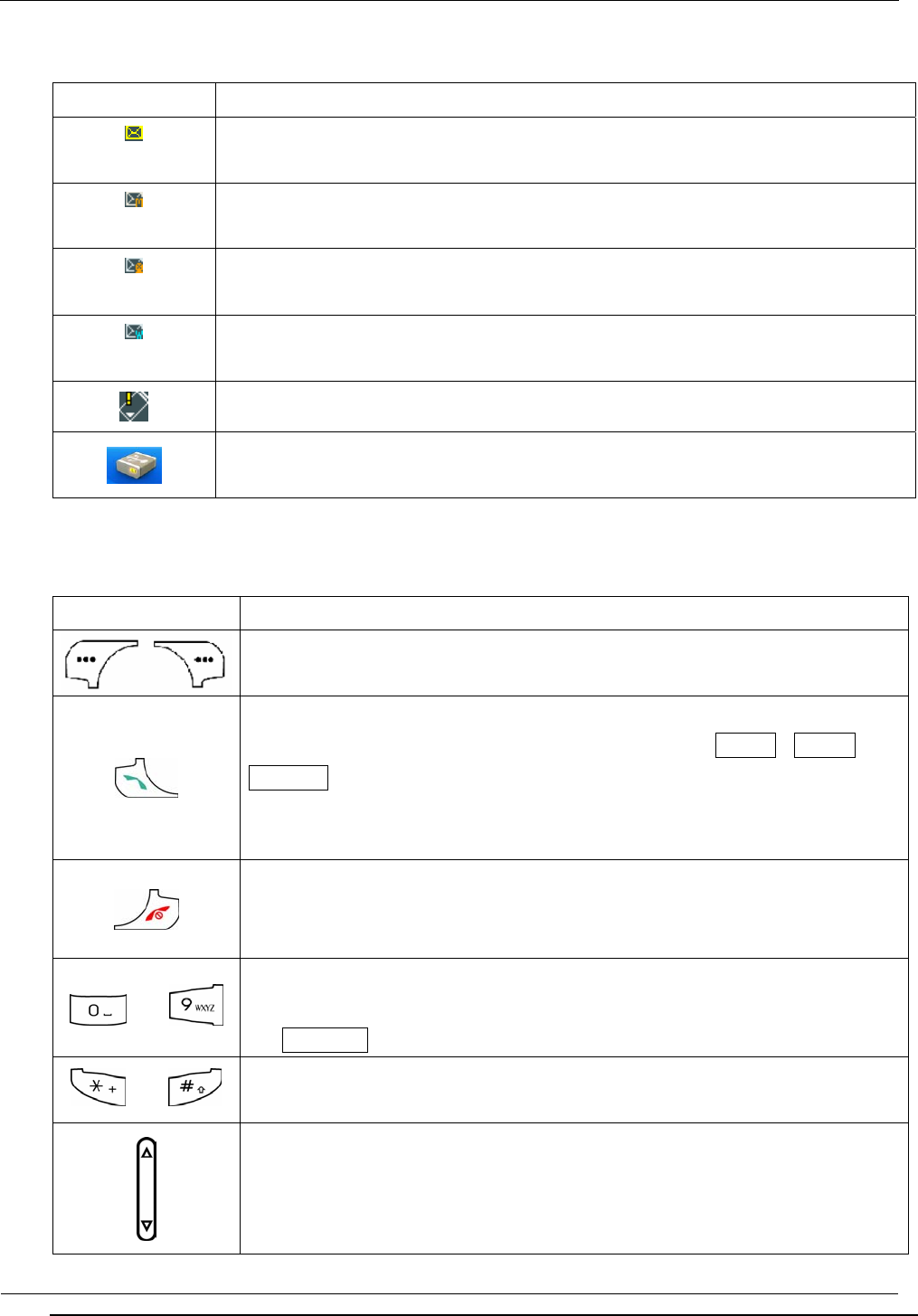
1 Appears when a new text message has been received
1 Appears when a new MMS message has been received
1 Appears when you have messages waiting in voice mail
1 Appears when a new PUSH message has been received
Indicates that the battery level of your phone is low.
Indicates that your phone is plugged in USB cable in case of Mass Storage.
Keys Description
Key Description
Performs the functions indicated by the text in the bottom line of the
display screen above those keys.
Makes or answers a call.
In the idle mode, launches the recent calls list.(Dialled, Missed and
Received )
In the menu, selects menu function or stores information that you have
entered (such as a name) in the phone or SIM memory.
Ends a call.
Also switches the phone ON or OFF when pressed and held.
In the menu, returns to the idle mode or cancels your input.
~
Enters numbers, letters and some special characters.
By pressing and holding [ 1 ] in the idle mode, you can directly listen to
the Voicemail.
~
In the idle mode, enters special dial characters.
Enters ‘+’(International Indicator) or ‘P’(Pause) when pressed and held
(on the left side of phone)
During a call, adjust the earpiece volume.
During a game, adjust the game melody volume.
[VOL-UP]
INNO-A21 User’s Guide INNOSTREAM Confidential
PAGE : 7 of 130
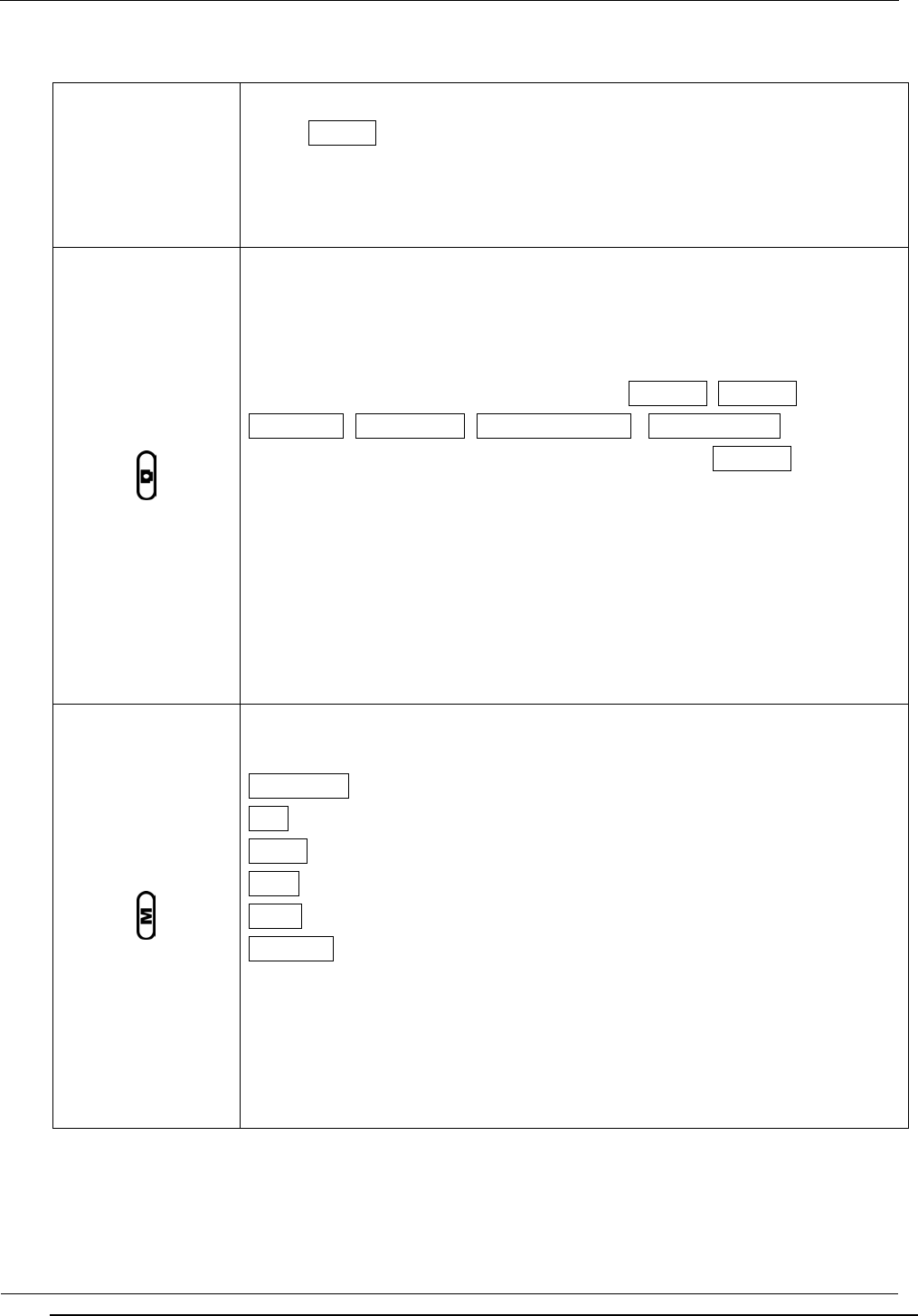
It switches between the quick silence mode and previous profile you have
set on Profiles menu when pressed and held in the idle mode.
[VOL-DOWN]
In the idle mode, displays the today’s date, day and time for short time.
And in the idle mode, launch auto response for long time
[Camera]
You can use camera menus easily and directly by pressing [Camera] key
in idle mode.
If you press [Camera] key shortly, you can see camera hot menu.
And you can launch camera menus that are Still Shot, Self Shot,
Camcorder, Photo Album, Camcorder Album , Camera Setting.
And, if you press [Camera] key long, you can launch Still Shot menu
directly.
See section 7.2 CAMERA MENU for detail.
Normally, [Camera] key is operated as the left soft key. So, you can
launch the function indicated by the left text in the bottom line. Also, if
you turn main lcd inside out (Folder close after rotation), you can launch
the function.
If you press [Multimedia] key after locating the menu cursor to the name
you wish to do an action, the following sub menus are available.
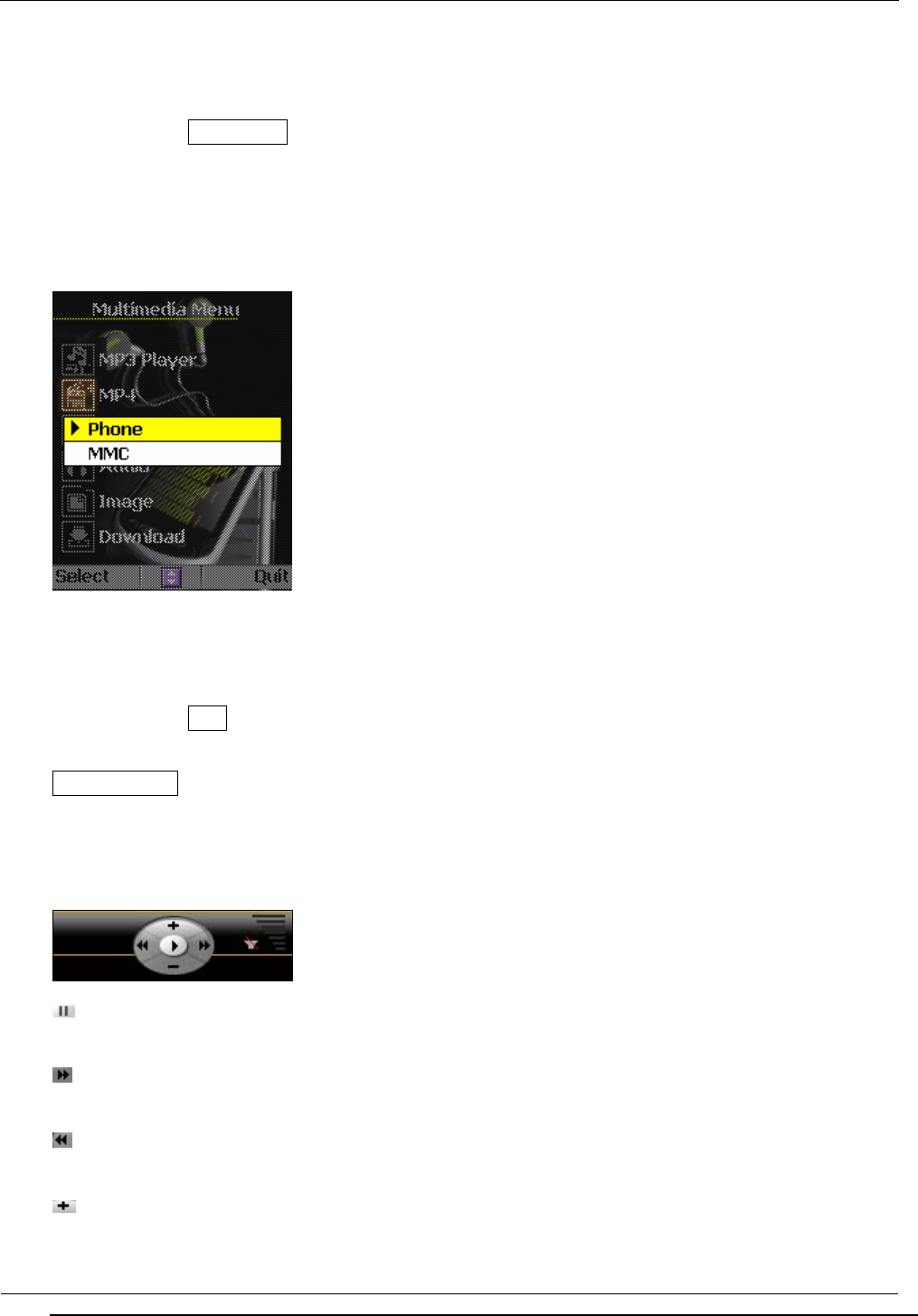
MP3 Player : Load the Mp3 Player.
MP4 : Load Mp4 folder.
Games: Load Games.
Audio : Load Audio folder.
Image : Load Image folder
Download : Load Download folder.
Normally, [Multimedia] key is operated as the right soft key. So, you can
launch the function indicated by the riht text in the bottom line. Also, if
you turn main lcd inside out (Folder close after rotation), you can launch
the function.
INNO-A21 User’s Guide INNOSTREAM Confidential
PAGE : 8 of 130
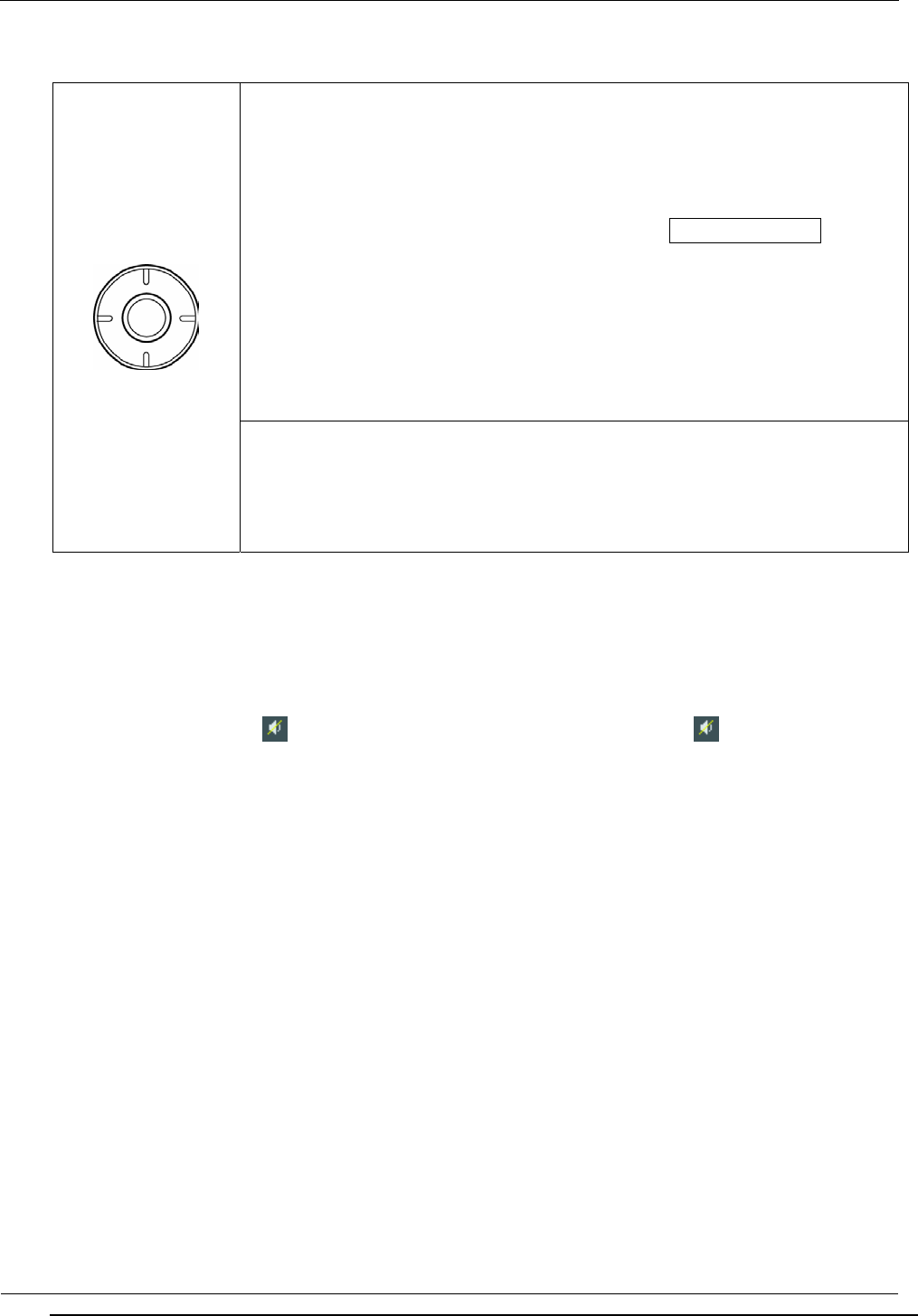
In the editing mode, moves the cursor.
In the menu, moves the menu cursor.
In the idle mode, each key can be set your favourite menus. Default menu
is set at each key. You can set the navi-keys([NAVI-LEFT], [NAVI-
RIGHT], [NAVI-UP], [NAVI-DOWN]) using the Navi-Key Setting Menu or
pressing [NAVI-Keys] for one seconds.
You first have to set the Navigation Keys,
Because the default setting of Navi-Key Setting is nothing.
If it is not set and you press [NAVI-Keys] in the idle screen, Navi-Key
Setting popup window will be launched.
[NAVI-CENTRE]
In the editing mode, launches the editing mode selection menu.
In the menu, selects the menu on which menu cursor is.
In the idle mode, accesses the WAP site.
1.2 Quick Silence Mode
You can switch the sound/alert mode of your phone by just pressing and holding the [VOLUME-
UP] on the idle screen. icon on the top of the main display screen or icon on the top of the
display screen indicates that your phone is under the quick silence mode status.
If your phone is in the quick silence mode, all audible key tones are muted and all audible alerts
are changed to vibrator alert.
You can return to previous profile setting by pressing and holding the [VOLUME-UP] again.
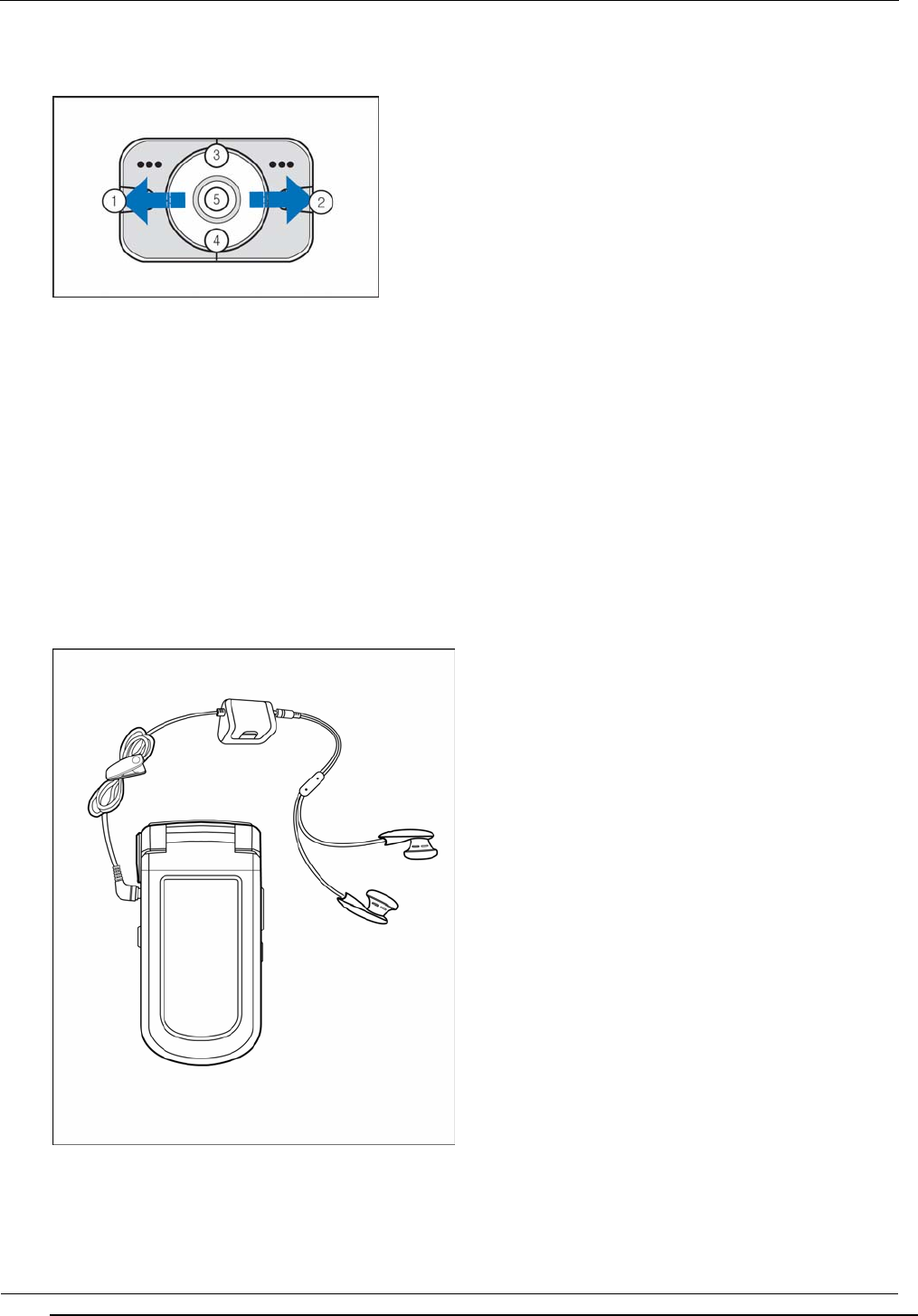
1.3 Using the Navigation Keys
To use the navigation keys appropriately.
1. [NAVI-LEFT] : Push the left side of the navigation key bar to left direction.
2. [NAVI-RIGHT] : Push the right side of the navigation key bar to right direction.
3. [NAVI-UP] : Push the up side of the navigation key bar to up direction.
4. [NAVI-DOWN] : Push the down side of the navigation key bar to down direction.
5. [NAVI-CENTRE] : Push the navigation key bar down.
INNO-A21 User’s Guide INNOSTREAM Confidential
PAGE : 9 of 130
1.4 Using the Earphone
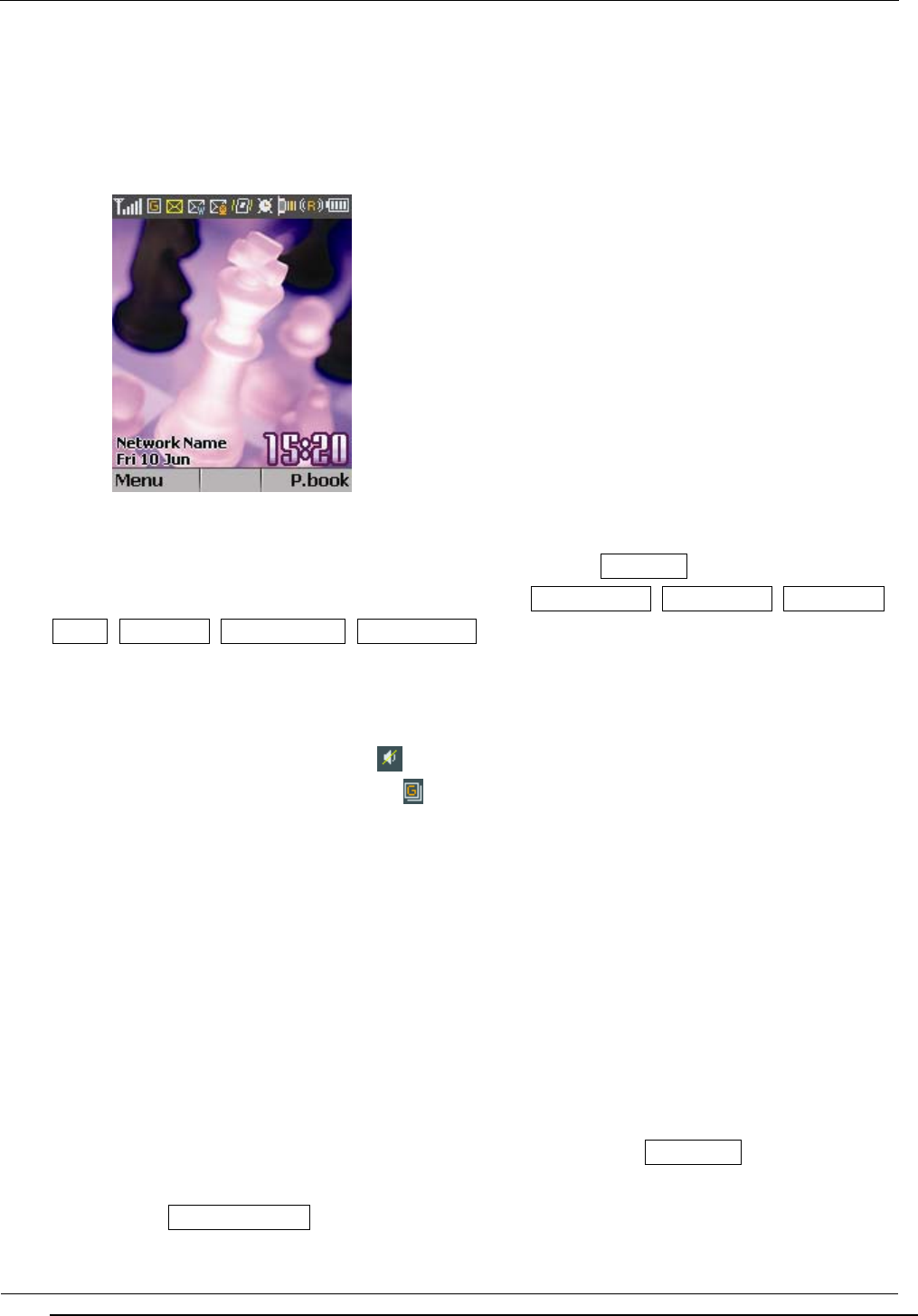
If you insert the earphone to the jack on the left side of your phone, you can use it in the same
way as your phone’s earpiece and microphone.
You can answer or end a call by pressing the hook button on the earphone.
When new waiting call is come whilst you are in a call, you can answer the waiting call by pressing
the hook button on the earphone. (The first call will be held automatically)
You can make the last number dialled call in the idle screen by pressing the hook button on the
earphone. The last number dialled is launched by pressing the hook button, and then the call will
be made by pressing the hook button again.
1.5 Display Screens in the Idle Mode
INNO-A21 User’s Guide INNOSTREAM Confidential
PAGE : 10 of 130
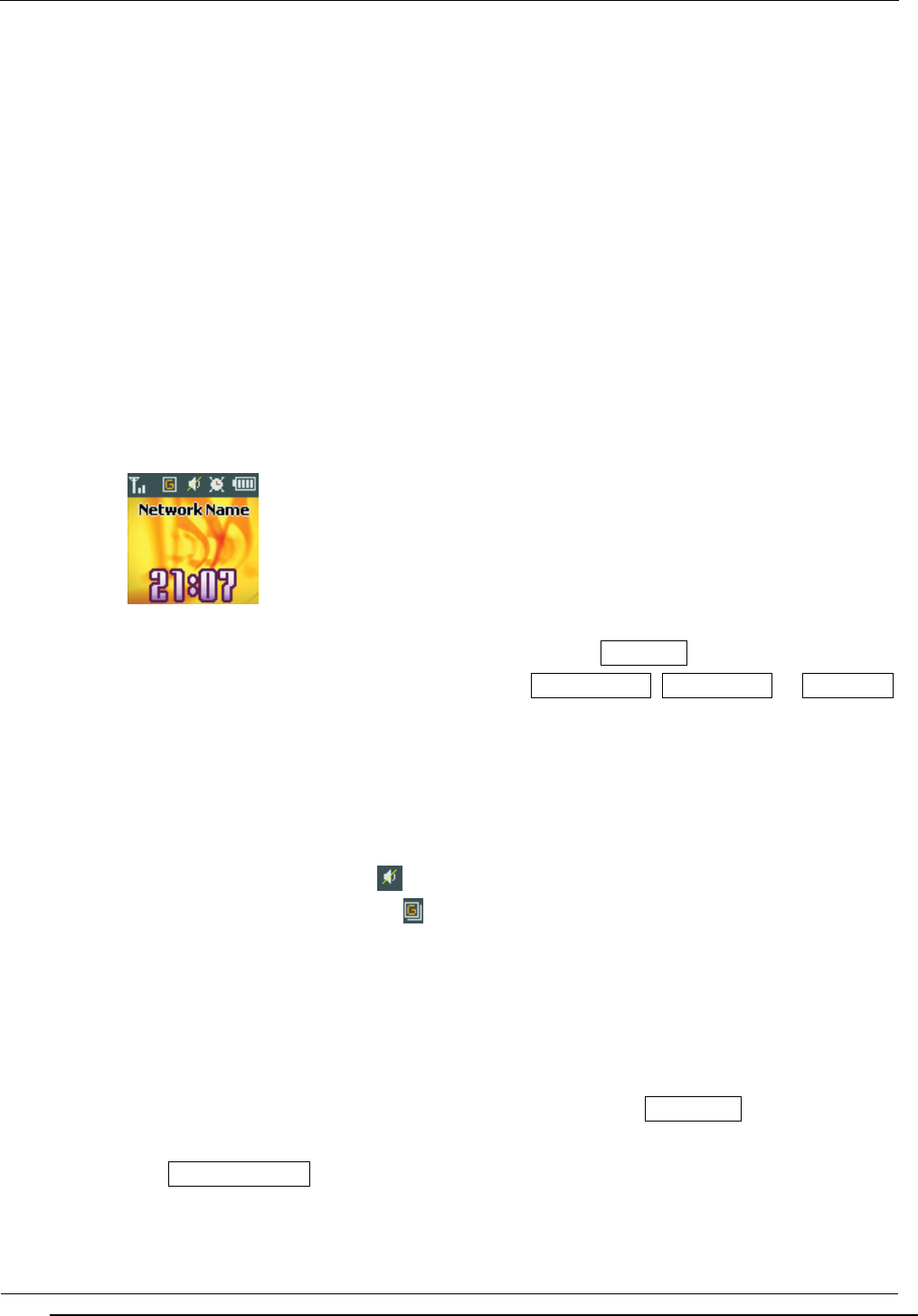
< Main Display Screen >
Å Icon Area
Å Broadcast Area
Å Information Area
(Network Status or Event, Date, Digital Time)
Å Function Key Area
The background image is displayed according to the setting of Wallpaper menu. Please see Section
10 for details. You can set the background image from Sample Image, Photo Album, Camcorder
Album, Image File, MFlash Folder, VIDEO Folder menu.
Icon Area:
10 icons such as Signal Level, GPRS, SMS, PUSH Massage, Voicemail, Vibrator, Alarm, IRDA,
Roaming and Battery Level are displayed indicating the phone status.
If the quick silence mode is enabled, icon will appear in the Vibrator icon’s place.
If there is an active GPRS connection, icon will appear in the GPRS icon’s place.
If Travel Charger is inserted, the Battery icon will be scrolled.
Broadcast Area:
In this case, the User Selectable Area updates the received broadcast messages. If you want to go
back to default screen, press [END].
! Note: The broadcast message service may not be available on all networks.
Information Area(Network Status or Event, Date, Digital Time):
Network name registered is displayed.
If there is not any GSM or GPRS network near the location you are, No Service is displayed.
If you are in the coverage of a GSM or GPRS network but you are not allowed to be registered to
the network, Emergency Only is displayed.
If an event is occurred, an adequate big event icon is displayed.
INNO-A21 User’s Guide INNOSTREAM Confidential
PAGE : 11 of 130
The date is displayed at the left bottom place in this area.
The digital time is displayed at the right bottom place in this area.
! Note: If you press VOLUMN-DOWN], the information of this disappear. If you press [VOLUMN-
UP], that again appear.
Function Key Area:
The functions assigned to right soft key and left soft key are displayed.
< Sub Display Screen >
Å Icon Area
Å Network Status or Event Area
Å Time Area
The background image is displayed according to the setting of Wallpaper menu. Please see Section
10 for details. You can set the background image from Sample Image, Photo Album or Image File
menu.
Icon Area:
5 soft icons such as Signal Level, GPRS, Vibrator, Alarm, and Battery Level are displayed indicating
the phone status.
If the quick silence mode is enabled, icon will appear in the Vibrator icon’s place.
If there is an active GPRS connection, icon will appear in the GPRS icon’s place.
If Traver Charger is inserted, the Battery icon will be scrolled.
Network Status or Event Area:
Network name registered is displayed.
If there is not any GSM or GPRS network near the location you are, No Service is displayed.
If you are in the coverage of a GSM or GPRS network but you are not allowed to be registered to
the network, Emergency Only is displayed.
If an event is occurred, an adequate event image is displayed. For more details, please see Section
1.1.
INNO-A21 User’s Guide INNOSTREAM Confidential
PAGE : 12 of 130
Time Area:
Current time is displayed in this area.
2. Getting Started
NOTE :
Please never detach the battery from your mobile whilst your phone is alive. To turn off your
phone, please press and hold down only until you see the power-off animation.
Please use only approved batteries and chargers.
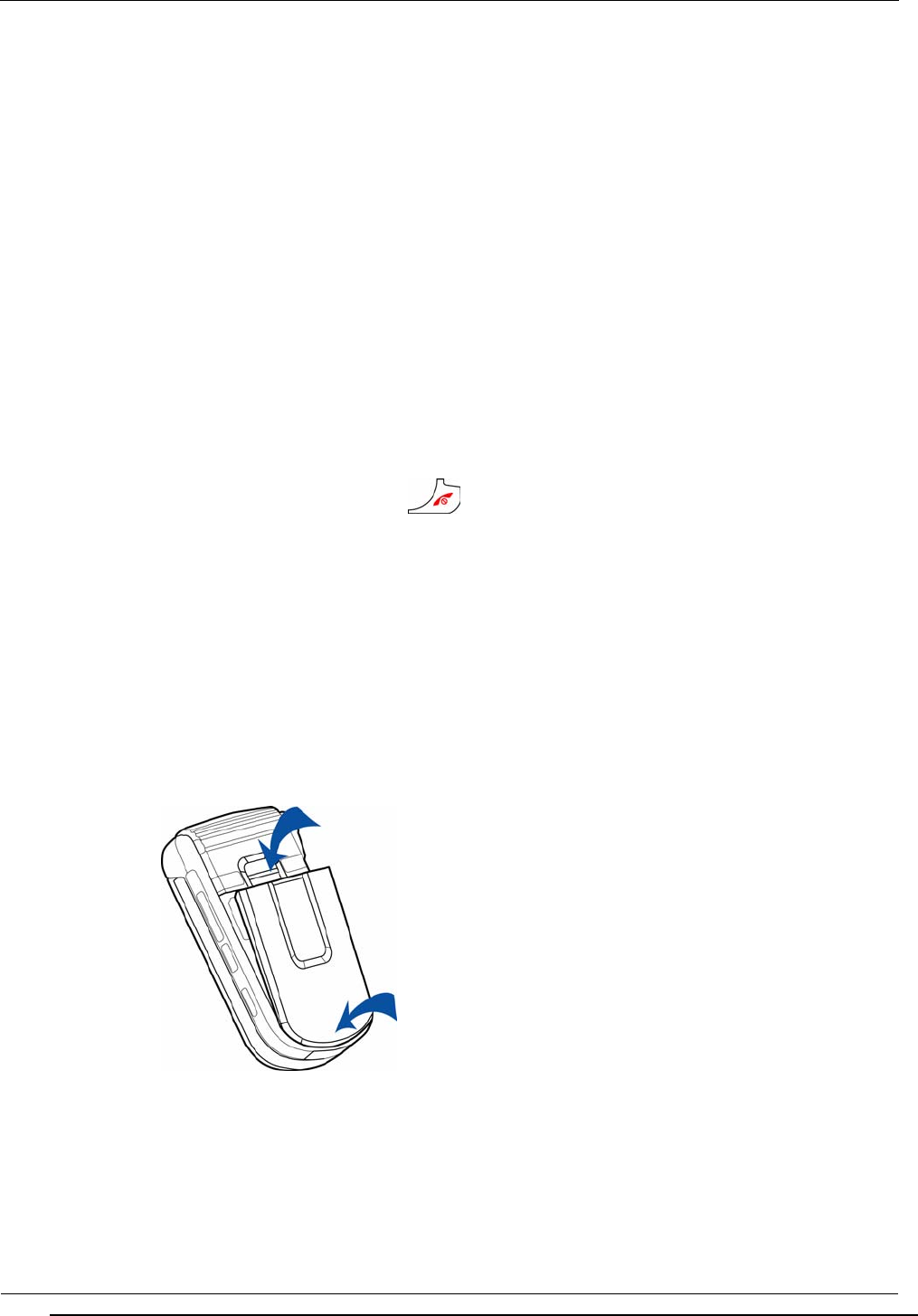
2.1 How to attach the battery
1. Align the bottom of the battery down into the holes in the bottom of the phone.
2. Then sit the battery on the back of the aligned until it clicks into place.
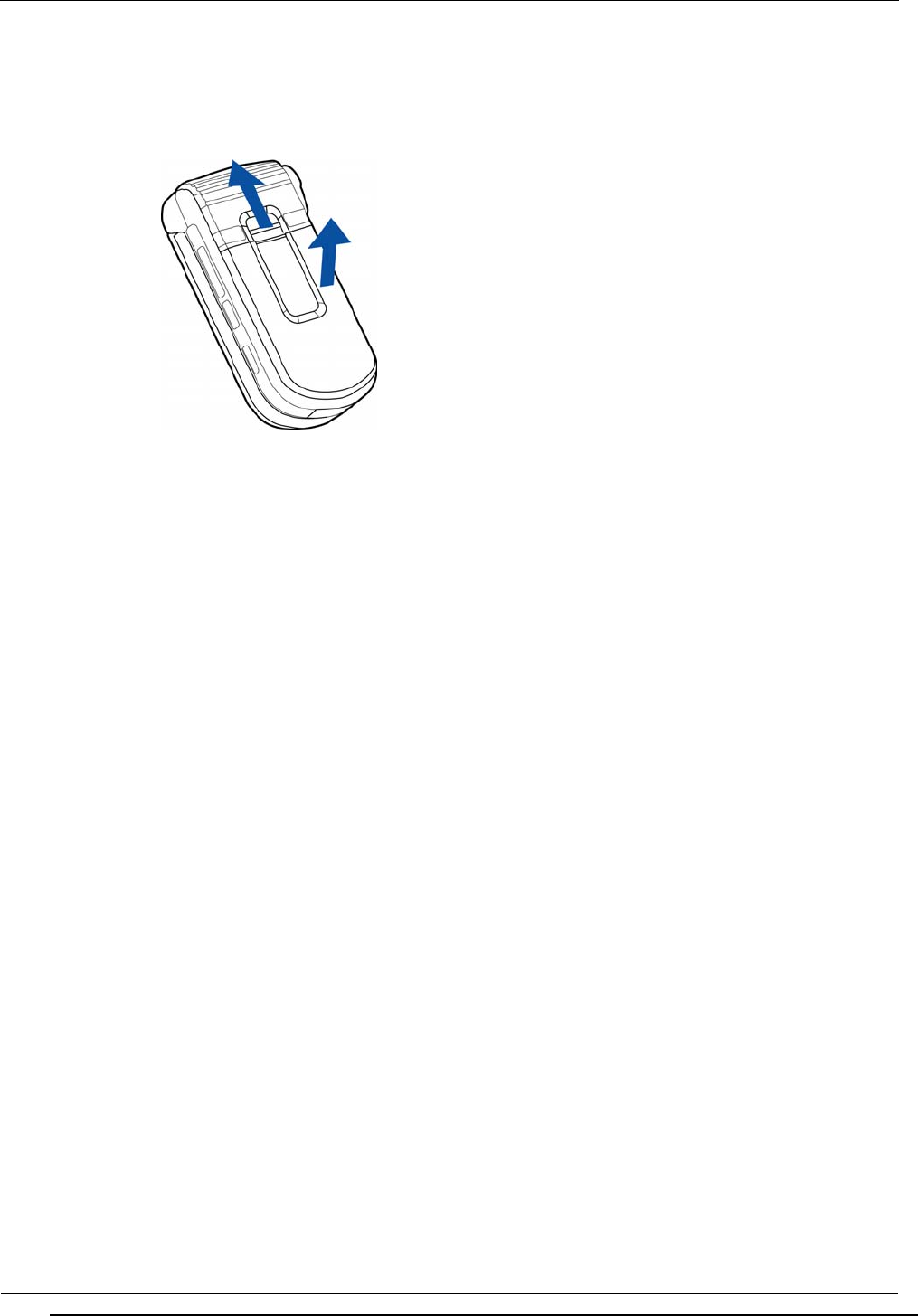
2.2 How to remove the battery
Turn off your phone first.
INNO-A21 User’s Guide INNOSTREAM Confidential
PAGE : 13 of 130
1. Press up the battery release latch
2. Slightly lift the upper place of battery out of back of phone.
2.3 How to charge the battery
The first charging must be for at least 4 hours in order to achieve optimum performance when you
buy this phone. Normally your phone completes to charge the battery in two hours.
You can make calls whilst charging your phone.
Your phone turns off by itself if the battery is not able to supply enough power.
The display may not visible for a few seconds in case that full discharged battery is used.
!Note : Do not charge your phone without the battery in place.
Do not detach the battery whilst being charged.
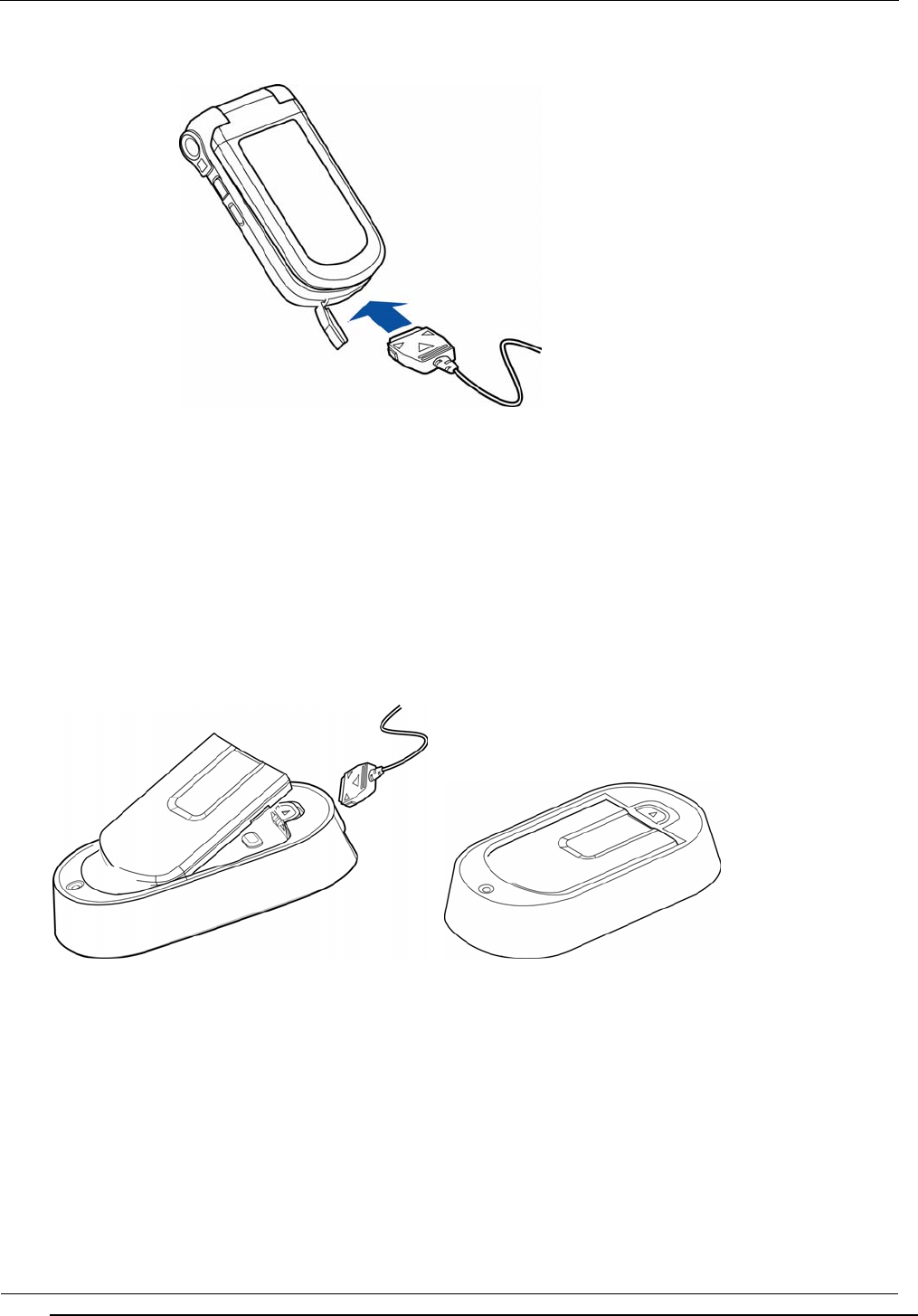
< Charging with the Travel Adaptor>
1. Plug your Travel Adaptor into the external socket at the bottom of your phone.
The percentage of charging will be indicated on the main display screen.
After complete charging, the percentage of charging disappears.
!Note : Even after complete charging, the phone automatically checks the battery status during the
Travel Adaptor is inserted. Once it detects that the battery level is below full status, it will
automatically recharge the battery.
INNO-A21 User’s Guide INNOSTREAM Confidential
PAGE : 14 of 130
< Charging with the Battery Charger>
1. Plug your Travel Adaptor into the charger socket at the bottom of the Battery Charger.
2. Sit your battery into the holder of the Battery Charger properly sliding down.
The LED indicator of the Battery Charger indicate the charging status as follow.
- Green Color : It indicates idle state or full-charged state.
- Red Color : It indicates the battery is being charged.
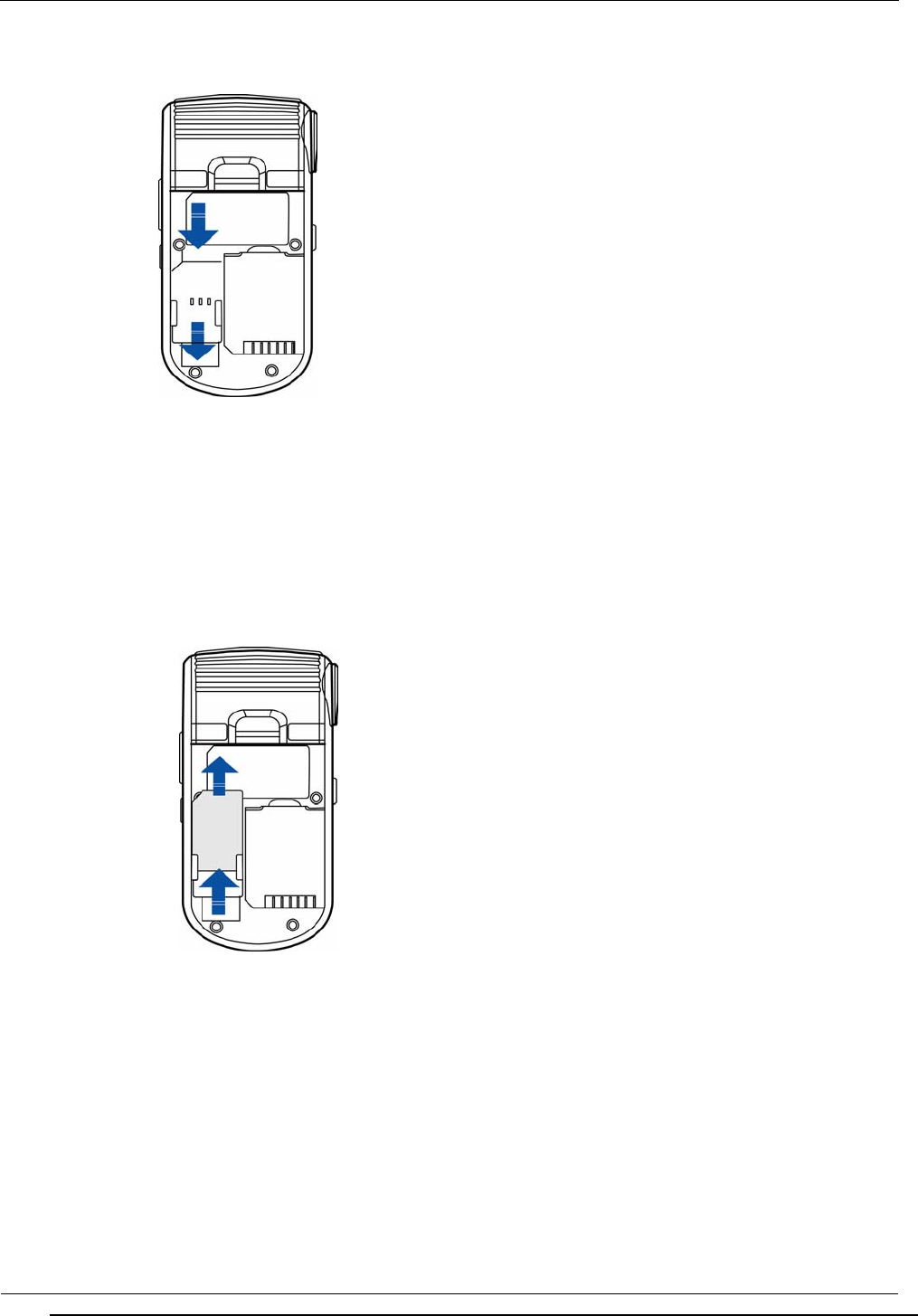
2.4 How to place the SIM card
Ensure your phone is switched off and the charger is detached first before you start the following
steps.
1. Remove the battery.
2. Sit your SIM card into the holder. Beware the direction of the SIM card.
3. Slide the SIM card into the holder.
INNO-A21 User’s Guide INNOSTREAM Confidential
PAGE : 15 of 130
2.5 How to remove the SIM card
Ensure your phone is switched off and the charger is detached first before you start the following
steps.
1. Remove the battery.
2. Slide the SIM card by pushing up the back of the card and remove it from the holder.
! Note: About the SIM card
The SIM card is a computer chip containing information about your subscription, security,
phonebook etc.
When you register as a subscriber with GSM or GPRS network operator, you are provided with the
SIM card.
Always handle the SIM card with care and insert with the gold contacts face down.
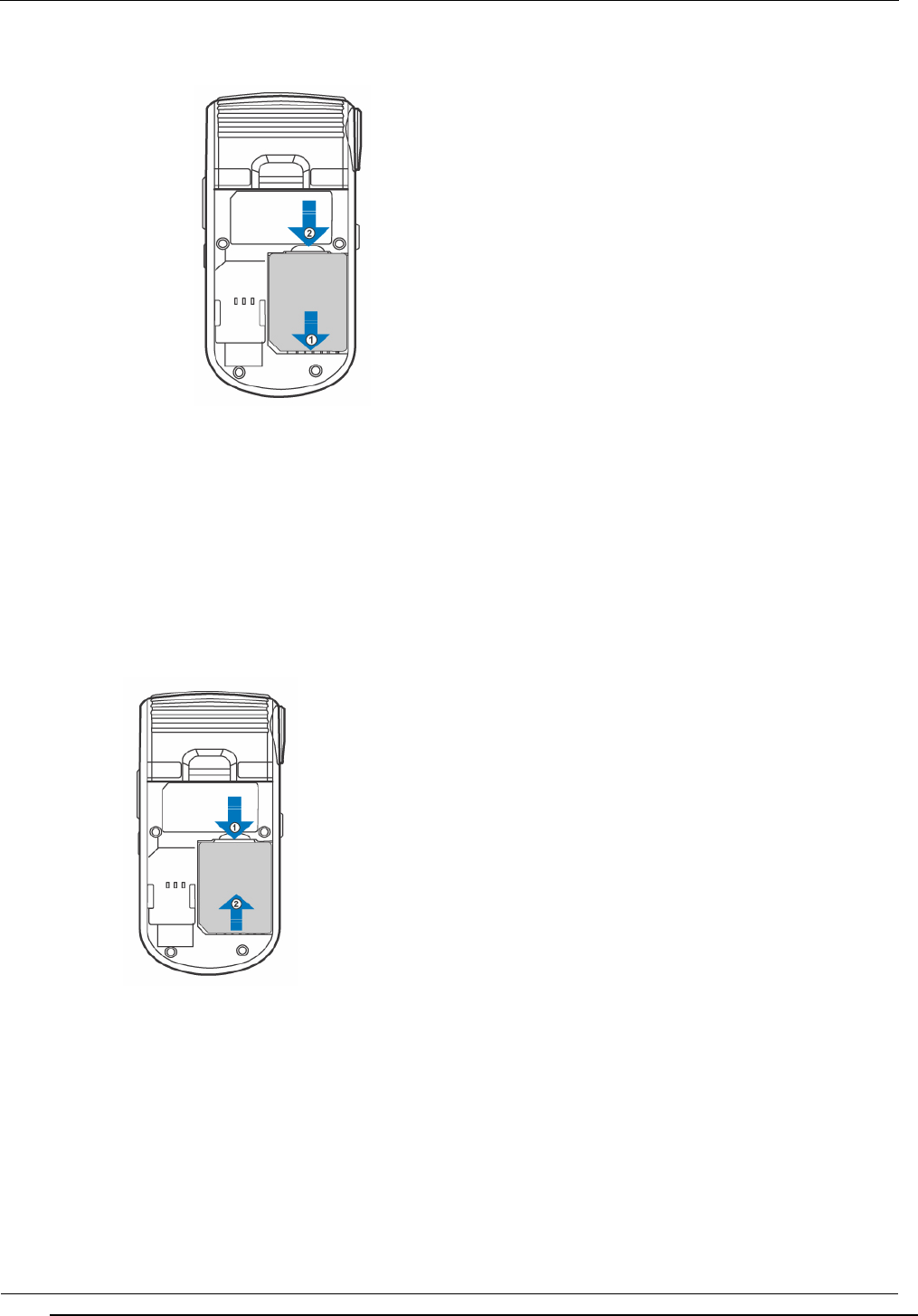
2.6 How to place the Memory Card
INNO-A21 User’s Guide INNOSTREAM Confidential
PAGE : 16 of 130
Ensure your phone is switched off and the charger is detached first before you start the following
steps.
1. Remove the battery.
2. Sit your Memory card into the slot. Beware the direction of the Memory card.
3. Slide the Memory card into the slot.
2.7 How to remove the Memory Card
Ensure your phone is switched off and the charger is detached first before you start the following
steps.
1. Remove the battery.
2. Remove the Memory Card from the slot.
! Note: About the Memory Card
Your phone comes with a ready-to-use Memory card (Memory Card)

INNO-A21 User’s Guide INNOSTREAM Confidential
PAGE : 17 of 130
You can use this Memory card to manage your files, applications and back-ups.
Always handle the Memory Card D with care and insert with the gold contacts face down.
Do not remove the card in the middle of an operation. Removing the card in the middle of an
operation may damage the Memory card as well as the device, and data stored on the card may be
corrupted.
2.8 How to switch your phone On and Off
Make sure that the battery is attached.
1. Open the Folder.
2. a) To switch your phone on, press and hold down [END] until you hear the power-on
melody.
Some SIM card may be protected with PIN.
If Enter PIN is prompted, enter your PIN and then press [Ok soft key].
For more details, please see Security Codes in section 3.
! Note: If your PIN is entered invalidly three times in succession, your SIM card is
blocked . In order to unblock it, see Security Codes in section 3.
If Enter Lock Code is prompted, enter your Lock Code and then press [Ok soft key].
The Lock Code is factory set to 0 0 0 0.
For more details, please see Security Codes in section 3.
After the phone is turned on, the phone searches for a network.
b) To switch your phone off, press and hold down [END] until you see the power-off animation.
2.9 How to using Mass storage
Make sure that the USB cable is inserted.
Note:

INNO-A21 User’s Guide INNOSTREAM Confidential
PAGE : 18 of 130
① Delete and correction of the folder in Data Storage are prohibited.
② When a phone is plugged in a USB cable, all function of a phone do not operate it.
③ While copying files phone-to-PC, you cannot receive a call.
④ In case of using a function of the USB mass storage at WIN 98 or WIN98 SE, you will be able
to download the install files from our homepage(www.innostream.com) or near AS center.
In case of copying many files at a time, it imposes a heavy burden on a Phone. We recommend you
to copy files within 5~6M byte at a time.
3. Security Codes
The security codes are used to protect your phone and SIM card from other person’s use and
control access to security and other options within the menus.
You can change the security codes (except SIM Lock Code, PUK Code, PUK2 Code). For more
details, please see the Security Setting menu in section 10.9.8.
3.1 PIN
PIN is Personal Identification Number, used to safeguard your SIM card.
PIN code is composed of at least 4 to 8 digits, and usually provided with your SIM card.
If the PIN code is entered incorrectly more than three times in succession, PIN will be blocked and
your SIM card will automatically lock-up and the Enter PUK screen will be prompted. Once your
SIM card is blocked, you must enter the unblock code (PUK) to use your phone again.
3.2 PUK
PUK is Personal Unblocking Key, used to unblock the blocked SIM card due to incorrectly entered
PIN. PUK code is composed of 8 digits, and usually provided with your SIM card. If the PUK code
is entered incorrectly ten times in succession, PUK will be blocked and your SIM card will be
automatically lock-up and the SIM Blocked message will be displayed. Once you see the message
then you need to contact your network service provider for a new SIM card.
3.3 PIN2

INNO-A21 User’s Guide INNOSTREAM Confidential
PAGE : 19 of 130
PIN2 is Personal Identification Number 2, used to access specific function of your SIM card, for
example PIN2 code is used to set a Maximum Cost, Price & Unit or a FDN.
PIN2 code is composed of at least 4 to 8 digits, is only available when your SIM card supports
such functions. If the PIN2 code is entered incorrectly three times in succession, PIN2 will be
blocked and the Enter PUK2 screen will be prompted. Therefore those functions cannot be used
until the unblock code (PUK2) is entered.
3.4 PUK2
PUK2 is Personal Unblocking Key 2, used to unblock the blocked PIN2 due to incorrectly entered
PIN2. PUK2 code is composed of 8 digits and it is only used when those functions mentioned
above are available. If the PUK2 code is entered incorrectly ten times in succession, the PUK2 will
be blocked. Therefore those functions can not be used until the unblock code(PUK2) is entered.
3.5 SIM Lock Code
SIM Lock Code is used to safeguard your phone being used by another SIM card. The SIM Lock
Code is composed of 4 digits. The code is a security code entered when you enable the SIM Lock
menu.
3.6 Lock Code
Lock Code is used to prevent your phone from being used by another person. The code is
composed of 4 digits. The code is provided with your phone and is preset from factory to default
setting of ‘0 0 0 0’
3.7 Password
Password is used to access call barring service and the code is the network password of four
digits code. In order to get the Password, you should subscribe call barring service on your
network service provider and then request for the Password.

INNO-A21 User’s Guide INNOSTREAM Confidential
PAGE : 20 of 130
4. Making and Receiving a Call
4.1 Making a call
1. To make a call on your phone, enter the area code and the phone number in the idle screen.
In case you enter a number incorrectly, press the [Clear soft key] once to delete the last digit
that you have entered. To remove all the digits, press and hold the [Clear soft key] down until
they are deleted, or press [END].
2. Press the [SEND].
If the number is identified from the phonebook, the name is displayed.
You can hear the Connect Tone when the call is answered from the called person, if you set it
On. For more details, please see Sound Setting menu in Section 10.9.2.
If you want to end the call whilst making a call, press [End soft key] or [END], or close the
folder. The screen will display a brief message and return to the idle.
! Note: The brief message at the call ending may remain long time if the network is busy.
If the earphone is inserted, or if the call is data call, the folder closing does not make
the call end.
Quick dialling from Phonebook list
1. Press [P.book soft key] in the idle screen.
Search the group with [NAVI-LEFT] or [NAVI-RIGHT] to find the group of person you want the
call to belong to.
2. Locate the cursor with [NAVI-UP] or [NAVI-DOWN] to the name or number you want to call.
3. Press [SEND].
Quick dialling from Speed Dials
Press and hold a numeric key ([0], [2] ~[8]) that represents the entry number in the Speed Dials.
Then the number assigned on the key will be automatically dialled. Please see section 6.4 for more
details.
INNO-A21 User’s Guide INNOSTREAM Confidential
PAGE : 21 of 130
! Note: [1] key is reserved for your Voicemail server number. If you press and hold the key, the
Voicemail server number will be automatically dialed.
For more detailed explanations on setting the Voicemail server number, please see
Voicemail menu in section 10.5.4.
[9] key is reserved for emergency call.
For more details of emergency call, please see Making the emergency call menu in
section 4.3.
! Note: When folder closed it is unavailable incoming/making call but If you insert earphone jack,
incoming/making call is available
Quick dialling from recent calls list
1. Press [SEND] for the recent calls in the idle screen.
2. Search the type of the recent calls with [NAVI-LEFT] or [NAVI-RIGHT].
3. Locate the cursor with [NAVI-UP] or [NAVI-DOWN] to the name or number you want to call.
4. Press [SEND].
4.2 Answering a call
1. When there is an incoming call, the phone icon on the display screen will be displayed, and the
melody will sound or the vibrator will work according to the setting.
If the caller is identified, the caller photograph and caller phone number/name (if stored in the
Phonebook) are displayed and caller group name on the screen is displayed.
The following small fixed icons are available.
: indicates No Group.
: indicates Family group.
: indicates Friends group.
: indicates Colleague group.
: indicates Business group.
: indicates VIP group.
: indicates Group1 (User defined group 1).
: indicates Group2 (User defined group 2).
: indicates Group3 (User defined group 3).

INNO-A21 User’s Guide INNOSTREAM Confidential
PAGE : 22 of 130
If the caller is not identified by network, No Number or Withheld (if the network suppresses the
number display) is displayed.
2. Press [Answer soft key] or [SEND] or open the folder to answer the incoming call.
If Any Key Answer menu option is set to On and the folder has been opened, you can press
any key to answer the call except for the [End soft key] or [END].
! Note: if the call is data call, the folder opening does not make the call answer.
3. If you want to mute incoming call alerting sound when the Folder has been closed, press
[VOLUME-UP] or [VOLUME-DOWN]. If you press [VOLUME-UP] or [VOLUME-DOWN] again
it will reject the incoming call
Press [End soft key] or [END], or close the folder when the folder has been opened.
The call number is saved in the missed calls list.
! Note: If the earphone is inserted, or if the call is data call, the folder closing does not make the
call reject.
If the folder is closed, [VOLUME-UP] or [VOLUME-DOWN] is used for mute/reject the
incoming call regardless of the Any Key Answer menu.
! Note: When folder closed it is unavailable incoming/making call but If you insert earphone jack,
incoming/making call is available
4.3 Making the emergency call
It is possible to call the emergency services if there is a GSM/GPRS network within reach. You can
dial the emergency number even if the handset is locked, or there is no SIM card in your phone, or
your phone cannot be registered with your home network.
1. Enter 112 to call the emergency services.
2. Press [SEND].
3. or [9] key is reserved for your SOS number. If you press and hold the key, the SOS number
will be automatically dialled.
! Note: In the situation such as power-on that Enter Lock Code or Enter PIN is prompted, press
simply the [SOS soft key] to call the emergency services.

INNO-A21 User’s Guide INNOSTREAM Confidential
PAGE : 23 of 130
Some network may not allow the emergency call (112) and may request to insert SIM
card.
4.4 Making an international call
1. Press and hold down the [* ] until ‘+’ sign appears to dial an overseas number.
The ‘+’ tells the network that the call is international.
2. Enter the country code, the area code (without the leading zero) and the phone number.
! Note: Some network may not allow the international call with ‘+’.
4.5 Entering a “Pause” Character in a Dial String
A pause character may be entered into a dial string by pressing and holding down [#] until a ‘P’
sign appears.
4.6 Notification of Missed Call
If you are unable to answer an incoming call for a reason or if you reject the call, the Missed Call
notification message is displayed.
You can immediately obtain a list of incoming missed calls (calls not answered) from the idle
screen by pressing the [View soft key].
5. In-Call Options
Your phone provides a number of call control functions that you can use during a call.
To access these call control functions, press the [Option soft key] or right function soft key
during a call.
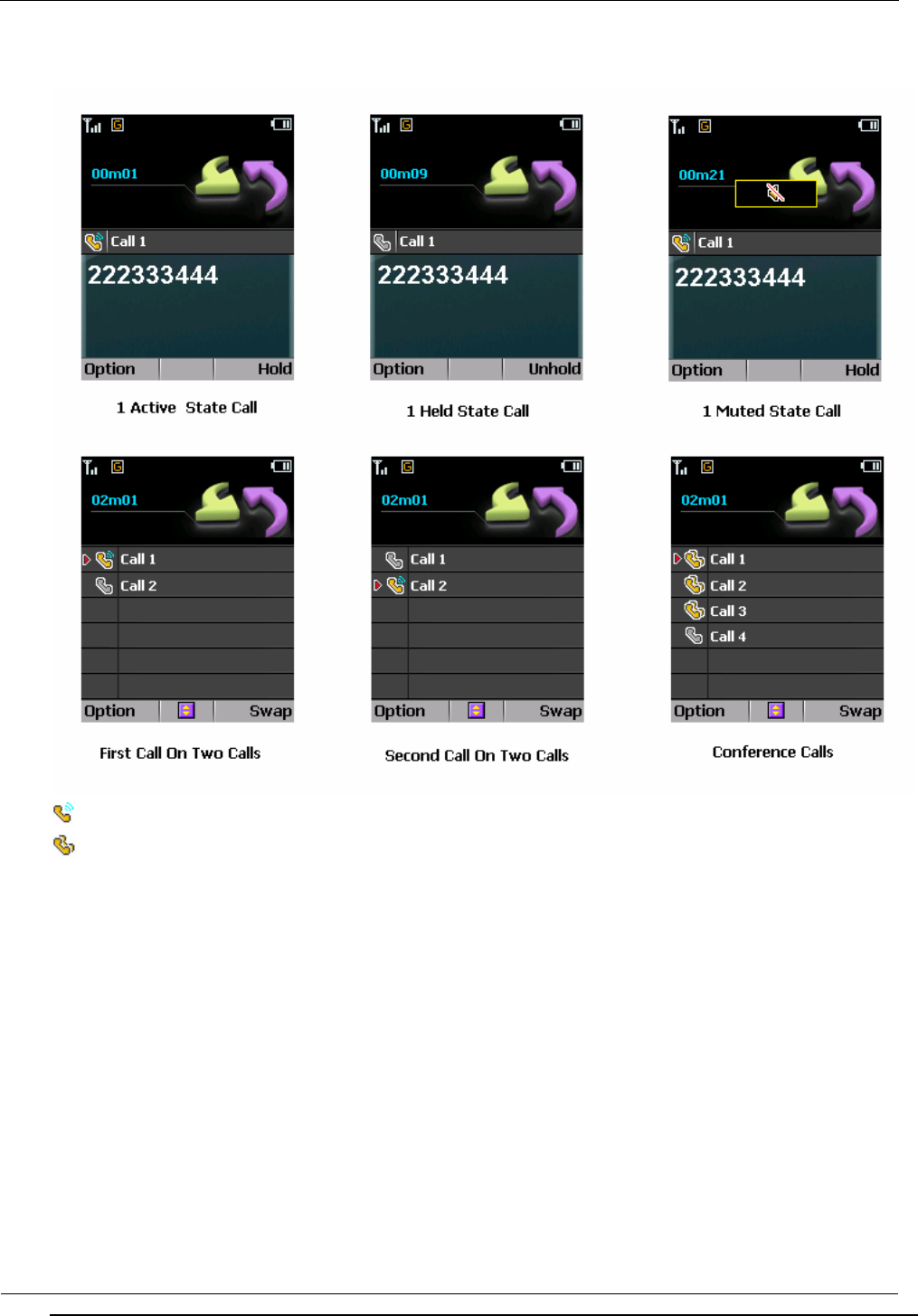
The following illustrations show the example of the display according to the call state.
INNO-A21 User’s Guide INNOSTREAM Confidential
PAGE : 24 of 130
icon in the title area of the screen indicates that you are currently on a call.
icon in the title area of the screen indicates that you are in the conference call state. (For
example, 2 active calls or 1 held calls)
You can focus to next or previous call by pressing [NAVI-UP] or [NAVI-DOWN].
In the main area of the screen, you can see the number or name (if stored in the phonebook) and
the call state of the focused call. Depending on your subscription, you may see the remaining cost
in the bottom area of the screen.
The time counter in the bottom area of the screen starts when the call starts and indicates how
long you have been on the call.
! Note: All of the call control options are not always displayed through all calls, necessary options
only will be displayed according to the call state.

INNO-A21 User’s Guide INNOSTREAM Confidential
PAGE : 25 of 130
5.1 Putting a call on hold/unhold
You can put the current call on hold when the call is active state if this service is supported on the
network.
Press [Hold soft key] to hold active call.
To make the held call reactivate, press [Unhold soft key].
5.2 Making a second call
You can make a second call whilst you are in a call.
1. Enter the second phone number or fetch it up via Phonebook option.
2. Press [SEND]. The first call is automatically put on hold if the second call is made.
< Connecting the first participant with another participant>
If you press [Transfer soft key] whilst the second call is being made, the function allows you to
make two participants connect, and then allows you to leave the conversation by itself. Thereafter,
two participants are connected to each other.
5.3 Swapping between active calls and held calls
You can swap calls whilst there are active calls and held calls on conversation.
Press [Swap soft key].
The current active calls are placed on hold and the held calls are reactivated.
5.4 Answering a second incoming call
You will be notified of an incoming call whilst you are in a call. Call waiting tone sounds in the
earpiece, and the display will show that a second call is waiting. This feature, known as Call
Waiting, is only available if the network supports it and if you have set the Call Waiting menu to
Activate.
For details of how to activate and deactivate it, please see Call Waiting menu in Section 10.9.9.
You can answer the second incoming call by pressing [Answer soft key] or [SEND].
The first active call is automatically put on hold, and then the incoming call is active.

INNO-A21 User’s Guide INNOSTREAM Confidential
PAGE : 26 of 130
If the incoming call is coming whilst you already have active calls and held calls, the following
options are available by pressing [Option soft key] or [SEND].
• End Active Call : makes active calls end and answer the incoming call.
• End Held Call : makes held calls end and answer the incoming call.
You can reject the second incoming call during a call without answering it by pressing [Reject soft
key] or [END].
5.5 Adjusting the earpiece volume
During a call, you can adjust the earpiece volume.
To increase the volume, press [VOLUME-UP].
To decrease the volume, press [VOLUME-DOWN].
5.6 Muting the microphone
You can mute the microphone during a call by selecting the Mute option in the Option menu so that
the other party cannot hear you.
You can unmute by pressing the Unmute option in the Option menu, and then the other party can
hear you again.
5.7 Sending DTMF
You can turn off the DTMF tone by selecting the DTMF Off option so that the tone is not
transmitted to the remote end during a call.
You can turn on the DTMF tone by selecting the DTMF On option.
The option is automatically reset to the DTMF On when a call is started.
! Note: To communicate with answering machine, you must use with the DTMF On state.
5.8 Storing a number on the scratchpad
You can store a number you entered during a call.
1. Enter a number during a call.
2. Press [Option soft key] and select New Contact to store it to the Phonebook.
If the number entered remains not deleted without saving, the number will be displayed on the
screen after ending the call.

INNO-A21 User’s Guide INNOSTREAM Confidential
PAGE : 27 of 130
5.9 Using the SMS function
You can read or create SMS messages during a call by selecting the SMS option.
For details of how to use it, please see SMS menu in Section 10.5.1.
5.10 Using the loudspeaker
You can turn on the loudspeaker by selecting the Loudspeaker On option so that the speech from
the remote end is heard in the loudspeaker.
The option is automatically reset to the Loudspeaker Off when a call is started.
! Note: To enjoy with best sound quality, please use this function in the silent place.
5.11 Making a conference call
The conference call service provides you with the ability to have a simultaneous communication
with up to six persons if this service is supported on the network.
! Note: The Conference Call Service may not be available on all networks.
Setting up a Conference Call
1. Make first call in a normal way.
2. Make second call whilst you’re already in a call, then the first participant is automatically put
on hold.
3. To join the first participant to the conference call, press [Option soft key] and select the
Join All option. icon will be displayed which means currently in conference call.
All the conference call participants can now hear each other.
4. To add a new participant to the conference call, repeat step 2 and step 3 as required.
You can add incoming callers into conference call by answering the call and pressing [Option
soft key], followed by the Join All option.
Available Options
Please proceed as following sequence to use appropriate option on conference call state.
1. At first, focus on the participant who you want by scrolling through the participants with using
[NAVI-UP] or [NAVI-DOWN].
2. Press [Option soft key].

INNO-A21 User’s Guide INNOSTREAM Confidential
PAGE : 28 of 130
The following options relevant to conference call are available.
Hold All : puts the conference call (all active calls) on hold.
Private : makes a private call with the focused participant (whose details is currently
displayed on-screen) of the conference call, then puts the other participants on hold
automatically.
Join All : joins all held calls to the conference call.
Transfer : allows you to make two participants connect, then drop your call from the
conversation. Two participants are connected to each other.
It can be available when one participant is on hold and the other participant is active,
or when one participant is on hold and you are making the other call.
End Active Call : makes all active calls end and keep the held call.
! Note: [END] is used for dropping the focused call.
If you close the folder, the conference call is ended.
5.12 Record Speech
You can record the conversation during a call by selecting the Record Speech option.
6. Phonebook
! Note: If you change with another SIM card, you may lose the information of phonebook data in
the previous SIM card. If you do so, the type of the number, text memo and group type may be
lost. Only the name and telephone number will remain in previous SIM card.
You can store the phone numbers and their corresponding names in the memory of your SIM card.
In addition, you can store up to 1000 numbers and names into your phone memory. The SIM card
memory and phone memory is physically separated but they are searched as a single entity.
You can protect your phonebook information against other persons.
For more details, please see Security Setting menu in Section 10.9.8.
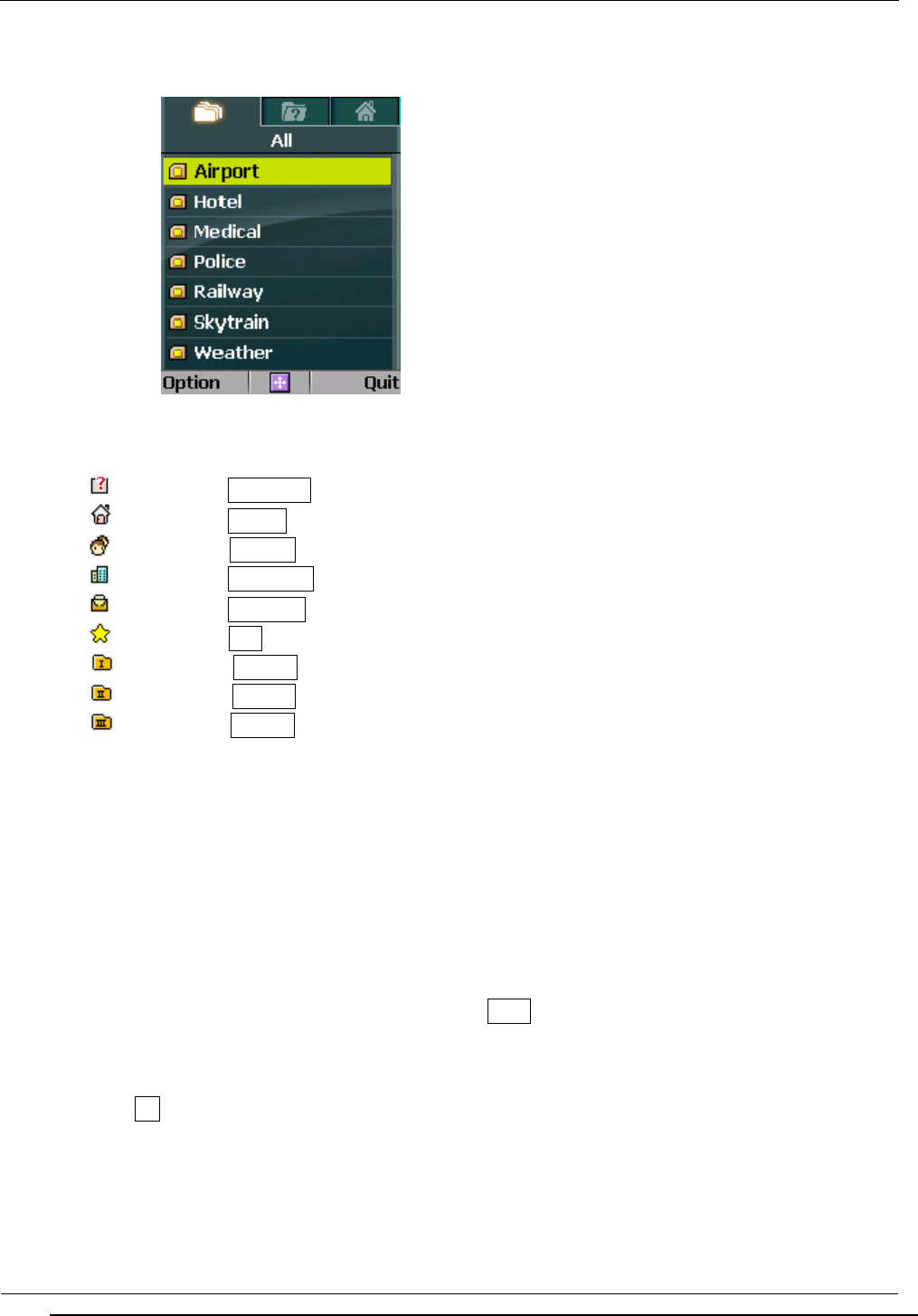
The following illustration shows an example of the display of phonebook list.
INNO-A21 User’s Guide INNOSTREAM Confidential
PAGE : 29 of 130
The small icon on the far left side of each record indicates the group type.
The following small group icons are available.
: indicates No Group.
: indicates Family group.
: indicates Friends group.
: indicates Colleague group.
: indicates Business group.
: indicates VIP group.
: indicates Group1 (User defined group 1).
: indicates Group2 (User defined group 2).
: indicates Group3 (User defined group 3).
The scroll-bar on the right side of the screen indicates current position of the record on which
menu cursor is located.
The small icon on the far left side of the each record indicates the record group type.
You can move to another group by pressing [NAVI-LEFT] or [NAVI-RIGHT] key.
6.1 Storing a phone number with a name
1. Enter the number at the idle screen and press [Save soft key].
2. Enter the name of the person or service.
If you want to know more about input mode please see section 8.
Press [Ok soft key] when the name input is completed.
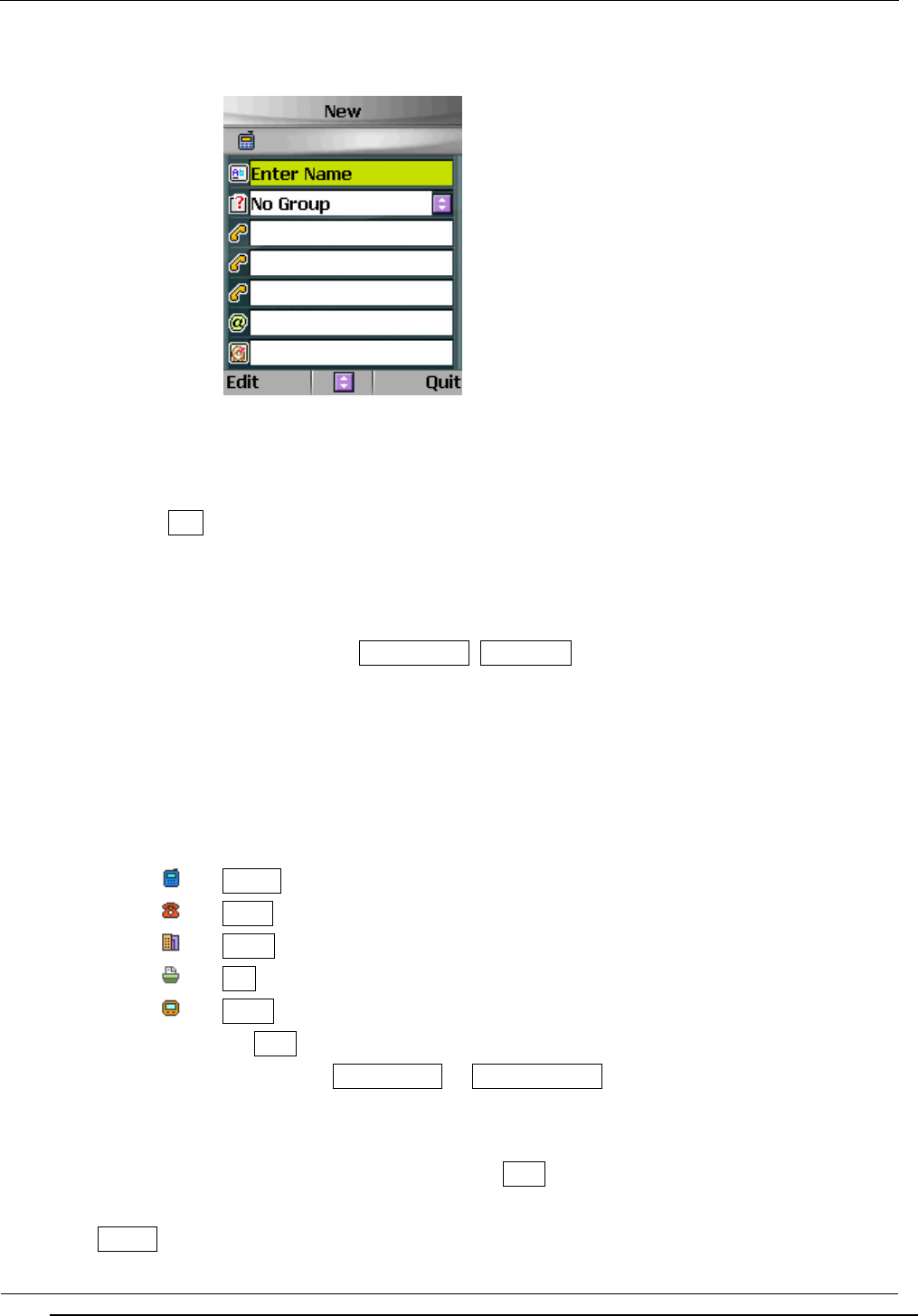
3. You can see the following screen.
INNO-A21 User’s Guide INNOSTREAM Confidential
PAGE : 30 of 130
With pressing [NAVI-UP] or [NAVI-DOWN], you can move the editing cursor to the item that
you wish to edit or add.
Press the [Edit soft key], and you can edit or add the item.
For each name, you can set the group of the name with adequate group icon explained before.
You can save up to three(3) telephone numbers, one E-mail address and one image for each
name. You can apply image from Photo Album, Image File. Assigned Image will be displayed on
Sub/Main LCD when Incoming/outgoing calls.
! Note: Image which can be assigned is limited to 96x96 pixel dimension .
For each number, you can set the type of the number with following icons.
: Mobile
: Home
: Office
: Fax
: Pager
After editing, press [Save soft key] to save the record.
The record will be saved into SIM memory or Phone Memory according to choice.
Storing a phone number using exist phonebook list
1. Enter the number at the idle screen and press [Save soft key].
2. When editor is empty, you can store a phone number using the phonebook list by pressing the
[P.book soft key].

INNO-A21 User’s Guide INNOSTREAM Confidential
PAGE : 31 of 130
6.2 Quick searching for a number in the phonebook
1. Press the [P.book soft key] in the idle screen.
The names stored in the phonebook will be listed in alphabetical order.
2. Press the letter of the name that you want to search for.
! Note: If you found the name, you can dial the number by pressing [SEND].
6.3 Storing a number of the recent calls to the phonebook
1. Press [SEND] in the idle screen. Recent Dialled calls list will be displayed.
With pressing [NAVI-LEFT] or [NAVI-RIGHT], you can move the screen cursor to another
call record type screen.
With pressing [NAVI-UP] or [NAVI-DOWN], you can move the list cursor to the recent
number.
2. Press [View soft key] on the name that you wish to store.
3. Press [Paste soft key] and then press [Option soft key] and select New Contact
6.4 Speed Dials
You can add, change, delete or view the Speed Dial Numbers by Speed Dials option on the Settings
option.
To speed dial one of these numbers on the idle screen, press and hold the numeric key ([0], [2]
~[8]) that represents the entry in the speed dial list. The number is automatically dialled without
further input.
!Note : Speed Dials record will be stored in the Phone memory regardless of SIM card.
[1] key is reserved for your Voicemail server number. If you press and hold the key, the
Voicemail server number will be automatically dialed.
For more details of setting the Voicemail server number, please see Voicemail menu
in section 10.
[9] key is reserved for emergency call.
For more details of emergency call, please see Making the emergency call menu
in section 4.3.

INNO-A21 User’s Guide INNOSTREAM Confidential
PAGE : 32 of 130
Viewing a number of the Speed Dial List
1. Press [P.book soft key] in the idle screen.
2. Press [Option soft key] in the phonebook name list screen.
3. Select Settings option.
4. Select Speed Dials option.
5. You can view number from the phonebook by pressing the [View Number soft key].
Changing a new number to the Speed Dial List
1. Do step 1 to step 4 in the viewing sequence.
2. Locate the menu cursor to a list you wish to edit, and then press [Option soft key].
3. Select Change option.
4. You can get a new number from the phonebook by pressing the [Select soft key].
Adding a new number to the Speed Dial List
1. Do step 1 to step 4 in the viewing sequence.
2. Locate the menu cursor to a <Empty> list, and then press [Option soft key].
Select Add option.
3. Press [select soft key] after selecting the number using Phonebook list.
Deleting a number in the Speed Dial List
1. Do step 1 to step 4 in the viewing sequence.
2. Locate the menu cursor to a list you wish to delete, and then press [Option soft key].
3. Select Delete option. The list will be displayed as <Empty>.
Deleting all numbers in the Speed Dial List
1. Do step 1 to step 4 in the viewing sequence.
2. Locate the menu cursor to a list you wish to delete, and then press [Option soft key].
3. Select Delete all option. All list will be displayed as <Empty>.
6.5 Using the Phonebook options
If you press [Option soft key] after locating the menu cursor to the name you wish to do an action,
the following options are available.
Open : views the details of the selected record.
Call : making call to the selected record.
Search : searches the record you want to find.
INNO-A21 User’s Guide INNOSTREAM Confidential
PAGE : 33 of 130
Send SMS : send SMS message to the selected record.
Send MMS : send MMS message to the selected record.
New : adds a new record.
Edit : edits the number, the name, the group, the Email address and the photograph of the
selected record.
Change Group : changes the group type of the selected record.
Copy To SIM or Copy To Phone : copy selected record to another memory.
Copy All : copy all records to another memory.
Delete : deletes the selected record.
Settings : You can set overall phonebook control.
The following options are available.
- Speed Dials : views, adds, changes or deletes the Speed Dial Number.
- Memory Status : identifies the status use in your SIM card and your phone memory.
- Group Setting: set the Ring Melody for each group type and group name.
- Delete All : delete all records in SIM or Phone memory.
7. Multimedia Menu & Camera Menu
7.1 Multimedia Menu
If you input [MULTIMEDIA] key in the idle status, you can see the multimedia menu. If you press
[SELECT] or [NAVI-CENTER] key after locating the menu cursor to the name you wish to do an
action, the following sub menus are available.
INNO-A21 User’s Guide INNOSTREAM Confidential
PAGE : 34 of 130
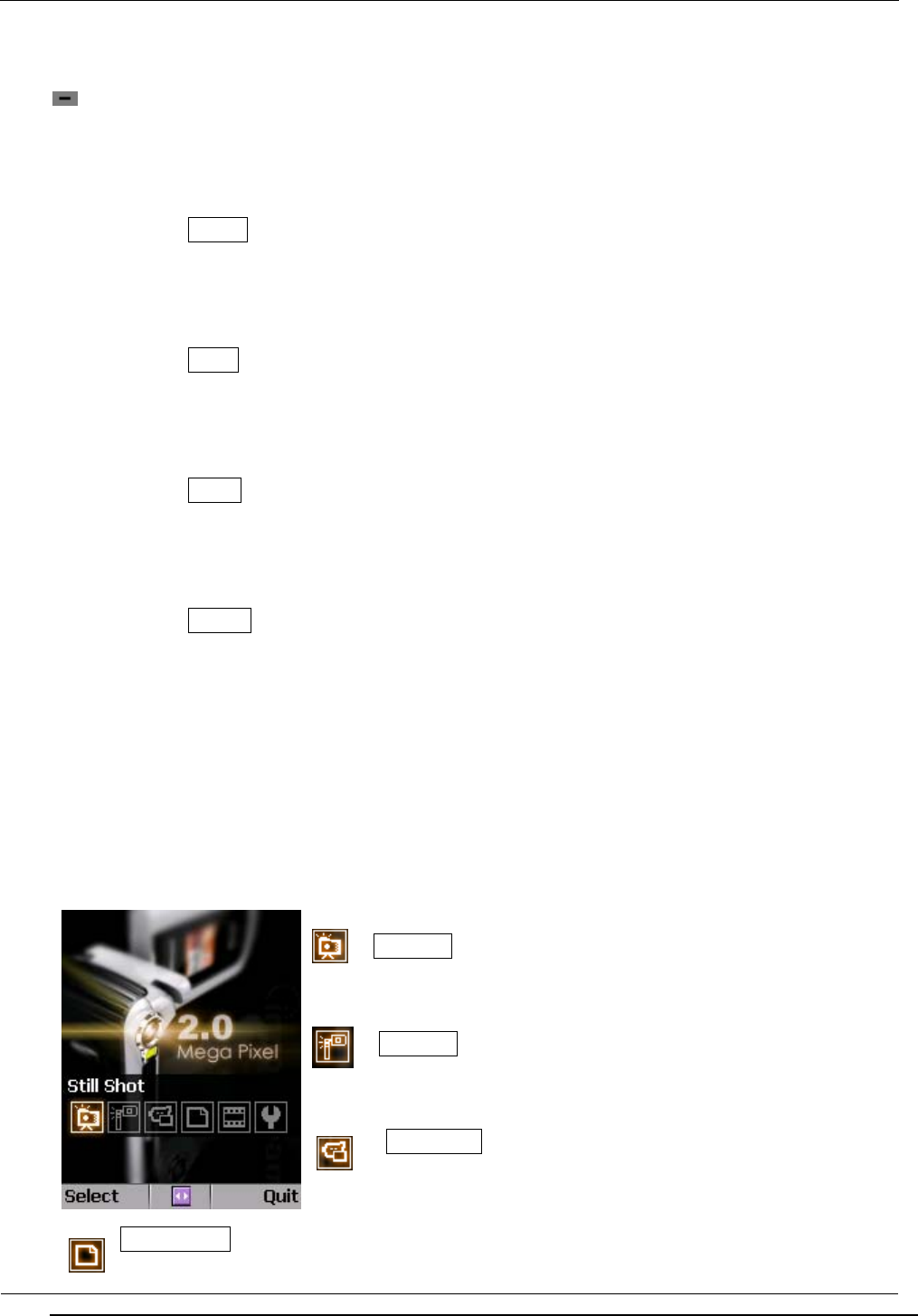
1. Mp3 Player
- If you press [Mp3 Player key] : Load the Mp3 Player.
- If you wish add Mp3 file that use Mp3 menu in main menu.
* If you have MMC-Card then select Phone memory or MMC.
* If you don`t have MMC then load Phone memory.
2. Mp4
- If you press [Mp4 key] : Load Mp4 Folder
Player Control
You can load the mp4 files by selecting these in this menu or in file manager.
If you load the mp4 file, you can see the time information in the upper side of the screen and the
video player control box in the underside of the screen as follows.
: By pressing [NAVI-CENTRE] key, you can play and pause a video clip, By pressing during
play, you can pause.
: By pressing and holding [NAVI-RIGHT] key during play or pause, you can skip a video clip
which is currently playing.
: By Pressing and holding [NAVI-LEFT] key during play or pause, you can rewind a video clip
which is currently playing.
: By press [NAVI-UP] key, you can increase volume. You can also increase volume with
[VOLUME-UP] key.
INNO-A21 User’s Guide INNOSTREAM Confidential
PAGE : 35 of 130
: By press [NAVI-DOWN] key, you can decrease volume. You can also decrease volume with
[VOLUME-DOWN] key.
3. Games
- If you press [Games key] : Load Game menu.
- Play Games.
4. Audio
- If you press [Audio key] : Load Audio folder.
- Listen to the Audio files.
5. Image
- If you press [Image key] : Load Image folder.
- View the Image.
6. Download
- If you press [MFlash key] : Load Download folder.
- View the VIS, MSF, etc…, downloaded to internet.
7.2 Camera Menu
If you press [CAMERA] key in the idle status, you can see the camera menu. If you press
[SELECT] or [NAVI-CENTER] key after locating the menu cursor to the name you wish to do an
action, the following sub menus are available.
Still Shot
You can take a picture using built-in camera.
Self Shot
You can take a picture of you by yourself.
Camcorder
You can record a video clip that saved as mp4 or 3gp file.
Photo Album
INNO-A21 User’s Guide INNOSTREAM Confidential
PAGE : 36 of 130
You can see photos taken by built-in camera.
Camcorder Album
You can see video clips recorded by built-in camera.
Setting
You can set camera environments for Still Shot and Camcorder.
8. Text Editing
8.1 Input Mode
The editing situation is as follows.
Editing a message or string in Create Message menu, Template menu, User Define CUG menu,
Add Schedule menu (of the Calendar menu), Memo menu and Editing and input of the name of
Phonebook, name and Address of e-mail setting, Add Bookmarks name (Browser), WAP Browser,
and name of Connection Settings menu(URL Browser editing).
The initial input mode is automatically switched according to the Language Setting menu.
You can change the input mode by pressing [NAVI-CENTRE] on each editing screen.
You can select from character input mode, number input mode, and symbol input mode by pressing
[NAVI-CENTRE].
If you press [Option soft key]on each editing screen, you can select option menu regarding the
text editing and the previous menu.
Option menus regarding the text editing are Dictionary On (or Dictionary Off), Dictionary Language,
and Template.
Exceptionally, when editing a home page URL in Connection Settings menu (URL Browser editing),
you cannot select Dictionary Language mode.
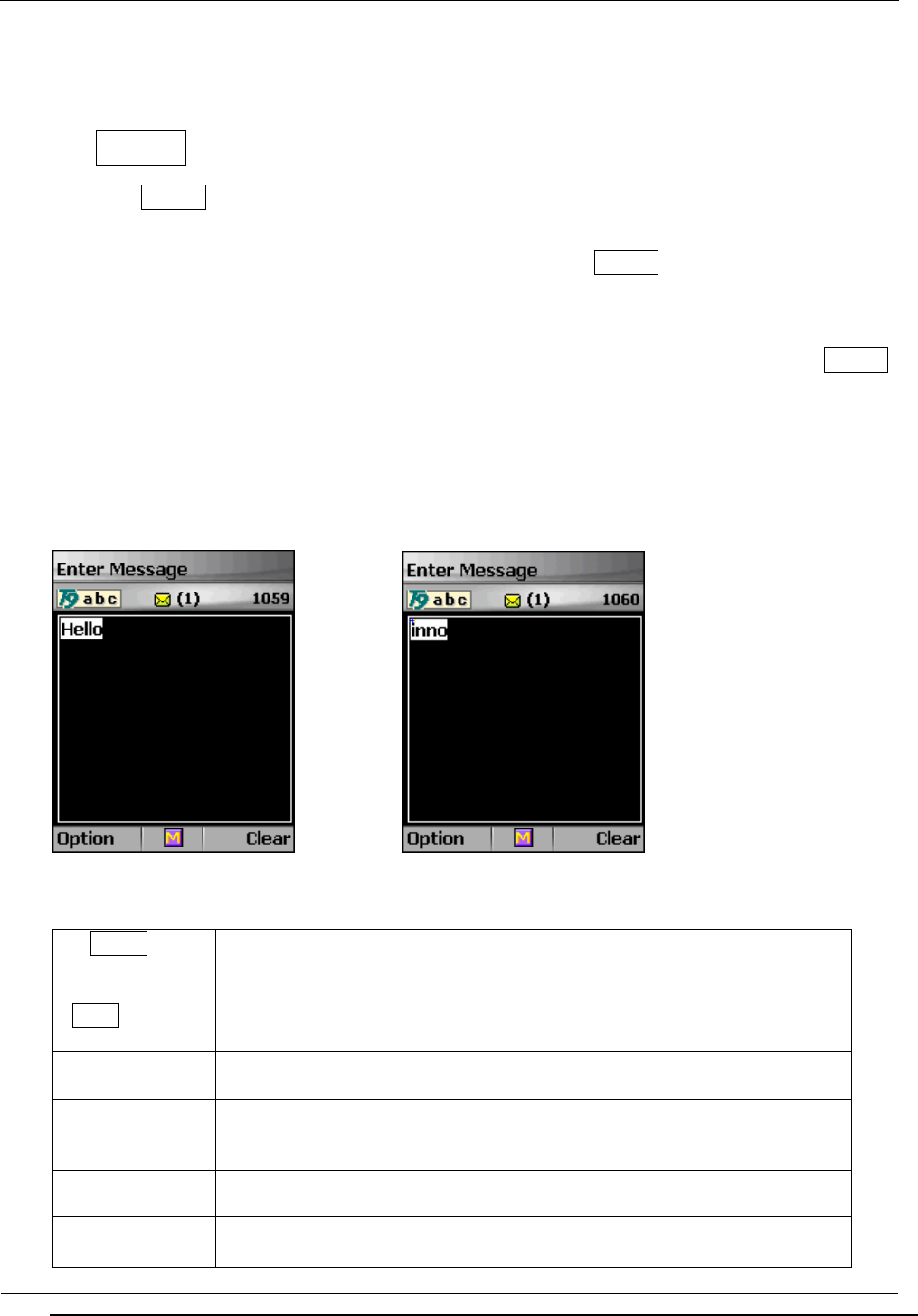
If you are in the T9 Abc mode, the [NAVI-CENTRE] or the [#] key is used to switch the letter
entry mode. ( -> -> -> -> )
If you are in the Dictionary Offmode, the [NAVI-CENTRE] or the [#] key is used to switch the
letter entry mode. ( -> -> -> )
INNO-A21 User’s Guide INNOSTREAM Confidential
PAGE : 37 of 130
8.2 T9 Abc input mode
Using the T9 Abc mode, you can enter words by successively pressing the key corresponding to
each letter in order to get the desired word. Although each key of the numeric keypad represents
several letters, only one key press per letter is required. The T9 Abc mode matches your
keystrokes to its Linguistic Database to determine which word the user intended to spell. With
each keystroke, the Word or Candidate Selection List is updated and the most likely interpretation
of the keystrokes is presented. In cases where more than one interpretation is possible, T9 Abc
mode presents interpretations in order of their frequency of use in the language. In these case,
you can see a small blue mark, ‘*’ and the user selects the desired word or character from the
interpretations by using [*] key.
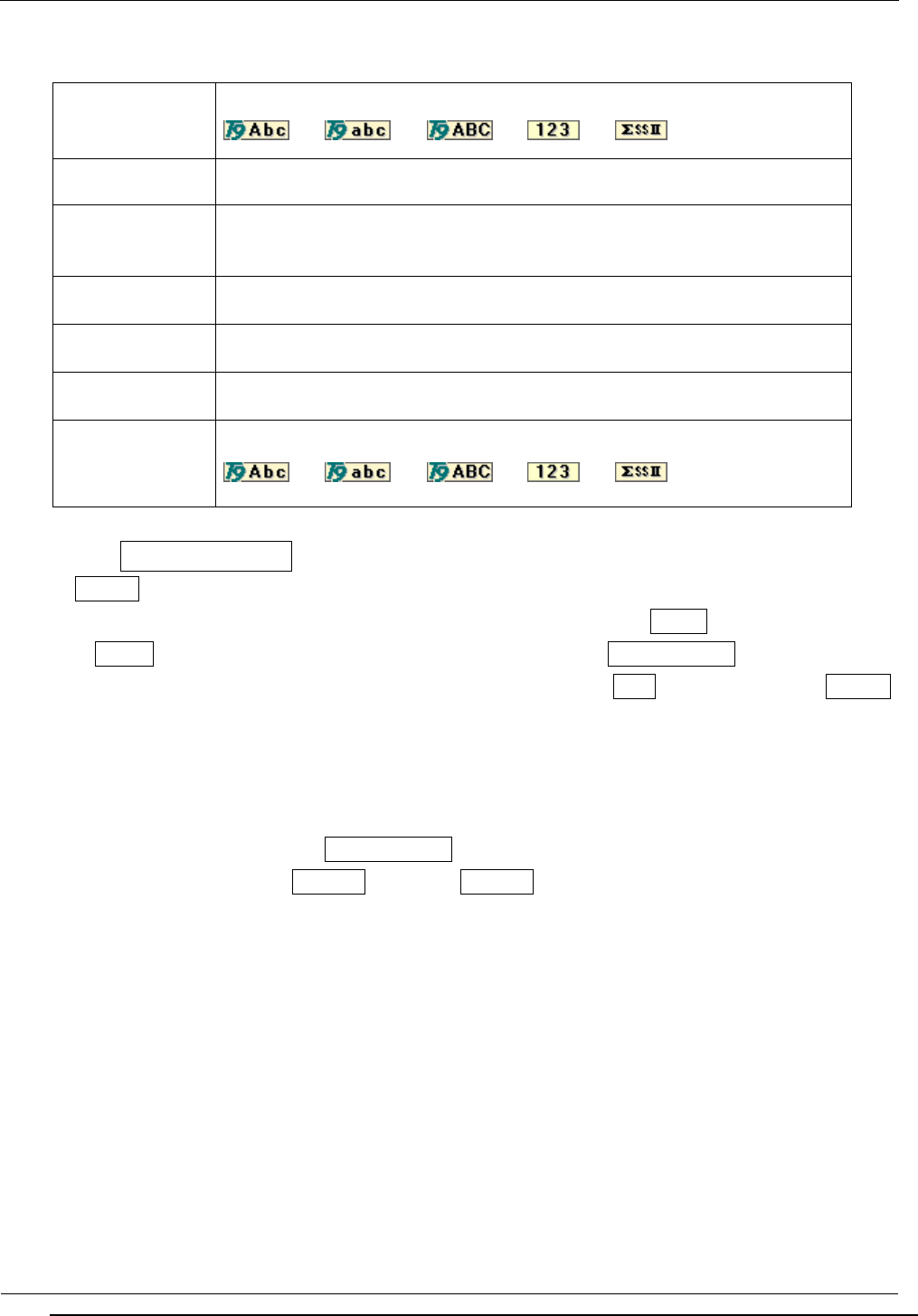
[Example Screen]
[Key Function Table]
[Option soft
key] select option menu regarding the text editing and the previous menu.
[Clear soft key]
Short : clears a character of the string entered on the editing area
or clears a character on the active word(the word remain active).
Long : clears all characters
[NAVI-LEFT] accepts the active word and then moves the cursor to left direction by
a character on the editing area.
[NAVI-RIGHT]
1. moves the cursor to right direction by a character on the editing
area.
2. space
[NAVI-UP] moves the cursor to previous line if you are not in a word editing.
[NAVI-DOWN] moves the cursor to next line if you are not in a word editing.
INNO-A21 User’s Guide INNOSTREAM Confidential
PAGE : 38 of 130
[NAVI-
CENTRE]
switches the letter entry mode.
-> -> -> ->
[END] turns back to previous menu or screen.
[1]
Short: Smart punctuation (You can enter some popular symbol
character using [1])
Long: Number entry.
[2] - [9] Short:Text entry.
Long: Number entry.
[0] Short:Space (It means the previous word entry is accepted)
Long: Number entry.
[*] switches the word entered on the editing area to next similar word
during word editing.
[#] switches the letter entry mode.
-> -> -> ->
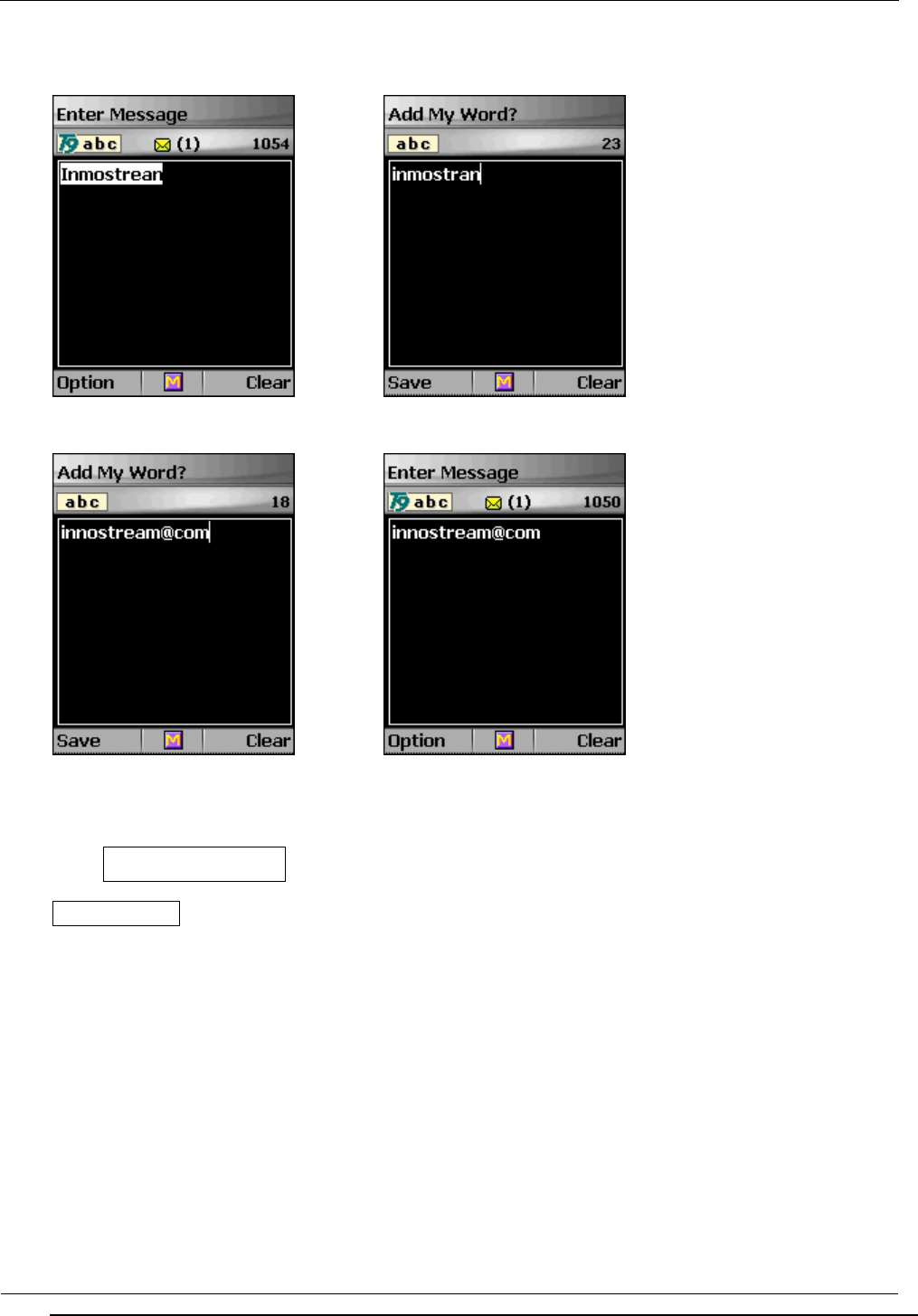
8. 2. 1 Add My Word?
In T9 Abc mode, when a word which matches your key stroke is not in Linguistic Database or
when you do not find a desired word in candidate selection list, the [Option soft key] changes to
the [SPELL key]. If you push this key, input mode changes to Add My Word? mode and you can
add a word to the Linguistic Database in this mode. If you press Save soft, you return to T9 Abc
input mode and the word is automatically added to the Linguistic database. You can add email,
web-site address, etc. to the Linguistic Database. You can select added words in candidate list.
In this input mode,
Initial default input mode : Dictionary Off mode
Optional input modes : Numeric mode and Symbols mode.
You can change input mode by pressing [NAVI-CENTRE].
[Example Screen]
INNO-A21 User’s Guide INNOSTREAM Confidential
PAGE : 39 of 130
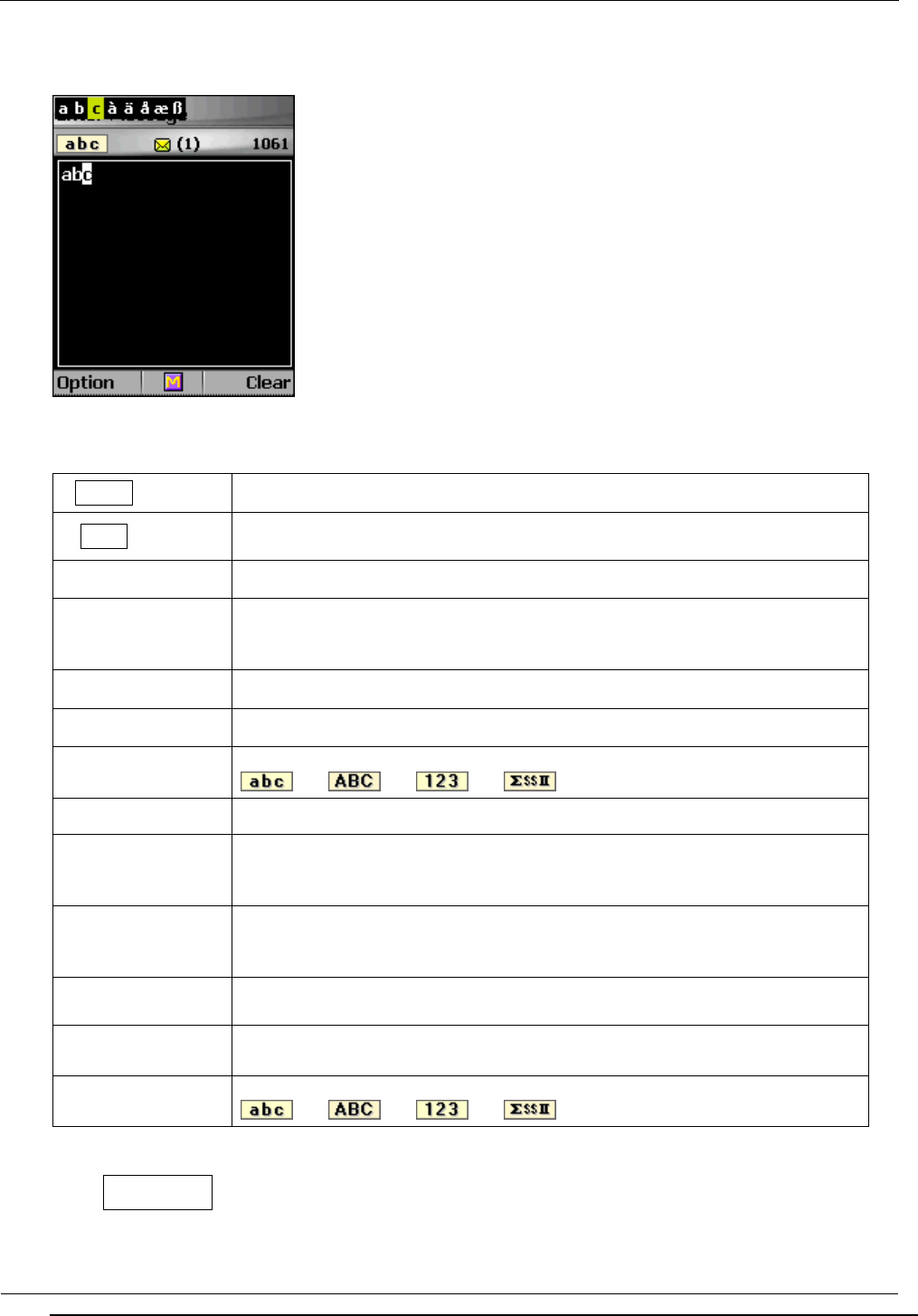
8. 3 Dictionary Off input mode
Dictionary Off input mode provides a method of explicit spelling normally used on devices with a
limited set of mechanical keys. In English, a keypad is automatically switched according to phone
language setting. To choose a letter on a keypad, the key is pressed the appropriate number of
times, rapidly in succession, once for the first letter, twice for the second letter etc.
[Example Screen]
INNO-A21 User’s Guide INNOSTREAM Confidential
PAGE : 40 of 130
[Key Function Table]
[Option soft key] select option menu regarding the text editing and the previous menu.
[Clear soft key] Short : clears a character of the string entered on the editing area.
Long : clears all characters
[NAVI-LEFT] moves the cursor to left direction by a character on the editing area.
[NAVI-RIGHT]
1. moves the cursor to right direction by a character on the editing
area.
2. space
[NAVI-UP] moves the cursor to previous line on the editing area.
[NAVI-DOWN] moves the cursor to next line on the editing area.
[NAVI-CENTRE] switches the letter entry mode.
-> -> ->
[END] turns back to previous menu or screen.
[1]
Short: Smart punctuation (You can enter some popular symbol
character using [1])
Long: Number entry.
[2] – [9]
Short : character entry allocated to each key by consecutive key
press.
Long : Number entry
[0] Short:Space
Long: Number entry.
[*] By consecutive key press, you can enter some popular symbol
character.
[#] switches the letter entry mode.
-> -> ->
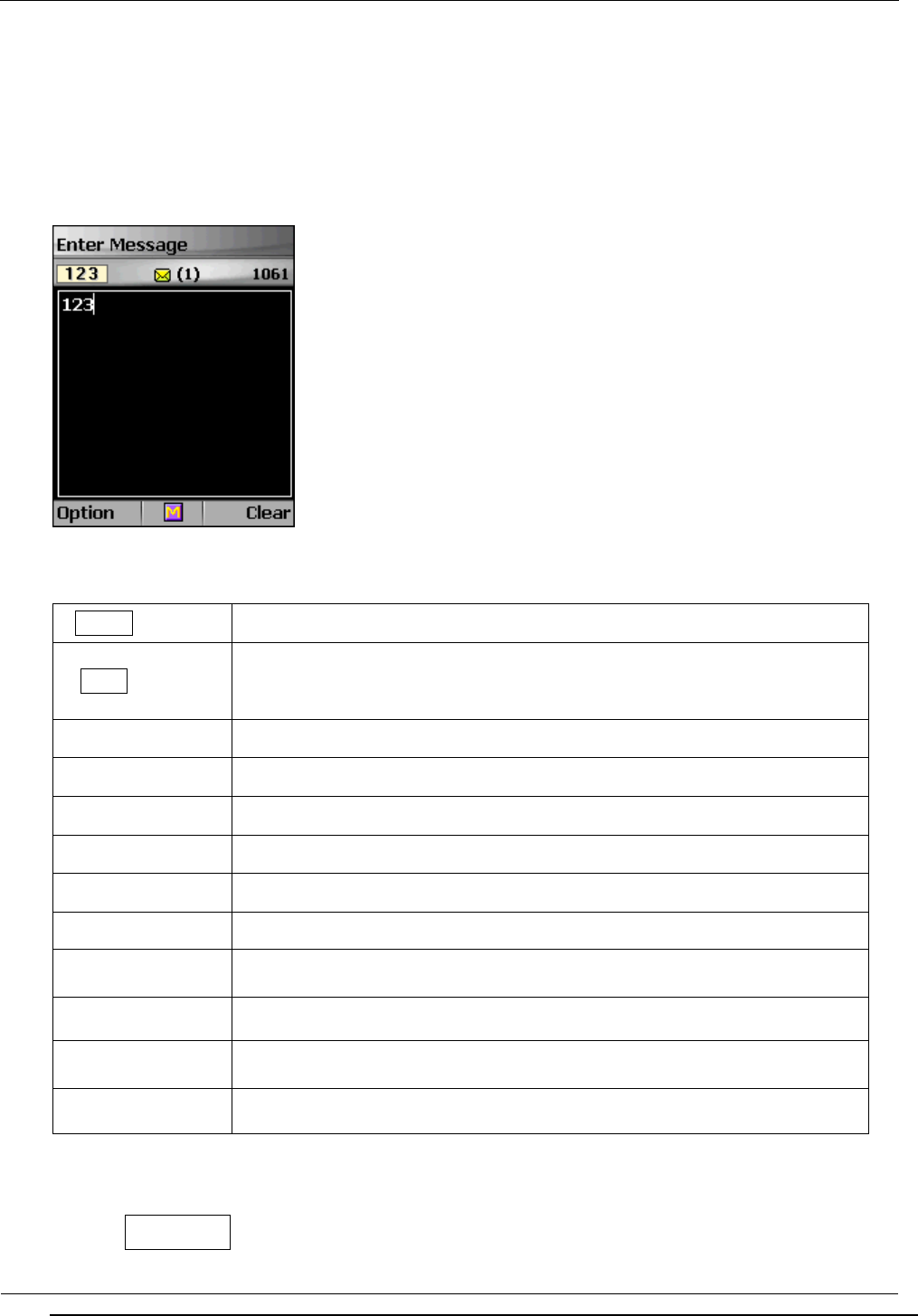
8. 4 Numeric input mode
INNO-A21 User’s Guide INNOSTREAM Confidential
PAGE : 41 of 130
This mode uses the standard numeric keypad to allow users to enter numeric information such as
phone numbers, addresses, etc.
[Example Screen]
[Key Function Table]
[Option soft key] select option menu regarding the text editing and the previous menu.
[Clear soft key] Short : clears a character of the string entered on the editing area.
Long : clears all characters
[NAVI-LEFT] moves the cursor to the left direction by a digit on the editing area.
[NAVI-RIGHT] moves the cursor to the right direction by a digit on the editing area.
[NAVI-UP] moves the cursor to the beginning of the string.
[NAVI-DOWN] moves the cursor to the end of the string.
[NAVI-CENTRE] switches the letter entry mode.
[END] turns back to the previous character input mode.
[0] Short : 0
Long : Space
[1] - [9] Number entry.
[*] By consecutive key press, [*, +, -, /, =] entry
Ex) One time of pressing : ‘*’, Two times of pressing : ‘+’
[#] switches the letter entry mode.
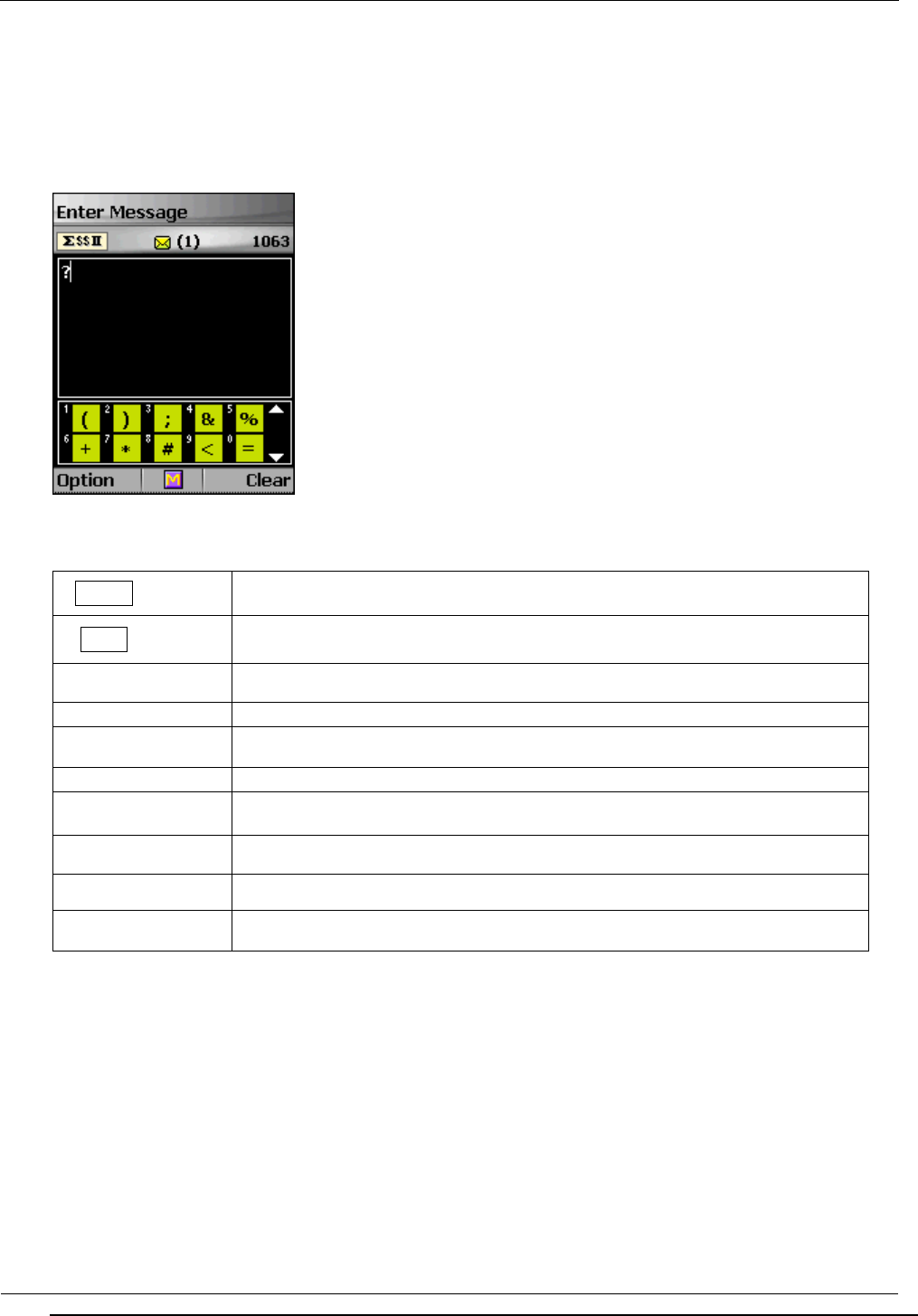
8. 5 Symbols input mode
INNO-A21 User’s Guide INNOSTREAM Confidential
PAGE : 42 of 130
This input mode allows users to enter symbols or formatting characters into text message.
[Example Screen]
[Key Function Table]
[Option soft key] select option menu regarding the text editing and the previous menu.
[Clear soft key] Short : clears a character of the string entered on the editing area.
Long : clears all characters
[NAVI-LEFT] moves the cursor to left.
[NAVI-RIGHT] moves the cursor to right.
[NAVI-UP] moves previous symbol list.
[NAVI-DOWN] moves next symbol list.
[NAVI-CENTRE] switches the letter entry mode.
[END] turns back to the previous character input mode.
[0] - [9] Symbol entry.
[#] switches the letter entry mode.
[Available Symbols]
INNO-A21 User’s Guide INNOSTREAM Confidential
PAGE : 43 of 130
. / : @ ,
? ! ‘ - _
( ) ; & %
+ * # < =
> “ £ $ ¥
€ Γ Δ Θ Λ
Ξ Π Σ Φ Ψ
Ω ¿ ¡ § ¤
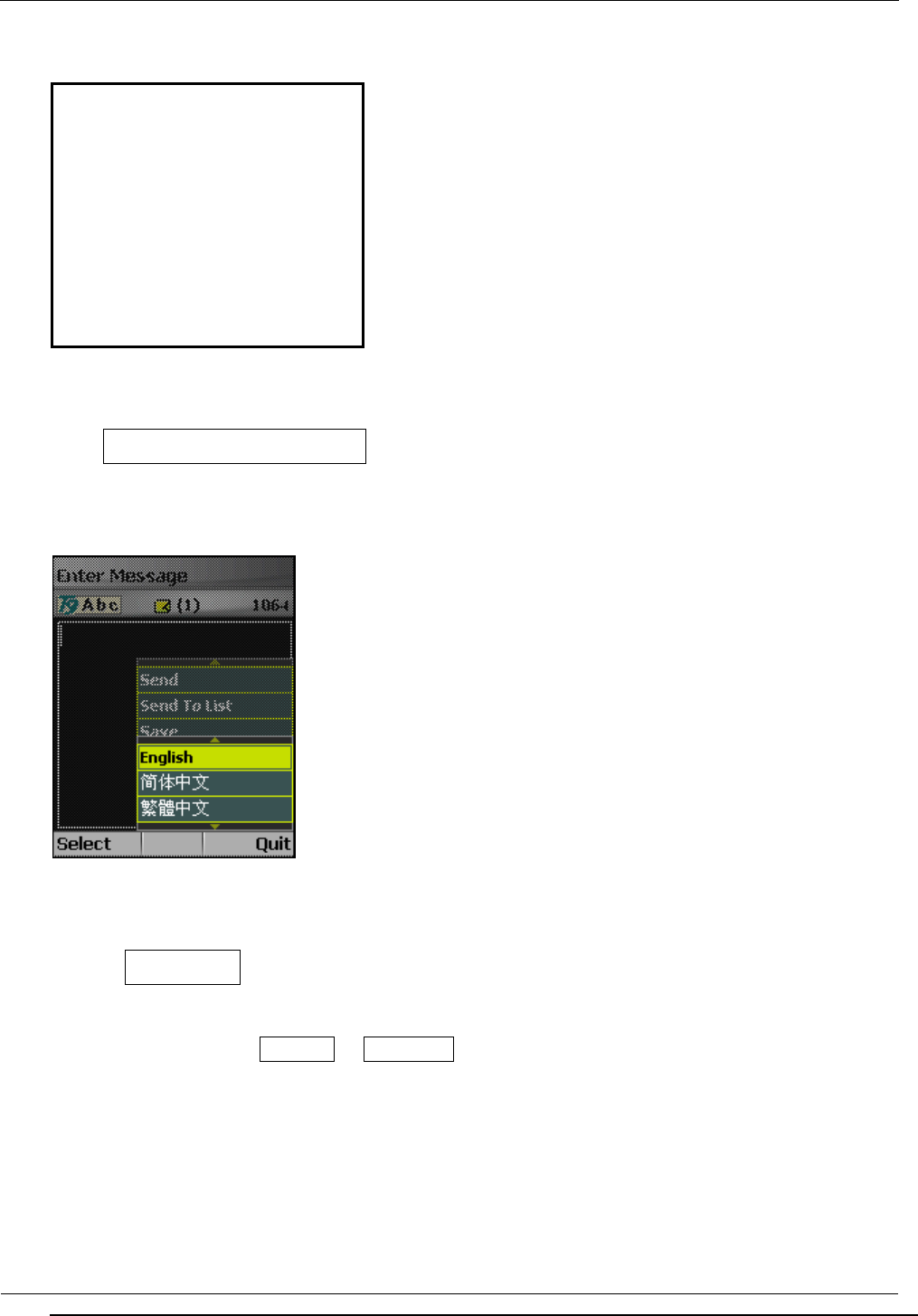
8. 6 Dictionary Language input mode
This mode allows users to change the Dictionary language during the editing.
[Example Screen]
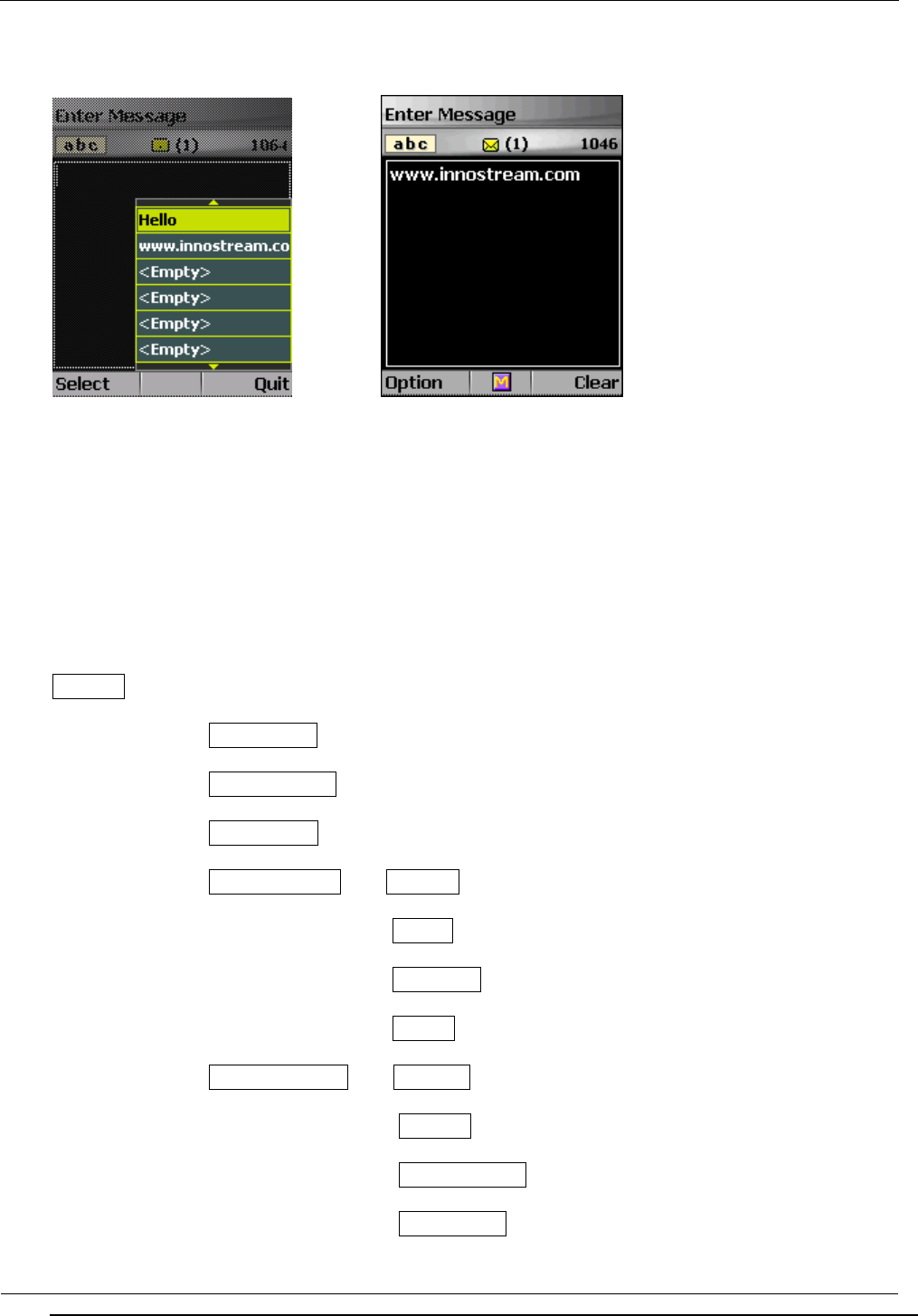
8. 7 Template input mode
This mode allows you to select words such as web-site address, e-mail, a sentence word, etc.
which are stored in the template of Organizer menu
[Example Screen]
INNO-A21 User’s Guide INNOSTREAM Confidential
PAGE : 44 of 130
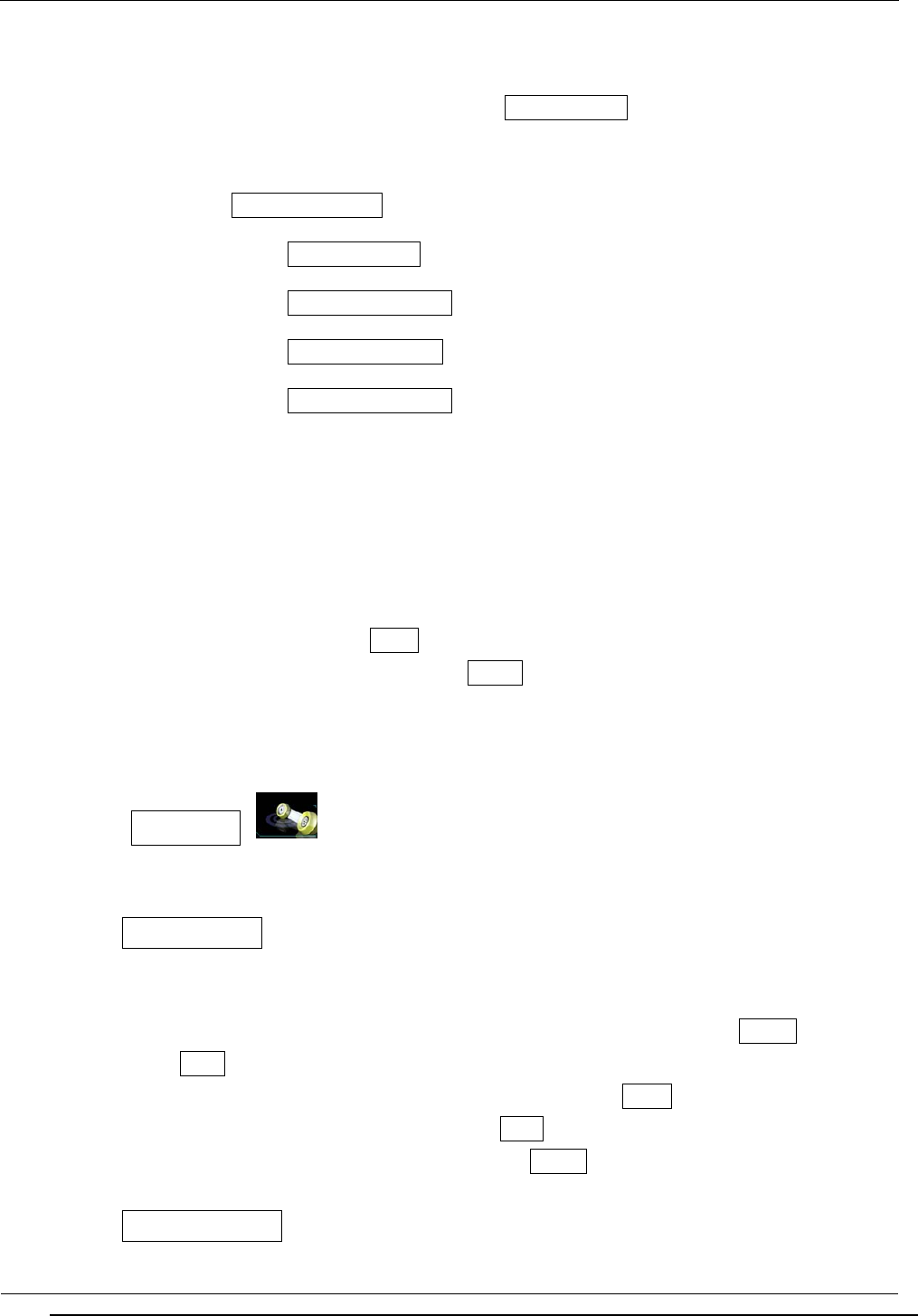
9. The Menu Map
! Note: Depending on the contents of your SIM card, some menu items may not be visible.
Call Log
1.1 Dialled Calls
1.2 Received Calls
1.3 Missed Calls
1.4 Delete Records --- All Calls
Dialled
Received
Missed
1.5 Cost & Duration --- Last Call
All Calls
Maximum Cost
Price & Unit

INNO-A21 User’s Guide INNOSTREAM Confidential
PAGE : 45 of 130
1.6 Data Counter --- Last Data
All Data
MP3
2.1 MP3 Player
2.2 MP3 Play List
2.3 Player Setting
Backlight Setting ---- Default Backlight
Always Backlight On
Folder Action ---- Continue Player
End Player
Internet
3.1 Home
3.2 Resume
3.3 Bookmarks
3.4 Push Message Inbox
3.5 Settings --- Connection Settings
Cache
Cookies
Graphics
Security Certificate
Push Security
Statistics
3.6 History
3.7 Go To Address

INNO-A21 User’s Guide INNOSTREAM Confidential
PAGE : 46 of 130
Contacts
4.1 Phonebook
4.2 New Contact
4.3 Speed Dials
4.4 Group Setting
4.5 Copy All
4.6 Delete All
4.7 Memory Status
Messages
5.1 SMS
Inbox
Outbox
Create Message
SMS Setting ------- Message Centre
Validity Period
Delivery Report
Reply Path
Message Protocol
Connection Type
Save On Sent
Status
Distribution Lists
Spam Filter

INNO-A21 User’s Guide INNOSTREAM Confidential
PAGE : 47 of 130
5.2 MMS
Inbox
Outbox
Create message
Drafts
Sent
MMS Settings ------ Save On Sent
Read Reports
Delivery Report
MMS Profile
MMS Lifetime
Download (Home)
Advance Setting
5.3 E-mail
Inbox
Outbox
Create Message
Drafts
Sent
E-mail Setting ----- Data Connections
E-mail Accounts
Size Limit
DNS Address

INNO-A21 User’s Guide INNOSTREAM Confidential
PAGE : 48 of 130
5.4 Voicemail
Connect Voicemail
Number Setup ---- Home Mailbox
Roam Mailbox
5.5 Broadcast
Read All Messages
Receive Setting
Display On Idle
Subject List ----- Active List
User Define List
Language List
Saved Messages
Organiser
6.1 Morning Alarm
6.2 General Alarms
6.3 Calendar
6.4 View Today Report
6.5 Memo
6.6 Template
Application
7.1 SIM AT Service
7.2 Java
List
Download

INNO-A21 User’s Guide INNOSTREAM Confidential
PAGE : 49 of 130
Download Setting
Java Profile
7.3 File Manager
7.4 Games
7.5 Calculator
7.6 Stopwatch
7.7 Voice Memo
7.8 World Time
7.9 Electronic Dictionary
English to Chinese
Chinese To English
Learn Words
My Glossary
Camera
8.1 Still Shot
8.2 Self Shot
8.3 Camcorder
8.4 Photo Album
8.5 Camcorder Album
8.6 Camera Setting
Still Shot - Shutter Sound
Saving Name
Set Default

INNO-A21 User’s Guide INNOSTREAM Confidential
PAGE : 50 of 130
Camcorder - Saving Name
Set Default
Default Camera Mode – Normal Mode
Rotation Mode
Setting
9.1 Own Numbers
9.2 Sound Setting
Profiles
Key Tone Type
Ring Melody
Message Melody
Rising Volume
Connect Tone
Minute Tone
9.3 Display Setting
Language
Wallpaper --- Sample Image
Photo Album
Camcorder Album
Image File
MFlash Folder
VIDEO Folder
LCD contrast
Greeting Message
Backlight Time --- 10 secs

INNO-A21 User’s Guide INNOSTREAM Confidential
PAGE : 51 of 130
30 secs
1 Min
1 Min 30 secs
Keypad Light
9.4 Clock Setting
9.5 Call Setting
Caller Number
Any Key Answer
Folder Answer
Auto Redial
Auto Response
9.6 Data Connections
9.7 IrDA
9.8 Security Setting
PIN Access
SIM Lock
Phone Lock
Album Lock
Phonebook Lock
Change Codes
FDN
Factory Reset
9.9 Network Service
Call Divert---Always

INNO-A21 User’s Guide INNOSTREAM Confidential
PAGE : 52 of 130
When Not Answered
When Busy
When Not Found
Cancel All
Call Barring---In Calls
In Calls If Abroad
Out Calls
Foreign Out Calls
Foreign exc. to Home
Cancel All
Call Waiting---Activate
Cancel
Status
Caller Identity---Show Caller Name
Restrict. Caller ID
Restrict. Your ID
Present. Caller ID
Present. Your ID
Flight Mode
GPRS Connection Mode
Closed User Group
CUG Select
User Define CUG
Network Selection --- Selection
INNO-A21 User’s Guide INNOSTREAM Confidential
PAGE : 53 of 130
Preferred List
9.10 Navi-Key Setting
UP Key Setting
DOWN Key Setting
LEFT Key Setting
RIGHT Key Setting
! Note : The SIM AT Service menus may be different according to the content of your SIM card.
10. The Menu Functions
You can enter to menu by pressing [Menu soft key] in idle screen.
To move the cursor, use [Navigation Keys].[Select soft key] or [NAVI-CENTER] is used for
selecting the menu on which menu cursor is. You can access the menu by pressing the menu
number.
10.1 Call Log
Within this menu, you can identify all call records that you have dialled, received or missed.
10.1.1 Dialled Calls
This menu lets you view the last 50 dialled calls.
In the dialled calls list, you can view the details of the record by pressing the [Option soft key]
then selecting View option. In the view screen you can make a call to the number by pressing
[SEND], or can paste the number to the idle screen by pressing [Paste soft key] and then can
save the record to the phonebook by pressing the [Save soft key].
You can delete a record in a view screen by pressing [Delete soft key].
10.1.2 Received Calls

INNO-A21 User’s Guide INNOSTREAM Confidential
PAGE : 54 of 130
This menu lets you view the last 50 received calls.
In the received calls list, you can view the details of the record by pressing the [Option soft key]
then selecting View option. In the view screen you can make a call to the number by pressing
[SEND], or can paste the number to the idle screen by pressing [Paste soft key] and then can
save the record to the phonebook by the pressing the [Save soft key].
You can delete a record in a view screen by pressing [Delete soft key].
10.1.3 Missed Calls
This menu lets you view the last 50 missed calls.
In the missed calls list, you can view the details of the record by pressing the [Option soft key]
then selecting View option. In the view screen you can make a call to the number by pressing
[SEND], or can paste the number to the idle screen by pressing [Paste soft key] and then can
save the record to the phonebook by pressing the [Save soft key].
You can delete a record in a view screen by pressing [Delete soft key].
10.1.4 Delete Records
This menu lets you delete the record of the recent calls. Following options are available.
All Calls : deletes the record of all recent calls.
Dialled : deletes the record of the dialled calls.
Received : deletes the record of the received calls.
Missed : deletes the record of the missed calls.
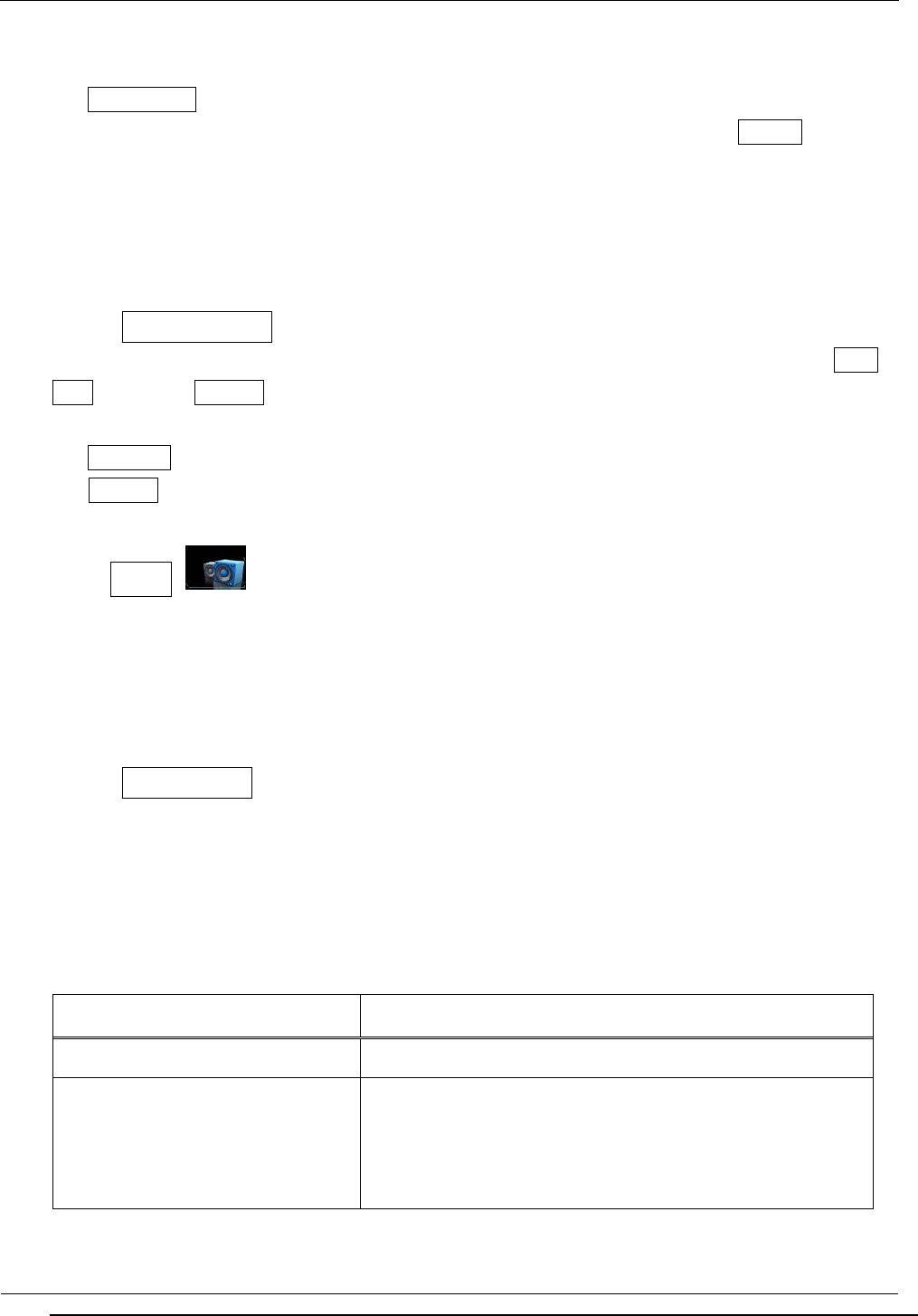
10.1.5 Cost & Duration
You can view the cost and duration of the last call, or all calls. Costs are shown only if your
network operator supports this service.
The following options are available.
Last Call : allows you to check or reset the cost and the duration of the last call.
All Calls : allows you to check or reset the cost and the duration of all calls.
If you press the [Reset soft key], you may have to enter your PIN2 according to
SIM card contents.
Maximum Cost : allows you to check or change the maximum limit for the cost of calls.
If you press the [Change soft key], you must enter your PIN2. The value that
multiplied the entry by the value set at Price & Unit option is displayed.
INNO-A21 User’s Guide INNOSTREAM Confidential
PAGE : 55 of 130
Price & Unit : allows you to set the cost of one unit and currency code. This price per unit
is applied when calculating the cost of calls. If you press the [Change soft key],
you must enter your PIN2.
! Note: Not all SIM cards support this feature. The number of items in these lists depends on the
contents of your SIM card.
10.1.6 Data Counter
You can view the size of the sent data, the received data and total data transferred in the Last
Data session or All Data sessions.
The following options are available.
Last Data : allows you to check or reset the data size used in the last session.
All Data : allows you to check or reset the data size used in the all sessions.
10.2 MP3
You can enjoy music using your phone as an MP3 Player.
You first need to copy MP3 files to your phone's memory or to a multimedia card.
This menu allows you to play mp3 files in phone's memory or multimedia card and organize the
play list.
10.2.1 MP3 Player
This menu lets you view mp3 player and play mp3 files in the play list.
If you want to listen to mp3 files with this menu, you first have to organize play list using MP3 Play
List menu.
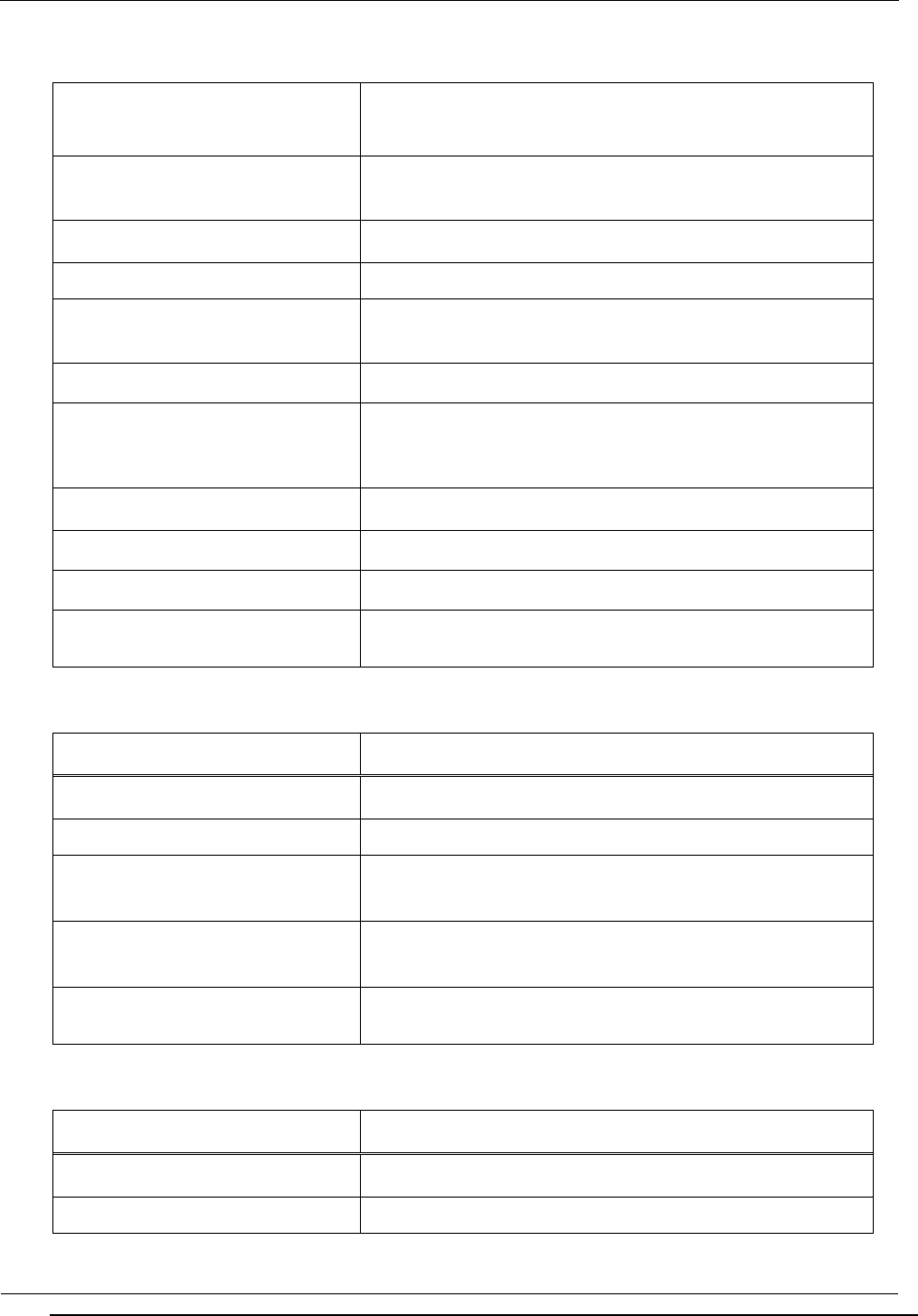
You can access the following options on the MP3 Player screen :
[Folder Opened State]
Press the to
[List] Soft 1 key view the file list(You can select other song.)
[Mode] Soft 2 key
select play mode.
- repeats one song.
- repeats all song in the play list.
- repeats all song randomly in the play list.
INNO-A21 User’s Guide INNOSTREAM Confidential
PAGE : 56 of 130
[NAVI-LEFT] Short : skip to the previous song in the play list.
Long : fast rewind in current playing song.
[NAVI-RIGHT] Short : skip to the next song in the play list.
Long : fast forward in current playing song.
[NAVI-UP], [VOL-UP] increase volume.
[NAVI-DOWN] , [VOL-DOWN] decrease volume.
[NAVI-CENTRE] Short : pause or resume.
Long : stop.
[END] end Mp3 Player.
[CAMERA KEY]
Short : change pre-defined equalizer.(NORMAL, POP,
ROCK, JAZZ, CLASSIC, USER)
Long : set the user equalizer.
[MULTIMEDIA KEY] skip to the next song in the play list.
[*] key adjust Bass Boost effect.
[#] key change spectral bar style.
Earphone Hook key Short : pause or resume.
Long : stop.
[Folder Rotated State]
Press the to
[VOL-UP] increase volume.
[VOL-DOWN] decrease volume.
[CAMERA KEY] view the file list.(You can select other song.)
same as [List] Soft 1 key.
[MULTIMEDIA KEY] select play mode.
same as [Mode] Soft 2 key.
Earphone Hook key Short : pause or resume.
Long : stop.
[Folder Closed State]
Press the to
[VOL-UP] increase volume.
[VOL-DOWN] decrease volume.
INNO-A21 User’s Guide INNOSTREAM Confidential
PAGE : 57 of 130
[CAMERA KEY] Short : pause or resume.
Long : stop.
[MULTIMEDIA KEY] skip to the next song in the play list.
Earphone Hook key Short : pause or resume.
Long : stop.
10.2.2 MP3 Play List
If you want to listen to mp3 files, you first have to organize play list. You can add up to 100 mp3
files to play list.
- If you press [Option soft key], the following options can be available. (It is different according to
situation)
- Add File : enables you to add mp3 file which you want to hear to the play list.
- Add Folder : enables you to add all mp3 files in selected folder.
- Play : launches mp3 player, and enables you to play selected item or songs in the play list
- Change : enables you to change selected item.
- Delete : enables you to delete selected item in the play list.
- Delete All : enables you to delete all items in the play list.
!Note : Mp3 Player supports only MPEG Layer3 format, does not support MPEG Layer1, MPEG
Layer2 format. If you play abnormal mp3 file, the file will not play and/or have serious effect on
the Phone.
10.2.3 Player Setting
< Backlight Setting>
You can select a backlighting time of the Player screen.
- Default Backlight : The backlight comes on for time which is set in Backlight Time of Display
Setting menu.
- Always Backlight On : The backlight comes on permanently during playing.
< Folder Action >
You can set folder closing action during playing.
- Continue Player : The player keeps on playing in folder closed state.
INNO-A21 User’s Guide INNOSTREAM Confidential
PAGE : 58 of 130
- End Player : The player is terminated when folder is closed.
10.3 Internet
WAP is a standard specifically created for mobile communications devices and gives fast and easy
access to the Internet information and services. Now you can find a lot of useful information by
using the micro browser in your mobile phone, instead of using your computer. There are wide
ranges of WAP services available that you can access, such as reservation services, news, sports
and weather, games ad banking, etc.
The ways in which you can go to a WAP page are as follows:
- Selecting Home menu.
- Selecting address list in Bookmarks menu
- Entering the address in the Go to Address menu
- Selecting Resume menu
Press the navigation key[NAVI-CENTRE] to connect directly to Internet services in the idle
screen.
Browser
Within the WAP browser connection status is shown by connection status icons on the upper left
corner of the browser.
: CSD connection is attempted.
: CSD connection is established.
: CSD connection is terminated.
: Phone is registered to a GPRS network.
: Active GPRS connection is established.
: Connection is in the Secure Mode.
You can highlight a specific hyperlink, underlined texts, with a cursor and view the content by
selecting it. You can connect to these hyperlinks by pressing the [NAVI-CENTRE], [SEND] or
[Select soft key] in the screen.
If you press [Option soft key] while viewing a WAP page, the following options will be displayed.
Home : Connects to the homepage you defined in the profile.
INNO-A21 User’s Guide INNOSTREAM Confidential
PAGE : 59 of 130
Refresh : Reloads the current page.
Select : Follows the highlighted hyperlink.
Save Image : Saves the selected image.
Save Page : Saves the selected page.
Add To Bookmark : Adds the current page to the bookmarks.
Bookmarks : Displays the bookmark list and allows you to go to the Web page you select.
Go to Address : Allows you to enter a URL to browse to.
History : Allows you to directly go to a previously visited URL.
Push Message Inbox : Displays received Push Messages.
Set As Homepage : Current URL is set as default homepage.
Clear Cache : Clears all the Cache.
Show Address : Displays current URL.
Exit : Exits the browser and displays WAP main menu
The following keys are available for use when browsing:
[NAVI-UP] : moves the screen upwards.
[NAVI-DOWN] : moves the screen downwards.
[NAVI-LEFT] : moves the screen to the left (if the horizontal scroll bar is available).
[NAVI-RIGHT] : moves the screen to the right (if the horizontal scroll bar is available).
[NAVI-CENTRE] or [SEND]: selects an item (if it is a selectable item).
[END] : exits the browser.
Note!: If you ask the browser to do an action (by selecting an option menu or by pressing the
[Back soft key] ) when the call is not in active state, it automatically makes a call and tries to
reconnect to the WAP site.
10.3.1 Home
Once a connection profile has been set up, you can connect to the home page you have previously
set.
10.3.2 Resume
You can access the last WAP site that you here accessed.
10.3.3 Bookmarks
You can access the list of bookmarks.
INNO-A21 User’s Guide INNOSTREAM Confidential
PAGE : 60 of 130
When the focus is on a folder and [Options soft key] is pressed, the following options are
displayed.
Open : Opens the bookmark group.
Edit : Allows you to edit the name of the bookmark group.
New Group : Allows you to add a new bookmark group.
Delete : Deletes the current bookmark group.
When the focus is on a bookmark and [Options soft key] is pressed, the following options are
displayed
Load URL : Launches the WAP browser and loads the URL of the bookmark.
Edit : Allows you to edit the URL of the bookmark.
Add New : Allows you to add a new bookmark.
Send : Allows you to send the URL of the bookmark.
New Group : Allows you to add a new bookmark group.
Move To : Allows you to move the bookmark to other group
Delete : Deletes the bookmark.
Delete All : Deletes all the bookmark and group in the current group
10.3.4 Push Message Inbox
You can receive push messages sent by your service provider. The push message is a kind of
notification from network, for example, stock news, weather news, headline news or E-mail.
If a push message has arrived, your phone displays icon to inform you of the arrival.
The small icon on the far left side of each list indicates following meanings.
: Indicates that you have not accessed Internet site related to the PUSH message of the
list.
: Indicates that you have accessed Internet site related to the PUSH message of the list.
If you select [Option soft key] or [Select soft key], following options are displayed.
Show Info Message : Allows you to view the received push message.
Load URL : Allows you to go to the site linked with the received push message.
Add To Bookmarks : Allows you to add the site linked with the received push message to the
bookmark.
Delete : Allows you to delete the received push message.
Delete All : Allows you to delete all the received push message.
INNO-A21 User’s Guide INNOSTREAM Confidential
PAGE : 61 of 130
10.3.5 Settings
<Connection Settings>
A WAP profile consists of a group of network settings. After setting them up, you simply switch
between the different WAP profiles, without having to re-enter the settings every time you want
to change your network connection.
At first, your phone is preset with the default WAP profiles and the first profile is set as active.
Set As Active : This option activates the chosen setting as a current WAP profile setting to be
used for the WAP connection.
Edit : This option edits the WAP profile setting values.
Add New : This option adds new WAP profile setting values.
Delete : This option deletes a WAP profile setting values.
! Note : The setting value varies according to the WAP service provider. So please contact your
network service provider for the values before using WAP services.
If you select Edit, the following options are available.
Name : WAP profile name.
Homepage URL : Home page URL. This URL will be selected whenever Home is pressed
Direct Connection : Select between gateway On and Off.
IP Address : WAP gateway IP address.
Connection Type : Choose the connection type as required.
Data Connections : Choose the data connection that you require.
<Cache >
Viewed pages can be stored in a file (cookie) for faster download. Fetching pages from the cache
loads the page faster.
Enable Cache : Enables cache setting.
Clear : Clears all the cache received.
INNO-A21 User’s Guide INNOSTREAM Confidential
PAGE : 62 of 130
<Cookies >
Setting to allow WAP browser to store cookies received from WAP server.
Enable Cookies : Enables cookie setting.
Clear : Clears all the cookie received.
<Graphics >
For On, the graphics pictures are always displayed every time the browser opens a WAP page.
For Off, the graphics pictures are not displayed.
<Security Certificate >
This lists the trusted root certificates that are stored on the handset for secure-mode connections.
Security certificate are used by some WAP services for security purpose, for example, server
certificates, banking services or other authority certificates. You can download the certificate from
a WAP page if the WAP service supports the use of authority certificates. After the download, you
can save or delete it. If you save the certificate, it is added to the security certificate list on the
phone.
Details : Displays the selected certificate in detail.
Delete : Deletes the selected certificate.
Delete All : Deletes all the certificate.
! Note : If you delete the security certificate on the phone, you cannot use some WAP service with
secure mode connection.
<Push Security>
This option is used for filtering the received push messages.
Accept All : You can receive all push messages.
Accept None : You can not receive any push message.
<Statistics>
This option displays the number of Kilo Byte of data transmitted and received through WAP.
INNO-A21 User’s Guide INNOSTREAM Confidential
PAGE : 63 of 130
10.3.6 History
Every time a WAP page is opened, the URL is logged and this log can be viewed in this page.
Load URL : This allows you to load the selected history.
Edit URL : This allows you to edit the URL of the selected history.
Clear All : This allows you to delete all the history logged.
10.3.7 Go To Address
This menu enables you to directly enter a URL address and open it.
Before using this menu, please check that the activated profile has been correctly set.
If you select [Option soft key] following options are displayed.
Go To Address : This allows you to enter a URL to browse to.
Standard Phrases : This allows you to use the standard Phrases.
Add To Bookmarks : Adds the current page to the bookmarks.
Save As Homepage : Current URL is set as default homepage.
! Note : If RS-MMC card is not inserted, paid download services or contents such as Melody,
Ringtone and pictures including wallpaper and logos, will not be stored after payment has been
made. Please check and see if your RS-MMC is inserted whenever you want to download free or
paid download service.
10.4 Contacts
With this menu, you can use various phonebook functions.
! Note : For details, please see section 6.
10.4.1 Phonebook
You can store the names and numbers of your friends, family and colleagues in your Phonebook.
10.4.2 New Contacts
You can add a new record in Phonebook.
INNO-A21 User’s Guide INNOSTREAM Confidential
PAGE : 64 of 130
10.4.3 Speed Dials
You can set up to eight speed-dial entries which can then be called simply by pressing the
associated number key.
10.4.4 Group Setting
Yon can set the Ring Melody for each group type and group name in Phonebook.
10.4.5 Copy All
You can copy all records to another memory in Phonebook.
10.4.6 Delete All
You can delete all records in SIM or Phone memory in Phonebook.
10.4.7 Memory Status
You can identify the status use in your SIM card and your phone memory in Phonebook.
10.5 Message
10.5.1 SMS
The message can be sent by Fax, E-mail, ERMES, and X400 format, provided that these services
are supported on the network. To send text messages with your phone, you need to set the
Message Service Center Number (obtained from your home network operator) on the Message
Center menu.
If a message has arrived, your phone displays New Message in idle screen and sets icon to
inform you of the arrival.
The arrived message is saved in SIM memory as the first place. If SIM memory is full, it is saved
in phone memory. Your phone has maximum 150 spaces for the SMS records in the phone memory.
If the SIM memory and the Phone memory are both full, SMS Full is indicated, icon blinks and
you cannot receive any more new message. In the case, you need to delete old and unnecessary
messages by using Delete, Delete All option in Inbox or Outbox menu.
You can create the message limit to 1064 alphanumeric characters (462 characters in case of
Chinese character) at one message in Create Message menu.
INNO-A21 User’s Guide INNOSTREAM Confidential
PAGE : 65 of 130
The long message is saved into maximum 7 records. Also, long received message is saved in same
way.
! Note : The SMS service may not be available on all networks. Some networks permit messages
to be sent only within own network.
<Inbox>
With this menu, you can view the new text messages or the read messages.
Sender phone numbers or names (if stored in the Phonebook) are displayed on the list.
The small icon on the far left side of the each list indicates following meanings.
: The message is the new unread message.
: The message is the read message.
If you press [Select soft key], you can see the message contents with a sender phone number, its
arrival time and location of saved message
: The message is saved in SIM memory.
: The message is saved in phone memory.
: The long message(concatenated message) is saved in SIM and phone message.
: All record of the long message isn’t received.(incomplete message)
by using [NAVI_UP] and [NAVI-DOWN].
If you select [Options soft key], following options are available.
Delete : Allows you to delete the viewed message.
Reply : Allows you to send a reply message to the sender of the viewed message.
Voice Call : Enables you to call the sender of the viewed message.
Extract Number : Enables you to get all numbers(with more than 2 digits) in the message and
sender’s phone number. If you select a number on the list, you can store the
number into phonebook, or can make call with the number.
Forward : Allows you to forward the viewed message to someone else.
Edit : Enables you to edit the viewed message contents.
If you select Save option, the edited message is listed in Outbox menu.
Move to Phone or Move to SIM : Enables you to change the location of saved message.
Message can not move, if there is not enough memory or it is incomplete.
Set As Spam Num: Enables you to set all message received from a specific phone number
as a spam message.
Delete All : Allows you to delete all messages of Inbox menu.
<Outbox>
INNO-A21 User’s Guide INNOSTREAM Confidential
PAGE : 66 of 130
With this menu, you can view the saved messages which have been sent or unsent.
Recipient phone numbers or names (if stored in the Phonebook) are displayed on the list.
The small icon on the far left side of the each list indicates following meanings.
: It is the sent message.
: It is the unsent message.
If you select [Options soft key], Delete, Send, Extract Number, Forward, Edit,
Move to Phone, Move to SIM and Delete All options are available.
With Send option, you can send the saved message unchanged as it is.
<Create Message>
With this menu, you can write a text message of up to 1064 alphanumeric characters (462
characters in case of Chinese character), and then you can save and send the message.
After creating a text message, press the [Option soft key]. Then you can see following options.
Send : Send the text message to the recipient phone number.
Send To List : Send to one of distribution lists .
Save : Save the text message without recipient phone number.
Dictionary On, Dictionary Off: Change the input mode.
Dictionary Language : Change input language.
Template : copy one of templates.
<SMS settings>
- Message Center
With this menu, you can view the Message Center Number List and currently activated the
Message Center Number.
Activate : Activate the selected Message Center Number to use sending a message.
Add : Add the Message Center Number, if the Message Center SIM memory is available.
Edit : Edit the Message Center Number and Save it.
Delete : Delete the Message Center Number. If the selected Message Center Number is the
Base Area, this menu cannot be displayed.
The number can be obtained from your home network service provider.
- Validity Period
This menu allows you to set the length of time period that your message will be stored at the
Message Service Center in the network whilst attempts are made to deliver them to the recipient.
Available options are One Hour, Two Hours, Six Hours, One Day, Two Days, One Week, Four
Weeks and Six Months.
INNO-A21 User’s Guide INNOSTREAM Confidential
PAGE : 67 of 130
- Delivery Report
You can set whether network sends the delivery report message to your phone or not. The
delivery report message means that the sent message has arrived to the recipient properly.
- Reply Path
With this menu, you can select which Message Service Center will route your reply message.
If you select Own Center, the cost of the reply message is charged to your bill and you can
receive the reply message regardless of the recipient’s SMS service subscription.
Own Center : When the recipient sends reply message to you, your own Message Service
Center that has set on the Message Center menu is used.
Remote Center : When the recipient sends reply message to you, his Message Service
Center(Remote Message Service Center) is used.
- Message Protocol
With this menu, you can use a network messaging service which offers you the facility of
converting your text messages into alternative formats (Text, Fax, Voicemail, ERMES, Paging,
X.400 or Internet).
! Note : All formats may not be available on all networks.
- Connection Type
You can select which connection will be used for sending or receiving SMS
CS Only : Only Circuit Switch Connection will be used.
CS Preferred : If Circuit Switch connection and GPRS connection are possible, Circuit Switch
connection will be used at first. If failed, GPRS connection will be used.
GPRS Only : Only GPRS Connection will be used.
GPRS Preferred : If Circuit Switch connection and GPRS connection are possible, GPRS
connection will be used at first. If failed, Circuit Switch connection will be used.
- Save On Sent
If you select Yes , then you can save sent messages in the Outbox. If not,
all sent messages are not saved.
- Status
You can identify the memory use for SMS message in your SIM card and your phone memory.

INNO-A21 User’s Guide INNOSTREAM Confidential
PAGE : 68 of 130
<Distribution Lists>
If you send messages often to a fixed group of recipients, you can define a distribution list
containing those recipients and use this list when sending a message. You can define up to 10
distribution lists, each containing up to 20 recipients. Distribution lists are stored in your phone
memory.
If you select <Distribution Lists>, then you can see all lists that you made before. If it is empty,
you can make a list by using [Option soft key], which are composed of View list , Add list , Edit
list , Delete list and Delete all options.
- View list : to view the recipients in the selected distribution list
If you select the [Option soft key], you can edit the content of the selected distribution list.
- Add : to add a recipient to the selected distribution list
- Delete : to delete the selected recipient
- View : to view the information of the selected recipient
- Add list : to add a new distribution list
- Edit list : to edit the selected distribution list
- Delete list : to delete the selected distribution list
- Delete all : to delete all the distribution lists
If a message failed to send to one or more recipients, the message is stored in the Undelivered
List of <Distribution Lists>. Select the Undelivered List and press [Option soft key] to get the
following options to handle the undelivered message:
- Resend To List : to resend the message to the failed recipients.
- View Message : to view the undelivered message
- View List : to view the failed recipients
<Spam Filter>
With this menu, you can filter spam messages that you do not want to receive.
- Spam Box
You can confirm and delete spam messages that are filtered. Spam messages saved in Phone
memory. Your phone has maximum 100 spaces for the spam messages. If you receive a long
spam message, it split into single messages and save in Phone memory. If the Phone memory
is full, icon blinks. In the case, you need to delete old spam messages by using Delete,
Delete All
- Set Number
You can add, edit and delete phone numbers that you want to filter. When you receive a message
INNO-A21 User’s Guide INNOSTREAM Confidential
PAGE : 69 of 130
from the phone number specified on this list, it will be filtered.
- Filter On/Off
This menu allows you to enable or disable spam message filtering function.
On : Spam message will be filtered.
Off : Spam message will be not filtered.
10.5.2 MMS
A multimedia message can contain text, images, and/or sound clips.
To send Multimedia messages with your phone, you need to set the Message Service Center
address and the connection information on the MMS Profile menu.
For more details about this information, please contact your network service provider.
If multimedia message has arrived your phone displays New Multimedia Message in idle screen to
inform you of the arrival. Messages are stored within the local filing system. When storing
messages within the filing system, the maximum number and size of stored messages is entirely
dependent upon available local filing system storage space.
! Note : The MMS service may not be available on all networks. For more details, please contact
your network service provider.
<Inbox>
With this menu, you can view the new multimedia messages or the read messages.
Sender phone numbers or names (if stored in the Phonebook) are displayed on the list.
The small icon on the far left side of the each list indicates following meanings.
: The message informs you new message has arrived. However it is not downloaded yet.
: The message is the downloaded and unread message.
: The message is the downloaded and read message.
If you select [Option soft key], following options are available.
Read : Reads the message. If the message is deferred/left on the message server, this option
downloads it before anything else.
If Multimedia message has multiple pages, it displays like a slideshow. You can stop
slide show by pressing [NAVI-CENTER]or [Option soft key]. You also see each page
by pressing [NAVI-LEFT] or [NAVI-RIGHT].
: During multiple page message playing, this icon is displayed on
center of soft key area. You can stop playing.
: During multiple page message stopped, this icon is displayed on
INNO-A21 User’s Guide INNOSTREAM Confidential
PAGE : 70 of 130
center of soft key area. You can play the message.
: Sound file is attached but Sound is not playing because of User
Setting.
Delete : Allows you to delete the viewed or list selected message.
Edit : Enables you to edit the viewed or list selected message contents.
Forward : Allows the message to be forwarded to someone else.
Details : Enables you to see the message contents details.
Delete All : Allows you to delete all message in Inbox.
! Note : MMS viewer can play MP3 and 3GP files when MMC card is inserted.
<Outbox>
With this menu, you can view a list of any messages waiting to be sent or failed to send.
Recipient phone numbers or names (if stored in the Phonebook) are displayed on the list.
If you press [Option soft key], the options are available the same as Inbox.
<Create Message>
The user is presented with a screen showing the first page in a blank MMS message. The screen
displays the page with following information above the message.
- The presence of any sounds or attachments on the current page.
- The size of the whole MMS message in bytes or kilobytes.
- The current page number/total number of pages.
If you press [Option soft key], following options are available.
Add Recipient : Proceeds to the subject/address stage of the message creation.
You can insert multiple recipients each of To, Cc, Bcc fields from Phonebook or edit the address.
After insert recipients, you can send or save the MMS message by selecting Option
Insert : Adds a photo, picture, sound, video, text, subject and attachment to the current page.
In one page, you can insert one image(photo or picture), one sound, one text and one attachment.
If you try to change each object, select this menu and change it another item. An icon at the top
of the screen will indicate the presence of a subject , sound , attachment .
Note: You can’t insert video with image and sound
Delete : Deletes an object from the current page. The user will be prompted for which object to

INNO-A21 User’s Guide INNOSTREAM Confidential
PAGE : 71 of 130
delete. It will list all objects contained on the current page.
Preview : Previews the current MMS message.
Object Properties : Displays a list of objects on the current page and allows each object to get a
property. After selecting an object, the user will be presented with the following property options
for the given object.
Played After : The time at which the object is played relative to the start of the current page.
Played For : The length of time for which the object is displayed. Maximum implies the
object is played until the end of the current page.
Page : Manipulates page in the MMS message. The following options are available.
Add Page : Adds an additional page after the current page and makes it the active page.
Delete Page : Deletes the current page. It is available only if there is at least one other page.
Previous Page : Moves to the previous page. It is available only if there is a page before the
current page.
Next Page : Moves to the next page. It is available only if there is a page after the current
page.
Page Layout : Selects the image and text position. When Image At Top is selected, image is
displayed on the top position and text is on bottom position. When Text At Top is
selected, text is displayed on top position.
Played For: Selects a displaying period of current page.
<Drafts>
With this menu, you can view a list of any draft messages that have been created in the Create
Message and saved, but are not ready to be sent.
Recipient phone numbers or names (if stored in the Phonebook) are displayed on the list.
If you press [Option soft key], the options are available the same as Inbox.
<Sent>
With this menu, you can view a list of MMS messages that have been sent.
Recipient phone numbers or names (if stored in the Phonebook) are displayed on the list.
If you press [Option soft key], the options are available the same as Inbox.
<MMS Settings>
The following options are available.
Save On Sent : Configures whether to save a copy of all sent messages in the “Sent” folder.

INNO-A21 User’s Guide INNOSTREAM Confidential
PAGE : 72 of 130
Read Report : Configures whether network sends the read report message to your phone or not.
The Read Report message means that the sent MMS message has read to the recipient properly.
Send Report : allow to send report that message is read to originator.
Request Report : Request report that message is read to recipient.
Delivery Report : Configures whether network sends the delivery report message to your phone or
not. The delivery report message means that the sent MMS message has arrived to the recipient
properly.
Send Report : allow to send report that message is delivered to originator.
Request Report : Request report that message is delivered to recipient.
MMS Profile : Configures which MMS profile is used to connect over when sending or receiving
MMS message. MMS Profile is composed of edit Message Center, Direct connection, IP address,
Connection type and Data Connections
- Message Center : You can edit Message Center.
- Direct connection : You can select Direct connection . (Default value is Off)
- IP address : You can edit IP address.
- Connection type : You can select Connection type. (Default value is ConnOriented)
- Data Connections : You can add or delete and edit connection information in the 10.9.6 Data
Connections menu.
Note : These information can be obtained from your home network service provider.
MMS Lifetime : Allows you to set the length of time period that your MMS message will be stored
at the Message Service Center in the network whilst attempts are made to deliver them to the
recipient. Available options are 1 Hour, 2 Hour, 6 Hours, 1 Day, 2 Days, 1 Week, 4 Week, 6
Months and Maximum.
Download (Home): Configures whether new MMS messages are downloaded as soon as they are
available or only when the user has confirmed they wish to receive them.
Automatic : Downloads new messages immediately and notify the user when they are fully
downloaded.
Prompt : Notifys the user when a new message is available. And allows the user to decide
whether to download the message or reject.
On Read : Notifys the user when a new message is available.

INNO-A21 User’s Guide INNOSTREAM Confidential
PAGE : 73 of 130
Advance Setting : The following options are for advanced users
Spam Filter : Spam emails are defined as MMS messages where the message class is set to
“Advertisement”.
Off : All MMS messages are accepted.
Defer Download : Spam messages are not downloaded automatically.
Reject Spam : The Spam messages are rejected with no user notification.
Photo Auto Shrink : Change photo resolution automatically when you try to insert photo
with 1280 x 960 resolution.
320 x 240 : Change photo resolution from 1280 x 960 to 320 x 240.
160 x 120 : Change photo resolution from 1280 x 960 to 160 x 120.
Off : No change photo resolution.
Download (Roaming) : Configures whether new MMS messages are downloaded as soon as
they are available or only when the user has confirmed they wish to receive them.(Same
as Download (Home). For roaming network.)
Creation Mode : Configures whether new MMS messages are downloaded as soon as they
are available or only when the user has confirmed they wish to receive them. (For Home
network)
Restricted : User can’t insert all Non-Standard contents and can’t forward
over size message.
Give Warnings : When user try to insert Non-Standard contents and forward
over size message, give warnings
Free : No restrict
Max Message Size : Change maximum size of sending message
10.5.3 E-mail
You can use your phone to send and receive E-mail.
! Note : Before using E-mail, please set up your E-mail Accounts and Data Connections in E-mail
Setting menu. Data Connections information can be obtained from your home network service
provider.
! Note : The Email service may not be available on all networks. For more details, please contact
your network service provider.
INNO-A21 User’s Guide INNOSTREAM Confidential
PAGE : 74 of 130
<Inbox>
With this menu, you can view all E-mail messages that have been received from each of your E-
mail Accounts.
At First you enter this menu, you can see your E-mail Accounts list if you had set your accounts in
E-mail Setting menu.
If you press [Option soft key], the following options are available.
Open : Opens current selected E-mail Account.
Connect to Server : Receives new E-mail message from current selected E-mail Account.
Create Message : Creates new E-mail message using current selected E-mail Account.
View Detail : Enables you to see the details of current E-mail Account.
If you select Open option on the selected E-mail account list, you can see your E-mail message
list from the E-mail Account.
The small icon on the far left side of each list indicates following meanings.
: The message is the new unread E-mail message.
: The message is the read E-mail message.
If you press [Option soft key]on the E-mail message of list, following options are available.
Open : Views current selected E-mail message.
Delete : Deletes current selected E-mail message.
Reply : Sends reply E-mail message to sender of current selected E-mail message.
Forward : Forwards current selected E-mail message to another persons.
Save Attachment : Saves attachment of current selected E-mail message. Maximum size of
attachment is 350 Kbytes.
View Detail : Enables you to see the details of current selected E-mail.
Default Encoding : enables you to select character encoding type.
If you select Open option on the selected E-mail message, you can see the message contents with
a sender E-mail address and its arrival time.
If you press [Option soft key] on the message contents, same options like above are also available.
<Outbox>
With this menu, you can view the saved E-mail message that has been unsent.
Subject of each E-mail message are displayed on the list.
If you press [Option soft key]on the selected E-mail message, Delete, Send, Edit and View Detail
options are available.

INNO-A21 User’s Guide INNOSTREAM Confidential
PAGE : 75 of 130
With Send option, you can send the saved E-mail message unchanged as it is.
<Create Message>
With this menu, you can write an E-mail message, and then you can save and send it.
Input the E-mail message contents and subject and then press [Ok soft key]. After that, enter the
recipient E-mail address. You can input the E-mail address directly from the Phonebook by
pressing the [P.book soft key].
If you press [Ok soft key] after completing the recipient E-mail address, following options are
available.
Send : Sends the E-mail message to the recipient E-mail address. The E-mail will not be
saved.
Save : Saves the E-mail message and the recipient E-mail address.
Save and Send : Saves the E-mail message and the recipient E-mail address, and then sends.
<Drafts>
With this menu, you can view a list of any draft E-mail messages that have been created in the
Create Message and saved, but have no subject or no recipient.
Subject or front side of each E-mail message is displayed on the list.
If you press [Option soft key], Delete, Send , Edit and View Detail options are available.
<Sent>
With this menu, you can view a list of E-mail messages that have been sent.
Subjects are displayed on the list.
If you press [Option soft key], Delete, Send, Edit and View Detail options are available.
With Send option, you can send the saved E-mail message unchanged as it is.
<E-mail Setting>
The following options are available.
Data Connections
With this menu, you can configure which Data Connections is used to connect over when sending
or receiving E-mail message.
The information can be obtained from your home network service provider.
If you want to add or edit Data Connections, go to the Data Connections menu of Phone Setting
menu.
E-mail Accounts
INNO-A21 User’s Guide INNOSTREAM Confidential
PAGE : 76 of 130
With this menu, you can view E-mail Accounts list and add new E-mail Account. The following
options are available.
Set Default : Sets the selected E-mail Account as default account to use sending a E-mail
message.
Edit : Edits the selected E-mail Account. With this option, you can set up Incoming Server,
Outgoing Server ,My E-mail Address and My Name.
You can select Incoming Server Server type between POP3 and IMAP.
The Username and Password are generally the login information related to the
Incoming Server, but those may be also necessary for the Outgoing Server depending on
network service provider.
Outgoing Server information can be obtained from your home network service
provider. If you want to use your own Outgoing Server, you have to check that your E-
mail account can support POP3(or IMAP) and SMTP.
My E-mail Address is used for the default E-mail address to send E-mail message.
To send E-mail message, you must set your E-mail address in this menu.
My Name is used to insert your name in sending E-mail message.(Optional)
Rename : Renames the selected E-mail Account name.
Delete : Deletes the selected E-mail Account.
Size Limit
The attachment size of sending E-mail message can not exceed 350 Kbytes.
DNS Address
You can set DNS for connection. This DNS is used when Network doesn’t offer DNS automatically.
If you have select Manual in Get DNS Address menu, Primary DNS and Secondary DNS are applied.
10.5.4 Voicemail
Your phone is capable of dealing with voicemail if this service is supported on the network. If the
voicemail has arrived, your phone displays New Voicemail in the idle screen and sets to
inform you of the arrival.
By selecting the Connect Voicemail, you can then listen to the voicemail.
Your phone automatically dials to the configured number that has stored in Number Setup menu.
! Note : The voicemail service may not be available on all networks. For more details, please
contact your network service provider.
By pressing and holding down [ 1 ] in the idle screen, you can directly listen to the Voicemail.

INNO-A21 User’s Guide INNOSTREAM Confidential
PAGE : 77 of 130
< Connect Voicemail>
With this menu, you can listen to the voicemails you have received.
<Number Setup>
With this menu, voice mailbox numbers can be stored.
- Home Mailbox
The voicemail number is to dial when you are on the home network to listen to the voicemail.
- Roam Mailbox
The voicemail number is to dial when you are on the other network to listen to the voicemail.
10.5.5 Broadcast
This network service allows you to receive the broadcasted text messages on various topics such
as weather, traffic, local district code, local hospitals, taxis or pharmacy in the area where you are.
You can even receive the message to be in a particular language. (For example, when you are
abroad) by using Language List option. For more information about topics, please contact your
service provider.
! Note : This service may not be available on all networks.
<Read All Messages>
With this menu, you can read all the broadcasted text messages and save the messages
you desire by pressing the [Save soft key].
In title area of the screen, the name of the message subject item is displayed.
The contents of the message subject are updated whenever new contents are received.
If the message subject is not sent from the area you are, No Message is displayed.
You can read the message through by pressing [NAVI-DOWN].
To move to next message subject item, press [NAVI-RIGHT].
<Receive Setting>
This menu allows you to enable or disable the reception of the broadcasted text messages.
All : Enables to receive all broadcasted text messages regardless of the setting of
Subject List and Language List.
Active List : Enables to receive all broadcasted text messages depending on the setting of
Subject List and Language List.
Disable : Disables to receive the broadcasted text messages.
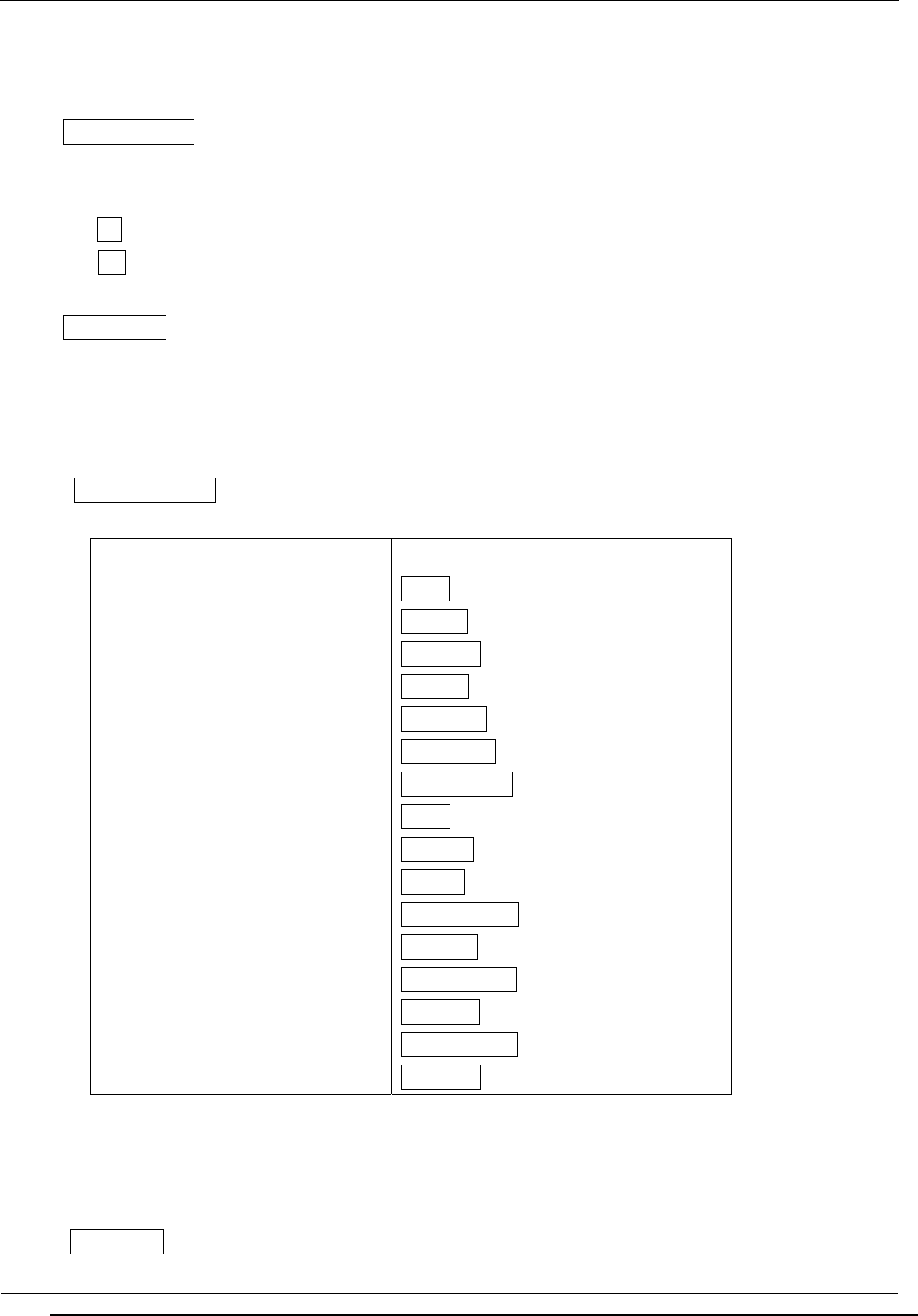
INNO-A21 User’s Guide INNOSTREAM Confidential
PAGE : 78 of 130
<Display On Idle>
This menu allows you to enable or disable to view new broadcasted text messages
in the idle screen.
On : New broadcasted text messages are displayed in the idle screen.
Off : New broadcasted text messages are not displayed in the idle screen.
<Subject List>
This menu allows you to select the subject items of the broadcasted text message.
Each item is identified by three digits index. Following table shows the default subject items your
phone has. If the default subject items list does not have the item you want or if the index or name
of a default subject item is different from that of the network service provider, you can add or edit
in User Define List menu.
Index Subject Name
000
010
020
022
024
030
032
034
040
050
052
054
056
057
058
059
Index
Flashes
Hospitals
Doctors
Pharmacy
Far Traffic
Local Traffic
Taxis
Weather
District
Network Info.
Operator
National Help
Intl. Help
National Care
Intl. Care
!Note : For more information about the available subjects, please contact your network service
provider.
- Active List
INNO-A21 User’s Guide INNOSTREAM Confidential
PAGE : 79 of 130
All items list you selected are displayed. You can add and delete the list by using Add and Delete
option. The number of items in the list depends on your SIM card.
- User Define List
You can add, edit and delete the subject item you want. You can define up to five items. After that,
you need to add the defined subject in the Active List in order to enable the subject.
<Language List>
You can select your preferred languages of the broadcasted message by using Insert and Delete
options.
The number of languages you can select depends on your SIM card.
<Saved Messages>
You can read saved messages and send these messages by using SMS. If you press [Option soft
key], the following options will be available. (It may differ according to situation)
- Open : enables you to view selected message.
- Delete : enables you to delete selected message.
- Delete All : enables you to delete all saved message.
- Send : enables you to send selected message by using SMS.
10.6. Organizer
10.6.1 Morning Alarm
Also you can move setting area by pressing [NAVI-UP],[NAVI-DOWN].
Then you can save and by pressing select key.
This menu enables you to set the morning alarm
- Set Time : sets the time for the alarm.
- Alarm Tone : selects the alarm tone melody.
- Alarm Status : enables you to decide whether the alarm is enable or disable.
- Power Up : enables you to decide whether the alarm alerts or not whilst your phone is powered
off.
- Snooze enables you to set the snooze option. If you set this option, the morning alarm repeats
alerting according to this option.
- Interval : You can choice interval time.
- Repeat Setting : enables you to decide which day of the week the alarm alerts.
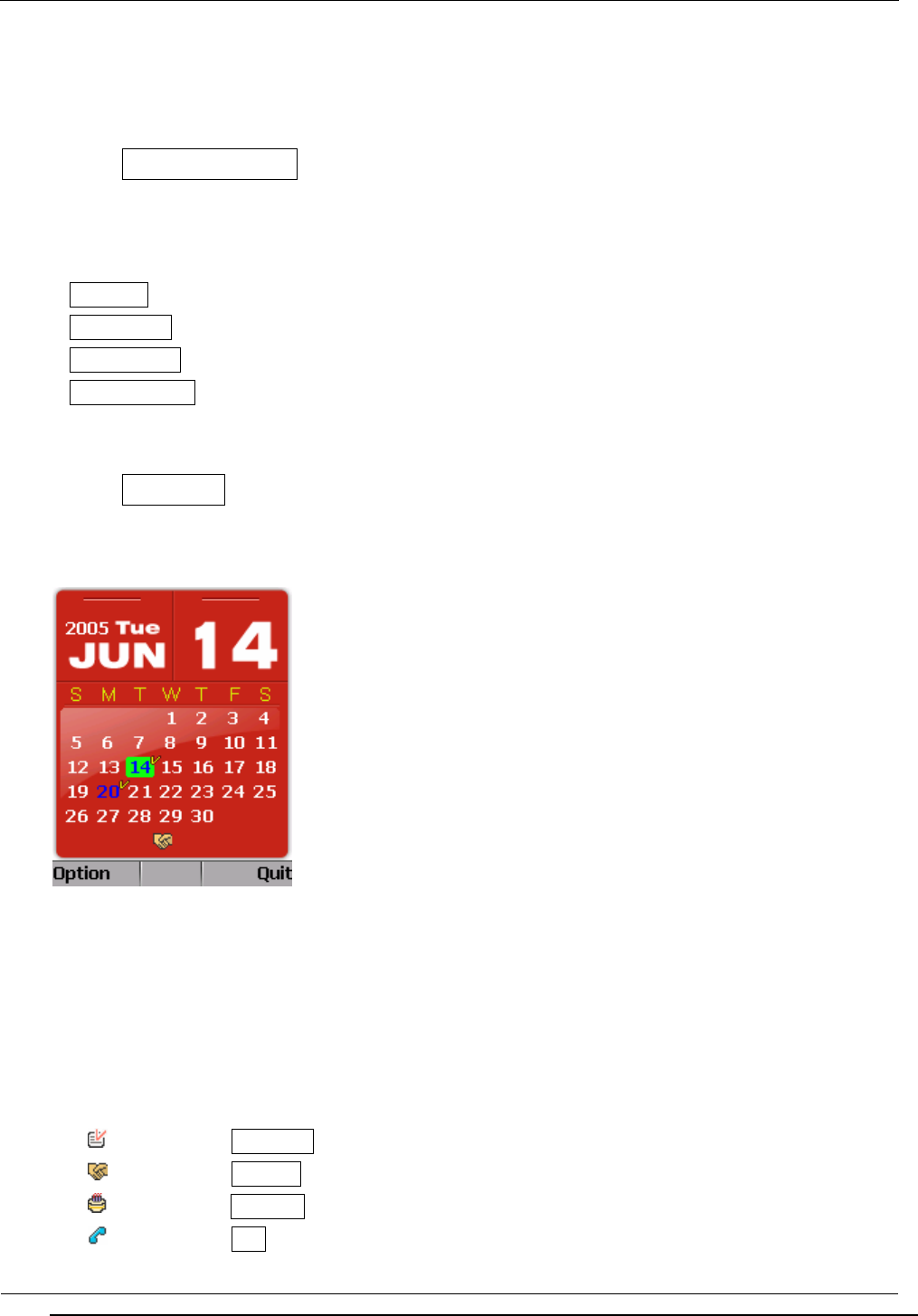
INNO-A21 User’s Guide INNOSTREAM Confidential
PAGE : 80 of 130
# You must save repeat setting value after setting by pressing Save-key.
10.6.2 General Alarms
Also you can move setting area by pressing [NAVI-UP],[NAVI-DOWN].
Then you can save by pressing select key.
This menu enables you to set the general alarms
- Set Time : sets the time for the alarm.
- Alarm Tone : selects the alarm tone melody.
- Alarm Status : enables you to decide whether the alarm is enable or disable.
- Repeat Setting : enables you to decide whether the alarm alerts every day or not.
10.6.3 Calendar
With this menu, you can use calendar function and schedule function.
If you enter this menu, the date cursor is on today’s date. Further,
the lunar date corresponding to today is also displayed on top-right
side.
If the date on the cursor has schedule list, then adequate icons of
the schedule are displayed on bottom-right side.
You can use key on the calendar as follows.
[NAVI-LEFT] or [NAVI-RIGHT] : One(1) day decrement or
increment.[NAVI-UP] or [NAVI-DOWN] : Seven(7) days decrement
or increment.
[*] or [#] : One(1) month decrement or increment.
The scheduler function helps you keep track of reminder, calls, meetings, birthdays, travels or
wedding that you need to know. Your phone sounds adequate melody alarm when the set date/time
for the schedule is reached.
You can add up to 100 schedule list.
Six(6) schedule types are available for the schedule.
: It indicates Reminder schedule.
: It indicates Meeting schedule.
: It indicates Birthday schedule.
: It indicates Call schedule.
INNO-A21 User’s Guide INNOSTREAM Confidential
PAGE : 81 of 130
: It indicates Travel schedule.
: It indicates Wedding schedule.
Following scheduler options are available.
View Today : enables you to view the schedule list of the date.
View All : enables you to view all schedule lists.
Add Schedule : enables you to add schedule.
Delete All : enables you to delete all schedule lists.
View Status : enables you to view the status of schedule lists.
Go To : enables you to go to specific date on the calendar.
You can select the date you want to go to by using following menus.
Date – move to specific date.
After – move to the day after currently selected date in calendar.
Before - move to the day before currently selected date in calendar.
10.6.4 View Today Report
This menu enables you to review current time, date, and information about today schedule.
10.6.5 Memo
If you press [Option soft key], the following options can be available. (It is different according to
situation)
This menu enables you to write memo.
- Open : enables you to view selected memo.
- Delete : enables you to delete selected memo
- Edit : enables you to edit selected memo.
- Add : enables you to add new memo.
- Mark : enables you to mark selected memo as done.
- Unmark : enables you to unmark selected memo as not done.
- Default Encoding : enables you to select character encoding type.
Note!: Memo is saved in “a:/USER” directory in mobile local file system .
10.6.6 Template
This function allows you to make template, and later you can send message with this.
If you press [New soft key], you can create new template.

INNO-A21 User’s Guide INNOSTREAM Confidential
PAGE : 82 of 130
If you press [Option soft key], the following options will be available.
- Create Message : enables you to make message with selected item.
- Edit : enables you to edit the template
- Delete : enables you to delete the template.
10.7 Application
10.7.1 SIM AT Service
SIM Card provides several value added menu service other than your handset does.
This menu service will display and work on the menu of your phone only when your SIM card
supports it. Therefore, this menu may not be shown depending on your SIM card.
The contents and terms of the menu function lists will depend on your network service provider.
Please contact your network service provider (a network operator or the service provider) in
regards with availability of any services related to your SIM card, application information and the
costs.
! Note: Please be aware that you may probably be charged due to activated SMS or call when you
use those menu services.
The text of the SIM AT menus may be different from your phone language setting because the text directly comes
from your SIM card.
10.7.2 Java
When you enter this menu, you will see the following menu.
- List : a list of Midlets ( Java Application running on the mobile phone)
- Download : start a WAP browser and opens a WAP page which is defined by the user in
Download Setting menu, or current Home
- Download Setting : enables you to define a WAP page to open, when you press Download
- Java Profile : Configures which Java profile is used to connect over when using network services
and downloading java contents.
- Activate : This option activates the chosen setting.
- Edit : This option edits the Java profile setting values.
- Add New : This option adds new Java profile setting.
- Delete : This option deletes a selected Java profile setting.
If you select Edit, the following options are available.
INNO-A21 User’s Guide INNOSTREAM Confidential
PAGE : 83 of 130
Profile Name : Java profile name.
Data Connections : Choose the data connection that you require. If you want to add or edit
Data Connections, go to the Data Connections menu of Phone Setting menu.
Proxy : Enable you will use proxy server and Disable is not.
- When the Proxy is set to Enable, you will see menus below.
IP Address : Set the HTTP proxy address.
Port : Set the port number.
- If you select Disable, you will see the following menus.
Get DNS Address : Automatic means setting DNS address automatically.
If you select Manual you can edit address below.
Primary DNS : set the primary DNS address.
Secondary DNS : set the secondary DNS address.
If you have more than one Midlet installed in your mobile phone, and when you select List , you
will see a list of Midlets, and when you press [Option soft key], you will see the following menu.
- Launch : enables you to start the selected Midlet
- About : shows you the detail information of the selected Midlet
- Delete : enables you to delete the selected Midlet
If there is no Midlet installed, you will see “List Empty” pop-up message box.
10.7.3 File Manager
This menu allows you to check free space and usage status of memory space and to organize and
delete files and folders stored in your phone.
If you enter this menu, drive (Phone) may be seen. Additionally, if you insert a MMC, you can see
drive (MMC).
In drive (Phone), if you select [option soft key, you can see the information of the drive. In drive
(MMC), you can also use File System Format function that clear everything of folders and files of
the drive. If you press [Center key], you can see the list of sub-folders and files in each drive.
There are two kinds of folders.
: possible to access,
: inaccessible as a system folder

INNO-A21 User’s Guide INNOSTREAM Confidential
PAGE : 84 of 130
If you select the accessible folder and press [Center key], you can look at file names list of inside
and sub-folders too. If you press [option soft key], you can be available following option.
Info: Shows you the detailed information (such as free space, usage status, etc.) of relevant
folder.
Cut: Moves this folder and everything of sub folders and files under relevant folders
to other folder.
Delete : delete this folder and everything of sub folders and files under relevant folders.
Rename : rename name of a folder.
New Folder : make a new folder.
After the menu cursor move to the file you want, you can execute default action about the file by
pressing [NAVI-CENTRE] key, or you can process several work for the relevant file by pressing
[Option soft key].
Following basic options are available.
According to the file type, adequate option will be available.
For example of case of image file
Send as MMS : Attach the data in MMS
Info : Shows you the information (size, type, etc..) of relevant file.
View : Views this photo.
Set Wallpaper
Photo Decoration
Cut : Moves this file to other folder. After selecting Cut, move to other folder you want and
then select <Paste Here>.
Delete : Deletes this file.
Send Via IrDA : Transmit the data by IrDA.
Rename : Renames this file to other name.
10.7.4 Games
When you select this menu, you can see a list of games.
< 3D STUNTCAR >
Driving with style, Stuntcar delivers a unique, fast-paced stunt racing experience in early 80's
retro funk flavor. Race against opponents, unlock new tracks and new stunt cars and become the
Stunt Champion!
Advanced car physics, fearsome opponents and insane jumps guarantee that the experience will be
INNO-A21 User’s Guide INNOSTREAM Confidential
PAGE : 85 of 130
hair-raising!
When you play this game first time, you need to register as a player.
QUICK RACE
In this race, you can train your driving skill.
Pick a vehicle and difficulty. Then hop into the car, get on the track and beat the opponent.
If you select QUICK RACE menu, you can see this follow menu.
[START RACE] : Start racing game.
[DIFFICULTY] : You can select a degree of difficulty.
- Rookie, Semi-Pro, Pro
[SELECT CAR] : You can select one of your cars.
Red squares represent the ability to perform that function. More Red
INNO-A21 User’s Guide INNOSTREAM Confidential
PAGE : 86 of 130
square, higher ability. It is divided into five grades.
It consists of handling, top speed and acceleration.
[SELECT TRACK] :
You can select one of the available tracks.
You can see the details of the track. (difficulty, length, stunt factor)
※ Stunt Factor: the amount of stunt points
Now, you finished selecting a car, and track, press [START RACE], and
enjoy the race.
[Controls]
The key configuration is as follows:
[NAVI-UP] or [1] : Accelerate.
[NAVI-DOWN] or [4] : Brake.
[NAVI- LEFT] or [2] : Turn left.
[NAVI- RIGHT] or [3] : Turn right.
[NAVI-CENTRE] or [5] : Nitro boost.
Enabled only when red light above the handle is light
CHAMPIONSHIP
Beat the other drivers in Duels and collect a better car. Obtain Stunt Points from auto racing and
get promoted from one league to another by winning the Stunt Cup.
Stunt Racing means cars and several bars.,
[Milkshake Bar]
INNO-A21 User’s Guide INNOSTREAM Confidential
PAGE : 87 of 130
Before and after Racing, amateurs hang around at the Milkshake Bar
[DEFEATED]
DEFEATED means that you defeated an opponent in NEW CAR racing game and get a new car.
[ Conditions for Challenge in Milkshake Bar ]
LUCY
You have to win 3 times Friday Race Events.
SANJAY
You have to get 50000 Stunt Points.
HANK
Your lap time on the Ring of Fire is better than 27 seconds.
GERALD
You have to perform a Stunt Jump worth 1400 Stunt Points.
TERRY
You have to get 150000 Stunt Points.
[ Champion Ship Menu ]
Exit to Main Menu
INNO-A21 User’s Guide INNOSTREAM Confidential
PAGE : 88 of 130
Enter the Stunt Cup.
You can take part in a racing tournament.
If you take first place in a tournament, you can come to next
stage.
You need at least 200,000 stunt points to enter the stunt cup at
the Milkshake Bar.
You need at least 450,000 stunt points to enter the stunt cup in
the dark and dangerous Stunt Saloon.
You need at least 750,000 stunt points to enter the stunt cup in
the luxurious Dear devil Lounge.
Star Ranking Blackboard.
You can see the ranking of the players.
Friday Race Event.
Talk to the others.
[Stunt Saloon]
Semi-pros take a rest in the dark and dangerous Stunt Saloon.
If you win tournament at the Milkshake Bar, you can enter Stunt Saloon.
[ Conditions for Challenge ]
HERMAN
He don’t have any special conditions for challenge.
THACKER
You have to get 400000 Stunt Points.
INNO-A21 User’s Guide INNOSTREAM Confidential
PAGE : 89 of 130
JUSTIN
Your lap time on the Ring of Fire is better than 24 seconds.
SANDY
You have to perform a Stunt Jump worth 3000 Stunt Points.
DJ MOCAL
You have to get 300000 Stunt Points.
[Daredevil Lounge]
Only the best make their way to the luxurious Daredevil Lounge.
If you win tournament at the Milkshake Bar, you can enter Daredevil Lounge.
[ Conditions for Challenge ]
HIRO
You have to get 700000 Stunt Points.
BUFF D
He don’t have any special conditions for challenge.
JULIO
You have to get 500000 Stunt Points.
MISATO
Your lap time on the Ring of Fire is better than 22 seconds.
SIMON
You have to perform a Stunt Jump worth 7000 Stunt Points.
INNO-A21 User’s Guide INNOSTREAM Confidential
PAGE : 90 of 130
[ Champion Ship Menu in Daredevil Lounge ]
Enter the Stunt Cup.
You need at least 750,000 stunt points to enter the stunt cup in
the luxurious Dear devil Lounge.
HIGH SCORES
You can see the best lap times, best race times, best stunt jumps and hall of fame.
OPTIONS
When you select option menu, you can see this picture.
[MUSIC] : Adjust game music
[SOUND FX] : Adjust sound effects. [ex : car crash, engine sound]
You can adjust that volume with NAVI-LEFT and NAVI-RIGHT key.
[RUMBLER FX]: If your car crash into another car, vibration will be running.
But, if this box is checked, it will be not running.
You can also change the game volume while enjoying the game by pressing [VOL-DOWN] to
decrease the volume, [VOL-UP] to increase the volume.
[CAREER] : Select racer and register his name.
At first game, you have to register racer name.
HELP
INNO-A21 User’s Guide INNOSTREAM Confidential
PAGE : 91 of 130
When you select option menu, you can see game manual.
10.7.5 Calculator
Your phone has built-in engineering calculator, which can perform basic arithmetic operation and
scientific function.
Some of its features include:
- Normal and scientific output
(addition, subtraction, division and multiplication)
- Support for all standard mathematical functions
(sin, cos, tan, asin, acos, atan, sinh, cosh, tanh, exp, log, log10 and sqrt)
- More than 15 built-in variables for memories labelled A to Q.
The following icon illustrates key functions.
Press the [Answer soft key] to display the result of an arithmetic operation.
Press the [Quit soft key] turns back to the previous menu mode.
Press the [Clear soft key] once to erase a figure to the left of the cursor.
Use the [*] key to enter the decimal part of a number or special symbols such as ., (, ), ^, e, !, <, >
INNO-A21 User’s Guide INNOSTREAM Confidential
PAGE : 92 of 130
and =.
Use the [#] key to see helpful information for calculation.
Use the [NAVI-CENTRE] to enter Option menu for function and memory.
10.7.6 Stopwatch
The stopwatch can check nine(9) lap time and save one record.(One record is composed of nine(9)
lap times) When the stopwatch is not running, you can start or restart and reset the stopwatch. In
running state, you have two choices (stop and save lap time). If you press [Lap Time soft key],
the total time does not stop but present lap time stop and new lap time immediately starts. Also
you can save present record or load previous record. Whether the stopwatch is running or not, you
can directly check lap time by pressing numeric key ([0]~[9]). In screen first big number is total
time, and small two lines show you lap time with lap time order.
[Key Function Table]
[Start soft key] starts or restarts the stopwatch
[Stop soft key] stops the stopwatch
[Reset soft key] resets and delete present record
[Lap Time soft key] saves the lap time or reset the stopwatch (when pressed and held)
[NAVI-LEFT] checks saved lap times backward (previous lap time)
[NAVI-RIGHT] checks saved lap times forward (next lap time)
[NAVI-UP] saves present record in not running state
[NAVI-DOWN] loads saved record in not running state
[0]~[9] directs check saved lap time directly
[END] ends the stopwatch and then turns back to the previous menu
! Note: The stopwatch is not turned off when you answer an incoming call or the phone is sounding
an alarm. But if you don’t save record and press [END], record will be lost.
10.7.7 Voice Memo
This function allows you to record voice memo and set it as the ring tone.
After recording, you can play recorded voice memo and save to “*.amr” file.
The following icon illustrates key functions.

INNO-A21 User’s Guide INNOSTREAM Confidential
PAGE : 93 of 130
Press the [REC key] start recoding operation [NAVI-UP].
- Start recoding. Stop key, Pause key and Reset key are able.
Press the [STOP key] stop the recoding or playing mode [NAVI-DOWN].
Press the [PLAY key] start playing operation [NAVI-LEFT].
- Start playing. Stop key, Pause key and Reset key are able.
Press the [PAUSE key] new recode operation [NAVI-RIGHT].
- Pause is able to recoding or playing mode.
Press the [RESET key] new recode operation [Reset soft key].
- Recoding or playing mode is initialing.
Press the [RESTART key] restart operation [Restart soft key].
- Restart playing mode.
You can launch Option menu by pressing [Option soft key].
After the recoded voice memo is saved to a file, you can set as ring tone by selecting Set As Ring
Melody option.
10.7.8 World Time
This menu allows you to identify what time it is in various cities around the world.
You can easily set your local time in another country by pressing [Set Local soft key].
10.7.9 Electronic Dictionary
10.7.9.1 English To Chinese
- Input the word (by using multi tap input mode)
- Use [NAVI-UP] or [NAVA-DOWN] to roll the page and choose the right word
- Press Select to confirm
- Get the explanation of this word.
After reading all,if you press Add key, the word and explanation are added to My Glossary and
you can review that in My Glossary menu.
10.7.9.2 Chinese To English
- Input the word (by using T9 Pin Yin input mode).
- Use [NAVI-UP] or [NAVA-DOWN] to roll the page and choose the right word
- Press Select to confirm
INNO-A21 User’s Guide INNOSTREAM Confidential
PAGE : 94 of 130
- Then you will get the English meaning of this Chinese phrase. After reading it, you may go
back and look up another word
10.7.9.3 Learn Words
Search
This menu is bookmark function. There is an index for user to search word by word and you
can see a correspondent explanation for each word. You can use [NAVI-LEFT] or [NAVI-
RIGHT] to search the word.
Recite
The system gives you a random word to test you. By pressing Pause key or Stop key, you can
control speed of system.
Setting
You can select one of the CET-4, CET-6, TOFLE and New Concept. This setup affect apparent
words in Search, Recite menu.
10.7.9.4 My Glossary
You can review words you searched
10.8 Camera
You can take pictures and record video clips with the phone’s built-in 2 Mega-pixel camera, and
view them on your phone screen and send them to your friends via a MMS message or via E-mail
message.
If there is not enough memory to save a new photo or video clip, you need to free some by
deleting old pictures or other files in Photo Album, Image File ,Camcorder Album or File Manager
menu.
Normal mode & Rotation Mode in Camera
Build-in camera is located in side of phone. So, Still Shot and Camcorder support two types of
camera mode. One is the Normal Mode and another is the Rotation Mode.
So, you can take a picture or record video clips between two modes. By pressing [#] key, you can
change camera mode between Normal mode and Rotation mode.
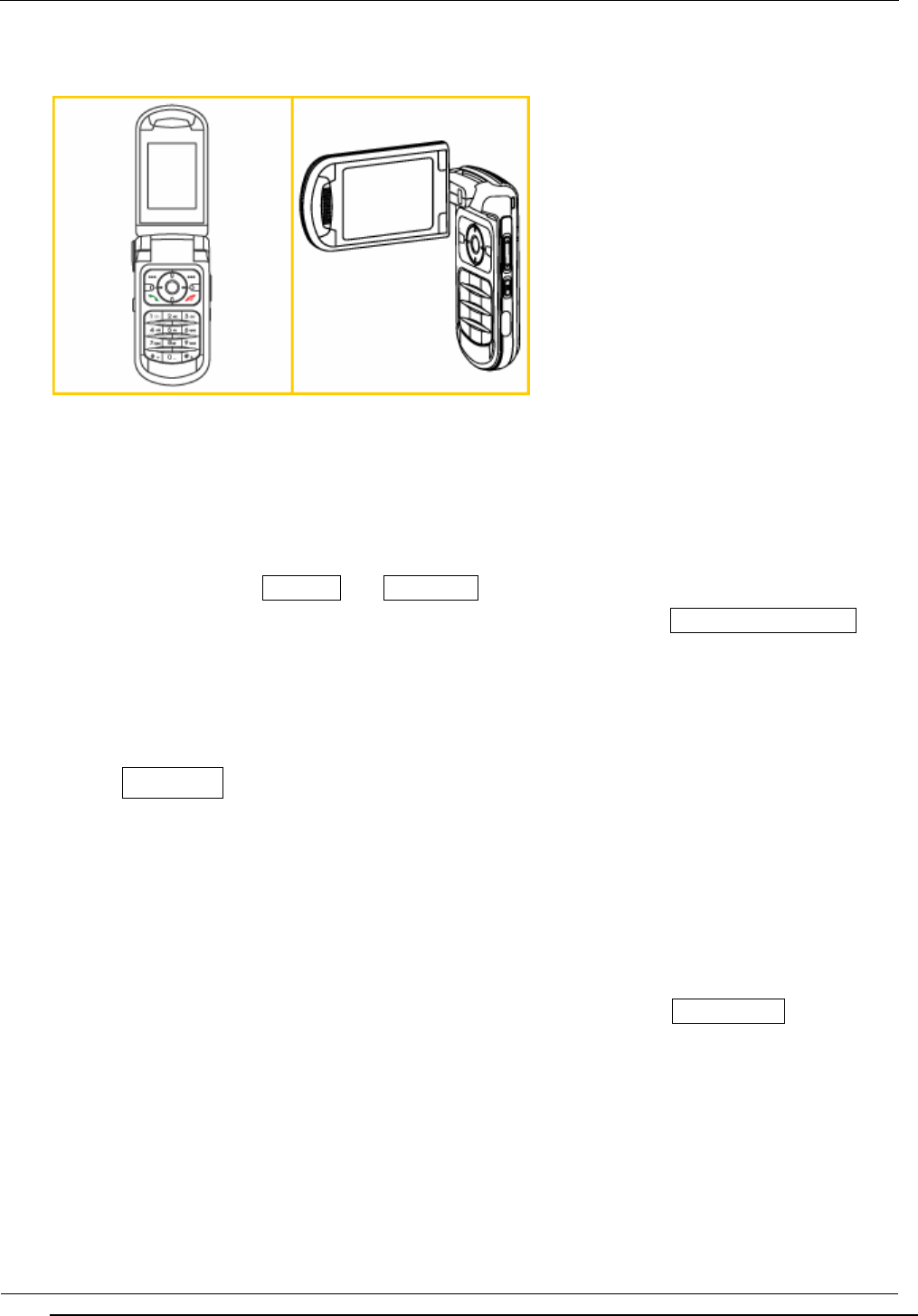
INNO-A21 User’s Guide INNOSTREAM Confidential
PAGE : 95 of 130
1 Normal Mode 2 Rotation Mode
Above pictures show two camera modes. Try taking a picture or recording a video clip like
example pictures. Then you can use camera easily.
Normally, you can start Still Shot and Camcorder menu with Rotation mode. Also, you can choose
start mode of camera mode between Normal mode & Rotation mode in Default Camera Mode.
In Rotation mode, you can set a few camera values for taking a picture and record a video clip. For
detail setting, you should change camera mode to Normal mode by pressing [#] key. Then, you
can set all of camera values.
10.8.1 Still Shot
This menu allows you to take pictures and adjust its settings.
You can capture the image on the screen by pressing [NAVI-CENTRE] in Normal mode or
[CAMERA] in Rotation Mode and decide whether to save or cancel it or send to your friends via a
Multimedia message or via E-mail.
The picture is automatically or manually named according to setting of Saving Name menu.
!NOTE : In Rotation mode, the pictures are saved automatically.
Normal Camera Mode Keys.
You can change the zoom by pressing [NAVI-UP] or [NAVI-DOWN] and change the brightness by
pressing [NAVI-LEFT] or [NAVI-RIGHT].

INNO-A21 User’s Guide INNOSTREAM Confidential
PAGE : 96 of 130
If you press [Setup soft key] and move to the icon by pressing [NAVI-LEFT] or [NAVI-RIGHT],
you can adjust the following settings by pressing [NAVI-UP] or [NAVI-DOWN].
Rotation Camera Mode Keys.
You can change the zoom by pressing [VOLUME-UP] or [VOLUME -DOWN]. And you can take a
picture by pressing [CAMERA].
If you press [MULTIMEDIA], you can see camera setting screen. Then, you can adjust the
following settings by pressing [1], [2], [3], [4].
!NOTE : In Rotation Mode, you can adjust only resolution, flash, color effect, white balance.
Zoom :
You can continuously change the zooming ratio by pressing[NAVI-UP] or [NAVI-DOWN].
But, in 1600x1200 resolution, zoom feature is not operated.
Brightness :
You can change the brightness by pressing [NAVI-LEFT] or [NAVI-RIGHT].
Resolution :
You can choose resolution. Resolution refers to the number of pixels in a picture.
Higher resolution uses more memory per picture.
There are 6 kinds of resolution : 1600x1200 / 1280x960 / 640x480 / 320x240 / 176x176 /
Phonebook size
Flash :
You can select flash mode.
There are 3 kinds of flash modes : Auto / On / Off.
And you can also change flash mode directly by pressing [0] key.
Quality:
You can select picture quality.
There are 3 kinds of quality modes : low / medium / high.
If you choose better quality, a picture size is expanded.
Illuminance :
You can select the illuminance of camera.
There are 2 kinds of illuminance modes : Normal / Dark.
By applying illuminance mode, you can get better picture quality.
Color effect :
You can select a color Effect of camera.
INNO-A21 User’s Guide INNOSTREAM Confidential
PAGE : 97 of 130
There are 11 kinds of color effects.
White Balance :
You can select the white balance of camera.
There are 5 kinds of white balance modes : Auto / Daylight / Cloud / Bulb / Fluorescent.
By applying white balance mode according to the current lighting condition, you can get better
picture quality.
Shot Number :
You can select single shot or multi shot.
There are 3 kinds of multi shot : 3, 6 and 9.
If you select multi shot, you can take pictures continuously up to 9 images by
pressing [NAVI-CENTRE] one time.
But there are limitations of multi shot according to resolution and quality.
!Note : In 1280x960 and 1600x1200 resolution, multi shot is not operated. Only one shot is
allowed.
Self timer :
You can set the timer to delay the shutter.
There are 3 kinds of delay time : Off / 5 seconds / 10 seconds.
When you press the [NAVI-CENTRE], the camera takes the picture after a
specified time.
Save Device :
You can select save device : Phone Memory / MMC.
HOT KEY
[0] : Press [0] key, then you can change flash mode.
[#] : Press [#] key, then you can change camera UI type between normal & rotation mode.
10.8.2 Self Shot
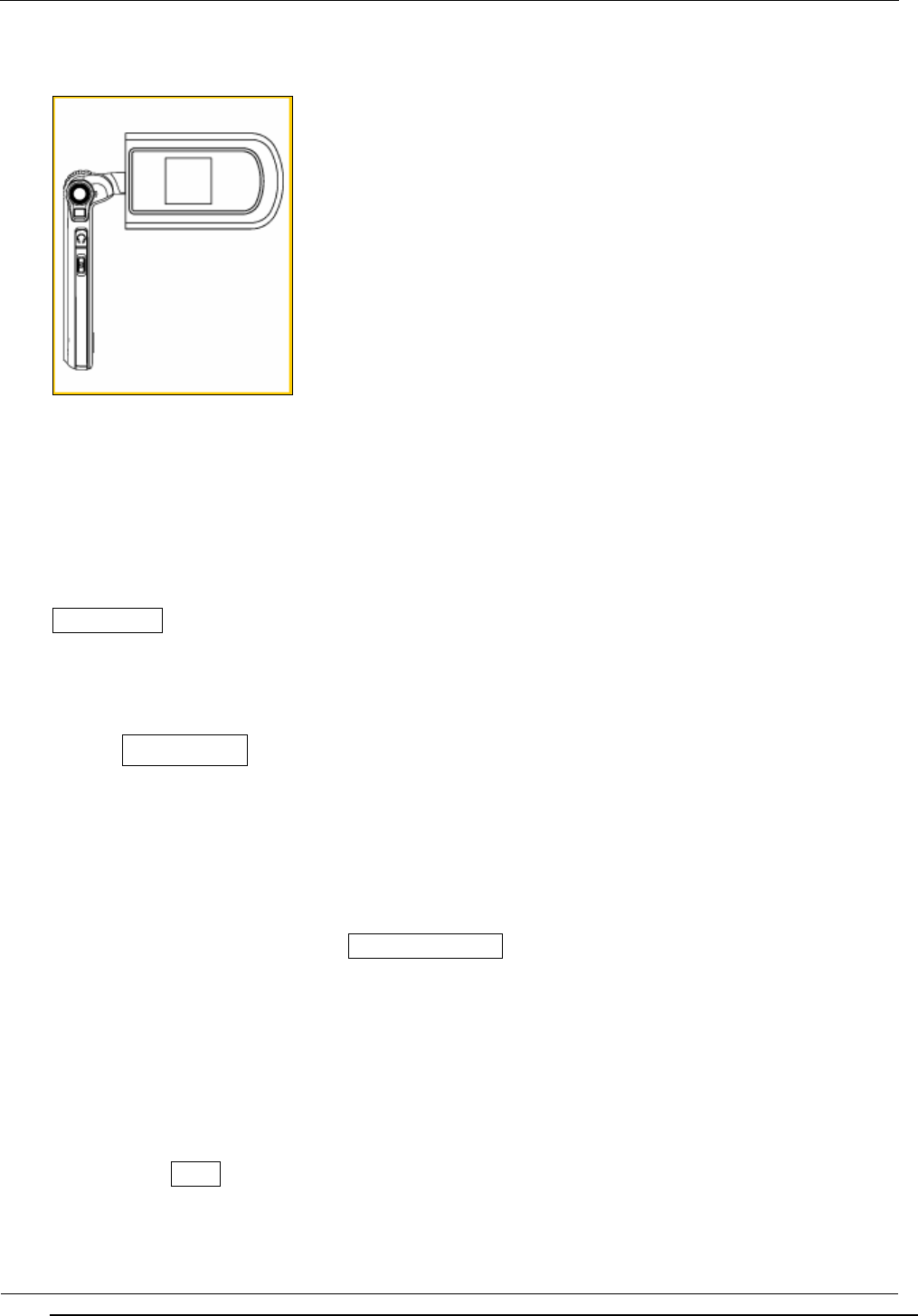
INNO-A21 User’s Guide INNOSTREAM Confidential
PAGE : 98 of 130
You can capture a picture of you by yourself with the phone’s built-in camera like above example
picture, and you can view them on your phone screen and send them to your friends via a
Multimedia message or via E-mail.
By pressing [CAMERA] key, you can take a picture of you. And you can control flash by pressing
[0] key. After taking, picture is saved automatically as default name like “SELF00001.jpg” in
Photo Album of Phone memory.
10.8.3 Camcorder
You can record video clips with the phone’s built-in camera, view them on your phone screen and
send them to your friends via a Multimedia message or via E-mail. And you can set a video clip as
wallpaper.
Video clips are recorded as the MP4 file format or the 3GPP file format, and you can save video
clips automatically or manually in Camcorder Album of Phone memory or MMC.
!NOTE : In Rotation mode, the pictures are saved automatically.
Normal Camera Mode Keys.
You can change the zoom by pressing [NAVI-UP] or [NAVI-DOWN] and change the brightness by
pressing [NAVI-LEFT] or [NAVI-RIGHT].
If you press [Setup soft key] and move to the icon by pressing [NAVI-LEFT] or [NAVI-RIGHT],
you can adjust the following settings by pressing [NAVI-UP] or [NAVI-DOWN].
By pressing [NAVI-CENTRE], you can record a video clip. And you can save a video clip by
INNO-A21 User’s Guide INNOSTREAM Confidential
PAGE : 99 of 130
pressing [Save soft key] and cancel recording by pressing [CANCEL soft key].
Rotation Camera Mode Keys.
You can change the zoom by pressing [VOLUME-UP] or [VOLUME -DOWN]. And you can record
a video clip by pressing [CAMERA] and save automatically by pressing [CAMERA] again.
If you press [MULTIMEDIA] in Preview State, you can see camera setting screen. Then, you can
adjust the following settings by pressing [1], [2], [3], [4].
Zoom :
You can continuously change the zooming ratio by pressing[NAVI-UP] or [NAVI-DOWN].
Brightness :
You can change the brightness by pressing [NAVI-LEFT] or [NAVI-RIGHT].
Recording mode:
You can select recording mode of video clips.
There are 2 kinds of recording modes : Normal / Send.
If you select normal mode, the length of the video recording is restricted by the available space
on your Phone memory or MMC. And if you select send mode, you can record video clips up to
300 KB to be conveniently sent via MMS.
Resolution :
You can choose resolution. Resolution refers to the number of pixels in a frame.
Higher resolution uses more memory per frame.
There are 3 kinds of resolution : 352x288 / 176x144 / 128x96.
Flash :
You can select flash mode.
There are 2 kinds of flash modes : On / Off.
And you can also change flash mode directly by pressing [0] key.
Quality:
You can select video quality.
There are 3 kinds of quality mode : low / medium / high.
If you choose better quality, a file size is expanded.
Illuminance :
You can select the illuminance of camera.
There are 2 kinds of illuminance modes : Normal / Dark.
By applying illuminance mode, you can get better video quality.
Color effect :
INNO-A21 User’s Guide INNOSTREAM Confidential
PAGE : 100 of 130
You can select a color Effect of camera.
There are 11 kinds of color effects.
White Balance :
You can select the white balance of camera.
There are 5 kinds of white balance modes : Auto / Daylight / Cloud / Bulb / Fluorescent.
By applying white balance mode according to the current lighting condition, you can get better
video quality.
Video format:
You can select Video Format.
There are 2 kinds of video format : MP4 / 3GP.
Audio On/Off:
You can select audio ON / OFF.
Save Device :
You can select save device : Phone Memory / MMC Card.
Video Clip Record Time.
If you select Phone memory and CAMCORDER can use full memory, you can record a video clip
for 30 minutes. On the other hands, if you select MMC, maximum recording time is 2 hours
depending on MMC free amount.
HOT KEY
[0] : Press [0] key, then you can change flash mode.
[#] : Press [#] key, then you can change camera UI type between Normal & Rotation mode.
10.8.4 Photo Album
This menu allows you to view, organize, delete and send pictures stored in Phone memory or MMC.
You can select Photo Album in Phone memory or MMC by pressing [1]or [2].
Viewing pictures
1.Move menu cursor to a picture to view on the list of small thumbnail pictures by pressing
[NAVI-UP] or [NAVI-DOWN] or [NAVI-LEFT] or [NAVI-RIGHT].
2. Press [NAVI-CENTRE] to launch main viewer.
3. When you are viewing a picture, pressing [NAVI-LEFT] or [NAVI-RIGHT] take you to the next
or previous picture.

INNO-A21 User’s Guide INNOSTREAM Confidential
PAGE : 101 of 130
!Note : In Photo Album, no jpeg files are displayed as a icon image. After the menu cursor move to
those files, you can execute default action about the file by pressing [NAVI-CENTRE] key in
case of supported image file format.
If you select [Options soft key], following options are available.
Info : allows you to view the name of a picture, size, date and time.
View : allows you to view selected picture.
Set Wallpaper : allows you to set to wallpaper.
Send As E-mail : allows you to send selected picture to your friends via E-mail message.
Send As MMS : allows you to send selected picture to your friends via MMS message.
Send Via IrDA : allows you to send selected picture to your friends via IrDA.
Cut : allows you to move selected picture to another folder.
Delete : allows you to delete selected picture.
Rename : allows you to change the name of selected picture.
10.8.5 Camcorder Album
This menu allows you to view, organize, delete video clips stored in Phone or MMC.
You can select Camcorder Album in Phone memory or MMC card by pressing [1] key or [2] key.
Viewing Video Clips
1.Move menu cursor to the name of a video clip to view on the list by pressing [NAVI-UP] or
[NAVI-DOWN].
2. Press [NAVI-CENTRE] to launch main viewer.
3. Pressing [NAVI-LEFT] or [NAVI-RIGHT] takes you to next or previous video clip.
4. Press [NAVI-CENTRE] to play a video clip.
If you select [Options soft key], following options are available.
Info : allows you to view the name of a picture, size, date and time.
View : allows you to view selected picture.
Set Wallpaper : allows you to set to wallpaper.
Send As E-mail : allows you to send selected picture to your friends via E-mail message.
Send As MMS : allows you to send selected picture to your friends via MMS message.
Send Via IrDA : allows you to send selected picture to your friends via IrDA.
INNO-A21 User’s Guide INNOSTREAM Confidential
PAGE : 102 of 130
Cut : allows you to move selected picture to another folder.
Delete : allows you to delete selected picture.
Rename : allows you to change the name of selected picture.
10.8.6 Camera Setting
<Still Shot>
This menu allows you to adjust additional functions.
Shutter Sound : Enables you to select a shutter tone when taking a picture.
Saving Name : Enables you to select whether a picture is named automatically or manually.
Set Default : Enables you to reset the settings changed in Still Shot menu.
<Camcorder>
This menu allows you to adjust additional functions.
Saving Name : Enables you to select whether a video clip is named automatically
or manually.
Set Default : Enables you to reset the settings changed in Camcorder menu.
<Default Camera Mode>
This menu allows you to select default camera mode.
Normal Mode : Enables you to start Still Shot or Camcorder with normal camera mode.
Rotation Mode : Enables you to start Still Shot or Camcorder with rotation camera mode.
10.9 Setting
10.9.1 Own Number
This menu displays your phone numbers. You can view, add, edit, and delete the numbers, stored
in your SIM card.
10.9.2 Sound Setting
With this menu, you can customize various audible settings.
! Note : To switch on the silence mode, press and hold [VOLUME-UP] on the left side of phone in
the idle screen. To switch off the mode, press and hold down [VOLUME-UP] again.
If your phone is in the silence mode, all audile key tones and melodies are prohibited and all alerts
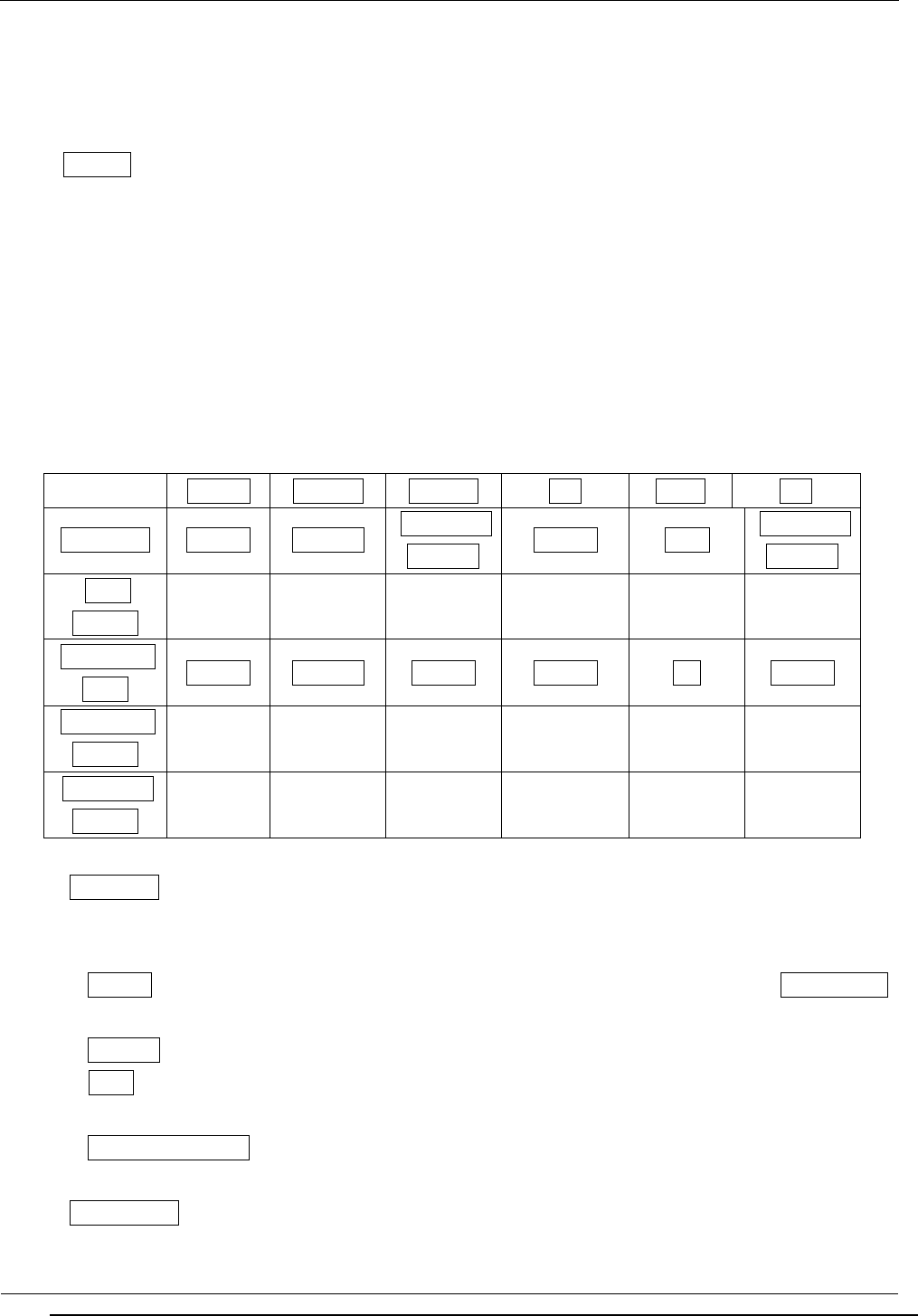
INNO-A21 User’s Guide INNOSTREAM Confidential
PAGE : 103 of 130
are changed to the vibrator regardless of the setting in this menu.
<Profiles>
This menu allows you to activate and change the settings of the selected profile according to your
wish.
The audio profile menu allows you to access a group of pre-defined settings. A profile is a group
of audio settings that are set to suit a wide variety of events and environments (e.g. meetings,
movies, etc). There are seven types of profiles; Normal, Meeting, Outdoor, Car, Silent and VIP
profiles.
The table below shows the default settings of each profile.
Normal Meeting Outdoor Car Silent VIP
Ring Type Melody Vibrator Melody +
Vibrator Melody Light Melody +
Vibrator
Ring
Volume Level 7 Level 0 Level 7 Level 7 Level 0 Level 7
SMS Alert
Type Melody Vibrator Melody Melody Off Melody
SMS Alert
Volume Level 7 Level 0 Level 7 Level 7 Level 0 Level 7
Key Tone
Volume Level 6 Level 0 Level 7 Level 7 Level 0 Level 5
- Ring Type
This menu allows you to select how to be informed of any incoming call.
Following types are available.
Melody : Your phone rings using the ringing melody selected at menu option of Ring Melody
option.
Vibrator : Your phone rings using the vibrator.
Light : Your phone rings using the backlight illuminated on the display screen, rather than the
normal ringing tone or vibrator.
Melody + Vibrator : Your phone rings using both melody and vibrator simultaneously.
- Ring Volume
This option allows you to adjust the ringing volume to one of eight levels.
INNO-A21 User’s Guide INNOSTREAM Confidential
PAGE : 104 of 130
Use [NAVI-UP] and [NAVI-DOWN], and then press [Select soft key].
- SMS Alert Type
This menu allows you to select how to be informed of new incoming SMS message.
Following types are available.
Melody : Your phone alerts using the SMS alert sound selected at menu option of
Message Melody option.
Vibrator: Your phone alerts using the vibrator.
Off : Your phone does not alert with sound or vibrator.
- SMS Alert Volume
This option allows you to adjust the SMS alert volume to one of eight levels.
Use [NAVI-UP] and [NAVI-DOWN], and then press [Select soft key].
- Key Tone Volume
This option allows you to adjust the key volume to one of eight levels when you press a key.
Use [NAVI-UP] and [NAVI-DOWN], and then press [Select soft key].
<Key Tone Type>
This option allows you to select the tone that the keypad generates when you press a key on the
idle screen.
Following types are available.
Tone : When a key is pressed, your phone makes a different sound(DTMF Tone) for different
keys.
Beep : When a numeric key is pressed, your phone makes same sound for different keys.
Keytone1, Keytone2 : When a key is pressed, your phone makes a different sound(Melody
Tone) for different keys.
Off : When a key is pressed, your phone makes no sound.
<Ring Melody>
This menu allows you to select which melody is used for any incoming call.
You can select the melody that you prefer among various melodies.
You can select melody in three categories :
Basic : The list of various melodies and classical music
My Melody Phone : The list of sound files stored “B:₩sound” folder.
My Melody MMC : The list of sound files stored “C:₩sound” folder.
INNO-A21 User’s Guide INNOSTREAM Confidential
PAGE : 105 of 130
<Message Melody>
This menu allows you to select how to be informed of any SMS, MMS, Voicemail delivery.
You can select the melody that you prefer among various melodies.
<Rising Volume>
With this menu set to On, the alert volume for incoming call and alarm tones are to be increased
gradually.
<Connect Tone>
With this menu set to On, your phone beeps at connecting to a network when making a call.
! Note : This function may not be possible on all networks.
<Minute Tone>
With this menu set to On, your phone beeps 10 seconds before every one minute during a call to
remind you of how long the call has been in progress.
10.9.3 Display Setting
<Language>
You can select in which language the display text is shown.
If you select Automatic, the display text is automatically displayed according to the country of
your SIM card.
This setting also determines which text input mode is selected when you write a text message.
For details, please see section 7.
<Wallpaper>
You can apply image from Sample Image, Photo Album, Camcorder Album, Image File, MFlash
Folder , or Video Folder to main or sub wallpaper.
<LCD Contrast>
This menu allows you to adjust the contrast of the Display screen.
<Greeting Message>
This menu allows you to edit a greeting message that is briefly displayed when the phone is
switched on.

INNO-A21 User’s Guide INNOSTREAM Confidential
PAGE : 106 of 130
<Backlight Time>
You can select a backlighting time of the main display screen.
The following options are available.
10 secs : The backlight comes on for 10 seconds.
30 secs : The backlight comes on for 30 seconds.
1 Min: The backlight comes on for 1 minute.
1 Min 30 secs : The backlight comes on for 1 minute 30 seconds.
<Keypad Light>
You can select whether keypad backlight is displayed or not.
The following options are available.
On : When you press a keypad, any keypad backlight is turned on.
Off : When you press a keypad, any keypad backlight is not turned on.
10.9.4 Clock Setting
You can use [NAVI-KEY] to change the setting place.
You can use [NAVI-UP] or [NAVI-DOWN] to choice the setting place.
If you change the time and the date setting value, you must into the setting place by pressing
select key.
There are four setting place.
Set time, Set Date, Time Format and Time Update.
Several menu setting.
<Set Time>
This menu allows you to change the time displayed in the idle screen.
You can choice this menu by select key.
You can use numeric key ([0]~[9]) and [NAVI–UP] or [NAVI-DOWN] to change time value and
use [NAVI-LEFT] or [NAVI-RIGHT] to change the setting place. If you have selected 12 Hour
time format, you can change am/pm value by pressing [NAVI-UP] or [NAVI-DOWN].
<Set Date>
This menu allows you to change the date displayed in the idle screen.
You can use numeric key ([0]~[9]) to change date value and use [NAVI-LEFT] or [NAVI-RIGHT]
to change setting place.
<Time Update>

INNO-A21 User’s Guide INNOSTREAM Confidential
PAGE : 107 of 130
This menu allows you to change time update option.
You can choice automatic or manual by pressing [NAVI-LEFT] or [NAVI-RIGHT].
You can Update current option by pressing select key.
If you select automatic, the time in your phone is set by network.
! Note 1. This option only takes effect using GPRS SIM card.
2. For the automatic update setting to take effect, the phone needs to be restarted.
3. If you have changed time/date in Set Time menu, automatic update will be disabled.
<Time Format>
This menu allows you to change time format between 12 Hour and 24 Hour by pressing [NAVI-
LEFT] or [NAVI-RIGHT].
You can update current option by pressing select key.
10.9.5 Call Setting
<Caller Number>
This menu prevents your phone number from being displayed on the phone of the person being
called.
The following options are available.
Default : The default setting provided by the network is used.
Hide Number : Your phone number is not displayed on the called person's phone.
!Note : In some network, when you make a call with hiding the telephone number, the network
does not allow to make the call.
Send Number : Your phone number is displayed on the called person’s phone each time you
make a call.
<Any Key Answer>
With this menu, you can answer an incoming call by pressing any key except the [End soft key] or
[END].
On: You can press any key except the [End soft key] and the [END] to answer an incoming
call.
Off: You can only press the [Answer soft key] and the [SEND] to answer an incoming call.
<Folder Answer>
If you select On, you can answer an incoming call in the state that you do not open the phone.
<Auto Redial>

INNO-A21 User’s Guide INNOSTREAM Confidential
PAGE : 108 of 130
With this menu, your phone makes up to five attempts to redial a phone number after an
unsuccessful call.
The following options are available.
On: The number entered is redialled automatically.
Off: The number entered is not redialled.
! Note: The number of retrial may be variable according to the cause of the unsuccessful call.
If you press any key or close the folder cover, or if an incoming call or SMS is arrived, the
redialling mode is stopped.
<Auto Response>
With this menu, Select Auto Response to set the phone to answer an incoming call
automatically after ring time.
<Set Auto Response>
On: Enable set the phone to answer an incoming call automatically.
Off: Disable set the phone to answer an incoming call automatically.
! Note: If you press [VOLUME-DOWN] for long time in the idle screen,
set auto response on or off..
<Ring Time>
Enables you to decide which ring time of the auto response.
<Save Device>
You can select save device : Phone Memory / MMC Card.
<Greeting Speech>
This function allows you to record voice memo and set it as the greeting speech.
After recording, you can play recorded voice memo.
You can launch Option menu by pressing [NAVI-CENTRE].
After the recoded voice memo is set to a file, you can set as greeting speech by
selecting Set Auto Response option.
<Auto Response File>
With this menu, you can play, organize, delete.
Display the list of files recorded in Auto Response, Record Speech menu
10.9.6 Data Connections
In order to use WAP browser, MMS and E-mail, you must set up the Data Connections. You can
edit or rename each Data Connections in list. To use different profile for MMS connection and E-
mail connection, activate the data connection in MMS Settings menu and E-mail Setting menu.

INNO-A21 User’s Guide INNOSTREAM Confidential
PAGE : 109 of 130
Your phone is preset with the default WAP data connections.
Edit : This option edits the data connection setting values.
Add New : This option adds new data connection setting values.
Delete : This option deletes the selected data connection setting values.
The service settings below are only available when CSD has been selected as a bearer service.
Name : WAP data connection name.
Bearer : Bearer service type selection.
User Name : User name for dial up server.
Password : Password for dial up server.
Dial Up Number : Telephone number to dial to access your WAP gateway.
Timeout : Timeout periods for browser to report a failure to send a data (e.g. because the
WAP gateway is not responding).
Data Call Type : You need to select the type of data call to make, that is: Analogue or ISDN
(digital).
Date Call Speed : Select the call speed of data call.
Note!: You need a subscription that supports data transmission.
The service settings below are only available when GPRS has been selected as a bearer service.
GPRS (General Packet Radio Service) allows fast and efficient access where you can always be
online.
Name : WAP data connection name.
Bearer : Bearer service type selection.
User Name : User name for dial up server.
Password : Password for dial up server.
Access Point Name : URL to access WAP gateway.
Note!: You need a subscription that supports GPRS.

INNO-A21 User’s Guide INNOSTREAM Confidential
PAGE : 110 of 130
10.9.7 IrDA
The IrDA menu is for receiving file from other device(PC, mobile phone, PDA, etc.) and
using modem functionality via infrared port.
While IrDA menu is turn on your phone is ready for receiving file from another device.
If file is received you can check file with [Confirm soft key].
Also you can use modem function while this menu is turn on.
If there is no action using infrared port it will automatically turn off after 1 minute for saving
battery life.
Regardless of this menu is on or off you can send file via infrared to another device on File
Manager menu.
10.9.8 Security Setting
To access this menu, you must first enter the Lock Code.
The feature enables you to protect the use of your phone. Various codes and passwords are used
to protect your phone. They are described in the section 3.
! Note : The Lock Code is factory set to 0 0 0 0.
<PIN Access>
With this menu set to Enable, your phone asks to enter the PIN each time the phone is switched on.
If Disable, doesn't ask to enter the PIN.
<SIM Lock>
With this menu set to Enable, your phone asks to enter the SIM Lock Code when a different SIM
card is inserted. If Disable, your phone doesn't ask to enter the SIM Lock Code.
<Phone Lock>
With this menu set to On, your phone will be locked. The display asks you to enter the Lock Code
each time the phone is switched on.
<Album Lock>
With this menu set to On, your Album will be locked. The display asks you to enter the Lock Code
each time you enter the Album.
<Phonebook Lock>

INNO-A21 User’s Guide INNOSTREAM Confidential
PAGE : 111 of 130
With this menu set to On, your phonebook will be locked. The display asks you to enter the Lock
Code each time you enter the phonebook.
<Change Codes>
You can change all security codes in this menu.
- Lock Code
You can change your current Lock Code to new one in this menu.
- PIN Code
You can change your current PIN to a new one in this menu.
- PIN2 Code
You can change your current PIN2 to a new one in this menu.
- Password
You can change your network password in this menu. You need a password to activate network
call barring. The network password is supplied by your network service provider and is not the
same as the PIN for your SIM card.
<FDN>
To change the setting of this menu, you must first enter the PIN2.
With this menu set to Enable, FDN mode is enabled and you can only make a call with the numbers
that are stored in the FDN list.
You can find, add, edit or delete the FDN numbers list by pressing [Phonebook soft key] in the
idle screen after enabling the FDN mode.
If Disable, FDN mode is disabled and you can make a call in normal way.
<Factory Reset>
This menu enables you to restore the default value of the phone setting value.
10.9.9 Network Service
<Call Divert>
This network service enables incoming calls to be rerouted to another number you specify.
For example, you may wish to divert your business calls to a colleague whilst you are on holiday.
INNO-A21 User’s Guide INNOSTREAM Confidential
PAGE : 112 of 130
Call diverting can be set up in the following ways.
You must enter a number that the incoming call should be forwarded to.
- Always : All incoming calls are diverted.
- When Not Answered: Incoming call is diverted if you do not answer the call.
You can change the unanswered delay time.
! Note: A network may impose a constant time for the unanswered delay time.
- When Busy : Incoming call is diverted if you are already in another call.
- When Not Found : Incoming call is diverted if you are not in an area connectable.
- Cancel All : All call divert settings are deactivated. Calls can be normal.
Additionally, you can specify individual diverting options for each of the following services.
Speech
Data Sync
Fax
Following options for each service are available:
Activate : activates the call diverting service selected.
Cancel : cancels the call diverting service selected
Status : displays the current status of the call diverting service selected.
! Note: After the action of the call diverting service selected is sent to the network, the network
acknowledgement is displayed.
<Call Barring>
This network service allows you to restrict your calls.
You can request your network service provider to bar the following types of call.
To use Activate and Cancel options, you must enter your network Password.
Please contact service provider for the Password.
- In Calls : All incoming calls are barred.
- In Calls If Abroad : All Incoming calls are barred when abroad.
- Out Calls : All outgoing calls cannot be made.
- Foreign Out Calls : Any outgoing international calls cannot be made.
- Foreign exc.to Home : When abroad, outgoing call can be made only to numbers within the
current country and to your home country that is the country where your home
network provider is located.
INNO-A21 User’s Guide INNOSTREAM Confidential
PAGE : 113 of 130
- Cancel All: All call barring settings are deactivated. Calls can be made and received normally.
Additionally, you can specify individual barring options for each of the following services:
Speech
Data Sync
Fax
Following options for each service are available.
Activate: activates the call barring service selected.
Cancel : cancels the call barring service selected.
Status : displays the current status of the call barring service selected.
! Note: After the action of the call barring service selected is sent to the network, the network
acknowledgement is displayed.
<Call Waiting>
This network service enables you to know when there is a second call waiting whilst you are in a
call, if network service provider supports this feature.
The following options are available.
Activate: activates the call waiting service.
Cancel : cancels the call waiting service.
Status : displays the current status of the call waiting service.
<Caller Identity>
This feature lets you view the following line identification settings status of the network.
- Show Caller Name : The caller's name information(even if the name has not saved in your
Phonebook) is displayed on your phone when you receive a call.
Your name information is displayed on the called person’s phone when you make a call.
- Restrict. Caller ID : The caller's phone number is not displayed on your phone when you
receive a call.
- Restrict. Your ID : Your phone number does not appear on the called person on your phone
when you make a call.
- Present. Caller ID : The caller's phone number is displayed on your phone when you receive a
call.
INNO-A21 User’s Guide INNOSTREAM Confidential
PAGE : 114 of 130
- Present. Your ID : Your phone number is displayed on the called person's phone when you
make a call.
<Flight Mode>
In the Flight Mode, you can use your phone without a radio transmitter. This means that if you
don’t want to make and receive calls, you can just turn off the radio without powering off and use
most of the other functions in the phone, like mp3 player, camera and organizer etc. For instance
when you watch the movie or listen to music on the phone, this function helps you do it without
disturbance. And on an airplane or hospital, if the use of equipment without a radio transmitter is
permitted, you can use your phone on the Flight Mode without interference in sensitive equipment.
On : Radio is turned off. You can’t use any function concerned with network like call, sms,
mms, e-mail, wap etc.
Off : Radio is turned on. You can use all function in the phone.
<GPRS Connection Mode>
This function makes your equipment connect on the GPRS network according to following options.
When available : Your equipment can always connect on the GPRS network when GPRS network
is available.
When needed : Your equipment can connect on the GPRS network automatically when you
need GPRS. After using GPRS, it is disconnected automatically.
<Closed User Group>
This network service allows the restriction of calls to and from a selected user group.
You may be a member of up to 10 user groups. For details on creating a user group and activating
and using this service, please contact your network service provider.
This function can, for example, be used when a company lends SIM cards to its employee and
wants to restrict the outgoing calls to members of a working team.
CUG select
You can select CUG you want.
If you select a CUG group defined from User Define CUG menu, the CUG group will be used.
Default : This menu of CUG allows you to use the closed user group with network service
provider agreed.
Not CUG : This menu of CUG does not allow you to use this feature.

INNO-A21 User’s Guide INNOSTREAM Confidential
PAGE : 115 of 130
User Define CUG
The list of current CUG you defined appears. You can add, edit, delete or delete all CUG list.
The list will be listed up into the CUG Select menu list.
<Network Selection>
The Network Selection feature enables you to select whether the network registered on roaming
(outside your home network area) is searched automatically or manually, and enables you to set up
a preferred network list to be used when selecting a network automatically.
Selection
If you select Automatic, your phone will be connected to the first available network in the order of
your home network and then your preferred network list that are available on roaming.
If you select Manual, your phone will scan for the available network and display all available
networks list in your area.
The small icon on the far right side of the each list indicates following meanings.
: The network is an available network to connect to.
: The network is not an available network to connect to.
You can select the network you wish to connect to from this networks list.
If your phone loses the network signal of the selected network operator, it displays the screen of
the manual selection.
! Note: If you select the unavailable network manually, your phone cannot get the network service.
You have to change the network selection mode to Automatic or select the available
network manually.
Preferred List
This menu allows you to list your preferred networks to be used when roaming. This function is
available when the network selection mode is Automatic.
Your phone connects to the networks in order of appearance in this networks list, if the networks
are available in your area.
You can add or delete the networks list by pressing [Option soft key]. When adding the networks
list, first select the region of the country which the network is in by using the navigation key.
Then select the submenu once more and add the network operator you wish to preferred list.

INNO-A21 User’s Guide INNOSTREAM Confidential
PAGE : 116 of 130
10.9.10 Navi-Key Setting
This menu allows you to set the Navigation Keys (Up, Down, Left, Right). Navigation Keys will be
set your favorite menus.
In the idle screen, if you press [NAVI-Keys] the menu you selected is launched and if you press
[NAVI-Keys] for one seconds, Navi-Key Setting menu is launched.
********************************************************************************
11. VIS (Vector Image Service)
VIS solution is all-in-one wireless multimedia package which provides complete mobile multimedia
solutions from raster & vector graphic, sound to video streaming.
VIS can be described as a Flash™ + Video streaming in wireless environment.
Flash™ and Video streaming is very popular service in wired Internet but have not been realized
in wireless Internet, especially in mobile environment. However now, you can enjoy the fantastic
functionality of the VIS with your phone.
11.1 MFlash Folder and VIDEO Folder
In your mobile file system, Mflash folder is used for VIS file storage and VIDEO folder is used for
MSF file storage.
MFlash Folder and VIDEO Folder can be accessed by Wallpaper menu and File Manager menu.
11.2 VIS, MSF Player
You can play VIS or MSF file with [NAVI-CENTRE] or with Play option in the file list.
If the VIS or MSF file has an audio content, you can hear the sound and you can change audio
volume with [VOLUME-UP] and [VOLUME-DOWN].
While VIS or MSF file is playing, you can pause or stop playing with using left, right soft key and
you can terminate Player with [END].
If display size of VIS or MSF content is bigger than the control bar on the soft key area, the
control bar disappears while the content is playing. At the end of VIS or MSF file play or if you
press any key during play, the control bar appears on the soft key area.
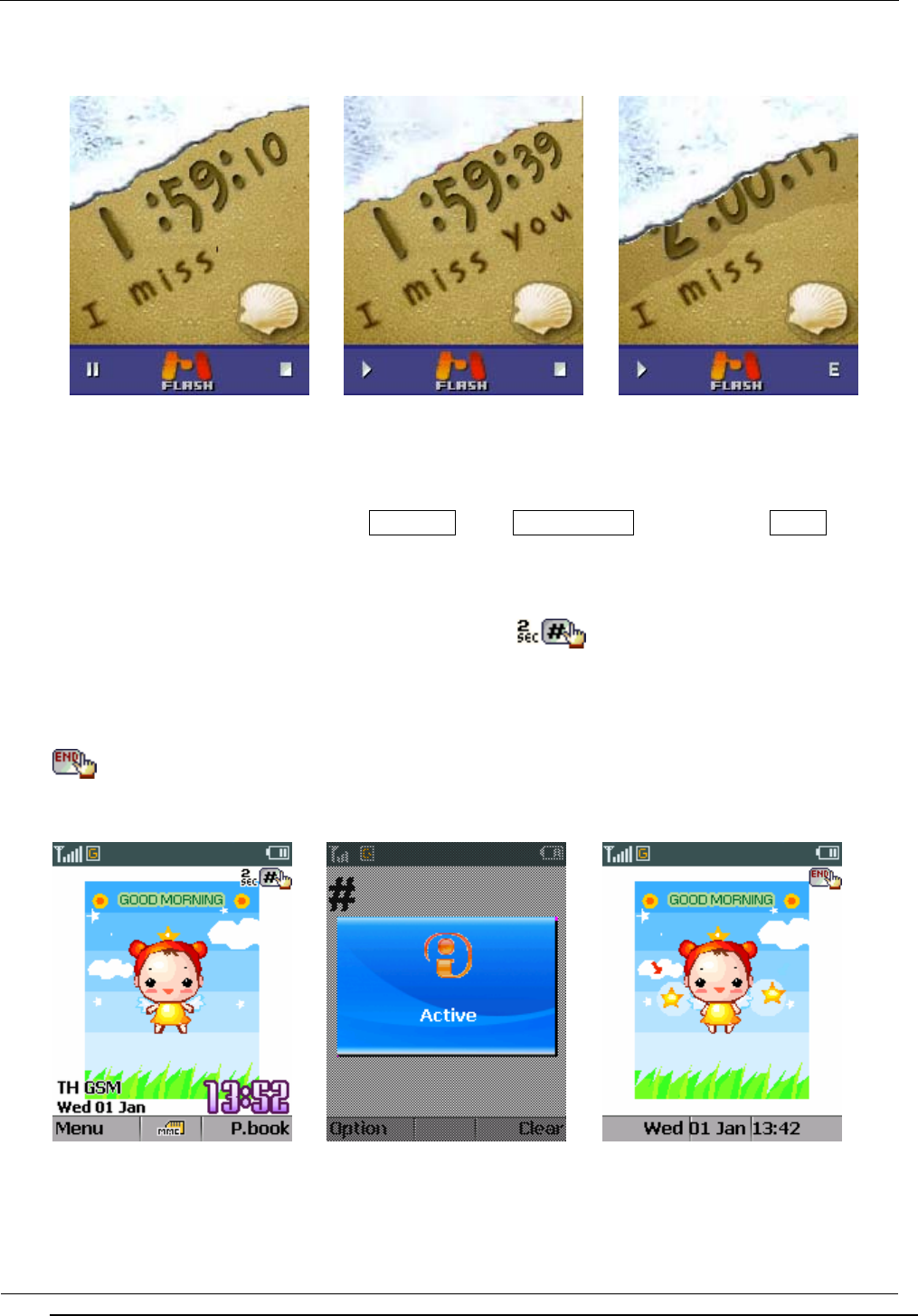
INNO-A21 User’s Guide INNOSTREAM Confidential
PAGE : 117 of 130
11.3 VIS Wallpaper Function
You can set VIS file and MSF file to Wallpaper using Set Wallpaper function in the Option menu on
the file list. After this file is set to wallpaper, the sound doesn’t play in the idle screen by default
but you can hear the sound.
If the VIS file or MSF file has an interactive content, icon appears on icon area of the idle
screen. If you press and hold [#] key for more than 2 seconds, your phone is entered into the
interactive mode and you can use interactive features. During the interactive mode is enabled,
icon appears on icon area of the idle screen. You can quickly escape the interactive mode
with [END].
.

INNO-A21 User’s Guide INNOSTREAM Confidential
PAGE : 118 of 130
12. Data and Fax
You can transfer data or fax to other devices via a data cable that is connected to PC. The data
cable is used to connect your phone to the PC’s serial USB port.
To send and receive E-mail and faxes, connect to computer and access the Internet, you need the
appropriate data/fax communication software installed on your computer.
Also, you have to subscribe the data service when you subscribe a network service provider.
This service varies depending on the network, so contact service provider before you start using
the service.
Modem configuration setting on the PC
Your phone has an integral modem. You need to install a standard modem in your PC’s operating
system.
- Standard modem with 19200 bit/s (115200 initialisation speed)
- Fax Class 1 modem, max 9600 bit/s
For using fax service, you need to check the fax application program on the PC as below.
- Modem initialisation: AT+IFC=1,1
- Flow Control : Software Flow Control
- 115200 initialization speed and Fax Class 1 modem
How to use the data service.
1. Connect the data cable between the PC’s USB serial port and your phone’s external socket.
2. Execute a dial-up Modem software on the PC.
You need to set the Modem configuration on the PC before you use.
3. Execute appropriate data/fax program such as Internet browser on the PC.
! Note : Some data service provider releases a integrated data/fax software including the dial-up
modem software.
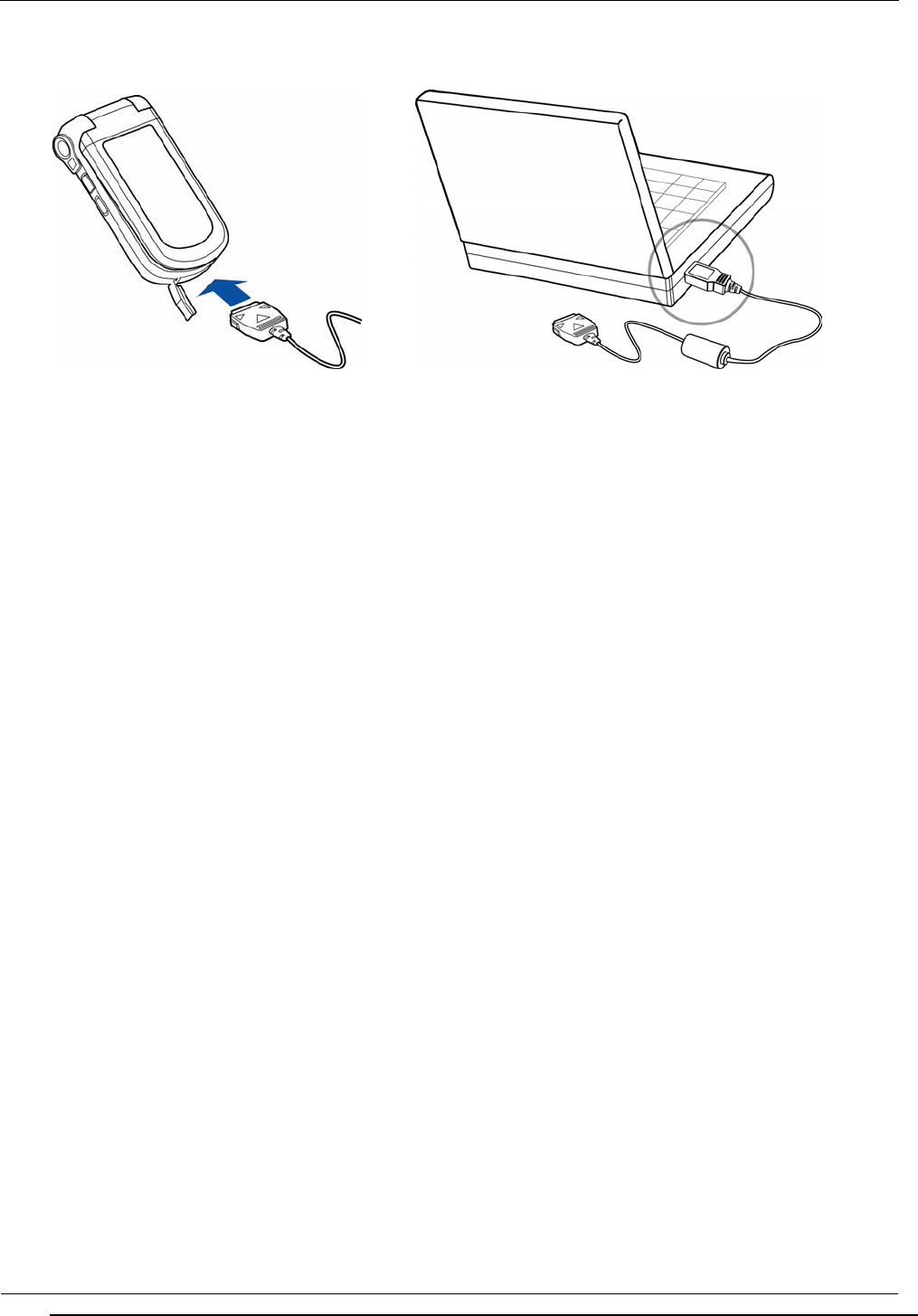
INNO-A21 User’s Guide INNOSTREAM Confidential
PAGE : 119 of 130
Charging during the data service
Your phone is automatically charged by USB cable whilst you are enjoying the data/fax world.
13. Phone and Battery Care
- Keep in mind that a new battery’s full performance is achieved only after two or three times of
complete charging and discharging cycles!
- The battery can be charged and discharged hundreds of times but it will eventually wear out.
When the operating time (talk-time and stand-by time) is noticeably shorter than normal, The
symptom means the time to buy a new battery.
- Do not attempt to open the casing on your phone or its battery.
- Always keep SIM card out of children’s reach.
- Use your phone battery only for its intended purpose, and never use any charger or battery
which is damaged or worn out.
- Never allow the battery terminals to short circuit, as this can cause damage to the battery or
connecting object. (a short circuit can occur if a metallic object such as a coin, clip or pen
causes direct connection between the + and – terminals of the battery)
Therefore, always take adequate precautions when carrying a spare battery in a purse or

INNO-A21 User’s Guide INNOSTREAM Confidential
PAGE : 120 of 130
pocket.
- Battery must be recycled or disposed properly, and must not be disposed of in municipal
waste. Never dispose batteries in a fire.
- When you unplug your phone from its charger, grasp and pull the plug, not the power cord.
- For good operation times, discharge a Li-ion battery from time to time by leaving your phone
switched on until it turns itself off.
- Do not drop, knock or shake it.
- Do not use harsh chemicals, cleaning solvents, or strong detergents to clean it. Wipe it with a
soft cloth slightly dampened in a mild soap-and-water solution.
14. Troubleshooting
If you meet a trouble on your phone operation, please check the followings.
These checks enable you to save time and expense due to the unnecessary after-service.
1. When Enter PIN appears at the power-up.
The PIN check is currently enabled.
You must enter the PIN supplied together with your SIM card. You can disable the PIN check if you
want, please see Security Setting menu in section 9.
2. When Enter PUK appears at the power-up.
PIN has been entered invalidly three times in succession and your SIM card has been blocked.
In order to unblock it, you must enter the PUK supplied together with your SIM card.
3. When Insert SIM screen appears at the power-up.
Please check that your SIM card is inserted properly.
INNO-A21 User’s Guide INNOSTREAM Confidential
PAGE : 121 of 130
4. When Enter Lock Code appears at the power-up.
Your phone is phone locked.
You must enter the Lock Code supplied together with your phone.
5. When No Service appears.
You probably are in the area out of the coverage of a GSM/ GPRS network.
6. When Emergency Only appears even though a number of the signal bar are indicated.
You probably are in the area out of the coverage of your home GSM/ GPRS network.
You probably are in the coverage of another GSM/ GPRS network but you are not allowed to be
registered to the network.
7. If any tone is not generated when you press a keypad.
You need to check the quick silence mode setting. If you can find icon on the top of the main
display screen it is the quick silence mode. By pressing and holding [VOL-UP] on the idle screen,
you can switch it off.
You need to check the Key Tone Type of Sound Setting menu.
You need to check Key Tone Volume of the profile option that you have set on Profiles menu.
8. If an audible alert is not made when a call is received.
You need to check the quick silence mode setting. If you can find icon on top of the main
display screen it is the quick silence mode. By pressing and holing [VOL-UP] on the idle screen,
you can switch it off.
You need to check Ring Type and Ring Volume of the profile option that you have set on Profiles
menu.
9. If an audible alert is not made when an alarm is expired.
You need to check the quick silence mode setting. If you can find icon on top of the main
display screen it is quick silence mode. By pressing and holing [VOL-UP] on the idle screen, you
can switch it off.
10. If an outgoing call is not made.
You have probably set an outgoing calls barring option. You need to check Call Barring menu.
Otherwise, you have probably set to Hide Number in Caller Number menu of Call Setting menu. In
some network, when you make a call with hiding the telephone number, the network does not
allow to make the call.

INNO-A21 User’s Guide INNOSTREAM Confidential
PAGE : 122 of 130
11. If an incoming call is not made.
You have probably set an incoming calls barring option. You need to check Call Barring menu.
12. If an outgoing SMS message is not sent.
You need to check the Message Center option in SMS Setting menu.
13. If all audible key tones are muted and all audible alerts are changed to vibrator alert.
You need to check the quick silence mode setting. If you can find icon on top of the main
display screen it is the quick silence mode. By pressing and holing [VOL-UP] on the idle screen,
you can switch it off.
14. If some audible action is not prompted on a menu of Sound Setting menu.
You need to check the quick silence mode setting. If you can find icon on top of the main
display screen it is the quick silence mode. By pressing and holing [VOL-UP] on the idle screen,
you can switch it off.
15. If nothing is displayed in the Network Status.
You need to check the Network Name Display menu of the Display Setting menu. If you have set to
Off, nothing is displayed.
16. If a telephone number that has over 20 digits is not saved and Number Too Long is displayed
when you try to save the number.
You need to check Place To Save option of Settings option in Phonebook.
If you have set to SIM Memory, maximum 20 digits can be saved in to SIM card.
If you change to Phone Memory, you can save maximum 40 digits into phone memory.
For more details, please see Phonebook menu in section 6
17. If a file such as audio file, image file, photo album file, MMS and Email are not saved into phone
memory any more.
With File Manager menu in Application menu, you need to check how much memory size is
occupied for each application.
After that, please go to the appropriate application menu and delete some application file you don’t
need any more.
18. If Service Not Available is continuously displayed when you try to send MMS or download MMS.

INNO-A21 User’s Guide INNOSTREAM Confidential
PAGE : 123 of 130
You need to check MMS profile in MMS Settings menu.
You can know the exact MMS setting value by Network Service Provider.
19. If the image on the screen is blurred when you try to take a picture.
You need to check that the protection film is detached or the lens is clean.
To remove fingerprints or other stains wipe the lens with soft cloth.
20. If Pictures are blurred when you try to view images in Photo Album menu.
It is possible that the phone was shook during shot or lighting was poor.
If you enable self-timer in Self Shot menu, you can prevent the phone from being shook.
15. Glossary
Cell Broadcast
This network service allows you to receive the broadcasted text messages on various topics such
as weather, traffic, local district code, local hospitals, taxis or pharmacy in the area where you are.
CUG (Closed User Group)
This network service allows the restriction of calls to and from a selected user group.
DTMF (Dial Tone Multi Frequency)
Codes sent as tone signals. Used for telephone banking, for accessing an answering machine, etc.
GPRS (General Packet Radio Service)
New packet service that allows information to be sent and received across a mobile network. The
GPRS promises data rates from 56 up to 114 Kbps and continuous packet connection to the
Internet for mobile phone and computer users. It is based on existing GSM such as circuit-
switched cellular phone connections and complements that.
International Indicator
‘+’ sign automatically adds the correct international code in front of a telephone number when
dialling out of a country.
Network Service Operator
To be able to use your phone, you need a subscription to a network. You get this subscription from
a network operator, together with a SIM card that you need to use with your phone.

INNO-A21 User’s Guide INNOSTREAM Confidential
PAGE : 124 of 130
PIN (Personal Identification Number)
The code is to establish authorization for access to certain functions or information in your SIM
card. The PIN code comes with your subscription. It may be a four to eight digit number and can
be changed as required.
PIN2 (Personal Identification Number 2)
The code is an authorization code to access certain special field in your SIM card. The PIN2 code
does not come with your subscription in some country.
PUK (Personal Unblocking Key Code)
Used to unlock a blocked SIM card. This comes with your subscription
Roaming
Use of your phone when you are outside your subscription network area.
SIM (Subscriber Identity Module)
It contains subscriber details, security information and memory for a personal directory of
numbers.
SMS (Short Message Service)
Messages to be sent and received via the network service operator’s message centre to your
mobile phone. To use this service, it must be supported from your network.
WAP (Wireless Application Protocol)
A standard specifically created for mobile communications devices and gives fast and easy access
to Internet information and services.
16. Safety Information
For the efficient and safe operation of your phone, observe these guidelines.
Everyday Use of your phone

INNO-A21 User’s Guide INNOSTREAM Confidential
PAGE : 125 of 130
For normal operating position, hold your phone as you would any other telephone, with the antenna
pointed up and over your shoulder.
As with any other radio transmitting equipment, you are advised that for the satisfactory operation
of your phone and for your own safety, you should use your phone only in the normal operating
position.
Using your phone in a vehicle
Safety comes first, and is the ultimate responsibility of the driver. Please:
i) Give full attention to driving – driving safely is your first responsibility.
ii) Use Hands-free Kit, if available.
iii) If you have those kits make sure it is done pre-programmed numbers where possible,
and keeping calls brief and to a minimum.
iv) If you don’t have a Hands-free Kit, pull off the road and park your vehicle before making
or answering a call in driving conditions so require.
Non-ionizing radiation (exposure to Radio Frequency Signals)
Your phone is a low power radio transmitter and receiver. When it is on, it receives and also sends
the radio frequency(RF) signals. Most modern electronic equipment is shielded from RF signals.
However, certain electronic equipment may not be shielded against the RF signals from your
mobile phone. RF signals may affect improperly installed or inadequately shielded electronic
systems in motor vehicles. Consult your vehicle manufacturer and the manufacturer of any
equipment that has been added to the vehicle.
Pacemakers
The Health industry Manufacturers Association recommends that a minimum separation of six
inches be maintained between a mobile phone and pacemakers to avoid potential interference with
the pacemaker. Users with pacemakers:
i) Always keep your phone at least 20 cm (6inches) from your pacemakers when the phone
is switched on.
ii) Do not carry your phone in your breast pocket.
iii) Use the ear opposite the pacemakers to minimize the potential for interference.
iv) Switch off your phone immediately if you suspect that interference is being caused.
Hearing aids
Some mobile phones, including your mobile phone, may interfere with certain hearing aids. In the

INNO-A21 User’s Guide INNOSTREAM Confidential
PAGE : 126 of 130
event of such interference you may consult the hearing manufacturer to discuss alternatives.
Other medical devices
If you use any other medical devices, please consult a physician or the manufacturer of the
medical devices to determine if they are adequately shielded from external RF energy. Your
physician may be able to assist you in obtaining this information. Always check the regulations of
the healthcare facilities, which generally request that all mobiles are switched off on entry.
Operating Environment
Remember to follow any special regulations in force in any area, and always turn off your phone
wherever it is forbidden to use it, or when it may cause interference or danger.
Aircraft Safety
FCC regulations prohibit using your phone whilst in the air. Switch off your phone before boarding
an aircraft.
Explosive Atmospheres and materials
Turn your phone off and do not remove the battery when in any area with a potential explosive
atmospheres and obey all signs and instructions. You must observe restrictions on the use of radio
equipment in fuel depots; below deck on boats; fuel or chemical transfer or storage facilities;
areas where the air contains chemicals or particles, such as grain, dust, or metal powders; areas
with signs about explosive atmospheres or where blasting operations are in progress; any other
areas where you would normally be advised to turn off your vehicle engines.
For Vehicle Equipped with an Air Bag
Al air bag inflates with great force. Do not place objects, including both installed or portable
wireless equipment, in the area over the air bag or in the air bag development area. If in-vehicle
wireless equipment is improperly installed and the air bag inflates, serious injury could result.
Battery charging
Do not charge the phone without the battery in place.
Please use only approved batteries and chargers.
CAUTION! Read this information carefully before using your phone

INNO-A21 User’s Guide INNOSTREAM Confidential
PAGE : 127 of 130
In August 1996 the Federal Communications Commission (FCC) of the United States with
its action in Report and Order FCC 96-326 adopted an updated safety standards for
human exposure to radio frequency electromagnetic energy emitted by FCC regulated
transmitters. Those guidelines are consistent with the safety standards previously set by
both U.S. and international standards parties. The design of this phone complies with the
FCC guidelines ad these international standards.
Body-worn Operation
This device was tested for typical body-worn operation with the back of the phone kept
1.5 centimeters from the body. To comply with FCC RF exposure requirements, a
minimum separation distance of 1.5 centimeters must be maintained between the user’s
body and the back of the phone, including the antenna. All belt-clips, holsters and similar
accessories used by this device must not contain any metallic components. Body-worn
accessories that do not meet these requirements may not comply with FCC RF exposure
limits and should be avoided.
Note : For more information about FCC RF exposure, please visit the FCC website at
www.fcc.gov
Operating temperature
Our phone is guaranteed to +45 °C .

INNO-A21 User’s Guide INNOSTREAM Confidential
PAGE : 128 of 130
17. Index
! Note : The contents of user’s guide is subject to change for technical improvement without notice.
The availability of some services in this user’s guide may differ from your phone depending on
your network operator or SIM card you are using.

SAR INFORMATION
THIS MODEL PHONE MEETS THE GOVERNMENT’S
REQUIREMENTS FOR EXPOSURE TO RADIO WAVES.
Your wireless phone is a radio transmitter and receiver. It is designed and manufactured not to
exceed the emission limits for exposure to radiofrequency (RF) energy set by the Federal
Communications Commission of the U.S. Government. These limits are part of comprehensive
guidelines and establish permitted levels of RF energy for the general population. The guidelines
are based on standards that were developed by independent scientific organizations through
periodic and thorough evaluation of scientific studies. The standards include a substantial safety
margin designed to assure the safety of all persons, regardless of age and health. The exposure
standard for wireless mobile phones employs a unit of measurement known as the Specific
Absorption Rate, or SAR. The SAR limit set by the FCC is 1.6 W/kg. *
Tests for SAR are conducted with the phone transmitting at its highest certified power level in all
tested frequency bands. Although the SAR is determined at the highest certified power level, the
actual SAR level of the phone while operating can be well below the maximum value. This is
because the phone is designed to operate at multiple power levels so as to use only the power
required to reach the network. In general, the closer you are to a wireless base station antenna, the
lower the power output. Before a phone model is available for sale to the public, it must be tested
and certified to the FCC that it does not exceed the limit established by the government adopted
requirement for safe exposure. The tests are performed in positions and locations (e.g., at the ear
and worn on the body) as required by the FCC for each model. The highest SAR value for this
model phone when tested for use at the ear is 1.27 W/Kg and when worn on the body , as
described in this user guide, is 0.562 W/Kg . (Body-worn measurements differ among phone
models, depending upon available accessories and FCC requirements). While there may be
differences between the SAR levels of various phones and at various positions, they all meet the
government requirement for safe exposure. The FCC has granted an Equipment Authorization for
this model phone with all reported SAR levels evaluated as in compliance with the FCC RF
exposure guidelines. SAR information on this model phone is on file with the FCC and can be found
under the Display Grant section of http://www.fcc.gov/ oet/fccid after searching on FCC ID:
RJAINNO-A21.
Additional information on Specific Absorption Rates (SAR) can be found on the Cellular
Telecommunications Industry Asso-ciation (CTIA) web-site at http://www.wow-com.com. * In the
United States and Canada, the SAR limit for mobile phones used by the public is 1.6 watts/kg
(W/kg) averaged over one gram of tissue. The standard incorporates a sub-stantial margin of safety
to give additional protection for the public and to account for any variations in measurements.
U.S.A.
U.S.FEDERAL COMMUNICATIONS COMMISSION
RADIO FREQUENCY INTERFERENCE STATEMENT
INFORMATION TO THE USER
NOTE : This equipment has been tested and found to comply with the limits for a Class B
digital device pursuant to Part 15 of the FCC Rules. These limits are designed to provide
reasonable protection against harmful Interference in a residential installation This equipment
generates, uses, and can radiate radio frequency energy and, if Not installed and used in
accordance with the instructions, may cause harmful Interference to radio communications.
However, there is no guarantee that interference will not occur in a particular Installation. If this
equipment does cause harmful interference to radio or television reception, which can be
determined by turning the equipment off and on, the user is encouraged to try to correct the
interference by one or more of the following measures:
*- Reorient or relocate the receiving antenna.
Increase the separation between the equipment and receiver.
*- Connect the equipment into an outlet of a circuit different from that to which the receiver is
connected.
*- Consult the dealer or an experienced radio/TV technician for assistance.
Changes or modification not expressly approved by the party responsible for Compliance
could void the user’s authority to operate the equipment. Connecting of peripherals requires
the use of grounded shielded signal cables.
FCC Compliance Information
This device complies with Part 15 of FCC Rules.
Operation is subject to the following two conditions:
(1) This device may not cause harmful interference, and
(2) This device must accept any interference received.
Including interference that may cause undesired operation.