Insignia Ns Dsc1110A Users Manual
Insignia-Ns-Dsc1110A-Silver-Owner-S-Manual insignia-ns-dsc1110a-silver-owner-s-manual
NS-DSC1110A to the manual 1cec5531-a8df-40a3-baf5-9e32da62036c
2015-01-24
: Insignia Insignia-Ns-Dsc1110A-Users-Manual-318525 insignia-ns-dsc1110a-users-manual-318525 insignia pdf
Open the PDF directly: View PDF  .
.
Page Count: 30
- Important safety instructions
- Introduction
- Features
- Setting up your camera
- Using your camera
- Viewing photos and videos
- Erasing photos and videos
- Using the Record menu
- Using the Playback menu
- Using the Setup menu
- Using the Tools menu
- Transferring files to a computer
- Troubleshooting
- Specifications
- Legal notices
- One-year limited warranty

10 Megapixel Digital Camera
NS-DSC1110A
User Guide

ii www.insigniaproducts.com
Contents
Important safety instructions . . . . . . . . . . . . . . . . . . . . . . . . . . . . . . . . . . . . .1
Introduction . . . . . . . . . . . . . . . . . . . . . . . . . . . . . . . . . . . . . . . . . . . . . . . . . . . . .2
Features . . . . . . . . . . . . . . . . . . . . . . . . . . . . . . . . . . . . . . . . . . . . . . . . . . . . . . . . .2
Package contents . . . . . . . . . . . . . . . . . . . . . . . . . . . . . . . . . . . . . . . . . . . . . . . . 2
Main features . . . . . . . . . . . . . . . . . . . . . . . . . . . . . . . . . . . . . . . . . . . . . . . . . . . . 2
System requirements . . . . . . . . . . . . . . . . . . . . . . . . . . . . . . . . . . . . . . . . . . . . 2
Front . . . . . . . . . . . . . . . . . . . . . . . . . . . . . . . . . . . . . . . . . . . . . . . . . . . . . . . . . . . . 2
Back . . . . . . . . . . . . . . . . . . . . . . . . . . . . . . . . . . . . . . . . . . . . . . . . . . . . . . . . . . . . . 2
Top . . . . . . . . . . . . . . . . . . . . . . . . . . . . . . . . . . . . . . . . . . . . . . . . . . . . . . . . . . . . . 3
Right and left . . . . . . . . . . . . . . . . . . . . . . . . . . . . . . . . . . . . . . . . . . . . . . . . . . . . 3
Bottom . . . . . . . . . . . . . . . . . . . . . . . . . . . . . . . . . . . . . . . . . . . . . . . . . . . . . . . . . . 3
Setting up your camera . . . . . . . . . . . . . . . . . . . . . . . . . . . . . . . . . . . . . . . . . .3
Installing the batteries . . . . . . . . . . . . . . . . . . . . . . . . . . . . . . . . . . . . . . . . . . . 3
Attaching the wrist strap . . . . . . . . . . . . . . . . . . . . . . . . . . . . . . . . . . . . . . . . . 4
Understanding camera memory and file names . . . . . . . . . . . . . . . . . . . 4
Installing a memory card . . . . . . . . . . . . . . . . . . . . . . . . . . . . . . . . . . . . . . . . . 4
Navigating menus . . . . . . . . . . . . . . . . . . . . . . . . . . . . . . . . . . . . . . . . . . . . . . . 4
Initial settings . . . . . . . . . . . . . . . . . . . . . . . . . . . . . . . . . . . . . . . . . . . . . . . . . . . 5
Understanding camera modes . . . . . . . . . . . . . . . . . . . . . . . . . . . . . . . . . . . 5
Understanding the LCD . . . . . . . . . . . . . . . . . . . . . . . . . . . . . . . . . . . . . . . . . . 5
Changing the LCD configuration . . . . . . . . . . . . . . . . . . . . . . . . . . . . . . . . . 7
Using your camera . . . . . . . . . . . . . . . . . . . . . . . . . . . . . . . . . . . . . . . . . . . . . . .8
Turning your camera on and off . . . . . . . . . . . . . . . . . . . . . . . . . . . . . . . . . . 8
Turning on your camera for the first time . . . . . . . . . . . . . . . . . . . . . . . . . 8
Changing camera modes . . . . . . . . . . . . . . . . . . . . . . . . . . . . . . . . . . . . . . . . 8
Turning Simple mode on or off . . . . . . . . . . . . . . . . . . . . . . . . . . . . . . . . . . . 8
Taking photos . . . . . . . . . . . . . . . . . . . . . . . . . . . . . . . . . . . . . . . . . . . . . . . . . . . 9
Using the zoom . . . . . . . . . . . . . . . . . . . . . . . . . . . . . . . . . . . . . . . . . . . . . . . . . . 9
Using the flash . . . . . . . . . . . . . . . . . . . . . . . . . . . . . . . . . . . . . . . . . . . . . . . . . . . 9
Using the self-timer . . . . . . . . . . . . . . . . . . . . . . . . . . . . . . . . . . . . . . . . . . . . . 10
Using the macro feature . . . . . . . . . . . . . . . . . . . . . . . . . . . . . . . . . . . . . . . . 10
Using face tracking . . . . . . . . . . . . . . . . . . . . . . . . . . . . . . . . . . . . . . . . . . . . . 10
Recording video . . . . . . . . . . . . . . . . . . . . . . . . . . . . . . . . . . . . . . . . . . . . . . . . 11
Viewing photos and videos . . . . . . . . . . . . . . . . . . . . . . . . . . . . . . . . . . . . . 11
Viewing photos . . . . . . . . . . . . . . . . . . . . . . . . . . . . . . . . . . . . . . . . . . . . . . . . . 11
Viewing videos . . . . . . . . . . . . . . . . . . . . . . . . . . . . . . . . . . . . . . . . . . . . . . . . . 11
Zooming photos in Playback mode . . . . . . . . . . . . . . . . . . . . . . . . . . . . . . 12
Using the thumbnail view . . . . . . . . . . . . . . . . . . . . . . . . . . . . . . . . . . . . . . . 12
Erasing photos and videos . . . . . . . . . . . . . . . . . . . . . . . . . . . . . . . . . . . . . 12
Erasing photos or videos using the delete button . . . . . . . . . . . . . . . . 12
Using the Record menu . . . . . . . . . . . . . . . . . . . . . . . . . . . . . . . . . . . . . . . . 12
Setting the quality . . . . . . . . . . . . . . . . . . . . . . . . . . . . . . . . . . . . . . . . . . . . . . 12
Setting the resolution . . . . . . . . . . . . . . . . . . . . . . . . . . . . . . . . . . . . . . . . . . . 13
Setting ISO . . . . . . . . . . . . . . . . . . . . . . . . . . . . . . . . . . . . . . . . . . . . . . . . . . . . . 14
Setting the color balance . . . . . . . . . . . . . . . . . . . . . . . . . . . . . . . . . . . . . . . 14
Turning the stabilizer function on or off . . . . . . . . . . . . . . . . . . . . . . . . . 15

iii
Contents
www.insigniaproducts.com
Turning the focus light on or off . . . . . . . . . . . . . . . . . . . . . . . . . . . . . . . . . 15
Setting the metering function . . . . . . . . . . . . . . . . . . . . . . . . . . . . . . . . . . . 16
Turning burst mode on or off . . . . . . . . . . . . . . . . . . . . . . . . . . . . . . . . . . . . 16
Using the Playback menu . . . . . . . . . . . . . . . . . . . . . . . . . . . . . . . . . . . . . . 17
Erasing photos and videos . . . . . . . . . . . . . . . . . . . . . . . . . . . . . . . . . . . . . . 17
Copying photos and videos to a memory card . . . . . . . . . . . . . . . . . . . 17
Viewing a slideshow of photos . . . . . . . . . . . . . . . . . . . . . . . . . . . . . . . . . . 18
Using the Setup menu . . . . . . . . . . . . . . . . . . . . . . . . . . . . . . . . . . . . . . . . . 19
Turning alert sounds on or off . . . . . . . . . . . . . . . . . . . . . . . . . . . . . . . . . . . 19
Turning Quick View on or off . . . . . . . . . . . . . . . . . . . . . . . . . . . . . . . . . . . . 19
Imprinting the date and time on photos . . . . . . . . . . . . . . . . . . . . . . . . . 19
Setting the date and time . . . . . . . . . . . . . . . . . . . . . . . . . . . . . . . . . . . . . . . 20
Turning Power Save on or off . . . . . . . . . . . . . . . . . . . . . . . . . . . . . . . . . . . . 20
Using the Tools menu . . . . . . . . . . . . . . . . . . . . . . . . . . . . . . . . . . . . . . . . . . 21
Setting the menu language . . . . . . . . . . . . . . . . . . . . . . . . . . . . . . . . . . . . . 21
Setting the battery type . . . . . . . . . . . . . . . . . . . . . . . . . . . . . . . . . . . . . . . . . 21
Turning help text on or off . . . . . . . . . . . . . . . . . . . . . . . . . . . . . . . . . . . . . . 22
Resetting settings to the factory defaults . . . . . . . . . . . . . . . . . . . . . . . . 22
Transferring files to a computer . . . . . . . . . . . . . . . . . . . . . . . . . . . . . . . . . 23
Troubleshooting . . . . . . . . . . . . . . . . . . . . . . . . . . . . . . . . . . . . . . . . . . . . . . . 23
Specifications . . . . . . . . . . . . . . . . . . . . . . . . . . . . . . . . . . . . . . . . . . . . . . . . . . 24
Legal notices . . . . . . . . . . . . . . . . . . . . . . . . . . . . . . . . . . . . . . . . . . . . . . . . . . . 24
One-year limited warranty . . . . . . . . . . . . . . . . . . . . . . . . . . . . . . . . . . . . . . 25

iv
Contents
www.insigniaproducts.com

1
www.insigniaproducts.com
Important safety
instructions
1Read these instructions.
2Keep these instructions.
3Heed all warnings.
4Follow all instructions.
5Do not use this apparatus near water.
6Clean only with a dry cloth.
7Do not install near any heat sources such as
radiators, heat registers, stoves, or other
apparatus (including amplifiers) that produce
heat.
8Only use attachments/accessories specified by
the manufacturer.
9Refer all servicing to qualified service personnel.
Servicing is required when the apparatus has
been damaged in any way, such as liquid has
been spilled or objects have fallen into the
apparatus, the apparatus has been exposed to
rain or moisture, does not operate normally, or
has been dropped.
10 To reduce the risk of fire or electric shock, do not
expose this device to rain, moisture, dripping, or
splashing, and no objects filled with liquids,
such as vases, shall be placed on it.
Battery information
• Batteries should not be exposed to excessive heat
such as sunshine, fire, or the like.
• Turn off the camera before inserting or removing
batteries.
• Use only the provided batteries or the types of
batteries specified in this manual with your
camera. Using other types of batteries may
damage the camera and invalidate the warranty.
• Make sure that batteries are inserted correctly.
Inserting batteries upside down can cause
damage to the product and possibly cause an
explosion.
• When the camera is used for an extended period
of time, it is normal for the camera body to feel
warm.
• Download all pictures and remove the battery
from the camera if you are going to store the
camera for a long period of time.
• If battery power runs down while the lens is
extended, the camera may not have enough
power to retract the lens. Replace the batteries,
and then press the power button twice until the
lens retracts.
The exclamation point within an equilateral triangle is
intended to alert you to the presence of important
operating and maintenance (servicing) instructions in the
literature accompanying your camera.
Caution
Danger of explosion if battery is incorrectly replaced. Replace
only with the same or compatible type.
2
NS-DSC1110A 10 Megapixel Camera
www.insigniaproducts.com
10 Megapixel Camera
Introduction
Congratulations on your purchase of a high-quality
Insignia product. Your NS-DSC1110A is designed for
reliable and trouble-free performance.
Features
Package contents
•Digital camera
• AA batteries (2)
• Wrist strap
•USB cable
•CD with User Guide
• Quick Setup Guide
Main features
• 10 megapixel resolution
• 3x optical zoom and 5x digital zoom
• 1/2.3 inch image sensor
• 2.7-inch color LCD
• 32 MB internal flash memory (approximately
20 MB is available for photo and video capture)
• Supports SD cards up to 4 GB, and SDHC cards up
to 32 GB
• Simplified user menus
• USB connector to transfer photos and videos to
your PC
System requirements
For Windows:
• Operating system: Windows XP, Windows Vista,
Windows 7
• Processor: Pentium II 450 MHz or above
• Memory: 256 MB or above
• Hard drive space: 200 MB or above
• 16-bit color display monitor
• USB connector and CD drive
For Macintosh
• Operating system: Mac OS 10.x or higher
•Power Mac G3 or later
• Memory: 64 MB or above
• Hard drive space: 110 MB or above
• 16-bit color display monitor
• USB connector and CD-ROM drive
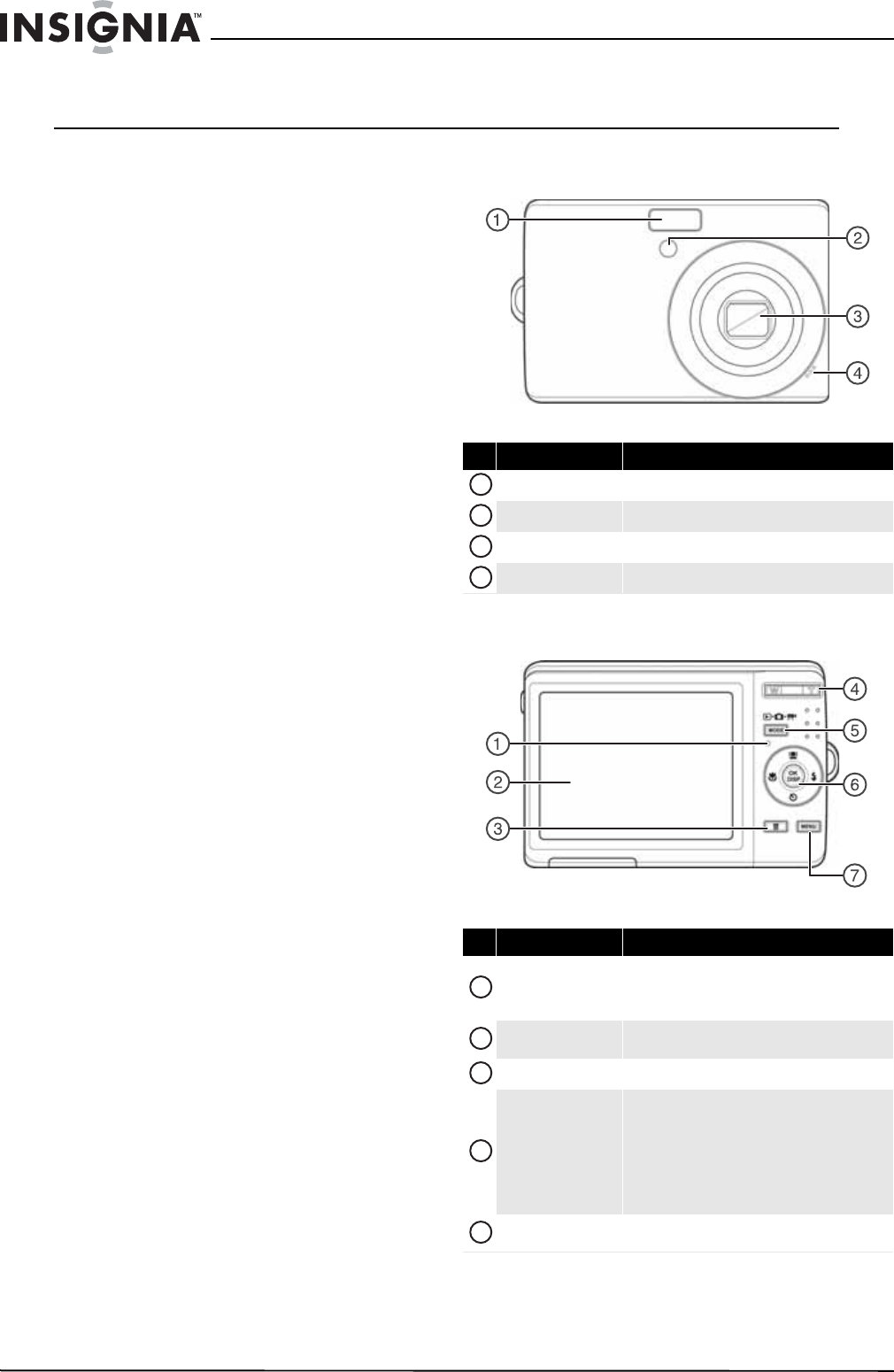
Front
Back
#Item Description
Flash Lets you take photos in low-light conditions.
Self-timer LED Flashes to indicate that the self-timer is activated.
Zoom lens Used for photo/video capture.
Microphone Records audio during video capture.
#Item Description
Operation lamp
Lights green when the camera is on.
Flashes when your camera is processing photos or
capturing video.
LCD Use to compose your photos and to view the various
menus.
Delete button Press to delete a photo or video.
Zoom button
Press T to zoom in on a subject for telephoto
photos/video, or press W to zoom out for wide-angle
photos/video.
In Photo Playback mode, press T to zoom in on a
photo, or press W to zoom out on a photo.
In Video Playback mode, press T to increase the
volume, or press W to decrease the volume.
MODE button Press to switch between Record mode, Photo mode,
and Playback mode.
1
2
3
4
1
2
3
4
5
3
10 Megapixel Camera
www.insigniaproducts.com
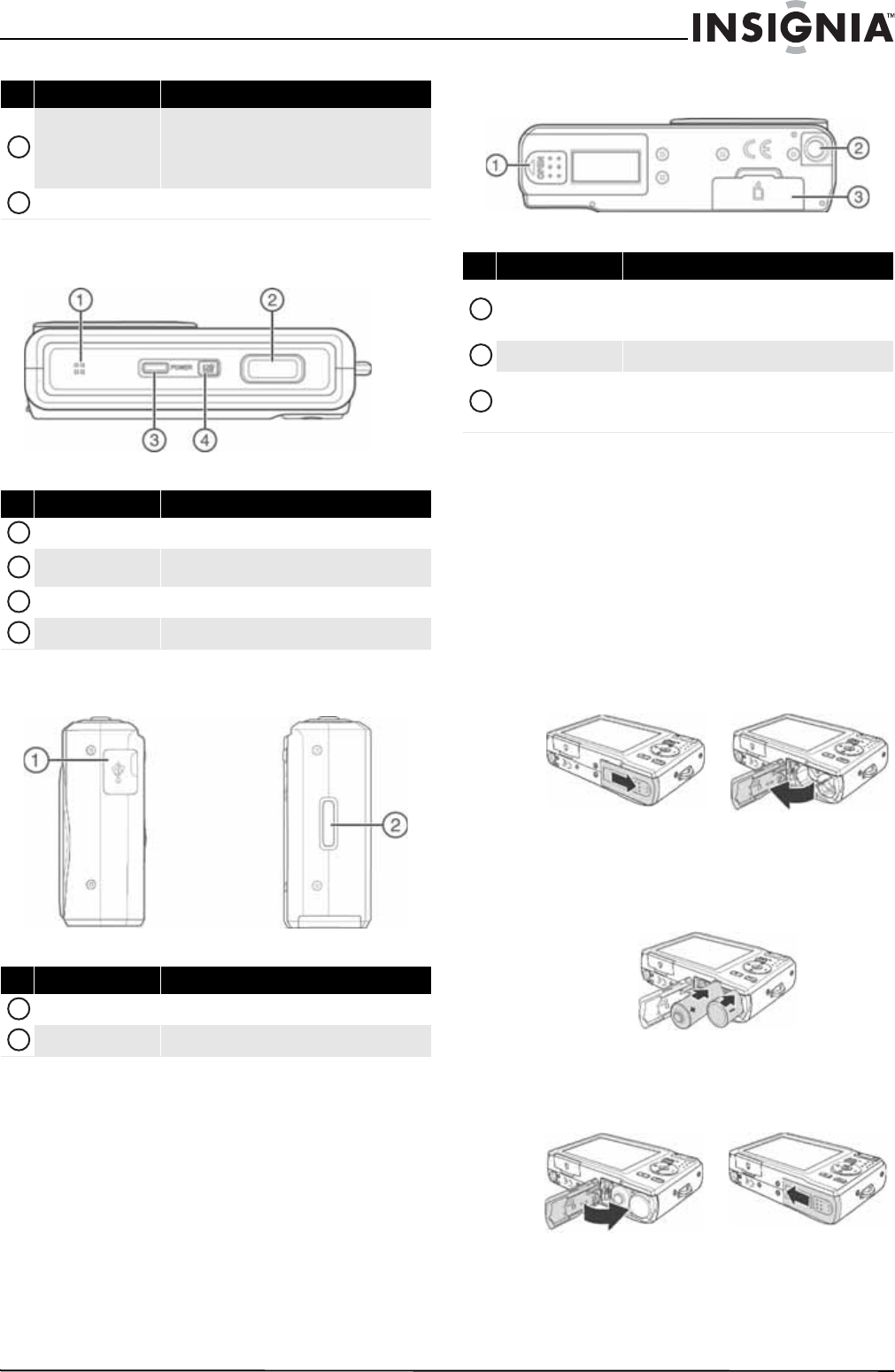
Top
Right and left
Bottom
Setting up your camera
Installing the batteries
Make sure that you read and follow the battery
cautions in “Battery information” on page 1.
To install the batteries:
1Make sure your camera is turned off.
2Slide the cover in the direction of the arrow,
then lift the cover away from the battery
compartment.
3Insert two AA batteries (included) into the
battery compartment. Make sure that the +
and – symbols on the batteries align with the +
and – symbols in the battery compartment.
4Close the battery compartment cover, then slide
the cover in the direction of the arrow to lock it
in place.
4-way navigation
button
The Macro, Face Tracking, Self-Timer, and Flash
buttons are also used to navigate through the
on-screen menus.
See “Navigating menus” on page 4.
MENU button Press to open or close the on-screen menu.
#Item Description
Speaker Lets you hear audio recorded during video capture.
Shutter button Press to take a photo or to start or stop a video
recording.
POWER button Press to turn your camera on or off.
LCD backlight button Press to increase the LCD brightness for 10 seconds.
#Item Description
USB connector Lets you connect your camera to a computer.
Strap ring Attach the wrist strap (included) to this ring.
#Item Description
6
7
1
2
3
4
1
2
#Item Description
Battery compartment
Insert two AA batteries into this compartment. For
more information, see “Installing the batteries” on
page 3.
Tripod socket Use to mount the camera to a tripod.
SD/SCHC card
compartment
Insert an SD or SDHC memory card (not included) into
this compartment. For more information, see
“Installing a memory card” on page 4.
1
2
3
4
NS-DSC1110A 10 Megapixel Camera
www.insigniaproducts.com
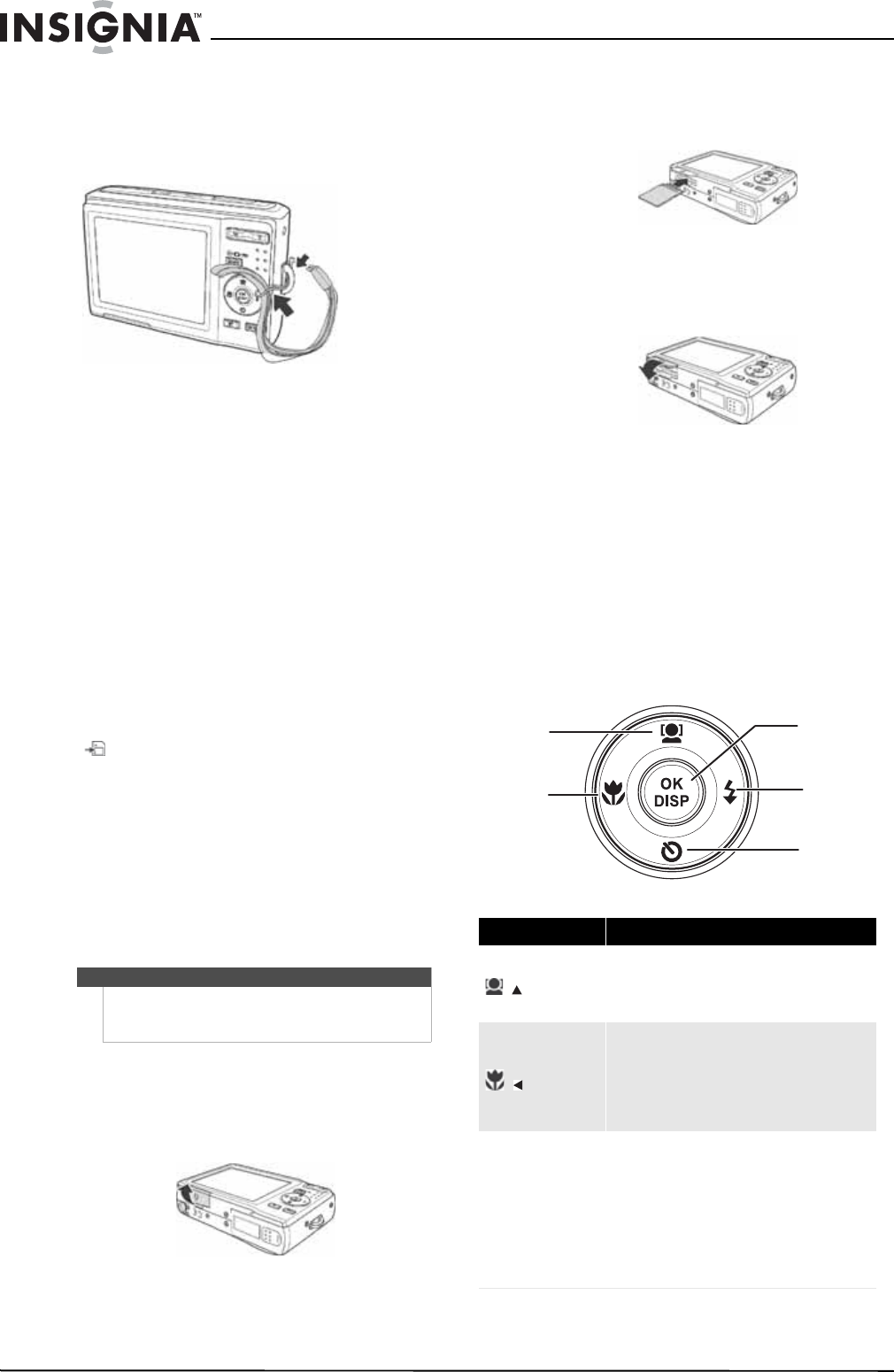
Attaching the wrist strap
To attach the wrist strap:
1Insert the short loop on the strap through the
strap ring.
2Thread the large loop through the short loop,
then pull tight.
Understanding camera memory and file
names
Internal memory
Your camera is equipped with 32 MB of internal
memory. Approximately 20 MB of the internal
memory is available for photo and video storage. If
no memory card is inserted in the memory card
compartment, all photos and videos captured are
automatically stored in the internal memory.
External memory
Your camera supports SD cards up to 4 GB and
SDHC cards up to 32 GB. If there is a memory card
inserted in the card slot, your camera automatically
saves all photos and videos in the memory card.
The icon indicates your camera is using the
memory card.
File names
File names begin with “DSCI” and are followed by a
four-digit number that increases in sequence. File
numbering starts from 0001 when a new folder is
created.
If the highest folder number is 999 and the highest
file number exceeds 9999, your camera will display
the warning message “Folder cannot be created.”
When this happens, insert in a new memory card.
Installing a memory card
To install a memory card:
1Open the memory card compartment on the
bottom of your camera.
2Insert the SD or SDHC memory card into the
card slot with the metallic part facing the back
of the camera.
3Push the SD or SDHC memory card into the slot
until it clicks into place.
4Close the compartment.
To remove the SD/SDHC card:
1Open the memory card compartment.
2Gently push the card until it pops out.
3Carefully pull out the card, then close the
compartment.
Navigating menus
The 4-way navigation control and the OK/DISP
button let you access the various menus available
from the on-screen display (OSD). You can
configure a wide range of settings to ensure
optimal results from your photos and videos.
Caution
Do not change the folder and file names in your camera’s internal
memory or the memory card using your PC. Your camera may be
unable to play back the files.
Item Description
/
• In menu mode, press to navigate up through
menu and submenu selections.
• In video Playback mode, press to start/pause
video playback.
/
• In Playback mode, press to view the previous
image or video clip. Press and hold down to
scroll rapidly through images and video clips.
• In video Playback mode, press to rewind
video playback.
• In menu mode, press to exit a submenu.
OK/DISP
• In menu mode, press to confirm selections.
• In photo Playback mode, press to display or
hide detailed information about the photo.
• In slideshow mode, press to exit.
• In thumbnail mode, press to show a selected
image or video clip full-screen.
• In video Playback mode, press to show or
hide the volume bar, time bar, and
navigation control icon.
OK/DISP
Face tracking/Up
Macro/Left Flash/Right
Self-Timer/Down
5
10 Megapixel Camera
www.insigniaproducts.com
Initial settings
When you turn on your camera for the first time,
your camera will be in Simple Mode. Simple Mode
hides advanced settings and makes your camera
easier to operate.
Your camera’s default settings are:
•Quality: Fine
•Resolution: High (10 megapixels)
•ISO: Auto
•Color Balance: Auto.
•Stabilizer: Off. Image stabilization is ideal for
reducing blurred images that may be caused by
shaky hands or low-light conditions. Turn off
Stabilization when using a tripod.
•Self-timer: Off.
•Focus Light: On.
•Metering Function: Multi.
•Burst Mode: Off.
•Beep: On. When beeps are turned on, an alert is
heard when key functions are accessed.
•Quick View: On.
•Date Stamp: Off.
•Power Save: On.
•Battery Type: Alkaline.
•Help Text: On. A brief description of what the
advanced settings do is provided by viewing the
help text at the bottom of the screen. To view the
help text, highlight any menu option.
•Simple Mode: On. Turn off Simple Mode to access
advanced settings.
Understanding camera modes
Your camera has three modes: Photo, Video, and
Playback.
—Photo mode is for capturing still images.
—Video mode is for capturing video.
—Playback mode is for playing captured
images and videos.
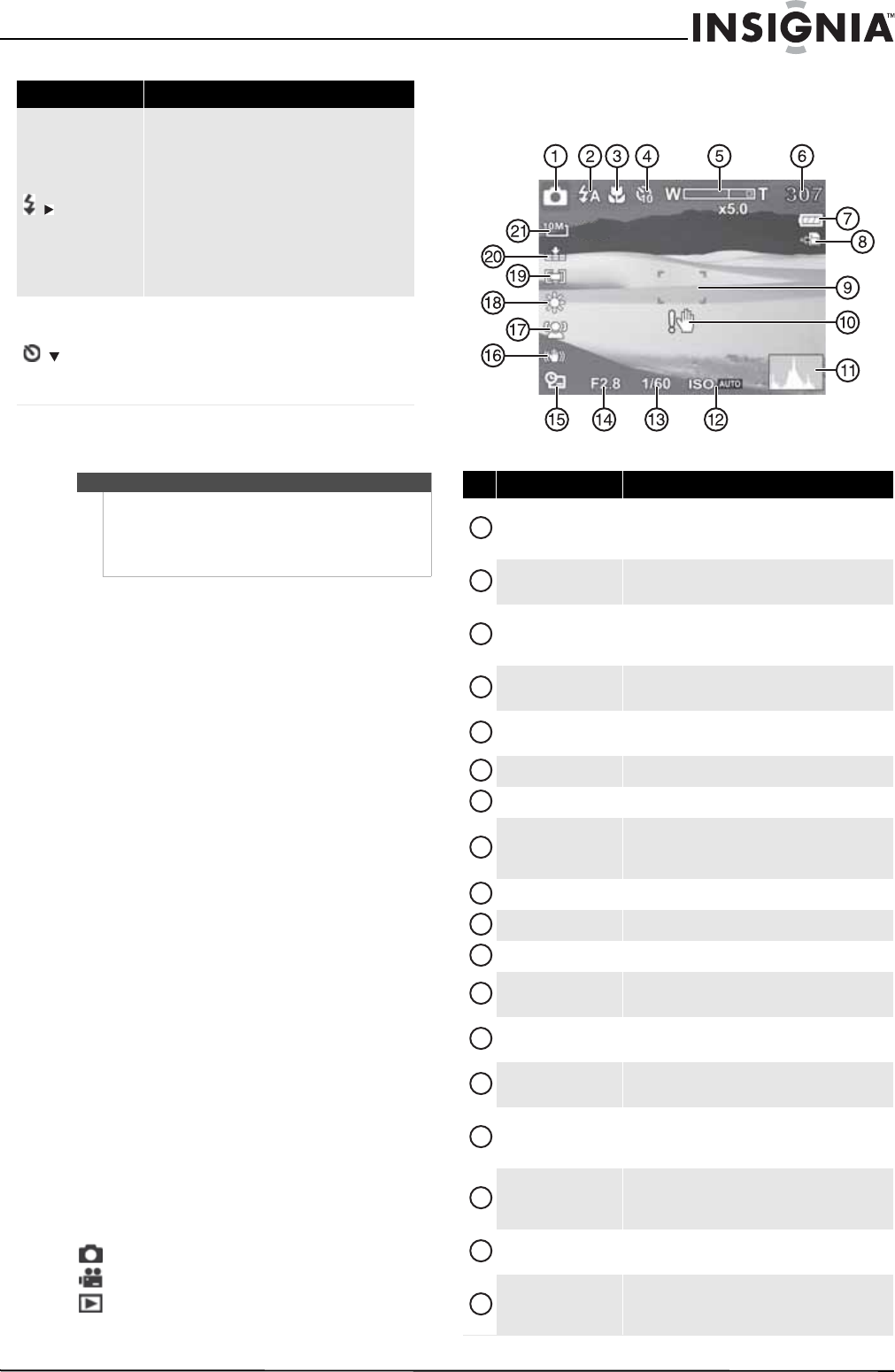
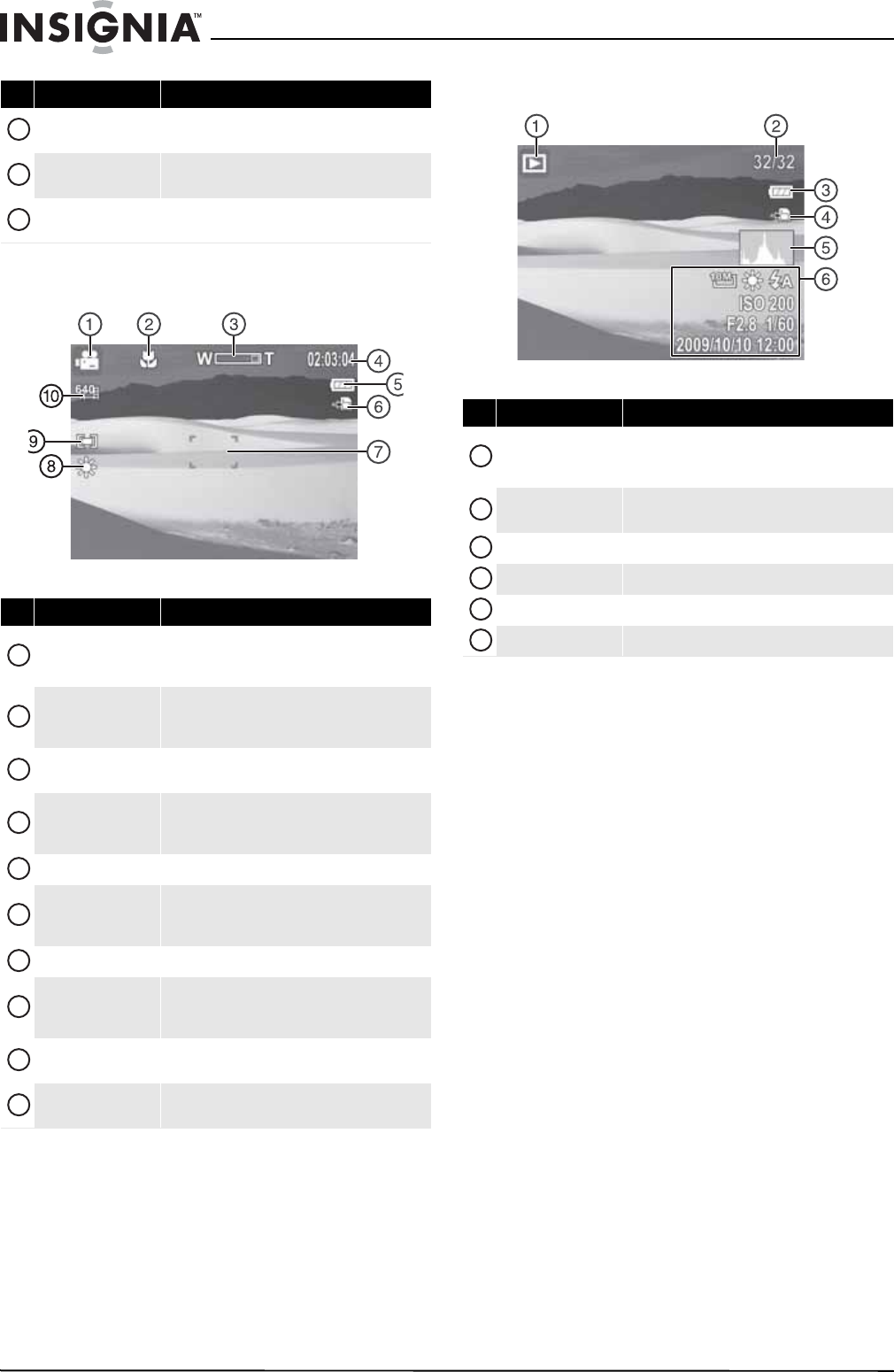
Understanding the LCD
Photo mode
/
• In Photo mode, press to toggle the flash
mode (Auto, Red-eye Reduction, Forced
On, Slow Sync, and Forced Off).Flash
modes are only available for photos.
• In Playback mode, press to view the next
image or video clip. Press and hold down to
scroll rapidly through images and video clips.
• In video Playback mode, press to
fast-forward video playback.
• In menu mode, press to enter the submenu
or to navigate through the menu selections.
/
• In Photo mode, press to turn the self-timer
on or off.
• In video Playback mode, press to stop video
playback.
• In menu mode, press to navigate down
through menu and submenu selections.
Note
• If the batteries are removed for longer than 48
hours, the date and time must be reset.
• If you reset your camera to the default settings,
you will have to select the menu language and
set the date and time again.
Item Description
#Item Description
Mode indicator
A camera icon appears when your camera is in Photo
mode. For more information, see “Understanding
camera modes” on page 5.
Flash Shows the flash setting. For more information, see
“Using the flash” on page 9.
Macro
Appears when Macro mode is turned on. For more
information, see “Using the macro feature” on
page 10.
Self-timer Appears when the self-timer is turned on. For more
information, see “Using the self-timer” on page 10.
Zoom indicator Shows the zoom setting. For more information, see
“Using the zoom” on page 9.
Shots remaining Shows the number of remaining shots.
Battery Shows the battery level.
Storage media
A camera icon appears when no memory card is
inserted. A memory card icon appears when a memory
card is inserted.
Focus area Frames the area to be captured.
Shake warning Appears when the camera is shaking.
Histogram Shows the light level for the current image.
ISO Shows the ISO setting. For more information, see
“Setting ISO” on page 14.
Shutter speed Shows the shutter speed automatically selected by
your camera.
Aperture value Shows the aperture value automatically selected by
your camera.
Date stamp
Appears when the date stamp feature is turned on. For
more information, see “Imprinting the date and time
on photos” on page 19.
Stabilizer
Appears when the stabilizer feature is turned on. For
more information, see “Turning the stabilizer function
on or off” on page 15.
Face tracking Appears when face tracking is turned on. For more
information, see “Using face tracking” on page 10.
Color Balance
Shows the color balance setting. For more
information, see “Setting the color balance” on
page 14.
1
2
3
4
5
6
7
8
9
10
11
12
13
14
15
16
17
18
6
NS-DSC1110A 10 Megapixel Camera
www.insigniaproducts.com
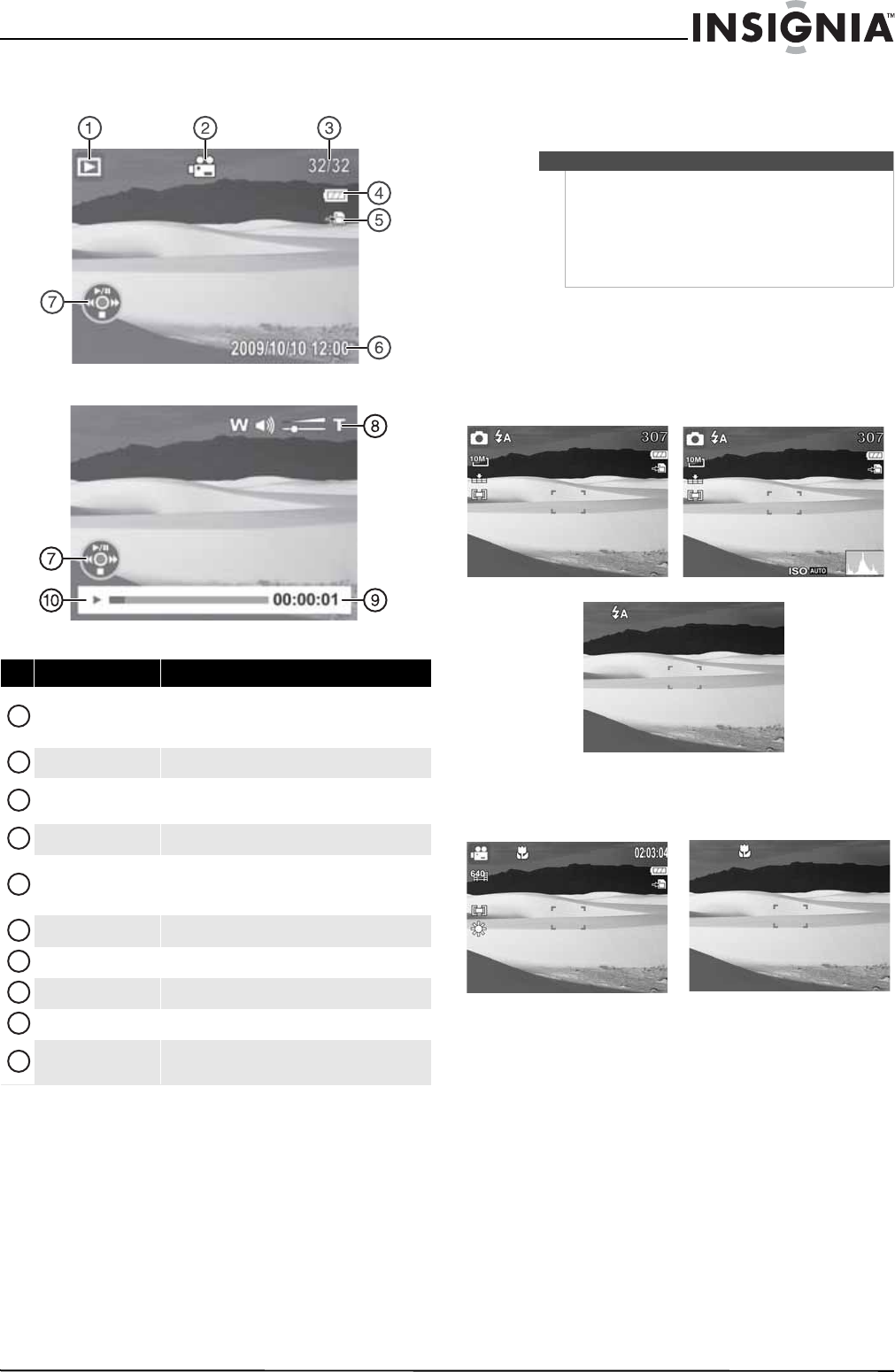
Video mode
Playback mode (Photo)
Metering Shows the metering setting. For more information, see
“Setting the metering function” on page 16.
Quality Shows the quality setting. For more information, see
“Setting the quality” on page 12.
Resolution Shows the image resolution setting. For more
information, see “Setting the resolution” on page 13.
#Item Description
Mode indicator
A movie icon appears when your camera is in Video
mode. For more information, see “Understanding
camera modes” on page 5.
Macro
Appears when Macro mode is turned on. For more
information, see “Using the macro feature” on
page 10.
Zoom indicator Shows the zoom setting. For more information, see
“Using the zoom” on page 9.
Video remaining
Shows the length of video that can be captured with
the available camera memory (or memory card
memory, if inserted).
Battery Shows the battery level.
Storage media
A camera icon appears when no memory card is
inserted. A memory card icon appears when a memory
card is inserted.
Focus area Frames the area to be recorded.
Color Balance
Shows the color balance setting. For more
information, see “Setting the color balance” on
page 14.
Metering Shows the metering setting. For more information, see
“Setting the metering function” on page 16.
Resolution Shows the image resolution setting. For more
information, see “Setting the resolution” on page 13.
#Item Description
19
20
21
1
2
3
4
5
6
7
8
9
10
#Item Description
Mode indicator
A playback icon appears when your camera is in
Playback mode. For more information, see
“Understanding camera modes” on page 5.
Current file/Total files Shows the current file number and the total number of
files.
Battery Shows the battery level.
Storage media Appears when a memory card is inserted.
Histogram Shows the light level when the photo was taken.
Recording information Shows the settings used when the photo was taken.
1
2
3
4
5
6
7
10 Megapixel Camera
www.insigniaproducts.com
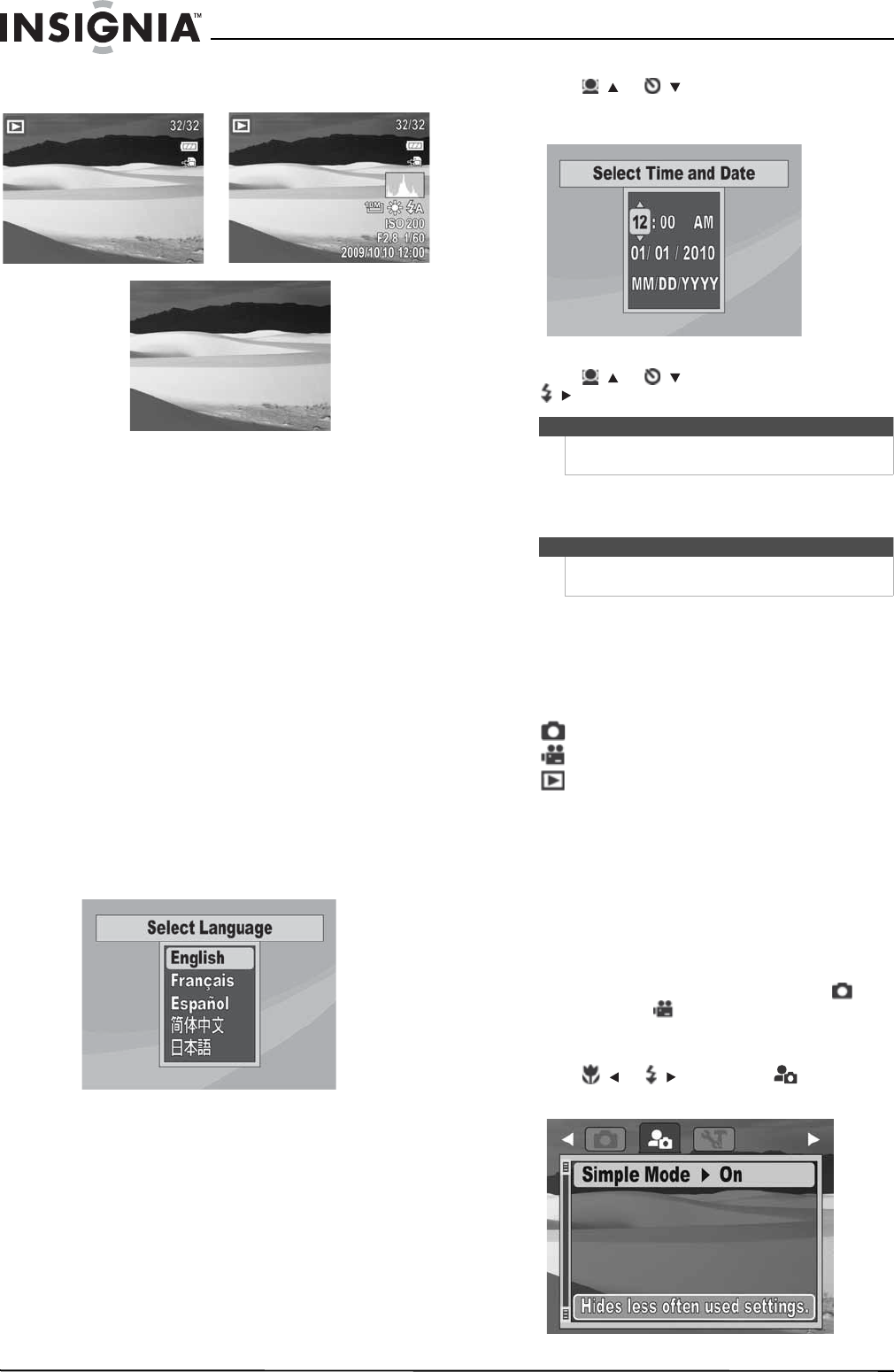
Playback mode (Video)Changing the LCD configuration
You can change the type of information that is
displayed on the LCD.
To change the LCD configuration:
• Press OK/DISP one or more times. Each time you
press this button, the information displayed
changes.
Photo mode
Video mode
#Item Description
Mode indicator
A playback icon appears when your camera is in
Playback mode. For more information, see
“Understanding camera modes” on page 5.
Video clip Shows that the current file is a video.
Current file/ Total files Shows the current file number and the total number of
files.
Battery Shows the battery level.
Storage media
A camera icon appears when no memory card is
inserted. A memory card icon appears when a memory
card is inserted.
Recording information Shows settings used when the video was recorded.
Button indicator Shows the buttons to press to control video playback.
Volume Shows the current volume level.
Played time Shows the amount of time the video has been playing.
Playback status Shows the current playback status, such as playing or
paused.
1
2
3
4
5
6
7
8
9
10
Notes
• If the Face tracking, Flash, Self-timer, Macro, and
Stabilizer features are turned on in Photo mode,
or the Macro feature is turned on in Video mode,
the icons are displayed even when the OSD is
turned off.
• You cannot change the LCD configuration when
recording or playing videos.
OSD on
OSD off
OSD on full
OSD on OSD off
8
NS-DSC1110A 10 Megapixel Camera
www.insigniaproducts.com
Playback mode
Using your camera
Turning your camera on and off
To turn on your camera:
• Press and hold POWER until the Insignia startup
image appears. The zoom lens extends, and if
sounds are turned on, a startup sound plays.
To turn off your camera:
• Press POWER.
Turning on your camera for the first time
When you turn on your camera for the first time,
you need to choose a menu language and set the
date and time.
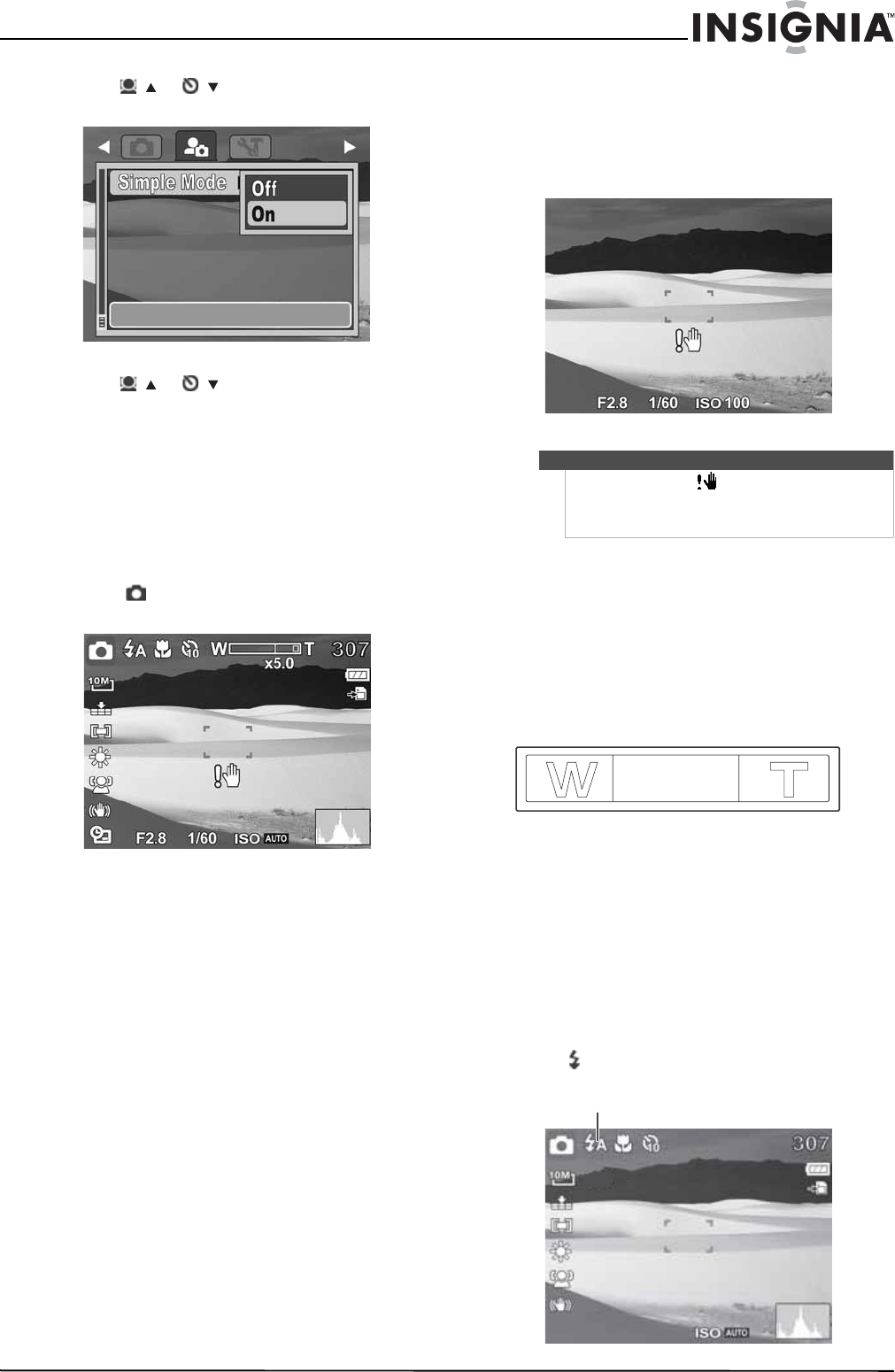
To choose a menu language and set the date and
time:
1Turn on your camera. The Select Language
screen opens.
2Press / or / to select a language, then
press OK/DISP. The Select Time and Date screen
opens.
3Press / or / to set the hour, then press
/ to move to the minute field.
4Repeat Step 3 to select AM or PM and to enter
the month, day, and year.
Changing camera modes
To change camera modes:
• Press MODE repeatedly to select a mode. The icon
for the current mode appears in the upper-left of
the LCD.
—Photo mode icon.
—Video mode icon.
—Playback mode icon.
Turning Simple mode on or off
When you turn on your camera the first time, it will
be in Simple mode. Simple mode hides advanced
user settings and less frequently used menu
options, while still letting you take high quality
images and video.
To turn Simple mode on or off:
1Turn on your camera.
2Press MODE repeatedly to select Photo
mode or Video mode. The mode icon
appears on the upper-left of the LCD.
3Press MENU. The on-screen menu opens.
4Press / or / to highlight . The Setup
menu opens.
OSD on Full OSD on
OSD off Tip
You can press and hold a navigation button to
change the values continuously.
Note
If the batteries are removed for longer than 48 hours,
the date and time must be reset.
9
10 Megapixel Camera
www.insigniaproducts.com
5Press / or / to highlight Simple Mode,
then press OK/DISP to open the submenu.
6Press / or / to highlight Off or On, then
press OK/DISP to save the setting and exit to
the previous menu.
7Press MENU again to exit the on-screen menu
and begin taking photos or video.
Taking photos
To take photos:
1Turn on your camera.
2Press MODE one or more times until the Photo
mode icon appears in the upper-left of the
LCD.
3Frame the image using the focus bracket on the
LCD.
4Press the shutter button down halfway. Your
camera automatically adjusts the focus and
exposure. When your camera is ready to take the
photo, the focus bracket turns green, and the
aperture value, shutter speed, and ISO setting
are displayed.
5Fully press the shutter button to capture the
image.
Using the zoom
Your camera features 3x optical zoom and 5x digital
zoom.
To use the zoom:
• Press the zoom buttons to zoom in (T) or zoom
out (W).
The zoom indicator appears on the LCD. The section
of the zoom indicator on the right side indicates
that digital zoom is being used.
Using the flash
When taking pictures in difficult lighting
conditions, use the flash to get correct exposure.
This function cannot be activated for recording
video.
To activate the flash:
• Press on the navigation control repeatedly until
the flash mode you want is displayed on the LCD.
Note
If the shake warning icon appears on the LCD,
hold the camera steady, with your arms at your sides,
or use a tripod to stabilize the camera in order to
prevent blurred images.
Flash icon
10
NS-DSC1110A 10 Megapixel Camera
www.insigniaproducts.com
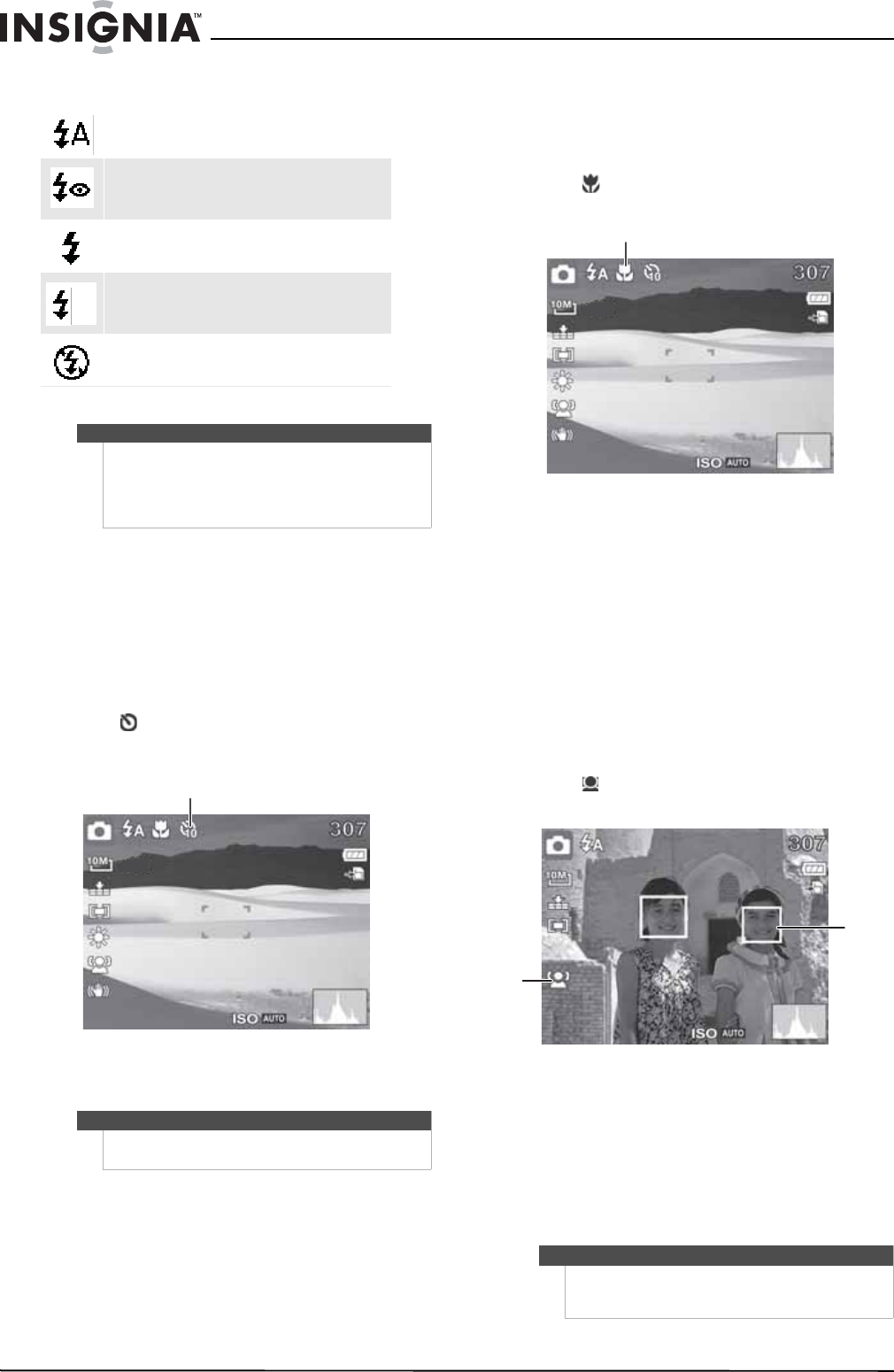
Your camera is equipped with five flash modes:
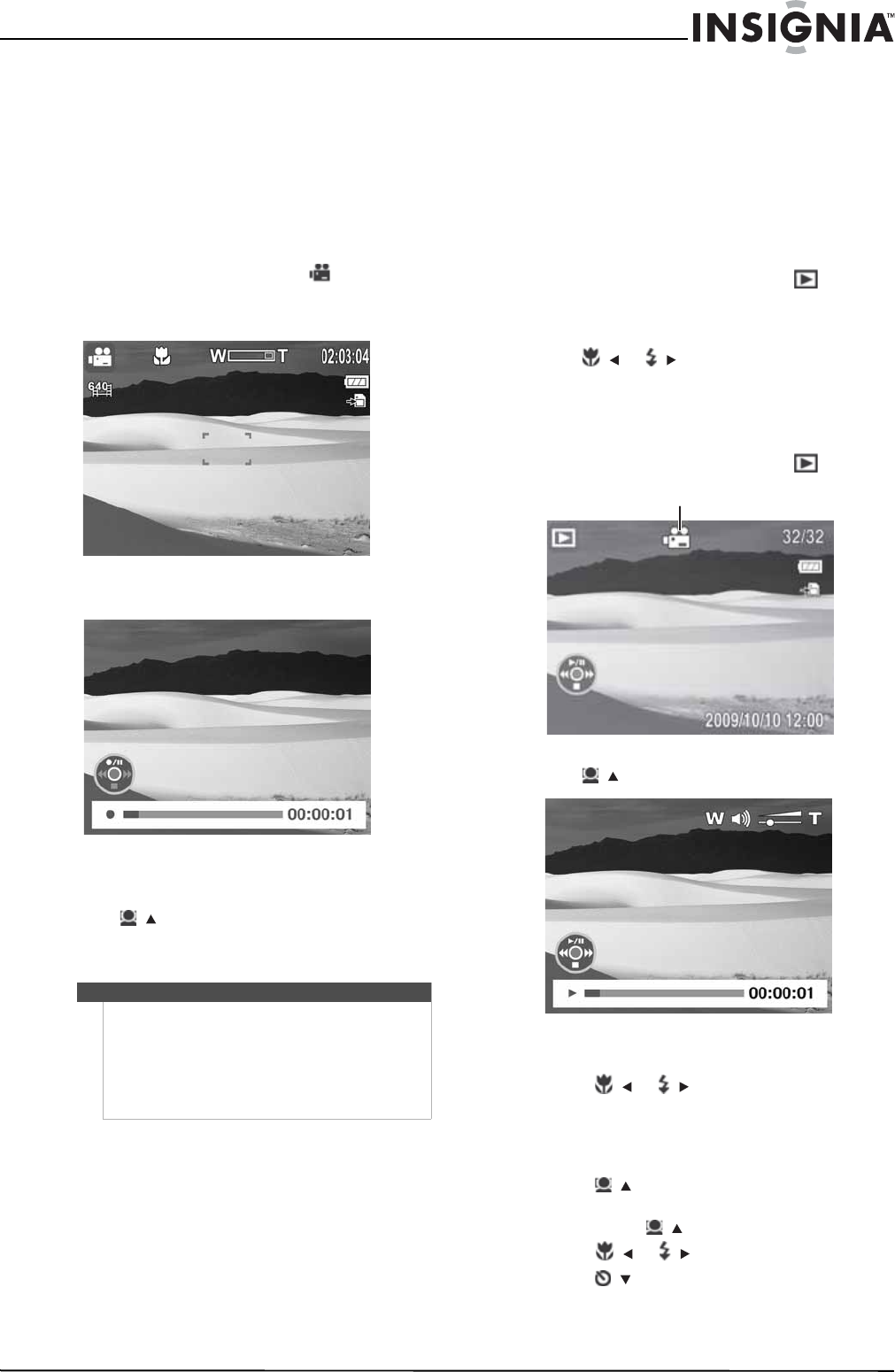
Using the self-timer
Self-timer lets you take photos after a 10-second
delay. This function is available only when
capturing still images. When the self-timer is turned
on, the icon is displayed on the LCD.
The self-timer setting is automatically set to Off
when you turn your camera on or off.
To turn on the self-timer:
1Press on the navigation control to turn on
the self-timer. When the self-timer is turned on,
the shutter release is delayed for 10 seconds.
2Press the shutter button to take the photo. Your
camera will take the photo 10 seconds later.
Using the macro feature
Your camera is equipped with a macro feature that
lets you focus on very close subjects.
To use the macro feature:
1Press on the navigation control. The macro
icon appears on the LCD.
2Aim your camera at the subject you want to
capture.
3Half-press the shutter button to focus.
4Fully press the shutter button to capture the
image.
Using face tracking
The face tracking mode detects faces and sets the
camera to focus on detected faces. This function
can detect several faces at the same time. However,
the camera sets the focus on the person closest to
the center of the LCD screen.
To use face tracking:
1Press on the navigation control. The face
tracking icon appears on the LCD.
2Aim your camera at the subject you want to
capture. White frames appear around faces that
are detected.
3Half-press the shutter button to focus. The white
frame closest to the center of the screen turns
green.
4Fully press the shutter button to capture the
image.
Auto flash—Flash fires automatically when shooting
conditions require extra lighting.
Red-eye reduction—Flash fires twice--once to let the
subject’s eyes adjust to the flash, then again to take the
actual image.
Force on—Flash fires every time you take a photo,
regardless of lighting conditions.
Slow sync (fill flash)—Flash fires with a slow shutter
speed. Ideal for situations where additional lighting is
needed for subjects in the foreground.
Flash off—The flash never fires, regardless of lighting
conditions.
Notes
• Flash charging time may increase when the
battery is low.
• Hold the camera steady, or mount it on a tripod,
to reduce blurring when using the slow sync
flash mode.
Notes
When using the self-timer, make sure that you use a
tripod or place your camera on a level, stable surface.
SL
Self-timer icon
Note
When capturing an image with several faces, face
tracking may take more time to detect faces than it
does when the image has only one face.
Macro icon
Facing tracking
icon
White
frame
11
10 Megapixel Camera
www.insigniaproducts.com
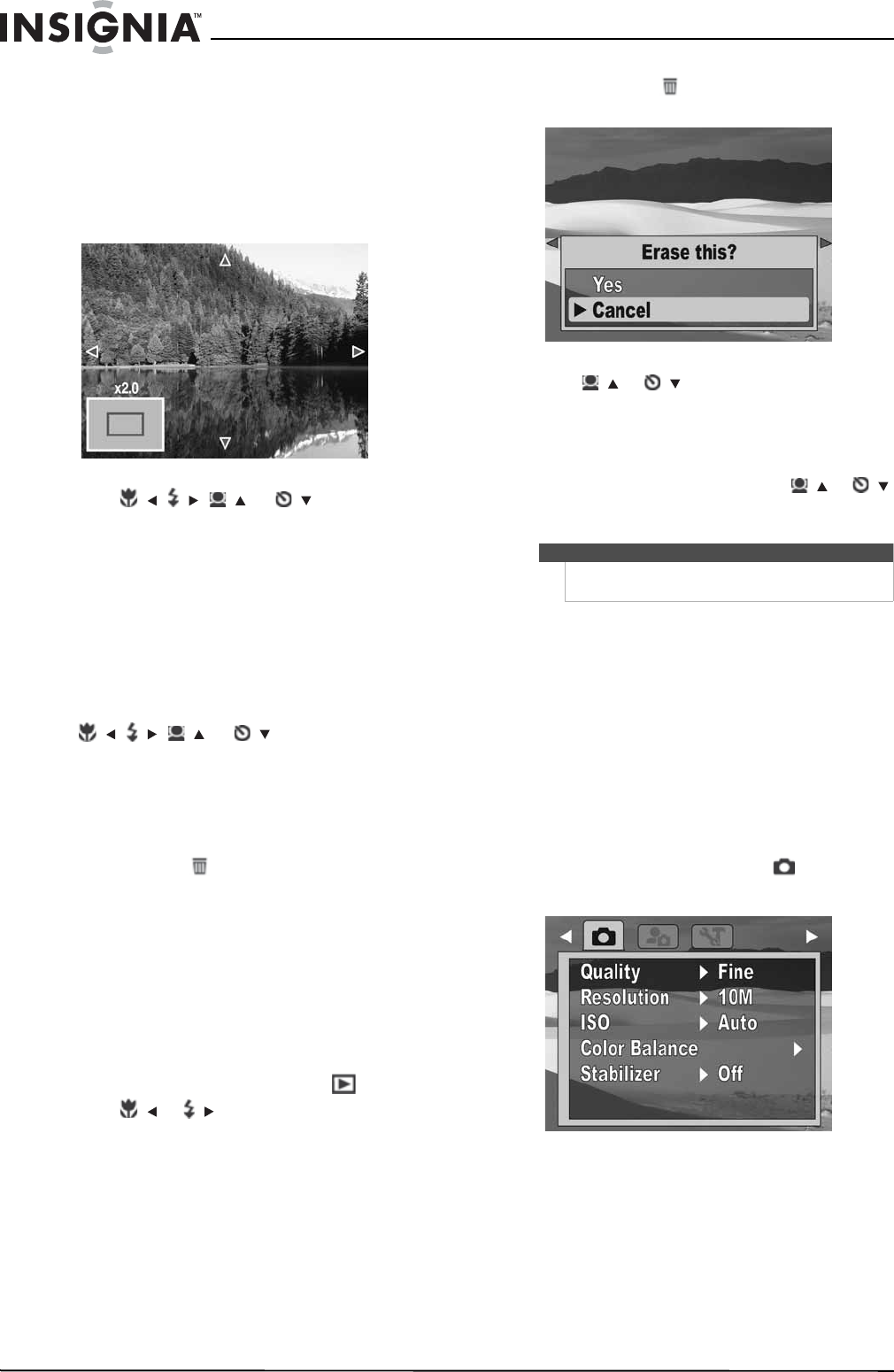
Recording video
You can record videos with your camera. The
available recording time depends on the available
capacity of the internal memory or the memory
card in use. Videos can be recorded until the
maximum memory capacity has been reached.
About 15 minutes of video can be recorded for
every gigabyte of memory space.
To record video:
1Press MODE to switch to Video mode.
2Focus your camera on the subject that you want
to record.
3Press the shutter button to start recording.
4Press the zoom button (T) to zoom in or the
zoom (W) button to zoom out.
5Press / to pause recording. Press again to
continue recording.
6Press the shutter button to stop recording.
Viewing photos and videos
Playback mode lets you view the photos and videos
you have captured with your camera. Photos are
displayed on the LCD one by one. If the file is a
video, the first frame of the video is displayed.
Viewing photos
To view photos:
1Press MODE to switch to Playback mode.
The LCD displays an image. For information
about the screen icons, see “Playback mode
(Photo)” on page 6.
2Press / or / to view the previous or next
photo.
Viewing videos
To view videos:
1Press MODE to switch to Playback mode.
2Press / to play the video.
3During playback:
• Press / or / to rewind or fast-forward
the video at 2× speed.
• Press the zoom (T) button to increase the
volume or the zoom (W) button decrease the
volume.
• Press / to pause or resume playback.
• To forward or rewind the video frame by
frame, press / to pause playback, then
press / or /.
• Press / to stop playback. The LCD displays
the first frame of the video.
Note
• When the maximum capacity for a single video
has been reached, press the shutter button
again to continue recording.
• Your camera will automatically stop recording
when the memory capacity is full.
• When recording videos, the audio recording
mutes during zoom operation.
Video playback icon
12
NS-DSC1110A 10 Megapixel Camera
www.insigniaproducts.com
Zooming photos in Playback mode
The zoom view function works with photos only.
To zoom photos in Playback mode:
1Use standard procedures to select the photo
you want to view, then press the zoom button
(T) to zoom in or the zoom (W) button to zoom
out. You can zoom in on an image up to 5×.
2Press /, /, /, or / to view
different sections of the zoomed image.
3Press MENU to close the zoom view.
Using the thumbnail view
The thumbnail view lets you view saved photos and
videos in 3 × 3 thumbnails.
To use the thumbnail view:
1In Playback mode, press Zoom W to enter the
thumbnail view.
2To view an image or video in full screen, press
/, /, /, or / to select a photo or
video, then press OK/DISP or Zoom T.
Erasing photos and videos
There are two ways to delete an image or video:
• Using the delete button
•Using the Erase Pictures option in the Playback
menu. For more information, see “Erasing photos
and videos” on page 17. The Erase Pictures
option lets you erase single photos or videos or all
photos or videos.
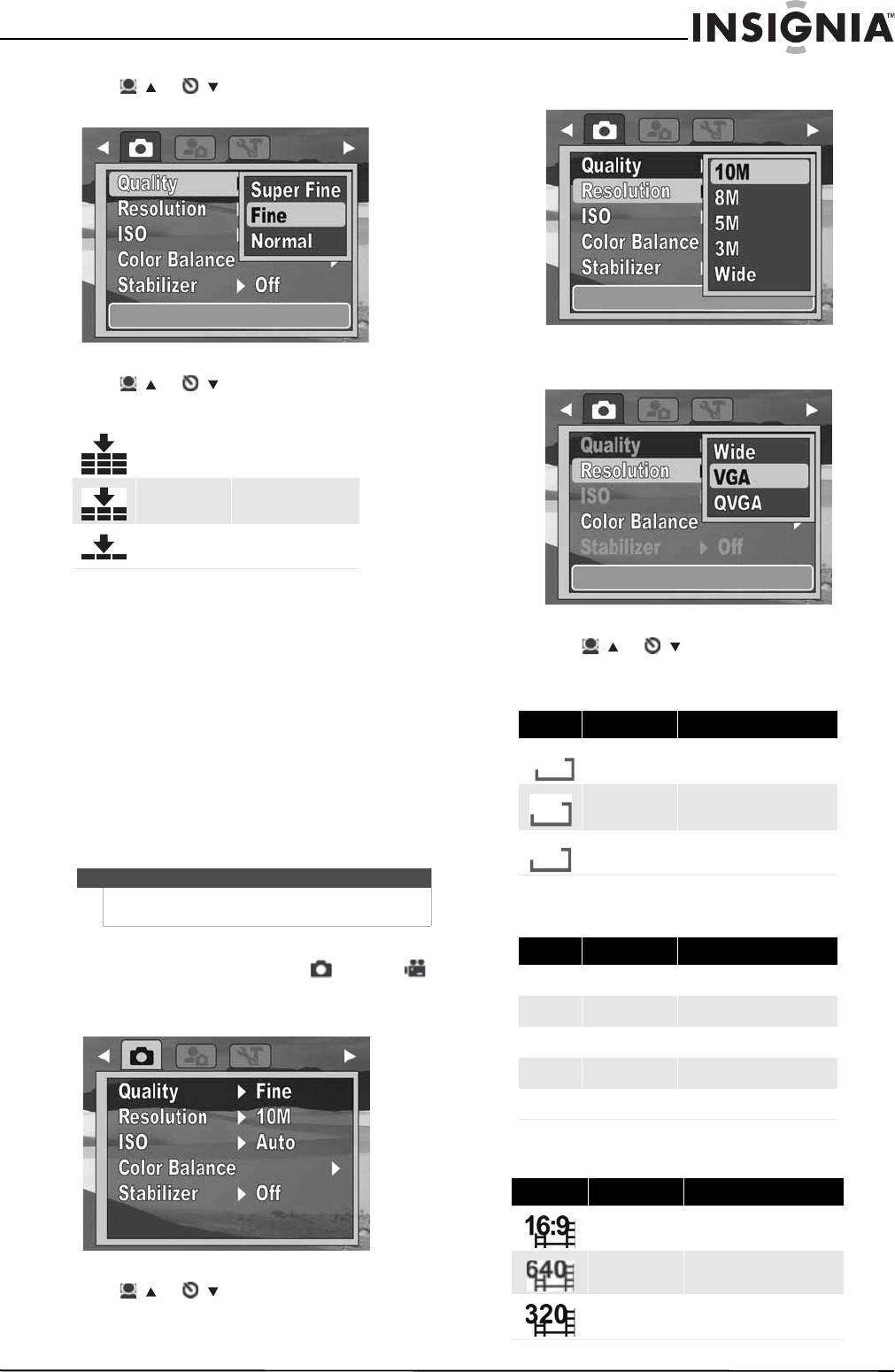
Erasing photos or videos using the delete
button
To erase photos or videos using the delete
button:
1Press MODE to switch to Playback mode.
2Press / or / to select the photo or video
you want to erase.
3Press the delete button. A confirmation
message appears on the LCD.
4Press / or / to select Yes, then press
OK/DISP to delete. The next photo or video is
displayed.
5Repeat Step 2 through Step 4 to delete
additional photos or videos.
6To close the delete function, press / or /
to select Cancel, then press OK/DISP, or press
the delete button.
Using the Record menu
Setting the quality
The Quality function lets you adjust the quality
settings of your photos before you capture them.
Quality determines the amount of compression
applied to your photos. More compression results
in a less detailed image. However, the higher the
quality, the greater the memory required for each
image captured.
To set the quality:
1Press MODE to switch to Photo .
2Press MENU to open the Record menu.
Note
To erase all photos or videos, see “Erasing photos and
videos” on page 17.
13
10 Megapixel Camera
www.insigniaproducts.com
3Press / or / to highlight Quality, press
OK/DISP to open the submenu.
4Press / or / to select the setting you
want, then press OK/DISP. You can select:
5Press MENU again to close the menu.
Setting the resolution
The Resolution function is used to set the resolution
before you capture an image or a video clip.
Changing the resolution affects the number of
photos or videos that can be stored in your storage
media. The higher the resolution, the more memory
space is required. High resolution images are ideal
for printing and other applications.
High resolution video is ideal for playing back on
your own computer or for creating a DVD. Low
resolution images and video are ideal for e-mailing
and sharing online.
To set the resolution:
1Press MODE to switch to Photo or Video
mode.
2Press MENU to open the Record menu.
3Press / or / to highlight Resolution,
then press OK/DISP to open the submenu.
Photo mode
Video mode
4Press / or / to select the setting you
want, then press OK/DISP. You can select:
Photo mode (Simple mode on)
Photo mode (Simple mode off)
Video mode
Super Fine 4x compression rate
Fine 8x compression rate
Normal 12x compression rate
Note
Video resolution can only be changed when Simple
mode is set to Off.
Icon Setting Image size
High 3648 x 2736 (10 megapixels)
Medium 2592 x 1944 (5 megapixels)
Low 2048 x 1536 (3 megapixels)
Icon Setting Image size
10M 10M 3648 x 2736 (10 megapixels)
8M 8M 3264 x 2448 (8 megapixels)
5M 5M 2592 x 1944 (5 megapixels)
3M 3M 2048 x 1536 (3 megapixels)
16:9 Wide 3648 x 2048
Icon Setting Image size
Wide 16:9 (720 x 400)
VGA VGA (640 x 480)
QVGA QVGA (320 x 240)
10M
5M
3M
14
NS-DSC1110A 10 Megapixel Camera
www.insigniaproducts.com
5Press MENU again to close the menu.
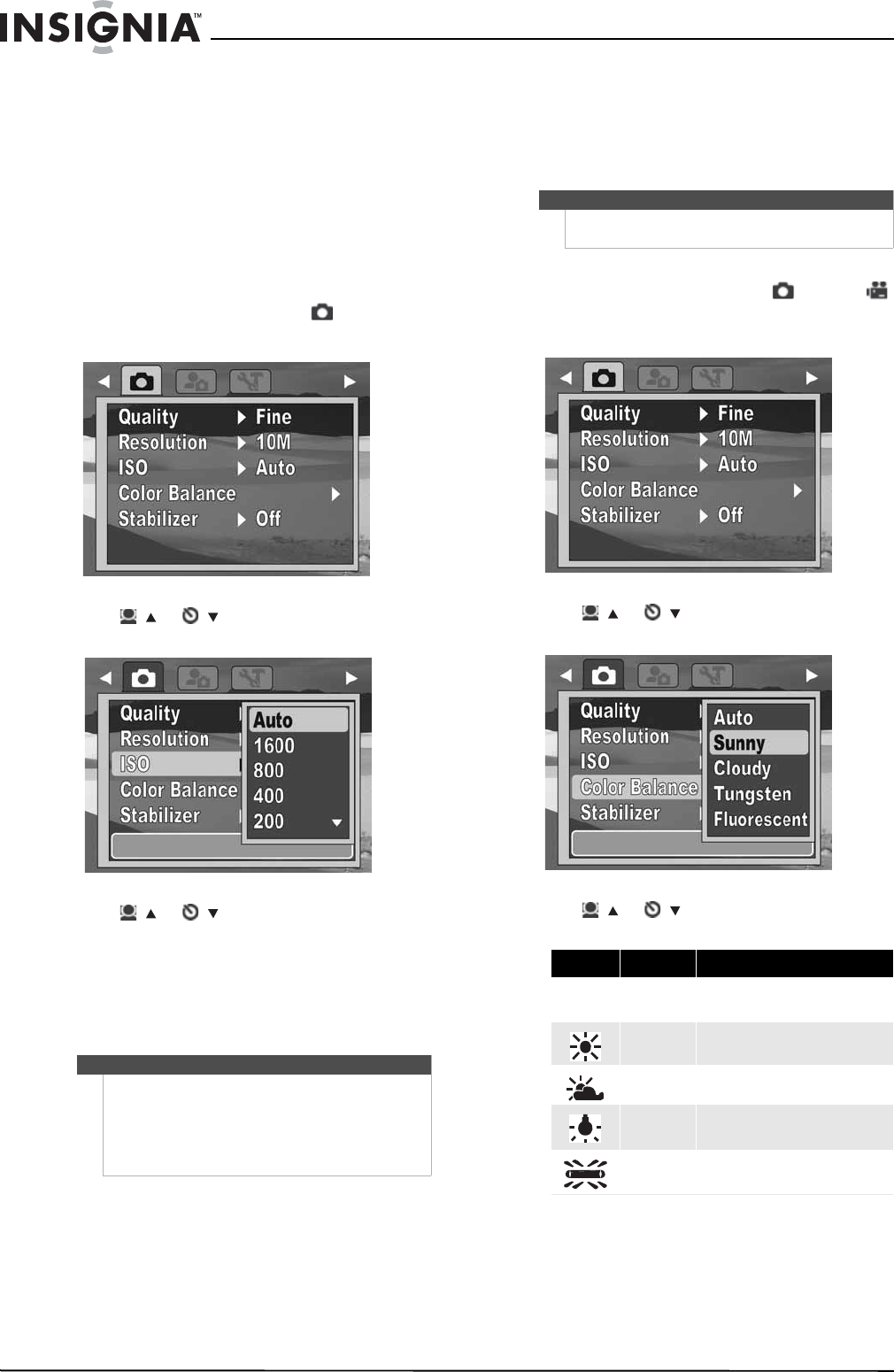
Setting ISO
The ISO function lets you adjust the ISO sensitivity
for recording still images, based on the light levels
of your surroundings.
• Use a higher ISO setting in dim conditions and a
lower ISO setting in brighter conditions.
• As you move through the selections, the preview
on the LCD monitor changes accordingly.
To set ISO:
1Press MODE to switch to Photo mode.
2Press MENU to open the Record menu.
3Press / or / to highlight ISO, then press
OK/DISP to open the submenu.
4Press / or / to select the setting you
want, then press OK/DISP. You can select:
•Simple mode off—Auto, 1600, 800, 400, 200,
100, or 50
•Simple mode on—Auto, High, Medium, or
Low
5Press MENU again to close the menu.
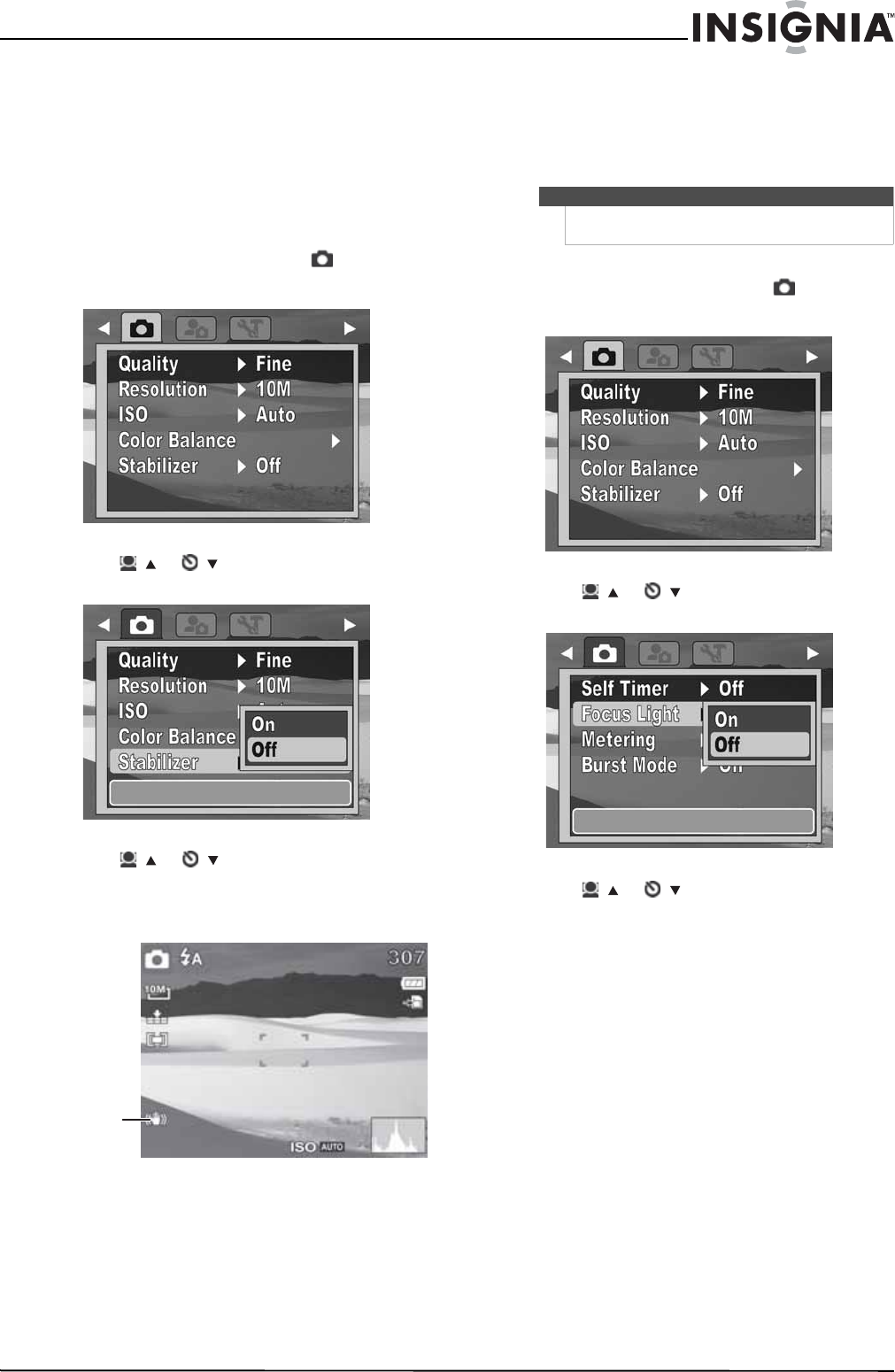
Setting the color balance
The color balance function controls the white
balance in capturing still images or videos.
As you move through the selections, you can see
the preview on the LCD accordingly.
To set the color balance:
1Press MODE to switch to Photo or Video
mode.
2Press MENU to open the Record menu.
3Press / or / to highlight Color Balance,
then press OK/DISP to open the submenu.
4Press / or / to select the setting you
want, then press OK/DISP. You can select:
5Press MENU again to close the menu.
Note
• If the stabilizer function is turned on, ISO is
automatically set to Auto and cannot be
adjusted. To adjust ISO, turn off the stabilizer
function first.
• The higher the ISO setting, the grainier the
photo will be. This is normal.
Note
Color balance can only be adjusted when Simple
mode is set to Off.
Icon Item Description
Auto The camera automatically adjusts the
white balance.
Sunny Ideal for bright, sunny conditions.
Cloudy Ideal for cloudy conditions.
Tungsten Ideal for indoor photos with tungsten
or halogen lighting without a flash.
Fluorescent Ideal for indoor photos with
fluorescent lighting.
A
uto
15
10 Megapixel Camera
www.insigniaproducts.com
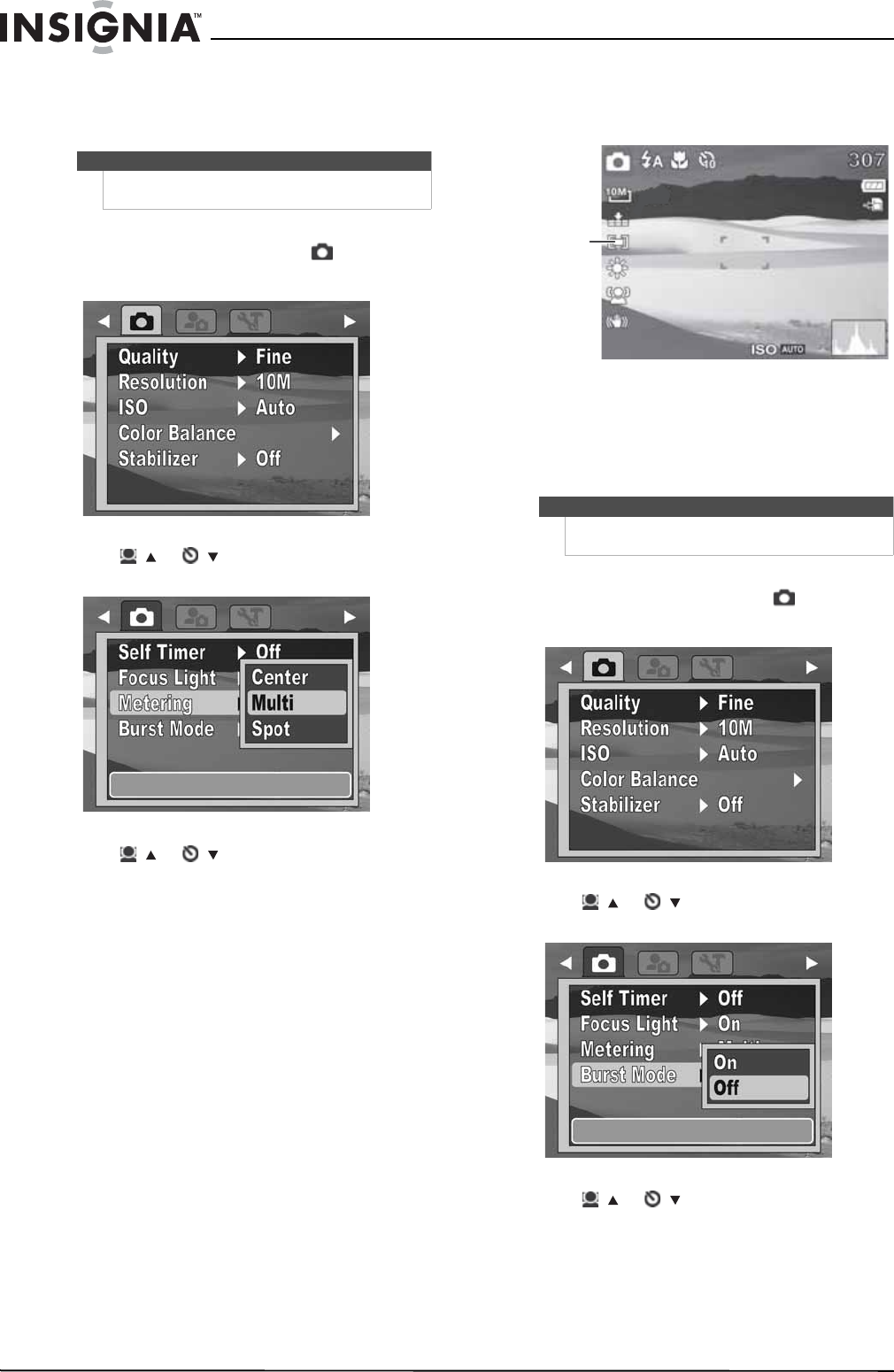
Turning the stabilizer function on or off
The stabilizer function helps prevent blurred
photos. This function is only available for capturing
photos.
If the stabilizer function is turned on, the stabilizer
icon appears on the LCD, and the ISO setting is
automatically set to Auto.
To turn the stabilizer feature on or off:
1Press MODE to switch to Photo mode.
2Press MENU to open the Record menu.
3Press / or / to highlight Stabilizer, then
press OK/DISP to open the submenu.
4Press / or / to select On or Off, then
press OK/DISP.
When the stabilizer function is turned on, an
icon will appear on the left side of the LCD.
5Press MENU again to close the menu.
Turning the focus light on or off
The focus light is only available for recording still
photos. When the focus light is turned on and the
lighting is dim, the camera emits amber light until
the focus is locked.
To turn the focus light on or off:
1Press MODE to switch to Photo mode.
2Press MENU to open the Record menu.
3Press / or / to highlight Focus Light,
then press OK/DISP to open the submenu.
4Press / or / to select On or Off, then
press OK/DISP.
5Press MENU again to close the menu.
Stabilizer
icon
Note
The focus light setting can only be adjusted when
Simple mode is set to Off.
16
NS-DSC1110A 10 Megapixel Camera
www.insigniaproducts.com
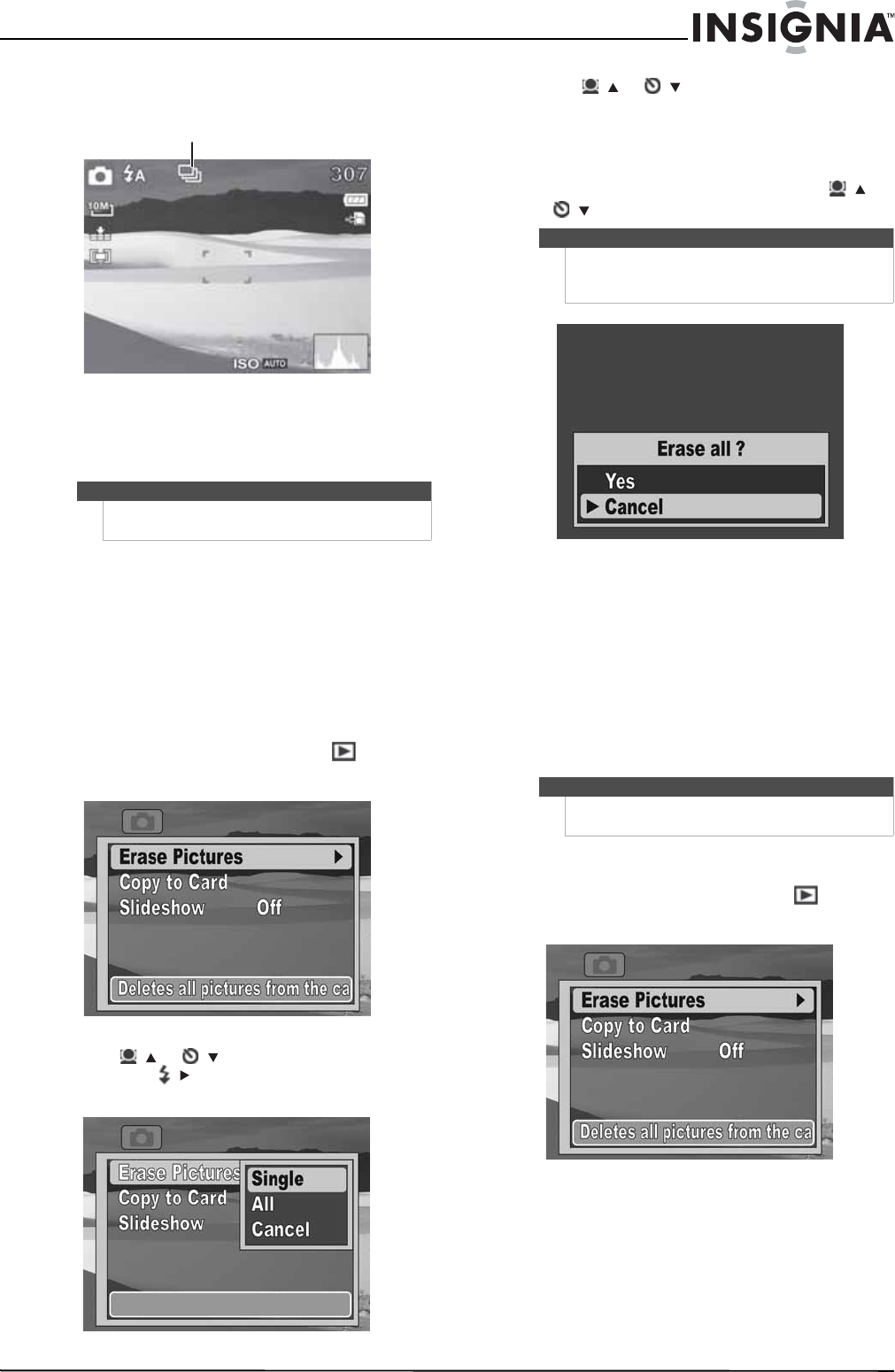
Setting the metering function
This feature controls exposure metering in
recording still images.
To set the metering function:
1Press MODE to switch to Photo mode.
2Press MENU to open the Record menu.
3Press / or / to highlight Metering, then
press OK/DISP to open the submenu.
4Press / or / to select the setting you
want, then press OK/DISP. You can select:
•Center—Averages the light metered from the
entire frame, but gives greater weight to the
subject matter at the center.
•Multi—Divides the image into several zones
and measures the light in each zone for a
balanced exposure reading. Your camera
determines shooting conditions according to
the measured lighting pattern, and makes
exposure settings accordingly.
•Spot—Locks the spot metering frame to the
center of the LCD.
An icon that corresponds to the metering
mode selected will appear on the left side of
the LCD.
5Press MENU again to close the menu.
Turning burst mode on or off
Burst mode allows for continuous shooting of
photos. Burst mode is not available in Video mode.
To turn burst mode on or off:
1Press MODE to switch to Photo mode.
2Press MENU to open the Record menu.
3Press / or / to highlight Burst Mode,
then press OK/DISP to open the submenu.
4Press / or / to select On or Off, then
press OK/DISP.
Note
The metering function can only be set when Simple
mode is set to Off.
Note
The burst mode setting can only be adjusted when
Simple mode is set to Off.
Metering
icon
17
10 Megapixel Camera
www.insigniaproducts.com
When Burst Mode is turned on, an icon appears
on the screen.
5Press MENU again to close the menu.
6To use burst mode, hold down the shutter
button. Photos are captured in rapid succession.
Using the Playback menu
Erasing photos and videos
If a memory card is inserted, you can only erase
photos or videos in the memory card. To erase
photos and videos in your camera’s internal
memory, remove the memory card.
To erase photos and videos:
1Press MODE to switch to Playback mode.
2Press MENU to open the Playback menu.
3Press / or / to highlight Erase Pictures,
then press / or OK/DISP to open the
submenu.
4Press / or / to select the option you
want, then press OK/DISP. You can select:
•Single—Erases the currently selected photo
or video.
•All—Erases all photos and videos. If you select
this option, a message appears. Press / or
/ to highlight Yes, then press OK/DISP.
•Cancel—Cancels the erase function
If you select All, a screen will appear that
indicates there are no stored photos or videos.
5Press MENU again to close the menu.
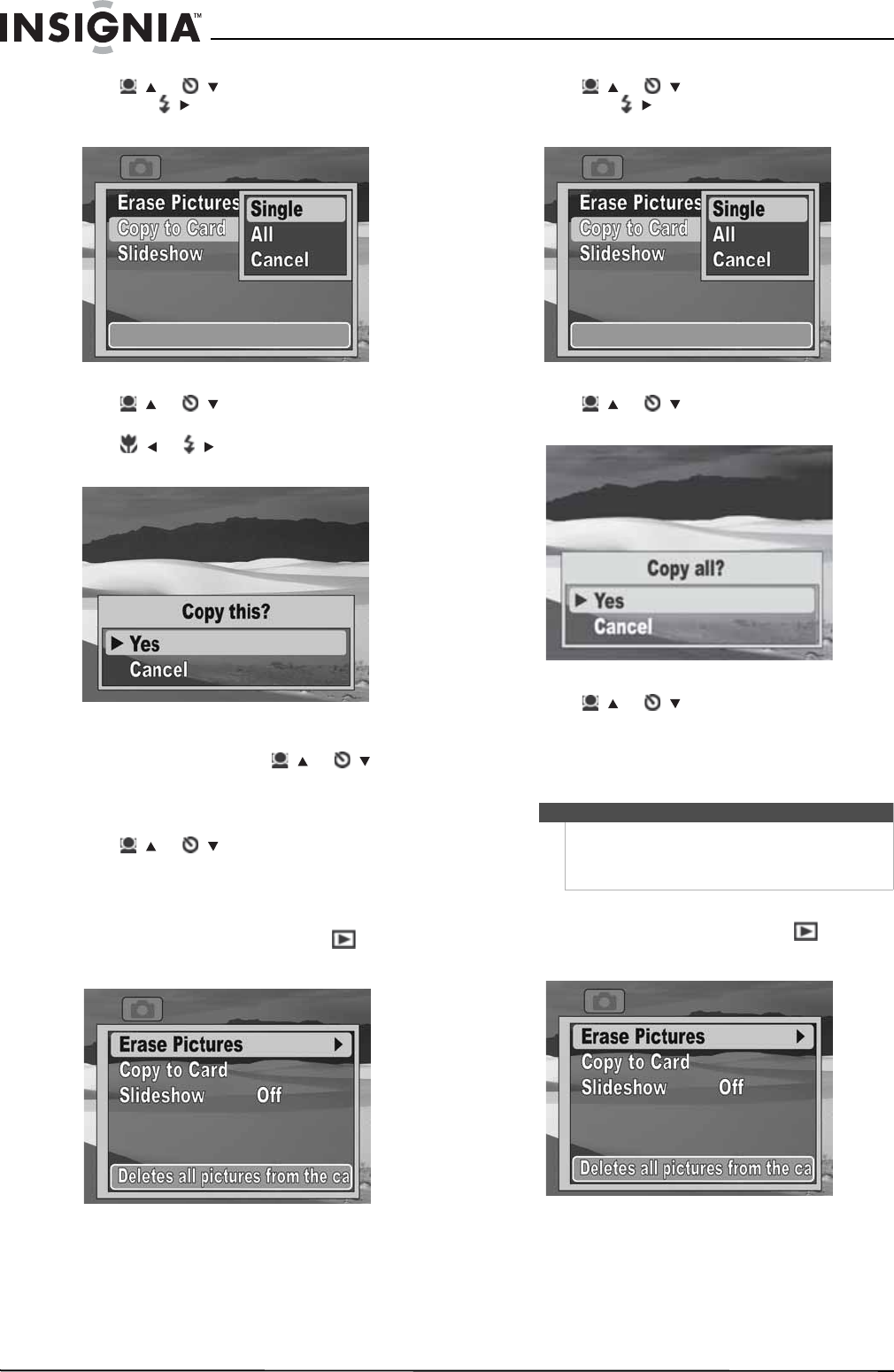
Copying photos and videos to a memory card
You can copy a single photo or video or all photos
and videos from internal memory to a memory
card. When you copy photos or videos to a memory
card, they are still stored in internal memory.
To copy a single photo or video to a memory
card:
1Press MODE to switch to Playback mode.
2Press MENU to open the Playback menu.
Note
Burst mode is automatically set to Off when you turn
your camera off.
Burst mode icon
Caution
Selecting All will erase all files on the inserted card, not just
photos and videos. Make sure that you back up any files you want
to save before you select this option.
Note
Files cannot be copied from a memory card to your
camera’s internal memory.
18
NS-DSC1110A 10 Megapixel Camera
www.insigniaproducts.com
3Press / or / to highlight Copy to Card,
then press / or OK/DISP to open the
submenu.
4Press / or / to highlight Single, then
press OK/DISP.
5Press / or / to select the photo or video
you want to copy.
6When the photo or video you want to copy
appears on the LCD, press / or / to
highlight Yes, then press OK/DISP.
7To copy additional photos or videos, repeat
Steps 5 and 6.
8Press / or / to select Cancel, then press
OK/DISP to exit.
9Press MENU to close the menu.
To copy all photos or videos to a memory card:
1Press MODE to switch to Playback mode.
2Press MENU to open the Playback menu.
3Press / or / to highlight Copy to Card,
then press / or OK/DISP to open the
submenu.
4Press / or / to highlight All, then press
OK/DISP. A confirmation message appears.
5Press / or / to highlight Yes, then press
OK/DISP.
6Press MENU to close the menu.
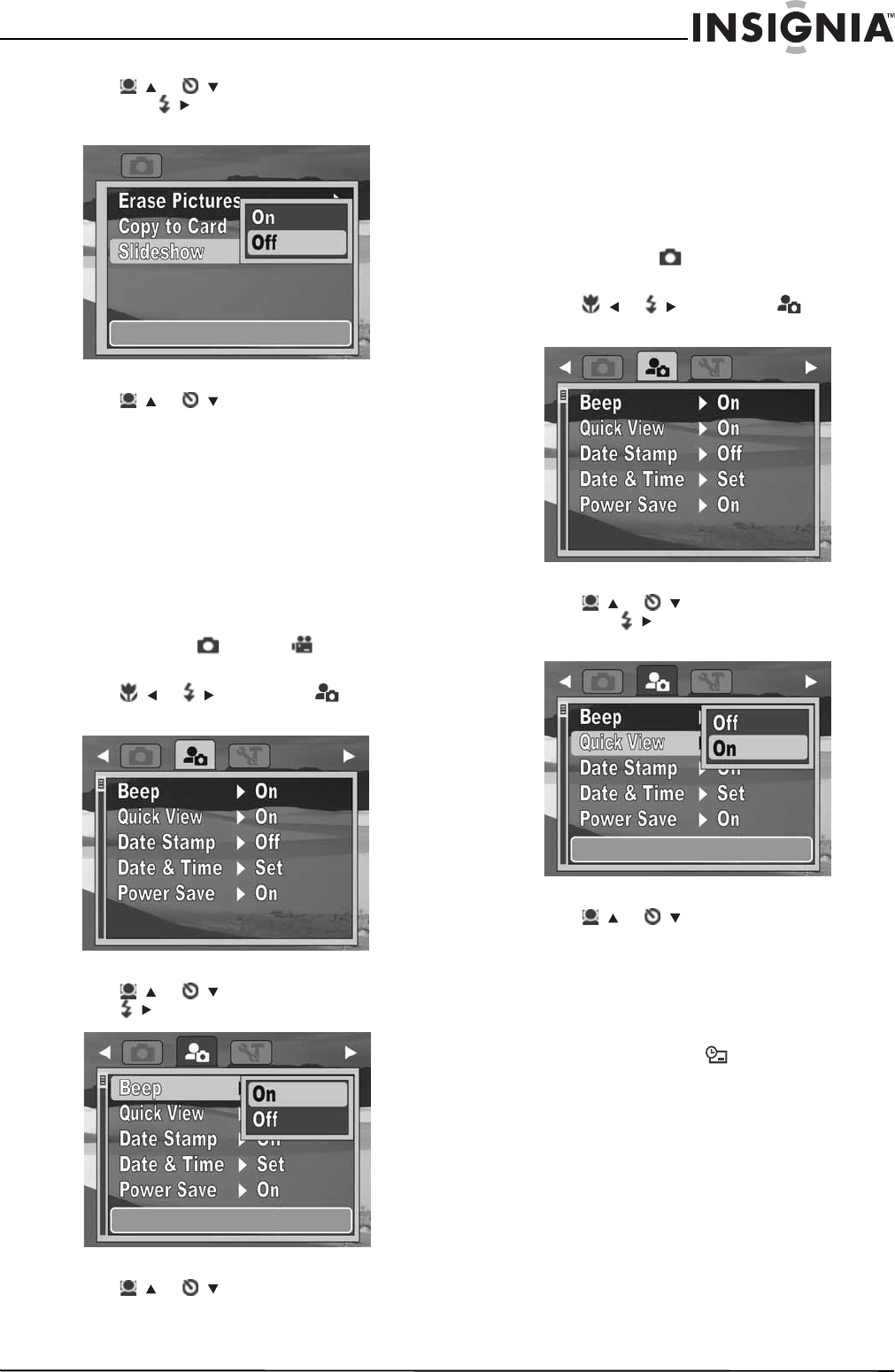
Viewing a slideshow of photos
To view a slideshow of photos:
1Press MODE to switch to Playback mode.
2Press MENU to open the Playback menu.
Note
If a memory card is inserted, photos stored in your
camera’s internal memory will not be shown in the
slideshow. To view a slideshow of photos stored in
internal memory, remove the memory card.
19
10 Megapixel Camera
www.insigniaproducts.com
3Press / or / to highlight Slideshow,
then press / or OK/DISP to open the
submenu.
4Press / or / to highlight On, then press
OK/DISP. A slideshow of photos begins. When
all the photos have been viewed, the slideshow
function automatically turns off.
5Press MENU to close the menu.
Using the Setup menu
Turning alert sounds on or off
To turn alert sound on or off:
1Turn on your camera, then press MODE to
switch to Photo or Video mode.
2Press MENU. The on-screen menu opens.
3Press / or / to select the (setup) tab.
The Setup menu opens.
4Press / or / to highlight Beep, then
press / or OK/DISP to open the submenu.
5Press / or / to select On or Off, then
press OK/DISP.
6Press MENU to close the menu.
Turning Quick View on or off
The Quick View function lets you view a captured
image right after shooting it. If Quick View is turned
on, your camera will display the captured image for
one second on the LCD. This function can only be
turned on or off when Simple mode is set to Off.
To turn Quick View on or off:
1Turn on your camera, then press MODE to
switch to Photo mode.
2Press MENU. The on-screen menu opens.
3Press / or / to select the (setup) tab.
The Setup menu opens.
4Press / or / to highlight Quick View,
then press / or OK/DISP to open the
submenu.
5Press / or / to select On or Off, then
press OK/DISP.
6Press MENU to close the menu.
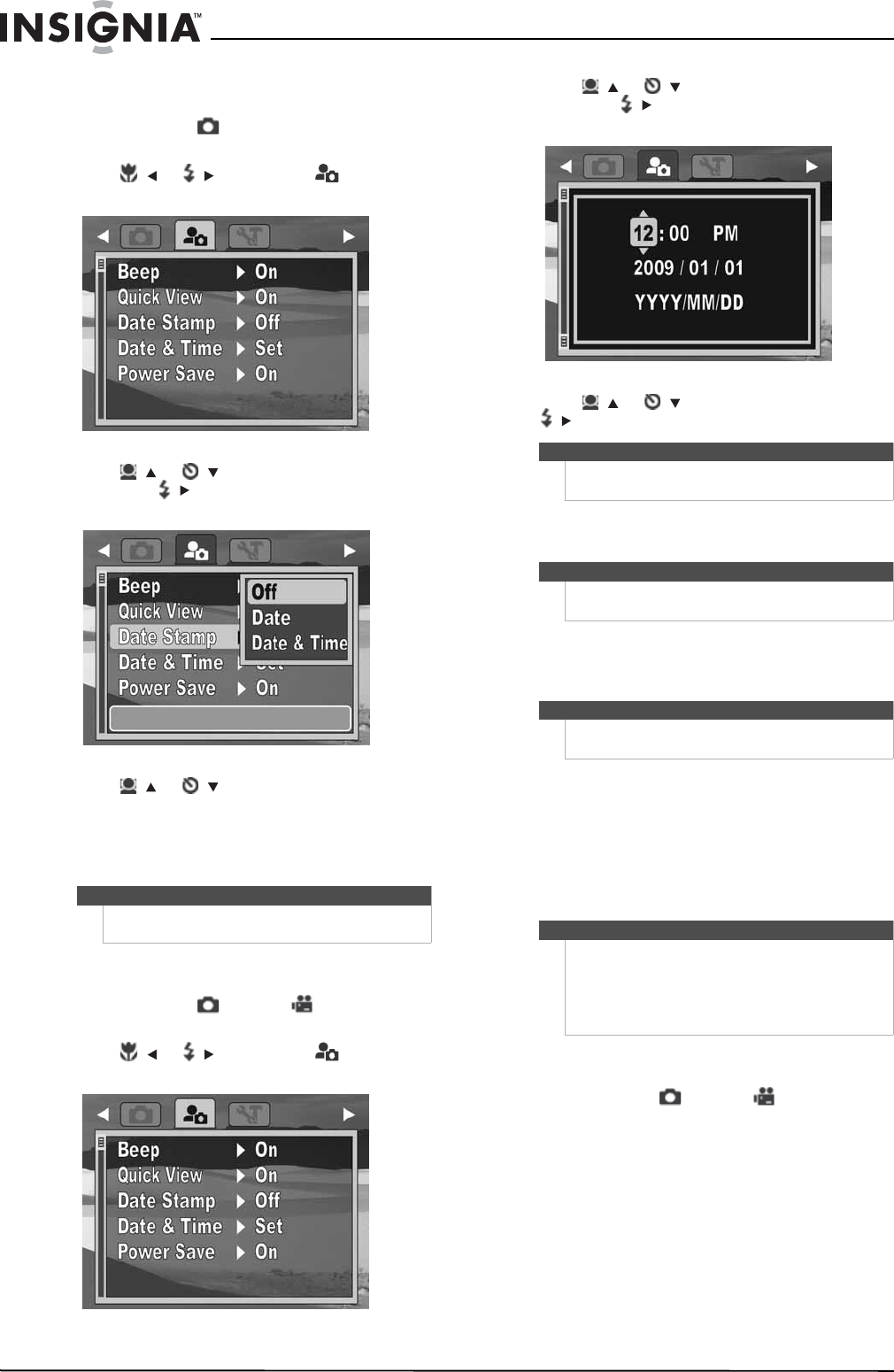
Imprinting the date and time on photos
The Date Stamp function lets you add the recording
date or date and time on your photos. When this
function is turned on, the icon is displayed on
the LCD.
The recording date and time are based on your
camera's Date & Time settings. After the date or
date and time are stamped on a photo, they cannot
be edited or deleted.
Limitations of the Date Stamp function are as
follows:
• Available for photos only.
• On vertically captured photos, the date stamp still
appears horizontally.
20
NS-DSC1110A 10 Megapixel Camera
www.insigniaproducts.com
To imprint the date and time on photos:
1Turn on your camera, then press MODE to
switch to Photo mode.
2Press MENU. The on-screen menu opens.
3Press / or / to select the (setup) tab.
The Setup menu opens.
4Press / or / to highlight Date Stamp,
then press / or OK/DISP to open the
submenu.
5Press / or / to select Off, Date, or
Date & Time, then press OK/DISP.
6Press MENU to close the menu.
Setting the date and time
To set the date and time:
1Turn on your camera, then press MODE to
switch to Photo or Video mode.
2Press MENU. The on-screen menu opens.
3Press / or / to select the (setup) tab.
The Setup menu opens.
4Press / or / to highlight Date & Time,
then press / or OK/DISP to open the date
and time screen.
5Press / or / to set the hour, then press
/ to move to the minutes field.
6Repeat Step 4 to select AM or PM and to enter
the year, month, and day.
7Press MENU to close the menu.
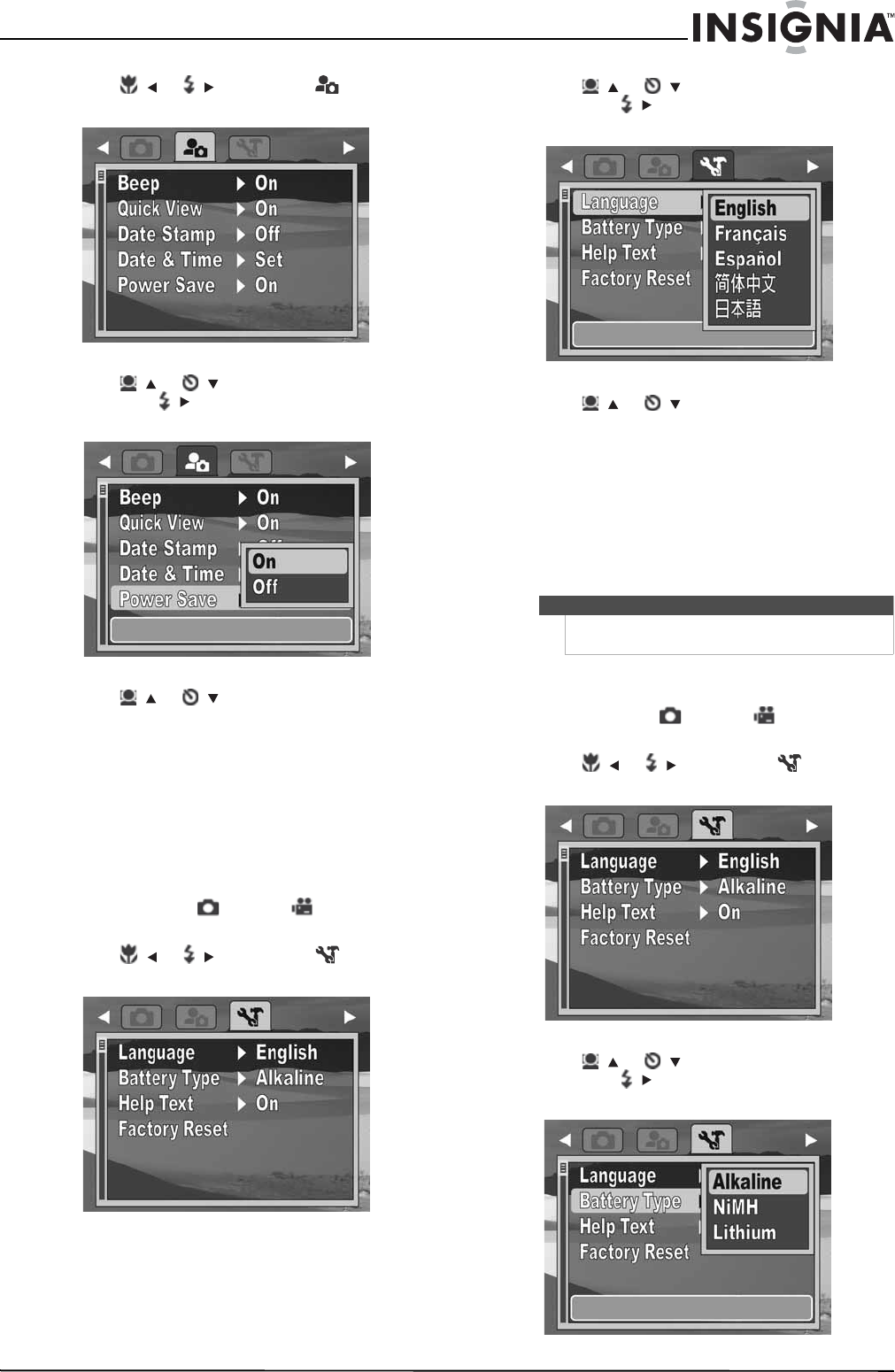
Turning Power Save on or off
The Power Save function automatically turns off
your camera after being idle for a specified period
of time to save power.
This function is turned off when:
• Recording and playing a video
•Erasing or copying files
• Using the USB connector
To turn Power Save on or off:
1Turn on your camera, then press MODE to
switch to Photo or Video mode.
2Press MENU. The on-screen menu opens.
Note
• The date and time can only be set when Simple
mode is set to Off.
Tip
You can press and hold a navigation button to
change the values continuously.
Note
If the batteries are removed for longer than 48 hours,
the date and time must be reset.
Note
The power save function can only be accessed when
Simple mode is set to Off.
Note
Connecting your camera to a computer using the
USB connector will not recharge your camera's
batteries or enhance battery life. Make sure that you
disconnect your camera from the computer and
power down your camera when you are finished
transferring files to your computer.
21
10 Megapixel Camera
www.insigniaproducts.com
3Press / or / to select the (setup) tab.
The Setup menu opens.
4Press / or / to highlight Power Save,
then press / or OK/DISP to open the
submenu.
5Press / or / to select On or Off, then
press OK/DISP.
6Press MENU to close the menu.
Using the Tools menu
Setting the menu language
To set the menu language:
1Turn on your camera, then press MODE to
switch to Photo or Video mode.
2Press MENU. The on-screen menu opens.
3Press / or / to select the (tools) tab.
The Tools menu opens.
4Press / or / to highlight Language,
then press / or OK/DISP to open the
submenu.
5Press / or / to highlight the language
you want, then press OK/DISP.
6Press MENU to close the menu.
Setting the battery type
The battery type function lets you set the type of
battery in use. Selecting the correct battery type
will let your camera more accurately reflect the
amount of power remaining in the inserted
batteries.
To set the battery type:
1Turn on your camera, then press MODE to
switch to Photo or Video mode.
2Press MENU. The on-screen menu opens.
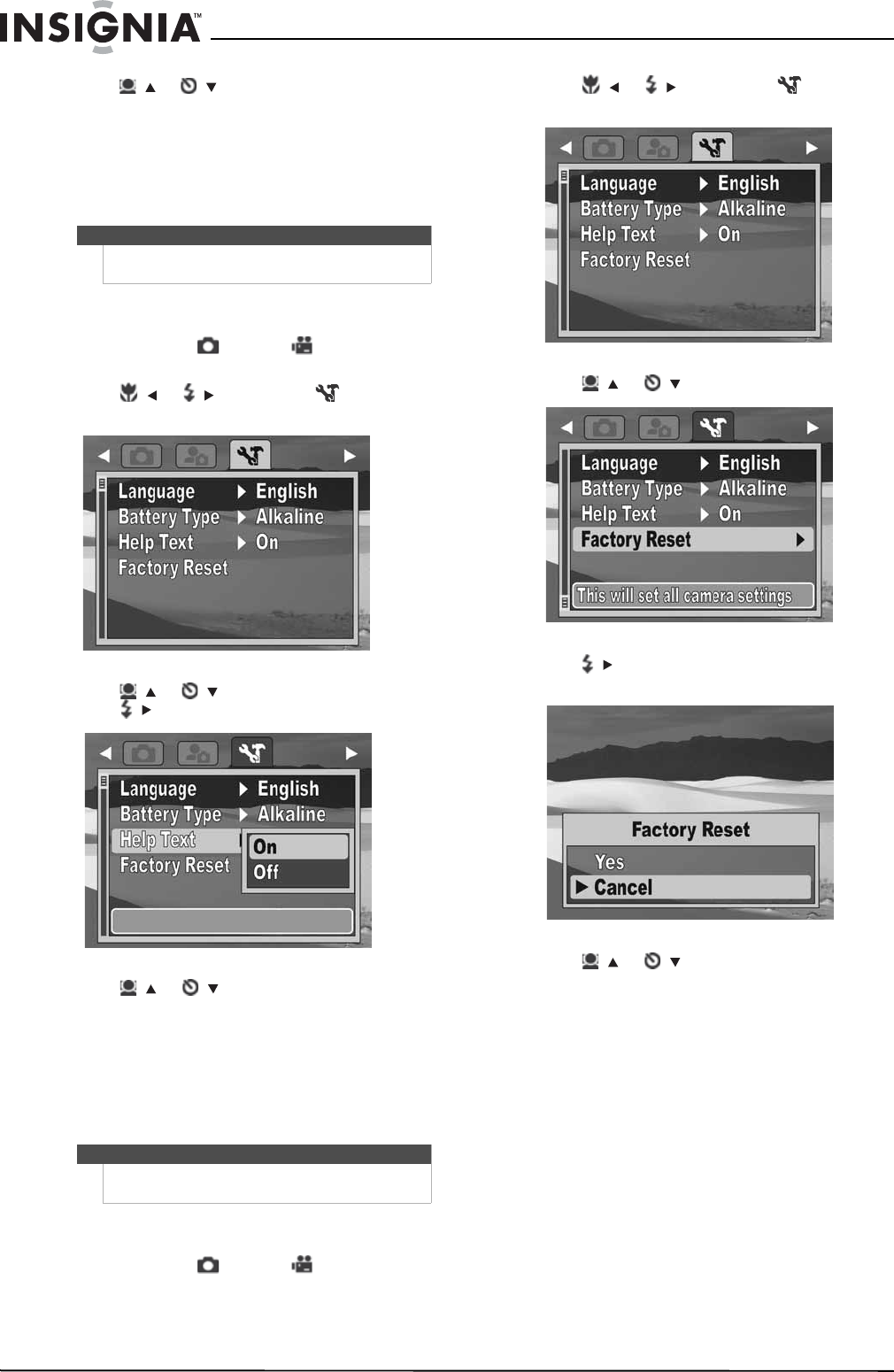
3Press / or / to select the (tools) tab.
The Tools menu opens.
4Press / or / to highlight Battery Type,
then press / or OK/DISP to open the
submenu.
Note
The battery type function can only be accessed when
Simple mode is set to Off.
22
NS-DSC1110A 10 Megapixel Camera
www.insigniaproducts.com
5Press / or / to highlight the battery type
you are using, then press OK/DISP.
6Press MENU to close the menu.
Turning help text on or off
Turn on the help text function to display the help
information for a highlighted menu option.
To turn help text on or off:
1Turn on your camera, then press MODE to
switch to Photo or Video mode.
2Press MENU. The on-screen menu opens.
3Press / or / to select the (tools) tab.
The Tools menu opens.
4Press / or / to highlight Help Text, then
press / or OK/DISP to open the submenu.
5Press / or / to highlight On or Off, then
press OK/DISP.
6Press MENU to close the menu.
Resetting settings to the factory defaults
The factory reset function resets your camera to its
factory default settings without deleting any
captured photos or videos.
To reset settings to the factory defaults:
1Turn on your camera, then press MODE to
switch to Photo or Video mode.
2Press MENU. The on-screen menu opens.
3Press / or / to select the (tools) tab.
The Tools menu opens.
4Press / or / to highlight Factory Reset.
5Press / or OK/DISP. A confirmation message
appears.
6Press / or / to highlight Yes, then press
OK/DISP.
7Press MENU to close the menu.
Note
The help text function can only be accessed when
Simple mode is set to Off.
Note
The factory reset function can only be accessed when
Simple mode is set to Off.
23
10 Megapixel Camera
www.insigniaproducts.com
Transferring files to a
computer
You can transfer photos and video files to your
computer.
To transfer files to a computer:
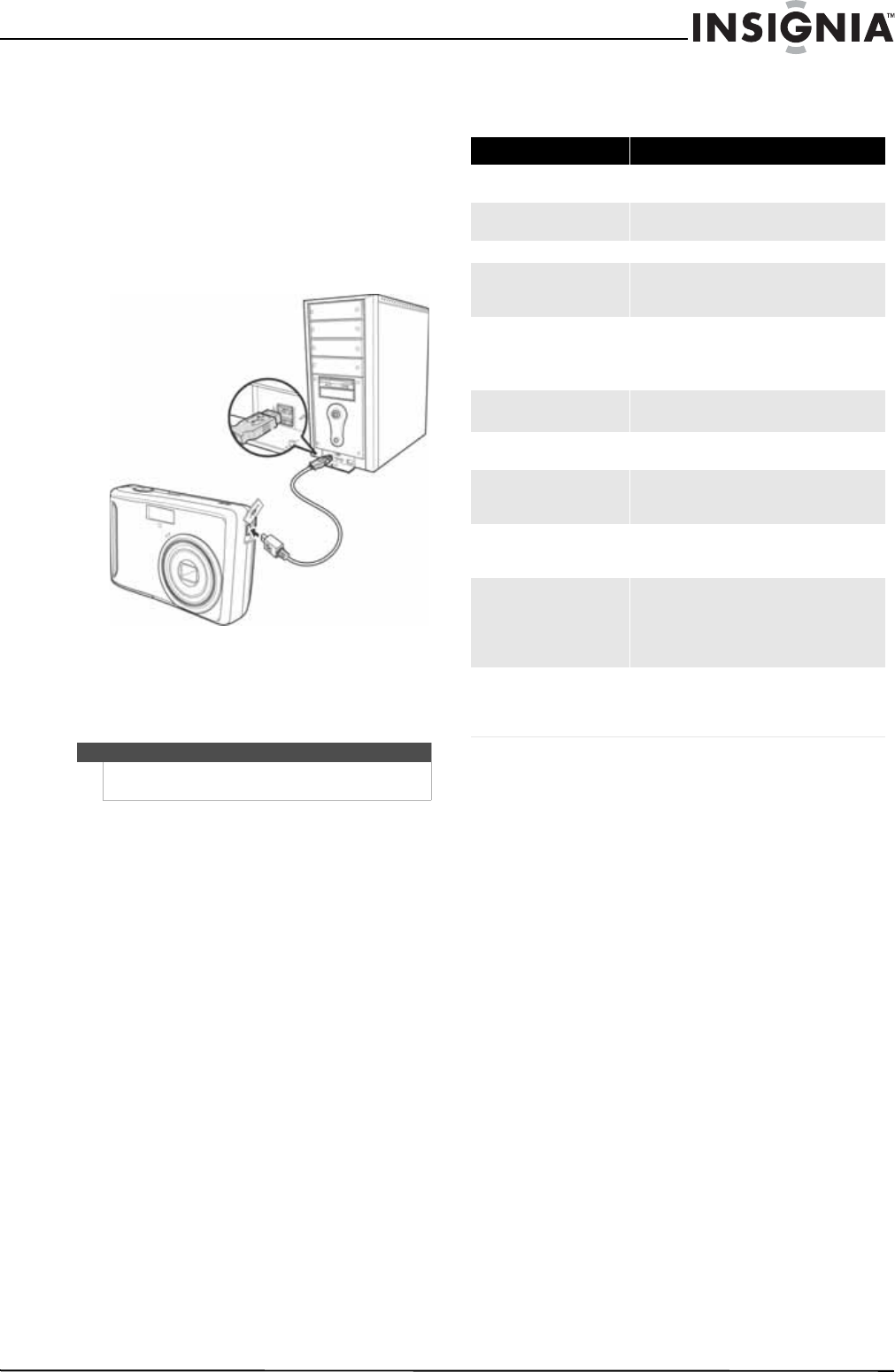
1Connect the camera to a camera using the
supplied USB cable.
2Turn on the camera. The computer detects the
connection. Your camera's internal memory and
memory card display as removable drives in the
file manager. No image is displayed on the LCD.
Troubleshooting
Note
You can also use a card reader to access the memory
card contents of your camera.
Problem Cause and/or Action
Camera does not turn on The batteries may be exhausted. Charge or replace
the batteries.
Camera turns off automatically Press any button except POWER button to turn on
the camera.
LCD turns blank Press any button except POWER to turn on the LCD.
Empty battery icon is displayed
on the LCD, then the camera
turns off.
Batteries are exhausted. Replace or recharge the
batteries.
LCD screen displays “No image” No images have been stored in the memory media
currently in use.
The image file format stored on a memory card
may not be supported.
LCD screen displays “Not avail-
able for this file”
Function is only available for specific file types.
File format is not supported.
LCD screen displays “Memory
full”
Memory card is full. Replace the memory card with
a new one or delete unnecessary files.
LCD screen displays “Card
locked”
The memory card is protected. Remove the card
and slide the write-protect switch to its unlocked
position.
LCD screen displays “Format
error”
The memory card is protected. Remove the card
and slide the write-protect switch to its unlocked
position.
LCD screen displays “Copy
error”
The memory card is protected. Remove the card
and slide the write-protect switch to its unlocked
position.
The memory card is full. Replace card or delete
unnecessary files.
The lens does not retract Do not force the lens to go back. The type of the
battery used may be incorrect or the battery power
level is too low. Change the battery or charge the
battery before using your camera.

24
NS-DSC1110A 10 Megapixel Camera
www.insigniaproducts.com
Specifications Legal notices
FCC Part 15
This device complies with Part 15 of the FCC Rules. Operation of
this product is subject to the following two conditions: (1) this
device may not cause harmful interference, and (2) this device
must accept any interference received, including interference
that may cause undesired operation.
This equipment has been tested and found to comply within the
limits for a class B digital device, pursuant to Part 15 of the FCC
Rules. These limits are designed to provide reasonable
protection against harmful interference in a residential
installation. This equipment generates, uses, and can radiate
radio frequency energy and, if not installed and used in
accordance with the instructions, may cause harmful
interference to radio communications. However, there is no
guarantee that interference will not occur in a particular
installation. If this equipment does cause harmful interference to
radio or television reception, which can be determined by
turning the equipment off and on, the user is encouraged to try
to correct the interference by one or more of the following
measures:
• Reorient or relocate the receiving antenna.
• Increase the separation between the equipment and
receiver.
• Connect the equipment into an outlet on a circuit different
from that to which the receiver is connected.
• Consult the dealer or an experienced technician for help.
FCC warning
Changes or modifications not expressly approved by the party
responsible for compliance with the FCC Rules could void the
user’s authority to operate this equipment.
Canada ICES-003 statement
This Class B digital apparatus complies with Canadian ICES-003.
Sensor 10 Megapixels, Type: 1/2.3
Lens Focal Length: F = 6.3 - 18.9 mm (optical zoom
range 35.5 - 106.5 mm), 3× optical zoom, 5×
digital zoom
LCD 2.7-inch color LCD
Focusing range Normal mode: Wide/Tele: 31.5 in. ~ infinity
(80 cm ~ infinity)
Macro mode: Wide: 3.9 in. 39.4 in.
(10 cm ~ 100 cm), Tele: 23.6 in. ~39.4 in.
(60cm~100cm)
Aperture f/2.9 (W) ~ f/5.4 (T)
Shutter Type: Mechanical and Electronic Shutter
Speed: 1 - 1/2,000 sec.
File format Still Image: EXIF 2.2 compatible JPEG
Video: Motion JPEG
Resolution (still image) 10 megapixels (3648 × 2736)
8 megapixels (3264 × 2448)
5 megapixels (2592 × 1944)
3 megapixels (2048 × 1536)
Wide (3648 × 2048)
Sensitivity Simple mode off: Auto, 50, 100, 200, 400, 800,
1600
Simple mode on: Auto, Low (100), Medium (400),
High (800)
Color balance Auto, Sunny, Cloudy, Tungsten, Fluorescent
Exposure compensation -2EV to + 2EV (1/3EV steps), Auto exposure
Exposure control Metering: Multi fixed
Face Recognition AE & AF
Self-timer 10 sec., Off
Flash Auto, Red-eye Reduction, Forced On, Slow Sync,
Forced Off
Storage Internal memory: 32 MB flash memory
Available capacity for photo/video storage:
approximately 20 MB External memory: SD (up to
4 GB), SDHC card (up to 32 GB)
OSD language English, French, Spanish, Simplified Chinese,
Japanese
Interface USB
Battery Type: 2 x AA Alkaline batteries
Operating temperature 32°F ~ 104°F (0ºC ~ 40ºC)
Operating humidity 0% - 90%
Microphone Built-in
Speaker Built-in
Dimensions 0.98 × 2.38 × 3.62 in. (25.03 × 60.5 × 92 mm)
Weight 4.41 oz. (125 g) without battery

25
10 Megapixel Camera
www.insigniaproducts.com
One-year limited warranty
Insignia Products (“Insignia”) warrants to you, the original
purchaser of this new product (“Product”), that the Product shall
be free of defects in the original manufacture of the material or
workmanship for a period of one (1) year from the date of your
purchase of the Product (“Warranty Period”). This Product must
be purchased from an authorized dealer of Insignia brand
products and packaged with this warranty statement. This
warranty does not cover refurbished Product. If you notify
Insignia during the Warranty Period of a defect covered by this
warranty that requires service, terms of this warranty apply.
How long does the coverage last?
The Warranty Period lasts for 1 year (365 days) from the date you
purchased the Product. The purchase date is printed on the
receipt you received with the Product.
What does this warranty cover?
During the Warranty Period, if the original manufacture of the
material or workmanship of the Product is determined to be
defective by an authorized Insignia repair center or store
personnel, Insignia will (at its sole option): (1) repair the Product
with new or rebuilt parts; or (2) replace the Product at no charge
with new or rebuilt comparable products or parts. Products and
parts replaced under this warranty become the property of
Insignia and are not returned to you. If service of Products or
parts are required after the Warranty Period expires, you must
pay all labor and parts charges. This warranty lasts as long as you
own your Insignia Product during the Warranty Period. Warranty
coverage terminates if you sell or otherwise transfer the Product.
How to obtain warranty service?
If you purchased the Product at a retail store location, take your
original receipt and the Product to the store you purchased it
from. Make sure that you place the Product in its original
packaging or packaging that provides the same amount of
protection as the original packaging. If you purchased the
Product from an online web site, mail your original receipt and
the Product to the address listed on the web site. Make sure that
you put the Product in its original packaging or packaging that
provides the same amount of protection as the original
packaging.
To obtain in-home warranty service for a television with a screen
30 inches or larger, call 1-888-BESTBUY. Call agents will diagnose
and correct the issue over the phone or will have an
Insignia-approved repair person dispatched to your home.
Should the Insignia-approved repair person not correct the issue
on the first call, an Insignia television (size and features to be
determined by Insignia) will be loaned to you until your TV is
repaired and returned, at no charge to you. This feature is only
available to Insignia television consumers residing in the United
States.
Where is the warranty valid?
This warranty is valid only to the original purchaser of the
product in the United States, Canada, and Mexico.
What does the warranty not cover?
This warranty does not cover:
• Customer instruction
•Installation
•Set up adjustments
•Cosmetic damage
• Damage due to acts of God, such as lightning strikes
•Accident
•Misuse
•Abuse
•Negligence
•Commercial use
• Modification of any part of the Product, including the
antenna
• Plasma display panel damaged by static (non-moving)
images applied for lengthy periods (burn-in).
This warranty also does not cover:
• Damage due to incorrect operation or maintenance
• Connection to an incorrect voltage supply
• Attempted repair by anyone other than a facility
authorized by Insignia to service the Product
• Products sold as is or with all faults
• Consumables, such as fuses or batteries
• Products where the factory applied serial number has been
altered or removed
REPAIR REPLACEMENT AS PROVIDED UNDER THIS WARRANTY IS
YOUR EXCLUSIVE REMEDY. INSIGNIA SHALL NOT BE LIABLE FOR
ANY INCIDENTAL OR CONSEQUENTIAL DAMAGES FOR THE
BREACH OF ANY EXPRESS OR IMPLIED WARRANTY ON THIS
PRODUCT, INCLUDING, BUT NOT LIMITED TO, LOST DATA, LOSS
OF USE OF YOUR PRODUCT, LOST BUSINESS OR LOST PROFITS.
INSIGNIA PRODUCTS MAKES NO OTHER EXPRESS WARRANTIES
WITH RESPECT TO THE PRODUCT, ALL EXPRESS AND IMPLIED
WARRANTIES FOR THE PRODUCT, INCLUDING, BUT NOT LIMITED
TO, ANY IMPLIED WARRANTIES OF AND CONDITIONS OF
MERCHANTABILITY AND FITNESS FOR A PARTICULAR PURPOSE,
ARE LIMITED IN DURATION TO THE WARRANTY PERIOD SET
FORTH ABOVE AND NO WARRANTIES, WHETHER EXPRESS OR
IMPLIED, WILL APPLY AFTER THE WARRANTY PERIOD. SOME
STATES, PROVINCES AND JURISDICTIONS DO NOT ALLOW
LIMITATIONS ON HOW LONG AN IMPLIED WARRANTY LASTS, SO
THE ABOVE LIMITATION MAY NOT APPLY TO YOU. THIS
WARRANTY GIVES YOU SPECIFIC LEGAL RIGHTS, AND YOU MAY
ALSO HAVE OTHER RIGHTS, WHICH VARY FROM STATE TO STATE
OR PROVINCE TO PROVINCE.
Contact Insignia:
For customer service please call 1-877-467-4289
www.insigniaproducts.com
Distributed by Best Buy Purchasing, LLC
7601 Penn Avenue South, Richfield, Minnesota, U.S.A.
55423-3645
© 2010 BBY Solutions, Inc.
All rights reserved. INSIGNIA is a trademark of BBY Solutions, Inc.
Registered in some countries. All other products and brand
names are trademarks of their respective owners.

TM
www.insigniaproducts.com (877) 467-4289
Distributed by Best Buy Purchasing, LLC
7601 Penn Avenue South, Richfield, MN USA 55423-3645
© 2010 BBY Solutions, Inc.
All rights reserved. INSIGNIA is a trademark of BBY Solutions, Inc. Registered in some countries.
All other products and brand names are trademarks of their respective owners. ENGLISH
10-0197
