Inspira Technologies A750 Tablet PC User Manual part 1

Inspira Technologies LLC Tablet PC part 1

Contents

User manual part 1

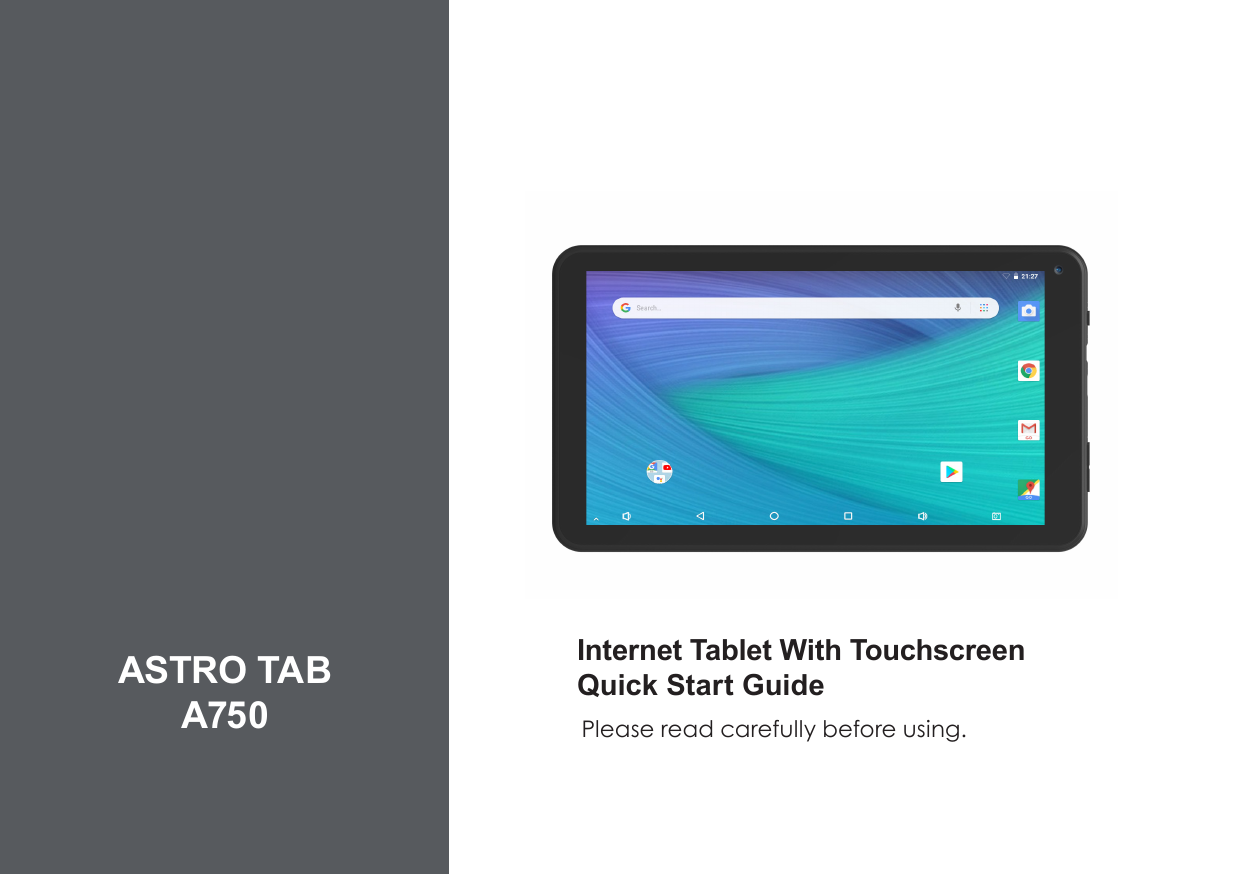
Internet Tablet With Touchscreen        Quick Start Guide   Please read carefully before using. ASTRO TABA750
Page 2  Table Of ContentsEnglishTHANK YOU ................................................... 3Package Contents ........................................................3Features..........................................................................4GETTING TO KNOW THE INTERNET       TABLET ........................................................... 5About the Touchscreen ...............................................8Protective Film ........................................................8Touchscreen Actions..............................................8About the Orientation Sensor .....................................9Charging the Tablet ...................................................10Inserting a Memory Card ..........................................10Resetting the Tablet ....................................................11GETTING STARTED ..................................... 12Turning the Tablet On and Off  .................................12Turning the Screen On and Off (Standby)  .......13Unlocking the Screen ..........................................13Home Screen at a Glance ........................................14About Applications ....................................................15Preinstalled Applications .....................................15Installing Applications .........................................16About Widgets ............................................................17About Notications ..................................................... 18CONNECTING TO THE INTERNET ............. 19Requirements ..............................................................19Connect to a Wi-Fi Network ..................................... 20BROWSING THE WEB ................................. 22OPTIONAL CONNECTIONS ........................ 26Connecting to a Computer ......................................26Connecting Headphones .........................................27Using the USB Full-Size Adapter .................................28Connecting a Keyboard .....................................28Connecting a Storage Device ...........................28SETTING THE SYSTEM OPTIONS .............. 29SPECIFICATIONS ......................................... 30WARRANTY     ……… .................................  31 ÂTable of Contents
Page 3  Thank YouEnglish ÂThank YouCongratulations on your purchase of this Internet Tablet. This guide is provided to help you get quickly started with your tablet; please read it carefully and save it for future reference.  To view PDF documents, download and install the free Adobe Acrobat reader from the Adobe website at www.adobe.com.Package ContentsPlease make sure that the items shown below are included in the package. Should an item be missing, please contact the local retailer from whom you purchased this product. Internet Tablet  USB cable USB host/keyboard adapter Power adapter
Page 4  Thank YouEnglishFeatures Browse the Web Visit your favorite websites Check your e-mail Keep in touch with friends and family Watch YouTube™ videos Browse the world’s most popular video-sharing community Read your favorite books Download thousands of books with the included E-book reader * Discover thousands of apps for Android™ Games, applications and more with the installed marketplace Connect to the Internet wirelessly High-speed Wi-Fi 802.11 b/g/n networking Enjoy your media library anywhere  Portable powerhouse plays popular music, video and photo formats MicroSD memory card reader Increase your storage capacity (up to 32 GB sup-ported) Built-in camera Convenient front-facing camera Automatic orientation detection Read any way you want; the display adjusts automatically!*     Reading books in the ePub format requires the included E-book reader application.
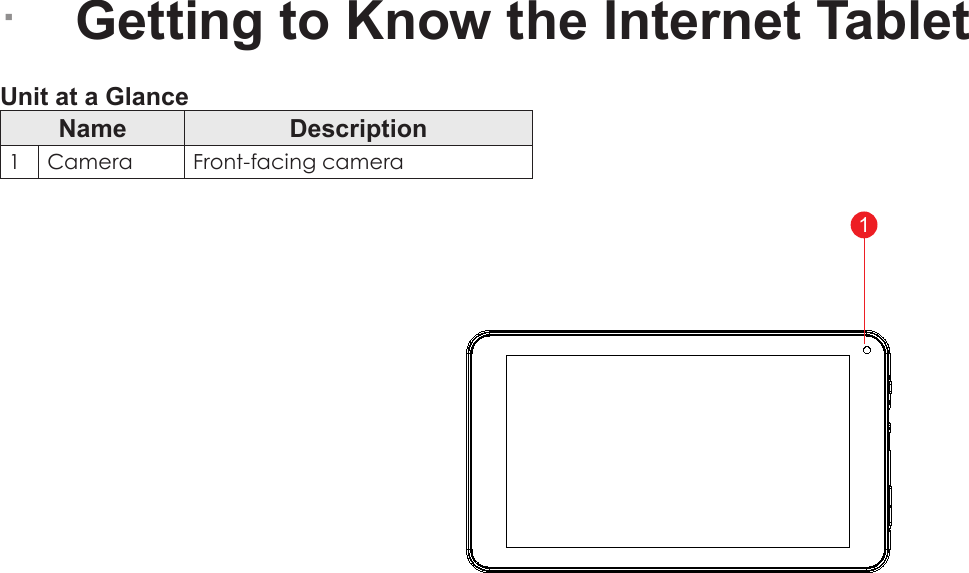
Page 5  Getting To Know The Internet TabletEnglish ÂGetting to Know the Internet Tablet Unit at a GlanceName Description1Camera Front-facing camera11
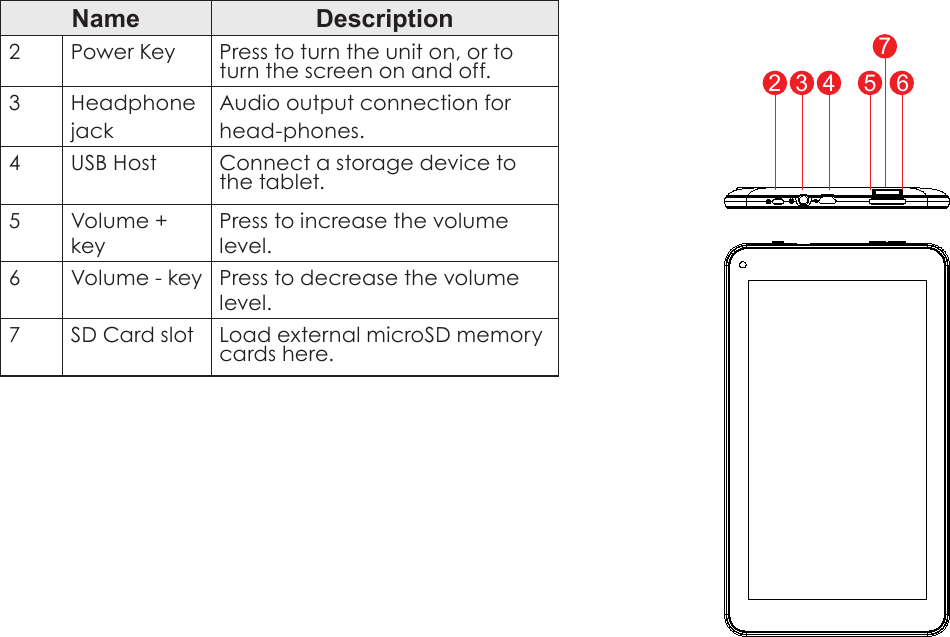
Page 6  Getting To Know The Internet TabletEnglishName Description2Power Key Press to turn the unit on, or to turn the screen on and off.3HeadphonejackAudio output connection forhead-phones.4USB Host Connect a storage device to the tablet.5 Volume + keyPress to increase the volume level.6 Volume - key Press to decrease the volume level.7 SD Card slot Load external microSD memory cards here.2 3 4 5 67
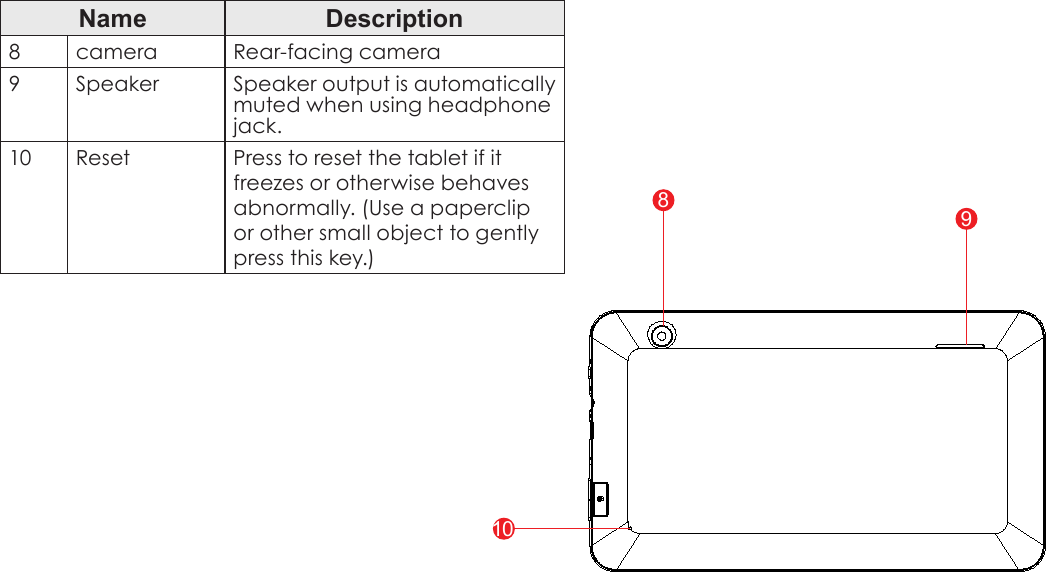
Page 7  Getting To Know The Internet TabletEnglishName Description8camera Rear-facing camera9Speaker Speaker output is automatically muted when using headphone jack.10 Reset Press to reset the tablet if it freezes or otherwise behaves abnormally. (Use a paperclip or other small object to gently press this key.) 8910
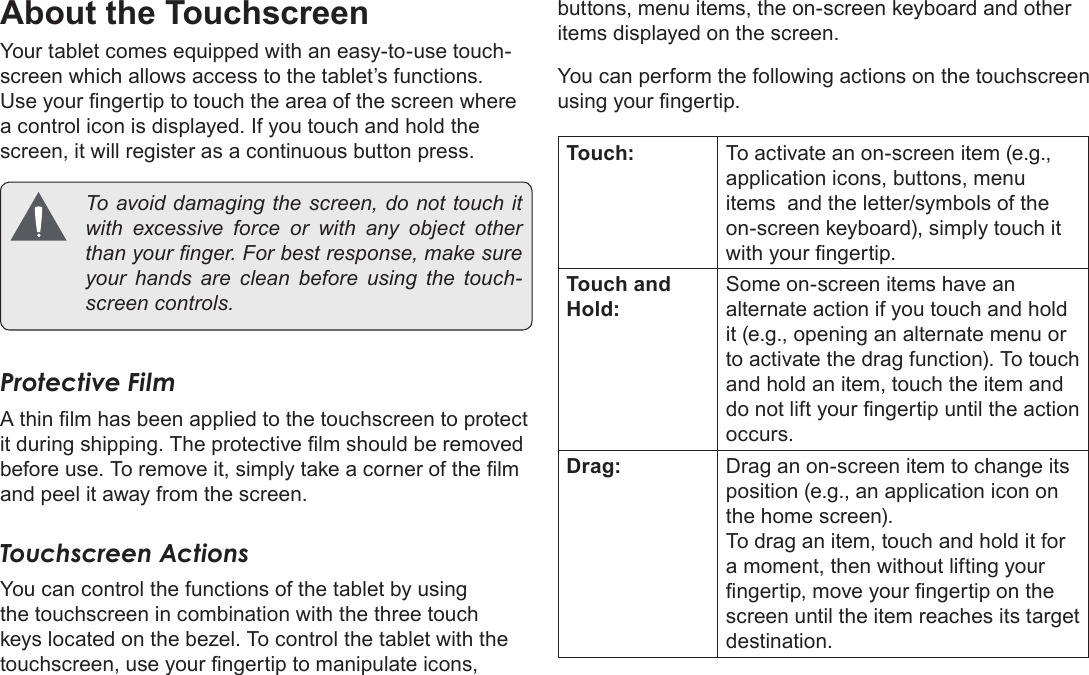
Page 8  Getting To Know The Internet TabletEnglishAbout the TouchscreenYour tablet comes equipped with an easy-to-use touch-screen which allows access to the tablet’s functions. Use your ngertip to touch the area of the screen where a control icon is displayed. If you touch and hold the screen, it will register as a continuous button press.  To avoid damaging the screen, do not touch it with excessive force or with any object other than your nger. For best response, make sure your hands are clean before using the touch-screen controls. Protective FilmA thin lm has been applied to the touchscreen to protect it during shipping. The protective lm should be removed before use. To remove it, simply take a corner of the lm and peel it away from the screen.Touchscreen ActionsYou can control the functions of the tablet by using the touchscreen in combination with the three touch keys located on the bezel. To control the tablet with the touchscreen, use your ngertip to manipulate icons, buttons, menu items, the on-screen keyboard and other items displayed on the screen.You can perform the following actions on the touchscreen using your ngertip.Touch: To activate an on-screen item (e.g., application icons, buttons, menu items  and the letter/symbols of the on-screen keyboard), simply touch it with your ngertip.Touch and Hold:Some on-screen items have an alternate action if you touch and hold it (e.g., opening an alternate menu or to activate the drag function). To touch and hold an item, touch the item and do not lift your ngertip until the action occurs.Drag: Drag an on-screen item to change its position (e.g., an application icon on the home screen).To drag an item, touch and hold it for a moment, then without lifting your ngertip, move your ngertip on the screen until the item reaches its target destination.
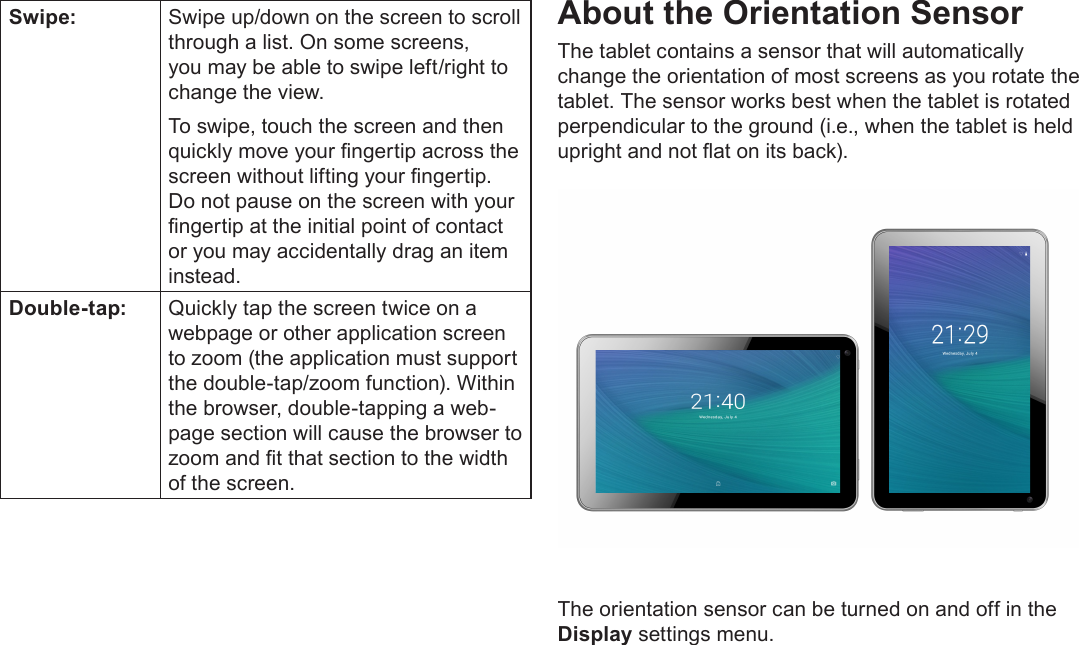
Page 9  Getting To Know The Internet TabletEnglishSwipe: Swipe up/down on the screen to scroll through a list. On some screens, you may be able to swipe left/right to change the view.To swipe, touch the screen and then quickly move your ngertip across the screen without lifting your ngertip. Do not pause on the screen with your ngertip at the initial point of contact or you may accidentally drag an item instead.Double-tap: Quickly tap the screen twice on a webpage or other application screen to zoom (the application must support the double-tap/zoom function). Within the browser, double-tapping a web-page section will cause the browser to zoom and t that section to the width of the screen.About the Orientation SensorThe tablet contains a sensor that will automatically change the orientation of most screens as you rotate the tablet. The sensor works best when the tablet is rotated perpendicular to the ground (i.e., when the tablet is held upright and not at on its back).The orientation sensor can be turned on and off in the Display settings menu.
Page 10  Getting To Know The Internet TabletEnglishCharging the TabletThe current battery status will be always displayed in the lower right of the screen in the system information bar. The battery icon   will change in accordance with the battery status.When connected to the DC charger, the status area on the bottom bar will display the   charging icon. Note the lightning symbol inside the battery icon. To charge the battery:1.  Plug one end of the included power adapter into an AC 100-240V outlet.2.  Plug the other end of the included power adapter into the power jack on the tablet.3.  Disconnect the power adapter when the tablet is fully charged.  The battery used in this device may cause a re or chemical burn if mistreated. Do not disassemble, incinerate or heat the device. Do not leave the device in direct sunlight or in a car with its windows closed. Do not connect the device to a power source other than that which is indicated here or on the label, as this may result in a re or electric shock.Inserting a Memory CardThe tablet accepts microSD memory cards. Insert a memory card into the microSD card slot to: Increase the memory capacity of your tablet Play media les stored on the memory card (e.g. music, video or photo les).To insert a memory card:1.  Align the memory card with the card slot. The metal contacts of the memory card should face down and towards the LCD screen.2.  Slide the card into the spring-loaded slot. Push the card in until it clicks into place.  Do  not  attempt  to  insert  objects  other  than  a microSD memory card into the card slot. A compatible  memory  card  should  t  easily  into the card slot. If you encounter resistance, check the  alignment  of  the  card.  Do  not  attempt  to force the card in.  Avoid touching the gold contacts of the memory card.

Navigation menu