InterLogix 1072595C Truvision Dvr 11 User Manual En Tru Vision
2015-08-27
User Manual: InterLogix 1072595C Truvision Dvr 11 User Manual-En
Open the PDF directly: View PDF  .
.
Page Count: 156 [warning: Documents this large are best viewed by clicking the View PDF Link!]
- Chapter 1 Product introduction
- Chapter 2 Installation
- Chapter 3 Getting started
- Chapter 4 Recording
- Chapter 5 Alarm settings
- Chapter 6 Network settings
- Chapter 7 HDD management
- Chapter 8 Operating instructions
- Chapter 9 Live view
- Chapter 10 Controlling a PTZ camera
- Chapter 11 Playing back a recording
- Chapter 12 Archiving recorded files
- Chapter 13 DVR management
- Chapter 14 Camera settings
- Chapter 15 User management
- Chapter 16 Using the web browser
- Appendix A Specifications
- Appendix B PTZ protocols
- Appendix C Port forwarding information
- Appendix D KTD-405 keypad
- Appendix E Maximum pre-recording times
- Appendix F Supported PTZ commands
- Appendix G Default menu settings
- Index

TruVision DVR 11 User
Manual
P/N 1072595C-EN • REV 1.0 • ISS 11APR13

Copyright
©
2013 UTC Fire & Security Americas Corporation, Inc.
Interlogix is part of UTC Climate Controls & Security, a unit of United
Technologies
Corporation. All rights reserved
Trademarks and patents
Th
e TruVision name and logo are trademarks of UTC Fire & Security.
Other trade names used in this document may be trademarks or registered
trademarks of the manufacturers or vendors of the
respective products.
Manufacturer
UTC Fire & Security Americas Corporation, Inc.
2955 Red Hill Avenue, Costa Mesa, CA 92626
-5923, USA
Authorized EU manufacturing representative:
UTC Fire & Security B.V.
Kelvinstraat 7, 6003 DH Weert, The Netherlands
Cer
tification
N4131
FCC compliance
Class B:
This equipment has been tested and found to comply with the
limits for a Class B digital device, pursuant to part 15 of the FCC Rules.
These limits are designed to provide reasonable protection against harmful
interference in a residential installation. T
his equipment generates, uses,
and can radiate radio frequency energy and, if not installed and used in
accordance with the instructions, may cause harmful interference to radio
communications.
There is no guarantee that interference will not occur in a pa
rticular
installation. If this equipment does cause harmful interference to radio or
television reception, which can be determined by turning the equipment off
and on, the user is encouraged to try to correct the interference by one or
more of the followin
g measures:
•
Reorient or relocate the receiving antenna.
•
Increase the separation between the equipment and receiver.
•
Connect the equipment into an outlet on a circuit different from that to
which the receiver is connected.
•
Consult the dealer or an experienced radio/TV technician for help.
European Union
directives
12004/108/EC (EMC directive):
Hereby, UTC Fire & Security declares that
this device is in compliance
or with the essential requirements and other
relevant provisions of Directive
2004/108/EC.
2002/96/EC (WEEE directive): Products marked with this symbol cannot be
disposed of as unsorted municipal waste in the European Union. For proper
recycling, return this product to your local supplier upon the purchase of
equivalent new equ
ipment, or dispose of it at designated collection points.
For more information see: www.recyclethis.info.
2006/66/EC (battery directive):
This product contains a battery that cannot
be disposed of as unsorted municipal waste in the European Union. See the
product documentation for specific battery information. The battery is
marked with this symbol, which may include lettering to indicate cadmium
(Cd), lead (Pb), or mercury (Hg). For proper recycling, return the battery to
your supplier or to a designat
ed collection point. For more information see:
www.recyclethis.info.
Contact information
For contact information
, see www.utcfireandsecurity.com or
www.utcfssecurityproducts.eu
TruVision DVR 11 User Manual i
Content
Chapter 1 Product introduction 1
Product overview 1
Chapter 2 Installation 3
Installation environment 3
Unpacking the DVR and its accessories 3
Back panel 4
Monitor connections 5
Audio inputs and output 6
RS-485 port 6
RS-232 port 6
PTZ dome camera set up 6
Connecting a KTD-405 keypad and dome camera to the
DVR 11
Brackets 12
Chapter 3 Getting started 13
Turning on and off the DVR 13
Using the setup wizard 14
Chapter 4 Recording 17
Initializing the recording settings 17
Defining a recording schedule 19
Daily schedules 20
Holiday schedules 21
Motion detection schedules 21
External alarm schedules 21
Protecting recorded files 22
Capturing text insertions 23
Chapter 5 Alarm settings 25
Description of alarm notification types 25
Setting up motion detection 25
Setting up external alarms 28
Triggering or clearing alarm outputs manually 30
Setting up system notifications 30
Detecting video loss 31
Detecting video tampering 32
Chapter 6 Network settings 33
Configuring general network settings 33
Configuring PPPoE 34
Configuring DDNS 35
Configuring an NTP server 36
ii TruVision DVR 11 User Manual
Configuring email 36
Configuring SNMP 37
Configuring a remote alarm host 38
Configuring multicast 38
Configuring the server and HTTP ports 39
Configuring the RTSP service port 39
Checking network status 39
Exporting network packet data 41
Chapter 7 HDD management 43
Initializing HDDs 43
Setting the HDD quota 43
Setting the HDD property 44
Checking HDD status 44
Configuring HDD alarms 45
Checking the S.M.A.R.T. information 45
Chapter 8 Operating instructions 47
Controlling the DVR 47
Using the front panel 47
Using the mouse 49
Using the IR remote control 50
Menu overview 53
Chapter 9 Live view 57
Description of live view 57
Video output 58
Controlling live view 58
Single and multiview display formats 59
Sequencing cameras 60
Accessing frequently used commands 61
Configuring live view 63
Configuring time and date 65
General settings 66
V-stream encoding 69
Chapter 10 Controlling a PTZ camera 71
Configuring PTZ settings 71
Calling up presets, tours and shadow tours 72
Setting and calling up presets 73
Setting and calling up preset tours 75
Setting and calling up a shadow tour 77
Chapter 11 Playing back a recording 79
Overview of the playback window 79
Instant playback 81
All-day playback 82
Searching recorded video 83
TruVision DVR 11 User Manual iii
Playing back recordings by time and video type 84
Playing back recordings by event 85
Slideshow of snapshots 86
Playing back recordings from the system log 86
Motion search 88
Playing back frame-by-frame 89
Digital zoom in playback 89
Chapter 12 Archiving recorded files 91
Archiving files 91
Creating and archiving video clips 93
Archiving snapshots 94
Managing backup devices 95
Playing back archived files on a PC 95
Chapter 13 DVR management 97
Configuring the RS-232 port 97
Updating system firmware 98
Restoring default settings 99
Viewing system information 99
Searching system logs for events 100
Chapter 14 Camera settings 103
Configuring the OSD settings 103
Setting up privacy masking 104
Adjusting video image settings 105
Chapter 15 User management 107
Adding a new user 107
Customizing a user’s access privileges 108
Deleting a user 110
Modifying a user 110
Changing the Admin password 110
Chapter 16 Using the web browser 111
Windows Vista and 7 users 111
Accessing the web browser 112
Web browser overview 112
Using the web browser to configure the device 114
Searching and playing back recorded video 115
Searching for event logs 117
Controlling a PTZ dome camera in the web browser 118
Capturing text insertions 118
iv TruVision DVR 11 User Manual
Appendix A Specifications 121
Appendix B PTZ protocols 123
Appendix C Port forwarding information 125
Appendix D KTD-405 keypad 127
Supported firmware 127
Wiring the keypad 127
Setting the keypad to work with the DVR 128
Operating the keypad 130
Appendix E Maximum pre-recording times 135
Appendix F Supported PTZ commands 137
Appendix G Default menu settings 139
Index 147

TruVision DVR 11 User Manual 1
Chapter 1
Product introduction
Product overview
This is the TruVision DVR 11(TVR 11) User Manual for models:
Table 1: Product codes for TVR 11
Americas
Description
TVR
-1108-1T TruVision DVR 11, H.264, 8 ch, 1 TB Storage
TVR
-1108-2T TruVision DVR 11, H.264, 8 ch, 2 TB Storage
TVR
-1116-1T TruVision DVR 11, H.264, 16 ch, 1 TB Storage
TVR
-1116-2T TruVision DVR 11, H.264, 16 ch, 2 TB Storage
TVR
-1116-4T TruVision DVR 11, H.264, 16 ch, 4 TB Storage
TVR
-1108D-1T TruVision DVR 11, H.264, 8 ch, DVD/CD, 1 TB Storage
TVR
-1108D-2T TruVision DVR 11, H.264, 8 ch, DVD/CD, 2 TB Storage
TVR
-1116D-1T TruVision DVR 11, H.264, 16 ch, DVD/CD, 1 TB Storage
TVR
-1116D-2T TruVision DVR 11, H.264, 16 ch, DVD/CD, 2 TB Storage
EMEA
TVR
-1104-500/EA TruVision DVR 11, H.264, 4 ch, 500 GB Storage
TVR
-1104-1T/EA TruVision DVR 11, H.264, 4 ch, 1 TB Storage
TVR
-1104-2T/EA TruVision DVR 11, H.264, 4 ch, 2 TB Storage
TVR
-1108-1T/EA TruVision DVR 11, H.264, 8 ch, 1 TB Storage
TVR
-1108-2T/EA TruVision DVR 11, H.264, 8 ch, 2 TB Storage
TVR
-1116-2T/EA TruVision DVR 11, H.264, 16 ch, 2 TB Storage
TVR
-1116-4T/EA TruVision DVR 11, H.264, 16 ch, 4 TB Storage
TVR
-1104D-500/EA TruVision DVR 11, H.264, 4 ch, DVD/CD, 500 GB Storage
TVR
-1104D-1T/EA TruVision DVR 11, H.264, 4 ch, DVD/CD, 1 TB Storage
TVR
-1104D-2T/EA TruVision DVR 11, H.264, 4 ch, DVD/CD, 2 TB Storage
TVR
-1108D-1T/EA TruVision DVR 11, H.264, 8 ch, DVD/CD, 1 TB Storage
TVR
-1108D-2T/EA TruVision DVR 11, H.264, 8 ch, DVD/CD, 2 TB Storage
TVR
-1116D-1T/EA TruVision DVR 11, H.264, 16 ch, DVD/CD, 1 TB Storage

0BChapter 1: Product introduction
2 TruVision DVR 11 User Manual
Americas
Description
TVR
-1116D-2T/EA TruVision DVR 11, H.264, 16 ch, DVD/CD, 2 TB Storage
Note: Models are shipped with the power cords for their region.
For regions not listed in Table 1 above, please contact your local supplier.
The DVR is a versatile, user-friendly embedded digital video recorder (DVR).
It allows end-users to record 4, 8 or 16 analog cameras at CIF in real time (25/30
fps), while providing integration with the UTC portfolio of security solutions, and
offering a seamless product experience within the TruVision brand.
The dual streaming functionality allows the user to set up different settings for
recording and streaming video in live view mode.
The DVR can fully integrate with the license-free TruVision Navigator software,
which is ideal for the most commercial applications. Its easy and intuitive-to-use
web browser interface enables remote configuration and secure viewing,
searching, and playing back of video from computers connected via the Internet.
TruVision DVR 11 User Manual 3
Chapter 2
Installation
This section describes how to install the DVR unit.
Installation environment
When installing your product, consider these factors:
• Ventilation
• Temperature
• Moisture
• Chassis load
Ventilation: Do not block any ventilation openings. Install in accordance with the
manufacturer’s instructions. Ensure that the location planned for the installation
of the unit is well ventilated.
Temperature: Consider the unit’s operating temperature (-10 to +55 ºC, 14 to
131 °F) and noncondensing humidity specifications (10 to 90%) before choosing
an installation location. Extremes of heat or cold beyond the specified operating
temperature limits may reduce the life expectancy of the DVR. Do not install the
unit on top of other hot equipment. Leave 44 mm (1.75 in.) of space between
rack-mounted DVR units.
Moisture: Do not use the unit near water. Moisture can damage the internal
components. To reduce the risk of fire or electric shock, do not expose this unit to
rain or moisture.
Chassis: Equipment weighing less than 15.9 kg (35 lb.) may be placed on top of
the unit.
Unpacking the DVR and its accessories
When you receive the product, check the package and contents for damage, and
verify that all items are included. There is an item list included in the package. If
any of the items are damaged or missing, please contact your local supplier.
1BChapter 2: Installation
4 TruVision DVR 11 User Manual
Items shipped with the product include:
• IR (infrared) remote control
• Two AAA batteries for the remote control
• AC power cords
• USB mouse
• DVR
• Video loop through cable
• CD with software and manuals
• TruVision DVR 11 Quick Start Guide
• TruVision DVR 11 User Manual (on CD)
Back panel
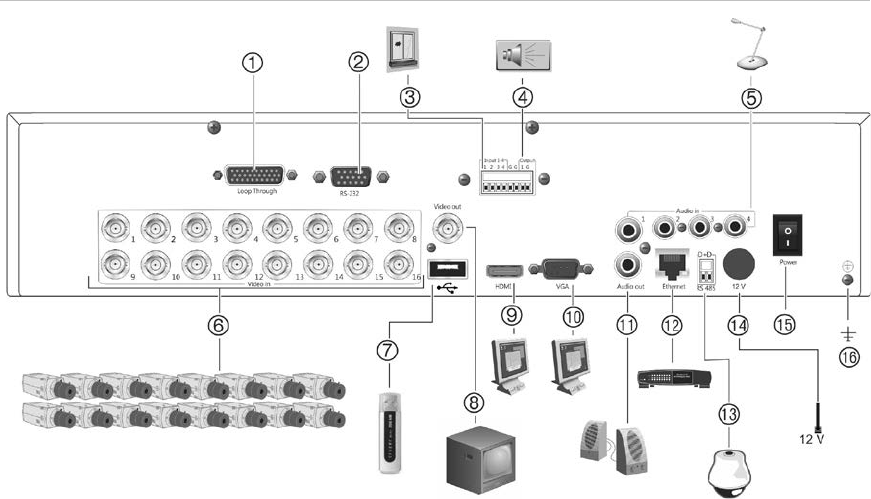
The figures on the next page show the back panel connections and describe
each connector on typical TVR 11 digital video recorder. Details may vary for
specific models.
Before powering up the DVR, connect the cameras and a main monitor for basic
operation. Once all required connections are done, enter the relevant data in the
setup wizard (see page 14).
1BChapter 2: Installation
TruVision DVR 11 User Manual 5
Figure 1: TVR 11 back panel connections (16-channel model shown)
1. Loop through for up to 16 analog cameras
(depends on DVR model).
2. Connect to a RS-232 device.
3. Connect up to four alarm input cables to
relay outputs.
4. Connect one alarm relay output.
5. Connect four audio inputs to RCA
connectors.
6. Connect up to 16 analog cameras to BNC
connectors (depends on model of DVR).
7. Connect to an optional USB device such as
a mouse, CD/DVD burner or HDD. The
DVR supports both a USB DVD and a USB
HD on the front and rear USB ports.
8. Connect one CCTV monitor (CVBS
connector).
9. Connect to a HDTV. The HDMI connection
supports both digital audio and video.
10. Connect to a VGA monitor.
11. Connect to speakers for audio output.
12. Connect to a network.
13. Connect to a RS-485 device such as a PTZ
camera or a keypad.
14. Connect to the PSU (12 VDC).
15. Power switch (on/off).
16. Connect to ground.
Monitor connections
Connect a monitor to one of the DVR’s outputs (BNC/VGA/HDMI). The DVR
provides a 1 Vp-p CVBS signal. See Figure 1 above for connecting a monitor to a
DVR.
The DVR supports up to 1280 × 1024 / 60 Hz resolution in VGA. The monitor
resolution should be at least 800 × 600. Adjust your monitor accordingly to this
resolution.
1BChapter 2: Installation
6 TruVision DVR 11 User Manual
Audio inputs and output
The unit is equipped with four audio inputs and one audio output. Both the audio
output and the audio inputs are line-level.
Audio i
nput RCA jack, 315 mV, 40 kohms. Unbalanced
Audio output
RCA jack, 315mV, 600 ohms. Unbalanced
Note: Line-level audio requires amplification.
RS-485 port
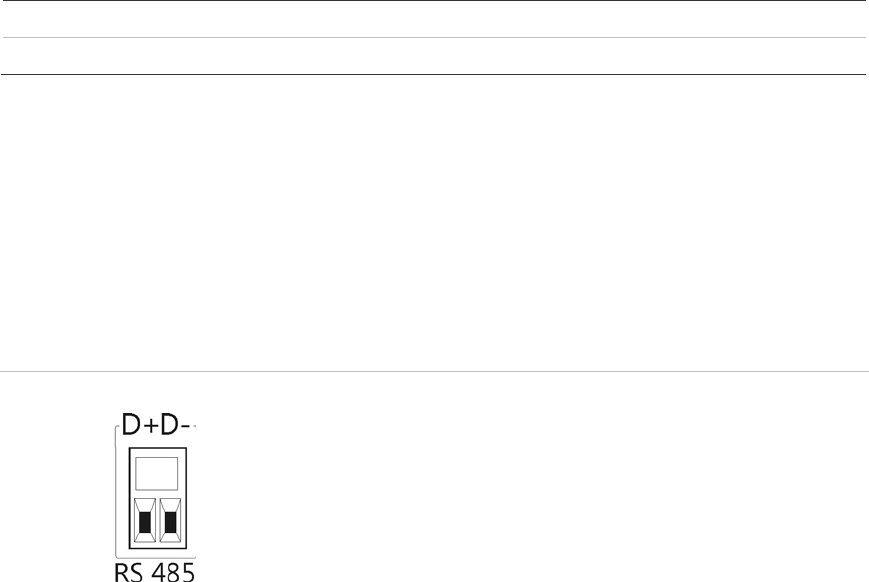
There is one RS-485 port on the back panel of the DVR to connect a PTZ dome
camera or keypad. See Figure 3 for the serial pin outs.
Figure 2: RS-485 pin outs
D+: Connect to the RS-485 A connection on the
dome camera or keypad.
D-: Connect to the RS-485 B connection on the
dome camera or keypad.
RS-232 port
Use the RS-232 port to connect CBR-PB3-POS (point-of-sale) and ATM devices
to the DVR such as the UTC ProBridge accessory. See “Configuring the RS-232
port” on page 97 for more information.
PTZ dome camera set up
Use the USB mouse provided or the optional keypad for local telemetry control. If
using the DVR over a network, use the web browser to control the PTZ dome
cameras or TruVision Navigator.
See Appendix B on page123 for the supported protocols, and Appendix F on
page 137 for the PTZ commands supported by each protocol.
Each PTZ camera must be set up individually. For information on configuring
PTZ dome camera settings, see Chapter 10, “Controlling a PTZ camera” on page
71.
1BChapter 2: Installation
TruVision DVR 11 User Manual 7
Connecting a PTZ dome camera
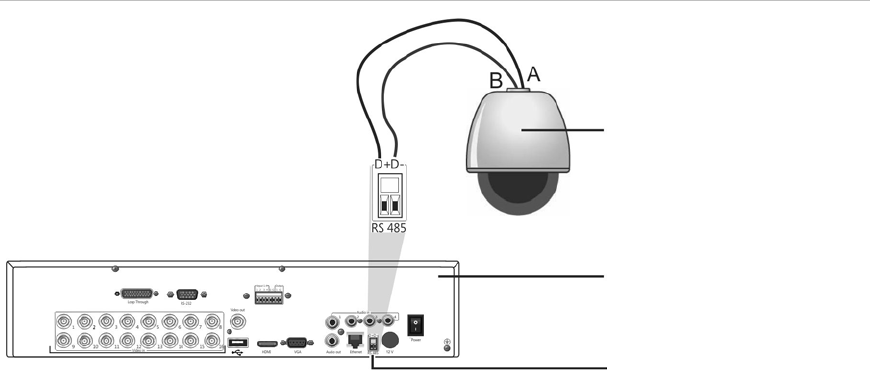
See Figure 4 below for how to connect a PTZ camera to the DVR. Any PTZ
dome camera can be controlled as the DVR is doing the PTZ protocol translation.
However, this setup provides only limited dome configuration (see Appendix B on
page 123 for the list of approved PTZ protocols).
Figure 3: Connecting a PTZ dome camera to the DVR for control over the network
Dome camera
DVR back panel
RS-485 port
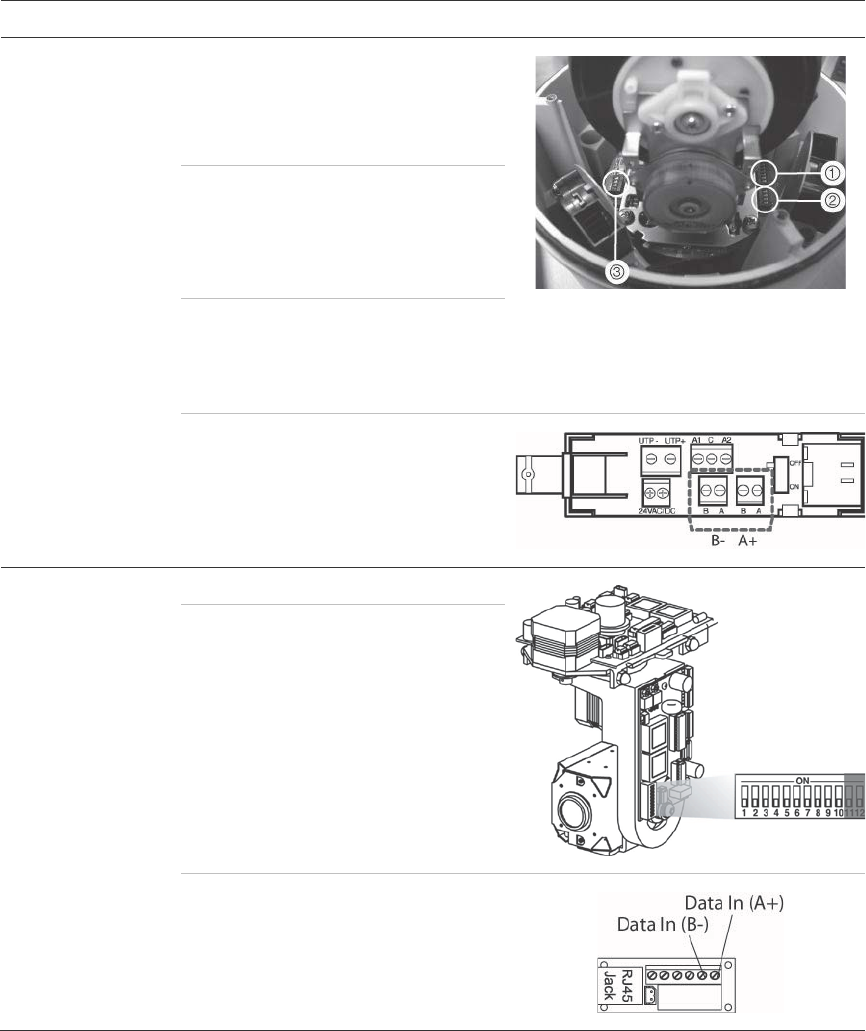
Configuring the PTZ protocols for Interlogix cameras
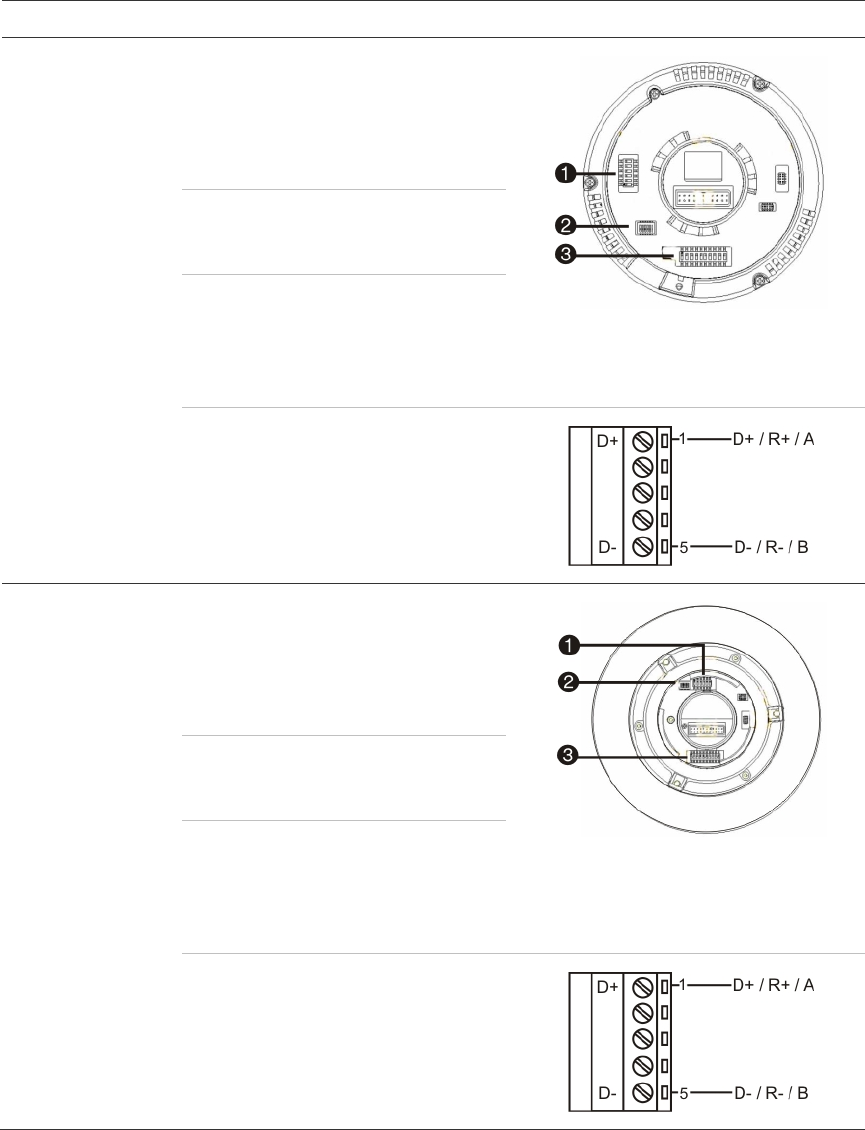
Before the PTZ dome cameras are assembled in their housings, set their
protocol and address DIP switches for the DVR. See Table 3 on page 8 for
different Interlogix PTZ dome camera settings.
If you are using PTZ dome cameras from another company, please refer to their
configuration instructions.
1BChapter 2: Installation
8 TruVision DVR 11 User Manual
Table 2: PTZ protocols for Interlogix cameras
Camera
Switch setting
TruVision Mini PTZ
12X: Indoor Dome
Protocol DIP
switches:
• RS-485 (on DVR): 000000
1. Protocol DIP switches
2. RS-485 communication DIP switches
3. Camera ID DIP switches
• RS-422 (on I/O
box): 100000
RS-485
communication DIP
switches:
110000
Camera ID DIP
switches: Select the
camera ID
DIP switch
address as
required
RS-422/RS-485 data connector:
TruVision Mini PTZ
12X: Outdoor
Dome
Protocol DIP
switches:
• RS-485 (on DVR): 000000
1. Protocol DIP switches
2. RS-485 communication DIP switches
3. Camera ID DIP switches
• RS-422 (on I/O
box): 100000
RS-485
communication DIP
switches:
110000
Camera ID DIP
switches: Select the
camera ID
DIP switch
address as
required.
RS-422/RS-485 data connector:
1BChapter 2: Installation
TruVision DVR 11 User Manual 9
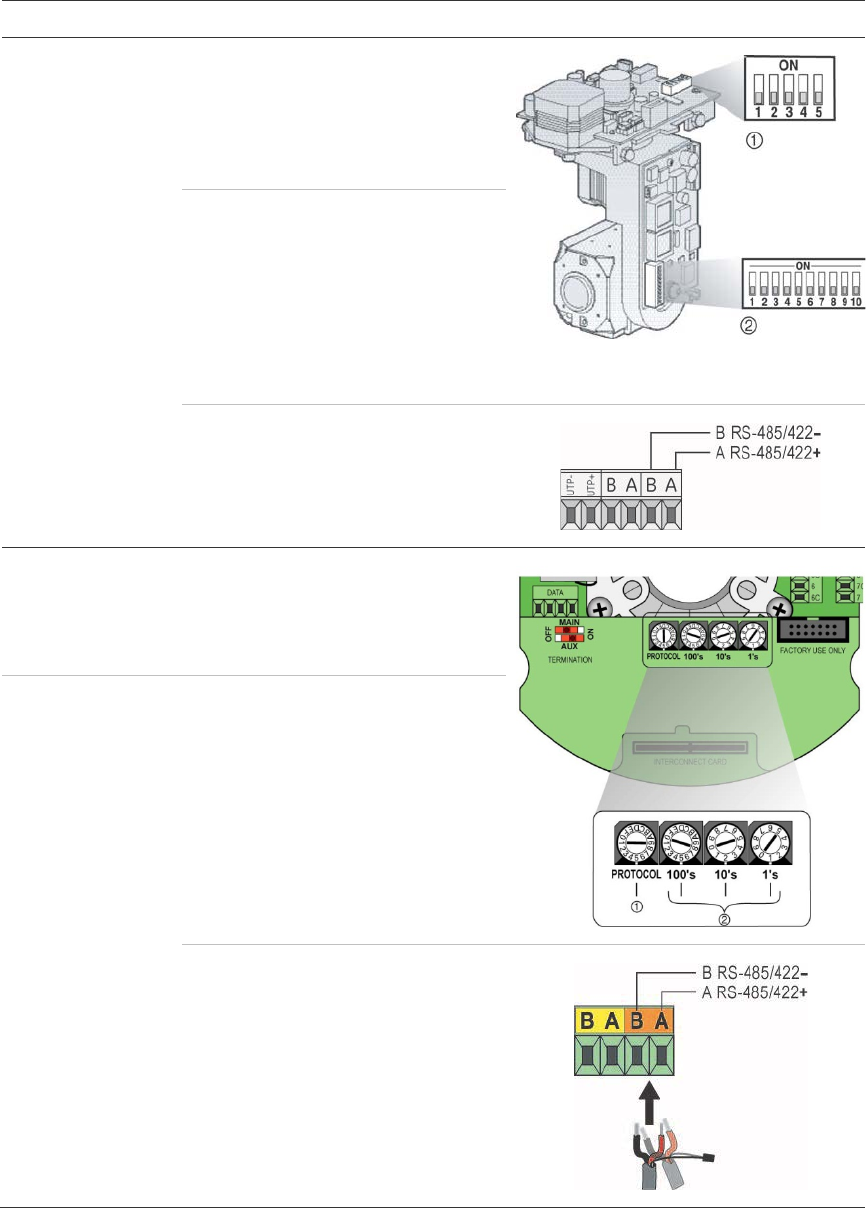
Camera
Switch setting
TruVision Dome
16X PTZ
Protocol switches:
• RS-485 (on DVR):
0111
1. Address switches; 2. Baud switches;
3. Protocol switches
• RS-422 (on I/O
box): 1111
Address switches: Select the
camera ID
DIP switch
address as
required.
Baud rate: 0000 =
9600 bps
0011 =
4800 bps
RS-422/RS-485 data connector:
CyberDome
Protocol switches: NA
Address switches: Select the
camera ID
DIP switch
address as
required.
RS-485 data connector:
1BChapter 2: Installation
10 TruVision DVR 11 User Manual
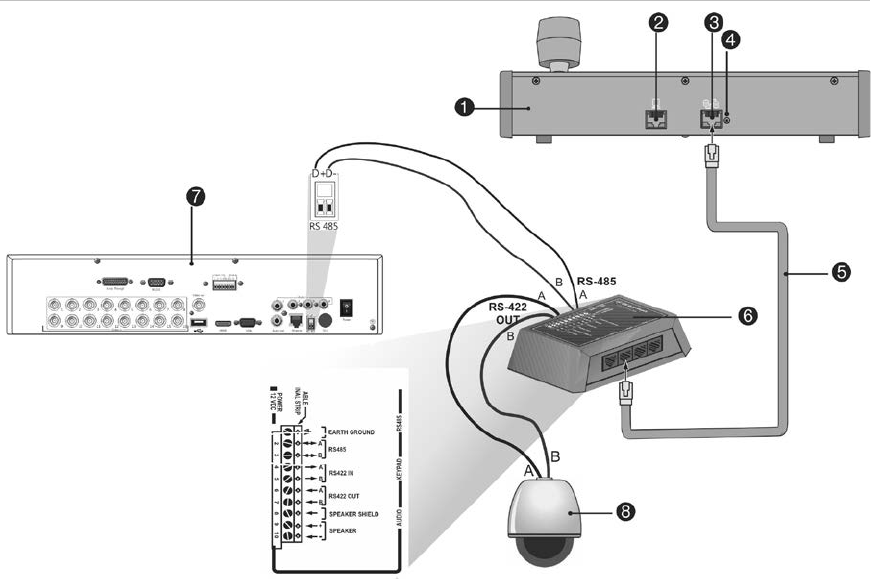
Camera
Switch setting
UltraView PTZ
Protocol switches:
• RS-485 (on
DVR): 01000
1. Protocol switches;
2. Address switches
• RS-422 (on I/O
box): 10000
Address switches: Select the
address
switch
address as
required.
RS-422/RS-485 data connector:
Legend
Protocol switches:
• RS-485 on DVR):
1
• RS-422 (on I/O
box): 0
Address switches: Select the
camera ID
DIP switch
address as
required.
RS-422/RS-485 data connector:
1BChapter 2: Installation
TruVision DVR 11 User Manual 11
Connecting a KTD-405 keypad and dome
camera to the DVR
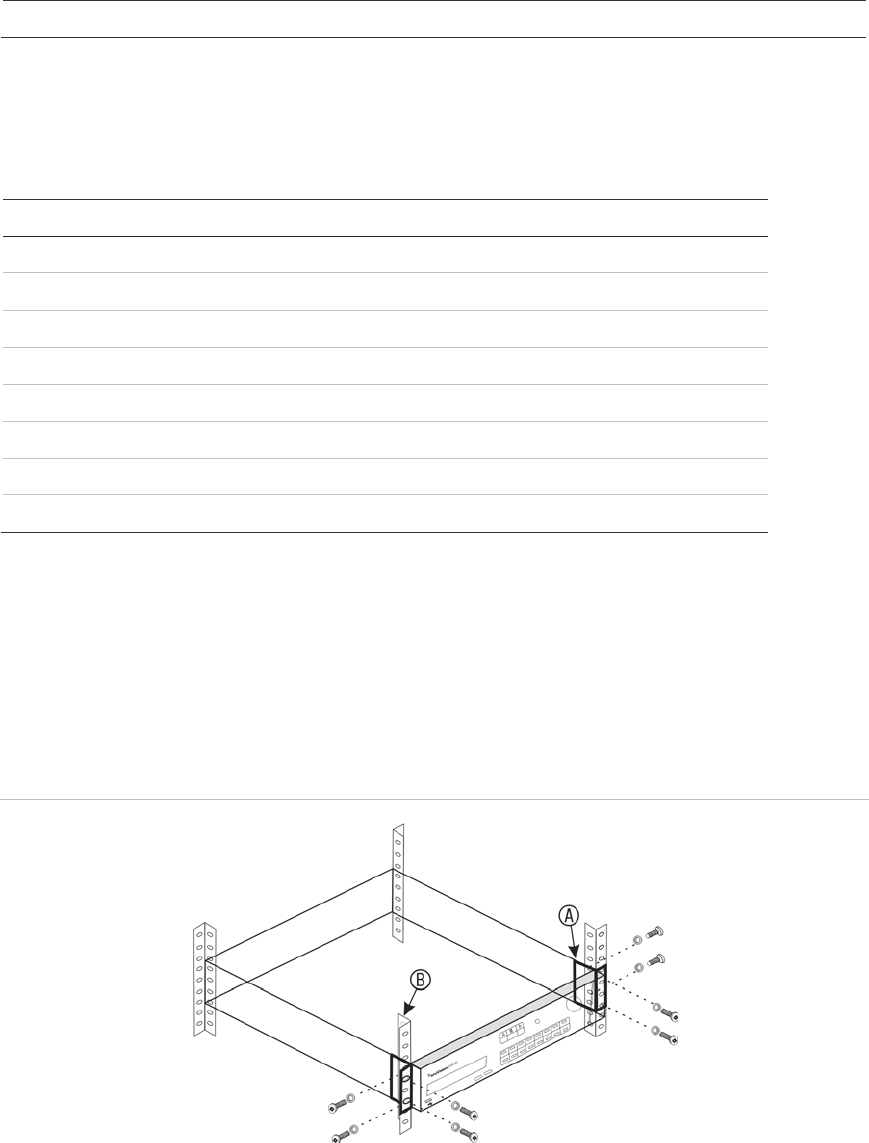
Use the input/output box that is supplied with the keypad to connect the KTD-405
keypad to the DVR. See Appendix D “KTD-405 keypad” on page 127 for more
information on wiring and using the KTD-405 keypad.
As the KTD-405 keypad uses full duplex data communication, you cannot
connect the both keypad and a dome camera directly to the DVR from the RS-
485 port as this could cause problems on the bus. If both devices are required, it
is recommended that you use the keypad’s RS-422 connection to connect the
dome camera and the keypad’s RS-485 connection to connect the DVR. See
Figure 5 as well as Table 4 and Table 5 below.
Note: These connections only work with UTC PTZ protocols (see Appendix B on
page 123). If you are using another manufacturer’s PTZ protocol, it is not
possible to connect both a keypad and dome camera to the DVR.
Figure 4: Connecting a PTZ dome camera and KTD-405 keypad to the DVR
1. KTD-405 keypad
2. RS-232 programming port
3. RS-485 and RS-422 in/out
4. RS-485 termination switch
5. RJ45 cable control (use the cable provided with
the equipment)
6. I/O box
7. DVR back panel
8. Dome camera
1BChapter 2: Installation
12 TruVision DVR 11 User Manual
Table 3: UTC PTZ protocol settings
Dome: RS
-422 protocol TVR 11: Interlogix RS-485
See Table 5 below for the bus addresses to consider when connecting a both
keypad and dome camera to the DVR.
Table 4: Bus addresses
DVR bus address DVR video inputs PTZ address range
1 1-32 00-31
2 1-32 32-63
3 1-32 64-95
4 1-32 96-127
5 1-32 128-159
6 1-32 160-191
7 1-32 192-223
8 1-32 224-255
Brackets
The DVR is easily rack-mountable. It has a 1.5U chassis.
See Figure 6 below.
Figure 5: Rack-mount installation
To install the racks:
1. Attach the two small front-rack mount ears (A) to the DVR (supplied).
2. Attach the DVR to the front rails (B) (screws not supplied).
TruVision DVR 11 User Manual 13
Chapter 3
Getting started
Turning on and off the DVR
Before starting the power up process, connect at least one monitor to the video
out or the VGA interface. Otherwise, you will not be able to see the user interface
and operate the device. Also connect at least one camera.
The DVR auto-detects the video mode (PAL or NTSC) on startup.
It comes equipped with a universal power supply that will auto-sense 110/240 V,
60/50 Hz.
Note: It is recommended that an uninterruptible power supply (UPS) is used in
conjunction with the device.
To turn on the DVR:
Turn on the DVR using the power switch on the back panel. Once it is powered
up, the status LEDs on the front panel will light up. All connected cameras are
displayed on-screen. The DVR automatically begins recording.
To turn off the DVR:
1. In live view mode, right-click the mouse and click Menu. The main menu
window appears.
2. Select the Power Manager icon.
3. In the Shutdown popup menu, select Shutdown. Click Yes to confirm
shutdown.
To reboot the DVR:
1. In live view mode, right-click the mouse and click Menu. The main menu
window appears.
2. Select the Power Manager icon.
3. In the Shutdown popup menu, select Reboot. Click Yes to confirm shutdown.

2BChapter 3: Getting started
14 TruVision DVR 11 User Manual
Using the setup wizard
The TVR 11 has an express installation wizard that lets you easily configure
basic DVR settings when first used. It configures all cameras simultaneously.
The configuration can then be customized as required.
By default the setup wizard will start once the DVR has loaded. It will walk you
through some of the more important settings of your DVR.
Any changes you make to a setup configuration page are saved when you exit
the page and return to the main wizard page.
Note: If you want to set up the DVR with default settings only, click Next in each
screen until the end.
To quickly set up the DVR:
1. Connect all the devices required to the back panel of the DVR. See Figure 1
on page 5.
2. Turn on the unit using the power switch on the front panel. After the boot up
screen, the DVR displays video images on screen.
3. Select the preferred language for the system from the dropdown list and then
click Next.
4. Enable or disable the option to start the wizard automatically when the DVR is
turned on. Click Next.
5. Administrator configuration:
Navigate to the Admin Password edit box and click the edit box with the
mouse, or press Enter on the front panel or remote control, to display the
virtual keyboard. Enter the default admin password, 1234.
Note: You must enter an admin password. To change the Admin password,
check New Admin password and enter the new password and confirm it.
Caution: It is strongly recommended that you change the password of the
administrator. Do not leave 1234 as the default password. Write it down in a
safe place so that you do not forget it.
If you should forget the password to your DVR, contact your supplier with the
serial number of your DVR to obtain a secure code to reset it.
Click Next.
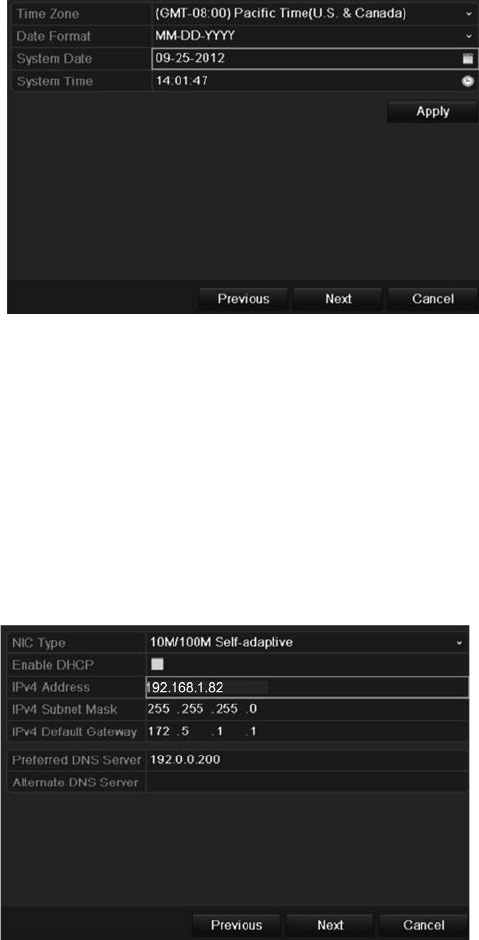
6. Time and date configuration:
Select the desired time zone, date format, system time, and system date.
Note: Daylight savings time (DST) cannot be configured from the Wizard. See
“Configuring time and date” on page 65 for more information on DST.
2BChapter 3: Getting started
TruVision DVR 11 User Manual 15
Note: The system time and date are visible on screen. However, they do not
appear in recordings.
Click Next to move to the next page, or Previous to return to the previous
page.
7. Network configuration:
Configure your network settings such as the NIC type, IP address, subnet
mask, and default gateway. Enter the preferred DNS server address as well
as the alternate one to use.
Click Next to move to the next page, or Previous to return to the previous
page.
8. HDD management:
Configure your HDD settings as required.
After configuring your HDD settings, click Initialize and Next to move to the
next page, or Previous to return to the previous page.
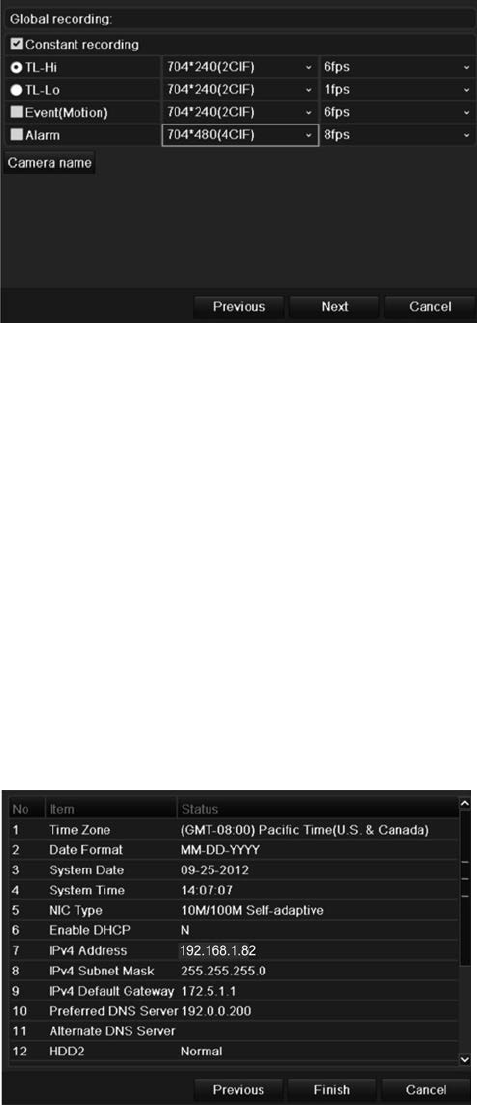
9. Recording configuration:
Configure your recording settings as required. The settings apply to all
cameras connected to the DVR.
2BChapter 3: Getting started
16 TruVision DVR 11 User Manual
Check the Constant Recording checkbox for the DVR to record continuously
all day. If left unchecked, the DVR will not record.
Check the TL-Hi check box and select its image resolution and frame rate.
Check the TL-Lo check box and select its image resolution and frame rate.
To record motion detection events, check Event (Motion) and select the
image resolution and frame rate.
To record alarm events, check Alarm and select the image resolution and
frame rate.
Under Camera name enter the camera name. A soft keyboard will appear to
enter the characters.
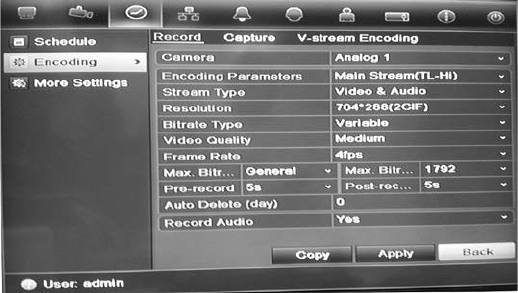
10. When all the required changes have been entered, a page appears showing
all the settings.
Click Finish to exit the Wizard. The DVR is now ready to use.
For a description of the DVR main menu, see “Menu overview” on page 53.
3BChapter 4: Recording
TruVision DVR 11 User Manual 17
Chapter 4
Recording
This chapter provides instructions on how to define the recording settings of your
DVR. This chapter covers how you can configure your initial recording settings,
schedule recordings, and protect your recorded files.
Enter menu mode by pressing the Menu button on the front panel or use the
mouse menu to select Menu (see “Controlling live view” on page 58 for further
information). See Menu overview on page 53 for a list of the menu icons.
Initializing the recording settings
Before you can set up your DVR to begin recording, you must first configure
general recording settings for the analog cameras.
Ensure that the HDD has been installed and initialized before configuring the
recording settings. See Chapter 7 “HDD management” on page 43 for more
information.
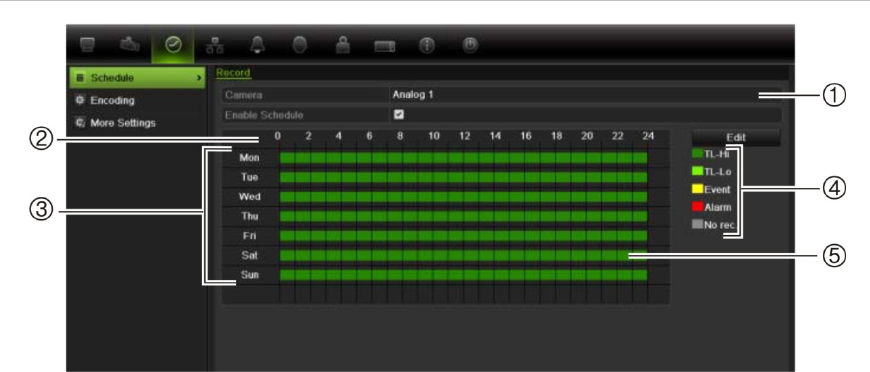
To configure recording settings:
1. In menu mode, click the Video Schedule icon in the menu toolbar.
2. Select Encoding > Record.
3. Select the camera you want to configure.“Using the soft keyboard” on page
54.
3BChapter 4: Recording
18 TruVision DVR 11 User Manual
4. Configure the following recording settings:
• Encoding parameters: Select one of the stream types: Main stream (TL-
Hi), Main stream (TL-Lo), Main stream (Event), Main stream (Alarm), or
Substream.
• Stream type: Select the type of stream to record, either video or video
and audio.
• Resolution: Select the resolution of the recording. Options include: 4CIF,
2CIF, CIF, and QCIF.
• Bit rate type: Select Constant or Variable.
• Video quality: Select the quality at which to record. If “Constant” was
selected as the bit rate type, this option is unavailable.
• Frame rate: Select the recording frame rate. The options available
depend on the resolution selected. Real time (25 fps PAL/30 fps NTSC) is
only available when the selected resolution is CIF and QCIF.
• Max bit rate mode: Select the general default or customized option.
• Max bit rate (kbps): If the customized maximum bit rate mode was
selected, enter the value here. It must be between 32 and 3172 kbps. It is
calculated from the frame rate and time required.
• Pre-record: This is the time the camera starts recording before the
scheduled time or event. Select the time in seconds to start pre-recording
before the scheduled time or event.
The maximum pre-recording times available depend on the constant bit
rate. See “Maximum pre-recording times” on page 135 for more
information.
• Post-record: This is the time the camera continues to record after the
scheduled time or event. Select the time in seconds to stop post-recording
after the scheduled time or event.
• Auto-delete (day): Select the number of days after which recorded video
from the specified camera is permanently deleted from the HDD. A “day”
is defined as the 24-hour period from when the auto delete mode (ADM)
was set.
The maximum number of days that can be set is 60. However, the actual
number of days permitted depends on the HDD capacity. If the value is set
to ‘0’, the option is disabled.
• Record audio: Select Yes to record sound with the images.
5. Click Apply to save the settings.
6. If you want to save these parameters to another camera, click Copy and
select the camera in the pop-up window that appears. Click OK and return to
the main window.
3BChapter 4: Recording
TruVision DVR 11 User Manual 19
7. Click the Capture tab and configure the settings for captured video, such as
snapshots. Click Apply to save the settings.
8. Click Back to return to live view.
Defining a recording schedule
Defining a recording schedule lets you specify when the DVR records video and
under what circumstances. Each camera can be configured to have its own
recording schedule.
The schedules are visually presented on a map for easy reference. See Figure 7
below for an example.
Figure 6: Description of the schedule window
1. Camera. Select a camera.
2. Schedule time. Represents the 24-hour cycle during which a schedule is selected.
3. Schedule day. There are seven days to select: Sunday (Sun), Monday (Mon), Tuesday
(Tue), Wednesday (Wed), Thursday, (Thu), Friday (Fri), and Saturday (Sat).
4. Recording type. There are five recording types to select, which are color-coded:
TL Time lapse (Green squares): Record of a specific day. Each green square in the timeline
represents an hour in the 24-hour period.
TL-Hi (Dark green): High quality time lapse. Records high quality video.
TL-Lo (Bright green): Low quality time lapse. Records low quality video. This could be used,
for example, for night recordings when few events or alarms are expected. Saving the
video in low quality helps save resources on the HDD.
Event (Yellow): Records only events, such as motion detection and POS/ATM text insertion.
Alarm (Red): Records only alarms.
None (Grey): No recording during this period.
5. Timeline. There is a 24-hour time line for each day. Up to eight recording periods can be
scheduled during the 24-hour period.
3BChapter 4: Recording
20 TruVision DVR 11 User Manual
Daily schedules
To set up a daily recording schedule:
1. Click the Video Schedule icon in the menu toolbar and select Schedule.
2. Select a camera.
3. Check the Enable Schedule box.
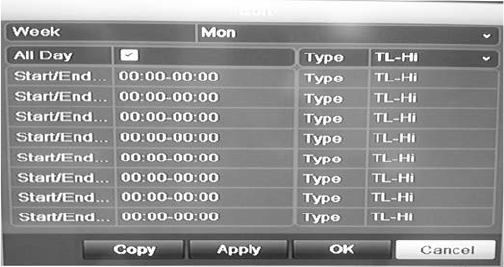
4. Click Edit. The following window is displayed:
5. Select the day of the week for which you want to set up the schedule.
You can define a different schedule for each day of the week.
6. Set the start and end time for recording.
Define a time period by entering a start (left column) and end (right column)
time. You can schedule up to eight time periods. Click All Day to record all
day.
Note: Time periods defined cannot overlap.
7. Select a recording type.
This setting instructs the DVR to begin recording when an alarm is triggered.
The recording type can be based on time and triggered by motion detection
and/or an alarm. If set to TimeLapse (TL-Hi or TL-Lo), the DVR records
continuously.
8. Click Apply to save settings
9. Repeat steps 4 to 8 for other days of the week or to copy the schedule
settings to another day.
To copy the current schedule settings to another day of the week, click Copy.
Select the number of the day of the week to which to copy the schedule. Click
OK to save changes and return to the Edit window.
10. Repeat steps 4 to 9 for other cameras.
11. Click Apply to save the settings and then OK to return to the schedule
window.
3BChapter 4: Recording
TruVision DVR 11 User Manual 21
Holiday schedules
As well as being able to schedule when recordings occur during the week, you
can also schedule them for specific holidays in the year such as the first of
January, or the second Wednesday of every month, for example. You can
schedule up to 32 holiday periods.
A holiday period can be scheduled for a particular day or as a block of days.
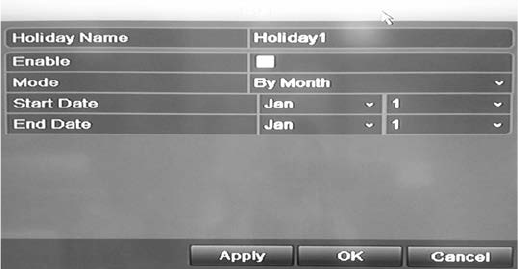
To set up a holiday recording schedule:
1. Click the Display Mode Settings icon in the menu toolbar and select
Holidays.
2. Select a holiday period from the list and click Edit to modify the settings. The
Edit window appears.
3. Enter the name of the holiday period and click Enable.
4. Select whether the holiday period will be categorized by date, week, or month
and then enter the start and end dates.
5. Click Apply to save the settings and then OK to return to the Edit window.
6. Repeat steps 2 to 5 for other holiday periods.
7. Click Back to return to live view.
Motion detection schedules
You can set up both the schedule and areas sensitive to motion detection for
each camera individually or easily copy the settings of one camera to other
cameras.
For information on scheduling motion detections, see “Motion detection set up”
on page 26.
External alarm schedules
The DVR can be scheduled to record when an alarm is triggered by an external
alarm device such as a PIR detector or dry contacts. For information on
3BChapter 4: Recording
22 TruVision DVR 11 User Manual
scheduling external alarms, see “Triggering or clearing alarm outputs manually”
on page 30.
Protecting recorded files
There are two methods to prevent recorded files from being inadvertently
overwritten or deleted off the HDD. We highly recommend that important
recorded events be protected from deletion. Recorded files can either be locked
or the HDD that the files reside on can be set to read only.
Locking and unlocking recorded files
Lock files to protect them against being overwritten or deleted.
To lock or unlock a recorded file:
1. In live view enter the video search window by pressing the Search button on
the front panel or remote control, and then enter Advanced Search.
— Or —
In live view right-click the mouse to display the pop-up menu and select
Advanced Search.
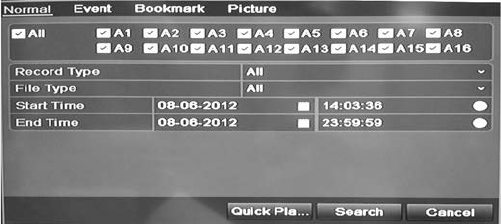
The Search window appears by default for the Normal tab.
2. Search for the desired recording by entering the search parameters, which
include the camera number, record type, file type, and start time and end
time.
3. Click Search.
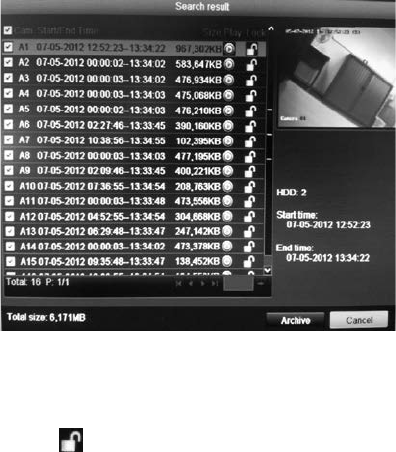
A list of recordings, similar to the figure below, matching the search
parameters is displayed.
3BChapter 4: Recording
TruVision DVR 11 User Manual 23
4. Select the file you want to lock/unlock.
The Locked column indicates whether a file is locked or not.
5. Click to lock a file. Click again to unlock.
6. Click Cancel to return to live view.
Setting the HDD to read-only
When you set an HDD to read-only, recorded video files cannot be written to the
HDD. If multiple HDDs are used, the DVR automatically records to the next HDD
not set to read-only.
To set a HDD to read-only:
1. Click the System Setting icon in the menu toolbar.
2. Click Hard Disk to set up the HDD parameters.
3. Select the HDD you want to set to read-only.
4. Check Read only.
5. Click Apply to save the settings. The HDD is now read-only.
Note: In order to enable recordings on that particular HDD again, you must
set the HDD status back to R/W (Read/ Write).
Capturing text insertions
The DVR supports Point-of-Sale (POS) and ATM text insertion via the UTC
ProBridge accessory connected to the RS-232 port on the DVR.
The feature is currently only available via the browser (see “Capturing text
insertions” on page 118).
TruVision DVR 11 User Manual 25
Chapter 5
Alarm settings
This chapter describes setting up how the system will respond when an alarm is
triggered.
Enter menu mode by pressing the Menu button on the front panel or use the
mouse menu to select Menu (see “Controlling live view” on page 58 for further
information). See Menu overview on page 53 for a list of the menu icons.
Description of alarm notification types
When setting up the rules for alarm detection, you can specify how you want the
DVR to notify you about an alarm. You can select more than one notification
type. Not all notifications types are available for all types of alarms.
The alarm notification types are:
• Full-screen monitoring: Triggers the camera image in alarm to appear as
full-screen view.
• Audible warning: Triggers an audible beep when a notification or alarm is
detected.
• Notify surveillance center: Sends a signal to TruVision Navigator or other
software applications when an alarm or notification is detected.
• Send email: Sends an email when an alarm or notification is detected. See
“Configuring email” on page 36 for information on how to configure the DVR
to send an email.
• Trigger alarm output: Triggers an alarm output when a notification is
detected for an external alarm. See “Setting up external alarms” on page 28
for information on configuring an alarm output.
Setting up motion detection
Motion detection is one of the most important features of a DVR. With it there is
no need to manually search through hours of video recordings to find an event.
4BChapter 5: Alarm settings
26 TruVision DVR 11 User Manual
The DVR can be set up to trigger an alarm if it detects motion and to record it.
You can then search these recorded motion activities for specific incidents. If
enabled, motion detection recording can help increase the number of days your
DVR can record.
You can mask out any areas of motion on an analog camera display that you do
not want to trigger a recording such as a flag on a pole or a moving tree.
Select the level of sensitivity to motion as well the target size so that only objects
that could be of interest can trigger a motion recording. For example, recording
is triggered by the movement of a person but not that of a cat.
You can set up both the schedule and areas sensitive to motion detection for
each camera individually or easily copy the settings of one camera to other
cameras.
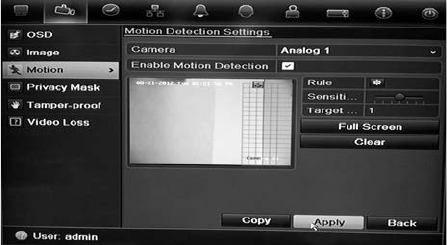
Motion detection set up
To set up motion detection:
1. Click the Camera Management icon in the menu toolbar and select Motion.
2. Select the analog camera to detect motion. Each camera must be set up
individually.
3. Check Enable Motion Detection.
4. Select the areas on-screen to be sensitive to motion.
Click and drag the mouse cursor across the window. The area selected
appears as a red grid. Areas covered by the red grid are sensitive to motion
detection.
Click Full screen to activate the whole screen or Clear to clear the screen.
5. Set the sensitivity level.
Drag the Sensitivity scroll bar to the desired sensitivity level. The highest
value is on the right of the bar.
6. Specify the target size.
In the Target size option, specify how many grid squares must be activated
before motion is detected. Enter a value between 0 and 255 squares.
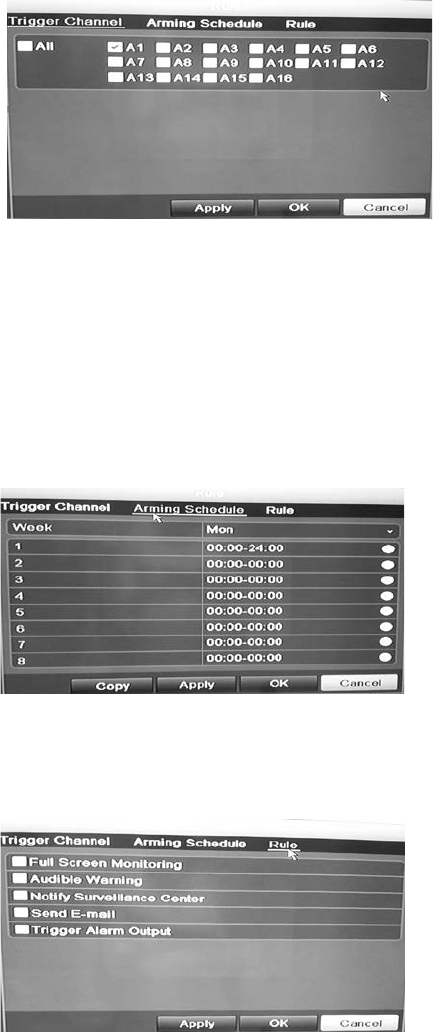
7. Select the cameras that will record the motion detected.
4BChapter 5: Alarm settings
TruVision DVR 11 User Manual 27
Click Rule. The Rule window appears. Click the Trigger Channel tab and
select the cameras that will record when a motion alarm is triggered. Click
Apply to save the settings.
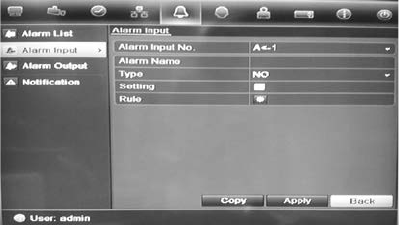
8. Select the recording schedules for motion detection.
In the Rule window, click the Arming schedule tab and select the day of the
week and the time periods during the day when motion can be recorded. You
can schedule up to eight time periods in a day. Default is 24 hours.
Click Apply to save the settings. Click Copy to copy the settings to other
days of the week.
Note: Time periods defined cannot overlap.
9. Select the response method to motion detection.
In the Rule window, click the Rule tab to define the method by which you want
the DVR to notify you of the alarm. Click Apply to save settings.
10. Click OK to return to the motion detection settings window.
11. Click Back to return to live view.
4BChapter 5: Alarm settings
28 TruVision DVR 11 User Manual
To trigger the front panel alarm LED:
1. Click the Display Settings icon in the menu toolbar and select
Monitor>More Settings.
2. Check both the Other Notification: Panel Alarm LED and Motion Alarm
boxes.
Setting up external alarms
The DVR can be configured to record when an alarm is triggered by an external
alarm device (for example, PIR detector, dry contacts…).
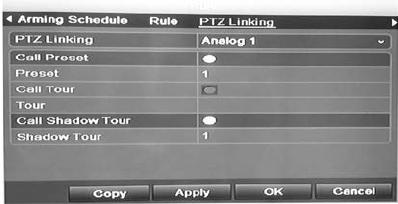
To set up external alarms:
1. Click the Alarm settings icon in the menu toolbar and select the Alarm Input
tab.
2. Select the alarm input number of a camera and enter the name of the input, if
required.
3. Select the alarm input type, NO or NC.
4. Check the Setting box to enable the function and click Rule to set up the rules
for the cameras to be triggered, their alarm schedules, method of alarm
notification and PTZ function.
5. Select the cameras to be triggered when an external alarm is detected.
In the Rule window, click Trigger channel and select the cameras to be
triggered for recording when an alarm is detected. Only analog cameras can
be selected. Click Apply to save the settings.
6. Select the recording schedules for the external alarm.
Click the Arming schedule tab and select the day of the week and the time
periods during the day when motion can be recorded. You can schedule up to
eight time periods in a day. Default is 24 hours.
Click Apply to save the settings. Click Copy to copy the settings to other
days of the week and holiday period.
Note: The time periods defined cannot overlap.
7. Select the response method to an external alarm.
4BChapter 5: Alarm settings
TruVision DVR 11 User Manual 29
Click the Rule tab to define the method by which you want the DVR to notify
you of the alarm. Click Apply to save settings.
8. Select the PTZ camera function required in response to an external alarm.
Select the PTZ camera and the preset, preset tour or shadow tour that is
triggered when the alarm is detected.
Click Apply to save the settings. Click Copy to copy the settings to other
cameras, if required.
9. Click OK to return to the alarm input window.
10. Click Back to return to live view.
To set up an alarm output:
1. Click the Alarm Settings icon in the menu toolbar and select Alarm Output.
2. Select the alarm output.
3. Select a timeout option.
The timeout setting lets you define how long a signal remains active after the
alarm has ended. If you select Manually Clear, the signal remains active until
it is manually acknowledged by pressing the alarm button on the front panel
or remote control (see “Triggering or clearing alarm outputs manually” on
page 30).
4. Select the recording schedules for the alarm output.
Click Rule and select the day of the week and the time periods during the day
when motion can be recorded. You can schedule up to eight time periods in a
day. Default is 24 hours.
Click Apply to save the settings. Click Copy to copy the settings to other
days of the week and holiday period.
Note: The time periods defined cannot overlap.
5. Click OK to return to the alarm output window.
6. Click Back to return to live view.
4BChapter 5: Alarm settings
30 TruVision DVR 11 User Manual
Triggering or clearing alarm outputs
manually
When an alarm is activated, the DVR can be set up so that the alarm must be
manually acknowledged in order to be silenced. See “Setting up external alarms”
on page 28 for information on setting up an alarm to be manually cleared.
All user levels (administrator, manager, and operator) can manually acknowledge
an alarm.
To trigger or clear alarm outputs manually:
1. Click the Alarm settings icon in the menu toolbar and select Alarm Output.
2. Click the Manual Alarm tab.
3. Select the desired alarm output and click one of the following buttons:
• Trigger / Clear: Trigger an alarm output or stop an alarm output.
• Trigger All: Trigger all alarm outputs at once. This action could be done,
for example, when you need to test them.
• Clear All: Stop all alarm outputs at once.
4. Click Back to return to live view. The alarm is silenced.
- Or -
1. Press the Alarm button on the front panel or remote control. The alarm is
silenced.
Setting up system notifications
Setting up system notifications instructs the DVR to alert you when irregular
events occur and how to alert you to the event.
You can quickly check the system status by looking at the status LEDs on the
front panel. When there is an irregular event with the system, an icon appears on
screen to also alert you. See “Status information” on page 57 for further
information.
The types of system notifications include:
• HDD Full: All installed HDDs are full.
• HDD Error: Errors occurred while files were being written to the HDD, no
HDD installed or HDD had failed to initialize.
• Network Disconnected: Disconnected network cable.
• IP Conflicted: Conflict in IP address setting.
• Illegal Login: Wrong user ID or password used.
• Abnormal Video Signal: Unstable video signal or video loss detected.
4BChapter 5: Alarm settings
TruVision DVR 11 User Manual 31
• Input/output Video Standards Mismatch: I/O video standards do not
match.
• Abnormal Record: Recording failed due to encoder or hard disk problems.
See “Description of alarm notification types” on page 25 for information on the
different alarm notification types available.
To set up system notifications:
1. Click the Alarm settings icon in the menu toolbar and select Notification.
2. Select a notification type.
3. Check one or more response options: Audible warning, notify surveillance
center, send email, trigger alarm output.
4. Repeat steps 2 and 3 for other notification types.
5. Click Apply to save the settings.
Detecting video loss
Video may be lost if the video cable or camera develop a fault or are damaged.
You can set up the DVR to detect video loss and trigger a system notification.
To setup video loss detection:
1. Click the Camera management icon in the menu toolbar and select Video
Loss.
2. Select a camera to configure for video loss detection.
3. Check the Enable Video Loss Alarm box to enable the feature.
4. Click Rules next to the Video Loss Detection box to enter the Rules window.
5. Click the Rule tab and select how you want the DVR to notify you of video
loss (see page 25 for the list of options). Click Apply to save the settings and
then clock OK to return to the previous window.
6. Click the Arming Schedule tab and select the schedule of when you want
video loss detection to be enabled. Schedule can be set for all week or any
day of the week with up to 8 time periods per day.
7. Click the Apply button to save settings.
8. Click Copy to copy these settings to other cameras.
9. Click Back to return to live view.
4BChapter 5: Alarm settings
32 TruVision DVR 11 User Manual
Detecting video tampering
You can setup the DVR to alert you when the camera view has changed such as
when someone has deliberately blocked the camera view by spraying paint on
the lens or by moving the camera. You can set it up so that a specific part of the
screen can detect a tamper and thereby trigger an action on the DVR.
Note: It is strongly recommended not to configure for video tampering when
using PTZ dome cameras.
To set up video tampering detection:
1. Click the Camera management icon in the menu toolbar and select Tamper-
Proof to display the tamper-proof settings window.
2. Select a camera to configure for video loss detection.
3. Check the Enable Tamper-proof box to enable the feature.
4. Define a tampering area.
The tamper detection area setup interface lets you define an area on screen
where you want camera tampering to be detected. Click and drag the mouse
across an area to mark that area for video tampering. You can only set one
tampering area with the full screen being the maximum area. Click Clear to
clear the window.
5. Select the tamper detection sensitivity level by clicking the sensitivity scroll
bar. Higher sensitivity is to the right of the bar.
6. Select the recording schedules for the tamper.
Click Rule and then select the Arming schedule tab to select the day of the
week and the time periods during the day when motion can be recorded. You
can schedule up to eight time periods in a day. Default is 24 hours.
Click Apply to save the settings. Click Copy to copy the settings to other
days of the week and holiday period.
Note: The time periods defined cannot overlap.
7. Select the response method to an external alarm.
Click Rule and then select the Rule tab to select the method by which you
want the DVR to notify you of the alarm. Click Apply to save settings and
then OK to return to the previous window.
8. Click Back to return to live view.
TruVision DVR 11 User Manual 33
Chapter 6
Network settings
You must configure your DVR’s network settings before using it over the network.
The DVR must have access to the internet when configuring the network
settings.
Note: As every network configuration may differ, please contact your Network
Administrator or ISP to see if your DVR requires specific IP addresses or port
numbers.
Configuring general network settings
To configure general network settings:
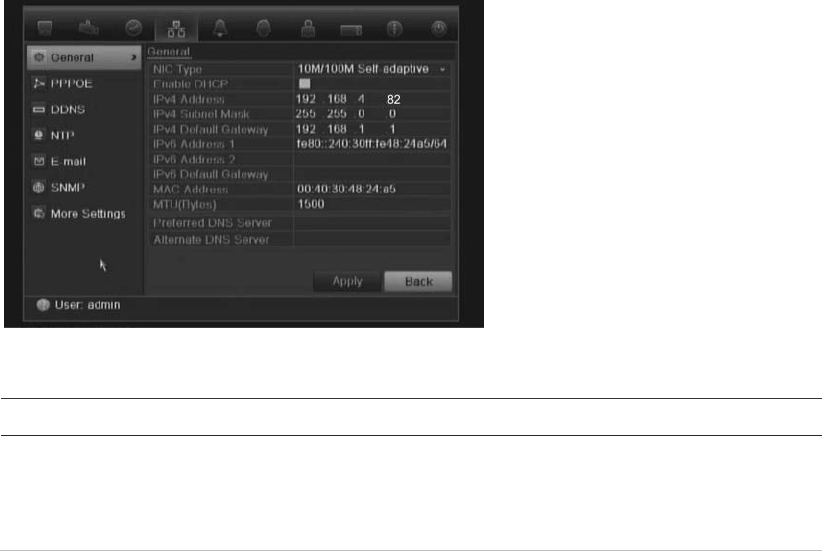
1. Click the Network settings icon in the menu toolbar to display its window.
2. Click General and enter the required settings:
Option Description
NIC type Network interface card (NIC) is a device used to connect the
DVR to a network. Select the NIC type used from the drop-
down
list.
Default value is 10/100M self-adaptive.

5BChapter 6: Network settings
34 TruVision DVR 11 User Manual
Option
Description
Enable DHCP
Check this box if you have a DHCP server running and want
your DVR to automatically obtain an IP address and other
network settings from that server.
Default value is Enable.
IPv4
address Enter the IP address for the DVR.
Default value is 192.168.1.82
IPv4 subnet mask
Enter the subnet mask for your network so the DVR will be
recognized within the network.
Default value is 255.255.255.0
IPv4 default gateway
Enter the IP address of your network gateway so the DVR will
be recognized within the
network. This is typically the IP address
of your router.
Default value is 192.168.1.1
IPv6 address 1
Enter the IPv6 address for the DVR.
Default value is fe80::240:3dff:fe7e:926f/64.
IPv6
address 2 Enter the IPv6 address for the DVR.
IPv6 default gateway
Enter the IPv6 address of your network gateway so the DVR will
be recognized within the
network. This is typically the IP address
of your router.
MAC address
Enter the MC address.
MTU (b
ytes) Enter a value between 500 and 9676. Default is 1500.
Preferred DNS server
Enter the preferred domain name server to use with the DVR.
Alternate DNS server
Enter the alternate domain name server to use with the DVR.
3. Click Apply to save the settings.
Configuring PPPoE
You can connect the DVR directly to a DSL modem. To do this, you need to
select the PPPoE option in the network settings. Contact your ISP to get the user
name and password.
To configure general network settings:
1. Click the Network settings icon in the menu toolbar to display its window.
2. Click PPPoE and check the enable PPPoE box.
3. Enter your user name and password and confirm the password.
4. Click Apply to save the settings.
5BChapter 6: Network settings
TruVision DVR 11 User Manual 35
Configuring DDNS
A static IP address never changes so you can enter it into the browser or CMS
and the DVR network connection will always work with it.
However, if you have a dynamic IP address for your public IP address, it will
change every time you connect to the network. Under such situations, you can
set up a dynamic domain name system (DDNS) that will link your public IP
address to a host name so that you can connect to the DVR with the host name.
There are two ways to set up a DDNS:
• DynDNS: Manually create your own host name. You will first need to create a
user account using the hosting web site, DynDDNS.org.
• ezDDNS: Activate the DDNS auto-detection function to set up a dynamic IP
address. The server is set up to assign an available host name to your DVR.
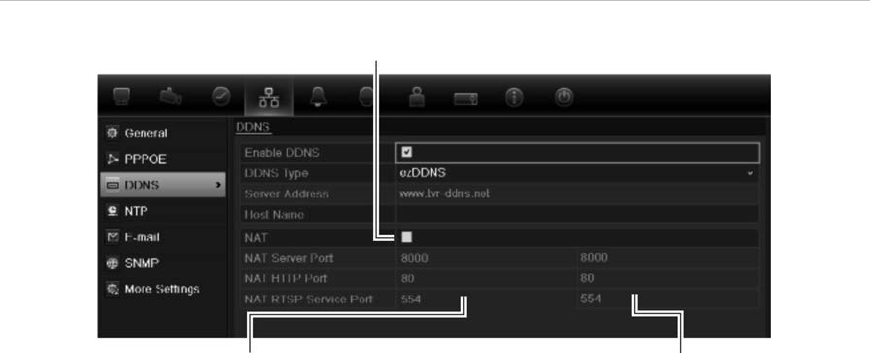
Figure 7: ezDDNS setup window
NAT translates the ports on the server. Consequently there is no need to remember the ports
when connecting to the unit from the internet
Internal ports External ports. These values can be modified to
access several units over the internet
Note: This option is not shown when using the
browser.
Note: You cannot have two DVRs with the same host name.
To set up DDNS:
1. Click the Network settings icon in the menu toolbar.
2. Click DDNS to display its window.
3. Check the Enable DDNS box to enable this feature.
4. Select one of the DDNS types listed:
DynDNS: Select DynDNS and enter the server address for DynDNS
(members.dyndns.org). In the DVR domain name field, enter the domain
name obtained from the DynDNS web site. Then enter your user name and
password registered in the DynDNS network.
For example:
5BChapter 6: Network settings
36 TruVision DVR 11 User Manual
Server address: members.dyndns.org
Domain: mycompanydvr.dyndns.org
User name: myname
Password: mypassword
- Or -
ezDDNS: Select ezDDNS and enter your domain name. The server type entry
is prepopulated (www.tvr.ddns.net). If you will be connecting the unit via the
internet, check NAT. Change the HTTP and server ports values, if required.
The default values are 80 for the HTTP port and 8000 server port.
5. Click Apply to save the settings.
Configuring an NTP server
A Network Time Protocol (NTP) server can also be configured on your DVR to
keep the date and time current and accurate.
Note: If the device is connected to a public network, you should use a NTP
server that has a time synchronization function, such as the server at the
National Time Center (IP Address: 210.72.145.44) or europe.ntp.pool.org. If the
device is setup in a more customized network, NTP software can be used to
establish a NTP server used for time synchronization.
To set up an NTP server:
1. Click the Network settings icon in the menu toolbar.
2. Click NTP to display its window.
3. Check the NTP box to enable feature. It is enabled by default.
4. Enter the NTP settings:
• Interval: Time in minutes to synchronize with the NTP server. The value
can be between 1 and 10080 minutes. Default is 60 minutes.
• NTP server: IP address of the NTP server.
• NTP port: Port of the NTP server.
5. Click Apply to save the settings.
Configuring email
Your DVR can send email notifications of alarms or notifications through the
network.
Note: Ensure that the DNS address has been set up correctly beforehand.

5BChapter 6: Network settings
TruVision DVR 11 User Manual 37
To configure email settings:
1. Click the Network Settings icon in the menu toolbar.
2. Click Email and enter the required settings.
Option Description
Enable server
authentication Check the box if your mail server requires authentication and
enter the login user name and password.
SMTP server Enter the SMTP server’s IP address.
SMTP port Enter the SMTP port. The default TCP/IP port for SMTP is 25.
Enable SSL Check the box to enable SSL if it is required by the SMTP server.
This feature is optional.
Sender Enter the name of the sender of the email.
Sender’s address Enter the sender’s email address.
Select receivers Select an email recipient. Up to three receivers can be selected.
Receiver Enter the name of the receiver of the email.
Receiver’s address Enter the email address of the receiver.
Enable attached snapshot
Check the Attach JPEG File box if you want to send an email with
attached alarm images.
Interval Select an interval range in the Interval box.
The interval range represents the time range in between the alarm
images being sent. For example, if you set the interval range at
two seconds, the second alarm image will be sent two seconds
after the first alarm image
3. Click Test to the test email settings.
Note: We recommend that you test the email settings after entering values in
the email window.
4. Click Apply to save the settings.
Note: We recommend that you test the email settings after entering values in the
Email window.
Configuring SNMP
SNMP is a protocol for managing devices on networks. When you enable SNMP
in the menu, network management systems can retrieve DVR status information
from the DVR via SNMP.
When you set the trap address and trap port in the DVR menu to the network
management system’s IP address and port number, and set up the network
management system as trap receiver, trap notifications (such as startup) are sent
from the DVR to the network management system.
Before configuring this function, you must first install the SNMP software.
5BChapter 6: Network settings
38 TruVision DVR 11 User Manual
To configure SNMP protocol settings:
1. Click the Network settings icon in the menu toolbar.
2. Click SNMP and enter the required settings.
3. Click Apply to save the settings.
Configuring a remote alarm host
If a remote alarm host set, the DVR sends a signal to the host when an alarm is
triggered. The remote alarm host must have the TruVision Navigator server
software installed.
To set up a remote alarm host:
1. Click the Network Settings icon in the menu toolbar.
2. Click More Settings.
3. Enter Alarm Host IP and Alarm Host Port.
Alarm host IP represents the IP of the remote PC where the Network Video
Surveillance software installed. The alarm host port value must be the same
as software’s alarm monitor port. Default port is 7200.
4. Click Apply to save the settings.
Configuring multicast
Setting up multicasting resolves limitation issues when streaming videos through
a network access device. A multicast address spans the Class-D IP range of
224.0.0.0 to 239.255.255.255. We recommend that the IP address range of
239.252.0.0 to 239.255.255.255 be used.
To set up multicasting:
1. Click Network Settings icon in the menu toolbar and then click More
Settings.
2. Enter a Multicast IP address.
Note: When adding a device to the Network Video Surveillance software, the
multicast address must be the same as the DVR’s multicast IP.
3. Click Apply to save the settings.
5BChapter 6: Network settings
TruVision DVR 11 User Manual 39
Configuring the server and HTTP ports
You can change the server and HTTP ports from the default settings in the
Network Settings window. The default server port is 8000 while that of the default
HTTP port is 80.
Note: The server port has a port range of 2000 to 65535 and is used for remote
client software access. The HTTP port is used for remote internet browser
access.
To change the default ports:
1. Click the Network Settings icon in the menu toolbar and then click More
Settings.
2. Enter the new Com Port and HTTP Port values.
Configuring the RTSP service port
The RTSP (Real Time Streaming Protocol) is a network control protocol
designed for use in entertainment and communications systems to control
streaming media servers.
To configure RTSP service port:
1. Click the Network Settings icon in the menu toolbar and then click More
Settings.
2. Enter the RTSP port value. The default value 554.
3. Click Apply to save the settings.
Checking network status
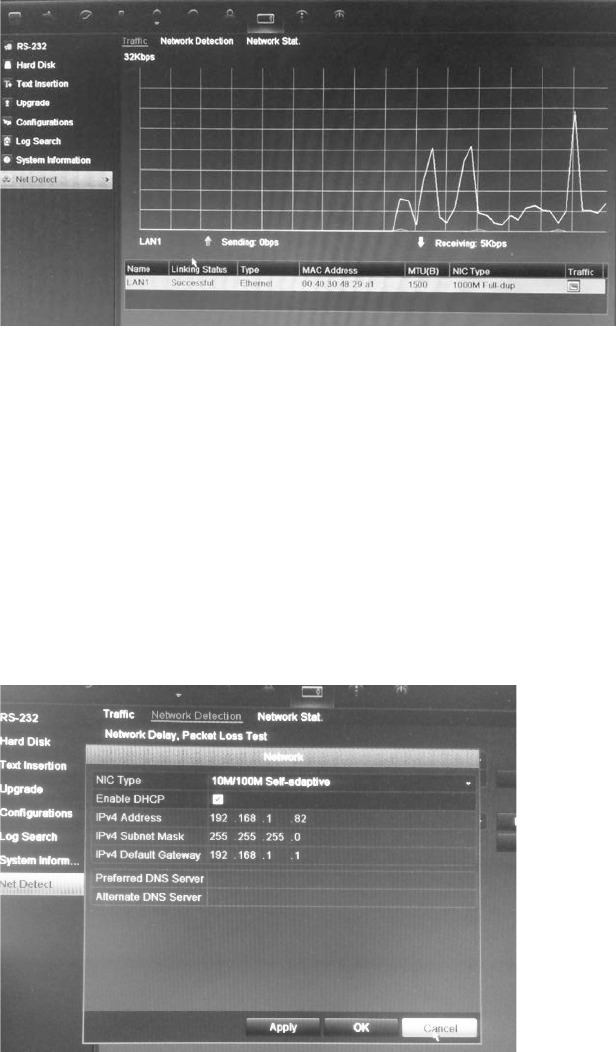
You can easily check network traffic in order to obtain information about the DVR
such as its linking status, MTU, sending/receiving rate, MAC address, and NIC
type.
You can also check the network connection status by testing its delay and packet
loss.
To check network traffic:
1. Click the System Settings icon in the menu toolbar and then click Net detect
to display the Traffic window. The information displayed is refreshed once a
second.
5BChapter 6: Network settings
40 TruVision DVR 11 User Manual
To check network delay and packet loss:
1. Click the System Settings icon in the menu toolbar and then click Net
detect.
2. Select the Network Detection Status tab.
3. Under the section “Network delay, Packet loss test”, enter the destination
address and click Test.
The test result appears in a pop-up window.
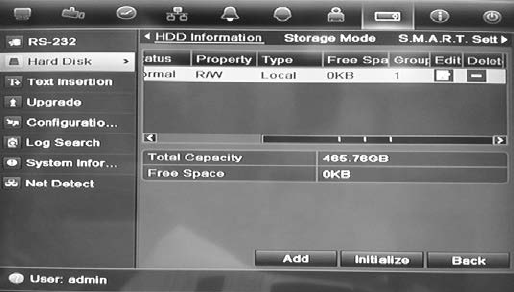
4. If you need to check the current network parameters, click the Network
button to get an overview.
The NIC type and Enable DHCP options can be changed. Click Apply to
save any changes made.
To check network statistics:
1. Click the System settings icon in the menu toolbar and then click Net
detect.
2. Select the Network Stat. tab.
3. The latest information is displayed on the bandwidth used by remote live and
playback as well by Net Receive Idle and Net Send Idle. Click Refresh to
update the information.
5BChapter 6: Network settings
TruVision DVR 11 User Manual 41
Exporting network packet data
When the DVR is connected to a network, you can export the captured data
packet to a, USB-flash drive, SATA/eSATA CD-RW and other local backup
devices.
To export network packet data:
1. Click the System Settings icon in the menu toolbar and then click Net
Detect.
2. Select the Network Detection tab.
3. Under the section “Network packet export”, click Refresh to get a list of the
local backup devices available. Select one from the list.
4. Click Export. Up to 1M of data can be exported at a time.
5BChapter 6: Network settings
42 TruVision DVR 11 User Manual
TruVision DVR 11 User Manual 43
Chapter 7
HDD management
Initializing HDDs
The in-built HDD must be initialized before it can be used. You can also re-
initialize the HDD. However, all data on the HDD will be destroyed.
To initialize a HDD:
1. Click the System Settings icon in the menu toolbar and then click Hard Disk
to display its window.
2. Select the HDD to be initialized.
3. Click the Initialize button to begin initialization.
After the HDD has been initialized, the status of the HDD changes from
Abnormal to Normal.
Setting the HDD quota
You can allocate on a HDD the maximum permitted storage and snapshot picture
capacities from each camera.
1. Click the System Settings icon in the menu toolbar and then click Hard Disk.
2. Click the Storage mode tab.
3. Under the Mode option, select Quota.

6BChapter 7: HDD management
44 TruVision DVR 11 User Manual
4. Select a camera whose storage capacity you want to change and enter the
values in GB for maximum record capacity and maximum picture capacity.
The maximum storage capacity of the HDD is listed.
5. Click Apply to save the settings.
6. If you want to copy these values to other cameras, click Copy and select the
cameras. Click OK. Click Apply to save the settings.
Setting the HDD property
You can change the behavior of your HDD by changing its property. It can be set
to read-only or read/write (R/W).
A HDD can be set to read-only to avoid important recorded files from being
overwritten when the HDD becomes full.
To change a HDD status property:
1. Click the System Settings icon in the menu toolbar and then click Hard Disk.
2. Click the HDD Information tab.
3. Select the HDD whose property you want to change.
4. Click the Edit icon . The Local HDD Settings window appears.
5. Click the desired HDD property for the selected HDD.
6. Click the group number for this HDD.
7. Click Apply to save and exit the window.
Note: Once set to read-only, the HDD cannot be used to save recorded files
until it is set back to read/write (R/W). If the HDD that is currently being
written to is set to read-only, the data is then recorded to the next HDD. If
there is only one HDD present, setting it to read-only means the DVR cannot
record.
Checking HDD status
You can check the status of any of the installed HDDs on the DVR at anytime.
To check the status of a HDD:
1. Click the System Settings icon in the menu toolbar and then click Hard Disk.
2. Note the status of the HDDs listed under the Status column.
If the status is listed as Normal or Sleeping, the HDD is in working order. If it
is listed as Abnormal and has already been initialized, the HDD needs to be
replaced. If the HDD is Uninitialized, you need to initialize it before it can be
used in the DVR. Refer to “Initializing HDDs” on page 43 for more information.
6BChapter 7: Operating instructions
TruVision DVR 11 User Manual 45
Note: This information is also available under System Settings > System
Information > HDD window.
Configuring HDD alarms
HDD alarms can be set to trigger when an HDD is uninitialized or in an abnormal
state.
To set HDD alarms:
1. Click the Alarm settings icon in the menu toolbar and select Notification.
2. Select the notification event to configure under Notification Type box.
3. Select HDD Full and check the desired notification method. See “Setting up
system notifications” on page 30 for more information.
Select HDD Error and check the desired notification method.
4. Click Apply to save the settings.
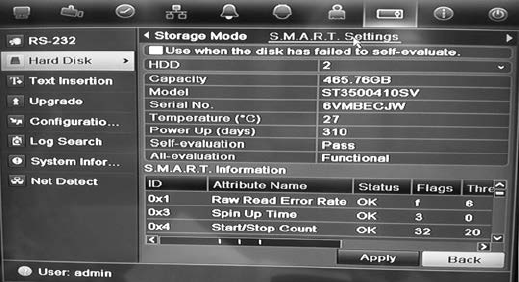
Checking the S.M.A.R.T. information
S.M.A.R.T. (Self-Monitoring, Analysis and Reporting Technology) reports on a
variety of hard drive attributes. It helps ensure that the HDD is functioning
properly at all times while protecting video stored on the hard drive.
To view the S.M.A.R.T. information of a HDD:
1. Click the System Settings icon in the menu toolbar and then click Hard Disk.
2. Select the S.M.A.R.T. tab to display its window.
3. Select the HDD whose data you want to see. A detail listing of S.M.A.R.T.
information is displayed.
4. If you want to continue to use a HDD when the S.M.A.R.T. test has failed,
check the box Use when the disk has failed to self-evaluate. Click Apply
to save the settings.
6BChapter 7: HDD management
46 TruVision DVR 11 User Manual
TruVision DVR 11 User Manual 47
Chapter 8
Operating instructions
Controlling the DVR
There are several ways to control the DVR:
• Front panel control
• Mouse control
• IR remote control
• KTD-405 keypad control (see Appendix D “KTD-405 keypad” on page 127)
• Web browser control
You can use your preferred control method for any procedure, but in most cases
we describe procedures using mouse terminology. Optional control methods are
given only when they differ substantially from mouse control methods.
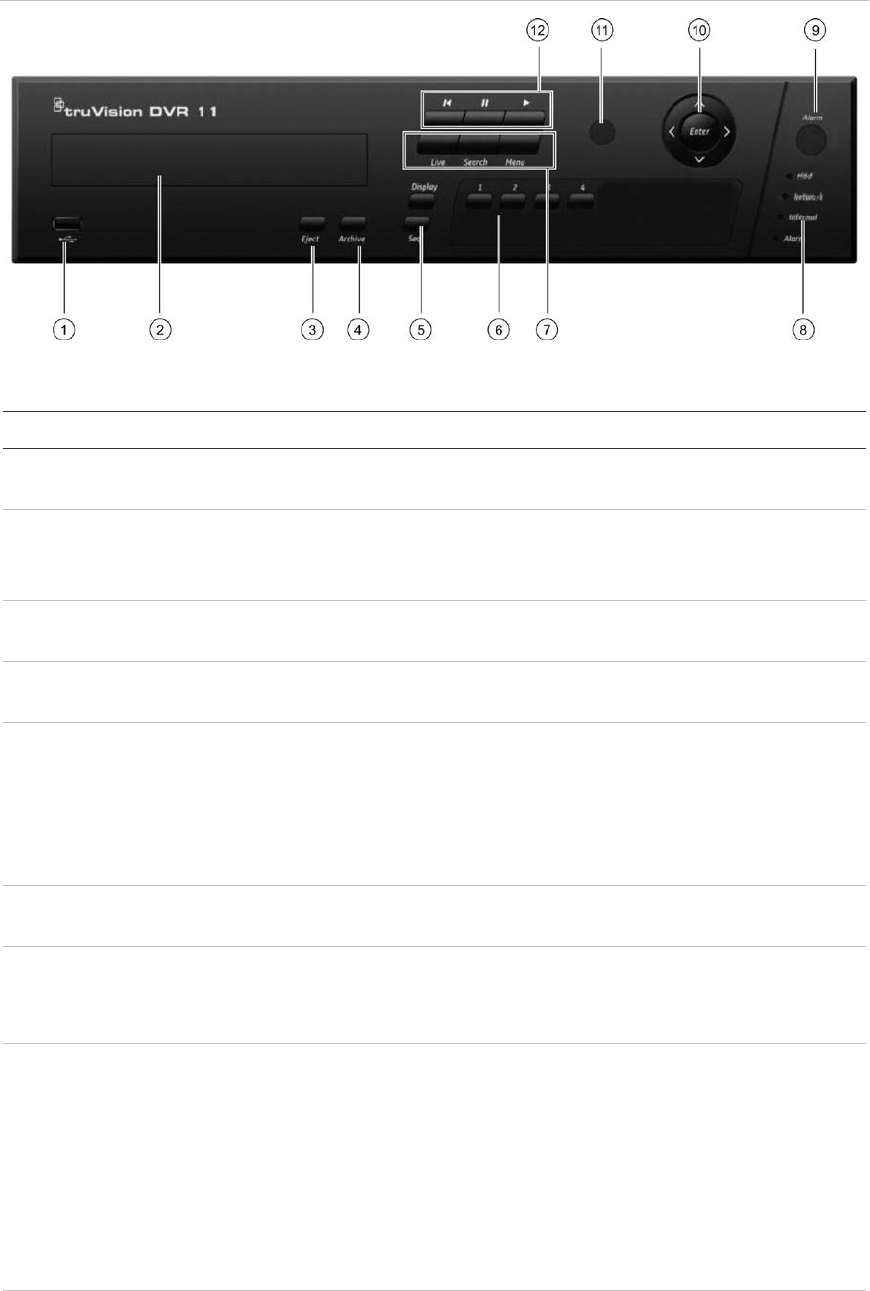
Using the front panel
The function buttons on the front panel control can be used to operate many, but
not all, of the main functions of the DVR. The LED indicators light up to alert you
of various conditions. The functions available can be limited by setting
passwords. See Figure 9 on page 48 for more information.
7BChapter 8: Operating instructions
48 TruVision DVR 11 User Manual
Figure 8: TVR 11 front panel (16-ch model shown)
The controls on the front panel include:
Item
Name Description
1
. USB port The DVR supports both a USB DVD and a USB HD on the
front and rear USB ports.
2
. CD/DVD burner Insert CD or DVD disc.
The CD/DVD burner is not present on all TVR 11 models.
Not all menus are available on models without a burner.
3
. Eject button Ejects CD/DVD disc. This is only present on models with a
CD/DVD burner.
4
. Archive button Press once to enter quick archive mode. Press twice to
start archiving.
5
. Display and Seq
buttons Live view mode: Press Display to toggle through the
various views single and multiviews. Press Seq
to start/stop
sequencing in live view mode.
Menu mode: Press Enter to select a menu window and
then Seq
to toggle through the tabs along the top of a menu
window.
6
. Channel buttons Switch between different cameras in live view, PTZ control
or playback modes.
7
. Live, Menu and Search
buttons Live: Switch to live view mode.
Menu: Enter/exit the main menu.
Search: Enter the advanced search menu.
8
. Status LEDs HDD: Green indicates the DVR is working correctly. Red
indicates a fault.
Network: Green indicates the network is working correctly.
Red indicates a fault or no network connection.
Internal: Green indicates the Watchdog is working
correctly. Red indicates that the Watchdog is reporting a
fault.
Alarm: Green indicates no external alarm. Red indicates
an
external alarm status or motion.
9
. Alarm button Use to manually acknowledge an alarm.
7BChapter 8: Operating instructions
TruVision DVR 11 User Manual 49
Item
Name Description
10
. Enter and arrows
button Use to select options in a menu and to control playback.
Press for Enter.
Live view mode: Press Enter to enter/exit PTZ mode.
Press the left/right arrow buttons to scroll between the
cameras.
Menu mode: To enter the menu toolbar, keep pressing the
left arrow button until the first menu icon is selected. Then
press the left/right arrow buttons to select a menu icon.
To select a menu option in the submenu panel or setup
menu, press the arrow buttons left/right and up/down to
position cursor in the menu window. Press for Enter. See
Figure 12 on page 53.
Playback mode: Press the left/right arrow buttons to slow
down or speed up playback. Press the up/down arrow
buttons to jump forwards or backwards by 30 seconds.
Press Enter to stop/start playback.
PTZ mode: Press the arrow buttons to control the
movement of the PTZ dome camera.
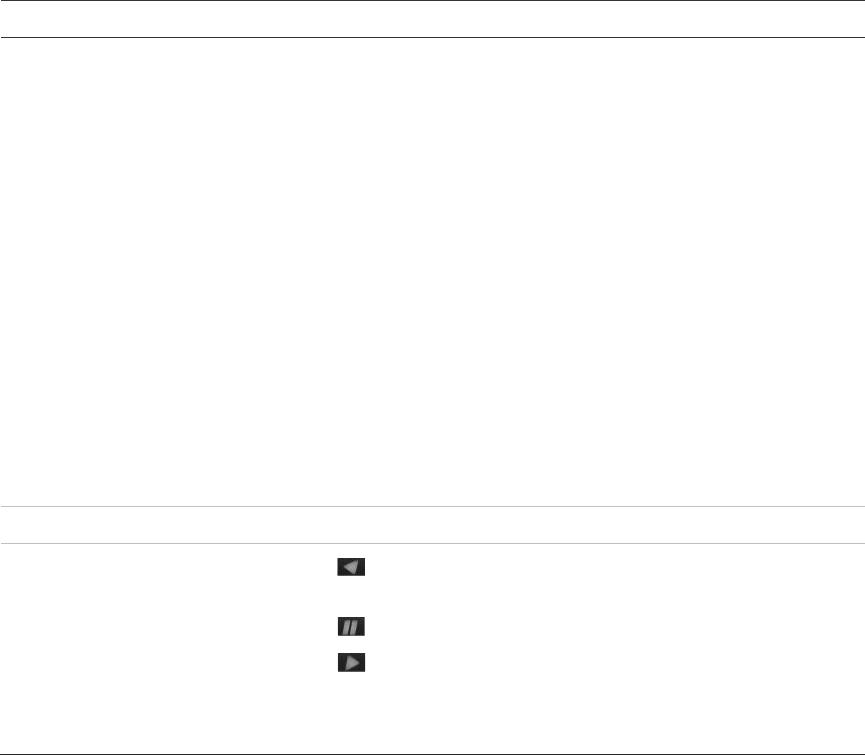
11
. IR receiver Receiver for IR remote.
12
. Playback buttons : Press to jump back to the oldest available video and
start the playback.
: Press to pause playback.
: Press to start all-day playback of the currently
selected camera. If you are in multiview format, only the
camera shown in the top-left corner of the multiview is
played back.
Using the mouse
The USB mouse provided with the DVR can be used to operate all the functions
of the DVR, unlike the front panel which has limited functionality. The USB
mouse lets you navigate and make changes to settings in the user interface.
Connect the mouse to the DVR by plugging the mouse USB connector into the
USB port on the back panel or the front panel. The mouse is immediately
operational and the pointer should appear.
Note: Use a USB 2.0 or higher mouse.
Move the pointer to a command, option, or button on a window. Click the left
mouse button to enter or confirm a selection.
You can purchase a spare mouse by ordering part number TVR-MOUSE-1
TruVision™ DVR Model 11/40/41/60 Mouse.
See Table 6 on page 50 for a description of the mouse buttons.

7BChapter 8: Operating instructions
50 TruVision DVR 11 User Manual
Table 5: Mouse buttons
Item
Description
Left button
Single-Click Live view: Select a camera to display the quick
access toolbar (see “Accessing frequently used
commands” on page 61).
Menu: Select a component of a menu, such as a
button or an input field. This is similar to pressing the
Enter button on the remote/front panel controls.
Double-Click Live view: Switch between single screen and multi-
screen mode in live/ playback mode.
Click and Drag Live view: Drag channel/time bar.
PTZ control: Adjust pan, tilt and zoom.
Tamperproof, privacy masking and motion
detection functions: Select the target area.
Digital zoom-in: Drag and select target area.
Right button
Single-Click Live view: Display menu.
Menu: Exit the current menu and return to higher
level.
Scroll
-wheel Scroll Up Live view: Return to the previous window.
Menu: Move the selection to the previous item.
Scroll Down Live view: Move to the next window.
Menu: Move the selection to the next item.
Using the IR remote control
The DVR is supplied with an infra red (IR) remote control unit. Like the mouse, it
can be used to operate all of the main functions of the unit.
The IR remote control can be programmed with a unique device ID address so
that the controller will only be able to communicate with DVRs with that address.
No programming is necessary if using a single DVR.
The device ID address only applies when using a remote control and not when
using a keypad.
You can purchase a remote control by ordering part number TVR-REMOTE-1
TruVision™ DVR Model 11/40/41/60 IR Remote Control.
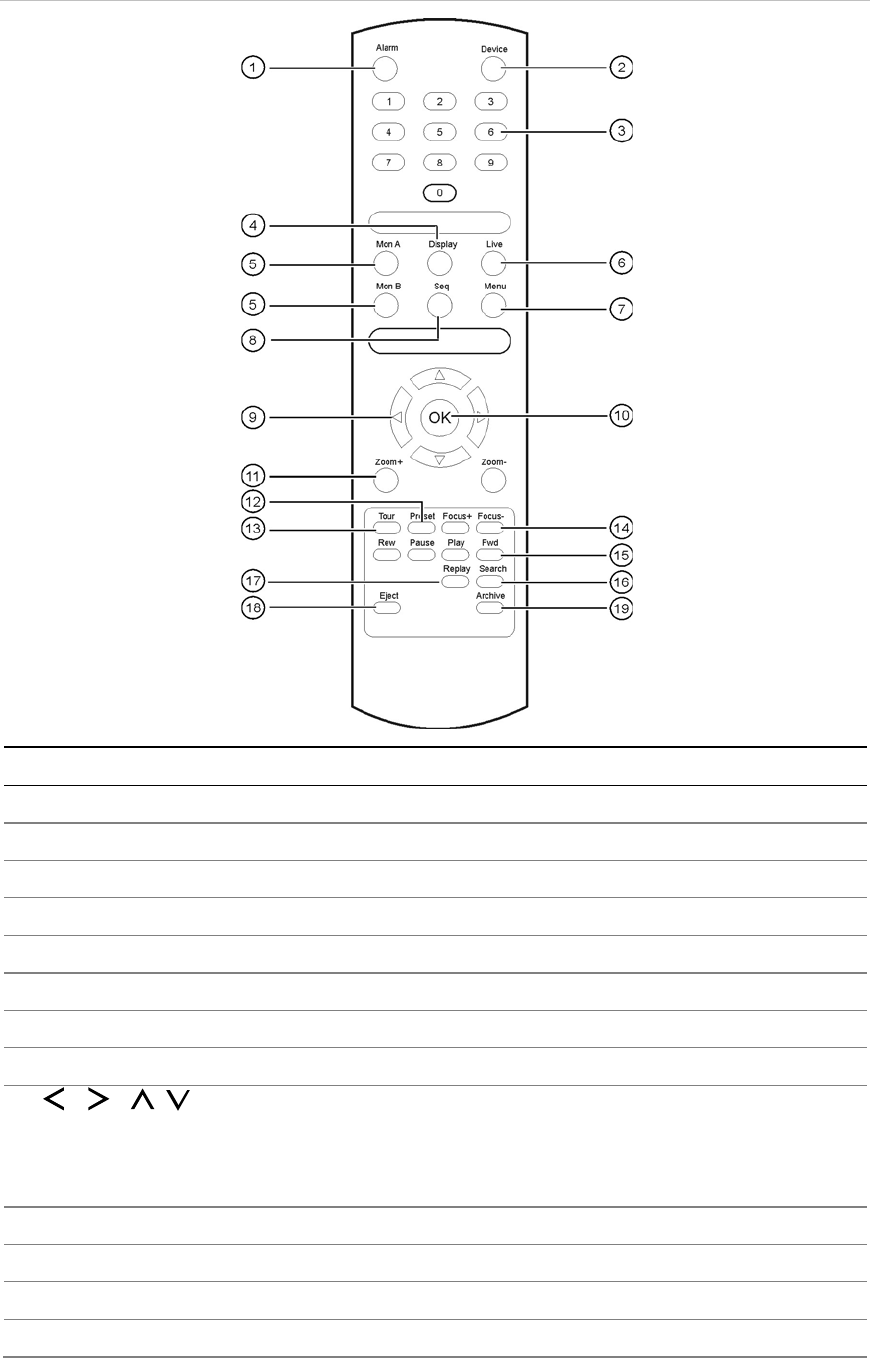
7BChapter 8: Operating instructions
TruVision DVR 11 User Manual 51
Figure 9: IR remote control
Item
Description
1
. Alarm
Acknowledge an alarm.
2
. Device
Enable/disable the IR remote control to control the
DVR.
3
. Numeric buttons
Select a camera, and enter a number in a menu option.
4
. Display
Switch
between the different multiview formats.
5
. Mon A and Mon B
Switch
between monitors A and B.
6
. Live
Return to
live view mode.
7
. Menu
Activate the main menu.
8
. Seq
Start /stop
sequencing.
9
. , , ,
In Menu mode: Use left or right arrow buttons to select and up or down
arrow buttons to edit entry.
In PTZ mode: Use to control PTZ.
In Playback mode: Use to control playback speed.
10
. OK
Confirm selection.
11
. Zoom + and -
Use to control zoom of camera lens.
12
. Preset
Enter preprogrammed three
-digit code to call up a preset.
13
. Tour
Enter preprogrammed three
-digit code to call up shadow tour.

7BChapter 8: Operating instructions
52 TruVision DVR 11 User Manual
Item
Description
14
. Focus + and -
Use to control focus of camera lens.
15
. Playback control
Use to control playback (Rewind, Pause, Play, and Fast Forward).
16
. Search
Open the Search menu.
17
. Replay
Replay the selected file from the beginning.
18
. Eject
Eject the CD or DVD disk.
1
9. Archive
Press once to enter quick archive mode. Press twice to start archiving.
Aim the remote control at the IR receiver located at the front of the unit to test
operation.
To connect the remote control to the DVR:
1. Press the Menu button on the front panel or right-click the mouse and select
the Menu button. The main menu window appears.
2. Click Display Mode Settings > Monitor.
3. Check the device address value. The default value is 255. This device
address is valid for all IR controls.
Note: The DVR will respond to any remote control that has an address
between 1 and 255.
4. On the remote control press the Device button.
5. Enter the device address value. It must be the same as that on the DVR.
6. Press the OK button on the remote control.
To place batteries into the IR remote control:
1. Remove the battery cover.
2. Insert the batteries. Make sure that the positive (+) and negative (−) poles are
correctly placed.
3. Replace the battery cover.
Troubleshooting the remote control:
If the IR remote control is not functioning properly, perform the following tests:
• Check the battery polarity.
• Check the remaining charge in the batteries.
• Check that the IR remote control sensor is not masked.
If the problem still exists, please contact your administrator.
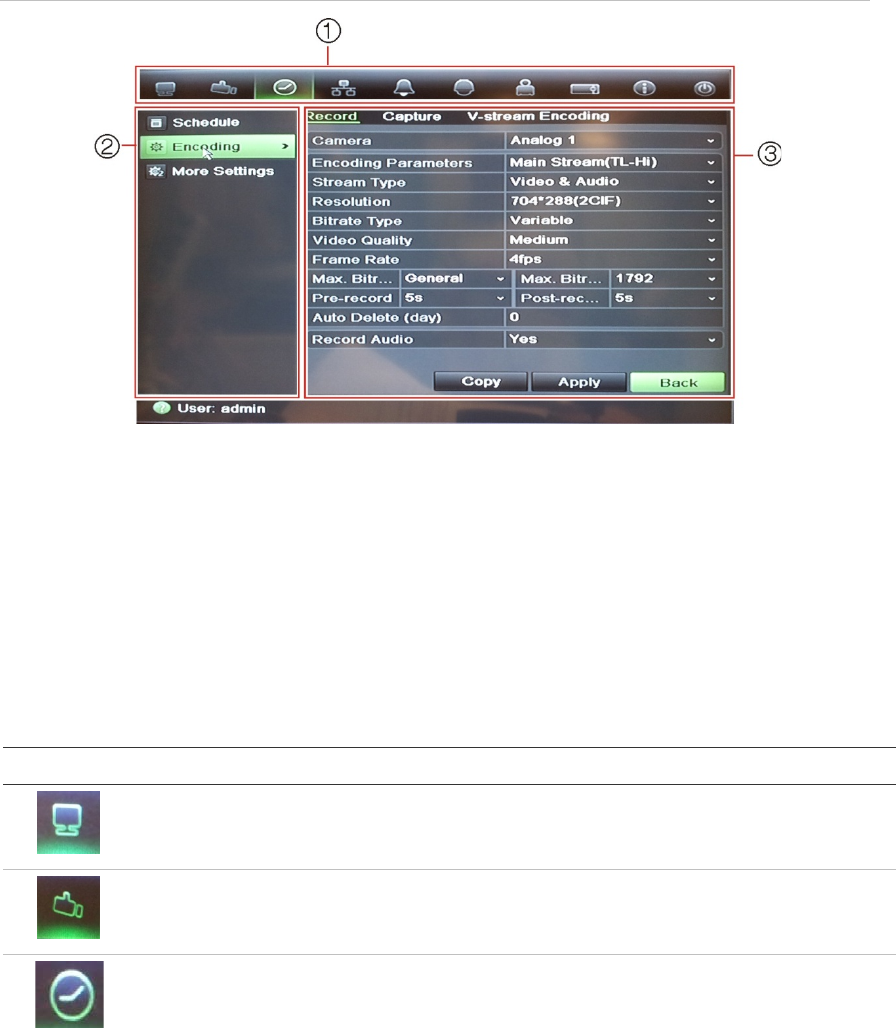
7BChapter 8: Operating instructions
TruVision DVR 11 User Manual 53
Menu overview
The DVR has an icon-driven menu structure that allows you to configure the
unit’s parameters. Each command icon displays a window that lets you edit a
group of settings. Most menus are available only to system administrators.
The window is divided into three sections. The currently selected command icon
and submenu item are highlighted in green. See Figure 12 below.
You must be in live view mode to access the main menu.
Figure 10: Menu structure
1. Menu toolbar: Setup options available for the selected menu function. Move the mouse over
a command icon and click to select it. See Table 7 below for a description of the icons.
2. Submenu panel: Submenus for the selected menu function are displayed. Click an item to
select it.
3. Setup menu: All the details for the selected submenu are displayed. Click a field to make
changes.
Note: See Figure 9 on page 48 for the description on how to access the menu
options using the front panel.
Table 6: Description of the menu toolbar icons
Icon Name Description
Display
mode settings Configures display settings including dwell time, schedule,
language and display formats. See “Configuring live view”
on page 63 and “Holiday schedules” on page 21.
Camera
management Configures camera settings including motion detection,
video image adjustments, camera title, and copy settings to
other cameras. See “Camera settings” on page 97“.
Video schedule
Configures recording settings including recording
schedules, record quality, auto delete mode, and recording
mode. See Chapter 4 “Recording” on page 17.
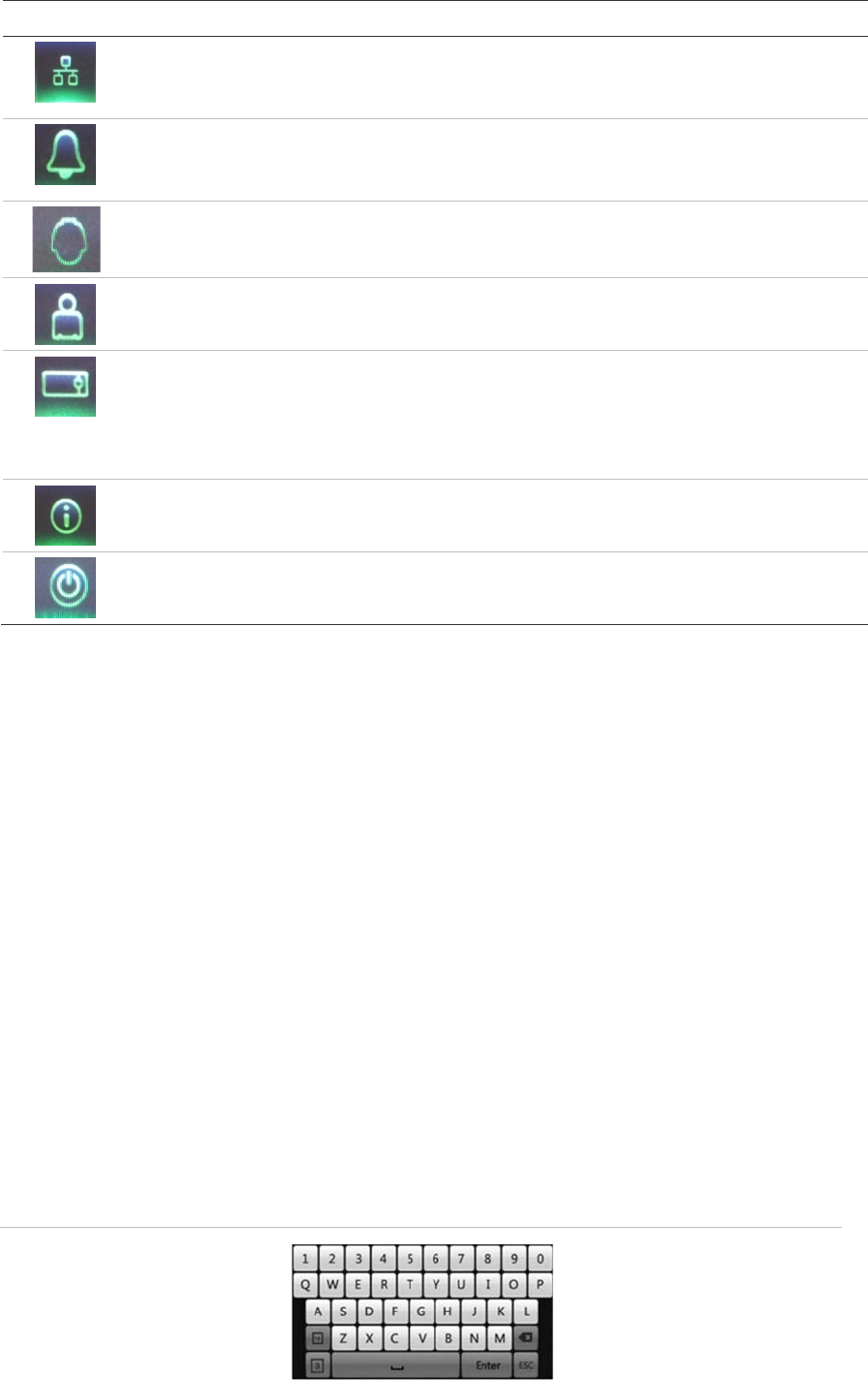
7BChapter 8: Operating instructions
54 TruVision DVR 11 User Manual
Icon Name Description
Network
settings Configures standard network settings including IP address,
email notifications, DDNS setup, and advanced network
settings. See Chapter 6 “Network settings” on page 33.
Alarm settings
Configures alarm settings including alarm input, relay
output, video loss, remote alert, pre-alarm, and post-alarm
seconds. See Chapter 5 “Alarm settings” on page 25.
PTZ
settings Configures PTZ settings. See Chapter 10 “Controlling a
PTZ camera” on page 71.
User
management Configures users, passwords, and access privileges. See
Chapter 15 “User management” on page 107.
System settings
Configures system settings including system date and time,
audio output, device name, RS-485 settings, RS-232
settings, firmware upgrade, hard drive settings, boot log,
and shutdown. See Chapter 7 “HDD management
” on page
43 and Chapter 13 “DVR management” on page 97.
Help
information Provides reference information to the various toolbars,
menus, and keys within the interface.
Pow
er manager Provides access to logout, reboot, and shutdown options.
See “Turning on and off the DVR” on page 13.
To access the main menu:
1. In live view press the Menu button on the remote control or front panel.
- Or -
Right-click the mouse, and select Menu from the pop-up menu.
The main menu window appears. The Display window appears by default.
2. Click the required menu icon to display its submenu options. Modify the
configuration parameters as required.
3. Click Apply to save the settings.
4. Click Back to return to live view.
Using the soft keyboard
A keyboard will appear on-screen when you need to enter characters in a
window option. Click a key to input that character.
Figure 11: The soft keyboard
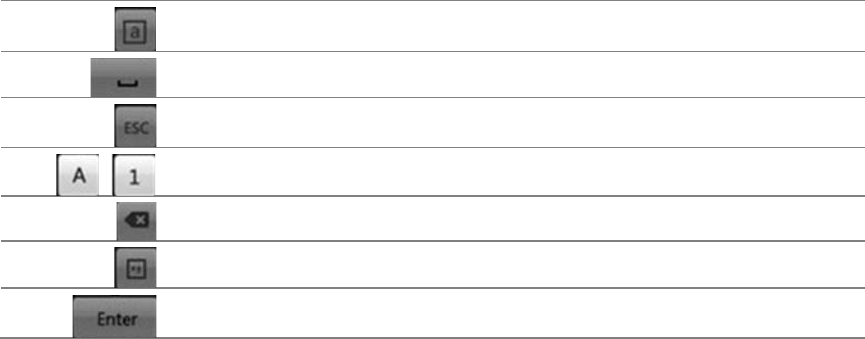
7BChapter 8: Operating instructions
TruVision DVR 11 User Manual 55
Description of the keys in the virtual keyboard:
Switch to lowercase/uppercase
Space
Exit the soft keyboard
Alphanumeric characters
Backspace
Symbols
Confirm selection
Exiting the main menu
Press the Menu button on the front panel to exit the current menu window and
return to live view, or click Back in a main menu.
7BChapter 8: Operating instructions
56 TruVision DVR 11 User Manual
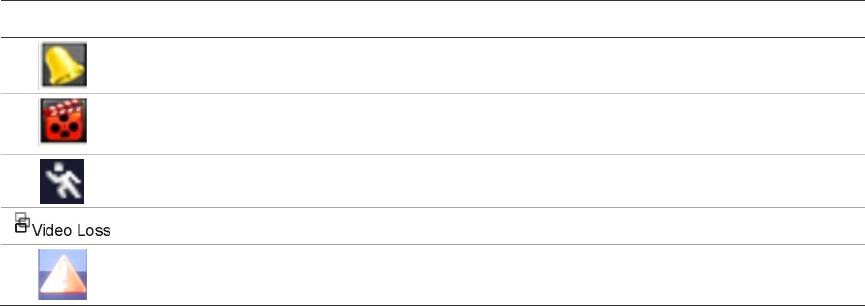
TruVision DVR 11 User Manual 57
Chapter 9
Live view
Description of live view
Live view mode is the normal operating mode of the unit where you watch live
images from the cameras. The DVR automatically enters into live view mode
once powered up. On the viewer you can see whether a recording is in progress
and, if set up to do so, the current date and time, as well as the camera name.
Status information
Information on the system and camera status is displayed as icons on the main
and auxiliary monitors. The camera status icons are shown for each camera.
Each icon represents information on a specific item. These icons include:
Table 7: Description of the on-screen status icons
Icon
Description
Indicates a sensor alarm.
Indicates recording (such as manual recording, motion detection or alarm-
triggered recording).
Indicates a motion detection event.
Indicates a video loss event.
Indicates alarm and system notifications. Clicking the icon opens a window that
lists the alarms and notifications.
The DVR can display more than one icon at the same time. See “General
settings” on page 66 to display or hide these icons.
The system status is displayed on the front panel by the status LEDs.
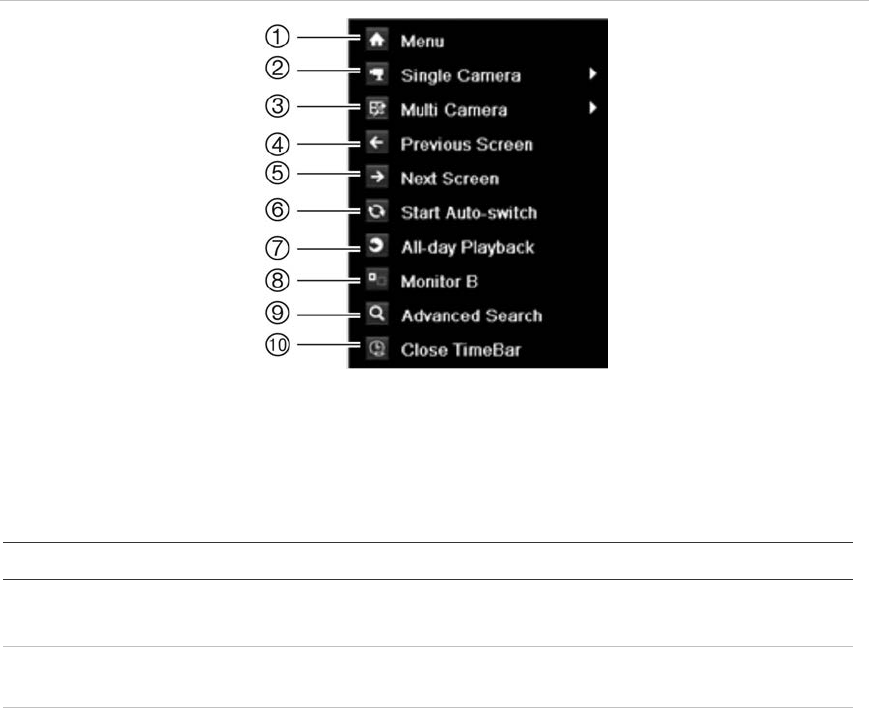
8BChapter 9: Live view
58 TruVision DVR 11 User Manual
Video output
The DVR automatically checks the monitor outputs used. If more than one
monitor is connected, it then defines which monitor is the main one and which is
the event one. The event monitor is used to display detected events such as
motion. Only one monitor can be controlled at a time.
If a HDMI monitor is used, it will be the main output. If HDMI and VGA monitors
are both connected to the DVR, both will be main monitors; they will both show
the same view. However, you will not be able to control each individually.
See “Controlling live view” on page 58 for more information on setting up the
monitors.
Controlling live view
Many features of live view can be quickly accessed by placing the cursor on a
live image and clicking the right-button of the mouse. The mouse menu appears
(see Figure 14 below).
Figure 12: The mouse menu for the main monitor
The list of commands available depends on which monitor is active; main or
auxiliary (monitor B). See Table 9 below. The default settings of these
commands are provided in Appendix G, “Default menu settings” on page 137.
Table 8: Mouse menu for monitor A (main monitor)
Item
Name Description
1.
Menu Enter the Main menu.
This option is not available from monitor B.
2.
Single camera Switch to a full-screen view for the selected camera from
the dropdown list.
3.
Multi camera Switch between the different multiview options from the
dropdown list.

8BChapter 9: Live view
TruVision DVR 11 User Manual 59
Item
Name Description
4.
Previous screen Displays the previous camera.
5.
Next screen Displays the next camera.
6.
Start auto-switch Turn on sequence mode. The window automatically
sequences between cameras. See “Multiview” on page 60.
Go to Menu > Display Mode Settings > Layout > Dwell
Time
to set up.
7.
All-day playback Playback the recorded video of the selected day from the
selected camera. The current day is selected by default.
See “All-day playback” on page 82 for more information.
8.
Monitor B Switch between monitors A (main) and B (event).
9.
Advanced search Enter the advanced video search menu. See “Searching
recorded video” on page 83 for more information.
10.
Close time bar Open/close the time bar.
Table 9: Mouse menu for monitor B (event monitor)
Item
Name Description
1
. Single camera Switch to a full-screen view for the selected camera from
the dropdown list.
2
. Multi camera Switch between the different multiview options from the
dropdown list.
3
. Previous screen Displays the previous camera.
4
. Next screen Displays the next camera.
5
. All-day playback Playback the recorded video of the selected day from the
selected camera. The current day is selected by default.
See “All-day playback” on page 82 for more information.
6
. Monitor A Switch between monitors A (main) and B (event).
Single and multiview display formats
The DVR has single-view display format as well as four multiview formats.
Single view display format
Press the numeric button on the front panel to switch to the corresponding
camera display. For example, press button 10 to view camera 10.
Right-click the mouse and select Single Camera from the menu. Select the
camera required from the list.

8BChapter 9: Live view
60 TruVision DVR 11 User Manual
Multiview display format
A video tile is any cell in a multiview display. A camera image can only be shown
in one video tile at a time. The number of multiview display formats available
depends on the DVR model. See Figure 15 below.
To change the multiview display that appears by default, go to the Display menu.
See “Changing the camera sequence” on page 64 for more information.
Figure 13: TVR 11 multiview display formats
4-channel DVR:
8/16-channel DVR:
To select a multiview display format:
1. Press the Display button on the front panel to cycle through different display
formats.
You can also right-click the mouse and select Multi Camera from the menu.
Select the desired multiview display layout.
Sequencing cameras
The sequencing feature allows a camera to be displayed briefly on screen,
before advancing to the next camera in the sequence list. Sequencing can only
be done in single-view display mode.
The default sequence displays each camera in numerical order. However, each
camera on the main and auxiliary monitors can have a pre-programmed dwell
time and sequence order. See “Changing the camera sequence” on page 64 for
more information.
Note: Dwell time must not be set to zero for sequencing to function.
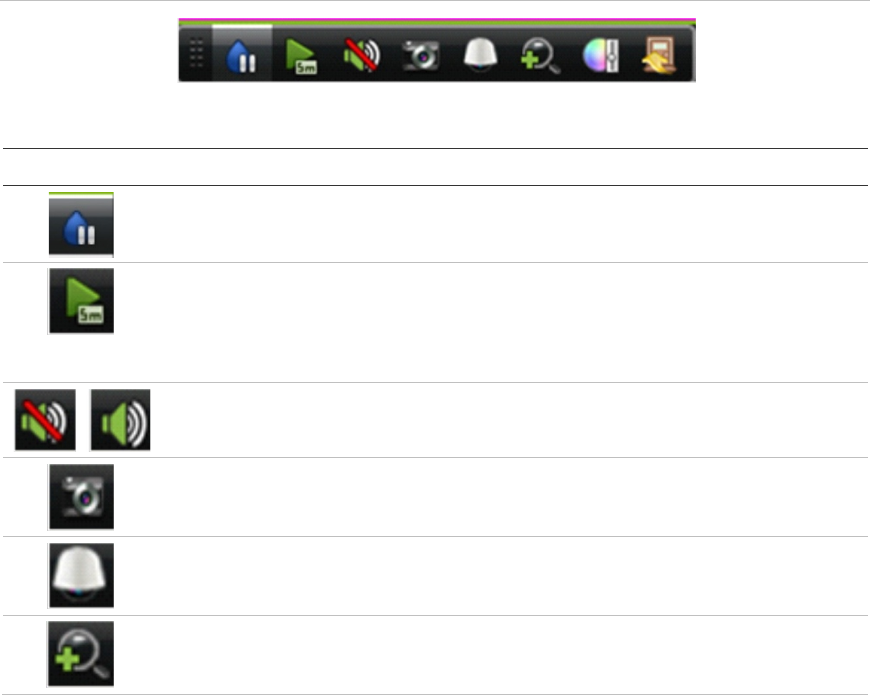
8BChapter 9: Live view
TruVision DVR 11 User Manual 61
Sequencing live view mode using the front panel:
1. Select the camera where you want to start sequencing.
2. Press the Seq button on the front panel to start sequencing.
3. Press the Seq button again to stop the sequencing.
Sequencing live view mode using the mouse:
1. Select the camera where you want to start sequencing.
2. Right-click the mouse and select Start auto-switch to start the sequencing.
3. Right-click the mouse and select Stop auto-switch to stop the sequencing.
Accessing frequently used commands
The quick access toolbar in live view lets you quickly access regularly used
commands. Position the cursor over a video image and left- click the mouse. The
toolbar appears (see Figure 16 on page 61).
Figure 14: Quick access toolbar
Table 10: Description of the quick access toolbar icons
Icon Description
Freeze: Freeze the live image of the selected camera. Although the image
pauses, time and date information does not. The system clock continues to run.
Instant playback: Playback the recorded video from the last five minutes. If no
recording is found, then there was no recording made in the last five minutes.
Click the icon and select the desired camera. Click OK.
See “Instant playback” on page 81 for more information.
Audio: Enable/Disable audio output. The audio option must already have been
setup in the Display menu.
Quick snapshot: Capture a snapshot of a video image. The image is saved
on
the unit. See “Slideshow of snapshots” on page 86 for more information.
PTZ control: Enter PTZ control mode.
See “Configuring PTZ settings” on page 71 for more information.
Digital zoom: Enter digital zoom. See “Digital zoom” on page 62 for further
information.
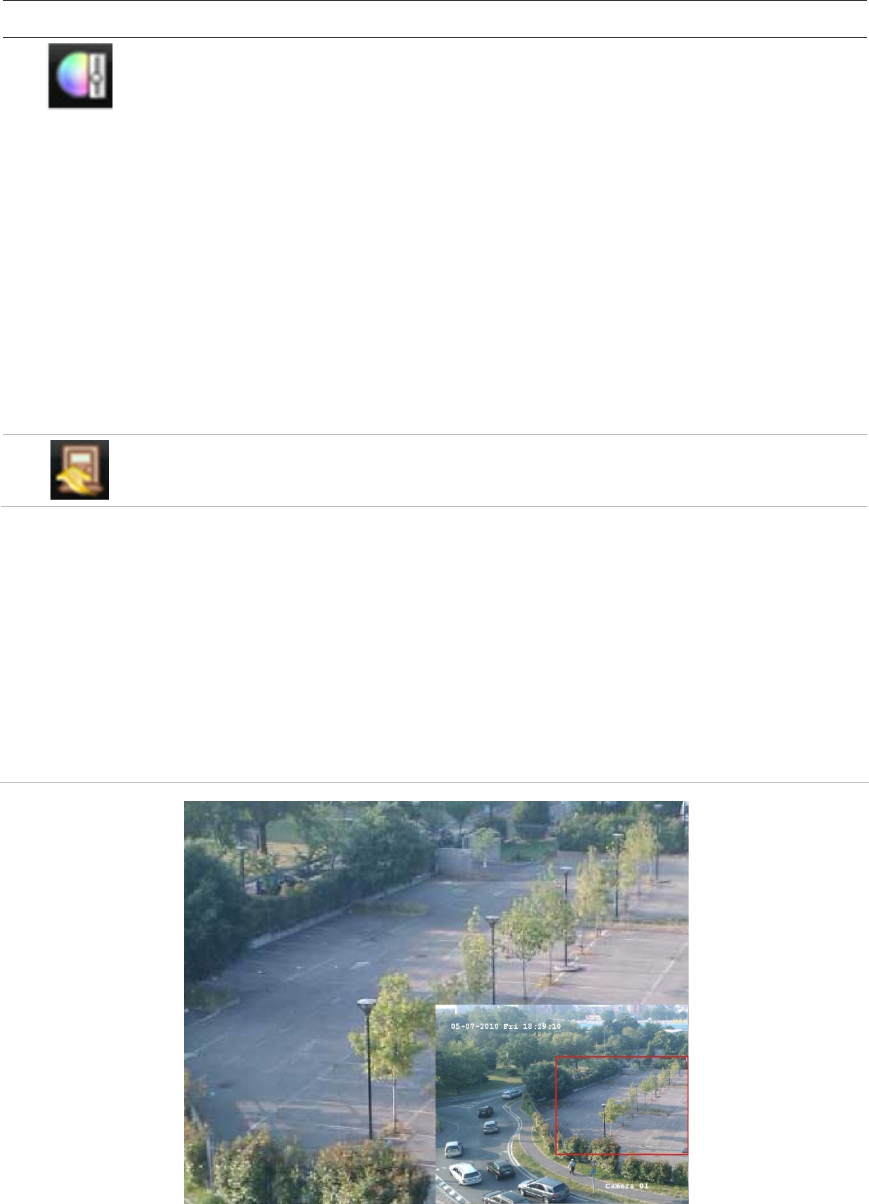
8BChapter 9: Live view
62 TruVision DVR 11 User Manual
Icon Description
Image settings: Enter the image settings menu to modify the image lighting
levels. There are two options:
Preset Mode: These are preconfigured image lighting levels. Select one of the
four options depending on current lighting conditions:
- Standard: Use in standard lighting situations.
- Indoor: Use indoors.
- Dim Light: Use when the light level is low.
- Outdoor: Use when outdoors. The contrast and saturation values are
high.
Customize: Modify brightness, contrast, saturation, and hue values. Click
Restore to restore image settings to previous values.
Click Restore to restore image settings to previous values.
These settings can also be modified from the Camera>Image menu (see page
“Adjusting video image settings” on page 105.
Close toolbar: Close the shortcut toolbar.
Digital zoom
You can easily zoom in or out of a camera image in live view mode and playback
using the digital zoom command. The zoom command magnifies the camera
image four times. See Figure 17 below.
Figure 15: Digital zoom window
To quickly zoom in/out on a camera image:
1. Select the camera you wish to use.
2. Left-click the mouse and select the digital-zoom icon. The digital view window
appears.
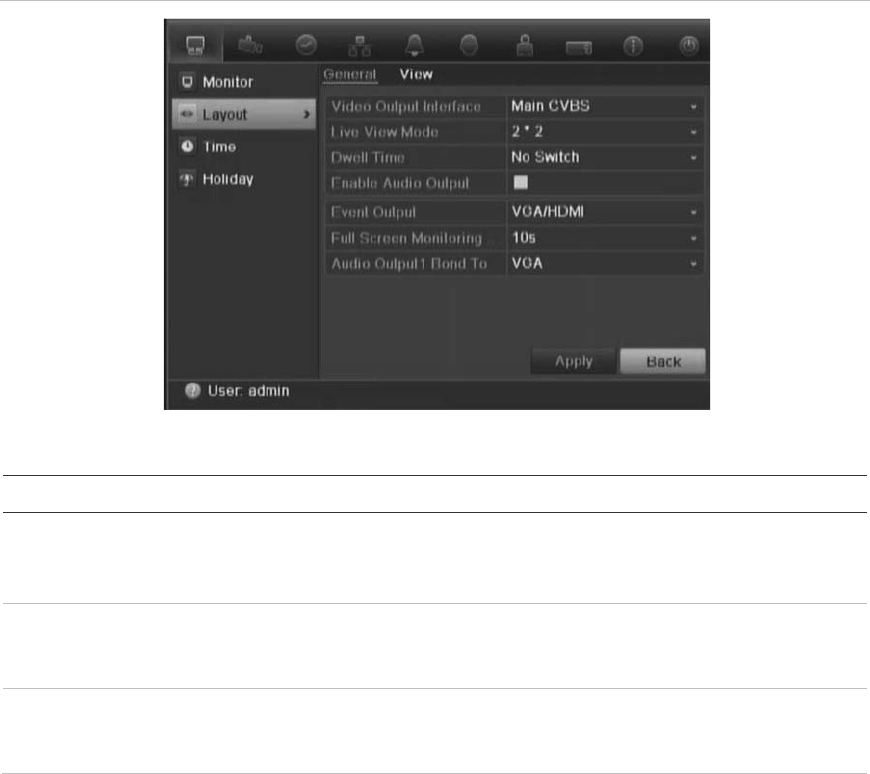
8BChapter 9: Live view
TruVision DVR 11 User Manual 63
3. Left-click the mouse and drag the red square to the area of interest, or press
the arrow button on the front panel to position the red square. The selected
area is magnified.
4. To exit digital zoom, right-click the mouse.
Configuring live view
The setup of live view can be modified from the main menu to suit different
needs, such as the different monitors, multiview layout, and dwell time options.
You can also enable audio output.
In the Layout menu use the Video output interface, Live view mode, Dwell time,
and Enable audio output settings to configure the main monitor. Use Event
output and Full screen monitoring dwell time settings to configure the event
monitor.
Figure 16: Layout window (General tab)
Table 11: Description of the layout window
Submenu name
Description
Video output interface
Select which monitor will be the main monitor: HDMI/VGA, or main
CVBS.
Default is HDMI/VGA, if connected.
Live view
mode Select which multiview layout will be default in live view mode. The
factory default multiview format displays all channels (3x3 layout for
the 4-channel TVR 11 and 4x4 layout for the 8/16-channel TVR 11).
D
well time Set the length of time for which a camera image is displayed on the
selected monitor before moving to the next camera during
sequencing. Default is off (“No switch”).
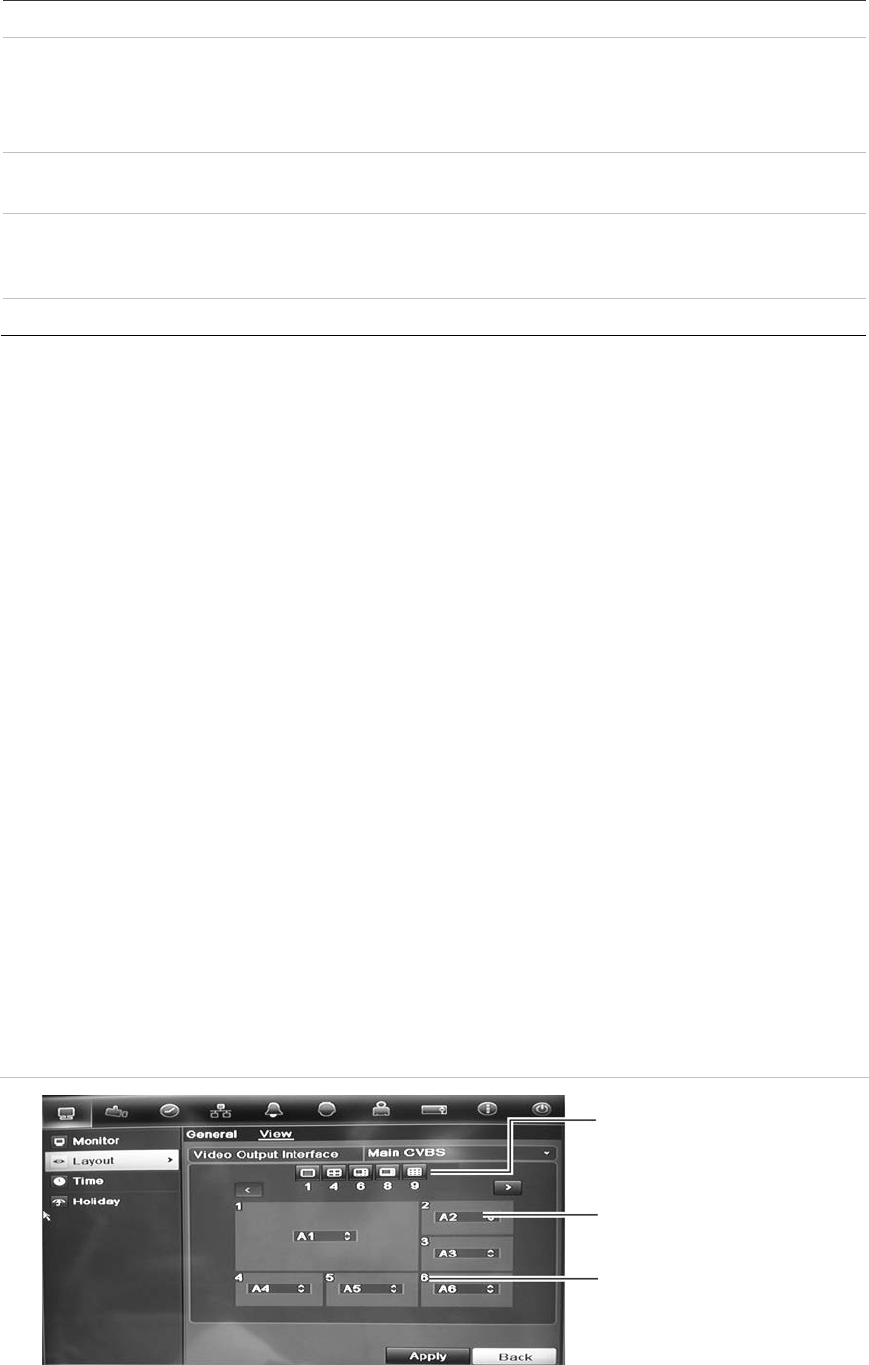
8BChapter 9: Live view
64 TruVision DVR 11 User Manual
Submenu name
Description
Enable audio out
You can hear audio from cameras in both live and playback mode.
However, in order to be able to hear audio in playback you must
enable the audio output setting.
Check the box to enable/disable audio output.
Even
t output Select which monitor will be the event monitor: HDMI/VGA, or main
CVBS. Default is main CVBS.
Full screen monitoring
dwell time
Set the length of time for which an alarm event appears on the event
(B) monitor before moving to the next camera during sequencing.
Default is 10 seconds.
Audio output bound
to Select from which monitor (main or event) audio can be heard.
To set up the display options:
1. Click the Display Mode Settings icon in the menu toolbar.
2. Select Layout > General.
3. Specify the desired settings for each of the menu options.
4. Click Apply to save the settings.
5. Click Back to return to live view.
Changing the camera sequence
The cameras are sequenced in numeric order by default. You can change the
sequence order of the cameras for all monitors.
You can switch the channel of a camera with that of another camera in the
system. This lets you, for example, have the images of camera 1 appear on
channel 10, and the images of camera 10 appear on channel 1. This feature is
useful when you want to watch the sequence of images from specific cameras so
that they are next to each other on-screen.
See Figure 19 below. Each video tile displays both the order of the camera in the
sequence and the camera number.
Figure 17: Camera layout and sequence window (4-channel DVR shown)
Multiview layout selection bar
Camera order in the
sequence
Camera number selection
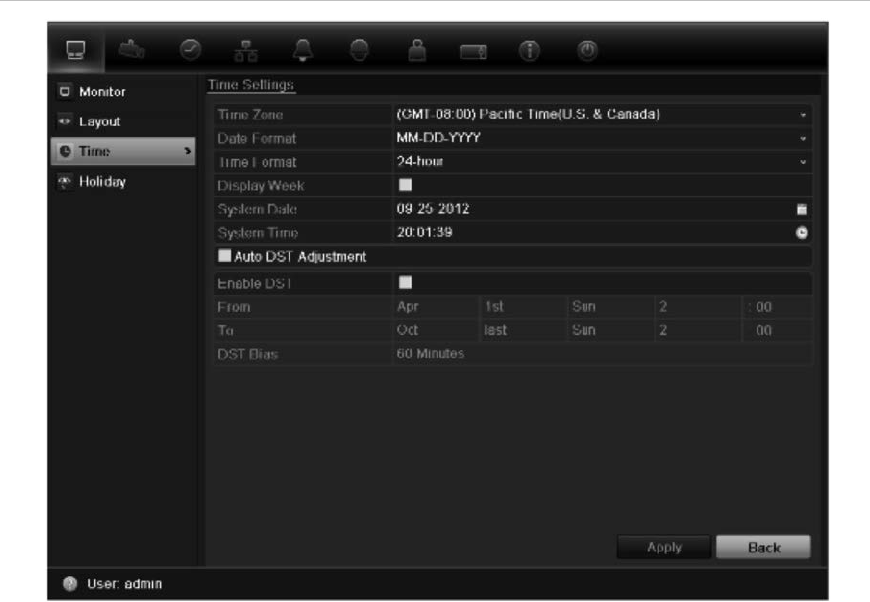
8BChapter 9: Live view
TruVision DVR 11 User Manual 65
To set the camera sequencing:
1. Click the Display Mode Settings icon in the menu toolbar.
2. Select Layout > View.
3. From Video Output Interface, select the desired monitor from the drop-down
list.
4. From the multiview layout selection bar, select the desired multiview layout.
5. Select the video tile of the camera whose order you want to change. The
selected tile is highlighted green.
6. In the selected tile, select the new camera sequence order by scrolling the
through the list of available camera numbers.
Note: “X” means that the camera is not displayed.
7. Click Apply to save the settings.
8. Click Back to return to live view.
Configuring time and date
You can set up the date and time that will appear on-screen as well as on time
stamped recordings. The start and end time of daylight savings time (DST) in the
year can also be set. DST is deactivated by default. See Figure 20 below for the
Time settings screen.
Figure 18: Time and date settings window

8BChapter 9: Live view
66 TruVision DVR 11 User Manual
Table 12: Description of the Time and date settings window
Option
Description
Time zone
Select the time zone of the DVR from the drop-down list.
Date format
Select the date format from the drop-down list. Default format is DD-
MM-YYYY.
T
ime format Select the time format from the drop-down list. Default format is 24-
hour format.
Display week
Display the day of the week in the monitor time bar.
Check the box to enable/disable. Default format is Disable.
System date
Define the system date.
Default date is the current date.
System
time Define the system time.
Default time is the current time.
Auto DST adjustment
Define DST is automatically. It depends on the time zone selected.
Default format is Disable
Enable DST
Manually define DST. If this option is selected, the Auto DST
adjustment option is disabled.
Default format is Disable.
Click the check box to enable or disable daylight savings time
(DST).
From
Enter the start date and time for daylight savings.
To
Enter the end date and time for daylight savings.
DST
bias Set the amount of time to move DST forward from the standard
time.
Default is 60 minutes.
To set up the system time and date:
1. Click the Display Mode Settings icon in the menu toolbar.
2. Select Time. Modify the required settings.
3. Click the Apply button to immediately implement the changes.
General settings
Use the Display mode settings menu to configure general DVR options on how
information is displayed and accessed such as:
• Change GUI language
• Change the DVR name and address
• Define the monitor resolution
• Enable/disable the login password requirement
• Enable/disable the Wizard
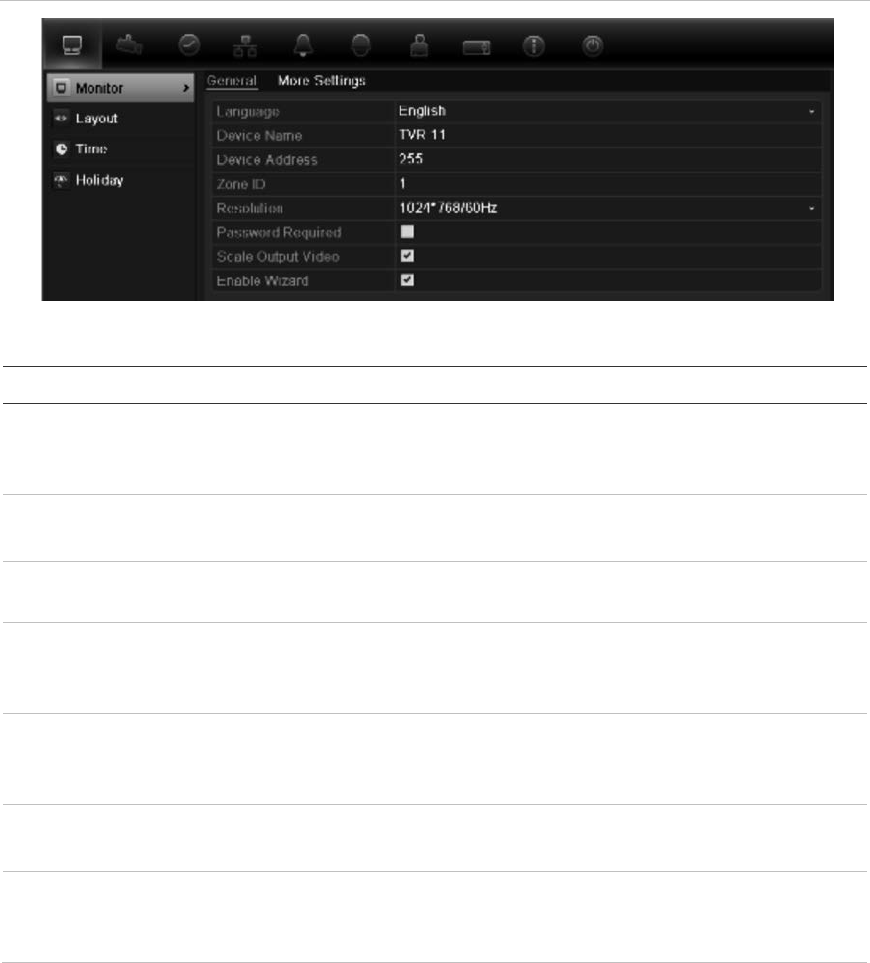
8BChapter 9: Live view
TruVision DVR 11 User Manual 67
• Manually change the video output format (PAL/NTSC)
• Change the time out period after which the display reverts to showing live
view
• Enable/disable the transparency of the menus on screen
• Enable/disable whether the status icons appear on screen
See Figure 21 and Table 14 on page 67 for the general options available, and
Figure 22 and Table 15 on page 68 for further options.
The changes are immediately implemented once Apply is clicked to save the
settings.
Figure 19: Monitor setup window: General settings
Table 13: Description of the Monitor setup window: General settings
Option
Description
Language
Define the language of the system.
Select the desired language from the drop-down list and click
Apply. The language displayed changes immediately.
Device name
Define the DVR name. The default name is TVR 11.
Click the edit box and enter the new name from the soft keyboard.
Device address
The device number to use for the DVR when programming the
remote control or keypad. The default value is 255.
Zone ID
Each DVR in a daisy chain must have a unique zone ID so that it
can be controlled by a KTD-405 keypad.
The default value is 1.
R
esolution Define the resolution of the selected monitor.
Select one of the options from the drop-down list and click Apply.
The selected resolution must be the same as that of the monitor.
Password
required Define whether a login password is required.
Check the box to enable/disable, and click Apply.
Scaling
output video Enable/disable the monitor display of the main and auxiliary monitor
size to accommodate for differently sized monitors.
Check the box to enable/disable, and click Apply.
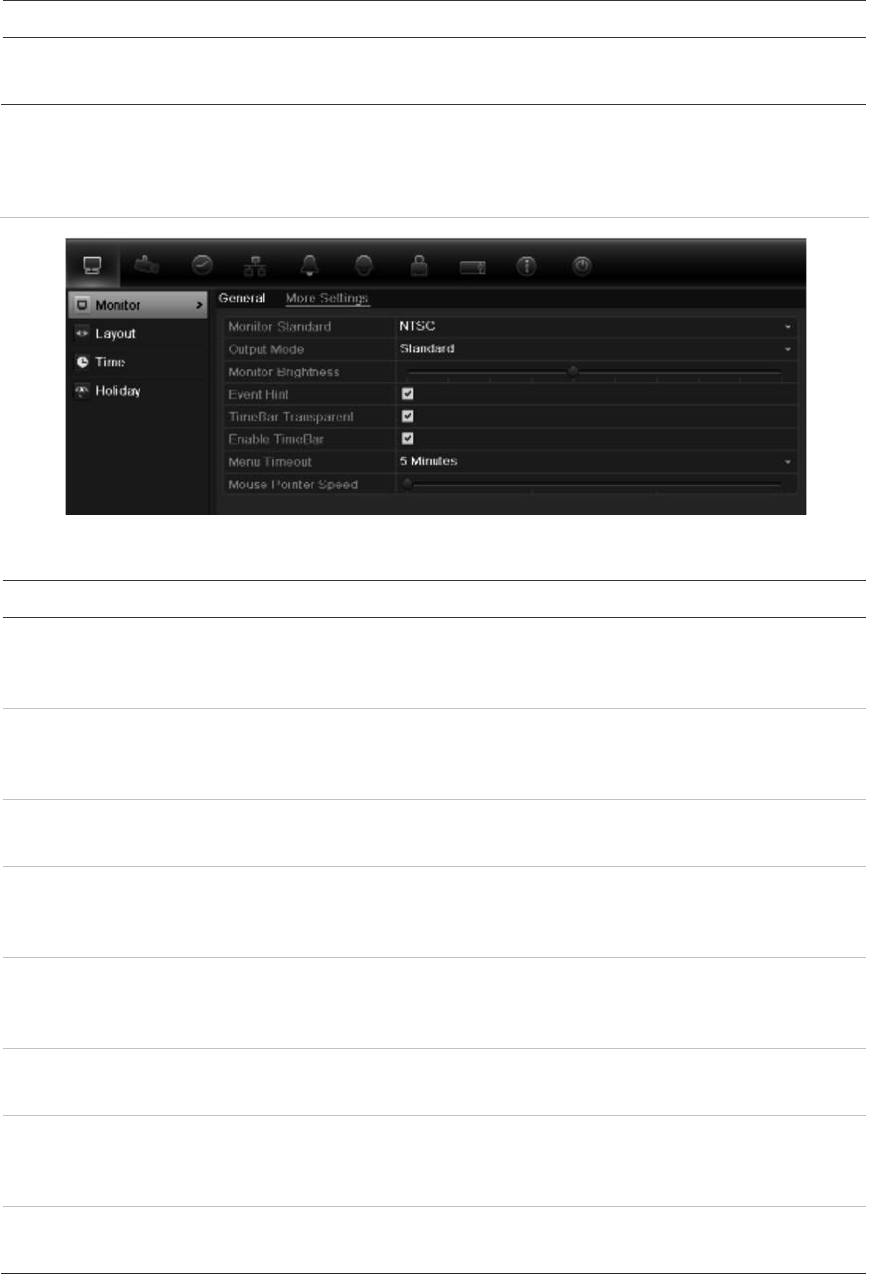
8BChapter 9: Live view
68 TruVision DVR 11 User Manual
Option
Description
Enable wizard
Define whether the wizard tool starts when the DVR is turned on.
Check the box to enable/disable, and click Apply.
Figure 20: Monitor setup window: More settings
Table 14: Description of the Monitor setup window: More settings
Option
Description
Monitor standard
The DVR can support NTSC or PAL video output. The video
standard used is auto detected but can be manually changed.
Modify the video standard used to PAL or NTSC, and click Apply.
Output mode
Define the desired output mode.
Select one of the options from the drop-down list: Standard, Bright,
Gentle, or Vivid, and click Apply.
Monitor brightness
Modify the video output brightness.
Adjust the scroll bar point to the desired level and click Apply.
Event hint
Define whether the status icons appear on screen. See “Status
information” on page 57 for more information.
Check the box to enable/disable, and click Apply.
Timebar t
ransparent Define the transparency of the monitor output time bar on screen
relative to the background to make the time bar easier to read.
Check the box to enable/disable, and click Apply.
Enable timebar
Define whether the monitor output time bar appears on screen.
Check the box to enable/disable, and click Apply.
Menu timeout
Define the time in minutes after which the menu window reverts to
live view mode.
Select a time from the drop-down list, and click Apply.
Mouse pointer speed
Modify the speed of the mouse pointer.
Adjust the scroll bar point to the desired level, and click Apply.

8BChapter 9: Live view
TruVision DVR 11 User Manual 69
V-stream encoding
If the available bandwidth is limited, you can remotely view several channels in
real time with one stream over the web browser or CMS (Client Management
System), such as TruVision navigator, using the V-stream encoding option (“V”
stands for “virtual”). When enabled, you can see the output from the cameras on
a remote client monitor in one stream.
Note: It is not recommended to use the V-stream feature when a CVBS monitor
is used as a main monitor because the CVBS main monitor and the V-stream
use the same output.
To enable V-streaming:
1. Click the Video Schedule icon in the menu toolbar.
2. Select Encoding > V-stream Encoding.
3. Check Enable V-stream Encoding.
4. Select the desired settings for frame rate, and maximum bit rate (Kbps).
Note: The maximum bit rate option is set to “General” only.
5. Click Apply to save the settings.
8BChapter 9: Live view
70 TruVision DVR 11 User Manual
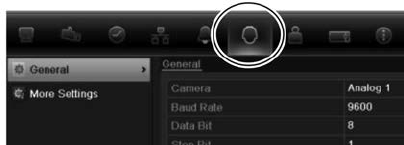
TruVision DVR 11 User Manual 71
Chapter 10
Controlling a PTZ camera
You can control PTZ dome cameras using the buttons on the front panel, the
keypad, and IR remote control as well as using the PTZ control panel accessed
with the mouse. Access to PTZ commands may require a password.
A detailed list of the PTZ commands available for many different camera
protocols is available in Appendix F on page 137.
Configuring PTZ settings
Use the PTZ Settings menu to configure the PTZ dome cameras. Each camera
must be set up individually. Cameras must be configured before they can be
used.
Ensure that the PTZ dome cameras are correctly connected to the RS-485 port
on the back panel.
Note: If a camera does not work correctly after configuring the DVR, check the
parameters entered.
To configure PTZ dome camera settings:
1. Click the PTZ Control icon on the quick access toolbar.
– Or –
Click the PTZ Settings icon in the menu toolbar.
2. Click General and select the PTZ dome camera to be configured from the
drop-down camera list.
3. Select the baud rate, data bit, stop bit, parity, flow control, PTZ protocol and
address for the camera. See Appendix G, “Default menu settings”, on page
137 for the default values.
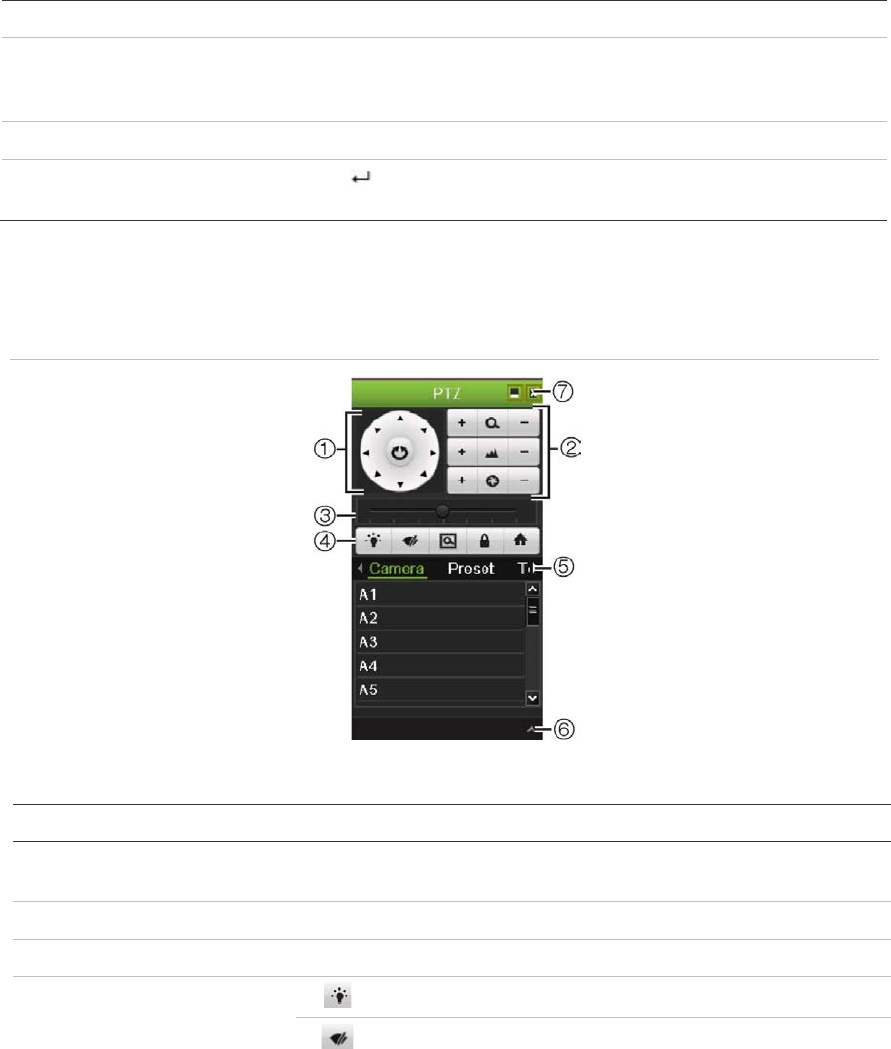
9BChapter 10: Controlling a PTZ camera
72 TruVision DVR 11 User Manual
Note: It is important to ensure that the settings correspond with those used in
the PTZ camera.
4. Click Copy to copy the settings to another camera, if required.
5. Click Apply to save the settings.
Calling up presets, tours and shadow tours
When in live view you can quickly call up the list of existing presets, preset tours
and shadow tours by using the front panel, remote control, mouse and keypad.
Front panel Press Enter. PTZ control panel appears.
Mouse Right-click the mouse on the desired camera image. The quick access
toolbar appears. Click the PTZ control icon to enter PTZ mode. The PTZ
control panel appears.
Remote control Press the OK button. The PTZ control panel appears.
Keypad Press the Enter button on the keypad. For further information, see KTD-
405 keypad on page 127.
If the display was in multiview format, it changes to full-screen format for the
selected camera. See Figure 23 below for a description of the PTZ control panel.
Figure 21: PTZ control panel
Table 15: Description of the PTZ control panel
Item
Name Description
1.
Directional pad/auto-
scan buttons Controls the movements and directions of the PTZ. Center button
is used to start auto-pan by the PTZ dome camera.
2.
Zoom, focus and iris Adjusts zoom, focus and iris.
3.
PTZ movement Adjusts the speed of PTZ movement.
4
. Toolbar
Turns on/off camera light.
Turns on/off camera wiper.
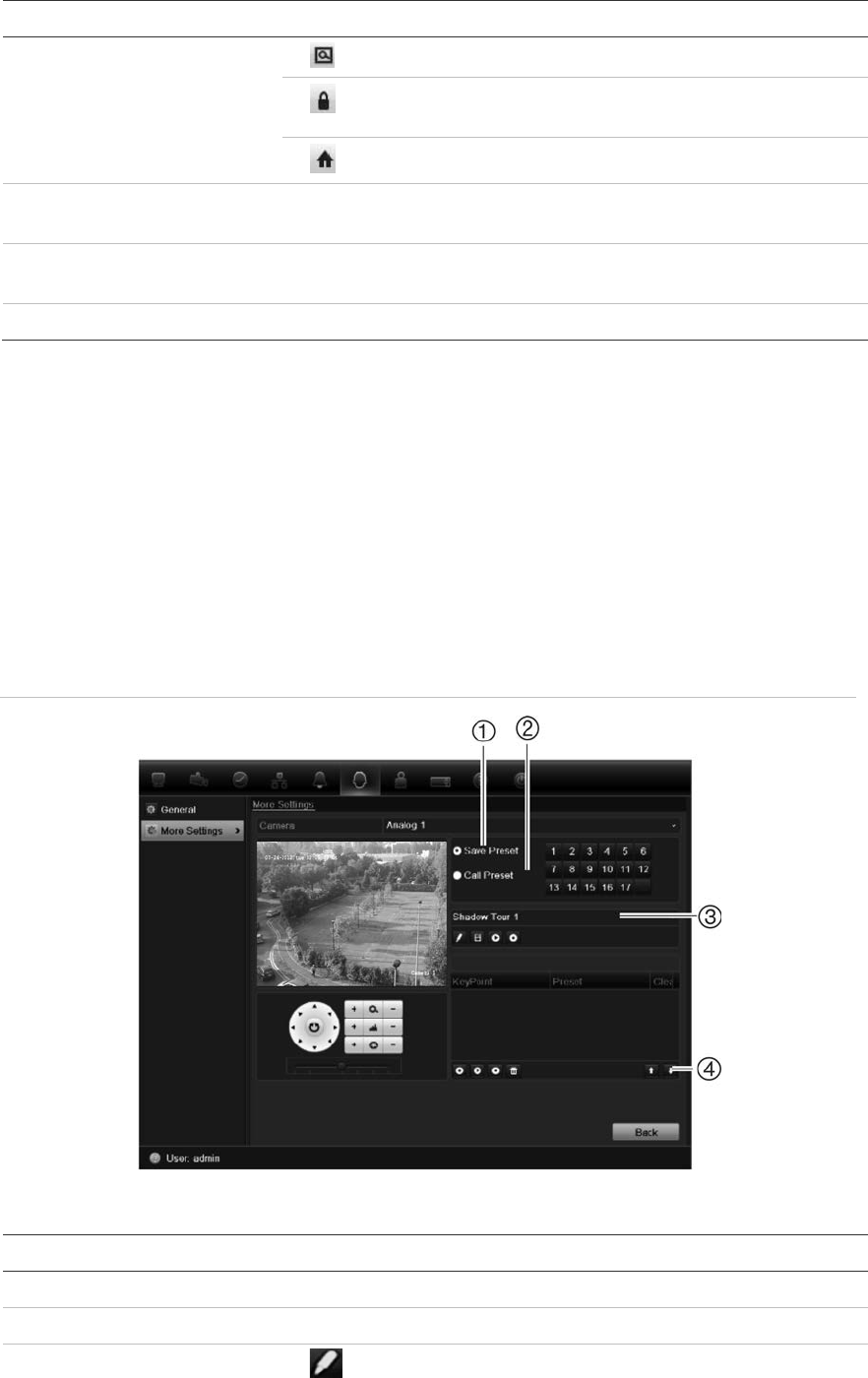
9BChapter 10: Controlling a PTZ camera
TruVision DVR 11 User Manual 73
Item
Name Description
Zoom area.
Centers the PTZ dome camera image. This command is
not supported on all PTZ dome cameras.
Jumps to the home position.
5
. Select PTZ command Displays the desired function from the scroll bar: camera, preset,
preset tour or shadow tour.
6.
Open/close menu Opens/closes the PTZ command section of the PTZ control
panel.
7.
Exit Exits the PTZ control panel.
Setting and calling up presets
Presets are previously defined locations of a PTZ dome camera. It allows you to
quickly move the PTZ dome camera to a desired position. They are configured
and modified from the PTZ configuration window (see Figure 24 below).
Note: The PTZ dome camera used must be able to support a preset command.
See Appendix F on page 137 for the complete list of PTZ commands available by
camera protocol.
Figure 22: PTZ configuration window
Table 16: Description of the PTZ configuration window
Item
Name Description
1
. Save preset Saves preset.
2
. Call preset Calls up pre-existing preset.
3
. Shadow tour toolbar
Starts recording the shadow tour.
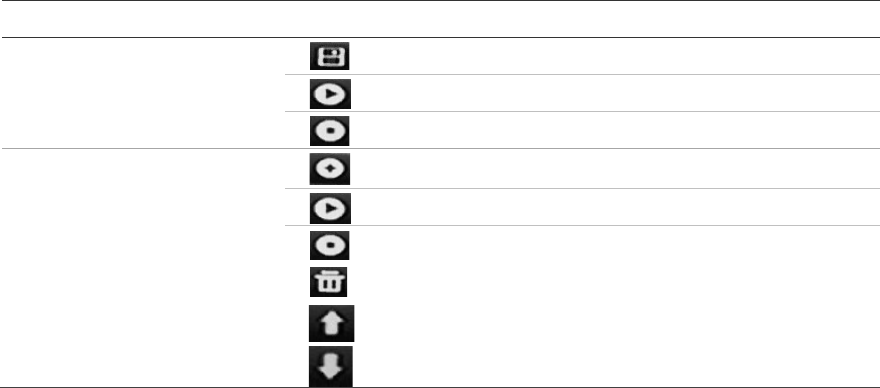
9BChapter 10: Controlling a PTZ camera
74 TruVision DVR 11 User Manual
Item
Name Description
Saves the shadow tour.
Starts the selected shadow tour.
Deletes the selected shadow tour.
4
. Preset tour toolbar
Adds a step to a selected preset tour.
Starts the selected preset tour.
Stops the selected preset tour.
Deletes all the preset tour steps.
Scroll up the list.
Scroll down the list.
To set up a preset:
1. Click the PTZ Settings icon on the menu toolbar and select More Settings.
2. Use the directional, zoom, focus and iris buttons to position the camera in the
desired preset location.
3. Check Save Preset and enter a preset number. The preset is enabled and
stored in the camera.
If the desired preset number is larger than the 17 numbers listed, click […].
The Preset window appears. Select a preset number from the dropdown list
and click the OK button to save changes.
Note: Presets can be overwritten.
4. Click Back to return to live view.
To call up a preset:
• PTZ control panel:
1. In live view left-click the mouse and select the PTZ control icon in the quick
access toolbar. The PTZ control panel appears. Select the desired camera
from the toolbar.
– Or –
On the front panel, select the desired camera and press Enter to call up the
quick access toolbar. The PTZ control panel appears.
2. Scroll the toolbar to Preset and double-click the desired preset from the list.
The camera immediately jumps to the preset position.
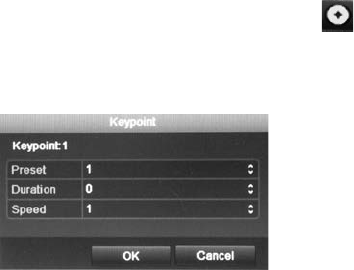
9BChapter 10: Controlling a PTZ camera
TruVision DVR 11 User Manual 75
• Menu toolbar:
1. Click the PTZ Settings icon on the menu toolbar and select More Settings.
The PTZ configuration window appears.
2. Check Call Preset and enter the preset number to call up. The camera
immediately moves to that preset position.
3. Click Back to return to live view.
Setting and calling up preset tours
Preset tours move a PTZ dome camera to different steps (called “Keypoint” in the
interface). The camera stays at a step for a set dwell time before moving on to
the next step. The steps are defined by presets (see “Setting and calling up
presets” on page 73.)
Each preset tour consists of steps. A step consists of a step number, a dwell
time, and a speed.
The step number is the order the camera will follow while cycling through the
preset tour. The dwell time is the length of time for which a camera stays at a
step before moving to the next one. The speed is the rate at which the camera
will move from one key point to the next.
Note: The PTZ dome camera used must be able to support a preset tour
command. See Appendix F on page 137 for the complete list of PTZ commands
available by camera protocol.
To set up a preset tour:
1. Click the PTZ Settings icon on the menu toolbar and select More Settings.
2. Select the preset tour number.
3. In the preset tour toolbar, click to add a step to the preset tour. The
Keypoint window appears. Select the preset number, dwell time and speed of
the step. Click OK to save the settings.
Note: A preset tour should have at least two presets.
4. Repeat step 3 to configure other steps in the preset tour.
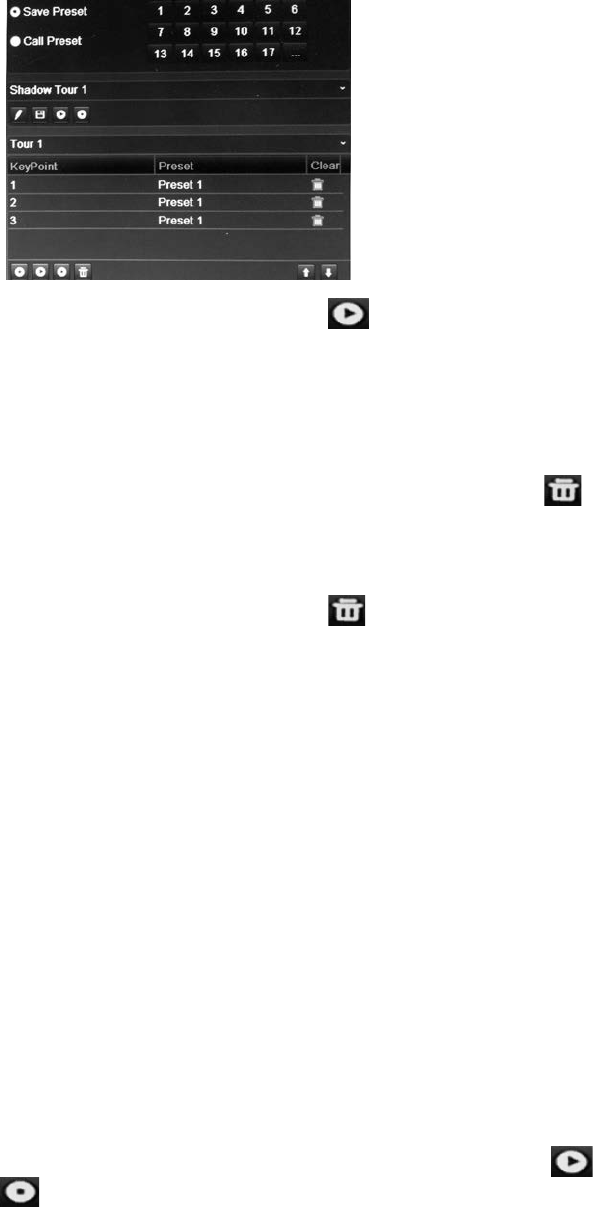
9BChapter 10: Controlling a PTZ camera
76 TruVision DVR 11 User Manual
5. In the preset tour toolbar, click to call up the preset tour.
6. Click Back to return to live view.
To delete a preset tour:
1. Click the PTZ Settings icon on the menu toolbar and select More Settings.
2. From the preset list, select a tour number and click to delete the selected
the preset tour.
– Or –
In the preset tour toolbar, click to delete all the preset tours.
3. Click Back to return to live view.
To call up a preset tour:
• PTZ control panel:
1. In live view left-click the mouse and select the PTZ control icon in the quick
access toolbar. The PTZ control panel appears. Select the desired camera
from the toolbar.
– Or –
On the front panel, select the desired camera and press Enter to call up the
quick access toolbar. The PTZ control panel appears.
2. Scroll the toolbar to Tour and double-click the desired preset tour from the
list. The camera immediately carries out the preset tour movement.
• Menu toolbar:
1. Click the PTZ Settings icon on the menu toolbar and select More Settings.
2. Select the desired preset tour from the list and click to start the tour. Click
to stop the preset tour.
3. Click Back to return to live view.

9BChapter 10: Controlling a PTZ camera
TruVision DVR 11 User Manual 77
Setting and calling up a shadow tour
The shadow tour command remembers the manually-controlled PTZ dome
camera movement track. One shadow tour can be set up.
Note: The PTZ dome camera used must be able to support a shadow tour
command. See Appendix F on page 137 for the complete list of PTZ commands
available by camera protocol.
To set up a shadow tour:
1. Click the PTZ Settings icon on the menu toolbar and select More Settings.
2. Select the shadow tour from the list.
3. To record a new shadow tour, click and use the directional buttons on the
PTZ control panel to move the camera along the desired path.
4. Click to save the shadow tour.
Note: The shadow tour can be overwritten.
5. Click Back to return to live view.
To call up a shadow tour:
• PTZ control panel:
1. In live view left-click the mouse and select the PTZ Control icon in the quick
access toolbar. The PTZ control panel appears. Select the desired camera
from the toolbar.
– Or –
On the front panel, select the desired camera and press Enter to call up the
quick access toolbar. The PTZ control panel appears.
2. Scroll the toolbar to Shadow Tour and double-click the shadow tour from the
list. The camera immediately carries out the shadow tour movement.
• Menu toolbar:
1. Click the PTZ Settings icon on the menu toolbar and select More Settings.
2. Select the shadow tour from the list and click to start the tour. Click
to stop the shadow tour.
3. Click Back to return to live view.
9BChapter 10: Controlling a PTZ camera
78 TruVision DVR 11 User Manual
TruVision DVR 11 User Manual 79
Chapter 11
Playing back a recording
The DVR lets you to quickly locate and play back recorded video. There are four
ways to play back video:
Instant playback of the most recently recorded video
All-day playback of the day’s recorded video
Search the video archives by specific time, date, snapshot or event
Search the system log
The DVR continues to record the live view from a camera while simultaneously
playing back video on that camera display. You must have the access privilege to
play back recordings (see “Customizing a user’s access privileges” on page 108
for more information).
Cameras in multiview mode play back simultaneously. This means, for example,
that it is easy to follow the path of an intruder who has passed in front of several
cameras.
You must be in live view to play back video.
Overview of the playback window
It is easy to manage playback from the playback window.
The camera can be setup to display a time/date stamp during recording. The
playback video can be set up to display a time/date stamp for evidentiary
purposes (see Configuring the OSD settings on page 103).
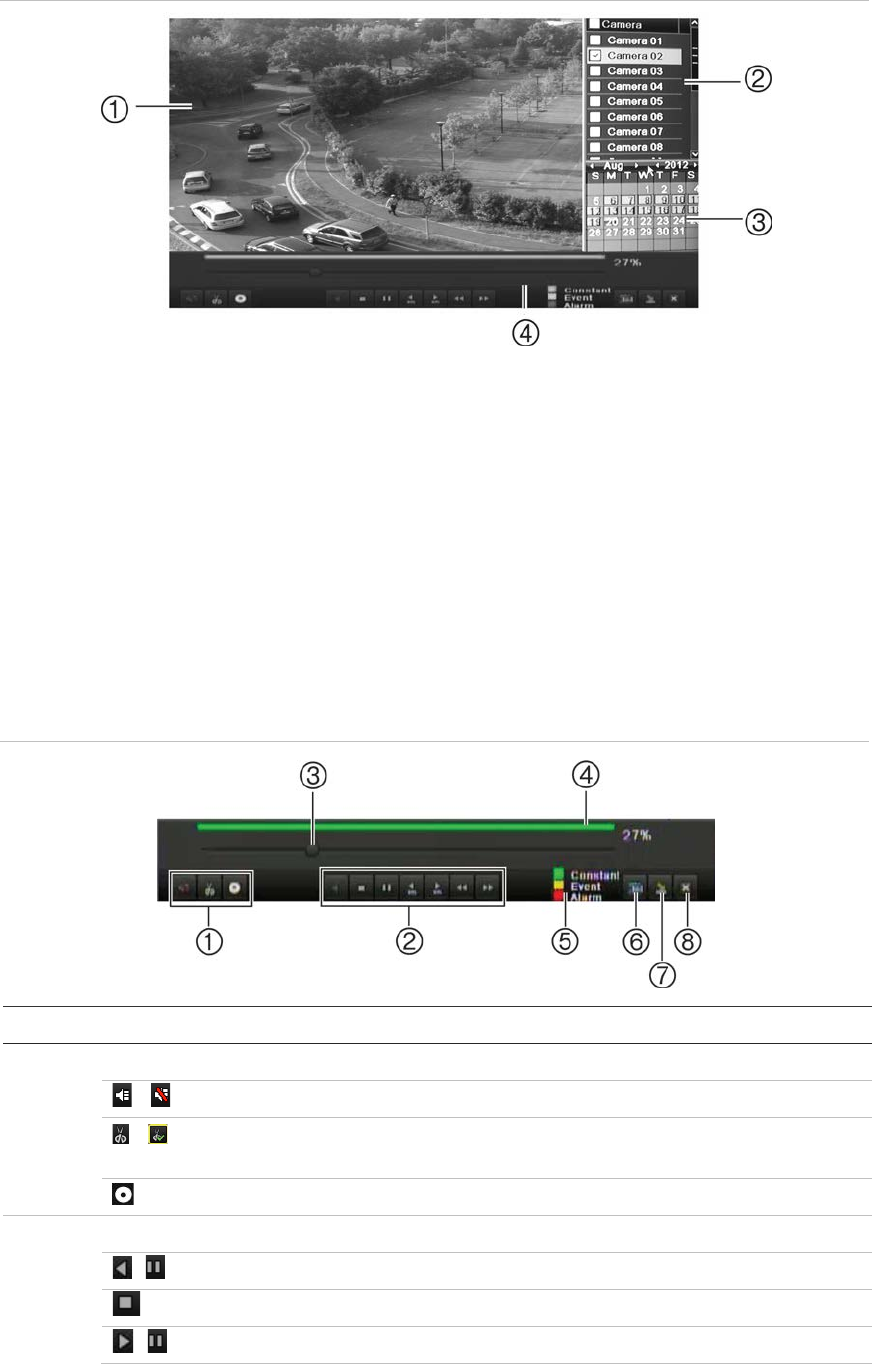
10BChapter 11: Playing back a recording
80 TruVision DVR 11 User Manual
Figure 23: Playback window
1. Playback viewer.
2. Camera panel. Select the cameras for
playback. Move the mouse over the area to
display the list of cameras available.
3. Calendar panel.
Blue: Current date
Yellow: Recordings available on the DVR.
4. Playback control toolbar. See Figure 26.
The playback control toolbar
It is easy to manually control playback using the playback control toolbar. See
Figure 26 below.
Note: The control toolbar does not appear for instant playback.
Figure 24: Playback control toolbar (search playback example shown)
Ite
m Description
1
. Audio and video control toolbar:
/ Audio on/off.
/ Start/stop a video clip during playback. Sections of a recording can be
saved to an external storage device.
Archive files
2
. Playback control toolbar:
Reverse play the recording. Click again to pause.
Stop playback. Timeline jumps back to 00:00 time (midnight).
Play recording. Click again to pause.
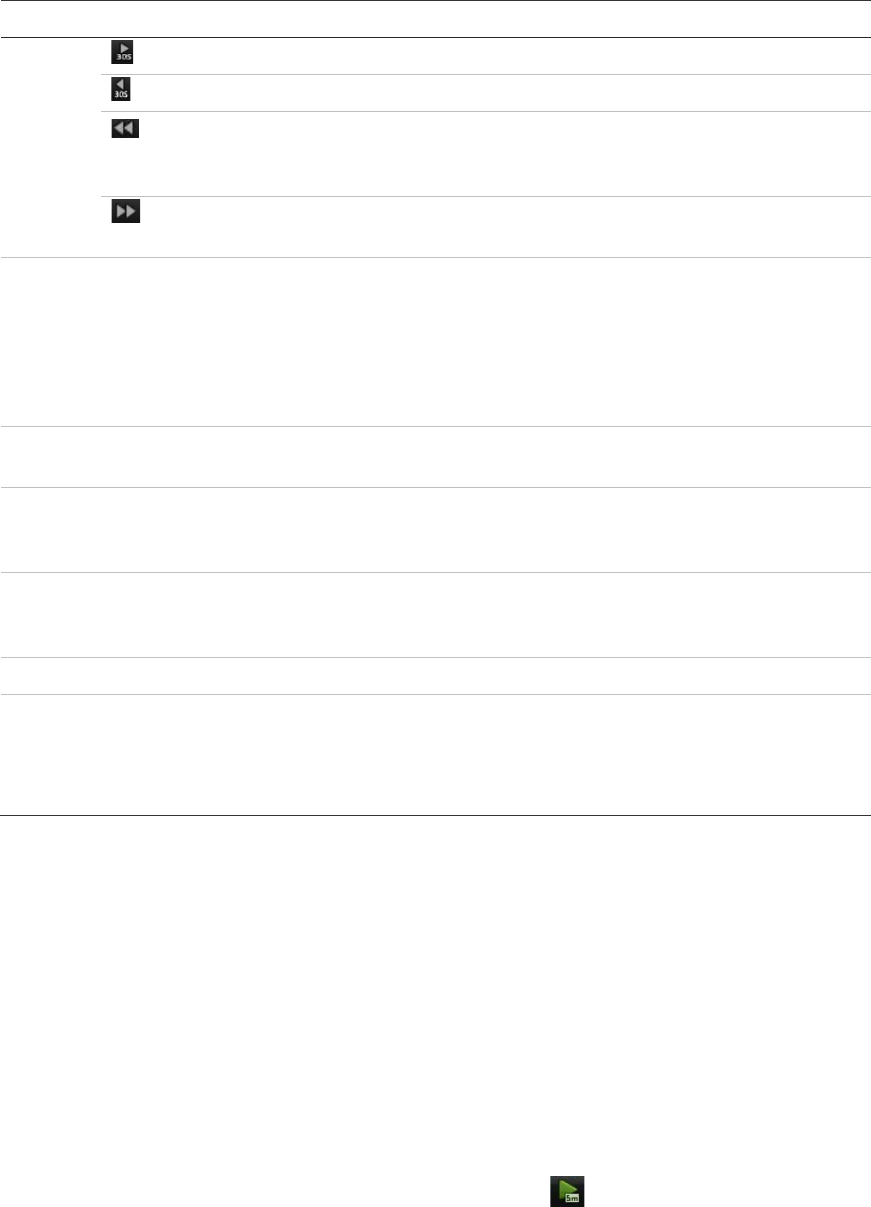
10BChapter 11: Playing back a recording
TruVision DVR 11 User Manual 81
Ite
m Description
Fast forward playback by 30 seconds.
Reverse playback by 30 seconds.
Decrease playback speed: Options available are: single frame, 1/8 speed,
¼ speed, ½ speed, normal, X2 speed, X4 speed, X8 speed, maximum
speed.
Increase playback speed. Options available are: single frame, 1/8 speed, ¼
speed, ½ speed, normal, X2 speed, X4 speed, X8 speed, maximum speed.
3
. Timeline: Allows you to jump forwards or backwards in time. The timeline moves left
(oldest video) to right (newest video). Click a location on it for where you want
playback to start.
In all-day playback the cursor shows the actual time. In search playback, the cursor
is a ball.
Time bar: Time of actual playback. This is only displayed in all-day playback.
4
. Playback progress bar: This bar displays how far playback of the recording has
progressed. It also indicates the type of recording using color.
5
. Recording type: Description of the color coding of recording types that appear in the
playback progress bar. Green indicates continuous recording. Red indicates
alarm/event recording. Yellow indicates motion recording.
6
. Video search: This icon is only displayed when playback is the result of a search. It
does not appear for all-day playback. Click it to return to the Search window and
reselect the search criteria.
7
. Hide toolbar: Hide the playback control toolbar.
8
. Quit playback:
For all-day playback mode, quit playback and return to live view.
For playback from search mode, quit playback and return to the search results
window.
Instant playback
Use the quick access toolbar to quickly replay recorded video from the last five
minutes. This can be useful to review an event that has just happened. Only one
camera at a time can be selected. The default playback period of 5 minutes
cannot be changed.
To instantly replay recorded video:
1. In live view left-click the mouse on the desired camera image. The quick
access toolbar appears. Click Instant Playback .
2. Select the desired camera from the drop-down list and click OK.
Playback starts immediately. The Instant Playback scroll bar appears under
the selected camera.
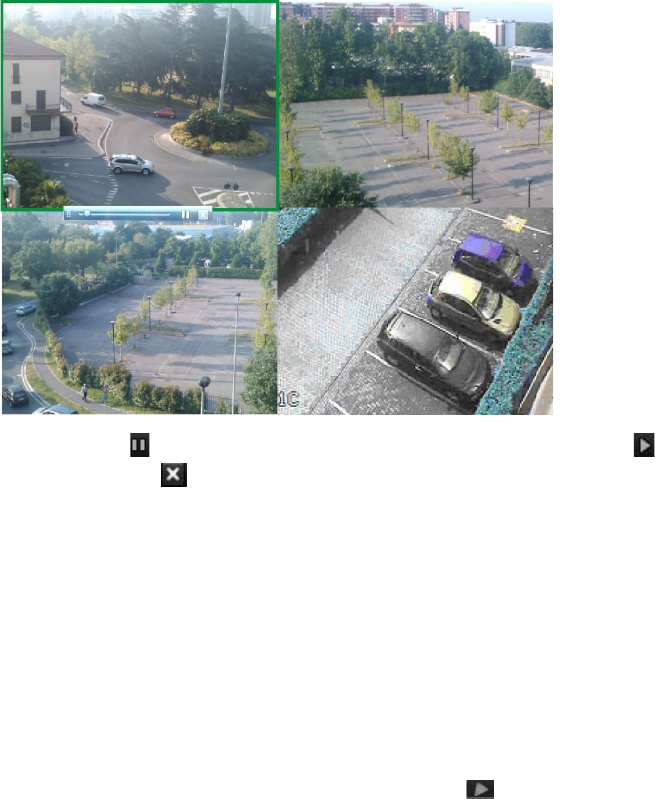
10BChapter 11: Playing back a recording
82 TruVision DVR 11 User Manual
3. Click Pause on the toolbar to pause playback. Click Play to restart
playback. Click to stop playback and return to live view.
All-day playback
Use this option to play back recorded video from the last day. Playback starts at
midnight and runs for the 24-hour period. All-day playback is shown in full-screen
view. See Figure 26 on page 80 for a description of the playback control toolbar.
To start all-day playback using the front panel:
1. In live view click the All-day playback button . Play back starts.
To start all-day playback using the mouse:
1. In live view right-click the mouse on the desired camera image. In the mouse
toolbar that appears, click All-day Playback.
The playback window appears. By default, the camera is in full-screen mode.
2. To select more than one camera for multiview playback or to select playback
from a different day, move the mouse to the right edge of the window. The
camera list and calendar appear. Check the desired cameras and/or another
day. Up to 16 cameras can be selected depending on the DVR model.
Playback starts immediately.
Note: A message appears if there are no recordings found during this period.
3. Use the playback control toolbar to manually control playback.
10BChapter 11: Playing back a recording
TruVision DVR 11 User Manual 83
4. Click Exit to return to live view.
– Or –
Right-click the mouse and click Exit from the mouse menu to return to the
previous window.
Searching recorded video
You can easily search and play back recorded videos by camera, recording type,
time period, events and snapshots.
The Search window has three submenus that allow you to carry out different
searches by theme:
Search type
Description
Normal
Search all recorded video by cameras, recording type, type of file
protection (locked or unlocked) and time period.
Event
Search only event recorded files. Files can be searched by alarm inputs,
motion detection, or POS/ATM text insertion.
Note: Only motion detection and POS/ATM text insertion that have been
recorded as events will be listed in this search. Motion and text insertion
that is recorded as a non-event can be searched under the Normal
menu.
Picture
Search only recorded files with snapshots.
Search results
A search will usually produce a list of files, which may extend to several pages.
The files are listed by camera, and then for each camera by date and time. The
oldest file is listed first. See Figure 27 on page 84 for an example of the results
from a search.
Only one file can be played back at a time.
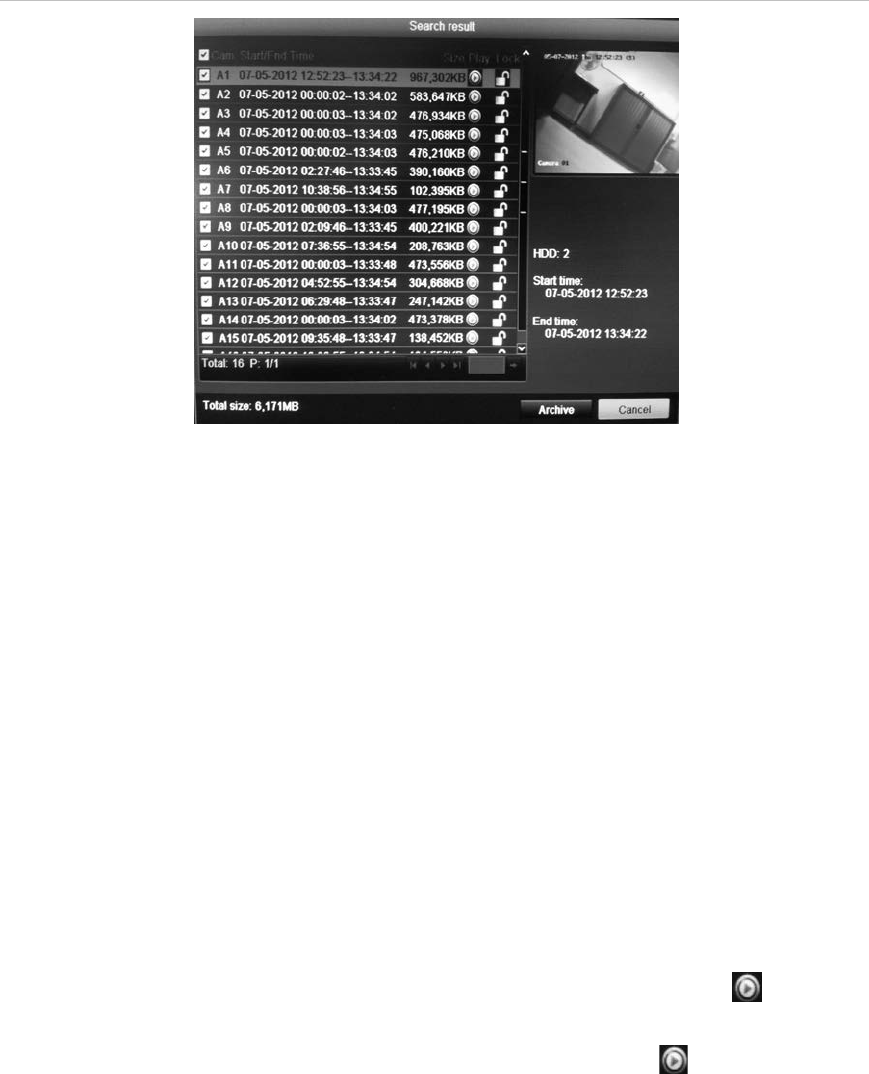
10BChapter 11: Playing back a recording
84 TruVision DVR 11 User Manual
Figure 25: Example of a search result list
Playing back recordings by time and video
type
You can search recorded video by time and video type, such as continuous
recordings, motion, text insertion, alarm and all recordings. Video can be played
back simultaneously across several cameras.
To play back search results:
1. In live view mode right-click the mouse and in the mouse menu select
Advanced Search > Normal.
2. Select the desired cameras, record type, file type as well as start and end
time of the recording.
3. Click Search. The list of search results appears.
4. Play back the search results:
If there is only one camera in the search result, click its playback button.
Playback starts.
If there is more than one camera listed, click the playback button of one of
the cameras. In the window that appears, select the cameras you want to play
back simultaneously and click OK. Playback starts.
5. To hide the playback control toolbar during play back, right-click the mouse
and select the Control Panel button in the playback control toolbar. Click
again for the panel to reappear.
6. Use the playback control toolbar to manually control playback.
7. To play back another camera, move the cursor to the right edge of the
window to display the list of cameras and select the desired camera.
10BChapter 11: Playing back a recording
TruVision DVR 11 User Manual 85
8. To do another search:
Click the Event Search icon in bottom right of the playback control toolbar or
right-click the mouse and select Event Search from the list.
The search window reappears. Reselect the search criteria.
Playing back recordings by event
You can search recorded video by event type: alarm inputs, motion detection and
POS/ATM text insertion. Video can be played back simultaneously across
several cameras.
To play back search results by event:
1. In live view mode right-click the mouse and in the mouse menu select
Advanced Search > Event.
2. Select the desired event type from the drop-down list (Alarm input, Motion or
Text insertion) as well as the start and end time of the recording.
3. Select the desired alarm inputs.
If you selected “Motion” as the event type, select the required alarm inputs. If
you selected “Text insertion”, select the required alarm inputs and enter the
desired keywords.
4. Click Search. The list of search results appears.
5. Play back the search results:
If there is only one camera in the search result, click its playback button.
Playback starts.
If there is more than one camera listed, click the playback button of one of
the cameras. In the window that appears, select the cameras you want to play
back simultaneously and click OK. Playback starts.
6. To hide the playback control toolbar during playback, right-click the mouse
and select the Control Panel button in the playback control toolbar. Click
again for the panel to reappear.
7. Use the playback control toolbar to manually control playback.
8. To play back another camera, move the cursor to the right edge of the
window to display the list of cameras and select the desired camera.
9. To do another search:
Click the Event Search icon in bottom right of the playback control toolbar or
right-click the mouse and select Event Search from the list.
The search window reappears. Reselect the search criteria.

10BChapter 11: Playing back a recording
86 TruVision DVR 11 User Manual
Slideshow of snapshots
You can search captured snapshots and play them back in sequence as a
slideshow. See “Accessing frequently used commands” on page 61 on how to
create snapshots.
To play back search results:
1. In live view mode right-click the mouse and in the pop-up menu select
Advanced Search > Picture.
2. Select the desired cameras as well as start and end time of the recording to
be searched.
3. Click Search. The list of snapshots appears.
4. Select a snapshot to see it in the thumbnail window. Click its Play button
to see it in full-screen mode.
5. When in full-screen mode, move the cursor to the right edge of the window to
see the complete list of snapshot s found in the search. Click their Play
buttons to see them in full-screen mode.
6. To see a slideshow of all the snapshots found, click the or buttons on
the snapshot toolbar to sequence forwards or backwards through the shots.
7. To do another search:
Click the Picture Search icon in bottom right of the playback control toolbar
or right-click the mouse and select Picture Search from the list.
The search window reappears. Reselect the search criteria.
Playing back recordings from the system log
You can also playback recordings from the system log. The system log provides
a much wider range of options for playback than Advanced Search, which deals
with video detection and alarms only.
You can search the recorded logs by:
• Date and time. Logs can be searched by date as well as start and end
recording times.
• Major record types. There are five main types: All, Alarm, Notification,
Operation and Information.
• Minor record types. The major record types can be searched by sub
categories (minor record type). The selection of minor record types available
depends on the major type selected. See Table 18 for the list.
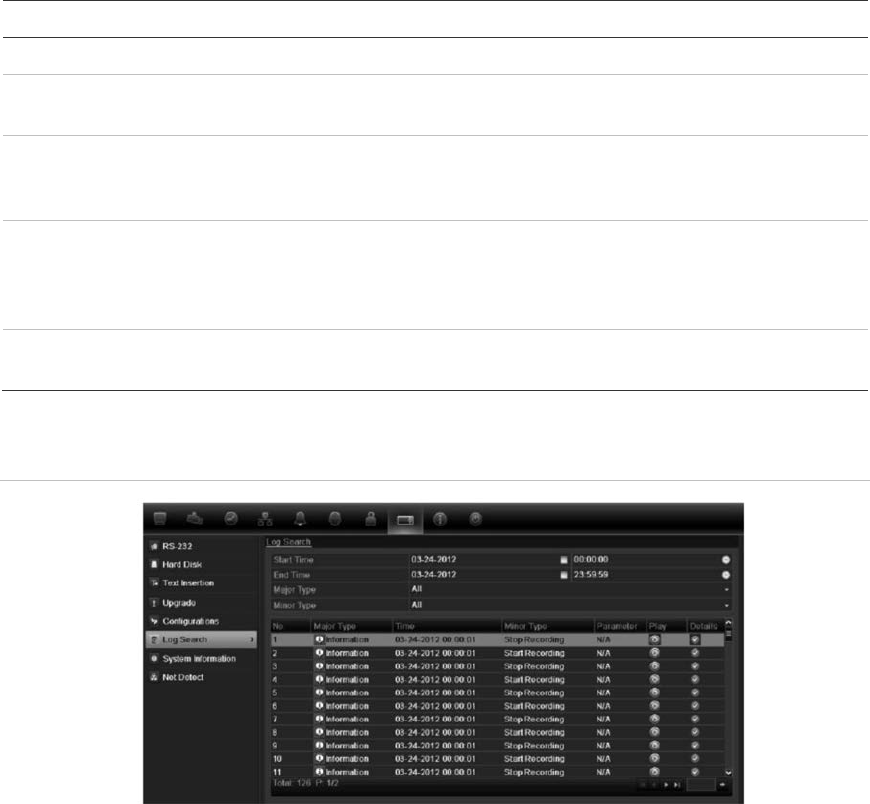
10BChapter 11: Playing back a recording
TruVision DVR 11 User Manual 87
Table 17: Main and minor record types
Major types Minor types
All All
Alarm All, Alarm input, Alarm output, Start motion detection, Stop motion
detection, Start tamper-proof, Stop tamper-proof
Notification All, Video loss alarm, Abnormal video signal, Illegal login, HDD full, HDD
error, IP conflicted, Network disconnected, Abnormal record, Input/output
video standard mismatch
Operation All, Power up, Local operation shutdown, Abnormal shutdown, Local
operation restart, Local operation login, Local operation logout, Local
operation configure parameters, Local operation upgrade, Local operation
PTZ control
Information All, Local HDD information, HDD S.M.A.R.T., Start recording, Stop
recording, Delete expired record
Figure 26: View log window
To play back video from the system log:
1. Click System Settings > Log Search in the menu toolbar.
2. Select the search start and end times.
3. Under Major Type and Minor Type, select an option from the drop-down list.
The minor type list of options available depends on the option selected under
major type.
4. Click the Search button. A list of results appears.
5. Select a file and click:
- Details: Displays information on the log or recording. For a recording, it lists
such information as start time, type of information, camera number, and gives
a description on the types of events recorded and when record time was
stopped.
- Play: Click to start playback of the selected recording.
- Export: Click to archive the selected file to a USB device. The export
window appears.
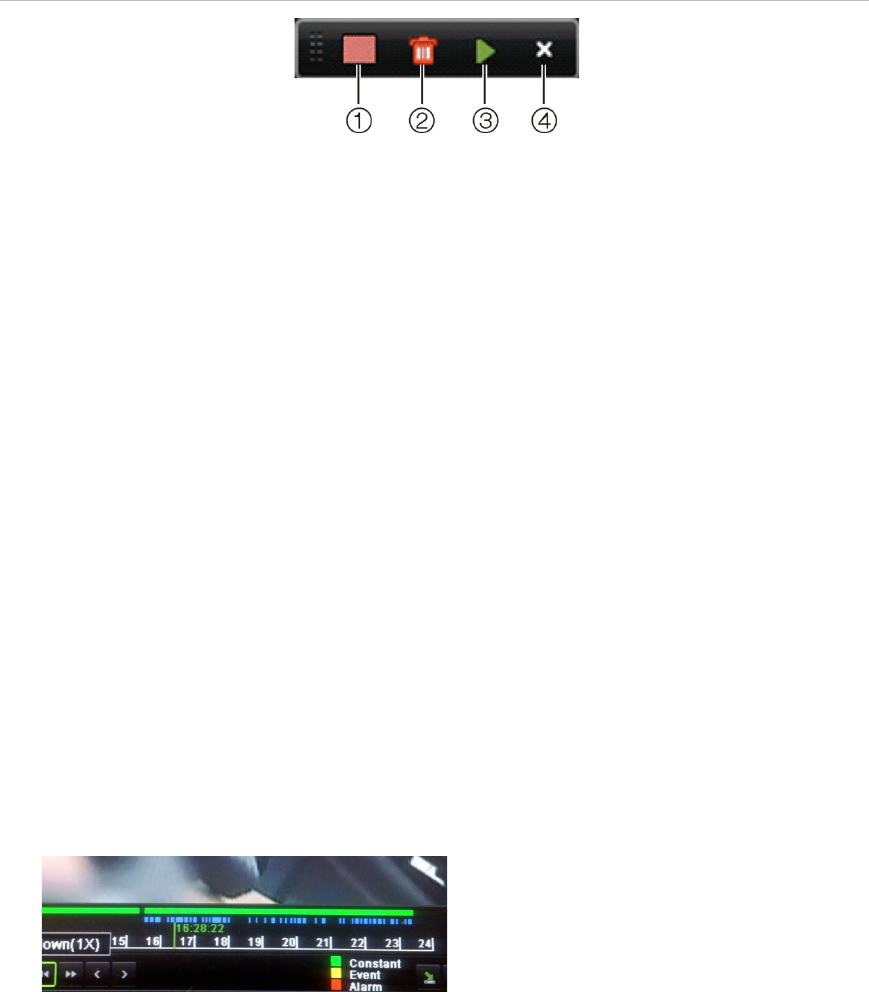
10BChapter 11: Playing back a recording
88 TruVision DVR 11 User Manual
- Back: Click to return to the previous window.
Motion search
You can quickly and easily search playback recording for incidents of motion
detection. Motion can be searched over the whole playback window or just for
specific areas on it. This allows you to search, for example, whether any motion
was detected a few days ago near a particular door.
The option is not available in instant playback.
Figure 27: Motion search toolbar
1. Full screen detection: The motion-sensitive red grid automatically appears over the whole
window.
2. Delete all: Delete the motion grid.
3. Search: Search the playback recording for motion detection.
4. Exit: Quit motion search mode and return to play back.
To search for motion in playback:
1. In playback mode right-click the mouse and click Motion Search on the
mouse menu. The motion search toolbar appears and the playback control
toolbar disappears.
2. Select an area of the window to be searched:
Drag the mouse over the desired area. A red grid appears. More than one
area can be selected.
- Or -
Click the full-screen detection icon in the toolbar. The whole window is
covered in the red grid.
3. Click the Search icon in the toolbar to see the results.
Motion appears as blue lines below the green playback progress bar (see
below). If motion had been recorded as an event, it appears as yellow on the
progress bar.
Click the zoom-in button to see the progress bar in closer detail.
10BChapter 11: Playing back a recording
TruVision DVR 11 User Manual 89
Playing back frame-by-frame
You can easily play back a selected video at different speeds. This allows you to
carefully examine an event frame-by-frame as it happens.
The current frame rate is shown on the right of the playback control toolbar.
To play back frame-by-frame:
• Using a mouse:
1. In playback mode click the Speed Down and Speed up buttons in the
playback control toolbar until the speed changes to single frame.
2. Click the Pause button to advance the video frame by frame.
• Using the front panel:
1. In playback mode press the up/down arrow buttons to scroll down and up
through the speed changes until single frame.
2. Press Enter to advance the video frame by frame.
3. Press the Playback button to continue playback at normal speed.
Digital zoom in playback
You can easily zoom in on an image during playback to see it in greater detail.
To digitally zoom-in during playback:
1. In playback mode right-click the mouse and click Digital Zoom in the pop-up
menu. The playback control toolbar disappears.
2. Click the window with the cursor.
The image zooms in and the digital view window appears.
3. Left-click the mouse and drag the red square to the area of interest, or press
the arrow buttons on the front panel to position the red square. The selected
area is magnified. The size of the red square cannot be changed using the
front panel.
4. Right-click the mouse to quit digital zoom and to return to full-screen playback
mode. The playback control toolbar reappears.
10BChapter 11: Playing back a recording
90 TruVision DVR 11 User Manual
TruVision DVR 11 User Manual 91
Chapter 12
Archiving recorded files
Archive recorded files on an external device such as a USB flash drives, USB
HDDs or a DVD writer. You must be in live view to archive video. Access to
archive commands may require a password.
Before starting to archive files, ensure that you have the backup device
connected to the DVR. It can be detected automatically by the DVR.
Note: The DVR supports USB DVD and USB HD on the front and back USB
ports.
Archiving files
There are two ways to archive files:
Quick Archive: Quick archive lets you archive recorded files quickly by using the
Archive button on the front panel. The DVR then downloads all the recorded files
on the unit to fill the available memory space on the media. This option is not
available via the mouse.
Advanced Search window: Use the Export command in the Advanced Search
window to specify archiving settings such as a specific time and date period as
well as cameras.
Using Quick Archive
To archive recorded video using Quick Archive:
1. Insert the backup device into the DVR.
If using a USB memory drive, insert the device into the USB port on the front
panel. If using a digital video disk (DVD), insert the disc into the DVD drive. If
more than one media type is found, the USB device takes precedence over
the others.
2. Press Archive on the front panel or remote control to open the quick archive
window.
3. Click Start. The unit starts to download all the files listed.
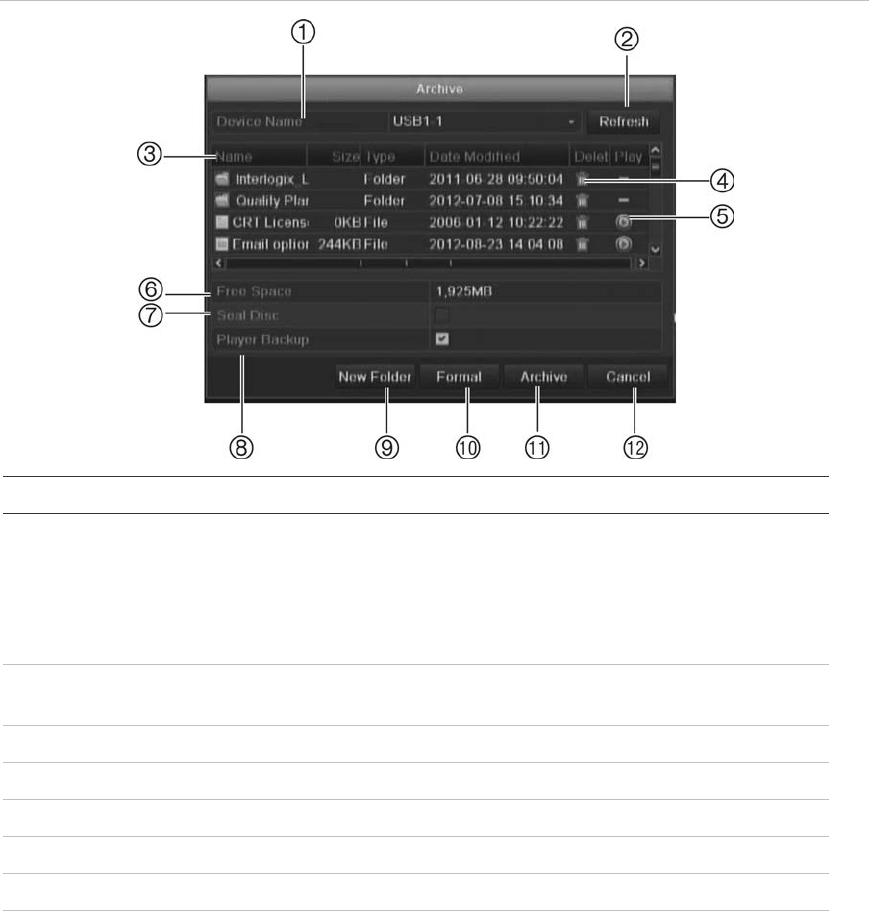
11BChapter 12: Archiving recorded files
92 TruVision DVR 11 User Manual
Note: If there is a capacity limitation on the backup device, only the most
recent files will be backed up.
A message will appear to confirm when the download is complete.
Exporting recorded files to a backup device
You can insert a mini-USB hub to the USB port to attach a mouse for navigation
or a USB drive for archiving. However, the unit may not support all types of USB
hubs.
The Archive options available may depend on the type of backup device
selected.
Figure 28: Example of an export window
Item
Function Description
1
. Device name Select one of the storage media for archiving. If the backup
device is not recognized:
• Click the Refresh button
• Reconnect device
• Check for compatibility from vendor
2
. Refresh Refresh the search results if any parameters have been
modified.
3
. Name Files found on the backup device are listed.
4
. Delete Click to delete a selected file from the backup device.
5.
Play Click to play selected file.
6
. Free space Free space available on the backup device is displayed.
7.
Seal disc Select to prevent other files being recorded onto the disc.
8.
Include Player Select to automatically include the Player tool when archiving
files.
Chapter 9: Archiving recorded files
TruVision DVR 11 User Manual 93
Item
Function Description
9.
New folder Create a new folder on the backup device. Files from the DVR
can be archived to a specific folder.
10
. Format Format the USB/eSATA drive.
11
. Archive Start downloading selected files onto the backup device.
1
2. Cancel Cancel search and return to previous menu.
To export recorded files to a backup device:
1. Connect the backup device to the DVR.
If using a USB memory drive, insert the device into the USB port on the front
panel. If using a digital video disk (DVD) or eSATA drive, insert the disc into
the DVD drive. If both media are found in the DVR, the USB device takes
precedence over the DVD.
2. In live view mode press the Search button on the front panel or remote
control.
- Or -
Right-click the mouse and select Advanced Search.
The Advanced Search window appears.
3. Select the cameras and search parameters required.
4. Click Search. The list of results appears.
5. Select the files to export.
Note: You can click the Play button to verify that the selected files are the
files to export.
6. Click Archive. The Archive window appears.
7. Select the storage medium to export to from the drop-down list.
8. Click Archive to begin the backup process.
Creating and archiving video clips
You can save important scenes in a recorded file for later reference by creating
video clips of selected portions of the file during playback. When an intruder, for
example, crosses in front of several cameras you can save the video clip of the
intruder’s path across these cameras in a single file.
Up to 30 video clips can be made from a recording.
Note: This feature is only available using the mouse.
To export video clips during playback:
1. Connect the backup device to the DVR.
11BChapter 12: Archiving recorded files
94 TruVision DVR 11 User Manual
2. Search for the required files to play back. See “Searching recorded video” on
page 83.
3. Select the file or files to play back and click Play. Playback starts
immediately.
4. Click the playback timeline where you want the video clip to start and click the
Start Clip button.
5. Click the playback timeline where you want the video clip to stop and click the
End Clip button.
6. Repeat for additional clips.
7. Exit playback mode. A message appears asking if you want to save the video
clips.
8. Click Yes to archive the clips. The Export window appears.
Click No to exit and return to the search results window. The clips are not
saved.
9. In the Export window select from the drop-down list the backup device to be
used.
10. Click Start. File downloading starts.
Note: You can create a new folder for the video clips. Press the New Folder
button and enter the folder name.
Archiving snapshots
You can save all the video snapshots recorded to a backup device.
To archive snapshots:
1. Connect the backup device to the DVR.
2. Search for the required snapshot files to play back. See “Slideshow of
snapshots” on page 86. The list of snapshots appears.
3. Select the snapshots to backup.
4. Click Archive. Select the archiving device, if different from that listed.
5. Click Archive. Export starts immediately.
6. When completed, click OK. Click Cancel to return to the previous window.
Chapter 9: Archiving recorded files
TruVision DVR 11 User Manual 95
Managing backup devices
You can manage backup devices from the Export window (see Figure 30 on
page 92.)
The Export window allows you to:
• Create New Folder: Create a new folder on the backup device.
• Delete: Delete a file or folder from the backup device.
• Play: Play the selected video file from the backup device.
• Format: Format the backup device.
• Erase: Erase files from a re-writable CD/DVD.
Playing back archived files on a PC
Use the standard file player software to play back the archived video on your PC.
It is downloaded automatically from the DVR when archiving files onto a backup
device.
11BChapter 12: Archiving recorded files
96 TruVision DVR 11 User Manual
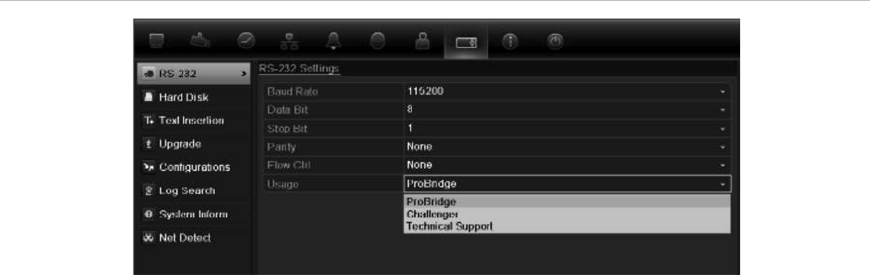
TruVision DVR 11 User Manual 97
Chapter 13
DVR management
This chapter describes:
Configuring the RS-232 port
Updating system firmware
Restoring default settings
Viewing system information
Viewing system logs
Configuring the RS-232 port
Use the System Settings menu to configure the RS-232 parameters such as
baud rate, data bit, stop bit, parity, flow control, and usage.
Figure 29: RS-232 setup window
There are three ways the RS-232 port can be used:
ProBridge: POS and ATM text insertion supported via the ProBridge
accessory connected to the RS-232 port. See “Capturing text insertions” on
page 118 for more information.
ATS/Challenger: NTP time sync supported to foreign device over the RS-232
port.
Technical support: Console mode.
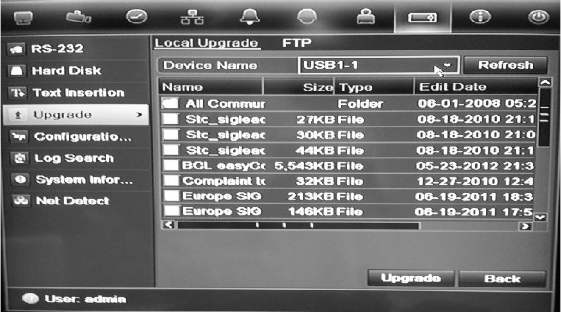
12BChapter 13: DVR management
98 TruVision DVR 11 User Manual
Updating system firmware
The firmware on the DVR can be updated using four methods:
Via an USB device
Over the network via an FTP server
Via the DVR web browser
Using TruVision Navigator. For further information, refer to the TruVision
Navigator user manual.
The firmware upgrade file is labeled TVR11.dav.
To update the system firmware using a USB device:
1. Download on to a USB the latest firmware from our web site at:
www.interlogix.com
- Or -
www.utcfssecurityproductspages.eu/videoupgrades
2. Connect the USB device to the DVR.
3. Click the System Settings icon in the menu toolbar.
4. Select Upgrade > Local Upgrade. The list of files on the USB is displayed.
5. Select the file and click Upgrade. Click Yes to begin the upgrade process.
6. When the upgrade process is completed, reboot the DVR.
To update the system firmware via a FTP server:
For engineering purposes only.
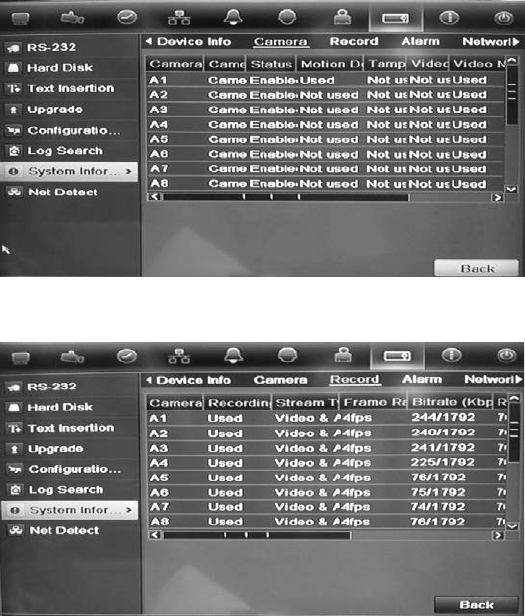
12BChapter 13: DVR management
TruVision DVR 11 User Manual 99
Restoring default settings
To restore the default factory settings of the DVR:
1. Click the System Settings icon in the menu toolbar and select
Configuration.
2. Click the Default tab. Click OK to confirm you want to restore default settings.
Note: Network information such as IP address, subnet mask, gateway, MTU,
NIC working mode, server port, and default route are not restored to factory
default settings.
Viewing system information
To view system information:
1. Click the System Settings icon in the menu toolbar and select System
Information.
2. To view device information, click the Device Info tab.
3. To view camera information, click the camera tab.
4. To view record information, click the Record tab.
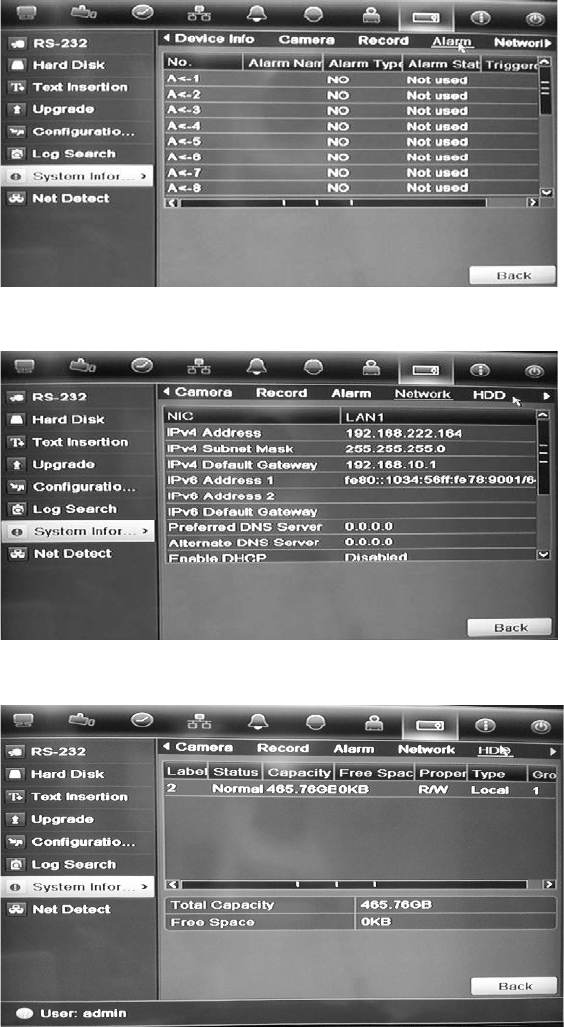
12BChapter 13: DVR management
100 TruVision DVR 11 User Manual
5. To view alarm information, click the Alarm tab.
6. To view network information, click the Network tab.
7. To view HDD information, click the HDD tab.
8. Click Back to return to live view.
Searching system logs for events
Many events of the DVR, such as operation, alarm and notification, are logged
into the system logs. They can be viewed and exported at any time.
Up to 2000 log files can be viewed at once.
Log files can also be exported onto a USB device. The exported file is named
according to the time it was exported. For example: 20120729124841logBack.txt.
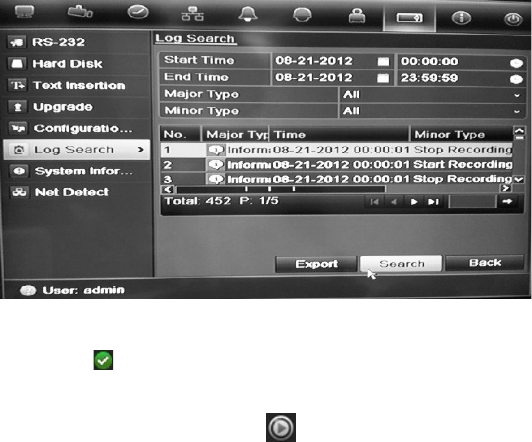
12BChapter 13: DVR management
TruVision DVR 11 User Manual 101
Note: Connect the backup device, such as a USB flash drive, to the DVR before
commencing the log search.
To search and export log files:
1. Click the System Settings icon in the menu toolbar and select Log search.
2. Enter the search parameters and click Search to begin the search. The logs
matching the search criteria are displayed.
3. To view more detail information about a particular log entry, select the entry
and click or double-click the log entry.
5. If available, you can also view the associated video to the selected log entry
by clicking its play button .
5. To export a log entry, select a log and click Export.
4. Click Back to return to live view.
12BChapter 13: DVR management
102 TruVision DVR 11 User Manual
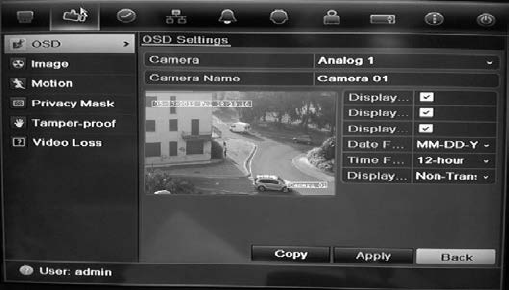
TruVision DVR 11 User Manual 103
Chapter 14
Camera settings
The TVR 11 can support up to 16 analog cameras depending on the model.
Configuring the OSD settings
The DVR lets you configure which information is displayed on-screen for analog
cameras only.
The on-screen display (OSD) settings appear in live view mode and include the
camera name, time and date. They also are included in recordings.
You can also adjust the transparency of the OSD relative to the background so
that it is easier to read or is less prominent on screen.
To configure the OSD settings:
1. Click the Camera Management settings icon in the menu toolbar and select
OSD.
2. Enter a name for the camera, if required.
3. Check the Display Name, Display Date, and Display Week boxes to display
the camera name, date, and week.
4. Select a date format and a time format.
5. Select how you want the camera information displayed.
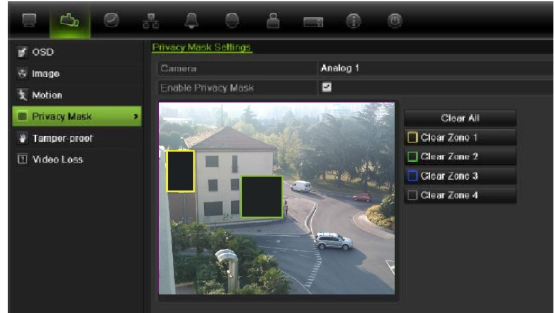
13BChapter 14: Camera settings
104 TruVision DVR 11 User Manual
Select one of the options from the drop-down list. Default is non-
transparent/non-flashing.
• Transparent & flashing
• Transparent & not flashing
• Non-transparent & flashing
• Non-transparent & non-flashing
6. There are two red text boxes in the camera view window; one for the camera
name and the other for the date/time. Using the mouse, click and drag a text
box to the desired position.
7. To copy the settings to other cameras, click Copy and select the desired
cameras. Click OK.
8. Click Apply to save the settings and then Back to return to live view.
Setting up privacy masking
You can define an area on screen to remain hidden from view. For example, you
can choose to block the view of a camera when overlooking residential premises.
This hidden area is referred to as privacy masking. Privacy masking cannot be
viewed in live view or recorded mode, and appears as a blank area on the video
image.
To setup a privacy mask:
1. Click the Camera Management icon in the menu toolbar and select Privacy
mask.
2. Select the camera for which to set up privacy masking.
3. Check the Enable Privacy Mask box to enable the feature.
4. Set up the mask area. Up to four areas can be set.
Using the mouse, click and drag a privacy-mask box in the camera view
window over the desired area. You can set up to four areas for privacy
masking. Masked areas are dimmed and outlined in four different colors. Click
Apply to save settings.
13BChapter 14: Camera settings
TruVision DVR 11 User Manual 105
To delete a mask, check the desired mask and click Clear for that color mask.
5. To copy the settings to other cameras, click Copy and select the desired
cameras. Click OK.
6. Click Apply to save the settings and then click Back to return to live view.
Adjusting video image settings
You may need to adjust the camera image depending on the location
background in order to get the best image quality.
The system has four preset mode settings for frequently encountered lighting
conditions; Standard, Indoor, Low light and Outdoor. However, you can also
manually adjust the brightness, saturation, contrast, and hue values using the
Customize option. Adjustments to the settings affect both live view and recorded
images.
Note: These options can also be modified from the image settings button on the
live view quick access toolbar (see “Accessing frequently used commands” on
page 61.)
To adjust display settings:
1. Click the Camera Management icon in the menu toolbar and select Privacy
mask.
2. Select the camera for which to adjust the video image settings.
3. Select the desired mode value. Changes are seen immediately on screen.
If “Customize” is selected, adjust the brightness, saturation, contrast, and hue
values by dragging each scroll bar.
4. Click Apply to save the settings and then click Back to return to live view.
13BChapter 14: Camera settings
106 TruVision DVR 11 User Manual

TruVision DVR 11 User Manual 107
Chapter 15
User management
By default the DVR comes with three user accounts: an Administrator account,
an Operator account and a Guest account. These accounts provide multiple
levels of access and functionality. See Table 19 below for a description of the
different user accounts.
Table 18: User accounts
User
Description
Administrator
The administrator account includes extended menu with full access to
all settings. The Administrator has the authority to add, delete or
configure parameters for many of the system functions.
There can only be one administrator.
The user name is admin. The name cannot be modified.
The default password is 1234.
Operator
The operator account includes reduced menu access to Video
settings (inaccessible features are not visible).
The default user name is “operator”.
The default password is 2222.
Guest
The guest account includes menu access with no programming
possibilities (inaccessible features are not visible).
The default user name is “guest”.
The default password is 3333.
Note: The default passwords should be changed for security reasons.
Adding a new user
Only a system administrator can create a user. You can add up to 16 new users.
The access privileges of Operator and Guest users are predefined and cannot be
modified

14BChapter 15: User management
108 TruVision DVR 11 User Manual
To add new users:
1. Click the User Management icon in the menu toolbar to display its window.
2. Click Add to enter the Add User window.
3. Enter the new user’s name and password. Both the user name and password
can have up to 16 alphanumeric characters.
4. Select the new user’s access level: Operator or Guest.
5. Enter the user’s MAC address to let the user access the DVR from a remote
computer with this MAC address.
6. Click Apply to save the settings and OK to return to the previous window.
7. Define the user’s permissions.
Click the Permission button for the new user. In the Permissions pop-up
window check the required access privileges for local, remote and camera
configuration. See “Customizing a user’s access privileges” below for the
permission descriptions for each group.
Click Apply to save the settings and OK to return to the previous window.
8. Click Back to return to live view.
Customizing a user’s access privileges
Only an administrator can allocate access privileges to Operator and Guest
users. The access privileges can be customized for each user’s needs. The
administrator’s access privileges cannot be changed.
There are three types of privilege settings: Local Configuration, Remote
Configuration, and Camera Configuration.
Note: Only the administrator can restore factory default settings.
Local configuration settings
• Local Log Search: Search and view logs of the DVR.
• Local Parameter Settings: Configure parameters and import/export the
configuration from the DVR.
• Local Advanced Operation: Access HDD management (including the
initialization and modification of disk properties). Update system firmware as
well as stop the I/O alarm output.
• Local Shutdown/Reboot: Shutdown or reboot the DVR.

14BChapter 15: User management
TruVision DVR 11 User Manual 109
Remote configuration settings
• Remote Log Search: Remotely view logs that are saved on the DVR.
• Remote Parameter Settings: Remotely configure parameters and
import/export configuration.
• Remote Camera Management: Remotely enable and disable channels.
• Remote Serial Port Control: For future use.
• Remote Video Output Control: For future use.
• Two-Way Audio: Use two-way audio between the remote client and the
DVR.
• Remote Alarm Control: Remotely alert or control the relay output of the
DVR. Alarm and notification settings must be configured properly to upload to
host.
• Remote Advanced Operation: Remotely manage HDDs (initializing and
setting properties for HDDs) as well as remotely update system firmware and
clear the I/O alarm output.
• Remote Shutdown/Reboot: Remotely shutdown or reboot the DVR.
Camera configuration settings
By default, all analog cameras are enabled for operators for each of these
settings and none for guests.
• Remote Live View: Select and view live video over the network.
• Local Manual Operation: Locally start/stop manual recording on any of the
channels, snapshots and video clips.
• Local Playback: Locally play recorded files that are on the DVR.
• Remote Playback: Remotely play and download recorded files that are on
the DVR.
• Remote PTZ Control: Remotely control PTZ dome cameras.
• Local Backup: Locally back up recorded files from any of the channels.
To customize a user’s access privileges:
1. Click the User Management icon in the menu toolbar to display its window.
2. Click the Permission button for the user whose access privileges need to
be changed. The Permissions pop-up window appears.
3. Click Apply to save the settings.
4. Click the OK button to return to the previous window.
8. Click Back to return to live view.

14BChapter 15: User management
110 TruVision DVR 11 User Manual
Deleting a user
Only a system administrator can delete a user.
To delete a user from the DVR:
1. Click the User Management icon in the menu toolbar to display its window.
2. Click the Delete button for the user to be deleted.
3. Click Yes in the pop-up window to confirm deletion. The user is immediately
deleted.
4. Click Back to return to live view.
Modifying a user
A user’s name, password, access level and MAC address can be changed. Only
a system administrator can modify a user.
To modify a user:
1. Click the User Management icon in the menu toolbar to display its window.
2. Click the Edit button for the user whose access privileges need to be
changed. The Edit User pop-up window appears.
3. Edit the user information and click Apply to save the settings.
4. Click the OK button to return to the previous window.
5. Click Back to return to live view.
Changing the Admin password
The administrator’s password can be changed in the User Management menu.
Click the Change Password tab and enter the new information. The
administrator’s MAC address can be changed here too. Once completed, click
Apply to save the settings.
TruVision DVR 11 User Manual 111
Chapter 16
Using the web browser
This chapter describes how you can use the web browser interface to configure
the device, play back recorded video, search through event logs, and control a
PTZ dome camera. You can also specify settings on the web browser interface to
optimize video playback and recording performance when operating in a low or
limited bandwidth environment. Many of the browser configurations are similar to
those done locally.
Windows Vista and 7 users
Internet Explorer for Windows Vista and Windows 7 operating systems have
increased security measures to protect your PC from any malicious software
being installed. When using the DVR web browser interface, you can install
ActiveX controls to connect and view video using Internet Explorer.
To have complete functionality of the web browser interface and the DVR player
with Windows Vista and Windows 7, do the following:
• Run the Browser interface and the DVR player application as an administrator
in your workstation
• Add the DVR’s IP address to your browser’s list of trusted sites
To add the DVR’s IP address to Internet Explorer’s list of trusted sites:
1. Open Internet Explorer.
2. Click Tools, and then Internet Options.
3. Click the Security tab, and then select the Trusted Sites icon.
4. Click Sites.
5. Clear the “Require server verification (https:) for all sites in this zone” box.
6. Enter the IP address or DDNS name in the “Add this website to the zone”
field.
7. Click Add, and then click Close.
8. Click OK in the Internet Options dialog box.
Appendix C: Using the web browser
112 TruVision DVR 11 User Manual
9. Connect to the DVR for full browser functionality.
Accessing the web browser
To access the DVR, open the Microsoft Internet Explorer web browser and enter
the IP address assigned to the DVR, as a web address. On the logon window,
enter the default user ID and password.
Note: Only one DVR can be viewed per browser.
User ID: admin
Password: 1234
The default values for DVR network settings are:
• IP address - 192.168.1.82
• Subnet mask - 255.255.255.0
• Gateway address - 192.168.1.1
• Server port: 8000
• Ports:
When using the browser:
RTSP port: 554
HTTP port: 80
When using TruNav:
RTSP port: 554
Server/Client software port: 8000
For more information on port forwarding, see Appendix CAppendix C “Port
forwarding information” on page 125.
Web browser overview
The DVR web browser lets you view, record, and play back videos as well as
manage all aspects of the DVR from any PC with Internet access. The browser’s
easy-to-use controls give you quick access to all the DVR functions. See
Figure 32 below.
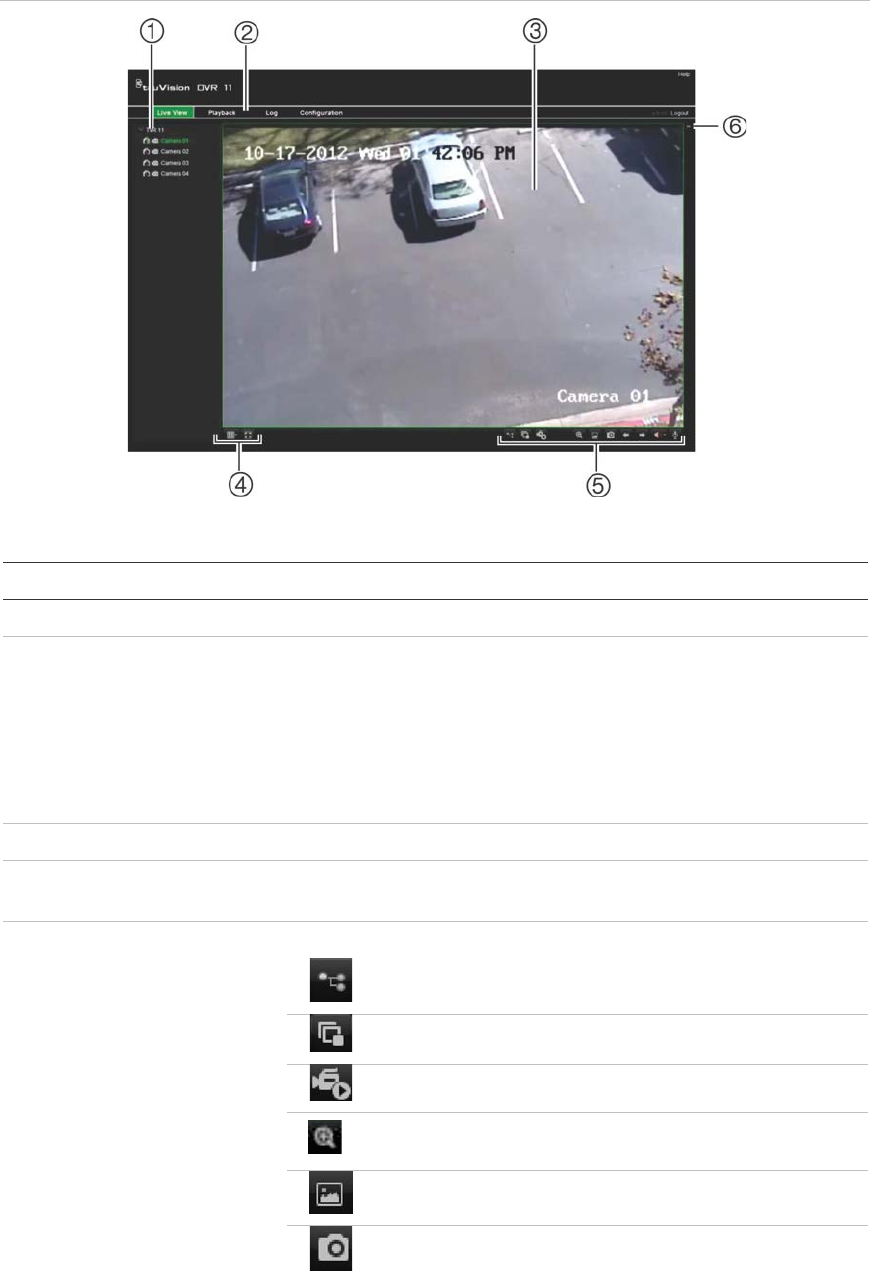
Appendix C: Using the web browser
TruVision DVR 11 User Manual 113
Figure 30: Live view in the web browser interface
Table 19: Description of live view in the web browser
Item
Name Description
1
. Camera Select the camera.
2
. Menu toolbar Lets you do the following:
• View live video
• Play back video
• Search for event logs
• Configure settings
• Log out of the interface
3
. Viewer View live or playback video.
4
. Display format Define how you want video to be displayed in the viewer:
Multiview or full-screen.
5
. Video function toolbar Lets you do the following in live view:
Switch between mainstream and substream.
Start/stop all streaming from selected cameras.
Start recording from selected cameras.
Digital zoom.
Turn POS/ATM text insertion on/off.
Take a video snapshot.
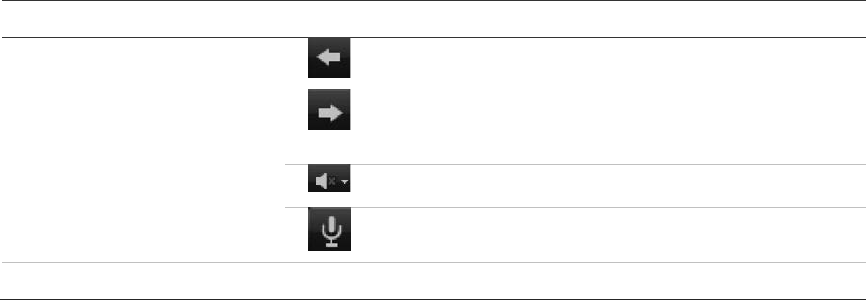
Appendix C: Using the web browser
114 TruVision DVR 11 User Manual
Item
Name Description
View previous and next camera respectively.
If viewing in multiview format, live view moves to the
next group of cameras for the selected number of
video tiles.
Turn audio on/off
Turn microphone on/off
6
. PTZ panel Hide/display the PTZ panel.
Using the web browser to configure the
device
Click Config on the menu bar to display the configuration window. There are two
ways to configure the DVR: Local and Remote.
Local configuration
Local configuration lets you define communication and network parameters such
as protocol type, maximum file size, stream type and network transmission
settings. You can also specify the directory locations for saving recorded and
playback video, captured images, and downloaded files.
Remote configuration
Remote configuration lets you remotely configure the following DVR settings:
• DVR information including device name, number, and overwrite option as well
as time and holiday settings.
• Camera settings including motion detection, privacy masking, video loss,
video tampering, video image display settings, and text overlay
• Recording settings including recording schedule and recording quality
• Network settings including, email, DDNS, and NTP setup
• Serial port settings including RS-485 and RS-232 parameters
• Alarm settings including alert notifications, audio alerts, pre-alarm, and post-
alarm seconds, and notification parameters
• System settings including, user management, date and time, audio, RS-485,
RS-232, language, alarm notification, and hard drive setup
See Figure 33 below. Please refer to the specific chapters on this manual for
detailed information on configuring the different functions.
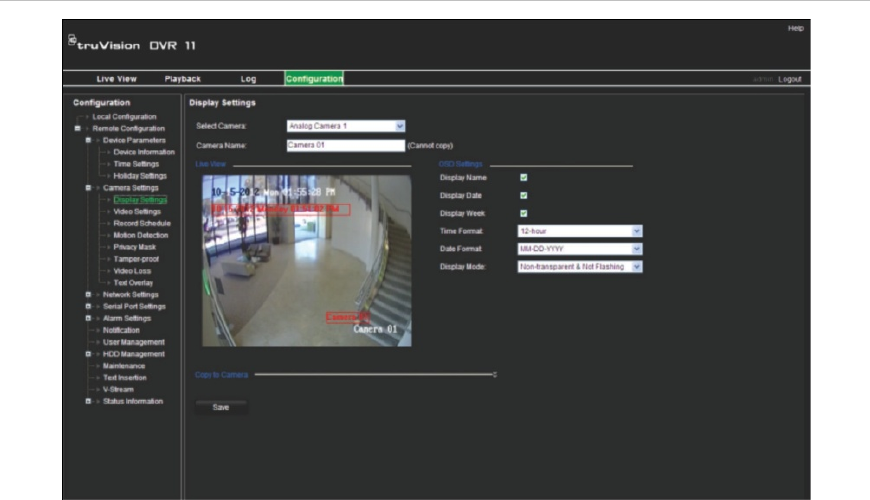
Appendix C: Using the web browser
TruVision DVR 11 User Manual 115
Note: The configuration settings defined remotely are different from those that
can be defined locally.
Figure 31: Remote browser configuration window (Display Settings window shown)
Searching and playing back recorded video
To search and play back recorded video, click Playback on the menu bar to
display the Playback page shown in Figure 34 on page 116.
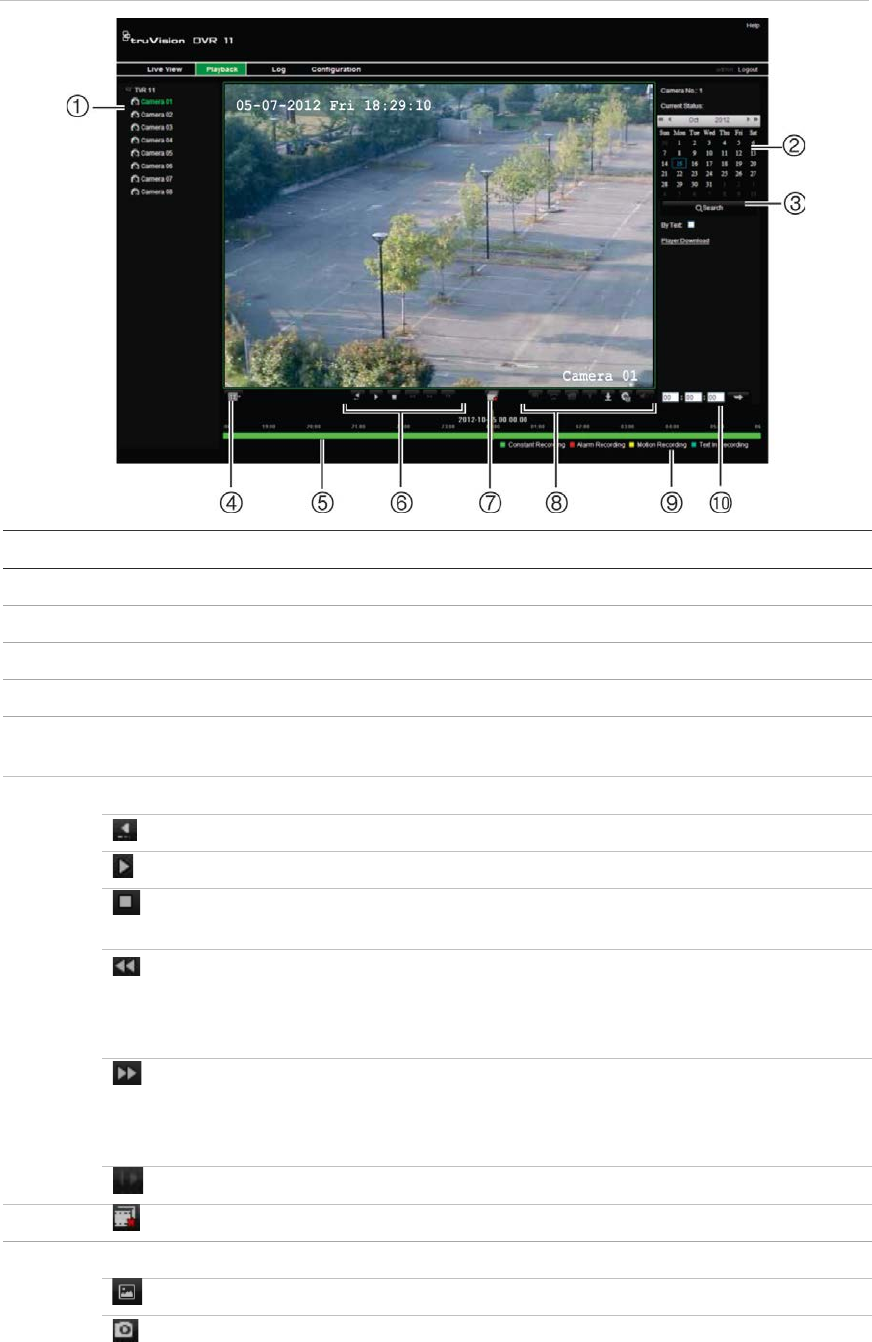
Appendix C: Using the web browser
116 TruVision DVR 11 User Manual
Figure 32: Browser playback page
Ite
m Description
1
. Selected camera.
2
. Calendar: Selected day is highlighted.
3
. Search: Click to start searching recorded files for the selected camera.
4
. Display format: Click to change the display format: single view or multiview display.
5
. Timeline: The timeline moves left (oldest video) to right (newest video). Click a
location on the timeline to move the cursor to where you want playback to start.
6
. Playback control toolbar:
Reverse: Click to reverse playback.
Start/stop: Start or stop playback.
Stop playback. Timeline jumps back to 00:00:00 time (midnight) of the
previous day.
Playback slow forward: Click to scroll through the different speeds
available: single frame, 1/8 speed, ¼ speed, ½ speed, normal, X2 speed,
X4 speed, X8 speed, maximum speed. Current speed is displayed under
the camera name on top right of window.
Playback fast forward: Click to scroll through the different speeds
available: single frame, 1/8 speed, ¼ speed, ½ speed, normal, X2 speed,
X4 speed, X8 speed, maximum speed. Current speed is displayed under
the camera name on top right of window.
Single frame: Click to play back one frame at a time.
7.
Stop streaming: Stop streaming from all cameras.
8
. Audio and video control toolbar:
Text insertion: Click to enable/disable POS/ATM text display in playback.
Snapshot: Capture a snapshot of the video.
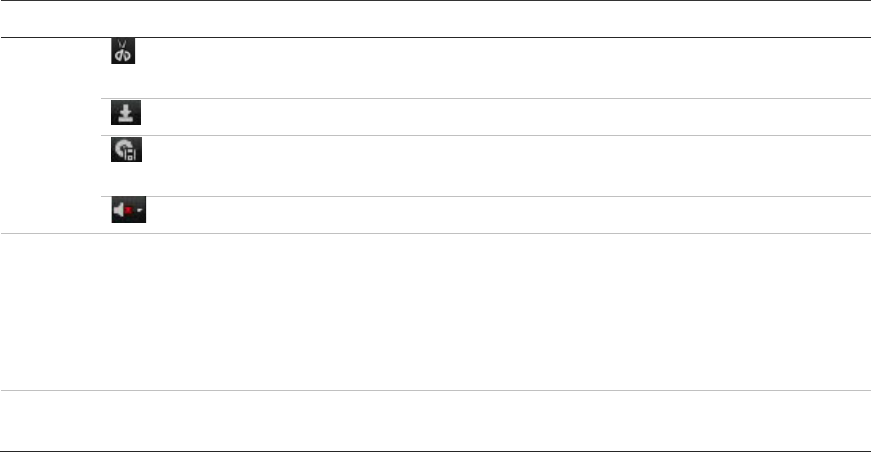
Appendix C: Using the web browser
TruVision DVR 11 User Manual 117
Ite
m Description
Video clips: Start/stop video clip during playback. Sections of a recording
can be saved to an external storage device.
Download: Download video clips.
Backup: Click to make back up of recorded files to save locally on the
DVR. A list of the recorded files appears
Audio: Click to enable/disable audio.
9
. Type of recording:
Green: Indicates video recorded based on the recording schedule defined.
Red: Indicates video recorded triggered by an alarm event.
Yellow: Indicates video recorded triggered by motion detection.
Blue: Indicates video recorded triggered by a POS/ATM text recording.
10
. Jump start: Enter a precise time in the box and click the Go To button to jump start
the playback at this selected time.
Select a camera and a day to search from on the calendar displayed, and then
click Search. The timeline below the page indicates video recorded for the
specified day. The timeline also classifies by color the type of recording with each
type.
Click and drag the marker across the timeline on where you want video playback
to begin, and then click Play on the playback control toolbar. You can capture a
snapshot of a video image, save the video playback, or download the recorded
video.
Searching for event logs
The DVR compiles a log of events, such as the start or end of video recording,
DVR notifications, and alarms, through which you can easily search. Logs are
categorized by the following types:
• Alarm: Includes motion detection, tamper detection, video tampering, and
other alarm events
• Notifications: Includes system notifications such as video loss, HDD failures,
and other system-related events
• Operations: Includes users access to the web interfaces and other
operational events
• Information: Includes general information on the DVR actions, such as the
start and end of video recording, etc.
To search for logs, click Log on the menu bar, select a log type, specify a date
and time range, and then click Search.
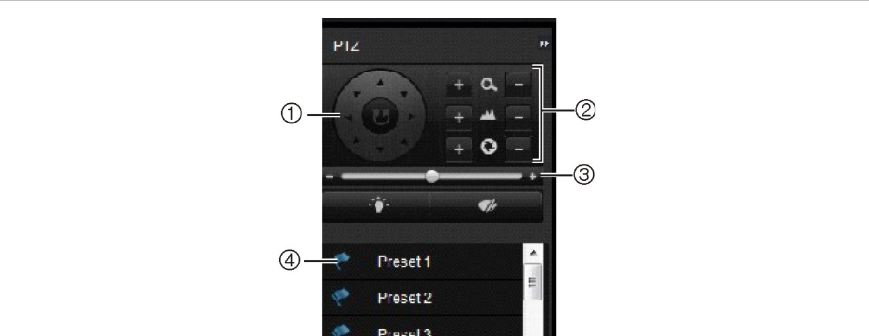
Appendix C: Using the web browser
118 TruVision DVR 11 User Manual
Controlling a PTZ dome camera in the web
browser
The web browser interface lets you control the PTZ functions of a dome camera.
Click a PTZ dome camera and use the PTZ controls on the interface to control
the PTZ functions.
Figure 33: PTZ controls
1. Directional pad/auto-scan buttons: Controls the movement and direction of the PTZ camera.
Center button is used to start auto-pan by the PTZ dome camera.
2. Adjusts the zoom, focus, and iris functions.
3. Adjusts the speed of PTZ dome camera.
4. Starts the selected preset.
Capturing text insertions
Text insertion lets you insert or display text from a point-of-sale (POS) system on
the video display of the DVR. The text is saved and time‐stamped together with
the video. You can then search the text for specific video clips. The text is
displayed during playback.
The DVR supports POS and ATM text insertion via the UTC ProBridge accessory
connected to the RS-232 port on the DVR. This feature is currently only available
using the browser.
Playback from the camera set up for text insertion will display the video with the
POS text overlay. However, in live mode text insertion is for reference only as not
all the inserted text may be visible on-screen.
See Figure 36 below for an example of a video image in live view with text
insertion.
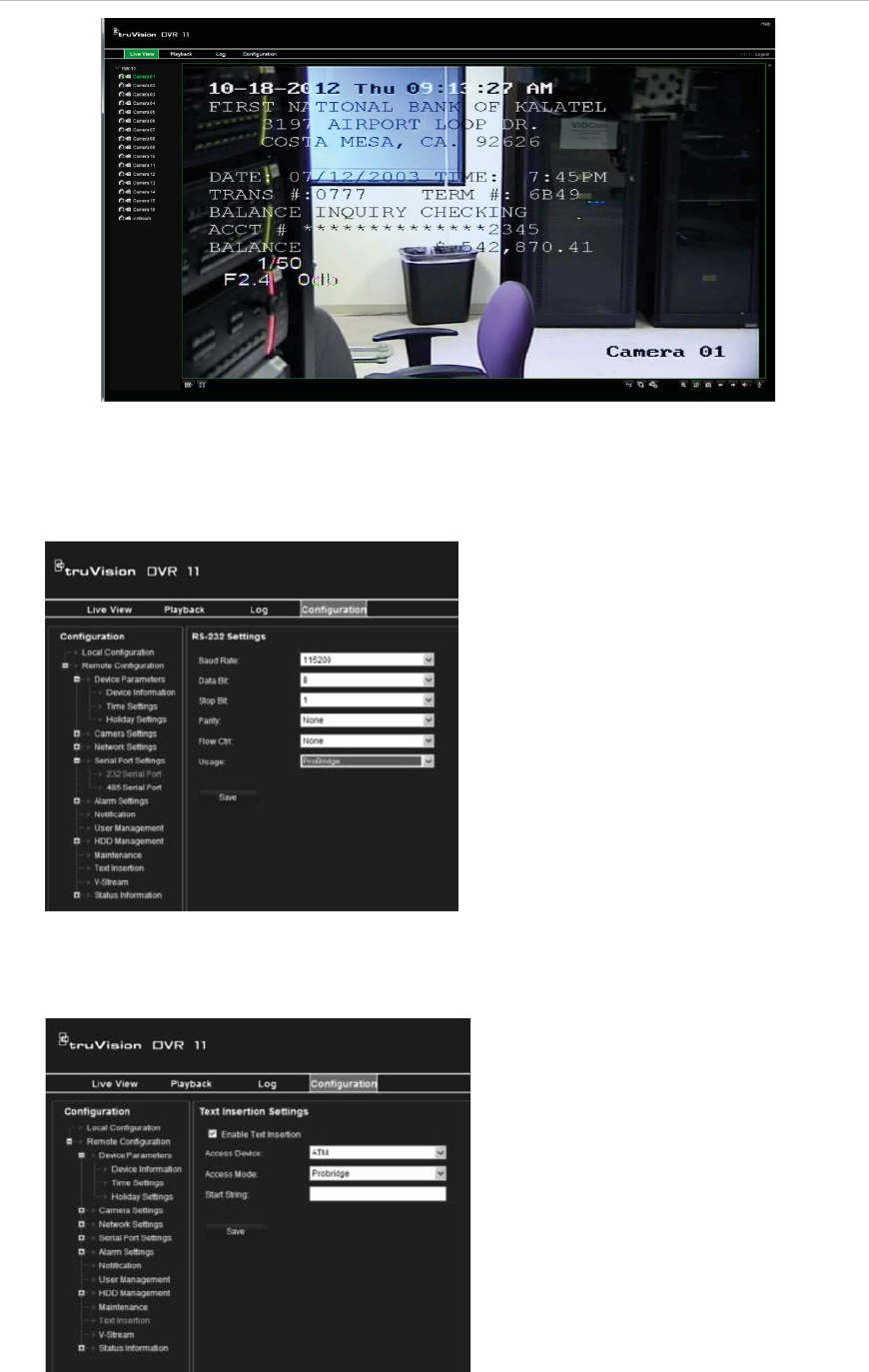
Appendix C: Using the web browser
TruVision DVR 11 User Manual 119
Figure 34: Example of a video image with text insertion
To set up text insertion:
1. Click the Configuration tab in the browser toolbar and then select 232 Serial
Port.
2. Under Usage, select ProBridge.
3. Select Text Insertion.
Appendix C: Using the web browser
120 TruVision DVR 11 User Manual
4. Check Enable text insertion.
5. Select the access device from the drop-down list.
6. Select the access mode. Only “ProBridge” is listed.
7. Under “Start String”, enter the desired transaction text such as an ATM
transaction number.
8. Click Apply to save the settings.

TruVision DVR 11 User Manual 121
Appendix A
Specifications
TVR 1104 TVR 1108 TVR 1116
Video
& audio input
Video compression
H.264
Analog video input
4-ch,
BNC
(1.0 Vp-p, 75 Ω),
PAL /NTSC self-
adaptive
8-ch,
BNC
(1.0 Vp-p, 75 Ω),
PAL /NTSC self-
adaptive
16-ch,
BNC
(1.0 Vp-p, 75 Ω),
PAL /NTSC self-
adaptive
Audio compression
G711 G722
Audio input
4-ch, RCA (2.0 Vp-p, 1 kΩ)
Two
-way audio 1-ch (reduplicated with audio input 1), RCA (2.0 Vp-p, 1 kΩ)
Video & a
udio output
HDMI output
1-ch,
Resolution: 1920 × 1080P / 60 Hz, 1600 × 1200 / 60
Hz, 1280 × 1024
/ 60 Hz,1280 × 720 / 60 Hz, 1024 × 768 / 60 Hz
VGA output
1-ch,
Resolution: 1920 × 1080P / 60 Hz, 1600 × 1200 / 60
Hz, 1280 × 1024
/ 60 Hz,1280 × 720 / 60 Hz, 1024 × 768 / 60 Hz
CVBS o
utput 1-ch, BNC (1.0 Vp-p, 75 Ω),
Resolution: PAL: 704 × 576; NTSC: 704 × 480
Video loop output
4-ch 8-ch 16-ch
Encoding resolution
4CIF / 2CIF / CIF / QCIF
Frame rate
8 fps at 4 CIF, 15 fps at 2CIF, 25 fps (PAL) / 30 fps (NTSC) at
CIF/QCIF
Total frame rate: 120 fps
Video bit rate
32 to 4096 Kbps, or user defined (max. 3072 Kbps)
Audio output
1-ch, RCA
Audio bit rate
64 Kbps
Dual
-stream Support | (Sub-stream at CIF: 6 fps,
QCIF: 25 fps (PAL) / 30 fps (NTSC))
Stream type
Video, Video & Audio

16BAppendix A: Specifications
122 TruVision DVR 11 User Manual
TVR 1104 TVR 1108 TVR 1116
Playback resolution
4CIF / 2CIF / CIF / QCIF
Synchronous playback
4-ch 8-ch 16-ch
Hard disk
SATA
2 SATA interfaces
Capacity
Models without CD/DVD burner: 2 HDDs. Up to 2TB capacity for
each disk
Models with CD/DVD burner: 1 HDD. Up to 2TB capacity
External interface
Network interface
1 RJ45 10M / 100M Ethernet interface
Serial interface
1 RS-232 interface (for ProBridge, Challenger, Technical Support);
1 RS-485 interface (for PTZ control or KTD405 keyboard control)
USB interface
2, USB 2.0
Alarm in
4
Alarm out
1
Miscellaneous
Power supply
12 VDC
Power consumption
(without HDD or DVD
-R/W)
≤ 15 W ≤ 20 W ≤ 30 W
Operating
temperature -10 to +55 ºC (14 to 131 °F)
Relative humidity
10 to 90%
Chassis
1.5U chassis
Dimensions (W x H x D)
362 × 330 × 78 mm (14.25 × 13.0 × 3.07 in.)
Weight
≤ 3 kg (6.6 lb.) (without HDD or DVD-R/W)

TruVision DVR 11 User Manual 123
Appendix B
PTZ protocols
Interlogix-485 PHILIPS
Interlogix-422 PHILIPS-3
Kalatel SAE
DSCP Samsung
HIKVISION Siemens
Honeywell SONY-EVI-D30/31
INFINOVA SONY-EVI-D70
KTD-348 SONY-EVI-D100/P
LG MULTIX TECHWIN
LILIN VICON
PANASONIC_CS850 YOULI
PELCO-D
PELCO-P
17BAppendix B: PTZ protocols
124 TruVision DVR 11 User Manual

TruVision DVR 11 User Manual 125
Appendix C
Port forwarding
information
A router is a device that lets you share your internet connection between multiple
computers. Most routers will not allow incoming traffic to the device unless you
have configured them to forward the necessary ports to that device. By default
our software and devices (DVRs and NVRs) require the following ports to be
forwarded:
Note: Port forwarding may reduce the security of the computers on your network.
Please contact your network administrator or a qualified network technician for
further information.
Port: 80
HTTP protocol Used to connect via IE
browser.
Port: 8000
Client Software Port Used to connect to video
streams.
Port: 554
RTSP Port Real time streaming protocol.
Used to record video remotely.
Port: 1024
RTSP Port for 3G/4G Use with mobile apps.
Used for 3G/4G connection.
Note: It is recommended that the RTSP port 1024 should only be used when
experiencing connection issues over a 3G/4G connection.
For example: If the client port is changed to 9000 then the +200 port will be
9200. Using the default client port 8000 then the +200 port will be 8200.
Seeking further assistance
Third-party assistance on configuring popular routers can be found at:
http://www.portforward.com/
http://canyouseeme.org/
http://yougetsignal.com
18BAppendix C: PTZ protocols
126 TruVision DVR 11 User Manual
Note: These links are not affiliated with nor supported by Interlogix technical
support.
Many router manufacturers also offer guides on their websites as well as
including documentation with the product.
On most routers the brand and model number is located on or near the serial
number sticker on the bottom of the device.
If you cannot find any information for your particular router, please contact your
router manufacturer or internet service provider for further assistance.

TruVision DVR 11 User Manual 127
Appendix D
KTD-405 keypad
Supported firmware
TVR 11
XX-YYY firmware 1.0i or higher
KTD
-405U (-2DU) keypad firmware: 1.4.00
Note: XXX represents the number of video channels.
YYY represents the DVR storage configuration such as 1T = 1 TB, etc.
Wiring the keypad
Connect the RS-485 bus of the KTD-405 I/O box to the DVR keypad terminal
port.
Table 20: Keypad and DVR connections
KTD
-405 I/O box TVR 11 connection
RS
-485 A D+
RS
-485 B D-
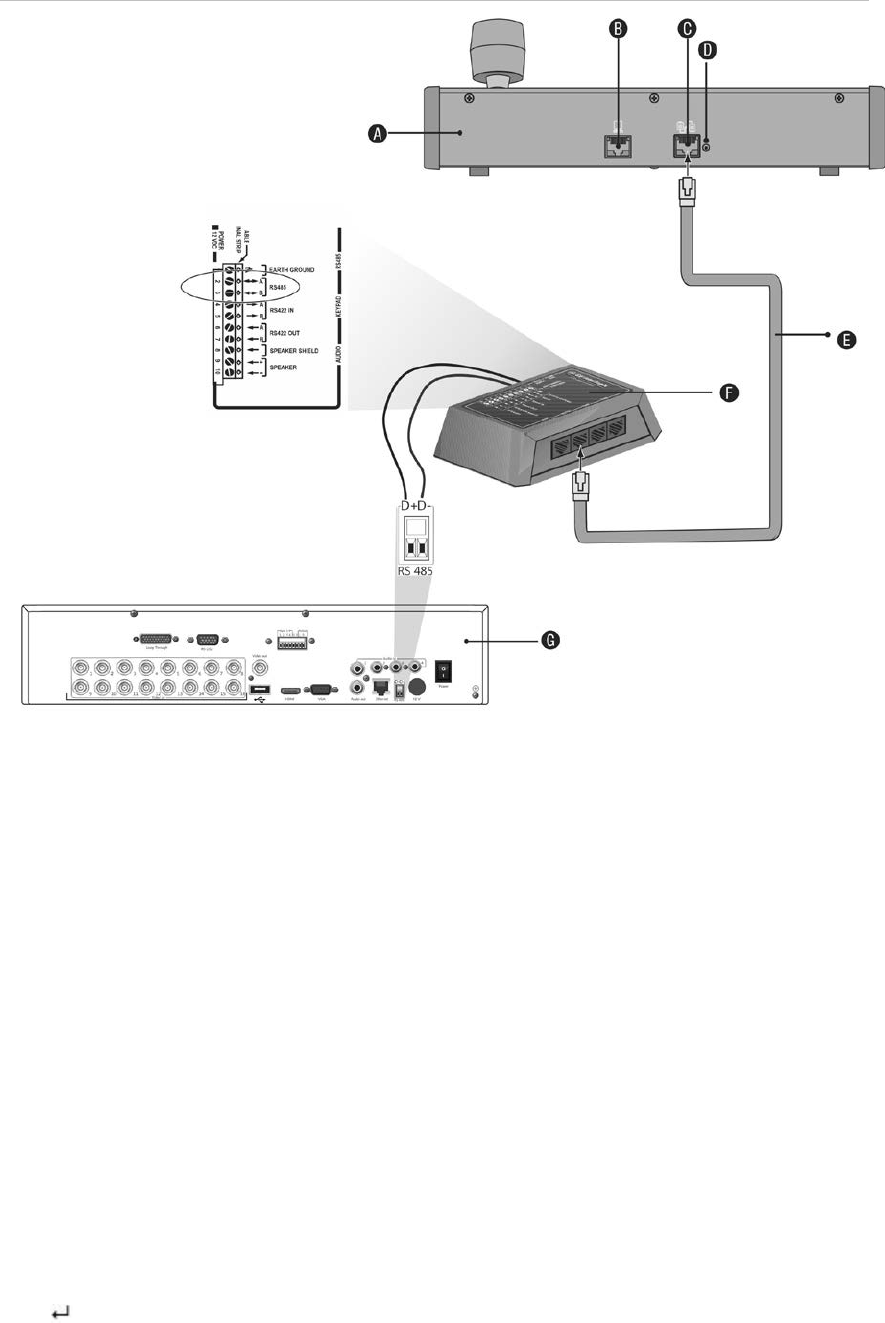
Appendix D: KTD-405 keypad
128 TruVision DVR 11 User Manual
Figure 35: Keypad and DVR connections
A. KTD-405 keypad
B. RS-232 programming port
C. RS-485 and RS-422 in/out
D. RS-485 termination switch
E. RJ45 cable control (use the cable provided
with the equipment)
F. I/O box
G. DVR back panel
See “Connecting a KTD-405 keypad and dome camera to the ”on page 11 for
information on how to connect both a keypad and dome camera to the DVR.
Setting the keypad to work with the DVR
The keypad must be in zone mode to connect correctly with the DVR.
Further information on connecting and programming the KTD-405 keypad can be
found in the user manual.
To set the keypad in zone mode:
1. Log into the keypad using the Admin password. Hold down the Enter button
() until a beep sounds and then enter the following code: 1 4 7 6. Push
the seq button to confirm.
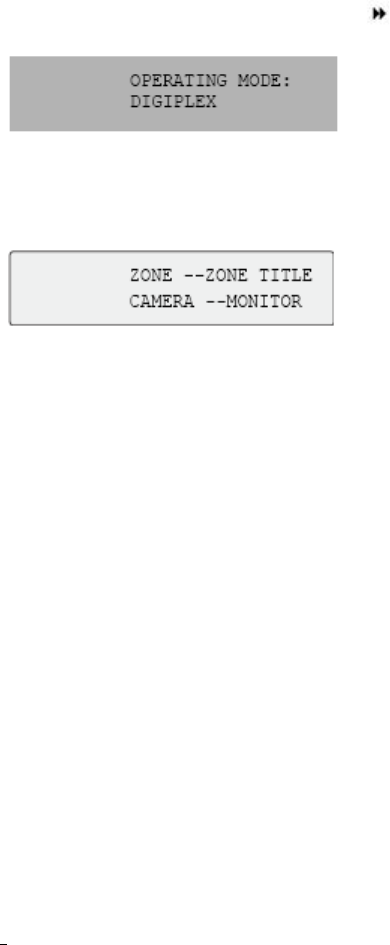
Appendix D: KTD-405 keypad
TruVision DVR 11 User Manual 129
2. Scroll through the menus with the button until this menu appears:
3. Change Operating Mode to Zone by moving the joystick down.
4. Quit the menu by pressing the seq button. The display will show, for example:
5. To connect it to the DVR, press the zone button and enter the ID number of
the DVR. The default value is “1”.
6. To configure the DVR zone ID number, at the DVR enter the Monitor screen
by selecting Display Mode Settings in the main menu and select Monitor.
Under Zone ID, enter the zone ID value. The default value is “1”.
Note: The zone ID value must be identical for the DVR and keypad.
The DVR is now connected to the KTD-405 keypad.
DVR and keypad functions
The KTD-405U acts as a DVR control keypad when connected to the DVR. The
keypad mimics many of the functions available from the front panel of the DVR.
Unavailable DVR functions
The following TVR 11 functions are unavailable when using the keypad to control
the DVR:
Export video
Shadow tour
Select motion detection or tampering zones
Archive records
Capture video
If these functions are required, it is recommended to use a mouse in conjunction
with the keypad as all DVR functions will then be available.
Unavailable keypad functions
The following keypad buttons are unavailable when using the keypad to control
the DVR:
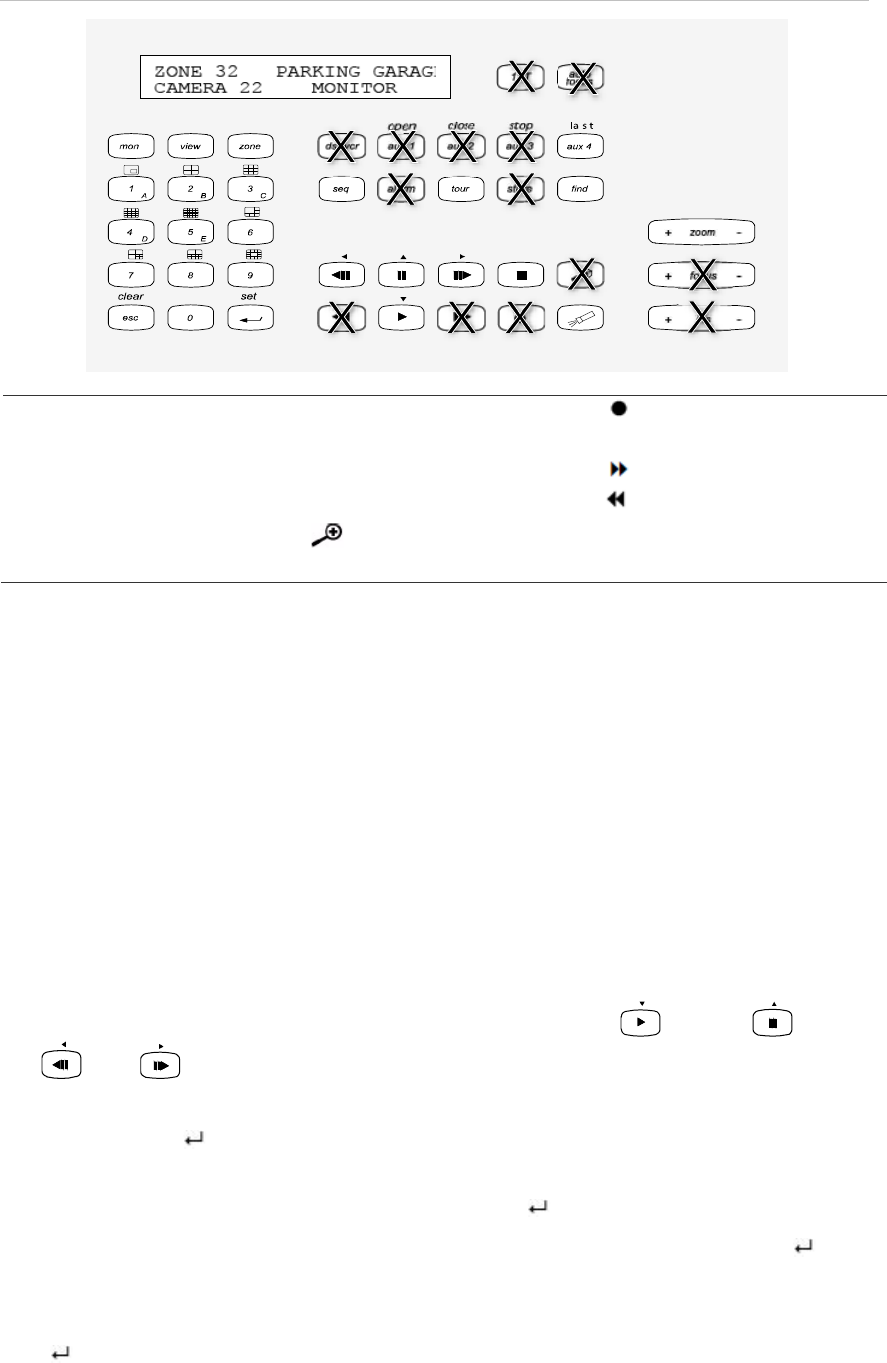
Appendix D: KTD-405 keypad
130 TruVision DVR 11 User Manual
Figure 36: Unavailable keypad buttons
DSC/VCR
Aux 1
Aux 2
Aux 3
Aux 4
Ist
Autofocus
Alarm
Iris +/-
Focus +/-
(Magnification)
(Record mode)
Store
Fast forward
Fast backward
Operating the keypad
You can navigate the DVR menus using the keypad buttons and joystick.
However, not all maneuvers are available using the joystick.
See Table 22 on page 131 for the description of the DVR keypad mapping when
using the KTD-405 keypad series. See Figure 38 above for a list of the keypad
functions that are unavailable when connected to the DVR.
Example 1: To enter your password in the login window using the keypad
1. In live view mode, press esc to activate the Login window.
2. Press and hold esc and then press the arrow buttons ( down, up,
left, right) to move the cursor to the Password edit box. Once in the
password box, release esc.
3. Press Enter ( ) to activate the soft keyboard.
4. Press and hold esc and then press the arrow buttons to reach the first digit of
the password. Release esc and press Enter ( ) to select the digit.
Or move the joystick to the first digit of the password and press Enter ( ).
5. Repeat steps 2 to 4 for each digit of the password.
6. Move the cursor to the Enter button on the soft keyboard and press Enter
() on the KTD-405 keypad to quit the soft keyboard.
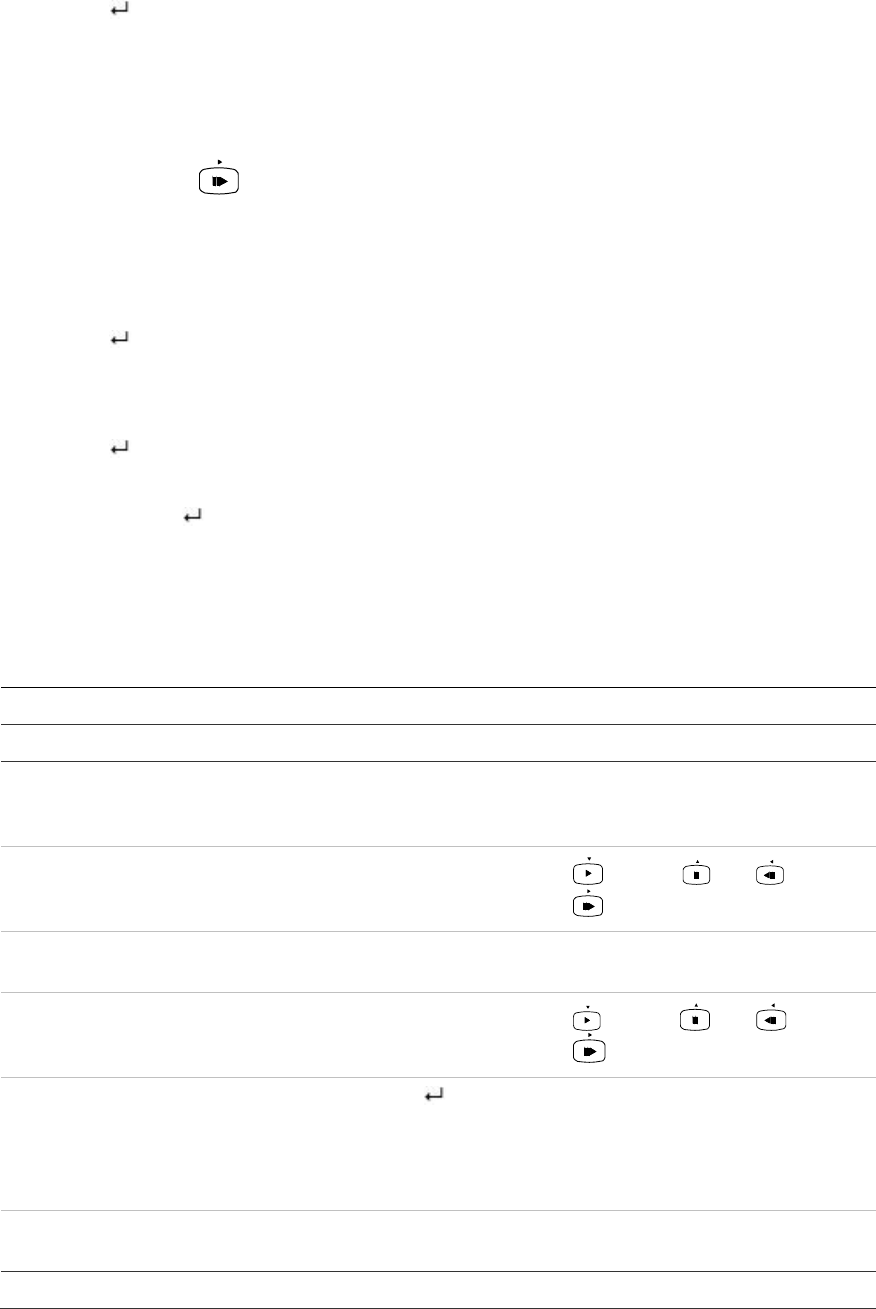
Appendix D: KTD-405 keypad
TruVision DVR 11 User Manual 131
7. Press and hold esc and then press the arrow buttons to navigate the cursor
to activate OK button on the Login screen.
8. Press . The main menu appears.
Example 2: To modify a menu option using the keypad
1. In the main menu press and hold esc and then press the arrow buttons to
navigate to the desired menu icon (for example, Display Mode Settings).
2. Press esc and to go to Display Mode Settings menu.
3. Press Zoom + or Zoom - to scroll to the menu tab, More Settings.
4. When in the desired menu window, press and hold esc and then press the
arrow buttons to navigate the cursor to the option, Menu Timeout.
5. Press to activate the dropdown menu.
6. Press and hold esc and then press the up/down arrow buttons to navigate to
the desired option.
7. Press to select the option.
8. Press and hold esc and then press the up/down arrow buttons to navigate to
Apply. Press to select it. Then navigate to Back to return to live view.
Instead of the arrow buttons, you can also use the joystick on the keyboard.
TVR 11/TVR 11c mapping to the KTD-405 keypad
Table 21: DVR mapping to the KTD-405 keypad
Task Keypad action Further information
Menu mode
Call up or exit menu In live view, press esc. To log out the menu: go to the
Power Manager menu and select
Logout.
Move through the menus Press and hold esc and
then press the arrow
buttons or use the joystick.
Down, Up, Left,
Right
Move between menu tabs Press seq to switch
between menu tabs.
Navigate to a menu option Press and hold esc and
then press the arrow
buttons or use the joystick.
Down, Up, Left,
Right
Select a character or menu
option Press Enter ( ). Note. If you press esc before
pressing Enter, you quit the
menu without saving any
changes. It is the same as
Cancel.
Select the zone ID Press zone to connect the
keypad to the DVR.
Live view mode
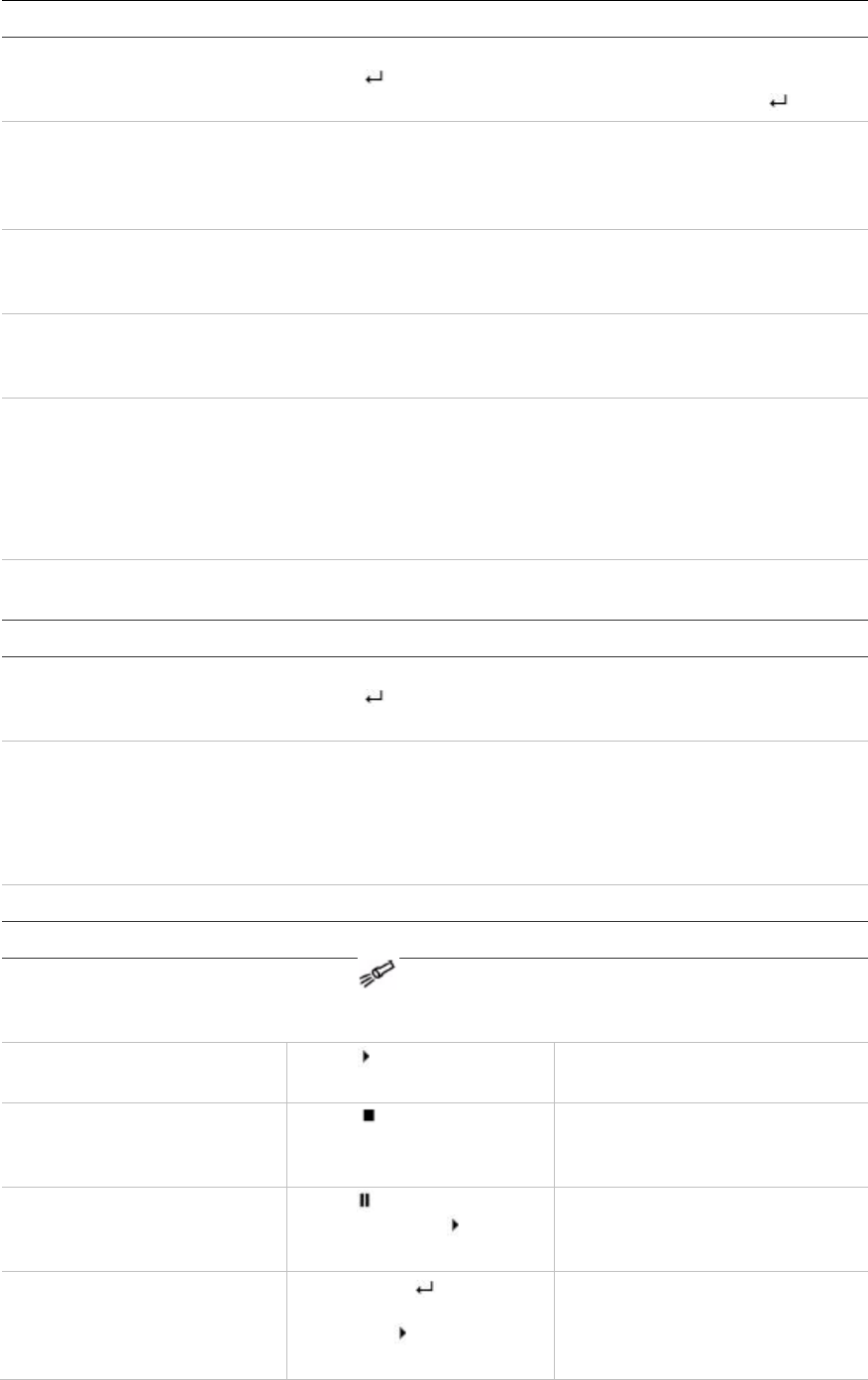
Appendix D: KTD-405 keypad
132 TruVision DVR 11 User Manual
Task Keypad action Further information
Call up a single camera Press 0 to 9 and then press
Enter ( ). Using the numeric buttons 0 to 9,
enter the number of the camera
and then press Enter ( ).
Call up multiview screens Press view and then press
button 5 to scroll through
the next available multiview
screen.
Sequence through cameras Press the seq button to
scroll through the cameras
in full screen.
Switch to next/previous
camera Move the joystick to the
right (= next camera), or the
left (=previous camera).
Switch between monitor A
and monitor B Press the mon button and
button 1 to switch to
monitor A.
Press the mon button and
button 2 to switch to
monitor B.
Manually acknowledge an
alarm Press Alarm.
PTZ functions
Enter PTZ mode In live view mode, press
Enter ( ). It is possible that you first need
to loin before you can access the
PTZ mode.
PTZ functions (Up, Down,
Left, Right, Zoom in, Zoom
out)
Move the joystick to move
the dome up, down, left and
right
Press zoom+ and zoom-.
KTD-405U: Turn the knob on the
joystick to zoom in/zoom out.
KTD-405-2DU: Press the zoom+
and zoom- buttons.
Leave PTZ mode Press esc.
Playback functions
Search for recorded video Press . Once password is entered, the
Advanced Search menu
appears.
All-day playback Press when in full
screen. All-day playback of the currently
selected camera.
Stop playback Press to stop playback
and return to live view
mode.
Pause playback Press to pause
playback. Press to
restart.
Select one of the files in the
search result screen Press enter ( ) and move
the joystick to the desired
file. Press to start
playback.

Appendix D: KTD-405 keypad
TruVision DVR 11 User Manual 133
Task Keypad action Further information
Change playback speed Press and hold esc and
then press the left/right
arrow buttons or move the
joystick to the left/right.
Jump 30 seconds forwards or
backwards during playback Press and hold esc and
then press the up/down
arrow buttons or move the
joystick to the left/right.
Controlling a camera
When setting up and controlling your cameras in zone mode, refer to Table 23
below for the list of default PTZ addresses associated with a zone ID. This value
is automatically populated in the system. You can modify the PTZ address in the
PTZ menu to meet customer requirements (see “Configuring PTZ settings” on
page 71).
Table 22: Default PTZ camera addresses by zone ID
Camera
input
Zone ID of TVR 11
1 2 3 4 5 6 7 8 9 10 11 12 13 14 15 16
1
0 32 64 96 128 160 192 224 256 288 320 352 384 416 448 480
2
1 33 65 97 129 161 193 225 257 289 321 353 385 417 449 481
3
2 34 66 98 130 162 194 226 258 290 322 354 386 418 450 482
4
3 35 67 99 131 163 195 227 259 291 323 355 387 419 451 483
5
4 36 68 100 132 164 196 228 260 292 324 356 388 420 452 484
6
5 37 69 101 133 165 197 229 261 293 325 357 389 421 453 485
7
6 38 70 102 134 166 198 230 262 294 326 358 390 422 454 486
8
7 39 71 103 135 167 199 231 263 295 327 359 391 423 455 487
9
8 40 72 104 136 168 200 232 264 296 328 360 392 424 456 488
10
9 41 73 105 137 169 201 233 265 297 329 361 393 425 457 489
11
10 42 74 106 138 170 202 234 266 298 330 362 394 426 458 490
12
11 43 75 107 139 171 203 235 267 299 331 363 395 427 459 491
13
12 44 76 108 140 172 204 236 268 300 332 364 396 428 460 492
14
13 45 77 109 141 173 205 237 269 301 333 365 397 429 461 493
15
14 46 78 110 142 174 206 238 270 302 334 366 398 430 462 494
16
15 447 79 111 143 175 207 239 271 303 335 367 399 431 463 495
17
16 48 80 112 144 176 208 240 272 304 336 368 400 432 464 496
18
17 49 81 113 145 177 209 241 273 305 337 369 401 433 465 497
19
18 50 82 114 146 178 210 242 274 306 338 370 402 434 466 498
20
19 51 83 115 147 179 211 243 275 307 339 371 403 435 467 499

Appendix D: KTD-405 keypad
134 TruVision DVR 11 User Manual
Camera
input
Zone ID of TVR 11
1 2 3 4 5 6 7 8 9 10 11 12 13 14 15 16
21
20 52 84 116 148 180 212 244 276 308 340 372 404 436 468 500
22
21 53 85 117 149 181 213 245 277 309 341 373 405 437 469 501
23
22 54 86 118 150 182 214 246 278 310 342 374 406 438 470 502
24
23 55 87 119 151 183 215 247 279 311 343 375 407 439 471 503
25
24 56 88 120 152 184 216 248 280 312 344 376 408 440 472 504
26
25 57 89 121 153 185 217 249 281 313 345 377 409 441 473 505
27
26 58 90 122 154 186 218 250 282 314 346 378 410 442 474 506
28
27 59 91 123 155 187 219 251 283 315 347 379 411 443 475 507
29
28 60 92 124 156 188 220 252 284 316 348 380 412 444 476 508
30
29 61 93 125 157 189 221 253 285 317 349 381 413 445 477 509
31
30 62 94 126 158 190 222 254 286 318 350 382 414 446 478 510
32
31 63 95 127 159 191 223 255 287 319 351 383 415 447 479 511

TruVision DVR 11 User Manual 135
Appendix E
Maximum pre-recording
times
The maximum pre-recording time that can be selected depends on the bit rate.
Frame rate, resolution and image quality do not impact time.
Note: This information only applies when the bit rate is set to Constant (see
“Initializing the recording settings” on page 17 for more information).
Constant bit rate Maximum pre-recording time
(seconds)
32 30
48 30
64 30
80 30
96 30
128 30
160 30
192 30
224 30
256 30
320 30
384 30
448 30
512 30
640 30
768 30
896 30
1024 30
1280 25
1536 20
20BAppendix E: Maximum pre-recording times
136 TruVision DVR 11 User Manual
Constant bit rate Maximum pre-recording time
(seconds)
1792 15
2048 15
3072 10
4096 5

TruVision DVR 11 User Manual 137
Appendix F
Supported PTZ commands
Table 23: Supported PTZ commands by camera protocols (Part 1)
PTZ command
Protocol Tilt up Tilt
down Pan
left Pan
right Left
up Left
down Right
up Right
down Auto
pan Zoom
+ Zoom
- Focus
+ Focus
-
Interlogix-485 Y Y Y Y N N N N N Y Y Y Y
Interlogix-422 Y Y Y Y N N N N N Y Y Y Y
KALATEL Y Y Y Y N N N N N Y Y Y Y
DSCP Y Y Y Y N N N N N Y Y Y Y
HIKVISION Y Y Y Y Y Y Y Y Y Y Y Y Y
Honeywell Y Y Y Y N N N N N Y Y Y Y
INFINOVA Y Y Y Y N N N N N Y Y Y Y
KTD-348 Y Y Y Y N N N N N Y Y Y Y
LG MULTIX Y Y Y Y N N N N N Y Y Y Y
LILIN Y Y Y Y N N N N N Y Y Y Y
PANASONIC_
CS850 Y Y Y Y N N N N N Y Y Y Y
PELCO-D Y Y Y Y Y* Y* Y* Y* Y Y Y Y Y
PELCO-P Y Y Y Y Y* Y* Y* Y* Y Y Y Y Y
PHILIPS Y Y Y Y N N N N N Y Y Y Y
PHILPS-3 Y Y Y Y N N N N N Y Y Y Y
SAE Y Y Y Y N N N N N Y Y Y Y
Samsung Y Y Y Y N N N N N Y Y Y Y
Siemens Y Y Y Y N N N N N Y Y Y Y
SONY-EVI-
D30/31 Y Y Y Y N N N N N N N N N
SONY-EVI-D70 Y Y Y Y N N N N N N N N N
SONY-EVI-
D100/P Y Y Y Y N N N N N N N N N
TECHWIN Y Y Y Y N N N N N N N N N
VICON Y Y Y Y N N N N N Y Y Y Y

21BAppendix F: Supported PTZ commands
138 TruVision DVR 11 User Manual
PTZ command
Protocol Tilt up Tilt
down Pan
left Pan
right Left
up Left
down Right
up Right
down Auto
pan Zoom
+ Zoom
- Focus
+ Focus
-
YOULI Y Y Y Y N N N N N Y Y Y Y
*: Hikvision only.
Table 24: Supported PTZ commands by camera protocols (Part 2)
PTZ command
Protocol Iris+ Iris- Light Wiper Zoom
area Center Menu Preset Tour Shadow
tour
Interlogix-485 Y Y N N N N N Y N Y
Interlogix-422 Y Y N N N N N Y N Y
KALATEL Y Y N N N N N Y N Y
DSCP Y Y N N N N N Y N Y
HIKVISION Y Y N N Y Y Y Y Y Y
Honeywell Y Y N N N N N N N N
INFINOVA Y Y N N N N N Y N Y
KTD-348 Y Y N N N N N Y N Y
LG MULTIX Y Y N N N N N Y Y Y
LILIN Y Y N N N N N N N N
PANASONIC_
CS850 Y Y N N N N N Y N Y
PELCO-D Y Y Y** Y# N N N Y Y Y
PELCO-P Y Y N N N N N Y Y Y
PHILIPS Y Y N N N N N N N N
PHILPS-3 Y Y N N N N N N N N
SAE Y Y N N N N N Y Y Y
Samsung Y Y N N N N N Y N Y
Siemens Y Y N N N N N Y N Y
SONY-EVI-
D30/31 N N N N N N N N N N
SONY-EVI-D70 N N N N N N N N N N
SONY-EVI-
D100/P N N N N N N N N N N
TECHWIN Y Y N N N N N Y N N
VICON Y Y N N N N N N N N
YOULI Y Y N N N N N Y N N
** : Aux. 2
# : Aux. 1

TruVision DVR 11 User Manual 139
Appendix G
Default menu settings
Display mode setting
Monitor
General
Language: English
Device name: Embedded Net DVR
Device address: 255
Zone ID: 1
VGA resolution: 1280*1024/60HZ
HDMI resolution:1920*1080/60HZ(1080P)
Password required : Yes
Scale output video: Yes
Enable wizard: Yes
More settings
Monitor standard: NTSC/PAL. Auto detect at booting.
Output mode: Standard
Monitor brightness: 5
Event hint: Yes
Time bar transparent: Yes
Menu timeout: 5 min
Mouse pointer speed: Lower
Layout
General
Video output interface: VGA
Live view mode:
3*3 (for 4-ch models) or 4*4 (8/16 ch models)
Dwell time: No switch
Enable audio output: No
Event output: HDMI

22BAppendix G: Default menu settings
140 TruVision DVR 11 User Manual
Full screen monitoring dwell time: 10 s
Audio output linked to: VGA
View
Video output interface: VGA
16-chan: 4*4 -A1 to A16
8-chan: 3*3 - A1 to A8+1black screen
4-chan: 2*2 - A1 to A4 (Different with PRD-5.1-138)
Time
Time settings
Time Zone: GMT -8
Date Format: MM-DD-YYYY
System date: Current system date
System time: Current system time
Auto DST Adjustment: No
Enable DST: No
From: Apr 1st Sun 2:00
To: Oct last Sun 2:00
DST bias: 60 min
Holiday
Holiday setting
Status: All disable; Start date: 1st. Jan; End date: 1st
Jan
Camera management
OSD
OSD settings
Camera: Analog 1
Camera name: Camera 01
Display name: Yes
Display date: Yes
Display week: Yes
Date format: MM-DD-YYYY
Time format: 12-hour
Display mode: Non-transparent & not flashing
Image
Image settings
Camera: Analog 1
Mode: Standard

22BAppendix G: Default menu settings
TruVision DVR 11 User Manual 141
Motion
Motion detection settings
Camera: Analog 1
Enable motion detection: No
Rule: Trigger channel [camera-self]; Alarm schedule:
All day for whole week; Rule: (Null)
Sensitivity: Middle
Target size: 1
Zone: Full screen
Privacy mask
Privacy mask settings
Camera: Analog 1
Enable privacy mask: No
Zone: (Null)
Tamper-proof
Tamper-proof settings
Camera: Analog 1
Enable tamper proof: No
Rule: Alarm schedule all day for whole week; Rule:
(Null)
Sencitivity: Low
Zone: (Null)
Video loss
Video loss settings
Camera: Analog 1
Enable video loss Alarm: Disable
Rule: Alarm schedule - all day for whole week; Rule:
(Null)
Video schedule
Schedule
Record
Camera: All
Enable Schedule: Enabled
Schedule: All day for whole week TL-Hi
Encoding
Record
Camera: All
Encoding parameters: Main stream (TL-Hi)
Stream type Video & Audio

22BAppendix G: Default menu settings
142 TruVision DVR 11 User Manual
Resolution: 704 x 288 (2CIF)
Bit rate type: Variable
Video quality: Higher
Frame rate: 6 fps
Max. bit rate mode: General
Max. bit rate (Kbps): 1722
Pre-record: 5 s
Post-record: 5 s
Auto delete: 0
Record audio: Yes
Capture
Camera: All
Resolution: 352 x 288 (CIF)
Picture quality: Medium
V-stream encoding
Enable V-stream: No
Frame rate : 25 fps
Max. bit rate mode: General
Max. bit rate (Kbps): 1792
More settings
More settings
Event priority: Text In < Motion
Overwrite: Yes
Networking settings
General
General
NIC Type: 10/100/1000M self-adaptive
Enable DHCP: Enable
IPv4 address: 192.168.1.82
IPv4 subnet mask: 255.255.255.0
IPv4 default gateway: 192.168.1.1
IPv6 address1: fe80::240:3dff:fe7e:926f/64
IPv6 address2: (Null)
IPv6 address gateday: (Null)
Mac address: (It depends)
MTU: 1500
Preferred DNS server: (Null)
Alternate DNS server: (Null)

22BAppendix G: Default menu settings
TruVision DVR 11 User Manual 143
PPPoE
PPPoE
Enable PPPoE: Disable
User name: (Null)
Password: (Null)
Confirm: (Null)
DDNS
DDNS
DDNS: Disable
DDNS type: ezDDNS
Server address: www.tvr-ddns.net
Host Name: (Null)
NAT: Disable
Nat server port: 8000->0
Nat HTTP port: 80->0
NTP
NTP
Enable NTP: Disable
Interval:60min
NTP server: time.nist.gov
NTP Port:123
Email Email
(Null)
SNMP SNMP
(Null)
More settings
More settings
Alarm host IP: (Null)
Alarm host port: 0
Server port: 8000
HTTP port: 80
Multicast IP: (Null)
RTSP server port: 554

22BAppendix G: Default menu settings
144 TruVision DVR 11 User Manual
Alarm settings
Alarm list
Alarm Inputs
(Null)
Alarm Outputs
(Null)
Alarm Input
Alarm Input
Alarm input no.: All
Alarm name: (Null)
Type: NO
Setting: Disable
Rule: Trigger channel - No; Alarm schedule - All day
for whole week; Rule (Null); PTZ link: (Null)
Alarm Output
Alarm Output
Alarm output no.: All
Alarm name: (Null)
Time out: 5 s
Rule: All day for whole week
Manual Alarm
Trigger none
Notification
Notification
HDD full: (Null)
HDD error: Audio warning
Network disconnected: (Null)
IP conflicted: (Null)
Illegal login: (Null)
Abnormal video signal: (Null)
Input/output video standard mismatch: Audio warning
Abnormal record/capture: Audio warning
PTZ settings
General
General
Camera: All
Baud rate: 9600
Date bit: 8

22BAppendix G: Default menu settings
TruVision DVR 11 User Manual 145
Stop bit: 1
Parity: None
Flow ctrl: None
PTZ protocol: Interlogix 485
Address: 0 to 15 for camera 1 to 16
More settings
(Null)
User settings
User
User management
Admin:1234
Operator: 4321
Guest: (Null)
Change password
(Null)
System settings
RS-232
RS-232 setting
Baud rate: 115200
Date bit: 8
Stop bit: 1
Parity: None
Flow ctrl: None
Usage: ProBridge
HDD
(NULL)
Text insertion
Text intertion
Enable text intertion: Disable
(Null)
Upgrade (Null)
Configuration (Null)
Log search
Log search
Current whole day, all day, all type
22BAppendix G: Default menu settings
146 TruVision DVR 11 User Manual
TruVision DVR 11 User Manual 147
Index
A
Active X, 111
Alarm notifications
external alarms, 28
types, 25
video loss, 31
video tampering, 32
Alarm outputs
manually acknowledging, 30
Archiving
exporting files to a backup device, 92
quick archive, 91
snapshots, 94
video clips, 93
Audio
connecting audio inputs and outputs, 6
B
Back panel description, 4
Backup devices
managing, 95
Brightness, contrast and saturation
modifying, 105
C
Cameras
configuring PTZ dome cameras, 71
privacy masking, 104
setting up sequencing, 64
D
Daily schedules
recording, 20
Date
configuring display, 65
DDNS settings, 35
Default menu settings, 139
Default settings
restore, 99
Digital zoom
description, 62
Digital zoom in playback, 89
DST, 65
DVR address
change, 66
DVR name
change, 66
Dwell time, 63
E
Email notifications
set up, 36
Event logs
searching remotely, 117
Export files, 95
External alarm
setting up to record when triggered, 28
External alarm schedules
recording, 21
F
Factory default settings
restore, 99
Firmware
update, 98
Frame-by-frame playback, 89
Front panel description, 48
H
HDD
checking status, 44
initializing, 43
properties, 44
set to read only, 23
setting up HDD alarms, 45
Holiday schedules
recording, 21
HTTP port settings, 39
I
Instant playback, 81
IP devices supported, 122
K
Keypad
connecting to RS-485 port, 6
Index
148 TruVision DVR 11 User Manual
KTD-405 keypad
accessing DVR functions, 130
connecting the keypad to the DVR, 11
controlling a camera, 133
firmware supported, 127
set up DVR device address, 128
set up in zone mode, 128
wiring, 127
L
Language
change GUI language, 66
Live mode
configuring time and date display, 65
Live view mode
digital zoom, 62
multiview format, 60
sequencing cameras, 60
single view format, 59
Lock/unlock recorded files, 22
Login password, 66
Logs
view system log, 100
M
Main menu
accessing, 53
description, 53
icon descriptions, 53
Menu timeout
change time, 66
Monitors
change output mode, 66
connecting, 5
video outputs, 58
Motion detection, 25
defining motion detection area, 25
setting the sensitivity level, 25
setting the target size, 25
Motion search
playback, 88
Mouse pointer speed
change, 66
Mouse pop-up menu, 58
Multicast settings, 38
Multiview format, 60
default setting, 63
N
Network packet data
exporting, 41
Network settings
general set up, 33
Network settings for browser, 112
Network status, 39
Network traffic
checking, 39
Notifications
alarm types, 25
external alarms, 28
system event types, 30
NTP server, 36
O
OSD settings, 103
Overwriting
Protecting recorded files, 22
P
Password
changing user password, 110
default user passwords, 107
enable/disable login password, 66
Playback
changing playback speed, 89
instant playback, 81
interface overview, 79
motion search, 88
playing back archived files, 95
search by event, 85
search by time, 84
search by video type, 84
search results, 83
snapshots, 86
system log, 86
using digital zoom, 89
using the web browser, 115
Playback control toolbar
description, 80
Player
using for playback, 95
Port forwarding, 112, 125
Power up and down DVR, 13
PPPoE settings, 34
Pre-recording times
maximum times, 135
Preset tour
calling up, 76
Preset tours, 75
quick access, 72
setting up, 75
Presets
calling up, 74
quick access, 72
selecting, setting up and deleting, 73
setting up, 74
Privacy masking, 104
Protecting recorded files, 22
PTZ control panel
description, 72
PTZ dome cameras
assigning protocols, 71
configuring, 71
connecting dome cameras to the DVR, 7
connecting to RS-485 port, 6
Index
TruVision DVR 11 User Manual 149
controlling remotely, 118
set up, 6
PTZ protocols, 123
assigning, 71
configuring Interlogix cameras, 7
PTZ commands supported, 137
Q
Quick access toolbar, 61
R
Reboot the DVR, 13
Recorded files
lock/unlock, 22
Protect HDD, 23
Recording
configuring settings, 17
configuring snapshot settings, 19
protecting against overwriting, 22
recording schedules, 19
Recording schedules
daily, 20, 21
defining, 19
external alarms, 21
Remote alarm host settings, 38
Remote control
connect to the DVR, 52
description, 50
Resolution
change monitor resolution setup, 66
RS-232 port, 6
configuring, 97
RTSP service port, 39
S
S.M.A.R.T. information on a HDD, 45
Sequencing cameras, 60, 64
Setup wizard
using, 14
Shadow tours
quick access, 72
setting up, 77
Single view format, 59
Snapshots
archiving, 94
capture remotely, 115
playback, 86
recording settings, 19
SNMP protocol settings, 37
Soft keyboard, 54
Status icons
enable/disable display, 66
System information
view, 99
System logs
major and minor record types, 86
playback, 86
view, 100
System notifications
event types, 30
T
Tampering
detecting video tampering, 32
Text insertion
Via local interface, 23
via the browser, 118
Time
configuring display, 65
U
User privileges
camera configuration, 109
descriptions, 108
local configuration, 108
remote configuration, 109
Users
adding a new user, 107
customizing user privileges, 108
deleting a user, 110
managing, 107
modifying user information, 110
user levels, 107
V
Video format
PAL/NTSC, 13
Video loss
setting up detection, 31
Video output
change manually, 66
Video output interface
changing, 63
Video outputs, 58
Video tampering
setting up to detect, 32
View system log, 100
V-stream encoding, 69
W
Web browser
accessing, 112
controlling PTZ dome camera, 118
installing Active X, 111
local configuration of DVR, 114
remote configuration of DVR, 114
searching and playing back recorded video,
115
searching for event logs, 117
text insertion, 118
video snapshot, 115
Wizard
enable/disable, 66
Index
150 TruVision DVR 11 User Manual
